WLR-7100 - Router SITECOM - Free user manual and instructions
Find the device manual for free WLR-7100 SITECOM in PDF.


User questions about WLR-7100 SITECOM
0 question about this device. Answer the ones you know or ask your own.
Ask a new question about this device
Download the instructions for your Router in PDF format for free! Find your manual WLR-7100 - SITECOM and take your electronic device back in hand. On this page are published all the documents necessary for the use of your device. WLR-7100 by SITECOM.
USER MANUAL WLR-7100 SITECOM
natural_image
Front view of a white wireless router with visible ports and control buttons (no readable text or symbols)User Manual
Table of Contents
Introduction....4
Key Features 5
Package Contents 6
Cautions....7
Product Layout 8
Network + System Requirements ....10
Setup your Router 11
Setup your Computer 12
Login to your Router 15
Con gure your Internet connection....16
Con gure your Router 19
Wireless Settings 24
Firewall Settings....32
Advanced Settings 36
Toolbox Settings 43
Addendum A: USB Port Control Center 51
Addendum B: Declaration of Conformity....62




Revision 1.1
© Sitecom Europe BV 2015
Note: All the information contained in this manual was correct at the time of publication.
However, as our engineers are always updating and improving the product, your device's software may have a slightly different appearance or modified functionality than presented in this manual.
Introduction
Congratulations on your purchase of the WiFi Router X7 AC1200. This router is compliant with 802.11a/b/g/n/ac and up to 3 times faster than standard 802.11n based routers while still being compatible with 802.11g & 802.11b devices. This router is not only a Wireless Access Point, but also doubles as a 4-port full-duplex Gigabit switch that connects your wired-Ethernet devices together at 10/100/1000 Mbps speeds.
At 300Mbps wireless transmission rate on 2.4GHz and 866 Mbps wireless transmission rate on 5GHz, the Access Point built into the router uses advanced MIMO (Multi-Input, Multi-Output) technology to transmit multiple streams of data in a single wireless channel, giving you seamless access to multimedia content. The robust RF signal travels farther, eliminates dead spots and extends the network range. For data protection and privacy, the router encodes all wireless transmissions with WEP, WPA, or WPA2 encryption.
With the built-in DHCP Server & powerful SPI rewall, the router protects your computers against intruders and most known Internet attacks and also provides safe VPN pass-through. With the incredible speed and QoS function of 802.11n, the router is ideal for media-centric applications like streaming video, gaming, and VoIP telephony to run multiple media-intense data streams through the network at the same time, with no degradation in performance.
With Sitecom Cloud Security, Sitecom goes one step further and ensures that you can surf the Internet even more safely, not only on your PC, but on all the devices in your home which you use to access the Internet. It does not matter whether you surf the Internet on a laptop, a tablet, a mobile telephone or your television. Thanks to the security that is integrated in the router, all the Internet devices in your home are protected against the dangers of Internet criminality.
Key Features
| Features | Advantages |
| Incredible Data Rate up to 866Mbps* | Heavy data payloads such as MPEG video streaming |
| IEEE 802.11n Compliant and backwards compatible with 802.11b/g/n | Fully Interoperable with IEEE 802.11b / IEEE802.11g, IEEE 802.11n compliant devices with legacy protection |
| Four 10/100/1000 Mbps gigabit Switch Ports (Auto-Crossover) | Scalability, extend your network. |
| Firewall supports Virtual Server Mapping, DMZ, IP Filter, ICMP Blocking, SPI | Avoids the attacks of Hackers or Viruses from Internet |
| Support 802.1x authenticator, 802.11i (WPA/WPA2, AES), VPN pass-through | Provide mutual authentication (Client and dynamic encryption keys to enhance security |
| Sitecom Cloud Security | Protect your home against cybercrime while browsing. |
| USB Port | Connect any USB device and share it in your network. |
| Guest Network | Devices connected to the Guest network will have Internet connection but no access to the main network and cannot communicate with each other. |
| IPv6 support | Support for Static, Native, 6RD and DS-Lite. |
* Theoretical wireless signal rate based on IEEE standard of 802.11a, b, g, n, ac chipset used. Actual throughput may vary. Network conditions and environmental factors lower actual throughput rate. All specifications are subject to change without notice.
Package Contents
Open the package carefully, and make sure that none of the items listed below are missing. Do not discard the packing materials, in case of return; the unit must be shipped back in its original package.
• The WLR-7100 WiFi Router X7 AC1200
- A 110V\~240V to 12V 1.25A Switching Power Adapter
• A Quick Install Guide
• A CD-ROM with software
- An UTP cable
Cautions
This router's design and manufacturer has your safety in mind. In order to safely and effectively use this router, please read the following before usage.
Usage Cautions
The user should not modify this router. The environmental temperature should be within +5 \~ +35 degrees Celsius.
Power
The router's power voltage is DC 12V 1.25A.
When using this router, please connect the supplied AC adapter or AC adapter cable to the router's power jack. When placing the adapter cable, make sure it can't get damaged or be subject to pressure. To reduce the risk of electric shock, unplug the adapter first before cleaning it. Never connect the adapter to the router in a humid or dusty area. Do not replace the adapter or cable's wire or connector.
Repair
If the router has a problem, you should take it to an appointed repair center and let the specialists do the repair. Never repair the router yourself, you might damage the router or endanger yourself.
Disposing of the Router
When you dispose of the router, be sure to dispose it appropriately. Some countries may regulate disposal of an electrical device, please consult with your local authority.
Others
When using this router, please do not let it come into contact with water or other liquids. If water is accidentally spilled on the router, please use a dry cloth to absorb the spillage. Electronic products are vulnerable, when using please avoid shaking or hitting the router, and do not press the buttons too hard.
- Do not let the router come into contact with water or other liquid.
- Do not disassemble, repair or change the design of the router; any damage done will not be included in the repair policy.
- Avoid hitting the router with a hard object, avoid shaking the router and stay away from magnetic elds.
- If during electrostatic discharge or a strong electromagnetic field the product will malfunction, unplug the power cable. The product will return to normal performance the next time it is powered on.
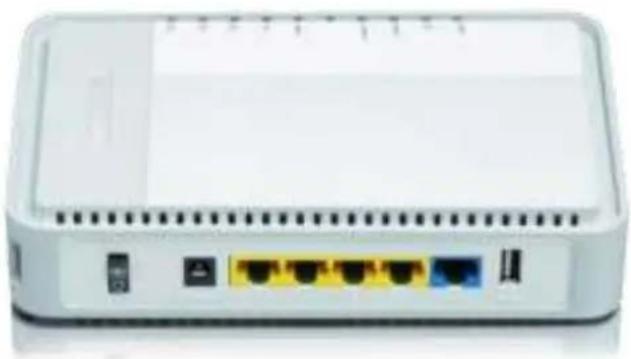
Product Layout
natural_image
Front view of a white wireless router with four Ethernet ports and ventilation slots (no visible text or labels)| Port | Description |
| Power connector | Connect the 12V DC adapter to this port |
| LAN (Yellow) | Connect your PCs or network devices to these ports |
| WAN (Blue) | Connect your ADSL/Cable modem to this port |
| USB Port | Connect a USB device to this port |
Backlabel and Network Details Folder
The Network Details Folder describes the IP address, login details, network name, security code and OPS button functionality.

text_image
All your network details in our safe place Wi-Fi router X7 AC1200 WELK-7100 x10001 One pass want to customize your network names and passwords? Here begins to your emotion 1. Type the following add-ones in your browser: https://rebeone.router 2. Link to your user interface Username admin Password 3. Go to 2.4GHz WiFi or S2GHz WiFi 2.4 GHz network is ideal for longer distance S2GHz linkers is ideal for three connection applications such as video streaming 4. Use to Base to change your network name. Use to Security to change your password Device WiFi will be replaced by a specific language www.power.com or https://www.abc/ Receive your route while one push off a feature: Form 2: use = 10% mode Form 3: use = Survey default| Button | Description |
| OPS BUTTON | Press 2 seconds for WPS/OPS mode |
| Press both buttons 15+ Seconds to reset to factory defaults. |
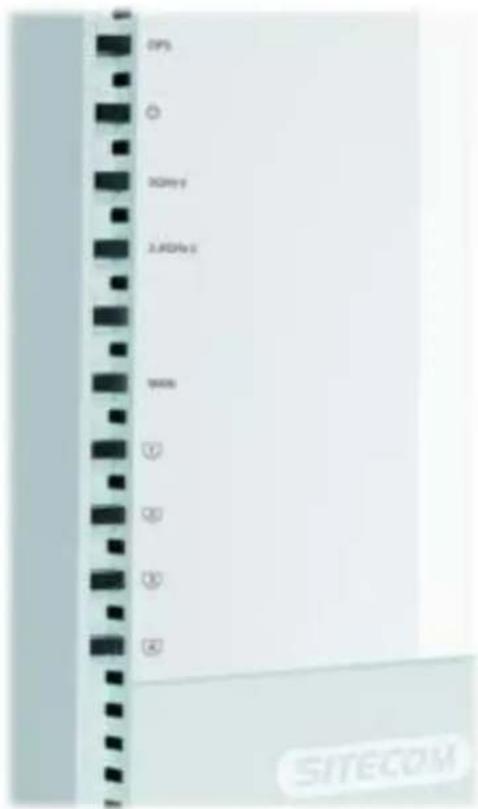
LED De nition
text_image
GPS 3D/40Hz 2.4GHz 70ms ① ② ③ ④ SITECOMAs shown from the top to the bottom.
| Port | Description |
| OPS (White) | Shows OPS activity. |
| Power (Red) | Shows the device is turned on. |
| 5GHz WiFi (Blue) | Shows 5GHz WiFi activity. |
| 2.4GHz WiFi (Blue) | Shows 2.4GHz WiFi activity. |
| WAN (Blue) | Shows the WAN cable is connected. |
| LAN (Blue) | Shows the cable is connected. |
| LAN (Blue) | Shows the cable is connected. |
| LAN (Blue) | Shows the cable is connected. |
| LAN (Blue) | Shows the cable is connected. |
Network + System Requirements
To begin using the router, make sure you meet the following as minimum requirements:
- PC/Notebook.
- Operating System – Microsoft Windows XP/VISTA/7 or Mac OSX
• 1 Free Ethernet port. - WiFi card/USB dongle (802.11 a/b/g/n) – optional.
- External xDSL (ADSL) or Cable modem with an Ethernet port (RJ-45).
• PC with a Web-Browser (Internet Explorer, Safari, Firefox, Opera) - Ethernet compatible CAT5e cables.
Setup your Router
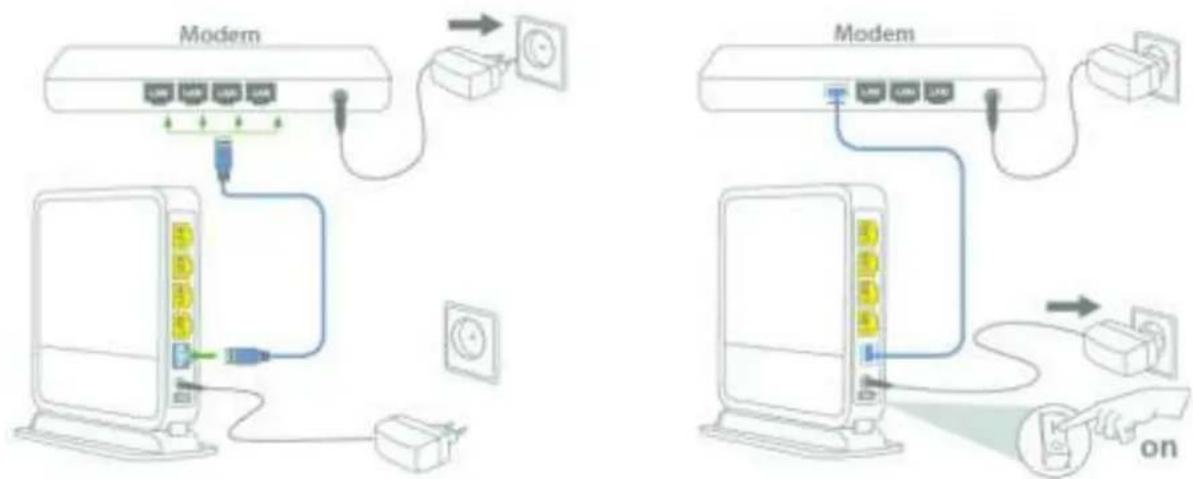
You can place the router on a desk or other at surface, or you can mount it on a wall. For optimal performance, place your router in the center of your home (or your once) in a location that is away from any potential source of interference, such as a metal wall or microwave oven. This location must be close to a power connection and your ADSL/Cable modem.
text_image
Modem Modem onConnect the supplied power-adapter to the power inlet port and connect it to a wall outlet. Switch the router on by ipping the switch on the back of the device. The router automatically enters the self-test phase. During self-test phase, the Power LED will be lit continuously to indicate that this product is in normal operation.
Setup your Computer
Windows, Manual Connection
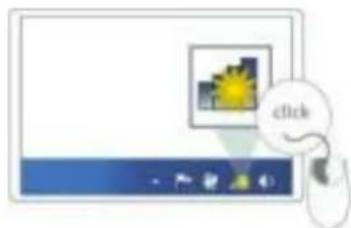
- Click on the icon for wireless connectivity. This is usually located in the System Tray, next to the clock.
natural_image
Computer monitor with a cursor hovering over it, showing a small image and a 'click' button (no readable text or symbols)- Select the Sitecom network. The correct network name can be found on the sticker on bottom of the router, or in the Network Details Folder.
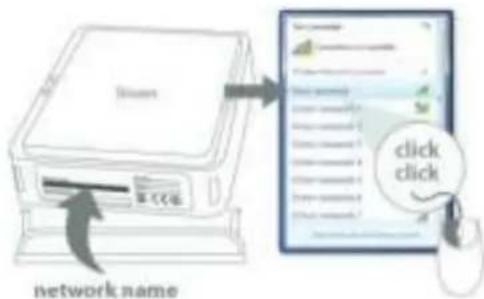
text_image
network name click click- Fill in the password for the wireless network. The correct password can be found on the sticker on the bottom of the router, or in the Network Details Folder.
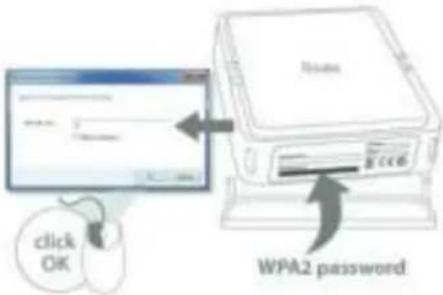
text_image
click OK WPA2 password- Wait for the icon to display that it's connected to the network.

text_image
= OKWindows, OPS Connection
- Click on the icon for wireless connectivity. This is usually located in the System Tray, next to the clock.

natural_image
Computer monitor with icons and a mouse pointer, no visible text or symbols on the screen or icons- Select the Sitecom network. The correct network name can be found on the sticker on bottom of the router, or in the Network Details Folder.
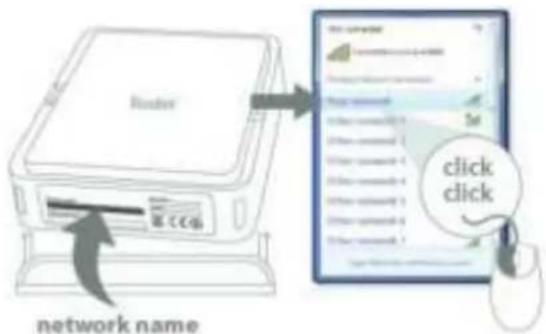
text_image
Network www.nccp network name click click- Push the OPS Button on the router. For 2.4GHz, press 0-5 seconds. For 5GHz, press 5-10 seconds.

text_image
Push OPS button (Modem) Router- Wait for the icon to display that it's connected to the network.

text_image
= OKMac OSX
- Click on the icon for wireless connectivity. This is usually located in the System Tray, next to the clock.
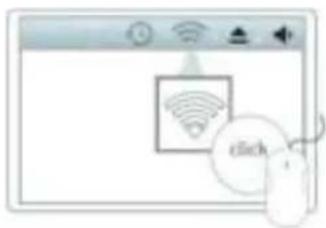
natural_image
Illustration of a mobile app interface with Wi-Fi signal icon and mouse (no text or symbols)- Select the Sitecom network. The correct network name can be found on the sticker on bottom of the router, or in the Network Details Folder.

text_image
Router type: No-01279 Other networks 1 Other networks 2 Other networks 3 Other networks 4 Other networks 5 Other networks 6 Other networks 7 Other networks 8 Other networks 9 Other networks 10 join Other networks Create Network Create Network Name click- Fill in the password for the wireless network. The correct password can be found on the sticker on the bottom of the router, or in the Network Details Folder.
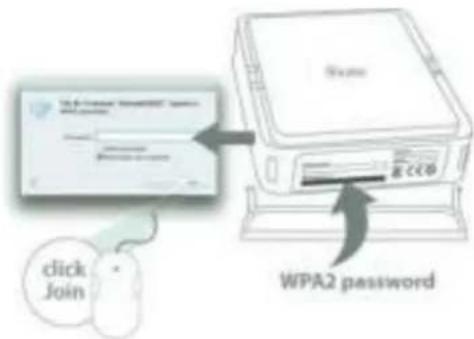
text_image
click Join WPA2 password- Wait for the icon to display that it's connected to the network.
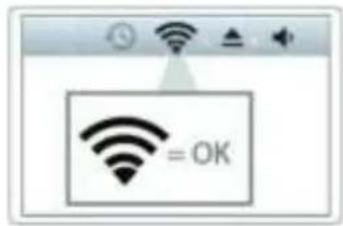
text_image
= OKLogin to your Router
LOGIN procedure
• OPEN your browser (e.g. Internet Explorer).


- Type http://sitecom.router in the address bar and press [Enter].
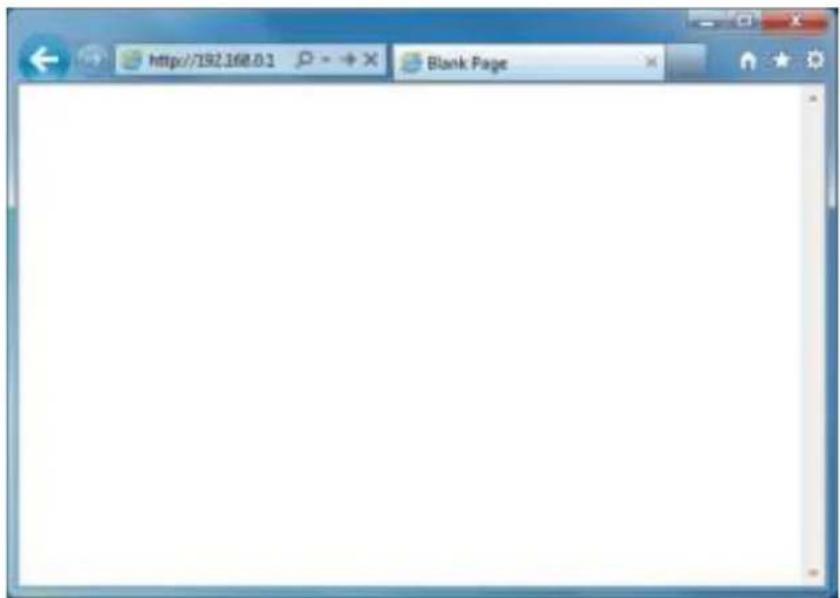
text_image
http://192.168.0.1 Blank Page- Type user name and password. The default username is admin, the password can be found on the back label on the bottom of your router.

text_image
Windows Security The server 192.168.0.1 requires a username and password. User name Password Remember my credentials OK Cancel- Click OK.
- You will see the home page of the WiFi Router X7 AC1200.
Con gure your Internet connection
From the menu, select "Internet Settings".

text_image
Wi-Fi Router SITECOM Status | Internet Settings | 2.4GHz WiFi | 5GHz WiFi | Firewall | Advanced Settings | Toolbox | Choose your language • System Status | DHCP Server | Device Manager | Internet Manager | DHCP Manager | Log | MonitoringYou can use the status page to monitor the connection status for the WAN/AN interfaces, firmware and hardware version numbers, any legal attempts to access your network and information on all DHCP client PCs currently connected to your network.
System
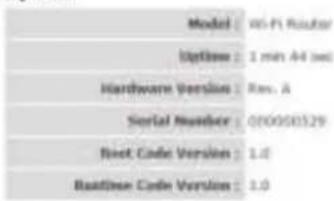
text_image
Model: 40-F1 Router Options: 1 min 44 sec Hardware Version: Rev. A Serial Number: 010050329 Root Code Version: 1.0 Baseline Code Version: 1.0Depending on the chosen setting, you may need to enter your user name and password, MAC address or hostname in the following window. After you have entered the correct information, click Apply.
3Py4 Salifarge
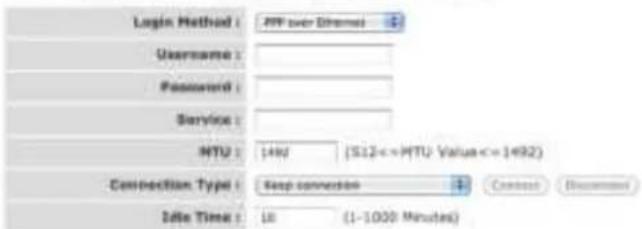
Use this section to configure your IPv4 Connection type. If you are unsure of your connection method, please contact your Internet Service Provider.
IPv4 Connection Type
Choose the 3Pyk mode to be used by the router for the internet connection.
text_image
Login Method : APP over Channels Username : Password : Service : NTU : 1480 (S12<=NTU Value<=1492) Connection Type : Step connection + Date Time : 16 (1-1000 Minutes)Apply Cancel
IPv6 Con guration
The IPv6 (Internet Protocol version 6) section is where you con gure your IPv6 Connection type.
IPv6 Connection Type
There are several connection types to choose from: Static IPv6, Autocon guration, 6RD and Link-local only. If you are unsure of your connection method, please contact your IPv6 Internet Service Provider.
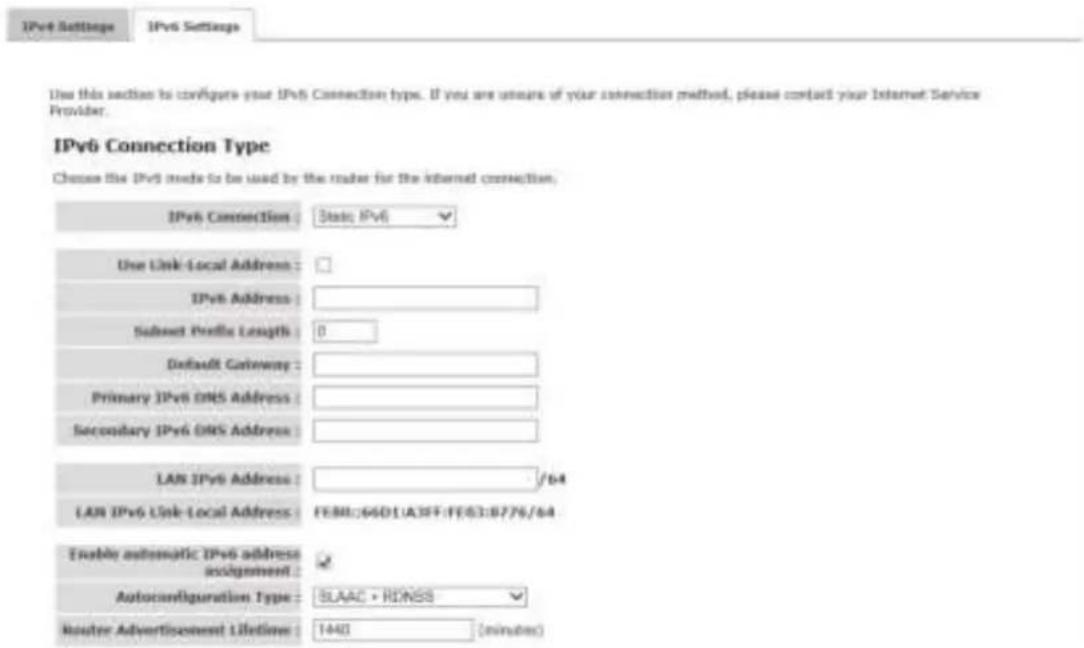
Static IPv6 Mode
This mode is used when your ISP provides you with a set IPv6 addresses that does not change. The IPv6 information is manually entered in your IPv6 con guration settings. You must enter the IPv6 address, Subnet Pre x Length, Default Gateway, Primary DNS Server and Secondary DNS Server. Your ISP provides you with all this information.
text_image
IPv6 Settings IPv6 Settings Use this section to configure your IPv6 Connection type. If you are unsure of your connection method, please contact your Internet Service Provider. IPv6 Connection Type Choose the IPv6 mode to be used by the reader for the internet connection. IPv6 Connection: State: IPv6 Use Link-Local Address: IPv6 Address: Subset Profile Length: 0 Default Gateway: Primary IPv6 DNS Address: Secondary IPv6 DNS Address: LAN IPv6 Address: /64 LAN IPv6 Link-Local Address: FEBI:6401(A3FF:FEB3:B776/64 Enable automatic IPv6 address assignment: Autocuripulation Type: BLAAC • RDNSS Route Advertisement Lifetime: 1440 (minutes)6RD Mode
In the 6RD mode, no additional con guration is necessary.

text_image
IPv6 Settings IPv6 Settings Use this vector to configure your IPv6 Connection type. If you are choose of your connection method, please contact your Internet Service Provider. IPv6 Connection Type: Choose the IPv6 mode to be used by the router for the internet connection. IPv6 Connection: EIR3 BRD Configuration: ■ BRD DHCPv4 Option □ Manual Configuration BRD IPv6 Profile: 2x80:9640:1000e+000 /50 IPv4 Address: 9510.8 98 Mask Length: 26 IPv6 Prefix Arrange: 2A00:B640:1000:CAG0::/56 Tunnel Link Local Address: FEBB::BA00:000A/64 BRD Border Relay IPv4 Address: 97757 LPS Primary IPv6 DNS Address: Secondary IPv6 DNS Address: LAN IPv6 Address : — /64 LAN IPv6 Link Local Address: FEBB::ABD1:A3FF:FEBB:B77b/64 Enable automatic IPv6 address assignment: ✓ Autoconfiguration Type: SLAAC ▼ RDNSS ✓ Router Advertisement Lifetime: 1440 (minutes) Apply CancelLink-local Mode
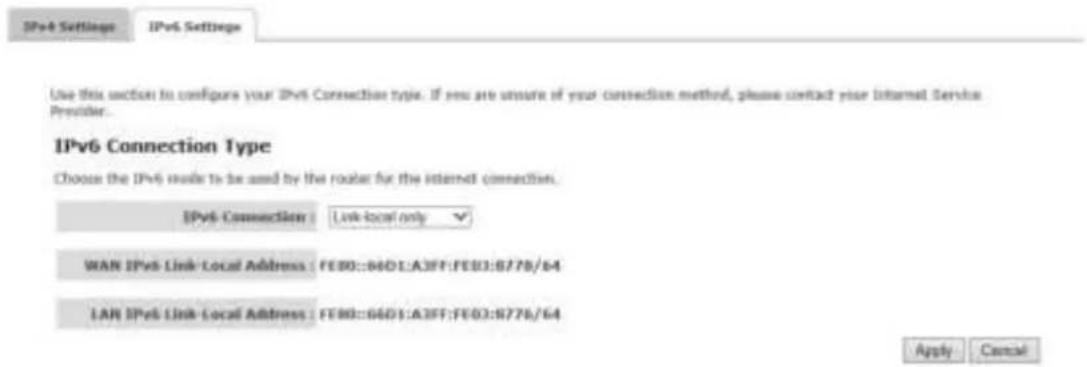
The Link-local address is used by nodes and routers when communicating with neighboring nodes on the same link. This mode enables IPv6-capable devices to communicate with each other on the LAN side.
text_image
IPv6 Settings IPv6 Settings Use this section to configure your IPv6 Connection type. If you are unsure of your connection method, please contact your Internet Service Provider. IPv6 Connection Type Choose the IPv6 route to be used by the router for the internet connection. IPv6 Connection : Link-local only WAN IPv6 Link-Local Address : FEB0::B4D1:A3FF:FEB3:B778/64 LAN IPv6 Link-Local Address : FEB0::B4D1:A3FF:FEB3:B778/64 Apply CancelCon gure your Router
Status
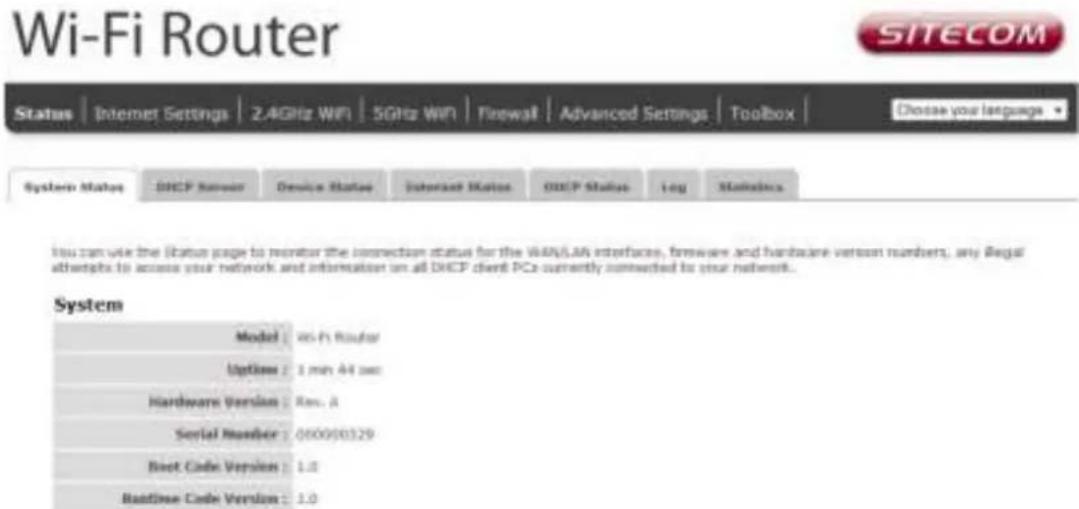
The System status section allows you to monitor the current status of your router, the UP time, hardware information and serial number as well as rmware version information is displayed here.
text_image
Wi-Fi Router SITECOM Status | Internet Settings | 2.4GHz WIN | 5GHz WIN | Firewall | Advanced Settings | Toolbox | Choose your language System Status DHCP User Device Status Internet Status DHCP Status Log Statistics You can use the status page to monitor the connection status for the WAN/LAN interfaces, firmware and hardware version numbers, any legal attempts to access your network and information on all DHCP client PCs currently connected to your network. System Model 86-Fi Router Options 3 min 44 sec Hardware Version Rms. A Serial Number 000050329 Boot Code Version 1.0 Runtime Code Version 1.0DHCP Server
The DHCP Server tab gives you the opportunity to change the IP settings of the router.

text_image
Wi-Fi Router SITECOM Status | Internet Settings | 2.4GHz WiFi | 5GHz WiFi | Firewall | Advanced Settings | Toolbox | Choose your language ▼ System Status DHCP Server Device Status Internet Status DHCP Status Log StatisticsYou can enable the broadband routers DHCP server to dynamically allocate IP Addresses for your LHA client PCs. The broadband router must have an IP Address for the Local Area Network.
LAN IP

text_image
IP Address : 192.168.0.1 IP Subnet Mask : 350.388.255.0 802.1d Spensing Tree : Disabled • DHCP Server : Enabled • Linux Titan : One week •DHCP Server
text_image
Start IP 1 192.168.0.109 End IP 2 192.168.0.209 Destination Name: sitecons.routierApply Cancel
Click Apply at the bottom of this screen to save any changes.
- IP address 192.168.0.1: It is the router's LAN IP address (Your LAN clients default gateway IP address).
• IP Subnet Mask 255.255.255.0: Specify a Subnet Mask for your LAN segment.
- 802.1d Spanning Tree: Disabled by default. If the 802.1d Spanning Tree function is enabled, this router will use the spanning tree protocol to prevent network loops.
- DHCP Server: Enabled by default. You can enable or disable the DHCP server. When DHCP is disabled no ip-addresses are assigned to clients and you have to use static ip-addresses. When DHCP server is enabled your computers will be assigned an ip-address automatically until the lease time expires.
- Lease Time: One Week. In the Lease Time setting you can specify the time period that the DHCP lends an IP address to your LAN clients. The DHCP will change your LAN client's IP address when this time threshold period is reached.
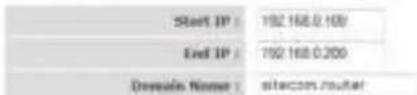
- IP Address Pool: You can select a particular IP address range for your DHCP server to issue IP addresses to your LAN Clients. The default IP range is 192.168.0.100 \~ 192.168.0.200. If you want your PC(s) to have a static/fixed IP address, then you'll have to choose an IP address outside this IP address Pool
- Domain Name: You can specify a Domain Name for your LAN or just keep the default (sitecom.router).
Device Status
View the router's current configuration settings. Device Status displays the configuration settings you've configured in the Internet Settings and WiFi Settings sections.

text_image
Wi-Fi Router Status | Internet Settings | 2.4GHz WW | 5GHz WW | Firewall | Advanced Settings | Toolbox | System Status | DHCP Status | Device Status | Linked Status | DHCP Status | Log | Download Status | View the current setting status of this device. Node: 67 2.4G Wireless Configuration Channel: 0 SSID_1 ENSIU: 88CCDCF04C Security: 88PL2 pre-shared key HSSID: 88.0C.FE.DR.PE.NC Associated Clouds: 0 5G Wireless Configuration Channel: 36 SSID_1 ENSIU: 88CCDCF04D Security: 88PL2 pre-shared key HSSID: 88.0C.FE.DR.PE.NC Associated Clouds: 0 LAN Configuration IF Address: 142.108.0.1 Submit Work: 235.232.235.0 DHCP Server: Default MAC Address: 90.0C.FE.DR.PE.NC SITECOM www.sitecom.com © 2012 - 2013 Internet Options - all rights reservedInternet Status
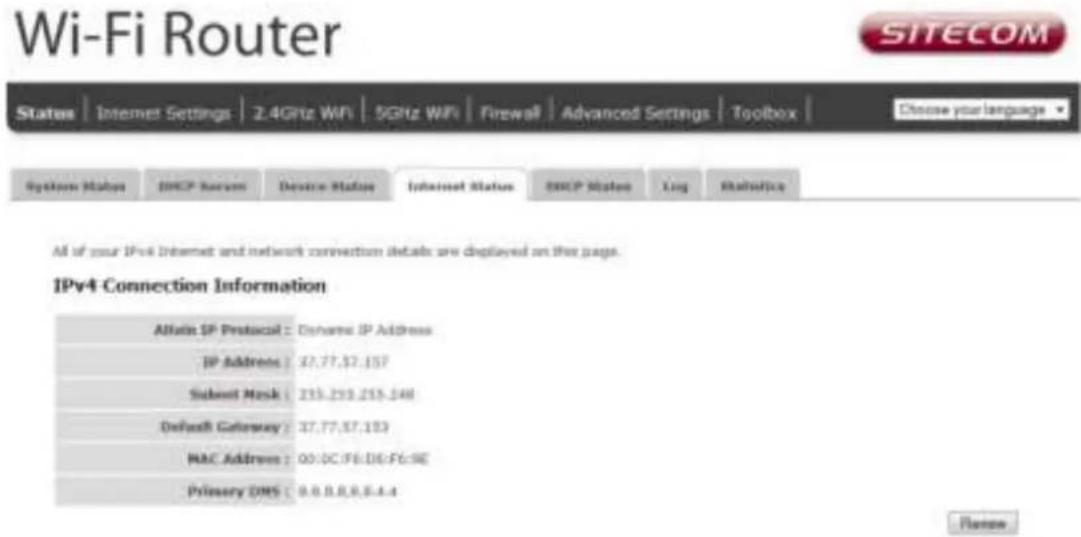
This page displays whether the WAN port is connected to a Cable/DSL connection. It also displays the router's WAN IP address, Subnet Mask, and ISP Gateway as well as MAC address, the Primary DNS. Press Renew button to renew your WAN IP address.
text_image
Wi-Fi Router SITECOM Status | Internet Settings | 2.4GHz WiFi | 5GHz WiFi | Firewall | Advanced Settings | Toolbox | Choose your language Systems Status | DHCP Server | Device Status | Internet Status | DHCP Status | Log | Statistics All of your IPv4 Internet and network connection details are displayed on this page. IPv4 Connection Information Altain SP Protocol : Altaine IP Address IP Address : 37.77.37.157 Subnet Mask : 235.239.255.046 Default Gateway : 37.77.37.153 MAC Address : 00:0C.F6.D6.F6:9E Primary DNS : 8.8.8.8.8.4.4 NameDHCP Client Status
This page shows all DHCP clients (LAN PCs) currently connected to your network. The table shows the assigned IP address, MAC address and expiration time for each DHCP leased client. Use the Refresh button to update the available information.
You can check "Enable Static DHCP IP". It is possible to add more static DHCP IPs. They are listed in the table Current Static DHCP Table. IP can be deleted at will from the table.
Click Apply to save the changed con guration.

text_image
Wi-Fi Router SITECOM Status Internet Settings 2.4GHz WiFi 5GHz WiFi Firewall Advanced Settings Toolbox Choose your language System Status DHCP Server Device Status Internet Status DHCP Status Log Statistics This table shows the assigned IP address, MAC address and expiration time for each DHCP leased client. IP address MAC address Expiration Time 192.168.0.150 80:AC:SF(76:80):10 6 days 23:56:14 Refresh Enable Static DHCP IP IP address MAC address Add Reset Current Static DHCP Table : NIL IP address MAC address Select Options Selected Cancel All Reset Apply CancelWLR-7100 Log
View the operation log of the router. This page shows the current system log of the router. It displays any event that occurred during or after system start up. At the bottom of the page, the system log can be saved

text_image
Status | Internet Settings | 2.4GHz WiFi | 5GHz WiFi | Firewall | Advanced Settings | Toolbox | Diosse your language ▼ System Status DHCP Server Device Status Internet Status DHCP Status Log StatisticsView the system operation information. You can see the system start up time, connection price...etc. Here:

text_image
Nov 26 14:12:37 [SYSTEM]: HTP, Local time=2012/11/36 26:15 Nov 26 14:12:37 [SYSTEM]: HTP, Daylight evening status: Disable Nov 26 14:12:37 [SYSTEM]: HTP, Time zone = +0.8 Arbans, Istanbul, Inner day 1 00:04:09 [SYSTEM]: AutoFM: No firmware upgrade detected. New check in $03245 seconds. day 1 00:03:32 [SYSTEM]: HTP, start HTP Client day 1 00:03:30 [SYSTEM]: Quit, Shopping day 1 00:03:30 [SYSTEM]: NET, stop IPv6 Firewall day 1 00:03:48 [SYSTEM]: DHT, start DNS Proxy day 1 00:03:47 [SYSTEM]: Quit, Shopping day 1 00:03:47 [SYSTEM]: NET, stop IPv6 Firewall day 1 00:03:48 [SYSTEM]: NET, start Firewall day 1 00:03:48 [SYSTEM]: NET, start NAT day 1 00:03:48 [SYSTEM]: NET, stop Firewall day 1 00:03:46 [SYSTEM]: NET, stop NAT day 1 00:03:48 [SYSTEM]: WAN, IP changed, restart serviziens day 1 00:03:48 [SYSTEM]: WAN, New ID = 37.77.47.18? day 1 00:03:25 [SYSTEM]: WAN, No RRT Link day 1 00:03:22 [SYSTEM]: WAN, start DHCP mode day 1 00:03:19 [SYSTEM]: WAN, stop DHCP mode day 1 00:03:19 [SYSTEM]: WLAS[NS], Current channel is best channel day 1 00:03:17 [SYSTEM]: DHCP Server, Sending ACK of 195.166.6.16t Save Clear RefreshWLR-7100 Statistics
Shows the counters of packets sent and received on WAN, LAN & WLAN.
Wi-Fi Router

text_image
Status | Internet Settings | 2.4GHz WiFi | 5GHz WiFi | Firewall | Advanced Settings | Toolbox Choose your language • System Status INCF Server Device Status Internet Status INCF Status Log StatisticsThis page shows the packet counters for transmission and reception regarding to networks.

text_image
2.4G Wireless LAN : Sant Packets 78 Received Packets 0 5G Wireless LAN : Sant Packets 8 Received Packets 0 Ethernet LAN : Sant Packets 11/25 Received Packets 668 Ethernet WAN : Sant Packets 41 Received Packets 23 RefreshWireless Settings
You can set parameters that are used for the wireless stations to connect to this router for the 2.4 GHz radio or 5 GHz radio. The parameters include Mode, ESSID, Channel Number and Associated Client.
Wireless Function
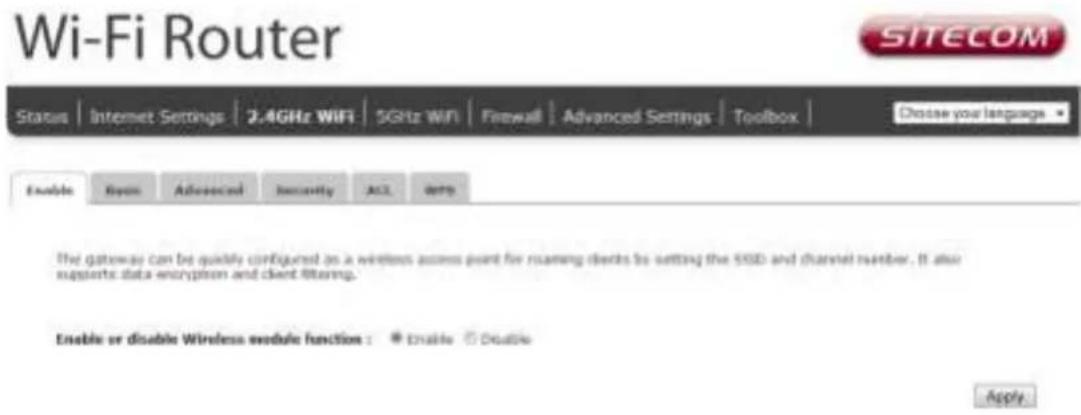
Enable or Disable Wireless function here. Click Apply and wait for module to be ready & loaded.
text_image
Wi-Fi Router SITECOM Status | Internet Settings | 2.4GHz WiFi | 5GHz WiFi | Firewall | Advanced Settings | Toolbox | Choose your language ▼ Enable Open Advanced Security ALL Date The gateway can be quickly configured as a wireless access point for roaming clients to setting the SSD and channel number. It also supports data encryption and client filtering. Enable or disable Wireless module function : ☑ Enable ☑ Disable ApplyBasic Settings
text_image
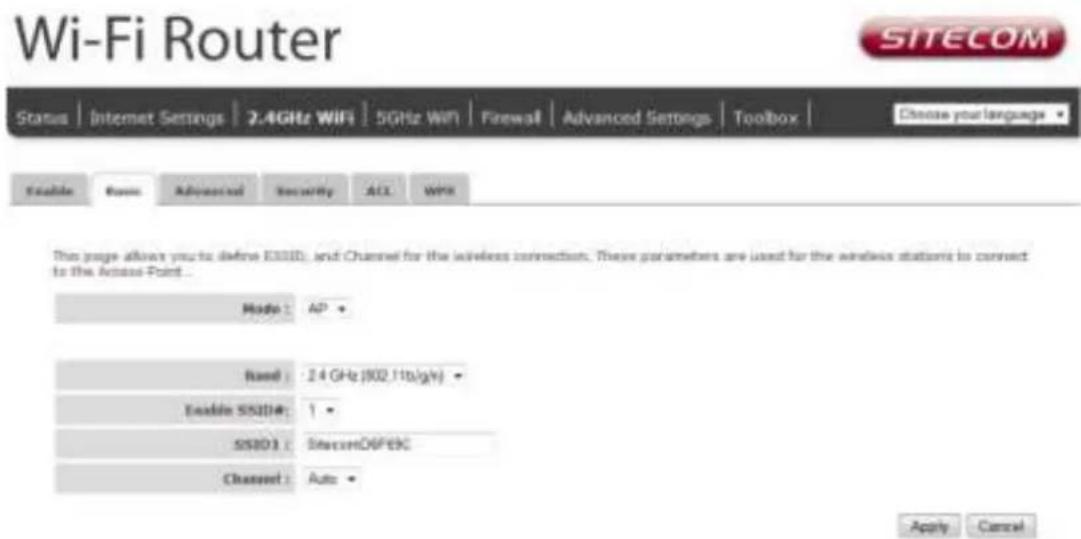
Wi-Fi Router SITECOM Status | Internet Settings | 2.4GHz WiFi | 5GHz WiFi | Firewall | Advanced Settings | Toolbox | Choose your language Enable Enable Advanced Security ALL WiFi This page allows you to define ESSID, and Channel for the wireless connection. These parameters are used for the wireless stations to connect to the Access Point... Mode: AP Band: 2.4 GHz (802.11b/g/s) Enable SSID#: 1 SSIO1: SitecomDBFEC Channel: Auto Apply Cancel- Band: Allows you to set the AP xed at 802.11b or 802.11g mode. You can also select B+G mode to allow 802.11b and 802.11g clients at the same time. For the 5GHz mode you can set 802.11a, 802.11n, 802.11a/n or 802.11ac mode.
• Guest Network: Enable this to activate the Guest Network. Devices connected to the Guest network will have Internet connection but no access to the main network and cannot communicate with each other.
• SSID: This is the name of the wireless signal which is broadcasted. All the devices in the same wireless LAN should have the same SSID.
• Channel: The channel used by the wireless LAN. All devices in the same wireless LAN should use the same channel.
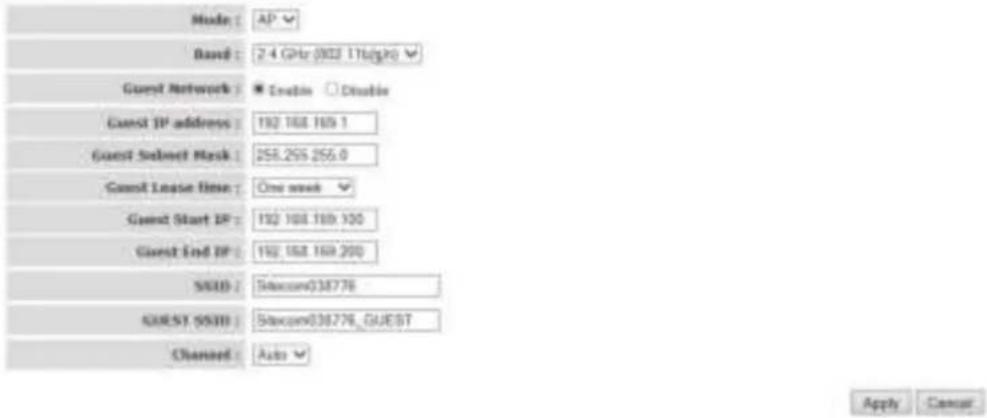
Guest Network
This page allows one to define E5000, and Channel for the wireless connection. Those parameters are used for the wireless stations to connect by the Access Point.
text_image
Mode: AP Based: 2.4 GHz (000 17bit/s) Guest Network: Enable Double Guest IP address: 192 168 169.1 Guest Select Mask: 258.295.256.0 Guest Lease time: One week Guest Start IP: 192 168 169.100 Guest End IP: 192 168 169.200 MID: Selectors034778 GUEST SSD: Selectors034778_GUEST Channel: Auto Apply Cancel- Guest IP address: The gateway address for the Guest Network. This address cannot be the same as the default router's IP Address.
- Guest Subnet Mask: The Subnet Mask for the Guest network. This address cannot be the same as the default router's Subnet Mask.
- Guest Lease Time: One Week. In the Lease Time setting you can specify the time period that the DHCP lends an IP address to your LAN clients. The DHCP will change your LAN client's IP address when this time threshold period is reached.
- Guest Start IP + End IP: You can select a particular IP address range for your DHCP server to issue IP addresses to your LAN Clients. The default IP range is 192.168.169.100 \~ 192.168.169.200. This address pool cannot be the same as the default router's DHCP Address pool.
• Guest SSID: This is the name of the wireless signal which is broadcasted as the Guest Network. This name cannot be the same as the default SSID.
Advanced Settings
This tab allows you to set the advanced wireless options. The options included are, Fragment Threshold, RTS Threshold, Beacon Interval, and Preamble Type. You should not change these parameters unless you know what effect the changes will have on the router.

text_image
Status | Internet Settings | 2.4GHz WiFi | 5GHz WiFi | Firewall | Advanced Settings | Toolbox | Choose your language Enable Reset Advanced Security ALL WPPThese settings are only for more technically advanced users who have a sufficient knowledge about wireless LMS. These settings should not be changed unless you know what effect the changes will have on your Broadband router

text_image
Fragment Threshold : 2346 (258-2346) ATS Threshold : 2346 (3-2346) Exclusion Interval : 100 (30-1000 nm) DTIM Period : 1 (3-255) Data Rate : Auto N Data Rate : Auto Channel Bandwidth : * Auto 20/48 MHz ◎ 20 MHz Preamble Type : * Lung Preamble ◎ Short Preamble CTS Protection : * Auto ◎ Always ◎ Note To Power : 100 %Apply Cancel
- Fragment Threshold: "Fragment Threshold" species the maximum size of a packet during the fragmentation of data to be transmitted. If you set this value too low, it will result in bad performance.
- RTS Threshold: When the packet size is smaller then the RTS threshold, the wireless router will not use the RTS/CTS mechanism to send this packet.
- Beacon Interval: This is the interval of time that this wireless router broadcasts a beacon. A Beacon is used to synchronize the wireless network.
- Data Rate: The "Data Rate" is the rate that this access point uses to transmit data packets. The access point will use the highest possible selected transmission rate to transmit the data packets.
- N Data Rate: The "Data Rate" is the rate that this access point uses to transmit data packets for N compliant wireless nodes. Highest to lowest data rate can be xed.
• Channel Bandwidth: This is the range of frequencies that will be used. - Preamble Type: The "Long Preamble" can provide better wireless LAN compatibility while the "Short Preamble" can provide better wireless LAN performance.
• TX Power: The transmit power can be set to a bare minimum or maximum power for better performance or power saving.
Security
This router provides complete wireless LAN security functions, included are WEP, IEEE 802.11x, IEEE 802.11x with WEP, WPA with pre-shared key and WPA with RADIUS. With these security functions, you can prevent your wireless LAN from illegal access. Please make sure your wireless stations use the same security function, and are setup with the same security key.

text_image
Wi-Fi Router SITECOM Status | Internet Settings | 2.4GHz WiFi | 5GHz WiFi | Firewall | Advanced Settings | Toolbox | Choose your language Enable Remove Advanced Security ALL WPA This page allows you to setup the wireless security. Turn on IESP or WPA by using Encryption Keyo could prevent any unauthorized access to your wireless network. SSID Selection : SeconOKPEC Broadcast SSHID : Enable WMH : Enable Encryption : WPA pre-shared key WPA Type : @WPCTKIP □ WPA2(WEA) ○ WPA2 Mixed Pre-shared Key Type : Paraphrase Pre-shared Key : SUN760NMEOC Apply CancelDisable
When you choose to disable encryption, it is very insecure to use the router.
This page allows you to setup the wireless security. Turn on WSP or WPA by using Encryption keys could prevent any unauthorized access to your wireless network.

text_image
SSID Selective Broadcast ESSID WMM Encryption 放弃OGF68 Enable Enable DisableEnable 932.1x Authentication

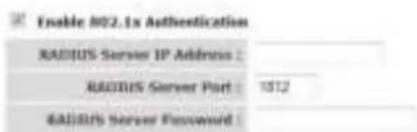
Enable 802.1x Authentication
text_image
Enable 802.1x Authentication RADIUS Server IP Address : RADIUS Server Port : 1012 RADIUS Server Password :
IEEE 802.1x is an authentication protocol. Every user must use a valid account to login to this Access Point before accessing the wireless LAN. The authentication is processed by a RADIUS server. This mode only authenticates users by IEEE 802.1x, but it does not encrypt the data during communication
WEP
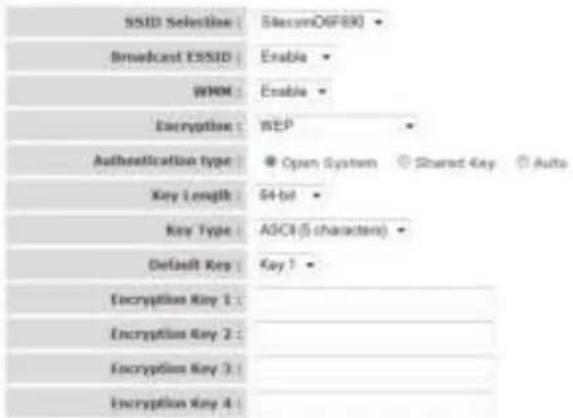
The page allows you setup the wireless security. Turn on WSP or WPA by using Encryption keys could prevent any unauthorized access to your wireless network.
text_image
SSID SelectLine: SecureOFF80 Broadcast ESSID: Enable WMH: Enable Encryption: WEP Authentication type: Open System Shared Key Auto Key Length: 64-bit Key Type: ADCI (5 characters) Default Key: Key ? Encryption Key 1: Encryption Key 2: Encryption Key 3: Encryption Key 4:Enable 802.1x Authentication
Apply Cancel
When you select 64-bit or 128-bit WEP key, you have to enter WEP keys to encrypt data. You can generate the key by yourself and enter it. You can enter four WEP keys and select one of them as a default key. Then the router can receive any packets encrypted by one of the four keys.
• Key Length: You can select the WEP key length for encryption, 64-bit or 128-bit. The larger the key will be the higher level of security is used, but the throughput will be lower.
• Key Type: You may select ASCII Characters (alphanumeric format) or Hexadecimal Digits (in the "A-F", "a-f" and "o-q" range) to be the WEP Key.
• Key1 - Key4: The WEP keys are used to encrypt data transmitted in the wireless network. Use the following rules to setup a WEP key on the device. 64-bit WEP: input 10-digits Hex values (in the "A-F", "a-f" and "o-g" range) or 5-digit ASCII character as the encryption keys. 128-bit WEP: input 26-digit Hex values (in the "A-F", "a-f" and "o-g" range) or 13-digit ASCII characters as the encryption keys.
Click Apply at the bottom of the screen to save the above con guration.
WPA Pre-shared Key

text_image
Wi-Fi Router SITECOM Status | Internet Settings | 2.4GHz WiFi | 5GHz WiFi | Firewall | Advanced Settings | Toolbox | Choose your language Enable Reset Advanced Security ALL WPsThis page allows you to setup the wireless security. Turn on WDP or WPA by using Encryption Keys could prevent any unauthorized access to your windstream network.
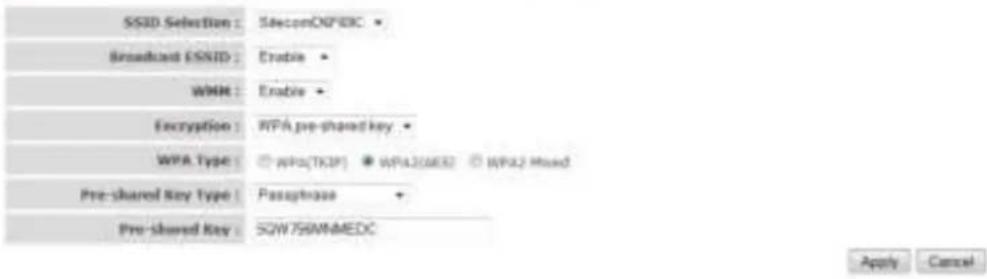
text_image
SSID Selection : SisconONPEC Broadcast ESSID : Enable WMH : Enable Encryption : WPA pre-shared key WPA Type : ○ WPA(TKIP) ● WPA2(WEI2) ○ WPA2 Mixed Pre-shared Key Type : Passphrase Pre-shared Key : SQW76NNNMEDC Apply CancelWi-Fi Protected Access (WPA) is an advanced security standard. You can use a pre-shared key to authenticate wireless stations and encrypt data during communication. It uses TKIP or CCMP (AES) to change the encryption key frequently, so the encryption key is not easy to be cracked by hackers. This is the best security available.
WPA-Radius

text_image
Enable Name Advanced Security ALL WPS This page allows you to setup the wireless security. Turn on WEP or WPA by using Encryption Keys could prevent any unauthorized access to your wireless network. SSU Selection: SisecamQIP900 Broadcast CSSU: Enable WMH: Enable Encryption: WPA.RADIUS WPA Type: ○ WPIACTIP) ● WPK2(RDS) ○ WPK2 Fixed RADIUS Server IP Address: RADIUS Server Port: 1812 RADIUS Server Password: Apply CancelWi-Fi Protected Access (WPA) is an advanced security standard. You can use an external RADIUS server to authenticate wireless stations and provide the session key to encrypt data during communication. It uses TKIP or CCMP (AES) to change the encryption key frequently. Press Apply when you are done.
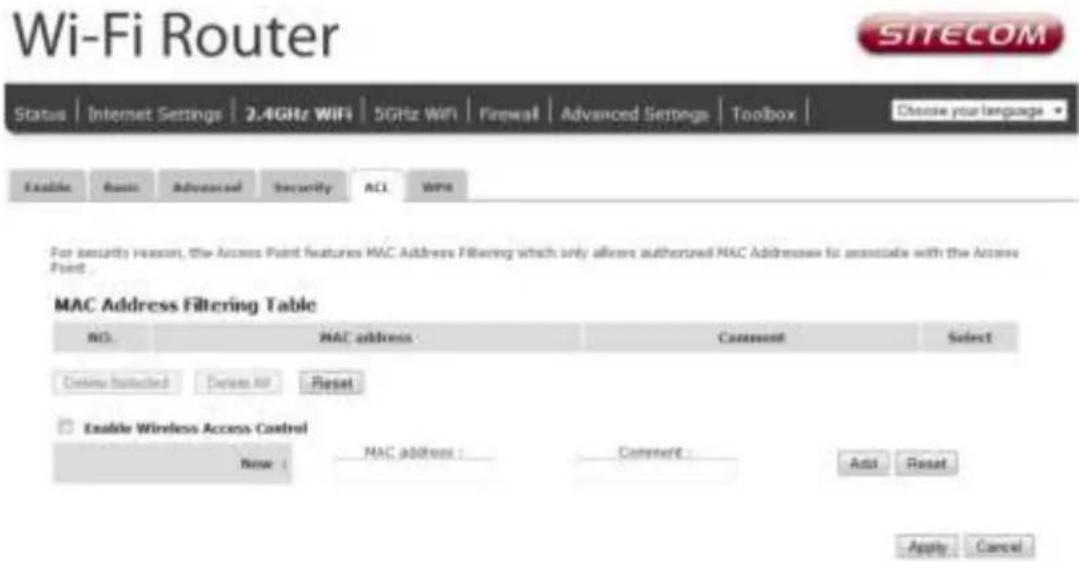
ACL
text_image
Wi-Fi Router SITECOM Status | Internet Settings | 2.4GHz WiFi | 5GHz WiFi | Firewall | Advanced Settings | Toolbox | Choose your language Enable Reset Advanced Security ACI WiFi For security reason, the Access Point features MAC Address Filtering which only allows authorized MAC Addresses to associate with the Access Point. MAC Address Filtering Table NO. MAC address Comment Select Checking Selected Contains Air Reset Enable Wireless Access Control None: MAC address : Comment : Add Reset Apply CancelThis wireless router supports MAC Address Control, which prevents unauthorized clients from accessing your wireless network.
- Enable wireless access control: Enables the wireless access control function
- Adding an address into the list: Enter the "MAC Address" and "Comment" of the wireless station to be added and then click "Add". The wireless station will now be added into the "Current Access Control List" below. If you are having any difficulties lling in the elds, just click "Clear" and both "MAC Address" and "Comment" elds will be cleared.
- Remove an address from the list: If you want to remove a MAC address from the "Current Access Control List", select the MAC address that you want to remove in the list and then click "Delete Selected". If you want to remove all the MAC addresses from the list, just click the "Delete All" button. Click "Reset" will clear your current selections.
Click Apply at the bottom of the screen to save the above con gurations. You can now con gure other sections by choosing Continue, or choose Apply to apply the settings and reboot the device.
WPS
Wi-Fi Protected Setup (WPS) is the simplest way to establish a connection between the wireless clients and the wireless router. You don't have to select the encryption mode and ll in a long encryption passphrase every time when you try to setup a wireless connection. You only need to press a button on both wireless client and wireless router, and WPS will do the rest for you.
The wireless router supports two types of WPS: WPS via Push Button and WPS via PIN code. If you want to use the Push Button, you have to push a speci c button on the wireless client or in the utility of the wireless client to start the WPS mode, and switch the wireless router to WPS mode. You can simply push the WPS button of the wireless router, or click the 'Start to Process' button in the web con guration interface. If you want to use the PIN code, you have to know the PIN code of the
wireless client and switch it to WPS mode, then II-in the PIN code of the wireless client through the web con guration interface of the wireless router.

text_image
Wi-Fi Router SITECOM Status | Internet Settings | 2.4GHz WiFi | 5GHz WiFi | Firewall | Advanced Settings | Toolbox | Choose your language ▼ Enable Basic Advanced Security A12 WP%
text_image
WPS: Enable Wi-Fi Protected Setup Information WPS Current Status: Configured Release configuration Self File Code: 40678362 SUID: SelectCD5F9XC Authentication Mode: WPA2 pre-shared key Pensphrase Key: E20676MAHAE DC WPS Via Push Button: Start to Process WPS Via PIN: Start to Process• WPS: Check the box to enable WPS function and uncheck it to disable the WPS function.
- WPS Current Status: If the wireless security (encryption) function of this wireless router is properly set, you'll see a 'Configured' message here. Otherwise, you'll see 'UnConfigured'.
• Self-Pin Code: This is the WPS PIN code of the wireless router. You may need this information when connecting to other WPS-enabled wireless devices.
• SSID: This is the network broadcast name (SSID) of the router.
• Authentication Mode: It shows the active authentication mode for the wireless connection.
- Passphrase Key: It shows the passphrase key that is randomly generated by the wireless router during the WPS process. You may need this information when using a device which doesn't support WPS.
• WPS via Push Button: Press the button to start the WPS process. The router will wait for the WPS request from the wireless devices within 2 minutes.
- WPS via PIN: You can II-in the PIN code of the wireless device and press the button to start the WPS process. The router will wait for the WPS request from the wireless device within 2 minutes.
Firewall Settings
The router provides extensive rewall protection by restricting connection parameters, thus limiting the risk of hacker attacks, and defending against a wide array of common Internet attacks. However, for applications that require unrestricted access to the Internet, you can con gure a speci c client/server as a Demilitarized Zone (DMZ).
Note: To enable the Firewall settings select Enable and click Apply

text_image
Wi-Fi Router SITECOM Status | Internet Settings | 2.4GHz WiFi | 5GHz WiFi | Firewall | Advanced Settings | Toolbox | Choose your language Enable OMZ Back Access URL/Stack The Broadband router provides extensive firewall protection by restricting connections parameters, thus limiting the risk of a hacker attack, and defending against a wide area of common attacks. However, for applications that require unrestricted access to the Internet, you can configure a specific client/server as a Demilitarized Zone (DMZ) Enable or disable Firewall module function : Enable Disable ApplyDMZ
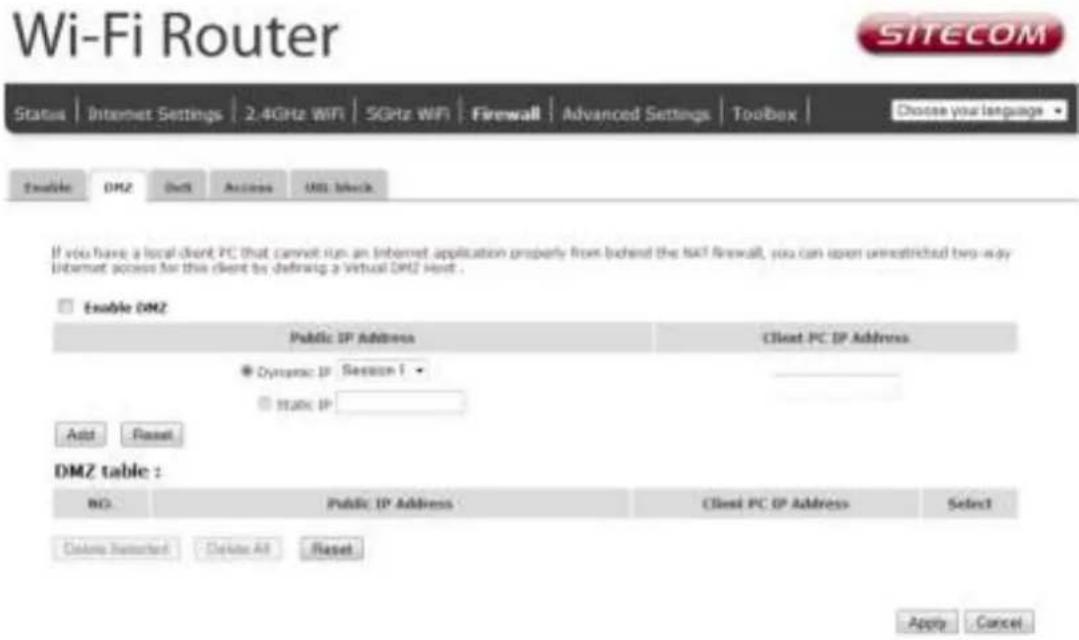
If you have a client PC that cannot run an Internet application (e.g. Games) properly from behind the NAT rewall, then you can open up the rewall restrictions to unrestricted two-way Internet access by defining a DMZ Host. The DMZ function allows you to re-direct all packets going to your WAN port IP address to a particular IP address in your LAN. The difference between the virtual server and the DMZ function is that the virtual server re-directs a particular service/Internet application (e.g. FTP, websites) to a particular LAN client/server, whereas DMZ re-directs all packets (regardless of services) going to your WAN IP address to a particular LAN client/server.
text_image
Wi-Fi Router SITECOM Status Internet Settings 2.4GHz WiFi 5GHz WiFi Firewall Advanced Settings Toolbox Choose your language Enable DMZ Get Assign URL Block If you have a local client PC that cannot run an Internet application properly from behind the NAT firewall, you can open unrestricted two-way Internet access for this client by defining a Virtual DMZ Next. Enable DMZ Public IP Address Client PC IP Address ● Dynamic IP Session 1 □ Status IP Add Reset DMZ table : NO. Public IP Address Client PC IP Address Select Delete Refreshed Delete All Reset Apply Cancel- Enable DMZ: Enable/disable DMZ
- Public IP Address: The IP address of the WAN port or any other Public IP addresses given to you by your ISP
- Client PC IP Address: Fill-in the IP address of a particular host in your LAN that will receive all the packets originally going to the WAN port/Public IP address above.
Click Apply at the bottom of the screen to save the above con gurations.
Denial of Service (DoS)
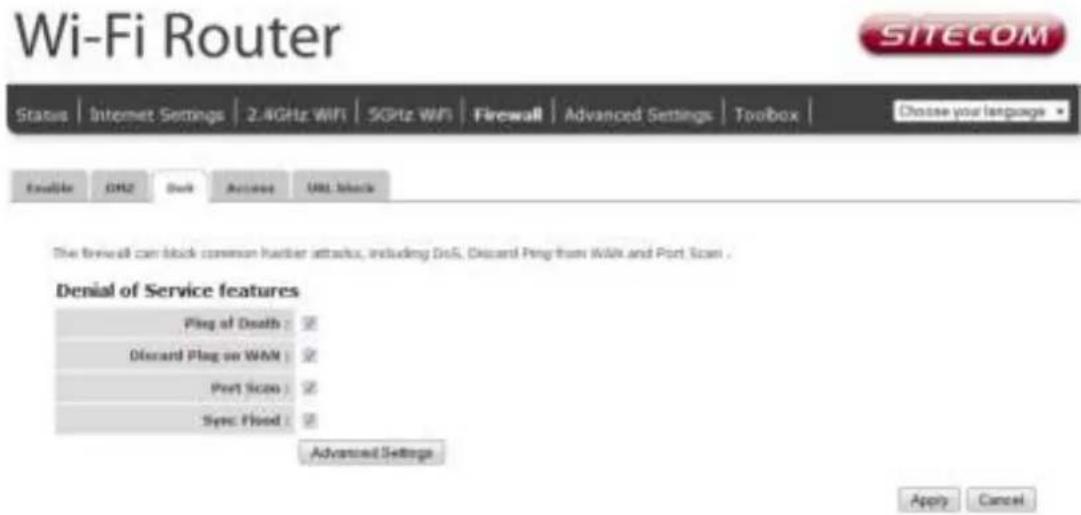
The Broadband router's rewall can block common hacker attacks, including Denial of Service, Ping of Death, Port Scan and Sync Flood. If Internet attacks occur the router can log the events.
text_image
Wi-Fi Router SITECOM Status | Internet Settings | 2.4GHz WiFi | 5GHz WiFi | Firewall | Advanced Settings | Toolbox | Choose your language Enable OR OK Dash Active URL block The firewall can block common router attacks, including DoS, Discord Ping from WAM and Port Scan . Denial of Service features Ping of Death : Dioscand Ping on WAM : Port Scan : Sync Flood : Advanced Settings Apply Cancel• Ping of Death: Protection from Ping of Death attacks
- Discard Ping From WAN: The router's WAN port will not respond to any Ping requests
• Port Scan: Protects the router from Port Scans.
- Sync Flood: Protects the router from Sync Flood attack.
Click Apply at the bottom of the screen to save the above con guration.
Access
You can restrict users from accessing certain Internet applications/services (e.g. Internet websites, email, FTP etc.), Access Control allows users to define the trace type permitted in your LAN. You can control which PC client can have access to these services.

text_image
Wi-Fi Router SITECOM Status | Internet Settings | 2.4GHz WiFi | 5GHz WiFi | Firewall | Advanced Settings | Toolbox | Choose your language Enable EMF Start Access URL Select Access Control allows users to define the traffic type permitted or not permitted in your LAN. You can control which PC uses what services or has access to... If both MAC filtering and IP filtering are enabled, the MAC filtering table will be checked first... Enable MAC filtering Enable Allow Client PC MAC Address Comment Add Reset MAC Filtering table : NO. Client PC MAC Address Comment Select Delete Selected Delete All Reset Enable IP Filtering Table Doxy Allow NO. PC Description PC IP Address Client Service Protocol Port range Select Add Delete Selected Delete All- Deny: If you select "Deny" then all clients will be allowed to access Internet accept for the clients in the list below.
- Allow: If you select "Allow" then all clients will be denied to access Internet accept for the PCs in the list below.
- Filter client PCs by IP: Fill in "IP Filtering Table" to filter PC clients by IP.
- Add PC: You can click Add PC to add an access control rule for users by IP addresses.
- Remove PC: If you want to remove some PCs from the "IP Filtering Table", select the PC you want to remove in the table and then click "Delete Selected". If you want to remove all PCs from the table, just click the "Delete All" button.
- Filter client PC by MAC: Check "Enable MAC Filtering" to enable MAC Filtering.
- Add PC: Fill in "Client PC MAC Address" and "Comment" of the PC that is allowed to access the Internet, and then click "Add". If you find any typo before adding it and want to retype again, just click "Reset" and the elds will be cleared.
- Remove PC: If you want to remove some PC from the "MAC Filtering Table", select the PC you want to remove in the table and then click "Delete Selected". If you want to remove all PCs from the table, just click the "Delete All" button. If you want to clear the selection and re-select again, just click "Reset".
Click Apply at the bottom of the screen to save the above con guration.
URL block
You can block access to some Web sites from particular PCs by entering a full URL address or just keywords of the Web site.

text_image
Wi-Fi Router SITECOM Status | Internet Settings | 2.4GHz WiFi | SGHz WiFi | Firewall | Advanced Settings | Toolbox | Choose your language Enable DMZ Reset Access URL Block you can block access to certain Any sites for a particular PC by entering either a full URL, address or just a keyword of the web site Enable URL Blocking URL/keyword : Add Reset Current URL Blocking Table : NO. URL/keyword Select Options Selected Delete All Reset Apply Cancel- Enable: URL Blocking Enable/disable URL Blocking
- Add URL/keyword: Fill in "URL/Keyword" and then click "Add". You can enter the full URL address or the keyword of the web site you want to block.
- Remove URL/keyword: If you want to remove some URL keywords from the "Current URL Blocking Table", select the URL keyword you want to remove in the table and then click "Delete Selected". If you want remove all URL keywords from the table, just click "Delete All" button. If you want to clear the selection and re-select again, just click "Reset".
Click Apply at the bottom of the screen to save the above con guration.
Advanced Settings
Network Address Translation (NAT) allows multiple users at your local site to access the Internet through a single Public IP Address or multiple Public IP Addresses. NAT provides Firewall protection from hacker attacks and has the exibility to allow you to map Private IP Addresses to Public IP Addresses for key services such as Websites and FTP.

text_image
Wi-Fi Router SITECOM Status | Internet Settings | 2.4GHz WiFi | 5GHz WiFi | Firewall | Advanced Settings | Toolbox | Choose your language NAT Port Reviewing Virtual Server Special Applications ALL UTFP Quality of Service USB port Network Address Translation (NAT) allows multiple users to access the Internet through a single Public IP Address or multiple Public IP Addresses; NAT provides Firewall protection from hacker attacks and has the flexibility to allow you to map Private IP Addresses to Public IP- Addresses for key services such as Web or FTP. Enable or disable NAT : Enable Disable Hardware Accelerator Issues network performance (note: to achieve optimal result, QoS and bandwidth control features will be disabled) Hardware Accelerator : Enable Disable Apply• NAT: Select Disable to disable the NAT function.
- Hardware Accelerator: Select Enable to use hardware acceleration for routing. This gives a speed increase in WAN->LAN performance. Please note that this disables the QoS service.
Port Forwarding
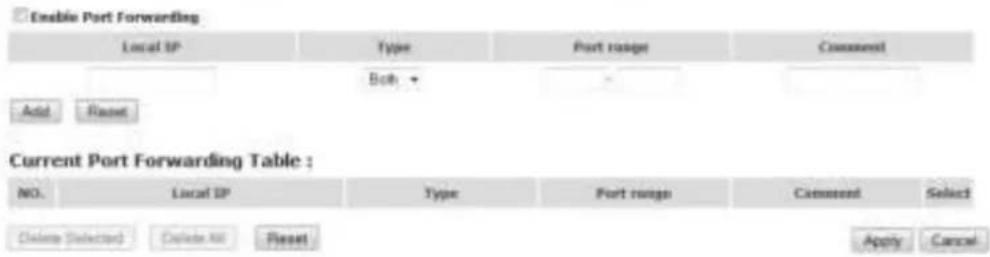
Port Forwarding allows you to re-direct a particular range of service port numbers (from the Internet/WAN Port) to a particular LAN IP address. It helps you to host servers behind the router NAT rewall.

text_image
Wi-Fi Router SITECOM Status | Internet Settings | 2.4GHz WiFi | 5GHz WiFi | Firewall | Advanced Settings | Toolbox | Choose your language ▼ NAV | Port forwarding | Virtual Server | Special Applications | ALL | UPref | Quality of Service | still portExtrave in this table allows you to automatically redirect common network services to a specific PC behind the NAT firewall. These settings are only necessary if you wish to host some sort of server like a wall server or mail server on the local network.
text_image
Enable Port Forwarding Local IP Type Port range Comment Bob Add Reset Current Port Forwarding Table : NO. Local IP Type Port range Comment Select Delete (Selected) Delete All Reset Apply Cancel- Enable Port Forwarding: Enable Port Forwarding
- Local IP: This is the private IP of the server behind the NAT rewall.
- Type: This is the protocol type to be forwarded. You can choose to forward "TCP" or "UDP" packets only, or select "both" to forward both "TCP" and "UDP" packets.
• Port Range: The range of ports to be forward to the private IP.
• Comment: description of this setting. - Add: Fill in the "Private IP", "Type", "Port Range" and "Comment" of the setting to be added and then click "Add". Then this Port Forwarding setting will be added into the "Current Port Forwarding Table" below.
- Remove: If you want to remove a Port Forwarding setting from the "Current Port Forwarding Table", select the Port Forwarding setting that you want to remove in the table and then click "Delete Selected". If you want to remove all Port Forwarding settings from the table, just click "Delete All" button. Click "Reset" will clear your current selections.
Click Apply at the bottom of the screen to save the above con guration.
Virtual Server
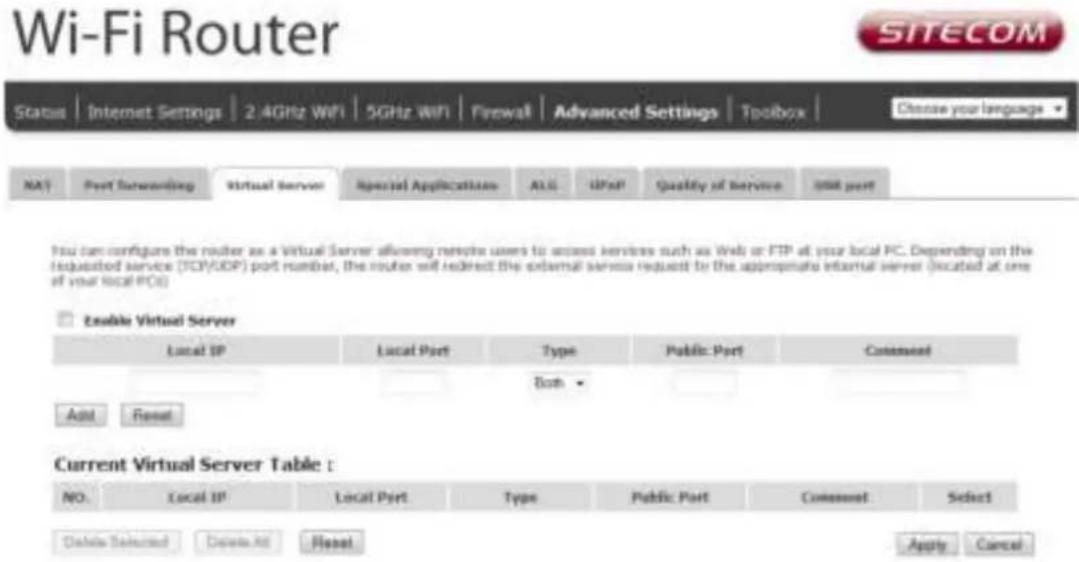
Use the Virtual Server function when you want different servers/clients in your LAN to handle different service/Internet application type (e.g. Email, FTP, Web server etc.) from the Internet. Computers use numbers called port numbers to recognize a particular service/Internet application type. The Virtual Server allows you to re-direct a particular service port number (from the Internet/WAN Port) to a particular LAN private IP address and its service port number.
text_image
Wi-Fi Router SITECOM Status | Internet Settings | 2.4GHz WiFi | 5GHz WiFi | Firewall | Advanced Settings | Toolbox | Choose your language NA! Port Screening Virtual Server Special Applications AUC UPoff Quality of Service USS port You can configure the router as a Virtual Server allowing remote users to access services such as Web or FTP at your local PC. Depending on the requested service (TCP/UDP) port number, the router will redirect the external server request to the appropriate external server (located at one of your local PC) Enable Virtual Server Local IP Local Port Type Public Port Comment Both Add Reset Current Virtual Server Table : NO. Local IP Local Port Type Public Port Comment Select Delete Selected Delete Add Reset Apply Cancel- Enable Virtual Server: Enable Virtual Server.
- Local IP: This is the LAN client/host IP address that the Public Port number packet will be sent to.
- Local Port: This is the port number (of the above Private IP host) that the below Public Port number will be changed to when the packet enters your LAN (to the LAN Server/Client IP).
- Type: Select the port number protocol type (TCP, UDP or both). If you are unsure, then leave it to the default "both" setting. Public Port Enter the service (service/Internet application) port number from the Internet that will be re-directed to the above Private IP address host in your LAN
• Comment: The description of this setting. - Add: Fill in the "Private IP", "Private Port", "Type", "Public Port" and "Comment" of the setting to be added and then click "Add". Then this Virtual Server setting will be added into the "Current Virtual Server Table" below.
- Reset: If you want to remove Virtual Server settings from the "Current Virtual Server Table", select the Virtual Server settings you want to remove in the table and then click "Delete Selected". If you want to remove all Virtual Server settings from the table, just click the "Delete All" button. Click "Reset" will clear your current selections.
Click Apply at the bottom of the screen to save the above con guration.
Special Applications
Some applications require multiple connections, such as Internet games, video Conferencing, Internet telephony and others. In this section you can configure the router to support multiple connections for these types of applications.

text_image
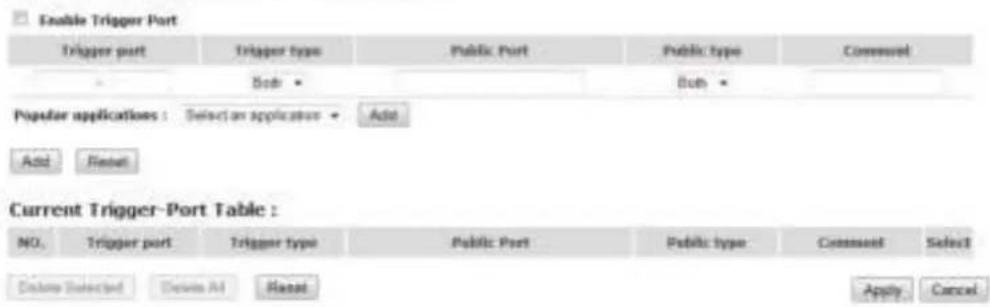
Wi-Fi Router SITECOM Status | Bitomet Settings | 2.4GHz WiFi | 5GHz WiFi | Firewall | Advanced Settings | Toolbox | Choose your language ▼ NAT | Port Ordering | Virtual Server | Special Applications | AUC | UPuP | Quality of Service | USB portSome applications require multiple connections, such as Internet gaming, video conferencing, Internet telephony and others. These applications cannot work when network address translation (NAT) is enabled. If you need to run applications that require multiple connections, specify the port normally associated with an application in the "Trigger Port" field, select the protocol type as TCP or UDP, then enter the public ports associated with the trigger port to open them for outbound traffic.
text_image
Enable Trigger Port Trigger port Trigger type Public Port Public type Commod Sub Item Popular applications : Selection an application Add Add Reset Current Trigger-Port Table : NO. Trigger port Trigger type Public Port Public type Commod Select Options Selected Device A4 Reset Apply Cancel- Enable Trigger Port: Enable the Special Application function.
- Trigger Port: This is the outgoing (Outbound) range of port numbers for this particular application.
- Trigger Type: Select whether the outbound port protocol is "TCP", "UDP" or both.
- Public Port: Enter the In-coming (Inbound) port or port range for this type of application (e.g. 2300-2400, 47624).
• Public Type: Select the Inbound port protocol type: "TCP", "UDP" or both.
• Comment: The description of this setting.
- Popular applications: This section lists the more popular applications that require multiple connections. Select an application from the Popular Applications selection. Once you have selected an application, select a location (1-10) in the Copy to selection box and then click the Copy to button. This will automatically list the Public Ports required for this popular application in the location (1-10) you speci ed.
- Add: Fill in the "Trigger Port", "Trigger Type", "Public Port", "Public Type", "Public Port" and "Comment" of the setting to be added and then click "Add". The Special Application setting will be added into the "Current Trigger-Port Table" below. If you happen to make a mistake, just click "Clear" and the _elds will be cleared.
- Reset: If you want to remove Special Application settings from the "Current Trigger-Port Table", select the Special Application settings you want to remove in the table and then click "Delete Selected". If you want remove all Special Application settings from the table, just click the "Delete All" button. Click "Reset" will clear your current selections.
Click Apply at the bottom of the screen to save the above con guration.
UPnP
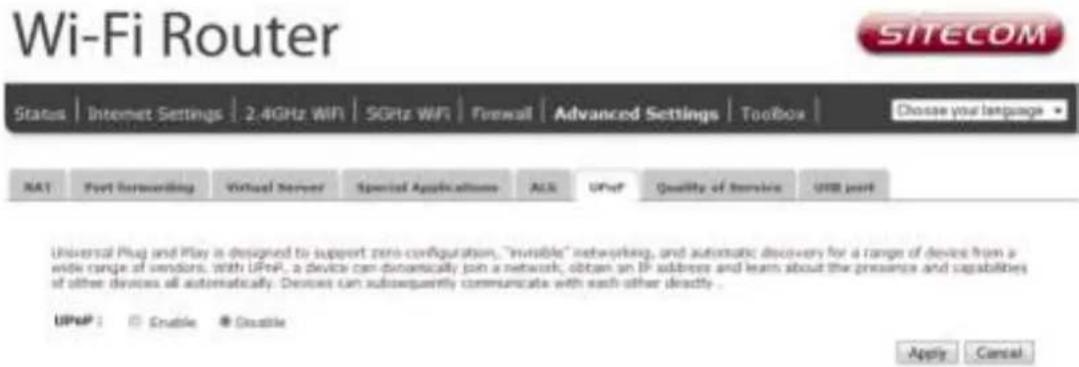
With UPnP, all PCs in you Intranet will discover this router automatically, so you don't have to con gure your PC and it can easily access the Internet through this router.
text_image
Wi-Fi Router SITECOM Status | Internet Settings | 2.4GHz WiFi | 5GHz WiFi | Firewall | Advanced Settings | Toolbox | Choose your language ▼ NA1 Fort networking Virtual Server Special Applications A.C. UPnP Quality of Service USB port Universal Plug and Play is designed to support zero-configuration, "invisible" networking, and automatic discovery for a range of devices from a wide range of vendors. with UPnP, a device can dynamically join a network, obtain an IP address and learn about the presence and capabilities of other devices all automatically. Devices can subsequently communicate with each other directly . UPnP : Enable Enable Apply CancelUPnP Feature: You can enable or Disable the UPnP feature here. After you enable the UPnP feature, all client systems that support UPnP, like Windows XP, can discover this router automatically and access the Internet through this router without having to con gure anything. The NAT Traversal function provided by UPnP can let applications that support UPnP connect to the internet without having to con gure the virtual server sections.
Click Apply at the bottom of the screen to save the above con guration.
QoS
QoS can let you classify Internet application trace by source/destination IP address and port number. You can assign priority for each type of application and reserve bandwidth for it. The packets of applications with higher priority will always go rst. Lower priority applications will get bandwidth after higher priority applications get enough bandwidth. This can let you have a better experience in using critical real time services like Internet phone, video conference ...etc. All the applications not specified by you are classified as rule name "Others". The rule with a smaller priority number has a higher priority; the rule with a larger priority number has a lower priority. You can adjust the priority of the rules by moving them up or down.

text_image
Wi-Fi Router SITECOM Status | Internet Settings | 2.4GHz WIN | 5GHz WIN | Firewall | Advanced Settings | Toolbox | Choose your language XR() Fuel Requeiting Virtual Server Special Applications A.C. UFSF Quality of Service UFS port Quality of Service (QoS) refers to the capability of a network to provide better service to selected network traffic. The primary goal of QoS is to provide priority including dedicated bandwidth, controlled jitter and latency (required by some real-time and interactive traffic), and improved loss characteristics. Also important is making sure that providing priority for one or more flows does not make other flows fail. QoS Enable Current QoS Table : Priority Rate Name Uploaded Bandwidth Download Bandwidth Select Add Edit Delete Screened Delete All Move Up More Down Reset Apply Cancel- Enable/Disable QoS: You can check "Enable QoS" to enable QoS functionality for the WAN port.
- Add a QoS rule into the table: Click "Add" then enter a form of the QoS rule. Click "Apply" after lling out the form the rule will be added into the table.
- Remove QoS rules from the table: If you want to remove QoS rules from the table, select the QoS rules you want to remove in the table and then click "Delete Selected". If you want to remove all QoS rules from the table, just click the "Delete All" button. Clicking "Reset" will clear your current selections.
- Edit a QoS rule: Select the rule you want to edit and click "Edit", then enter the detail form of the QoS rule. Click "Apply" after editing the form and the rule will be saved.
- Adjust QoS rule priority: You can select the rule and click "Move Up" to make its priority higher. You also can select the rule and click "Move Down" to make its priority lower.
Click Apply at the bottom of the screen to save the above con guration.
USB port
You can use the USB port in Server mode as a Samba server for lesharing in your home network or in NetUSB mode as a virtual USB port on your computer. Please note that for NetUSB mode you need the USB Port Control Center software installed on your computer.

text_image
Wi-Fi Router SITECOM Status | Internet Settings | 2.4GHz WiFi | 5GHz WiFi | Firewall | Advanced Settings | Toolbox | Choose your language ▼ NAT Port Eventuating Virtual Server Special Applications ALS WiFi Quality of Service USB portYou can use the USB port in server mode as a Samba server for file-sharing in your home network or in NattUSB mode as a virtual USB port on your computer. Please note that for NattUSB mode you need the Control Center software installed on your computer.
USB Access Mode
Server Media 📄 NatiJSSE Modie
Server Information

text_image
Server Name: SMBSERVER Workgroup: WORKGROUP Description (optional): Administrator: admin New Password: Confirm Password:
• Server name: Enter a name for the network share.
- Workgroup: If you wish to add the share to your workgroup enter the workgroup name here.
• Description: Enter a desired description for the share.
- Administrator: Enter a desired username for access to the share.
- New Password: Enter the password for access to the share and con rm this password by re-entering it in the Con rm password eld
For netUSB make sure the radio button next to netUSB is selected and press Apply. Please see Addendum A: USB Port Control Center for more information about netUSB.
Toolbox Settings
Sitecom Cloud Security
Antivirus software alone is not safe enough. You can now benefit from additional built-in security in your modem or router. Protect all devices in your home network against cybercrime while browsing. Activate in just one click, your network and devices are better secured than ever before.
Your Sitecom device comes with a 6 month free Sitecom cloud security subscription.
Activating Sitecom Cloud Security
After you have set up your Sitecom device for internet access, open the web browser and enter http://www.sitecomcloudsecurity.com in the address bar.
If the device has been properly con gured the following web page should be shown.

text_image
Sitecom Cloud Security Congratulations, you can now surf safely How many devices in your homes use the Internet? Do you have a file, email, label, or game remote, web to you Windows PC's All these devices have an internal connection and are not accessible to access by cyber threats. Sitecom Cloud Security products of those developing against emails, phishing and attack, without you having to worry about it. ✓ Antivirus and Antialware ✓ Antiplating ✓ Protection against wireless websites ✗ Blocking of online advertisements No Security Code needed ©Sitecom Cloud Security is commercially animated You are using a free-to-hand subscription, which is not automatically removed. Unit you own: With Sitecom Cloud Security has already stopped attacks and threats at 70% of this protected home networkwww.163.com.cn / www.163.com.cn
ContinueHere you can see which security features are activated.
The Sitecom Cloud Security service offers the following protection options:
- Anti-Malware
- Anti-Phishing
• Protection against unsafe websites - Advertisement blocking
With the protection of unsafe websites activated the Sitecom Cloud Security will always check if a website is safe. If it is not safe it will inform you that is not safe to enter.

text_image
SITECOM Telecom Cloud Security Unsafe Host http://www.rootkit.com/ This host contains characteristics of an identified security risk. It may compromise your privacy and security, make dangerous changes to your system's settings without your knowledge and consent, or severely degrade your system's performance and stability. Exchanging sensitive or confidential information with this host could also put you at risk for identify that and/or financial fraud. Back to Safety Recommended I understand that this website may compromise my personal data, proceed quickly. If this website installs malicious software onto your system, please read these instructions about removing the software from your system.If you still wish to visit this webpage click on 'proceed anyway'. Alternatively click 'Back to Safety' so that your security will not be breached.
Con guring Sitecom Cloud Security
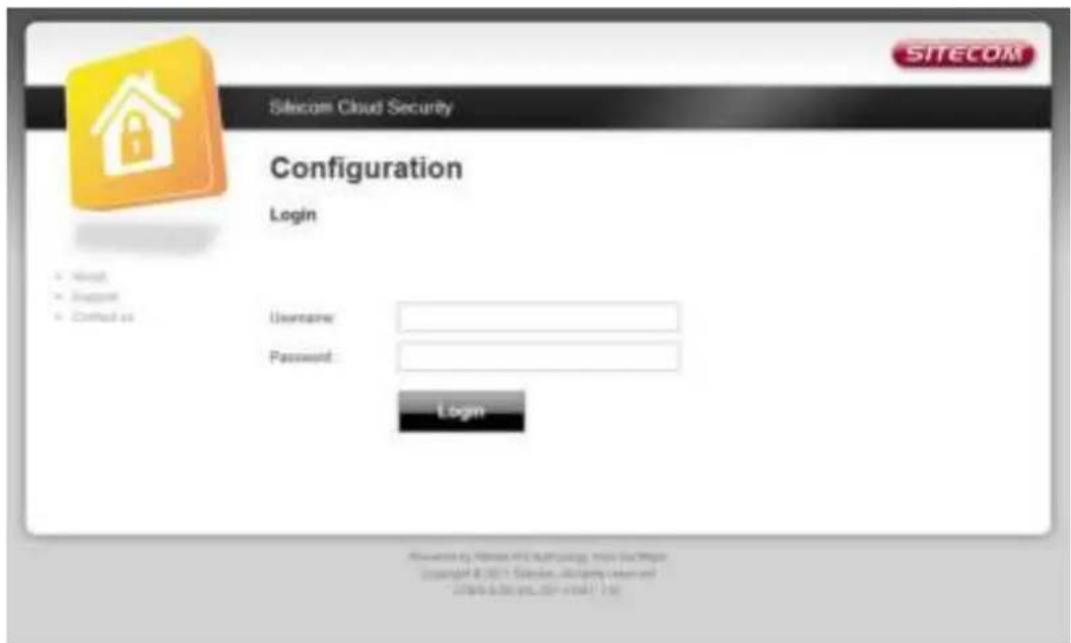
If you wish to change your security options or to extend your subscription at any time, open http://www.sitecomcloudsecurity.com from your web browser.
You will be asked for a username and password. These can be found on the backlabel on the bottom of your Sitecom router or modem.
text_image
SITECOM Telecom Cloud Security Configuration Login Username: Password: Login ©www.elsecom.cn/2016/10/17 1984If the login succeeded you can click on 'Settings' to change your security options.

text_image
SITECOM Sitecom Cloud Security Configuration Settings License Security Antivirus Protection against unsafe websites Antiphishing Advertisement blocking Splash screen The splash screen shows the protection status, once every 8 hours of the internet usage Click the button below to enable and bring up the splash screen, where you can also disable it. Show splash screens... Apply Newspaper by https://netecom.org/ Suite 2409 Copyright © 2017 Shipping: all rights reserved 2006.03.05, 2017-03-05.Or click 'License' to renew your subscription.

text_image
SITECOM Sitecom Cloud Security Configuration Settings License Subscription Subscription is activated. Acquisition date: noon/02/11 (169 days) sent/wend Review subscriptions Visit subscription provider website to review subscriptions If you have a Key Code and Security Code, enter them in the spaces below and click Activea. Key Code: Security Code: I understand and accept the License Awarded Activate Download by: Home, My Technologies, Time ScanPage Copyright © 2011 Delivered, all rights reserved office: 15 sec,91.77pm, 1:30Disabling Sitecom Cloud Security
If you wish to disable to Sitecom cloud security at any time, open the webpage of your Sitecom product and log in with the supplied credentials (these can be found on the back label on the bottom of your Sitecom device).
Go to Toolbox and select "Sitecom Cloud Security".

text_image
Wi-Fi Router SITECOM Status | Internet Settings | 2.4GHz WiFi | 5GHz WiFi | Firewall | Advanced Settings | Toolbox | Choose your language • Sibecom Cloud Security Password Telephone Security Firewalls Back up Reset USMS Wiki Protect all the devices in your home network against cybersecurity while browsing with Sibecom Cloud Security: Enable or disable Sibecom Cloud Security : Enable Enable Sibecom Cloud Security : Activate or configure Apply CancelClick the "Disable" radio button and click 'Apply' for the settings to take e ect.
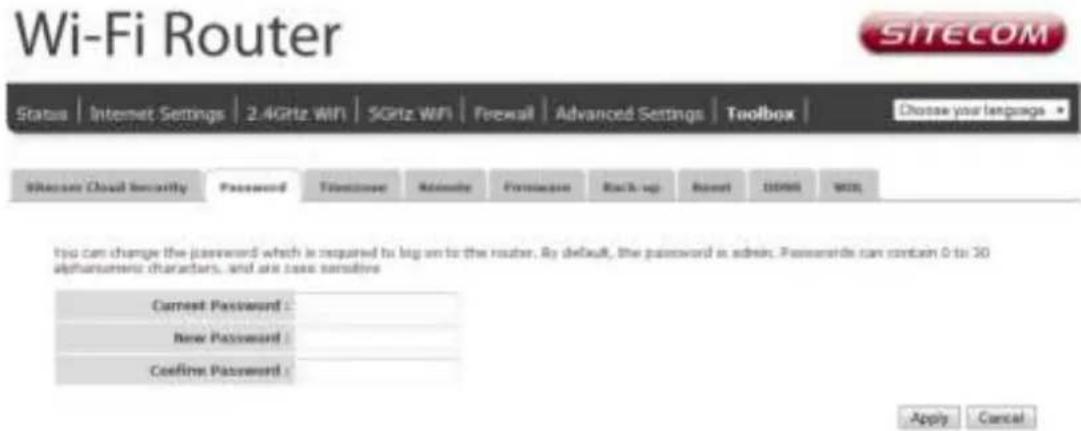
Password
You can change the password required to log into the router's system web-based management. Passwords can contain 0 to 12 alphanumeric characters, and are case sensitive.
text_image
Wi-Fi Router Status | Internet Settings | 2.4GHz WiFi | 5GHz WiFi | Firewall | Advanced Settings | Toolbox | Choose your language Password | Telephone | Address | Password | Back up | Reset | Download | Web You can change the password which is required to log on to the router. By default, the password is adise. Passwords can contain 0 to 30 alpharmonic characters, and are less sensitive Current Password : New Password : Confine Password : Apply Cancel- Current Password: Fill in the current password to allow changing to a new password.
- New Password: Enter your new password.
- Con rmed Password: Enter your new password again for veri cation purposes.
Click Apply at the bottom of the screen to save the above con guration.
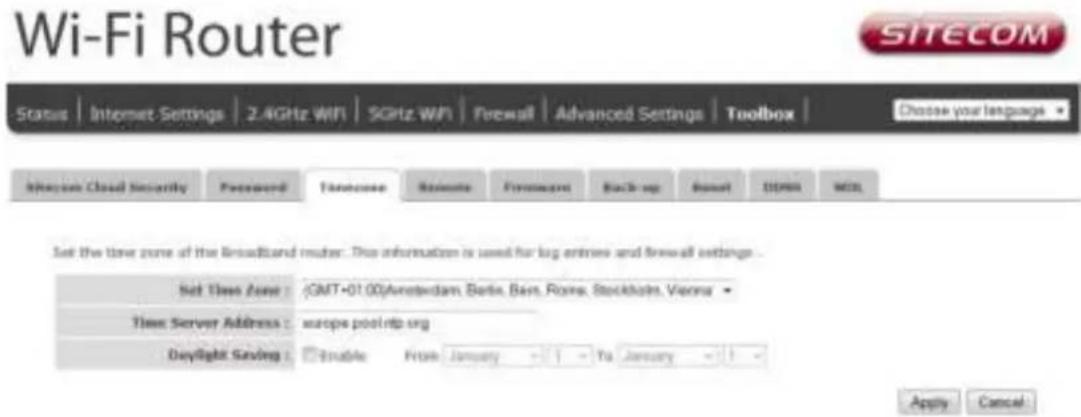
Time Zone
The Time Zone allows your router to base its time on the settings configured here, which will affect functions such as Log entries and Firewall settings.
text_image
Wi-Fi Router SITECOM Status | Internet Settings | 2.4GHz WiFi | SGHz WiFi | Firewall | Advanced Settings | Toolbox | Choose your language ▼ Macrom Cloud Security Password Telephone Address Firewall Backup up Reset Timestamp POST Set the time zone of the broadband mode. This information is used for log entries and firewall settings Net Time Zone : GMT+01.00Amsterdam, Berlin, Barre, Rome, Stockholm, Vienna Time Server Address : europe points.org Daylight Saving : Enable From January To January Apply Cancel- Set Time Zone: Select the time zone of the country you are currently in. The router will set its time based on your selection.
• Time Server Address: You can set an NTP server address. - Enable Daylight Savings: The router can also take Daylight savings into account. If you wish to use this function, you must check/tick the enable boxto enable your daylight saving con guration (below).
- Start Daylight Savings Time: Select the period in which you wish to start daylight Savings Time.
- End Daylight Savings Time: Select the period in which you wish to end daylight Savings Time.
Click Apply at the bottom of the screen to save the above con guration.
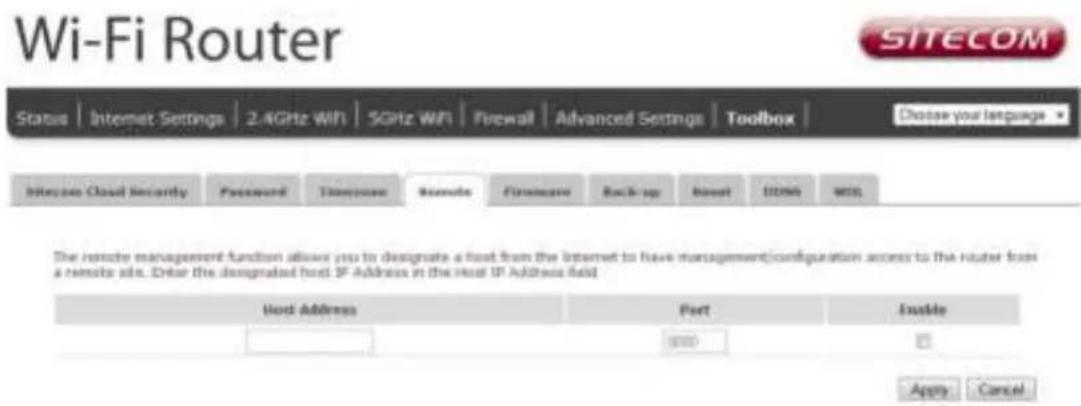
Remote Management
The remote management function allows you to designate a host in the Internet the ability to con gure the Broadband router from a remote site. Enter the designated host IP Address in the Host IP Address eld.
text_image
Wi-Fi Router SITECOM Status | Internet Settings | 2.4GHz WiH | 5GHz WiF | Firewall | Advanced Settings | Toolbox | Choose your language ▼ Remote Cloud Security | Password | Timestamp | Remote | Firmware | Backup up | Reset | OFFS | WSL The remote management function allows you to designate a host from the Internet to have management/configuration access to the router from a remote site. Enter the designated host IP Address in the Host IP Address field. Host Address Port Enable 0000 Apply Cancel- Host Address: This is the IP address of the host in the Internet that will have management/con guration access to the Broadband router from a remote site. If the Host Address is left o.o.o.o this means anyone can access the router's web-based con guration from a remote location, providing they know the password.
• Port: The port number of the remote management web interface. - Enabled: Select "Enabled" to enable the remote management function.
Click Apply at the bottom of the screen to save the above con guration.
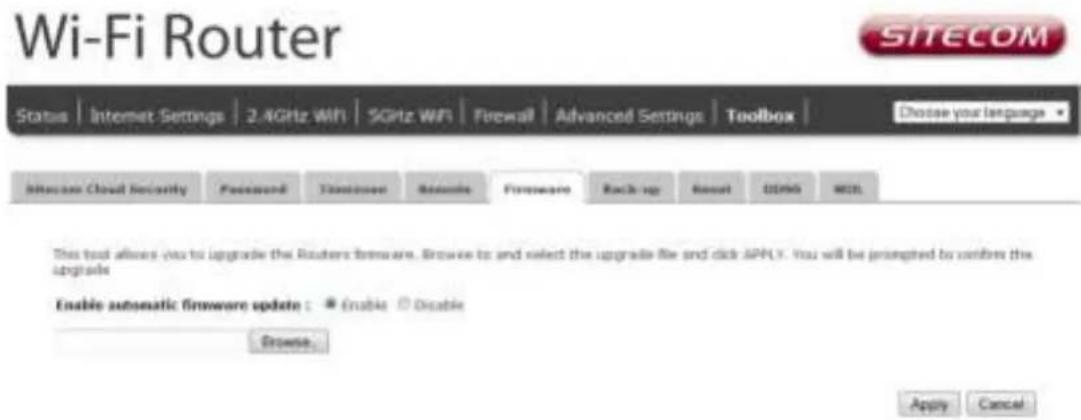
Firmware Upgrade
text_image
Wi-Fi Router SITECOM Status | Internet Settings | 2.4GHz WiFi | 5GHz WiFi | Firewall | Advanced Settings | Toolbox | Choose your language Access Cloud Security Password Timestamp Security Remote Firmware Backup up Reset DDRND NET. This tool allows you to upgrade the Routers firmware. Browse to and select the upgrade file and click APPLY. You will be prompted to confirm the upgrade Enable automatic firmware update: ☑ Enable ☐ Disable Browse... Apply CancelEnable automatic rmware update: When enabled the router will periodically check if a new rmware is available. If a new rmware is detected the router will give a notification.
Firmware Upgrade: This tool allows you to upgrade the Broadband router's system firmware. To upgrade the rmware of your Broadband router, you need to download the rmware le to your
local hard disk, and enter that le name and path in the appropriate eld on this page. You can also use the Browse button to nd the rmware le on your PC.
Once you've selected the new rmware le, click Apply at the bottom of the screen to start the upgrade process.
Backup Settings
The Backup screen allows you to save (Backup) the current con guration settings. When you save the con guration setting (Backup) you can re-load the saved con guration into the router through the Restore selection. If extreme problems occur you can use the Restore to Factory Defaults selection, this will set all con gurations to its original default settings (e.g. when you rst purchased the router).

text_image
Wi-Fi Router SITECOM Status | Internet Settings | 2.4GHz WiFi | 5GHz WiFi | Firewall | Advanced Settings | Toolbox | Choose your language ▼ Riscontain Cloud Security Password Transactions Remote Firmware Backup up Reset DDRM INFO. Use BACKUP to save the routing current configuration to a file named config.it. You can use RESTORE to restore the saved configuration. Alternatively, you can use RESTORE TO FACTORY DEFAULT to force the route to restore the factory default settings Restore To Factory Default: Reset Backup Settings: Save Restore Settings: Browse... UploadUse the "Backup" tool to save the current con guration to a le named "con g.bin" on your PC. You can then use the "Restore" tool to restore the saved con guration to the router. Alternatively, you can use the "Restore to Factory Defaults" tool to force the router to perform a power reset and restore the original factory settings.
Reset
You can reset the router's system should any problem exist. The reset function essentially re-boots your router's system.

text_image
Wi-Fi Router SITECOM Status | Internet Settings | 2.4GHz WiFi | 5GHz WiFi | Firewall | Advanced Settings | Toolbox | Choose your language Siblical Cloud Security Password Smokebox Remote Forenoon Backup-up Reset OEMS WSL In the event the system stops responding correctly or stops functioning, you can perform a reset. Your settings will not be changed. To perform the reset, click on the APPLE button. You will be asked to confirm your decision. The reset will be completed when the LED Power IgN stops listening. Apply CancelDDNS
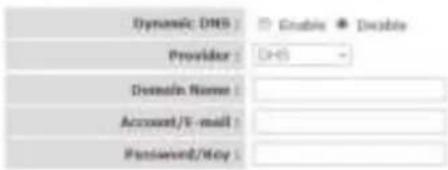
DDNS allows you to map the static domain name to a dynamic IP address. You must get an account, password and your static domain name from the DDNS service providers. This router supports DynDNS, TZO and other common DDNS service providers.

text_image
Wi-Fi Router SITECOM Status | Internet Settings | 2.4GHz WiFi | 5GHz WiFi | Firewall | Advanced Settings | Toolbox | Choose your language ▼ Allocation Cloud Security Password Transport Control Automatic Formative Backup-up Reset DOWN FREEDDNS allows users to map a static domain name to a generic IP address. You must get an account, password and your static domain name from the DDNS service provider.
text_image
Dynamic DNS Provider: DNS Domain Name: Account/V-mail: Password/Key:
- Enable/Disable: Enable or disable the DDNS function of this router
• Provider: Select a DDNS service provider
• Domain name: Fill in your static domain name that uses DDNS
• Account/E-mail: The account that your DDNS service provider assigned to you - Password/Key: The password you set for the DDNS service account above
Click Apply at the bottom of the screen to save the above con guration.
Addendum A: USB Port Control Center
The netUSB functionality of your router requires additional software to work with your computer. The following section will describe how the software can be installed and used.
Windows
Insert the CD-ROM that was included with your router and select install utility from the cd-menu.
The software will inform you about what will be installed.

text_image
Sitecom USB Device Server - InstallShield Wizard Welcome to the InstallShield Wizard for Sitecom USB Device Server The InstallShield(R) Wizard will install Sitecom USB Device Server on your computer. To continue, click Next. WARNING: This program is protected by copyright law and international treaties.Click Next to continue the installation.
text_image
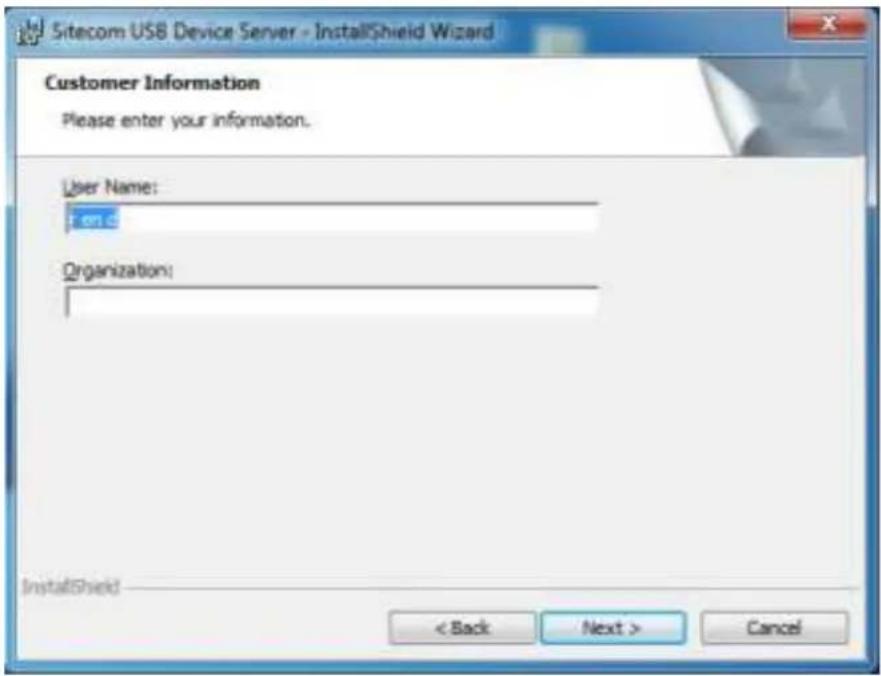
Sitecom USB Device Server - InstallShield Wizard Customer Information Please enter your information. User Name: Form C Organization: InstallShield < Back Next > CancelEnter your username and organization if applicable and click Next to continue.
text_image
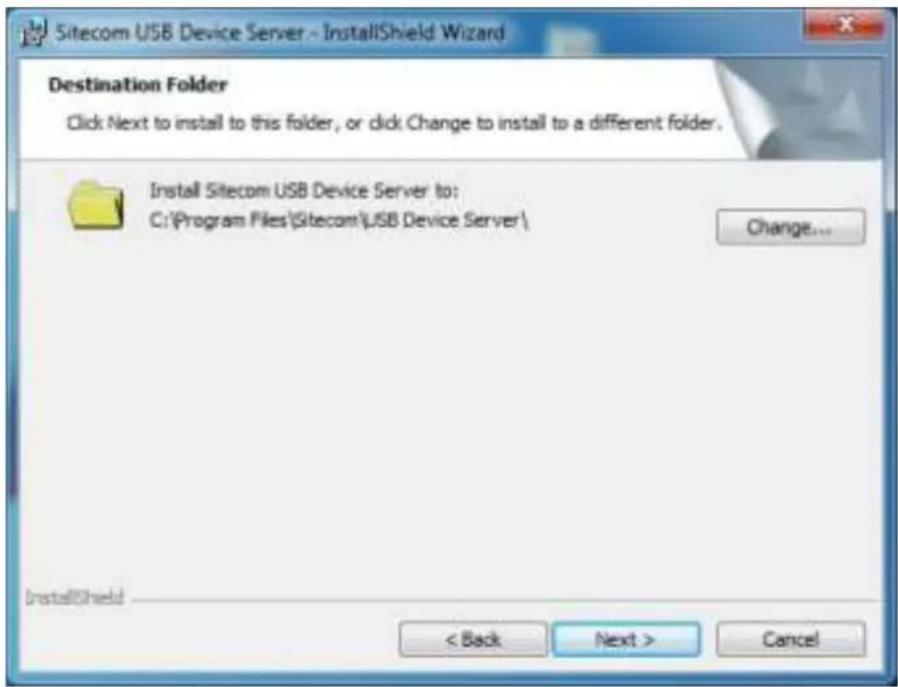
Sitecom USB Device Server - InstallShield Wizard Destination Folder Click Next to install to this folder, or click Change to install to a different folder. Install Sitecom USB Device Server to: C:\Program Files\Sitecom\USB Device Server\ Change... InstallShield < Back Next > CancelChoose a folder where the software should be installed or keep it to default and click Next to continue.
text_image
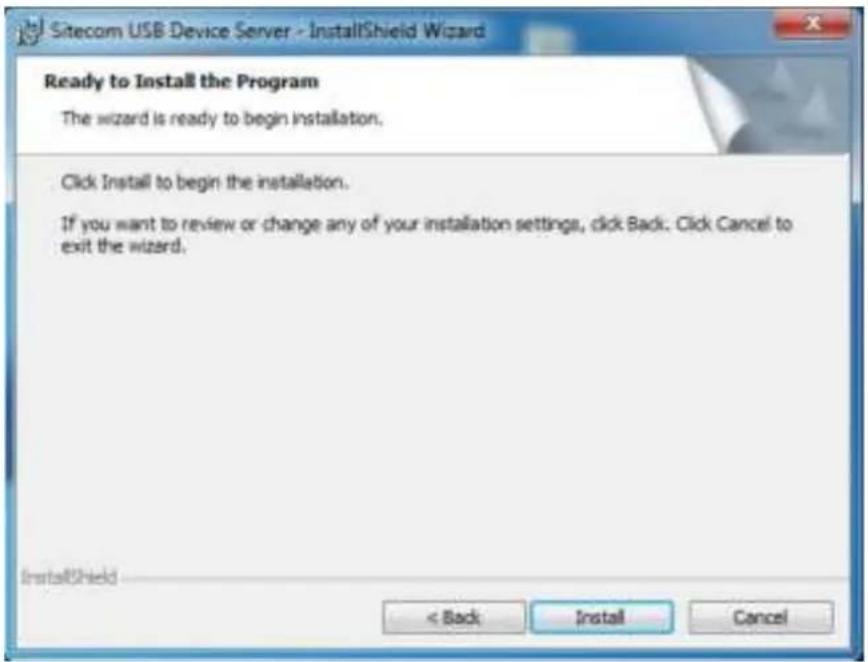
Sitecom USB Device Server - InstallShield Wizard Ready to Install the Program The wizard is ready to begin installation. Click Install to begin the installation. If you want to review or change any of your installation settings, click Back. Click Cancel to exit the wizard. InstallShield < Back Install CancelThe software is now ready to be installed, Click Install to continue.
text_image
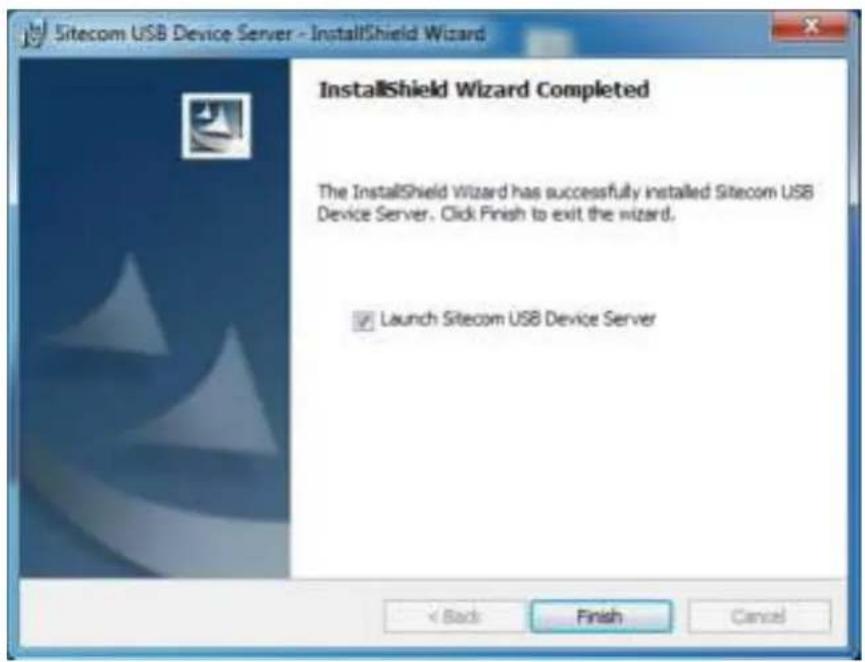
Sitecom USB Device Server - InstallShield Wizard InstallShield Wizard Completed The InstallShield Wizard has successfully installed Sitecom USB Device Server. Click Finish to exit the wizard. ✓ Launch Sitecom USB Device Server < Back Finish CancelOnce the installation is nished the software will inform you. If "Launch Sitecom USB Device Server" checked the software will automatically be launched after you clicked Finish.
MacOS
Insert the CD-ROM that was included with your router and select "Install" from the cd-menu.
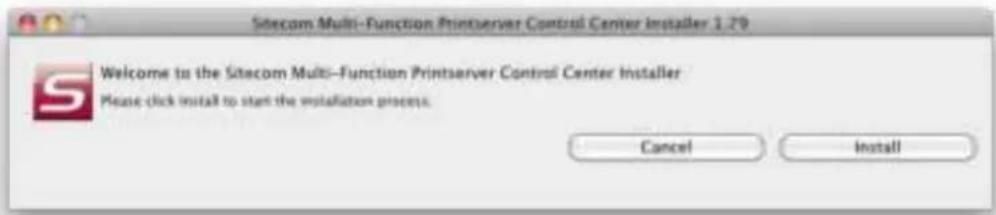
text_image
Sitecom Multi-Function Printserver Control Center Installer 1.79 Welcome to the Sitecom Multi-Function Printserver Control Center Installer Please click install to start the installation process. Cancel InstallClick Install to continue installation.
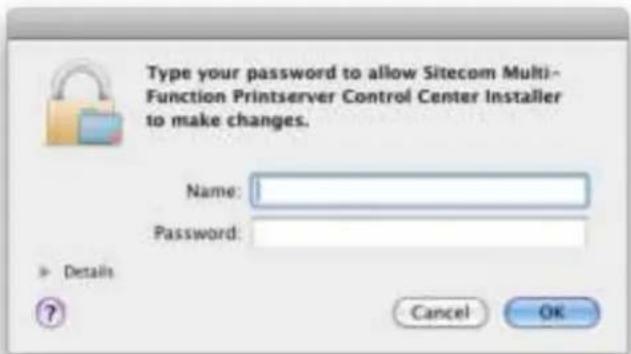
text_image
Type your password to allow Sitecom Multi- Function Printserver Control Center Installer to make changes. Name: Password: Details Cancel OKEnter your Mac username and password and click OK to continue.
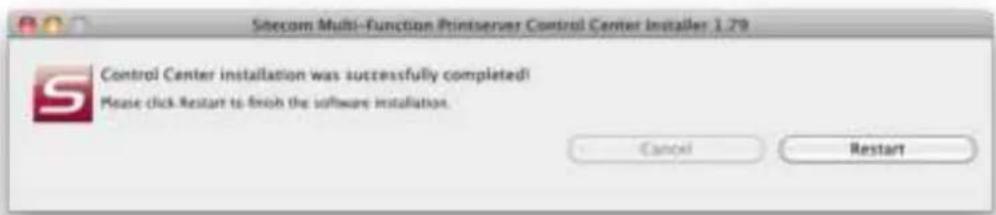
text_image
Sibcom Multi-Function Printserver Control Center Installer: 1.79 Control Center installation was successfully completed! Please click Restart to finish the software installation. Cancel RestartOnce the installation is nished the software will inform you and requires to restart the system.
Connect & Disconnect
"NetUSB" allows you to use USB printers when they're actually connected to the Sitecom USB server.
The “connect” operation is a software operation that simulates an actual USB device plug-in. Therefore, when you do a “connect” operation in the Control Center, the PC can detect a USB device’s plug-in, although actually you do not plug in any USB device to your PC. Similarly, the “disconnect” operation is a software operation that simulates the disconnection of the USB device.
Note: If a USB device is "connected" by a PC, we say that PC has the ownership of the USB device. Only one PC can get the ownership of a USB device at the same time.
NetUSB installation
The steps to do installation for USB devices, like MFPs:
• Make sure the router is turned on.
- Connect the USB device to the USB port of the router.
- Run the Control Center. In the "USB MFP Server List" window, you can see the host names and IP addresses all of the Sitecom servers (in blue) on the network, as shown below.
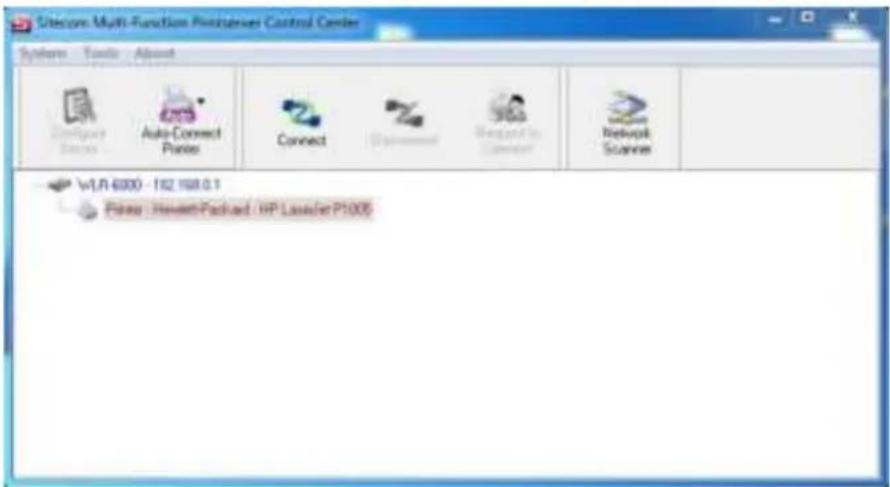
text_image
Sitecom Multi-Function Postserver Control Center Systems Tools About Connect Auto-Cnect Pnts Connect Designed to Connect Network Scenes v1.0 600 - 152.158.0.1 Pnts: HewarthPackied / HP Lancaster P1005- Click the server. Then all USB devices attached to the server will be shown.

text_image
VMware Multi-Function PhotoServer Control Center Systems Tools Ahead Auto-Cnect Point Connect Network Scanner vLA-6000 - 192 (68.0.1) Power: NewarthPackard: HP Lavalier P1005- Please follow the user manual of the USB device to install its driver. For example, you may put the driver CD of the USB device in the CD-ROM player to install the driver.
- When you are asked to plug in the USB device into PC's USB port, click the desired USB device in the Control Center and then click the "Auto-Connect Printer" button to do the connect operation and get the ownership of the USB device. The computer name of the device owner will be shown at the end of the device.

text_image
Telecom Multi-Function Postserver Control Center Systems Tools About Auto Connect Power Connect Network Scanner v1.0 6000 - 102 108.01 Forms: HewlettPackard / HP Licensee P1005- PC will automatically detect that the USB device is plugged-in. On the right side of the Windows Task Bar, you can see the information of the new device. Continue to follow the user manual of the USB device to do the rest jobs of installation, until the driver installation has nished.
After the installation, you can see the newly created devices on the PC. If the USB device is a MFP, you can see a new printer and a new scanner from the "Control Panel".
NetUSB Printing using Auto-Connect Printer
After the driver is installed, you can see a newly created printer in the Control Panel. Follow the steps below to perform NetUSB printing.
- In the Control Center, click the MFP server that has the desired printer (or MFP) attached.
- Click the desired printer (or MFP).
- Click the "Auto Connect Printer" button and choose "Set Auto-Connect Printer". The following gure will appear.

text_image
Add to Auto-Cnect Printer List < Installed Printer List > Printer Name Fax hp LaserJet 3380 PCL E hp LaserJet 3380-3030-3015 Fax Apply Cancel- Choose the desired printer. The desired printer must be the Windows printer (this is a logical printer) that matches the printer attached on the MFP server (this is a physical printer). Then click the "Apply" button.
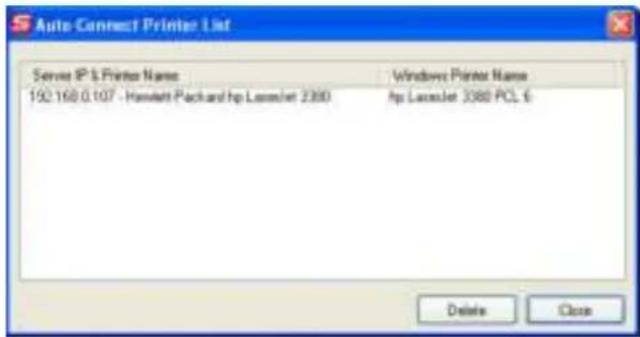
text_image
Auto Connect Printer List Server IP & Printer Name Windows Printer Name 192.168.0.107 - Hawlett Pack and hp Laxceler 2380 hp Laxceler 3380 PCL 6 Delete Close- Then, the printer will be marked as an "Auto-Connected Printer" in red. If you choose "Auto-Connected Printer List" in the "Tools" menu, you can see a newly created item that describes the association between the Windows printer and the physical printer on the server.
- Then try to issue a print job to the desired printer. You will see the Control Center will automatically do a connect operation and, once the print job nished, it will hold the connection. However, the connection will be released immediately when another user do the printing afterward. At the same time, the printer is automatically disconnected with your PC.
- When you do a print job again. The control center will automatically do a connecting operation on printing again. This is so-called "Auto Connect / Disconnect" operation.
Note: Under the "Auto-Connected Printer" setting, it is not necessary to manually press the "Connect" button when printing. If you press the "Connect" button for printing, please make sure to click "Disconnect" button after you finish the printing. Otherwise, other users cannot print properly. It is because you are the only ownership of the connected printer.
AutoRun
You can make the Control Center be run automatically after you login Windows. To do this, you choose the "Configuration" item in the "Tools" menu. The following window will appear. Click the check box and then on the "OK" button. This feature is enabled by default.
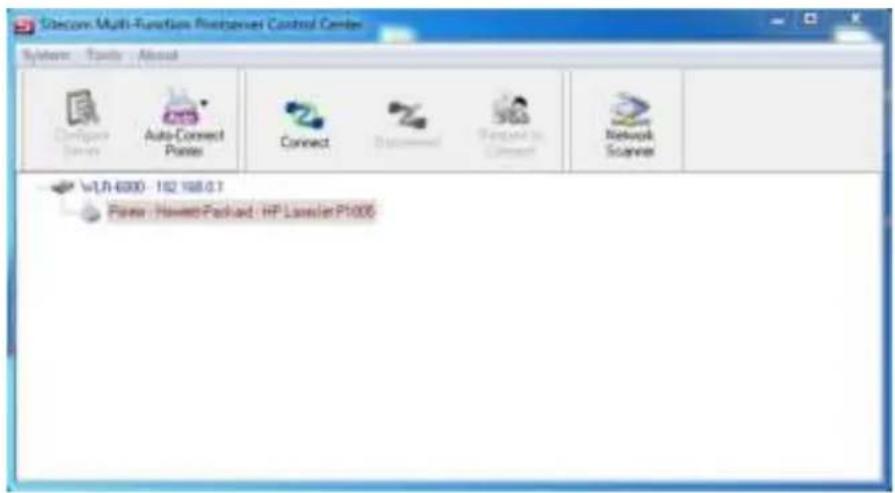
text_image
Telecom Multi-Function Postpanel Control Center Systems Tools About Auto-Cnect Connect Network Scanner vTL 6000 - 102 108.0.7 Pines: Hawert Packard : HP Lanesler P1000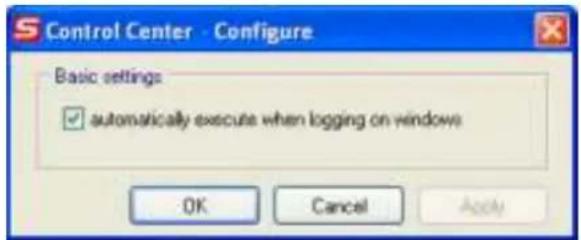
text_image
Control Center - Configure Basic settings ✓ automatically execute when logging on windows OK Cancel ApplyNetUSB Scanning using Network Scanning
• In the Control Center, click the MFP server that has the desired MFP attached.
- Click the desired MFP.
- Click the "Network Scanner" button.

text_image
Telecom Myth Function Puntaher Control Center System Tools About Auto-Cnect Connect Network Scanner vTL 6000 - 102 108.0.1 File: HewertPackard : HP LicenseP1000- Then you can see that the Control Center will automatically do a "connect" operation. The following window will appear.

text_image
Welcome to the Auto-Connect Scanner Select a device : hp LaserJet 3380 TWAIN WIA-hp LaserJet 3380 OK Cancel- Choose one of TWAIN or WIA item. Click "OK". The following window will appear.

text_image
Welcome to the Auto-Connect Scanner hp LaserJet 3388 TWAIN Picture Name and Destination Select a name and destination for your pictures. 1. Type a name for this group of pictures: Picture 2. Select a file format: JPG (JPEG Image) 3. Choose a place to save this group of pictures: Peter Lee/My Documents/My Pictures? Browse ... Picture Information No. 0 Page Location Pictures Width * Height Dimensions Resolution Ex Depth File Size Scan Close Scale: 7 X Y Z U- Follow the usual steps to do scanning.
Addendum B: Declaration of Conformity
Sitecom Europe BV

EC Declaration of Conformity
We
Sitecom Europe BV
Linatebaan 101
304S AH Rotterdam
The Netherlands
Hereby declare under our sole responsibility that the Sitecom product:
Product number:
WLR-7100 v1 001
Product description:
Wi-Fi Router AC1200 X7
To which this declaration relates is in conformity with the requirements of the following standards:
CE/LVD
EN 60950-1:
2006+A11(2009)
CE/EMC
EN 301 489-1 V1.8.1
EN 301 489-17 V2.1.1
RADIO SPECTRUM
EN 300 328 V1.7.1
2006-10
EN 50385
2002
EN 301 893 V1.S.I.
This certifies that the following designated Sitecom product:
Product description: Wi-Fi Router AC1200 X7
Product No.: WLR-7100 v1 001
Complies with the requirements of the following directives and carries the CE marking accordingly: R&TTE Directive 99/5/EC, EMC directive 2004/95/EC and Low Voltage Directive 2006/95/EC.
This declaration is the responsibility of the manufacturer / importer:
Sitecom Europe B.V.
Rotterdam, 25 April 2013
M. Bergwerff,

Chief Operations Officer
UK CE COMPLIANCE
Hersby Stateom Europe BV declares that this product is in accordance with essential requirements and other relevant terms of the European regulation 1998/5/EC.
电话:010-67895742 传真
CONFORMITE CE
CONFORMIDAD CON LA CE
This product map is used in the following countries
④⑤⑥⑦⑧⑨⑩⑪⑫
① ② ③ ④ ⑤ ⑥
① ② ③ ④ ⑤ ⑥ ⑦ ⑧ ⑨ ⑩ ⑪
(1) 2019年1月1日
①区人:陈忠国/陈立
The case for countries please check with the Bank authorities for marketable or using wireless products