WL-351 - Router SITECOM - Free user manual and instructions
Find the device manual for free WL-351 SITECOM in PDF.


User questions about WL-351 SITECOM
0 question about this device. Answer the ones you know or ask your own.
Ask a new question about this device
Download the instructions for your Router in PDF format for free! Find your manual WL-351 - SITECOM and take your electronic device back in hand. On this page are published all the documents necessary for the use of your device. WL-351 by SITECOM.
USER MANUAL WL-351 SITECOM
Wireless Gigabit Router 300N
(802.11bgn draft 2.0)
natural_image
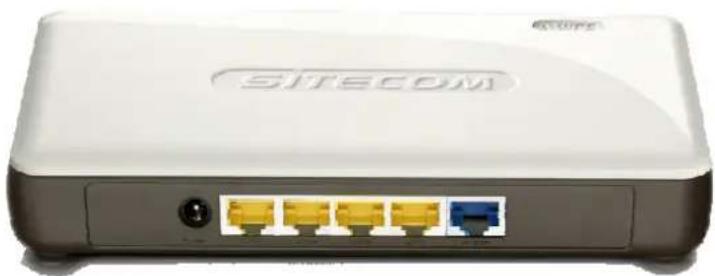
White SITECOM router with four Ethernet ports and a blue connector (no visible text or symbols beyond branding)User Manual
TABLE OF CONTENTS
1 KEY FEATURES.... 4
2 PACKAGE CONTENTS .... 5
3 PRODUCT LAYOUT 6
4 NETWORK + SYSTEM REQUIREMENTS 8
5 WL-351 PLACEMENT 8
6 SETUP LAN, WAN....9
7 PC NETWORK ADAPTER SETUP 10
8 BRING UP THE WL-351.... 14
9 INITIAL SETUP WL-351.... 14
10 CONFIGURATION WIZARD 23
11 WIRELESS SETTINGS.... 25
12 FIREWALL SETTINGS.... 36
13 ADVANCED SETTINGS.... 42
14 TOOLBOX SETTINGS 52
Introduction
Congratulations on your purchase of the WL-351 Wireless Gigabit Router 300N. The WL-351 is compliant with draft 802.11n v 2.0 and up to 6 times faster than standard 802.11g based routers while still being compatible with 802.11g & 802.11b gadgets. The WL-351 is not only a Wireless Access Point, but also doubles as a 4-port full-duplex Gigabit switch that connects your wired-Ethernet devices together at 10/100/1000 Mbps speeds.
At 300 Mbps wireless transmission rate, the Access Point built into the Router uses advanced MIMO (Multi-Input, Multi-Output) technology to transmit multiple streams of data in a single wireless channel, giving you seamless access to multimedia content. The robust RF signal travels farther, eliminates dead spots and extends the network range. For data protection and privacy, the WL-351 encodes all wireless transmissions with WEP, WPA, or WPA2 encryption.
With the inbuilt DHCP Server & powerful SPI firewall, the WL-351 protects your computers against intruders and most known Internet attacks and also provides safe VPN pass-through. With the incredible speed and QoS function of 802.11n (draft2.0), the WL-351 is ideal for media-centric applications like streaming video, gaming, and VoIP telephony to run multiple media-intense data streams through the network at the same time, with no degradation in performance.
1 Key Features
| Features Advantages | |
| Incredible Data Rate up to 300Mbps* | Heavy data payloads such as MPEG video streaming |
| IEEE 802.11n draft 2.0 Compliant and backward compatible with 802.11b/g | Fully Interoperable with IEEE 802.11b / IEEE802.11g compliant devices with legacy protection |
| Four 10/100/1000 Mbps gigabit Switch Ports (Auto-Crossover) | Scalability, extend your network. |
| Firewall supports Virtual Server Mapping, DMZ, IP Filter, ICMP Blocking, SPI | Avoids the attacks of Hackers or Viruses from Internet |
| Support 802.1x authenticator, 802.11i (WPA/WPA2, AES), VPN pass-through | Provide mutual authentication (Client and dynamic encryption keys to enhance security |
| WDS (Wireless Distribution System) | Make wireless AP and Bridge mode simultaneously as a wireless repeater |
* Theoretical wireless signal rate based on IEEE standard of 802.11a, b, g, n chipset used. Actual throughput may vary. Network conditions and environmental factors lower actual throughput rate. All specifications are subject to change without notice.
2 Package Contents
Open the package carefully, and make sure that none of the items listed below are missing. Do not discard the packing materials, in case of return; the unit must be shipped back in its original package.
- The WL-351 Router
- A 220V\~240V Power Adapter
- A Quick Install Guide
- A CD (User's Manual)
- A Warranty card
- An UTP cable
3 Product Layout

natural_image
White SITECOM wireless router with four ports and a blue connector (no visible text or symbols beyond branding)| Port Description | |
| Power connector | Connect the 12V DC adapter to this port |
| LAN (Yellow) | Connect your PC’s or network devices to this port |
| WAN (Blue) | Connect your ADSL/Cable modem to this port |
Backlabel
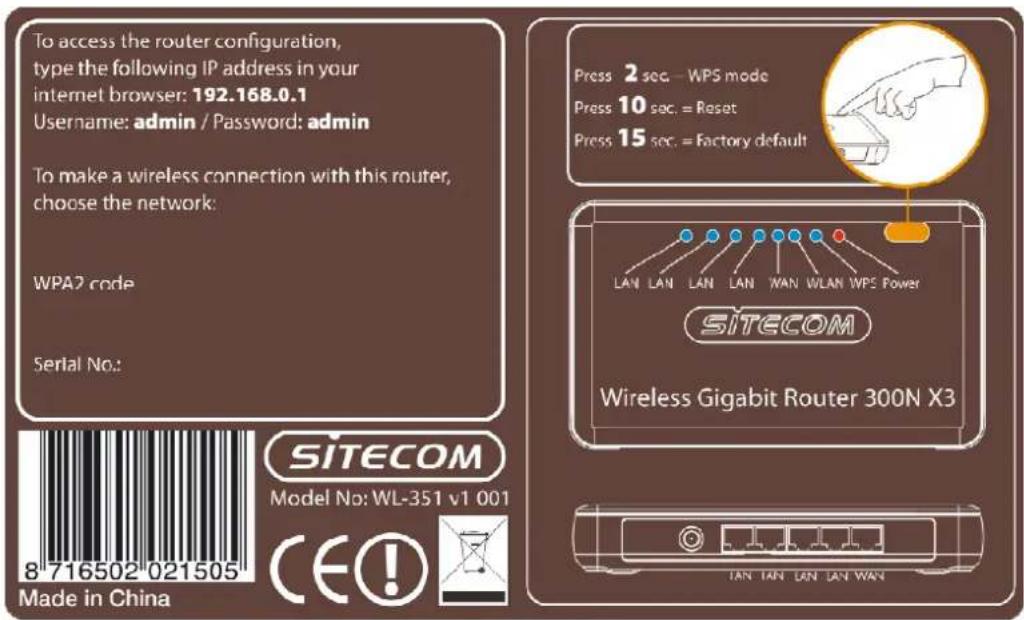
The backlabel describes the IP address, login details, SSID, security code and WPS button functionality.
text_image
To access the router configuration, type the following IP address in your internet browser: 192.168.0.1 Username: admin / Password: admin To make a wireless connection with this router, choose the network: WPA2 code Serial No.: SITECOM Model No: WL-351 v1 001 Made in China 8 716502 021505 CE! Press 2 sec - WPS mode Press 10 sec. = Reset Press 15 sec. = Factory default SITECOM Wireless Gigabit Router 300N X3 LAN LAN LAN LAN WAN WLAN WPS Power LAN LAN LAN LAN WAN| Button Description | |
| WPS BUTTON | Press 2 seconds for WPS modePress 10 seconds to reset the routerPress 15 Seconds to reset the router to factory defaults. |
4 Network + System Requirements
To begin using the WL-351, make sure you meet the following as minimum requirements:
- PC/Notebook.
- Operating System – Microsoft Windows XP/2000/VISTA
• 1 Free Ethernet port. - WiFi card/USB dongle (802.11 b/g/n) – optional.
- External xDSL (ADSL) or Cable modem with an Ethernet port (RJ-45).
- PC with a Web-Browser (Internet Explorer, Safari, Firefox, Opera)
- Ethernet compatible CAT5 cables.
5 WL-351 Placement
You can place the WL-351 on a desk or other flat surface, or you can mount it on a wall. For optimal performance, place your Wireless Broadband Router in the center of your office (or your home) in a location that is away from any potential source of interference, such as a metal wall or microwave oven. This location must be close to a power connection and your ADSL/Cable modem.
6 Setup LAN, WAN
WAN connection:

text_image
WAN MODEM Click ROUERLAN connection:

text_image
LAN ROUTER7 PC Network Adapter setup
Windows XP
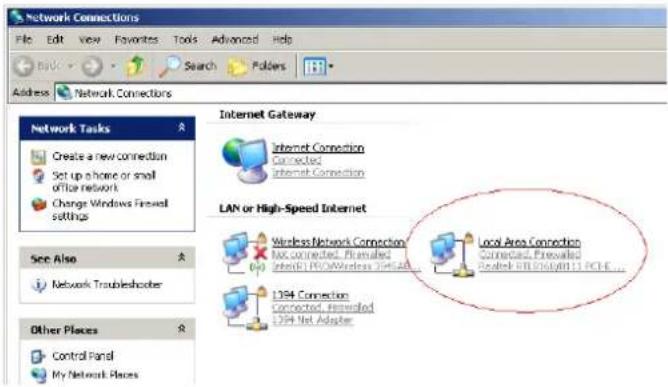
- Enter [Start Menu] → select [Control panel] → select [Network].
text_image
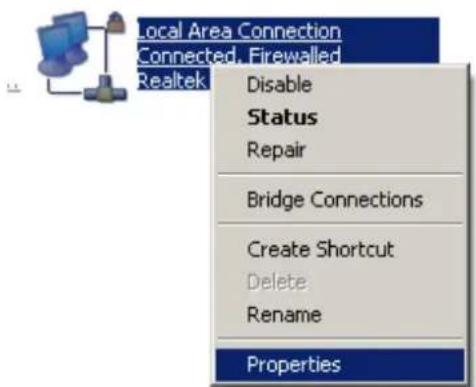
Network Connections File Edit View Favorites Tools Advanced Help Back Search Polders Address Network Connections Network Tasks Create a new connection Set up a phone or small office network Change Windows Firewall settings See Also Network Troubleshooter Other Places Control Panel My Network Places Internet Gateway Internet Connection Connected Internet Connection LAN or High-Speed Internet Wireless Network Connection Not connected, Promoted Internet (R/Wire/Wire) 13.1.1.1.1.1.1.1.1.1.1.1.1.1.1.1.1.1.1.1.1.1.1.1.1.1.1.1.1.1.1.1.1.1.1.1.1.1.1.1.1.1.1.1.1.1.1.1.1.1.1.2 Local Area Connection Connected, Expanded Realtek RTL8040/0000000000000000000000000000000000000000000000000000000000000000000000000000000000000000000000000000 1334 Connection Connected, Expanded 1334 Net Adapter- Select [Local Area Connection]) icon =>select [properties]
text_image
Local Area Connection Connected, Firewalled Realtek Disable Status Repair Bridge Connections Create Shortcut Delete Rename Properties- Select [Internet Protocol (TCP/IP)] =>Click [Properties].

text_image
Local Area Connection Properties General | Authentication | Advanced | Connect using: Realtek RTL8168/8111 PCI-E Gigabi Configure... This connection uses the following items: Network Monitor Driver Microsoft TCP/IP version 6 Internet Protocol (TCP/IP) Install... Uninstall Properties Description Transmission Control Protocol/Internet Protocol. The default wide area network protocol that provides communication across diverse interconnected networks. Show icon in notification area when connected Notify me when this connection has limited or no connectivity OK Cancel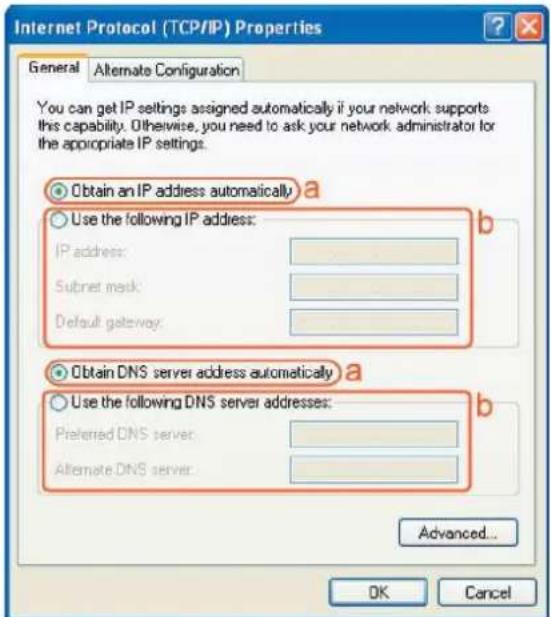
text_image
Internet Protocol (TCP/IP) Properties General Alternate Configuration You can get IP settings assigned automatically if your network supports this capability. Otherwise, you need to ask your network administrator for the appropriate IP settings. Obtain an IP address automatically a Use the following IP address: IP address: Subnet mask: Default gateway: Obtain DNS server address automatically a Use the following DNS server addresses: Preferred DNS server: Alternate DNS server: Advanced... OK Cancel- Select the [General] tab.
a. The WL-351 supports [DHCP] function, please select both [Obtain an IP address automatically] and [Obtain DNS server address automatically].
Windows Vista
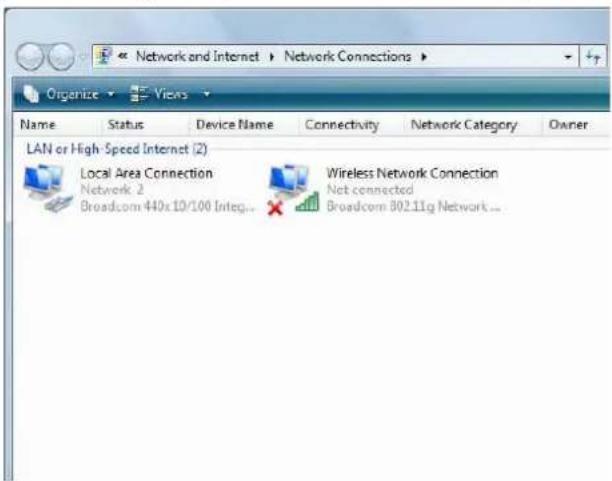
- Enter [Start Menu] → select [Control panel] → select [View network status and tasks] -> select [Manage network connections].
text_image
Network and Internet > Network Connections Organize > Views Name Status Device Name Connectivity Network Category Owner LAN or High-Speed Internet (2) Local Area Connection Network 2 Broadcom 440x10/100 Integ... Wireless Network Connection Net connected Broadcom 802.11g Network ...- Select [Local Area Connection]) icon=>select [properties]

text_image
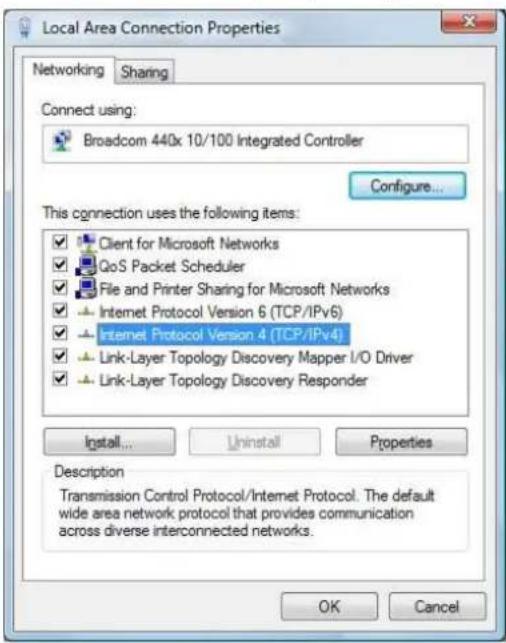
Network and Internet > Network Connections Organize > Views > Disable this network device Name Status Device Name Connectivity Netw LAN or High-Speed Internet (2) Local Area Connection Network 2 Broadcom 440x10 Disable Status Diagnose Bridge Connections Create Shortcut Delete Rename Properties- Select [Internet Protocol Version 4 (TCP/IPv4)] =>Click [Properties].
text_image
Local Area Connection Properties Networking Sharing Connect using: Broadcom 440x 10/100 Integrated Controller Configure... This connection uses the following items: Client for Microsoft Networks QoS Packet Scheduler File and Printer Sharing for Microsoft Networks Internet Protocol Version 6 (TCP/IPv6) Internet Protocol Version 4 (TCP/IPv4) Link-Layer Topology Discovery Mapper I/O Driver Link-Layer Topology Discovery Responder Install... Uninstall Properties Description Transmission Control Protocol/Internet Protocol. The default wide area network protocol that provides communication across diverse interconnected networks. OK Cancel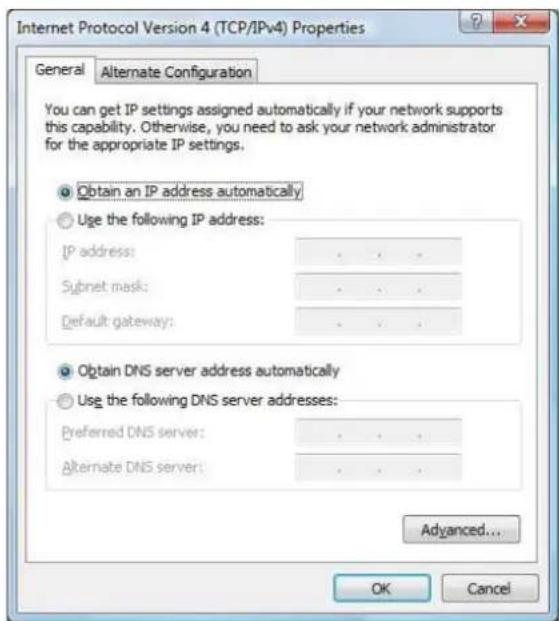
text_image
Internet Protocol Version 4 (TCP/IPv4) Properties General Alternate Configuration You can get IP settings assigned automatically if your network supports this capability. Otherwise, you need to ask your network administrator for the appropriate IP settings. Obtain an IP address automatically Use the following IP address: IP address: ... Subnet mask: ... Default gateway: ... Obtain DNS server address automatically Use the following DNS server addresses: Preferred DNS server: ... Alternate DNS server: ... Advanced... OK Cancel- Select the [General] tab.
The WL-351 supports [DHCP] function, please select both [Obtain an IP address automatically] and [Obtain DNS server address automatically].
8 Bring up the WL-351
Connect the supplied power-adapter to the power inlet port and connect it to a wall outlet. The WL-351 automatically enters the self-test phase. During self-test phase, the Power LED will be lit continuously to indicate that this product is in normal operation.
9 Initial Setup WL-351
LOGIN procedure
- OPEN your browser (e.g. Internet Explorer).

- Type http://192.168.0.1 in the address bar and press [Enter]

text_image
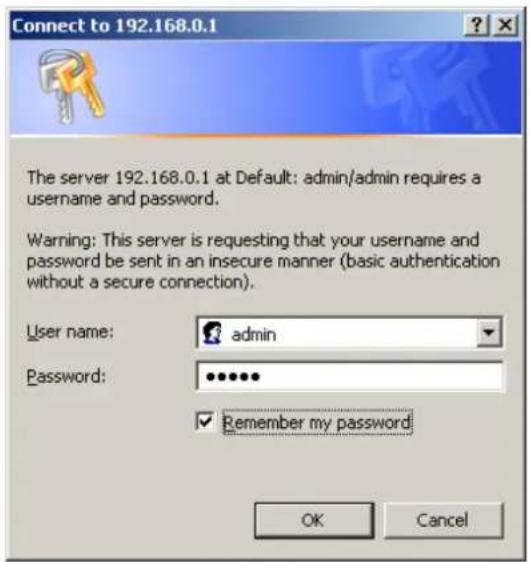
Blank Page - Windows Internet Explorer http://192.168.0.1/ File Edit View Favorites Tools Help Connecting... Connect to 192.168.0.1 The server 192.168.0.1 at Default: admin/admin requires a username and password. Warning: This server is requesting that your username and password be sent in an insecure manner (basic authentication without a secure connection). User name: Password: Remember my password OK Cancel- Type user name and password (default is admin/admin).
text_image
Connect to 192.168.0.1 The server 192.168.0.1 at Default: admin/admin requires a username and password. Warning: This server is requesting that your username and password be sent in an insecure manner (basic authentication without a secure connection). User name: admin Password: •••••• ✓ Remember my password OK Cancel- Click OK.
- You will see the home page of the WL-351.

text_image
300N ROUTER WIRELESS SITECOM Status Wizard Wireless Settings Firewall Advanced Settings Toolbox Choose your language System Status DHCP Server Device Status Internet Status DHCP Status Log Statistics You can use the Status page to monitor the connection status for the WAN/LAN interfaces, firmware and hardware version numbers, any illegal attempts to access your network and information on all DHCP client PCs currently connected to your network. System Model: Wireless Network Broadband Router Uptime: 5 min 36 sec Hardware Version: Rev. A Serial Number: 000000001 Boot Code Version: 0.7 Runtime Code Version: 0.1The System status section allows you to monitor the current status of your router the UP time, hardware information, serial number as well as firmware version information is displayed here.
LAN settings
The LAN tab gives you the opportunity to change the IP settings of the WL-351.

text_image
300N ROUTER WIRELESS SITECOM Status Wizard Wireless Settings Firewall Advanced Settings Toolbox Choose your language System Status DHCP Server Device Status Internet Status DHCP Status Log Statistics LAN IP IP Address: 192.168.0.1 IP Subnet Mask: 255.255.255.0 B02.1d Spanning Tree: Disabled DHCP Server: Enabled Lease Time: Forever DHCP Server Start IP: 192.168.0.100 End IP: 192.168.0.200 Domain Name: sitecomw041 Apply CancelClick
IP address 192.168.0.1. It is the router's LAN IP address (Your LAN clients default gateway IP address).
IP Subnet Mask 255.255.255.0 Specify a Subnet Mask for your LAN segment.
802.1d Spanning Tree is Disabled by default. If the 802.1d Spanning Tree function is enabled, this router will use the spanning tree protocol to prevent network loops.
DHCP Server Enabled by default. You can enable or disable the DHCP server. When DHCP is disabled no ip-addresses are assigned to clients and you have to use static ip-addresses. When DHCP server is enabled your computers will be assigned an ip-address automatically until the lease time expires.
Lease Time Forever. In the Lease Time setting you can specify the time period that the DHCP lends an IP address to your LAN clients. The DHCP will change your LAN client's IP address when this time threshold period is reached.
IP Address Pool You can select a particular IP address range for your DHCP server to issue IP addresses to your LAN Clients.
Note: default IP range is 192.168.0.100 \~ 192.168.0.200. If you want your PC(s) to have a static/fixed IP address, then you'll have to choose an IP address outside this IP address Pool
Domain Name You can specify a Domain Name for your LAN. Or just keep the default (sitecomwl351).
Device Status
View the Broadband router's current configuration settings. Device Status displays the configuration settings you've configured in the Wizard / Basic Settings / Wireless Settings section.

text_image
300N ROUTER WIRELESS SITECOM Status Wizard Wireless Settings Firewall Advanced Settings Toolbox Choose your language System Status DHCP Server Device Status Internet Status DHCP Status Log Statistics View the current setting status of this device. Wireless Configuration Mode: AP ESSID: Sitecom8CD008 Channel: 0 Security: WPA2 pre-shared key Associated Clients: 0 BSSID: 00:FF:$2:BC:00:08 LAN Configuration IP Address: 192.168.0.1 Subnet Mask: 253.255.255.0 DHCP Server: Enabled MAC Address: 00:FF:$2:BC:00:08Internet Status
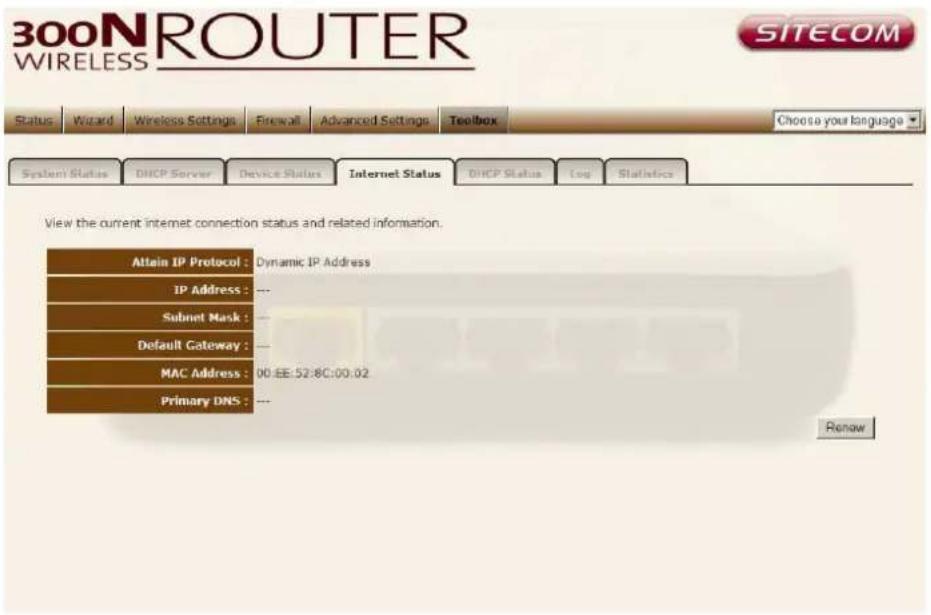
This page displays whether the WAN port is connected to a Cable/DSL connection. It also displays the router's WAN IP address, Subnet Mask, and ISP Gateway as well as MAC address, the Primary DNS. Press Renew button to renew your WAN IP address.
text_image
300N ROUTER WIRELESS SITECOM Status Wizard Wireless Settings Firewall Advanced Settings Toolbox Choose your language System Status DHCP Server Device Status Internet Status DHCP Status Log Statistics View the current internet connection status and related information. Attein IP Protocol: Dynamic IP Address IP Address: --- Subnet Mask: --- Default Gateway: --- MAC Address: 00:EE:52:8C:00:02 Primary DNS: --- RenowDHCP Client Status
DHCP This page shows all DHCP clients (LAN PCs) currently connected to your network. The table shows the assigned IP address, MAC address and expiration time for each DHCP leased client. Use the Refresh button to update the available information.
You can check Enable Static DHCP IP. It is possible to add more static DHCP IPs. They are listed in the table Current Static DHCP Table. IP can be deleted at will from the table.
Click apply button to save the changed configuration.

text_image
300N ROUTER WIRELESS SITECOM Status Wizard Wireless Settings Firewall Advanced Settings Toolbox Choose your language System Status DHCP Server Device Status Internet Status DHCP Status Cog Statistics This table shows the assigned IP address, MAC address and expiration time for each DHCP leased client. IP address MAC address Expiration Time No DHCP. Refresh Enable Static DHCP IP IP address MAC address Add Reset Current Static DHCP Table: NO. IP address MAC address Select Delete Selection Delete All Reset Apply CancelWL-351 Log
View the operation log of the WL-351. This page shows the current system log of the Broadband router. It displays any event occurred after system start up. At the bottom of the page, the system log can be saved

text_image
300N ROUTER WIRELESS SITECOM Status Wizard Wireless Settings Firewall Advanced Settings Toolbox Choose your language System Status DHCP Server Device Status Internet Status DHCP Status Log Statistics View the system operation information. You can see the system start up time, connection process... etc. here. day 1 00:00:06 [SYSTEM]: WAN, No PHY Link day 1 00:00:06 [SYSTEM]: WAN, start DHCP mode day 1 00:00:04 [SYSTEM]: WAN, stop DHCP mode day 1 00:00:08 [SYSTEM]: WAN, stop DHCP mode day 1 00:00:02 [SYSTEM]: NETP, start day 1 00:00:01 [SYSTEM]: NRT, start Firewall day 1 00:00:01 [SYSTEM]: NRT, start NAT day 1 00:00:01 [SYSTEM]: NTP, start WTR Client day 1 00:00:01 [SYSTEM]: DNS, start DNS Proxy day 1 00:00:01 [SYSTEM]: DHCP, start DHCP Server day 1 00:00:01 [SYSTEM]: WAN, No PHY Link day 1 00:00:01 [SYSTEM]: WAN, start DHCP mode day 1 00:00:01 [SYSTEM]: WAN, stop DHCP mode day 1 00:00:01 [SYSTEM]: WLAN, Channel = 11 day 1 00:00:00 [SYSTEM]: LAN, IP address=192.168.0.1 day 1 00:00:00 [SYSTEM]: LAN, start day 1 00:00:00 [SYSTEM]: AR, start day 1 00:00:00 [SYSTEM]: Start Log Message Service! Save Clear RefreshWL-351 Statistics
Shows the counters of packets sent and received on WAN, LAN & WLAN.

text_image
300N ROUTER WIRELESS SITECOM Status Wizard Wireless Settings Firewall Advanced Settings Toolbox Choose your language System Status DHCP Server Device Status Internet Status DHCP Status Log Statistics This page shows the packet counters for transmission and reception regarding to networks. Wireless LAN : Sent Packets 22 Received Packets 2208 Ethernet LAN : Sent Packets 421 Received Packets 398 Ethernet WAN : Sent Packets 0 Received Packets 0 Refresh10 Configuration Wizard
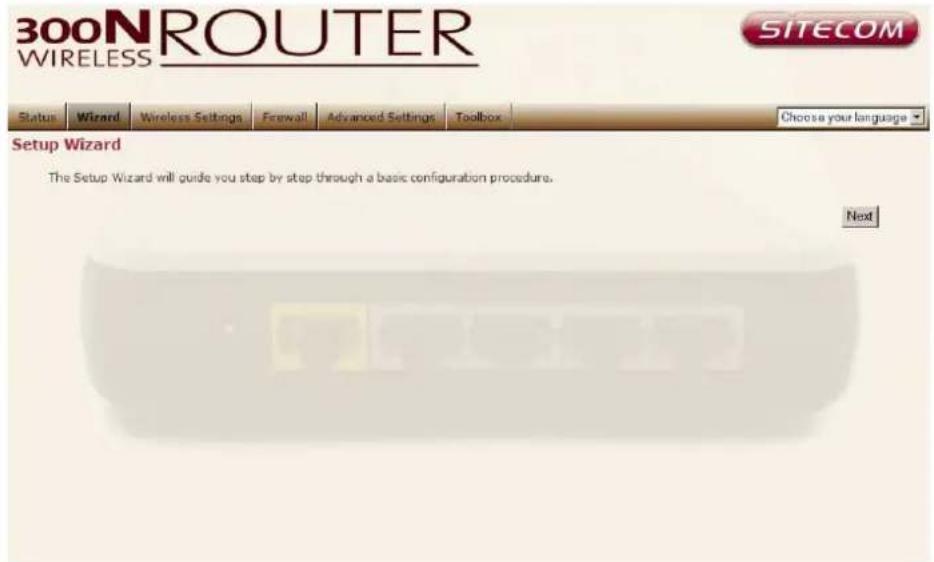
Click Wizard to configure the router. The Setup wizard will now be displayed; check that the modem is connected and click Next.
text_image
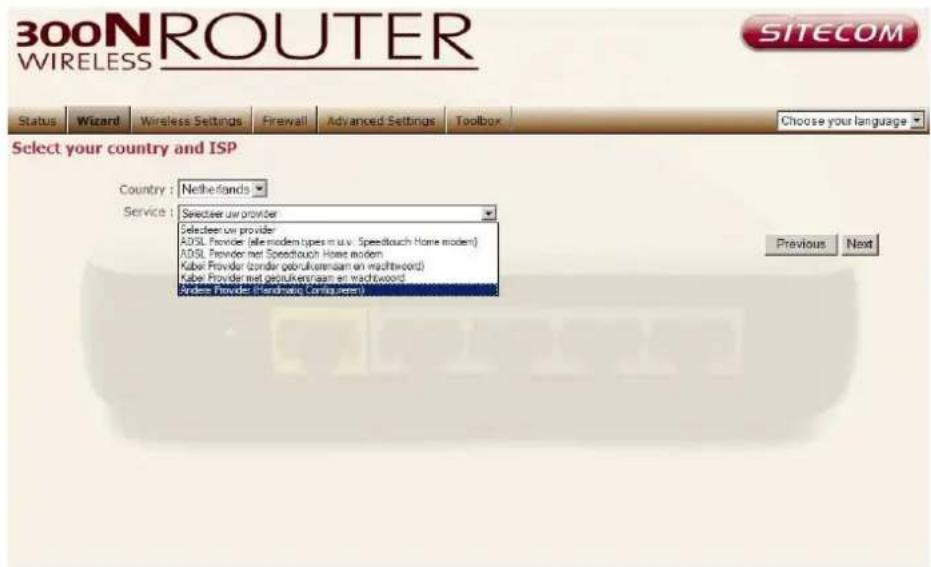
300N ROUTER WIRELESS SITECOM Status Wizard Wireless Settings Firewall Advanced Settings Toolbox Choose your language Setup Wizard The Setup Wizard will guide you step by step through a basic configuration procedure. NextSelect your country from the Country list. Select your internet provider. Click Next.
text_image
300N ROUTER WIRELESS SITECOM Status Wizard Wireless Settings Firewall Advanced Settings Toolbox Choose your language Select your country and ISP Country : Netherlands Service : Selecter our provider Selectes our provider ADSL Provider (alle modern types in u.w. Speedtouch Home modem) ADSL Provider met Speedtouch Home modem Kabel Provider (zonder gebruikkultuream en machtwoord) Kabel Provider met gebruiken/zaam en machtwoord Andere Provider (Finlandwa Configuera) Previous NextDepending on the chosen provider, you may need to enter your user name and password, MAC address or hostname in the following window. After you have entered the correct information, click Next.

text_image
300N ROUTER WIRELESS SITECOM Status Wizard Wireless Settings Firewall Advanced Settings Toolbox Choose your language Please, enter the data which is supplied by your ISP. Hostname : (Aileen voor oudere @home verbindingen) MAC Address : 00000000000 Clone MAC address Previous Apply Cancel 300N ROUTER WIRELESS SITECOM Status Wizard Wireless Settings Firewall Advanced Settings Toolbox Choose your language Please, enter the data which is supplied by your ISP. Login Method : PPP over Ethernet Username : Password : Service : MTU : 1452 (S12<=MTU Value<=1492) Connection Type : Keep connection Connect Disconnect Idle Time : 10 (1-1000 Minutes) Previous Apply CancelClick APPLY to complete the configuration.
11 Wireless Settings
You can set parameters that are used for the wireless stations to connect to this router. The parameters include Mode, ESSID, Channel Number and Associated Client.
Wireless Function

text_image
300N ROUTER WIRELESS SITECOM Status Wizard Wireless Settings Firewall Advanced Settings Toolbox Choose your language Enable Basic Advanced Security ALL MIPS The gateway can be quickly configured as a wireless access point for roaming clients by setting the SSID and channel number. It also supports data encryption and client filtering. Enable or disable Wireless module function : Enable Disable ApplyEnable or Disable Wireless function here. Click Apply and wait for module to be ready & loaded.
Basic Settings

text_image
300N ROUTER WIRELESS SITECOM Status Wizard Wireless Settings Firewall Advanced Settings Toolbox Choose your language Enable Basic Advanced Security ACL WPS This page allows you to define ESSID, and Channel for the wireless connection. These parameters are used for the wireless stations to connect to the Access Point. Mode: AP Band: 2.4 GHz (B+G+N) ESSID: Sisecom8C0008 Channel: 11 Apply CancelMode Allows you to set AP or WDS mode.
Band Allows you to set the AP fixed at 802.11b or 802.11g mode. You can also select B+G mode to allow 80211b and 802.11g clients at the same time.
Enable SSID # Allows you to enable up to four SSIDs for this router.
SSID This is the name of the wireless signal which is broadcasted. All the devices in the same wireless LAN should have the same ESSID.
Channel The channel used by the wireless LAN. All devices in the same wireless LAN should use the same channel.

text_image
This page allows you to define ESSID, and Channel for the wireless connection. These parameters are used for the wireless stations to connect to the Access Point. Mode : AP Band : 24 GHz (B+G+H) Enable SSID#: 1 SSID 1 : 2 Channel : 3 Apply CancelAdvanced Settings
This tab allows you to set the advanced wireless options. The options included are Authentication Type, Fragment Threshold, RTS Threshold, Beacon Interval, and Preamble Type. You should not change these parameters unless you know what effect the changes will have on the router.

text_image
300NGIGABIT ROUTERXR WIRELESS SITECOM Status Wizard Wireless Settings Firewall Advanced Settings Toolbox Choose your language Enable Basic Advanced Security ACL INPS These settings are only for more technically advanced users who have a sufficient knowledge about wireless LAN. These settings should not be changed unless you know what effect the changes will have on your Broadband router. Authentication Type: Open System Shared Key Auto Fragment Threshold: 2346 (256-2346) RTS Threshold: 2347 (1-2347) Beacon Interval: 100 (20-1024 ms) DTIM Period: 1 (1-235) Data Rate: Auto N Data Rate: Auto Channel Bandwidth: Auto 20/40 MHz 20 MHz Preamble Type: Long Preamble Short Preamble CTS Protection: Auto Always None Tx Power: 100 % Apply CancelAuthentication Type There are two authentication types: "Open System" and "Shared Key". When you select "Open System", wireless stations can associate with this wireless router without WEP encryption. When you select "Shared Key", you should also setup a WEP key in the "Encryption" page. After this has been done, make sure the wireless clients that you want to connect to the device are also setup with the same encryption key.
Fragment Threshold "Fragment Threshold" specifies the maximum size of a packet during the fragmentation of data to be transmitted. If you set this value too low, it will result in bad performance.
RTS Threshold When the packet size is smaller then the RTS threshold, the wireless router will not use the RTS/CTS mechanism to send this packet.
Beacon Interval is the interval of time that this wireless router broadcasts a beacon. A Beacon is used to synchronize the wireless network.
Data Rate The "Data Rate" is the rate that this access point uses to transmit data packets. The access point will use the highest possible selected transmission rate to transmit the data packets.
N Data Rate The "Data Rate" is the rate that this access point uses to transmit data packets for N compliant wireless nodes. Highest to lowest data rate can be fixed.
Channel Bandwidth is the range of frequencies that will be used.
Preamble Type The "Long Preamble" can provide better wireless LAN compatibility while the "Short Preamble" can provide better wireless LAN performance.
CTS Protection: It is recommended to enable the protection mechanism. This mechanism can decrease the rate of data collision between 802.11b and 802.11g wireless stations. When the protection mode is enabled, the throughput of the AP will be a little lower due to a lot of frame-network that is transmitted.
TX Power can be set to a bare minimum or maximum power.
Security
This Access Point provides complete wireless LAN security functions, included are WEP, IEEE 802.11x, IEEE 802.11x with WEP, WPA with pre-shared key and WPA with RADIUS. With these security functions, you can prevent your wireless LAN from illegal access. Please make sure your wireless stations use the same security function, and are setup with the same security key.
SSID Selection Here you choose the SSID for which you wish to set the security.
Broadcast ESSID If you enabled "Broadcast ESSID", every wireless station located within the coverage of this access point can discover this access point easily. If you are building a public wireless network, enabling this feature is recommended. Disabling "Broadcast ESSID" can provide better security.
WMM WiFi Multi Media if enabled supports QoS for experiencing better audio, video and voice in applications.

text_image
300NGIGABIT ROUTERXR WIRELESS SITECOM Status Wizard Wireless Settings Firewall Advanced Settings Toolbox Choose your language Enable Basic Advanced Security ACL WPS This page allows you setup the wireless security. Turn on WEP or WPA by using Encryption Keys could prevent any unauthorized access to your wireless network. SSID Selection : Sitecom5FA504 Broadcast ESSID : Enable WHM : Enable Encryption : WPA pre-shared key WPA Type : ○ WPA(TKIP) ○ WPA2(AES) ○ WPA2 Mixed Pre-shared Key Type : Passphrase Pre-sharedKey : M0VQWP1FE8D1 Apply CancelDisable
When you choose to disable encryption, it is very insecure to operate the WL-351.

text_image
Enable Basic Advanced Security ACI WPS This page allows you setup the wireless security. Turn on WEP or WPA by using Encryption Keys could prevent any unauthorized access to your wireless network. Encryption : Disable Enable 802.1x Authentication Apply CancelEnable 802.1x Auth
IEEE 802.1x is an authentication protocol. Every user must use a valid account to login to this Access Point before accessing the wireless LAN. The authentication is processed by a RADIUS server. This mode only authenticates users by IEEE 802.1x, but it does not encrypt the data during communication

text_image
Enable 802.1x Authentication RADIUS Server IP Address : RADIUS Server Port : 1812 RADIUS Server Password : Apply CancelWEP
When you select 64-bit or 128-bit WEP key, you have to enter WEP keys to encrypt data. You can generate the key by yourself and enter it. You can enter four WEP keys and select one of them as a default key. Then the router can receive any packets encrypted by one of the four keys.

text_image
Encryption : WEP Key Length : 64-bit Key Type : ASCII (5 characters) Default Key : Key 1 Encryption Key 1 : Encryption Key 2 : Encryption Key 3 : Encryption Key 4 :Key Length You can select the WEP key length for encryption, 64-bit or 128-bit. The larger the key will be the higher level of security is used, but the throughput will be lower.
Key Format You may select ASCII Characters (alphanumeric format) or Hexadecimal Digits (in the "A-F", "a-f" and "0-9" range) to be the WEP Key.
Key1 - Key4 The WEP keys are used to encrypt data transmitted in the wireless network. Use the following rules to setup a WEP key on the device. 64-bit WEP: input 10-digits Hex values (in the "A-F", "a-f" and "0-9" range) or 5-digit ASCII character as the encryption keys. 128-bit WEP: input 26-digit Hex values (in the "A-F", "a-f" and "0-9" range) or 13-digit ASCII characters as the encryption keys.
Click
WPA Pre-shared Key
Wi-Fi Protected Access (WPA) is an advanced security standard. You can use a pre-shared key to authenticate wireless stations and encrypt data during communication. It uses TKIP or CCMP (AES) to change the encryption key frequently. So the encryption key is not easy to be cracked by hackers. This is the best security available.

text_image
Encryption : WPA pre-shared key WPA Type : ○ WPA(TKIP) ○ WPA2(AES) ○ WPA2 Mixed Pre-shared Key Type : Passphrase Pre-sharedKey : Apply CancelWPA-Radius
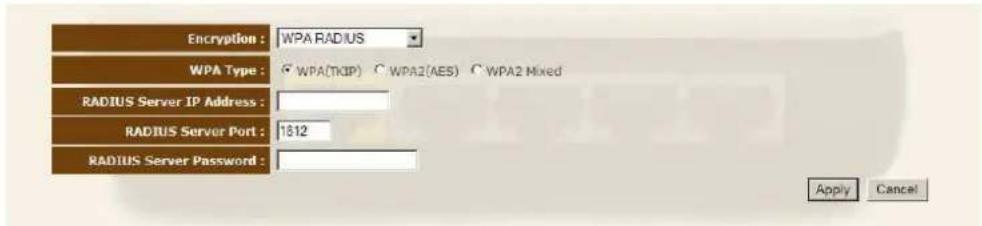
Wi-Fi Protected Access (WPA) is an advanced security standard. You can use an external RADIUS server to authenticate wireless stations and provide the session key to encrypt data during communication. It uses TKIP or CCMP (AES) to change the encryption key frequently. Press Apply button when you are done.
text_image
Encryption : WPA RADIUS WPA Type : ⬤ WPA(TKIP) ⬤ WPA2(AES) ⬤ WPA2 Mixed RADIUS Server IP Address : RADIUS Server Port : 1812 RADIUS Server Password : Apply CancelACL
This wireless router supports MAC Address Control, which prevents unauthorized clients from accessing your wireless network.

text_image
300N ROUTER WIRELESS SITECOM Status Wizard Wireless Settings Firewall Advanced Settings Toolbox Choose your language Enable Basic Advanced Security ACL WPS For security reason, the Access Point features MAC Address Filtering which only allows authorized MAC Addresses to associate with the Access Point. MAC Address Filtering Table NO. MAC address Comment Select Delete Selected Delete As Reset Enable Wireless Access Control New: MAC address : Comment : Add Reset Apply CancelEnable wireless access control Enables the wireless access control function
Adding an address into the list Enter the "MAC Address" and "Comment" of the wireless station to be added and then click "Add". The wireless station will now be added into the "Current Access Control List" below. If you are having any difficulties filling in the fields, just click "Clear" and both "MAC Address" and "Comment" fields will be cleared.
Remove an address from the list If you want to remove a MAC address from the "Current Access Control List", select the MAC address that you want to remove in the list and then click "Delete Selected". If you want to remove all the MAC addresses from the list, just click the "Delete All" button. Click "Reset" will clear your current selections.
Click
WPS
Wi-Fi Protected Setup (WPS) is the simplest way to establish a connection between the wireless clients and the wireless router. You don't have to select the encryption mode and fill in a long encryption passphrase every time when you try to setup a wireless connection. You only need to press a button on both wireless client and wireless router, and WPS will do the rest for you.
The wireless router supports two types of WPS: WPS via Push Button and WPS via PIN code. If you want to use the Push Button, you have to push a specific button on the wireless client or in the utility of the wireless client to start the WPS mode, and switch the wireless router to WPS mode. You can simply push the WPS button of the wireless router, or click the 'Start to Process' button in the web configuration interface. If you want to use the PIN code, you have to know the PIN code of the wireless client and switch it to WPS mode, then fill-in the PIN code of the wireless client through the web configuration interface of the wireless router.

text_image
300N ROUTER WIRELESS SITECOM Status Wizard Wireless Settings Firewall Advanced Settings Toolbox Choose your language Enable Basic Advanced Security ALS WPS WPS : ☑ Enable Wi-Fi Protected Setup Information WPS Current Status : unConfigured Sell Pin Code : 91750488 SSID : Sitecom8C0008 Authentication Mode : Disable Passphrase Key : WPS Via Push Button : Start to Process WPS Via PIN : Start to ProcessWPS Check the box to enable WPS function and uncheck it to disable the WPS function.
WPS Current Status If the wireless security (encryption) function of this wireless router is properly set, you'll see a 'Configured' message here. Otherwise, you'll see 'UnConfigured'.
Self Pin Code This is the WPS PIN code of the wireless router. You may need this information when connecting to other WPS-enabled wireless devices.
SSID This is the network broadcast name (SSID) of the router.
Authentication Mode It shows the active authentication mode for the wireless connection.
Passphrase Key It shows the passphrase key that is randomly generated by the wireless router during the WPS process. You may need this information when using a device which doesn't support WPS.
WPS via Push Button Press the button to start the WPS process. The router will wait for the WPS request from the wireless devices within 2 minutes.
WPS via PIN You can fill-in the PIN code of the wireless device and press the button to start the WPS process. The router will wait for the WPS request from the wireless device within 2 minutes.
12 Firewall Settings
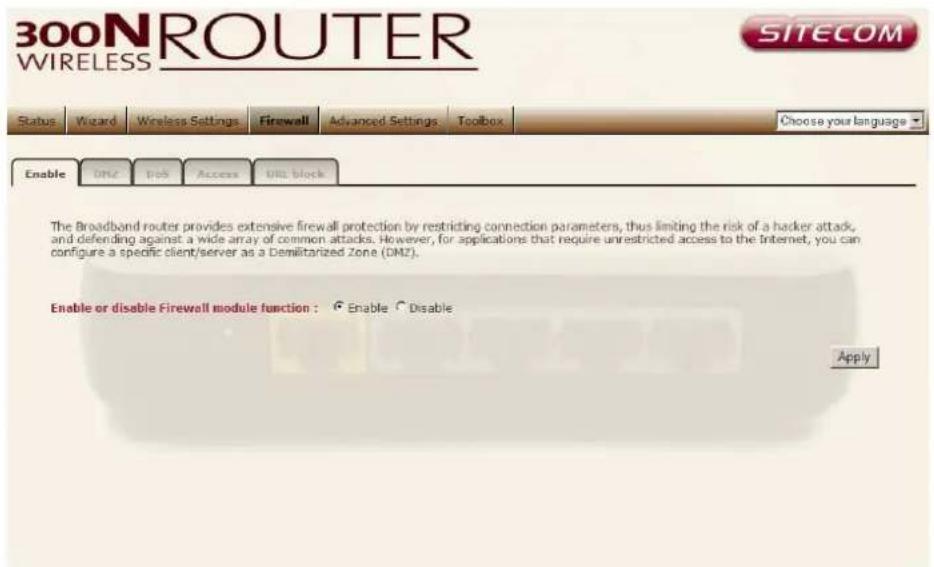
The Broadband router provides extensive firewall protection by restricting connection parameters, thus limiting the risk of hacker attacks, and defending against a wide array of common Internet attacks. However, for applications that require unrestricted access to the Internet, you can configure a specific client/server as a Demilitarized Zone (DMZ).
Note: To enable the Firewall settings select Enable and click Apply
text_image
300N ROUTER WIRELESS SITECOM Status Wizard Wireless Settings Firewall Advanced Settings Toolbox Choose your language Enable DMZ Rob Access UItA block The Broadband router provides extensive firewall protection by restricting connection parameters, thus limiting the risk of a hacker attack, and defending against a wide array of common attacks. However, for applications that require unrestricted access to the Internet, you can configure a specific client/server as a Demilitarized Zone (DMZ). Enable or disable Firewall module function : Enable Disable ApplyDMZ
If you have a client PC that cannot run an Internet application (e.g. Games) properly from behind the NAT firewall, then you can open up the firewall restrictions to unrestricted two-way Internet access by defining a DMZ Host. The DMZ function allows you to re-direct all packets going to your WAN port IP address to a particular IP address in your LAN. The difference between the virtual server and the DMZ function is that the virtual server re-directs a particular service/Internet application (e.g. FTP, websites) to a particular LAN client/server, whereas DMZ re-directs all packets (regardless of services) going to your WAN IP address to a particular LAN client/server.

text_image
300N ROUTER WIRELESS SITECOM Status Wizard Wireless Settings Firewall Advanced Settings Toolbox Choose your language Enable DMZ Disk Access URL block If you have a local client PC that cannot run an Internet application properly from behind the NAT firewall, you can open unrestricted two-way Internet access for this client by defining a Virtual DMZ Host. Enable DMZ Public IP Address Client PC IP Address Dynamic IP Session 1 Static IP Add Reset DMZ table: NO. Public IP Address Client PC IP Address Select Delete Selected Delete All Reset Apply CancelEnable DMZ Enable/disable DMZ
Public IP Address The IP address of the WAN port or any other Public IP addresses given to you by your ISP
Client PC IP Address Fill-in the IP address of a particular host in your LAN that will receive all the packets originally going to the WAN port/Public IP address above.
Click
Denial of Service (DoS)
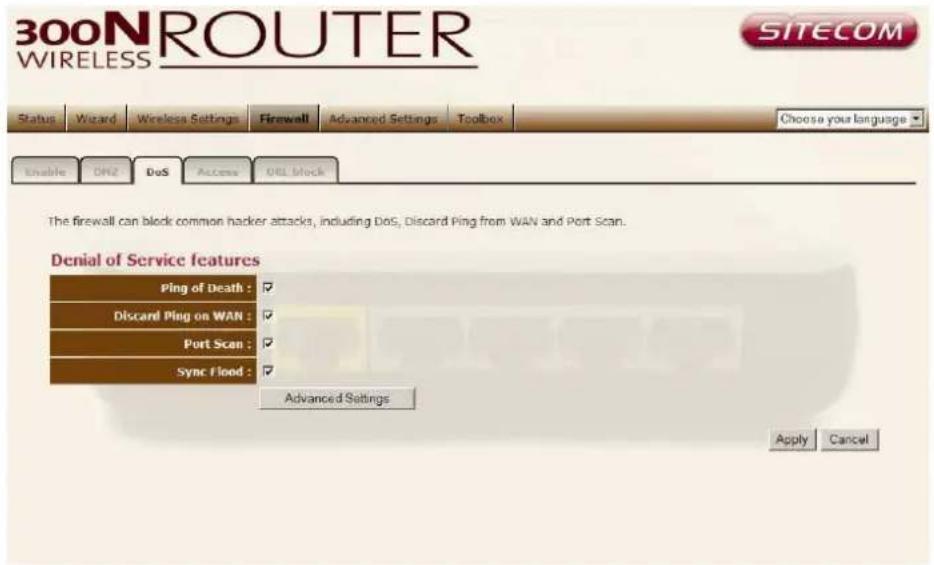
The Broadband router's firewall can block common hacker attacks, including Denial of Service, Ping of Death, Port Scan and Sync Flood. If Internet attacks occur the router can log the events.
text_image
300N ROUTER WIRELESS SITECOM Status Wizard Wireless Settings Firewall Advanced Settings Toolbox Choose your language Enable ONZ DoS Access OBL block The firewall can block common hacker attacks, including DoS, Discard Ping from WAN and Port Scan. Denial of Service features Ping of Death : ✓ Discard Ping on WAN : ✓ Port Scan : ✓ Sync Flood : ✓ Advanced Settings Apply CancelPing of Death Protections from Ping of Death attack
Discard Ping From WAN The router's WAN port will not respond to any Ping requests
Port Scan Protects the router from Port Scans.
Sync Flood Protects the router from Sync Flood attack.
Access
You can restrict users from accessing certain Internet applications/services (e.g. Internet websites, email, FTP etc.), Access Control allows users to define the traffic type permitted in your LAN. You can control which PC client can have access to these services.

text_image
300N ROUTER WIRELESS SITECOM Status Wizard Wireless Settings Firewall Advanced Settings Toolbox Choose your language Enable ORZ ToS Access UBC block Access Control allows users to define the traffic type permitted or not permitted in your LAN. You can control which PC uses what services or has access to. If both MAC filtering and IP filtering are enabled, the MAC filtering table will be checked first. Enable MAC filtering ▼ Deny ▼ Allow Client PC MAC Address Comment Add Reset MAC Filtering table: NO. Client PC MAC Address Comment Select Delete Selected Delete All Reset Enable IP Filtering Table (up to 20 computers) ▼ Deny ▼ Allow NO. PC Description PC IP Address Client Service Protocol Port range Select Add Delete Selected Delete All Apply CancelDeny If you select "Deny" then all clients will be allowed to access Internet accept for the clients in the list below.
Allow If you select "Allow" then all clients will be denied to access Internet accept for the PCs in the list below.
Filter client PCs by IP Fill in "IP Filtering Table" to filter PC clients by IP.
Add PC You can click Add PC to add an access control rule for users by IP addresses.
Remove PC If you want to remove some PCs from the "IP Filtering Table", select the PC you want to remove in the table and then click "Delete Selected". If you want to remove all PCs from the table, just click the "Delete All" button.
Filter client PC by MAC Check "Enable MAC Filtering" to enable MAC Filtering.
Add PC Fill in "Client PC MAC Address" and "Comment" of the PC that is allowed to access the Internet, and then click "Add". If you find any typo before adding it and want to retype again, just click "Reset" and the fields will be cleared.
Remove PC If you want to remove some PC from the "MAC Filtering Table", select the PC you want to remove in the table and then click "Delete Selected". If you want to remove all PCs from the table, just click the "Delete All" button. If you want to clear the selection and re-select again, just click "Reset".
Click
URL block
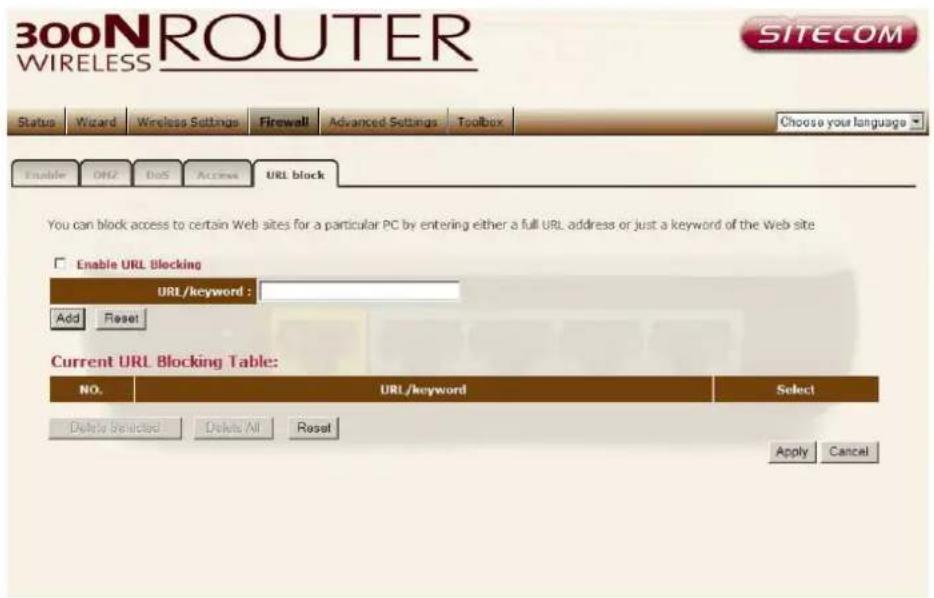
You can block access to some Web sites from particular PCs by entering a full URL address or just keywords of the Web site.
text_image
300N ROUTER WIRELESS SITECOM Status Wizard Wireless Settings Firewall Advanced Settings Toolbox Choose your language Enable ONZ DoS Access URL block You can block access to certain Web sites for a particular PC by entering either a full URL address or just a keyword of the Web site Enable URL Blocking URL/keyword : Add Reset Current URL Blocking Table: NO. URL/keyword Select Delete Selected Delete All Reset Apply CancelEnable URL Blocking Enable/disable URL Blocking
Add URL Keyword Fill in "URL/Keyword" and then click "Add". You can enter the full URL address or the keyword of the web site you want to block.
Remove URL Keyword If you want to remove some URL keywords from the "Current URL Blocking Table", select the URL keyword you want to remove in the table and then click "Delete Selected". If you want remove all URL keywords from the table, just click "Delete All" button. If you want to clear the selection and re-select again, just click "Reset".
Click
13 Advanced Settings
Network Address Translation (NAT) allows multiple users at your local site to access the Internet through a single Public IP Address or multiple Public IP Addresses. NAT provides Firewall protection from hacker attacks and has the flexibility to allow you to map Private IP Addresses to Public IP Addresses for key services such as Websites and FTP. Select Disable to disable the NAT function.
Port Forwarding
Port Forwarding allows you to re-direct a particular range of service port numbers (from the Internet/WAN Port) to a particular LAN IP address. It helps you to host servers behind the router NAT firewall.

text_image
300N ROUTER WIRELESS SITECOM Status Wizard Wireless Settings Firewall Advanced Settings Toolbox Choose your language NAT Enable Port forwarding Virtual Server Special Applications Application Layer Gateway uMail Quality of Server Entries in this table allow you to automatically redirect common network services to a specific PC behind the NAT firewall. These settings are only necessary if you wish to host some sort of server like a web server or mail server on the local network. Enable Port Forwarding Local IP Type Port range Comment Both Add Reset Current Port Forwarding Table: NO. Local IP Type Port range Comment Select Delete Selected Delete All Reset Apply CancelEnable Port Forwarding Enable Port Forwarding
Private IP This is the private IP of the server behind the NAT firewall.
Type This is the protocol type to be forwarded. You can choose to forward "TCP" or "UDP" packets only, or select "both" to forward both "TCP" and "UDP" packets.
Port Range The range of ports to be forward to the private IP.
Comment description of this setting.
Add Port Forwarding Fill in the "Private IP", "Type", "Port Range" and "Comment" of the setting to be added and then click "Add". Then this Port Forwarding setting will be added into the "Current Port Forwarding Table" below.
Remove Port Forwarding If you want to remove a Port Forwarding setting from the "Current Port Forwarding Table", select the Port Forwarding setting that you want to remove in the table and then click "Delete Selected". If you want to remove all Port Forwarding settings from the table, just click "Delete All" button. Click "Reset" will clear your current selections.
Virtual Server
Use the Virtual Server function when you want different servers/clients in your LAN to handle different service/Internet application type (e.g. Email, FTP, Web server etc.) from the Internet. Computers use numbers called port numbers to recognize a particular service/Internet application type. The Virtual Server allows you to re-direct a particular service port number (from the Internet/WAN Port) to a particular LAN private IP address and its service port number.

text_image
300N ROUTER WIRELESS SITECOM Status Wizard Wireless Settings Firewall Advanced Settings Toolbox Choose your language NAT Enable Port Forwarding Virtual Server Special Applications Application Layer Gateway uPIP Quality of Service You can configure the router as a Virtual Server allowing remote users to access services such as Web or FTP at your local PC. Depending on the requested service (TCP/UDP) port number, the router will redirect the external service request to the appropriate internal server (located at one of your local PCs). Enable Virtual Server Local IP Local Port Type Public Port Comment Add Reset Current Virtual Server Table: NO. Local IP Local Port Type Public Port Comment Select Delete Selected Delete All Reset Apply CancelEnable Virtual Server Enable Virtual Server.
Private IP This is the LAN client/host IP address that the Public Port number packet will be sent to.
Private Port This is the port number (of the above Private IP host) that the below Public Port number will be changed to when the packet enters your LAN (to the LAN Server/Client IP)
Type Select the port number protocol type (TCP, UDP or both). If you are unsure, then leave it to the default "both" setting. Public Port Enter the service (service/Internet application) port number from the Internet that will be re-directed to the above Private IP address host in your LAN
Comment The description of this setting.
Add Virtual Server Fill in the "Private IP", "Private Port", "Type", "Public Port" and "Comment" of the setting to be added and then click "Add". Then this Virtual Server setting will be added into the "Current Virtual Server Table" below.
Remove Virtual Server If you want to remove Virtual Server settings from the "Current Virtual Server Table", select the Virtual Server settings you want to remove in the table and then click "Delete Selected". If you want to remove all Virtual Server settings from the table, just click the "Delete All" button. Click "Reset" will clear your current selections.
Click
Special Applications
Some applications require multiple connections, such as Internet games, video Conferencing, Internet telephony and others. In this section you can configure the router to support multiple connections for these types of applications.
Enable Trigger Port Enable the Special Application function.
Trigger Port This is the out going (Outbound) range of port numbers for this particular application.
Trigger Type Select whether the outbound port protocol is "TCP", "UDP" or both.
Public Port Enter the In-coming (Inbound) port or port range for this type of application (e.g. 2300-2400, 47624)

text_image
300N ROUTER WIRELESS SITECOM Status Wizard Wireless Settings Firewall Advanced Settings Toolbox Choose your language NAT Enable Port Forwarding Virtual Server Special Applications Application Layer Gateway iOSIP Quality of Service Some applications require multiple connections, such as Internet gaming, video conferencing, Internet telephony and others. These applications cannot work when Network Address Translation (NAT) is enabled. If you need to run applications that require multiple connections, specify the port normally associated with an application in the "Trigger Port" field, select the protocol type as TCP or UDP, then enter the public ports associated with the trigger port to open them for inbound traffic. Enable Trigger Port Trigger port Trigger type Public Port Public type Comment Both Both Popular applications: Select an application Add Add Reset Current Trigger-Port Table: NO. Trigger port Trigger type Public Port Public type Comment Select Delete Function Delete All Reset Apply CancelPublic Type Select the Inbound port protocol type: "TCP", "UDP" or both Comment The description of this setting.
Popular applications This section lists the more popular applications that require multiple connections. Select an application from the Popular
Applications selection. Once you have selected an application, select a location (1-10) in the Copy to selection box and then click the Copy to button. This will automatically list the Public Ports required for this popular application in the location (1-10) you specified.
Add Special Application Fill in the "Trigger Port", "Trigger Type", "Public Port", "Public Type", "Public Port" and "Comment" of the setting to be added and then click "Add". The Special Application setting will be added into the "Current Trigger-Port Table" below. If you happen to make a mistake, just click "Clear" and the fields will be cleared.
Remove If you want to remove Special Application settings from the "Current Trigger-Port Table", select the Special Application settings you want to remove in the table and then click "Delete Selected". If you want remove all Special Application settings from the table, just click the "Delete All" button. Click "Reset" will clear your current selections.
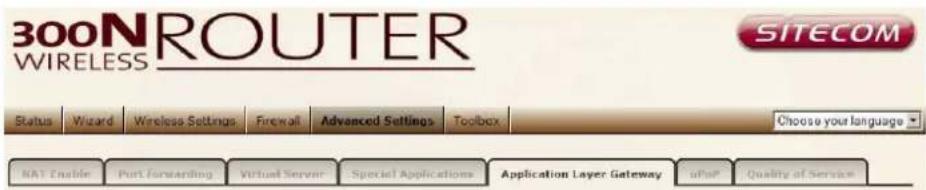
ALG
You can select applications that need "Application Layer Gateway" support.
text_image
300N ROUTER WIRELESS SITECOM Status Wizard Wireless Settings Firewall Advanced Settings Toolbox Choose your language NAT Enable Port Forwarding Virtual Server Special Applications Application Layer Gateway uPoP Quality of ServiceSome applications require special support to function under NAT. Please select the applications which you are using.
| Enable | Name | Select |
| H323 | Support for H323/netmeeting. | |
| MMS | Support for Microsoft Streaming Media Services protocol. | |
| TFTP | Support for TFTP. | |
| Egg | Support for eggdrop bot networks. | |
| IRC | Allows DCC to work though NAT and connection tracking. | |
| Amanda | Support for Amanda backup tool protocol. | |
| Quake3 | Support for Quake III Arena connection tracking and nat. | |
| Talk | Allows netfilter to track talk connections. | |
| IPsec | Support for IPsec passthrough | |
| FTP | Support for FTP. |
Enable select enable "Application Layer Gateway", then the router will let the selected application correctly pass through the NAT gateway.
UPNP
With UPnP, all PCs in you Intranet will discover this router automatically, so you don't have to configure your PC and it can easily access the Internet through this router.

text_image
300N ROUTER WIRELESS SITECOM Status Wizard Wireless Settings Breakcall Advanced Settings Toolbox Choose your language NAT Enable Port forwarding Virtual Server Special Applications Application Layer Gateway uPnP Quality of Service Universal Plug and Play is designed to support zero-configuration, "invisible" networking, and automatic discovery for a range of device from a wide range of vendors. With UPnP, a device can dynamically join a network, obtain an IP address and learn about the presence and capabilities of other devices all automatically. Devices can subsequently communicate with each other directly. UPnP : Enable Disable Apply CancelUPnP Feature You can enable or Disable the UPnP feature here. After you enable the UPnP feature, all client systems that support UPnP, like Windows XP, can discover this router automatically and access the Internet through this router without having to configure anything. The NAT Traversal function provided by UPnP can let applications that support UPnP connect to the internet without having to configure the virtual server sections.
QoS
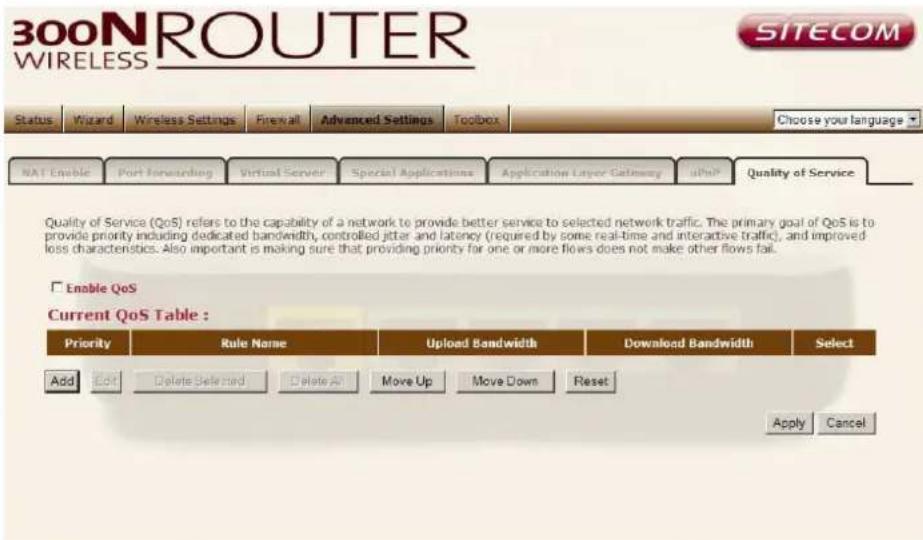
QoS can let you classify Internet application traffic by source/destination IP address and port number. You can assign priority for each type of application and reserve bandwidth for it. The packets of applications with higher priority will always go first. Lower priority applications will get bandwidth after higher priority applications get enough bandwidth. This can let you have a better experience in using critical real time services like Internet phone, video conference ...etc. All the applications not specified by you are classified as rule name "Others". The rule with a smaller priority number has a higher priority; the rule with a larger priority number has a lower priority. You can adjust the priority of the rules by moving them up or down.
text_image
300N ROUTER WIRELESS SITECOM Status Wizard Wireless Settings Firewall Advanced Settings Toolbox Choose your language NAT Enable Port Forwarding Virtual Server Special Applications Application Layer Gateway uPhP Quality of Service Quality of Service (QoS) refers to the capability of a network to provide better service to selected network traffic. The primary goal of QoS is to provide priority including dedicated bandwidth, controlled jitter and latency (required by some real-time and interactive traffic), and improved loss characteristics. Also important is making sure that providing priority for one or more flows does not make other flows fail. Enable QoS Current QoS Table : Priority Rule Name Upload Bandwidth Download Bandwidth Select Add Edit Delete Selected Delete All Move Up Move Down Reset Apply CancelEnable/Disable QoS You can check "Enable QoS" to enable QoS functionality for the WAN port.
Add a QoS rule into the table Click "Add" then enter a form of the QoS rule. Click "Apply" after filling out the form the rule will be added into the table.
Remove QoS rules from the table If you want to remove QoS rules from the table, select the QoS rules you want to remove in the table and then click "Delete Selected". If you want remove all QoS rules from the table, just click the "Delete All" button. Clicking "Reset" will clear your current selections.
Edit a QoS rule Select the rule you want to edit and click "Edit", then enter the detail form of the QoS rule. Click "Apply" after editing the form and the rule will be saved.
Adjust QoS rule priority You can select the rule and click "Move Up" to make its priority higher. You also can select the rule and click "Move Down" to make its priority lower.
14 TOOLBOX Settings
Password change options
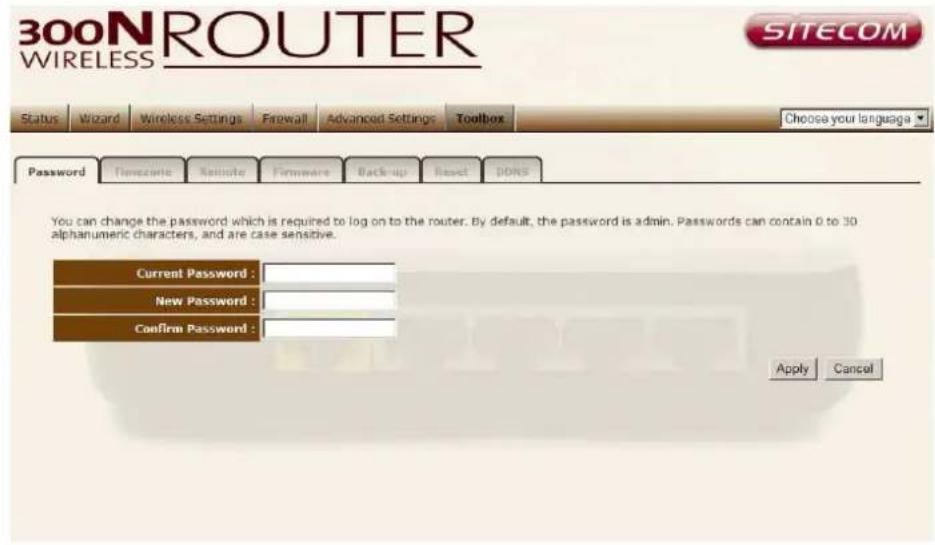
You can change the password required to log into the broadband router's system web-based management. By default, the password is: admin. Passwords can contain 0 to 12 alphanumeric characters, and are case sensitive.
text_image
300N ROUTER WIRELESS SITECOM Status Wizard Wireless Settings Firewall Advanced Settings Toolbox Choose your language Password Timecode Minute Firmware Back-up Reset DORS You can change the password which is required to log on to the router. By default, the password is admin. Passwords can contain 0 to 30 alphanumeric characters, and are case sensitive. Current Password : New Password : Confirm Password : Apply CancelCurrent Password Fill in the current password to allow changing to a new password.
New Password Enter your new password.
Confirmed Password Enter your new password again for verification purposes.
Click
Time Zone
The Time Zone allows your router to base its time on the settings configured here, which will affect functions such as Log entries and Firewall settings.

text_image
300N ROUTER WIRELESS SITECOM Status Wizard Wireless Settings Firewall Advanced Settings Toolbox Choose your language Password Timezone Remote Firmware Back-up Reset DONS Set the time zone of the Broadband router. This information is used for log entries and firewall settings. Set Time Zone : (GMT)Greenwich Mean Time: Dublin, Edinburgh, Lisbon, London Time Server Address : europe.pool.mtp.org Daylight Saving : Enable From January 1 To January 1 Apply CancelSet Time Zone Select the time zone of the country you are currently in. The router will set its time based on your selection.
Time Server Address You can set an NTP server address.
Enable Daylight Savings The router can also take Daylight savings into account. If you wish to use this function, you must check/tick the enable box to enable your daylight saving configuration (below).
Start Daylight Savings Time Select the period in which you wish to start daylight Savings Time
End Daylight Savings Time Select the period in which you wish to end daylight Savings Time
Click
Remote Management
The remote management function allows you to designate a host in the Internet the ability to configure the Broadband router from a remote site. Enter the designated host IP Address in the Host IP Address field.

text_image
300N ROUTER WIRELESS SITECOM Status Wizard Wireless Settings Firewall Advanced Settings Toolbox Choose your language Password Temporary Remote Firmware Backup Reset OINS The remote management function allows you to designate a host from the Internet to have management/configuration access to the router from a remote site. Enter the designated host IP Address in the Host IP Address field. Host Address Port Enable 0000 Apply CancelHost Address This is the IP address of the host in the Internet that will have management/configuration access to the Broadband router from a remote site. If the Host Address is left 0.0.0.0 this means anyone can access the router's web-based configuration from a remote location, providing they know the password.
Port The port number of the remote management web interface.
Enabled Select "Enabled" to enable the remote management function.
Click
Firmware Upgrade
This page allows you to upgrade the router's firmware.

text_image
300N ROUTER WIRELESS SITECOM Status Wizard Wireless Settings Firewall Advanced Settings Toolbox Choose your language Password Timeframe Remake Firmware Back-up Reset Tools This tool allows you to upgrade the Routers firmware. Browse to and select the upgrade file and click APPLY. You will be prompted to confirm the upgrade. Browse... Apply CancelFirmware Upgrade This tool allows you to upgrade the Broadband router's system firmware. To upgrade the firmware of your Broadband router, you need to download the firmware file to your local hard disk, and enter that file name and path in the appropriate field on this page. You can also use the Browse button to find the firmware file on your PC.
Once you've selected the new firmware file, click
Backup Settings
The Backup screen allows you to save (Backup) the router's current configuration settings. When you save the configuration setting (Backup) you can re-load the saved configuration into the router through the Restore selection. If extreme problems occur you can use the Restore to Factory Defaults selection, this will set all configurations to its original default settings (e.g. when you first purchased the router).

text_image
300N ROUTER WIRELESS SITECOM Status Wizard Wireless Settings Firewall Advanced Settings Toolbox Choose your language Password Timescale Remote Firmware Back-up Reset CONS Use BACKUP to save the routers current configuration to a file named config.dll. You can use RESTORE TO restore the saved configuration. Alternatively, you can use RESTORE TO FACTORY DEFAULT TO FORCE THE ROUTER TO RESTORE THE FACTORY DEFAULT SETTINGS. Restore To Factory Default : Reset Backup Settings : Save Restore Settings : Browse UploadUse the "Backup" tool to save the Broadband router current configuration to a file named "config.bin" on your PC. You can then use the "Restore" tool to restore the saved configuration to the Broadband router. Alternatively, you can use the "Restore to Factory Defaults" tool to force the Broadband router to perform a power reset and restore the original factory settings.
Reset
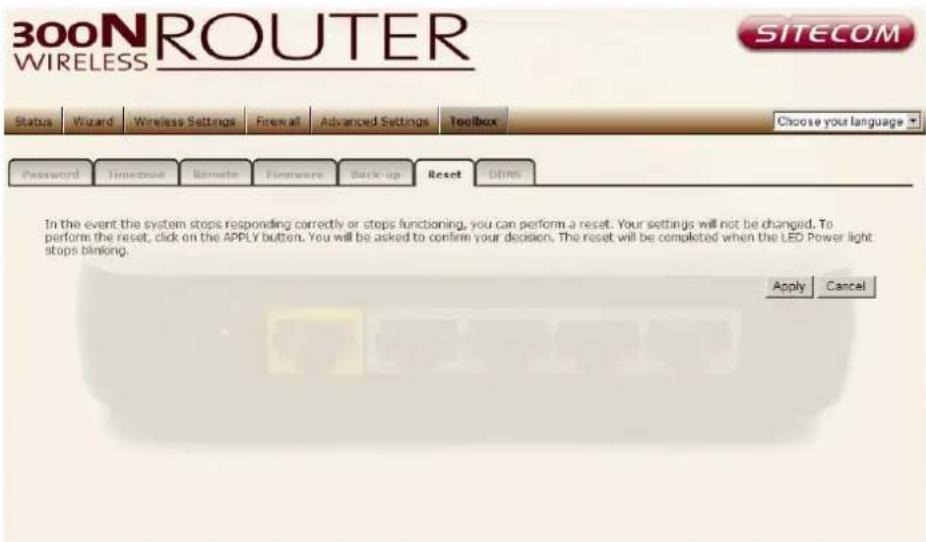
You can reset the router's system should any problem exist. The reset function essentially re-boots your router's system.
text_image
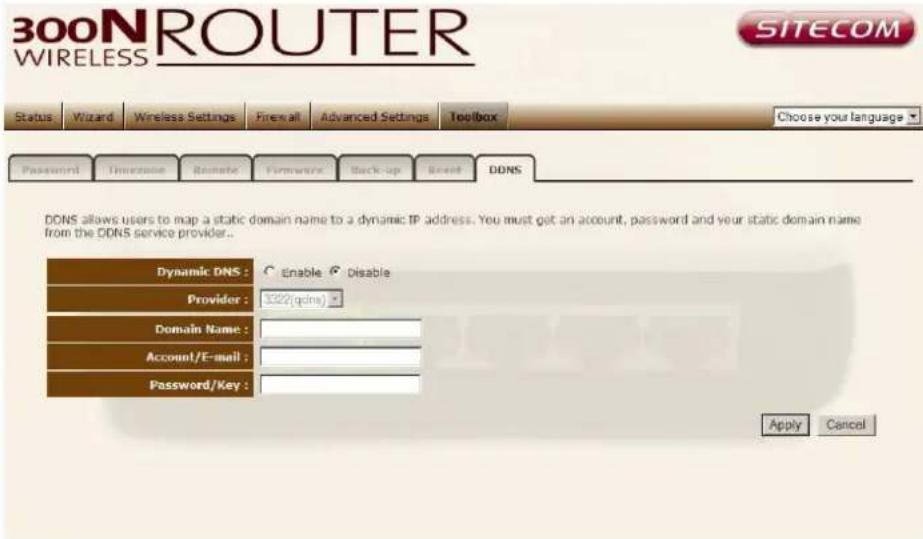
300N ROUTER WIRELESS SITECOM Status Wizard Wireless Settings Firewall Advanced Settings Toolbox Choose your language Password Timeout Remote Firmware Back-up Reset UDRS In the event the system stops responding correctly or steps functioning, you can perform a reset. Your settings will not be changed. To perform the reset, click on the APPLY button. You will be asked to confirm your decision. The reset will be completed when the LED Power light stops blinking. Apply CancelDDNS
DDNS allows you to map the static domain name to a dynamic IP address. You must get an account, password and your static domain name from the DDNS service providers. This router supports DynDNS, TZO and other common DDNS service providers.
text_image
300N ROUTER WIRELESS SITECOM Status Wizard Wireless Settings Firewall Advanced Settings Toolbox Choose your language Password Initialize Rename Firmware Back-up Reset DDNS DDNS allows users to map a static domain name to a dynamic IP address. You must get an account, password and your static domain name from the DDNS service provider.. Dynamic DNS : Enable Disable Provider : $22(qms) Domain Name : Account/E-mail : Password/Key : Apply CancelEnable/Disable Enable or disable the DDNS function of this router
Provider Select a DDNS service provider
Domain name Fill in your static domain name that uses DDNS
Account/E-mail The account that your DDNS service provider assigned to you
Password/Key The password you set for the DDNS service account above
Click
Parts of the firmware of the WL-351 Wireless Broadband router are subject to the GNU general public license.
Appendix A: Licensing Information
This product includes third-party software licensed under the terms of the GNU General Public License.. You can modify or redistribute this free software under the terms of the GNU General Public License. Please see Appendix B for the exact terms and conditions of this license.
Specifically, the following part of this product is subject to the GNU GPL:
| # | Package name Source | |
| 1 | Linux v2.6.21 www.kernel.org | ____ |
| 2 | Iptables v1.3.5 www.netfilter.org/ | ____ |
| 3 | Bridge-utils v1.2 bridge.sourceforge.net/ | ____ |
| 4 | Busybox v1.7.5 www.busybox.net/ | ____ |
| 5 | Rp-pppoe v3.8 freshmeat.net/projects/rp-pppoe/ | ____ |
| 6 | Potp-client v1.7.1 pptpclient.sourceforge.net/ | ____ |
| 7 | Ppp v2.4.3 ppp.samba.org/ | ____ |
| 8 | Udhcp v0.9.9-pre udhcp.busybox.net/ | ____ |
| 9 | iproute2 v2.6.16-060323 | www.linux-foundation.org/en/Net:Iproute2 |
| 10 | Dnsmasq v2.39 www.thekelleys.org.uk/dnsmasq/doc.html | ____ |
| 11 | Ez-ipupdate v3.0.11b8 | ez-ipupdate.com/ |
| 12 | Libupnp v1.6.0 | upnp.sourceforge.net/ |
| 13 | Wireless-tools v28 | RaLink SDK 3.1.0.0 |
| 14 | U-boot v1.1.3 | RaLink SDK 3.1.0.0 |
| 15 | gcc-3.3.6 | RaLink SDK 3.1.0.0 |
| 16 | Uclibc-0.9.29 | RaLink SDK 3.1.0.0 |
Availability of source code
Sitecom Europe BV has made available the full source code of the GPL licensed software, including any scripts to control the compilation and installation of the object code in the driver section of this product.
No Warranty
The free software included in this product is distributed in the hope that it will be useful, but WITHOUT ANY LIABILITY OF OR ANY WARRANTY FROM THE LICENSOR.
Appendix B: GNU GENERAL PUBLIC LICENSE
Version 2, June 1991 Copyright (C) 1989, 1991 Free Software Foundation, Inc. 59 Temple Place - Suite 330, Boston, MA 02111-1307, USA Everyone is permitted to copy and distribute verbatim copies of this license document, but changing it is not allowed.
Preamble
The licenses for most software are designed to take away your freedom to share and change it. By contrast, the GNU General Public License is intended to guarantee your freedom to share and change free software--to make sure the software is free for all its users. This General Public License applies to most of the Free Software Foundation's software and to any other program whose authors commit to using it. (Some other Free Software Foundation software is covered by the GNU Library General Public License instead.) You can apply it to your programs, too. When we speak of free software, we are referring to freedom, not price. Our General Public Licenses are designed to make sure that you have the freedom to distribute copies of free software (and charge for this service if you wish), that you receive source code or can get it if you want it, that you can change the software or use pieces of it in new free programs; and that
you know you can do these things. To protect your rights, we need to make restrictions that forbid anyone to deny you these rights or to ask you to surrender the rights. These restrictions translate to certain responsibilities for you if you distribute copies of the software, or if you modify it. For example, if you distribute copies of such a program, whether gratis or for a fee, you must give the recipients all the rights that you have. You must make sure that they, too, receive or can get the source code. And you must show them these terms so they know their rights. We protect your rights with two steps: (1) copyright the software, and (2) offer you this license which gives you legal permission to copy, distribute and/or modify the software. Also, for each author's protection and ours, we want to make certain that everyone understands that there is no warranty for this free software. If the software is modified by someone else and passed on, we want its recipients to know that what they have is not the original, so that any problems introduced by others will not reflect on the original authors' reputations. Finally, any free program is threatened constantly by software patents. We wish to avoid the danger that redistributors of a free program will individually obtain patent licenses, in effect making the program proprietary. To prevent this, we have made it clear that any patent must be licensed for everyone's free use or not licensed at all. The precise terms and conditions for copying, distribution and modification follow.
TERMS AND CONDITIONS FOR COPYING, DISTRIBUTION AND MODIFICATION
0.
This License applies to any program or other work which contains a notice placed by the copyright holder saying it may be distributed under the terms of this General Public License. The "Program", below, refers to any such program or work, and a "work based on the Program" means either the Program or any derivative work under copyright law: that is to say, a work containing the Program or a portion of it, either verbatim or with modifications and/or translated into another language. (Hereinafter, translation is included without limitation in the term "modification".) Each licensee is addressed as "you". Activities other than copying, distribution and modification are not covered by this License; they are outside its scope. The act of running the Program is not restricted, and the output from the Program is covered only if its contents constitute a work based on the Program (independent of having been made by running the Program). Whether that is true depends on what the Program does.
1.
You may copy and distribute verbatim copies of the Program's source code as you receive it, in any medium, provided that you conspicuously and appropriately publish on each copy an appropriate copyright notice and disclaimer of warranty; keep intact all the notices that refer to this License and to the absence of any warranty; and give any other recipients of the Program a copy of this License along with the Program. You may charge a fee for the physical act of transferring a copy, and you may at your option offer warranty protection in exchange for a fee. 2.
You may modify your copy or copies of the Program or any portion of it, thus forming a work based on the Program, and copy and distribute such modifications or work under the terms of Section 1 above, provided that you also meet all of these conditions: a) You must cause the modified files to carry prominent notices stating that you changed the files and the date of any change. b) You must cause any work that you distribute or publish, that in whole or in part contains or is derived from the Program or any part thereof, to be licensed as a whole at no charge to all third parties under the terms of this License. c) If the modified program normally reads commands interactively when run, you must cause it, when started running for such interactive use in the most ordinary way, to print or display an announcement including an appropriate copyright notice and a notice that there is no warranty (or else, saying that you provide a warranty) and that users may redistribute the program under these conditions, and telling the user how to view a copy of this License. (Exception: if the Program itself is interactive but does not normally print such an announcement, your work based on the Program is not required to print an announcement.) These requirements apply to the modified work as a whole. If identifiable sections of that work are not derived from the Program, and can be reasonably considered independent and separate works in themselves, then this License, and its terms, do not apply to those sections when you distribute them as separate works. But when you distribute the same sections as part of a whole which is a work based on the Program, the distribution of the whole must be on the terms of this License, whose permissions for other licensees extend to the entire whole, and thus to each and every part regardless of who wrote
it. Thus, it is not the intent of this section to claim rights or contest your rights to work written entirely by you; rather, the intent is to exercise the right to control the distribution of derivative or collective works based on the Program. In addition, mere aggregation of another work not based on the Program with the Program (or with a work based on the Program) on a volume of a storage or distribution medium does not bring the other work under the scope of this License. 3.
You may copy and distribute the Program (or a work based on it, under Section 2) in object code or executable form under the terms of Sections 1 and 2 above provided that you also do one of the following: a) Accompany it with the complete corresponding machine-readable source code, which must be distributed under the terms of Sections 1 and 2 above on a medium customarily used for software interchange; or, b) Accompany it with a written offer, valid for at least three years, to give any third party, for a charge no more than your cost of physically performing source distribution, a complete machine-readable copy of the corresponding source code, to be distributed under the terms of Sections 1 and 2 above on a medium customarily used for software interchange; or, c) Accompany it with the information you received as to the offer to distribute corresponding source code. (This alternative is allowed only for noncommercial distribution and only if you received the program in object code or executable form with such an offer, in accord with Subsection b above.) The source code for a work means the preferred form of the work for making modifications to it. For an executable work, complete source code means all the source code for all modules it contains, plus any associated interface definition files, plus the scripts used to control compilation and installation of the executable. However, as a special exception, the source code distributed need not include anything that is normally distributed (in either source or binary form) with the major components (compiler, kernel, and so on) of the operating system on which the executable runs, unless that component itself accompanies the executable. If distribution of executable or object code is made by offering access to copy from a designated place, then offering equivalent access to copy the source code from the same place counts as distribution of the source code, even though third parties are not compelled to copy the source along with the object code.
4.
You may not copy, modify, sublicense, or distribute the Program except as expressly provided under this License. Any attempt otherwise to copy, modify, sublicense or distribute the Program is void, and will automatically terminate your rights under this License. However, parties who have received copies, or rights, from you under this License will not have their licenses terminated so long as such parties remain in full compliance.
5.
You are not required to accept this License, since you have not signed it. However, nothing else grants you permission to modify or distribute the Program or its derivative works. These actions are prohibited by law if you do not accept this License. Therefore, by modifying or distributing the Program (or any work based on the Program), you indicate your acceptance of this License to do so, and all its terms and conditions for copying, distributing or modifying the Program or works based on it.
6.
Each time you redistribute the Program (or any work based on the Program), the recipient automatically receives a license from the original licensor to copy, distribute or modify the Program subject to these terms and conditions. You may not impose any further restrictions on the recipients' exercise of the rights granted herein. You are not responsible for enforcing compliance by third parties to this License.
7.
If, as a consequence of a court judgment or allegation of patent infringement or for any other reason (not limited to patent issues), conditions are imposed on you (whether by court order, agreement or otherwise) that contradict the conditions of this License, they do not excuse you from the conditions of this License. If you cannot distribute so as to satisfy simultaneously your obligations under this License and any other pertinent obligations, then as a consequence you may not distribute the Program at all. For example, if a patent license would not permit royalty-free redistribution of the Program by all those who receive copies directly or indirectly through you, then the only way you could satisfy both it and this License would be to refrain entirely from distribution of the Program. If any portion of this section is held invalid or unenforceable under any particular circumstance, the balance of the section is intended to apply and the section as a whole is intended to apply in other circumstances. It is not the purpose of this section to induce you to infringe any patents or other property right claims or to contest validity of any such claims; this section has the sole purpose of protecting the integrity of the free software distribution system, which is implemented by public license practices. Many people
have made generous contributions to the wide range of software distributed through that system in reliance on consistent application of that system; it is up to the author/donor to decide if he or she is willing to distribute software through any other system and a licensee cannot impose that choice. This section is intended to make thoroughly clear what is believed to be a consequence of the rest of this License.
8.
If the distribution and/or use of the Program is restricted in certain countries either by patents or by copyrighted interfaces, the original copyright holder who places the Program under this License may add an explicit geographical distribution limitation excluding those countries, so that distribution is permitted only in or among countries not thus excluded. In such case, this License incorporates the limitation as if written in the body of this License.
9.
The Free Software Foundation may publish revised and/or new versions of the General Public License from time to time. Such new versions will be similar in spirit to the present version, but may differ in detail to address new problems or concerns. Each version is given a distinguishing version number. If the Program specifies a version number of this License which applies to it and "any later version", you have the option of following the terms and conditions either of that version or of any later version published by the Free Software Foundation. If the Program does not specify a version number of this License, you may choose any version ever published by the Free Software Foundation.
10.
If you wish to incorporate parts of the Program into other free programs whose distribution conditions are different, write to the author to ask for permission. For software which is copyrighted by the Free Software Foundation, write to the Free Software Foundation; we sometimes make exceptions for this. Our decision will be guided by the two goals of preserving the free status of all derivatives of our free software and of promoting the sharing and reuse of software generally.
NO WARRANTY
11.
BECAUSE THE PROGRAM IS LICENSED FREE OF CHARGE, THERE IS NO WARRANTY FOR THE PROGRAM, TO THE EXTENT PERMITTED BY APPLICABLE LAW. EXCEPT WHEN OTHERWISE STATED IN WRITING THE COPYRIGHT HOLDERS AND/OR OTHER PARTIES PROVIDE THE PROGRAM "AS IS" WITHOUT WARRANTY OF ANY KIND, EITHER EXPRESSED OR IMPLIED, INCLUDING, BUT NOT LIMITED TO, THE IMPLIED WARRANTIES OF MERCHANTABILITY AND FITNESS FOR A PARTICULAR PURPOSE. THE ENTIRE RISK AS TO THE QUALITY AND PERFORMANCE OF THE PROGRAM IS WITH YOU. SHOULD THE PROGRAM PROVE DEFECTIVE, YOU ASSUME THE COST OF ALL NECESSARY SERVICING, REPAIR OR CORRECTION.
12.
IN NO EVENT UNLESS REQUIRED BY APPLICABLE LAW OR AGREED TO IN WRITING WILL ANY COPYRIGHT HOLDER, OR ANY OTHER PARTY WHO MAY MODIFY AND/OR REDISTRIBUTE THE PROGRAM AS PERMITTED ABOVE, BE LIABLE TO YOU FOR DAMAGES, INCLUDING ANY GENERAL, SPECIAL, INCIDENTAL OR CONSEQUENTIAL DAMAGES ARISING OUT OF THE USE OR INABILITY TO USE THE PROGRAM (INCLUDING BUT NOT LIMITED TO LOSS OF DATA OR DATA BEING RENDERED INACCURATE OR LOSSES SUSTAINED BY YOU OR THIRD PARTIES OR A FAILURE OF THE PROGRAM TO OPERATE WITH ANY OTHER PROGRAMS), EVEN IF SUCH HOLDER OR OTHER PARTY HAS BEEN ADVISED OF THE POSSIBILITY OF SUCH DAMAGES.