ML1190 eco - Printer OKI - Free user manual and instructions
Find the device manual for free ML1190 eco OKI in PDF.


User questions about ML1190 eco OKI
0 question about this device. Answer the ones you know or ask your own.
Ask a new question about this device
Download the instructions for your Printer in PDF format for free! Find your manual ML1190 eco - OKI and take your electronic device back in hand. On this page are published all the documents necessary for the use of your device. ML1190 eco by OKI.
USER MANUAL ML1190 eco OKI
natural_image
White paper filter with black paper feed and control buttons, no visible text or symbols on the device itself.PREFACE
Every effort has been made to ensure that the information in this document is complete, accurate, and up-to-date. Oki Printing Solutions assumes no responsibility for the results of errors beyond its control. Oki Printing Solutions also cannot guarantee that changes in software and equipment made by other manufacturers and referred to in this guide will not affect the applicability of the information in it. Mention of software products manufactured by other companies does not necessarily constitute endorsement by Oki Printing Solutions.
While all reasonable efforts have been made to make this document as accurate and helpful as possible, we make no warranty of any kind, expressed or implied, as to the accuracy or completeness of the information contained herein.
The most up-to-date drivers and manuals are available from the Oki Printing Solutions web site:
http://www.okiprintingsolutions.com
07080201 iss 03 Copyright © Oki Europe Ltd. All rights reserved.
OKI is a registered trademark of Oki Electric Industry Co, Ltd.
Microline is a trademark of Oki Data Corporation.
ENERGY STAR is a trademark of the United States Environmental Protection Agency.
Microsoft, MS-DOS and Windows are registered trademarks of Microsoft Corporation.
Other product names and brand names are registered trademarks or trademarks of their proprietors.

As an ENERGY STAR Program Participant, the manufacturer has determined that this product meets the ENERGY STAR guidelines for energy efficiency.

This product complies with the requirements of the Council Directives 89/336/EEC (EMC) and 73/23/EEC (LVD) as amended where applicable on the approximation of the laws of the member states relating to electromagnetic compatibility and low voltage.

text_image
www.okiprintingsolutions.com OKICONTENTS
Preface 2
Notes, cautions and warnings....5
Introduction 6
About this guide 6
On-line usage 7
Printing pages 7
Getting started 9
Retaining packing materials 9
Identifying component parts 9
Front view....9
Rear view 11
Locating your printer.... 12
Powering on your printer 12
Producing a test print 14
Connecting to a computer....15
Interfaces 15
Interconnection 15
Installing the printer driver 16
Printing a test page. 16
Printing from a computer ..... 17
Paper handling 18
Loading cut sheet paper 18
Ejecting cut sheet paper 20
Loading continuous forms 21
Setting up continuous forms 21
Feeding continuous forms (rear feed) ..... 21
Feeding continuous forms (bottom feed)....25
Tearing off continuous forms 36
Aligning the tear-off perforations . . . . . . . . . . . 36
Removing continuous forms. 37
Setting the paper thickness lever 40
Operating instructions 42
Control panel 42
ML1120 eco. 42
ML1190 eco. 44
Buttons 46
Change print mode 48
ML1120 eco. 48
ML1190 eco.... 50
Setting menu values 52
Confirming current settings 53
Menu setting 53
Menu items and settings 55
ML1120 eco. 55
ML1190 eco. 67
Initialising menu settings. 78
Adjusting TOF position 79
Printer speed settings 80
Printer impact mode 80
Normal speed printing 80
High speed printing 80
Quiet printing 80
Setting TOF position at the place of user's choice . . . . 81
Troubleshooting 82
Clearing paper jams 82
Cut sheet paper jammed in printer. 82
Continuous forms jammed in printer. 84
Responding to alarm conditions 86
Responding to general problems. 87
Cleaning your printer 93
Printer exterior.... 93
Printer interior 93
Consumables and accessories....95
Consumables 95
Changing a ribbon cartridge 95
Consumable order information. 98
Specifications 99
ML1120 eco 99
ML1190eco 102
Index....104
Oki Printing Solutions contact details. . . . . . . . . 105
NOTES, CAUTIONS AND WARNINGS:
NOTE
A note provides additional information to supplement the main text.
CAUTION!
A caution provides additional information which, if ignored, may result in equipment malfunction or damage.
WARNING!
A warning provides additional information which, if ignored, may result in a risk of personal injury.
INTRODUCTION
Congratulations on purchasing this Oki Printing Solutions printer!
The ML1120 eco (9-pin) and ML1190 eco (24-pin) are designed to provide highly reliable letter quality printing and high resolution graphics for the desktop/office printing environment. Both models combine state-of-the-art serial impact dot matrix printing technology with advanced materials and superior construction to provide high performance and versatility in a desktop sized unit. Careful attention to ergonomics and application needs provides user friendly operation for operators of varying technical capabilities.
ABOUT THIS GUIDE
NOTE
Images used in this manual may include optional features that your printer does not have installed.
This manual is your user's guide (check the web site, www.okiprintingsolutions.com, for the most up-to-date version) for your printer and forms part of the overall user support listed below:
Installation Safety booklet: to provide information for safe use of the printer.
This is a paper document that is packaged with the printer and should be read before setting up your printer.
Set-up guide: to describe how to unpack, connect and turn on your printer.
This is a paper document that is packaged with the printer.
This User's Guide: to help you to become familiar with your printer and make the best use of its many features.
Also included are guidelines for troubleshooting and maintenance to ensure that it performs at its best.
Additionally, information is provided for adding optional accessories as your printing needs evolve.
This is an electronic document stored on the manuals CD.
Technical Reference Guide: to provide detailed
technical information for programmers and more technical users.
This is an electronic document available on the web site www.okiprintingsolutions.com.
Installation Guides: accompany consumable items and optional accessories to describe how to install them.
These are paper documents that are packaged with the consumables and optional accessories.
On-line Help: on-line information accessible from the printer driver and utility software.
ON-LINE USAGE
This guide is intended to be read on screen using an Adobe Acrobat Reader. Use the navigation and viewing tools provided in Acrobat.
You can access specific information in two ways:
In the list of bookmarks down the left hand side of your screen, click on the topic of interest to jump to the required topic. (If the bookmarks are not available, use the "Contents" on page 3.)
In the list of bookmarks, click on Index to jump to the Index. (If the bookmarks are not available, use the "Contents" on page 3.) Find the term of interest in the alphabetically arranged index and click on the associated page number to jump to the page containing the term.
PRINTING PAGES
The whole manual, individual pages, or sections may be printed. The procedure is:
-
From the toolbar, select File > Print (or press the Ctrl + P keys).
-
Choose which pages you wish to print:
(a) [All pages], (1), for the entire manual.
(b) [Current page], (2), for the page at which you are looking.

text_image
Print Format Name: Default Ready Type Volume: LFT1 Print Range ✓ All 22 pages ✓ Current page ✓ Pages from 1 to 22% Print: Even and Odd Pages ✓ Comments PrintScript Options PrintMethod: Language Level 1 ✓ Optimize for Speed ✓ Disordered Active Points ✓ Group Paper Memory Cross Managed On counter Printing Text Advanced Properties ✓ Response pages ✓ Print as pages ✓ Reverse line Copies and Adjustments Number of pages ✓ Strong, unstructured pages list paper size ✓ Opened small pages to paper size ✓ Auto-matrix and corner pages Preview: 8.25 11.68 Only thickness: 2mm 141.4% OK Cancel(c) [Pages from] and [to], (3), for the range of pages you specify by entering their page numbers.
- Click on OK.
GETTING STARTED
WARNING!
If you have not already done so, familiarise yourself with the content of the Installation Safety booklet supplied with your printer.
RETAINING PACKING MATERIALS
After setting up your printer according to the instructions in the Set-up Guide, retain your packing materials and container in case you ever need to ship or transport your printer.
IDENTIFYING COMPONENT PARTS
The main parts of your printer are identified and briefly explained below.
FRONT VIEW
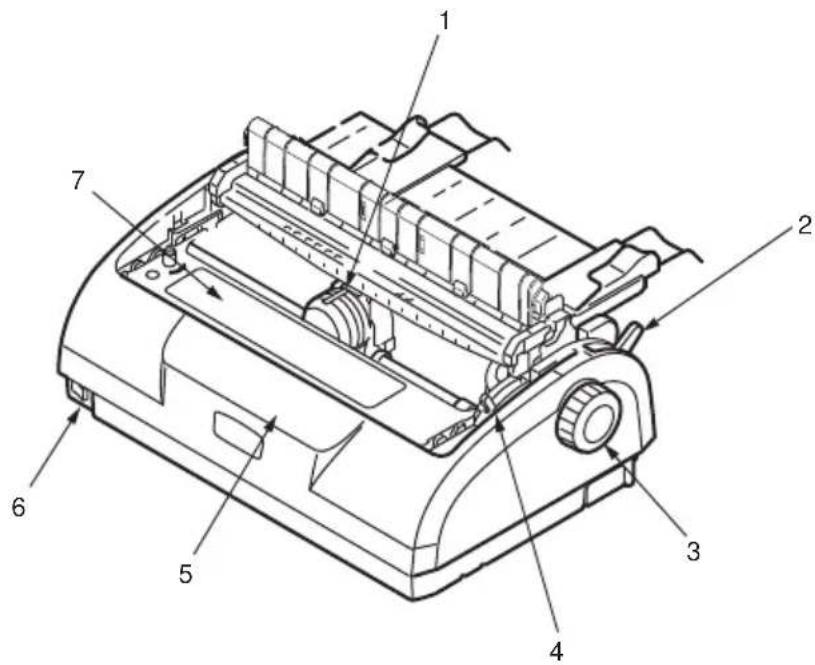
text_image
Technical diagram of a printer with numbered parts labeled 1 through 7- Print Head: prints the characters on the paper.
-
Paper Type Lever: set according to the type of paper used – cut sheet or continuous forms.
-
Platen Knob: turn to move or eject the paper.
- Paper Thickness Lever: set according to the thickness of the paper. There is also a setting to facilitate ribbon replacement.
- Control Panel: contains button switches and indicators (described in detail later) that allow you to operate the printer.
ML1120 eco

text_image
SEL ALARM FONT PITCH SPEED SEL LF/FF LOAD/EJECT TEAR STATUSML1190 eco

text_image
SEL ALARM FONT PITCH SEL LF/FF LOAD/EJECT TEAR STATUS- Power Switch: to turn the printer power ON/OFF.
- Ribbon Cartridge: holds the printer ribbon.
- Pull Up Roller Assembly: aids paper exit.
- Pull Up Guide: prevents paper skew.
REAR VIEW
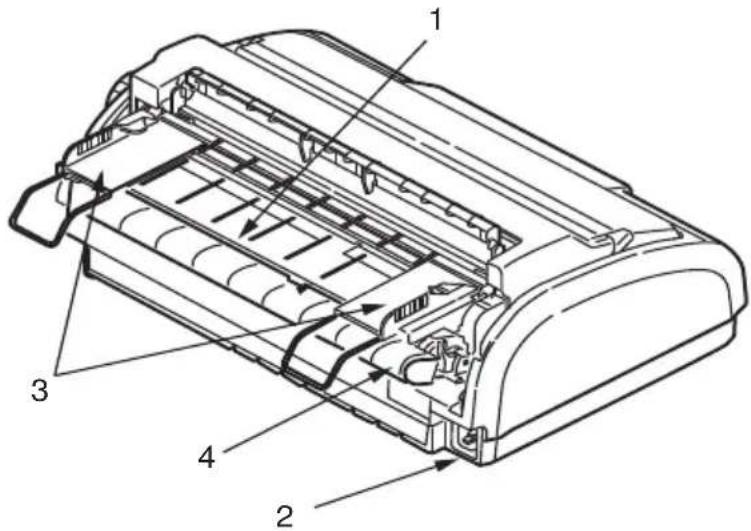
text_image
Technical diagram of a mechanical device with numbered components labeled 1 to 4-
Input Tray: insert cut sheet paper for use by the printer (one sheet at a time).
-
Power connector: connect to printer power cable.
-
Paper Guides: can be adjusted as required to locate the left edge of cut sheet paper.
-
Pin Tractor: to load and feed continuous forms.
-
Rear Cover.
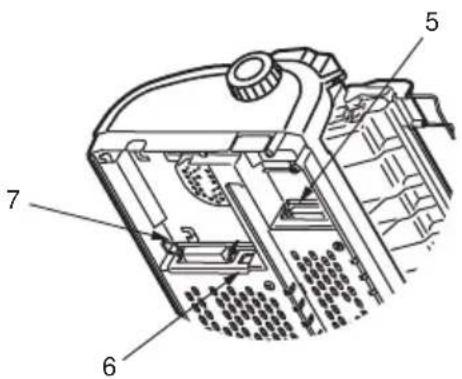
text_image
Technical diagram of a mechanical device with numbered components labeled 5, 6, and 7-
Serial connector: connect to serial interface cable.
-
USB connector: connect to USB interface cable.
-
Parallel connector: connect to parallel interface connector.
LOCATING YOUR PRINTER
Select a firm, solid, level surface on which to site your printer.
Allow enough space around your printer (e.g. at least 60 cm from any wall) for easy access to the Platen Knob and the various paper feed paths.
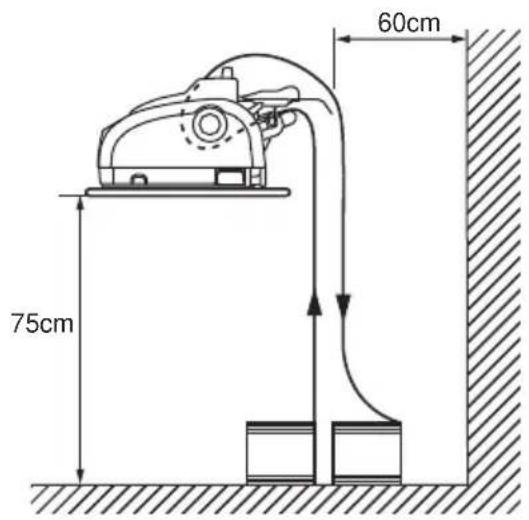
text_image
75cm 60cmMake sure a grounded power outlet is available nearby.
POWERING ON YOUR PRINTER
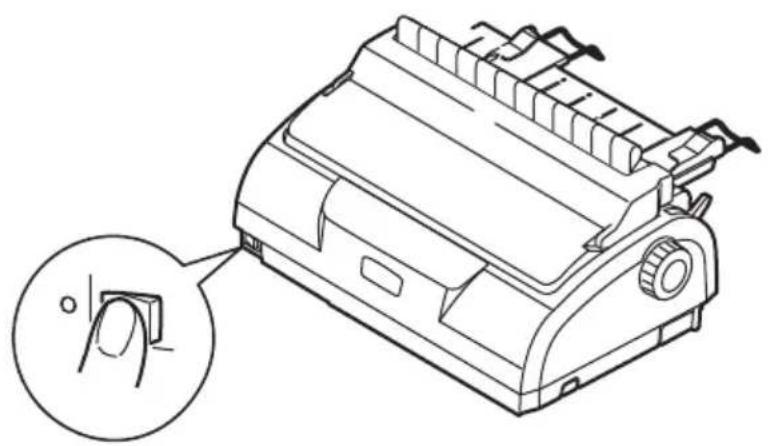
- Ensure that your printer Power Switch is set to OFF.
natural_image
Technical line drawing of a mechanical device with an inset showing a finger pointing to a small component (no text or symbols present)- Connect the power cable (1) to the power connector (2) on the printer.

text_image
Technical diagram of a printer internal structure with labeled parts 1 and 2, showing internal components and cable connection.-
Connect the power cable to a 220/240 V AC power outlet and switch on the outlet power.
-
Turn the printer Power Switch to ON.
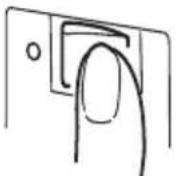
- Check that the SEL and STATUS indicators on the control panel illuminate.
PRODUCING A TEST PRINT
To check that your printer is operational, produce a test print on a sheet of 80 gsm A4 paper (for example) as follows:
CAUTION!
Allow at least 5 seconds between turning the printer ON after turning it OFF. A shorter time interval between turning ON/ OFF operations may cause printer power failure.
Do not turn the printer OFF while it is printing as this may result in damage to the print head.
- Turn the printer Power Switch to OFF.
- Set the Paper Type Lever to cut sheet.
- Remove the Access Cover and set the Paper Thickness Lever to position 1.
- Press and hold the LF/FF and the LOAD/EJECT buttons and turn the Power Switch to ON. The ALARM indicator should be illuminated to indicate that there is no paper in the printer.
- With the long side of the paper against the paper guide, insert the paper carefully into the printer. The printer will automatically grip the paper and start the test print.
NOTE
If required, you can pause the test print by pressing the SEL button and then resume the test print by again pressing the SEL button.
- When the test print has completed, the paper is automatically ejected.
NOTE
If you want to stop the test print for any reason, press the SEL button followed by the LOAD/EJECT button to eject the paper. Turn the printer Power Switch to OFF.
CONNECTING TO A COMPUTER
In this section you will interconnect your printer and computer, install the printer driver in your computer and print a test page.
INTERFACES
Your printer is equipped with three data interfaces:
CAUTION!
Do not use more than one of the following data interface methods to connect to your PC.
Parallel: for direct connection to a PC. This port requires a bi-directional (IEEE 1284 compliant) parallel cable.
Serial: for direct connection to a PC. This port requires a bi-directional RS232C serial interface cable.
USB: for connection to a PC running Windows 98 or above. This port requires a shielded cable less than 5m long conforming to USB version 2.0.
NOTE
Interface cables are not supplied with your printer.
INTERCONNECTION
- Ensure that both printer and computer are turned OFF.
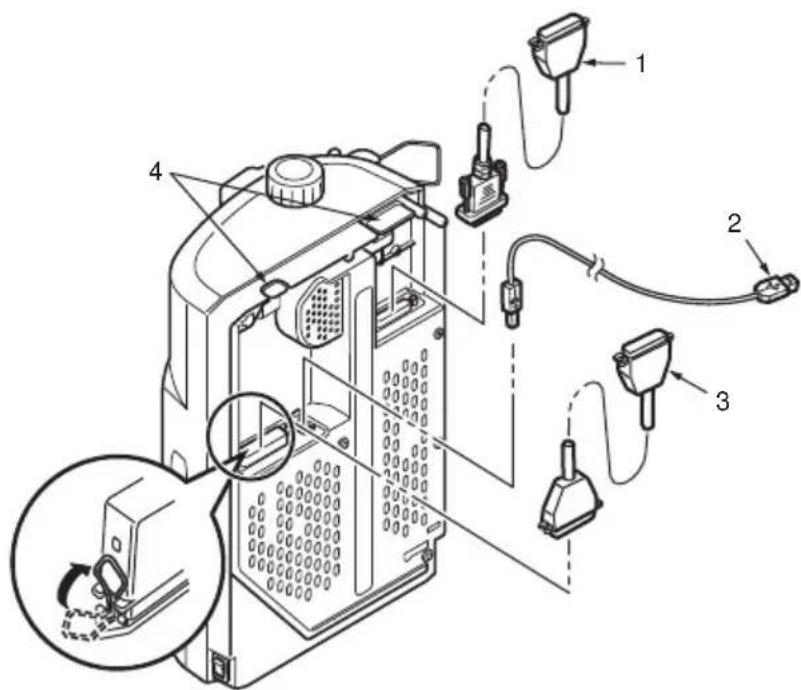
- Connect the required interface cable, serial (1), USB (2), or parallel (3), to the printer and then to the computer.
Break off the tabs (4) to allow the cables to sit neatly underneath the printer.
text_image
Technical diagram of a device with labeled components and wiring connections, including zoomed-in views and component callouts.-
Turn ON the printer.
-
Turn ON the computer.
INSTALLING THE PRINTER DRIVER
Insert the Drivers CD into your computer and follow the on-screen instructions to install the printer driver for use with your printer.
PRINTING A TEST PAGE
As an example, using Windows XP:
-
Use Start > Printers and Faxes to show the Printers and Faxes window.
-
Highlight the driver for your printer.
-
Use File > Properties to show the Properties window.
-
On the General tab, click the Print Test Page button.
-
Ensure that a test page has printed, verifying your printer – computer setup.
PRINTING FROM A COMPUTER
When printing to your printer from, for example, a Windows application on your computer, make your printing selections from the driver windows that appear on screen. These driver windows have been designed to be easy to use and intuitive while supplementary on-line help is available by clicking each window Help button.
PAPER HANDLING
This section describes how to use cut sheet paper and continuous forms in your printer.
LOADING CUT SHEET PAPER
- Ensure that the printer is switched ON.
NOTE
If there are any continuous forms in the printer, eject them as described in "Removing continuous forms" on page 37.
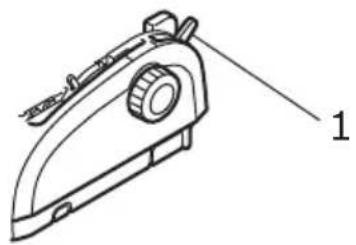
- Ensure that the Pin Tractor covers are closed to avoid the possibility of paper jams.

natural_image
Diagram of a mechanical device with a magnified inset showing a close-up of a component (no text or symbols present)- Ensure the Paper Type Lever (1) is set to Cut Sheet.

natural_image
Technical line drawing of a mechanical device with labeled part '1' (no text or symbols on the device itself)- Set the left paper margin by adjusting the Paper Guide (1). Position the edge of the Paper Guide (1) at the tip of the Printed Line Marker arrow (2) on the Paper Tray.

text_image
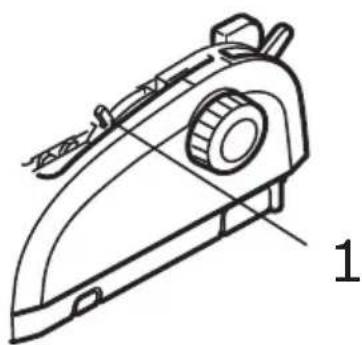
Technical diagram of a mechanical device with labeled parts 1 and 2, showing internal components and directional arrows.- Remove the Access Cover and set the Paper Thickness Lever (1) to suit the paper. See "Setting the paper thickness lever" on page 40.
natural_image
Technical line drawing of a mechanical device with labeled part '1' (no text or symbols on the diagram itself)CAUTION!
If the Paper Thickness Lever setting does not match the paper being used, paper feeding and printing may not work properly.
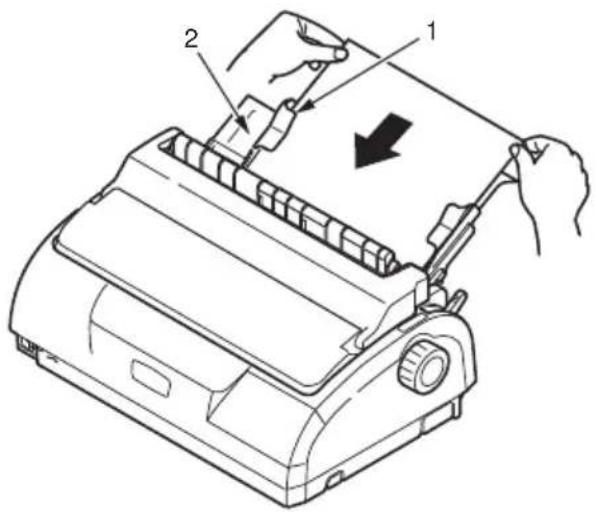
- With the printing side facing downwards and the left edge aligned with the Paper Guide (1), carefully insert the
paper on the Input Tray (2) into the printer until it is gripped.
text_image
Technical diagram of a printer with labeled parts and directional arrow indicating processNOTE
Ensure that the paper is accurately aligned along the Paper Guide to avoid the possibility of skew printing.
When printing an envelope, do not fold up the flap. A flap aligned along the Paper Guide can lead to skew printing.
EJECTING CUT SHEET PAPER
When the printer reaches the end of the cut sheet page it automatically ejects the page. If required, add another sheet for the printer to continue printing from where it left off.
To eject a cut sheet left in the printer, carry out the following:
- Press the SEL button to put the printer off-line.
- Press the LOAD/EJECT button and the paper is ejected to the Paper Tray.
NOTE
Paper longer than A4 length (297 mm) may overlap and possibly fall off the Paper Tray.
LOADING CONTINUOUS FORMS
SETTING UP CONTINUOUS FORMS
To avoid paper feeding problems, carry out the following:
text_image
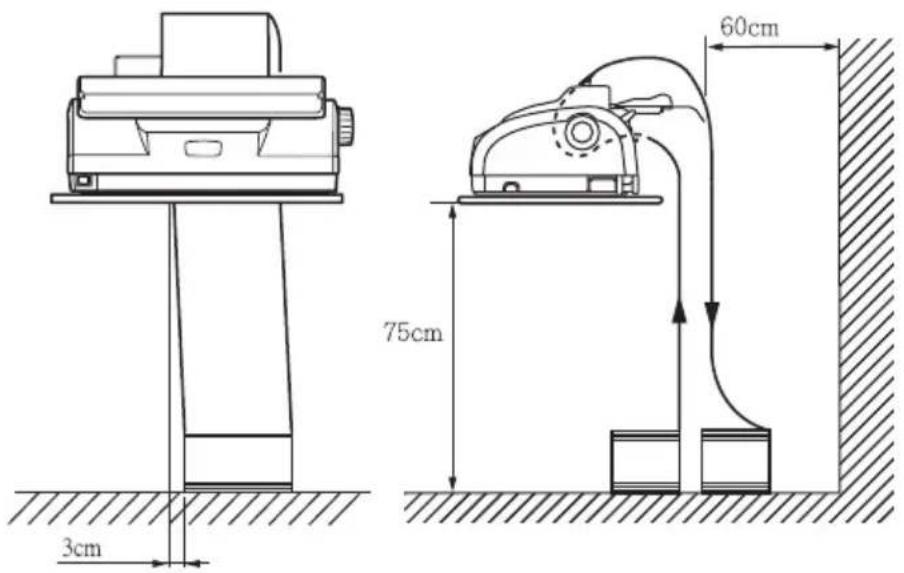
3cm 75cm 60cm- Check your printer is on a surface approximately 75 cm above the floor.
- Position the continuous forms supply directly below the printer, no more than 3 cm left or right of the printer paper path.
- Ensure the rear of the printer is close to and parallel with the edge of the surface and at least 60 cm from any wall.
FEEDING CONTINUOUS FORMS (REAR FEED)
- Ensure that the printer is turned ON.
NOTE
If there is a cut sheet in the printer, eject it as described in "Ejecting cut sheet paper" on page 20.
- Set the Paper Type Lever to Continuous Forms

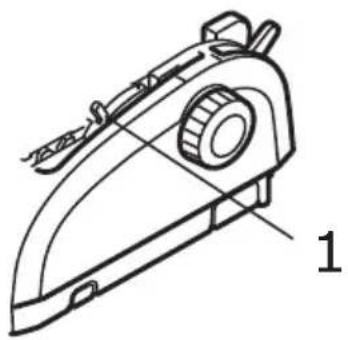
- Remove the Access Cover and set the Paper Thickness Lever (1) to suit the paper. See “Setting the paper thickness lever” on page 40.
natural_image
Technical line drawing of a mechanical device with labeled part '1' (no text or symbols on the diagram itself)NOTE
If the Paper Thickness Lever setting does not match the paper being used, paper feeding and printing may not work properly.
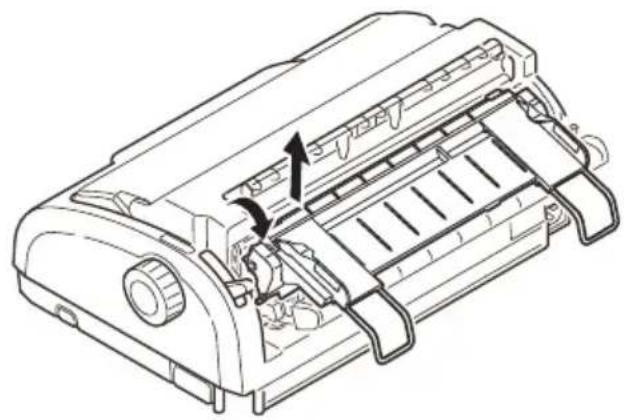
- Remove the Input Tray and Rear Cover together by gripping the Input Tray at both sides and pulling it up and away from the printer.
natural_image
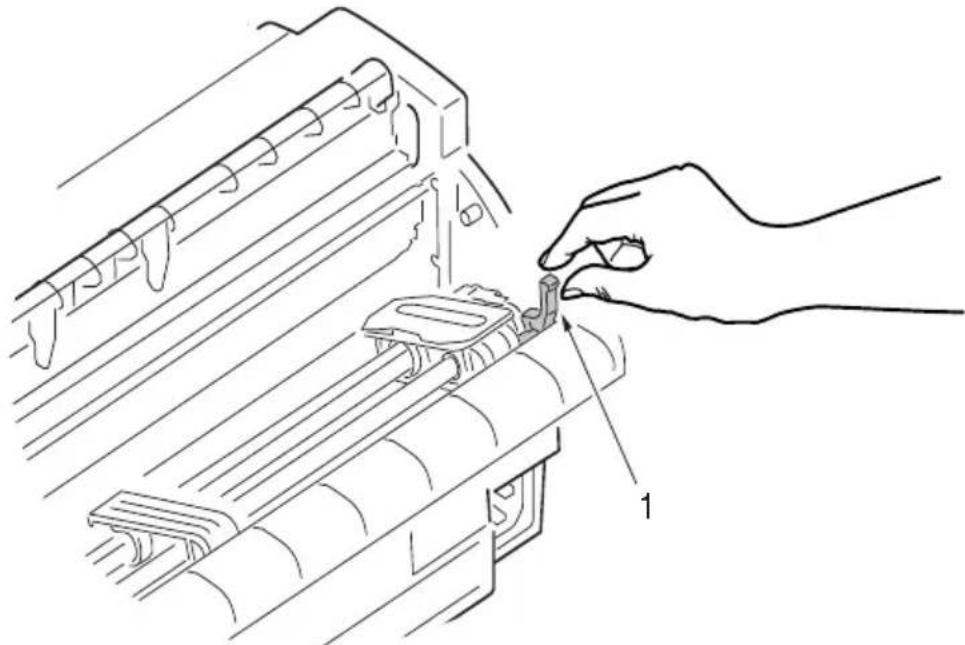
Technical line drawing of a printer internal structure showing internal components and assembly (no text or symbols)- Lift the locking lever (1) of the left Pin Tractor and slide the Pin Tractor as required to adjust the paper position.
natural_image
Line drawing of a hand inserting a component into a device, showing internal structure and assembly (no text or symbols)Press the locking lever back down to lock the Pin Tractor in the desired position.
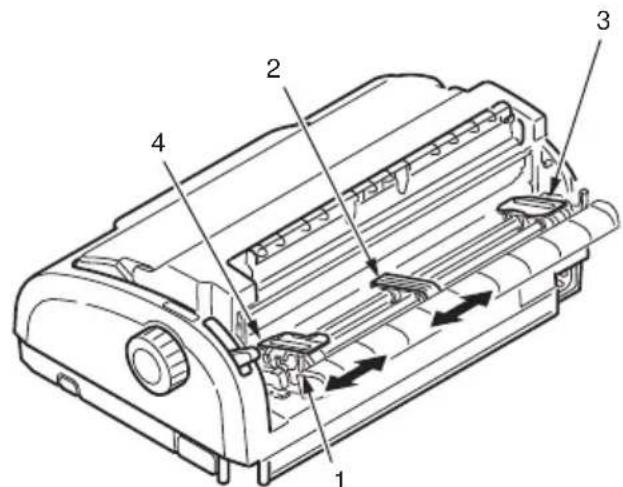
- Lift the locking lever (1) of the right Pin Tractor and slide the Pin Tractor to the required position to accommodate the width of the continuous forms to be used. Move the rear paper guide (2) to midway between the left (3) and right (4) Pin Tractors.
text_image
Technical diagram of a printer with numbered parts and directional arrows indicating internal components- Open the left and right Pin Tractor covers and feed the continuous forms in the direction of the arrows, locating the sprocket holes in the forms onto the sprocket pins.
Ensure that the forms are properly aligned on the sprocket pins, then close the Pin Tractor covers.

natural_image
Line drawing of a printer with internal components and a magnified inset showing the process (no text or symbols)- Adjust the right Pin Tractor to accommodate the width of the continuous forms, taking care that the forms are held neither too loosely nor too tightly between the Pin Tractors. Press the locking lever down to lock the right Pin Tractor in the desired position.

text_image
Technical diagram of a device with labeled ports and directional arrows indicating assembly or movement, including symbols for 'X', 'O', and 'X'.- Replace the Input Tray and Rear Cover by fitting the Rear Cover into the grooves at the back of the printer and
pushing gently forward until the Input Tray clips into place.

natural_image
Technical line drawing of a printer internal structure with no visible text or symbols- Replace the Access Cover.
- Press the LOAD/EJECT button. The continuous forms will be taken into the printer and positioned at the first line print position.
FEEDING CONTINUOUS FORMS (BOTTOM FEED)
NOTE
If there is a cut sheet in the printer, eject it as described in "Ejecting cut sheet paper" on page 20.
Moving tractor assembly
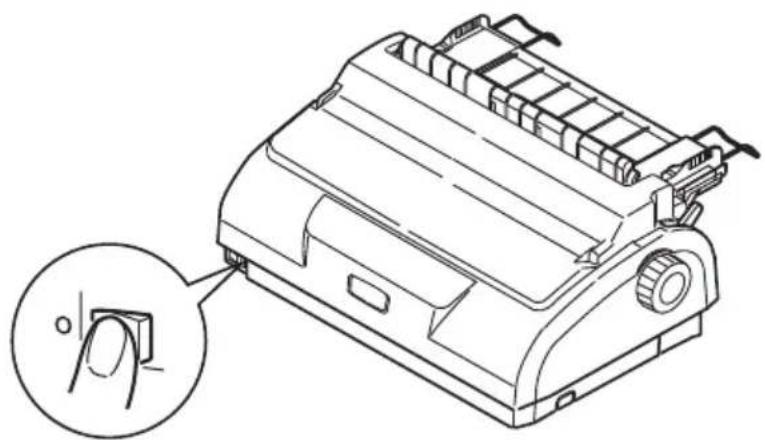
- Ensure that the printer is switched OFF.
natural_image
Technical line drawing of a mechanical device with a magnified inset showing a finger pressing a button (no text or symbols present)ML1120/ML1190 eco User's Guide – Paper handling > 25
- Disconnect the power cord.
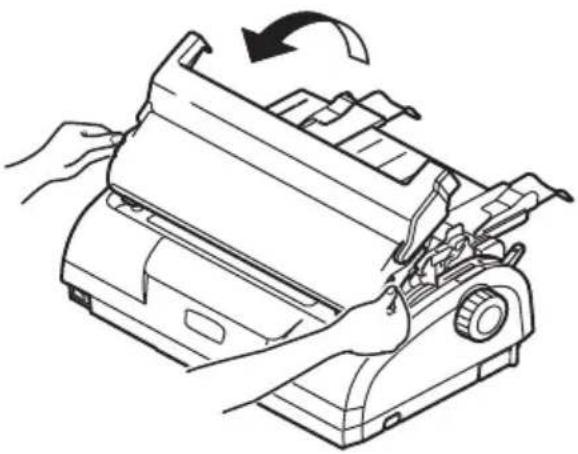
- Remove the Access Cover.
natural_image
Line drawing of hands operating a printer with a paper roll, no text or symbols presentWARNING!
Be careful as the printhead may be hot after operation. Allow it to cool before touching it.
- Move the printhead assembly to the left.
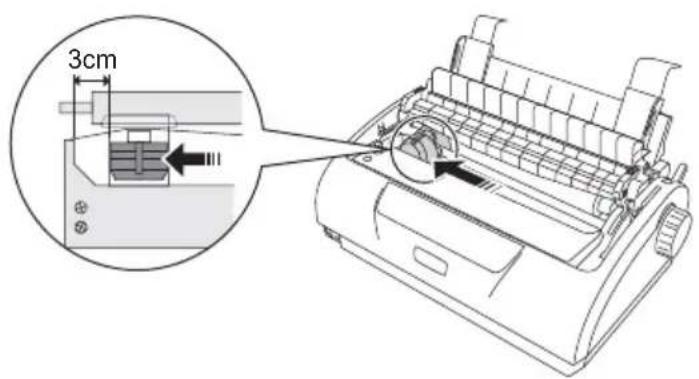
text_image
3cm- Push up the Pull Up Roller Assembly with the thumbs and release one side. Then, release the other side and remove the Pull Up Roller Assembly. The Pull Up Guide may become detached.

natural_image
Line drawing of a hand operating a printer with internal components and arrows indicating motion (no text or symbols)-
If necessary, replace the Pull Up Guide.
-
Turn the printer, so that the back of the printer is facing you.
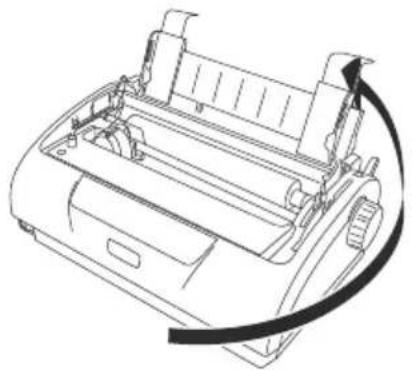
natural_image
Line drawing of a printer with a paper roll and paperclip (no text or symbols)- Remove the Input Tray and Rear Cover together by gripping the Input Tray at both sides and pulling it back and up from the printer.

natural_image
Technical line drawing of a mechanical device with internal components and an arrow indicating a component (no text or symbols present)- Remove the tractor assembly. Squeeze the handles to release the clamps on both sides. Continue to squeeze and rotate and lift the assembly out of the printer.
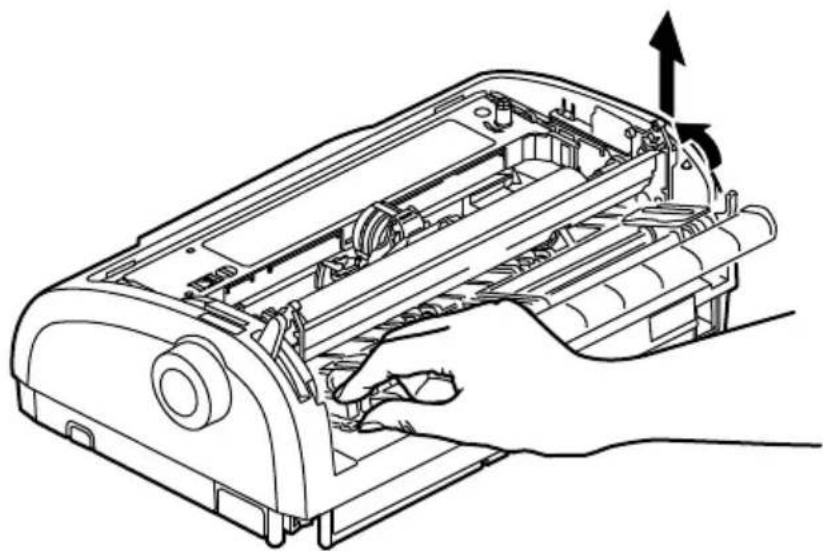
natural_image
Line drawing of a hand inserting or adjusting a device into a rectangular housing (no text or symbols)- Position the tractor assembly as shown. The gear assembly is on the left.
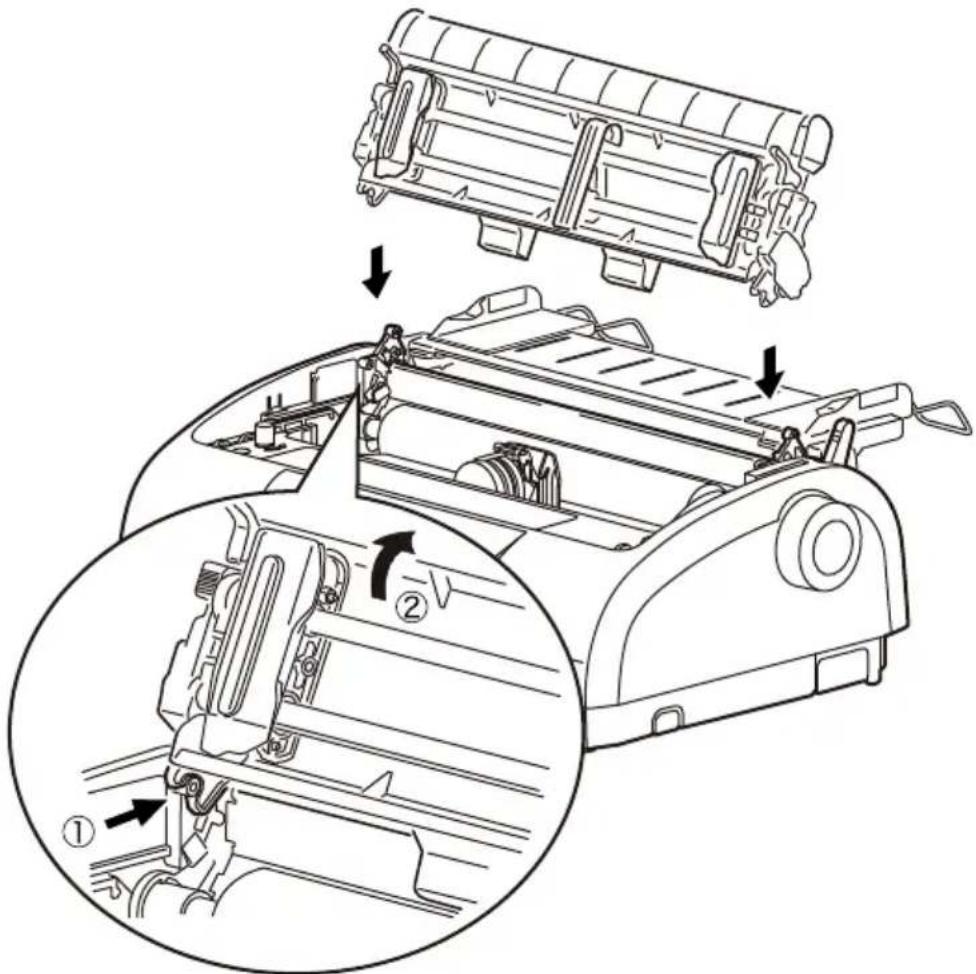
text_image
Technical diagram showing mechanical assembly steps with numbered annotations indicating component identification.-
Locate the arms over the pivot points and rotate the unit backwards until the clamps close over the back pins.
-
Turn the printer so that the front of the printer is facing you.
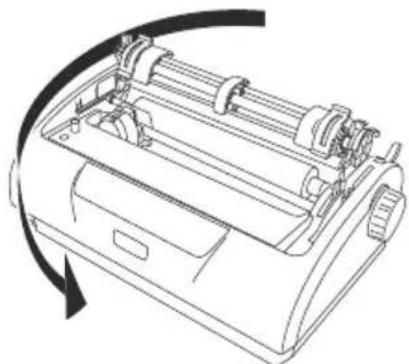
natural_image
Line drawing of a printer with internal components and a curved arrow indicating rotation (no text or symbols)- Turn the Platen Knob. If the tractor assembly is correctly installed, the gear will turn. If the gear does not turn as you turn the Platen Knob, repeat steps 10 to 12.
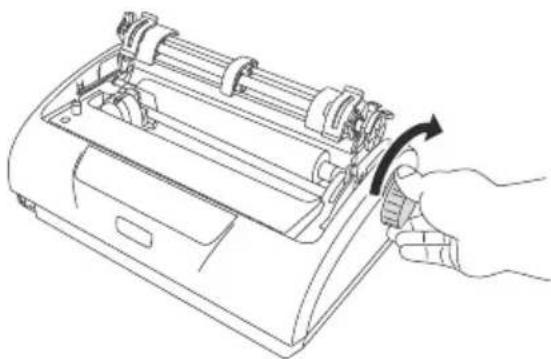
natural_image
Line drawing of a printer with a hand adjusting the base panel (no text or symbols)- Replace the Input Tray and Rear Cover by fitting the Rear Cover into the grooves at the back of the printer and pulling gently forward until the Input Tray clips into place.
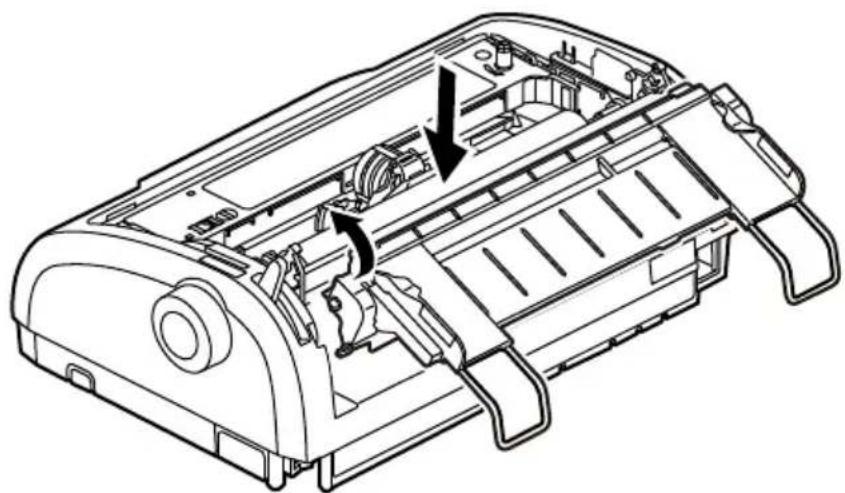
natural_image
Technical line drawing of a mechanical device with internal components and directional arrows indicating movement (no text or symbols)- Replace the Access Cover.
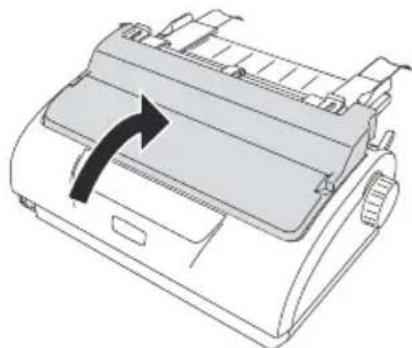
natural_image
Diagram of a printer with an arrow indicating a process or operation, no text or symbols present.Loading continuous forms (bottom feed)
- Ensure the printer is turned off.
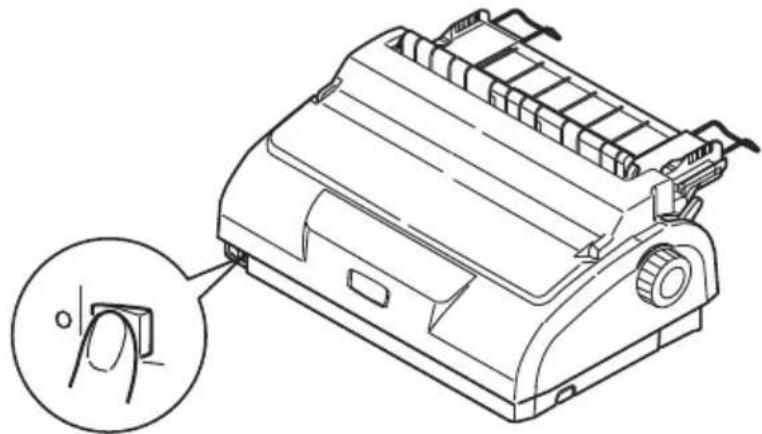
natural_image
Technical line drawing of a mechanical device with an inset showing a finger pressing a button (no text or symbols present)- Remove the Access Cover.
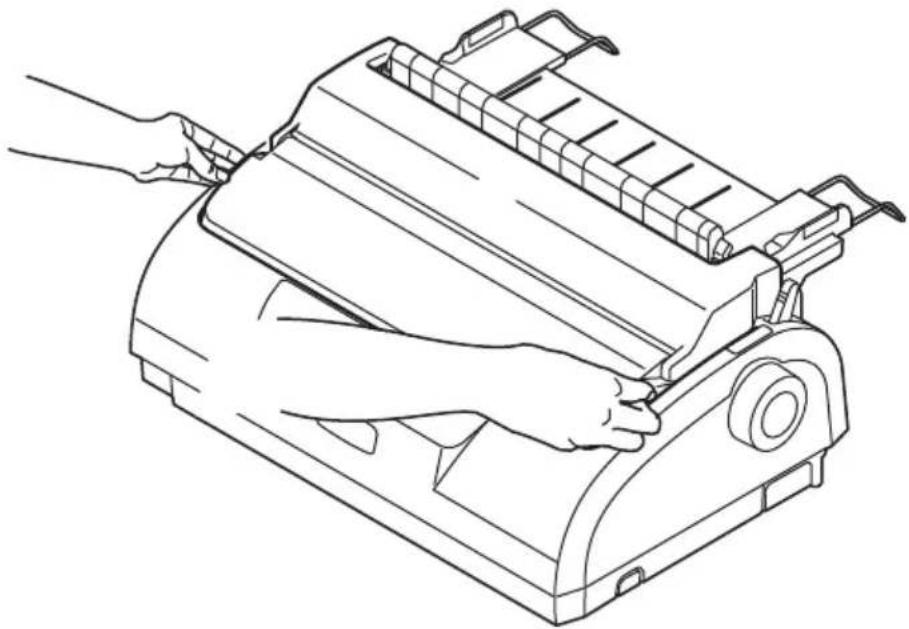
natural_image
Line drawing of hands operating a printer presser (no text or symbols present)- Set the Paper Type Lever to Continuous Forms


natural_image
Line drawing of a printer with a hand operating the paper (no text or symbols present)- Place the stack of continuous forms paper below the printer. Bring the paper up through the slot in the base of the printer.
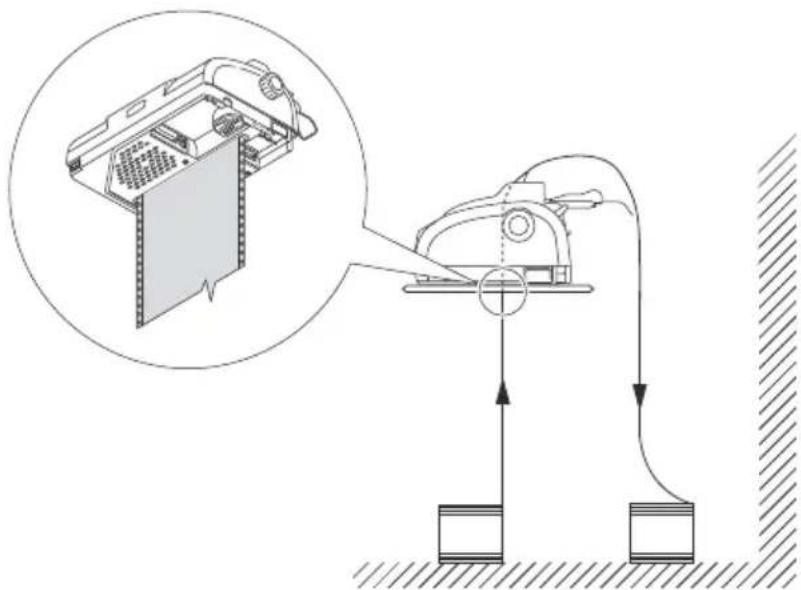
text_image
Diagram illustrating a mechanical device with labeled components and directional arrows, including a magnified inset of the device's internal structure.- Lift the locking lever (1) of the left Pin Tractor and slide the Pin Tractor as required (2) to adjust the paper position
then press the locking lever (3) back down to lock the Pin Tractor in the desired position.

natural_image
Line drawing of a hand inserting a component into a device, showing internal structure and assembly (no text or symbols)- Lift the locking lever (1) of the right Pin Tractor and slide the Pin Tractor to the required position (2) to accommodate the width of the continuous forms to be used. Move the rear paper guide (3) to midway between the left and right Pin Tractors.

text_image
Technical diagram of a printer with numbered parts and directional arrows indicating internal components- Open the left and right Pin Tractor covers (1) and feed the continuous forms (2) in the direction of the arrow, locating the sprocket holes in the forms onto the sprocket pins.

natural_image
Technical line drawing of a mechanical device with an inset close-up showing a component being inserted (no text or symbols present)- Ensure that the forms are properly aligned on the sprocket pins, then close the Pin Tractor covers.

natural_image
Technical line drawing of a printer or printer with internal components and mounting brackets (no text or symbols)- Adjust the right Pin Tractor (1) to accommodate the width of the continuous forms, taking care that the forms are held neither too loosely nor too tightly between the Pin
Tractors. Press the locking lever down (2) to lock the right Pin Tractor in the desired position.

text_image
Technical diagram of a printer with labeled ports and warning indicators- Replace the Access Cover.
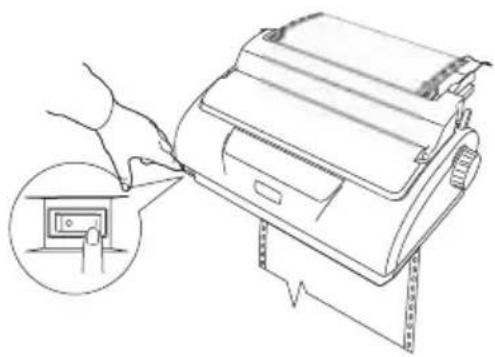
- Turn ON the printer.
natural_image
Line drawing of a mailbox with a hand inserting a small into it, showing the handle and base (no text or symbols present)TEARING OFF CONTINUOUS FORMS
- With the SEL indicator illuminated, press and hold the LF/FF button to move the continuous form to the next page.
- Press TEAR to align the tear-off perforations on the form with the paper cutter on the printer.
- Carefully tear off the forms along the tear-off perforations using the paper cutter as a guide. Using excessive force may result in tearing at a position other than the tear-off perforations.
- Press the TEAR button to reposition the continuous forms in the printer back to the first line print position.
ALIGNING THE TEAR-OFF PERFORATIONS
If the tear-off perforations are not aligned with the paper cutter, align them as follows:
- Remove the Access Cover of your printer.
-
With the SEL indicator illuminated, press and hold the TEAR button to move the tear-off perforations to the paper cutter.
-
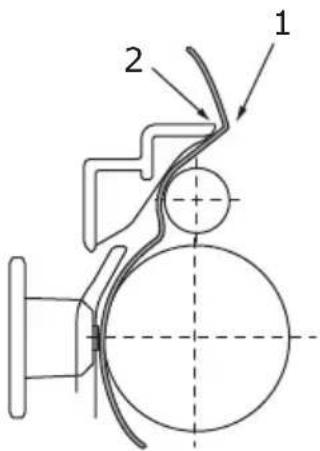
Check the position of the tear-off perforations (1) relative to the paper cutter (2).
text_image
Technical diagram of a mechanical assembly with labeled parts 1 and 2, showing components like a circular component and curved pipe.(a) To advance the forms, continue to hold down the TEAR button and then the SEL button.
(b) To retract the forms, continue to hold down the TEAR button and the LF/FF button.
NOTE
If the specified correction range is more than +_ 3.53 mm (20/144 in) for ML1120 eco and +_ 4.23 mm (30/180 in) for ML1190 eco, the paper cannot be removed.
- Release the buttons after the tear-off perforations have been aligned with the paper cutter.
REMOVING CONTINUOUS FORMS
- Tear off the continuous forms. See "Tearing off continuous forms" on page 36.
- Press the SEL button to set the printer off-line and reposition the continuous forms in the printer.
- Press the LOAD/EJECT button to move the front edge of the continuous forms backwards to the Pin Tractors.
NOTE
If sprocket holes of the last page of the forms disengage from the sprocket pins, do not attempt to eject the paper to avoid the possibility of a paper jam.
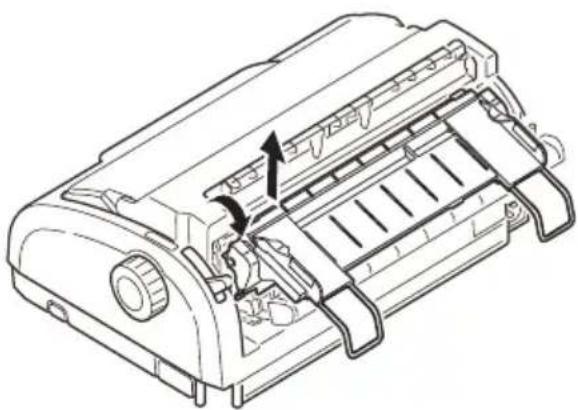
- Remove the Input Tray and Rear Cover together by gripping the Input Tray at both sides and pulling it up and away from the printer.
natural_image
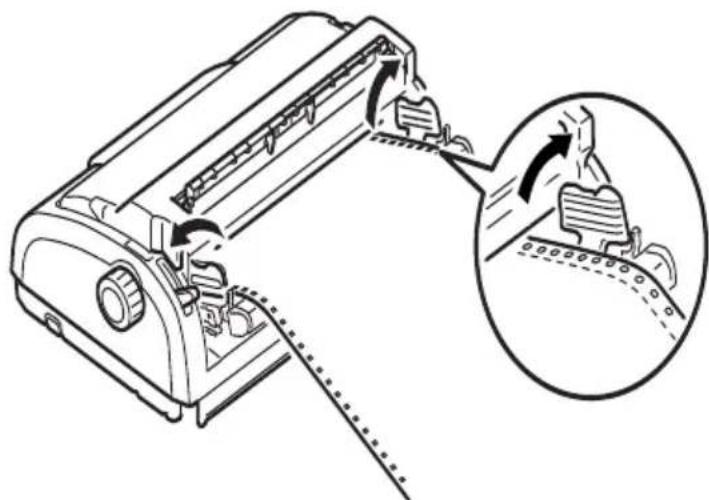
Technical line drawing of a printer internal structure with no visible text or symbols- Lift the Pin Tractor covers and remove the forms.
natural_image
Diagram of a printer with internal components and a magnified view showing the printer's tip and base (no text or symbols present)-
Close the Pin Tractor covers.
-
Replace the Input Tray and Rear Cover by fitting the Rear Cover into the grooves at the back of the printer and
pushing gently forward until the Input Tray clips into place.

natural_image
Technical line drawing of a printer with internal components and directional arrows indicating assembly (no text or symbols)SETTING THE PAPER THICKNESS LEVER
There are 6 lever positions, the first 5 for printing purposes and the sixth to facilitate ribbon replacement.:
Set the Paper Thickness lever for different paper types as follows:
| PAPER TYPE LEVER POSITION | |||||
| 1 2 3 | 4 5 - | 6 | |||
| Cut sheet paper See below | |||||
| 52 – 80 gsm X | |||||
| 81 – 127 gsm X | |||||
| Envelope X | |||||
| Carbon paper or Pressure-sensitive paper (40 gsm) | See below | ||||
| 2 part X | |||||
| 3 part X | |||||
| 4 part X | |||||
| 5 part X | |||||
| 6 part X | |||||
Set the Paper Thickness lever for overall paper thickness as follows:
| OVERALL PAPER THICKNESS LEVER POSITION | |
| 0.06 – 0.10 mm 1 | |
| 0.11 – 0.18 mm 2 | |
| 0.19 – 0.25 mm 3 | |
| 0.26 – 0.32 mm 4 | |
| 0.33 – 0.39 mm 5 | |
| 0.40 – 0.46 mm 6 | |
NOTE
Printing with lever positions 5 - 6 is not guaranteed.
If the lever position does not suit the paper thickness, paper feeding and printing may not work properly.
Do not print bankbooks to avoid possible pin breakage/ribbon snagging.
Printing can be carried out with the lever position set to 4 for paper thickness up to 0.32 mm.
When lever positions 5-6 are selected, printing quality for carbon paper may decline resulting in illegible characters for example.
OPERATING INSTRUCTIONS
CONTROL PANEL
ML1120 ECO

text_image
SEL ALARM SEL FONT PITCH SPEED LF/FF LOAD/EJECT TEAR STATUS 1 2The status/alarm indicators and button switches on the control panel allow you to check printer status and control the printer.
Indicators
| INDICATOR STATUS MEANING | ||
| SEL ON Printer is | on-line i.e. is available to print | |
| OFF Printer is off-line i.e. is not available to print | ||
| Flashing Print Suppress status | ||
| OFF Paper present status | ||
| Flashing Paper jam alarm status | ||
| STATUS | ||
| 1 ON Menu printing mode | ||
| 2 ON Quiet print mode | ||
ML1190 ECO
text_image
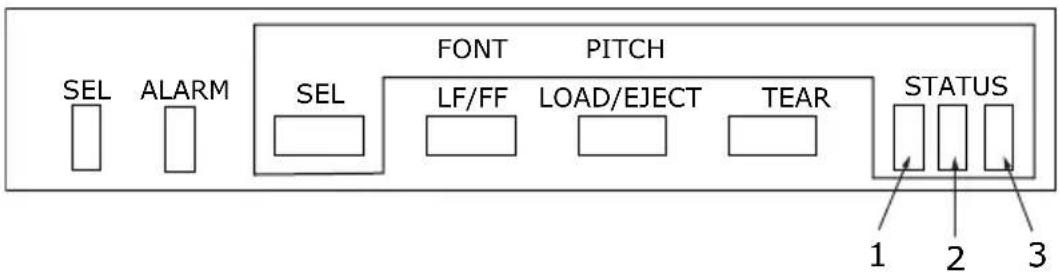
SEL ALARM FONT PITCH SEL LF/FF LOAD/EJECT TEAR STATUS 1 2 3The status/alarm indicators and button switches on the control panel allow you to check printer status and control the printer.
Indicators
| INDICATOR STATUS MEANING | |||
| SEL ON Printer is | on-line i.e. is available | able to print | |
| OFF Printer is off | line i.e. is not available to print | ||
| Flashing Print Suppress status | |||
| If the problem is still there after you turn the power ON again, contact your dealer. | |||
| ALARM ON Paper end status i.e. no paper present | |||
| 1 ON Menu printing mode | |||
| 2 ON Quiet print mode | |||
| INDICATOR STATUS MEANING | |||
| 3 ON Printer power is ON | |||
| OFF Printer power is OFF | |||
| Flashing Low power consumption mode | |||
BUTTONS
| BUTTON STATUS FUNCTION | ||
| SEL On-line Sets the | printer to off-line. | |
| Off-line Sets the printer to | on-line and disalarms the printer. | |
| LF/FF On-line Feeds | paper by one line. | Holding the button down results in continuous line feeding. |
| Off-line Performs continuous line feeding.Ejects the cut sheet. | ||
| LOAD/EJECT On-line | and off-lineContinuous Forms mode | Continuous form fed until first line of next pageIf the continuous form is in position, press to retract the form to the Pin Tractors.(If the sprocket holes of the last page of the form disengage from the sprocket pins, do not attempt to eject the paper as a paper jam may result.) |
| On-line and off-lineCut sheet manual mode | Ejects the cut sheet | |
| TEAR | On-lineContinuous Forms mode | Delivers the continuous form to the cut position. If the button is pressed again or data is received, the original form position is restored. |
| On-lineCut sheet manual mode | Ineffective | |
| Off-line Ineffective | ||
| SEL+ POWER ON Switch | Enters menu mode. | |
| LOAD/EJECT+ SEL On-line and off-line ML1120 eco: Microfeed down 0.176 mm (1/144 in) step.ML1190 eco: Microfeed down 0.141 mm (1/180 in) step. | ||
| LOAD/EJECT+ LF/FF | On-line and off-line ML1120 eco: Microfeed down 0.176 mm (1/144 in) step.ML1190 eco: Microfeed down 0.141 mm (1/180 in) step. | |
| TEAR+ SEL On-line and off-line ML1120 eco: Microfeed down 0.176 mm (1/144 in) step at tear of position only.ML1190 eco: Microfeed down 0.141 mm (1/180 in) step at tear of position only. | ||
| TEAR+ LF/FF On-line and off-line ML1120 eco: Microfeed down 0.176 mm (1/144 in) step at tear of position only.ML1190 eco: Microfeed down 0.141 mm (1/180 in) step at tear of position only. | ||
| SEL+ TEAR On-line Quieter print mode | Each press of the button pair progresses the printer through Quieter print mode> High multipart print mode> Normal print mode | |
CHANGE PRINT MODE
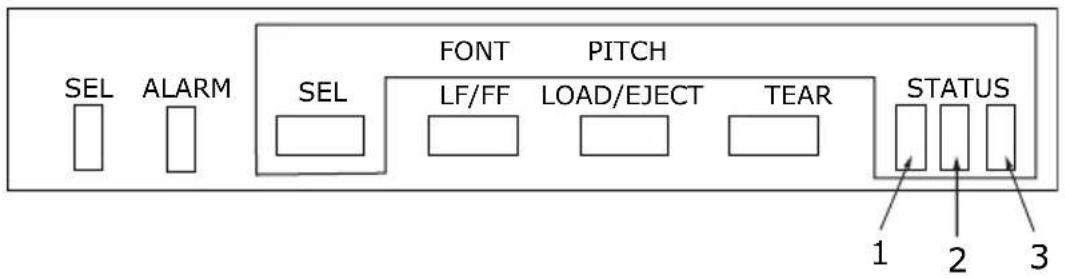
You can change print modes directly from the front panel. Hold down the SEL button and press the button indicated below. The printer will cycle through the choices as indicated by the two STATUS lights. When you reease the buttons the selection is set.
NOTE
During normal operation, the status lights show the font selection.
ML1120 ECO

text_image
SEL ALARM SEL FONT PITCH SPEED LF/FF LOAD/EJECT TEAR STATUS 1 2| SWITCHCOMBINATION | PRINTINGSTYLE | STATUS LIGHT | |
| SEL + LF/FF Left Right | |||
| Font | |||
| Near LetterQuality | On | ||
| Utility On | |||
| High SpeedDraft | Flashing | ||
| Super SpeedDraft | Flashing | ||
| SEL + LOAD/EJECT Character Pitch | |||
| PROPORTIONAL | |||
| SEL + TEAR Print Speed | |||
| Normal On | |||
| High Speed On | |||
| Quiet On On | |||
| SWITCHCOMBINATION | PRINTINGSTYLE | STATUS LIGHT | |
| LEFT RIGHT | |||
| SEL + LF/FF Near Letter | Quality | On | |
| Utility On | |||
| High SpeedDraft | Flashing | ||
| Super SpeedDraft | Flashing | ||
| SEL + LOAD/EJECT Character Pitch | |||
| SEL + TEAR Print Speed | |||
| Normal On | |||
| High Speed On | |||
| Quiet On On | |||
ML1190 ECO
text_image
SEL ALARM SEL FONT PITCH LF/FF LOAD/EJECT TEAR STATUS 1 2 3| SWITCH COMBINATION | PRINTING STYLE | STATUS LIGHT | ||
| LEFT CENTRE RIGHT | ||||
| SEL + LF/FF Font | ||||
| LQ Courier On | ||||
| LQ Roman On | ||||
| LQ Swiss On | ||||
| LQ Swiss Bold | Flashing | |||
| LQ Orator Flashing | ||||
| LQ Gothic Flashing | ||||
| LQ Prestige On | On | |||
| LQ OCR-A On | On | |||
| LQ OCR-B On | On | |||
| Utility Flashing | Flashing | |||
| HSD Flashing | Flashing | |||
| SEL + LOAD/EJECT | Character Pitch | |||
| 10CPI | On | |||
| 12CPI | On | |||
| 15CPI | Flashing | |||
| 17CPI | Flashing | |||
| 20CPI | On On | |||
| Proportional | Flashing Flashing | |||
| SEL + LF/FF Left Center | er Right | |||
| Font | ||||
| LQ Courier On | ||||
| LQ Roman On | ||||
| LQ Swiss On | ||||
| LQ Swiss Bold Flashing | ||||
| LQ Orator Flashing | ||||
| LQ Gothic Flashing | ||||
| LQ Prestige On On | ||||
| LQ OCR-A On On | ||||
| LQ OCR-B On On | ||||
| Utility Flashing | Flashing | |||
| HSD | Flashing | Flashing | ||
| SEL + LOAD/EJECT | Character Pitch | |||
| 10CPI | On | |||
| 12CPI | On | |||
| 15CPI | Flashing | |||
| 17CPI | Flashing | |||
| 20CPI | On On | |||
| Proportional | Flashing | Flashing | ||
SETTING MENU VALUES
The following information explains the printer settings and how you can change them. Printer items and their values are printed for reference.
CONFIRMING CURRENT SETTINGS
To print the current menu settings, use a cut sheet of A4 paper or continuous forms of width at least 254 mm. In this example, a sheet of A4 paper is used.
- Set the Paper Type lever to cut sheet mode.
- To activate menu mode:
(a) Ensure that the printer is powered OFF.
(b) While holding down the SEL button set the printer Power Switch to ON.
- Place the cut sheet on the Paper Tray. The printer prints the firmware details.
- Press the TEAR button to print out the current menu settings.
- Exit or proceed to change menu settings:
(a) To exit menu settings confirmation, save the current settings and eject the paper, press and hold TEAR, then press LOAD/EJECT and then LF/FF.
(b) To change menu settings, see "Menu setting" on page 53.
MENU SETTING
NOTE
Before changing menu settings, you may wish to print the current menu settings as in "Confirming current settings" on page 53.
Set menu item values (printed out for reference as you proceed) as follows:
- While holding down the SEL button set the printer Power Switch to ON.
- Place the cut sheet on the Paper Tray.
-
Press SEL (or TEAR and SEL together) to step forward (backward) through the main menu.
-
Press LF/FF (or TEAR and LF/FF together) to step forward (backward) through the sub-menus.
- Press LOAD/EJECT (or TEAR and LOAD/EJECT together) to step forward (backward) through the settings for each menu item.
- Repeat steps 3 to 5 as required to change settings for other menu items.
- To exit menu settings confirmation, save the current settings and eject the paper, press and hold TEAR, then press LOAD/EJECT and then LF/FF.
NOTE
Switching the printer OFF does not save the new settings.
MENU ITEMS AND SETTINGS
In the menu settings tables below, factory default settings are shown in bold.
ML1120 ECO
| MENU ITEM | FUNCTION | SETTING | |
| Printer control menu | Emulation Mode | Select EPSON mode, IBM mode, or ML mode. | IBMEPSONML |
| Font menu Print | Mode Select quality of ANK characters. | NLQ CourierNLQ GothicNLQ OCR-BDRAFTUtility | |
| Draft Mode Select HSD or SSD. HSD I BMSSD | |||
| Pitch | Select character pitch. | other CPI, 12 CPI, 15 CPI, 17.1 CPI, 20 CPI | |
| Proportional Spacing | Select whether to use proportional spacing or not. | YesNo | |
| Style Select either font style. | Normal, Italics | ||
| Size | Select the scale size. | Single, Doubleracter | |
| Symbol sets menu | Character Set | Select either ANK character code table. | StandardLine GraphicsBlock Graphics (displayed for ML emulation only)Set ISet II (displayed for IBM and EPSON emulation only) |
| Language Set | Select a language character set. | ASCII, French, German, British, Danish I, Swedish I, Italian, Spanish I, Japanese, Norwegian, Danish II, Spanish II, Latin American, French Canadian, Dutch, TSR80, Swedish II, Swedish III, Swedish IV, Turkish, Swiss I, Swiss II, Publisher | |
| Zero Character | Select either print font pattern to receive a zero character located at 30H in ANK code or at AA30H in a single-byte code. | UnslashedSlashed | |
| Symbol sets menu | Code Page Select a code page. USA | Canada French Multilingual Portugal Norway Turkey Greek_437 Greek_869 Greek_928 Grk_437 CYPRUS Polska Mazovia Serbo Croatic I Serbo Croatic II ECMA-94 Hungarian CWI Windows Greek Windows East Europe Windows Cyrillic East Europe Latin II-852 Cyrillic I-855 Cyrillic II-866 Kamenicky(MJK) ISO Latin 2 Hebrew NC (862) Hebrew OC Turkey_857 Latin 5 (Windows Turkey) Windows Hebrew Ukrainian Bulgarian ISO Latin 6 (8859/10) Windows Baltic Baltic_774 KBL-Lithuanian Cyrillic Latvian Roman-8 Icelandic-861 Multilingual 858 ISO 8859-15 Greek_737 POL 1 Macedonia | |
| Slashed Letter 0 | Set whether to convert slashed 0 located at 9BH and 9DH in USA code page or not. | Yes No | |
| Rear feed menu | Line Spacing | Select line feed pitch. | 6 LPI8 LPI |
| Form Tear-Off | Select manual or auto as the method to advance a continuous form to the form tear-off position. | Manual500 ms1 sec2 sec | |
| Skip Over Perforation | Select whether to skip over perforation or not. (When a skip over perforation setup command is received, the received command is given priority.) | Yes (25.4 mm/ 1 in)No | |
| Page Length Select the length of a continuous form. | 279.4 mm(11 in)296.3 mm(11 2/3 in)304.8 mm (12 in)355.6 mm(14 in)431.8 mm(17 in)76.2 mm(3 in)82.6 mm(3.25 in)84.7 mm(10/3 in)88.9 mm(3.5 in)93.1 mm(11/3 in)101.6 mm(4 in)127.0 mm(5 in)139.7 mm(5.5 in)152.4 mm(6 in)177.8 mm(7 in)203.2 mm(8 in)215.9 mm(8.5 in) | ||
| Cut position adjust | Select an adjustment value for the position to cut the end of a continuous form. (In 1/144 in increments) | -20 - -10+20 - +1 | |
| Rear feed menu | TOF adjustment (continuous) | Select an adjustment value for the reference position in regard to the TOF position of a continuous form.The position moves to the rear of the form by [+] and to the top of the form by [-] in 1/144 in increments. | -20 -- -10+20 -- +1 |
| TOF (continuous) | Select the reference position for the TOF position when auto loading continuous form paper from the rear of the printer.(Up to the mid-section of characters in the first line.) | 2.12 mm (1/12 in)4.23 mm (1/6 in)6.35 mm (1/4 in)8.47 mm (1/3 in)10.58 mm (5/12 in)12.7 mm (1/2 in)14.82 mm (7/12 in)16.93 mm (2/3 in)19.05 mm (3/4 in)21.17 mm (5/6 in)23.28 mm(11/12 in)25.4 mm (1 in)27.52 mm(13/12 in)Use top of form | |
| Bottom feed menu | Line Spacing | Select line feed pitch. | 6 LPI8 LPI |
| Skip Over Perforation | Select whether to skip over perforation or not.(When a skip over perforation setup command is received, the received command is given priority.) | Yes (25.4 mm/1 in)No | |
| Bottom feed menu | Page Length | Select the length of a continuous form. | 279.4 mm(11 in)296.3 mm(11 2/3 in)304.8 mm (12 in)355.6 mm(14 in)431.8 mm(17 in)76.2 mm(3 in)82.6 mm(3.25 in)84.7 mm(10/3 in)88.9 mm(3.5 in)93.1mm(11/3 in)101.6 mm(4 in)127.0 mm(5 in)139.7 mm(5.5 in)152.4 mm(6 in)177.8 mm(7 in)203.2 mm(8 in)215.9 mm(8.5 in) |
| Top feed menu | Line Spacing | Select line feed pitch. | 6 LPI8 LPI |
| Page Length | Select the page length of cut paper. | 279.4 mm(11 in),296.3 mm(11 2/3 in)304.8 mm (12 in)355.6 mm(14 in)420.9 mm(16.57 in)76.2 mm(3 in)82.6 mm(3.25 in)84.7 mm(10/3 in)88.9 mm(3.5 in)93.1 mm(11/3 in)101.6 mm(4 in)127.0 mm(5 in)139.7 mm(5.5 in)152.4 mm(6 in)177.8 mm(7 in)203.2 mm(8 in)215.9 mm(8.5 in) | |
| Top feed wait time | Select the waiting time between setting paper on the tray and feeding it while the printer is waiting for paper to be fed in cut-paper manual feed mode. | Invalid500 ms1 sec2 sec | |
| Top feed menu | Page length control | Control the page length of cut paper. | by MENU setting by Actual page length |
| Cut sheet auto eject Position | Select a printable area at the bottom of cut sheets of paper in cut-paper mode (the character centre position). | 6.35 mm (1/4 in)12.70 mm (6/12 in)14.82 mm (7/12 in) | |
| TOF Adjustment (Cut Sheet) | Select an adjustment value for the reference position in regard to the TOF position of cut-paper/passbooks.The position moves to the rear of the form by [+] and to the top of the form by [-] in 1/144 in increments. | -20 - -10+20 - +1 | |
| TOF (cut sheet top of form) | Select the reference position for the TOF position when feeding cut-paper in manual mode. (Up to the mid-section of characters in the first line.) | 2.12 mm (1/12 in)4.23 mm (1/6 in)6.35 mm (1/4 in)8.47 mm (1/3 in)10.58 mm (5/12 in)12.7 mm (1/2 in)14.82 mm (7/12 in)16.93 mm (2/3 in)19.05 mm (3/4 in)21.17 mm (5/6 in)23.28 mm (11/12 in)25.4 mm (1 in)27.52 mm(13/12 in)Use top of form | |
| Cut sheet LF adjustment | Adjust a line feed amount in cut-paper mode. | -14 - -10+14 - +1 | |
| Set-up menu Graphics Select the printing direction when double-height print data exists in a line. | Bi-directionalUni-directional | ||
| 1line32 K64 K | |||
| 1line32 K64 K | |||
| Set-up menu | Paper out override | Select whether to detect paper end or not. | NoYes |
| Print Registration 1 | Adjust the print starting position on printing in the reverse direction.(The position moves to the right or left in 1/720 in increments.) | -10--10+10--+1 | |
| Print Registration 2 | Adjust the print starting position on printing in the reverse direction.(The position moves to the right or left in 1/720 in increments.) | -10--10+10--+1 | |
| -Print Registration 3 | Adjust the print starting position on printing in the reverse direction.(The position moves to the right or left in 1/720 in increments.) | -10--10+10--+1 | |
| 7 or 8 Bits Data Word | Set the character code and graphics data units to 7 or 8 bits.(ML emulation only) | 87 | |
| Operator panel function | Select full or limited operation. | Full operationLimited operation | |
| Reset inhibit Set | whether to enable or disable an initial command. | NoYes | |
| Print suppress effective | Set whether to enable or disable a print suppress setup command. | YesNo | |
| Set-up menu | Auto LF Select wh | ether to perform auto LF operation or not upon receiving a CR code. | YesNo |
| Auto CR Select | whether to perform auto CR operation upon receiving a carriage return command. (Display for IBM emulation only) | YesNo | |
| Print DEL Code | Set whether 7FH code is printed with DEL mark or not. (ML emulation only) | NoYes | |
| SI select pitch (10 CPI) | Set how to handle an SI command received in 10 CPI mode. (IBM emulation only) | 15 CPI17.1 CPI | |
| SI select pitch (12CPI) | Set how to handle an SI command received in 12 CPI mode. (IBM emulation only) | 12 CPI20 CPI | |
| Time out print | Select valid or invalid. | ValidInvalid | |
| Auto Select Select | whether to automatically set Select Mode after paper feeding mode or not. | YesNo | |
| Set-up Menu Host | Interface | Select interface settings. | Auto InterfaceParallelUSBSerial |
| I/F Time out Select timeout time for auto interfacing. | 15 sec30 sec45 sec1 min2 min3 min4 min5 min | ||
| ESC SI Pitch Set the contents of ESC SI commands. (IBM emulation only) | 17.1 CPI20 CPI | ||
| Select Language Set | Sets the valid/ invalid for combination of code page set and language conversion. (Epson emulation only) | CombinedCode Page Only | |
| Print Style Set quiet printing and print speed. | NormalHigh SpeedQuiet | ||
| Select quiet mode | Select the type of quiet mode. | Mode 1Mode 2 | |
| Reverse Feed Control | Set reverse feeding. | TOF stopTOF over | |
| Centering Position (Continuous) | Set the centering position for the print head by the number of characters of 10CPI ANK. | DefaultMode 1Mode 2 | |
| Centering Position (Cut Sheet) | Set the centering position for the print head by the number of characters of 10CPI ANK. | DefaultMode 1Mode 2 | |
| Set-up Menu P | Power Saving Set | whether to enable or disable the Power Saving funtion of the printer. | EnableDisable |
| Power Save Time | Select the time to enter to enter the Power Save Mode. | 5 min10 min15 min30 min60 min | |
| Paper End Select whether a printer status where no paper is loaded is set to SEL or DESEL. | On-lineOff-line | ||
| Print Direction Command | Select the validity of a one-way print setup command. | ValidInvalid | |
| Print Speed Command | Select the validity of a print speed setup command. | ValidInvalid | |
| Page Length Command | Select the validity of a page length command. | ValidInvalid | |
| LF Pitch Command | Select the validity of a linefeed pitch command. | ValidInvalid | |
| Font Command | Select the validity of a font command. | ValidInvalid | |
| Pitch Command | Select the validity of a character pitch command. | ValidInvalid | |
| Parallel I/F I-Prime Set I-Prime signal control of the Centronics interface. | InvalidBuffer PrintBuffer Clear | ||
| MENU | ITEM | FUNCTION | SETTING |
| Parallel I/F Bi-Direction Set whether to enable or disable Two-way communication of the Centronics interface. | EnableDisable | ||
| Serial I/F Parity Set Parity.None | OddEvenIgnore | ||
| 8 bit7 bit | |||
| X-ON/X-OFFDTR & X-ON/X-OFF | |||
| NoYes | |||
| 9,600 bps4,800 bps2,400 bps1,200 bps600 bps300 bps19,200 bps | |||
| Ready on Power UPReady on Select | |||
| 0.2 sec1.0 sec | |||
ML1190 ECO
In the menu settings tables below, factory default settings are shown in bold.
| MENU ITEM | FUNTION SETTING | ||
| Printer Control Menu | Emulation Mode | Select EPSON LQ mode, IBM PPR mode, or IBM AGM mode. | EPSON LQIBM PPRIBM AGM |
| Font Menu Print | Mode Select quality of ANK characters. | LQ CourierLQ RomanLQ SwissLQ Swiss BoldLQ OratorLQ GothicLQ PrestigeLQ OCR-ALQ OCR-BUtilityHSD | |
| Pitch Select character pitch. | 10 CPI12 CPI15 CPI17.1 CPI20 CPI | ||
| Proportional Spacing | Select whether to use proportional spacing or not. | YesNo | |
| Style Select font | style. Normal | Italics | |
| Symbol Sets Menu | Character Set Select either ANK character code table. | Set ISet II | |
| Language Set Select language character set. | ASCIIFrenchGermanBritishDanish ISwedish IItalianSpanish IJapaneseNorwegianDanish IISpanish IILatin AmericanFrench CanadianDutchSwedish IISwedish IIISwedish IVTurkishSwiss ISwiss IIPublisher | ||
| Zero Character Select either print font pattern to receive a zero character located at 30H in ANK code or at AA30H in a single-byte code. | UnslashedSlashed | ||
| Code Page Select | a code page. USA | Canadian French MultilinguallPortugalNorwayTurkeyGreek_437Greek_869 | |
| Symbol Sets Menu | Slashed Letter 0 | Set whether to convert slashed 0 located at 9BH and 9DH in USA code page or not. | YesNo |
| Rear Feed Menu | Line Spacing Select line feed pitch. | 6 LPI8 LPI | |
| Form Tear-Off Select manual or auto as the method to advance a continuous form to the form tear-off position. | Manual500 ms1 sec2 sec | ||
| Skip Over Perforation | Select whether to skip over perforation or not. (When a skip over perforation setup command is received, the received command is given priority. | Yes (25.4 mm/ 1 in) No | |
| Cut Position Adjust | Select an adjustment value for the position to cut the end of a continuous form. (In 1/180 in increments) | -20 - -10+20 - +1 | |
| TOF Adjustment (continuous) | Select an adjustment value for the reference position in regard to the TOF position of a continuous form. The position moves to the rear of the form by [+] and to the top of the form by [-] in 1/180 increments. | -20 - -10+20 - +1 | |
| Rear Feed Menu | TOF (continuous) | Select the reference position for the TOF position when auto loading continuous form paper from the rear of the printer. (Up to the midsection of characters in the first line) | 2.12 mm (1/12 in)4.23 mm (2/12 in)6.35 mm (3/12 in)8.47 mm (4/12 in)10.58 mm (5/12 in)12.70 mm (6/12 in)14.82 mm (7/12 in)16.93 mm (8/12 in)19.05 mm (9/12 in)21.17 mm (10/12 in)23.28 mm (11/12 in)25.40 mm (12/12 in)27.52 mm (13/12 in)User top of form |
| Bottom Feed Menu | Line Spacing Select line feed pitch. | 6 LPI8 LPI | |
| Skip Over Perforation | Select whether to skip over perforation or not. (When a skip over perforation setup command is received, the received command is given priority.) | Yes (25.4 mm/1 in No | |
| Bottom Feed Menu | Page Length Select the length of a continuous form. | 279.4 mm (11 in)296.3 mm (11 2/3 in)304.8 mm (12 in)355.6 mm (14 in)431.8 mm (17 in)76.2 mm (3 in)82.6 mm (3.25 in)84.7 mm (10/3 in)88.9 mm (3.5 in)93.1 mm (11/3 in)101.6 mm (4 in)127.0 mm (5 in)139.7 mm (5.5 in)152.4 mm (6 in)177.8 mm (7 in)203.2 mm (8 in)215.9 mm (8.5 in) | |
| Top Feed Menu | Line Spacing Select line feed pitch. | 6 LPI8 LPI | |
| Page Length Select the page length of cut paper | 279.4 mm (11 in)296.3 mm (11 2/3 in)304.8 mm (12 in)355.6 mm (14 in)420.9 mm (16.57 in)76.2 mm (3 in)82.6 mm (3.25 in)84.7 mm (10/3 in)88.9 mm (3.5 in)93.1 mm (11/3 in)101.6 mm (4 in)127.0 mm (5 in)139.7 mm (5.5 in)152.4 mm (6 i n)177.8 mm (7 in)203.2 mm (8 in)215.9 mm (8.5 in) | ||
| MENU ITEM | FUNTION SETTING | ||
| Top Feed Menu | Top Feed Wait Time | Select the waiting time between setting paper on the tray and feeding it while the printer is waiting for paper to be fed in cut-paper manual feed mode. | Invalid0.5sec1.0sec2.0sec |
| Page Length Control | Control the page length of cut paper. | by MENU setting by Actual page length | |
| Cut Sheet Auto Eject Position | Select a printable area at the bottom of cut sheets of paper in cut-paper mode (the character centre position). | 6.35 mm (1/4 in)12.70 mm(6/12 in)14.82 mm (7/12 in) | |
| TOF Adjustment (Cut Sheet) | Select an adjustment value for the reference position in regard to the TOF position of cut-paper/passbooks.The position moves to the rear of the form by [+] and to the top of the form by [-] in 1/180 in increments. | -30 - -10+1 - +30 | |
| MENU ITEM | FUNTION SETTING | ||
| Top Feed Menu | TOF (Cut Sheet Top of Form) | Select the reference position for the TOF position when feeding cut-paper in manual mode. (Up to the mid-section of characters in the first line.) | 2.12 mm (1/12 in)4.23 mm (1/6 in)6.35 mm (1/4 in)8.47 mm (1/3 in)10.58 mm (5/12 in)12.7 mm (1/2 in)14.82 mm (7/12 in)16.93 mm (2/3 in)19.05 mm (3/4 in)21.17 mm (5/6 in)23.28 mm (11/12 in)25.4 mm (1 in)27.52 mm(13/12 in)Use top of form |
| Cut Sheet LF Adjustment | Adjust a line feed amount in cut-paper mode. | -14 - -10+1 - +14 | |
| Set-up Menu G | Graphics Select the printing direction when double-height print data exists in a line. | Bi-directionalUni-directional | |
| Receive Buffer Size | Select size of the received buffer. | 1line32 K64 K | |
| Paper Out Override | Select whether to detect paper end or not. | NoYes | |
| Print Registration 1 | Adjust the print starting position on printing in the reverse direction.(The position moves to the right or left in 1/720 in increments.) | -10 - -10+1 - +10 | |
| Set-up Menu Print | Registration 2 | Adjust the print starting position on printing in the reverse direction. (The position moves to the right or left in 1/720 in increments.) | |
| Print Registration 3 | Adjust the print starting position on printing in the reverse direction. (The position moves to the right or left in 1/720 in increments.) | ||
| Print Registration 4 | Adjust the print starting position on printing in the reverse direction. (The position moves to the right or left in 1/720 in increments.) | ||
| Operator Panel Function | Select full or limited operation. | ||
| Reset Inhibit Set | whether to enable or disable an initial command. | ||
| Print Suppress Effective | Set whether to enable or disable a print suppress setup command. | ||
| Auto LF Set whether to enable or disable a print suppress setup command. | |||
| Set-up Menu A | Auto CR Select whether to perform auto CR operation upon receiving a carriage return command. (IBM PPR and IBM AGM emulation only) | YesNo | |
| SI Select Pitch (10 CPI) | Set how to handle an SI command received in 10 CPI mode. (IBM PPR and IBM AGM emulation only) | ||
| SI select Pitch (12 CPI) | Set how to handle an SI command received in 12 CPI mode. (IBM PPR and IBM AGM emulation only) | ||
| Time out Print Select valid or invalid. | ValidInvalid | ||
| Auto Select Select whether to automatically set Select Mode after paper feeding or not. | YesNo | ||
| Host Interface Select interface settings. | Auto InterfaceParallelUSBSerial | ||
| I/F Time Out Select timeout time for auto interfacing. | 15 sec30 sec45 sec | ||
| Select Language Set | Sets the valid/ invalid for combination of code page set and language conversion. (Epson emulation only) | ||
| MENU ITEM | FUNTION SETTING | ||
| Set-up Menu Print Style Set quiet printing. NormalQuiet | |||
| MENU | ITEM | FUNTION | SETTING |
| Set-up Menu Pitch Command Select the validity of a character pitch command. | ValidInvalid | ||
| Parallel I/F I-Prime Set I-Prime signal control of the Centronics interface. | InvalidBuffer PrintBuffer Clear | ||
| Serial I/FMenu | Parity Set parity. | None | OddEvenIgnore |
| Serial Data 7/8Bits | Set serial data length. | 8 bit7 bit | |
| Protocol Set protocols. | DTR | X-ON/X-OFFDTR & X-ON/X-OFF | |
| Diagnostic Test Set/Cancel loop testing of the serial interface. | NoYes | ||
| Baud Rate Set the transmission speed of the serial interface. | 9,600 bps4,800 bps2,400 bps1,200 bps600 bps300 bps19,200 bps | ||
| MENU ITEM | FUNTION SETTING | ||
| Serial I/F Menu | DTR Signal Set w | whether to switch the DTR signal of the serial interface by Select/Deselect or hold it after power-on. | Ready on Power UP Ready on Select |
| Busy Time Set the | minimum time it takes to switch from a busy state to a ready state. | 0.2 sec 1.0 sec | |
INITIALISING MENU SETTINGS
To restore the menu settings to their initial values, carry out the steps below.
NOTE
The values adjusted by the Adjustment menus are not initialised by the following procedure.
- Set the Power Switch to OFF.
- Press and hold down the SEL and LF/FF buttons together and then set the Power Switch to ON.
ADJUSTING TOF POSITION
Use the following procedure to set TOF to accord with the reference position (23.28 mm (11/12 in)). The reference position refers to the first line of the paper i.e. the position to which the printer feeds the paper when automatically loading the paper.
NOTE
Adjusting of TOF can be done in cut sheet mode or continuous forms mode.
- Print out the menu settings of the printer as in
"Confirming current settings" on page 53 and confirm that the TOF (in cut sheet mode or continuous forms mode) is 23.28 mm (11/12 in). - Set the Paper Type lever to the required paper type.
- When continuous forms are used, place the paper on the Pin Tractor.
For cut sheet mode, do not insert the paper at this stage. - In continuous forms mode, press the LOAD/EJECT button.
In cut sheet mode, place the paper in the Paper Tray and press LOAD/EJECT. - In off-line mode, press the following buttons to adjust the first printing line:
To feed the paper forward by a small amount, press and hold down the LOAD/EJECT button and then press the SEL button. To feed the paper backward by a small amount, press and hold down the LOAD/EJECT button and then press the LF/FF button.
NOTE
If the specified correction range is more than + - 3.53mm (20/144 in) for ML1120 eco and + - 4.23 mm (30/180 in) for
ML1190 eco, the paper cannot be moved.
When the paper is positioned at the required TOF, release the buttons in Step 5 above.
PRINTER SPEED SETTINGS
PRINTER IMPACT MODE
When switched ON, the printer enters the impact mode selected in the menu. You can change this to normal speed, high speed and quiet printing without using the menus as follows.
(This function is enable for ML1120 eco.)
NORMAL SPEED PRINTING
Use this for standard file printing operations.
- Ensure the SEL indicator is illuminated.
- Hold down the SEL button and press the TEAR button.
Status Indicator 1 turns OFF and Status Indicator 2 illuminates.
HIGH SPEED PRINTING
Use this for high speed printing.
- Ensure the SEL indicator is illuminated.
- Hold down the SEL button and press the TEAR button.
Status Indicator 1 illuminates and Status Indicator 2 turns OFF.
(High speed printing is applied only to the print of NLQ.)
QUIET PRINTING
Use this for quieter printing.
- Ensure the SEL indicator is illuminated.
- Hold down the SEL button and press the TEAR button.
Status Indicator 1 and Status Indicator 2 illuminate.
SETTING TOF POSITION AT THE PLACE OF USER'S CHOICE
TOF position can be set at the user's choice. The reference position refers to the first line of the paper i.e. the position to which the printer feeds the paper when automatically loading paper.
NOTE
Adjusting of TOF can be done in cut sheet mode or continuous forms mode.
- Move paper level to the position of the paper to be set.
- Continuous paper: Set the paper in Pin Tractor.
- Continuous paper: Push the LOAD/EJECT button and the paper will be fed to the printer.
Single sheets: Set the paper in the tray and the paper will be fed to the printer. - Switch to off line.
- Push the LOAD/EJECT button continuously and adjust the position of printing, start by combining the following buttons:
Forward (minute reline): LOAD/EJECT button = SEL button
Rear (minute reline): LOAD/EJECT button + LF/FF button
NOTE
The range set for TOF is between 2.12 mm (1/12 in) and 368/4 mm (14.5 in). Outside the range, the paper cannot be moved.
When the paper is positioned at the required TOF, release the buttons in Step 5 above.
To save this position as the TOF, press and hold down the LOAD/EJECT and the LF/FF buttons together for 3 seconds under the Select condition.
NOTE
Do not turn the Platen Knob or switch off the printer during the above procedure.
TROUBLESHOOTING
CLEARING PAPER JAMS
CUT SHEET PAPER JAMMED IN PRINTER
WARNING!
Do not carry out any operations inside the printer with the Power Switch set to ON.
- Set the Power Switch to OFF.
- Remove the Access Cover.

natural_image
Line drawing of a printer being inserted into a paper airplane, showing the blade and handle (no text or symbols)- Set the Paper Thickness lever to the Replace Ribbon position (position 6).
WARNING!
The Print Head may be hot after printing. Allow it to cool before touching it.
-
Remove the ribbon cartridge. See "Changing a ribbon cartridge" on page 95.
-
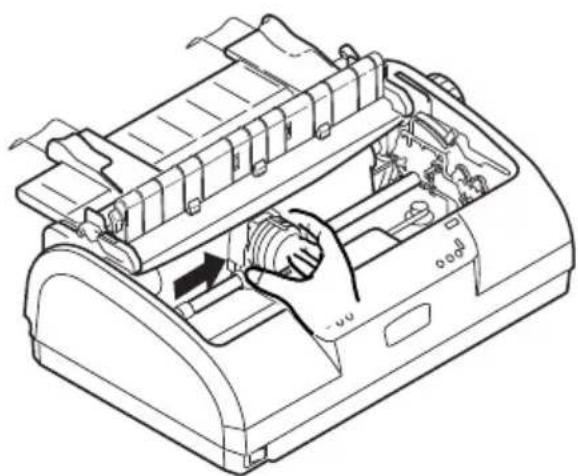
Move the Print Head away from the paper.
natural_image
Line drawing of a printer with a hand operating the internal mechanism (no text or symbols)-
Rotate the Platen Knob in the relevant direction and pull the cut sheet out from the top of the printer.
-
If a paper fragment remains inside the printer:
(a) use tweezers to grip and extract it or
(b) insert a triple folded sheet from the Paper Tray and turn the Platen Knob to pass the folded sheet through and push out the paper fragment.

natural_image
Simple line drawing of a rolled-up document or scroll with an arrow pointing to it (no text or symbols)- When the paper jams are cleared, replace the ribbon cartridge and replace the printer Access Cover.

natural_image
Line drawing of hands operating a printer presser (no text or symbols present)- Set the Power Switch to ON.
CONTINUOUS FORMS JAMMED IN PRINTER
WARNING!
Do not carry out any operations inside the printer with the Power Switch set to ON.
- Set the Power Switch to OFF.
-
Tear off any unprinted continuous forms.
-
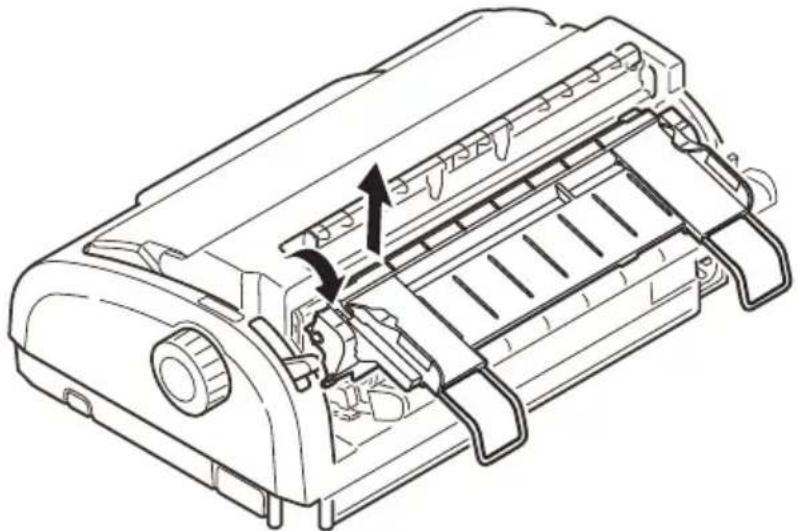
Remove the Input Tray and Rear Cover together by gripping the Input Tray at both sides and pulling it up and away from the printer.
natural_image
Technical line drawing of a printer internal structure with no visible text or symbols- Raise each Pin Tractor cover and remove the continuous forms from the Pin Tractors.

natural_image
Diagram showing a car with a roof-mounted sensor and an arrow indicating upward motion (no text or symbols)-
Rotate the Platen Knob and remove the forms from the front of the printer.
-
If a form fragment remains inside the printer, place two or three forms in a stack on the Pin Tractors and turn the Platen Knob to push the fragment out of the printer.
-
When the paper jams are cleared, replace the Input Tray and Rear Cover by fitting the Rear Cover into the grooves
at the back of the printer and pushing gently forward until the Input Tray clips into place.

natural_image
Technical line drawing of a printer with internal components and alignment arrows (no text or symbols)- Set the Power Switch to ON.
RESPONDING TO ALARM CONDITIONS
Use the following table for guidance on how to respond to indicated alarm conditions.
| INDICATOR ALARM MEANINGS AND ACTIONS | |
| SEL ALARM | |
| OFF ON Paper has run out. Add paper and press the SEL button. | |
| OFF Flashing The Paper Type lever is wrongly set for the type of paper in use. Press the SEL button and set the Paper Type lever to the correct position. | |
| OFF Flashing Problem with cut sheet feeding. Remove the cut sheet. | |
| Flashing ON Print data is received but printing does not start because no paper is being fed. Insert paper. | |
| Flashing OFF Printing cannot be resumed at this stage. Turn the power OFF, verify that the carriage moves properly, then turn the power ON again.If the problem is still there after you turn the power ON again, contact your dealer. | |
RESPONDING TO GENERAL PROBLEMS
Use the following table to help you to identify symptoms with possible causes and take suggested remedial actions.
| PROBLEM CAUSE ACTION | ||
| No power | ||
| No power The power cable | is not properly connected. | Check the power cable is properly connected at both power outlet and printer. |
| Power outlet problem or power outage. | Plug another appliance into this outlet to check if it works. | |
| No printing takes place | ||
| SEL indicator is unlit. The | printer driver is not installed properly. | Re-install the printer driver correctly. |
| The printer has just stopped printing. | Press the SEL button. | |
| There is no paper in the printer. | Load paper. | |
| SEL indicator is illuminated but no printing takes place. | Interface cable is disconnected. | Reconnect the interface cable. |
| Wrong interface cable has been used. | Use correct interface cable. | |
| The print head is moving but no printing takes place. | The ribbon cartridge has not been installed. | Install the ribbon cartridge. |
| Print position offset | ||
| The horizontal printing position is offset. | The start position may change after the printer is powered on. | When the printer is powered ON, switch from off-line mode to on-line mode by pressing the SEL button. Reset the start position. You must set the Power Switch to OFF before you change the start position. |
| Printing slows down | ||
| Print direction changes suddenly to unidirectional. | When the print head overheats, the printer automatically starts unidirectional split printing. | When the print head temperature drops sufficiently, the printer will return to its original operation. |
| PE warning | ||
| The print carriage does not operate. | There is contamination on the carriage shaft. | Clean any paper dust and contamination from the carriage with a dry cloth. |
| Print blurring | ||
| The characters are too pale to display properly on the paper. | The Paper Thickness lever position does not match the paper. | Correct the Paper Thickness lever setting. |
| The printer is set to print at high speed. | Set the speed to normal. | |
| The ribbon has reached its end of life. | Replace the ribbon by a new one. | |
| The ribbon cartridge is not installed correctly. | Reinstall the ribbon cartridge correctly. | |
| The ribbon has been wound incorrectly. | Replace the ribbon cartridge by a new one. | |
| The ribbon is not transferring properly. | Replace the ribbon cartridge by a new one. | |
| A line of print is missing. | Broken wire pins. Contact | your dealer. |
| The printout differs from the screen display. | ||
| Printout of completely different characters or symbols. | Incorrect print setup for the user application. | Reselect print setup for the applications according to priority. |
| The application control codes for the previous print operation are still enabled. | Initialise the printer. | |
| The input application control signal is not correct. | Print in hex dump mode and verify the data content. Make corrections in the application. | |
| The interface cable is not properly connected. | Reconnect the cable correctly. | |
| PROBLEM CAUSE ACTION | ||
| Too high or too low TOF (where printing starts). | The TOF is not correctly selected. | Initialise the printer. |
| Select correct TOF for cut sheet and continuous forms. | ||
| Select the first-line print position and adjust the paper top position. | ||
| Reselect the margin correctly in the application. | ||
| Too large or small left and/or right margins. | The left or right margin is not correctly selected. | Incorrect positions of the Paper Guide or Pin Tractors. Select and adjust the position again depending on the paper type. |
| Reselect the left and right margins correctly in the application. | ||
| When continuous forms are used, the content of a single form is printed on two forms. | The paper length selected in the application does not match the physical paper length. | Match the paper length selected in the application with the physical paper length in use. |
| When cut sheets are used, the content of a single sheet is printed on two sheets. | The paper setting selected in the application does not match the physical paper size. | Match the paper setting selected in the application with the physical paper in use. |
| It does not match the lines per page as the printer automatically detected. | Leave enough top and bottom margin in the application. | |
| Correct the cut sheet LF adjustment. | ||
| The content of a single line is printed in two lines. | The left and/or right margins are not correctly selected. | Reselect the left and right margins correctly in the application. |
| When continuous forms are used, several blank lines appear in the printout. | Tear-off perforation spacing is selected. | Cancel tear-off perforation spacing. |
| PROBLEM CAUSE ACTION | ||
| Broken and uneven vertical lines. | This may happen in bidirectional printing. | Use Print Registration in the adjustment mode to adjust. |
| Too large or small line spacing. | Line spacing is not selected correctly. | Reselect line spacing correctly in the application. |
| Split print | ||
| Blanks appear in graphic printout. | This is a paper feed error, which is especially notable in printing regular characters. | This is not a failure. |
| Blanks or deformed characters appear in double height type or other extended types. | This is a paper feed error due to line feeding in printing a single character. | This is not a failure.Use the printer's built-in fonts when you print important documents or bills. |
| Improper cut sheet feed | ||
| No paper feed. Sheets are | located off the paper guide. | Load sheets with their left edges against the paper guide. |
| Sheets are not loaded to the end. | Load sheets to the end. | |
| The platen rotates without paper feed, or continuous forms instead of cut sheets are fed. | Sheets are not loaded to the end. | Load sheets to the end. |
| The printer is in the continuous forms mode. | Eject the continuous forms and select cut sheet mode for the printer. | |
| Paper distortion. Sheets are not loaded to the end, or they are not inserted straight. | Load sheets to the end. | |
| Paper with wrinkles folds or other defects. | ||
| Paper not specified for the printer. | ||
| Unable to eject. The LF/FF button is pressed. | Press the LOAD/EJECT button. | |
| Improper continuous forms feed. | ||
| No line feed, and no paper feed. | Paper is off the Pin Tractors. | Reload paper correctly. |
| The adjust lever position does not match the paper type. | Set the adjust lever to the correct position. | |
| Paper distortion or jam. Forms are loaded with their left holes out of line with the right ones. | Load forms with their left holes in line with the right ones. | |
| Several blank lines appear in the printout. | Skip over perforation spacing is selected. | Cancel the skip over perforation spacing. |
| The selected skip over perforation spacing does not match the physical tear-off perforation positions. | The paper length selected in the application does not match the physical paper length. | Match the paper length selected in the application with the physical paper length in use.Select the paper length in number of lines in the application. |
| Abnormal switchover between cut sheet and continuous forms modes. | ||
| No cut sheet feed. The printer is in continuous forms mode. | Set the Paper Type lever to cut sheet mode. | |
| No continuous forms feed. | The printer is in cut sheet mode. | Set the Paper Type lever to continuous forms mode. |
| Paper feed operations for both cut sheets and continuous forms are actuated. | The cut sheet is not ejected. | Eject the cut sheet. |
CLEANING YOUR PRINTER
To keep your printer in good operating condition, you are advised to clean it regularly.
WARNING!
Set the printer Power Switch to OFF and disconnect the power cable from the printer before cleaning the printer.
PRINTER EXTERIOR
CAUTION!
Keep the Access Cover closed to avoid the possibility of detergent entering the printer.
Clean the exterior of the printer as required, but at least every six months or 300 hours of operation, whichever comes first:
Moisten a piece of cotton cloth with diluted neutral detergent and carefully wipe the printer exterior.
PRINTER INTERIOR
WARNING!
As the print head becomes hot during printing, allow it to cool before carrying out any cleaning inside the printer.
Do not use any flammable solvents for cleaning the printer to avoid any risk of fire or electric shock.
Clean the interior of the printer every 6 months or 300 hours of operation, whichever comes first.
Using a soft cloth, cotton swabs and a vacuum cleaner, clean the interior of the printer as follows:
| WHERE TO CLEAN WHAT TO CLEAN | |
| The carriage and the area around it Clean | and remove paper waste, dirt, dust and ribbon shreds. |
| The paper travel surface |
CAUTION!
When you clean the interior of the printer with a vacuum cleaner, do not attempt to clean any parts smaller than the suction nozzle.
Do not clean any interior working parts with the suction nozzle to avoid possible damage to the printer.
CONSUMABLES AND ACCESSORIES
CONSUMABLES
When the printed image becomes faint or incomplete, replace the ribbon cartridge.
CHANGING A RIBBON CARTRIDGE
CAUTION!
Only use genuine Oki Original consumables to ensure the best quality and performance from your hardware. Non-Oki Original products may damage your printer's performance and invalidate your warranty.
WARNING!
Do not change the ribbon cartridge with the Power Switch set to ON.
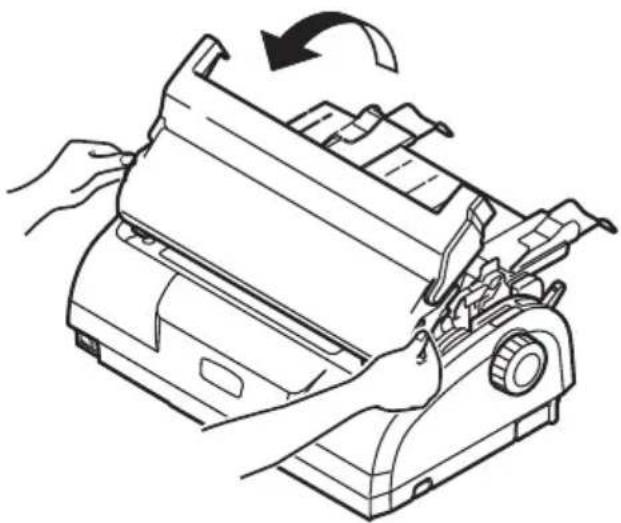
- Set the Power Switch to OFF.
- Set the Paper Thickness lever to Replace Ribbon (position 6).
- Remove the Access Cover.
natural_image
Line drawing of a printer being inserted into a paper airplane, showing mechanical components and a hand operating the part (no text or symbols present)WARNING!
The print head and area around it may be hot after printing. Allow it to cool down before touching it.
- Grip the ribbon cartridge with your fingers at each end and slope it up and out to remove it from the carriage.

natural_image
Diagram of a printer or scanner assembly with hands installing components, showing internal structure and an upward arrow (no text or symbols present)- Dispose of the cartridge in accordance with your local guidelines.
- Remove the new ribbon cartridge from its wrapping and note the position of the Ribbon Guide (1), blue Knob (2) and Pin (3).

text_image
1 2 3- In the direction indicated by the arrows, insert the pins at both ends of the ribbon cartridge into the U grooves in the printer until the ribbon cartridge is fully locked.
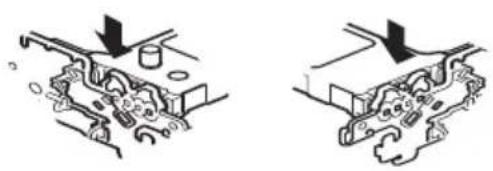
natural_image
Mechanical assembly diagrams showing two views of a mechanical component with arrows indicating direction (no text or labels)NOTE
It may be easier to mount the ribbon cartridge in place if you align it with the topside of the grooves. Also, a slightly loose ribbon may make it easier to mount the ribbon cartridge.
-
Hold the ribbon cartridge with your fingers pressing on its ribbon guide and slope it upward and inward along the guide rails until the ribbon guide comes in line with the U slot at the top of the cartridge.
-
Move the print head to position the ribbon then turn the knob anticlockwise (in the direction of the arrow) to wind up the ribbon.
CAUTION!
Do not turn the knob clockwise as the ribbon might jam.
Make sure that the ribbon is not twisted or damaged when it goes through the gap between the Print Head and the ribbon guide.

natural_image
Technical line drawing of a mechanical component with internal structure and rotation arrow (no text or symbols)- Replace the Access Cover.

natural_image
Line drawing of hands operating a printer presser (no text or symbols present)- Set the Paper Thickness lever to match the paper being used. (See "Setting the paper thickness lever" on page 40.)
- Set the printer Power Switch to ON.
CONSUMABLE ORDER INFORMATION
| ITEM LIFE ORDER NO. | ||
| Ribbon cartridge (Black) 4 | million characters 4357108 | 2 (EU)43571803 (Non- EU) |
SPECIFICATIONS
ML1120 ECO
| ITEM SPECIFICATION | |
| Product Name ML1120 eco | |
| Model No. D22400B | |
| Print method Impact dot matrix | |
| Print head 9 pins, 0.3mm (0.012 in) diameter | |
| Print direction Bi-directional, short-line-seeking printing | |
| Print speedHigh Speed Draft (HSD)Near Letter Quality (NLQ)Utility | 333cps @ 10 cpi62.5 cps @ 10 cpi250 cps @ 10 cpi |
| Line Feed (LF) time Approximately 52 ms per line for LF of 4.23 mm (1/6 in) | |
| Form Feed (FF) speed Approximately 101.6 mm/s (4 in/s) | |
| Paper feed control Paper feed: yesVertical tab: yesDirect line feed: yes | |
| Duplication capability Continuous forms: the original page + 4 more pages (total maximum paper thickness less than 0.325 mm)Cut sheet: the original page + 4 more pages (total maximum paper thickness less than 0.325 mm) | |
| Feeding direction Feed forward | Feed backwardFeed upward |
| Feeding mode Friction feed mode (top)Pin tractor feed mode (rear)Pin tractor feed mode (bottom) | |
| Continuous forms tape tail detection method | Detected when remaining paper is approximately 46 mm long. It can, however, print till about 6 mm from the paper bottom (measured at the centre of the characters).(The print accuracy of the last page cannot be guaranteed.) |
| Character sets Standard ASCII | Epson (Italics/Graphics)IBM (Set1/Set2)MLForeignCode Page |
| Media See “Setting the paper thickness lever” on page 40. | |
| Original OKI cartridge ribbonInk colorRibbon life | Black4 million characters (Utility mode) |
| Print head life 200 million characters | |
| Dimensions 349 mm (W) x 150 mm (H) x 232 mm (D)with platen knob installed | |
| Weight Approximately 4.2 kg | |
| Power ratingVoltageFrequency | 220 - 240V ± 10%50/60 Hz ± 1 Hz |
| Power consumptionOperationStandby modeSleep mode | 33W or less (ISO letter pattern)5.8 W1.6 W |
| Power cable 3 - core AC power cable, approximately1.8 m length | |
| Interfaces Bi-directional parallel, IEEE1284-1994USB 2.0 (full speed)RS-232C | |
| Dust and corrosion Use the printer in a general office environment. | |
| Environmental conditionsOperatingStorage | 5°C - 35°C, 20% - 80% RH (Testing condition for print precision: 15°C - 30°C, 40% - 70% RH)-10°C - 50°C, 5% - 95% RWHen the printer is stored, it should be in its original packaging, with no moisture formation. |
| Standard usageAverage power on timeAverage printing time | 200 h/month50 h/month (text density on page: 35%) |
| Noise level The acoustic noise of | this product is less than 53 dB (A) as measured in accordance with EN ISO 7779. |
ML1190ECO
| ITEM SPECIFICATION | |
| Product Name ML1190 eco | |
| Model No. D22410B | |
| Print method Impact dot matrix | |
| Print head 24 pins, 0.2 mm (0.0079 in) diameter | |
| Print direction Bi-directional, short-line-seeking printing | |
| Print speedHigh Speed Draft (HSD)Letter Quality (LQ)Utility | 333cps @ 10 cpi83 cps @ 10 cpi250 cps @ 10 cpi |
| Line Feed (LF) time Approximately 47 ms per line for LF of 4.23 mm (1/6 in) | |
| Form Feed (FF) speed Approximately 109 mm/s (4.3 in/s) | |
| Paper feed control Paper feed: yesVertical tab: yesDirect line feed: yes | |
| Duplication capability Continuous forms: the original page + 4 more pages (total maximum paper thickness less than 0.325 mm)Cut sheet: the original page + 4 more pages (total maximum paper thickness less than 0.325 mm) | |
| Feeding direction Feed forward | Feed backwardFeed upward |
| Feeding mode Friction feed mode (top)Pin tractor feed mode (rear)Pin tractor feed mode (bottom) | |
| Continuous forms tape tail detection method | Detected when remaining paper is approximately 46 mm long. It can, however, print till about 6 mm from the paper bottom (measured at the centre of the characters). (The print accuracy of the last page cannot be guaranteed.) |
| Character sets Standard ASCII | Epson (Italics/ Graphics)IBM (Set1/Set2)ForeignCode Page |
| Media See “Setting the paper thickness lever” on page 40. | |
| Original OKI cartridge ribbonInk colorRibbon life | Black4 million characters (Utility mode) |
| Print head life 200 million characters | |
| Dimensions 349 mm (W) x 150 mm (H) x 232 mm (D)with platen knob installed | |
| Weight Approximately 4.2 kg | |
| Power ratingVoltageFrequency | 220 - 240V ± 10%50/60 Hz ± 1 Hz |
| Power consumptionOperationStandby modeSleep mode | 41 W or less (ISO 10561 letter pattern)6.2 WW |
| Power cable 3 - core AC power cable, approximately1.8 m length | |
| Interfaces Bi-directional parallel, IEEE1284-1994USB 2.0 (full speed)RS-232C | |
| Dust and corrosion Use the printer in a general office environment. | |
| Environmental conditionsOperatingStorage | 5°C - 35°C, 20% - 80% RH (Testing condition for print precision: 15°C - 30°C, 40% - 70% RH)-10°C - 50°C, 5% - 95% RWHen the printer is stored, it should be in its original packaging, with no moisture formation. |
| Standard usageAverage power on timeAverage printing time | 200 h/month50 h/month (text density on page: 35%) |
| Noise level The acoustic noise of this product is less than53 dB (A) as measured in accordance with EN ISO 7779. | |
INDEX
A
alarm indications 86
aligning perforations 36
B
buttons 46
C
cleaning
exterior 93
interior 93
D
drivers 16
E
ejecting paper
continuous forms 36
cut sheet 20
F
fault finding 87
|
indicators 43
interface
parallel 15
serial.... 15
USB 15
L
loading paper
continuous forms 21
cut sheet 18
M
menu settings
changing.... 53
confirming.... 53
initialising 78
list 55
ML1120 eco 42
P
paper jams
continuous forms 84
cut sheet 82
printer
control panel 42
location 12
parts 9
test print.... 14
printing files 17
R
ribbon
changing....95
ordering 98
S
setting paper thickness ....40
specifications 99
switching ON 12
T
test page....16
TOF
saving 79
setting....79
U
user guide
list 6
printing 7
OKI PRINTING SOLUTIONS CONTACT DETAILS
Oki Systems (UK) Limited
550 Dundee Road
Slough Trading Estate
Slough, SL1 4LE
Tel:44 (0) 1753 819819
Fax:44 (0) 1753 819899
http://www.oki.co.uk
Oki Systems Ireland Limited
The Square Industrial Complex
Tallaght, Dublin 24, Ireland
Tel:+353 1 4049590
Fax: +353 1 4049591
http://www.oki.ie
Technical Support:
Tel:+353 1 4049570
Fax: +353 1 4049555
E-mail: tech.support@oki.ie
OKI Systems (Ireland) Ltd.
(Northern Ireland)
40 Sydenham Park
Belfast, BT4 1PW
Tel: +44 (0)28 90 20 1110
http://www.oki.ie
Technical Support:
Tel: +44 (0)28 90 221919
E-mail: tech.support@oki.ie
Oki Data Corporation
4-11-22 Shibaura, Minato-ku, Tokyo
108-8551, Japan
Tel:(81) 3 5445 6158
Fax:(81) 3 5445 6189
http://www.okidata.co.jp
Oki Data (Singapore) Pte. Ltd.
438A Alexandra Road #02-11/12,
Lobby 3, Alexandra Technopark
Singapore(119967)
Tel:(65) 6221 3722
Fax:(65) 6594 0609
http://www.okidata.com.sg
Oki Systems (Thailand) Ltd.
1168/81-82 Lumpini Tower,
27th Floor Rama IV Road
Tungmahamek,
Sathorn Bangkok 10120
Tel:(662) 679 9235
Fax:(662) 679 9243/245
http://www.okisysthai.com
Oki Systems (Hong Kong) Ltd
Suite 1908, Tower3,
China Hong Kong City,
33 Canton Rd., Tsimshatsui,
Kowloon, Hong Kong
Tel:(852) 3543 9288
Fax:(852) 3549 6040
http://www.okiprintingsolutions.com.hk
Oki Data (Australia) Pty Ltd.
Levwl1 67 Epping Road,
Macquarie Park NSW 2113,
Australia
Tel:(61) 2 8071 0000 (Support Tel:
1800 807 472)
Fax:(61) 2 8071 0010
http://www.oki.com.au
Comworth Systems Ltd.
8 Antares Place
Mairangi Bay,
Auckland,
New Zealand
Tel:(64) 9 477 0500
Fax:(64) 9 477 0549
http://www.comworth.co.nz
OKIEUROPELIMITED
Blays House
Wick Road
Egham
Surrey, TW20 0HJ
United Kingdom
Tel: +44 (0) 208 219 2190
Fax: +44 (0) 208 219 2199
WWW.OKIPRINTINGSOLUTIONS.COM