XAVNB2001 - Powerline Adapter NETGEAR - Free user manual and instructions
Find the device manual for free XAVNB2001 NETGEAR in PDF.


User questions about XAVNB2001 NETGEAR
0 question about this device. Answer the ones you know or ask your own.
Ask a new question about this device
Download the instructions for your Powerline Adapter in PDF format for free! Find your manual XAVNB2001 - NETGEAR and take your electronic device back in hand. On this page are published all the documents necessary for the use of your device. XAVNB2001 by NETGEAR.
USER MANUAL XAVNB2001 NETGEAR
natural_image
Illustration of a beige NETGEAR device with ports and indicator lights (no text or symbols on the device body)350 East Plumeria Drive San Jose, CA 95134 USA
July 2011 202-10547-01 v1.0
©2011 NETGEAR, Inc. All rights reserved.
No part of this publication may be reproduced, transmitted, transcribed, stored in a retrieval system, or translated into any language in any form or by any means without the written permission of NETGEAR, Inc.
Technical Support
Thank you for choosing NETGEAR. To register your product, get the latest product updates, or get support online, visit us at http://support.netgear.com.
Phone (US & Canada only): 1-888-NETGEAR
Phone (Other Countries): Check the list of phone numbers at
http://support.netgear.com/app/answers/detail/a_id/984.
Trademarks
NETGEAR, the NETGEAR logo, ReadyNAS, ProSafe, Smart Wizard, Auto Uplink, X-RAID2, and NeoTV are trademarks or registered trademarks of NETGEAR, Inc. Microsoft, Windows, Windows NT, and Vista are registered trademarks of Microsoft Corporation. Other brand and product names are registered trademarks or trademarks of their respective holders.
Statement of Conditions
To improve internal design, operational function, and/or reliability, NETGEAR reserves the right to make changes to the products described in this document without notice. NETGEAR does not assume any liability that may occur due to the use, or application of, the product(s) or circuit layout(s) described herein.
Contents
Chapter 1 Getting Started
Hardware Features....5
LED and Feature Descriptions ....6
How the Powerline AV 200 Extender Fits in Your Network .....7
Set Up the Powerline Network 8
Set Up a New Powerline Network 8
Add the Powerline Extender to an Existing Powerline Network .....9
Set Up the Extender Wireless Network 10
Method A: Use the Powerline Utility for Wireless Setup. 10
Method B: Use the WPS Button for Wireless Setup. 11
Join the Powerline Extender Wireless Network 12
Powerline Network Security 12
Use the Security Button to Set the Encryption Key 13
Set the Encryption Key 14
Chapter 2 Powerline Utility
Install the Powerline Utility 16
Powerline Utility Screen 17
Security Icon....17
Change the Name of a Powerline Device....18
Turn LEDs Off or On. 19
Set the Powerline Encryption Key 19
Reset a Device to Factory Settings 20
Add a Device to the Powerline Network 21
Set Up Quality of Service (QoS). 22
Wireless Settings 24
Advanced Wireless Settings....26
Chapter 3 Troubleshooting
Basic Functioning 28
Troubleshooting Tips 28
LEDs. 28
If You Do Not See All Your Devices with the Powerline Utility ..... 29
Appendix A Supplemental Information
Technical Specifications 31
Safety Information 32
Appendix B Notification of Compliance
Index
This chapter describes your XAVN2001 Powerline AV 200 Wireless-N Extender, and how your adapters can fit into a home network. It also explains the security features and how to customize the encryption key for added security. For more information about the topics covered in this manual, visit the support website at http://support.netgear.com.
This chapter includes the following sections:
- Hardware Features
• How the Powerline AV 200 Extender Fits in Your Network
• Set Up the Powerline Network
• Powerline Network Security
• Set Up the Extender Wireless Network
• Join the Powerline Extender Wireless Network
• Use the Security Button to Set the Encryption Key
• Use the Security Button to Set the Encryption Key
• Set the Encryption Key
Hardware Features
The package includes a XAVN2001 Powerline AV 200 Wireless-N Extender, aResource CD, and an Ethernet cable.

text_image
Powerline AV 200 Extender Resource CD Ethernet cableFigure 1. Package contents
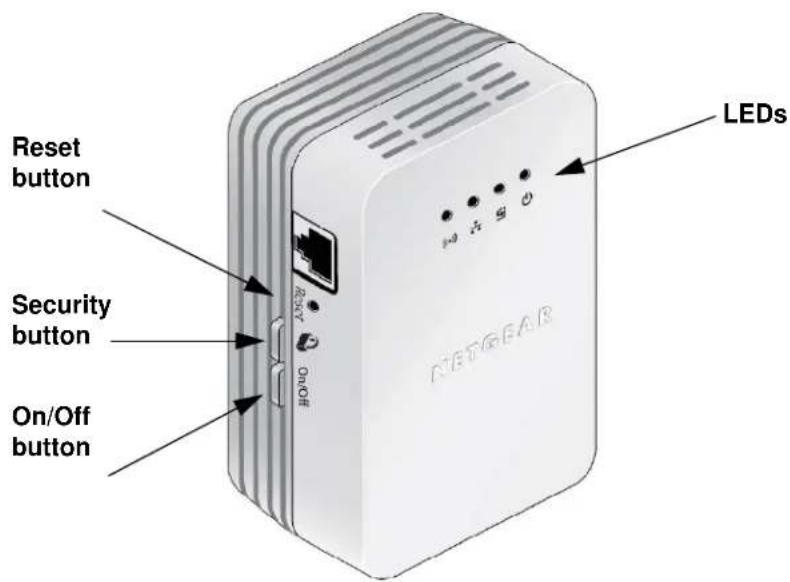
The following illustration shows the front and side panels of the XAVN2001:
text_image
Reset button Security button On/Off button LEDS NETGEARFigure 2. XAVN2001 Powerline AV 200 Wireless-N Extender
LED and Feature Descriptions
The following table describes the status LEDs on the Powerline AV 200 Wireless-N Extender.
Table 1. LED descriptions
| Item Description | |||
Power LED | Solid green. The electrical power is on.Blinking green.The adapter is in the process of restarting or setting up security.Amber. Power saving mode. The unit enters power saving mode if the Ethernet port is not linked for more than 10 minutes.Off. There is no electrical power, or power has been turned off through the Powerline Utility. | ||
Powerline LED | Solid. The adapter is connected to a Powerline network.Blinking. The adapter is sending or receiving data.Off. The adapter has not found any other compatible Powerline devices using the same encryption key, or has been turned off through the Powerline Utility. | ||
| The Pick A Plug feature lets you pick the electrical outlet with the strongest link rate, indicated by the color displayed by the LED: | |||
| Green. Link rate >80 Mbps (Best) - Good for HD video | Amber. Link rate >50, <80 Mbps (Better) - Good for SD Video | Red. Link rate <50 Mbps (Good) - Good for data | |
Ethernet LED | Solid. The Ethernet port is linked, but there is no activity.Blinking. There is traffic on the Ethernet port.Off. There is no Ethernet connection, or it has been turned off through the Powerline Utility. | ||
Buttons
Three buttons are located on the side of the Powerline Extender:
- Reset. Press the Reset button for 1 second, and then release it to return the Powerline adapter to its factory default settings.
• Security. After you plug in your new AV adapters, press the Security button for 2 seconds on both of the AV adapters. You have to press both buttons within 2 minutes.
The Security button does not work in power saving mode. The unit enters power saving mode if the Ethernet port is idle (not linked) for more than 10 minutes.
- On/Off. This button is used for wireless setup with WPS. See Method B: Use the WPS Button for Wireless Setup on page 11.
Ethernet Port
Plug one end of the Ethernet cable that comes with the XAVN2001 Powerline AV 200 Wireless-N Extender into this port and the other end either into your router, or into the computer or another peripheral device.
Product Label
The product label shows unique details specific to your adapter. The product label is located on the back of the adapter. The label contains the following information.
- Model number
- MAC address
• Device password - Serial number
How the Powerline AV 200 Extender Fits in Your Network
You can use one or more Powerline AV 200 Wireless-N Extenders to extend your home network anywhere in your house using your electrical power lines.
A Powerline network consists of two or more compatible Powerline devices that communicate with each other. One of the Powerline devices is connected with an Ethernet cable to your router so that the Powerline network is linked to your local area network (LAN). That way each Powerline device can communicate with the router and use its Internet connection.
The following illustration shows an existing Powerline network with one Powerline device in Room 1, a second Powerline device in Room 2, and an XAVN2001 Powerline extender in Room 3:
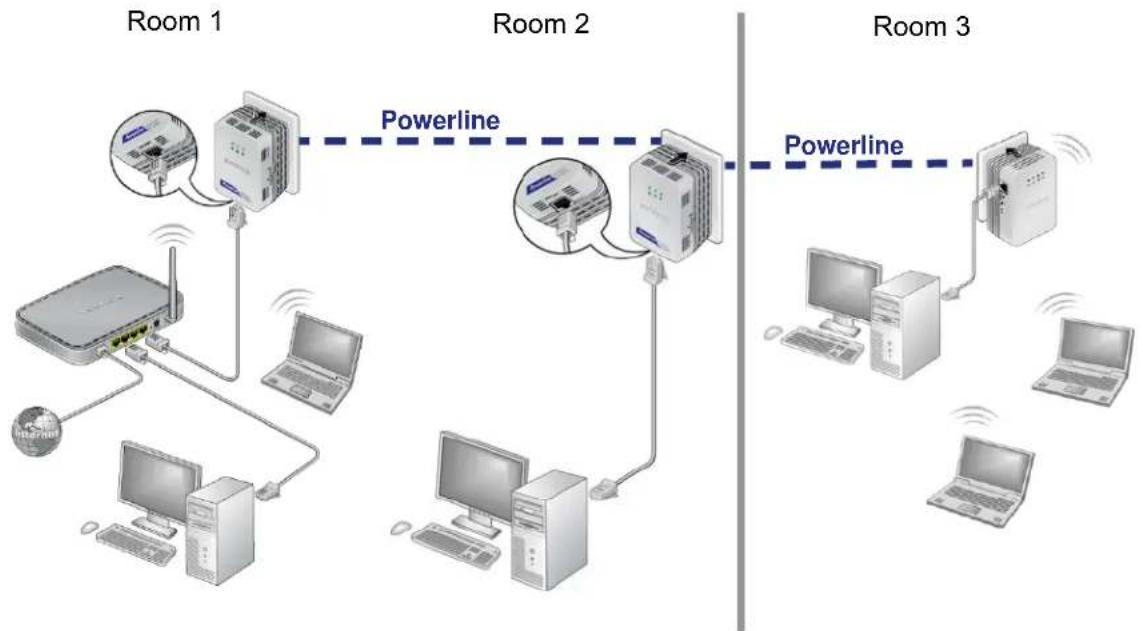
Figure 3. Powerline extender connected to the Powerline network and wireless network
To form a Powerline network you need at least two compatible Powerline devices (including the Powerline AV 200 Wireless-N Extender).
For best performance, plan the location of your Powerline devices:
- Use an electrical outlet that is not controlled by a wall switch to avoid someone unknowingly turning off the power to the outlet.
- Do not plug in Powerline products to a power strip, extension cord, or surge protector as this might prevent them from working correctly or reduce the network performance.
- Avoid plugging Powerline products into electrical outlets located near an appliance that uses a lot of power, such as a washer or dryer, or a refrigerator. This could potentially prevent the adapters from working correctly, or reduce network performance.
Set Up the Powerline Network
You can set up a Powerline network that includes the Powerline Extender, or you can add the Powerline Extender to an existing Powerline network.
Set Up a New Powerline Network
Different Powerline adapter models can share the network. All NETGEAR Powerline AV products (models XAV101, XAV1004, XAV2001, XAV2501, and XAVN2001) are compatible.
To set up a new Powerline network:
-
Make sure that your home router is up and running and that Ethernet wired connections are working.
-
Install the first Powerline adapter based on the installation instructions that came in the package.
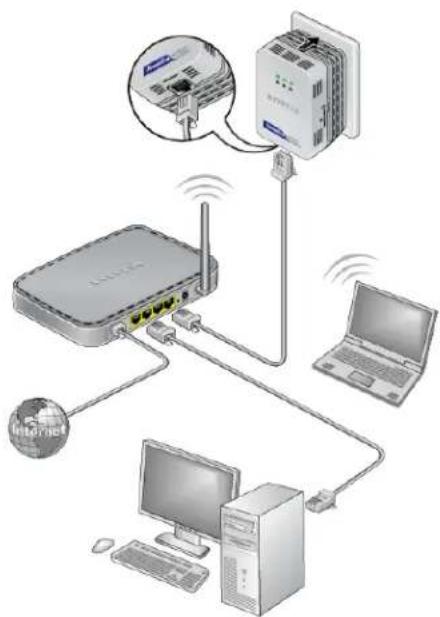
Plug a compatible NETGEAR Powerline adapter (sold separately) into a wall outlet near your router, and connect it to the LAN port on your router using an Ethernet cable.
- For convenience during setup, plug the Powerline Extender into a wall outlet near your router.
text_image
Diagram illustrating wireless network connection with router, server, laptop, and computer tower, showing connectivity via wireless devices.- Connect a computer to the Powerline Extender for initial setup.
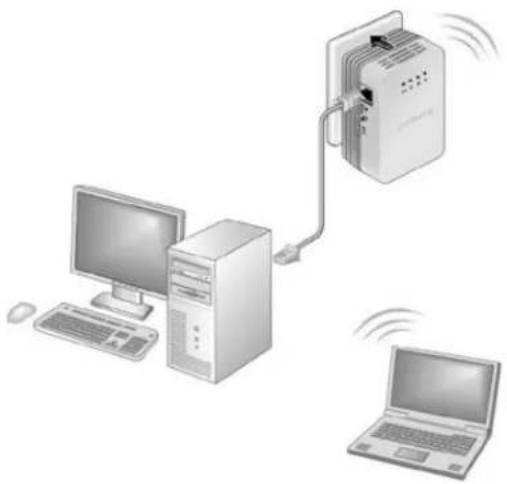
Use the supplied Ethernet cable to connect the Powerline Extender to an Ethernet port on a computer.
The Powerline devices attempt to detect each other and form a Powerline network. This could take a few minutes.
-
Plug any additional Powerline devices you are using into power outlets near the other computers and devices to be included in your Powerline network.
-
Wait for each Powerline adapter or extender to be recognized by the Powerline network.
The Power, Ethernet, and Powerline LEDs should turn on. This could take as little as 5 seconds, or up to 80 seconds. If the Powerline LEDs are green or amber, the devices are successfully connected. A red LED indicates a weak link rate. In this case, move the adapter or the extender to another electrical outlet with a better connection.
- Set up the Powerline Extender wireless network as explained in Set Up the Extender Wireless Network on page 10.
natural_image
Illustration of a network device with a desktop computer, tower, and laptop connected via cable (no text or symbols)Add the Powerline Extender to an Existing Powerline Network
Your existing Powerline network needs to have two or more compatible Powerline devices that communicate with each other. (models XAV101, XAV1004, XAV2001, XAV2501, and XAVN2001). One of these Powerline devices has to be cabled with Ethernet to your router so that the Powerline network is linked to your local area network (LAN).
To add the Powerline Extender to an existing Powerline network:
- If you used the Security buttons or the Powerline Utility to secure your Powerline network, press the Reset button on each Powerline device to return it to its factory settings.
This is the quickest way to allow your new Powerline AV 200 Wireless-N Extender to communicate with the other Powerline devices.
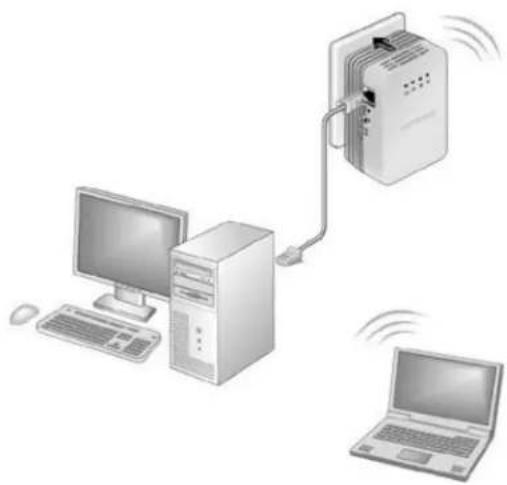
- Connect a computer to the Powerline Extender for initial setup.
Use the supplied Ethernet cable to connect the Powerline Extender to an Ethernet port on a computer.
- For convenience during setup, plug the Powerline Extender into an electrical outlet near your router.
The Powerline Extender attempts to detect the other compatible Powerline devices in your network and join the Powerline network. This could take a few minutes.
- Check the Powerline LEDs to make sure that the Powerline devices are
communicating with each other. If the LEDs are green or amber, the devices are successfully connected. A red LED indicates a weak link rate. In this case, move the adapter or the extender to another electrical outlet with a better connection.
- Set up the Powerline Extender wireless network as explained in Set Up the Extender Wireless Network on page 10.
natural_image
Illustration of a network device with two computers and a laptop, showing wireless connections (no text or symbols)Set Up the Extender Wireless Network
You need to set up the extender so that it can join your wireless network. To do this you can use either the Powerline Utility or Wi-Fi Protected Setup (WPS).
• If your router does not have WPS, or you are not sure, use Method A.
• If your router does have WPS, use Method B.
Method A: Use the Powerline Utility for Wireless Setup
To set up your Extender wireless network:
- On the computer that is cabled to the Powerline Extender (XAVN2001), insert the Resource CD, and install the Powerline Utility.
-
Follow the onscreen prompts:
-
If you have a NETGEAR router, the Utility automatically finds the router, retrieves the wireless settings, and then prompts you to confirm the settings.
-
If the router is not a NETGEAR router, or the NETGEAR router is not detected, manually enter the wireless settings.
-
Disconnect the Ethernet cable from the Powerline Extender (XAVN2001).
- Move the Powerline Extender to the area (or dead zone), where you want to extend wireless coverage, and plug it into an electrical outlet.
Method B: Use the WPS Button for Wireless Setup
You can use this method if you have a wireless router, or modem router with a WPS (Wi-Fi Protected Setup) button. The WPS button might be labeled WPS, or it could look similar to

or
To use WPS to set up your Extender wireless network:
- If you have not already done so, plug the Powerline AV 200 Wireless-N Extender into a wall outlet close to your router to ensure that it is within the router's wireless coverage area.
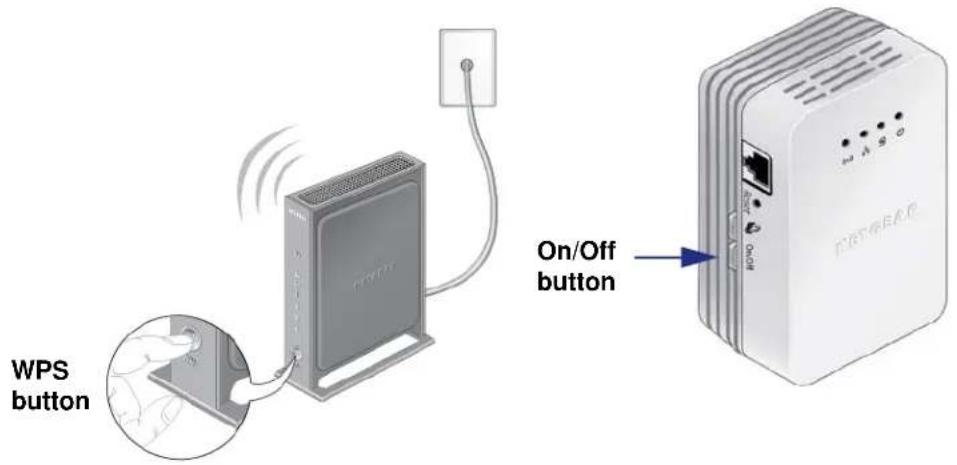
- Press the WPS button on the router.
text_image
WPS button On/Off button- Within 2 minutes, press and hold the Powerline AV 200 Wireless-N Extender On/Off button for about 7 seconds until the Wireless LED starts blinking.
This activates the auto-configuration on the Powerline AV 200 Wireless-N Extender. The LED stops flashing when setup is successful. - Move the Powerline AV 200 Wireless-N Extender to the area (or dead zone), where you want to extend the wireless coverage.
- Ensure that all Powerline devices are communicating by checking the Powerline LEDs. If the LEDs are green or amber, the devices are successfully connected. A red LED indicates a weak link rate of 50 Mbps or less. In this case, move that Powerline device to another electrical outlet with a better connection.
Wireless devices in that "dead" area can now connect to your network through the Powerline AV 200 Wireless-N Extender.
Join the Powerline Extender Wireless Network
Use one of these methods to connect other wireless devices (such as a laptop, game console, and so on), to your network through the Powerline Extender.
To join the wireless network using a WPS button:
- Press the WPS button on your wireless computer or device.
- Press the On/Off button on the Powerline Extender about 2 seconds, until the Wireless LED starts flashing, then release it.
When the Wireless LED stops flashing, the wireless device is securely connected to the XAVN2001 Wireless Extender.
To join the wireless network without a WPS button:
If your wireless device does not have a WPS button, you need to use the software that manages your wireless connections for your wireless device and manually enter the wireless settings to connect to the extender.
Powerline Network Security
A Powerline network consists of two or more Powerline adapters using the same network encryption key. Securing your network is crucial. By encrypting the information you send over the Powerline network, you help to keep it secure from hackers. If you do not set up security on your network, anyone nearby with a Powerline network can potentially use their connection to gain access to your network and information you send over the Internet. This is especially relevant in settings such as apartment buildings, office buildings, dorm rooms, and other more populated areas.
Powerline devices connected to the same network have to use an identical encryption key in order to communicate with each other. The security used by Powerline network is similar to the SSID and encryption keys used in wireless networks.
There are two ways to secure your Powerline network.
- Use the Security button located on the adapter to automatically generate a random encryption key. See Set the Encryption Key.
- Use the Powerline Utility to configure your Powerline network with an encryption key that you specify. If you are already using Powerline or HomePlug devices, then you will need to use the Powerline Utility. If not already installed, the Powerline Utility should be installed on your computer. See Install the Powerline Utility on page 16.
For information about using the Powerline Utility to configure Powerline security or to prioritize Powerline network traffic using the Quality of Service (QoS) feature, see Chapter 2.
To return the XAVN2001 to its factory default settings, press its Reset button for 1 second.
Use the Security Button to Set the Encryption Key
Note: An adapter can generate a private key only once. If you want to replace a private key, first reset the adapters to their factory settings. To do this either press the Reset button for 1 second, then release, or use the Powerline Utility factory defaults feature (see Reset a Device to Factory Settings on page 15).
You can use the Security button to change the default encryption key and set a private encryption key instead. The default encryption key is HomePlugAV.
To set the encryption key:
- Verify that all the Powerline adapters to be configured are plugged in.

CAUTION:
Do not press the Security button on the Powerline adapter until installation is complete and all adapters on your network are plugged in and communicating with each other. Pressing the Security button too soon can temporarily disable Powerline communication. If this should occur, reset the Powerline adapter to its factory default settings (press the Reset button for 1 second, then release).
- Press the Powerline Extender Security button for 2 seconds.
• The Power LED starts blinking after you release the button.
- The adapter automatically creates a new, randomly generated network encryption key that each Powerline adapter on the network will use.
At this point, the other adapters in your network cannot communicate with each other.
- Within 2 minutes of pressing the Security button on the Powerline Extender, press the Security button on the second adapter for 2 seconds.
In order to pair the devices, you need to press both buttons within 2 minutes.
This securely configures your Powerline network with the same network encryption key.
- If your network has more than two adapters, press the Security button on the next adapter for 2 seconds, and then push the Security button on any additional adapters in your network for 2 seconds. The adapters retain security settings even if they are unplugged.
Set the Encryption Key
You can use the Security button to change the default encryption key and set a private encryption key instead. The default encryption key is HomePlugAV.
Note: Before you change the encryption key, you need to install the Powerline adapters and get them up and running. Otherwise, they might not be able to communicate with each other.
To set a private encryption key:
- Verify that all the Powerline devices to be configured are plugged in.
- On the first Powerline device, press its Security button for 2 seconds.
The Power LED starts blinking after you release the button.
The Powerline device automatically produces a new, randomly generated network encryption key that each Powerline device will use.
At this point, the other Powerline devices in your network cannot communicate with each other.
- Within 2 minutes of pressing the Security button on the first adapter, press the Security button on the second Powerline device for 2 seconds.
In order to pair the devices, you must press both buttons within 2 minutes.
This securely configures your Powerline network with the same network encryption key.
- If your network has more than two Powerline devices, press the Security button on the additional Powerline device for 2 seconds, then press the Security button on any additional Powerline devices in your existing network for 2 seconds. Press both buttons within 2 minutes. The Powerline devices retain security settings even if they are unplugged.
Note: A Powerline device can generate a private encryption key only once unless you reset it. To start over, first reset the adapter back to its factory defaults, and then press its Reset button for 1 second to restore its factory settings.
This chapter explains how to install and use the Powerline Utility. The Powerline Utility works with many Powerline AV products. NETGEAR Powerline models XAV1004, XAV2001, and XAVN2001 are compatible and can share the same Powerline network.
You can use the Powerline Utility to access a local Powerline device that is connected to your computer with an Ethernet cable and also to access remote Powerline devices. Remote devices are on the Powerline network, but are not directly cabled to the computer on which you are using the Powerline Utility.
You can use the NETGEAR Powerline Utility to:
• Change the name of a Powerline device
- Turn LEDs on or off
- Set encryption keys
• Set up Quality of Service (QoS)
- Restore a device to default configuration settings
This chapter includes the following sections:
• Install the Powerline Utility
• Powerline Utility Screen
• Change the Name of a Powerline Device
• Turn LEDs Off or On
• Set the Powerline Encryption Key
• Reset a Device to Factory Settings
- Add a Device to the Powerline Network
• Set Up Quality of Service (QoS)
- Wireless Settings
• Advanced Wireless Settings
Install the Powerline Utility
This utility allows you to set your own unique Powerline network encryption key, and prioritize traffic passing through your Powerline network.
All devices on a Powerline network can be managed from one computer. If you add another Powerline device to a Powerline network, you can install the Powerline Utility on the computer connected locally to the new adapter, or open the utility on the computer originally used to set up the Powerline network encryption key. You can use any computer to manage the network, but this procedure assumes that you are working from the computer that is connected to a Powerline adapter.
To install the Powerline Utility:
The Powerline Utility is a free download available from the NETGEAR support website.
- Launch an Internet browser, and visit http://support.netgear.com/app/products/model/a_id/16189.
- Click the Downloads tab, and then click on the utility that you want to download.
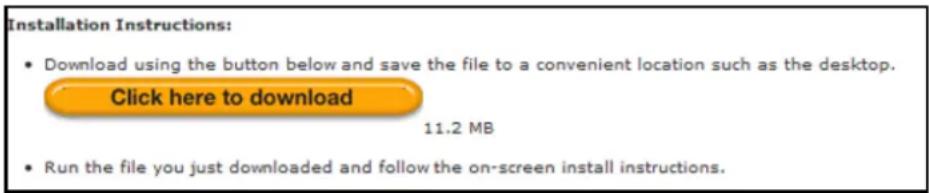
- Scroll down to display the download instructions:
text_image
Installation Instructions: • Download using the button below and save the file to a convenient location such as the desktop. Click here to download 11.2 MB • Run the file you just downloaded and follow the on-screen install instructions.-
Click the Click here to download button, and download the utility to your computer.
-
Run the file that you downloaded, and follow the wizard prompts to install the Powerline Utility. Click Finish to complete the wizard.
The Powerline Utility shortcut icon displays on your desktop.
-
There are two ways to launch the Powerline Utility:
-
Click this icon located on your desktop.
- Select Start > Programs > NETGEAR > NETGEAR Powerline Utility.
Powerline Utility Screen
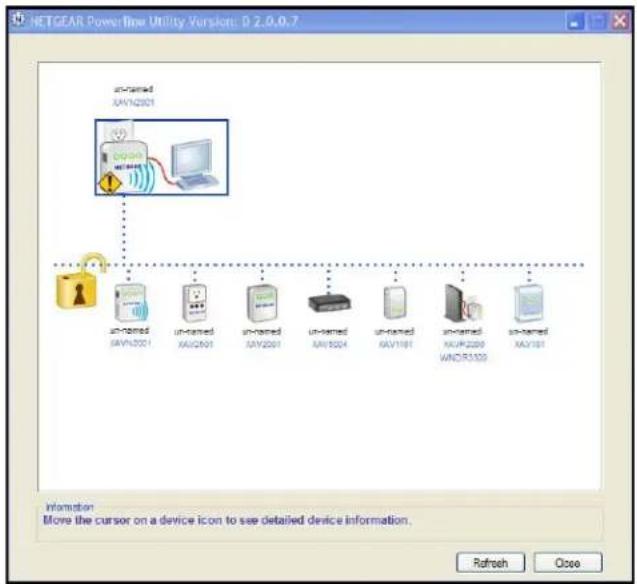
When launched, the Powerline Utility opens to a screen that shows all the devices in your Powerline network.
flowchart
graph TD
    A["un-issued XAVN2301"] --> B["un-issued XAVN2001"]
    A --> C["un-issued XAVN2001"]
    A --> D["un-issued XAVN2001"]
    A --> E["un-issued XAVN5004"]
    A --> F["un-issued XAVN1001"]
    A --> G["un-issued XAVN2009"]
    A --> H["un-issued XAVN1001"]
    B --> I["Computer"]
    C --> I
    D --> I
    E --> I
    F --> I
    G --> I
    H --> I
- Click the image of the device that you want to manage.
• If all devices are not shown, click the Refresh button to update the screen. - The Information box at the bottom of the screen provides tips and information for using this screen.
Security Icon
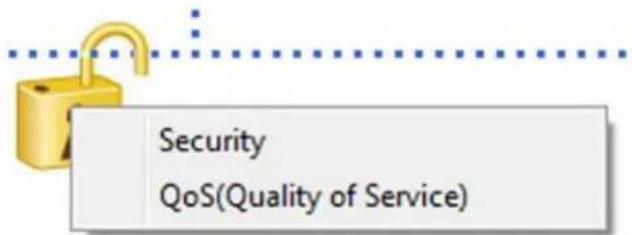
You can click the Security icon 📋 on the Powerline Utility main screen to go to the Security screen or the QoS (Quality of Service) screen:
text_image
Security QoS(Quality of Service)Change the Name of a Powerline Device
Powerline devices are identified by their model number and name. Any Powerline devices that are plugged in and connected are detected by the Powerline Utility, and are shown on the Powerline Utility main screen. If no name has been assigned to a Powerline device, it is shown as un-named.
To name a Powerline device in your Powerline network:
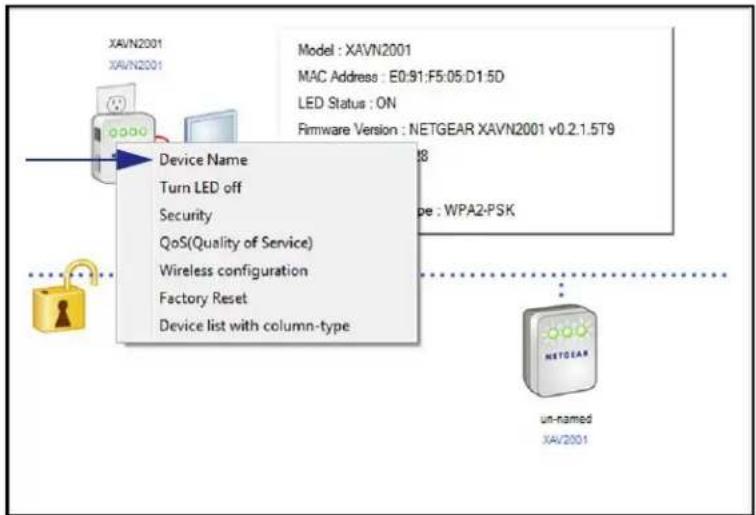
- From the Powerline Utility main screen, click the device you want to name, and the following pop-up menu displays:
text_image
XAVN2001 XAVN2001 Device Name Turn LED off Security QoS(Quality of Service) Wireless configuration Factory Reset Device list with column-type Model : XAVN2001 MAC Address : E0:91:F5:05:D1:5D LED Status : ON Rimware Version : NETGEAR XAVN2001 v0.2.1.5T9 Type : WPA2-PSK UN-Named XAV2001- Select Device Name. The Powerline Utility responds that connectivity will be temporarily lost if you continue.
- Click OK. The following screen displays:

text_image
Modify device name Device Name un-named OK Cancel- Enter a new name for the Powerline device, and click OK.
Turn LEDs Off or On
For each device in your Powerline network, you can turn the LEDs off or on. This feature is a toggle. You can turn off LEDs if they are on, or turn them on if they are currently turned off.
To turn the LEDs off or on:
- On the Powerline Utility main screen, click the Powerline device icon.
- On the pop-up menu, select Turn LED off.
A screen displays advising you that connectivity will be temporarily lost while the LEDs are being reset.
Set the Powerline Encryption Key
Powerline devices that share the same Powerline network have to use the same encryption key. The factory default encryption key is HomePlugAV.
In locations such as apartment buildings or office buildings, others might share the same electrical power lines that you use for your Powerline network. To protect your Powerline network from unwanted access, you can customize the encryption key for your Powerline devices. Make sure that you set up exactly the same encryption key for all of your Powerline devices so that they can communicate with each other.
You use the Security screen in the Powerline Utility to set encryption keys. If you customize the encryption key and then forget what it is, you can return your Powerline devices to their factory default Powerline encryption key of HomePlugAV.
To set the encryption key:
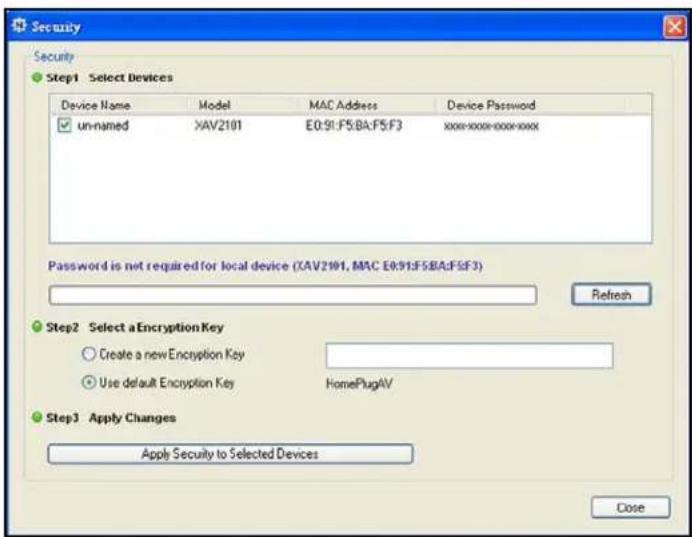
- On the Powerline Utility main screen, click the Powerline device icon or the Security
icon
text_image
Security Step1 Select Devices Device Name Model MAC Address Device Password un-named XAV2101 E0:91:F5:BA:F5:F3 xxxx:xxxx:xxxx:xxxx Password is not required for local device (XAV2101, MAC E0:91:F5:BA:F5:F3) Refresh Step2 Select a Encryption Key Create a new Encryption Key Use default Encryption Key HomePlugAV Step3 Apply Changes Apply Security to Selected Devices CloseThe top section of the Security screen shows information about each device that the Powerline Utility detects.
- Device Name. This lists the Powerline devices detected on the network after the utility completes a scan for devices. The device name is initially set by the utility, but you can change it to a descriptive name such as Office or Master Bedroom.
• Model. This identifies the model number of the Powerline adapter. - MAC Address. The MAC address for the Powerline device. This is also on the product label, which might not be visible when the device is plugged in.
-
Device Password. To change settings for a remote Powerline device, you have to enter its password. The device password is located on the product label.
-
Select the check box for each device for which you want to set the encryption key.
- In Step 2 on your screen, select the option that you want:
- Create a new Encryption Key. To set your own network encryption key, type your network encryption key in the field.
- Use default Encryption Key. When you select this option, the factory default encryption key automatically displays in the field. The default network encryption key is HomePlugAV.
Note: Before you can reset the encryption key for a remote device, you have to enter its password. The password is printed on the product label located on the back of the adapter.
- Click the Apply Security to Selected Devices button.
When you are finished setting the encryption key, the utility displays a message indicating that the operation was successful.
- Click OK.
Reset a Device to Factory Settings
This option returns the network encryption key to its factory default of HomePlugAV.
Note: If you customized your network encryption key, the local Powerline device is disconnected from the network when you reset it to the factory defaults. To avoid this problem, reset all remote devices before you reset the local device.
To reset a device to its factory settings:
- On the Powerline Utility main screen, click the Powerline device icon. The pop-up menu displays:

text_image
Device Name Turn LED off Security QoS(Quality of Service) Wireless configuration Factory Reset Device list with column-type- Select Factory Reset. A message displays asking you to confirm the reset.
- Click OK to reset the device. A message indicates whether or not the operation succeeded.
Add a Device to the Powerline Network
If you are adding a device to a Powerline network, and the network encryption key has been left at its default setting, all you need to do is plug the new device into a power outlet.
If the network encryption key has been customized, there are two ways to set the security:
- You can use the Security button to add the new device to your network. See Use the Security Button to Set the Encryption Key on page 8.
- You can use the Powerline Utility to add the new device to the network, as described in the following sections.
The procedure for setting the network encryption key depends on whether you use the Powerline Utility on a computer connected directly to the new Powerline adapter (local) or a different Powerline adapter (remote).
To add a Powerline device from a local computer:
- Plug the Powerline adapter into an available AC power outlet.
- Use the provided cable to connect the Powerline device to an Ethernet port on the computer.
- Start the Powerline Utility, click the Refresh button, and wait for the utility to detect the new device.
- Click the device, and select Security from the menu.
- Set the encryption key for the device (see Set the Powerline Encryption Key on page 19).
Verify that the devices in the Powerline network are in the device list by clicking the Refresh button. It might take a minute or two for all devices in the network to be detected.

text_image
Device Name Turn LED off Security QoS(Quality of Service) Wireless configuration Factory Reset Device list with column-typeSet Up Quality of Service (QoS)
The Quality of Service (QoS) feature helps you prioritize your Powerline network traffic. By default, all types of traffic on the Powerline network are assigned the same priority. For most applications, this works fine. However, there are situations where performance improves if you assign a higher priority to certain types of traffic, such as multimedia files.
If your network traffic is a mix of multimedia traffic and document and database traffic, you might want to give priority to a particular traffic type. If it is important that your multimedia playback is smooth, even while document files are being transferred over the network, then give priority to multimedia traffic. Conversely, if it is more important for your network to be responsive to database applications, give priority to this type of application over multimedia applications.
The Powerline AV Ethernet adapter supports the following:
- MAC address
IP port - VLAN tags
• ToS bits (Type of Service routing)
QoS settings are applied the Powerline devices on the Powerline network.
To set up Quality of Service for Powerline devices:
- Start the Powerline Utility and wait for the utility to detect the Powerline AV Ethernet adapters connected to the network.
- Either click the device, or click the Security icon

text_image
Device Name Turn LED off Security QoS(Quality of Service) Wireless configuration Factory Reset Device list with column-type- Select QoS (Quality of Service).
The following screen displays:

text_image
QoS(Quality of Service) Step1 QoS Setup Setting 1: by the destination MAC address Destination MAC Address PriorityYou can use these methods to set up QoS:
• Destination MAC address
• TCP/UPP port number
• 802.1Q VLAN tag or ToS
- To set the traffic prioritization rule for the selected Powerline AV Ethernet Adapter device, click Priority, and specify the priority in the QoS Setup section of the screen.
- If applicable, select the VLAN tag or TOS field check box.
These options apply only to QoS-configured networks. IEEE 802.1p uses prioritization bits in Layer-2 frames. Type of Service (ToS) routing uses prioritization bits in Layer-3 IP packets. The deprecated ToS values range from 0 to 7.
- Click Apply.
Wireless Settings
You can use the Powerline Utility to view the current wireless settings, or to change them. On the Powerline Utility main screen, use the mouse to move the pointer over the picture of the XAVN2001. A pop-up displays the wireless settings as shown in the following figure:

text_image
un-named XAVN2001 Model :XAVN2001 MAC Address : E0:91:F5:05:D1:73 LED Status : ON Firmware Version : NETGEAR XAVN2001v0.2.15NA IP address : 19.0.0.25 SSID : Your_network Wireless Security Type : WPA-PSK/WPA2-PSK un-named UN/2001 Information Click the device to configure the device Refresh CloseTo change the wireless settings for your XAVN2001 adapter:
- From the Powerline Utility main screen, click the XAVN2001, and the following pop-up menu displays:
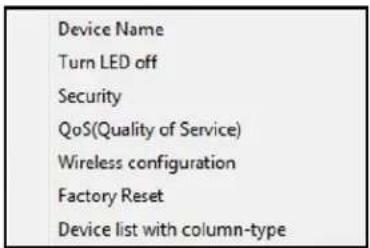
text_image
Device Name Turn LED off Security QoS(Quality of Service) Wireless configuration Factory Reset Device list with column-type- Select Wireless Settings. A screen similar to the following displays:

text_image
Wireless Setting Enter the wireless setting for the XAVN2001 : Wireless Network Name (SSID) : Your_network Wireless Security Type : WPA-PSK[TKIP]+WPA2-PSK[AES] Passphrase 12345678 Apply Cancel If you have a NETGEAR router installed in your network, this Wireless Setup Wizard offers a quick wireless extender setup for the XAVN2001. Make sure your router is connected on your network, then click at "Search my NETGEAT Router" for the quick setup. Search my NETGEAR Router Advance Wireless Setting For the advanced wireless configuration, click here (http://10.0.0.26) to login to the web page of the XAVN2001.- In the field provided enter the network name that you want to use for the extender network (the network broadcast from the X AVN2001 Powerline Extender).
- If you want to change the wireless security, select a setting from the Wireless Security Type drop-down list. Enter a passphrase (network password).
- Click Apply so that your changes take effect.
To search for your NETGEAR router:
- Click the Search my NETGEAR Router button.
The Powerline Extender detects your wireless network and displays the settings.
- Confirm that you want to use the same wireless network settings for the Powerline Extender.
Advanced Wireless Settings
You can use the Advanced Wireless Security screen to change wireless settings including the wireless mode and channel.
To change the advanced settings for the Powerline Extender wireless network:
- From the Wireless Setting screen, click the link for wireless settings.
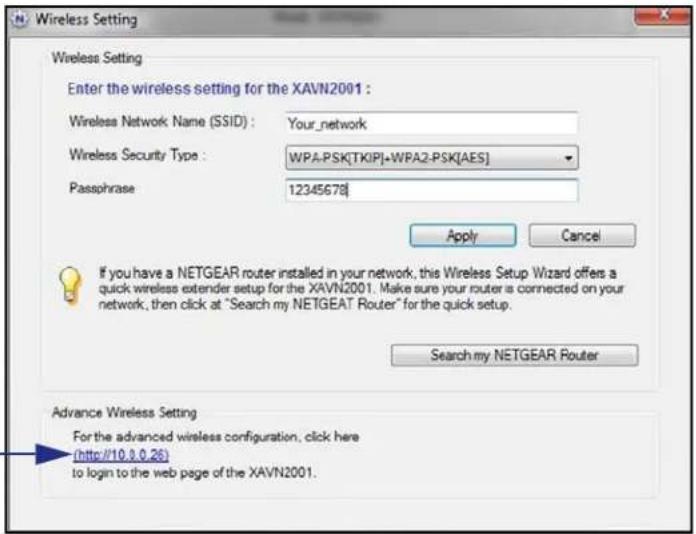
text_image
Wireless Setting Enter the wireless setting for the XAVN2001 : Wireless Network Name (SSID) : Your_network Wireless Security Type : WPA-PSK[TKIP]+WPA2-PSK[AES] Passphrase 12345678 Apply Cancel If you have a NETGEAR router installed in your network, this Wireless Setup Wizard offers a quick wireless extender setup for the XAVN2001. Make sure your router is connected on your network, then click at "Search my NETGEAT Router" for the quick setup. Search my NETGEAR Router Advance Wireless Setting For the advanced wireless configuration, click here (http://10.8.0.26) to login to the web page of the XAVN2001.The advanced Wireless Settings screen displays:

text_image
NETGEAR® AP manager Poverline AY 100 Wireless-N model SACH200 Add WPS Client Setup Basic Settings Wireless Settings Maintenance Status Network Devices Backup Settings Firmware Update Advanced Wireless Settings Web Support Knowledge Base Documentation Logout Wireless Settings Wireless Network Name (SSID): Your_network Region: United States Channel: Auto Mode: Up to 300Mbps Security Options None HSP VPA-PSK (TKIP) VPA2-PSK (AEB) VPA-PSK (TKIP) + WP42-PSK (AEB) Security Options (VPA-PSK + VPA2-PSK) PassPhrase 12345678 (8-63 characters or 64 hex digits) Select language English Apply Wireless Help NOTE: To ensure peer agency compliance and compatibility between similar products in your area, the operating channel & region must be set correct. Placement of the Device to Optimize Wireless Connectivity The operating distance or range of your wireless connection can vary significantly based on the physical placement of the device. For best result, please your device: • Hour the number of list areas in which your PCs will operate, • In an allocated location sum to 300 pixels, • Away from potential numbers of interference, such as PCs, microaware events, and contacts a phase(s), • Areas from large metal surfaces. Notes: Failure to follow these guidelines can result in appropriate performance degradation or inability to successfully connect to the AP. Wireless protection Name (SSID): Internet | Protected Mode On 90% 100%-
Change the wireless settings for the network broadcast by the Powerline Extender:
-
Name (SSID). The wireless network name. You can type in a new name to customize your extender network.
• Region. The country or region where the Powerline Extender is located.
• Channel. The wireless channel for the network.
• Mode. The wireless mode. -
In the Security Options section of the screen, select the type of wireless security that you want to use on your network.
-
None. This is an open wireless network. Any wireless computer or device is allowed to join this network.
- WEP. WEP is an older standard, and is less secure than WPA or WPA2. WEP uses encryption keys and data encryption for data security. You can select 64-bit or 128-bit encryption.
- WPA-PSK [TKIP]. WPA is more secure than WEP. When using wireless computers or devices that support WPA, you can enter a passphrase to join the extender's wireless network.
- WPA2-PSK [AES]. WPA2 is even more secure, but some older computers do not support this standard. When using wireless computers or devices that support WPA2, you can enter the passphrase to join the extender's wireless network.
-
WPA-PSK [TKIP] + WPA2-PASK [AES]. When using wireless computers or devices that support either WPA or WPA2, you can enter the passphrase to join the extender's wireless network.
-
Click Apply so that your changes take effect.
Basic Functioning
After you plug in the Powerline adapter, the following sequence of events should occur:
- The Power LED lights up.
- After approximately 10 seconds, verify that:
a. The Power LED is solid green.
b. The Powerline LED is lit.
c. The Ethernet LED lights or blinks.
Troubleshooting Tips
The Reset and Security buttons are located on the side panel of the Powerline Extender.
- Pressing the Reset button longer than 2 seconds does not reset the device.
- Pressing the Security button longer than 2 seconds does not activate security.
LEDs
The LEDs indicate activity, and can be used for troubleshooting.
LEDs Are Off When the Adapter Is Plugged In
- First check to make sure that the electrical outlet has power.
- If power is supplied and the LEDs stay off, someone might have used the Powerline Utility to turn off the LEDs. Use the Powerline Utility to see if that is the case. If so, then use the Powerline Utility to turn them back on.
Power LED
- Off. Make sure that power is supplied to the electrical outlet, and that the Powerline devices are not plugged into an extension cord, power strip, or surge protector.
• Amber. Power saving mode occurs when the Ethernet LED is off. This can occur when:
- The Ethernet cable is unplugged.
- The device connected through the Ethernet cable is turned off.
- The adapter is idle for 10 minutes.
The adapter returns to normal mode within 2 seconds once the Ethernet link is up.
Powerline LED
- Off. The Powerline devices cannot find each other. Make sure that the Powerline devices are plugged into outlets with power, and that they use the same network encryption key.
- Move the Powerline device to a location closer to the computer or devices.
- If you have set up network security, make sure that all Powerline devices are using the same encryption key.
- If the problem occurred after you changed the network encryption key, reset each device to its factory default settings. Then you can customize the encryption key.
- Amber or red. Move the Powerline device to a closer location.
Ethernet LED Does Not Blink
There is no data traffic. Make sure that:
- Your router and modem are switched on.
- The adapter's cable is securely connected to a router LAN port.
- The PC connected directly to the router can access the Internet.
- Press the Reset button on each Powerline device for 1 second to return the Powerline adapter to its factory default settings.
If You Do Not See All Your Devices with the Powerline Utility
If you click Refresh on the main screen of the Powerline Utility, and do not see all the devices you expect, it could be that a Powerline adapter is in power saving mode or is set to use a different encryption key.
- Power saving mode. You might see a message at the bottom of the screen regarding the power saving feature. If a unit goes into power saving mode, the Powerline Utility does not find it. Keeping a connected Ethernet cable plugged into the device keeps it active so that it does not go in to power saving mode.
- Encryption keys are different. To fix this, you can do one of the following:
- Reset your Powerline adapters to their factory settings and default encryption key. Then set the encryption for all of your Powerline adapters.
- Connect your computer to each Powerline device and set up the network encryption key for one adapter at a time.
Supplemental Information

This appendix provides technical specifications and safety information for the XAVN2001 Powerline AV 200 Wireless-N Extender.
This appendix includes the following sections:
• Technical Specifications
- Safety Information
Technical Specifications
| Feature Specification | ||
| Data and routing protocols IEEE 802.3 (10BASE-T), IEEE 802.3u (100BASE-Tx) | ||
| AC input 100–240V~, 0.2A (Max) | ||
| Power consumption Normal: 4W, Power | saving mode: 3W | |
| Dimensions 112 x 74 x 45 mm (4.41 x 291 x 1.77 in). | ||
| Weight 0.245 kg (0.54 lb) | ||
| Socket ratings EU: 15A 250V~ | NA: 14A 125V~UK: 12A 250V~ | |
| Operating temperature 0° to 40°C (32° to 104°F) | ||
| Operating humidity 10–90% maximum relative humidity, noncondensing | ||
| Storage humidity 5–95% maximum relative humidity, noncondensing | ||
| Security encryption type 128-bit AES | ||
| MAC addresses 64: number of nodes that can be added to a single network | ||
| Bandwidth 200 Mbps | ||
| Compatibility | Not HomePlug v1.0 or HomePlug v1.0 Turbo compatible | |
| Data transfer rate | Up to 200 Mbps with real throughput greater than 80 Mbps | |
| Frequency band: 2–30 Mbps | ||
| Modulation type: | OFDM symbol modulation | |
| Electromagnetic emissions: | FCC Part 15 Class B; CE-EMC Class B; 3-home FCC Certificate | |
| Safety agency approvals: | UL Listed (UL 1950) /cUL IEC950; CE LVD; TUV CB, TUV CG | |
| Wireless | Wireless communication | Enabled |
| Wireless Network Name (SSID) | ||
| Security | ||
| Transmission speed | Autoa | |
| Country/Region | United States (varies by region) | |
| Operating mode | 802.11n, 802.11g, 802.11b | |
| Data rate | Up to 300 Mbps | |
a. Maximum wireless signal rate (IEEE Standard 802.11). Actual throughput will vary. Network conditions and environmental factors, including volume of network traffic, building materials and construction, and network overhead, lower actual data throughput rate.
Safety Information
Follow these safety guidelines to ensure your own personal safety and to help protect your system from potential damage.
• AC input: 100–240V\~, 0.2A (Max).
- Operating temperature: 0C\~40 degrees C.
• Maximum wireless signal rate derived from IEEE Standard 802.11 specifications.
- Actual data throughput will vary. Network conditions and environmental factors, including volume of network traffic, building materials and construction, and network overhead, lower actual data throughput rate.
- Do not service any product except as explained in your system documentation.
- Opening or removing covers that are marked with the triangular symbol with a lightning bolt can expose you to electrical shock. Only a trained service technician should service components inside these compartments.
• Use the product only with approved equipment.
- Allow the product to cool before removing covers or touching internal components.
- To help avoid damaging your system, be sure that the voltage selection switch (if provided) on the power supply is set to match the power available at your location:
- 110 volts (V), 60 hertz (Hz) in most of North and South America and some Far Eastern countries such as South Korea and Taiwan.
- 100 V, 50 Hz in eastern Japan and 100 V, 60 Hz in western Japan.
- 230 V, 50 Hz in most of Europe, the Middle East, and the Far East.
- The peripheral power cables are equipped with three-prong plugs to help ensure proper grounding. Do not use adapter plugs or remove the grounding prong from a cable.
- Observe extension cable and power strip ratings. Make sure that the total ampere rating of all products plugged into the extension cable or power strip does not exceed 80 percent of the ampere ratings limit for the extension cable or power strip.
- To help protect your system from sudden, transient increases and decreases in electrical power, use a surge suppressor, line conditioner, or uninterruptible power supply (UPS).
• For additional safety instructions, see Appendix B, Notification of Compliance.
Safety Instructions and Precautions

WARNING!
Use the following safety guidelines to ensure your own personal safety and to help protect your product from potential damage. To reduce the risk of bodily injury, electrical shock, fire, and damage to the equipment, observe the following precautions.
• The socket-outlet shall be installed near the equipment and shall be easily accessible
- Observe and follow service markings.
- If any of the following conditions occur, unplug the product from the electrical outlet and replace the part or contact your service provider/retailer:
- The power cable, extension cable, or plug is damaged.
- An object has fallen into the product.
- The product has been exposed to water.
- The product has been dropped or damaged.
- The product does not operate correctly when you follow the operating instructions.
- Keep your system away from radiators and heat sources. Also, do not block cooling vents.
- Do not spill food or liquids on your system components, and never operate the product in a wet environment.
- Do not push any objects into the openings of your system. Doing so can cause fire or electric shock by shorting out interior components.
- Operate the product only from the type of external power source indicated on the electrical ratings label.
- Also, be sure that attached devices are electrically rated to operate with the power available in your location.
- Use only approved power cables. If you have not been provided with a power cable for your system or for any AC powered option intended for your system, purchase a power cable that is approved for use in your country. The power cable must be rated for the product and for the voltage and current marked on the product's electrical ratings label.
The voltage and current rating of the cable should be greater than the ratings marked on the product.
- To help prevent electric shock, plug the system and peripheral power cables into properly grounded electrical outlets.
- Do not use adapter plugs. If you must use an extension cable, use a three-wire cable with properly grounded plugs.
- Observe extension cable and power strip ratings. Make sure that the total ampere rating of all products plugged into the extension cable or power strip does not exceed 80 percent of the ampere ratings limit for the extension cable or power strip.
- To help protect your system from sudden, transient increases and decreases in electrical power, use a surge suppressor, line conditioner, or uninterruptible power supply (UPS).
- Position system cables and power cables carefully; route cables so that they cannot be stepped on or tripped over. Be sure that nothing rests on any cables.
- Do not modify power cables or plugs.
• Always follow your local and national wiring rules.
Regulatory Compliance Information
FCC Requirements for Operation in the United States
This device complies with Part 15 of the FCC Rules. Operation is subject to the following two conditions: (1) This device may not cause harmful interference, and (2) this device must accept any interference received, including interference that may cause undesired operation.
FCC Declaration Of Conformity
We, NETGEAR, Inc., 350 East Plumeria Drive, San Jose, CA 95134, declare under our sole responsibility that the Powerline AV 200 Extender (XAVN2001) complies with Part 15 of FCC Rules. Operation is subject to the following two conditions:
• This device may not cause harmful interference, and
- This device must accept any interference received, including interference that may cause undesired operation.
FCC Radio Frequency Interference Warnings & Instructions
This equipment has been tested and found to comply with the limits for a Class B digital device, pursuant to Part 15 of the FCC Rules. These limits are designed to provide reasonable protection against harmful interference in a residential installation. This equipment uses and can radiate radio frequency energy and, if not installed and used in accordance with the instructions, may cause harmful interference to radio communications. However, there is no guarantee that interference will not occur in a particular installation. If this equipment does cause harmful interference to radio or television reception, which can be determined by turning the equipment off and on, the user is encouraged to try to correct the interference by one or more of the following methods:
• Reorient or relocate the receiving antenna.
- Increase the separation between the equipment and the receiver.
- Connect the equipment into an electrical outlet on a circuit different from that which the radio receiver is connected.
- Consult the dealer or an experienced radio/TV technician for help.
Modifications made to the product, unless expressly approved by NETGEAR, Inc., could void the user's right to operate the equipment.
European Union
The XAVN2001 Powerline AV 200 Wireless-N Extender complies with essential requirements of EU EMC Directive 2004/108/EC and Low Voltage Directive 2006/95/EC as supported by applying the following test methods and standards:
• EN55022: 2006 / A1: 2007
• EN55024: 1998 / A1: 2001 / A2 : 2003
• EN60950-1: 2006 2nd Edition
EN 61000-3-2:2006
• EN 61000-3-3:1995 w/A1: 2001+A2: 2005
Canadian Department of Communications Radio Interference Regulations
This digital apparatus (TBD) does not exceed the Class B limits for radio-noise emissions from digital apparatus as set out in the Radio Interference Regulations of the Canadian Department of Communications.
Industry Canada
This device complies with RSS-210 of the Industry Canada Rules. Operation is subject to the following two conditions: (1) This device may not cause harmful interference, and (2) this device must accept any interference received, including interference that may cause undesired operation.
IMPORTANT NOTE: Radiation Exposure Statement:
This equipment complies with IC radiation exposure limits set forth for an uncontrolled environment. This equipment should be installed and operated with minimum distance 20cm between the radiator & your body.
Caution:
GPL may be included in this product; to view the GPL license agreement, go to ftp://downloads.netgear.com/files/GPLnotice.pdf
For GNU General Public License (GPL) related information, please visit http://kbserver.netgear.com/db_web_files/open_src.asp
Index
A
AC Input 31
adding devices to Powerline network 21
adding Powerline Extender to network 9
B
bandwidth 31
basic functioning 28
buttons 6
C
compatibility 31
compliance 33
D
data transfer rate 31
dimensions 31
E
encryption keys, setting 19
Security button 13
Ethernet port 6
F
features 5
frequency band 31
front panel 5
H
hardware 5
humidity, operating and storage 31
|
icons
PowerlineUtility 16
Security 17
WPS 11
installing the Powerline Utility 16
L
label 7
LEDs 6
descriptions 6
troubleshooting 28
turning off and on with the Powerline Utility 19
M
mode, wireless 26
modulation type 31
N
name, changing for Powerline devices 18
networks, Powerline 7
networks, wireless 10
P
package contents 5
Powerline devices, changing names 18
Powerline Extender wireless network 12
Powerline networks 7, 8
Powerline networks, encryption keys 14
Powerline Utility 19
installing and launching 16
wireless setup 10
Powerline Utility main screen 17
Q
Quality of Service (QoS) 22
R
resetting to factory settings 20
S
safety information 32
Security button 13
Security icon 17
security, Powerline encryption 12
security, wireless 27
setting encryption keys 19
shortcut icon, Powerline Utility 16
side panel 5
SSID 26
T
technical specifications 30, 31
technical support 2
temperature 31
trademarks 2
troubleshooting 28
W
weight 31
wireless mode 26
wireless network name (SSID) 26
wireless networks 10, 11, 12
wireless security 27
wireless settings 24
wireless settings, advanced 26
WPS 11