
RCD-N8 - Cd player/recorder DENON - Free user manual and instructions
Find the device manual for free RCD-N8 DENON in PDF.


| Product Type | CD player/recorder with network audio and FM tuner |
| Dimensions (W x H x D) | Approx. 280 x 112 x 320 mm |
| Weight | 4.0 kg |
| Power Supply | AC 230 V, 50/60 Hz |
| Power Consumption | 55 W |
| Standby Power Consumption | 0.3 W (Network Control Off) / 3 W (Network Control On) |
| Amplifier Power Output | 65 W + 65 W (4 Ω, 1 kHz, T.H.D. 0.7%) |
| Frequency Response (CD) | 10 Hz – 20 kHz |
| CD Playback Compatibility | CD, CD-R/RW (audio, MP3, WMA) |
| Audio Formats Supported | MP3, WMA, WAV, FLAC, LPCM (up to 192 kHz/24 bit) |
| Tuner Frequency Range | FM: 87.50 MHz – 108.00 MHz |
| Network Connectivity | Wired LAN (Ethernet), Wireless LAN (Wi-Fi) |
| Wireless LAN Standards | IEEE 802.11b/g, WMM certified |
| AirPlay | Yes (stream from iOS devices or iTunes) |
| Denon Remote App | Free app for iOS and Android for basic control |
| Alarm Clock | Everyday alarm and once alarm with sleep timer (max 90 min) |
| Firmware Update | Via network or USB |
| Inputs | Analog (2x RCA), Digital optical, USB (front), iPod dock (top), Portable In (3.5mm), FM antenna |
| Outputs | Speaker terminals (4-16 Ω), Headphone jack (3.5mm) |
| Cleaning Instructions | Wipe with soft cloth; do not use benzene, thinner, or solvents |
| Safety | Read instructions; do not expose to rain/moisture; unplug during storms |
Frequently Asked Questions - RCD-N8 DENON
User questions about RCD-N8 DENON
0 question about this device. Answer the ones you know or ask your own.
Ask a new question about this device
Download the instructions for your Cd player/recorder in PDF format for free! Find your manual RCD-N8 - DENON and take your electronic device back in hand. On this page are published all the documents necessary for the use of your device. RCD-N8 by DENON.
USER MANUAL RCD-N8 DENON
The lightning flash with arrowhead symbol, within an equilateral triangle, is intended to alert the user to the presence of uninsulated "dangerous voltage" within the product's enclosure that may be of sufficient magnitude to constitute a risk of electric shock to persons.

The exclamation point within an equilateral triangle is intended to alert the user to the presence of important operating and maintenance (servicing) instructions in the literature accompanying the appliance.
WARNING:
TO REDUCE THE RISK OF FIRE OR ELECTRIC SHOCK, DO NOT EXPOSE THIS APPLIANCE TO RAIN OR MOISTURE.

CAUTION:
The top surface over the internal heat sink may become hot when operating this product continuously.
Do not touch hot areas, especially around the "Hot surface mark" and the top panel.
CAUTION:
To completely disconnect this product from the mains, disconnect the plug from the wall socket outlet.
The mains plug is used to completely interrupt the power supply to the unit and must be within easy access by the user.
CE2200!
R&TTE Directive 1999/5/EC
| AT BE CZ DK FI | ||||
| FR DE GR HJ IE | ||||
| IT | NL PL PT SK | |||
| ES SE GB | NO | CH | ||
Indoor use only.
IMPORTANT SAFETY INSTRUCTIONS
- Read these instructions.
- Keep these instructions.
- Heed all warnings.
- Follow all instructions.
- Do not use this apparatus near water.
- Clean only with dry cloth.
- Do not block any ventilation openings.
Install in accordance with the manufacturer's instructions. - Do not install near any heat sources such as radiators, heat registers, stoves, or other apparatus (including amplifiers) that produce heat.
- Protect the power cord from being walked on or pinched particularly at plugs, convenience receptacles, and the point where they exit from the apparatus.
- Only use attachments/accessories specified by the manufacturer.
- Use only with the cart, stand, tripod, bracket, or table specified by the manufacturer, or sold with the apparatus. When a cart is used, use caution when moving the cart apparatus combination to avoid injury from tip-over.
- Unplug this apparatus during lightning storms or when unused for long periods of time.
- Refer all servicing to qualified service personnel. Servicing is required when the apparatus has been damaged in any way, such as power-supply cord or plug is damaged, liquid has been spilled or objects have fallen into the apparatus, the apparatus has been exposed to rain or moisture, does not operate normally, or has been dropped.
- Batteries shall not be exposed to excessive heat such as sunshine, fire or the like.
• DECLARATION OF CONFORMITY
We declare under our sole responsibility that this product, to which this declaration relates, is in conformity with the following standards: EN60085, EN55013, EN55020, EN61000-3-2, EN61000-3-3, EN300328, EN301489-01, EN301489-17 and EN50371.
Following the provisions of Low Voltage Directive 2006/95/EC and EMC Directive 2004/108/EC, the EC regulation 1275/2008 and its frame work Directive 2009/125/EC for Energy-related Products (ErP).
DENON EUROPE
CLASS 1 LASER PRODUCT
LUOKAN 1 LASERLAITE
KLASS 1 LASERAPPARAT
"CLASS 1 LASER PRODUCT"
ADVARSEL: USYNLIG LASERSTRÅLING VED ÅBNING, NÅR
SIKKERHEDSAFBRYDERE ER UDE AF FUNKTION.
UNDGÅ UDSAETTELSE FOR STRÅLING.
VAROITUS!
LAITTEEN KÄYTTÄMINEN MUULLA KUIN TÄSSÄ KÄYTTÖOHJEESSA MAINITULLA TAVALLA SAATTAA ALTISTAA KÄYTTÄJÄN TURVALLISUUSLUOKAN 1 YLITTÄVALLE NÄKYMÄMTTÖMÄLLE LASERSÄTEILYLLE. OM APPARATEN ANVÄNDS PÅ ANNAT SÄTT ÄN I DENNA BRUKSANVISNING SPECIFICERATS, KAN ANVÄNDAREN UTSÄTTAS FÖR OSYNLIG LASERSTRÄLNING SOM ÖVERSKRIDER GRÄNSEN FÖR LASERKCLASS 1.

ATTENZIONE: QUESTO APPARECCHIO E' DOTATO DI DISPOSITIVO OTTICO CON RAGGIO LASER. L'USO IMPROPRIQ DELL'APPARECCHIO PUO' CAUSARE PERICOLOSE ESPOSIZIONI A RADIAZIONI!
A NOTE ABOUT RECYCLING:
This product's packaging materials are recyclable and can be reused. Please dispose of any materials in accordance with the local recycling regulations.
When discarding the unit, comply with local rules or regulations.
Batteries should never be thrown away or incinerated but disposed of in accordance with the local regulations concerning battery disposal.
This product and the supplied accessories, excluding the batteries, constitute the applicable product according to the WEEE directive.


Pb
NOTES ON USE
WARNINGS
- Avoid high temperatures.
Allow for sufficient heat dispersion when installed in a rack. - Handle the power cord carefully.
Hold the plug when unplugging the cord - Keep the unit free from moisture, water, and dust.
- Unplug the power cord when not using the unit for long periods of time.
- Do not obstruct the ventilation holes.
- Do not let foreign objects into the unit.
- Do not let insecticides, benzene, and thinner come in contact with the unit.
- Never disassemble or modify the unit in any way.
- Ventilation should not be impeded by covering the ventilation openings with items, such as newspapers, tablecloths or curtains.
- Naked flame sources such as lighted candles should not be placed on the unit.
- Observe and follow local regulations regarding battery disposal.
- Do not expose the unit to dripping or splashing fluids.
- Do not place objects filled with liquids, such as vases, on the unit.
- Do not handle the mains cord with wet hands.
- When the switch is in the OFF (STANDBY) position, the equipment is not completely switched off from MAINS.
- The equipment shall be installed near the power supply so that the power supply is easily accessible.
- Do not keep the battery in a place exposed to direct sunlight or in places with extremely high temperatures, such as near a heater.
1. IMPORTANT NOTICE: DO NOT MODIFY THIS PRODUCT
This product, when installed as indicated in the instructions contained in this manual, meets R&TTE directive requirements. Modification of the product could result in hazardous Radio and EMC radiation.
2. CAUTION
- Separation distance of at least 20 cm must be maintained between the antenna of this product and all persons.
- This product and its antenna must not be co-ocsted or operating in conjunction with any other antenna or transmitter.
□ CAUTIONS ON INSTALLATION


* For proper heat dispersal, do not install this unit in a confined
space, such as a bookcase or similar enclosure.
- More than 0.3 m is recommended.
- Do not place any other equipment on this unit.
Getting started
Thank you for purchasing this DENON product. To ensure proper operation, please read these owner's manual carefully before using the product. After reading them, be sure to keep them for future reference.
Contents
| Getting started | 1 |
| Accessories | 2 |
| Main features | 2 |
| Cautions on handling | 2 |
| Discs | 3 |
| Remote operation | 4 |
| Preparations | 5 |
| Connections | 6 |
| Connecting the speakers | 6 |
| Connecting an analog device | 7 |
| Connecting a digital device | 7 |
| Connecting a portable player | 7 |
| Connecting an antenna | 8 |
| Connecting to a home network (LAN) | 9 |
| Connecting the power cord | 10 |
| Setup | 11 |
| Menu map | 11 |
| Setting the first setup [Quick Setup] | 12 |
| Setting the general [General] | 12 |
| Setting the network [Network] | 17 |
| Operations | 22 |
| Operations | 23 |
| Preparations | 23 |
| Operations possible during playback | 23 |
| CD playback | 25 |
| MP3 and WMA files playback | 28 |
| Network audio playback | 29 |
| Tuning in radio stations | 33 |
| Favorite function | 36 |
| iPod playback | 37 |
| USB memory device playback | 40 |
| Portable audio player playback | 41 |
| Listening to ANALOG IN | 41 |
| Listening to DIGITAL IN | 42 |
| AirPlay function | 43 |
| Remote play function | 45 |
| Web control function | 46 |
| Other functions | 48 |
| Information | 50 |
| Information | 51 |
| Part names and functions | 51 |
| Pod | 56 |
| MP3 and WMA | 56 |
| USB memory device | 57 |
| Network audio | 58 |
| Explanation terms | 59 |
| Troubleshooting | 61 |
| Specifications | 65 |
Accessories
Check that the following parts are supplied with the product.
① Quick setup guide 1
② CD-ROM (Owner's manual) 1
③ Safety Instructions 1
④ Service network list....1
⑤ Power cord 1
⑥ Remote control (RC-1174)....1
⑦ R03/AAA batteries....2
⑧ FM indoor antenna 1
⑤
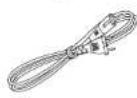
⑥

⑧

Main features
Big sound in Small body
• Full digital sound
• High power output (65 W x 2 channels, 4 Ω)
• High quality sound (LPCM/FLAC 192 kHz/24 bit)
Compatible with "Denon Remote App" for performing basic operations of the unit.
"Denon Remote App" is application software that allows you to perform basic operations with an iPod touch, iPhone or Android smartphone such as turning the unit ON/OFF, controlling the volume, and switching the sources.
Supports AirPlay®
This unit also supports AirPlay that lets you stream your music library from an iPhone ^® , iPad ^® , iPod touch ^® or iTunes.
Wi-Fi compatibility
This unit is equipped with a built-in diversity antenna, and is certified under WMM (Wi-Fi Multimedia) for efficient wireless connectivity. In addition, easy wireless connection is possible by pressing the WPS button.
iPod®/iPhone® charge function
You can charge your iPhone/iPod by connecting it to the dock connector or USB port. Even if the unit enters the power standby mode, the iPod/iPhone will continue to be charged, and when the iPhone/iPod is fully charged the unit automatically stops supplying power for charging. In addition, if you connect your iPhone/iPod to the dock connector while the unit is in power standby mode, the iPhone/iPod will automatically begin charging.
3 Line OELD
Incorporated 3-line display to show file information or menu items legibly. The display can enlarge letters of selected items and show icons clearly. The menu selection supports seven languages.
Cautions on handling
• Before turning the power switch on
Check once again that all connections are correct and that there are no problems with the connection cables.
- Power is supplied to some of the circuitry even when the unit is set to the standby mode. When going on vacation or leaving home for long periods of time, be sure to unplug the power cord from the power outlet.
• Proper ventilation
If the unit is left in a room full of smoke from cigarettes, etc., for long periods of time, the surface of the optical pickup may get dirty, preventing it from receiving signals properly.
- About condensation
If there is a major difference in temperature between the inside of the unit and its surroundings, condensation may form on parts inside the unit, causing it to fail to operate properly.
If this happens, let the unit sit for an hour or two with the power turned off and wait until there is little difference in temperature before using the unit.
• Cautions on using mobile phones
Using a mobile phone near this unit may result in noise. If that occurs, move the mobile phone away from the unit when it is in use.
- Moving the unit
Turn off the power and unplug the power cord from the power outlet. Next, disconnect the cables connected to other system units before moving the unit.
- About care
- Wipe the cabinet and control panel clean with a soft cloth.
- Follow the instructions when using a chemical cleaner.
- Benzene, paint thinner or other organic solvents as well as insecticide may cause material changes and discoloration if brought into contact with the unit, and should therefore not be used.
Discs
Discs playable on this unit
① Music CDs
Discs marked with the logo below can be played in this unit.

② CD-R/CD-RW
NOTE
- Discs in special shapes (heart-shaped discs, octagonal discs, etc.) cannot be played. Do not attempt to play them, as doing so can damage the unit.
- Some discs and some recording formats cannot be played.
• Non-finalized discs cannot be played.
• What is finalization?
Finalization is the process that makes recorded CD-R/CD-RW discs playable on compatible players.
Holding discs
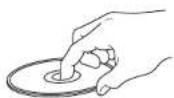
Do not touch the signal surface.
Loading discs
- Place the disc in the tray, label side up.
- Make sure the disc tray is fully open when inserting the disc.
- Place the discs flat, 12 cm discs in the outer tray guide (Figure 1), 8 cm discs in the inner tray guide (Figure 2).
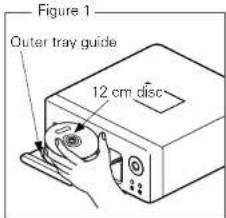
- Place 8 cm discs in the inner tray guide without using an adapter.
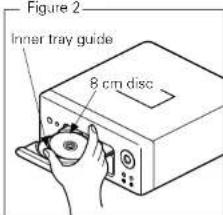
Figure 2

- "Unsupported" is displayed if a disc that cannot be played is loaded. - "No Disc" is displayed if the disc is loaded upside-down or if no disc is loaded.
NOTE
Do not push the disc tray in by hand when the power is turned off. Doing so could damage the set.
Cautions on loading discs
- Only load one disc at a time. Loading two or more discs can damage the unit or scratch the discs.
- Do not use cracked or warped discs or discs that have been repaired with adhesive, etc.
- Do not use discs on which the sticky part of cellophane tape or labels is exposed or on which there are traces of where labels have been removed. Such discs can get caught inside the player and damage it.
Cautions on handling
- Do not get fingerprints, oil or dirt on discs.
• Take special care not to scratch discs when removing them from their cases. - Do not bend or heat discs.
- Do not enlarge the hole in the center.
- Do not write on the labeled (printed) surface with ball-point pens, pencils, etc., or stick new labels on discs.
- Water droplets may form on discs if they are moved suddenly from a cold place (outdoors for example) to a warm place, but do not try to dry them off using a hairdryer, etc.
Cautions on storing discs
- Be sure to remove discs after using them.
- Be sure to store discs in their cases to protect them from dust, scratches, warping, etc.
- Do not store discs in the following places:
- Places exposed to direct sunlight for long periods of time
- Dusty or humid places
- Places exposed to heat from heaters, etc.
Cleaning discs
- If there are fingerprints or dirt on a disc, wipe them off before using the disc. Fingerprints and dirt can impair sound quality and cause interruptions in playback.
- Use a commercially available disc cleaning set or a soft cloth to clean discs.

Gently wipe the disc from the inside towards the outside.
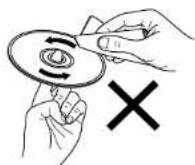
Do not wipe in a circular motion.
NOTE
Do not use record spray, antistatic agents, benzene, thinner or other solvents.
Remote operation
About the remote control

Inserting the batteries
① Remove the remote control's rear cover.
② Set two R03/AAA batteries in the battery compartment in the indicated direction.

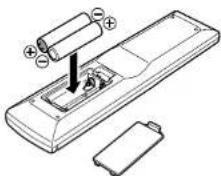
③ Put the rear cover back on.
NOTE
- Insert the specified batteries in the remote control.
- Replace the batteries with new ones if the set does not operate even when the remote control is operated close to the unit. (The supplied batteries are only for verifying operation. Replace them with new batteries at an early date.)
- When inserting the batteries, be sure to do so in the proper direction, following the and marks in the battery compartment.
• To prevent damage or leakage of battery fluid
- Do not use a new battery together with an old one.
- Do not use two different types of batteries.
- Do not attempt to charge dry batteries.
- Do not short-circuit, disassemble, heat or dispose of batteries in flames.
- Do not keep the battery in a place exposed to direct sunlight or in places with extremely high temperatures, such as near a heater.
If the battery fluid should leak, carefully wipe the fluid off the inside of the battery compartment and insert new batteries.
- Remove the batteries from the remote control if it will not be in use for long periods.
- Used batteries should be disposed of in accordance with the local regulations regarding battery disposal.
- The remote control may function improperly if rechargeable batteries are used.
☐ Operating range of the remote control
Point the remote control at the remote sensor when operating it.

NOTE
- The set may function improperly or the remote control may not operate if the remote control sensor is exposed to direct sunlight, strong artificial light from an inverter type fluorescent lamp or infrared light.
- When using 3D video devices that transmit radio communication signals (such as infrared signals etc) between the various units (such as the monitor, 3D glasses, 3D transmitter unit etc), the remote control may not operate due to interference from those radio communication signals. If this occurs, adjust the direction and distance of the 3D communication for each unit, and check that the remote control operation is not affected by these signals.
Denon Remote App
Denon Remote App is a unique application developed for the iPhone, iPod touch and Android smartphone. This application enables you to control DENON network devices that are connected to your home network. Install the App onto your iPhone, iPod touch or Android smartphone to control this device.


- Bidirectional communication is performed.
- The Denon Remote App can be downloaded for free from the Apple App Store or Google Play store.
Preparations
Preparations
Here, we explain the connections and basic operation methods for this unit.
● Connections page 6
● Setup page 11
Connections
NOTE
- Do not plug in the power cord until all connections have been completed.
- When making connections, also refer to the operating instructions of the other components.
- Be sure to connect the left and right channels properly (left with left, right with right).
- Do not bundle power cords together with connection cables. Doing so can result in humming or noise.
Cables used for connections
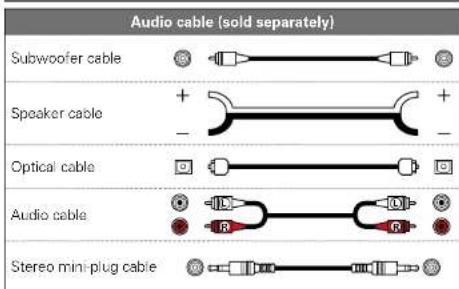
Connecting the speakers

Connecting the speaker cables
Carefully check the left (L) and right (R) channels and + (red) and - (black) polarities on the speakers being connected to this unit, and be sure to interconnect the channels and polarities correctly.
1 Peel off about 10 mm of sheathing from the tip of the speaker cable, then either twist the core wire tightly or terminate it.

2 Turn the speaker terminal counterclockwise to loosen it.

3 Insert the speaker cable's core wire to the hilt into the speaker terminal.

4 Turn the speaker terminal clockwise to tighten it.

NOTE
- Disconnect this unit's power plug from the power outlet before connecting the speakers. Also, turn off the subwoofer.
- Use speakers with an impedance of 4 to 16 . The protection circuit may be activated if speakers with an impedance other than specified are used.
- Connect the speaker cables so they do not stick out of the speaker terminals. The protection circuit may be activated if the wires touch the rear panel or if the + and - sides touch each other (T page 59 "Protection circuit").
- Never touch the speaker terminals while the power supply is connected. Doing so could result in electric shock.
Connecting an analog device

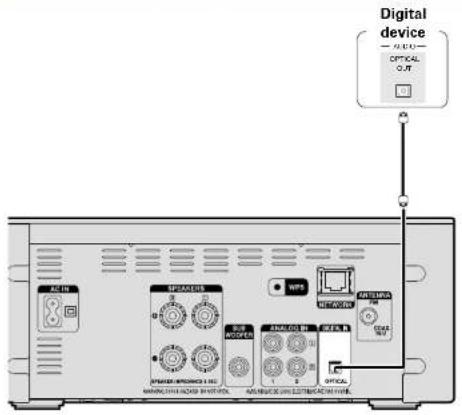
Connecting a digital device
Connecting a portable player

Connect this unit and portable audio player using a separately sold mini-stereo audio cable.
NOTE
After you connect a portable audio player, the input source automatically switches to "Portable In".
Connecting an antenna
- Connect the FM antenna supplied with the unit to enjoy listening to radio broadcasts.
- After connecting the antenna and receiving a broadcast signal ( page 33 "Listening to FM broadcasts"), fix the antenna with tape in a position where the noise level becomes minimal.
Direction of broadcasting station

NOTE
- Do not connect two FM antennas simultaneously.
- If you are unable to receive a good broadcast signal, we recommend installing an outdoor antenna. For details, inquire at the retail store where you purchased the unit.
Connecting to a home network (LAN)
- This unit lets you play via your home network (LAN) music files stored on a computer and music content such as that from Internet radio.
- You can update by downloading the latest firmware from the DENON website.
For more information, see "Update" (page 14). - See "Setting the network [Network]" (page 17) for more information on network setting.
Wired LAN
Cables used for connections

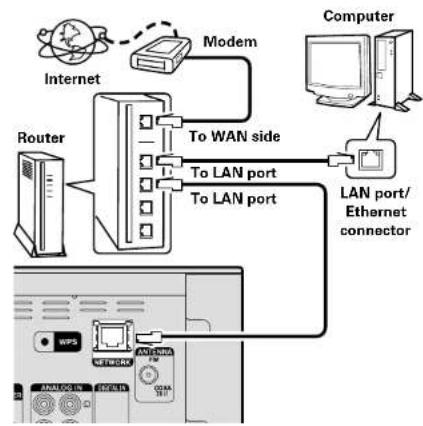
flowchart
graph TD
    A["Internet"] -->|Modem| B["Router"]
    B -->|To WAN side| C["To LAN port"]
    B -->|To LAN port| D["Computer"]
    D -->|LAN port/Ethernet connector| E["Output"]
    C --> F["Analog/Analog network interface"]
For connections to the Internet, contact an ISP (Internet Service Provider) or a computer shop.
Wireless LAN
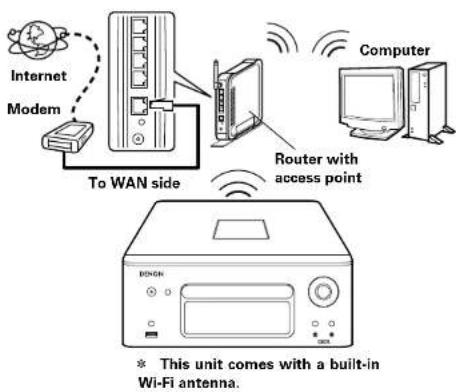
flowchart
graph TD
    A["Internet"] --> B["Modem"]
    B --> C["To WAN side"]
    C --> D["Router with access point"]
    D --> E["Computer"]
    E --> F["Wi-Fi antenna"]
    style A fill:#f9f,stroke:#333
    style B fill:#ccf,stroke:#333
    style C fill:#cfc,stroke:#333
    style D fill:#fcc,stroke:#333
    style E fill:#cff,stroke:#333
    style F fill:#ffc,stroke:#333
    note right of F
        * This unit comes with a built-in Wi-Fi antenna.
Required system
□ Broadband internet connection
□ Modem
Device that connects to the broadband circuit and conducts communications on the Internet. A type that is integrated with a router is also available.
Router
When using this unit, we recommend you use a router equipped with the following functions:
• Built-in DHCP server
This function automatically assigns IP addresses on the LAN.
• Built-in 100BASE-TX switch
When connecting multiple devices, we recommend a switching hub with a speed of 100 Mbps or greater.
- When using with a wireless LAN, prepare a broadband router with built-in access point.
- When using a WPS (Wi-Fi Protected Setup) compatible router, easy wireless connection is possible by pressing this unit's WPS button (1 page 19).
☐ Ethernet cable (CAT-5 or greater recommended)
- Use only a shielded STP or ScTP LAN cable which is available at retailer.
- Some flat type Ethernet cables are easily affected by noise. We recommend using a normal type cable.

- If you have an Internet provider contract for a line on which network settings are made manually, make the settings at "Network connecting (when "DHCP" settings is "Off")" (page 17).
- With this unit, it is possible to use the DHCP and Auto IP functions to make the network settings automatically.
- When using this unit with the broadband router's DHCP function enabled, this unit automatically performs the IP address setting and other settings. When using this unit connected to a network with no DHCP function, make the settings for the IP address, etc., at "Network connecting (when "DHCP" settings is "OFF") 137 page 121.
- When setting manually, check the setting contents with the network administrator.
NOTE
- A contract with an ISP is required to connect to the Internet.
- No additional contract is needed if you already have a broadband connection to the Internet.
- The types of routers that can be used depend on the ISP. Contact an ISP or a computer shop for details.
- DENON assumes no responsibility whatsoever for any communication errors or troubles resulting from customer's network environment or connected devices.
- This unit is not compatible with PPPoE. A PPPoE-compatible router is required if you have a contract for a type of line set by PPPoE.
- Do not connect an Ethernet connector directly to the LAN port/Ethernet connector on your computer.
- To listen to audio streaming, use a router that supports audio streaming.
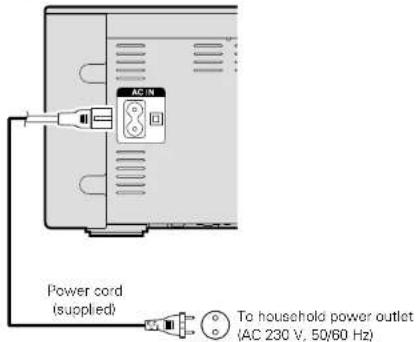
Connecting the power cord
When all of the connections are completed, insert the power plug into the power outlet.
Setup
Menu map
| Setting items | Detailed items Description Page | |||
| Quick Setup[Setup]◆Quick Setup◆enter◆back | Quick Setup | Performs the network settings using a Wizard style window.For details on the operations, see the separate "Quick setup guide". | - | |
| General[Setup]◆General◆enter◆back | Alarm Sets the timer playback. 12Clock Sets the current time | |||
| Speaker Optimization | Sets the optimum playback properties of the speakers SC-NB, sold separately. | 1314 | ||
| Language Sets the language. | 14 | |||
| Auto-Standby Sets the unit power to standby when the unit is not in use. | 14 | |||
| Firmware | Update Updates the firmware. | 14 | ||
| Notification Set the Update and Upgrade notification or/off. | 15 | |||
| Add New Feature Displays new functions that can be downloaded, and upgrades functions. | 16 | |||
| Network[Setup]◆Network◆enter◆back | Network Information Displays various information about the network. -Network Control Performs the ON/OFF settings for the network function when in standby mode. | |||
| Friendly Name | Edits a name displayed on the Internet. | 20 | ||
| Last.fm Display | Disables the display of Last.fm on the menu. | 21 | ||
| Settings | When making wired connectionWired Setup | Performs the settings for a wired or wireless LAN. | 17 | |
| Performs the settings for a wired LAN. | 17 | |||
| Performs the DHCP setting. | 17 | |||
| Performs the IP address setting. | 17 | |||
| Performs the subnet mask setting. | 17 | |||
| Performs the gateway setting. | 17 | |||
| Performs the primary DNS setting. | 17 | |||
| Performs the secondary DNS setting. | 17 | |||
| Performs the proxy setting. | 18 | |||
| Performs the wired LAN connection. | 17 | |||
| When making Wi-Fi connection | Performs the wireless LAN connection setting. | 18 | ||
| Auto-Scan | Selects and sets the wireless connections from the access point list. | |||
| WPS (Wi-Fi Protected Setup) | Sets the wireless connection using WPS (Wi-Fi Protected Setup). | |||
| Manual | Sets the wireless connection manually. | |||
* Displayed when the "DHCP" setting is "Off" (page 17).
☐ To back to the top of the menu, during menu operation

Setting the first setup [Quick Setup]
- For details on "Quick Setup" operations, see the separate "Quick setup guide".
- If you cancelled "Quick Setup" menu or changed the network environment, perform "Setup" - "Quick Setup".
![DENON RCD-N8 - Setting the first setup [Quick Setup] - 1](/content/2026/06/1238705/images/71d3d3a68c9af03bf2908ecfe1c05985f1a41b68286ca4322d3310367c7e06d9.jpg)
Setting the general [General]
Alarm
This device can playback using the alarm playback (everyday alarm, once alarm).
- This unit's alarm does not support exit time settings for alarm playback.
☐ Alarm operation when the time settings for alarms overlap
When the once alarm and everyday alarm are both set (sleep timer is not set)
- Automatically starts playback at the earlier alarm start time set for either of the alarms.

If the current time is not set, enter alarm setting mode to get time setting mode.
☐ Setting the everyday alarm and once alarm
- Everyday alarm ("Everyday")
Playback starts at the set times each day.
- Once alarm ("Once")
Playback starts once only at the set times.
1
Press SETUP.
Turns on the Menu settings mode and the Menu appears on the display (page 11 "Menu map").
2
Use △▽ and ENTER to select "General" – "Alarm", then press ENTER or ▷.
3
Use △▽ to select the alarm mode, and use ◀▷ to select "On" or "Off" then press ENTER.
4
Use △▽ to select "Set Time", then press ENTER or ▷.
5
Use to select "hours" - "minutes" for the alarm start time, then press ENTER or .
6
Use to select "Source", then press ENTER or .
7
Use to select the input source, then press ENTER or .

8
Use △▽ to select "Volume", then press ENTER or ▷.
9
Use to select the volume “0 - 60”, then press ENTER or .
10
Press POWER ⏻ to set the power to standby. Alarm standby mode is set, and the power indicator lights orange.
Setting the general [General]
NOTE
- If the unit or remote control is not operated for 90 minutes or more when the alarm is set to on, the standby mode is activated.
- When using alarm playback on an iPod touch or iPhone, set the iPod touch or iPhone to "Sleep" mode. If the power is switched off using the power off operation, alarm playback cannot be used. For details on the "Sleep" mode of the iPod touch or iPhone, see the instruction manuals of the products or related web pages.
Setting the alarm to on or off
Perform the operations at "Alarm" (page 12).
- When set to "OFF", time operation is disabled, but the alarm settings remain unchanged.
☐ To check the alarm settings
Perform the operations at "Alarm" (12 page 12)
☐ To change the alarm settings
Perform the operations at "Alarm" (page 12).
☐ To change the setting while setting the alarm Press ◀
The setting returns to the previous step. Display the setting you want to change, then make the desired setting.
Clock
You can automatically adjust the clock of this unit using the Internet.

To use this function, the unit must be connected to the Internet.

(一)公司董事会会议决议公告
When changing the time zone, use the following procedure to select your local standard time (time zone).

Press SETUP.
Turns on the Menu settings mode and the Menu appears on the display. ( page 11 "Menu map")

Use △▽ and ENTER to select "General" - "Clock" - "Auto-Adjust" - "Time Zone", then press ENTER or ▷.
"Time Zone" menu appears.


Use △▽ to select your time zone, then press ENTER or ▷.

Use △▽ and ENTER to select "Auto-Adjust" - "Adjust Now", then press ENTER or ▷. The setting is entered.
Setting the Summer Time
Use the following procedure to set Summer time if the Summer time system is used in your country.

Press SETUP.
Turns on the Menu settings mode and the Menu appears on the display.

Use △▽ and ENTER to select "General" - "Clock" - "Auto-Adjust" - "Summer Time", then press ENTER or ▷.
"Select Summer Time" menu appears.


Use to select "Off (0H)" or "On (+1H)", then press ENTER or .

Use △▽ and ENTER to select "Auto-Adjust" - "Adjust Now", then press ENTER or ▷. The setting is entered.
Auto Adjust
Use the following procedure to automatically adjust the clock.

Press SETUP.
Turns on the Menu settings mode and the Menu appears on the display (page 11 "Menu map").

Use △▽ and ENTER to select "General" - "Clock" - "Auto-Adjust" - "Adjust Now", then press ENTER or ▷.
The operation to receive the current time starts.

- The current time is displayed for several seconds when it is received successfully.
- If the current time is not received successfully, "Connection Failed" appears.
Setting the general [General]
☐ Setting the current time (Manual Adjust) (24-Hour Display)

Press SETUP.
Turns on the Menu settings mode and the Menu appears on the display (page 11 "Menu map").

Use △▽ and ENTER to select "General" - "Clock" - "Manual Adjust", then press ENTER or ▷.

Use to set the “hours”.

Press ENTER or ▷.

Use to set the "minutes".

Press ENTER or ▷. The current time is set
Checking the current time when the power is on
Press CLOCK
Press once more and the display returns to its original condition.
Checking the current time when the power is set to standby
Press CLOCK
The current time is displayed for 30 seconds.
NOTE
- The time cannot be set when in the standby mode. Turn on the power first.
- The time setting is canceled if the power cord is disconnected. Set the time again.
Speaker Optimization
An optimizing filter suited for the properties of the speakers (SC-N8) can be used.
1 Press SETUP. Turns on the Menu settings mode and the Menu appears on the display (page 11 "Menu map").
2 Use △▽ and ENTER to select "General" - "Speaker Optimization", then press ENTER or ▷. "Speaker Optimization" menu appears.
3 Use to select “On”, then press ENTER or .
ON The response is optimized for the speakers (SC-N8, sold separately).
OFF The response is flat.
Language
Sets the language for display the menu.
• The factory language setting is "English".
1 Press SETUP.
Tums on the Menu settings mode and the Menu appears on the display (page 11 "Menu map").
2 Use △▽ and ENTER to select "General" – "Language", then press ENTER or ▷.
English / Deutsch / Français /
When this unit is in the stop state and there is no input signal and operation for 30 minutes, it automatically enters the standby mode. For the input source "Analog In 1", "Analog In 2" and "Portable In" only, when no operation is performed for eight hours, this unit automatically enters the standby mode.
- The default setting is "On"
1 Press SETUP. Tums on the Menu settings mode and the Menu appears on the display ( page 11 "Menu map").
2 Use △▽ and ENTER to select "General" – "Auto-Standby", then press ENTER or ▷. "Select Auto-Standby" menu appears.
3 Use △▽ to select "On", then press ENTER or ▷. The setting is entered.
NOTE
In the following situations, the Auto-standby function does not operate.
- When the source is "Tuner", "iPod" (Remote mode) or "AirPlay
• During CD playback or pause.


Firmware
Update
- In order to update the firmware, the environment and settings required for connecting to broadband internet are needed (page 9).
- Perform the firmware update operation after at least 2 minutes has elapsed since turning this unit's power ON.
1 Press SETUP.
Tums on the Menu settings mode and the Menu appears on the display (to page 11 "Menu map").
2 Use △▽ and ENTER to select "General" - "Firmware" - "Update", then press ENTER or ▷.
Check For Update Check for firmware updates. You can also check approximately how long it will take to complete an update.
Update Start Execute the update process.
- If updating fails, the set automatically retries, but if updating is still not possible, one of the messages shown below is displayed. If the display reads as shown below, check the settings and network environment, then update again.
| Display | Description |
| Updating fail | Updating failed. |
| Login failed | Failure to login to server. |
| Server is busy | Server is busy. Wait a while then try again. |
| Connection fail | Failure in connecting to server. |
| Download fail | Downloading of the firmware has failed. |
Setting the general [General]

Setting the general [General]
Update on web screen
Firmware can be updated using the "Web control function" (page 46).
"Web control function" (page 40) settings must be completed in advance on a PC belonging to the same network. For information on obtaining update files, please contact our customer service center.
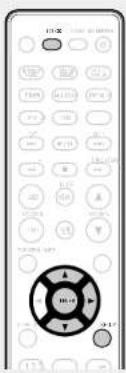
1 Click ④ from step 5 for the "Web control function" (page 46).
The PC will display the following screen.
Wait for approximately 1 minute.
You can also gain access by entering the IP address shown by the unit into a web browser.
[The web display]
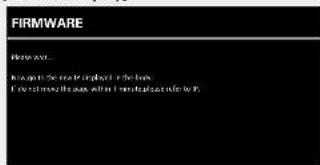
[The unit's screen display]

2 When the following screen is displayed by the PC, click the "Choose File" (①) button, select the update file, and click the "Upload" (②) button.

flowchart
graph TD
    A["Selection and review"] --> B["②"]
    C["Create a"] --> D["①"]
3 When the following screen is displayed, click the "OK" (③) button.
Updating will begin.
![Firmware Version: Once started the optional process cannot be entered or entered, in order to ensure the integrity of the Digital Media Player. And you have you want to read out? [3]](/content/2026/06/1238705/images/fc61939ecbc8bf039c669bb72770d553bc1c1703d05502b5acffdf7091b68c85.jpg)
NOTE
Do not operate the unit while updating is in progress.
4 When the following screen is displayed, updating is complete.
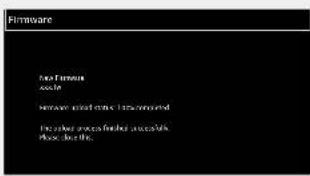

Button names may vary depending on the OS language used on your computer.
□ Notification
Update
Displays a notification message on this unit's menu screen when the latest firmware is released with "Update".
Connect to broadband Internet (page 9) when using this function.

Press SETUP.
Tums on the Menu settings mode and the Menu appears on the display ( page 11 "Menu map").

Use △▽ and ENTER to select "General" - "Firmware" - "Notification" - "Update", then press ENTER or ▷.
"Update Notification" menu appears.
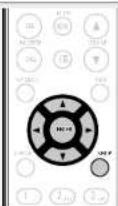

Use to select “On”, then press ENTER or ▷.
On Display update message.
Off Do not display update message.

- When you press ENTER during display of the notification message, the "Check for Update" is displayed. (Refer to page 14 for more information on "Update".)
- Press ◀ to erase the notification message.
Upgrade
Display a notification message on this unit's menu screen when downloadable firmware is released with "Add New Feature". Connect to broadband Internet (page 9) when using this function.
1
Press SETUP.
Tums on the Menu settings mode and the Menu appears on the display ( page 11 "Menu map").
2
Use △▽ and ENTER to select "General" – "Firmware" – "Notification" – "Upgrade", then press ENTER or ▷.
"Upgrade Notification" menu appears.
3
Use △▽ to select “On”, then press ENTER or ▷.
On Display upgrade message.
Off Do not display upgrade message.

- When you press ENTER during display of the notification message, the "Add New Feature" is displayed. (Refer to page 16 for more information on "Add New Feature".)
- Press ◀ to erase the notification message.

□ Add New Feature
- In order to add new functions, the environment and settings required for connecting to broadband internet are needed (它 page 9).
- Perform the add new feature operation after at least 2 minutes has elapsed since turning this unit's power on.
1
Press SETUP.
Tums on the Menu settings mode and the Menu appears on the display ( page 11 "Menu map").

2
Use to select "General" - "Firmware" - "Add New
Feature", then press ENTER or ▷.
Upgrade Status
Display a list of the additional functions provided by the upgrade.
Upgrade Start
Execute the upgrade process.
- If the upgrade is not successful, an error message identical to those in "Update" ( page 14) will appear on the display. Check the settings and network environment, then update again.
Upgrade ID
The ID number shown on this screen is needed when carrying out the procedure.

See the DENON website for details about updates.
When the procedure is complete, "Registered" is displayed and updates can be carried out. If the procedure has not been carried out, "Not Registered" is displayed.
[Notes concerning use of "Update" and "Add New Feature"]
- Do not turn off the power until updating or upgrading is completed.
- Even with a broadband connection to the Internet, approximately 20 minutes is required for the updating/upgrading procedure to be completed.
- Once updating/upgrade starts, normal operations on this unit cannot be performed until updating/upgrading is completed.
• Furthermore, updating/upgrading the firmware may reset the backup data for the parameters, etc. set for this unit. - If the update or upgrade fails, remove and re-insert the power cord. "Update Retry" appears on the display and update restarts from the point at which update failed. If the error continues despite this, check the network environment.
![DENON RCD-N8 - [Notes concerning use of "Update" and "Add New Feature"] - 1](/content/2026/06/1238705/images/cc12d00c9d7c5b5ffa6de98ab62729fa9ef319cdde5c8012229219b069e61909.jpg)
- Information regarding the "Update" function and "Add New Feature" will be announced on the DENON web site each time related plans are defined.
- When usable new firmware is released with "Update" or "Add New Feature", a notification message is displayed on the menu screen. When you do not want to be notified, set "Update" (Kpage 15) and "Upgrade" (Kpage 16) to "Off".
![DENON RCD-N8 - [Notes concerning use of "Update" and "Add New Feature"] - 2](/content/2026/06/1238705/images/b754065c716a689fb69b1dd6c85182ce3b4fb549289707898ae2048ebc8f3251.jpg)
Setting the network [Network]
- For details on "Quick Setup" operations, see the separate "Quick setup guide".
- If you cancelled "Quick Setup" menu or changed the network environment, perform "Setup" - "Network" - "Quick Setup".
Connecting wired LAN
Use this procedure to configure the wired LAN settings.

Network connecting
(when "DHCP"settings are "On")
When using this unit with the broadband router's DHCP function enabled, this unit automatically performs the IP address setting and other settings.
1 Connect the ETHERNET cable (1 page 9 "Connecting to a home network (LAN)" - "Wired LAN").
2 Press POWER ⏻ to turn on power to the main unit.
3 Press SETUP.
Tums on the Menu settings mode and the Menu appears on the display (k=7 page 11 "Menu map").
4 Use △▽ and ENTER to select "Network" – "Settings" – "DHCP (On)", then press ENTER or ▷.
"Select DHCP" menu appears.
5 Use △▽ to select "On", then press ENTER or ▷. "DHCP (On)" menu appears.
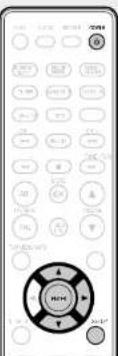
6 Use △▽ to select "Test Connection", then press ENTER or ▷.
"Wait for the network to connect..." is displayed, and the unit starts connecting to the LAN.
- When the connection is made successfully, "Connected!" appears. - If the connection cannot be established, "Connection Failed" is displayed. Perform steps 1 – 6 again.

You may need to set the network connection manually, depending on the provider you use. To set the connection manually, use the setting procedure of "Network connecting (when "DHCP" settings are "Off")".
□ Network connecting
(when "DHCP" settings is "Off")
This section explains the settings when connecting this unit to a network that does not have a DHCP function.
To configure the settings manually, check the setting details with your network administrator.
1 Perform steps 1 - 4 of the "Network connecting (when "DHCP" settings are "On") procedure and select "Off" in step 5.
"DHCP (Off)" menu appears.
2 Use △▽ to select "IP Address", then press ENTER or ▷.
"Enter IP Address" menu appears.
3 Use or 0 - 9 to input the IP address and press ENTER.
4 Use or 0-9 to input the address for "Subnet Mask", "Gateway", "Primary DNS", and "Secondary DNS".
5 Use △▽ to select "Test Connection", then press ENTER or ▷.
"Wait for the network to connect..." is displayed, and the unit starts connecting to the LAN.
- When the connection is made successfully, "Connected!" appears.
- If the connection cannot be established, "Connection Failed" is displayed. Perform steps 1 - 4 again.
Proxy settings
Configure these settings to connect to the internet via a proxy server.
1
Press SETUP.
Turns on the Menu settings mode and the Menu appears on the display ( page 11 "Menu map").
2
Use and ENTER to select "Network" – "Settings" –
"Proxy", then press ENTER or
△
"Setup Proxy" menu appears.
3
If "Proxy(On)" appears, go to step 5.
If "Proxy(Off)" appears, press ENTER or ▷.
"Select Proxy" menu appears.

4
Use to select "On", then press ENTER or .
"Setup Proxy" menu appears.
5
Use △▽ to select "Proxy (Address)" or "Proxy (Name)", then press ENTER or ▷.
"Select Type" menu appears.
6
Use △▽ to select "Address" or "Name", then press ENTER or ▷.
"Setup Proxy" menu appears.
7
Use △▽ to select "Address" or "Name", then press ENTER or ▷.
"Enter Proxy Address" or "Enter Proxy Name" menu appears.
8
Use or 0-9,+10 to input the address or name, then press ENTER.
"Setup Proxy" menu appears.
9
Use △▽ to select "Port", then press ENTER or ▷.
"Enter Proxy Port" menu appears.
10
Use or 0 - 9 to input the port, then press ENTER.
The Proxy settings are completed.
Connecting wireless LAN
Use this procedure to configure the wireless LAN settings.
Auto-Scan (Wireless LAN)
If a LAN cable is connected, remove it.
1
Press POWER ⏻ to turn on power to the main unit.
2
Press SETUP.
Turns on the menu settings mode and the menu appears on the display ( page 11 "Menu map").
3
Use △▽ and ENTER to select "Network" – "Settings" – "AutoScan", then press ENTER or ▷.
The access point you have set is displayed.
4
Use to select the access point, and then press ENTER or ▷.
• If au
the access point is not detected automatically, configure it manually (page 20 "Manual Settings").

See overleaf
5 If there is an encryption setting for the access point you selected in step 4, enter same encryption key as used for the access point. (If there is no encryption setting, proceed to step 6.)
Use or 0 - 9, +10 to input the "Password" (encryption key) and press ENTER or ▷. Enter the same encryption key as used for the access point.
- The types of characters that can be input are as shown below.
[Lower case characters]
abcdefghijklmnopqrstuvwxyz
[Upper case characters]
ABCDEFGHIJKLMNOPQRSTUVWXYZ
[Symbols] ! " # \$ % & ' ( ) * + , - . / : ; <= > ? @ [ \ ] ^ _ { | }
[Numbers] 0123456789 (Space)
- When no security settings have been used in the Internet connection settings, this step is not necessary.
6 Use ▽ to select "Test Connection", then press ENTER or ▷.
"Wait for the network to connect..." is displayed, and the unit starts connecting to the network.
- This unit performs automatic network setup due to the DHCP function.
☐ WPS Settings (Push-button method)
By just pressing the WPS button on your router and this unit, the wireless LAN connection settings are made.

- Before turning this unit on, make sure that an Ethernet cable is not connected to this unit. If a cable is connected, have this unit enter the power standby mode and disconnect the cable.
- After the unit is turned on, it takes approximately 30 seconds for the WPS button on this unit to be available.
1 Press the WPS button of the router.
2 Press WPS on the rear panel.
- "Wait for the network to connect..." is displayed, and the unit starts connecting to the LAN.

- When the connection is made successfully, "Connected!" appears. - If the connection cannot be established, "Connection Failed" is displayed. Perform steps 1 – 2 again.
NOTE
If the router uses WEP, WPA-TKIP or WPA2-TKIP encryption, connection is not possible using the WPS button. In this case, connect using "Auto-scan" or "Manual".
☐ WPS Settings (PIN code method)
1 Press SETUP.
Turns on the Menu settings mode and the Menu appears on the display (page 11 "Menu map").
2 Use △▽ and ENTER to select "Network" - "Settings" - "WPS (Wi-Fi Protected Setup)" - "PIN code", then press ENTER or ▷. The access point that you have set is displayed.
3 Use △▽ to select the access point whose PIN code you want to display, and press ENTER or ▷.
PIN code number is displayed.
4 Set this PIN code to the register.
When connection is established with access point, "Connected!" is displayed.
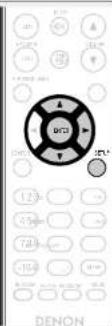
Manual Settings
1 Press SETUP. Turns on the Menu settings mode and the Menu appears on the display (page 11 "Menu map").
2 Use △▽ and ENTER to select "Network" - "Settings" - "Manual", then press ENTER or ▷.
3 Use △▽ to select "SSID", then press ENTER or ▷.
4 Use or 0-9, +10 to input the name of the wireless network (SSID), then press ENTER.
- The types of characters that can be input are as shown below.
[Lower case characters] abcdefghijklmnopqrstuvwxyz [Upper case characters] ABCDEFGHIJKLMNOPQRSTUVWXYZ [Symbols] 1" # \$ % & '() * +, - / :; <= > ? @ [ \ ] ^ _ { | } ] [Numbers] 0123456789 (Space)
5 Use △▽ to select "Security", then press ENTER or ▷.

6 Use to select following items, then press ENTER or .
- None Select if not encrypted. Can also be used even without encryption, through we recommend encryption for improved security.
- WEP / WPA(TKIP) / WPA(AES) / WPA2(TKIP) / WPA2(AES) Select the encryption method according to the encryption setting of the access point you are using.
7 Use to select "Password", then press ENTER.
8 Use △▽◀▷ to enter the encryption key, and press ENTER.
Enter the same encryption key as used for the access point.
- When no security settings have been used in the Internet connection settings, this step is not necessary.
- When connecting to a "WEP" encrypted network, set the access point "Default Key" to "Key 1".
9 Use ▽ to select "Test Connection" and press ENTER or ▷.
"Wait for the network to connect..." is displayed, and the unit starts connecting to the network.
- This unit performs automatic network setup due to the DHCP function.
NOTE
This unit is not compatible with WEP (TSN) encryption system.
Other network settings
Network Control
Set the network function On/Off during standby.
1 Press SETUP. Turns on the Menu settings mode and the Menu appears on the display (page 11 "Menu map").
2 Use △▽ to select "Network" - "Network Control", then press ENTER or ▷.
"Network Control" menu appears.
3 Use △▽ to select "On", then press ENTER or ▷.
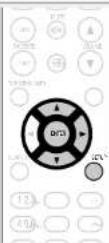
On Network is on during standby. Main unit operable with a network compatible controller. Shortens the time before the network connection is completed. - When "Network Control" is set to "On", the power display lights red. - More power is consumed when in standby (Power consumption: 3 W). Off Suspend network function during standby. It will take slightly longer till the network connection is completed. - The minimum amount of power is consumed when in standby (Power consumption: 0.3 W). - This is the default setting.
4 Press SETUP. The display returns to normal.
Setting the network [Network]
Friendly Name
The Friendly Name is the name of this unit displayed on the network (Maximum 63 characters).
1 Press SETUP.
Tums on the Menu settings mode and the Menu appears on the display ( page 11 "Menu map").
2 Use △▽ to select "Network" – "Friendly Name", then press ENTER or ▷.
"Friendly Name" menu appears.
2.1 [When ▷ is pressed]
Choose from preset names. Use to select a name, then press ENTER.
Preset names Current friendly name / DENON RCD-N8 / AV Room / Bedroom / Dining Room / Family Room / Guest Room / Kids Room / Kitchen / Living Room / Office / CEOL (default) / Other
3-2 [When ENTER is pressed] Edit a friendly name.
• For character input, see page 48.
☐ Resetting the friendly name to the default setting
In step 3-1, select "CEOL (Default)" and press ENTER.
Last.fm Display
Set whether or not to display Last.fm item on the menu.
1 Press SETUP. Turns on the Menu settings mode and the Menu appears on the display ( page 11 "Menu map").
2 Use △▽ to select "Network" - "Last.fm Display", then press ENTER or ▷. "Last.fm Display" appears.
3 Use to select “Show” or “Hidden”, then press ENTER or .
Show Last.fm items will be displayed.
Hide Last.fm items will not be displayed.
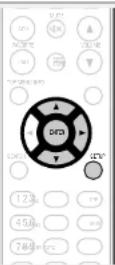
Operations
Operations
Here, we explain functions and operations that let you make better use of this unit.
● Preparations page 23
● Operations possible during playback page 23
CD playback page 25
● MP3 and WMA files playback page 28
● Network audio playback page 29
● Tuning in radio stations page 33
● Favorite function page 36
- iPod playback page 37
USB memory device playback page 40
- Portable audio player playback page 41
● Listening to ANALOG IN page 41
● Listening to DIGITAL IN page 42
● AirPlay function page 43
● Remote play function page 45
● Web control function page 46
● Other functions page 48
Operations
This section provides information on operations of playback procedures.
Preparations
Turning the power on
Press POWER ⏻.
The power indicator lights white and the power turns on.

- When you turn on the power of this unit for the first time after purchasing it, the "Quick Setup" menu starts up. For details on "Quick Setup" operations, see the separate "Quick setup guide".
- If you cancelled "Quick Setup" menu or changed the network environment, perform "Setup" - "Quick Setup".
Turning the power to standby mode
Press POWER ⏻.
The unit enters standby mode.
• Power indicator
Standby : Off
Network Control - "On" : Red
iPod charge standby : Red
Alarm standby : Orange
NOTE
Power continues to be supplied to some of the circuitry even when the power is in the standby mode. When leaving home for long periods of time, unplug the power cord from the power outlet.
□ Completely turning off the power
Unplug the power cord from the wall outlet
Operations possible during playback
Selecting the input source
☐ Selecting the input source using the main unit
1 Press SOURCE.
The display changes to the input source selection screen,
2 Press to select the input source.
The input source is switched each time the button is pressed.
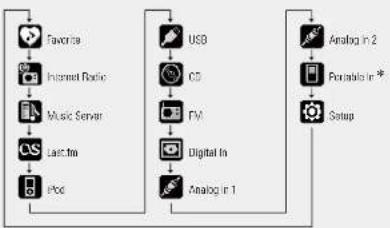
flowchart
graph TD
    A["Favorite"] --> B["Internet Radio"]
    B --> C["Music Server"]
    C --> D["Last Time"]
    D --> E["PCI"]
    F["USB"] --> G["CD"]
    G --> H["FM"]
    H --> I["Digital In"]
    I --> J["Analog In 1"]
    K["Analog In 2"] --> L["Portable In *"]
    L --> M["Setup"]
* "Portable In" appears only when the portable audio player is connected to portable in jack.

With the unit, you can play back music files stored on your iPhone/iPod touch and music from iTunes ( page 43 "AirPlay function").
☐ Selecting the input source using the remote control
Press the input source select button (INTERNET RADIO, ONLINE MUSIC, MUSIC SERVER, TUNER, ANALOG IN, DIGITAL IN, iPod, USB, CD).
- The desired input source can be selected directly.
- The input source is switched as follows each time ANALOG IN is pressed.

- When there is no portable audio player connected to the portable in jack, "Portable In" is not displayed when you press ANALOG IN.
Adjusting the master volume
Use VOLUME ▲▼ to adjust the volume.
The volume level is displayed.
[Variable range]
0 - 60
![DENON RCD-N8 - [Variable range] - 1](/content/2026/06/1238705/images/ca990f166b6dcee3bfb7de02d9be125d1fd23d259fa726f41b7158a91f751612.jpg)
![DENON RCD-N8 - [Variable range] - 2](/content/2026/06/1238705/images/cd443287611f0c7824870dd283246087db9fe5e0ef86064f2f861624cde7aa5a.jpg)
You can also do this by turning VOLUME on the main unit.
Adjusting the tone

• To make other tone adjustments at this time, press SDB TONE.
- If no operation is performed for 5 seconds, the adjustment is retained and the normal display reappears.
SDB Emphasize the +10 dB bass sound.
[Selectable modes] On - Off

Balance Adjusts the left/right volume balance.
[Variable range] L6 - Center - R6
Press ◀ when you want to adjust the left channel, ▷ when you want to adjust the right channel.
S.Direct The tone is not adjusted.
[Default settings]
Turning off the sound temporarily
Press MUTE ✉.
The "MUTING" is displayed.

To cancel, press MUTE 📁× again.
The mute mode is also canceled when VOLUME ▲▼ is pressed.
Setting the sleep timer
Use this function to automatically switch the power to the standby mode after a specific amount of time (minutes).
The sleep timer can be set to up to 90 minutes, in steps of 10 minutes.
Press SLEEP during playback and select the setting time.
- Press the button to select the setting time.
• After about 3 seconds, the setting is
entered and the display returns to as it was before.
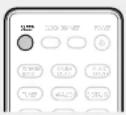
☐ Canceling the sleep timer
Either press SLEEP to select "Sleep▶OFF" or press POWER ⏻.
☐ To check the time remaining until the sleep timer is activated Press SLEEP.
Switching the display's brightness
Press DIMMER.

- The display brightness is adjusted each time DIMMER is pressed as shown below.


If you operate the buttons when the display's brightness is set to "Off", the display temporarily lights at "25%" brightness level.
Listening with headphones
Plug the headphones (sold separately) into
• The sound from the speakers is automatically cut off.
NOTE
To prevent hearing loss, do not raise the volume level excessively when using headphones.

CD playback
This section explains how to playback CDs.
Before playing a disc

NOTE
- Do not place any foreign objects in the disc tray. Doing so could damage it.
- Do not push the disc tray in by hand when the power is turned off. Doing so could damage the set.
Playing CDs


- If the input source is set to something other than “☐”, press CD to switch the input source to “☐”
- The input source can also be switched to "using SOURCE ( page 23)
□ Stopping playback Press ■.
□ Stopping playback temporarily
Press ▶/□ ENTER or ▶/□.
II is displayed.
• To resume playback, press ▶/□ ENTER or ▶/□
Fast-forwarding and fast-reversing (searching)
During playback, press and hold in ◀◀, ▶▶.
□ Moving to the beginning of tracks (skipping)
During playback, press ◀◀, ▶▶ or ◀◀
- The disc skips as many tracks as times the button is pressed.
- When you press reverse once, playback returns to the beginning of the current track.
☐ To play the desired track (remote control only)
Press 0 - 9, +10 to select the track.
[Example] Track 4 : 4
[Example] Track 12 +10 2
[Example] Track 20 : +10, +10, 0
Switching the display

flowchart
graph LR
    A["Press INFO."] --> B["Elapsed time of current track"]
    B --> C["Remaining time of current track"]
    C --> D["Remaining time for all remaining tracks"]
    D --> E["• The display switches each time the button is pressed."]
Playing repeatedly (Repeat playback)

flowchart
graph TD
    A["Single-track repeat All-track repeat Repeat off\n(indicator turns off)"] --> B["Repeat Off"]
    B --> C["Denon"]
[Selectable items]
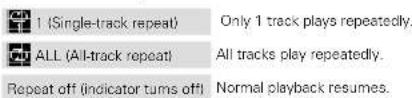
CD playback
Playing random order (Random playback)


If REPEAT is pressed during random playback, after the current session of random playback is finished, another session in a different order of tracks starts.
NOTE
Random play cannot be set or canceled during playback.
□ Canceling random playback
While stopped, press RANDOM.
The "Turns off.
Playing tracks in the desired order (Program playback)
Up to 25 tracks can be programmed.
1 In the stop mode, press PROGRAM. "Program" is displayed.
2 Use 0 - 9, +10 to select the tracks. [Example] To program tracks 3, 12, 7 to play in that order: Press PROGRAM, 3, +10, 2, 7.
3 Press ▶/II ENTER or ▶/II. Playback starts in the programmed order.
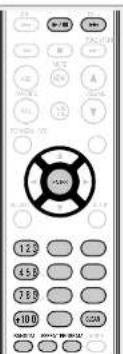
CD playback
□ Checking the order of the programmed tracks
In the stop mode, press ▶▶▶.
The track numbers are displayed in the programmed order each time the button is pressed.
☐ To clear the last track programmed
In the stop mode, press CLEAR.
The last track programmed is cleared each time the button is pressed.
To clear one programmed track at a time
In the stop mode, press ▶▶▶ to select the track to be cleared, then press CLEAR.
☐ Clearing the all programmed track
In the stop mode, press PROGRAM.

- If REPEAT is pressed during program playback, the tracks are played repeatedly in the programmed order.
- If RANDOM is pressed during program playback, the programmed tracks are played in random order.
- The program is cleared when the disc tray is opened or the power is turned off.
MP3 and WMA files playback
This section explains how to playback MP3 and WMA files that are recorded onto a CD-R or CD-RW. For details on how to playback files recorded onto media other than CD-R or CD-RW, see the following sections.
☐ Portable audio player playback (page 41)
USB memory device playback (page 40)
iPod playback (page 37)
☐ MP3 and WMA formats (page 56)
There are many music distribution sites on the Internet allowing you to download music files in MP3 or WMA (Windows Media® Audio) format. The music (files) downloaded from such sites can be stored on CD-R or CD-RW discs and played on this unit.
"Windows Media" and "Windows" are registered trademarks or trademarks in the United States and other countries of Microsoft Corporation of the United States.
Playing files
![1 Load a CD-R or CD-RW disc containing music files in the MP3 or WMA format into the disc tray (T page 3). 2 Press MODE and select "Folder" or "Disc". Folder Disc→ [About the display] • When "Folder" is selected: " displayed. • When "Disc" is selected: " turns off. Folder All the files in the selected folder are played. Disc After the selected folder and files are played, all the files in all the folders are played.](/content/2026/06/1238705/images/7183523c180b01d9630b3dd1733e9ed83e0607d78a209483619df3e39bed45c0.jpg)
3 Use to select the folder to be played.
4 Use |◀◀,▶▶| or ◀▷ to select the file to be played.
5 Press ▶/II, ENTER or ▶/II ENTER.
☐ To switch the folder or file during playback
Folder
Use to select the folder, then press ENTER or ▶/□□ ENTER.
File
Use ◀ to select the file, then press ENTER or ▶/II ENTER. Also use I◀◀, ▶▶▶I to select the file, or use 0 - 9, +10 to select the file number.
- The folder and file numbers are set automatically when the disc is loaded.

• Copyright-protected files cannot be played.
- Depending on the application software used for writing, it may not be possible to write the data properly.
- Depending on the disc's recording conditions, it may not be possible to play some discs properly.
Switching the display
During playback, press INFO.

☐ To play repeatedly
Press REPEAT
Playback starts in the respective repeat mode.
- The selectable repeat modes differ in the "Folder" and the "Disc".
When "Folder" is selected:
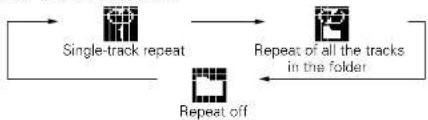
flowchart
graph TD
    A["Single-track repeat"] --> B["Repeat of all the tracks in the folder"]
    B --> C["Repeat off"]
    C --> A
When "Disc" is selected

[Selectable items]
When "Folder" is selected:
![DENON RCD-N8 - [Selectable items] - 1](/content/2026/06/1238705/images/bd5418ec7c540456a75f39023ef79c2d83c0789aecd90a84086bfb3e76f4220e.jpg)
Only the estimated track is played repeatedly.
![DENON RCD-N8 - [Selectable items] - 2](/content/2026/06/1238705/images/15c3025ca805d2b91a89bdeb3328b6911a4e86e00c0f50a82c1fee248aa31f8e.jpg)
Folder playback resumes.
When "Disc" is selected:
"Playing repeatedly (Repeat playback)" (page 26)
□ Setting random playback
"Playing random order (Random playback)" (page 26)

Programmed playback is not possible with MP3/WMA discs.
Network audio playback
Follow this procedure to play Internet radio stations or music files stored on a computer.
☐ About the internet radio function (page 58)
□ About Music server (page 58)
☐ About Last.fm (page 58)
Listening to internet radio
1 Prepare for playback.
① Check the network environment, then turn on this unit's power page 23 "Turning the power on".
② If settings are required, make the "Setting the network [Network]" (page 17).
2 Press INTERNET RADIO to switch the input source to "Internet Radio".
- For details on selecting the input source using the unit buttons, see "Selecting the input source using the main unit" (page 23).

3 Press △▽ to select the item you want to play, then press ENTER or ▷.
4 Repeat step 3 until the station list is displayed. The station list is displayed.
- Any characters that cannot be displayed are replaced with “.” (period) or “” (space).
5 Press to select the station, then press ENTER or .
Playback starts once buffering reaches "100%".

- There are many Internet radio stations on the Internet, and the quality of the programs they broadcast as well as the bit rate of the tracks varies widely.
Generally, the higher the bit rate, the higher the sound quality, but depending on the communication lines and server traffic, the music or audio signals being streamed may be interrupted. Inversely, lower bit rates mean a lower sound quality but less tendency for the sound to be interrupted. - "Server Full" or "Connection Down" is displayed if the station is busy or not broadcasting.
□ Switching the display
Press INFO during Internet radio reception.
The broadcast station information and signal format bit rate are displayed.
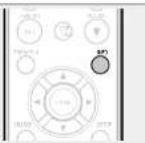
□ Recently played internet radio stations
Recently played internet radio stations can be selected from "Recently Played". Up to 20 stations stored in "Recently Played".
1 On a top menu of the internet radio station, press △▽ to select "Recently Played", then press ENTER or ▷.
2 Press △▽ to select the item you want to play, then press ENTER or ▷.
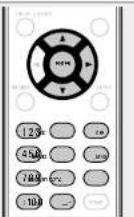
☐ Searching stations by keyword (Alphabetic strings)
1 Press △▽ to select "Search by Keyword", then press ENTER or ▷.
2 Use or 0 - 9, +10 to input the characters, then press ENTER.
• For character input, see page 48.

☐ Registering internet radio stations as your favorites
You can register your favorite broadcast stations in Favorite List (1-8 page 36).
□ Internet radio operation
| Operation buttons | Function |
| FAVORITE ADD | Registration to the Favorite list |
| FAVORITE CALL Call from the Favorite list | |
| ▶/I | Stop |
| SETUP | Menu |
| △▽◀▷ | Cursor operation (Up/Down/Left/Right) |
| ENTER | Enter |
| SEARCH | Character search * |
* Press SEARCH, then press ENTER to select the first letter you want to search mode.

If the list is not in alphabetical order, you may not be able to perform a character search.
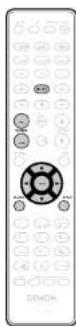
Applying media sharing settings
Here, we apply the settings to share music files stored on a PC and NAS on the network.
☐ Sharing media stored in PC
If you are using a media server, be sure to apply this setting first.
When using Windows Media Player 12 (Windows 7)
NOTE
Perform this procedure after changing the control panel display to "Category".
1 In the PC's "Control Panel", select "Network and Internet" – "Choose homegroup and sharing options".
2 Select the "Stream my pictures, music, and videos to all devices on my home network" check box and select "Choose media streaming options".
3 Select "Allowed" in the drop-down list for "CEOL".
4 Select "Allowed" in the drop-down list for "Media programs on this PC and remote connections...".
5 Click "OK" to finish.
Network audio playback
When using Windows Media Player 11
1 Start up Windows Media Player 11 on the PC.
2 Select "Media Sharing" in the "Library".
3 Click the "Share my media" check box, select "CEOL", and then click "Allow".
4 As you did in step 3, select the icon of the device (other PCs and mobile devices) you want to use as a media controller, and then click "Allow".
5 Click "OK" to finish.
Sharing media stored in NAS
Change settings on the NAS to allow this unit and other devices (PCs and mobile devices) used as media controllers to access the NAS. For details, see the owner's manual that came with the NAS.
Playing files stored on a PC and NAS
Use this procedure to play music files or playlists.
1
Prepare for playback.
① Check the network environment, then turn on this unit's power page 23 "Turning the power on".
② If settings are required, make the "Setting the network [Network]" ( page 17).
③ Prepare the computer
page 30 "Applying media sharing settings", page 58 "About Music server").
2
Press MUSIC SERVER to switch the input source to "Music Server".
- For details on selecting the input source using the unit buttons, see "Selecting the input source using the main unit" (page 23).
3
Press to select the server including the file to be played, then press ENTER or .
4
Press to select the search item or folder, then press ENTER or .
5
Repeat step 4 until the file is displayed.
6
Press △▽ to select the file, then press ENTER or ▷. Playback starts once buffering reaches "100%".
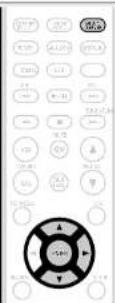

- Connections to the required system and specific settings must be made in order to play music files (page 9).
- Before starting, you must launch the computer's server software and set the files as server contents. For details, see the operating instructions of your server software.
- The order in which the tracks/files are displayed depends on the server specifications. If the tracks/files are not displayed in alphabetical order due to the server specifications, searching by the first letter may not work properly.
- WMA Lossless files can be played when using a server supporting transcoding, such as Windows Media Player Ver. 11 or later.
NOTE
Particularly when you play back large music files, depending on your wireless LAN environment, the playback sound may be interrupted. In this case, make the wired LAN connection.
□ Playing repeatedly (Repeat playback)
page 40
□ Playing random order (Random playback)
page 40
Network audio playback
□ Switching the display
During playback, press INFO.
- The display switches each time INFO is pressed.

flowchart
graph LR
    A["Artist name"] --> B["Album name"]
    B --> C["File type/Bit rate"]
    C --> A
□ Music server operation
| Operation buttons Function | |
| FAVORITE ADD | Registration to the Favorite list |
| FAVORITE CALL Call from the Favorite list | |
| 1<<▶▶▶I | Auto search (cue) |
| ▶/II | Playback / Pause |
| SETUP | Menu |
| △▽◀▶ | Cursor operation (△▽◀▶)/ Auto search (cue, △▽) |
| ENTER | Enter |
| SEARCH | Character search *1 |
| REPEAT | Repeat playback (05 page 40) |
| RANDOM | Random playback (05 page 40) *2 |
*1 Press SEARCH, then press ENTER to select the first letter you want to search mode.
*2 When playing files stored on a computer using the random play function, when a track has finished playing, the next track is selected at random from all of the tracks on the computer. For this reason, the same track may be played back to back.

- If the list is not in alphabetical order, you may not be able to perform a character search.
- Depending on the server being used, some functions may be limited.
Listening to Last.fm CS
Last.fm radio is not available in all countries. Please check www.last.fm/hardware for more information. You'll also need a subscription. Get one today at www.last.fm/subscribe.
1 Prepare for playback.
① Make sure this unit is connected to the Internet, then turn on this unit's power (1 page 23 "Turning the power on").
② If settings are required, make the "Setting the network [Network]" (page 17).
2 Press ONLINE MUSIC to switch the input source to "Last.fm".
- For details on selecting the input source using the unit buttons, see "Selecting the input source using the main unit" (K 7 page 23).
- If you do not have a Last.fm account, press to select "I am new to Last.fm". Then press ENTER or ▷. Create an account in accordance with the instructions on the display.
3 If you have a Last.fm account, press △▽ to select "I have a Last.fm account". Then press ENTER or ▷.
4 Use △▽▷ to enter your username and password.
- For character input, see page 48.
5 After inputting the username and password, select "login", then press ENTER.
If the username and password match, the top menu for Last.fm is displayed.
- The types of characters that can be input are as shown below.
Username
[Lower case characters] abcdefghijklmnopqrstuvwxyz
(Upper case characters)
ABCDEFGHIJKLMNOPQRSTUVWXYZ
Symbols
[Numbers] 0123456789
□ Password
[Lower case characters] abcdefghijklmnopqrstuvwxyz
[Upper case characters]
ABCDEFGHIJKLMNOPQRSTUVWXYZ
Symbols
! " # \$ % & ' ( ) * + , - . / : ; <= > ? @ [ \ ] ^ _ { | } \~ (Space)
[Numbers] 0123456789
6 Use △▽ to select menu and then press ENTER or ▷.
Popular Tags Play popular tags in your area.
Popular Artists Play popular artists tags in your area.
Your Recent
Stations
Play your recent stations.
Your
Recommended Radio Play your recommended radio.
Your Library Play your library.
Your Friend's
Radio
Play your friend's radio.
Your Top Artists Play your top Artists.
Search Tag Radio You can search station by Tag.
Search Artist
Radio
You can search station by Artist.
7 Use △▽ to select a station, and press ENTER, ▷ or ▶/□ to start playback.
Playback starts.
8 When you press ▷ during playback, the following menu appears.
Love this track Loving tracks improves your Last.fm recommendations, and you can optionally share them on popular social networks.
Ban this track If you ban a track, we won't play it again. You can undo this on the Last.fm website.
Scrobbling
Scrolling sends the tracks you played to your Last fm account. You can see charts of the music you've been listening to, get recommendations for new music and events in your area and share your listening tastes with your friends. You can turn this service on or off using this option. The more you scrobble, the better your recommendations will become.
NOTE
The password should be no longer than 90 characters
Network audio playback

Switching the display
During playback, press INFO. The file type/bit rate, artist name and album name are displayed.


Last.fm operation
| Operation buttons | Function |
| ▶/II | Playback |
| ▶▶I | Auto search (cue) |
| ▶/II ENTER | Stop |
| SETUP | Menu |
| △▽◀▷ | Cursor operation / Auto search (cue, ▽) |
| ENTER | Enter |


Tuning in radio stations
Connect the antenna beforehand (page 8).
Listening to FM broadcasts
1 Press TUNER to select the reception band.
FM When listening to an FM broadcast.
- The reception band can also be selected by pressing SOURCE (page 23).
2 Tune in the desired broadcast station.
When a station is received, the 7711 light.

Auto tuning To tune in automatically.
① Press MODE, and "AUTO" lights in the display.
② Press TUNE + or TUNE - to select the station you want to hear.
Manual tuning To tune in manually.
① Press MODE, and "AUTO" goes out in the display.
② Press TUNE + or TUNE – to select the station you want to hear.

- If the desired station cannot be tuned in with auto tuning, tune it in manually.
- When tuning in stations manually, press and hold TUNE + or TUNE
- to change frequencies continuously

To stop auto tuning
Press ■
Automatically presetting FM stations (Auto Preset)
- This unit can be preset to favorite list with a total of 50, FM broadcast stations.

Press SEARCH. "Search" menu appears.

Use △▽ to select "Auto Preset - Start", then press ENTER, ▶/□ ENTER or ▷.
"Searching" appears in the display, and the unit searches for radio stations. When the search is complete, "Complete!!" appears.

Canceling auto presetting
Press ■
NOTE
- Broadcast stations whose antenna signal are weak cannot be preset automatically. If you wish to preset such stations, tune them in manually.
- When all 50 items in the favorite list are registered, no additional registrations can be made.

| Operation buttons | Function |
| ▶/II | Playback |
| ▶▶I | Auto search (cue) |
| ▶/II ENTER | Stop |
| SETUP | Menu |
| △▽◀▷ | Cursor operation / Auto search (cue, ▽) |
| ENTER | Enter |
RDS (Radio Data System)
Note that the RDS function only works when receiving RDS compatible stations.
RDS (works only on the FM band) is a broadcasting service which allows a station to send additional information along with the regular radio program signal.
The following four types of RDS information can be received with this unit:
RDS Search
Use this function to automatically tune to FM stations that provide the RDS service.
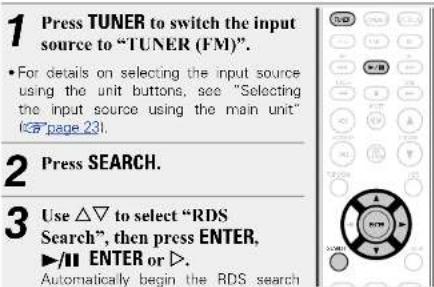
1 Press TUNER to switch the input source to "TUNER (FM)".
- For details on selecting the input source using the unit buttons, see "Selecting the input source using the main unit" (page 231.
2 Press SEARCH.
3 Use △▽ to select "RDS Search", then press ENTER, ▶/□□ ENTER or ▷.
Automatically begin the RDS search operation.
- If no RDS station is found, "No Programme" is displayed.
Viewing information during reception
Press INFO while receiving a RDS to display the information currently being broadcast.

*1 Program service name
- If a station name is entered, it is displayed.
*2 Frequency
PTY (Program Type)
PTY identifies the type of RDS program.
The program types and their displays are as follows:
| NEWS News |
| AFFAIRS Current Affairs |
| INFO Information |
| SPORT Sports |
| EDUCATE Education |
| DRAMA Drama |
| CULTURE Culture |
| SCIENCE Science |
| VARIED Varied |
| POP M Pop Music |
| ROCK M Rock Music |
| EASY M Easy Listening Music |
| LIGHT M Light Classical |
| CLASSICS Serious Classical |
| OTHER M Other Music |
| WEATHER Weather | |
| FINANCE Finance | |
| CHILDREN | Children's programmes |
| SOCIAL Social Affairs | |
| RELIGION Religion | |
| PHONE IN | Phone In |
| TRAVEL | Travel |
| LEISURE Leisure | |
| JAZZ | Jazz Music |
| COUNTRY Country Music | |
| NATION M | National Music |
| OLDIES | Oldies Music |
| FOLK M Folk Music | |
| DOCUMENT | Documentary |
□ PTY Search
Use this function to find RDS stations broadcasting a designated program type (PTY).
For a description of each program type, refer to "PTY (Program Type)".
1 Press TUNER to switch the input source to "TUNER (FM)".
- For details on selecting the input source using the unit buttons, see "Selecting the input source using the main unit" (page 23).
2 Press SEARCH.
3 Use △▽ to select "PTY Search", then press ENTER, ▶/□ ENTER or ▷.

4 Use △▽ to call out the desired program type, then press ENTER, ▶/II ENTER or ▷.
Automatically begin the PTY search operation.
- If no program of the specified type is found, "No Programme" is displayed.
TP (Traffic Program)
TP identifies programs that carry traffic announcements.
This allows you to easily find out the latest traffic conditions in your area before leaving home.
TP Search
Use this function to find RDS stations broadcasting traffic programs (ITP stations).
1 Press TUNER to switch the input source to "TUNER (FM)".
- For details on selecting the input source using the unit buttons, see "Selecting the input source using the main unit" (page 23).
2 Press SEARCH.
3 Use △▽ to select "TP Search", then press ENTER, ▶/□□ ENTER or ▷. Automatically begin the TP search operation.
- "No Programme" is displayed when there is no traffic information broadcast station.

Tuning in radio stations
RT (Radio Text)
RT allows RDS stations to send text messages that appear on the display.

- When the RT mode is tuned on while an RDS broadcast station not offering an RT service is tuned in, "NO TEXT" is displayed on the display.
- The RT mode cannot be set in the FM stations not offering RDS broadcasts.
NOTE
The operations described below selecting "RDS Search" will not function in areas in which there are no RDS broadcasts.
□ Tuner (FM) operation
| Operation buttons | Function |
| FAVORITE ADD Registration to the Favorite list | |
| FAVORITE CALL Call from the Favorite list | |
| ■ | Stop |
| TUNER +,- Tuning (up/down) | |
| SETUP Menu | |
| MODE Switch search modes | |
| △▽◀▷ | Cursor operation (Up/Down/Left/Right) |
| ENTER Enter | |
| SEARCH | RDS search / PTY search / TP search / Auto prosct |
| TOP MENU Return to top page | |


Favorite function
This section provides information on the Favorite function.
• The Favorite function allows you to register your favorite broadcast stations and files in Favorite List in advance so that you can call and listen to the stations or files right away, whenever you want.
- The contents that you can register and call are Internet radio station, music server and tuner.
- You can register up to 50 items in Favorite List.
Registering stations or files to the favorites list
1 Press FAVORITE ADD while the Internet radio station or file to register is played back.
"Favorite" menu appears.
2 Press △▽ to select a number to register the station or file, and press ENTER.
"Add to Favorite" is displayed and the registration is competed.

Calling stations or files from the favorites list
1 Press FAVORITE CALL. The Favorite list appears.
2 Press |◀◀▶▶| or △▽ to select the station or file that you want to call, and press ENTER.
The respective function starts up and playback starts.
- Press 0 - 9, +10 to call files registered to the Favorite list by number.
☐ To switch between registered stations and files during playback
Press |◀◀ ▶▶| or △▽.

Deleting stations or files from the favorite list
1 Press FAVORITE CALL. The Favorite list appears.
2 Press to select the station or file that you want to delete, and press CLEAR.
3 When the prompt "Delete?" appears, press ENTER. "Deleted" is displayed and the deletion is competed.
☐ To cancel the operation
Press


iPod playback
The unit can play back music stored on iPod, iPod touch, iPod classic, iPod nano and iPhone.


Connecting an iPod

iPod Dock
Open the lid and mount the adapter suited for your iPod onto the dock adapter included with your iPod.

NOTE
- Please make sure to fit adaptor to connector part for use with your iPod.
- When plugging in or unplugging the iPod, please proceed carefully, adjusting the inclination of the connector so as not to place a burden upon the connector.
Loading Dismantling

USB port
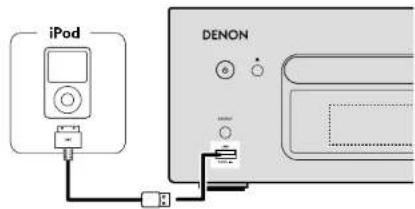

To connect an iPod to this unit, use the iPod cable supplied with the iPod.
Playing an iPod
1 Press POWER ⏻ to turn on power to the main unit.
2 Press iPod to switch the input source to "iPod".
- For details on selecting the input source using the unit buttons, see "Selecting the input source using the main unit" (1 page 23).
3 Press MODE to select the display mode. The display mode switches each time MODE is pressed.
- There are two modes for displaying the contents recorded on the iPod.
Browse mode Display iPod information on the display of this unit.
Remote mode Display iPod information on the iPod screen. - "Remote iPod" is displayed on the display of this unit.

| Display mode | Browse mode | Remote mode | |
| Display location | Main unit display | iPod display | |
| playable files | Audio file | √ | √ |
| Video file | √* | ||
| Active buttons | Remote control and main unit | √ | √ |
| iPod | √ | ||
* Only audio is played back.
- The default display mode setting is "Remote mode".
4 Use to select the item, then press ENTER to select the music file to be played.
5 Press ▶/II. Playback starts.
NOTE
- 1st generation iPod nano and iPod video do not have remote mode support.
- DENON will accept no responsibility whatsoever for any loss of iPod data.
- Depending on the type of iPod and the software version, some functions may not operate.
Remote control and iPod button relations
| Remote control buttons | iPod buttons Operation on this unit | |
| |◀◀.▶▶| |◀◀.▶▶| | Play the track from the beginning/Play the next track | |
| ▶/|| ▶|| | Play the track / Pause the track | |
| |◀◀.▶▶| |Press and hold| | |◀◀.▶▶| |Press and hold| | Fast-reverse the track/Fast-forward the track |
| MODE | - | Switch between the browse mode and the remote mode |
| △▽ | Click Wheel Cump or operation [up /down] | |
| ◀ | MENU | Display the menu or return to the previous menu |
| ENTER or ▷ | Select Enter the selection or plays the track | |
| REPEAT | - Switch the repeat function | |
| RANDOM | - Switch the shuffle function | |
iPod playback
□ Switching the display
During playback, press INFO.
- The display switches each time INFO is pressed (Browse mode only).
Artist name ← Album name
□ Playing repeatedly (Repeat playback)
( page 40 ) (Browse mode only)
☐ Playing random order (Random playback)
page 40
Disconnecting the iPod
1 Press POWER ⏻ to set the standby mode. 2 Disconnect the iPod from the Dock connector.
Charging the iPod
You can charge your iPhone/iPod by connecting it to the dock connector or USB port.
Standby charging
If the unit enters power standby mode while the iPod/iPhone is charging, the unit will switch to standby charging mode, and the iPod/iPhone will continue to be charged. When in standby charging mode, the power display light turns rec. When the iPhone/iPod is fully charged, the unit automatically stops supplying power for charging and enters normal power standby mode, and the power display light turns off.

If an iPhone/iPod is connected to the dock connector while the unit is in power standby mode, the unit will enter standby charging mode and begin charging the iPhone/iPod.
See overleaf
iPod playback
Supported iPod models
- iPod classic

iPod classic 80GB

iPod classic 160GB (2007)

iPod classic 160GB (2009)
- iPod nano

iPod nano
3rd generation
(video)
4GB 8GB

iPod nano
4th generation (video)
8GB 16GB

iPod nano
5th generation (video camera)
8GB 16GB

iPod nano
6th generation
8GB 16GB
- iPod touch

iPod touch
1st generation
8GB 16GB 32GB

iPod touch
2nd generation
8GB 16GB 32GB

iPod touch
3rd generation
32GB 64GB

iPod touch
4th generation
8GB 32GB 64GB
- iPhone

iPhone
4GB 8GB 16GB

iPhone 3G
8GB 16GB

iPhone 3GS
8GB 16GB 32GB

iPhone 4
8GB 16GB 32GB

iPhone 4S
16GB 32GB 64GB
(as of July 2012)

USB memory device playback
You can playback music stored on a USB memory device using this unit.

USB memory device (page 57)
Playing files stored on USB memory devices

Connect the USB memory device to the USB port.


Press POWER ⏻ to turn on power to the main unit.

Press USB to switch the input source to "USB".
- For details on selecting the input source using the unit buttons, see "Selecting the input source using the main unit" (page 23).

Press △▽ to select the file or folder, then press ENTER or ▷.

Press △▽ to select the file, then press ENTER, ▷ or ▶/II. Playback starts.


- If the USB memory device is divided into multiple partitions, only the top partition can be selected.
- This unit is compatible with MP3 files conforming to "MPEG-1 Audio Layer-3" standards.
- DENON does not guarantee that all USB memory devices will operate or receive power. When using a portable USB connection type HDD of the kind to which an AC adapter can be connected to supply power, use the AC adapter.
NOTE
• USB memory devices will not work via a USB hub.
- It is not possible to connect and use a computer via the USB port of this unit using a USB cable.
- Do not use an extension cable when connecting a USB memory device. This may cause radio interference with other devices.
- Note that DENON will accept no responsibility whatsoever for any problems arising with the data on a USB memory device when using this unit in conjunction with the USB memory device.
Removing the USB memory device

Press POWER ⏻ to set the standby mode.

Check that the communication indicator on the USB memory device is not flashing, then pull out the USB memory device.
NOTE
Do not remove the USB memory device from the unit when the USB memory communication indicator is flashing. Doing so may damage the USB memory device, or may corrupt the files recorded on the USB memory device.
Playing repeatedly (Repeat playback)
Press REPEAT.
Repeat playback starts.
• Each time you press REPEAT, the repeat mode is toggled as shown below.


flowchart
graph LR
    A["Single-track repeat"] --> B["All-track repeat"]
    B --> C["Repeat off (indicator turns off)"]
    C --> A

(Single-track repeat)
Only 1 track plays repeatedly.

(All-track repeat)
All tracks within the current playback folder are repeated.
Repeat off (indicator turns off) Normal playback resumes.
Playing random order (Random playback)
Press RANDOM.
The x indicator lights in the display, and random playback starts.

□ Canceling random playback Press RANDOM.
The x indicator on the display turns off.

USB operation
| Operation buttons Function | |
| |◀, ▶▶| | Auto search (cua) |
| ▶/II | Playback / Pauso |
| △▽ | Cursor operation / Auto search (cus. △▽) |
| ENTER or ▷ | Enter / Playback |
| ◀ | Display the menu or return to the previous menu |
| SEARCH Character search *1 | |
| REPEAT Repeat playback | |
| RANDOM Random playback *2 | |

*1 Press SEARCH, then press ENTER to select the first letter you want to search mode.
*2 When playing files stored on a USB memory device using the random play function, when a track has finished playing, the next track is selected at random from all of the tracks on the device. For this reason, the same track may be played back to back.

If the list is not in alphabetical order, you may not be able to perform a character search.
USB memory device playback
□ Switching the display

flowchart
graph TD
    A["Artist name"] --> B["File type/Bit rate"]
    C["Album name"] --> B
    D["Press Info"] --> A
    D --> C

Portable audio player playback
Your portable audio player can be connected to this unit's portable jack to play tracks on the portable audio player.
Playing portable audio player
1 Connect the portable audio player to ☐ (page 7 "Connecting a portable player"). The input source automatically switches to "Portable In".
2 Play the portable audio player.
The player's audio is output.
• Also read the portable audio player's operating instructions.
NOTE
When using the portable player's headphone jack, set the volume on the portable player to an appropriate level.


Listening to ANALOG IN
1 Prepare for playback. Check the connection, then turn on this units.

2 Press ANALOG IN to select "Analog In 1", "Analog In 2" or "Portable In".

- When there is no portable audio player connected to the portable in jack, "Portable In" is not displayed when you press ANALOG IN.

Play the component connected to this unit.

Listening to DIGITAL IN
1 Prepare for playback. Check the connection, then turn on this units.
2 Press DIGITAL IN to select "Digital In".
3 Play the component connected to this unit.
NOTE
Other digital audio signals than 2 channel linear PCM cannot be input through DIGITAL IN connector of this unit.
AirPlay function
Enjoy music from your iTunes library with DENON quality sound anywhere in your home.
Streaming music stored in iPhone or iPod touch directly to the unit
If you update your "iPhone/iPod touch" to iOS 4.2.1 or later, you can stream music stored in your "iPhone/iPod touch" directly to this unit.
1 Start the music mode on the iPhone or iPod touch. ▲ is displayed on the iPhone or iPod touch screen.
2 Tap the AirPlay icon ▲ Set "Network Control" (page 20) to "On" for this unit.
NOTE When "Network Control" is set to "On", the unit consumes more standby power.
3 Select the speaker you want to use.
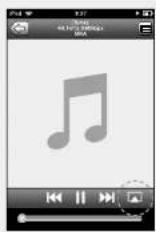

Playing iTunes music on this unit
1 Install iTunes 10, or later, on a Mac or PC that is connected to the same network as this unit.
2 Turn this unit ON.
Set "Network Control" (15 page 20) to "On" for this unit.
NOTE
When "Network Control" is set to "On", the unit consumes more standby power.
3 Launch iTunes and click the AirPlay icon ▲ displayed in the lower right of the window and select this unit from the list.

4 Choose a song and click play in iTunes. The music will stream to this unit.
□ Multiple speakers
You can easily stream music from iTunes to multiple speakers in your home.
1 Click the AirPlay icon ▲ and select "Multiple Speakers" from the list.
2 Check the speakers you want to use.

See overleaf
Remote operations
You can use your DENON remote control to play and pause iTunes, as well as skip to next and previous tracks.
1 Open "Edit" – "Preferences" in iTunes, and click "Devices".
2 Check "Allow iTunes audio control from remote speakers".

AirPlay function

- Source input will be switched to "AirPlay" when AirPlay playback is started.
- You can stop AirPlay playback by pressing the ◀ or choosing other input source.
• To see artist name or album name together, press INFO. - For information about how to use iTunes, also see the Help for iTunes.
- The screen may differ depending on the OS and software versions.
- When you connect iPod to the USB connector during AirPlay playback, AirPlay playback stops.
Remote play function
You can use your home network to play back with this unit music files stored on PC, NAS, mobile phones and portable audio players. In this case, you use PC, mobile phones and portable audio players for operations.

- The relevant devices should comply with the DLNA (Digital Living Network Alliance) Ver. 1.5 standard.
- A wireless LAN environment is required for playing back music files on mobile phones or portable audio players.
- For some mobile phones, you must install an application for DLNA music playback.
☐ Roles each device plays
The following devices are used for Remote Play. As specified in the DLNA standard, these devices are called DMC, DMS or DMR according to their role.
| Name Device example Role | ||
| DMC(Digital Media Controller) | PCMobile phonePortable audio player | Performs Remote Play operations.DMC can also play back music files stored on these devices. |
| DMS(Digital Media Server) | PCNAS(Network Attached Storage) | Stores music files.Music files stored on these devices are played back with DMC. |
| DMR(Digital Media Renderer) | This unit | Outputs audio of music files played back through Remote Play from speakers. DMR cannot perform playback operations. |
Files that can be played back
See "About Music server" (page 58).
Settings required for each device
You must make settings on DMC and DMS for Remote Play. Make the following settings. Also see the owner's manual of each device for settings.
□ Settings on PC and NAS
Make settings on PC and NAS to exchange data with DMR devices. For settings, see "Applying media sharing settings" ( page 30).
□ Settings on mobile phones
You must install an application for DLNA music playback on your mobile phone to perform operations on DMS and this unit (DMR) with your mobile phone. The applicable application differs according to your mobile phone.

Some mobile phones support DLNA music playback with the factory settings. See the owner's manual of your mobile phone.
□ Settings on portable audio players
Make settings so that this unit (DMR) can play back music files stored on your portable audio player. For settings, see the owner's manual of your portable player.
□ Settings on this unit
Connect this unit to the DLNA network. You do not need to make other settings.
For the network connection, see the provided Quick setup Guide, "Connecting to a home network (LAN)" ( page 9) and "Setting the network (Network)" ( page 17).
Remote Play operations
Operations are different for each device, but the procedures for preparing for Remote Play are the same. The preparation procedures are shown below.

Turn on this unit.
- Make sure that this unit is connected to the network.

Display the music file playback screen on DMC.
• For PC, open Windows Media Player 12, etc.
- For mobile phones, switch to the music file playback mode.

Select the friendly name of this unit for the item that
sets the playback device on the playback screen.
- The default friendly name of this unit is "CEOL"

Start playing back a music file on DMC.
- The function on this unit automatically switches to Music Server and the Remote Play mark 📄 appears on the display. Remote Play starts.
NOTE
During Remote Play, you cannot perform playback operations with this unit. Use the DMC device for these operations.
To exit Remote Play
Press
• The Remote Play mode ends.
Web control function
You can control this unit from a web control screen on a web browser.

- This unit and the PC need to be connected to the network properly ( page 9 "Connecting to a home network (LANI") in order to use the web control function.
- Depending on the settings of your security-related software, you may not be able to access this unit from your PC. If this is the case, then change the settings of the security-related software.
1 Switch the "Network Control" setting to "On" (page 20).
2 Check the IP address of this unit with "Network Information".
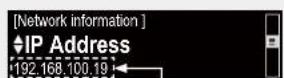
Checking the IP address.

Start up the web browser.
4 Enter the IP address of this unit in browser's address box.
For example, if the IP address of this unit is "192.168.100.19", enter "http://192.168.100.19/".

① Entering the IP address.
- By adding this unit's IP address to the browser's bookmark, you can display the web control screen using the bookmark function the next time you use the browser. If you are using a DHCP server and "Network Control" (C# page 200) is set to "Off", turning the power or/off changes the IP address.
② If you are using the Safari web browser, you can select "Bonjour" and directly access the unit's web control screen from the overview section.
5 When the top menu is displayed, click on the menu item you want to operate.

③ Click when you setup network settings. [Example 1]
④ Click when you update firmware (page 15)

See overleaf

Operate.
[Example 1] Network Setting 1
⑤
CEOL Set Set Default
6
⑦
⑧ Test Connection
⑨
7 Operate.
[Example 2] Network Setting 2
CTGI Sol Sol Default
DENOS
10
192.168.000.00 255.255.255.000 000.000.000.000 000.000.000.000 000.000.000.000
⑪
00000000000000
Test Connection
Friendly Name setting
⑤ To change the Friendly Name, enter the new name in the text box and click "Set".
⑥ To reset the Friendly Name, click "Set Default".
Network connection settings
⑦ Click to change the network connection method. If you select "Wi-Fi", a new item will appear on-screen.
Example 2
⑧ Click to change DHCP/proxy settings.
Example 2)
⑨ Click to connect using the newly applied settings.
To apply network connection settings, click "Test Connection" after making changes.
Network connection settings
10 Various items will be displayed if you selected "Wi-Fi" in Example 1. Select or input items as necessary, and then click "Test Connection" to apply the changes.
- Items displayed may vary depending on selected items and connection status.
- After selecting each item, wait a moment for the display to be updated.
⑪ Displayed if "DHCP" or "Proxy" is selected in Example 1. When changing DHCP/proxy settings, input or select for each item.
To apply network connection settings, click "Test Connection" after making changes.
Other functions
Inputting characters
On this unit, the names displayed for "Friendly Name" and search, screens can be changed as desired.
For inputting characters, there are two methods, as shown below.
| Method Operations | |
| Using the number buttons | • Operating with the remote control.• Multiple characters are assigned to a button, and each time the button is pressed, a character is switched. |
| Using the cursor buttons | • Operating with the remote control or the main unit.• Use △▽◀▷ and ENTER to input characters. |
□ Display of an input screen
[Friendly name input]

Using the number buttons
1 Display the screen for inputting characters.
2 Place the cursor at the character to be changed with ◀ ▷ and press 0 - 9, +10 until the desired character is displayed.

- The types of characters that can be input are as shown below.
![1. @ - /: 6m00 m n o M N O 6 2 anc abcABC2 7n00 p q r s P Q R S 7 3 isd defDEF3 8in tu v T U V 8 4 isd g h i G H I 4 9w00 w x y z W X Y Z 9 5 isc j k l J K L 5 0 i Space! " #S % & ' } * + , ; <= => ?[1]^' { }](/content/2026/06/1238705/images/b251e40d89ed7a28d6b625d4415bff477ba6ab6e734db09bbd8540f5c7aa3cb6.jpg)
- The input character type can be switched by pressing +10 while the display name is being changed.
- Press CLEAR to delete the character.
- For entering the characters assigned to one number button continuously, press ▷ to move the cursor to the right after entering a character then enter the next character.
- For entering characters assigned to separate buttons, press the number button continuously. The cursor automatically moves to the next position, and the entered character is registered.
3 Repeat step 2 to change the name then press ENTER to register it.
Example: For changing characters from "POPS" to "ROCK"
| 1 Place the cursor at "P". | ▶ FOPS |
| 2 Press(7ms) seven times. "P" changes to "R". | ▶ ROPS |
| 3 Press ▷ twice. "R" is automatically registered, and the cursor placed "P". | ▶ ROPS |
| 4 Press(2ms) six times. "P" changes to "C". | ▶ ROPS |
| 5 Press ▷ "C" is registered and the cursor placed "S". | ▶ ROPS |
| 6 Press(5ms) five times. "S" changes to "K". | ▶ ROCK |
⑦ Press ENTER to register the input name.
Using the cursor buttons
1 Display the screen for inputting characters.
2 Use ◀▷ to set the cursor to the character you want to change.
3 Use to change the character.

• The types of characters that can be input are as shown below.
[Lower case characters]
abcdefghijklmnopqrstuvwxyz
[Upper case characters]
ABCDEFGHIJKLMNOPQRSTUVWXYZ
[Symbols] ! " # \$ % & ' ( ) * + , . / : ; <= > ? @ [ \ ] ^ _ { | } "
[Numbers] 0123456789 (Space)
- The input character type can be switched by pressing +10 while the display name is being changed.
- Press CLEAR to delete the character.
- Press ▶▶▶ to insert a space.
4 Repeat steps 2 and 3 to change the name then press ENTER to register it.
Auto power on function
When you press INTERNET RADIO, ONLINE MUSIC, MUSIC SERVER, TUNER, iPod, USB, CD, ▶/II, △ or FAVORITE CALL, the corresponding device is turned on and the source automatically switches.
- When you press ▶/11, the previously selected source is played back.
- When you press ▲, the disc tray opens.

natural_image
Front view of a microwave oven with control panel and indicator lights (no text or symbols visible)Last function memory
This stores the settings as they were immediately before going into the standby mode.
When the power is turned back on, the settings are restored to as they were immediately before going into the standby mode.
Other functions
Resetting the microprocessor
Perform this procedure if the display is abnormal or if operations cannot be performed.
When the microprocessor is reset, all the settings are reset to their default values.
1 Pull the power cord out of the power outlet.
2 Plug the power cord into a power outlet while pressing VOLUME ▲▼ on the main unit.
3 When the power indicator lights white, release the buttons.
"Initialized" appears in the display.

If "Initialized" does not display in step 3, start over from step 1.
Information
Information
Here, we list various information related to this unit. Please refer to this information as needed.
Information page 51
● Explanation terms page 59
● Troubleshooting page 61
Specifications page 65
Index page 66
Information
Part names and functions
For buttons not explained here, see the page indicated in parentheses ( ).
Front panel

① SOURCE button....(23)
Selects the input source.
② USB port (37, 40)
Used to connect iPod or USB memory devices.
3 Portable in jack (☐) ..... (41)
Used to connect portable audio devices.
4 Headphones jack (☐) 24
Used to connect headphones
NOTE
To prevent hearing loss, do not raise the volume level excessively when using headphones.
⑤ Volume up/down button (VOLUME ▲▼)....(23)
Adjusts the audio volume.
⑥ Cursor button (△▽◀▷) …… (12, 23)
⑦ Play/Pause/ENTER button (▶/■/ENTER) ...... (25)
⑧ Disc tray 3.251
Tray used to insert a compact disc.
⑨ Display
Displays play status, settings, etc.
10 Remote control sensor .... (4)
⑪ Disc tray open/close button (▲) ..... (25)
Used to open/close the disc tray.
⑫ Power indicator …… (23)
⑬ Power operation button and indicator (0)....(23)
Turns power to this unit on and off (standby).
The power indicator changes as shown below according to the status of the unit.
• Power on : White
- Standby : Off
• Network Control - "On" : Red
- iPod charge standby: Red
• Alarm standby : Orange
Top panel
![[When the door is opened] ① ②](/content/2026/06/1238705/images/8c066aa1843439f74d9a0eed98a6842e35e255fb6a24160c22dfb06e2a2b66f3.jpg)
① Door....(3/1)
② Dock connector....(37)
Rear panel

① AC inlet (AC IN)....(10) ⑤ DIGITAL IN connector....(7)
② Speaker terminals (SPEAKERS) ……(6) ⑥ FM antenna terminal (ANTENNA) ……(8)
③ SUBWOOFER connector……(6) ⑦ ETHERNET connector (NETWORK)……(9)
④ ANALOG IN connectors....(7) ⑧ WPS button....(19)
Remote control
This section explains the buttons used to playback each input source.
☐ Buttons that work with all input sources
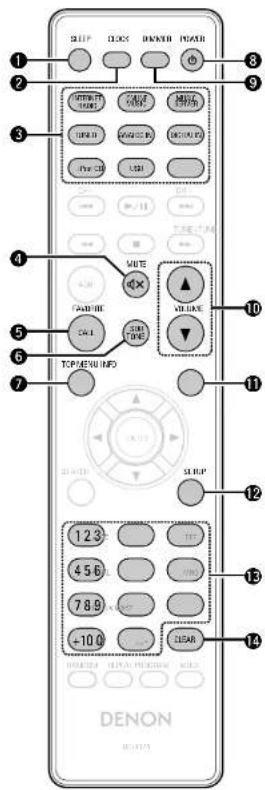
① SLEEP button 24
② CLOCK button....(13)
③ Input source select buttons....(23)
④ MUTE button …… (24)
⑤ FAVORITE CALL button....(36)
6 SDB TONE button (24)
⑦ TOP MENU button ...... (11)
8 POWER button (⏻) ...... (23)
9 DIMMER button (24)
⑩ VOLUME buttons (▲▼) ..... (23)
⑪ Information button (INFO)....(29)
⑫ SETUP button …… (17)
⑬ Number buttons
(0 - 9, +10) (36.48)
14 CLEAR button (36, 48, 49)
☐ Buttons that work with CDs
"Buttons that work with all input sources" can also be used.
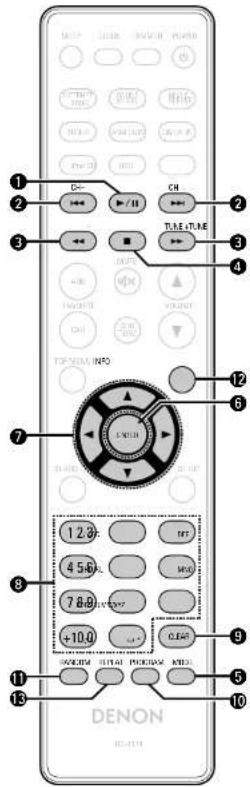
① Play/Pause button (▶/Ⅲ) …… (25)
② Reverse-skip/Forward-skip buttons
(1◄◄, ►►) ...... (25)
③ Fast-reverse/Fast-forward buttons
(◀◀, ▶▶) ..... [25]
④ Stop button (■) …… (25)
⑤ MODE button (28)
⑥ ENTER button …… (25)
⑦ Cursor buttons (△▽◀▷) …… (28)
⑧ Number buttons (0 - 9, +10) ..... (25)
⑨ CLEAR button ..... (27)
⑩ PROGRAM button (27)
⑪ RANDOM button ......(26)
⑫ Information button (INFO)....(26)
⑬ REPEAT button (26)
Part names and functions
☐ Buttons that work when the input source is "Internet Radio", "Music Server" or "Last.fm"
"Buttons that work with all input sources" can also be used.

① Play/Pause button (▶/II)....(29)
② Reverse-skip/Forward-skip buttons
(I◄◄, ►►I) ......(31)
③ FAVORITE ADD button ..... (36)
4 FAVORITE CALL button ....(36)
⑤ ENTER button 129
⑥ Cursor buttons (△▽◀▷)……(29)
⑦ SEARCH button 129
8 RANDOM button 31
⑨ REPEAT button ....(31)
⑩ Information button (INFO) ...... (29)
☐ Buttons that work when the input source is "TUNER"
"Buttons that work with all input sources" can also be used.

① Stop button (■) ..... (33)
② ENTER button …… (33)
③ Cursor buttons (△▽ ▷) ..... (33)
4 SEARCH button (33)
⑤ Tuning up/Tuning down buttons (TUNE +, -) …… (33)
⑥ MODE button....(33)
Part names and functions
☐ Buttons that work when the input source is "iPod" or "USB"
"Buttons that work with all input sources" can also be used.

① Play/Pause button (▶/II)....(37, 40)
② Reverse-skip/Forward-skip buttons (I◄◄, ►►►) ......(37, 41)
③ ENTER button ....(37)
④ Cursor buttons (△▽◀ ▷)....(37)
⑤ SEARCH button ..... (41)
6 RANDOM button (37.40)
⑦ REPEAT button (37, 40)
⑧ Information button (INFO)....(37, 41)
⑨ MODE button 37
iPod
Made for

iPod

iPhone

"Made for iPod" and "Made for iPhone" mean that an electronic accessory has been designed to connect specifically to iPod, or iPhone, respectively, and has been certified by the developer to meet Apple performance standards.
Apple is not responsible for the operation of this device or its compliance with safety and regulatory standards. Please note that the use of this accessory with iPod, or iPhone, may affect wireless performance.
AirPlay, the AirPlay logo, iPhone, iPod, iPod classic, iPod nano, iPod shuffle, and iPod touch are trademarks of Apple Inc., registered in the U.S. and other countries.
- Individual users are permitted to use iPhone, iPod, iPod classic, iPod nano, iPod shuffle, and iPod touch for private copy and playback of non-copyrighted contents and contents whose copy and playback is permitted by law. Copyright infringement is prohibited by law.
MP3 and WMA
MP3 and WMA formats
CD-R and CD-RW discs created in the format described below can be played.
□ Writing software format
ISO9660 level 1
When written in other formats, it may not be possible to play the disc properly.
☐ Maximum number of playable files and folders
Total number of folders and files : 512
Number of folders : 256
File format
MPEG-1 Audio Layer-3
WMA (Windows Media Audio)
Tag data
ID3-Tag (Ver. 1.x and 2.x)
META-Tag
(Compatible with title, artist and album names)
| Playable MP3/WMA file | |||
| File format | Sampling frequency | Bit rate Extension | |
| MP3 32, 44.1, 48 kHz 32 ~ 320 kbps .mp3 | |||
| WMA 32, 44.1, 48 kHz 64 ~ 192 kbps .wma | |||

- Be sure to give files the extension ".MP3" or ".WMA". Files with any other extensions or with no extensions cannot be played.
- Mac OS X files assigned with filenames that begin with “_” are not music data and cannot be played back.
- In accordance with copyright laws, recordings you have made should only be used for your personal enjoyment and may not be used in other ways without permission of the copyright holder.
USB memory device
Playing back music files recorded on a USB memory device.
Important information
- Only USB memory devices conforming to mass storage class and MTP (Media Transfer Protocol) standards can be played on this unit.
- This unit is compatible with USB memory devices in "FAT16" or "FAT32" format.
- This unit is compatible with MP3 files conforming to "MPEG-1 Audio Layer-3" standards.
- File types that this unit can play back and specifications are shown below.
[Supported file types]
| Supported file types USB memory devices | |
| WMA (Windows Media Audio) | √*2 |
| MP3 (MPEG-1 Audio Layer-3) | √ |
| WAV | √ |
| MPEG-4 AAC | √*3 |
| FLAC (Free Lossless Audio Codec) | √ |
*1 USB memory device
- This unit is compatible with MP3 ID3-Tag (Ver. 2) standard.
- This unit is compatible with WMA META tags.
- WAV format Quantization bit length: 16 bits.
- FLAC format Quantization bit length: 16 or 24 bits.
*2 Copyright-protected files can be played on certain portable players compatible with MTP.
*3 Only files that are not protected by copyright can be played on this unit.
Content downloaded from pay sites on the Internet are copyright protected. Also, files encoded in WMA format when ripped from a CD, etc. on a computer may be copyright protected, depending on the computer's settings.
NOTE
File types that this unit does not support are not displayed.
[Compatible formats]
| Sampling frequency | Bit rate | Bit length | Extension | |
| WMA(Windows Media Audiol) | 32/44.1/48 kHz | 48 – 192 kbps | -.wma | |
| MP3IMPEG-1 Audio Layer-3I | 32/44.1/48 kHz | 32 – 320 kbps | -.mp3 | |
| WAV | 32/44.1/48/88.2/96/176.4/192 kHz | - | 16 /24 bit | .wav |
| MPEG-4 AAC | 32/44.1/48 kHz | 16 – 320 kbps | - | .aec/.m4a/.mp4 |
| FLAC(Free Lossless Audio Codec) | 32/44.1/48/88.2/96/176.4/192 kHz | - | 16 /24 bit | .flac |
☐ Maximum Number of Playable Files and Folder
The limits on the number of folders and files that can be displayed by this unit are as follows.
| Item\Media | USB memory devices |
| Memory capacity FAT16 : 2 GB, FAT132 : 2 TB | |
| Number of folder directory levels *1 | 8 levels |
| Number of folders 500 | |
| Number of tiles *2 | 5000 |
*1 The limited number includes the root folder.
*2 The allowable number of files may differ according to the USB memory device capacity and the file size.
Network audio
Important information

About the internet radio function
- Internet radio refers to radio broadcasts distributed over the Internet.
Internet radio stations from around the world can be received. - This unit is equipped with the following Internet radio functions:
- Stations can be selected by genre and region.
- Internet radio stations in MP3 and WMA (Windows Media Audio) format can be listened to.
- Your favorite radio stations can be registered by accessing an exclusive DENON Internet radio URL from a Web browser on a computer.
- The function is managed for individual users, so you must provide your MAC or e-mail address.
Exclusive URL: http://www.radiodenon.com - The radio station database service may be suspended without notice.
- This unit's Internet radio station list is created using a radio station database service (vTuner). This database service provides a list edited and created for this unit.
About Music server
This function lets you play music files and playlists (m3u, wpl) stored on a computer (music server) connected to this unit via a network.
With this unit's network audio playback function, connection to the server is possible using one of the technologies below.
• Windows Media Player Network Sharing Service
• Windows Media DRM10
[Types of files that can be played back by each function]
| Internet radio Music server *1 | ||
| WMA (Windows Media Audio) | √ | √ |
| MP3 (MPEG-1 Audio Layer-3) | √ | √ |
| WAV | √ | |
| MPEG-4 AAC | √*2 | |
| FLAC (Free Lossless Audio Codec) | √ | |
A server or server software compatible with distribution in the corresponding formats is required to play music files via a network.
*1 Music server
- This unit is compatible with MP3 ID3-Tag (Ver. 2) standard.
- This unit is compatible with WMA META tags.
- If the image size (pixels) of an album artwork exceeds 500×500 (WMA/MP3/WAV/FLAC) or 349×349 (IMPEG-4 AAC), then music may not be played back properly.
*2 Only files that are not protected by copyright can be played on this unit.
Content downloaded from pay sites on the Internet are copyright protected. Also, files encoded in WMA format when ripped from a CD, etc. on a computer may be copyright protected, depending on the computer's settings.
[Playback file specifications]
| Sampling frequency | Bit rate | Bit length | Extension | |
| WMA(Windows Media Audio) | 32/44.1/48 kHz | 48 – 192 kbps | - .wma | |
| MP3(MPEG-1 Audio Layer-3) | 32/44.1/48 kHz | 32 – 320 kbps | - .mp3 | |
| WAV | 32/44.1/48/88.2/96/176.4/192 kHz | - | 16 /24 bit | .wav |
| MPEG-4 AAC | 32/44.1/48 kHz | 16 – 320 kbps | - | .aac/.m4a/.mp4 |
| FLAC(Free Lossless Audio Codec) | 32/44.1/48/88.2/96/176.4/192 kHz | - | 16 /24 bit | .flac |
NOTE
Particularly when you play back large music files, depending on your wireless LAN environment, the playback sound may be interrupted. In this case, make the wired LAN connection.
About Last.fm
Last.fm learns what you love... and it's a great way to discover new music.
Your new DENON Network CD receiver is very clever. You can create a free Last.fm profile when you start using your DENON Network CD receiver and magically keep track of all the songs you hear.
When you sign in at www.last.fm, you can see your top music charts, view thousands of reviews, biographies and artwork, and get recommendations for local performances you won't want to miss.
With an affordable subscription you can enjoy an endless choice of personalised ad-free radio stations. Check out www.last.fm/subscribe today for more details.
Your subscription also gives you access to Last.fm radio on a great range of music products, including your DENON Network CD receiver. This feature is not available in all countries. Visit www.last.fm/hardware to find out more.
Explanation terms
A
AES (Advanced Encryption Standard)
This is a next generation standard encryption method replacing the current DES and 3DES, and because of its high security it is expected to be applied widely to wireless LANs in the future. It uses the "Rijndael" algorithm developed by two Belgian cryptographers to divide the data into blocks of fixed lengths and encrypt each block. It supports data lengths of 128, 192 and 256 bits and key lengths of 128, 192 and 256 bits as well, offering extremely high encryption security.
AirPlay
AirPlay sends (plays) contents recorded in iTunes or on an iPhone/iPod touch to a compatible device via the network.
B
Bit rate
This expresses the read amount per 1 second of video/audio data recorded in a disc. A larger number means higher sound quality, but also means a larger file size.
D
DLNA
DLNA and DLNA CERTIFIED are trademarks and/or service marks of Digital Living Network Alliance. Some contents may not be compatible with other DLNA CERTIFIED® products.
F
Finalize
This is processing that enables playing back of disc of CD, which was recorded using a recorder, by other players.
FLAC
FLAC stands for Free lossless Audio Codec, and is a lossless free audio file format. Lossless means that the audio is compressed without any loss in quality. The FLAC license is as shown below.
Copyright (CI) 2000,2001,2002,2003,2004,2005,2006,2007,2008,2009 Josh Coalson
Redistribution and use in source and binary forms, with or without modification, are permitted provided that the following conditions are met:
- Redistributions of source code must retain the above copyright notice, this list of conditions and the following disclaimer.
- Redistributions in binary form must reproduce the above copyright notice, this list of conditions and the following disclaimer in the documentation and/or other materials provided with the distribution.
- Neither the name of the Xiph.org Foundation nor the names of its contributors may be used to endorse or promote products derived from this software without specific prior written permission.
THIS SOFTWARE IS PROVIDED BY THE COPYRIGHT HOLDERS AND CONTRIBUTORS "AS IS" AND ANY EXPRESS OR IMPLIED WARRANTIES, INCLUDING, BUT NOT LIMITED TO, THE IMPLIED WARRANTIES OF MERCHANTABILITY AND FITNESS FOR A PARTICULAR PURPOSE ARE DISCLAIMED. IN NO EVENT SHALL THE FOUNDATION OR CONTRIBUTORS BE LIABLE FOR ANY DIRECT, INDIRECT, INCIDENTAL, SPECIAL, EXEMPLARY, OR CONSEQUENTIAL DAMAGES INCLUDING, BUT NOT LIMITED TO, PROCUREMENT OF SUBSTITUTE GOODS OR SERVICES; LOSS OF USE, DATA, OR PROFITS; OR BUSINESS INTERRUPTION) HOWEVER CAUSED AND ON ANY THEORY OF LIABILITY, WHETHER IN CONTRACT, STRICT LIABILITY, OR TORT (INCLUDING NEGLIGENCE OR OTHERWISE) ARISING IN ANY WAY OUT OF THE USE OF THIS SOFTWARE, EVEN IF ADVISED OF THE POSSIBILITY OF SUCH DAMAGE.
1
IEEE 802.11b
This is one wireless LAN standard set by the B02 working group that establishes LAN technology standards at the IEEE (Institute of Electrical and Electronics Engineers) of the United States. It uses the 2.4 GHz band usable freely without a radio frequency license (ISM band), enabling communications at a maximum speed of 11 Mbps.
- The value indicated above is the maximum theoretical value for the wireless LAN standard, and does not indicate the actual data transfer rate.
IEEE 802.11g
This is another wireless LAN standard set by the 802 working group that establishes LAN technology standards at the IEEE (Institute of Electrical and Electronics Engineers) of the United States, and is compatible with IEEE 802.11b. It also uses the 2.4 GHz band, but enables communications at a maximum speed of 54 Mbps.
- The value indicated above is the maximum theoretical value for the wireless LAN standard, and does not indicate the actual data transfer rate.
iTunes
iTunes is the name of the multimedia player provided by Apple Inc. It enables management and playback of multimedia contents including music and movies. iTunes supports many main file formats including AAC, WAV, and MP3.
M
MP3 (MPEG Audio Layer-3)
This is an internationally standardized audio data compression scheme, using the "MPEG-1" video compression standard. It compresses the data volume to about one eleventh its original size while maintaining sound quality equivalent to a music CD.
MPEG (Moving Picture Experts Group), MPEG-2, MPEG-4
These are the names for digital compression format standards used for the encoding of video and audio. Video standards include "MPEG-1 Video", "MPEG-2 Video", "MPEG-4 Visual", "MPEG-4 AVC" Audio standards include "MPEG-1 Audio", "MPEG-2 Audio", "MPEG-4 AAC".
N
Network Names
(SSID: Security Set Identifier)
When forming wireless LAN networks, groups are formed to prevent interference, data theft, etc. This grouping is done by "SSID" or "Security Set Identifiers". For further security, a WEP key is set and signal transfer is not possible unless the SSID and WEP key match.
P
Protection circuit
This is a function to prevent damage to components within the power supply when an abnormality such as an overload, excess voltage occurs or temperature for any reason.
In this unit, the power indicator blinks and the unit enters standby mode when an abnormality occurs.
s
Sampling frequency
Sampling involves taking a reading of a sound wave (analog signal) at regular intervals and expressing the height of the wave at each reading in digitized format (producing a digital signal).
The number of readings taken in one second is called the "sampling frequency". The larger the value, the closer the reproduced sound is to the original.
Speaker impedance
This is an AC resistance value, indicated in (ohms). Greater power can be obtained with this value smaller.
T
TKIP (Temporal Key Integrity Protocol)
This is a network key used for WPA. The encryption algorithm is RC4, the same as for WEP, but the security level is increased by changing the network key used for encryption for each packet.
V
vTuner
This is a free online content server for Internet radio. Note that usage fees are included in upgrade costs.
For inquiries about this service, visit the vTuner site below.
vTuner website: http://www.radiodenon.com
This product is protected by certain intellectual property rights of Nothing Else Matters Software and BridgeCo. Use or distribution of such technology outside of this product is prohibited without a license from Nothing Else Matters Software and BridgeCo or an authorized subsidiary.
W
WEP Key (Network Key)
This is key information used for encrypting data when conducting data transfer. On this unit, the same WEP key is used for data encryption and decryption, so the same WEP key must be set on both devices in order for communications to be established between them.
Wi-Fi®
Wi-Fi Certification assures tested and proven interoperability by the Wi-Fi Alliance, a group certifying interoperability among wireless LAN devices.
Windows Media DRM
This is a copyright protection technology developed by Microsoft.
Content providers are using the digital rights management technology for Windows Media contained in this device (WM-DRM) to protect the integrity of their content (Secure Content) so that their intellectual property, including copyright, in such content is not misappropriated. This device uses WM-DRM software to play Secure Content (WM-DRM Software). If the security of the WM-DRM Software in this device has been compromised, owners of Secure Content (Secure Content Owners) may request that Microsoft revoke the WM-DRM Software's right to acquire new licenses to copy, display and/or play Secure Content. Revocation does not alter the WM-DRM Software's ability to play unprotected content.
A list of revoked WM-DRM Software is sent to your device whenever you download a license for Secure Content from the Internet or from a PC.
Microsoft may, in conjunction with such license, also download revocation list onto your device on behalf of Secure Content Owners.
Windows Media Player Ver. 11 or later
This is a media player distributed free of charge by Microsoft Corporation.
It can be used to play playlists created with Windows Media Player Ver. 11 or later as well as files in such formats as WMA, DRM WMA, MP3 and WAV.
WMA (Windows Media Audio)
This is audio compression technology developed by Microsoft Corporation.
WMA data can be encoded using Windows Media®
Player Ver.7, 7.1, Windows Media ^® Player for Windows ^® XP and Windows Media ^® Player 9 Series.
To encode WMA files, only use applications authorized by Microsoft Corporation. If you use an unauthorized application, the file may not work properly.
WPA (Wi-Fi Protected Access)
This is a security standard established by the Wi-Fi Alliance. In addition to the conventional SSID (network name) and WEP key (network key), it also uses a user identification function and encrypting protocol for stronger security.
WPA2 (Wi-Fi Protected Access 2)
This is a new version of the WPA established by the Wi-Fi Alliance, compatible with more secure AES encryption.
WPA-PSK/WPA2-PSK (Pre-shared Key)
This is a simple authentication system for mutual authentication when a preset character string matches on the wireless LAN access point and client.
WPS (Wi-Fi Protected Setup)
This is a standard drawn up by the Wi-Fi Alliance to ease the task of setting up wireless LAN connections and configuring security.
There are two methods: push-button and PIN (Personal Identification Number) code.
Troubleshooting
If a problem occurs first check the following:
- Are the connections correct?
- Is the set being operated as described in the owner's manual?
- Are the other devices operating properly?
If this unit does not operate properly, check the items listed in the table below. If the problem persists, there may be a malfunction.
In this case, disconnect the power immediately and contact your retail outlet.
[General]
| Symptom Cause Countermeasure Page | |||
| Set does not operate properly. | External noise or interference is causing the set to malfunction. | Reset the microprocessor. | 49 |
| Display not lit and sound not produced when power switched to on. | Power cord not plugged in securely. | Check the connections on the set's rear panel and the connection of the power plug to the power outlet. | 10 |
| Display lit but sound not produced. | The speaker cables are not properly connected.The function is not switched to the input source you want to play.The volume is set too low. | Connect securely.Switch to the correct function.Adjust the volume to an appropriate level. | 62323 |
| Display is off. The | Dimmer setting is set to "Off". | Set to something other than "Off". | 24 |
| For stereo sources, the positions of the instruments are inverted. | The connections of the speaker cables or input cables are inverted. | Check and remedy the connections. | 6-10 |
| Power turns off suddenly and POWER indicator flashes rod.(Flashes at 0.25 second intervals) | Set is damaged. | Turn off the power and contact a DENON service center. | - |
| "No Network Connection" is displayed. | The network is not properly set up. | Select a source other than the network function.Perform "Quick Setup". | 23Quick setup guide |
[CD]
| Symptom Cause Countermeasure Page | |||
| "Unsupported" is shown on the display even though a CD is loaded. | The disc is not properly loaded. | Reload the disc. | 3 |
| Disc does not play when ▶/II button is pressed. | The disc is dirty or scratched. | Wipe the disc clean or replace the disc. | 3 |
| A specific part of a disc is not played. | The disc is dirty or scratched. | Wipe the disc clean or replace the disc. | 3 |
| A CD-R or CD-RW disc cannot be played. | The disc has not been finalized.The recording conditions are back or the quality of the disc itself it poor. | Finalize the disc then play it.Use a properly recorded disc. | 3- |
| MP3 and WMA files cannot be played. | The file formats, extensions or settings made when the disc was created are not compatible with this unit. | Create discs with file formats, extensions or settings compatible with this unit. | 56 |
[Tuner]
| Symptom Cause Countermeasure Page | |||
| Continuous noise is heard when receiving FM programs. | • Antenna cable is not properly connected. | • Connect the antenna cable properly.• Connect an outdoor antenna. | B- |
[Internet radio/Music server/iPod/USB memory device]
| Symptom Cause Countermeasure Page | |||
| When a USB memory device is connected, "USB" is not displayed. | The set cannot recognize a USB memory device.A USB memory device not conforming to mass storage class or MTP standards is connected.A USB memory device that the set cannot recognize is connected.USB memory device is connected via USB hub. | Check the connection.Connect a USB memory device conforming to mass storage class or MTP standards.This is not a malfunction. DENON does not guarantee that all USB memory devices will operate or receive power.Connect the USB memory device directly to the USB port. | 40---- |
| iPod cannot be played. | The input source is set to something other than "iPod".Cable is not properly connected. | Switch the input source to "iPod".Reconnect. | 2337 |
| Files on a USB memory device cannot be played. | USB memory device is in a format other than FAT16 or FAT32.USB memory device is divided into multiple partitions.Files are stored in a non-compatible format.You are attempting to play a file that is copyright protected. | Set the format to FAT16 or FAT32. For details, refer to the USB memory device's operating instructions.When divided into multiple partitions, only files stored in the top partition can be played.Record the files in a compatible format.Files that are copyright protected cannot be played on this set. | --5757 |
| Internet radio cannot be played. | Ethernet cable is not properly connected or network is disconnected.Program is being broadcast in non-compatible format.The computer's or router's firewall is activated.Radic station is not currently broadcasting.IP address is wrong. | Check the connection status.Only Internet radio programs in MP3 and WMA can be played on this set.Check the computer's or router's firewall settings.Choose a radio station that is currently broadcasting.Check the set's IP address. | 958--2917 |
| Symptom Cause Countermeasure Page | |||
| Files stored on a computer cannot be played. | • Files are stored in a non-compatible format.• You are attempting to play a file that is copyright protected.• Set and computer are connected by USB cable. | • Record in a compatible format.• Files that are copyright protected cannot be played on this set.• The set's USB port cannot be used for connection to a computer. | 5858- |
| Server is not found, or it is not possible to connect to the server. | • The computer's or router's firewall is activated.• Computer's power is not turned on.• Server is not running.• Set's IP address is wrong. | • Check the computer's or router's firewall settings.• Turn on the power.• Launch the server.• Check the set's IP address. | --17 |
| Cannot connect to favorite radio stations. | • Radio station is not currently broadcasting.• Radio station is not currently in service. | • Wait a while before trying again.• It is not possible to connect to radio stations that are no longer in service. | -- |
| For some radio stations, "Server Full" or "Connection Down" is displayed and station cannot be connected to. | • Station is congested or not currently broadcasting. | • Wait a while before trying again. | - |
| Sound is broken during playback. | • Network's signal transfer speed is slow or communications lines or radio station is congested. | • This is not a malfunction. When playing broadcast data with a high bit rate, the sound may be broken, depending on the communications conditions. | - |
| Sound quality is poor or played sound is noisy. | • File being played has a low bit rate. | • This is not a malfunction. - | |
See overleaf
[Last.fm]
| Symptom Cause Countermeasure Page | |||
| Cannot login to Last.fm. ("Subscription required" is displayed.) | • Login authentication error.• If a nonsubscriber user accesses it. Or when the listening limitation exceeds it. | • Enter the correct username and password and retry login.• You need to be a paid Last.fm subscriber to listen to this. Visit www.last.fm/subscribe to upgrade. | - - |
| Cannot play back music. ("Library empty" is displayed.) | • No music data to be played back. | • Visit www.last.fm/download and install the Scrobbler to add the music you've played to your profile and make this feature work. | - |
| Cannot play back music. ("No more tacks" is displayed.) | • When you played all tunes of the playlist. | • Select another playlist. - | |
| Cannot access the Last.fm. ("No network Connection" is displayed.) | • Cannot connect to the network. | • Check the network environment. | 9 |
| Cannot access the Last.fm. ("Not available in your country" is displayed.) | • You are accessing the network from a country where Last.fm radio is not available. | • Last.fm radio is not available in all countries. Please check www.last.fm/hardware for more information. | - |
| Cannot login to Last.fm. ("Incorrect user or password" is displayed.) | • Incorrect username or password entered for login authentication. | • Enter the correct username and password and retry login. | - |
| Cannot create and register an account. ("Try another username" is displayed.) | • The username has already been taken. | • Enter another username to create and register the account. | - |
[Wireless LAN]
| Symptom Cause Countermeasure Page | |||
| Cannot connect to network. | The settings of the SSID and network key (WEP) are incorrect.The reception is poor and the signals cannot be received.There are multiple networks and the usable channels overlap.The router power is off. | Match the network settings with this unit settings.Shorten the distance from the wireless LAN's access point, remove any obstacles and otherwise improve visibility, then try reconnecting. Also install away from microwave ovens and the access points of other networks.Set the access point's channel settings away from the channels used for other networks. Alternatively, connect using a network cable.Turn on the router power. | 20-- |
| Cannot achieve network connection using the WPS button. | The encryption type on the router is set to "WEP" or "TKIP". | Set the encryption type to "None", "WPA-PSK(AES)" or "WPA2-PSK(AES)" before establishing connection. | 18.19 |
| Played sound is interrupted or sound cannot be played. | There are multiple networks and the usable channels overlap. | Set the access point's channel settings away from the channels used for other networks. Alternatively, connect using a network cable. | - |
[AirPlay]
| Symptom Cause Countermeasure Page | |||
| The AirPlay iconis not displayed in iTunes or on the iPhone/iPod touch. | This unit and the computer or iPhone/iPod touch are not connected to the same network (LAN).iTunes or the iPhone/iPod touch do not have firmware that supports AirPlay installed. | Connect the computer or iPhone/iPod touch to the same network as this unit.Update to the latest firmware. | 914 |
| No sound. | This unit is not selected in the screen that is displayed when iTunes or the iPhone/iPod touch is started. | Start iTunes or switch on the iPhone/iPod touch, click the AirPlay iconin the displayed screen, and select this unit. | 43 |
[Remote control]
| Symptom Cause Countermeasure Page | |||
| Set does not work properly when remote control operated. | Batteries are worn.You are operating outside of the specified range.Obstacle between main unit and remote control.The batteries are not inserted in the proper direction, as indicated by the polarity marks in the battery compartment.The set's remote control sensor is exposed to strong light (direct sunlight, fluorescent light, etc.). | Replace with new batteries.Operate within the specified range.Remove the obstacle.Insert the batteries in the proper direction, following the polarity marks in the battery compartment.Move the set to a place in which the remote control sensor will not be exposed to strong light. | 44 |
Specifications
CD player
| Playback frequency response: | 10 Hz – 20 kHz |
| Wow & flutter: | Below measurable limits ( ± 0.001%) |
| Sampling frequency: | 44.1 kHz |
Audio AMP
| Rated output: | 2-channel driving |
| 65 W + 65 W (4 Ω, 1 kHz, T.H.D. 0.7 %) | |
| Dynamic power: | 80 W + 80 W (4 Ω) |
| Output terminals: | Speaker 4 - 16 Ω |
| Suited for headphones/stereo headphones | |
| Input sensitivity/impedance: | AUX: 200 mW/22 kΩ |
| Total harmonic distortion (1 kHz, 5 W, 8 Ω): | AUX: 0.05 % |
| S/N ratio (10 W, 8 Ω, IHF-A): | AUX: 88 dB |
| Tone control: | SDB : 100 Hz +8 dB |
| BASS : 100 Hz + 10 dB | |
| TREELE : 10 kHz = 10 dB | |
| Frequency response: | 10 Hz - 40 kHz (10.5 dB, -3 dB) |SOURCE DIRECT: ONI |
Tuner
Reception frequency range: FM : 87.50 MHz - 108.00 MHz
Reception sensitivity: FM : 1.2 μV / 75 Ω
FM channel separation: 30 dB (1 kHz)
FM S/N ratio: Monaural : 74 dB Stereo : 70 dB
FM harmonic distortion: Monaural : 0.3 % Stereo : 0.4 %
□ Wireless LAN
Network type (wireless LAN standards): Conforming to IEEE 802.11b
Conforming to IEEE 802.11g
(Conforming to Wi-Fi)
Transfer rate: DS-SS: 11 / 5.5 / 1 Mbps (Automatic switching)
OFDM: 54/48/36/24/18/12/9/6 Mbps
(Automatic switching)
Security: SSID (Network name)
WEP key (network key) {64/128 bits}
WPA-PSK (TKIP/AESI)
WPA2-PSK (TKIP/AES)
Used frequency range: 2.412 MHz - 2.472 MHz
No. of channels: Conforming to IEEE 802.11b : 13ch (DS-SS)
(Of which 1 channel used)
Conforming to IEEE 802.11q : 13ch (OFDM)
(Of which 1 channel used)
Clock/Alarm
| Clock type: Power line frequency synchronized method | (Within ± 60 seconds per month) |
| Alarm: Everyday alarm / Once alarm : One system each | Sleep timer : Max. 90 minutes |
Power supply
Power supply voltage/frequency: AC 230 V, 50/60 Hz
Power consumption: 55 W
Power consumption in standby mode: 0.3 W
Power consumption in
"Network Control" - "On" mode: 3W
* Wi-Fi® conformity indicates tested and proven interoperability by the "Wi-Fi Alliance", a group certifying interoperability among wireless LAN devices.
- For purposes of improvement, specifications and design are subject to change without notice.
Index
A
| Accessories | 2 |
| Add New Feature | 16 |
| AES | 20, 59 |
| AirPlay | 43, 45, 59 |
| Auto preset | 33 |
| Auto-Standby | 14 |
B
Bit rate....56, 58, 59 Browse mode....38
C
| Cable | |
| Audio cable | 6 |
| Ethernet cable | 9 |
| Optical cable | 6 |
| Speaker cable | 6 |
| Stereo min-plug cable | 6 |
| Subwoofer cable | 6 |
| Characters | 19, 20, 45, 48, 49 |
| Connection | |
| Antenna | 8 |
| Network | 9 |
| Portable audio player | 7 |
| Power cord | 10 |
| Speaker | 6 |
| Current time | 13 |
D
Display's brightness 24 DLNA 59
F
| Favorite list | 36 |
| Finalize | 3, 59 |
| Firmware Update | 14 |
| FLAC | 59 |
| FM indoor antenna | 8 |
| Friendly Name | 21 |
| Front panel | 51 |
H
Headphones 24
1
| IEEE 802.11b | 59 |
| IEEE 802.11g | 59 |
| Input source | 23 |
| Inputting characters | 45, 48 |
| Internet radio | 29 |
| iTunes | 43, 45, 59 |
L
Last fm Display 20
M
| Menu mac | 11 |
| MP3 | 28, 57, 58, 59 |
| MPEG | 59 |
| MPEG-4 AAC | 57 |
| Music server | 31 |
N
Network Control 20 Network Names (SSID) 59
P
| Playback | |
| ANALOG IN | 41 |
| CD | 26 |
| DIGITAL IN | 42 |
| Files | 28 |
| FM | 33 |
| Internet radio | 29 |
| iPod | 37 |
| Last.fm | 32 |
| Music server | 31 |
| Network audio | 29, 58 |
| Portable audio player | 41 |
| Program | 27 |
| Random | 26, 40 |
| Repeat | 26, 40 |
| USB memory device | 40 |
| Protection circuit | 59 |
| PTY | 34 |
R
| RDS | 34 |
| Rear panel | 52 |
| Remote control | 4, 53, 54, 55 |
| Battery | 4 |
| Remote mode | 38 |
| Resetting the microprocessor | 49 |
| RT | 35 |
S
| Sampling frequency | 56, 58, 59 |
| Setting | |
| General | 12 |
| Network | 12, 17, 18, 20 |
| Sleep timer | 24 |
| Speaker impedance | 59 |
| Subwoofer | 6 |
T
TKIP 59 TP 34
U
Update Notification 15 Upgrade Notification 16
V
vTuner 58,60
W
| Web control | 46 |
| WEP Key | 20, 60 |
| W-Fi | 60 |
| Windows Media DRM | 58, 60 |
| Windows Media Player | 30, 60 |
| WMA | 28, 57, 58, 60 |
| WPA | 20, 60 |
| WPA2 | 20, 60 |
| WPA-PSK/WPA2-PSK | 60 |
| WPS | 19, 20, 60 |
Dimensions
Unit: mm


Weight : 4.0 kg
DENON
www.denon.com
D&M Holdings Inc. 3520 10171 00AD


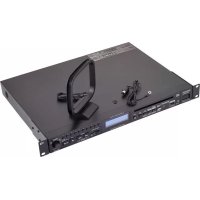
- WARNING:
- CAUTION:
- CE2200!
- IMPORTANT SAFETY INSTRUCTIONS
- • DECLARATION OF CONFORMITY
- CLASS 1 LASER PRODUCT
- LUOKAN 1 LASERLAITE
- KLASS 1 LASERAPPARAT
- "CLASS 1 LASER PRODUCT"
- VAROITUS!
- A NOTE ABOUT RECYCLING:
- NOTES ON USE
- WARNINGS
- IMPORTANT NOTICE: DO NOT MODIFY THIS PRODUCT
- CAUTION
- □ CAUTIONS ON INSTALLATION
- Getting started
- Contents
- Accessories
- Main features
- Big sound in Small body
- Compatible with "Denon Remote App" for performing basic operations of the unit.
- Supports AirPlay®
- Wi-Fi compatibility
- iPod®/iPhone® charge function
- Line OELD
- Cautions on handling
- • Before turning the power switch on
- • Proper ventilation
- - About condensation
- • Cautions on using mobile phones
- - Moving the unit
- - About care
- Discs
- Discs playable on this unit
- ① Music CDs
- ② CD-R/CD-RW
- NOTE
- Holding discs
- Loading discs
- Cautions on loading discs
- Cautions on storing discs
- Cleaning discs
- Remote operation
- About the remote control
- ☐ Operating range of the remote control
- Denon Remote App
- Preparations
- Connections
- Connecting the speaker cables
- Connecting an antenna
- Connecting to a home network (LAN)
- Wired LAN
- Wireless LAN
- Required system
- □ Broadband internet connection
- □ Modem
- Router
- ☐ Ethernet cable (CAT-5 or greater recommended)
- Connecting the power cord
- Setup
- ☐ To back to the top of the menu, during menu operation
- Setting the first setup [Quick Setup]
- Setting the general [General]
- Alarm
- ☐ Alarm operation when the time settings for alarms overlap
- When the once alarm and everyday alarm are both set (sleep timer is not set)
- ☐ Setting the everyday alarm and once alarm
- 1
- 2
- 3
- 4
- 5
- 6
- 7
- 8
- 9
- 10
- Setting the alarm to on or off
- ☐ To check the alarm settings
- ☐ To change the alarm settings
- ☐ To change the setting while setting the alarm Press ◀
- Clock
- (一)公司董事会会议决议公告
- Press SETUP.
- Setting the Summer Time
- Auto Adjust
- ☐ Setting the current time (Manual Adjust) (24-Hour Display)
- Checking the current time when the power is on
- Press CLOCK
- Checking the current time when the power is set to standby
- Speaker Optimization
- Language
- Firmware
- Update
- Update on web screen
- Click ④ from step 5 for the "Web control function" (page 46).
- When the following screen is displayed by the PC, click the "Choose File" (①) button, select the update file, and click the "Upload" (②) button.
- When the following screen is displayed, click the "OK" (③) button.
- When the following screen is displayed, updating is complete.
- □ Notification
- Upgrade
- □ Add New Feature
- Use to select "General" - "Firmware" - "Add New
- [Notes concerning use of "Update" and "Add New Feature"]
- Setting the network [Network]
- Connecting wired LAN
- Network connecting
- (when "DHCP"settings are "On")
- Use △▽ to select "Test Connection", then press ENTER or ▷.
- □ Network connecting
- (when "DHCP" settings is "Off")
- Proxy settings
- Connecting wireless LAN
- Auto-Scan (Wireless LAN)
- ☐ WPS Settings (Push-button method)
- Press the WPS button of the router.
- Press WPS on the rear panel.
- ☐ WPS Settings (PIN code method)
- Manual Settings
- Other network settings
- Network Control
- Friendly Name
- Press SETUP.
- Use △▽ to select "Network" – "Friendly Name", then press ENTER or ▷.
- [When ▷ is pressed]
- 3-2 [When ENTER is pressed] Edit a friendly name.
- ☐ Resetting the friendly name to the default setting
- Last.fm Display
- Press SETUP. Turns on the Menu settings mode and the Menu appears on the display ( page 11 "Menu map").
- Use △▽ to select "Network" - "Last.fm Display", then press ENTER or ▷. "Last.fm Display" appears.
- Use to select “Show” or “Hidden”, then press ENTER or .
- Operations
- Turning the power on
- Press POWER ⏻.
- Turning the power to standby mode
- □ Completely turning off the power
- Operations possible during playback
- Selecting the input source
- ☐ Selecting the input source using the main unit
- Press SOURCE.
- Press to select the input source.
- ☐ Selecting the input source using the remote control
- Press the input source select button (INTERNET RADIO, ONLINE MUSIC, MUSIC SERVER, TUNER, ANALOG IN, DIGITAL IN, iPod, USB, CD).
- Adjusting the master volume
- Use VOLUME ▲▼ to adjust the volume.
- [Variable range]
- Adjusting the tone
- [Default settings]
- Turning off the sound temporarily
- Setting the sleep timer
- Press SLEEP during playback and select the setting time.
- ☐ Canceling the sleep timer
- ☐ To check the time remaining until the sleep timer is activated Press SLEEP.
- Switching the display's brightness
- Listening with headphones
- Plug the headphones (sold separately) into
- CD playback
- Before playing a disc
- Playing CDs
- □ Stopping playback Press ■.
- □ Canceling random playback
- Playing tracks in the desired order (Program playback)
- MP3 and WMA files playback
- Playing files
- ☐ To switch the folder or file during playback
- Folder
- File
- Switching the display
- ☐ To play repeatedly
- [Selectable items]
- □ Setting random playback
- Network audio playback
- Listening to internet radio
- Prepare for playback.
- Press INTERNET RADIO to switch the input source to "Internet Radio".
- □ Switching the display
- □ Recently played internet radio stations
- ☐ Searching stations by keyword (Alphabetic strings)
- ☐ Registering internet radio stations as your favorites
- □ Internet radio operation
- Applying media sharing settings
- ☐ Sharing media stored in PC
- When using Windows Media Player 12 (Windows 7)
- When using Windows Media Player 11
- Sharing media stored in NAS
- Playing files stored on a PC and NAS
- Prepare for playback.
- □ Playing repeatedly (Repeat playback)
- □ Playing random order (Random playback)
- During playback, press INFO.
- □ Music server operation
- Listening to Last.fm CS
- Press ONLINE MUSIC to switch the input source to "Last.fm".
- If you have a Last.fm account, press △▽ to select "I have a Last.fm account". Then press ENTER or ▷.
- Use △▽▷ to enter your username and password.
- After inputting the username and password, select "login", then press ENTER.
- Username
- Use △▽ to select menu and then press ENTER or ▷.
- Your Recent
- Your
- Your Friend's
- Search Artist
- Use △▽ to select a station, and press ENTER, ▷ or ▶/□ to start playback.
- When you press ▷ during playback, the following menu appears.
- Scrobbling
- Last.fm operation
- Tuning in radio stations
- Listening to FM broadcasts
- To stop auto tuning
- Automatically presetting FM stations (Auto Preset)
- Canceling auto presetting
- RDS (Radio Data System)
- RDS Search
- Viewing information during reception
- PTY (Program Type)
- □ PTY Search
- TP (Traffic Program)
- TP Search
- RT (Radio Text)
- Favorite function
- Registering stations or files to the favorites list
- Calling stations or files from the favorites list
- Deleting stations or files from the favorite list
- iPod playback
- Connecting an iPod
- iPod Dock
- Playing an iPod
- Disconnecting the iPod
- Charging the iPod
- Standby charging
- Supported iPod models
- - iPod classic
- - iPod nano
- - iPod touch
- - iPhone
- USB memory device playback
- Playing files stored on USB memory devices
- Removing the USB memory device
- Playing repeatedly (Repeat playback)
- Press REPEAT.
- Playing random order (Random playback)
- Press RANDOM.
- □ Canceling random playback Press RANDOM.
- Portable audio player playback
- Playing portable audio player
- Listening to ANALOG IN
- Listening to DIGITAL IN
- AirPlay function
- Streaming music stored in iPhone or iPod touch directly to the unit
- Playing iTunes music on this unit
- □ Multiple speakers
- Remote operations
- Remote play function
- ☐ Roles each device plays
- Files that can be played back
- Settings required for each device
- □ Settings on PC and NAS
- □ Settings on mobile phones
- □ Settings on portable audio players
- □ Settings on this unit
- Remote Play operations
- Turn on this unit.
- Display the music file playback screen on DMC.
- Select the friendly name of this unit for the item that
- sets the playback device on the playback screen.
- Start playing back a music file on DMC.
- To exit Remote Play
- Web control function
- Operate.
- Operate.
- Example 2
- Other functions
- Inputting characters
- □ Display of an input screen
- Using the number buttons
- Using the cursor buttons
- Auto power on function
- Last function memory
- Resetting the microprocessor
- Information
- Part names and functions
- Front panel
- Remote control
- ☐ Buttons that work when the input source is "Internet Radio", "Music Server" or "Last.fm"
- ☐ Buttons that work when the input source is "TUNER"
- ☐ Buttons that work when the input source is "iPod" or "USB"
- iPod
- MP3 and WMA
- MP3 and WMA formats
- □ Writing software format
- ☐ Maximum number of playable files and folders
- File format
- Tag data
- USB memory device
- Important information
- ☐ Maximum Number of Playable Files and Folder
- Network audio
- About the internet radio function
- About Music server
- About Last.fm
- Explanation terms
- A
- AES (Advanced Encryption Standard)
- AirPlay
- B
- Bit rate
- D
- DLNA
- F
- Finalize
- FLAC
- IEEE 802.11b
- IEEE 802.11g
- iTunes
- M
- MP3 (MPEG Audio Layer-3)
- MPEG (Moving Picture Experts Group), MPEG-2, MPEG-4
- N
- Network Names
- (SSID: Security Set Identifier)
- P
- Protection circuit
- s
- Sampling frequency
- Speaker impedance
- T
- TKIP (Temporal Key Integrity Protocol)
- V
- vTuner
- W
- WEP Key (Network Key)
- Wi-Fi®
- Windows Media DRM
- Windows Media Player Ver. 11 or later
- WMA (Windows Media Audio)
- WPA (Wi-Fi Protected Access)
- WPA2 (Wi-Fi Protected Access 2)
- WPA-PSK/WPA2-PSK (Pre-shared Key)
- WPS (Wi-Fi Protected Setup)
- Troubleshooting
- Specifications
- CD player
- Audio AMP
- Tuner
- □ Wireless LAN
- Clock/Alarm
- Power supply
- Index
- C
- H
- L
- R
- U
- Dimensions
- DENON
Brand : DENON
Model : RCD-N8
Category : Cd player/recorder