
236V3LAB6 V-line 23 - Monitor PHILIPS - Free user manual and instructions
Find the device manual for free 236V3LAB6 V-line 23 PHILIPS in PDF.


| Product Type | LED Monitor |
| Brand | Philips |
| Model | 236V3LAB6 V-line 23 |
| Screen Size | 23 inches (58.4 cm) |
| Resolution | 1920 x 1080 (Full HD) |
| Contrast Ratio | 1000:1 (typical) |
| Brightness | 250 cd/m² |
| Response Time | 5 ms |
| Viewing Angle | 170° horizontal / 160° vertical |
| Connectivity | VGA, DVI (HDCP) |
| Power Consumption (On) | 25.2 W (typical) |
| Power Consumption (Standby) | <0.5 W |
| Weight (with stand) | 4.5 kg |
| Dimensions (with stand) | 559 x 436 x 220 mm |
| VESA Mount | 100 x 100 mm |
| Energy Star Certified | Yes |
| TCO Certified | Yes |
| Lead Free | Yes |
| Color | Black |
| Package Contents | Monitor, stand, power cord, VGA cable, DVI cable, audio cable (optional), quick start guide |
Frequently Asked Questions - 236V3LAB6 V-line 23 PHILIPS
User questions about 236V3LAB6 V-line 23 PHILIPS
0 question about this device. Answer the ones you know or ask your own.
Ask a new question about this device
Download the instructions for your Monitor in PDF format for free! Find your manual 236V3LAB6 V-line 23 - PHILIPS and take your electronic device back in hand. On this page are published all the documents necessary for the use of your device. 236V3LAB6 V-line 23 by PHILIPS.
USER MANUAL 236V3LAB6 V-line 23 PHILIPS
natural_image
Black Philips monitor displaying a smiling man driving a red car with open driver window (no text or symbols visible on screen)www.philips.com/welcome
This marking on the product or on its packaging illustrates that, under European Directive 2002/96/EC governing used electrical and electronic appliances, this product may not be disposed of with normal household waste. You are responsible for disposal of this equipment through a designated waste electrical and electronic equipment collection. To determine the locations for dropping off such waste electrical and electronic, contact your local government office, the waste disposal organization that serves your household or the store at which you purchased the product.
Your new monitor contains materials that can be recycled and reused. Specialized companies can recycle your product to increase the amount of reusable materials and to minimize the amount to be disposed of.
All redundant packing material has been omitted. We have done our utmost to make the packaging easily separable into mono materials.
Please find out about the local regulations on how to dispose of your old monitor and packing from your sales representative.
Recycling Information for Customers
Your display is manufactured with high quality materials and components which can be recycled and reused.
To learn more about our recycling program please visit www.philips.com/about/sustainability/recycling.
2. De monitor instellen
2. De monitor instellen
2.1 Installatie
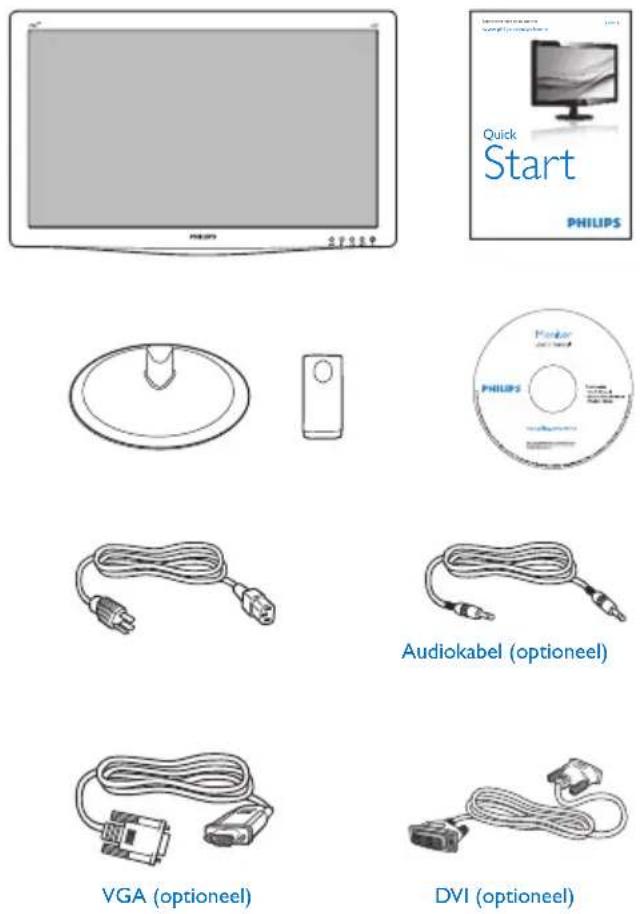
1 Inhoud verpakking
natural_image
Technical line drawing of a device with a blue arrow pointing to a component labeled 'PHILIPS' (no other text or symbols)natural_image
Line drawing of a Philips monitor with stand and control buttons (no text or symbols on the device itself)Model 236V3LA:

flowchart
graph TD
    A["5"] --> B["AUTO/▼"]
    A --> C["声/▲"]
    B --> D["●"]
    C --> E["6'"]
    F["○/◀"] --> G["●"]
    F --> H["●"]
    I["/OK"] --> J["●"]
    K["○"] --> L["1"]
Model 236V3L:

flowchart
graph TD
    A["5"] --> B["AUTO/▼"]
    A --> C["LED/▲"]
    B --> D["●"]
    C --> E["6'"]
    F["○"] --> G["●"]
    F --> H["●"]
    I["/OK"] --> J["●"]
    K["1"] --> L["●"]
natural_image
Technical line drawing of a mechanical component with no visible text or symbolsOpmerking
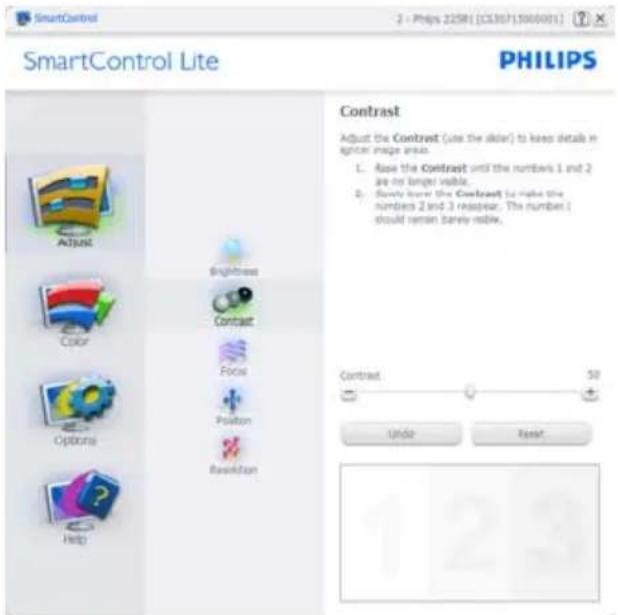


- Beeldoptimalisatie

Menu Color (Kleur):


3. Beeldoptimalisatie
natural_image
Colorful circular ring diagram with a central square, displayed on a grid background (no text or symbols)3. Beeldoptimalisatie
Lead free display promotes environmentally sound recovery and disposal of waste from electrical and electronic equipment. Toxic substances like Lead has been eliminated and compliance with European community's stringent RoHs directive mandating restrictions on hazardous substances in electrical and electronic equipment have been adhered to in order to make Philips monitors safe to use throughout its life cycle.
Congratulations!
This display is designed for both you and the planet

The display you have just purchased carries the TCO Certified label. This ensures that your display is designed, manufactured and tested according to some of the strictest quality and environmental requirements in the world. This makes for a high performance product, designed with the user in focus that also minimizes the impact on the climate and our natural environment.
TCO Certified is a third party verified program, where every product model is tested by an accredited impartial test laboratory. TCO Certified represents one of the toughest certifications for displays worldwide.
Some of the Usability features of the TCO Certified for displays:
- Visual ergonomics for good image quality is tested to ensure top performance and reduce sight and strain problems. Important parameters are luminance, contrast, resolution, black level, gamma curve, colour and luminance uniformity and colour rendering.
• Products are tested according to rigorous safety standards at impartial laboratories.
• Electric and magnetic fields emissions as low as normal household background levels.
- Low acoustic noise emissions (when applicable).
Some of the Environmental features of the TCO Certified for displays:
- The brand owner demonstrates corporate social responsibility and has a certified environmental management system (EMAS or ISO 14001).
• Very low energy consumption both in on-and standby mode minimize climate impact. - Restrictions on chlorinated and brominated flame retardants, plasticizers, plastics and heavy metals such as cadmium, mercury and lead (RoHS compliance).
- Both product and product packaging is prepared for recycling.
• The brand owner offers take-back options.
The requirements can be downloaded from our web site. The requirements included in this label have been developed by TCO Development in co-operation with scientists, experts, users as well as manufacturers all over the world. Since the end of the 1980s TCO has been involved in influencing the development of IT equipment in a more user-friendly direction. Our labeling system started with displays in 1992 and is now requested by users and IT-manufacturers all over the world. About 50% of all displays worldwide are TCO certified.
For displays with glossy bezels the user should consider the placement of the display as the bezel may cause disturbing reflections from surrounding light and bright surfaces.
For more information, please visit: www.tcodevelopment.com
TCOF1058 TCO Document, Ver. 2.1

Technology for you and the planet
(Only for selective models)
The EPEAT (Electronic Product Environmental Assessment Tool) program evaluates computer
desktops, laptops, and monitors based on 51 environmental criteria developed through an extensive stakeholder consensus process supported by US EPA.
EPEAT system helps purchasers in the public and private sectors evaluate, compare and select desktop computers, notebooks and monitors based on their environmental attributes. EPEAT also provides a clear and consistent set of performance criteria for the design of products, and provides an opportunity for manufacturers to secure market recognition for efforts to reduce the environmental impact of its products.
Benefits of EPEAT
Reduce use of primary materials Reduce use of toxic materials
Avoid the disposal of hazardous waste EPEAT'S requirement that all registered products meet ENERGY STAR's energy efficiency specifications, means that these products will consume less energy throughout their life.
CE Declaration of Conformity
This product is in conformity with the following standards
• EN60950-1:2006 (Safety requirement of Information Technology Equipment).
• EN55022:2006+A1:2007 (Radio Disturbance requirement of Information Technology Equipment).
• EN55024:1998+A1:2001+A2:2003 (Immunity requirement of Information Technology Equipment).
• EN61000-3-2:2006+A1:2009+A2:2009 (Limits for Harmonic Current Emission).
- EN61000-3-3:2008 (Limitation of Voltage Fluctuation and Flicker) following provisions of directives applicable.
• 2006/95/EC (Low Voltage Directive).
• 2004/108/EC (EMC Directive).
• 2005/32/EC (EuP Directive, EC No. 1275/2008 implementing Directive for Standby and Off mode power consumption) and is produced by a manufacturing organization on ISO9000 level.
The product also comply with the following standards
• ISO9241-307:2008 (Ergonomic requirement, Analysis and compliance test methods for electronic visual displays).
• GS EK1-2000:2009 (GS mark requirement).
• prEN50279:1998 (Low Frequency Electric and Magnetic fields for Visual Display).
• MPR-II (MPR:1990:8/1990:10 Low Frequency Electric and Magnetic fields).
• TCO CERTIFIED (Requirement for Environment Labeling of Ergonomics, Energy, Ecology and Emission, TCO: Swedish Confederation of Professional Employees) for TCO versions.
Energy Star Declaration
(www.energystar.gov)

As an ENERGY STAR ® Partner, we have determined that this product meets the ENERGY STAR ® guidelines for energy efficiency.

Note
We recommend you switch off the monitor when it is not in use for a long time.
Federal Communications Commission (FCC) Notice (U.S. Only)

This equipment has been tested and found to comply with the limits for a Class B digital device, pursuant to Part 15 of the FCC Rules. These limits are designed to provide reasonable protection against harmful interference in a residential installation. This equipment generates, uses and can radiate radio frequency energy and, if not installed and used in accordance with the instructions, may cause harmful interference to radio communications.
However, there is no guarantee that interference will not occur in a particular installation. If this equipment does cause harmful interference to radio or television reception, which can be determined by turning the equipment off and on, the user is encouraged to try to correct the interference by one or more of the following measures:
• Reorient or relocate the receiving antenna.
- Increase the separation between the equipment and receiver.
- Connect the equipment into an outlet on a circuit different from that to which the receiver is connected.
- Consult the dealer or an experienced radio/TV technician for help.
Changes or modifications not expressly approved by the party responsible for compliance could void the user's authority to operate the equipment.
Use only RF shielded cable that was supplied with the monitor when connecting this monitor to a computer device.
To prevent damage which may result in fire or shock hazard, do not expose this appliance to rain or excessive moisture.
THIS CLASS B DIGITAL APPARATUS MEETS ALL REQUIREMENTS OF THE CANADIAN INTERFERENCE-CAUSING EQUIPMENT REGULATIONS.
FCC Declaration of Conformity
Declaration of Conformity for Products Marked with FCC Logo,
United States Only

This device complies with Part 15 of the FCC Rules. Operation is subject to the following two conditions: (1) this device may not cause harmful interference, and (2) this device must accept any interference received, including interference that may cause undesired operation.
Commission Federale de la Communication (FCC Declaration)

EN 55022 Compliance (Czech Republic Only)
This device belongs to category B devices as described in EN 55022, unless it is specifically stated that it is a Class A device on the specification label. The following applies to devices in Class A of EN 55022 (radius of protection up to 30 meters). The user of the device is obliged to take all steps necessary to remove sources of interference to telecommunication or other devices.
Polish Center for Testing and Certification Notice
The equipment should draw power from a socket with an attached protection circuit (a three-prong socket). All equipment that works together (computer, monitor, printer, and so on) should have the same power supply source.
The phasing conductor of the room's electrical installation should have a reserve short-circuit protection device in the form of a fuse with a nominal value no larger than 16 amperes (A).
To completely switch off the equipment, the power supply cable must be removed from the power supply socket, which should be located near the equipment and easily accessible.
A protection mark "B" confirms that the equipment is in compliance with the protection usage requirements of standards PN-93/T-42107 and PN-89/E-06251.
North Europe (Nordic Countries) Information
Placering/Ventilation
WARNING:
FÖRSÄKRA DIG OM ATT HUVUDBRYTARE OCH UTTAG ÄR LÄTÄTKOMLIGA, NÄR DU STÄLLER DIN UTRUSTNING PÅPLATS.
Placering/Ventilation
ADVARSEL:
S∅ RG VE D PL AC ERI NGEN F OR, AT NETLEDNINGENS STIK OG STIKKONTAKT ER NEMT TILGÆNGELIGE.
Paikka/llmankierto
VAROITUS:
SIJOITA LAITE SITEN, ETTÄ VERKKOJOHTO VOIDAAN TARVITTAESSA HELPOSTI IRROTTAA PISTORASIASTA.
BSMI Notice (Taiwan Only)
符合乙類資訊產品之標準
The People's Republic of China released a regulation called "Management Methods for Controlling Pollution by Electronic Information Products" or commonly referred to as China RoHS. All products including CRT and Monitor which are produced and sold for China market have to meet China RoHS request.
中国大陆RoHS
natural_image
Simple geometric shape: a black rectangle inside a rounded square (no text or symbols)natural_image
Simple geometric diagram with a black square centered inside a larger rounded rectangle (no text or symbols)Pixeldefecttoleranties
- Recycling Information for Customers
- De monitor instellen
- Installatie
- Inhoud verpakking
- Model 236V3LA:
- Model 236V3L:
- Opmerking
- Menu Color (Kleur):
- Beeldoptimalisatie
- Congratulations!
- Some of the Usability features of the TCO Certified for displays:
- Some of the Environmental features of the TCO Certified for displays:
- Benefits of EPEAT
- CE Declaration of Conformity
- Energy Star Declaration
- Note
- Federal Communications Commission (FCC) Notice (U.S. Only)
- FCC Declaration of Conformity
- United States Only
- Commission Federale de la Communication (FCC Declaration)
- EN 55022 Compliance (Czech Republic Only)
- Polish Center for Testing and Certification Notice
- North Europe (Nordic Countries) Information
- BSMI Notice (Taiwan Only)
- Pixeldefecttoleranties
Brand : PHILIPS
Model : 236V3LAB6 V-line 23
Category : Monitor