236V3LSB - Monitor PHILIPS - Free user manual and instructions
Find the device manual for free 236V3LSB PHILIPS in PDF.


User questions about 236V3LSB PHILIPS
0 question about this device. Answer the ones you know or ask your own.
Ask a new question about this device
Download the instructions for your Monitor in PDF format for free! Find your manual 236V3LSB - PHILIPS and take your electronic device back in hand. On this page are published all the documents necessary for the use of your device. 236V3LSB by PHILIPS.
USER MANUAL 236V3LSB PHILIPS
natural_image
Black Philips monitor displaying a smiling woman driving a red car, with no visible text or symbols on the screen.www.philips.com/welcome
EN User manual 1
Customer care and warranty 27
Troubleshooting & FAQs 32
Table of Contents
1. Important ....1
1.1 Safety precautions and maintenance ...1
1.2 Notational Descriptions ......2
1.3 Disposal of product and packing material ....3
2. Setting up the monitor ....4
2.1 Installation 4
2.2 Operating the monitor 5
2.3 Remove Base Stand and Base 7
3. Image Optimization ......9
3.1 SmartContrast 9
3.2 Philips SmartControl Lite 9
4. Technical Specifications .....16
4.1 Resolution & Preset Modes......19
5. Power Management ......20
6. Regulatory Information ......21
7. Customer care and warrant .....27
7.1 Philips' Flat Panel Monitors Pixel Defect Policy ....27
7.2 Customer Care & Warranty ......29
8. Troubleshooting & FAQs ......32
8.1 Troubleshooting 32
8.2 General FAQs ....33
1. Important
This electronic user's guide is intended for anyone who uses the Philips monitor. Take time to read this user manual before you use your monitor. It contains important information and notes regarding operating your monitor.
The Philips guarantee applies provided the product is handled properly for its intended use, in accordance with its operating instructions and upon presentation of the original invoice or cash receipt, indicating the date of purchase, dealer's name and model and production number of the product.
1.1 Safety precautions and maintenance
Warnings
Use of controls, adjustments or procedures other than those specified in this documentation may result in exposure to shock, electrical hazards and/or mechanical hazards.
Read and follow these instructions when connecting and using your computer monitor.
Operation
- Please Keep the monitor out of direct sunlight, very strong bright lights and away from any other heat source. Lengthy exposure to this type of environment may result in discoloration and damage to the monitor.
- Remove any object that could fall into ventilation holes or prevent proper cooling of the monitor's electronics.
- Do not block the ventilation holes on the cabinet.
- When positioning the monitor, make sure the power plug and outlet are easily accessible.
-
If turning off the monitor by detaching the power cable or DC power cord, wait for 6 seconds before attaching the power cable or DC power cord for normal operation.
-
Please use approved power cord provided by Philips all the time. If your power cord is missing, please contact with your local service center. (Please refer to Customer Care Consumer Information Center)
- Do not subject the monitor to severe vibration or high impact conditions during operation.
- Do not knock or drop the monitor during operation or transportation.
Maintenance
- To protect your monitor from possible damage, do not put excessive pressure on the LCD panel. When moving your monitor, grasp the frame to lift; do not lift the monitor by placing your hand or fingers on the LCD panel.
- Unplug the monitor if you are not going to use it for an extensive period of time.
- Unplug the monitor if you need to clean it with a slightly damp cloth. The screen may be wiped with a dry cloth when the power is off. However, never use organic solvent, such as, alcohol, or ammonia-based liquids to clean your monitor.
- To avoid the risk of shock or permanent damage to the set, do not expose the monitor to dust, rain, water, or excessive moisture environment.
- If your monitor gets wet, wipe it with dry cloth as soon as possible.
- If foreign substance or water gets in your monitor, please turn the power off immediately and disconnect the power cord. Then, remove the foreign substance or water, and send it to the maintenance center.
- Do not store or use the monitor in locations exposed to heat, direct sunlight or extreme cold.
- In order to maintain the best performance of your monitor and use it for a longer lifetime, please use the monitor in a location that falls within the following temperature and humidity ranges.
1. Important
• Temperature: 0-40°C 32-95°F
• Humidity: 20-80% RH
- IMPORTANT: Always activate a moving screen saver program when you leave your monitor unattended. Always activate a periodic screen refresh application if your monitor will display unchanging static content. Uninterrupted display of still or static images over an extended period may cause “burn in”, also known as “after-imaging” or “ghost imaging”, on your screen.
"Burn-in", "after-imaging", or "ghost imaging" is a well-known phenomenon in LCD panel technology. In most cases, the "burned in" or "after-imaging" or "ghost imaging" will disappear gradually over a period of time after the power has been switched off.
Warning
Severe" burn-in" or "after-image" or "ghost image" symptoms will not disappear and cannot be repaired. The damage mentioned above is not covered under your warranty.
Service
- The casing cover should be opened only by qualified service personnel.
- If there is any need for any document for repair or integration, please contact with your local service center. (please refer to the chapter of "Consumer Information Center")
- For transportation information, please refer to "Technical Specifications".
- Do not leave your monitor in a car/trunk under direct sun light.
Note
Consult a service technician if the monitor does not operate normally, or you are not sure what procedure to take when the operating instructions given in this manual have been followed.
1.2 Notational Descriptions
The following subsections describe notational conventions used in this document.
Notes, Cautions and Warnings
Throughout this guide, blocks of text may be accompanied by an icon and printed in bold or italic type. These blocks contain notes, cautions or warnings. They are used as follows:
Note
This icon indicates important information and tips that help you make better use of your computer system.
Caution
This icon indicates information that tells you how to avoid either potential damage to hardware or loss of data.
Warning
This icon indicates the potential for bodily harm and tells you how to avoid the problem.
Some warnings may appear in alternate formats and may not be accompanied by an icon. In such cases, the specific presentation of the warning is mandated by the relevant regulatory authority.
1.3 Disposal of product and packing material
Waste Electrical and Electronic Equipment-WEEE

This marking on the product or on its packaging illustrates that, under European Directive 2002/96/EC governing used electrical and electronic appliances, this product may not be disposed of with normal household waste. You are responsible for disposal of this equipment through a designated waste electrical and electronic equipment collection. To determine the locations for dropping off such waste electrical and electronic, contact your local government office, the waste disposal organization that serves your household or the store at which you purchased the product.
Your new monitor contains materials that can be recycled and reused. Specialized companies can recycle your product to increase the amount of reusable materials and to minimize the amount to be disposed of.
All redundant packing material has been omitted. We have done our utmost to make the packaging easily separable into mono materials.
Please find out about the local regulations on how to dispose of your old monitor and packing from your sales representative.
Recycling Information for Customers
Your display is manufactured with high quality materials and components which can be recycled and reused.
To learn more about our recycling program please visit www.philips.com/about/sustainability/recycling.
2. Setting up the monitor
2.1 Installation
1 Package contents
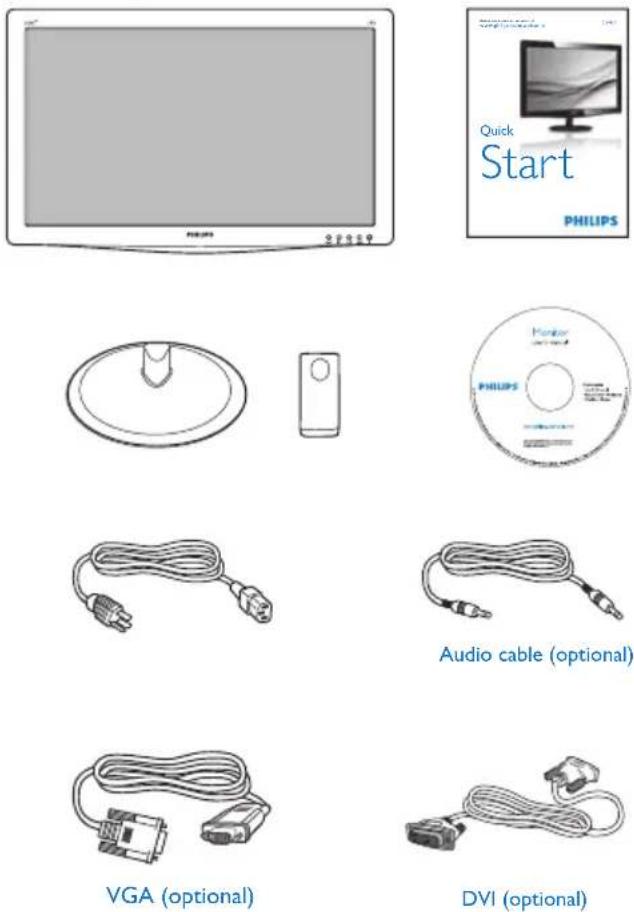
2 Install base stand
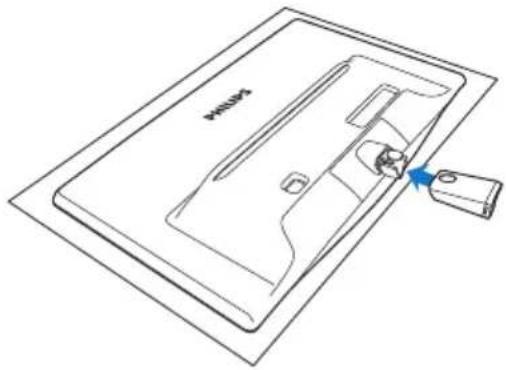
- Place the monitor face down on soft and smooth surface taking care to avoid scratching or damaging the screen.
- Attach the base column with the monitor until it clicks into position.
natural_image
Line drawing of a device casing with a handle and internal components, no text or symbols present- Hold the monitor base stand with both hands and firmly insert the base stand into the base column.

natural_image
Line drawing of a device being placed into a tray, with a hand holding a clip (no text or symbols)3 Connecting to your PC
text_image
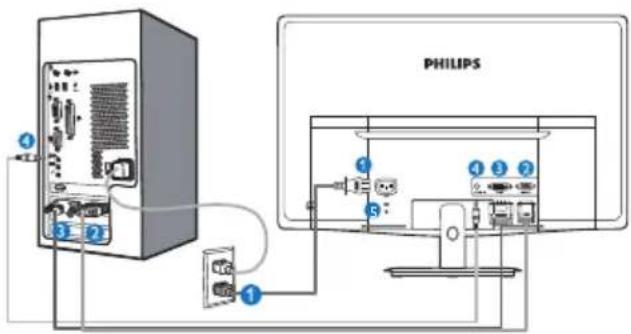
PHILIPS1 AC power input
2 VGA input
3 DVI-D input (available for selected models)
4 Audio input (available for selected models)
5 Kensington anti-theft lock
Connect to PC
- Connect the power cord to the back of the monitor firmly.
- Turn off your computer and unplug its power cable.
- Connect the monitor signal cable to the video connector on the back of your computer.
- Plug the power cord of your computer and your monitor into a nearby outlet.
- Turn on your computer and monitor. If the monitor displays an image, installation is complete.
2.2 Operating the monitor
1 Front view product description
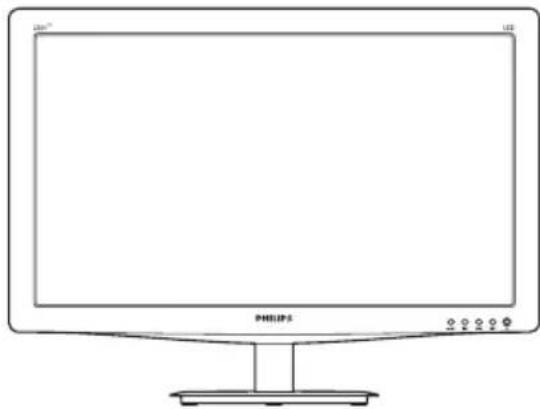
natural_image
Line drawing of a Philips monitor with stand and control buttons (no text or symbols on the screen)Model 236V3LA:
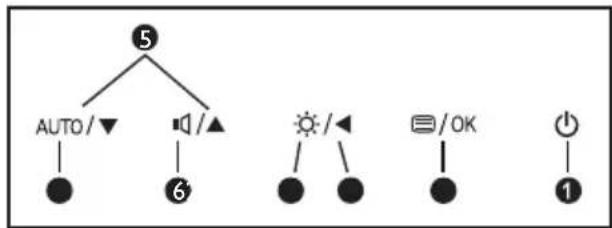
flowchart
graph TD
    A["5"] --> B["AUTO/▼"]
    A --> C["6"]
    C --> D["▶"]
    C --> E["▶"]
    C --> F["▶"]
    C --> G["▶"]
    G --> H["○/OK"]
    G --> I["●"]
    G --> J["●"]
Model 236V3L:
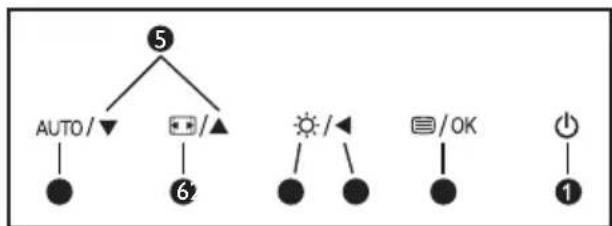
flowchart
graph TD
    A["5"] --> B["AUTO/▼"]
    A --> C["+/-/▲"]
    B --> D["●"]
    C --> E["6'"]
    F["6'"] --> G["●"]
    F --> H["●"]
    I["6'"] --> J["●"]
    K["6'"] --> L["●"]
    M["6'"] --> N["●"]
    O["6'"] --> P["●"]
    Q["1"] --> R["●"]
| 1 | Switch monitor's power ON and OFF. | |
| 2 | /OK | Access the OSD menu. Confirm the OSD adjustment. |
| 3 | Return to previous OSD level. | |
| 4 | Adjust the brightness level. | |
| 5 | ▲▼ | Adjust the OSD menu. |
| 6 | Adjust the speaker volume. | |
| Change display format. | ||
| 7 | AUTO | Automatically adjust the monitor. |
2. Setting up the monitor
2 Description of the On Screen Display
What is On-Screen Display (OSD)?
On-Screen Display (OSD) is a feature in all Philips LCD monitors. It allows an end user to adjust screen performance or select functions of the monitors directly through an on-screen instruction window. A user friendly on screen display interface is shown as below:
Model 236V3LA:
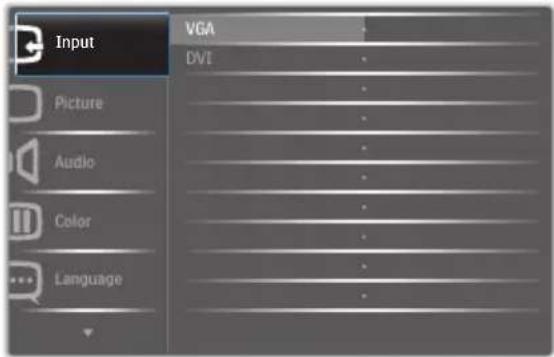
text_image
Input VGA DVI Picture Audio Color LanguageModel 236V3L:

text_image
Input VGA DVT Picture Color Language OSD SettingsModel 236V3L (for 1A model):
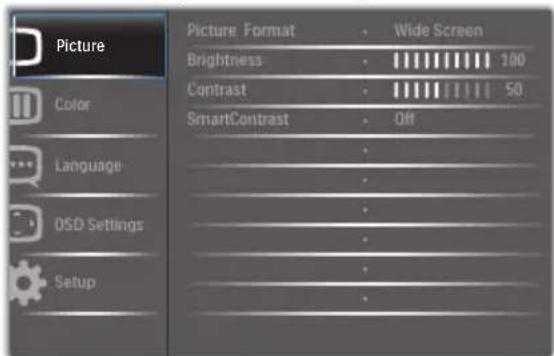
text_image
Picture Color Language OSD Settings Setup Picture Format • Wide Screen Brightness • 100 Contrast • 50 SmartContrast • Off • • • • • • •Basic and simple instruction on the control keys
In the OSD shown above, you can press ▼
▲ buttons at the front bezel of the monitor to move the cursor, and press OK button to confirm the choice or change.
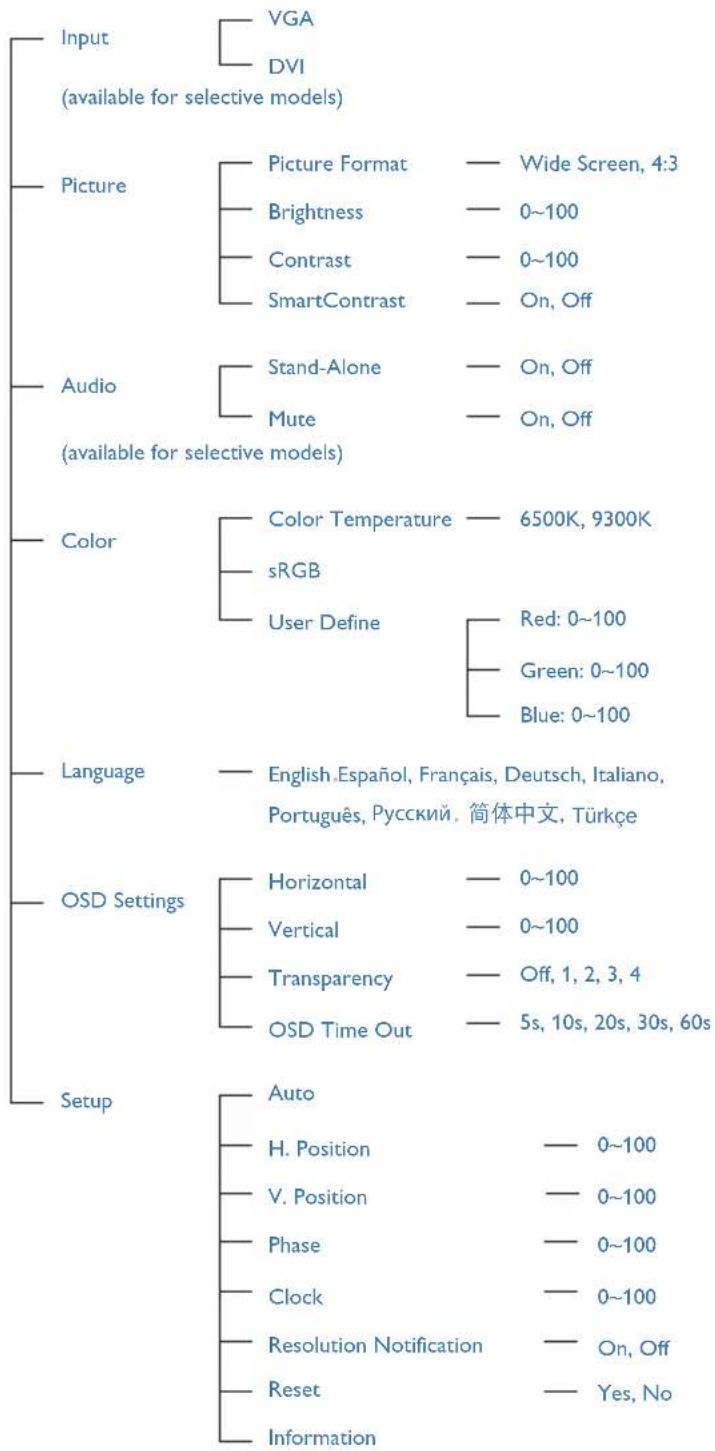
The OSD Menu
Below is an overall view of the structure of the On-Screen Display. You can use this as a reference when you want to work your way around the different adjustments later on.
Main menu Sub menu
flowchart
graph TD
    A["Input"] --> B["VGA"]
    A --> C["DVI"]
    B --> D["(available for selective models)"]
    E["Picture"] --> F["Picture Format"]
    E --> G["Brightness"]
    E --> H["Contrast"]
    E --> I["SmartContrast"]
    F --> J["Wide Screen, 4:3"]
    G --> K["0~100"]
    H --> L["0~100"]
    I --> M["On, Off"]
    N["Audio"] --> O["Stand-Alone"]
    N --> P["Mute"]
    O --> Q["On, Off"]
    R["(available for selective models)"] --> S["Color"]
    R --> T["Color Temperature"]
    R --> U["sRGB"]
    R --> V["User Define"]
    V --> W["Red: 0~100"]
    V --> X["Green: 0~100"]
    V --> Y["Blue: 0~100"]
    Z["Language"] --> AA["English, Español, Français, Deutsch, Italiano, Português, Русский, 简体中文, Türkçe"]
    AB["OSD Settings"] --> AC["Horizontal"]
    AB --> AD["Vertical"]
    AB --> AE["Transparency"]
    AB --> AF["OSD Time Out"]
    AC --> AG["0~100"]
    AD --> AH["0~100"]
    AE --> AI["Off, 1, 2, 3, 4"]
    AF --> AJ["5s, 10s, 20s, 30s, 60s"]
    AK["Setup"] --> AL["Auto"]
    AK --> AM["H. Position"]
    AK --> AN["V. Position"]
    AK --> AO["Phase"]
    AK --> AP["Clock"]
    AK --> AQ["Resolution Notification"]
    AK --> AR["Reset"]
    AK --> AS["Information"]
2. Setting up the monitor
3 Resolution notification
This monitor is designed for optimal performance at its native resolution, 1920 × 1080 @ 60 Hz. When the monitor is powered on at a different resolution, an alert is displayed on screen: Use 1920 × 1080 @ 60 Hz for best results.
Display of the native resolution alert can be switched off from Setup in the OSD (On Screen Display) menu.
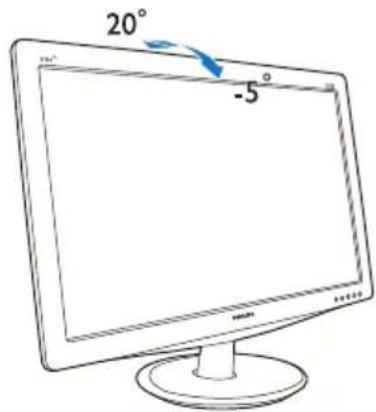
4 Physical Function
Tilt
text_image
20° -5°2.3 Remove Base Stand and Base
1 Remove the Base Stand
Before you start disassembling the monitor base, please follow the instructions below to avoid any possible damage or injury.
- Place the monitor face down on a smooth surface, taking care to avoid scratching or damaging the screen.

natural_image
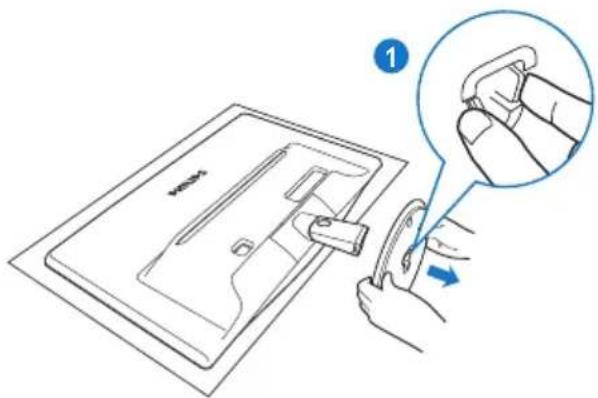
Line drawing of a mechanical device with a circular component and a rectangular base (no text or symbols)- Press the locking clips to detach the base stand away from the base column.
text_image
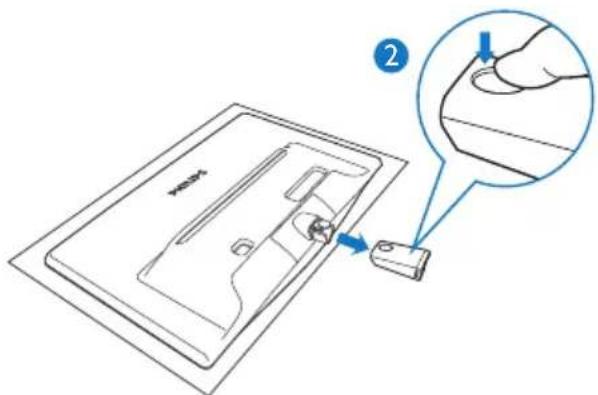
Diagram showing a hand holding a device with a magnified inset highlighting the component being held, labeled with number 1.- Press the release button to detach the base column.
text_image
Diagram showing a hand pressing a button on a device panel, with labeled step 2 and magnified view.2. Setting up the monitor
2 Remove the base
- You may use a flathead screwdriver to stick into two release hols on the hinge cover, and gently pry the hinge cover to have it removed.
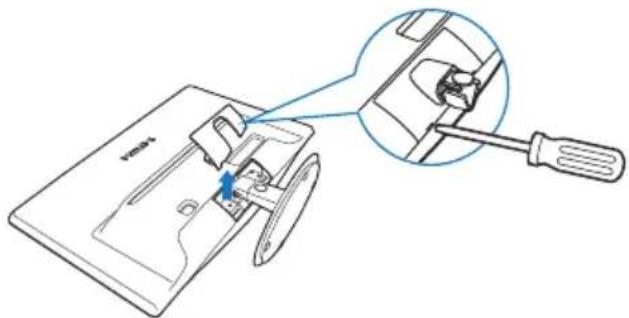
natural_image
Technical line drawing of a sewing machine with a magnified inset showing the component detail (no text or symbols)- Remove 4 screws and then remove the base from the monitor.
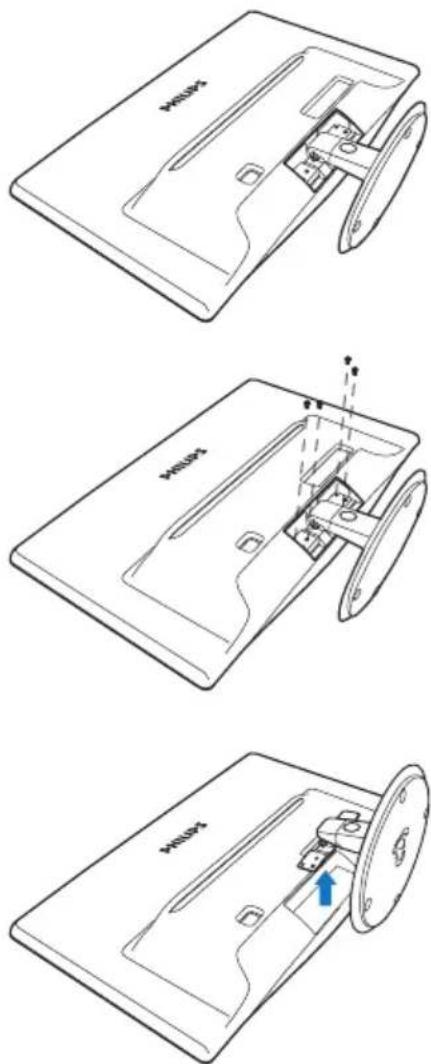
text_image
Technical diagram showing three views of a device with labeled components and directional arrows indicating movement or assembly.3. Image Optimization
3.1 SmartContrast
1 What is it?
A unique technology that dynamically analyzes displayed content and automatically optimizes an LCD monitor's contrast ratio for maximum visual clarity and viewing enjoyment, stepping up backlighting for clearer, crisper and brighter images or dimming backlighting for clear display of images on dark backgrounds.
2 Why do I need it?
You want the very best visual clarity and viewing comfort for every type of content. SmartContrast dynamically controls contrast and adjusts backlighting for clear, crisp, bright gaming and video images or displays clear, readable text for office work. By reducing your monitor's power consumption, you save on energy costs and extend the lifetime of your monitor.
3 How does it work?
When you activate SmartContrast, it will analyse the content you are displaying in real time to adjust colors and control backlight intensity. This function will dynamically enhance contrast for a great entertainment experience when viewing videos or playing games.
3.2 Philips SmartControl Lite
The new SmartControl Lite software by Phillips allows you to control your monitor via an easy to use on-screen graphic interface. Complicated adjustments are a thing of the past as this user friendly software guides you through fine-tuning resolution, Color calibration, Clock/Phase adjustments, RGB White point adjustment, etc.
Equipped with latest technology in core algorithm for fast processing and response, this Windows 7 compliant eye catching animated
Icon based software is ready to enhance your experience with Philips monitors!
1 Installation
- Follow the instruction and complete the installation.
- You can launch after installation is completed.
• If you want to launch later, you can either click the shortcut on desktop or toolbar.
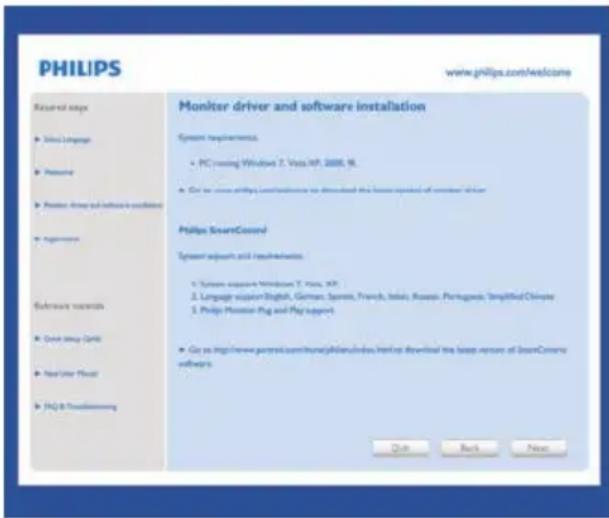
text_image
PHILIPS www.philips.com/Welcome Returned steps ► Win Language ► Password ► Password (or software installed) ► Experience Software resources ► Open Web Grid ► New User Host ► FAQ & Downloading Monitor driver and software installation System requirements. ► PC (using Windows 7. Vias, XP, 2008, 16) ► Get to access Philips Network to download the loose protocol of monitor driver Philips SecretControl System support and requirements. ► System exposure Windows 7. Vias, XP ► Language support English, German, Spanish, French, Italian, Russian, Portuguese, Simplified Chinese ► Philip Mission Ping and Ping support ► Get to access www.pertec.com/home/jahdunlndas.net or download the loose version of SecretControl software Click Back NextFirst launch -Wizard
- The first time after installation of SmartControl Lite, it will automatically go to Wizard for first time launch.
- The wizard will guide you through adjusting your monitor performance step by step.
-
You can go to Plug-in menu to launch wizard later on as well.
• You can adjust more options without wizard by Standard pane. -
Image Optimization
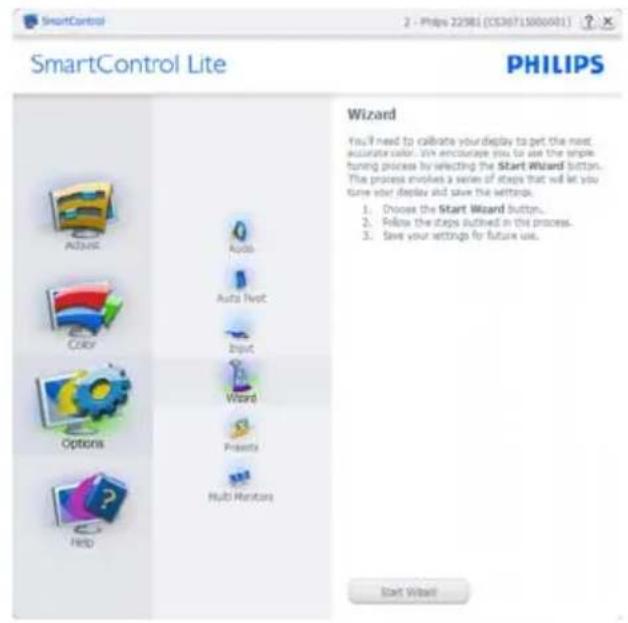
text_image
SmartControl Lite PHILIPS Wizard You'll need to calculate your display to get the next accuracy color. We encourage you to use the simple funing process by selecting the Start Wizard button. The process involves a series of steps that will let you save your display and save the settings. 1. Choose the Start Wizard button. 2. Reduce the steps outlined in the process. 3. Save your settings for future use. Start Wizard!2 Start with Standard pane:
Adjust menu:
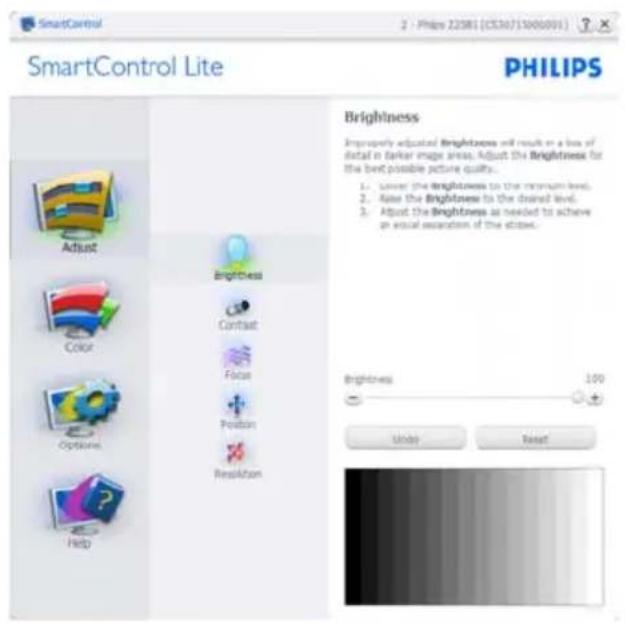
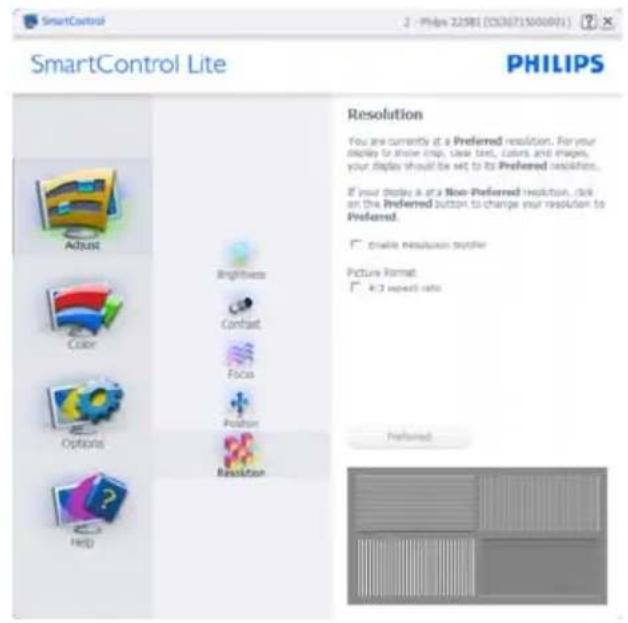
- Adjust Menu allow you to adjust Brightness, Contrast, Focus, Position and Resolution.
- You can follow the instruction and do the adjustment.
- Cancel prompts user if you want to cancel installation.
text_image
SmartControl Lite PHILIPS Brightness Improperly adjusted Brightness will result in a loss of detail in darker image areas. Adjust the Brightness for the best possible picture quality. 1. Reduce the brightness to the minimum level. 2. Raise the Brightness to the dashed level. 3. Adjust the Brightness as needed to achieve an social observation of the close. Brightness: 100 Under Reset
text_image
SmartControl Lite PHILIPS Contrast Adjust the Contrast (use the slider) to keep details in image areas. 1. Raise the Contrast until the numbers 1 and 2 are no longer visible. 2. Droply lower the Contrast (to make the numbers 2 and 3 repeat). The number 1 should remain barely visible. Contrast 50 Undo Reset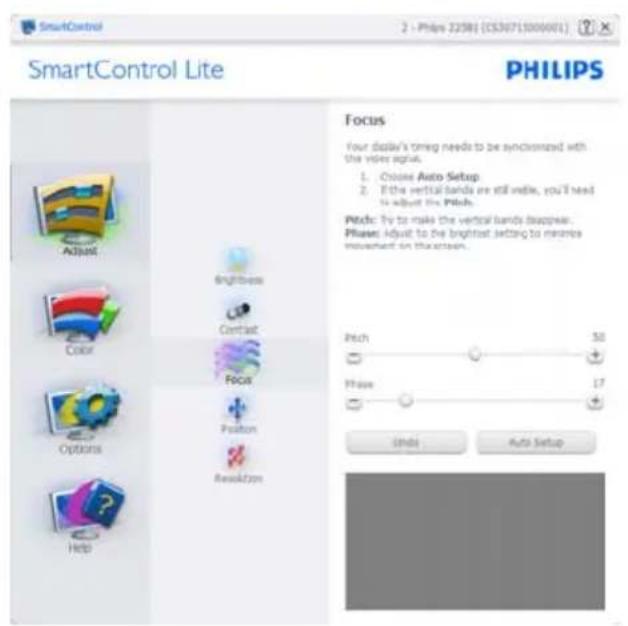
text_image
SmartControl Lite PHILIPS Focus Your display's timing needs to be synchronized with the video signal. 1. Choose Auto Setup 2. If the vertical bands are still inside, you'll need to adjust the Pitch. Pitch: Try to make the vertical bands disappear. Please: Adjust to be brightest setting to memories movement on the screen. Pitch 50 Phase 17 Undo Auto Setup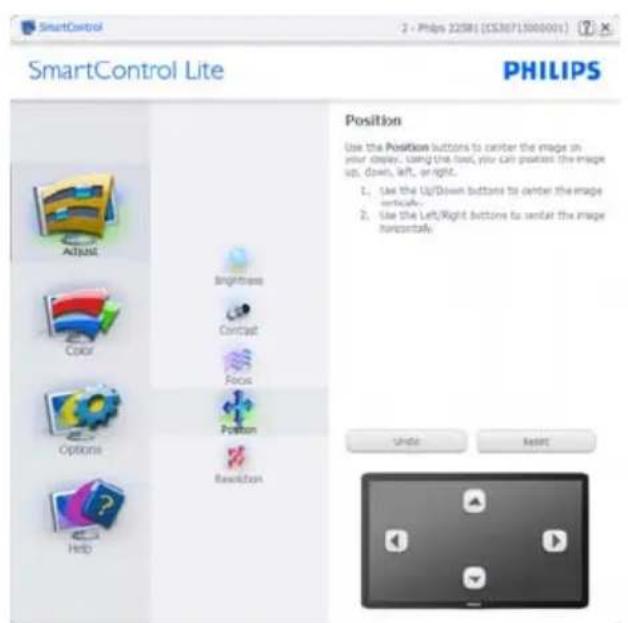
text_image
SmartControl Lite PHILIPS Position Use the Position buttons to center the image in your display. Using the load, you can generate the image up, down, left, or right. 1. Use the Up/Down buttons to center the image vertically. 2. Use the Left/Right buttons to enter the image horizontally. Enable Reset- Image Optimization
text_image
SmartControl Lite PHILIPS Resolution You are currently at a Preferred resolution. For your display to show crop, clear text, colors and images, your display should be set to its Preferred resolution. If your display is at a Non-Preferred resolution, click on the Preferred button to change your resolution to Preferred. □ enable resolution order Picture Format □ 4.3 export ratio PreferredColor menu:
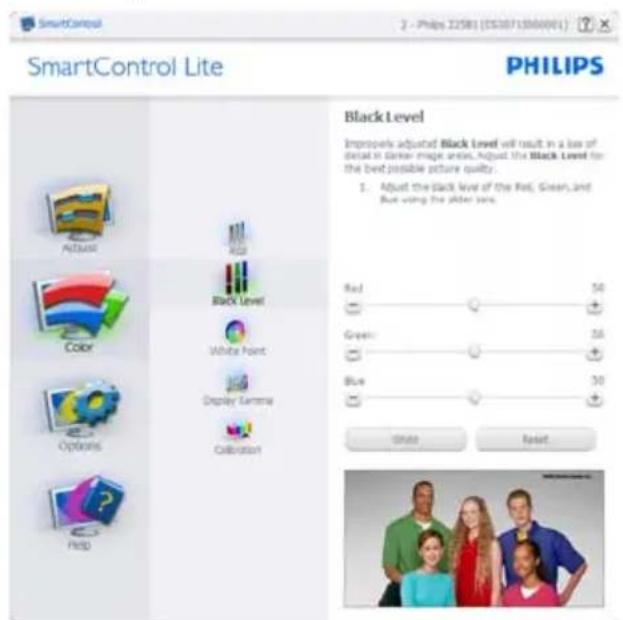
• Color Menu allow you to adjust RGB, Black Level, White Point, and Color Calibration.
- You can follow the instruction and do the adjustment.
• Refer to below table for sub-menu item base on your input.
• Example for Color Calibration:
text_image
SmartControl Lite PHILIPS Black Level Improves adjusted Black Level will result in a low of detail in darker image areas, Adjust the Black Level for the best possible picture quality. 1. Adjust the Black Level of the Red, Green, and Blue using the older lines. Red 50 Green: 56 Blue: 30 Shift Reset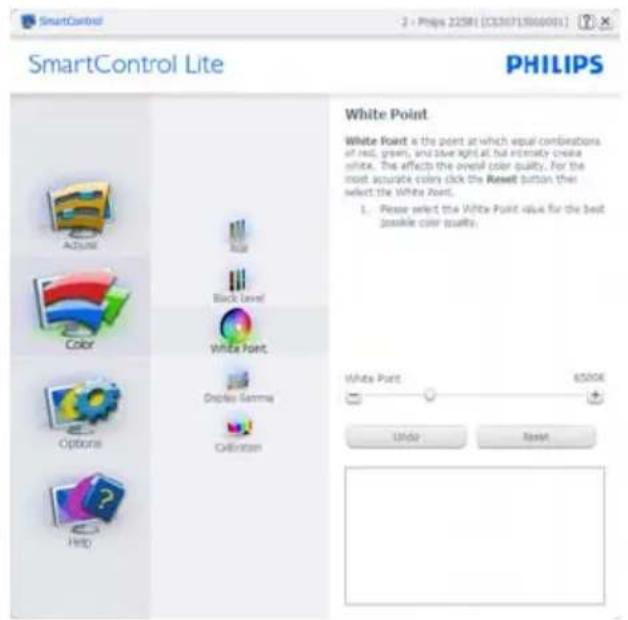
text_image
SmartControl Lite PHILIPS White Point White Point is the point at which equal combinations of red, green, and silver light are extremely create white. The effects the overall color quality. For the most accurate color click the Reset button their select the White Point. 1. Please select the White Point value for the best possible color quality. White Point 6500K Under Reset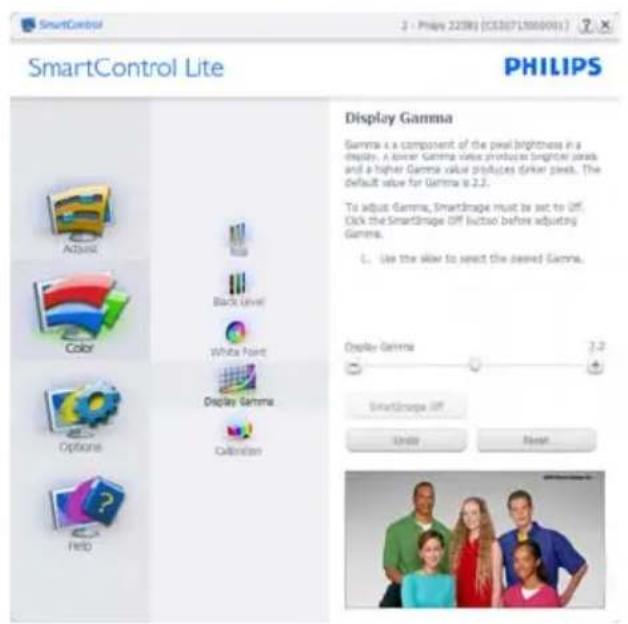
text_image
SmartControl Lite PHILIPS Display Gamma Gamma is a component of the pixel brightness in a display. A lower Gamma value produces brighter pixels and a higher Gamma value produces darker pixels. The default value for Gamma is 2.2. To adjust Gamma, SmartImage must be set to Off. Click the SmartImage Off (which before adjusting Gamma. L: Use the skew to select the closed Gamma. Display Gamma 7.2 SmartImage Off Units Next SmartControl Lite
text_image
SmartControl Lite PHILIPS Calibration Your display needs to be properly calibrated in order for it to produce the world range of colors accurately. Calibration should always take place in the left-turn step in the process. Remember to recibrate any time you make individual adjustments to shape quality or whenever you move your display to a new location. 1. Make all other necessary adjustments to shape quality that. 2. Keep Show Me to earn how to use the calibration tools. 3. Finally, save Start to begin the calibration process. ✓ Enable color calibration Color software designed in collaboration with Joseph Haines. Protected by U.S. Putwirt No. 4,686,903 Show Me Start Quick View3. Image Optimization
- "Show Me" starts color calibration tutorial.
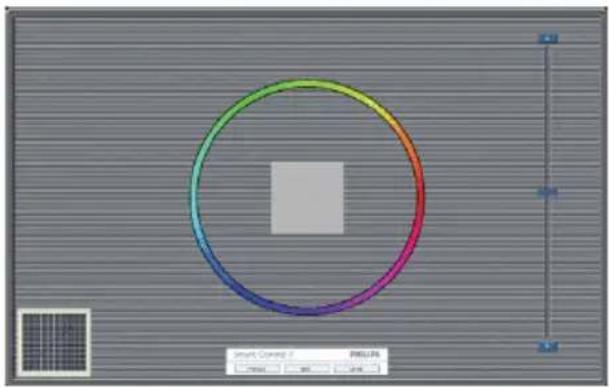
- Start - starts the 6-step color calibration sequence.
- Quick View loads the before/after images.
- To return to Color home pane, click the Cancel button.
- Enable color calibration - by default is on. If unchecked, does not allow for color calibration to happen, dimes out start and quick view buttons.
- Must have patent info in calibration screen.
First color Calibration Screen:
natural_image
Color wheel diagram with a central square, displayed in a graphic design interface (no text or symbols on the diagram itself)• Previous button is disabled until the second color screen.
• Next goes to the succeeding target (6-targets).
• Final next goes File>Presets pane.
- Cancel closes the UI and returns to the plug in page.
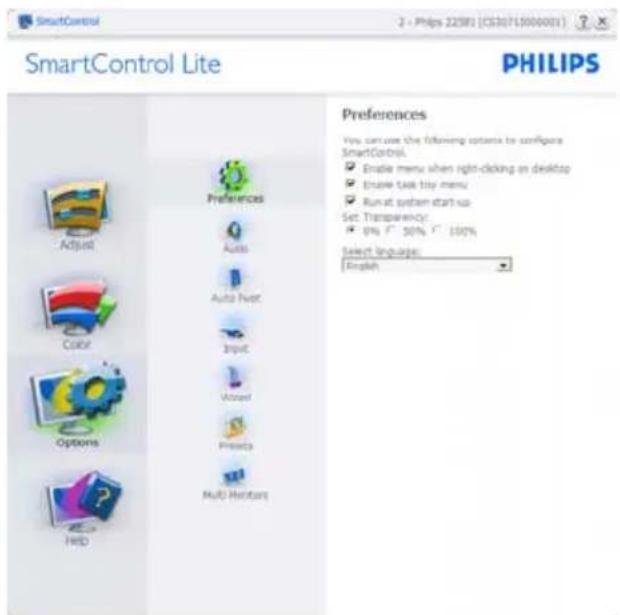
Options>Preferences - Will only be active when selecting Preferences from the drop-down Options menu. On a non-supported display capable of DDC/CI, only the Help and Options tabs are available.
text_image
SmartControl Lite PHILIPS Preferences You can use the following options to configure SmartControl. Enable menu when right-clicking on desktop Ensure task buy menu Run at system start up Set Transparency: 0% 50% 100% Select language: English• Displays current preference settings.
- A checked box enables the feature. The check box is a toggle.
- Enable Context Menu on desktop is checked (On) by default. Enable Context menu displays SmartControl Lite selections for Select Preset and Tune Display in the desktop right-click context menu. Disabled removes SmartControl Lite from the right click context menu.
- Enable Task Tray icon is checked (On) by default. Enable context menu shows the task tray menu for SmartControl Lite. A right click on the task tray icon displays the menu options for Help, Technical Support, Check for Upgrade, About, and Exit. When Enable task tray menu is disabled, the task tray icon will only display EXIT.
- Run at Startup is checked (On) by default. When disabled, SmartControl Lite will not launch at start or be in the task tray. The only way to launch SmartControl Lite is either from the desktop short cut or from the program file. Any preset set to run
3. Image Optimization
at startup will not load when this box is unchecked (Disabled).
- Enable transparency mode (Windows 7, Vista, XP). Default is 0% Opaque.
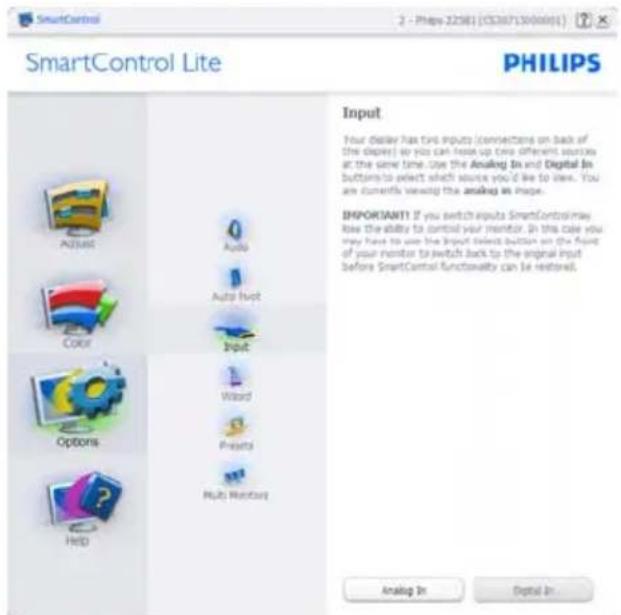
Options>Input - Will only be active when selecting Input from the drop-down Options menu. On a non-supported display capable of DDC/CI, only the Help and Options tabs are available. All other SmartControl Lite tabs are not available.
text_image
SmartControl Lite PHILIPS Input Your display has two inputs (connections on back of the devices) so you can look up two different sources at the same time. Use the Analog In and Digital In buttons to select which source you'd like to view. You are currently viewing the analog in image. IMPORTANT! If you switch inputs SmartControl may lose the ability to control your monitor. In this case you may have to use the Input Select button on the front of your monitor to switch back to the original input before SmartControl functionality can be restored. Analog In Digital In• Display the Source instruction pane and current input source setting.
- On single input displays, this pane will not be visible.
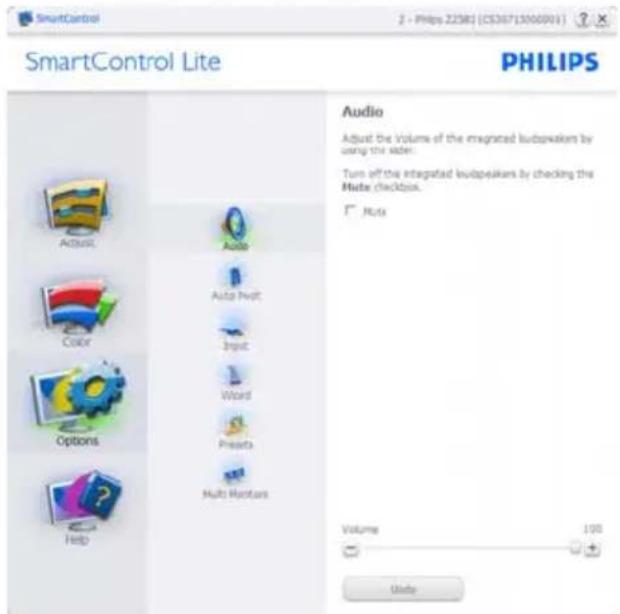
Options>Audio - Will only be active when selecting Audio from the drop-down Options menu.
On a non-supported display capable of DDC/CI, only the Help and Options tabs are available.
text_image
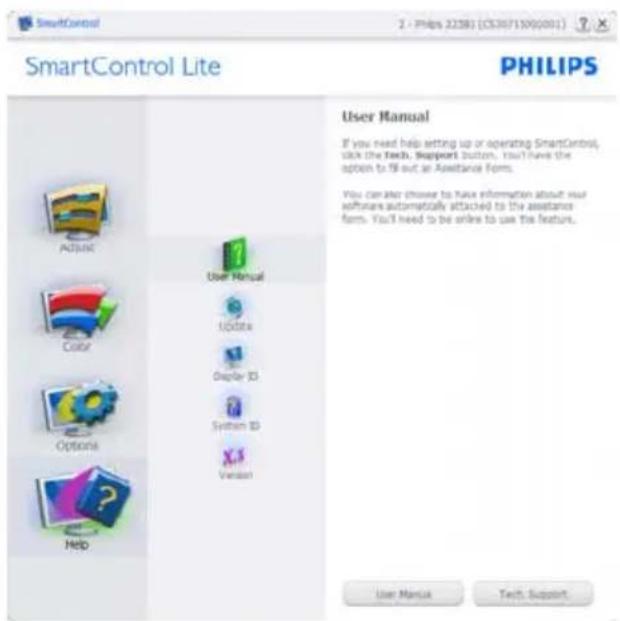
SmartControl Lite PHILIPS Audio Adjust the Volume of the integrated loudspeakers by using the slider. Turn off the integrated loudspeakers by checking the Media checkbox. Juts Volume 100 UnitsHelp>User Manual - Will only be active when selecting User Manual from the drop-down Help menu. On a non-supported display capable of DDC/CI, only the Help and Options tabs are available.
text_image
SmartControl Lite PHILIPS User Manual If you need help setting up or operating SmartControl, click the Tech, Support Button. You'll have the option to fill out an Assistance Form. You can also choose to fix information about your software automatically attached to the assistance form. You'll need to be online to use the feature. User Manual Tech Support3. Image Optimization
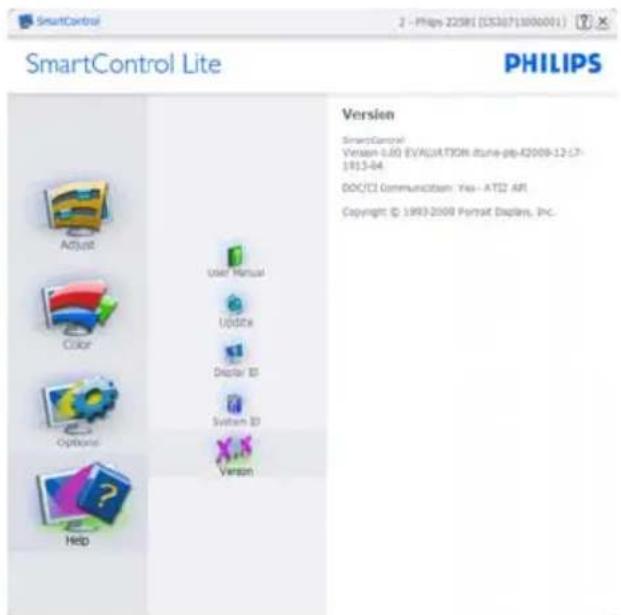
Help>Version - Will only be active when selecting Version from the drop- down Help menu. On a non-supported display capable of DDC/CI, only the Help and Options tabs are available.
text_image
SmartControl Lite PHILIPS Version SmartControl Version 5.60 (EVALUATION itune-pp-42009-12 .C7- 1813-84 DOCCI Communication: Yes-- ATD2 API Copyright © 1993-2000 Format Displays, Inc. Adjust Color Options Help User Manual Update Display ID System ID VersionContext Sensitive menu
The Context Sensitive menu is Enabled by default. If Enable Context Menu has been checked in the Options>Preferences pane, then the menu will be visible.

text_image
SmartControl SmartControl Select Preset True DisplayThe Context Menu has three entries:
• SmartControl Lite - When selected the About Screen is displayed.
- Select Preset - Provides a hierarchical menu of saved presets for immediate use. A check mark shows the currently selected preset. Factory Preset can also be called from the drop down menu.
- Tune Display - Opens the SmartControl Lite control panel.
Task Tray Menu Enabled
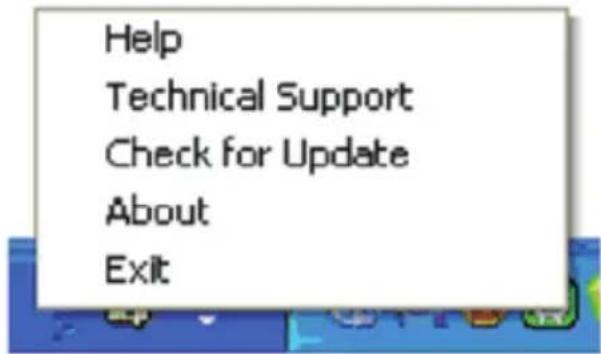
The task tray menu can be displayed by right-clicking on the SmartControl Lite icon from the task tray. Left Click will launch the application.
text_image
Help Technical Support Check for Update About ExitThe task tray has five entries:
- Help - Access to User Manual file: Open User Manual file using the default browser window.
• Technical Support - displays the tech support page. - Check for Update - takes the user to PDI Landing and checks the user's version against the most current available.
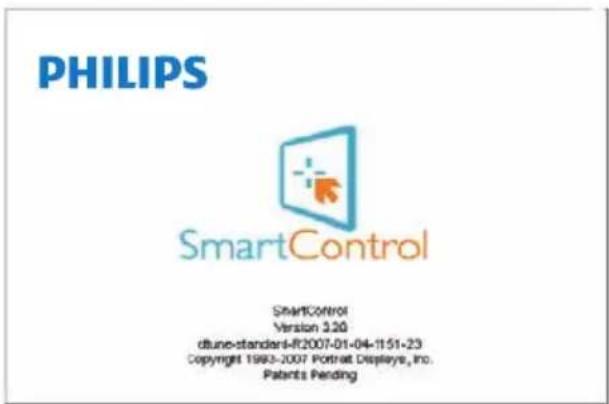
- About - Displays detailed reference information: product version, release information, and product name.
- Exit - Close SmartControl Lite.
To run SmartControl Lite again either select SmartControl Lite from Program menu, double-click the desktop PC icon or restart the system.
text_image
PHILIPS SmartControl SmartControl Version 3.20 dtune-standard-IF2007-01-04-1151-23 Copyright 1983-2007 Portrait Displays, Inc. Patents Pending3. Image Optimization
Task Tray Menu Disabled
When the Task Tray is disabled in the preference folder, only the EXIT selection is available. To completely remove SmartControl Lite from the task tray, disable Run at Startup in Options>Preferences.
4. Technical Specifications
| Picture/Display | |
| Monitor Panel Type TFT-LCD | |
| Backlight LED | |
| Panel Size 23.0" W (58.42cm) | |
| Aspect Ratio 16:9 | |
| Pixel Pitch | 0.265 × 0.265 mm |
| Brightness 250 cd/m2 | |
| SmartContrast 10,000,000:1 | |
| Contrast Ratio (typ.) 1000:1 | |
| Response Time (typ.) 5ms | |
| Optimum Resolution 1920 × 1080 @ 60Hz | |
| Viewing Angle 170° (H) / 160° (V) @ C/R > 10 | |
| Display Colors | 16.7M |
| Vertical Refresh Rate | 56Hz - 76Hz |
| Horizontal Frequency | 30kHz - 83kHz |
| sRGB | YES |
| Connectivity | |
| Signal Input | DVI (digital), VGA (Analog) |
| Input Signal | Separate Sync, Sync on Green |
| Convenience | |
| User Convenience | 236V3LA: AUTO/▼ ▲/▲ ☆/◀ ☑/OK ⏻236V3L: AUTO/▼ ▲/▲ ☆/◀ ☑/OK ⏻ |
| OSD Languages | English, French, German, Spanish, Italian, Russian,Simplified Chinese, Portuguese, Turkish |
| Other Convenience | Kensington Lock |
| Plug & Play Compatibility | DDC/CI, sRGB, Windows 7/Vista/XP, Mac OSX, Linux |
| Stand | |
| Tilt | -5 / +20 |
236V3LA:
| Power | |||
| On Mode | 27.78W (typ.), 31.99W (max.) | ||
| Energy Consumption(EnergyStar 5.0 test method) | AC Input Voltage at 100VAC +/-5VAC, 50Hz +/-3Hz | AC Input Voltage at 115VAC +/-5VAC, 60Hz +/-3Hz | AC Input Voltage at 230VAC +/-5VAC, 50Hz +/-3Hz |
| Normal Operation (typ.) | 24.75W | 24.73W | 24.55W |
| Sleep (Standby) | 0.5W 0.5W | 0.5W | |
| Off | 0.5W | 0.5W 0.5W | |
| Heat Dissipation* | AC Input Voltage at 100VAC +/-5VAC, 50Hz +/-3Hz | AC Input Voltage at 115VAC +/-5VAC, 60Hz +/-3Hz | AC Input Voltage at 230VAC +/-5VAC, 50Hz +/-3Hz |
| Normal Operation | 84.47 BTU/hr | 84.4 BTU/hr | 83.79 BTU/hr |
- Technical Specifications
| Sleep (Standby) 1.706 BTU/hr 1.706 BTU/hr 1.706 BTU/hr | ||
| Off 1.706 BTU/hr 1.706 BTU/hr 1.706 BTU/hr | ||
| Power LED indicator On mode: White, Standby/Sleep mode: White (blinking) | ||
| Power Supply Built-in, 100-240VAC, 50-60Hz | ||
236V3L:
| Power | |||
| On Mode 23.14W (typ.), 29.96W | (max.) | ||
| Energy Consumption(EnergyStar 5.0 test method) | AC Input Voltage at 100VAC +/-5VAC, 50Hz +/-3Hz | AC Input Voltage at 115VAC +/-5VAC, 60Hz +/-3Hz | AC Input Voltage at 230VAC +/-5VAC, 50Hz +/-3Hz |
| Normal Operation (typ.) 18.5W | 18.38W 18.31W | ||
| Sleep (Standby) 0.5W 0.5W 0.5W | |||
| Off 0.5W 0.5W 0.5W | |||
| Heat Dissipation* | AC Input Voltage at 100VAC +/-5VAC, 50Hz +/-3Hz | AC Input Voltage at 115VAC +/-5VAC, 60Hz +/-3Hz | AC Input Voltage at 230VAC +/-5VAC, 50Hz +/-3Hz |
| Normal Operation 63.14 BTU/hr | 62.73 BTU/hr 62.49 BTU/hr | ||
| Sleep (Standby) 1.706 BTU/hr 1.706 BTU/hr 1.706 BTU/hr | |||
| Off 1.706 BTU/hr 1.706 BTU/hr 1.706 BTU/hr | |||
| Power LED indicator On mode: White, Standby/Sleep mode: White (blinking) | |||
| Power Supply Built-in, 100-240VAC, 50-60Hz | |||
| Dimension | |
| Product with stand (WxHxD) 566 × 430 × 219 mm | |
| Product without stand (WxHxD) | 566 × 355 × 44 mm |
| Weight | |
| Product with stand | 3.22kg |
| Product without stand | 2.98kg |
| Product with packaging | 4.57kg |
| Operating Condition | |
| Temperature range (operation) | 0°C to 40 °C |
| Temperature range (Non-operation) | -20°C to 60°C |
| Relative humidity | 20% to 80% |
| Altitude | Operation: + 12,000ft (3,658m)Non-operation: + 40,000ft (12,192m) |
| MTBF | 30,000hrs |
| Environmental | |
| ROHS | YES |
| EPEAT | Silver (www.epeat.net) |
| Packaging | 100% recyclable |
- Technical Specifications
| Compliance and standards | |
| Regulatory Approvals | CE Mark, FCC Class B, GOST, SEMKO, TCO Certified(Only for selective models), UL/cUL, BSMI, ISO9241-307 |
| Cabinet | |
| Color Black | |
| Finish Glossy/Texture | |

Note
-
EPEAT Gold or Silver is valid only where Philips registers the product. Please visit www.epeat.net for registration status in your country.
-
This data is subject to change without notice. Go to www.philips.com/support_to_download the latest version of leaflet.
4.1 Resolution & Preset Modes
1 Maximum Resolution
1920 × 1080 @ 60 Hz (analog input)
1920 × 1080 @ 60 Hz (digital input)
2 Recommended Resolution
1920 × 1080 @ 60 Hz (digital input)
| H. freq (kHz) | Resolution V. freq (Hz) |
| 31.47 720 | × 400 70.09 |
| 31.47 640 | × 480 59.94 |
| 35.00 640 | × 480 66.67 |
| 37.86 640 | × 480 72.81 |
| 37.50 640 | × 480 75.00 |
| 37.88 800 | × 600 60.32 |
| 46.88 800 | × 600 75.00 |
| 48.36 1024 | × 768 60.00 |
| 60.02 1024 | × 768 75.03 |
| 63.89 1280 | × 1024 60.02 |
| 79.98 1280 | × 1024 75.03 |
| 55.94 1440 | × 900 59.89 |
| 70.64 1440 | × 900 74.98 |
| 65.29 1680 | × 1050 59.95 |
| 67.50 1920 | × 1080 60.00 |

Note
Please notice that your display works best at native resolution of 1920 × 1080 @ 60Hz. For best display quality, please follow this resolution recommendation.
5. Power Management
If you have VESA DPM compliance display card or software installed in your PC, the monitor can automatically reduce its power consumption when not in use. If an input from a keyboard, mouse or other input device is detected, the monitor will 'wake up' automatically. The following table shows the power consumption and signaling of this automatic power saving feature:
236V3LA:
| Power Management Definition | |||||
| VESA Mode | Video | H-sync | V-sync | Power Used LED Color | |
| Active ON Yes Yes | 27.78W (typ.) | White | |||
| Sleep(Standby) | OFF No No < 0.5W (typ.) | White (blink) | |||
| Switch Off OFF -- | < 0 | 5W (typ.) | OFF | ||
236V3L:
| Power Management Definition | |||||
| VESA Mode | Video | H-sync | V-sync | Power Used LED Color | |
| Active ON Yes Yes | 23.14W (typ.) | White | |||
| Sleep(Standby) | OFF No No < 0.5W (typ.) | White (blink) | |||
| Switch Off OFF -- | < 0 | 5W (typ.) | OFF | ||
The following setup is used to measure power consumption on this monitor.
• Native resolution: 1920 × 1080
- Contrast: 50%
• Brightness: 250 nits
• Color temperature: 6500k with full white pattern

Note
This data is subject to change without notice.
6. Regulatory Information
Lead-free Product

Lead free display promotes environmentally sound recovery and disposal of waste from electrical and electronic equipment. Toxic substances like Lead has been eliminated and compliance with European community's stringent RoHs directive mandating restrictions on hazardous substances in electrical and electronic equipment have been adhered to in order to make Philips monitors safe to use throughout its life cycle.
Congratulations!
This display is designed for both you and the planet

The display you have just purchased carries the TCO Certified label. This ensures that your display is designed, manufactured and tested according to some of the strictest quality and environmental requirements in the world. This makes for a high performance product, designed with the user in focus that also minimizes the impact on the climate and our natural environment.
TCO Certified is a third party verified program, where every product model is tested by an accredited impartial test laboratory. TCO Certified represents one of the toughest certifications for displays worldwide.
Some of the Usability features of the TCO Certified for displays:
- Visual ergonomics for good image quality is tested to ensure top performance and reduce sight and strain problems. Important parameters are luminance, contrast, resolution, black level, gamma curve, colour and luminance uniformity and colour rendering.
• Products are tested according to rigorous safety standards at impartial laboratories.
• Electric and magnetic fields emissions as low as normal household background levels.
- Low acoustic noise emissions (when applicable).
Some of the Environmental features of the TCO Certified for displays:
- The brand owner demonstrates corporate social responsibility and has a certified environmental management system (EMAS or ISO 14001).
• Very low energy consumption both in on-and standby mode minimize climate impact. - Restrictions on chlorinated and brominated flame retardants, plasticizers, plastics and heavy metals such as cadmium, mercury and lead (RoHS compliance).
- Both product and product packaging is prepared for recycling.
• The brand owner offers take-back options.
The requirements can be downloaded from our web site. The requirements included in this label have been developed by TCO Development in co-operation with scientists, experts, users as well as manufacturers all over the world. Since the end of the 1980s TCO has been involved in influencing the development of IT equipment in a more user-friendly direction. Our labeling system started with displays in 1992 and is now requested by users and IT-manufacturers all over the world. About 50% of all displays worldwide are TCO certified.
For more information, please visit: www.tcodevelopment.com
TCOF1058 TCO Document, Ver. 2.1

Technology for you and the planet
(Only for selective models)
6. Regulatory Infomation
EPEAT
(www.epeat.net)

The EPEAT (Electronic Product Environmental Assessment Tool) program evaluates computer
desktops, laptops, and monitors based on 51 environmental criteria developed through an extensive stakeholder consensus process supported by US EPA.
EPEAT system helps purchasers in the public and private sectors evaluate, compare and select desktop computers, notebooks and monitors based on their environmental attributes. EPEAT also provides a clear and consistent set of performance criteria for the design of products, and provides an opportunity for manufacturers to secure market recognition for efforts to reduce the environmental impact of its products.
Benefits of EPEAT
Reduce use of primary materials Reduce use of toxic materials
Avoid the disposal of hazardous waste EPEAT'S requirement that all registered products meet ENERGY STAR's energy efficiency specifications, means that these products will consume less energy throughout their life.
CE Declaration of Conformity
This product is in conformity with the following standards
• EN60950-1:2006 (Safety requirement of Information Technology Equipment).
• EN55022:2006 (Radio Disturbance requirement of Information Technology Equipment).
• EN55024:1998+A1:2001+A2:2003 (Immunity requirement of Information Technology Equipment).
• EN61000-3-2:2006+A1:2009+A2:2009 (Limits for Harmonic Current Emission).
- EN61000-3-3:2008 (Limitation of Voltage Fluctuation and Flicker) following provisions of directives applicable.
• 2006/95/EC (Low Voltage Directive).
• 2004/108/EC (EMC Directive).
• 2005/32/EC (EuP Directive, EC No. 1275/2008 implementing Directive for Standby and Off mode power consumption) and is produced by a manufacturing organization on ISO9000 level.
The product also comply with the following standards
• ISO9241-307:2008 (Ergonomic requirement, Analysis and compliance test methods for electronic visual displays).
• GS EK1-2000:2009 (GS mark requirement).
• prEN50279:1998 (Low Frequency Electric and Magnetic fields for Visual Display).
• MPR-II (MPR:1990:8/1990:10 Low Frequency Electric and Magnetic fields).
• TCO CERTIFIED (Requirement for Environment Labeling of Ergonomics, Energy, Ecology and Emission, TCO: Swedish Confederation of Professional Employees) for TCO versions.
6. Regulatory Information
Energy Star Declaration
(www.energystar.gov)

As an ENERGY STAR ^® Partner, we have determined that this product meets the ENERGY STAR ^® guidelines for energy efficiency.

Note
We recommend you switch off the monitor when it is not in use for a long time.
Federal Communications Commission (FCC) Notice (U.S. Only)

This equipment has been tested and found to comply with the limits for a Class B digital device, pursuant to Part 15 of the FCC Rules. These limits are designed to provide reasonable protection against harmful interference in a residential installation. This equipment generates, uses and can radiate radio frequency energy and, if not installed and used in accordance with the instructions, may cause harmful interference to radio communications.
However, there is no guarantee that interference will not occur in a particular installation. If this equipment does cause harmful interference to radio or television reception, which can be determined by turning the equipment off and on, the user is encouraged to try to correct the interference by one or more of the following measures:
• Reorient or relocate the receiving antenna.
- Increase the separation between the equipment and receiver.
- Connect the equipment into an outlet on a circuit different from that to which the receiver is connected.
- Consult the dealer or an experienced radio/TV technician for help.

Changes or modifications not expressly approved by the party responsible for compliance could void the user's authority to operate the equipment.
Use only RF shielded cable that was supplied with the monitor when connecting this monitor to a computer device.
To prevent damage which may result in fire or shock hazard, do not expose this appliance to rain or excessive moisture.
THIS CLASS B DIGITAL APPARATUS MEETS ALL REQUIREMENTS OF THE CANADIAN INTERFERENCE-CAUSING EQUIPMENT REGULATIONS.
FCC Declaration of Conformity
Declaration of Conformity for Products Marked with FCC Logo,
United States Only

This device complies with Part 15 of the FCC Rules. Operation is subject to the following two conditions: (1) this device may not cause harmful interference, and (2) this device must accept any interference received, including interference that may cause undesired operation.
Commission Federale de la Communication (FCC Declaration)

6. Regulatory Information
EN 55022 Compliance (Czech Republic Only)
This device belongs to category B devices as described in EN 55022, unless it is specifically stated that it is a Class A device on the specification label. The following applies to devices in Class A of EN 55022 (radius of protection up to 30 meters). The user of the device is obliged to take all steps necessary to remove sources of interference to telecommunication or other devices.
Polish Center for Testing and Certification Notice
The equipment should draw power from a socket with an attached protection circuit (a three-prong socket). All equipment that works together (computer, monitor, printer, and so on) should have the same power supply source.
The phasing conductor of the room's electrical installation should have a reserve short-circuit protection device in the form of a fuse with a nominal value no larger than 16 amperes (A).
To completely switch off the equipment, the power supply cable must be removed from the power supply socket, which should be located near the equipment and easily accessible.
A protection mark "B" confirms that the equipment is in compliance with the protection usage requirements of standards PN-93/T-42107 and PN-89/E-06251.
6. Regulatory Information
North Europe (Nordic Countries) Information
Placering/Ventilation
WARNING:
FÖRSÄKRA DIG OM ATT HUVUDBRYTARE OCH UTTAG ÄR LÄTÄTKOMLIGA, NÄR DU STÄLLER DIN UTRUSTNING PÅPLATS.
Placering/Ventilation
ADVARSEL:
S∅ RG VE D PL AC ERI NGEN F OR, AT NETLEDNINGENS STIK OG STIKKONTAKT ER NEMT TILGÆNGELIGE.
Paikka/llmankierto
VAROITUS:
SIJOITA LAITE SITEN, ETTÄ VERKKOJOHTO VOIDAAN TARVITTAESSA HELPOSTI IRROTTAA PISTORASIASTA.
BSMI Notice (Taiwan Only)
符合乙類資訊產品之標準
6. Regulatory Information
China RoHS
The People's Republic of China released a regulation called "Management Methods for Controlling Pollution by Electronic Information Products" or commonly referred to as China RoHS. All products including CRT and Monitor which are produced and sold for China market have to meet China RoHS request.
中国大陆RoHS
7. Customer care and warrant
7.1 Philips' Flat Panel Monitors Pixel Defect Policy
Philips strives to deliver the highest quality products. We use some of the industry's most advanced manufacturing processes and practice stringent quality control. However, pixel or sub pixel defects on the TFT Monitor panels used in flat panel monitors are sometimes unavoidable. No manufacturer can guarantee that all panels will be free from pixel defects, but Philips guarantees that any monitor with an unacceptable number of defects will be repaired or replaced under warranty. This notice explains the different types of pixel defects and defines acceptable defect levels for each type. In order to qualify for repair or replacement under warranty, the number of pixel defects on a TFT Monitor panel must exceed these acceptable levels. For example, no more than 0.0004% of the sub pixels on a monitor may be defective. Furthermore, Philips sets even higher quality standards for certain types or combinations of pixel defects that are more noticeable than others. This policy is valid worldwide.
text_image
subpixel R G B pixel R G BPixels and Sub pixels
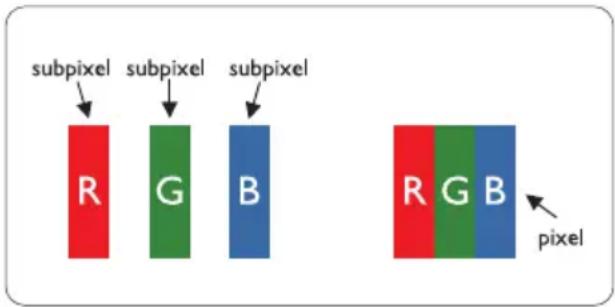
A pixel, or picture element, is composed of three sub pixels in the primary colors of red, green and blue. Many pixels together form an image. When all sub pixels of a pixel are lit, the three colored sub pixels together appear as a single white pixel. When all are dark, the three colored sub pixels together appear as a single
black pixel. Other combinations of lit and dark sub pixels appear as single pixels of other colors.
Types of Pixel Defects
Pixel and sub pixel defects appear on the screen in different ways. There are two categories of pixel defects and several types of sub pixel defects within each category.
Bright Dot Defects
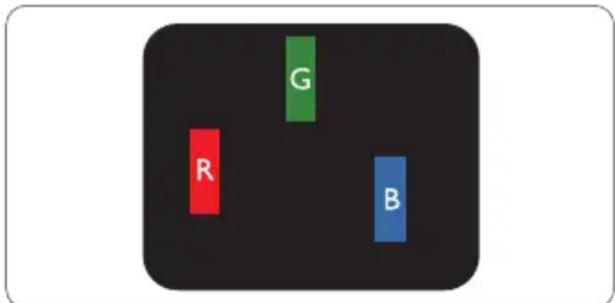
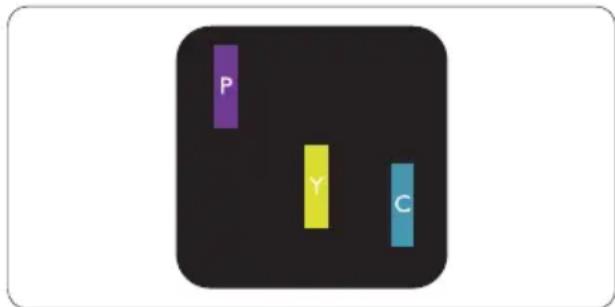
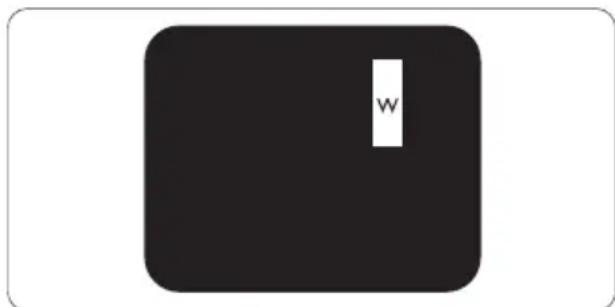
Bright dot defects appear as pixels or sub pixels that are always lit or 'on'. That is, a bright dot is a sub-pixel that stands out on the screen when the monitor displays a dark pattern. There are the types of bright dot defects.
text_image
G R BOne lit red, green or blue sub pixel.
text_image
P Y CTwo adjacent lit sub pixels:
- Red + Blue = Purple
- Red + Green = Yellow
- Green + Blue = Cyan (Light Blue)
text_image
WThree adjacent lit sub pixels (one white pixel).
7. Customer care and warranty

Note
A red or blue bright dot must be more than 50 percent brighter than neighboring dots while a green bright dot is 30 percent brighter than neighboring dots.
Black Dot Defects
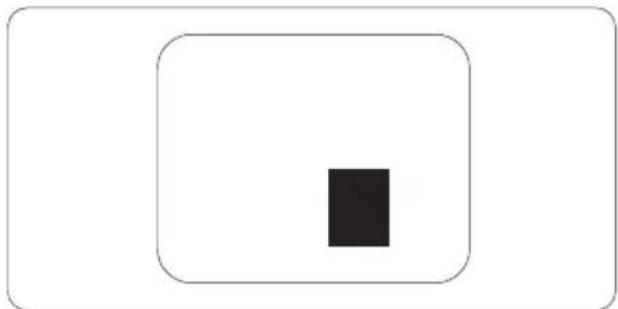
Black dot defects appear as pixels or sub pixels that are always dark or 'off'. That is, a dark dot is a sub-pixel that stands out on the screen when the monitor displays a light pattern. These are the types of black dot defects.

natural_image
Simple diagram with a black vertical rectangle inside a rounded rectangle (no text or symbols)Proximity of Pixel Defects
Because pixel and sub pixels defects of the same type that are near to one another may be more noticeable, Philips also specifies tolerances for the proximity of pixel defects.
natural_image
Simple geometric diagram with a black square inside a larger rounded rectangle (no text or symbols)Pixel Defect Tolerances
In order to qualify for repair or replacement due to pixel defects during the warranty period, a TFT Monitor panel in a Philips flat panel monitor must have pixel or sub pixel defects exceeding the tolerances listed in the following tables.
| BRIGHT DOT DEFECTS ACCEPTABLE LEVEL | |
| 1 lit subpixel 3 | |
| 2 adjacent lit subpixels 1 | |
| 3 adjacent lit subpixels (one white pixel) 0 | |
| Distance between two bright dot defects* >15mm | |
| Total bright dot defects of all types 3 | |
| BLACK DOT DEFECTS ACCEPTABLE LEVEL | |
| 1 dark subpixel 5 or fewer | |
| 2 adjacent dark subpixels 2 or fewer | |
| 3 adjacent dark subpixels 0 | |
| Distance between two black dot defects* | >15mm |
| Total black dot defects of all types | 5 or fewer |
| TOTAL DOT DEFECTS | ACCEPTABLE LEVEL |
| Total bright or black dot defects of all types | 5 or fewer |

Note
- 1 or 2 adjacent sub pixel defects = 1 dot defect
- This monitor is ISO9241-307 compliant (ISO9241-307: Ergonomic requirement, analysis and compliance test methods for electronic visual displays)
7.2 Customer Care & Warranty
For warranty coverage information and additional support requirement valid for your region, please visit www.philips.com/support website for details. You may also contact your local Philips Customer Care Center number listed below.
Contact Information for WESTERN EUROPE region:
| Country ASC Consumer care number Price | |||
| Germany Siemens I&S | +49 01803 386 853 | € 0.09 | |
| United Kingdom Invec | Scotland +44 0207 949 0069 Local call tariff | ||
| Ireland Invec Scotland | +353 01 601 1161 Local call tariff | ||
| Spain | Eatsa Spain | +34 902 888 785 | € 0.10 |
| Finland | A-novo | +358 09 2290 1908 Local cal | tariff |
| France | A-novo | +33 082161 1658 | € 0.09 |
| Greece Allman Hellas | +30 00800 3122 1223 Free of charge | ||
| Italy | A-novo | +39 840 320 041 | € 0.08 |
| Netherlands | E Care | +31 0900 0400 063 | € 0.10 |
| Denmark | A-novo | +45 3525 8761 | Local call tariff |
| Norway A-novo | +47 2270 8250 Local call tariff | ||
| Sweden | A-novo | +46 08 632 0016 | Local call tariff |
| Poland | Zolter | +48 0223491505 | Local call tariff |
| Austria | Siemens I&S +43 0810 000206 | € 0.07 | |
| Belgium | E Care | +32 078 250851 | € 0.06 |
| Luxembourg | E Care | +352 26 84 30 00 | Local call tariff |
| Portugal | Eatsa Spain | +351 2 1359 1440 | Local call tariff |
| Switzerland | A-novo | +41 02 2310 2116 | Local call tariff |
Contact Information for CENTRAL AND EASTERN EUROPE region:
| Country Call center ASC Consumer care number | |||
| Belarus NA IBA | +375 17 217 3386 | ||
| Bulgaria NA LAN Service | +359 2 960 2360 | ||
| Croatia NA Renoprom | +385 1 333 0974 | ||
| Estonia | NA FUJITSU | +372 6519900 | |
| Latvia | NA "ServiceNet LV" Ltd. | +371 7460399 | |
| Lithuania NA UAB "Servicenet" | +370 7400088 | ||
| Romania | NA Blue Ridge Intl. | +40 21 2101969 | |
| Serbia & Montenegro | NA Kim Tec d.o.o. | +381 11 20 70 684 | |
| Slovenia | NA PC H.and | +386 1 530 08 24 | |
| Ukraine | NA Comel | +380 562320045 | |
| NA Topaz-Service Company | +38 044 245 73 31 | ||
| Russia | NA CPS | +7 (495) 645 6746 (for repair) | |
| NA CEEE Partners | +7 (495) 645 3010 (for sales) | ||
| Slovakia | NA Datalan Service | +421 2 49207155 | |
| Turkey | NA Techpro | +90 212 444 4 832 | |
| Czech Rep. | NA Asupport | 800 100 697 | |
| Hungary | NA Serware | +36 1 2426331 | |
| NA Profi Service | +36 1 814 8080 | ||
Contact Information for LATIN AMERICA region:
| Country Call center | Consumer care number | |
| Brazil | Vermont | 0800-7254101 |
| Argentina | 0800 3330 856 | |
Contact Information for China:
China
Consumer care number: 4008 800 008
Contact Information for NORTH AMERICA :
| Country | Call center | ASC | Consumer care number |
| U.S.A. | TOS | Teleplan | (877) 835-1838 |
| Canada Supercom | Supercom | (800)479-6696 | |
Contact Information for APMEA region:
| Country Call center ASC Consumer care number | |||
| Australia NA AGOS NETWORK PTY LTD 1300 360 386 | |||
| New Zealand NA Visual Group Ltd. 0800 657447 | |||
| Hong Kong / Macau | NA Smart Pixels Technology Ltd. | Hong Kong:Tel: +852 2619 9639Macau:Tel: (853)-0800-987 | |
| India NA REDINGTON INDIA LTD | Tel: 1 800 425 6396SMS: PHILIPS to 56677 | ||
| Indonesia | NA PT. Gadingsari elektronika Prima | Tel: 62 21 75909053, 75909056,7511530 | |
| South Korea NA PCS One Korea Ltd. 080-600-6600 | |||
| Malaysia | NA | After Market Solutions (CE)Sdn Bhd | 603 7953 3370 |
| Pakistan | NA Philips Consumer Service (9221) 2737411-16 | ||
| Singapore | NA | Philips Electronics SingaporePte Ltd (Philips Consumer Care Center) | (65) 6882 3999 |
| Taiwan | PCCWTeleservices Taiwan | FETEC.CO | 0800-231-099 |
| Thailand | NA Axis Computer System Co., Ltd. (662) 934-5498 | ||
| South Africa | NA Sylvara Technologies Pty Ltd 086 0000 888 | ||
| United Arab Emirates | NA AL SHAHD | COMPUTER L.L.C 00971 4 2276525 | |
| Israel | NA Eastronics LTD 1-800-567000 | ||
| Vietnam | NA | FPT Service Informatic Company Ltd. | +84 8 38248007 Ho Chi Minh City+84 5113.562666 Danang City+84 5113.562666 Can tho Province |
| Philippines | NA Glee Electronics, Inc. | (02) 633-4533 to 34,(02) 637-6559 to 60 | |
| Sri Lanka | NA | no distributor and/or service provider currently | |
| Bangladesh | NA | Distributor: Computer Source Ltd (warranty buy-out) | 880-2-9141747, 9127592880-2-8128848 / 52 |
| Nepal | NA | Distributor: Syakar Co. Ltd(warranty buy-out) | 977-1-4222395 |
| Cambodia | NA | Distributor: Neat Technology Pte Ltd (Singapore) (warranty buy-out) | 855-023-999992 |
8. Troubleshooting & FAQs
8.1 Troubleshooting
This page deals with problems that can be corrected by a user. If the problem still persists after you have tried these solutions, contact Philips customer service representative.
1 Common Problems
No Picture (Power LED not lit)
• Make sure the power cord is plugged into the power outlet and into the back of the monitor.
- First, ensure that the power button on the front of the monitor is in the OFF position, then press it to the ON position.
No Picture (Power LED is White)
• Make sure the computer is turned on.
• Make sure the signal cable is properly connected to your computer.
- Make sure the monitor cable has no bent pins on the connect side. If yes, repair or replace the cable.
• The Energy Saving feature may be activated
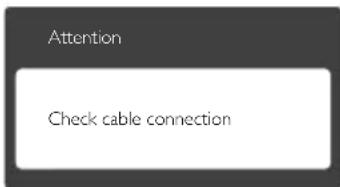
Screen says
text_image
Attention Check cable connection• Make sure the monitor cable is properly connected to your computer. (Also refer to the Quick Start Guide).
- Check to see if the monitor cable has bent pins.
• Make sure the computer is turned on.
AUTO button doesn't function
• The auto function is applicable only in VGA-Analog mode. If the result is not
satisfactory, you can do manual adjustments via the OSD menu.
Note
The Auto Function is not applicable in DVI-Digital mode as it is not necessary.
Visible signs of smoke or sparks
• Do not perform any troubleshooting steps
- Disconnect the monitor from mains power source immediately for safety
- Contact with Philips customer service representative immediately.
2 Imaging Problems
Image is not centered
- Adjust the image position using the "Auto" function in OSD Main Controls.
- Adjust the image position using the Phase/ Clock of Setup in OSD Main Controls. It is valid only in VGA mode.
Image vibrates on the screen
- Check that the signal cable is properly securely connected to the graphics board or PC.
Vertical flicker appears
- Adjust the image using the "Auto" function in OSD Main Controls.
- Eliminate the vertical bars using the Phase/Clock of Setup in OSD Main Controls. It is valid only in VGA mode.
Horizontal flicker appears
text_image
Two document pages showing a grayscale image with horizontal lines and partial text, likely from a presentation or report.- Adjust the image using the "Auto" function in OSD Main Controls.
8. Troubleshooting & FAQs
- Eliminate the vertical bars using the Phase/ Clock of Setup in OSD Main Controls. It is valid only in VGA mode.
Image appears blurred, indistinct or too dark
- Adjust the contrast and brightness on On-Screen Display.
An "after-image", "burn-in" or "ghost image" remains after the power has been turned off.
- Uninterrupted display of still or static images over an extended period may cause "burn in", also known as "after-imaging" or "ghost imaging", on your screen. "Burn-in", "after-imaging", or "ghost imaging" is a well-known phenomenon in LCD panel technology. In most cases, the "burned in" or "after-imaging" or "ghost imaging" will disappear gradually over a period of time after the power has been switched off.
• Always activate a moving screen saver program when you leave your monitor unattended.
• Always activate a periodic screen refresh application if your LCD monitor will display unchanging static content. - Severe" burn-in" or "after-image" or "ghost image" symptoms will not disappear and cannot be repaired. The damage mentioned above is not covered under your warranty.
Image appears distorted. Text is fuzzy or blurred.
- Set the PC's display resolution to the same mode as monitor's recommended screen native resolution.
Green, red, blue, dark, and white dots appears on the screen
- The remaining dots are normal characteristic of the liquid crystal used in today's technology. Please refer the pixel policy for more detail.
The "power on" light is too strong and is disturbing
- You can adjust “power on” light using the power LED Setup in OSD main Controls.
For further assistance, refer to the Consumer Information Centers list and contact Philips customer service representative.
8.2 General FAQs
Q1: When I install my monitor what should I do if the screen shows 'Cannot display this video mode'?
Ans.: Recommended resolution for this monitor: 1920 × 1080 @ 60 Hz.
- Unplug all cables, then connect your PC to the monitor that you used previously.
- In the Windows Start Menu, select Settings/Control Panel. In the Control Panel Window, select the Display icon. Inside the Display Control Panel, select the 'Settings' tab. Under the setting tab, in box labelled 'desktop area', move the sidebar to 1920 x 1080 pixels.
- Open 'Advanced Properties' and set the Refresh Rate to 60 Hz, then click OK.
- Restart your computer and repeat step 2 and 3 to verify that your PC is set at 1920 × 1080 @ 60 Hz.
- Shut down your computer, disconnect your old monitor and reconnect your Philips LCD monitor.
- Turn on your monitor and then turn on your PC.
Q2: What is the recommended refresh rate for LCD monitor?
Ans.: Recommended refresh rate in LCD monitors is 60 Hz. In case of any disturbance on screen, you can set it up to 75 Hz to see if that removes the disturbance.
Q3: What are the .inf and .icm files on the CD-ROM? How do I install the drivers (.inf and .icm)?
Ans.: These are the driver files for your monitor. Follow the instructions in your user manual to install the drivers. Your computer may ask you for monitor
8. Troubleshooting & FAQs
drivers (.inf and .icm files) or a driver disk when you first install your monitor. Follow the instructions to insert the ( companion CD-ROM) included in this package. Monitor drivers (.inf and .icm files) will be installed automatically.
Q4: How do I adjust the resolution?
Ans.: Your video card/graphic driver and monitor together determine the available resolutions. You can select the desired resolution under Windows® Control Panel with the "Display properties".
Q5: What if I get lost when I am making monitor adjustments via OSD?
Ans.: Simply press the OK button, then select 'Reset' to recall all of the original factory settings.
Q6: Is the LCD screen resistant to scratches?
Ans.: In general it is recommended that the panel surface is not subjected to excessive shocks and is protected from sharp or blunt objects. When handling the monitor, make sure that there is no pressure or force applied to the panel surface side. This may affect your warranty conditions.
Q7: How should I clean the LCD surface?
Ans.: For normal cleaning, use a clean, soft cloth. For extensive cleaning, please use isopropyl alcohol. Do not use other solvents such as ethyl alcohol, ethanol, acetone, hexane, etc.
Q8: Can I change the color setting of my monitor?
Ans.: Yes, you can change your color setting through OSD control as the following procedures,
- Press "OK" to show the OSD (On Screen Display) menu
-
Press "Down Arrow" to select the option "Color" then press "OK" to enter color setting, there are three settings as below.
-
Color Temperature; The two settings are 6500K and 9300K. With settings in the 6500K range the panel appears
"warm, with a red-white color tone", while a 9300K temperature yields "cool, bluewhite toning".
- sRGB; this is a standard setting for ensuring correct exchange of colors between different device (e.g. digital cameras, monitors, printers, scanners, etc)
- User Define; the user can choose his/her preference color setting by adjusting red, green blue color.
Note
A measurement of the color of light radiated by an object while it is being heated. This measurement is expressed in terms of absolute scale, (degrees Kelvin). Lower Kevin temperatures such as 2004K are red; higher temperatures such as 9300K are blue. Neutral temperature is white, at 6504K.
Q9: Can I connect my LCD monitor to any PC, workstation or Mac?
Ans.: Yes. All Philips LCD monitors are fully compatible with standard PCs, Macs and workstations. You may need a cable adapter to connect the monitor to your Mac system. Please contact your Philips sales representative for more information.
Q10: Are Philips LCD monitors Plug-and-Play?
Ans.: Yes, the monitors are Plug-and-Play compatible with Windows 7/Vista/XP/NT, Mac OSX, Linux
Q11: What is Image Sticking, or Image Burn-in, or After Image, or Ghost Image in LCD panels?
Ans.: Uninterrupted display of still or static images over an extended period may cause "burn in", also known as "after-imaging" or "ghost imaging", on your screen. "Burn-in", "after-imaging", or "ghost imaging" is a well-known phenomenon in LCD panel technology. In most cases, the "burned in" or "atter-imaging" or "ghost
8. Troubleshooting & FAQs
imaging" will disappear gradually over a period of time after the power has been switched off.
Always activate a moving screen saver program when you leave your monitor unattended.
Always activate a periodic screen refresh application if your LCD monitor will display unchanging static content.
Warning
Severe"bum-in" or "after-image" or "ghost image" symptoms will not disappear and cannot be repaired. The damage mentioned above is not covered under your warranty.
Q12: Why is my Display not showing sharp text, and is displaying jagged characters?
Ans.: Your LCD monitor works best at its native resolution of 1920 × 1080 @ 60 Hz . For best display, please use this resolution.

text_image
PHILIPS2011 © Koninklijke Philips Electronics N.V. All rights reserved.
Philips and the Philips Shield Emblem are registered trademarks of Koninklijke Philips Electronics N.V. and are used under license from Koninklijke Philips Electronics N.V.
Specifications are subject to change without notice.
Version: M3236V1L