231E1SB - Monitor PHILIPS - Free user manual and instructions
Find the device manual for free 231E1SB PHILIPS in PDF.


User questions about 231E1SB PHILIPS
0 question about this device. Answer the ones you know or ask your own.
Ask a new question about this device
Download the instructions for your Monitor in PDF format for free! Find your manual 231E1SB - PHILIPS and take your electronic device back in hand. On this page are published all the documents necessary for the use of your device. 231E1SB by PHILIPS.
USER MANUAL 231E1SB PHILIPS
Philips LCD Monitor Electronic User's Manual
| Home | safety and troubleshooting | about this manual | product information | installing your monitor | on-screen display | customer care and warranty | glossary | download & print |
text_image
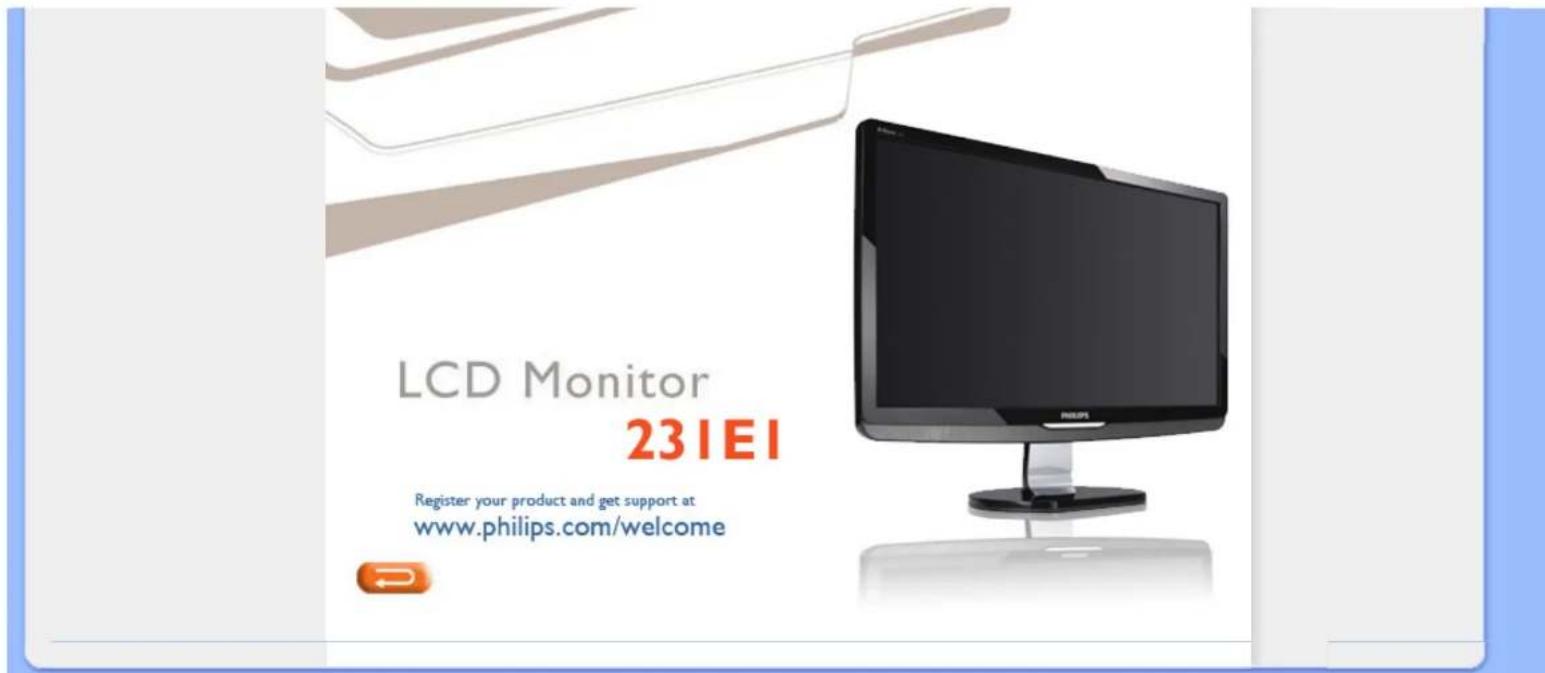
LCD Monitor 231EI Register your product and get support at www.philips.com/welcomeSafety and Troubleshooting Information
• Safety Precautions and Maintenance
- FAQs
- Troubleshooting
• Regulatory Information
• Other Related Information
Safety and Troubleshooting Information
Safety precautions and maintenance

WARNING: Use of controls, adjustments or procedures other than those specified in this documentation may result in exposure to shock, electrical hazards and/or mechanical hazards.
Read and follow these instructions when connecting and using your computer monitor:
Operation:
- Keep the monitor out of direct sunlight and away from stoves or any other heat source.
- Remove any object that could fall into ventilation holes or prevent proper cooling of the monitor's electronics.
- Do not block the ventilation holes on the cabinet.
- When positioning the monitor, make sure the power plug and outlet are easily accessible.
- If turning off the monitor by detaching the power cable or DC power cord, wait for 6 seconds before attaching the power cable or DC power cord for normal operation.
- Please use approved power cord provided by Philips all the time. If your power cord is missing, please contact with your local service center. (Please refer to Customer Care Consumer Information Center)
- Do not subject the LCD monitor to severe vibration or high impact conditions during operation.
- Do not knock or drop the monitor during operation or transportation.
Maintenance:
- To protect your display from possible damage, do not put excessive pressure on the LCD panel. When moving your monitor, grasp the frame to lift; do not lift the monitor by placing your hand or fingers on the LCD panel.
- Unplug the monitor if you are not going to use it for an extensive period of time.
- Unplug the monitor if you need to clean it with a slightly damp cloth. The screen may be wiped with a dry cloth when the power is off. However, never use organic solvent, such as, alcohol, or ammonia-based liquids to clean your monitor.
- To avoid the risk of shock or permanent damage to the set, do not expose the monitor to dust, rain, water, or excessive moisture environment.
Safety and Troubleshooting Information
• If your monitor gets wet, wipe it with dry cloth as soon as possible.
- If foreign substance or water gets in your monitor, please turn the power off immediately and disconnect the power cord. Then, remove the foreign substance or water, and send it to the maintenance center.
- Do not store or use the LCD monitor in locations exposed to heat, direct sunlight or extreme cold.
- In order to maintain the best performance of your monitor and use it for a longer lifetime, please use the monitor in a location that falls within the following temperature and humidity ranges.
Temperature: 0-40°C 32-95°F
Humidity: 20-80% RH
IMPORTANT: Always activate a moving screen saver program when you leave your monitor unattended. Always activate a periodic screen refresh application if your LCD monitor will display unchanging static content. Uninterrupted display of still or static images over an extended period may cause "burn in", also known as "after-imaging" or "ghost imaging", on your screen. "Burn-in", "after-imaging", or "ghost imaging" is a well-known phenomenon in LCD panel technology. In most cases, the "burned in" or "after-imaging" or "ghost imaging" will disappear gradually over a period of time after the power has been switched off.
WARNING: Severe" burn-in" or "after-image" or "ghost image" symptoms will not disappear and cannot be repaired. The damage mentioned above is not covered under your warranty.
Service:
• The casing cover should be opened only by qualified service personnel.
- If there is any need for any document for repair or integration, please contact with your local service center. (please refer to the chapter of "Consumer Information Center")
- For transportation information, please refer to "Physical Specifications".
- Do not leave your monitor in a car/trunk under direct sun light.

Consult a service technician if the monitor does not operate normally, or you are not sure what procedure to take when the operating instructions given in this manual have been followed.
RETURN TO TOP OF THE PAGE
Safety and Troubleshooting Information
tile:/D|/songaiyu/PHILIPS/231E1/PHILIPS-231E1%20%20090423/loc/manual/ENGLISH/PRODUCT/safety/safety.htm (3 of 3)2009/4/23 上午 09:19:00
FAQs (Frequently Asked Questions)
• Safety and Troubleshooting
- General FAQs
- Screen Adjustments
- Compatibility with Other Peripherals
• LCD Panel Technology
• Ergonomics, Ecology and Safety Standards
- Troubleshooting
• Regulatory Information
• Other Related Information
FAQs (Frequently Asked Questions)
General FAQs
Q: When I install my monitor what should I do if the screen shows 'Cannot display this video mode'?
A: Recommended video mode for Philips 23": 1920x1080 @60Hz.
- Unplug all cables, then connect your PC to the monitor that you used previously.
- In the Windows Start Menu, select Settings/Control Panel. In the Control Panel Window, select the Display icon. Inside the Display Control Panel, select the 'Settings' tab. Under the setting tab, in box labeled 'desktop area', move the slider to 1920x1080 pixels (23").
- Open 'Advanced Properties' and set the Refresh Rate to 60Hz, then click OK.
- Restart your computer and repeat step 2 and 3 to verify that your PC is set at 1920x1080@60Hz (23").
- Shut down your computer, disconnect your old monitor and reconnect your Philips LCD monitor.
- Turn on your monitor and then turn on your PC.
Q: What are the .inf and .icm files on the CD-ROM? How do I install the drivers (.inf and .icm)?
A: These are the driver files for your monitor. Follow the instructions in your user manual to install the drivers. Your computer may ask you for monitor drivers (.inf and .icm files) or a driver disk when you first install your monitor. Follow the instructions to insert the ( companion CD-ROM) included in this package. Monitor drivers (.inf and .icm files) will be installed automatically.
Q: How do I adjust the resolution?
FAQs (Frequently Asked Questions)
A: Your video card/graphic driver and monitor together determine the available resolutions. You can select the desired resolution under Windows® Control Panel with the "Display properties".
Q: What if I get lost when I am making monitor adjustments?
A: Simply press the Menu button, the Setup button, then select 'Reset' to recall all of the original factory settings.
Q: What is the Auto function?
A: The AUTO adjustment key restores the optimal screen position, phase and clock settings by pressing of a single button – without the need to navigate through OSD (On Screen Display) menus and control keys.
Note: Auto function is available in selected models only.
Q: My Monitor has no power (Power LED does not light up). What should I do?
A: Make sure the AC power cord is connected between the monitor and AC outlet, and click a key on keyboard/mouse to wake up the PC.
Q: Will the LCD monitor accept an interlaced signal under PC models?
A: No. If an Interlace signal is used, the screen displays both odd and even horizontal scanning lines at the same time, thus distorting the picture.
Q: What does the Refresh Rate mean for LCD?
A: Unlike CRT display technology, in which the speed of the electron beam is swept from the top to the bottom of the screen determines flicker, an active matrix display
FAQs (Frequently Asked Questions)
uses an active element (TFT) to control each individual pixel and the refresh rate is therefore not really applicable to LCD technology.
Q: Will the LCD screen be resistant to scratches?
A: A protective coating is applied to the surface of the LCD, which is durable to a certain extent (approximately up to the hardness of a 2H pencil). In general, it is recommended that the panel surface is not subject to any excessive shocks or scratches.
Q: How should I clean the LCD surface?
A: For normal cleaning, use a clean, soft cloth. For extensive cleaning, please use isopropyl alcohol. Do not use other solvents such as ethyl alcohol, ethanol, acetone, hexane, etc.
Q: Can I change the color setting of my monitor?
A: Yes, you can change your color setting through OSD control as the following procedures.
- Press "Menu" to show the OSD (On Screen Display) menu
- Press "Down Arrow" to select the option "Color" then press "OK" to enter color setting, there are three settings as below.
a. Color Temperature; The six settings are 5000K, 6500K, 7500K, 8200K, 9300K and 11500K. With settings in the 5000K range the panel appears 'warm,' with a red-white color tone, while a 11500K temperature yields 'cool, blue-white toning."
b. sRGB; this is a standard setting for ensuring correct exchange of colors between different device (e.g. digital cameras, monitors, printers, scanners, etc)
c. User Define; the user can choose his/her preference color setting by adjusting red, green blue color.
FAQs (Frequently Asked Questions)
d. Gamma; The five settings are 1.8, 2.0, 2.2, 2.4, and 2.6.
*A measurement of the color of light radiated by an object while it is being heated. This measurement is expressed in terms of absolute scale, (degrees Kelvin). Lower Kevin temperatures such as 2004K are red; higher temperatures such as 9300K are blue. Neutral temperature is white, at 6504K.
RETURN TO TOP OF THE PAGE
Screen Adjustments
Q: When I install my monitor, how do I get the best performance from the monitor?
A: For best performance, make sure your display settings are set at 1920x1080@60Hz for 23".
Q: How do LCDs compare to CRTs in terms of radiation?
A: Because LCDs do not use an electron gun, they do not generate the same amount of radiation at the screen surface.
RETURN TO TOP OF THE PAGE
Compatibility with other Peripherals
Q: Can I connect my LCD monitor to any PC, workstation or Mac?
A: Yes. All Philips LCD monitors are fully compatible with standard PCs, Macs and workstations. You may need a cable adapter to connect the monitor to your Mac
FAQs (Frequently Asked Questions)
system. Please contact your Philips sales representative for more information.
Q: Are Philips LCD monitors Plug-and-Play?
A: Yes, the monitors are Plug-and-Play compatible with Windows® 95, 98, 2000. XP and Vista.
Q: What is USB (Universal Serial Bus)?
A: Think of USB as a smart plug for PC peripherals. USB automatically determines resources (like driver software and bus bandwidth) required by peripherals. USB makes necessary resources available without user intervention. There are three main benefits of USB. USB eliminates "case anxiety," the fear of removing the computer case to install circuit board cards -- that often requires adjustment of complicated IRQ settings -- for add-on peripherals. USB does away with "port gridlock." Without USB, PCs are normally limited to one printer, two Com port devices (usually a mouse and modem), one Enhanced Parallel Port add-on (scanner or video camera, for example), and a joystick. More and more peripherals for multimedia computers come on the market every day. With USB, up to 127 devices can run simultaneously on one computer. USB permits "hot plug-in." No need to shut down, plug in, reboot and run set up to install peripherals. No need to go through the reverse process to unplug a device. Bottom line: USB transforms today's "Plug-and-Pray" into true Plug-and-Play!
Please refer to glossary for more information about USB.
Q: What is a USB hub?
A: A USB hub provides additional connections to the Universal Serial Bus. A hub's upstream port connects a hub to the host, usually a PC. Multiple downstream ports in a hub allows connection to another hub or device, such as a USB keyboard, camera or printer.
RETURN TO TOP OF THE PAGE
LCD Panel Technology
file://DJ/songuiyu/PHILIPS/231E1/PHILIPS-231E1% 20%20090423/lcd/manual/ENGLISH/PRODUCT/safety/saf_faq.htm (5 of 9)2009/4/23 上午 09:19:26
FAQs (Frequently Asked Questions)
Q: What is a Liquid Crystal Display?
A: A Liquid Crystal Display (LCD) is an optical device that is commonly used to display ASCII characters and images on digital items such as watches, calculators, portable game consoles, etc. LCD is the technology used for displays in notebooks and other small computers. Like light-emitting diode and gas-plasma technologies, LCD allows displays to be much thinner than cathode ray tube (CRT) technology. LCD consumes much less power than LED and gas-displays because it works on the principle of blocking light rather than emitting it.
Q: What differentiates passive matrix LCDs from active matrix LCDs?
A: An LCD is made with either a passive matrix or an active matrix display grid. An active matrix has a transistor located at each pixel intersection, requiring less current to control the luminance of a pixel. For this reason, the current in an active matrix display can be switched on and off more frequently, improving the screen refresh time (your mouse pointer will appear to move more smoothly across the screen, for example). The passive matrix LCD has a grid of conductors with pixels located at each intersection in the grid.
Q: What are the advantages of TFT LCD compared with CRT?
A: In a CRT monitor, a gun shoots electrons and general light by colliding polarized electrons on fluorescent glass. Therefore, CRT monitors basically operate with an analog RGB signal. A TFT LCD monitor is a device that displays an input image by operating a liquid crystal panel. The TFT has a fundamentally different structure than a CRT: Each cell has an active matrix structure and independent active elements. A TFT LCD has two glass panels and the space between them is filled with liquid crystal. When each cell is connected with electrodes and impressed with voltage, the molecular structure of the liquid crystal is altered and controls the amount of inlet lighting to display images. A TFT LCD has several advantages over a CRT, since it can be very thin and no flickering occurs because it does not use the scanning method.
Q: Why is vertical frequency of 60Hz optimal for an LCD monitor?
A: Unlike a CDT monitor, the TFT LCD panel has a fixed resolution. For example, an
FAQs (Frequently Asked Questions)
XGA monitor has 1024x3 (R, G, B) x 768 pixels and a higher resolution may not be available without additional software processing. The panel is designed to optimize the display for a 65MHz dot clock, one of the standards for XGA displays. Since the vertical/horizontal frequency for this dot clock is 60Hz/48kHz, the optimum frequency for this monitor is 60Hz.
Q: What kind of wide-angle technology is available? How does it work?
A: The TFT LCD panel is an element that controls/displays the inlet of a backlight using the dual-refraction of a liquid crystal. Using the property that the projection of inlet light refracts toward the major axis of the liquid element, it controls the direction of inlet light and displays it. Since the refraction ratio of inlet light on liquid crystal varies with the inlet angle of the light, the viewing angle of a TFT is much narrower than that of a CDT. Usually, the viewing angle refers to the point where the contrast ration is 10. Many ways to widen the viewing angle are currently being developed and the most common approach is to use a wide viewing angle film, which widens the viewing angle by varying the refraction ratio. IPS (In Plane Switching) or MVA (Multi Vertical Aligned) is also used to give a wider viewing angle.
Q: Why is there no flicker on an LCD Monitor?
A: Technically speaking, LCDs do flicker, but the cause of the phenomenon is different from that of a CRT monitor -- and it has no impact of the ease of viewing. Flickering in an LCD monitor relates to usually undetectable luminance caused by the difference between positive and negative voltage. On the other hand, CRT flickering that can irritate the human eye occurs when the on/off action of the fluorescent object becomes visible. Since the reaction speed of liquid crystal in an LCD panel is much slower, this troublesome form of flickering is not present in an LCD display.
Q: Why is an LCD monitor virtually low of Electro Magnetic Interference?
A: Unlike a CRT, an LCD monitor does not have key parts that generate Electro Magnetic Interference, especially magnetic fields. Also, since an LCD display utilizes relatively low power, its power supply is extremely quiet.
RETURN TO TOP OF THE PAGE
FAQs (Frequently Asked Questions)
Ergonomics, Ecology and Safety Standards
Q: What is the CE mark?
A: The CE (Conformité Européenne) mark is required to be displayed on all regulated products offered for sale on the European market. This 'CE' mark means that a product complies with the relevant European Directive. A European Directive is a European 'Law' that relates to health, safety, environment and consumer protection, much the same as the U.S. National Electrical Code and UL Standards.
Q: Does the LCD monitor conform to general safety standards?
A: Yes. Philips LCD monitors conform to the guidelines of MPR-II and TCO 99/03 standards for the control of radiation, electromagnetic waves, energy reduction, electrical safety in the work environment and recyclability. The specification page provides detailed data on safety standards.
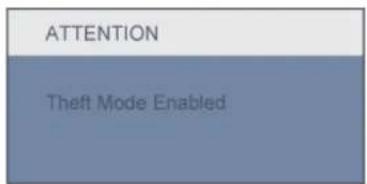
Q: After I change new PC, I found this information on screen, how can I do?
text_image
ATTENTION Theft Mode EnabledA: Because you activate Theft Deterrence function in SmartControl II. Please contact IT manager or Philips Service Center.
More information is provided in the Regulatory Information section.
RETURN TO TOP OF THE PAGE
FAQs (Frequently Asked Questions)
tile://D|songaiyu/PHILIPS/231E1/PHILIPS-231E1%20%20090423/lcd/manual/ENGLISH/PRODUCT/safety/saf_faq.htm (9 of 9)2009/4/23 上午 09:19:26
- Safety and
Troubleshooting
• FAQs
• Common Problems - Imaging Problems
• Regulatory Information
• Other Related Information
Troubleshooting
This page deals with problems that can be corrected by a user. If the problem still persists after you have tried these solutions, contact Philips customer service representative.
| Common Problems | |
| Having this problem Check these items | |
| No Picture(Power LED not lit) | Make sure the power cord is plugged into the power outlet and into the back of the monitor.First, ensure that the power button on the front of the monitor is in the OFF position, then press it to the ON position. |
| No Picture(Power LED is Blinking Blue LED Period:3sec on,3sec off) | Make sure the computer is turned on.Make sure the signal cable is properly connected to your computer.Check to see if the monitor cable has bent pins.The Energy Saving feature may be activated |
| Screen saysATTENTIONCHECK CABLE CONNECTION | Make sure the monitor cable is properly connected to your computer. (Also refer to the Quick Set-Up Guide).Check to see if the monitor cable has bent pins.Make sure the computer is turned on. |
| AUTO button not working properly | The Auto Function is designed for use on standard Macintosh or IBM-compatible PCs running Microsoft Windows.It may not work properly if using nonstandard PC or video card. |
Troubleshboxing
| Imaging Problems | |
| Display position is incorrect | Press the Auto button.Adjust the image position using the Phase/Clock of Setup in OSD Main Controls. |
| Image vibrates on the screen | Check that the signal cable is properly connected to the graphics board or PC. |
Vertical flicker appears | Press the Auto button.Eliminate the vertical bars using the Phase/Clock of Setup in OSD Main Controls. |
Horizontal flicker appears  | Press the Auto button.Eliminate the vertical bars using the Phase/Clock of Setup in OSD Main Controls. |
| The screen is too bright or too dark | Adjust the contrast and brightness on On-Screen Display.(The backlight of the LCD monitor has a fixed life span. When the screen becomes dark or begins to flicker, please contact your sales representative). |
| An after-image appears | If an image remains on the screen for an extended period of time, it may be imprinted in the screen and leave an after-image. This usually disappears after a few hours |
file://Dj/songaiyu/PHILIPS/231FJ/PHILIPS-231FJ%20%20090423lcd/manual/ENGLISH/PRODUCT/safety/saf_troub.htm (2 of 3)2009/4/23 上午 09:19:44
Troubleshooting
| An after-image remains after the power has been turned off. | This is characteristic of liquid crystal and is not caused by a malfunction or deterioration of the liquid crystal. The after-image will disappear after a period of time. |
| Green, red, blue, dark, and white dots remains | The remaining dots are normal characteristic of the liquid crystal used in today's technology. |
| Adjust blue "power on" light | Adjust blue "power on" light using the power LED of Setup in OSD Main Controls. |
| For further assistance, refer to theConsumer Information Centerslist and contact Philips customer service representative.RETURN TO TOP OF THE PAGE | |
• Recycling Information for Customers
Waste Electrical and Electronic Equipment-WEEE
• CE Declaration of Conformity
• Energy Star Declaration
• Federal Communications Commission (FCC) Notice (U.S. Only)
• FCC Declaration of Conformity
• Commission Federale de la Communication (FCC Declaration)
• EN 55022 Compliance (Czech Republic Only)
• Polish Center for Testing and Certification Notice
• North Europe (Nordic Countries) Information
• BSMI Notice (Taiwan Only)
• Ergonomie Hinwels (nur Deutschland)
. Philips End-of-Life Disposal
• Information for UK only
• China RoHS
• Safety Information
- Troubleshooting
• Other Related Information
* Frequently Asked Questions (FAQs)
Regulatory Information
Model ID: 231E1
Model No: MWE1230F
Recycling Information for Customers
Philips establishes technically and economically viable objectives to optimize the environmental performance of the organization's product, service and activities.
From the planning, design and production stages, Philips emphasizes the important of making products that can easily be recycled. At Philips, end-of-life management primarily entails participation in national take-back initiatives and recycling programs whenever possible, preferably in cooperation with competitors.
There is currently a system of recycling up and running in the European countries, such as The Netherlands, Belgium, Norway, Sweden and Denmark.
In U.S.A., Philips Consumer Electronics North America has contributed funds for the Electronic Industries Alliance (EIA) Electronics Recycling Project and state recycling initiatives for end-of-life electronics products from household sources. In addition, the Northeast Recycling Council (NERC) - a multi-state non-profit organization focused on promoting recycling market development - plans to implement a recycling program.
In Asia Pacific, Taiwan, the products can be taken back by Environment Protection Administration (EPA) to follow the IT product recycling management process, detail can be found in web site www.epa.gov.tw
The monitor contains parts that could cause damage to the nature environment. Therefore, it is vital that the monitor is recycled at the end of its life cycle.
For help and service, please contact Consumers Information Center or F1rst Choice Contact Information Center in each country or the following team of Environmental specialist can help.
Mrs. Argent Chan, Environment Manager
Philips Consumer Lifestyle
E-mail: argent.chan@philips.com
Tel: +886 (0) 3 222 6795
Mr. Maarten ten Houten - Senior Environmental Consultant
Phillips Consumer Electronics
E-mail: marten.ten.houten@philips.com
Tel: +31 (0) 40 27 33402
Mr. Delmer F. Teglas
Philips Consumer Electronics North America
E-mail: butch.teglas@philips.com
Tel: +1 865 521 4322
Regulatory Information
RETURN TO TOP OF THE PAGE
Waste Electrical and Electronic Equipment-WEEE
Attention users in European Union private households

This marking on the product or on its packaging illustrates that, under European Directive 2002/96/EG governing used electrical and electronic appliances, this product may not be disposed of with normal household waste. You are responsible for disposal of this equipment through a designated waste electrical and electronic equipment collection. To determine the locations for dropping off such waste electrical and electronic, contact your local government office, the waste disposal organization that serves your household or the store at which you purchased the product.
Attention users in United States:
Like all LCD products, this set contains a lamp with Mercury. Please dispose of according to all Local, State and Federal laws. For the disposal or recycling information, contact www.mygreenelectronics.com or www.ciae.org.
RETURN TO TOP OF THE PAGE
CE Declaration of Conformity
Philips Consumer Electronics declare under our responsibility that the product is in conformity with the following standards
- EN60950-1:2001 (Safety requirement of Information Technology Equipment)
- EN55022:1998 (Radio Disturbance requirement of Information Technology Equipment)
- EN55024:1998 (Immunity requirement of Information Technology Equipment)
- EN61000-3-2:2000 (Limits for Harmonic Current Emission)
- EN61000-3-3:1995 (Limitation of Voltage Fluctuation and Flicker)
following provisions of directives applicable - 73/23/EEC (Low Voltage Directive)
- 89/336/EEC (EMC Directive)
- 93/68/EEC (Amendment of EMC and Low Voltage Directive)
and is produced by a manufacturing organization on ISO9000 level.
The product also comply with the following standards
- ISO9241-3, ISO9241-7, ISO9241-8 (Ergonomic requirement for CRT Monitor)
- ISO13406-2 (Ergonomic requirement for Flat Panel Display)
- GS EK1-2000 (GS specification)
-prEN50279:1998 (Low Frequency Electric and Magnetic fields for Visual Display)
- MPR-II (MPR:1990:8/1990:10 Low Frequency Electric and Magnetic fields)
- TCO'99, TCO'03 (Requirement for Environment Labelling of Ergonomics, Energy, Ecology and Emission, TCO: Swedish Confederation of Professional Employees) for TCO versions
RETURN TO TOP OF THE PAGE
Energy Star Declaration
This monitor is equipped with a function for saving energy which supports the VESA Display Power Management (DPM) standard. This means that the monitor must be connected to a computer which supports VESA DPM. Time settings are adjusted from the system unit by software.
VESA State LED Indicator
Power
Consumption
Normal operation ON (Active) Blue < 50W (typ.)
Power Saving
Alternative 2
One step
Sleep
Blinking Blue LED
< 0.5 W
Switch Off
Blue LED off
< 0.5W

ENERGY STAR

As an ENERGY STAR® Partner, PHILIPS has determined that this product meets the ENERGY STAR® guidelines for energy efficiency.
We recommend you switch off the monitor when it is not in use for a long time.
RETURN TO TOP OF THE PAGE
Federal Communications Commission (FCC) Notice (U.S. Only)

This equipment has been tested and found to comply with the limits for a Class B digital device, pursuant to Part 15 of the FCC Rules. These limits are designed to provide reasonable protection against harmful interference in a residential installation. This equipment generates, uses and can radiate radio frequency energy and, if not installed and used in accordance with the instructions, may cause harmful interference to radio communications. However, there is no guarantee that interference will not occur in a particular installation. If this equipment does cause harmful interference to radio or television reception, which can be determined by turning the equipment off and on, the user is encouraged to try to correct the interference by one or more of the following measures:
Regulatory Information
• Reorient or relocate the receiving antenna.
- Increase the separation between the equipment and receiver.
- Connect the equipment into an outlet on a circuit different from that to which the receiver is connected.
- Consult the dealer or an experienced radio/TV technician for help.

Changes or modifications not expressly approved by the party responsible for compliance could void the user's authority to operate the equipment.
Use only RF shielded cable that was supplied with the monitor when connecting this monitor to a computer device.
To prevent damage which may result in fire or shock hazard, do not expose this appliance to rain or excessive moisture.
THIS CLASS B DIGITAL APPARATUS MEETS ALL REQUIREMENTS OF THE CANADIAN INTERFERENCE-CAUSING EQUIPMENT REGULATIONS.
RETURN TO TOP OF THE PAGE
FCC Declaration of Conformity
Trade Name: Philips
Philips Consumer Electronics North America
P.O. Box 671539
Marietta, GA 30006-0026
1-888-PHILIPS (744-5477)
Declaration of Conformity for Products Marked with FCC Logo, United States Only
Trade Name Model Number

Tested To Comply
With FCC Standards
FOR HOME OR OFFICE USE
This device complies with Part 15 of the FCC Rules. Operation is subject to the following two conditions: (1) this device may not cause harmful interference, and (2) this device must accept any interference received, including interference that may cause undesired operation.
RETURN TO TOP OF THE PAGE
Commission Federale de la Communication (FCC Declaration)

EN 55022 Compliance (Czech Republic Only)
This device belongs to category B devices as described in EN 55022, unless it is specifically stated that it is a Class A device on the specification label. The following applies to devices in Class A of EN 55022 (radius of protection up to 30 meters). The user of the device is obliged to take all steps necessary to remove sources of interference to telecommunication or other devices.
Polish Center for Testing and Certification Notice
The equipment should draw power from a socket with an attached protection circuit (a three-prong socket). All equipment that works together (computer, monitor, printer, and so on) should have the same power supply source.
The phasing conductor of the room's electrical installation should have a reserve short-circuit protection device in the form of a fuse with a nominal value no larger than 16 amperes (A).
To completely switch off the equipment, the power supply cable must be removed from the power supply socket, which should be located near the equipment and easily accessible.
A protection mark "B" confirms that the equipment is in compliance with the protection usage requirements of standards PN-93/T-42107 and PN-89/E-06251.
North Europe (Nordic Countries) Information
Placering/Ventilation
WARNING:
FÖRSÄKRA DIG OM ATT HUVUDBRYTARE OCH UTTAG ÄR LÄTÄTKOMLIGA, NÄR DU STÄLLER DIN UTRUSTNING PÅPLATS.
Regulatory Information
Placering/Ventilation
ADVARSEL:
S∅RG VED PLACERINGEN FOR, AT NETLEDNINGENS STIK OG STIKKONTAKT ER NEMT TILGÆNGELIGE.
Paikka/Ilmankierto
VAROITUS:
SIJOITA LAITE SITEN, ETTÄ VERKKOJOHTO VOIDAAAN TARVITTAESSA HELPOSTI IRROTTAA PISTORASIASTA.
BSMI Notice (Taiwan Only)
符合乙類資訊產品之標準
RETURN TO TOP OF THE PAGE
End-of-Life Disposal
Your new monitor contains materials that can be recycled and reused. Specialized companies can recycle your product to increase the amount of reusable materials and to minimize the amount to be disposed of.
Please find out about the local regulations on how to dispose of your old monitor from your local Philips dealer.
(For customers in Canada and U.S.A.)
This product may contain lead and/or mercury. Dispose of in accordance to local-state and federal regulations.
For additional information on recycling contact www.eia.org (Consumer Education Initiative)
RETURN TO TOP OF THE PAGE
Information for UK only
WARNING - THIS APPLIANCE MUST BE GROUNDING.
Important:
This apparatus is supplied with an approved moulded 13A plug. To change a fuse in this type of plug proceed as follows:
- Remove fuse cover and fuse.

text_image
(A) (B)- Fit new fuse which should be a BS 1362 5A,A.S.T.A. or BSI approved type.
- Refit the fuse cover.
If the fitted plug is not suitable for your socket outlets, it should be cut off and an appropriate 3-pin plug fitted in its place.
If the mains plug contains a fuse, this should have a value of 5A. If a plug without a fuse is used, the fuse at the distribution board should not be greater than 5A.
Note: The severed plug must be destroyed to avoid a possible shock hazard should it be inserted into a 13A socket elsewhere.
How to connect a plug
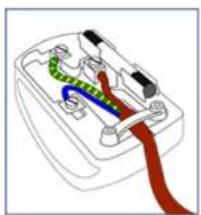
The wires in the mains lead are coloured in accordance with the following code:
BLUE - "NEUTRAL" ("N")
BROWN - "LIVE" ("L")
natural_image
Diagram of a battery pack with colored wires and connectors (no text or labels)GREEN & YELLOW - "GROUND" ("G")
- The GREEN AND YELLOW wire must be connected to the terminal in the plug which is marked with the letter "G" or by the Ground symbol 12 or coloured GREEN or GREEN AND YELLOW.
- The BLUE wire must be connected to the terminal which is marked with the letter "N" or coloured BLACK.
- The BROWN wire must be connected to the terminal which marked with the letter "L" or coloured RED.
Before replacing the plug cover, make certain that the cord grip is clamped over the sheath of the lead - not simply over the three wires.
RETURN TO TOP OF THE PAGE
China RoHS
The People's Republic of China released a regulation called "Management Methods for Controlling Pollution by Electronic Information Products" or commonly referred to as China RoHS. All products including CRT and LCD monitor which are produced and sold for China market have to meet China RoHS request.
中国大陆RoHS
China Energy Efficiency Label (中國能效) implement
Regulatory Information
中国能源效率标识
Safety Information: Electric, Magnetic and Electromagnetic Fields ("EMF")
- Philips Royal Electronics manufactures and sells many products targeted at consumers, which, like any electronic apparatus, in general have the ability to emit and receive electro magnetic signals.
- One of Philips' leading Business Principles is to take all necessary health and safety measures for our products, to comply with all applicable legal requirements and to stay well within the EMF standards applicable at the time of producing the products.
- Philips is committed to develop, produce and market products that cause no adverse health effects.
- Philips confirms that if its products are handled properly for their intended use, they are safe to use according to scientific evidence available today.
- Philips plays an active role in the development of international EMF and safety standards, enabling Philips to anticipate further developments in standardization for early integration in its products.
RETURN TO TOP OF THE PAGE
Other Related Information
• Safety and Troubleshooting
• FAQs
- Troubleshooting
• Regulatory Information
• Information for Users in the U.S
• Information for Users Outside the U.S
Other Related Information
Information for Users in the U. S.
For units set at 115 V :
Use a UL Listed Cord Set consisting of a minimum 18 AWG, Type SVT or SJT three conductor cord a maximum of 15-feet long and a parallel blade, grounding type attachment plug rated 15 A, 125 V.
For units set at 230 V:
Use a UL Listed Cord Set consisting of a minimum 18 AWG, Type SVT or SJT three conductor cord a maximum of 15-feet long and a tandem blade, grounding type attachment plug rated 15 A, 250 V.
Information for Users outside the U.S.
For units set at 230 V:
Use a Cord Set consisting of a minimum 18 AWG cord and grounding type attachment plug rated 15 A, 250 V. The Cord Set should have the appropriate safety approvals for the country in which the equipment will be installed and / or be marked HAR.
RETURN TO TOP OF THE PAGE
About This Manual
- About This Guide
- Notational Descriptions
About This Manual
About This Guide
This electronic user's guide is intended for anyone who uses the Philips LCD Monitor. It describes the LCD monitor's features, setup, operation and other important information. Its contents are identical to the information in our printed version.
It includes the following sections:
- Safety and Troubleshooting Information provides tips and solutions for common problems as well as other related information you may need.
- About This Electronic User's Manual gives an overview of information included, along with notation icon descriptions and other documentation for your reference.
- Product Information gives an overview of the monitor's features as well as the technical specifications for this monitor.
- Installing Your Monitor describes the initial setup process and gives an overview of how to use the monitor.
- On-Screen Display provides information on adjusting the settings on your monitor.
- Customer Care and Warranty contains a list of worldwide Philips Consumer Information Centers along with help desk phone numbers and information on the warranty applicable to your product.
• Glossary defines technical terms. - Download and Print Option transfers this entire manual to your hard drive for easy reference.
RETURN TO TOP OF THE PAGE
Notational Descriptions
About This Manual
The following subsections describe notational conventions used in this document.
Notes, Cautions and Warnings
Throughout this guide, blocks of text may be accompanied by an icon and printed in bold or italic type. These blocks contain notes, cautions or warnings. They are used as follows:

NOTE: This icon indicates important information and tips that help you make better use of your computer system.

CAUTION: This icon indicates information that tells you how to avoid either potential damage to hardware or loss of data.

WARNING: This icon indicates the potential for bodily harm and tells you how to avoid the problem.
Some warnings may appear in alternate formats and may not be accompanied by an icon. In such cases, the specific presentation of the warning is mandated by the relevant regulatory authority.
RETURN TO TOP OF THE PAGE
All rights reserved. Reproduction, copying, use, modification, hiring, renting, public performance, transmission and/or broadcasting in whole or in part is prohibited without written consent of Philips Electronics NV
About This Manual
file://DJ/songaiyu/PHILIPS/231E1/PHILIPS-231E1%20%20090423/led/manual/ENGLISH/PRODUCT/about/about.htm (3 of 3)2009/4/23 上午 09:20:06
- Your LCD Monitor
• Smartimage
• SmartContrast - Lead-free Product
• Technical Specifications
• Resolution & Preset Modes
• Philips Pixel Defect Policy
• Automatic Power Saving
• Physical Specification - Pin Assignment
• Product Views
• Physical Function
• SmartManage & SmartControl II
Product Information
Your LCD monitor
Congratulations on your purchase and welcome to Philips. To fully benefit from the support that Philips offers, register your product at. www.philips.com/welcome
RETURN TO TOP OF THE PAGE
SmartImage
What is it?
SmartImage provides presets that optimize display for different types of content, dynamically adjusting brightness, contrast, color and sharpness in real time. Whether you're working with text applications, displaying images or watching a video, Philips SmartImage delivers great optimized LCD display performance.
Why do I need it?
You want a LCD display that delivers optimized display all your favorite types of content, SmartImage software dynamically adjust brightness, contrast, color and sharpness in real time to enhance your LCD viewing experience.
How does It work?
SmartImage - software based on Philips award-winning LightFrame™ technology - analyzes the content displayed on your screen. Based on a scenario you select, SmartImage dynamically enhances the contrast, color saturation and sharpness of images and video for ultimate display performance - all in real time with the press on a single button.
How to enable SmartImage?
Product Information

natural_image
Illustration of a Philips monitor with a circular icon showing a mug (no text or symbols on the device)1.
Press to launch the SmartImage on screen display;
- Keep press to toggle between Office Work, Image Viewing, Entertainment, Economy, and Off:
- The SmartImage on screen display will remain on screen for 5 seconds or you can also press "OK" to make confirmation.
- When SmartImage is enabled, the sRGB scheme is disabled automatically. To use sRGB you need to disable SmartImage with the button at the front bezel of your monitor.
Except using key to scroll down, you can also press buttons to choose and press "OK" to confirm selection and close the SmartImage OSD. There are five modes to be selected: Office Work, Image Viewing, Entertainment, Economy, and Off.
There are five modes to be selected: Office Work, Image Viewing, Entertainment, Economy, and Off.
SmartImage
Office Work
Image Viewing
Entertainment
Economy
Off
- Office Work: Enhances text and dampens brightness to increase readability and reduce eye strain. This mode significantly enhances readability and productivity when you're working with spreadsheets, PDF files, scanned articles or other general office applications.
- Image Viewing: This profile combines color saturation, dynamic contrast and sharpness enhancement to display photos and other images with outstanding clarity in vibrant colors - all without artifacts and faded colors.
- Entertainment: Ramped up luminance, deepened color saturation, dynamic contrast and razor sharpness displays every details in darker areas of your videos without color washout in brighter areas maintaining a dynamic natural values for the ultimate video display.
- Economy: Under this profile, brightness, contrast are adjusted and backlighting fine-tuned for just right display of everyday office applications and lower power consumption.
- Off: No optimization by SmartImage.
RETURN TO TOP OF THE PAGE
SmartContrast
What is it?
Unique technology that dynamically analyzes displayed content and automatically optimizes a LCD monitor's contrast ratio for maximum visual clarity and viewing enjoyment, stepping up backlighting for clearer, crisper and brighter images or dimming backlighting for clear display of images on dark backgrounds.
Why do I need it?
You want the very best visual clarity and viewing comfort for every type of content. SmartContrast dynamically controls contrast and adjusts backlighting for clear, crisp, bright gaming and video images or displays clear, readable text for office work. By reducing your monitor's power consumption, you save on energy costs and extend the lifetime of your monitor.
Product Information
How does it work?
When you active SmartContrast which will analysis the content you are displaying in real time to adjust colors and control backlight intensity. This function can obviously enhance contrast in dynamic for more entertainment fun when viewing videos or playing games.
RETURN TO TOP OF THE PAGE
Lead-free Product

Philips eliminated toxic substances like lead from its displays. Lead-free display helps protect your health and promotes environmentally sound recovery and disposal of waste from electrical and electronic equipment. Philips complies with the European Community stringent RoHS Directive mandating restrictions on hazardous substances in electrical and electronic equipment. With Philips, you can be confident that your display device does not harm the environment.
RETURN TO TOP OF THE PAGE
Technical Specifications\*
| LCD PANEL | |
| • Type TFT LCD | |
| • Screen size 23" visual | |
| • Pixel Pitch 0.266 x 0.266 mm | |
| • LCD Panel type | 1920 x 1080 pixelsR.G.B. vertical stripeAnti-glare polarizer, hard coated |
| • Effective viewing area 513.784 x 291.016 mm | |
| SCANNING | |
| • Vertical refresh rate 56 Hz-76 Hz | |
file:///D|/songaiya/PHILIPS/231F1/PHILIPS-231F1S-20S-200904236cd/manual/ENGLISH/PRODUCT/product/product.htm (4 of 10)2008/4/23 上午 09:20:17
Product Information
| • Horizontal Frequency 30 kHz - 83 kHz | |
| VIDEO | |
| • Video dot rate 170 MHz | |
| • Input impedance | |
| - Video | 75 ohm |
| - Sync | 2.2K ohm |
| • Input signal levels 0.7 Vpp | |
| • Sync input signal | Separate syncComposite syncSync on green |
| • Sync polarities Positive and negative | |
* This data is subject to change without notice.
RETURN TO TOP OF THE PAGE
Resolution & Preset Modes
file:///D|/songaiyu/PHILIPS/231F1/PHILIPS-231F1S-20S-200904236cd/manual/ENGLISH/PRODUCT/product/product.htm (5 of 10)2009/4/23 上午 09:20:17
A. Maximum Resolution
- For 231E1
1920 x 1080 at 60 Hz (analog input)
1920 x 1080 at 60 Hz (digital input"option")
B. Recommended Resolution
- For 231E1
I. 1920 x 1080 at 60 Hz (analog input)
1920 x 1080 at 60 Hz (DVI input"option")
15 factory preset modes:
H. freq (kHz) Resolution V. freq (Hz)
31.469 720*400 70.087
31.469 640*480 59.940
35.000 640*480 67.000
37.500 640*480 75.000
35.156 800*600 56.250
37.879 800*600 60.317
46.875 800*600 75.000
48.363 1024*768 60.004
60.023 1024*768 75.029
63.981 1280*1024 60.020
79.976 1280*1024 75.025
67.500 1920*1080
66.587 1920*1080 60.000
65.290 1680*1050 60.000
64.674
1680*1050 60.000
- Video Supported Modes
Product Information
Video display capabilities 480i/480p/576i/576p/720p/1080i/1080p(Supports HDCP)
RETURN TO TOP OF THE PAGE
Automatic Power Saving
If you have VESA DPM compliance display card or software installed in your PC, the monitor can automatically reduce its power consumption when not in use. If an input from a keyboard, mouse or other input device is detected, the monitor will 'wake up' automatically. The following table shows the power consumption and signaling of this automatic power saving feature:
| Power Management Definition | |||||
| VESA Mode | Video | H-sync | V-sync | Power Used | LED color |
| Active | ON | Yes | Yes | < 50W (typ.) | Blue |
| Sleep | OFF | No | No | < 0.5 W | Blue Blinking |
| Switch Off OFF | -- <0.5 W Off | ||||
This monitor is ENERGY STAR® compliant. As an ENERGY STAR® Partner, PHILIPS has determined that this product meets the ENERGY STAR® guidelines for energy efficiency.
RETURN TO TOP OF THE PAGE
Physical Specifications
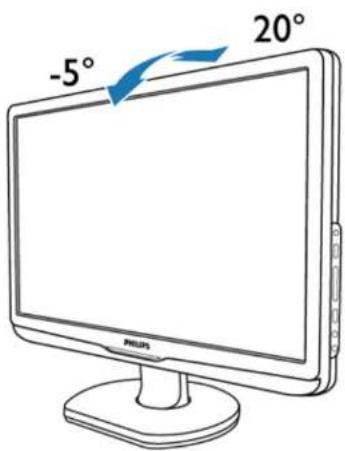
| • Tilt -5°+2°/-0° ~+ 20° +0°/-2° | |
| • Power supply | 100 - 240 VAC, 50/60 Hz |
| • Power consumption | 50W* (typ.) |
| • Temperature | 0°C to 40°C (operating)-20°C to 60°C (storage) |
| • Relative humidity 20% to 80% | |
| • System MTBF 50K hours (CCFL 50K hours) | |
* This data is subject to change without notice.
The native resolution of the monitor is 1920 x 1080. By default, your monitor has 100% brightness (max.), 50% contrast, and 6500K color temperature, with a full white pattern.
RETURN TO TOP OF THE PAGE
Pin Assignment
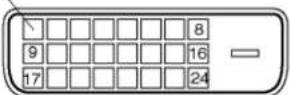
- The digital only connector contains 24 signal contacts organized in three rows of eight contacts. Signal pin assignments are listed in the following table:
| Pin No. | Signal Assignment | Pin No. | Signal Assignment | Pin No. | Signal Assignment | ||
| 1 | T.M.D.S. Data2- 9 | T.M.D.S. Data1- | 17 | T.M.D.S. Data0- | |||
| 2 | T.M.D.S. Data2+ | 10 | T.M.D.S. Data1+ | 18 | T.M.D.S. Data0+ | ||
| 3 | T.M.D.S. Data2/4 Shield | 11 | T.M.D.S. Data1/3 Shield | 19 | T.M.D.S. Data0/5 Shield | ||
| 4 | No connect | 12 | No connect | 20 | No connect | ||
| 5 | No connect | 13 | No connect | 21 | No connect | ||
| 6 | DDC Clock | 14 | +5V Power | 22 | T.M.D.S. Clock Shield | ||
| 7 | DDC Data | 15 | Ground (for +5V) | 23 | T.M.D.S. Clock+ | ||
| 8 | No connect | 16 | Hot Plug Detect | 24 | T.M.D.S. Clock- |
Pin1
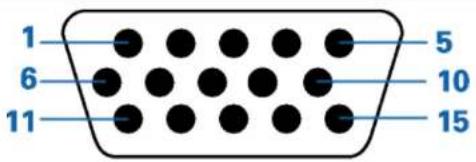
- The 15-pin D-sub connector (male) of the signal cable:
Product Information
text_image
1 6 11 5 10 15| Pin No. | Assignment |
| 1 | Red video input |
| 2 | Green video input/SOG |
| 3 | Blue video input |
| 4 | Sense (GND) |
| 5 | Cable detect (GND) |
| 6 | Red video ground |
| 7 | Green video ground |
| 8 | Blue video ground |
| Pin No. | Assignment |
| 9 | DDC + 5 V |
| 10 | Logic ground |
| 11 | Ground |
| 12 | Serial data line (SDA) |
| 13 | H. Sync / H+V. Sync |
| 14 | V. Sync |
| 15 | Data clock line (SCL) |
RETURN TO TOP OF THE PAGE
Product Views
Follow the links to see various views of the monitor and its components.
Front View Product Description
RETURN TO TOP OF THE PAGE
Physical Function
Product Information
Tilt
text_image
-5° 20° PHILIPSRETURN TO TOP OF THE PAGE
file:///D:/songaiyu/PHILIPS/231F1/PHILIPS-231F1S 20S 20090423Vcd/manual/ENGLISH/PRODUCT/product/product.htm (10 of 10)28096473 上午 09:20:17
Philips Pixel Defect Policy
- Product Features
• Technical Specifications
• Resolution & Preset Modes
• Automatic Power Saving
• Physical Specification - Pin Assignment
- Product Views
Philips Pixel Defect Policy
Philips' Flat Panel Monitors Pixel Defect Policy
Philips strives to deliver the highest quality products. We use some of the industry's most advanced manufacturing processes and practice stringent quality control. However, pixel or sub pixel defects on the TFT LCD panels used in flat panel monitors are sometimes unavoidable. No manufacturer can guarantee that all panels will be free from pixel defects, but Philips guarantees that any monitor with an unacceptable number of defects will be repaired or replaced under warranty. This notice explains the different types of pixel defects and defines acceptable defect levels for each type. In order to qualify for repair or replacement under warranty, the number of pixel defects on a TFT LCD panel must exceed these acceptable levels. For example, no more than 0.0004% of the sub pixels on a 19" XGA monitor may be defective. Furthermore, Philips sets even higher quality standards for certain types or combinations of pixel defects that are more noticeable than others. This policy is valid worldwide.

text_image
subpixel R G B subpixel R G B pixelPixels and Sub pixels
A pixel, or picture element, is composed of three sub pixels in the primary colors of red, green and blue. Many pixels together form an image. When all sub pixels of a pixel are lit, the three colored sub pixels together appear as a single white pixel. When all are dark, the three colored sub pixels together appear as a single black pixel. Other combinations of lit and dark sub pixels appear as single pixels of other colors.
Philips Pixel Defect Policy
Types of Pixel Defects
Pixel and sub pixel defects appear on the screen in different ways. There are two categories of pixel defects and several types of sub pixel defects within each category.
Bright Dot Defects Bright dot defects appear as pixels or sub pixels that are always lit or 'on'. That is, a bright dot is a sub-pixel that stands out on the screen when the monitor displays a dark pattern. There are the types of bright dot defects:
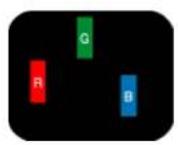

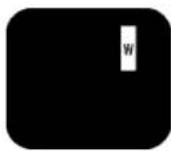
One lit red, green or blue sub pixel
Two adjacent lit sub pixels:
- Red + Blue = Purple
- Red + Green = Yellow
- Green + Blue = Cyan (Light Blue)
Three adjacent lit sub pixels (one white pixel)

A red or blue bright dot must be more than 50 percent brighter than neighboring dots while a green bright dot is 30 percent brighter than neighboring dots.
Black Dot Defects Black dot defects appear as pixels or sub pixels that are always dark or 'off'. That is, a dark dot is a sub-pixel that stands out on the screen when the monitor displays a light pattern. These are the types of black dot defects:


Philips Pixel Defect Policy
One dark sub pixel Two or three adjacent dark sub pixels
Proximity of Pixel Defects
Because pixel and sub pixels defects of the same type that are near to one another may be more noticeable, Philips also specifies tolerances for the proximity of pixel defects.
Pixel Defect Tolerances
In order to qualify for repair or replacement due to pixel defects during the warranty period, a TFT LCD panel in a Philips flat panel monitor must have pixel or sub pixel defects exceeding the tolerances listed in the following tables.
| BRIGHT DOT DEFECTS ACCEPTABLE LEVEL | |
| MODEL | 231E1 |
| 1 lit subpixel 3 | |
| 2 adjacent lit subpixels 1 | |
| 3 adjacent lit subpixels (one white pixel) 0 | |
| Distance between two bright dot defects* >15mm | |
| Total bright dot defects of all types 3 |
| BLACK DOT DEFECTS ACCEPTABLE LEVEL | |
| MODEL | 231E1 |
| 1 dark subpixel 5 | |
| 2 adjacent dark subpixels 2 | |
| 3 adjacent dark subpixels 0 |
Philips Pixel Defect Policy
| Distance between two black dot defects* >15mm | |
| Total black dot defects of all types 5 |
| TOTAL DOT DEFECTS ACCEPTABLE LEVEL | |
| MODEL | 231E1 |
| Total bright or black dot defects of all types 5 |
Note:
* 1 or 2 adjacent sub pixel defects = 1 dot defect
RETURN TO TOP OF THE PAGE
• Product Information
• Philips Pixel Defect Policy
• SmartManage Features and Benefits
• Philips SmartControl II
• System support and requirement
• Installation
- Start to use
• Q&A
SmartManage & SmartControl II (Selective Models)

text_image
SmartManageIntroduction
Philips SmartManage is an advanced solution for users, corporate/institution IT administrator in particular, to manage their Philips monitors as part of the asset management environment. The solution includes three essential components, Philips SmartManage Administrator, and Philips SmarControl and Agent.
If you are a small to middle business company, you may not need such professional software to do the asset management. Thus, Philips provide you a compact version of SmartManage, SmartManage Lite. You can use SmartManage Lite to manage your Philips Monitors via LAN. Please refer to below comparison chart and determine if which one suit for your environment best.
| Functions & Features Manage | SmartManagePC & Monitor | SmartManage LiteMonitor |
| Five key features of SmartManage | ||
| Security Management | ●SmartManage will indicate if display are moved from their assigned location by providing a warning message to a designated manager or e-mail account. Also the monitor moved out from Network will havewarning message on the screen and power off after 10 min. | ●(Lite version)IT Manager can tell the asset list to find out if there is display missing. Suit for small to mid-range company. Also optional feature of theff deference which cannot display correctly without correct PIN number. |
| Power Saving Management | ●Remote switch unattended Display | ●Remote switch unattended Display |
| Remote Operation Management - Performance and setting | ●Remote adjust or reset Display seeing | ●Remote adjust or reset Display seeing |
| Asset tracking Management | ●Full sortable and report of data for IT manager to manage such as S/N, Resolution, Model name, Running hour, Asset information, Location, Dept and etc. | ●(Lite version)Compact information like S/N, Resolution, Model name and Running hour. |
| Instant Support | ●SMS or Instant Message for individual users or public broadcasting | ●(Lite version)Public broadcasting |
SmartManage Features and Benefits
The Philips SmartManage is a working console for IT management to gather monitors assets information, run asset report, control assets security, monitor assets security, and issue instant messages to monitor users. Philips SmartManage includes the following major features:
- Provides an additional security measure that helps corporate users safeguard their investment.
- Power saving feature that reduces utility costs and manpower required to turn monitors on or off.
- Provides an efficient means for adjusting monitor performance and settings.
- Built-in asset reports reduce audit/maintenance manpower, cycle time and costs.
A trial version of SmartManage can be downloaded from
http://www.altiris.com/philips
You can also download SmartManage Lite
http://www.portrait.com/dtune/phl/enu/index.html

SmartManage is a software dedicated to business environments. Personal users normally do not need to use SmartManage.
Philips SmartManage is a solution joint developed by Philips and Altiris Inc.
Philips SmartControl II and SmartManage Lite is a solution joint developed by Philips and Portrait Display, Inc.
Philips SmartControl II
SmartControl II is monitor-based software with an easy-to-use on-screen graphic interface that guides you through fine-tuning resolution, color calibration and other display settings including brightness, contrast, clock & phase, position, RGB, white point and - on models with onboard speakers - volume adjustments. Monitors install SmartControl II can also have the ability to be managed by SmartManage which can manage PCs and Monitors or by SmartManage Lite which can manage Monitors. (Please refer to SmartManage/SmartManage Lite chapter).
System support and requirement:
- Sytem support: 2000, XP, NT 4.0, XP 64 Edition, Vista 32/64. IE Support 6.0/7.0.
- Language support: English, Simplified Chinese, German, Spanish, French, Italian, Russian, Portuguese.
- Philips Monitor support DDC/CI Interface.
Installation:
1. Installer – Install Shield Welcome
• Next Button takes user to next Install pane.
- Cancel prompts user if they want to cancel installation.
SmartManage

SmartControl II Installer.exe

text_image
Smart Control II SmartControl II Welcome to the InstallShelf Wizard for SmartControl The Wizard will install SmartControl on your computer. To continue, click Next. PHILIPS Next > Exit Setup-
Installer – Install Shield Legal
-
Choose "I accept" for installation process.
- Cancel prompts user if you want to cancel installation.
SmartManage

SmartControl II Installer.exe

text_image
SmartControl II Please read the following license agreement carefully End User Software License Agreement When you open the Display Tune(R) Software package, you indicate your acceptance of this license agreement. Display Tune(R) Software is the property of Portrait Displays, Inc. and is protected by United States and International copyright laws. Portrait Displays, Inc. grants you a non-exclusive license to use one copy of Display Tune(R) Software on a single computer display device. You may not duplicate the software, except to make a single backup copy or to install on a hard disk, or on multiple computers if they are all attached to and using the same display. You may transfer the Display Tune(R) Software to another person only if you retain no copies of the software, and the new owner agrees to this license agreement. The software containate copyrighted material, trade secrets and other proprietary material. You may not de- compile, reverse engines, disassemble or otherwise reduce the software to any human readable or usable items. You may not modify or create any derivative works based on the software. This license is in effect until termination. You may terminate this license by destroying all copies of the software and documentation. Portrait Displays Inc. may terminate this license if you fail to comply with any of the provisions of this agreement. ○ I accept the terms of the agreement ● I do not accept the terms of the agreement Print PHILIPS < Back Next > Exit Setup3. Installer – Install Shield Program Files
- Check the box if you wants to install SmartManage Lite Asset Management services.
Personal user usually not need to active this function. Read SmartManage section in this manual before you choose SmartManage Lite function.
SmartManage

SmartControl II Installer, pxd

text_image
Smart Control II SmartControl II Select the features you want to install, and deselect the unwanted features. ✓ Programs Files ✓ Plug-in Asset Management □ WNI service □ TCP/IP (SSL) service □ SNMP service Description Required for installation 34.10 MB of space required on the C drive 30250.85 MB of space available on the C drive PHILIPS < Back Next > Exit Setup4. Installer – Installation Process
• Follow the instruction and complete the installation.
• You can launch after installation complete.
• If you want to launch later, you can either click the shortcut on desktop or toolbar.
SmartManage

SmartControl II Installer.exe

text_image
Smart Control II Click Install to begin the installation If you want to review or change any of your installation settings, click Back. Click Cancel to exit the wizard. PHILIPS < Back Install Exit Setupfile://D/songaiyu/PHILIPS-231E1/PHILIPS-231E1%20%20090423/ed/manual/ENOLISIIPRODUCT/product/SMART.IITM (7 of 26)2009/4/23 上午 09:20:46
SmartManage

SmartControl II Installer.exe

text_image
Smart Control II SmartControl II InstallShield Wizard Complete The InstallShield Wizard has successfully installed SmartControl. Before you can use the program, you must restart your computers. Yes, I want to restart my computer now. No, I will restart my computer later. Remove any disks from their drives, and then click Finish to complete setup. PHILIPS Finishfile:///D:/songaiyu/PHILIPS/231E1/PHILIPS 231E1/% 20%20090423Mcd/manual/ENOLISIIPRODUCT/product/SMART.IITM (8 of 26/2009/4/23 上午 09:20:46
PHILIPS

natural_image
Blue square icon with a white cross and orange arrow pointing to it, no text or symbols present.SmartControl II
2007 Royal Philips Electronics
Powered by Portrait
Portions utilize Microsoft Windows Media Technologies.
Copyright 1999-2002 Microsoft Corporation.
All Rights Reserved.
Copyright of Suppliers Acknowledged.
Start to use:
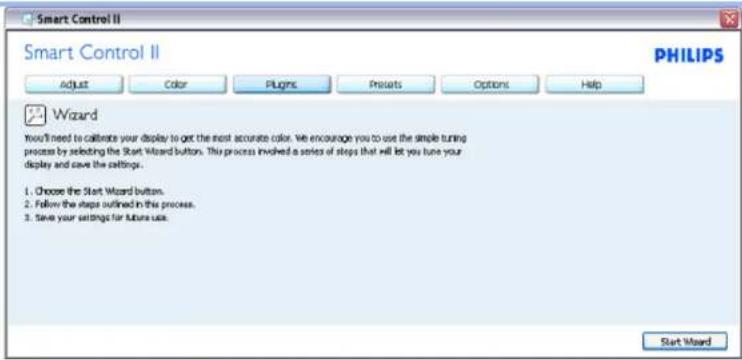
1. First launch – Wizard
- The first time after installation of SmartControl II, it will automatically go to Wizard for first time launch.
• The wizard will guide you through adjustment your monitor performance step by step. - You can go to Plug-in menu to launch wizard later on as well.
- You can adjust more options without wizard by Standard pane.
| Wizard Analog Seguence Wizard Digital Seguence | |
| Resolution Resolution | |
| Focus | Contrast |
| Brightness Brightness | |
| Contrast White Point (Color Temp) | |
| Position File | |
| White Point (Color Temp) | |
| File | |
SmartManage
text_image
Smart Control II Smart Control II PHILIPS Adjust Color Plugins Presets Options Help Wizard You'll need to calculate your display to get the most accurate color. We encourage you to use the simple tuning process by selecting the Start Wizard button. This process involved a series of steps that will let you tune your display and save the settings. 1. Choose the Start Wizard button. 2. Follow the steps outlined in this process. 3. Save your settings for future use. Start Wizard2. Start with Standard pane:
Adjust menu:
- Adjust Menu allow you to adjust Brightness, Contrast, Focus, Position and Resolution.
• You can follow the instruction and do the adjustment. - Cancel prompts user if you want to cancel installation.
| Tab Heading Sub Menu Display In Analog Display In Digital | |||
| Adjust Brightness Yes Yes | |||
| Adjust | Contrast Yes | Yes | |
| Adjust Focus (Clock & Clock Phase) Yes No | |||
| Adjust Position Yes No | |||
| Adjust Resolution Yes Yes | |||
SmartManage

text_image
Smart Control II PHILIPS Adjust Color Plugins Presets Options Help Brightness Interoperally adjusted brightness will result in a loss of detail in darker image areas. Adjust the brightness for the best possible picture quality. Brightness 0 1. Use the Pattern button to bring up the adjustment image. 2. Lower the brightness until the dark stripes blend together. 3. Slowly raise the Brightness until each of the dark stripes become visible. Try to achieve an equal separation. The darkest should always remain black. Pattern Undo Rsak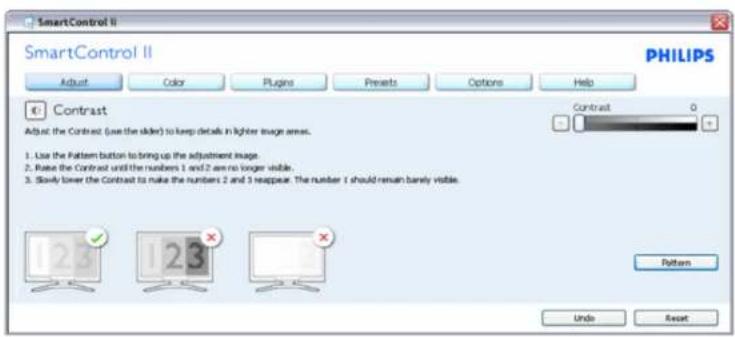
text_image
SmartControl II SmartControl II PHILIPS Adjust Color Plugins Presents Options Help Contrast Adjust the Contrast (use the slider) to keep details in lighter image areas. Contrast 0 1. Use the Pattern button to bring up the adjustment image. 2. Raise the Contrast until the numbers 1 and 2 are no longer visible. 3. Slowly lower the Contrast to make the numbers 2 and 3 reappear. The number 1 should remain barely visible. Pattern Undo Resetfile:///D:/songaiyu/PHILIPS/231E1/PHILIPS 231E1%20/820090423/med/manual/ENOLISIIPRODUCT/product/SMART.IITM (11 of 26:2009/4/23 上午 09:20:46
SmartManage

text_image
SmartControl II SmartControl II PHILIPS Adjust Color Plugins Presents Options Help Focus Your display's timing needs to be synchronized with the video signal. Pitch 0 1 Phase 0 1 Use the Pattern button to bring up the adjustment image. Choose Auto Setup. 3. If the vertical bands are still visible, you'll need to adjust the Pitch. Pitch: Try to make the vertical bands disappear Phase: Adjust to the brightest setting to minimize movement on the screen. Pattern Undo Auto Setup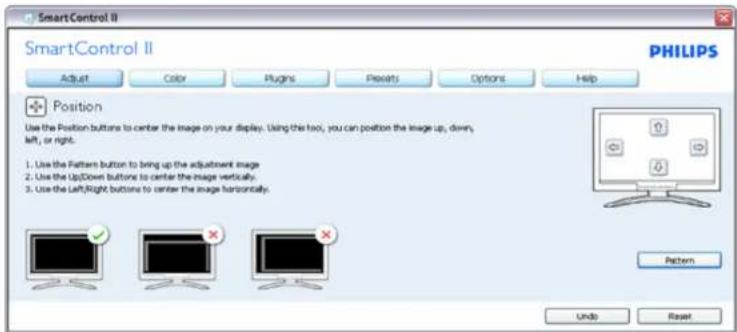
text_image
SmartControl II SmartControl II Adjust Color Plugins Pixels Options Help Position Use the Position buttons to center the image on your display. Using this tool, you can position the image up, down, left, or right. 1. Use the Pattern button to bring up the adjustment image 2. Use the Up/Down buttons to center the image vertically 3. Use the Left/Right buttons to center the image horizontally. Pattern Undo Resetfile:///D:/songaiyu/PHILIPS/231E1/PHILIPS 231E1%20/820090422/med/manual/ENOLISIIPRODUCT/product/SMART.IITM (12 of 26/2009/4/23 上午 09:20:46
SmartManage

text_image
SmartControl II Adjust Color Plugins Options Help Presets PHILIPS Resolution You are currently at a Preferred resolution. For your display to show crip, close text, colors, and images, your display should be set to its Preferred resolution. Enable Resolution notifier Enable 4/3 aspect ratio If your display is at a Non-Preferred resolution, click on the Preferred button to change your resolution to Preferred. Preferred PatternColor menu:
- Color Menu allow you to adjust RGB, Black Level, White Point, Color Calibration, and SmartImage (Please refer to SmartImage section).
- You can follow the instruction and do the adjustment.
• Refer to below table for sub-menu item base on your input.
| Tab Heading Sub Menu Display in Analog Display in Digital | ||
| Color RGB Yes Yes | ||
| Color Black Level Yes | Yes | |
| Color White Point Yes Yes | ||
| Color Color Calibration Yes Yes | ||
| Color Viewing Mode Yes Yes | ||
Example for Color
Calibration
SmartManage

text_image
Smart Control II Adjust Color Plugins Presets Options Help RGB All displayed colors are produced by using Red, Blue and Green at different brightness levels. Choosing a neutral White Point will give you optimal RGB. If you prefer to adjust the RGB now, follow these steps. Red 0 Green 0 Blue 0 Note: Changing the RGB values can adversely affect the displayed colors. Pattern Undo Reset
text_image
SmartControl II PHILIPS Adjust Color Plugins Presets Options Help White Point White Point is the point at which equal combinations of red, green and blue light at full intensity create white. This affects the overall color quality. For the most accurate colors click the Reset button then select the White Point. 1. Use the Pattern button to bring up the adjustment image. 2. Holding a piece of white paper next to the display, choose the White Point value that makes the display match the white paper. Pattern Undo Resetfile:///D:/songaiyu/PHILIPS/231E1/PHILIPS 231E1%20/820090422/med/manual/ENOLISIIPRODUCT/product/SMART.IITM (14 of 26/2009/4/23 上午 09:20:46
SmartManage
text_image
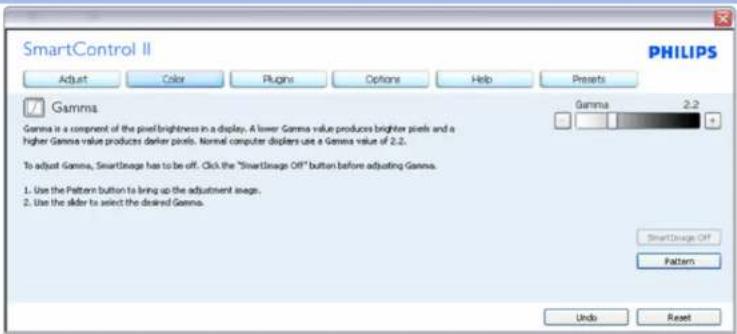
SmartControl II PHILIPS Adjust Color Plugins Options Help Presents Gamma Gamma is a component of the pixel brightness in a display. A lower Gamma value produces brighter pixels and a higher Gamma value produces darker pixels. Normal computer displays use a Gamma value of 2.2. To adjust Gamma, SmartImage has to be off. Click the "SmartImage Off" button before adjusting Gamma. 1. Use the Pattern button to bring up the adjustment image. 2. Use the slider to select the desired Gamma. Gamma 2.2 SmartImage Off Pattern Undo Reset
text_image
Smart Control II PHILIPS Adjust Color Plugins Presets Options Help Color Calibration Your display needs to be properly calibrated in order for it to produce the widest range of colors accurately. Calibration should always take place as the last tuning step in the process. Remember to recalibrate any time you make individual adjustments to image quality or whenever you move your display to a new location. 1. Make all other necessary adjustments to image quality first... 2. Press Show Me to learn how to use the calibration tools. 3. Finally, press Start to begin the calibration process. Enable Color Calibration Color software designed in collaboration with Joseph Holmes. Protected by U.S. Patent No. 6,686,953 Show Me Start Quick View- "Show Me" starts color calibration tutorial.
- Start - starts the 6-step color calibration sequence.
- Quick View loads the before/after images.
- To return to Color home pane, click the Cancel button.
- Enable color calibration - by default is on. If unchecked, does not allow for color calibration to happen, dimes out start and quick view buttons.
- Must have patent info in calibration screen.
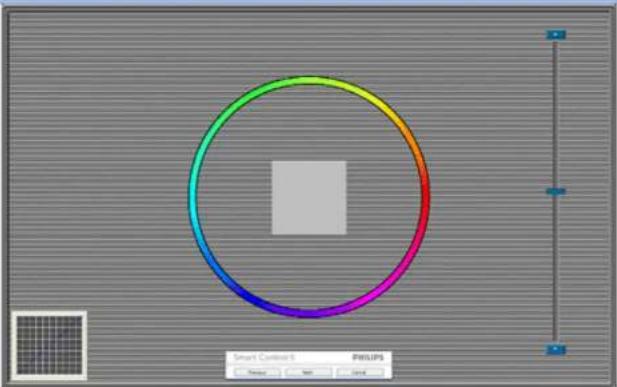
First color Calibration Screen:
SmartManage
natural_image
Color wheel diagram with a central square, displayed in a graphic design interface (no text or symbols on the diagram itself)- Previous button is disabled until the second color screen.
- Next goes to the succeeding target (6-targets).
- Final next goes File>Presets pane.
- Cancel closes the UI and returns to the plug in page.
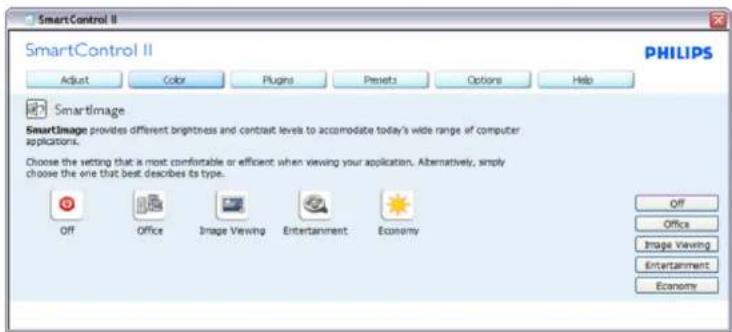
SmartImage - Allows user to change setting for better display setting based on content.
When Entertainment is set, SmartContrast and SmartResponse are enabled.
text_image
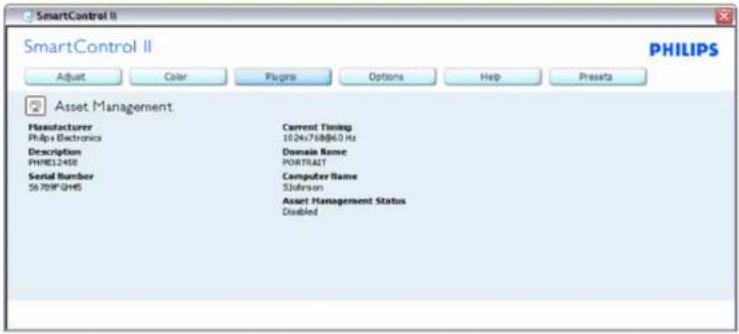
SmartControl II SmartControl II PHILIPS Adjust Color Plugins Presets Options Help Smartimage Smartimage provides different brightness and contrast levels to accommodate today's wide range of computer applications. Choose the setting that is most comfortable or efficient when viewing your application. Alternatively, simply choose the one that best describes its type. Off Office Image Viewing Entertainment Economy Off Office Image Viewing Entertainment EconomyPlug-Ins - Asset Management Pane will only be active when selecting Asset Management from the drop-down Plug Ins menu.
SmartManage
text_image
SmartControl II SmartControl II PHILIPS Adjust Clear Plugins Options Help Presets Asset Management Manufacturer Current Timing Philips Electronics 10.24x758@6.0 Hz Description Domain Name PHRE1245R PORTRAIT Serial Number Computer Name 5679PQHS SJohnson Asset Management Status DisabledDisplays Assent Management information on Management, Description, Serial Number, Current Timing, Domain Name, and Asset Management Status.
To return to Plug-in home pane select the plug-in tab.
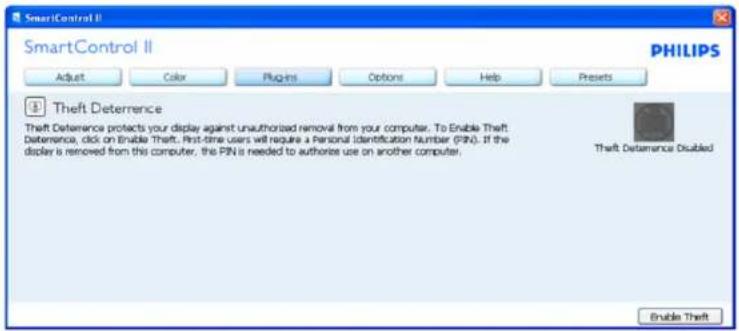
Plug-Ins - Theft Deterence Pane will only be active when selecting Theft from the drop-down Plug Ins menu.
text_image
SmartControl II SmartControl II PHILIPS Adjust Color Plugins Options Help Presets B Theft Deterrence Thrift Deterrence protects your display against unauthorized removal from your computer. To Enable Theft Deterrence, click on Enable Theft. First-time users will require a Personal Identification Number (PIN). If the display is removed from this computer, this PIN is needed to authorize use on another computer. Thrift Deterrence Disabled Enable ThriftTo enable Theft Deterrence, clicking Enable Theft button brings up the following screen:
SmartManage

text_image
SmartControl II SmartControl II PHILIPS Adjust Color Pugins Options Help Presets Theft Deterrence Theft Deterrence is currently Disabled. To enable Theft Deterrence, enter your PIN in the box below, then click Accept. Enter PIN to enable Theft Deterrence: Reenter PIN to verify: Time before display is disabled (minutes) 60 - + Accept Cancel- User can enter PIN between 4 and 9 digits numbers only.
- After entering PIN, Accept button takes user to the pop-up dialog box on the following page.
- Minimum minutes set to 5. Slider set to 5 by default.
- Does not require the display be attached to a different host to go into theft mode.
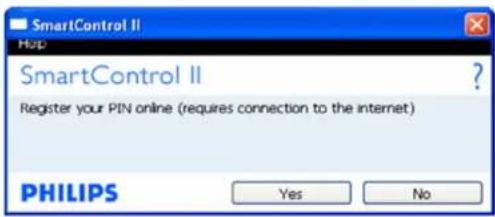
Once a PIN is entered and accepted, the following dialog box appears:
text_image
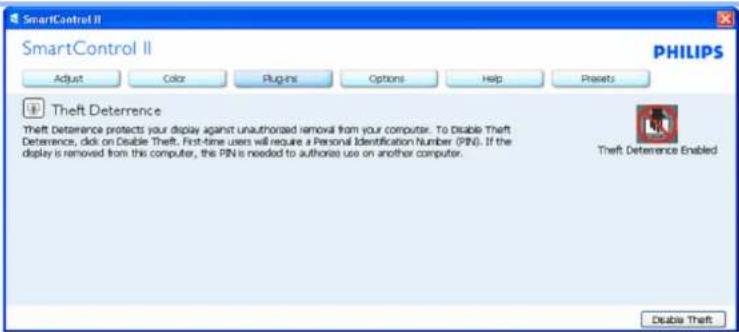
SmartControl II Hop SmartControl II Register your PIN online (requires connection to the internet) PHILIPS Yes No- Click on No button takes user to the following screen.
SmartManage
text_image
SmartControl II SmartControl II PHILIPS Adjust Color Plugins Options Help Presets Theft Deterrence Theft Deterrence protects your display against unauthorized removal from your computer. To Disable Theft Determine, click on Disable Theft. First-time users will require a Personal Identification Number (PIN). If the display is removed from this computer, the PIN is needed to authorize use on another computer. Theft Deterrence Enabled Disable Theft- Click on Yes button takes user to secure web site landing page.
After creating PIN, the Theft Deterrence pane will indicate Theft Deterrence Enabled and provide PIN Options button:

text_image
SmartControl II SmartControl II PHILIPS Adjust Color Plugins Options Help Preats Theft Deterrence Theft Deterrence protects your display against unauthorized removal from your computer. To Disable Theft Deterrence, click on Disable Theft. First-time users will require a Personal Identification Number (PIN). If the display is removed from this computer, this PIN is needed to authorize use on another computer. Theft Deterrence Enabled Disable Theft- Theft Deterrence Enabled is displayed.
- Disable Theft opens pane screen on next page.
- PIN Options button only available after user creates PIN, button opens secure PIN web site.
Disable Theft button opens the following pane:
SmartManage
text_image
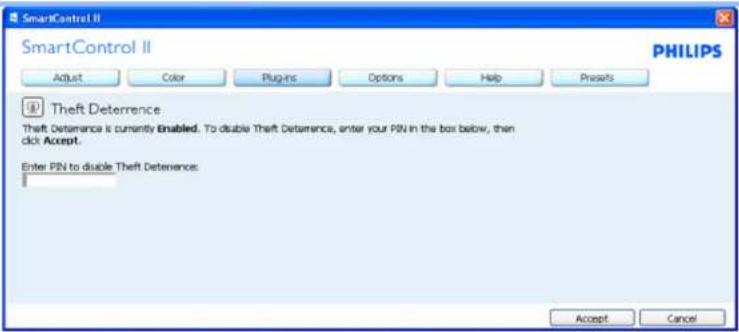
SmartControl II SmartControl II PHILIPS Adjust Color Plugins Options Help Presets B Theft Deterrence Theft Deterrence is currently Enabled. To double Theft Deterrence, enter your PIN in the box below, then click Accept. Enter PIN to disable Theft Deterrence: Accept Cancel- After entering PIN, Accept button disables PIN.
- Cancel button opens up main Theft Deterrence pane, displaying Theft Deterrence Disabled. Enable Theft and PIN Options buttons.
- Entering incorrect PIN results in the following dialog box:
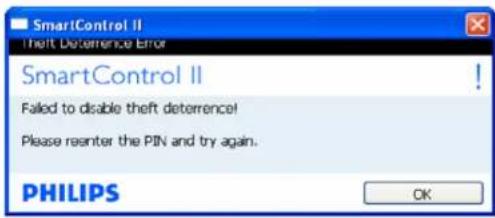
text_image
SmartControl II Theft Deference Error SmartControl II Failed to disable theft deterrence! Please reenter the PIN and try again. PHILIPS OKOptions>Preferences - Will only be active when selecting Preferences from the drop-down Options menu. On a non-supported display capable of DDC/CI, only the Help and Options tabs are available.
SmartManage
text_image
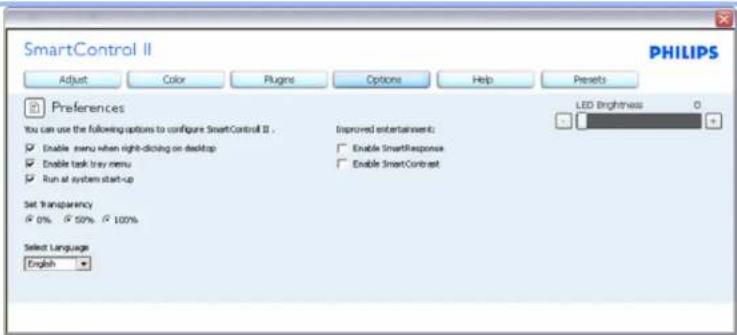
SmartControl II Adjust Color Plugins Options Help Presets PHILIPS Preferences You can use the following options to configure SmartControl II . Enable menu when right-dicking on desktop Enable task tray menu Run at system start-up Set Transparency 0% 50% 100% Select Language English Improved entertainment: Enable SmartResponse Enable SmartContrast LED Brightness 0I. Displays current preference settings.
2. A checked box enables the feature. The check box is a toggle.
3. Enable Context Menu on desktop is checked (On) by default. Enable Context menu displays SmartControl II selections for Select Preset and Tune Display in the desktop right-click context menu. Disabled removes SmartControl II from the right click context menu.
4. Enable Task Tray icon is checked (On) by default. Enable context menu shows the task tray menu for SmartControl II. A right click on the task tray icon displays the menu options for Help. Technical Support. Check for Upgrade, About, and Exit. When Enable task tray menu is disabled, the task tray icon will only display EXIT.
5. Run at Startup is checked (On) by default. When disabled, SmartControl II will not launch at start or be in the task tray. The only way to launch SmartControl II is either from the desktop short cut or from the program file. Any preset set to run at startup will not load when this box is unchecked (Disabled).
6. Enable transparency mode (Vista, XP, and 2k only). Default is 0% Opaque.
Options>Input - Will only be active when selecting Input from the drop-down Options menu. On a non-supported display capable of DDC/CI, only the Help and Options tabs are available. All other SmartControl II tabs are not available.
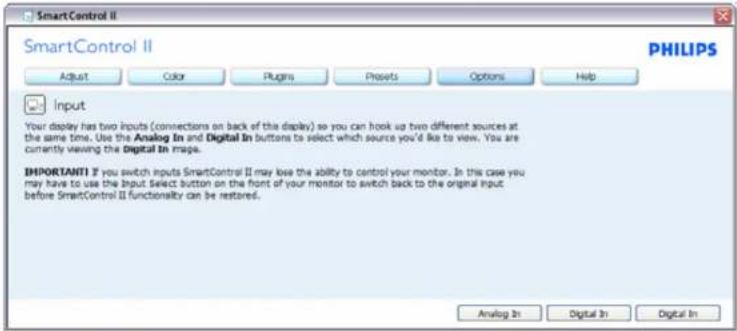
text_image
SmartControl II SmartControl II PHILIPS Adjust Color Plugins Presets Options Help Input Your display has two inputs (connections on back of this display) so you can hook up two different sources at the same time. Use the Analog In and Digital In buttons to select which source you'd like to view. You are currently viewing the Digital In image. IMPORTANTI I you switch inputs SmartControl II may lose the ability to control your monitor. In this case you may have to use the Input Select button on the front of your monitor to switch back to the original input before SmartControl II functionality can be restored. Analog In Digital In Digital Infile:///D:/songaiyu/PHILIPS/231E1/PHILIPS 231E1%20/820090423/med/manual/ENOLISIIPRODUCT/product/SMART.IITM (21 of 26/2009/4/23 上午 09:20:46
-
Display the Source instruction pane and current input source setting.
-
On single input displays, this pane will not be visible.
Help>User Manual - Will only be active when selecting User Manual from the drop-down Help menu. On a non-supported display capable of DDC/CI, only the Help and Options tabs are available.

text_image
Smart Control II PHILIPS Adjust Color Plugins Presets Options Help User Manual If you need help setting up or operating Display Tune, click Technical Support: You'll have the option to fill out an Assistance Form. You can also choose to have information about your software automatically attached to the assistance form. You'll need to be online to use this feature. User Manual Technical SupportHelp>Version - Will only be active when selecting Version from the drop- down Help menu. On a non-supported display capable of DDC/CI, only the Help and Options tabs are available.
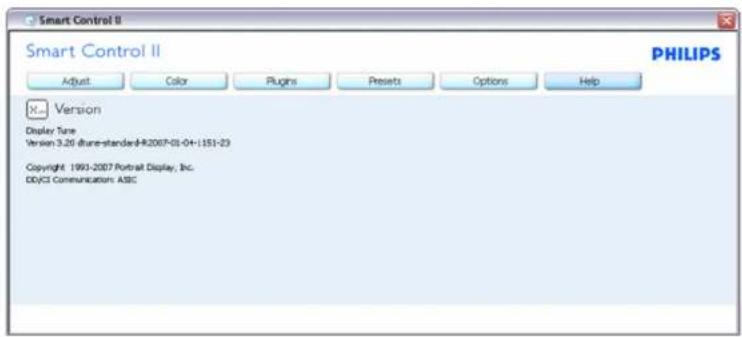
text_image
Smart Control II Smart Control II PHILIPS Adjust Color Plugins Presets Options Help Version Display Type Version 3.26 (thune-standard:HR2007-01-04+1551-23) Copyright 1993-2007 Portrait Display, Inc. DDYCI Communications ABCContext Sensitive menu
The Context Sensitive menu is Enabled by default. If Enable Context Menu has been checked in the Options>Preferences pane, then the menu will be visible.
SmartManage
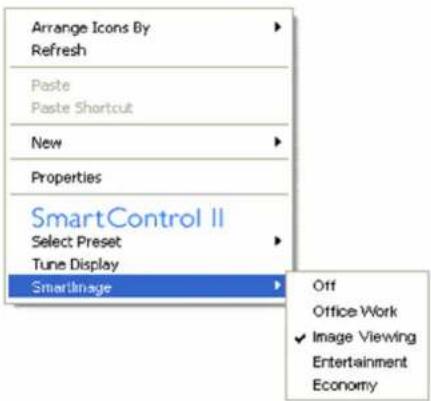
text_image
Arrange Icons By Refresh Paste Paste Shortcut New Properties SmartControl II Select Preset Tune Display SmartImage Off Office Work ✓ Image Viewing Entertainment EconomyThe Context Menu has four entries:
- SmartControll II - When selected the About Screen is displayed.
- Select Preset - Provides a hierarchical menu of saved presets for immediate use. A check mark shows the currently selected preset. Facoty Preset can also be called from the drop down menu.
- Tune Display - Opens the SmartControl II control panel.
- Fly off for SmartImage - Check current settings, Off, Office Work, ImageViewing, Entertainment, Economy.
Task Tray Menu Enabled
The task tray menu can be displayed by right-clicking on the SmartControl II icon from the task tray. Left Click will launch the application.
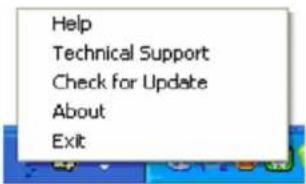
text_image
Help Technical Support Check for Update About ExitThe task tray has five entries:
-
Help - Access to User Manual file: opnes User Manual file using the default browser window.
-
Technical Support - displays the tech support page.
file://D/songaiyu/PHILIPS/231EI/PHILIPS 231EI%20%20090423/med/manual/ENOLISIIPRODUCT/product/SMART.IITM (23 of 26/2009/4/23 上午 09:20:46
- Check for Update - takes the user to PDI Landing and checks the user's version against the most current available.
- About - Displays detailed reference information: product version, release information, and product name.
- Exit - Close SmartControll II. To run SmartControll II again either select SmartControll II from Program menu, double-click the desktop PC icon or restart the system.
PHILIPS

SmartControl
SmartControl
Version 3.20
dtune-standard-R2007-01-04-1151-23
Copyright 1993-2007 Portrait Displays, Inc.
Patents Pending
Task Tray Menu Disabled
When the Task Tray is disabled in the preference folder, only the EXIT selection is available. To completely remove SmartControll II from the task tray, disable Run at Startup in Options>Preferences.
Q&A
Q1. What is the difference between SmartManage, SmartControl?
A. SmartManage is a remote management/control software for IT managers to manage monitors across the network
SmartControl is a control panel extension, which helps users to adjust monitor performances and settings by a software interface, instead of the hardware buttons at the front bezel of the monitors.
Q2. I change the monitor on a PC to a different one and the SmartControl becomes un-usable, what do I do?
A. Restart your PC and see if SmartControl can work. Otherwise, you will need to remove and re-install SmartControl to ensure proper driver is installed.
Q3. The SmartControl functions well at the beginning, but it is not workable, what can I do?
A. If the following actions were executed, the monitor driver may need to be re-installed.
- Change video graphic adapter to another one
- Update video driver
- Activities on OS, such as service pack or patch
- Run Windows Update and updated monitor and/or video driver
- Windows was booted with the monitor power off or disconnected.
To find out, please right click My Computer and click on Properties->Hardware->Device Manager.
If you see "Plug and Play Monitor" shows under Monitor, then you need to re-install. Simply remove SmartControl and re-install it.
Q4. After installing SmartControl, when clicking on SmartControl tab, nothing shows up after a while or a failure message shows, what happened?
A. It might be your graphic adaptor is not compatible with the SmartControl. If your graphic adaptor is one of the above mentioned brands, try to download the most updated graphic adaptor driver from corresponding companies' web site. Install the driver. Remove SmartControl, and re-install it once more.
If it is still not working, we are sorry that the graphic adaptor is not supported. Please pay attention to Philips' web site for any updated SmartControl driver available.
Q5. When I click on Product Information, only partial information is shown, what happened?
A. It might be your graphic card adaptor driver is not the most updated version which fully supporting DDC/CI interface. Please try to download the most updated graphic adaptor driver from corresponding companies' web site. Install the driver. Remove SmartControl, and re-install it once more.
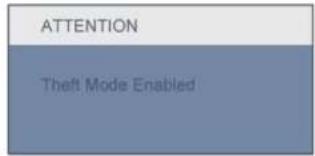
text_image
ATTENTION Theft Mode EnabledQ6. I forgot my PIN for Theft Deterrence Function. How can I do?
A. Please contact IT manager or Philips Service Center.
Q7. In a monitor with the SmartImage feature, the sRGB scheme of color temperature function in SmartControl is not responding, why?
A. When SmartImage is enabled, the sRGB scheme is disabled automatically. To use sRGB, you need to disable SmartImage with the button at the front bezel of your monitor.
RETURN TO TOP OF THE PAGE
SmartManage

natural_image
Solid light blue background with no visible text, symbols, or patternsfile:///D:/songaiyu/PHILIPS/231E1/PHILIPS 231E1%20%20090423/ed/manual/ENOLISIPRODUCT/product/SMART.IITM (26 of 26.2009/4/23 上午 09:20:46
Installing Your LCD Monitor
• Front View Produt Description
- Connecting to Your PC
• The Base
- Getting Started
- Optimizing Performance
Installing Your LCD Monitor
Front View Product Description

text_image
① ② ③ ④ ⑤ ⑥ ⑦ ⑧1 To switch monitor's power On and Off
2 To access the OSD menu
3 / To adjust the OSD menu
4 Change to 4:3 display
5 Input To change the signal input source
6 AUTO /▼ Automatically adjust the horizontal position, vertical position, phase and clock settings / Return to previous OSD level
7 To adjust brightness of the display
8 SmartImage. There are five modes to be selected: Office Work, Image Viewing, Entertainment, Economy, and Off
RETURN TO TOP OF THE PAGE
Installing Your LCD Monitor
Rear View
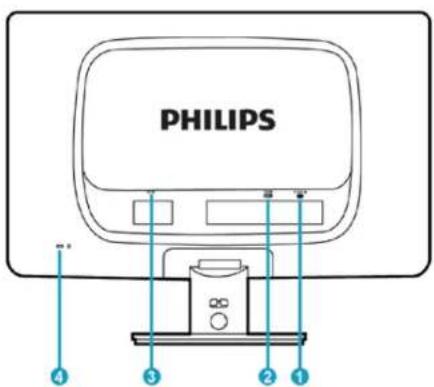
text_image
PHILIPS 4 3 2 11 VGA input
2 DVI-D input (option)
3 AC power input
4 Kensington anti-thief lock
RETURN TO TOP OF THE PAGE
Optimizing Performance
- For best performance, ensure that your display settings are set at 1920x1080, 60Hz.

Note: You can check the current display settings by pressing the 'OK' button once. The current display mode is shown in OSD main controls called RESOLUTION.
Installing Your LCD Monitor
RETURN TO TOP OF THE PAGE
file:5/0/songaiyu/PHILIPS/231E1/PHILIPS-231E19-2019-20000423/xdemanual/ENGLISH/PRODUCT/install/install.htm (5 or 3)2009/4/23 上午 09:20:56
Connecting to Your PC
• Front View Product Description
- Accessory Pack
- Connecting to Your PC
- Getting Started
- Optimizing Performance
• The base
Connecting to Your PC
Accessory Pack
Unpack all the parts.
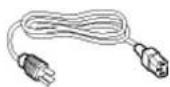
Power cord

DVI cable (option)
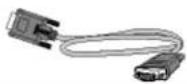
VGA cable EDFU pack

RETURN TO TOP OF THE PAGE
Connecting to Your PC
Connecting to Your PC
1) Connect the power cord to the back of the monitor firmly. (Philips has pre-connected VGA cable for the first installation.

text_image
Power cord VGA cable *DVI cable option)Connecting to Your PC

text_image
PHILIPS power cable VGA cable *DVI cable(option)2) Connect to PC
(a) Turn off your computer and unplug its power cable.
(b) Connect the monitor signal cable to the video connector on the back of your computer.
(c) Plug the power cord of your computer and your monitor into a nearby outlet.
(d) Turn on your computer and monitor. If the monitor displays an image, installation is complete.
RETURN TO TOP OF THE PAGE
- Front View Product Description
- Accessory Pack
- Connecting to your PC
- Getting Started
• Optimizing Performance - Attach the Base Stand
- Detach the Base Stand
The Base
Attach the Base Stand
1) Place the monitor face down on a smooth surface taking care to avoid scratching or damaging the screen.
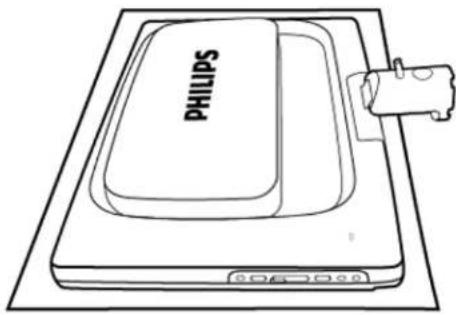
natural_image
Line drawing of a Philips electronic device with a handle and control panel (no text or symbols on the device itself)2) Hold the monitor base with both hands and firmly insert the base stand into the base column.
The Base
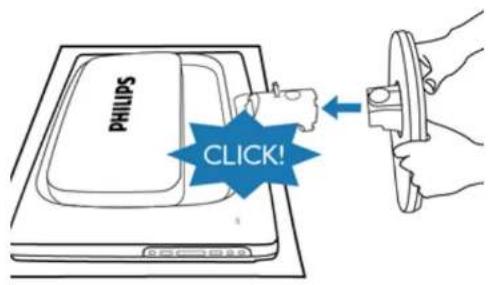
text_image
PHILIPS CLICK!RETURN TO TOP OF THE PAGE
Detach the Base Stand
Place the monitor face on a safe surface, push down on the release button and pull the base stand away from the monitor body.

text_image
PHILIPStile://D|songaiyu/PHILIPS/231E1/PHILIPS-231E1%20%20090423/lcd/manual/ENGLISH/PRODUCT/install/base.htm (2 of 3)2009/4/23 上午 09:21:35
The Base
RETURN TO TOP OF THE PAGE
tile://D|songaiyu/PHILIPS/231E1/PHILIPS-231E1%20%20090423/lcd/manual/ENGLISH/PRODUCT/install/base.htm (3 of 3)2009/4/23 上午 09:21:35
Getting Started
Your LCD Monitor :
- Front View Product Description
- Setting Up and Connecting Your Monitor
- Getting Started
- Optimizing Performance
Getting Started
Getting Started
Use the information file (.inf) for Windows® 98/2000/XP/Vista or later
The built-in VESA DDC2B feature in Philips Monitors supports Plug & Play requirements for Windows® 98/2000/XP/Vista. This information file (.inf) should be installed in order that your Philips monitor can be enabled from the 'Monitor' dialog box in Windows® 98/2000/XP/Vista and the Plug & Play application can be activated. The installation procedure based on Windows® 98, 2000, XP and Vista is specified as follows.
For Windows® 98
- Start Windows® 98
- Click on the 'Start' button, point to 'Settings', and then click on 'Control Panel'.
- Double click on the 'Display' Icon.
- Select the 'Settings' tab then click on 'Advanced...'.
- Select the 'Monitor' button, point to 'Change...' then click on 'Next'
- Select 'Display a list of all the drivers in a specific location, so you can choose the driver you want.' then click on 'Next' and then click on 'Have Disk...'.
- Click on the 'Browse...' button, select the appropriate drive F: (CD-ROM Drive) then click on the 'OK' button.
- Click on the 'OK' button then select your monitor model and click on the 'Next' button.
- Click on the 'Finish' button then the 'Close' button.
For Windows® 2000
- Start Windows® 2000.
- Click on the 'Start' button, point to 'Settings', and then click on 'Control Panel'.
- Double click on the 'Display' Icon.
- Select the 'Settings' tab then click on 'Advanced...'.
- Select 'Monitor'
- If the 'Properties' button is inactive, it means your monitor is properly configured. Please stop installation.
- If the 'Properties' button is active. Click on 'Properties' button. Please follow the steps given below.
- Click on 'Driver' and then click on 'Update Driver...' then click on the 'Next' button.
Getting Started
-
Select 'Display a list of the known drivers for this device so that I can choose a specific driver', then click on 'Next' and then click on 'Have disk...'.
-
Click on the 'Browse...' button then select the appropriate drive F: (CD-ROM Drive).
-
Click on the 'Open' button, then click on the 'OK' button.
-
Select your monitor model and click on the 'Next' button.
-
Click on the 'Finish' button then the 'Close' button. If you can see the 'Digital Signature Not Found' window, click on the 'Yes' button.
For Windows® XP
- Start Windows® XP
- Click on the 'Start' button and then click on 'Control Panel'.
- Select and click on the category 'Printers and Other Hardware'
- Click on the 'Display' Item.
-
Select the 'Settings' tab then click on the 'Advanced' button.
-
Select 'Monitor' tab
-
If the 'Properties' button is inactive, it means your monitor is properly configured. Please stop installation.
-
If the 'Properties' button is active, click on 'Properties' button.
Please follow the steps below. -
Click on the 'Driver' tab and then click on 'Update Driver...' button.
-
Select the 'Install from a list or specific location [advanced]' radio button and then click on the 'Next' button.
-
Select the 'Don't Search. I will choose the driver to install' radio button. Then click on the 'Next' button.
-
Click on the 'Have disk...' button, then click on the 'Browse...' button and then select the appropriate drive F: (CD-ROM Drive).
-
Click on the 'Open' button, then click the 'OK' button.
-
Select your monitor model and click on the 'Next' button.
-
If you can see the 'has not passed Windows® Logo testing to verify its compatibility with Windows® XP' message, please click on the 'Continue Anyway' button.
-
Click on the 'Finish' button then the 'Close' button.
-
Click on the 'OK' button and then the 'OK' button again to close the Display_Properties dialog box.
For Windows® Vista
- Start Windows® Vista.
- Click the Start button; select and click on 'Control Panel'.
- Select and click on 'Hardware and Sound'
- Choose 'Device Manager' and Click on 'Update device drivers'.
- Select 'Monitor' and then right click on 'Generic PnP Monitor'.
- Click on 'Update Driver Software'.
- Select 'Browse my computer for driver software'.
Getting Started
- Click the 'Browse' button and choose the drive in which you've placed the disk. Example: (CD-ROM Drive:\Lcd\PC\drivers').
- Click the 'Next' button.
- Wait few minutes for installing the driver, and then click 'Close' button.
If your Windows® 98/2000/XP/Vista version is different or you need more detailed installation information, please refer to your Windows® 98/2000/XP/Vista user's manual.
RETURN TO TOP OF THE PAGE
On-Screen Display
• Description of the On-Screen Display
• The OSD Tree
On-Screen Display
Description of the On Screen Display
What is the On-Screen Display?
On-Screen Display (OSD) is a feature in all Philips LCD monitors. It allows an end user to adjust screen performance or select functions of the monitors directly through an on-screen instruction window. A user friendly on screen display interface is shown as below :
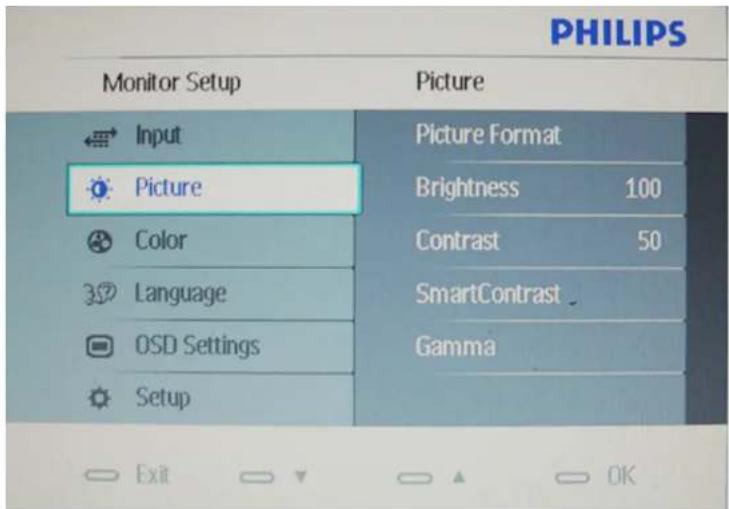
text_image
PHILIPS Monitor Setup Picture Input Picture Format Picture Picture Brightness 100 Color Contrast 50 Language SmartContrast OSD Settings Gamma Setup*DVI Input ( available for selective models )
Basic and simple instruction on the control keys.
In the OSD shown above users can press buttons at the front bezel of the monitor to move
On-Screen Display
the cursor, to confirm the choice or change.
RETURN TO TOP OF THE PAGE
The OSD Tree
Below is an overall view of the structure of the On-Screen Display. You can use this as a reference when you want to work your way around the different adjustments later on.
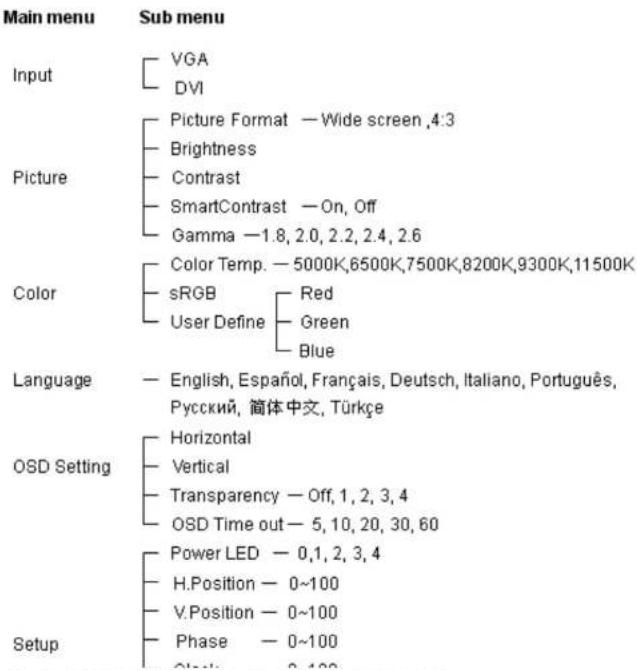
text_image
Main menu Input VGA DVI Picture Picture Format — Wide screen ,4:3 Brightness Contrast SmartContrast — On, Off Gamma —1.8, 2.0, 2.2, 2.4, 2.6 Color Color Temp. — 5000K,6500K,7500K,8200K,9300K,11500K sRGB User Define Red Green Blue Language — English, Español, Français, Deutsch, Italiano, Português, Русский, 简体中文, Türkçe OSD Setting Horizontal Vertical Transparency — Off, 1, 2, 3, 4 OSD Time out — 5, 10, 20, 30, 60 Setup Power LED — 0,1, 2, 3, 4 H.Position — 0~100 V.Position — 0~100 Phase — 0~100tile://D|/songaiyu/PHILIPS/231E1/PHILIPS-231E1% 20% 20090423/led/manual/ENGLISH/PRODUCT/osd/osddesc.htm (2 of 3)2009/4/23 上午 09:21:53
On-Screen Display
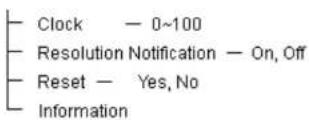
\*DVI Input ( available for selective models )
Resolution notification
This monitor is designed for optimal performance at its native resolution, 1920X1080@60Hz. When the monitor is powered on at a different resolution, an alert is displayed on screen: Use 1920x1080@60Hz for best results.
Display of the native resolution alert can be switched off from Setup in the OSD (On Screen Display) menu.
RETURN TO TOP OF THE PAGE
Customer Care & Warranty
Customer Care & Warranty
PLEASE SELECT YOUR COUNTRY/AREA TO REVIEW DETAILS OF YOUR WARRANTY COVERAGE
WESTERN EUROPE: Austria • Belgium • Denmark • France • Germany • Greece • Finland • Ireland • Italy • Luxembourg • the Netherlands • Norway • Portugal • Sweden • Switzerland • Spain • United Kingdom
EASTERN EUROPE: Czech Republic • Hungary • Poland • Russia • Slovakia • Slovenia • Turkey
LATIN AMERICA: Antilles • Argentina • Brasil • Chile • Colombia • Mexico • Paraguay • Peru • Uruguay • Venezuela
NORTH AMERICA: Canada • USA
PACIFIC: Australia • New Zealand
ASIA: Bangladesh • China • Hong Kong • India • Indonesia • Japan • Korea • Malaysia • Pakistan • Philippines • Singapore • Taiwan • Thailand
AFRICA: Morocco • South Africa
MIDDLE EAST: Dubai • Egypt
First Choice Contact Information
Luxembourg +352 26 84 30 00 Local call tariff
The Netherlands +31 0900 0400 063 0.10
Norway +47 2270 8250 Local call tariff
Poland +48 0223491505 Local call tariff
Portugal +351 2 1359 1440 Local call tariff
Spain +34 902 888 785 0.10
Sweden +46 08 632 0016 Local call tariff
Switzerland +41 02 2310 2116 Local call tariff
United Kingdom +44 0207 949 0069 Local call tariff
Consumer Information Centers
Consumer Information Centers
Antilles • Argentina • Australia • Bangladesh • Brasil • Canada • Chile • China • Colombia • Belarus • Bulgaria • Croatia • Czech Republic • Estonia • Dubai • Hong Kong • Hungary • India • Indonesia • Korea • Latvia • Lithuania • Malaysia • Mexico • Morocco • New Zealand • Pakistan • Paraguay • Peru • Philippines • Romania • Russia • Serbia & Montenegro • Singapore • Slovakia • Slovenia • South Africa • Taiwan • Thailand • Turkey • Ukraine • Uruguay • Venezuela
Eastern Europe
BELARUS
Technical Center of JV IBA M. Bogdanovich str. 155 BY - 220040 Minsk Tel: +375 17 217 33 86
BULGARIA
LAN Service 140, Mimi Balkanska Str. Office center Translog 1540 Sofia, Bulgaria Tel: +359 2 960 2360 www.lan-service.bg
CZECH REPUBLIC
General Consumer Information Center 800 142100
Xpectrum Lu.ná 591/4 CZ - 160 00 Praha 6 Tel: 800 100 697 Email:info@xpectrum.cz www.xpectrum.cz
Consumer Information Centers
CROATIA
Renoprom d.o.o.
Mlinska 5, Strmec
HR - 41430 Samobor
Tel: +385 1 333 0974
ESTONIA
FUJITSU SERVICES OU
Akadeemia tee 21G
EE-12618 Tallinn
Tel: +372 6519900
General Consumer Information Center
0680018544 (Local call tariff)
Serware Szerviz
Vizimolnár u. 2-4
HU - 1031 Budapest
Tel: +36 1 2426331
General Consumer Information Center
0680018544 (Local call tariff)
Profi Service Center Ltd.
123 Kulso-Vaci Street,
H-1044 Budapest (Europe Center)
Hungary
Tel: +36 1 814 8080
m.andras@psc.hu
Consumer Information Centers
LATVIA
ServiceNet LV
Jelgavas iela 36
LV - 1055 Riga,
Tel: +371 7460399
Email: serviss@servicenet.lv
LITHUANIA
ServiceNet LT
Gaiziunu G. 3
LT - 3009 KAUNAS
Tel: +370 7400088
Email: servisas@servicenet.lt
www.servicenet.lt
ROMANIA
Blue Ridge Int'l Computers SRL
115, Mihai Eminescu St., Sector 2
RO - 020074 Bucharest
Tel: +40 21 2101969
SERBIA & MONTENEGRO
Tehnicom Service d.o.o.
Viline vode bb
Slobodna zona Beograd, L12/4
Belgrade 11000
Tel. +381 11 2070 664
Serbia
SLOVAKIA
General Consumer Information Center
0800004551
Datalan Servisne Stredisko
Puchovska 8
SK - 831 06 Bratislava
Tel: +421 2 49207155
Email: servis@datalan.sk
Consumer Information Centers
SLOVENIA
PC HAND
Brezovce 10
SI - 1236 Trzin
Tel: +386 1 530 08 24
Email: servis@pchand.si
RUSSIA
Tel: +7 095 961-1111
Tel: 8-800-200-0880
Website: www.philips.ru
TURKEY
Türk Philips Ticaret A.S.
Yukari Dudullu Org.San.Bolgesi
2.Cadde No:22
34776-Umraniye/Istanbul
Tel: (0800)-261 33 02
UKRAINE
Comel
Shevchenko street 32
UA - 49030 Dnepropetrovsk
Tel: +380 562320045
www.csp-comel.com
Latin America
Consumer Information Centers
ANTILLES
Philips Antillana N.V.
Kaminda A.J.E. Kusters 4
Zeelandia, P.O. box 3523-3051
Willemstad, Curacao
Phone: (09)-4612799
Fax : (09)-4612772
ARGENTINA
Philips Antillana N.V.
Vedia 3892 Capital Federal
CP: 1430 Buenos Aires
Phone/Fax: (011)-4544 2047
BRASIL
Phone:(01)-8000 111001 (toll free)
Fax : (01)-619-4300/619-4104
Consumer Information Centers
MEXICO
Consumer Information Centre
Norte 45 No.669
Col. Industrial Vallejo
C.P.02300,-Mexico,D.F
Phone: (05)-3687788 / 9180050462
Fax : (05)-7284272
PARAGUAY
Markham, Ontario L6C 2S3
Phone: (800) 479-6696
Pacific
AUSTRALIA
Philips Consumer Electronics
Consumer Care Center
Level 1, 65 Epping Rd
North Ryde NSW 2113
Phone: 1300 363 391
Fax : +61 2 9947 0063
NEW ZEALAND
Philips New Zealand Ltd.
Consumer Help Desk
2 Wagener Place, Mt.Albert
P.O. box 1041
Auckland
Phone: 0800 477 999 (toll free)
Fax:0800 288 588
Asia
Consumer Information Centers
BANGLADESH
Philips Service Centre
100 Kazi Nazrul Islam
Avenue Kawran Bazar C/A
Dhaka-1215
Phone: (02)-812909
Fax : (02)-813062
CHINA
SHANGHAI
Rm 1007, Hongyun Building, No. 501 Wuning road,
200063 Shanghai P.R. China
Phone: 4008 800 008
Fax: 21-52710058
HONG KONG
Philips Electronics Hong Kong Limited
Consumer Service
Unit A, 10/F. Park Sun Building
103-107 Wo Yi Hop Road
Kwai Chung, N.T.
Hong Kong
Phone: (852)26199663
Fax: (852)24815847
INDIA
Phone: 91-20-712 2048 ext: 2765
Fax: 91-20-712 1558
BOMBAY
Philips India
Customer Relation Centre
Bandbox House
254-D Dr. A Besant Road, Worli
Bombay 400 025
Consumer Information Centers
CALCUTTA
Customer Relation Centre
7 justice Chandra Madhab Road
Calcutta 700 020
MADRAS
Customer Relation Centre
- Haddows Road
Madras 600 006
NEW DELHI
Customer Relation Centre
68, Shivaji Marg
New Dehli 110 015
INDONESIA
Philips Group of Companies in Indonesia
Consumer Information Centre
Jl.Buncit Raya Kav. 99-100
12510 Jakarta
Phone: (021)-7940040 ext: 2100
Fax : (021)-794 7511 / 794 7539
KOREA
Philips Consumer Service
Jeong An Bldg. 112-2
Banpo-dong, Seocho-Ku
Seoul, Korea
Customer Careline: 080-600-6600
Phone: (02) 709-1200
Fax : (02) 595-9688
Consumer Information Centers
MALAYSIA
After Market Solutions Sdn Bhd,
Philips Authorised Service Center,
Lot 6, Jalan 225, Section 51A,
46100 Petaling Jaya,
Selangor Darul Ehsan,
Malaysia.
Phone: (603)-7954 9691/7956 3695
Fax: (603)-7954 8504
Customer Careline: 1800-880-180
PAKISTAN
Philips Consumer Service
Mubarak manzil,
39, Garden Road, Saddar,
Karachi-74400
Tel: (9221) 2737411-16
Fax: (9221) 2721167
E-mail: care@philips.com
Website: www.philips.com.pk
PHILIPPINES
PHILIPS ELECTRONICS & LIGHTING, INC.
Consumer Electronics
48F PBCOM tower
6795 Ayala Avenue cor VA Rufino St.
Salcedo Village
1227 Makati City, PHILS
Phone: (02)-888 0572, Domestic Toll Free: 1-800-10-PHILIPS or 1-800-10-744 5477
Fax: (02)-888 0571
Consumer Information Centers
SINGAPORE
Accord Customer Care Solutions Ltd
Authorized Philips Service Center
Consumer Service
620A Lorong 1 Toa Rayoh
Singapore 319762
Tel: +65 6882 3999
Fax: +65 6250 8037
TAIWAN
Philips Taiwan Ltd.
Consumer Information Centre
13F, No. 3-1 Yuan Qu St., Nan Gang Dist.,
Taipei 115, Taiwan
Phone: 0800-231-099
Fax : (02)-3789-2641
THAILAND
Philips Electronics (Thailand) Ltd.
26-28th floor, Thai Summit Tower
1768 New Petchburi Road
Khwaeng Bangkapi, Khet Huaykhwang
Bangkok10320 Thailand
Tel:(66)2-6528652
E-mail: cic Thai@philips.com
Africa
MOROCCO
Philips Electronique Maroc
304,BD Mohamed V
Casablanca
Phone: (02)-302992
Fax : (02)-303446
Consumer Information Centers
SOUTH AFRICA
PHILIPS SA (PTY) LTD
Customer Care Center
195 Main Road
Martindale, Johannesburg
P.O. box 58088
Newville 2114
Telephone: +27 (0) 11 471 5194
Fax: +27 (0) 11 471 5123
E-mail: customercare.za@philips.com
Middle East
DUBAI
Philips Middle East B.V.
Consumer Information Centre
P.O.Box 7785
DUBAI
Phone: (04)-335 3666
Fax : (04)-335 3999
Glossary
ABCDEFGHIJKLMNOPQRSTUVWXYZ
A
Active matrix
This is a kind of liquid crystal display structure in which switching transistors are attached to each pixel to control the on/off voltage. It produces a brighter and sharper display with a broader viewing angle than a passive matrix display. Also refer to TFT (thin film transistor).
Amorphous silicon (a-Si)
A semiconductor material that is used to make the thin film transistors (TFTs) layer of an active matrix LCD.
Aspect ratio
The width-to-height ratio of the active area of a display. In general, most monitors have an aspect ratio of 4:3. Wide monitors or TVs have an aspect ratio of 16:9 or 16:10.
B
Backlight
The light source for a transmissive LCD. There are two techniques used in nowadays LCD designs. Most TFT LCD panels use CCFLs (cold cathode fluorescent light) and a diffuser panel directly behind the liquid crystal layer. New technology using Light Emitting Diodes (LED) are still under development.
Brightness
The dimension of color that is referred to an achromatic scale, ranging from black to white, also called lightness or luminous reflectance. Because of confusion with saturation, the use of this term should be discouraged.
C
CCFL(cold cathode fluorescent light)
These are the fluorescent light tubes providing the light for the LCD module. These tubes are generally very thin, approximately 2 mm in diameter.
Chromaticity
That part of color specification, which does not involve illuminance. Chromaticity is two-dimensional and specified by pairs of numbers such as dominant wavelength and purity.
CIE (Commission International de l'Eclairage)
The International Commission on Illumination, the primary international organization concerned with color and color measurement.
Color temperature
A measurement of the color of light radiated by an object while it is being heated. This measurement is expressed in terms of absolute scale, (degrees Kelvin). Lower Kelvin temperatures such as 2400^ K are red; higher temperatures such as 9300^ K are blue. Neutral temperature is white, at 6504^ K. Philips monitors generally offers 9300^ K, 6500^ K, and user define.
Contrast
The luminance variation between light and dark areas in an image.
Contrast ratio
The ratio of luminance between the brightest white pattern and the darkest black pattern.
RETURN TO TOP OF THE PAGE
D
D-SUB
A VGA Analog input connector. Your monitor comes with a D-Sub cable.
Digital Visual Interface (DVI) (available for selective models)
The Digital Visual Interface (DVI) specification provides a high-speed digital connection for visual data types that is display technology independent. The interface is primarily focused at providing a connection between a computer and its display device. The DVI specification meets the needs of all segments of the PC industry (workstation, desktop, laptop, etc.) and will enable these different segments to unite around one monitor interface specification.
The DVI interface enables:
- Reduce signal loss and video noise in signal due to less signal conversion.
- Independent from display technology, and can be used on LCD, Plasma, LCOS, etc.
- Plug and play through hot plug detection, EDID and DDC2B.
- Digital and Analog support in a single connector (DVI-I only).
RETURN TO TOP OF THE PAGE
E
Energy Star Computers Program
An energy conservation program launched by the US Environmental Protection Agency (EPA), promotes the manufacture and marketing of energy-efficient office automation equipment. Companies joining this program, must be willing to commit themselves to manufacture one or more products capable of going into a low -power state (< 30 W) either after a period of inactivity, or after a predetermined time selected by the user.
RETURN TO TOP OF THE PAGE
G
Gamma
Screen luminance as a function of video voltage approximately follows a mathematical power function of the input video signal, the exponent of which is called gamma.
Grayscale
An achromatic scale ranging from black through a series of successively lighter grays to white.
Such a series may be made up of steps, which appear to be equally distant from one another. If the Analog/ Digital converter is 8 bit, then the monitor can display at most 2^8 = 256 levels. For a color monitor, R.G.B. each color hads 256 levels. Thus, total color can display is 256 × 256 × 256 = 16.7 million.
H
Hue
The main attribute of a color that distinguishes it from other colors. For example, a color may have a green, yellow, or purple hue. Color defined as having hue are known as chromatic colors. White, black, and grays possess no hue.
1
IPS (In Plane Switching)
A technique of improving the viewing angle of an LCD where the liquid crystal molecules are switched in the plane of the LCD layer rather than vertical to it.
L
LCD (liquid crystal display)
A display composed of liquid crystal suspended between two transparent sheets. The display is composed thousands of pixels which can be turned on or off with electrical stimulation. Thus, colorful images/texts can be generated.
Liquid crystal
The compound found in liquid crystal displays. Liquid crystal reacts predictably when electrically stimulated. This makes it the ideal compound to turn LCD pixels "on" or "off." Liquid crystal is sometimes abbreviated as LC.
Luminance
A measure of the brightness or luminous intensity of light, usually expressed in units of Candelas per square meter (cd/m2) or foot Lamberts. 1 fL=3.426 cd/m2.
RETURN TO TOP OF THE PAGE
N
Nit
A unit of luminance equal to 1 cd/m2 or 0.292 ftL.
P
Pixel
PICture Element; the smallest element on a computerized CRT or LCD image, and hence a display.
Polarizer
A light filter which only allows light waves of a certain rotation through. Polarized material with perpendicular filtering is used in LCDs to enclose the liquid crystal. The liquid crystal is then used as the medium which twists the light waves 90^ in order to allow the light to pass through or not.
R
Refresh rate
The number of times per second the screen is refreshed or redrawn. This number is usually stated in Hz (Hertz) or cycles per second. A rate of 60 Hz is equal to 60 toms per second.
S
SmartContrast
Unique technology that dynamically analyzes displayed content and automatically optimizes a LCD monitor's contrast ratio for maximum visual clarity and viewing enjoyment, stepping up backlighting for clearer, crisper and brighter images or dimming backlighting for clear display of images on dark backgrounds. For monitors with SmartContrast, contrast ratio achieves 3000:1, the highest available today in a desktop LCD monitor.
SmartControl II
SmartControl II is monitor-based software with an easy-to-use on-screen graphic interface that guides you through fine-tuning resolution, color calibration and other display settings including brightness, contrast, clock & phase, position, RGB, white point and - on models with onboard speakers - volume adjustments.
SmartImage
SmartImage provides presets that optimize display for different types of content, dynamically adjusting brightness, contrast, color and sharpness in real time. Whether you're working with text applications, displaying images or watching a video, Philips SmartImage delivers great optimized LCD display performance.
SmartResponse
SmartResponse is exclusive Philips technology that adjusts response time to application requirements, delivering faster response times for gaming and videos or better color saturation for viewing photos and static images.
SmartManage Lite
SmartManage Lite is a system for monitoring, managing and checking status of display devices designed to meet the specific needs of growing small and medium-size businesses that minimizes costs and maximizes IT staff efficiency by remotely controlling key display settings, providing status reports, compiling usage data, overseeing energy consumption and deterring thefts.
sRGB
sRGB is a standard for ensuring correct exchange of colors between different devices (e.g. digital cameras, monitors, printers, scanners, etc.)
Using a standard unified color space, sRGB will help represent pictures taken by an sRGB compatible device correctly on your sRGB enabled Philips monitors. In that way, the colors are calibrated and you can rely on the correctness of the colors shown on your screen.
Important with the use of sRGB is that the brightness and contrast of your monitor is fixed to a predefined setting as well as the color gamut. Therefore it is important to select the sRGB setting in the monitor's OSD.
To do so, open the OSD by pressing the OK button on the front of your monitor. Move the down button to go to Color and press OK again. Use the right button to go to sRGB. Then move the down button and press OK again to exit the OSD.
After this, please do not change the brightness or contrast setting of your monitor. If you change either of these, the monitor will exit the sRGB mode and go to a color temperature setting of 6500K.
Other:
USB plug: An upstream and a downstream USB plug is provide for user's convenience.
T
TFT(thin film transistor)
Usually made from amorphous silicon (a-Si) and used as a switch to a charge storage device located below each sub-pixel on an active matrix LCD.
TrueVision
TrueVision is industry-leading, proprietary Philips testing and algorithm technology for monitor adjustment and fine tuning, an extensive process that ensures ultimate display performance in compliance with a standard four-times more stringent than Microsoft's Vista requirements from each and every monitor that leaves the factory - not just a few review samples. Only Philips goes to these lengths to deliver this exacting level of color accuracy and display quality in every new monitor.
U
USB or Universal Serial Bus
A smart plug for PC peripherals. USB automatically determines resources (like driver software and bus bandwidth) required by peripherals. USB makes necessary resources available without user intervention.
- USB eliminates "case anxiety" -- the fear of removing the computer case to install add-on peripherals. USB also eliminates adjustment of complicated IRQ settings when installing new peripherals.
- USB does away with "port gridlock." Without USB, PCs are normally limited to one printer, two Com port devices (usually a mouse and modem), one Enhanced Parallel Port add-on (scanner or video camera, for example) and a joystick. More and more peripherals for multimedia computers arrive on the market every day. With USB, up to 127 devices can run simultaneously on a computer.
- USB permits "hot plug-in." There's no need to shut down, plug in, reboot and run set-up to install peripherals. And no need to go through the reverse process to unplug a device.
In short, USB transforms today's "Plug-and-Pray" into true Plug-and-Play!
Hub
A Universal Serial Bus device that provides additional connections to the Universal Serial Bus.
Hubs are a key element in the plug-and-play architecture of USB. The Figure shows a typical hub. Hubs serve to simplify USB connectivity from the user's perspective providing low cost and complexity.
Hubs are wiring concentrators and enable the multiple attachment characteristics of USB.
Attachment points are referred to as ports. Each hub converts a single attachment point into multiple attachment points. The architecture supports concatenation of multiple hubs.
The upstream port of a hub connects the hub towards the host. Each of the other downstream ports of a hub allows connection to another hub or function. Hubs can detect, attach and detach at each downstream port and enable the distribution of power to downstream devices. Each downstream port can be individually enabled and configured at either full or low speed. The hub isolates low speed ports from full speed signaling.
A hub consists of two portions: the Hub Controller and Hub Repeater. The repeater is a protocol-controlled switch between the upstream port and downstream ports. It also has hardware support for reset and suspend/resume signaling. The controller provides the interface registers to allow communication to/from the host. Hub specific status and control commands permit the host to configure a hub and to monitor and control its ports.
Device
A logical or physical entity that performs a function. The actual entity described depends on the context of the reference. At the lowest level, device may refer to a single hardware component, as in a memory device. At a higher level, it may refer to a collection of hardware components that perform a particular function, such as a Universal Serial Bus interface device. At an even higher level, device may refer to the function performed by an entity attached to the Universal Serial Bus; for example, a data/FAX modem device. Devices may be physical, electrical, addressable, and logical.
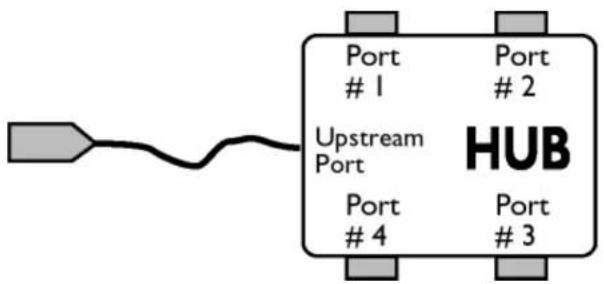
text_image
Port1
Upstream Port Port4
Port2
HUB Port3
Glossary
Downstream
The direction of data flow from the host or away from the host. A downstream port is the port on a hub electrically farthest from the host that generates downstream data traffic from the hub. Downstream ports receive upstream data traffic.
Upstream
The direction of data flow towards the host. An upstream port is the port on a device electrically closest to the host that generates upstream data traffic from the hub. Upstream ports receive downstream data traffic.
RETURN TO TOP OF THE PAGE
V
Vertical refresh rate
Expressed in Hz, it is the number of frames (complete pictures) written to the screen every second.
RETURN TO TOP OF THE PAGE
Download and Print
• Installing your LCD monitor driver
- Download and Printing Instructions
Download and Print
Installing Your LCD monitor driver
System requirements:
- PC running Windows 95, Windows® 98, Windows® 2000, Windows® Me, Windows® XP, Windows® Vista or later
• Find your driver ".inf/.icm/.cat" at : /PC/drivers/
Read the "Readme.txt" file before installing.
This page provides an option to read the manual in .pdf format. PDF files can be downloaded into your hard disk, then viewed and printed with Acrobat Reader or through your browser.
If you do not have Adobe® Acrobat Reader installed, click on the link to install the application. Adobe® Acrobat Reader for PC / Adobe® Acrobat Reader for Apple Macintosh.
Download instructions:
To download the file:
- Click-and-hold your mouse over the icon below. (Windows® 95/98/2000/Me/XP/Vista users right-click)
Download

231E1.pdf
-
From the menu that appears, choose 'Save Link As...', 'Save Target As...' or 'Download Link to Disk'.
-
Choose where you would like to save the file; click 'Save' (if prompted to save as either 'text' or
Download and Print
'source', choose 'source').
Printing instructions:
To print the manual:
With the manual file open, follow your printer's instructions and print the pages you need.
RETURN TO TOP OF THE PAGE