
Pocket KVM Switches PS/2 - Computer Accessories Equip - Free user manual and instructions
Find the device manual for free Pocket KVM Switches PS/2 Equip in PDF.


| Product Type | KVM Switch |
| Brand | Equip |
| Model Series | Pocket KVM Switches PS/2 (SW0206C, SW0207A, SW0407C, SW0408A) |
| Number of Computer Ports | 2 (SW0206C, SW0207A) or 4 (SW0407C, SW0408A) |
| Console Ports | 1 (PS/2 keyboard, PS/2 mouse, VGA monitor) |
| Audio Support | SW0207A and SW0408A: microphone and speaker switching; others: none |
| Maximum VGA Resolution | 1920 x 1440 |
| DDC Compatibility | DDC2B |
| Keyboard/Mouse Interface | PS/2 |
| Port Selection | Front panel push button and hot-key commands (double left Ctrl) |
| Auto Scan Mode | Yes, with adjustable scan rate (3, 8, 15, 30 seconds) |
| Manual Scan Mode | Yes (arrow keys to navigate) |
| Hot-Plug Support | Keyboard and mouse hot-pluggable; computers can be hot-plugged after initial power-up |
| Power Supply | Power-free operation (draws power from connected PCs); optional DC 9V 500mA adapter for troubleshooting |
| Cable Length (included) | 1.8 m per computer cable |
| Product Dimensions (H x W x D) | 20 x 70 x 155 mm (2-port non-audio), 20 x 85 x 180 mm (SW0207A), 35 x 85 x 180 mm (4-port models) |
| Compliance | FCC Class B, CE, VCCI |
| Operating Systems Supported | All (independent of OS and software) |
| Keyboard/Mouse Emulation | Yes, for error-free boot |
| Keyboard State Retention | Automatically saved and restored when switching computers |
| Mouse Support | M/S IntelliMouse (Pro), Explorer, Optical |
Frequently Asked Questions - Pocket KVM Switches PS/2 Equip
User questions about Pocket KVM Switches PS/2 Equip
0 question about this device. Answer the ones you know or ask your own.
Ask a new question about this device
Download the instructions for your Computer Accessories in PDF format for free! Find your manual Pocket KVM Switches PS/2 - Equip and take your electronic device back in hand. On this page are published all the documents necessary for the use of your device. Pocket KVM Switches PS/2 by Equip.
USER MANUAL Pocket KVM Switches PS/2 Equip
Console Connection....3
Computers Connection....5
Initial Power-up....7
■ Operations
Front Panel operation....8
Hot-key commands....8
■ Appendices
Specifications... 11
■ Troubleshooting.... 12

Please read this manual thoroughly and follow the Installation procedures to prevent any damage to the KVM Switch SW0206C, SW0207A, SW0407C, SW0408A or any connecting device.
This device is tested and complies with Part 15 of FCC/class B, CE and VCCI rules.


Eqnilp KVM Swikli
Introduction
Overview
The KVM Switch SW0206C, SW0207A, SW0407C and SW0408A are computer switches that allow access to two or four IBM compatible computers from one PS/2 keyboard, mouse and monitor. Switching between computers is as easy as pressing the push button or entering hot-key commands from your keyboard. There is no interface card and software to install and the switch is independent of the computer operating system.
Ready to run right out of the box, this kit comes with everything you need - a switch and complete cable sets, just hook them up and go. By allowing one console to manage all your computers, the SW0206C, SW0207A, SW0407C and SW0408A eliminate the expense for extra consoles, the spaces for extra peripherals and the time hopping around for accessing different computers.
SW0207A allows one microphone and speaker to be shared by two computers and SW0408A allows four.
Equip KVM Sankt
Features
■Unique loose-free cables included preventing keyboard or mouse connector from getting loose.
■Supports PS/2 keyboard and mouse.
■Keyboard and mouse emulation for error-free PC boot up.
■Keyboard and mouse are hot pluggable at any time without turning either the switch or PCs off.
■Space-saving design - all cables are connected to the rear.
■Auto scan automatically selects computers sequentially.
■Supports M/S IntelliMouse (Pro), Explorer, Optical.
■Hot-key and push button allow easy computer access.
■Keyboard states automatically saved and restored when switching computers.
■Operating system and software independent, transparent to all applications.
■High VGA resolution 1920x1440.
■DDC2B compatible.
■Power-free operation - the switch draws power from the attached PCs.
■SW0207A and SW0408A support microphone and speaker switching.
Eqlop KVM Sankh
Installation
Console Connection
Turn your computers off. Connect a PS/2 keyboard to the mini-DIN-6 port marked with a keyboard and a PS/2 mouse to the mini-DIN-6 port marked with a mouse. Then connect your VGA monitor cable directly to the HD-DB-15 port as shown in figure 1 for 2-port KVM Switch SW0206C.

Figure 1:KVM Switch SW0206C Console Connection
-2-
-3-
Equip KVM Switch
The figure 2 shows 4-port KVM Switch SW0407C console connection; SW0207A has similar connection.

Figure 2: KVM Switch SW0407C Console Connection
The multi-sync monitor must be capable of synchronizing with the computer's video signal. If you are uncertain about the monitor type, please consult the monitor user's manual.
The KVM Switch SW0206C, SW0207A, SW0407C or SW0408A consumes negligible power and is designed to run reliably without an external power adapter.
-4-
Equip KVM Sanki
Computers Connection
KVM Switch comes with complete cable sets facilitating computer connection. One side of the cable has an HDB-15 connector and the other side has three connectors (one HDB-15 and two mini-DIN6s). The PC 1 \~ PC 4 marks on the KVM Switch are for computer connection as shown in figure 3, 4 and 5.

Figure 3: COMPUTER Connection
NOTE: If your computer uses an AT style keyboard, you will need an "AT-to-PS/2 keyboard adapter" at the computer keyboard port.
-5-

flowchart
graph TD
    A["Eqipr"] -->|To speaker| B["Device"]
    A -->|To Mio| C["Device"]
    A -->|SW 3002 A| D["Server Unit"]
    style A fill:#f9f,stroke:#333
    style B fill:#ccf,stroke:#333
    style C fill:#cfc,stroke:#333
    style D fill:#fcc,stroke:#333
Figure 4: SW0207A PC side Connection
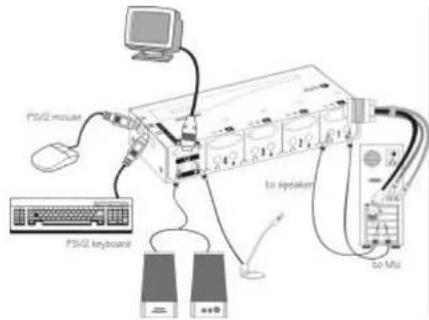
Figure 5: SW0408A PC side Connection
Group KVM Samki
Initial Power-up
Make sure all computers and the KVM Switch are powered down during installation. You may power up the computers after installation,. The KVM Switch can be powered from the computers. This procedure ensures the KVM Switch receive computer settings correctly when computer boots.
NOTE: You may hot plug any additional powered-down computer to the KVM Switch at any time after the initial power up.
Eqlop KVM Switch
Operations
Front Panel operation
You may switch to a different computer by pressing the front panel push-button directly or by issuing hot-key commands. The front-panel LED illuminates indicating the active port. The LED flashes while in either Auto Scan or Manual Scan mode.
Should you encounter any keyboard or mouse problem, press and hold down the push-button for 3 seconds to initialize the keyboard and mouse.
Hot-key commands
Hot-key command is a short keyboard sequence to select a computer or to activate computer scanning. The switch interprets keystrokes for hot-keys all the time. A hot-key sequence starts with two left Ctrl keystrokes followed by one or two more keystrokes.
- To select a computer:
left Ctrl+ left Ctrl+ 1
Selects the computer at PC 1.
left Ctrl+ left Ctrl+ 2
Selects the computer at PC 2.
left Ctrl+ left Ctrl+ 3
Selects the computer at PC 3 (for SW0407C only).
left Ctrl+ left Ctrl+ 4
-8-
Eqnilp KVM Sankli
Selects the computer at PC 4 (for SW0407C only).
NOTE: Do not use the keypad at the right side of the keyboard for hot key commands.
- To start Auto Scan, automatically scans all ports one by one at a fixed interval:
left Ctrl+ left Ctrl+F1
To abort the Auto Scan mode, press the left Ctrl key twice. Keyboard and mouse are both operational during Auto Scan. When it detects any keyboard or mouse activity, it suspends Auto Scan until the activity stops; it then resumes with the next computer in sequence. The length of the Auto Scan interval (Scan Rate) is adjustable, see below. LED flashes during Auto Scan for SW0407C only.
- Manual Scan enables you to manually switch back and forth between computers.
left Ctrl+ left Ctrl+F2
Press ↑ or ↓ to select the previous or the next computer in sequence. And, press any other key to abort the Manual Scan. LED flashes during Manual Scan for SW0407C only.
- To adjust Scan Rate which sets the duration before switching to the next computer in Auto Scan:
left Ctrl+ left Ctrl+F3
-9-
Eqlop KVM Switch
There are four options: 3, 8, 15 and 30 seconds.
NOTE: Scan Rate is set to default of 3 seconds after the switch loses power, i.e., all connected computers are turned off.
- To adjust keyboard typematic rate (characters/sec), this setting over-rides that of BIOS and any operating system:
left Ctrl+ left Ctrl+F4
There are four options: 10, 15, 20 and 30 characters/sec.
NOTE: Scan Rate is set to default of 10 characters/sec when the switch loses all power sources, i.e., all connected computers are turned off.
Equip KVM Sankli
Appendices
Specifications
| Specification | SW0206C | SW0207A | SW0407C | SW0408A |
| Console port number | 1 | 1 | 1 | 1 |
| Computer port number | 2 | 2 | 4 | 4 |
| Port selection push button | 1 | |||
| Hot plug-and-play | Yes | |||
| Hot-key control | Yes | |||
| VGA 1920 x 1440, DDC2B | ||||
| Y2K compliance | Yes | |||
| Computer connector | HDB15 x 2 | HDB15 x 2Stereo jack x 4 | HDB15 x 4 | HDB15 x 4Stereo jack x 8 |
| Console connector Keyboard Mouse Monitor Speaker/Mic | PS/2PS/2HDB15 | |||
| No Stereo jack x 2 | No Stereo jack x 2 | |||
| Audio support | No | Yes | No | Yes |
| Automatic scan interval | 3, 8, 15, 30 seconds | |||
| Cable length | 1.8m x 2 | 1.8m x 4 | ||
| H x W x D (mm) | 20 x 70 x 155 20 x 85 x 180 | 35 x 85 x 180 | ||
| Power-free operation | Yes | |||
-10-
-11-
Equip KVM Switch
Troubleshooting
Ensure that all cables are well seated. Check that keyboard/mouse cables are not swapped. Label the cables for each computer to avoid confusion when connected to the SW0206C, SW0207A or SW0407C.
| Symptom | Causes | Solutions |
| Keyboard or mouse does not work | Improper power-up sequence. Keyboard or mouse not properly initialized. | Press and hold down the push button for 3 seconds, the switch will re-initialize the keyboard and mouse.If problem persists, unplug the keyboard or mouse, wait for few seconds than plug it back. |
| Keyboard error on boot | Loose keyboard connection. | Make sure all cables are well seated and secured. |
| Keyboard strokes shifted | The computer was in shifted state when last switched | Press down both SHIFT keys. |
| If the switch fails to function occasionally. | Computers do not supply enough power. | Add a power adapter with minimum of DC 9V 500mA output rating to the SPARE power jack. |
| Computer can not use serial mouse. | The switch does not support serial mouse. | |
| Scan Rate was set to 30 sec and becomes 3 sec. | All connecting computers are powered off; The switch resets. | Set the Scan Time again and keep at least one computer on all the time. |
Eqlop KVM Sanki
FCC Statement
This equipment has been tested and found to comply with the limits for a Class B digital device, pursuant to part 15 of the FCC Rules. These limits are designed to provide reasonable protection against harmful interference in a residential installation. This equipment generates, uses and can radiate radio frequency energy and, if not installed and used in accordance with the instruction, may cause harmful interference to radio communications. However, there is no guarantee that interference will not occur in a particular installation. If this equipment does cause harmful interference to radio or television reception, which can be determined by turning the equipment off and on, the user is encouraged to try to correct the interference by one or more of the following measures:
- Reorient or relocate the receiving antenna.
- Increase separation between the equipment and receiver.
- Connect the equipment into an outlet on a circuit different from that to
which the receiver is connected. - Consult the dealer or an experienced radio technician for help.
Limited Warranty
IN NO EVENT SHALL THE DIRECT VENDORS LIABILITY FOR DIRECT OR INDIRECT, SPECIAL, INCIDENTAL OR CONSEQUENTIAL DAMAGES, LOSS OF PROFIT, LOSS OF BUSINESS, OR FINANCIAL LOSS WHICH MAY BE CAUSED BY THE USE OF THE PRODUCT EXCEEDS THE PRICE PAID FOR THE PDOCUDT..
The direct vendor makes no warranty or representation, expressed or implied with respect to the contents or use of this documentation, and especially disclaims its quality, performance, merchantability, or fitness for any particular purpose.
The direct vendor also reserves the right to revise or update the product or documentation without obligation to notify any user of such revisions or updates. For further information, please contact your direct vendor.
All the brand names and registered trademarks are the property of their respective owners.
PP5-N7200-207
Printed in Taiwan

Brand : Equip
Model : Pocket KVM Switches PS/2
Category : Computer Accessories