PEX300WN2X2 - Network card StarTech.com - Free user manual and instructions
Find the device manual for free PEX300WN2X2 StarTech.com in PDF.


User questions about PEX300WN2X2 StarTech.com
0 question about this device. Answer the ones you know or ask your own.
Ask a new question about this device
Download the instructions for your Network card in PDF format for free! Find your manual PEX300WN2X2 - StarTech.com and take your electronic device back in hand. On this page are published all the documents necessary for the use of your device. PEX300WN2X2 by StarTech.com.
USER MANUAL PEX300WN2X2 StarTech.com
PCI Express 802.11n 300Mbps WiFi Adapter
PEX300WN2X2

natural_image
Close-up of a black networking tower with three white antennas attached to a green PCI B23C chip (no text or symbols visible)*actual product may vary from photos
For the most up-to-date information, please visit: www.startech.com
FCC Compliance Statement
This equipment has been tested and found to comply with the limits for a Class B digital device, pursuant to part 15 of the FCC Rules. These limits are designed to provide reasonable protection against harmful interference in a residential installation. This equipment generates, uses and can radiate radio frequency energy and, if not installed and used in accordance with the instructions, may cause harmful interference to radio communications. However, there is no guarantee that interference will not occur in a particular installation. If this equipment does cause harmful interference to radio or television reception, which can be determined by turning the equipment off and on, the user is encouraged to try to correct the interference by one or more of the following measures:
- Reorient or relocate the receiving antenna.
- Increase the separation between the equipment and receiver.
- Consult the dealer or an experienced radio/TV technician for help.
- Connect the equipment into an outlet on a circuit different from that to which the receiver is connected.
FCC ID: VYTLP-7694
This Class B digital apparatus complies with Canadian ICES-003.
Operation is subject to the following two conditions:
(1) This device may not cause interference, and
(2) This device must accept any interference, including interference that may cause undesired operation of the device.
IC Radiation Exposure Statement:
This equipment complies with IC RSS-102 radiation exposure limit set forth for an uncontrolled environment. This equipment should be installed and operated with minimum distance 20cm between the radiator and your body.
Use of Trademarks, Registered Trademarks, and other Protected Names and Symbols
This manual may make reference to trademarks, registered trademarks, and other protected names and/or symbols of third-party companies not related in any way to StarTech.com. Where they occur these references are for illustrative purposes only and do not represent an endorsement of a product or service by StarTech.com, or an endorsement of the product(s) to which this manual applies by the third-party company in question. Regardless of any direct acknowledgement elsewhere in the body of this document, StarTech.com hereby acknowledges that all trademarks, registered trademarks, service marks, and other protected names and/or symbols contained in this manual and related documents are the property of their respective holders.
Table of Contents
Introduction......1
Packaging Contents .... 1
System Requirements....1
Installation 2
Hardware Installation 2
Driver Installation....2
Verifying Installation 4
How to Use ....5
Windows XP 5
Windows Vista/7/8....6
Ralink WLAN Utility....7
Connecting to an available network: 8
Manually Creating a Profile....9
Wi-Fi Protected Setup (WPS)....10
Specifications....11
Technical Support 12
Warranty Information....12
Introduction
The PEX300WN2X2 PCI Express Wireless N Card (PCIe x1) adds high speed wireless network connectivity to almost any PCI Express-enabled desktop/workstation PC. Using a 2T2R (2 Transmitter/2 Receiver) design over the 2.4GHz frequency, this PCIe wireless card provides up to 300Mbps of data bandwidth over an 802.11n network, while improving signal reception and range.
Backward compatible with 802.11b/g networks (11/54Mbps), this WiFi N adapter offers a versatile wireless networking solution with support for standard and advanced security options such as WEP, WPA and WPA2, along with wireless Quality of Service (QoS) support and quick and easy setup through WPS.
This easy-to-install PCI Express 2.0 card is backed by StarTech.com's 2-year warranty and free lifetime technical support, making for an excellent wireless upgrade or first-time setup option.
Packaging Contents
• 1x PCI Express Wireless Networking Card
- 2x Antenna
- 1x Low Profile Bracket
- 1x Driver CD
• 1x Instruction Manual
System Requirements
- PCI Express enabled computer system with available full profile PCI Express slot
- Microsoft® Windows® XP/Vista/Server 2003/Server 2008 R2/7/8 (32/64-bit), or Linux® kernel 2.6.3 or later
Installation
WARNING! PCI Express cards, like all computer equipment, can be severely damaged by static electricity. Be sure that you are properly grounded before opening your computer case or touching your PCI Express card. StarTech.com recommends that you wear an anti-static strap when installing any computer component. If an anti-static strap is unavailable, discharge yourself of any static electricity build-up by touching a large grounded metal surface (such as the computer case) for several seconds. Also be careful to handle the PCI Express card by its edges and not the gold connectors.
Hardware Installation
- Turn your computer off and any peripherals connected to the computer (i.e. Printers, external hard drives, etc.). Unplug the power cable from the rear of the power supply on the back of the computer and disconnect all peripheral devices.
- Remove the cover from the computer case. See documentation for your computer system for details.
- Locate an open PCI Express slot and remove the metal cover plate on the rear of the computer case (Refer to documentation for your computer system for details.). Note that this card will work in PCI Express slots of additional lanes (i.e. x4, x8 or x16 slots).
- Insert the card into the open PCI Express slot and fasten the bracket to the rear of the case.
- Place the cover back onto the computer case.
- Attach the included external antennas to the rear bracket of the card.
- Insert the power cable into the socket on the power supply and reconnect all other connectors removed in Step 1.
Driver Installation
Windows XP/Server 2003
- Upon starting Windows, if the "Found New Hardware" wizard appears on the screen, cancel/close the window and insert the included Driver CD into the computer's CD/DVD drive.
- AutoPlay should automatically launch the Driver/Software installation splash screen. If not, open "My Computer" then open the CD/DVD drive the disk is inserted into and double-click the file Setup.exe.
- Select the option to install the Drivers. This will launch the Driver Installation wizard.
-
During the installation, you will be prompted to install only the drivers or also the Ralink WLAN Utility. If you wish to use the built-in Windows utility for setting up your wireless connection, then install the drivers only. If you do not wish to use the built-in Windows Utility (Zero Configuration Utility), then also install the Ralink Utility.
NOTE: You can switch to using the Windows Utility at any time. -
Complete the wizard and this will automatically install all of the drivers/software. Restart the computer when prompted.
Windows Vista/7/8
-
Upon starting Windows, if the "Found New Hardware" wizard appears on the screen, cancel/close the window or choose not to install the drivers and insert the included Driver CD into the computer's CD/DVD drive.
-
AutoPlay should automatically launch the Driver/ Software installation splash screen or prompt you to run Setup.exe. If not, open "Computer" open the CD/ DVD drive the disk is inserted into and double-click the file Setup.exe.
-
Select the option to install the Drivers. This will launch the Driver Installation wizard.
-
During the installation, you will be prompted to install only the drivers or also the Ralink WLAN Utility. If you wish to use the built-in Windows utility for setting up your wireless connection, then install the drivers only. If you do not wish to use the built-in Windows Utility (Zero Configuration Utility), then also install the Ralink Utility.
NOTE: You can switch to using the Windows Utility at any time.
- Complete the wizard and this will automatically install all of the drivers/software. Restart the computer when prompted.
Windows Server 2008 R2 Note:
By default, the Microsoft "Wireless LAN Service" Feature is not installed. Before any wireless networking can be enabled, this feature must be installed through the Windows Server Manager window. Refer to Windows' documentation for details.

text_image
Server Manager File Edit View Help Server Manager (SHP) CHP-CHP Rules Features Cosmetics Configuration Test Scheduler Windows Protocol with Alex Services SHP Control Local Users and Groups UHDD Groups Add Features Wizard Select Features System Commander Programs One Inc Select any other features translation server. FEATURE SHP Server SHP Services Storage Manager for LANQ Subscription for SHP-based Applications FiatNet Client Fixed Data FHTI-Cloud Windows Security Framework Windows Internal Database Windows Personalized Image set Sampling Environment 20.0 Windows Process Activation Service Windows Server Backup Process Windows Server Migration Tools Windows System Security Manager Windows 121.3.2.247 MacRCCB Services 2076.54.194 Linux Server Service SHP Control Database Features Microsoft SQL Parameters 3.6.x Description file format of the SHP PAPRouch 3.3.89% with core reducing under building applications that offer expanding user resources, power your customers personal identity information, install resources and service information, and provide the links to database/manager of customers by license. Microsoft SQL Parameters 3.6.x Description file format of the SHP PAPRouch 3.3.89% with core reducing under building applications that offer expanding user resources, power your customers personal identity information, install resources and service information, and provide the links to database/manager of customers by license. Download FeaturesVerifying Installation
Windows 2000/XP/Vista/7/8
From the main desktop, right-click on "My Computer" ("Computer" in Vista/7), then select Manage. In the new Computer Management window, select Device Manager from the left window panel.

text_image
Open Explore Search... Manage Map Network Drive... Disconnect Network Drive... Create Shortcut Delete Rename Properties Computer Management File Action View Help Computer Management (Local System Tools Task Scheduler Event Viewer Shared Folders Local Users and Groups Reliability and Performe Device Manager Storage Disk Management Services and Application STARTECHCOM-PC Computer Disk drives Display adapters DVD/CD-ROM drives Human Interface Devices IDE ATA/ATAPI controllers Keyboards Mice and other pointing devices Monitors Network adapters Ports (COM & LPT) Processors Sound, video and game controllers Storage controllers System devices Universal Serial Bus controllersDouble-click on the "Network adapters" option to open it. A new Wireless adapter should be listed.
How to Use
Connecting to a wireless network is done through the Windows wireless configuration utilities. You must know the name of the wireless network (SSID), the type of security it is using (if any) and it's associated password to connect to a wireless network.
Consult the documentation for your wireless access point (AP) or contact your network administrator or the wireless AP manufacturer for details.
Windows XP
The wireless network adapter may appear in the System Tray (next to the clock), or you may have to access it through the Control Panel. If visible in the System Tray, right-click on the icon and select "View available wireless networks". This will bring up a new window that will show you all available wireless networks that Windows has found.

text_image
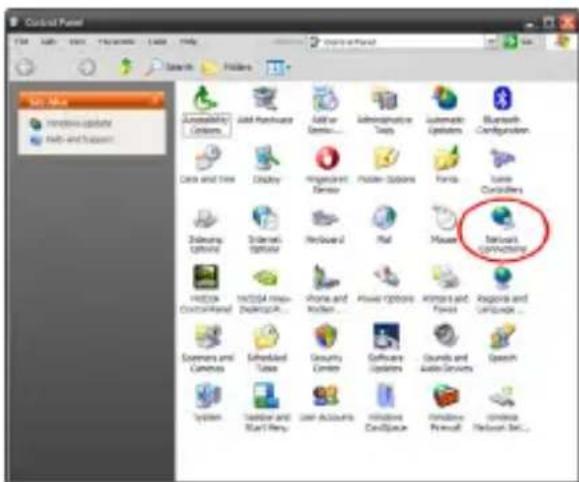
3:05 PMAlternatively, you can access this window by opening the Control Panel from the Start Menu and double-clicking the Network Connections icon. Right-click on the Wireless Network Connection icon (there may be multiple; the highest number should be the latest) and select "View available wireless networks".
text_image
Context Panel File Edit View Tools Help Help Search Favorites Key Info Internet Explorer Multi-View Options Accessibility Colors Gold Hardware Add or Remove... Administrative Tools Licensing Updates Bluetooth Commandset Data and Tree Display Ingredient Sensor Hidden Settings Finds License Controllers Database Safari Serverless Options Keyboard Flat Mouse Network Connections Internet ControlPanel InCD/204 Home Desktop... Phone and Window... Mouse options Images and Files Regions and Conclusions Documents and Cameras Embedded Tasks Security Center Software Updates Sounds and Audio Systems Speech System Texture and Start Menu User Accounts Window CardSpace Window Format Network Set...Select the wireless network you wish to connect to from the list, and click on the "Connect" button in the bottom right corner. If the network has security enabled, you will be prompted for the password.

text_image
Choose a wireless network COS at 90% in the network to CONTACT a wireless network or more of to get more information. Text_Repeat Secure-enabled wireless network (EVIAC) To connect by this network, click Connect. You might need to enter additional information. TEXTOR Secure enabled wireless network (EVIAC) e0 Secure-enabled wireless network (EVIAC) Default Secure-enabled wireless network ConnectWindows Vista/7/8
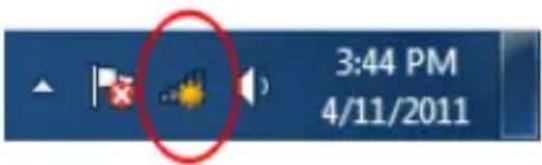
The wireless network adapter will appear as a small icon in the System Tray (next to the clock). Left-clicking on this icon will bring up a list of detected wireless networks. Select the wireless network you wish to connect to and click the "Connect" button. If the network has security enabled, you will be prompted for a password.
text_image
3:44 PM 4/11/2011
text_image
Not connected Connections are available Wireless Network Connection Label Spire Connect automatically Current 4764564 Network8 2091.7x Other Network Open Network and Sharing CenterAlternatively, you can access the wireless network adapter by opening the Control Panel from the Start Menu, and selecting the Network and Internet category, followed by Network and Sharing Center.

text_image
Adjust your computer's settings System and Security Provide your computer data Get up your computer Purchased the problems Network and Internet Your resources and tools Chrome learning groups and sharing options Hardware and Sound Your device and portion Apply the risks Programs Unrealized a program User Accounts and Family Safety Add information on activities Find up your personal information on the way to work App增值服务 and Personalization Change the schema Change desktop/Internet Adjust email interactions Clock, Language and Religion Change applications in other signal methods Show high-accuracy language Assess of Access On Windows dialog settings Set forth user shares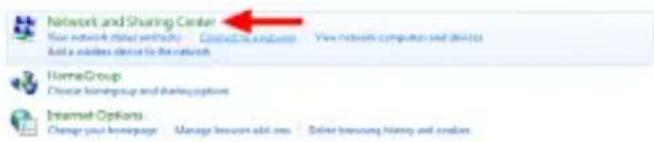
text_image
Network and Sharing Center Your network (http://www.it) Add a wireless device to the network View networks computers and devices HomeGroup Choose homegroup and sharing options Internet Options Change your homepage Manage lessons add one Online learning history and creationClick on the "Connect to a network" option on the far right side of the window to bring up the list of detected wireless networks.

text_image
Control Panel Home Manage wireless networks Change adapter settings Change advanced sharing settings View your basic network information and set up connections PC (This computer) Internet View your active networks You are currently not connected to any networks. Connect to a network Change your networking settings Set up a new connection or network Set up an embedding, base/brand, shdup, of how, or VPN connections, or set up a router or access point. Connect to a network Connect to an email to a wireless, audio, shdup, or VPN network connection. Choose homeup and chain options. Access files and printers located on other network computers, or change sharing settings. Troubleshoot problems Diagnose and repair network problems, or get misleadingly mentioning information.Ralink WLAN Utility
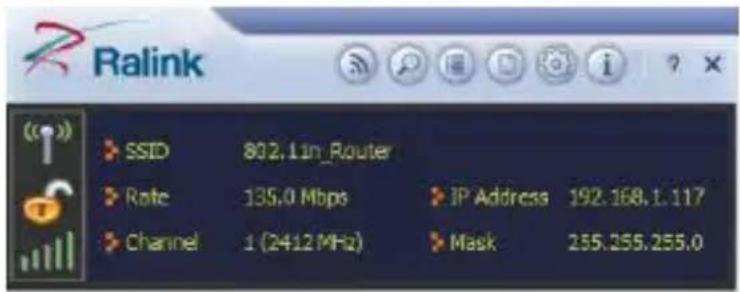
Instead of using the built-in Windows wireless utility, a 3rd party utility, Ralink WLAN Utility, can be used. This utility provides access to additional advanced features of the wireless card, such as Wi-Fi Direct and Wi-Fi Protected Setup (WPS). If the Ralink WLAN utility is installed, then a small icon will appear in the system tray area near the clock. Double-click the icon to open the utility window, or right-click on it to bring up the menu and select the 'launch' option.
text_image
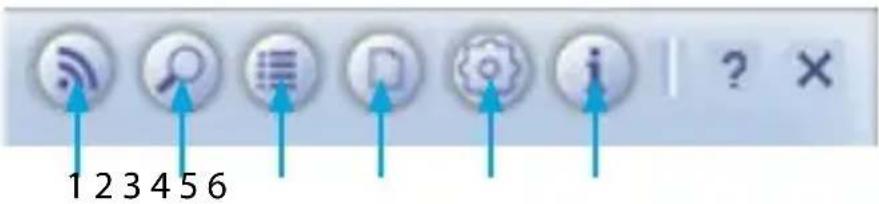
Ralink SSID 802.11n_Router Rate 135.0 Mbps IP Address 192.168.1.117 Channel 1 (2412 MHz) Mask 255.255.255.0From the main interface, different sub sections can be accessed via the buttons along the top of the window.
text_image
1 2 3 4 5 6- Wi-Fi Direct: Enables Wi-Fi Direct mode for peer-to-peer wireless networking.
- Available Networks: Lists all detected wireless networks within range.
- Link Information: Lists detailed information about the currently connected wireless network.
- Profile List: Manage all of the created network profiles and configure Wi-Fi Protected Setup (WPS).
- Advanced Settings: Advanced wireless settings such as wireless mode and certificate management.
- About: Information about the Ralink Utility.
Connecting to an available network:
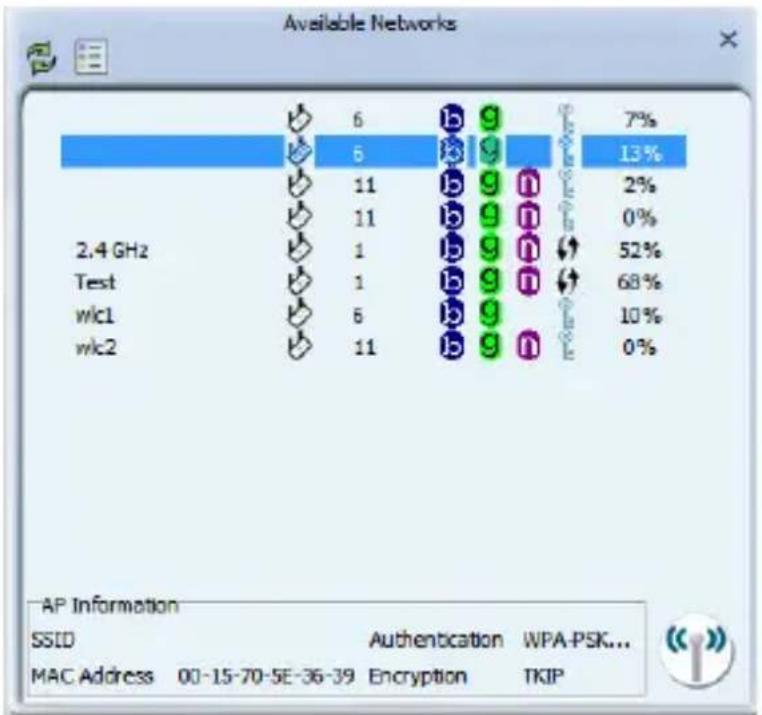
- To connect to a wireless network, bring up "Available Networks" from the main window. This will list all of the detected wireless networks in the area.
bar
Available Networks | Category | IP Type | Percentage (%) | | :--- | :--- | :--- | | 2.4 GHz | 6 | 7 | | 2.4 GHz | 5 | 13 | | Test | 11 | 2 | | Test | 11 | 0 | | wlc1 | 1 | 52 | | wlc1 | 1 | 68 | | wlc1 | 6 | 10 | | wlc2 | 11 | 0 | AP Information SSID Authentication WPA-PSK... MAC Address 00-15-70-5E-36-39 Encryption TKIP- Once you locate the network you wish to connect to, select it from the list by click on the entry, then click the 'Connect' button. If this is a network that you will be connecting to often, then you may wish to create a persistent profile by clicking the "Add to Profile" button and following the prompts. The Ralink Utility will always first try to connecting to any network that has a profile.

bar
Available Networks | Category | Value | |---|---| | 2.4 GHz | 6 | | Test | 11 | | wlc1 | 11 | | wlc2 | 1 | | 6 | b g h | | 7 | b g h | | 8 | b g h | | 9 | b g h | | 10 | b g h | | 11 | b g h | | 13% | b g h | | 2% | b g h | | 0% | b g h | | 52% | b g h | | 68% | b g h | | 10% | b g h | | 0% | b g h | AP Information SSID Authentication WPA-PSK... MAC Address 00-15-70-5E-36-39 Encryption TKIP Connect-
If the network uses encryption, a window will popup where you will need to enter the proper authentication information (i.e. password/passphrase).
-
Once successfully connected to the network, information about the wireless router/access point will be listed in the main window and the "AP Information" section of the Available Networks window.
Manually Creating a Profile
If the network you want the computer to connect to is currently not available (off site), or otherwise not listed as an available network, a profile for the network can be manually created. You must know the name of the network (SSID), the type of encryption and any passwords/passphrases required to connect to the network prior to creating a profile. Multiple profiles can be created, if you regularly connect to different wireless networks in different locations.
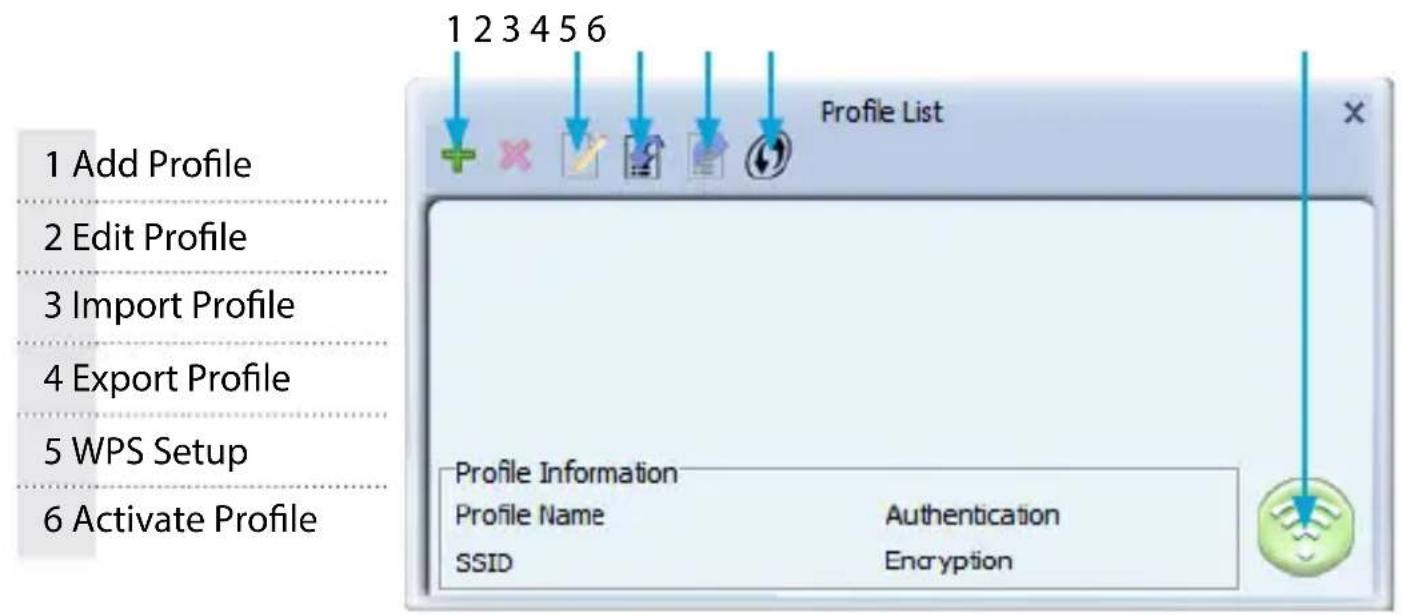
- From the main utility window, click on the "Profile List" button.
- In the Profile List window, click on the "Add Profile" button.
text_image
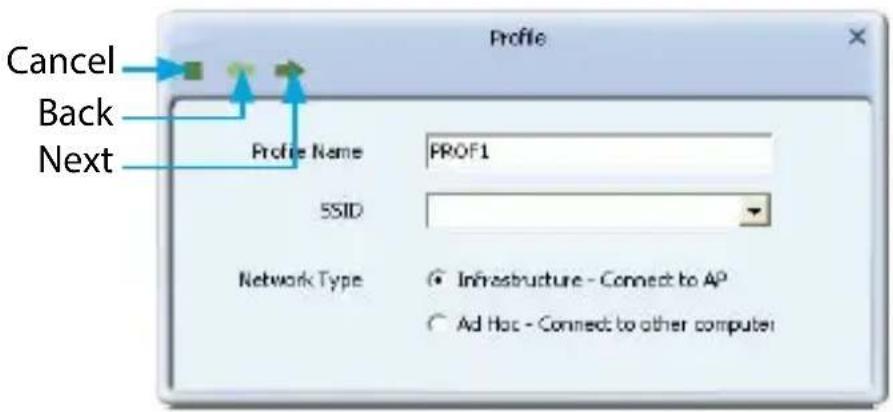
1 Add Profile 2 Edit Profile 3 Import Profile 4 Export Profile 5 WPS Setup 6 Activate Profile Profile List Profile Information Profile Name Authentication SSID Encryption- Enter in a name for this profile, then enter the name of the network you wish to connect to in the "SSID" field. Click the "Next" arrow button when ready.
text_image
Cancel Back Next Profile Name PROF1 SSID Network Type Infrastructure - Connect to AP Ad Hot - Connect to other computer- Select the type of Authentication/Encryption used by the network (if any). Click the 'Next' arrow button when ready.

text_image
Profile Authentication Open Encryption None-
If an Authentication type was specified, enter in the password/passphrase used to access the network. Click the 'Next' arrow button when ready.
-
Once the profile has been created, you must activate it for it to become the default profile. Select the profile and click the "Activate Profile" button. The wireless adapter will automatically try to connect to the default profile every time you log into the computer.
Wi-Fi Protected Setup (WPS)
WPS can be used to quickly and easily setup a secure wireless connection to a WPS-enabled wireless router/access point (AP). The WPS configuration section can be accessed via the Profile List window.

text_image
WPS Configuration Profile List Profile Information Profile Name Authentication SSID Encryption Profile Settings WPS Method Push-Button PIN WPS Version 2.0 WPS AP List SmartRepeaterSelect the method of configuring the WPS connection (push button or PIN code) and select the WPS-enabled AP from the list of detected networks. Click the 'Next' arrow and proceed with the remainder of the setup.
Specifications
Host Interface PCI Express 1.1 (x1 slot connector)
Form Factor Low/Full Profile
Chipset ID Ralink RT5392
External Connectors 2 x RP-SMA Female
LEDs 1 x Link/Activity
Antenna Configuration 2x2:2 (TxR:S)
Wireless Frequency 2.4 GHz
Supported Standards IEEE 802.11b, IEEE 802.11g, IEEE 802.11n
Supported Security Schemes WEP, WPA, WPA2, TKIP/AES
Operating Temperature -10°C \~ 70°C (14°F \~ 158°F)
Storage Temperature -20°C \~ 70°C (-4°F \~ 158°F)
Humidity 5% \~ 95% RH
Dimensions 120.0mm x 75.0mm x 18.0mm
Weight 15g
Compatible Operating Systems
Windows XP/ Server 2003/ Vista/ Server
2008 R2/7/8 (32/64-bit), Linux kernel
2.6.31 and later
Technical Support
StarTech.com's lifetime technical support is an integral part of our commitment to provide industry-leading solutions. If you ever need help with your product, visit www.startech.com/support and access our comprehensive selection of online tools, documentation, and downloads.
For the latest drivers/software, please visit www.startech.com/downloads
Warranty Information
This product is backed by a two year warranty.
In addition, StarTech.com warrants its products against defects in materials and workmanship for the periods noted, following the initial date of purchase. During this period, the products may be returned for repair, or replacement with equivalent products at our discretion. The warranty covers parts and labor costs only. StarTech.com does not warrant its products from defects or damages arising from misuse, abuse, alteration, or normal wear and tear.
Limitation of Liability
In no event shall the liability of StarTech.com Ltd. and StarTech.com USA LLP (or their officers, directors, employees or agents) for any damages (whether direct or indirect, special, punitive, incidental, consequential, or otherwise), loss of profits, loss of business, or any pecuniary loss, arising out of or related to the use of the product exceed the actual price paid for the product. Some states do not allow the exclusion or limitation of incidental or consequential damages. If such laws apply, the limitations or exclusions contained in this statement may not apply to you.
Hard-to-find made easy. At StarTech.com, that isn't a slogan. It's a promise.
StarTech.com is your one-stop source for every connectivity part you need. From the latest technology to legacy products — and all the parts that bridge the old and new — we can help you find the parts that connect your solutions.
We make it easy to locate the parts, and we quickly deliver them wherever they need to go. Just talk to one of our tech advisors or visit our website. You'll be connected to the products you need in no time.
Visit www.startech.com for complete information on all StarTech.com products and to access exclusive resources and time-saving tools.
StarTech.com is an ISO 9001 Registered manufacturer of connectivity and technology parts. StarTech.com was founded in 1985 and has operations in the United States, Canada, the United Kingdom and Taiwan servicing a worldwide market.