MicroLink dLAN duo - Network card / adapter DEVOLO - Free user manual and instructions
Find the device manual for free MicroLink dLAN duo DEVOLO in PDF.


User questions about MicroLink dLAN duo DEVOLO
0 question about this device. Answer the ones you know or ask your own.
Ask a new question about this device
Download the instructions for your Network card / adapter in PDF format for free! Find your manual MicroLink dLAN duo - DEVOLO and take your electronic device back in hand. On this page are published all the documents necessary for the use of your device. MicroLink dLAN duo by DEVOLO.
USER MANUAL MicroLink dLAN duo DEVOLO
© 2006 devolo AG, Aachen (Germany)
While the information in this manual has been compiled with great care, it may not be deemed an assurance of product characteristics. devolo shall be liable only to the degree specified in the terms of sale and delivery.
The reproduction and distribution of the documentation and software supplied with this product and the use of its contents is subject to written authorization from devolo. We reserve the right to make any alterations that arise as the result of technical development.
You can find all declarations and certifications of compliance for the products, as long as they were available at the time of publication, in the appendix of this documentation.
Trademarks
Windows ^® and Microsoft ^® are registered trademarks of Microsoft, Corp.
Mac ^® is a registered trademark of Apple Computer, Inc.
Linux ^® is a registered trademark of Linus Torvalds.
HomePlug ^® is a registered trademark of HomePlug Power Alliance.
dLAN ^® is a registered trademark of devolo AG.
devolo and the devolo logo are registered trademarks of devolo AG. All other names mentioned may be trademarks or registered trademarks of their respective owners.
Subject to change without notice. No liability for technical errors or omissions.
devolo AG
Sonnenweg 11
52070 Aachen
Germany
www.devolo.com
Aachen, May 2006
Preface
Thank you for placing your trust in this devolo product.
The devolo dLAN duo is a HomePlug adapter for data communications over the household electrical power supply network. With its Ethernet and USB ports, the dLAN adapter lets you set up or expand a home network easily and economically. Functions such as copying or moving files, using shared printers or accessing the Internet are all realized via existing power lines in your home. With the dLAN duo, any electrical socket in your home can be used as a network connection—from the basement to the attic.
About this manual
This manual contains all the information you need about your dLAN duo from devolo. It tells you how to set up and install your dLAN adapter. About the home network' chapter also contains examples of applications for the dLAN duo and general information on networks.
Exacting manufacturing standards and stringent quality control are the basis for high product standards and consistent quality to ensure your fullest satisfaction with this dLAN duo.
This documentation was compiled by several members of our staff from a various department in order to ensure you the best possible support when using your product.
Additional information in the Internet at 'www.devolo.com'
Our online services (www.devolo.com) is available to you around the clock should you have any queries or require any further support.
Package contents
Please ensure that the delivery is complete before beginning with the installation of your dLAN duo:
dLAN duo
Ethernet cable (3 m)
USB cable (5 m)
Printed information leaflet
CD with drivers, online documentation and application software devolo reserves the right to change the package contents without prior notice.


Description of the symbols
Here we briefly describe the meaning of the symbols used in this manual. Very important notice which, if ignored, may lead to damage.

Important notice which should be heeded.
Additional information which is useful to know, but not vital.
Contents
1 Introduction ...... 7
1.1 What exactly is dLAN?......7
1.2 What does the dLAN duo offer you? 8
2 Connection and installation 9
2.1 System requirements ....9
2.2 Connection and display elements 10
2.3 Connecting the dLAN duo....11
2.3.1 ...via Ethernet.... 11
2.3.2 ...via USB 11
2.3.3 Installation of the USB drivers under Linux 11
2.3.4 Installation of the USB drivers under Windows 11
3 All about the home network 14
3.1 Internet DSL workstation solution—option 1....14
3.2 Home networking—option 2 .... 14
3.3 Home networking—option 3 15
3.4 Home networking—option 4 15
3.5 Worth knowing 16
4 devolo dLAN software 17
4.1 Overview of the devolo software....17
4.1.1 dLAN configuration wizard .....17
4.1.2 Informer....17
4.1.3 EasyShare 17
4.1.4 EasyClean 18
4.2 Installing the devolo dLAN software 18
4.3 Configuration of the dLAN network using the dLAN configuration wizard 18
4.4 Overview in the dLAN network with the Informer.... 20
4.5 Communication in the network using EasyShare 21
4.5.1 Configuration.... 21
4.6 Maintain your privacy with EasyClean.... 23
5 Appendix.... 25
5.1 Technical data 25
5.2 Device care and maintenance....26
5.3 CE conformity 26
5.4 Declaration of conformity ....27
5.5 Warranty conditions.... 28
1 Introduction
This chapter gives you an overview of the new dLAN technology and a brief introduction to the dLAN duo.
1.1 What exactly is dLAN?
There is now a new alternative to the well-known wired LAN and Wireless LAN network technologies currently used in home networking: dLAN (direct LAN, i.e. directly networked). dLAN is home networking using the electric wiring already installed in the building.
Cost factor and transmission quality
dLAN is an economical and easy-to-use networking technology. You don't need to lay cables and you can connect to the home network at every power point.
The dLAN technology modulates and demodulates additional frequencies on the power lines. Modulation and demodulation is a well-known and proven method of data transmission, which has been in use in other applications for a number of years. Now it is used to set up Internet and network accesses in the home or office. Depending on the damping factor, distances of up to 200 meters can be covered.
With a maximum data rate of 14 Mbps and symmetrical upload and download speeds, dLAN is comparable to traditional Ethernet network solutions and the current WIFI ^™ wireless standard for home applications.
Data security and radiation
For the sake of security, the DES_pro encryption is used to guarantee secure data transfer within the network.
dLAN devices from devolo meet the stringent EU industrial standards and comply with the current standards for electromagnetic radiation.
1.2 What does the dLAN duo offer you?
Powerful and flexible
Ethernet or USB? This question no longer arises with the dLAN duo. Featuring both Ethernet and USB ports, the dLAN duo combines the features of dLAN Ethernet and dLAN USB devices. The result is new freedom and flexibility: it's no longer necessary to settle on one or the other connection technology. For example, PCs or laptops can be integrated into a dLAN network using either of the ports—depending on which one is available.

You can find examples of possible networks and general information in the chapter 'All about the home network'.
Simple installation
- Connect the dLAN duo to the computer or the device with the Ethernet or USB cable
The dLAN duo can be connected either via Ethernet or USB ports. If both are installed, USB has priority.

- Connect the dLAN duo to the power outlet
- Install the devolo drivers (for USB connection)
- Install the devolo dLAN Software
Done!
Ethernet and USB port
The dLAN duo has
- an Ethernet port for connecting to a device in the home network (e.g. PC, notebook, modem, router, switch etc.),
- a USB port for connection to a computer in the home network with a USB port,
● a standard power plug for connection to a power outlet.
Status display
The indicator lights (LEDs) of your dLAN duo show the connection status and allow the data transmission to be checked. The dLAN duo has 6 indicator lights.
2 Connection and installation
This chapter shows you how to connect the devolo dLAN duo. It also contains a brief description of the installation procedure under Windows 98, Windows Me, Windows 2000 and Windows XP.
2.1 System requirements
Your computer must meet the following requirements to operate with your dLAN duo:
- Operating systems: Windows 98, Windows Me, Windows 2000, Windows XP, Linux, Mac OS X (only for Ethernet connection) or any other operating system with network support
- Ethernet port
Note that your computer or the device to which you want to connect the dLAN duo must have an Ethernet port, i.e. a network card or a network adapter.
USB port
Note that the computer to which the dLAN duo is to be connected must have a USB port.


2.2 Connection and display elements
The dLAN duo adapter has six indicator lights (LEDs) as well as an Ethernet and a USB port:

natural_image
Blue portable electronic device with network ports and a circular logo (no readable text or symbols)ETH/USB
○ 100/Act: Lit while 100 Mbps data transfer rate is active.
☐ 10/Act: Lit while 10 Mbps data transfer rate is active.
○ USB: Steady when connected to USB.
dLAN
○ Power: Steady when connected to power.
○ Act: Flashes when data is being sent or received over the electrical lines.
○ Link: Steady when connected to the dLAN network.
- Ethernet port: This is the connection point on the dLAN duo adapter for connecting it to a computer or another device with the network cable (included).
- USB port: This is the connection point on the dLAN duo adapter for connecting it to a computer with the USB cable (included).
Make sure that all of the dLAN adapter that you want to add to your network are also connected to the power supply grid. If no active device is connected to the Ethernet or USB port, a dLAN adapter will go into standby mode after about 15 minutes. It cannot be configured while in standby mode.

2.3 Connecting the dLAN duo...
In this section, we will show you how to connect the dLAN duo—either via Ethernet or USB. If both are installed, USB has priority.

Before connecting the dLAN duo please note its security ID and keep it available for configuration of the network. The security ID can be found on the bottom of the dLAN adapter.
2.3.1 ...via Ethernet
① With the computer running connect the dLAN duo adapter to an Ethernet port of the computer with the network cable (included).
②Plug the dLAN duo adapter into a convenient power socket.
③ Then install the devolo dLAN software. For more information see the 'devolo dLAN software' chapter.

No drivers are required for installation of the dLAN duo adapter.
2.3.2 ...via USB
①With the computer running connect the dLAN duo adapter to a USB port of the computer with the USB cable (included).
②Plug the dLAN duo adapter into a convenient power socket.
③Now install the drivers in the desired operating system.
④ Then install the devolo dLAN software. For more information see the 'devolo dLAN software' chapter.
2.3.3 Installation of the USB drivers under Linux
USB drivers for Linux could be found on the supplied devolo product CD.
2.3.4 Installation of the USB drivers under Windows
The dLAN duo supports plug&play. This makes installation much easier. Windows wizards guide you through the installation process and request the required data.
Windows 98
①Put the devolo product CD in your CD-ROM drive.

② Windows starts the hardware wizard and reports that new hardware has been detected. Confirm by clicking Next.
③ Windows provides you with two options for searching for drivers. Select the 'Search for the best driver for your device (Recommended)' option and click Next.
④The correct driver can be found on the devolo product CD. Activate the 'CD-ROM drive' option and deactivate all other boxes. Then click Next. The driver installation is started.
⑤ Click Next to continue the installation.
You may be prompted to insert the Windows 98 CD. Insert it into your CD-ROM drive and click OK.
⑥ By clicking Finish you'll exit the installation.
⑦ Click Yes to any prompts to restart the computer.
Windows Me
①Put the devolo product CD in your CD-ROM drive.
② Windows starts the hardware wizard and reports that new hardware has been detected. Confirm by clicking Next.
③ Windows provides you with two options for searching for drivers. Select the 'Automatic search for a better driver (Recommended)' option and click Next. The driver installation is started.
④ By clicking Finish you'll exit the installation.
⑤ Confirm any prompts to restart the computer with Yes.
Windows 2000
①Put the devolo product CD in your CD-ROM drive.
② Windows 2000 starts the hardware wizard and reports that new hardware has been detected. Click Next.
③ The wizard offers two options to search for the driver. Select the 'Search for a suitable driver for my device (recommended)' option and click Next.
④The correct driver can be found on the devolo product CD. Activate the 'CD-ROM drives' option and deactivate all other boxes. Then click Next. The driver installation is started.
⑤ Click Next to continue the installation.
⑥ By clicking Finish you'll exit the installation.
Windows XP
①Put the devolo product CD in your CD-ROM drive.
②Windows XP starts the hardware wizard and reports that new hardware has been detected.
③ In the following dialog window activate the option 'Install the software automatically (Recommended)'. Click Next. The driver installation is started.
④ By clicking Finish you'll exit the installation.
In the next chapter 'All about the home network' you can find useful information on networks. For more information on the installation of the devolo dLAN software please see the 'devolo dLAN software' chapter.

3 All about the home network
This chapter contains examples for possible home network designs and general information.
3.1 Internet DSL workstation solution—option 1
Workstation with Internet connection over an DSL modem

flowchart
graph TD
    A["Internet"] --> B["DSL modem"]
    B --> C["Computer"]
    D["Network topology"] --> E["DSL modem"]
    E --> F["Computer"]
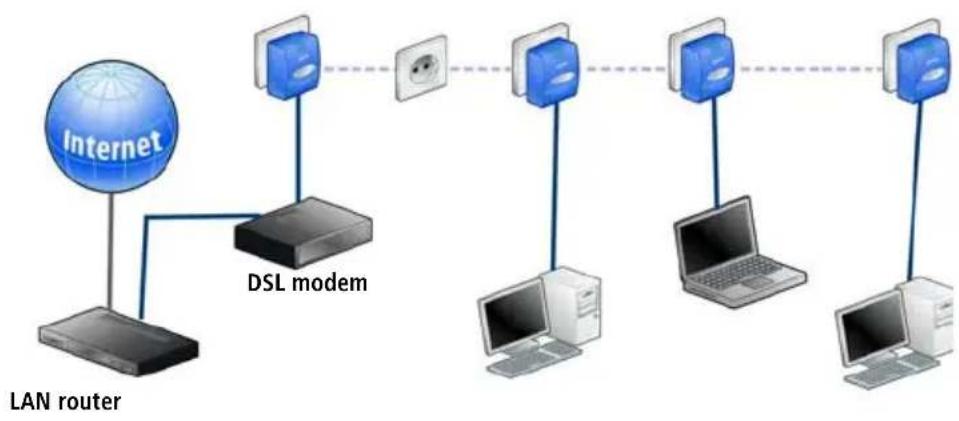
3.2 Home networking—option 2
Networking several workstations with one Internet connection over a LAN router and an DSL modem
flowchart
graph TD
    A["Internet"] --> B["DSL modem"]
    B --> C["Computer 1"]
    B --> D["Computer 2"]
    B --> E["Computer 3"]
    B --> F["Computer 4"]
    B --> G["Computer 5"]
    B --> H["Computer 6"]
    B --> I["Computer 7"]
    B --> J["Computer 8"]
    style A fill:#cce5ff,stroke:#333
    style B fill:#99ccff,stroke:#333
    style C fill:#e6f3ff,stroke:#333
    style D fill:#e6f3ff,stroke:#333
    style E fill:#e6f3ff,stroke:#333
    style F fill:#e6f3ff,stroke:#333
    style G fill:#e6f3ff,stroke:#333
    style H fill:#e6f3ff,stroke:#333
    style I fill:#e6f3ff,stroke:#333
    style J fill:#e6f3ff,stroke:#333
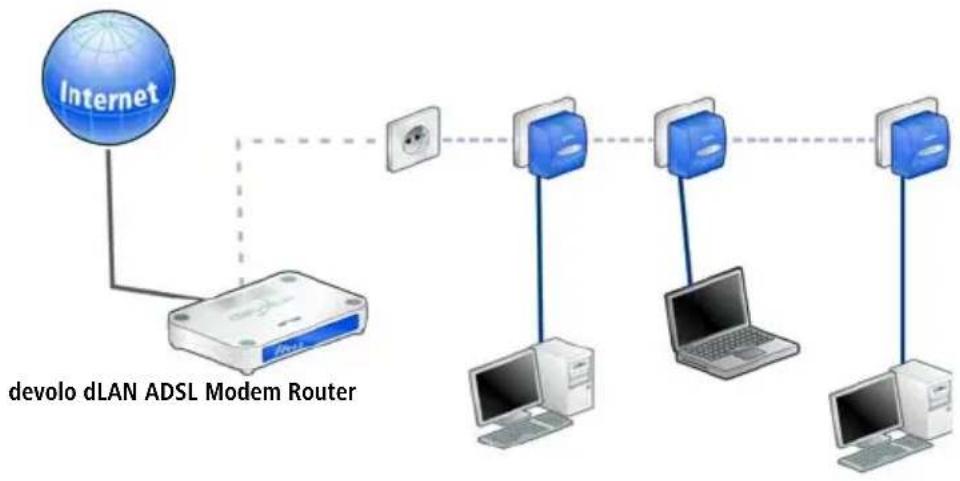
3.3 Home networking—option 3
Networking several workstations with one Internet connection over a dLAN DSL router
flowchart
graph TD
    A["Internet"] --> B["devolo dLAN ADSL Modem Router"]
    B --> C["Switch 1"]
    B --> D["Switch 2"]
    B --> E["Switch 3"]
    B --> F["Switch 4"]
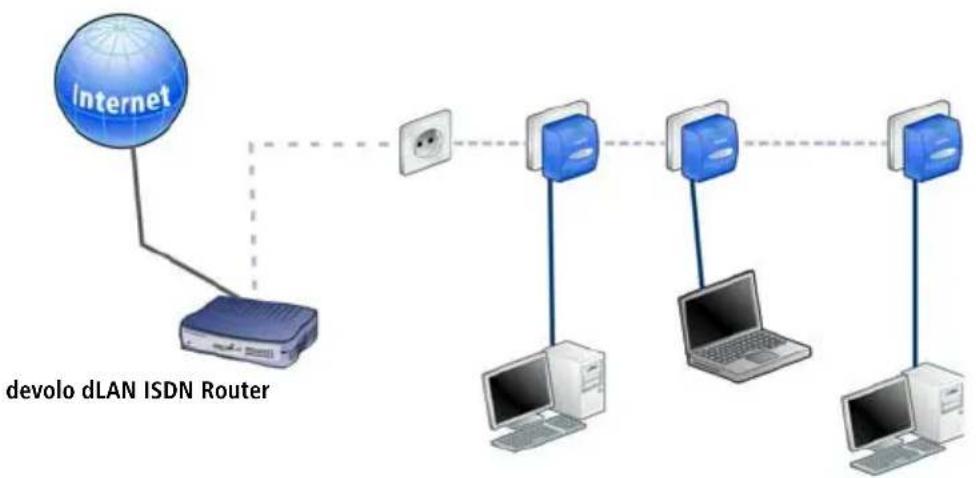
3.4 Home networking—option 4
Networking several workstations with one Internet connection over a dLAN ISDN router
flowchart
graph TD
    A["Internet"] --> B["devolo dLAN ISDN Router"]
    B --> C["Switch 1"]
    B --> D["Switch 2"]
    B --> E["Switch 3"]
    C --> F["Computer 1"]
    D --> G["Computer 2"]
    E --> H["Computer 3"]
3.5 Worth knowing
Network traffic – The maximum number of dLAN adapters that can participate in a network at the same time is theoretically much higher than the 10 devices recommended for practical reasons.
Compatibility — The dLAN adapters by devolo are compatible to all other devolo LAN products, to all devices conforming to the IEEE 802.3 standard and to other HomePlug devices.
Network security – dLAN adapters use internal DES _pro encryption to guarantee the security of the network. Individual security settings are managed by the dLAN configuration wizard. For more information, refer to the chapter on 'devolo dLAN software'.

You can find more answers to frequently asked questions (FAQs) at our home page www.devolo.com.
4 devolo dLAN software
This chapter introduces you to the dLAN configuration wizard, Informer, EasyShare and EasyClean devolo tools. It describes how to install them and how to configure your dLAN network.
4.1 Overview of the devolo software
4.1.1 dLAN configuration wizard
The dLAN configuration wizard helps you to build and change your encrypted dLAN network. With its help, you can add dLAN adapters to your network. It allows you to configure all dLAN adapters on the network from a central location, such as from a single workstation. For the encryption process, you need the security IDs of the dLAN adapters (provided on the underside of unit) and a network password of your choosing, which you will assign.

The password set up initially by devolo is HomePlug.

For installing the dLAN configuration wizard under Linux and Mac, please refer to the supplied devolo product CD.
4.1.2 Informer
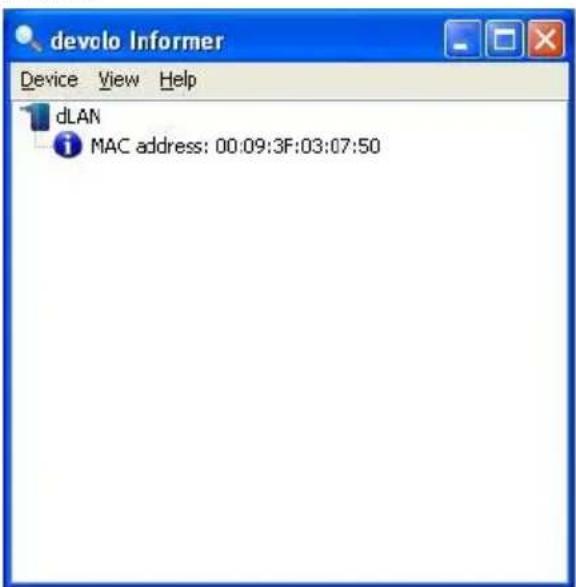
The Informer displays information about all dLAN devices in your network, such as their MAC addresses for dLAN and current transfer speeds.

The MAC address (Media Access Control) is a serial number and unique. It is programmed into the hardware and cannot be changed. The MAC address for dLAN can be found on the underside of the dLAN adapter.
4.1.3 EasyShare
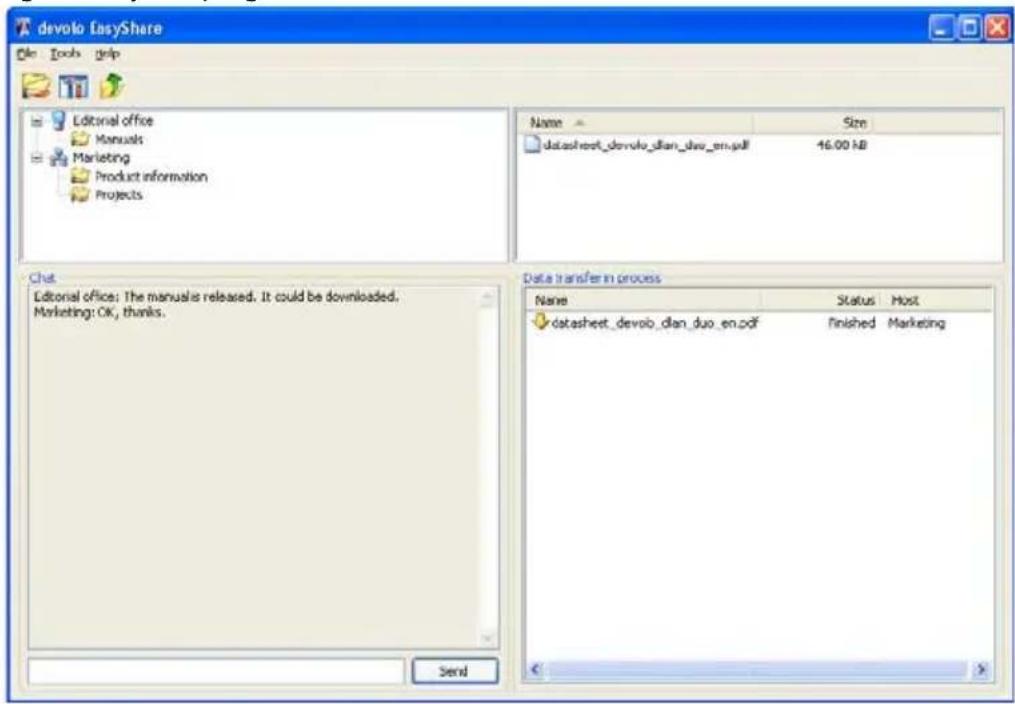
EasyShare is a file-sharing and chat tool for your local network. It allows you to exchange files easily between local Windows computers. The chat function allows instant communication between all network users.
4.1.4 EasyClean
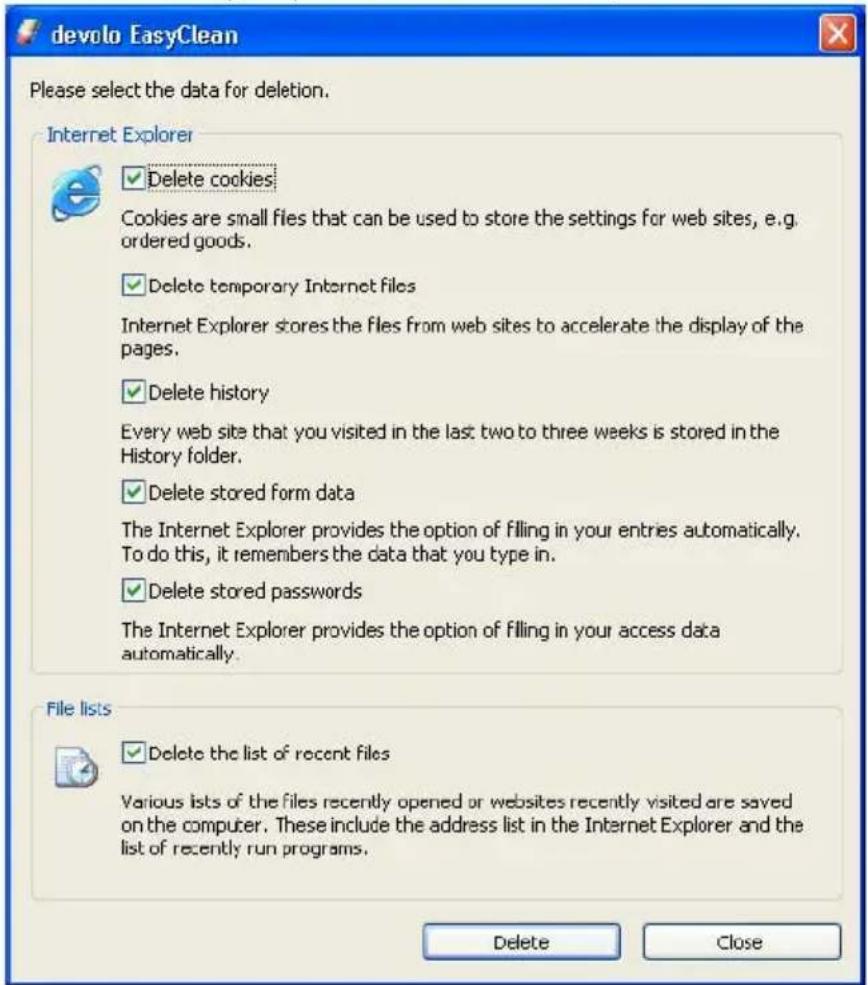
Microsoft Internet Explorer stores files in a cache on your hard drive while you surf the Internet. With EasyClean, you can determine which of these unwanted files you would like to delete.
4.2 Installing the devolo dLAN software
①Put the enclosed devolo product CD in your CD-ROM drive.
② From the CD setup, select 'Install dLAN software'. Windows starts the wizard. Confirm by clicking Next.
③ Select 'Standard Installation' to install the complete devolo dLAN Software package. Then, click Next.

If you would like to choose the software components to be installed yourself, select 'Custom Installation'. Then, click Next.
④ Terminate the installation by clicking Finish.
⑤ After the installation has been completed successfully, start the devolo tools by clicking Start ▶ Programs ▶ devolo ▶ dLAN configuration wizard, EasyShare, Informer or EasyClean.
4.3 Configuration of the dLAN network using the dLAN configuration wizard

Please have the previously noted dLAN adapters security IDs ready. The dLAN configuration wizard requires them for configuration of the network. You will find the security ID on the bottom of the device.
① Start the dLAN configuration wizard under Start ▶ Programs ▶ devolo ▶ dLAN configuration wizard.
② Confirm with Next. The dLAN configuration wizard starts the network analysis and searches for dLAN adapters on your network.

Make sure that all of the dLAN adapters that you want to add to your network are also connected to the power supply grid. If no active device is connected to the Ethernet or USB port, a dLAN adapter will go into standby mode after about 15 minutes. It cannot be configured while in standby mode.
③ In the following dialog box select a common password for your dLAN network and confirm your input with Next.
The password set up initially by devolo is HomePlug.
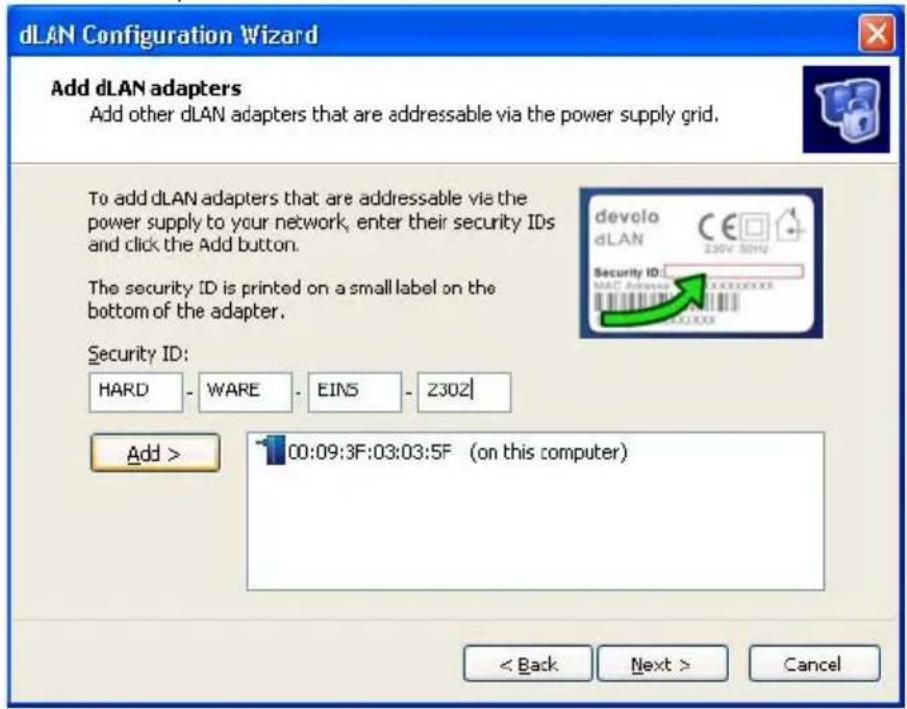
④ The dLAN adapters connected directly to your computer is detected automatically. All other dLAN adapters have to be entered manually. Enter in sequence the security IDs of the dLAN adapters that are to be included into a network and click Add. Click Next when you have entered all desired dLAN adapters.
text_image
dLAN Configuration Wizard Add dLAN adapters Add other dLAN adapters that are addressable via the power supply grid. To add dLAN adapters that are addressable via the power supply to your network, enter their security IDs and click the Add button. The security ID is printed on a small label on the bottom of the adapter. Security ID: HARD - WARE - EINS - Z302 | Add > 00:09:3F:03:03:5F (on this computer) < Back Next > Cancel⑤ Exit securing your network by clicking Finish. Your dLAN network is now secure against unauthorized access from outside.
The configuration of the dLAN network can be changed or updated at any time. To do this repeat the configuration process as described above.
4.4 Overview in the dLAN network with the Informer
Due to the Informer you always have an overview of all dLAN adapters in your dLAN network. The Informer shows the dLAN adapter connected directly to the computer as well as all dLAN adapters that are included into the same dLAN network.
text_image
devolo Informer Device View Help dLAN MAC address: 00:09:3F:03:07:50The Informer displays information about all dLAN devices in your network, such as their MAC addresses for dLAN and current transfer speeds. Via Device ▶ Rename you can change the name of the selected device.
Right-clicking on one of the dLAN adapters opens a context menu in which the following commands are available:
- 'Rename' opens a dialog in which you can assign a new name to the device.
- 'Start dLAN configuration wizard' opens a dialog in which you can add new dLAN adapters to the dLAN network and assign the network password.

Informer displays only those dLAN adapters that are connected to the power supply and added to your dLAN network. After about 15 minutes, a dLAN adapter switches into stand-by mode unless there is an active device connected to the Ethernet or USB interface. dLAN adapters in stand-by mode are not shown in Informer.
4.5 Communication in the network using EasyShare
All users on the local network who have started EasyShare are automatically recognized by the program and listed:
text_image
devolo EasyShare File Tools Help Editorial office Manuals Marketing Product information Projects Name Size datasheet_devolo_dian_duo_en.pdf 16.00 MB Chat Editorial office: The manuals released. It could be downloaded. Marketing: Ok, thanks. Send Data transfer in process Name Status Host datasheet_devolo_dian_duo_en.pdf Finished Marketing4.5.1 Configuration
The EasyShare software provides two easy wizards, which will guide you quickly and easily through the configuration process: the first setup wizard, which starts automatically the first time the program is started, and the sharing wizard, which allows you to add shared items at any time. The individual functions of the EasyShare software are described here:
Folder sharing
To share data with others, a EasyShare network user has to make the data available in a shared folder. When a folder is shared, all of its files as well as the files of all its subdirectories become available to all users on the EasyShare network. Folders can be shared either by using the initial setup wizard, which opens automatically the first time the EasyShare is started, or by using the sharing wizard. You can open the sharing wizard by clicking the Add share button, or by selecting File ▶ Add share from the menu.


Options
Every computer has a name. When EasyShare is first installed, you can assign a new name to your computer or use the default name suggested by the operating system. Your computer is visible by this name to all EasyShare users.
The computer name can be changed at any time by clicking the Options button or by selecting Tools ▶ Options from the menu.
Refreshing shared folders
To view (newly) shared folders of other EasyShare network users, select File ▶ Refresh from the menu, or Refresh from the context menu (right mouse button). The contents of all shared folders will appear in the top right-hand window.
Downloading files
To download shared files from other EasyShare network users, select the computer belonging to the user and then mark the shared folder for that user. The upper-right window then lists all the contents of the folder. From the list, mark the files and/or folders that you want to download and then select File ▶
Download from the menu, or Download from the context menu (right mouse button). Choose a target folder on your computer and confirm by clicking OK. The files are now downloaded to your computer. The status of the download is displayed in the lower-right window entitled 'Data transfer in process'.
Data transfer in process
All 'Data transfer in process' are displayed in the lower right window and disappear from the screen once they are finished.
The 'Name' column indicates the name of the file being downloaded.
- The 'Status' column shows the current transfer progress and the transfer speed.
The 'Host' column shows the computer from which the file is being downloaded, or to which it is being uploaded from your computer.
You can cancel the current download by clicking the file and selecting Cancel from the context menu (right mouse button).
Chatting
The lower left window functions as a chat room, which is visible and accessible to all EasyShare users on the local network. Users can "chat" by writing messages and clicking Send.
4.6 Maintain your privacy with EasyClean
With EasyClean, you can delete the cached files listed below. Select the checkboxes of the file types you would like to remove, then click Delete.
text_image
devolo EasyClean Please select the data for deletion. Internet Explorer Delete cookies Cookies are small files that can be used to store the settings for web sites, e.g. ordered goods. Delete temporary Internet files Internet Explorer stores the files from web sites to accelerate the display of the pages. Delete history Every web site that you visited in the last two to three weeks is stored in the History folder. Delete stored form data The Internet Explorer provides the option of filling in your entries automatically. To do this, it remembers the data that you type in. Delete stored passwords The Internet Explorer provides the option of filling in your access data automatically. File lists Delete the list of recent files Various lists of the files recently opened or websites recently visited are saved on the computer. These include the address list in the Internet Explorer and the list of recently run programs. Delete Close- Cookies—Many websites store small files on your computer, so-called cookies. These files may contain personal information such as log-in data, passwords or credit card numbers.
-
Temporary Internet files—Temporary files are stored on your hard drive while you surf the Net. Over time, these files take up a considerable amount of space.
-
History files—Internet Explorer records your surfing activity over a period of days or weeks. This can be practical, but it also takes up space and can be undesirable in many cases.
- Stored form information—Internet Explorer stores information that you enter in forms and can auto-complete this information in the future.
- Stored passwords—Passwords can also be stored and automatically inserted together with usernames in subsequent log-in procedures. While this is convenient, it's also dangerous—especially in connection with bank transactions. Sensitive information such as this should only be stored locally in special programs designed for this purpose.
- Document history—Internet Explorer maintains lists of open documents and visited websites. This information is generally no longer needed.

Please note that EasyClean only supports Microsoft Internet Explorer.
5 Appendix
5.1 Technical data
This table has detailed information for those interested.
| dLAN duo | |
| Standards | Ethernet specification IEEE 802.3, IEEE 802.3x, IEEE 802.3uAuto MDI/Xcompatible to USB specification, Rev. 1.1compatible to HomePlug standard 1.1 |
| Protocols CSMA/CD | |
| Trabsfer rate 14 Mbps | |
| Transfer procedure Asynchronous | |
| Modulation OFDM—84 carrier | |
| Range Up to 200 m via power supply | |
| Security DESpro encryption via power supply | |
| LEDs 3 ports (Link/Act 10 Ethernet, Link/Act 100 Ethernet, USB)3 HomePlug status (Power, Act, Link) | |
| dLAN connection Standard power plug | |
| Computer interface RJ45 or USB | |
| Power consumption 3.3 VA (max.) | |
| Power supply | Integrated power supply via power socketRated voltage: 110 - 230 VACRated current: 0.13 ARated frequency: 50 Hz |
| Environment Humidity (non-condensing): 10-90%Storage: -25°C – 70°COperation: 0°C – 40°C | |
| System requirements | Ethernet or USB interfaceWindows 98, Windows Me, Windows 2000, Windows XP,Linux, Mac OS X (only for Ethernet connection) or any other operating system with network support |
| CE conformity | CE-compliant in accordance with the technical requirements of R&TTE for all EU countries and Switzerland |
| Design | Plastic housing80 x 63 x 37 mm (height x width x depth) |
| Warranty | 3 years |
5.2 Device care and maintenance
There are no user-serviceable parts within the housing of the device. Never open the housing.
To clean the device housing of soil, use a damp cloth or a lens-cleaning towel. Never clean the dLAN duo using water, thinner, benzene, alcohol or any sharp cleaning aids, as these materials can damage the housing.
5.3 CE conformity

This product complies with the technical requirements of the 1999/5/EC Directive (R&TTE) and the other relevant provisions of the FTEG, and it is designed for use in the EU and Switzerland.
The product is class A equipment. This equipment may cause interference with radio waves in home use; if this occurs the operator may be required to take corrective action.
5.4 Declaration of conformity
CE
ECDECLARATIONOFCONFORMITY
DieFirma:devoloAG
TheCompany:
Sonnenweg11
52070Aachen
declaresthattheproduct:
®duo
complies with the appropriate essential requirements of the FTEG (Article 3 of R&TTE) and the other relevant provisions.
Harmonisedstandards: Protectionrequirements with respect to EMC§3(1)2, (Article3(1)b)
EN55024:1998+A1:2001+A2:2003
EN55022:1998+A1:2000+A2:2003(classA)andExpertOpinionby
CompetentBodyEMC(CE0682)
This declaration is submitted by:
Aachen,16.März2005
Aachen,16 ^th March2005
HeikoHarbers
5.5 Warranty conditions
The devolo AG warranty is given to purchasers of devolo products in addition to the warranty conditions provided by law and in accordance with the following conditions:
1 Warranty coverage
a) The warranty covers the equipment delivered and all its parts. Parts will, at devolo's sole discretion, be replaced or repaired free of charge if, despite proven proper handling and adherence to the operating instructions, these parts became defective due to fabrication and/or material defects. Alternatively, devolo reserves the right to replace the defective product with a comparable product with the same specifications and features. Operating manuals and possibly supplied software are excluded from the warranty.
b) Material and service charges shall be covered by devolo, but not shipping and handling costs involved in transport from the buyer to the service station and/or to devolo.
c) Replaced parts become property of devolo.
d) devolo is authorized to carry out technical changes (e.g. firmware updates) beyond repair and replacement of defective parts in order to bring the equipment up to the current technical state. This does not result in any additional charge for the customer. A legal claim to this service does not exist.
2 Warranty period
The warranty period for this devolo product is three years. This period begins at the day of delivery from the devolo dealer. Warranty services carried out by devolo do not result in an extension of the warranty period nor do they initiate a new warranty period. The warranty period for installed replacement parts ends with the warranty period of the device as a whole.
3 Warranty procedure
a) If defects appear during the warranty period, the warranty claims must be made immediately, at the latest within a period of 7 days.
b) In the case of any externally visible damage arising from transport (e.g. damage to the housing), the person carrying out the transportation and the sender should be informed immediately. On discovery of damage which is not externally visible, the transport company and the sender are to be immediately informed in writing, at the latest within 3 days of delivery.
c) Transport to and from the location where the warranty claim is accepted and/or the repaired device is exchanged, is at the purchaser's own risk and cost.
d) Warranty claims are only valid if a copy of the original purchase receipt is returned with the device. devolo reserves the right to require the submission of the original purchase receipt.
4 Suspension of the warranty
All warranty claims will be deemed invalid
a) if the label with the serial number has been removed from the device,
b) if the device is damaged or destroyed as a result of acts of nature or by environmental influences (moisture, electric shock, dust, etc.),
c) if the device was stored or operated under conditions not in compliance with the technical specifications,
d) if the damage occurred due to incorrect handling, especially to non-observance of the system description and the operating instructions,
e) if the device was opened, repaired or modified by persons not contracted by devolo,
f) if the device shows any kind of mechanical damage, or
g) if the warranty claim has not been reported in accordance with 3a) or 3b).
50 operating mistakes
If it becomes apparent that the reported malfunction of the device has been caused by unsuitable hardware, software, installation or operation, devolo reserves the right to charge the purchaser for the resulting testing costs.
6 Additional regulations
a) The above conditions define the complete scope of devolo's legal liability.
b) The warranty gives no entitlement to additional claims, such as any refund in full or in part. Compensation claims, regardless of the legal basis, are excluded. This does not apply if e.g. injury to persons or damage to private property are specifically covered by the product liability law, or in cases of intentional act or culpable negligence.
c) Claims for compensation of lost profits, indirect or consequential detriments, are excluded.
d) devolo is not liable for lost data or retrieval of lost data in cases of slight and ordinary negligence.
e) In the case that the intentional or culpable negligence of devolo employees has caused a loss of data, devolo will be liable for those costs typical to the recovery of data where periodic security data back-ups have been made.
f) The warranty is valid only for the first purchaser and is not transferable.
g) The court of jurisdiction is located in Aachen, Germany in the case that the purchaser is a merchant. If the purchaser does not have a court of jurisdiction in the Federal Republic of Germany or if he moves his domicile out of Germany after conclusion of the contract, devolo's court of jurisdiction applies. This is also applicable if the purchaser's domicile is not known at the time of institution of proceedings.
h) The law of the Federal Republic of Germany is applicable. The UN commercial law does not apply to dealings between devolo and the purchaser.