DS6400-105-012 - Barcode Reader DATALOGIC - Free user manual and instructions
Find the device manual for free DS6400-105-012 DATALOGIC in PDF.


User questions about DS6400-105-012 DATALOGIC
0 question about this device. Answer the ones you know or ask your own.
Ask a new question about this device
Download the instructions for your Barcode Reader in PDF format for free! Find your manual DS6400-105-012 - DATALOGIC and take your electronic device back in hand. On this page are published all the documents necessary for the use of your device. DS6400-105-012 by DATALOGIC.
USER MANUAL DS6400-105-012 DATALOGIC
natural_image
Exterior view of a gray and black industrial device with a transparent glass opening (no visible text or symbols)Reference Manual
DATALOGIC
Datalogic Automation Srl
Via Lavino, 265
40050 - Monte S. Pietro
Bologna - Italy
© 2003 – 2012 Datalogic Automation S.r.l. ♦ ALL RIGHTS RESERVED. ♦ Protected to the fullest extent under U.S. and international laws. Copying, or altering of this document is prohibited without express written consent from Datalogic Automation S.r.l.
Datalogic and the Datalogic logo are registered trademarks of Datalogic S.p.A. in many countries, including the U.S.A. and the E.U.
Genius, PackTrack, Step-a-Head, FLASH, ACR, and ID-NET are trademarks of Datalogic Automation S.r.l. All other brand and product names mentioned herein are for identification purposes only and may be trademarks or registered trademarks of their respective owners.
Datalogic shall not be liable for technical or editorial errors or omissions contained herein, nor for incidental or consequential damages resulting from the use of this material.
REFERENCES ...... vi
Reference Documentation......vi
Services and Support ...... vi
Patents......vi
COMPLIANCE......vii
Electrical Safety....vii
Laser Safety......vii
Power Supply......viii
CE Compliance ix
FCC Compliance ix
GENERAL VIEW....x
GUIDE TO INSTALLATION....xiv
Point-to-Point Installation....xiv
Master/Slave Lonworks Installation ...... xv
1 INTRODUCTION .... 1
1.1 Product Description .... 1
1.2 Applications 2
1.3 Model Description....3
1.4 Oscillating Mirror Models 4
1.5 Indicators 6
1.6 Keypad and Display....6
1.6.1 Internal Net 7
1.6.2 Test Mode....7
1.6.3 PackTrack (Auto) 8
1.7 Auto PackTrack™ Calibration for Reading Station Using Scanner Menu 9
1.7.1 Auto PackTrack Conditions and Limits 9
1.7.2 Auto PackTrack Parameter Descriptions....10
1.7.3 Auto PackTrack Setup....11
1.8 Accessories 14
2 INSTALLATION 16
2.1 Package Contents 16
2.2 Mechanical Mounting....17
2.2.1 Mounting the Scanner....17
2.2.2 Mounting the Scanner with Accessories....20
2.3 Positioning the Scanner....22
2.3.1 16° Skew Positioning....23
2.3.2 45° Skew Positioning....24
3 CBX ELECTRICAL CONNECTIONS....25
3.1 Power Supply....27
3.2 Main Serial Interface....27
3.2.1 RS232 Interface....28
3.2.2 RS485 Full-Duplex Interface....29
3.2.3 RS485 Half-Duplex Interface 30
3.3 Auxiliary RS232 Interface 32
3.4 Inputs....33
3.4.1 Code Verifier....37
3.5 Outputs 37
3.6 User Interface - Host....40
4 CUSTOM CABLE ELECTRICAL CONNECTIONS 41
4.1 Power Supply....43
4.2 Main Serial Interface....43
4.2.1 RS232 Interface 44
4.2.2 RS485 Full-Duplex Interface....45
4.2.3 RS485 Half-Duplex Interface 46
4.3 Auxiliary Interface 48
4.4 Inputs....48
4.4.1 Code Verifier....51
4.5 Outputs 51
4.6 User Interface 53
5 LONWORKS CONNECTIONS....54
5.1 Network Termination....55
5.2 Lonworks Interface .... 55
6 FIELDBUS CONNECTIONS ....58
6.1 Ethernet Interface 58
6.2 Ethernet Interface (older models) 59
6.3 DeviceNet Interface 61
6.4 Profibus Interface....62
7 TYPICAL LAYOUTS 63
7.1 Local Lonworks Network....63
7.1.1 Small Synchronized Network....64
7.1.2 Multidata Network....66
7.1.3 Fieldbus Networks 67
8 SOFTWARE CONFIGURATION....69
8.1 Genius™ Installation....69
8.2 Guide to Rapid Configuration 69
8.2.1 Wizard for Quick Reader Setup....69
8.2.2 Genius™ Network Setup Through Master....72
8.2.3 Alternative Slave Address Assignment....77
8.3 Advanced Genius™ Configuration 77
8.3.1 Genius™ Shortcuts for Network Configuration....78
8.4 Parameter Default Values....80
9 READING FEATURES....84
9.1 DS6400 FLASH™ Dynamic Focus 84
9.1.1 Fixed Mode 84
9.1.2 Continuous Mode....84
9.1.3 Triggered Mode 85
9.1.4 D-FLASH™ Mode 85
9.2 Advanced Code Reconstruction (ACR™ 4)......86
9.2.1 Tilt Angle for Advanced Code Reconstruction....86
9.3 PackTrack™ 87
9.3.1 Auto PackTrack™ Calibration for Reading Station Using DLAPC....89
9.3.2 Manual PackTrack™ Calibration for DS6400 Scanner Using SPY 96
9.3.3 PackTrack™ Calibration for DS6400 Oscillating Mirror Models 99
9.4 Performance 100
9.4.1 Reading Conditions 100
9.5 Reading Diagrams....102
9.5.1 DS6400 Standard Model 103
9.5.2 DS6400 Oscillating Mirror Model 113
10 MAINTENANCE 123
10.1 Cleaning....123
10.2 External Memory Backup & Restore....123
10.3 Automatic Scanner Replacement (ASR) 123
10.3.1 ASR Network Configuration....124
10.3.2 Scanner Replacement Procedure.... 124
11 TROUBLESHOOTING 125
12 TECHNICAL FEATURES....128
A ALTERNATIVE LAYOUTS 130
Point-to-Point 130
ID-NET™ Gateway 132
Pass Through 133
RS232 Master/Slave 134
Multiplexer 136
GLOSSARY....137
INDEX....140
REFERENCE DOCUMENTATION
The documentation related to the DS6400 management is listed below:
• CBX100/CBX500 Installation Manuals
- PWR series power supply unit Installation Manuals
- Document about the Ethernet connectivity
- Document about the Profibus connectivity
• ID-NET™ Fixed Baudrate Application Note
• GFC-60 90° deflecting mirror
• GFC-600 90° deg. mirror close distance
• Help On-Line in PDF format
SERVICES AND SUPPORT
Datalogic provides several services as well as technical support through its website. Log on to www.automation.datalogic.com and click on the links indicated for further information:
- PRODUCTS
Search through the links to arrive at your product page which describes specific Info, Features, Applications, Models, Accessories, and Downloads including the Genius™ utility program, which allows device configuration using a PC. It provides RS232 and Ethernet interface configuration.
- SERVICE
- Overview - Warranty Extensions and Maintenance Agreements
- Sales Network Listing of Subsidiaries, Repair Centers, Partners
- Helpdesk
- Material Return Authorization
PATENTS
This product is covered by one or more of the following patents:
U.S. patents: Re. 36,251; 5,992,740; 6,049,406; 6,347,740 B1; 6,394,352 B1; 6,443,360 B1; 6,629,639 B2; 6,742,710 B2; 7,161,685 B1; 7,195,162 B2.
European patents: 652,530 B1; 786,734 B1; 789,315 B1; 851,376 B1; 959,426 B9; 1,300,798 B1; 1,217,571 B1; 1,363,228 B1; 1.607,901 B1.
Japanese patents: 3,793,585 B2; 4,033,958 B2; 4,129,302 B2; 4,376,353 B2; 4,451,592 B2.
ELECTRICAL SAFETY
This product conforms to the applicable requirements contained in the European Standard for electrical safety EN-60950 at the date of manufacture.

WARNING
This symbol refers to operations that must be performed by qualified personnel only. Example: opening the device.
LASER SAFETY
The following information is provided to comply with the rules imposed by international authorities and refers to the correct use of the DS6400 scanner.
Standard Regulations
This scanner utilizes a low-power laser diode. Although staring directly at the laser beam momentarily causes no known biological damage, avoid staring at the beam as one would with any very strong light source, such as the sun.
Avoid that the laser beam hits the eye of an observer, even through reflective surfaces such as mirrors, etc.
This product conforms to the applicable requirements of both EN60825-1 and CDRH 21 CFR1040 at the date of manufacture. The reader is classified as a Class 2 laser product according to EN60825-1 regulations and as a Class II laser product according to CDRH regulations.
There is a safety device, which allows the laser to be switched on only if the motor is rotating above the threshold for its correct scanning speed.

WARNING
Use of controls or adjustments or performance of procedures other than those specified herein may result in exposure to hazardous visible laser light.
The laser light is visible to the human eye and is emitted from the window on the head of the scanner (Figure A).
Warning labels indicating exposure to laser light and the device classification are applied onto the body of the scanner (Figure A):

text_image
AVOID EXPOSURE LASER RADIATION IS EMITTED FROM THIS APERTURE
Laser Safety Label for Oscillating Mirror and Standard Models

text_image
US pat. Re. 36,251; 5,992,740; 6,049,406; 6,347,740 B1; 6,394,352 B1; 6,443,360 B1; 6,629,639 B2; 6,742,710 B2; 7,161,685 B1; 7,195,162 B2. Ep pat. 652,530 B1; 786,734 B1; 789,315 B1; 851,376 B1; 959,426 B9; 1,300,798B1; 1,217,571B1; 1,363,228 B1; 1,607,901 B1. Jp pat. 3,793,585 B2; 4,033,958 B2; 4,129,302 B2; 4,376,353 B2; 4,451,592 B2. CAUTION-CLASS 3B LASER LIGHT WHEN OPEN AVOID EXPOSURE TO BEAM LASER LIGHT - DO NOT STARE INTO BEAM CLASS 2 LASER PRODUCT MAX. OUTPUT RADIATION 1 mW EMITTED WAVE LENGTH 630~680 nm EN60825-1:2001 DATALOGIC DS6400Warning and Device Class Label
The identification label is applied onto the bottom part of the scanner (Figure A, 2):

text_image
DATALOGIC AUTOMATION S.r.l. - Via Lavino, 265 40050 Monte San Pietro (BO) ITALY MANUFACTURED VOLT Amp. JANUARY 2005 15-30 DC 1.5-0.7 MODEL No. N2468 SERIAL No. CE This product conforms to the applicable requirements of 21CFR 1040 at the date of manufacture.Device Identification Label
Disconnect the power supply when opening the device during maintenance or installation to avoid exposure to hazardous laser light.
The laser diodes used in this device are classified as Class 3B laser products according to EN 60825-1 regulations and as Class IIIb laser products according to CDRH regulations. Any violation of the optic parts in particular can cause radiation up to the maximum level of the laser diode (35 mW at 630\~680 nm).
POWER SUPPLY
This product is intended to be installed by Qualified Personnel only.
This device is intended to be supplied by a UL Listed Power Unit marked "Class 2" or LPS power source, which supplies power directly to the scanner via the 25/26-pin connector.
This scanner must be supplied by a Class II Power Supply Unit conforming to the EN 60950 safety regulation.
CE COMPLIANCE
Warning:
This is a Class A product. In a domestic environment this product may cause radio interference in which case the user may be required to take adequate measures.
FCC COMPLIANCE
Modifications or changes to this equipment without the expressed written approval of Datalogic could void the authority to use the equipment.
This device complies with PART 15 of the FCC Rules. Operation is subject to the following two conditions: (1) This device may not cause harmful interference, and (2) this device must accept any interference received, including interference which may cause undesired operation.
This equipment has been tested and found to comply with the limits for a Class A digital device, pursuant to part 15 of the FCC Rules. These limits are designed to provide reasonable protection against harmful interference when the equipment is operated in a commercial environment. This equipment generates, uses, and can radiate radio frequency energy and, if not installed and used in accordance with the instruction manual, may cause harmful interference to radio communications. Operation of this equipment in a residential area is likely to cause harmful interference in which case the user will be required to correct the interference at his own expense.

text_image
DS6400 ⑦ ① ② ③ ④ ⑤ ⑥ DS6400 DAJALOGX DAJALOGX DAJALOGX DAJALOGX DAJALOGX DAJALOGX DAJALOGX DAJALOGX DAJALOGX DAJALOGX DAJALOGX DAJALOGX DAJALOGX DAJALOGX DAJALOGX DAJALOGX DAJALOGX DAJAJOGX DAJAJOGX DAJAJOGX DAJAJOGX DAJAJOGX DAJAJOGX DAJAJOGX DAJAJOGX DAJAJOGX DAJAJOGX DAJAJOGX DAJAJOGX DAJAJOGX DAJAJOGX DAJAJOGX DAJAJOGX DAJAJOGX DARAGG DARAGG DARAGG DARAGG DARAGG DARAGG DARAGG DARAGG DARAGG DARAGG DARAGG DARAGG DARAGG DARAGG DARAGG DARAGGFigure A - DS6400
① Laser Safety Label
② Identification Label
③ Warning and Device Class Label
④ Service Cap
⑤ Connector Panel
⑥ Display and Keypad Panel
⑦ Laser Beam Output Window
DS6400

text_image
Diagram of an electronic device with labeled parts, showing front panel and side connectorsFigure B - DS6400 Oscillating Mirror Version
① Laser Safety Label
② Laser Beam Output Window

text_image
DATALOGIC ⑤ POWER ON PHASE ON TX DATA ① ENT A V ④ ③ ②Figure C – Display and Keypad Panel
① Programming Keypad
② TX Data LED
③ Phase On LED
④ Power On LED
⑤ LCD Display

text_image
Diagram of an electronic device rear panel with labeled ports and connectors, showing internal components like D-sub interface and two labeled ports.Figure D – Connector Panel for Master/Slave Models
① Main/Aux. Interface 25-pin D-Sub male connector
② Lonworks 9-pin male connector
③ Lonworks 9-pin female connector

text_image
Diagram of an electronic device rear panel with labeled components including VGA, DNA port, and hexagonal connectorFigure E – Connector Panel for Ethernet Models
① Main/Aux. Interface 26-pin D-Sub male connector
② Ethernet 4-pin female connector
③ Lonworks 9-pin female connector

text_image
Labeled diagram of an electronic device rear panel showing ports, connectors, and a port with arrows indicating connection points.Figure F – Connector Panel for (older) Ethernet Models
① Main/Aux. Interface 26-pin D-Sub male connector
② RJ45 modular connector for Ethernet Interface ③ Lonworks 9-pin female connector

natural_image
Close-up of a computer monitor rear panel showing VGA, D-sub, and central port with labeled pins (no text or symbols beyond labels)Figure F – Connector Panel for DeviceNet Models
① Main/Aux. Interface 26-pin D-Sub male connector
② DeviceNet 5-pin male connector
③ Lonworks 9-pin female connector

text_image
Labeled diagram of an electronic device rear panel showing VGA, D-sub, and port connectors with numbered annotations.Figure G - Connector Panel for Profibus Models
① Main/Aux. Interface 26-pin D-Sub male connector
② Profibus 9-pin female connector (white)
③ Lonworks 9-pin female connector
POINT-TO-POINT INSTALLATION
The following can be used as a checklist to verify all the necessary steps to complete installation of the DS6400 scanner.
1) Read all information in the section "Compliance" at the beginning of this manual.
2) Correctly mount the scanner using the bracket provided according to the information in par. 2.2 and position it at the correct reading distance according to your model as shown in par. 2.3 and par. 9.5.
3) Make electrical connections to your DS6400 scanner by:
a) Connecting the DS6400 scanner to the CBX100/CBX500 by means of one of the CAB-Sxx (or CAB-F0x depending on the model) cables provided as an accessory (see par. 1.8).
b) Providing correct and complete system cabling through the CBX100/CBX500 according to the signals necessary for the layout of your application (trigger, inputs, outputs).
- Cabling: Power, Interface, Inputs, Outputs, etc. For further details, see chapter 3 (chapter 4 for custom cabling).
- Alternative Layouts: Point-to-Point, Pass Through, RS232 Master/Slave, Multiplexer. See appendix A for layout references.
4) Configure the DS6400 scanner by installing and running the Genius™ configuration program from the CD-ROM provided. See chapter 8 and the Help On-Line for details. The main steps are:
- Select the codes to be read
- Set-up the communication parameters
- When PackTrack™ is required, set the PS Offset and Position parameters
- Define data formatting parameters

NOTE
Fine tuning of the scanner position for barcode reading can be accomplished by performing a test through the SPY configuration tool in Genius™.
5) Exit the configuration program and run your application.
The installation is now complete.
MASTER/SLAVE LONWORKS INSTALLATION
The following can be used as a checklist to verify all the steps necessary to complete installation of the DS6400 scanner in a Master/Slave Lonworks network.
1) Read all information in the section "Compliance" at the beginning of this manual.
2) Correctly mount the scanner using the bracket provided according to the information in par. 2.2 and position it at the correct reading distance according to your model as shown in par. 9.5.
3) Make electrical connections to your DS6400 scanner by:
a) Connecting the DS6400 Master scanner to the CBX100/CBX500 by means of one of the CAB-Sxx (or CAB-F0x depending on the model) cables provided as an accessory (see par. 1.8).
b) Correctly terminating the DS6400 Master reader according to the information given in par. 5.1 and par. 7.1.
c) Completing the system wiring adding as many slave scanners as required by your system layout (refer to par. 7.1).
d) Correctly terminating the last DS6400 Slave reader of the network according to the information given in par. 5.1 and par. 7.1.
4) Install and run the Genius™ configuration program from the CD-ROM provided. Configure the Local Lonworks Network using one of the procedures given below:
- Configure the entire network through the Master as described in par. 8.2.2;
- Configure the Master as described in par. 8.2.2 and locally define each slave scanner address as described in par. 8.2.3.
- Define each scanner, master and slaves (with their addresses), by using the scanner keypad according to the information given in par. 1.6.1.
5) Configure the Master scanner through the Genius™ program. The main steps are:
- Select the codes to be read
- Set-up the communication parameters
- When PackTrack™ is required, perform PackTrack™ calibration, see par. 9.3.1.
- Define data formatting parameters
6) Configure each Slave scanner through the Master scanner using Genius™. The main steps are:
- Select the codes to be read
- When PackTrack™ is required, perform PackTrack™ calibration, see par. 9.3.1.

NOTE
Fine tuning of the scanner position for barcode reading can be accomplished by performing a test through the SPY configuration tool in Genius™.
7) Send the configuration to the Master.
8) Perform the External Memory Backup Procedure for system backup purposes (see par. 10.2). For backward compatibility you can perform the ASR Network Configuration procedure for system backup purposes (see par. 10.3.1).
9) Exit the configuration program and run your application.
The installation is now complete.
1 INTRODUCTION
1.1 PRODUCT DESCRIPTION
The DS6400 is a high performance laser scanner in a complete range of industrial bar code readers offering an innovative and modular solution in terms of reading performance, connectivity and maintenance, in addition to a completely new hardware and software platform.
The DS6400 has been specifically designed for simple installation, easy use and flexibility. An innovative mechanical design together with the Datalogic patented Step-a-Head ^TM feature make it possible to rotate the reader head and the decoder base independently from each other. Step-a-Head ^TM enables the DS6400 to always be installed in the ideal position, by modifying the orientation of the connector panel while leaving the laser window in the desired position. The need for space is minimized and installation is easier.
The DS6400 has an innovative linear motor designed to control the focus position of the scanner via software. This dynamic system, called FLASH ^TM , is able to move the focus position rail to rail, from the minimum position to the maximum position, in less than 10 msec. In typical applications, where a DOF <1 meter is required, the focus position is adjusted in 4 msec.
The DS6400 can read all most popular barcodes even in the most difficult conditions, thanks to a new generation decoder and code reconstruction technology (ACR ^™ 4).
This reader is also offered in a model with an integrated SW programmable oscillating mirror.
Great attention has been given to built-in connectivity for market standards. A Local Lonworks network for scanner connectivity (all versions), and a Fieldbus network (Ethernet, DeviceNet, or Profibus) for host connectivity (dedicated versions) have been integrated in the decoder base.
Some of the main features of DS6400 are listed below:
• scanning speed up to 1200 scans/sec;
• 2 serial communication interfaces
- reading all popular codes;
• supply voltage from 15 to 30 Vdc;
• electrical connection through connectors;
- high speed Lonworks connectivity for Master/Slave layout;
- Fieldbus models (Ethernet, Profibus) with built-in connectivity;
- programmable in several different operating modes to suit the most various barcode reading system requirements;
- light source: solid state laser diode; the light emitted has a wavelength between 630\~680nm.
- IP64 protection class of the enclosure (IP50 for older RJ45 Ethernet models).
1.2 APPLICATIONS
The DS6400 barcode reader is specifically designed for industrial applications and for all cases requiring high reading performance such as:
• code reconstruction
- reading of codes covered by plastic film
- reading of codes with a wide depth of field
- reading of high resolution codes positioned at long distances from the reader
• code reading on fast moving objects
DS6400 is designed for both single-reader layouts and multi-reader layouts. For typical layouts see chapter 7 and appendix A.
| Feature | Benefit |
| ACRTM | Advanced Code Reconstruction technology allows the reading of low aspect ratio labels placed anywhere on a parcel and enhances the readability of poorly printed or damaged codes. |
| PackTrackTM | PackTrackTM is a Datalogic patented parcel tracking system which improves the reading features in omnidirectional stations. In particular, PackTrackTM manages 6-sided reading systems when it is impossible to detect the real position of the code on the parcel, thus overcoming the need for external accessories essential in traditional tracking systems. |
| FLASHTM | A dynamic focus system controlled by software which is able to move the focus position from the absolute minimum position to the absolute maximum position, in less than 10 msec., typical applications can be adjusted in 4 msec. |
| Modular solution with separated head and base and Step-a-HeadTM feature | Possibility to select the combination of head and base that best fits the needs of the application.Great scalability of the offer.Down time cost reduction, since the decoder base works even if the head has been removed.Easy maintenance. In case of replacement of the head, all the configuration parameters are stored in the base, and the scanner is automatically configured.Easy installation with the minimum room needed. |
| Reading on pallets or large objects where a long reading distance / wide reading field are needed | DS6400 with FLASH TM dynamic focusing system. |
| Reading parcels on conveyors | DS6400 implements the PacktrackTM functionality which leads to an increase of the plant production as a result of the augmented system throughput. |
| Master working as a Multiplexer on high speed Lonworks bus | Great competitiveness of the offer, since the cost of an external multiplexer is saved;High data transfer on an industrial, reliable bus running at 1,2 Mbit/sec. |
| GeniusTM Configuration SW | Reduced learning time, with an easy wizard approach;Multilanguage platform;All the configuration parameters stored into the scanner;Not dependent on the Physical interface. |
| Energy Saving | A software parameter group which allows management of the energy saving feature. In particular, it allows turning on/off the motor and laser of all network scanners according to the selected digital input, encoder, or communication channel.The time required to restart the system is less than 1 minute independently from the number of scanners connected.It is suggested to use this parameter for example when the conveyor is stopped for a lengthy period. |
1.3 MODEL DESCRIPTION
The DS6400 scanner is available in versions that differ in regard to the following characteristics:
• Optical Model (Head)
- Decoder Model (Base)

flowchart
graph TD
    A["DS6400 - 10X - 0YY"] --> B["Optical Model (Head)"]
    A --> C["Decoder Model (Base)"]
    B --> D["0 = Standard"]
    B --> E["5 = Oscillating Mirror"]
    C --> F["10 = Master/Slave"]
    C --> G["11 = Profibus"]
    C --> H["12 = Ethernet"]
    C --> I["15 = Devicenet"]
1.4 OSCILLATING MIRROR MODELS
Oscillating mirror models are used when coverage of a large reading area is required, mainly in picket fence applications.
The DS6400 scanner mounts a dedicated optic head with integrated oscillating mirror driven by a linear motor. The speed, the precision, the repeatability, and the reliability of this driving technology assure high level performance.
The oscillating mirror is completely software controlled and software programmable. The Genius ^™ software tool allows adjusting the linear motor speed (oscillating frequency) and the upper and lower limits of the oscillation by defining the top and bottom line limit angles.
When the oscillating mirror is programmed to read barcode labels at very small angles, position the reader to assure at least 10^ for the Skew angle (see par. 2.3). This angle refers to the most inclined or external laser line, so that all other laser lines assure more than 10^ Skew. This avoids the direct reflection of the laser light emitted by the reader.

text_image
10°Figure 1 – Oscillating Mirror Skew Angle
Otherwise, the scanner can be mounted at an angle of inclination of 17.5^ in order to attain symmetrical deflection ranges.

text_image
17.5° 107.5°Figure 2 - Oscillating Mirror Reading Position
In the above case, the zone where the scan line is perpendicular to the reflecting surface corresponds to a neutral zone at the center of the reading field.
The mirror can be deflected up to 40^ . Oscillation with respect to the output window median axis is asymmetrical (see figure below).

text_image
40°
text_image
37.5° -2.5° 0°Figure 3 - Oscillating Mirror Maximum Aperture and Asymmetry
By configuring the oscillating speed up to the maximum value of 19 Hz, raster emulation can be performed for reading fast moving objects.
| Hz | Max. | Aperture |
| 0-5 | 40° | |
| 6-10 | 30° | |
| 11-15 | 20° | |
| 16-19 | 10° |

NOTE
By limiting the raster width to the minimum necessary, the number of scans on the reading surface is increased.
Oscillating angles are selected in software where the minimum and maximum angles correspond to -2.5^ and +37.5^ .
The scanner can be tilted in order for the 17.5^ software setting to correspond with the 0^ horizontal plane.

text_image
+37.5° +17.5° -2.5°Figure 4 - Oscillating Mirror Extreme Angle Positions
These models provide higher scanning speed (1200 scans/sec) compared to standard models and the reading performance is not adversely affected by the oscillating mirror.
The following example represents the selection of an angle of +10^ for the bottom line and an angle of +20^ for the top line (see figure below).

text_image
+37.5° +27.5° +17.5°Figure 5 - Oscillating Mode
Refer to chapter 2 for more information on scanner mounting and positioning.
1.5 INDICATORS
The DS6400 has three LEDs on the Display and Keypad panel. The indicators have the following functions:
POWER ON (red) Indicates the scanner is turned on.
PHASE ON (yellow) Indicates the external presence sensor is active.
TX DATA (green) Indicates data transmission on the main serial interface.
1.6 KEYPAD AND DISPLAY
The DS6400 keypad allows entering a menu for selection of one of the following functions:
- Welcome: shows the current software release and operating mode;
- Autolearn: starts the procedure making it possible to obtain an automatic, accurate and fast configuration of DS6400 without the necessity of directly checking/modifying the relevant parameters;
- Internal Net: defines scanner function within the local Lonworks network (see below);
- Ethernet Mode: allows setting the scanner IP address of the Master scanner to be used within the Host network;
• LCD Contrast: sets the LCD contrast; - Bus: allows setting the scanner address (value range 0-125) to be used in a Profibus network;
- Test Mode: allows verifying the scanner reading position and features (see below).
- PackTrack: allows setting the Auto PackTrack Calibration procedure (see below).
The same settings may be performed by using the Genius™ program (see chapter 8 for details).
1.6.1 Internal Net
This submenu can be used as an alternative to configuration through Genius ^™ , to assign the DS6400 scanner within a local Lonworks master/slave network.
It allows defining the scanner function (slave/master) within the Lonworks network and, if configured as Slave, its address.
To enter the Internal Net submenu and configure the scanner follow the given procedure:
1) Press and hold both the ▲ (up arrow) and ▼ (down arrow) keys for about 2 seconds to enter the Main menu;
2) Use the ▲ (up arrow) or ▼ (down arrow) key to select the "Internal Net" item, then press the ENT (enter) key to confirm;
3) Use the ▲ (up arrow) or ▼ (down arrow) key to select the "LonWAddrSel" item, then press the ENT (enter) key to confirm;
4) Use the ▲ (up arrow) or ▼ (down arrow) key to select your scanner function among "Master", "Slave n", "Slave jolly", "Disabled"; then, press the ENT (enter) key to confirm;
5) Use the ▲ (up arrow) or ▼ (down arrow) key to select the "Exit" item, then press the ENT (enter) key to confirm. Repeat this step again to exit the Main Menu and return to the scanner current operating mode.
1.6.2 Test Mode
Test Mode is particularly advised during the installation phase, since it causes the reader to be continuously activated allowing verification of its reading features and its reading position with respect to the barcode.
To enter the Test Mode submenu and configure the scanner follow the given procedure:
1) Press and hold both the ▲ (up arrow) and ▼ (down arrow) keys for about 2 seconds to enter the Main menu.
2) Use the ▲ (up arrow) or ▼ (down arrow) key to select the "Test Mode" item, then press the ENT (enter) key to confirm. The reader enters Test Mode.
3) Press the ▲ (up arrow) key to exit the Test Mode.
4) Use the ▲ (up arrow) and ▼ (down arrow) key to select the "Exit" item, then press the ENT (enter) key to confirm. The scanner exits the Main Menu and returns to its current operating mode.
1.6.3 PackTrack (Auto)
This submenu can be used to execute the Automatic PackTrack Calibration procedure for the Reading Station when the Master scanner is in PackTrack or Continuous Operating Modes. Performing this procedure through the Keypad/Display Menu is an alternative to Automatic PackTrack Calibration through the DLAPC tool in Genius ^™ , see Help On-Line.

NOTE
This scanner must first be configured as Master of the master/slave network (see par 1.6.1, "Internal Net" procedure).
To enter the PackTrack submenu and configure the scanner follow the given procedure:
1) Read Par 1.7.1 regarding Auto PackTrack Conditions and Limits.
2) Press and hold both the ▲ (up arrow) and ▼ (down arrow) keys for about 2 seconds to enter the Main menu;
3) Use the ▲ (up arrow) or ▼ (down arrow) key to select the "PackTrack" item, then press the ENT (enter) key to confirm;
4) Use the ▲ (up arrow) or ▼ (down arrow) key and the ENT (enter) key to select the items in the following table and set them according to your application. See par. 1.7.2 for details;
5) After all items are set, use the ▲ (up arrow) or ▼ (down arrow) key to select "Start"; then, press the ENT (enter) key to confirm. Follow the Procedure described in par. 1.7.3.
1.7.1 Auto PackTrack Conditions and Limits
The Conditions and Limits for Auto PackTrack Calibration are summarized here for convenience and are also integrated into the following procedure descriptions:
- The following scanners are supported by Auto PackTrack Calibration: DS6400 (*see note below), DX6400 (*see note below), DS8100A, DX8200A.
- Before performing the Auto PackTrack Calibration procedure, if a system reset or power reset is performed, wait for all the scanners to be available (up to 60 sec.) before proceeding.
- Operating Mode of the Master must be either PackTrack or Continuous.
- Code 128 codes must be enabled on the Master with Label Length set to variable.
- If the system Presence Sensor and Encoder are used, the correct Encoder Step value must be set on the Master and the Presence Sensor must be connected to the CBX100/500 Input 1.
- If instead the PPA-8000 Photocell Array is used, it must be connected to the CBX100/500 I1 and I2 inputs, the following parameters must be disabled on the Master: Physical Encoder for PackTrack or Use Encoder for Continuous, and the Encoder, if present, must be physically disconnected.
- DX scanners which are calibrated automatically cannot be automatically replaced by DX scanners with a previous sw version (earlier than 6.80). You must either update the old scanner software prior to substitution, or complete the calibration manually, after installation, by setting the PSOffset and Direction parameters.

NOTE
The autofocus feature of DS6400 and DX6400 scanners makes Auto PackTrack Calibration difficult, therefore to assure that the procedure can correctly calibrate these scanners, it is necessary to set a fixed focus value which allows the scanner to read all the label positions useful for its calibration.
1.7.2 Auto PackTrack Parameter Descriptions
| Menu | Branch | Default | Note |
| PackTrack | Automatic Packtrack Calibration procedure for the Reading Station | ||
| Version | 2 | Select the version number of the PCT-8000 pack | |
| Cal | XYType | XYZ calibration is forced. | |
| X | Absolute | Absolute X position is forced. | |
| X | Offset | Set the zero point of the X-axis (4 digits in mm) | |
| Sensor | 0 | Set the distance (3 digits in mm) between the photocells in the photocell array.If the system Presence Sensor and Encoder are used, set this parameter to 0. | |
| Start | Start the Auto PackTrack procedure | ||
| Z | Offset | Set a correction factor for the pack height (3 digits in mm) | |
The Auto PackTrack procedure when run from the scanner keypad, requires a system reset before the calibration is recognized. See the Auto PackTrack Setup procedure.
Version: the version of the PCT-8000 being used for calibration. This value can be read from the barcode labels on the PCT-8000. Each label has the value vnnn where v is the version number.
Cal Type: the XYZ calibration is forced. The coordinates for the three axes are calibrated.

NOTE
For Oscillating Mirror models the scan line must be parallel to the conveyor direction and only the Y calibration will be performed, (the X and Z axes will automatically be set to zero).
X Cal: the Absolute X position is forced. The X coordinate for all scanners is relative to the precise point (PackTrack Reference Point X, Y, Z = 0).
X Offset: The X Offset moves the Absolute X coordinate (X, Y, Z=0) for all the scanners to the desired point along the X axis which will be measured in step 7 in par. 1.7.3.
Sensor: calibration will be performed either using the system Presence Sensor and Encoder (most cases), or the PPA-8000 Photocell Array, for systems where the Presence Sensor or Encoder are not present (typically Tilt-Tray or Cross-Belt applications).

NOTE
The Auto PackTrack procedure requires using the PPA-8000 Photocell Array for all systems where either the Presence Sensor or the Encoder are absent (including Continuous Operating Mode and Cargoscan applications).
If using the Presence Sensor and Encoder, the presence sensor must be connected to the CBX100/500 Input 1 and in this menu Sensor is set to 0. The scanners Encoder Step parameter must also be set correctly.
If using the PPA-8000, in this menu you must set Sensor (the Photocell distance) to 165 mm. The Photocell Array must be connected to the CBX100/500 I1 and I2 inputs (see the relative installation manual), and the Encoder, if present, must be disconnected.
Z Offset (if necessary): for packs that are elevated above the conveyor surface (for example on tilt trays), this parameter sets an offset for the height of a pack so that Z = 0 corresponds to the bottom of the pack.
1.7.3 Auto PackTrack Setup
After setting the initial parameters in the PackTrack menu the Auto PackTrack setup procedure can be started:
- Press the ENT (enter) key at the Start item in the PackTrack menu.
- Press the ENT (enter) key to confirm the action. The Master scanner sends the message to the Slave scanners and the Display shows the Wait message.
After receiving the answer from all of the Slaves, the Master scanner shows the status of each node (of each scanner of the cluster) as in the example below.
IIIUIIIII A B C D E F G H
The slave scanners are listed on the second line as letters (A, B, C, etc.).
On the first line above each scanner position a symbol indicates the scanner status according to the following convention:
U cannot be calibrated because not supported by scanner software version
U can be calibrated but the calibration procedure fails either barcode reading or verification
L Lost scanner stops responding during the procedure
I Initial State scanner ready to be calibrated
N Not Verified scanner calibrated but not verified
C Calibrated scanner is calibrated

NOTE
If the network is made up of more than 16 slaves, you can use the ▲ (up arrow) key to toggle between the lines.
- At this point the Master scanner display allows to Continue or to Stop the procedure. You can switch between the previous display windows using the ▲ (up arrow) key.
If there are any nodes that show as U or L, then you should Stop the procedure and correct the problem.
If the nodes respond with I, N, or C then you can Continue with the procedure.
- Press the ENT (enter) key to Continue the procedure. The Master scanner shows message Let the parcel run.
- Place the PCT-8000 onto the moving conveyor, before the PS Line (reference point) and parallel to a conveyor edge (i.e. right-hand edge) with its arrow in the same direction as the conveyor movement. Let it pass through the reading station. The Master scanner shows the Wait message.

text_image
(X, Y, Z = 0) 1 PS Line Conveyor DirectionFigure 6 - PCT-8000 First Run
After elaborating the passage of the parcel, the Master scanner again shows the status of each node (of each scanner of the cluster) and then the Continue or Stop screen.
- Repeat steps 3 - 5 changing the PCT-8000 X position (i.e. always before the PS Line (reference point) and parallel to a conveyor edge but changing to the left-hand edge and/or to the center of the conveyor), until the procedure terminates.

text_image
(X, Y, Z = 0) 2 PS Line Conveyor Direction
text_image
(X, Y, Z = 0) 3 PS Line Conveyor DirectionFigure 7 - PCT-8000 Second and Third Runs
Typically 3 passes are necessary.
- At the last step in the sequence the display prompts to place a barcode label centered onto the physical X position (X Offset) on the conveyor. Press the ENT (enter) key to Continue. You have 2 minutes to read the code before the procedure ends automatically. Be careful that the barcode is not accidentally read in the act of placing it at the desired X Offset position, and assure that it is read by only one scanner (see the figure below). After placing the barcode label on the X coordinate, you may have to pass your hand or other opaque object over it to end this step.

text_image
(X, Y, Z = 0) desired X Offset read here do not read here Conveyor Direction PS LineFigure 8 - X Offset Selection
Pressing the ▼ (down arrow) key at any point will terminate the procedure without saving the Absolute X position alignment.

NOTE
Before resetting the Master scanner, if desired, you can download the Auto PackTrack Report file from the Master scanner RAM by connecting it to Genius™ and using the Tools>File transfer... menu. See Help On-Line.
- Manually reset the Master scanner.
1.8 ACCESSORIES
The following accessories are available on request for DS6400:
| Name | Description | Part |
| Power Supplies | ||
| PG6002 Single unit power supply (US) 93ACC1718 | ||
| PG6001 Single unit power supply (UK) 93ACC1719 | ||
| PG6000 Single unit power supply (EU) 93ACC1720 | ||
| PWR-120 J-box power unit 110/230 VAC 24 V 120 W 93ACC1530 | ||
| PWR-240 J-box power unit 110/230 VAC 24 V 240 W 93ACC1070 | ||
| PWR-480A J-box power unit 110/230 VAC 24 V 480 W 93ACC1850 | ||
| Cables and Terminators | ||
| BT-6000 | Bus terminator | |
| CAB-6101 9-pin scanner/scanner connection cable 1 m 93A051220 | ||
| CAB-6102 9-pin scanner/scanner connection cable 2 m 93A051230 | ||
| CAB-6105 9-pin scanner/scanner connection cable 5 m 93A051240 | ||
| CAB-6112 9-pin scanner to scanner no power cable 2 m 93A051224 | ||
| CAB-6115 9-pin scanner to scanner no power cable 5 m 93A051225 | ||
| CAB-6305 25-pin power cable Fam 6k 5 m 93ACC1768 | ||
| CAB-6310 25-pin power cable Fam 6k 10 m 93ACC1752 | ||
| CAB-S01 | STD cable to CBX 1 m (25-pin to 25-pin) | 93A051351 |
| CAB-S02 | STD cable to CBX 2 m (25-pin to 25-pin) | 93A051352 |
| CAB-S05 | STD cable to CBX 5 m (25-pin to 25-pin) | 93A051353 |
| CAB-S10 | STD cable to CBX 10 m (25-pin to 25-pin) | 93A051354 |
| CAB-F01 | 6K-8K FBUS cable to CBX 1 m (26-pin to 25-pin) | 93A051355 |
| CAB-F02 | 6K-8K FBUS cable to CBX 2 m (26-pin to 25-pin) | 93A051356 |
| CAB-F05 | 6K-8K FBUS cable to CBX 5 m (26-pin to 25-pin) | 93A051357 |
| CAB-6502 Fam 6K-8K cross cable 2.5 m (9-pin to 17-pin) 93A051288 | ||
| CAB-6505 Fam 6K-8K cross cable 5 m (9-pin to 17-pin) 93A051289 | ||
| CAB-ETH-M01 | M12-IP67 Ethernet Cable (1 m) | 93A051346 |
| CAB-ETH-M03 | M12-IP67 Ethernet Cable (3 m) | 93A051347 |
| CAB-ETH-M05 | M12-IP67 Ethernet Cable (5 m) | 93A051348 |
| CBL-1534-0.2 | Ethernet Adapter Cable (M12 4-pin male to RJ45 female) | 93A050057 |
| Software Management | ||
| Datalogic WebSentinel-005 | Supervisor (up to 5 arrays) | 93A101014 |
| Datalogic WebSentinel-010 | Supervisor (up to 10 arrays) | 93A101015 |
| Datalogic WebSentinel-020 | Supervisor (up to 20 arrays) | 93A101016 |
| Datalogic WebSentinel-032 | Supervisor (up to 32 arrays) | 93A101017 |
| Datalogic WebSentinel-064 | Supervisor (up to 64 arrays) | 93A101018 |
| Datalogic WebSentinel-128 | Supervisor (up to 128 arrays) | 93A101019 |
| Datalogic WebSentinel-256 | Supervisor (up to 256 arrays) | 93A101020 |
93A051
| Name | Description | Part |
| Mirrors | ||
| GFC-60 | 90^ mirror | 93A201100 |
| GFC-600 90^ mirror close distance | 93A201102 | |
| * Connection Boxes | ||
| CBX100 Compact Connection Box | 93A301067 | |
| CBX500 Modular Connection Box | 93A301068 | |
| CBX800 Gateway Connection Box | 93A301077 | |
| BM100 | Backup Module | |
| BA100 DIN Rail Adapters for CBX | 93ACC1821 | |
| BA200 Bosch Adapters for CBX | 93ACC1822 | |
| BA900 Two Cable Glands Panel | 93ACC1847 | |
| Sensors | ||
| MEP-593 | Photocell kit – PNP (PH-1) 93ACC1791 | |
| MEP-543 | Photocell kit – NPN | 93ACC1728 |
| OEK-2 Optical encoder kit (10 m cable + spring) | 93ACC1770 | |
| OEK-1 Optical encoder kit + 10 m cable | 93ACC1600 | |
| Brackets | ||
| FBK-6000 | Fast bracket kit (2 pcs) | 93ACC1721 |
| US-60 | mounting bracket kit (5 pcs) for multisided stations | 890001020 |
* DS6400 application software does not support any of the CBX500 Host Interface Module accessories nor the BM150 Display accessory. Use the CBX800 Gateway for Host Interface Applications, (Fieldbus and non Fieldbus).
2 INSTALLATION
To install the system follow the given procedure:
- Select the mounting location for DS6400;
- Mount the DS6400 scanner;
- Position the scanner with respect to the barcode;
- Proceed with system electrical connection;
- Install the Genius™ program on the PC and configure the scanner.
- Set the Flash ^™ dynamic focus by means of the Genius ^™ software tool.

WARNING
When installing several scanners, take care to position them correctly so that no laser beam enters the reading window perpendicularly and at the same level of the output beam of the other scanners. This condition could occur more frequently for side mounted applications. If these precautions are not followed, it may occur that the laser of the blinded scanner starts blinking due to an internal circuit which temporarily turns the laser off when detecting a power anomaly. To resolve this problem, it is sufficient to slightly change the inclination and position of one of the two scanners involved.

NOTE
Refer to the Reference Documentation for details on connecting your DS6400 reader to other devices in the system (i.e. CBX100 etc.).
2.1 PACKAGE CONTENTS
Verify that the DS6400 reader and all the parts supplied with the equipment are present and intact when opening the packaging; the list of parts includes:
- DS6400 reader
• Installation Quick Reference + barcode test chart
• DS6400 configuration CD-ROM - Mounting bracket and screws

natural_image
Illustration of various electronic devices including a box, CD, lens, and scanner (no text or symbols)2.2 MECHANICAL MOUNTING
2.2.1 Mounting the Scanner
The DS6400 reader can be positioned and installed in the best way possible as a result of the patented Step-a-Head™ feature. Thanks to the separation between Head and Base, you can modify the orientation of the decoder base, and therefore display-keypad and connector panels, while keeping the optic head in the correct reading position. The reading head and the decoder base can be rotated independently from each other allowing the installation even in the most critical locations.

text_image
Head Screws D56400 Fixing Screw (4)Figure 10 - Step-A-Head™ Feature
To rotate the head follow the given procedure:
- detach the head from the base by unscrewing the four fixing screws;
- rotate the head in the desired position;
- loosen but don't remove the two screws on top of the head;
- affix the head onto the base carefully aligning the four fixing screws and progressively tightening them about half-way;
- completely tighten the two screws on top of the head;
- completely tighten the four fixing screws.
The following diagrams give the overall dimensions of the reader standard model, oscillating mirror model and mounting brackets. They may be used for their installation.

Figure 11 - DS6400 Overall Dimensions

text_image
42 1.65 10 0.4 22 0.86 N°2 82 3.22 25 0.98 18 10.7 50 1.96 20 0.78 Ø4.1 N°2 Ø0.16 N°2 50 1.96 72 2.83 100 3.93 4.5 N° 4 SLOTS Ø16 N°4 SLOTS 50 1.37 82 1.96 3.22 4 0.15 96 129 130 5.12 106° 73.2 2.88 36 1.41 8.5 N°2 SLOTS Ø33 N°2 SLOTS Ø8.5 Ø0 33 mm inchFigure 12 – ST-237 Mounting Bracket Overall Dimensions

mm
inch
Figure 13 - DS6400 Oscillating Mirror Model Overall Dimensions

mm
inch
Figure 14 – ST-210 Mounting Bracket Overall Dimensions
2.2.2 Mounting the Scanner with Accessories
The following accessories allow installing the DS6400 reader in the most suitable position for your network layout:
- ST-237 mounting bracket;
- ST-210 mounting bracket;
- FBK-6000 fast bracket.
The ST-237 is a 106° mounting bracket to be mounted on the reader as displayed in the image below:

natural_image
Technical line drawing of an electronic device showing internal components and mounting holes (no text or labels)Figure 15 – Mounting the ST-237 Mounting Bracket
The ST-210 is a 90° mounting bracket to be mounted on the reader as displayed in the image below:

natural_image
Technical line drawing of an industrial cooling unit with internal components and mounting holes (no text or labels)Figure 16 – Mounting the ST-210 Mounting Bracket
The FBK-6000 is a fast bracket kit allowing a quick and easy mounting of the scanner on the ST-237 bracket.
First, it is necessary to fix the FBK-6000 to the DS6400 scanner by means of the mounting screws:

natural_image
Technical line drawing of a mechanical housing with mounting feet and heat sink (no text or symbols)Figure 17 – Mounting the FBK-6000 on the Scanner
Then, attach the assembly to the mounting bracket by slipping the hook into the bracket hole. Finally, fix it by means of the 2 fixing screws:

natural_image
Technical line drawing of an electronic device with mounting bracket and internal components (no text or symbols)Figure 18 – Mounting the Assembly on the Bracket
2.3 POSITIONING THE SCANNER
The DS6400 reader is able to decode moving barcode labels at a variety of angles, however significant angular distortion may degrade reading performance.
When mounting DS6400 take into consideration these three ideal label position angles: Pitch 0^ , Skew 10^ to 30^ and Tilt 0^ .
Follow the suggestions for the best orientation:
The Pitch angle is represented by the value P in Figure 19. Position the reader in order to minimize the Pitch angle.

text_image
Technical diagram showing a conveyor belt system with a box and a device, labeled with 'P' and directional arrows.Figure 19 - "Pitch" Angle
The Skew angle is represented by the value S in Figure 20. Position the reader to assure at least 10^ for the Skew angle. This avoids the direct reflection of the laser light emitted by the scanner.
For oscillating mirror models, this angle refers to the most inclined or external laser line, so that all other laser lines assure more than 10^ Skew.

text_image
Diagram of a conveyor belt system with a box and labeled component 'S', showing directional flow and component details.Figure 20 - "Skew" Angle
The Tilt angle is represented by the value T in Figure 21.

text_image
Technical diagram showing a conveyor belt system with a box and directional arrows, including a magnified inset of the device.Figure 21 - "Tilt" Angle
2.3.1 16° Skew Positioning
The DS6400 scanner is mounted on the ST-237 106° mounting bracket (see Figure 12) which guarantees a built-in Skew angle (S in the figure below) of 16° with respect to the frame plane (typically the Skew angle should be between 10° - 20°). This avoids the direct reflection of the laser light emitted by the scanner. Furthermore, the bracket guides allow adjusting the Tilt angle (T in the figure below, which is typically 0°) for the best scanner orientation:

text_image
S T Conveyor DirectionFigure 22 - 16° Skew Installation
2.3.2 45° Skew Positioning
The DS6400 scanner is mounted on the ST-210 90° mounting bracket (see Figure 14). By adjusting the mounting bracket guides, reach 45° for the Skew angle (S in the figure below) to avoid the direct reflection of the laser light emitted by the scanner:

text_image
45° SFigure 23 - 45° Skew Installation

If using the 45^ Skew installation, the scanner reading performance is not guaranteed to match that measured for the standard installation with Skew angle between 10^-20^ (see reading diagrams in par. 9.5).

The ST-210 mounting bracket is an accessory of the DS6300 standard model available in the US-60 kit (890001020).
3 CBX ELECTRICAL CONNECTIONS
Each scanner model has the following connectors:
| Scanner Model Connectors | |
| Master/Slave 25-pin male serial interface and I/O connector9-pin male Lonworks connector (see caution below)9-pin female Lonworks connector | |
| Ethernet 26-pin male serial interface and I/O connector9-pin female Lonworks connectorM12 4-pin D-coded connector for Ethernet * | |
| DeviceNet 26-pin male serial interface and I/O connector9-pin female Lonworks connector5-pin male connector | |
| Profibus 26-pin male serial interface and I/O connector9-pin female Lonworks connector9-pin female Profibus connector | |
* older models have RJ45 modular connector for Ethernet

CAUTION
Do not connect an RS232 port to the 9-pin Lonworks Connector. This may damage your Laptop PC.
DS6400 Master/Slave models can connect their 25-pin male D-sub connector for connection to the power supply, serial interface and input/output signals to a CBX connection box by using the dedicated cables (CAB-Sxx).
DS6400 Fieldbus models can connect their 26-pin male D-sub connector for connection to the power supply, serial interface and input/output signals to a CBX connection box by using the dedicated cables (CAB-F0x).
We recommend making system connections through one of the CBX connection boxes since they offer the advantages of easy connection, easy device replacement, filtered reference signals and Backup and Restore features with the accessory BM100 module.

NOTE
If you require direct wiring to the scanner the details of the connector pins and relative connections are indicated in Chapter 4.
For Lonworks network connections see chapters 5 and 7.
For Fieldbus connections see chapters 6 and 7.
For ID-NET™ Fixed Baudrate connections see the Application Note on the CD-ROM.
The table below gives the pinout of the CBX100/500 terminal block connectors. Use this pinout when the DS6400 reader is connected by means of the CBX100/500:
| CBX100/500 Terminal Block Connectors | ||||
| Group | Name | Function | ||
| Input Power | Vdc Power Supply Input Voltage + | |||
| GND Power Supply Input Voltage - | ||||
| Earth Protection Earth Ground | ||||
| External Trigger (PS) Input | +V Power Source – External Trigger | |||
| I1A External Trigger A (polarity insensitive) for PS | ||||
| I1B External Trigger B (polarity insensitive) for PS | ||||
| -V Power Reference – External Trigger | ||||
| Encoder or Generic Input | +V Power Source – Inputs | |||
| I2A Input 2A (polarity insensitive) for Encoder | ||||
| I2B Input 2B (polarity insensitive) for Encoder | ||||
| -V Power Reference – Inputs | ||||
| Outputs | +V Power Source – Outputs | |||
| -V Power Reference – Outputs | ||||
| O1+ | Output 1+ | |||
| O1- | Output 1- | |||
| O2+ | Output 2+ | |||
| O2- | Output 2- | |||
| Other I/O (CBX500 only) | O3A Output 3A (polarity insensitive) | |||
| O3B Output 3B (polarity insensitive) | ||||
| +V Power Source – Other I/O | ||||
| I3A Input 3A (polarity insensitive) | ||||
| I4A Input 4A (polarity insensitive) | ||||
| -V Power Reference – Other I/O | ||||
| I34B Input 3B and 4B (common) (polarity insensitive) | ||||
| I34B Input 3B and 4B (common) (polarity insensitive) | ||||
| Auxiliary Interface | TX Auxiliary Interface TX | |||
| RX | Auxiliary Interface RX | |||
| SGND | Auxiliary Interface Reference | |||
| ID-NETTM | REF Reserved | |||
| ID+ | Reserved | |||
| ID- | Reserved | |||
| Network | Shield | Network Cable Shield | ||
| RS232 | RS485FD | RS485HD | ||
| Main Interface | TX | TX+ | RTX+ | |
| RTS | TX- | RTX- | ||
| RX | *RX+ | |||
| CTS | *RX- | |||
| SGND | SGND | SGND | ||
* Do not leave floating, see par. 3.2.2 for connection details.

CAUTION
Do not connect GND and SGND to different (external) ground references. GND and SGND are internally connected through filtering circuitry which can be permanently damaged if subjected to voltage drops over 0.8 Vdc.

CAUTION
DS6400 scanners do not support Host Interface Modules with the CBX500. Use the CBX800 Gateway for Host Interface Applications, (Fieldbus and non Fieldbus).

NOTE
To avoid electromagnetic interference when the scanner is connected to a CBX connection box, verify the jumper positions in the CBX as indicated in its Installation Manual.
3.1 POWER SUPPLY
Power can be supplied to the scanner through the CBX100/500 spring clamp terminal pins as shown in Figure 24:

text_image
Power Supply VGND V+ in Earth Ground Vdc GND Power Earth REF ID+ ID- Shield SGND TX RTS RX CTS 1 MAIN (R)TX+ (R)TX- RX- RX- RX-Figure 24 - Power Supply Connections
The power must be between 15 and 30 Vdc only. The max. power consumption is 24 W including startup current.
Datalogic strongly recommends a minimum 24 Vdc supply voltage when using a master/slave configuration. Several accessory power supplies are available to power the DS6400 and reading station components. See par. 1.8.
A security system allows the laser to activate only once the motor has reached the correct rotational speed; consequently, the laser beam is generated after a slight delay from the power on of the scanner.
DS6400 scanners have power ground GND (25/26-pin connector pin 23, 25, 26) as well as the cable Shield (25/26-pin connector pin 1) internally connected to the chassis. It is recommended to connect the device chassis to earth ground (Earth) by setting the appropriate jumper in the CBX connection box. See the CBX Installation Manual for details.
3.2 MAIN SERIAL INTERFACE
The main serial interface is compatible with the following electrical standards and the relative signals are available on the CBX spring clamp terminal blocks:
RS232
RS485 full-duplex
RS485 half-duplex
The main interface type and the relative parameters (baud rate, data bits, etc.) can be set using the Genius™ utility program or the Genius™ based Host Mode Programming procedure. For more details refer to the section "Main Serial Port" in the Genius™ Help On Line.
3.2.1 RS232 Interface
The main serial interface is used in this case for point-to-point connections; it handles communication with the host computer and allows both transmission of code data and the programming of the scanner. This is the default setting.
The following pins are used for RS232 interface connection:
| CBX100/500 Function | ||
| TX | Transmit | Data |
| RX | Receive | Data |
| RTS Request To Send | ||
| CTS Clear To Send | ||
| SGND | Signal | Ground |
It is always advisable to use shielded cables. If the shield is tied to ground at the Host, then leave it floating at the CBX. If it is floating at the Host then tie it to Shield at the CBX. The overall maximum cable length must be less than 15 m (50 ft).

text_image
USER INTERFACE SGND RXD TXD CTS RTS Vdc GND POWER Cath REF ID+ ID- ID-NET Shield SGND TX RTS RX CTS MAIN (R)TX- (R)TX- RX- RX- 1 SCANNER SGND TX RX RTS CTSFigure 25 – RS232 Main Interface Connections Using Hardware Handshaking

flowchart
graph TD
    A["START OF TRANSMISSION"] --> B["DATA TRANSMISSION"]
    B --> C["DATA TRANSMISSION"]
    C --> D["TRANSMISSION STOPPED"]
    D --> E["DISABLED"]
    E --> F["ENABLED"]
    F --> G["IDLE"]
    H["+ V RTS - V"] --> I["+ V TX DATA - V"]
    J["+ V CTS - V"] --> K["+ V IDLE"]
    L["END OF TRANSMISSION"] --> M["+ V RTS - V"]
    N["END OF TRANSMISSION"] --> O["+ V TX DATA - V"]
    P["END OF TRANSMISSION"] --> Q["+ V CTS - V"]
Figure 26 - RS232 Control Signals
The RTS and CTS signals control data transmission and synchronize the connected devices.
If the RTS/CTS handshaking protocol is enabled, the DS6400 activates the RTS output to indicate a message is to be transmitted. The receiving unit activates the CTS input to enable the transmission.
3.2.2 RS485 Full-Duplex Interface
The RS485 full-duplex (5 wires + shield) interface is used for non-polled communication protocols in point-to-point connections over longer distances (max 1200 m / 3940 ft) than those acceptable for RS232 communications or in electrically noisy environments.
If the shield is tied to ground at the Host, then leave it floating at the CBX. If it is floating at the Host then tie it to Shield at the CBX.
The CBX pinout follows:
| CBX100/500 Function | ||
| TX+ RS485 Transmit Data +RX+ RS485 Receive Data +TX- RS485 Transmit Data -RX- RS485 Receive Data -SGND | Signal | Ground |

text_image
USER INTERFACE RX485+ TX485+ SGND RX485- TX485- Vdc GND RX485- POWER Form REF ID- ID- ID-NET Shield SGND TX RTS RX MAIN (R)TX+ (R)TX- RX+ CTS 1 SCANNER SGND TX+ RX+ TX- RX-Figure 27 - RS485 Full-duplex Connections

NOTE
For applications that do not use RX485 signals, do not leave these lines floating but connect them to SGND as shown below.

text_image
USER INTERFACE RX485+ SGND RX485- Vcc CNC POWER Sdn R+ ID- ID- ID-NET Shag SGND TX RS RX CTS VAN FB X HB X- FX - SCANNER SGND TX+ TX-Figure 28 - RS485 Full-duplex Connections using Only TX Signals
3.2.3 RS485 Half-Duplex Interface

NOTE
This interface is provided for backward compatibility. We recommend using the more efficient Lonworks network for Master/Slave or Multiplexer layouts.
The RS485 half-duplex (3 wires + shield) interface is used for polled communication protocols.
It can be used for Multidrop connections with a Datalogic Multiplexer, (see par. "Multiplexer" in Appendix A) exploiting a proprietary protocol based on polled mode called MUX32 protocol, where a master device polls slave devices to collect data. The overall maximum cable length should not exceed 1200 m (3940 ft).
If the shield is tied to ground at the Host, then leave it floating at the CBX. If it is floating at the Host then tie it to Shield at the CBX.
CBX100/500 Function
RTX+ RS485 Receive/Transmit Data +
RTX- RS485 Receive/Transmit Data -
SGND Signal Ground

text_image
USER INTERFACE RTX485+ SGND RTX485- Vdc GND REF ID+ ID- POWER ID-NET Shield SGND TX RTS RX CTS MAIN (R)TX+(R)TX- RX+ RX- 1 SCANNER SGND RTX+ RTX-Figure 29 - RS485 Half-duplex Connections
This interface is forced by software when the protocol selected is MUX32 protocol.
In a Multiplexer layout, the Multidrop address must also be set via serial channel by the Genius ^™ utility or by the Host Programming Mode.
Figure 30 shows a multidrop configuration with DS6400 scanners connected to a Multiplexer.

CAUTION
This is an example of multidrop wiring. Consult the multiplexer manual for complete wiring instructions.

flowchart
graph TD
    A["HOST RS232/RS485"] --> B["MULTIPLEXER"]
    B --> C["Main Interface"]
    C --> D["120 Ohm"]
    D --> E["Shield to Earth"]
    E --> F["V-"]
    F --> G["V+"]
    G --> H["PG-6000"]
    H --> I["Scanner Slave #0"]
    I --> J["CBX100/500"]
    J --> K["RS485 HD Termination Resistor. OFF"]
    K --> L["PG-6000"]
    L --> M["Earth GND Vdc"]
    M --> N["RTX- RTX+ SGND Shield"]
    N --> O["Shield floating"]
    O --> P["RS485 HD Termination Resistor. OFF"]
    P --> Q["PG-6000"]
    Q --> R["Earth GND Vdc"]
    R --> S["RTX- RTX+ SGND Shield"]
    S --> T["Shield floating"]
    T --> U["RS485 HD Termination Resistor. ON"]
    U --> V["PG-6000"]
    V --> W["Earth GND Vdc"]
    W --> X["RTX- RTX+ SGND Shield"]
    X --> Y["Shield floating"]
    Y --> Z["RS485 HD Termination Resistor. ON"]
    Z --> AA["PG-6000"]
    AA --> AB["Earth GND Vdc"]
    AB --> AC["RTX- RTX+ SGND Shield"]
    AC --> AD["Shield floating"]
    AD --> AE["RS485 HD Termination Resistor. ON"]
    AE --> AF["PG-6000"]
    AF --> AG["Earth GND Vdc"]
    AG --> AH["RTX- RTX+ SGND Shield"]
    AH --> AI["Shield floating"]
    AI --> AJ["RS485 HD Termination Resistor. ON"]
    AJ --> AK["PG-6000"]
    AK --> AL["Earth GND Vdc"]
    AL --> AM["RTX- RTX+ SGND Shield"]
    AM --> AN["Shield floating"]
    AN --> AO["RS485 HD Termination Resistor. ON"]
    AO --> AP["PG-6000"]
    AP --> AQ["Earth GND Vdc"]
    AQ --> AR["RTX- RTX+ SGND Shield"]
    AR --> AS["Shield floating"]
    AS --> AT["RS485 HD Termination Resistor. ON"]
    AT --> AU["PG-6000"]
    AU --> AV["Earth GND Vdc"]
Figure 30 - DS6400 Multidrop Connection to a Multiplexer
* When using CBX500, the Main interface multidrop network signals: Shield, SGND, RTX+and RTX- are repeated on terminal connector row 4 to facilitate system cabling.
3.3 AUXILIARY RS232 INTERFACE
The auxiliary serial interface is used exclusively for RS232 point-to-point connections. It is principally used for scanner configuration from a laptop PC but is also available for LOCAL ECHO to a monitoring PC or for Pass through layouts. This interface is active when the Data Tx parameter is enabled.
The parameters relative to the aux interface (baud rate, data bits, etc.) can be defined using the Genius ^™ utility program or Genius ^™ based Host Mode Programming installed from the CD-ROM.
The 9-pin female Auxiliary Interface connector inside the CBX is the preferred connector for device configuration or temporary communication monitoring.

Figure 31 - 9-pin female connector
If permanent system wiring is required, the following pins are used to connect the RS232 auxiliary interface. The overall maximum cable length should not exceed 15 m (50 ft). In this case it is advisable to use shielded cables. If the shield is tied to ground at the Host, then leave it floating at the CBX. If it is floating at the Host then tie it to Shield at the CBX.
| CBX100/500 Function |
| RX Auxiliary Interface Receive DataTX Auxiliary Interface Transmit DataSGND Auxiliary Interface Reference |

text_image
USER INTERFACE RX TX +V -V O1+ O1- O2+ O2- OUTPUTS +V I2A I2B -V INPUT2 TX RX AUX 3 Vdc GND POWER Earth REF ID+ ID- ID-NET Shield +V I1A I1B -V TRIGGER s#D A# 2 ReferenceFigure 32 - RS232 Auxiliary Interface Connections

NOTE
Do not connect the Aux Interface to the CBX spring clamp connectors and the 9-pin connector simultaneously.
3.4 INPUTS
There are four optocoupled polarity insensitive inputs available on the scanner: Input 1 (External Trigger/PS), Input 2 (Encoder), Input 3 and 4 generic inputs.
The electrical features of the inputs are:
Maximum voltage: 30 Vdc
Maximum current Input 1 and 2: 12 mA (scanner) + 12 mA (CBX)
Maximum current Input 3 and 4: 12 mA (scanner)
CBX100/500 Function
| +V Power Source - External Trigger | |
| I1A External Trigger A (polarity insensitive) for PS | |
| I1B External Trigger B (polarity insensitive) for PS | |
| I2A Input 2 A (polarity insensitive) for Encoder | |
| I2B Input 2 B (polarity insensitive) for Encoder | |
| I3A (CBX500 only) Input 3 A (polarity insensitive) | |
| I4A (CBX500 only) Input 4 A (polarity insensitive) | |
| I34B (CBX500 only) | Common Reference for Inputs 3 and 4 (polarity insensitive) |
| -V Power Reference - External Trigger | |
The active state of all the inputs is selected in software (open or closed). Refer to the Genius™ Help On Line.
All inputs are optocoupled, polarity insensitive, and driven by a constant current generator; the command signal is filtered through an anti-disturbance circuit which generates a debouncing delay which can be set to 5 ms or 500 s. In particular, I1 for PS, I3 and I4 share the same value which usually corresponds to 5 ms when using a photoelectric sensor, while I2 is set to 500 s when this input is used for the Encoder. The maximum Encoder frequency is 2 kHz.
Input 1 (External Trigger/PS) is used in the On-Line and PackTrack™ operating Modes and tells the scanner to scan for a code. The yellow Phase On LED (Figure C, 3) which refers to Input 1 is on only when current flows through the input circuit and therefore when the active state of this input is set to "active open", the LED lights up when the input corresponds to OFF.
Input 2 is normally used for the Encoder input. In PackTrack ^™ mode, it detects the conveyor speed.
Inputs 3 and 4 can be used as the stop signal for the reading phase.
The debouncing delay value can be changed through the software parameter Debouncing for Input x, see the "6-8 K Software Configuration Parameter Guide" or Help file.
Powering Inputs
Input devices can be supplied by either scanner power (V+ and V-) or external power supplies (Vext).
Electrical isolation between the input command logic and the scanner is maintained when powering the input devices from an external supply voltage (Vext).
The driving logic of the input signals may be powered, for convenience, with the voltage supply at the CBX terminal block spring clamps (V+) and (V-). In this case, however, the device is no longer electrically isolated. The voltage available on pins V+ and V-, is physically the same as the input power for the scanner (Vdc and GND).
INPUT 1 (EXTERNAL TRIGGER/PS) CONNECTIONS USING DS6400 POWER

text_image
MEP-593 PH-1 Photocell (PNP) (brown) (b lack) (b blue) Vsc: DVD POWER Etn: REF ID+ ID- ID-NET +V +A TRIGGER HE V SCAN UX 2Figure 33 - MEP-593 PH-1 (PNP) External Trigger/PS Using DS6400 Power

text_image
NPN Photocell Power to In put Photocell Signal Photocell Reference Vdc SVD POWER REF ID- ID- ID-NET Signal +V +A +B +C +D +E +F +G +H +I +J +K +L +M +N +O +P +Q +R +S +T +U +V +W +X +Y +Z +A +B +C +D +E +F +G +H +I +J +K +L +M +N +O +P +Q +R +S +T +U +V +W +X +Y +ZFigure 34 - NPN External Trigger/PS Using DS6400 Power
INPUT 1 (EXTERNAL TRIGGER/PS) CONNECTIONS USING EXTERNAL POWER

text_image
Input Signal External Device Ground Reference VAC SVD POWER REF ID- ID-NET Signal +V I'A IIB -V INQUES STAG ALXFigure 35 - PNP External Trigger/PS Using External Power (i.e. PLC signal)

text_image
External Device Power Reference Input Signal Vd: GND POWER Eck U1 ID- ID- ID-NE Ground -V HA I'S -V SAND HKCER AUX ?Figure 36 - NPN External Trigger/PS Using External Power (i.e. PLC signal)
Figure 39 - PNP Encoder Using External Power (i.e. PLC signal)

text_image
External Device Power Reference Input Signal +V -V 01+ C1- 02+ 03- -V 12A I2B -V X +X OUTPUTS INPUT7 AUX 3Figure 40 - NPN Encoder Using External Power (i.e. PLC signal)

NOTE
Terminal pins I34B are common to both inputs 3 and 4 and therefore these inputs cannot be driven by opposite polarity devices.
INPUT 3 - 4 CONNECTIONS USING DS6400 POWER (CBX500 Only)

text_image
Power to Input Device Input Signal Input Reference Device Input Device O3A O3B +V I3A I4A -V I34B I34B OTHER I/O Shield SGND RTX+ MAIN RTX- 4Figure 41 - PNP Input 3 - 4 Using DS6400 Power

text_image
Power to Input Input Device Signal Input Device Reference Input Device O3A O3B +V I3A I4A -V I34B I34B Shield SGND RTX+ RTX- OTHER I/O MAIN 4Figure 42 - NPN Input 3 - 4 Using DS6400 Power
INPUT 3 - 4 CONNECTIONS USING EXTERNAL POWER (CBX500 Only)

text_image
Input Signal External Device Ground Reference O3A O3B +V I3A I4A -V I34B I34B Shield SGND RTX+ RTX- OTHER I/O MAIN 4Figure 43 - PNP Input 3 - 4 Using External Power (i.e. PLC signal)

text_image
External Device Power Reference Input Signal O3A O3B +V I3A I4A -V I34B I34B Shield SGND RTX+ MAIN RTX- OTHER I/O 4Figure 44 - NPN Input 3 - 4 Using External Power (i.e. PLC signal)
3.4.1 Code Verifier
If the DS6400 is used as a Code Verifier, the verifier code can be configured in software through the Genius ^™ configuration program. However it is also possible to use one of the inputs to trigger when the scanner should store a code read as the verifier code.
The Code Verifier parameter must be enabled, and the configuration parameters to allow correct Code Type reading must be saved to the scanner in order to read the verifier code.
When the selected input is activated, the next read code will be stored as the verifier code in the scanner's non-volatile (Flash) memory.
For more details see the Verifier Parameters in the "6-8 K Software Configuration Parameter Guide" or Help file.
3.5 OUTPUTS
Three general purpose outputs are available. The electrical features are given below:
| Outputs 1 and 2 | |
| Maximum Voltage 30 V | |
| Collector Current (pulse) 130 mA | Max. |
| Collector Current (continuous) 40 mA Max. | |
| Saturation Voltage (VCE) 1 V at 10 mA Max. | |
| Maximum Power Dissipation 90 mW at 50°C (Ambient temperature) | |
Output 3 has different electrical features. It is a bi-directional solid state relay with built-in current limit protection.
| Output 3 | |
| Maximum Voltage ± 100 V (Vext only) | |
| Collector Current (pulse) 300 mA | Max. at 25°C (Ambient temperature)240 mA Max. at 50°C (Ambient temperature) |
| Collector Current (continuous) 200 mA Max. at 25°C (Ambient temperature)150 mA Max. at 50°C (Ambient temperature) | |
| R on | 6 – 15 Ω |
| R off | >500 Ω |
| Off-State Leakage Current < 1 μA | |
| Maximum Power Dissipation 550 | mW at 50°C (Ambient temperature) |
| CBX100/500 Function |
| +V Power Source - Outputs |
| O1+ Output 1 + |
| O1- Output 1 - |
| O2+ Output 2 + |
| O2- Output 2 - |
| O3A (CBX500 only) Output 3 A (polarity insensitive) |
| O3B (CBX500 only) Output 3 B (polarity insensitive) |
| -V Power Reference Outputs |
The function of each output can be defined by the user (No Read, Right, Wrong, etc.). Refer to the Genius™ Help On Line.
The output signals are fully programmable being determined by the configured Activation/Deactivation events, Deactivation Timeout or a combination of the two.
By default, Output 1 is associated with the Complete Read event, which activates when all the selected codes are correctly decoded, and Output 2 is associated with the No Read event, which activates when the code signaled by the external trigger/PS is not decoded.
Output 3 can be assigned to the same events and it has the advantage of being polarity insensitive. By default it is not assigned to any event. The CBX500 must be used to connect this output.
OUTPUT 1 and 2 CONNECTIONS USING DS6400 POWER

text_image
Output Device Power to Output Output Device Signal Output Device Reference -V -V 0'- 0'- C2- C2- +V I2A I2B -V IX RX OUTPUTS INPUTS AUX JFigure 45 - Open Emitter Output Using DS6400 Power

text_image
Output Device Power to Output t Device Output D evice Reference Output Signal -V -V Q+ Q- C2- C4- OUTPUTS +V I2A I2B -V IX NO INPUT2 AUX JFigure 46 - Open Collector Output Using DS6400 Power
OUTPUT 1 and 2 CONNECTIONS USING EXTERNAL POWER

text_image
Output Device Output Device Power Reference Output Signal +V -V 01+ C1- OUTPUTS 02+ 02- -V 12A I2E -J X +X INPUT? AUXFigure 47 - Open Emitter Output Using External Power

text_image
Output Device Output Signal Output Device Ground Reference +V -V 0~ 0~ 0~ 0~ 0~ 0~ 0~ 0~ 0~ 0~ 0~ 0~ 0~ 0~ 0~ 0~ 0~ 0~ 0~ 0~ OUTPUTS +V I2A I2B -V IX RX INPUTS AUXFigure 48 - Open Collector Output Using External Power
OUTPUT 3 CONNECTIONS USING DS6400 POWER (CBX500 Only)

text_image
Output Signal Power to Output Device Output Reference Output Device Device O3A O3B +V I3A I4A -V I34B I34B OTHER I/O Shield SGND RTX+ MAIN RTX- 4Figure 49 - Output 3 Using DS6400 Power

text_image
Power to Output Device Output Signal Output Ground Device Reference Output Device O3A O3B +V I3A I4A -V I34B I34B OTHER I/O Shield SGND RTX+ RTX- MAIN 4Figure 50 - Output 3 Using DS6400 Power
OUTPUT 3 CONNECTIONS USING EXTERNAL POWER (CBX500 Only)

text_image
Output Signal External Device Power or Ground Reference O3A O3B +V I3A I4A -V I34B I34B Shield SGND RTX+ MAIN RTX- OTHER I/O 4Figure 51 - Output 3 Using External Power
The command signals are filtered and generate a delay of about 50 s for Output 1 and 2 and 1 ms for Output 3.
3.6 USER INTERFACE - HOST
The following table contains the pinout for standard RS232 PC Host interface. For other user interface types please refer to their own manual.
| RS232 PC-side connections | |||
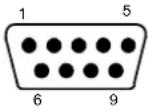 9-pin male connector 9-pin male connector |  25-pin male connector 25-pin male connector | ||
| Pin | Name | Pin | Name |
| 2 | RX | 3 | RX |
| 3 | TX | 2 | TX |
| 5 | GND | 7 | GND |
| 7 | RTS | 4 | RTS |
| 8 | CTS | 5 | CTS |
4 CUSTOM CABLE ELECTRICAL CONNECTIONS
Each scanner model has the following connectors:
| Scanner Model Connectors | |
| Master/Slave 25-pin male serial interface and I/O connector9-pin male Lonworks connector (see caution below)9-pin female Lonworks connector | |
| Ethernet 26-pin male serial interface and I/O connector9-pin female Lonworks connectorM12 4-pin D-coded connector for Ethernet * | |
| DeviceNet 26-pin male serial interface and I/O connector9-pin female Lonworks connector5-pin male connector | |
| Profibus 26-pin male serial interface and I/O connector9-pin female Lonworks connector9-pin female Profibus connector | |
* older models have RJ45 modular connector for Ethernet

CAUTION
Do not connect an RS232 port to the 9-pin Lonworks Connector. This may damage your Laptop PC.
DS6400 scanners are equipped with a 25-pin male D-sub connector (Master/Slave models) or a 26-pin male D-sub connector (Fieldbus models) for connection to the host computer, power supply and input/output signals. These signals can be wired using a custom cable according to the application needs.
The paragraphs in this chapter detail the individual signal connections.
For Lonworks network connections see chapters 5 and 7.
For Fieldbus connections see chapters 6 and 7.
For ID-NET ^™ Fixed Baudrate connections see the Application Note on the CD-ROM.
The details of the connector pins are indicated in the following table:

text_image
1 13 14 25
text_image
1 10 19 9 18 26Figure 52 - 25-pin Connector Figure 53 - 26-pin Connector
| DS6400 25/26-pin D-sub Connector Pinout | ||||
| Pin | Name | Function | ||
| 1 | CHASSIS | Chassis - internally connected to GNDCable shield connected to chassis | ||
| 20 RX | Receive Data of Auxiliary RS232 (referred to GND) | |||
| 21 TX | Transmit Data of Auxiliary RS232 (referred to GND) | |||
| 8 O1+ | Configurable Digital Output 1 - positive pin | |||
| 22 O1- | Configurable Digital Output 1 - negative pin | |||
| 11 O2+ | Configurable Digital Output 2 - positive pin | |||
| 12 O2- | Configurable Digital Output 2 - negative pin | |||
| 16 O3A | Configurable Digital Output 3 - polarity insensitive | |||
| 17 O3B | Configurable Digital Output 3 - polarity insensitive | |||
| 18 I1A | External Trigger (polarity insensitive) for PS | |||
| 19 I1B | External Trigger (polarity insensitive) for PS | |||
| 6 I2A | Input Signal 2 (polarity insensitive) for Encoder | |||
| 10 I2B | Input Signal 2 (polarity insensitive) for Encoder | |||
| 14 I3A | Input Signal 3 (polarity insensitive) | |||
| 15 I4A | Input Signal 4 (polarity insensitive) | |||
| 24 I34B | Common reference of Input 3 and Input 4 (polarity insensitive) | |||
| 9,13 Vdc | Power Supply Input Voltage + | |||
| 23,25,26 GND Power Supply Input Voltage - | ||||
| Main Interface Connector Pinout | ||||
| Pin | RS232 | RS485Full Duplex | RS485Half Duplex | |
| 2 | TX | TX+ | RTX+ | |
| 3 | RX | *RX+ | ||
| 4 | RTS | TX- | RTX- | |
| 5 | CTS | *RX- | ||
| 7 | GND_ISO | GND_ISO | GND_ISO | |
* Do not leave floating, see par. 4.2.2 for connection details.
Pin 26 is only available for Fieldbus (Ethernet, DeviceNet, or Profibus) models.
4.1 POWER SUPPLY
The supply voltage for correct operation of the scanner must be between 15 and 30 VDC. The max. power consumption is 24 W including startup current.
Datalogic strongly recommends a minimum 24 Vdc supply voltage when using a master/slave configuration. Several accessory power supplies are available to power the DS6400 and reading station components. See par. 1.8.
A security system allows the laser to activate only once the motor has reached the correct rotational speed; consequently, the laser beam is generated after a slight delay from the power on of the scanner.
DS6400 scanners have power ground GND (25/26-pin connector pin 23, 25, 26) as well as the cable Shield (25/26-pin connector pin 1) internally connected to the chassis.

text_image
DS6400 9/13 VS V+ (20 - 30 Vdc) 23/25 GND V- (Ground) 1 CHASSIS CHA ssis Earth GroundFigure 54 – Power Supply Using the 25/26-pin Connector
4.2 MAIN SERIAL INTERFACE
The main serial interface is compatible with the following electrical standards:
RS232
RS485 full-duplex
RS485 half-duplex
The main interface type and the relative parameters (baud rate, data bits, etc.) can be set using the Genius™ utility program or the Genius™ based Host Mode Programming procedure. For more details refer to the section "Main Serial Port" in the Genius™ Help On Line.
4.2.1 RS232 Interface
The main serial interface is used for communication with the Host computer and allows both transmission of code data and configuring the reader. The overall maximum cable length should not exceed 15 m (50 ft).
The following pins of the 25/26-pin connector are used for RS232 interface connection:
| Pin | Name | Function |
| 2 | TX | Transmit |
| 3 | RX | Receive |
| 4 | RTS Request to send | |
| 5 | CTS Clear to send | |
| 7 | GND_ISO | Main signal ground |

text_image
DS6400 USER INTERFACE TX2 RXD TXD RTS4 CTS 5 7 GND_ISO CHASSIS SGND Main Isolated 1 Earth GroundFigure 55 - RS232 Connections

flowchart
graph TD
    A["START OF TRANSMISSION"] --> B["DATA TRANSMISSION"]
    B --> C["TRANSMISSION STOPPED"]
    C --> D["IDLE"]
    E["END OF TRANSMISSION"] --> F["DATA TRANSMISSION"]
    F --> G["TRANSMISSION STOPPED"]
    G --> H["IDLE"]
    I["+ V RTS - V"] --> J["+ V TX DATA - V"]
    K["+ V CT S - V"] --> L["+ V IDLE"]
    M["ENabled"] --> N["DISABLED"]
    O["ENABLED"] --> P["DISABLED"]
    Q["C1 C2"] --> R["C3 C4 C5"]
Figure 56 - RS232 Control Signals
The RTS and CTS signals control data transmission and synchronize the connected devices.
If the RTS/CTS handshaking protocol is enabled, the DS6400 activates the RTS output to indicate a message is to be transmitted. The receiving unit activates the CTS input to enable the transmission.
4.2.2 RS485 Full-Duplex Interface
The RS485 full-duplex (5 wires + shield) interface is used for non-polled communication protocols in point-to-point connections over longer distances than those acceptable for RS232 communications or in electrically noisy environments. The overall maximum cable length should not exceed 1200 m (3940 ft).
The following pins of the 25/26-pin connector are used for RS485 full-duplex interface connection:
| Pin | Name | Function | ||
| 2 | TX+ | RS485 output (+) | ||
| 3 | RX+ | RS485 input (+) | ||
| 4 | TX- | RS485 output (-) | ||
| 5 | RX- | RS485 input (-) | ||
| 7 | GND_ISO | Main | signal ground |

text_image
DS6400 USER INTERFACE 2 TX+ 4 TX- 5 RX+3 RX- 7 RX- 1 GND_ISO CHASSIS Ground TX485 TX485 SGND Main Isolated EarthFigure 57 - RS485 Full-Duplex Interface Connections

NOTE
For applications that do not use RX485 signals, do not leave these lines floating but connect them to GND_ISO as shown below.

text_image
DS6400 USER INTERFACE TX+ + RX485 TX- RX+3 RX- GND_ISO CHASSIS SGND Main Isolated 1 2 4 5 7 Earth GroundFigure 58 - RS485 Full-Duplex Connections using Only TX Signals
4.2.3 RS485 Half-Duplex Interface

NOTE
This interface is provided for backward compatibility. We recommend using the more efficient Lonworks network for Master/Slave or Multiplexer layouts.
The RS485 half-duplex (3 wires + shield) interface can be used for polled communication protocols.
It can be used for Multidrop connections with a Datalogic Multiplexer, (see par. "Multiplexer" in Appendix A) exploiting a proprietary protocol based on polled mode called MUX32 protocol, where a master device polls slave devices to collect data. The overall maximum cable length should not exceed 1200 m (3940 ft).
The following pins of the 25/26-pin connector are used for RS485 half-duplex interface connection:
| Pin | Name | Function | ||
| 2 | RTX+ | RS485 input/output (+) | ||
| 4 | RTX- | RS485 input/output (-) | ||
| 7 | GND_ISO | Main | signal | ground |

text_image
DS6 400 MULTIPLEXER 2 RTX+ RTX-4 RTX485+ 7 GND_ISO RTX485- CHASSIS RS485REF 1 Earth GroundFigure 59 – RS485 Half-Duplex Interface Connections
This interface is forced by software when the protocol selected is MUX32 protocol.
In a Multiplexer layout, the Multidrop address must also be set via serial channel by the Genius ^™ utility or by the Host Programming Mode.
Figure 60 shows a multidrop configuration with DS6400 scanners connected to a Multiplexer.

CAUTION
This is an example of multidrop wiring. Consult the multiplexer manual for complete wiring instructions.

flowchart
graph TD
    A["RS232/RS485 HOST"] -->|Main Interface| B["Multiplexer"]
    B --> C["120 Ohm Multidrop GND"]
    B --> D["MULTIDROP+ MULTIDROP+"]
    B --> E["PG-6000 V+"]
    B --> F["PG-6000"]
    B --> G["13 25"]
    B --> H["13 13"]
    B --> I["7 4"]
    B --> J["2 2"]
    B --> K["Scanner #0"]
    K --> L["1 25"]
    K --> M["13 25"]
    K --> N["7 4"]
    K --> O["2 2"]
    K --> P["Scanner #1"]
    P --> Q["1 25"]
    P --> R["13 25"]
    P --> S["7 4"]
    P --> T["2 2"]
    P --> U["Scanner up to 31"]
    U --> V["1 25"]
    U --> W["13 25"]
    U --> X["7 4"]
    U --> Y["2 2"]
    U --> Z["Scanner up to 31"]
    Z --> AA["1 25"]
    Z --> AB["13 25"]
    Z --> AC["7 4"]
    Z --> AD["2 2"]
    Z --> AE["Scanner up to 31"]
    AE --> AF["Max 2 m"]
    AE --> AG["120 Ohm M"]
    AE --> AH["Multidrop Cable Max 1200 m"]
Figure 60 - DS6400 Multidrop Connection to a Multiplexer
4.3 AUXILIARY INTERFACE
The auxiliary serial interface is used exclusively for RS232 point-to-point connections. It is principally used for scanner configuration from a laptop PC but is also available for LOCAL ECHO to a monitoring PC or for Pass through layouts. This interface is active when the Data Tx parameter is enabled. The overall maximum cable length should not exceed 15 m (50 ft).
The following pins of the 25/26-pin connector are used for RS232 full-duplex interface connection:
| Pin | Name | Function | |
| 20 | RX | Receive data | |
| 21 | TX | Transmit data | |
| 23 | GND | Common Ground | |

text_image
DS6400 20 RX 21 TX 23 GND 1 CHASSIS USER INTERFACE TXD RXD GND Earth GroundFigure 61 - RS232 Auxiliary Interface Connections
4.4 INPUTS
There are four optocoupled polarity insensitive inputs available on the 25/26-pin connector of the DS6400 scanner: Input 1 (External Trigger/PS), Input 2 (Encoder), Input 3 and 4 generic inputs:
The electrical features of these inputs are:
Maximum voltage 30 Vdc
Maximum current all Inputs: 12 mA
| Pin | Name | Function |
| 18 I1A | External Trigger (polarity insensitive) for PS | |
| 19 I1B | External Trigger (polarity insensitive) for PS | |
| 6 I2A | Input Signal 2 (polarity insensitive) for Encoder | |
| 10 I2B | Input Signal 2 (polarity insensitive) for Encoder | |
| 14 I3A | Input Signal 3 (polarity insensitive) | |
| 15 I4A | Input Signal 4 (polarity insensitive) | |
| 24 I34B | Common Reference of Input 3 and Input 4 (polarity insensitive) |
The active state of all the inputs is selected in software (open or closed). Refer to the Genius™ Help On Line.
All inputs are optocoupled, polarity insensitive, and driven by a constant current generator; the command signal is filtered through an anti-disturbance circuit which generates a debouncing delay which can be set to 5 ms or 500 s. In particular, I1 for PS, I3 and I4 share
the same value which usually corresponds to 5 ms when using a photoelectric sensor, while I2 is set to 500 s when this input is used for the Encoder. The maximum Encoder frequency is 2 kHz.
Input 1 (External Trigger/PS) is used in the On-Line and PackTrack™ operating Modes and tells the scanner to scan for a code. The yellow Phase On LED (Figure C, 3) which refers to Input 1 is on only when current flows through the input circuit and therefore when the active state of this input is set to "active open", the LED lights up when the input corresponds to OFF.
Input 2 is normally used for the Encoder input. In PackTrack ^™ mode, it detects the conveyor speed.
Inputs 3 and 4 can be used as the stop signal for the reading phase.
The debouncing delay value can be changed through the software parameter Debouncing for Input x, see the "6-8 K Software Configuration Parameter Guide" or Help file.
Powering Inputs
Input devices can be supplied by either scanner power (Vdc and GND) or external power supplies (Vext).
Electrical isolation between the input command logic and the scanner is maintained when powering the input devices from an external supply voltage (Vext).
The driving logic of the input signals may be powered, for convenience, with the voltage supply between pins 9 (Vdc) and 23 (GND) of the 25/26-pin I/O connector. In this case, however, the device is no longer electrically isolated. The voltage available on the 25/26-pin I/O connector, is physically the same as used to power the scanner.
INPUT 1 - 2 CONNECTIONS USING DS6400 POWER

text_image
EXTERIOR RIGGER/ENCODER Vdc A/B B/A GND + 5V V GroundFigure 62 - PNP Command Input Connection Using Scanner Power

text_image
DS6400 Vdc A/B B/A GND V EXTERNAL TRIGGER/ENCODER + 5V GroundFigure 63 - NPN Command Input Connection Using Scanner Power
INPUT 1 - 2 CONNECTIONS USING EXTERNAL POWER

text_image
EXTERN AD 5000 GE RENCODE + 5V A/B B/A Vext V Ground RFigure 64 – PNP Command Input Connection Using External Power

text_image
DS6400 + 5V A/B B/A Vext V GroundFigure 65 - NPN Command Input Connection Using External Power

Terminal pins I34B are common to both inputs 3 and 4 and therefore these inputs cannot be driven by opposite polarity devices.
If the DS6400 is used as a Code Verifier, the verifier code can be configured in software through the Genius™ configuration program. However it is also possible to use one of the inputs to trigger when the scanner should store a code read as the verifier code.
The Code Verifier parameter must be enabled, and the configuration parameters to allow correct Code Type reading must be saved to the scanner in order to read the verifier code.
When the selected input is activated, the next read code will be stored as the verifier code in the scanner's non-volatile (Flash) memory.
For more details see the Verifier Parameters in the "6-8 K Software Configuration Parameter Guide" or Help file.
4.5 OUTPUTS
Three general purpose outputs are available. The electrical features are given below:
| Outputs 1 and 2 | |
| Maximum Voltage 30 V | |
| Collector Current (pulse) 130 mA | Max. |
| Collector Current (continuous) 40 mA Max. | |
| Saturation Voltage (VCE) 1 V at 10 mA Max. | |
| Maximum Power Dissipation 90 mW at 50°C (Ambient temperature) | |
Output 3 has different electrical features. It is a bi-directional solid state relay with built-in current limit protection.
| Output 3 | |
| Maximum Voltage ± 100 V (Vext only) | |
| Collector Current (pulse) 300 mA | Max. at 25°C (Ambient temperature)240 mA Max. at 50°C (Ambient temperature) |
| Collector Current (continuous) 200 mA | Max. at 25°C (Ambient temperature)150 mA Max. at 50°C (Ambient temperature) |
| R on | 6 – 15 Ω |
| R off | >500 Ω |
| Off-State Leakage Current < 1 μA | |
| Maximum Power Dissipation 550 | mW at 50°C (Ambient temperature) |
| Pin | Name | Function |
| 8 | O1+ Configurable digital output 1 – positive pin | |
| 22 | O1- Configurable digital output 1 – negative pin | |
| 11 | O2+ Configurable digital output 2 – positive pin | |
| 12 | O2- Configurable digital output 2 – negative pin | |
| 16 | O3A Configurable digital output 3 – polarity insensitive | |
| 17 | O3B Configurable digital output 3 – polarity insensitive |
The function of each output can be defined by the user (No Read, Right, Wrong, etc.). Refer to the Genius™ Help On-Line for further details.
The output signals are fully programmable being determined by the configured Activation/Deactivation events, Deactivation Timeout or a combination of the two.
By default, Output 1 is associated with the Complete Read event, which activates when all the selected codes are correctly decoded, and Output 2 is associated with the No Read event, which activates when the code signaled by the external trigger/PS is not decoded.
Output 3 can be assigned to the same events and it has the advantage of being polarity insensitive. By default it is not assigned to any event.

text_image
DS6400 USER Vext 30 Vdc max INTERFACEFigure 68 – Output 1 and Output 2 Interface
When the load is powered by an external power supply, the voltage must be less than 30 V.

text_image
DS640 0 A/B B/A USER Vext 100 Vdc max INTERFACEFigure 69 – Output 3 Interface
The command signals are filtered and generate a delay of about 50 s for Output 1 and 2 and 1 ms for Output 3.
4.6 USER INTERFACE
How To Build A Simple Interface Test Cable:
The following wiring diagram shows a simple test cable including power, external (push-button) trigger and PC RS232 COM port connections.

flowchart
graph TD
    A["25-pin D-sub female"] -->|TX AUX| B["8-pin D-sub female"]
    A -->|RX AUX| B
    A -->|GND| B
    C["9-pin D-sub female"] -->|RX GND| B
    C -->|TX GND| B
    D["DS6400"] --> A
    E["Trigger H"] --> F["9 EXT TRIG A"]
    E --> G["9 EXT TRIG B1"]
    H["Power Supply VS (15 - 30 VDC) Power GND"] --> I["PC"]
Do not connect an RS232 port to the 9-pin Lonworks Connector. This may damage your Laptop PC.
The local network used by DS6400 exploits a Lonworks standard communication system requiring only two wires (polarity insensitive) to enable a connection. The connector also provides a positive and a negative supplying wire. In this way, all the slave readers can be powered by the master through the Datalogic standard cables.
When working in applications requiring enhanced synchronization capabilities, the DS6400 master reader (output) transmits two system signals named Sys_I/O and Sys_Enc_I/O to the slave readers (input). For example, when working with applications requiring an encoder the signal is received by the master and directly transmitted to the slaves through the cable.
The internal circuits generating the system signals are externally supplied by means of the VS_I/O and REF_I/O pins and are isolated from the reader supply voltage.
The use of these system circuits is not required in all the operating modes. Anyway, for correct system functioning it is suggested to use Datalogic cables and accessories and follow the description of the typical layouts (see chapter 7 for details).

text_image
5 1 9 6Female (all models)

text_image
1 5 6 9Male (Master/Slave model)
Figure 70 - 9-pin Local Lonworks Connectors
The following pinout is valid for both connectors.
| DS6400 9-pin Lonworks Connector Pinout | ||
| Pin | Name | Function |
| 1 CHASSIS Cable shield internally connected by capacitor to chassis | ||
| 9 VS supply voltage 15 to 30 vdc (positive pin) | ||
| 2 GND supply voltage (negative pin) | ||
| 6 VS_I/O Supply voltage of I/O circuit | ||
| 3 Ref_I/O Reference voltage of I/O circuit | ||
| 4 SYS_ENC_I/O | System signal | |
| 5 SYS_I/O | System signal | |
| 7 LON A Lonworks line (polarity insensitive) | ||
| 8 LON B Lonworks line (polarity insensitive) | ||
5.1 NETWORK TERMINATION
When building a Lonworks system the network must be properly terminated by positioning the BT-6000 Lonworks terminator in the DS6400 master reader and in the last DS6400 slave reader.
Each side of the terminator provides a different connector; thus, it can be inserted either into the Lonworks 9-pin male connector of the master reader or in the Lonworks 9-pin female connector of the last slave reader:

text_image
Slave Female Male Master Male FemaleFigure 71 - BT-6000 Network Terminator

NOTE
For Fieldbus models (Ethernet, DeviceNet, or Profibus), no terminator must be inserted in the reader, since it is internally integrated.
5.2 LONWORKS INTERFACE
The Lonworks network is used for both input and output connection to build a multi-sided or omni-station system connecting several readers.
The DS6400 master usually employs the 9-pin female connector for output connection to the first slave, while the 9-pin male connector is terminated by inserting the BT-6000 terminator (see Figure 71 for details). If creating a T-network configuration, it is necessary to use both connectors to create the double branch line of slave readers.
Both connectors are always employed when connecting together the slave readers. In particular, the 9-pin female connector is used for output connection and the male one for input connection. The female connector in the last slave reader is terminated by the BT-6000 to close the system network.
The following diagram represents the connection between a DS6400 working as master and a DS6400 working as a slave reader.
The cable shield for LON A/B is connected to pin1 - CHASSIS.

flowchart
graph TD
    subgraph Master
        A["VS_I/O"] --> B["REF_I/O"]
        B --> C["4"]
        B --> D["5"]
        B --> E["3"]
        F["LON_A"] --> G["7"]
        H["LON_B"] --> I["8"]
        J["CHASSIS"] --> K["1"]
        L["VS"] --> M["9"]
        N["GND"] --> O["2"]
    end
    subgraph Slave
        P["4"] --> Q["5"]
        R["3"] --> S["7"]
        T["1"] --> U["9"]
        V["2"] --> W["AWG 16"]
    end
    style Master fill:#f9f,stroke:#333
    style Slave fill:#ccf,stroke:#333
    note right of Master: = male connector
    note left of Slave: = female connector
Figure 72 – DS6400 Master/Slave Lonworks Connection

The maximum current to be propagated to the Slave readers through the Master is 2 A. For this reason, it is suggested to use a 24 Vdc power supply capable of supplying up to three readers (Master + 2 Slaves).
The following diagrams represent different network terminations using the BT-6000 Lonworks terminator. In Figure 74 the BT-6000 terminator is indicated by the T element, while the figure below shows its electrical circuit in details:

text_image
102 R5 1% 10R 1% R4 330R 1% R3 12 R2 47R 1% R1 330n | 25V C2 150n | 25V C1Figure 73 - BT-6000 Electrical Circuit
The diagram below represents the termination of a DS6400 (Master/Slave model) working as master by means of the BT-6000.

flowchart
graph TD
    A["VS"] --> B["9"]
    C["VS_I/O"] --> D["6"]
    E["LON_A"] --> F["7"]
    G["LON_B"] --> H["8"]
    I["GND"] --> J["2"]
    K["REF_I/O"] --> L["3"]
    B --> M["9"]
    D --> N["6"]
    F --> O["7"]
    H --> P["8"]
    J --> Q["2"]
    L --> R["3"]
    M --> S["T"]
    N --> S
    O --> S
    P --> S
    Q --> S
    R --> S
The diagram below represents the termination of a DS6400 (Master/Slave model) working as slave by means of the BT-6000 terminator.

text_image
Slave B T-6000 Male Side LON A 7 7 LON B 8 8 ■ = male connector K = female connectorFigure 75 – DS6400 Slave Termination
The diagram below represents the connection between a DS6400 Fieldbus model, which always works as master, and a Master/Slave model working as a slave reader.

flowchart
graph TD
    subgraph Fieldbus_Master
        A["REF_I/O"] --> B["VS_I/O"]
        B --> C["4"]
        C --> D["5"]
        D --> E["3"]
        E --> F["7"]
        F --> G["8"]
        G --> H["1"]
        H --> I["9"]
        I --> J["2"]
        J --> K["GND"]
    end

    subgraph Slave
        L["CHASSIS"] --> M["1"]
        M --> N["8"]
        N --> O["7"]
        O --> P["1"]
        P --> Q["9"]
        Q --> R["2"]
        R --> S["AWG 16"]
    end

    style Fieldbus_Master fill:#f9f,stroke:#333
    style Slave fill:#ccf,stroke:#333

    note right of L: LON A, LON B
    note right of M: AWG 16
    note right of Q: AWG 16
    note right of S: male connector
    note right of K: female connector
Figure 76 - DS6400 Fieldbus Master to Slave Lonworks Connection
The Fieldbus master is internally terminated.
6 FIELDBUS CONNECTIONS
6.1 ETHERNET INTERFACE
This connector is only available for DS6400 Ethernet models and allows the Ethernet connection between the host and the reader.

text_image
1 2 3 4Figure 77 –DS6400 M12 4-pin D-Coded Female Ethernet Connector
This interface and the connector pinout (see the following table) are IEEE 802.3 10 BaseT and IEEE 802.3u 100 Base Tx compliant.
| M12 4-pin D-coded Female Pinout | ||
| Pin | Name | Function |
| 1 TX + Transmitted data (+) | ||
| 2 RX + Received data (+) | ||
| 3 TX - Transmitted data (-) | ||
| 4 RX - Received data (-) | ||
In order to meet EMC requirements use Ethernet shielded cable.
The Ethernet interface can be used for TCP/IP communication with a remote or local host computer by connecting the scanner to either a LAN or directly to a host PC. There is no need to use a crossover adapter since scanner incorporates an auto-cross function.
The following is an example of a connection to a LAN using a CAB-ETH-M0x straight through cable:

text_image
DS6400 M12 D-coded TX+ 1 RX+ 2 TX- 3 RX- 4 LAN TX+ 3 RX+ 2 TX- 6 RX- 4 5 7 8 RJ45Figure 78 – Straight Through Cable
For further details refer to the “Ethernet Service Guide” document provided as reference documentation.
6.2 ETHERNET INTERFACE (OLDER MODELS)
The RJ45 connector is only available for older DS6400 Ethernet models and allows the Ethernet connection between the host and the reader.


Figure 79 - DS6400 RJ45 Female Modular Connector
This interface and the connector pinout (see the following table) are IEEE 802.3 10 BaseT and IEEE 802.3u 100 Base Tx compliant.
| RJ45 Modular Jack Pinout | ||
| Pin | Name | Function |
| 1 TX + Transmitted data (+)2 TX - Transmitted data (-)3 RX + Received data (+)6 RX - Received data (-)4, 5, 7, 8 N.C. Not connected | ||
In order to meet EMC requirements:
- use Ethernet shielded cable
- connect the Ethernet interface cable shield to the plant earth ground

NOTE
The cable shield must be connected to the chassis of both connectors.
A ferrite (type Stewart 28A2029-0A0) may also be applied on the scanner side of the Ethernet cable to reduce electrical noise.
The Ethernet interface can be used for TCP/IP communication with a remote or local host computer by connecting the scanner to a LAN. It can also be connected directly to a host PC.
The following is an example of a connection to a LAN through a Hub using a straight through cable:

text_image
DS6400 HUB / SWITCH TX+ 1 1 TX- 2 2 RX+ 3 3 n. c. 4 4 n. c. 5 5 RX- 6 6 n. c. 7 7 n. c. 8 8 n. c. = not connectedFigure 80 – Straight Through Cable
The following is an example of direct connection to a PC using an inverted cable:

text_image
DS6400 TX+ 1 3 TX- 2 6 RX+ 3 1 n. c. 4 4 n. c. 5 5 RX- 6 2 n. c. 7 7 n. c. 8 8 HOST PC n. c. = not connectedFigure 81 – Inverted or Cross Cable
For further details refer to the “Ethernet Service Guide” document provided as reference documentation.
6.3 DEVICENET INTERFACE

NOTE
When using DeviceNet, the Main serial interface is disabled and must not be physically connected.
The 5-pin male connector is only available in the DS6400 DeviceNet model and allows connection between the host and the reader:

text_image
1 2 3 4 5Figure 82 - DeviceNet 5-pin Male Connector
| DS6400 5-pin DeviceNet connector pinout | ||
| Pin | Name | Function |
| 2 V + Supply | voltage - positive pin | |
| 5 CAN_L CAN | bus data line - L | |
| 1 | SHIELD | Shield |
| 4 CAN_H CAN | bus data line - H | |
| 3 V - Supply | voltage - negative pin | |

NOTE
The power supplied on pin V+ and V- is used only to propagate power to the section of the DeviceNet board directly connected to the Bus. It is completely isolated from the DS6400 power which must be supplied on pin 9, 13 and pin 23, 25 of the 26-pin Main/Aux connector.
6.4 PROFIBUS INTERFACE
The 9-pin Profibus female connector (white) is only available in the DS6400 Profibus model and allows connection between the host and the reader:

text_image
5 1 9 6Figure 83 - Profibus 9-pin Female Connector
| DS6400 9-pin Profibus connector pinout | ||
| Pin | Name | Function |
| 1 | Shield* Shield, Protective Ground resp. | |
| 2 | Free | |
| 3 | B-LINE (RxD/TxD-P) Received/Transmitted Data-P | |
| 4 | CNTR-P** Repeater Control Signal | |
| 5 | DGND Data Ground (M5V) | |
| 6 | +5 V Voltage Plus (P5V) | |
| 7 | Free | |
| 8 | A-LINE (RxD/TxD-N) Received/Transmitted Data | |
| 9 | CNTR-N** Repeater Control Signal | |
* signal is optional
** signal is optional; RS485 level
The Profibus interface is used for communication with an Host and allows expanding the networking and remote diagnostic capabilities of the scanner.
For further details refer to the "Profibus_Fam6k.pdf" document provided as supplementary documentation.
7 TYPICAL LAYOUTS
DS6400 scanners are mainly designed to work together on a high performance Lonworks sub-network to create multi-sided and omnidirectional reading stations that can interface with Serial or Fieldbus Host networks. This chapter covers the most common Lonworks layouts.
DS6400 scanners can however, be connected in a variety of layouts depending on the number of scanners used and the required complexity of the reading station. Layouts range from single Stand Alone to complex alternative networks when Lonworks is not available for all readers (mixed reader networks). For alternative layouts see appendix A.
Several power supplies are available to power the reading stations.
Photoelectric sensors used as code presence sensors and optical encoders to signal conveyor speed are also available accessories.
The following typical layouts refer to the system hardware configurations, but they also require the correct setup of the software configuration parameters (see par. 8.2 for details).
The accessories and cables indicated in the following figures are Datalogic products. We suggest their use to guarantee the correct system functioning.
7.1 LOCAL LONWORKS NETWORK
A local Lonworks network allows logically connecting a DS6400 master reader with up to 31 DS6400 slaves. Actually, the maximum number of readers to be employed in the network depends on the system operating conditions; that is, adopted operating mode and amount of data stream.
When creating your network, always keep in mind the following guidelines:
- the Lonworks network logically supports a maximum number of 32 devices (master + slaves);
- it is recommended to adhere to the 8-in-16 rule (not more than 8 devices in any 16 meter bus segment (branch);
- for DS6400 scanners the total bus length may extend up to 130 m (426 ft);
- the maximum number of DS6400 readers supported also depends on the type of power propagation adopted by the system (see the specific power supply installation manual for details).
Typically the layouts can be divided into Synchronized (single P.S.) or Multidata (multi P.S.) networks. They can be small (up to 10 scanners) or large (more than 10 scanners).
Contact Datalogic Automation S.r.l., if your network requires a higher number of readers or in case the application throughput is very high.
For further information on Lonworks network cabling and connections see the “LonWorks® TPT Twisted Pair Transceiver Module User’s Guide”, available from the website: www.echelon.com.

For some DS6400 Lonworks Network layouts, power is propagated through the 9-pin scanner connectors. A specific jumper setting is required in CBXs to pass scanner power to the presence sensor, encoder, etc.
7.1.1 Small Synchronized Network
When building a small local Lonworks network (less than 10 scanners), the DS6400 master reader must be connected to a local host computer or a CBX connection box by means of a cable connected to the 25/26-pin D-sub male connector.
The master reader connects to the first slave reader of the system through the local Lonworks 9-pin female connector. For Master/Slave models, the local Lonworks 9-pin male connector must be properly terminated by inserting the BT-6000 Lonworks terminator. Fieldbus models (Ethernet, DeviceNet, or Profibus), are internally terminated.
The slave readers are connected together through the local Lonworks connectors. Only the 9-pin female connector of the last slave reader must be terminated by the BT-6000 Lonworks terminator.
The presence sensor is connected and powered through the CBX by the scanner and is unique to the system. There is only a single reading phase and a single message from the master reader to the Local Host. The On-Line operating mode is used for this layout.

flowchart
graph TD
    A["CAB-610x"] --> B["Master"]
    B --> C["Master"]
    C --> D["CBX100**"]
    D --> E["Local Host"]
    F["Slave 1"] --> G["BT-6000"]
    G --> H["PWR-120"]
    H --> I["P.S.*"]
    I --> J["I/O, AUX"]
    J --> D
    K["CAB-63xx"] --> L["BU"]
    L --> M["BU"]
    M --> N["BU"]
    N --> O["BU"]
    O --> P["BU"]
    P --> Q["BU"]
    Q --> R["BU"]
    R --> S["BU"]
    S --> T["BU"]
    T --> U["BU"]
    U --> V["BU"]
    V --> W["BU"]
    W --> X["BU"]
    X --> Y["BU"]
    Y --> Z["BU"]
    Z --> AA["BU"]
    AA --> AB["BU"]
    AB --> AC["BU"]
    AC --> AD["BU"]
    AD --> AE["BU"]
    AE --> AF["BU"]
    AF --> AG["BU"]
    AG --> AH["BU"]
    AH --> AI["BU"]
    AI --> AJ["BU"]
    AJ --> AK["BU"]
    AK --> AL["BU"]
    AL --> AM["BU"]
    AM --> AN["BU"]
    AN --> AO["BU"]
    AO --> AP["BU"]
    AP --> AQ["BU"]
    AQ --> AR["BU"]
    AR --> AS["BU"]
    AS --> AT["BU"]
    AT --> AU["BU"]
    AU --> AV["BU"]
    AV --> AW["BU"]
    AW --> AX["BU"]
    AX --> AY["BU"]
    AY --> AZ["BU"]
    AZ --> BA["BU"]
    BA --> BB["BU"]
    BB --> BC["BU"]
    BC --> BD["BU"]
    BD --> BE["BU"]
    BE --> BF["BU"]
    BF --> BG["BU"]
    BG --> BH["BU"]
    BH --> BI["BU"]
    BI --> BJ["BU"]
    BJ --> BK["BU"]
    BK --> BL["BU"]
    BL --> BM["BU"]
    BM --> BN["BU"]
    BN --> BO["BU"]
    BO --> BP["BU"]
    BP --> BQ["BU"]
    BQ --> BR["BU"]
    BR --> BS["BU"]
    BS --> BT["BU"]
    BT --> BU["BU"]
    BU --> BV["BU"]
    BV --> BW["BU"]
    BW --> BX["BU"]
    BX --> BY["BU"]
    BY --> BZ["BU"]
    BZ --> CA["BU"]
    CA --> CB["BU"]
    CB --> CC["BU"]
    CC --> CD["BU"]
    CD --> CE["BU"]
    CE --> CF["BU"]
    CF --> CG["BU"]
    CG --> CH["BU"]
    CH --> CI["BU"]
    CI --> CJ["BU"]
    CJ --> CK["BU"]
Figure 84 – Small Synchronized Network with 2 Readers
The following image shows a system consisting of five readers (mixed 8K and 6K) where the external signals (trigger, encoder, serial to host, etc.) are connected to the master through the CBX100.
Note: In a mixed 8K and 6K family scanner network, only the 8K family scanner can be Master.
The entire system is powered by the PWR-240 where:
- Power is distributed through two CAB-63xx cables to avoid excessive current draw.
- the master is connected to the CBX100 through the CAB-F0x, and provides power to the PS and Encoder.
- The Master DS8100A is terminated with the BTK-8102 and the last slave DS6400 is terminated with the BT-6000.

flowchart
graph TD
    A["CAB-610x"] --> B["Slave 3"]
    B --> C["Master"]
    C --> D["CBX100**"]
    D --> E["Local Host"]
    F["CAB-610x"] --> G["Slave 1 Slave 2"]
    G --> H["Master"]
    H --> I["PWR-240"]
    J["CAB-650x"] --> K["Master"]
    K --> L["BTK-8102"]
    M["CAB-63xx"] --> N["Master"]
    O["CAB-610x"] --> P["Master"]
    Q["BT-6000"] --> R["Master"]
    S["I/O, AUX, Encoder***"] --> T["P.S.*"]
    U["CAB-63xx"] --> V["CAB-63xx"]
* P.S. (Presence Sensor) connected to Input 1 (External Trigger/PS) input.
** CBX100 jumper set to accept scanner power.
*** Encoder connected to Input 2 (Encoder) input.
Figure 85 –Synchronized Network with DS8100A Master and 6K Family Slaves - Serial Host

NOTE
If a single power source is used, it is not necessary to separate groups of scanners with CAB-611x "no power" cables.
7.1.2 Multidata Network
In this layout, one master and up to 7 DS6400 slave readers have their own P.S. and therefore multiple reading phases. Each P.S. is connected through a CBX100, which in turn is connected to its relative scanner through a CAB-Sxx cable.
Typically these systems are reading stations which are located relatively far away from each other and are therefore usually each powered separately. In this case, the Lonworks network must use CAB-611x "no power" cables.
The master sends all the individual messages collected from the Lonworks interface as well as its own to the Local Host through its CBX100.

flowchart
graph TD
    subgraph_Slave_1["Slave 1"]
        Slave_2["Slave 2"]
        Slave_3["Slave 3"]
    end
    subgraph_Master["Master"]
        Master_1["Master"]
        Master_2["Master"]
    end
    subgraph_Host["Local Host"]
        Host["Computer"]
    end

    subgraph_CAB_1["CAB-611x"]
        CAB_2["CAB-611x"]
        CAB_3["CAB-611x"]
    end

    subgraph_CAB_Sxx["CAB-Sxx"]
        CAB_1["Sxx"] --> CAB_Sxx["CAB-Sxx"]
        CAB_Sxx["CAB-Sxx"] --> CBX100["CBX100"]

    subgraph_P_S["P.S*"]
        P_S1["P.S*"] --> P_S1["P.S*"]
        P_S2["P.S*"] --> P_S2["P.S*"]
    end

    subgraph_BT-6000["BT-6000"]
        BT-6000["BT-6000"]
    end

    subgraph CAB-611x
        CAB_611x_1["CAB-611x"]
        CAB_611x_CAB-611x
    end

    subgraph CAB_Sxx
        CAB_Sxx["CAB-Sxx"] --> CAB_Sxx["CAB-Sxx"]
        CAB_Sxx["CAB-Sxx"] --> CBX100["CBX100"]

    end

    subgraph_P_SP["P.S*"]
        P_S1P["P.S*"] --> P_S2P["P.S*"]
        P_S2P["P.S*"] --> P_S2P["P.S*"]
    end

    subgraph_PT_PS["P.G6000"]
        PT_P5["P.G6000"] --> PT_P5["P.G6000"]
        PT_P6["P.G6000"] --> PT_P6["P.G6000"]
    end

    subgraph CAB-611x
        CAB_611x_1 --> CAB-611x_CAB-611x
        CAB_611x_CAB-611x
    end

    subgraph CAB_Sxx
        CAB_Sxx["CAB-Sxx"] --> CAB_Sxx["CAB-Sxx"]
        CAB_Sxx["CAB-Sxx"] --> CBX100["CBX100"]

    end

    subgraph CBX100
        CBX100 --> CBX100["CBX100"]

    note right of TB-6000
    note left of BT-6000
    note right of PG6000
    note right of PG6000
    note right of PG6000
    note right of PG6000
    note right of PG6000
    note right of PG6000
    note right of PG6000
    note right of PG6000
    note right of PG6000
    note right of PG6000
    note_right_of_P5["P.S*"]
    note_right_of_P5["P.S*"]
    note_right_of_P5["P.S*"]
    note_right_of_P5["P.S*"]
    note_right_of_P5["P.S*"]
* Each P.S. (Presence Sensor) connected to Input 1 (External Trigger/PS) input.
Figure 86 – Multidata Network
7.1.3 Fieldbus Networks
The Fieldbus models (Ethernet, DeviceNet, or Profibus) offer connectivity without any converter or adapter needed.
The DS6400 Lonworks master communicates as a Fieldbus slave to a remote host (i.e. remote PC connected via Internet or PLC Fieldbus Master) by means of a cable connected to the Fieldbus connector provided. It can be activated by a signal generated by the remote Host or by a physical presence sensor.
The external signals (trigger, encoder) are connected to the master through the CBX100.
The entire system is powered by the PWR-240 where:
- Power is distributed through two CAB-63xx cables to avoid excessive current draw.
- The master is connected to the CBX100 through the CAB-F0x, and provides power to the PS and Encoder.
- Since the master DS6400 is a Fieldbus model, it is internally terminated. The last slave DS6400 is terminated with the BT-6000.
- The master connects directly to the remote host through its Fieldbus interface.

flowchart
graph TD
    subgraph_Slave_3["Slave 3"]
        A["CAB-610x"] --> B["Slave 4"]
        C["CAB-610x"] --> D["Slave 1 Slave 2"]
        E["CAB-610x"] --> F["Master"]
    end

    subgraph_Slave_4["Slave 4"]
        G["CAB-610x"] --> H["BT-6000"]
        I["CAB-610x"] --> J["Fieldbus"]
        K["CAB-610x"] --> L["CBX100**"]
        M["CAB-610x"] --> N["Master"]
    end

    subgraph_Fieldbus["Fieldbus"]
        O["CBX100**"] --> P["I/O, AUX, Encoder***"]
        Q["PWR-240"] --> R["P.S.*"]
    end

    subgraph_Remote_Host["Remote Host"]
        S["Computer"] --> T["Fieldbus"]
    end

    subgraph_PWR-240["PWR-240"]
        U["CAB-63xx"] --> V["CAB-F0x"]
        W["CAB-63xx"] --> X["CAB-63xx"]
    end
* P.S. (Presence Sensor) connected to Input 1 (External Trigger/PS) input.
** CBX100 jumper set to accept scanner power.
*** Encoder connected to Input 2 (Encoder) input.
Figure 87 – Synchronized Network with DS6400 Master and 6K Family Slaves - Fieldbus Host

NOTE
To interface DS6400 scanners to other Host types (Fieldbus and non-Fieldbus), use the CBX800 Gateway with Host Interface Modules. The Master scanner in this case is a standard Master/Slave Serial model which requires the BT-6000 terminator.

flowchart
graph TD
    A["CAB-610x"] --> B["Slave 3"]
    A --> C["Slave 2"]
    A --> D["CAB-63xx"]
    E["Slave 1"] --> F["Master"]
    G["Master"] --> H["BT-6000"]
    I["BT-6000"] --> J["Fieldbus Network"]
    K["Fieldbus Network"] --> L["PWR-240"]
    M["Fieldbus Network"] --> N["Remote Host"]
    O["Fieldbus Network"] --> P["I/O, AUX, Encoder***"]
    Q["Fieldbus Network"] --> R["P.S.*"]
    S["Fieldbus Network"] --> T["CAB-63xx"]
    U["Fieldbus Network"] --> V["CAB-610x"]
    W["Fieldbus Network"] --> X["CBX800** with Host Interface Module"]
    Y["Fieldbus Network"] --> Z["BT-6000"]
    AA["Fieldbus Network"] --> AB["CAB-Sxx"]
* P.S. (Presence Sensor) connected to Input 1 (External Trigger/PS) input.
** CBX800 jumper set to accept scanner power.
*** Encoder connected to Input 2 (Encoder) input.
Figure 88 – CBX800 Gateway Fieldbus Synchronized Network
The following Host Interface Module accessories are available for the CBX800 Gateway:
| NAME | Description | Part | Number |
| BM200/210 Ethernet | TCP/IP Module STD/IP65 93ACC1851, 93ACC1852 | ||
| BM300/310 Profibus | us Module STD/IP65 93ACC1810, 93ACC1811 | ||
| BM400 | DeviceNet Module | IP65 | 93ACC1814 |
| BM500/510/520 Ethernet | IP Module STD/IP65/IP54 93ACC1812, 93ACC1813, 93ACC1840 | ||
| BM600 | CANopen Module | STD | 93ACC1815 |
| BM700/710 Profinet | Module STD/IP65 93ACC1816, 93ACC1886 | ||
| BM1100 CC-Link | Module STD 93ACC1845 | ||
| BM1200/1210 | Modbus TCP STD/IP65 | 93ACC1848, 93ACC1849 |
8 SOFTWARE CONFIGURATION
8.1 GENIUS™ INSTALLATION
Genius ^™ is a new Datalogic scanner configuration tool providing several important advantages:
- Wizard approach for new users;
• Multi-language version; - Defined configuration directly stored in the reader;
- Communication protocol independent from the physical interface allowing consideration of the reader as a remote object to be configured and monitored.
To install Genius™, proceed as follows:
1) Turn on the PC that will be used for configuration, running either Windows 98, 2000/NT, XP, Vista or 7;
2) Insert the Genius™ CD-ROM;
3) Wait for the CD to autorun and follow the installation procedure.
8.2 GUIDE TO RAPID CONFIGURATION
8.2.1 Wizard for Quick Reader Setup
After installing the Genius™ software program (see above), and running it, the following window appears asking the user to choose the desired configuration level:

text_image
Configuration Mode Select configuration mode Wizard Recommended for new users Advanced Intended for barcode technology experts Cancel ≤ Back Next ≥ FinishFigure 89 - Genius™ Wizard Opening Window
The Wizard option is advised for new users, since it shows a step-by-step scanner configuration. The parameters to be defined are the following:
- Barcode selection and definition;
- Operating mode selection and definition (see sub-paragraphs for further details);
- Digital Inputs/Outputs configuration;
- Hardware interface selection;
- Output data format configuration.
After defining the parameter values the following window appears allowing to complete the reader configuration as follows:
- Saving the configuration to disk;
- Switching to Advanced mode;
- Sending the configuration to the scanner.

text_image
Configuration Wizard - Final choices What do you want to do with the newly created configuration? Save it to disk Save to Disk Switch to Advanced Mode to refine it Send it to connected device Send Cancel ≤ Back Next ≥ BinishFigure 90 - Genius™ Wizard Closing Window
Test Operating Mode

NOTE
This operating mode is not available when DS6400 works as slave.

text_image
Configuration Wizard - Operating Modes Select one of the following operating modes 100% Test On Line Automatic Cancel Back Next > FinishFigure 91 - Test Mode Selection
This operating mode causes the reader to be continuously activated allowing verification of its reading features and its reading position with respect to the barcode. For this reason, it is particularly advised during the installation phase of the reader.
After 100 scans, the values relative to an internal counter and the decoded code are displayed and transmitted on the serial interface. The counter reports the percentage of good reads of the label.
On Line Operating Mode

text_image
Configuration Wizard - Operating Modes Select one of the following operating modes 100% Test On Line Automatic Cancel Back Next > FinishFigure 92 - On Line Mode Selection
This operating mode causes the reader to be connected to an external Presence Sensor using I1A and I1B (External Trigger/PS) inputs.
During the active phase of the presence sensor, the DS6400 reader tries to acquire and correctly decode the code.
In case the decoding phase is successful, the barcode characters are transmitted on the serial interface. Otherwise, a no read message is sent.
Automatic Operating Mode

text_image
Configuration Wizard - Operating Modes Select one of the following operating modes 100% Test On Line Automatic Cancel Back Next > FinishFigure 93 - Automatic Mode Selection
This operating mode does not require the connection to an external Presence Sensor.
When working in this mode the reader is continuously scanning. The reading phase is activated each time a barcode enters the reading zone. The reader stops reading after an N number of scans without a code. Barcode characters are transmitted on the serial interface. In case of a failed reading phase no message is sent to the host computer.
8.2.2 Genius™ Network Setup Through Master
Network Setup allows configuring your Local Lonworks Network through the Master using Genius™.
Three different procedures are available to define the number of network slave scanners, their label and address according to two main conditions:
| Condition | Available | Procedure | Feature |
| Unknown Slave Addresses | Net-Autoset | automatically assigns random addresses to slave or Stand Alone scanners. | |
| Known Slave Addresses | Network Wizard | customizes the network (slave label and address definition and physical identification of a specific slave within network), updates configuration to a file and makes it ready to be sent to the Master. | |
| Express Network Setup | automatically performs all the operations of the Network Wizard apart from the physical identification of a specific slave scanner. | ||

NOTE
The Network Setup procedure as described requires Genius™ software version 1.06 or later. In addition, the Net-Autoset procedure requires scanner software version 6.40 or later.
- The first operation to perform is the configuration of your scanner as "Master" from the Local Device Network Settings item in the Device Menu, see figure below:

text_image
Genius - COM1 File Device Edit View Tools Window Help Get... Send Default Send with Options... Replace CBX/SC4000 Backup & Restore Local Device Network Settings Operating Mode Reading System Layout Reading Parameters Data Communication settings Digital I/O Setting Diagnostics Statistics User Information Sects Local Device Network Settings Topology Role Master (SYNCHRONIZED) Other Master (SYNCHRONIZED) Slave (SYNCHRONIZED) Master (MULTIDATA) Slave (MULTIDATA) OK CancelFigure 94 – Local Device Network Settings
The following dialog box appears asking whether to send the configuration to the Local Device or not:

text_image
Local Device Network Settings Do you want to send updated Network configuration to Local Device? Yes No- Click the "Yes" button, then click on the icon available on the Toolbar to make the "Devices" area appear next to the Parameter Explorer window. By repeatedly clicking the icon this area will be displayed or hidden.


text_image
Genius - COM1 File Device Edit View Tools Window Help Devices 0 - DSB100A-3010 Parameters Explorer - (New Configuration) - DS8100A-3010 Code Definition Operating Mode Reading System Layout Reading Parameters Data Communication setting Digital I/O Setting Diagnostics Statistics User Information Section Code Definition Operating Mode Reading System Lay Reading Parameters Data Communication Digital I/O Setting Diagnostics Statistics User Information Se Related parametersFigure 95 – Cluster Configuration
Each scanner of the cluster is indicated by the following graphical objects:

text_image
Icon Check Box 0 - DS6400-100-010 Description Label- check box allowing to select/deselect a specific scanner to perform the desired operations (i.e. program downloading);
- icon representing the scanner status;
-
a label reporting information transmitted by the scanner when connected (the scanner address, generated errors, scanner description).
-
Then, proceed with the network setup by using one of the icons available on the Tool Bar according to the procedure to follow:

text_image
1) = Net-Autoset procedure = Network Wizard procedure = Express Network Setup procedureNet-Autoset
This procedure is to be used when all scanner addresses and labels are unknown (typically when configuring the network for the first time or whenever a network reconfiguration is required).
By clicking the icon or selecting the "Net_Autoset" option from the right-click menu, the Net-Autoset procedure is started allowing automatic assignment of random addresses to all slave or Stand Alone scanners connected within the network.
Once the procedure has been completed, it is possible to:
• define customized addresses and labels through the Network Wizard;
• display the scanner default labels through the Express Network Setup.
Express Network Setup
Before performing this procedure, a Lonworks address must be assigned to each slave scanner. The most practical method is through the Net-Autoset procedure. See par. 8.2.3 for alternative address assignment methods.
Once all addresses have been assigned, the Express Network Setup is to be used when all scanner addresses and labels do not need to be modified.
By clicking on the icon or by choosing the related option from the right-click menu, the procedure is started which automatically performs the following operations:
- opening the wizard;
- polling the network to discover connected scanners;
- transferring all scanners found to the "Requested Devices" area of the wizard where your network customization is defined;
- saving the new network configuration;
Once the procedure has been completed, a dialog box will appear asking whether to send the configuration to the Master. Choose the "Yes" option to start this procedure.
Network Wizard
Before performing this procedure, a Lonworks address must be assigned to each slave scanner. The most practical method is through the Net-Autoset procedure. See par. 8.2.3 for alternative address assignment methods.
Once all addresses have been assigned, the Network Wizard is to be used when one or more scanner addresses and labels need to be modified.
1. Click on the

button to open the Network Wizard dialog box:

text_image
Network Wizard Requested Devices 0 - DS6400-100-011 Current Devices 0 - DS6400-100-011 1 - DS6500-105-010 Autodetect OK Cancela. if the slave scanners have already been configured and wired to the network, click on the Autodetect button to start a polling procedure of the current network. All slave scanners found will be represented in the "Current Devices" area. Then, select the
desired slave scanner from the "Current Devices" area and click on the icon (or drag and drop) to transfer it to the "Requested Devices" area where your network customization is defined. The following dialog box will appear allowing (if necessary) to change the slave address ("Available Device" field) and label ("Description" field):

text_image
New Device Available Devices #1 Description DS6500-105-010 OK Cancelb. if the slave scanners have not been configured and wired to the network, click on the

icon to add a new device defining its address and model. The added slave user will be displayed in the "Requested Devices" area. This option in any cases that all slave scanners have their address set before the network can on.
- If desired, select a slave scanner within the "Current Devices" area and click on the

licon (or select the "Show Device" option from the right-click menu) to make the g box appear as follows:

text_image
Network Wizard Requested Devices 0 - DS6400-100-011 1 - DS6500-105-010 Current Devices 0 - DS6400-100-011 1 - DS6500-105-010 Autodetect OK CancelThe "Show Device" option is particularly useful after the Net-Autoset procedure or whenever it is necessary to know which address is assigned to a specific slave scanner. Indeed, it activates the following signals which physically indicate the scanner corresponding to the one selected, in particular:
- in Network Wizard the icon corresponding to the selected slave scanner starts blinking red;
-
in the Physical Network all slave scanner lasers turn off except the one of the selected scanner which turns on.
-
If desired, select the transferred/added slave scanner within the "Requested Devices"
area and click on the
- Once your network has been customized, close the network wizard. Before closure, the program will show a dialog box asking whether to send the new configuration to the Master. Choose the "Yes" option to start this procedure.
8.2.3 Alternative Slave Address Assignment
As alternatives to Network Setup through the Master, each Slave scanner can be assigned an address through the following methods:
- address setting through the Local Device Network Settings item in the Device Menu with the slave scanner connected to Genius™

text_image
Local Device Network Settings Topology Role Slave (SYNCHRONIZED) Lonworks Slave Address Slave1 Slave1 Slave2 Slave3 Slave4 Slave5 Slave6 OK Cancel- manual address setting through slave scanner keyboard (see par. 1.6.1 for details)
The ADVANCED selection available when starting the Genius™ program is addressed to expert users being able to complete a detailed scanner configuration. By choosing this option it is possible either to start a new scanner configuration or to open and modify an old one. The desired parameters can be defined in the following window, similar to the MS Explorer:

text_image
Genius - COM1 File Device Edit View Tools Window Help Parameters Explorer - (New Configuration) / DS8100A-3010 Code Definition Operating Mode Reading System Layout Reading Parameters Data Communication setting Digital I/O Setting Diagnostics Statistics User Information Section Code Definition Operating Mode Reading System Layout Reading Parameters Data Communication settings Digital I/O Setting Diagnostics Statistics User Information Section Related parametersFigure 96 - Genius™ Parameter Explorer Window
The procedure for setting the scanner parameters is supported by a Help On-Line, which is displayed in an HTML browser. It can be selected from the Configuration Help option available in the Help menu. In addition, a context-sensitive help can be enabled by pressing the
8.3.1 Genius™ Shortcuts for Network Configuration
Once the Network Setup is structured in Genius and the Master is configured, there are a few shortcuts that Genius offers to quickly configure the slaves.
By right-clicking on a device in the "Devices" area a shortcut menu appears which allows you to:
- Copy the device configuration
- Paste a previously copied configuration
- Copy the Master device configuration parameters to all Slaves (only common parameters relative to Slave functioning, i.e. Code Definition, Diagnostics, etc.)
• Show Device to physically locate a scanner in the station

text_image
Genius - 172.16.11.231 File Devices Edit View Tools Window Help Devices 0 - Master DGB100A-0310 1 - Too 2 - Front 3 - Back 4 - Left Side 5 - Right Side Parameters Explorer - (New Configuration) / DS8800A-0310 Code Definition Operating Mode Reading System Layout Reading Parameters Data Communication Settings Digital I/O Setting System Information Sector Diagnostics Statistics Energy Saving User Information Section Code Definition Operating Mode Reading System Layout Reading Parameters Data Communication Settings Digital I/O Setting System Information Section Diagnostics Statistics Energy Saving User Information Section Explore parameters Right Side Get... Copy Device Field Device Copy Master to all Slaves System Info Show Device Created parameters TCP/IP Disconnected (172.16.11.231)These shortcuts are made only in Genius ^™ and require sending the configurations to the scanners to be saved.
It is possible to Paste, Send or Load configurations simultaneously ^1 to a selected number of devices by clicking the relative device check box and executing the desired command.

text_image
Cenius - 172.16.11.231 File Device Edit View Tools Window Help Devices 0 - Master DBR100A-3110 1 - Too 2 - Front 3 - Back 4 - Left Side 5 - Right Side Parameters Explorer - (New Configuration) - / DBR100A-3110 Code Definition Operating Mode Reading System Layout Reading Parameters Data Communication Settings Digital I/O Setting System Information Sector Diagnostics Statistics Energy Saving User Information Section Code Definition Operating Mode Reading System Layout Reading Parameters Data Communication Settings Digital I/O Setting System Information Section Diagnostics Statistics Energy Saving User Information Section Related parameters TCSPS Disconnected (172.16.11.231)These same functions ^2 can be selected from the Edit menu as well.

text_image
Geitus - 172.16.11.231 File Devices Edit View Tools Window Help Copy Copy Paste Delete DVI Devices Copy Device Paste Device Parameters Explorer - (New Configuration) - / Select All Devices ChinaA 01- Master D68105A-3110 1- Too 2- Front 3- Back 4- Left Side 5- Right Side 09A-3110 Code Definition Operating Mode Reading System Layout Reading Parameters Data Communication Settings Digital I/O Setting System Information Section Diagnostics Statistics Energy Saving User Information Section Code Definition Operating Mode Reading System Layout Reading Parameters Data Communication Settings Digital I/O Setting System Information Section Diagnostics Statistics Energy Saving User Information Section Related parameters TCPSP Disconnected (172.16.11.231)8.4 PARAMETER DEFAULT VALUES
The following table contains the list of the factory default settings for the DS6400.
Genius™ also allows checking the parameter default values by selecting the "Compare parameters" option available in the Tools menu and comparing the current scanner configuration to the default one.
| Parameter | Default | Setting |
| Code Definition | ||
| Code Combination Single Label | ||
| No read Message | Global No Read Message | |
| No Read String | ||
| Multiple Read Filters Disabled (unchecked) | ||
| Code Label Settings #1 | ||
| Code Symbology Interleaved 2 of 5 | ||
| Label Length 8 | ||
| Min Code Position 0 | ||
| Max Code Position | 255 | |
| Check Digit Disabled (unchecked) | ||
| Decoding Safety 1 | ||
| Decoding Severity 3 | ||
| Match String Rule Match | ||
| Pattern Match String Empty | ||
| Match Direction Rule Disable | ||
| Code Label Settings #2 | ||
| Code Symbology Code 39 | ||
| Label Length Variable | ||
| Minimum Label Length 1 | ||
| Maximum Label Length 60 | ||
| Min Code Position 0 | ||
| Max Code Position | 255 | |
| Check Digit Disabled (unchecked) | ||
| Decoding Safety 1 | ||
| Decoding Severity 3 | ||
| Match String Rule Match | ||
| Pattern Match String Empty | ||
| Match Direction Rule Disable | ||
| Operating Modes | ||
| Operating Mode Selection | On Line | |
| On Line Options | On Line 1 Input | |
| Start Input Number | 1 | |
| Start Input Active Level | Active Closed | |
| Reading Phase Timeout | Disabled (unchecked) | |
| Verifier | Disabled (unchecked) | |
| Reading System Layout | ||
| Device Assignment | Alone | |
| Modify&Backup Lon Slave Configuration | Disabled (unchecked) | |
| Enable A.S.R. | Disabled (unchecked) | |
| Parameter | Default | Set |
| Reading Parameters | ||
| Beam Shutter Disabled | ||
| Overflow Start Ratio 5 | ||
| Overflow Stop Ratio 5 | ||
| Reading Mode Reconstruction | ||
| Reading Condition Standard | ||
| Reconstruction Parameters | ||
| Enabled Stacked Code Disabled (unchecked) | ||
| Extended | ||
| Min Match 0 | ||
| Position Tolerance | 50 | |
| Duration Tolerance | 50 | |
| Min Start/Stop Number 2 | ||
| Inter Char Gap 8 | ||
| Addon Overflow Ratio 2 | ||
| Scan Line Amplitude | ||
| Amplitude Settings Enable | Disabled (unchecked) | |
| Flash | ||
| Flash Mode | Fixed | |
| Fixed Distance | 60 | |
| Data Communication Settings | ||
| Host Application Protocol Type | Standard | |
| Data Format | ||
| Header TX Start | With data | |
| Termination After No Read Message | Enabled (checked) | |
| Message Tx Selection On Decoding | ||
| Format Type | Standard | |
| Max Tx Delay After Phase Off | Disabled | |
| Code Identifier Disabled | ||
| Parameters | ||
| Header String | ||
| Code Position | Disabled (unchecked) | |
| Code Direction Identifier Enable | Disabled (unchecked) | |
| Termination String | ||
| Data Packet Separators | ||
| Code Field Length Setting | Variable Length | |
| Main Serial Port | ||
| Data Tx | Enabled (checked) | |
| Heartbeat | Disable | |
| Parameters | ||
| Main Port Communication Mode | Standard | |
| Main Port Electrical Interface | RS232 | |
| Handshake | None | |
| Baud Rate | 9600 | |
| Parity | None | |
| Data Bits 8 | ||
tting
| Parameter | Default | Setting |
| Parameters | ||
| Stop Bits 1 | ||
| Auxiliary Serial Port | ||
| Search for CBX BM100 at Device Startup Enabled (checked) | ||
| Data Tx Enabled (checked) | ||
| Heartbeat | Disable | |
| Pass Through Disabled (unchecked) | ||
| Parameters | ||
| Baud Rate 115200 | ||
| Parity None | ||
| Data Bits 8 | ||
| Stop Bits 1 | ||
| Digital I/O Setting | ||
| Digital Input Lines Setting | ||
| Debouncing For Input 1, 3 and 4 5ms | ||
| Debouncing For Input 2 500 μs | ||
| Input 1 Active Level Overridden by Op. Mode Active Closed | ||
| Input 2 Active Level Overridden by Op. Mode Active Closed | ||
| Input 3 Active Level Overridden by Op. Mode Active Closed | ||
| Input 4 Active Level Overridden by Op. Mode Active Closed | ||
| Output 1 | ||
| Line State Normally Open | ||
| Activation Event Complete Read | ||
| Alternative Activation Event Wrong | ||
| Deactivation Event Timeout | ||
| Alternative Deactivation Event | None | |
| Deactivation Timeout (ms) | 50 | |
| Output 2 | ||
| Line State Normally Open | ||
| Activation Event No Read | ||
| Alternative Activation Event Partial Read | ||
| Deactivation Event Timeout | ||
| Alternative Deactivation Event | None | |
| Deactivation Timeout (ms) | 50 | |
| Output 3 | ||
| Line State Normally Open | ||
| Activation Event None | ||
| Alternative Activation Event None | ||
| Deactivation Event None | ||
| Alternative Deactivation Event | None | |
| Diagnostics | ||
| PackTrack Debug Message Tx Disabled (unchecked) | ||
| Enable | Checked | |
| Conveyor Info Not Available | ||
| Refresh Time 2 sec | ||
| Statistics | Enabled (checked) | |
| Energy Saving | ||
| Energy Saving Configuration Disabled (unchecked) | ||
| User Information Section | ||
| End User Name Empty | ||
| Device Name Empty | ||
| Line Name Empty |
9 READING FEATURES
9.1 DS6400 FLASH™ DYNAMIC FOCUS
The DS6400 has an innovative linear motor designed to control the focus position of the scanner via software. This dynamic system, called FLASH™, is able to move the focus position rail to rail, from the minimum position to the maximum position.
The FLASH™ functionalities are programmed via the Genius™ tool (refer to the Genius™ Help On-Line for details) and can operate in the following modes:
- Fixed Mode
- Continuous Mode
- Triggered Mode
• D-Flash™ Mode
9.1.1 Fixed Mode
In Fixed mode, the focus is set to the desired position via software (expressed in cm). This mode represents the basic Flash ^™ function, in which the focus is adjusted in software for a given installation and its position is stored in the scanner decoder. This function is similar to the focus adjustment available for the DS6300 scanner with the great difference that the adjustment is performed via software through the Genius ^™ tool and not through the physical adjustment of an external screw.

text_image
Focus Global Reading DistanceFigure 97 - Flash™ Fixed Mode
9.1.2 Continuous Mode
In Continuous mode, the focus position is continuously moving from a minimum position to a maximum position with a defined frequency (f1 in the figure below). This Flash ^™ function allows exploiting the whole reading range of the current DS6400 when the object to be detected is large and slow moving. Typical examples of applications for the Continuous mode are front side reading of big pallets, or reading on a fork lift truck.

text_image
Min f1 Focus f1 Max Defined Reading Range Global Reading DistanceFigure 98 – Flash™ Continuous Mode
9.1.3 Triggered Mode
In Triggered mode, the focus position can be set depending on the received external input (photocell, barrier, serial message...). This mode represents the most traditional Flash™ function, since it requires photocells, barriers or a dedicated interface to the Host (PC or PLC).

text_image
Min Defined Reading Range Max Focus Focus Focus Global Reading Distance Photocell PhotocellFigure 99 – Flash™ Triggered Mode
9.1.4 D-FLASH™ Mode
In D-Flash ^™ mode, the focus position can be set depending on the measured distance (Dn in the figure below) between the scanner and the scanned object. This is the most innovative and flexible function, that makes different software implementations possible. The D-Flash ^™ development has been based on the minimum distance detected. Thus, it can apply to the widest variety of applications. Further developments of D-Flash ^™ will be provided according to the specific application needs.

text_image
D1 D2 D3 D4 D5 D6 D7 D8 Global Reading DistanceFigure 100 – Flash ^TM D-Flash ^TM Mode
9.2 ADVANCED CODE RECONSTRUCTION (ACR™ 4)
The traditional way of barcode reading could be called “Linear Reading”. In this case, the laser beam crosses the barcode symbol from its beginning to its end as shown in the following figure:

text_image
Laser BeamFigure 101 – Linear Reading
In Advanced Code Reconstruction mode it is no longer necessary for the laser beam to cross the label from the start to the end. With just a set of partial scans on the label (obtained using the motion of the label itself), the DS6400 is able to “reconstruct” the barcode. A typical set of partial scans is shown in the figure below:

text_image
Code DirectionFigure 102 – Partial Scans
None of the partial scans contains the whole label. The decoder aligns each partial scan correctly and combines them in order to obtain the entire code.
This alignment is performed by calculating the time difference from one partial scan to another using a reference code element.
9.2.1 Tilt Angle for Advanced Code Reconstruction
The most important parameter in Advanced Code Reconstruction is the value of the maximum tilt angle ( maximum) under which the code reconstruction process is still possible.

text_image
Laser Beam 0° to α max α = tilt angleFigure 103 - Tilt Angle
The decoder will be able to read the label with a tilt angle between +α max and -α max as shown in the following figure:

text_image
0° OK OK -α + α No Read No Read Conveyor No Read OK OK Laser BeamFigure 104 – Reading Zones with α Max
9.3 PACKTRACK™
PackTrack™ is a patented operating mode for Datalogic Omni-Directional Reading Stations used to correctly assign codes read on different packs when placed in the scanner Reading Area at the same time.
In fact, in the following example, the codes of two or more consecutive packs are found at the same time in the scanner reading area. Therefore, the condition occurs where, in the sequence of the two packs, the code of the second pack is read first, just before the code of the previous pack. A system without PackTrack™ would assign the code of the second pack to first pack and vice versa, thus causing a gross error in sortation.

text_image
(0, 0, 0) +Z End of Tracking Area +Y +X Conveyor Direction Reading Area Photocell or equivalent signal PS Line Tracking Area Tx LineFigure 105 – PackTrack™ System Layout
Working in PackTrack™ mode requires an encoder and a presence sensor (or equivalent signals) to track the moving packs.
For correct functioning, the PackTrack™ operating mode requires a calibration just after the installation of the scanners. This operation is absolutely necessary to accurately locate barcodes on a fixed reference system.
PackTrack™ uses a right-handed reference system (right hand with thumb = X axis; forefinger = Y axis; middle finger = Z axis) where the X axis coincides with the PS line, the Y axis coincides with the conveyor direction and the Z axis is oriented upwards from the conveyor (see figure below).
PackTrack™ Reference System

text_image
Z Y Conveyor Direction Conveyor X PS LineFigure 106 – PackTrack™ Reference System
This coordinate system is absolute for the reading station, i.e. is valid for all the scanners independently from their position or orientation with respect to the conveyor. For this reason, after the PackTrack™ calibration (and configuration) has been correctly performed, when a barcode is under the beam to be read by the scanners, its position is defined by the coordinates of its central point, independently from which scanner is reading it. This can be verified using the Test mode in the SPY PackTrack Calibration dialog box (see par. 9.3.2).
Both Auto PackTrack Calibration using the DLAPC tool and Manual PackTrack™ Calibration using the SPY tool can be performed in Genius™ (refer to the following paragraphs and the Genius™ Help On-Line for details).
9.3.1 Auto PackTrack™ Calibration for Reading Station Using DLAPC
In a Master /Slave Reading Station working in PackTrack™ or Continuous operating mode, the entire Reading Station can be automatically calibrated using the DLAPC tool in Genius™. The following paragraphs detail the Conditions and Limits, Parameters, and Procedure to follow. This information is also given in the Help On-Line.
Auto PackTrack Conditions and Limits
The Conditions and Limits for Auto PackTrack Calibration are summarized here for convenience and are also integrated into the following procedure descriptions:
- The following scanners are supported by Auto PackTrack Calibration: DS6400 (*see note below), DX6400 (*see note below), DS8100A, DX8200A.
- Before performing the Auto PackTrack Calibration procedure, if a system reset or power reset is performed, wait for all the scanners to be available (up to 60 sec.) before proceeding.
- Operating Mode of the Master must be either PackTrack or Continuous.
- Code 128 codes must be enabled on the Master with Label Length set to variable.
- If the system Presence Sensor and Encoder are used, the correct Encoder Step value must be set on the Master and the Presence Sensor must be connected to the CBX100/500 Input 1.
- If instead the PPA-8000 Photocell Array is used, it must be connected to the CBX100/500 I1 and I2 inputs, the following parameters must be disabled on the Master: Physical Encoder for PackTrack or Use Encoder for Continuous, and the Encoder, if present, must be physically disconnected.
- DX scanners which are calibrated automatically cannot be automatically replaced by DX scanners with a previous sw version (earlier than 6.80). You must either update the old scanner software prior to substitution, or complete the calibration manually, after installation, by setting the PSOffset and Direction parameters.

NOTE
The autofocus feature of DS6400 and DX6400 scanners makes Auto PackTrack Calibration difficult, therefore to assure that the procedure can correctly calibrate these scanners, it is necessary to set a fixed focus value which allows the scanner to read all the label positions useful for its calibration.
Auto PackTrack Parameter Descriptions
By means of the software tool DLAPC, it is possible to perform the Auto PackTrack setup procedure for PackTrack™ and Continuous Operating Mode applications.
Select the "DLAPC" option from the Tools menu or click on the related icon on the Tool Bar to open the following dialog box:

text_image
AutoPackTrackCalibration AddOn Sensors Type: ● Configured PS & Encoder ○ Photocell Array Photocell Distance [mm] 165 Pack Version 2 Calibration Type: ● XYZ ☑ Absolute X × Offset [mm] 0 Z Offset [mm] 0 Please click Start to activate AutoPackTrack procedure with selected parameters. Start >> CancelOnce the DLAPC window has been opened, set the following parameters according to the application requirements:
Sensor Type: whether calibration will be performed using the system Presence Sensor and Encoder (most cases), or the PPA-8000 Photocell Array.

NOTE
The Auto PackTrack procedure requires using the PPA-8000 Photocell Array for all systems where either the Presence Sensor or the Encoder are absent (including Continuous Operating Mode and Cargoscan applications).
If using the Presence Sensor and Encoder, the presence sensor must be connected to the CBX100/500 I1 input. The Encoder Step parameter must also be set correctly.
If using the PPA-8000 you must set the Photocell distance (165 mm default). The Photocell Array must be connected to the CBX100/500 I1 and I2 inputs (see the relative installation manual), and the Encoder, if present, must be disconnected.
Pack Version: the version of the PCT-8000 being used for calibration. This value can be read from the barcode labels on the PCT-8000. Each label has the value vnnn where v is the version number.
Calibration Type: XYZ calibration with Absolute X position is forced. The coordinates for the three axes are calibrated. The X coordinate for all slaves is relative to a precise point (reference point). This requires that the X Offset be set which will be used to harmonize the X=0 coordinate of all of the individual slaves.

NOTE
For Oscillating Mirror models the scan line must be parallel to the conveyor direction and only the Y calibration will be performed, (the X and Z axes will automatically be set to zero).
Z Offset (if necessary): for packs that are elevated above the conveyor surface (for example on tilt trays), this parameter sets an offset for the height of a pack so that Z = 0 corresponds to the bottom of the pack.
Auto PackTrack Setup
- Click on the Start button and follow the instructions given in the Auto PackTrack procedure window.
The first message is sent to the slaves and their status is shown in the synoptic buttons at the top of the window.

text_image
Scanner 01-1 02-N 03-C 04-I 05-U Scanner 01 can be calibrated - Last during the procedure Scanner 02 can be calibrated - Calibrated but Not Verified Scanner 03 calibrated - Calibrated and Verified Scanner 04 can be calibrated - Initialized Scanner 05 cannot be calibrated Next StopThe scanner status indicated by each synoptic button has the following convention:
| Color | Symbol | Meaning |
| Grey | xx-U | slave xx cannot be calibrated - calibration is not supported by scanner software version |
| Red | xx-U | slave xx can be calibrated but the calibration procedure fails either barcode reading or verification |
| Red | xx-L | slave xx can be calibrated - is Lost stops responding during the procedure |
| Aqua | xx-I | slave xx can be calibrated - is in the Initial state ready to be calibrated |
| Yellow | xx-N | slave xx can be calibrated - is calibrated but Not verified |
| Green | xx-C | slave xx calibrated - is calibrated and verified |
The symbol xx is the number of the slave scanner 01, 02, 03 etc., independently from the selection in the System Information Section>User Interface Style configuration parameter in Genius.
- Follow each step given in the Auto PackTrack procedure window. The instructions and summary of each step are written in the terminal area of the window. The Synoptic buttons report the slave scanner status throughout the procedure.
Basically, place the PCT-8000 onto the moving conveyor, before the PS Line (reference point) and parallel to a conveyor edge (i.e. right-hand edge) with its arrow in the same direction as the conveyor movement. Let it pass through the reading station.

NOTE
If there are any nodes that show as U or L, then you should Stop the procedure and correct the problem. If the nodes respond with I, N, or C then you can Continue with the procedure.
To run each instruction press the Next button. The procedure repeats the steps asking to change the PCT-8000 X position (i.e. always before the PS Line (reference point) and parallel to a conveyor edge but changing to the left-hand edge and/or to the center of the conveyor), until the procedure terminates. At the end of the procedure, only the Stop button is active. Typically 3 passes are necessary.

text_image
(X, Y, Z = 0) 1 PS Line Conveyor Direction
text_image
(X, Y, Z = 0) 2 PS Line Conveyor Direction
text_image
(X, Y, Z = 0) 3 PS Line Conveyor Direction- The Absolute X coordinate requires placing a barcode label centered onto the physical X position (X Offset) on the conveyor (previously set in the dialog box), you have 2 minutes to read the code before the procedure ends automatically.

NOTE
Be careful that the barcode is not accidentally read in the act of placing it at the desired X Offset position, and assure that it is read by only one scanner (see the figure below). You may have to pass your hand or other opaque object over it in order to end this step.

text_image
(X, Y, Z = 0) desired X Offset read here do not read here Conveyor Direction PS Line- When you have successfully completed the procedure, (all scanners are green), press the Stop button to end the procedure and return to the Auto PackTrack setup window.

NOTE
The Stop button is always present and can be used at any time to end the procedure and return to the Auto PackTrack setup window.

NOTE
At this point you can download the Auto PackTrack Report file saved in the Master scanner RAM. This can only be done by connecting the Master to another instance of Genius™ on a different communication channel. Select the Tools>File transfer... menu from this new Genius™ connection.
- From the original Genius™ connection, press the Exit button to exit the Addon.
The calibrated values for the reading station will be sent to the Master scanner and the Master scanner will reset the reading station which is now calibrated and ready.
Auto PackTrack Report
The Auto PackTrack Report file can be downloaded from the Master scanner RAM by using the Tools>File transfer... menu in Genius™. The report is divided into three sections.
The first section contains the general calibration parameters:
PARAMETERS
Calibration type XYZ X Absolute (X Offset 550)
Sensor type configured
Pack version 2 (Z Offset 0)
The second section contains for each node, the calibration table, and the final calibration state.
PACKTRACK GLOBAL CALIBRATION TABLE DX node 5
P1: X(mm) 36
P1: Y(mm) 1077
P1: Z(mm) 10
P1: Distance(mm) 36
P1: Position 1077
P2: X(mm) 715
P2: Y(mm) 1096
P2: Z(mm) 10
P2: Distance(mm) 10
P2: Position 715
P3: X(mm) 518
P3: Y(mm) 1304
P3: Z(mm) 650
P3: Distance(mm) 1096
P3: Position 10
XP1: X(mm) 36
XP1: Y(mm) 1077
XP1: Z(mm) 10
XP1: Distance(mm) 36
XP1: Position 1077
XP2: X(mm) 715
XP2: Y(mm) 1096
XP2: Z(mm) 10
XP2: Distance(mm) 10
XP2: Position 715
XP3: X(mm) 518
XP3: Y(mm) 1304
XP3: Z(mm) 650
XP3: Distance(mm) 1096
XP3: Position 10
Calibration State VERIFIED
PACKTRACK CALIBRATION TABLE DS node 6
P1: X(mm) 36
P1: Y(mm) 1077
P1: Z(mm) 10
P1: Distance(mm) 36
P1: Position 1077
P2: X(mm) 715
P2: Y(mm) 1096
P2: Z(mm) 10
P2: Distance(mm) 10
P2: Position 715
P3: X(mm) 518
P3: Y(mm) 1304
P3: Z(mm) 650
P3: Distance(mm) 1096
P3: Position 10
Calibration State VERIFIED
The last section summarizes the calibration status of each scanner.
SCANNERS STATE SUMMARY
| Scanner E | Calibrated and verified |
| Scanner F | Calibrated and verified |
| Scanner J | Calibrated and verified |
| Scanner K | Calibrated and verified |
| Scanner L | Calibrated and verified |
| Scanner M | Calibrated and verified |
| Scanner N | Calibrated and verified |
| Scanner O | Calibrated and verified |
| Scanner Q | Calibrated and verified |
| Scanner R | Calibrated and verified |
| Scanner S | Calibrated and verified |
9.3.2 Manual PackTrack™ Calibration for DS6400 Scanner Using SPY
In a Master /Slave Reading Station working in PackTrack™ or Continuous operating mode, the individual scanners can be calibrated using the SPY tool in Genius™.
PackTrack™ Reference System

text_image
Z Y Conveyor Direction Conveyor X PS LineFigure 107 – PackTrack™ Reference System
Independently from the scanner position in the reading station (top, side, bottom, etc), the general procedure is to place three barcodes along the scanline of the scanner as indicated in the figure below. The order is not important but the relative position to the scanner reading area is: one barcode in the center near position and two barcodes at the outer edges of the reading area.

natural_image
Simple line drawing of a geometric shape resembling an octagon with internal lines and a small square at the top (no text or symbols)Figure 108 – Manual PackTrack™ Calibration Relative Code Positioning
- Select the "SPY" option from the Tools menu or click on the related icon on the Genius™ toolbar to open the following dialog box:

NOTE
When selecting a slave scanner through the Master, click on the slave in the Devices window, then click the SPY icon.

text_image
Genius - COM1 File Device Edit View Tools Window Help Devices 0 - DS8100A-3010 1 - DS8100A-3010 2 - DS8100A-3010 3 - DS8100A-3010 4 - DS8100A-3010 SPY 1.09.0010 - [1 - DS8100A-3010] Refresh! Reading Parameters Service Tools About Focus position ... Temperature 36 (°C) Test Laser on (h) 19346 Reset Motor run (h) @ 125 RPS 19564 Reset Subsystem Version FW Name Digitizer 1.5 8XSD Oscillating Mirror Not found! Flash*** Not found! Motor Control 1.1 8XLC Serial number: C04A00111 SPY ICON COM1 11S200 N 8 1Figure 109 – Opening the Spy Window
- Once the Spy window has been opened, select the "PackTrack™ Calibration" option from the Tools menu:

text_image
SPY 1.06.0060 - [0 - DX8200A-3010] Refresh! Reading Parameters Tools About Focus position Mirror Calibration Temperature PackTrack Calibration Options Test Laser on (h) 20 Motor run (h) @ 125 RPS 75468 Subsystem Version FW Name Digitizer 1.1 8XAD Oscillating Mirror Not found! Flash™ Not found! Motor Control 1.1 82LC Serial number: LC#3_MFigure 110 – Selecting PackTrack™ Calibration Option
- By selecting the "PackTrack Calibration" option a further dialog box appears allowing to start calibration:

text_image
PackTrack Calibration Run Test Close Position 1 1 0 (mm) Y coord. 0 (mm) Z coord. 0 (mm) Status 2 Calibrate 0 (cm) Position 2 2 0 (mm) Y coord. 0 (mm) Z coord. 0 (mm) Calibrate 0 (cm) Position 3 3 0 (mm) Y coord. 0 (mm) Z coord. 0 (mm) Calibrate 0 (cm) Validate calibrationFigure 111 – Performing the PackTrack™ Calibration
- Place the code at one of the desired positions on the scan line (i.e. Position 1).

flowchart
graph TD
    A["Device"] --> B["Position 1"]
    A --> C["Position 2"]
    A --> D["Position 3"]
- Measure the X, Y and Z coordinates relative to the center of the code and enter them into the corresponding edit boxes.

NOTE
In the vast majority of systems the x and z data are not necessary. For these cases set x = 0, z = 0 during the calibration procedure.
-
Press the Calibrate button for Position 1 to start the calibration.
-
Repeat the same procedure for Position 2 and Position 3.
- After calibrating the 3 positions, press the "Validate Calibration" button to validate the calibration settings.
Before closing the dialog box, press the Run Test button to test the calibration results and efficiency. See the following figure.

text_image
Run Test Code Percent 123456 100% X coord. Y coord. Z coord. Active Laser 213 -183 -911 (mm) Laser 3 Code distance A/D Value Code position 81 191 53609Figure 112 – Testing PackTrack™ Calibration
Repeat the entire procedure for each scanner in the Reading Station.
9.3.3 PackTrack™ Calibration for DS6400 Oscillating Mirror Models
The DS6400 oscillating mirror models can be used in PackTrack™ operating mode only when the scanner is mounted so that the scan line is parallel to the conveyor direction as shown in the following figure:

text_image
Conveyor Direction Scan LineFigure 113 – Oscillating Mirror Models in PackTrack™ Mode
PackTrack™ Calibration must be made while the scanning plane is perpendicular to the conveyor plane and fixed (not oscillating).
9.4 PERFORMANCE
The scan rate is 800 scans/sec.
Refer to the diagrams in par. 9.5 for further details on the reading features. These diagrams are taken on various resolution sample codes at a 25 °C ambient temperature depending on the conditions listed under each diagram.
If standard models do not satisfy specific requirements, contact your nearest Datalogic distributor, supplying code samples, to obtain complete information on the reading possibilities.
9.4.1 Reading Conditions
• ANSI Grade B minimum
- 800 scans/sec
The following tables describe the requirements for standard applications.
| Minimum Code Height for ACR Reading (mm) | |||||||||||||
| 45^ | 30^ | ||||||||||||
| Conveyor Speed (m/s) | 0.5 | 1 | 1.5 | 2 | 2.5 | 3 | 0.5 | 1 | 1.5 | 2 | 2.5 | 3 | |
| 0.25 | 10 | 12 | 14 | 16 | 18 | 20 | 7 | 9 | 10 | 1 | 2 | 13 | 15 |
| 0.30 | 12 | 14 | 15 | 17 | 19 | 21 | 8 | 9 | 11 | 1 | 2 | 14 | 15 |
| 2/5 Interleaved 0.33 | 13 | 14 | 16 | 18 | 20 | 22 | 8 | 10 | 11 | 13 | 14 | 16 | |
| Code Resolution 0.38(mm) 0.50 | 14 | 16 | 18 | 19 | 21 | 23 | 9 | 11 | 12 | 14 | 15 | 17 | |
| 18 | 19 | 21 | 23 | 25 | 26 | 11 | 12 | 14 | 15 | 17 | 18 | ||
| 0.72 | 24 | 25 | 27 | 28 | 30 | 32 | 15 | 16 | 17 | 19 | 20 | 22 | |
| 1.00 | 33 | 34 | 35 | 36 | 38 | 40 | 20 | 21 | 22 | 23 | 25 | 26 | |
Ratio 3:1
Table 1
| Minimum Code Height for ACR Reading (mm) | |||||||||||||
| 45° | 30° | ||||||||||||
| Conveyor Speed (m/s) | 0.5 | 1 | 1.5 | 2 | 2.5 | 3 | 0.5 | 1 | 1.5 | 2 | 2.5 | 3 | |
| 0.25 | 9 | 10 | 12 | 14 | 16 | 17 | 6 | 7 | 9 | 10 | 12 | 13 | |
| 0.30 | 10 | 11 | 13 | 15 | 17 | 18 | 7 | 8 | 9 | 11 | 12 | 14 | |
| Code 39 0.33 | 11 | 12 | 13 | 15 | 17 | 19 | 7 | 8 | 10 | 11 | 13 | 14 | |
| Code Resolution 0.38(mm) 0.50 | 12 | 13 | 14 | 16 | 18 | 20 | 8 | 9 | 10 | 12 | 13 | 15 | |
| 15 | 16 | 17 | 18 | 20 | 22 | 10 | 10 | 11 | 13 | 14 | 16 | ||
| 0.72 | 20 | 21 | 22 | 23 | 24 | 26 | 13 | 13 | 14 | 15 | 17 | 18 | |
| 1.00 | 27 | 28 | 29 | 30 | 31 | 32 | 17 | 17 | 18 | 19 | 20 | 21 | |
| 0.25 | 8 | 9 | 11 | 13 | 15 | 17 | 5 | 7 | 8 | 10 | 11 | 13 | |
| 0.30 | 8 | 10 | 12 | 14 | 16 | 18 | 6 | 7 | 9 | 10 | 12 | 13 | |
| Code 128 – GS1-128 0.33 | 9 | 11 | 13 | 14 | 16 | 18 | 6 | 8 | 9 | 11 | 12 | 14 | |
| Code Resolution 0.38(mm) 0.50 | 10 | 11 | 13 | 15 | 17 | 19 | 7 | 8 | 10 | 11 | 13 | 14 | |
| 12 | 13 | 15 | 17 | 19 | 21 | 8 | 9 | 11 | 12 | 14 | 15 | ||
| 0.72 | 16 | 17 | 19 | 21 | 22 | 24 | 10 | 11 | 13 | 14 | 16 | 17 | |
| 1.00 | 22 | 23 | 24 | 25 | 27 | 29 | 13 | 14 | 15 | 17 | 18 | 20 | |
Ratio 3:1; Interdigit = Module Size
Table 2
Table 3
| Minimum Code Height for ACR Reading (mm) | |||||||||||||
| 45° | 30° | ||||||||||||
| Conveyor Speed (m/s) | 0.5 | 1 | 1.5 | 2 | 2.5 | 3 | 0.5 | 1 | 1.5 | 2 | 2.5 | 3 | |
| 0.25 | 8 | 9 | 11 | 13 | 15 | 17 | 5 | 7 | 8 | 10 | 11 | 13 | |
| 0.30 | 9 | 10 | 12 | 14 | 16 | 18 | 6 | 7 | 9 | 10 | 12 | 13 | |
| Codabar 0.33 | 9 | 11 | 13 | 14 | 16 | 18 | 6 | 8 | 9 | 11 | 12 | 14 | |
| Code Resolution 0.38(mm) 0.50 | 10 | 11 | 13 | 15 | 17 | 19 | 7 | 8 | 10 | 11 | 13 | 14 | |
| 13 | 14 | 15 | 17 | 19 | 21 | 8 | 9 | 11 | 12 | 14 | 15 | ||
| 0.72 | 17 | 18 | 19 | 21 | 22 | 24 | 11 | 12 | 13 | 14 | 16 | 17 | |
| 1.00 | 23 | 24 | 25 | 26 | 27 | 29 | 14 | 15 | 16 | 17 | 18 | 20 | |
Ratio 3:1; Interdigit = Module Size
Table 4
| Minimum Code Height for ACR Reading (mm) | |||||||||||||
| 45° | 30° | ||||||||||||
| Conveyor Speed (m/s) | 0.5 | 1 | 1.5 | 2 | 2.5 | 3 | 0.5 | 1 | 1.5 | 2 | 2.5 | 3 | |
| 0.25 | 7 | 9 | 10 | 12 | 14 | 16 | 5 | 6 | 8 | 9 | 11 | 12 | |
| 0.30 | 8 | 9 | 11 | 13 | 15 | 17 | 6 | 7 | 8 | 10 | 11 | 13 | |
| EAN 8-13, UPC-A 0.33 | 9 | 10 | 11 | 13 | 15 | 17 | 6 | 7 | 9 | 10 | 12 | 13 | |
| Code Resolution 0.38(mm) 0.50 | 10 | 11 | 12 | 14 | 16 | 18 | 7 | 7 | 9 | 10 | 12 | 13 | |
| 12 | 13 | 14 | 15 | 17 | 19 | 8 | 9 | 10 | 11 | 13 | 14 | ||
| 0.72 | 16 | 17 | 18 | 19 | 20 | 22 | 10 | 11 | 12 | 13 | 14 | 16 | |
| 1.00 | 22 | 23 | 24 | 24 | 25 | 26 | 13 | 14 | 15 | 16 | 16 | 18 | |
Table 5
9.5 READING DIAGRAMS
The reading diagram given below illustrates the convention used to calculate the minimum and maximum reading distance for barcodes. This procedure allows calculating the reading distance of your scanner when working with a focus different from the one displayed in the reading diagrams given in par. 9.5.1 and par. 9.5.2.
Draw a straight vertical line at the minimum focus distance value; the points of intersection between this line and the global reading area give the minimum reading distance.
Draw a circumference from the origin (0,0) with a radial distance equal to the maximum scanner focus distance. The points of intersection between this circumference and the global reading area give the maximum reading distance.

line
| Global Reading Area | Maximum Reading Distance | | ------------------- | ------------------------ | | 0 | 0 | | >0 | >0 |Figure 114 – Calculating a Scanner Reading Area
The diagram shows a global reading area, which includes all possible focus positions, and the reading area obtained for the DS6400-100-0XX operating with focus position = 65 cm and barcode density of 0.20 mm (8 mils).
It is possible to obtain the minimum and maximum distance values by referring to the radial distance curves displayed in Figure 116.

line
| Position (cm) | Global Reading Area (cm) | | ------------- | ------------------------ | | 0 | 0 | | 14 | 35 | | 1620 | 40 | | 18 | 45 | | 22 | 50 | | 24 | 55 | | 2826 | 60 | | 30 | 65 | | 32 | 70 | | 3634 | 75 | | 38 | 80 | | 40 | 85 | | 40 | -16 | | 40 | -30 | | 40 | -35 | | 40 | -40 |Figure 115 – Standard Model 0.20 mm / 8 mils Reading Diagram
Note: (0,0) is the center of the laser beam output window.
CONDITIONS
Code = Interleaved 2/5 or Code 39
PCS = 0.90
Pitch angle = 0°
Skew angle = 10^ - 20^
Tilt angle = 0°
The curves show the minimum and maximum radial distance.
Reading distance

line
| Focus Distance (cm) | Max. Reading Distance (cm) | Min. Reading Distance (cm) | | ------------------- | -------------------------- | -------------------------- | | 55 | 60 | 20 | | 65 | 75 | 28 | | 75 | 80 | 30 |Figure 116 - Standard Model 0.20mm / 8 mils Radial Distance
DS6400-100-0XX - Resolution: 0.25 mm/10 mils
The diagram shows a global reading area, which includes all possible focus positions, and the reading area obtained for the DS6400-100-0XX operating with focus position = 90 cm and barcode density of 0.25 mm (10 mils).
It is possible to obtain the minimum and maximum distance values by referring to the radial distance curves displayed in Figure 118.

line
| Position (cm) | Global Reading Area (cm) | | ------------- | ------------------------ | | 0 | 0 | | 32 | 1624 | | 60 | 28 | | 90 | 40 | | 120 | 5652 | | 150 | 5652 | | 180 | 5652 | | 210 | 5652 | | 240 | 5652 |Figure 117 - Standard Model 0.25mm / 10 mils Reading Diagram
Note: (0,0) is the center of the laser beam output window.
CONDITIONS
Code = Interleaved 2/5 or Code 39
PCS = 0.90
Pitch angle = 0°
Skew angle = 10^ - 20^
Tilt angle = 0°
The curves show the minimum and maximum radial distance.
Reading distance

line
| Focus Distance (cm) | Max. Reading Distance (cm) | Min. Reading Distance (cm) | | ------------------- | -------------------------- | -------------------------- | | 55 | 60 | 20 | | 60 | 70 | 25 | | 70 | 80 | 30 | | 80 | 90 | 35 | | 90 | 100 | 40 | | 100 | 110 | 45 | | 110 | 120 | 50 |Figure 118 - Standard Model 0.25mm / 10 mils Radial Distance
DS6400-100-0XX - Resolution: 0.30 mm/12 mils
The diagram shows a global reading area, which includes all possible focus positions, and the reading area obtained for the DS6400-100-0XX operating with focus position = 110 cm and barcode density of 0.30 mm (12 mils).
It is possible to obtain the minimum and maximum distance values by referring to the radial distance curves displayed in Figure 120.

line
| Position (cm) | Global Reading Area (cm²) | | ------------- | ------------------------- | | 0 | 20 | | 40 | 20 | | 80 | 20 | | 120 | 20 | | 160 | 20 | | 200 | 20 | | 240 | 20 | | 280 | 20 | | 320 | 20 | | 360 | 20 | | 400 | 20 | | 440 | 20 | | 480 | 20 | | 520 | 20 | | 560 | 20 | | 600 | 20 | | 640 | 20 | | 680 | 20 | | 720 | 20 | | 760 | 20 | | 800 | 20 | | 840 | 20 | | 880 | 20 | | 920 | 20 | | 960 | 20 | | 1000 | 20 | | 1040 | 20 | | 1080 | 20 | | 1120 | 20 | | 1160 | 20 | | 1200 | 20 | | 1240 | 20 | | 1280 | 20 | | 1320 | 20 | | 1360 | 20 | | 1400 | 20 | | 1440 | 20 | | 1480 | 20 | | 1520 | 20 | | 1560 | 20 | | 1600 | 20 | | 1640 | 20 | | 1680 | 20 | | 1720 | 20 | | 1760 | 20 | | 1800 | 20 | | 1840 | 20 | | 1880 | 20 | | 1920 | 20 | | 1960 | 20 | | 2000 | 20 | | 2040 | 20 | | 2080 | 20 | | 2120 | 20 | | 2160 | 20 | | 2200 | 20 | | 2240 | 20 | | 2280 | 20 | | 2320 | 20 | | 2360 | 20 | | 2400 | 20 | | 2440 | 20 | | 2480 | 20 | | 2520 | 20 | | 2560 | 20 | | 2600 | 20 | | 2640 | 20 | | 2680 | 20 | | 2720 | 20 | | 2760 | 20 | | 2800 | 20 | | 2840 | 20 | | 2880 | 20 | | 2920 | 20 | | 2960 | 20 | | 3000 | 20 | | Note: The focus position is explicitly labeled as '110 cm'. The y-axis label 'Global Reading Area' is shown on the graph.Figure 119 - Standard Model 0.30mm / 12 mils Reading Diagram
Note: (0,0) is the center of the laser beam output window.
CONDITIONS
Code = Interleaved 2/5 or Code 39
PCS = 0.90
Pitch angle = 0°
Skew angle = 10^ - 20^
Tilt angle = 0°
The curves show the minimum and maximum radial distance.
Reading distance

line
| Focus Distance (cm) | Max. Reading Distance (cm) | Min. Reading Distance (cm) | | ------------------- | -------------------------- | -------------------------- | | 55 | 24 | 16 | | 60 | 30 | 20 | | 65 | 36 | 24 | | 70 | 42 | 28 | | 75 | 48 | 32 | | 80 | 54 | 36 | | 85 | 60 | 40 | | 90 | 66 | 44 | | 95 | 72 | 48 | | 100 | 78 | 52 | | 105 | 84 | 56 | | 110 | 90 | 60 | | 115 | 96 | 64 | | 120 | 102 | 68 | | 125 | 108 | 72 | | 130 | 114 | 76 |Figure 120 - Standard Model 0.30mm / 12 mils Radial Distance
DS6400-100-0XX - Resolution: 0.38 mm/15 mils
The diagram shows a global reading area, which includes all possible focus positions, and the reading area obtained for the DS6400-100-0XX operating with focus position = 140 cm and barcode density of 0.38 mm (15 mils).
It is possible to obtain the minimum and maximum distance values by referring to the radial distance curves displayed in Figure 122.

line
| Depth (cm) | Global Reading Area (cm²) | | ---------- | ------------------------- | | 0 | 0 | | 16 | 16 | | 28 | 28 | | 32 | 32 | | 44 | 44 | | 52 | 52 | | 64 | 64 | | 72 | 72 |Figure 121 - Standard Model 0.38mm / 15 mils Reading Diagram
Note: (0,0) is the center of the laser beam output window.
CONDITIONS
Code = Interleaved 2/5 or Code 39
PCS = 0.90
Pitch angle = 0°
Skew angle = 10^ - 20^
Tilt angle = 0°
The curves show the minimum and maximum radial distance.
Reading distance

line
| Focus Distance (cm) | Max. Reading Distance (cm) | Min. Reading Distance (cm) | | ------------------- | -------------------------- | -------------------------- | | 0 | 25 | 16 | | 20 | 30 | 20 | | 40 | 35 | 24 | | 60 | 40 | 28 | | 80 | 45 | 32 | | 100 | 50 | 36 | | 120 | 55 | 40 | | 140 | 60 | 44 | | 160 | 65 | 48 | | 180 | 70 | 52 |Figure 122 - Standard Model 0.38mm / 15 mils Radial Distance
DS6400-100-0XX - Resolution: 0.50 mm/20 mils
The diagram shows a global reading area, which includes all possible focus positions, and the reading area obtained for the DS6400-100-0XX operating with focus position = 120 cm and barcode density of 0.50 mm (20 mils).
It is possible to obtain the minimum and maximum distance values by referring to the radial distance curves displayed in Figure 124.

line
| Depth (cm) | Global Reading Area (cm²) | | ---------- | ------------------------- | | 0 | 0 | | 16 | 40 | | 20 | 70 | | 24 | 100 | | 28 | 120 | | 32 | 140 | | 36 | 150 | | 40 | 160 | | 44 | 170 | | 48 | 180 | | 52 | 190 | | 56 | 200 | | 60 | 210 | | 64 | 220 | | 68 | 230 | | 72 | 240 | | 76 | 250 | | 80 | 260 | | 84 | 270 | | 88 | 280 | | 92 | 290 | | 96 | 300 | | 100 | 310 | | 104 | 320 | | 108 | 330 | | 112 | 340 | | 116 | 350 | | 120 | 360 | | 124 | 370 | | 128 | 380 | | 132 | 390 | | 136 | 400 | | 140 | 410 | | 144 | 420 | | 148 | 430 | | 152 | 440 | | 156 | 450 | | 160 | 460 | | 164 | 470 | | 168 | 480 | | 172 | 490 | | 176 | 500 | | 180 | 510 | | 184 | 520 | | 188 | 530 | | 192 | 540 | | 196 | 550 | | 200 | 560 | | 204 | 570 | | 208 | 580 | | 212 | 590 | | 216 | 600 | | 220 | 610 | | 224 | 620 | | 228 | 630 | | 232 | 640 | | 236 | 650 | | 240 | 660 | | 244 | 670 | | 248 | 680 | | 252 | 690 | | 256 | 700 | | 260 | 710 | | 264 | 720 | | 268 | 730 | | 272 | 740 | | 276 | 750 | | 280 | 760 | | 284 | 770 | | 288 | 780 | | 292 | 790 | | 296 | 800 | | Note: The 'Focus Position' is explicitly labeled as '120 cm'. The 'Global Reading Area' label is not provided in the code. The 'Value' is estimated based on the y-axis in cm². There is no additional data series in this code. The values are estimated based on the chart's visual and mathematical notation. The chart is saved as a PNG file named 'global_reading_area.png'.Figure 123 - Standard Model 0.50mm / 20 mils Reading Diagram
Note: (0,0) is the center of the laser beam output window.
CONDITIONS
Code = Interleaved 2/5 or Code 39
PCS = 0.90
Pitch angle = 0°
Skew angle = 10^ - 20^
Tilt angle = 0°
The curves show the minimum and maximum radial distance.
Reading distance

line
| Focus Distance (cm) | Max. Reading Distance (cm) | Min. Reading Distance (cm) | | ------------------- | -------------------------- | -------------------------- | | 20 | 70 | 50 | | 48 | 150 | 70 | | 64 | 160 | 80 | | 72 | 200 | 130 |Figure 124 – Standard Model 0.50 mm / 20 mils Radial Distance
9.5.2 DS6400 Oscillating Mirror Model
DS6400-105-0XX - Resolution: 0.20 mm/8 mils
The diagram shows a global reading area, which includes all possible focus positions, and the reading area obtained for the DS6400-105-0XX operating with focus position = 60 cm and barcode density of 0.20 mm (8 mils).
It is possible to obtain the minimum and maximum distance values by referring to the radial distance curves displayed in Figure 126.

line
| Position (cm) | Global Reading Area (cm) | | ------------- | ------------------------ | | 0 | 18 | | 35 | 20 | | 40 | 22 | | 45 | 24 | | 50 | 25 | | 55 | 25 | | 60 | 25 | | 65 | 25 | | 70 | 25 | | 75 | 25 | | 80 | 25 | | 85 | 25 | | 90 | 25 | | 95 | 25 | | 100 | 25 | | 105 | 25 | | 110 | 25 | | 115 | 25 | | 120 | 25 | | 125 | 25 | | 130 | 25 | | 135 | 25 | | 140 | 25 | | 145 | 25 | | 150 | 25 | | 155 | 25 | | 160 | 25 | | 165 | 25 | | 170 | 25 | | 175 | 25 | | 180 | 25 | | 185 | 25 | | 190 | 25 | | 195 | 25 | | 200 | 25 | | 205 | 25 | | 210 | 25 | | 215 | 25 | | 220 | 25 | | 225 | 25 | | 230 | 25 | | 235 | 25 | | 240 | 25 | | 245 | 25 | | 250 | 25 | | 255 | 25 | | 260 | 25 | | 265 | 25 | | 270 | 25 | | 275 | 25 | | 280 | 25 | | 285 | 25 | | 290 | 25 | | 295 | 25 | | 300 | 25 | | 305 | 25 | | 310 | 25 | | 315 | 25 | | 320 | 25 | | 325 | 25 | | 330 | 25 | | 335 | 25 | | 340 | 25 | | 345 | 25 | | 350 | 25 | | 355 | 25 | | 360 | 25 | | 365 | 25 | | 370 | 25 | | 375 | 25 | | 380 | 25 | | 385 | 25 | | 390 | 25 | | 395 | 25 | | 400 | 25 |Figure 125 - Oscillating Mirror Model 0.20mm / 8 mils Reading Diagram
Note: (0,0) is the center of the laser beam output window.
CONDITIONS
Code = Interleaved 2/5 or Code 39
PCS = 0.90
Pitch angle = 0°
Skew angle = 10^ - 20^
Tilt angle = 0°
The curves show the minimum and maximum radial distance.
Reading distance

line
| Focus Distance (cm) | Max. Reading Distance (cm) | Min. Reading Distance (cm) | | ------------------- | -------------------------- | -------------------------- | | 50 | 22 | 18 | | 60 | 30 | 24 | | 70 | 35 | 26 |Figure 126 - Oscillating Mirror Model 0.20 mm / 8 mils Radial Distance
DS6400-105-0XX - Resolution: 0.25 mm/10 mils
The diagram shows a global reading area, which includes all possible focus positions, and the reading area obtained for the DS6400-105-0XX operating with focus position = 95 cm and barcode density of 0.25 mm (10 mils).
It is possible to obtain the minimum and maximum distance values by referring to the radial distance curves displayed in Figure 128.

line
| Position (cm) | Global Reading Area (cm²) | | ------------- | ------------------------- | | 0 | 0 | | 30 | 12 | | 40 | 16 | | 50 | 20 | | 60 | 24 | | 70 | 28 | | 80 | 32 | | 90 | 36 | | 100 | 40 | | 110 | 44 | | 120 | 48 | | 130 | 52 | | 140 | 56 |Figure 127 - Oscillating Mirror Model 0.25 mm / 10 mils Reading Diagram
Note: (0,0) is the center of the laser beam output window.
CONDITIONS
Code = Interleaved 2/5 or Code 39
PCS = 0.90
Pitch angle = 0°
Skew angle = 10^ - 20^
Tilt angle = 0°
The curves show the minimum and maximum radial distance.
Reading distance

line
| Focus Distance (cm) | Max. Reading Distance (cm) | Min. Reading Distance (cm) | | ------------------- | -------------------------- | -------------------------- | | 50 | 22 | 45 | | 75 | 36 | 65 | | 105 | 46 | 90 |Figure 128 - Oscillating Mirror Model 0.25 mm / 10 mils Radial Distance
DS6400-105-0XX - Resolution: 0.30 mm/12 mils
The diagram shows a global reading area, which includes all possible focus positions, and the reading area obtained for the DS6400-105-0XX operating with focus position = 110 cm and barcode density of 0.30 mm (12 mils).
It is possible to obtain the minimum and maximum distance values by referring to the radial distance curves displayed in Figure 130.

line
| Position (cm) | Value (cm²) | | ------------- | ----------- | | 0 | 20 | | 16 | 20 | | 32 | 20 | | 48 | 20 | | 64 | 20 | | 80 | 20 | | 96 | 20 | | 112 | 20 | | 128 | 20 | | 144 | 20 | | 160 | 20 | | 176 | 20 | | 192 | 20 | | 208 | 20 | | 224 | 20 | | 240 | 20 | | 256 | 20 | | 272 | 20 | | 288 | 20 | | 304 | 20 | | 320 | 20 | | 336 | 20 | | 352 | 20 | | 368 | 20 | | 384 | 20 | | 400 | 20 | | 416 | 20 | | 432 | 20 | | 448 | 20 | | 464 | 20 | | 480 | 20 | | 496 | 20 | | 512 | 20 | | 528 | 20 | | 544 | 20 | | 560 | 20 | | 576 | 20 | | 592 | 20 | | 608 | 20 | | 624 | 20 | | 640 | 20 | | 656 | 20 | | 672 | 20 | | 688 | 20 | | 704 | 20 | | 720 | 20 | | 736 | 20 | | 752 | 20 | | 768 | 20 | | 784 | 20 | | 800 | 20 | | 816 | 20 | | 832 | 20 | | 848 | 20 | | 864 | 20 | | 880 | 20 | | 896 | 20 | | 912 | 20 | | 928 | 20 | | 944 | 20 | | 960 | 20 | | 976 | 20 | | 992 | 20 | | Note: The 'Focus Position' is explicitly labeled as '11.0 cm'. The 'Global Reading Area' label is not provided in the chart.Figure 129 - Oscillating Mirror Model 0.30 mm / 12 mils Reading Diagram
Note: (0,0) is the center of the laser beam output window.
CONDITIONS
Code = Interleaved 2/5 or Code 39
PCS = 0.90
Pitch angle = 0°
Skew angle = 10^ - 20^
Tilt angle = 0°
The curves show the minimum and maximum radial distance.
Reading distance

line
| Focus Distance (cm) | Max. Reading Distance (cm) | Min. Reading Distance (cm) | | ------------------- | -------------------------- | -------------------------- | | 50 | 60 | 16 | | 20 | 24 | 40 | | 22 | 28 | 44 | | 24 | 32 | 48 | | 26 | 36 | 52 | | 28 | 40 | 56 | | 30 | 44 | 60 | | 34 | 48 | 64 | | 36 | 52 | 68 | | 33 | 56 | 72 | | 95 | 118 | 80 | | 80 | 118 | 80 | | 10 | 118 | 80 | | 85 | 118 | 80 | | 110 | 130 | 90 | | 42 | — | — | | 44 | — | — | | 46 | — | — | | 48 | — | — | | 48 | — | — | | 120 | — | — |Figure 130 - Oscillating Mirror Model 0.30 mm / 12 mils Radial Distance
DS6400-105-0XX - Resolution: 0.38 mm/15 mils
The diagram shows a global reading area, which includes all possible focus positions, and the reading area obtained for the DS6400-105-0XX operating with focus position = 115 cm and barcode density of 0.38 mm (15 mils).
It is possible to obtain the minimum and maximum distance values by referring to the radial distance curves displayed in Figure 132.

line
| Position (cm) | Value (cm²) | | ------------- | ----------- | | 0 | 20 | | 32 | 50 | | 64 | 50 | | 90 | 50 | | 120 | 50 | | 150 | 50 | | 180 | 20 |Figure 131 - Oscillating Mirror Model 0.38 mm / 15 mils Reading Diagram
Note: (0,0) is the center of the laser beam output window.
CONDITIONS
Code = Interleaved 2/5 or Code 39
PCS = 0.90
Pitch angle = 0°
Skew angle = 10^ - 20^
Tilt angle = 0°
The curves show the minimum and maximum radial distance.
Reading distance

line
| Focus Distance (cm) | Max. Reading Distance (cm) | Min. Reading Distance (cm) | | ------------------- | -------------------------- | -------------------------- | | 0 | 25 | 16 | | 50 | 32 | 20 | | 100 | 40 | 24 | | 150 | 48 | 28 | | 200 | 56 | 32 | | 250 | 64 | 36 | | 300 | 72 | 40 | | 350 | 80 | 44 | | 400 | 90 | 48 | | 450 | 100 | 52 | | 500 | 110 | 56 | | 550 | 120 | 60 | | 600 | 130 | 64 | | 650 | 140 | 68 | | 700 | 150 | 72 | | 750 | 160 | 76 | | 800 | 170 | 80 | | 850 | 180 | 84 | | 900 | 190 | 88 | | 950 | 200 | 92 | | 1000 | 210 | 96 | | 1050 | 220 | 100 | | 1100 | 230 | 104 | | 1150 | 240 | 108 | | 1200 | 250 | 112 | | 1250 | 260 | 116 | | 1300 | 270 | 120 | | 1350 | 280 | 124 | | 1400 | 290 | 128 | | 1450 | 300 | 132 | | 1500 | 310 | 136 | | 1550 | 320 | 140 | | 1600 | 330 | 144 | | 1650 | 340 | 148 | | 1700 | 350 | 152 | | 1750 | 360 | 156 | | 1800 | 370 | 160 | | 1850 | 380 | 164 | | 1900 | 390 | 168 | | 1950 | 400 | 172 | | 2000 | 410 | 176 | | 2050 | 420 | 180 | | 2100 | 430 | — | | 2150 | — | — | | 2200 | — | — | | 2250 | — | — | | 2300 | — | — | | 2350 | — | — | | 2400 | — | — | | 2450 | — | — | | 2500 | — | — | | 2550 | — | — | | 2600 | — | — | | 2650 | — | — | | 2700 | — | — | | 2750 | — | — | | 2800 | — | — | | 2850 | — | — | | 2900 | — | — | | 2950 | — | — | | 3000 | — | — | | 3050 | — | — | | 3100 | — | — | | 3150 | — | — | | 3200 | — | — | | 3250 | — | — | | 3300 | — | — | | 3350 | — | — | | 3400 | — | — | | 3450 | — | — | | 3500 | — | — | | Note: The data is already in CSV format. It is not directly extracted from the image. The 'Max. Reading Distance' and 'Min. Reading Distance' values are calculated based on the provided code.Figure 132 - Oscillating Mirror Model 0.38 mm / 15 mils Radial Distance
DS6400-105-0XX - Resolution: 0.50 mm/20 mils
The diagram shows a global reading area, which includes all possible focus positions, and the reading area obtained for the DS6400-105-0XX operating with focus position = 115 cm and barcode density of 0.50 mm (20 mils).
It is possible to obtain the minimum and maximum distance values by referring to the radial distance curves displayed in Figure 134.

line
| Depth (cm) | Global Reading Area (cm) | | ---------- | ------------------------ | | 0 | 8 | | 40 | 16 | | 80 | 24 | | 120 | 30 | | 160 | 36 | | 200 | 42 | | 240 | 48 | | 280 | 54 | | 320 | 60 | | 360 | 64 | | 400 | 72 | | 440 | 80 | | 480 | 90 | | 520 | 100 | | 560 | 110 | | 600 | 120 | | 640 | 130 | | 680 | 140 | | 720 | 150 | | 760 | 160 | | 800 | 170 | | 840 | 180 | | 880 | 190 | | 920 | 200 | | 960 | 210 | | 1000 | 220 | | 1040 | 230 | | 1080 | 240 | | 1120 | 250 | | 1160 | 260 | | 1200 | 270 | | 1240 | 280 | | 1280 | 290 | | 1320 | 300 | | 1360 | 310 | | 1400 | 320 | | 1440 | 330 | | 1480 | 340 | | 1520 | 350 | | 1560 | 360 | | 1600 | 370 | | 1640 | 380 | | 1680 | 390 | | 1720 | 400 | | 1760 | 410 | | 1800 | 420 | | 1840 | 430 | | 1880 | 440 | | 1920 | 450 | | 1960 | 460 | | 2000 | 470 |Figure 133 - Oscillating Mirror Model 0.50 mm / 20 mils Reading Diagram
Note: (0,0) is the center of the laser beam output window.
CONDITIONS
Code = Interleaved 2/5 or Code 39
PCS = 0.90
Pitch angle = 0°
Skew angle = 10^ - 20^
Tilt angle = 0°
The curves show the minimum and maximum radial distance.
Reading distance

line
| Focus Distance (cm) | Max. Reading Distance (cm) | Min. Reading Distance (cm) | | ------------------- | -------------------------- | -------------------------- | | 50 | 70 | 16 | | 100 | 150 | 32 | | 120 | 160 | 34 | | 170 | 180 | 48 |Figure 134 - Oscillating Mirror Model 0.50 mm / 20 mils Radial Distance
10 MAINTENANCE
10.1 CLEANING
Clean the laser beam output window periodically for correct operation of the scanner (see Figure A).
Dust, dirt, etc. on the window may alter the reading performance.
Repeat the operation frequently in particularly dirty environments.
Use soft material and alcohol to clean the window and avoid any abrasive substances.

WARNING
Clean the window of the DS6400 when the scanner is turned off or at least when the laser beam is not active.
10.2 EXTERNAL MEMORY BACKUP & RESTORE
Backup and Restore is vital to all applications in that it provides a method to quickly replace a reader and return the station to full capacity in the event of a failure. The External Memory Backup and Restore procedure is the preferred method since it always provides complete backup and restore functions (Configuration and Environmental parameters).
When the DS6400 scanner is connected through CBX series connection boxes, Backup and Restore is provided through the BM100 accessory module installed inside the CBX100 or CBX500 connection box.
If the DS6400 scanner is integrated into an ID-NET ^™ network having an SC4000 ID-NET ^™ controller as Master, then the SC4000 also provides the Backup and Restore procedure.
This procedure can be performed directly from the Genius™ Device menu.
To manually perform the Backup and Restore procedure see the relative BM100 or SC4000 manual for details.
10.3 AUTOMATIC SCANNER REPLACEMENT (ASR)

NOTE
The ASR procedure is available for backward compatibility or for applications that do not use the CBX/SC4000, however it is not the preferred method.
The Datalogic Automatic Scanner Replacement (ASR) procedure allows restoring system functioning automatically after one or more scanners are replaced in a Master/Slave Lonworks network.
The ASR procedure is principally used for PackTrack ^™ configurations, but it restores only a part of the system parameters: common slave parameters (Code Selection and Reconstruction) plus each single slave PackTrack ^™ calibration.
The Master must be prepared at the time of installation in order for this procedure to work correctly.
10.3.1 ASR Network Configuration
- On the Master scanner, check the Modify & Backup Lon Slave Scanner Configuration parameter in Genius™ and configure the Lonworks Slave Scanner Common Parameters (Code and Reconstruction Parameters).
- Enable the ASR procedure through the Enable A.S.R. parameter in the Master configuration.
- Send the configuration to the Master EEPROM to force the Slave Operating Mode, Code Reading Symbologies and Reconstruction parameters and store all the Slave PackTrack™ calibration tables.
Now the Slave scanners are configured through the Master (ASR parameters stored in the Master) and the ASR procedure is implemented.
- Save this configuration to file (.ddc).
10.3.2 Scanner Replacement Procedure

NOTE
The ASR procedure requires replacing one scanner at a time.
Slave
- Power down the entire system.
- Replace the Slave scanner with a new one (default settings).
- Power up the system and wait for initialization.
Master
- Load the saved configuration from file (.ddc) to a new Master scanner.
- Power down the entire system.
- Replace the old Master scanner with the new one.
- Power up the system and wait for initialization.

NOTE
The ASR works only if both the Master and Slave devices have software 6.40 or later.
11 TROUBLESHOOTING

NOTE
Before contacting your local Datalogic office or Datalogic Partner or ARC, it is suggested to save the device configuration to a *.ddc file by means of the Genius™ software configuration program and check the device exact model and serial number.
| TROUBLESHOOTING GUIDE | |
| Problem | Suggestion |
| Power On:the “Power On” LED is not lit. | Is power connected?If using an external power supply (like PG6000), is it connected to the AC source?If using rail power, does rail have power?If using CBX100/CBX500, does it have power(check switch and LED)?Check if you are referring to the 25/26-pin connector or to the CBX100/CBX500 spring clamp connectors.Measure voltage at pin 13 and 25 (for 25/26-pin connector) or at spring clamp Vdc and GND (for CBX100/CBX500). |
| On Line Mode:the Master’s “Phase On” LED is not lit (when external trigger activates). | Check carefully if you are referring to the 25/26-pin connector or to the CBX100/CBX500 spring clamp connectors.Is sensor connected to EXT TRIG/PS input?Is power supplied to photo sensor?Is power supplied to one out of the two EXT TRIG/PS (NPN output)?Is one out of the two EXT TRIG/PS grounded (PNP output)?Are the photo sensor LEDs (if any) working correctly?Is the sensor/reflector system aligned (if present)? |
| On Line Mode:the Master’s “Phase On” LED is correctly lit but nothing happens (no reading results). | Is the software configuration consistent with the application condition (operating mode, etc.)?In the GeniusTM software configuration program select the OPERATING MODES folder and check for related parameters. |
| Serial On Line Mode:the reader is not triggered (no reading results). | In the GeniusTM program select the OPERATING MODE folder and check if serial on line is enabled as “On Line options” parameter value.Are the Start-Stop string correctly assigned?Is the serial trigger source correctly connected and configured)? |
| On Line Mode and Serial On Line Mode:the reader does not respond correctly to the expected external signal end. | In the GeniusTM software configuration program select the OPERATING MODES folder and check the “Reading Phase Timeout” parameterization. |
| Reading:it is not possible to read the target barcode (always returns No Read) | Check synchronization of reading pulse with object to read.Place barcode in the center of scan line and run TEST MODE (selectable by GeniusTM as Operating Modes).If you still have troubles, check the following:Is the reading distance within that allowed (see reading diagrams)?Choose the CODE tab and enable different code types (except Pharmacode). LENGTH = Variable.Is the barcode quality sufficient?If you had no success, try to perform the test using the BARCODE TEST CHART included with the product.If working in PackTrackTM mode, verify that the coordinates (in particular the Y axis) are correct. |
| Communication:the device is not transmitting anything to the host. | Is serial cable connected?Is correct wiring respected?If using MAIN RS232 or RS485 interface, is the reference ground connected to proper SGND Main Isolated (also referred to as GND_ISO)? Be careful that it is not completely different from GND power ground.If using CBX100/CBX500, be sure the RS485 termination switch is positioned to OFF.Are serial host settings equivalent to serial device settings? |
| Communication:data do not appear on the terminal. | In the GeniusTM program enable the DATA COMMUNICATION SETTINGS/MAIN-AUXILIARY PORT\DATA TX parameter. |
| Communication:data transferred to the host are incorrect, corrupted or incomplete. | In the GeniusTM program select the DATA COMMUNICATION SETTINGS/DATA FORMAT folder and check for HEADER, TERMINATOR, SEPARATOR and FILL CHAR values.Check the CODE FIELD LENGTH value, too.Are the COM port parameters correctly assigned? |
| How do I obtain my units' serial numbers? | The device serial number is printed on a label that is affixed above the connector panel of the reader.The serial number is also displayed when connecting the device through the GeniusTM program.Serial numbers consist of 9 characters: one letter, 2 numbers, another letter followed by 5 numbers. |
12 TECHNICAL FEATURES
| ELECTRICAL FEATURES | ||
| Supply Voltage 15 to 30 Vdc | ||
| Power Consumption 15 W typical 1.5 to 0.7 A max. (including startup current) | ||
| Common Communication Interfaces | Main | Baud |
| RS232 | 1200 to 115200 | |
| RS485 full-duplex | ||
| RS485 half-duplex | ||
| Auxiliary | ||
| RS232 1200 to 115200 | ||
| Other | ||
| Lonworks | 1.25 | |
| Model-Dependent Communication Interfaces | EthernetDeviceNetProfibus | 100 Mb/sup to 500 Kb/sup to 12 Mb/s |
| InputsExt. Trigger 1, Encoder2 aux. digital inputs | (optocoupled NPN or PNP) | |
| Outputs3 software programmable digital outputs | (optocoupled) | |
| OPTICAL FEATURES | ||
| Light Receiver Avalanche photodiode | ||
| Wavelength 630 to 680 nm | ||
| Safety Class Class 2 - EN60825-1; | Class II - CDRH | |
| Laser Control Security system to turn laser off in case of motor slow down | ||
| READING FEATURES | ||
| Scan Rate 600-1200 scans/s | ||
| Maximum ResolutionMax. Reading DistanceMax. Reading WidthMax. Depth of Field | (see reading diagrams in par. 9.5) | |
| USER INTERFACE | ||
| LCD Display 2 lines by 16 characters LCD | ||
| Keypad | 3 | |
| LED Indicators Power On (red) | Phase On (yellow)TX Data (green) | |
| SOFTWARE FEATURES | ||
| Readable Codes Interleaved 2/5 | Code 39 StandardCodabarCode 128GS1-128 (ex EAN 128)Code 93 (standard and full ASCII)EAN/UPC (including Add-on 2 and Add-on 5)GS1 DataBar (including Limited and Expanded) | |
| Code Selection Up to 10 codes during one reading phase | ||
| Headers and Terminators Up to 128-byte headers and 128-byte terminators | ||
| Operating Modes On Line, Serial On Line, Automatic, Test, PackTrackTM, Continuous | ||
| Configuration Modes GeniusTM utility program | ||
| Parameter Storage Non-volatile internal FLASH | ||
| ENVIRONMENTAL FEATURES | ||
| Operating Temperature 0° to +40 °C (+32° to +104 °F)Storage Temperature -20° to +70 °C (-4° to +158 °F)Humidity 90% non condensing | ||
| Ambient Light Immunity 3500 lux | ||
| Vibration Resistance:EN 60068-2-6 14 mm @ 2 to 10 Hz2 hours on each axis 1.5 mm @ 13 to 55 Hz2 g @ 70 to 200 Hz | ||
| Shock Resistance:EN 60068-2-273 shocks on each axis | 30 g; 11 ms | |
| Protection Class – EN 60529 | IP64* | |
| PHYSICAL FEATURES | Standard Models | Oscillating Mirror Models |
| Mechanical Dimensions | 110 x 113 x 99 mm(4.33 x 4.45 x 3.9 in) | 113 x 180 x 104.5 mm(4.45 x 7.08 x 4.11 in) |
| Weight | 1.5 kg. (3.3 lb) | 2.0 kg. (4.4 lb) |
* IP50 grade for older RJ45 Ethernet versions.
A ALTERNATIVE LAYOUTS
POINT-TO-POINT
Using a Point-to-Point layout, the data is transmitted on the Main interface as well as on the Auxiliary interface. The Main interface can be selected for RS232 or RS485 full-duplex communications. Two different layouts are available according to the DS6400 reader model used for the connection.
Standard Models
When On-Line operating mode is used, the reader is activated by an External Trigger/PS (photoelectric sensor) when the object enters its reading zone. In the following case, the signal is passed to the DS6400 through the CBX100/CBX500, which also passes power to the system from the power supply (i.e. PWR-120).

flowchart
graph TD
    A["PWR-120"] --> B["CAB-Sxx"]
    B --> C["CSX"]
    C --> D["Host"]
    E["DS6400 Master/Slave model"] --> F["Main Serial Interface (RS232 or RS485 Full-Duplex)"]
    G["Input 1 (External Trigger/PS input)"] --> H["I/O and/or Auxiliary Serial Interface (Data Tx to Terminal Local Echo) (RS232)"]
Figure 135 – Point-to-Point for Master/Slave Models
Fieldbus Models
In this case no External Trigger is used and the CBX100/CBX500 only passes power to the reader. The DS6400 Fieldbus models (Ethernet, DeviceNet or Profibus) are connected to a remote Host. It can be activated by a signal generated by the remote Host or always be active if working in Automatic operating mode.

flowchart
graph TD
    A["Fieldbus Network"] --> B["Remote Host"]
    B --> C["CAB-F0x"]
    C --> D["Fieldbus model DS6400"]
    D --> E["PWR-120"]
    E --> F["CBX"]
    F --> G["I/O, AUX"]
    style A fill:#f9f,stroke:#333
    style B fill:#ccf,stroke:#333
    style C fill:#cfc,stroke:#333
    style D fill:#fcc,stroke:#333
    style E fill:#cff,stroke:#333
    style F fill:#ffc,stroke:#333
    style G fill:#fcc,stroke:#333
Figure 136 – Point-to-Point for Fieldbus Models
ID-NET™ GATEWAY
The CBX800 Gateway can be used to integrate a DS6400 reader into a high speed ID-NET ^™ network consisting of different scanners not provided with a Lonworks interface.
In this case the DS6400 uses its main RS232/RS485 interface to communicate with the CBX800.

flowchart
graph TD
    subgraph_Slave_Nodes["ID-NET™ Slave Nodes"]
        Power --> DS6400["DS6400"]
        Power --> Matrix400TM["Matrix 400™"]
        Power --> DS4800["DS4800"]
        Power --> IDNETTM["ID-NET™"]
    end

    subgraph_Hosts["Serial (Host)"]
        DS6400 --> SC4000["ID-NET™ Master"]
        SC4000 --> IDNETTM["ID-NET™ Master"]
        IDNETTM --> Host1["Host 1"]
        IDNETTM --> Host2["Host 2"]
        IDNETTM --> IDNETTM["ID-NET™ Master"]
    end

    Power --> DS6400
    DS6400 --> Matrix400TM
    Matrix400TM --> DS4800
    DS4800 --> IDNETTM["ID-NET™"]
    IDNETTM --> Host1
    IDNETTM --> Host2
    IDNETTM --> IDNETTM["ID-NET™ Master"]
    IDNETTM --> IDNETTM["ID-NET™ Master"]
    IDNETTM --> IDNETTM["ID-NET™ Master"]
    IDNETTM --> IDNETTM["ID-NET™ Master"]
    IDNETTM --> IDNETTM["ID-NET™ Master"]
① CBX800 Source Interface (CAB-Sxx)
② CBX800 ID-NET™ Interface
③ Reader ID-NET™ Interface
④ External Trigger (for On-Line Mode)
⑤ Host Aux for CBX800 Configuration
⑥ Source Aux for Source Reader Configuration
⑦ Reader Auxiliary Interface for Reader Configuration
Figure 137 – DS6400 Slave/CBX800 Gateway in an ID-NET™ High Speed Network

NOTE
For 6/K family scanners having software version 6.80 or later, an alternative fixed speed (57600 baud) ID-NET™ layout can be made without the use of CBX800. See the ID-NET™ Application Note for details.
PASS THROUGH
When Pass Through is activated on the Auxiliary interface, the DS6400 reader can be integrated in a network consisting of different scanners not provided with a Lonworks interface.
This connection mode allows two or more devices to be connected to a single external serial interface. The DS6400 transmits the messages received by its auxiliary interface onto its main interface. The received data is transmitted "as is", (passed-through), and therefore any data formatting requirements must be made at each individual reader.
In this configuration a series of scanners can be connected together using RS232 on the main interface and all messages will be passed through this chain to the host. The reading phase of each scanner is independent from the others. In Pass Through connections each scanner is provided with its relative External Trigger (multi P.S.).
Applications can be implemented to connect a device such as a hand-held reader to the Auxiliary port for manual code reading capability.
For the RS232 connections the maximum cable length is 15 m (50 ft).
The scanners represented in the following figures are configured in Pass Through mode.

flowchart
graph TD
    A["Local Host"] --> B["Power"]
    B --> C["CAB-Sxx"]
    C --> D["DS6400"]
    D --> E["I/O, AUX"]
    E --> F["P.S.*"]
    F --> G["Power"]
    G --> H["CBX100"]
    H --> I["DS4800"]
    I --> J["Gryphon"]
    J --> K["P.S.*"]
    K --> L["Power"]
    L --> M["CBX100"]
    M --> N["1211 2"]
    N --> O["Power"]
    O --> P["CBX100"]
① Main Serial Interface
② Auxiliary Serial Interface
* P.S. (Presence Sensor) connected to Input 1 (External Trigger/PS) input.
Figure 138 – Pass Through Connection for DS6400 Master/Slave Models

flowchart
graph TD
    A["Fieldbus Network"] --> B["PCL Host"]
    B --> C["DS6400"]
    C --> D["CAB-F0x"]
    D --> E["I/O, AUX"]
    E --> F["P.S.*"]
    F --> G["Power"]
    G --> H["CBX100"]
    H --> I["P.S.*"]
    I --> J["DS4800"]
    J --> K["Gryphon"]
    K --> L["P.S.*"]
    L --> M["② 2 1"]
    M --> N["Ground"]
    style A fill:#f9f,stroke:#333
    style B fill:#ccf,stroke:#333
    style C fill:#cfc,stroke:#333
    style D fill:#fcc,stroke:#333
    style E fill:#cff,stroke:#333
    style F fill:#ffc,stroke:#333
    style G fill:#cfc,stroke:#333
    style H fill:#fcc,stroke:#333
    style I fill:#ffc,stroke:#333
    style J fill:#cfc,stroke:#333
    style K fill:#fcc,stroke:#333
    style L fill:#ffc,stroke:#333
    style M fill:#cfc,stroke:#333

Main Serial Interface

Auxiliary Serial Interface
* P.S. (Presence Sensor) connected to Input 1 (External Trigger/PS) input.
Figure 139 – Pass Through Connection for Fieldbus Models
RS232 MASTER/SLAVE
The RS232 master/slave connection is used to integrate a DS6400 reader in a network consisting of different scanners not provided with a Lonworks interface.
The Slave scanners use RS232 only on the main and auxiliary interfaces. Each slave scanner transmits the messages received by the auxiliary interface onto the main interface. All messages will be transferred towards the master.
The master scanner is connected to the Host PC on the main RS232 serial interface through the CBX connection box.
In RS232 Master/Slave connections the External Trigger/PS signal is unique to the system (single P.S.).

NOTE
The DS6400 Standard model, working as Master in an RS232 network, may be simultaneously connected to a Lonworks network consisting of DS6400 slave scanners. Be careful when assigning the slave address, since the number of the first Lonworks slave must be a progressive number with respect to the address number defined for the last slave scanner of the RS232 network. For example, if the RS232 network consists of Slave 1 and Slave 2, the address to be assigned to the first Lonworks slave scanner will be Slave 3 (not Slave 1).

flowchart
graph TD
    A["Power"] --> B["CAB-Sxx"]
    B --> C["DS6400 Master"]
    C --> D["DS4800 Slave 1"]
    D --> E["CBX100"]
    E --> F["DS4800 Slave n"]
    F --> G["Local Host"]
    style A fill:#f9f,stroke:#333
    style B fill:#bbf,stroke:#333
    style C fill:#dfd,stroke:#333
    style D fill:#dfd,stroke:#333
    style E fill:#dfd,stroke:#333
    style F fill:#dfd,stroke:#333
    style G fill:#dfd,stroke:#333
    note right of G: Local Host
    note left of G: Main Serial Interface (RS232 only)
    note right of G: Auxiliary Serial Interface (RS232)
    note right of G: Input 1 (External Trigger/PS for On-Line Mode)
Figure 140 - RS232 Master/Slave for DS6400 Master/Slave Models

flowchart
graph TD
    A["Fieldbus Network"] --> B["Power"]
    B --> C["DS6400 Master"]
    C --> D["DS4800 Slave 1"]
    D --> E["CSX100"]
    E --> F["DS4800 Slave n"]
    G["CAB-F0x"] --> C
    H["Remote PLC"] --> I["Internal Module"]
    style A fill:#f9f,stroke:#333
    style B fill:#ccf,stroke:#333
    style C fill:#cfc,stroke:#333
    style D fill:#fcc,stroke:#333
    style E fill:#cff,stroke:#333
    style F fill:#ffc,stroke:#333
    style G fill:#fff,stroke:#333
    style H fill:#fff,stroke:#333
    style I fill:#fff,stroke:#333
Figure 141 - RS232 Master/Slave for DS6400 Fieldbus Models
MULTIPLEXER
The Multiplexer connection is used to integrate a DS6400 slave reader in a Multidrop network consisting of different scanners not provided with a Lonworks interface.
Each scanner is connected to a Multiplexer (MX4000) with the RS485 half-duplex main interface.

flowchart
graph TD
    A["MS4000"] --> B["DC"]
    B --> C["DB"]
    C --> D["Power"]
    D --> E["CBX100"]
    E --> F["DS4800"]
    F --> G["Local Host"]
    style A fill:#f9f,stroke:#333
    style B fill:#ccf,stroke:#333
    style C fill:#cfc,stroke:#333
    style D fill:#fcc,stroke:#333
    style E fill:#cff,stroke:#333
    style F fill:#ffc,stroke:#333
    style G fill:#fcc,stroke:#333
    subgraph Local Host
        H["Computer"]
        I["Main Serial Interface (RS485 Half-Duplex)"]
        J["Auxiliary Serial Interface (Local Echo) (RS232)"]
        K["Input 1 (External Trigger/PS for On-Line Mode)"]
    end
    subgraph Power
        L["DS6400"]
        M["CAB-Sxx"]
        N["Power Supply"]
    end
    subgraph Legend
        O["① Main Serial Interface (RS485 Half-Duplex)"]
        P["② Auxiliary Serial Interface (Local Echo) (RS232)"]
        Q["③ Input 1 (External Trigger/PS for On-Line Mode)"]
Figure 142 – Multiplexer for DS6400 Master/Slave Models
The auxiliary serial interface of the slave scanners can be used to visualize collected data or to configure it using the Genius™ utility.
When On-Line operating mode is used, the scanner is activated by an External Trigger/PS when the object enters its reading zone.
ACR ^TM 4
Each version of the base has the powerful code reconstruction technology (ACR ^™ 4). The new fourth generation ACR ^™ considerably increases the code reconstruction reading capability in the case of damaged or very tilted barcodes.
Aperture
Term used on the required CDRH warning labels to describe the laser exit window.
Barcode
A pattern of variable-width bars and spaces which represents numeric or alphanumeric data in machine-readable form. The general format of a barcode symbol consists of a leading margin, start character, data or message character, check character (if any), stop character, and trailing margin. Within this framework, each recognizable symbology uses its own unique format.
Barcode Label
A label that carries a barcode and can be affixed to an article.
Baud Rate
A unit used to measure communications speed or data transfer rate.
CDRH (Center for Devices and Radiological Health)
This organization (a service of the Food and Drug Administration) is responsible for the safety regulations governing acceptable limitations on electronic radiation from laser devices. Datalogic devices are in compliance with the CDRH regulations.
EEPROM
Electrically Erasable Programmable Read-Only Memory. An on-board non-volatile memory chip.
Full Duplex
Simultaneous, two-way, independent transmission in both directions.
Half Duplex
Transmission in either direction, but not simultaneously.
Host
A computer that serves other terminals in a network, providing services such as network control, database access, special programs, supervisory programs, or programming languages.
Interface
A shared boundary defined by common physical interconnection characteristics, signal characteristics and meanings of interchanged signals.
LED (Light Emitting Diode)
A low power electronic device that can serve as a visible or near infrared light source when voltage is applied continuously or in pulses. It is commonly used as an indicator light and uses less power than an incandescent light bulb but more than a Liquid Crystal Display (LCD). LEDs have extremely long lifetimes when properly operated.
Multidrop Line
A single communications circuit that interconnects many stations, each of which contains terminal devices. See RS485.
PackTrack™
PackTrack ^™ is a Datalogic patented parcel tracking system which improves the reading features in omnidirectional stations. In particular, PackTrack ^™ manages 6-sided reading systems when it is impossible to detect the real position of the code on the parcel, thus overcoming the need for external accessories essential in traditional tracking systems.
Parameter
A value that you specify to a program. Typically parameters are set to configure a device to have particular operating characteristics.
Position
The position of a scanner or light source in relation to the target of a receiving element.
Protocol
A formal set of conventions governing the formatting and relative timing of message exchange between two communicating systems.
Resolution
The narrowest element dimension which can be distinguished by a particular reading device or printed with a particular device or method.
RS232
Interface between data terminal equipment and data communication equipment employing serial binary data interchange.
RS485
Interface that specifies the electrical characteristics of generators and receivers for use in balanced digital multipoint systems such as on a Multidrop line.
Scanner
A device that examines a printed pattern (barcode) and either passes the uninterpreted data to a decoder or decodes the data and passes it onto the Host system.
Serial Port
An I/O port used to connect a scanner to your computer.
Signal
An impulse or fluctuating electrical quantity (i.e.: a voltage or current) the variations of which represent changes in information.
Symbol
A combination of characters including start/stop and checksum characters, as required, that form a complete scannable barcode.
Trigger Signal
A signal, typically provided by a photoelectric sensor or proximity switch, which informs the scanner of the presence of an object within its reading zone.
UPC
Acronym for Universal Product Code. The standard barcode type for retail food packaging in the United States.
Visible Laser Diode
A light source used in scanners to illuminate the barcode symbol. Generates visible red light at wavelengths between 630 and 680 nm.
A
Accessories, 14
ACR ^TM 4, 86
Alternative Layouts, 130
Auto PackTrack
Conditions and Limits, 9, 89
Parameter Descriptions, 10, 90
Report, 95
Setup Procedure, 11, 92
Setup using Keypad, 8
Auxiliary RS232 Interface, 32, 48
C
CBX Electrical Connections, 25
CE Compliance, ix
Cleaning, 123
Code Verifier, 37, 51
Compliance, vii
Custom Cable Electrical Connections, 41
D
DeviceNet Connector Panel, xiii
DeviceNet Interface, 61
E
Electrical Safety, vii
Ethernet Interface, 58
Ethernet Interface (older models), 59
Ethernet M12 Connector Panel, xii
Ethernet RJ45 Connector Panel, xii
F
FCC Compliance, ix
Fieldbus Connections, 58
Flash™ Dynamic Focus, 84
G
Genius™
Advanced Configuration, 77
Installation, 69
Wizard for Quick Reader Setup, 69
Glossary, 137
Guide to Installation, xiv
|
Keypad and Display, 6
L
Laser Safety, vii
LEDs, 6
Local Lonworks Network Layouts, 63
Lonworks Connections, 54
Lonworks Interface, 55
M
Main Serial Interface, 27, 43
Master/Slave Connector Panel, xii
Model Description, 3
Mounting the Scanner, 17
Mounting with Accessories, 20
Multiplexer, 136
N
Network Setup, 72
Network Termination, 55
0
Operating Mode
Automatic, 71
On Line, 71
Test, 70
Oscillating Mirror Models, 4
Outputs, 37, 51
Overall Dimensions, 18
P
Package Contents, 16
PackTrack™, 87
PackTrack™ Calibration
Auto Using DLAPC, 89
Manual Using SPY, 96
Parameter Explorer Window, 77
Parameter Groups
Default Values, 80
Pass Through, 133
Patents, vi
Pitch Angle, 22
Point-to-Point, 130
Positioning, 22
16° Skew Positioning, 23
45° Skew Positioning, 24
Power Supply, viii, 27, 43
Profibus Connector Panel, xiii
Profibus Interface, 62
R
Reading Diagrams, 102
Oscillating Mirror Models, 113
Reading Features, 84
Reference Documentation, vi
RS232 Interface, 28, 44
RS232 Master/Slave, 134
RS485 Full-Duplex, 29, 45
RS485 Half-Duplex, 30, 46
s
Scanner Assignment using Keypad, 7
Scanner Replacement, 123
Services and Support, vi
Skew Angle, 22
Software Configuration, 69
T
Technical Features, 128
Terminators, 55
Test Mode using Keypad, 7
Tilt Angle, 23
Troubleshooting, 125
Typical Layouts, 63
| DATALOGICTM | DECLARATION OF CONFORMITY | EC-009Rev.: 5Pag.: 1 di 1 |

Datalogic Automation S.r.l.
Via Lavino 265
40050 Monte San Pietro
Bologna - Italy
www.automation.datalogic.com
declares that the
are in conformity with the requirements of the European Council Directives listed below:
2004 / 108 / EC EMC Directive 2006/95/EC Low Voltage Directive
This Declaration is based upon compliance of the products to the following standards:
EN 55022 (CLASS AITE), DECEMBER 2010:
INFORMATION TECHNOLOGY EQUIPMENT
RADIO DISTURBANCE CHARACTERISTICS
LIMITS AND METHODS OF MEASUREMENTS
ELECTROMAGNETIC COMPATIBILITY (EMC)
PART 6-2: GENERIC STANDARDS - IMMUNITY FOR INDUSTRIAL
ENVIRONMENTS
EN 61000-6-2, SEPTEMBER 2005:
EN 60950-1, APRIL 2006 :
INFORMATION TECHNOLOGY EQUIPMENT - SAFETY -
PART 1: GENERAL REQUIREMENTS
EN 60825-1, OCTOBER 2007
SAFETY OF LASER PRODUCTS - PART 1 :EQUIPMENT
CLASSIFICATION, REQUIREMENTS AND USER'S GUIDE
Monte San Pietro, January 26th, 2012
Paolo Morselli
Quality Manager
Moulli Rods

UNI EN ISO 9001

UNI EN ISO 14001
