DS2400N-2210 - Barcode Reader DATALOGIC - Free user manual and instructions
Find the device manual for free DS2400N-2210 DATALOGIC in PDF.


User questions about DS2400N-2210 DATALOGIC
0 question about this device. Answer the ones you know or ask your own.
Ask a new question about this device
Download the instructions for your Barcode Reader in PDF format for free! Find your manual DS2400N-2210 - DATALOGIC and take your electronic device back in hand. On this page are published all the documents necessary for the use of your device. DS2400N-2210 by DATALOGIC.
USER MANUAL DS2400N-2210 DATALOGIC
© 2007 – 2013 Datalogic Automation S.r.l. ♦ ALL RIGHTS RESERVED. ♦ Protected to the fullest extent under U.S. and international laws. Copying, or altering of this document is prohibited without express written consent from Datalogic Automation S.r.l.
Datalogic and the Datalogic logo are registered trademarks of Datalogic S.p.A. in many countries, including the U.S.A. and the E.U.
ID-NET, Genius and X-PRESS are trademarks of Datalogic Automation S.r.l. All other brand and product names mentioned herein are for identification purposes only and may be trademarks or registered trademarks of their respective owners.
Datalogic shall not be liable for technical or editorial errors or omissions contained herein, nor for incidental or consequential damages resulting from the use of this material.
REFERENCES ......V
Conventions....v
Reference Documentation......v
Services and Support ...... v
Patents....V
SAFETY AND COMPLIANCE NOTICES......vi
Laser Safety...... vi
FCC Compliance ......vii
Power Supply......vii
CE Compliance......viii
Handling......viii
GENERAL VIEW....x
1 RAPID CONFIGURATION....1
Step 1 – Connect the System....1
Step 2 – Mounting and Positioning the System......4
Step 3 – X-PRESS ^TM Configuration....5
Step 4 – Installing Genius™ Configuration Program....8
Step 5 – Test Mode ...... 13
Advanced Scanner Configuration....14
2 INTRODUCTION 15
2.1 Product Description 15
2.1.1 Indicators 16
2.2 ID-NET™ 16
2.2.1 How To Setup/Configure the Scanner Network....18
2.3 X-PRESS™ Human Machine Interface 19
2.3.1 Diagnostic Indication....19
2.3.2 X-PRESS™ Functions....20
2.4 Subzero Temperature Models 22
2.5 Model Description....23
2.6 Accessories 24
3 INSTALLATION 25
3.1 Package Contents 25
3.2 Mechanical Installation 26
3.2.2 Mounting a GFC-2010 Accessory Direct Output Window....28
3.2.3 Mounting a GFC-2020 Accessory Lateral Output Deflection Mirror 29
3.2.4 Mounting a GFC-200 Accessory Contact Reading Mirror 30
3.2.5 Mounting an OM2000N Accessory Oscillating Mirror 33
3.3 Positioning 36
4 CBX ELECTRICAL CONNECTIONS....37
4.1 Power Supply....38
4.2 Main Serial Interface....38
4.2.1 RS232 Interface 39
4.2.2 RS485 Full-Duplex Interface....40
4.2.3 RS485 Half-Duplex Interface 41
7 READING FEATURES....84
7.1 Advanced Code Reconstruction (ACR-Lite) 84
7.1.1 Important ACR-Lite Reading Conditions....85
7.1.2 Tilt Angle for Advanced Code Reconstruction 85
7.1.3 Advanced Code Reconstruction Reading Conditions....87
7.2 Linear Code Reading....88
7.2.1 Step-Ladder Mode 88
7.2.2 Picket-Fence Mode....89
7.3 Performance 90
7.3.1 Raster 90
7.4 Reading Diagrams....91
8 MAINTENANCE 94
8.1 Cleaning....94
9 TROUBLESHOOTING 95
9.1 General Guidelines....95
10 TECHNICAL FEATURES....98
GLOSSARY....100
INDEX......103
CONVENTIONS
This manual uses the following conventions:
"User" or "Operator" refers to anyone using a DS2400N.
"Device" refers to the DS2400N.
"You" refers to the System Administrator or Technical Support person using this manual to install, mount, operate, maintain or troubleshoot a DS2400N.
REFERENCE DOCUMENTATION
The documentation related to the DS2400N management is listed below:
• CBX100 Installation Manual
• CBX100 LT Installation Manual (for Subzero models)
• CBX500 Installation Manual
• CBX Accessory Manuals
• OM2000N Installation Manual
- Genius™ Help On Line
SERVICES AND SUPPORT
Datalogic provides several services as well as technical support through its website. Log on to www.automation.datalogic.com and click on the links indicated for further information:
- PRODUCTS
Search through the links to arrive at your product page which describes specific Info, Features, Applications, Models, Accessories, and Downloads including the Genius™ utility program, which allows device configuration using a PC. It provides RS232 and Ethernet interface configuration.
- SERVICE
- Overview - Warranty Extensions and Maintenance Agreements
- Repair Centers
- Helpdesk
- Material Return Authorization
PATENTS
This product is covered by one or more of the following patents:
Utility patents: US5992740A; US6443360B1; US6056198A; US6273336B1; EP0789315B1; EP1217571B1; GB2345568B

CAUTION
Subzero model scanners must not be opened in an uncontrolled environment.
LASER SAFETY
The following information is provided to comply with the rules imposed by international authorities and refers to the correct use of the DS2400N scanner.
Standard Regulations
This scanner utilizes a low-power laser diode. Although staring directly at the laser beam momentarily causes no known biological damage, avoid staring at the beam as one would with any very strong light source, such as the sun. Avoid that the laser beam hits the eye of an observer, even through reflective surfaces such as mirrors, etc.
This product conforms to the applicable requirements of IEC 60825-1 and complies with 21 CFR 1040.10 except for deviations pursuant to Laser Notice N° 50, date June 24, 2007. The scanner is classified as a Class 2 laser product according to IEC 60825-1 regulations.
There is a safety device, which allows the laser to be switched on only if the motor is rotating above the threshold for its correct scanning speed.
The laser beam can be switched off through a software command (see also the Genius™ Help On Line).

WARNING
Use of controls or adjustments or performance of procedures other than those specified herein may result in exposure to hazardous visible laser light.
The laser light is visible to the human eye and is emitted from the window on the front of the scanner (Figure A, 7).
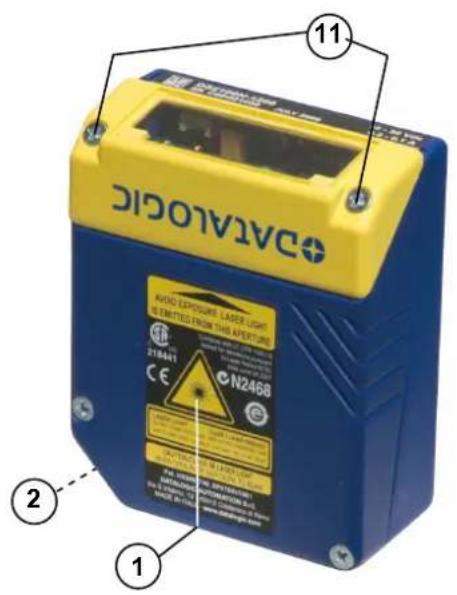
Warning labels indicating exposure to laser light and the device classification are applied onto the body of the scanner (Figure A, 1).
Disconnect the power supply when opening the device during maintenance or installation to avoid exposure to hazardous laser light.
The laser diode used in this device is classified as a class 3B laser product according to EN 60825-1 regulations and as a Class IIIb laser product according to CDRH regulations.
Any violation of the optic parts in particular can cause radiation up to the maximum level of the laser diode (35 mW at 630 to 680 nm).

text_image
AVOID EXPOSURE LASER LIGHT IS EMITTED FROM THIS APERTURE Complies with 21 CFR 1040.10 except for deviations pursuant to Laser Notice N°50, date June 24,2007 C US 218441 CE N2468 ICE LASER LIGHT CLASS 2 LASER PRODUCT DO NOT STARE INTO BEAM MAX. OUTPUT RADIATION 1 mW EMITTED WAVE LENGTH 630-680nm IEC 60825-1: 2007 CAUTION-CLASS 3B LASER LIGHT WHEN OPEN AVOID EXPOSURE TO BEAM US pat.: US5992740A; US6443360B1; US6056198A; US6273336B1 DATALOGIC Automation S.r.l. Via Lavino, 265 - 40050 Monte S.Pietro (BO) - Italy www.automation.datalogic.comWarning and Device Class Labels
FCC COMPLIANCE
Modifications or changes to this equipment without the expressed written approval of Datalogic could void the authority to use the equipment.
This device complies with PART 15 of the FCC Rules. Operation is subject to the following two conditions: (1) This device may not cause harmful interference, and (2) this device must accept any interference received, including interference which may cause undesired operation.
This equipment has been tested and found to comply with the limits for a Class A digital device, pursuant to part 15 of the FCC Rules. These limits are designed to provide reasonable protection against harmful interference when the equipment is operated in a commercial environment. This equipment generates, uses, and can radiate radio frequency energy and, if not installed and used in accordance with the instruction manual, may cause harmful interference to radio communications. Operation of this equipment in a residential area is likely to cause harmful interference in which case the user will be required to correct the interference at his own expense.
POWER SUPPLY
This product is intended to be installed by Qualified Personnel only.
This accessory device is intended to be supplied by a UL Listed or CSA Certified Power Unit with «Class 2» or LPS power source, which supplies power directly to the scanner via the 25-pin connector.
CE COMPLIANCE
Warning:
This is a Class A product. In a domestic environment this product may cause radio interference in which case the user may be required to take adequate measures.
HANDLING
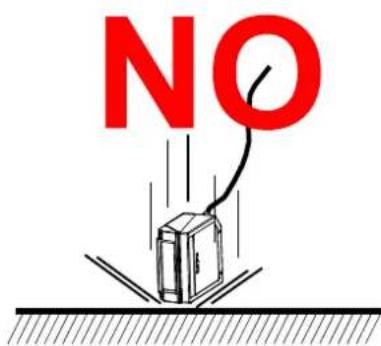
The DS2400N is designed to be used in an industrial environment and is built to withstand vibration and shock when correctly installed, however it is also a precision product and therefore before and during installation it must be handled correctly to avoid damage.
- avoid that the scanners hit one another causing damage. They should be handled separately.

text_image
NO- avoid that the scanners are dropped (exceeding shock limits).
text_image
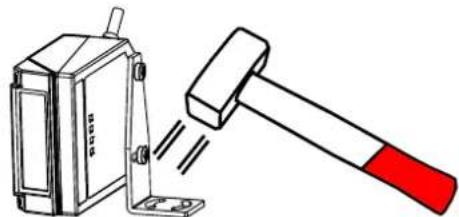
NO- do not fine tune the positioning by striking the scanner or bracket.
NO
natural_image
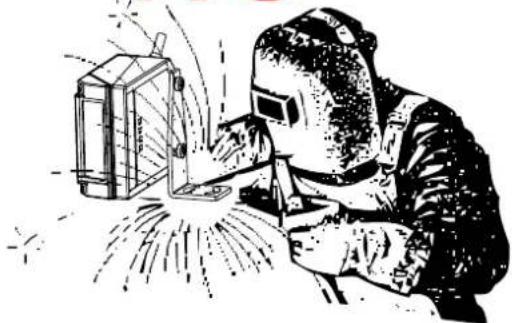
Illustration of a hammer striking a small mechanical component (no text or symbols present)- do not weld the scanner into position which can cause electrostatic, heat or output window damage.
NO
natural_image
Illustration of a welding torcher in protective gear operating a mechanical device (no text or symbols visible)- do not spray paint near the scanner which can cause output window damage.
NO

natural_image
Person in full protective suit spraying a spray gun next to a portable device (no visible text or symbols)DS2400N
text_image
CDAVOLOC AVOC EXPOURE LASER LIGHT BEI METER FROM THIS APERTURE 218441 CE N2468 11 2 1
text_image
DATALOGIC READY SETUP GOOD LEARN TRIGGER TEST COM STATUS PRESS DELABOR-L1200 IN CY1000031 7 Figure A 8 9 10Figure A
① Warning and Device Class Labels
② "POWER ON" LED
③ Mounting Holes
④ "READY" LED
⑤ "GOOD" LED
⑥ "TRIGGER" LED
⑦ Laser Beam Output Window
⑧ "COM" LED
⑨ "STATUS" LED
⑩ X-PRESS™ Push Button
⑪ Accessory Mounting Holes
DS2400N Subzero

text_image
DIALOGIC AVOC-EXPOURE LASER LIGHTEDITION FROM THE ADORTURE
21M401 N246B 1 2 3 4 5 6 7 8 9 10 11 TALOGIC READY GOOD LEARN TRIGGER TEST COM STATUS XIRONE TRANSMATS ELECTRICALS CLOSINGFigure A
① Warning and Device Class Labels
② "POWER ON" LED
③ Mounting Holes
④ "READY" LED
⑤ "GOOD" LED
⑥ "TRIGGER" LED
⑦ Laser Beam Output Window
⑧ "COM" LED
⑨ Subzero Model Logo
⑩ "STATUS" LED
⑪ X-PRESS™ Push Button
1 RAPID CONFIGURATION

NOTE
This chapter illustrates a Stand Alone application. For other types of installations, such as ID-NET ^™ , Fieldbus, Pass-Through, Multiplexer Layout, etc., refer to chapters 4, 5 and 6. For complete scanner configuration using the Genius ^™ configuration program, refer to the Context-Sensitive Help On-Line.
STEP 1 – CONNECT THE SYSTEM
To connect the system in a Stand Alone configuration, you need the hardware indicated in Figure 1.
In this layout the data is transmitted to the Host on the main serial interface.
In Local Echo communication mode, data is transmitted on the RS232 auxiliary interface independently from the main interface selection.
When On-Line Operating mode is used, the scanner is activated by an External Trigger (photoelectric sensor) when the object enters its reading zone.
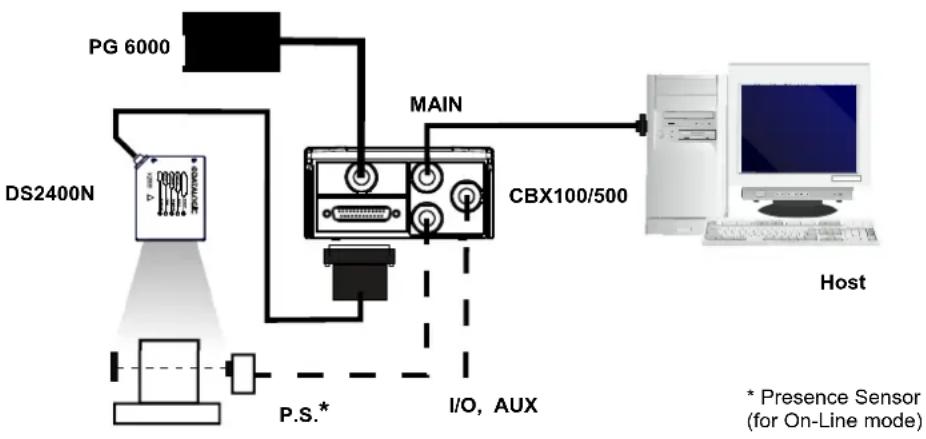
flowchart
graph TD
    A["PG 6000"] --> B["Main"]
    C["DS2400N"] --> D["PC"]
    D --> E["CBX100/500"]
    E --> F["Host"]
    G["P.S.*"] --> H["I/O, AUX"]
    style A fill:#f9f,stroke:#333
    style C fill:#ccf,stroke:#333
    style D fill:#cfc,stroke:#333
    style E fill:#fcc,stroke:#333
    style F fill:#ffc,stroke:#333
    style G fill:#fff,stroke:#333
    style H fill:#fff,stroke:#333
    note right of F
        * Presence Sensor (for On-Line mode)
    end
The table below gives the pinout of the CBX100/500 terminal block connectors. Use this pinout when the DS2400N reader is connected by means of the CBX100/500:
| CBX100/500 Terminal Block Connectors | |||
| Input Power Outputs | |||
| Vdc Power Supply Input Voltage + +V Power Source - Outputs | |||
| GND Power Supply Input Voltage - -V Power Reference - Outputs | |||
| Earth Protection Earth Ground O1+ Output 1 + | |||
| O1- Output 1 - | |||
| Inputs | O2+ Output 2 + | ||
| +V Power Source – External Trigger O2- Output 2 - | |||
| I1A External Trigger A (polarity insensitive) | Auxiliary Interface | ||
| I1B External Trigger B (polarity insensitive) | TX | Auxiliary Interface TX | |
| -V Power Reference – External Trigger | RX | Auxiliary Interface RX | |
| +V Power Source – Inputs SGND Auxiliary Interface Reference | |||
| I2A Input 2 A (polarity insensitive) | ID-NETTM | ||
| I2B Input 2 B (polarity insensitive) | REF | Network Reference | |
| -V Power Reference – Inputs | ID+ ID-NETTM network + | ||
| Shield | ID- | ID-NETTM network - | |
| Shield | Network Cable Shield | ||
| Main Interface | |||
| RS232 | RS485 Full-Duplex | RS485 Half-Duplex | |
| TX | TX+ | RTX+ | |
| RTS | TX- | RTX- | |
| RX | *RX+ | ||
| CTS | *RX- | ||
| SGND | SGND | SGND | |
* Do not leave floating, see par. 4.2.2 for connection details.

CAUTION
Do not connect GND, SGND and REF to different (external) ground references. GND, SGND and REF are internally connected through filtering circuitry which can be permanently damaged if subjected to voltage drops over 0.8 Vdc.
The table below gives the pinout of the 25-pin male D-sub connector for connection to the power supply and input/output signals. Use this pinout when the DS2400N reader is connected by means of the 25-pin connector:

text_image
1 13 14 25Figure 2 - 25-pin Male D-sub Connector
| 25-pin D-sub male connector pinout | ||||
| Pin | Name | Function | ||
| 13, 9 Vdc | Power supply input voltage + | |||
| 25, 7 GND | Power supply input voltage - | |||
| 1 CHAS | SIS Cable shield connected to chassis | |||
| 18 I1A | External Trigger A (polarity insensitive) | |||
| 19 I1B | External Trigger B (polarity insensitive) | |||
| 6 I2A | Input 2 A (polarity insensitive) | |||
| 10 I2B | Input 2 B (polarity insensitive) | |||
| 8 O1+ | Output 1 + | |||
| 22 O1- | Output 1 - | |||
| 11 O2+ | Output 2 + | |||
| 12 O2- | Output 2 - | |||
| 20 RX | Auxiliary RS232 RX | |||
| 21 TX | Auxiliary RS232 TX | |||
| 23 | ID+ | ID-NETTM network + | ||
| 24 | ID- | ID-NETTM network - | ||
| 14, 15, 16, 17 | NC | Not Connected | ||
| Pin | Name | RS232 | RS485Full-Duplex | RS485Half-Duplex |
| 2 | TX | TX+ | RTX+ | |
| 3 | MAIN INTERFACE(SW SELECTABLE) | RX | *RX+ | |
| 4 | RTS | TX- | RTX- | |
| 5 | CTS *RX- | |||
* Do not leave floating, see par. 5.2.2 for connection details.
STEP 2 – MOUNTING AND POSITIONING THE SYSTEM
- To mount the DS2400N, use the mounting bracket to obtain the most suitable position for the reader as shown in the figures below.
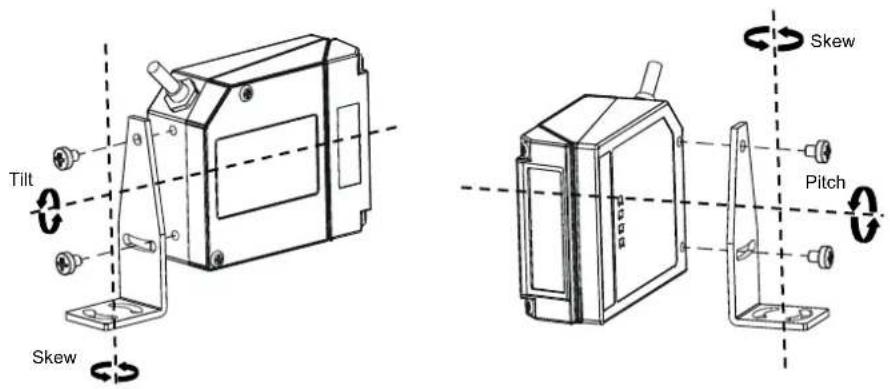
text_image
Tilt Skew Skew PitchFigure 3 - Positioning with Mounting Bracket
- When mounting the DS2400N take into consideration these three ideal label position angles: Skew 10° to 30°, Tilt 0° and Pitch 0°.

text_image
Assure at least 10° MinimizeFigure 4 – Skew and Tilt Angles
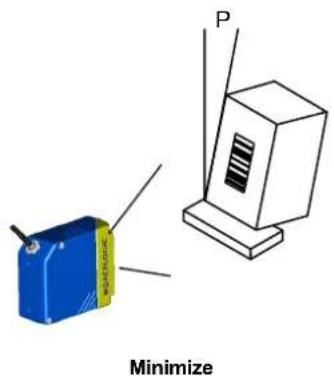
text_image
P MinimizeFigure 5 – Pitch Angle
- Refer to the Reading Diagrams in par. 7.4 to decide the distance your scanner should be positioned at.
STEP 3 - X-PRESS™ CONFIGURATION
X-PRESS ^™ is the intuitive Human Machine Interface designed to improve ease of installation and maintenance.
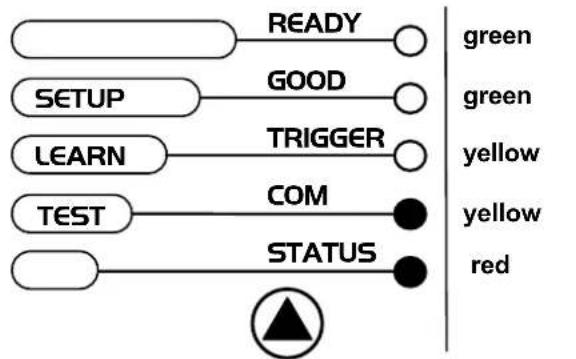
Status and diagnostic information are clearly presented by means of the five colored LEDs, whereas the single push button gives immediate access to the following relevant functions:
- AutoSetup to self-optimize and auto-configure reading performance in demanding applications
- AutoLearn to self-detect and auto-configure for reading unknown barcodes (by type and length)
- Test Mode with bar-graph visualization to check static reading performance
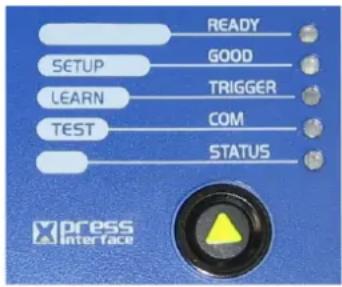
text_image
READY GOOD TRIGGER LEARN COM TEST STATUS press interface
NOTE
If using the OM2000N accessory, when entering the X-PRESS™ interface, the Oscillating Mirror remains in the default fixed position (-15°) in order to make barcode reading easier while performing the X-PRESS™ functions.
The colors and meaning of the five LEDs are illustrated in the following table:
| READY (green) | This LED indicates the device is ready to operate. For Subzero models this LED blinks during the warm-up phase. |
| GOOD (green) This LED | confirms successful reading. |
| TRIGGER (yellow) This LED | ledicates the status of the reading phase. * |
| COM (yellow) This LED | indicates active communication on main serial port. ** |
| STATUS (red) This LED | indicates a NO READ result. |
* In On-Line mode the TRIGGER LED corresponds to the active reading phase signaled by the Presence Sensor. In Automatic and Continuous modes the TRIGGER LED is always on indicating that the reader is ready to read a code.
** When connected to a Fieldbus network through the CBX500, the COM LED is always active, even in the absence of data transmission, because of polling activity on the Fieldbus network.
During the reader startup (reset or restart phase), all the LEDs blink for one second.
On the back of the reader near the cable, the "POWER ON" LED indicates the laser scanner is correctly powered.
Auto Learn
If you are configuring your scanner using X-PRESS™, you must start with the Auto Learn procedure.
- Enter the Auto Learn function by holding the X-PRESS™ push button pressed until the LEARN LED is on.
- Release the button to enter the Auto Learn function.
Once entered, the reader starts a procedure to automatically detect and recognize barcodes (by type and length), which are presented to it (*). The laser turns on and the LEARN LED blinks to indicate the ongoing process.
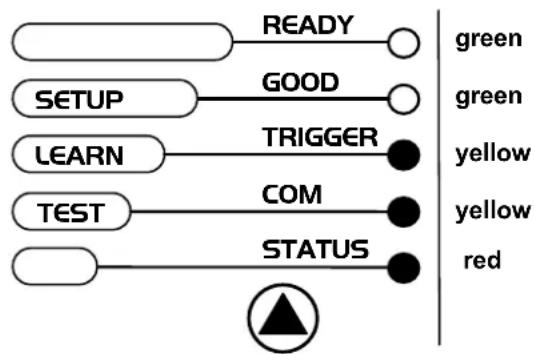
flowchart
graph LR
    A["READY"] --> B["GREEN"]
    C["GOOD"] --> D["GREEN"]
    E["TRIGGER"] --> F["YELLOW"]
    G["COM"] --> H["YELLOW"]
    I["STATUS"] --> J["RED"]
Figure 6 – X-PRESS™ Interface: Auto Learn Function
The procedure is as follows:
A) place the desired barcode on the scanline.
B) wait until the LEARN LED stays steady on (indicating the reader has detected the barcode).
C) repeat, if needed, the above two steps to program up to 10 different barcodes (the LEARN LED returns to the blinking state for the next code). If more than one barcode is detected in the scan line, the Multi Label mode is enabled (refer to the "2K/4K Family Software Configuration Parameter Guide" Help file).
- Exit the process by pressing the X-PRESS™ push button once. The scanner will restart at the end of the process, and then the detected barcodes are automatically configured in scanner memory.

NOTE
If the barcode cannot be read because of low contrast or excessive ambient light, you can perform the AutoSetup function to optimize the optical parameters. Then you can perform AutoLearn to recognize the barcode symbology.

NOTE
On exit from Autolearn, the following parameters are forced: Code Combination = Single Label, Reading Mode = Linear. If necessary, these parameters can be changed through Genius ^™ .
* In case of Programming Barcodes, refer to the “Setup Procedure Using Programming Barcodes” document in the product CD.
Auto Setup (Optional)
At the end of the Auto Learn procedure, you have the possibility to follow the Auto Setup procedure to set up the reading parameters.
- Enter the Auto Setup function by holding the X-PRESS™ push button pressed until the SETUP LED is on.
- Release the button to enter the Auto Setup function.
- Once entered, if a barcode label is positioned in front of the scanline, the scanner automatically performs the optimal setup of the reading parameters for that specific barcode.
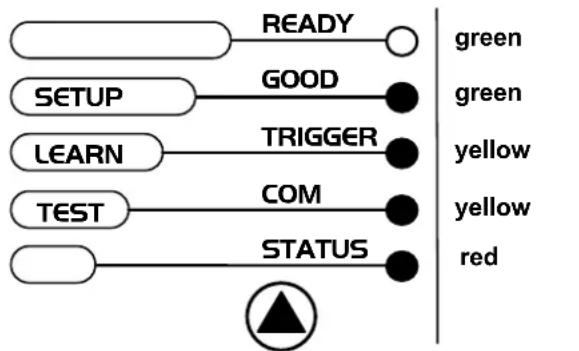
flowchart
graph LR
    A["READY"] --> B["GREEN"]
    C["GOOD"] --> D["GREEN"]
    E["LEARN"] --> F["TRIGGER"]
    G["TEST"] --> H["COM"]
    I["STATUS"] --> J["RED"]
Figure 7 – X-PRESS™ Interface: Auto Setup Function
The procedure is as follows:
A) place the desired barcode on the scanline.
B) enter the AutoSetup function (the laser turns on and the SETUP LED blinks to indicate the ongoing process)
C) wait until the SETUP LED stays steady on (indicating the reader has detected the barcode)
This procedure ends either when the barcode is successfully decoded or after a timeout of about 7 (seven) seconds.
The scanner will restart at the end of the process, and then the optimized reading parameters for that barcode are automatically configured in scanner memory.

NOTE
If your application has been configured using X-PRESS ^™ , go to STEP 5.
Reset Scanner to Factory Default (Optional)
If it ever becomes necessary to reset the scanner to the factory default values, you can perform this procedure by holding the X-PRESS™ push button pressed while powering up the scanner. At the end of the procedure (about 5-6 seconds), the Configuration and Environmental parameters are reset, and all LEDs blink simultaneously 3 times. If connected through a CBX500 with display module, the message "Default Set" is shown on the display.
STEP 4 – INSTALLING GENIUS™ CONFIGURATION PROGRAM
Genius ^™ is a Datalogic scanner configuration tool providing several important advantages:
- Wizard approach for new users;
- Multi-language version;
- Defined configuration directly stored in the reader;
- Communication protocol independent from the physical interface allowing to consider the reader as a remote object to be configured and monitored.
To install Genius™, turn on the PC that will be used for the configuration, running Windows 98, 2000/NT, XP, Vista or 7, then insert the Genius™ CD-ROM, wait for the CD to autorun and follow the installation procedure.
This configuration procedure assumes scanner connection to a CBX100/500. Genius™, running on a laptop computer, is connected to the scanner auxiliary port through the CBX100/500 9-pin connector. To communicate with the scanner, Genius™ performs an auto baudrate detection starting from its default parameters which are 115200, 8, N, 1. These parameters can also be set in the Genius™ Tools>Options>Communications window.
Wizard for Quick Reader Setup
After installing the Genius™ software program the following window appears asking the user to choose the desired configuration level.
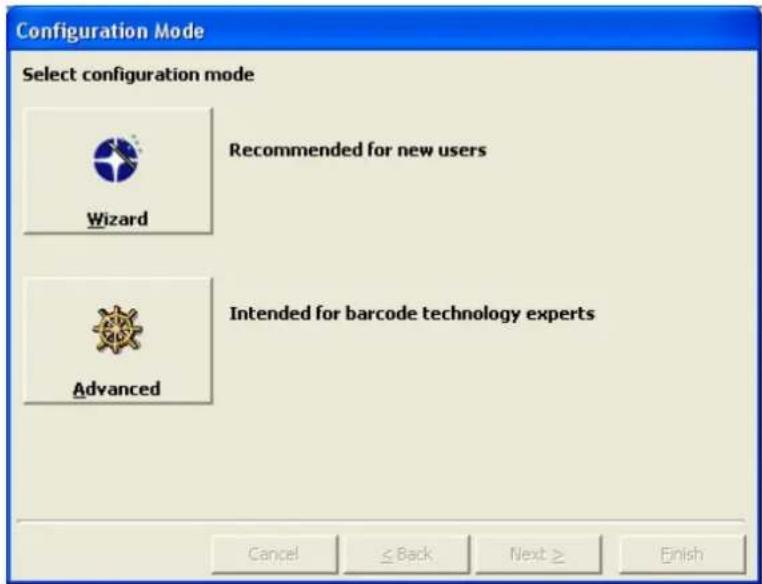
text_image
Configuration Mode Select configuration mode Wizard Recommended for new users Advanced Intended for barcode technology experts Cancel ≤ Back Next ≥ FinishFigure 8 - Genius™ Wizard Opening Window
The Wizard option is advised for rapid configuration or new users, since it shows a step-by-step scanner configuration.
- Select the Create a new configuration button.
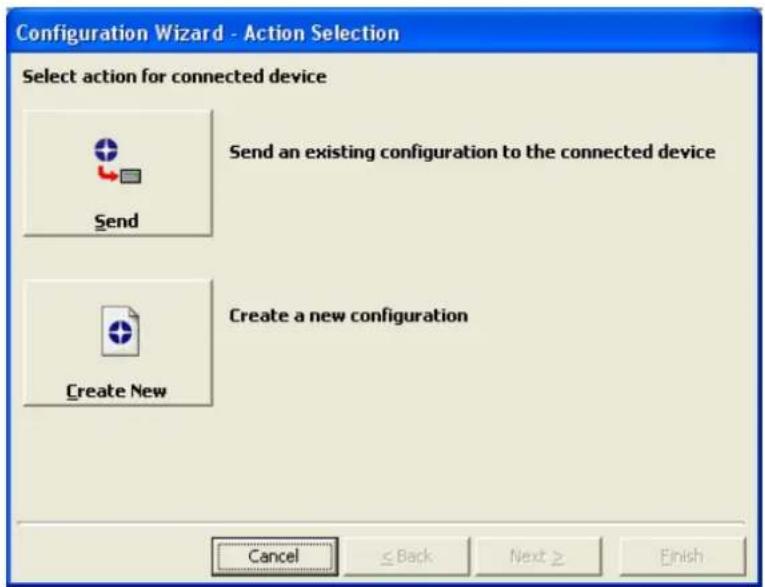
text_image
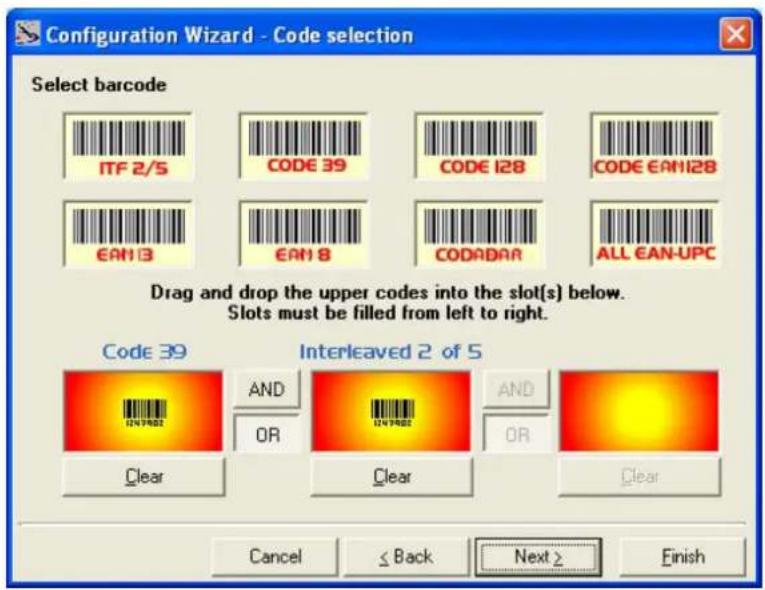
Configuration Wizard - Action Selection Select action for connected device Send an existing configuration to the connected device Send Create a new configuration Create New Cancel ≤ Back Next ≥ FinishYou will be guided through the configuration being asked to define the following parameters:
a. Barcode selection and definition
text_image
Configuration Wizard - Code selection Select barcode ITF 2/5 CODE 39 CODE 128 CODE EAN128 EAN13 EAN 8 CODABAR ALL EAN-UPC Drag and drop the upper codes into the slot(s) below. Slots must be filled from left to right. Code 39 AND OR Clear Interleaved 2 of 5 AND OR Clear Cancel ≤ Back Next > Finishb. Operating mode selection and definition
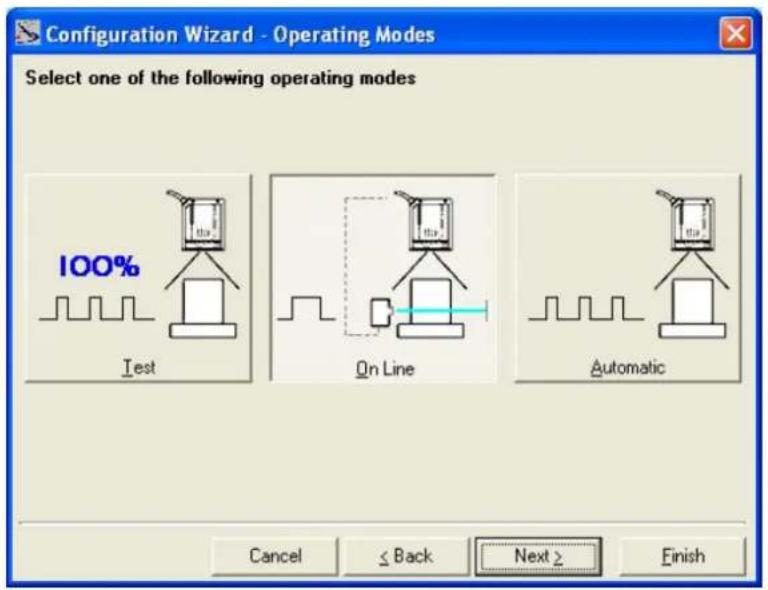
text_image
Configuration Wizard - Operating Modes Select one of the following operating modes 100% Test On Line Automatic Cancel ≤ Back Next > Finishc. Digital Outputs configuration
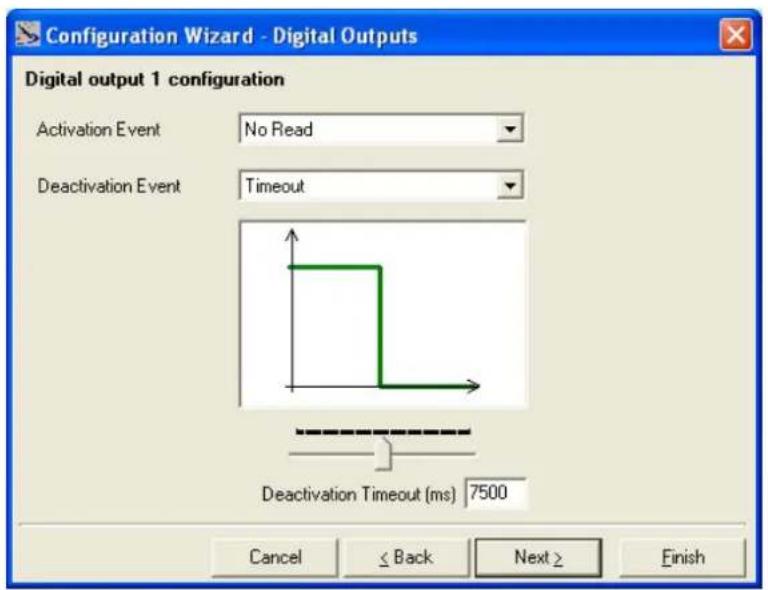
text_image
Configuration Wizard - Digital Outputs Digital output 1 configuration Activation Event No Read Deactivation Event Timeout Deactivation Timeout (ms) 7500 Cancel ≤ Back Next ≥ Finishd. Hardware interface selection

text_image
Configuration Wizard - Interface Type selection Select the hardware interface type RS 232 RS232 RS 485 RS485 full duplex Cancel ≤ Back Next > Finishe. Output data format configuration

text_image
Configuration Wizard - Output Data Format Output data format configuration Header String (128 characters max) Data Packet Separators (128 characters max.)The On Line operating Mode requires the reader to be connected to an External Trigger/Presence Sensor using I1A and I1B inputs.
The Automatic operating mode does not require connection to an external Presence Sensor. When working in this mode the reader is continuously scanning, while the reading phase is activated each time a barcode enters the reader reading zone. The reader stops reading after an N number of scans without a code. Barcode characters are transmitted on the serial interface. In case of a failed reading phase no message is sent to the host computer.
-
After defining the parameter values the following window appears allowing to complete the reader configuration as follows:
-
Saving the configuration to disk;
- Switching to Advanced mode;
- Sending the configuration to the scanner.

text_image
Configuration Wizard - Final choices What do you want to do with the newly created configuration? Save it to disk Save to Disk Switch to Advanced Mode to refine it Send it to connected device Send Cancel ≤ Back Next ≥ Finish- After sending the configuration to the scanner you have completed the configuration process.

text_image
Configuration Wizard - Completed Configuration Wizard completed successfully! Cancel ≤ Back Next > Finish- By clicking Finish, the System Information window will be displayed with specific information concerning the scanner.
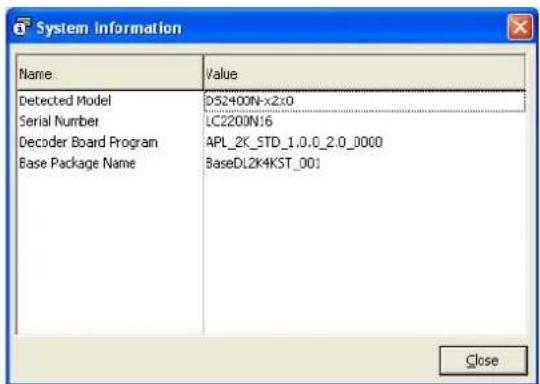
text_image
System Information Name Value Detected Model D52400N-x2:0 Serial Number LC2200N16 Decoder Board Program APL_2K_STD_1.0.0_2.0_0000 Base Package Name BaseDL2K4KST_001 CloseSTEP 5 - TEST MODE
Use a code suitable to your application to test the system. Alternatively, you can use the Datalogic Test Chart (Code 39, Code Interleaved 2/5).
- Enter the Test mode function by holding the X-PRESS™ push button pressed until the TEST LED is on.
- Release the button to enter the Test mode function.
Once entered, the Bar-Graph on the five LEDs is activated and if the scanner starts reading barcodes the Bar-Graph shows the Good Read Rate. In case of no read condition, only the STATUS LED is on and blinks.
flowchart
graph LR
    A["READY"] --> B["GOOD"]
    B --> C["TRIGGER"]
    C --> D["COM"]
    D --> E["STATUS"]
    style A fill:#fff,stroke:#000
    style B fill:#fff,stroke:#000
    style C fill:#fff,stroke:#000
    style D fill:#000,stroke:#000,color:#fff
    style E fill:#000,stroke:#000,color:#fff
Figure 9 – X-PRESS™ Interface: Test Mode Function
- To exit the Test Mode, press the X-PRESS™ push button once.

NOTE
By default, the Test Mode exits automatically after two minutes.
The ADVANCED selection available when starting the Genius™ program is addressed to expert users being able to complete a detailed scanner configuration. By choosing this option it is possible either to start a new scanner configuration or to open and modify an old one. The desired parameters can be defined in the following window, similar to the MS Explorer:
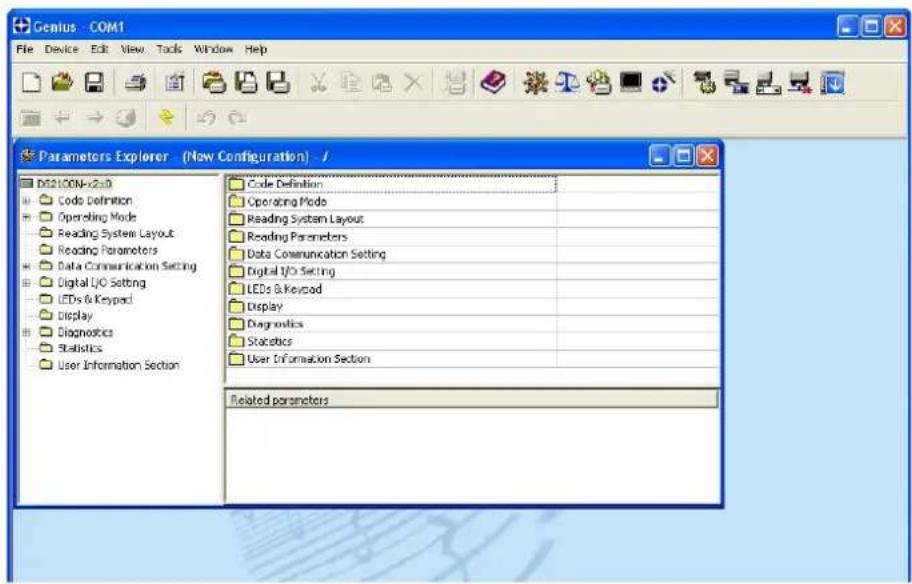
text_image
Genius - COM1 File Device Edit View Tools Window Help Parameters Explorer - (Now Configuration) - / D621.CON-v2.x0 Code Definition Operating Mode Reading System Layout Reading Parameters Data Communication Setting Digital I/O Setting LEDs & Keypad Display Diagnostics Statistics User Information Section Code Definition Operating Mode Reading System Layout Reading Parameters Data Communication Setting Digital I/O Setting LEDs & Keypad Display Diagnostics Statistics User Information Section Related parametersFigure 10 - Genius™ Parameter Explorer Window
Host Mode Programming
The scanner can also be configured from a host computer using the Host Mode programming procedure, by commands via the serial interface. See the Host Mode Programming file on the CD-ROM.
Alternative Layouts
- The ID-NET™ is a built-in high-speed interface dedicated for high-speed scanner interconnection. ID-NET™ is in addition to the Main and Auxiliary serial interfaces. If you need to install an ID-NET™ network refer to this DS2400N Reference Manual.
The scanner can also be configured for alternative layouts by reading programming barcodes. See the "Setup Procedure Using Programming Barcodes" printable from the CD-ROM.
- If you need to install an Ethernet network, Fieldbus network, Pass-Through network, Multiplexer network or an RS232 Master/Slave network refer to the DS2400N Reference Manual.
2 INTRODUCTION
2.1 PRODUCT DESCRIPTION
The DS2400N laser scanner satisfies the most advanced needs of a wide range of users. It has been developed focusing on the realistic requirements of its target market. The outstanding result is an extremely compact, cost-effective and easy to use industrial scanner.
Standard Application Program
A standard application program is factory-loaded onto the DS2400N. This program controls barcode reading, serial port interfacing, data formatting and many other operating and control parameters.
It is completely configurable from a host computer through the Genius ^™ utility program provided on CD with the scanner, or via the serial interface (Genius ^™ based Host Mode Programming).
Custom Application Programs
If the Standard Application Program does not meet your requirements, please contact your local Datalogic distributor.
Some of the main features of DS2400N are listed below:
• ACR-Lite (Advanced Code Reconstruction)
- small dimensions and light weight
- software programmable scanning speed on all models
- linear and raster version
- completely configurable via serial interface (Genius™)
• 3 serial communication interfaces (Main, Auxiliary, ID-NET™)
• supply voltage from 10 to 30 Vdc (24 Vdc ±10% for Subzero models)
- reads all popular codes
- test mode to verify the reading features and exact positioning of the scanner without the need for external tools
- programmable in 4 different operating modes to suit the most various barcode reading system requirements
- code verifier
- low power consumption
The DS2400N uses a solid-state laser diode as a light source; the light emitted has a wavelength between 630 and 680 nm. Refer to the section “Safety Precautions” at the beginning of this manual for information on laser safety.
The protection class of the enclosure is IP65, the reader is therefore suitable for industrial environments where high protection against harsh external conditions is required.
2.1.1 Indicators
The five LEDs on the side of the scanner (Figure A) indicate the following:
| READY | (green) | This LED indicates the device is ready to operate. For Subzero models this LED blinks during the warm-up phase. |
| GOOD | (green) | This LED confirms successful reading. |
| TRIGGER | (yellow) | This LED indicates the status of the reading phase. * |
| COM | (yellow) | This LED indicates active communication on main serial port. ** |
| STATUS | (red) | This LED indicates a NO READ result. |
* In On-Line mode the TRIGGER LED corresponds to the active reading phase signaled by the Presence Sensor. In Automatic and Continuous modes the TRIGGER LED is always on indicating that the reader is ready to read a code.
** When connected to a Fieldbus network through the CBX500, the COM LED is always active, even in the absence of data transmission, because of polling activity on the Fieldbus network.
During the reader startup (reset or restart phase), all the LEDs blink for one second.
On the back of the reader near the cable, the "POWER ON" LED indicates the laser scanner is correctly powered.
2.2 ID-NET™
The ID-NET ^™ is a built-in high-speed interface dedicated for high-speed scanner interconnection. The ID-NET ^™ is in addition to the Main and Auxiliary serial interfaces.

The following network configurations are available:
ID-NET™ M/S Synchronized: Single station – multiple scanners

flowchart
graph TD
    A["CBX100"] --> B["Switch"]
    C["CBX100"] --> B
    D["CBX100"] --> B
    B --> E["ID NET™"]
    style A fill:#f9f,stroke:#333
    style C fill:#f9f,stroke:#333
    style D fill:#f9f,stroke:#333
ID-NET ^™ interface allows local connection of multiple scanners reading different sides of the same target. All scanners share a single presence sensor and activate/deactivate simultaneously.
At the end of each reading phase a single data message is transmitted to the host.
Thanks to ID-NET ^™ , data communication among scanners is highly efficient so that an immediate result will be available.
ID-NET™ M/S Multidata: Multiple stations – single scanner

flowchart
graph TD
    A["Input Module 1"] --> B["CBX100"]
    C["Input Module 2"] --> D["CBX100"]
    E["Input Module 3"] --> F["CBX100"]
    B --> G["ID NET™"]
    D --> G
    F --> G
ID-NET™ interface allows connection of scanners reading objects placed on independent conveyors. All scanners are typically located far away from each other and they use a dedicated presence sensor.
At the end of each reading phase, each scanner transmits its own data message to the host. Thanks to ID-NET ^™ , data collection among readers is accomplished at a high speed without the need of external multiplexing device. This leads to an overall cost reduction and to a simple system wiring.
2.2.1 How To Setup/Configure the Scanner Network
A complete ID-NET ^™ scanner network can be rapidly setup, as follows:
Mounting & Connection
- Mechanically mount/install all the readers (refer to par. 3.2 and 3.2.5).
- Wire ID-NET ^TM (refer to par. 4.3 or 5.3).
- Connect the planned Master scanner to a PC by means of the Genius™ configuration software.
- Power up the entire system.
Configuration
- Launch Genius™.
- From the Genius™ Device Menu select "Local Device Network Settings" and program the Role of the Master scanner (Synchronized or Multidata).
This procedure requires the Network Baud Rate be the same for all Slaves and Master, (500 kbs is the default value). It can be changed after network setup using Genius ^™ through the Master scanner. See also the alternative procedure in the note below. - At the prompt to "Send updated Network configuration to the Local Device" (Master) choose "Yes".
- Then run the NET-AUTOSET procedure from the Icon in the Devices Area. Genius™ sets all slave scanners according to the Master Role (Synchronized or Multidata), and assigns each a random address. If necessary, this address can be changed through the Network Wizard.
- Configure the System parameters via Genius ^TM .
- If using the CBX connection box equipped with a BM100 Backup module, perform System Backup at the Master.
The scanner network is ready.

NOTE
If necessary, the ID-NET ^™ baudrate can be set individually on each Slave scanner to match the Master. Connect each Slave to Genius ^™ and set the Reading System Layout > Network Baudrate parameter. Then follow the procedure above.

NOTE
An alternative method of programming scanner address and role assignment can be accomplished by using the "Connectivity Programming Barcodes" (refer to the "Setup Procedure Using Programming Barcodes" document on the product CD).
2.3 X-PRESS™ HUMAN MACHINE INTERFACE
X-PRESS™ is the intuitive Human Machine Interface designed with the precise goal of improving ease of installation and maintenance.
Status and diagnostic information are clearly presented by means of five-colored LEDs, whereas the single multi-function key gives immediate access to relevant functions:
- Autosetup to self-optimize reading performance in demanding applications
• Autolearn to self-detect unknown barcodes - Test Mode with bar-graph visualization to check static reading performance


text_image
READY GOOD SETUP LEARN TRIGGER COM TEST STATUS Xpress InterfaceX-PRESS™ is the common interface adopted in all new products: "You learn one, you can use them all".
The colors and meaning of the five LEDs when in the one of the operating modes (On-Line, Automatic or Continuous) are illustrated in par 2.1.1.

NOTE
The X-PRESS™ functions do not work if the motor or laser are turned off, see chp. 9 for details.
2.3.1 Diagnostic Indication
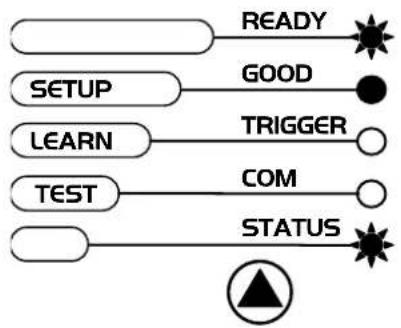
The "STATUS" and "READY" LEDs blink simultaneously to signal the presence of a failure. Diagnostic message transmission on interfaces can be enabled to provide details about specific failure conditions.
At the same time one or more LEDs light up according to the following scheme:
flowchart
graph LR
    A["READY"] --> B["GOOD"]
    B --> C["TRIGGER"]
    C --> D["COM"]
    D --> E["STATUS"]
    F["SETUP"] --> A
    G["LEARN"] --> C
    H["TEST"] --> D
| LED | STATUS |
| READY | BLINK |
| GOOD | ON to indicate any Failure different than Motor or Laser failures. |
| TRIGGER ON to indicate a Motor Failure. | |
| COM ON to indicate a Laser Failure. | |
| STATUS | BLINK |
2.3.2 X-PRESS™ Functions
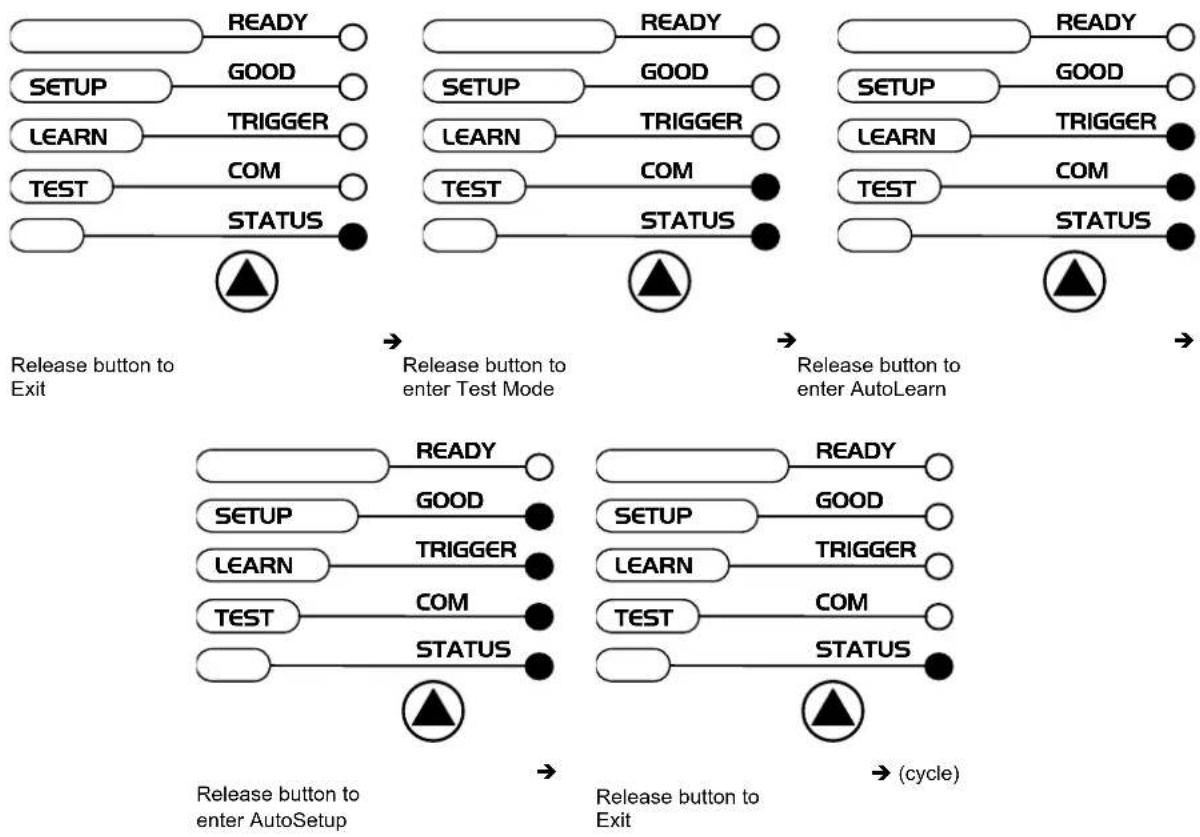
Quick access to the following functions is provided by an easy procedure using the push button:
1 - Press the button (the STATUS LED will give a visual feedback).
2 - Hold the button until the specific function LED is on (TEST, LEARN or SETUP).
3 - Release the button to enter the specific function.

flowchart
graph LR
    A["READY"] --> B["GOOD"]
    B --> C["TRIGGER"]
    C --> D["COM"]
    D --> E["STATUS"]
    E --> F["Empty"]
Once button is pressed, the cycle of LEDs activation is as follows:
flowchart
graph TD
    A["RELEASE BUTTON TO EXIT"] --> B["RELEASE BUTTON TO ENTER TEST MODE"]
    B --> C["RELEASE BUTTON TO ENTER AUTOLearn"]
    C --> D["RELEASE BUTTON TO ENTER AUTOSetup"]
    D --> E["RELEASE BUTTON TO EXIT"]

    subgraph Stage1
        A1["READY"] --> A2["GOOD"]
        A3["SETUP"] --> A4["TRIGGER"]
        A5["LEARN"] --> A6["COM"]
        A7["TEST"] --> A8["STATUS"]
    end

    subgraph Stage2
        B1["READY"] --> B2["GOOD"]
        B3["SETUP"] --> B4["TRIGGER"]
        B5["LEARN"] --> B6["COM"]
        B7["TEST"] --> B8["STATUS"]
    end

    subgraph Stage3
        C1["READY"] --> C2["GOOD"]
        C3["SETUP"] --> C4["TRIGGER"]
        C5["LEARN"] --> C6["COM"]
        C7["TEST"] --> C8["STATUS"]
    end

    subgraph Stage4
        D1["READY"] --> D2["GOOD"]
        D3["SETUP"] --> D4["TRIGGER"]
        D5["LEARN"] --> D6["COM"]
        D7["TEST"] --> D8["STATUS"]
    end

    subgraph Stage5
        E1["READY"] --> E2["GOOD"]
        E3["SETUP"] --> E4["TRIGGER"]
        E5["LEARN"] --> E6["COM"]
        E7["TEST"] --> E8["STATUS"]
    end

    subgraph Stage6
        F1["READY"] --> F2["GOOD"]
        F3["SETUP"] --> F4["TRIGGER"]
        F5["LEARN"] --> F6["COM"]
        F7["TEST"] --> F8["STATUS"]
    end

    subgraph Stage7
        G1["READY"] --> G2["GOOD"]
        G3["SETUP"] --> G4["TRIGGER"]
        G5["LEARN"] --> G6["COM"]
        G7["TEST"] --> G8["STATUS"]
    end

    subgraph Stage8
        H1["READY"] --> H2["GOOD"]
        H3["SETUP"] --> H4["TRIGGER"]
        H5["LEARN"] --> H6["COM"]
        H7["TEST"] --> H8["STATUS"]
    end

    subgraph Stage9
        I1["READY"] --> I2["GOOD"]
        I3["SETUP"] --> I4["TRIGGER"]
        I5["LEARN"] --> I6["COM"]
        I7["TEST"] --> I8["STATUS"]
    end

    subgraph Stage10
        J1["READY"] --> J2["GOOD"]
        J3["SETUP"] --> J4["TRIGGER"]
        J5["LEARN"] --> J6["COM"]
        J7["TEST"] --> J8["STATUS"]
    end
Test Mode Function
Once entered, the Bar-Graph on the five LEDs is activated and if the scanner starts reading barcodes the Bar-Graph shows the Good Read Rate. In case of no read condition, only the STATUS LED is on and blinks.
To exit the Test Mode, press the X-PRESS ^™ push button once.
AutoLearn Function
Once entered, the reader starts a procedure to automatically detect and recognize barcodes (by type and length), which are presented to it ^1 . The laser turns on and the LEARN LED blinks to indicate the ongoing process.
The procedure is as follows:
- place the desired barcode on the scanline.
- wait until the LEARN LED stays steady on (indicating the reader has detected the barcode).
- repeat, if needed, the above two steps to program up to 10 different barcodes (the LEARN LED returns to the blinking state for the next code). If more than one barcode is detected in the scan line, the Multi Label mode is enabled (refer to the "2K/4K Family Software Configuration Parameter Guide" Help file).
- exit the process by pressing the X-PRESS™ push button once.
The scanner will restart at the end of the process, and then the detected barcodes are automatically configured in scanner memory.
AutoSetup Function
Once entered, if a barcode label is positioned in front of the scanline, the scanner automatically performs the optimal setup of the reading parameters for that specific barcode.
The procedure is as follows:
- place the desired barcode on the scanline.
- enter the AutoSetup function (the laser turns on and the SETUP LED blinks to indicate the ongoing process).
- wait until the SETUP LED stays steady on (indicating the reader has detected the barcode).
This procedure ends either when the barcode is successfully decoded or after a timeout of about 7 (seven) seconds.
The scanner will restart at the end of the process, and then the optimized reading parameters for that barcode are automatically configured in scanner memory.

NOTE
The AutoSetup function does not modify the programmed barcode symbologies. If needed, the AutoLearn function can be performed after Autosetup.
Reset Scanner to Factory Default
If it ever becomes necessary to reset the scanner to the factory default values, you can perform this procedure by holding the X-PRESS™ push button pressed while powering up the scanner. At the end of the procedure (about 5-6 seconds), the Configuration and Environmental parameters are reset, all LEDs blink simultaneously 3 times and the message "Default Set" is shown on the display.
2.4 SUBZERO TEMPERATURE MODELS
The DS2400N Subzero scanner is an industrial scanner designed to operate in industrial refrigerator/freezer cells or other stable subzero degree environments, which are below the operating range of standard industrial scanners. It is not designed to move between subzero and normal environments (rapid temperature changes).
The DS2400N Subzero has an intelligent microprocessor-driven and efficient internal heating system which constantly monitors and automatically controls internal temperature. Only the necessary temperature-sensitive components are heated, resulting in an efficient heating system which has very low power consumption.
Upon power-up in a subzero environment, the scanner waits until these internal components are heated to within their operating temperature range. Power-up at -35 ^ can take about 20 minutes before the scanner is ready to read barcodes. During this time the laser and motor remain off and the Ready LED blinks, indicating the warm-up phase. While in the warm-up phase, scanner communication is operative and the device can be configured through Genius ^™ or through Host Mode Programming.
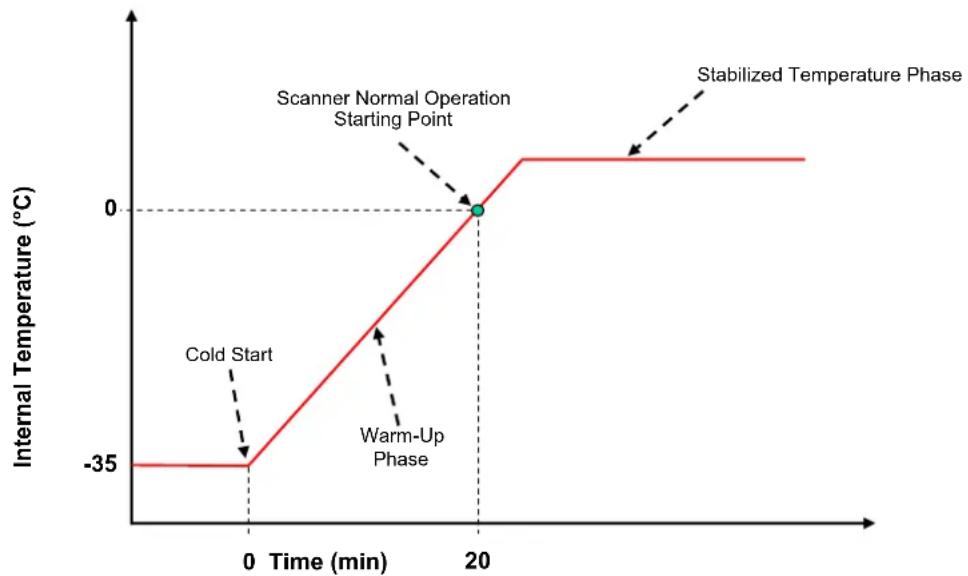
line
| Time (min) | Internal Temperature (°C) | | ---------- | ------------------------- | | 0 | -35 | | 20 | 0 |The DS2400N Subzero can be connected to the CBX100 LT Subzero connection box which can withstand the same low temperature environment as the scanner. A CBX100 LT all-in-one model includes a BM100 backup and restore module having an extended temperature range also for use in subzero environments.
2.5 MODEL DESCRIPTION
The DS2400N scanner is available in versions that differ in regard to the following parameters:
- Resolution
- Performance
• Linear or raster reading - Special Features
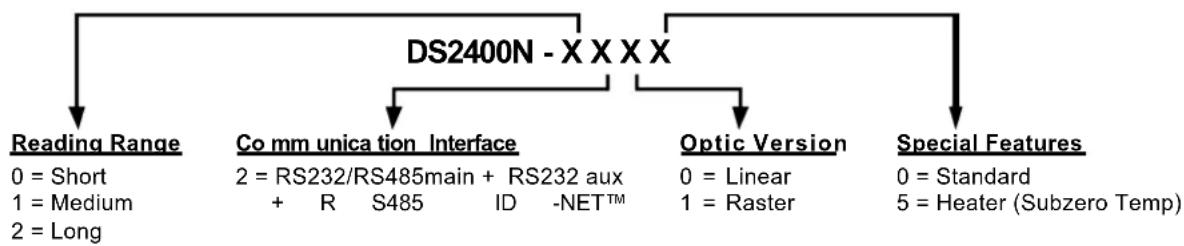
flowchart
graph TD
    A["DS2400N - X X X X"] --> B["Reading Range"]
    A --> C["Co mm unication Interface"]
    A --> D["Optic Version"]
    A --> E["Special Features"]
    B --> F["0 = Short\n1 = Medium\n2 = Long"]
    C --> G["2 = RS232/RS485main + RS232 aux\n+ R S485 ID -NET™"]
    D --> H["0 = Linear\n1 = Raster"]
    E --> I["0 = Standard\n5 = Heater (Subzero Temp)"]
The following tables display each version's reading performance.
| Version | Max Code | Resolution | Speed scans/s |
| mm | (mils) | ||
| 02XX | 0.20 (8) | 600 to 1000 | |
| 12XX | 0.25 (10) | 600 to 1000 | |
| 22XX | 0.35 (14) | 600 to 1000 |
| Version | Reading Distance |
| 02XX | 75 mm (3 in) - 340 mm (13.4 in) on 0.35 mm (14 mils) codes |
| 12XX | 100 mm (3.9 in) - 440 mm (17.3 in) on 0.50 mm (20 mils) codes |
| 22XX | 190 mm (7.5 in) - 600 mm (23.6 in) on 0.50 mm (20 mils) codes |
See reading diagrams in par. 7.4 for further details.
2.6 ACCESSORIES
The following accessories are available on request for the DS2400N:
| Name | Description | Part | Nur |
| Mirrors | |||
| GFC-200 85° Contact Reading Mirror 93A201108 | |||
| GFC-2010 2KN 0° Direct Output Window 93ACC1874 | |||
| GFC-2020 2KN 102° Lateral Output Mirror 93ACC1871 | |||
| OM2000N | Oscillating Mirror 93ACC1783 | ||
| Connection Boxes | |||
| CBX100 Compact Connection Box 93A301067 | |||
| CBX100 All-In-One Compact Connection Box + BM100 93A301076 | |||
| CBX100 LT | Compact Connection Box Subzero | 93A301069 | |
| CBX100 LT All-In-One | Compact Connection Box Subzero + BM100 | 93A301085 | |
| CBX500 Modular Connection Box 93A301068 | |||
| BM100 | Backup Module | 93ACC1808 | |
| BM150 | Display Module | 93ACC1809 | |
| BM200/210 | Ethernet TCP/IP Module STD/IP65 | 93ACC1851, 93ACC1852 | |
| BM300/310 | Profibus Module STD/IP65 | 93ACC1810, 93ACC1811 | |
| BM400 | DeviceNet Module IP65 | 93ACC1814 | |
| BM500/510/520 | Ethernet/IP Module STD/IP65/IP54 | 93ACC1812, 93ACC1813, 93ACC1840 | |
| BM600 | CANopen Module STD | 93ACC1815 | |
| BM700/710 | Profinet Module STD/IP65 | 93ACC1816, 93ACC1886 | |
| BM1100 CC-Link Module STD 93ACC1845 | |||
| BM1200/1210 | Modbus TCP | 93ACC1848, 93ACC1849 | |
| BA100 | DIN Rail Adapters | 93ACC1821 | |
| BA200 | Bosch Adapters | 93ACC1822 | |
| BA900 | Two Cable Glands Panel | 93ACC1847 | |
| QL100 | Quick Link Slave ID-NET T-Connector | 93ACC1860 | |
| QL150 | Quick Link Slave ID-NET + Service T-Connector | 93ACC1868 | |
| QL200 | Quick Link Slave ID-NET + Power T-Connector | 93ACC1861 | |
| QL300 | Quick Link Master ID-NET Serial Host Connector | 93ACC1862 | |
| QL500 | Quick Link Master ID-NET Ethernet Host Connector (includes Ethernet/IP explicit messaging) | 93ACC1864 | |
| QLM600 Quick Link Master ID-NET Profibus Host Connector | 93ACC0033 | ||
| Sensors | |||
| MEP-593 Photocell Kit - | PNP (PH-1) 93ACC1791 | ||
| MEP-543 Photocell Kit - | NPN 93ACC1728 | ||
| Power Supplies | |||
| PG-6000/6001/6002 | 24 V Power Supply Unit EU/UK/US | 93ACC1720, 93ACC1719, 93ACC1718 | |
lumber
Accessories valid for DS2400N Subzero models.
3 INSTALLATION
3.1 PACKAGE CONTENTS
Verify that the DS2400N reader and all the parts supplied with the equipment are present and intact when opening the packaging; the list of parts includes:
• DS2400N reader with cable
• DS2400N Quick Guide
- Barcode Test Chart
- Genius™ CD-ROM
• Replicate serial number labels
- Mounting Kit: - bracket
- screws

natural_image
Technical line drawings of electronic components including a box, CD, and various electronic devices (no text or symbols)The replicate serial number labels are for external reference and can be applied to the reading station and/or to the OM2000N accessory when used.
3.2 MECHANICAL INSTALLATION
DS2400N can be installed to operate in different positions. The four screw holes (M4 x 5) on the body of the reader are for mechanical fixture (Figure A, 3). The diagrams below give the overall dimensions of the scanner and mounting bracket and may be used for installation. Refer to par. 3.2.1 and 3.2.5 for correct positioning.
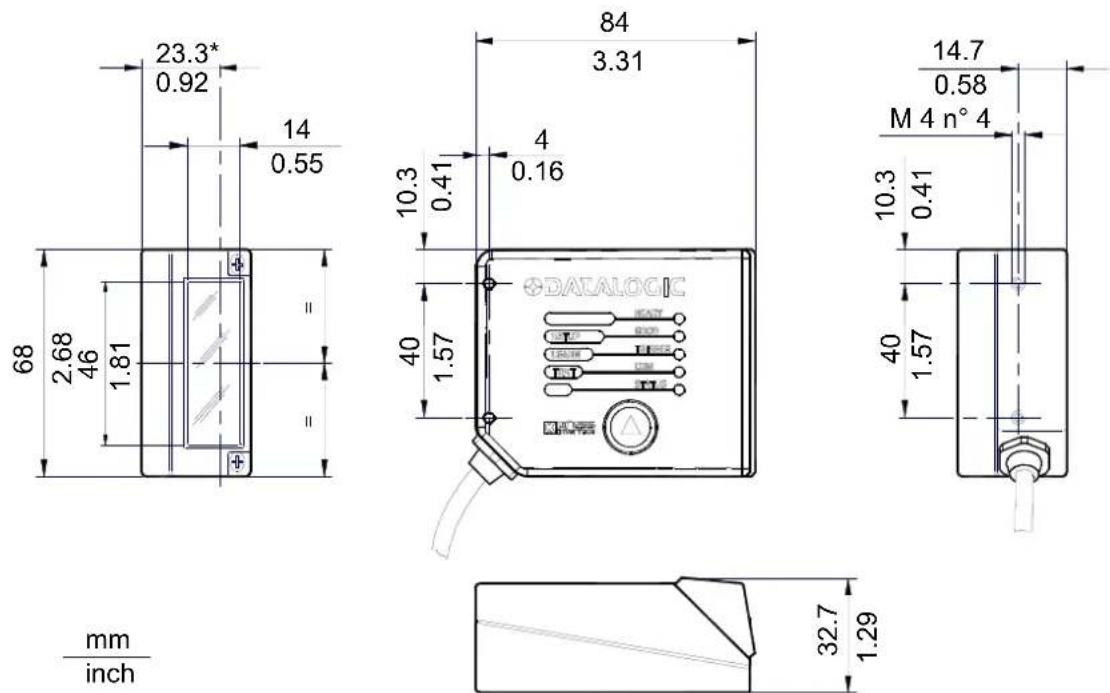
* The quote refers to the scan line
Figure 13 – Mounting Bracket Overall Dimensions
Using the DS2400N mounting bracket you can obtain the most suitable position for the reader as shown in the figure below:

text_image
Tilt Skew Skew PitchFigure 14 – Positioning with Mounting Bracket
3.2.2 Mounting a GFC-2010 Accessory Direct Output Window
The GFC-2010 accessory direct output window can be used as a replacement of the original output window in case of damage over time when used in harsh environments.

CAUTION
Subzero model scanners must not be opened in an uncontrolled environment.
The installation of the output window is very easy.
-
Make sure the device is not powered.
-
Remove the original 0° scanning window from the scanner by unscrewing the two cover screws.
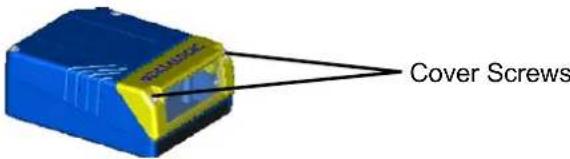
text_image
Cover ScrewsFigure 15 - Removing the 0° Scanning Window

CAUTION
Avoid any contact with the mirrored rotor, the lenses or other optical components; otherwise the performance of the reader will be reduced.
-
Clean the reading window with a clean soft cloth and alcohol before closing the scanner.
-
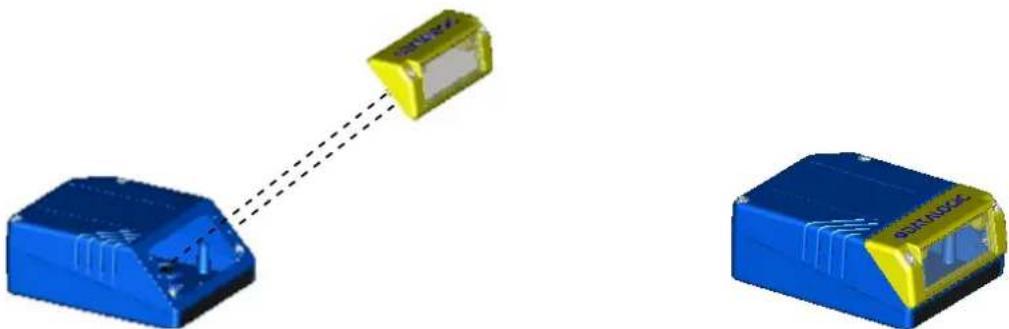
Mount the GFC-2010 accessory so that the opening face is at 0^ with respect to the scanner body. Tighten the two cover screws.
natural_image
Two blue and yellow electronic device modules connected by a dashed line, no visible text or symbolsFigure 16 - Mounting a GFC-2010 Direct Output Window
The reading position with respect to the scanner is shown below.

text_image
GFC-2010 Laser Beam 0° ± 2°Figure 17 - GFC-2010 Laser Beam Output Position
3.2.3 Mounting a GFC-2020 Accessory Lateral Output Deflection Mirror
The GFC-2020 accessory is a Lateral Output deflection mirror which helps to position the scanner body in a different orientation with respect to the code, for limited space applications.

CAUTION
Subzero model scanners must not be opened in an uncontrolled environment.
The installation of the deflection mirror is very easy.
-
Make sure the device is not powered.
-
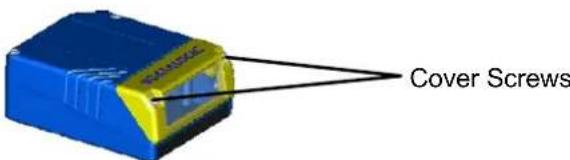
Remove the original 0^ scanning window from the scanner by unscrewing the two cover screws.
text_image
Cover ScrewsFigure 18 - Removing the 0° Scanning Window

CAUTION
Avoid any contact with the deflection mirror, mirrored rotor, the lenses or other optical components; otherwise the performance of the reader will be reduced.
- Clean the mirror surface and reading window with a clean soft cloth and alcohol before closing the scanner.
- Mount the GFC-2020 accessory so that the opening face is at 90^ with respect to the scanner body. Tighten the two cover screws.

natural_image
Two blue and yellow electronic devices connected by a dashed line, no visible text or symbolsFigure 19 - Mounting a GFC-2020 Deflection Mirror
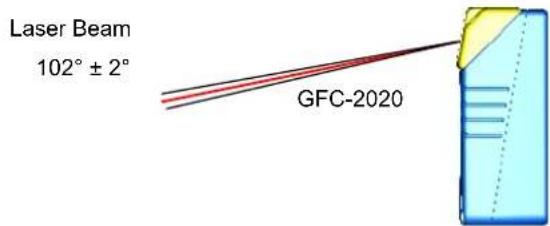
The reading position with respect to the scanner is shown below.
text_image
Laser Beam 102° ± 2° GFC-2020Figure 20 - GFC-2020 Laser Beam Output Position
3.2.4 Mounting a GFC-200 Accessory Contact Reading Mirror
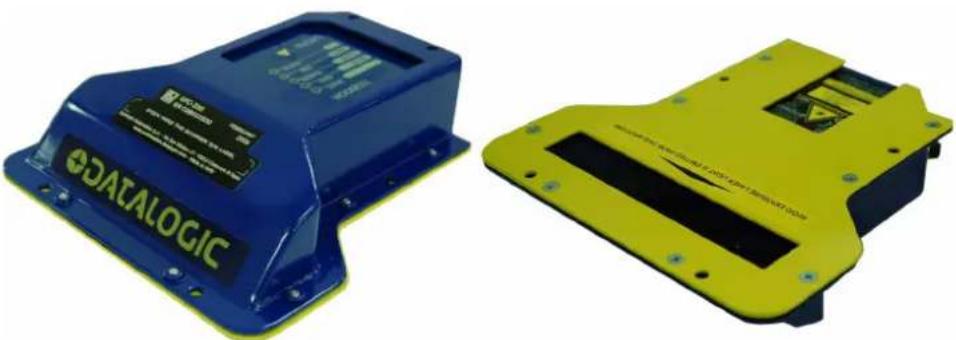
The GFC-200 is an 85° contact reading mirror that is mounted directly to the DS2400N Scanner. The GFC-200 allows contact reading, eliminating the external optical path.
natural_image
Two electronic device components: a blue Datalogic device with visible branding and a yellow plastic housing (no text or symbols on the devices themselves)Figure 21 - GFC-200 General View
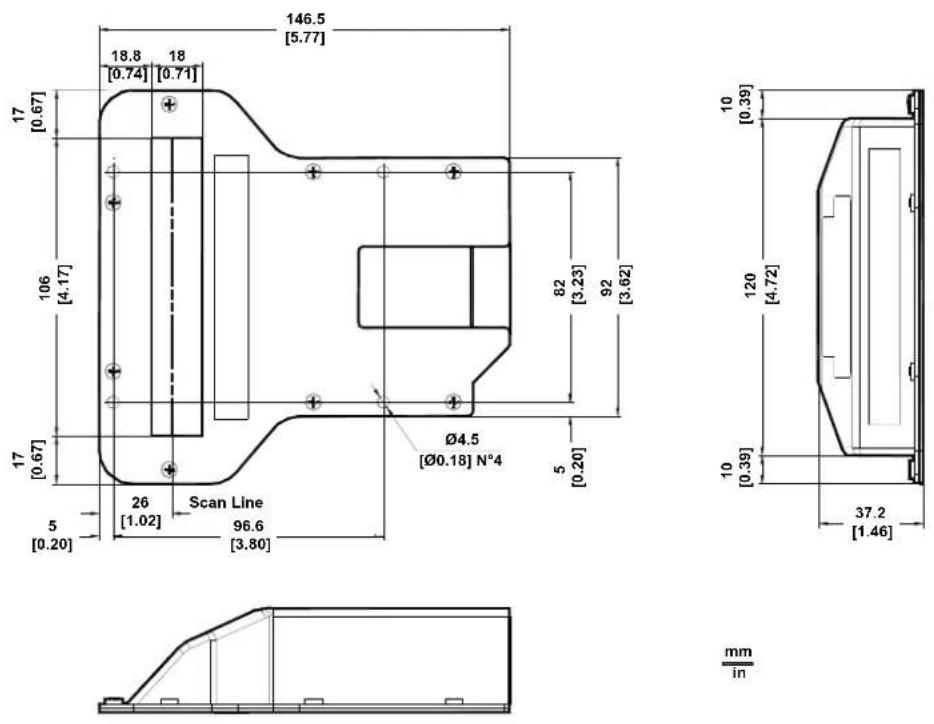
The overall dimensions are provided in the figure below and can be used for proper installation.
text_image
146.5 [5.77] 18.8 18 [0.74] [0.71] 17 [0.67] 106 [4.17] 82 [3.23] 92 [3.62] Ø4.5 [Ø0.18] N°4 5 [0.20] 17 [0.67] 26 [1.02] Scan Line 5 [0.20] 96.6 [3.80] 10 [0.39] 120 [4.72] 10 [0.39] 37.2 [1.46] mm inFigure 22 - GFC-200 Overall Dimensions
To fix a DS2400N Scanner to the GFC-200, use the two M 4 x 6 mm screws supplied with the GFC Kit. Refer to the following figure.

natural_image
Technical line drawing of a mechanical housing and enclosure assembly (no text or symbols)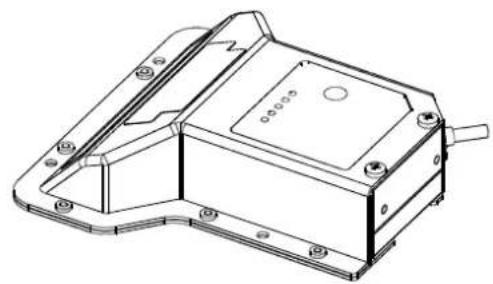
natural_image
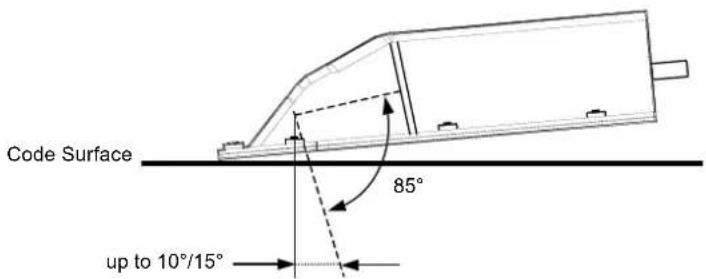
Technical line drawing of a mechanical housing or enclosure component (no text or symbols)The GFC-200 85° contact reading mirror assures that the minimum skew angle is maintained to avoid direct light reflection which can degrade reading performance.
When reading very reflective barcodes, it may be necessary to increase the skew angle (up to 10^ - 15^ ). In this case, the GFC-200 should be mounted with a corresponding inclination.
text_image
Code Surface 85° up to 10°/15°Figure 24 – Maintaining Minimum Skew Angle
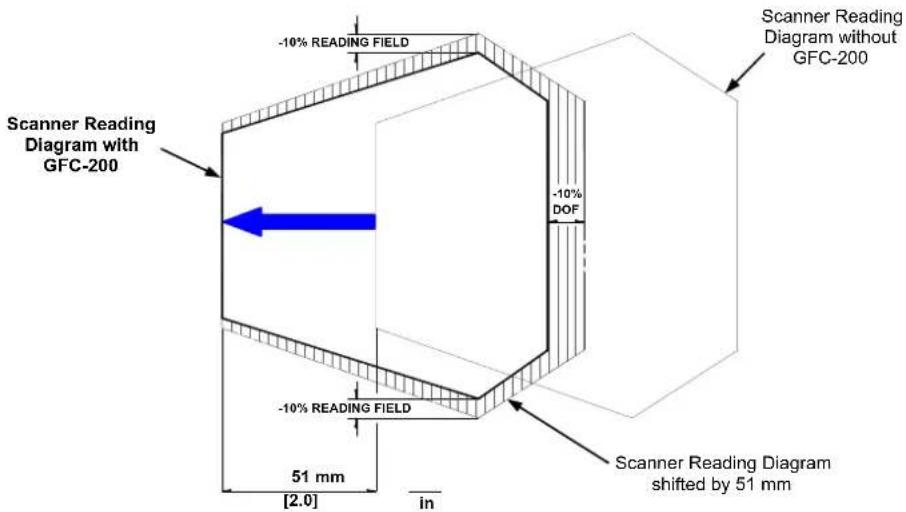
The internal optical path from the scanner reading window to the GFC-200 window is 51 mm.
The reading distance of the DS2400N scanner with the GFC-200 is shifted by 51 mm towards the scanner because of the internal optical path between the scanner and the GFC-200 output window.
The reading performance also decreases in typical conditions by about 10% due to the optical signal passing through the output window of the GFC-200 and the reflection on the mirror surface.
The combination of these effects produces the reading diagram represented below:
text_image
Scanner Reading Diagram without GFC-200 Scanner Reading Diagram with GFC-200 -10% READING FIELD -10% DOF -10% READING FIELD Scanner Reading Diagram shifted by 51 mm 51 mm [2.0] inFigure 25 – GFC-200 Reading Performance Comparison
3.2.5 Mounting an OM2000N Accessory Oscillating Mirror
The OM2000N oscillating mirror is designed to generate homogeneous and adjustable raster reading through deflection of the scanning laser beam.
The system consists of the oscillating mirror attached to the scanner and allows a surface instead of a line to be observed; versatility and reading accuracy are therefore increased in "Picket Fence" reading mode.
The electronic and electromechanical components controlling the mirror movement are contained inside the rugged metal casing, which guarantees protection class IP65 when the OM2000N is mounted correctly onto the scanner.
The OM2000N is directly powered from the scanner through a connector which is accessible after removing the scanning window (see Figure 28). It therefore operates exclusively at low power, between 10 and 30 VDC.

The OM2000N accessory is not compatible with and therefore cannot be used on Subzero models.
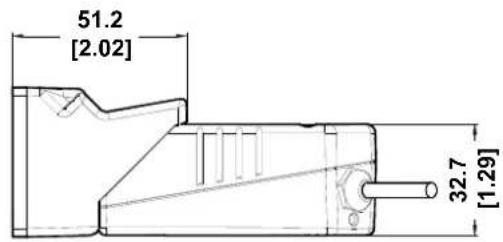
The following figure gives the overall dimensions of the DS2400N + OM2000N and may be used for its installation in the application.
text_image
51.2 [2.02] 32.7 [1.29]
text_image
44 [1.73] 69 [2.72]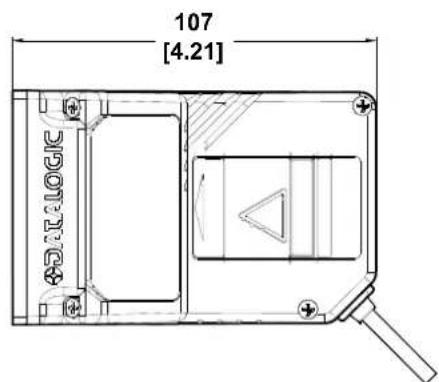
text_image
107 [4.21] ADALOGICThe installation of the deflection mirror is very easy.
1) Clean the OM2000N mirror surface and output window (internally and externally) with a clean soft cloth and alcohol before assembling it to the scanner.

CAUTION
All abrasive substances must be absolutely avoided as they cause irreparable damage to the transparency of the glass.
2) Remove the scanning window from the scanner (see Figure 27).
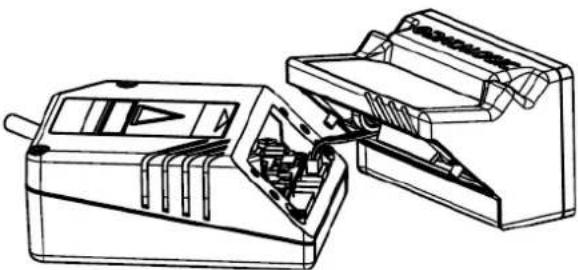
3) Bring the OM2000N close to the scanner and insert the cable into the power connector of the scanner (see Figure 28).

NOTE
Make sure the cable doesn't remain in the path of the mirror movement.
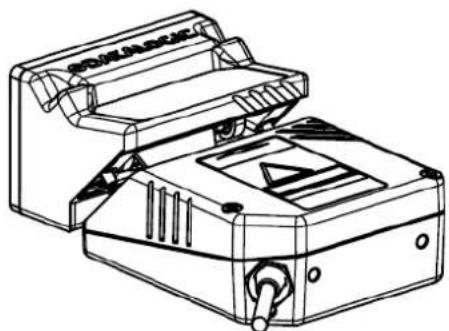
4) Check that the seal is correctly positioned and then after having aligned the OM2000N onto the scanner, fix it using the two screws (see Figure 29).
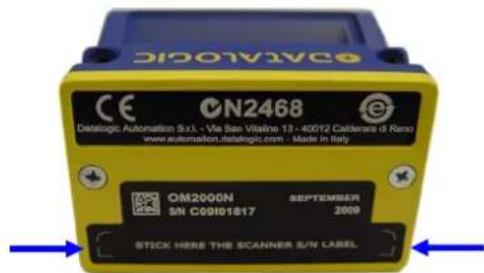
5) In the indicated space on the front side of the OM2000N, apply the relative replicate scanner serial number label provided with the scanner itself (see Figure 30).

natural_image
Technical line drawing of a mechanical device with internal components and a labeled part (no readable text or symbols)Figure 27 – Remove Scanning Window
natural_image
Technical line drawing of a mechanical device with internal components (no text or symbols)Figure 28 - OM2000N Electrical Connection
natural_image
Line drawing of a mechanical device with no visible text or symbolsFigure 29 -Mount OM2000N
text_image
CN2468 Catalog: Automation S.r.l. - Via San Vitalivio 13 - 40012 Califara @ Reno www automation.datalogit.com - Made in Italy OM2000N SEPTEMBER SN C09101817 2009 STICK HERE THE SCANNER S/N LABELFigure 30 – Apply Replicate Scanner SN Label
The reading distance of the scanner with the OM2000N is shifted by 10 mm towards the scanner because of the internal optical path between the scanner and the OM2000N output window. The reading performance also decreases in typical conditions by about 10% due to the optical signal passing through the output window of the OM2000N and the reflection on the mirror surface. The combination of these effects produces the reading diagram represented below:

text_image
-10% READING FIELD Scanner Reading Diagram with OM2000N -10% DOF Scanner Reading Diagram without OM2000N Scanner Reading Diagram shifted by 10 mm -10% READING FIELD mm 10 [0.39] InFigure 31 – OM2000N Reading Performance Comparison
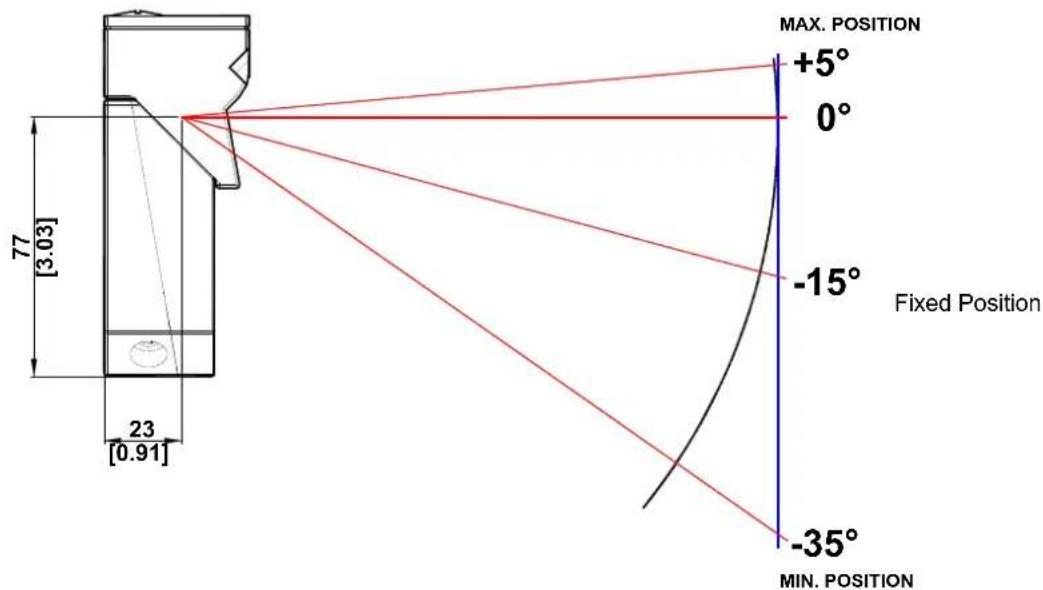
The reading distance also depends on the amplitude of aperture used. In particular, wider apertures require the scanner to be closer to the code in order to read at the extreme edges of the sweep (see Figure 32 below).
text_image
MAX. POSITION +5° 0° -15° Fixed Position -35° MIN. POSITION 77 [3.03] 23 [0.91]Figure 32 - OM2000N Reading Distance

NOTE
The OM2000N is configurable exclusively through the Genius™ utility program.
3.3 POSITIONING
The DS2400N scanner is able to decode moving barcode labels at a variety of angles, however significant angular distortion may degrade reading performance.
When mounting the DS2400N take into consideration these three ideal label position angles: Skew 10^ to 30^ , Tilt 0^ and Pitch 0^ .
Follow the suggestions for the best orientation:
The Skew angle is represented by the value S in Figure 33. Position the reader to assure at least 10° for the Skew angle. This avoids the direct reflection of the laser light emitted by the DS2400N.
For the raster version, this angle refers to the most inclined or external raster line, so that all other raster lines assure more than 10^ Skew.

natural_image
Diagram showing a blue and yellow device next to a white box with a striped pattern, labeled 'S' (no text or symbols on the devices themselves)Figure 33 - Skew Angle
The Tilt angle is represented by the value T in Figure 34. Position the reader in order to minimize the Tilt angle.
By using the Reconstruction Reading Mode software parameter, the tilt angle is less critical and can be decoded even if the scan line doesn't cross the entire code.

text_image
DOSA NO. TFigure 34 - Tilt Angle
See par. 7.1 or the Help On Line for details.
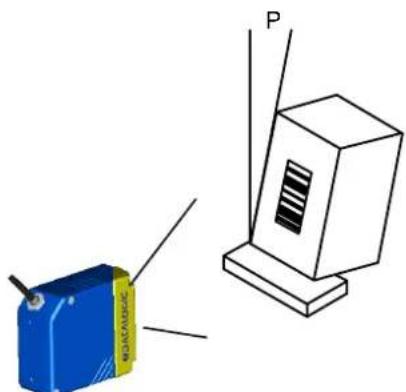
The Pitch angle is represented by the value P in Figure 35. Position the reader in order to minimize the Pitch angle.
natural_image
Illustration of a blue rectangular device labeled 'BENTAGE' next to a white box labeled 'P', with no visible text or symbols beyond the label.Figure 35 - Pitch Angle
4 CBX ELECTRICAL CONNECTIONS
All DS2400N models are equipped with a cable terminated by a 25-pin male D-sub connector for connection to the power supply and input/output signals.
We recommend making system connections through one of the CBX connection boxes since they offer the advantages of easy connection, easy device replacement and filtered reference signals.

NOTE
If you require direct wiring to the scanner the details of the connector pins and relative connections are indicated in Chapter 5.
The table below gives the pinout of the CBX100/500 terminal block connectors. Use this pinout when the DS2400N reader is connected by means of the CBX100/500:
| CBX100/500 Terminal Block Connectors | |||
| Input Power | |||
| Vdc Power Supply Input Voltage + | |||
| GND Power Supply Input Voltage - | |||
| Earth Protection Earth Ground | |||
| Inputs | |||
| +V Power Source - External Trigger | |||
| I1A External Trigger A (polarity insensitive) | |||
| I1B External Trigger B (polarity insensitive) | |||
| -V Power Reference - External Trigger | |||
| +V Power Source - Inputs | |||
| I2A Input 2 A (polarity insensitive) | |||
| I2B Input 2 B (polarity insensitive) | |||
| -V Power Reference - Inputs | |||
| Outputs | |||
| +V Power Source - Outputs | |||
| -V Power Reference - Outputs | |||
| O1+ Output 1 + | |||
| O1- Output 1 - | |||
| O2+ Output 2 + | |||
| O2- Output 2 - | |||
| Auxiliary Interface | |||
| TX Auxiliary Interface TX | |||
| RX Auxiliary Interface RX | |||
| SGND Auxiliary Interface Reference | |||
| ID-NETTM | |||
| REF Network Reference | |||
| ID+ ID-NETTM network + | |||
| ID- ID-NETTM network - | |||
| Shield Network Cable Shield | |||
| Main Interface | |||
| RS232 | RS485Full-Duplex | RS485Half-Duplex | |
| TX | TX+ | ||
| RX | *RX+ | ||
| RTS | TX- | ||
| CTS | *RX- | ||
| SGND | SGND | SGND | |
* Do not leave floating, see par. 4.2.2 for connection details.

NOTE
To avoid electromagnetic interference when the scanner is connected to a CBX connection box, verify the jumper positions in the CBX as indicated in its Installation Manual.
4.1 POWER SUPPLY
Power can be supplied to the scanner through the CBX100/500 spring clamp terminal pins as shown in Figure 36:

text_image
Power Supply VGND V+ in Earth Ground Vdc GND Earth REF ID+ ID- Shield SGND TX RTS RX CTS POWER ID-NET MAIN (R)TX+ (R)TX- RX+ RX- 1Figure 36 - Power Supply Connections
The power must be between 10 and 30 Vdc only.
For DS2400N Subzero models using CBX100 LT the power must be 24 Vdc.
It is recommended to connect the device CHASSIS to earth ground (Earth) by setting the appropriate jumper in the CBX connection box. See the CBX Installation Manual for details.
4.2 MAIN SERIAL INTERFACE

CAUTION
Do not connect to the Main Interface spring clamp terminals if using Host Interface Modules (Fieldbus) with the CBX500.
The signals relative to the following serial interface types are available on the CBX spring clamp terminal blocks.
If the interface type is not compatible with the current communication handshaking, then the system forces the handshake to none.
The main interface type and the relative parameters (baud rate, data bits, etc.) can be set using the Genius ^™ utility program or the Genius ^™ based Host Mode Programming procedure.
Details regarding the connections and use of the interfaces are given in the next paragraphs.
4.2.1 RS232 Interface
The serial interface is used in this case for point-to-point connections; it handles communication with the host computer and allows both transmission of code data and the programming of the scanner. This is the default setting.
The following pins are used for RS232 interface connection:
| CBX100/500 Function | ||
| TX | Transmit | Data |
| RX | Receive | Data |
| RTS Request To Send | ||
| CTS Clear To Send | ||
| SGND | Signal | Ground |
It is always advisable to use shielded cables. The overall maximum cable length must be less than 15 m (49.2 ft).

text_image
USER INTERFACE SGND RXD TXD CTS RTS Vdc GND POWER Earth REF ID+ ID- ID-NET Shield SGND TX RTS RX CTS MAIN (R)TX+ (R)TX- RX+ RX- 1 SCANNER SGND TX RX RTS CTSFigure 37 – RS232 Main Interface Connections Using Hardware Handshaking
The RTS and CTS signals control data transmission and synchronize the connected devices.

flowchart
graph TD
    A["START OF TRANSMISSION"] --> B["DATA TRANSMISSION"]
    B --> C["C1 C2"]
    B --> D["C3 C4 C5"]
    E["END OF TRANSMISSION"] --> F["DATA TRANSMISSION STOPPED"]
    F --> G["C1 C2"]
    F --> H["C3 C4 C5"]
    I["+ V RTS - V"] --> J["+ V TX DATA - V"]
    K["+ V CTS - V"] --> L["+ V CT S - V"]
    M["IDLE"] --> N["ENABLED"]
    O["DISABLED"] --> P["ENABLED"]
    Q["IDLE"] --> R["IDLE"]
Figure 38 - RS232 Control Signals
If the RTS/CTS handshaking protocol is enabled, the DS2400N activates the RTS output to indicate a message is to be transmitted. The receiving unit activates the CTS input to enable the transmission.
4.2.2 RS485 Full-Duplex Interface
The RS485 full-duplex (5 wires + shield) interface is used for non-polled communication protocols in point-to-point connections over longer distances (max 1200 m / 3940 ft) than those acceptable for RS232 communications or in electrically noisy environments.
The CBX pinout follows:
CBX100/500 Function
| TX+ | RS485 | Transmit Data + |
| RX+ | RS485 | Receive Data + |
| TX- RS485 Transmit Data - |
| RX- | RS485 | Receive Data - |
SGND
Signal
Ground

text_image
USER INTERFACE RX485+ TX485+ SGND RX485- TX485- Vdc GND RX485- POWER Earth REF ID+ ID- ID-NET Shield SGND TX RTS RX CTS MAIN (R)TX- (R)TX- RX RX- RX- 1 SCANNER SGND TX+ RX+ TX- RX-Figure 39 - RS485 Full-duplex Connections

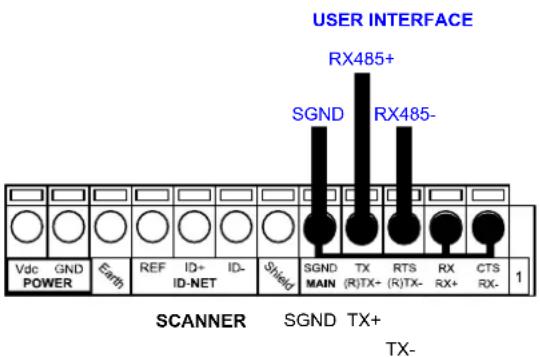
NOTE
For applications that do not use RX485 signals, do not leave these lines floating but connect them to SGND as shown below.
text_image
USER INTERFACE RX485+ SGND RX485- Vdc GND + POWER Earth REF ID+ ID- ID-NET Shield SGND TX RTS RX CTS MAIN (R)TX- (R)TX- RX+ RX- 1 SCANNER SGND TX+ TX-Figure 40 - RS485 Full-duplex Connections using Only TX Signals
4.2.3 RS485 Half-Duplex Interface

NOTE
This interface is provided for backward compatibility. We recommend using the more efficient ID-NET ^™ network for Master/Slave or Multiplexer layouts.
The RS485 half-duplex (3 wires + shield) interface is used for polled communication protocols.
It can be used for Multidrop connections with a Datalogic Multiplexer, (see par. 6.5) exploiting a proprietary protocol based on polled mode called MUX32 protocol, where a master device polls slave devices to collect data.
| CBX100/500 Function | ||
| RTX+ RS485 Receive/Transmit Data + RTX- RS485 Receive/Transmit Data - SGND | Signal | Ground |

text_image
USER INTERFACE RTX485+ SGND RTX485- Vdc GND REF ID+ ID- POWER ID-NET Shield SGND TX RTS RX CTS MAIN (R)TX+(R)TX- RX+ RX- 1 SCANNER SGND RTX+ RTX-Figure 41 - RS485 Half-duplex Connections
This interface is forced by software when the protocol selected is MUX32 protocol.
In a Multiplexer layout, the Multidrop address must also be set via serial channel by the Genius ^™ utility or by the Host Programming Mode.
Figure 42 shows a multidrop configuration with DS2400N scanners connected to a Multiplexer.

CAUTION
This is an example of multidrop wiring. Consult the multiplexer manual for complete wiring instructions.

flowchart
graph TD
    A["HOST RS232/RS485"] --> B["MULTIPLEXER"]
    B --> C["Main Interface"]
    C --> D["PG-6000"]
    D --> E["V-V+"]
    E --> F["120 Ohm"]
    F --> G["Multidrop - Multidrop + Multidrop GND Shield"]
    G --> H["CBX100/500"]
    H --> I["RS485 HD Termination Resistor. OFF"]
    I --> J["PG-6000"]
    J --> K["Earth GND Vdc"]
    K --> L["RTX- RTX+ SGND Shield"]
    L --> M["1200 m Max Length"]
    M --> N["Multidrop Cable"]
    N --> O["PG-6000"]
    O --> P["Earth GND Vdc"]
    P --> Q["RTX- RTX+ SGND Shield"]
    Q --> R["CBX100/500"]
    R --> S["RS485 HD Termination Resistor. OFF"]
    S --> T["PG-6000"]
    T --> U["Earth GND Vdc"]
    U --> V["RTX- RTX+ SGND Shield"]
    V --> W["CBX100/500"]
    W --> X["RS485 HD Termination Resistor. ON"]
    X --> Y["PG-6000"]
    Y --> Z["Earth GND Vdc"]
    Z --> AA["RTX- RTX+ SGND Shield"]
    AA --> AB["CBX100/500"]
    AB --> AC["RS485 HD Termination Resistor. ON"]
    AC --> AD["PG-6000"]
    AD --> AE["Earth GND Vdc"]
Figure 42 - DS2400N Multidrop Connection to a Multiplexer
* When using CBX500, the Main interface multidrop network signals: Shield, SGND, RTX+and RTX- are repeated on terminal connector row 4 to facilitate system cabling.
The following instructions are referred to Figure 44, Figure 45 and Figure 46.
- The general cable type specifications are: CAT5 twisted pair + additional CAT5 twisted pair, shielded cable AWG 24 (or AWG 22) stranded flexible.
We recommend using DeviceNet cables (drop or trunk type) to the following reference standards:
AN50325 - IEC 62026
UL STYLE 2502 80°C 30V
- Cable Shield MUST be connected to earth ground ONLY at the Master.
- NEVER use ID-NET™ cable shield as common reference.
-
The ID-NET ^™ max cable length depends on the baudrate used, (see the Baudrate Table below).
• For Common Power Connections use only 2 wires (ID+ and ID-). -
DC Voltage Power cable (Vdc – GND) should be handled as a signal cable (i.e. do not put it together with AC cable):
- Wire dimensioning must be checked in order to avoid voltage drops greater than 0.8 Volts.
-
Cable should lie down as near as possible to the ID-NET™ cable (avoiding wide loops between them).
-
Scanner's chassis may be connected to earth.
• Network inside the same building.
| Baudrate Table | ||||
| Baud Rate 125 kbps | 250 kbps | 500 kbps | 1Mbps | |
| Cable Length 1200 m | 900 m | 700 m | * | |
* Application dependent, contact your Datalogic Automation representative for details.

NOTE
The default ID-NET ^™ baudrate is 500 kbps. Lower ID-NET ^™ baudrates allow longer cable lengths. The baudrate is software configurable by authorized Datalogic Automation personnel only.
The following figure shows the response time of the ID-NET ^™ network. This time is defined as the period between the Trigger activation and the beginning of data transmission to the Host.
flowchart
Network architecture diagram showing connections between Scanner Master, CBX100/500 devices, and host RS232/RS485 via ID-NET and GND interfaces.Figure 44 – ID-NET™ Network Connections with isolated power blocks
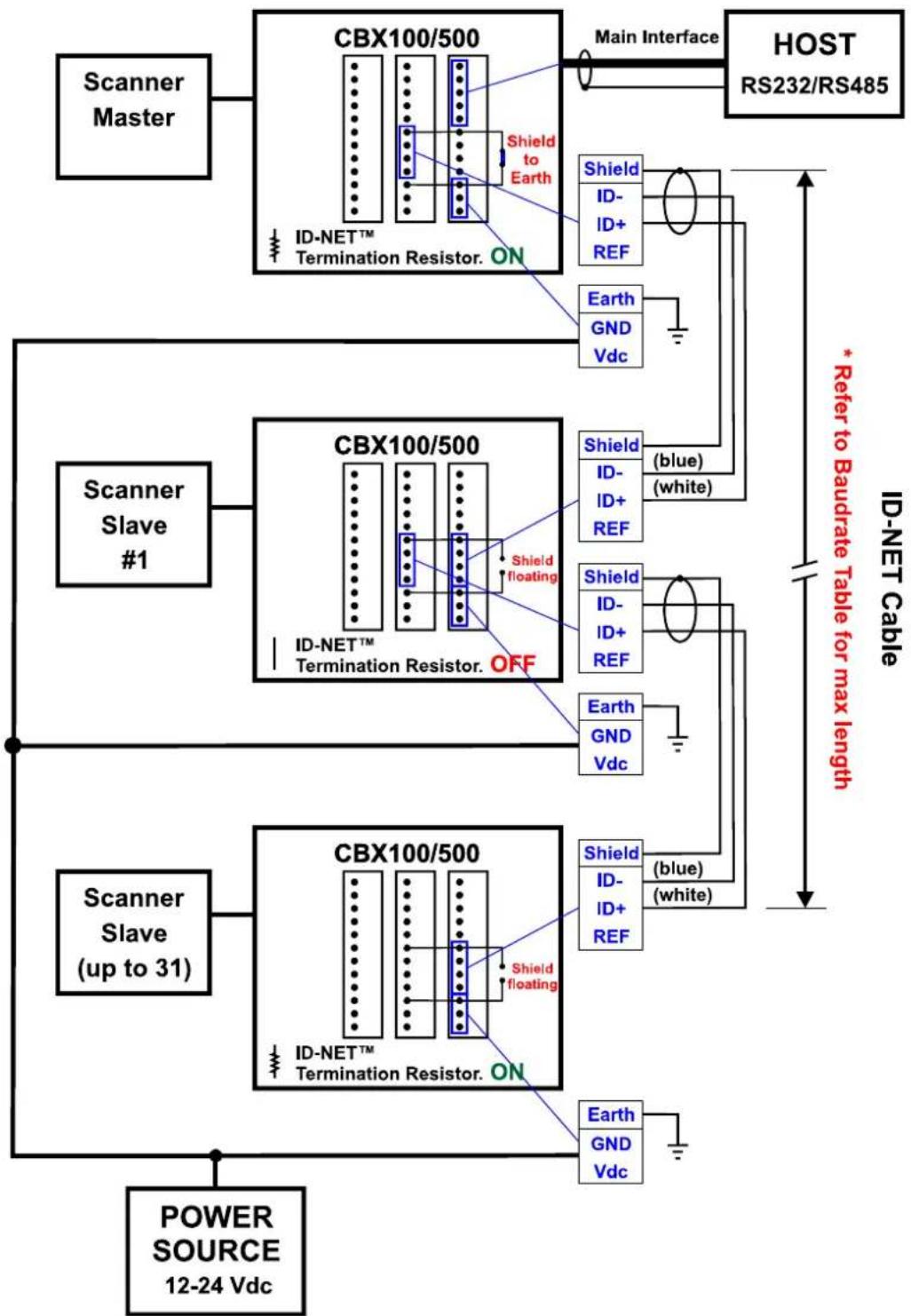
flowchart
graph TD
    A["Scanner Master"] --> B["CBX100/500"]
    B --> C["Main Interface"]
    C --> D["HOST RS232/RS485"]
    E["Scanner Slave #1"] --> F["CBX100/500"]
    F --> G["Shield floating"]
    F --> H["Shield (blue) (white)"]
    F --> I["Shield (blue) (white)"]
    J["Scanner Slave (up to 31)"] --> K["CBX100/500"]
    K --> L["Shield floating"]
    K --> M["Shield (blue) (white)"]
    N["POWER SOURCE 12-24 Vdc"] --> O["Ground"]
    style A fill:#f9f,stroke:#333
    style E fill:#f9f,stroke:#333
    style J fill:#f9f,stroke:#333
    style K fill:#f9f,stroke:#333
    style N fill:#f9f,stroke:#333
Figure 45 - ID-NET™ Network Connections with Common Power Branch Network

flowchart
graph TD
    A["Scanner Master"] --> B["CBX100/500"]
    B --> C["Main Interface"]
    C --> D["HOST RS232/RS485"]
    B --> E["ID-NET™ Termination Resistor. ON"]
    E --> F["Shield to Earth"]
    F --> G["Shield ID-ID+ REF"]
    G --> H["Shield (blue) ID-ID+ REF (white)"]
    H --> I["Shield ID-ID+ REF"]
    I --> J["Shield (blue) ID-ID+ REF (white)"]
    J --> K["Shield (blue) ID-ID+ REF (white)"]
    K --> L["Shield floating"]
    L --> M["CBX100/500"]
    M --> N["ID-NET™ Termination Resistor. OFF"]
    N --> O["Shield floating"]
    O --> P["Shield floating"]
    P --> Q["Sensor to Max Length"]
    Q --> R["Scanner Slave #1"]
    R --> S["CBX100/500"]
    S --> T["ID-NET™ Termination Resistor. ON"]
    T --> U["Shield floating"]
    U --> V["Sensor up to 31"]
    V --> W["Scanner Slave UP to 31"]
    W --> X["Power Source 12-24 Vdc"]
    X --> Y["Ground"]
Figure 46 – ID-NET™ Network Connections with Common Power Star Network
The network must be properly terminated in the first and last scanner of the network. This is done by setting the ID-NET ^™ Termination Resistance Switch in the CBX100/500 to ON.
4.4 AUXILIARY RS232 INTERFACE
The auxiliary serial interface is used exclusively for RS232 point-to-point connections.
The parameters relative to the aux interface (baud rate, data bits, etc.) as well as particular communication modes such as LOCAL ECHO can be defined using the Genius ^™ utility program or Genius ^™ based Host Mode Programming installed from the CD-ROM.
The 9-pin female Auxiliary Interface connector inside the CBX is the preferred connector for device configuration or communication monitoring.

Figure 47 - 9-pin female connector
If permanent system wiring is required, the following pins are used to connect the RS232 auxiliary interface:
| CBX100/500 Function |
| RX Auxiliary Interface Receive DataTX Auxiliary Interface Transmit DataSGND Auxiliary Interface Reference |
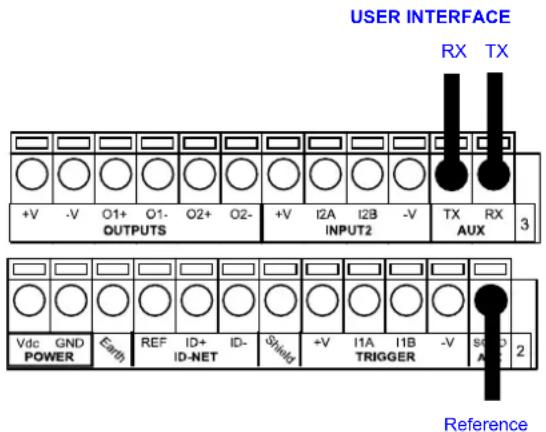
text_image
USER INTERFACE RX TX +V -V O1+ O1- O2+ O2- OUTPUTS +V I2A I2B -V INPUT2 TX RX AUX 3 Vdc GND POWER Earth REF ID+ ID- ID-NET Shield +V I1A I1B -V TRIGGER SDD AIC 2 ReferenceFigure 48 - RS232 Auxiliary Interface Connections

NOTE
Do not connect the Aux Interface to the CBX spring clamp connectors and the 9-pin connector simultaneously.
4.5 INPUTS
There are two optocoupled polarity insensitive inputs available on the scanner: Input 1 (External Trigger) and Input 2, a generic input:
The electrical features of both inputs are:
Maximum voltage: 30 Vdc
Maximum current: 12 mA (scanner) + 12 mA (CBX)
An anti-disturbance filter is implemented in software on both inputs so that the minimum pulse duration is 5 milliseconds. This value can be increased through the software parameter Debounce Filter, see the "2K/4K Family Software Configuration Parameter Guide" Help file".
CBX100/500 Function
+V Power Source - External Trigger
I1A External Trigger A (polarity insensitive)
I1B External Trigger B (polarity insensitive)
-V Power Reference - External Trigger
The External Trigger input is used in the On-Line operating Mode and tells the scanner to scan for a code. The active state of this input is selected in software. Refer to the Genius ^™ Help On Line.
The yellow Trigger LED (Figure A, 3) is on when the active state of the External Trigger corresponds to ON.
This input is optocoupled and can be driven by both an NPN and PNP type command. The connections are indicated in the following diagrams:
I2A Input 2 A (polarity insensitive)
I2B Input 2 B (polarity insensitive)
-V Power Reference - Inputs
If the DS2400N is used as a Code Verifier, the verifier code can be configured in software through the Genius ^TM configuration program. However it is also possible to use one of the inputs to trigger when the scanner should store a code read as the verifier code.
The Code Verifier parameter must be enabled, and the configuration parameters to allow correct Code Type reading must be saved to the scanner in order to read the verifier code.
When the selected input is activated, the next read code will be stored as the verifier code in the scanner's non-volatile (Flash) memory.
For more details see the Verifier Parameters in the "2K/4K Family Software Configuration Parameter Guide" Help file".
4.6 OUTPUTS
Two general purpose outputs are available.
| CBX100/500 Function | |
| +V Power Source | - Outputs |
| O1+ Output 1 + | |
| O1- Output 1 - | |
| O2+ Output 2 + | |
| O2- Output 2 - | |
| -V Power Reference Outputs | |
The meaning of the two outputs Output 1 and Output 2 can be defined by the user (No Read, Right, Wrong, etc.). Refer to the Genius™ Help On Line.
By default, Output 1 is associated with the No Read event, which activates when the code signaled by the external trigger is not decoded, and Output 2 is associated with the Complete Read event, which activates when all the selected codes are correctly decoded.
The output signals are fully programmable being determined by the configured Activation/Deactivation events, Deactivation Timeout or a combination of the two.
text_image
Output Device Power to Output Output device Signal Output device Reference +V -V O1+ O1- O2+ O2- OUTPUTS +V I2A I2B -V TX RX INPUT2 AUX 3text_image
Output Device Power to Output device Output device Reference Output Signal +V -V O1+ O1- O2+ O2- OUTPUTS +V I2A I2B -V TX RX INPUT2 AUX 3text_image
Output Device Pulled up to External Output Device Power Output Signal +V -V O1+ O1- O2+ O2- +V I2A I2B -V TX RX OUTPUTS INPUT2 AUX 3Figure 57 - Open Emitter Output Using External Power
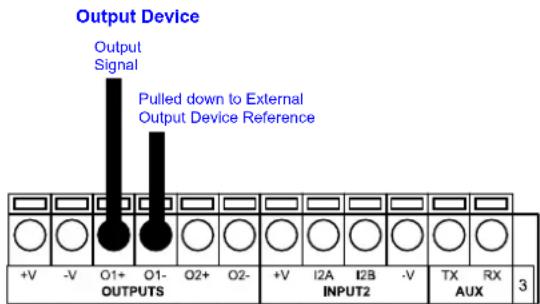
text_image
Output Device Output Signal Pulled down to External Output Device Reference +V -V O1+ O1- O2+ O2- OUTPUTS +V I2A I2B -V TX RX INPUT2 AUX 3Figure 58 - Open Collector Output Using External Power
$$ V _ {C E} \max = 3 0 \mathrm{Vdc} $$
40 mA continuous max.; 130 mA pulsed max.
4.7 USER INTERFACE - HOST
The following table contains the pinout for standard RS232 PC Host interface. For other user interface types please refer to their own manual.
| RS232 PC-side connections | |||
 9-pin male connector 9-pin male connector | 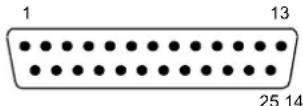 25-pin male connector 25-pin male connector | ||
| Pin | Name | Pin | Name |
| 2 | RX | 3 | RX |
| 3 | TX | 2 | TX |
| 5 | GND | 7 | GND |
| 7 | RTS | 4 | RTS |
| 8 | CTS | 5 | CTS |
5 25-PIN CABLE ELECTRICAL CONNECTIONS
All DS2400N models are equipped with a cable terminated by a 25-pin male D-sub connector for connection to the power supply and input/output signals. The details of the connector pins are indicated in the following table.

text_image
1 13 14 25Figure 59 - 25-pin Male D-sub Connector
| 25-pin D-sub male connector pinout | ||||
| Pin | Name | Function | ||
| 13, 9 Vdc | Power supply input voltage + | |||
| 25, 7 GND | Power supply input voltage - | |||
| 1 CHAS | SIS Cable shield connected to chassis | |||
| 18 I1A | External Trigger A (polarity insensitive) | |||
| 19 I1B | External Trigger B (polarity insensitive) | |||
| 6 I2A | Input 2 A (polarity insensitive) | |||
| 10 I2B | Input 2 B (polarity insensitive) | |||
| 8 O1+ | Output 1 + | |||
| 22 O1- | Output 1 - | |||
| 11 O2+ | Output 2 + | |||
| 12 O2- | Output 2 - | |||
| 20 RX | Auxiliary Interface RX | |||
| 21 TX | Auxiliary Interface TX | |||
| 23 | ID+ | ID-NETTM network + | ||
| 24 | ID- | ID-NETTM network - | ||
| 14, 15, 16, 17 | NC | Not Connected | ||
| Pin | Name | RS232 | RS485Full-Duplex | RS485Half-Duplex |
| 2 | TX | TX+ | RTX+ | |
| 3 | MAIN INTERFACE(SW SELECTABLE) | RX | *RX+ | |
| 4 | RTS | TX- | RTX- | |
| 5 | CTS | *RX- | ||
* Do not leave floating, see par. 5.2.2 for connection details.
5.1 POWER SUPPLY
Power can be supplied to the scanner through the pins provided on the 25-pin connector used for communication with the host (Figure 60):

text_image
DS2400N 13 Vdc 25 GND 1 CHASSIS Earth Ground POWER SUPPLY V+ (10 - 30 Vdc) VGND CHASSISFigure 60 - Power Supply Connections
The power must be between 10 and 30 Vdc only.
For DS2400N Subzero models the power must be 24 Vdc.
It is recommended to connect pin 1 (CHASSIS) to a common earth ground.
5.2 MAIN SERIAL INTERFACE
The signals relative to the following serial interface types are available on the input/output connector of DS2400N.
If the interface type is not compatible with the current communication handshaking, then the system forces the handshake to none.
The main interface type and the relative parameters (baud rate, data bits, etc.) can be set using the Genius ^™ utility program or the Genius ^™ based Host Mode Programming procedure.
Details regarding the connections and use of the interfaces are given in the next paragraphs.
5.2.1 RS232 Interface
The serial interface is used in this case for point-to-point connections; it handles communication with the host computer and allows both transmission of code data and the programming of the scanner. This is the default setting.
The following pins are used for RS232 interface connection:
| 25-pin Name Function | |||
| 2 | TX | Transmit | Data |
| 3 | RX | Receive | Data |
| 4 RTS | Request To Send | ||
| 5 CTS | Clear To Send | ||
| 7 | GND | Ground | |
It is always advisable to use shielded cables. The overall maximum cable length must be less than 15 m (49.2 ft).
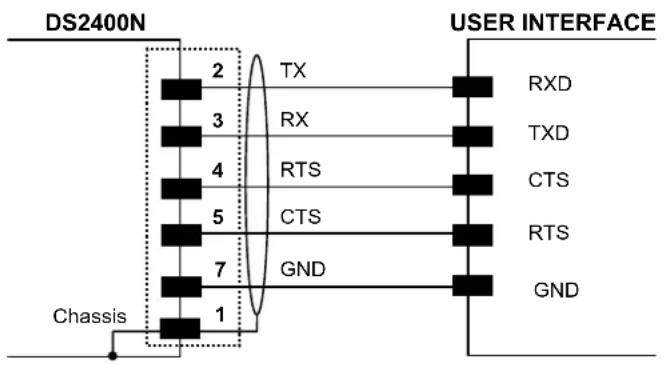
text_image
DS2400N 2 TX 3 RX 4 RTS 5 CTS 7 GND Chassis USER INTERFACE RXD TXD CTS RTS GNDFigure 61 – RS232 Main Interface Connections Using Hardware Handshaking
The RTS and CTS signals control data transmission and synchronize the connected devices.
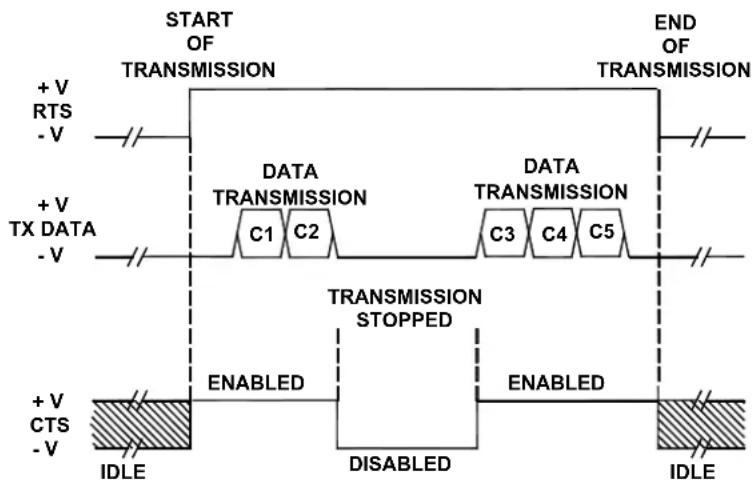
flowchart
graph TD
    A["START OF TRANSMISSION"] --> B["DATA TRANSMISSION"]
    B --> C["TRANSMISSION STOPPED"]
    C --> D["IDLE"]
    E["END OF TRANSMISSION"] --> F["DATA TRANSMISSION"]
    F --> G["TRANSMISSION STOPPED"]
    G --> H["IDLE"]
    I["+ V RTS - V"] --> J["C1"]
    K["+ V TX DATA - V"] --> L["C2"]
    M["+ V CTS - V"] --> N["ENABLED"]
    O["DISABLED"] --> P["ENABLED"]
    Q["IDLE"] --> R["IDLE"]
Figure 62 - RS232 Control Signals
If the RTS/CTS handshaking protocol is enabled, the DS2400N activates the RTS output to indicate a message is to be transmitted. The receiving unit activates the CTS input to enable the transmission.
5.2.2 RS485 Full-Duplex Interface
The RS485 full-duplex (5 wires + shield) interface is used for non-polled communication protocols in point-to-point connections over longer distances (max 1200 m / 3940 ft) than those acceptable for RS232 communications or in electrically noisy environments.
The connector pinout follows:
| 25-pin Name Function | ||
| 2 TX+ | RS485 Transmit Data + | |
| 3 RX+ | RS485 Receive Data + | |
| 4 TX- | RS485 Transmit Data - | |
| 5 RX- | RS485 Receive Data - | |
| 7 | GND | Ground |

text_image
DS2400N 2 TX+ 4 TX- RX+ 3 5 RX- 7 GND Chassis 1 USER INTERFACE RX485 TX485 GNDFigure 63 - RS485 Full-duplex Connections

NOTE
For applications that do not use RX signals, do not leave these lines floating but connect them to GND as shown below.
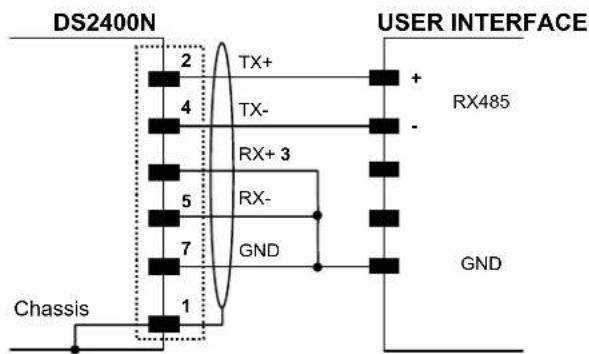
text_image
DS2400N USER INTERFACE TX+ RX485 TX- RX+ 3 RX- GND Chassis 1 2 4 5 7Figure 64 - RS485 Full-duplex Connections using Only TX Signals
5.2.3 RS485 Half-Duplex Interface

NOTE
This interface is provided for backward compatibility. We recommend using the more efficient ID-NET ^™ network for Master/Slave or Multiplexer layouts.
The RS485 half-duplex (3 wires + shield) interface is used for polled communication protocols.
It can be used for Multidrop connections with a Datalogic Multiplexer, (see par. 6.5) exploiting a proprietary protocol based on polled mode called MUX32 protocol, where a master device polls slave devices to collect data.
The connector pinout follows:
| 25-pin Name Function | ||
| 2 RTX+ | RS485 Receive/Transmit Data + | |
| 4 RTX- | RS485 Receive/Transmit Data - | |
| 7 | GND | Ground |
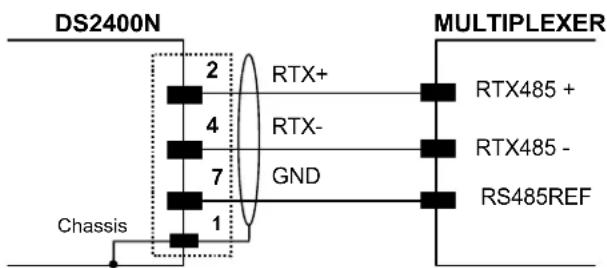
text_image
DS2400N Chassis 2 RTX+ 4 RTX- 7 GND 1 MULTIPLEXER RTX485 + RTX485 - RS485REFFigure 65 - RS485 Half-duplex Connections
This interface is forced by software when the protocol selected is MUX32 protocol.
In a Multiplexer layout, the Multidrop address must also be set via serial channel by the Genius ^™ utility or by the Host Programming Mode.
Figure 66 shows a multidrop configuration with DS2400N scanners connected to a Multiplexer.

CAUTION
This is an example of multidrop wiring. Consult the multiplexer manual for complete wiring instructions.
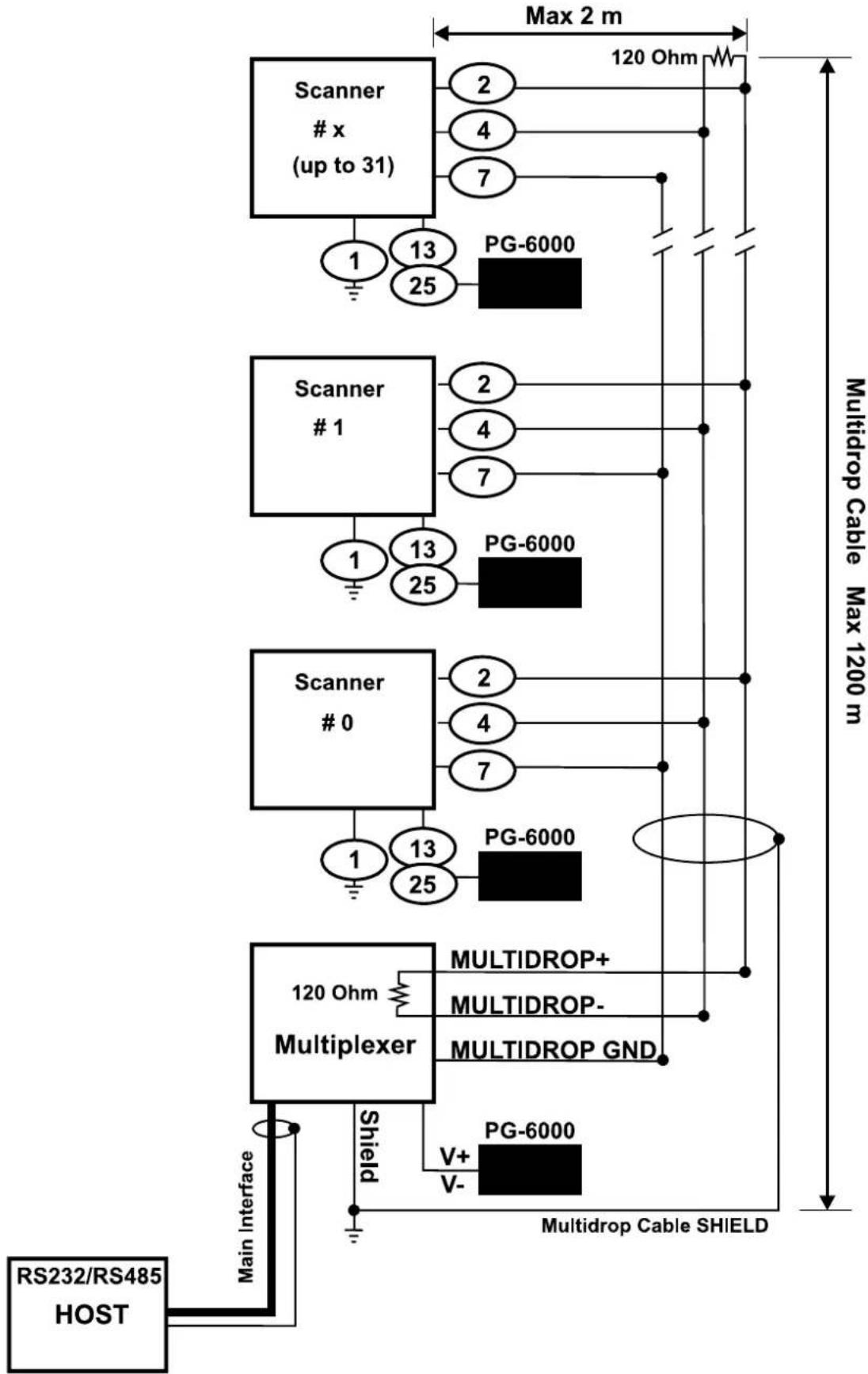
flowchart
graph TD
    A["RS232/RS485 HOST"] --> B["Main Interface"]
    B --> C["Multiplexer"]
    C --> D["120 Ohm Multidrop+"]
    C --> E["Multiplexer"]
    C --> F["Multiplexer GND"]
    C --> G["Multiplexer"]
    C --> H["Multiplexer"]
    C --> I["PG-6000"]
    C --> J["PG-6000"]
    C --> K["PG-6000"]
    C --> L["PG-6000"]
    C --> M["PG-6000"]
    C --> N["PG-6000"]
    C --> O["PG-6000"]
    C --> P["PG-6000"]
    C --> Q["PG-6000"]
    C --> R["PG-6000"]
    C --> S["PG-6000"]
    C --> T["PG-6000"]
    C --> U["PG-6000"]
    C --> V["PG-6000"]
    C --> W["PG-6000"]
    C --> X["PG-6000"]
    C --> Y["PG-6000"]
    C --> Z["PG-6000"]
    C --> AA["PG-6000"]
    C --> AB["PG-6000"]
    C --> AC["PG-6000"]
    C --> AD["PG-6000"]
    C --> AE["PG-6000"]
    C --> AF["PG-6000"]
    C --> AG["PG-6000"]
    C --> AH["PG-6000"]
    C --> AI["PG-6000"]
    C --> AJ["PG-6000"]
    C --> AK["PG-6000"]
    C --> AL["PG-6000"]
    C --> AM["PG-6000"]
    C --> AN["PG-6000"]
    C --> AO["PG-6000"]
    C --> AP["PG-6000"]
    C --> AQ["PG-6000"]
    C --> AR["PG-6000"]
    C --> AS["PG-6000"]
    C --> AT["PG-6000"]
    C --> AU["PG-6000"]
    C --> AV["PG-6000"]
    C --> AW["PG-6000"]
    C --> AX["PG-6000"]
    C --> AY["PG-6000"]
    C --> AZ["PG-6000"]
    C --> BA["PG-6000"]
    C --> BB["PG-6000"]
    C --> BC["PG-6000"]
    C --> BD["PG-6000"]
    C --> BE["PG-6000"]
    C --> BF["PG-6000"]
    C --> BG["PG-6000"]
    C --> BH["PG-6000"]
    C --> BI["PG-6000"]
    C --> BJ["PG-6000"]
    C --> BK["PG-6000"]
    C --> BL["PG-6000"]
    C --> BM["PG-6000"]
    C --> BN["PG-6000"]
    C --> BO["PG-6000"]
    C --> BP["PG-6000"]
    C --> BQ["PG-6000"]
    C --> BR["PG-6000"]
    C --> BS["PG-6000"]
    C --> BT["PG-6000"]
    C --> BU["PG-6000"]
    C --> BV["PG-6000"]
    C --> BW["PG-6000"]
The following instructions are referred to Figure 68, Figure 69 and Figure 70.
- The general cable type specifications are: CAT5 twisted pair + additional CAT5 twisted pair, shielded cable AWG 24 (or AWG 22) stranded flexible.
We recommend using DeviceNet cables (drop or trunk type) to the following reference standards:
AN50325 - IEC 62026
UL STYLE 2502 80°C 30V
- Cable Shield MUST be connected to earth ground ONLY at the Master.
- NEVER use ID-NET™ cable shield as common reference.
- The ID-NET ^™ max cable length depends on the baudrate used, (see the Baudrate Table below).
-
For Common Power Connections use only 2 wires (23 and 24).
-
DC Voltage Power cable (Vdc – GND) should be handled as a signal cable (i.e. do not put it together with AC cable):
- Wire dimensioning must be checked in order to avoid voltage drops greater than 0.8 Volts.
-
Cable should lie down as near as possible to the ID-NET™ cable (avoiding wide loops between them).
-
Scanner's chassis may be connected to earth.
• Network inside the same building.
| Baudrate Table | ||||
| Baud Rate 125 kbps | 250 kbps | 500 kbps | 1Mbps | |
| Cable Length 1200 m | 900 m | 700 m | * | |
* Application dependent, contact your Datalogic Automation representative for details.

NOTE
The default ID-NET ^™ baudrate is 500 kbps. Lower ID-NET ^™ baudrates allow longer cable lengths. The baudrate is software configurable by authorized Datalogic Automation personnel only.
The following figure shows the response time of the ID-NET ^™ network. This time is defined as the period between the Trigger activation and the beginning of data transmission to the Host.
Figure 68 – ID-NET™ Network Connections with isolated power blocks

flowchart
graph TD
    A["RS232/RS485 HOST"] -->|Main Interface| B["Scanner Master"]
    B -->|Cable Shield| C["Vdc GND POWER"]
    C -->|12-24 Vdc| D["Scanner Slave #1"]
    D -->|120 Ohm| E["Scanner Slave (up to 31)"]
    E -->|Max 0.3 m| F["120 Ohm"]
    F --> G["* Refer to Baudrate Table for max length"]
    style A fill:#f9f,stroke:#333
    style B fill:#ccf,stroke:#333
    style C fill:#cfc,stroke:#333
    style D fill:#fcc,stroke:#333
    style E fill:#cff,stroke:#333
    style F fill:#ffc,stroke:#333
    style G fill:#fcc,stroke:#333
Figure 69 - ID-NET™ Network Connections with Common Power Branch Network
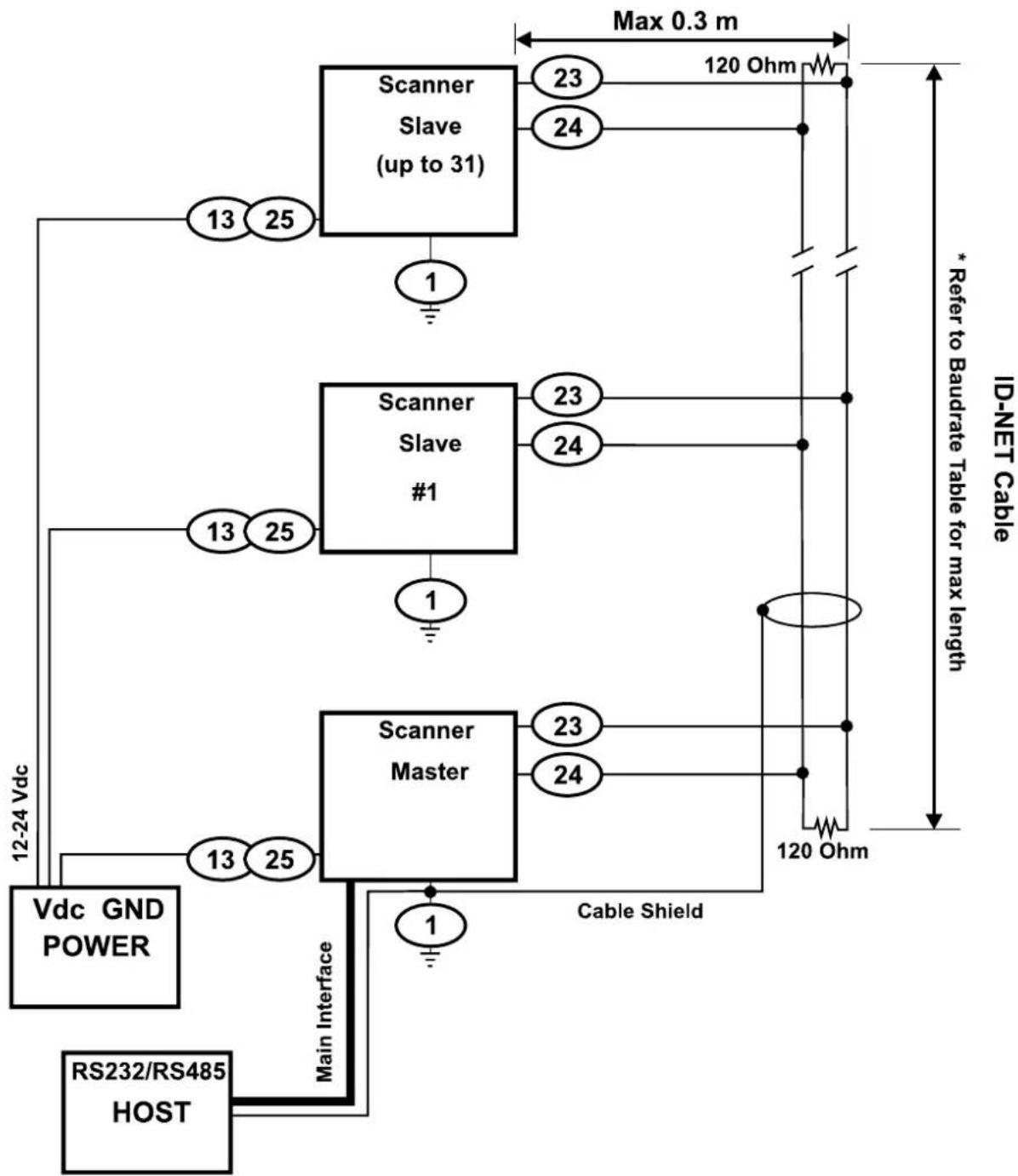
flowchart
graph TD
    A["12-24 Vdc"] --> B["RS232/RS485 HOST"]
    B --> C["Vdc GND POWER"]
    C --> D["Scanner Master"]
    D --> E["Cable Shield"]
    E --> F["120 Ohm"]
    F --> G["120 Ohm Max 0.3 m"]
    G --> H["Scanner Slave (up to 31)"]
    H --> I["13 25"]
    H --> J["1 23"]
    H --> K["24"]
    H --> L["23"]
    H --> M["24"]
    H --> N["13 25"]
    H --> O["1 23"]
    H --> P["1 24"]
    H --> Q["13 25"]
    H --> R["1 23"]
    H --> S["1 24"]
    H --> T["1 23"]
    H --> U["1 24"]
    H --> V["1 23"]
    H --> W["1 24"]
    H --> X["1 23"]
    H --> Y["1 24"]
    H --> Z["1 23"]
    H --> AA["1 24"]
    H --> AB["1 23"]
    H --> AC["1 24"]
    H --> AD["1 23"]
    H --> AE["1 24"]
    H --> AF["1 23"]
    H --> AG["1 24"]
    H --> AH["1 23"]
    H --> AI["1 24"]
    H --> AJ["1 23"]
    H --> AK["1 24"]
    H --> AL["1 23"]
    H --> AM["1 24"]
    H --> AN["1 23"]
    H --> AO["1 24"]
    H --> AP["1 23"]
    H --> AQ["1 24"]
    H --> AR["1 23"]
    H --> AS["1 24"]
    H --> AT["1 23"]
    H --> AU["1 24"]
    H --> AV["1 23"]
    H --> AW["1 24"]
    H --> AX["1 23"]
    H --> AY["1 24"]
Figure 70 – ID-NET™ Network Connections with Common Power Star Network
The network must be properly terminated by a 120 Ohm resistor at the first and last scanner of the network.
5.4 AUXILIARY RS232 INTERFACE
The auxiliary serial interface is used exclusively for RS232 point-to-point connections.
The parameters relative to the aux interface (baud rate, data bits, etc.) as well as particular communication modes such as LOCAL ECHO can be defined using the Genius ^™ utility program or Genius ^™ based Host Mode Programming installed from the CD-ROM.
The following pins of the 25-pin connector are used to connect the RS232 auxiliary interface:
| Pin | Name | Function | |
| 20 | RX | Receive | Data |
| 21 | TX | Transmit | Data |
| 7 | GND | Ground | |

text_image
USER INTERFACEDS2400N 20 RX 21 TX 7 GND Chassis TXD RXD GNDFigure 71 - RS232 Auxiliary Interface Connections
5.5 INPUTS
There are two optocoupled polarity insensitive inputs available on the scanner: Input 1 (External Trigger) and Input 2, a generic input:
The electrical features of both inputs are:
Maximum voltage: 30 Vdc
Maximum current: 12 mA
An anti-disturbance filter is implemented in software on both inputs so that the minimum pulse duration is 5 milliseconds. This value can be increased through the software parameter Debounce Filter, see the "2K/4K Family Software Configuration Parameter Guide" Help file".
| 25-pin Name Function | ||
| 9 Vdc | Power Source - External Trigger | |
| 18 I1A | External Trigger A (polarity insensitive) | |
| 19 I1B | External Trigger B (polarity insensitive) | |
| 7 GND | Power Reference - External Trigger | |
The External Trigger input is used in the On-Line operating Mode and tells the scanner to scan for a code. The active state of this input is selected in software. Refer to the Genius ^™ Help On Line.
The yellow Trigger LED (Figure A, 3) is on when the active state of the External Trigger corresponds to ON.
This input is optocoupled and can be driven by both an NPN and PNP type command. The connections are indicated in the following diagrams:
EXTERNAL TRIGGER INPUT PNP PH-1
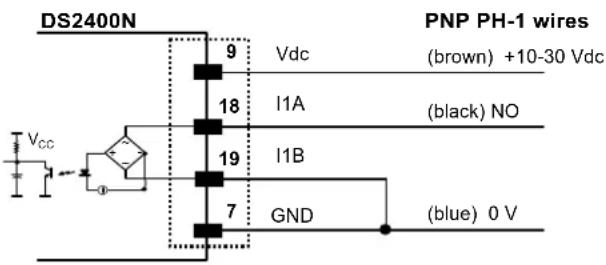
text_image
DS2400N Vcc 9 Vdc (brown) +10-30 Vdc 18 I1A (black) NO 19 I1B 7 GND (blue) 0 V PNP PH-1 wiresIf the DS2400N is used as a Code Verifier, the verifier code can be configured in software through the Genius ^™ configuration program. However it is also possible to use one of the inputs to trigger when the scanner should store a code read as the verifier code.
The Code Verifier parameter must be enabled, and the configuration parameters to allow correct Code Type reading must be saved to the scanner in order to read the verifier code.
When the selected input is activated, the next read code will be stored as the verifier code in the scanner's non-volatile (Flash) memory.
For more details see the Verifier Parameters in the "2K/4K Family Software Configuration Parameter Guide" Help file".
5.6 OUTPUTS
Two general purpose outputs are available. The following pins are present on the 25-pin connector of the scanner:
| 25-pin Name Function | ||
| 9 Vdc | Power Source - Outputs | |
| 8 O1+ | Output 1 + | |
| 22 O1- | Output 1 - | |
| 11 O2+ | Output 2 + | |
| 12 O2- | Output 2 - | |
| 7 GND | Power Reference - Outputs | |
The meaning of the two outputs Output 1 and Output 2 can be defined by the user (No Read, Right, Wrong, etc.). Refer to the Genius™ Help On Line.
By default, Output 1 is associated with the No Read event, which activates when the code signaled by the external trigger is not decoded, and Output 2 is associated with the Complete Read event, which activates when all the selected codes are correctly decoded.
The output signals are fully programmable being determined by the configured Activation/Deactivation events, Deactivation Timeout or a combination of the two.

text_image
DS2400N C 8/11 O+ 22/12 O- E USER INTERFACE Vext 30 Vdc max.Figure 81 - Open Emitter Output Connections
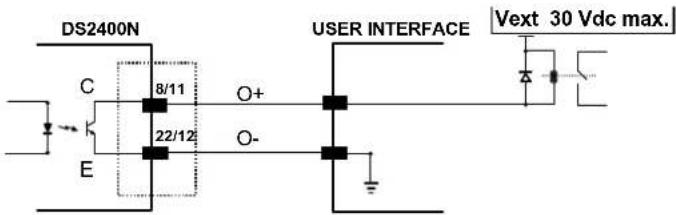
text_image
DS2400N 8/11 22/12 O+ O- USER INTERFACE Vext 30 Vdc max.Figure 82 - Open Collector Output Connections
$$ V _ {C E} \max = 3 0 \mathrm{Vdc} $$
40 mA continuous max.; 130 mA pulsed max.
5.7 USER INTERFACE - HOST
The following table contains the pinout for standard RS232 PC Host interface. For other user interface types please refer to their own manual.
| RS232 PC-side connections | |||
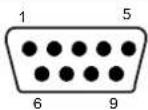 9-pin male connector 9-pin male connector |  25-pin male connector 25-pin male connector | ||
| Pin | Name | Pin | Name |
| 2 | RX | 3 | RX |
| 3 | TX | 2 | TX |
| 5 | GND | 7 | GND |
| 7 | RTS | 4 | RTS |
| 8 | CTS | 5 | CTS |
How To Build A Simple Interface Test Cable:
The following wiring diagram shows a simple test cable including power, external (push-button) trigger and PC RS232 COM port connections.
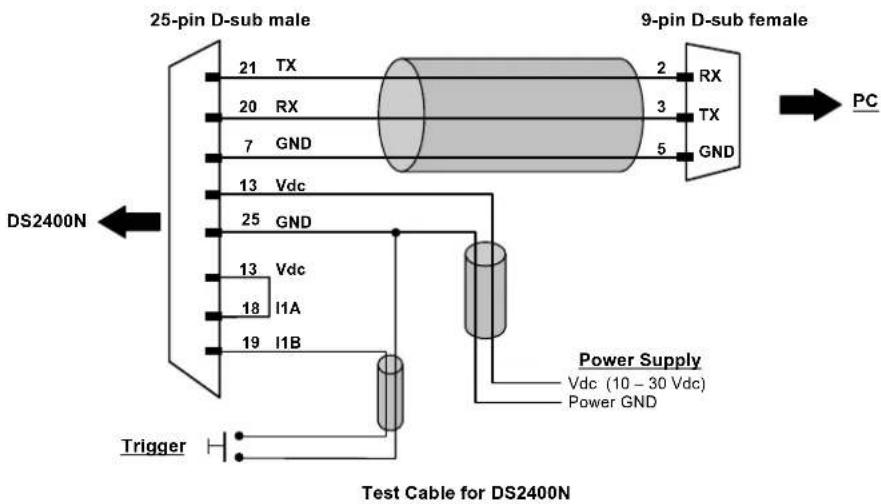
text_image
25-pin D-sub male 21 TX 20 RX 7 GND 13 Vdc 25 GND 13 Vdc 18 I1A 19 I1B 9-pin D-sub female 2 RX 3 TX 5 GND PC DS2400N Trigger Power Supply Vdc (10 - 30 Vdc) Power GND Test Cable for DS2400N6 TYPICAL LAYOUTS
The following typical layouts refer to system hardware configurations. Dotted lines in the figures refer to optional hardware configurations within the particular layout.
These layouts also require the correct setup of the software configuration parameters. Complete software configuration procedures can be found in the Guide To Rapid Configuration in the Genius™ Help On Line.
6.1 POINT-TO-POINT
In this layout the data is transmitted to the Host on the main serial interface. A Genius ^™ based Host Mode programming can be accomplished either through the main interface or the Auxiliary interface.
In Local Echo communication mode, data is transmitted on the RS232 auxiliary interface independently from the main interface selection.
When On-Line Operating mode is used, the scanner is activated by an External Trigger (photoelectric sensor) when the object enters its reading zone.
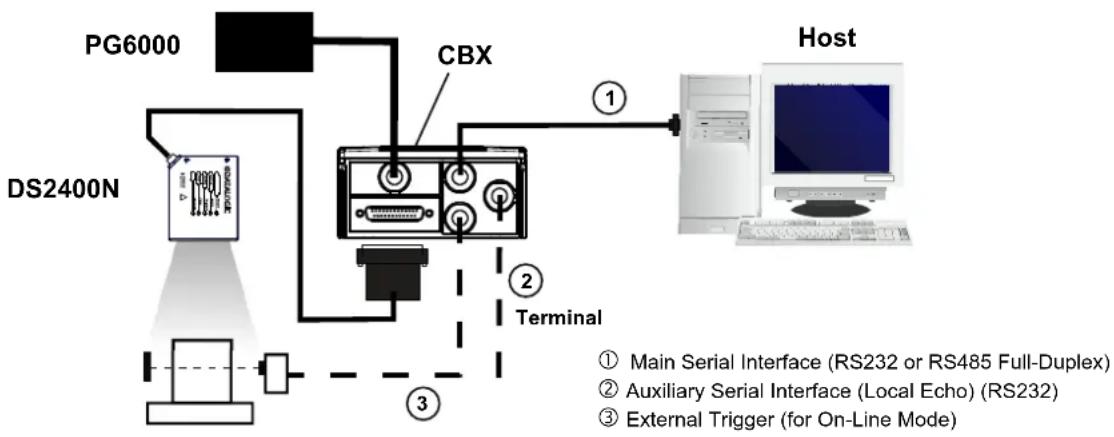
flowchart
graph TD
    A["DS2400N"] --> B["PG6000"]
    B --> C["CBX"]
    C --> D["Terminal"]
    D --> E["Host"]
    style A fill:#f9f,stroke:#333
    style E fill:#ccf,stroke:#333
    note1["① Main Serial Interface (RS232 or RS485 Full-Duplex)"]
    note2["② Auxiliary Serial Interface (Local Echo) (RS232)"]
    note3["③ External Trigger (for On-Line Mode)"]
Figure 83 – Serial Interface Point-to-Point Layout
In this layout a single scanner functions as a Slave node on a Fieldbus network. The data is transmitted to the Host through an accessory Fieldbus interface board installed inside the CBX500 connection box.
Scanner configuration can be accomplished through the Auxiliary interface using the Genius ^™ configuration program or Genius ^™ based Host Mode programming.
In Local Echo communication mode, data is transmitted on the RS232 auxiliary interface independently from the Fieldbus interface selection.
When On-Line Operating mode is used, the scanner is activated by an External Trigger (photoelectric sensor) when the object enters its reading zone.

flowchart
graph TD
    A["Power"] --> B["DS2400N"]
    B --> C["Host"]
    C --> D["CSX500"]
    D --> E["Fieldbus Interface (Profibus, Ethernet, DeviceNet, etc.)"]
    D --> F["Auxiliary Serial Interface (Local Echo) (RS232)"]
    D --> G["External Trigger (for On-Line Mode)"]
Figure 84 – Fieldbus Interface Point-to-Point Layout
6.2 PASS-THROUGH
Pass-through mode allows two or more devices to be connected to a single external serial interface.
Each DS2400N transmits the messages received by the Auxiliary interface onto the Main interface. All messages will be passed through this chain to the host.
When On-Line Operating mode is used, the scanner is activated by an External Trigger (photoelectric sensor) when the object enters its reading zone.
Applications can be implemented to connect a device such as a hand-held reader to the Auxiliary port of the last scanner in the chain for manual code reading capability.
The Main and Auxiliary ports are connected as shown in the figure below:

flowchart
graph TD
    A["Device#1"] -->|① Main Serial Interface (RS232 only)| B["Host"]
    C["Device#2"] -->|② Auxiliary Serial Interface (RS232)| B
    D["Device#3"] -->|③ External Trigger (for On-Line Mode)| B
    B --> E["Computer"]
    style A fill:#f9f,stroke:#333
    style C fill:#f9f,stroke:#333
    style D fill:#f9f,stroke:#333
    style B fill:#ccf,stroke:#333
    style E fill:#dfd,stroke:#333
Figure 85 – Pass-Through Layout
An alternative Pass-Through layout allows the more efficient ID-NET ^™ network to be used. This layout is really an ID-NET Master/Slave Multidata layout which also allows each scanner (Master and Slaves) to accept input on the Auxiliary interface, for example to connect a device such as a hand-held reader for manual code reading capability.
Each DS2400N transmits its own messages plus any messages received by its Auxiliary interface onto the ID-NET ^™ interface. The Master passes all messages to the Host.
When On-Line Operating mode is used, the scanner is activated by an External Trigger (photoelectric sensor) when the object enters its reading zone.

flowchart
graph TD
    A["Master"] -->|① Main Serial Interface (RS232 or RS485)| B["Slave#2 Slave"]
    B -->|② Auxiliary Serial Interface (RS232)| C["Host"]
    B -->|③ External Trigger (for On-Line Mode)| D["Master"]
    B -->|④ ID-NET™| E["Slave#2 Slave"]
    style A fill:#f9f,stroke:#333
    style B fill:#ccf,stroke:#333
    style C fill:#cfc,stroke:#333
    style D fill:#fcc,stroke:#333
    style E fill:#ffc,stroke:#333
The ID-NET ^™ connection is used to collect data from several scanners to build a multi-point or a multi-sided reading system; there can be one master and up to 31 slaves connected together.
The slave scanners are connected together using the ID-NET ^™ interface. Every slave scanner must have a ID-NET ^™ address in the range 1-31.
The master scanner is also connected to the Host on the RS232/RS485 main serial interface.
For a Master/Slave Synchronized layout the External Trigger signal is unique to the system; there is a single reading phase and a single message from the master scanner to the Host computer. It is not necessary to bring the External Trigger signal to all the scanners.
The main, auxiliary, and ID-NET ^™ interfaces are connected as shown in the figure below.
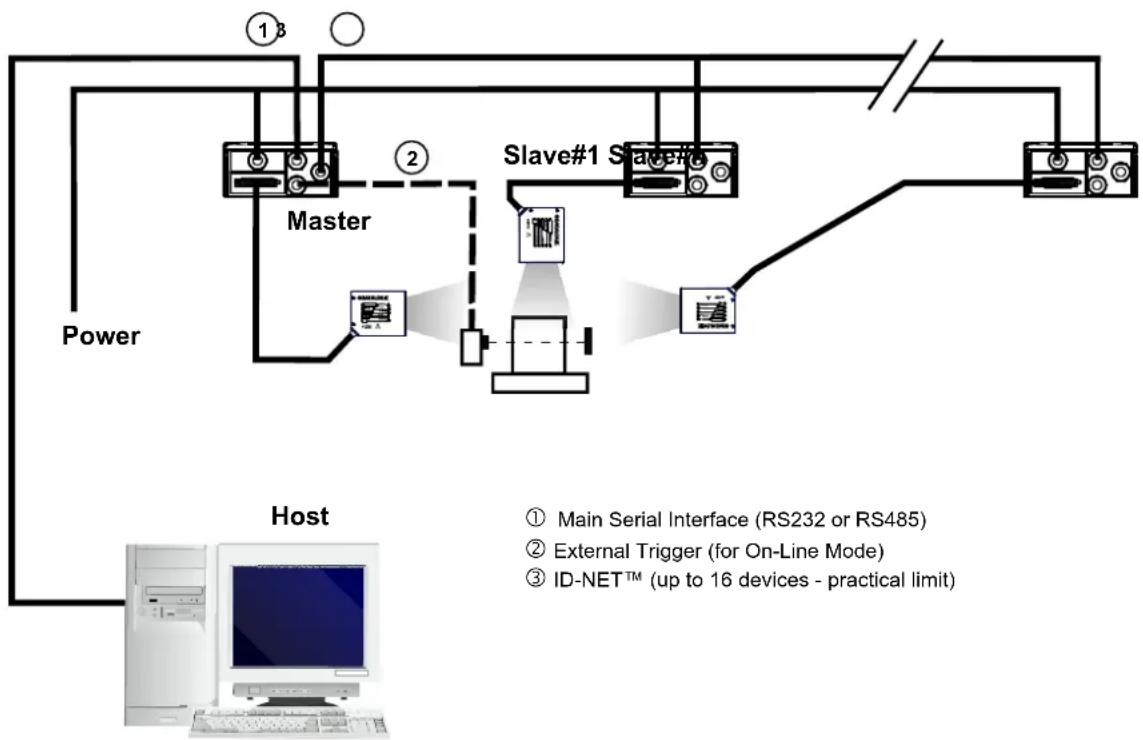
flowchart
graph TD
    A["Master"] --> B["Slave#1 Slave"]
    B --> C["Host"]
    D["Power"] --> A
    E["Host"] --> F["Main Serial Interface (RS232 or RS485)"]
    E --> G["External Trigger (for On-Line Mode)"]
    E --> H["ID-NET™ (up to 16 devices - practical limit)"]
For a Master/Slave Multidata layout each scanner has its own reading phase independent from the others; each single message is sent from the master scanner to the Host computer.
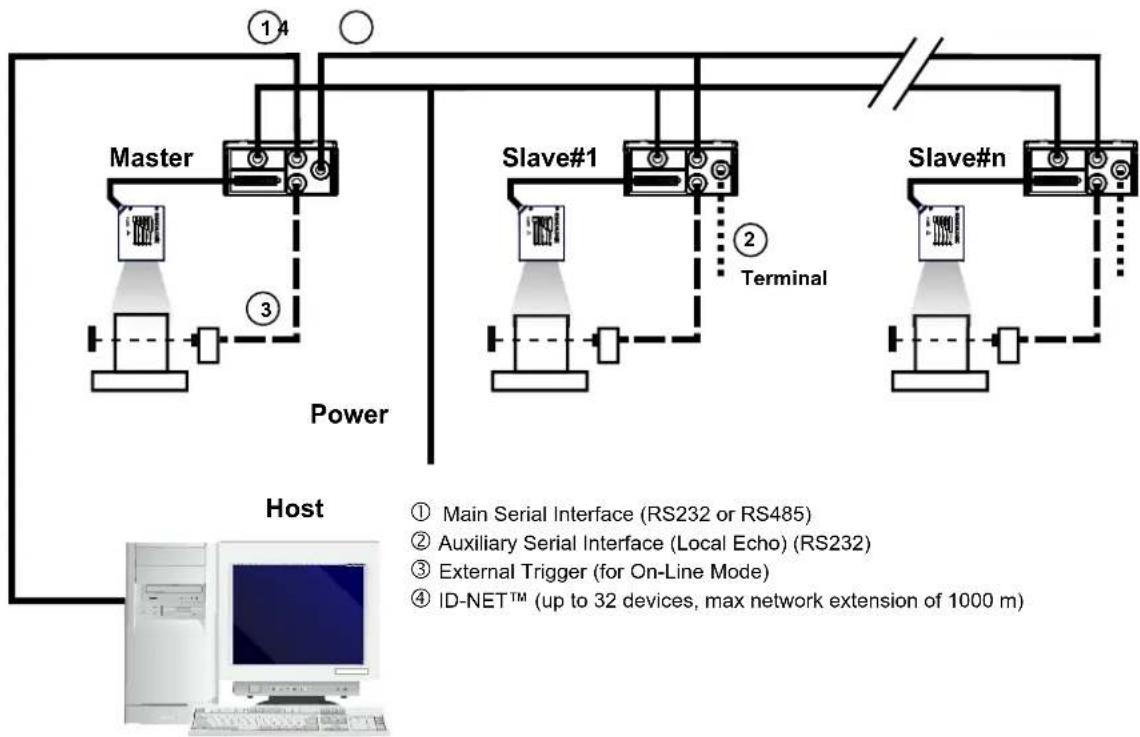
flowchart
graph TD
    A["Master"] -->|① 4| B["Power"]
    B --> C["Slave#1"]
    C -->|② Terminal| D["Slave#n"]
    D -->|③ Power| E["Host"]
    E --> F["Computer"]
    style A fill:#f9f,stroke:#333
    style B fill:#ccf,stroke:#333
    style C fill:#cfc,stroke:#333
    style D fill:#fcc,stroke:#333
    style E fill:#cff,stroke:#333
    style F fill:#ffc,stroke:#333
    note right of F
        ① Main Serial Interface (RS232 or RS485)
        ② Auxiliary Serial Interface (Local Echo) (RS232)
        ③ External Trigger (for On-Line Mode)
        ④ ID-NET™ (up to 32 devices, max network extension of 1000 m)
The auxiliary serial interface of the slave scanners can be used in Local Echo communication mode to control any single scanner (visualize collected data) or to configure it using the Genius™ utility or the Genius™ based Host Mode programming procedure.
The ID-NET ^™ termination resistor switches must be set to ON only in the first and last CBX connection box.
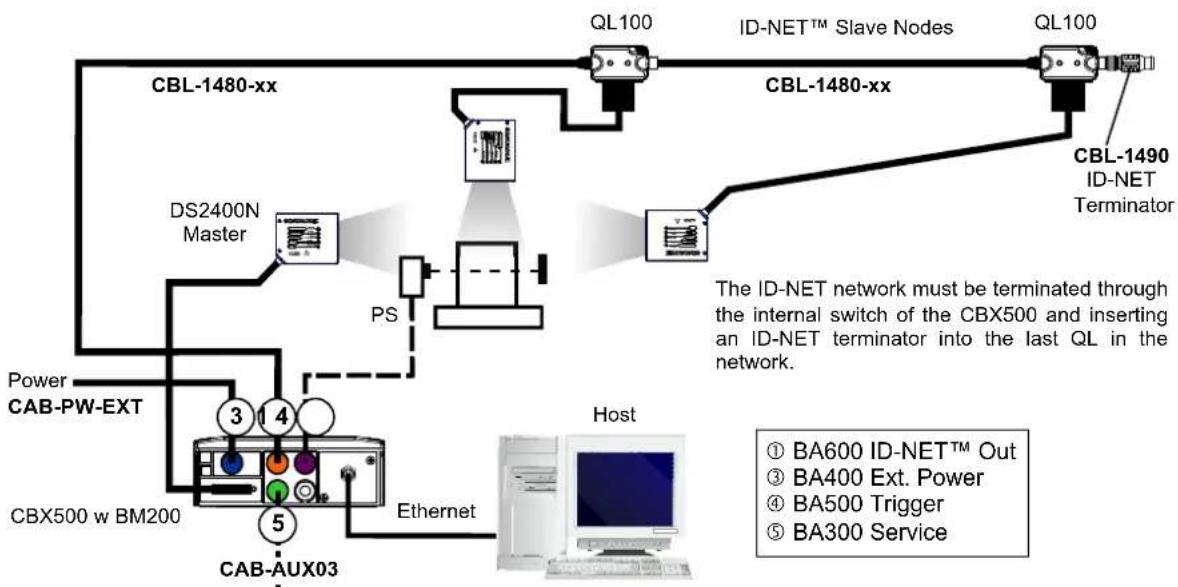
flowchart
graph TD
    A["CBL-1480-xx"] --> B["DS2400N Master"]
    B --> C["PS"]
    C --> D["CBX500 w BM200"]
    D --> E["CAB-AUX03"]
    E --> F["Ethernet"]
    F --> G["Host"]
    H["CL100"] --> I["ID-NET™ Slave Nodes"]
    I --> J["CL100"]
    J --> K["CBL-1490 ID-NET Terminator"]
    L["Power CAB-PW-EXT"] --> M["CSB-X"]
    M --> N["3 4"]
    N --> O["4"]
    O --> P["5"]
    P --> Q["6"]
    Q --> R["7"]
    R --> S["8"]
    S --> T["9"]
    T --> U["10"]
    U --> V["11"]
    V --> W["12"]
    W --> X["13"]
    X --> Y["14"]
    Y --> Z["15"]
    Z --> AA["16"]
    AA --> AB["17"]
    AB --> AC["18"]
    AC --> AD["19"]
    AD --> AE["20"]
    AE --> AF["21"]
    AF --> AG["22"]
    AG --> AH["23"]
    AH --> AI["24"]
    AI --> AJ["25"]
    AJ --> AK["26"]
    AK --> AL["27"]
    AL --> AM["28"]
    AM --> AN["29"]
    AN --> AO["30"]
    AO --> AP["31"]
    AP --> AQ["32"]
    AQ --> AR["33"]
    AR --> AS["34"]
    AS --> AT["35"]
    AT --> AU["36"]
    AU --> AV["37"]
    AV --> AW["38"]
    AW --> AX["39"]
    AX --> AY["40"]
The Master scanner can communicate to the Host as a Slave node on an Ethernet TCP/IP network. This example requires using the accessory BM2x0 Ethernet interface board installed inside the CBX500 connection box.
System configuration can be accomplished through the Auxiliary interface of the Master scanner (internal CBX500 9-pin connector) using the Genius™ configuration program or Genius™ based Host Mode programming.
Configuration can also be accomplished in Genius directly through the Ethernet network. In this case initial connection can be made using Programming Barcodes.

flowchart
graph TD
    A["Power"] --> B["Master"]
    B --> C["Slave#1 Slave#"]
    C --> D["Host"]
    subgraph Host
        E["Computer monitor"]
        F["Ethernet Interface (CBX500 with BM2x0)"]
        G["External Trigger (for On-Line Mode)"]
        H["ID-NET™ (up to 16 devices - practical limit)"]
    end
    style Host fill:#f9f,stroke:#333
    style Power fill:#ccf,stroke:#333
    style Master fill:#cfc,stroke:#333
    style Slave#1 Slave# fill:#fcc,stroke:#333
    style Master fill:#ffc,stroke:#333
    style Slave#1 Slave# fill:#cfc,stroke:#333
    style Master fill:#ffc,stroke:#333
    style Host fill:#fff,stroke:#333
Figure 91 – ID-NET™ M/S Synchronized Layout DS2400N Master with BM200/210 TCP/IP Ethernet Interface to Host
Alternatively, the Master scanner can communicate to the Host as a Slave node on a Fieldbus network. This requires using an accessory Fieldbus interface board installed inside the CBX500 connection box.
System configuration can be accomplished through the Auxiliary interface of the Master scanner (internal CBX500 9-pin connector) using the Genius™ configuration program or Genius™ based Host Mode programming.

flowchart
graph TD
    A["Power"] --> B["Master"]
    B --> C["Slave#1 Slave"]
    C --> D["Slave#1 Slave"]
    D --> E["Slave"]
    F["Host"] --> G["Fieldbus Interface"]
    F --> H["External Trigger (for On-Line Mode)"]
    F --> I["ID-NET™ (up to 16 devices - practical limit)"]
The QLM600 Profibus Gateway active connection module can also be used. System configuration can be accomplished through the Auxiliary interface of the Master scanner (QLM600 Aux connector) using the Genius™ configuration program or Genius™ based Host Mode programming.
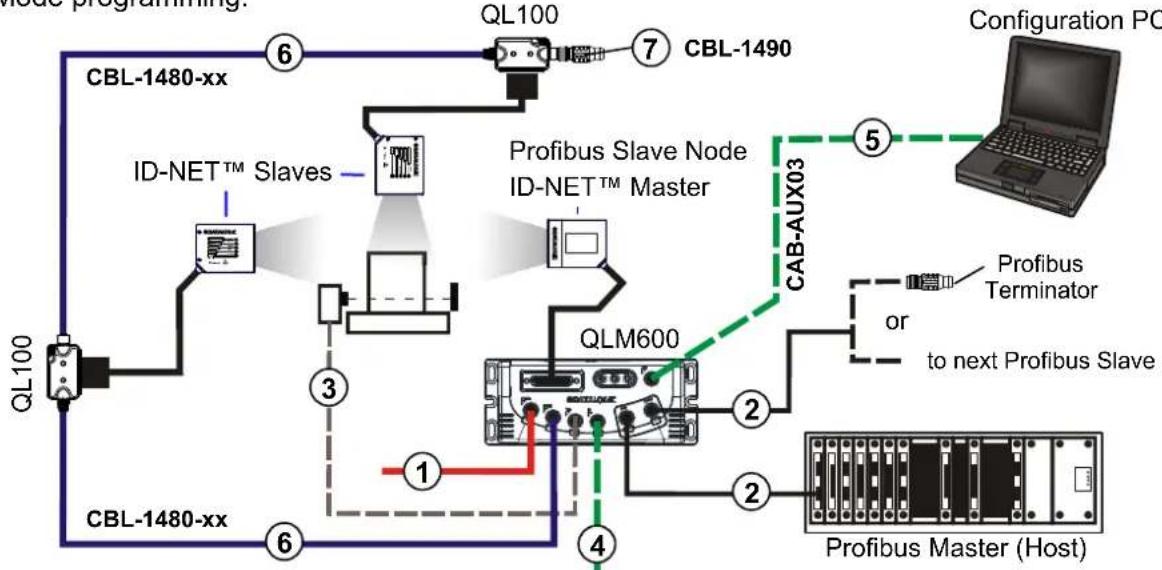
flowchart
graph TD
    A["CBL-1480-xx"] -->|6| B["QL100"]
    B --> C["QLM600"]
    C -->|2| D["Proibus Master (Host)"]
    C -->|2| E["Profibus Master Node ID-NET™ Master"]
    C -->|4| F["Configuration PC"]
    C -->|3| G["ID-NET™ Slaves"]
    G --> H["QL100"]
    H --> I["CBL-1480-xx"]
    I -->|6| J["QL100"]
    J --> K["CBL-1480-xx"]
    K --> L["QL100"]
    L --> M["CBL-1490"]
    M --> N["QL100"]
    N --> O["CBL-1490"]
    O --> P["Configuration PC"]
    style A fill:#f9f,stroke:#333
    style B fill:#ccf,stroke:#333
    style C fill:#cfc,stroke:#333
    style D fill:#fcc,stroke:#333
    style E fill:#cff,stroke:#333
    style F fill:#ffc,stroke:#333
    style G fill:#fcf,stroke:#333
    style H fill:#cff,stroke:#333
    style I fill:#ffc,stroke:#333
    style J fill:#cfc,stroke:#333
    style K fill:#fcc,stroke:#333
    style L fill:#ffc,stroke:#333
    style M fill:#cfc,stroke:#333
    style N fill:#fcc,stroke:#333
    style O fill:#ffc,stroke:#333
    style P fill:#fcc,stroke:#333
① Input Power
② Profibus Interface
③ External Trigger (for On-Line Mode)
④ External Digital I/O Devices
⑤ Aux port for Reader Configuration
⑥ ID-NET™ Network
⑦ ID-NET Terminator

NOTE
The ID-NET network must be terminated inserting an ID-NET terminator into the last QL in the network. ID-NET on the QLM600 is internally terminated.
This interface is provided for backward compatibility. We recommend using the more efficient ID-NET ^™ network for Master/Slave or Multiplexer layouts.
The RS232 master/slave connection is used to collect data from several scanners to build either a multi-point or a multi-sided reading system; there can be one master and up to 9 slaves connected together.
The Slave scanners use RS232 only on the main and auxiliary serial interfaces. Each slave DS2400N transmits the messages received by the auxiliary interface onto the main interface. All messages will be passed through this chain to the Master.
The Master scanner is connected to the Host on the RS232/RS485 main serial interface.
There is a single reading phase and a single message from the master scanner to the Host computer.
Either On-Line or Serial On-Line Operating modes can be used in this layout.
When On-Line Operating mode is used, the external trigger signal is unique to the system, however it is not necessary to bring the external trigger signal to the Slave scanners.
The main and auxiliary ports are connected as shown in the figure below.

flowchart
graph TD
    A["Power"] --> B["Master"]
    B --> C["Slave#1 Slave"]
    C --> D["Host"]
    D --> E["Computer"]
    style A fill:#f9f,stroke:#333
    style B fill:#ccf,stroke:#333
    style C fill:#cfc,stroke:#333
    style D fill:#fcc,stroke:#333
    note right of D
        ① Main Serial Interface (RS232 only)
        ② Auxiliary Serial Interface (RS232)
        ③ External Trigger (for On-Line Mode)
    end
Figure 96 – RS232 Master/Slave Layout
6.5 MULTIPLEXER LAYOUT

NOTE
This interface is provided for backward compatibility. We recommend using the more efficient ID-NET ^™ network for Master/Slave or Multiplexer layouts.
Each scanner is connected to a Multiplexer (for example MX4000) with the RS485 half-duplex main interface through a CBX connection box.
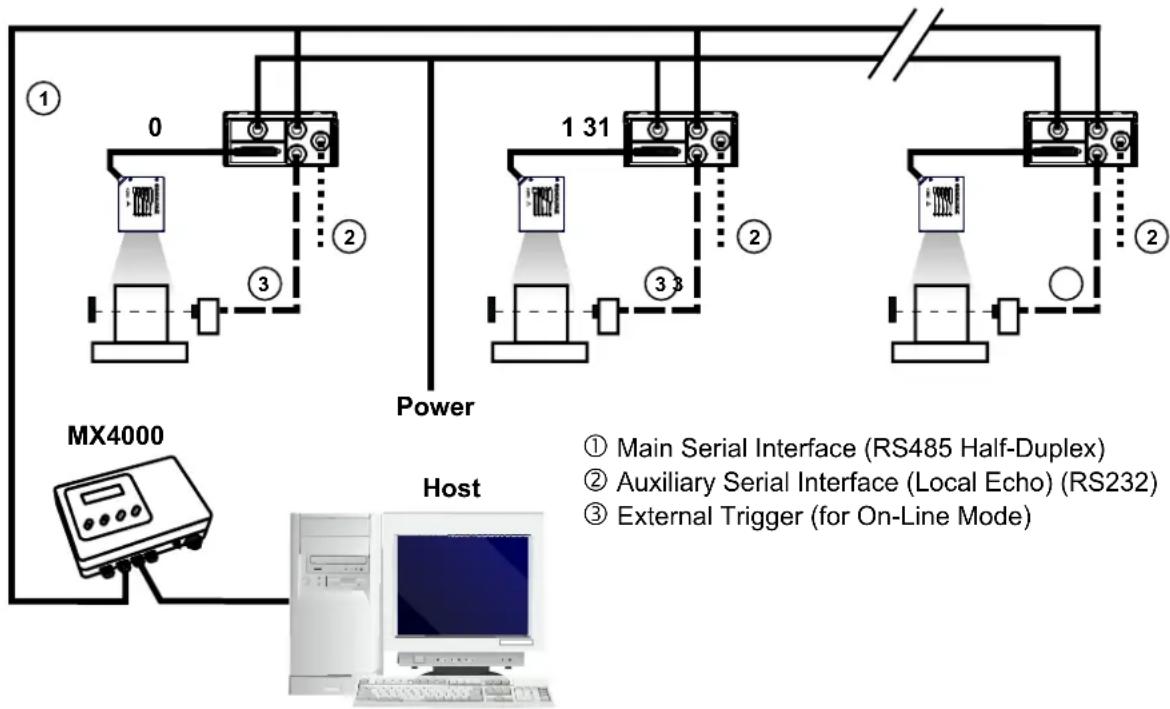
flowchart
graph TD
    subgraph Host
        A["MX4000"] --> B["Main Serial Interface (RS485 Half-Duplex)"]
        A --> C["Auxiliary Serial Interface (Local Echo) (RS232)"]
        A --> D["External Trigger (for On-Line Mode)"]
    end
    subgraph Power
        E["0"] --> F["1 31"]
        G["3"] --> H["2"]
        I["3"] --> J["2"]
    end
    subgraph Control
        K["Power Supply"] --> L["Control Panel"]
        M["External Trigger"] --> N["External Trigger"]
    end
    style Host fill:#f9f,stroke:#333
    style Power fill:#ccf,stroke:#333
    style Control fill:#dfd,stroke:#333
Figure 97 - Multiplexer Layout
The auxiliary serial interface of the slave scanners can be used in Local Echo communication mode to control any single scanner (visualize collected data) or to configure it using the Genius ^™ utility or Genius ^™ based Host Mode programming procedure.
Each scanner has its own reading phase independent from the others. When On-Line Operating mode is used, the scanner is activated by an External Trigger (photoelectric sensor) when the object enters its reading zone.
7 READING FEATURES
7.1 ADVANCED CODE RECONSTRUCTION (ACR-LITE)
The traditional way of barcode reading could be called “Linear Reading”. In this case, the laser beam crosses the barcode symbol from its beginning to its end as shown in the following figure:
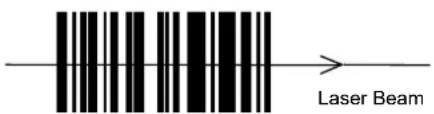
text_image
Laser BeamFigure 98 – Linear Reading
In Advanced Code Reconstruction mode it is no longer necessary for the laser beam to cross the label from the start to the end. With just a set of partial scans on the label (obtained using the motion of the label itself), the scanner is able to “reconstruct” the barcode. A typical set of partial scans is shown in the figure below:

text_image
Code DirectionFigure 99 – Partial Scans
None of the partial scans contains the whole label. The decoder aligns each partial scan correctly and combines them in order to obtain the entire code.
The alignment is performed by calculating the time difference from one partial scan to another using a reference code element.
ACR-Lite therefore has an intrinsic ability to increase the reading percentage of damaged codes as in the examples below:


text_image
* 0 4 %DLWFigure 100 – ACR-Lite Readable Codes
ACR-Lite is disabled by default but can be enabled for the following code types:
• Code 25 Interleaved
• Code 128/GS1-128
- Code 39 Family
• EAN/UPC (without ADD-Ons)
- Codabar
- Code 93
- GS1 DataBar
• GS1 DataBar Expanded
7.1.1 Important ACR-Lite Reading Conditions
- Do not use ACR-Lite for omni-directional reading stations.
- Code concatenation and ACR-Lite are not compatible and therefore cannot be enabled simultaneously.
- Stacked codes and ACR-Lite are not compatible.
- Codes shorter than 4 digits, while readable linearly, cannot be reconstructed in ACR-Lite.
- Reconstruction reading mode is not compatible with scanner Raster models.

NOTE
To maximize scanner performance in Advanced Code Reconstruction Reading applications:
- enable only the code symbologies that will actually be used in the application and disable any code symbologies that will not be used in the application
• reconstruct only one code label at a time - use conveyor speeds less than or equal to 1.0 m/s
7.1.2 Tilt Angle for Advanced Code Reconstruction
The most important parameter in Advanced Code Reconstruction is the value of the maximum tilt angle ( maximum) under which the code reconstruction process is still possible.

text_image
Laser Beam 0° to α max α = tilt angleFigure 101 - Tilt Angle
The decoder will be able to read the label with a tilt angle between + max and - max as shown in the following figure:
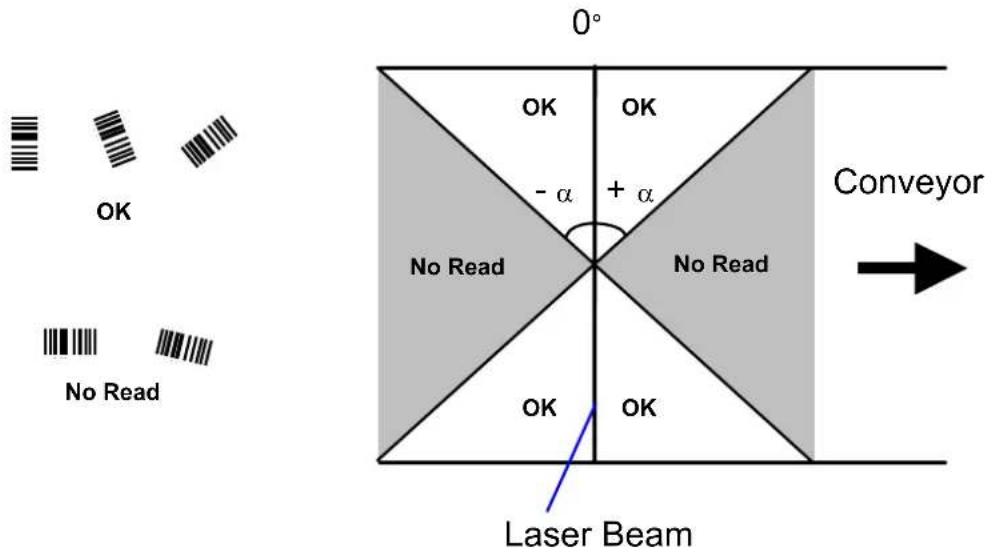
text_image
0° OK OK - α + α Conveyor No Read No Read OK OK Laser BeamFigure 102 – Reading Zones with α Max

NOTE
While tilt angles of 45^ can be obtained, DS2400N scanners are not designed to create omni-directional reading stations using two scanners in an X-pattern.
7.1.3 Advanced Code Reconstruction Reading Conditions
The following tables describe the minimum code height requirements (in mm) for standard ACR-Lite applications depending on the code symbology and the given reading conditions.
• ANSI Grade B minimum
- 800 scans/sec
- three code symbologies enabled simultaneously
- uniform background
| 2/5 Interleaved Minim45° max 30° | um Code Height for ACR-Lite Reading (mm) | ||||||
| max | |||||||
| Conveyor Speed (m/s) | 0.5 | 75 1 0.5 | .75 1 | ||||
| Code Resolution(mm) | 0.20 | 17 | 20 | 23 | 12 | 14 | 16 |
| 0.35 | 28 | 30 | 32 | 18 | 20 | 22 | |
| 0.50 | 34 | 36 | 38 | 23 | 25 | 27 | |
Ratio 2.5:1
Table 1
| Code 39 Minimum45° max 30° | Code Height for ACR-Lite Reading (mm) | ||||||
| max | |||||||
| Conveyor Speed (m/s) | 0.5 | 75 1 0.5 | .75 1 | ||||
| Code Resolution(mm) | 0.20 | 16 | 19 | 22 | 12 | 14 | 16 |
| 0.35 | 26 | 28 | 30 | 17 | 19 | 21 | |
| 0.50 | 31 | 33 | 35 | 21 | 23 | 25 | |
Ratio 2.5:1; Interdigit = Module Size
Table 2
| Code 128 – GS1-128 Minimum Code Height for ACR-Lite Reading (mm) | |||||||
| 45° max 30° | max | ||||||
| Conveyor Speed (m/s) | 0.5 | 75 1 0.5 | .75 1 | ||||
| Code Resolution (mm) | 0.20 | 12 | 15 | 18 | 9 | 11 | |
| 0.35 | 22 | 25 | 28 | 13 | 16 | 19 | |
| 0.50 | 25 | 27 | 30 | 17 | 20 | 23 | |
Table 3
The number of scans performed on the code by the DS2400N and therefore the decoding capability is influenced by the following parameters:
• number of scans per second
• code motion speed
- label dimensions
- scan direction with respect to code motion
At least 5 scans during the code passage should be allowed to ensure a successful read.
7.2.1 Step-Ladder Mode
If scanning is perpendicular to the code motion direction (Figure 103), the number of effective scans performed by the reader is given by the following formula:
SN = [(LH/LS) * SS] - 2 Where: SN = number of effective scans
LH = label height (in mm)
LS = label movement speed in (mm/s)
SS = number of scans per second
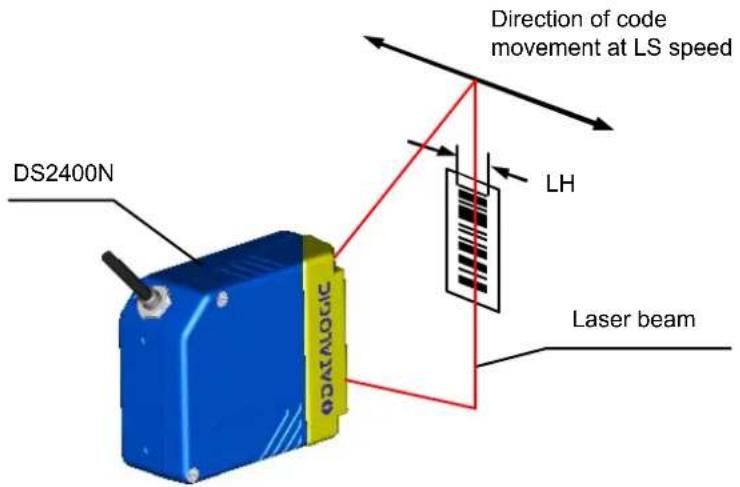
text_image
DS2400N ΦCATATOGIC Direction of code movement at LS speed LH Laser beamFigure 103 - "Step-Ladder" Scanning Mode
For example, the DS2400N (800 scans/sec.) for a 25 mm high code moving at 1250 mm/s performs:
$$ [ (2 5 / 1 2 5 0) * 8 0 0 ] - 2 = 1 4 \text { effective scans. } $$
7.2.2 Picket-Fence Mode
If scanning is parallel to the code motion, (Figure 104), the number of effective scans is given by the following formula:
SN = [((FW-LW)/LS) * SS] -2 Where: SN = number of effective scans
FW = reading field width (in mm)
LW = label width (in mm)
LS = label movement speed (in mm/s)
ss
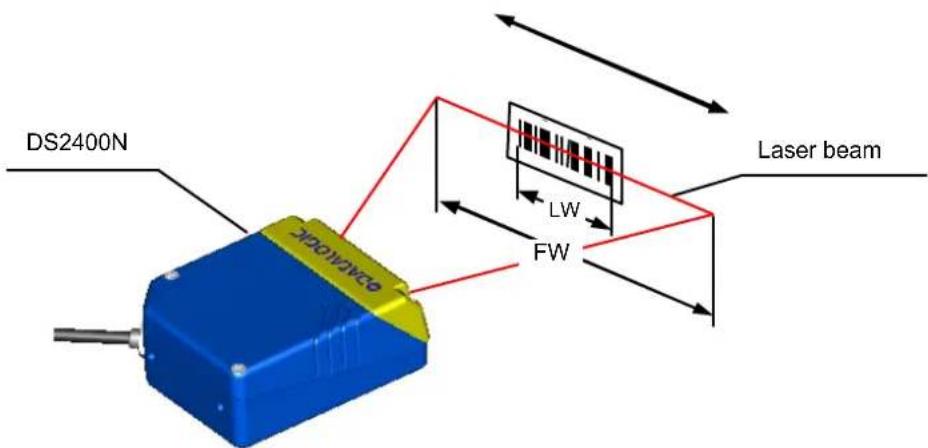
text_image
DS2400N Laser beam FW LW FW DCAMO DCAMOFigure 104 - "Picket-Fence" Scanning Mode
For example, for a 100 mm wide code moving in a point where the reading field is 200 mm wide at a 2000 mm/s speed, the DS2400N (800 scans per sec.), performs:
$$ [ ((2 0 0 - 1 0 0) / 2 0 0 0) * 8 0 0 ] - 2 = 3 8 \text { effective scans } $$
7.3 PERFORMANCE
The DS2400N scanner is available in different versions according to the reading performance.
| Version | Max | Code | Resolution | Speed |
| mm | (mils) | scans/s | ||
| 02XX 0.20 | (8) | 600 to 1000 | ||
| 12XX 0.25 | (10) | 600 to 1000 | ||
| 22XX 0.35 | (14) | 600 to 1000 | ||
| Version | Reading | Distance |
| 02XX 75 mm (3 in) - 340 mm (13.4 in) on 0.35 mm (14 mils) codes | ||
| 12XX 100 mm (3.9 in) - 440 mm (17.3 in) on 0.50 mm (20 mils) codes | ||
| 22XX 190 mm (7.5 in) - 600 mm (23.6 in) on 0.50 mm (20 mils) codes | ||
Refer to the diagrams given in par. 7.4 for further details on the reading features. They are taken on various resolution sample codes at a 25 °C ambient temperature, depending on the conditions in the notes under the diagrams.
7.3.1 Raster
Raster versions are available. The distance between the top and bottom scan lines is called capture and is measured from the laser beam output window.
The reading characteristics for the raster versions are given in the table below.
Reading Distance
| 300 mm(11.8 in) | 600 mm(23.6 in) | |
| Raster Capture | 18 mm(0.7 in) | 35 mm(1.4 in) |
If standard devices do not satisfy specific requirements, contact your nearest Datalogic distributor, supplying code samples, to obtain complete information on the reading possibilities.
7.4 READING DIAGRAMS
Reading diagrams for Subzero models and Standard models are the same.
Note: (0,0) is the center of the laser beam output window.
CONDITIONS
Optic Version = Linear
Code = Interleaved 2/5 or Code 39
PCS = 0.90
"Pitch" angle = 0°
"Skew" angle = 10°
"Tilt" angle = 0°
*Code Resolution = High
*Reading Conditions = Standard
*Scan Speed = 800 scans/sec
* Parameters selectable in Genius™.
Note: (0,0) is the center of the laser beam output window.
CONDITIONS
Optic Version = Linear
Code = Interleaved 2/5 or Code 39
| PCS | = | 0.90 |
| "Pitch" angle = | 0° | |
| "Skew" angle = | 10° | |
| "Tilt" angle = | 0° |
*Code Resolution = High for 0.25 mm (10 mils) codes Standard for 0.35 mm, (14 mils) codes and greater
*Reading Conditions = Standard
*Scan Speed = 800 scans/sec
* Parameters selectable in Genius™.
Note: (0,0) is the center of the laser beam output window.
CONDITIONS
Optic Version = Linear
Code = Interleaved 2/5 or Code 39
PCS = 0.90
"Pitch" angle = 0°
"Skew" angle = 10°
"Tilt" angle = 0°
*Code Resolution = High for 0.35 mm (14 mils) codes
= Standard for 0.50 mm (20 mils) codes and greater
*Reading Conditions = Standard
*Scan Speed = 800 scans/sec
* Parameter selectable in Genius™
8 MAINTENANCE
8.1 CLEANING
Clean the laser beam output window periodically for continued correct operation of the reader.
Dust, dirt, etc. on the window may alter the reading performance.
Repeat the operation frequently in particularly dirty environments.
Use soft material and alcohol to clean the window and avoid any abrasive substances.

WARNING
Clean the window of the DS2400N when the scanner is turned off or, at least, when the laser beam is deactivated.
9 TROUBLESHOOTING
9.1 GENERAL GUIDELINES
When wiring the device, pay careful attention to the signal name (acronym) on the CBX100/500 spring clamp connectors (chp. 4). If you are connecting directly to the scanner 25-pin connector pay attention to the pin number of the signals (chp 5).
If you need information about a certain reader parameter you can refer to the Genius ^™ program help files.
Either connect the device and select the parameter you're interested in by pressing the F1 key, or select Help/Parameters Help/2K_4K Software Configuration Parameters Guide from the command menu.
If you're unable to fix the problem and you're going to contact your local Datalogic office or Datalogic Partner or ARC, we suggest providing (if possible) the Device Configuration files (*.ddc). Connect through Genius™ and click the Save icon from the toolbar. Also note the exact Model, Serial Number and Order Number of the device.
| TROUBLESHOOTING GUIDE | |
| Problem Suggestions | |
| Power On: the "Power On"/ "Ready" LED are not lit | Is power connected?If using a power adapter (like PG 6000), is it connected to a wall outlet?If using rail power, does rail have power?If using CBX100, does it have power (check switch and LED)?Measure voltage either at pin 13 and pin 25 (for 25-pin connector) or at spring clamp Vdc and GND (for CBX). |
| Power On: the "Ready" LED is continuously blinking; motor and laser are OFF | For Subzero models this indicates the warm-up phase. If this phase exceeds the expected warm-up time, a diagnostic error condition will be generated, see indication below.Check the input voltage; if less than 24 Vdc the scanner may not attain warm-up. |
| Diagnostic Error: the "Ready" LED and "Status" LED are continuously blinking and the "Good" Read LED is ON | This indicates a diagnostic alarm/error condition. A User Defined Error message or an Internal Numeric Error message is sent over the selected communication interface. See the Help On Line for diagnostic error conditions. |
| On line Mode: TRIGGER LED is not lit (when external trigger activates) | Is sensor connected to I1A, I1B spring clamps (for CBX) or to pins 18 and 19 (for 25-pin connector)?Is power supplied to photo sensor?Are the photo sensor LEDs (if any) working correctly?Is the sensor/reflector system aligned? |
| On line Mode: TRIGGER LED is correctly lit but nothing happens (no reading results) | Is the software configuration consistent with the application condition (operating mode etc.)?In the GeniusTM program select the Operating Mode branch and check for related parameters. |
| Serial On line Mode: the reader is not triggered (no reading results) | In the GeniusTM program select the Operating Mode branch and check if Serial On Line is selected in the On Line Options.Are the Start – Stop characters correctly assigned?Is the serial trigger source correctly connected and configured? |
| On line Mode and Serial On Line: Reader doesn't respond correctly to the expected external signals end | In the GeniusTM program select the Operating Mode branch and check the Reading Phase Timeout parameterization. |
| X-PRESSTM:X-PRESSTM functions don't work. LEDs light up but do not allow access to the functions. | The X-PRESSTM functions don't work if the scanner motor or laser are turned off. Check if the motor or laser are turned off through the following parameters:Beam Shutter = enabledScan Speed = Motor OffEnergy Saving>Serial Motor Off has been sent |
| Reading:Not possible to read the target barcode (always returns No Read) or the Auto Setup procedure Fails. | Check synchronization of reading pulse with object to read:Is the scan line correctly positioned?Place barcode in the center of scan line and run Test mode (selectable by Geniustm as an Operating Mode). If you still have trouble, check the following:Is the reading distance within that allowed (see reading diagrams)?Is the Tilt angle too large?Is the Skew angle less than 10° (direct reflection)?Choose the Code Definition branch and enable different Code Symbologies (except Pharmacode). Length = Min and Max (variable).Is the Bar Code quality sufficient?If you had no success, try to perform the test using the BARCODE TEST CHART included with the product. |
| Communication:Device is not transmitting anything to the host | Is the serial cable connected?Is the correct wiring respected?Are serial host settings equivalent to the serial device setting?If using CBX, be sure the RS485 termination switch is positioned to OFF. |
| Communication:Data transferred to the host are incorrect, corrupted or incomplete | In the Geniustm program select the Data Communication Settings/Data Format/Standard Parameters branch and check the Header, Separators, and Terminator valuesAlso check the Code Field Length and Fill Character values.Are the COM port parameters correctly assigned? |
| Communication:Always returns the Reader Failure Character (<BEL> char as default) | Contact your local Datalogic office or Datalogic Partner or ARC, because either a Motor or Laser failure has occurred.Note the exact model and Serial Number of the device. |
| How do I obtain my units' serial numbers? | The device's serial number is printed on a label that is affixed to the body of the reader.Serial numbers consist of 9 characters: one letter, 2 numbers, and another letter followed by 5 numbers. |
10 TECHNICAL FEATURES
| ELECTRICAL FEATURES DS2400N-xxx0 (Standard) DS2400N-xxx5 (Subzero) | ||
| Input Power Supply Voltage 10 to 30 Vdc | 24 Vdc ±10% | |
| Power consumption max. 0.5 to 0.17 A; 5 W 0.4 A; 9.6 W max | ||
| Serial Interfaces Main Serial Interface Sw programmable: RS232; RS485 FD and HD Baudrate 1200 - 115200 | ||
| Auxiliary Baudrate 1200 - 115200 | RS232 | |
| ID-NETTM Baudrate Up to 1 MBaud | RS485 | |
| Inputs Input 1 (External Trigger), Input 2 Voltage 10 to 30 Vdc Current Consumption Minimum Pulse Duration | Optocoupled, polarity insensitive 12 mA max. 5 ms. | |
| Outputs Output 1, Output 2 VCE Collector Current VCE saturation Power Dissipation | Optocoupled 30 Vdc max. 40 mA continuous max.; 130 mA pulsed max. 1V max. at 10 mA 80 mW max. at 45 °C (ambient temperature) | |
| OPTICAL FEATURES | ||
| Light Source Wave Length Safety Class | Semiconductor laser diode In the range 630 to 680 nm Class 2 - EN 60825-1; CDRH | |
| READING FEATURES 1 | ||
| Scan Rate (software program.) Aperture Angle Maximum Reading Distance Maximum Resolution | (600 to 1000 scans/sec) | |
| 50° | ||
| See reading diagrams | ||
① Further details given in par. 7.3.
| ENVIRONMENTAL FEATURES | DS2400N-xxx0 (Standard) DS2400N-xxx5 (Subzero) | |
| Operating Temperature | 0° to +45 °C (+32° to +113 °F) 2 | -35° to +45 °C (-31° to +113 °F) 3 |
| Storage Temperature | -20° to +70 °C (-4° to +158 °F) | -35° to +70 °C (-31° to +158 °F) |
| Humidity max. 90% non condensing | ||
| Vibration Resistance 14 mm @ 2 to EN 60068-2-6 2 g @ 70 to 200 Hz; 2 hours on each axis | 10 Hz; 1.5 mm @ 13 to 55 Hz; | |
| Bump Resistance 30g; 6 ms;EN 60068-2-29 5000 shocks on each axis | ||
| Shock Resistance 30g; 11 ms;EN 60068-2-27 3 shocks on each axis | ||
| Protection Class - EN 60529 IP65 | ||
| PHYSICAL FEATURES | ||
| Mechanical Dimensions 68 x 84 x 34 mm (2.7 x 3.3 x 1.3 in) | ||
| Weight 330 g (11.6 oz.) 340 g (12 oz.) | ||
| SOFTWARE FEATURES | ||
| READABLE CODES* EAN/UPC (including Add-on 2 and Add-on 5) * Code 93*2/5 Interleaved *Code 128* Code 39 (Standard and Full ASCII) * GS1-128 (ex EAN 128)*Codabar ISBT 128ABC Codabar Pharmacode*GS1 DataBar Plessey*GS1 DataBar Expanded GS1 DataBar Limited* ACR-Lite Readable. | ||
| Code Selection | up to ten different symbologies during one reading phase | |
| Decoding Safety | can enable multiple good reads of same code | |
| Headers and Terminators | Up to 128-byte header stringUp to 128-byte terminator string | |
| Operating Modes | On-Line, Serial On-Line, Verifier,Automatic, Continuous, Test | |
| Configuration Modes | X-PRESSTM FunctionsGeniusTM utility programGeniusTM based Host Mode Programming | |
| Special Functions | Code VerifierACR-Lite (Advanced Code Reconstruction)Motor Off and SW_Speed ControlProgrammable Diagnostic and Statistic Messages | |
| Parameter Storage | Non-volatile internal Flash | |
| USER INTERFACE | ||
| LED IndicatorsMulti-function Key | Ready, Good, Trigger, Com, Status, Power OnX-PRESSTM button | |
② If the reader is used in high temperature environments (over 40 °C), use of the Beam Shutter is advised (see the Genius™ configuration program) and/or a thermally conductive support (such as the metal bracket provided).
③ The Operating Temperature is guaranteed under the following conditions:
• no direct ventilation on the scanner
- fixed working environment (no rapid temperature changes)
At -35 °C, a 20 min warm-up period is required before the scanner is ready to read barcodes.
ACR-Lite (Advanced Code Reconstruction)
This is a light version of the powerful Advanced Code Reconstruction technology applied to high performance high precision scanners. ACR-Lite is effective in reading codes positioned close-to-linear, small height codes, damaged codes, or poor print quality codes. See par. 7.1.
Aperture
Term used on the required CDRH warning labels to describe the laser exit window.
Barcode
A pattern of variable-width bars and spaces which represents numeric or alphanumeric data in machine-readable form. The general format of a barcode symbol consists of a leading margin, start character, data or message character, check character (if any), stop character, and trailing margin. Within this framework, each recognizable symbology uses its own unique format.
Barcode Label
A label that carries a barcode and can be affixed to an article.
Baud Rate
A unit used to measure communications speed or data transfer rate.
CDRH (Center for Devices and Radiological Health)
This organization (a service of the Food and Drug Administration) is responsible for the safety regulations governing acceptable limitations on electronic radiation from laser devices. Datalogic devices are in compliance with the CDRH regulations.
Code Positioning
Variation in code placement that affects the ability of a scanner to read a code. The terms Pitch, Skew, and Tilt deal with the angular variations of code positioning in the X, Y and Z axes. See pars. 3.2.1 and 3.2.5. Variations in code placement affect the pulse width and therefore the decoding of the code. Pulse width is defined as a change from the leading edge of a bar or space to the trailing edge of a bar or space over time. Pulse width is also referred to as a transition. Tilt, pitch, and skew impact the pulse width of the code.
Decode
The process of translating a barcode into data characters using a specific set of rules for each symbology.
Decoder
As part of a barcode reading system, the electronic package which receives the signals from the scanner, performs the algorithm to interpret the signals into meaningful data and provides the interface to other devices. The decoder is normally integrated into the scanner.
EAN
European Article Number System. The international standard barcode for retail food packages.
FLASH
An on-board non-volatile memory chip.
Full Duplex
Simultaneous, two-way, independent transmission in both directions.
Half Duplex
Transmission in either direction, but not simultaneously.
Host
A computer that serves other terminals in a network, providing services such as network control, database access, special programs, supervisory programs, or programming languages.
Interface
A shared boundary defined by common physical interconnection characteristics, signal characteristics and meanings of interchanged signals.
LED (Light Emitting Diode)
A low power electronic device that can serve as a visible or near infrared light source when voltage is applied continuously or in pulses. It is commonly used as an indicator light and uses less power than an incandescent light bulb but more than a Liquid Crystal Display (LCD). LEDs have extremely long lifetimes when properly operated.
Multidrop Line
A single communications circuit that interconnects many stations, each of which contains terminal devices. See RS485.
Parameter
A value that you specify to a program. Typically parameters are set to configure a device to have particular operating characteristics.
Picket-Fence Orientation
When the barcode's bars are positioned vertically on the product, causing them to appear as a picket fence. The first bar will enter the scan window first. See par. 7.2.2.
Pitch
Rotation of a code pattern about the X-axis. The normal distance between center line or adjacent characters. See pars. 3.2.1 and 3.2.5.
Position
The position of a scanner or light source in relation to the target of a receiving element.
Protocol
A formal set of conventions governing the formatting and relative timing of message exchange between two communicating systems.
Raster
The process of projecting the laser beam at varied angles spaced evenly from each other. Typically, the mirrored rotor surfaces are angled to create multiple scan lines instead of a single beam.
Resolution
The narrowest element dimension, which can be distinguished by a particular reading device or printed with a particular device or method.
RS232
Interface between data terminal equipment and data communication equipment employing serial binary data interchange.
RS485
Interface that specifies the electrical characteristics of generators and receivers for use in balanced digital multipoint systems such as on a Multidrop line.
Scanner
A device that examines a printed pattern (barcode) and either passes the uninterpreted data to a decoder or decodes the data and passes it onto the Host system.
Serial Port
An I/O port used to connect a scanner to your computer, identifiable by a 9-pin or 25-pin connector.
Signal
An impulse or fluctuating electrical quantity (i.e.: a voltage or current) the variations of which represent changes in information.
Skew
Rotation about the Y-axis. Rotational deviation from correct horizontal and vertical orientation; may apply to single character, line or entire encoded item. See pars. 3.2.1 and 3.2.5.
Step-Ladder Orientation
When the barcode's bars are positioned horizontally on the product, causing them to appear as a ladder. The ends of all bars will enter the scan window first. See par. 7.2.1.
Symbol
A combination of characters including start/stop and checksum characters, as required, that form a complete scannable barcode.
Tilt
Rotation around the Z axis. Used to describe the position of the barcode with respect to the laser scan line. See pars. 3.2.1 and 3.2.5.
Trigger Signal
A signal, typically provided by a photoelectric sensor or proximity switch, which informs the scanner of the presence of an object within its reading zone.
UPC
Acronym for Universal Product Code. The standard barcode type for retail food packaging in the United States.
Visible Laser Diode
A light source used in scanners to illuminate the barcode symbol. Generates visible red light at wavelengths between 630 and 680 nm.
2
25-Pin Cable Electrical Connections, 55
A
Accessories, 24
Advanced Code Reconstruction (ACR-Lite), 84
Auxiliary RS232 Interface, 48, 66
C
CBX Electrical Connections, 37
CE Compliance, viii
Cleaning, 94
Code Verifier, 52, 70
D
Linear Code Reading, 88
M
Main Serial Interface, 38, 56
Mechanical Installation, 26
Model Description, 23
Multiplexer Layout, 83
0
Outputs, 52, 70
P
Package Contents, 25
Pass-Through, 74
Patents, v
Performance, 90
Picket-Fence Mode, 89
Point-to-Point, 72
Positioning, 36
Power Supply, vii, 38, 56
R
Reading Diagrams, 91
Reading Features, 84
References, v
Reset Scanner, 22
RS232 Interface, 39, 57
RS232 Master/Slave, 82
RS485 Full Duplex, 40, 58
RS485 Half Duplex, 41, 59
s
Services and Support, v
Step-Ladder Mode, 88
Subzero Temperature Models, 22
T
Technical Features, 98
Troubleshooting, 95
Typical Layouts, 72
X
X-PRESS™ Human Machine Interface, 19
| DATALOGICTM | DECLARATION OF CONFORMITY | EC-031Rev.: 4Pag.: 1 di 1 |

Datalogic Automation S.r.l.
Via Lavino 265
40050 Monte San Pietro
Bologna - Italy
www.automation.datalogic.com
declares that the
are in conformity with the requirements of the European Council Directives listed below:
2004 / 108 / EC EMC Directive
This Declaration is based upon compliance of the products to the following standards:
EN 55022 (CLASS A ITE), DECEMBER 2010:
INFORMATION TECHNOLOGY EQUIPMENT
RADIO DISTURBANCE CHARACTERISTICS
LIMITS AND METHODS OF MEASUREMENTS
EN 61000-6-2, SEPTEMBER 2005:
ELECTROMAGNETIC COMPATIBILITY (EMC)
PART 6-2: GENERIC STANDARDS - IMMUNITY FOR INDUSTRIAL
ENVIRONMENTS
Monte San Pietro, January 24th, 2012
Paolo Morselli
Quality Manager

UNI EN ISO 9001

UNI EN ISO 14001

| DATALOGICTM | DECLARATION OF CONFORMITY | EC-127Rev.: 1Pag.: 1 di 1 |

Datalogic Automation S.r.l.
Via Lavino 265
40050 Monte San Pietro
Bologna - Italy
www.automation.datalogic.com
declares that the
CBX100; Connection Box Compact
CBX500; Connection Box Modular
BM100; Backup module
BM150; Display module
and all its models
are in conformity with the requirements of the European Council Directives listed below:
2004 / 108 / EC EMC Directive
This Declaration is based upon compliance of the products to the following standards:
EN 55022 (CLASS A ITE), DECEMBER 2010:
INFORMATION TECHNOLOGY EQUIPMENT
RADIO DISTURBANCE CHARACTERISTICS
LIMITS AND METHODS OF MEASUREMENTS
EN 61000-6-2, SEPTEMBER 2005:
ELECTROMAGNETIC COMPATIBILITY (EMC)
PART 6-2: GENERIC STANDARDS - IMMUNITY FOR INDUSTRIAL ENVIRONMENTS
Monte San Pietro, January 20th, 2012
Paolo Morselli
Quality Manager
Mouella Rods

UNI EN ISO 9001

UNI EN ISO 14001

| DATALOGICTM | DECLARATION OF CONFORMITY | EC-128Rev.: 2Pag.: 1 di 1 |

Datalogic Automation S.r.l.
Via Lavino 265
40050 Monte San Pietro
Bologna - Italy
www.automation.datalogic.com
declares that the
QLxxx and QLMxxx; Connection module
and all its models
are in conformity with the requirements of the European Council Directives listed below:
2004 / 108 / EC EMC Directive
This Declaration is based upon compliance of the products to the following standards:
EN 55022 (CLASS A ITE), DECEMBER 2010:
INFORMATION TECHNOLOGY EQUIPMENT
RADIO DISTURBANCE CHARACTERISTICS
LIMITS AND METHODS OF MEASUREMENTS
EN 61000-6-2, SEPTEMBER 2005:
ELECTROMAGNETIC COMPATIBILITY (EMC)
PART 6-2: GENERIC STANDARDS - IMMUNITY FOR INDUSTRIAL
ENVIRONMENTS
Monte San Pietro, January 20th, 2012
Paolo Morselli
Quality Manager
Mourelli Rods