PowerScan PBT7100 - Barcode Reader DATALOGIC - Free user manual and instructions
Find the device manual for free PowerScan PBT7100 DATALOGIC in PDF.


User questions about PowerScan PBT7100 DATALOGIC
0 question about this device. Answer the ones you know or ask your own.
Ask a new question about this device
Download the instructions for your Barcode Reader in PDF format for free! Find your manual PowerScan PBT7100 - DATALOGIC and take your electronic device back in hand. On this page are published all the documents necessary for the use of your device. PowerScan PBT7100 by DATALOGIC.
USER MANUAL PowerScan PBT7100 DATALOGIC
PowerScan™ PBT7100 Cordless
Industrial Handheld Linear Imaging Bar Code Reader with Bluetooth® Wireless Technology

natural_image
Three black and yellow barcode scanner devices, one with a yellow handle and the other with a black base (no visible text or symbols)Product Reference Guide
Datalogic Scanning, Inc.
959 Terry Street
Eugene, Oregon 97402
Telephone: (541) 683-5700
Fax: (541) 345-7140
An Unpublished Work - All rights reserved. No part of the contents of this documentation or the procedures described therein may be reproduced or transmitted in any form or by any means without prior written permission of Datalogic Scanning, Inc. or its subsidiaries or affiliates ("Datalogic" or "Datalogic Scanning"). Owners of Datalogic products are hereby granted a non-exclusive, revocable license to reproduce and transmit this documentation for the purchaser's own internal business purposes. Purchaser shall not remove or alter any proprietary notices, including copyright notices, contained in this documentation and shall ensure that all notices appear on any reproductions of the documentation.
Should future revisions of this manual be published, you can acquire printed versions by contacting your Datalogic representative. Electronic versions may either be downloadable from the Datalogic website (www.scanning.datalogic.com) or provided on appropriate media. If you visit our website and would like to make comments or suggestions about this or other Datalogic publications, please let us know via the "Contact Datalogic" page.
Disclaimer
Datalogic has taken reasonable measures to provide information in this manual that is complete and accurate, however, Datalogic reserves the right to change any specification at any time without prior notice.
Datalogic and the Datalogic logo are registered trademarks of Datalogic S.p.A. in many countries, including the U.S.A. and the E.U. All other brand and product names may be trademarks of their respective owners.
PowerScan is a registered trademark of Datalogic Scanning, Inc. in many countries, including the U.S.A. and the E.U.
Manual Conventions 2
References 2
Technical Support ....3
Datalogic Website Support 3
Reseller Technical Support 3
Telephone Technical Support 3
Chapter 2. Getting Started .... 5
About the Reader 5
Unpacking 5
Setting Up the Reader and Base Station 6
Install the Battery in the Reader 6
Connect the Base Station 6
Linking the Reader to a Base Station 7
Optional: Linking the Reader to a PC in Server Mode 8
Optional: Linking the Reader to a PC in Client Mode 9
Paging Feature 9
Programming 9
Using the Programming Barcodes 9
Select the Interface Type 10
Configure Interface Settings 10
Configure Other Features 10
Software Version Transmission 10
Resetting the Product Configuration to Defaults 11
Chapter 3. Interfaces ...... 13
Interface Selection 13
Configuring the Interface 13
Global Interface Features 17
Host Commands — Obey/Ignore 17
USB Suspend Mode 18
Chapter 4. General Features.... 19
Double Read Timeout 19
Label Gone Timeout 21
Sleep Mode Timeout 23
LED and Beeper Indicators 25
Power On Alert 25
Good Read: When to Indicate 26
Good Read Beep Type 27
Good Read Beep Frequency 28
Good Read Beep Length 28
Good Read Beep Volume 30
Good Read LED Duration 31
Scanning Features 33
Scan Mode 33
Stand Mode Triggered Timeout 35
Scanning Active Time 37
Flash On Time ....39
Flash Off Time 41
Stand Mode Sensitivity 43
Laser Pointer Control 44
Laser Pointer Period 45
Green Spot Duration 46
Chapter 5. RS-232 ONLY Interface.... 47
Introduction 47
RS-232 Standard Factory Settings 47
Baud Rate 47
Data Bits 49
Stop Bits 50
Parity 51
Handshaking Control 52
Chapter 6. RS-232/USB-Com Interfaces .... 53
Introduction 53
Standard Factory Settings 53
Intercharacter Delay 54
Beep On ASCII BEL 56
Beep On Not on File 56
ACK NAK Options 57
ACK Character 58
NAK Character 60
ACK NAK Timeout Value 62
ACK NAK Retry Count 64
ACK NAK Error Handling 66
Indicate Transmission Failure 67
Disable Character 68
Enable Character 70
Chapter 7. Keyboard Interface.... 73
Introduction 73
Standard Factory Settings 73
Scancode Tables 73
Country Mode 74
Caps Lock State 77
Numlock 77
Send Control Characters 78
Wedge Quiet Interval 79
Intercharacter Delay 81
Intercode Delay 83
USB Keyboard Speed 85
Chapter 8. USB-OEM Interface 87
Introduction 87
Standard Factory Settings 87
USB-OEM Device Usage 88
USB-OEM Interface Options 89
Chapter 9. IBM 46XX Interface 91
Introduction 91
IBM Standard Factory Settings 91
46xx Number of Host Resets 92
Transmit Labels in Code 39 Format 95
IBM 46XX Interface Options 96
Chapter 10. Wand Emulation Interface 97
Introduction 97
Wand Emulation Standard Factory Settings 97
Wand Idle State 97
Wand Polarity 98
Wand Signal Speed 99
Label Symbology Conversion 100
Transmit Noise 101
Chapter 11. Data Editing.... 103
Data Editing Overview 103
Please Keep In Mind.... 104
Global Prefix/Suffix 104
Example: Setting a Prefix ....104
Global AIM ID 106
GS1-128 AIM ID 108
Label ID 109
Label ID: Pre-loaded Sets 109
Label ID: Set Individually Per Symbology 112
Label ID Control 114
Label ID Symbology Selection 115
Case Conversion 123
Character Conversion 124
Chapter 12. Symbologies.... 127
Introduction 127
Symbologies 127
Standard Factory Settings for Symbologies 128
Disable All Symbologies 128
Coupon Control 129
UPC-A 130
UPC-A Enable/Disable 130
UPC-A Check Character Transmission 130
Expand UPC-A to EAN-13 ....131
UPC-A Number System Character Transmission 131
In-Store Minimum Reads 132
UPC-E 133
UPC-E Enable/Disable 133
UPC-E Check Character Transmission 133
Expand UPC-E to EAN-13 134
Expand UPC-E to UPC-A 134
UPC-E Number System Character Transmission 135
UPC-E Minimum Reads 136
GTIN Formatting 137
EAN 13 ....138
EAN 13 Enable/Disable ....138
EAN 13 Check Character Transmission ....138
EAN-13 Flag 1 Character ....139
EAN-13 ISBN Conversion 140
ISSN Enable/Disable 140
EAN 13 Minimum Reads ....141
EAN 8 142
EAN 8 Enable/Disable 142
EAN 8 Check Character Transmission ....142
Expand EAN 8 to EAN 13 ....143
EAN 8 Minimum Reads ....144
UPC/EAN Global Settings 145
UPC/EAN Decoding Level 145
UPC/EAN Correlation 147
UPC/EAN Reconstruction 147
UPC/EAN Price Weight Check 148
UPC-A Minimum Reads 149
Add-Ons 150
Optional Add-ons 150
Optional Add-On Timer 152
Optional GS1-128 Add-On Timer 155
P2 Add-Ons Minimum Reads 158
P5 Add-Ons Minimum Reads 159
GS1-128 Add-Ons Minimum Reads 160
GS1 DataBar™ Omnidirectional 161
GS1 DataBar Omnidirectional Enable/Disable 161
GS1 DataBar Omnidirectional GS1-128 Emulation 161
GS1 DataBar Omnidirectional Minimum Reads 162
GS1 DataBar™ Expanded 163
GS1 DataBar Expanded Enable/Disable 163
GS1 DataBar Expanded GS1-128 Emulation 163
GS1 DataBar Expanded Minimum Reads 164
GS1 DataBar Expanded Length Control 165
GS1 DataBar Expanded Set Length 1 166
GS1 DataBar Expanded Set Length 2 168
GS1 DataBar™ Limited 170
GS1 DataBar Limited Enable/Disable 170
GS1 DataBar Limited GS1-128 Emulation 170
GS1 DataBar Limited Minimum Reads 171
Code 39 172
Code 39 Enable/Disable 172
Code 39 Check Character Calculation .... 173
Code 39 Check Character Transmission 174
Code 39 Start/Stop Character Transmission 174
Code 39 Full ASCII 175
Code 39 Quiet Zones .... 176
Code 39 Minimum Reads 177
Code 39 Decoding Level 178
Code 39 Length Control 180
Code 39 Set Length 1 .... 181
Code 39 Set Length 2 .... 183
Code 39 Interdigit Ratio 185
Code 39 Character Correlation .... 187
Code 39 Stitching 188
Code 32 (Italian Pharmaceutical) 189
Code 32 Enable/Disable 189
Code 32 Feature Setting Exceptions 189
Code 32 Check Character Transmission 190
Code 32 Start/Stop Character Transmission 190
Code 39 CIP (French Pharmaceutical) 191
Code 39 CIP Enable/Disable 191
Code 128 191
Code 128 Enable/Disable 191
Expand Code 128 to Code 39 192
Code 128 Check Character Transmission .... 192
Code 128 Function Character Transmission .... 193
Code 128 Sub-Code Change Transmission 194
Code 128 Quiet Zones 195
Code 128 Minimum Reads 196
Code 128 Decoding Level 197
Code 128 Length Control 199
Code 128 Set Length 1 200
Code 128 Set Length 2 202
Code 128 Character Correlation ....204
Code 128 Stitching ....205
GS1-128 206
GS1-128 Enable 206
Interleaved 2 of 5 (1 2 of 5) ....207
12 of 5 Enable/Disable 207
12 of 5 Check Character Calculation ....208
12 of 5 Check Character Transmission ....209
12 of 5 Minimum Reads 210
I 2 of 5 Decoding Level ......211
12 of 5 Length Control 213
12 of 5 Set Length 1 214
12 of 5 Set Length 2 216
12 of 5 Character Correlation ....218
12 of 5 Stitching 219
Interleaved 2 of 5 CIP HR 220
Interleaved 2 of 5 CIP HR Enable/Disable 220
Datalogic 2 of 5 220
Datalogic 2 of 5 Enable/Disable 220
Datalogic 2 of 5 Check Character Calculation ....221
Datalogic 2 of 5 Minimum Reads ....222
Datalogic 2 of 5 Decoding Level 222
Datalogic 2 of 5 Length Control ....223
Datalogic 2 of 5 Set Length 1 224
Datalogic 2 of 5 Set Length 2 ....226
Datalogic 2 of 5 Interdigit Maximum Ratio 228
Datalogic 2 of 5 Character Correlation ....230
Datalogic 2 of 5 Stitching ....231
Codabar 232
Codabar Enable/Disable 232
Codabar Check Character Calculation 233
Codabar Check Character Transmission 234
Codabar Start/Stop Character Transmission 234
Codabar Start/Stop Character Set 235
Codabar Start/Stop Character Match 236
Codabar Quiet Zones 237
Codabar Minimum Reads 238
Codabar Decoding Level 239
Codabar Length Control 241
Codabar Set Length 1 242
Codabar Set Length 2 244
Codabar Interdigit Ratio 246
Codabar Character Correlation 248
Codabar Stitching 249
ABC Codabar 250
ABC Codabar Enable/Disable 250
ABC Codabar Concatenation Mode 250
ABC Codabar Dynamic Concatenation Timeout 251
ABC Codabar Force Concatenation 252
Code 11 253
Code 11 Enable/Disable 253
Code 11 Check Character Calculation ....254
Code 11 Check Character Transmission ....255
Code 11 Minimum Reads ....256
Code 11 Length Control ....257
Code 11 Set Length 1 ....258
Code 11 Set Length 2 ....260
Code 11 Interdigit Ratio 262
Code 11 Decoding Level 264
Code 11 Character Correlation ....266
Code 11 Stitching ....267
Standard 2 of 5 ...... 268
Standard 2 of 5 Enable/Disable 268
Standard 2 of 5 Check Character Calculation ...... 269
Standard 2 of 5 Check Character Transmission 269
Standard 2 of 5 Minimum Reads 270
Standard 2 of 5 Decoding Level 270
Standard 2 of 5 Length Control 271
Standard 2 of 5 Set Length 1 272
Standard 2 of 5 Set Length 2 274
Standard 2 of 5 Character Correlation 276
Standard 2 of 5 Stitching 277
Industrial 2 of 5 278
Industrial 2 of 5 Enable/Disable 278
Industrial 2 of 5 Check Character Calculation 278
Industrial 2 of 5 Check Character Transmission 279
Industrial 2 of 5 Length Control 280
Industrial 2 of 5 Set Length 1 281
Industrial 2 of 5 Set Length 2 283
Industrial 2 of 5 Minimum Reads 285
Industrial 2 of 5 Stitching 286
Industrial 2 of 5 Character Correlation 286
IATA 287
IATA Enable/Disable 287
IATA Check Character Transmission 287
ISBT 128 288
ISBT 128 Concatenation 288
ISBT 128 Concatenation Mode 289
ISBT 128 Dynamic Concatenation Timeout 290
MSI Check Character Transmission 294
MSI Length Control 294
MSI Set Length 1 295
MSI Set Length 2 297
MSI Minimum Reads 299
MSI Decoding Level 300
Plessey 302
Plessey Enable/Disable 302
Plessey Check Character Calculation 303
Plessey Check Character Transmission 304
PLessey Length Control 304
Plessey Set Length 1 305
Plessey Set Length 2 307
Plessey Minimum Reads 309
Plessey Decoding Level 310
Plessey Stitching 311
Plessey Character Correlation 312
Code 93 312
Code 93 Character Correlation ....323
Codablock F 324
Codablock F Enable/Disable 324
Codablock F EAN Enable/Disable 325
Codablock F AIM Check 325
Codablock F Length Control 326
Codablock F Set Length 1 327
Codablock F Set Length 2 329
Code 4 331
Code 4 Enable/Disable ....331
Code 4 Check Character Transmission ....332
Code 4 Hex to Decimal Conversion ....332
Code 5 333
Code 5 Enable/Disable 333
Code 5 Check Character Transmission ....334
Code 5 Hex to Decimal Conversion ....334
Code 4 and Code 5 Common Configuration Items ....335
Code 4 and 5 Decoding Level 335
Code 4 and Code 5 Minimum Reads ....337
Follett 2 of 5 338
Follett 2 of 5 Enable/Disable ....338
Chapter 13. BT Features.... 339
Introduction 339
Standard Factory Settings 339
BT Beeper Features 340
ACK Beep 340
Beep Frequency 341
Beep Duration 342
Beep Volume 344
BT Base Station Beep 345
Disconnect Beep 345
BT Leash Alarm 346
Flash Update 348
BT Automatic Flash Update 348
Request Flash Update 348
Configuration Update 349
Automatic Configuration Update 349
Configuration Update From Base Station to Handheld 349
Copy Configuration From Handheld to Base Station 350
Battery Charge Mode ....351
Powerdown Timeout 352
BT Poll Rate 354
Batch Features 356
Batch Mode 356
Send Batch 357
Erase Batch Memory 357
BT Batch Mode Transmit Delay 358
BT Security Features 359
BT Pin Code 359
BT Security Mode 362
Linking the Reader 363
Optional: Linking a PowerScan 7000 Reader to a PBT7100 Base Station ....363
BT Address Stamping 364
Source Radio Address Transmission 364
Source Radio Address Delimiter Character 365
Appendix A. Technical Specifications 367
Standard Cable Pinouts 370
Appendix B. Standard Defaults 371
Appendix C. LED and Beeper Indications 385
General Functions — LED and Beeper Indications 386
BT Beeper Indications 387
BT LED Indications 388
Error Codes 389
Appendix D. Sample Barcodes 391
UPC-A 391
Interleaved 2 of 5 391
Codabar 392
Code 11 392
DataBar (RSS) 393
DataBar-14 393
Appendix E. Keypad 395
Appendix F. Scancode Tables.... 399
Control Character Emulation 399
Single Press and Release Keys 399
Interface Type PC AT PS/2 or USB-Keyboard 400
Interface type PC AT PS/2 Alt Mode or USB-Keyboard Alt Mode 402
Digital Interface 404
IBM31xx 102-key 406
IBM XT 408
Microsoft Windows Codepage 1252 410
Index 411
Chapter 1
Introduction
About this Guide
This Product Reference Guide (PRG) is provided for users seeking advanced technical information, including connection, programming, maintenance and specifications. The Quick Reference Guide (QRG) and other publications associated with this product are downloadable free of charge from the website listed on the back cover of this manual.
Typically, units are factory-programmed for the most common terminal and communications settings. If you need to modify any programmable settings, custom configuration can be accomplished by scanning the programming barcodes within this guide.
Programming can alternatively be performed using the Datalogic Aladdin ^™ Configuration application which is downloadable from the Datalogic website listed on the back cover of this manual. This multi-platform utility program allows device configuration using a PC. It communicates to the device using a serial or USB cable and can also create configuration barcodes to print.
Manual Overview
Chapter 1, Introduction provides a product overview, unpacking instructions, and cable connection information.
Chapter 2, Getting Started presents information about unpacking and setting up the reader.
Chapter 3, Interfaces consists of interface configuration barcodes and details.
Chapter 4, General Features includes programming barcodes for selecting common features for the reader and general use barcodes to customize how the data is transmitted to the host device.
Chapter 5, RS-232 ONLY Interface supplies information about setting up the reader for RS-232 operation.
Chapter 6, RS-232/USB-Com Interfaces features information about options involving both the RS-232 and USB-Com interfaces.
Chapter 7, Keyboard Interface discusses how to set up the reader for Keyboard Wedge operation.
Chapter 8, USB-OEM Interface explains how to set the reader up for USB operation.
Chapter 9, IBM 46XX Interface is a resource for setting up an IBM interface.
Chapter 11, Data Editing offers advanced configuration options for customization of scanned data output.
Chapter 12, Symbologies defines options for all symbologies and provides the programming barcodes necessary for configuring these features.
Appendix A, Technical Specifications lists physical and performance characteristics, as well as environmental and regulatory specifications. It also provides standard cable pinouts.
Appendix B, Standard Defaults references common factory default settings for reader features and options.
Appendix C, LED and Beeper Indications supplies tables containing descriptions of the functions and behaviors of the reader's LED and Beeper indicators.
Appendix D, Sample Barcodes offers sample barcodes of several common symbologies.
Appendix E, Keypad includes numeric barcodes to be scanned for certain parameter settings.
Appendix F, Scancode Tables lists control character emulation information for Wedge and USB Keyboard interfaces.
Manual Conventions
The following conventions are used in this document:
The symbols listed below are used in this manual to notify the reader of key issues or procedures that must be observed when using the reader:

NOTE
Notes contain information necessary for properly diagnosing, repairing and operating the reader.

CAUTION
The CAUTION symbol advises you of actions that could damage equipment or property.
References
Current versions of the Product Reference Guide (PRG), Quick Reference Guide (QRG), the Datalogic Aladdin™ Configuration application, and any other manuals, instruction sheets and utilities for this product can be downloaded from the website listed on the back cover of this manual. Alternatively, printed copies or product support CDs can be purchased through your Datalogic reseller.
Technical Support
Datalogic Website Support
The Datalogic website (www.scanning.datalogic.com) is the complete source for technical support and information for Datalogic products. The site offers product support, product registration, warranty information, product manuals, product tech notes, software updates, demos, and instructions for returning products for repair.
Reseller Technical Support
An excellent source for technical assistance and information is an authorized Datalogic reseller. A reseller is acquainted with specific types of businesses, application software, and computer systems and can provide individualized assistance.
Telephone Technical Support
If you do not have internet or email access, you may contact Datalogic technical support at (541) 349-8283 or check the back cover of your manual for more contact information.
NOTES
About the Reader
Advancements in the LED technology used in this reader significantly improve the illumination of the target field of view, resulting in higher scan efficiency. Whether used in Single Trigger or Continuous Mode, the ergonomic design of the reader will help to promote comfortable handling during extended periods of use.
The reader/Base Station can communicate using the following interfaces:
RS-232 — The reader can communicate with a standard or Wincor-Nixdorf (W-N) RS-232 host.
RS-232 OPOS — This interface is used for OPOS/UPOS/JavaPOS systems.
Keyboard Wedge (KBW) — When connected using this interface, the host interprets scanned data as keystrokes and supports several international keyboards (for the Windows® environment). See Country Mode on page 74 for a full listing.
USB — Select to communicate either by USB OEM, USB COM, USB Keyboard interface or USB POS types by scanning the appropriate interface type barcodes available in this manual. The default interface is USB-KBD for Wedge models (7230) and USB-OEM for IBM models (7210).
IBM — IBM Port 5B or Port 9B are selectable interface options.
Wand Emulation — This interface produces an electrical signal that represents the bars and spaces of a label.
Unpacking
Check carefully to ensure the reader, Base Station and any accessories ordered are present and undamaged. If any damage occurred during shipment, contact Technical Support on page 3.
KEEP THE PACKAGING. Should the unit ever require service, it should be returned in its original shipping container.
Setting Up the Reader and Base Station
Follow the steps provided in this section to connect and get your reader up and communicating with its host:
- Install the Battery in the Reader
- Connect the Base Station
- Select the Interface Type
- Configure Interface Settings (only if not using factory settings for that interface)
- Configure Other Features (if modifications are needed from factory settings)
Install the Battery in the Reader
Follow the instructions in the Quick Reference Guide (QRG) to install the battery pack and verify reader operation.
Connect the Base Station
Figure 1 shows how to connect the Base Station to a terminal, PC or other host device. Turn off the host before connection and consult the manual for that equipment (if necessary) before proceeding. Connect the interface cable before applying power to the Base Station.
Base Station Connection and Routing — Fully insert the Power Cable and Interface (I/F) Cable connectors into their respective ports in the underside of the Base Station (see Figure 1), then plug the Base Station AC Adapter into the AC outlet. Alternatively, you can either loop the cables around the routing clips and back through the routing channel to the front of the Base Station as shown, or the cables can be fed directly out the back of the Base Station via the routing clips.
Figure 1. Connecting the Base Station

text_image
Power Cable I/F Cable Routing Clips Routing Channel Bottom of Base Station I/F Cable AC Adapter Power Cable Base StationHost Connection — The interface type was specified at the time your reader was ordered, however you should verify before connection that the reader's cable type is compatible with your host equipment. Most connections plug directly into the host device as shown in Figure 2. Keyboard Wedge interface cables have a 'Y' connection where its female end mates with the male end of the cable from the keyboard and the remaining end at the keyboard port on the terminal/PC.
Figure 2. Connecting to the Host

flowchart
graph TD
    A["BASE STATION"] -->|USB| B["USB"]
    B -->|USB port| C["or..."]
    C -->|USB port| D["or..."]
    D -->|USB port| E["AM"]
    E -->|USB port| F["or..."]
    F -->|USB port| G["keyboard Wedge"]
    G -->|USB port| H["or..."]
    H --> I["keyboard Wedge"]
    I --> J["or..."]
    J --> K["keyboard Wedge"]
    K --> L["or..."]
    L --> M["keyboard Wedge"]
    M --> N["or..."]
    N --> O["keyboard Wedge"]
    O --> P["or..."]
    P --> Q["keyboard Wedge"]
    Q --> R["or..."]
    R --> S["keyboard Wedge"]
    S --> T["OR"]
    T --> U["OR"]
    U --> V["OR"]
    V --> W["OR"]
    W --> X["OR"]
    X --> Y["OR"]
    Y --> Z["OR"]
Power Connection — Plug the AC Adapter in to an approved AC wall socket with the cable facing downwards (as shown in Figure 1) to prevent undue strain on the socket.
Linking the Reader to a Base Station
To link a reader to a Base Station, press the Link Button (see Figure 3) on the Base Station for at least one second to place the base in "Link Mode," then scan the barcode below or the Link barcode located on the Base Station using the reader to be linked. The Link barcode on the Base Station contains an identifier that is unique to that Base Station. This enables the reader to quickly find and link to that Base Station.
A successful link is indicated by three ascending tones from the reader. A high-low-high-low tone indicates the link attempt was unsuccessful. A single green LED flash during this tone indicates no Base Station was discovered. Two green LED flashes during this tone indicates that more than one Base Station was discovered and the reader did not link. Three LED flashes during this tone indicate a security error.
Figure 3. Labeling and Nomenclature

text_image
This illustration shows label placement ONLY. For actual regulatory, patent and other applicable information, view the labels on the product itself, or call your nearest sales or service office. Scanner Scan Window Trigger S/N and Laser Safety Label Indicator LEDs Speaker Port Battery Pack Battery Latch Antenna Link Bar Code Link Button Amber LED Green LED Base Station Scanner LatchOptional: Linking the Reader to a PC in Server Mode
A reader can optionally be linked in server mode to a Bluetooth-enabled PC with the serial port profile.
To do this, follow these steps:
- Ensure the PC or terminal can network with Bluetooth devices and that it is powered on.
- Scan the "Link to a PC" barcode below.

Link to a PC in Server Mode
- On the PC, scan for network devices.
- Select the "Datalogic PBT7100 Reader." Make sure "Secure Connection" is disabled.
- Select "connect" on the PC to link the reader to the PC.
Optional: Linking the Reader to a PC in Client Mode
A reader can optionally be linked in client mode to a Bluetooth-enabled PC with the serial port profile.
To do this, follow these steps:
- Ensure the PC or terminal can network with Bluetooth devices and that it is powered on.
- Ensure that a COM port is assigned under Services within the bluetooth setup menu.
- Create a Link label that contains the address of the PC bluetooth adapter.

NOTE
The bluetooth address can be found under "Properties" within in the bluetooth setup menu.
The link label is a Code 128 function 3 label with the following format:
- Scan the link label created in step 3.
Paging Feature
To help locate a missing reader, press the Base Station Link Button momentarily (less than one second). This will cause the reader to beep five times at its loudest volume setting.
Programming
The reader is typically factory-configured with a set of default features. After scanning the interface barcode from the Interfaces section, you can select other options and customize your reader through use of the instructions and programming barcodes available in the corresponding features section for your interface and also the Data Editing and Symbologies chapters of this manual.
Using the Programming Barcodes
This manual contains feature descriptions and barcodes which allow you to reconfigure your reader and Base Station. Some programming barcode labels, like the Resetting the Product Configuration to Defaults on page 11, require only the scan of that single label to enact the change. Most of the programming labels in this manual, however, require the reader to be placed in Programming Mode prior to scanning them. Scan an ENTER/EXIT barcode once to enter Programming Mode. Once the reader is in Programming Mode, you can scan a number of parameter settings before scanning the ENTER/EXIT barcode a second time, which will then accept your changes, exit Programming Mode and return the reader to normal operation.

NOTE
There are some exceptions to the typical programming sequence described above. Please read the description and setting instructions carefully when configuring each given programmable feature.
Select the Interface Type
Upon completing the physical connection between the Base Station and the host, proceed directly to Interfaces on page 13 for information and programming for the interface type the Base Station is connected to (for example: RS-232, Keyboard Wedge, USB, etc.) and scan the appropriate barcode in that section to select your system's correct interface type.
Configure Interface Settings
Each interface type is associated to a specific set of default features. If after scanning the interface barcode from the Interfaces section, your installation requires you to select options to further customize your reader, turn to the appropriate section for your interface type as listed below:
• RS-232 ONLY Interface, starting on page 47
• RS-232/USB-Com Interfaces, starting on page 53
• Keyboard Interface, starting on page 73
• USB-OEM Interface, starting on page 87
• IBM 46XX Interface, starting on page 91
- Wand Emulation Interface, starting on page 97
Configure Other Features
If your installation requires different programming than the standard factory default settings, the following sections of this manual allow configuration of non-interface-specific settings you might require:
General Features — General Features includes programming for scanning, beeper and LED indicators and other such universal settings.
Symbologies — Includes options concerning the barcode label types (symbologies). These settings allow you to enable/disable symbologies, set label lengths, require check digit, etc.
Software Version Transmission
The software version of the device can be transmitted over the RS-232 and Keyboard interfaces by scanning the following label.

Transmit Software Version
Resetting the Product Configuration to Defaults
If you aren't sure what programming options are in your imager, or you've changed some options and want to restore the Custom Default Configuration that may have been saved in the imager, scan the Restore Custom Default Configuration barcode below. This will restore the custom configuration for the currently active interface.

NOTE
Custom defaults are based on the interface type. Configure the imager for the correct interface before scanning this label.

Restore Custom Default Configuration
If you aren't sure what programming options are in your imager, or you've changed some options and want to restore the Factory Configuration, you have two options. You can scan the Restore USA Factory Configuration bar code or the Restore EU Factory Configuration bar code below. Both labels restore the imager configuration to the factory settings including the interface type. The USA label restores Label IDs to those historically used in the USA. The EU label restores Label IDs to those historically used in Europe. The Label ID sets for USA and EU are shown in the Label ID section of this manual.

text_image
Black and white barcode image with vertical lines and dots, no readable text or symbolsRestore USA Factory Configuration

text_image
Black and white barcode image with vertical lines above and below the barsRestore EU Factory Configuration
The programming section lists the factory default settings for each of the menu commands (indicated by shaded blocks and bold text) on the following pages.
NOTES
Interface Selection
Each reader model will support one of the following sets of host interfaces:
General Purpose Models (5 volt supply)
RS-232
RS-232 OPOS
USB
Keyboard Wedge
Wand Emulation
Retail Point of Sale Models (4 to 14 volt supply)
RS-232
RS-232 OPOS
USB
IBM 46XX
Configuring the Interface
Scan the programming barcode from this section which selects the appropriate interface type matching the system the reader will be connected to. Next, proceed to the corresponding chapter in this manual (also listed in Table 1) to configure any desired settings and features associated with that interface.

NOTE
Unlike some other programming features and options, interface selections require that you scan only one programming barcode label. DO NOT scan an ENTER/EXIT barcode prior to scanning an interface selection barcode.
Some interfaces require the scanner to start in the disabled state when powered up. If additional scanner configuration is desired while in this state, pull the trigger and hold it for five seconds. The scanner will change to a state that allows programming with barcodes.
Table 1. Available Interfaces
| RS-232 FEATURES | ||
| RS-232 standard interface | 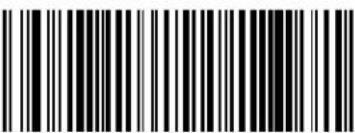 Select RS232-STD Select RS232-STD | Set RS-232InterfaceFeaturesstarting onpage 47 |
 Select RS232-WN Select RS232-WN | RS-232 Wincor-Nixdorf | |
| RS-232 for use with OPOS/UPOS/JavaPOS |  Select RS-232 OPOS Select RS-232 OPOS | |
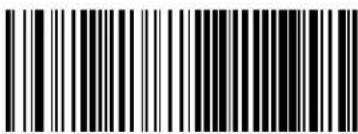 Select USB-COM-STDa Select USB-COM-STDa | USB Com to simulate RS-232 standard interface | |
| IBM FEATURES | ||
 Select IBM-P5B Select IBM-P5B | IBM-46xx Port 5B reader interface | Set IBMInterfaceFeaturesstarting onpage 91 |
| IBM-46xx Port 9B reader interface |  Select IBM-P9B Select IBM-P9B | |
| USB-OEM FEATURES | ||
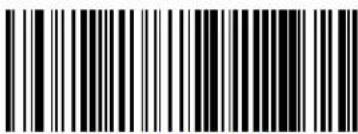 Select USB-OEM Select USB-OEM | USB-OEM(can be used for OPOS/UPOS/JavaPOS) | Set USB-OEMInterfaceFeaturesstarting onpage 87 |
a. Download the correct USB Com driver from www.datalogic.com
| KEYBOARD FEATURES | ||
| AT, PS/2 25-286, 30-286, 50, 50Z, 60, 70, 80, 90 & 95 w/Standard Key Encoding | 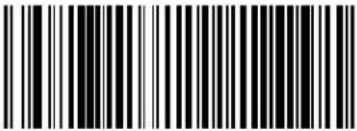 Select KBD-AT Select KBD-AT | Set KEYBOARD WEDGE Interface Features starting on page 73 |
 Select KBD-AT-NK Select KBD-AT-NK | Keyboard Wedge for IBM AT PS2 with standard key encoding but without external keyboard | |
| AT, PS/2 25-286, 30-286, 50, 50Z, 60, 70, 80, 90 & 95 w/Alternate Key |  Select KBD-AT-ALT Select KBD-AT-ALT | |
 Select KBD-AT-ALT-NK Select KBD-AT-ALT-NK | Keyboard Wedge for IBM AT PS2 with alternate key encoding but without external keyboard | |
| PC/XT w/Standard Key Encoding |  Select KBD-XT Select KBD-XT | |
 Select KBD-IBM-3153 Select KBD-IBM-3153 | Keyboard Wedge for IBM Terminal 3153 | |
| KEYBOARD — cont. FEATURES | ||
| Keyboard Wedge for IBM Terminals 31xx, 32xx, 34xx, 37xx make only keyboard |  Select KBD-IBM-M Select KBD-IBM-M | Set KEYBOARDWEDGEInterfaceFeaturesstarting on page73 |
 Select KBD-IBM-MB Select KBD-IBM-MB | Keyboard Wedge for IBM Terminals 31xx, 32xx, 34xx, 37xx make break keyboard | |
| Keyboard Wedge for DIGITAL Terminals VT2xx, VT3xx, VT4xx |  Select KBD-DIG-VT Select KBD-DIG-VT | |
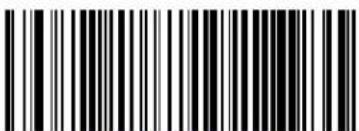 Select USB Keyboard Select USB Keyboard | USB Keyboard with standard key encoding | |
| USB Keyboard with alternate key encoding |  Select USB Alternate Keyboard Select USB Alternate Keyboard | |
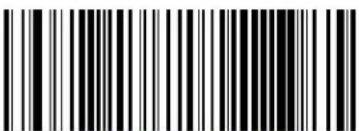 Select USB-KBD-APPLE Select USB-KBD-APPLE | USB Keyboard for Apple computers | |
| WAND EMULATION FEATURES | ||
| Wand Emulation | Select WAND | Set WANDInterfaceFeaturesstarting onpage 97 |
Global Interface Features
The following interface features are configurable by all interface types. To set features specific to your interface, turn to that section of this manual:
• RS-232 ONLY Interface on page 47
• Keyboard Interface on page 73
• USB-OEM Interface on page 87
• IBM 46XX Interface on page 91
Host Commands — Obey/Ignore
This option specifies whether the reader will obey or ignore host commands. When set to ignore, the reader will ignore all host commands except for those necessary for:
• service mode
- flash programming mode
- keeping the interface active
- transmission of labels.
 ENTER/EXIT PROGRAMMING MODE ENTER/EXIT PROGRAMMING MODE | |
 |  Host Commands = Obey Host Commands = Obey |
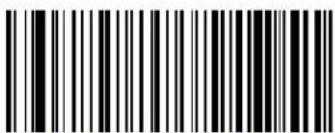 Host Commands = Ignore Host Commands = Ignore | |
USB Suspend Mode
This setting enables/disables the ability of USB interfaces to enter suspend mode.

text_image
ENTER/EXIT PROGRAMMING MODE
text_image
DEFAULT
text_image
USB Suspend Mode = Disable
text_image
USB Suspend Mode = EnableChapter 4
General Features
Double Read Timeout
To prevent a double read of the same label, the Double Read Timeout sets the minimum time allowed between reads of labels of the same symbology and data. If the unit reads a label and sees the same label again within the Double Read Timeout, the second read of the label will be ignored. Double Read Timeout does not apply to scan modes that require a trigger pull for each label that is read.
 ENTER/EXIT PROGRAMMING MODE ENTER/EXIT PROGRAMMING MODE | |
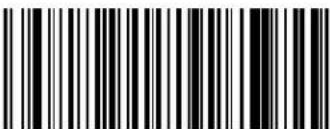 Double Read Timeout = 0.1 Second Double Read Timeout = 0.1 Second | |
 Double Read Timeout = 0.2 Second Double Read Timeout = 0.2 Second | |
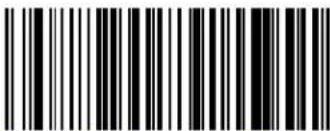 Double Read Timeout = 0.3 Second Double Read Timeout = 0.3 Second | |
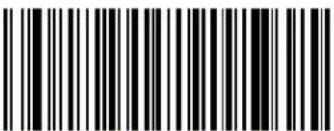 Double Read Timeout = 0.4 Second Double Read Timeout = 0.4 Second |  |
Double Read Timeout — continued
 ENTER/EXIT PROGRAMMING MODE ENTER/EXIT PROGRAMMING MODE | |
 Double Read Timeout = 0.5 Second Double Read Timeout = 0.5 Second | |
 Double Read Timeout = 0.6 Second Double Read Timeout = 0.6 Second | |
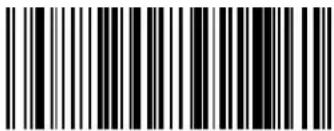 Double Read Timeout = 0.7 Second Double Read Timeout = 0.7 Second | |
 Double Read Timeout = 0.8 Second Double Read Timeout = 0.8 Second | |
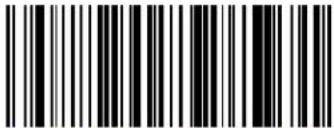 Double Read Timeout = 0.9 Second Double Read Timeout = 0.9 Second | |
 Double Read Timeout = 1 Second Double Read Timeout = 1 Second | |
Label Gone Timeout
This feature sets the time after the last label segment is seen before the reader prepares for a new label. The timeout can be set within a range of 10 milliseconds to 2,550 milliseconds (2.55 seconds) in 10ms increments.
Follow these instructions to set this feature:
- Determine the desired setting in milliseconds.
- Divide the desired setting by 10 (setting is in 10ms increments). Pad the result with leading zeroes to yield three digits. For example: 0 = 000 , 5 = 005 , 20 = 020 , etc.
- Scan the ENTER/EXIT PROGRAMMING MODE barcode to enter Programming Mode.
- Scan the barcode: SELECT LABEL GONE TIMEOUT SETTING.
- Scan the appropriate three alpha-numeric characters from the keypad in Appendix E, Keypad representing the duration which was determined in the steps above. You will hear a two-beep indication after the last character.

NOTE
If you make a mistake before the last character, scan the CANCEL barcode to abort and not save the entry string. You can then start again at the beginning.
- Scan the ENTER/EXIT PROGRAMMING MODE barcode to exit Programming Mode.
This completes the procedure. See Table 2 for some examples of how to set this feature.
Table 2. Timeout Setting Examples
| STEP ACTION EXAMPLES | |||||
| 1 Desired Setting 50ms 150ms 1800ms (1.8 sec.) 2550ms (2.55 sec.) | |||||
| 2 | Divide by 10 (and pad with leading zeroes) | 005 015 180 | 255 | ||
| 3 Scan ENTER/EXIT PROGRAMMING MODE | |||||
| 4 Scan SELECT LABEL GONE TIMEOUT SETTING | |||||
| 5 | Scan Three Characters From Appendix E, Keypad | ‘0’, ‘0’ and ‘5’ | ‘0’, ‘1’ and ‘5’ | ‘1’, ‘8’ and ‘0’ | “2’, ‘5’ and ‘5’ |
| 6 Scan ENTER/EXIT PROGRAMMING MODE | |||||
Label Gone Timeout — cont.

text_image
ENTER/EXIT PROGRAMMING MODE
text_image
Select Label Gone Timeout SettingMake a mistake? Scan the CANCEL barcode to abort and not save the entry string. You can then start again at the beginning.

DEFAULT
016 = Timeout of 160 ms
Sleep Mode Timeout
Specifies the timeout value for the reader to enter low power Sleep Mode.
 ENTER/EXIT PROGRAMMING MODE ENTER/EXIT PROGRAMMING MODE | |
 |  Sleep Mode Timeout = Disable Sleep Mode Timeout = Disable |
 Sleep Mode Timeout = 500ms Sleep Mode Timeout = 500ms | |
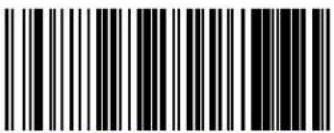 Sleep Mode Timeout = 1 Second Sleep Mode Timeout = 1 Second | |
 Sleep Mode Timeout = 2 Seconds Sleep Mode Timeout = 2 Seconds | |
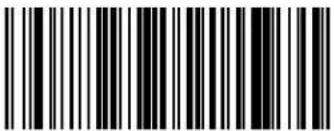 Sleep Mode Timeout = 3 Seconds Sleep Mode Timeout = 3 Seconds | |
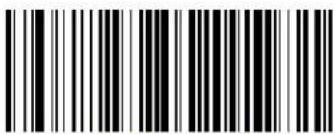 Sleep Mode Timeout = 4 Seconds Sleep Mode Timeout = 4 Seconds | |
Sleep Mode Timeout — continued
| ENTER/EXIT PROGRAMMING MODE | |
 Sleep Mode Timeout = 5 Seconds Sleep Mode Timeout = 5 Seconds | |
 Sleep Mode Timeout = 6 Seconds Sleep Mode Timeout = 6 Seconds | |
 Sleep Mode Timeout = 7 Seconds Sleep Mode Timeout = 7 Seconds | |
 Sleep Mode Timeout = 8 Seconds Sleep Mode Timeout = 8 Seconds | |
 Sleep Mode Timeout = 9 Seconds Sleep Mode Timeout = 9 Seconds | |
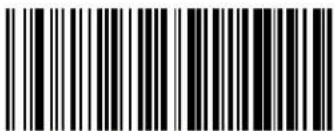 Sleep Mode Timeout = 9.9 Seconds (9,900ms max.) Sleep Mode Timeout = 9.9 Seconds (9,900ms max.) | |
LED and Beeper Indicators
Power On Alert
Disables or enables the indication (from the Beeper) that the reader is receiving power.
 ENTER/EXIT PROGRAMMING MODE ENTER/EXIT PROGRAMMING MODE | |
 Power On Alert = Disable (No Audible Indication) Power On Alert = Disable (No Audible Indication) | |
 Power On Alert = Four Beeps Power On Alert = Four Beeps |  |
Good Read: When to Indicate
This feature specifies when the reader will provide indication (beep and/or flash its green LED) upon successfully reading a barcode. Choices are:
• Good Read = Indicate after decode
• Good Read = Indicate after transmit
- Good Read = Indicate after CTS goes inactive, then active

NOTE
This option, which uses CTS, is only valid for RS-232 interfaces.

text_image
ENTER/EXIT PROGRAMMING MODE

text_image
Indicate Good Read = After Decode
text_image
Indicate Good Read = After Transmi
text_image
Indicate Good Read = After CTS Goes Inactive, Then ActiveGood Read Beep Type
Specifies whether the good read beep has a mono or bitonal beep sound.
| ENTER/EXIT PROGRAMMING MODE | |
| DEFAULT | Good Read Beep Type = Mono |
| Good Read Beep Type = Bitonal | |
Good Read Beep Frequency
Adjusts the good read beep to sound at a selectable low, medium or high frequency, selectable from the list below. (Controls the beeper's pitch/tone.)
 ENTER/EXIT PROGRAMMING MODE ENTER/EXIT PROGRAMMING MODE | |
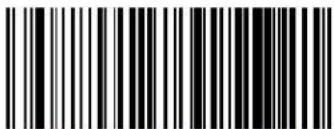 Good Read Beep Frequency = Low Good Read Beep Frequency = Low | |
 Good Read Beep Frequency = Medium Good Read Beep Frequency = Medium | |
 | 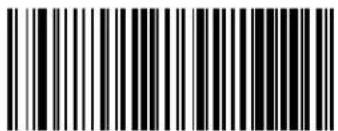 Good Read Beep Frequency = High Good Read Beep Frequency = High |
Good Read Beep Length
Specifies the duration of a good read beep.
 ENTER/EXIT PROGRAMMING MODE ENTER/EXIT PROGRAMMING MODE | |
 Good Read Beep Length = 60 msec Good Read Beep Length = 60 msec | |
Good Read Beep Length — continued
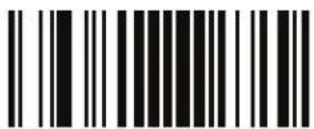 ENTER/EXIT PROGRAMMING MODE ENTER/EXIT PROGRAMMING MODE | |
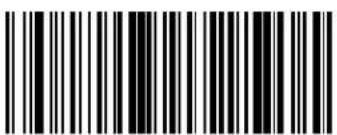 Good Read Beep Length = 80 msec Good Read Beep Length = 80 msec |  |
 Good Read Beep Length = 100 msec Good Read Beep Length = 100 msec | |
 Good Read Beep Length = 120 msec Good Read Beep Length = 120 msec | |
 Good Read Beep Length = 140 msec Good Read Beep Length = 140 msec | |
 Good Read Beep Length = 160 msec Good Read Beep Length = 160 msec | |
 Good Read Beep Length = 180 msec Good Read Beep Length = 180 msec | |
 Good Read Beep Length = 200 msec Good Read Beep Length = 200 msec | |
Good Read Beep Volume
Selects the beeper volume (loudness) upon a good read beep. There are three selectable volume levels.
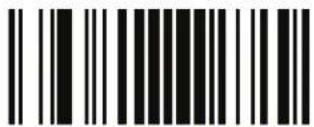 ENTER/EXIT PROGRAMMING MODE ENTER/EXIT PROGRAMMING MODE | |
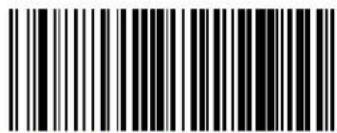 Good Read Beep Volume = Beeper Off Good Read Beep Volume = Beeper Off | |
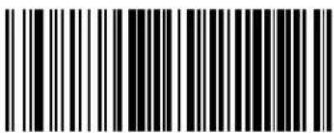 Good Read Beep Volume = Low Good Read Beep Volume = Low | |
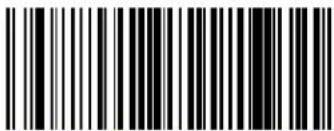 Good Read Beep Volume = Medium Good Read Beep Volume = Medium | |
 Good Read Beep Volume = High Good Read Beep Volume = High |  |
Good Read LED Duration
This feature specifies the amount of time that the Good Read LED remains on following a good read. The good read LED on time can be set within a range of 100 milliseconds to 25,500 milliseconds (0.1 to 25.5 seconds) in 100ms increments.
Follow these instructions to set this feature:
- Determine the desired setting in milliseconds. A setting of 0 means that the good read LED stays on until the next time the trigger is pulled.
- Divide the desired setting by 100 (setting is in 100 ms increments). Pad the result with leading zeroes to yield three digits. For example: 0 = 000, 5 = 005, 20 = 020, etc.
- Scan the ENTER/EXIT PROGRAMMING MODE barcode to enter Programming Mode.
- Scan the barcode: SELECT GOOD READ LED DURATION SETTING.
- Scan the appropriate three digits from the keypad in Appendix E, Keypad representing the duration which was determined in the steps above. You will hear a two-beep indication after the last character.

If you make a mistake before the last character, scan the CANCEL barcode to abort and not save the entry string. You can then start again at the beginning.
NOTE
- Scan the ENTER/EXIT PROGRAMMING MODE barcode to exit Programming Mode.
This completes the procedure. See Table 3 for some examples of how to set this feature.
Table 3. Good Read LED Duration Setting Examples
| STEP ACTION EXAMPLES | |||||
| 1 Desired Setting | Good Read LED stays on until next trigger pull (000) | 200ms 1500ms | 25,500ms (25.5 sec.) | ||
| 2 | Divide by 10 (and pad with leading zeroes) | 000 002 015 | 255 | ||
| 3 Scan ENTER/EXIT PROGRAMMING MODE | |||||
| 4 Scan SELECT LABEL GONE TIMEOUT SETTING | |||||
| 5 | Scan Three Characters From Appendix E, Keypad | ‘0’, ‘0’ and ‘0’ ‘0’, ‘0’ and ‘2’ ‘0’, ‘1’ and ‘5’ ‘2’, ‘5’ and ‘5’ | |||
| 6 Scan ENTER/EXIT PROGRAMMING MODE | |||||
Good Read LED Duration — cont.

text_image
Barcode image with vertical black and white lines on white backgroundENTER/EXIT PROGRAMMING MODE

text_image
Black and white barcode image with vertical lines on both sidesSelect Good Read LED Duration Setting
Make a mistake? Scan the CANCEL barcode to abort and not save the entry string. You can then start again at the beginning.

CANCEL
DEFAULT
020 = Good Read LED stays on for 2 seconds.

NOTE
Indicators are dimmed during sleep.
Scanning Features
Scan Mode
Selects the scan operating mode for the reader. Selections are:
Trigger Single — When the trigger is pulled, scanning is activated until one of the following occurs:
- Scanning Active Time has elapsed
- a label has been read
- the trigger is released
This mode is associated with typical handheld reader operation: when the trigger is pulled, scanning starts and the product scans until the trigger is released, or a label is read, or the maximum Scanning Active Time has elapsed.
Trigger Hold Multiple — When the trigger is pulled, scanning starts and the product scans until the trigger is released or Scanning Active Time has elapsed. Reading a label does not disable scanning. Double Read Timeout prevents undesired multiple reads of the same label while in this mode.
Trigger Pulse Multiple — When the trigger is pulled, continuous scanning is activated until Scanning Active Time has elapsed or the trigger has been released and pulled again. Double Read Timeout ^1 prevents undesired multiple reads of the same label while in this mode.
Flashing — The reader flashes ^1 on and off regardless of the trigger status. Flash rate is controlled by Flash On Time and Flash Off Time.
Always On — No trigger pull is required to read a barcode. Scanning is continually on. If the trigger is pulled, the reader acts as if it is in Trigger Single Mode. Double Read Timeout ^1 prevents undesired multiple reads of the same label while in this mode.
Stand Mode — No trigger pull is required to read a barcode. Scanning is turned on automatically when an item is placed in reader's field of view. If the trigger is pulled, the reader acts as if it in single read mode. Double Read Timeout prevents undesired multiple reads of the same label while in this mode.
Trigger Object Sense — This mode is similar to Stand Mode, except that a trigger pull is required to activate the decoder.
Scan Mode — continued

text_image
Black and white barcode image with vertical lines on both sidesENTER/EXIT PROGRAMMING MODE
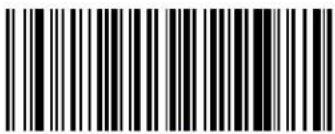 Scan Mode = Trigger Single Scan Mode = Trigger Single |  |
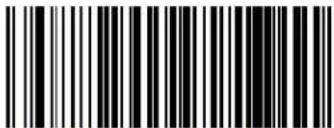 Scan Mode = Trigger Hold Multiple Scan Mode = Trigger Hold Multiple | |
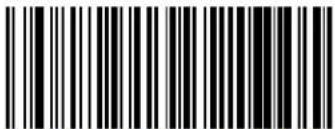 Scan Mode = Trigger Pulse Multiple Scan Mode = Trigger Pulse Multiple | |
 Scan Mode = Flashing Scan Mode = Flashing | |
 Scan Mode = Always On Scan Mode = Always On | |
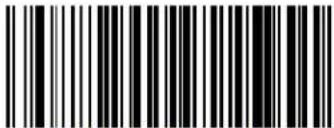 Scan Mode = Stand Mode Scan Mode = Stand Mode | |
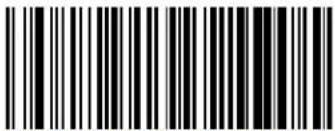 Scan Mode = Trigger Object Sense Scan Mode = Trigger Object Sense |
Stand Mode Triggered Timeout
This feature specifies the time to remain in Trigger Single mode after the trigger is pulled while in Stand Mode.

NOTE
This timeout is only used when the Scan Mode is configured as Stand Mode.
 | |
 Stand Mode Triggered Timeout = 0.5 Seconds Stand Mode Triggered Timeout = 0.5 Seconds |  |
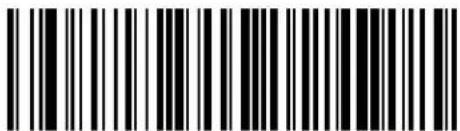 Stand Mode Triggered Timeout = 1.5 Seconds Stand Mode Triggered Timeout = 1.5 Seconds | |
 Stand Mode Triggered Timeout = 2 Seconds Stand Mode Triggered Timeout = 2 Seconds | |
 Stand Mode Triggered Timeout = 3 Seconds Stand Mode Triggered Timeout = 3 Seconds | |
 Stand Mode Triggered Timeout = 4 Seconds Stand Mode Triggered Timeout = 4 Seconds | |
Stand Mode Triggered Timeout — continued
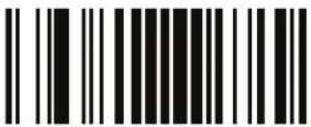 ENTER/EXIT PROGRAMMING MODE ENTER/EXIT PROGRAMMING MODE | |
 Stand Mode Triggered Timeout = 6 Seconds Stand Mode Triggered Timeout = 6 Seconds | |
 Stand Mode Triggered Timeout = 8 Seconds Stand Mode Triggered Timeout = 8 Seconds | |
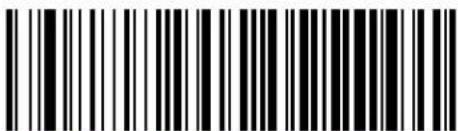 Stand Mode Triggered Timeout = Switch back to Trigger Single on trigger pull Stand Mode Triggered Timeout = Switch back to Trigger Single on trigger pull | |
Scanning Active Time
This setting specifies the amount of time that the reader stays in scan ON state once the state is entered. The range for this setting is from 1 to 255 seconds in 1-second increments.
Follow these instructions to set this feature:
- Determine the desired setting.
- Pad the result with leading zeroes to yield three digits. For example: 0 = 000, 5 = 005, 20 = 020, etc.
- Scan the ENTER/EXIT PROGRAMMING MODE barcode to enter Programming Mode.
- Scan the barcode: SELECT SCANNING ACTIVE TIME SETTING.
- Scan the appropriate three digits from the keypad in Appendix E, Keypad, that represent the duration which was determined in the steps above. You will hear a two-beep indication after the last character.

NOTE
If you make a mistake before the last character, scan the CANCEL barcode to abort and not save the entry string. You can then start again at the beginning.
- Scan the ENTER/EXIT PROGRAMMING MODE barcode to exit Programming Mode.
This completes the procedure. See Table4 for some examples of how to set this feature.
Table 4. Scanning Active Time Setting Examples
| STEP ACTION EXAMPLES | |||||
| 1 | Desired Setting | 1 Second | 90 Sec. (1.5 min.) | 180 Sec. (3 min.) | 255 Seconds (4.25 min.) |
| 2 | Pad leading zero(es) | 001 | 090 | 180 | 255 |
| 3 Scan ENTER/EXIT PROGRAMMING MODE | |||||
| 4 Scan SELECT SCANNING ACTIVE TIME SETTING | |||||
| 5 | Scan Three Characters From Appendix E, Keypad | ‘0’, ‘0’ and ‘1’ | ‘0’, ‘9’ and ‘0’ | ‘1’, ‘8’ and ‘0’ | ‘2’, ‘5’ and ‘5’ |
| 6 Scan ENTER/EXIT PROGRAMMING MODE | |||||
Scanning Active Time — cont.

text_image
Barcode image with vertical black and white lines on white backgroundENTER/EXIT PROGRAMMING MODE

Select Scanning Active Time Setting
Make a mistake? Scan the CANCEL barcode to abort and not save the entry string. You can then start again at the beginning.

CANCEL
DEFAULT
005 = Scanning is active for 5 Seconds
Flash On Time
This feature specifies the ON time for the indicator LED while in Flash Mode. The selectable range is 100 to 9,900 milliseconds (0.1 to 9.9 seconds), in 100 millisecond increments.
Follow these instructions to set this feature.
- Determine the desired setting in milliseconds.
- Divide the desired setting by 100 (setting is in 100ms increments). Pad the result with leading zeroes to yield two digits. For example: 0 = 00 , 5 = 05 , 20 = 20 , etc.
- Scan the ENTER/EXIT PROGRAMMING MODE barcode to enter Programming Mode.
- Scan the barcode: SELECT FLASH ON TIME SETTING.
- Scan the appropriate two digits from the keypad in Appendix E, Keypad representing the duration which was determined in the steps above. You will hear a two-beep indication after the last character.

NOTE
If you make a mistake before the last character, scan the CANCEL barcode to abort and not save the entry string. You can then start again at the beginning.
- Scan the ENTER/EXIT PROGRAMMING MODE barcode to exit Programming Mode.
This completes the procedure. See Table 5 for some examples of how to set this feature.
Table 5. Flash On Time Setting Examples
| STEP ACTION EXAMPLES | |||||
| 1 Desired Setting 500ms 1,000ms (1 sec.) | 5200ms (5.2 sec.) 9,900ms (9.9 sec.) | ||||
| 2 | Divide by 100 (and pad with leading zeroes to yield two digits) | 05 10 52 | 99 | ||
| 3 Scan ENTER/EXIT PROGRAMMING MODE | |||||
| 4 Scan SELECT FLASH OFF TIME SETTING | |||||
| 5 | Scan Two Characters From Appendix E, Keypad | ‘0’ and ‘5’ | ‘1’ and ‘0’ | ‘5’ and ‘2’ | ‘9’ and ‘9’ |
| 6 Scan ENTER/EXIT PROGRAMMING MODE | |||||
Flash On Time — cont.

text_image
ENTER/EXIT PROGRAMMING MODE
Select Flash ON Time Setting
Make a mistake? Scan the CANCEL barcode to abort and not save the entry string. You can then start again at the beginning.

CANCEL
DEFAULT
10 = Flash is ON for 1 Second
Flash Off Time
This feature specifies the OFF time for the indicator LED while in Flash Mode. The selectable range is 100 to 9,900 milliseconds (0.1 to 9.9 seconds), in 100 millisecond increments.
Follow these instructions to set this feature.
- Determine the desired setting in milliseconds.
- Divide the desired setting by 100 (setting is in 100ms increments). Pad the result with leading zeroes to yield two digits. For example: 0 = 00, 5 = 05, 20 = 20, etc.
- Scan the ENTER/EXIT PROGRAMMING MODE barcode to enter Programming Mode.
- Scan the barcode: SELECT FLASH OFF TIME SETTING.
- Scan the appropriate two digits from the keypad in Appendix E, Keypad, that represent the duration which was determined in the steps above. You will hear a two-beep indication after the last character.

If you make a mistake before the last character, scan the CANCEL barcode to abort and not save the entry string. You can then start again at the beginning.
NOTE
- Scan the ENTER/EXIT PROGRAMMING MODE barcode to exit Programming Mode.
This completes the procedure. See Table 6 for some examples of how to set this feature.
Table 6. Flash Off Time Setting Examples
| STEP ACTION EXAMPLES | |||||
| 1 Desired Setting 500ms 1,000ms (1 sec.) | 5200ms (5.2 sec.) 9,900ms (9.9 sec.) | ||||
| 2 | Divide by 100 (and pad with leading zeroes to yield two digits) | 05 | 10 | 52 | 99 |
| 3 Scan ENTER/EXIT PROGRAMMING MODE | |||||
| 4 Scan SELECT FLASH OFF TIME SETTING | |||||
| 5 | Scan Two Characters From Appendix E, Keypad | ‘0’ and ‘5’ | ‘1’ and ‘0’ | ‘5’ and ‘2’ | ‘9’ and ‘9’ |
| 6 Scan ENTER/EXIT PROGRAMMING MODE | |||||
Flash Off Time — cont.

text_image
ENTER/EXIT PROGRAMMING MODE
Select Flash OFF Time Setting
Make a mistake? Scan the CANCEL barcode to abort and not save the entry string. You can then start again at the beginning.

CANCEL
DEFAULT
06 = Flash is OFF for 600ms
Stand Mode Sensitivity
Sets the sensitivity level for stand mode wakeup. Choices are low, medium and high.
 ENTER/EXIT PROGRAMMING MODE ENTER/EXIT PROGRAMMING MODE | |
 Stand Mode Sensitivity = Low Stand Mode Sensitivity = Low | |
 Stand Mode Sensitivity = Medium Stand Mode Sensitivity = Medium |  |
 Stand Mode Sensitivity = High Stand Mode Sensitivity = High | |
Laser Pointer Control

NOTE
The Laser Pointer is a value-added option which might not have been included when your reader was ordered.
Specifies the amount of time that the laser pointer is turned on preliminary to scanning. When the trigger is pressed in Trigger Single Mode, the laser pointer will be activated for the time period configured by this feature. Immediately following this, the reader will start scanning.

text_image
ENTER/EXIT PROGRAMMING MODE
text_image
DEFAULT
text_image
Laser Pointer Control = 0 msec (No preliminary pointer — i.e. start scanning immediately after trigger)
text_image
Laser Pointer Control = 100 msec
text_image
Laser Pointer Control = 200 msec
text_image
Laser Pointer Control = 300 msec
text_image
Laser Pointer Control = 400 msec
text_image
Laser Pointer Control = 500 msecLaser Pointer Period
This option specifies the period of the laser pointer blink during scanning. The laser pointer will be activated for the time specified by Laser Pointer Control then start blinking OFF then ON at a 50% duty cycle and a repeating period set by Laser Pointer Period.
 ENTER/EXIT PROGRAMMING MODE ENTER/EXIT PROGRAMMING MODE | |
 Laser Pointer Period = Laser Pointer Blinking Off Laser Pointer Period = Laser Pointer Blinking Off | |
 Laser Pointer Period = 500 ms Laser Pointer Period = 500 ms |  |
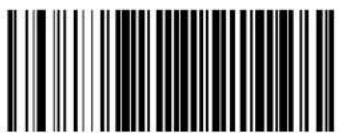 Laser Pointer Period = 1 Second Laser Pointer Period = 1 Second | |
 Laser Pointer Period = 1.5 Seconds Laser Pointer Period = 1.5 Seconds | |
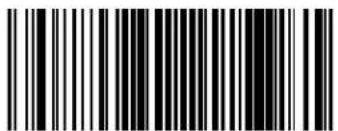 Laser Pointer Period = 2 Seconds Laser Pointer Period = 2 Seconds | |
Green Spot Duration
Specifies the duration of the good read pointer beam after a good read.
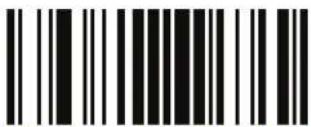 ENTER/EXIT PROGRAMMING MODE ENTER/EXIT PROGRAMMING MODE | |
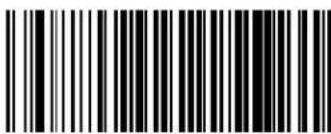 Green Spot Duration = Disable (Green Spot is Off) Green Spot Duration = Disable (Green Spot is Off) | |
 Green Spot Duration = Short (300 msec) Green Spot Duration = Short (300 msec) |  |
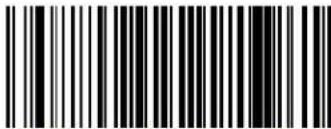 Green Spot Duration = Medium (500 msec) Green Spot Duration = Medium (500 msec) | |
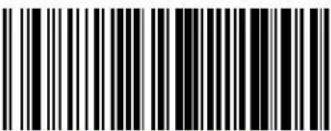 Green Spot Duration = Long (800 msec) Green Spot Duration = Long (800 msec) | |
Introduction
Use the programming barcodes in this chapter if modifications to the standard RS-232 interface settings are necessary to meet your system's requirements. Additional settings which apply to both the RS-232 and USB interfaces are available in Chapter 6, RS-232/USB-Com Interfaces.
RS-232 Standard Factory Settings
Reference Appendix B, Standard Defaults for a listing of standard factory settings.
Baud Rate
Baud rate is the number of bits of data transmitted per second. Set the reader's baud rate to match the baud rate setting of the host device. With an improper baud rate setting, data may not reach the host correctly.
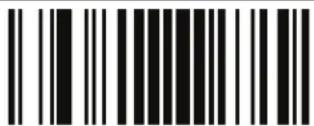 ENTER/EXIT PROGRAMMING MODE ENTER/EXIT PROGRAMMING MODE | |
 Baud Rate = 1200 Baud Rate = 1200 | |
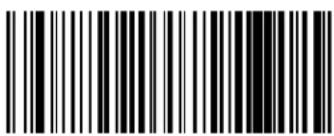 Baud Rate = 2400 Baud Rate = 2400 | |
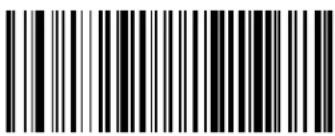 Baud Rate = 4800 Baud Rate = 4800 | |
Baud Rate — continued
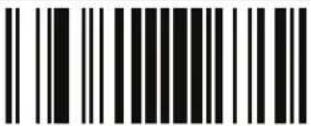 ENTER/EXIT PROGRAMMING MODE ENTER/EXIT PROGRAMMING MODE | |
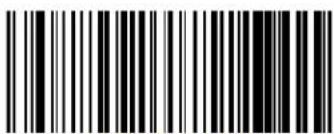 Baud Rate = 9600 Baud Rate = 9600 |  |
 Baud Rate = 19,200 Baud Rate = 19,200 | |
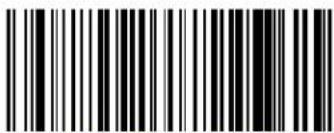 Baud Rate = 38,400 Baud Rate = 38,400 | |
 Baud Rate = 57,600 Baud Rate = 57,600 | |
 Baud Rate = 115,200 Baud Rate = 115,200 | |
Data Bits
This parameter allows the reader to interface with devices requiring a 7-bit or 8-bit ASCII protocol for sending and receiving data.
 ENTER/EXIT PROGRAMMING MODE ENTER/EXIT PROGRAMMING MODE | |
 7 Data Bits 7 Data Bits | |
 8 Data Bits 8 Data Bits |  |
Stop Bits
The stop bit(s) at the end of each transmitted character marks the end of transmission of one character and prepares the receiving device for the next character in the serial data stream. The number of stop bits selected (one or two) depends on the number the receiving terminal is programmed to accommodate. Set the number of stop bits to match host device requirements.

text_image
ENTER/EXIT PROGRAMMING MODE
text_image
DEFAULT
text_image
1 Stop Bit
text_image
2 Stop BitsParity
This feature specifies parity required for sending and receiving data. A parity check bit is the most significant bit of each ASCII coded character. Select the parity type according to host device requirements.
- Select None when no parity bit is required.
- Select Odd parity and the parity bit value is set to 0 or 1, based on data, to ensure that an odd number of 1 bits are contained in the coded character.
- Select Even parity and the parity bit value is set to 0 or 1, based on data, to ensure that an even number of 1 bits are contained in the coded character.
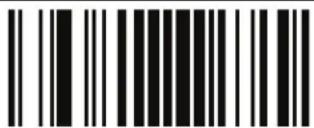 ENTER/EXIT PROGRAMMING MODE ENTER/EXIT PROGRAMMING MODE | |
 |  Parity = None Parity = None |
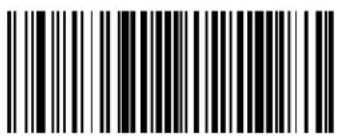 Parity = Even Parity = Even | |
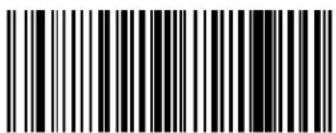 Parity = Odd Parity = Odd | |
Handshaking Control
The data interface consists of an RS-232 port designed to operate either with or without the hardware handshaking lines, Request to Send (RTS), and Clear to Send (CTS). Handshaking Control includes the following options:
- RTS — RTS is asserted during transmissions. CTS is ignored.
- RTS/CTS — RTS is asserted during transmissions. CTS gates transmissions.
- RTS/XON/XOFF — RTS is asserted during transmissions. CTS is ignored. XON and XOFF gate transmissions.
- RTS On/CTS — RTS is always asserted. CTS gates transmissions.
- RTS/CTS Scan Control — RTS is asserted during transmissions. CTS gates transmissions and controls enable and disable state of scanner.

text_image
ENTER/EXIT PROGRAMMING MODE
text_image
DEFAULT
text_image
Handshaking Control = RTS
text_image
Handshaking Control = RTS/CTS
text_image
landshaking Control = RTS/XON/XOFF
text_image
Handshaking Control = RTS On/CTS
text_image
Handshaking Control = RTS/CTS Scan ControlChapter 6
RS-232/USB-Com Interfaces
Introduction
The programming barcodes in this chapter allow modifications to the standard RS-232 and USB-Com interfaces.
Standard Factory Settings
Reference Appendix B, Standard Defaults for a listing of standard factory settings.
Intercharacter Delay
This parameter specifies the intercharacter delay between the end of one character and the beginning of the next. The delay can be set within a range of zero (0) to 990 milliseconds in 10ms increments. A setting of zero specifies no delay.
To set the delay:
- Determine the desired setting in milliseconds.
- Divide the desired setting by 10 (setting is in 10ms increments). Pad the result with leading zeroes to yield two digits. For example: 0 = 00, 5 = 05, 20 = 20, etc.
- Scan the ENTER/EXIT PROGRAMMING MODE barcode to enter Programming Mode.
- Scan the barcode: SELECT INTERCHARACTER DELAY SETTING.
- Scan the appropriate two digits from the keypad in Appendix E, Keypad, that represent the duration which was determined in the steps above. You will hear a two-beep indication after the last character.

If you make a mistake before the last character, scan the CANCEL barcode to abort and not save the entry string. You can then start again at the beginning.
NOTE
- Scan the ENTER/EXIT PROGRAMMING MODE barcode to exit Programming Mode.
This completes the procedure. See Table 7 for some examples of how to set this feature.
Table 7. Intercharacter Delay Setting Examples
| STEP ACTION EXAMPLES | |||||
| 1 Desired Setting 50ms 150ms | 600ms | 850ms | |||
| 2 | Divide by 10 (and pad with leading zeroes to yield two-digits) | 05 15 60 85 | |||
| 3 Scan ENTER/EXIT PROGRAMMING MODE | |||||
| 4 Scan SELECT INTERCHARACTER DELAY SETTING | |||||
| 5 | Scan Two Characters From Appendix E, Keypad | ‘0’ and ‘5’ ‘5’ and ‘0’ 0’ and ‘0’ ‘8’ and ‘5’ | |||
| 6 Scan ENTER/EXIT PROGRAMMING MODE | |||||
Intercharacter Delay — cont.
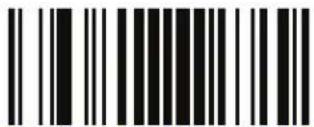 ENTER/EXIT PROGRAMMING MODE ENTER/EXIT PROGRAMMING MODE | |
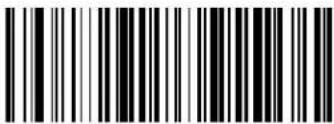 Intercharacter Delay = No Delay Intercharacter Delay = No Delay | |
 Select Intercharacter Delay Setting Select Intercharacter Delay Setting | |
| Make a mistake? Scan the CANCEL barcode to abort and not save the entry string. You can then start again at the beginning. |  CANCEL CANCEL |
DEFAULT
00 = No Intercharacter Delay
Beep On ASCII BEL
When this parameter is enabled, the reader issues a beep when a
| ENTER/EXIT PROGRAMMING MODE | |
| Beep On ASCII BEL = Disable | DEFAULT |
| Beep On ASCII BEL = Enable | |
Beep On Not on File
This option enables/disables the action of the reader to sound a three beep sequence upon receiving a Not-On-File (NOF) host command.
| ENTER/EXIT PROGRAMMING MODE | |
| Beep On Not On File = Disable | |
| DEFAULT | Beep On Not On File = Enable |
ACK NAK Options
This enables/disables the ability of the reader to support the RS-232 ACK/NAK protocol. When configured, the reader and/or host sends an “ACK” when it receives data properly, and sends “NAK” when the data is in error.
Options are:
• D i s a b l e
- Enable for label transmission — The reader expects an ACK/NAK response from the host when a label is sent.
- Enable for host-command acknowledge — The reader will respond with ACK/NAK when the host sends a command.
- Enable for label transmission and host-command acknowledge

text_image
Black and white barcode image with vertical lines on both sidesENTER/EXIT PROGRAMMING MODE


text_image
Black and white barcode image with vertical lines on both sidesACK/NAK Protocol = Disable ACK/NAK

text_image
ACK/NAK Protocol = Enable for label transmission
text_image
Black and white barcode image with vertical lines and a small number '1' in the bottom right corner.
text_image
ACK/NAK Protocol = Enable for label transmission and host-command acknowledgeACK/NAK Protocol = Enable for host-command acknowledge
ACK Character
This setting specifies an ASCII character or hex value to be used as the ACK character. ASCII characters or any hex value from 0 to 0xFF can be selected.

NOTE
Setting to previously defined characters such as XON, XOFF, or host commands conflicts with normal operation of these characters. 8-bit data is not recognized when the option Data Bits has been set as 7 Data Bits.
To set this feature:
- Determine the desired character or value.
- Use the ASCII Chart on the inside back cover of this manual to find the hex equivalent for the desired character/value.
-
Scan the ENTER/EXIT PROGRAMMING MODE barcode to enter Programming Mode.
-
Scan the barcode: SELECT ACK CHARACTER SETTING.
-
Scan the appropriate two alpha-numeric characters from the keypad in Appendix E, Keypad, that represent the desired character/value in step 1 above. The second character will cause a two-beep indication.
-
Scan the ENTER/EXIT PROGRAMMING MODE barcode to exit Programming Mode.
This completes the procedure. See Table 8 for some examples of how to set this feature.
Table 8. ACK Character Setting Examples
| STEP ACTION EXAMPLES | |||||
| 1 Desired Character/Value ACK $ @ > | |||||
| 2 Hex equivalent 0x06 0x24 0x40 0x3E | |||||
| 3 Scan ENTER/EXIT PROGRAMMING MODE | |||||
| 4 Scan SELECT ACK CHARACTER SETTING | |||||
| 5 | Scan Two Characters From Appendix E, Keypad | ‘0’ and ‘6’ ‘2’ and ‘4’ ‘4’ and ‘0’ ‘3’ AND ‘E’ | |||
| 6 Scan ENTER/EXIT PROGRAMMING MODE | |||||
ACK Character — cont.

text_image
Black and white barcode image with vertical lines on both sidesENTER/EXIT PROGRAMMING MODE

Select ACK Character Setting
DEFAULT
0x06 'ACK' Character
NAK Character
This setting specifies an ASCII character or hex value to be used as the NAK character. ASCII characters or any hex value from 0 to 0xFF can be selected.

NOTE
Setting to previously defined characters such as XON, XOFF, or host commands conflicts with normal operation of these characters. 8-bit data is not recognized when the option Data Bits has been set as 7 Data Bits.
To set this feature:
- Determine the desired character or value.
- Use the ASCII Chart on the inside back cover of this manual to find the hex equivalent for the desired character/value.
-
Scan the ENTER/EXIT PROGRAMMING MODE barcode to enter Programming Mode.
-
Scan the barcode: SELECT NAK CHARACTER SETTING.
-
Scan the appropriate two alpha-numeric characters from the keypad in Appendix E, Keypad, that represent the desired character/value in step 1 above. The second character will cause a two-beep indication.
-
Scan the ENTER/EXIT PROGRAMMING MODE barcode to exit Programming Mode.
This completes the procedure. See Table 9 for some examples of how to set this feature.
Table 9. NAK Character Setting Examples
| STEP ACTION EXAMPLES | ||||
| 1 Desired Character/Value NAK $ @ > | ||||
| 2 Hex equivalent 0x15 0x24 0x40 0x3E | ||||
| 3 Scan ENTER/EXIT PROGRAMMING MODE | ||||
| 4 Scan SELECT ACK CHARACTER SETTING | ||||
| 5 Scan Two Characters From Appendix E, Keypad | ‘1’ and ‘5’ ‘2’ and ‘4’ ‘4’ and ‘0’ ‘3’ AND ‘E’ | |||
| 6 Scan ENTER/EXIT PROGRAMMING MODE | ||||
NAK Character — cont.

text_image
Black and white barcode image with vertical linesENTER/EXIT PROGRAMMING MODE

Select NAK Character Setting
DEFAULT
0x15 'NAK' Character
ACK NAK Timeout Value
This option specifies the amount of time the reader waits for an ACK character from the host following label transmission. The selectable timeout range is 200 milliseconds to 15,000ms (15 seconds) in 200ms increments. A selection of 0 disables the timeout.
To set this value:
- Determine the desired setting in milliseconds.
- Divide the desired setting by 200 (setting is in 200ms increments). Pad the result with leading zeroes to yield two digits. For example: 0 = 00, 5 = 05, 20 = 20, etc.
- Scan the ENTER/EXIT PROGRAMMING MODE barcode to enter Programming Mode.
- Scan the barcode: SELECT ACK NAK TIMEOUT VALUE SETTING.
- Scan the appropriate two digits from the keypad in Appendix E, Keypad, that represent the duration which was determined in the steps above. You will hear a two-beep indication after the last character.

If you make a mistake before the last character, scan the CANCEL barcode to abort and not save the entry string. You can then start again at the beginning.
NOTE
- Scan the ENTER/EXIT PROGRAMMING MODE barcode to exit Programming Mode.
This completes the procedure. See Table 10 for some examples of how to set this feature.
Table 10. ACK NAK Timeout Value Setting Examples
| STEP ACTION EXAMPLES | ||||
| 1 Desired Setting 200ms 1,000ms (1 sec.) | 5200ms (5.2 sec.) | 15,000ms (1 sec.) | ||
| 2 Divide by 200 01 05 26 75 | ||||
| 3 Scan ENTER/EXIT PROGRAMMING MODE | ||||
| 4 Scan SELECT ACK NAK TIMEOUT VALUE SETTING | ||||
| 5 Scan Two Characters From Appendix E, Keypad | ‘0’ and ‘1’ | ‘0’ and ‘5’ | ‘2’ and ‘6’ | ‘7’ and ‘5’ |
| 7 Scan ENTER/EXIT PROGRAMMING MODE | ||||
ACK NAK Timeout Value — cont.

text_image
Black and white barcode image with vertical linesENTER/EXIT PROGRAMMING MODE

Select ACK NAK Timeout Value Setting
Make a mistake? Scan the CANCEL barcode to abort and not save the entry string. You can then start again at the beginning.

CANCEL
DEFAULT
01 ACK NAK Timeout value is 200ms
ACK NAK Retry Count
This feature specifies the number of times the reader retries a label transmission due to a retry condition. The selectable range is from 1 to 254 retries. A selection of 0 disables the count, and a selection of 255 specifies unlimited retries.
To set this feature:
- Determine the desired setting.
- Pad the number with leading zeroes to yield three digits. For example: 0 = 000, 5 = 005, 20 = 020, etc.
- Scan the ENTER/EXIT PROGRAMMING MODE barcode to enter Programming Mode.
- Scan the barcode: SELECT ACK NAK RETRY COUNT SETTING.
- Scan the appropriate three digits from the keypad in Appendix E, Keypad, that represent the number which was determined in the steps above. You will hear a two-beep indication after the last character.

If you make a mistake before the last character, scan the CANCEL barcode to abort and not save the entry string. You can then start again at the beginning.
NOTE
- Scan the ENTER/EXIT PROGRAMMING MODE barcode to exit Programming Mode.
This completes the procedure. See Table 11 for some examples of how to set this feature.
Table 11. ACK NAK Retry Count Setting Examples
| STEP ACTION EXAMPLES | ||||
| 1 Desired Setting | Disable Retry Count | 3 Retries 54 Retries | Unlimited Retries | |
| 2 Pad with leading zero(es) 000 003 054 255 | ||||
| 3 Scan ENTER/EXIT PROGRAMMING MODE | ||||
| 4 Scan SELECT ACK NAK RETRY COUNT SETTING | ||||
| 5 Scan Three Characters From Appendix E, Keypad | ‘0’, ‘0’ and ‘0’ ‘0’, ‘0’ and ‘3’ ‘0’, ‘5’ and ‘4’ ‘2’, ‘5’ and ‘5’ | |||
| 6 Scan ENTER/EXIT PROGRAMMING MODE | ||||
ACK NAK Retry Count — cont.

text_image
Black and white barcode image with vertical lines on both sidesENTER/EXIT PROGRAMMING MODE

Select ACK NAK Retry Count Setting
Make a mistake? Scan the CANCEL barcode to abort and not save the entry string. You can then start again at the beginning.

CANCEL
DEFAULT
003 = 3 Retries
ACK NAK Error Handling
This feature specifies the method the reader uses to handle receive errors detected while waiting for an ACK character from the host.
Options are:
- Ignore errors detected
- Process error as valid ACK character
- Process error as valid NAK character

text_image
Black and white barcode image with vertical lines on both sidesENTER/EXIT PROGRAMMING MODE
DEFAULT

text_image
Black and white barcode image with vertical lines and a small number '1' at the bottom left.ACK NAK Error Handling = Ignore Errors Detected

text_image
Black and white barcode image with vertical lines and a central dotACK NAK Error Handling = Process Error as Valid ACK Character

text_image
Black and white barcode image with vertical lines and a small number '1' at the bottom left.ACK NAK Error Handling = Process Error as Valid NAK Character
Indicate Transmission Failure
This option enables/disables the reader's ability to sound an error beep to indicate a transmission failure while in ACK/NAK mode.
 ENTER/EXIT PROGRAMMING MODE ENTER/EXIT PROGRAMMING MODE | |
 Indicate Transmission Failure = Disable Indication Indicate Transmission Failure = Disable Indication | |
 Indicate Transmission Failure = Enable Indication Indicate Transmission Failure = Enable Indication |  |
Disable Character
Specifies the value of the RS-232 host command used to disable the reader. ASCII characters or any hex value from 0 to 0xFF can be selected.

NOTE
Setting to previously defined characters such as XON, XOFF, or host commands conflicts with normal operation of these characters. 8-bit data is not recognized when the option Data Bits has been set as 7 Data Bits.
To set the value:
- Determine the desired character or value. A setting of 0xFF indicates the the Disable Character is not used (not available).
- Use the ASCII Chart on the inside back cover of this manual to find the hex equivalent for the desired character/value.
- Scan the ENTER/EXIT PROGRAMMING MODE barcode to enter Programming Mode.
- Scan the barcode: SELECT DISABLE CHARACTER SETTING.
- Scan the appropriate two alpha-numeric characters from the keypad in Appendix E, Keypad, that represent the desired character/value in step 1 above. The second character will cause a two-beep indication.
- Scan the ENTER/EXIT PROGRAMMING MODE barcode to exit Programming Mode.
This completes the procedure. See Table 12 for some examples of how to set this feature.
Table 12. Disable Character Setting Examples
| STEP ACTION EXAMPLES | |||||
| 1 Desired character/value ‘d’ ’’ ‘D’ | Disable Command Not Used | ||||
| 2 Hex equivalent 0x64 0x7D 0x44 0xFF | |||||
| 3 Scan ENTER/EXIT PROGRAMMING MODE | |||||
| 4 Scan SELECT DISABLE CHARACTER VALUE SETTING | |||||
| 5 | Scan Two Characters From Appendix E, Keypad | ‘6’ and ‘4’ ‘7’ and ‘D’ ‘4’ and ‘4’ ‘F’ AND ‘F’ | |||
| 6 Scan ENTER/EXIT PROGRAMMING MODE | |||||
Disable Character — cont.

text_image
Black and white barcode image with vertical lines on both sidesENTER/EXIT PROGRAMMING MODE

Select Disable Character Setting
DEFAULT
0x44 = Disable Character is 'D'
Enable Character
Specifies the value of the RS-232 host command used to enable the reader. ASCII characters or any hex value from 0 to 0xFF can be selected.

NOTE
Setting to previously defined characters such as XON, XOFF, or host commands conflicts with normal operation of these characters. 8-bit data is not recognized when the option Data Bits has been set as 7 Data Bits.
To set this feature:
Determine the desired character or value. A setting of 0xFF indicates the Enable Character is not used (not available).
- Determine the desired character or value.
- Use the ASCII Chart on the inside back cover of this manual to find the hex equivalent for the desired character/value.
- Scan the ENTER/EXIT PROGRAMMING MODE barcode to enter Programming Mode.
- Scan the barcode: SELECT ENABLE CHARACTER SETTING.
- Scan the appropriate two alpha-numeric characters from the keypad in Appendix E, Keypad, that represent the desired character/value in step 2 above. The second character will cause a two-beep indication.
- Scan the ENTER/EXIT PROGRAMMING MODE barcode to exit Programming Mode.
This completes the procedure. See Table 13 for some examples of how to set this feature.
Table 13. Enable Character Setting Examples
| STEP ACTION EXAMPLES | |||||
| 1 Desired character/value ‘e’ ’E' | Enable Command Not Used | ||||
| 2 Hex equivalent 0x65 0x7D 0x45 0xFF | |||||
| 3 Scan ENTER/EXIT PROGRAMMING MODE | |||||
| 4 Scan SELECT DISABLE CHARACTER VALUE SETTING | |||||
| 5 | Scan Two Characters From Appendix E, Keypad | ‘6’ and ‘5’ ‘7’ and ‘D’ ‘4’ and ‘5’ ‘F’ AND ‘F’ | |||
| 6 Scan ENTER/EXIT PROGRAMMING MODE | |||||
Enable Character — cont.

text_image
Black and white barcode image with vertical lines and a central dotENTER/EXIT PROGRAMMING MODE

Select Enable Character Setting
DEFAULT
0x45 = Enable Character is 'E'
NOTES
Introduction
Use the programming barcodes in this chapter to select options for USB Keyboard and Wedge Interfaces.
Standard Factory Settings
Reference Appendix B, Standard Defaults for a listing of standard factory settings.
Scancode Tables
Information about control character emulation which applies to keyboard interfaces is listed in Appendix F, Scancode Tables.
Country Mode
This feature specifies the country/language supported by the keyboard.
Only the following interfaces support ALL Country Modes.
• USB Keyboard (without alternate key encoding)
- AT, PS/2 25-286, 30-286, 50, 50Z, 60, 70, 80, 90 & 95 w/Std Key Encoding
- Keyboard Wedge for IBM AT PS2 with standard key encoding but without external keyboard
- AT, PS/2 25-286, 30-286, 50, 50Z, 60, 70, 80, 90 & 95 without Alternate Key
- Keyboard Wedge for IBM AT PS2 without alternate key encoding but without external keyboard
All other interfaces support ONLY the following Country Modes: U.S., Belgium, Britain, France, Germany, Italy, Spain, Sweden.

text_image
ENTER/EXIT PROGRAMMING MODE
text_image
DEFAULT
text_image
Country Mode = U.S.
text_image
Country Mode = Belgium
text_image
Country Mode = Britain
text_image
Country Mode = CroatiaSupports only the interfaces listed in the Country Mode feature description.

text_image
Country Mode = CzechoslovakiaCountry Mode — continued

text_image
Black and white barcode image with vertical lines on both sidesENTER/EXIT PROGRAMMING MODE
 Country Mode = Denmark Country Mode = Denmark | Supports only the interfaces listed in theCountry Mode feature description. |
 Country Mode = France Country Mode = France | |
 Country Mode = Germany Country Mode = Germany | |
| Supports only the interfaces listed in theCountry Mode feature description. | 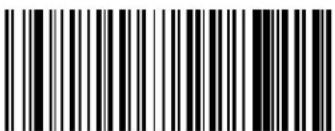 Country Mode = Hungary Country Mode = Hungary |
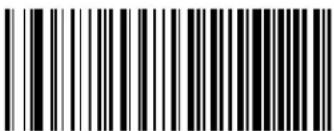 Country Mode = Italy Country Mode = Italy | |
| Supports only the interfaces listed in theCountry Mode feature description. |  Country Mode = Japanese 106-key Country Mode = Japanese 106-key |
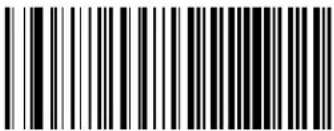 Country Mode = Norway Country Mode = Norway | Supports only the interfaces listed in theCountry Mode feature description. |
Country Mode — continued
 | |
 | Supports only the interfaces listed in theCountry Mode feature description. |
  |
 | Supports only the interfaces listed in theCountry Mode feature description. |
  |
 | |
 | |
 | Supports only the interfaces listed in theCountry Mode feature description. |
Caps Lock State
This option specifies the format in which the reader sends character data. This applies to keyboard wedge interfaces. This does not apply when an alternate key encoding keyboard is selected.
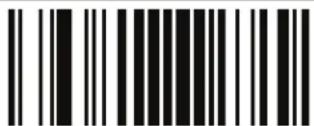 ENTER/EXIT PROGRAMMING MODE ENTER/EXIT PROGRAMMING MODE | |
 | 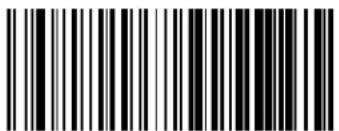 Caps Lock State = Caps Lock OFF Caps Lock State = Caps Lock OFF |
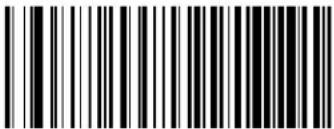 Caps Lock State = Caps Lock ON Caps Lock State = Caps Lock ON | |
 Caps Lock State = AUTO Caps Lock Enable Caps Lock State = AUTO Caps Lock Enable | |
Numlock
This option specifies the setting of the Numbers Lock (Numlock) key while in keyboard wedge interface. This only applies to alternate key encoding interfaces. It does not apply to USB keyboard.
 ENTER/EXIT PROGRAMMING MODE ENTER/EXIT PROGRAMMING MODE | |
 |  Numlock = Numlock key unchanged Numlock = Numlock key unchanged |
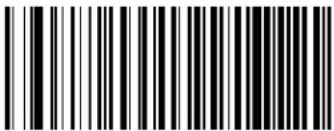 Numlock = Numlock key toggled Numlock = Numlock key toggled | |
Send Control Characters
This feature Specifies how the reader transmits ASCII control characters to the host. Reference Appendix F, Scancode Tables for more information about control characters.
Options are as follows:
Control Character 00 — Characters from 00 to 0x1F are sent as control character Ctrl+Keys, special keys are located from 0x80 to 0xA1.
Control Character 01 — Characters from 00 to 0x1F are sent as control character Ctrl+Capital Key, special keys are located from 0x80 to 0xA1.
Control Character 02 — Special keys are located from 00 to 0x1F and characters from 0x80 to 0xFE are intended as an extended ASCII table (Microsoft Windows Codepage 1252 — see Microsoft Windows Codepage 1252 on page 410).
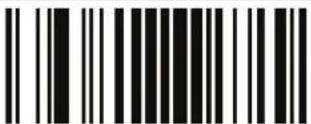 ENTER/EXIT PROGRAMMING MODE ENTER/EXIT PROGRAMMING MODE | |
 | 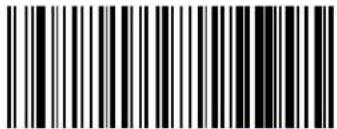 Wedge Send Control Characters = 00 Wedge Send Control Characters = 00 |
 Wedge Send Control Characters = 01 Wedge Send Control Characters = 01 | |
 Wedge Send Control Characters = 02 Wedge Send Control Characters = 02 | |
Wedge Quiet Interval
This option specifies the amount of time to look for keyboard activity before the reader breaks the keyboard connection in order to transmit data to host. The selectable range for this feature is from 0 to 990ms in 10ms increments.

This feature applies ONLY to the Keyboard Wedge interface.
NOTE
Follow these instructions to set this feature:
- Determine the desired setting in milliseconds.
- Divide the desired setting by 10 (setting is in 10ms increments). Pad the result with leading zeroes to yield two digits. For example: 0 = 00, 5 = 05, 20 = 20, etc.
- Scan the ENTER/EXIT PROGRAMMING MODE barcode to enter Programming Mode.
- Scan the barcode: SELECT WEDGE QUIET INTERVAL SETTING.
- Scan the appropriate two digits from the keypad in Appendix E, Keypad, that represent the duration which was determined in the steps above. You will hear a two-beep indication after the last character.

If you make a mistake before the last character, scan the CANCEL barcode to abort and not save the entry string. You can then start again at the beginning.
NOTE
- Scan the ENTER/EXIT PROGRAMMING MODE barcode to exit Programming Mode.
This completes the procedure to set the Wedge Quiet Interval. See Table 14 for some examples of how to set this feature.
Table 14. Timeout Setting Examples
| STEP ACTION EXAMPLES | |||||
| 1 Desired Setting 10ms 150ms 600ms 850ms | ms | ||||
| 2 | Divide by 10 (and pad with leading zeroes) | 01 15 60 85 | |||
| 3 Scan ENTER/EXIT PROGRAMMING MODE | |||||
| 4 Scan SELECT WEDGE QUIET INTERVAL SETTING | |||||
| 5 | Scan Two Characters From Appendix E, Keypad | ‘0’ and ‘1’ ‘1’ and ‘5’ | ‘6’ and ‘0’ | ‘8’ and ‘5’ | |
| 6 Scan ENTER/EXIT PROGRAMMING MODE | |||||
Wedge Quiet Interval — cont.

text_image
ENTER/EXIT PROGRAMMING MODE
Select Wedge Quiet Interval Setting
Make a mistake? Scan the CANCEL barcode to abort and not save the entry string. You can then start again at the beginning.

CANCEL
DEFAULT
10 = Quiet Interval of 100 ms
Intercharacter Delay
This parameter specifies the intercharacter delay between the end of one character and the beginning of the next. The delay can be set within a range of zero (0) to 990 milliseconds in 10ms increments. A setting of zero specifies no delay.

This feature applies ONLY to the Keyboard Wedge interface.
NOTE
To set the delay:
- Determine the desired setting in milliseconds.
- Divide the desired setting by 10 (setting is in 10ms increments). Pad the result with leading zeroes to yield two digits. For example: 0 = 00, 5 = 05, 20 = 20, etc.
- Scan the ENTER/EXIT PROGRAMMING MODE barcode to enter Programming Mode.
- Scan the barcode: SELECT INTERCHARACTER DELAY SETTING.
- Scan the appropriate two digits from the keypad in Appendix E, Keypad, that represent the duration which was determined in the steps above. You will hear a two-beep indication after the last character.

If you make a mistake before the last character, scan the CANCEL barcode to abort and not save the entry string. You can then start again at the beginning.
NOTE
- Scan the ENTER/EXIT PROGRAMMING MODE barcode to exit Programming Mode.
This completes the procedure. See Table 14 for some examples of how to set this feature.
Table 15. Intercharacter Delay Setting Examples
| STEP ACTION EXAMPLES | |||||
| 1 Desired Setting 50ms 150ms | 600ms | 850ms | |||
| 2 | Divide by 10 (and pad with leading zeroes to yield two-digits) | 05 15 60 85 | |||
| 3 Scan ENTER/EXIT PROGRAMMING MODE | |||||
| 4 Scan SELECT INTERCHARACTER DELAY SETTING | |||||
| 5 | Scan Two Characters From Appendix E, Keypad | ‘0’ and ‘5’ | ‘1’ and ‘5’ | ‘6’ and ‘0’ | ‘8’ and ‘5’ |
| 6 Scan ENTER/EXIT PROGRAMMING MODE | |||||
Intercharacter Delay — cont.
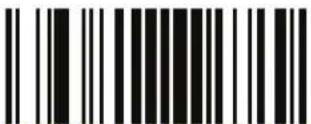 ENTER/EXIT PROGRAMMING MODE ENTER/EXIT PROGRAMMING MODE | |
 Intercharacter Delay = No Delay Intercharacter Delay = No Delay | |
 Select Intercharacter Delay Setting Select Intercharacter Delay Setting | |
| Make a mistake? Scan the CANCEL barcode to abort and not save the entry string. You can then start again at the beginning. |  CANCEL CANCEL |
| DEFAULT 00 = No Intercharacter Delay | |
Intercode Delay
Specifies the delay between labels transmitted to the host for this interface. The selectable range for this feature is from 0 to 99 seconds.
Follow these instructions to set this feature:
- Determine the desired setting.
- Pad the number with leading zeroes to yield two digits. For example: 0 = 00 , 5 = 05 , 20 = 20 , etc
- Scan the ENTER/EXIT PROGRAMMING MODE barcode to enter Programming Mode.
- Scan the barcode: SELECT INTERCODE DELAY SETTING.
- Scan the appropriate two digits from the keypad in Appendix E, Keypad, that represent the duration which was determined in the steps above. You will hear a two-beep indication after the last character.

If you make a mistake before the last character, scan the CANCEL barcode to abort and not save the entry string. You can then start again at the beginning.
NOTE
- Scan the ENTER/EXIT PROGRAMMING MODE barcode to exit Programming Mode.
This completes the procedure. See Table 16 for some examples of how to set this feature.
Table 16. Wedge Intercode Delay Examples
| STEP ACTION EXAMPLES | ||||
| 1 Desired Setting No Delay 5 Seconds 60 Seconds 99 Seconds | ||||
| 2 Pad with leading zero(es) 00 05 60 99 | ||||
| 3 Scan ENTER/EXIT PROGRAMMING MODE | ||||
| 4 Scan SELECT INTERCODE DELAY SETTING | ||||
| 5 | Scan Two Characters From Appendix E, Keypad | ‘0’ and ‘0’ | ‘0’ and ‘5’ | ‘6’ and ‘0’ |
| 7 Scan ENTER/EXIT PROGRAMMING MODE | ||||
Intercode Delay — cont.

text_image
ENTER/EXIT PROGRAMMING MODE
text_image
Set Intercode DelayMake a mistake? Scan the CANCEL barcode to abort and not save the entry string. You can then start again at the beginning.

DEFAULT
00 = No Wedge Intercode Delay
USB Keyboard Speed
This option specifies the USB poll rate for a USB keyboard.

NOTE
This feature applies ONLY to the USB Keyboard interface.

text_image
Black and white barcode image with vertical lines on both sidesENTER/EXIT PROGRAMMING MODE


text_image
Black and white barcode image with vertical lines and a central dotUSB Keyboard Speed = 1ms

text_image
Black and white barcode image with vertical lines on both sidesUSB Keyboard Speed = 2ms

text_image
Black and white barcode image with vertical lines and a small number '1' at the bottom right.USB Keyboard Speed = 3ms

text_image
Black and white barcode image with vertical lines on both sidesUSB Keyboard Speed = 4ms

text_image
Black and white barcode image with vertical lines and a small number '1' at the bottomUSB Keyboard Speed = 5ms
USB Keyboard Speed — continued
| [ETHY]ENTER/EXIT PROGRAMMING MODE | |
 USB Keyboard Speed = 6ms USB Keyboard Speed = 6ms | |
 USB Keyboard Speed = 7ms USB Keyboard Speed = 7ms | |
 USB Keyboard Speed = 8ms USB Keyboard Speed = 8ms | |
 USB Keyboard Speed = 9ms USB Keyboard Speed = 9ms | |
 USB Keyboard Speed = 10ms USB Keyboard Speed = 10ms | |
Introduction
Feature settings for USB interfaces differ depending upon which host type the reader will be connected with. Use the feature settings in this chapter and Chapter 9, IBM 46XX Interface to specifically configure for the USB-OEM interface. Other USB interfaces are included in the appropriate chapter for their host type.
Standard Factory Settings
Reference Appendix B, Standard Defaults for a listing of standard factory settings.
USB-OEM Device Usage
The USB-OEM protocol allows for the reader to be identified as one of two different types of barcode scanners. Depending on what other scanners you may already have connected to a USB-OEM POS, you may need to change this setting to enable all devices to communicate.
Options are:
- Table Top Scanner
- Handheld Scanner

NOTE
It may be necessary to switch device usage when connecting two readers/scanners of the same type to a POS system.
 | |
| USB-OEM Device Usage = Table Top Scanner | |
 |  |
USB-OEM Interface Options
This setting provides for an interface specific control mechanism..
Options are:
- Obey — Obey Scanner Configuration Host Commands
- Ignore — Ignore Scanner Configuration Host Commands
 ENTER/EXIT PROGRAMMING MODE ENTER/EXIT PROGRAMMING MODE | |
 USB-OEM Interface Options = Obey USB-OEM Interface Options = Obey | |
 USB-OEM Interface Options = Ignore USB-OEM Interface Options = Ignore |  |
NOTES
Introduction
Use the barcodes in this section to configure programmable features for available IBM 46XX interfaces.
IBM Standard Factory Settings
Reference Appendix B, Standard Defaults for a listing of standard factory settings.
46xx Number of Host Resets
Specifies how many consecutive resets are processed before the reader starts a five-second period to allow the user to enter Programming Mode and configure the reader. The configurable range for this feature is 1 to 15 resets.
 ENTER/EXIT PROGRAMMING MODE ENTER/EXIT PROGRAMMING MODE | |
 46xx Number of Host Resets = 1 46xx Number of Host Resets = 1 | |
 46xx Number of Host Resets = 2 46xx Number of Host Resets = 2 | |
 46xx Number of Host Resets = 3 46xx Number of Host Resets = 3 | |
 46xx Number of Host Resets = 4 46xx Number of Host Resets = 4 | |
 46xx Number of Host Resets = 5 46xx Number of Host Resets = 5 | |
 46xx Number of Host Resets = 6 46xx Number of Host Resets = 6 |  |
46xx Number of Host Resets — cont.
 ENTER/EXIT PROGRAMMING MODE ENTER/EXIT PROGRAMMING MODE | |
 46xx Number of Host Resets = 7 46xx Number of Host Resets = 7 | |
 46xx Number of Host Resets = 8 46xx Number of Host Resets = 8 | |
 46xx Number of Host Resets = 9 46xx Number of Host Resets = 9 | |
 46xx Number of Host Resets = 10 46xx Number of Host Resets = 10 | |
 46xx Number of Host Resets = 11 46xx Number of Host Resets = 11 | |
 46xx Number of Host Resets = 12 46xx Number of Host Resets = 12 | |
46xx Number of Host Resets — cont.
 ENTER/EXIT PROGRAMMING MODE ENTER/EXIT PROGRAMMING MODE | |
 46xx Number of Host Resets = 13 46xx Number of Host Resets = 13 | |
 46xx Number of Host Resets = 14 46xx Number of Host Resets = 14 | |
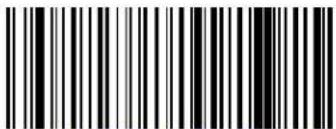 46xx Number of Host Resets = 15 46xx Number of Host Resets = 15 | |
Transmit Labels in Code 39 Format
This feature enable/disables translation to Code 39 before transmitting label data to an IBM-46XX or a USB-OEM host. Only the symbology identifier is modified for the translation. The data is not converted to Code 39 or verified to be valid for Code 39.
Options are:
IBM Standard Format — Send labels in standard IBM format.
Code 39 Format – Translate the following symbologies to Code 39:
• USB-OEM: Code128, Code 93, and Codabar
• IBM-Port 5B: Code 128, Code 93, and Codabar
• IBM-Port 9B: Code 93 and Codabar
| ENTER/EXIT PROGRAMMING MODE | |
| DEFAULT | Transmit Labels in Code 39 Format = IBM Standard Format |
| Transmit Labels in Code 39 Format = Code 39 Format | |
IBM 46XX Interface Options
This setting provides for an interface specific control mechanism..
Options are:
- Obey — Obey Scanner Configuration Host Commands
- Ignore — Ignore Scanner Configuration Host Commands

text_image
ENTER/EXIT PROGRAMMING MODE
text_image
USB-OEM Interface Options = Ignore
text_image
USB-OEM Interface Options = Obey
Chapter 10
Wand Emulation Interface
Introduction
This chapter provides feature/settings configuration for the Wand Emulation interface.
Wand Emulation Standard Factory Settings
Reference Appendix B, Standard Defaults for a listing of standard factory settings.
Wand Idle State
This feature specifies the level of the Wand output signal when the reader is idle.

NOTE
TTL logic levels:
0V <= Low <= 0.7V
2.4V <= High <= 5.25V

ENTER/EXIT PROGRAMMING MODE

text_image
Black and white barcode image with vertical lines and a small number '1' at the bottomWand Idle State = Low

text_image
Black and white barcode image with vertical lines and a central dotWand Idle State = High

Wand Polarity
This option specifies the polarity of the Wand output signal. Choices are:
- Quiet zones and spaces are high, bars are low
- Quiet zones and spaces are low, bars are high

NOTE
TTL logic levels:
0V <= Low <= 0.7V
2.4V <= High <= 5.25V

text_image
ENTER/EXIT PROGRAMMING MODE

text_image
Black and white barcode image with vertical lines and patternsWand Polarity = Quiet Zones & Spaces High, Bars Low

text_image
Black and white barcode image with vertical lines on both sidesWand Polarity = Quiet Zones & Spaces Low, Bars High
Wand Signal Speed
This feature specifies the speed of the Wand output signal per nominal bar or space. Choices are:
• 330 microseconds
- 660 microseconds

text_image
Black and white barcode image with vertical lines on both sidesENTER/EXIT PROGRAMMING MODE
 Wand Signal Speed = 330ms Wand Signal Speed = 330ms | |
 Wand Signal Speed = 660ms Wand Signal Speed = 660ms |  |
Label Symbology Conversion
When this feature is enabled for the Wand Emulation interface, all barcode labels are converted to a single symbology.
Options are:
- No conversion
- Convert to Code 39 symbology
- Convert to Code 39 Full ASCII
- Convert to Code 128 symbology

text_image
ENTER/EXIT PROGRAMMING MODE
text_image
DEFAULT
text_image
Label Symbology Conversion = No conversion
text_image
Black and white barcode image with vertical lines on both sidesLabel Symbology Conversion = Convert to Code 39

text_image
Black and white barcode image with vertical lines and a small number '1' at the bottom right.Label Symbology Conversion = Convert to Code 39 Full ASCII

text_image
Black and white barcode image with vertical lines and a central dotLabel Symbology Conversion = Convert to Code 128
Transmit Noise
This option specifies the leading/trailing noise for the Wand interface.
Choices are:
- Disable (no leading/trailing noise)
- Enable leading noise
- Enable trailing noise
- Enable leading and trailing noise
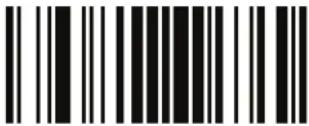 ENTER/EXIT PROGRAMMING MODE ENTER/EXIT PROGRAMMING MODE | |
 | 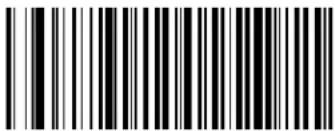 Transmit Noise = Disable Transmit Noise = Disable |
 Transmit Noise = Transmit leading noise Transmit Noise = Transmit leading noise | |
 Transmit Noise = Transmit trailing noise Transmit Noise = Transmit trailing noise | |
 Transmit Noise = Transmit leading and trailing noise Transmit Noise = Transmit leading and trailing noise | |
NOTES
Data Editing Overview

CAUTION
It is not recommended to use these features with IBM interfaces.
When a barcode is scanned, additional information can be sent to the host computer along with the barcode data. This combination of barcode data and supplementary user-defined data is called a “message string.” The features in this chapter can be used to build specific user-defined data into a message string.
There are several types of selectable data characters that can be sent before and after scanned data. You can specify if they should be sent with all symbologies, or only with specific symbologies. Figure 4 shows the available elements you can add to a message string:
Figure 4. Breakdown of a Message String

flowchart
graph TD
    A["Label ID Transmission: Enable this option to transmit the Label ID you configure for the scanned symbology."] --> B["OR..."]
    C["Prefix"] --> D["SuffixAIM ID"]
    D --> E["Label ID Label"]
    E --> F["IDBar Code Data"]
    F --> G["00 - 20 Characters (ASCII)"]
    H["AIM ID: This function is used to identify and display the common label identifier for its symbology. When enabled, this ID code will be transmitted before the scanned bar code data."] --> I["End"]

NOTE
Additional advanced editing is available. See the Advanced Formatting features in the Datalogic Aladdin Configuration Application or contact Technical Support on page 3 for more information.
Please Keep In Mind...
- Modifying a message string is not a mandatory requirement. Data editing is sophisticated feature allowing highly customizable output for advanced users. Factory default settings for data editing is typically set to NONE.
- A prefix or suffix may be applied (reference the Symbologies chapter for these settings) across all symbologies (set via the Global features in this chapter).
- You can add any character from the ASCII Chart (from 00-FF) on the inside back cover of this manual as a prefix, suffix or Label ID.
- Enter prefixes and suffixes in the order in which you want them to appear on the output.
Global Prefix/Suffix
Up to 20 ASCII characters may be added as a prefix (in a position before the barcode data) and/or as a suffix (in a position following the barcode data) as indicated in Figure 5.
Figure 5. Prefix and Suffix Positions

text_image
OR... Prefix SuffixAIM ID Label ID Label ID Bar Code Data 00 - 20 Characters (ASCII) AND ORExample: Setting a Prefix
In this example, we'll set a prefix for all symbologies.
- Determine which ASCII character(s) are to be added to scanned barcode data. In this example, we'll add a dollar sign (\$') as a prefix.
- Scan the ENTER/EXIT barcode.
- Scan the SET GLOBAL PREFIX barcode.
- Reference the ASCII Chart on the inside back cover of this manual, to find the hex value assigned to the desired character. The corresponding hex number for the '\$' character is 24. To enter this selection code, scan the '2' and '4' barcodes from Appendix E, Keypad.

NOTE
If you make a mistake before the last character, scan the CANCEL barcode to abort and not save the entry string. You can then start again at the beginning.
-
If less than the expected string of 20 characters are selected, scan the ENTER/EXIT barcode to terminate the string.
-
Scan the ENTER/EXIT barcode once again to exit Programming Mode.
- The resulting message string would appear as follows:
Scanned barcode data:12345
Resulting message string output: \$12345
This option sets up to 20 characters each from the set of ASCII characters or any hex value from 00 to FF. To configure this feature, scan the ENTER/EXIT barcode to place the unit in Programming Mode, then the "Set Global Prefix" or "Set Global Suffix," barcode followed by the digits (in hex) from the Alphanumeric characters in Appendix E, Keypad representing your desired character(s). If less than the expected string of 20 characters are selected, scan the ENTER/EXIT barcode to terminate the string. Reference the section, Example: Setting a Prefix on page 104, for more information. Exit programming mode by scanning the ENTER/EXIT barcode once again.
| ENTER/EXIT PROGRAMMING MODE | |
| Set Global Prefix | |
| Set Global Suffix | |
| Make a mistake? Scan the CANCEL barcode to abort and not save the entry string. You can then start again at the beginning. CANCEL | |

text_image
DEFAULTNo Global Prefix Global Suffix = 0x0D (CR)
Global AIM ID

This feature enables/disables addition of AIM IDs for all symbology types.
NOTE
AIM label identifiers (as opposed to custom characters you select yourself as with label identifiers) can be included with scanned barcode data. AIM label identifiers consist of three characters as follows:
- A close brace character (ASCII ']), followed by...
• A code character (see the table below), followed by... - A modifier character (the modifier character is symbol dependent).
| SYMBOLOGY CHAR | SYMBOL | LOGY CHAR | |
| UPC/EAN | E^a | Code 128/GS1-128 C | |
| Code 39 and Code 32 | A | GS1 DataBar Omnidirec-tional, GS1 DataBar Expanded | |
| Codabar F Standard 2 of 5 S | |||
| Interleaved 2 of 5 I ISBN | |||
| Code 93 G Code 11 H |
a. UPC-A and UPC-E labels are converted to EAN 13 when adding AIM IDs.
b. ISBN (X with a 0 modifier character)
Figure 6. AIM ID

text_image
Prefix Label ID AIM ID Bar Code Data Label ID SuffixGlobal AIM ID — continued

text_image
Black and white barcode image with vertical lines on both sidesENTER/EXIT PROGRAMMING MODE

text_image
DEFAULT
text_image
Black and white barcode image with vertical lines on both sidesGlobal AIM ID = Disable

text_image
Black and white barcode image with vertical lines and a central dotGlobal AIM ID = Enable
GS1-128 AIM ID
If Global AIM ID is disabled, the AIM ID for GS1-128 can be enabled/disabled independently. The AIM ID for GS1-128 is a ]C1, ]C2 or ]C3.
AIM IDs for other symbologies can be enabled/disabled independently as well. Contact Customer Support for assistance.
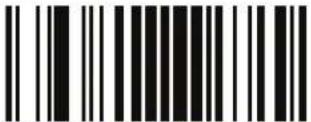 ENTER/EXIT PROGRAMMING MODE ENTER/EXIT PROGRAMMING MODE | |
 GS1-128 AIM ID = Disable GS1-128 AIM ID = Disable | |
 GS1-128 AIM ID = Enable GS1-128 AIM ID = Enable |  |
Label ID
A Label ID is a customizable code of up to three ASCII characters (each can be one of hex 0x01-0xFF), used to identify a barcode (symbology) type. It can be appended previous to or following the transmitted barcode data depending upon how this option is enabled. This feature provides options for configuring custom Label IDs as a pre-loaded set (see . Label ID Pre-loaded Sets on page 110) or individually per symbology (see Label ID: Set Individually Per Symbology on page 112). If you wish to program the reader to always include an industry standard label identifier for ALL symbology types, see the previous feature Global AIM ID on page 106.
Label ID: Pre-loaded Sets
The reader supports two pre-loaded sets of Label IDs. Table 17 shows the USA set and the EU set.

CAUTION
When changing from one Label ID set to another, all other imager configuration settings, including the host interface type, will be erased and set to the factory defaults. Any custom configuration or custom defaults will be lost.

text_image
Black and white barcode image with vertical lines on both sidesENTER/EXIT PROGRAMMING MODE

text_image
DEFAULT
Label ID Pre-loaded Set = USA Set

Label ID Pre-loaded Set = EU Set
Table 17. Label ID Pre-loaded Sets
| Symbology USA Label ID set EU Label ID set | ||||
| ASCII character | Hex value | ASCII character | Hexadecimal value | |
| ABC Codabar | S 530000 | S 530000 | ||
| Anker Plessey | o 6F0000 | o 6F0000 | ||
| CODABAR | % 250000 | R 520000 | ||
| Codablock F | I 6C0000 | m 6D0000 | ||
| Code 39 CIP | Y 590000 | Y 590000 | ||
| Code 93 | & 260000 | U 550000 | ||
| CODE11 | CE 434500 | b 620000 | ||
| CODE128 | # 230000 | T 540000 | ||
| CODE32 | A 410000 | X 580000 | ||
| CODE39 | * 2A0000 | V 560000 | ||
| CODE4 | 4 340000 | 4 340000 | ||
| CODE5 | j 6A0000 | j 6A0000 | ||
| CODE93 | & 260000 | U 550000 | ||
| DATALOGIC 2OF5 | s 730000 | s 730000 | ||
| EAN13 | F 460000 | B 420000 | ||
| EAN13 P2 | F 460000 | L 4C0000 | ||
| EAN13 P5 | F 460000 | M 4D0000 | ||
| EAN13 P8 | F 460000 | # 230000 | ||
| EAN8 | FF 464600 | A 410000 | ||
| EAN8 P2 | FF 464600 | J 4A0000 | ||
| EAN8 P5 | FF 464600 | K 4B0000 | ||
| EAN8 P8 | FF 464600 | * 2A0000 | ||
| FOLLETT 2OF5 | O 4F0000 | O 4F0000 | ||
| GS1 DATABAR EXPANDED | RX | 525800 t 740000 | ||
| GS1 DATABAR LIMITED | RL | 524C00 v | 760000 | |
| GS1 DATABAR OMNIDIRECTIONAL | R4 523400 | u 750000 | ||
| GS1-128 | 000000 k | 6B0000 | ||
| GTIN | G | 470000 | A 244100 | |
| GTIN2 | G2 473200 | B 244200 | ||
| Symbology | USA Label ID set | EU Label ID set | ||
| GTIN5 G5 473500 C 244300 | ||||
| GTIN8 | G8 473800 | D 244400 | ||
| I2OF5 | i 690000 | N 4E0000 | ||
| IATA | IA 494100 | & 260000 | ||
| Industrial 2 of 5 | W 570000 | W 570000 | ||
| Interleaved 2 of 5 CIP HR | e 650000 | e 650000 | ||
| ISBN | I 490000 | @ 400000 | ||
| ISBT128 | f 660000 | f 660000 | ||
| ISSN | n 6E0000 | n 6E0000 | ||
| MSI | @ 400000 | Z 5A0000 | ||
| Plessey | a 610000 | a 610000 | ||
| S25 | s 730000 | P 500000 | ||
| UPCA | A 410000 | C 430000 | ||
| UPCA P2 | A 410000 | F 460000 | ||
| UPCA P5 | A 410000 | G 470000 | ||
| UPCA P8 | A 410000 | Q 510000 | ||
| UPCE | E 450000 | D 440000 | ||
| UPCE P2 | E 450000 | H 480000 | ||
| UPCE P5 | E 450000 | I 490000 | ||
| UPCE P8 | E 450000 | E 450000 | ||
Label ID: Set Individually Per Symbology
To configure a Label ID individually for a single symbology:
- Scan the ENTER/EXIT barcode.
- Select Label ID position as either BEFORE (Enable as Prefix) or AFTER (Enable as suffix) by scanning the appropriate barcode in the section Label ID Control on page 114. Reference Figure 7 for Label ID positioning options if multiple identification features are enabled.
- Scan a barcode to select the symbology for which you wish to configure a custom Label ID from the section Label ID Symbology Selection, starting on page 115.
- Determine the desired character(s) (you may choose up to three) which will represent the Label ID for the selected symbology.
- Turn to the ASCII Chart on the inside back cover of this manual and find the equivalent hex digits associated with your choice of Label ID. For example, if you wish to select an equal sign (=) as a Label ID, the chart indicates its associated hex characters as 3D. Turn to Keypad, starting on page 395 and scan the barcodes representing the hex characters determined. For the example given, the characters '3' and 'D' would be scanned. More examples of Label ID settings are provided in Table 18.

If you make a mistake before the last character, scan the CANCEL barcode to abort and not save the entry string. You can then start again at the beginning.
NOTE
- Scan the ENTER/EXIT barcode to exit Label ID entry.
- Scan the ENTER/EXIT barcode once again to exit Programming Mode.
This completes the steps to configure a Label ID for a given symbology.
Figure 7. Label ID Position Options

flowchart
graph TD
    A["Prefix"] --> B["SuffixLabel ID"]
    B --> C["Label IDBar"]
    C --> D["Code DataAim ID"]
    D --> E["OR"]
    E --> A
Label ID — continued
Table 18. Label ID Examples
| STEP ACTION EXAMPLES | |||||
| 1. Scan the ENTER/EXIT barcode (Scanner enters Programming Mode) | |||||
| 2. | Determine placement of the Label ID characters BEFORE or AFTER with regard to scanned data using Label ID Control on page 114 | Enable as Prefix | Enable as Suffix Enable | as Prefix Enable | as Suffix |
| 3. | Scan the barcode selecting the symbology type you wish to designate label ID characters for using Label ID Symbology Selection, starting on page 115. | GS1 DataBarOmnidirectional | Code 39 Interleaved 2 of 5 Code 32 | ||
| 4. | Custom Label ID example (desired characters): | D B * = C | 3 + | P | H |
| 5. | Find hex equivalents from the ASCII table (inside back cover), then scan in these digits/characters using the barcodes in the section: Keypad, starting on page 395. f you make a mistake before the last character, scan the CANCEL barcode to abort and not save the entry string. You can then start again at the beginning. | 44 42 2A 3D | 43 33 | 2B | 50 48 |
| 6. | Scan theENTER/EXIT barcode | (Scanner exits Label ID entry) | |||
| 7. | Scan the ENTER/EXIT barcode once again | (Scanner exits Programming Mode) | |||
| Result: | DB*[barcode data] | [barcode data]=C3 | +[barcode data] | [barcode data]PH | |
Label ID — continued
Label ID Control
This option controls whether a Label ID is disabled, or sent as a prefix or suffix for a given symbology type.
 ENTER/EXIT PROGRAMMING MODE ENTER/EXIT PROGRAMMING MODE | |
 |  Label ID Transmission = Disable Label ID Transmission = Disable |
 Label ID Transmission = Enable as Prefix Label ID Transmission = Enable as Prefix | |
 Label ID Transmission = Enable as Suffix Label ID Transmission = Enable as Suffix | |
 CANCEL CANCEL | Make a mistake? Scan the CANCEL barcode to abort and not save the entry string. You can then start again at the beginning. |
Label ID — continued
Label ID Symbology Selection
This option selects the symbology for which a Label ID is to be configured. See Label ID on page 109 for full instructions.
 ENTER/EXIT PROGRAMMING MODE ENTER/EXIT PROGRAMMING MODE | |
 Set UPC-A Label ID Character(s) Set UPC-A Label ID Character(s) | |
 Set UPC-A/P2 Label ID Character(s) Set UPC-A/P2 Label ID Character(s) | |
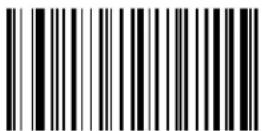 Set UPC-A/P5 Label ID Character(s) Set UPC-A/P5 Label ID Character(s) | |
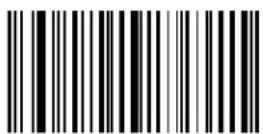 Set UPC-A/GS1-128 Label ID Character(s) Set UPC-A/GS1-128 Label ID Character(s) | |
 Set UPC-E Label ID Character(s) Set UPC-E Label ID Character(s) | |
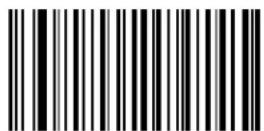 Set UPC-E/P2 Label ID Character(s) Set UPC-E/P2 Label ID Character(s) | |
Label ID — continued
Label ID Symbology Selection — continued
This option selects the symbology for which a Label ID is to be configured. See Label ID on page 109 for full instructions.
 ENTER/EXIT PROGRAMMING MODE ENTER/EXIT PROGRAMMING MODE | |
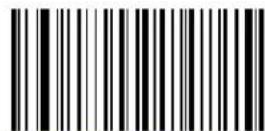 Set UPC-E/P5 Label ID Character(s) Set UPC-E/P5 Label ID Character(s) | |
 Set UPC-E/GS1-128 Label ID Character(s) Set UPC-E/GS1-128 Label ID Character(s) | |
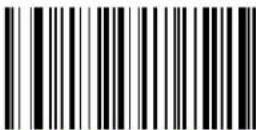 Set EAN 13 Label ID Character(s) Set EAN 13 Label ID Character(s) | |
 Set EAN 13/P2 Label ID Character(s) Set EAN 13/P2 Label ID Character(s) | |
 Set EAN 13/P5 Label ID Character(s) Set EAN 13/P5 Label ID Character(s) | |
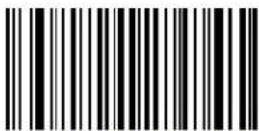 Set EAN 13/GS1-128 Label ID Character(s) Set EAN 13/GS1-128 Label ID Character(s) | |
Label ID — continued
Label ID Symbology Selection — continued
This option selects the symbology for which a Label ID is to be configured. See Label ID on page 109 for full instructions.
 ENTER/EXIT PROGRAMMING MODE ENTER/EXIT PROGRAMMING MODE | |
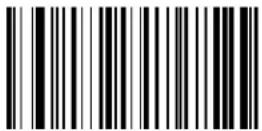 Set EAN 8 Label ID Character(s) Set EAN 8 Label ID Character(s) | |
 Set EAN 8/P2 Label ID Character(s) Set EAN 8/P2 Label ID Character(s) | |
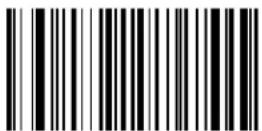 Set EAN 8/P5 Label ID Character(s) Set EAN 8/P5 Label ID Character(s) | |
 Set EAN 8/GS1-128 Label ID Character(s) Set EAN 8/GS1-128 Label ID Character(s) | |
 Set GTIN Label ID Character(s) Set GTIN Label ID Character(s) | |
 Set GTIN/P2 Label ID Character(s) Set GTIN/P2 Label ID Character(s) | |
Label ID — continued
Label ID Symbology Selection — continued
This option selects the symbology for which a Label ID is to be configured. See Label ID on page 109 for full instructions.
 ENTER/EXIT PROGRAMMING MODE ENTER/EXIT PROGRAMMING MODE | |
 Set GTIN/P5 Label ID Character(s) Set GTIN/P5 Label ID Character(s) | |
 Set GTIN/GS1-128 Label ID Character(s) Set GTIN/GS1-128 Label ID Character(s) | |
 Set GS1 DataBar Omnidirectional Label ID Character(s) Set GS1 DataBar Omnidirectional Label ID Character(s) | |
 Set GS1 DataBar Expanded Label ID Character(s) Set GS1 DataBar Expanded Label ID Character(s) | |
 Set GS1 DataBar Limited Label ID Character(s) Set GS1 DataBar Limited Label ID Character(s) | |
 Set Code 39 Label ID Character(s) Set Code 39 Label ID Character(s) | |
Label ID — continued
Label ID Symbology Selection — continued
This option selects the symbology for which a Label ID is to be configured. See Label ID on page 109 for full instructions.
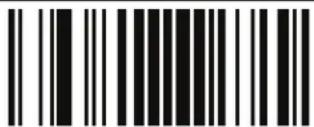 ENTER/EXIT PROGRAMMING MODE ENTER/EXIT PROGRAMMING MODE | |
 Set Code 32 Label ID Character(s) Set Code 32 Label ID Character(s) | |
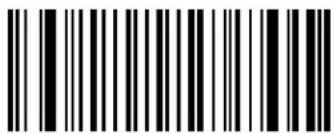 Set Code 39 CIP Label ID Character(s) Set Code 39 CIP Label ID Character(s) | |
 Set Code 128 Label ID Character(s) Set Code 128 Label ID Character(s) | |
 Set GS1-128 Label ID Character(s) Set GS1-128 Label ID Character(s) | |
 Set Interleaved 2 of 5 Label ID Character(s) Set Interleaved 2 of 5 Label ID Character(s) | |
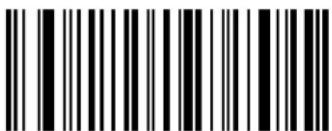 Set Interleaved 2 of 5 CIP HR Label ID Character(s) Set Interleaved 2 of 5 CIP HR Label ID Character(s) | |
 Set Datalogic 2 of 5 Label ID Character(s) Set Datalogic 2 of 5 Label ID Character(s) | |
Label ID — continued
Label ID Symbology Selection — continued
This option selects the symbology for which a Label ID is to be configured. See Label ID on page 109 for full instructions.
 ENTER/EXIT PROGRAMMING MODE ENTER/EXIT PROGRAMMING MODE | |
 Set Codabar Label ID Character(s) Set Codabar Label ID Character(s) | |
 Set ABC Codabar Label ID Character(s) Set ABC Codabar Label ID Character(s) | |
 Set Code 11 Label ID Character(s) Set Code 11 Label ID Character(s) | |
 Set Standard 2 of 5 Label ID Character(s) Set Standard 2 of 5 Label ID Character(s) | |
 Set Industrial 2 of 5 Label ID Character(s) Set Industrial 2 of 5 Label ID Character(s) | |
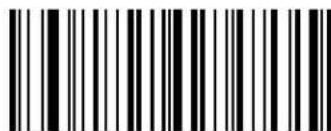 Set ISSN Label ID Character(s) Set ISSN Label ID Character(s) | |
Label ID — continued
Label ID Symbology Selection — continued
This option selects the symbology for which a Label ID is to be configured. See Label ID on page 109 for full instructions.
| ENTER/EXIT PROGRAMMING MODE | |
 Set IATA Label ID Character(s) Set IATA Label ID Character(s) | |
 Set Concatinated ISBT 128 Label ID Character(s) Set Concatinated ISBT 128 Label ID Character(s) | |
 Set MSI Label ID Character(s) Set MSI Label ID Character(s) | |
 Set Plessey Label ID Character(s) Set Plessey Label ID Character(s) | |
 Set Anker Plessey Label ID Character(s) Set Anker Plessey Label ID Character(s) | |
 Set Code 93 Label ID Character(s) Set Code 93 Label ID Character(s) | |
Label ID — continued
Label ID Symbology Selection — continued
This option selects the symbology for which a Label ID is to be configured. See Label ID on page 109 for full instructions.
 ENTER/EXIT PROGRAMMING MODE ENTER/EXIT PROGRAMMING MODE | |
 Set Codablock F Label ID Character(s) Set Codablock F Label ID Character(s) | |
 Set Code 4 Label ID Character(s) Set Code 4 Label ID Character(s) | |
 Set Code 5 Label ID Character(s) Set Code 5 Label ID Character(s) | |
 Set Follett 2 of 5 Label ID Character(s) Set Follett 2 of 5 Label ID Character(s) | |
Case Conversion
This feature allows conversion of the case of all alphabetic characters to upper or lower case.

Case conversion affects ONLY scanned barcode data, and does not affect Label ID, Prefix, Suffix, or other appended data.
NOTE
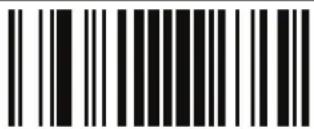 ENTER/EXIT PROGRAMMING MODE ENTER/EXIT PROGRAMMING MODE | |
 | 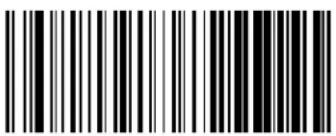 Case Conversion = Disable (no case conversion) Case Conversion = Disable (no case conversion) |
 Case Conversion = Convert to upper case Case Conversion = Convert to upper case | |
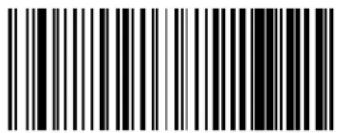 Case Conversion = Convert to lower case Case Conversion = Convert to lower case | |
Character Conversion
Character conversion is an eight byte configuration item. The eight bytes are 4 character pairs represented in hexadecimal ASCII values. The first character in the pair is the character that will be converted. The second character in the pair is the character to convert to. If the character to convert in a pair is FF, then no conversion is done.
For example, if you have the character conversion configuration item set to the following: 41423132FFFFFFF
The first pair is 4142 or AB (41 hex is an ASCII capital A, 42 hex is an ASCII capital B) and the second pair is 3132 or 12 (31 hex is an ASCII 1, 32 is an ASCII 2). The other two pairs are FFFF and FFFF.
With the label, AB12BA21, it would look as follows after the character conversion: BB22BB22.
The A characters were converted to B characters and the 1 characters were converted to 2 characters. Nothing is done with the last two character pairs, since they are all FF.
To set Character Conversion:
- Scan the ENTER/EXIT barcode.
- Scan the "Configure Character Conversion" barcode.
- Determine the desired string. Sixteen positions must be determined as in the above example. Next, turn to the ASCII Chart on the inside back cover of this manual and find the equivalent hex digits needed to fulfill the string.
- Turn to Appendix E, Keypad and scan the barcodes representing the hex characters determined in the previous step.
- Scan the ENTER/EXIT barcode to exit Programming Mode.

NOTE
If less than the expected string of 16 characters are selected, scan the ENTER/EXIT barcode twice to accept the selections and exit Programming Mode.
Character Conversion — continued

text_image
Black and white barcode image with vertical lines on both sidesENTER/EXIT PROGRAMMING MODE

Configure Character Conversion
DEFAULT
0xFFFFFFFFFFFFFFFF
(No character conversion)
NOTES
Introduction
The reader supports the following symbologies (barcode types). Options for each symbology are included in this chapter.
Symbologies
- UPC-A
- Datalogic 2 of 5
- UPC-E • Codabar
• GTIN Formatting • ABC Codabar
• EAN 13 (JAN 13) • Code 11
• EAN 8 (JAN 8) • Standard 2 of 5
- Add-Ons • Industrial 2 of 5
• GS1 DataBar ^TM Omnidirectional • IATA
• GS1 DataBar ^TM Expanded • ISBT 128
• GS1 DataBar ^TM Limited • MSI
• Code 39 • Plessey
• Code 32 (Italian Pharmaceutical) • Code 93
• Code 39 CIP (French Pharmaceutical) • Codablock F
- Code 128 • Code 4
- GS1-128 • Code 5
• Interleaved 2 of 5 (1 2 of 5) • Follett 2 of 5
• Interleaved 2 of 5 CIP HR
Standard Factory Settings for Symbologies
Default settings are indicated at each feature/option with a green arrow. Also reference Appendix B, Standard Defaults for a listing of the most widely used set of standard factory settings. That section also provides space to record any custom settings needed or implemented for your system.
Disable All Symbologies
Scan this label to disable all symbologies.

text_image
ENTER/EXIT PROGRAMMING MODE
text_image
Disable all symbologiesCoupon Control
This feature is used to control the method of processing coupon labels.
Options are:
- Allow all — allow all coupon barcodes to be decoded
- Enable only UPC/EAN — enables only UPC/EAN coupon decoding
- Enable only GS1 DataBar — enables only GS1 DataBar coupon decoding
To set this feature:
- Scan the SWITCH bar code.
- Scan either the enable or disable bar code below. You'll need to cover any unused barcodes on this and the facing page to ensure that the reader sees only the barcode you intend to scan.
- Complete the programming sequence by scanning the SWITCH barcode.
 ENTER/EXIT PROGRAMMING MODE ENTER/EXIT PROGRAMMING MODE | |
| Coupon Control = Allow all | |
| Coupon Control = Enable only UPC/EAN | DEFAULT |
| Coupon Control = Enable only GS1 DataBar | |
UPC-A
The following options apply to the UPC-A symbology.
UPC-A Enable/Disable
When disabled, the reader will not read UPC-A barcodes.
 ENTER/EXIT PROGRAMMING MODE ENTER/EXIT PROGRAMMING MODE | |
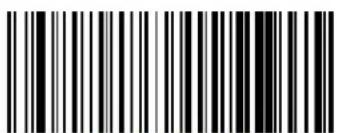 UPC-A = Disable UPC-A = Disable | |
 UPC-A = Enable UPC-A = Enable |  |
UPC-A Check Character Transmission
Enable this option to transmit the check character along with UPC-A barcode data.
 ENTER/EXIT PROGRAMMING MODE ENTER/EXIT PROGRAMMING MODE | |
 UPC-A Check Character Transmission = Don't Send UPC-A Check Character Transmission = Don't Send | |
 UPC-A Check Character Transmission = Send UPC-A Check Character Transmission = Send |  |
UPC-A — cont.
Expand UPC-A to EAN-13
Expands UPC-A data to the EAN-13 data format. Selecting this feature also changes the symbology ID to match those required for EAN-13.
| ENTER/EXIT PROGRAMMING MODE | |
| DEFAULT | UPC-A to EAN-13 = Don't Expand |
| UPC-A to EAN-13 = Expand | |
UPC-A Number System Character Transmission
This feature enables/disables transmission of the UPC-A number system character.
| ENTER/EXIT PROGRAMMING MODE | |
| UPC-A Number System Character = Do not transmit | |
| DEFAULT | |
UPC-A — cont.
In-Store Minimum Reads
This feature specifies the minimum number of consecutive times an in-store label must be decoded before it is accepted as good read.
In-store labels are defined as UPC-A labels with a number-system character of 2 or 4 as well as EAN 8 and EAN 13 labels with a Flag1 character of 2 or an EAN 13 label starting with the three characters '980'.
 ENTER/EXIT PROGRAMMING MODE ENTER/EXIT PROGRAMMING MODE | |
 In-Store Minimum Reads = 1 In-Store Minimum Reads = 1 | |
 In-Store Minimum Reads = 2 In-Store Minimum Reads = 2 |  |
 In-Store Minimum Reads = 3 In-Store Minimum Reads = 3 | |
 In-Store Minimum Reads = 4 In-Store Minimum Reads = 4 | |
UPC-E
The following options apply to the UPC-E symbology.
UPC-E Enable/Disable
When disabled, the reader will not read UPC-E barcodes.
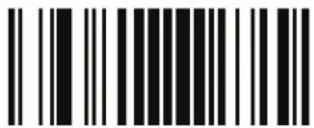 ENTER/EXIT PROGRAMMING MODE ENTER/EXIT PROGRAMMING MODE | |
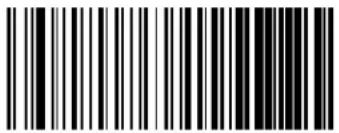 UPC-E = Disable UPC-E = Disable | |
 UPC-E = Enable UPC-E = Enable |  |
UPC-E Check Character Transmission
Enable this option to transmit the check character along with UPC-E barcode data.
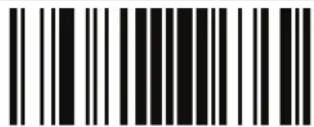 ENTER/EXIT PROGRAMMING MODE ENTER/EXIT PROGRAMMING MODE | |
 UPC-E Check Character Transmission = Don’t Send UPC-E Check Character Transmission = Don’t Send | |
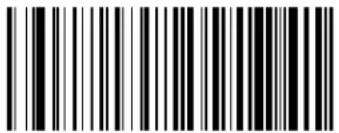 UPC-E Check Character Transmission = Send UPC-E Check Character Transmission = Send |  |
UPC-E — cont.
Expand UPC-E to EAN-13
Expands UPC-E data to the EAN-13 data format. Selecting this feature also changes the symbology ID to match those required for EAN-13.
| ENTER/EXIT PROGRAMMING MODE | |
| DEFAULT | UPC-E to EAN-13 = Don't Expand |
| UPC-E to EAN-13 = Expand | |
Expand UPC-E to UPC-A
Expands UPC-E data to the UPC-A data format.
| ENTER/EXIT PROGRAMMING MODE | |
| DEFAULT | UPC-E to UPC-A = Don't Expand |
| UPC-E to UPC-A = Expand | |
UPC-E — cont.
UPC-E Number System Character Transmission
This feature enables/disables transmission of the UPC-E system number character.
 ENTER/EXIT PROGRAMMING MODE ENTER/EXIT PROGRAMMING MODE | |
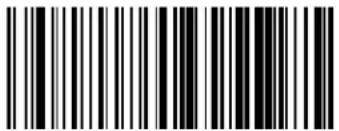 UPC-E Number System Character = Do not transmit UPC-E Number System Character = Do not transmit | |
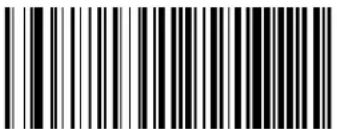 UPC-E Number System Character = Transmit UPC-E Number System Character = Transmit |  |
UPC-E — cont.
UPC-E Minimum Reads
This feature specifies the minimum number of consecutive times a UPC-E label must be decoded before it is accepted as good read..
 ENTER/EXIT PROGRAMMING MODE ENTER/EXIT PROGRAMMING MODE | |
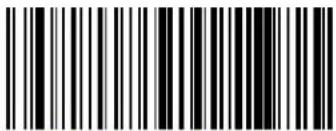 UPC-E Minimum Reads = 1 UPC-E Minimum Reads = 1 | |
 UPC-E Minimum Reads = 2 UPC-E Minimum Reads = 2 |  |
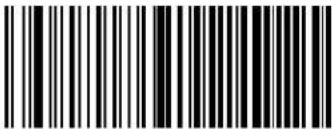 UPC-E Minimum Reads = 3 UPC-E Minimum Reads = 3 | |
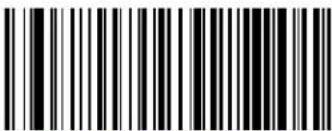 UPC-E Minimum Reads = 4 UPC-E Minimum Reads = 4 | |
GTIN Formatting
This feature enables/disables the ability to convert UPC-E, UPC-A, EAN 8, and EAN 13 labels into the GTIN 14-character format.

NOTE
If add-on information is present on the base label prior to the conversion taking place, the addon information will be appended to the converted GTIN label.

text_image
Black and white barcode image with vertical lines on both sidesENTER/EXIT PROGRAMMING MODE


text_image
Black and white barcode image with vertical lines and a central barGTIN Formatting = Disable

text_image
Black and white barcode image with vertical lines and a central dotGTIN Formatting = Enable
EAN 13
The following options apply to the EAN 13 (Jan 13) symbology.
EAN 13 Enable/Disable
When disabled, the reader will not read EAN 13/JAN 13 barcodes.
 ENTER/EXIT PROGRAMMING MODE ENTER/EXIT PROGRAMMING MODE | |
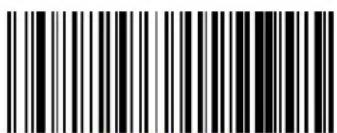 EAN 13 = Disable EAN 13 = Disable | |
 EAN 13 = Enable EAN 13 = Enable |  |
EAN 13 Check Character Transmission
Enable this option to transmit the check character along with EAN 13 barcode data.
 ENTER/EXIT PROGRAMMING MODE ENTER/EXIT PROGRAMMING MODE | |
 EAN 13 Check Character Transmission = Don't Send EAN 13 Check Character Transmission = Don't Send | |
 EAN 13 Check Character Transmission = Send EAN 13 Check Character Transmission = Send |  |
EAN 13 — cont.
EAN-13 Flag 1 Character
Enables/disables transmission of an EAN/JAN13 Flag1 character. The Flag 1 character is the first character of the label.
 ENTER/EXIT PROGRAMMING MODE ENTER/EXIT PROGRAMMING MODE | |
 EAN-13 Flag 1 Char= Don't transmit EAN-13 Flag 1 Char= Don't transmit | |
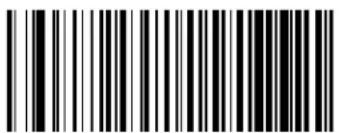 EAN-13 Flag 1 Char= Transmit EAN-13 Flag 1 Char= Transmit |  |
EAN-13 ISBN Conversion
This option enables/disables conversion of EAN 13/JAN 13 Bookland labels starting with 978 to ISBN labels.
| ENTER/EXIT PROGRAMMING MODE | |
| DEFAULT | EAN-13 ISBN Conversion = Disable |
| EAN-13 ISBN Conversion = Convert to ISBN | |
ISSN Enable/Disable
Enables/disables conversion of EAN/JAN13 Bookland labels starting with 977 to ISSN labels.

flowchart
graph TD
    A["ENTER/EXIT PROGRAMMING MODE"] --> B["DEFAULT"]
    A --> C["ISSN = Disable"]
    B --> D["ISSN = Enable"]
    C --> E["ISSN = Disable"]
EAN 13 — cont.
EAN 13 Minimum Reads
This feature specifies the minimum number of consecutive times an EAN 13 label must be decoded before it is accepted as good read..
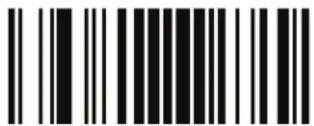 ENTER/EXIT PROGRAMMING MODE ENTER/EXIT PROGRAMMING MODE | |
 |  EAN 13 Minimum Reads = 1 EAN 13 Minimum Reads = 1 |
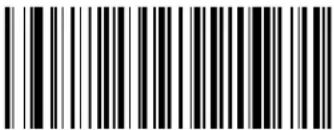 EAN 13 Minimum Reads = 2 EAN 13 Minimum Reads = 2 | |
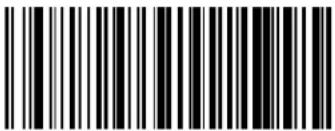 EAN 13 Minimum Reads = 3 EAN 13 Minimum Reads = 3 | |
 EAN 13 Minimum Reads = 4 EAN 13 Minimum Reads = 4 | |
EAN 8
The following options apply to the EAN 8 (Jan 8) symbology.
EAN 8 Enable/Disable
When disabled, the reader will not read EAN 8/JAN 8 barcodes.
| ENTER/EXIT PROGRAMMING MODE | |
 EAN 8 = Disable EAN 8 = Disable | |
 EAN 8 = Enable EAN 8 = Enable |  |
EAN 8 Check Character Transmission
Enable this option to transmit the check character along with EAN 8 barcode data.
 ENTER/EXIT PROGRAMMING MODE ENTER/EXIT PROGRAMMING MODE | |
 EAN 8 Check Character Transmission = Don't Send EAN 8 Check Character Transmission = Don't Send | |
 EAN 8 Check Character Transmission = Send EAN 8 Check Character Transmission = Send |  |
EAN 8 — cont.
Expand EAN 8 to EAN 13
Enable this option to expand EAN 8/JAN 8 labels to EAN 13/JAN 13.
 ENTER/EXIT PROGRAMMING MODE ENTER/EXIT PROGRAMMING MODE | |
 |  Expand EAN 8 to EAN 13 = Disable Expand EAN 8 to EAN 13 = Disable |
 Expand EAN 8 to EAN 13 = Enable Expand EAN 8 to EAN 13 = Enable | |
EAN 8 — cont.
EAN 8 Minimum Reads
This feature specifies the minimum number of consecutive times an EAN 8 (Jan 8) label must be decoded before it is accepted as good read..
 ENTER/EXIT PROGRAMMING MODE ENTER/EXIT PROGRAMMING MODE | |
 |  EAN 8 Minimum Reads = 1 EAN 8 Minimum Reads = 1 |
 EAN 8 Minimum Reads = 2 EAN 8 Minimum Reads = 2 | |
 EAN 8 Minimum Reads = 3 EAN 8 Minimum Reads = 3 | |
 EAN 8 Minimum Reads = 4 EAN 8 Minimum Reads = 4 | |
UPC/EAN Global Settings
This section provides configuration settings for UPC-A, UPC-E, EAN 13 and EAN 8 symbologies, and affects all of these unless otherwise marked for each feature description.
UPC/EAN Decoding Level
Decoding Levels are used to configure a barcode symbology decoder to be very aggressive to very conservative depending on a particular customer's needs.
- Choosing Level 1 results in a very conservative decoder at the expense of not being able to read poorly printed or damaged labels.
- Choosing Level 5 results in a very aggressive decoder. This aggressive behavior allows decoding of poorly printed and damaged labels at the expense of increasing the likelihood of decoding errors.
- Choosing Level 3, which is the default setting, allows the majority of product labels to be decoded.
There are many factors that determine when to change the decoding level for a particular symbology. These factors include spots, voids, non-uniform bar/space widths, damaged labels, etc. that may be experienced in some barcode labels. If there are many hard to read or damaged labels that cannot be decoded using a conservative setting, increase the decoding level to be more aggressive. If the majority of labels are very good quality labels, or there is a need to decrease the possibility of a decoder error, lower the decoding level to a more conservative level.
UPC/EAN Global Settings — cont.
UPC/EAN Decoding Level — cont.
 ENTER/EXIT PROGRAMMING MODE ENTER/EXIT PROGRAMMING MODE | |
 UPC/EAN Decoding Level = 1 UPC/EAN Decoding Level = 1 | |
 |  UPC/EAN Decoding Level = 2 UPC/EAN Decoding Level = 2 |
 UPC/EAN Decoding Level = 3 UPC/EAN Decoding Level = 3 | |
 UPC/EAN Decoding Level = 4 UPC/EAN Decoding Level = 4 | |
 UPC/EAN Decoding Level = 5 UPC/EAN Decoding Level = 5 | |
UPC/EAN Global Settings — cont.
UPC/EAN Correlation
When correlation is enabled, the barcode reader will combine label data from multiple scans when decoding. Enabling correlation will help the scanner read labels that have some spots and/or voids. It may also help read labels that have damaged areas. Enabling correlation will also increase the chances that a label will be read incorrectly.
| ENTER/EXIT PROGRAMMING MODE | |
| DEFAULT | UPC/EAN Correlation = Disable |
| UPC/EAN Correlation = Enable | |
UPC/EAN Reconstruction
This option enables/disables character reconstruction for UPC/EAN labels.
| ENTER/EXIT PROGRAMMING MODE | |
| DEFAULT | UPC/EAN Reconstruction = Disable |
| UPC/EAN Reconstruction = Enable | |
UPC/EAN Global Settings — cont.
UPC/EAN Price Weight Check
This feature enables/disables calculation and verification of price/weight check digits. Options are
• D i s a b l c d
- Enable 4-digit price-weight check-digit calculation
- Enable 5-digit price-weight check-digit calculation
- Enable European 4-digit price-weight check-digit calculation
- Enable European 5-digit price-weight check-digit calculation

text_image
ENTER/EXIT PROGRAMMING MODE
text_image
DEFAULT
text_image
Price Weight Check = Disabled
text_image
Black and white barcode image with vertical lines and a small number 'n' in the bottom right corner.Price Weight Check = 4-digit price-weight check

text_image
Black and white barcode image with vertical lines and a small number 'n' in the bottom right corner.Price Weight Check = 5-digit price-weight check

text_image
Black and white barcode image with vertical lines and patternsPrice Weight Check = European 4-digit price-weight check

text_image
Black and white barcode image with vertical lines and a central dotPrice Weight Check = European 5-digit price-weight check
UPC/EAN Global Settings — cont.
UPC-A Minimum Reads
This feature specifies the minimum number of consecutive times a UPC-A label must be decoded before it is accepted as good read..
 ENTER/EXIT PROGRAMMING MODE ENTER/EXIT PROGRAMMING MODE | |
 |  UPC-A Minimum Reads = 1 UPC-A Minimum Reads = 1 |
 UPC-A Minimum Reads = 2 UPC-A Minimum Reads = 2 | |
 UPC-A Minimum Reads = 3 UPC-A Minimum Reads = 3 | |
 UPC-A Minimum Reads = 4 UPC-A Minimum Reads = 4 | |
Add-Ons
The following features apply to optional add-ons.

NOTE
Contact Customer Support for advanced programming of optional and conditional add-ons.
Optional Add-ons
The reader can be enabled to optionally read the following add-ons (supplementals):
P2
P5
• GS1-128

NOTE
If a UPC/EAN base label and a an add-on are both decoded, the reader will transmit the base label and add-on. If a UPC/EAN base label is decoded without an add-on, the base label will be transmitted without an add-on.
Conditional add-on settings (if enabled) are considered by the reader before optional add-on settings.
 ENTER/EXIT PROGRAMMING MODE ENTER/EXIT PROGRAMMING MODE | |
 |  Optional Add-Ons = Disable P2 Optional Add-Ons = Disable P2 |
 Optional Add-Ons = Enable P2 Optional Add-Ons = Enable P2 | |
 |  Optional Add-Ons = Disable P5 Optional Add-Ons = Disable P5 |
Add-Ons — cont.
Optional Add-ons — cont.
 ENTER/EXIT PROGRAMMING MODE ENTER/EXIT PROGRAMMING MODE | |
 Optional Add-Ons = Enable P5 Optional Add-Ons = Enable P5 | |
 |  Optional Add-Ons = Disable GS1-128 Optional Add-Ons = Disable GS1-128 |
 Optional Add-Ons = Enable GS1-128 Optional Add-Ons = Enable GS1-128 | |
Add-Ons — cont.
Optional Add-On Timer
This option sets the time the reader will look for an add-on when an add-on fragment has been seen and optional add-ons are enabled. (Also see Optional GS1-128 Add-On Timer on page 155.)
 ENTER/EXIT PROGRAMMING MODE ENTER/EXIT PROGRAMMING MODE | |
 Optional Add-on Timer = 10ms Optional Add-on Timer = 10ms | |
 Optional Add-on Timer = 20ms Optional Add-on Timer = 20ms | |
 Optional Add-on Timer = 30ms Optional Add-on Timer = 30ms | |
 Optional Add-on Timer = 40ms Optional Add-on Timer = 40ms | |
 Optional Add-on Timer = 50ms Optional Add-on Timer = 50ms | |
Add-Ons — cont.
Optional Add-On Timer — cont.
 ENTER/EXIT PROGRAMMING MODE ENTER/EXIT PROGRAMMING MODE | |
 Optional Add-on Timer = 60ms Optional Add-on Timer = 60ms | |
 Optional Add-on Timer = 70ms Optional Add-on Timer = 70ms |  |
 Optional Add-on Timer = 100ms Optional Add-on Timer = 100ms | |
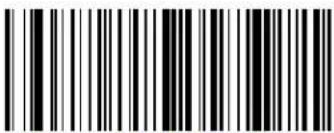 Optional Add-on Timer = 120ms Optional Add-on Timer = 120ms | |
 Optional Add-on Timer = 140ms Optional Add-on Timer = 140ms | |
 Optional Add-on Timer = 160ms Optional Add-on Timer = 160ms | |
Add-Ons — cont.
Optional Add-On Timer — cont.
 ENTER/EXIT PROGRAMMING MODE ENTER/EXIT PROGRAMMING MODE | |
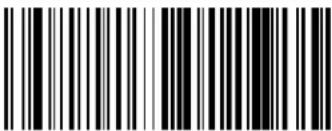 Optional Add-on Timer = 180ms Optional Add-on Timer = 180ms | |
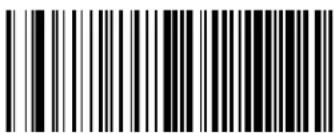 Optional Add-on Timer = 200ms Optional Add-on Timer = 200ms | |
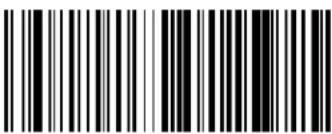 Optional Add-on Timer = 220ms Optional Add-on Timer = 220ms | |
 Optional Add-on Timer = 240ms Optional Add-on Timer = 240ms | |
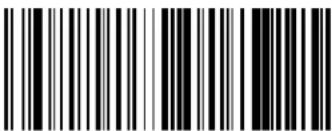 Optional Add-on Timer = 260ms Optional Add-on Timer = 260ms | |
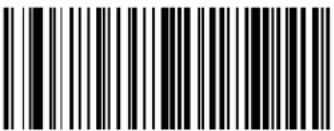 Optional Add-on Timer = 280ms Optional Add-on Timer = 280ms | |
 Optional Add-on Timer = 300ms Optional Add-on Timer = 300ms | |
Add-Ons — cont.
Optional GS1-128 Add-On Timer
This option sets the timer expiration value to read the added part after reading the linear EAN/UPC part. For UPC/EAN add-ons other than those of that type, see Optional Add-On Timer on page 152.
 ENTER/EXIT PROGRAMMING MODE ENTER/EXIT PROGRAMMING MODE | |
 |  Optional GS1-128 Add-On Timer = Disable Optional GS1-128 Add-On Timer = Disable |
 Optional GS1-128 Add-On Timer = 10ms Optional GS1-128 Add-On Timer = 10ms | |
 Optional GS1-128 Add-On Timer = 20ms Optional GS1-128 Add-On Timer = 20ms | |
 Optional GS1-128 Add-On Timer = 30ms Optional GS1-128 Add-On Timer = 30ms | |
 Optional GS1-128 Add-On Timer = 40ms Optional GS1-128 Add-On Timer = 40ms | |
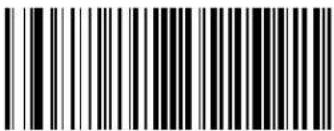 Optional GS1-128 Add-On Timer = 50ms Optional GS1-128 Add-On Timer = 50ms | |
Add-Ons — cont.
Optional GS1-128 Add-On Timer — cont.
| ENTER/EXIT PROGRAMMING MODE | |
 Optional GS1-128 Add-On Timer = 60ms Optional GS1-128 Add-On Timer = 60ms | |
 Optional GS1-128 Add-On Timer = 70ms Optional GS1-128 Add-On Timer = 70ms | |
 Optional GS1-128 Add-On Timer = 100ms Optional GS1-128 Add-On Timer = 100ms | |
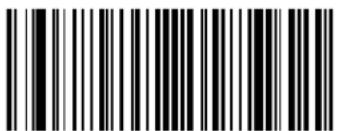 Optional GS1-128 Add-On Timer = 120ms Optional GS1-128 Add-On Timer = 120ms | |
 Optional GS1-128 Add-On Timer = 140ms Optional GS1-128 Add-On Timer = 140ms | |
 Optional GS1-128 Add-On Timer = 160ms Optional GS1-128 Add-On Timer = 160ms | |
Add-Ons — cont.
Optional GS1-128 Add-On Timer — cont.
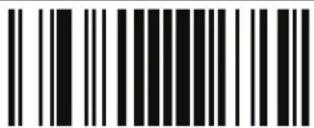 ENTER/EXIT PROGRAMMING MODE ENTER/EXIT PROGRAMMING MODE | |
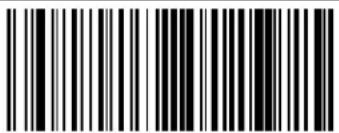 Optional GS1-128 Add-On Timer = 180ms Optional GS1-128 Add-On Timer = 180ms | |
 Optional GS1-128 Add-On Timer = 200ms Optional GS1-128 Add-On Timer = 200ms | |
 Optional GS1-128 Add-On Timer = 220ms Optional GS1-128 Add-On Timer = 220ms | |
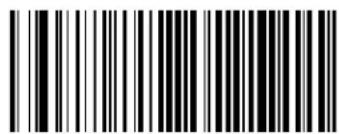 Optional GS1-128 Add-On Timer = 240ms Optional GS1-128 Add-On Timer = 240ms | |
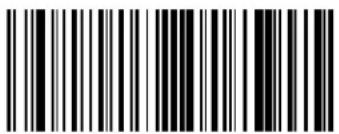 Optional GS1-128 Add-On Timer = 260ms Optional GS1-128 Add-On Timer = 260ms | |
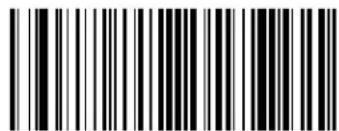 Optional GS1-128 Add-On Timer = 280ms Optional GS1-128 Add-On Timer = 280ms | |
 Optional GS1-128 Add-On Timer = 300ms Optional GS1-128 Add-On Timer = 300ms | |
Add-Ons — cont.
P2 Add-Ons Minimum Reads
This feature specifies the minimum number of times a P2 add-on must be read before it is marked as valid and then combined with a base label.
 ENTER/EXIT PROGRAMMING MODE ENTER/EXIT PROGRAMMING MODE | |
 P2 Add-Ons Minimum Reads = 1 P2 Add-Ons Minimum Reads = 1 | |
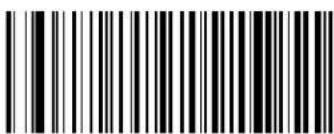 P2 Add-Ons Minimum Reads = 2 P2 Add-Ons Minimum Reads = 2 |  |
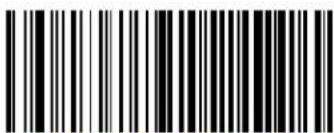 P2 Add-Ons Minimum Reads = 3 P2 Add-Ons Minimum Reads = 3 | |
 P2 Add-Ons Minimum Reads = 4 P2 Add-Ons Minimum Reads = 4 | |
Add-Ons — cont.
P5 Add-Ons Minimum Reads
This feature specifies the minimum number of times a P5 add-on must be read before it is marked as valid and then combined with a base label.
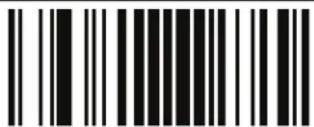 ENTER/EXIT PROGRAMMING MODE ENTER/EXIT PROGRAMMING MODE | |
 |  P5 Add-Ons Minimum Reads = 1 P5 Add-Ons Minimum Reads = 1 |
 P5 Add-Ons Minimum Reads = 2 P5 Add-Ons Minimum Reads = 2 | |
 P5 Add-Ons Minimum Reads = 3 P5 Add-Ons Minimum Reads = 3 | |
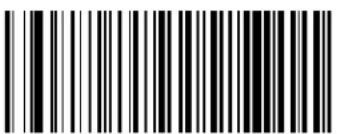 P5 Add-Ons Minimum Reads = 4 P5 Add-Ons Minimum Reads = 4 | |
Add-Ons — cont.
GS1-128 Add-Ons Minimum Reads
This feature specifies the minimum number of times an GS1-128 add-on must be read before it is marked as valid and then combined with a base label.
 ENTER/EXIT PROGRAMMING MODE ENTER/EXIT PROGRAMMING MODE | |
 |  GS1-128 Add-Ons Minimum Reads = 1 GS1-128 Add-Ons Minimum Reads = 1 |
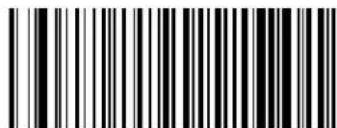 GS1-128 Add-Ons Minimum Reads = 2 GS1-128 Add-Ons Minimum Reads = 2 | |
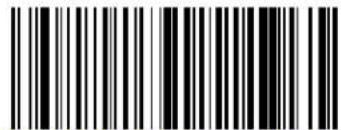 GS1-128 Add-Ons Minimum Reads = 3 GS1-128 Add-Ons Minimum Reads = 3 | |
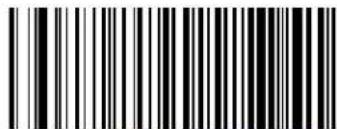 GS1-128 Add-Ons Minimum Reads = 4 GS1-128 Add-Ons Minimum Reads = 4 | |
GS1 DataBar™ Omnidirectional
The following options apply to the GS1 DataBar Omnidirectional (formerly RSS-14) symbology.
GS1 DataBar Omnidirectional Enable/Disable
When disabled, the reader will not read GS1 DataBar Omnidirectional barcodes.
| ENTER/EXIT PROGRAMMING MODE | |
| DEFAULT | GS1 DataBar Omnidirectional = Disable |
| GS1 DataBar Omnidirectional = Enable | |
GS1 DataBar Omnidirectional GS1-128 Emulation
When enabled, GS1 DataBar Omnidirectional barcodes will be translated to the GS1-128 label data format.
| ENTER/EXIT PROGRAMMING MODE | |
| DEFAULT | GS1 DataBar Omnidirectional GS1-128 Emulation = Disable |
| GS1 DataBar Omnidirectional GS1-128 Emulation = Enable | |
GS1 DataBar ^TM Omnidirectional — cont.
GS1 DataBar Omnidirectional Minimum Reads
This feature specifies the minimum number of consecutive times a GS1 DataBar Omni-directional label must be decoded before it is accepted as good read.

text_image
Barcode image with black and white vertical bars on both sidesENTER/EXIT PROGRAMMING MODE


text_image
Black and white barcode image with vertical lines and a small number 'n' in the bottom right corner.
text_image
Black and white barcode image with vertical lines and a small number 'n' in the bottom right corner.GS1 DataBar Omnidirectional Minimum Reads = 1
GS1 DataBar Omnidirectional Minimum Reads = 2

text_image
Black and white barcode image with vertical lines on both sidesGS1 DataBar Omnidirectional Minimum Reads = 3

text_image
Black and white barcode image with vertical lines and a central patternGS1 DataBar Omnidirectional Minimum Reads = 4
GS1 DataBar™ Expanded
The following options apply to the GS1 DataBar Expanded (formerly RSS Expanded) symbology.
GS1 DataBar Expanded Enable/Disable
When disabled, the reader will not read GS1 DataBar Expanded barcodes.
| ENTER/EXIT PROGRAMMING MODE | |
| DEFAULT | GS1 DataBar Expanded = Disable |
| GS1 DataBar Expanded = Enable | |
GS1 DataBar Expanded GS1-128 Emulation
When enabled, GS1 DataBar Expanded barcodes will be translated to the GS1-128 label data format.
| ENTER/EXIT PROGRAMMING MODE | |
| DEFAULT | GS1 DataBar Expanded GS1-128 Emulation = Disable |
| GS1 DataBar Expanded GS1-128 Emulation = Enable | |
GS1 DataBar ^TM Expanded — cont.
GS1 DataBar Expanded Minimum Reads
This feature specifies the minimum number of consecutive times a GS1 DataBar Expanded label must be decoded before it is accepted as good read.

text_image
Barcode image with black and white vertical bars on both sidesENTER/EXIT PROGRAMMING MODE


text_image
Black and white barcode image with vertical lines on both sides
text_image
Black and white barcode image with vertical lines and a small number 'n' in the bottom right corner.GS1 DataBar Expanded Minimum Reads = 2

text_image
Black and white barcode image with vertical lines and a central barGS1 DataBar Expanded Minimum Reads = 3

text_image
Black and white barcode image with vertical lines and a central patternGS1 DataBar Expanded Minimum Reads = 4
GS1 DataBar ^TM Expanded — cont.
GS1 DataBar Expanded Length Control
This feature specifies either variable length decoding or fixed length decoding for the GS1 DataBar Expanded symbology.
Variable Length — For variable-length decoding, a minimum length may be set.
Fixed Length — For fixed-length decoding, two different lengths may be set.
| ENTER/EXIT PROGRAMMING MODE | |
| DEFAULT | GS1 DataBar Expanded Length Control = Variable Length |
| GS1 DataBar Expanded Length Control = Fixed Length | |
GS1 DataBar ^TM Expanded — cont.
GS1 DataBar Expanded Set Length 1
This feature specifies one of the barcode lengths for GS1 DataBar Expanded Length Control. Length 1 is the minimum label length if in Variable Length Mode, or the first fixed length if in Fixed Length Mode. Length includes the barcode's data characters only.
The length can be set from 1 to 74 characters.
Follow these instructions to set this feature:
- Determine the desired character length (from 1 to 74). Pad the number with leading zeroes to yield two digits. For example: 0 = 00, 5 = 05, 20 = 20, etc.
- Scan the ENTER/EXIT PROGRAMMING MODE barcode to enter Programming Mode.
- Scan the barcode: SELECT GS1 DATABAR EXPANDED LENGTH 1 SETTING.
- Scan the appropriate two digits from the keypad in Appendix E, Keypad, that represent the length setting which was determined in the steps above. You will hear a two-beep indication after the last character.

If you make a mistake before the last character, scan the CANCEL barcode to abort and not save the entry string. You can then start again at the beginning.
NOTE
- Scan the ENTER/EXIT PROGRAMMING MODE barcode to exit Programming Mode.
This completes the procedure. See Table 19 for some examples of how to set this feature.
Table 19. GS1 DataBar Expanded Length 1 Setting Examples
| STEP ACTION EXAMPLES | ||||
| 1 Desired Setting 01 Character 07 Characters | 52 Characters | 4 Characters | ||
| 2 Scan ENTER/EXIT PROGRAMMING MODE | ||||
| 3 Scan SELECT GS1 DATABASE EXPANDED LENGTH 1SETTING | ||||
| 4 | Scan Two Characters From Appendix E, Keypad | ‘0’ and ‘1’ ‘0’ and ‘7’ ‘5’ and ‘2’ ‘7’ | AND ‘4’ | |
| 5 Scan ENTER/EXIT PROGRAMMING MODE | ||||
GS1 DataBar ^TM Expanded — cont.
GS1 DataBar Expanded Set Length 1 — cont.
 ENTER/EXIT PROGRAMMING MODE ENTER/EXIT PROGRAMMING MODE | |
 Select GS1 DataBar Expanded Set Length 1 Setting Select GS1 DataBar Expanded Set Length 1 Setting | |
| Make a mistake? Scan the CANCEL barcode to abort and not save the entry string. You can then start again at the beginning. |  CANCEL CANCEL |
DEFAULT
01 = Length 1 is 1 Character
GS1 DataBar ^TM Expanded — cont.
GS1 DataBar Expanded Set Length 2
This feature specifies one of the barcode lengths for GS1 DataBar Expanded Length Control. Length 2 is the maximum label length if in Variable Length Mode, or the second fixed length if in Fixed Length Mode. Length includes the barcode's data characters only.
The length can be set from 1 to 74 characters. A setting of 0 specifies to ignore this length (only one fixed length).
Follow these instructions to set this feature:
- Determine the desired character length (from 1 to 74). Pad the number with leading zeroes to yield two digits. For example: 0 = 00, 5 = 05, 20 = 20, etc.
- Scan the ENTER/EXIT PROGRAMMING MODE barcode to enter Programming Mode.
- Scan the barcode: SELECT GS1 DATABAR EXPANDED LENGTH 2 SETTING.
- Scan the appropriate two digits from the keypad in Appendix E, Keypad, that represent the length setting which was determined in the steps above. You will hear a two-beep indication after the last character.

If you make a mistake before the last character, scan the CANCEL barcode to abort and not save the entry string. You can then start again at the beginning.
NOTE
- Scan the ENTER/EXIT PROGRAMMING MODE barcode to exit Programming Mode.
This completes the procedure. See Table 20 for some examples of how to set this feature.
Table 20. GS1 DataBar Expanded Length 2 Setting Examples
| STEP ACTION EXAMPLES | ||||
| 1 Desired Setting | 00 (ignore second length) | 07 Characters 52 | Characters 74 Characters | |
| 2 Scan ENTER/EXIT PROGRAMMING MODE | ||||
| 3 Scan SELECT GS1 DATABASE EXPANDED LENGTH 2 SETTING | ||||
| 4 | Scan Two Characters From Appendix E, Keypad | ‘0’ and ‘0’ ‘0’ and ‘7’ ‘5’ and ‘2’ ‘7’ and ‘4’ | ||
| 5 Scan ENTER/EXIT PROGRAMMING MODE | ||||
GS1 DataBar ^TM Expanded — cont.
GS1 DataBar Expanded Set Length 2 — cont.

text_image
Black and white barcode image with vertical linesENTER/EXIT PROGRAMMING MODE

Select GS1 DataBar Expanded Set Length 2 Setting
Make a mistake? Scan the CANCEL barcode to abort and not save the entry string. You can then start again at the beginning.

CANCEL
DEFAULT
74 = Length 2 is 74 Characters
GS1 DataBar™ Limited
The following options apply to the GS1 DataBar Limited (formerly RSS Limited) symbology.
GS1 DataBar Limited Enable/Disable
When disabled, the reader will not read GS1 DataBar Limited barcodes.
| ENTER/EXIT PROGRAMMING MODE | |
| DEFAULT | GS1 DataBar Limited = Disable |
| GS1 DataBar Limited = Enable | |
GS1 DataBar Limited GS1-128 Emulation
When enabled, GS1 DataBar Limited barcodes will be translated to the GS1-128 label data format.
| ENTER/EXIT PROGRAMMING MODE | |
| DEFAULT | GS1 DataBar Limited GS1-128 Emulation = Disable |
| GS1 DataBar Limited GS1-128 Emulation = Enable | |
GS1 DataBar ^TM Limited — cont.
GS1 DataBar Limited Minimum Reads
This feature specifies the minimum number of consecutive times a GS1 DataBar Limited label must be decoded before it is accepted as good read.

text_image
Black and white barcode image with vertical lines and a small number '1' at the bottom right.ENTER/EXIT PROGRAMMING MODE

text_image
DEFAULT
text_image
Black and white barcode image with vertical lines and a small number 'n' in the bottom right corner.GS1 DataBar Limited Minimum Reads = 1

text_image
Black and white barcode image with vertical lines and a small number '1' at the bottomGS1 DataBar Limited Minimum Reads = 2

text_image
Black and white barcode image with vertical lines and dotsGS1 DataBar Limited Minimum Reads = 3

text_image
Black and white barcode image with vertical lines and a small number 'n' in the bottom right corner.GS1 DataBar Limited Minimum Reads = 4
Code 39
The following options apply to the Code 39 symbology.
Code 39 Enable/Disable
When disabled, the reader will not read Code 39 barcodes.
 ENTER/EXIT PROGRAMMING MODE ENTER/EXIT PROGRAMMING MODE | |
 Code 39 = Disable Code 39 = Disable | |
 Code 39 = Enable Code 39 = Enable |  |
Code 39 — cont.
Code 39 Check Character Calculation
Enable this option to enables/disables calculation and verification of an optional Code 39 check character. When disabled, any check character in the label is treated as a data character
 ENTER/EXIT PROGRAMMING MODE ENTER/EXIT PROGRAMMING MODE | |
 Code 39 Check Character Calculation = Don't Calculate Code 39 Check Character Calculation = Don't Calculate | |
 Code 39 Check Character Calculation = Calculate Std Check Code 39 Check Character Calculation = Calculate Std Check |  |
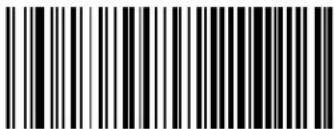 Code 39 Check Character Calculation = Calculate Mod 7 Check Code 39 Check Character Calculation = Calculate Mod 7 Check | |
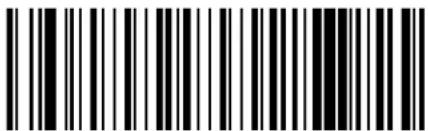 Code 39 Check Character Calculation = Enable Italian Post Check Code 39 Check Character Calculation = Enable Italian Post Check | |
 Code 39 Check Character Calculation = Enable Daimler Chrysler Check Code 39 Check Character Calculation = Enable Daimler Chrysler Check | |
Code 39 — cont.
Code 39 Check Character Transmission
Enable this option to transmit the check character along with Code 39 barcode data.
| ENTER/EXIT PROGRAMMING MODE | |
| Code 39 Check Character Transmission = Don't Send | |
| Code 39 Check Character Transmission = Send | DEFAULT |
Code 39 Start/Stop Character Transmission
Enable this option to enable/disable transmission of Code 39 start and stop characters.
| ENTER/EXIT PROGRAMMING MODE | |
| DEFAULT | Code 39 Start/Stop Character Transmission = Don't Transmit |
| Code 39 Start/Stop Character Transmission = Transmit | |
Code 39 — cont.
Code 39 Full ASCII
In Code 39 decoding, this enables/disables the translation of Code 39 characters to Code 39 full-ASCII characters.

text_image
Black and white barcode image with vertical lines on both sidesENTER/EXIT PROGRAMMING MODE

text_image
DEFAULT
text_image
Black and white barcode image with vertical lines and a central patternCode 39 Full ASCII = Disable

text_image
Black and white barcode image with vertical lines on both sidesCode 39 Full ASCII = Enable
Code 39 — cont.
Code 39 Quiet Zones
This feature specifies the number of quiet zones for Code 39 labels. Quiet zones are blank areas at the ends of a barcode and are typically 10 times the width of the narrowest bar or space in the label.
 ENTER/EXIT PROGRAMMING MODE ENTER/EXIT PROGRAMMING MODE | |
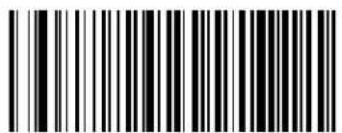 Code 39 Quiet Zones = Quiet Zone on one side Code 39 Quiet Zones = Quiet Zone on one side | |
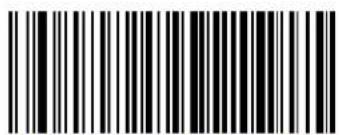 Code 39 Quiet Zones = Quiet Zones on two sides Code 39 Quiet Zones = Quiet Zones on two sides | |
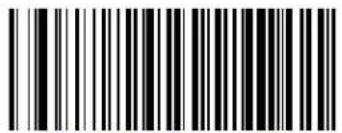 Code 39 Quiet Zones = Auto Code 39 Quiet Zones = Auto |  |
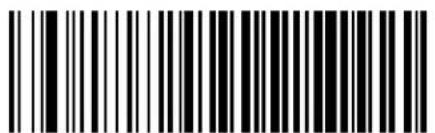 Code 39 Quiet Zones = Virtual Quiet Zones on two sides Code 39 Quiet Zones = Virtual Quiet Zones on two sides | |
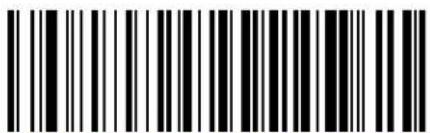 Code 39 Quiet Zones = Small Quiet Zones on two sides Code 39 Quiet Zones = Small Quiet Zones on two sides | |
Code 39 — cont.
Code 39 Minimum Reads
This feature specifies the minimum number of consecutive times a Code 39 label must be decoded before it is accepted as good read..
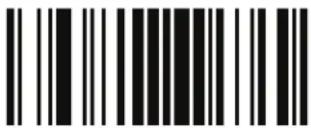 ENTER/EXIT PROGRAMMING MODE ENTER/EXIT PROGRAMMING MODE | |
 | 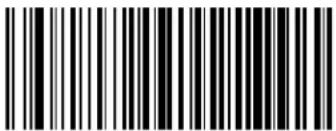 Code 39 Minimum Reads = 1 Code 39 Minimum Reads = 1 |
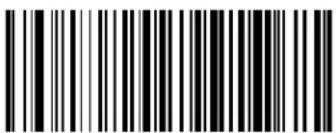 Code 39 Minimum Reads = 2 Code 39 Minimum Reads = 2 | |
 Code 39 Minimum Reads = 3 Code 39 Minimum Reads = 3 | |
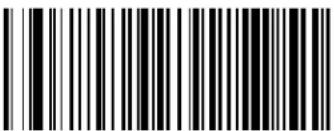 Code 39 Minimum Reads = 4 Code 39 Minimum Reads = 4 | |
Code 39 — cont.
Code 39 Decoding Level
Decoding Levels are used to configure a barcode symbology decoder to be very aggressive to very conservative depending on a particular customer's needs.
- Choosing Level 1 results in a very conservative decoder at the expense of not being able to read poorly printed or damaged labels.
- Choosing Level 5 results in a very aggressive decoder. This aggressive behavior allows decoding of poorly printed and damaged labels at the expense of increasing the likelihood of decoding errors.
- Choosing Level 3, which is the default setting, allows the majority of product labels to be decoded.
There are many factors that determine when to change the decoding level for a particular symbology. These factors include spots, voids, non-uniform bar/space widths, damaged labels, etc. that may be experienced in some barcode labels. If there are many hard to read or damaged labels that cannot be decoded using a conservative setting, increase the decoding level to be more aggressive. If the majority of labels are very good quality labels, or there is a need to decrease the possibility of a decoder error, lower the decoding level to a more conservative level.

NOTE
This configuration item applies to Code 39 and Code 32.
Code 39 — cont.
Code 39 Decoding Level — cont.
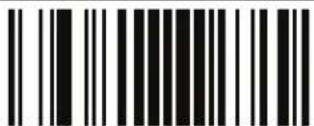 ENTER/EXIT PROGRAMMING MODE ENTER/EXIT PROGRAMMING MODE | |
 Code 39 Decoding Level = 1 Code 39 Decoding Level = 1 | |
 Code 39 Decoding Level = 2 Code 39 Decoding Level = 2 | |
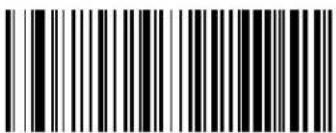 Code 39 Decoding Level = 3 Code 39 Decoding Level = 3 |  |
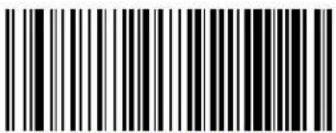 Code 39 Decoding Level = 4 Code 39 Decoding Level = 4 | |
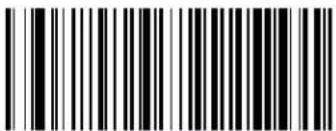 Code 39 Decoding Level = 5 Code 39 Decoding Level = 5 | |
Code 39 — cont.
Code 39 Length Control
This feature specifies either variable length decoding or fixed length decoding for the Code 39 symbology.
Variable Length — For variable length decoding, a minimum and maximum length may be set.
Fixed Length — For fixed length decoding, two different lengths may be set.
 ENTER/EXIT PROGRAMMING MODE ENTER/EXIT PROGRAMMING MODE | |
 | 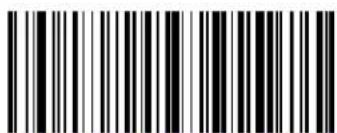 Code 39 Length Control = Variable Length Code 39 Length Control = Variable Length |
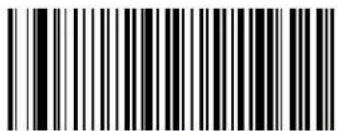 Code 39 Length Control = Fixed Length Code 39 Length Control = Fixed Length | |
Code 39 — cont.
Code 39 Set Length 1
This feature specifies one of the barcode lengths for Code 39 Length Control. Length 1 is the minimum label length if in Variable Length Mode, or the first fixed length if in Fixed Length Mode. Length includes the barcode's data characters only. The length can be set from 0 to 50 characters.
Follow these instructions to set this feature:
- Determine the desired character length (from 0 to 50). Pad the number with leading zeroes to yield two digits. For example: 0 = 00, 5 = 05, 20 = 20, etc.
- Scan the ENTER/EXIT PROGRAMMING MODE barcode to enter Programming Mode.
- Scan the barcode: SELECT CODE 39 LENGTH 1 SETTING.
- Scan the appropriate two digits from the keypad in Appendix E, Keypad, that represent the length setting which was determined in the steps above. You will hear a two-beep indication after the last character.

If you make a mistake before the last character, scan the CANCEL barcode to abort and not save the entry string. You can then start again at the beginning.
NOTE
- Scan the ENTER/EXIT PROGRAMMING MODE barcode to exit Programming Mode.
This completes the procedure. See Table 21 for some examples of how to set this feature.
Table 21. Code 39 Length 1 Setting Examples
| STEP ACTION EXAMPLES | ||||
| 1 Desired Setting 00 Characters 07 Characters 15 Characters 50 Characters | ||||
| 2 Scan ENTER/EXIT PROGRAMMING MODE | ||||
| 3 Scan SELECT CODE 39 LENGTH 1 SETTING | ||||
| 4 | Scan Two Characters FromAppendix E, Keypad | ‘0’ and ‘0’ ‘0’ and ‘7’ ‘1’ and ‘5’ ‘5’ AND ‘0’ | ||
| 5 Scan ENTER/EXIT PROGRAMMING MODE | ||||
Code 39 — cont.
Code 39 Set Length 1 — cont.

text_image
ENTER/EXIT PROGRAMMING MODE
text_image
Select Code 39 Set Length 1 SettingMake a mistake? Scan the CANCEL barcode to abort and not save the entry string. You can then start again at the beginning.

DEFAULT
02 = Length 1 is 2 Characters
Code 39 — cont.
Code 39 Set Length 2
This feature specifies one of the barcode lengths for Code 39 Length Control. Length 2 is the maximum label length if in Variable Length Mode, or the second fixed length if in Fixed Length Mode. Length includes the barcode's check, data, and full-ASCII shift characters. The length does not include start/stop characters.
The length can be set from 1 to 50 characters. A setting of 0 specifies to ignore this length (only one fixed length).
Follow these instructions to set this feature:
- Determine the desired character length (from 1 to 50 — or 0 to ignore this length). Pad the number with leading zeroes to yield two digits. For example: 0 = 00, 5 = 05, 20 = 20, etc.
- Scan the ENTER/EXIT PROGRAMMING MODE barcode to enter Programming Mode.
- Scan the barcode: SELECT CODE 39 LENGTH 2 SETTING.
- Scan the appropriate two digits from the keypad in Appendix E, Keypad, that represent the length setting which was determined in the steps above. You will hear a two-beep indication after the last character.

If you make a mistake, before the last character scan the CANCEL barcode to abort and not save the entry string. You can then start again at the beginning.
NOTE
- Scan the ENTER/EXIT PROGRAMMING MODE barcode to exit Programming Mode.
This completes the procedure. See Table 22 for some examples of how to set this feature.
Table 22. Code 39 Length 2 Setting Examples
| STEP ACTION EXAMPLES | ||||
| 1 Desired Setting | 00 (Ignore This Length) | 07 Characters 15 | Characters 50 Characters | |
| 2 Scan ENTER/EXIT PROGRAMMING MODE | ||||
| 3 Scan SELECT CODE 39 LENGTH 2 SETTING | ||||
| 4 | Scan Two Characters From Appendix E, Keypad | ‘0’ and ‘0’ ‘0’ and ‘7’ ‘1’ and ‘5’ ‘5’ AND ‘0’ | ||
| 5 Scan ENTER/EXIT PROGRAMMING MODE | ||||
Code 39 — cont.
Code 39 Set Length 2 — cont.

text_image
ENTER/EXIT PROGRAMMING MODE
text_image
Select Code 39Length 2 SettinMake a mistake? Scan the CANCEL barcode to abort and not save the entry string. You can then start again at the beginning.

DEFAULT
50 = Length 2 is 50 Characters
Code 39 — cont.
Code 39 Interdigit Ratio
This feature specifies the ratio between an intercharacter space and module for Code 39 labels.
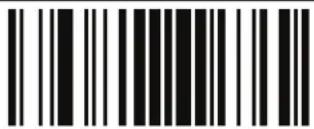 ENTER/EXIT PROGRAMMING MODE ENTER/EXIT PROGRAMMING MODE | |
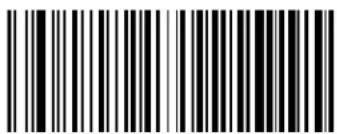 Code 39 Interdigit Ratio = Disable Code 39 Interdigit Ratio = Disable | |
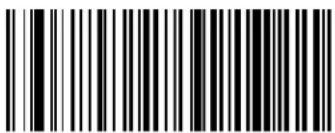 Code 39 Interdigit Ratio = 1 Code 39 Interdigit Ratio = 1 | |
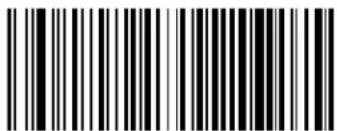 Code 39 Interdigit Ratio = 2 Code 39 Interdigit Ratio = 2 | |
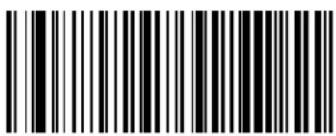 Code 39 Interdigit Ratio = 3 Code 39 Interdigit Ratio = 3 | |
 | 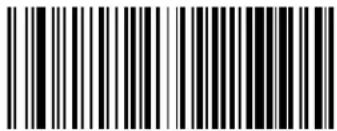 Code 39 Interdigit Ratio = 4 Code 39 Interdigit Ratio = 4 |
 Code 39 Interdigit Ratio = 5 Code 39 Interdigit Ratio = 5 | |
Code 39 — cont.
Code 39 Interdigit Ratio — cont.
| ENTER/EXIT PROGRAMMING MODE | |
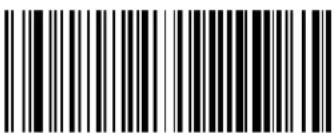 Code 39 Interdigit Ratio = 6 Code 39 Interdigit Ratio = 6 | |
 Code 39 Interdigit Ratio = 7 Code 39 Interdigit Ratio = 7 | |
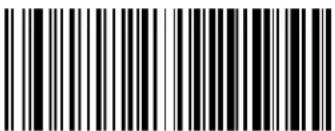 Code 39 Interdigit Ratio = 8 Code 39 Interdigit Ratio = 8 | |
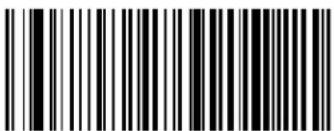 Code 39 Interdigit Ratio = 9 Code 39 Interdigit Ratio = 9 | |
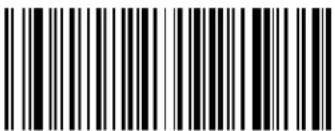 Code 39 Interdigit Ratio = 10 Code 39 Interdigit Ratio = 10 | |
Code 39 — cont.
Code 39 Character Correlation
When correlation is enabled, the barcode reader will combine label data from multiple scans when decoding. Enabling correlation will help the scanner read labels that have some spots and/or voids. It may also help read labels that have damaged areas. Enabling correlation will also increase the chances that a label will be read incorrectly.

text_image
Black and white barcode image with vertical lines on both sidesENTER/EXIT PROGRAMMING MODE

text_image
DEFAULT
text_image
Black and white barcode image with vertical lines on both sidesCode 39 Character Correlation = Disable

text_image
Black and white barcode image with vertical lines on both sidesCode 39 Character Correlation = Enable
Code 39 Stitching
This option enables/disables stitching for Code 39 labels. When parts of a Code 39 barcode are presented to the reader with this feature enabled, the barcode parts will be assembled by the reader's software, and the data will be decoded if all barcode proofing requirements are met.

text_image
ENTER/EXIT PROGRAMMING MODE| ENTER/EXIT PROGRAMMING MODE | |
| Code 39 Stitching = Disable | |
| Code 39 Stitching = Enable | DEFAULT |
Code 32 (Italian Pharmaceutical)
The following options apply to the Code 32 (Italian Pharamaceutical Code) symbology.
Code 32 Enable/Disable
When disabled, the reader will not read Code 32 barcodes.

text_image
Black and white barcode image with vertical lines on both sidesENTER/EXIT PROGRAMMING MODE

text_image
DEFAULT
text_image
Black and white barcode image with vertical lines and a central dotCode 32 = Disable

text_image
Black and white barcode image with vertical lines and a central dotCode 32 = Enable
Code 32 Feature Setting Exceptions

NOTE
The following features are set for Code 32 by using these Code 39 settings:
Code 39 Quiet Zones on page 176
Code 39 Minimum Reads on page 177
Code 39 Decoding Level on page 178
Code 39 Interdigit Ratio on page 185
Code 39 Character Correlation on page 187
Code 39 Stitching on page 188
Code 32 (Italian Pharmaceutical) — cont.
Code 32 Check Character Transmission
Enable this option to transmit the check character along with Code 32 barcode data.
| ENTER/EXIT PROGRAMMING MODE | |
| DEFAULT | Code 32 Check Character Transmission = Don't Send |
| Code 32 Check Character Transmission = Send | |
Code 32 Start/Stop Character Transmission
This option enables/disable transmission of Code 32 start and stop characters.
| ENTER/EXIT PROGRAMMING MODE | |
| DEFAULT | Code 32 Start/Stop Character Transmission = Don't Transmit |
| Code 32 Start/Stop Character Transmission = Transmit | |
Code 39 CIP (French Pharmaceutical)
The following options apply to the Code 39 CIP symbology.
Code 39 CIP Enable/Disable
Enables/Disables ability of the reader to decode Code 39 CIP labels.
| ENTER/EXIT PROGRAMMING MODE | |
| DEFAULT | Code 39 CIP = Disable |
| Code 39 CIP = Enable | |
Code 128
The following options apply to the Code 128 symbology.
Code 128 Enable/Disable
When disabled, the reader will not read Code 128 barcodes.
| ENTER/EXIT PROGRAMMING MODE | |
| Code 128 = Disable | |
| Code 128 = Enable | DEFAULT |
Code 128 - cont.
Expand Code 128 to Code 39
This feature enables/disables expansion of Code 128 labels to Code 39 labels.
| ENTER/EXIT PROGRAMMING MODE | |
| DEFAULT | Code 128 to Code 39 = Don't Expand |
| Code 128 to Code 39 = Expand | |
Code 128 Check Character Transmission
Enable this option to transmit the check character along with Code 128 barcode data.
| ENTER/EXIT PROGRAMMING MODE | |
| DEFAULT | Code 128 Check Character Transmission = Don't Send |
| Code 128 Check Character Transmission = Send | |
Code 128 - cont.
Code 128 Function Character Transmission
Enables/disables transmission of Code128 function characters 1, 2, 3, and 4.
| ENTER/EXIT PROGRAMMING MODE | |
| DEFAULT | Code 128 Function Character Transmission = Don't Send |
| Code 128 Function Character Transmission = Send | |
Code 128 - cont.
Code 128 Sub-Code Change Transmission
Enables/disables the transmission of "Sub-Code exchange" characters (NOT transmitted by standard decoding).

text_image
ENTER/EXIT PROGRAMMING MODE
text_image
DEFAULT
text_image
Code 128 Sub-Code Change Transmission = Disable
text_image
Code 128 Sub-Code Change Transmission = EnableCode 128 - cont.
Code 128 Quiet Zones
This feature specifies the number of quiet zones for Code 128 labels. Quiet zones are blank areas at the ends of a barcode and are typically 10 times the width of the narrowest bar or space in the label.
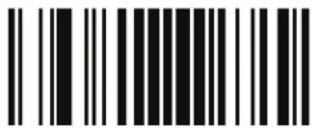 ENTER/EXIT PROGRAMMING MODE ENTER/EXIT PROGRAMMING MODE | |
 Code 128 Quiet Zones = No Quiet Zones Code 128 Quiet Zones = No Quiet Zones | |
 Code 128 Quiet Zones = Quiet Zone on one side Code 128 Quiet Zones = Quiet Zone on one side | |
 Code 128 Quiet Zones = Quiet Zones on two sides Code 128 Quiet Zones = Quiet Zones on two sides | |
 Code 128 Quiet Zones = Auto Code 128 Quiet Zones = Auto |  |
 Code 128 Quiet Zones = Virtual Quiet Zones on two sides Code 128 Quiet Zones = Virtual Quiet Zones on two sides | |
Code 128 — cont.
Code 128 Minimum Reads
This feature specifies the minimum number of consecutive times a Code 128 label must be decoded before it is accepted as good read..
 ENTER/EXIT PROGRAMMING MODE ENTER/EXIT PROGRAMMING MODE | |
 |  Code 128 Minimum Reads = 1 Code 128 Minimum Reads = 1 |
 Code 128 Minimum Reads = 2 Code 128 Minimum Reads = 2 | |
 Code 128 Minimum Reads = 3 Code 128 Minimum Reads = 3 | |
 Code 128 Minimum Reads = 4 Code 128 Minimum Reads = 4 | |
Code 128 - cont.
Code 128 Decoding Level
Decoding Levels are used to configure a barcode symbology decoder to be very aggressive to very conservative depending on a particular customer's needs.
- Choosing Level 1 results in a very conservative decoder at the expense of not being able to read poorly printed or damaged labels.
- Choosing Level 5 results in a very aggressive decoder. This aggressive behavior allows decoding of poorly printed and damaged labels at the expense of increasing the likelihood of decoding errors.
- Choosing Level 3, which is the default setting, allows the majority of product labels to be decoded.
There are many factors that determine when to change the decoding level for a particular symbology. These factors include spots, voids, non-uniform bar/space widths, damaged labels, etc. that may be experienced in some barcode labels. If there are many hard to read or damaged labels that cannot be decoded using a conservative setting, increase the decoding level to be more aggressive. If the majority of labels are very good quality labels, or there is a need to decrease the possibility of a decoder error, lower the decoding level to a more conservative level.
Code 128 - cont.
Code 128 Decoding Level — cont.
 ENTER/EXIT PROGRAMMING MODE ENTER/EXIT PROGRAMMING MODE | |
 Code 128 Decoding Level = 1 Code 128 Decoding Level = 1 | |
 Code 128 Decoding Level = 2 Code 128 Decoding Level = 2 | |
 Code 128 Decoding Level = 3 Code 128 Decoding Level = 3 |  |
 Code 128 Decoding Level = 4 Code 128 Decoding Level = 4 | |
 Code 128 Decoding Level = 5 Code 128 Decoding Level = 5 | |
Code 128 - cont.
Code 128 Length Control
This feature specifies either variable length decoding or fixed length decoding for the Code 128 symbology.
Variable Length — For variable length decoding, a minimum and maximum length may be set.
Fixed Length — For fixed length decoding, two different lengths may be set.
 ENTER/EXIT PROGRAMMING MODE ENTER/EXIT PROGRAMMING MODE | |
 |  Code 128 Length Control = Variable Length Code 128 Length Control = Variable Length |
 Code 128 Length Control = Fixed Length Code 128 Length Control = Fixed Length | |
Code 128 - cont.
Code 128 Set Length 1
This feature specifies one of the barcode lengths for Code 128 Length Control. Length 1 is the minimum label length if in Variable Length Mode, or the first fixed length if in Fixed Length Mode. Length includes the barcode's data characters only. The length can be set from 1 to 80 characters.
Follow these instructions to set this feature:
- Determine the desired character length (from 1 to 80). Pad the number with leading zeroes to yield two digits. For example: 0 = 00 , 5 = 05 , 20 = 20 , etc.
- Scan the ENTER/EXIT PROGRAMMING MODE barcode to enter Programming Mode.
- Scan the barcode: SELECT CODE 128 LENGTH 1 SETTING.
- Scan the appropriate two digits from the keypad in Appendix E, Keypad, that represent the length setting which was determined in the steps above. You will hear a two-beep indication after the last character.

If you make a mistake before the last character, scan the CANCEL barcode to abort and not save the entry string. You can then start again at the beginning.
NOTE
- Scan the ENTER/EXIT PROGRAMMING MODE barcode to exit Programming Mode.
This completes the procedure. See Table 23 for some examples of how to set this feature.
Table 23. Code 128 Length 1 Setting Examples
| STEP ACTION EXAMPLES | ||||
| 1 Desired Setting 01 Character 07 Characters 15 Characters 80 Characters | ||||
| 2 Scan ENTER/EXIT PROGRAMMING MODE | ||||
| 3 Scan SELECT CODE 128 LENGTH 1 SETTING | ||||
| 4 | Scan Two Characters From Appendix E, Keypad | ‘0’ and ‘1’ ‘0’ and ‘7’ ‘1’ and ‘5’ ‘8’ | AND ‘0’ | |
| 5 Scan ENTER/EXIT PROGRAMMING MODE | ||||
Code 128 - cont.
Code 128 Set Length 1 — cont.
 ENTER/EXIT PROGRAMMING MODE ENTER/EXIT PROGRAMMING MODE | |
 Select Code 128 Set Length 1 Setting Select Code 128 Set Length 1 Setting | |
| Make a mistake? Scan the CANCEL barcode to abort and not save the entry string. You can then start again at the beginning. |  CANCEL CANCEL |

text_image
DEFAULT01 = Length 1 is 1 Character
Code 128 - cont.
Code 128 Set Length 2
This feature specifies one of the barcode lengths for Code 128 Length Control. Length 2 is the maximum label length if in Variable Length Mode, or the second fixed length if in Fixed Length Mode. Length includes the barcode's data characters only.
The length can be set from 1 to 80 characters. A setting of 0 specifies to ignore this length (only one fixed length).
Follow these instructions to set this feature:
- Determine the desired character length (from 1 to 80 — or 0 to ignore this length). Pad the number with leading zeroes to yield two digits. For example: 0 = 00 , 5 = 05 , 20 = 20 , etc.
- Scan the ENTER/EXIT PROGRAMMING MODE barcode to enter Programming Mode.
- Scan the barcode: SELECT CODE 128 LENGTH 2 SETTING.
- Scan the appropriate two digits from the keypad in Appendix E, Keypad, that represent the length setting which was determined in the steps above. You will hear a two-beep indication after the last character.

If you make a mistake before the last character, scan the CANCEL barcode to abort and not save the entry string. You can then start again at the beginning.
NOTE
- Scan the ENTER/EXIT PROGRAMMING MODE barcode to exit Programming Mode.
This completes the procedure. See Table 24 for some examples of how to set this feature.
Table 24. Code 128 Length 2 Setting Examples
| STEP ACTION EXAMPLES | ||||
| 1 Desired Setting | 00 (Ignore This Length) | 07 Characters 15 | Characters 80 Characters | |
| 2 Scan ENTER/EXIT PROGRAMMING MODE | ||||
| 3 Scan SELECT CODE 128 LENGTH 2 SETTING | ||||
| 4 | Scan Two Characters From Appendix E, Keypad | ‘0’ and ‘0’ ‘0’ and ‘7’ ‘0’ and ‘F’ ‘5’ AND 0’ | ||
| 5 Scan ENTER/EXIT PROGRAMMING MODE | ||||
Code 128 - cont.
Code 128 Set Length 2 — cont.
 ENTER/EXIT PROGRAMMING MODE ENTER/EXIT PROGRAMMING MODE | |
 Select Code 128 Length 2 Setting Select Code 128 Length 2 Setting | |
| Make a mistake? Scan the CANCEL barcode to abort and not save the entry string. You can then start again at the beginning. |  CANCEL CANCEL |

text_image
DEFAULT80 = Length 2 is 80 Characters
Code 128 — cont.
Code 128 Character Correlation
When correlation is enabled, the barcode reader will combine label data from multiple scans when decoding. Enabling correlation will help the scanner read labels that have some spots and/or voids. It may also help read labels that have damaged areas. Enabling correlation will also increase the chances that a label will be read incorrectly.

text_image
Black and white barcode image with vertical lines on both sidesENTER/EXIT PROGRAMMING MODE

text_image
DEFAULT
text_image
Black and white barcode image with vertical lines and dotsCode 128 Character Correlation = Disable

text_image
Black and white barcode image with vertical lines and a small number 'n' in the bottom right corner.Code 128 Character Correlation = Enable
Code 128 - cont.
Code 128 Stitching
This option enables/disables stitching for Code 128 labels. When parts of a Code 128 barcode are presented to the reader with this feature enabled, the barcode parts will be assembled by the reader's software, and the data will be decoded if all barcode proofing requirements are met.
 ENTER/EXIT PROGRAMMING MODE ENTER/EXIT PROGRAMMING MODE | |
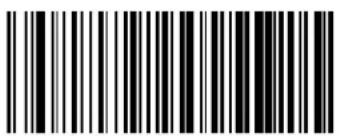 Code 128 Stitching = Disable Code 128 Stitching = Disable | |
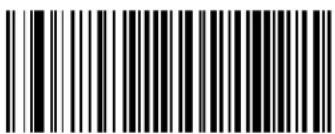 Code 128 Stitching = Enable Code 128 Stitching = Enable |  |
GS1-128
The following options apply to the GS1-128 symbology. (Also known as USS-128, GTIN-128, UCC-128, EAN 128.)
GS1-128 Enable
This option enables/disables the ability of the reader to translate GS1-128 labels to the GS1-128 data format. Options are:
• Transmit GS1-128 labels in Code 128 data format.
• Transmit GS1-128 labels in GS1-128 data format.
- Do not transmit GS1-128 labels.

text_image
ENTER/EXIT PROGRAMMING MODE
text_image
DEFAULT
text_image
GS1-128 = Transmit in Code 128 data format
text_image
GS1-128 = Transmit in GS1-128 data format
text_image
GS1-128 = Do not transmit GS1-128 labelsInterleaved 2 of 5 (1 2 of 5)
The following options apply to the I 2 of 5 symbology.
I 2 of 5 Enable/Disable
When disabled, the reader will not read I 2 of 5 barcodes.
 ENTER/EXIT PROGRAMMING MODE ENTER/EXIT PROGRAMMING MODE | |
 |  12 of 5 = Disable 12 of 5 = Disable |
 12 of 5 = Enable 12 of 5 = Enable | |
Interleaved 2 of 5 (I 2 of 5) — cont.
12 of 5 Check Character Calculation
This option enables/disables calculation and verification of an optional I 2 of 5 check character. When disabled, any check character in label is treated as a data character.
 ENTER/EXIT PROGRAMMING MODE ENTER/EXIT PROGRAMMING MODE | |
 |  I 2 of 5 Check Character Calculation = Disable I 2 of 5 Check Character Calculation = Disable |
 I 2 of 5 Check Character Calculation = Check Standard (Modulo 10) I 2 of 5 Check Character Calculation = Check Standard (Modulo 10) | |
 I 2 of 5 Check Character Calculation = Check German Parcel I 2 of 5 Check Character Calculation = Check German Parcel | |
 I 2 of 5 Check Character Calculation = Check DHL I 2 of 5 Check Character Calculation = Check DHL | |
 I 2 of 5 Check Character Calculation = Check Daimler Chrysler I 2 of 5 Check Character Calculation = Check Daimler Chrysler | |
 I 2 of 5 Check Character Calculation = Check Bosch I 2 of 5 Check Character Calculation = Check Bosch | |
Interleaved 2 of 5 (I 2 of 5) — cont.
I 2 of 5 Check Character Calculation — cont.

text_image
Black and white barcode image with vertical lines on both sidesENTER/EXIT PROGRAMMING MODE

text_image
Black and white barcode image with vertical lines and a small number 'n' in the bottom right corner.12 of 5 Check Character Calculation = Check Italian Post
I 2 of 5 Check Character Transmission
Enable this option to transmit the check character along with I 2 of 5 barcode data.

text_image
Black and white barcode image with vertical lines on both sidesENTER/EXIT PROGRAMMING MODE

text_image
Black and white barcode image with vertical lines and a small number '1' at the bottom right.12 of 5 Check Character Transmission = Don't Send

text_image
Black and white barcode image with vertical lines on both sides12 of 5 Check Character Transmission = Send

Interleaved 2 of 5 (I 2 of 5) — cont.
12 of 5 Minimum Reads
This feature specifies the minimum number of consecutive times an I 2 of 5 label must be decoded before it is accepted as good read..
 ENTER/EXIT PROGRAMMING MODE ENTER/EXIT PROGRAMMING MODE | |
 |  I 2 of 5 Minimum Reads = 1 I 2 of 5 Minimum Reads = 1 |
 I 2 of 5 Minimum Reads = 2 I 2 of 5 Minimum Reads = 2 | |
 I 2 of 5 Minimum Reads = 3 I 2 of 5 Minimum Reads = 3 | |
 I 2 of 5 Minimum Reads = 4 I 2 of 5 Minimum Reads = 4 | |
Interleaved 2 of 5 (I 2 of 5) — cont.
I 2 of 5 Decoding Level

This configuration item applies to Interleaved 2 of 5, Datalogic 2 of 5 and Standard 2 of 5.
NOTE
Decoding Levels are used to configure a barcode symbology decoder to be very aggressive to very conservative depending on a particular customer's needs.
- Choosing Level 1 results in a very conservative decoder at the expense of not being able to read poorly printed or damaged labels.
- Choosing Level 5 results in a very aggressive decoder. This aggressive behavior allows decoding of poorly printed and damaged labels at the expense of increasing the likelihood of decoding errors.
- Choosing Level 3, which is the default setting, allows the majority of product labels to be decoded.
There are many factors that determine when to change the decoding level for a particular symbology. These factors include spots, voids, non-uniform bar/space widths, damaged labels, etc. that may be experienced in some barcode labels. If there are many hard to read or damaged labels that cannot be decoded using a conservative setting, increase the decoding level to be more aggressive. If the majority of labels are very good quality labels, or there is a need to decrease the possibility of a decoder error, lower the decoding level to a more conservative level.
Interleaved 2 of 5 (I 2 of 5) — cont.
I 2 of 5 Decoding Level — cont.
 ENTER/EXIT PROGRAMMING MODE ENTER/EXIT PROGRAMMING MODE | |
 2 of 5 Decoding Level = 1 2 of 5 Decoding Level = 1 | |
 2 of 5 Decoding Level = 2 2 of 5 Decoding Level = 2 | |
 2 of 5 Decoding Level = 3 2 of 5 Decoding Level = 3 |  |
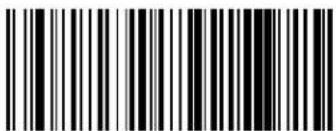 2 of 5 Decoding Level = 4 2 of 5 Decoding Level = 4 | |
 2 of 5 Decoding Level = 5 2 of 5 Decoding Level = 5 | |
Interleaved 2 of 5 (I 2 of 5) — cont.
I 2 of 5 Length Control
This feature specifies either variable length decoding or fixed length decoding for the I 2 of 5 symbology.
Variable Length — For variable length decoding, a minimum and maximum length may be set.
Fixed Length — For fixed length decoding, two different lengths may be set.
| ENTER/EXIT PROGRAMMING MODE | |
| 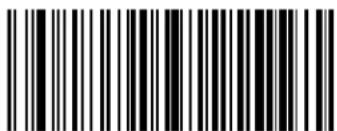 1 2 of 5 Length Control = Variable Length 1 2 of 5 Length Control = Variable Length |
 1 2 of 5 Length Control = Fixed Length 1 2 of 5 Length Control = Fixed Length | |
Interleaved 2 of 5 (I 2 of 5) — cont.
12 of 5 Set Length 1
This feature specifies one of the barcode lengths for 12 of 5 Length Control. Length 1 is the minimum label length if in Variable Length Mode, or the first fixed length if in Fixed Length Mode. The length includes the barcode's check and data characters. The length can be set from 2 to 50 characters in increments of two.
Follow these instructions to set this feature:
- Determine the desired character length (from 2 to 50). The length must be an even number.
- Pad the result with leading zeroes to yield two digits. For example: 0 = 00, 5 = 05, 20 = 20, etc.
- Scan the ENTER/EXIT PROGRAMMING MODE barcode to enter Programming Mode.
- Scan the barcode: SELECT I 2 of 5 LENGTH 1 SETTING.
- Scan the appropriate two digits from the keypad in Appendix E, Keypad, that represent the length setting which was determined in the steps above. You will hear a two-beep indication after the last character.

If you make a mistake before the last character scan the CANCEL barcode to abort and not save the entry string. You can then start again at the beginning.
NOTE
- Scan the ENTER/EXIT PROGRAMMING MODE barcode to exit Programming Mode.
This completes the procedure. See Table 27 for some examples of how to set this feature.
Table 25.12 of 5 Length 1 Setting Examples
| STEP ACTION EXAMPLES | |||||
| 1 Desired Setting 2 Characters 6 Characters | 14 Characters 50 | Characters | |||
| 2 | Pad with leading zeroes to yield two digits | 02 06 14 50 | |||
| 3 Scan ENTER/EXIT PROGRAMMING MODE | |||||
| 4 Scan SELECT I 2 of 5 LENGTH 1 SETTING | |||||
| 5 | Scan Two Characters From Appendix E, Keypad | ‘0’ and ‘2’ ‘0’ and ‘6’ | ‘1’ and ‘4’ | ‘5’ AND ‘0’ | |
| 6 Scan ENTER/EXIT PROGRAMMING MODE | |||||
Interleaved 2 of 5 (I 2 of 5) — cont.
Datalogic 2 of 5 Set Length 1 — cont.
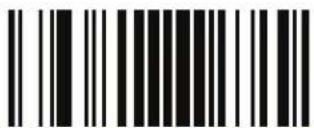 ENTER/EXIT PROGRAMMING MODE ENTER/EXIT PROGRAMMING MODE | |
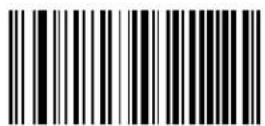 Select I 2 of 5 Length 1 Setting Select I 2 of 5 Length 1 Setting | |
| Make a mistake? Scan the CANCEL barcode to abort and not save the entry string. You can then start again at the beginning. |  CANCEL CANCEL |

text_image
DEFAULT06 = Length 1 is 6 Characters
Interleaved 2 of 5 (I 2 of 5) — cont.
12 of 5 Set Length 2
This feature specifies one of the barcode lengths for 12 of 5 Length Control. Length 2 is the maximum label length if in Variable Length Mode, or the second fixed length if in Fixed Length Mode. The length includes the barcode's check and data characters.
The length can be set from 2 to 50 characters. A setting of 0 specifies to ignore this length (only one fixed length).
Follow these instructions to set this feature:
- Determine the desired character length (from 2 to 50, or 0 to ignore this length). The length must be an even number.
- Pad the number with leading zeroes to yield two digits. For example: 0 = 00, 5 = 05, 20 = 20, etc.
- Scan the ENTER/EXIT PROGRAMMING MODE barcode to enter Programming Mode.
- Scan the barcode: SELECT I 2 of 5 LENGTH 2 SETTING.
- Scan the appropriate two digits from the keypad in Appendix E, Keypad, that represent the length setting which was determined in the steps above. You will hear a two-beep indication after the last character.

NOTE
If you make a mistake before the last character, scan the CANCEL barcode to abort and not save the entry string. You can then start again at the beginning.
- Scan the ENTER/EXIT PROGRAMMING MODE barcode to exit Programming Mode.
This completes the procedure. See Table 28 for some examples of how to set this feature.
Table 26.12 of 5 Length 2 Setting Examples
| STEP ACTION EXAMPLES | |||||
| 1 Desired Setting Ignore This Length 4 Characters 14 Characters 50 Characters | |||||
| 2 | Pad with leading zeroes to yield two digits | 00 04 14 50 | |||
| 3 Scan ENTER/EXIT PROGRAMMING MODE | |||||
| 4 Scan SELECT I 2 OF 5 LENGTH 2 SETTING | |||||
| 5 | Scan Two Characters From Appendix E, Keypad | ‘0’ and ‘0’ ‘0’ and ‘4’ ‘1’ and ‘4’ ‘5’ AND ‘0’ | |||
| 6 Scan ENTER/EXIT PROGRAMMING MODE | |||||
Interleaved 2 of 5 (I 2 of 5) — cont.
I 2 of 5 Set Length 2 — cont.
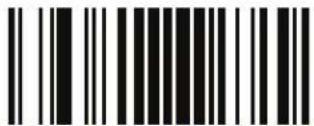 ENTER/EXIT PROGRAMMING MODE ENTER/EXIT PROGRAMMING MODE | |
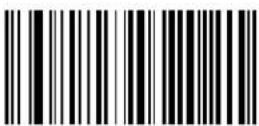 Select 12 of 5 Length 2 Setting Select 12 of 5 Length 2 Setting | |
| Make a mistake? Scan the CANCEL barcode to abort and not save the entry string. You can then start again at the beginning. |  CANCEL CANCEL |

text_image
DEFAULT50 = Length 2 is 50 Characters
Interleaved 2 of 5 (I 2 of 5) — cont.
12 of 5 Character Correlation
When correlation is enabled, the barcode reader will combine label data from multiple scans when decoding. Enabling correlation will help the scanner read labels that have some spots and/or voids. It may also help read labels that have damaged areas. Enabling correlation will also increase the chances that a label will be read incorrectly.

text_image
Black and white barcode image with vertical lines on both sidesENTER/EXIT PROGRAMMING MODE

text_image
DEFAULT
text_image
Black and white barcode image with vertical lines and a small number 'n' in the bottom right corner.12 of 5 Character Correlation = Disable

text_image
Black and white barcode image with vertical lines and a small number '1' at the bottom12 of 5 Character Correlation = Enable
Interleaved 2 of 5 (I 2 of 5) — cont.
I 2 of 5 Stitching
This option enables/disables stitching for I 2 of 5 labels. When parts of a I 2 of 5 barcode are presented to the reader with this feature enabled, the barcode parts will be assembled by the reader's software, and the data will be decoded if all barcode proofing requirements are met.

text_image
Black and white barcode image with vertical lines on both sidesENTER/EXIT PROGRAMMING MODE

text_image
DEFAULT
text_image
Black and white barcode image with vertical lines on both sides
text_image
Black and white barcode image with vertical lines on both sides12 of 5 Stitching = Enable
Interleaved 2 of 5 CIP HR
The following options apply to the Interleaved 2 of 5 CIP HR symbology.
Interleaved 2 of 5 CIP HR Enable/Disable
Enables/Disables ability of reader to decode Interleaved 2 of 5 CIP HR labels.

text_image
ENTER/EXIT PROGRAMMING MODE DEFAULT Interleaved 2 of 5 CIP HR = Disable Interleaved 2 of 5 CIP HR = EnableDatalogic 2 of 5
The following options apply to the Datalogic 2 of 5 symbology.
Datalogic 2 of 5 Enable/Disable
When disabled, the reader will not read Datalogic 2 of 5 barcodes.

flowchart
graph TD
    A["ENTER/EXIT PROGRAMMING MODE"] --> B["DEFAULT"]
    A --> C["Datalogic 2 of 5 = Enable"]
    B --> D["Barcode example"]
    C --> E["Barcode example"]
    D --> F["Datalogic 2 of 5 = Disable"]
Datalogic 2 of 5 — cont.
Datalogic 2 of 5 Check Character Calculation
This option enables/disables calculation and verification of an optional Datalogic 2 of 5 check character.
| ENTER/EXIT PROGRAMMING MODE | |
| DEFAULT | Datalogic 2 of 5 Check Character Calculation = Disable |
| Datalogic 2 of 5 Check Character Calculation = Enable | |
Datalogic 2 of 5 — cont.
Datalogic 2 of 5 Minimum Reads
This feature specifies the minimum number of consecutive times an Datalogic 2 of 5 label must be decoded before it is accepted as good read.
 ENTER/EXIT PROGRAMMING MODE ENTER/EXIT PROGRAMMING MODE | |
 |  I 2 of 5 Minimum Reads = 1 I 2 of 5 Minimum Reads = 1 |
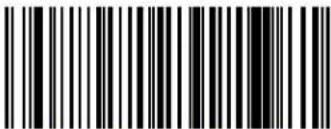 I 2 of 5 Minimum Reads = 2 I 2 of 5 Minimum Reads = 2 | |
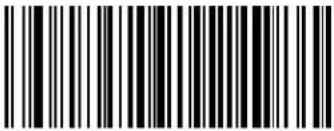 I 2 of 5 Minimum Reads = 3 I 2 of 5 Minimum Reads = 3 | |
 I 2 of 5 Minimum Reads = 4 I 2 of 5 Minimum Reads = 4 | |
Datalogic 2 of 5 Decoding Level

NOTE
The Datalogic 2 of 5 Decoding Level feature is set using I 2 of 5 Decoding Level on page 211.
Datalogic 2 of 5 — cont.
Datalogic 2 of 5 Length Control
This feature specifies either variable length decoding or fixed length decoding for the Datalogic 2 of 5 symbology.
Variable Length - For variable length decoding, a minimum and maximum length may be set.
Fixed Length — For fixed length decoding, two different lengths may be set.
| ENTER/EXIT PROGRAMMING MODE | |
 | 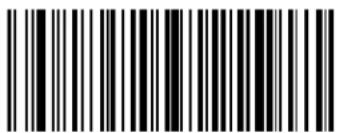 Datalogic 2 of 5 Length Control = Variable Length Datalogic 2 of 5 Length Control = Variable Length |
 Datalogic 2 of 5 Length Control = Fixed Length Datalogic 2 of 5 Length Control = Fixed Length | |
Datalogic 2 of 5 — cont.
Datalogic 2 of 5 Set Length 1
This feature specifies one of the barcode lengths for Datalogic 2 of 5 Length Control. Length 1 is the minimum label length if in Variable Length Mode, or the first fixed length if in Fixed Length Mode. The length includes the barcode's check and data characters.
The length can be set from 2 to 50 characters in increments of two.
Follow these instructions to set this feature:
- Determine the desired character length (from 2 to 50). The length must be an even number.
- Pad the result with leading zeroes to yield two digits. For example: 0 = 00, 5 = 05, 20 = 20, etc.
- Scan the ENTER/EXIT PROGRAMMING MODE barcode to enter Programming Mode.
- Scan the barcode: SELECT I 2 of 5 LENGTH 1 SETTING.
- Scan the appropriate two digits from the keypad in Appendix E, Keypad, that represent the length setting which was determined in the steps above. You will hear a two-beep indication after the last character.

If you make a mistake before the last character scan the CANCEL barcode to abort and not save the entry string. You can then start again at the beginning.
NOTE
- Scan the ENTER/EXIT PROGRAMMING MODE barcode to exit Programming Mode.
This completes the procedure. See Table 27 for some examples of how to set this feature.
Table 27. Datalogic 2 of 5 Length 1 Setting Examples
| STEP ACTION EXAMPLES | |||||
| 1 Desired Setting 2 Characters 6 Characters | 14 Characters 50 | Characters | |||
| 2 | Pad with leading zeroes to yield two digits | 02 06 14 50 | |||
| 3 Scan ENTER/EXIT PROGRAMMING MODE | |||||
| 4 Scan SELECT Datalogic 2 of 5 LENGTH 1 SETTING | |||||
| 5 | Scan Two Characters From Appendix E, Keypad | ‘0’ and ‘2’ ‘0’ and ‘6’ | ‘1’ and ‘4’ | ‘5’ AND ‘0’ | |
| 6 Scan ENTER/EXIT PROGRAMMING MODE | |||||
Datalogic 2 of 5 — cont.
Datalogic 2 of 5 Set Length 1 — cont.
 ENTER/EXIT PROGRAMMING MODE ENTER/EXIT PROGRAMMING MODE | |
 Select Datalogic 2 of 5 Length 1 Setting Select Datalogic 2 of 5 Length 1 Setting | |
| Make a mistake? Scan the CANCEL barcode to abort and not save the entry string. You can then start again at the beginning. |  CANCEL CANCEL |

text_image
DEFAULT06 = Length 1 is 6 Characters
Datalogic 2 of 5 — cont.
Datalogic 2 of 5 Set Length 2
This feature specifies one of the barcode lengths for Datalogic 2 of 5 Length Control. Length 2 is the maximum label length if in Variable Length Mode, or the second fixed length if in Fixed Length Mode. The length includes the barcode's check and data characters.
The length can be set from 2 to 50 characters. A setting of 0 specifies to ignore this length (only one fixed length).
Follow these instructions to set this feature:
- Determine the desired character length (from 2 to 50, or 0 to ignore this length). The length must be an even number.
- Pad the number with leading zeroes to yield two digits. For example: 0 = 00, 5 = 05, 20 = 20, etc.
- Scan the ENTER/EXIT PROGRAMMING MODE barcode to enter Programming Mode.
- Scan the barcode: SELECT Datalogic 2 of 5 LENGTH 2 SETTING.
- Scan the appropriate two digits from the keypad in Appendix E, Keypad, that represent the length setting which was determined in the steps above. You will hear a two-beep indication after the last character.

NOTE
If you make a mistake before the last character, scan the CANCEL barcode to abort and not save the entry string. You can then start again at the beginning.
- Scan the ENTER/EXIT PROGRAMMING MODE barcode to exit Programming Mode.
This completes the procedure. See Table 28 for some examples of how to set this feature.
Table 28. Datalogic 2 of 5 Length 2 Setting Examples
| STEP ACTION EXAMPLES | |||||
| 1 Desired Setting Ignore This Length 4 Characters 14 Characters 50 Characters | |||||
| 2 | Pad with leading zeroes to yield two digits | 00 04 14 50 | |||
| 3 Scan ENTER/EXIT PROGRAMMING MODE | |||||
| 4 Scan SELECT DATALOGIC 2 OF 5 LENGTH 2 SETTING | |||||
| 5 | Scan Two Characters From Appendix E, Keypad | ‘0’ and ‘0’ ‘0’ and ‘4’ ‘1’ and ‘4’ ‘5’ AND ‘0’ | |||
| 6 Scan ENTER/EXIT PROGRAMMING MODE | |||||
Datalogic 2 of 5 — cont.
Datalogic 2 of 5 Set Length 2 — cont.
| ENTER/EXIT PROGRAMMING MODE | |
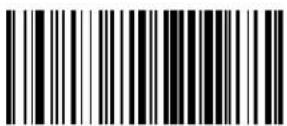 Select Datalogic 2 of 5 Length 2 Setting Select Datalogic 2 of 5 Length 2 Setting | |
| Make a mistake? Scan the CANCEL barcode to abort and not save the entry string. You can then start again at the beginning. |  CANCEL CANCEL |

text_image
DEFAULT50 = Length 2 is 50 Characters
Datalogic 2 of 5 — cont.
Datalogic 2 of 5 Interdigit Maximum Ratio
This feature specifies the maximum ratio between intercharacter space and module for Datalogic 2 of 5.
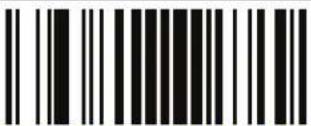 ENTER/EXIT PROGRAMMING MODE ENTER/EXIT PROGRAMMING MODE | |
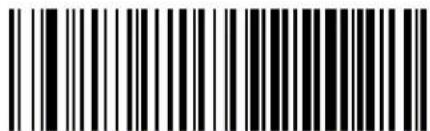 Datalogic 2 of 5 Interdigit Maximum Ratio = Disable Datalogic 2 of 5 Interdigit Maximum Ratio = Disable | |
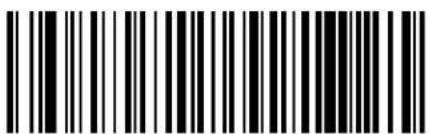 Datalogic 2 of 5 Interdigit Maximum Ratio = 1 Datalogic 2 of 5 Interdigit Maximum Ratio = 1 | |
 Datalogic 2 of 5 Interdigit Maximum Ratio = 2 Datalogic 2 of 5 Interdigit Maximum Ratio = 2 | |
 Datalogic 2 of 5 Interdigit Maximum Ratio = 3 Datalogic 2 of 5 Interdigit Maximum Ratio = 3 | |
 |  Datalogic 2 of 5 Interdigit Maximum Ratio = 4 Datalogic 2 of 5 Interdigit Maximum Ratio = 4 |
 Datalogic 2 of 5 Interdigit Maximum Ratio = 5 Datalogic 2 of 5 Interdigit Maximum Ratio = 5 | |
Datalogic 2 of 5 Interdigit Maximum Ratio — cont.
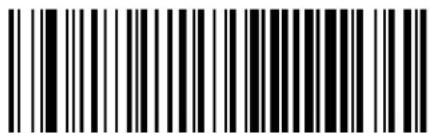 Datalogic 2 of 5 Interdigit Maximum Ratio = 6 Datalogic 2 of 5 Interdigit Maximum Ratio = 6 | |
 Datalogic 2 of 5 Interdigit Maximum Ratio = 7 Datalogic 2 of 5 Interdigit Maximum Ratio = 7 | |
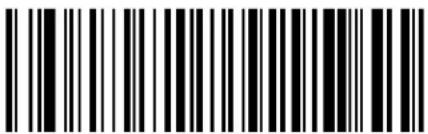 Datalogic 2 of 5 Interdigit Maximum Ratio = 8 Datalogic 2 of 5 Interdigit Maximum Ratio = 8 | |
 Datalogic 2 of 5 Interdigit Maximum Ratio = 9 Datalogic 2 of 5 Interdigit Maximum Ratio = 9 | |
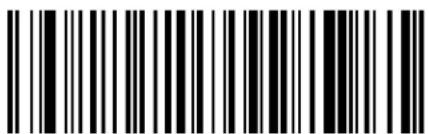 Datalogic 2 of 5 Interdigit Maximum Ratio = 10 Datalogic 2 of 5 Interdigit Maximum Ratio = 10 |
Datalogic 2 of 5 — cont.
Datalogic 2 of 5 Character Correlation
When correlation is enabled, the barcode reader will combine label data from multiple scans when decoding. Enabling correlation will help the scanner read labels that have some spots and/or voids. It may also help read labels that have damaged areas. Enabling correlation will also increase the chances that a label will be read incorrectly.
| ENTER/EXIT PROGRAMMING MODE | |
| DEFAULT | 12 of 5 Character Correlation = Disable |
| 12 of 5 Character Correlation = Enable | |
Datalogic 2 of 5 — cont.
Datalogic 2 of 5 Stitching
This option enables/disables stitching for Datalogic 2 of 5 labels. When parts of a Datalogic 2 of 5 barcode are presented to the reader with this feature enabled, the barcode parts will be assembled by the reader's software, and the data will be decoded if all barcode proofing requirements are met.

text_image
Black and white barcode image with vertical lines on both sidesENTER/EXIT PROGRAMMING MODE


text_image
Black and white barcode image with vertical lines on both sidesDatalogic 2 of 5 Stitching = Disable

text_image
Black and white barcode image with vertical lines and a central dotDatalogic 2 of 5 Stitching = Enable
Codabar
The following options apply to the Codabar symbology.
Codabar Enable/Disable
When disabled, the reader will not read Codabar barcodes.
 ENTER/EXIT PROGRAMMING MODE ENTER/EXIT PROGRAMMING MODE | |
 | 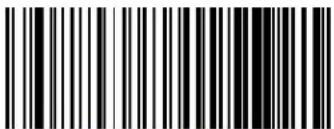 Codabar = Disable Codabar = Disable |
 Codabar = Enable Codabar = Enable | |
Codabar — cont.
Codabar Check Character Calculation
Enable this option to enables/disables calculation and verification of an optional Codabar check character. When disabled, any check character in the label is treated as a data character

text_image
Black and white barcode image with vertical lines on both sidesENTER/EXIT PROGRAMMING MODE

text_image
DEFAULT
text_image
Black and white barcode image with vertical lines and a small white dot in the center
text_image
Codabar Check Character Calculation = Enable AIM standard check char.
text_image
Codabar Check Character Calculation = Enable Modulo 10 check char.Codabar — cont.
Codabar Check Character Transmission
Enable this option to transmit the check character along with Codabar barcode data.
 ENTER/EXIT PROGRAMMING MODE ENTER/EXIT PROGRAMMING MODE | |
 Codabar Check Character Transmission = Don't Send Codabar Check Character Transmission = Don't Send | |
 Codabar Check Character Transmission = Send Codabar Check Character Transmission = Send |  |
Codabar Start/Stop Character Transmission
Enable this option to enable/disable transmission of Codabar start and stop characters.
 ENTER/EXIT PROGRAMMING MODE ENTER/EXIT PROGRAMMING MODE | |
 |  Codabar Start/Stop Character Transmission = Don't Transmit Codabar Start/Stop Character Transmission = Don't Transmit |
 Codabar Start/Stop Character Transmission = Transmit Codabar Start/Stop Character Transmission = Transmit | |
Codabar — cont.
Codabar Start/Stop Character Set
This option specifies the format of transmitted Codabar start/stop characters.
 ENTER/EXIT PROGRAMMING MODE ENTER/EXIT PROGRAMMING MODE | |
 Codabar Check Character Set = ABCD/TN*E Codabar Check Character Set = ABCD/TN*E | |
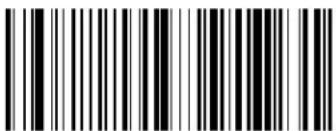 Codabar Check Character Set = ABCD/ABCD Codabar Check Character Set = ABCD/ABCD | |
 Codabar Check Character Set = abcd/tn*e Codabar Check Character Set = abcd/tn*e | |
 Codabar Check Character Set = abcd/abcd Codabar Check Character Set = abcd/abcd |  |
Codabar — cont.
Codabar Start/Stop Character Match
When enabled, this option requires that start and stop characters match.
| ENTER/EXIT PROGRAMMING MODE | |
| DEFAULT | Codabar Start/Stop Character Match = Don't Require Match |
| Codabar Start/Stop Character Match = Require Match | |
Codabar — cont.
Codabar Quiet Zones
This feature specifies the number of quiet zones for Codabar labels. Quiet zones are blank areas at the ends of a barcode and are typically 10 times the width of the narrowest bar or space in the label.
| ENTER/EXIT PROGRAMMING MODE | |
 Codabar Quiet Zones = Quiet Zone on one side Codabar Quiet Zones = Quiet Zone on one side | |
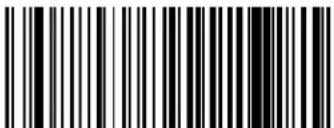 Codabar Quiet Zones = Quiet Zones on two sides Codabar Quiet Zones = Quiet Zones on two sides | |
 Codabar Quiet Zones = Auto Codabar Quiet Zones = Auto |  |
 Codabar Quiet Zones = Virtual Quiet Zones on two sides Codabar Quiet Zones = Virtual Quiet Zones on two sides | |
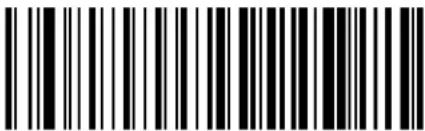 Codabar Quiet Zones = Small Quiet Zones on two sides Codabar Quiet Zones = Small Quiet Zones on two sides | |
Codabar — cont.
Codabar Minimum Reads
This feature specifies the minimum number of consecutive times a Codabar label must be decoded before it is accepted as good read..
 ENTER/EXIT PROGRAMMING MODE ENTER/EXIT PROGRAMMING MODE | |
 | 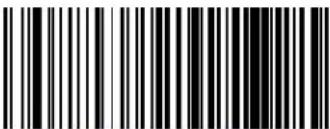 Codabar Minimum Reads = 1 Codabar Minimum Reads = 1 |
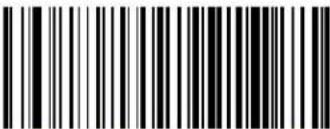 Codabar Minimum Reads = 2 Codabar Minimum Reads = 2 | |
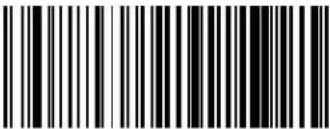 Codabar Minimum Reads = 3 Codabar Minimum Reads = 3 | |
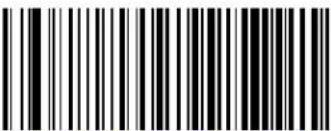 Codabar Minimum Reads = 4 Codabar Minimum Reads = 4 | |
Codabar — cont.
Codabar Decoding Level
Decoding Levels are used to configure a barcode symbology decoder to be very aggressive to very conservative depending on a particular customer's needs.
- Choosing Level 1 results in a very conservative decoder at the expense of not being able to read poorly printed or damaged labels.
- Choosing Level 5 results in a very aggressive decoder. This aggressive behavior allows decoding of poorly printed and damaged labels at the expense of increasing the likelihood of decoding errors.
- Choosing Level 3, which is the default setting, allows the majority of product labels to be decoded.
There are many factors that determine when to change the decoding level for a particular symbology. These factors include spots, voids, non-uniform bar/space widths, damaged labels, etc. that may be experienced in some barcode labels. If there are many hard to read or damaged labels that cannot be decoded using a conservative setting, increase the decoding level to be more aggressive. If the majority of labels are very good quality labels, or there is a need to decrease the possibility of a decoder error, lower the decoding level to a more conservative level.
Codabar — cont.
Codabar Decoding Level — cont.
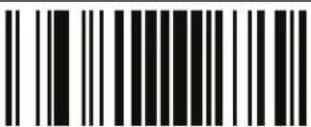 ENTER/EXIT PROGRAMMING MODE ENTER/EXIT PROGRAMMING MODE | |
 Codabar Decoding Level = 1 Codabar Decoding Level = 1 | |
 Codabar Decoding Level = 2 Codabar Decoding Level = 2 | |
 Codabar Decoding Level = 3 Codabar Decoding Level = 3 |  |
 Codabar Decoding Level = 4 Codabar Decoding Level = 4 | |
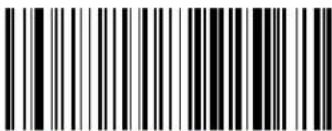 Codabar Decoding Level = 5 Codabar Decoding Level = 5 | |
Codabar — cont.
Codabar Length Control
This feature specifies either variable length decoding or fixed length decoding for the Codabar symbology.
Variable Length — For variable length decoding, a minimum and maximum length may be set.
Fixed Length — For fixed length decoding, two different lengths may be set.
| ENTER/EXIT PROGRAMMING MODE | |
|  Codabar Length Control = Variable Length Codabar Length Control = Variable Length |
 Codabar Length Control = Fixed Length Codabar Length Control = Fixed Length | |
Codabar — cont.
Codabar Set Length 1
This feature specifies one of the barcode lengths for Codabar Length Control. Length 1 is the minimum label length if in Variable Length Mode, or the first fixed length if in Fixed Length Mode. Length includes the barcode's start, stop, check and data characters.
The length must include at least one data character.
The length can be set from 3 to 50 characters.
Follow these instructions to set this feature:
- Determine the desired character length (from 3 to 50). Pad the number with leading zeroes to yield two digits. For example: 0 = 00, 5 = 05, 20 = 20, etc.
- Scan the ENTER/EXIT PROGRAMMING MODE barcode to enter Programming Mode.
- Scan the barcode: SELECT CODABAR LENGTH 1 SETTING.
- Scan the appropriate two digits from the keypad in Appendix E, Keypad, that represent the length setting which was determined in the steps above. You will hear a two-beep indication after the last character.

If you make a mistake before the last character, scan the CANCEL barcode to abort and not save the entry string. You can then start again at the beginning.
NOTE
- Scan the ENTER/EXIT PROGRAMMING MODE barcode to exit Programming Mode.
This completes the procedure. See Table 29 for some examples of how to set this feature.
Table 29. Codabar Length 1 Setting Examples
| STEP ACTION EXAMPLES | |||||
| 1 | Desired Setting (and pad with leading zeroes) | 03 Characters 09 | Characters 15 Characters 50 Characters | ||
| 2 Scan ENTER/EXIT PROGRAMMING MODE | |||||
| 3 Scan SELECT CODABAR LENGTH 1 SETTING | |||||
| 4 | Scan Two Characters From Appendix E, Keypad | ‘0’ and ‘3’ ‘0’ and ‘9’ ‘1’ and ‘5’ ‘5’ AND ‘0’ | |||
| 5 Scan ENTER/EXIT PROGRAMMING MODE | |||||
Codabar — cont.
Codabar Set Length 1 — cont.
 ENTER/EXIT PROGRAMMING MODE ENTER/EXIT PROGRAMMING MODE | |
 Select Codabar Length 1 Setting Select Codabar Length 1 Setting | |
| Make a mistake? Scan the CANCEL barcode to abort and not save the entry string. You can then start again at the beginning. |  CANCEL CANCEL |

text_image
DEFAULT03 = Length 1 is 3 Characters
Codabar — cont.
Codabar Set Length 2
This feature specifies one of the barcode lengths for Codabar Length Control. Length 2 is the maximum label length if in Variable Length Mode, or the second fixed length if in Fixed Length Mode. The length includes the barcode's start, stop, check and data characters. The length must include at least one data character.
The length can be set from 3 to 50 characters. A setting of 0 specifies to ignore this length (only one fixed length).
Follow these instructions to set this feature:
- Determine the desired character length (from 3 to 50 — or 0 to ignore this length). Pad the number with leading zeroes to yield two digits. For example: 0 = 00 , 5 = 05 , 20 = 20 , etc.
- Scan the ENTER/EXIT PROGRAMMING MODE barcode to enter Programming Mode.
- Scan the barcode: SELECT CODABAR LENGTH 2 SETTING.
- Scan the appropriate two digits from the keypad in Appendix E, Keypad, that represent the length setting which was determined in the steps above. You will hear a two-beep indication after the last character.

If you make a mistake before the last character, scan the CANCEL barcode to abort and not save the entry string. You can then start again at the beginning.
NOTE
- Scan the ENTER/EXIT PROGRAMMING MODE barcode to exit Programming Mode.
This completes the procedure. See Table 30 for some examples of how to set this feature.
Table 30. Codabar Length 2 Setting Examples
| STEP ACTION EXAMPLES | |||||
| 1 | Desired Setting (and pad with leading zeroes) | 00 Ignore This Length | 07 Characters 15 | Characters 50 Characters | Characters |
| 2 Scan ENTER/EXIT PROGRAMMING MODE | |||||
| 3 Scan SELECT CODE 39 LENGTH 2 SETTING | |||||
| 4 | Scan Two Characters From Appendix E, Keypad | ‘0’ and ‘0’ ‘0’ and ‘7’ ‘1’ and ‘5’ ‘5’ | AND ‘0’ | ||
| 5 Scan ENTER/EXIT PROGRAMMING MODE | |||||
Codabar — cont.
Codabar Set Length 2 — cont.
 ENTER/EXIT PROGRAMMING MODE ENTER/EXIT PROGRAMMING MODE | |
 Select CodabarLength 2 Setting Select CodabarLength 2 Setting | |
| Make a mistake? Scan the CANCEL barcode to abort and not save the entry string. You can then start again at the beginning. | CANCEL |

text_image
DEFAULT50 = Length 2 is 50 Characters
Codabar — cont.
Codabar Interdigit Ratio
This feature specifies the ratio between an intercharacter space and module for Codabar labels.
 ENTER/EXIT PROGRAMMING MODE ENTER/EXIT PROGRAMMING MODE | |
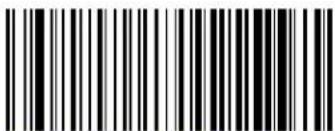 Codabar Interdigit Ratio = Disable Codabar Interdigit Ratio = Disable | |
 Codabar Interdigit Ratio = 1 Codabar Interdigit Ratio = 1 | |
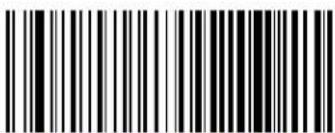 Codabar Interdigit Ratio = 2 Codabar Interdigit Ratio = 2 | |
 Codabar Interdigit Ratio = 3 Codabar Interdigit Ratio = 3 | |
 |  Codabar Interdigit Ratio = 4 Codabar Interdigit Ratio = 4 |
 Codabar Interdigit Ratio = 5 Codabar Interdigit Ratio = 5 | |
Codabar — cont.
Codabar Interdigit Ratio — cont.
 ENTER/EXIT PROGRAMMING MODE ENTER/EXIT PROGRAMMING MODE | |
 Codabar Interdigit Ratio = 6 Codabar Interdigit Ratio = 6 | |
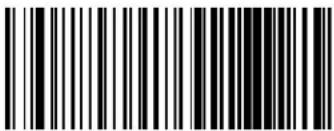 Codabar Interdigit Ratio = 7 Codabar Interdigit Ratio = 7 | |
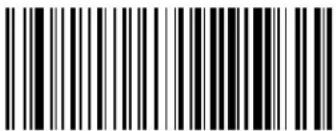 Codabar Interdigit Ratio = 8 Codabar Interdigit Ratio = 8 | |
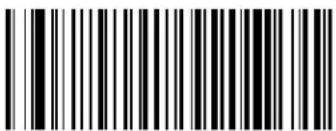 Codabar Interdigit Ratio = 9 Codabar Interdigit Ratio = 9 | |
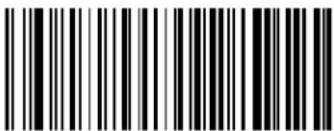 Codabar Interdigit Ratio = 10 Codabar Interdigit Ratio = 10 | |
Codabar — cont.
Codabar Character Correlation
When correlation is enabled, the barcode reader will combine label data from multiple scans when decoding. Enabling correlation will help the scanner read labels that have some spots and/or voids. It may also help read labels that have damaged areas. Enabling correlation will also increase the chances that a label will be read incorrectly.

text_image
Black and white barcode image with vertical lines on both sidesENTER/EXIT PROGRAMMING MODE

text_image
DEFAULT
text_image
Black and white barcode image with vertical lines and a central dotCodabar Character Correlation = Disable

text_image
Black and white barcode image with vertical lines and a small number '1' at the bottom left.Codabar Character Correlation = Enable
Codabar — cont.
Codabar Stitching
This option enables/disables stitching for Codabar labels. When parts of a Codabar barcode are presented to the reader with this feature enabled, the barcode parts will be assembled by the reader's software, and the data will be decoded if all barcode proofing requirements are met.

ENTER/EXIT PROGRAMMING MODE


text_image
Black and white barcode image with vertical lines and a small number '1' at the bottom left.Codabar Stitching = Disable

text_image
Black and white barcode image with vertical lines and a central vertical barCodabar Stitching = Enable
ABC Codabar
The following options apply to the ABC Codabar symbology.
ABC Codabar Enable/Disable
Enables/Disables ability of reader to decode ABC Codabar labels.

flowchart
graph TD
    A["ENTER/EXIT PROGRAMMING MODE"] --> B["DEFAULT"]
    B --> C["ABC Codabar = Enable"]
    C --> D["ABC Codabar = Disable"]
ABC Codabar Concatenation Mode
Specifies the concatenation mode between Static and Dynamic.
| ENTER/EXIT PROGRAMMING MODE | |
| DEFAULT | ABC Codabar Concatenation Mode = Static |
| ABC Codabar Concatenation Mode = Dynamic | |
ABC Codabar — cont.
ABC Codabar Dynamic Concatenation Timeout
Specifies the timeout in 10-millisecond ticks used by the ABC Codabar Dynamic Concatenation Mode.
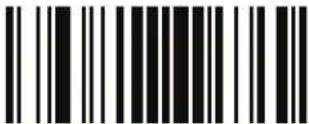 ENTER/EXIT PROGRAMMING MODE ENTER/EXIT PROGRAMMING MODE | |
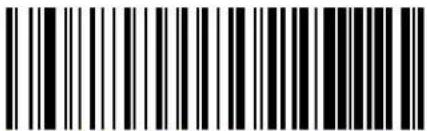 ABC Codabar Dynamic Concatenation Timeout = 50 msec ABC Codabar Dynamic Concatenation Timeout = 50 msec | |
 ABC Codabar Dynamic Concatenation Timeout = 100 msec ABC Codabar Dynamic Concatenation Timeout = 100 msec | |
 | 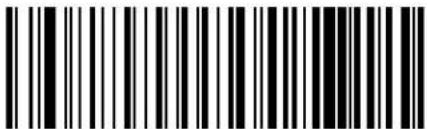 ABC Codabar Dynamic Concatenation Timeout = 200 msec ABC Codabar Dynamic Concatenation Timeout = 200 msec |
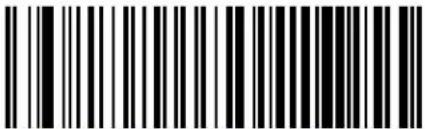 ABC Codabar Dynamic Concatenation Timeout = 500 msec ABC Codabar Dynamic Concatenation Timeout = 500 msec | |
 ABC Codabar Dynamic Concatenation Timeout = 750 msec ABC Codabar Dynamic Concatenation Timeout = 750 msec | |
 ABC Codabar Dynamic Concatenation Timeout = 1 Second ABC Codabar Dynamic Concatenation Timeout = 1 Second | |
ABC Codabar — cont.
ABC Codabar Force Concatenation
Forces labels starting or ending with D to be concatenated.

text_image
ENTER/EXIT PROGRAMMING MODE
text_image
DEFAULT
text_image
ABC Codabar Force Concatenation = Disable
text_image
ABC Codabar Force Concatenation = EnableCode 11
The following options apply to the Code 11 symbology.
Code 11 Enable/Disable
When disabled, the reader will not read Code 11 barcodes.
 ENTER/EXIT PROGRAMMING MODE ENTER/EXIT PROGRAMMING MODE | |
 |  Code 11 = Disable Code 11 = Disable |
 Code 11 = Enable Code 11 = Enable | |
Code 11 - cont.
Code 11 Check Character Calculation
This option enables/disables calculation and verification of optional Code 11 check character.
| ENTER/EXIT PROGRAMMING MODE | |
 Code 11 Check Character Calculation = Disable Code 11 Check Character Calculation = Disable | |
 Code 11 Check Character Calculation = Check C Code 11 Check Character Calculation = Check C | |
 Code 11 Check Character Calculation = Check K Code 11 Check Character Calculation = Check K | |
 Code 11 Check Character Calculation = Check C and K Code 11 Check Character Calculation = Check C and K |  |
Code 11 - cont.
Code 11 Check Character Transmission
This feature enables/disables transmission of an optional Code 11 check character.
| ENTER/EXIT PROGRAMMING MODE | |
| Code 11 Check Character Transmission = Don't Send | |
| Code 11 Check Character Transmission = Send | DEFAULT |
Code 11 - cont.
Code 11 Minimum Reads
This feature specifies the minimum number of consecutive times a Code 93 label must be decoded before it is accepted as good read..
 ENTER/EXIT PROGRAMMING MODE ENTER/EXIT PROGRAMMING MODE | |
 |  Code 11 Minimum Reads = 1 Code 11 Minimum Reads = 1 |
 Code 11 Minimum Reads = 2 Code 11 Minimum Reads = 2 | |
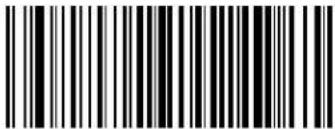 Code 11 Minimum Reads = 3 Code 11 Minimum Reads = 3 | |
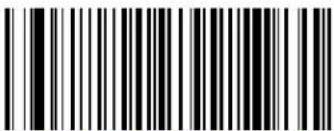 Code 11 Minimum Reads = 4 Code 11 Minimum Reads = 4 | |
Code 11 - cont.
Code 11 Length Control
This feature specifies either variable length decoding or fixed length decoding for the Code 11 symbology.
Variable Length — For variable length decoding, a minimum and maximum length may be set.
Fixed Length — For fixed length decoding, two different lengths may be set.
| ENTER/EXIT PROGRAMMING MODE | |
 |  Code 11 Length Control = Variable Length Code 11 Length Control = Variable Length |
 Code 11 Length Control = Fixed Length Code 11 Length Control = Fixed Length | |
Code 11 - cont.
Code 11 Set Length 1
This feature specifies one of the barcode lengths for Code 11 Length Control. Length 1 is the minimum label length if in Variable Length Mode, or the first fixed length if in Fixed Length Mode. Length includes the barcode's check and data characters. The length can be set from 2 to 50 characters.
Follow these instructions to set this feature:
- Determine the desired character length (from 2 to 50). Pad the number with leading zeroes to yield two digits. For example: 0 = 00 , 5 = 05 , 20 = 20 , etc.
- Scan the ENTER/EXIT PROGRAMMING MODE barcode to enter Programming Mode.
- Scan the barcode: SELECT CODE 11 LENGTH 1 SETTING.
- Scan the appropriate two digits from the keypad in Appendix E, Keypad, that represent the length setting which was determined in the steps above. You will hear a two-beep indication after the last character.

If you make a mistake before the last character, scan the CANCEL barcode to abort and not save the entry string. You can then start again at the beginning.
NOTE
- Scan the ENTER/EXIT PROGRAMMING MODE barcode to exit Programming Mode.
This completes the procedure. See Table 31 for some examples of how to set this feature.
Table 31. Code 11 Length 1 Setting Examples
| STEP ACTION EXAMPLES | |||||
| 1 | Desired Setting (pad with leading zeroes) | 02 Characters 07 | Characters 15 Characters | 50 Characters | |
| 2 Scan ENTER/EXIT PROGRAMMING MODE | |||||
| 3 Scan SELECT CODE 11 LENGTH 1 SETTING | |||||
| 4 | Scan Two Characters From Appendix E, Keypad | ‘0’ and ‘2’ ‘0’ and ‘7’ ‘1’ and ‘5’ ‘5’ AND ‘0’ | |||
| 5 Scan ENTER/EXIT PROGRAMMING MODE | |||||
Code 11 - cont.
Code 11 Set Length 1 — cont.
| ENTER/EXIT PROGRAMMING MODE | |
 Select Code 11 Set Length 1 Setting Select Code 11 Set Length 1 Setting | |
| Make a mistake? Scan the CANCEL barcode to abort and not save the entry string. You can then start again at the beginning. | CANCEL |

text_image
DEFAULT04 = Length 1 is 4 Characters
Code 11 - cont.
Code 11 Set Length 2
This feature specifies one of the barcode lengths for Code 11 Length Control. Length 2 is the maximum label length if in Variable Length Mode, or the second fixed length if in Fixed Length Mode. Length includes the barcode's check and data characters.
The length can be set from 2 to 50 characters. A setting of 0 specifies to ignore this length (only one fixed length).
Follow these instructions to set this feature:
- Determine the desired character length (from 2 to 50 — or 0 to ignore this length). Pad the number with leading zeroes to yield two digits. For example: 0 = 00, 5 = 05, 20 = 20, etc.
- Scan the ENTER/EXIT PROGRAMMING MODE barcode to enter Programming Mode.
- Scan the barcode: SELECT CODE 11 LENGTH 2 SETTING.
- Scan the appropriate two digits from the keypad in Appendix E, Keypad, that represent the length setting which was determined in the steps above. You will hear a two-beep indication after the last character.

If you make a mistake before the last character, scan the CANCEL barcode to abort and not save the entry string. You can then start again at the beginning.
NOTE
- Scan the ENTER/EXIT PROGRAMMING MODE barcode to exit Programming Mode.
This completes the procedure. See Table 32 for some examples of how to set this feature.
Table 32. Code 11 Length 2 Setting Examples
| STEP ACTION EXAMPLES | |||||
| 1 | Desired Setting (pad with leading zeroes) | 00 (Ignore This Length) | 07 Characters 15 | Characters 50 Characters | |
| 2 Scan ENTER/EXIT PROGRAMMING MODE | |||||
| 3 Scan SELECT CODE 11 LENGTH 2 SETTING | |||||
| 4 | Scan Two Characters From Appendix E, Keypad | ‘0’ and ‘0’ ‘0’ and ‘7’ ‘0’ and ‘F’ ‘3’ AND 2’ | |||
| 5 Scan ENTER/EXIT PROGRAMMING MODE | |||||
Code 11 - cont.
Code 11 Set Length 2 — cont.
| ENTER/EXIT PROGRAMMING MODE | |
 Select Code 11 Length 2 Setting Select Code 11 Length 2 Setting | |
| Make a mistake? Scan the CANCEL barcode to abort and not save the entry string. You can then start again at the beginning. | CANCEL |

text_image
DEFAULT50 = Length 2 is 50 Characters
Code 11 - cont.
Code 11 Interdigit Ratio
This feature specifies the ratio between an intercharacter space and module for Code 11 labels.
 ENTER/EXIT PROGRAMMING MODE ENTER/EXIT PROGRAMMING MODE | |
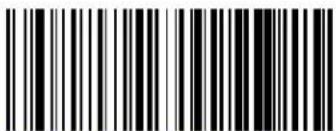 Code 11 Interdigit Ratio = Disable Code 11 Interdigit Ratio = Disable | |
 Code 11 Interdigit Ratio = 1 Code 11 Interdigit Ratio = 1 | |
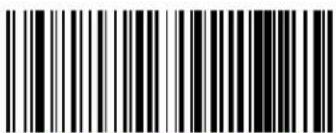 Code 11 Interdigit Ratio = 2 Code 11 Interdigit Ratio = 2 | |
 Code11 Interdigit Ratio = 3 Code11 Interdigit Ratio = 3 | |
 | 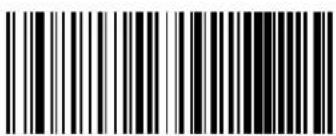 Code 11 Interdigit Ratio = 4 Code 11 Interdigit Ratio = 4 |
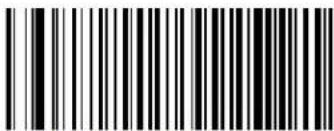 Code 11 Interdigit Ratio = 5 Code 11 Interdigit Ratio = 5 | |
Code 11 - cont.
Code 11 Interdigit Ratio — cont.
 ENTER/EXIT PROGRAMMING MODE ENTER/EXIT PROGRAMMING MODE | |
 Code 11 Interdigit Ratio = 6 Code 11 Interdigit Ratio = 6 | |
 Code 11 Interdigit Ratio = 7 Code 11 Interdigit Ratio = 7 | |
 Code 11 Interdigit Ratio = 8 Code 11 Interdigit Ratio = 8 | |
 Code 11 Interdigit Ratio = 9 Code 11 Interdigit Ratio = 9 | |
 Code 11 Interdigit Ratio = 10 Code 11 Interdigit Ratio = 10 | |
Code 11 Decoding Level
Decoding Levels are used to configure a barcode symbology decoder to be very aggressive to very conservative depending on a particular customer's needs.
- Choosing Level 1 results in a very conservative decoder at the expense of not being able to read poorly printed or damaged labels.
- Choosing Level 5 results in a very aggressive decoder. This aggressive behavior allows decoding of poorly printed and damaged labels at the expense of increasing the likelihood of decoding errors.
- Choosing Level 3, which is the default setting, allows the majority of product labels to be decoded.
There are many factors that determine when to change the decoding level for a particular symbology. These factors include spots, voids, non-uniform bar/space widths, damaged labels, etc. that may be experienced in some barcode labels. If there are many hard to read or damaged labels that cannot be decoded using a conservative setting, increase the decoding level to be more aggressive. If the majority of labels are very good quality labels, or there is a need to decrease the possibility of a decoder error, lower the decoding level to a more conservative level.
Code 11 - cont.
Code 11 Decoding Level — cont.
| ENTER/EXIT PROGRAMMING MODE | |
 Codabar Decoding Level = 1 Codabar Decoding Level = 1 | |
 Codabar Decoding Level = 2 Codabar Decoding Level = 2 | |
 Codabar Decoding Level = 3 Codabar Decoding Level = 3 |  |
 Codabar Decoding Level = 4 Codabar Decoding Level = 4 | |
 Codabar Decoding Level = 5 Codabar Decoding Level = 5 | |
Code 11 - cont.
Code 11 Character Correlation
When correlation is enabled, the barcode reader will combine label data from multiple scans when decoding. Enabling correlation will help the scanner read labels that have some spots and/or voids. It may also help read labels that have damaged areas. Enabling correlation will also increase the chances that a label will be read incorrectly.
| ENTER/EXIT PROGRAMMING MODE | |
| DEFAULT | Code 11 Character Correlation = Disable |
| Code 11 Character Correlation = Enable | |
Code 11 Stitching
This option enables/disables stitching for Code 11 labels. When parts of a Code 11 barcode are presented to the reader with this feature enabled, the barcode parts will be assembled by the reader's software, and the data will be decoded if all barcode proofing requirements are met.

text_image
Black and white barcode image with vertical lines and a central dotENTER/EXIT PROGRAMMING MODE

text_image
DEFAULT
text_image
Black and white barcode image with vertical lines and a central dot
text_image
Black and white barcode image with vertical lines on both sidesCode 11 Stitching = Enable
Standard 2 of 5
The following options apply to the Standard 2 of 5 symbology.
Standard 2 of 5 Enable/Disable
When disabled, the reader will not read Standard 2 of 5 barcodes.
| ENTER/EXIT PROGRAMMING MODE | |
|  Standard 2 of 5 = Disable Standard 2 of 5 = Disable |
 Standard 2 of 5 = Enable Standard 2 of 5 = Enable | |
Standard 2 of 5 — cont.
Standard 2 of 5 Check Character Calculation
This option enables/disables calculation and verification of an optional Standard 2 of 5 check character.
| ENTER/EXIT PROGRAMMING MODE | |
| DEFAULT | Standard 2 of 5 Check Character Calculation = Disable |
| Standard 2 of 5 Check Character Calculation = Enable | |
Standard 2 of 5 Check Character Transmission
This feature enables/disables transmission of an optional Standard 2 of 5 check character.
| ENTER/EXIT PROGRAMMING MODE | |
| Standard 2 of 5 Check Character Transmission = Don't Send | |
| Standard 2 of 5 Check Character Transmission = Send | DEFAULT |
Standard 2 of 5 — cont.
Standard 2 of 5 Minimum Reads
This feature specifies the minimum number of consecutive times a Standard 2 of 5 label must be decoded before it is accepted as good read.
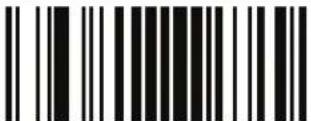 ENTER/EXIT PROGRAMMING MODE ENTER/EXIT PROGRAMMING MODE | |
 |  Standard 2 of 5 Minimum Reads = 1 Standard 2 of 5 Minimum Reads = 1 |
 Standard 2 of 5 Minimum Reads = 2 Standard 2 of 5 Minimum Reads = 2 | |
 Standard 2 of 5 Minimum Reads = 3 Standard 2 of 5 Minimum Reads = 3 | |
 Standard 2 of 5 Minimum Reads = 4 Standard 2 of 5 Minimum Reads = 4 | |
Standard 2 of 5 Decoding Level

NOTE
The Standard 2 of 5 Decoding Level feature is set using I 2 of 5 Decoding Level on page 211.
Standard 2 of 5 — cont.
Standard 2 of 5 Length Control
This feature specifies either variable length decoding or fixed length decoding for the Standard 2 of 5 symbology.
Variable Length — For variable length decoding, a minimum and maximum length may be set.
Fixed Length — For fixed length decoding, two different lengths may be set.
 ENTER/EXIT PROGRAMMING MODE ENTER/EXIT PROGRAMMING MODE | |
 |  Standard 2 of 5 Length Control = Variable Length Standard 2 of 5 Length Control = Variable Length |
 Standard 2 of 5 Length Control = Fixed Length Standard 2 of 5 Length Control = Fixed Length | |
Standard 2 of 5 — cont.
Standard 2 of 5 Set Length 1
This feature specifies one of the barcode lengths for Standard 2 of 5 Length Control. Length 1 is the minimum label length if in Variable Length Mode, or the first fixed length if in Fixed Length Mode. Length includes the barcode's check and data characters.
The length can be set from 1 to 50 characters.
Follow these instructions to set this feature:
- Determine the desired character length (from 1 to 50). Pad the number with leading zeroes to yield two digits. For example: 0 = 00, 5 = 05, 20 = 20, etc.
- Scan the ENTER/EXIT PROGRAMMING MODE barcode to enter Programming Mode.
- Scan the barcode: SELECT STANDARD 2 OF 5 LENGTH 1 SETTING.
- Scan the appropriate two digits from the keypad in Appendix E, Keypad, that represent the length setting which was determined in the steps above. You will hear a two-beep indication after the last character.

If you make a mistake before the last character, scan the CANCEL barcode to abort and not save the entry string. You can then start again at the beginning.
NOTE
- Scan the ENTER/EXIT PROGRAMMING MODE barcode to exit Programming Mode.
This completes the procedure. See Table 33 for some examples of how to set this feature.
Table 33. Standard 2 of 5 Length 1 Setting Examples
| STEP ACTION EXAMPLES | ||||
| 1 Desired Setting 01 Character 07 Characters 15 Characters 50 Characters | ||||
| 2 Scan ENTER/EXIT PROGRAMMING MODE | ||||
| 3 Scan SELECT STANDARD 2 OF 5 LENGTH 1 SETTING | ||||
| 4 | Scan Two Characters From Appendix E, Keypad | ‘0’ and ‘1’ ‘0’ and ‘7’ ‘1’ and ‘5’ ‘5’ | AND ‘0’ | |
| 5 Scan ENTER/EXIT PROGRAMMING MODE | ||||
Standard 2 of 5 — cont.
Standard 2 of 5 Set Length 1 — cont.
| ENTER/EXIT PROGRAMMING MODE | |
 Select Standard 2 of 5 Length 1 Setting Select Standard 2 of 5 Length 1 Setting | |
| Make a mistake? Scan the CANCEL barcode to abort and not save the entry string. You can then start again at the beginning. | CANCEL |

text_image
DEFAULT08 = Length 1 is 8 Characters
Standard 2 of 5 — cont.
Standard 2 of 5 Set Length 2
This feature specifies one of the barcode lengths for Standard 2 of 5 Length Control. Length 2 is the maximum label length if in Variable Length Mode, or the second fixed length if in Fixed Length Mode. Length includes the barcode's check and data characters.
The length can be set from 1 to 50 characters. A setting of 0 specifies to ignore this length (only one fixed length).
Follow these instructions to set this feature:
- Determine the desired character length (from 1 to 50 — or 0 to ignore this length). Pad the number with leading zeroes to yield two digits. For example: 0 = 00, 5 = 05, 20 = 20, etc.
- Scan the ENTER/EXIT PROGRAMMING MODE barcode to enter Programming Mode.
- Scan the barcode: SELECT STANDARD 2 OF 5 LENGTH 2 SETTING.
- Scan the appropriate two digits from the keypad in Appendix E, Keypad, that represent the length setting which was determined in the steps above. You will hear a two-beep indication after the last character.

If you make a mistake before the last character, scan the CANCEL barcode to abort and not save the entry string. You can then start again at the beginning.
NOTE
- Scan the ENTER/EXIT PROGRAMMING MODE barcode to exit Programming Mode.
This completes the procedure. See Table 34 for some examples of how to set this feature.
Table 34. Standard 2 of 5 Length 2 Setting Examples
| STEP ACTION EXAMPLES | |||||
| 1 | Desired Setting (pad with leading zeroes) | 00 (Ignore This Length) | 07 Characters 15 | Characters 50 Characters | Characters |
| 2 Scan ENTER/EXIT PROGRAMMING MODE | |||||
| 3 Scan SELECT STANDARD 2 OF 5 LENGTH 2 SETTING | |||||
| 4 | Scan Two Characters From Appendix E, Keypad | ‘0’ and ‘0’ ‘0’ and ‘7’ ‘1’ and ‘5’ ‘5’ AND ‘0’ | |||
| 5 Scan ENTER/EXIT PROGRAMMING MODE | |||||
Standard 2 of 5 — cont.
Standard 2 of 5 Set Length 2 — cont.
 ENTER/EXIT PROGRAMMING MODE ENTER/EXIT PROGRAMMING MODE | |
 Select Standard 2 of 5 Length 2 Setting Select Standard 2 of 5 Length 2 Setting | |
| Make a mistake? Scan the CANCEL barcode to abort and not save the entry string. You can then start again at the beginning. |  CANCEL CANCEL |

text_image
DEFAULT50 = Length 2 is 50 Characters
Standard 2 of 5 — cont.
Standard 2 of 5 Character Correlation
When correlation is enabled, the barcode reader will combine label data from multiple scans when decoding. Enabling correlation will help the scanner read labels that have some spots and/or voids. It may also help read labels that have damaged areas. Enabling correlation will also increase the chances that a label will be read incorrectly.

text_image
Black and white barcode image with vertical lines on both sidesENTER/EXIT PROGRAMMING MODE

text_image
DEFAULT
text_image
Black and white barcode image with vertical lines and a small number 'n' in the bottom right corner.Standard 2 of 5 Character Correlation = Disable

text_image
Black and white barcode image with vertical lines and dots, no readable text or symbolsStandard 2 of 5 Character Correlation = Enable
Standard 2 of 5 — cont.
Standard 2 of 5 Stitching
This option enables/disables stitching for Standard 2 of 5 labels. When parts of a Standard 2 of 5 barcode are presented to the reader with this feature enabled, the barcode parts will be assembled by the reader's software, and the data will be decoded if all barcode proofing requirements are met.

text_image
Black and white barcode image with vertical lines on both sidesENTER/EXIT PROGRAMMING MODE


text_image
Black and white barcode image with vertical lines and a small number 'n' in the bottom right corner.Standard 2 of 5 Stitching = Disable

text_image
Black and white barcode image with vertical lines and a small number '1' at the bottomStandard 2 of 5 Stitching = Enable
Industrial 2 of 5
The following options apply to the Industrial 2 of 5 symbology.
Industrial 2 of 5 Enable/Disable
Enables/Disables ability of reader to decode Industrial 2 of 5 labels.
| ENTER/EXIT PROGRAMMING MODE | |
| DEFAULT | Industrial 2 of 5 = Disable |
| Industrial 2 of 5 = Enable | |
Industrial 2 of 5 Check Character Calculation
Enables/Disables calculation and verification of an optional Industrial 2 of 5 check character.
| ENTER/EXIT PROGRAMMING MODE | |
| DEFAULT | Industrial 2 of 5 Check Character Calculation = Disable |
| Industrial 2 of 5 Check Character Calculation = Enable | |
Industrial 2 of 5 — cont.
Industrial 2 of 5 Check Character Transmission
Enables/disables transmission of an Industrial 2 of 5 check character.
| ENTER/EXIT PROGRAMMING MODE | |
| Industrial 2 of 5 Check Character Transmission = Disable | |
| Industrial 2 of 5 Check Character Transmission = Enable | DEFAULT |
Industrial 2 of 5 — cont.
Industrial 2 of 5 Length Control
This feature specifies either variable length decoding or fixed length decoding for the Industrial 2 of 5 symbology.
Variable Length — For variable length decoding, a minimum and maximum length may be set.
Fixed Length — For fixed length decoding, two different lengths may be set.
| ENTER/EXIT PROGRAMMING MODE | |
| DEFAULT | Industrial 2 of 5 Length Control = Variable Length |
| Industrial 2 of 5 = Fixed Length | |
Industrial 2 of 5 — cont.
Industrial 2 of 5 Set Length 1
This feature specifies one of the barcode lengths for Industrial 2 of 5 Length Control. Length 1 is the minimum label length if in Variable Length Mode, or the first fixed length if in Fixed Length Mode. Length includes the barcode's data characters only. The length can be set from 1 to 50 characters.
Follow these instructions to set this feature:
- Determine the desired character length (from 1 to 50). Pad the number with leading zeroes to yield two digits. For example: 1 = 01 , 5 = 05 , 20 = 20 , etc.
- Scan the ENTER/EXIT PROGRAMMING MODE barcode to enter Programming Mode.
- Scan the barcode: SELECT INDUSTRIAL 2 of 5 LENGTH 1 SETTING.
- Scan the appropriate two digits from the keypad in the Keypad Appendix, that represent the length setting which was determined in the steps above. You will hear a two-beep indication after the last character.

If you make a mistake before the last character, scan the CANCEL barcode to abort and not save the entry string. You can then start again at the beginning.
NOTE
- Scan the ENTER/EXIT PROGRAMMING MODE barcode to exit Programming Mode.
This completes the procedure. See the table below for some examples of how to set this feature.
Table 35. Code 39 Length 1 Setting Examples
| STEP ACTION EXAMPLES | ||||
| 1 Desired Setting 01 Characters 07 Characters 15 Characters 50 Characters | ||||
| 2 Scan ENTER/EXIT PROGRAMMING MODE | ||||
| 3 Scan SELECT INDUSTRIAL 2 OF 5 LENGTH 1 SETTING | ||||
| 4 | Scan Two Characters From the Keypad Appendix | ‘0’ and ‘1’ ‘0’ and ‘7’ ‘1’ and ‘5’ ‘5’ AND ‘0’ | ||
| 5 Scan ENTER/EXIT PROGRAMMING MODE | ||||
Industrial 2 of 5 — cont.
Industrial 2 of 5 Set Length 1 — cont.

text_image
ENTER/EXIT PROGRAMMING MODE
text_image
Select Industrial 2 of 5 Set Length 1 SeMake a mistake? Scan the CANCEL barcode to abort and not save the entry string. You can then start again at the beginning.

DEFAULT
01 = Length 1 is 1 Character
Industrial 2 of 5 — cont.
Industrial 2 of 5 Set Length 2
This feature specifies one of the barcode lengths for Industrial 2 of 5 Length Control. Length 2 is the maximum label length if in Variable Length Mode, or the second fixed length if in Fixed Length Mode. Length includes the barcode's check, data, and full-ASCII shift characters. The length does not include start/stop characters.
The length can be set from 1 to 50 characters. A setting of 0 specifies to ignore this length (only one fixed length).
Follow these instructions to set this feature:
- Determine the desired character length (from 1 to 50 — or 0 to ignore this length). Pad the number with leading zeroes to yield two digits. For example: 0 = 00, 5 = 05, 20 = 20, etc.
- Scan the ENTER/EXIT PROGRAMMING MODE barcode to enter Programming Mode.
- Scan the barcode: SELECT INDUSTRIAL 2 OF 5 LENGTH 2 SETTING.
- Scan the appropriate two digits from the keypad in the Keypad Appendix that represent the length setting which was determined in the steps above. You will hear a two-beep indication after the last character.

If you make a mistake, before the last character scan the CANCEL barcode to abort and not save the entry string. You can then start again at the beginning.
NOTE
- Scan the ENTER/EXIT PROGRAMMING MODE barcode to exit Programming Mode.
This completes the procedure. See the table below for some examples of how to set this feature.
Table 36. Code 39 Length 2 Setting Examples
| STEP ACTION EXAMPLES | ||||
| 1 Desired Setting | 00 (Ignore This Length) | 07 Characters 15 | Characters 50 Characters | |
| 2 Scan ENTER/EXIT PROGRAMMING MODE | ||||
| 3 Scan SELECT INDUSTRIAL 2 OF 5 LENGTH 2 SETTING | ||||
| 4 | Scan Two Characters From the Keypad Appendix | ‘0’ and ‘0’ ‘0’ and ‘7’ ‘1’ and ‘5’ ‘5’ AND ‘0’ | ||
| 5 Scan ENTER/EXIT PROGRAMMING MODE | ||||
Industrial 2 of 5 — cont.
Industrial 2 of 5 Set Length 2 — cont.

text_image
Black and white barcode image with vertical lines on both sidesENTER/EXIT PROGRAMMING MODE

text_image
Black and white barcode image with vertical lines and dots, no readable text or symbolsSelect Industrial 2 of5 Length 2 Setting
Make a mistake? Scan the CANCEL barcode to abort and not save the entry string. You can then start again at the beginning.

CANCEL
DEFAULT
50 = Length 2 is 50 Characters
Industrial 2 of 5 — cont.
Industrial 2 of 5 Minimum Reads
This feature specifies the minimum number of consecutive times an Industrial 2 of 5 label must be decoded before it is accepted as good read..
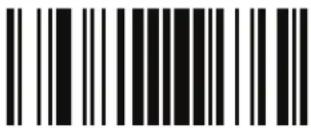 ENTER/EXIT PROGRAMMING MODE ENTER/EXIT PROGRAMMING MODE | |
 |  Industrial 2 of 5 Minimum Reads = 1 Industrial 2 of 5 Minimum Reads = 1 |
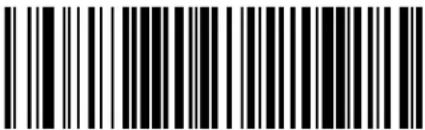 Industrial 2 of 5 Minimum Reads = 2 Industrial 2 of 5 Minimum Reads = 2 | |
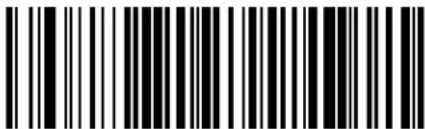 Industrial 2 of 5 Minimum Reads = 3 Industrial 2 of 5 Minimum Reads = 3 | |
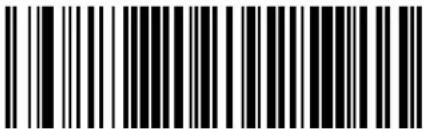 Industrial 2 of 5 Minimum Reads = 4 Industrial 2 of 5 Minimum Reads = 4 | |
Industrial 2 of 5 — cont.
Industrial 2 of 5 Stitching
Enables/disables fixed length stitching for Industrial 2 of 5.

text_image
ENTER/EXIT PROGRAMMING MODE DEFAULT Industrial 2 of 5 Stitching = Enable Industrial 2 of 5 Stitching = DisableIndustrial 2 of 5 Character Correlation
Enable/disables character correlation for Industrial 2 of 5.

text_image
ENTER/EXIT PROGRAMMING MODE DEFAULT Industrial 2 of 5 Character Correlation = DisableIATA
The following options apply to the IATA symbology.
IATA Enable/Disable
Enables/Disables the ability of the reader to decode IATA labels.
| ENTER/EXIT PROGRAMMING MODE | |
| DEFAULT | IATA = Disable |
| IATA = Enable | |
IATA Check Character Transmission
Enables/Disables calculation and verification of an optional Industrial 2 of 5 check character.
| ENTER/EXIT PROGRAMMING MODE | |
| IATA Check Character Transmission = Disable | |
| IATA Check Character Transmission = Enable | DEFAULT |
ISBT 128
The following options apply to the ISBT 128 symbology.
ISBT 128 Concatenation
Use this option to enable/disable ISBT128 concatenation of 2 labels.
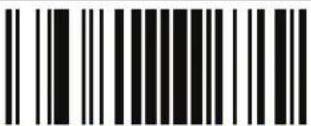 ENTER/EXIT PROGRAMMING MODE ENTER/EXIT PROGRAMMING MODE | |
 |  ISBN 128 Concatenation = Disable ISBN 128 Concatenation = Disable |
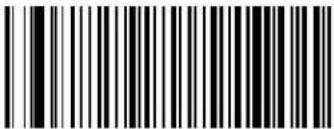 ISBN 128 Concatenation = Enable ISBN 128 Concatenation = Enable | |
ISBT 128 Concatenation Mode
Specifies the concatenation mode between Static and Dynamic.

NOTE
This option is only valid when ISBT 128 Concatenation is enabled (see page 288).

ENTER/EXIT PROGRAMMING MODE

text_image
DEFAULT
text_image
Black and white barcode image with vertical lines and a small number 'n' in the bottom right corner.ISBT 128 Concatenation Mode = Static

text_image
Black and white barcode image with vertical lines and dotsISBT 128 Concatenation Mode = Dynamic
ISBT 128 — cont.
ISBT 128 Dynamic Concatenation Timeout
Specifies the timeout used by the ISBT 128 Dynamic Concatenation Mode.
 ENTER/EXIT PROGRAMMING MODE ENTER/EXIT PROGRAMMING MODE | |
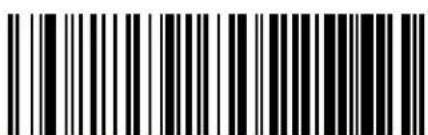 ISBT 128 Dynamic Concatenation Timeout = 50 msec ISBT 128 Dynamic Concatenation Timeout = 50 msec | |
 ISBT 128 Dynamic Concatenation Timeout = 100 msec ISBT 128 Dynamic Concatenation Timeout = 100 msec | |
 |  ISBT 128 Dynamic Concatenation Timeout = 200 msec ISBT 128 Dynamic Concatenation Timeout = 200 msec |
 ISBT 128 Dynamic Concatenation Timeout = 500 msec ISBT 128 Dynamic Concatenation Timeout = 500 msec | |
 ISBT 128 Dynamic Concatenation Timeout = 750 msec ISBT 128 Dynamic Concatenation Timeout = 750 msec | |
 ISBT 128 Dynamic Concatenation Timeout = 1 second ISBT 128 Dynamic Concatenation Timeout = 1 second | |
ISBT 128 - cont.
ISBT 128 Force Concatenation
When enabled, this feature forces concatenation for ISBT.

NOTE
This option is only valid when ISBT 128 Concatenation is enabled. (see page 288).

text_image
Black and white barcode image with vertical lines on both sidesENTER/EXIT PROGRAMMING MODE


text_image
Black and white barcode image with vertical lines on both sidesISBT 128 Force Concatenation = Disable

text_image
Black and white barcode image with vertical lines and a small number '1' at the bottom right.ISBT 128 Force Concatenation = Enable
ISBT 128 Advanced Concatenation Options

Use the Datalogic Aladdin Configuration Application or contact Customer Support to set up pairs of label types for concatenation.
NOTE
MSI
The following options apply to the MSI symbology.
MSI Enable/Disable
Enables/Disables ability of reader to decode MSI labels.
 ENTER/EXIT PROGRAMMING MODE ENTER/EXIT PROGRAMMING MODE | |
 | 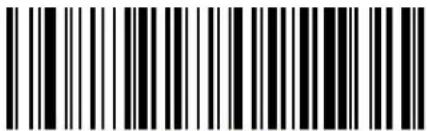 MSI = Disable MSI = Disable |
 MSI = Enable MSI = Enable | |
MSI - cont.
MSI Check Character Calculation
Enables/Disables calculation and verification of an optional MSI check character.
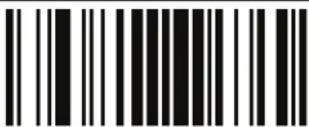 ENTER/EXIT PROGRAMMING MODE ENTER/EXIT PROGRAMMING MODE | |
 MSI Check Character Calculation = Disable MSI Check Character Calculation = Disable | |
 MSI Check Character Calculation = Enable Mod10 MSI Check Character Calculation = Enable Mod10 |  |
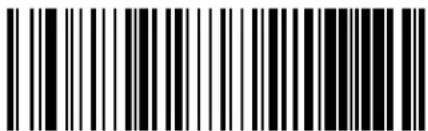 MSI Check Character Calculation = Enable Mod11/10 MSI Check Character Calculation = Enable Mod11/10 | |
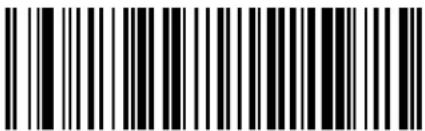 MSI Check Character Calculation = Enable Mod10/10 MSI Check Character Calculation = Enable Mod10/10 | |
MSI - cont.
MSI Check Character Transmission
Enables/disables transmission of an MSI check character.
| ENTER/EXIT PROGRAMMING MODE | |
| MSI Check Character Transmission = Disable | |
| MSI Check Character Transmission = Enable | DEFAULT |
MSI Length Control
This feature specifies either variable length decoding or fixed length decoding for the MSI symbology.
Variable Length — For variable length decoding, a minimum and maximum length may be set.
Fixed Length — For fixed length decoding, two different lengths may be set.
| ENTER/EXIT PROGRAMMING MODE | |
| DEFAULT | MSI Length Control = Variable Length |
| MSI = Fixed Length | |
MSI - cont.
MSI Set Length 1
This feature specifies one of the barcode lengths for MSI Length Control. Length 1 is the minimum label length if in Variable Length Mode, or the first fixed length if in Fixed Length Mode. Length includes the barcode's data characters only.
The length can be set from 01 to 50 characters.
Follow these instructions to set this feature:
- Determine the desired character length (from 0 to 50). Pad the number with leading zeroes to yield two digits. For example: 1 = 01 , 5 = 05 , 20 = 20 , etc.
- Scan the ENTER/EXIT PROGRAMMING MODE barcode to enter Programming Mode.
- Scan the barcode: SELECT MSI LENGTH 1 SETTING.
- Scan the appropriate two digits from the keypad in the Keypad Appendix, that represent the length setting which was determined in the steps above. You will hear a two-beep indication after the last character.

If you make a mistake before the last character, scan the CANCEL barcode to abort and not save the entry string. You can then start again at the beginning.
NOTE
- Scan the ENTER/EXIT PROGRAMMING MODE barcode to exit Programming Mode.
This completes the procedure. See the table below for some examples of how to set this feature.
Table 37. MSI Length 1 Setting Examples
| STEP ACTION EXAMPLES | ||||
| 1 Desired Setting 01 Characters 07 Characters 15 Characters 50 Characters | ||||
| 2 Scan ENTER/EXIT PROGRAMMING MODE | ||||
| 3 Scan SELECT MSI LENGTH 1 SETTING | ||||
| 4 | Scan Two Characters From the Keypad Appendix | ‘0’ and ‘1’ ‘0’ and ‘7’ ‘1’ and ‘5’ ‘5’ AND ‘0’ | ||
| 5 Scan ENTER/EXIT PROGRAMMING MODE | ||||
MSI - cont.
MSI Set Length 1 — cont.

text_image
ENTER/EXIT PROGRAMMING MODE
text_image
Select MSI Set Length 1 SettingMake a mistake? Scan the CANCEL barcode to abort and not save the entry string. You can then start again at the beginning.

DEFAULT
01 = Length 1 is 1 Character
MSI - cont.
MSI Set Length 2
This feature specifies one of the barcode lengths for MSI Length Control. Length 2 is the maximum label length if in Variable Length Mode, or the second fixed length if in Fixed Length Mode. Length includes the barcode's check, data, and full-ASCII shift characters. The length does not include start/stop characters.
The length can be set from 1 to 50 characters. A setting of 0 specifies to ignore this length (only one fixed length).
Follow these instructions to set this feature:
- Determine the desired character length (from 1 to 50 — or 0 to ignore this length). Pad the number with leading zeroes to yield two digits. For example: 0 = 00, 5 = 05, 20 = 20, etc.
- Scan the ENTER/EXIT PROGRAMMING MODE barcode to enter Programming Mode.
- Scan the barcode: SELECT MSI LENGTH 2 SETTING.
- Scan the appropriate two digits from the keypad in the Keypad Appendix that represent the length setting which was determined in the steps above. You will hear a two-beep indication after the last character.

If you make a mistake, before the last character scan the CANCEL barcode to abort and not save the entry string. You can then start again at the beginning.
NOTE
- Scan the ENTER/EXIT PROGRAMMING MODE barcode to exit Programming Mode.
This completes the procedure. See the table below for some examples of how to set this feature.
Table 38. MSI Length 2 Setting Examples
| STEP ACTION EXAMPLES | ||||
| 1 Desired Setting | 00 (Ignore This Length) | 07 Characters 15 | Characters 50 Characters | |
| 2 Scan ENTER/EXIT PROGRAMMING MODE | ||||
| 3 Scan SELECT MSI LENGTH 2 SETTING | ||||
| 4 | Scan Two Characters From the Keypad Appendix | ‘0’ and ‘0’ ‘0’ and ‘7’ ‘1’ and ‘5’ ‘5’ AND ‘0’ | ||
| 5 Scan ENTER/EXIT PROGRAMMING MODE | ||||
MSI - cont.
MSI Set Length 2 — cont.

text_image
ENTER/EXIT PROGRAMMING MODE
text_image
Select MSI Length 2 SettingMake a mistake? Scan the CANCEL barcode to abort and not save the entry string. You can then start again at the beginning.

DEFAULT
50 = Length 2 is 50 Characters
MSI - cont.
MSI Minimum Reads
This feature specifies the minimum number of consecutive times an MSI label must be decoded before it is accepted as good read.
 ENTER/EXIT PROGRAMMING MODE ENTER/EXIT PROGRAMMING MODE | |
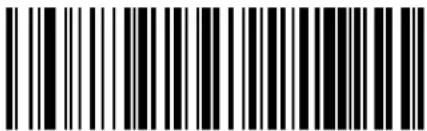 MSI Minimum Reads = 1 MSI Minimum Reads = 1 | |
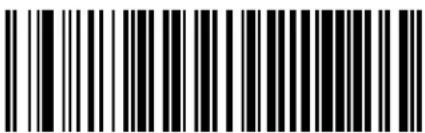 MSI Minimum Reads = 2 MSI Minimum Reads = 2 | |
 MSI Minimum Reads = 3 MSI Minimum Reads = 3 | |
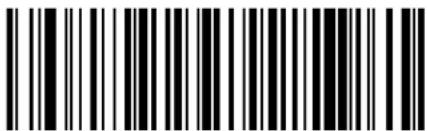 MSI Minimum Reads = 4 MSI Minimum Reads = 4 |  |
MSI - cont.
MSI Decoding Level
Decoding Levels are used to configure a barcode symbology decoder to be very aggressive to very conservative depending on a particular customer's needs.
- Choosing Level 1 results in a very conservative decoder at the expense of not being able to read poorly printed or damaged labels.
- Choosing Level 5 results in a very aggressive decoder. This aggressive behavior allows decoding of poorly printed and damaged labels at the expense of increasing the likelihood of decoding errors.
- Choosing Level 3, which is the default setting, allows the majority of product labels to be decoded.
There are many factors that determine when to change the decoding level for a particular symbology. These factors include spots, voids, non-uniform bar/space widths, damaged labels, etc. that may be experienced in some barcode labels. If there are many hard to read or damaged labels that cannot be decoded using a conservative setting, increase the decoding level to be more aggressive. If the majority of labels are very good quality labels, or there is a need to decrease the possibility of a decoder error, lower the decoding level to a more conservative level.
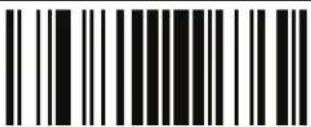 ENTER/EXIT PROGRAMMING MODE ENTER/EXIT PROGRAMMING MODE | |
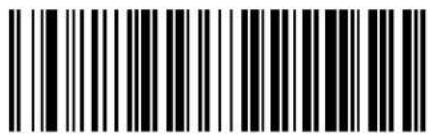 MSI Decoding Level = Disable MSI Decoding Level = Disable | |
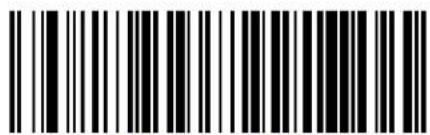 MSI Decoding Level = 1 MSI Decoding Level = 1 | |
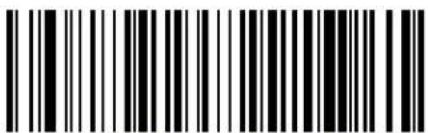 MSI Decoding Level = 2 MSI Decoding Level = 2 | |
MSI - cont.
MSI Decoding Level — cont.

text_image
Black and white barcode image with vertical lines and a small number '1' at the bottomMSI Decoding Level = 3


text_image
Black and white barcode image with vertical lines on both sidesMSI Decoding Level = 4

text_image
Barcode image containing encoded digital informationMSI Decoding Level = 5
Plessey
The following options apply to the Plessey symbology.
Plessey Enable/Disable
Enables/Disables ability of reader to decode Plessey labels.
 ENTER/EXIT PROGRAMMING MODE ENTER/EXIT PROGRAMMING MODE | |
 | 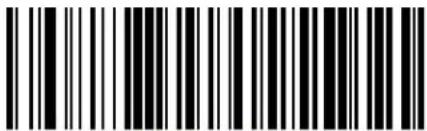 Plessey = Disable Plessey = Disable |
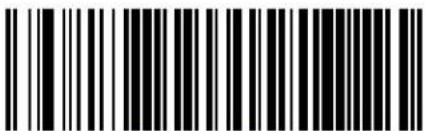 Plessey = Enable Plessey = Enable | |
Plessey — cont.
Plessey Check Character Calculation
Enables/Disables calculation and verification of an optional Plessey check character.
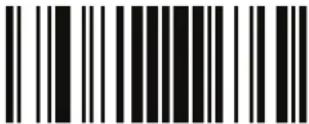 ENTER/EXIT PROGRAMMING MODE ENTER/EXIT PROGRAMMING MODE | |
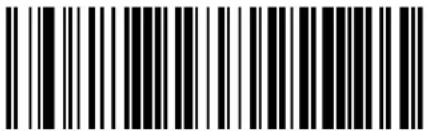 Plessey Check Character Calculation = Disable Plessey Check Character Calculation = Disable | |
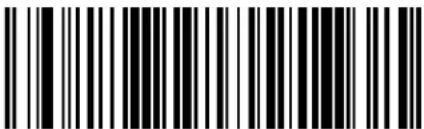 Plessey Check Character Calculation = Enable Plessey std. check char. verification Plessey Check Character Calculation = Enable Plessey std. check char. verification |  |
 Plessey Check Character Calculation = Enable Anker check char. verification Plessey Check Character Calculation = Enable Anker check char. verification | |
 Plessey Check Character Calculation = Enable Plessey std. and Anker check char verification Plessey Check Character Calculation = Enable Plessey std. and Anker check char verification | |
Plessey — cont.
Plessey Check Character Transmission
Enables/disables transmission of an MSI check character.
| ENTER/EXIT PROGRAMMING MODE | |
| Plessey Check Character Transmission = Disable | |
| Plessey Check Character Transmission = Enable | DEFAULT |
PLessey Length Control
This feature specifies either variable length decoding or fixed length decoding for the Plessey symbology.
Variable Length — For variable length decoding, a minimum and maximum length may be set.
Fixed Length — For fixed length decoding, two different lengths may be set.
| ENTER/EXIT PROGRAMMING MODE | |
| DEFAULT | Plessey Length Control = Variable Length |
| Plessey = Fixed Length | |
Plessey — cont.
Plessey Set Length 1
This feature specifies one of the barcode lengths for PLessey Length Control. Length 1 is the minimum label length if in Variable Length Mode, or the first fixed length if in Fixed Length Mode. Length includes the barcode's data characters only. The length can be set from 01 to 50 characters.
Follow these instructions to set this feature:
- Determine the desired character length (from 0 to 50). Pad the number with leading zeroes to yield two digits. For example: 1 = 01 , 5 = 05 , 20 = 20 , etc.
- Scan the ENTER/EXIT PROGRAMMING MODE barcode to enter Programming Mode.
- Scan the barcode: SELECT PLESSEY LENGTH 1 SETTING.
- Scan the appropriate two digits from the keypad in the Keypad Appendix, that represent the length setting which was determined in the steps above. You will hear a two-beep indication after the last character.

If you make a mistake before the last character, scan the CANCEL barcode to abort and not save the entry string. You can then start again at the beginning.
NOTE
- Scan the ENTER/EXIT PROGRAMMING MODE barcode to exit Programming Mode.
This completes the procedure. See the table below for some examples of how to set this feature.
Table 39. Plessey Length 1 Setting Examples
| STEP ACTION EXAMPLES | ||||
| 1 Desired Setting 01 Characters 07 Characters 15 Characters 50 Characters | ||||
| 2 Scan ENTER/EXIT PROGRAMMING MODE | ||||
| 3 Scan SELECT Plessey LENGTH 1 SETTING | ||||
| 4 | Scan Two Characters From the Keypad Appendix | ‘0’ and ‘1’ ‘0’ and ‘7’ ‘1’ and ‘5’ ‘5’ AND ‘0’ | ||
| 5 Scan ENTER/EXIT PROGRAMMING MODE | ||||
Plessey — cont.
Plessey Set Length 1 — cont.

text_image
ENTER/EXIT PROGRAMMING MODE
text_image
Select Plessey Set Length 1 SettingMake a mistake? Scan the CANCEL barcode to abort and not save the entry string. You can then start again at the beginning.

DEFAULT
01 = Length 1 is 1 Character
Plessey — cont.
Plessey Set Length 2
This feature specifies one of the barcode lengths for PLessey Length Control. Length 2 is the maximum label length if in Variable Length Mode, or the second fixed length if in Fixed Length Mode. Length includes the barcode's check, data, and full-ASCII shift characters. The length does not include start/stop characters.
The length can be set from 1 to 50 characters. A setting of 0 specifies to ignore this length (only one fixed length).
Follow these instructions to set this feature:
- Determine the desired character length (from 1 to 50 — or 0 to ignore this length). Pad the number with leading zeroes to yield two digits. For example: 0 = 00, 5 = 05, 20 = 20, etc.
- Scan the ENTER/EXIT PROGRAMMING MODE barcode to enter Programming Mode.
- Scan the barcode: SELECT PLESSEY LENGTH 2 SETTING.
- Scan the appropriate two digits from the keypad in the Keypad Appendix that represent the length setting which was determined in the steps above. You will hear a two-beep indication after the last character.

If you make a mistake, before the last character scan the CANCEL barcode to abort and not save the entry string. You can then start again at the beginning.
NOTE
- Scan the ENTER/EXIT PROGRAMMING MODE barcode to exit Programming Mode.
This completes the procedure. See the table below for some examples of how to set this feature.
Table 40. Plessey Length 2 Setting Examples
| STEP ACTION EXAMPLES | ||||
| 1 Desired Setting | 00 (Ignore This Length) | 07 Characters 15 | Characters 50 Characters | |
| 2 Scan ENTER/EXIT PROGRAMMING MODE | ||||
| 3 Scan SELECT PLESSEY LENGTH 2 SETTING | ||||
| 4 | Scan Two Characters From the Keypad Appendix | ‘0’ and ‘0’ ‘0’ and ‘7’ ‘1’ and ‘5’ ‘5’ AND ‘0’ | ||
| 5 Scan ENTER/EXIT PROGRAMMING MODE | ||||
Plessey — cont.
Plessey Set Length 2 — cont.

text_image
ENTER/EXIT PROGRAMMING MODE
text_image
Select Plessey Length 2 SettingMake a mistake? Scan the CANCEL barcode to abort and not save the entry string. You can then start again at the beginning.

DEFAULT
50 = Length 2 is 50 Characters
Plessey — cont.
Plessey Minimum Reads
This feature specifies the minimum number of consecutive times a Plessey label must be decoded before it is accepted as good read.
| ENTER/EXIT PROGRAMMING MODE | |
 Plessey Minimum Reads = 1 Plessey Minimum Reads = 1 | |
 Plessey Minimum Reads = 2 Plessey Minimum Reads = 2 | |
 Plessey Minimum Reads = 3 Plessey Minimum Reads = 3 | |
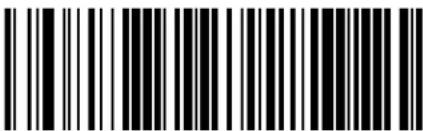 Plessey Minimum Reads = 4 Plessey Minimum Reads = 4 |  |
Plessey — cont.
Plessey Decoding Level
Decoding Levels are used to configure a barcode symbology decoder to be very aggressive to very conservative depending on a particular customer's needs.
- Choosing Level 1 results in a very conservative decoder at the expense of not being able to read poorly printed or damaged labels.
- Choosing Level 5 results in a very aggressive decoder. This aggressive behavior allows decoding of poorly printed and damaged labels at the expense of increasing the likelihood of decoding errors.
- Choosing Level 3, which is the default setting, allows the majority of product labels to be decoded.
There are many factors that determine when to change the decoding level for a particular symbology. These factors include spots, voids, non-uniform bar/space widths, damaged labels, etc. that may be experienced in some barcode labels. If there are many hard to read or damaged labels that cannot be decoded using a conservative setting, increase the decoding level to be more aggressive. If the majority of labels are very good quality labels, or there is a need to decrease the possibility of a decoder error, lower the decoding level to a more conservative level.
 ENTER/EXIT PROGRAMMING MODE ENTER/EXIT PROGRAMMING MODE | |
 Plessey Decoding Level = Disable Plessey Decoding Level = Disable | |
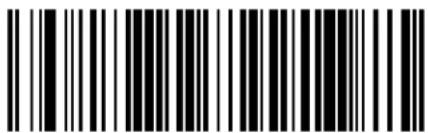 Plessey Decoding Level = 1 Plessey Decoding Level = 1 | |
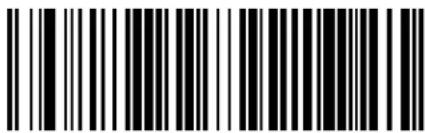 Plessey Decoding Level = 2 Plessey Decoding Level = 2 | |
Plessey — cont.
Plessey Decoding Level — cont.
 Plessey Decoding Level = 3 Plessey Decoding Level = 3 |  |
 Plessey Decoding Level = 4 Plessey Decoding Level = 4 | |
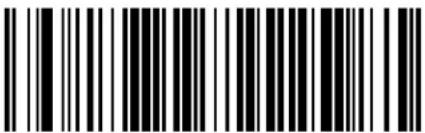 Plessey Decoding Level = 5 Plessey Decoding Level = 5 |
Plessey Stitching
Enables/disables fixed length stitching for Plessey.
 ENTER/EXIT PROGRAMMING MODE ENTER/EXIT PROGRAMMING MODE | |
 |  Plessey Stitching = Disable Plessey Stitching = Disable |
 Plessey Stitching = Enable Plessey Stitching = Enable | |
Plessey — cont.
Plessey Character Correlation
Enables/disables Character Correlation for Plessey.

text_image
ENTER/EXIT PROGRAMMING MODE DEFAULT Plessey Character Correlation = Disable Plessey Character Correlation = EnableCode 93
The following options apply to the Code 93 symbology.
Enables/Disables ability of reader to decode Code 93 labels.

flowchart
graph TD
    A["ENTER/EXIT PROGRAMMING MODE"] --> B["DEFAULT"]
    A --> C["Code 93 = Disable"]
    B --> D
    C --> E
Code 93 — cont.
Code 93 Check Character Calculation
Enables/disables calculation and verification of an optional Code 93 check character.
 ENTER/EXIT PROGRAMMING MODE ENTER/EXIT PROGRAMMING MODE | |
 Code 93 Check Character Calculation = Disable Code 93 Check Character Calculation = Disable | |
 Code 93 Check Character Calculation = Enable Check C Code 93 Check Character Calculation = Enable Check C | |
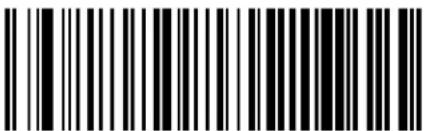 Code 93 Check Character Calculation = Enable Check K Code 93 Check Character Calculation = Enable Check K | |
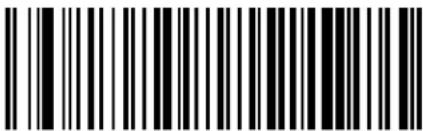 Code 93 Check Character Calculation = Enable Check C and K Code 93 Check Character Calculation = Enable Check C and K |  |
Code 93 — cont.
Code 93 Check Character Transmission
Enables/disables transmission of an optional Code 93 check character.
| ENTER/EXIT PROGRAMMING MODE | |
| Code 93 Check Character Transmission = Disable | |
| Code 93 Check Character Transmission = Enable | DEFAULT |
Code 93 Length Control
This feature specifies either variable length decoding or fixed length decoding for the Code 93 symbology.
Variable Length — For variable length decoding, a minimum and maximum length may be set.
Fixed Length — For fixed length decoding, two different lengths may be set.
| ENTER/EXIT PROGRAMMING MODE | |
| DEFAULT | Code 93 Length Control = Variable Length |
| Code 93 = Fixed Length | |
Code 93 — cont.
Code 93 Set Length 1
This feature specifies one of the barcode lengths for Code 93 Length Control. Length 1 is the minimum label length if in Variable Length Mode, or the first fixed length if in Fixed Length Mode. Length includes the barcode's data characters only. The length can be set from 01 to 50 characters.
Follow these instructions to set this feature:
- Determine the desired character length (from 0 to 50). Pad the number with leading zeroes to yield two digits. For example: 1 = 01, 5 = 05, 20 = 20, etc.
- Scan the ENTER/EXIT PROGRAMMING MODE barcode to enter Programming Mode.
- Scan the barcode: SELECT CODE 93 LENGTH 1 SETTING.
- Scan the appropriate two digits from the keypad in the Keypad Appendix, that represent the length setting which was determined in the steps above. You will hear a two-beep indication after the last character.

If you make a mistake before the last character, scan the CANCEL barcode to abort and not save the entry string. You can then start again at the beginning.
NOTE
- Scan the ENTER/EXIT PROGRAMMING MODE barcode to exit Programming Mode.
This completes the procedure. See the table below for some examples of how to set this feature.
Table 41. Code 93 Length 1 Setting Examples
| STEP ACTION EXAMPLES | ||||
| 1 Desired Setting 01 Characters 07 Characters 15 Characters 50 Characters | ||||
| 2 Scan ENTER/EXIT PROGRAMMING MODE | ||||
| 3 Scan SELECT CODE 93 LENGTH 1 SETTING | ||||
| 4 | Scan Two Characters From the Keypad Appendix | ‘0’ and ‘1’ ‘0’ and ‘7’ ‘1’ and ‘5’ ‘5’ AND ‘0’ | ||
| 5 Scan ENTER/EXIT PROGRAMMING MODE | ||||
Code 93 — cont.
Code 93 Set Length 1 — cont.

text_image
ENTER/EXIT PROGRAMMING MODE
text_image
Select Code 93 Set Length 1 SettinMake a mistake? Scan the CANCEL barcode to abort and not save the entry string. You can then start again at the beginning.

DEFAULT
01 = Length 1 is 1 Character
Code 93 — cont.
Code 93 Set Length 2
This feature specifies one of the barcode lengths for Code 93 Length Control. Length 2 is the maximum label length if in Variable Length Mode, or the second fixed length if in Fixed Length Mode. Length includes the barcode's check, data, and full-ASCII shift characters. The length does not include start/stop characters.
The length can be set from 1 to 50 characters. A setting of 0 specifies to ignore this length (only one fixed length).
Follow these instructions to set this feature:
- Determine the desired character length (from 1 to 50 — or 0 to ignore this length). Pad the number with leading zeroes to yield two digits. For example: 0 = 00, 5 = 05, 20 = 20, etc.
- Scan the ENTER/EXIT PROGRAMMING MODE barcode to enter Programming Mode.
- Scan the barcode: SELECT CODE 93 LENGTH 2 SETTING.
- Scan the appropriate two digits from the keypad in the Keypad Appendix that represent the length setting which was determined in the steps above. You will hear a two-beep indication after the last character.

If you make a mistake, before the last character scan the CANCEL barcode to abort and not save the entry string. You can then start again at the beginning.
NOTE
- Scan the ENTER/EXIT PROGRAMMING MODE barcode to exit Programming Mode.
This completes the procedure. See the table below for some examples of how to set this feature.
Table 42. CODE 93 Length 2 Setting Examples
| STEP ACTION EXAMPLES | ||||
| 1 Desired Setting | 00 (Ignore This Length) | 07 Characters 15 | Characters 50 Characters | |
| 2 Scan ENTER/EXIT PROGRAMMING MODE | ||||
| 3 Scan SELECT CODE 93 LENGTH 2 SETTING | ||||
| 4 | Scan Two Characters From the Keypad Appendix | ‘0’ and ‘0’ ‘0’ and ‘7’ ‘1’ and ‘5’ ‘5’ AND ‘0’ | ||
| 5 Scan ENTER/EXIT PROGRAMMING MODE | ||||
Code 93 — cont.
Code 93 Set Length 2 — cont.

text_image
ENTER/EXIT PROGRAMMING MODE
text_image
Select Code 93 Length 2 SettingMake a mistake? Scan the CANCEL barcode to abort and not save the entry string. You can then start again at the beginning.

DEFAULT
50 = Length 2 is 50 Characters
Code 93 — cont.
Code 93 Minimum Reads
This feature specifies the minimum number of consecutive times a Code 93 label must be decoded before it is accepted as good read.
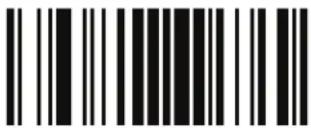 ENTER/EXIT PROGRAMMING MODE ENTER/EXIT PROGRAMMING MODE | |
 | 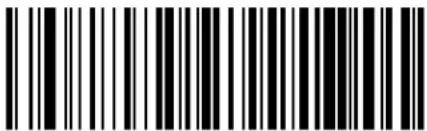 Code 93 Minimum Reads = 1 Code 93 Minimum Reads = 1 |
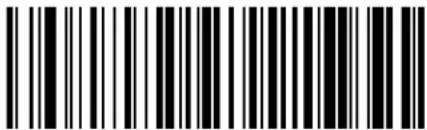 Code 93 Minimum Reads = 2 Code 93 Minimum Reads = 2 | |
 Code 93 Minimum Reads = 3 Code 93 Minimum Reads = 3 | |
 Code 93 Minimum Reads = 4 Code 93 Minimum Reads = 4 | |
Code 93 — cont.
Code 93 Decoding Level
Decoding Levels are used to configure a barcode symbology decoder to be very aggressive to very conservative depending on a particular customer's needs.
- Choosing Level 1 results in a very conservative decoder at the expense of not being able to read poorly printed or damaged labels.
- Choosing Level 5 results in a very aggressive decoder. This aggressive behavior allows decoding of poorly printed and damaged labels at the expense of increasing the likelihood of decoding errors.
- Choosing Level 3, which is the default setting, allows the majority of product labels to be decoded.
There are many factors that determine when to change the decoding level for a particular symbology. These factors include spots, voids, non-uniform bar/space widths, damaged labels, etc. that may be experienced in some barcode labels. If there are many hard to read or damaged labels that cannot be decoded using a conservative setting, increase the decoding level to be more aggressive. If the majority of labels are very good quality labels, or there is a need to decrease the possibility of a decoder error, lower the decoding level to a more conservative level.
| ENTER/EXIT PROGRAMMING MODE | |
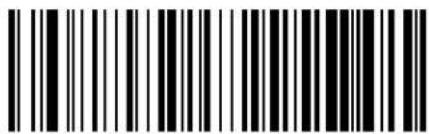 Code 93 Decoding Level = Disable Code 93 Decoding Level = Disable | |
 Code 93 Decoding Level = 1 Code 93 Decoding Level = 1 | |
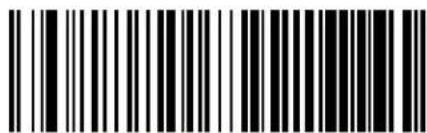 Code 93 Decoding Level = 2 Code 93 Decoding Level = 2 | |
Code 93 — cont.
Code 93 Decoding Level — cont.
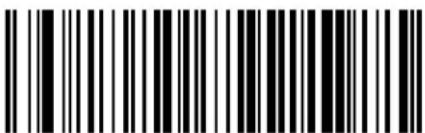 Code 93 Decoding Level = 3 Code 93 Decoding Level = 3 |  |
 Code 93 Decoding Level = 4 Code 93 Decoding Level = 4 | |
 Code 93 Decoding Level = 5 Code 93 Decoding Level = 5 |
Code 93 — cont.
Code 93 Quiet Zones
Enables/disables fixed length stitching for Code 93.
 ENTER/EXIT PROGRAMMING MODE ENTER/EXIT PROGRAMMING MODE | |
 Code 93 Quiet Zones = No Quiet Zones Code 93 Quiet Zones = No Quiet Zones | |
 Code 93 Quiet Zones = Quiet Zone on one side Code 93 Quiet Zones = Quiet Zone on one side | |
 Code 93 Quiet Zones = Quiet Zones on two sides Code 93 Quiet Zones = Quiet Zones on two sides | |
 Code 93 Quiet Zones = Auto Code 93 Quiet Zones = Auto |  |
 Code 93 Quiet Zones = Virtual Quiet Zones on two sides Code 93 Quiet Zones = Virtual Quiet Zones on two sides | |
Code 93 — cont.
Code 93 Stitching
Disable/enable fixed or variable length stitching for Code 93.
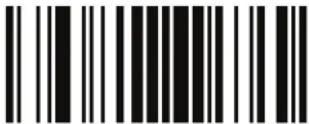 ENTER/EXIT PROGRAMMING MODE ENTER/EXIT PROGRAMMING MODE | |
 Code 93 Stitching = Disable Code 93 Stitching = Disable | |
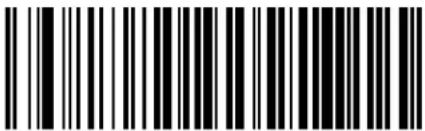 Code 93 Stitching = Enable Code 93 Stitching = Enable |  |
Code 93 Character Correlation
Enables/disables Character Correlation for Code 93.
 ENTER/EXIT PROGRAMMING MODE ENTER/EXIT PROGRAMMING MODE | |
 Code 93 Character Correlation = Disable Code 93 Character Correlation = Disable | |
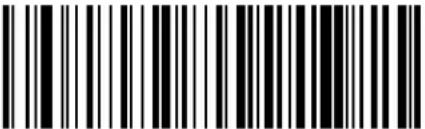 Code 93 Character Correlation = Enable Code 93 Character Correlation = Enable |  |
Codablock F
The following options apply to the Codablock F symbology.
Codablock F Enable/Disable
Enables/Disables the ability of the imager to decode Codablock F labels.
 ENTER/EXIT PROGRAMMING MODE ENTER/EXIT PROGRAMMING MODE | |
| 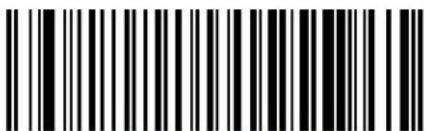 Codablock F = Disable Codablock F = Disable |
 Codablock F = Enable Codablock F = Enable | |
Codablock F — cont.
Codablock F EAN Enable/Disable
Enables/Disables the Codablock F EAN subtype (code with FNC1 in the first position).
| ENTER/EXIT PROGRAMMING MODE | |
| DEFAULT | Codablock F EAN = Disable |
| Codablock F EAN = Enable | |
Codablock F AIM Check
Specifies if Check Digit calculation algorithm is AIM compliant or not.
| ENTER/EXIT PROGRAMMING MODE | |
| Codablock F AIM Check = Disable | |
| Codablock F AIM Check = Enable Check C | DEFAULT |
Codablock F — cont.
Codablock F Length Control
This feature specifies either variable length decoding or fixed length decoding for the Codablock F symbology.
Variable Length — For variable length decoding, a minimum and maximum length may be set.
Fixed Length — For fixed length decoding, two different lengths may be set.
 ENTER/EXIT PROGRAMMING MODE ENTER/EXIT PROGRAMMING MODE | |
 |  Codablock F Length Control = Variable Length Codablock F Length Control = Variable Length |
 Codablock F = Fixed Length Codablock F = Fixed Length | |
Codablock F — cont.
Codablock F Set Length 1
This feature specifies one of the barcode lengths for Codablock F Length Control. Length 1 is the minimum label length if in Variable Length Mode, or the first fixed length if in Fixed Length Mode. Length includes the barcode's data characters only. The length can be set from 003 to 255 characters.
Follow these instructions to set this feature:
- Determine the desired character length (from 3 to 255). Pad the number with leading zeroes to yield three digits. For example: 3 = 003, 5 = 005, 20 = 020, etc.
- Scan the ENTER/EXIT PROGRAMMING MODE barcode to enter Programming Mode.
- Scan the barcode: SELECT CODABLOCK F LENGTH 1 SETTING.
- Scan the appropriate three digits from the keypad in the Keypad Appendix, that represent the length setting which was determined in the steps above. You will hear a two-beep indication after the last character.

If you make a mistake before the last character, scan the CANCEL barcode to abort and not save the entry string. You can then start again at the beginning.
NOTE
- Scan the ENTER/EXIT PROGRAMMING MODE barcode to exit Programming Mode.
This completes the procedure. See the table below for some examples of how to set this feature.
Table 43. CODABLOC K F Length 1 Setting Examples
| STEP ACTION EXAMPLES | ||||
| 1 Desired Setting 003 Characters 007 Characters 015 Characters 050 Characters | ||||
| 2 Scan ENTER/EXIT PROGRAMMING MODE | ||||
| 3 Scan SELECT CODABLOCK F LENGTH 1 SETTING | ||||
| 4 | Scan three Characters From the Keypad Appendix | ‘0’, ‘0’ and ‘3’ ‘0’, ‘0’ and ‘7’ ‘0’,‘1’ and ‘5’ ‘0’,‘5’ AND ‘0’ | ||
| 5 Scan ENTER/EXIT PROGRAMMING MODE | ||||
Codablock F — cont.
Codablock F Set Length 1 — cont.

text_image
ENTER/EXIT PROGRAMMING MODE
text_image
elect Codablock F Length 1 SettingMake a mistake? Scan the CANCEL barcode to abort and not save the entry string. You can then start again at the beginning.

DEFAULT
003 = Length 1 is 3 Characters
Codablock F — cont.
Codablock F Set Length 2
This feature specifies one of the barcode lengths for Codablock F Length Control. Length 2 is the maximum label length if in Variable Length Mode, or the second fixed length if in Fixed Length Mode. Length includes the barcode's check, data, and full-ASCII shift characters. The length does not include start/stop characters.
The length can be set from 3 to 255 characters. A setting of 0 specifies to ignore this length (only one fixed length).
Follow these instructions to set this feature:
- Determine the desired character length (from 3 to 255 — or 0 to ignore this length). Pad the number with leading zeroes to yield three digits. For example: 0 = 000, 5 = 005, 20 = 020, etc.
- Scan the ENTER/EXIT PROGRAMMING MODE barcode to enter Programming Mode.
- Scan the barcode: SELECT CODABLOCK F LENGTH 2 SETTING.
- Scan the appropriate three digits from the keypad in the Keypad Appendix that represent the length setting which was determined in the steps above. You will hear a two-beep indication after the last character.

If you make a mistake, before the last character scan the CANCEL barcode to abort and not save the entry string. You can then start again at the beginning.
NOTE
- Scan the ENTER/EXIT PROGRAMMING MODE barcode to exit Programming Mode.
This completes the procedure. See the table below for some examples of how to set this feature.
Table 44. CODABLOCK Length 2 Setting Examples
| STEP ACTION EXAMPLES | ||||
| 1 Desired Setting | 000 (Ignore This Length) | 007 Characters 0 | 15 Characters 050 | Characters |
| 2 Scan ENTER/EXIT PROGRAMMING MODE | ||||
| 3 Scan SELECT CODABLOCK F LENGTH 2 SETTING | ||||
| 4 | Scan three Characters From the Keypad Appendix | ‘0’, ‘0’ and ‘0’ ‘0’, ‘0’ and ‘7’ ‘0’, ‘1’ and ‘5’ ‘0’, ‘5’ AND ‘0’ | ||
| 5 Scan ENTER/EXIT PROGRAMMING MODE | ||||
Codablock F — cont.
Codablock F Set Length 2 — cont.

text_image
ENTER/EXIT PROGRAMMING MODE
text_image
Select Codablock F Length 2 SettingMake a mistake? Scan the CANCEL barcode to abort and not save the entry string. You can then start again at the beginning.

DEFAULT
100 = Length 2 is 100 Characters
Code 4
The following options apply to the Code 4 symbology.
Enables/Disables ability of imager to decode Code 4 labels.
 ENTER/EXIT PROGRAMMING MODE ENTER/EXIT PROGRAMMING MODE | |
 | 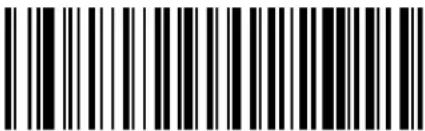 Code 4 = Disable Code 4 = Disable |
 Code 4 = Enable Code 4 = Enable | |
Code 4 — cont.
Code 4 Check Character Transmission
This feature enables/disables transmission of an optional Code 4 check character.
| ENTER/EXIT PROGRAMMING MODE | |
| Code 4 Check Character Transmission = Don't Send | |
| Code 4 Check Character Transmission = Send | DEFAULT |
Code 4 Hex to Decimal Conversion
This feature enables/disables the conversion of hexadecimal label data to decimal label data.
| ENTER/EXIT PROGRAMMING MODE | |
| Code 4 Hex to Decimal Conversion = Disable | |
| Code 4 Hex to Decimal Conversion = Enable | DEFAULT |
Code 5
The following options apply to the Code 5 symbology.
Enables/Disables ability of imager to decode Code 5 labels.
| ENTER/EXIT PROGRAMMING MODE | |
| DEFAULT | Code 5 = Disable |
| Code 5 = Enable | |
Code 5 — cont.
Code 5 Check Character Transmission
This feature enables/disables transmission of an optional Code 5 check character.
| ENTER/EXIT PROGRAMMING MODE | |
| Code 5 Check Character Transmission = Don't Send | |
| Code 5 Check Character Transmission = Send | DEFAULT |
Code 5 Hex to Decimal Conversion
This feature enables/disables the conversion of hexadecimal label data to decimal label data.
| ENTER/EXIT PROGRAMMING MODE | |
| Code 5 Hex to Decimal Conversion = Disable | |
| Code 5 Hex to Decimal Conversion = Enable | DEFAULT |
Code 4 and Code 5 Common Configuration Items
The following options apply to both Code 4 and Code 5 symbologies.
Code 4 and 5 Decoding Level
Decoding Levels are used to configure a barcode symbology decoder to be very aggressive to very conservative depending on a particular customer's needs.
- Choosing Level 1 results in a very conservative decoder at the expense of not being able to read poorly printed or damaged labels.
- Choosing Level 5 results in a very aggressive decoder. This aggressive behavior allows decoding of poorly printed and damaged labels at the expense of increasing the likelihood of decoding errors.
- Choosing Level 3, which is the default setting, allows the majority of product labels to be decoded.
There are many factors that determine when to change the decoding level for a particular symbology. These factors include spots, voids, non-uniform bar/space widths, damaged labels, etc. that may be experienced in some barcode labels. If there are many hard to read or damaged labels that cannot be decoded using a conservative setting, increase the decoding level to be more aggressive. If the majority of labels are very good quality labels, or there is a need to decrease the possibility of a decoder error, lower the decoding level to a more conservative level.

NOTE
This configuration item applies to Code 4 and Code 5.
Code 4 and Code 5 Common Configuration Items — cont.
Code 4 and 5 Decoding Level — cont.
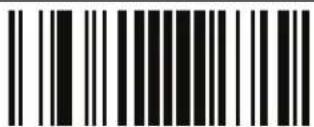 ENTER/EXIT PROGRAMMING MODE ENTER/EXIT PROGRAMMING MODE | |
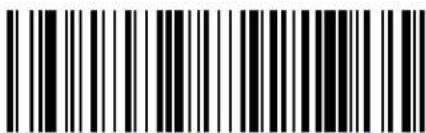 Code 4 and Code 5 Decoding Level = 1 Code 4 and Code 5 Decoding Level = 1 | |
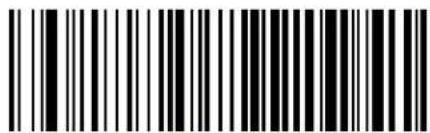 Code 4 and Code 5 Decoding Level = 2 Code 4 and Code 5 Decoding Level = 2 | |
 Code 4 and Code 5 Decoding Level = 3 Code 4 and Code 5 Decoding Level = 3 |  |
 Code 4 and Code 5 Decoding Level = 4 Code 4 and Code 5 Decoding Level = 4 | |
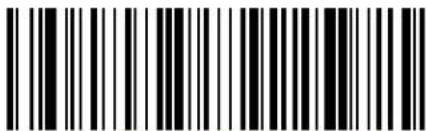 Code 4 and Code 5 Decoding Level = 5 Code 4 and Code 5 Decoding Level = 5 | |
Code 4 and Code 5 Common Configuration Items — cont.
Code 4 and Code 5 Minimum Reads
This feature specifies the minimum number of consecutive times a Code 4 or Code 5 label must be decoded before it is accepted as good read.
 ENTER/EXIT PROGRAMMING MODE ENTER/EXIT PROGRAMMING MODE | |
 | 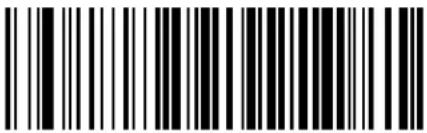 Code 4 or Code 5 Minimum Reads = 1 Code 4 or Code 5 Minimum Reads = 1 |
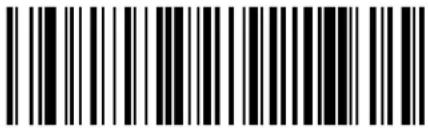 Code 4 or Code 5 Minimum Reads = 2 Code 4 or Code 5 Minimum Reads = 2 | |
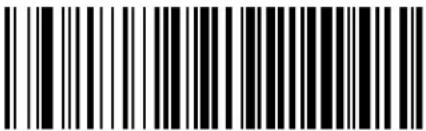 Code 4 or Code 5 Minimum Reads = 3 Code 4 or Code 5 Minimum Reads = 3 | |
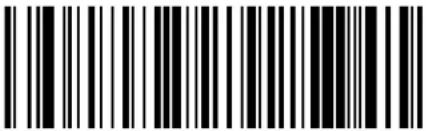 Code 4 or Code 5 Minimum Reads = 4 Code 4 or Code 5 Minimum Reads = 4 | |
Follett 2 of 5
The following options apply to the Follett 2 of 5 symbology.
Follett 2 of 5 Enable/Disable
Enables/Disables ability of imager to decode Follett 2 of 5 labels.
| ENTER/EXIT PROGRAMMING MODE | |
| DEFAULT | Follett 2 of 5 = Disable |
| Follett 2 of 5 = Enable | |
Chapter 13
BT Features
Introduction
This section provides options and programming related to the reader's radio communication features.
Standard Factory Settings
Reference Appendix B, Standard Defaults for a listing of standard factory settings.
BT Beeper Features
Several options are available to configure beeper behavior for BT operation.
ACK Beep
Enables/disables the ACK beep indication. The ACK beep occurs in response to the label acknowledgement (HACK) from the Base Station. The HACK signal is sent according to the settings made for BT Address Stamping on page 364.
| ENTER/EXIT PROGRAMMING MODE | |
| ACK Beep = Disable | |
| DEFAULT | |
Beep Frequency
Adjusts radio-specific beep indications to sound at a low, medium or high frequency, selectable from the list below. (Controls the beeper's pitch/tone.)
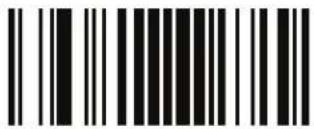 ENTER/EXIT PROGRAMMING MODE ENTER/EXIT PROGRAMMING MODE | |
 | 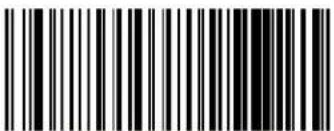 Beep Frequency = Low Beep Frequency = Low |
 Beep Frequency = Medium Beep Frequency = Medium | |
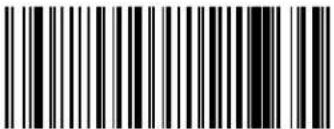 Beep Frequency = High Beep Frequency = High | |
Beep Duration
This feature controls the duration of radio-specific beep indications.
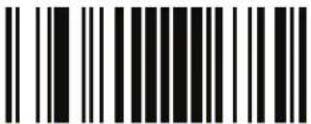 ENTER/EXIT PROGRAMMING MODE ENTER/EXIT PROGRAMMING MODE | |
 Beep Duration = 60 msec Beep Duration = 60 msec | |
 Beep Duration = 80 msec Beep Duration = 80 msec |  |
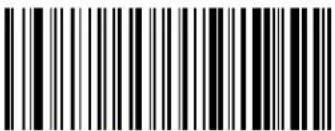 Beep Duration = 100 msec Beep Duration = 100 msec | |
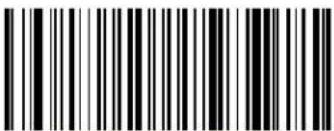 Beep Duration = 120 msec Beep Duration = 120 msec | |
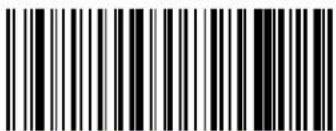 Beep Duration = 140 msec Beep Duration = 140 msec | |
Beep Duration — cont.
 ENTER/EXIT PROGRAMMING MODE ENTER/EXIT PROGRAMMING MODE | |
 Beep Duration = 160 msec Beep Duration = 160 msec | |
 Beep Duration = 180 msec Beep Duration = 180 msec | |
 Beep Duration = 200 msec Beep Duration = 200 msec | |
Beep Volume
Selects the beeper volume (loudness) of radio-specific beep indications. There are three selectable volume levels.
 ENTER/EXIT PROGRAMMING MODE ENTER/EXIT PROGRAMMING MODE | |
 Beep Volume = Low Beep Volume = Low | |
 Beep Volume = Medium Beep Volume = Medium | |
 Beep Volume = High Beep Volume = High |  |
BT Base Station Beep
Enables/disables a beep indication when the handheld is placed in the Base Station.
| ENTER/EXIT PROGRAMMING MODE | |
| BT Base Station Beep = Disable | |
| BT Base Station Beep = Enable | DEFAULT |
Disconnect Beep
Enables/disables the beep indication that a handheld has become disconnected from a Base Station.
| ENTER/EXIT PROGRAMMING MODE | |
| Disconnect Beep = Disable | |
| Disconnect Beep = Enable | DEFAULT |
BT Leash Alarm
This setting specifies the number of seconds to sound the Leash Mode beeps (three per second) when the handheld goes out of range. This is especially useful in instances where the reader might inadvertently have been placed in a bag or cart.
For this mode to be effective, the feature Sleep Mode Timeout on page 23, must be disabled. If the reader is asleep, there is no way for it to know where it is relative to the Base Station because communication is not active between the devices.

text_image
Black and white barcode image with vertical lines on both sidesENTER/EXIT PROGRAMMING MODE


text_image
Black and white barcode image with vertical lines and a central dotBT Leash Alarm = Disabled

text_image
Black and white barcode image with vertical lines on both sidesBT Leash Alarm = 1 Second

text_image
Black and white barcode image with vertical lines on both sidesBT Leash Alarm = 2 Seconds

text_image
Black and white barcode image with vertical lines and a central dotBT Leash Alarm = 3 Seconds

text_image
Black and white barcode image with vertical lines and a central barBT Leash Alarm = 4 Seconds
BT Leash Alarm — cont.
 ENTER/EXIT PROGRAMMING MODE ENTER/EXIT PROGRAMMING MODE | |
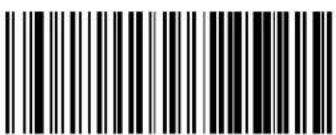 BT Leash Alarm = 5 Seconds BT Leash Alarm = 5 Seconds | |
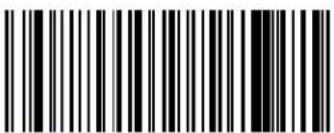 BT Leash Alarm = 10 Seconds BT Leash Alarm = 10 Seconds | |
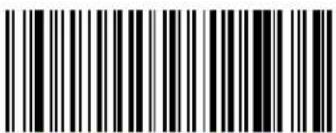 BT Leash Alarm = 25 Seconds BT Leash Alarm = 25 Seconds | |
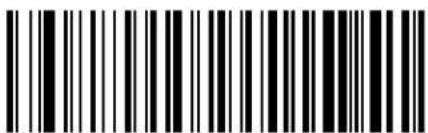 BT Leash Alarm = 30 Seconds BT Leash Alarm = 30 Seconds | |
Flash Update
BT Automatic Flash Update
This feature enables/disables the automatic flash update of a reader.
| ENTER/EXIT PROGRAMMING MODE | |
| DEFAULT | BT Automatic Flash Update = Disable |
| BT Automatic Flash Update = Enable | |
Request Flash Update
Scan this barcode to request a flash update from a Base Station

NOTE
Do not scan an ENTER/EXIT PROGRAMMING MODE label in conjunction with this barcode.

text_image
Request Flash UpdateConfiguration Update
Automatic Configuration Update
When this feature is enabled, a reader and its linked Base Station can automatically ensure they stay in sync with regard to application hardware and/or configuration. This is accomplished by the linked reader and Base Station comparing application version number and configuration file check sum. If either is different, the Base Station will automatically update the reader with its application/configuration.
If the units are linked, any changes made to the Base Station configuration through the Aladdin ^TM software will automatically be sent to the reader at the completion of the programming session.

text_image
ENTER/EXIT PROGRAMMING MODE
text_image
Automatic Configuration Update = Disable
text_image
Automatic Configuration Update = Enable
Configuration Update From Base Station to Handheld
Scan this barcode to manually request a one-time configuration update from the Base Station to the handheld.

NOTE
Do not scan an ENTER/EXIT PROGRAMMING MODE label in conjunction with this barcode.

text_image
Black and white barcode image with vertical lines on both sidesConfiguration Update From Base Station to Handheld
Configuration Update — cont.
Copy Configuration From Handheld to Base Station
Use this barcode to manually copy the handheld configuration to the Base Station.

NOTE
Do not scan an ENTER/EXIT PROGRAMMING MODE label in conjunction with this barcode.

text_image
Black and white barcode image with vertical lines on both sidesCopy Configuration From Handheld to Base Station
Battery Charge Mode
This feature specifies the battery charge mode for the Base Station.
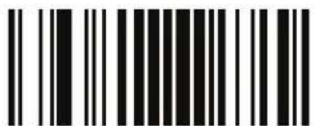 ENTER/EXIT PROGRAMMING MODE ENTER/EXIT PROGRAMMING MODE | |
 Battery Charge Mode = Charger Disabled Battery Charge Mode = Charger Disabled | |
 Battery Charge Mode = Charger Enabled Battery Charge Mode = Charger Enabled |  |
Powerdown Timeout
The Powerdown Timeout feature sets the time for automatically switching the unit off when the imager has been idle.
 ENTER/EXIT PROGRAMMING MODE ENTER/EXIT PROGRAMMING MODE | |
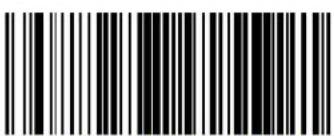 Powerdown Timeout = Disable Powerdown Timeout = Disable | |
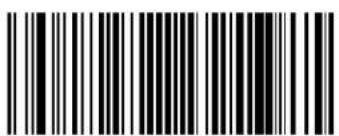 Powerdown Timeout = 10 minutes Powerdown Timeout = 10 minutes | |
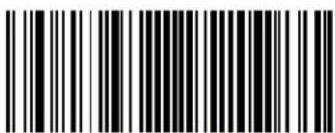 Powerdown Timeout = 20 minutes Powerdown Timeout = 20 minutes | |
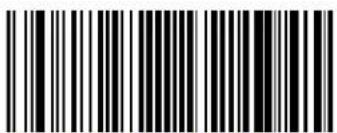 Powerdown Timeout = 30 minutes Powerdown Timeout = 30 minutes | |
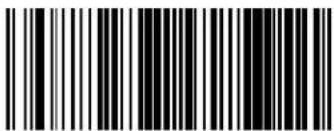 Powerdown Timeout = 40 minutes Powerdown Timeout = 40 minutes | |
Powerdown Timeout — continued
 ENTER/EXIT PROGRAMMING MODE ENTER/EXIT PROGRAMMING MODE | |
 | 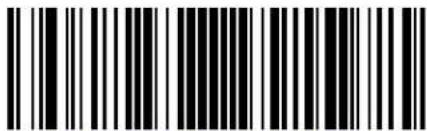 Powerdown Timeout = 60 Minutes Powerdown Timeout = 60 Minutes |
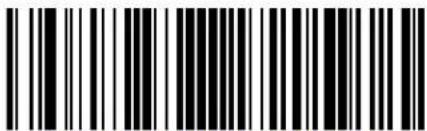 Powerdown Timeout = 90 Minutes Powerdown Timeout = 90 Minutes | |
 Powerdown Timeout = 120 Minutes Powerdown Timeout = 120 Minutes | |
BT Poll Rate
This feature Specifies the time between BT polls.
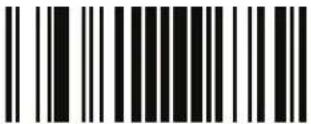 ENTER/EXIT PROGRAMMING MODE ENTER/EXIT PROGRAMMING MODE | |
 BT Poll Rate = Maximum BT Poll Rate BT Poll Rate = Maximum BT Poll Rate | |
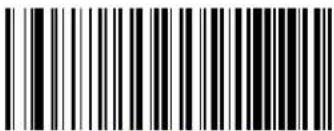 BT Poll Rate = 10 ms BT Poll Rate = 10 ms | |
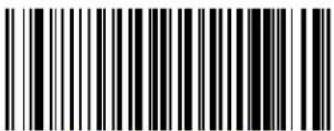 BT Poll Rate = 20 ms BT Poll Rate = 20 ms |  |
 BT Poll Rate = 30 ms BT Poll Rate = 30 ms | |
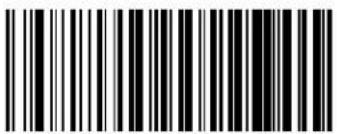 BT Poll Rate = 50 ms BT Poll Rate = 50 ms | |
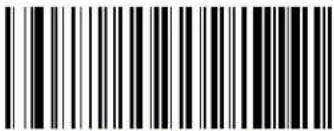 BT Poll Rate = 100 ms BT Poll Rate = 100 ms | |
BT Poll Rate — cont.
 ENTER/EXIT PROGRAMMING MODE ENTER/EXIT PROGRAMMING MODE | |
 BT Poll Rate = 150 ms BT Poll Rate = 150 ms | |
 BT Poll Rate = 200 ms BT Poll Rate = 200 ms | |
 BT Poll Rate = 500 ms BT Poll Rate = 500 ms | |
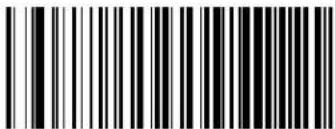 BT Poll Rate = 990 ms BT Poll Rate = 990 ms | |
Batch Features
Batch Mode
This option specifies which mode to use to store labels in the handheld while disconnected from the base. Options are as follows:
- Disabled — The handheld will not store/batch labels.
- Automatic — The handheld will store labels to RAM when the handheld goes out of range and is disconnected from the remote device.
- Manual — The handheld will always store labels to Flash memory. The user must manually send the stored labels to the remote device using a special "batch send" label.

text_image
ENTER/EXIT PROGRAMMING MODE

text_image
Batch Mode = Disabled
text_image
Batch Mode = Automatic
text_image
Batch Mode = ManualBatch Features — cont.
Send Batch
Use this barcode to initiate sending of labels stored in batch memory.

NOTE
Do not scan an ENTER/EXIT PROGRAMMING MODE label in conjunction with this barcode.

text_image
Black and white barcode image with vertical lines on both sidesSend Batch
Erase Batch Memory
Use this barcode to erase any labels stored in batch memory.

NOTE
Do not scan an ENTER/EXIT PROGRAMMING MODE label in conjunction with this barcode.

text_image
Black and white barcode image with vertical lines and a small number 'n' in the bottom right corner.Erase Batch Memory
Batch Features — cont.
BT Batch Mode Transmit Delay
Enables/disables the ability of the Base Station to emulate a PowerScan 7000 model Base Station. When enabled, the Base Station can link with a PowerScan 7000BT handheld.
 ENTER/EXIT PROGRAMMING MODE ENTER/EXIT PROGRAMMING MODE | |
 |  BT Batch Mode Transmit Delay = No Delay BT Batch Mode Transmit Delay = No Delay |
 | |
 BT Batch Mode Transmit Delay = 1 Second BT Batch Mode Transmit Delay = 1 Second | |
 | |
BT Security Features
These features enable/disable the BT system to require a configurable pin code to authenticate/connect the BT devices, and encrypt the data.
BT Pin Code
This option specifies the 4-character pin code to be used for authentication of the BT link. BT Security Mode on page 362 must be enabled in order to require the pin code.
To set the pin code:
- Determine the desired characters. For example, D254.
- Convert the characters to hexadecimal using the ASCII Chart on the inside back cover of this manual. In the case of the example, the hexadecimal equivalents would be:
$$ \mathrm{D} = 0 \mathrm{x} 4 4, 2 = 0 \mathrm{x} 3 2, 5 = 0 \mathrm{x} 3 5, \text { and } 4 = 0 \mathrm{x} 3 4 $$
-
Scan the ENTER/EXIT PROGRAMMING MODE barcode to enter Programming Mode.
-
Scan the barcode: SELECT BT PIN CODE.
-
Scan the appropriate alpha-numeric characters from the keypad in Appendix E, Keypad representing the hexadecimal entries which was determined in the steps above. You will hear a two-beep indication after the last character.

NOTE
If you make a mistake before the last character, scan the CANCEL barcode to abort and not save the entry string. You can then start again at the beginning.
- Scan the ENTER/EXIT PROGRAMMING MODE barcode to exit Programming Mode.
This completes the procedure. See Table 45 for some examples of how to set this feature.

NOTE
Changing the pin code setting will unlink the devices. If the Automatic Configuration Update is set to the default enabled setting, the devices must only be relinked. If the Automatic Configuration Update is set to the disabled setting, the Pin Code setting must also be updated in the Base Station using Aladdin. After the Base Station has been updated the devices must be relinked.
This completes the procedure. See Table 45 for some examples of how to set this feature.
Table 45. BT Pin Code Setting Examples
| STEP ACTION EXAMPLES | ||||
| 1 Desired Setting 1234 D254 1359 STOR | ||||
| 2 Convert the characters to hexadecimal | 31 32 33 34 44 | 32 35 34 31 33 | 35 39 53 54 4F 52 | |
| 3 Scan ENTER/EXIT PROGRAMMING MODE | ||||
| 4 Scan SELECT LABEL GONE TIMEOUT SETTING | ||||
| 5 Scan the Eight Alpha-Numeric Characters From Appendix E, Keypad | 31323334 4432 | 3534 31333539 53544F52 | ||
| 6 Scan ENTER/EXIT PROGRAMMING MODE | ||||
BT Pin Code — cont.

text_image
Black and white barcode image with vertical lines on both sidesENTER/EXIT PROGRAMMING MODE

Select BT Pin Code
Make a mistake? Scan the CANCEL barcode to abort and not save the entry string. You can then start again at the beginning.

CANCEL
DEFAULT
31323334 = Default Pin Code is 1234
BT Security Mode
This feature enables/disables authentication and encryption of the BT link. Use the feature, BT Pin Code on page 359, to specify the pin code used to authenticate the BT Link.

NOTE
Changing the security mode setting will unlink the devices. If the Automatic Configuration Update is set to the default enabled setting, the devices must only be relinked. If the Automatic Configuration Update is set to the disabled setting, the Security Mode setting must also be updated in the Base Station using Aladdin. After the Base Station has been updated the devices must be relinked.

text_image
ENTER/EXIT PROGRAMMING MODE

text_image
BT Security Mode = Disable
text_image
BT Security Mode = EnableLinking the Reader
The PBT7100 reader can link to a PBT7100 Base Station or to a PC. See the Getting Started section in the front of this manual for information. See the following section for information on linking a PowerScan 7000 reader to a PBT7100 Base Station.
Optional: Linking a PowerScan 7000 Reader to a PBT7100 Base Station
A PowerScan 7000 reader can optionally be linked in Serial Port Profile mode to a PBT7100 Base Station. In this configuration, the paging feature and host commands are not supported.

NOTE
To use this feature, BT Security Mode on page 362 must be disabled.
To do this, follow these steps:
- Enable the SPP Mode in the Base Station by scanning the “BT SPP Mode = Enable” label with a PBT7100 reader that is linked to the PBT7100 Base Station. Optionally, Aladdin may be used to enable SPP Mode in the Base Station.
- Create a Code 128 link barcode with the following format:
LnkB<12 character Base Station bluetooth address>. The bluetooth address of the Base Station can be found printed below the barcode on the top of the PowerScan 7100 Base Station. - Put the PowerScan 7100 Base Station in link mode by pressing the button for 2 seconds and then scan the link label created in step 2 with the PowerScan 7000 reader.

NOTE
A PBT7100 reader can link in SPP mode to a PBT7100 Base Station using the label created in step 2.

text_image
Black and white barcode image with vertical lines on both sidesENTER/EXIT PROGRAMMING MODE


text_image
Black and white barcode image with vertical lines on both sidesBT SPP Mode = Enable

text_image
Black and white barcode image with vertical lines and a central dotBT SPP Mode = Disable
BT Address Stamping
These features allow configuration of source radio data inclusion.
Source Radio Address Transmission
Enables/disables the ability of source radio information to be transmitted to the host and, if so, at what position with respect to the label data.
Options are:
Do Not Include — Do not include source-radio ID
Prefix — Include source-radio ID as prefix

NOTE
When included as a prefix, the source-radio ID is displayed after all label formatting has been applied.
The 6 byte hex address is sent as 12 ascii characters, ie, an address of:
00 06 66 00 1A ED
will be sent as (shown in hex):
30 30 30 36 36 36 30 30 31 41 45 44

text_image
Black and white barcode image with vertical lines and a central dotENTER/EXIT PROGRAMMING MODE
DEFAULT

text_image
Black and white barcode image with vertical lines and a small number '1' at the bottom right.Source Radio Address Transmission = Prefix

text_image
Black and white barcode image with vertical lines on both sidesSource Radio Address Transmission = Do Not Include
Source Radio Address Delimiter Character
This option specifies the delimiter character to be placed between the label data and radio address when address stamping is enabled.

This feature only applies if Source Radio Address Transmission on page 364s enabled.
NOTE
Follow these instructions to select the delimiter character:
- Determine the desired character, then find its hexadecimal equivalent on the ASCII Chart on the inside back cover. A setting of 00 specifies no delimiter character.
- Scan the ENTER/EXIT PROGRAMMING MODE barcode to enter Programming Mode.
- Scan the barcode: SET SOURCE RADIO ADDRESS DELIMITER CHARACTER.
- Scan the appropriate two digits from the keypad in Appendix E, Keypad, that represent the hexadecimal characters which were determined in the steps above. You will hear a two-beep indication after the last character.

If you make a mistake before the last character, scan the CANCEL barcode to abort and not save the entry string. You can then start again at the beginning.
NOTE
- Scan the ENTER/EXIT PROGRAMMING MODE barcode to exit Programming Mode.
This completes the procedure. See Table 46 for some examples of how to set this feature.
Table 46. Source Radio Address Delimiter Character Setting Examples
| STEP ACTION EXAMPLES | ||||
| 1 Desired Setting | No delimiter character | , (comma) - (dash) / (slash) | ||
| 2 Scan ENTER/EXIT PROGRAMMING MODE | ||||
| 3 Scan SET SOURCE RADIO ADDRESS DELIMITER CHARACTER | ||||
| 4 | Scan Two Characters From Appendix E, Keypad | ‘0’ and ‘0’ ‘2’ and ‘C’ ‘2’ and ‘D’ ‘2’ AND ‘F’ | ||
| 5 Scan ENTER/EXIT PROGRAMMING MODE | ||||
Source Radio Address Delimiter Character — cont.

text_image
Barcode image with black and white vertical bars on white backgroundENTER/EXIT PROGRAMMING MODE

Set Source Radio Address Delimiter Character
Make a mistake? Scan the CANCEL barcode to abort and not save the entry string. You can then start again at the beginning.

CANCEL
DEFAULT
00 = No Delimiter Character
Appendix A
Technical Specifications
Table 47 contains Physical and Performance Characteristics, User Environment and Regulatory information. Table 48 provides Standard Cable Pinouts.
Table 47. Technical Specifications
| Item Description | |
| Physical Characteristics — Reader | |
| Color | Yellow/BlackBlack/Black |
| Dimensions | Height 7.5"/190 mmLength 4.5"/115 mmWidth 3.0"/75 mm |
| Weight (battery included) Approximately 13.4 ounces/380 g | |
| Physical Characteristics — Base Station | |
| Color Black/Yellow | |
| Dimensions | Height 1.8" (46 mm) — 5.45" (13.84cm) w/antennaLength 9.5" (24.13cm)Width 4.0" (10.16cm) — 4.75" (12.07cm) w/antenna |
| Weight 12.5 ounces/354 g | |
| Electrical Characteristics — Base Station | |
| Input Voltage | 5 VDC +/- 5%7 – 14 VDC |
| Input PowerMaximum Operating Power (charging dead battery)Typical Operating Power (charging full battery)Typical Standby Power | 6.5 W (while charging)1.4 W1 W |
| Input CurrentMaximum Operating CurrentTypical Operating CurrentTypical Operating Current (TX data)Typical Standby Current (Idle) | 1300 mA @ 5VDC250 mA @ 5VDC210 mA @ 5VDC115 mA |
| Performance Characteristics | |
| Light Source Dual LEDs | |
| Roll (Tilt) Tolerance ± 30° from normal | |
| Pitch Tolerance ± 82° | |
| Skew (Yaw) Tolerance ± 65° | |
| Field of View | 2" wide at 1" from the reader7" wide at 7" from the reader |
| Depth of Field | 100 mil: typical 5.1" to 208.7" (13 cm to 530 cm)55 mil: typical 1.9" to 118.1" (4.7 cm to 300 cm)40 mil: typical 0.8" to 94.5" (2 cm to 240 cm)20 mil: typical 0.1" to 46.9" (0.3 cm to 119 cm)13 mil: typical 0" to 31.5" (0.1 cm to 80 cm)10 mil: typical 0" to 23.6" (0 cm to 60 cm)7.5 mil: typical 0.1" to 17.3" (0.2 cm to 44 cm)5 mil: typical 0.6" to 5.5" (1.5 cm to 14 cm) |
| Minimum Element Width 3 mil | |
| Print Contrast Minimum 15% minimum reflectance | |
| Decode Capability | UPC/EAN/JAN, P2 /P5 add-ons; Code 39; Italian Code 32; Code 128; C128 ISBT; Code 128 add-ons; I 2 of 5; Datalogic 2 of 5; Standard 2 of 5; Code 11; Codabar; EAN 128; Code 93; MSI; DataBar Omnidirectional, DataBar Limited, DataBar Expanded. |
| Interfaces Supported | RS-232 Std., RS-232 Wincor-Nixdorf, RS-232 OPOS, IBM 46xx (ports 5B and 9B), USB Com Std., USB Keyboard, USB Alternate Keyboard, USB-OEM, Keyboard Wedge (AT with or w/o Alternate Key, IBM AT PS2 with or w/o Alternate Key, PC-XT, IBM 3153, IBM Terminals 31xx, 32xx, 34xx, 37xx make only and make break keyboard, and Digital Terminals VT2x, VT3xx, VT4xx, and Apple). |
| User Environment — Reader | |
| Operating Temperature -4° to +122° F (-20° to +50°C) | |
| Storage Temperature -40° to +140° F (-40° to +60°C) | |
| Humidity | Operating: 5% to 90% relative humidity, non-condensingStorage: 5% to 95% relative humidity, non-condensing |
| Drop Specifications 50 drops from 2 meters (6.5 feet) to concrete, -30°C to 50°C | |
| Ambient Light Immunity Up to 100,000 LUX in sunlight. | |
| ContaminantsSpray/rainDust/particulates | IEC 529-IPX5IEC 529-IP6X |
| Beeper Loudness 84 dBA typical for operator at a distance of 19" (50cm) | |
| ESD Level 25 KV | |
| User Environment — Base Station & Charger | |
| ContaminantsSpray/rainDust/particulates | IEC 529-IPX4IEC 529-IP5X |
| Regulatory | |
| Electrical Safety | UL 60950-1, CSA C22.2No. 60950-1, IEC 60950-1 |
| EMI/RFI | USA FCC Part 15 Class B. Canada ICES-003 Class B.European Union EMC and R&TTE Directives.EN 301 489-17 — Radio Immunity.EN 300 328 v 1.7.1 Radio Emissions.EN 61000 6-2 — Generic Immunity for Industrial Environments.EN 50392 — Human exposure to electromagnetic fields. |
| Laser Safety | Complies with 21 CFR 1040 Class 2 and IEC/EN60825-1:2007Class II when laser pointer installed. |
Standard Cable Pinouts
Figure 8 and Table 48 provide standard pinout information for the Base Station's cable.
Figure 8. Standard Cable Pinouts

text_image
Bottom of Base Station Cable Cable Strain Relief Pin 1 Interface Cable Port (in Base cavity) Pin 10 To Host Cable Clip (Latch)The signal descriptions in Table 48 apply to the connector on the Base Station and are for reference only.
Table48. Standard Cable Pinouts — Base Station Side
| Pin | RS-232 | OEM | USB | Keyboard Wedge |
| 1 | R T | S ( | o u | t ) |
| + CLKIN (KBD side) | ||||
| 3 D- | DATAIN (KBD side) | |||
| 4 | GND | GND | GND | GND |
| 5 | RX | |||
| 6 | TX | |||
| 7 VCC | VCC | VCC | VCC | |
| 8 | IBM_B | CLKOUT (PC side) | ||
| 9 | IBM_A | DATAOUT (PC side) | ||
| 10 | CTS (in) | |||
Appendix B
Standard Defaults
The most common configuration settings are listed in the “Default” column of the table below. Page references are also provided for feature descriptions and programming barcodes for each parameter. A column has also been provided for recording of your preferred default settings for these same configurable features.
Table 49. Standard Defaults
| Parameter | Default | Your Setting | Page Number |
| General Features | |||
| Double Read Timeout | 0.4 Second | 19 | |
| Label Gone Timeout | 160 ms | 21 | |
| Sleep Mode Timeout | Disable | 23 | |
| Sleep Mode Timeout | Disable | 23 | |
| Power On Alert | 4 Beeps | 25 | |
| Good Read: When to Indicate | After Decode | 26 | |
| Good Read Beep Type | Mono | 27 | |
| Good Read Beep Frequency | High | 28 | |
| Good Read Beep Length | 80 ms | 28 | |
| Good Read Beep Volume | High | 30 | |
| Good Read LED Duration | 2 Seconds | 31 | |
| Scan Mode | Trigger Single | 33 | |
| Stand Mode Triggered Timeout | 0.5 Seconds | 35 | |
| Scanning Active Time | 5 Seconds | 37 | |
| Flash On Time | 1 Second | 39 | |
| Flash Off Time | 600 ms | 41 | |
| Laser Pointer Control | Start scanning immediately after trigger | 44 | |
| Laser Pointer Period | 500 ms | 45 | |
| Green Spot Duration | 300 ms | 46 | |
| RS-232 | |||
| Baud Rate | 9600 | 47 | |
| Data Bits | 8 Data Bits | 49 | |
| Stop Bits | 1 Stop Bit | 50 | |
| Parity | None | 51 | |
| Handshaking Control | Disable | 52 | |
| RS-232/USB-COM | |||
| RTS/CTS Scan Control — RTS is asserted during transmissions. CTS gates transmissions and controls enable and disable state of scanner. | No Delay | 52 | |
| Beep On ASCII BEL | Disable | 56 | |
| Beep On Not on File | Enable | 56 | |
| ACK Character | ‘ACK’ | 58 | |
| NAK Character | ‘NAK’ | 60 | |
| ACK NAK Timeout Value | 600 ms | 62 | |
| ACK NAK Retry Count | 3 Retries | 64 | |
| ACK NAK Error Handling | Ignore Errors Detected | 66 | |
| Indicate Transmission Failure | Enable | 67 | |
| Disable Character | ‘D’ | 68 | |
| Enable Character | ‘E’ | 70 | |
| Keyboard Wedge | |||
| Country Mode | U.S. Keyboard | 74 | |
| Caps Lock State | Caps Lock OFF | 77 | |
| Numlock | Numlock Key Unchanged | 77 | |
| Send Control Characters | Disable | 78 | |
| Wedge Quiet Interval | 100 ms | 79 | |
| Intercharacter Delay | No Delay | 81 | |
| Intercode Delay | No Delay | 83 | |
| USB Keyboard Speed | 1 ms | 85 | |
| USB-OEM | |||
| USB-OEM Device Usage | Handheld Reader | 88 | |
| USB-OEM Interface Options | Ignore | 89 | |
| IBM | |||
| 46xx Number of Host Resets | 6 Host Resets | 92 | |
| Transmit Labels in Code 39 Format | IBM Std Format | 95 | |
| IBM 46XX Interface Options | Ignore | 96 | |
| Wand Emulation | |||
| Wand Idle State | High | 97 | |
| Wand Polarity | Quiet Zones and Spaces High, Bars Low | 98 | |
| Wand Signal Speed | 660 ms | 99 | |
| Label Symbology Conversion | No Conversion | 100 | |
| Transmit Noise | Disable | 101 | |
| Data Editing | |||
| Global Prefix/Suffix | No Global Prefix Global Suffix = 0x0D (CR) | 104 | |
| Global AIM ID | Disable | 106 | |
| Label ID Control | Disable | 114 | |
| Case Conversion | Disable | 123 | |
| Character Conversion | No Char Conversion | 124 | |
| Symbologies | |||
| Coupon Control | Enable only UPC/EAN coupon decoding | 129 | |
| UPC-A | |||
| UPC-A Enable/Disable | Enable | 130 | |
| UPC-A Check Character Transmission | Enable | 130 | |
| Expand UPC-A to EAN-13 | Don't Expand | 131 | |
| UPC-A Number System Character Transmission | Transmit | 131 | |
| UPC-A Minimum Reads | 1 | 149 | |
| In-Store Minimum Reads | 2 | 132 | |
| UPC-E | |||
| UPC-E Enable/Disable | Enable | 133 | |
| UPC-E Check Character Transmission | Send | 133 | |
| Expand UPC-E to EAN-13 | Don't Expand | 134 | |
| Expand UPC-E to UPC-A | Don't Expand | 134 | |
| UPC-E Number System Character Transmission | Transmit | 135 | |
| UPC-E Minimum Reads | 2 | 136 | |
| GTIN | |||
| GTIN Formatting | Disable | 137 | |
| EAN 13 | |||
| EAN 13 Enable/Disable | Enable | 138 | |
| EAN 13 Check Character Transmission | Send | 138 | |
| EAN-13 Flag 1 Character | Transmit | 139 | |
| EAN-13 ISBN Conversion | Disable | 140 | |
| ISSN Enable/Disable | Disable | 140 | |
| EAN 13 Minimum Reads | 1 | 141 | |
| EAN 8 | |||
| EAN 8 Enable/Disable | Enable | 142 | |
| EAN 8 Check Character Transmission | Send | 142 | |
| Expand EAN 8 to EAN 13 | Disable | 143 | |
| EAN 8 Minimum Reads | 1 | 144 | |
| UPC/EAN Global Settings | |||
| UPC/EAN Decoding Level | 3 | 145 | |
| UPC/EAN Correlation | Disable | 147 | |
| UPC/EAN Reconstruction | Disable | 147 | |
| UPC/EAN Price Weight Check | Disable | 148 | |
| Add-Ons | |||
| Optional Add-ons | Disable P2, P5 and P8 | 150 | |
| Optional Add-On Timer | 70 ms | 152 | |
| Optional GS1-128 Add-On Timer | Disable | 155 | |
| P2 Add-Ons Minimum Reads | 2 | 158 | |
| P5 Add-Ons Minimum Reads | 1 | 159 | |
| GS1-128 Add-Ons Minimum Reads | 1 | 160 | |
| DataBar Omnidirectional | |||
| GS1 DataBar Omnidirectional Enable/Disable | Disable | 161 | |
| GS1 DataBar Omnidirectional GS1-128 Emulation | Disable | 161 | |
| GS1 DataBar Omnidirectional Minimum Reads | 1 | 162 | |
| DataBar Expanded | |||
| GS1 DataBar Expanded Enable/Disable | Disable | 163 | |
| GS1 DataBar Expanded GS1-128 Emulation | Disable | 163 | |
| GS1 DataBar Expanded Minimum Reads | 1 | 164 | |
| GS1 DataBar Expanded Length Control | Variable | 165 | |
| GS1 DataBar Expanded Set Length 1 | 1 | 166 | |
| GS1 DataBar Expanded Set Length 2 | 74 | 168 | |
| DataBar Limited | |||
| GS1 DataBar Limited Enable/Disable | Disable | 170 | |
| GS1 DataBar Limited GS1-128 Emulation | Disable | 170 | |
| GS1 DataBar Limited Minimum Reads | 1 | 171 | |
| Code 39 | |||
| Code 39 Enable/Disable | Enable | 172 | |
| Code 39 Check Character Calculation | Calculate | 173 | |
| Code 39 Check Character Transmission | Send | 174 | |
| Code 39 Start/Stop Character Transmis-sion | Don't Transmit | 174 | |
| Code 39 Full ASCII | Disable | 175 | |
| Code 39 Quiet Zones | Auto | 176 | |
| Code 39 Minimum Reads | 1 | 177 | |
| Code 39 Decoding Level | 3 | 178 | |
| Code 39 Length Control | Variable | 180 | |
| Code 39 Set Length 1 | 2 | 181 | |
| Code 39 Set Length 2 | 50 | 183 | |
| Code 39 Interdigit Ratio | 4 | 185 | |
| Code 39 Character Correlation | Disable | 187 | |
| Code 39 Stitching | Enable | 188 | |
| Code 32 | |||
| Code 32 Enable/Disable | Disable | 189 | |
| Code 32 Feature Setting Exceptions | 3 | 189 | |
| Code 32 Check Character Transmission | Don't Send | 190 | |
| Code 32 Start/Stop Character Transmis-sion | Don't Transmit | 190 | |
| Code 39 CIP (French Pharmaceutical) | |||
| Code 39 CIP Enable/Disable | Disable | 191 | |
| Code 128 | |||
| Code 128 Enable/Disable | Enable | 191 | |
| Expand Code 128 to Code 39 | Don't Expand | 192 | |
| Code 128 Check Character Transmission | Send | 192 | |
| Code 128 Quiet Zones | Auto | 195 | |
| Code 128 Minimum Reads | 1 | 196 | |
| Code 128 Decoding Level | 3 | 197 | |
| Code 128 Length Control | Variable | 199 | |
| Code 128 Set Length 1 | 1 | 200 | |
| Code 128 Set Length 2 | 80 | 202 | |
| Code 128 Character Correlation | Disable | 204 | |
| Code 128 Stitching | Enable | 205 | |
| UCC-EAN 128 | |||
| GS1-128 Enable | Transmit in Code 128 Data Format | 206 | |
| ISBT 128 | |||
| ISBT 128 Concatenation | Disable | 288 | |
| ISBT 128 Concatenation Mode | Static | 289 | |
| ISBT 128 Dynamic Concatenation Time-out | 200 ms | 290 | |
| ISBT 128 Force Concatenation | Enable | 291 | |
| ISBT 128 Advanced Concatenation Options | Disable | 291 | |
| Interleaved 2 of 5 | |||
| I 2 of 5 Enable/Disable | Enable | 207 | |
| I 2 of 5 Check Character Calculation | Disable | 208 | |
| I 2 of 5 Check Character Transmission | Send | 209 | |
| I 2 of 5 Minimum Reads | 1 | 222 | |
| I 2 of 5 Decoding Level | 3 | 211 | |
| I 2 of 5 Length Control | Variable | 213 | |
| I 2 of 5 Set Length 1 | 12 | 214 | |
| I 2 of 5 Set Length 2 | 100 | 216 | |
| I 2 of 5 Character Correlation | Disable | 218 | |
| I 2 of 5 Stitching | Disable | 219 | |
| Interleaved 2 of 5 CIP HR | |||
| Interleaved 2 of 5 CIP HR Enable/Disable | Disable | 220 | |
| Datalogic 2 of 5 | |||
| Datalogic 2 of 5 Enable/Disable | Enable | 220 | |
| Datalogic 2 of 5 Check Character Calculation | Disable | 221 | |
| Datalogic 2 of 5 Minimum Reads | 1 | 222 | |
| Datalogic 2 of 5 Length Control | Variable | 223 | |
| Datalogic 2 of 5 Set Length 1 | 12 | 224 | |
| Datalogic 2 of 5 Set Length 2 | 100 | 226 | |
| Datalogic 2 of 5 Character Correlation | Disable | 230 | |
| Datalogic 2 of 5 Stitching | Disable | 231 | |
| Codabar | |||
| Codabar Enable/Disable | Disable | 232 | |
| Codabar Check Character Calculation | Don't Calculate | 233 | |
| Codabar Check Character Transmission | Send | 234 | |
| Codabar Start/Stop Character Transmission | Don't Transmit | 234 | |
| Codabar Start/Stop Character Set | abcd/abcd | 235 | |
| Codabar Start/Stop Character Match | Don't Require Match | 236 | |
| Codabar Quiet Zones | Auto | 237 | |
| Codabar Minimum Reads | 1 | 238 | |
| Codabar Decoding Level | 3 | 239 | |
| Codabar Length Control | Variable | 241 | |
| Codabar Set Length 1 | 3 | 242 | |
| Codabar Set Length 2 | 50 | 244 | |
| Codabar Interdigit Ratio | 4 | 246 | |
| Codabar Character Correlation | Disable | 248 | |
| Codabar Stitching | Disable | 249 | |
| ABC Codabar | |||
| ABC Codabar Enable/Disable | Disable | 250 | |
| ABC Codabar Concatenation Mode | Static | 250 | |
| ABC Codabar Dynamic Concatenation Timeout | 200ms | 251 | |
| ABC Codabar Force Concatenation | Disable | 252 | |
| Code 11 | |||
| Code 11 Enable/Disable | Disable | 253 | |
| Code 11 Check Character Calculation | Check C and K | 254 | |
| Code 11 Check Character Transmission | Send | 255 | |
| Code 11 Minimum Reads | 1 | 256 | |
| Code 11 Length Control | Variable | 257 | |
| Code 11 Set Length 1 | 4 | 258 | |
| Code 11 Set Length 2 | 50 | 260 | |
| Code 11 Interdigit Ratio | 4 | 262 | |
| Code 11 Decoding Level | 3 | 264 | |
| Code 11 Character Correlation | Disable | 266 | |
| Code 11 Stitching | Disable | 267 | |
| Standard 2 of 5 | |||
| Standard 2 of 5 Enable/Disable | Disable | 268 | |
| Standard 2 of 5 Check Character Calculation | Disable | 269 | |
| Standard 2 of 5 Check Character Transmission | Send | 269 | |
| Standard 2 of 5 Minimum Reads | 1 | 270 | |
| Standard 2 of 5 Decoding Level | 3 | 270 | |
| Standard 2 of 5 Length Control | Variable | 271 | |
| Standard 2 of 5 Set Length 1 | 8 | 272 | |
| Standard 2 of 5 Set Length 2 | 50 | 274 | |
| Standard 2 of 5 Character Correlation | Disable | 276 | |
| Standard 2 of 5 Stitching | Disable | 277 | |
| Industrial 2 of 5 | |||
| Industrial 2 of 5 Enable/Disable | Disable | 278 | |
| Industrial 2 of 5 Check Character Calculation | Disable | 278 | |
| Industrial 2 of 5 Check Character Transmission | Enable | 279 | |
| Industrial 2 of 5 Length Control | Variable | 280 | |
| Industrial 2 of 5 Set Length 1 | 1 Char | 281 | |
| Industrial 2 of 5 Set Length 2 | 50 Chars | 283 | |
| Industrial 2 of 5 Minimum Reads | 1 Read | 285 | |
| Industrial 2 of 5 Stitching | Disable | 286 | |
| Industrial 2 of 5 Character Correlation | Disable | 286 | |
| IATA | |||
| IATA Enable/Disable | Disable | 287 | |
| IATA Check Character Transmission | Enable | 287 | |
| ISBT 128 | |||
| ISBT 128 Concatenation | Disable | 288 | |
| ISBT 128 Concatenation Mode | Static | 289 | |
| ISBT 128 Dynamic Concatenation Time-out | 200 ms | 290 | |
| ISBT 128 Force Concatenation | Disable | 291 | |
| ISBT 128 Advanced Concatenation Options | Disable | 291 | |
| MSI | |||
| MSI Enable/Disable | Disable | 292 | |
| MSI Check Character Calculation | Enable Mod 10 | 293 | |
| MSI Check Character Transmission | Enable | 294 | |
| MSI Length Control | Variable | 294 | |
| MSI Set Length 1 | 1 Char | 295 | |
| MSI Set Length 2 | 50 Chars | 297 | |
| MSI Minimum Reads | 4 Reads | 299 | |
| MSI Decoding Level | Level 3 | 300 | |
| Plessey | |||
| Plessey Enable/Disable | Disable | 302 | |
| Plessey Check Character Calculation | Enable Plessey Std and Anker Check Verification | 303 | |
| Plessey Check Character Transmission | Enable | 304 | |
| PLessey Length Control | Variable | 304 | |
| Plessey Set Length 1 | 1 Char | 305 | |
| Plessey Set Length 2 | 50 Chars | 307 | |
| Plessey Minimum Reads | 4 Reads | 309 | |
| Plessey Decoding Level | Level 3 | 310 | |
| Plessey Stitching | Disable | 311 | |
| Plessey Character Correlation | Disable | 312 | |
| Code 93 | |||
| Code 93 Enable/Disable | Disable | 312 | |
| Code 93 Check Character Calculation | Enable Check C and K | 313 | |
| Code 93 Check Character Transmission | Enable | 314 | |
| Code 93 Length Control | Variable | 314 | |
| Code 93 Set Length 1 | 1 Char | 315 | |
| Code 93 Set Length 2 | 50 Chars | 317 | |
| Code 93 Minimum Reads | 1 Read | 319 | |
| Code 93 Decoding Level | Level 3 | 320 | |
| Code 93 Quiet Zones | Auto | 322 | |
| Code 93 Stitching | Enable | 323 | |
| Code 93 Character Correlation | Enable | 323 | |
| Codablock F | |||
| Codablock F Enable/Disable | Enable | 324 | |
| Codablock F EAN Enable/Disable | Disable | 325 | |
| Codablock F AIM Check | Enable Check C | 325 | |
| Codablock F Length Control | Variable | 326 | |
| Codablock F Set Length 1 | 3 Chars | 327 | |
| Codablock F Set Length 2 | 100 Chars | 329 | |
| Code 4 | |||
| Code 4 Enable/Disable | Disable | 331 | |
| Code 4 Check Character Transmission | Don't Send | 332 | |
| Code 4 Hex to Decimal Conversion | Enable | 332 | |
| Code 5 | |||
| Code 5 Enable/Disable | Disable | 333 | |
| Code 5 Check Character Transmission | Send | 334 | |
| Code 5 Hex to Decimal Conversion | Enable | 334 | |
| Code 4 and Code 5 Common Configuration Items | |||
| Code 4 and 5 Decoding Level | 3 | 335 | |
| Code 4 and Code 5 Minimum Reads | 1 | 337 | |
| Follett 2 of 5 | |||
| Follett 2 of 5 Enable/Disable | Disable | 338 | |
| BT Features | |||
| ACK Beep | Enable | 340 | |
| Beep Frequency | Low | 341 | |
| Beep Duration | 80 ms | 342 | |
| Beep Volume | High | 344 | |
| BT Base Station Beep | Disable | 345 | |
| Disconnect Beep | Enable | 345 | |
| BT Leash Alarm | Enable | 346 | |
| BT Leash Alarm | Disable | 346 | |
| BT Automatic Flash Update | Disable | 348 | |
| Automatic Configuration Update | Enable | 349 | |
| Battery Charge Mode | Low Charge | 351 | |
| Powerdown Timeout | Disable | ||
| BT Poll Rate | Wait Forever | 354 | |
| BT Poll Rate | 2 Seconds | 354 | |
| BT Poll Rate | 20 ms | 354 | |
| Batch Mode | Disable | 356 | |
| BT Batch Mode Transmit Delay | No Delay | 358 | |
| BT Pin Code | 1234 | 359 | |
| BT Security Mode | Disable | 362 | |
| Optional: Linking a PowerScan 7000 Reader to a PBT7100 Base Station | Disable | 363 | |
| BT Address Stamping | Send HACK as soon as the Base Station receives a label | 364 | |
| Source Radio Address Transmission | Do Not Include | 364 | |
| Source Radio Address Delimiter Character | No Delimiter Character | 365 | |
NOTES
Appendix C
LED and Beeper Indications
The reader's beeper sounds and its LED illuminates to indicate various functions or errors on the reader. An optional “Green Spot” also performs useful functions. The tables below list these indications. One exception to the behaviors listed in the tables is that the reader's functions are programmable, and may or may not be turned on. For example, certain indications, such as the power-up beep can be disabled using programming barcode labels.
General Functions — LED and Beeper Indications
| INDICATION DESCRIPTION LED BEEPER | |||
| Power-up Beep | The reader is in the process of power-ing-up. | Reader beeps four times at highest frequency and volume upon power-up. | |
| Good Read Beep | A label has been successfully scanned by the reader. | LED behavior for this indication is configurable via the feature “Good Read: When to Indicate” | The reader will beep once at current frequency, volume, mono/bi-tonal setting and duration upon a successful label scan. |
| ROM Failure | There is an error in the reader's software/programming | Flashes | Reader sounds one error beep at highest volume. |
| Limited Scanning Label Read | Indicates that a host connection is not established when the IBM or USB interface is enabled. | N/A | Reader 'chirps' six times at the highest frequency and current volume. |
| Reader Active Mode | The reader is active and ready to scan. | The LED is lit steadilya | N/A |
| Reader Disabled | The reader has been disabled by the host. | The LED blinks continuously N/A | |
| Green Spot is on continuously | While in Object Sense mode or Trigger Object Sense mode the green spot shall be on while in stand watch state. | N/A N/A | |
| Green Spota flashes momentarily | Upon successful read of a label, the software shall turn the green spot on for the time specified by the configured value. | N/A N/A | |
Programming Mode - The following indications ONLY occur when the reader is in Programming Mode.
| Label Programming Mode Entry | A valid programming label has been scanned. | LED blinks continuously | Reader sounds four low frequency beeps. |
| Label Programming Mode Rejection of Label | A label has been rejected. N/A | Reader sounds three times at lowest frequency & current volume. | |
| Label Programming Mode Acceptance of Partial Label | In cases where multiple labels must be scanned to program one feature, this indication acknowledges each portion as it is successfully scanned. | N/A | Reader sounds one short beep at highest frequency & current volume. |
| Label Programming Mode Acceptance of Programming | Configuration option(s) have been successfully programmed via labels and the reader has exited Programming Mode. | N/A | Reader sounds one high frequency beep and 4 low frequency beeps followed by reset beeps. |
| Label Programming Mode Cancel Item Entry | Cancel label has been scanned. N/A | Reader sounds two times at low frequency and current volume. |
a. Except when in sleep mode or when a Good Read LED Duration other than 00 is selected
BT Beeper Indications
| Beep Type Description Behavior | ||
| Acknowledge (ACK) Label | A label has been sent to the Base Station, which has accepted the data and responded. Control via ACK NAK Options on page 57. | 1 beep.Duration, frequency and volume vary, since these are all configurable for this feature. |
| Label Rejected | Label data sent is rejected by the Base Station (responds with NAK). Control via ACK NAK Options on page 57. | 2 beeps at low frequency. |
| Transmission Error | A label has been sent to but not received by the Base Station (ACK timeout occurred).Control via Indicate Transmission Failure on page 67. | Beep will soundHigh-low-high-low. |
| Link Successful | The Linking process has completed successfully between a reader and Base Station (or PC). | Beep will soundLow-med-high. |
| Link Unsuccessful | The Linking process has completed (timed out) without connecting to a Base (or PC). | Beep will soundHigh-low-high-low. |
| Unlink The reader has unlinked from the Base Station. | Beep will soundHigh-medium-low. | |
| Paging Base Station is paging the reader. | 5 beeps at high volume and currentGood Read Beep Frequency setting. | |
| BT Reader FRU | The reader will sound this upon detecting aField Replaceable Unit (FRU) error at startup. | 1 long error tone^a . |
| Disconnect | Sounds when the reader disconnects from the Base Station due to out of range, low power, etc.Control via Disconnect Beep on page 345. | Beep will soundHigh-medium-low.(Same as Unlink) |
| Good Read Disconnected | A label is read while disconnected, and BT Poll Rate on page 354 is disabled. | 1 long beep at low frequency. |
| Good Read Unlinked A label is read while unlinked. | Beep will soundHigh-low-high-low. | |
| Leash mode | The Handheld has disconnected, and BT Leash Alarm on page 346 is enabled. | Beep will sound at high volume, low frequency for the count specified in BT Leash Alarm on page 346. |
| Low Battery The battery is getting low 10 beeps at high frequency | ||
| Battery Shutdown | The battery has reached a critical low level and the handheld will shut down. | Beep will soundHigh-medium-low |
a. Upon hearing a long error tone at startup, press the trigger to hear the FRU error beep sequence described in Error Codes on page 389.
BT LED Indications
| LED Indication Behavior | Applies to: | ||
| Base Station | Reader | ||
| Linking in progress Yellow LED blinks at 2 Hz YES YES | |||
| Low battery | Green LED blinks 10 times after either of the following events occur:-After every 10th trigger pull.-After 30 seconds of idle time.NOTE: Low battery LED indication coincides with the low battery beep. | NO YES | |
| Disconnected LEDs off YES YES | |||
| Unlinked LEDs off YES YES | |||
| BT transmission in progress Flash yellow LED at 50 Hz while transmitting. YES YES | |||
| Paging Yellow LED blinks at the same rate as the paging beep (1 Hz) YES YES | |||
| BT Reader FRU indication See the topic Error Codes on page 389. | NO YES | ||
| BT Base Station FRU indication | See the topic Error Codes on page 389. | YES NO | |
| Disabled indication | Green LED blinks once a second while disabled | NO YES | |
| Battery charge in progress | Green LED blinks once a second while charging | YES NO | |
| Battery charge complete | Green LED stays ON when charge is complete and reader is seated in the Base Station. | YES NO | |
| Battery charge error | Yellow LED blinks 550mS on/1500mS off when there is a charge error and reader is seated in the Base Station. | YES NO | |
Error Codes
Upon startup, if the reader sounds a long tone, this means the reader has not passed its automatic Selftest and has entered FRU ^1 isolation mode. If the reader is reset, the sequence will be repeated. The following table describes the LED flashes/beep codes associated with an error found.
| NUMBER OF LED FLASHES/BEEPS | ERROR CORRECTIVE ACTION | |
| 1 Configuration | Contact Helpdesk for assistanceg | |
| 2 Interface PCB | ||
| 4 Reader Module | ||
| 5 Laser Pointer (if so equipped) | ||
| 6 | D i | |
| 14 CPLD/Code Mismatch | ||
- Field Replaceable Unit (FRU)
NOTES
Appendix D
Sample Barcodes
The sample barcodes in this appendix are typical representations for their symbology types.

EAN-13
UPC-A


Code 128
Code 39

text_image
12345678901234567890123456789012345678901234
Interleaved 2 of 5
Sample Barcodes — continued
Code 32


text_image
5765485Codabar
Code 93


text_image
7554628485Code 11
MSI

text_image
74759330108DataBar (RSS)

NOTE
DataBar variants must be enabled to read the barcodes below (see DataBar (RSS) on page 393).

text_image
Black and white barcode image with vertical stripes and a central number 1010293847560192837465019283746029478450366523 (DataBar Expanded Stacked)

text_image
Barcode image with black and white vertical bars, no visible text or symbols beyond the pattern1234890hjio9900mnb
(DataBar Expanded)

08672345650916
(DataBar Limited)
DataBar-14

55432198673467
(DataBar Omnidirectional Truncated)

90876523412674
(DataBar Omnidirectional Stacked)

78123465709811
(DataBar Omnidirectional Stacked)
NOTES
Appendix E Keypad
Use the barcodes in this appendix to enter numbers as you would select digits/characters from a keypad.
 | |
 | |
 | |
 | |
 | |
 | |
 | |
 |
NOTES
Appendix F
Scancode Tables
Control Character Emulation
Control character emulation selects from different scancode tables as listed in this appendix. Each of the control character sets below are detailed by interface type in the tables. These apply to Wedge and USB Keyboard platforms.
Control Character 00. Characters from 00 to 0x1F are sent as control character Ctrl+Keys, special keys are located from 0x80 to 0xA1.
Control Character 01. Characters from 00 to 0x1F are sent as control character Ctrl+Capital Key, special keys are located from 0x80 to 0xA1.
Control Character 02. Special keys are located from 00 to 0x1F and characters from 0x80 to 0xFE are intended as an extended ASCII table (Microsoft Windows Codepage 1252 on page 410)
Single Press and Release Keys
In the following tables, Ar↓ means Alt right pressed and Ar↑ means Alt right released and so on. Definitions for other keys are Al (Alt left), Cr (Control Right) Cl (Control Left) Sh (shift). This method can be used for combining Alt, Control or Shift with other keys.
Example: Consider a Control character set to 00. If AltRight+A is required before sending a label to the host, it could be done by setting three Prefix keys in this way: 0x99 0x41 0x9A.
Interface Type PC AT PS/2 or USB-Keyboard
Table F-1. Scancode Set When Control Character is 00 or 01
| x0 | x1 | x2 | x3 | x4 | x5 | X6 | x7 | x8 | x9 | xA | xB | xC | xD | xE | xF | |
| 0x | NULLC+@ | SOHC(S)+A | STXC(S)+B | ETXC(S)+C | EOTC(S)+D | ENQC(S)+E | ACKC(S)+F | BELC(S)+G | BS | HTTAB | LFC(S)+J | VTC(S)+K | FFC(S)+L | CREnter | SOC(S)+N | SIC(S)+O |
| 1x | DLEC(S)+P | DC1C(S)+Q | DC2C(S)+R | DC3C(S)+S | DC4C(S)+T | NAKC(S)+U | SYNC(S)+V | ETBC(S)+W | CANC(S)+X | EMC(S)+Y | SUBC(S)+Z | ESCEsc | FSC+\ | GSC+] | RSC+^ | USC(S)+_ |
| 2x | SP | ! | " | # | $ | % | & | : | ( | ) | * | ± | . | = | . | / |
| 3x | 0 | 1 | 2 | 3 | 4 | 5 | 6 | 7 | 8 | 9 | : | : | ≤ | = | ≥ | ? |
| 4x | @ | A | B | C | D | E | F | G | H | I | J | K | L | M | N | O |
| 5x | P | Q | R | S | T | U | V | W | X | Y | Z | I | \ | l | ^ | - |
| 6x | - | a | b | c | d | e | f | g | h | i | j | k | l | m | n | o |
| 7x | p | q | r | s | t | u | v | w | x | y | z | { | ↓ | } | ≈ | Del |
| 8x | € | Sh↓ | Sh↑ | Ins | Ent (keyp) | F1 | F2 | F3 | F4 | F5 | F6 | F7 | F8 | F9 | F10 | F11 |
| 9x | F12 | Home | End | Pg Up | Pg Dwn | ↑ | ↓ | ← | → | Ar↓ | Ar↑ | Al↓ | Al↑ | Cl↓ | Cl↑ | Cr↓ |
| Ax | Cr↑ | □ | ' | f | " | ... | † | ‡ | ^ | ‰ | Š | < | Š | < | Œ | □ |
| Bx | ° | ± | ° | ' | ' | μ | ¶ | . | . | ' | ° | » | 1⁄4 | 1⁄2 | 3⁄4 | ¿ |
| Cx | A | A | Ä | Ä | Ä | Ä | Ä | Ç | E | E | E | E | I | I | I | I |
| Dx | Đ | □ | Ö | Ö | Ö | Ö | Ö | × | ∅ | Ü | Ü | Ü | Ü | Y | p | ß |
| Ex | à | á | â | ã | ã | ã | æ | ç | è | é | ê | ë | i | i | i | i |
| Fx | ð | ñ | ò | ó | ô | õ | ö | ÷ | ø | ù | ú | ü | ü | ý | p | ÿ |
Extended characters (sky blue) are sent through dedicated keys (when available in the selected country mode) or by using an Alt Mode sequence.
Interface Type PC AT PS/2 or USB-Keyboard — cont.
Table F-2. Scancode Set When Control Character is 02
| x0 | x1 | x2 | x3 | x4 | x5 | X6 | x7 | x8 | x9 | xA | xB | xC | xD | xE | xF | |
| 0x | Ar↓ | Ar↑ | Al↓ | Al↑ | Cl↓ | Cl↑ | Cr↓ | Cr↑ | BS | Tab | → | S+ Tab | Enter Keypd | Enter | Ins | Pg Up |
| 1x | Pg Dwn | Home | ← | ↓ | ↑ | F6 | F1 | F2 | F3 | F4 | F5 | ESC | F7 | F8 | F9 | F10 |
| 2x | Space | ! | “ | # | $ | % | & | ‘ | ( | ) | * | + | , | - | . | / |
| 3x | 0 | 1 | 2 | 3 | 4 | 5 | 6 | 7 | 8 | 9 | : | ; | < | = | > | ? |
| 4x | @ | A | B | C | D | E | F | G | H | I | J | K | L | M | N | O |
| 5x | P | Q | R | S | T | U | V | W | X | Y | Z | [ | \ | ] | ^ | _ |
| 6x | ` | a | b | c | d | e | f | g | h | i | j | k | l | m | n | o |
| 7x | p | q | r | s | t | u | v | w | x | y | z | { | | | } | ~ | Del |
| 8x | € | □ | ‘ | f | „ | ... | † | ‡ | ^ | ‰ | S | < | S | < | Œ | □ |
| 9x | □ | ‘ | ‘ | “ | ” | • | - | - | ~ | TM | š | > | œ | □ | ž | Y |
| Ax | NBSP | i | ¢ | £ | □ | ¥ | ! | § | .. | © | a | « | - | - | ® | - |
| Bx | ° | ± | : | , | ’ | μ | ¶ | . | i | ° | » | 1⁄4 | 1⁄2 | 3⁄4 | ¿ | |
| Cx | A | A | A | A | A | A | Æ | Ç | E | E | E | E | I | I | I | I |
| Dx | Đ | □ | O | O | O | O | O | × | ∅ | U | U | U | U | Y | þ | ß |
| Ex | à | á | à | ã | ã | à | æ | ç | è | é | è | ē | i | í | î | î |
| Fx | ð | ñ | ò | ó | ô | ð | ö | ÷ | ø | ù | ú | ù | ü | ý | þ | ý |
Interface type PC AT PS/2 Alt Mode or USB-Keyboard Alt Mode
Table F-3. Scancode Set When Control Character is 00 or 01
| x0 | x1 | x2 | x3 | x4 | x5 | X6 | x7 | x8 | x9 | xA | xB | xC | xD | xE | Xf | |
| 0x | Alt+000 | Alt+001 | Alt+002 | Alt+003 | Alt+004 | Alt+005 | Alt+006 | Alt+007 | BS | HT TAB | Alt+010 | Alt+011 | Alt+012 | CR Enter | Alt+014 | Alt+015 |
| 1x | Alt+016 | Alt+017 | Alt+018 | Alt+019 | Alt+020 | Alt+021 | Alt+022 | Alt+023 | Alt+024 | Alt+025 | Alt+026 | ESC Esc | Alt+028 | Alt+029 | Alt+030 | Alt+031 |
| 2x | A+032 | A+033 | A+034 | A+035 | A+036 | A+037 | A+038 | A+039 | A+040 | A+041 | A+042 | A+043 | A+044 | A+045 | A+046 | A+047 |
| 3x | A+048 | A+049 | A+050 | A+051 | A+052 | A+053 | A+054 | A+055 | A+056 | A+057 | A+058 | A+059 | A+060 | A+061 | A+062 | A+063 |
| 4x | A+064 | A+065 | A+066 | A+067 | A+068 | A+069 | A+070 | A+071 | A+072 | A+073 | A+074 | A+075 | A+076 | A+077 | A+078 | A+079 |
| 5x | A+080 | A+081 | A+082 | A+083 | A+084 | A+085 | A+086 | A+087 | A+088 | A+089 | A+090 | A+091 | A+092 | A+093 | A+094 | A+095 |
| 6x | A+096 | A+097 | A+098 | A+099 | A+100 | A+101 | A+102 | A+103 | A+104 | A+105 | A+106 | A+107 | A+108 | A+109 | A+110 | A+111 |
| 7x | A+112 | A+113 | A+114 | A+115 | A+116 | A+117 | A+118 | A+119 | A+120 | A+121 | A+122 | A+123 | A+124 | A+125 | A+126 | A+127 |
| 8x | € | Sh↓ | Sh↑ | Ins | Ent (keyp) | F1 | F2 | F3 | F4 | F5 | F6 | F7 | F8 | F9 | F10 | F11 |
| 9x | F12 | Home | End | Pg Up | Pg Dwn | ↑ | ↓ | ← | → | Ar↓ | Ar↑ | Al↓ | Al↑ | Cl↓ | Cl↑ | Cr↓ |
| Ax | Cr↑ | A+0161 | A+0162 | A+0163 | A+0164 | A+0165 | A+0166 | A+0167 | A+0168 | A+0169 | A+0170 | A+0171 | A+0172 | A+0173 | A+0174 | A+0175 |
| Bx | A+0176 | A+0177 | A+0178 | A+0179 | A+0180 | A+0181 | A+0182 | A+0183 | A+0184 | A+0185 | A+0186 | A+0187 | A+0188 | A+0189 | A+0190 | A+0191 |
| Cx | A+0192 | A+0193 | A+0194 | A+0195 | A+0196 | A+0197 | A+0198 | A+0199 | A+0200 | A+0201 | A+0202 | A+0203 | A+0204 | A+0205 | A+0206 | A+0207 |
| Dx | A+0208 | A+0209 | A+0210 | A+0211 | A+0212 | A+0213 | A+0214 | A+0215 | A+0216 | A+0217 | A+0218 | A+0219 | A+0220 | A+0221 | A+0222 | A+0223 |
| Ex | A+0224 | A+0225 | A+0226 | A+0227 | A+0228 | A+0229 | A+0230 | A+0231 | A+0232 | A+0233 | A+0234 | A+0235 | A+0236 | A+0237 | A+0238 | A+0239 |
| Fx | A+0240 | A+0241 | A+0242 | A+0243 | A+0244 | A+0245 | A+0246 | A+0247 | A+0248 | A+0249 | A+0250 | A+0251 | A+052 | A+0253 | A+0254 | A+0255 |
Interface type PC AT PS/2 Alt Mode or USB-Keyboard Alt Mode — cont.
Table F-4. Scancode Set When Control Character is 02
| x0 | x1 | x2 | x3 | x4 | x5 | X6 | x7 | x8 | x9 | xA | xB | xC | xD | xE | xF | |
| 0x | Ar↓ | Ar↑ | Al↓ | Al↑ | Cl↓ | Cl↑ | Cr↓ | Cr↑ | BS | Tab | → | S+ Tab | Enter Keypd | Enter | Ins | Pg Up |
| 1x | Pg Dwn | Home | ← | ↓ | ↑ | F6 | F1 | F2 | F3 | F4 | F5 | ESC | F7 | F8 | F9 | F10 |
| 2x | A+032 | A+033 | A+034 | A+035 | A+036 | A+037 | A+038 | A+039 | A+040 | A+041 | A+042 | A+043 | A+044 | A+045 | A+046 | A+047 |
| 3x | A+048 | A+049 | A+050 | A+051 | A+052 | A+053 | A+054 | A+055 | A+056 | A+057 | A+058 | A+059 | A+060 | A+061 | A+062 | A+063 |
| 4x | A+064 | A+065 | A+066 | A+067 | A+068 | A+069 | A+070 | A+071 | A+072 | A+073 | A+074 | A+075 | A+076 | A+077 | A+078 | A+079 |
| 5x | A+080 | A+081 | A+082 | A+083 | A+084 | A+085 | A+086 | A+087 | A+088 | A+089 | A+090 | A+091 | A+092 | A+093 | A+094 | A+095 |
| 6x | A+096 | A+097 | A+098 | A+099 | A+100 | A+101 | A+102 | A+103 | A+104 | A+105 | A+106 | A+107 | A+108 | A+109 | A+110 | A+111 |
| 7x | A+112 | A+113 | A+114 | A+115 | A+116 | A+117 | A+118 | A+119 | A+120 | A+121 | A+122 | A+123 | A+124 | A+125 | A+126 | A+127 |
| 8x | A+0128 | A+0129 | A+0130 | A+0131 | A+0132 | A+0133 | A+0134 | A+0135 | A+0136 | A+0137 | A+0138 | A+0139 | A+0140 | A+0141 | A+0142 | A+0143 |
| 9x | A+0144 | A+0145 | A+0146 | A+0147 | A+0148 | A+0149 | A+0150 | A+0151 | A+0152 | A+0153 | A+0154 | A+0155 | A+0156 | A+0157 | A+0158 | A+0159 |
| Ax | A+0160 | A+0161 | A+0162 | A+0163 | A+0164 | A+0165 | A+0166 | A+0167 | A+0168 | A+0169 | A+0170 | A+0171 | A+0172 | A+0173 | A+0174 | A+0175 |
| Bx | A+0176 | A+0177 | A+0178 | A+0179 | A+0180 | A+0181 | A+0182 | A+0183 | A+0184 | A+0185 | A+0186 | A+0187 | A+0188 | A+0189 | A+0190 | A+0191 |
| Cx | A+0192 | A+0193 | A+0194 | A+0195 | A+0196 | A+0197 | A+0198 | A+0199 | A+0200 | A+0201 | A+0202 | A+0203 | A+0204 | A+0205 | A+0206 | A+0207 |
| Dx | A+0208 | A+0209 | A+0210 | A+0211 | A+0212 | A+0213 | A+0214 | A+0215 | A+0216 | A+0217 | A+0218 | A+0219 | A+0220 | A+0221 | A+0222 | A+0223 |
| Ex | A+0224 | A+0225 | A+0226 | A+0227 | A+0228 | A+0229 | A+0230 | A+0231 | A+0232 | A+0233 | A+0234 | A+0235 | A+0236 | A+0237 | A+0238 | A+0239 |
| Fx | A+0240 | A+0241 | A+0242 | A+0243 | A+0244 | A+0245 | A+0246 | A+0247 | A+0248 | A+0249 | A+0250 | A+0251 | A+052 | A+0253 | A+0254 | A+0255 |
Digital Interface
Table F-5. Scancode Set When Control Character is 00 or 01
| X0 | x1 | x2 | x3 | x4 | x5 | x6 | x7 | x8 | x9 | xA | xB | xC | xD | xE | xF | |
| 0x | NULLC+@ | SOHC(S)+A | STXC(S)+B | ETXC(S)+C | EOTC+D | ENQC(S)+E | ACKC(S)+F | BELC(S)+G | BS | HTTAB | LFC(S)+J | VTC(S)+K | FFC(S)+L | CREnter | SOC(S)+N | SIC(S)+O |
| 1x | DLEC(S)+P | DC1C(S)+Q | DC2C(S)+R | DC3C(S)+S | DC4C(S)+T | NAKC(S)+U | SYNC(S)+V | ETBC(S)+W | CANC(S)+X | EMC(S)+Y | SUBC(S)+Z | ESCEsc | FSC(S)+\ | GSC+] | RSC(S)+^ | USC(S)+_ |
| 2x | Space | ! | “ | # | $ | % | & | * | ( | ) | * | + | , | - | . | / |
| 3x | 0 | 1 | 2 | 3 | 4 | 5 | 6 | 7 | 8 | 9 | : | ; | < | = | > | ? |
| 4x | @ | A | B | C | D | E | F | G | H | I | J | K | L | M | N | O |
| 5x | P | Q | R | S | T | U | V | W | X | Y | Z | [ | \ | ] | ^ | _ |
| 6x | ` | a | b | c | d | e | f | g | h | i | j | k | l | m | n | o |
| 7x | p | q | r | s | t | u | v | w | x | y | z | { | | | } | ~ | Del |
| 8x | Sh↓ | Sh↑ | Ins | Ent (keyp) | F1 | F2 | F3 | F4 | F5 | F6 | F7 | F8 | F9 | F10 | F11 | |
| 9x | F12 | F13 | F14 | F15 | F16 | ↑ | ↓ | ← | → | Cl↓ | Cl↑ |
Digital Interface — cont.
Table F-6. Scancode Set When Control Character is 02
| X0 | x1 | x2 | x3 | x4 | x5 | x6 | x7 | x8 | x9 | xA | xB | xC | xD | xE | xF | |
| 0x | Cl↓ | Cl↑ | BS | Tab | → | S+ Tab | Enter Keypd | Enter | Ins | |||||||
| 1x | ← | ↓ | ↑ | F6 | F1 | F2 | F3 | F4 | F5 | ESC | F7 | F8 | F9 | F10 | ||
| 2x | Space | ! | “ | # | $ | % | & | ‘ | ( | ) | * | + | , | - | . | / |
| 3x | 0 | 1 | 2 | 3 | 4 | 5 | 6 | 7 | 8 | 9 | : | ; | < | = | > | ? |
| 4x | @ | A | B | C | D | E | F | G | H | I | J | K | L | M | N | O |
| 5x | P | Q | R | S | T | U | V | W | X | Y | Z | [ | \ | ] | ^ | _ |
| 6x | ` | a | b | c | d | e | f | g | h | i | j | k | l | m | n | o |
| 7x | p | q | r | s | t | u | v | w | x | y | z | { | | | } | ~ | Del |
IBM31xx 102-key
Table F-7. Scancode Set When Control Character is 00 or 01
| X0 | x1 | x2 | x3 | x4 | x5 | x6 | x7 | x8 | x9 | xA | xB | xC | xD | xE | xF | |
| 0x | NULLC+@ | SOHC(S)+A | STXC(S)+B | ETXC(S)+C | EOTC+D | ENQC(S)+E | ACKC(S)+F | BELC(S)+G | BS | HTTAB | LFC(S)+J | VTC(S)+K | FFC(S)+L | CREnter | SOC(S)+N | SIC(S)+O |
| 1x | DLEC(S)+P | DC1C(S)+Q | DC2C(S)+R | DC3C(S)+S | DC4C(S)+T | NAKC(S)+U | SYNC(S)+V | ETBC(S)+W | CANC(S)+X | EMC(S)+Y | SUBC(S)+Z | ESCEsc | FSC(S)+\ | GSC+] | RSC(S)+^ | USC(S)+_ |
| 2x | Space | ! | “ | # | $ | % | & | ‘ | ( | ) | * | + | , | - | . | / |
| 3x | 0 | 1 | 2 | 3 | 4 | 5 | 6 | 7 | 8 | 9 | : | ; | < | = | > | ? |
| 4x | @ | A | B | C | D | E | F | G | H | I | J | K | L | M | N | O |
| 5x | P | Q | R | S | T | U | V | W | X | Y | Z | [ | \ | ] | ^ | _ |
| 6x | ‘ | a | B | c | d | e | f | g | h | i | j | k | l | m | n | o |
| 7x | p | q | R | s | t | u | v | w | x | y | z | { | | | } | Del | |
| 8x | Sh↓ | Sh↑ | Ins | Ent (keyp) | F1 | F2 | F3 | F4 | F5 | F6 | F7 | F8 | F9 | F10 | F11 | |
| 9x | F12 | Enter | Reset | Insert | Delete | Field - | Field + | Enter paddle | Printl | Ar↓ | Ar↑ | Al↓ | Al↑ | Cl↓ | Cl↑ | Cr ↓ |
| Ax | Cr ↑ |
IBM31xx 102-key — cont.
Table F-8. Scancode Set When Control Character is 02
| X0 | x1 | x2 | x3 | x4 | x5 | x6 | x7 | x8 | x9 | xA | xB | xC | xD | xE | xF | |
| 0x | Ar↓ | Ar↑ | Al↓ | Al↑ | Cl↓ | Cl↑ | Cr↓ | Cr↑ | BS | Tab | → | S+ Tab | Enter Keypd | Enter | Ins | Pg Up |
| 1x | Pg Dwn | Home | ← | ↓ | ↑ | F6 | F1 | F2 | F3 | F4 | F5 | ESC | F7 | F8 | F9 | F10 |
| 2x | Space | ! | “ | # | $ | % | & | ‘ | ( | ) | * | + | , | - | . | / |
| 3x | 0 | 1 | 2 | 3 | 4 | 5 | 6 | 7 | 8 | 9 | : | ; | < | = | > | ? |
| 4x | @ | A | B | C | D | E | F | G | H | I | J | K | L | M | N | O |
| 5x | P | Q | R | S | T | U | V | W | X | Y | Z | [ | \ | ] | ^ | _ |
| 6x | ‘ | a | B | c | d | e | f | g | h | i | j | k | l | m | n | o |
| 7x | p | q | R | s | t | u | v | w | x | y | z | { | | | } | Del |
Table F-9. Scancode Set When Control Character is 00 or 01
| X0 | x1 | x2 | x3 | x4 | x5 | x6 | x7 | x8 | x9 | xA | xB | xC | xD | xE | xF | |
| 0x | NULL C+@ | SOH C(S)+A | STX C(S)+B | ETX C(S)+C | EOT C+D | ENQ C(S)+E | ACK C(S)+F | BEL C(S)+G | BS C(S)+H | HT TAB | LF C(S)+J | VT C(S)+K | FF C(S)+L | CR Enter | SO C(S)+N | SI C(S)+O |
| 1x | DLE C(S)+P | DC1 C(S)+Q | DC2 C(S)+R | DC3 C(S)+S | DC4 C(S)+T | NAK C(S)+U | SYN C(S)+V | ETB C(S)+W | CAN C(S)+X | EM C(S)+Y | SUB C(S)+Z | ESC Esc | FS C(S)+\ | GS C+] | RS C(S)+^ | US C(S)+_ |
| 2x | Space | ! | “ | # | $ | % | & | ‘ | ( | ) | * | + | , | - | . | / |
| 3x | 0 | 1 | 2 | 3 | 4 | 5 | 6 | 7 | 8 | 9 | : | ; | < | = | > | ? |
| 4x | @ | A | B | C | D | E | F | G | H | I | J | K | L | M | N | O |
| 5x | P | Q | R | S | T | U | V | W | X | Y | Z | [ | \ | ] | ^ | _ |
| 6x | ‘ | a | B | c | d | e | f | g | h | i | j | k | l | m | n | o |
| 7x | p | q | R | s | t | u | v | w | x | y | z | { | | | } | Del | |
| 8x | Sh↓ | Sh↑ | Ins | Ent (keyp) | F1 | F2 | F3 | F4 | F5 | F6 | F7 | F8 | F9 | F10 | F11 | |
| 9x | F12 | Home | End | Pg Up | Pg Dwn | ↑ | ↓ | ← | → | Ar↓ | Ar↑ | Al↓ | Al↑ | Cl ↓ | Cl ↑ | Cr ↓ |
| Ax | Cr ↑ |
Table F-10. Scancode Set When Control Character is 02
| X0 | x1 | x2 | x3 | x4 | x5 | x6 | x7 | x8 | x9 | xA | xB | xC | xD | xE | xF | |
| 0x | Ar↓ | Ar↑ | Al↓ | Al↑ | Cl↓ | Cl↑ | Cr↓ | Cr↑ | BS | Tab | → | S+ Tab | Enter Keypd | Enter | Ins | Pg Up |
| 1x | Pg Dwn | Home | ← | ↓ | ↑ | F6 | F1 | F2 | F3 | F4 | F5 | ESC | F7 | F8 | F9 | F10 |
| 2x | Space | ! | “ | # | $ | % | & | ‘ | ( ) | ) | * | + | , | - | . | / |
| 3x | 0 | 1 | 2 | 3 | 4 | 5 | 6 | 7 | 8 | 9 | : | ; | < | = | > | ? |
| 4x | @ | A | B | C | D | E | F | G | H | I | J | K | L | M | N | O |
| 5x | P | Q | R | S | T | U | V | W | X | Y | Z | [ | \ | ] | ^ | _ |
| 6x | ‘ | a | B | c | d | e | f | g | h | i | j | k | l | m | n | o |
| 7x | p | q | R | s | t | u | v | w | x | y | z | { | | | } | Del |
Microsoft Windows Codepage 1252
Windows-1252 is a character encoding of the Latin alphabet, used by default in the legacy components of Microsoft Windows in English and some other Western languages.
| 00 | 01 | 02 | 03 | 04 | 05 | 06 | 07 | 08 | 09 | 0A | 0B | 0C | 0D | OE | OF | |
| 00 | NUL0000 | STX0001 | SOT0002 | ETX0003 | EOT0004 | ENQ0005 | ACK0006 | BEL0007 | BS0008 | HT0009 | LF000A | VT000B | FF000C | CR000D | SO000E | SI000F |
| 10 | DLE0010 | DC10011 | DC20012 | DC30013 | DC40014 | NAK0015 | SYN0016 | ETB0017 | CAN0018 | EM0019 | SUB001A | ESC001B | FS001C | GS001D | RS001E | US001F |
| 20 | SP0020 | !0021 | "0022 | #0023 | 0024 | 0025 | &0026 | '0027 | (0028 | )0029 | *002A | +002B | ,002C | -002D | .002E | /002F |
| 30 | 00030 | 10031 | 20032 | 30033 | 40034 | 50035 | 60036 | 70037 | 80038 | 90039 | :003A | ;003B | <003C | =003D | >003E | ?003F |
| 40 | @0040 | A0041 | B0042 | C0043 | D0044 | E0045 | F0046 | G0047 | H0048 | I0049 | J004A | K004B | L004C | M004D | N004E | O004F |
| 50 | P0050 | Q0051 | R0052 | S0053 | T0054 | U0055 | V0056 | W0057 | X0058 | Y0059 | Z005A | [005B | \005C | ]005D | ^005E | _005F |
| 60 | `0060 | a0061 | b0062 | c0063 | d0064 | e0065 | f0066 | g0067 | h0068 | i0069 | j006A | k006B | l006C | m006D | n006E | o006F |
| 70 | p0070 | q0071 | r0072 | s0073 | t0074 | u0075 | v0076 | w0077 | x0078 | y0079 | z007A | {007B | |007C | }007D | ~007E | DEL007F |
| 80 | €20AC | ,201A | f0192 | ,,201E | ...2026 | †2020 | ‡2021 | ^02C6 | %2030 | Š0160 | <2039 | CE0152 | Ž017D | |||
| 90 | ,2018 | ,2019 | ,,201C | ,,201D | •2022 | -2013 | -2014 | ^02DC | m2122 | Š0161 | >203A | oe0153 | Ž017E | Ÿ0178 | ||
| A0 | NBSP00A0 | ;00A1 | ◇00A2 | £00A3 | ≈00A4 | ¥00A5 | !00A6 | S00A7 | "00A8 | @00A9 | a00AA | «00AB | -00AC | -00AD | ®00AE | -00AF |
| B0 | °00B0 | ±00B1 | 200B2 | 300B3 | ,00B4 | μ00B5 | ¶00B6 | ·00B7 | ,00B8 | 100B9 | o00BA | »00BB | 1⁄400BC | 1⁄200BD | 3⁄400BE | ¿00BF |
| C0 | À00C0 | Á00C1 | Ä00C2 | Ä00C3 | Ä00C4 | Ä00C5 | Ä00C6 | Ç00C7 | È00C8 | É00C9 | Ê00CA | È00CB | Ì00CC | Í00CD | Î00CE | Ï00CF |
| D0 | Đ00D0 | Ñ00D1 | Ò00D2 | Ó00D3 | Ô00D4 | Ô00D5 | Ö00D6 | ×00D7 | ∅00D8 | Ù00D9 | Û00DA | Û00DB | Ù00DC | Ý00DD | Þ00DE | ß00DF |
| E0 | à00E0 | á00E1 | ä00E2 | ä00E3 | ä00E4 | ä00E5 | æ00E6 | ç00E7 | è00E8 | é00E9 | ê00EA | è00EB | ì00EC | í00ED | î00EE | ï00EF |
| F0 | ð00F0 | ñ00F1 | ò00F2 | ó00F3 | ô00F4 | ô00F5 | ö00F6 | ÷00F7 | ø00F8 | ù00F9 | ú00FA | û00FB | ü00FC | ý00FD | þ00FE | ý00FF |
A
Ambient Light Immunity 368
B
bar codes
RS-232
baud rate 85
RS-232 parameters
parity 331, 333, 336, 338
barcodes
cancel 395
numeric barcodes 395
RS-232 parameters
parity 76
Beeper
Pitch, Good Read 27, 28
Volume, Good Read 30
Beeper Volume 368
Beeper, Good Read 25
C
Cable Pinouts 370
Clear to Send 52
Code 39 Format 95
Conversion, case 123
Conversion, character 124
Convert to Code 128 100
Convert to Code 39 100
CTS 52
D
Decode Capability 368
Defaults 371
Depth of Field 368
Dimensions 367
Drop Specifications 368
E
eading/trailing noise 101
Electrical Safety 369
EMI/RFI 369
Error Codes 389
Errors 389
G
Good Read, Beeper 25
Pitch 27, 28
Volume 30
Good Read, Beeper - 25
Good Read, Beeper Pitch - 27, 28
Good Read, Beeper Volume - 30
Green Spot 385
H
Handheld Scanner 88, 89, 96
Host Resets 92
Humidity 368
I
IBM interface selection 14
IBM Standard Format 95
Idle State (wand) 97
Indications 385
Interface Type 10
Interfaces Supported 368
K
keyboard support 74
KEYBOARD WEDGE (KBW) interface
selection 15
L
Light Source 367
M
Mixed OEM Standard + Code 39 Format 95
N
numbers lock key 77
O
Operating Temperature 368
P
Performance Characteristics 367
Physical Characteristics 367
Pitch - Good Read, Beeper 27, 28
Pitch Tolerance 368
Polarity (wand) 98
Prefix/Suffix 104
Print Contrast Minimum 368
Product Specifications 367
Programming Barcodes 9
R
Read, Beeper - Good 25
Read, Beeper Pitch - Good 27, 28
Read, Beeper Volume - Good 30
Request to Send 52
Roll (Tilt) Tolerance 368
RS-232 interface selection 14
RTS 52
S
sample bar codes
code 128 391
code 39 391
interleaved 2 of 5 392
select digits/characters 395
Serial Output 370
Signal Speed (wand) 99
Skew (Yaw) Tolerance 368
Standard Cable Pinouts 370
Storage Temperature 368
Suffix 104
Symbology Conversion 100
symbology types 391
T
Table Top Scanner 88, 89, 96 trailing noise 101
U
UPC 130
USB interface selection 14
User Environment 368, 369
V
Volume - Good Read, Beeper 30
W
Weight 367
X
XON/XOFF 52
ASCII Chart
| ASCII Char. | Hex No. | ASCII Char. | Hex No. | ASCII Char. | Hex No. | ASCII Char. | Hex No. |
| NUL | 00 | SP | 20 | @ | 40 | ‘ | 60 |
| SOH | 01 | ! | 21 | A | 41 | a | 61 |
| STX | 02 | “ | 22 | B | 42 | b | 62 |
| ETX | 03 | # | 23 | C | 43 | c | 63 |
| EOT | 04 | $ | 24 | D | 44 | d | 64 |
| ENQ | 05 | % | 25 | E | 45 | e | 65 |
| ACK | 06 | & | 26 | F | 46 | f | 66 |
| BEL | 07 | ’ | 27 | G | 47 | g | 67 |
| BS | 08 | ( | 28 | H | 48 | h | 68 |
| HT | 09 | ) | 29 | I | 49 | i | 69 |
| LF | 0A | * | 2A | J | 4A | j | 6A |
| VT | 0B | + | 2B | K | 4B | k | 6B |
| FF | 0C | , | 2C | L | 4C | l | 6C |
| CR | 0D | - | 2D | M | 4D | m | 6D |
| SO | 0E | . | 2E | N | 4E | n | 6E |
| SI | 0F | / | 2F | O | 4F | o | 6F |
| DLE | 10 | 0 | 30 | P | 50 | p | 70 |
| DC1 | 11 | 1 | 31 | Q | 51 | q | 71 |
| DC2 | 12 | 2 | 32 | R | 52 | r | 72 |
| DC3 | 13 | 3 | 33 | S | 53 | s | 73 |
| DC4 | 14 | 4 | 34 | T | 54 | t | 74 |
| NAK | 15 | 5 | 35 | U | 55 | u | 75 |
| SYN | 16 | 6 | 36 | V | 56 | v | 76 |
| ETB | 17 | 7 | 37 | W | 57 | w | 77 |
| CAN | 18 | 8 | 38 | X | 58 | x | 78 |
| EM | 19 | 9 | 39 | Y | 59 | y | 79 |
| SUB | 1A | : | 3A | Z | 5A | z | 7A |
| ESC | 1B | ; | 3B | [ | 5B | { | 7B |
| FS | 1C | < | 3C | \ | 5C | | | 7C |
| GS | 1D | = | 3D | ] | 5D | } | 7D |
| RS | 1E | > | 3E | ^ | 5E | ~ | 7E |
| US | 1F | ? | 3F | _ | 5F | DEL | 7F |
Australia
Datalogic Scanning Pty Ltd
Telephone: [61] (2) 9870 3200
australia.scanning@datalogic.com
France and Benelux
Datalogic Scanning SAS
Telephone: [33].01.64.86.71.00
france.scanning@datalogic.com
Germany
Datalogic Scanning KK
Telephone: 81 (0)3 3491 6761
japan.scanning@datalogic.com
Latin America
Datalogic Scanning, Inc
Telephone: (305) 591-3222
latinamerica.scanning@datalogic.com
Singapore
Datalogic Scanning Singapore PTE LTD
Telephone: (65) 6435-1311
singapore.scanning@datalogic.com
Iberia
Datalogic Scanning SAS Sucursal en España
Telephone: 34 91 746 28 60
spain.scanning@datalogic.com
United Kingdom
Datalogic Scanning LTD
Telephone: 44 (0) 1582 464900
uk.scanning@datalogic.com

text_image
DATALOGIC™www.scanning.datalogic.com
Datalogic Scanning, Inc.
959 Terry Street
Eugene, OR 97402
USA
Telephone: (541) 683-5700
Fax: (541) 345-7140
