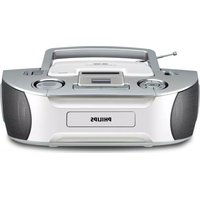
AZ1133 - Cd player/recorder PHILIPS - Free user manual and instructions
Find the device manual for free AZ1133 PHILIPS in PDF.


| Product Type | Portable CD player/recorder with FM/MW radio |
| Model | Philips AZ1133 |
| Dimensions (approx.) | 280 x 160 x 100 mm |
| Weight (approx.) | 1.5 kg (including batteries) |
| Power Supply | AC 100-240V (via included cord) or 6 x 1.5V R-14/UM-2/C batteries (not included) |
| Power Consumption | Not specified (typical for portable CD boombox: ~10-15W) |
| Source Selector | CD/MP3, FM, MW, OFF |
| Playback Media | Audio CD, CD-R, CD-RW, MP3 CD |
| Radio Bands | FM and MW (AM) |
| MP3 File Compatibility | Max 99 albums, 400 tracks; file extension .mp3; bitrate up to 320kbps recommended lower for playback |
| Programming | Up to 20 tracks (CD) or 10 tracks (MP3) |
| Play Modes | Repeat, Repeat All, Shuffle |
| Audio Output | Built-in speakers; 3.5 mm stereo headphone jack (speakers muted when headphones inserted) |
| Antenna | Telescopic antenna for FM; built-in antenna for MW |
| Display | CD functions display (track number, mode indicators) |
| Controls | Play/Pause, Stop, Skip/Search, Program, Mode, Album +, Volume, Tuning |
| Cleaning & Maintenance | Clean lens with CD lens cleaner; clean discs with soft cloth (wipe from center out); do not use cleaning agents |
| Safety Features | Class 1 laser product; ventilation; no exposure to liquids; do not open (risk of electric shock) |
| Spare Parts & Repairability | Not specified; contact Philips dealer or service center; do not attempt self-repair |
| Environmental | Recyclable packaging (cardboard, polystyrene, plastic); comply with local disposal regulations for batteries and equipment |
Frequently Asked Questions - AZ1133 PHILIPS
User questions about AZ1133 PHILIPS
0 question about this device. Answer the ones you know or ask your own.
Ask a new question about this device
Download the instructions for your Cd player/recorder in PDF format for free! Find your manual AZ1133 - PHILIPS and take your electronic device back in hand. On this page are published all the documents necessary for the use of your device. AZ1133 by PHILIPS.
USER MANUAL AZ1133 PHILIPS
natural_image
Exterior view of a Philips portable radio with visible sound waves and control buttons (no text or symbols on the device body)PHILIPS
1

3

4
natural_image
Illustration of a hand pressing a button on a circular dial (no text or symbols)5
6

Supplied Accessories
- AC power cord
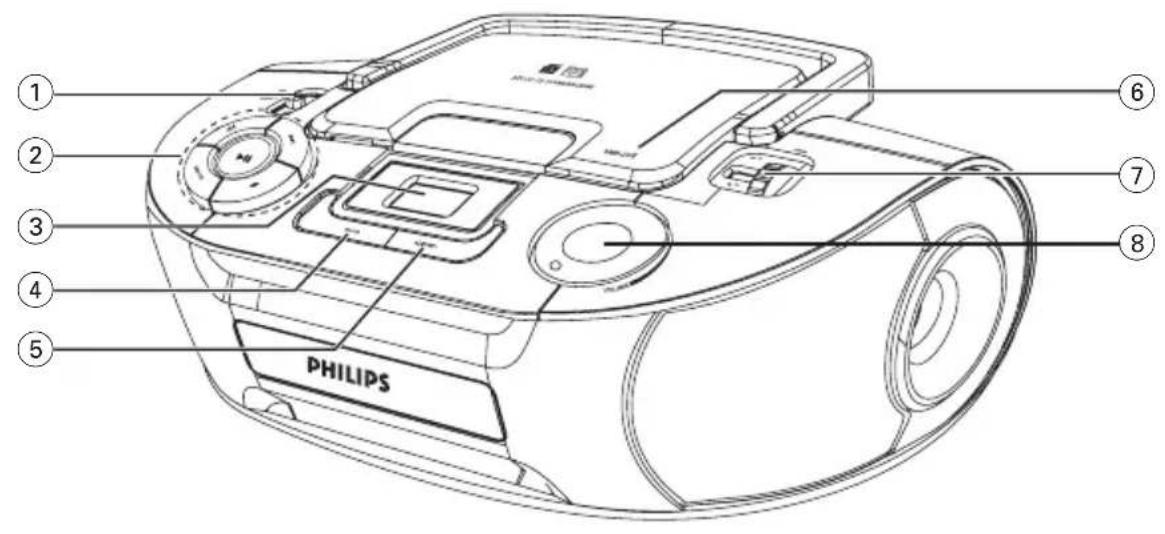
Top/front panels (See 1)
① Source selector: CD/MP3, FM, MW or OFF
– selects CD/MP3, FM or MW source of sound
- power off switch
② ▶II – starts or pauses CD/MP3 playback

– selects the next/previous track
- fast searches forwards/backwards (press and hold the button)
PROG – programs tracks
■ – stops CD playback;
- erases a CD program
③ Display – shows the CD functions
④ MODE – selects different play modes: e.g. REPEAT or SHUFFLE (random order)
⑤ALBUM + – For MP3-CD only: selects albums
⑥OPEN•CLOSE – opens/ closes the CD door
⑦TUNING – tunes to radio stations
⑧ VOLUME – adjusts volume level
Back/bottom panels (See 1)
⑨Telescopic antenna – improves FM reception
⑩Battery door – open to insert 6 x 1.5V
R-14/ UM-2/ C-cells
⑪ -3.5 mm stereo headphone socket Helpful hints: The speakers will be muted when headphones are connected to the set.
⑫AC MAINS\~ – inlet for power cord
CAUTION
Use of controls or adjustments or performance of procedures other than herein may result in unsafe operation.
Power Supply
Whenever convenient, use the power supply cord if you want to conserve battery life. Make sure you remove the plug from the set and wall outlet before inserting batteries.
Batteries (not included)
1 Open the battery door and insert 6 batteries, type R-14, UM-2 or C-cells, (preferably alkaline) with the correct polarity as indicated by the "+" and "-" symbols inside the compartment (See 1).
2 Replace the battery door, making sure the batteries are firmly and correctly in place. The set is now ready to operate.
- Incorrect use of batteries can cause electrolyte leakage and will corrode the compartment or cause the batteries to burst:
- Do not mix battery types: e.g. alkaline with carbon zinc. Only use batteries of the same type for the set.
- When inserting new batteries, do not try to mix old batteries with the new ones.
- Remove the batteries if the set is not to be used for a long time.
Batteries contain chemical substances, so they should be disposed of properly.
Using AC power
1 Check if the power voltage, as shown on the type plate located on the bottom of the set, corresponds to your local power supply. If it does not, consult your dealer or service center.
2 Connect the power cord to the AC MAINS\~ inlet and the wall socket. The set is now connected and ready for use.
3 To switch the set off completely, withdraw the power cord from the wall socket.
4 Install the unit near the AC outlet and where the AC power plug can be easily reached.
- Disconnect the power cord from the wall socket to protect your set during heavy thunderstorms. Children could seriously injure themselves as the free end of the cable may still be live if only the connector is removed from the MAINS socket at the back of the unit.
The type plate is located on the bottom of the set.
Helpful hints:
- To avoid unnecessary energy consumption, always adjust the Source selector to OFF after using the set.
Basic operation
Switching on and off and selecting the function
1 To select your sound source, adjust the Source selector to: CD/MP3, FM, or MW.
2 To switch off the set, adjust the Source selector to OFF position.
Adjusting volume
Adjust the sound with the VOLUME control.
Radio reception
1 Adjust the Source selector to FM or MW to select your desired waveband.
2 Turn TUNING to tune to a station.
Helpful hints:
To improve radio reception
- For FM, extend, incline and turn the telescopic antenna for best reception. Reduce its length if the signal is too strong.
- For MW, the set uses a built-in antenna. Direct this antenna for best reception by turning the whole set.
About MP3
The music compression technology MP3 (MPEG1 Audio Layer 3) significantly reduce the digital data of an audio CD while maintaining CD quality sound.
- Getting MP3 files: you can either download legal music files from the internet to your computer hard disc, or create such files by converting audio CD files in your computer through appropriate encoder software. (128kbps bit rate or higher is recommended for MP3 files.)
- Creating a MP3 CD: burn the music files from your computer hard disc on a CDR or CDRW using your CD burner.
Helpful hints:
- Make sure that the file names of the MP3 files end with .mp3.
– Number of albums: maximum 99
– Number of tracks: maximum 400 - The length of file names affects the number of tracks for playback. With shorter file names, more files can be burned on a disc.
Playing a disc
This player plays Audio Discs including CD-R/CD-RW, MP3 CD. Do not try to play a CD-ROM, CD-I, CDV,VCD, DVD or computer CD.
IMPORTANT!
• CDs encoded with copyright protection technologies by some record companies may be unplayable by this product.
1 Adjust the Source selector to CD/MP3.
2 Open the CD door.
3 Insert a CD with the printed side facing up, then press the CD door gently to close.
1 Adjust the Source selector to CD/MP3. 2 Open the CD door. 3 Insert a CD with the printed side facing up, then press the CD door gently to close.
→ Display shows ---, and later the total number of tracks.
4 Press ▶II to start playback.
5 To pause playback, press ▶II.
→ Display: ▶ and the current track number flash (See 2).
6 To resume, press ▶II again.
7 To stop playback, press ■.
Helpful hints:
CD play will also stop when:
— you open the CD door;
- you select FM, MW or OFF;
— the disc has reached the end.
Selecting a different track
- Press ◄◄/ ►l once or repeatedly until the desired track number appears in the display.
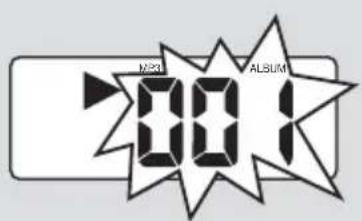
For MP3-CD: First press ALBUM+ once or more to find your album.
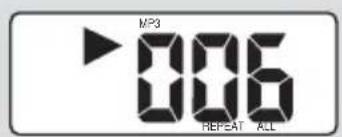
→ “ALBUM” and the selected album number will be displayed and flashed briefly (See 3).
- In the pause/stop position, press ▶II to start playback.
Finding a passage within a track
1 During playback, press and hold ◀◀ or ▶▶.
→ The CD is played at high speed and with reduced volume.
2 When you recognize the passage you want, release ◀◀ or ▶▶ to resume normal playback.
Helpful hints:
— When your searching reaches the end of the last track, the disc goes to stop mode.
Programming tracks
You may store up to 20 tracks (MP3: 10 tracks) in the desired sequence. If you like, store any track more than once.
1 In the stop position, press PROG to start programming.
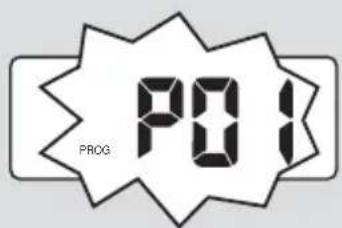
→ Display shows P01 indicating the start of the program. PROG flashes (See 4).
2 Press ◀◀ or ▶▶ to select your desired track number.
For MP3-CD: First press ALBUM + once or more to find your album.
→ "ALBUM" and the selected album number will be displayed and flashed briefly (See 3).
3 Press PROG to store the desired track.
→ Display shows PO2, indicating the next program location available.
4 Repeat steps 2 to 3 to select and store all desired tracks.
5 Press ▶II to play the program.
→ "PROG" is displayed.
Helpful hints :
- If you try to store more than 20 tracks (MP3: 10 tracks), no track can be stored and the display will show flashing - - - .
To erase a program
You can erase a program by:
- pressing ■ (twice during playback or once in the stop position);
– selecting FM, MW or OFF position;
- opening the disc door.
→ Display: "PROG" disappears. from the display.
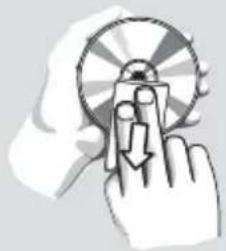
Different play modes: REPEAT and SHUFFLE (See 5, 6)
You can play the current track or the whole disc repeatedly, and combine REPEAT modes with PROGRAM.
REPEAT – plays the current track continuously.
REPEAT ALL – repeats the entire CD/program.
SHUFFLE – plays all tracks in random order.
1 To select play mode, press MODE once or more.
→ The display shows the selected mode.
2 Press ▶II to start playback if in the stop/pause position.
→ Disc playback will start automatically after few seconds when shuffle mode is selected.
3 To return to normal playback, press MODE repeatedly until the modes are no longer displayed.
- You can also press ■ to cancel your play mode.
Helpful hints:
- Shuffle play is not available in the program mode.
CD player and CD handling
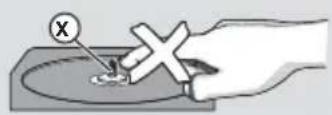
- If the CD player cannot read CDs correctly, use a cleaning CD to clean the lens before taking the set to repair.
- The lens of the CD player should never be touched!
- Sudden changes in the surrounding temperature can cause condensation on the lens of your CD player. Playing a CD is then not possible. Do not attempt to clean the lens but leave the set in a warm environment until the moisture evaporates.
- Always close the CD-tape door to avoid dust on the lens.
- To clean the CD, wipe in a straight line from the center towards the edge using a soft, lint-free cloth. Do not use cleaning agents as they may damage the disc.
- Never write on a CD or attach any stickers to it.
Safety information
- Place the set on a flat, hard and stable surface so that the system does not tilt.
- Do not expose the set, batteries, CDs to humidity, rain, sand or excessive heat caused by heating equipment or direct sunlight.
- The apparatus shall not be exposed to dripping or splashing.
- Adequate ventilation with a minimum gap of 15cm (6 inches) between the ventilation holes and surrounding surfaces is necessary to prevent heat build-up.
- Do not cover the ventilation openings with items such as newspapers, table-cloths, curtains, etc.
- No objects filled with liquids, such as vases, shall be placed on the apparatus.
- No naked flame sources, such as lighted candles, should be placed on the apparatus.
- The mechanical parts of the set contain self-lubricating bearings and must not be oiled or lubricated.
- To clean the set, use a dry cloth. Do not use any cleaning agents containing alcohol, ammonia, benzene or abrasives as these may harm the housing.
Environmental information
All unnecessary packaging material has been omitted. The packaging can be easily separated into three materials: cardboard, polystyrene and plastic.
Your set consists of materials which can be recycled if disassembled by a specialized company. Please observe the local regulations regarding the disposal of packaging, dead batteries and old equipment.
If a fault occurs, first check the points listed below before taking the set for repair.
If you are unable to remedy a problem by following these hints, consult your dealer or service centre.
WARNING: Do not open the set as there is a risk of electric shock. Under no circumstances should you try to repair the set yourself, as this will invalidate the guarantee.
Problem
- Possible cause
- Remedy
- Volume not adjusted
- Adjust the VOLUME
— Power cord not securely connected
- Connect the AC power cord properly
— Batteries dead/ incorrectly inserted
- Insert (fresh) batteries correctly
-Headphones connected to the set
- Disconnect headphones.
- CD contains non-audio files
- Press ◀◀, ▶▶ once or more to skip to a CD audio track, instead of the data file.
Display does not function properly / No reaction to operation of any of the controls
- Electrostatic discharge
- Switch off and unplug the set. Reconnect after a few seconds
Severe radio hum or noise
—Electrical interference: set too close to TV, VCR or computer
- Increase the distance
Poor radio reception
-Weak radio signal
• FM: Adjust the FM telescopic aerial
no indication
- No CD inserted
- Insert a CD
- CD badly scratched or dirty
- Replace/ clean CD, see Maintenance
— Laser lens steamed up
- Wait until lens has cleared
- CD-R/CD-RW is blank or not finalized
- Use a finalized CD-R/CD-RW or suitable CD Audio disc only
Note:
Make sure the CD is not encoded with
Copyright protection technologies, as some do not conform to the Compact Disc standard.
The CD skips tracks
- CD damaged or dirty
- Replace or clean CD
- Program/Shuffle is active
- Quit program/shuffle mode
Note: A CD badly scratch or dirty may result in improper operation.
Sound skips during MP3 playback
-MP3 file made at compression level exceeding 320kbps
- Use a lower compression level to record CD tracks into MP3 format
-Disc damaged or dirty
- Replace or clean disc.
Meet Philips at the Internet
http://www.philips.com

natural_image
Recycling symbol composed of three chasing arrows forming a triangle (no text or labels)CLASS 1 LASER PRODUCT
AZ 1133



- PHILIPS
- Supplied Accessories
- Top/front panels (See 1)
- Back/bottom panels (See 1)
- CAUTION
- Power Supply
- Batteries (not included)
- Using AC power
- Helpful hints:
- Basic operation
- Switching on and off and selecting the function
- Adjusting volume
- Radio reception
- To improve radio reception
- About MP3
- Playing a disc
- IMPORTANT!
- Selecting a different track
- Finding a passage within a track
- Programming tracks
- Helpful hints :
- To erase a program
- Different play modes: REPEAT and SHUFFLE (See 5, 6)
- CD player and CD handling
- Safety information
- Environmental information
- WARNING: Do not open the set as there is a risk of electric shock. Under no circumstances should you try to repair the set yourself, as this will invalidate the guarantee.
- Problem
- Display does not function properly / No reaction to operation of any of the controls
- Severe radio hum or noise
- Poor radio reception
- no indication
- Note:
- Make sure the CD is not encoded with
- Copyright protection technologies, as some do not conform to the Compact Disc standard.
- The CD skips tracks
- Sound skips during MP3 playback
- Meet Philips at the Internet
- http://www.philips.com
- CLASS 1 LASER PRODUCT
Brand : PHILIPS
Model : AZ1133
Category : Cd player/recorder