SCX-8128NA - Printer SAMSUNG - Free user manual and instructions
Find the device manual for free SCX-8128NA SAMSUNG in PDF.


User questions about SCX-8128NA SAMSUNG
0 question about this device. Answer the ones you know or ask your own.
Ask a new question about this device
Download the instructions for your Printer in PDF format for free! Find your manual SCX-8128NA - SAMSUNG and take your electronic device back in hand. On this page are published all the documents necessary for the use of your device. SCX-8128NA by SAMSUNG.
USER MANUAL SCX-8128NA SAMSUNG
Multi-Functional Printer User's Guide
imagine the possibilities
Thank you for purchasing a Samsung product.
SAMSUNG
Copyright
© 2012 Samsung Electronics Co., Ltd. All rights reserved.
This user's guide is provided for informational purposes only. All information included herein is subject to change without notice.
Samsung Electronics is not responsible for any direct or indirect damages, arising from or related to use of this user's guide.
• Samsung and Samsung logo are trademarks of Samsung Electronics Co., Ltd.
- PCL and PCL 6 are trademarks of Hewlett-Packard Company.
• Microsoft, Windows, Windows Vista, Windows 7 and Windows 2008 Server R2 are either registered trademarks or trademarks of Microsoft Corporation.
• PostScript 3 is a trademark of Adobe System, Inc.
- ABBYY® FineReader® Engine for Embedded OS © 2009 ABBYY. ABBYY FineReader - the keenest eye in OCR. ABBYY, FINEREDER and ABBYY FineReader are registered trademarks of ABBYY Software Ltd.
- All other brand or product names are trademarks of their respective companies or organizations.
Refer to the 'LICENSE.txt' file in the provided CD-ROM for the open source license information.
IF YOU USE THIS MACHINE TO PRODUCE AND THEN USE COUNTERFEIT CURRENCY, YOU WILL BE PUNISHED TO THE FULLEST EXTENT OF THE LAW.
REV. 1.00
COPYRIGHT
2
CONTENTS
3
9 Safety information
14 Regulatory information
21 About this user's guide
23 Features of your new product
INTRODUCTION
25
25 Machine overview
25 Front view 1
26 Front view 2
27 Rear view
28 Inner view (CLX-92x1 Series, CLX-9301 Series)
29 Inner view (SCX-812x Series)
30 Control panel overview
31 Touch interaction
32 Understanding the status LED
33 Turning the machine on
34 Turning the machine off
34 Connecting a printer cable
34 Using a network cable
35 Introducing the display screen and useful buttons
35 Display screen
35 Counter button
35 Eco button
36 Job Status button
37 Interrupt button
MEDIA AND TRAY
38
38 Loading originals
38 On the scanner glass
38 In the duplex automatic document feeder (DADF)
39 Selecting print media
39 Guidelines to select print media
39 Loading paper in the tray
39 Standard tray / optional dual cassette feeder
42 Multi-purpose tray
44 Media sizes automatically detected
44 Printing on special media
45 Envelope
45 Labels
46 Card stock/ Custom-sized paper
46 Letterhead/Preprinted paper
46 Glossy
47 Tray setting
47 Setting the paper size
47 Setting the paper type
47 Setting the tray confirmation message
48 Auto tray switch
48 Auto continue
48 Paper substitution
48 Tray protection
49 Tray priority setting
COPYING
50
50 Understanding the copy screen
50 Basic tab
50 Advanced tab
51 Image tab
51 Basic copy
51 Copying originals of different sizes
52 Changing the settings for each copy
52 Selecting the Paper Source tray
52 Reducing or enlarging copies
52 Copying multiple sides
53 Selecting the color mode (CLX-9201 9301 Series only)
53 Deciding the form of copy output
54 Changing the darkness
55 Using special copy features
55 Selecting the size of originals
55 Selecting the orientation of originals
56 ID card copying
57 N-up copying
60 Booklet copying
60 Book copying
61 Watermark
62 Stamp
62 Selecting the type of originals
62 Adjusting background
63 Erasing backside Images
64 Using a program's setting
64 Saving Programs
64 Loading Programs
64 Using the Quick Copy menu
FAXING (OPTIONAL)
65
65 Preparing to fax
65 Sending a fax from your computer
65 Sending a fax (Windows)
65 Checking the sent fax list (Windows)
66 Sending a fax (MAC)
67 Understanding the fax screen
67 Basic tab
67 Advanced tab
67 Image tab
68 Sending a fax
68 Setting the fax header
68 Sending a fax
68 Sending a fax using speed dial numbers
68 Sending a fax manually using On Hook
69 Sending a fax manually using an extension telephone
69 Resending Automatically
69 Redialing the last number
69 Delaying a fax transmission
70 Receiving a fax
70 Changing the receive modes
70 Receiving manually in Telephone mode
70 Receiving faxes manually using an extension telephone
70 Receiving in secure receiving mode
71 Selecting a received fax output tray
71 Printing received faxes on both sides of the paper
71 Printing received faxes to the right tray (face up)
71 Receiving faxes in memory
71 Adjusting the document settings
71 Selecting the size of originals
71 Faxing on both sides of originals
72 Selecting the orientation of originals
72 Changing the resolution
73 Selecting the type of originals
73 Changing the darkness
73 Printing a fax report
74 Using a programs setting
74 Saving Programs
74 Using Programs
74 Managing Programs
74 Saving and loading documents
74 Saving
75 Loading
SCANNING 76
76 Basic scanning method
76 Understanding the scan methods
77 Scanning originals and sending through email (scan to email)
77 Understanding the Scan to Email screen
78 Resending to the last email address
78 Printing an email confirmation report
78 Scanning originals and sending via SMB/FTP (Scan to server)
78 Understanding the Scan to Server screen
79 Scanning and sending to an SMB/FTP server
79 Resending to the last server address
80 Scanning originals and sending to a USB memory device (scan to USB)
80 Understanding the Scan to USB screen
81 Scanning to a USB memory device
81 Changing the scan feature settings
81 Changing the resolution
81 Changing Darkness
82 Scanning from both sides of originals
82 Selecting the orientation of originals
83 Selecting the size of originals
83 Selecting the type of originals
83 Selecting the color mode
83 Adjusting background
84 Erasing backside Images
84 Quality
84 File Policy
84 File Format
85 Setting job completion notification
85 Using a programs setting
85 Saving
86 Loading
86 Scanning originals and sending to your computer (scan to PC)
86 For a network connected machine
86 Scanning with TWAIN-enabled software
86 MAC scanning
86 Scanning with network
87 Linux scanning
87 Scanning
87 Adding Job Type Settings
88 Using the Image Manager
USING SMARTHRU WORKFLOW, SHARED FOLDER, AND STORED DOCUMENT
89
89 About SmarThru Workflow
89 Understanding the SmarThru Workflow screen
90 Workflow Screen
90 Workform Creation Screen
91 Workform execution
91 Understanding the Shared Folder screen
91 Creating a shared folder
91 Using the shared folder
92 Registering users
92 Understanding the Stored Document screen
93 Saving documents in the Stored Document
SETTING UP AN ADDRESS BOOK
94
94 Setting up an address book using the control panel
94 Storing Individual address (Fax, E-Mail)
94 Storing Individual addresses (SMB, FTP)
95 Editing Individual address
95 Storing Group address
95 Editing Group address
95 Searching the Address Book for an entry
95 Deleting an entry in an Address Book
96 Checking Address Book for an entry
96 Setting up an address book using SyncThru™ Web Service
96 Storing on your local machine
PRINTING
100
100 Printer driver features
101 Basic printing
101 Canceling a print job
101 Opening printing preferences
101 Favorites tab
102 Basic tab
102 Paper tab
103 Graphics tab
103 Finishing tab
104 Advanced tab
105 Eco tab
105 Samsung tab
105 Print Mode
105 Using a favorite setting
106 Using help
106 Setting Device Options
106 Using special print features
106 Printing multiple pages on one sheet of paper
107 Printing posters
107 Printing on both sides of the paper
107 Change the size of your document
107 Fitting your document to a selected paper size
108 Using watermarks
108 Using overlay
109 Using direct printing utility
109 What is Direct Printing Utility?
109 Printing
110 Using the right-click menu
110 Changing the default print settings
110 Setting your machine as a default machine
110 Printing to a file (PRN)
USING A USB MEMORY DEVICE
116
MANAGEMENT TOOLS
119
TROUBLESHOOTING
125
110 MAC printing
110 Printing a document
111 Activating optional devices or accessories
111 Changing printer settings
113 Printing multiple pages on one sheet of paper
113 Printing on both sides of paper
113 Linux printing
113 Printing from applications
114 Printing files
114 Configuring Printer Properties
114 UNIX Printing
114 Proceeding the print job
114 Changing the machine settings
116 Understanding the USB screen
116 About USB memory device
117 Printing from a USB memory device
118 Managing USB memory
118 Formatting a USB memory device
118 Deleting an image file
119 Easy Capture Manager
119 Samsung AnyWeb Print
119 Easy Eco Driver
119 Using Samsung Easy Printer Manager
119 Understanding Samsung Easy Printer Manager
120 Advanced settings user interface overview
120 Using Samsung Printer Status
120 Samsung Printer Status overview
121 Using Samsung Easy Document Creator
121 Understanding Samsung Easy Document Creator
122 Using features
123 Plug-ins
123 Using the Linux Unified Driver Configurator
123 Opening the Unified Driver Configurator
123 Printers configuration
124 Scanners configuration
124 Ports configuration
125 Redistributing toner
126 Replacing the toner cartridge
128 Cleaning paper dust stick and chargers of imaging units
129 Replacing the imaging unit
132 Replacing the waste toner container
133 Clearing original document jams
133 Original paper jam in front of scanner
134 Original paper jam inside of scanner
136 Tips for avoiding paper jams
137 Clearing paper jams
137 Paper jam in tray 1, 2
138 Paper jam in tray 3, 4
139 Paper jam in the multi-purpose tray
139 Paper jam inside the machine (Jam feed 1, Jam feed 2)
140 Paper jam inside the machine (Jam feed 3, Jam feed 4)
140 Paper jam inside the machine (Jam Registration)
contents
141 Paper jam inside of the machine (Jam at Fuser out)
141 Paper jam at the top of duplex path (Jam Duplex Return, Jam Duplex 1)
142 Paper jam at the inside of duplex path (Jam Duplex 2)
142 Paper jam bottom of duplex path (Jam Duplex Regi.)
143 Paper jam in exit area (Jam Exit Face down)
143 Paper jam at finisher's exit
144 Paper jam inside of finisher
145 Understanding display messages
150 Solving other problems
150 Power and cable connecting problems
150 Display screen problem
151 Paper feeding problems
151 Printing problems
153 Printing quality problems
155 Copying problems
156 Scanning problems
156 Fax problems (optional)
157 Common PostScript problems
157 Common Windows problems
158 Common Linux problems
159 Common MAC problems
SUPPLIES AND ACCESSORIES
160
160 How to purchase
160 Available supplies
160 SCX-812x Series
160 CLX-92x1 9301 Series
161 Necessary precautions to take when installing accessories
161 Available accessories
162 Checking replaceable's lifespan
163 Specifications
CONTACT SAMSUNG WORLDWIDE
169
GLOSSARY
171
Safety information
These warnings and precautions are included in order to prevent injury to you and others, as well as preventing any potential damage to your machine. Be sure to read and understand all of these instructions before using the machine. Use common sense for operating any electrical appliance and whenever using your machine. Also, follow all warnings and instructions marked on the machine and in the accompanying literature. After reading this section, keep it in a safe place for future reference.
Important safety symbols
This section explains the meanings of all icons and signs in the user's guide. These safety symbols are in order, according to the degree of danger.
Explanation of all icons and signs used in the user's guide:
| Warning Hazards or unsafe practices that may result in severe personal injury or death. | |
| Caution Hazards or unsafe practices that may result in minor personal injury or property damage. | |
| Do not attempt. | |
| Do not disassemble. | |
| Do not touch. | |
| Unplug the power cord from the wall socket. | |
| Make sure the machine is grounded to prevent electric shock. | |
| Call the service center for help. | |
| Follow directions explicitly. |

Warning
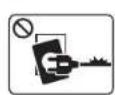
Do not use if the power cord is damaged or if the electrical outlet is not grounded.
▶ This could result in electric shock or fire.
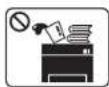
Do not place anything on top of the machine (water, small metal or heavy objects, candles, lit cigarettes, etc.).
▶ This could result in electric shock or fire.

- If the machine gets overheated, it releases smoke, makes strange noises, or generates an odd odor, immediately turn off the power switch and unplug the machine.
• The user should be able to access the power outlet in case of emergencies that might require the user to pull the plug out.
▶This could result in electric shock or fire.
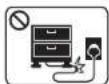
Do not bend, or place heavy objects on the power cord.
▶ Stepping on or allowing the power cord to be crushed by a heavy object could result in electric shock or fire.
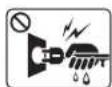
Do not remove the plug by pulling on the cord; do not handle the plug with wet hands.
▶ This could result in electric shock or fire.

Caution
During an electrical storm or for a period of non-operation, remove the power plug from the electrical outlet.
▶ This could result in electric shock or fire.

Be careful, the paper output area is hot.
▶Burns could occur.

If the machine has been dropped, or if the cabinet appears damaged, unplug the machine from all interface connections and request assistance from qualified service personnel.
▶ Otherwise, this could result in electric shock or fire.

If the machine does not operate properly after these instructions have been followed, unplug the machine from all interface connections and request assistance from qualified service personnel.
▶ Otherwise, this could result in electric shock or fire.

If the plug does not easily enter the electrical outlet, do not attempt to force it in.
▶ Call an electrician to change the electrical outlet, or this could result in electric shock.

Do not allow pets to chew on the AC power, telephone or PC interface cords.
▶ This could result in electric shock or fire and/or injury to your pet.
Operating method

Caution
 | Do not forcefully pull the paper out during printing.►It can cause damage to the machine. |
 | Be careful not to put your hand between the machine and paper tray.►You may get injured. |
 | Be care when replacing paper or removing jammed paper.►New paper has sharp edges and can cause painful cuts. |
 | When printing large quantities, the bottom part of the paper output area may get hot. Do not allow children to touch.►Burns can occur. |
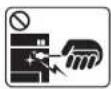 | When removing jammed paper, do not use tweezers or sharp metal objects.►It can damage the machine. |
 | Do not allow too many papers to stack up in the paper output tray.►It can damage the machine. |
 | Do not block or push objects into the ventilation opening.►This could result in elevated component temperatures which can cause damage or fire. |
 | Use of controls or adjustments or performance of procedures other than those specified herein may result in hazardous radiation exposure. |
 | This machine's power reception device is the power cord.►To switch off the power supply, remove the power cord from the electrical outlet. |
Installation / Moving

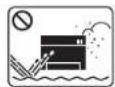
Warning

Caution
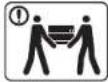 | Before moving the machine, turn the power off and disconnect all cords. The information below are only suggestions based on the units weight.If you have a medical condition that prevents you from lifting, do not lift the machine. Ask for help, and always use the appropriate amount of people to lift the device safety.Then lift the machine:If the machine weighs under 20 kg (44.09 lbs), lift with 1 person.If the machine weighs 20 kg (44.09 lbs) - 40kg (88.18 lbs), lift with 2 people.If the machine weighs more than 40 kg (88.18 lbs), lift with 4 or more people.The machine could fall, causing injury or machine damage. |
 | Do not place the machine on an unstable surface.The machine could fall, causing injury or machine damage. |
 | Use only No.26 AWGa or larger, telephone line cord, if necessary.Otherwise, it can cause damage to the machine. |
 | Make sure you plug the power cord into a grounded electrical outlet.Otherwise, this could result in electric shock or fire. |
 | Use the power cord supplied with your machine for safe operation. If you are using a cord which is longer than 2 meters (6 feet) with a 110V machine, then the gauge should be 16 AWG or larger.Otherwise, it can cause damage to the machine, and could result in electric shock or fire. |
| [CBAZ] | Do not put a cover over the machine or place it in an airtight location, such as a closet.If the machine is not well-ventilated, this could result in fire. |
| [6BG6] | Do not overload wall outlets and extension cords.This can diminish performance, and could result in electric shock or fire. |
 | The machine should be connected to the power level which is specified on the label.If you are unsure and want to check the power level you are using, contact the electrical utility company. |
a.AWG: American Wire Gauge
Maintenance / Checking

Caution
 | Unplug this product from the wall outlet before cleaning the inside of the machine. Do not clean the machine with benzene, paint thinner or alcohol; do not spray water directly into the machine. ▶This could result in electric shock or fire. |
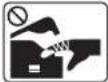 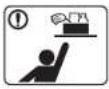 | When you are working inside the machine replacing supplies or cleaning the inside, do not operate the machine. ▶You could get injured.Keep cleaning supplies away from children.►Children could get hurt. |
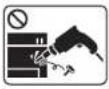 | Do not disassemble, repair or rebuild the machine by yourself.►It can damage the machine. Call a certified technician when the machine needs repairing. |
 | To clean and operate the machine, strictly follow the user's guide provided with the machine.►Otherwise, you could damage the machine. |
 | Keep the power cable and the contact surface of the plug clean from dust or water.►Otherwise, this could result in electric shock or fire. |
 | Do not remove any covers or guards that are fastened with screws.Fuser units should only be repaired by a certified service technician. Repair by non-certified technicians could result in fire or electric shock.The machine should only be repaired by a Samsung service technician. |
Supply usage
Caution
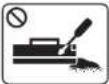 | Do not disassemble the toner cartridge.►Toner dust can be dangerous if inhaled or ingested. |
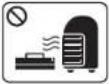 | Do not burn any of the supplies such as toner cartridge or fuser unit.►This could cause an explosion or uncontrollable fire. |
 | When storing supplies such as toner cartridges, keep them away from children.►Toner dust can be dangerous if inhaled or ingested. |
| [G67K] | Using recycled supplies, such as toner, can cause damage to the machine.►In case of damage due to the use of recycled supplies, a service fee will be charged. |
 | When toner gets on your clothing, do not use hot water to wash it.►Hot water sets toner into fabric. Use cold water. |
 | When changing the toner cartridge or removing jammed paper, be careful not to let toner dust touch your body or clothes.►Toner dust can be dangerous if inhaled or ingested. |
Regulatory information
This machine is designed for our sound environment and certified with several regulatory statements.
Laser Safety Statement
The printer is certified in the U.S. to conform to the requirements of DHHS 21 CFR, chapter 1 Subchapter J for Class I(1) laser products, and elsewhere is certified as a Class I laser product conforming to the requirements of IEC 60825-1:2007. Class I laser products are not considered to be hazardous. The laser system and printer are designed so there is never any human access to laser radiation above a Class I level during normal operation, user maintenance or prescribed service condition.
WARNING
Never operate or service the printer with the protective cover removed from Laser/Scanner assembly. The reflected beam, although invisible, can damage your eyes. When using this product, these basic safety precautions should always be followed to reduce risk of fire, electric shock, and injury to persons:

CAUTION - CLASS 3B. INVISIBLE LASER RADIATION WHEN OPEN. AVOID EXPOSURE TO THE BEAM. DANGER - INVISIBLE LASER RADIATION WHEN OPEN. AVOID DIRECT EXPOSURE TO BEAM.
During normal operation, this machine produces ozone. The ozone produced does not present a hazard to the operator. However, it is advisable that the machine be operated in a well ventilated area. If you need additional information about ozone, request your nearest Samsung dealer.
PERCHLORATE WARNING
This Perchlorate warning applies only to primary CR (Manganese Dioxide) Lithium coin cells in the product sold or distributed ONLY in California USA.
Perchlorate Material - special handling may apply.
see www.dtsc.ca.gov/hazardouswaste/perchlorate. (U.S.A. only)
Power Saver

This printer contains advanced energy conservation technology that reduces power consumption when it is not in active use.
When the printer does not receive data for an extended period of time, power consumption is automatically lowered.
ENERGY STAR and the ENERGY STAR mark are registered U.S. marks.
For more information on the ENERGY STAR program see http://www.energystar.gov
Recycling

Recycle or dispose of the packaging material for this product in an environmentally responsible manner.
China only
回收和再循环
Correct Disposal of This Product (Waste Electrical & Electronic Equipment)
(Applicable in the European Union and other European countries with separate collection systems)
This marking on the product, accessories or literature indicates that the product and its electronic accessories (e.g. charger, headset, USB cable) should not be disposed of with other household waste at the end of their working life. To prevent possible harm to the environment or human health from uncontrolled waste disposal, please separate these items from other types of waste and recycle them responsibly to promote the sustainable reuse of material resources.
Household users should contact either the retailer where they purchased this product, or their local government office, for details of where and how they can take these items for environmentally safe recycling.
Business users should contact their supplier and check the terms and conditions of the purchase contract. This product and its electronic accessories should not be mixed with other commercial wastes for disposal.
(The United States of America only)
Dispose unwanted electronics through an approved recycler. To find the nearest recycling location, go to our website: www.samsung.com/recyclingdirect Or call, (877) 278 - 0799
FCC Information to the User
This device complies with Part 15 of the FCC Rules. Operation is subject to the following two conditions:
• This device may not cause harmful interference, and
• This device must accept any interference received, including interference that may cause undesired operation.
This equipment has been tested and found to comply with the limits for a Class A digital device, pursuant to Part 15 of the FCC Rules. These limits are designed to provide reasonable protection against harmful interference in a residential installation. This equipment generates, uses and can radiate radio frequency energy and, if not installed and used in accordance with the instructions, may cause harmful interference to radio communications. However, there is no guarantee that interference will not occur in a particular installation. If this equipment does cause harmful interference to radio or television reception, which can be determined by turning the equipment off and on, the user is encouraged to try to correct the interference by one or more of the following measures:
- Reorient or relocate the receiving antenna.
- Increase the separation between the equipment and receiver.
- Connect the equipment into an outlet on a circuit different from that to which the receiver is connected.
- Consult the dealer or experienced radio TV technician for help.

Change or modifications not expressly approved by the manufacturer responsible for compliance could void the user's authority to operate the equipment.
Canadian Radio Interference Regulations
This digital apparatus does not exceed the Class A limits for radio noise emissions from digital apparatus as set out in the interference-causing equipment standard entitled “Digital Apparatus”, ICES-003 of the Industry and Science Canada.
Federal Communications Commission (FCC)
Intentional emitter per FCC Part 15
Low power, Radio LAN type devices (radio frequency (RF) wireless communication devices), operating in the 2.4 GHz/5 GHz Band, may be present (embedded) in your printer system. This section is only applicable if these devices are present. Refer to the system label to verify the presence of wireless devices.
Wireless devices that may be in your system are only qualified for use in the United States of America if an FCC ID number is on the system label.
The FCC has set a general guideline of 20 cm (8 inches) separation between the device and the body, for use of a wireless device near the body (this does not include extremities). This device should be used more than 20 cm (8 inches) from the body when wireless devices are on. The power output of the wireless device (or devices), which may be embedded in your printer, is well below the RF exposure limits as set by the FCC.
This transmitter must not be collocated or operation in conjunction with any other antenna or transmitter.
Operation of this device is subject to the following two conditions: (1) This device may not cause harmful interference, and (2) this device must accept any interference received, including interference that may cause undesired operation of the device.

Wireless devices are not user serviceable. Do not modify them in any way. Modification to a wireless device will void the authorization to use it. Contact manufacturer for service.
RFID (RADIO FREQUENCY INTERFACE DEVICE)
RFID operation is subject to the following two conditions:(1) this device may not cause interference, and (2) this device must accept any interference, including interference that may cause undesired operation of the device. (U.S.A., France, Taiwan only)
AB57

AB57
Минсвязи России

Germany only
This EEE is compliant with RoHS.
Fax Branding
The Telephone Consumer Protection Act of 1991 makes it unlawful for any person to use a computer or other electronic device to send any message via a telephone facsimile machine unless such message clearly contains in a margin at the top or bottom of each transmitted page or on the first page of the transmission the following information:
- the date and time of transmission
- identification of either business, business entity or individual sending the message; and
- telephone number of either the sending machine, business, business entity or individual.
The Telephone Company may make changes in its communications facilities, equipment operations or procedures where such action is reasonably required in the operation of its business and is not inconsistent with the rules and regulations in FCC Part 68. If such changes can be reasonably expected to render any customer terminal equipment incompatible with telephone company communications facilities, or require modification or alteration of such terminal equipment, or otherwise materially affect its use or performance, the customer shall be given adequate notice in writing, to allow the customer an opportunity to maintain uninterrupted service
The Ringer Equivalence Number and FCC Registration Number for this machine may be found on the label located on the bottom or rear of the machine. In some instances you may need to provide these numbers to the telephone company.
The Ringer Equivalence Number (REN) is a measure of the electrical load placed on the telephone line, and is useful for determining whether you have "overloaded" the line. Installing several types of equipment on the same telephone line may result in problems making and receiving telephone calls, especially ringing when your line is called. The sum of all Ringer Equivalence Numbers of the equipment on your telephone line should be less than five in order to assure proper service from the telephone company. In some cases, a sum of five may not be usable on your line. If any of your telephone equipment is not operating properly, you should immediately remove it from your telephone line, as it may cause harm to the telephone network.
The equipment complies with Part 68 of the FCC rules and the requirements adopted by the ACTA. On the right lower side of this equipment is a label that contains, among other information, a product identifier in the format US:AAAEQ##TXXXX. If requested, this number must be provided to the telephone company.

FCC Regulations state that changes or modifications to this equipment not expressly approved by the manufacturer could void the user's authority to operate this equipment. In the event that terminal equipment causes harm to the telephone network, the telephone company should notify the customer that service may be stopped. However, where prior notice is impractical, the company may temporarily cease service, providing that they:
a) promptly notify the customer.
b) give the customer an opportunity to correct the equipment problem.
c) inform the customer of the right to bring a complaint to the Federal Communication Commission pursuant to procedures set out in FCC Rules and Regulations Subpart E of Part 68.
You should also know that:
- Your machine is not designed to be connected to a digital PBX system.
- If you intend to use a computer modem or fax modem on the same phone line as your machine, you may experience transmission and reception problems with all the equipment. It is recommended that no other equipment, except for a regular telephone, share the line with your machine.
- If your area experiences a high incidence of lightning or power surges, we recommend that you install surge protectors for both the power and the telephone lines. Surge protectors can be purchased from your dealer or telephone and electronic specialty stores.
- When programming emergency numbers and/or making test calls to emergency numbers, use a non-emergency number to advise the emergency service dispatcher of your intentions. The dispatcher will give you further instructions on how to actually test the emergency number.
- This machine may not be used on coin service or party lines.
- This machine provides magnetic coupling to hearing aids.
You may safely connect this equipment to the telephone network by means of a standard modular jack, USOC RJ-11C.
Replacing the Fitted Plug (for UK Only)
Important
The mains lead for this machine is fitted with a standard (BS 1363) 13 amp plug and has a 13 amp fuse. When you change or examine the fuse, you must re-fit the correct 13 amp fuse. You then need to replace the fuse cover. If you have lost the fuse cover, do not use the plug until you have another fuse cover.
Contact the people from you purchased the machine.
The 13 amp plug is the most widely used type in the UK and should be suitable. However, some buildings (mainly old ones) do not have normal 13 amp plug sockets. You need to buy a suitable plug adaptor. Do not remove the moulded plug.

If you cut off the moulded plug, get rid of it straight away.
You cannot rewire the plug and you may receive an electric shock if you plug it into a socket.
Important warning:

You must earth this machine.
The wires in the mains lead have the following color code:
• Green and Yellow: Earth
- Blue: Neutral
- Brow n: Live
If the wires in the mains lead do not match the colors marked in your plug, do the following:
You must connect the green and yellow wire to the pin marked by the letter "E" or by the safety 'Earth symbol' or colored green and yellow or green.
You must connect the blue wire to the pin which is marked with the letter "N" or colored black.
You must connect the brown wire to the pin which is marked with the letter "L" or colored red.
You must have a 13 amp fuse in the plug, adaptor, or at the distribution board.
Declaration of Conformity (European Countries)
Approvals and Certifications

Hereby, Samsung Electronics, declares that this [CLX-865x Series] is in compliance with the essential requirements and other relevant provisions of R&TTE Directive 1999/5/EC.
The declaration of conformity may be consulted at www.samsung.com, go to Support > Download center and enter your printer (MFP) name to browse the EuDoC.
Hereby, Samsung Electronics declare that this product is in compliance with the essential requirements and other relevant provisions of: CLX-92x1 93x1 Series: R&TTE Directive (1999/5/EC)
The declaration of conformity may be consulted at www.samsung.com/printer, go to Support > Download center and enter your printer (MFP) name to browse the EuDoC.
January 1, 1995: Council Directive 2006/95/EC Approximation of the laws of the member states related to low voltage equipment.
January 1, 1996: Council Directive 2004/108/EC (92/31/EEC), approximation of the laws of the Member States related to electromagnetic compatibility.
March 9, 1999: Council Directive 1999/5/EC on radio equipment and telecommunications terminal equipment and the mutual recognition of their conformity. A full declaration, defining the relevant Directives and referenced standards can be obtained from your Samsung Electronics Co., Ltd. representative.
EC Certification
Certification to 1999/5/EC Radio Equipment & Telecommunications Terminal Equipment Directive (FAX)
This Samsung product has been self-certified by Samsung for pan-European single terminal connection to the analogue public switched telephone network (PSTN) in accordance with Directive 1999/5/EC. The product has been designed to work with the national PSTNs and compatible PBXs of the European countries:
In the event of problems, you should contact the Euro QA Lab of Samsung Electronics Co., Ltd. in the first instance.
The product has been tested against TBR21. To assist in the use and application of terminal equipment which complies with this standard, the European Telecommunication Standards Institute (ETSI) has issued an advisory document (EG 201 121) which contains notes and additional requirements to ensure network compatibility of TBR21 terminals. The product has been designed against, and is fully compliant with, all of the relevant advisory notes contained in this document.
产品中有毒有害物质或元素的名称及含量
This user's guide provides information to provide a basic understanding of the machine as well as detailed explanations on each step during actual usage. Valuable for both novice and professional users, all users can refer to this guide for installing and using the machine.

- Read the safety information before using the machine.
• If you have a problem using the machine, refer to the troubleshooting chapter (see "Troubleshooting" on page 125). - Terms used in this user's guide are explained in the glossary chapter (see "Glossary" on page 171).
- Use the Index to find information.
- All illustrations in this user's guide may differ from your machine depending on its options or models.
• The display screen image in this user's guide may differ from your machine depending on its options or models. - The procedures in this user's guide are mainly based on the operating system of Windows 7.
Conventions
Some terms in this guide are used interchangeably:
- Documen t is synonymous with original.
• Paper is synonymous with media, or print media.
• Machine refers to printer or MFP.
The following table offers the conventions of this guide:
| Convention Description Example | ||
| Bold | Used for texts on the display or button names on the machine. | Start |
| Note | Provides additional information or detailed specifications of the machine function and feature. | The date format may differ from country to country. |
| Caution Gives users information to protect the machine from possible mechanical damage. | Do not touch the green underside of the toner cartridge. | |
| Footnote | Provides additional information on certain words or a phrase. | a. pages per minute |
| ("Cross-reference") | Guides users to a reference page for additional detailed information. | (see "Finding more information" on page 22). |
Finding more information
You can find information for setting up and using your machine from the following resources, either as a print-out or on screen.
| Material name Description | |
| Installation Guide | This guide provides information on setting up your machine and requires that you follow the instructions in the guide to prepare the machine. |
| Go Guide | This guide provides operating procedures and descriptions of the most frequently used functions, allowing the machine to immediately be used. |
| Online User's Guide | This guide provides you with step-by-step instructions for using your machine's full features and contains information for maintaining your machine, troubleshooting, and installing accessories. |
| Machine Driver Help | This help guide provides you with help information on the printer driver and instructions for setting up the printing options (see the User Guide). |
| Samsung website | If you have Internet access, you can get help, support, machine drivers, manuals, and order information from the Samsung website.(www.samsung.com) |
| Downloadable software | You can download useful software from the Samsung website.• SyncThruTM Web Admin Service: convenient for network administrators who need to manage many machines simultaneously. This software is for network models only. (http://solution.samsungprinter.com)•Samsung AnyWeb Print: helps personal users to screen-capture the website screen in Windows Internet Explorer easily.(http://solution.samsungprinter.com/personal/anywebprint)•XPS printer driver: used to print XPS file format. The XPS printer driver can be installed only on Windows Vista OS or higher.(www.samsung.com) |
Features of your new product
Your new machine is equipped with a number of special features that improve the quality of your printed documents.
Special Features
Print with excellent quality and speed

- You can print with a resolution of up to 1,200 x 1,200 dpi (CLX-92x1 9301 Series). You can print with a resolution of up to 9,600 x 600 dpi effective output (SCX-812x Series).
- CLX-9301 Series prints A4-sized or letter-sized paper at up to 30 ppm. CLX-9251 Series prints A4-sized or letter-sized paper at up to 25 ppm. CLX-9201 Series prints A4-sized or letter-sized paper at up to 20 ppm.
- CLX-9301 Series prints A3-sized paper at up to 15 ppm. CLX-9251 Series prints A3-sized paper at up to 12.5 ppm. CLX-9201 Series prints A3-sized paper at up to 10 ppm.
- SCX-8128 Series prints A4-sized or letter-sized paper at up to 28 ppm. SCX-8123 Series prints A4-sized or letter-sized paper at up to 23 ppm.
- SCX-8128 Series prints A3-sized paper at up to 14 ppm. SCX-8123 Series prints A3-sized paper at up to 11.5 ppm.
Handle many different types of printable material

- The multi-purpose tray supports various printable materials (see "Print media specifications" on page 165).
- The multi-purpose tray holds up to 100 sheets of plain paper.
- The 1,040-sheet standard tray and 1,040-sheet optional dual cassette feeder support plain paper in various sizes.
Create professional documents

- Print Posters. The texts and pictures of each page of your document are magnified and printed across the sheet of paper and can then be taped together to form a poster (see "Printing posters" on page 107).
- Print Watermarks. You can customize your documents with words, such as "CONFIDENTAL" (see "Using watermarks" on page 108).
- You can use preprinted forms and letterhead with plain paper (see "Using overlay" on page 108).
Save time and money
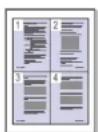
- To save paper, you can print multiple pages on one single sheet of paper (see "Printing multiple pages on one sheet of paper" on page 106).
- This machine automatically conserves electricity by substantially reducing power consumption when not in use.
- To save paper, you can print on both sides of the paper (double-sided printing) (see "Printing on both sides of the paper" on page 107).
Print in various environments

- You can print on various operating systems such as Windows, Linux, MAC and Unix systems.
- Your machine is equipped with a network interface.
Copy originals in several formats
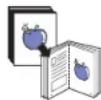
- Your machine can copy multiple image copies from the original documents on a single page (see "N-up copying" on page 57).
- There are special functions to erase catalog and newspaper background images (see "Adjusting background" on page 62).
- The print quality and image size can be adjusted and enhanced at the same time.
Scan the originals and send it right away
- Scan in color and use precise compressions of JPEG, TIFF, and PDF formats.
- Quickly scan and send files to multiple destinations using Networks scanning (see "Scanning" on page 76).
Set a specific time to transmit a fax (optional)
- You can specify a certain time to transmit a fax and also send the fax to several stored addresses.
• After transmission, the machine may print out the fax reports according to the setting.
Use USB flash memory devices

If you have a USB memory device, you can use it various ways for your machine.
- You can scan documents and save them to the device.
- You can directly print data stored in the device (see "Printing from a USB memory device" on page 117).
Support XOA applications

The machine supports XOA custom applications.
- Regarding the XOA custom applications, please contact your XOA custom application provider.
Features by model
The machine is designed to support all of your document needs from printing and copying to more advanced networking solutions for your business. Some features and optional goods may not be available depending on models or countries.
Features by model include:
| FEATURES | CLX-9301 Series | CLX-9251 Series | CLX-9201 Series | SCX-8128 Series | SCX-8123 Series |
| USB Memory Interface ● | ● | ● | ● | ● | |
| Duplex Automatic Document Feeder ● | ● | ● | ● | ● | |
| Hard Disk ● | ● | ○ | |||
| Network Interface Ethernet 10/100/1000 Base TX wired LAN | ● | ● | ● | ● | ● |
| Duplex (2-sided) printing ● | ● | ● | ● | ● | |
| 500-sheet Inner Finisher o | ○ | ○ | ○ | ○ | |
| Cabinet Stand o | ○ | ○ | ○ | ○ | |
| Dual Cassette Feeder o | ○ | ○ | ○ | ○ | |
| Working Table o | ○ | ○ | ○ | ○ | |
| Fax Kit o | ○ | ○ | ○ | ○ | |
| FDI Kit o | ○ | ○ | ○ | ○ | |
| Job Separator o | ○ | ○ | ○ | ○ |
(●: Included, o: Optional, Blank: Not available)
Introduction
These are the main components of your machine:
This chapter includes:
• M machine overview
• Control panel overview
- Touch interaction
• Understanding the status LED
- Turning the machine on
- Turning the machine off
- Connecting a printer cable
- Introducing the display screen and useful buttons
Machine overview
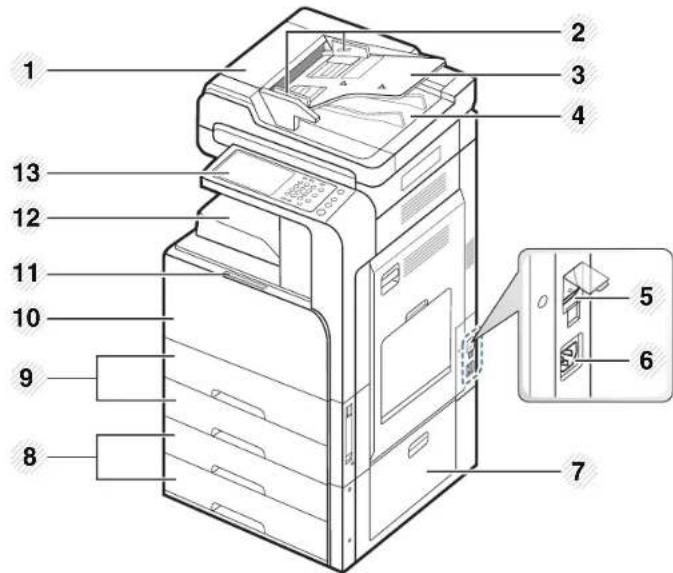
Front view 1
text_image
1 2 3 4 13 12 11 10 9 8 5 6 7| 1 | Duplex automatic document feeder cover | 8 | Dual cassette feeder (tray 3, tray 4)a |
| 2 | Duplex automatic document feeder width guides | 9 | Standard tray (tray 1, tray 2) |
| 3 | Duplex automatic document feeder input tray | 10 | Front door |
| 4 | Duplex automatic document feeder output tray | 11 | Front door handle |
| 5 | Power-switch | 12 | Paper output tray |
| 6 | Power receptacle | 13 | Control panel |

Optional dual cassette feeder right bottom door
a.Optional device.
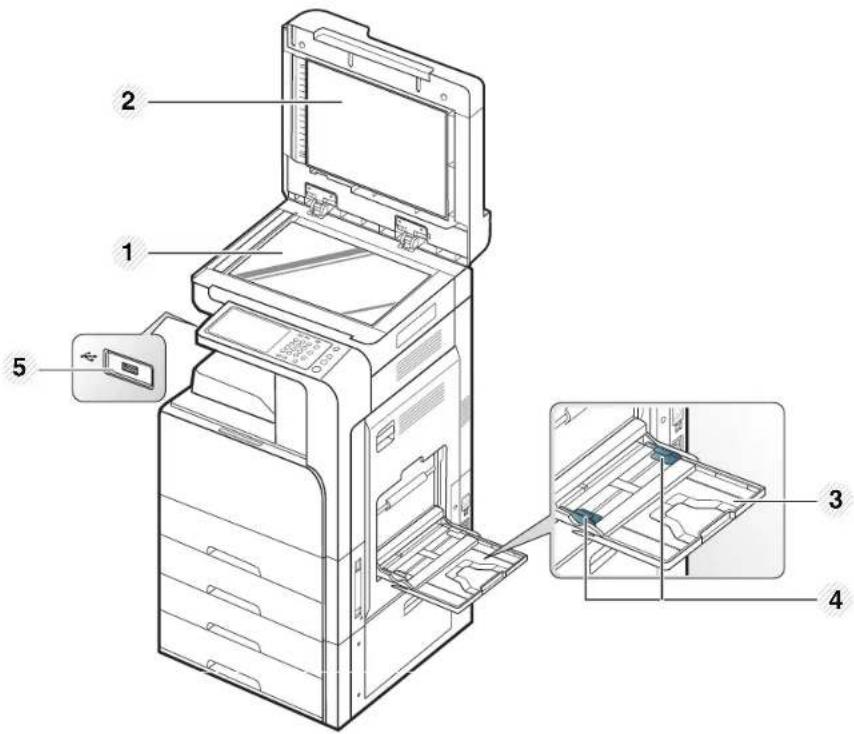
Front view 2
text_image
Technical diagram of an open refrigerator with labeled parts including front, back, and internal compartments1 Scanner glass Multi-purpose tray paper width guide 4
2 White sheet USB port 5
3 Multi-purpose tray
Rear view
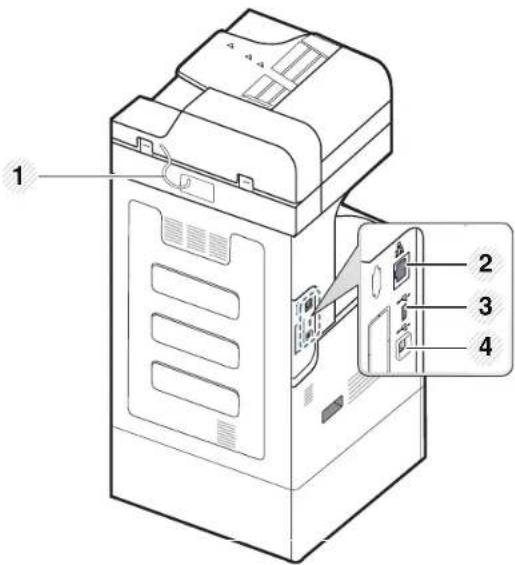
text_image
Technical diagram of a printer with labeled parts including paperclip, cable, and socket port1 Duplexing automatic document feeder cable USB port
2 Network port USB printer port 4
Inner view (CLX-92x1 Series, CLX-9301 Series)
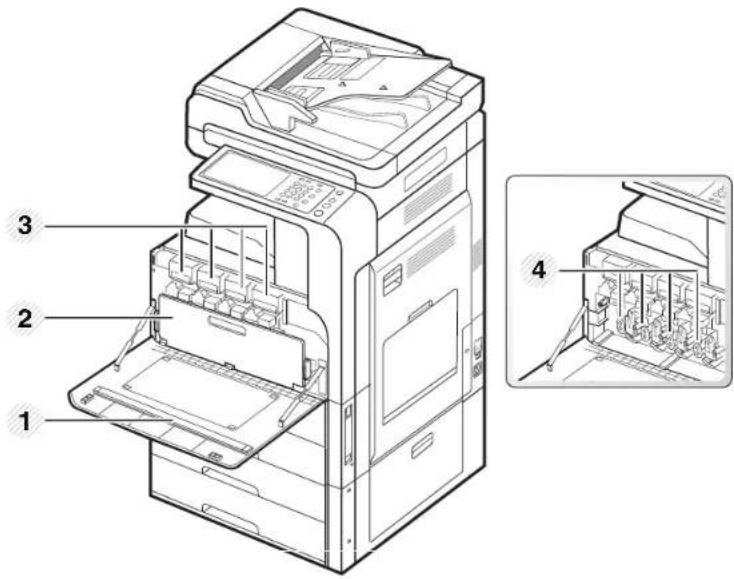
text_image
Technical diagram of a printer with numbered parts and an inset view of the internal structure.1 LSU window cleaning stick Toner3 Cartridges
2 Waste toner container Imaging units

If you want to see the imaging unit, you need to remove the waste toner container.
Inner view (SCX-812x Series)
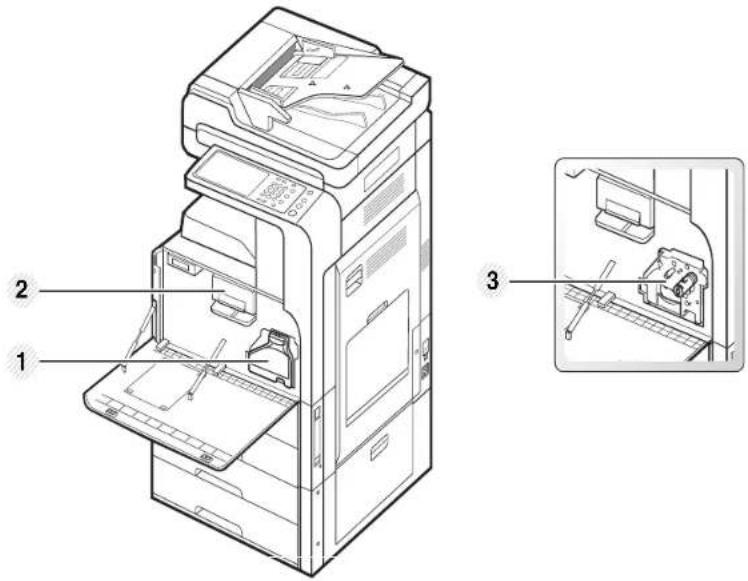
text_image
Technical diagram of a device with labeled parts, showing internal components and exploded view1 Waste toner container Imaging unit
2 Toner cartridge

If you want to see the imaging unit, you need to remove the waste toner container.
Control panel overview
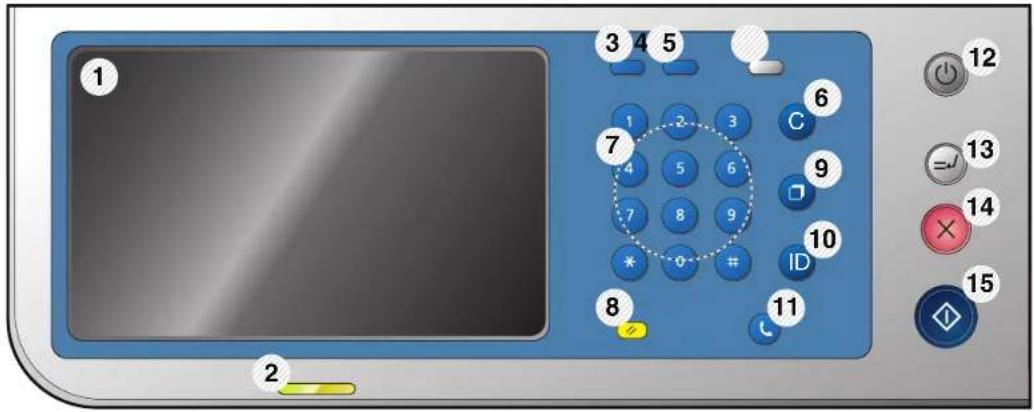
text_image
Control panel with numbered buttons and a highlighted circular dial, likely for digital display or interface control.| 1 | Display screen | Shows the current machine status and prompts during an operation. You can set menus easily using the display screen. |
| 2 | Status LED | Shows the status of your machine (see "Understanding the status LED" on page 32). |
| 3 | Job Status | Shows the jobs currently running, queued jobs, completed jobs, current error code or secured jobs. |
| 4 | Counter | Shows the amount of paper used (see "Counter button" on page 35). |
| 5 | Eco | Turn on Eco mode (see "Eco button" on page 35). |
| 6 | Clear | Deletes characters in the edit area. |
| 7 | Numeric keypad | Dials numbers and enters alphanumeric characters. You can also enter the number value for document copies or other options. |
| 8 | Reset | Resets the current machine setup. |
| 9 | Redial/Pause | Redials the recently sent fax number or received caller ID in ready mode, or inserts a pause (-) into a fax number in edit mode. |
| 10 | Log in/Log out | Allows user to log in or log out. |
| 11 | On Hook Dial | When you press this button, you can hear a dial tone. Then enter a fax number. It is similar to making a call using a speaker phone. |
| 12 | Power | Turns the power on or off. When the blue LED is on, the machine is powered on and you can use it. To turn the machine off, press and hole this button for at least 3 seconds. Press Yes when the confirmation window appears. |
| 13 | Interrupt | Stops a job in operation for urgent copying. |
| 14 | Stop | Stops an operation at any time. The pop-up window appears on the screen showing the current job that the user can stop or resume. |
| 15 | Start | Starts a job. |

When you use the display screen, use your finger only.
Touch interaction
| Type Description | ||
 | Tap (Press) | Action of quickly pressing and releasing an area of screen (When used with "release", it will be called a "press"). |
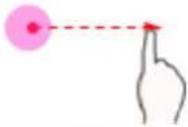 | Touch & Move | When touching the screen, the focus will be moved straight slowly.When releasing, only the focus will be moved.On the touchable view (not item), touch & move will activate and through the touch & move, function will be activated -> micro control activates through touch & move on the video player. |
 | Release | Action of removing your finger from the screen (The moment that the function is activated).(Used with a "press" or "long press"). |
Understanding the status LED
The color of the status LED indicates the machine's current status.
| Status | Description | ||
| Off • The machine is off-line. | The machine is in power saver mode. When data is received, or any button is pressed, it switches to on-line automatically. | ||
| Green On The machine is on-line and can be used. | |||
| Blinking Fax | The machine is sending or receiving faxes. | ||
| Copy The machine is copying documents. | |||
| Scan The machine is scanning documents. | |||
| When the status LED slowly blinks, the machine is receiving data from the computer.When the status LED blinks rapidly, the machine is printing data. | |||
| Red | On | The imaging unit is at the end of its lifespan. Remove the old imaging unit and install a new one.The toner cartridge life ^a is totally empty. Remove the old toner cartridge and install a new one.A paper jam has occurred (see "Clearing paper jams" on page 137).The door is open. Close the door.There is no paper in the tray. Load paper in the tray (see "Loading paper in the tray" on page 39).The machine has stopped due to a major error. Check the display message (see "Understanding display messages" on page 145).The waste toner container is not installed in the machine, or the waste toner container is full (see "Replacing the waste toner container" on page 132). | |
| Blinking | A minor error has occurred and the machine is waiting for the error to be cleared. Check the display message (see "Understanding display messages" on page 145). When the problem is cleared, the machine resumes its original task.The toner cartridge life ^a , imaging unit, or waste toner container is near the end of its life. Order a new toner cartridge, imaging unit, or waste toner container. You can temporarily improve print quality by redistributing the toner. | ||
a. Estimated cartridge life means the expected or estimated toner cartridge life, which indicates the average capacity of print-outs and is designed pursuant to ISO/IEC 19798. The number of pages may be affected by operating environment, printing interval, media type, and media size. Some amount of toner may remain in the cartridge even when the red LED is on and the printer stops printing.
Check the message on the display screen. Follow the instructions in the message or refer to the troubleshooting chapter (see "Understanding display messages" on page 145). If the problem persists, call for service.
Turning the machine on

Keep in mind that you should use the power cord supplied with the machine. Otherwise, it can cause fire or damage to the machine.
- Plug the power cord into the power receptacle.
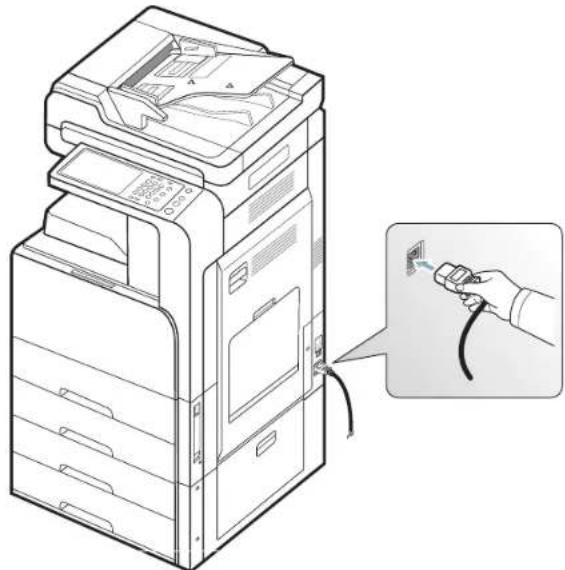
natural_image
Line drawing of a computer tower with attached device and cable, showing internal components and a close-up of a hand holding a cable (no text or symbols present)- Plug the other end into a properly grounded AC outlet.
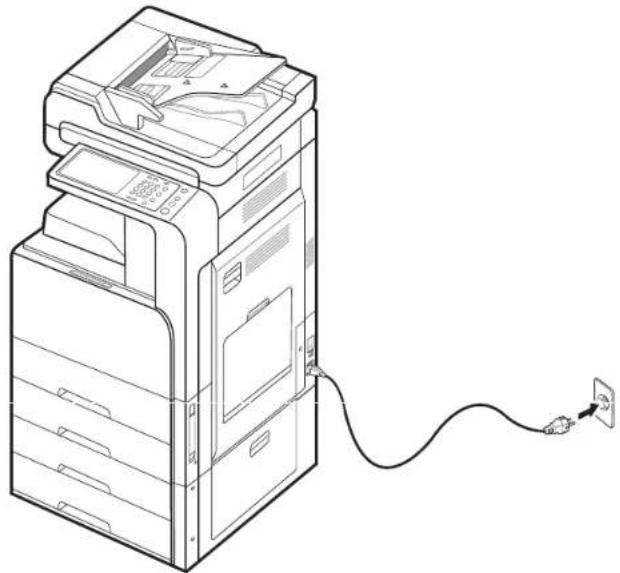
natural_image
Line drawing of a desktop computer with attached cable and power outlet (no text or symbols)- Turn on the main power switch.
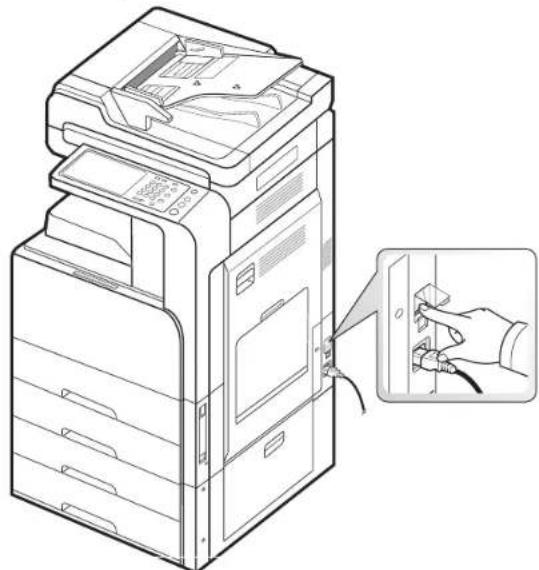
natural_image
Line drawing of a printer with a close-up inset showing the printer's cable being inserted (no text or symbols present)
- Some parts inside of the machine may be hot when power is on, or after printing. Be careful not to burn yourself when working inside the machine.
- Do not disassemble the machine when it is turned on or plugged in. Doing so may give you an electric shock.
Turning the machine off
If you need to turn the machine off, press the Power button for more than three seconds on the right side of the control panel. When the confirmation window appears, press Yes from the display screen, then wait until power is turned off automatically.

natural_image
Diagram of a device's left-hand panel with a circular button and arrow indicator (no text or symbols)
- The machine has three types of power off mode. Press the Machine Setup > General Settings > Power Button Operation. The Power Button Operation option can only be configured by an authorized user who has registered an ID and a password on the machine. For detailed information about the power off mode using the Power button, refer to the Administrator's Guide.
• You can also turn the machine on by pressing the Power button.

If you turn the machine off directly using the main power switch above the power receptacle, it could cause a hard disk problem in the machine.
Connecting a printer cable
Using a network cable
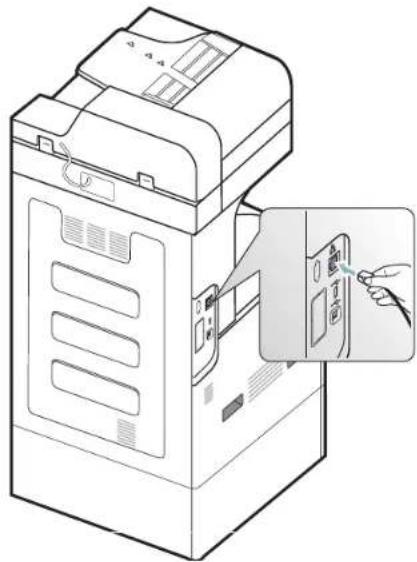
This machine has a built-in network interface card. You can connect your machine to a network using a network cable.
Connect your machine to the network with a network cable:
natural_image
Line drawing of a printer with a close-up view showing the internal components (no text or symbols)Introducing the display screen and useful buttons
Display screen
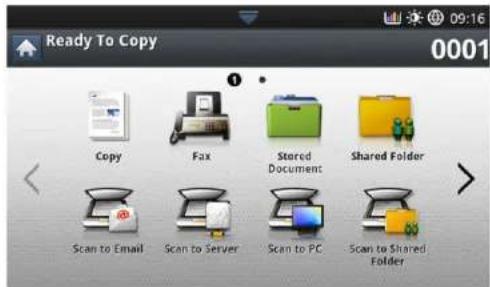
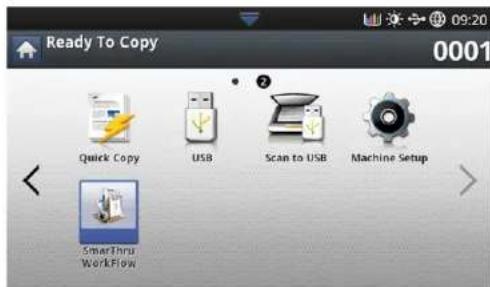
The display screen on the control panel allows user-friendly operation of the machine. Once you press the home icon (icon) on the screen, it shows the display screen. The display screen image in this user's guide may differ from your machine depending on its options or models.

- Icons shown on the display screen such as Fax may be grayed out, depending on the optional kit or program installed in your machine.
• To switch to the next display screen, press the right arrow or drag your finger across the display screen. - Depending on the authentication setting, the machine's users have to enter an ID and a password. In this case, the machine can only be used by an authorized user who has registered an ID and a password on the machine. Contact the machine's administrator.
text_image
Ready To Copy 0001 Copy Fax Stored Document Shared Folder Scan to Email Scan to Server Scan to PC Scan to Shared Folder• Copy: Enters the Copy menu (see "Copying" on page 50).
- Fax : Enters the Fax menu. Fax is activated on the display screen by installing an optional fax kit (see "Faxing (optional)" on page 65).
- St ored Document: Enters the Stored Document menu (see "Understanding the Stored Document screen" on page 92).
- Shared Folder: Enters the Shared Folder menu (see "Understanding the Shared Folder screen" on page 91).
- Scan to Email: Enters the Scan to Email menu (see "Scanning originals and sending through email (scan to email)" on page 77)
- Scan to Server: Enters the Scan to Server menu (see "Scanning originals and sending via SMB/FTP (Scan to server)" on page 78).
- Scan to PC: Enters the Scan to PC menu (see "Scanning originals and sending to your computer (scan to PC)" on page 86).
- Scan to Shared Folder: Enters the Scan to Shared Folder menu.
text_image
Ready To Copy 0001 Quick Copy USB Scan to USB Machine Setup Smart thru Workflow- Quick Copy: Enters the Quick Copy menu (see "Using the Quick Copy
menu" on page 64).
• ID Copy: Enters the ID Copy menu (see "Using the Quick Copy menu" on page 64).
- USB: Enters the USB menu. When a USB memory device is inserted into the USB memory port on your machine, USB is activated on the display screen (see "Using a USB memory device" on page 116).
- Scan to USB: Enters the Scan to USB menu. When a USB memory device is inserted into the USB memory port on your machine, Scan to USB is activated on the display screen (see "Scanning originals and sending to a USB memory device (scan to USB)" on page 80).
- Ma chine Setup: You can browse current machine settings or change machine values.

Some menus are only configured by an administrator or an authorized user who has an ID and password registered on the machine by an administrator. When the machine requests, enter the ID and password.
- Sma rThru WorkFlow: Enters the SmarThru Workflow menu (see "using Smarthru Workflow, shared Folder, and stored document" on page 89).
Counter button
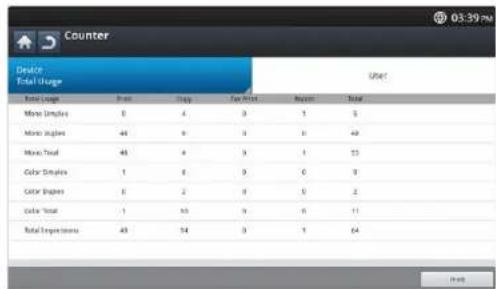
When you press the Counter button on the control panel, You can see the number of impressions.
text_image
Counter Device Total Charge Total Charge Price Help For Print Report Total Mono Dimensions 0 4 3 1 5 Mono Dimensions 48 9 3 2 49 Mono Total 48 4 3 1 55 Color Dimensions 1 6 3 0 3 Color Dimensions 0 2 8 0 2 Color Total 1 55 3 6 11 Total Implications 48 54 3 1 64When you select Device, you can see the number of impressions by device. An impression typically refers to a single side of a sheet and not a one-sided print.
• Total Usage: Displays the total number of impressions.
• Large Page: Displays the total number of impressions with large size paper.
- Send Usage: Displays the number of images sent via email, server, etc.
- Fax Send Usage(PSTN): Displays the number of sent faxes. When you select User, you can see the number of usage, limit, and remaining usage by each user. For detailed information about Counter, refer to the Administrator's Guide.
Eco button
The eco feature allows you to save print resources and leads you to eco-friendly printing. When you press the Eco button, the machine turns eco mode on or off. If the eco mode is on, you can see the eco image ( ) of some features. Some options in the features are not available to use in the eco mode. For detailed information about the eco feature, refer to the Administrator's Guide.

- Only administrators have permission for Eco Setting in Machine Setup.
- If the machine requests a password for eco mode, you need to enter the password. Contact your administrator.
- The Eco button is activated only for Copy, Quick Copy and Stored Document menus.
| Status Description | |
| Off The machine is not in Eco mode. | |
| Green On The machine is in Eco mode. |
Job Status button
When you press the Job Status button, the screen lists the currently running, queued, and completed jobs.
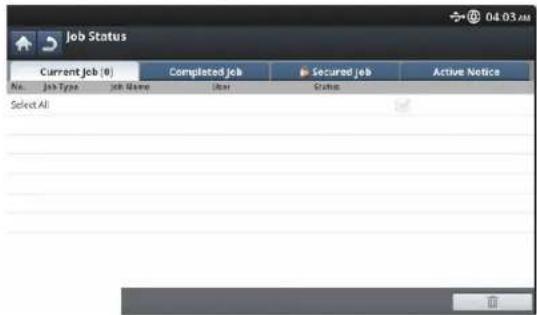
text_image
Job Status Current Job (8) Completed Job Secured Job Active Notice No. Job Type Job Name Job Status Select AllCurrent Job
Displays the list of jobs in progress and pending.
Pressing the job name shows more detailed information.
• No: Gives the order of jobs.
• Jo b Type: Displays type of the job, such as print, copy, fax, etc.
• Jo b Name: Displays the name of the job.
- Use r: Displays the name of the job owner.
- Status: Displays the current status of each job (see "Meaning of status" on page 36).
- Promote: Promotes a selected job from the list when many jobs are queued. The selected job cannot be promoted in front of a job in progress.

You cannot use the Promote button depending on the state of the job.
• Job Hold: Holds a selected job from the list.

You cannot use the Job Hold button depending on the state of the job.
- Delete: Removes a selected job from the list.
Completed Job
Displays the list of completed jobs.
Pressing the job name shows more detailed information.
• No: Gives the order of jobs.
• Jo b Type: Displays type of the job, such as print, copy, fax, etc.
• Jo b Name: Displays the name of the job.
- Use r: Displays the name of the job owner.
- Status: Displays the status of each completed job (see "Meaning of status" on page 36).
Meaning of status
- Receiving: The machine is receiving data from the network or fax line.
- Ima ge Processing: The machine is processing the image (decoding, encoding, converting data format).
- Formatting: The machine is generating the image for printing.
- Pending: The job in the job queue is waiting for its turn.
- T transferring: The machine is transferring the data to email, server, or fax.
- Scan ning: The machine is scanning.
- Dia ling: In the fax mode, the machine is dialing to the receiver's fax machine.
- Co nnecting: In the fax mode, the machine is waiting to connect to destination.
- Printing: The machine is printing.
- St oring: The data is storing to a box or a USB.
- Delaye d Job: The job is temporarily stopped until the time you set for Delay Send (email, fax, server).
- Held: In the Secured Job tab, the job is temporarily stopped when secure print job is sent from a computer. You can release the job by pressing Print.
- Held: Proof P rint: The job is temporarily stopped when a proof print job is sent from a computer. You can release the job by pressing Release.
- Held: Proof Copy: In copy mode, the job is temporarily stopped when the proof copy was selected. You can release the job by pressing Release.
- Held: Use r Request: The job is temporarily stopped when Job Hold is pressed. You can release the job by pressing Release.
- Held : Delayed Print: The job is temporarily stopped until the time you set.
- Held: Needs Resources: The job is temporarily stopped when the machine has a problem such as paper empty, paper mismatch, etc.
- In interrupted: The job is temporarily stopped when the Interrupt button is pressed for an urgent copy job.
- Paused: The job is paused when the Stop button is pressed.
• Com pleted: The job is completed.
• Co mpleted with error: The job is completed with error. - Deleted: If you select a job in the list and press Delete, the job is deleted.
Secured Job
Displays the list of secured jobs the user has set in the printer driver (see "Confidential" on page 105). You need to enter the User ID and Password set in the printer driver (see "Confidential" on page 105).
• No: Gives the order of jobs.
• J ob Type: Displays type of the job.
• Job Name: Displays the name of the job.
- User : Displays the name of the job owner.
• Detail: Displays detailed information of the selected job. You can also change the number of copies by pressing Change Settings.
• Edit: Changes the Job Name of the selected job.
- Delete: Removes the selected job from the list.
- Print: Prints the selected job from the list.
- Close : Closes the job status window.
Active Notice
Displays any error messages and codes that have occurred.
• No: Gives the order of messages.
• Machine Status Message: Displays the error messages for the current errors in the machine.
- Error Code: Displays the error message's code.
• Detail: Displays detailed information of the selected job.
- Close: Closes the job status window.
Interrupt button
When you press Interrupt (≡), the machine goes into interrupt mode, which means it stops the current printing job for an urgent copy job. When the urgent copy job is completed, the previous printing job continues.

When you select the staple feature for a printing job, interrupt mode works after stapling is completed in the printing job.
| Status Description | |
| Off The machine is not in interrupt printing mode. | |
| Green On The machine is in interrupt printing mode. |
Media and tray
This chapter provides information on how to load originals and print media into your machine.
This chapter includes:
- Loa ding originals
- Selecting print media
- Loading paper in the tray
Loading originals
You can use the scanner glass or the duplex automatic document feeder (DADF) to load an original for copying, scanning, and sending a fax.
On the scanner glass
Make sure that no originals are in the DADF. If an original is detected in the DADF, the machine gives it priority over the original on the scanner glass. To get the best scan quality, especially for colored or gray-scaled images, use the scanner glass.
Preparing originals
- Do not load paper smaller than 25 x 25 mm (1.0 x 1.0 inch) or larger than 297 x 432 mm (11.7 x 17 inches).
-
Make sure any glue, ink, or correction fluid on the paper is completely dry before loading.
-
Open the DADF.
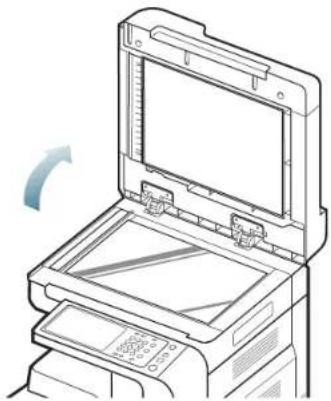
natural_image
Line drawing of a printer with a paper tray and cover, showing no text or symbols- Printing on special media
-
Tray setting
-
Place the original face down on the scanner glass and align it with the registration guide at the top left corner of the glass.
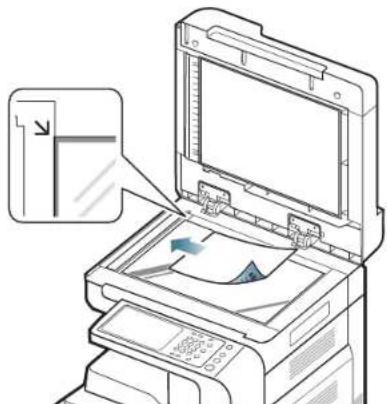
natural_image
Illustration of a printer with a paper airplane being inserted, showing the printer's screen and paper tray (no text or symbols present)- Close the DADF.

• Leaving the DADF open while copying may affect copy quality and toner consumption.
- Dust on the scanner glass may cause black spots on the printout. Always keep it clean.
- If you are copying a page from a book or magazine, lift the DADF until its hinges are caught by the stopper and then close the lid. If the book or magazine is thicker than 30 mm (1 inch), start copying with the lid open.

- Be careful not to break the scanner glass. You may get hurt.
- Do not put hands on the scanner glass while closing the DADF. The DADF may fall on your hands and cause injury.
- Do not look at the light inside of the scanner while copying or scanning. It is harmful to eyes.
In the duplex automatic document feeder (DADF)
Preparing originals
- Do not load paper smaller than 140 x 140 mm (5.5 x 5.5 inches) or larger than 297 x 432 mm (11.7 x 17 inches).
• The DADF can automatically detect A3, A4 LEF, A4 SEF, B4, B5 LEF, B5 SEF, A5 LEF, A5 SEF, Ledger, Legal, Letter LEF, Letter SEF, Statement LEF, and Statement SEF-sized originals.
- Do not attempt to load the following types of paper, in order to prevent paper jams, low print quality, and machine damage.
- Carbon paper or carbon-backed paper
- Co ated paper
- Onion skin or thin paper
- W rinkled or creased paper
- Cu rled or rolled paper
- T om paper
- Remove all staples and paper clips before loading.
- Make sure any glue, ink, or correction fluid on the paper is completely dry before loading.
- Do not load originals that include different sizes or weights of paper.
- Do not load booklets, pamphlets, transparencies, or documents with other unusual characteristics.
Using the DADF, you can load up to 100 sheets of paper (80 g/m ^2 , 20 lb bond) for one job.
- Fl ex or fan the edge of the paper stack to separate the pages before loading originals.
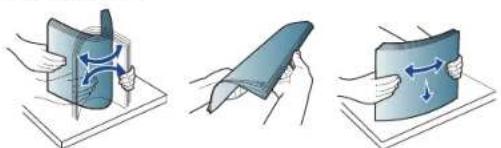
natural_image
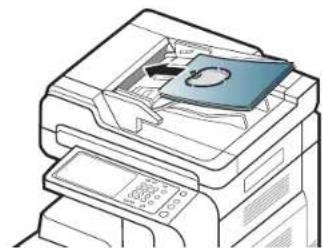
Three-step illustration showing a folding or stretching process of a flexible object, with no text or symbols present.- Load the originals face up into the DADF. Make sure that the bottom of the original stack matches the paper size marked on the document input tray.
natural_image
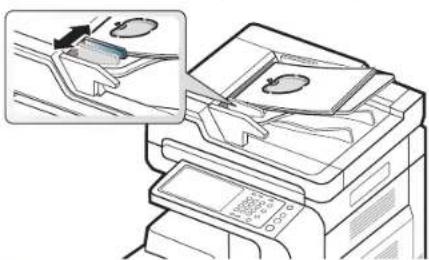
Illustration of a printer with a blue cover and control panel (no text or symbols)- Adjust the document width guides to the paper size.
natural_image
Illustration of a printer with a close-up view showing internal components (no text or symbols)
Dust on the DADF glass may cause black lines on the printout. Always keep the glass clean.
Selecting print media
You can print on a variety of print media, such as plain paper, envelopes, labels, and transparencies. Always use print media that meet the guidelines for use with your machine.
Guidelines to select print media
Print media that does not meet the guidelines outlined in this user's guide may cause the following problems:
- Poor print quality
- Increased paper jams
• Premature wear on the machine.
Properties, such as weight, composition, grain, and moisture content, are important factors that affect the machine's performance and the output quality. When you choose print materials, consider the following:
- The type, size, and weight of the print media for your machine are described in print media specifications (see "Print media specifications" on page 165).
- Desired outcome: The print media you choose should be appropriate for your project.
- Brightness: Some print media are whiter than others and produce sharper, more vibrant images.
- Surface smoothness: The smoothness of the print media affects how crisp the printing looks on the paper.

- Some print media may meet all of the guidelines in this user's guide and still not produce satisfactory results. This may be the result of the sheets characteristics, improper handling, unacceptable temperature and humidity levels, or other variables over which cannot be controlled.
- Before purchasing large quantities of print media, ensure that it meets the requirements specified in this user's guide.
- Using print media that does not meet these specifications may cause problems or require repairs. Such repairs are not covered by Samsung's warranty or service agreements. The amount of paper put into the tray may differ according to media type used (see "Print media specifications" on page 165).
- Make sure not to use the inkjet photo paper with this machine. It could cause damage to the machine.
• Using inflammable print media can cause a fire. - Use designated print media (see "Print media specifications" on page 165).

The use of inflammable media or foreign materials left in the printer may lead to overheating of the unit and, in rare cases may cause a fire.
The amount of paper put into the tray may differ according to media type used (see "Print media specifications" on page 165).
Loading paper in the tray
Standard tray / optional dual cassette feeder
Load the print media you use for the majority of your print jobs into the standard tray. The standard tray can hold a maximum of 1,040 sheets of plain paper.
You can purchase an optional dual cassette feeder and attach it below the standard tray to load an additional 1,040 sheets of plain paper.

• Standard tray contains two trays. (Tray 1, Tray 2)
• Optional dual cassette feeder contains two trays. (Tray 3, Tray 4)
- The process to load paper in tray 1, tray 2, tray 3, and tray 4 is the same.
Using photographic paper or coated paper may cause problems, that require repairs. Such repairs are not covered by the warranty or service agreements.
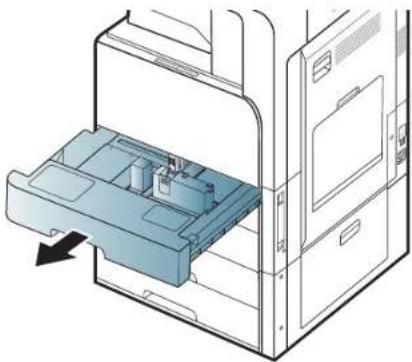
- Squee ze the lock lever on the handle and pull out the tray.
natural_image
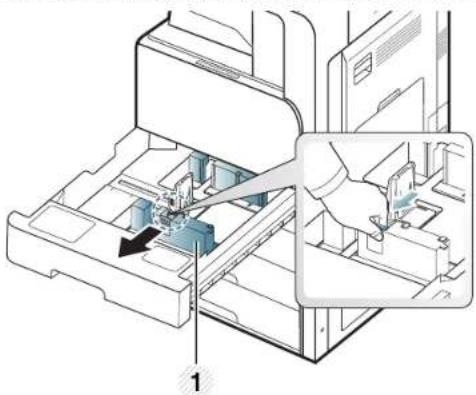
Diagram of a device interior showing a tray with internal compartments and a door, with an arrow indicating direction (no text or symbols present)- Squeeze the paper length guide, and pull it to the end of the tray.
natural_image
Technical diagram of a mechanical assembly with an inset showing a hand operating a component (no text or symbols present)1 Paper length guide
- Squeeze the paper width guide, and pull it to the end of the tray.
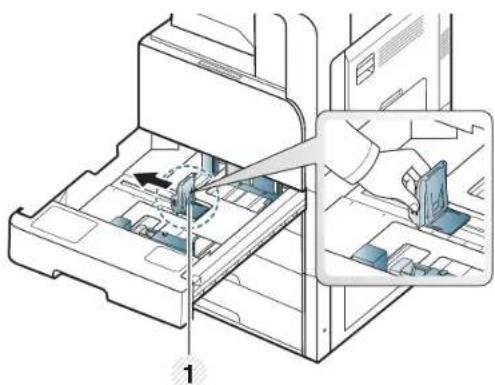
natural_image
Diagram of a printer's internal structure showing paper feeding into a tray, with an inset view highlighting the component (no text or symbols present)1 Paper width guide
- Flex and fan the edge of the paper stack to separate the pages before loading papers.
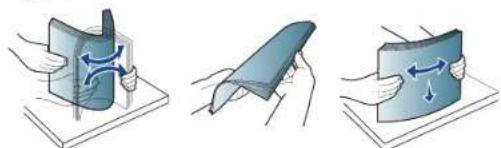
natural_image
Three-step illustration showing a folding or stretching process with arrows indicating direction (no text or symbols)- Load paper with the print side facing up.
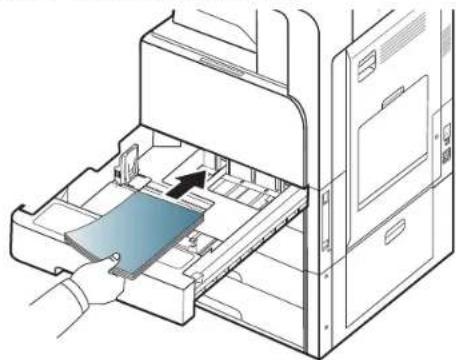
natural_image
Diagram of a printer's internal structure showing paper feeding into a rack, with no visible text or symbols.- Adjust the paper length guide to the desired paper length.
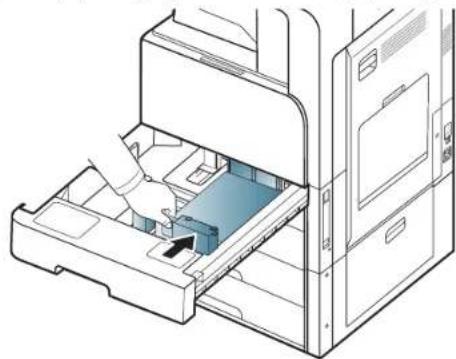
natural_image
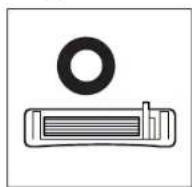
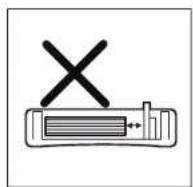
Diagram of a printer's internal structure showing a printer opening into a rack, with no visible text or symbols.- After loading paper into the tray, pinch the paper width guide and move it toward the stack of paper until it lightly touches the side of the stack. Do not press the guide too tightly to the edge of the paper: the guide may bend the paper.
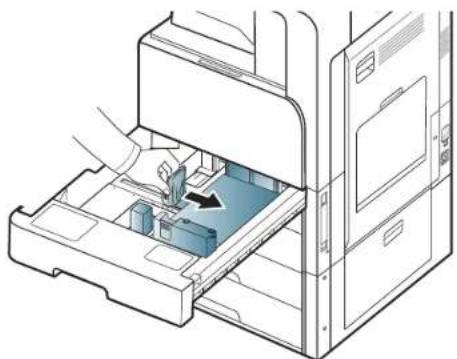
natural_image
Diagram of a printer's internal structure showing a hand inserting a component into a machine (no text or symbols visible)- Do not push the paper guide too far causing the media to warp. - If you do not adjust the paper width guide, it may cause paper jams.
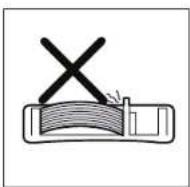
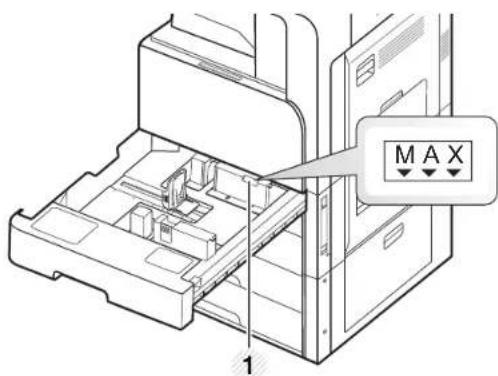
Do not overload the tray: it may cause paper jams. Make sure that the paper is below the maximum paper capacity guide inside the tray.
text_image
MAX 11 Paper capacity guide
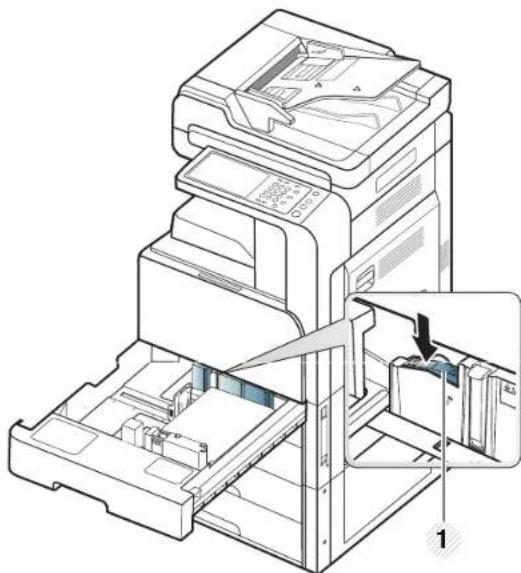
- Fix the the paper length guide using the locking switch. Release the locking switch to load a different sized paper.
natural_image
Technical line drawing of a printer's internal structure showing internal components and assembly (no text or symbols)1 Locking switch
- Insert the tray back into the machine.
When you print a document, set the paper type and size for the tray. For information about setting the paper type and size on the control panel (see "Tray setting" on page 47).
The standard tray and optional dual cassette feeder can automatically detect various-sized paper (see "Media sizes automatically detected" on page 44).
If you set the Tray Confirmation Message ON in Tray Settings, the confirmation window appears automatically (see "Setting the tray confirmation message" on page 47).
Check if the paper size and type in the tray are detected or not. If you
want to set the paper size and type or if the machine cannot detect them, you can set the size and type directly in the confirmation window.

- If you experience problems with paper feeding, check whether the paper meets the media specifications (see "Print media specifications" on page 165). Then, try placing one sheet at a time in the multi-purpose tray (see "Multi-purpose tray" on page 42).
- The settings made from the machine driver override the settings on the control panel.
To print from an application:
a) Open an application and start the print menu.
b) Open Printin g Preferences (see "Opening printing preferences" on page 101).
c) Press the Paper tab in Printing Preferences, and select an appropriate paper type, size, and source.
d) Press OK.
e) Start printing from an application.
Multi-purpose tray
The multi-purpose tray can hold special sizes and types of print material, such as postcards, note cards, and envelopes. It is useful for single page printing on colored paper.
Tips on using the multi-purpose tray
- Load only one type, size, and weight of print media at a time in the multi-purpose tray.
- To prevent paper jams, do not add paper while printing when there is still paper in the multi-purpose tray. This also applies to other types of print media.
- Print media should be loaded face down with the top edge going into the multi-purpose tray first and be placed in the center of the tray.
- Always load only the specified print media to avoid paper jams and print quality problems (see "Print media specifications" on page 165).
-
Flatten any curl on postcards, envelopes, and labels before loading them into the multi-purpose tray.
-
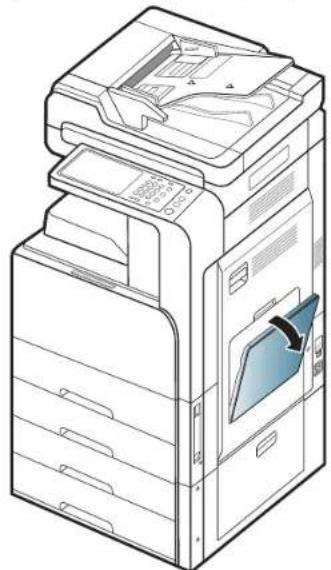
Ope n the multi-purpose tray and pull out the extension if necessary.
natural_image
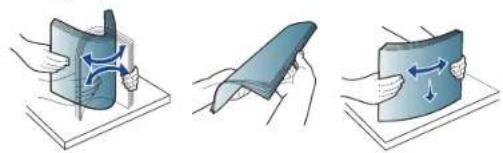
Line drawing of a multi-layered printer with front panel and internal compartments (no text or symbols)- Flex or fan the edge of the paper stack to separate the pages before loading originals.
natural_image
Three-step illustration showing a folding or stretching process with arrows indicating motion (no text or symbols)- Load the paper with the side to be printed on facing down.
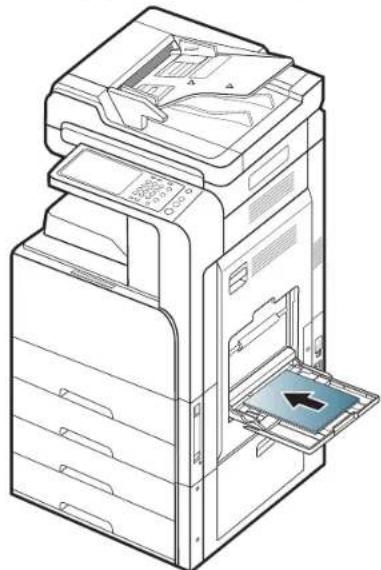
natural_image
Line drawing of a printer with internal compartments and a paper clip, no text or symbols present- Squeeze the multi-purpose tray paper width guides and adjust them to the width of the paper. Do not force too much, otherwise the paper will bend resulting in a paper jam or skew.
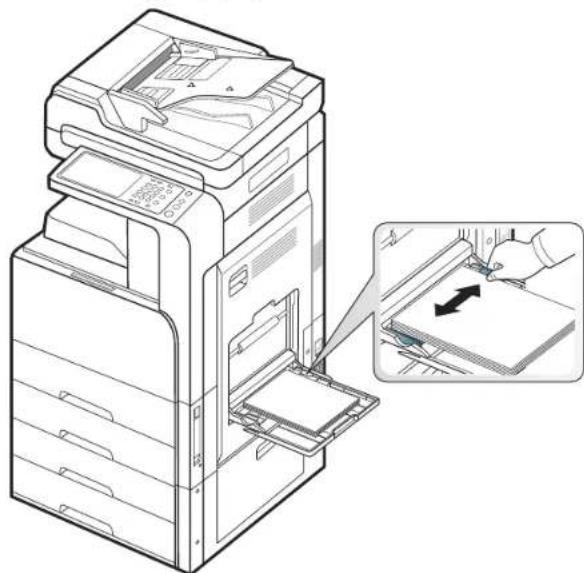
natural_image
Line drawing of a printer with an open lid and paper holder, showing a hand inserting a card into the cover (no text or symbols present)- When you print a document, set the paper type and size for the multi-purpose tray (see "Media sizes automatically detected" on page 44). For information about setting the paper type and size on the control panel (see "Tray setting" on page 47).
The settings made from the machine driver override the settings on the control panel.
To print from an application:
a) Op en an application, and start the print menu.
b) Op en Printing Preferences (see "Opening printing preferences" on page 101).
c) Press the Paper tab in Printing Preferences, and select an appropriate paper type, size, and source.
d) Press OK.
e) Start printing from an application.
Media sizes automatically detected
This machine can automatically detect various sized-paper. Refer to the table below.
| size^a | Standard tray/ optional dual cassette feeder | Multi-purpose tray | Duplex printing |
| Letter SEF^b | o Available | ||
| Letter LEF^c | o Available | ||
| Ledger o Available | |||
| Legal o Available | |||
| Executive SEF o Available | |||
| Executive LEF o Available | |||
| Statement SEF o Available | |||
| Statement LEF o | |||
| A3 o Available | |||
| A4 SEF o Available | |||
| A4 LEF o Available | |||
| A5 SEF o Available | |||
| A5 LEF o | |||
| B4 o Available | |||
| JIS B5 SEF | o Available | ||
| JIS B5 LEF | o Available | ||
| A6 SEF | o | ||
| A6 LEF o | |||
| ISO B5 SEF | o o Available | ||
| ISO B5 LEF | o | ||
| Folio | o o Available | ||
| Oficio | o o Available | ||
| 8K | o o Available | ||
| 16K | o o Available |
a. This machine can detect paper of similar sizes as the listed paper sizes.
b.SEF meaning is Short Edge Feed.
c. LEF meaning is Long Edge Feed.
(●: Detected, o: Not detected, Blank: You cannot load the paper in the tray.)
Printing on special media
The table below shows the available special media for each tray.
When using special media, we recommend you feed one piece of paper at a time. Check the maximum input number of media for each tray (see "Print media specifications" on page 165).
| Types | Standard tray/ optional dual cassette feeder | Multi-purpose tray |
| Thick | ● | ● |
| Heavy weight | ● | ● |
| Extra Heavy weight 1 | ● | ● |
| Thin | ● | ● |
| Cotton | ● | ● |
| Color | ● | ● |
| Preprinted | ● | ● |
| Recycled | ● | ● |
| Bond | ● | ● |
| Archive | ● | ● |
| Letterhead | ● | ● |
| Punched | ● | ● |
| Thin Cardstock | ● | ● |
| Thick Cardstock | ● | ● |
| Thin Glossy | ● | |
| Thick Glossy | ● | |
| Envelope | ● | |
| Labels | ● |
(●: Included, Blank: Not available)
The media types are shown in the Printing Preferences. This paper type option allows you to set the type of paper to be loaded in the tray. This setting appears in the list so that you can select it. This will let you get the best quality printout. If not, the desired print quality may not be achieved.
Envelope
Successful printing on envelopes depends upon the quality of the envelopes.
To print an envelope, place it with the flap side up.
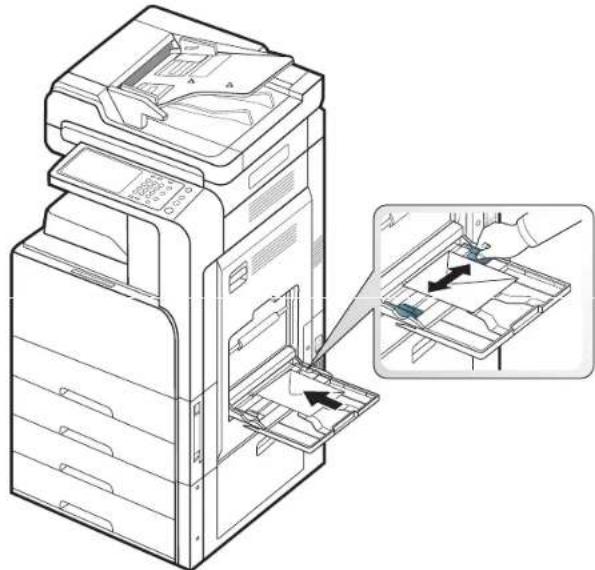
natural_image
Technical line drawing of a printer or scanner with an inset showing internal components (no text or symbols)- When selecting envelopes, consider the following factors:
- We ight: The weight of the envelope paper should not exceed 90g / m^2 (16 lb) otherwise, a jam may occur.
- Co nstruction: Prior to printing, envelopes should lie flat with less than 6 mm (0.25 inches) curl, and should not contain air.
- Condition: Envelopes should not be wrinkled, nicked, or damaged.
- Temperature: Use envelopes that are compatible with the heat and pressure of the machine during operation.
- Use only well-constructed envelopes with sharp and well-creased folds.
- Do not use stamped envelopes.
- Do not use envelopes with clasps, snaps, windows, coated lining, self-adhesive seals, or other synthetic materials.
- Do not use damaged or poorly made envelopes.
- Be sure the seam at both ends of the envelope extends all the way to the corner of the envelope.
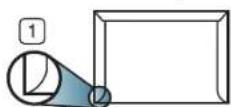
1 Acceptable
2 Unacceptable
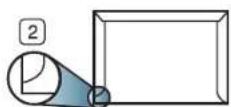
- Envelopes with a peel-off adhesive strip or with more than one flap that folds over to seal must use adhesives compatible with the machine's fusing temperature of about 170°C (338°F) for 0.1 second. The extra flaps and strips might cause wrinkling, creasing, or jams, and may even damage the fuser.
- For the best print quality, position margins no closer than 15 mm (0.6 inches) from the edges of the envelope.
- Avoid printing over the area where the envelope's seams meet.
Labels
Load the paper with the side to be printed on facing down.
To avoid damaging the machine, use only labels designed for use in laser machines.
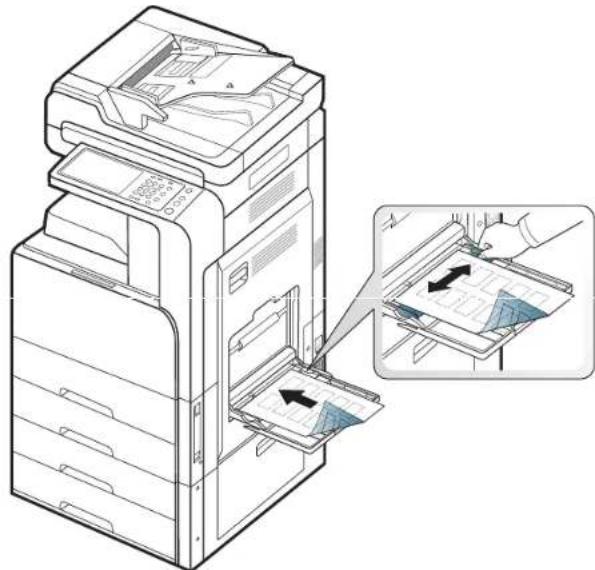
natural_image
Technical line drawing of a printer with internal compartments and a close-up inset showing the process (no text or symbols)- When selecting labels, consider the following factors:
- Adh esives: The adhesive material should be stable at your machine's fusing temperature of about 170°C (338°F) for 0.1 second.
- Arrangement: Only use labels with no exposed backing between them. Labels can peel off sheets that have spaces between the labels, causing serious jams.
- Cur I: Prior to printing, labels must lie flat with no more than 13 mm (0.5 inches) of curl in any direction.
-
Condition: Do not use labels with wrinkles, bubbles, or other indications of separation.
-
Make sure that there is no exposed adhesive material between labels. Exposed areas can cause labels to peel off during printing, which can cause paper jams. Exposed adhesive can also cause damage to machine components.
- Do not run a sheet of labels through the machine more than once. The adhesive backing is designed for only a single pass through the machine.
- Do not use labels that are separating from the backing sheet or are wrinkled, bubbled, or damaged.
- Do not load paper that does not have space between labels running the same direction as the paper is being fed. Otherwise, it could cause paper jams.
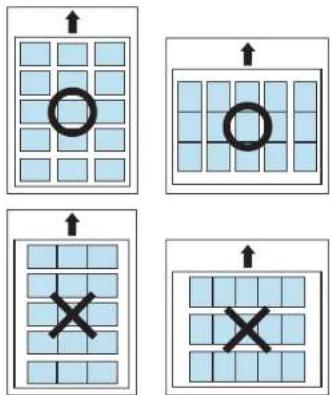
text_image
Four-panel grid puzzle with circles and X marks, likely illustrating a logic or logic simulation setup.Card stock/ Custom-sized paper
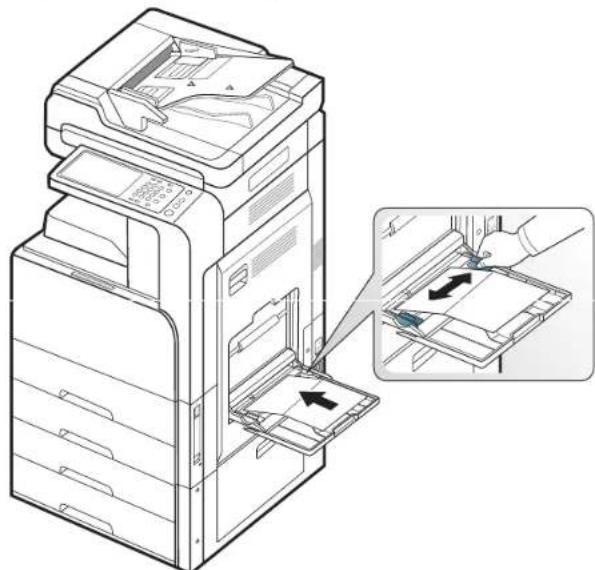
natural_image
Illustration of a printer's internal structure with an inset showing the printer's tray and paper feed (no text or symbols present)- Do not print on media smaller than 98 mm (3.8 inches) wide or 148 mm (5.8 inches) long.
- In the software application, set margins to at least 6.4 mm (0.25 inches) away from the edges of the material.
Letterhead/Preprinted paper
| Single-sided double-sided | ||
| Standard tray/Optional dualcassette feeder | Face up Face down | |
| Multi-purpose tray Face down Face up | ||
- Preprinted paper must be printed with heat-resistant ink that will not melt, vaporize, or release hazardous emissions when subjected to the machine's fusing temperature of about 170°C (338 °F) for 0.1 second.
- Preprinted paper ink must be non-flammable and should not adversely affect machine rollers.
- Forms should be sealed in a moisture-proof wrapping to prevent changes during storage.
- Before you load preprinted paper, verify that the ink on the paper is dry. During the fusing process, wet ink can come off preprinted paper, reducing print quality.
Glossy

Load a single sheet of paper into the multi-purpose tray at a time, glossy side facing down.
- Recommend media: Glossy paper (Letter) for this machine by HP Brochure Paper (Product: Q6611A) only.
- Recommend media: Glossy paper (A4) for this machine by HP Superior Paper 160 glossy (Product: Q6616A) only.
Tray setting
After loading paper in the paper tray, set the paper size and type using the display screen. For computer printing, select the paper size and type in the application program you use on your computer (see "Opening printing preferences" on page 101).

The settings made from the machine driver override the settings on the display screen.
Setting the paper size
- Press Machine Setup > Tray Settings > Settings > select the tray you want from the display screen.
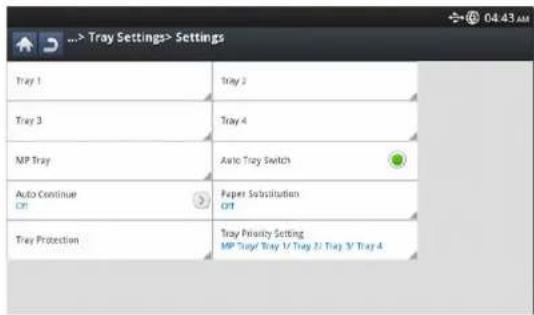
text_image
Tray Settings> Settings Tray 1 Tray 2 Tray 3 Tray 4 MP Tray Auto Tray Switch Auto Continue Off Paper Substitution Off Tray Protection Tray Priority Setting MP Tray/ Tray 1/ Tray 2/ Tray 3/ Tray 4- Press Paper Size and select the paper size.
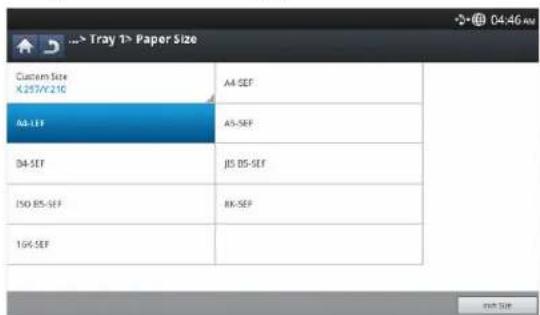
text_image
Tray 1> Paper Size Custom Size X:257/X:256 A4-SEF A4-SEF D4-SEF J5 D5-SEF ISO E5-SEF BK-SEF 104-SEF M4-SEF- If there is no required size paper or you need to use custom size paper, press the Custom Size Button to set the paper size. You can also set and save the custom size using Custom Size. You can select the custom size whenever you need it.
Setting the paper type
- Press Machine Setup > Tray Settings > Settings > select the tray you want from the display screen.
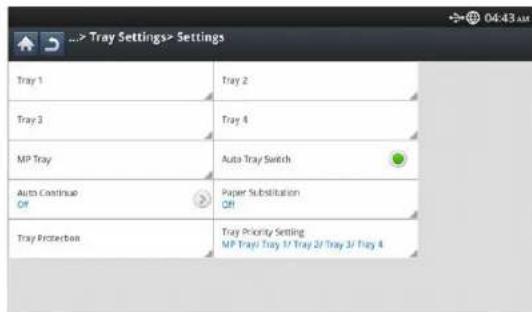
text_image
Tray Settings> Settings Tray 1 Tray 2 Tray 3 Tray 4 MP Tray Auto Tray Switch Auto Continue Off Paper Substitution Off Tray Protection Tray Priority Setting MP Tray Tray 3/ Tray 2/ Tray 3/ Tray 4- Press Paper Type and select the paper type.
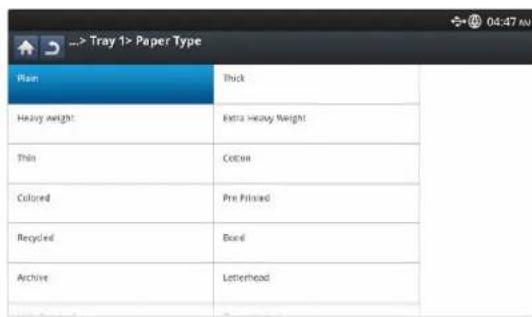
text_image
Tray 1> Paper Type Plain Thick Heavy Weight Extra Heavy Weight Thin Color Colored Pre Filtered Recycled Board Archive Letterhead- Press to save the selection.
Setting the tray confirmation message
When you load paper into a tray, you can set the confirmation message to appear automatically; or not at all. This machine can detect some paper sizes and types automatically. If you want to set the paper size and type, or the machine cannot detect them, you can set the size and type directly in the confirmation window.
- Pres s Machine Setup > Tray Settings > Settings > select the tray you want from the display screen.
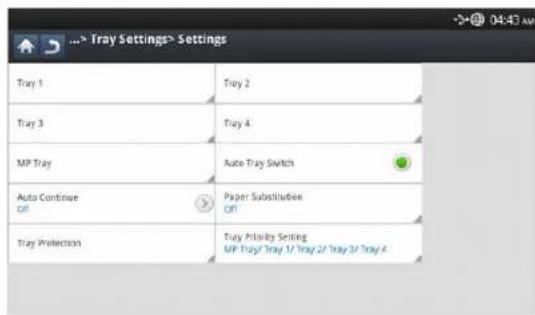
text_image
Tray Settings> Settings Tray 1 Tray 2 Tray 3 Tray 4 MP Tray Auto Tray Switch Auto Continue Off Paper Substituie Off Tray Protection Tray Priority Setting MP Tray/ Tray 1/ Tray 2/ Tray 3/ Tray 4- Press the button in Tray Confirmation Message to activate this function.
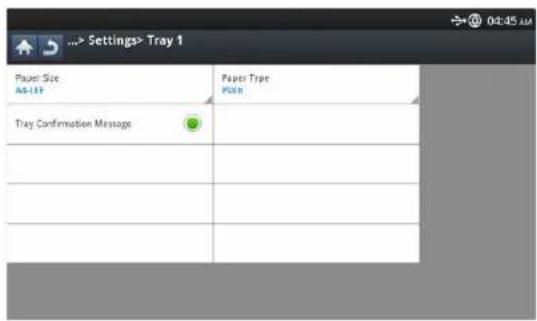
text_image
Settings> Tray 1 Paper Size AS-137 Paper Type PLAN Tray Confirmation Message Tray 04:45 AMAuto tray switch
This is the option to set if the machine is to continue printing or not when any tray becomes empty. For example, both tray 1 and tray 2 are filled with the same size paper, the machine automatically prints from tray 2 after the tray 1 runs out of paper.
- Press Machine Setup > Tray Settings > Settings > Auto Tray Switch.
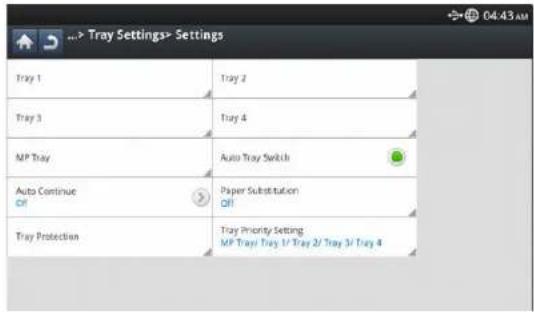
text_image
Tray Settings> Settings Tray 1 Tray 2 Tray 3 Tray 4 MP Tray Auto Tray Switch Auto Continue Paper Substitution Off Off Tray Protection Tray Priority Setting MP Tray: Tray 1/ Tray 2/ Tray 3/ Tray 4- Press the button on the right to activate this function.
Auto continue
This option allows you to continue printing when the paper size you have set is mismatched with the paper in the tray. When this option is activated, the machine continues printing using similar or large size paper. If this option is inactivated, the machine waits until the required size paper is loaded in the tray.
- Pres s Machine Setup > Tray Settings > Settings > Auto Continue.
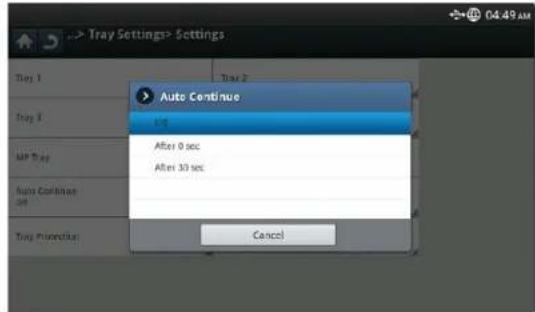
text_image
Tray Settings> Settings Tray 1 Tray 2 Auto Continue End After 0 sec After 30 sec Cancel- Choose one of the options.
Paper substitution
When the requested paper for a print job is not available in the tray, this feature allows you to substitute similar paper size. For example, if the requested ledger sized paper is not available in the tray, this machine substitutes A3 for the requested paper.
When the paper is substituted, some image loss may occur.
- Pres s Machine Setup > Tray Settings > Settings > Paper Substitution.
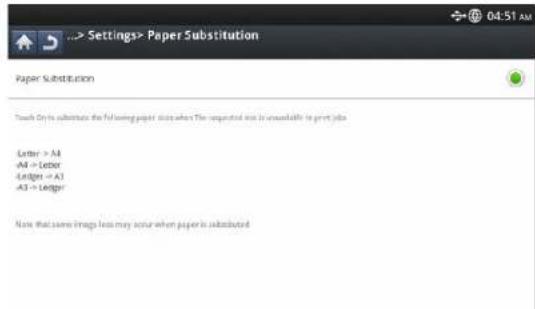
text_image
Settings> Paper Substitution Paper Substitution Touch Only is substitute the following paper sizes when the requested size is unavailable to print jobs Letter > A4 A4 > Letter Letter = A3 A3 = Letter Note that some images less may occur when paper is substituted- Press the button on the right to activate this function.
Tray protection
When you choose this option, the selected tray will be protected. This will be used to prevent like paper from being fed if Auto Switching is "ON".
- Press Machine Setup > Tray Settings > Settings > Tray Protection.
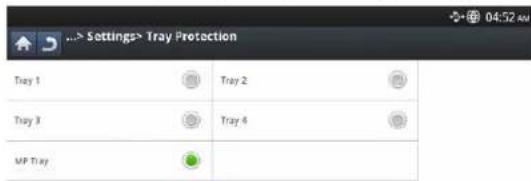
text_image
Settings> Tray Protection Tray 1 Tray 2 Tray 3 Tray 4 MP Tray- Choose tray and press the button to activate this function.
Tray priority setting
When you do not select the tray for printing, the tray selected as in the Tray Priority Setting will be used in order. If the tray does not have the paper on which you want to print, the machine automatically prints from the trays in the priority order set.
- Press Machine Setup > Tray Settings > Settings > Tray Priority Setting.
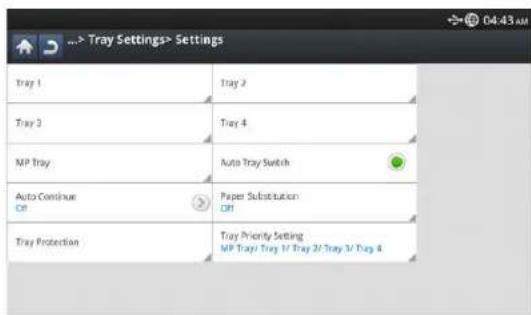
text_image
Tray Settings> Settings Tray 1 Tray 2 Tray 3 Tray 4 MP Tray Auto Tray Switch Auto Continue C Paper Substitution C Tray Protection Tray Priority Setting MP Tray/Tray 3/Tray 2/Tray 3/Tray 4- Press a tray, and give priority in the order for printing job using UP and Down Arrows.
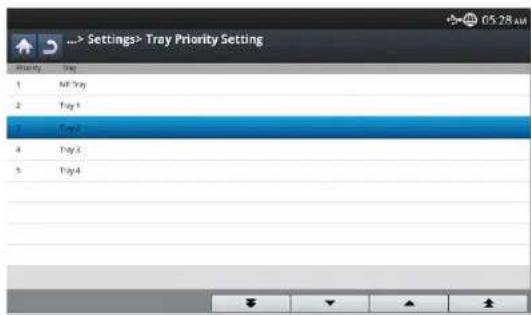
text_image
Settings> Tray Priority Setting Priority 1 2 3 4 5 Tray Pay 1 Pay 2 Pay 3 Pay 4Copying
This chapter gives you step-by-step instructions for copying documents.
This chapter includes:
- Unde rstanding the copy screen
- Basic copy
- Changing the settings for each copy
Understanding the copy screen
When you press Copy from the display screen, the Copy screen appears which has several tabs and lots of copying options. All the options are grouped by features so that you can configure your selections easily.
If a different screen is displayed, press (to go to the home display screen.
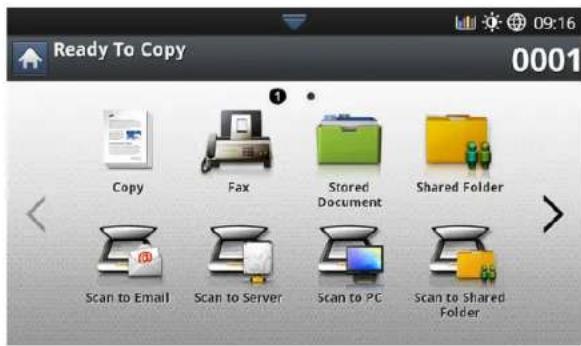
text_image
Ready To Copy 0001 Copy Fax Stored Document Shared Folder Scan to Email Scan to Server Scan to PC Scan to Shared FolderBasic tab
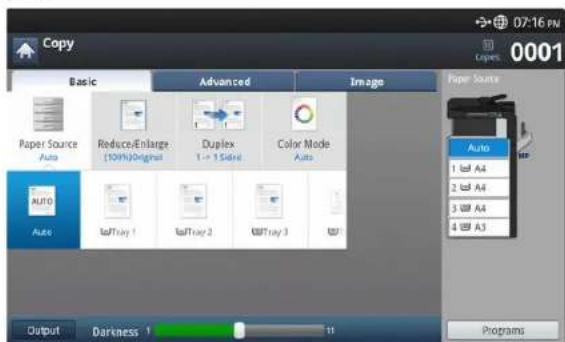
text_image
Copy 07:16 PM Copex 0001 Basic Advanced Image Paper Source Paper Source Auto Reduce/Enlarge (10%)/Original Duplex 1 + 1 Select Color Mode Auto Auto ToTray 1 ToTray 2 ToTray 3 Auto Output Darkness 1 11 Programs• Copies: Enters the number of copies.
- Paper Source: Selects the paper source tray (see "Selecting the Paper Source tray" on page 52).
- Re duce/Enlarge: Reduces or enlarges the size of a copied image (see "Reducing or enlarging copies" on page 52).
• Using special copy features
• Using a program's setting
• Using the Quick Copy menu
- Du plex: Sets the machine to print copies on both sides of the paper (see "Copying multiple sides" on page 52).
- Color Mode : Selects a color mode for making copies (see "Selecting the color mode (CLX-9201 9301 Series only)" on page 53).
- Output : Sets the machine's various output options (see "Deciding the form of copy output" on page 53).
- Da rkness: Adjusts the brightness level to make a copy for easier reading, when the original contains faint markings and dark images (see "Changing the darkness" on page 54).
- Pr ograms: Allows you to save the current settings for future use (see "Using a program's setting" on page 64).
Advanced tab
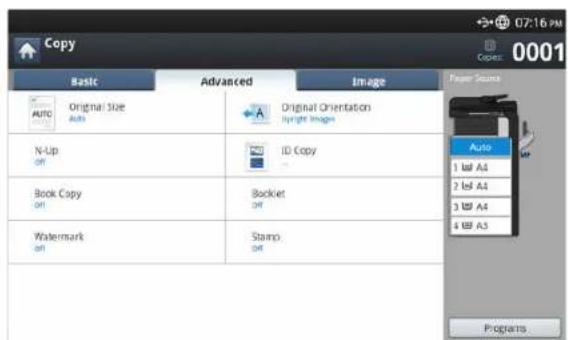
text_image
Copy Copies: 0001 Basic Advanced Image Original Size Auto Original Orientation Copyright Images N-Up ID Copy Book Copy Bucket Watermark Stamp Auto 1 Id A4 2 Id A4 3 Id A4 4 Id A3 Programs- Original Size: Selects the actual paper size of the originals (see "Selecting the size of originals" on page 55).
- Original Orientation: Selects the orientation of the originals (see "Selecting the orientation of originals" on page 55).
- ID Cop y: Prints 2-sided originals on one sheet of paper. This feature is helpful for copying a small-sized item, such as a business card (see "ID card copying" on page 56).
- N- Up: Prints 2 or more original images, reduced to fit onto one sheet of paper (see "N-up copying" on page 57).
- Bo oklet: Allows you to create booklets (see "Booklet copying" on page 60).
- Bo ok Copy: Allows you to copy the left or/and right pages of book on separate output paper (see "Book copying" on page 60).
• Watermark: Allows you to print a watermark on printouts (see "Watermark" on page 61). - Stamp : Allows you to print with some information such as date and time (see "Stamp" on page 62).
Image tab
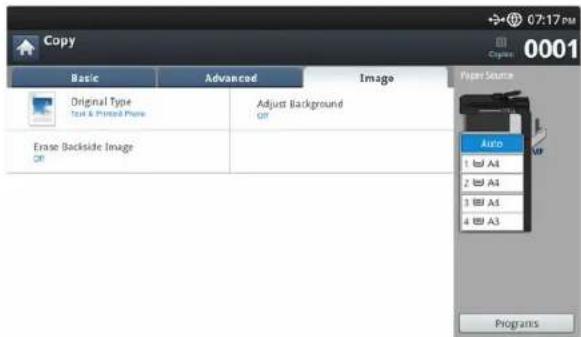
text_image
Copy 07:17 PM Copies 0001 Basic Advancedwerige Original Type Task & Printed Phone Adjust Background Erase Backside Image OR - Fiser Source Auto 1 A1 2 A1 3 A1 4 A3 Programs- Original Type: Improves the copy quality by selecting the original's type for the current copy job (see "Selecting the type of originals" on page 62).
- Adjust Background: Prints an image with a lighter background.(see "Adjusting background" on page 62).
- Erase Backside Image: Prevents copying the original's image shown through on the backside (see "Erasing backside Images" on page 63).
Basic copy
This is the normal and usual procedure for copying your originals.
- Press Copy from the display screen.
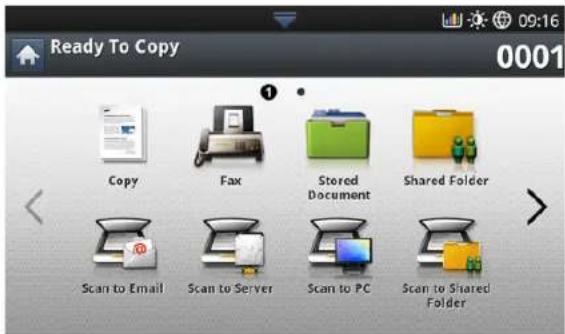
text_image
Ready To Copy 0001 Copy Fax Stored Document Shared Folder Scan to Email Scan to Server Scan to PC Scan to Shared Folder- Place the originals face up in the DADF or place a single original face down on the scanner glass and close the DADF (see "Loading originals" on page 38).
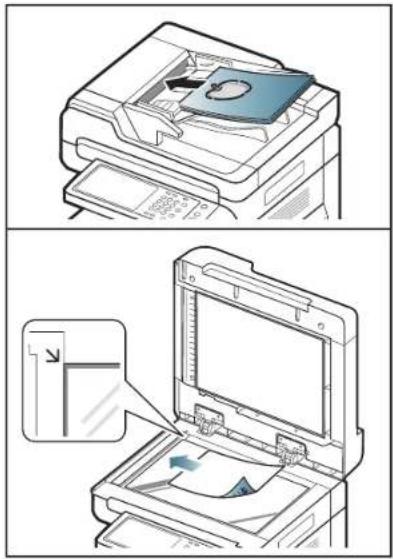
text_image
Diagram illustrating printer operation steps with labeled parts and directional arrows indicating process flow- Adjust the settings for each copy such as Paper Source, Reduce/Enlarge, Duplex and more in the Basic tab (see "Changing the settings for each copy" on page 52).
- Set the copy features in the Advanced or Image tabs, if necessary (see "Using special copy features" on page 55).
- En ter the number of copies using the numeric keypad on the control panel, if necessary.
- Pres s ◇(Start) from the control panel to begin copying.

- To cancel the current copy job, press (Stop) on the control panel.
- You can delete current and pending jobs using Job Status on the control panel. Select the job you want to cancel and press Delete (see "Job Status button" on page 36).
Copying originals of different sizes
This feature allows you to copy originals of different sizes at once.

- If you want to copy different sized originals at once, select Mixed Size under the Original Size option (see "Selecting the size of originals" on page 55). Otherwise, it could cause original-document jams.
- We recommend the below combinations to be used for copying different sized originals. You can use other combinations that are not recommended, but it could cause original-document jams. Depending on the default paper size (A4 or Letter), the combinations are different as follows.
If A4 is the default paper size,
- A3 and A4 LEF
-
B4 and B5 LEF
-
A4 SEF and A5 LEF
- Letter LEF and Ledger
If Letter is the default paper size, - A3 and A4 LEF
- B4 and B5 LEF
- Led ger and Letter LEF
-
Leg al, Letter SEF and Statement LEF
-
Press Copy from the display screen.
-
Place the different sized originals face up in the DADF. When you place them in the DADF, align and gently push them to the rear side of the DADF width guide.
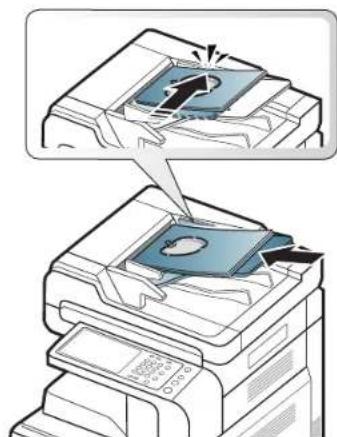
natural_image
Illustration of a printer being placed on top, showing the blade and base (no text or symbols present)- Press the Advanced tab > Original Size > Mixed Size from the display screen.

The Mixed Size option is activated when the originals are placed in the DADF.
- Adjust the settings for each copy such as Paper Source, Duplex and more in the Basic tab (see "Changing the settings for each copy" on page 52).
- Set the copy features in the Advanced or Image tab, if necessary (see "Using special copy features" on page 55).
- Enter the number of copies using the numeric keypad on the control panel, if necessary.
- Pr ess (Start) from the control panel to begin copying.
Changing the settings for each copy
On the Basic tab of the Copy screen, you can select copy features before starting to copy.

The Basic tab setting is only for the current copy job, which means the selected settings do not apply to the next copy job. After finishing the current copy job, the machine automatically restores the default settings, or when you press the Clear button on the control panel.
Selecting the Paper Source tray
Paper Source sets the tray containing the paper to be used for printing. The machine prints the scanned image on the paper in the selected tray. You can see the icons that show paper sizes and the remaining amount of paper in each tray.
Press the Basic tab > Paper Source, then press the appropriate paper tray.
• Auto: Automatically detects the paper size with the paper tray.
- Othe r preset values: Check the paper size in each tray and press the tray containing the paper size you want.
Reducing or enlarging copies
Using the Reduce/Enlarge feature allows you to print an original image reducing or enlarging it to fit the paper. You can press the icons that show how to reduce and enlarge copies.
Press the Basic tab > Reduce/Enlarge, then press the appropriate option to reduce or enlarge an image on the paper.

When you use this option, Booklet in the Advanced tab are inactive.
- Original(100%): Prints texts or images the same size as originals.
- Au to Fit: Reduces or enlarges the original based on the size of the output paper.
- Othe r preset values: Check the image and value on each icon and press the one you want to use.
You can select an option by pressing a button in the Reduce and Enlarge list. You can also reduce or enlarge by 1% between 25 \~ 400% to print a copy using the left/right arrows.
- Custom: You can set and save the custom zoom values (between 25 \~ 400%) using Custom. You can select custom values whenever you need it.
Copying multiple sides
The duplex feature allows you to copy one-sided or two-sided originals on both sides of the paper or divide two-sided originals into multiple one-sided copies. Check the available paper using the Duplex feature. You can only use this feature with Letter SEF, Letter LEF, Ledger, Legal, Executive SEF, Statement SEF, A3, A4 SEF, A4 LEF, A5 SEF, B4, JIS B5 SEF, ISO B5 SEF, 8K, 16K, and Oficio.

• 63 to 163 g/m ^2 (16\~43 lb bond) only
Press the Basic tab > Duplex, then press the appropriate duplex option.

If an original is placed on the scanner glass and you press 1 -> 2 Sided, 2 -> 1 Sided or 2 -> 2 Sided, the message Do you want to scan another page? appears after the first page is copied. Load another original and press Yes. When you finish, press No on this window.
- 1 -> 1 Sid ed: Scans one side of an original and prints it on one side of the paper. This function produces exactly the same printout from the originals.
- 1 -> 2 Sid ed: Scans one side of originals and prints them on both sides
of the paper.
- 2 -> 1 Sided: Scans both sides of the originals and prints each one on a separate page.
You can select the original binding type: either Book or Calendar.
- 2 -> 2 Sided: Scans both sides of the original and prints on both sides of the paper. This function produces exactly the same printout from the originals.
You can select the original and output binding type: either Book or Calendar.
Selecting the color mode (CLX-9201 9301 Series only)
The machine provides many powerful effects on images without having expert editing skills.
Press the Basic tab > Color Mode, then select the color mode you want.
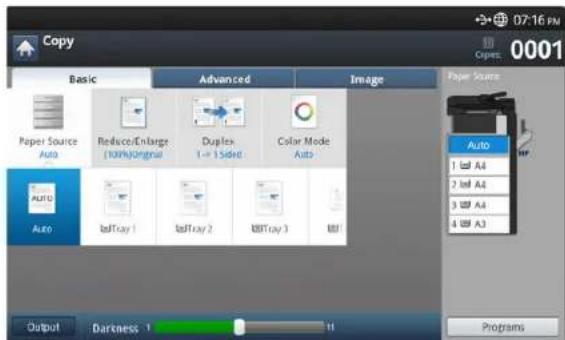
text_image
Copy 07:16 PM Copies: 0001 Basic Advanced Image Paper Source Auto Reduce/Enlarge (100% Original) Duplex 1 → 1 Select Color Mode Auto Auto IaITray 1 IaITray 2 IaITray 3 Output Darkness 1 11 Programs Paper Source Auto 1 A4 2 IaI A4 3 A4 4 A3If you press the More button, you can see more Color Mode options.
- Auto: Select this setting to automatically detect whether the scanned document is in color or black and white, and then select an appropriate color setting.
- Full Color: Select this setting to print the same as the original image color. Refer to the sample images below. Depending on the circumstances and quality of originals, the printout's quality could be different from the sample image's.
Original Copy

natural_image
Assorted handbags and bags in various colors including red, black, green, and yellow (no visible text or labels)
natural_image
Assorted handbags and bags in various colors including red, brown, and orange, displayed on a pile (no visible text or symbols)- B/W: Select this setting to print the copy in black and white, regardless whether the scanned document is in color or in black and white. Refer to the sample images below. Depending on the circumstances
and quality of originals, the printout's quality could be different from the sample image's.
Original Copy
natural_image
Colorful traditional mask decorations displayed in a museum (no visible text or symbols)
natural_image
Black-and-white photo of a wall covered with ornate, sculpted masks (no visible text or symbols)Deciding the form of copy output

- You can use the copy output options when an optional Inner Finisher or a booklet finisher is installed.
- Depending on the direction of paper in the tray (e.g., SEF or LEF), certain directions for stapling may not be available.
Press the Basic tab > Output, then select the copy output options you want.
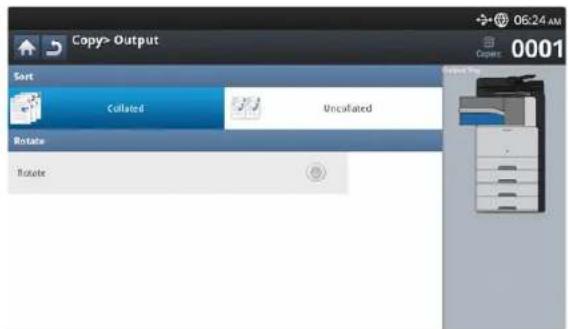
text_image
Copy> Output Sort Colated Uncollated Rotate Rotate Copers 06:24 AM 0001• Collated: Printouts in sets to match the sequence of originals.
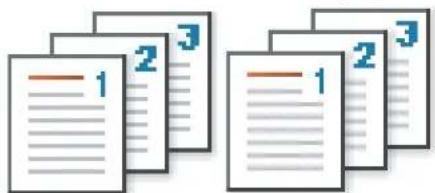
text_image
Image showing multiple document pages with numbered sections, likely representing a form or checklist.• Uncollated: Printouts sorted into stacks of individual pages.
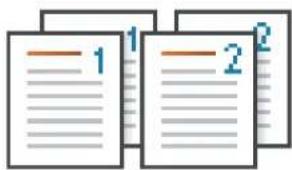
text_image
1 2- Rotate: Printouts are stacked criss-crossed in sets.

- This feature is available only when the standard or booklet finisher is not installed.
- This feature is available only with Letter- and A4-sized print media.
- Before using this feature, you have to load the paper in the trays with SEF (Short edge feed) and LEF (Long edge feed). For example, direction of paper feeding in tray 1 is SEF, and direction of paper feeding in tray 2 is LEF.
natural_image
Stack of blank papers with a yellow bookmark (no text or symbols visible)Changing the darkness
Press the Basic tab. You can adjust the degree of darkness using the left/right arrows. This feature allows dark images to be printed into lighter images, or light images into darker images.
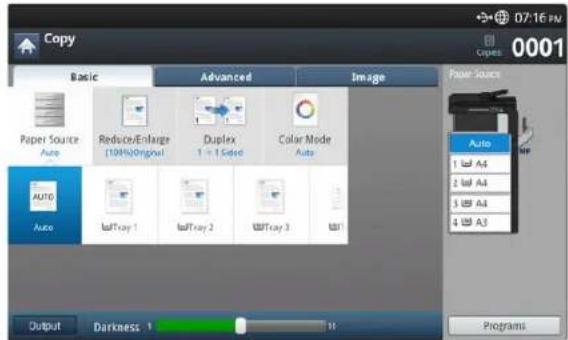
text_image
Copy Basic Advanced Image Frame Source Paper Source Auto Reduce/Enlarge Duplex Color Mode 10% Original 1 = 1 Solid Auto Auto IsfTray 1 IsfTray 2 IsfTray 3 Auto Output Darkness 1 Programs 07:16 PM Copies 0001Refer to the sample images below. Depending on the circumstances and quality of originals, the printout's quality could be different from the sample image's.
| Light Slightly light | Original Slightly dark | Dark | ||
 |  |  |  |  |
Using special copy features
On the Advanced or Image tab of the Copy screen, you can select specific copy features.
Selecting the size of originals
Copies can be produced after specifying the document scanning size if the document size cannot be detected automatically or if you wish to specify a certain document size.
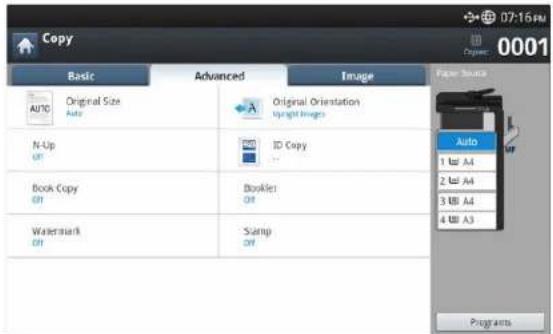
text_image
Copy Original Size Auto N-Up Off Book Copy Off Watersmark Off Advanced Original Orientation Upright Images ID Copy Booklet Off Stamp Off Basic Advanced Image Paper Source Auto 1 Std A4 2 Std A4 3 Std A4 4 Std A3 Programs- Press Copy from the display screen.
- Place the originals face up in the DADF or place a single original face down on the scanner glass and close the DADF (see "Loading originals" on page 38).
- Adjust the settings for each copy such as Paper Source, Duplex and more in the Basic tab (see "Changing the settings for each copy" on page 52).
- Pr ess Advanced tab > Original Size from the display screen.
- Select the original size.
You can change the paper list on the display screen pressing Inch Size or mm Size. The paper list is divided into the available A/B size type and letter size type paper in this machine.
- Custom : If there is no required paper size or you need to use custom sized paper, press the cardinal point arrows to set the original size. You can also set and save the custom size using Custom Size. You can then select the custom size whenever you need it.
The custom size available is different depending on where the originals are placed.
| In the DADF On the scanner glass | ||
| Minimum size 128 | × 128 mm(5 x 5 inches) | 25 x 25 mm(1.0 x 1.0 inches) |
| Maximum size 297 | × 432 mm(11.7 x 17.0 inches) | 297 x 432 mm(11.7 x 17.0 inches) |
- Auto: Automatically detects the size of originals, but this option is supported only when originals are A3, A4 LEF, A4 SEF, B4, B5 LEF, B5 SEF, A5 LEF, A5 SEF, Ledger, Legal, Letter LEF, Letter SEF, Statement LEF and Statement SEF-sized.
If you use non-standard-sized paper, image loss could occur. In this case, you need to select the appropriate paper size before you print. - Mixed Size: Allows the use of both of Letter and Legal-sized papers together, and the machine uses the proper-sized paper from several
trays. For example, if the originals total 3 pages, the 1st page is letter-sized paper, the 2nd page is legal-sized paper, and the 3rd page is letter-sized paper, then the machine prints the output first letter, legal, and letter in order from several trays.

Mixed Size is activated when the originals are placed in the DADF.
- Other preset values: You can select the size of originals directly by pressing the buttons.
- Press OK from the display screen.
- Pres s Start on the control panel to begin copying.
Selecting the orientation of originals
When copying double-sided documents or making double-sided copies or combined copies, specify the document orientation; otherwise, the copies may not be printed in the correct page order or correct front and back page arrangement.
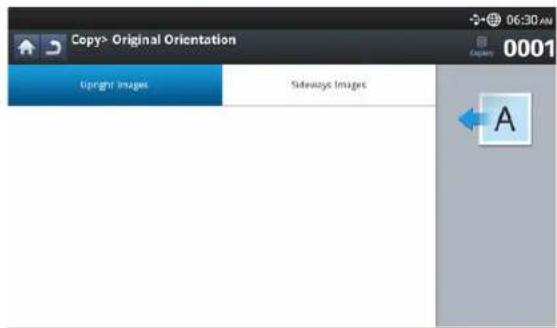
text_image
Copy> Original Orientation Upright Images Sideways Images 0001 A- Press Copy from the display screen.
- Place the originals face up in the DADF or place a single original face down on the scanner glass and close the DADF (see "Loading originals" on page 38).
- Pres s Advanced tab > Original Orientation from the display screen.
- Select the orientation of the original document.
- Upright Images: Select this setting for an original document loaded with the top toward the back of the machine.
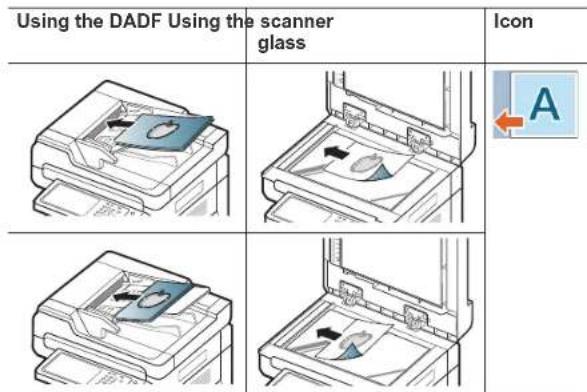
text_image
Using the DADF Using the scanner glass Icon A- Sideways Images: Select this setting for an original document loaded into the DADF with the top of the original document toward
the left side of the machine or an original document placed on the scanner glass with the top of the original document toward the right side of the machine.
| Using the DADF Using the scanner glass | Icon | |
 |  | |
 | 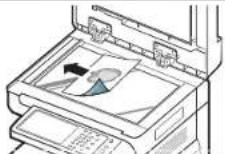 | |
- Press Start on the control panel to begin copying.
ID card copying
The machine prints one side of the original on the upper half of the paper and the other side on the lower half without reducing the size of the original. This feature is helpful for copying a small-sized item, such as a business card.
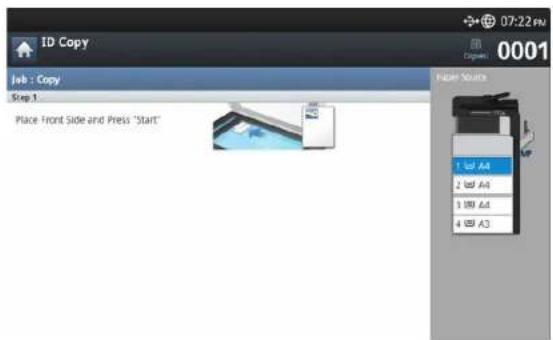
text_image
ID Copy 07:22 PM 0001 Job : Copy Step 1 Place Front Side and Press "Start" File Set Source 1 A4 2 A4 3 A4 4 A3
- This copy feature is available only when you place originals on the scanner glass.
-
The size of the 2-sided originals should be smaller than A5, if not, some of it won't be copied.
-
Press Copy from the display screen.
- Pr ess the Advanced tab > ID Copy from the display screen.
- Select a tray in Paper Source.
- Fol low the steps on the display screen.
- Place the front side of an original facing down on the scanner glass as shown below, and close the DADF.
When you place an original on the scanner glass, leave a little space between the edge of the scanner glass and the original. Otherwise, part of original may not be printed.

flowchart
graph TD
    A["Grid Box"] --> B["Down Arrow"]
    B --> C["ID Card"]
- Press Start on the control panel. Then the machine starts scanning.
- T urn the original over and place it on the scanner glass as shown below, and then close the DADF.
When you place an original on the scanner glass, leave a little space between the edge of the scanner glass and the original. Otherwise, part of original may not be printed.
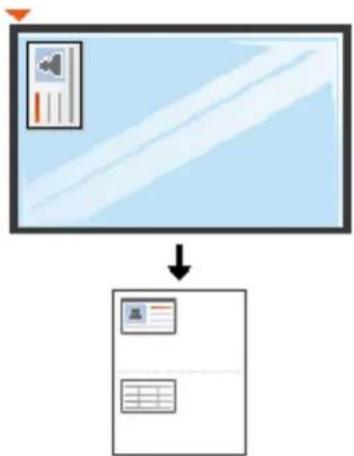
flowchart
graph TD
    A["Input Image"] --> B["Output Image"]
- Press Start on the control panel to begin copying.

text_image
Scanned document with two rectangular fields, one containing a user icon and the other a grid, likely representing a form or interface.
- If the original is larger than the printable area, some portions may not be printed.
- If you do not press the Start button, only the front side will be copied.
- If you press the Stop button, the machine cancels the copy job and returns to ready mode.
N-up copying
The machine reduces the size of the original images and prints 2 - 9 pages onto one sheet of paper.

- When you use this option Auto Fit, ID Copy, Booklet and Book Copy in the Advanced tab are inactivated.
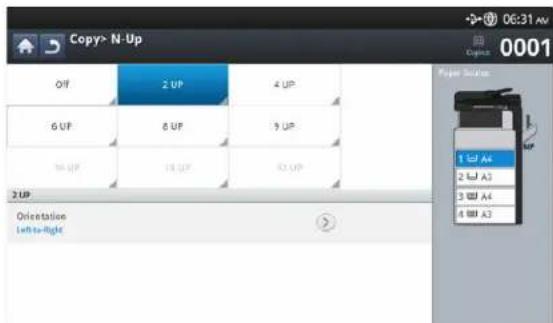
text_image
Copy> N-Up Off 2 UP 4 UP 6 UP 8 UP 9 UP 10 UP 13 UP 15 UP 2 UP Orientation Left-to-Right Paper Source: 1 UP A4 2 UP A3 3 UP A4 4 UP A3 06:31 AM 0001- Press Copy from the display screen.
- Place the originals face up in the DADF or place a single original face down on the scanner glass and close the DADF (see "Loading originals" on page 38).
- Press Advanced tab > N-Up from the display screen.
- Press an option according to how many images to copy onto one page.
- Off: Copies an original onto one sheet of paper.
- 2Up - 9Up: Copies corresponding numbers of separate originals to one page.

Depending on original document size, output paper size, and the reduced rate of image, some options may be inactivated.
- Select a tray in Paper source.
- Pre ss the appropriate page order.
- Depending on the options you select, the result will vary. Refer to the below table before using the 2Up option.
| Original orientation (DADF/Scanner glass) | Original orientation (display screen) | Direction of paper feeding in the tray | Available orientation | Result |
| In the DADF | Upright Images  | LEF^a or SEF^b | Left-to-Right or Right-to-Left | Left-to-Right 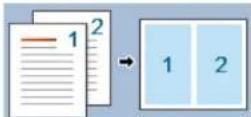 Right-to-Left Right-to-Left 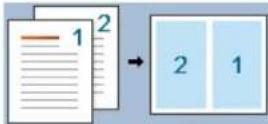 |
| On the scanner glass | ||||
| In the DADF | Sideways Images LEF or SEF | |||
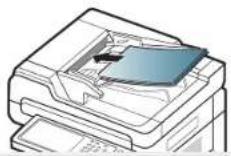 | ||||
| On the scanner glass | ||||
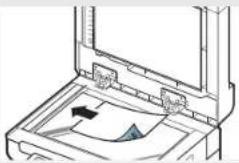 | ||||
| In the DADF | Sideways Images  | LEF or SEF | Top-to-Down or Down-to-Top | Top-to-Down 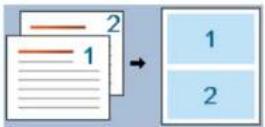 |
| On the scanner glass | Down-to-Top 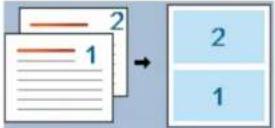 | |||
| In the DADF | Upright Images LEF or SEF | |||
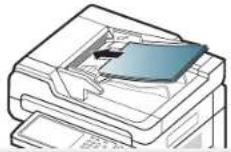 | ||||
| On the scanner glass | ||||
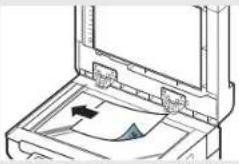 | ||||
a. LEF meaning is Long Edge Feed.
b. SEF meaning is Short Edge Feed.
- All other page order options of N-up are the same except for the 2Up. You can press Right-to-Down, Left-to-Down, Down-to-Left, and Down-to-Right.
- Press Start on the control panel to begin copying.
If an original is placed on the scanner glass, the machine shows the window asking if you want to place another page. Load another original and press Yes. When you finish, press No on this window.
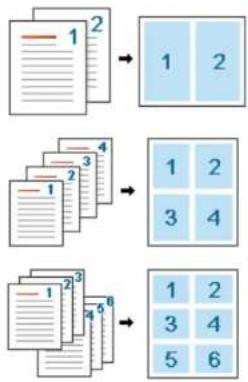
flowchart
graph TD
    A["1"] --> B["1"]
    C["2"] --> D["2"]
    E["3"] --> F["3"]
    G["4"] --> H["4"]
    I["5"] --> J["5"]
    K["6"] --> L["6"]
Booklet copying
The machine automatically prints on one or both sides of the paper, which are then folded to produce a booklet with all the pages in the correct sequence.
The machine will also reduce and correctly adjust the position of each image to fit on the selected paper.

- When you use this option, ID copyOriginal Orientation, N-Up, Book Copy, and watermark in the Advanced tab are disabled.
- This feature is possible only with Letter, Legal, A4, JIS B5, Statement, Executive, A5, 8K, 16K, Ledger, A3, and JIS B4 sized print media.
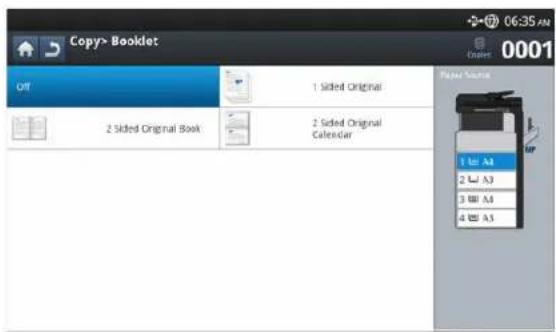
text_image
Copy> Booklet Off 1 Sided Original 2 Sided Original Book 2 Sided Original Calendar Paper Source 1 to Aa 2 to A3 3 to A4 4 to A5- Press Copy from the display screen.
- Place the orig inals face up in the DADF or place a single original face down on the scanner glass and close the DADF (see "Loading originals" on page 38).
- Adjust the settings for each copy such as Duplex and more in the Basic tab (see "Changing the settings for each copy" on page 52).
- Press the Advanced tab > Booklet from the display screen.
- Select a tray in Paper Source.
- Pre ss the appropriate option.
- Off: Disables this feature.
- 1-Sided Original: Copies from one side of the original to one page of a booklet.
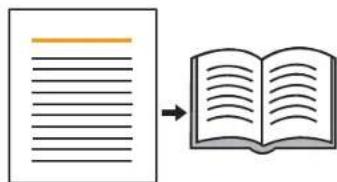
text_image
Diagram showing a document transforming into an open book, illustrating the process of converting to text.- 2-Sided Original Book: Copies each side of an original to one page of a booklet.

text_image
Illustration showing a document being copied into an open book, with text lines indicating content and page layout.- 2-Sided Original Calendar: Copies each side of an original to one page of a booklet. The second side of each original is rotated 180 degrees so the text will be upright in the booklet.
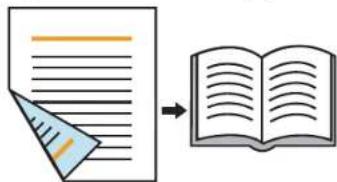
text_image
Illustration showing a document being folded into an open book, symbolizing text editing or reading.Book copying
Use this feature to copy a book. If the book is too thick, lift the DADF until its hinges are engaged by the stopper and then close the DADF. If the book or magazine is thicker than 30 mm (1.18 inches), start copying with the DADF open.

- This copy feature is available only when you place originals on the scanner glass.
- When you use this option, Original Orientation, N-Up and Booklet in the Advanced tab are disabled.
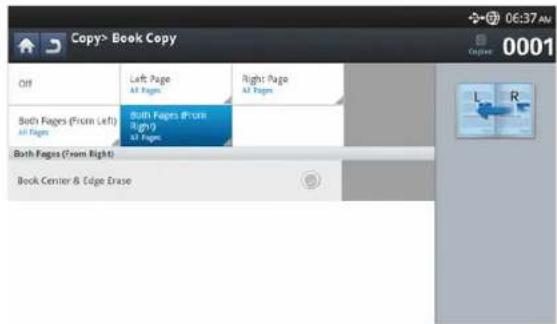
text_image
Copy> Book Copy Off Left Page Right Page All Pages All Pages Both Pages (From Left) Both Pages (From Right) All Pages All Pages Both Pages (From Right) Book Center & Edge Erase-
Press Copy from the display screen.
-
Place a boo k page face down on the scanner glass (see "Loading originals" on page 38).

- When you place a book on the scanner glass, leave a little space (about 10 mm) between the top or bottom edge of the scanner glass and the book.
- Some books may not be available in this feature such as a hard-cover book, poorly bound book, etc.
-
Adjust the settings for each copy such as Paper Source, Duplex and more in the Basic tab (see "Changing the settings for each copy" on page 52).
-
Pr ess the Advanced tab > Book Copy from the display screen.
-
Pre ss the appropriate option.
- Off: Disables this feature.
• Left Page: Prints only the left page of the book.
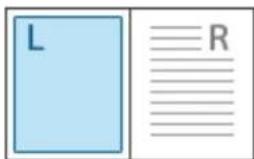
text_image
L R• Right Page: Prints only the right page of the book.
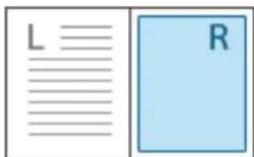
text_image
L R- Both Pages(From Left): Prints both facing pages from the left page.
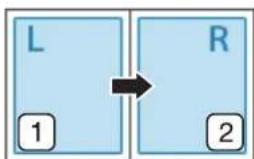
flowchart
graph LR
    L --> R
    style L fill:#f9f,stroke:#333
    style R fill:#bbf,stroke:#333
    note1["1"] --> arrow
- Both Pages(From Right): Prints both facing pages from the right page.
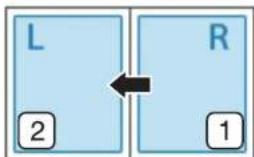
flowchart
graph TD
    A["L"] --> B["R"]
    B --> C["1"]
    style A fill:#cce5ff,stroke:#333
    style B fill:#cce5ff,stroke:#333
    note right of A: 2 (L)
    note right of B: 1 (R)
• Book Center & Edge Erase: Erases shadows of a binding or book edge from the center and side edges of copies.
- Press Start on the control panel to begin copying.
Watermark
The watermark option allows you to print text over an existing document. For example, you use it when you want to have large gray letters reading "DRAFT" or "CONFIDENTIAL" printed diagonally across the first page or all pages of a document.

This feature may not be available depending on models or option kits installed.

There are several predefined watermarks that come with the machine. You can also enter a personalized watermark.

When you use this option, Booklet in the Advanced tab is disabled.
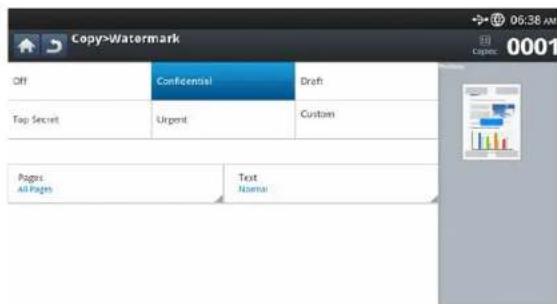
text_image
Copy>Watermark Off Confecennial Draft Top Secret Unpest Custom Pages All Pages Text Normal-
Press Copy from the display screen.
-
PI ace the originals face up in the DADF or place a single original face down on the scanner glass and close the DADF (see "Loading originals" on page 38).
-
Ad just the settings for each copy such as Paper Source, Reduce/Enlarge, Duplex and more in the Basic tab (see "Changing the settings for each copy" on page 52).
-
Pre ss the Advanced tab > Watermark from the display screen.
-
Pre ss the appropriate option.
- Off: Disables this feature.
- Other preset values: Allows you to easily select values commonly used.
- Custom: Allows you to enter a text message using the pop-up keyboard.
- Set the Watermark settings.
• Pages: Select to print the option on all pages or only the first page.
- Tex t Color/Size: Select the text message color and size.
- Position: Select the printed position of the text message.
- Pres s Start on the control panel to begin copying.
Stamp
Prints the date and time, IP address, device information, and the entered comment on printouts.
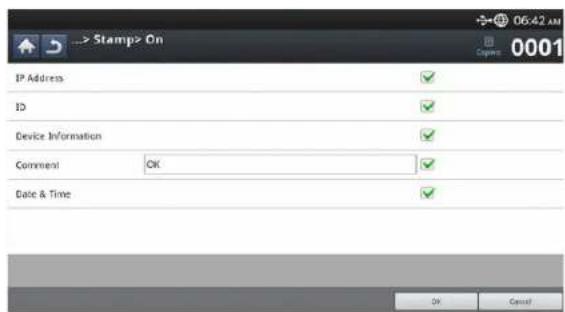
text_image
Stamp> On IP Address ID Device Information Comment OK Date & Time OK Cancel 06:42 AM 0001- Press Copy from the display screen.
- Place the originals face up in the DADF or place a single original face down on the scanner glass and close the DADF (see "Loading originals" on page 38).
- Adjust the settings for each copy such as Paper Source, Duplex and more in the Basic tab (see "Changing the settings for each copy" on page 52).
- Pr ess the Advanced tab > Stamp from the display screen.
- Check the button on the right.
-
Pre ss the checkbox on the right.
-
IP Address: This option allows you to print a IP Address on the printouts.
• ID: This option allows you to print a user ID on the printouts.
• D evice information: This option allows you to print a device information on the printouts. - Comment: This option allows you to print your comment on the printouts.
-
Time & Date: This option allows you to print time and date stamps on the printouts.
-
Pr ess OK from the display screen.
-
Pr ess Start on the control panel to begin copying.
Selecting the type of originals
The original type setting is used to improve copy quality by selecting document types for current copy jobs.
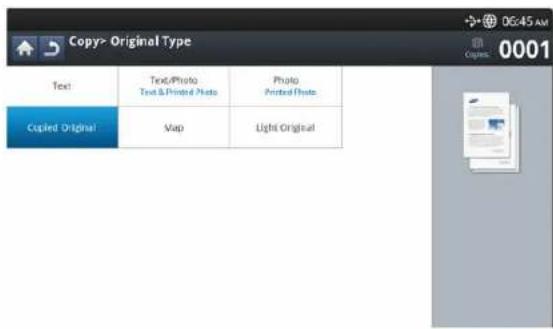
text_image
Copy> Original Type Text Text/Photo Text & Printed Photo Photo Printed Photo Copied Original Map Light Original- Press Copy from the display screen.
- PI ace the originals face up in the DADF or place a single original face down on the scanner glass and close the DADF (see "Loading originals" on page 38).
- Ad just the settings for each copy such as Paper Source, Reduce/Enlarge, Duplex and more in the Basic tab (see "Changing the settings for each copy" on page 52).
- Pre ss the Image tab > Original Type from the display screen.
- Pre ss the appropriate option.
• Text: Use for originals containing mostly text.
- Text/Photo (Text & Printed Photo): Use for originals containing text mixed with photographs.
• Photo: Use for photographs.
• Co pied Original: Use for copied documents.
• Ma p: Use for maps.
• L ight Original: Use for light documents
- Pres s Start on the control panel to begin copying.
Adjusting background
This feature is helpful when copying originals containing color in the background, such as in newspapers or catalogs.
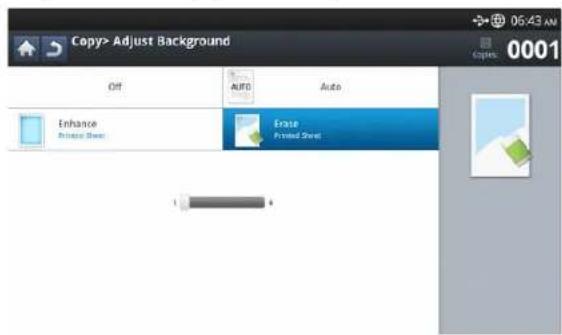
text_image
Copy> Adjust Background Off AUTO Auto Enhance Printed Sheet Erase Printed Sheet 06:43 AM Copies: 0001- Press Copy from the display screen.
- PI ace the originals face up in the DADF or place a single original face down on the scanner glass and close the DADF (see "Loading originals" on page 38).
- Ad just the settings for each copy such as Paper Source, Reduce/Enlarge, Duplex and more in the Basic tab (see "Changing the settings for each copy" on page 52).
- Pre ss the Image tab > Adjust Background.
-
Pre ss the appropriate option.
-
Off: Disables this feature.
• Auto: Optimizes the background.
• Enhance: The higher the number is, the more vivid the background. -
Erase : The higher the number is, the lighter the background.
-
Pres s Start on the control panel to begin copying.
Erasing backside Images
When the original is thin and backside images show through, you can use this feature to remove the backside images.
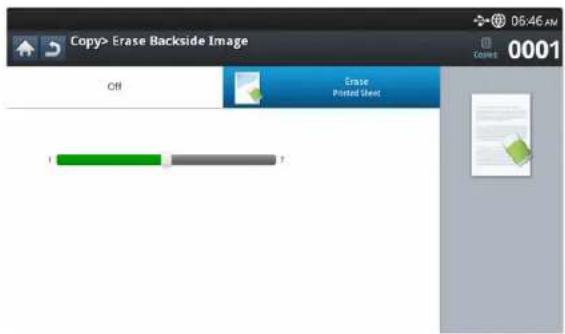
text_image
Copy> Erase Backside Image Off Erase Printed Sheet 0001 Copies 06:46 AM- Press Copy from the display screen.
- Place the originals face up in the DADF or place a single original face down on the scanner glass and close the DADF (see "Loading originals" on page 38).
- Adjust the settings for each copy such as Paper Source, Reduce/Enlarge, Duplex and more in the Basic tab (see "Changing the settings for each copy" on page 52).
- Pr ess the Image tab > Erase Backside Image.
- Pre ss the appropriate option.
- Off: Disables this feature.
- Eras e: The higher the number is, the lighter the backside image is.
- Pr ess Start on the control panel to begin copying.
Using a program's setting
This option allows you to save the current settings for future use. You can also use the previous settings from the last job.
Saving Programs
- Press Copy from the display screen.
- Adjust the settings for each copy such as Paper Source, Duplex and more in the Basic tab (see "Changing the settings for each copy" on page 52).
-
Set the copy features in the Advanced or Image tabs, if necessary (see "Using special copy features" on page 55).
-
Pr ess the Basic tab or Back.
-
Enter the number of copies using the numeric keypad on the control panel, if necessary.
-
Press Programs.
-
Pr ess Save.
-
Press Program Name input area. The pop-up keyboard appears. Enter the program name you want. Press Done.

You can see the values of set Programs by scrolling up or down and check the values using the up/down arrows.
- Press Save. When the confirmation window appears, the settings you set are saved. Press OK to check the list or Cancel.
Loading Programs
- Press Copy from the display screen.
- Place the originals face up in the DADF or place a single original face down on the scanner glass and close the DADF (see "Loading originals" on page 38).
- Press Programs > Load.
- Pre ss a program name you want to use on the list.
- Pr ess Apply.
The machine is now set to copy according to the setting you selected. - Pr ess Start from the control panel to begin copying.
Using the Quick Copy menu
The Quick Copy menu allows you to quickly set copy options without having to move to a lower level menu or another tab. But, this menu does not provide all copy options. If you need to use other copy options, use the copy options in the Copy menu (see "Changing the settings for each copy" on page 52 or "Using special copy features" on page 55).
- Pres s Quick Copy from the display screen.
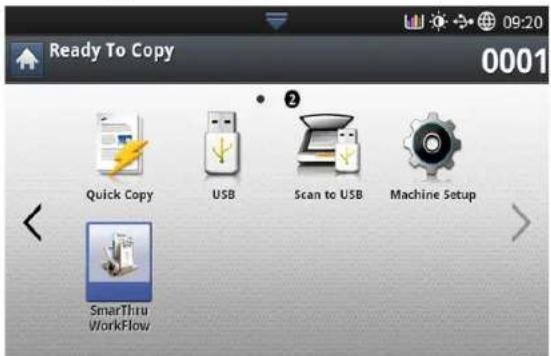
text_image
Ready To Copy 0001 Quick Copy USB Scan to USB Machine Setup SmarThru Workflow- Place the originals face up in the DADF or place a single original face down on the scanner glass and close the DADF (see "Loading originals" on page 38).

natural_image
Diagram showing a printer's internal structure and its open lid, with no visible text or symbols.- Adjust the settings for each copy such as Reduce/Enlarge, Duplex/N-Up, Output, Paper Source, etc.
You can set the default Quick Copy options from Machine Setup > Application Setting > Copy Settings from the display screen. Set the most frequently used settings. - En ter the number of copies using the numeric keypad on the control panel, if necessary.
- Pres s ◇(Start) from the control panel to begin copying.

Faxing (optional)
This guide gives you information about using your machine as a fax machine.
This chapter includes:
- Pre paring to fax
- Sending a fax from your computer
• Understanding the fax screen - Sending a fax
- Receiving a fax
• You cannot use this machine as a fax through the internet phone line. For more information ask the internet service provider.
- We recommend you to use traditional analog phone services (PSTN: public switched telephone network) when connecting telephone lines to use Fax. If you use other Internet services (DSL, ISDN, VoIP), you can improve the connection quality by using the Micro-filter. The Micro-filter eliminates unnecessary noise signals and improves connection quality or Internet quality. Since the DSL Micro-filter is not provided with the machine, contact your Internet Service provider for use on DSL Micro-filter.
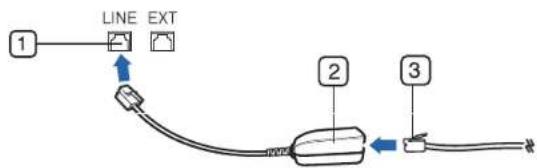
text_image
LINE EXT 1 2 31 Line port
2 Micro filter
3 DSL modem / Telephone line
Preparing to fax
Before you send or receive a fax, you need to connect the supplied phone line cord to the wall jack. Refer to the optional fax kit Installation Guide for how to make a connection. The method of making a telephone connection varies from one country to another.
Sending a fax from your computer
You can send a fax from your computer without going to the machine. Make sure that your machine and the computer are connected to the same network.
Sending a fax (Windows)
To send a fax from your computer, the Samsung Network PC Fax program must be installed. This program is installed when you install the printer driver.
- Open the document to be sent.
- Select Print from the File menu.
The Print window will be displayed. It may look slightly different depending on your application.
- Adjusting the document settings
- Printing a fax report
• Using a programs setting -
Saving and loading documents
-
Select Sams ung Network PC Fax from the Print window
- Click Print or OK.
- En ter the recipient's fax number and set the options if necessary.
For more information about Samsung Network PC Fax, click Help.
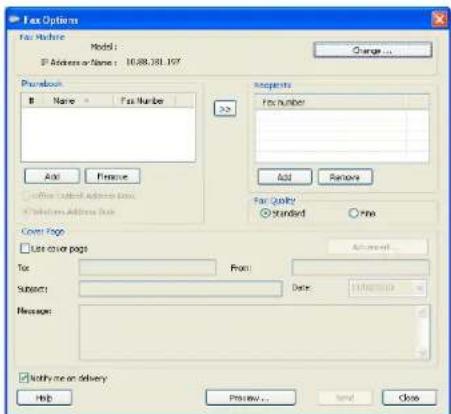
text_image
Fax Options Fax Machine Model: IP Address or Name: 10.88.381.197 Change... Password Fax number Add Remove Fax Quality Standard None Cover Page Use cover page Fax: Print: Subject: Date: Message: Notify me on delivery Help Preview... Send Close- Click Send.
Checking the sent fax list (Windows)
You can check the sent fax list from your computer. From the Start menu, click Programs or All Programs > Samsung Printers > Network PC Fax > Fax Journal. Then, the Fax Journal appears with the list of faxes sent.
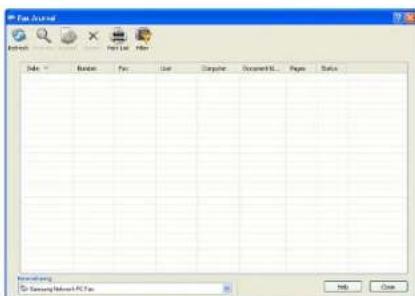
text_image
File Explorer File Edit View Help Sales - Bookie Proc. Use Computer Document NO. Pages Status Normalizing © Samsung Network PC Fee Help Close
For more information about Fax Journal, click Help.
Sending a fax (MAC)
To send a fax from your computer, the Fax Utilities program must be installed. This program is installed when you install the printer driver. The following steps are based on the Mac OS X 10.5 or 10.6. Depending on the OS version, the following steps will be different.
- Open the document to be sent.
- Select Print from the File menu.
The Print window will be displayed. It may look slightly different depending on your application.
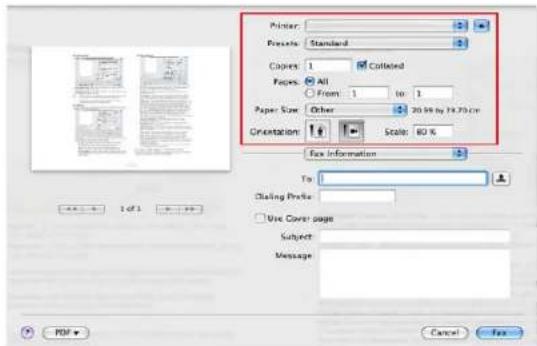
text_image
Printer: Presets: Standard Classes: 1 Collected Pages: All From: 1 to 1 Paper Size: Other 20.56 by 14.73 cm Orientation: 1 Scale: 80 % Face Information To: Slating Profile: Use Cover page Subject: Message: PDF Cancel Help- Select Samsung CLX-9201 9301 Series fax from the drop-down list in Printer.
- Choo se the number of copies and pages.
- Choo se your paper size, orientation, and scale.
- Enter the recipients' fax number into To's input area. You can also use
Addresses pressing 🏠 button, if you have stored frequently used fax numbers.
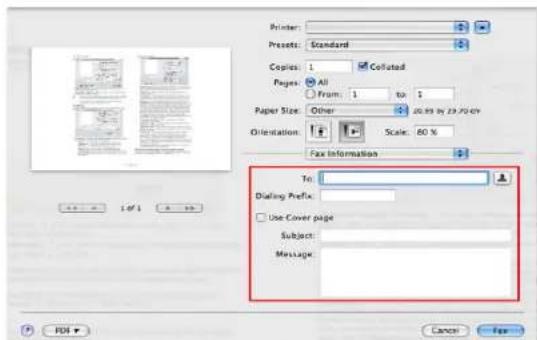
text_image
Printer: Presets: Standard Copies: 1 Colated Pages: All From: 1 to 1 Paper Size: Other 20.93 in 23.70 GB Orientation: Scale: 80 % Fax Information To: Dating Prefix: Use Cover page Subject: Message:- If necessary, enter the access code in the Dialing Prefix input area.
- If necessary, you can send the fax with a cover page: check Use Cover Page.
Enter the subject and message of the fax job.

You can set more detailed options for cover page options in Samsung Fax Cover Page. Select Samsung Fax Cover Page from the drop-down list under Orientation.
-
Click Fa x.
-
The Fax icon ( ) appears on your MAC dock. Click the icon. You can see the status of the fax job. You can also delete, hold, resume, and pause the fax job.
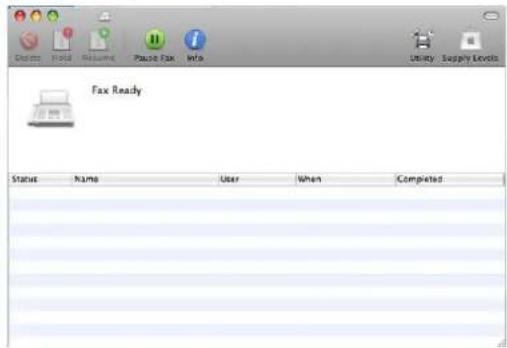
text_image
Fax Ready Status Name User When CompletedUnderstanding the fax screen
To use the fax feature, press Fax on the display screen.
If you want to use this feature, you need to install the optional fax kit on your machine.
If a different screen is displayed, press ( ) to go to the home display screen.
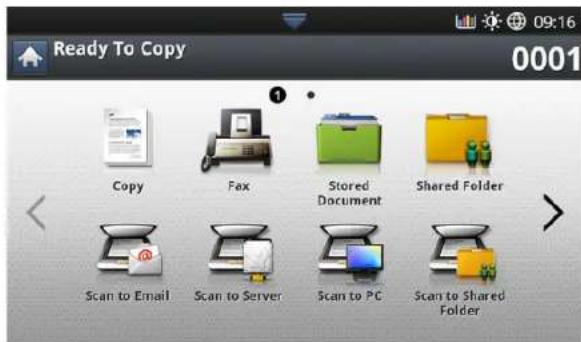
text_image
Ready To Copy 0001 Copy Fax Stored Document Shared Folder Scan to Email Scan to Server Scan to PC Scan to Shared FolderBasic tab
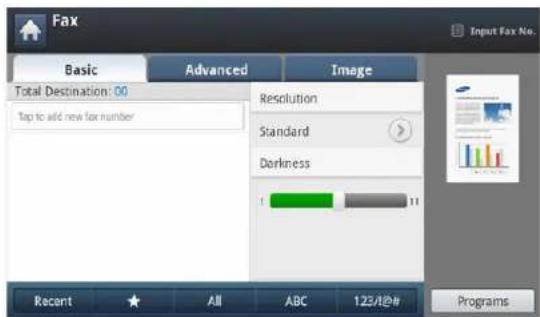
text_image
Fax Basic Advanced XiImage Total Destination: 00 Top to add new fax number Resolution Standard Darkness 1 31 Recent All ABC 123/1@# Programs Input Fax No.- Fax number input area: Enter the recipient's fax number using the numeric keypad on the control panel. If you configured the address book, press Address Book (see "Setting up an address book using the control panel" on page 94 or "Setting up an address book using SyncThru™ Web Service" on page 96).
- Resolution: Adjusts the resolution options (see "Changing the resolution" on page 72).
- Add ress Book: Enters the recipient's fax number just by pressing stored numbers. You can save frequently used fax numbers using the control panel or SyncThru™ Web Service (see "Setting up an address book using the control panel" on page 94 or "Setting up an address book using SyncThru™ Web Service" on page 96).
- Programs: Allows you to save the current settings for future use (see "Using a programs setting" on page 74).
Advanced tab
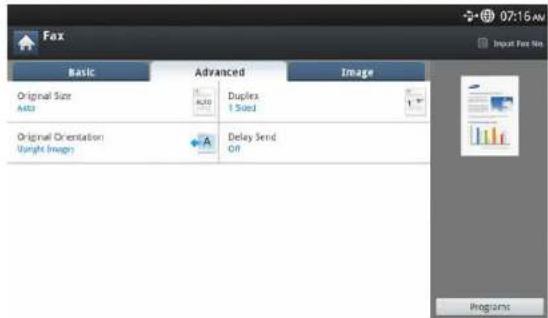
text_image
Fax Basic Advanced Xi Original Size AID Duplex 1 Sided Original Orientation Weight Images Delay Send Off Images 07:16 AM Import Fax No.- Original Size: Selects the size of the original (see "Selecting the size of originals" on page 71).
- Du plex: Selects whether the machine sends faxes one side of the original or both sides of the original (see "Faxing on both sides of originals" on page 71).
- Original Orientation: Selects the orientation of the originals (see "Selecting the orientation of originals" on page 72).
- D elay Send: Sets the machine to send a fax at a later time without your intervention (see "Delaying a fax transmission" on page 69).
Image tab

text_image
Fax Basic Advanced XiImage Original Type Text/Photo- Original Type: Enhances the fax quality based on the type of the original document being scanned (see "Selecting the type of originals" on page 73).
Sending a fax
This part explains how to send a fax and the special methods of transmission.

When you place the originals, you can use either the DADF or the scanner glass. If the originals are placed on both the DADF and the scanner glass, the machine will read the originals on the DADF first, because it has higher priority in scanning.
Setting the fax header
In some countries, you are required by law to indicate your fax number on any fax you send.
- Press Machine Setup > Application Settings > Fax Settings > Machine ID & Fax No from the display screen.
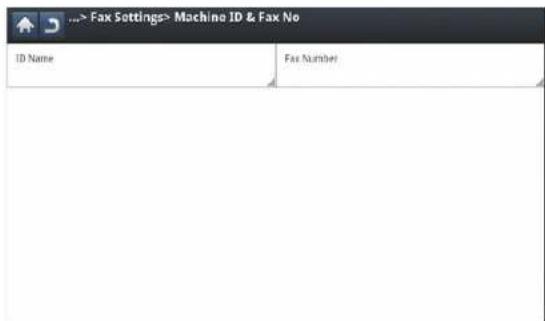
text_image
...-> Fax Settings> Machine ID & Fax No ID Name Fax Number- Press a fax line if your machine has multiple fax lines.
- Pr ess the ID Name input area. The pop-up keyboard appears. Enter your name or the company name. Press OK.
- Pr ess the Fax Number input area. Enter your fax number using the numeric keypad on the control panel.
- Pr ess OK to save the information.
Sending a fax
- Place the originals face up in the DADF or place a single original face down on the scanner glass and close the DADF (see "Loading originals" on page 38).

This machine automatically reduces the original document to fit the paper size of the recipient's fax. For example, the original document size is A3-sized paper and the paper loaded on recipient's fax is A4-sized paper, the original paper get reduced to be fit to A4-sized paper.
- Press Fax from the display screen.
- Adjust the e document settings in the Advanced or Image tab (see "Adjusting the document settings" on page 71).
- Pr ess the Basic tab.
- Select Reso lution (see "Changing the resolution" on page 72).
- When the cursor is blinking in the input line, enter the fax number using the numeric keypad on the control panel, or use Address Book from the display screen, if you have stored frequently used fax numbers.

- You can send a fax to up to 10 destinations at once. - To insert a pause, press Pause at the appropriate place while entering the fax number. "-" appears on the display at the corresponding location.
- Pres s Start on the control panel. The machine starts to scan and send a fax to the destinations.

- You can send a fax directly from your computer (see "Sending a fax from your computer" on page 65).
- When you want to cancel a fax job, press Stop on the control panel before the machine starts transmission, or press the Job Status button on the control panel, and select the job you want to delete, then press Delete (see "Job Status button" on page 36).
- If an original is placed on the scanner glass, the machine shows the window asking if you want to place another page. Load another original and press Yes. When you finish, press No on this window.
- While the machine is sending a fax, you cannot send an email at the same time.
Sending a fax using speed dial numbers
When you are prompted to enter a destination number while sending a fax, enter the speed dial number you set previously (see "Setting up an address book" on page 94).
- PI ace the originals face up in the DADF or place a single original face down on the scanner glass and close the DADF (see "Loading originals" on page 38).
- Pres s Fax from the display screen.
- Ad just the document settings in the Advanced or Image tab (see "Adjusting the document settings" on page 71).
- Pre ss the Basic tab.
- Select R resolution (see "Changing the resolution" on page 72).
- W hen the cursor is blinking in the input line:
- For a one -digit (0-9) speed dial number, press and hold the corresponding digit button using the numeric keypad on the control panel.
- For a two- or three-digit speed dial number, press the first digit button(s) and then hold down the last digit button using the numeric keypad on the control panel.
- Pres s Start on the control panel.
The machine starts to scan and send a fax to the destination.
Sending a fax manually using On Hook
This method is sending a fax using On Hook in the Basic tab.

When you use Delay Send, Quick Start Fax and Priority Send in the Advanced tab, you cannot send a fax using On Hook.
- Place the originals face up in the DADF or place a single original face down on the scanner glass and close the DADF (see "Loading originals" on page 38).
- Pres s Fax from the display screen.
- Ad just the document settings in the Advanced or Image tab (see "Adjusting the document settings" on page 71).
- Press the Basic tab.
- Select Resolution (see "Changing the resolution" on page 72).
- Pres s On Hook on the display screen.
- When you hear the dial tone, enter a fax number using the numeric keypad on the control panel.
- Press Start when you hear a high-pitched fax signal from the remote fax machine.
Sending a fax manually using an extension telephone
This method is sending a fax using an extension telephone. Make sure that the extension telephone is connected to the EXT socket of the fax kit on the machine.

While you are talking over the telephone connected to the EXT socket, copy and scan features are not available.
- Place the originals face up in the DADF or place a single original face down on the scanner glass and close the DADF (see "Loading originals" on page 38).
- Pr ess Fax from the display screen.
- Adjust the e document settings in the Advanced or Image tab (see "Adjusting the document settings" on page 71).
- Press the Basic tab.
- Select Reso lution (see "Changing the resolution" on page 72).
- Pick up the receiver of the extension telephone.
- When you hear the dial tone, dial a fax number using the extension telephone.
- Pr ess Start on the control panel when you hear a high-pitched fax signal from the extension telephone.
Resending Automatically
When the line you have dialed is busy or there is no answer when you send a fax, the machine automatically redials the number.
To change the time interval between redials and/or the number of redial attempts, follow the steps below:
- Press Machine Setup > Application Settings > Fax Settings > Redial from the display screen.
- Press a fax line if your machine has multiple fax lines.
- Set the Redial Term [1-15] Min option using the up/down arrows.
- Set the Red ial Times [0-13] option using the up/down arrows.
Redialing the last number
Recent: Shows the last 10 fax numbers dialed. Also, you can choose fax numbers instead of pressing the number key.
- Place the originals face up in the DADF or place a single original face down on the scanner glass and close the DADF (see "Loading originals" on page 38).
- Pr ess Fax from the display screen.
- Adjust the document settings in the Advanced or Image tab (see "Adjusting the document settings" on page 71).
- Press the Basic tab.
- Select Reso lution (see "Changing the resolution" on page 72).
- Pr ess Recent.
- Pre ss the fax number you want to redial. Then press OK.

- Add to Address: Allows you to add a fax number in the Recent results to Address Book.
-
Delete : Allows you to delete a fax number in the Recent results. Press the fax number you want to delete. Then press Delete.
-
Pr ess Start on the control panel. The machine starts to scan and send a fax to destinations.
Delaying a fax transmission
You can set your machine to send a fax at a later time when you will not be present.

- When you use this option, Quick Start Fax and Priority Send in the Advanced tab are inactivated.
-
When you use this option, you cannot send a fax using the On Hook button on the display screen.
-
Place the originals face up in the DADF or place a single original face down on the scanner glass and close the DADF (see "Loading originals" on page 38).
- Pres s Fax from the display screen.
- Ad just the document settings in the Advanced or Image tab (see "Adjusting the document settings" on page 71).
- Pre ss the Basic tab.
- Select R esolution (see "Changing the resolution" on page 72).
- When the cursor is blinking in the input line, enter the fax number using the numeric keypad on the control panel. Or use Address Book from the display screen, if you have stored frequently used fax numbers.
- Press the Advanced tab > Delay Send
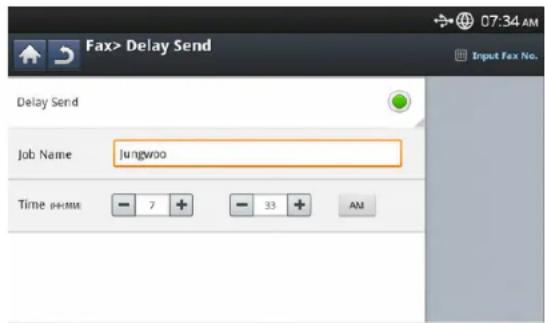
text_image
Fax> Delay Send Input Fax No. Delay Send Job Name Jungwoo Time PRIME - 7 + - 33 + AM- Press the Job Name input area. Then the pop-up keyboard appears. Enter the job name you want. Press Done. If you do not enter a job name, the machine assigns the job name as 'Fax Job Send'.
- Set the delay sending time.
You can set the delay sending time to be greater than 15 minutes later than the current time. For example, if it is 1:00, then you can set the time starting to be 1:15. If the set time is incorrect, a warning message will appear when the machine resets it to the current time.
- Press Start on the control panel. The machine starts to store the scanned original data into memory.

To cancel delaying a fax, press Off before sending is activated.
Receiving a fax
This part explains how to receive a fax and the special receiving methods available.
Changing the receive modes
Your machine is preset to the Fax mode at the factory. When you receive a fax, the machine answers the call on a specified number of rings and automatically receives the fax. However, if you want to change the receive mode to another mode, follow the steps below:
-
Press Machine Setup > Application Settings > Fax Settings > Fax Initial Settings from the display screen.
-
Press a fax line if your machine has multiple fax lines.
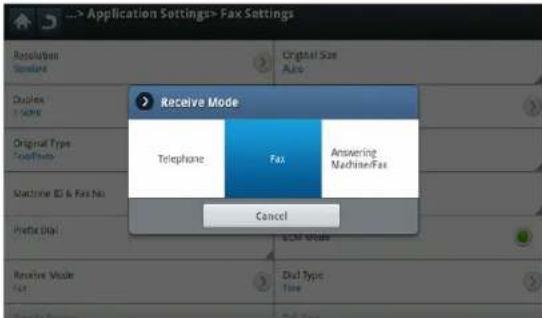
text_image
Application Settings> Fax Settings Resolution Standard Original Size Auto Double Score Original Type Photo Machine ID & Fax No. Profile Dial Receive Mode Fax 2 Receive Mode Telephone Fax Answering Machine/Fax Cancel 100 Mode Dual Type Time- Press Receive Mode.
-
Press the appropriate option.
-
Te lephone: Receives a fax by pressing On Hook and then Start.
- Fa x: Answers an incoming fax call and immediately goes into the fax reception mode.
-
Answering Machine/Fax: Is for when an answering machine is attached to your machine. Your machine answers an incoming call, and the caller can leave a message on the answering machine. If the fax machine senses a fax tone on the line, the machine automatically switches to Fax mode to receive the fax.
-
Pr ess OK to save the information.
Receiving manually in Telephone mode
You can receive a fax call by pressing On Hook and then pressing Start when you hear a fax tone from the remote machine. The machine begins receiving a fax.
Receiving faxes manually using an extension telephone
This feature works best when you are using an extension telephone connected to the EXT socket on the back of your machine.
When you receive a call on the extension phone and hear fax tones, press the key *9* on the extension phone. The machine receives the fax.
Press the buttons slowly in sequence. If you still hear the fax tone from the remote machine, try pressing *9* once again.
To change the *9* to, for example, *3*, follow the steps below:
- Press Machine Setup > Application Settings > Fax Settings > Recieve Start Code from the display screen.
- Pr ess On to activate this feature.
-
Enter the number 3 using the numeric keypad on the control panel
-
Pres s OK.
Receiving in secure receiving mode
You may need to prevent your received faxes from being accessed by unauthorized people. You can turn on secure receiving mode to restrict printing of received faxes when the machine is unattended. In secure receiving mode, all incoming faxes go into memory.
- Press Machine Setup > Application Settings > Fax Settings > Secure Receive from the display screen.

The Secure Receive mode can only be configured by an authorized user who has registered an ID and a password on the machine. When the machine requests, enter the ID and password.
-
Pre ss a fax line if your machine has multiple fax lines.
-
Pres s On to active this feature.

When the machine receives a fax in this mode, Print will be activated. If you want to print the secured faxes, press Print. All secured faxes will be printed out.
- If you want incoming faxes to go into memory always, press Whole Day. Otherwise, go to the next step.
- Set Start Time by pressin g the + and - buttons. Press OK.
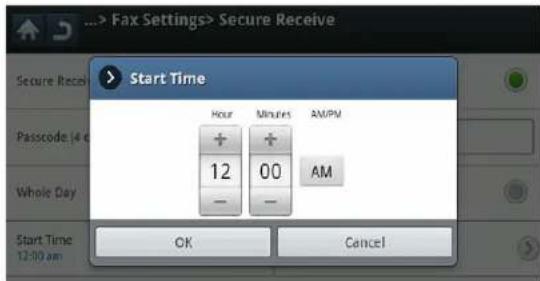
text_image
Start Time Hour Minutes AM/PM + + 12 00 AM - - Start Time 12:30 am OK Cancel- Press End Time, and set the specific end time using the up/down or left/right arrows. Then press OK.
- Pres s OK from the display screen.

To deactivate the Secure Receive feature, press Off. In this case, the received fax will be printed out.
Selecting a received fax output tray
This option allows you to specify the tray where the fax will be printed.
- Pr ess Machine Setup > Application Settings > Fax Settings > Received Fax Printing > Output Tray from the display screen.
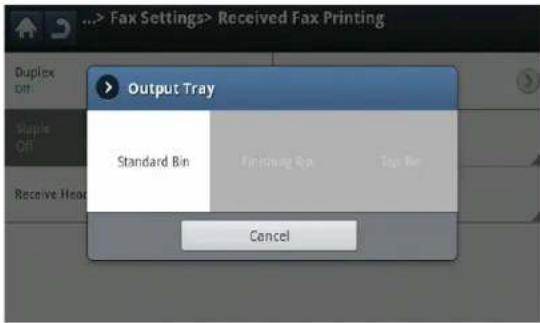
text_image
Output Tray Standard Bin Printing Box Top Box Cancel- Press the appropriate tray.

- In CLX-9301 Series, the Right Tray (Face-Up) is optional device.
- The Finishing Tray and Top Tray are available only when the optional Inner Finisher or booklet finisher is installed.
-
When the optional Inner Finisher or booklet finisher is installed, Center Tray is inactivated.
-
Pr ess OK.
Printing received faxes on both sides of the paper
Set this duplex feature to save paper. When the machine prints the received fax data, it prints them on both sides of the paper.
- Pr ess Machine Setup > Application Settings > Fax Settings > Received Fax Printing > Duplex from the display screen.
- Pre ss the appropriate option.
- Off: Prints on only one side of the paper.
- Lo ng Edge: Prints on both sides of the paper; however, the binding will be the long edge.
-
Short Edge: Prints on both sides of the paper; however, the binding will be the short edge.
-
Pr ess OK.
Printing received faxes to the right tray (face up)
This machine allows you to receive incoming faxes through the right tray (face up). When you use the right tray, the received faxes pile up in sequence beginning with the first page at the bottom.
- Pr ess Machine Setup > Application Settings > Fax Settings > Received Fax Printing > Output Tray > Right Tray(Face-Up) from the display screen.
- Pr ess OK.
Receiving faxes in memory
Since your machine is a multi-tasking device, it can receive faxes while you are making copies or printing. If you receive a fax while you are copying or printing, your machine stores incoming faxes in its memory. Then, as soon as you finish copying or printing, the machine automatically prints the fax.
Adjusting the document settings
Before sending a fax, you can adjust the document settings, such as resolution, darkness, color, duplex and so on.

The document setting herein is for the current job only. If you want to change the default settings on document settings, refer to Machine Setup > Application Settings > Fax Settings > Default Value.
Selecting the size of originals
A fax can be sent after specifying the original document size if the original document size cannot be detected automatically or if you wish to specify a certain document size.
- Pre ss the Advanced tab > Original Size from the display screen..
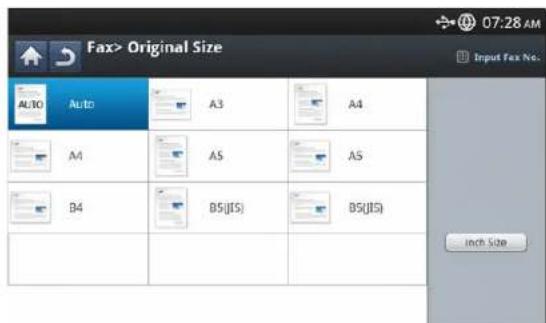
text_image
Fax> Original Size Input Fax No. AUTO A3 A4 M A5 A5 B4 BS(JIS) BS(JIS) inch Size- Press the appropriate option.

You can change the paper list on the display screen pressing inch Size or mm Size. The paper list is divided into the available A/B size type and letter size type paper in this machine.
- Auto: Automatically detects the size of originals, but this option supports only when originals are Letter-, Ledger-, Legal-, Statement-, A3-, A4-, A5-, B4-, or JIS B5-sized.
-
Other preset values: Allows you to easily select values commonly used.
-
Press OK from the display screen.
Faxing on both sides of originals
This function is especially intended for two-sided originals. You can select whether the machine sends the fax on one side or both sides of the paper.
- Pre ss the Advanced tab > Duplex, then set the original orientation.
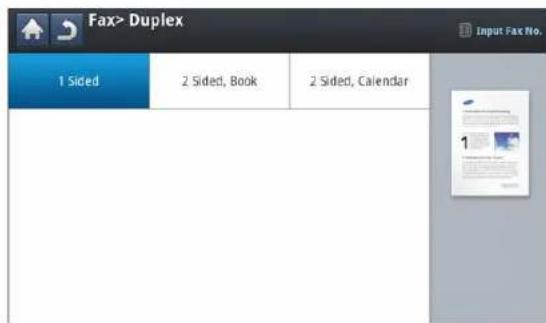
text_image
Fax> Duplex Input Fax No. 1 Sided 2 Sided, Book 2 Sided, Calendar 1- Press the appropriate option.
• 1 Sided: For originals that are printed on one side only.
• 2 Sided, Book: For originals that are printed on both sides.
• 2 Sided, Calendar: For originals that are printed on both sides, but the back is rotated 180 degrees.

To use 2 Sided, Book and 2 Sided, Calendar, load the originals on the DADF. If the machine cannot detect the original on the DADF, it automatically changes the option to 1 Sided.
- Pr ess OK from the display screen.
Selecting the orientation of originals
When faxing double-sided documents, specify the document orientation. Otherwise, the faxes may not be printed in the correct page order or correct front and back page arrangement.
- Press the Advanced tab > Original Orientation, then set the original orientation.
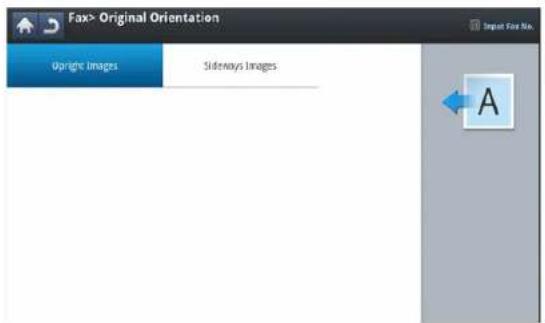
text_image
Fax> Original Orientation Upright Images Sideways Images A- Press the appropriate option.
- Upright Images: Select this setting for an original document loaded with the top toward the back of the machine.
| Using the DADF Using the scanner glass | Icon | |
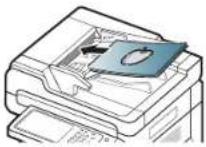 | 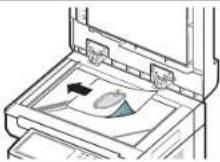 |  |
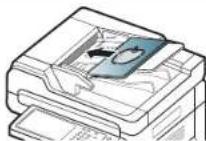 |  | |
- Sideways Images: Select this setting for an original document loaded into the DADF with the top of the original document toward the left side of the machine, or an original document placed on the scan glass with the top of the original document toward the right side of the machine.
| Using the DADF Using the scanner glass | Icon | |
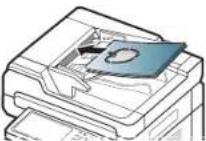 | 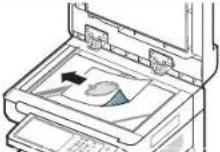 |  |
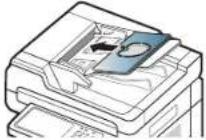 |  | |
- Press OK from the display screen.
Changing the resolution
The default document settings produce good results when using typical text-based originals. However, if you send originals that are of poor quality, or contain photographs, you can adjust the resolution to produce a higher quality fax.
Press left/right arrow to toggle the values.
- Standard: Usually recommended for originals with text. This option will reduce the transmission time.
- Fin e: Recommended for the originals containing small characters, thin lines, or text that was printed using a dot-matrix machine.
- Super Fine: Recommended for originals containing fine detail. This option is enabled only if the receiving machine also supports Super Fine resolution.
- UI tra Fine: Recommended for originals containing extremely fine detail.
This option is enabled only if the receiving machine also supports Ultra Fine resolution.

When your machine is set to the Super Fine or Ultra Fine resolution and the fax machine with which you are communicating does not support the Super Fine or Ultra Fine resolution, the machine transmits using the highest resolution mode supported by the other fax machine.
Selecting the type of originals
You can set the original document type to enhance the quality of a document being scanned.
- Press the Image tab > Original Type from the display screen.
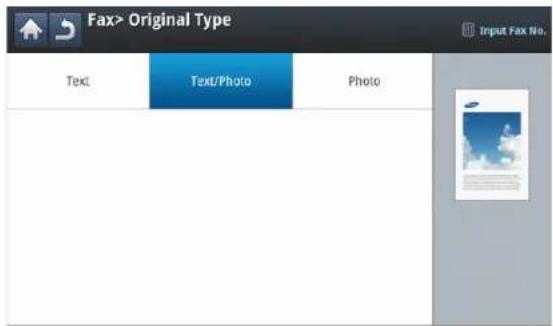
text_image
Fax> Original Type Text Text/Photo Photo Input Fax No.- Press the appropriate option.
• Text: For originals with text or line art.
- Text/P hoto: For originals with both text and photographs together.
• Photo: For originals that are a continuous tone photograph.
Changing the darkness
You can select the degree of darkness of the original document.
- Press the Basic tab > Darkness from the display screen.

text_image
Fax Basic Advanced Image Total Destination: 01 Tap to add free the number Resolution Standard Darkness 5 Recent ★ AB ABC 123/0# Programs- Press left/right arrow to change the level of light and dark.
Printing a fax report
You can set the machine to print a report whether a fax transmission and reception is successfully completed or not.

If a report contains characters or fonts that the machine do not support, Unknown could be printed instead of the characters/fonts in the report.
- Pres s Machine Setup > Report > Fax Reports > Settings from the display screen.
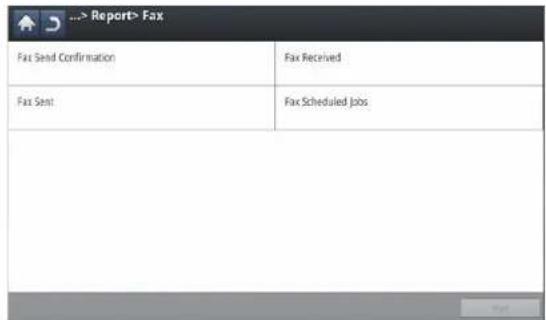
text_image
Fax Send Confirmation Fax Received Fax Sent: Fax Scheduled Jobs- Press the appropriate option.
- Mu Iti Fax Transmission Result: Prints a confirmation report when you send a fax to multiple locations.
- Off: Disables this feature.
- On : Activates this feature.
On-Error: Prints a report only when a transmission fails.
- F ax Transmission Result: Prints a confirmation report showing whether a transmission was successful, how many pages were sent, and other information.
- Off: Disables this feature.
- On : Activates this feature.
- On-Error: Prints a report only when a transmission fails.
- Fax Transmission History: Prints a confirmation report whether a transmission was successful, how many pages were sent, and other information.
- Off: Disables this feature.
- On : Activates this feature.
- Fax Reception History: Prints a confirmation report whether a reception was successful, how many pages were received, and other information.
- Off: Disables this feature.
-
On : Activates this feature.
-
Press OK fro m the display screen.
Using a programs setting
This option allows you to save the current settings for future use. You can also use the previous settings from the previous job.
Saving Programs
- Press Fax from the display screen.
- Adjust the e document settings in the Advanced or Image tab (see "Adjusting the document settings" on page 71).
- Press the Basic tab.
- Select Reso lution (see "Changing the resolution" on page 72).
- Pr ess Programs.
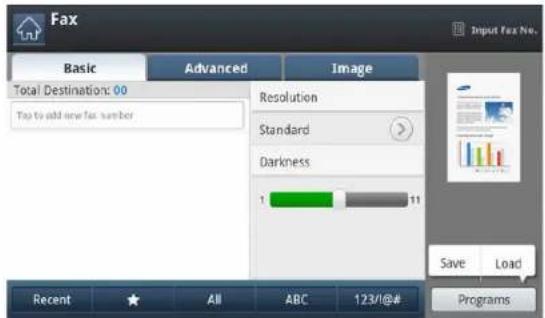
text_image
Fax Basic Advanced XiImage Total Destination: 00 Top to add new fax number Resolution Standard Darkness 1 11 Save Load Recent All ABC 123/1@# Programs Input Fax No.- Press Program Name input area. The pop-up keyboard appears. Enter the program name you want. Then press OK.
You can see the values of set Programs by scrolling up or down and check the values using the up/down arrows.
- Press Save. When the confirmation window appears, the settings you set are saved. Click Go to List or Close.
Using Programs
- Place the originals face up in the DADF or place a single original face down on the scanner glass and close the DADF (see "Loading originals" on page 38).
- Pr ess Fax from the display screen.
- When the cursor is blinking in the input line, enter the fax number using the numeric keypad on the control panel, or use Address Book from the display screen, if you have stored frequently used fax numbers.
- Pr ess Programs > List
- Pre ss a program name in the list that you want to use.
- Pr ess OK.
- Pr ess Yes when the confirmation window appears. The machine is now set to fax according to the selected setting.
- Pr ess Start on the control panel. The machine starts scanning and sending a fax to destinations.

- When you want to cancel a fax job, press Stop on the control panel before the machine starts transmission or press the Job Status button on the control panel, and select the job you want to delete, then press Delete.
- If an original is placed on the scanner glass, the machine shows the window asking if you want to place another page. Load another original and press Yes. When you finish, press No on this window.
- While the machine is sending a fax, you cannot send an email at
the same time.
Managing Programs
- Press Fax from the display screen.
- Pres s Programs > List.
- Pre ss the appropriate option.
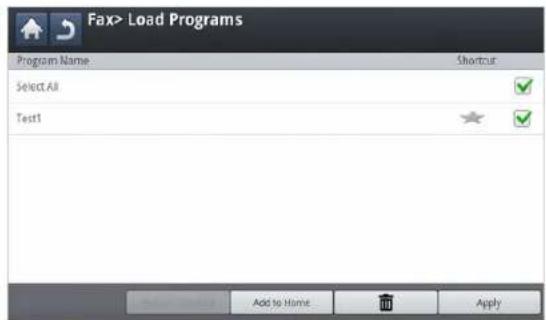
text_image
Fax> Load Programs Program Name: SelectAll Test1 Add to Home Apply- Select All: Selects all programs.
• Detail: Displays detailed information of selected program.
• Edit: Changes a name of selected program. -
Delete: Removes the selected programs.
-
Pres s Cancel for return to the Basic tab.
Saving and loading documents
This option allows you to save the current settings for future use. You can also use the previous settings from the last job.
Saving
- Press Scan to Email, Scan to Server, Scan to Shared Folder or Scan to USB from the display screen.
- Set scan features in the Advanced, Image, or Output tabs ("Changing the scan feature settings" on page 81).
- Press the Basic tab.
- Set the scan quality by Duplex and Resolution.
- Pres s Programs > Save.
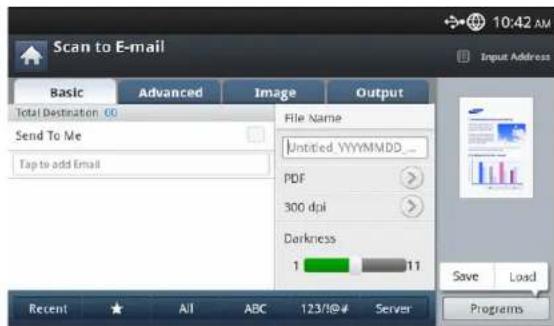
text_image
Scan to E-mail Basic Advanced Image Output Total Destination: 00 Send To Me Tap to add Email File Name Untitled_YYYYMMDD_ PDF 300 dpi Darkness 1 11 Recent All ABC 123/10# Server Save Load Programs- Press Program Name input area. The pop-up keyboard appears. Enter the program name you want. Then press OK.

You can see the values of set Programs by scrolling up or down and check the values using the up/down arrows.
7. Press Save.
- You can check the all settings again. If everything is fine, press Add to home to make shortcut in main screen, Save to save current settings or cancel to quit without saving.
Loading
- Press Scan to Email, Scan to Server or Scan to USB from the display screen.
- Press Programs > Load.
- Press the previous setting you want to use. The machine is now set to scan according to the setting you selected.
- Press Add to home to make a shortcut in main screen, Delete to delete the current setting or Apply to use the selected setting.
Scanning
Scanning with your machine lets you turn pictures and text into digital files that can be stored on your computer.
This chapter includes:
- Basic scanning method
• Understanding the scan methods - Scanning originals and sending through email (scan to email)
- Scanning originals and sending via SMB/FTP (Scan to server)
- Scanning originals and sending to a USB memory device (scan to USB)
- Changing the scan feature settings

The maximum resolution that can be achieved depends upon various factors, including computer speed, available disk space, memory, the size of the image being scanned, and bit depth settings. Thus, depending on your system and what you are scanning, you may not be able to scan at certain resolutions, especially using enhanced resolution.
Basic scanning method
You can scan the originals with your machine via the network.
- Easy Printer Manager(EPM): EPM is a Windows-based application that combines Samsung device settings into one location.
- TW AIN: TWAIN is the one of preset imaging applications. Scanning an image launches the selected application, enabling you to control the scanning process. This feature can be used via a network connection (see "Scanning with TWAIN-enabled software" on page 86).
- Easy Do cument Creator(EDC): This program is accompanying software for your machine. You can use this program to scan images or documents. (see "Understanding Samsung Easy Document Creator" on page 121).
- Email: You can send the scanned image as an email attachment (see "Scanning originals and sending through email (scan to email)" on page 77).
- Server: You can scan an image and send it to a server such as FTP or SMB (see "Scanning originals and sending via SMB/FTP (Scan to server)" on page 78).
- USB: You can scan an image and store it to a USB memory device (see "Scanning originals and sending to a USB memory device (scan to USB)" on page 80).
Understanding the scan methods
To use the scanning feature, press Scan to Email, Scan to USB, Scan to Server, Scan to PC, or Scan to Shared Folder on the display screen.
• Using a programs setting
- Scanning originals and sending to your computer (scan to PC)
- Scanning with TWAIN-enabled software
- MAC scanning
- Linux scanning
If a different screen is displayed, press ( ) to go to the home display screen.
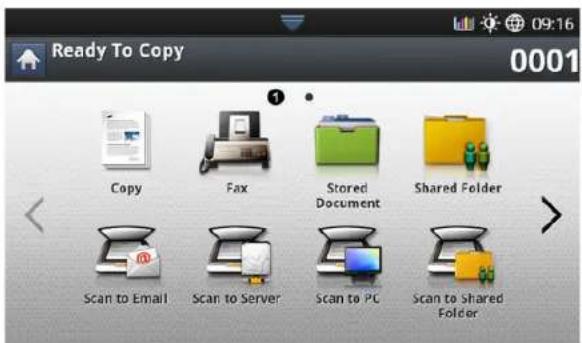
text_image
Ready To Copy 0001 Copy Fax Stored Document Shared Folder Scan to Email Scan to Server Scan to PC Scan to Shared Folder- Scan to Email: Scans and sends scanned output to the destination by e-mail (see "Scanning originals and sending through email (scan to email)" on page 77).
- Sc an to Server: Scans and sends scanned output to the destination with SMB or FTP (see "Scanning originals and sending via SMB/FTP (Scan to server)" on page 78).
- Sc an to USB: Scans and stores scanned output onto a USB memory device (see "Scanning originals and sending to a USB memory device (scan to USB)" on page 80).
If you want to use this feature, you need to insert a USB memory device into the USB memory port on your machine. - Scan to PC: Scans and sends scanned output to a computer (see "Scanning originals and sending to your computer (scan to PC)" on page 86).
- Sc an to Shared Folder: Scans and stores scanned output in the shared folder.

Scanning originals and sending through email (scan to email)
You can scan originals and send the scanned image to several destinations from the machine by email.

To scan and send an image as an email attachment, you need to set up network parameters, SMTP settings and Scan to Email settings using the control panel or SyncThru™ Web Service. For details about how to set up the network parameters and email settings, refer to the Administrator's Guide on the supplied CD.
Understanding the Scan to Email screen
Press Scan to Email in the display screen.
Basic tab
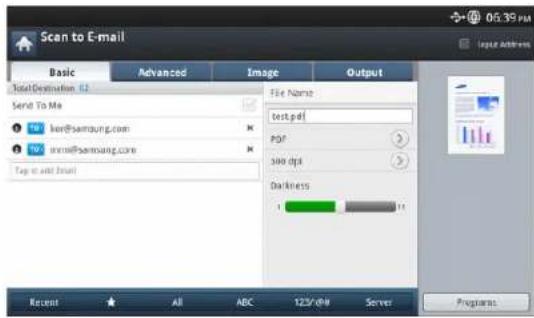
text_image
Scan to E-mail Basic Advanced Xi Send To Me 100 boer@samsung.com 100 inmail@samsung.com Tag to email.html File Name test.pdf PDF 300 dpi Dakiness 1 11 Recent All ABC 125/04 Server Programs 06.39 PM- Send To Me: Press the Advanced tab > Email Settings, then type the sender's email address. Click the checkbox on the right to send to yourself.
- Direct Input: Tap the screen to add recipient's email addresses.
- F ile Name: Makes the file name for the file to be sent(see "File Policy" on page 84).
- File Format: Select the file format before you proceed with the scanning job (see "File Format" on page 84).
- Resolution: Selects scanning resolution value (see "Changing the resolution" on page 81).
- Dar kness: Adjusts the degree of darkness of scanned output (see "Changing Darkness" on page 81).
- Recent: Shows the latest 10 email addresses used. Also, you can choose email addresses instead of pressing the pop-up keyboard (see "Resending to the last email address" on page 78).
• ( ★ )Favorite: shows the frequently used addresses.
• All: Shows all the addresses.
• ABC : Shows the addresses that contains English characters.
• 123 !!@#: shows the addresses that contains numbers or special characters.
- Programs: Allows you to save the current settings for future use (see "Using a programs setting" on page 85).
Advanced tab
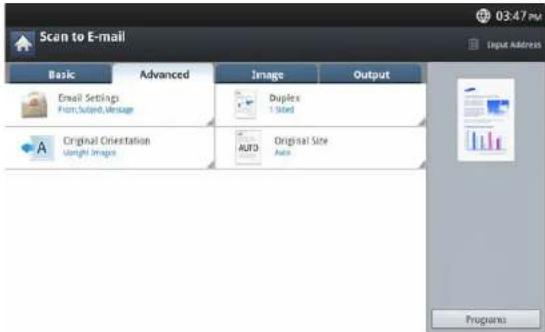
text_image
Scan to E-mail Basic Advanced Image Output Email Settings From/Supported/Message Duplex Original Orientation Original Size Unlight Images Auto Programs- Original Size: Selects the size of originals (see "Selecting the size of originals" on page 83).
- O original Orientation: Selects the orientation of the originals (see "Selecting the orientation of originals" on page 82).
- E-mail Setting: Enter the information including From, Subject and Message.
- Dup lex: Sets the machine to print copies on both sides of the paper.
Image tab
You can move to the next or previous page using the up/down arrows located at the bottom left.
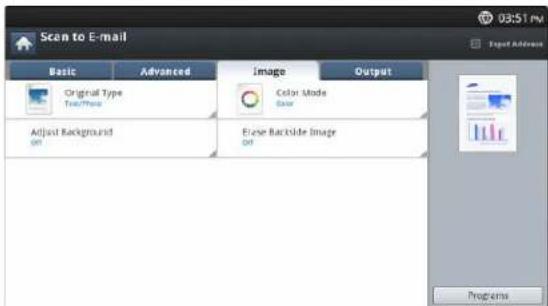
text_image
Scan to E-mail Basic Advancedoyaige Output Original Type True/Prime Color Mode Base Adjust Background Off Flose Backside Image Off Programs 03:51 PM- Original Type: Selects whether the original is text, photo, etc (see "Selecting the type of originals" on page 83).
• Color Mode: Adjusts the color options of scanned output (see "Selecting the color mode" on page 83). - Adjust Background: Erase the background to some extent by adjusting density or brightness (see "Adjusting background" on page 83).
- Erase Backside: Prevents scanning the other side's image shown through the original paper (see "Erasing backside Images" on page 84).
Output tab
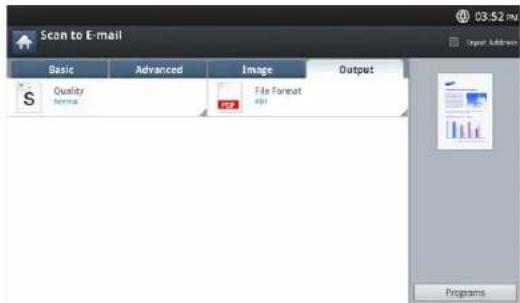
text_image
Scan to E-mail Basic Advanced XiImage Output Quality Normal CS File Format Programs• Quality: Adjusts the display quality of the scanned output (see "Quality" on page 84).
- File Name: Makes the file name for the file to be sent (see "File Policy" on page 84).
Resending to the last email address
To resend to the last used email address:
- Place the originals face up in the DADF or place a single original face down on the scanner glass and close the DADF (see "Loading originals" on page 38).
- Pr ess Scan to Email from the display screen.
- Set the scan features in the Advanced, Image, or Output tabs (see "Changing the scan feature settings" on page 81).
- Press the Basic tab.
- Pr ess To's input area and Recent.
- Pre ss the email address which you want to re-send.. Then press OK.
- Add to Address: Allows you to add an email address in the Recent results to the Address Book.
- Delete: Allows you to delete an email address in the Recent results. Press the email address you want to delete. Then press Delete.
- Set the scan quality by Duplex and Resolution (see "Scanning from both sides of originals" on page 82 and "Changing the resolution" on page 81).
- Pr ess the Start button to scan and send the file. If an original is placed on the scanner glass, the machine shows the window asking if you want to place another page. Load another original and press Yes. When you finish, press No on this window.
Printing an email confirmation report
You can set the machine to print a report whether an email transmission is successfully completed or not.

If a report contains characters or fonts that the machine does not support, Unknown could be printed instead of the characters/fonts in the report.
- Pres s Machine Setup > Application Setting > Scan to Email Settings from the display screen.
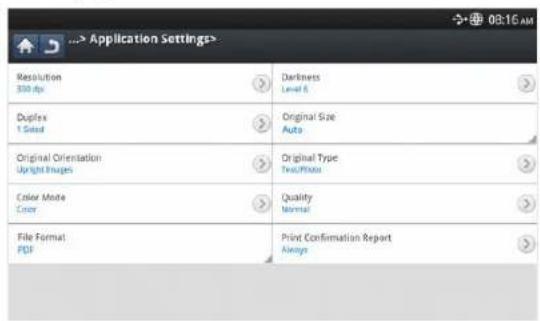
text_image
Application Settings> Resolution 300 dpi Darkness Level 6 Duplex 1 Seed Original Size Auto Original Orientation Upright Images Original Type Two/Three Color Mode Color Quality Normal File Format PDF Print Confirmation Report Aings-
Press the appropriate option in Print Confirmation Sheets.
-
On Errors Only: Prints a confirmation report only when an email transmission is not successful.
- Always: Always prints a confirmation report whether an email transmission is successfully completed or not.
-
Neve r: Never prints a confirmation report.
-
Pres s to go back to the previous screen.
Scanning originals and sending via SMB/FTP (Scan to server)
You can scan an image and send it to a total of three destinations via SMB or FTP.
To scan and send an image to a server, you need to set up network parameters using the control panel or SyncThru™ Web Service. For details about how to set up the network parameters, refer to the Administrator's Guide on the User's Guide CD.
Understanding the Scan to Server screen
Press Scan to Server in the display screen.
Basic tab
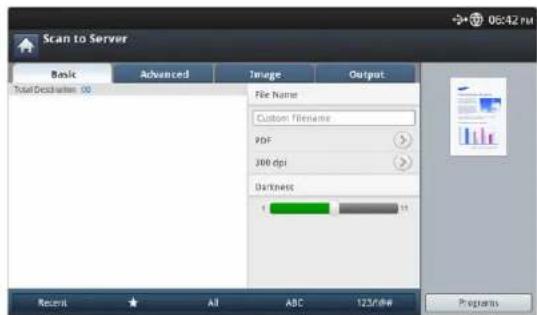
text_image
Scan to Server Basic Advanced Xi Image Output Total Decline: 00 File Name Custom Filename PDF 200 dpi Darkness 1 11 Recent All ABC 123/08/06 Programs- Filename: Makes the file name for the file to be sent (see "File Policy" on page 84).
- Add ress Book: Inputs the recipient's address by pressing stored addresses. You can save frequently used email addresses using the control panel or SyncThru™ Web Service (see "Setting up an address book using the control panel" on page 94 or "Setting up an
address book using SyncThru™ Web Service" on page 96).
- Recent: Shows the latest 10 email addresses used. Also, you can choose email addresses instead of pressing the pop-up keyboard (see "Resending to the last email address" on page 78).
- Resolution: Selects scanning resolution value (see "Changing the resolution" on page 81).
- Progra ms: Allows you to save the current settings for future use (see "Using a programs setting" on page 85).
- Darkness: Adjusts the degree of darkness of scanned output (see "Changing Darkness" on page 81).
Advanced tab
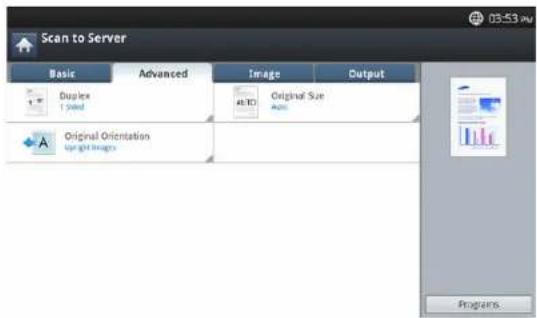
text_image
Scan to Server Basic Advancedwerase Output Duplex 1 Split Original Size A Original Orientation uplight Images Programs- Original Size: Selects the size of originals (see "Selecting the size of originals" on page 83).
- O original Orientation: Selects the orientation of the originals (see "Selecting the orientation of originals" on page 82).
• Duplex: Sets the machine to print copies on both sides of the paper.
Image tab
You can move to the next or previous page using the up/down arrows located at the bottom left.
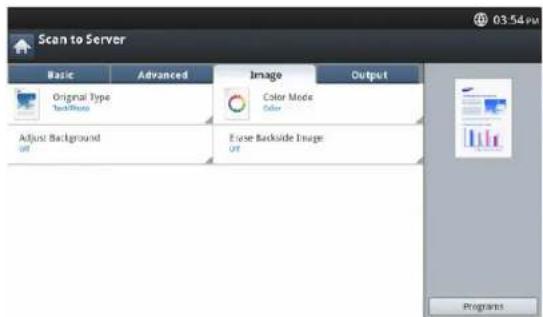
text_image
Scan to Server Basic Advancedwerase Output Original Type Tech/Photo Color Mode Color Adjust Background Off Erase Backside Image Off Programs- Original Type: Selects whether the original is text, photo, etc. (see "Selecting the type of originals" on page 83).
- Color Mode : Adjusts the color options of scanned output (see "Selecting the color mode" on page 83).
- Adjust Background: Erase the background to some extent by adjusting density or brightness (see "Adjusting background" on page 83).
- Eras e Backside: Prevents scanning the other side's image shown through the original paper (see "Erasing backside Images" on page 84).
Output tab
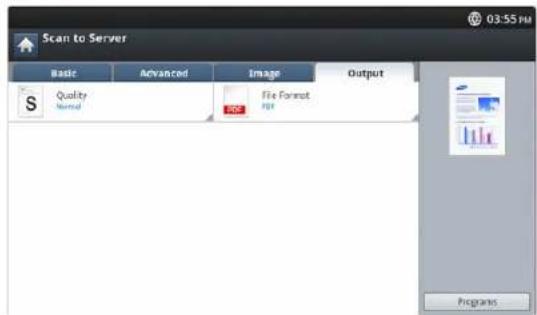
text_image
Scan to Server Basic Advanced Xiage Output S Quality Normal Fine Format F01 03:55 PM Programs• Quality: Adjusts the display quality of the scanned output (see "Quality" on page 84).
- File Format: Selects the file format of the scanned output (see "File Format" on page 84).
Scanning and sending to an SMB/FTP server

You can select up to three destinations using SMB, or FTP servers.
- PI ace the originals face up in the DADF or place a single original face down on the scanner glass and close the DADF (see "Loading originals" on page 38).
- Pres s Scan to Server from the display screen
- Set the scan features in the Advanced, Image, or Output tabs (see "Changing the scan feature settings" on page 81).
- Press the Basic tab.
- Pre ss the server name input area, you can enter a recipient's server address manually. You cannot enter an address in the second field before entering an address in the first field. You can also use Address Book to enter the addresses easily (see "Setting up an address book" on page 94).
- Set the scan quality by Duplex and Resolution (see "Scanning from both sides of originals" on page 82 and "Changing the resolution" on page 81).
- Pres s Start on the control panel.
The machine begins scanning and then sends the scanned image to the specified server.
If an original is placed on the scanner glass, the machine shows the window asking if you want to place another page. Load another original and press Yes. When you finish, press No on this window.

- To cancel the current scan job, press Stop on the control panel. Or you can delete current and pending jobs using Job Status on the control panel. Select the job you want to cancel and press Delete (see "Job Status button" on page 36).
- While the machine is sending a scanned data, you cannot use the machine to copy or to send a fax.
Resending to the last server address
To resend a file to the server address last sent to:
- PI ace the originals face up in the DADF or place a single original face down on the scanner glass and close the DADF (see "Loading originals" on page 38).
-
Pres s Scan to Server from the display screen.
-
Set the scan features in the Advanced, Image, or Output tabs (see "Changing the scan feature settings" on page 81).
- Press the Basic tab.
- Pr ess Recent.
- Pre ss the server address to which you want to resend. Then press OK.

- Add to Address: Allows you to add a server address in the Recent results to the Address Book.
-
Delete : Allows you to delete a server address in the Recent results. Press the server address you want to delete. Then press Delete.
-
Set the scan quality by Duplex and Resolution (see "Scanning from both sides of originals" on page 82 and "Changing the resolution" on page 81).
- Pr ess the Start button to scan and send the file. If an original is placed on the scanner glass, the machine shows the window asking if you want to place another page. Load another original and press Yes. When you finish, press No on this window.
Scanning originals and sending to a USB memory device (scan to USB)
You can scan a document and save the scanned image onto a USB memory device. When you scan a document, the machine uses the default settings, such as for resolution. You can also customize your own scan settings (see "Changing the scan feature settings" on page 81).
Understanding the Scan to USB screen
Press Scan to USB in the display screen.
Basic tab
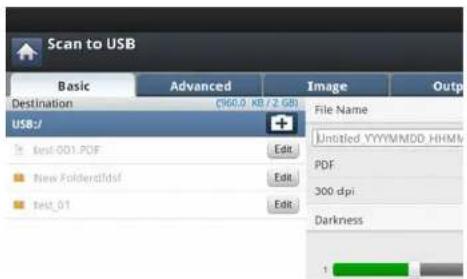
text_image
Scan to USB Basic Advanced Xi Image Outp Destination (960.0 KB / 2 GB) USB/J Text-001.PDF Edit New Folder/Idel Edit Text_01 Edit File Name Untitled YYYYMMDD_HHMM PDF 300 dpi Darkness 1- Go to upper: Moves back to the upper level.
- Select: Moves to the selected folder.
- New f older: Makes a new folder in the USB memory device.
• Detail: Displays information of the selected folder or file.
• Edit: Changes the name of the selected folder or file. - Delete : Deletes the selected folder or file.
- F ile Name: Makes a file name to store the scan data.
- Resolution: Selects the scanning resolution value (see "Changing the resolution" on page 81).
- Programs: Allows you to save the current settings for future use (see "Using a programs setting" on page 85).
Advanced tab
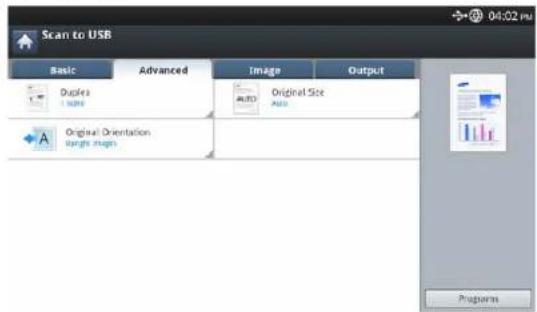
text_image
Scan to USB Basic Advanced XiImage Output Duplex Original Size Original Orientation Single Image A Auto Programs- Original Size: Selects the size of originals (see "Selecting the size of originals" on page 83).
- O original Orientation: Selects the orientation of the originals (see "Selecting the orientation of originals" on page 82).
- E-mail Setting: Enter the information including From, Subject, and Message.
- Duplex: Sets the machine to print copies on both sides of the paper.
Image tab
You can move to next or previous pages using the up/down arrows located at the bottom left.
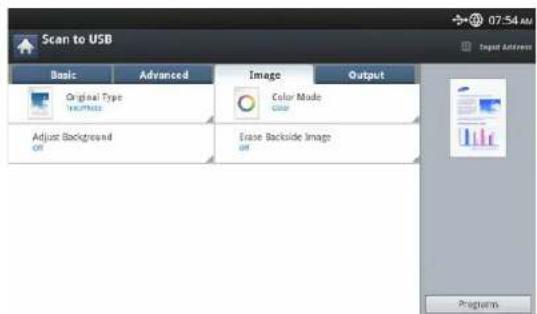
text_image
Scan to USB Basic Advancedwer Original Type TALWTHO2 Adjust Background on Image Output Color Mode Color Erase Backside Image on Programs- Original Type: Selects whether the original is text, photo, etc. (see "Selecting the type of originals" on page 83).
• Color Mode: Adjusts the color options of scanned output (see "Selecting the color mode" on page 83). - Adjust Background: Erase the background to some extent by adjusting density or brightness (see "Adjusting background" on page 83).
- Erase Backside: Prevents scanning the other side's image shown through the original paper (see "Erasing backside Images" on page 84).
Output tab
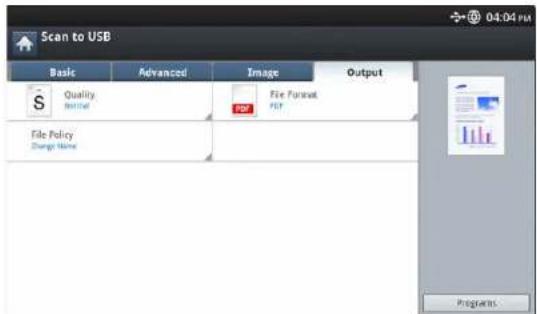
text_image
Scan to USB Basic Advanced XiImage Output S Quality Initial FiF Fisurvat FIS FIS File Policy Change Name Programs• Quality: Adjusts the display quality of the scanned output (see "Quality" on page 84).
- F ile Format: Selects the file format of the scan output (see "File Format" on page 84).
- F ile Policy: Automatically renames or overwrites when the USB memory device has a file with same name (see "File Policy" on page 84).
Scanning to a USB memory device

- The machine cannot detect the unformatted USB memory device. Format and then reinsert the USB memory device into the USB memory port on your machine.
- The machine could not detect the USB memory device when the machine is in power save mode. Wait until the machine returns to ready mode, and then reinsert the USB memory device into the USB memory port on your machine.
-
The machine has two USB memory ports. When a USB memory is already inserted to one of the ports, if you try to insert a USB memory device into another port, the machine cannot detect the second one. Remove the USB memory device that was inserted first and then reinsert the USB memory device you want to use into the USB memory port on your machine.
-
In sert a USB memory device into the USB memory port on your machine.
- Place the originals face up in the DADF or place a single original face down on the scanner glass and close the DADF (see "Loading originals" on page 38).
- Pr ess Scan to USB from the display screen.
- Pr ess the Basic tab.
- Select a folder for storing the scanned image. If you do not select a folder, the scanned image is stored in root directory.
- Pr ess the File Name input area. The pop-up keyboard appears.
- Enter a file name to store the scan data. Press Done.
- Set the Fi le format, Resolution, and Darkness (see "Scanning from both sides of originals" on page 82 and "Changing the resolution" on page 81).
- Set the scan features in the Advanced, Image, or Output tabs, if necessary (see "Changing the scan feature settings" on page 81).
-
Pess the Start button to scan and store the file. If an original is placed on the scanner glass, the machine shows the window asking if you want to place another page. Load another original and press Yes. When you finish, press No on this window.
-
After scanning is complete, you can remove the USB memory device from the machine.
Changing the scan feature settings
This section explains how to adjust the document settings for each scan job, such as resolution, duplex, original size, type, color mode, darkness, and more. The settings you change will be maintained for a certain time, but after that period, the options will be reset to default values.
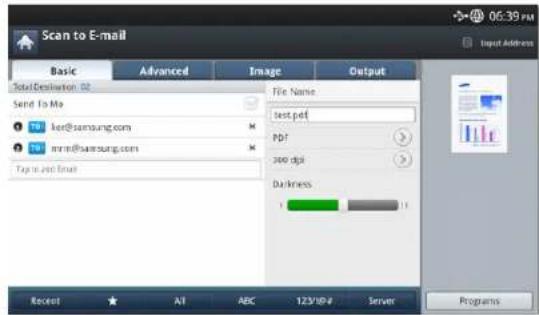
text_image
Scan to E-mail Basic Advancedwerige Output Total Destination: 02 Send To Me kier@samsung.com mnm@samsung.com Tag to text format File Name: test.pdf PDF 200 dpi Darkress 1 Recent ★ Alt ABC 123/ID/4 Server Programs 06:39 PMChanging the resolution
You can adjust document resolution.
Press the resolution and choose the values. The higher value you select, the clearer the result, but the scanning time may take longer.
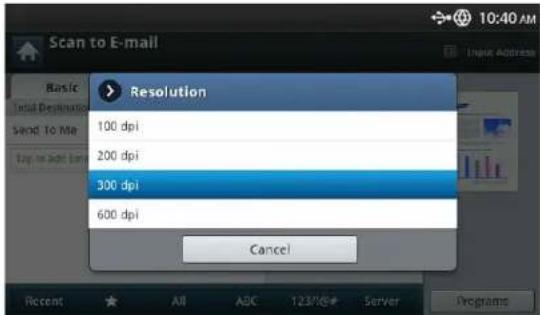
text_image
Scan to E-mail Resolution 100 dpi 200 dpi 300 dpi 600 dpi Cancel Recent All ABC 123/18# Server ProgramsThe following table shows detailed information for this feature, resolution, and file format options.
| Feature Resolution (dpi) File Format | ||
| Scan to Email | 100, 200, 300, 600 JPEG, PDF, TIFF, XPS | |
| Scan to USB | ||
| Scan to Server | ||
| Scan to Shared Folder | ||
Changing Darkness
You can select the degree of darkness of the scanned output. If your original document is light or faded, move the white bar to the right to make the output darker.
- Press the white bar and move it to choose the value.
Scanning from both sides of originals
This feature applies to scanning two-sided original documents. You can select whether the machine scans only one side or both sides of the paper. Press the Advanced tab > Duplex, then select an option.
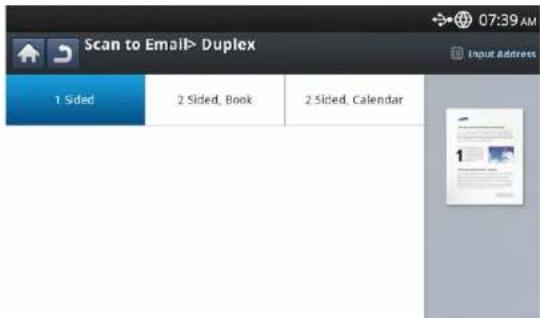
text_image
Scan to Email> Duplex 1 Sided 2 Sided, Book 2 Sided, Calendar 07:39 AM Input Address 1• 1 Sided: For originals that are printed on one side only.
• 2 Sided, Book: For originals that are printed on both sides.
- 2 Sided, Calendar: For originals that are printed on both sides, but the back is rotated 180 degrees.

If an original is placed on the scanner glass, the machine shows the window asking to place another page. Load another original and press Yes. When you finish, select No for this option.
Selecting the orientation of originals
- Press the Advanced tab > Original Orientation, then set the original orientation.
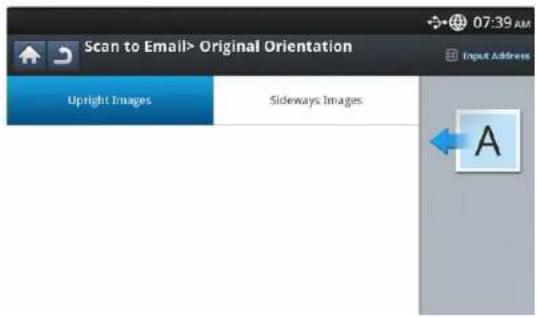
text_image
Scan to Email> Original Orientation Upright Images Sideways Images: 07:39 AM Input Address A- Press the appropriate option.
- Upright Images: Select this setting for an original document loaded with the top toward the back of the machine.
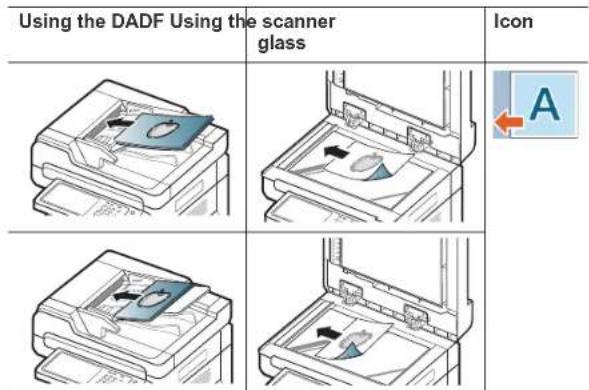
text_image
Using the DADF Using the scanner glass Icon A- Sideways Images: Select this setting for an original document loaded into the DADF with the top of the original document toward the left side of the machine or an original document placed on the scanner glass with the top of the original document toward the right side of the machine.
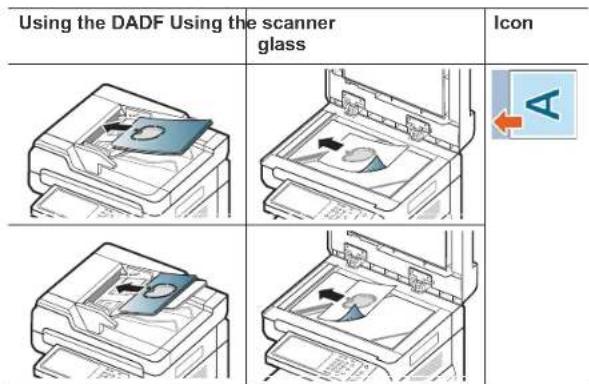
text_image
Using the DADF Using the scanner glass Icon- Press go back to the previous screen.
Selecting the size of originals
- Press the Advanced tab > Original Size, then select an option.
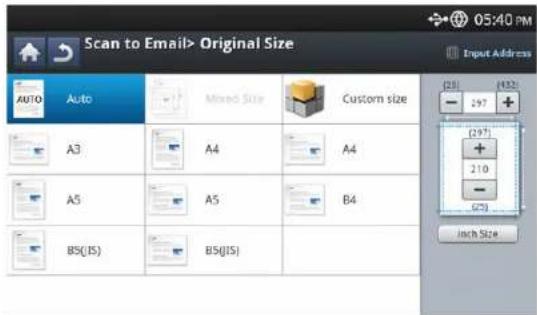
text_image
Scan to Email> Original Size Auto A3 A5 BS(IS) Mixed Size A4 A5 B5(IS) Custom size A4 B4 Basic Size Input Address 05:40 PM 297 + 210 - (297) Inch Size- Press the appropriate option.

You can change the paper list on the display screen by pressing inch Size or mm Size. The paper list is divided into the available A/B size type and letter-size type paper in this machine.
- Custom : Selects the copying area of the original. Press the cardinal point arrows to set the size.

The custom size is different depending on where the originals are placed.
| In the DADF On the scanner glass | ||
| Minimum size 128 | × 128 mm(5 x 5 inches) | 25 x 25 mm(1.0 x 1.0 inches) |
| Maximum size 297 | × 432 mm(11.7 x 17.0 inches) | 297 x 432 mm(11.7 x 17.0 inches) |
- Auto: Automatically detects the size of originals, but this option supports only when originals are Letter, Ledger, Legal, Statement, A3, A4, A5, B4, or JIS B5-sized.
- Pr ess to go back to the previous screen.
Selecting the type of originals
The original type setting is used to improve the scan quality by selecting the document type for the current scanning job.
- Pr ess the Image tab > Original Type from the display screen.
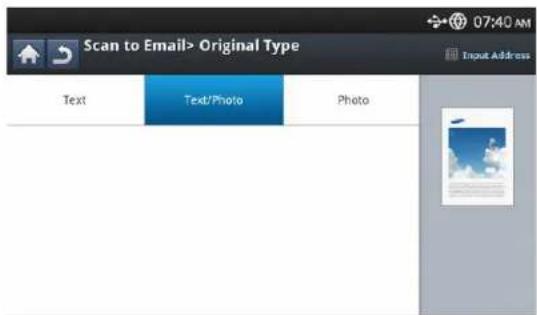
text_image
Scan to Email> Original Type Text Text/Photo Photo 07:40 AM Input Address- Press the appropriate option.
- Text: Use for originals containing mostly text.
• Text/Photo: Use for originals with mixed text and photographs.
• Photo: Use when originals are photographs.
- Pres s to go back to the previous screen.
Selecting the color mode
Use one of these options to scan the original: Auto, Color, Gray or Mono.
- Press the Image tab > Color Mode from the display screen. Select the appropriate option.
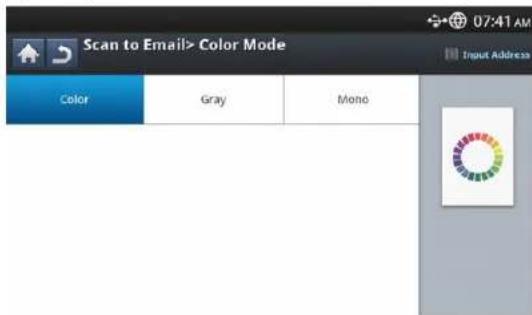
text_image
Scan to Email> Color Mode Color Gray Mono 07:41 AM Input Address- Press the appropriate option.
• Auto : Automatically detects the color of the original and scans it.
• Color: Uses color to display an image: 24 bits per pixel, 8 bits for each RGB, is used for 1 pixel.
- Gra y: Uses the black gradation to display an image: 8 bits per pixel.

- Mono: Displays an image in black and white. 1 bit per pixel.

- Press go back to the previous screen.
Adjusting background
Adjust the background to some extent by adjusting density or brightness. You can lighten, or delete the dark background of colored paper or newspaper to be scanned.
When you use this option, Erase Backside Image in the Image tab are inactivated.
- Press the Image tab > Adjust Background from the display screen.
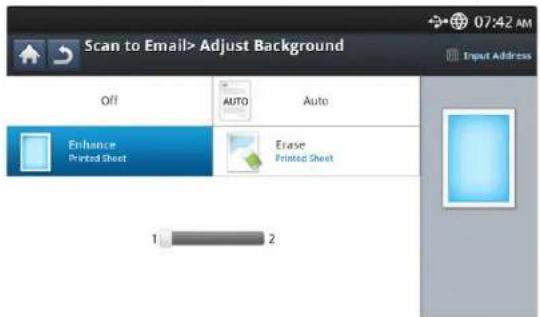
text_image
Scan to Email> Adjust Background Input Address Off AUTO Auto Enhance Printed Sheet Erase Printed Sheet 1 2-
Press the appropriate option.
-
Off: Disables this feature.
• Auto: Automatically adjusts b ackground brightness. - En hance: Darkens the background. Use the left/right arrows to toggle the values.
-
Eras e: Lightens the background. Use the left/right arrows to toggle the values.
-
Press → to go back to the previous screen.
Erasing backside Images
This feature prevents scanning the other side's image shown through the original paper

When you use this feature, Adjust Background in the Image tab are deactivated.
- Press the Image tab > Erase Backside Image from the display screen.
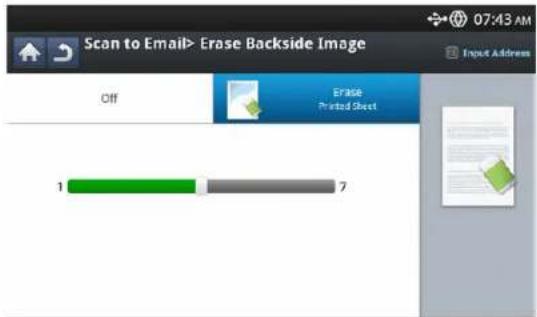
text_image
Scan to Email> Erase Backside Image Off Erlable Printed Sheet 1 7 07:43 AM Input Address-
Press the appropriate option.
-
Off: Turns this option off.
-
Eras e: Lightens the background. Use the left/right arrow's to toggle the values.
-
Press 📋 to go back to the previous screen.
Quality
You can use this option to produce a high-quality document. The higher quality you select, the larger file size you get.
- Pre ss the Output tab > Quality from the display screen.
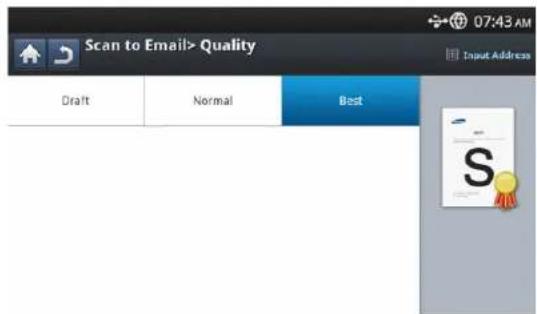
text_image
Scan to Email> Quality Draft Normal Best 07:43 AM Input Address S- Press the appropriate option.
• Best: Produces a high-quality image, but the file size will be larger.
- Nor mal: Both the image quality and file size will be between Best and Draft.
- Draft: Produces a low-quality image, but the file size will be smaller.
- Pres s OK from the display screen.
When you set Color Mode to Mono in the Image tab, the Quality option is grayed out.
File Policy
You can choose the policy for generating file names before you proceed with the scan job through the USB memory device. If the USB memory device already has the same name entered, you can rename or overwrite it.
- Pre ss the Output tab > File Policy from the display screen.
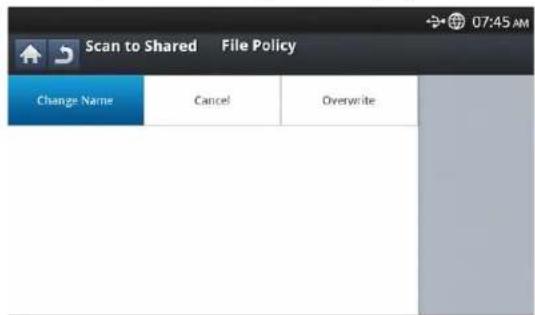
text_image
Scan to Shared File Policy Change Name Cancel Overwrite-
Press the appropriate option.
-
ChangeName: If the USB memory device already has the same name when you enter a new file name, the file will be saved as a different file name that is automatically generated.
-
Can cel: Does not send the scanned file if a file with same name is already on the server.
• Overwrite: The sent file overwrites the existing file. -
Pres s → to go back to the previous screen.
File Format
You can select the file format before you proceed with the scanning job.
-
Press the Output tab > File Format from the display screen.
-
Pre ss the appropriate option.
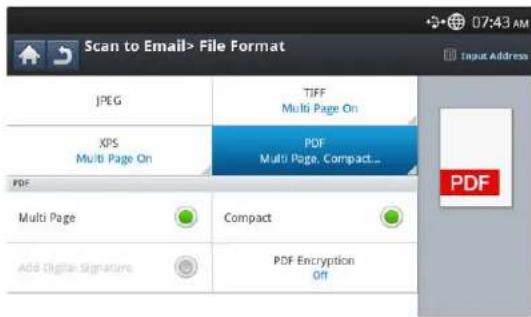
text_image
Scan to Email> File Format JPEG TIFF Multi Page On XPS Multi Page On PDF Multi Page Compact Add Digital Signature PDF Encryption Off 07:43 AM Input Address PDF- JPEG: Scans originals in JPEG format.
- PDF: Scans originals in PDF format. You can open the file with the Adobe Acrobat Reader.
- Mu ItiPage: If you want several originals to be scanned as one file, press MultiPage.
- Secure: You can set the password for the PDF file created using this option. You can also set whether to allow users to access the the created PDF file to print or modify.
- Sea rchable: The machine detects text in the scanned image and creates a searchable PDF for text searching. Press this button and select a language that is used in the scanned image. Press OK.

This option is available only when the optional advanced scan kit is installed.
- Compact: You can compress originals to create a small-sized file, press Compact. This compression method is different from the normal PDF format. Some data parts can be lost during compression.
- Ad d Digital Signature: You can insert a digital signature in the PDF with a certificate.

Only an administrator can manage the digital certificate on Digital Signature in PDF from SyncThru™ Web Service. For detailed information about Digital Signature in PDF, refer to the Administrator's Guide on the User's Guide CD.
• TIFF: Scans originals in TIFF (Tagged Image File Format). If you want several originals to be scanned as one file, press MultiPage.
- XPS: Scans originals in XPS (XML Paper Specification). If you want several originals to be scanned as one file, press MultiPage.
- Press to go back to previous screen.

The file format JPEG cannot be selected in the File Format option, if Mono has been selected for Color Mode in the Image tab.
Setting job completion notification
When the scan to email or scan to server job is completed, this machine can send the completion notification using email. This feature helps when you scan and send large quantities of documents. You do not need to wait until the scan-to-email or scan-to-server job is completed beside the machine.

To receive the job completion notification, you need to set up network parameters and email settings using the control panel or SyncThru™ Web Service. For details about how to set up the network parameters and email settings, refer to the Administrator's Guide on the supplied
CD.
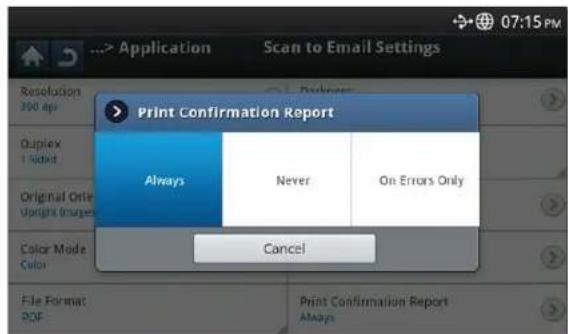
text_image
Application Scan to Email Settings Resolution 300 dpi Duplex 1 Stdad Original Order Upright Images Color Mode Color Print Confirmation Report Always Never On Errors Only Cancel File Format PDF Print Confirmation Report Always-
Place the originals face up in the DADF or place a single original face down on the scanner glass and close the DADF (see "Loading originals" on page 38).
-
Pres s Scan to Email or Scan to Server from the display screen.
-
Set scan features in the Advanced, Image, or Output tabs (see "Changing the scan feature settings" on page 81).
-
En ter the destinations information.
-
Set the scan quality by Duplex and Resolution (see "Scanning from both sides of originals" on page 82 and "Changing the resolution" on page 81).
-
Pre ss the Advanced tab > Job Completion Notification.
-
Pres s On to activate this feature.
-
Pres s Email Address input area. The pop-up keyboard appears. Enter the email address to which you want to send the job completion notification. Press OK.

- You can select the email address pressing Address Book. - You can enter an email address only.
- Pres s Start on the control panel to begin scanning.
Using a programs setting
This option allows you to save the current settings for future use. You can also use the previous settings from the last job.
Saving
-
Press Scan to Email, Scan to Server, Scan to Shared Folder or Scan to USB from the display screen.
-
Set scan features in the Advanced, Image, or Output tabs (see "Changing the scan feature settings" on page 81).
-
Pre ss the Basic tab
-
Set the scan quality by Duplex and Resolution (see "Scanning from both sides of originals" on page 82 and "Changing the resolution" on page 81).
-
Press Programs > Save.
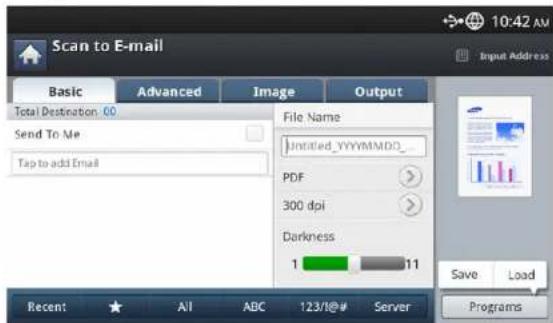
text_image
Scan to E-mail Basic Advanced Image Output Total Destination 00 Send To Me Tap to add Email File Name Untitled_YYYYMMDD_ PDF 300 dpi Darkness 1 11 Recent All ABC 123/1@# Server Save Load Programs- Press Program Name input area. The pop-up keyboard appears. Enter the program name you want. Then press OK.

You can see the values of set Programs by scrolling up or down and check the values using the up/down arrows.
-
Press Save.
-
You can check the e settings again. If everything is fine, press Add to home to make a shortcut on the main screen, Save to save current settings, or Cancel to quit without saving.
Loading
- Press Scan to Email, Scan to Server or Scan to USB from the display screen.
- Press Programs > Load.
- Pre ss a previous setting you want to use.
The machine is now set to scan according to the selected setting.
- Pr ess Add to home to make shortcut in main screen, Delete to delete the current setting or Apply to use the selected setting.
Scanning originals and sending to your computer (scan to PC)
This option allows you to scan an image on the machine and send it out to your network-connected computer.
For a network connected machine
Make sure the scanner driver is installed on your computer.
- Ma ke sure that your machine and the computer are connected to a network.
-
Place the orig inals face up in the DADF or place a single original face down on the scanner glass and close the DADF (see "Loading originals" on page 38).
-
Press Scan to PC from the display screen.

text_image
Ready To Copy 0001 Copy Fax Stored Document Shared Folder Scan to Email Scan to Server Scan to PC Scan to Shared Folder- Select your computer name and press OK. If the machine requests a password, enter the password using the numeric keypad on the control panel.
- Pre ss the application program you want and press Select. Default setting is My Documents.
- Set the scan quality with Duplex and Resolution in the Basic tab.
- Set the size of original in the Advanced tab. If you are not sure of the original size, select Auto.
- Set the color mode in the Image tab.
- Set the file format in which the image is to be saved in the Output tab.

File Format activates only when you select the application program as My Documents.
- Press Start from the control panel to begin scanning.

- Scanned image is saved in the computer's My Documents > My Pictures > Samsung folder.
Scanning with TWAIN-enabled software
If you want to scan documents using other software, you will need to use TWAIN-compliant software, such as Adobe Photoshop.
Follow the steps below to scan with TWAIN-compliant software:
- Make sure that the machine is connected to your computer and powered on.
- Place the originals face up in the DADF or place a single original face down on the scanner glass and close the DADF (see "Loading originals" on page 38).
- Open an application, such as Adobe Photoshop.
- Open the TWAIN window and set the scan options.
- Scan and save your scanned images.
MAC scanning
You can scan documents using Image Capture program. MAC OS X offers Image Capture program.
Scanning with network
- Make sure that the machine is connected to your computer and powered on.
- Place the originals face up in the DADF or place a single original face down on the scanner glass and close the DADF (see "Loading originals" on page 38).
-
Start Ap plications and click Image Capture.
-
For MAC OS X 10.4 \~10.5
Click Devices and click Browse Devices.
For MAC OS X 10.6
Select your device below SHARED. Skip to step 6.
- For Mac OS X 10.4
Select your machine in Twain devices option. Make sure that Use TWAIN software checkbox is checked, and click Connect.
• If a warning message appears, click Change Port.. to select port.
- If TWAIN UI appears, from the Preference tab, click Change Port.. to select port.
For Mac OS X 10.5
Make sure that Connected checkbox is checked beside your machine in Bonjour Devices.
If you want to scan using TWAIN, refer to the Mac OS X10.4 steps above.
-
Set the scan options on this program.
-
Scan and save your scanned image.

- For more information about using Image Capture, refer to the Image Capture's help.
- Use TWAIN-compliant softwares to apply more scan options.
- You can also scan using TWAIN-compliant software, such as Adobe Photoshop.
- If scanning does not operate in Image Capture, update Mac OS to the latest version. Image Capture operates properly in Mac OS X 10.4.7 or higher.
Linux scanning
You can scan a document using the Unified Driver Configurator window.
Scanning
-
Double-click the Unified Driver Configurator on your desktop.
-
Click the button to switch to Scanners Configuration.
-
Select the scanner on the list.
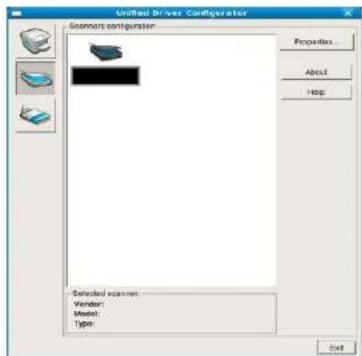
text_image
Unified Driver Configuration Sensors configuration Properties About Help Selected scanner: Vendor: Model: Type: ExitIf you use only one device and it is connected to the computer and turned on, your scanner appears on the list and is automatically selected.
If you have two or more scanners connected to your computer, you can select any scanner at any time. For example, while acquisition is in progress on the first scanner, you may select the second scanner, set the device options and start image acquisition simultaneously.
-
Click Properties.
-
PI ace the originals face up in the DADF or place a single original face down on the scanner glass and close the DADF (see "Loading originals" on page 38).
-
From the Scanner Properties window, click Preview. The document is scanned and the image preview appears in the Preview Pane.
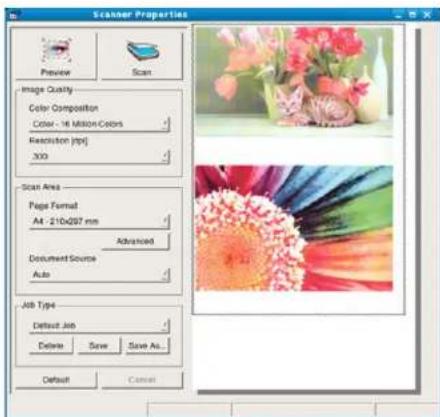
text_image
Scanner Properties Preview Scan Image Quality Color Composition Color: 16 Million Colors Resolution [fps] 300 Scan Area Page Format A4: 210x297 mm Advanced Document Source Auto Job Type Default Job Delete Save Save As... Default Cancel-
Drag the pointer to set the image area to be scanned in the Preview Pane.
-
C hange the scan options in the Image Quality and Scan Area sections.
-
Image Quality: This option allows you to select the color composition and the scan resolution for the image.
-
Scan Area: This option allows you to select the page size. The Advanced button enables you to set the page size manually.
If you want to use one of the preset scan option settings, select the option from the Job Type drop-down list (see "Adding Job Type Settings" on page 87).
Click Default to restore the default setting for the scan options. -
When you finish, click Scan to start scanning.
The status bar appears on the bottom left of the window to show you the progress of the scan. To cancel scanning, click Cancel.
- The scanned image appears.
If you want to edit the scanned image, use the toolbar (see "Using the Image Manager" on page 88).
-
When you are finished, click Save on the toolbar.
-
Select the file directory where you want to save the image and enter the file name.
-
Click Save.
Adding Job Type Settings
You can save your scan option settings for later use.
To save a new Job Type setting:
- Change the options from the Scanner Properties window.
- Click Save As.
- Enter the name for your setting.
- Click OK
Your setting is added to the Saved Settings drop-down list.
To save a Job Type setting for the next scan job:
- Select the setting you want to use from the Job Type drop-down list.
- The next time you open the Scanner Properties window, the saved setting is automatically selected for the scan job.
To delete a Job Type setting
- Select the setting you want to delete from the Job Type drop-down list.
- Click Delete.
The setting is deleted from the list
Using the Image Manager
The Image Manager application provides you with menu commands and tools to edit your scanned image.
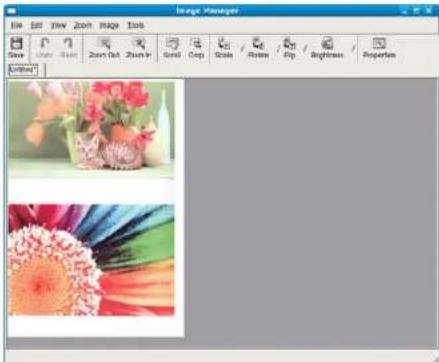
natural_image
Screenshot of a photo manager interface displaying two flower images with visible petals and floral patterns (no text or symbols on the flower images themselves)Use the following tools to edit the image:
| Tools Name Function | ||
| [X7CB] | Save Saves the image. | |
 | Undo Cancels your last action. | |
 | Redo Restores the action you canceled. | |
 | Scroll Allows you to scroll through the image. | |
 | Crop Crops the selected image area. | |
 | Zoom Out Zooms the image out. | |
 | Zoom In Zooms the image in. | |
 | Scale Allows you to scale the image size; you can enter the size manually, or set the rate to scale proportionally, vertically, or horizontally. | |
| [225W] | Rotate Allows you to rotate the image; you can select the number of degrees from the drop-down list. | |
 | Flip Allows you to flip the image vertically or horizontally. | |
 | Brightness Allows you to adjust the brightness or contrast of the image, or to invert the image. | |
 | Properties Shows the properties of the image. | |
For further details about the Image Manager application, refer to the on screen help.
Using smarthru workflow, shared folder, and stored document
This chapter explains how to use SmarThru Workflow with your machine.
This chapter includes:
- About Sma rThru Workflow
• Understanding the SmarThru Workflow screen
About SmarThru Workflow
SmarThru™ Workflow is a document sending solution that allows users to operate devices on the network by performing a set of pre-constructed tasks called a "Workform." These Workforms allow repetitive and time-consuming tasks to be automated, making the users' work days less tedious and more productive.

flowchart
graph TD
    A["Server 1"] --> B["Server"]
    C["Client 2"] --> B
    D["Client 3"] --> B
    E["Client 4"] --> B
    F["Client 5"] --> B
    G["Client 6"] --> B
    H["Client 7"] --> B
    I["Client 8"] --> B
    J["Client 9"] --> B
    K["Client 10"] --> B
    L["Client 11"] --> B
    M["Client 12"] --> B
    N["Client 13"] --> B
1 LDAP Server, Domian Server FTP Server
2 Microsoft Sharepoint Server Fax Server
3 Network Folder Google Docs 10
4 PCFax Server E-mail Server 11
5 Database Client Systems 12
6 User
7 SMTP Server
• Workform execution
Understanding the SmarThru Workflow screen
To use the SmarThru Workflow feature, press SmarThru Workflow on the Main screen.
To switch to the other display screen, press the left or right arrow on the display screen.
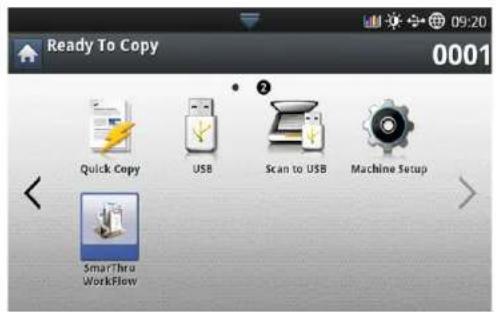
text_image
Ready To Copy 0001 Quick Copy USB Scan to USB Machine Setup SmartThru WorkflowWorkflow Screen
What are "Workform" and "Metadata"?
A "Workform" is a work process created by combining various embedded plug-ins together to achieve a desired end result for a document.
Metadata is extra information provided by the Workform creator for Workforms that use Scan or Direct input plug-ins.
Public Workform Tab
The Public tab shows public Workforms created for user groups by an administrator.
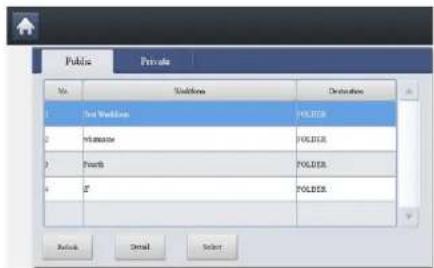
text_image
Public Private No. Status Destination Test Wizard POLDER Database Database Database Database Database Database Database Database Database Database Database Database Database Database Database Database Database Database Database Database Database Database Database Database Database Database Database Database Database Database Database Database Database Database Database Database Database Database Database Database Database Database Database Database Database Database Database Database Database Database Software Details Sorter- Refresh: Refresh the Workform information.
• Detail: Shows the details of a Workform. - Select: Select the Workform for job execution
Private Workform Tab
The Private tab shows private Workforms created for a private user by the current authenticated user.
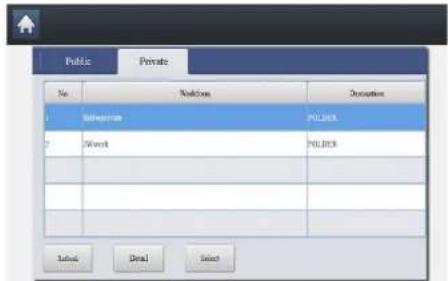
text_image
Public Private No. Balance Destination 1 Balance POLDER 2 Work POLDER 3 Send Send Select- Refresh: Refresh the Workform information.
• Detail: Shows the details of Workform. - Select: Let users move to next screen for more options.
Workform Creation Screen
Add a new Workform, execute SmaThru Workflow and log in. You can create a maximum of 100 public Workforms.

SmaThruWorkflow should be installed on the network server. To install SmaThruWorkflow refer to the Administrator's Guide on the supplied CD.
Workform Creation
- Excute SmaThruWorkflow
(Programs>SmarThru Workflow>SmarThru Workflow). -
Enter your ID and Password to log into the system.
-
Select Workform > Workformanager from the main menu.
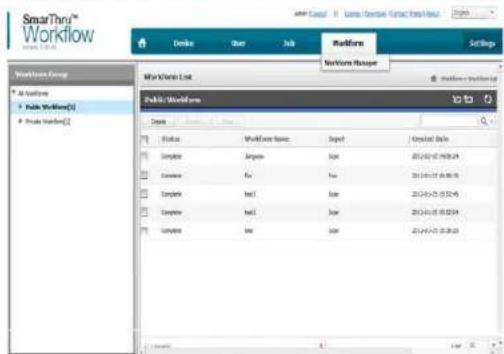
text_image
SmarThru Workflow SMA CASH Workforce Group All Networks Pole Workforce[1] Pole Workforce[2] Workflow List Public/Workflow Status Workforce Name Project Created Style Commerce Jagawa Show 2014-05-23 06:08:24 Commerce Fia Show 2014-05-23 06:08:24 Commerce Int'l Show 2014-05-23 06:08:24 Commerce Int'l Show 2014-05-23 06:08:24 Commerce Int'l Show 2014-05-23 06:08:24- Select whether it will be a Public Workform or Private Workform from the left pane.
- Click Create.
The Workform Creation page opens.
- Enter the workform's properties.
- Drag-an d-drop the plug-ins from the left pane to the appropriate section in the data pane, or click on the green checkmark that appears in the icon's upper-right corner.
Each task in the workform will be performed in the order in which they appear in the workform.
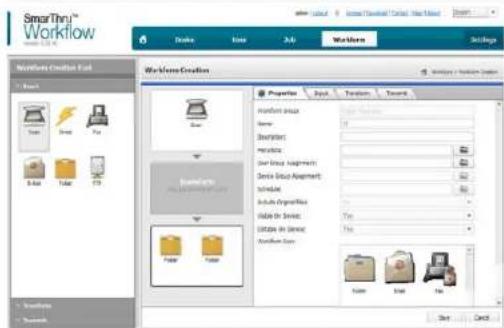
text_image
SmartThru Workflow Windows Creation Help File Edit View Tools Settings Microsoft Excel Microsoft Excel Microsoft Excel Microsoft Excel Microsoft Excel Microsoft Excel Microsoft Excel Microsoft Excel Microsoft Excel Microsoft Excel Microsoft Excel Microsoft Excel Microsoft Excel Microsoft Excel Microsoft Excel Microsoft Excel Microsoft Excel Microsoft Excel Microsoft Excel Microsoft Excel Microsoft Excel Microsoft Excel Microsoft Excel Microsoft Excel Microsoft Excel Microsoft Excel Microsoft Excel Microsoft Excel Microsoft Excel Microsoft Excel Microsoft Excel Microsoft Excel Microsoft Excel Microsoft Excel- Click Save.
The Workform will appear on the Workform Manager page.
- If the status is Incomplete, a plug-in has not been configured completely. Select the workform and click Edit to make changes to the Workform.
Workform execution
Users can operate various jobs with Workforms.
- Press SmarThru Workflow on the main screen.
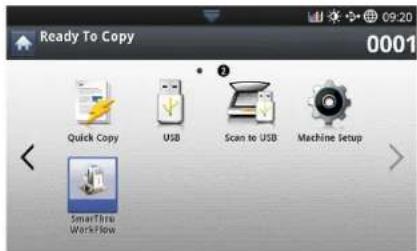
text_image
Ready To Copy 0001 Quick Copy USB Scan to USB Machine Setup SmartThree Workflow- Press one of the Workforms in the list and Select.
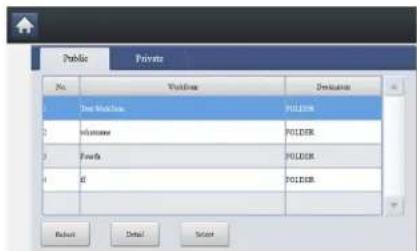
text_image
Public Private No. Test Module Folder 1 Maintenance Folder 2 None Folder 3 None Folder 4 None Folder 5 None Folder 6 None Folder 7 None Folder 8 None Folder 9 None Folder 10 None Folder 11 None Folder 12 None Folder 13 None Folder 14 None Folder 15 None Folder 16 None Folder 17 None Folder 18 None Folder 19 None Folder 20 None Folder 21 None Folder 22 None Folder 23 None Folder 24 None Folder 25 None Folder 26 None Folder 27 None Folder 28 None Folder 29 None Folder 30 None Folder 31 None Folder 32 None Folder 33 None Folder 34 None Folder 35 None Folder 36 None Folder 37 None Folder 38 None Folder 39 None Folder 40 None- Press metadata and Next.
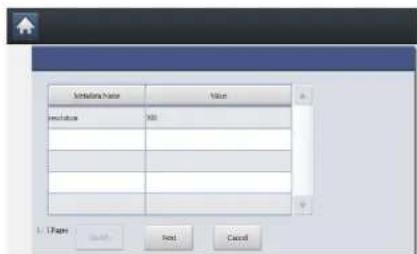
text_image
Solution Name Value Solution Name Value 1.1 Page Next Cancel- Modify: Allows users to modify the selected metadata information.
- Next: Lets user select next metadata.
- Can cel: Quit without saving.
- If you want to change the settings, change parameters in the Basic, Advanced, Image and Output tabs.
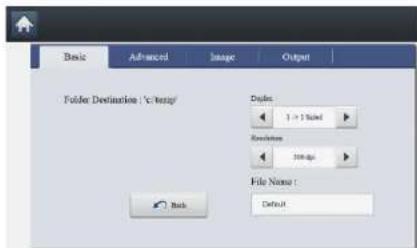
text_image
Basic Advanced Image Output Folder Destination : C:\temp/ Dules 1 = 1 Nivel Resolution 100000000000000000000000000000000000000000000000000000000000000000000000000 File Name : Default- Press start on the control panel. The result files will be saved in the location that you set up while you created the Workform.
Understanding the Shared Folder screen
This feature allows you to use the machine's memory as a shared folder. The advantage of this feature is that you can conveniently use the shared folder through your computer.
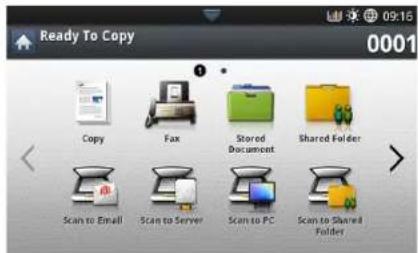
text_image
Ready To Copy 0001 Copy Fax Stored Document Shared Folder Scan to Email Scan to Server Scan to PC Scan to Shared FolderThe administrator can set the ID and password to restrict the user's access and also set the maximum number of simultaneous users.
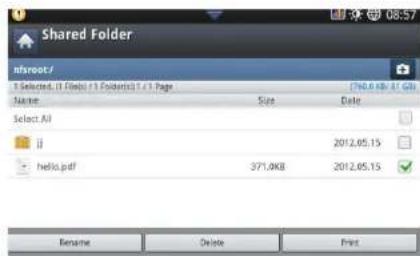
text_image
Shared Folder Name: 1 Selected, 2 Files, 3 Polders, 4 / 1 Page Size Date Select All 2012.05.15 hello.pdf 371.0KB 2012.05.15 Rename Delete PrintCreating a shared folder
-
Press the + icon in the upper-right corner to create a folder.
-
En ter a foldername in the blank field.
-
Pres s OK.
Using the shared folder
You can use the shared folder in the exact same way as a normal computer. Create, edit, and delete the folder or file as a normal Windows folder. You also store scanned data in the shared folder. You can directly print files stored in the shared folder. You can print TIFF, BMP, JPEG, and PRN files.
Registering users
You can the shared folder in the exact same way as a normal computer. Create, edit, and delete the folder or file as a normal Windows folder. You also store scanned data in the shared folder. You can directly print files stored in the shared folder. You can print TIFF, BMP, JPEG, and PRN files.
-
Press Stored Document on the main screen.
-
Pre ss Public or Private tab, then you can see the saved files.

If there is no file, you can save files from your PC (see "Print Mode" on page 105).
-
You can Rename, Delete or Print files.
-
Select Workform > Workformanager from the main menu.
Understanding the Stored Document screen
You can store documents sent from computers or scanned images in the Stored Document. The Stored Document is located on your machine's hard disk drive (HDD), which means the documents are stored on the HDD. You can create a password for a certain Stored Document, so unauthorized users cannot access it. Also, you can print stored documents by using a variety of printing features and send the documents to several destinations such as email, server, or fax. You can set a Stored Document and use Stored Document feature with SyncThru™ Web Service (see "Setting up an address book using SyncThru™ Web Service" on page 96).

If important data is stored in the Stored Document, we recommend you to backup the data regularly. Samsung disclaims all responsibility for damage or loss of data caused by misuse or failure of the machine.
To use the Stored Document feature, press Stored Document on the display screen.
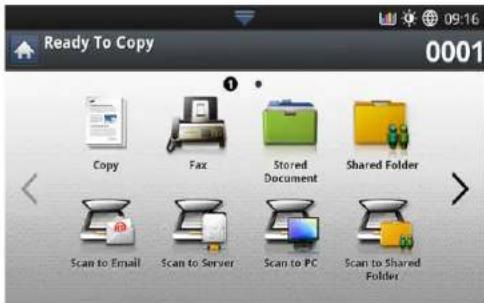
text_image
Ready To Copy 0001 Copy Fax Stored Document Shared Folder Scan to Email Scan to Server Scan to PC Scan to Shared FolderStored Document allows you to store the scanned data on the HDD (your machine's hard disk drive) in your machine. The stored data can be sent to different destinations like Fax, Email, Server, Box, or USB.

text_image
Stored Documents Public Private• Public: All users can access the files.
- Private : Set up a password to prevent unauthorized persons from accessing.
Saving documents in the Stored Document
- Press Stored Document on the main screen.
- Press Public or Private tab, then you can see the saved files.

If there is no file, you can save files from your PC (see "Print Mode" on page 105).
- You can Rename, Delete or Print files.
Setting up an address book
This guide gives you guidelines for the address book.
This chapter includes:
- Settin g up an address book using the control panel
Setting up an address book using the control panel
You can save frequently used fax numbers, e-mail addresses, SMB server addresses, and FTP server addresses in your machine.
• Individual: Stores up to 500 recipients' information.
- G roup: Makes groups when you frequently send the same document to several destinations. You can register up to 500 recipients in a group. Entries stored here will be available for selection within the sending list on the Basic tab of Fax, Scan to Email or Scan to Server. Sending Group can be also setup comprising of many Individual entries.

You cannot register a group as you register an individual in a group.
Storing Individual address (Fax, E-Mail)
- Press Machine Setup > Application Settings > Address Book > New from the display screen
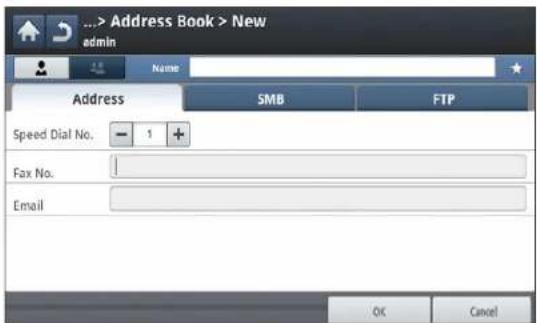
text_image
Address Book > New admin Name Address SMB FTP Speed Dial No. - 1 + Fax No. | Email OK Cancel- Press the Name input area. Then enter the name of the recipient.

Check the (favorite) icon for addresses you often use. You can easily find them from the search results.
- Speed Dial No. is automatically filled with the first free number.

Speed Dial No. is the number representing a recipient's information: you can use the numeric keypad on the control panel.
- Press the Fax No. input area and enter the fax number using the numeric keypad on the control panel.

- Inserting a pause: with some telephone systems, you must dial an access code (9, for example) and listen for a second dial tone. In such cases, you must insert a pause in the telephone number.
- Setting up an address book using SyncThru™ Web Service
- Press the E-mail input area. Then enter the e-mail address of the recipient.
- Pre ss the OK to save the information.
Storing Individual addresses (SMB, FTP)
- Press Machine Setup > Application Settings > Address Book > New
SMB or FTP > ⚙ (individual) icon from the display screen.
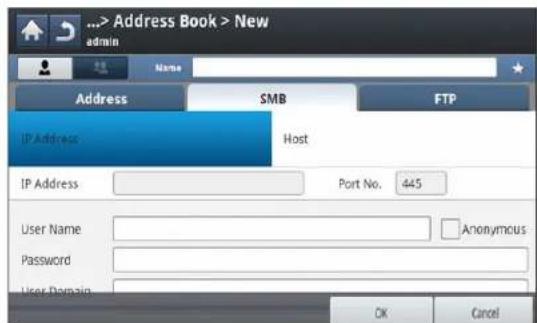
text_image
...> Address Book > New admin Address SMB FTP IP Address Host IP Address Port No. 445 User Name Anonymous Password User Domain OK Cancel- Press the Name input area. Then enter the name of the individual.

Check the ★ (favorite) icon for addresses you often use. You can easily find them from the search results.
- Pres s IP or Host, then press the IP Address/Host input area. Then enter the server address in dotted decimal notation or a host name.
- Pre ss the Port No. input area. Then enter the server port number.
- Pre ss the User Name input area. Then enter the user name.

- In case of SMB or FTP, if you want the server to permit access for unauthorized persons. Press the Anonymous box. This box is unchecked by default. If you checked the Anonymous box, go to step 7.
- Pre ss the Password input area. Then enter the password.
- Press the User Domain input area. Then enter the domain name.

If the SMB server you entered is not registered on any domain, leave it blank or enter the computer name of the SMB server.
- Press the Path input area. Then enter the name of file folder where the sent files are to be stored.
Example: /FileFolder/
- Pre ss the File Name input area. Enter the name of the sent file.
-
Select the File Policy option you want using the arrow. If the server has a file with the same name already, the file will get processed by following the file policy you selected.
-
Change Name: The sent file is saved as a different file name that is automatically generated.
- Cancel: Does not save the sent file.
-
O verwrite: The sent file overwrites the existing file.
-
Select the Folder Creation option you want.
- Use Login Name: If you select this option the machine creates a sub-folder in the file folder you selected. The sub-folder is named using the user name entered in step 5.

If the file folder has a sub-folder with the same name already, the machine does not create a sub-folder.
- Folder Creation Cycle: You can set the cycle of sub-folder creation. The machine create a sub-folder according to this option set.

If the file folder has a sub-folder with the same name already, the machine does not create a sub-folder.
- Every Day: A sub-folder is created every day. The sub-folder name format is YYYY-MM-DD (e.g. 2012-01-01).
- Every Month: A sub-folder is created every month. The sub-folder name format is YYYY-MM (e.g. 2012-01).
- Eve ry Year: A sub-folder is created every year. The sub-folder name format is YYYY (e.g. 2012).
- Create Folder For Multiple Files: If you select this option and scanned multiple files, the machine creates a sub-folder in the file folder you selected, and the sent files will be stored in the sub-folder.

If all folder creation options are enabled at the same time, the sent file(s) will be stored as shown below.
- When a single scanned file is sent: \folder\user name\2012-01-01\DOC.jpg
-
When multiple scanned files are sent: \folder\user name\2012-01-01\DOCJPEG\DOC000.jpg \folder\user name\2012-01-01\DOCJPEG\DOC001.jpg \folder\user name\2012-01-01\DOCJPEG\DOC002.jpg
-
Press OK to save the information.
Editing Individual address
- Press Machine Setup > Application Setting > Address Book from the display screen.
- Pre ss the name of the individual you want to edit. Press the 📋 (edit) icon.

If you want to delete an individual address, select the checkbox for the address you want to delete and press the 📄 (delete) icon.
- Press the input area you want to change. Then change the contents using the pop-up keyboard, or numeric keypad on the control panel. If you use the pop-up keyboard.
- Pr ess the √ icon to save the information.
Storing Group address
- Press Machine Setup > Application Settings > Address Book > (new) icon > group) icon from the display screen.
- Pr ess the Group Name input area. Then enter the group name.
- Pr ess the Add Member. Select the checkbox for the individual address to include and press the √ icon.
If you are not sure of the name, you can use the Input Address area. Enter the first few letters or just press the Q (search) icon. The machine shows the individual list. Select the checkbox you want include an individual address and press the √ icon.
- Press the √ icon to save the information.
Editing Group address
- Press Machine Setup > Application Settings > Address Book from the display screen.
-
Pre ss the name of group you want to edit. Press the ☐ (edit) icon. If you want to delete an group address, select the checkbox you want to delete and press the 📂 (delete) icon.
-
Pre ss the Group Name input area. Change the group name.
-
Pre ss the Add Member. Select the checkbox for the individual address to include and press the √ icon.
If you are not sure of the name, you can use the Input Address area. Enter the first few letters or just press the Q (search) icon. The machine shows the individual list. Select the checkbox you want include an individual address and press the √ icon.
- If you want to delete an individual address, select the checkbox you want to delete and press 📄 (delete) icon. The name of the individual will be deleted from the group.
- Pre ss the √ icon to save the information.
Searching the Address Book for an entry
You can search the addresses that are currently stored in the address book.
- Pres s Machine Setup > Application Setting > Address Book > upper's left button from the display screen.
- Press the specific category you want. You can find addresses in a specific category such as All, Individual, Group, Favorite, or Email.
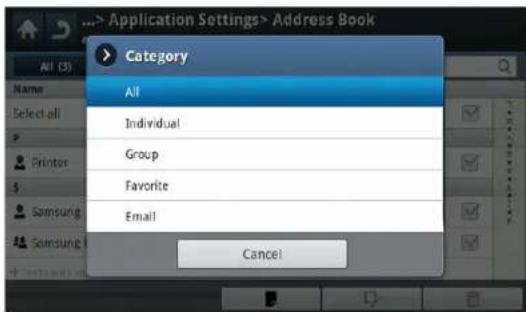
text_image
Application Settings> Address Book All (3) Category All Individual Group Favorite Email Cancel- The machine shows the search results.
If you are not sure of the name, you can use the Input Address area. Enter the first few letters or just press the Q (search) icon.
Deleting an entry in an Address Book
You can delete the selected address currently stored in an address book.
- Press Machine Setup > Application Setting > Address Book from the display screen.
- Select the e address's checkbox you want to delete and press the (delete) icon.
- Press the √ icon when the confirmation window appears. The selected address will be deleted from the list.
Checking Address Book for an entry
You can see an individual's or group's address information.
- Press Machine Setup > Application Setting > Address Book from the display screen.
- Pre ss the address you want to see.
The display screen shows all the information for the address.

You can edit the address directly pressing 📄 (edit) icon in the detail's screen, or if you select a group address, you can also see the individual addresses in the group address.
Setting up an address book using SyncThru™ Web Service
You can store addresses conveniently from a networked computer using SyncThru™ Web Service. Only users registered in the machine can store addresses through login SyncThru™ Web Service.
Storing on your local machine
This method means that you store addresses on your machine's hard drive. You can add addresses, as well as group them in particular categories.
Adding addresses in Individual Address Book
- Turn your networked computer on and open the web browser.
- Enter your machine's IP address as the URL in a browser. (Example, http://123.123.123.123)
- Press Enter or click Go to access the SyncThru™ Web Service shows.

If necessary, you can change the language in the upper corner of SyncThru™ Web Service.
- Click Login.
- Enter the ID and password, and select a domain you log into the machine.
- Click Login.

If you do not use the SyncThru™ Web Service for five minutes, you will be automatically logged out.
- Click AddressBook.
- Click Add.
- Enter the name to be added, and select the speed dial number in General.

- Speed Dial Number is the number representing a recipient's information, you can use the numeric keypad on the control panel.
-
Check Favorite for addresses you often use. You can easily find them from the search results.
-
Erter the email address in E-mail.
-
Enter the fax number in Fax.
-
Check the enable SMB box in SMB. You can enter the SMB information after checking this checkbox.
- Enter the server address in decimal notation or a host name in SMB Server Address.
- Enter the server port number in SMB Server Port.
- Enter the login name in Login Name.
In case of SMB or FTP, if you want the server to permit access for unauthorized persons. Press the Anonymous box. This box is unchecked by default. If you checked the Anonymous box, go to step 18. - Enter the password in Password, and re-enter the password in Confirm Password.
- Enter the domain name in Domain.
If the SMB server you entered is not registered on any domain, leave it blank or enter the computer name of the SMB server. - Enter the scan file folder for storing scanned images in Path. Example: /sharedFolder/
- Select the Scan folder creating policy option you want.
- Cre ate new folder using login name: If you select this option, the machine creates a sub-folder in the file folder you selected. The sub-folder is named using the user name you entered in step 15.
If the file folder has a sub-folder with the same name already, the machine does not create a sub-folder. - Create new folder every: You can set the cycle of sub-folder creation. The machine creates a sub-folder according to this option set.
If the file folder has a sub-folder with the same name already, the machine does not create a sub-folder. - Day: A sub-folder is created every day. The sub-folder name format is YYYY-MM-DD (e.g. 2012-01-01).
- Mo nth: A sub-folder is created every month. The sub-folder name format is YYYY-MM (e.g. 2012-01).
- Year: A sub-folder is created every year. The sub-folder name format is YYYY (e.g. 2012).
- Cre ate new folder only if scan output consist of several files: If you select this option and scanned multiple files, the machine creates a sub-folder in the file folder you selected, and the sent files will be stored in the sub-folder.
If all folder creation options are enabled at the same time, the sent file(s) will be stored as below. - Wh en single scanned file is sent:
\folder\user name\2012-01-01\DOC.jpg - Wh en multiple scanned files are sent:
\folder\user name\2012-01-01\DOCJPEG\DOC000.jpg
\folder\user name\2012-01-01\DOCJPEG\DOC001.jpg
\folder\user name\2012-01-01\DOCJPEG\DOC002.jpg - Select the policy for generating file name in Filing Policy. If the server has a file with the same file name already, the file will get processed by following the file policy you selected.
- Change Name : The sent file is saved as a different file name that is automatically generated.
- Can cel: Does not save the sent file.
- O overwrite: The sent file overwrites the existing file.


-
Enter the file name in File Name, which is to be stored in the server.
-
Click Test to check the server's information,
-
Enter FTP server information almost same as you do for SMB.
-
Click Apply.
Press Undo to delete the information you entered. If you press Cancel, the Add window is closed.
Editing addresses in an Individual Address Book
-
Turn your networked computer on and open a web browser.
-
Enter your machine's IP address as the URL in a browser. (Example, http://123.123.123.123)
-
Press Enter or click Go to access SyncThru™ Web Service.
If necessary, you can change the language in the upper right corner of the SyncThru™ Web Service.
-
Click Login
-
Enter the ID and password, and select a domain to log into the machine.
-
Click Login.
If you do not use the SyncThru™ Web Service for five minutes, you will be automatically logged out.
-
Click Address Book
-
Check an address you want to edit and press Edit.
-
Change the address information.
-
Click Apply.
Press Undo to delete the information you entered. If you press Cancel, the Edit window is closed.
Deleting addresses in an Individual Address Book
-
Turn your networked computer on and open a web browser.
-
Enter your machine's IP address as the URL in a browser. (Example, http://123.123.123.123)
-
Press Enter or click Go to access SyncThru™ Web Service.
If necessary, you can change the language in the upper right corner of the SyncThru™ Web Service.
-
Click Login.
-
Enter the ID and password, and select a domain to log into the machine.
-
Click Login.
If you do not use the SyncThru™ Web Service for five minutes, it automatically gets logged out.
-
Click Address Book
-
Check an address you want to delete and click Delete. If you select the column headers' checkbox, all addresses are checked.
Click OK when the confirmation window appears.
Searching addresses in an Individual Address Book
-
Turn your networked computer on and open the web browser.
-
Enter your machine's IP address as the URL in a browser. (Example, http://123.123.123.123)
-
Press Enter or click Go to access SyncThru™ Web Service.
If necessary, you can change the language in the upper right corner of the SyncThru™ Web Service.
-
Click Lo gin.
-
Enter the ID and password, and select a domain to log into the machine.
-
Click Login.
If you do not use the SyncThru™ Web Service for five minutes, you will be automatically logged out.
- Click Address Book.
You can change the arrangement by clicking each column header. For example, clicking Speed No., you can see the addresses in the order of speed dial number. If you click Speed No. again, you can see them in the reversed order.
- Enter the name for which you want to search in the search input area.
You can find addresses in a specific category such as Fax Number, E-mail, SMB, etc. For example, if you want to find the fax number, click drop down list next to the 🔒 and select Fax Number.
- Click the Q. Then the search result appears.
You can see the addresses in a specific category such as Fax Number, E-mail, SMB, etc. For example, if you want to see the addresses which are included fax number, click drop down list below LDAP and select Fax Number.
Importing an Individual Address Book
You can import an address book file from a server or computer. The file should have the file extension 'csv'. Also you can import addresses from a LDAP server. Before importing the addresses to your machine, an LDAP server administrator should store the addresses.
-
Turn your networked computer on and open a web browser.
-
Enter your machine's IP address as the URL in a browser. (Example, http://123.123.123.123)
-
Pr ess Enter or click Go to access the SyncThru™ Web Service shows.
If necessary, you can change the language in the upper right corner of the SyncThru™ Web Service.
-
Click Login.
-
Enter the ID and password, and select a domain to log into the machine.
-
Click Login.
If you do not use the SyncThru™ Web Service for five minutes, you will be automatically logged out.
-
Click Address Book.
-
Select Imp ort.
-
Select UR L or Desktop, and enter the address or folder name where the file is stored.
-
Click OK
Exporting an Individual Address Book
You can export an address book file to your computer for backup of the file or to another Samsung machine.
-
Turn your networked computer on and open a web browser.
-
Enter your machine's IP address as the URL in a browser. (Example, http://123.123.123.123)
-
Press Enter or click Go to access SyncThru™ Web Service.
If necessary, you can change the language in the upper right corner of the SyncThru™ Web Service.
-
Click Login.
-
Enter the ID and password, and select a domain to log into the machine.
-
Click Login.
If you do not use the SyncThru™ Web Service for five minutes, you will be automatically logged out.
-
Click AddressBook.
-
Select Export.
-
Click Export. Then the address book file is stored in your computer.
Grouping addresses in Groups Address Book
-
Turn your networked computer on and open a web browser.
-
Enter your machine's IP address as the URL in a browser. (Example, http://123.123.123.123)
-
Press Enter or click Go to access SyncThru™ Web Service.
If necessary, you can change the language in the upper right corner of the SyncThru™ Web Service.
-
Click Login.
-
Enter the ID and password, and select a domain to log into the machine.
-
Click Login.
If you do not use the SyncThru™ Web Service for five minutes, you will be automatically logged out.
-
Click AddressBook.
-
Click Groups.
-
Click Add Group.
-
Enter the group name to be added in Group Name.
-
Check Add individual(s) after this group is created.
If you do not want to add individual addresses to the group address you made, skip this step. You can add individual addresses next time by pressing Group Details.
-
Click Apply.
-
Check the addresses you want to add to Group Address Book from Individual Address Book.
-
Click the arrow in the middle. The selected addresses are added to Group Address Book.
-
Click Apply.
Editing Group addresses in Groups Address Book
-
Turn your networked computer on and open a web browser.
-
Enter your machine's IP address as the URL in a browser. (Example, http://123.123.123.123)
-
Press Enter or click Go to access the SyncThru™ Web Service shows.
If necessary, you can change the language in the upper right corner of the SyncThru™ Web Service.
-
Click Login.
-
Enter the ID and password, and select a domain to log into the machine.
-
Click Login.
If you do not use the SyncThru™ Web Service for five minutes, you will be automatically logged out.
-
Click AddressBook.
-
Click Groups.
-
Check the group address you want to edit and press Edit Group.
-
Change the group address information.
-
Click Apply
Press Undo to delete the information you entered. If you press Cancel, the Edit window closes.
Deleting Group addresses in a Groups Address Book
-
Turn your networked computer on and open a web browser.
-
Enter your machine's IP address as the URL in a browser. (Example, http://123.123.123.123)
-
Press Enter or click Go to access SyncThru™ Web Service.
If necessary, you can change the language in the upper right corner of the SyncThru™ Web Service.
-
Click Login.
-
Enter the ID and password, and select a domain to log into the machine.
-
Click Login.
If you do not use the SyncThru™ Web Service for five minutes, you will be automatically logged out.
-
Click AddressBook.
-
Click Groups.
-
Check the group addresses you want to delete.
-
Click Delete Group.
Click OK when the confirmation window appears.
Checking Group Addresses
You can see information for group addresses. You can also add or delete individual addresses in the Group Details window.
-
Turn your networked computer on and open a web browser.
-
Enter your machine's IP address as the URL in a browser. (Example, http://123.123.123.123)
-
Press Enter or click Go to access SyncThru™ Web Service.
If necessary, you can change the language in the upper right corner of the SyncThru™ Web Service.
-
Click Login.
-
Enter the ID and password, and select a domain to log into the machine.
-
Click Login.
If you do not use the SyncThru™ Web Service for five minutes, you will be automatically logged out.
-
Click AddressBook.
-
Click Groups.
-
Press the group address you want to see. Press Group Details.

- You can add individual addresses directly. Check the addresses you want to add to Group Address Book from Individual Address Book.
- You can delete individual addresses directly. Check the addresses you want to delete and press Delete in Group Address Book.
Printing
This chapter explains common printing tasks.
This chapter includes:
- Printer driver features
- Basic printing
- Opening printing preferences
- Using help
- Setting Device Options
• Using special print features
• Using direct printing utility

The procedures in this chapter are mainly based on Windows XP.
Printer driver features
Your printer drivers support the following standard features:
• Paper orientation, size, source, and media type selection
• Number of copies
You can also use various special printing features. The following table shows a general overview of features supported by your printer drivers:

Some models or operating systems may not support all feature(s) shown in the following table.
| Feature | PCL/PSa/X PS | PS | ||
| Windows M | AC Linux Unix | |||
| Machine quality option | ● | ● | ● | ● |
| Poster printing ● | ||||
| Multiple pages per sheet | ● | ● | ● | ● |
| Booklet printing ● | ● | ● | ● | |
| Fit to page printing ● | ● | |||
| Reduce and enlarge printing | ● | ● | ||
| Different source for first page | ● | ● | ||
| Cover page options ● | ● | ● | ● | |
| Raster compression ● | (PCL only) | |||
| Finishing options ● | ● | ● | ● | |
| Output options ● | ● | ● | ● | |
- Changing the default print settings
- Setting your machine as a default machine
- Printing to a file (PRN)
- MAC printing
- Linux printing
- UNIX Printing
| Feature | PCL/PSa/X PS | PS | ||
| Windows | MAC Linux | Unix | ||
| Watermark ● | ||||
| Overlay | ●(PCL only) | |||
| Double-sided printing (duplex) | ● | ● | ● | ● |
a. The PostScript driver is recommended for best print quality from PostScript-based applications such as Acrobat Reader®, Adobe Illustrator®, Adobe Photoshop®, etc.
(●: Supported, Blank: Not supported)
Basic printing

- MAC printing (see "MAC printing" on page 110).
• Linux printing (see "Linux printing" on page 113). - UNIX printing (see "UNIX Printing" on page 114).
The following Printing Preferences window is for Notepad in Windows 7. Your Printing Preferences window may differ, depending on your operating system or the application you are using.
- Open the document you want to print.
- Select Print from the File menu.
- Select your machine from the Select Printer list.

text_image
Print General Select Plate Status: Ready Location: Comment: Print to file Preferences Fing Printer... Page Range All Selection: Current Page Pages: Number of pages: 1 Cative Print Cancel AppleThe basic print settings, including the number of copies and print range, are selected within the Print window.

To take advantage of the printer features provided by your printer driver, click Properties or Preferences in the application's Print window to change the print settings (see "Opening printing preferences" on page 101).
- To start the print job, click OK or Print in the Print window.
Canceling a print job
If the print job is waiting in the print queue or print spooler, cancel the job as follows:
- You can access this window by simply double-clicking the machine icon ( ) in the Windows task bar.
- You can also cancel the current job by pressing Ⓥ(Stop) on the control panel.
Opening printing preferences

When you select an option in Printing Preferences, you may see a warning mark, ✗, or □. An exclamation mark ( ) means you can select that certain option, but it is not recommended, and (✗) mark means you cannot select that option due to the machine's settings or environment.
- Open the document you want to print.
- Select Print from the File menu.
-
Select your printer driver from the Select Printer list.
-
Click Properties or Preferences.
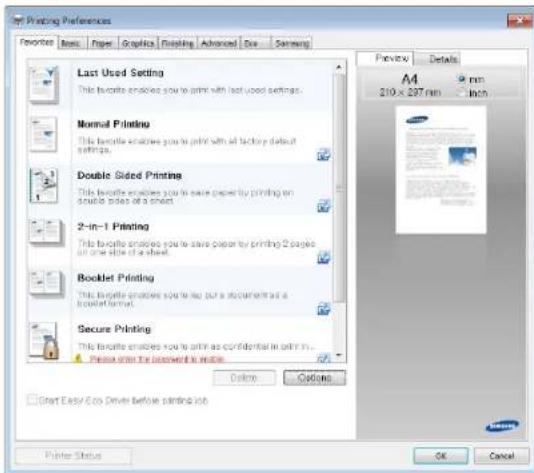
text_image
Printing Preferences Favorites Basic Paper Graphics Printing Advanced Box Samsung Last Used Setting This favourite enables you to print with last used settings. Normal Printing This favourite enables you to print with all factory default settings. Double Sided Printing This favourite enables you to save paper by printing on double sides of a sheet. 2-in-1 Printing This favourite enables you to save paper by printing 2 pages on one side of a sheet. Booklet Printing This favourite enables you to lay out a tutorial and a booklet format. Secure Printing This favourite enables you to print as confidential in print in... Please order the printer to copy. Options Start Easy Eco Driver before printing job Printer Status Preview Details A4 210 x 237 mm 9 mm inch Adobe
You can check the machine's current status pressing the Printer Status button.
Favorites tab
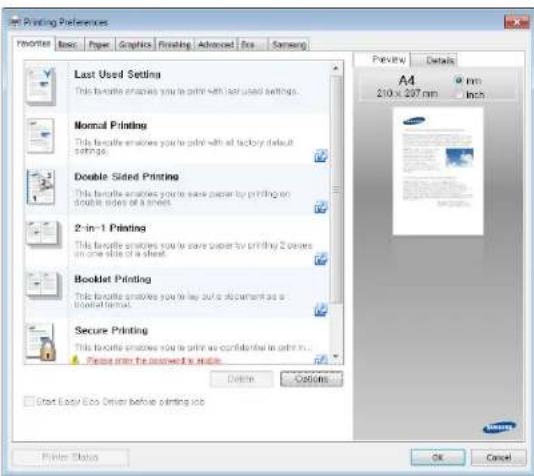
text_image
Printing Preferences Last Usol Setting This favourite enables you to print with last used settings. Normal Printing This favourite enables you to print with all trayby default settings. Double-Sided Printing This favourite enables you to save paper by printing on double sides of a sheet. 2-in-1 Printing This favourite enables you to save paper by printing 2 copies on one side of a sheet. Booklet Printing This favourite enables you to lay out or adjacent as a booklet format. Secure Printing This favourite enables you to print as confidential in print in... Please enter the password to make. Preview Details A4 210 x 207 nm 9 nm inch Custom Easy Eco Driver before printing job Printer Status OK CancelBasic tab
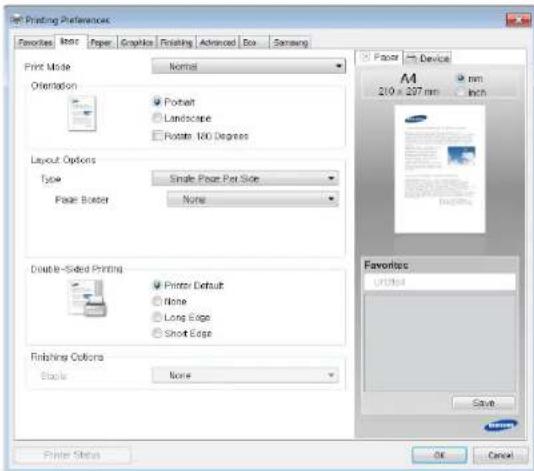
text_image
Print Printing Preferences Favorites Import Paper Graphics Finishing Advanced Box Samsung Print Mode Normal Orientation Pocket Landscape Rotate 100 Degrees Layout Options Type Single Page Per Side Page Border None Double-Sided Printing Printer Default None Long Edge Short Edge Finishing Colors None Favorite 2.0 x 297 mm inch Save Finish Status OK CancelOrientation
This option allows you to select the direction in which information is printed on a page.
Layout Options
This option allows you to select various ways to layout your document.
- Single Page Per Side: This option is a basic layout option. This option allows you to print a page on one side of a sheet of paper.
- Mu Itiple Pages Per Side: see "Printing multiple pages on one sheet of paper" on page 106.
• Poster Printing: see "Printing posters" on page 107. - Page Border: This option allows you to print your documents with border lines. This option is not available for Poster Printing and Booklet Printing.
Double-Sided Printing
This option allows you to print on both sides of a sheet of paper (see "Printing on both sides of the paper" on page 107).
Finishing Options
This option allows you to specify the number of staples.

- The Staple option is available only when the optional Inner Finisher is installed.
Paper tab
Use the Paper tab options to set the basic paper handling specifications. Click the Paper tab to display the options shown below.
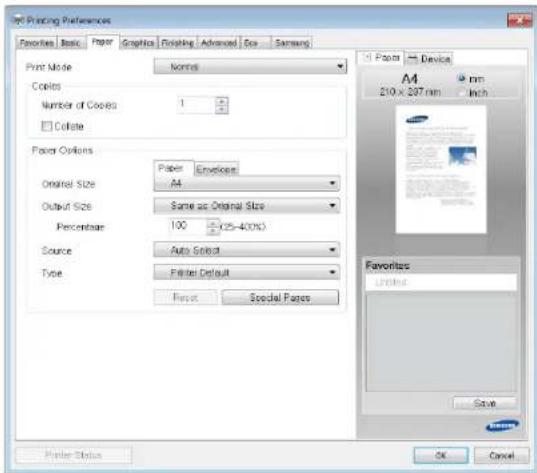
text_image
Printing Preferences Favorites Basic Paper Graphics Printing Advanced Box Samsung Print Mode Norms Copies Number of Copies 1 □ Copy Paper Orders Paper Envelope Original Size A4 Output Size Same as Original Size Percentage 100 (25-40%) Source Auto Solid Type Filter Default Reset Special Passes Points Device A4 nm 210 x 287 nm Inch Favorites OK CancelCopies
This option allows you to choose the number of copies to be printed. You can select 1 to 9999 copies.
Paper Options
- Original Size: This option allows you to set the actual paper size of the originals.
- Output Size: This option allows you to scale your print job to any selected paper size regardless of the original's size (see "Fitting your document to a selected paper size" on page 107).
- Percentage: This option allows you to change the size of a page's contents to appear larger or smaller on the printed page by entering a percentage for reduction or enlargement (see "Change the size of your document" on page 107).
- Source: Make sure that Source is set to the corresponding paper tray. Use MP Tray when printing on special materials, such as envelopes and transparencies.
- Typ e: This option allows you to set the type of paper to be loaded in the tray. This will let you get the best quality printout. If not, the desired print quality may not be achieved.
- Spec ial Pages: This option is allows you to make special pages such as covers. You can add, delete, or update the special page settings to the list.
Graphics tab
Use the Graphic tab options to adjust the print quality for your specific printing needs.
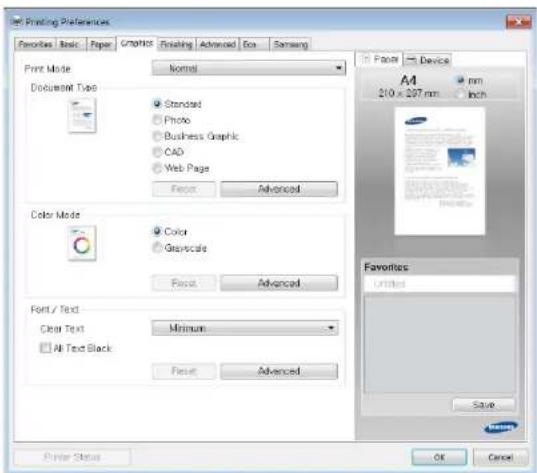
text_image
Edit Printing Preferences Favorites Basic Paper GRAPHICS Finishing Advanced Box Samsung Print Mode Normal Document Type Standard Photo Business Graphic CAD Web Page Face Advanced Color Mode Color Grayscale Face Advanced Font/ Text Minimum All Text Black Face Advanced Foot Device A4 210 x 297 nm mm inch Favorites Offlist Save Printer Status OK CancelDocument Type
You can the document's type. This option allows you to set the actual type of the originals.
Color Mode
You can choose color options. Setting this option to Color typically produces the best possible print quality for color documents. If you want to print a color document in grayscale, select Grayscale.
To adjust color manually, click Advanced. Simply slide the color balance slider in the Levels tab to adjust color, or click the Matching tab for driver provided color correction for general image processing.
Click the question mark ( ) in the upper-right corner of the window and click on any option for more information.

- If you click Reset, settings in the Levels or Matching return to the default setting.
- You can change the image which is in the Advanced option. Click the Import Image button and select a different image.
Font/Text
Select Clear Text to print text darker than in a normal document.
Check All Text Black to print in solid black, regardless of the color it appears on the screen.
Advanced
Click the question mark ( ) in the upper-right corner of the window and click on any option for more information.
- For the PCL printer driver:
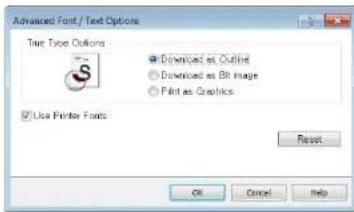
text_image
Advanced Font / Text Options True Type Options Downloaded at Outlet Downloaded as Bit Image Print as Graphics Use Printer Fonts Reset OK Cancel Help- For the PS printer driver:
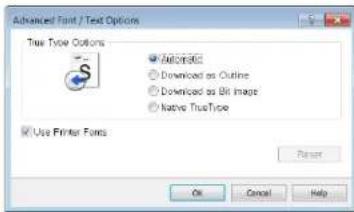
text_image
Advanced Font / Text Options True Type Options ● Available ○ Download as Outline ○ Download as Bit Image ○ Native TrueType Use Printer Fonts Reset OK Cancel Help
If you click Reset, settings in the Advanced option return to the default setting.
Finishing tab

text_image
Printing Preferences Favorites Basic Paper Graphics Printing Advanced Eye Samsung Print Mode Normal Soft Colors None Offset Rotate Stable Options None Output Tray Options Output Bin Printer Setting Plate Device A4 mm 0.27 x 11.69 inches inch Favorites Unfold Save Printer Status OK Cancel- Sort Options: This option allows you to sort out the printouts easily.
- None: Disables this option.
- Offset: When printing multiple copies, this option shifts the output position of each set.

This feature is available only when the Inner Finisher is installed.
- Rotate: When printing multiple copies, the printouts are stacked criss-crossed in sets.

- This feature is available only when the standard or booklet finisher is not installed.
- This feature is available only with Letter- and A4-sized print media.
- Before using this feature, you have to load the paper in the trays with SEF (Short edge feed) and LEF (Long edge feed). For example, direction of paper feeding in the tray 1 is SEF, and direction of paper feeding in the tray 2 is LEF.

natural_image
Stack of blank notepad documents with a yellow bookmark (no text or symbols visible)- Staple Options: This option allows you to specify the number of staples and the staple position. This option is available only when the optional Inner Finisher is installed.
- O output Tray Options: This option allows you to specify the tray where to output the printed documents (see "Tray setting" on page 47").
Advanced tab
Use the Advanced tab to set various printing options.
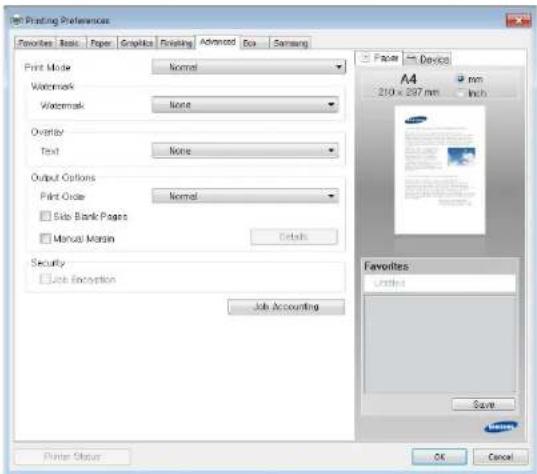
text_image
Printing Preferences Favorites Basic Paper Graphics Finishing Advanced Box Samsung Print Mode Normal Watermark None Overlay Text None Output Options Normal Split Bank Pages Manual Margin Details Security Job Inception Job Accounting Face - Device A4 nm 210 x 297 nm - Inch Favorites Untitled Save Printer Status OK CancelWatermark
see "Using watermarks" on page 108.
Overlay
see "Using overlay" on page 108.
Output options
- Print Order: This options allows you to set the sequence in which the pages will print. Print Odd Pages and Print Even Pages are available only when you use the PCL printer driver.
- Sk ip Blank Pages: This option allows you to specify not to print blank pages in the original data.
- Ma nual Margin: This option allows you to specify the binding margin. Binding margin adjusts the binding position. This option is not available when you use the PS printer driver.
- PostScript Options: These options are available only when you use the PS printer driver. Click the question mark (☐) in the upper-right corner of the window and click on any option you want to know about.
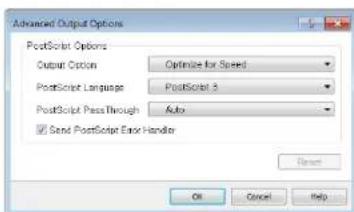
text_image
Advanced Output Options PostScript Options Output Option Optimize for Speed PostScript Language PostScript 3 PostScript Pass Through Auto ✓ Send PostScript Error Handler Reset OK Cancel Help
If you click Reset, settings in the Advanced option return to the default setting.
Security
Encrypts printing data first, and transmits it to the machine. This feature protects the print information even though the data is snatched on a network. Job Encryption feature is enabled only when the hard drive is installed. The hard drive is used to decrypt the print data.
Job Accounting
This option allows you to print with the given permission.
- User permission: If you check this option, only users with user permission can start a print job.
- Gro up permission: If you check this option, only groups with group permission can start a print job.

- Click the question mark ( ) in the upper-right corner of the window and click on any option for more information.
- Administrators can enable job accounting and configure permissions in the control panel or SyncThru™ Web Service. For detailed information about them, refer to the Administrator's Guide.
Eco tab
The Eco tab allows you to save print resources and lead you to eco-friendly printing. When you select Eco Printing, you can see the eco image
( )on some options. Also, Some options are not available in eco mode.
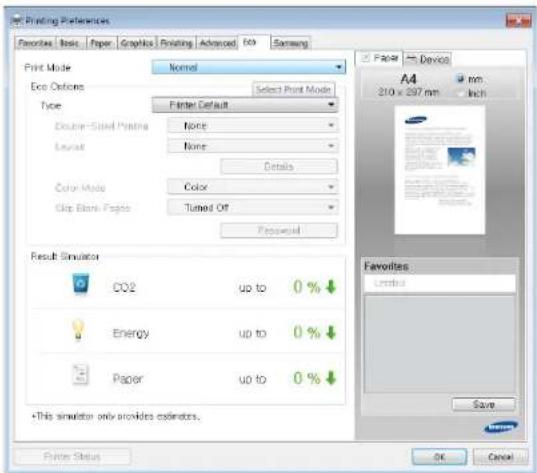
text_image
Printing Preferences Favorites | Noise | Paper | Graphics | Printing | Advanced | Web | Samsung Print Mode Normal Eco Colors Select Print Mode Type Fillet Default Double-Small Printing None Layout None Details Color Mode Color Clip Black Pages Turned Off Password Result Simulator CO2 up to 0 % Energy up to 0 % Paper up to 0 % *This simulator only provides estimates. Finish Status Face Device A4 210 x 297 nm 4 nm inch Favorites: Limited Save OK CancelEco Options
- Printer Default: If you select this option, this feature is determined by the setting you've made on the control panel of the machine.
• None : Disables this option. - Eco Printing: Eco mode gets activated. Select Double-Sided Printing, Layout, Color Mode, and Skip Blank Pages you want to use in eco mode. As long as you do not change the options from the other tabs, the document will be print out as set in the eco mode.
- Password: If the administrator sets On-Forced in Default Eco Mode for this machine, the eco mode is always set by this machine's eco setting, while the Eco Options in the printer driver is disabled. If you need to change the print settings, click Password and enter the password or contact your administrator.
Result Simulator
Result Simulator shows the result of reduced emission of carbon dioxide, used electricity, and the amount of saved paper in accordance with the settings you selected.

- The results are calculated on the basis that the total number of printed paper is one hundred without a blank page when eco mode is disabled.
- Refer to the calculation coefficient about CO2, energy, and paper from IEA, the index of Ministry of Internal Affairs and Communication of Japan and www.remanufacturing.org.uk. Each model has a different index.
- The power consumption in printing mode refers to the average printing power consumption in this machine.
- The actual saved or reduced amount may differ depending on the operating system used, computing performance, application software, connection method, media type, media size, job complexity, etc.
Samsung tab
Use the Samsung tab to display the copyright and the version number of the driver. If your computer is connected to the Internet, you can have access to additional device services.
Print Mode
This option allows you to choose how to print or save the print file by using the HDD in your machine. The default Print Mode is Normal which is for printing without storing the printing file on the HDD. You can also use this option in other tabs.
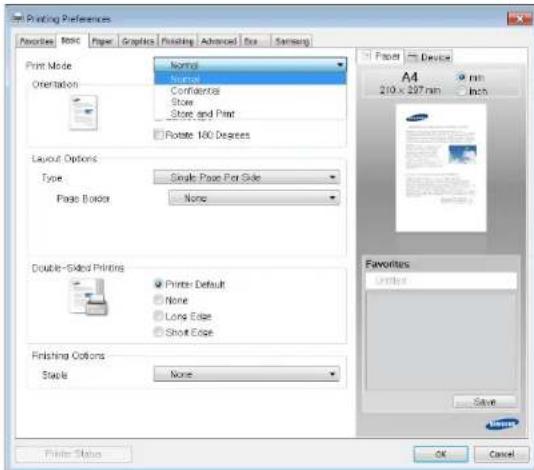
text_image
Printing Preferences Properties Metric Paper Graphics Printing Advanced Box Samsung Print Mode Normal Normal Conflutes Store Store and Print Rotate 100 Degrees Orientation Layout Options Type Single Page Per Side Paste Border None Double-Sided Prints Printer Default None Long Edge Short Edge Finishing Options Stack None Faints Device A4 210 x 227 mm nm inch Favorites Unlaser Save Printer Status OK Cancel• Normal: This mode prints without storing your document.
• C onfidential: This mode is used for printing confidential documents. You need to enter a password to print using it.
- Store : This mode is used only for storing documents on the HDD. If necessary, you can load and print the stored documents. You can find the stored file in the Stored Document. First, choose a Stored Document in Save Location and then set Options.
- Sto re and Print: This mode is used when printing and storing documents at the same time. If necessary, you can load and print the stored documents. You can find the stored file in the Stored Document. First, choose a Stored Document in Save Location and then set Options.
• Job Name: This option is used when you need to find a stored file using the control panel.
- U ser ID: This option is used when you need to find a stored file using the control panel. The user name automatically appears as the user name that you use to log on Windows.
- Enter Pass word: If the Property of the Stored Document you selected is Secured, you have to enter the password for the Stored Document. This option is used for loading a stored file using the control panel.
- Confirm Password: Re-enter the password to confirm it.
Using a favorite setting
The Favoritesoption, which is visible on each preferences tab except for Samsung tab, allows you to save the current preferences settings for future use.
To save a Favorites item:
- Change the settings as needed on each tab.
- Enter a name for the item in the Favorites input box.
- Click □. Then all current driver settings are saved. If you want to
update the setting you made, select more options and click 📄. To use a saved setting, select it from the Favorites drop-down list. The machine is now set to print according to the setting you selected. To delete a saved setting, select it from the Favorites drop-down list and click 📄. You can also restore the printer driver's default settings by selecting Default Favorites from the Favorites drop-down list.
Using help
Click the question mark in the upper-right corner of the window and click on any option for more information. Then a pop-up window appears with information about that option's feature which is provided from the driver. If the question mark does not appear, select the option you want to know about and press F1 on your keyboard.
If you want to search information via a keyword, click the Samsung tab in the Printing Preferences window, and enter a keyword in the input line of the Help option.
Setting Device Options
When you install the optional devices such as optional dual cassette feeder, Inner Finisher, etc, this machine automatically detects and sets the optional devices. If you cannot use the optional devices you installed in this driver, you can set the optional devices in Device Options. Job Accounting allows you to print with the given permission.
- Click the Windows Start menu.
- For Windows 2000, select Settings > Printers.
• Fo r Windows XP/2003, select Printers and Faxes.
- For Windows 2008/Vista, select Control Panel > Hardware and Sound > Printers.
- For Windows 7, select Control Panel > Hardware and Sound > Devices and Printers.
-
For Windows Server 2008 R2, select Control Panel > Hardware > Devices and Printers.
-
Righ t-click your machine.
- For Windows XP/2003/2008/Vista, press Properties.
- For the PS driver, select the PS driver and right-click to open Properties.
For Windows 7 and Windows Server 2008 R2, from context menus, select the Printer properties.
If Printer properties item has a ▶ mark, you can select other printer drivers connected with the selected printer.
- Select Device Options.
The Properties window may differ depending on the driver or operating system you are using.
-
Select the appropriate option.
-
Tr ay Options: Select the optional tray you installed. You can select the Tray 3,4 (dual cassette feeder).
- Finisher Options: Select the optional finisher you installed.
- Administrator Settings : You can select the Printer Status and
EMF Spooling.
- Advanced: Select one of the options. This option is available only when you use the PS printer driver. Click the question mark (☐) in the upper-right corner of the window and click on any option you want to know about.
If you click Reset, settings in the Advanced returns to the default setting.
- Font Substitution: Displays the font substitution table and options for changing the TrueType-to-printer font mapping. This option is available only when you use the PS printer driver.
-
Ad min Job Accounting: Allows you to associate user and account identification information with each document you print.
-
Use r permission: If you check this option, only users with user permission can start a print job.
- Group permission: If you check this option, only groups with group permission can start a print job.
If you want to encrypt job accounting password, check Job Accounting Password Encryption.
- Administrators can enable job accounting and configure permissions in the control panel or SyncThru™ Web Service. For the detailed information about them, refer to the Administrator's Guide.
- Click OK until you exit the Properties or Printer properties window.
Using special print features
Special print features include:
- "Printing multiple pages on one sheet of paper" on page 106.
- "Printing posters" on page 107.
- "Printing on both sides of the paper" on page 107.
- "Change the size of your document" on page 107.
- "Fitting your document to a selected paper size" on page 107.
• "Using watermarks" on page 108.
• "Using overlay" on page 108.
Printing multiple pages on one sheet of paper
You can select the number of pages to print on a single sheet of paper. To print more than one page per sheet, the pages will be reduced in size and arranged in the order you specify. You can print up to 16 pages on one sheet.
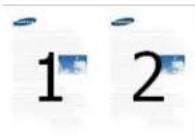
- To change the print settings from your software application, access Printing Preferences (see "Opening printing preferences" on page 101).
- Click the B asic tab, select Multiple Pages per Side in the Type drop-down list.
- Select Page Border to print a border around each page on the sheet.
-
Select the number of pages you want to print per sheet (2, 4, 6, 9, or 16) in the Pages per Side drop-down list.
-
Select the page order from the Page Order drop-down list, if necessary.
- Click the Paper tab, select the Original size, Source, and Type.
- Click OK or Print until you exit the Print window.
Printing posters
This feature allows you to print a single-page document onto 4, 9, or 16 sheets of paper, for the purpose of pasting the sheets together to form one poster-size document.
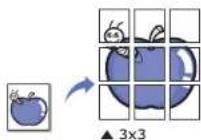
- To change the print settings from your software application, access Printing Preferences (see "Opening printing preferences" on page 101).
- Click the Basic tab, select Poster Printing in the Type drop-down list.
- Select the page layout you want. Specification of the page layout:
- Select the Poster Overlap value. Specify Poster Overlap in millimeters or inches by selecting the radio button on the upper right of Basic tab to make it easier to paste the sheets together.
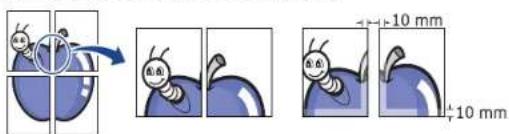
text_image
Illustration showing a cartoon insect interacting with a blue egg, with measurement annotations of 10 mm.- Click the Paper tab, select the Original size, Source, and Type.
- Click OK or Print until you exit the Print window.
- You can complete the poster by pasting the sheets together.
Printing on both sides of the paper
You can print on both sides of a paper; duplex. Before printing, decide how you want your document oriented. You can only use this feature with Letter-, Legal-, Oficio-, US Folio-, A4-, ISO B5-, JIS B5-, Statement-, Executive-, A5-, 8K-, 16K-, Ledger- or JIS B4-sized paper.

Do not print on both sides of the special media, such as labels, envelopes, or thick paper. It may cause a paper jam or damage the machine.
- To change the print settings from your software application, access Printing Preferences (see "Opening printing preferences" on page 101).
- Click the Basic tab.
-
From the Double-Sided Printing section, select the binding option you want.
-
Printer Default: If you select this option, this feature is determined by the setting you've made on the control panel of the machine. This option is available only when you use the PCL printer driver.
- None : Disables this feature.
- Lo ng Edge: This option is the conventional layout used in bookbinding.
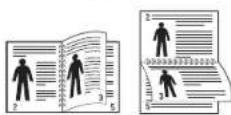
- Short Edge: This option is the conventional layout used in calendars.
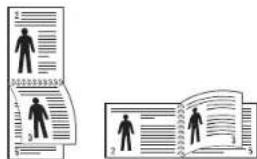
text_image
Illustration showing two open booklets with human silhouettes and numbered sections, likely illustrating a personal or educational context.- Reverse Double-Sided Printing: Check this option to reverse the print order when duplex printing.
- Click the Paper tab, select the Original size, Source, and Type.
- Click OK or Print until you exit the Print window.
Change the size of your document
You can change the size of a document to appear larger or smaller on the printed page by typing in a percentage for reduction or enlargement.
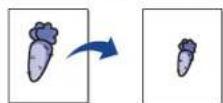
- To change the print settings from your software application, access Printing Preferences (see "Opening printing preferences" on page 101).
- Click the Paper tab.
- Select the actual paper size of the originals from the Original Size.
- Enter the scaling rate in the Percentage input box.
You can also click the up/down arrows to select the scaling rate.

You cannot use this feature when you select a size of paper from the Output Size.
- Select the Source and Type.
- Click OK or Print until you exit the Print window.
Fitting your document to a selected paper size
This printer feature allows you to scale your print job to any selected paper size regardless of the document size. This option can be useful when you want to check fine details on a small document.
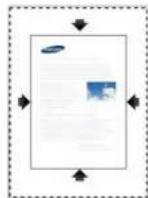
- To change the print settings from your software application, access Printing Preferences (see "Opening printing preferences" on page 101).
- Click the Paper tab.
- Select actual paper size of the originals from the Original Size.
- Select the size of paper to be printed in the tray from the Output Size.
- Select the Source and Type.
- Click OK or Print until you exit the Print window.
Using watermarks
The watermark option allows you to print text over an existing document. For example, you use it when you want to have large gray letters reading "DRAFT" or "CONFIDENTIAL" printed diagonally across the first page or all pages of a document.
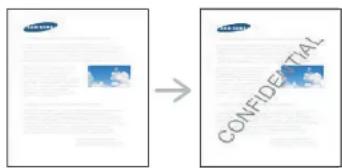
text_image
CONFIDENTIALThere are several predefined watermarks that come with the machine. They can be modified, or you can add new ones to the list.
Using an existing watermark
- To change the print settings from your software application, access Printing Preferences (see "Opening printing preferences" on page 101).
- Click the Advanced tab, and select the desired watermark from the Watermark drop-down list. You will see the selected watermark in the preview image.
- Click OK or Print until you exit the print window.
Creating a watermark
- To change the print settings from your software application, access Printing Preferences (see "Opening printing preferences" on page 101).
- From the Advanced tab, select Edit... from the Watermark drop-down list.
- Enter a text message in the Watermark Message box. You can enter up to 256 characters. The message displays in the preview window. When the First Page Only box is checked, the watermark prints on the first page only.
- Select watermark options.
You can select the font name, style, color, size, and shade from the Font Attributes section, as well as set the angle of the watermark from the Message Angle section. - Click Add to add a new watermark to the Current Watermaks list.
- Wh en you finish editing, click OK or Print until you exit the Print window.
To stop printing the watermark, select None from the Watermark drop-down list.
Editing a watermark
- To change the print settings from your software application, access Printing Preferences (see "Opening printing preferences" on page 101).
- Click the Advanced tab, select Edit... from the Watermark drop-down list.
- Select the watermark you want to edit from the Current Watermarks list and change the watermark message and options.
- Click Update to save the e changes.
- Click OK or Print until you exit the Print window.
Deleting a watermark
- To change the print settings from your software application, access Printing Preferences (see "Opening printing preferences" on page 101).
- Click the Advanced tab, select Edit... from the Watermark drop-down list.
- Select the watermark you want to delete from the Current Watermarks list and click Delete.
- Click OK or Print until you exit the Print window.
Using overlay
This option is available only when you use the PCL printer driver.
What is an overlay?
An overlay is text and/or images stored on the computer's hard drive (HDD) as a special file format that can be printed on any document. Overlays are often used to take the place of letterhead paper. Rather than using a preprinted letterhead, you can create an overlay containing exactly the same information that is currently on your letterhead. To print a letter with your company's letterhead, you do not need to load preprinted letterhead paper in the machine: just print the letterhead overlay on your document.
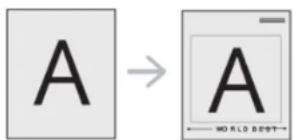
text_image
A → A WORLD BESTCreating a new page overlay
To use a page overlay, you must create a new page overlay containing your logo or image.
- Create or open a document containing text or an image for use in a new page overlay. Position the items exactly as you wish them to appear when printed as an overlay.
- To save the document as an overlay, access Printing Preferences (see "Opening printing preferences" on page 101).
- Click the Advanced tab, and select Edit... from the Text drop-down list.
- In the Edit Overlay window, click Create.
- In the Save As window, type a name (up to eight characters) in the File name box. Select the destination path, if necessary (the default is C:\Formover).
- Click Save. The name appears on the Overlay List.
- Click OK or Print until you exit the Print window.
- The file is not printed. Instead, it is stored on your computer's hard disk drive.

The overlay document size must be the same as the document you print with the overlay. Do not create an overlay with a watermark.
Using a page overlay
After an overlay has been created, it is ready to be printed with your document. To print an overlay with a document:
- Crea te or open the document you want to print.
-
To change the print settings from your software application, access Printing Preferences (see "Opening printing preferences" on page 101).
-
Click the Advanced tab.
-
Select the desired overlay from the Text drop-down list.
-
If the overlay file you want does not appear in the Text drop-down list, select Edit... from the list and click Load. Select the overlay file you want to use.
If you have stored the overlay file you want to use in an external source, you can also load the file when you access the Load window.
After you select the file, click Open. The file appears in the Overlay List box and is available for printing. Select the overlay from the Overlay List box.
- If necessary, check the Co nfirm Page Overlay When Printing box. If this box is checked, a message window appears each time you submit a document for printing, asking you to confirm printing an overlay on your document.
If this box is not checked and an overlay has been selected, the overlay automatically prints with your document.
- Click OK or Print until you exit the Print window.
The selected overlay prints on your document.

The resolution of the overlay document must be the same as that of the document you will print with the overlay.
Deleting a page overlay
You can delete page overlays that you no longer use.
- In the Printing Preferences window, click the Advanced tab.
- Select Edit... i n the Text drop down list.
- Select the overlay you want to delete from the Overlay List box.
- Click Delete.
- Wh en a confirmation message window appears, click Yes.
- Click OK or Print until you exit the Print window.
Using direct printing utility
This chapter explains how to use the Direct Printing Utility to print PDF files without open the files.

- A HDD should be installed on your machine, to print PDF files using this program.
- You cannot print PDF files that are restricted to print. Deactivate the printing restriction feature, and retry printing.
- You cannot print PDF files that are restricted by a password. Deactivate the password feature, and retry printing.
- Whether or not a PDF file can be printed using the Direct Printing Utility program depends on how the PDF file was created.
- The Direct Printing Utility program supports the PDF version 1.7 and below. For a higher version, you must open the file to print it.
What is Direct Printing Utility?
Direct Printing Utility is a program that sends a PDF file directly to your machine to print without having to open the file. It sends data through the Windows spooler using the port of the printer driver. It only supports PDF format.
To install this program, select Advanced Installation -> Custom Installation and put a check mark for this program when you install the printer driver.
Printing
There are several ways you can print using the Direct Printing Utility.
From the Direct Printing Utility window
- From the Start menu select Programs or All Programs > Samsung Printers > Direct Printing Utility > Direct Printing Utility.
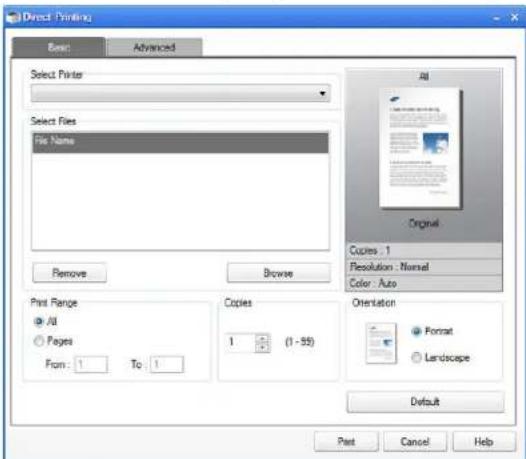
text_image
Direct Printing Basic: Advanced Select Printer Select Files File Name All Original Copies: 1 Resolution: Normal Color: Auto Past Range All Pages From: 1 To: 1 Copies 1 (1 - 55) Orientation Portrait Landscape Default Past Cancel Help- Select your machine from the Select Printer drop-down list and click Browse.
- Select the PDF file you wish to print and click Open. The PDF file is added in the Select Files section.
- Customize the machine settings for your needs.
- Click Print. The selected PDF file is sent to the machine.
Using the right-click menu
- Right-click on the PDF file you wish to print and select Direct Printing. The Direct Printing Utility window appears with the PDF file added.
- Select the machine you wish to use.
- Customize the machine settings for your needs.
- Click Print. The selected PDF file is sent to the machine.
Changing the default print settings

Most Windows applications will override settings you specify in the printer driver. Change all print settings available in the software application first, and change any remaining settings using the printer driver.
- Click the Windows Start menu.
- For Windows 2000, select Settings > Printers.
- Fo r Windows XP/2003, select Printers and Faxes.
- For Windows 2008/Vista, select Control Panel > Hardware and Sound > Printers.
- For Windows 7, select Control Panel > Hardware and Sound > Devices and Printers.
-
For Windows Server 2008 R2, select Control Panel > Hardware > Devices and Printers.
-
Righ t-click your machine.
- For Windows 2000, XP, 2003, and Vista, press Printing Preferences. For Windows 7 and Windows Server 2008 R2, from context menus, select the Printing Preferences.
If Printing Preferences item has ▶ mark, you can select other printer drivers connected with selected printer.
- Change the settings on each tab.
- Click OK.
If you want to change the settings for each print job, change it in Printing Preferences.
Setting your machine as a default machine
- Click the Windows Start menu.
- For Windows 2000, select Settings > Printers.
- Fo r Windows XP/2003, select Printers and Faxes.
- For Windows 2008/Vista, select Control Panel > Hardware and Sound > Printers.
- For Windows 7, select Control Panel > Hardware and Sound > Devices and Printers.
-
For Windows Server 2008 R2, select Control Panel > Hardware > Devices and Printers.
-
Select your machine.
- Righ t-click your machine and select Set as Default Printer.
For Windows 7 and Windows Server 2008 R2, if Set as default printer item has ▶ mark, you can select other printer drivers connected with the selected printer.
Printing to a file (PRN)
You will sometimes need to save the print data as a file.
To create a file:
- C heck the Print to file box at the Print window.
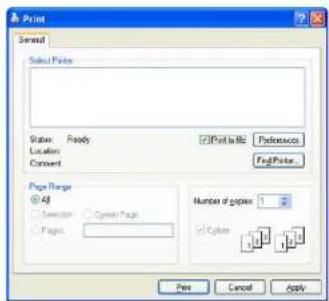
text_image
Print General Subcut Page Status Ready Location Context Page Range All Selection Cancel Page Pages Print to file Preferences FogPoster Number of copies 1 Page Pass Cancel Apply- Click Print.
- Type in the destination path and the file name, and then click OK. For example c:\Temp\file name.
If you type in only the file name, the file is automatically saved in My Documents, Documents and Settings or Users. The saved folder may differ, depending on your operating system or the application you are using.
MAC printing

Some features may not be available depending on models or options.
This section explains how to print using a MAC.
Printing a document
When you print with a MAC, you need to check the printer driver setting in each application you use. Follow the steps below to print from a MAC:
- Op en the document you want to print.
- Open the File menu and click Page Setup (Document Setup in some applications).
- C choose your paper size, orientation, scaling, other options, and make sure that your machine is selected. Click OK.
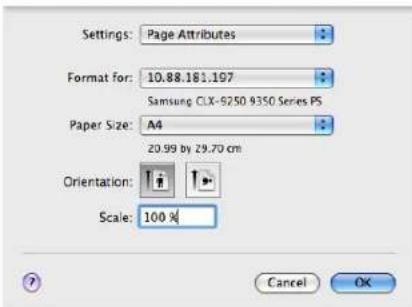
text_image
Settings: Page Attributes Format for: 10.88.181.197 Samsung CLX-9250 9350 Series PS Paper Size: A4 20.99 by 29.70 cm Orientation: Scale: 100 % Cancel OK- Open the File menu and click Print.
- C choose the number of copies you want and indicate which pages you want to print.
- Click Print.
Activating optional devices or accessories
After installing the optional devices or accessories, you need to activate the options.
- Open System Preferences and click Print & Fax.
- Select your machine and click Options & Supplies....
- Select Driver and set the necessary options.
Changing printer settings
You can use advanced printing features provided by your machine.
Open an application and select Print from the File menu. The machine name, which appears in the printer properties window, will differ depending on the machine in use. Except for the name, the composition of the printer properties window is similar to the following.

- The setting options may differ depending on printers and Mac OS X version.
- The following panes may differ, depending on your operating system or the application you are using.
The following pane is the first pane you will see when you open the printer properties pane. Select other advanced features from the drop down list.
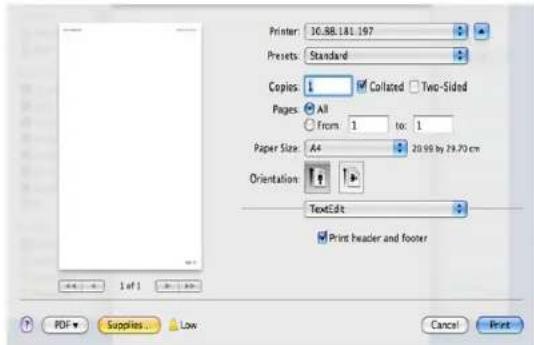
text_image
Printer: 30.88.181.197 Presets: Standard Copies: 1 Colated Two-Sided Pages: All From 1 to: 1 Paper Size: A4 20.99 by 29.70 cm Orientation: TextEdit Print header and footer PDF Supplies Low Cancel PrintLayout
The Layout tab provides options to adjust how the document appears on the printed page. You can print multiple pages on one sheet of paper. Select Layout from the drop-down list.
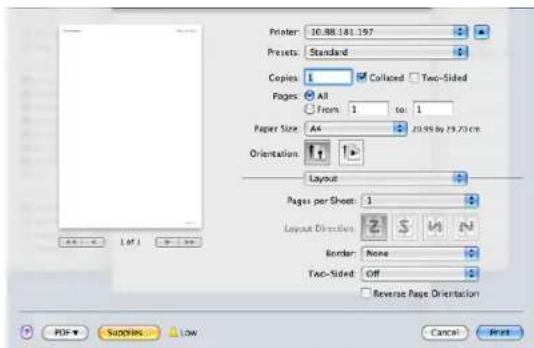
text_image
Printer: 10.88.181.197 Presets: Standard Copies: 1 Pages: All From: 1 to: 1 Paper Size: A4 20.95 by 29.70 cm Orientation: Layout Pages per Sheet: 1 Layout Direction: Border: None Two-Sided: Off Reverse Page Orientation PDF SUPPORTS LOW Cancel Help- Pages per Sheet: This option determines how many pages are to be printed on one page (see "Printing multiple pages on one sheet of paper" on page 113).
- L layout Direction: This option allows you to select the printing direction on a page similar to the examples in the UI.
- Border: This option allows you to print a border around each page on the sheet.
- Tw o-Sided: This option allows you to print on both sides of a sheet of paper (see "Printing on both sides of paper" on page 113).
- Revere Page Orientation: This option allows you to rotate the paper 180 degrees.
Graphics
The Graphics tab provides options for selecting Quality. Select Graphics from the drop-down list.
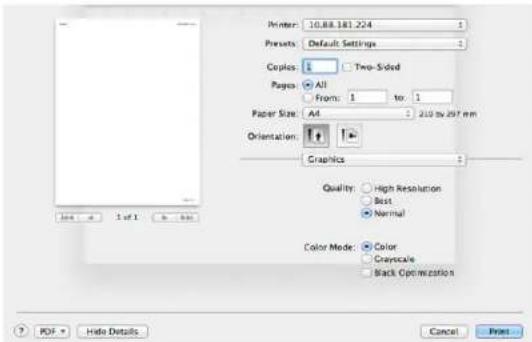
text_image
Printer: 10.88.181.224 Presets: Default Settings Copies: 1 Two-Sided Pages: All From: 1 to 1 Paper Size: A4 210 x 297 mm Orientation: Graphics Quality: High Resolution Best Normal Color Mode: Color Grayscale Black Optimization PDF - Hide Details Cancel Print- Quality: This option allows you to select the printing resolution. The higher the setting, the sharper the clarity of printed characters and graphics. A higher setting also may increase the time it takes to print a document.
• Color Mode: You can set the color options. Setting to Color typically produces the best possible print quality for color documents. If you want to print a color document in grayscale, select Grayscale.
Job Accounting
This option allows you to print with the given permissions.
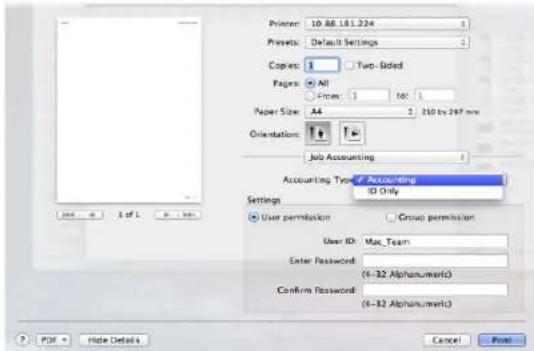
text_image
Printer: 10.86.181.324 Presets: Default Settings Copies: 1 Two-Sided Pages: All From: 1 M: 1 Paper Size: A4 210 to 297 mm Orientation: Job Accounting Accounting Type: Accounting ID Only Settings User permission Group permission User ID: Max_Team Enter Password: (4-32 Alphans, metric) Confirm Password: (4-32 Alphans, metric) PDF Note Details Cancel Finish• Accounting Type: You can select an accounting type specified by your system administrator.
- Accounting: You can enable print authentication by user ID and password.
- ID On ly: You can enable print authentication by user ID only.
- Us er permission: If you check this option, only users with user
permission can start a print job.
- Gr oup permission: If you check this option, only groups with group permission can start a print job.

- If you want to encrypt a job accounting password, refer to help (in the bottom left corner of the printer properties pane.
- Administrators can enable job accounting and configure permissions in the control panel or SyncThru™ Web Service. For the detailed information about them, refer to the Administrator's Guide.
Job Setting
This option allows you to choose how to print the file by using the hard disk drive in your machine. This option allows you to choose how to print or save the file by using the HDD in your machine.
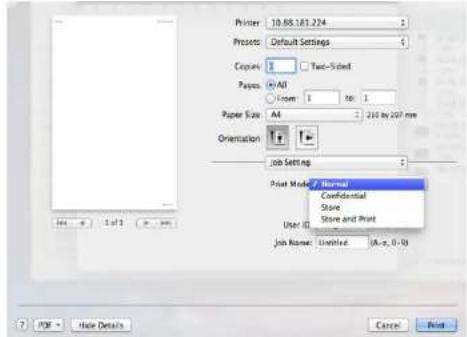
text_image
Printer 10.88.181.224 Presets Default Settings Copies 1 Text-Sided Paper All Screen 1 Top 1 Paper Size All 200 by 207 mm Orientation Job Setting Print Mode Normal Confidential Store Store and Print User ID Job Name: Unifine (A-9, 0-10) 7 PDF Help Details Cancel Print• Print Mode: The default Print Mode is Normal.
- Norma I: This mode prints without storing your document.
- Confidential: This mode is used for printing confidential documents. You need to enter a password to print it.
- Store: This mode is used only for storing documents on the HDD. If necessary, you can load and print the stored documents. You can find the stored file in the Stored Document (see "Saving documents in the Stored Document" on page 93).
- Stor e and Print: This mode is used when printing and storing documents at the same time. If necessary, you can load and print the stored documents. You can find the stored file in the Stored Document (see "Saving documents in the Stored Document" on page 93).
- Print Schedule: Use this option to enter a specific time to print the job. This is useful for printing large amount of data or if you want all your job to print at the same time. Select the date and time you want to print. User ID and Job Name are used when you need to find a stored document using the control panel.

• Print At: Select the date and time you want to print.
- Use r ID: This option is used when you need to find a stored file using the control panel. The user name automatically appears as the user name that you use to log into Mac OS X.
- Jo b Name: This option is used when you need to find a stored file using the control panel.
Printer Features
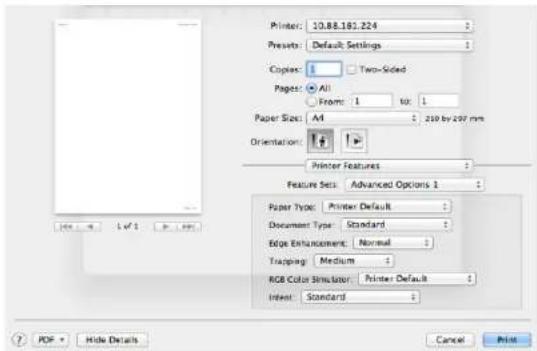
text_image
Printer: 10.88.161.224 Presets: Default Settings Copies: 1 Two-Sided Pages: All From: 1 To: 1 Paper Size: A4 210 by 297 mm Orientation: Printer Features Feature Sets: Advanced Options 1 Paper Type: Printer Default Document Type: Standard Edge Enhancement: Normal Trapping: Medium RGB Color Simulator: Printer Default Intent: Standard PDF Hide Details Cancel Print- Finishing: You can select the print output options such as staple, offset and etc. This option is available only when the optional Inner Finisher or booklet finisher is installed.
- Booklet Printing: This feature prints your document on both sides of a paper and arranges the pages so that the paper can be folded in half after printing to produce a booklet. Some options in Booklet Printing are available only when the optional stanard finisher or booklet finisher is installed.
- F ront Cover: Prints the document with a front cover. The front cover can be a blank paper or the first page in the document.
- Back Cover: Prints the document with a back cover. The back cover can be a blank paper or the last page in the document.
- Front and Back Cover: Prints the document with a front cover and a back cover. The covers can be blank papers or the first and the last pages in the document.
- Paper Type: This option allows you to correspond to the paper loaded in the tray from which you want to print. This will let you get the best quality printout. If you load a different type of print material, select the corresponding paper type.
- Ed ge Enhancement: This option allows you to emphasize edges of texts and fine lines for improving readability.
- RGB Color Simulator: This setting determines how colors are rendered. Standard is the most widely used setting which the color tone of this mode is the closest to that of standard monitor (sRGB Monitor). Vivid mode is appropriate for printing presentation data and charts. The color tone of Vivid mode produces more Vivid color images than that of Standard mode. Device mode is best used for printing fine lines, small characters and color drawings. The color tone of Device mode may be different from that of monitor, the pure toner colors are used for printing cyan, magenta and yellow colors. Corporate Imaging is most common color setting used in the corporate environment.
Printing multiple pages on one sheet of paper
You can print more than one page on a single sheet of paper. This feature provides a cost-effective way to print draft pages.
-
Open an application, and select Print from the File menu.
-
Select Lay out from the drop-down list under Orientation. In the Pages per Sheet drop-down list, select the number of pages you want to print on one sheet of paper.
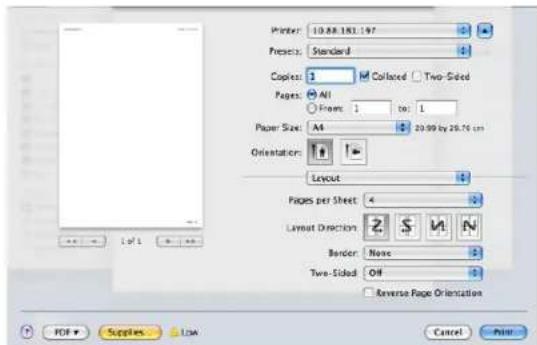
text_image
Printer: 10.88.181.197 Presets: Standard Copies: 1 Colliased Two-Sided Pages: All From 1 to: 1 Paper Size: A4 20.99 by 20.76 cm Orientation: Layout Pages per Sheet: 4 Layout Direction: Z S M N Border: None Two-Sided Off Reverse Page Orientation PDF Supplies LOA Cancel Print-
Select the other options you want to use.
-
Click Print, then machine prints the selected number of pages you want to print on one sheet of paper.
Printing on both sides of paper
You can print on both sides of the paper. Before printing in the duplex mode, decide on which edge you will be binding your finished document. The binding options are as follows:
- Long-Edge Binding: This option is the conventional layout used in book binding.
- Sh ort-Edge Binding: This option is the type often used with calendars.
- From your MAC application, select Print from the File menu.
- Select Lay out from the drop-down list under Orientation.
- Select a binding orientation from Two-Sided option.
- Select the other options you want to use.
- Click Print and ; the machine prints on both sides of the paper.
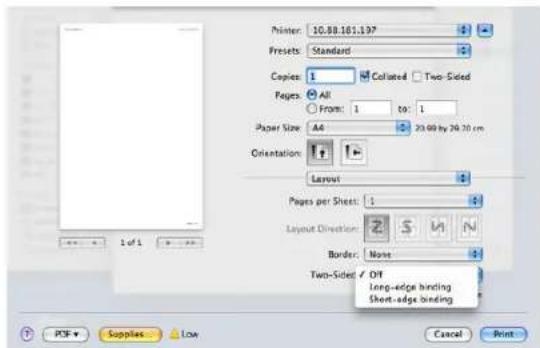
text_image
Printer: 10.89.161.137 Presets: Standard Copies: 1 Colated Two-Sided Pages: All From: 1 to: 1 Paper Size: A4 23.69 by 26.70 cm Orientation: 1 Layout Pages per Sheet: 1 Layout Direction: Z S M N Border: None Two-Sided: OFF Long-edge binding Short-edge binding PDF Supplies Low Cancel Print
If you print more than 2 copies, the first copy and the second copy might print on the same sheet of paper. Avoid printing on both sides of paper when you are printing more than 1 copy.
Linux printing

Some features may not be available depending on models or options.
Printing from applications
There are a lot of Linux applications that allow you to print using Common UNIX Printing System (CUPS). You can print on your machine from any such application.
- Open an application, and select Print from the File menu
- Select Print d irectly using LPR.
- In the LPR GU I window, select the model name of your machine from the printer list and click Properties.
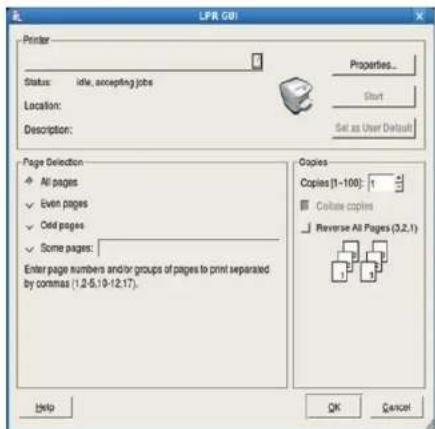
text_image
LPR CBI Printer Status: idle, accepting jobs Location: Description: Properties... Start Set as User Default Page Detection All pages Even pages Cold pages Some pages: Enter page numbers and/or groups of pages to print separated by commas (1.2-5.19-12.17). Copies Copies (1-100): 1 Collate copies Reverse All Pages (3.2.1) Help OK Cancel- Change the print job properties using the following four tabs displayed at the top of the window.

text_image
Properties General Text Graphics Advanced Paper Options Paper Size: Letter Paper Orientation • Portrait ✓ Landscape ✓ Reverse Paper Type: Printer Default Duplex [Double-Sided Printing] • None ✓ Long Edge (Book) ✓ Short Edge (Tablet) Banners Start: None End: None Pages per Side (N-Up) • Normal (1-Up) ✓ 2-Up ✓ 4-Up Help Supply OK Cancel- General: This option allows you to change the paper size, the paper type, and the orientation of the documents. It enables the duplex feature, adds start and changes the number of pages per sheet.
- Text: This option allows you to specify the page margins and set the text options, such as spacing or columns.
- G graphics: This option allows you to set image options that are used when printing image files, such as color options, image size, or image position.
- Advanced: This option allows you to set the print resolution, paper source, and destination.
- Click Apply to apply the changes and close the Properties window.
- Click OK in the LPR GUI window to start printing.
- The Printing window appears, allowing you to monitor the status of your print job.
To abort the current job, click Cancel.
Printing files
You can print many different types of files on your machine using the standard CUPS, directly from the command line interface. The CUPS LPR utility allows you to do that, but the drivers package replaces the standard LPR tool with a much more user-friendly LPR GUI program.
To print any document file:
- Type lpr
- In the LPR GUI window, select your machine from the list, and change the print job properties.
- Click OK to start printing.
Configuring Printer Properties
Using the Printer Properties window provided by the Printers configuration, you can change the various properties for your machine as a printer.
- Ope n the Unified Driver Configurator. If necessary, switch to Printers configuration.
- Select your machine from the available printers list and click Properties.
- The Printer Properties window appears.
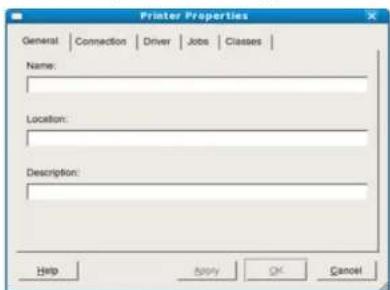
text_image
Printer Properties General | Connection | Driver | Jobs | Classes | Name: Location: Description: Help Apply OK CancelThe following five tabs display at the top of the window:
- General: This option allows you to change the printer location and name. The name entered in this tab displays on the printer list in Printers configuration.
- Connection: This option allows you to view or select another port. If you change the machine port from USB to parallel or vice versa while in use, you must re-configure the machine port in this tab.
- Drive r: This option allows you to view or select another machine driver. By clicking Options, you can set the default device options.
- Jo bs: This option shows the list of print jobs. Click Cancel job to cancel the selected job and select the Show completed jobs check box to see previous jobs on the job list.
- Classes: This option shows the class of your machine. Click Add to Class to add your machine to a specific class or click Remove from Class to remove the machine from the selected class.
- Click OK to apply the changes and close the Printer Properties window.
UNIX Printing

Some features may not be available depending on models or options.
Proceeding the print job
After installing the printer, choose any of the image, text, or PS files to print
- Execute "printui
For example, if you are printing "document1" printui document1
This will open the UNIX Printer Driver Print Job Manager in which the user can select various print options.
- Select a printer that has been already added.
- Select the printing options from the window such as Page Selection.
- Select how many copies are needed in Number of Copies.

To take advantage of the printer features provided by your printer driver, press Properties.
- Press OK to start the print job.
Changing the machine settings
The UNIX printer driver Print Job Manager in which the user can select various print options in printer Properties.
The following hot keys may also be used: "H" for Help, "O" for OK, "A" for Apply, and "C" for Cancel.
General tab
- Paper Size: Set the paper size as A4, Letter, or other paper sizes, according to your requirements.
- Pape r Type: Choose the type of the paper. Options available in the list box are Printer Default, Plain, and Thick.
- Paper Source: Select from which tray the paper is used. By default, it is Auto Selection.
- O rientation: Select the direction in which information is printed on a page.
- Dup lex: Print on both sides of a sheet of paper to save paper.

Automatic/manual duplex printing may not be available depending on models. You can alternatively use the lpr printing system or other applications for odd-even printing.
- M multiple pages: Print several pages on one side of a paper.
• Page Border: Choose any of the border styles (e.g., Single-line hairline, Double-line hairline)
Image tab
In this tab, you can change the brightness, resolution, or image position of your document.
Text tab
Set the character margin, line space, or the columns of the actual print output.
Margins tab
- Use Margins: Set the margins for the document. By default, margins are not enabled. The user can change the margin settings by changing the values in the respective fields. Set by default, these values depend on the page size selected.
• Unit: Change the units to points, inches, or centimeters.
Printer-Specific Settings tab
Select various options in the JCL and General frames to customize various settings. These options are specific to the printer and depend on the PPD file.
Using a usb memory device
This chapter explains how to use a USB memory device with your machine.
This chapter includes:
- Unde rstanding the USB screen
- About USB memory device
Understanding the USB screen
To use the USB feature, press USB on the display screen.
If you want to use this feature, you need to insert a USB memory device into the USB memory port on your machine.
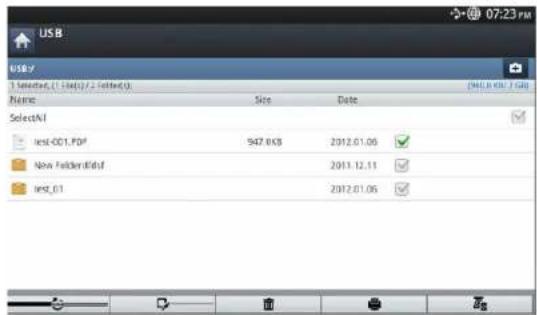
text_image
USB 1 Selected (1.14(0.7) / Selected) Name: Size Date SelectN test-01.PDF 947.6KB 2012.01.05 ✓ New FolderEdit test_01 2012.12.11 ✓ test_01 2012.01.06 ✓• USB Display: Displays information of the folder or file.
•: Moves back to the upper level.
- : Makes a new folder in the USB memory device.
•: Changes the name of the selected folder or file.
• : Inletes the selected folder or file.
•: Formats the USB memory device.
• : You can directly print files stored on a USB memory device. You can print TIFF, JPEG, PDF, and PRN files (see "Printing from a USB memory device" on page 117).
- _B : Sends to Scan to USB (see "Scanning to a USB memory device" on page 81).
- Printing from a USB memory device
- Managing USB memory
About USB memory device
USB memory devices are available with a variety of memory capacities to give you more room for storing documents, presentations, music and videos, high resolution photographs, or whatever other files you want to store or move.
You can do the following on your machine using a USB memory device:
- Scan documents and save them on a USB memory device.
- Print data stored on a USB memory device.
- Format the USB memory device.
Your machine supports USB memory devices with FAT16/FAT32 and sector size of 512 bytes.
Check your USB memory device's file system from your dealer.
You must use only an authorized USB memory device with an A plug type connector.
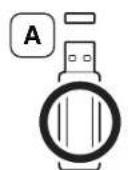
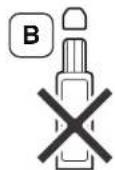
Use only a USB memory device with metal-shielded connector.

Only use a USB memory device that has obtained compatibility certification; otherwise, the machine might not recognize it.
Insert a USB memory device into the USB memory port on your machine.

Do not insert the USB memory device into other ports except the ports shown in the image below. If you insert the USB memory into other ports, the machine shows a warning message on the display screen.

natural_image
Diagram showing a printer's internal structure with an inset image of a printer's tray and paper holder (no text or symbols present)
- Do not remove the USB memory device while it is in use. The machine warranty does not cover damage caused by a user's misuse.
- If your USB memory device has certain features, such as security settings and password settings, your machine may not automatically detect it. For details about these features, see the USB memory device's User's Guide.
Printing from a USB memory device
You can directly print files stored on a USB memory device. You can print TIFF, JPEG, and PRN files. You can select 50 files and print selected the files at once.
USB print option supported file types:
- PRN: Only files created by provided driver with your machine are compatible. PRN files can be created by selecting the Print to file check box when you print a document. The document will be saved as a PRN file, rather than printed on paper. Only PRN files created in this fashion can be printed directly from USB memory device (see "Printing to a file (PRN)" on page 110).
• T IFF: TIFF 6.0 Baseline
- JPEG : JPEG Baseline
- PDF: PDF 1.7 and below
• XPS :

In case of 8-bit CMYK JPEG files, the job could be cancelled.
To print a document from a USB memory device:
- Insert a USB memory device into the USB memory port on your machine.
Your machine automatically detects the device and reads data stored on it (see "About USB memory device" on page 116).

- The machine cannot detect an unformatted USB memory device. Format, and then reinsert the USB memory device into the USB memory port on your machine.
- The machine can not detect the USB memory device when the machine is in power save mode. Wait until the machine returns to ready mode, and then reinsert the USB memory device into the USB memory port on your machine.
• The machine has two USB memory ports. When a USB memory device is already inserted in one of the port, if you try to insert a USB memory device in another ports, the machine cannot detect second one. Remove the USB memory device that was inserted first and then reinsert the USB memory device you want to insert into the USB memory port on your machine.
- Pres s USB from the display screen.
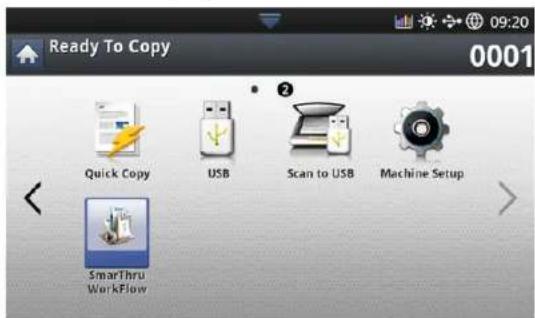
text_image
Ready To Copy 0001 Quick Copy USB Scan to USB Machine Setup SmartThru Workflow- The machine shows all the files in the USB memory device.
Select the file you want to print. You can also select multiple files if you want to print multiple files.

- If the file is in a folder, press the folder name. Then press Select.
- If the PDF file you selected is secured with a password, you have to know the password for printing. Enter the password when the machine requires the secure password. If you do not know the password, the print job will be cancelled.
4. Press Print.
- Pre ss the appropriate option.
• Co pies: Selects the number of copies.
• Color Mode : Selects the color mode of copies.
- Du plex: Selects the machine to print copies on both sides of the paper.
- Auto fit: Allows you to scale your print job to the selected paper size in the tray regardless of the document size. Select a tray, and press On.
• Paper Source: Selects a tray that contains the paper to be printed.
- Output: Sets the machine's various output options such as copy output option (see "Deciding the form of copy output" on page 53).
-
Press Start button to print the file.
-
Pr ess ↻ to go back to the previous screen.
-
After printing is completed, you can remove the USB memory device from the machine. Press USB.
Managing USB memory
You can delete image files stored on a USB memory device one-by-one or all at once by reformatting the device.

After deleting files or reformatting a USB memory device, files cannot be restored. Confirm that you no longer need the data before deleting it.
Formatting a USB memory device
-
Insert a USB memory device into the USB memory port on your machine.
-
Pr ess USB from the display screen.
-
Pr ess Format.
-
Pr ess OK when the confirmation window appears.
Deleting an image file
-
Insert a USB memory device into the USB memory port on your machine.
-
Pr ess USB from the display screen.
-
The machine shows all files in the USB memory device. Press the file you want to delete.

If the file is in a folder, press the folder name. Then press Select.
-
Pr ess Delete.
-
Pr ess OK when the confirmation window appears.
management tools
This chapter introduces management tools provided to help you make full use of your machine.
This chapter includes:
- Easy Ca pture Manager
• Samsung AnyWeb Print - Easy Eco Driver
• Using Samsung Easy Printer Manager
Easy Capture Manager

Available for Windows OS users only.
Capture your screen and launch Easy Capture Manager by simply pressing the Print Screen key. Now you can easily print your captured screen as captured or edited.
Samsung AnyWeb Print

Available for Windows and Mac OS X users only.
This tool helps you screen-capture, preview, scrap, and print Windows Internet Explorer pages more easily, than when you use an ordinary program. Click Start > All programs > Samsung Printers > Samsung AnyWeb Print > Download the latest version to link to the website where the tool is available for download.
Easy Eco Driver

Available for Windows OS users only.
With the Easy Eco Driver, you can apply Eco features to save paper and toner before printing. To use this application, Start Easy Eco Driver before printing job checkbox in the printer properties should be checked. Easy Eco Driver also allows you simple editing such as removing images and texts, changing fonts, and more. You can save frequently used settings as a preset.
How to use:
- Open a document to print.
- Print the document.
- Select the e options you want to apply to the document. You can see the preview of the applied features.
- Click Print.
Using Samsung Easy Printer Manager

- This feature may not be available depending on model or optional goods.
• Available for Windows and Mac OS X users only.
• Microsoft Internet Explorer 6.0 or higher is the minimum requirement for Samsung Easy Printer Manager.
Samsung Easy Printer Manager is an application that combines Samsung machine settings into one location. Samsung Easy Printer Manager combines device settings as well as printing environments, settings/actions,
• Using Samsung Printer Status
• Using Samsung Easy Document Creator
• Using the Linux Unified Driver Configurator
and launching. All of these features provide a gateway to conveniently use your Samsung machine. Samsung Easy Printer Manager provides two different user interfaces for the user to choose from: the basic user interface and the advanced user interface. Switching between the two interfaces is easy: just click a button.
Understanding Samsung Easy Printer Manager
To open the program:
For Windows,
Select Start > Programs or All Programs > Samsung Printers > Samsung Easy Printer Manager > Samsung Easy Printer Manager.
For MAC,
Open the Applications folder > Samsung folder > Samsung Easy Printer Manager.
The Samsung Easy Printer Manager interface is comprised of various basic sections as described in the table that follows:

The screenshot may differ depending on operating system you are using.
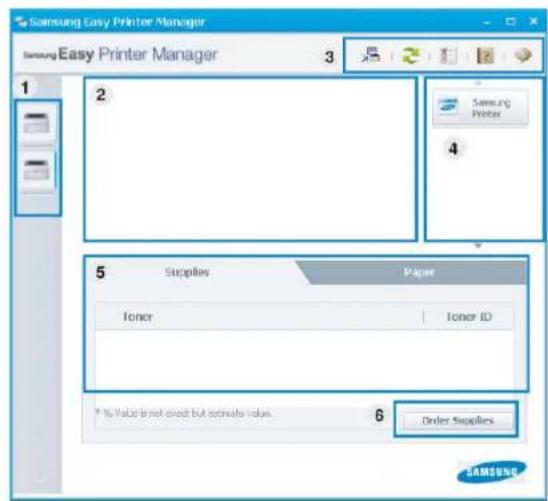
text_image
Samsung Easy Printer Manager Samsung Easy Printer Manager 1 2 3 4 5 Supplies Paper Toner Toner ID * % Value is not exact but estimate value. 6 Order Supplies SAMSUNG
Printer list The Printer List displays printers installed on your computer and network printers added by network discovery (Windows only).
| Printer information | This area gives you general information about your machine. You can check information, such as the machine's model name, IP address (or Port name), and machine status. | |
| 2 | You can view the onlineUser's Guide.Troubleshooting button: This button opens theTroubleshooting Guidewhen an error occurs. You can directly open the necessary section in the user's guide. | |
| 3 | Application information | Includes links for changing to the advanced settings, preference, help, and about. |
| Thebutton is used to change the user interface to theadvanced settings userinterface(see "Advanced settings user interface overview" on page 120). | ||
| 4 | Quick links | DisplaysQuick linksto machine specific functions. This section also includes links to applications in the advanced settings. |
| If you connect your machine to a network, the SyncThruTM Web Service icon is enabled. | ||
| 5 | Contents area | Displays information about the selected machine, remaining toner level, and paper. The information will vary based on the machine selected. Some machines do not have this feature. |
| 6 | Order supplies | Click on theOrderbutton from the supply ordering window. You can order replacement toner cartridge(s) from online. |

Select the Help menu or click the ? button from the window and click on any option for more information.
Advanced settings user interface overview
The advanced user interface is intended to be used by the person responsible for managing the network and machines.

Some menus may not appear in the display depending on options or models. If so, it is not applicable to your machine.
Device Settings
You can configure various machine settings such as machine setup, paper, layout, emulation, network, and print information.
Scan to PC Settings
This menu includes settings to create or delete scan to PC profiles.
- Scan Activation: Determines whether or not scanning is enabled on the device.
- Basic tab: Contains settings related general scan and device settings.
- Imag e tab: Contains settings related to image altering.
Fax to PC Settings
This menu includes settings related to the basic fax functionality of the selected device.
- Disable: If Disable is On, incoming faxes will not be received on this device.
- Enable Fax Receiving from Device: Enables faxing on the device and allows more options to be set.
Alert Settings (Windows only)
This menu includes settings related to error alerting.
- Printer Alert: Provides settings related to when alerts will be received.
- Email Alert: Provides options relating to receiving alerts via email.
• A Iert History: Provides a history of device and toner related alerts.
Job Accounting
Provides querying of quota information of the specified job accounting user. This quota information can be created and applied to devices by job accounting software such as SyncThru™ or CounThru™ admin software.
Using Samsung Printer Status
The Samsung Printer Status is a program that monitors and informs you of the machine status.

- The Samsung Printer Status window and its contents shown in this user's guide may differ depending on the machine or operating system in use.
- Check the operating system(s) that are compatible with your machine (see "System requirements" on page 167).
• Available for Windows OS users only.
Samsung Printer Status overview
If an error occurs while operating, you can check the error from Samsung Printer Status. Samsung Printer Status is installed automatically when you install the machine software.
You can also launch Samsung Printer Status manually. Go to the Printing Preferences, click the Basic tab > Printer Status button.
These icons appear on the Windows task bar:
| Icon Mean Description | |
| Normal The machine is in ready mode and experiencing no errors or warnings. | |
| Warning The machine is in a state where an error might occur in the future. For example, it might be in toner low status, which may lead to toner empty status. | |
| Error The machine has at least one error. |
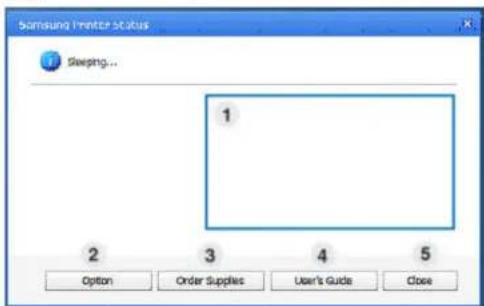
text_image
Samsung Inventor Status Sleeping... 1 2 3 4 5 Option Order Supplies User's Guide Close| 1 | Toner Level You can view the level of toner remaining in each toner cartridge. The machine and the number of toner cartridge(s) shown in the above window may differ depending on the machine in use. Some machines do not have this feature. | |
| 2 | Option | You can set printing job alert related settings. |
| 3 | Order Supplies | You can order replacement toner cartridge(s) from online. |
| 4 | User's Guide You can view the online User's Guide. | |
| This button opens the Troubleshooting Guide when an error occurs. You can directly open the troubleshooting section in the user's guide. | ||
| 5 | Close Close the window. | |
Using Samsung Easy Document Creator
Samsung Easy Document Creator is an application to help users scan, compile, and save documents in multiple formats, including .epub format. These documents can be shared via social networking sites or fax. Whether you're a student needing to organize research from the library or a stay-at-home mom sharing scanned pictures from last year's birthday party, Easy Document Creator will provide you with the necessary tools.

• Available for Windows OS users only.
- Windows XP or higher and Internet Explorer 6.0 or higher is the minimum requirement for Samsung Easy Document Creator.
- Samsung Easy Document Creator is installed automatically when you install the machine software.

Click the Help ( ? ) button from the upper-right corner of the window and click on any option you want to know about.
Understanding Samsung Easy Document Creator
To open the program:
Select Start > Programs or All Programs > Samsung Printers > Samsung Easy Document Creator > Samsung Easy Document Creator.
The Samsung Easy Document Creator interface is comprised of various basic sections as described in the table that follows:

The screenshot may differ depending on operating system you are
using.
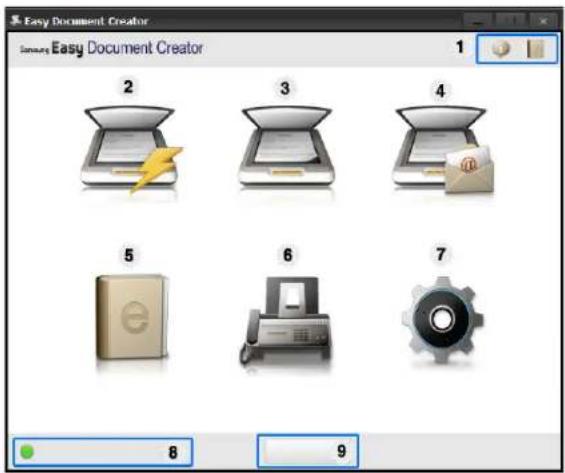
text_image
Easy Document Creator Issues Easy Document Creator 1 2 3 4 5 6 7 8 9

(Information)

Click the help button to get the information of any option you want to use.
(Help)

Quick Scan Automatically scans with the settings
provided in Configuration. You can pre-set the options such as image type, document size, resolution, or file type (see "Quick Scanning" on page 122).
Scan Provides more in-depth options for scanning
documents on a one-by-one basis (see "Scanning" on page 122).

Text Converting will only be available after installing the optical character recognition (OCR) software provided in a separate installation file.

• Image Scanning: Use for scanning single or multiple pictures.
- Docu ment Scanning: Use for scanning documents with text or text and images.
- Tex t Converting: Use for scanning documents that need to be saved in an editable text format.
- Boo k Scanning: Use for scanning books with the flatbed scanner.
- Favorites: User-created favorites for frequently-used scan settings.
| 4 | SNS Upload Provides an easy and quick way to upload files to a variety of social networking sites (SNS). Scan an image directly or select an existing image to upload to Facebook, Flickr, Picasa, Google, or Twitter (see "Scanning to a Social Networking Site" on page 122).SNS Upload will only be available after MicrosoftTM.NET Framework 3.5 Service Pack 1 has been installed (http://www.microsoft.com/download/en/details.aspx?id=22) and Windows XP or higher and Internet Explorer 7.0 or higher are required |
| 5 | E-Book ConversionProvides the ability to scan multiple documents in as one e-book or convert existing files into an e-book format (.epub file) (see "Converting to an E-Book" on page 122). |
| 6 | Send FaxProvides the ability to directly fax a document from Easy Document Creator if the Samsung Network PC Fax driver is installed (see "Sending a fax from your computer" on page 65).If the Samsung Network PC Fax driver is not installed, this will be grayed out. |
| 7 | ConfigurationProvides the options for a Common and Quick Scan. |
| 8 | Device Name Shows the scanning/faxing device ready to use. |
| 9 | Search If you cannot see any device ready to use, click this button to find a device.Click Search Now to automatically search for all devices to which you have access. |
Click the Help ( ? ) button from the upper-right corner of the window and click on any option you want to know about.
Using features
Scanning
- Place a single document face down on the document glass, or load the documents face up into the document feeder.
- Click Scan from the home screen.
- Select the type of scanning or a favorites then click Start.
- Make adjustments to the image (Scan Settings and More Options).
- Click Scan to scan a final image or Prescan to get another preview image.
- Select to Save to Location, Send to E-mail, or Send to SNS.
- Click on Save (Saving a Scan), Send (E-mailing a Scan), or Share (Uploading).
If there is room on the document glass, more than one item can be scanned at the same time. Use the tool to make multiple selection areas.
Quick Scanning
Configuring Quick Scan
To set up the Quick Scan options:
- Click Configuration from the home screen.
- Click on Defa ult to use the default settings, or select your own options.
- Click Apply to save changes.
Using Quick Scan
- Place a single document face down on the document glass, or load the documents face up into the document feeder.
- Click Quick Scan from the home screen.
- Select a sa ve location for the scanned images.
- Click Save to save the image.
Click Scan More to scan another image with the same settings.
Scanning to a Social Networking Site
Scan Directly
- Place a single document face down on the document glass, or load the documents face up into the document feeder.
- Click SNS Upload from the home screen.
- Click Scan to SNS > Start.
- Click Scan.
Upload Existing File
- Click SNS Upload from the home screen.
- Click Existing File to SNS > Start.
- Select the site and click Add Image to find the file to upload.
- Select a so cial networking site to send the image and click Next.
- Fol low the instructions in each social networking site.
If there are some problems on accessing or uploading to each SNS site due to a network environment issue, it's needed to check security limitations established in your network with network administrator. To guarantee correct functioning of SNS upload in Samsung Easy Document Creator, unrestricted network environment is needed for HTTPS communication.
Converting to an E-Book
Scan Directly
- Place a single document face down on the document glass, or load the documents face up into the document feeder.
- Click E-Boo k Conversion from the home screen.
- Click Scan to E-Book > Start.
- Enter a name and author to be used as metatag information for the .epub file, a file name, and select a save location.
- Click Save.
Convert Existing Files
- Click E-Book Conversion from the home screen.
- Click Existing File to E-Book > Start.
- Click Add Image to find the file to convert.
- Enter a name and author to be used as metatag information for the .epub file, a file name, and select a save location.
- Click Save.
Sending a Fax
- Place a single document face down on the document glass, or load the documents face up into the document feeder.
- Click Send Fax from the home screen.
- Click add file and locate the file to fax.
- Click Send Fax.
- Enter the fax information (recipient's number, cover page information, etc).
- Click Send.
Plug-ins
Easy Document Creator will also create new plug-ins for Microsoft PowerPoint, Word, and Excel. These new plug-ins will be in a new Easy Document Creator menu on the applications' menu bars: Scan to Office, Send Fax, and E-Book.
Using the Linux Unified Driver Configurator
Unified Driver Configurator is a tool primarily intended for configuring machine devices. You need to install Unified Linux Driver to use Unified Driver Configurator. Refer to the Administrator's Guide.
After the driver is installed on your Linux system, the Unified Driver Configurator icon will automatically be created on your desktop.
Opening the Unified Driver Configurator
- Double-click the Unified Driver Configurator on the desktop. You can also click the Startup Menu icon and select Samsung Unified Driver > Unified Driver Configurator.
- Click each button on the left to switch to the corresponding configuration window.
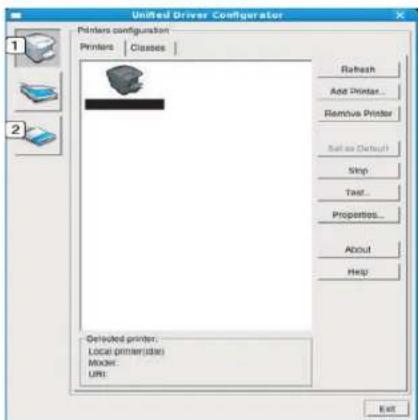
text_image
Unified Driver Configator Printers configuration Printers | Classes | Refresh Add Printer... Rancus Printer Sail as Default Skip Text... Properties... About Help 1 2 Gelected printer: Local printer(star) Model: URI: Exit

To use the on screen help, click Help.
- After changing the configurations, click Exit to close the Unified Driver Configurator.
Printers configuration
Printers configuration has the two tabs: Printers and Classes.
Printers tab
View the current system's printer configuration by clicking on the machine icon button on the left side of the Unified Driver Configurator window.
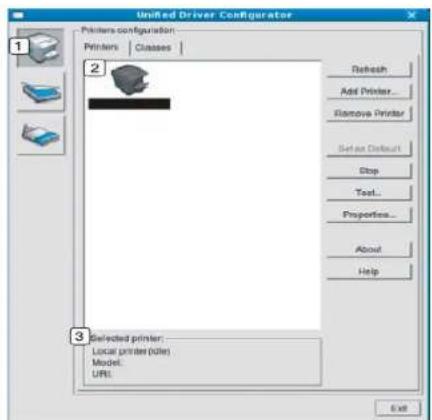
text_image
Unified Driver Configurator Printers configuration Printers | Classes | 1 2 Refresh Add Printer_ Remove Printer_ Set as Default Stop Tool... Properties_. About Help 3 Selected printer: Local printer (kite) Model: URL: Exit
Switches to Printers configuration.

Shows all of the installed machine.

Shows the status, model name and URI of your machine.
The printer control buttons are, as follows:
- Refresh: Renews the available machines list.
- Add Pr inter: Allows you to add a new machine.
- Remove Printe r: Removes the selected machine.
- Set as Default: Sets the current selected machine as a default machine.
- Stop/Start: Stops/starts the machine.
- Test: Allows you to print a test page to ensure the machine is working properly.
- Prop erties: Allows you to view and change the printer properties.
Classes tab
The Classes tab shows a list of available machine classes.
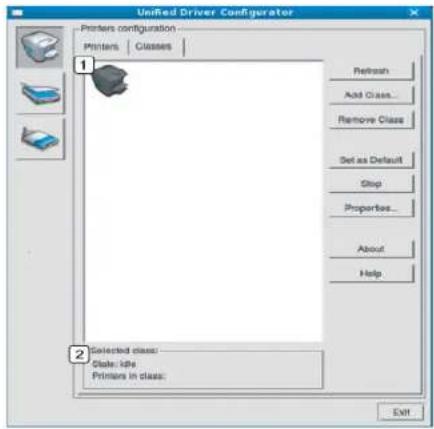
text_image
Unified Driver Configurator Printers configuration Printers | Classes | 1 Refresh Add Class... Remove Class Set as Default Stop Properties... About Help 2 Selected class: Class: idle Primers in class: Exit
Shows all of the machine classes.

Shows the status of the class and the number of machines in the class.
- Refresh: Renews the classes list.
- Add Class : Allows you to add a new machine class.
- Rem ove Class: Removes the selected machine class.
Scanners configuration
In this window, you can monitor the activity of scanner devices, view a list of installed Samsung machine devices, change device properties, and scan images.
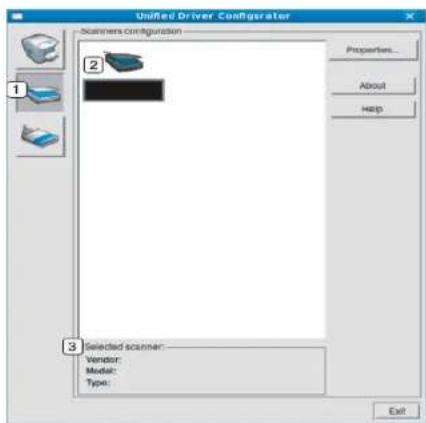
text_image
Unified Driver Configurator Scamers Configuration Properties... About Help 1 2 3 Selected scanner: Vendor: Model: Type: Exit
Switches to Scanners configuration.

Shows all of the installed scanners.

Shows the vendor, model name, and type of your scanner.
- Properties: Allows you to change the scan properties and scan a document.
Ports configuration
In this window, you can view the list of available ports, check the status of each port, and release a port that is stalled in a busy state when its owner has terminated the job for any reason.
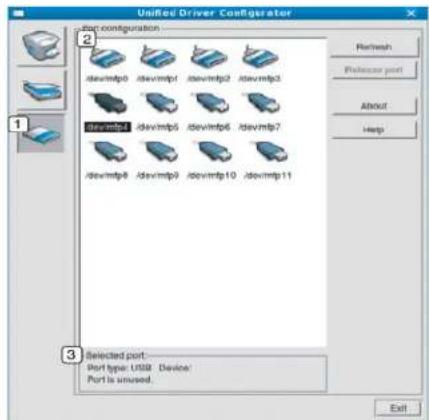
text_image
Unified Driver Configener Port configuration 2 devvimtp0 devvimtp1 devvimtp2 devvimtp3 devvimtp4 devvimtp5 devvimtp6 devvimtp7 devvimtp8 devvimtp9 devvimtp10 devvimtp11 3 Selected port... Port type: USB Device: Port is unused. Exit
Switches to Ports configuration.

Shows all of the available ports.

Shows the port type, device connected to the port, and status
- Refresh: Renews the available ports list.
- R lease port: Releases the selected port.
Sharing Ports Between Printers and Scanners
Your machine may be connected to a host computer via a parallel port or USB port. Since the machine contains more than one device (printer and scanner), it is necessary to organize proper access of "consumer" applications to these devices via the single I/O port.
The Unified Linux Driver package provides an appropriate port sharing mechanism that is used by Samsung printer and scanner drivers. The drivers talk to their devices via so-called machine ports. The current status of any machine port can be viewed via the Ports configuration. The port sharing prevents you from accessing one functional block of the machine device, while another block is in use.
When you install a new machine onto your system, it is strongly recommended you do this with the assistance of an Unified Driver Configurator. In this case you will be asked to choose I/O port for the new device. This choice will provide the most suitable configuration for machine's functionality. For machine scanners, I/O ports are being chosen by scanner drivers automatically, so proper settings are applied by default.
Troubleshooting
This chapter gives helpful information for what to do if you encounter an error.
This chapter includes:
- Redi stributing toner
- Replacing the toner cartridge
- Cleaning paper dust stick and chargers of imaging units
- Replacing the imaging unit
- Replacing the waste toner container

If you cannot solve problems using this chapter, contact your administrator or service center. You can see the contact information from Machine Setup > Others > Contact Information. This information is configured by the machine's administrator.
Redistributing toner
When the toner cartridge is near the end of its life:
- White streaks or light printing occurs.
- Toner low related message appears on the display.
• The status LED blinks red.
If this happens, you can temporarily improve print quality by redistributing the remaining toner in the cartridge. In some cases, white streaks or light printing will still occur even after you have redistributed the toner.

Click this link to open an animation about redistributing toner.
- Open the front door.
CLX-92x1 / 93x1 Series SCX-812x Series
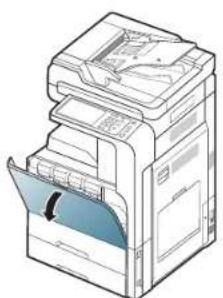
natural_image
Illustration of a printer with a paper airplane being inserted (no text or symbols visible)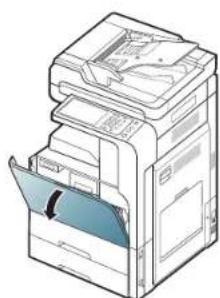
natural_image
Illustration of a printer with a paper feed cover, showing internal structure without any text or symbols.
Toner particles can be released inside the machine but it does not mean the machine is damaged. Contact a service representative when print quality problems occur.
- Clearing original document jams
- Tips for avoiding paper jams
- Clearing paper jams
• Understanding display messages -
Solving other problems
-
Pu II the corresponding toner cartridge out from the machine.
CLX-92x1/93x1 Series SCX-812x Series
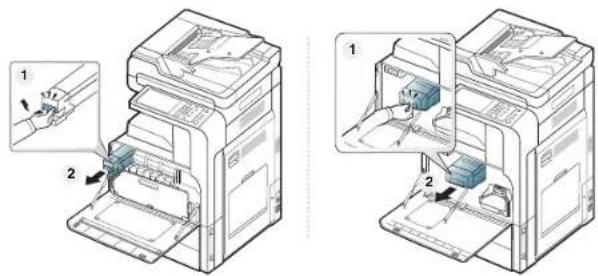
text_image
Technical diagram showing two views of a printer's internal structure with labeled parts and directional arrows- Thoroughly shake the cartridge five or six times to distribute the toner evenly inside the cartridge.
CLX-92x1 / 93x1 Series SCX-812x Series
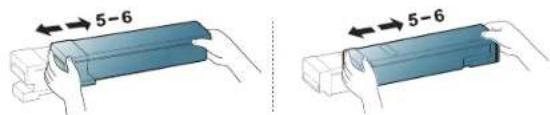
text_image
5-6 5-6
If toner gets on your clothing, wipe it off with a dry cloth and wash clothing in cold water. Hot water sets toner into fabric.
- Hold the toner cartridge and align it with the corresponding slot inside the machine. Insert it back into its slot until it locks in place.
CLX-92x1 / 93x1 Series SCX-812x Series
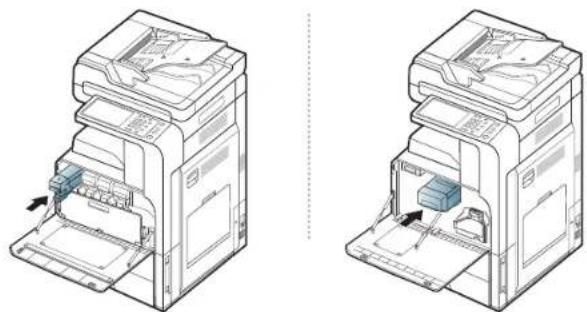
natural_image
Technical line drawing of a dual-sectional machine assembly (no text or symbols)- Close the front door. Ensure that the door is securely closed.
CLX-92x1 / 93x1 Series SCX-812x Series
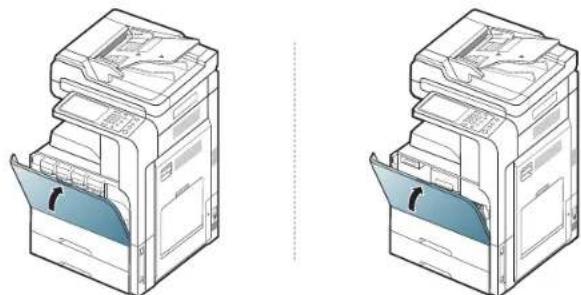
natural_image
Technical line drawing of two views of a printer or scanner device, showing front and side views (no text or symbols)
If the front door is not completely closed, the machine will not operate.
Replacing the toner cartridge
The machine uses four colors and has a different toner cartridge for each one: yellow(Y), magenta(M), cyan(C), and black(K).
When the toner cartridge is totally empty
- The status LED turns red on and the display screen shows the error message of replacing toner.
- The machine stops printing and incoming faxes are saved in memory. However, when the color toner cartridges are empty, but there is toner left in the black toner cartridge, you can still print black-and-white print jobs (the submitted job must be in black and white).
- Check the type of the toner cartridge for your machine (see "Supplies and accessories" on page 160).
At this stage, the toner cartridge needs to be replaced.

Click this link to open an animation about replacing the toner cartridge.
- Open the front door.
CLX-92x1 / 93x1 Series SCX-812x Series
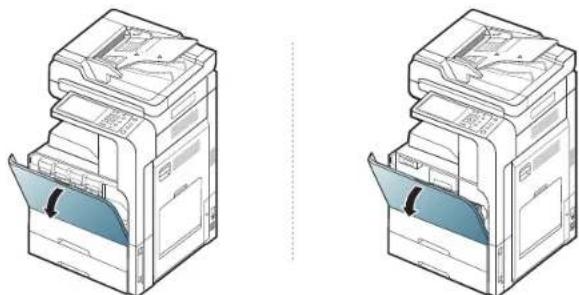
natural_image
Two technical line drawings of a printer or scanner device, showing front and side views (no text or symbols)- Pull the corresponding toner cartridge out from the machine.
CLX-92x1 / 93x1 Series SCX-812x Series
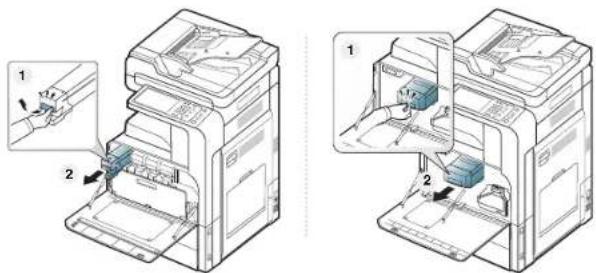
text_image
Technical diagram showing two views of a printer's internal structure with labeled parts and directional arrows indicating assembly or movement.- Remove the new toner cartridges from its bag.
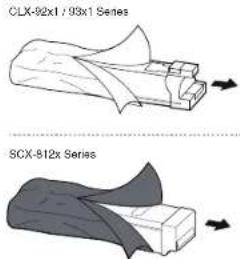
text_image
CLX-92x1 / 93x1 Series SCX-812x Series- Thoroughly roll the cartridge five or six times to distribute the toner evenly inside the cartridge.
CLX-92x1 / 93x1 Series SCX-812x Series
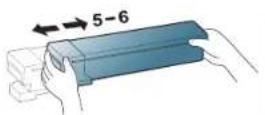
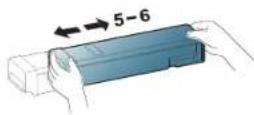
- Carefully pull the sealing tape out of the toner cartridge..
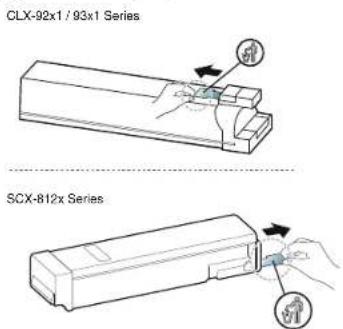
text_image
CLX-92x1 / 93x1 Series SCX-812x SeriesIf toner gets on your clothing, wipe it off with a dry cloth and wash clothing in cold water. Hot water sets toner into fabric.
- H old the toner cartridge and align it with the corresponding slot inside the machine. Insert it back into its slot until locks in place.
CLX-92x1 / 93x1 Series SCX-812x Series
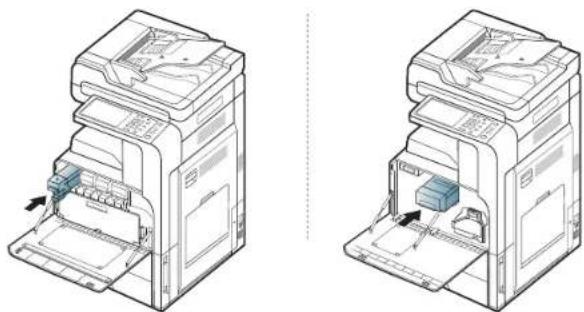
natural_image
Technical line drawings of two views of a printer or scanner device, showing internal components and assembly (no text or symbols)- Close the front door. Ensure that the door is securely closed.
CLX-92x1 / 93x1 Series SCX-812x Series
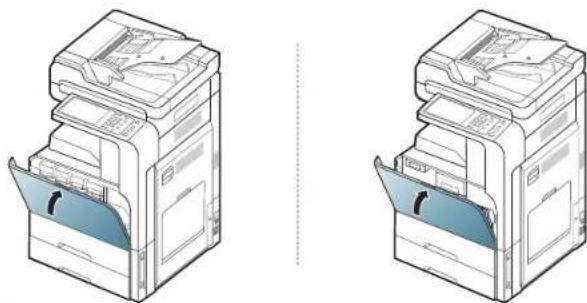
natural_image
Technical line drawing of two views of a printer or scanner device, showing front and side views with no visible text or symbols.If the front door is not completely closed, the machine will not operate.
Cleaning paper dust stick and chargers of imaging units
The paper dust stick and the charger of imaging unit will need to be cleaned after the specified number of pages is printed out. When the message that tells you to clean the charger appears, you have to clean the paper dust stick first, then clean the charger. The time when the message appears depends on environmental factors like altitude, temperature, humidity, and so on. You need to clean the paper dust stick and the charger to maintain printing quality. If cleaning is done, the message will disappear automatically.
Follow the cleaning procedure below.
- Open the front door.
CLX-92x1 / 93x1 Series SCX-812x Series
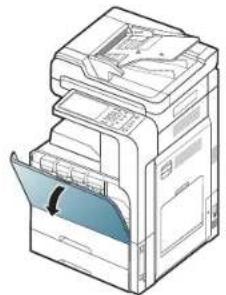
natural_image
Illustration of a printer with a blue cover and paper feed, showing no text or symbols.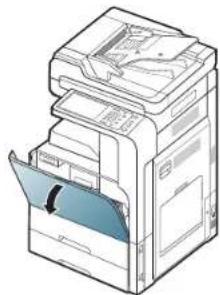
natural_image
Illustration of a printer with a paper feeding into a slot (no text or symbols visible)- Hold the left/right locking levers and push inward at the same time. Then remove the waste toner container.
CLX-92x1/93x1 Series SCX-812x Series
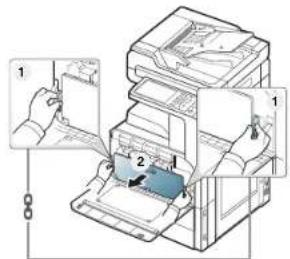
text_image
Diagram of a printer's internal structure with labeled parts and directional arrows indicating assembly or operation.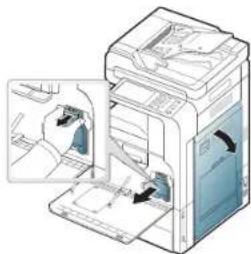
natural_image
Diagram of a printer or scanner device with paper feeding into a slot, showing internal components and directional arrows (no text or symbols present)- Pull the paper dust stick out.
CLX-92x1 / 93x1 Series
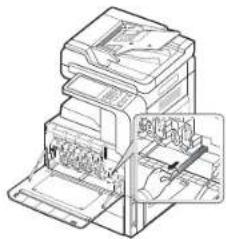
natural_image
Technical line drawing of a mechanical device with internal components and an inset view showing a component detail (no text or symbols)SCX-012x Series
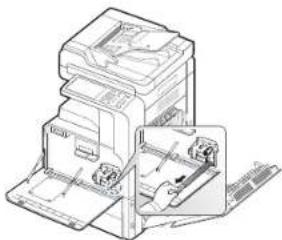
natural_image
Technical line drawing of a mechanical device with an inset showing internal components (no text or symbols)- Remove the paper dust.

- Insert the paper dust stick back.
CLX-92x1/93x1 Series
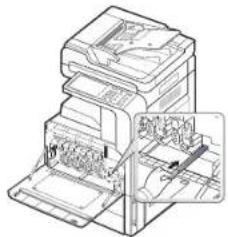
natural_image
Technical line drawing of a printer with internal components and an inset showing a magnified view of the printer's internal structure (no text or symbols present)SCX-812x Series
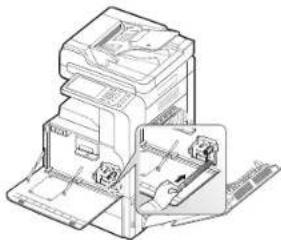
natural_image
Technical line drawing of a mechanical assembly with a magnified inset showing internal components (no text or symbols)- Pull and push the corresponding charger cleaner completely as shown below (SCX-812x Series only).
Do not pull the charger cleaner too hard to prevent it from separating from the machine. It can cause damage to the machine.
5CX-812x Series
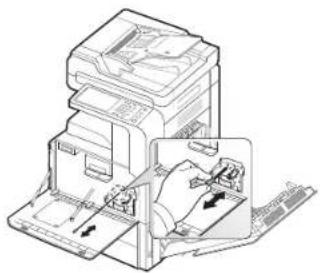
natural_image
Technical line drawing of a printer or printer with internal components and directional arrows indicating movement (no text or symbols present)Repeat step.6 five times.
- Insert the waste toner container until it locks in place.
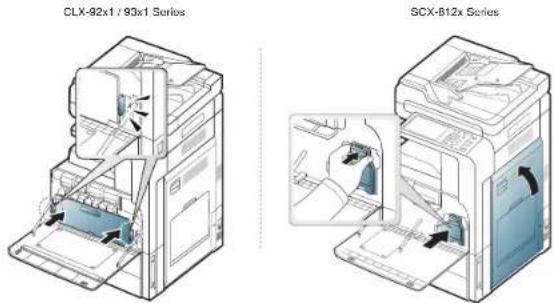
text_image
CLX-92x1 / 93x1 Series SCX-B12x Series- Close the front door. Ensure that the door is securely closed.
CLX-92x1/93x1 Series SCX-812x Series
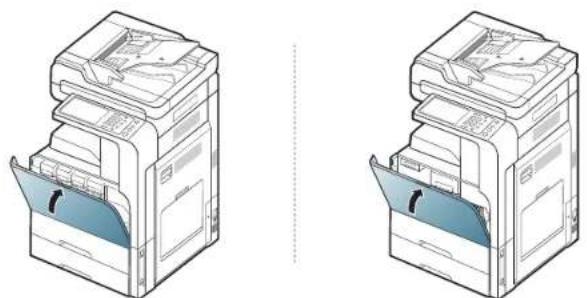
natural_image
Two technical line drawings of a printer or printer device, showing front and side views (no text or symbols)If the message still appears, do the step.7 and step.8 again.
Replacing the imaging unit
The machine uses four colors and has a different imaging unit for each one: yellow(Y), magenta(M), cyan(C), and black(K).
When the life of the imaging unit expires totally
- The status LED turns red on and the display screen shows the error message for replacing imaging unit.
- Check the type of the imaging unit for your machine.(see "Supplies and accessories" on page 160)
At this stage, the imaging unit needs to be replaced.
- Open the front door.
CLX-92x1 / 93x1 Series SCX-812x Series
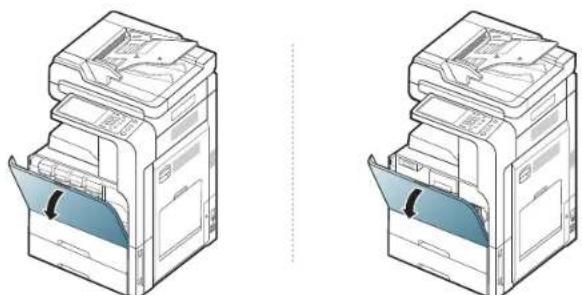
natural_image
Two technical line drawings of a printer or printer device, showing front and side views (no text or symbols)- Push the left/right locking levers and push inward at the same time as shown below. Then remove the waste toner container.
CLX-92x1/95x1 Series SCX-812x5 Series
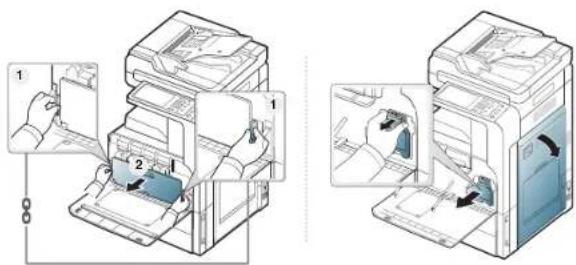
text_image
Diagram showing two steps of printer operation: first with hand inserting paper, second with blue plastic component being inserted into a printer.- Pull the corresponding imaging unit out from the machine.
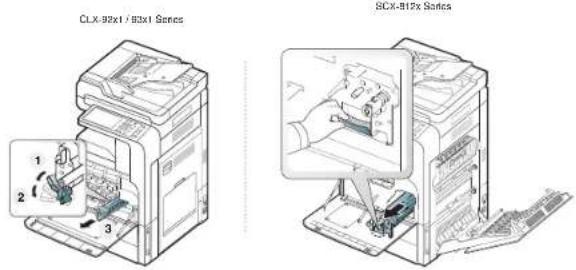
text_image
CLX-92x1 / B3x1 Series SLGA-B12X Series 1 2 3- Remove the new imaging unit from its package.
CLX-92x1 / 93x1 Senes
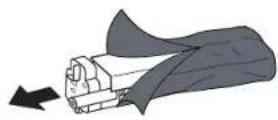
SCX-B12x Series
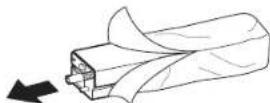
Do not use sharp objects, such as a knife or scissors, to open the imaging unit package. You could damage the surface of the imaging unit.
- Go to ste p.9 (CLX-92x1 Series only).
- Pull out the protecting pad (SCX-812x Series only).
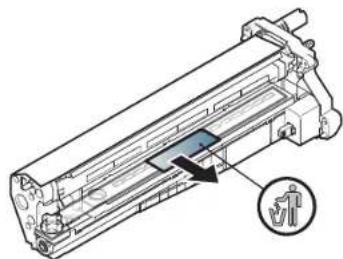
natural_image
Technical diagram of a mechanical device with internal components and a magnified inset showing a tool (no text or symbols present)If toner gets on your clothing, wipe it off with a dry cloth and wash clothing in cold water. Hot water sets toner into fabric.
- Be careful not to scratch the surface of the imaging unit.
- To prevent damage, do not expose the imaging unit to light for more than a few minutes. Cover it with a piece of paper to protect it if necessary.
- Pull the rubber stopper out of the developer (SCX-812x Series only).
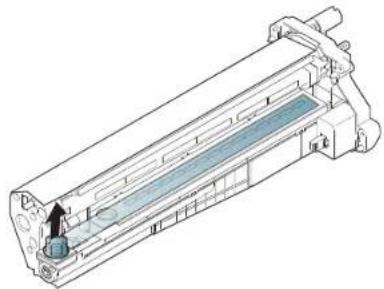
natural_image
Technical line drawing of a mechanical component with internal channels and a central blue component (no text or symbols)- Remove the tape on the imaging unit (SCX-812x Series only).
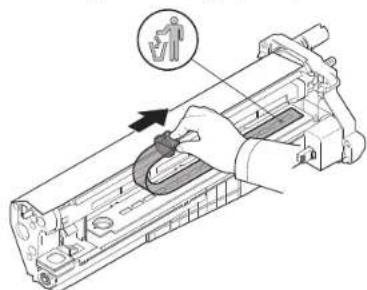
text_image
Diagram showing a hand holding a device with an arrow and a circular icon labeled 'Person' pointing to it.- Remove the paper protecting the imaging unit.
SCX-812x SeriesCLX-92x1
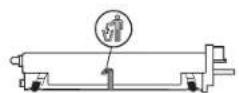
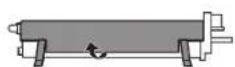
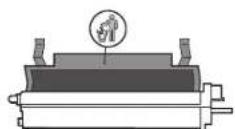
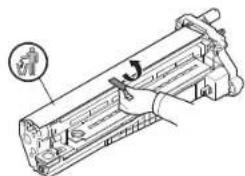
natural_image
Illustration of a hand holding a cylindrical device with a circular icon and arrow indicating motion (no text or symbols)- Hold the handles on the new imaging unit, and push the imaging unit until it locks into place.

text_image
CLX-92x1 / 80x1 Series 50X-812X Series- Take out the LSU window cleaning stick (CLX-92x1 Series only).
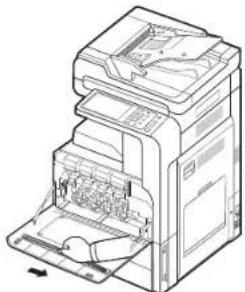
natural_image
Line drawing of a printer with internal components and paper feed (no text or symbols)- Locate the LSU window cleaning hole and insert the LSU window cleaning stick. Slowly push and pull the LSU window cleaning stick 4 or 5 times to clean the LSU window (CLX-92x1 Series only).
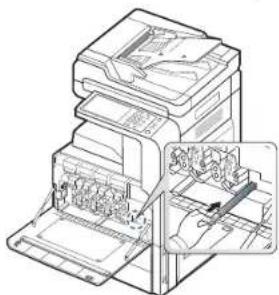
natural_image
Technical line drawing of a printer or printer with internal components and a magnified inset showing internal structure (no text or symbols)-
Insert the LSU window cleaning stick back into its place (CLX-92x1 Series only).
-
Insert the waste toner container until it locks in place.
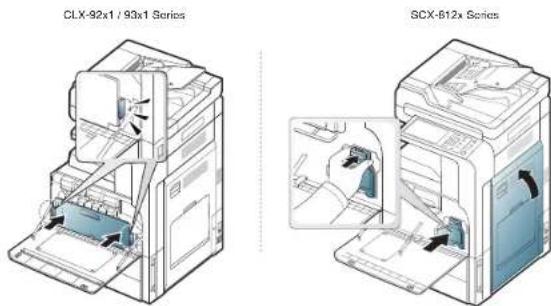
text_image
CLX-92x1 / 93x1 Series SCX-612x Series- Close the front door. Ensure that the door is securely closed.
CLX-92x1 / 93x1 Series SCX-812x Series
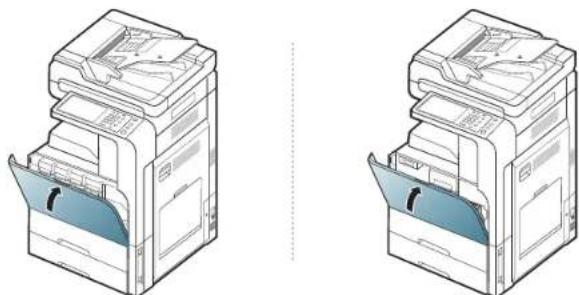
natural_image
Technical line drawing of two different printer or printer units with blue cover compartments (no text or symbols)If the front door is not completely closed, the machine will not operate.
Replacing the waste toner container
When the life of the waste toner container expires totally, the display screen shows the error message of replacing waste toner container.
At this stage, the waste toner container needs to be replaced.
- Check the type of the waste toner container for your machine (see "Supplies and accessories" on page 160).
- Open the front door.
CLX-92x1 / 93x1 Series SCX-812x Series
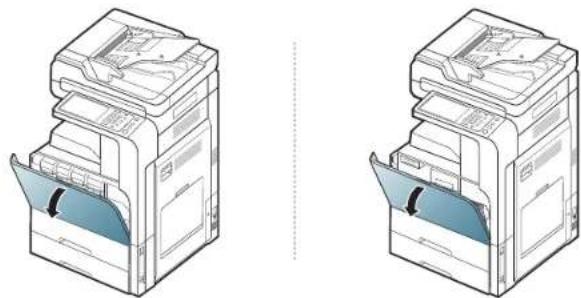
natural_image
Technical line drawing of two views of a printer or scanner device, showing front and side views with no text or symbols.- Push the left/right locking levers and push outward as shown below. Then remove the waste toner container.
CLX-92x1/93x1 Series SCX-612x Series
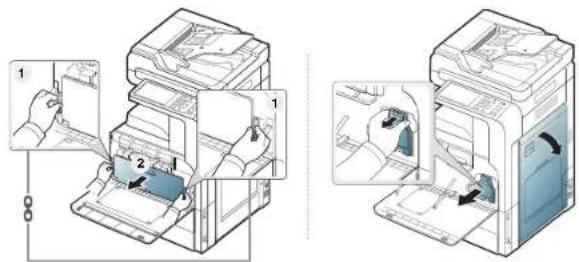
text_image
Technical diagram showing two views of a printer's internal structure with labeled parts and directional arrows indicating process flow.-
Remove the new waste toner container from its package.
-
Ins ert the new waste toner container until it locks in place.
CLX-92x1/93x1 Series
SCX-β12x Series
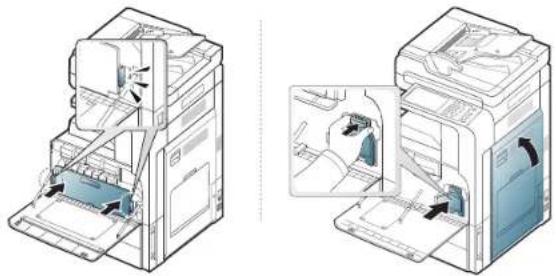
natural_image
Technical line drawing of a printer with internal components and a close-up view showing internal structure (no text or symbols)- Close the front door. Ensure that the door is securely closed.
CLX-92x1 / 93x1 Series SCX-812x Series
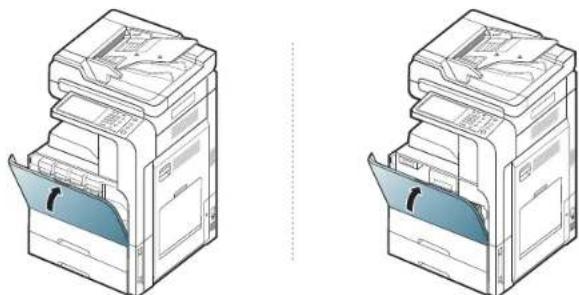
natural_image
Technical line drawing of two views of a printer or scanner device, showing front and side views with no visible text or symbols.
If the front door is not completely closed, the machine will not operate.
Clearing original document jams
When an original jams while passing through the duplex automatic document feeder (DADF), a warning message appears on the display screen.

To avoid tearing the document, remove the jammed document slowly and gently.

To prevent document jams, use the scanner glass for thick, thin, or mixed paper-type originals.
Original paper jam in front of scanner
- Remove any remaining pages from the DADF.
- Open the DADF cover.
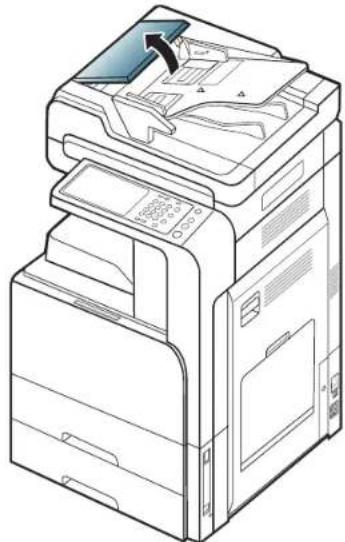
natural_image
Line drawing of a desktop computer with an open lid and control panel (no text or symbols)- Gently remove the jammed paper from the DADF.
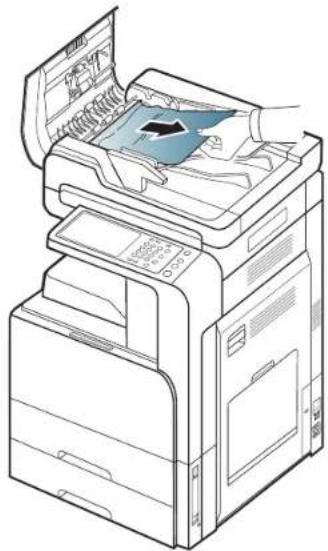
natural_image
Line drawing of a printer with a paper airplane being inserted (no text or symbols)- Close the DADF cover.
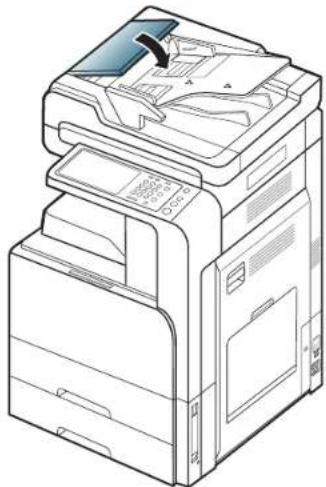
natural_image
Line drawing of a printer with paper and print (no text or symbols visible)Original paper jam inside of scanner
- Remove any remaining pages from the DADF.
- Open the DADF cover.
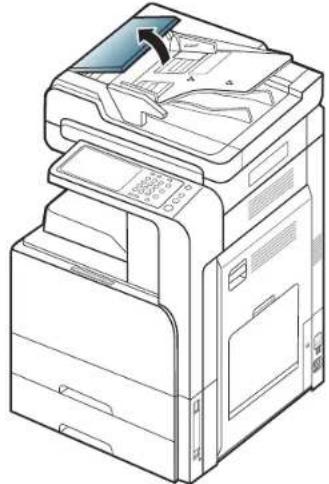
natural_image
Line drawing of a printer with a scroll wheel and paper filter (no text or symbols)- Gently remove the jammed paper from the DADF. If you can not grasp the jammed paper, use lever as shown in the picture below.
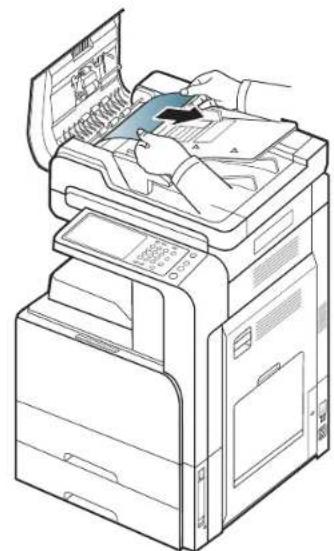
text_image
Illustration of a printer with visible Chinese text labels, showing internal components and a hand holding a paper airplane.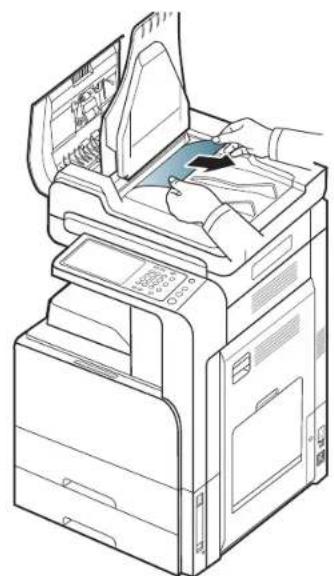
natural_image
Line drawing of a printer with open lid and hands operating it (no text or symbols)If you do not see paper in this area, go to the next step.
- Open the DADF input tray.
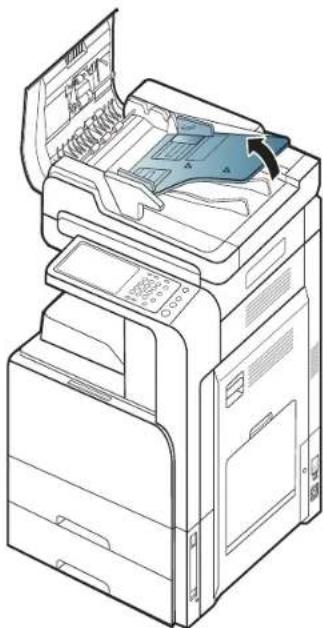
natural_image
Line drawing of a printer with a paper airplane being inserted (no text or symbols)- Pull the jammed paper gently out of the DADF.
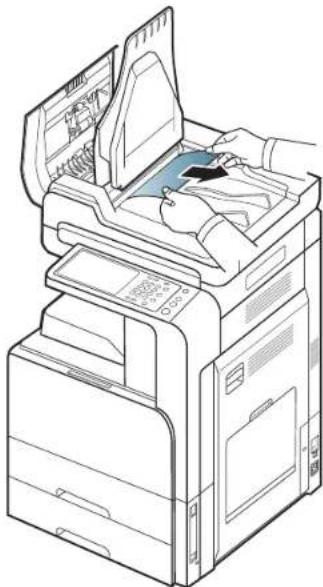
natural_image
Line drawing of a printer with open lid and internal mechanism (no text or symbols)If you do not see paper in this area, go to the next step. 6. Close DADF cover and DADF input tray.
- Open the DADF .
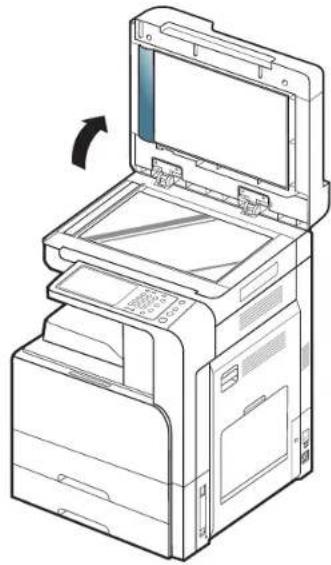
natural_image
Line drawing of a printer with an open lid and scroll, showing internal components and a black arrow indicating rotation (no text or symbols)- Grasp the misfed paper, and remove the paper from the feed area by carefully pulling it using both hands.
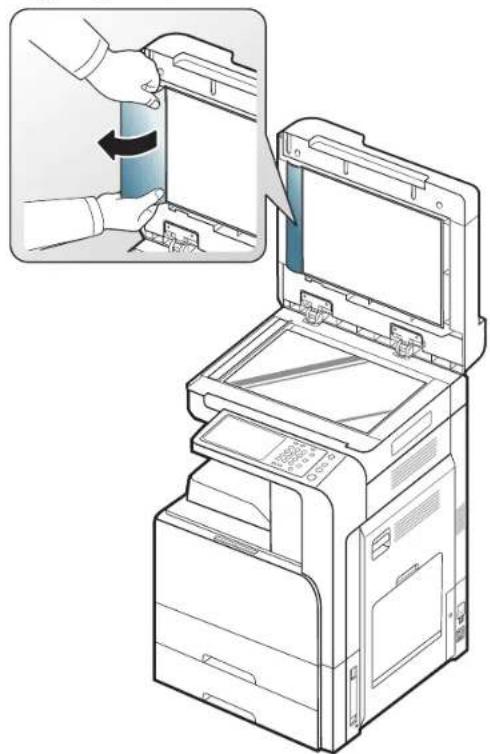
natural_image
Illustration of a printer with a hand inserting a component into the cover, showing internal structure and no text or symbols.If you do not see paper in this area, go to the next step. 9. Close the DADF.
Tips for avoiding paper jams
By selecting the correct media types, most paper jams can be avoided. When a paper jam occurs, refer to the next guidelines.
- Ensure that the adjustable guides are positioned correctly (see "Loading paper in the tray" on page 39).
Do not overload the tray. Ensure that the paper level is below the paper capacity mark on the inside of the tray.
• D o not remove paper from the tray while your machine is printing.
• Flex, fan, and straighten paper before loading. - Do not use creased, damp, or highly curled paper.
- Do not mix paper types in a tray.
- Use only recommended print media (see "Tray setting" on page 47).
- Ensure that the recommended side of the print media is facing up in the tray, or facing down in the multi-purpose tray.
Clearing paper jams
When a paper jam occurs, a warning message appears on the display screen.

To avoid tearing the paper, pull the jammed paper out slowly and gently. Follow the instructions in the following sections to clear the jam.
Paper jam in tray 1, 2

Click this link to open an animation about clearing a jam.

The fuser area is hot. Take care when removing paper from the machine.
- Open the right door.
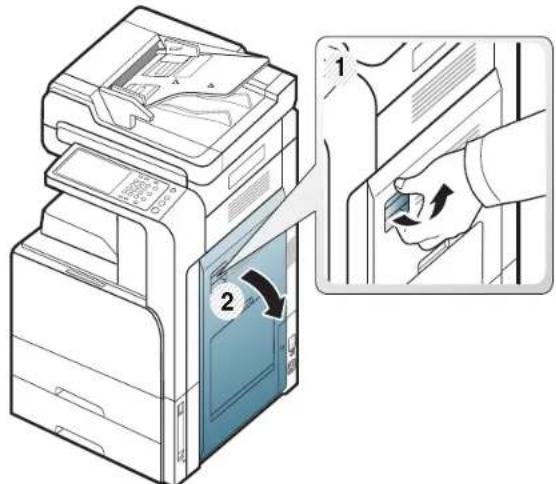
text_image
Diagram showing a printer with two labeled parts (1 and 2) and a hand holding a small object, illustrating a process of handling or disassembly.- Remove the jammed paper by gently pulling it straight out.
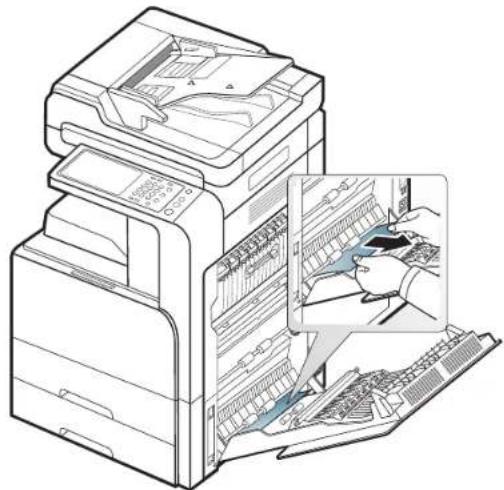
natural_image
Illustration of a printer with internal circuitry and a close-up of its internal components (no text or symbols visible)Close the right door.
If you do not see paper in this area, go to the next step.
- Pu ll out tray 1 or 2.
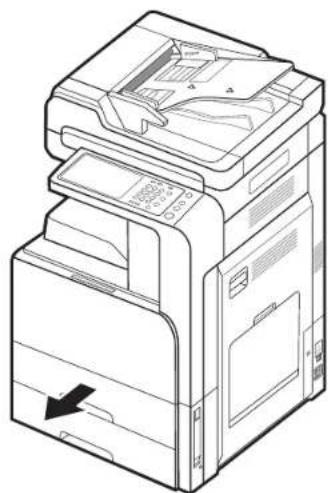
natural_image
Line drawing of a printer with a paper airplane, showing front panel and back cover (no text or symbols)- Remove the jammed paper from the machine.
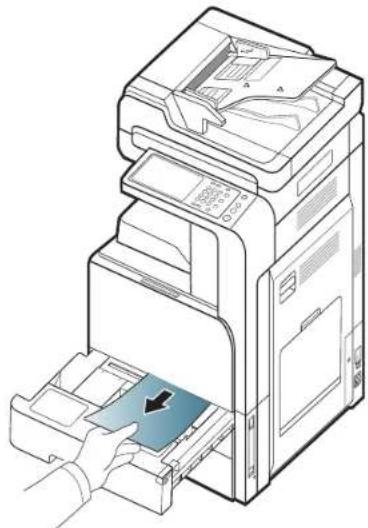
natural_image
Illustration of a printer with a hand inserting a card into the base (no text or symbols visible)- Insert tray 1 or 2 back into the machine until it locks into place. Printing automatically resumes.
Paper jam in tray 3, 4

Click this link to open an animation about clearing a jam.
- Ope n the right bottom door of the dual cassette feeder.
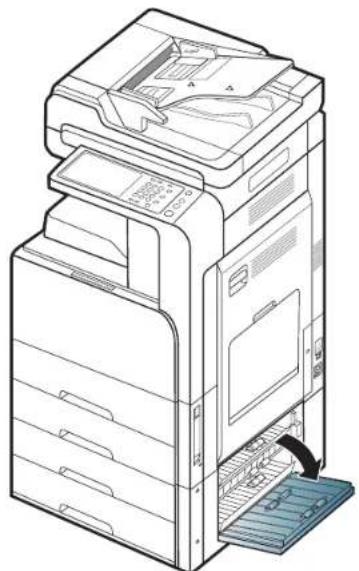
natural_image
Line drawing of a desktop computer with an open drive and a blue tray (no text or symbols)- Remove the jammed paper by gently pulling it straight out.
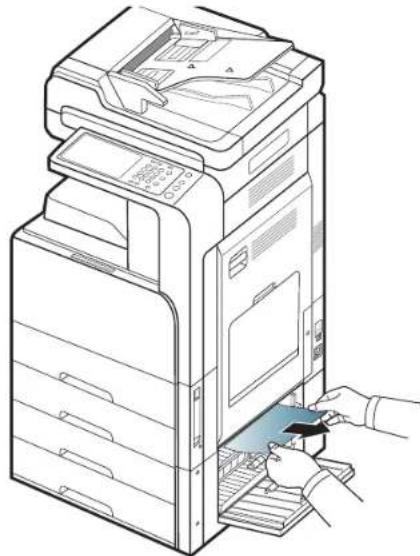
natural_image
Illustration of a printer with a hand inserting a card into the base (no text or symbols visible)Close the dual cassette feeder right bottom door. If you do not see paper in this area, go to the next step.
- Pu ll out tray 3 or 4.
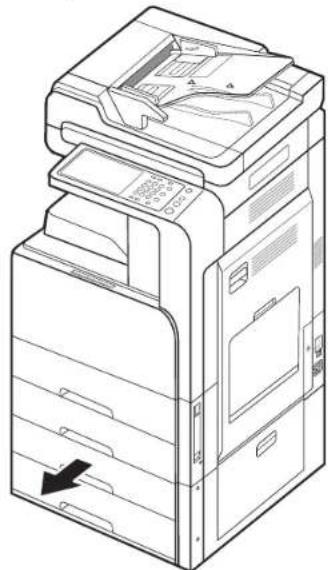
natural_image
Line drawing of a computer with multiple monitors and a scroll, showing internal components and a black arrow indicating a directional flow (no text or symbols present)- Remove the jammed paper from the machine.
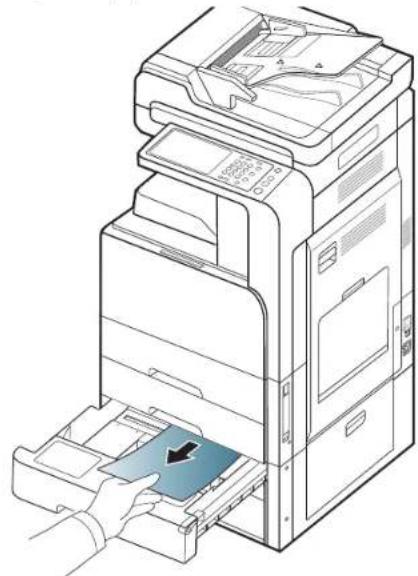
natural_image
Illustration of a printer or scanner with a hand inserting a card into the base (no text or symbols visible)- Insert tray 3 or 4 back into the machine until it locks into place. Printing automatically resumes.
Paper jam in the multi-purpose tray

Click this link to open an animation about clearing a jam.
- If the paper is not feeding properly, pull the paper out of the machine.
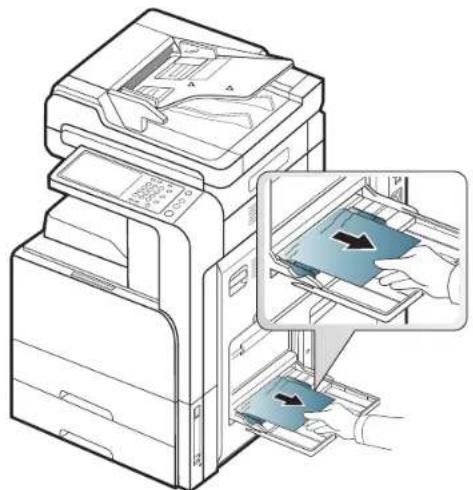
natural_image
Illustration of a printer with a close-up view showing the printer's internal structure and its application (no text or symbols present)- Open and close the front door to resume printing.
Paper jam inside the machine (Jam feed 1, Jam feed 2)

Click this link to open an animation about clearing a jam.

The fuser area is hot. Take care when removing paper from the machine.
- Open the right door.
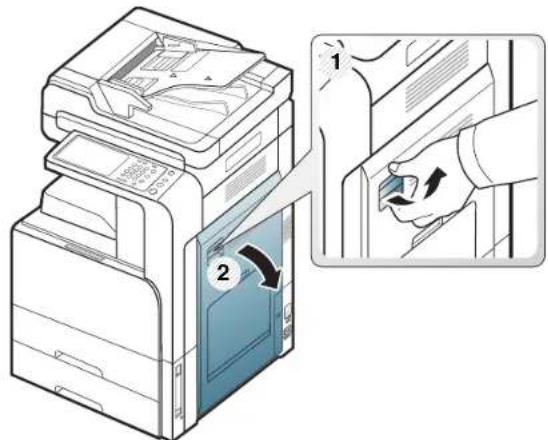
text_image
Diagram showing a printer with two labeled parts, illustrating the process of inserting or removing a device.- Remove the jammed paper by gently pulling it straight out.
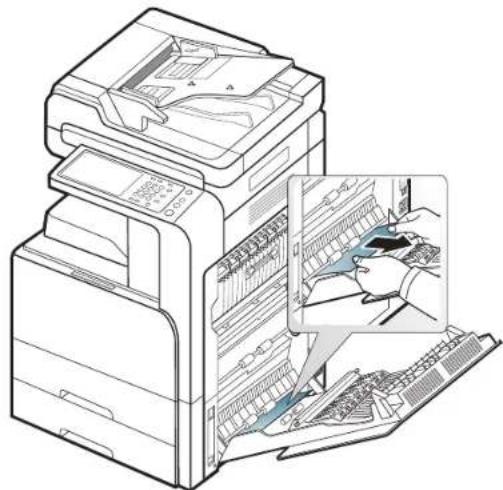
natural_image
Illustration of a printer with internal circuitry and a close-up of its internal components (no text or symbols visible)- Close the right door.
Paper jam inside the machine (Jam feed 3, Jam feed 4)

Click this link to open an animation about clearing a jam.
- Open the right bottom door of the dual cassette feeder.
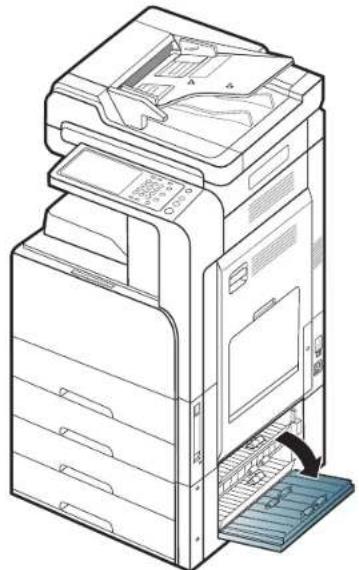
natural_image
Line drawing of a desktop computer with open door, drive bays, and a blue tray (no text or symbols)- Remove the jammed paper by gently pulling it straight out.
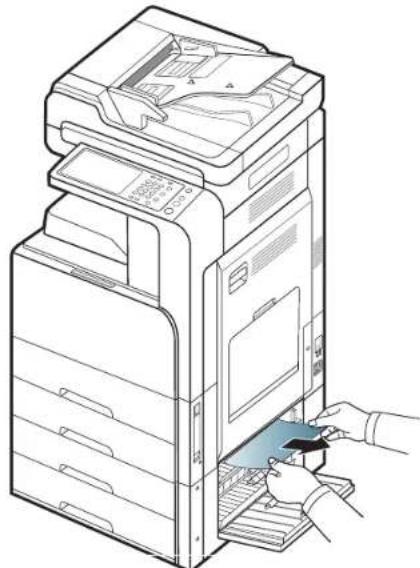
natural_image
Line drawing of a printer with a hand inserting a card into the cover (no text or symbols)- Close the dual cassette feeder right bottom door.
Paper jam inside the machine (Jam Registration)

Click this link to open an animation about clearing a jam.

The fuser area is hot. Take care when removing paper from the machine.
- Open the right door.
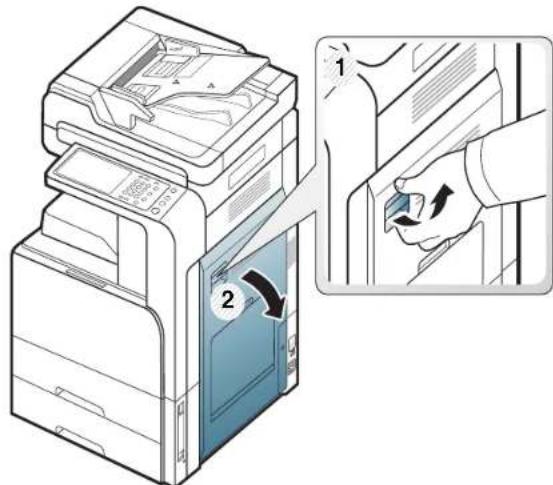
text_image
Diagram showing a printer with two labeled parts (1 and 2) and an inset hand holding a small object, illustrating a process or operation.- Remove the jammed paper by gently pulling it straight out.
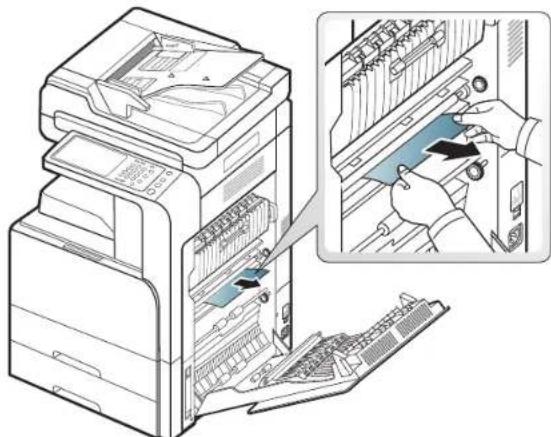
natural_image
Illustration of a desktop computer with an open rack and internal components, showing a close-up of the rack's internal structure (no text or symbols present)- Close the right door.
Paper jam inside of the machine (Jam at Fuser out)

Click this link to open an animation about clearing a jam.

The fuser area is hot. Take care when removing paper from the machine.
- Open the right door.
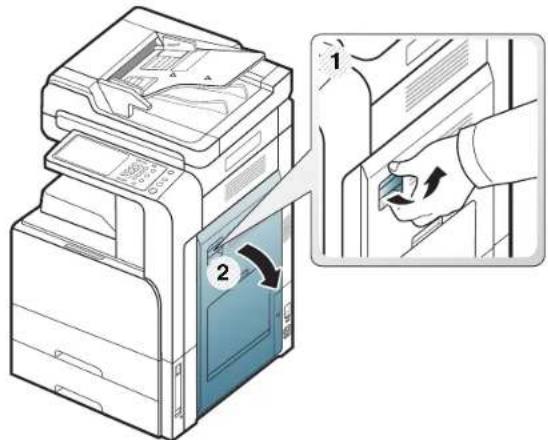
text_image
Diagram showing a printer with two labeled parts, illustrating the process of inserting or removing a device.- Open the fuser cover. Then remove the jammed paper by gently pulling it straight out.
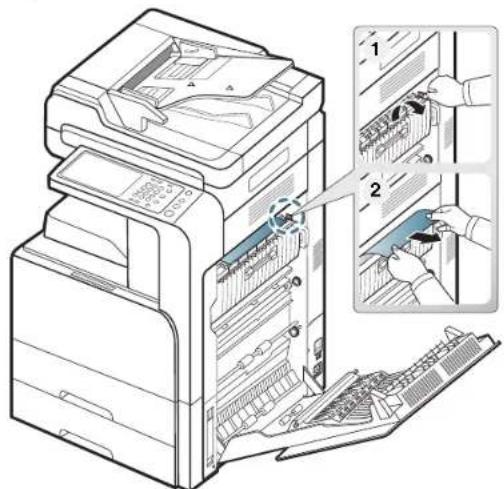
text_image
Technical diagram of a printer with labeled parts and zoomed-in detail view showing internal components- Close the fuser cover and the right door.
Paper jam at the top of duplex path (Jam Duplex Return, Jam Duplex 1)

Click this link to open an animation about clearing a jam.

The fuser area is hot. Take care when removing paper from the machine.
- Open the right door.
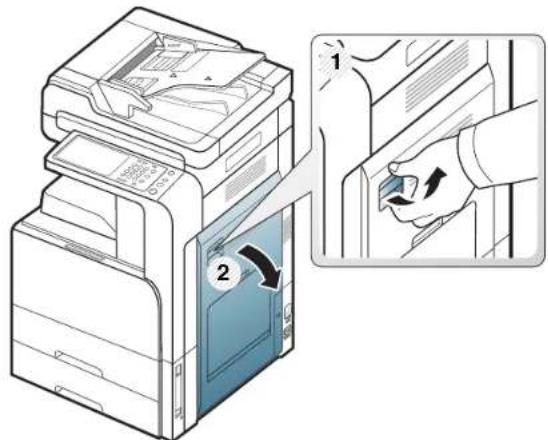
text_image
Diagram showing a printer with two labeled parts, illustrating the process of inserting or removing a device.- Remove the jammed paper by gently pulling it straight out.
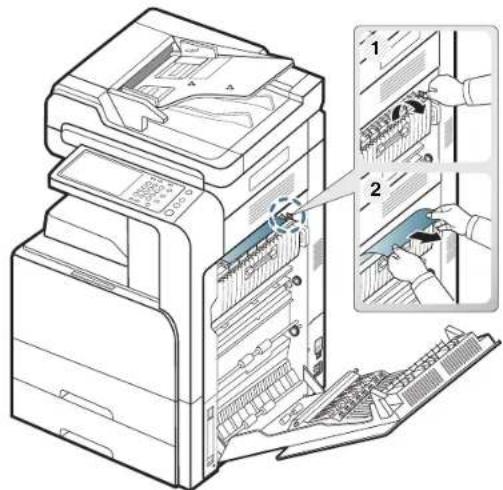
text_image
Technical diagram of a printer with labeled parts and zoomed-in detail view showing internal components- Close the right door.
Paper jam at the inside of duplex path (Jam Duplex 2)

Click this link to open an animation about clearing a jam.

The fuser area is hot. Take care when removing paper from the machine.
- Open the right door.
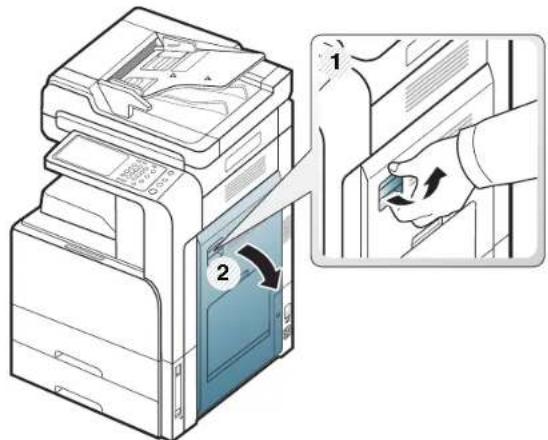
text_image
Diagram showing a printer with two labeled parts, illustrating the process of inserting or removing a device.- Remove the jammed paper by gently pulling it straight out.
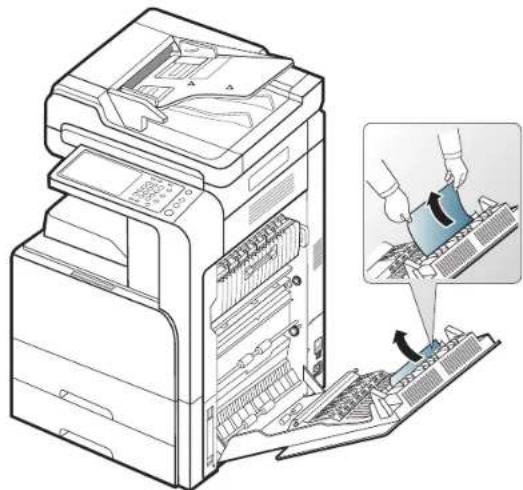
natural_image
Illustration of a printer with internal components and a close-up view of the printer's internal structure (no text or symbols present)- Close the right door.
Paper jam bottom of duplex path (Jam Duplex Regi.)

Click this link to open an animation about clearing a jam.

The fuser area is hot. Take care when removing paper from the machine.
- Open the right door.

text_image
Diagram showing a printer with two labeled parts, illustrating the process of inserting or removing a device.- Remove the jammed paper by gently pulling it straight out.

text_image
Technical diagram of a printer with labeled parts and an inset showing a close-up of the internal structure.- Close the right door.
Paper jam in exit area (Jam Exit Face down)

Click this link to open an animation about clearing a jam.
- Gen tly pull the paper out of the output tray.
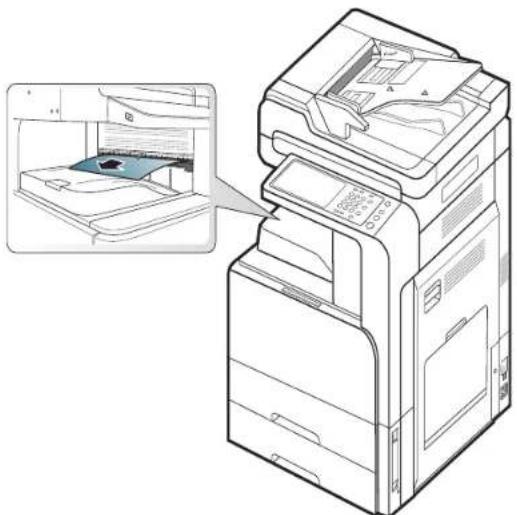
natural_image
Technical line drawing of a printer with an inset showing its internal components (no text or symbols present)- Open and close the front door. Printing automatically resumes.

If the optional Inner Finisher or booklet finisher is installed, remove the jammed paper as shown below.
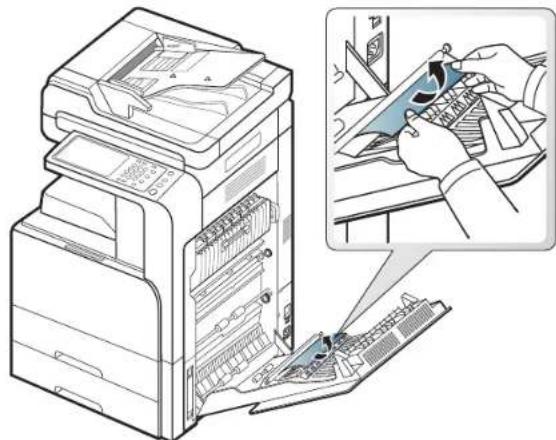
natural_image
Illustration of a desktop computer with an open rack and a close-up of its internal components being processed (no text or symbols visible)If this paper jam persists, make sure the bin full sensor is unfolded.
The bin full sensor is located in front of the output tray.
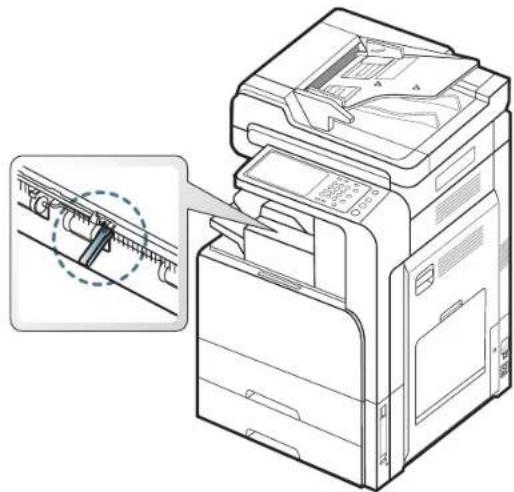
natural_image
Line drawing of a printer with a close-up inset showing the mechanism of inserting a cable into a slot (no text or symbols present)Paper jam at finisher's exit

Click this link to open an animation about clearing a jam.
- Gen tly pull the paper out of the finisher's exit.
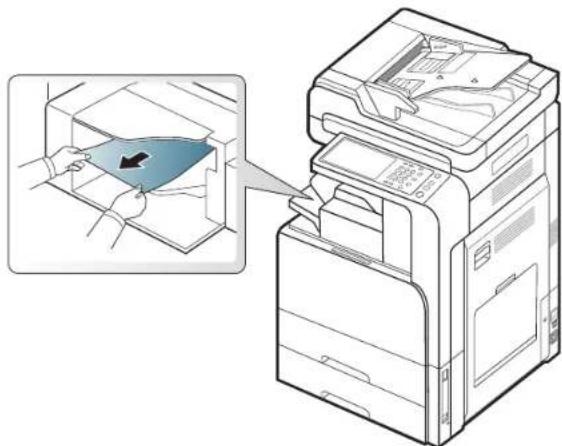
natural_image
Illustration of a printer being inserted into a device, showing the printer's internal structure and the printer's top view (no text or symbols present)- Open and close the finisher front door. Printing automatically resumes.
Paper jam inside of finisher

Click this link to open an animation about clearing a jam.
- Lift up the finisher top cover.
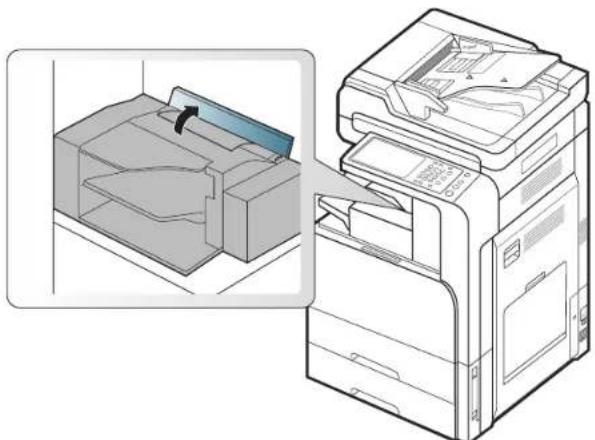
natural_image
Illustration of a printer with a close-up view of its internal components (no text or symbols visible)- Let the jammed paper move out by rotating the paper roller gear.
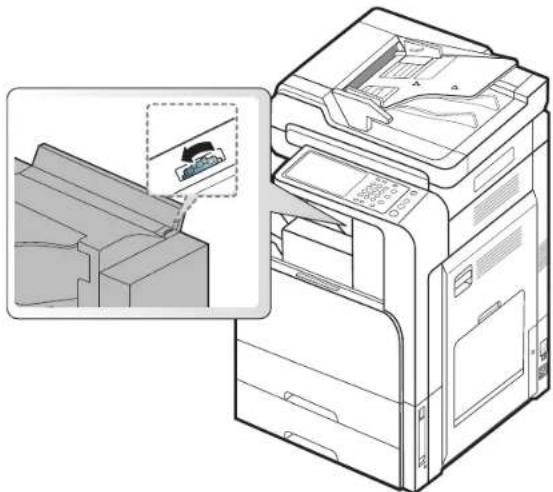
natural_image
Illustration of a printer with a close-up view showing a printer's internal structure and a magnified inset of its page (no text or symbols visible)- Gently pull the jammed paper out. Close the top cover
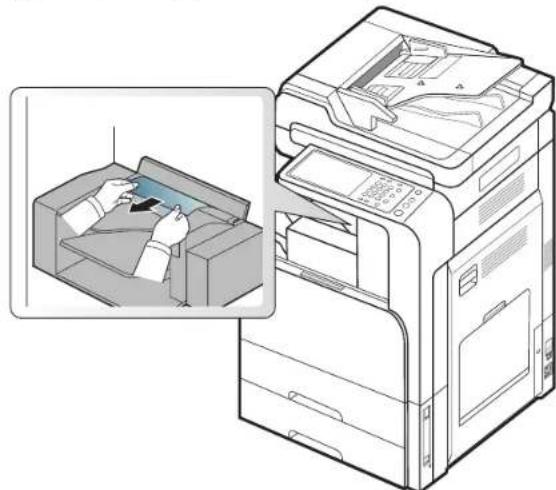
natural_image
Illustration of a printer with a hand inserting a card into a box, showing internal components and a close-up view of the device (no text or symbols present)- Open and close the finisher front door. Printing automatically resumes.
Understanding display messages
Messages appear on the display screen to indicate the machine's status or errors. Some error messages are shown with graphics to help you troubleshoot problem. Refer to the tables below to understand the messages and their meaning, and correct the problem, if necessary. Messages and their explanations are listed in alphabetical order.

- If a message is not in the table, reboot the power and try the printing job again. If the problem persists, call for service.
- When you call for service, provide the service representative with the contents of display message.
- Some messages may not appear in the display depending on options or models.
• [color] indicates the color of toner or imaging unit. - [tray number] indicates the tray number.
• [media type] indicates the media type.
• [media size] indicates the paper size.
• [error number] indicates the error number.
| Message Meaning Suggested solutions | ||
| Actuator Fan Failure [error number]:Please open/close door. | There is a problem in the actuator fan. | Open and close the front door. If the problem persists, call for service. |
| Actuator Fan Signal Failure [error number]:Please open/close door. | There is a problem in the actuator fan. | Open and close the front door. If the problem persists, call for service. |
| Actuator Motor Failure [error number]:Please open/close door. | There is a problem in the actuator motor. | Open and close the front door. If the problem persists, call for service. |
| Actuator Sensor Failure [error number]:Please open/close door. | There is a problem in the actuator sensor. | Open and close the front door. If the problem persists, call for service. |
| ADF System Failure [error number]:Call for service if the problem persists. | There is a problem in the dual automatic document feeder. | Turn the machine off and back on again. If the problem persists, call for service. |
| Booklet maker Error [error number]:Please open/close door. | There is a problem in the booklet maker. | Open and close the booklet finisher front door. If the problem persists, call for service. |
| [color] Imaging Unit Failure [error number]:Install [color] imaging unit again. | There is a problem in the imaging unit. | Reinstall the imaging unit. If the problem persists, call for service. |
| [color] Imaging Unit Failure [error number]:Please open/close door. | There is a problem in the imaging unit. | Open and close the front door. If the problem persists, call for service. |
| Message Meaning Suggested solutions | ||
| [color] Imaging Unit Failure [error number]:Turn off then on. | There is a problem in the imaging unit. | Turn the machine off and back on again. If the problem persists, call for service. |
| [color] imaging unit is not compatible. Check user's guide. | The imaging unit you have installed is not for your machine. | Install a Samsung-genuine imaging unit designed for your machine (see "Available supplies" on page 160). |
| [color] imaging unit is not installed. Install it. | The imaging unit is not installed or the imaging unit is not properly installed. | Install the imaging unit. If it is already installed, try to reinstall the imaging unit. If the problem persists, call for service. |
| [color] imaging unit is not original Samsung. Check user's guide. | The imaging unit you have installed is not for your machine. | Install a Samsung-genuine imaging unit, designed for your machine (see "Available supplies" on page 160). |
| [color] imaging unit requires charger's cleaning. Clean the unit. | The charger of imaging unit need to clean after the specified number of paper is printed out. | Clean the charger of imaging unit (see "Cleaning paper dust stick and chargers of imaging units" on page 128). |
| [color] LSU Unit Failure [error number]:Turn off then on. | There is a problem in the LSU (Laser Scanning Unit). | Turn the machine off and back on again. If the problem persists, call for service. |
| [color] toner cartridge Failure [error number]:Install [color] toner cartridge again. | There is a problem in the toner cartridge. | Reinstall the toner cartridge. If the problem persists, call for service. |
| [color] toner cartridge Failure [error number]: Install [color] toner cartridge again. | The toner cartridge you have installed is not for your machine. | Install a Samsung-genuine toner cartridge designed for your machine (see "Check the type of the toner cartridge for your machine (see "Supplies and accessories" on page 160)." on page 126). |
| [color] toner cartridge Failure [error number]: Please open/close door. | The toner cartridge does not supply enough toner. | Thoroughly roll the cartridge five or six times to distribute the toner evenly inside the cartridge (see "Redistributing toner" on page 125).Open and close the front door. Or check whether the sealing tape of the toner cartridge is removed or not (see "Replacing the toner cartridge" on page 126).If the problem persists, call for service. |
| [color] toner cartridge is not compatible. Check user's guide. | The toner cartridge you have installed is not for your machine. | Install a Samsung-genuine toner cartridge designed for your machine (see "Check the type of the toner cartridge for your machine (see "Supplies and accessories" on page 160)." on page 126). |
| [color] toner cartridge is not installed. Install it. | The toner cartridge is not installed or the cartridge is not properly installed. | Install the toner cartridge. If it is already installed, try to reinstall the toner cartridge. If the problem persists, call for service. |
| DCF Failure [error number]: Check internal DCF connection. | There is a problem in the dual capacity feeder. | Open and close the dual capacity feeder, or check the dual capacity feeder connection with the machine. If the problem persists, call for service. |
| DCF Failure [error number]: Please open/close [tray number]. | There is a problem in the dual capacity feeder. | Open and close the tray. If the problem persists, call for service. |
| End of life, Replace with new [color] imaging unit. | The life of the imaging unit expires totally. | Replace the imaging unit with a Samsung-genuine imaging unit (see "Replacing the imaging unit" on page 129). |
| End of life, Replace with new [color] toner cartridge. | The toner cartridge has run out. The machine stops printing. Some amount of toner may remain in the cartridge even when the machine stops printing. | This message appears when the toner is completely empty, and your machine stops printing. Replace the toner cartridge with a Samsung-genuine toner cartridge (see "Replacing the toner cartridge" on page 126). |
| Message Meaning Suggested solutions | ||
| End of life, Replace with new transfer belt unit. | The life of the transfer belt unit expires totally. | Replace the transfer belt unit with a Samsung-genuine transfer belt unit, call for service. |
| Engine System Failure [error number]:Please open/close door. | There is a problem in the engine system. | Open and close the front door. If the problem persists, call for service. |
| Engine System Failure [error number]:Turn off then on. | There is a problem in the engine system. | Turn the machine off and back on again. If the problem persists, call for service. |
| Fax modem card is not installed. Install the card. | The optional fax kit is not installed. | Install the optional fax kit. If it is already installed, try to reinstall the optional fax kit. If the problem persists, call for service. |
| Fax System Failure [error number]:Turn off then on. | There is a problem in the fax system. | Turn the machine off and back on again. If the problem persists, call for service. |
| FDI device is not installed. Install the device. | The FDI optional FDI kit is not installed. | Install the optional FDI kit. If it is already installed, try to reinstall the optional FDI kit. If the problem persists, call for service. |
| Feed door is opened. Close it. | The door is not securely latched. | Close the door until it locks into place. |
| Finisher door is open. Close it. | The finisher door is not securely latched. | Close the door until it locks into place. |
| Finisher Error [error number]:Please open/close door. | There is a problem in the finisher. | Open and close the finisher door. If the problem persists, call for service. |
| Finisher Error [error number]:Turn off then on. | There is a problem in the finisher. | Turn the machine off and back on again. If the problem persists, call for service. |
| Finisher System Failure [error number]:Please open/close door. | There is a problem in the finisher. | Open and close the finisher door. If the problem persists, call for service. |
| Finisher System Failure [error number]:Turn off then on. | There is a problem in the finisher. | Turn the machine off and back on again. If the problem persists, call for service. |
| Front door is open. Close it. | The door is not securely latched. | Close the door until it locks into place. |
| Fuser Unit Failure [error number]:Turn off then on. | There is a problem in the fuser unit. | Turn the machine off and back on again. If the problem persists, call for service. |
| Fusing unit is not compatible. Check user's guide. | The fuser unit you have installed is not for your machine. | Install a Samsung-genuine fuser unit, designed for your machine, call for service. |
| Fuser unit is not installed correctly. Install it. | The fuser unit is not properly installed. | Reinstall the fuser unit. If the problem persists, call for service. |
| HDD is almost full-1. Check user's guide. | HDD is almost full in the machine. | Check Address Book or User Profile. If necessary, remove the data which is unused in Address Book or User Profile. |
| HDD is almost full-2. Check user's guide. | HDD is almost full in the machine. | Check Stored Document, or Secured Job in Job Status. If necessary, remove the data which is unused in Stored Document or Secured Job. |
| HDD is almost full-3. Check user's guide. | HDD is almost full in the machine. | Check System Log at Security in SyncThruTM Web Service. If necessary, remove the data in System Log. |
| HDD is almost full-4. Check user's guide. | HDD is almost full in the machine. | Print or remove the jobs on the queue which are waiting for its turn. You can check the jobs pressing Job Status (see "Job Status button" on page 36).Print or remove the received fax jobs in Secure Receive (see "Receiving in secure receiving mode" on page 70). |
| HDD is almost full-5. Check user's guide. | HDD is almost full in the machine. | There is a problem in the machine. Check the error message on the display screen and resolve the problem. |
| HDD is almost full-6. Check user's guide. | HDD is almost full in the machine. | There is a problem in the machine. Check the error message on the display screen and resolve the problem. |
| HDD System Failure [error number]:Turn off then on. | There is a problem in the hard disk. | Turn the machine off and back on again. If the problem persists, call for service. |
| Message Meaning Suggested solutions | ||
| Input System Failure [error number]: Pull [tray number] out and insert it. | There is a problem in the tray. | Open and close the tray. If the problem persists, call for service. |
| Image transfer belt cleaning unit is not compatible. Check user's guide. | The image transfer belt cleaning unit you have installed is not for your machine. | Install a Samsung-genuine image transfer belt cleaning unit, designed for your machine, call for service. |
| Image transfer belt unit is not original Samsung. Check user's guide. | The image transfer belt you have installed is not for your machine. | Install a Samsung-genuine image transfer belt, designed for your machine, call for service. |
| ITB Unit Failure [error number]: Turn off then on. | There is a problem in the image transfer belt unit. | Turn the machine off and back on again. If the problem persists, call for service. |
| MSOK System Failure [error number]: Turn off then on. | There is a problem in the engine system. | Turn the machine off and back on again. If the problem persists, call for service. |
| Network cable is disconnected. Check it. | The machine is not connected with a network cable. | Connect the machine to the network with a network cable. |
| Option Feed door is opened. Close it. | The door is not securely latched. | Close the door until it locks into place. |
| Original paper jam in front of scanner | The originals are jammed in duplex automatic document feeder. | Clear the jam (see "Original paper jam in front of scanner" on page 133). |
| Original paper jam inside of scanner | The originals are jammed in duplex automatic document feeder. | Clear the jam (see "Original paper jam inside of scanner" on page 134). |
| Output tray (face down) is full. Remove printed media | The output tray (face down) is full. | Remove papers from the output tray (face down), the machine resumes printing. |
| Output tray (face up) is full. Remove printed media | The output tray (face up) is full. | Remove papers from the output tray (face up), the machine resumes printing. |
| Paper is empty in [tray number]. Load paper. | There is no paper in the tray. | Load paper in the tray. |
| Paper is empty in tray MP. Load paper. | There is no paper in the multi-purpose tray. | Load paper in the multi-purpose tray. |
| Paper is low in [tray number]. Load paper. | Running out of paper in the tray. | Load paper in the tray. |
| Paper jam at entrance of finisher | Paper has jammed during finishing. | Clear the jam (see "Paper jam inside of finisher" on page 144). |
| Paper jam at exit of finisher | Paper has jammed during finishing. | Clear the jam (see "Paper jam at finisher's exit" on page 143). |
| Paper Jam at the bottom of duplex path | Paper has jammed during duplex printing. | Clear the jam (see "Paper jam bottom of duplex path (Jam Duplex Regi.)" on page 142). |
| Paper Jam at the inside of duplex path | Paper has jammed during duplex printing. | Clear the jam (see "Paper jam at the inside of duplex path (Jam Duplex 2)" on page 142). |
| Paper Jam at the return of duplex path | Paper has jammed during duplex printing. | Clear the jam (see "Paper jam at the top of duplex path (Jam Duplex Return, Jam Duplex 1)" on page 141). |
| Paper Jam at the top of duplex path | Paper has jammed during duplex printing. | Clear the jam (see "Paper jam at the top of duplex path (Jam Duplex Return, Jam Duplex 1)" on page 141). |
| Paper jam inside of finisher | Paper has jammed during finishing. | Clear the jam (see "Paper jam inside of finisher" on page 144). |
| Paper Jam inside of machine | Paper has jammed inside of the machine. | Clear the jam (see "Paper jam inside the machine (Jam feed 1, Jam feed 2)" on page 139 or "Paper jam inside the machine (Jam feed 3, Jam feed 4)" on page 140 or "Paper jam inside the machine (Jam Registration)" on page 140 or "Paper jam inside of the machine (Jam at Fuser out)" on page 141). |
| Paper jam in tray 1 | Paper has jammed in the feeding area of the tray. | Clear the jam (see "Paper jam in tray 1, 2" on page 137). |
| Paper jam in tray 2 | Paper has jammed in the feeding area of the tray. | Clear the jam (see "Paper jam in tray 1, 2" on page 137). |
| Paper jam in tray 3 | Paper has jammed in the feeding area of the tray. | Clear the jam (see "Paper jam in tray 3, 4" on page 138). |
| Paper jam in tray 4 | Paper has jammed in the feeding area of the tray. | Clear the jam (see "Paper jam in tray 3, 4" on page 138). |
| Message Meaning Suggested solutions | ||
| Paper jam in MP tray | Paper has jammed in the feeding area of the tray. | Clear the jam (see "Paper jam in the multi-purpose tray" on page 139). |
| Prepare new [color] imaging unit. | The estimated life of the imaging unit is close. | Prepare a new imaging unit for a replacement. |
| Prepare new [color] toner cartridge. | Small amount of toner is left in the indicated cartridge. The estimated cartridge life of toner is close. | Prepare a new cartridge for a replacement. You may temporarily increase the printing quality by redistributing the toner (see "Redistributing toner" on page 125). |
| Prepare new fuser unit. | The estimated life of the fuser unit is close. | Prepare a new fuser unit for a replacement, call for service. |
| Prepare new transfer belt cleaning unit. | The estimated life of the transfer belt cleaning unit is close. | Prepare a new transfer belt cleaning unit for a replacement, call for service. |
| Prepare new transfer belt unit. | The estimated life of the transfer belt is close. | Prepare a new transfer belt for a replacement, call for service. |
| Prepare new Transfer roller. | The estimated life of the transfer roller is close. | Prepare a new transfer roller for a replacement, call for service. |
| Remove sealing tape of [color] imaging unit and reinstall. | The sealing tape of the imaging unit is not removed. | Remove the sealing tape of the imaging unit (see "Replacing the imaging unit" on page 129). |
| Replace with new [color] imaging unit. | The indicated imaging unit has almost reached its estimated imaging unit life. The machine will stop printing. | Replace the imaging unit with a Samsung-genuine imaging unit (see "Replacing the imaging unit" on page 129). |
| Replace with new fuser unit. | The life of the fuser unit expires totally. | Replace the fuser unit with a Samsung-genuine fuser unit, call for service. |
| Replace with new Transfer roller. | The life of the transfer roller expires totally. | Replace the transfer roller with a Samsung-genuine transfer roller, call for service. |
| Replace with new [tray number] pickup roller. | The life of the tray pickup roller expires totally. | Replace the tray pickup roller with a Samsung-genuine pickup roller, call for service. |
| Replace with new MP pickup roller. | The life of the MP pickup roller expires totally. | Replace the MP pickup roller with a Samsung-genuine MP pickup roller, call for service. |
| Right door is open. Close it. | The door is not securely latched. | Close the door until it locks into place. |
| Scanner locked or another problem occurred. | The CCD (Charged Couple Device) lock has been locked. | Unlock the CCD lock . Or turn the machine off and back on again. If the problem persists, call for service. Scanner |
| Scan System Failure [error number]:Turn off then on. | There is a problem in the scan system. | Turn the machine off and back on again. If the problem persists, call for service. |
| Second fax modem card is not installed. Install the card. | The second optional fax multiline kit is not installed. | Install the optional fax multiline kit. If it is already installed, try to reinstall the optional fax multiline kit. If the problem persists, call for service. |
| Shake [color] toner cartridge. | Small amount of toner is left in the indicated cartridge. | You may temporarily increase the printing quality by redistributing the toner (see "Redistributing toner" on page 125). |
| Side feeder door is open. Close it. | The door is not securely latched. | Close the door until it locks into place. |
| Staple cartridge is empty. Replace it. | The staple cartridge has reached the end of its lifespan. | This message appears when the staple cartridge is completely empty. Replace the staple cartridge. |
| Staple cartridge is low. Replace cartridge. | Small amount of staple cartridge is left. The estimated life of staple cartridge is close. | Prepare a new staple cartridge for a replacement. |
| Staple cartridge is not installed. Install it in finisher. | The staple cartridge is not installed or the staple cartridge is not properly installed. | Install the staple cartridge. If it is already installed, try to reinstall the staple cartridge. If the problem persists, call for service. |
| Staple cartridge of booklet I is empty. Replace cartridge. | The staple cartridge of booklet has reached the end of its lifespan. | This message appears when the staple cartridge is completely empty. Replace the staple cartridge. |
| Staple cartridge of booklet I is low. Replace cartridge. | Small amount of staple cartridge of booklet is left. The estimated life of staple cartridge is close. | Prepare a new staple cartridge for a replacement. |
| Message Meaning Suggested solutions | ||
| Staple cartridge of booklet I is not installed. Install the cartridge. | The staple cartridge of booklet is not installed or the staple cartridge is not properly installed. | Install the staple cartridge. If it is already installed, try to reinstall the staple cartridge. If the problem persists, call for service. |
| The clock became initial time. Set a time again. | The time setting of machine is initialized. | Set the time setting in Machine Setup. |
| Too much media in the center tray. Remove printed media. | The center tray is full. | Remove printouts from the center tray, the machine resumes printing. |
| Too much media in booklet tray. Remove printed media. | The booklet tray is full. | Remove printouts from the booklet tray, the machine resumes printing. |
| Too much media in finisher tray. Remove printed media. | The finishing tray is full. | Remove printouts from the finishing tray, the machine resumes printing. |
| Top door of scanner is open. | The duplex automatic document feeder cover is not securely latched. | Close the cover until it locks into place. |
| Transfer belt cleaning unit is not installed. Install it. | The transfer belt cleaning unit is not installed. | Power off/on, if the problem persists, call for service. |
| Transfer belt is not installed. Install it. | The transfer belt is not installed. | Power off/on, if the problem persists, call for service. |
| Transfer belt cleaning unit is worn. Replace with new one. | The life of the transfer belt cleaning unit expires totally. | Replace the transfer belt cleaning unit with a Samsung-genuine transfer belt cleaning unit, call for service. |
| Transfer belt unit is worn. Replace it. | The life of the transfer belt unit expires totally. | Replace the transfer belt unit with a Samsung-genuine transfer belt unit, call for service. |
| [tray number] cassette is pulled out. Insert it properly. | The tray is not securely latched. | Close the tray until it locks into place. |
| [tray number] door is open. Close it. | The tray is not securely latched. | Close the tray until it locks into place. |
| UI System Failure [error number]:Turn off then on. | There is a problem in the UI system. | Turn the machine off and back on again. If the problem persists, call for service. |
| Video System Failure [error number]:Turn off then on. | There is a problem in the CPU. | Turn the machine off and back on again. If the problem persists, call for service. |
| Waste Motor does not operate. Turn off then on. | There is a problem in the waste motor. | Turn the machine off and back on again. If the problem persists, call for service. |
| Waste toner container is almost full. Order new one. | The estimated life of the waste toner container is close. | Prepare a new waste toner container for a replacement. |
| Waste toner container is full. Replace it. | The life of the waste toner container expires soon. | Replace the waste toner container with a Samsung-genuine waste toner container (see "Replacing the waste toner container" on page 132). |
| Waste toner container is not installed. Install it. | The waste toner container is not installed. | Install the waste toner container. If it is already installed, try to reinstall the waste toner container. If the problem persists, call for service. |
Solving other problems
The following chart lists some trouble conditions that may occur and the recommended solutions. Follow the suggested solutions until the problem is corrected. If the problem persists, contact a service representative.
Other problems include:
- see "Power and cable connecting problems" on page 150.
• see "Display screen problem" on page 150.
• see "Paper feeding problems" on page 151.
• see "Printing problems" on page 151.
• see "Printing quality problems" on page 153.
• see "Copying problems" on page 155.
• see "Scanning problems" on page 156.
• see "Fax problems (optional)" on page 156. - see "Common PostScript problems" on page 157.
• see "Common Windows problems" on page 157.
• see "Common Linux problems" on page 158.
• see "Common MAC problems" on page 159.
Power and cable connecting problems
| Condition Suggested solutions | |
| The machine is not receiving power, or the connection cable between the computer and the machine is not connected properly. | Plug in the power cord and turn on the power switch (see "Turning the machine on" on page 33).Click this link to open an animation about solving power problems.Disconnect the machine cable and reconnect it (see "Connecting a printer cable" on page 34).Click this link to open an animation about solving connection problems. |
Display screen problem
| Condition Suggested solutions | |
| The display screen does not show anything. | • Adjusts the brightness of the display screen.• Turn the machine off and back on again. If the problem persists, call for service. |
Paper feeding problems Printing problems
| Condition Suggested solutions | |
| Paper jams during printing. | Clear the paper jam (see "Clearing paper jams" on page 137). |
| Paper sticks together. | Check the maximum paper capacity of the tray (see "Print media specifications" on page 165).Make sure that you are using the correct type of paper (see "Print media specifications" on page 165).Remove paper from the tray and flex or fan the paper.Humid conditions may cause some paper to stick together. |
| Multiple sheets of paper do not feed. | Different types of paper may be stacked in the tray. Load paper of only one type, size, and weight.If multiple sheets have caused a paper jam, clear the paper jam (see "Clearing paper jams" on page 137). |
| Paper does not feed into the machine. | Remove any obstructions from inside the machine.Paper has not been loaded correctly. Remove paper from the tray and reload it correctly.There is too much paper in the tray. Remove excess paper from the tray.The paper is too thick. Use only paper that meets the specifications required by the machine (see "Print media specifications" on page 165).If an original does not feed into the machine, the DADF rubber pad may require to be replaced. Contact a service representative. |
| The paper keeps jamming. | There is too much paper in the tray. Remove excess paper from the tray. If you are printing on special materials, use the multi-purpose tray.An incorrect type of paper is being used. Use only paper that meets the specifications required by the machine (see "Print media specifications" on page 165).There may be debris inside the machine.Open the front door and remove any debris.If an original does not feed into the machine, the DADF rubber pad may need to be replaced. Contact a service representative. |
| Transparencies stick together in the paper exit. | Use only transparencies specifically designed for laser printers. Remove each transparency as it exits from the machine. |
| Envelopes skew or fail to feed correctly. | Ensure that the paper guides are against both sides of the envelopes. |
| Condition Possible cause Suggested solutions | ||
| The machine does not print. | The machine is not receiving power. | Check the power cord connections. Check the power switch and the power source. |
| The machine is not selected as the default machine. | Select your machine as your default machine in your Windows. | |
| Check the machine for the following:• The front door is not closed. Close the front door.• Paper is jammed. Clear the paper jam (see "Clearing paper jams" on page 137).• No paper is loaded. Load paper (see "Loading paper in the tray" on page 39).• The toner cartridge or the imaging unit is not installed. Install the toner cartridge or imaging unit.If a system error occurs, contact your service representative. | ||
| The connection cable between the computer and the machine is not connected properly. | Disconnect the machine cable and reconnect it. | |
| The connection cable between the computer and the machine is defective. | If possible, attach the cable to another computer that is working properly and print a job. You can also try using a different machine cable. | |
| The port setting is incorrect. | Check the Windows printer setting to make sure that the print job is sent to the correct port. If the computer has more than one port, make sure that the machine is attached to the correct one. | |
| The machine may be configured incorrectly. | Check the Printing Preferences to ensure that all of the print settings are correct (see "Opening printing preferences" on page 101). | |
| The printer driver may be incorrectly installed. | Repair the machine software. | |
| The machine is malfunctioning. | Check the display message on the control panel to see if the machine is indicating a system error. Contact a service representative. | |
| (Continued) The machine does not print. | The document size is so big that the hard disk space of the computer is insufficient to access the print job. | Get more hard disk space and print the document again. |
| The machine selects print materials from the wrong paper source. | The paper option that was selected in the Printing Preferences may be incorrect. | For many software applications, the paper source selection is found under the Paper tab within the Printing Preferences. Select the correct paper source, see the printer driver help screen (see "Opening printing preferences" on page 101). |
| A print job is extremely slow. | The job may be very complex. | Reduce the complexity of the page or try adjusting the print quality settings. |
| Half the page is blank. | The page orientation setting may be incorrect. | Change the page orientation in your application, see the printer driver help screen. |
| The paper size and the paper size settings do not match. | Ensure that the paper size in the printer driver settings matches the paper in the tray.Or, ensure that the paper size in the printer driver settings matches the paper selection in the software application settings you use. | |
| The machine prints, but the text is wrong, garbled, or incomplete. | The machine cable is loose or defective. | Disconnect the machine cable and reconnect. Try a print job that you have already printed successfully. If possible, attach the cable and the machine to another computer that you know works and try a print job. Finally, try a new machine cable. |
| The wrong printer driver was selected. | Check the application's printer selection menu to ensure that your machine is selected. | |
| The software application is malfunctioning. | Try printing a job from another application. | |
| The operating system is malfunctioning. | Exit Windows and reboot the computer. Turn the machine off and back on again. | |
| If you are in a DOS environment, the font setting for your machine may be set incorrectly. | Change the language setting. | |
| Condition Possible cause Suggested solutions | ||
| Pages print, but they are blank. | The toner cartridge is defective or out of toner. | Redistribute the toner, if necessary.If necessary, replace the toner cartridge. |
| The file may have blank pages. | Check the file to ensure that it does not contain blank pages. | |
| Some parts, such as the controller or the board, may be defective. | Contact a service representative. | |
| The machine does not print PDF file correctly. Some parts of graphics, text, or illustrations are missing. | Incompatibility between the PDF file and the Acrobat products. | Printing the PDF file as an image may enable the file to print. Turn on Print As Image from the Acrobat printing options.It will take longer to print when you print a PDF file as an image. |
| The print quality of photos is not good. Images are not clear. | The resolution of the photo is very low. | Reduce the photo size. If you increase the photo size in the software application, the resolution will be reduced. |
| Before printing, the machine emits vapor near the output tray. | Using damp paper can cause vapor during printing. | This is not a problem. Just keep printing. |
| The machine does not print special- sized paper, such as billing paper. | Paper size and paper size setting do not match. | Set the correct paper size in the Custom Paper List in the Paper tab in the Printing Preferences (see "Paper tab" on page 102). |
| Your machine has an odd smell during initial use. | The oil used to protect the fuser is evaporating. | After printing about 100 color pages, there will be no more smell. It is a temporary issue. |
Printing quality problems
If the inside of the machine is dirty or paper has been loaded improperly, there might be a reduction in print quality. see the table below to clear the problem.
| Condition Suggested Solutions | |
| Light or faded print | ·If a vertical white streak or faded area appears on the page, the toner supply is low. You may be able to temporarily extend the toner cartridge life. If this does not improve the print quality, install a new toner cartridge.·The color tone might not be adjusted. Adjust the color tone.·The paper may not meet paper specifications; for example, the paper may be too moist or rough (see "Print media specifications" on page 165).·If the entire page is light, the print resolution setting is too low or the toner save mode is on. Adjust the print resolution and turn the toner save mode off. see the help screen of the printer driver.·A combination of faded or smeared defects may indicate that the toner cartridge needs cleaning. Contact a service representative.·The surface of the LSU part inside the machine may be dirty. Clean the LSU, contact a service representative. |
| Toner specks a C c a C c a C c a C c a C c | ·The paper may not meet specifications; for example, the paper may be too moist or rough (see "Print media specifications" on page 165).·The transfer roller may be dirty. Clean the inside of your machine. Contact a service representative.·The paper path may need cleaning. Contact a service representative.·Check the location of the machine. If the area is not well-ventilated, this problem may occur. |
| Dropouts a B b C a B b C a B b C a B b C a B b C | If faded areas, generally rounded, occur randomly on the page:·A single sheet of paper may be defective. Try reprinting the job.·The moisture content of the paper is uneven or the paper has moist spots on its surface. Try a different brand of paper (see "Print media specifications" on page 165).·The paper lot is bad. The manufacturing processes can cause some areas to reject toner. Try a different kind or brand of paper.·Change the printer option and try again. Go to Printing Preferences, click Paper tab, and set type to thick paper (see "Opening printing preferences" on page 101).·If these steps do not correct the problem, contact a service representative. |
| Condition Suggested Solutions | |
| White Spots If white | spots appear on the page:The paper is too rough and a lot of dirt from a paper falls to the inner devices within the machine, so the transfer roller may be dirty. Clean the inside of your machine. Cleaning the inside or contact a service representative.The paper path may need cleaning. Cleaning the inside or contact a service representative. |
| Vertical lines | If black vertical streaks appear on the page:The drum inside the printer has probably been scratched. Remove the imaging unit and install a new one. Contact a service representative.If white vertical streaks appear on the page:The surface of the LSU part inside the machine may be dirty. Cleaning the inside or contact a service representative.If vertical streaks appear on the page:The surface of the scanner glass and its white sheet may be dirty. Cleaning the inside or contact a service representative. |
| Color or Black background | If the amount of background shading becomes unacceptable:Change the image transfer belt if it has reached its lifespan. Contact a service representative.Check the environmental conditions: very dry conditions (low humidity) or a high level of humidity (higher than 80% RH) can increase the amount of background shading.Remove the old toner cartridge and install a new one. |
| Toner smear | If toner smears on the page:Clean the inside of the machine. Cleaning the inside or contact a service representative.Check the paper type and quality (see "Print media specifications" on page 165).Remove the imaging unit and install a new one. Contact a service representative.Change the image transfer belt if it has reached its lifespan. Contact a service representative. |
| Vertical repetitive defects[IMAGE] | If marks repeatedly appear on the printed side of the page at even intervals:The imaging unit may be damaged. If a repetitive mark occurs on the page, run a cleaning sheet through several times to clean the imaging unit. Cleaning the inside. If you still have the same problems, remove the imaging unit and install a new one. Contact a service representative.Parts of the machine may have toner on them. If the defects occur on the back of the page, the problem will likely correct itself after a few more pages.The fusing assembly may be damaged. Contact a service representative. |
| Background scatter[IMAGE] | Background scatter results from bits of toner randomly distributed on the printed page.The paper may be too damp. Try printing with a different batch of paper. Do not open packages of paper until necessary so that the paper does not absorb too much moisture.If background scatter occurs on an envelope, change the printing layout to avoid printing over areas that have overlapping seams on the reverse side. Printing on seams can cause problems.If background scatter covers the entire surface area of a printed page, adjust the print resolution through your software application or inPrinting Preferences(see "Opening printing preferences" on page 101). |
| Misformed characters[IMAGE] | If characters are improperly formed and producing hollow images, the paper stock may be too slick. Try different paper (see "Print media specifications" on page 165).If characters are improperly formed and producing a wavy effect, the scanner unit may need service. Cleaning the scan unit or contact a service representative. |
| Page skew[IMAGE] | Ensure that the paper is loaded properly.Check the paper type and quality (see "Print media specifications" on page 165).Ensure that the paper or other material is loaded correctly and the guides are not too tight or too loose against the paper stack.Ensure that the standard tray right bottom door, dual cassette feeder right bottom door or high capacity feeder right bottom door is securely closed. If the bottom doors are not completely closed, open and close the bottom doors. |
| Condition Suggested Solutions | |
| Curl or wave | · Ensure that the paper is loaded properly.· Check the paper type and quality. Both high temperature and humidity can cause paper curl (see "Print media specifications" on page 165).· Turn the stack of paper over in the tray. Also try rotating the paper 180^ in the tray. |
| Wrinkles or creases | · Ensure that the paper is loaded properly.· Check the paper type and quality (see "Print media specifications" on page 165).· Turn the stack of paper over in the tray. Also try rotating the paper 180^ in the tray.· Ensure that the standard tray right bottom door, dual cassette feeder right bottom door or high capacity feeder right bottom door is securely closed. If the bottom doors are not completely closed, open and close the bottom doors. |
| Back of printouts are dirty | Check for leaking toner. Clean the inside of the machine. Cleaning the inside or contact a service representative. |
| Solid Color or Black pages | · The imaging unit may not be installed properly. Remove the imaging unit and reinsert it.· The imaging unit may be defective and need replacing. Remove the imaging unit and install a new one. Contact a service representative.· The machine may require repair. Contact a service representative. |
| Loose toner | · Clean the inside of the machine. Cleaning the inside or contact a service representative.· Check the paper type and quality (see "Print media specifications" on page 165).· Remove the imaging unit and install a new one. Contact a service representative.· If the problem persists, the machine may require repair. Contact a service representative. |
Character Voids  | racter voids are white areas within parts of characters that should be solid black:If you are using transparencies, try another type of transparency. Because of the composition of transparencies, some character voids are normal.You may be printing on the wrong surface of the paper. Remove the paper and turn it around.The paper may not meet paper specifications (see "Print media specifications" on page 165). |
| Horizontal stripes | If horizontally aligned black streaks or smears appear:The imaging unit may be installed improperly. Remove the imaging unit and reinsert it.The imaging unit may be defective. Remove the imaging unit and install a new one. Contact a service representative.If the problem persists, the machine may require repair. Contact a service representative. |
| Curl | If the printed paper is curled or paper does not feed into the machine:Turn the stack of paper over in the tray. Also try rotating the paper 180^ in the tray.Change the printer option and try again. Go to Printing Preferences, click Paper tab, and set type to thin paper (see "Opening printing preferences" on page 101). |
| An unknown image repetitively appears on a few sheets or loose toner, light print, or contamination occurs. | Your machine is probably being used at an altitude of 1,000 m (3,281 ft) or above. The high altitude may affect the print quality, such as loose toner or light imaging. Change the correct altitude setting to your machine. |
Copying problems
| Condition Suggested solution | |
| Copies are too light or too dark | Use Light and Dark arrows to lighten or darken the backgrounds of copies in the Basic tab of the Copy menu. |
| Smears, lines, marks, or spots appear on copies. | If the defects are on the original, press left/right arrow to lighten the background of your copies in the Basic tab of the Copy menu (see "Changing the darkness" on page 54).If there are no defects on the original, clean the scan unit. Cleaning the scan unit or contact a service representative. |
| Copy image is skewed. | Ensure that the original is face down on the scanner glass or face up in the DADF.Check that the copy paper is loaded correctly.If the problem persists, the machine may require repair. Contact a service representative. |
| Blank copies print out. | Ensure that the original is face down on the scanner glass or face up in the DADF. |
| Image rubs off the copy easily. | Replace the paper in the tray with paper from a new package.In high humidity areas, do not leave paper in the machine for extended periods of time. |
| Frequent copy paper jams occur. | Fan the stack of paper, then turn it over in the tray. Replace the paper in the tray with a fresh supply. Check/adjust the paper guides, if necessary.Ensure that the paper is the proper paper weight.Check for copy paper or pieces of copy paper remaining in the machine after a paper jam has been cleared. |
| Toner cartridge produces fewer copies than expected before running out of toner. | Your originals may contain pictures, solids, or heavy lines. For example, your originals may be forms, newsletters, books, or other documents that use more toner.The DADF may be left open while copies are being made.The machine may be turned on and off frequently. |
Scanning problems Fax problems (optional)
| Condition Suggested solutions | |
| The scanner does not work. | Make sure that you place the original to be scanned face down on the scanner glass, or face up in the DADF.There may not be enough available memory to hold the document you want to scan. Try the Prescan function to see if that works.Try lowering the scan resolution rate.Check that the machine cable is connected properly.Make sure that the machine cable is not defective. Switch the cable with a known good cable. If necessary, replace the cable.Check that the scanner is configured correctly. Check scan setting in the Easy Document Creator or the application you want to use to make certain that the scanner job is being sent to the correct port (for example, USB001). |
| The unit scans very slowly. | Check if the machine is printing received data. If so, scan the document after the received data has been printed.Graphics are scanned more slowly than text.Communication speed slows in scan mode because of the large amount of memory required to analyze and reproduce the scanned image. Set your computer to the ECP printer mode through BIOS setting. It will help to increase the speed. For details about how to set BIOS, refer to your computer user's guide. |
| Message appears on your computer screen:Device can't be set to the H/W mode you want.Port is being used by another program.Port is Disabled.Scanner is busy receiving or printing data. When the current job is completed, try again.Invalid handle.Scanning has failed. | There may be a copying or printing job in progress. Try your job again when that job is finished.The selected port is currently being used.Restart your computer and try again.The machine cable may be improperly connected or the power may be off.The scanner driver is not installed or the operating environment is not set up properly.Ensure that the machine is properly connected and the power is on, then restart your computer.The USB cable may be improperly connected or the power may be off. |
| condition suggested solutions | |
| The machine is not working, there is no display, or the buttons are not working. | · Unplug the power cord and plug it in again. · Ensure that there is power being supplied to the electrical outlet. |
| No dial tone sounds. | · Check that the phone line is properly connected. · Check that the phone socket on the wall is working by plugging in another phone. |
| The numbers stored in memory do not dial correctly. | Make sure that the numbers are stored in memory correctly (see "Setting up an address book" on page 94). |
| The original does not feed into the machine. | · Make sure that the paper is not wrinkled and you are inserting it in correctly. Check that the original is the right size, not too thick or thin. · Make sure that the DADF is firmly closed. · The DADF rubber pad may need to be replaced. Contact a service representative. |
| Faxes are not received automatically. | · The receiving mode should be set to fax. · Make sure that there is paper in the tray. · Check to see if the display shows any error message. If it does, clear the problem |
| The machine does not send. | · Make sure that the original is loaded in the DADF or on the scanner glass. · Check the recipient's fax machine (if it has a problem). |
| The incoming fax has blank spaces or is of poor-quality. | · The fax machine sending you the fax may be faulty. · A noisy phone line can cause line errors. · Check your machine by making a copy. · The toner cartridge may be empty. Replace the toner cartridge. |
| Some of the words on an incoming fax are stretched. | The fax machine sending the fax had a temporary document jam. |
| There are lines on the originals you sent. | Check your scan unit for marks and clean it. Cleaning the scan unit. |
| The machine dials a number, but the connection with the other fax machine fails. | The other fax machine may be turned off, out of paper, or cannot answer incoming calls. Speak with the other machine operator and ask her/him to solve out the problem. |
| Faxes do not store in memory. | There may not be enough memory space to store the fax. If the display indicating the memory status shows, delete any faxes you no longer need from the memory, and then try to store the fax again. |
| Blank areas appear at the bottom of each page or on other pages, with a small strip of text at the top | You may have chosen the wrong paper settings in the user option setting. For details about paper settings (see "Tray setting" on page 47). |
Common PostScript problems
The following situations are PS language specific and may occur when several printer languages are used.
| Problem Possible cause Solution | ||
| PostScript file cannot be printed. | The PostScript driver may not be installed correctly. | • Install the PostScript driver.• Print a configuration page and verify that the PS version is available for printing.• If the problem persists, contact a service representative. |
| “Limit Check Error” message appears. | The print job was too complex. | You might need to reduce the complexity of the page or install more memory. |
| A PostScript error page prints. | The print job may not be PostScript. | Make sure that the print job is a PostScript job. Check to see whether the software application expected a setup or PostScript header file to be sent to the machine. |
| The optional dual cassette feeder (tray 3, tray 4) is not selected in the driver. | The printer driver has not been configured to recognize the optional dual cassette feeder (tray 3, tray 4). | Open the PostScript driver properties, select the Device Options tab, and set the tray option of the Tray Options section. |
| When printing a document in MAC with Acrobat Reader 6.0 or higher, colors print incorrectly. | The resolution setting in the printer driver may not be matched with the one in Acrobat Reader. | Make sure that the resolution setting in your printer driver matches the one in Acrobat Reader. |
Common Windows problems
| Condition Suggested solutions | |
| “File in Use” message appears during installation. | Exit all software applications. Remove all software from the printer’s startup group, then restart Windows. Reinstall the printer driver. |
| “General Protection Fault”, “Exception OE”, “Spool 32”, or “Illegal Operation” messages appear. | Close all other applications, reboot Windows and try printing again. |
| “Fail To Print”, “A printer timeout error occurred” messages appear. | These messages may appear during printing. Just keep waiting until the machine finishes printing. If the message appears in standby mode or after printing has been completed, check the connection and/or whether an error has occurred. |

Refer to Microsoft Windows 2000/XP/2003/Vista User's Guide that came with your computer for further information on Windows error messages.
Common Linux problems
| condition Suggested solutions | |
| The machine does not print. | Check if the printer driver is installed in your system. Open Unified Driver Configurator and switch to the Printers tab in Printers configuration window to look at the list of available machines. Make sure that your machine is displayed on the list. If not, open Add new printer wizard to set up your device.Check if the machine is started. Open Printers configuration and select your machine on the printers list. Look at the description in the Selected printer pane. If its status contains Stopped string, press the Start button. After that normal operation of the machine should be restored. The "stopped" status might be activated when some problems in printing occurred. For instance, this could be an attempt to print a document when the port is claimed by a scanning application.Ensure the port is not busy. Since functional components of machine (printer and scanner) share the same I/O interface (port), the situation of simultaneous access of different user applications to the same port is possible. To avoid possible conflicts, only one of them at a time is allowed to gain control over the device. The other user will encounter "device busy" response. You should open ports configuration and select the port assigned to your machine. In the Selected port pane you can see if the port is occupied by some other application. If this is the case, you should either wait for completion of the current job or press the Release port button, if you are sure that the present application is not functioning properly.Check if your application has special print option such as "-oraw". If "-oraw" is specified in the command line parameter, then remove it to print properly. For Gimp front-end, select "print" -> "Setup printer" and edit command line parameter in the command item.The CUPS (Common Unix Printing System) version distributed with SuSE Linux 9.2 (cups-1.1.21) has a problem with ipp (Internet Printing Protocol) printing. Use the socket printing instead of ipp or install a later version of CUPS (cups-1.1.22 or higher). |
| The machine does not print whole pages, and output is printed on half the page. | It is a known problem that occurs when a color machine is used on version 8.51 or earlier of Ghostscript, 64-bit Linux OS, and has been reported to bugs. ghostscript.com as Ghostscript Bug 688252. The problem is solved in AFPL Ghostscript v. 8.52 or above. Download the latest version of AFPL Ghostscript from http://sourceforge.net/projects/ghostscript/ and install it to solve this problem. |
| condition Suggested solutions | |
| I cannot scan via Gimp Front-end. | Check if Gimp Front-end has Xsane:Device dialogon theAcquiremenu. If not, you should install Xsane plug-in for Gimp on the your computer. You can find Xsane plug-in package for Gimp on Linux distribution CD or Gimp home page. For the detailed information, refer to the Help for Linux distribution CD or Gimp Front-end application.If you wish to use another kind of scan application, refer to application’s Help. |
| I encounter the “Cannot open port device file” error when printing a document. | Avoid changing print job parameters (via LPR GUI, for example) while a print job is in progress. Known versions of CUPS server break the print job whenever print options are changed and then try to restart the job from the beginning. Since Unified Linux Driver locks the port while printing, the abrupt termination of the driver keeps the port locked and unavailable for subsequent print jobs. If this situation occurs, try to release the port by selectingRelease portinPort configurationwindow. |
| The machine does not appear on the scanners list. | ·Ensure your machine is attached to your computer, connected properly via the USB port, and is turned on.·Ensure the scanner driver for your machine is installed in your system. Open Unified Linux Driver configurator, switch toScanners configuration, then pressDrivers.Make sure that driver with a name corresponding to your machine’s name is listed in the window.·Ensure the port is not busy. Since functional components of machine (printer and scanner) share the same I/O interface (port), the situation of simultaneous access of different user applications to the same port is possible. To avoid possible conflicts, only one of them at a time is allowed to gain control over the device. The other user will encounter “device busy” response. This usually happens when starting a scan procedure. An appropriate message box appears.To identify the source of the problem, open thePorts configurationand select the port assigned to your scanner, port’s symbol /dev/mfp0 corresponds to LP:0 designation displayed in the scanners’ options, /dev/mfp1 relates to LP:1, and so on. USB ports start at /dev/mfp4, so scanner on USB:0 relates to /dev/mfp4 respectively and so forth sequentially. In theSelected portpane, you can see if the port is occupied by another application. If this is the case, you should either wait for completion of the current job or press theRelease portbutton, if you are sure that the present port application is not functioning properly. |
| The machine does not scan. | · Ensure a document is loaded into the machine, ensure your machine is connected to the computer.· If there is an I/O error while scanning. |

Refer to the Linux User's Guide that came with your computer for further information on Linux error messages.
Common MAC problems
| condition Suggested solutions | |
| The machine does not print PDF files correctly. Some parts of graphics, text, or illustrations are missing. | Printing the PDF file as an image may enable the file to print. Turn on Print As Image from the Acrobat printing options.It will take longer to print when you print a PDF file as an image. |
| The document has printed, but the print job has not disappeared from the spooler in Mac OS X10.3.2. | Update your MAC OS to MAC OS X 10.3.3. or higher. |
| Some letters are not displayed normally during the cover page printing. | Mac OS X cannot create the font during the cover page printing. The English alphabet and numbers are displayed normally on the cover page. |
| When printing a document in MAC with Acrobat Reader 6.0 or higher, colors print incorrectly. | Make sure that the resolution setting in your machine driver matches the one in Acrobat Reader. |

Refer to MAC User's Guide that came with your computer for further information on MAC error messages.
Supplies and accessories
This guide provides information on purchasing supplies, accessories and maintenance parts available for your machine.
This chapter includes:
• How to purchase
• Available supplies
Available accessories may differ from country to country. Contact your sales representatives to obtain the list of available accessories.
How to purchase
To order Samsung-authorized supplies, accessories and maintenance parts, contact your local Samsung dealer or the retailer where you purchased your machine. You can also visit www.samsung.com/supplies, select your country/region, and obtain information on calling for service.
Available supplies
When supplies reach their lifespan, you can order the following types of supplies for your machine.
Depending on the options and job mode used, the toner cartridge's lifespan may differ.
You must purchase supplies, including toner cartridges, in the same country where you purchased your machine. Otherwise, supplies will be incompatible with your machine since the system configuration of these vary from country to country.
SCX-812x Series
| Type | Average yield ^a | Part name |
| Toner cartridge | Average continuous black cartridge yield: 25,000 standard pages | MLT-D709S (Black) |
| Imaging unit | Approx. 100,000 images MLT-R709 | |
| Waste toner container | Approx. 100,000 imagesc MLT-W709 | |
a.Declared yield value in accordance with 5% coverage.
CLX-92x1_9301 Series
| Type | Average yield ^a | Part name |
| Toner cartridge | Average continuous black cartridge yield: 20,000 standard pages | CLT-K809S (Black) |
| Average continuous colored cartridge yield: 15,000 standard pages (Cyan/Magenta/Yellow) | CLT-C809S (Cyan)CLT-M809S (Magenta)CLT-Y809S (Yellow) |
• Available accessories
- Checking replaceable's lifespan
| Type | Average yield ^a | Part name |
| Imaging unit Approx. 50,000 images CLT-R809 | ||
| Waste toner container | Approx. 100,000 imagesc CLT-W809 | |
a. Declared yield value in accordance with 5% coverage.
Necessary precautions to take when installing accessories
- Disconnect the power cord.
Never remove the control board cover while the power is turned on. To avoid the possibility of an electrical shock, always disconnect the power cord when installing or removing ANY internal or external accessories.
• Discharge static electricity.
The control board and internal accessories (network interface card or memory module) are sensitive to static electricity. Before installing or removing any internal accessories, discharge static electricity from your body by touching something metal, such as the metal back plate on any device plugged into a grounded power source. If you walk around before finishing the installation, repeat this procedure to discharge any static electricity again. - Activating the added accessories in the PS driver properties.
After installing an accessory such as an optional tray, PS driver users must do the additional setting. Go to the PS printer properties and set the added accessory activated.
When installing accessories, the battery inside the machine is a service component. Do not change it by yourself.
There is a risk of an explosion if battery is replaced by an incorrect type. Dispose used batteries according to the instructions.

Available accessories
You can purchase and install accessories to enhance your machine's performance and capacity.
| Accessory function Part name | ||
| Cabinet Stand You can place the machine on the ergonomically-designed cabinet which lets you reach the machine conveniently. Also, you can easily move the cabinet with its wheels, if necessary, and store miscellaneous items like papers into the cabinet. | CLX-DSK20T | |
| Dual Cassette Feeder | If you are experiencing frequent Paper Source problems, you can attach an additional tray. The optional tray can hold up to 1,040 sheets. You can print documents in various sizes and types of print materials in the tray. | CLX-PFP100 |
| 300-Sheet Inner Finisher | This Inner Finisher allows you to sort, group and staple printouts. | CLX-FIN50S |
| Accessory function Part name | ||
| Working Table You can place an external authentication device or miscellaneous items on the working table. | CLX-WKT000 | |
| Fax Kit This fax kit allows you to use your machine as a fax. | CLX-FAX160 | |
| FDI(Foreign Device Interface)Kit | This card is installed inside the machine to allow a third party device such as a coin operated device or a card reader. Those devices allow the payfor-print service on your machine. | CLX-KIT10F |
| Hard Disk Kit This hard disk kit will help the machine to be used in various ways. | ML-HDK471 | |
| Job Separator This Job separator will help the machine to collate printouts. | CLX-JST100 | |
Checking replaceable's lifespan
If you experience frequent paper jams or printing problems, check the remaining lifespan of supplies. Replace the corresponding parts, if necessary.
- Press Machine Setup > Others > Supplies Life from the main screen.
- Check the supplies life.
- Press Back for return to the previous screen.
Specifications
This chapter gives information regarding this machine's specifications.
This chapter include:
• Hardware specifications
• Environmental specifications
• Electrical specifications
- Print media specifications
The specification values here are based on preliminary data. see www.samsung.com for current information.
Hardware specifications
| Item SCX-812x Series | CLX-93x1 SeriesCLX-92x1 Series | ||
| Dimension | Height (with Duplex Automatic Document Feeder) | 700.8 mm (27.6 inches) | 1102.5 mm (43.4 inches) |
| Depth 600 mm (23.6 inches) 620 mm (24.4 inches) | |||
| Width 560 mm (22 inches) | |||
| Weight | Machine without consumables and options | 55.5 Kg (122 lbs) | 72.5 Kg (160 lbs) |
| Duplex automatic document feeder 5 Kg (11 lbs) | |||
Environmental specifications
| Item SCX-812x Series | CLX-93x1 SeriesCLX-92x1 Series | ||
| Noise Level ^a | Ready mode | 43 dB(A) | |
| Printing mode (Simplex)(Duplex: Simplex+2dBA) | • Tray 1: 52dB(A)• MP : 54 dB(A)• Option tray : 54dB(A) | • Tray 1: 52dB(A)• MP : 54 dB(A)• Option tray : 54dB(A) | |
| Copying mode (Simplex)(Duplex: Simplex+2dBA) | • Tray 1: 55dB(A)• MP : 57 dB(A)• Option tray : 57dB(A) | • Tray 1: 55dB(A)• MP : 57 dB(A)• Option tray : 57dB(A) | |
| Printing mode (with Finisher)(Simplex)(Duplex: Simplex+2dBA) | • Tray 1: 54dB(A)• MP : 56 dB(A)• Option tray : 56dB(A) | • Tray 1: 54dB(A)• MP : 56 dB(A)• Option tray : 56dB(A) | |
| Copying mode (with Finisher)(Simplex)(Duplex: Simplex+2dBA) | • Tray 1: 57dB(A)• MP : 59 dB(A)• Option tray : 59dB(A) | • Tray 1: 57dB(A)• MP : 59 dB(A)• Option tray : 59dB(A) | |
| Temperature | Operation | 10 to 32 °C (50 to 90 °F) | |
| Storage | -20 to 40 °C (-4 to 104 °F) | ||
| Humidity | Operation | 20 to 80% RH | |
| Storage | 10 to 90% RH | ||
a. Sound Pressure Level, ISO 7779. Configuration tested: machine basic installation, A4 paper, simplex printing.
Electrical specifications

Power requirements are based on the country/region where the device is sold. Do not convert operating voltages. Doing so might damage the device and void the product warranty.
| Item Description | ||
| Power rating ^a | 110 volt models AC 110 - 127 V | |
| 220 volt models AC 220 - 240 V | ||
| Power consumption Average operating mode Less than 1,100 W | ||
a. see the rating label on the machine for the correct voltage, frequency (hertz), and type of current for your machine.
Print media specifications
| Type Size Dimensions | print media weight/Capacity (Simplex) ^a | |||
| tray1,2,3,4 multipurpose tray | ||||
| Plain paper Letter | 216 x 279 mm (8.5 x 11 inches) | 71 to 90 g/m ^2 (19 to 24 lb bond)·520 sheets of 80g/m ^2 (20 lb bond) for each tray·2,000 sheets of 80g/m ^2 (20 lb bond) for the high capacity feederA3 and 8K are not supported in Tray1. | 71 to 90 g/m ^2 (19 to 24 lb bond)·100 sheets of 80 g/m ^2 (20 lb bond) | |
| Ledger 279 x 432 mm (11 x 17 inches) | ||||
| Legal 216 x 356 mm (8.5 x 14 inches) | ||||
| Executive 184 x 267 mm (7.25 x 10.5 inches) | ||||
| Statement 140 x 216 mm (5.5 x 8.5 inches) | ||||
| A3 297 x 420 mm (11.7 x 16.5 inches) | ||||
| A4 210 x 297 mm (8.26 x 11.7 inches) | ||||
| A5 148 x 210 mm (5.82 x 8.26 inches) | ||||
| B4 257 x 364 mm (10.1 x 14.3 inches) | ||||
| JIS B5 182 x 257 mm (7.16 x 10.11 inches) | ||||
| ISO B5 176 x 250 mm (6.93 x 9.84 inches) | ||||
| US Folio 216 x 330 mm (8.5 x 13 inches) | ||||
| Oficio 216 x 343 mm (8.5 x 13.5 inches) | ||||
| 8K 270 x 390 mm (10.75 x 15.5 inches) | ||||
| 16K | 195 x 270 mm (7.76 x 10.75 inches) | |||
| A6 | 105 x 148 mm (4.13 x 5.82 inches) | Not available in tray1,2,3,4 / High capacity feeder | ||
| Envelope | Letter, Statement, A4, A5, JIS B5, A6, ISO B5 | Refer to the Plain paper section | Not available in tray1,2,3,4 / High capacity feeder | 75 to 90 g/m ^2 (20 to 24 lb bond)·10 sheets stacking |
| Envelope Monarch | 98 x 191 mm (3.87 x 7.5 inches) | |||
| Envelope No. 10 | 105 x 241 mm (4.12 x 9.5 inches) | |||
| Envelope No. 9 | 98 x 225 mm (3.87 x 8.87 inches) | |||
| Envelope DL | 110 x 220 mm (4.33 x 8.66 inches) | |||
| Envelope C5 | 162 x 229 mm (6.37 x 9.01 inches) | |||
| Envelope C6 | 114 x 162 mm (4.48 x 6.38 inches) | |||
| Envelope C4 | 229 x 324 mm (9.01 x 12.75 inches) | |||
| Thick paper | Refer to the Plain paper section | Refer to the Plain paper section | 91 to 105 g/m ^2 (25 to 28 lb bond)·400 sheets for each tray·1,600 sheets for the high capacity feeder | 91 to 105 g/m ^2 (25 to 28 lb bond)·50 sheets stacking |
| Heavy weight paper | Refer to the Plain paper section | Refer to the Plain paper section | 106 to 175 g/m ^2 (29 to 46 lb bond)·350 sheets stacking·1,400 sheets for the high capacity feeder | 106 to 175 g/m ^2 (29 to 46 lb bond)·20 sheets stacking |
| Extra Heavy weight 1 | Refer to the Plain paper section | Refer to the Plain paper section | 176 to 216 g/m ^2 (47 to 57 lb bond)·200 sheets stacking·Not available in the high capacity feeder | 176 to 216 g/m ^2 (47 to 57 lb bond)·10 sheets stacking |
| Type | Size | Dimensions | print media weight/Capacity (Simplex) ^a | |
| tray1,2,3,4 | multipurpose tray | |||
| Extra Heavy weight 2 | Refer to the Plain paper section | Refer to the Plain paper section Not available in tray1,2,3,4 / High capacity feeder | 217 to 253 g/m ^2 (58 to 67 lb bond)• 10 sheets stacking | |
| Thin paper Refer to the Plain paper section | Refer to the Plain paper section | 60 to 70 g/m ^2 (16 to 18 lb bond)• 520 sheets stacking• 2,000 sheets for the high capacity feeder | 60 to 70 g/m ^2 (16 to 18 lb bond)• 100 sheets stacking | |
| Cotton Refer to the Plain paper section | Refer to the Plain paper section | 75 to 90 g/m ^2 (20 to 24 lb bond)• 400 sheets stacking• 1,600 sheets for the high capacity feeder | 75 to 90 g/m ^2 (20 to 24 lb bond)• 50 sheets stacking | |
| Colored / Pre-Printed | Refer to the Plain paper section | Refer to the Plain paper section | 75 to 90 g/m ^2 (20 to 24 lb bond)• 400 sheets stacking• 1,600 sheets for the high capacity feeder | 75 to 90 g/m ^2 (20 to 24 lb bond)• 50 sheets stacking |
| Recycled Refer to the Plain paper section | Refer to the Plain paper section | 60 to 90 g/m ^2 (16 to 24 lb bond)• 400 sheets stacking• 1,600 sheets for the high capacity feeder | 60 to 90 g/m ^2 (16 to 24 lb bond)• 100 sheets stacking | |
| Thin cardstock Refer to the Plain paper section | Refer to the Plain paper section | 105 to 163 g/m ^2 (28 to 43 lb bond)• 350 sheets stacking• 1,400 sheets for the high capacity feeder | 105 to 163 g/m ^2 (28 to 43 lb bond)• 20 sheets stacking | |
| Thick cardstock | Refer to the Plain paper section | 170 to 216 g/m ^2 (45 to 57 lb bond)• 350 sheets stacking• Not available in the high capacity feeder | 170 to 216 g/m ^2 (45 to 57 lb bond)• 20 sheets stacking | |
| Thin glossy Refer to the Plain paper section | Refer to the Plain paper section Not available in tray1,2,3,4 / High capacity feeder | 106 to 169 g/m ^2 (28 to 45 lb bond)• 20 sheets stacking | ||
| Thick glossy Refer to the Plain paper section | Refer to the Plain paper section Not available in tray1,2,3,4 / High capacity feeder | 170 to 253 g/m ^2 (45 to 67 lb bond)• 10 sheets stacking | ||
| Labels ^b | Letter, A4 Refer to the Plain paper section | 120 to 150 g/m ^2 (32 to 40 lb bond)• 20 sheets stacking | ||
| Postcard | PostCard 4 x 6 | 101.6 x 152.4 mm (4 x 6 inches) | Not available in tray1,2,3,4 / High capacity feeder | 60 to 105 g/m ^2 (16 to 28 lb bond)• 20 sheets stacking |
| Tray 1 minimum size (custom) 139.7 x 210 mm (5.5 x 8.27 inches) | 60 to 216 g/m ^2 (16 to 57 lb bond) | - | ||
| Tray 1 maximum size (custom) 257 x 364 mm (10.1 x 14.3 inches) | ||||
| Tray 2,3,4 minimum size (custom) 139.7 x 210 mm (5.5 x 8.27 inches) | ||||
| Tray 2,3,4 maximum size (custom) 305 x 457 mm (12 x 18 inches) | ||||
| Multipurpose tray minimum size (custom) | 98 x 148 mm (3.87 x 5.82 inches) - | 60 to 253 g/m ^2 (16 to 67 lb bond) | ||
| Multipurpose tray maximum size (custom) | 297 x 1,200 mm (11.7x 47.2 inches) | |||
a. Maximum capacity may differ depending on media weight, thickness, and environmental conditions.
b. The smoothness of the labels used in this machine is 100 to 250 (sheffield). This means the numeric level of smoothness.
System requirements
Before you begin, make sure that your system meets the following requirements:
Windows
Your machine supports the following Windows operating systems.
| OPERATING SYSTEM | Requirement (recommended) | ||
| CPU RAM free HDD space | |||
| Windows® 2000 | Intel® Pentium® II 400 MHz (Pentium III 933 MHz) | 64 MB (128 MB) | 600 MB |
| Windows® XP Intel® Pentium® III 933 MHz (Pentium IV 1 GHz) 128 MB (256 MB) 1.5 GB | |||
| Windows Server® 2003 | Intel® Pentium® III 933 MHz (Pentium IV 1 GHrmz) | 128 MB (512 MB) | 1.25 GB to 2 GB |
| Windows Server® 2008 | Intel® Pentium® IV 1 GHz (Pentium IV 2 GHz) 512 MB (2048 MB) 10 GB | ||
| Windows Vista® | Intel® Pentium® IV 3 GHz | 512 MB (1024 MB) | 15 GB |
| Windows® 7 | Intel® Pentium® IV 1 GHz 32-bit or 64-bit processor or higher | 1 GB (2 GB) | 16 GB |
| • Support for DirectX® 9 graphics with 128 MB memory (to enable the Aero theme). • DVD-R/W Drive | |||
| Windows Server® 2008 R2 | Intel® Pentium® IV 1 GHz (x86) or 1.4 GHz (x64) processors (2 GHz or faster) | 512 MB (2048 MB) | 10 GB |

- Internet Explorer 6.0 or higher is the minimum requirement for all Windows operating systems.
- Users who have administrator rights can install the software.
• Windows Terminal Services is compatible with your machine.
• For Windows 2000, Services Pack 4 or higher is required.
MAC
| OPERATING SYSTEM | Requirements (recommended) | ||
| CPU | RAM | free HDD space | |
| Mac OS X 10.4 | • IntelTMprocessors• PowerPC G4/G5 | • 128 MB for a powerPC based Mac (512 MB)• 512 MB for an Intel-based Mac (1 GB) | 1 GB |
| Mac OS X 10.5 | • IntelTMprocessors• 867 MHz or faster Power PC G4/G5 | 512 MB (1 GB) | 1 GB |
| Mac OS X 10.6 | • IntelTMprocessors | 1 GB (2 GB) | 1 GB |
| Mac OS X 10.7 | • IntelTMprocessors | 2 GB | 4 GB |
Linux
| Item Requirements | |
| Operating system RedhatTM Enterprise | Linux WS 4, 5 (32/64 bit) Fedora 5 ~ 13 (32/64 bit) SuSE Linux 10.1 (32 bit) OpenSuSETM 10.2, 10.3, 11.0, 11.1, 11.2 (32/64 bit) Mandriva 2007, 2008, 2009, 2009.1, 2010 (32/64 bit) Ubuntu 6.06, 6.10, 7.04, 7.10, 8.04, 8.10, 9.04, 9.10, 10.04 (32/64 bit) SuSE Linux Enterprise Desktop 10, 11 (32/64 bit) Debian 4.0, 5.0 (32/64 bit) |
| CPU Pentium IV 2.4 GHz (IntelCore2) | |
| RAM 512 MB (1024 MB) | |
| Free HDD space 1 GB (2 GB) |
UNIX
| Item Requirements | |
| Operating system Sun Solaris 9,10 (x86, SPARC)HP-UX 11.0, 11i v1, 11i v2, 11i v3 (PA-RISC, Itanium)IBM AIX 5.1, 5.2, 5.3, 5.4 (PowerPC) | |
| Free HDD space Up to 100 MB | |
Contact samsung worldwide
If you have any comments or questions regarding Samsung products, contact the Samsung customer care center.
| Country/Region Customer Care Center Web Site | ||
| ALBANIA 42 27 5755 www.samsung.com | ||
| ARGENTINE 0800-333-3733 www.samsung.com | ||
| ARMENIA 0-800-05-555 www.samsung.com | ||
| AUSTRALIA 1300 362 603 www.samsung.com | ||
| AUSTRIA 0810-SAMSUNG(7267864, € 0.07/min) | www.samsung.com | |
| AZERBAIJAN 088-55-55-555 www.samsung.com | ||
| BAHRAIN 8000-4726 www.samsung.com | ||
| BELARUS | 810-800-500-55-500 | www.samsung.com |
| BELGIUM | 02-201-24-18 www.samsung.com/be(Dutch)www.samsung.com/be_fr (French) | |
| BOLIVIA | 800-10-7260 | www.samsung.com |
| BOSNIA | 05 133 1999 | www.samsung.com |
| BRAZIL | 0800-124-4214004-0000 | www.samsung.com |
| BULGARIA | 07001 33 11 | www.samsung.com |
| CAMEROON | 7095-0077 | www.samsung.com |
| CANADA | 1-800-SAMSUNG(726-7864) | www.samsung.com/cawww.samsung.com/ca_fr (French) |
| CHILE | 800-SAMSUNG(726-7864)From mobile 02-482 82 00 | www.samsung.com |
| CHINA | 400-810-5858 | www.samsung.com |
| COLOMBIA 01-8000112112 www.samsung.com | ||
| COSTA RICA | 0-800-507-7267 | www.samsung.com |
| COTE D'LVOIRE | 8000 0077 | www.samsung.com |
| CROATIA 062 SAMSUNG (062 7267864) | www.samsung.com | |
| CYPRUS | 8009 4000 only from landline | www.samsung.com |
| CZECH REPUBLIC | 800-SAMSUNG(800-726786) | www.samsung.com |
| Samsung Electronics Czech and Slovak, s.r.o.,Oasis Florenc, Sokolovská 394/17, 180 00, Praha 8 | ||
| DENMARK | 70 70 19 70 | www.samsung.com |
| Country/Region | Customer Care Center Web Site | |
| DOMINICA | 1-800-751-2676 | www.samsung.com |
| ECUADOR | 1-800-10-7267 www.samsung.com | |
| EGYPT | 08000-726786 | www.samsung.com |
| EIRE | 0818 717100 | www.samsung.com |
| EL SALVADOR | 800-6225 | www.samsung.com |
| ESTONIA | 800-7267 | www.samsung.com |
| FINLAND | 030-6227 515 | www.samsung.com |
| FRANCE | 01 48 63 00 00 | www.samsung.com |
| GERMANY | 01805 - SAMSUNG(726-7864 € 0,14/min) | www.samsung.com |
| GEORGIA | 8-800-555-555 www.samsung.com | |
| GHANA 0800-10077 | 0302-200077 | www.samsung.com |
| GREECE 80111-SAMSUNG (80111726 7864) only from land line(+30) 210 6897691 from mobile and land line | www.samsung.com | |
| GUATEMALA 1-800-299-0013 www.samsung.com | ||
| HONDURAS | 800-27919267 | www.samsung.com |
| HONG KONG | (852) 3698-4698 | www.samsung.com/hkwww.samsung.com/hk_en/ |
| HUNGARY | 06-80-SAMSUNG(726-7864) | www.samsung.com |
| INDIA | 1800 1100 113030 82821800 3000 82821800 266 8282 | www.samsung.com |
| INDONESIA | 0800-112-8888021-5699-7777 | www.samsung.com |
| IRAN | 021-8255 | www.samsung.com |
| ITALY 800-SAMSUNG(726-7864) | www.samsung.com | |
| JAMAICA 1-800-234-7267 www.samsung.com | ||
| JAPAN | 0120-327-527 | www.samsung.com |
| JORDAN | 800-22273 | www.samsung.com |
| KAZAKHSTAN | 8-10-800-500-55-500(GSM:7799) | www.samsung.com |
| Country/Region | Customer Care Center | Web Site |
| KENYA 0800 724 00 | www.samsung.com | |
| KOSOVO +381 0113 | 216899 www.samsung.com | |
| KUWAIT 183-2255 | www.samsung.com | |
| KYRGYZSTAN 00-8 | 00-500-55-500 www.samsung.com | |
| LATVIA 8000-7267 | www.samsung.com | |
| LITHUANIA 8-800-7 | 7777 www.samsung.com | |
| LUXEMBURG 261 03 | 710 www.samsung.com | |
| MALAYSIA 1800-88 | 9999 www.samsung.com | |
| MACEDONIA | 023 207 777 | www.samsung.com |
| MEXICO | 01-800-SAMSUNG(726-7864) | www.samsung.com |
| MOLDOVA 00-800-5 | 00-55-500 www.samsung.com | |
| MONGOLIA | www.samsung.com | |
| MONTENEGRO | 020 405 888 | www.samsung.com |
| MOROCCO 080 100 | 2255 www.samsung.com | |
| NIGERIA | 0800-726-7864 | www.samsung.com |
| NETHERLANDS | 0900-SAMSUNG(0900-7267864) (€0,10/min) | www.samsung.com |
| NEW ZEALAND | 0800 SAMSUNG (0800726 786) | www.samsung.com |
| NICARAGUA | 00-1800-5077267 | www.samsung.com |
| NORWAY | 815-56 480 | www.samsung.com |
| OMAN 800-SAMSUNG(726-7864) | www.samsung.com | |
| PANAMA | 800-7267 www.samsung.com | |
| PERU | 0-800-777-08 | www.samsung.com |
| PHILIPPINES | 1-800-10-SAMSUNG(726-7864) for PLDT1-800-3-SAMSUNG(726-7864) for Digitel1-800-8-SAMSUNG(726-7864) for Globe02-5805777 | www.samsung.com |
| POLAND | 0 801-1 SAMSUNG(172-678)+48 22 607-93-33 | www.samsung.com |
| PORTUGAL | 808 20-SAMSUNG (80820 7267) | www.samsung.com |
| PUERTO RICO | 1-800-682-3180 www.samsung.com | |
| ROMANIA | 08010 SAMSUNG (08010726 7864) only from landline(+40) 21 206 01 10 from mobile and land line | www.samsung.com |
| Country/Region | Customer Care Center | Web Site |
| RUSSIA | 8-800-555-55-55 | www.samsung.com |
| SAUDI ARABIA | 9200-21230 | www.samsung.com |
| SENEGAL | 800-00-0077 www.samsung.com | |
| SERBIA | 0700 SAMSUNG (0700 726 7864) | www.samsung.com |
| SINGAPORE | 1800-SAMSUNG (726-7864) | www.samsung.com |
| SLOVAKIA | 0800-SAMSUNG (0800-726-7864) | www.samsung.com |
| SOUTH AFRICA | 0860-SAMSUNG (726-7864) | www.samsung.com |
| SPAIN 902-1-SAMSUNG(902 172 678) | www.samsung.com | |
| SWEDEN | 0771 726 7864 (SAMSUNG) | www.samsung.com |
| SWITZERLAND | 0848-SAMSUNG (7267864, CHF 0.08/min) | www.samsung.com/ch www.samsung.com/ch _fr(French) |
| TADJIKISTAN | 8-10-800-500-55-500 | www.samsung.com |
| TAIWAN 0800-329-999 0266-026-066 | www.samsung.com | |
| TANZANIA | 0685 88 99 00 | www.samsung.com |
| THAILAND | 1800-29-3232 02-689-3232 | www.samsung.com |
| TRINIDAD & TOBAGO | 1-800-SAMSUNG (726-7864) | www.samsung.com |
| TURKEY | 444 77 11 | www.samsung.com |
| U.A.E | 800-SAMSUNG (726-7864) | www.samsung.com |
| UGANDA | 0800-300 300 | www.samsung.com |
| U.K | 0330 SAMSUNG (7267864) | www.samsung.com |
| U.S.A | 1-800-SAMSUNG (726-7864) | www.samsung.com |
| UKRAINE | 0-800-502-000 | www.samsung.com/ua www.samsung.com/ua _ru |
| UZBEKISTAN | 8-10-800-500-55-500 | www.samsung.com |
| VENEZUELA | 0-800-100-5303 www.samsung.com | |
| VIETNAM | 1 800 588 889 | www.samsung.com |

The following glossary helps you get familiar with the product by understanding the terminologies commonly used with printing as well as mentioned in this user's guide.
802.11
802.11 is a set of standards for wireless local area network (WLAN) communication, developed by the IEEE LAN/MAN Standards Committee (IEEE 802).
802.11b/g
802.11b/g can share same hardware and use the 2.4 GHz band. 802.11b supports bandwidth up to 11 Mbps; 802.11g up to 54 Mbps. 802.11b/g devices may occasionally suffer interference from microwave ovens, cordless telephones, and Bluetooth devices.
Access point
Access Point or Wireless Access Point (AP or WAP) is a device that connects wireless communication devices together on wireless local area networks (WLAN), and acts as a central transmitter and receiver of WLAN radio signals.
ADF
An Automatic Document Feeder (ADF) is a scanning unit that will automatically feed an original sheet of paper so that the machine can scan some amount of the paper at once.
AppleTalk
AppleTalk is a proprietary suite of protocols developed by Apple, Inc for computer networking. It was included in the original MAC (1984) and is now deprecated by Apple in favor of TCP/IP networking.
BIT Depth
A computer graphics term describing the number of bits used to represent the color of a single pixel in a bitmapped image. Higher color depth gives a broader range of distinct colors. As the number of bits increases, the number of possible colors becomes impractically large for a color map. 1-bit color is commonly called as monochrome or black and white.
BMP
A bitmapped graphics format used internally by the Microsoft Windows graphics subsystem (GDI), and used commonly as a simple graphics file format on that platform.
BOOTP
Bootstrap Protocol. A network protocol used by a network client to obtain its IP address automatically. This is usually done in the bootstrap process of computers or operating systems running on them. The BOOTP servers assign the IP address from a pool of addresses to each client. BOOTP enables 'diskless workstation' computers to obtain an IP address prior to loading any advanced operating system.
CCD
Charge Coupled Device (CCD) is a hardware which enables the scan job. CCD Locking mechanism is also used to hold the CCD module to prevent any damage when you move the machine.
Collation
Collation is a process of printing a multiple-copy job in sets. When collation is selected, the device prints an entire set before printing additional copies.
Control Panel
A control panel is a flat, typically vertical, area where control or monitoring instruments are displayed. They are typically found in front of the machine.
Coverage
It is the printing term used for a toner usage measurement on printing. For example, 5% coverage means that an A4 sided paper has about 5% image or text on it. So, if the paper or original has complicated images or lots of text on it, the coverage will be higher and at the same time, a toner usage will be as much as the coverage.
CSV
Comma Separated Values (CSV). A type of file format, CSV is used to exchange data between disparate applications. The file format, as it is used in Microsoft Excel, has become a de facto standard throughout the industry, even among non-Microsoft platforms.
DADF
A Duplex Automatic Document Feeder (DADF) is a scanning unit that will automatically feed and turn over an original sheet of paper so that the machine can scan on both sides of the paper.
Default
The value or setting that is in effect when taking a printer out of its box state, reset, or initialized.
DHCP
A Dynamic Host Configuration Protocol (DHCP) is a client-server networking protocol. A DHCP server provides configuration parameters specific to the DHCP client host requesting, generally, information required by the client host to participate on an IP network. DHCP also provides a mechanism for allocation of IP addresses to client hosts.
DIMM
Dual Inline Memory Module (DIMM), a small circuit board that holds memory. DIMM stores all the data within the machine like printing data, received fax data.
DLNA
The Digital Living Network Alliance (DLNA) is a standard that allows devices on a home network to share information with each other across the network.
DNS
The Domain Name Server (DNS) is a system that stores information associated with domain names in a distributed database on networks, such as the Internet.
Dot Matrix Printer
A dot matrix printer refers to a type of computer printer with a print head that runs back and forth on the page and prints by impact, striking an ink-soaked cloth ribbon against the paper, much like a typewriter.
DPI
Dots Per Inch (DPI) is a measurement of resolution that is used for scanning and printing. Generally, higher DPI results in a higher resolution, more visible detail in the image, and a larger file size.
DRPD
Distinctive Ring Pattern Detection. Distinctive Ring is a telephone company service which enables a user to use a single telephone line to answer several different telephone numbers.
Duplex
A mechanism that will automatically turn over a sheet of paper so that the machine can print (or scan) on both sides of the paper. A printer equipped with a Duplex Unit can print on both sides of paper during one print cycle.
Duty Cycle
Duty cycle is the page quantity which does not affect printer performance for a month. Generally the printer has the lifespan limitation such as pages per year. The lifespan means the average capacity of print-outs, usually within the warranty period. For example, if the duty cycle is 48,000 pages per month assuming 20 working days, a printer limits 2,400 pages a day.
ECM
Error Correction Mode (ECM) is an optional transmission mode built into Class 1 fax machines or fax modems. It automatically detects and corrects errors in the fax transmission process that are sometimes caused by telephone line noise.
Emulation
Emulation is a technique of one machine obtaining the same results as another.
An emulator duplicates the functions of one system with a different system, so that the second system behaves like the first system. Emulation focuses on exact reproduction of external behavior, which is in contrast to simulation, which concerns an abstract model of the system being simulated, often considering its internal state.
Ethernet
Ethernet is a frame-based computer networking technology for local area networks (LANs). It defines wiring and signaling for the physical layer, and frame formats and protocols for the media access control (MAC)/data link layer of the OSI model. Ethernet is mostly standardized as IEEE 802.3. It has become the most widespread LAN technology in use during the 1990s to the present.
EtherTalk
A suite of protocols developed by Apple Computer for computer networking. It was included in the original MAC (1984) and is now deprecated by Apple in favor of TCP/IP networking.
FDI
Foreign Device Interface (FDI) is a card installed inside the machine to allow a third party device such as a coin operated device or a card reader. Those devices allow the pay-for-print service on your machine.
FTP
A File Transfer Protocol (FTP) is a commonly used protocol for exchanging files over any network that supports the TCP/IP protocol (such as the Internet or an intranet).
Fuser Unit
The part of a laser printer that fuses the toner onto the print media. It consists of some parts such as a heating parts and a pressure roller. After toner is transferred onto the paper, the fuser unit applies heat and pressure to ensure that the toner stays on the paper permanently, which is why paper is warm when it comes out of a laser printer.
Gateway
A connection between computer networks, or between a computer network and a telephone line. It is very popular, as it is a computer or a network that allows access to another computer or network.
Grayscale
A shades of gray that represent light and dark portions of an image when color images are converted to grayscale; colors are represented by various shades of gray.
Halftone
An image type that simulates grayscale by varying the number of dots. Highly colored areas consist of a large number of dots, while lighter areas consist of a smaller number of dots.
HDD
Hard Disk Drive (HDD), commonly referred to as a hard drive or hard disk, is a non-volatile storage device which stores digitally-encoded data on rapidly rotating platters with magnetic surfaces.
IEEE
The Institute of Electrical and Electronics Engineers (IEEE) is an international non-profit, professional organization for the advancement of technology related to electricity.
IEEE 1284
The 1284 parallel port standard was developed by the Institute of Electrical and Electronics Engineers (IEEE). The term "1284-B" refers to a specific connector type on the end of the parallel cable that attaches to the peripheral (for example, a printer).
Intranet
A private network that uses Internet Protocols, network connectivity, and possibly the public telecommunication system to securely share part of an organization's information or operations with its employees. Sometimes the term refers only to the most visible service, the internal website.
IP address
An Internet Protocol (IP) address is a unique number that devices use in order to identify and communicate with each other on a network utilizing the Internet Protocol standard.
IPM
The Images Per Minute (IPM) is a way of measuring the speed of a printer. An IPM rate indicates the number of single-sided sheets a printer can complete within one minute.
IPP
The Internet Printing Protocol (IPP) defines a standard protocol for printing as well as managing print jobs, media size, resolution, and so forth. IPP can be used locally or over the Internet to hundreds of printers, and also supports access control, authentication, and encryption, making it a much more capable and secure printing solution than older ones.
IPX/SPX
IPX/SPX stands for Internet Packet Exchange/Sequenced Packet Exchange. It is a networking protocol used by the Novell NetWare operating systems. IPX and SPX both provide connection services similar to TCP/IP, with the IPX protocol having similarities to IP, and SPX having similarities to TCP. IPX/SPX was primarily designed for local area networks (LANs), and is a very efficient protocol for this purpose (typically its performance exceeds that of TCP/IP on a LAN).
ISO
The International Organization for Standardization (ISO) is an international standard-setting body composed of representatives from national standards bodies. It produces world-wide industrial and commercial standards.
ITU-T
The International Telecommunication Union is an international organization established to standardize and regulate international radio and telecommunications. Its main tasks include standardization, allocation of the radio spectrum, and organizing interconnection arrangements between different countries to allow international phone calls. A -T out of ITU-T indicates telecommunication.
ITU-T No. 1 chart
Standardized test chart published by ITU-T for document facsimile transmissions.
JBIG
Joint Bi-level Image Experts Group (JBIG) is an image compression standard with no loss of accuracy or quality, which was designed for compression of binary images, particularly for faxes, but can also be used on other images.
JPEG
Joint Photographic Experts Group (JPEG) is a most commonly used standard method of lossy compression for photographic images. It is the format used for storing and transmitting photographs on the World Wide Web.
LDAP
The Lightweight Directory Access Protocol (LDAP) is a networking protocol for querying and modifying directory services running over TCP/IP.
LED
A Light-Emitting Diode (LED) is a semiconductor device that indicates the status of a machine.
MAC address
Media Access Control (MAC) address is a unique identifier associated with a network adapter. MAC address is a unique 48-bit identifier usually written as 12 hexadecimal characters grouped in pairs (e.g., 00-00-0c-34-11-4e). This address is usually hard-coded into a Network Interface Card (NIC) by its manufacturer, and used as an aid for routers trying to locate machines on large networks.
MFP
Multi Function Peripheral (MFP) is an office machine that includes the following functionality in one physical body, so as to have a printer, a copier, a fax, a scanner and etc.
MH
Modified Huffman (MH) is a compression method for decreasing the amount of data that needs to be transmitted between the fax machines to transfer the image recommended by ITU-T T.4. MH is a codebook-based run-length encoding scheme optimized to efficiently compress white space. As most faxes consist mostly of white space, this minimizes the transmission time of most faxes.
MMR
Modified Modified READ (MMR) is a compression method recommended by ITU-T T.6.
Modem
A device that modulates a carrier signal to encode digital information, and also demodulates such a carrier signal to decode transmitted information.
MR
Modified Read (MR) is a compression method recommended by ITU-T T.4. MR encodes the first scanned line using MH. The next line is compared to the first, the differences determined, and then the differences are encoded and transmitted.
NetWare
A network operating system developed by Novell, Inc. It initially used cooperative multitasking to run various services on a PC, and the network protocols were based on the archetypal Xerox XNS stack. Today NetWare supports TCP/IP as well as IPX/SPX.
OPC
Organic Photo Conductor (OPC) is a mechanism that makes a virtual image for print using a laser beam emitted from a laser printer, and it is usually green or rust colored and has a cylinder shape.
An imaging unit containing a drum slowly wears the drum surface by its usage in the printer, and it should be replaced appropriately since it gets worn from contact with the cartridge development brush, cleaning mechanism, and paper.
Originals
The first example of something, such as a document, photograph or text, etc, which is copied, reproduced or translated to produce others, but which is not itself copied or derived from something else.
OSI
Open Systems Interconnection (OSI) is a model developed by the International Organization for Standardization (ISO) for communications. OSI offers a standard, modular approach to network design that divides the required set of complex functions into manageable, self-contained, functional layers. The layers are, from top to bottom, Application, Presentation, Session, Transport, Network, Data Link and Physical.
PABX
A private automatic branch exchange (PABX) is an automatic telephone switching system within a private enterprise.
PCL
Printer Command Language (PCL) is a Page Description Language (PDL) developed by HP as a printer protocol and has become an industry standard. Originally developed for early inkjet printers, PCL has been released in varying levels for thermal, dot matrix printer, and laser printers.
Portable Document Format (PDF) is a proprietary file format developed by Adobe Systems for representing two dimensional documents in a device independent and resolution independent format.
PostScript
PostScript (PS) is a page description language and programming language used primarily in the electronic and desktop publishing areas. - that is run in an interpreter to generate an image.
Printer Driver
A program used to send commands and transfer data from the computer to the printer.
Print Media
The media like paper, envelopes, labels, and transparencies which can be used in a printer, a scanner, a fax or, a copier.
PPM
Pages Per Minute (PPM) is a method of measurement for determining how fast a printer works, meaning the number of pages a printer can produce in one minute.
PRN file
An interface for a device driver, this allows software to interact with the device driver using standard input/output system calls, which simplifies many tasks.
Protocol
A convention or standard that controls or enables the connection, communication, and data transfer between two computing endpoints.
PS
see PostScript.
PSTN
The Public-Switched Telephone Network (PSTN) is the network of the world's public circuit-switched telephone networks which, on industrial premises, is usually routed through the switchboard.
RADIUS
Remote Authentication Dial In User Service (RADIUS) is a protocol for remote user authentication and accounting. RADIUS enables centralized management of authentication data such as usernames and passwords using an AAA (authentication, authorization, and accounting) concept to manage network access.
Resolution
The sharpness of an image, measured in Dots Per Inch (DPI). The higher the dpi, the greater the resolution.
SMB
Server Message Block (SMB) is a network protocol mainly applied to share files, printers, serial ports, and miscellaneous communications between nodes on a network. It also provides an authenticated Inter-process communication mechanism.
SMTP
Simple Mail Transfer Protocol (SMTP) is the standard for e-mail transmissions across the Internet. SMTP is a relatively simple, text-based protocol, where one or more recipients of a message are specified, and then the message text is transferred. It is a client-server protocol, where the client transmits an email message to the server.
SSID
Service Set Identifier (SSID) is a name of a wireless local area network (WLAN). All wireless devices in a WLAN use the same SSID in order to communicate with each other. The SSIDs are case-sensitive and have a maximum length of 32 characters.
Subnet Mask
The subnet mask is used in conjunction with the network address to determine which part of the address is the network address and which part is the host address.
TCP/IP
The Transmission Control Protocol (TCP) and the Internet Protocol (IP); the set of communications protocols that implement the protocol stack on which the Internet and most commercial networks run.
TCR
Transmission Confirmation Report (TCR) provides details of each transmission such as job status, transmission result and number of pages sent. This report can be set to print after each job or only after failed transmissions.
TIFF
Tagged Image File Format (TIFF) is a variable-resolution bitmapped image format. TIFF describes image data that typically come from scanners. TIFF images make use of tags, keywords defining the characteristics of the image that is included in the file. This flexible and platform-independent format can be used for pictures that have been made by various image processing applications.
Toner Cartridge
A kind of bottle or container used in a machine like a printer which contains toner. Toner is a powder used in laser printers and photocopiers, which forms the text and images on the printed paper. Toner can be fused by a combination of heat/pressure from the fuser, causing it to bind to the fibers in the paper.
TWAIN
An industry standard for scanners and software. By using a TWAIN-compliant scanner with a TWAIN-compliant program, a scan can be initiated from within the program. It is an image capture API for Microsoft Windows and Apple MAC operating systems.
UNC Path
Uniform Naming Convention (UNC) is a standard way to access network shares in Window NT and other Microsoft products. The format of a UNC path is: \
URL
Uniform Resource Locator (URL) is the global address of documents and resources on the Internet. The first part of the address indicates what protocol to use, the second part specifies the IP address or the domain name where the resource is located.
USB
Universal Serial Bus (USB) is a standard that was developed by the USB Implementers Forum, Inc., to connect computers and peripherals. Unlike the parallel port, USB is designed to concurrently connect a single computer USB port to multiple peripherals.
Watermark
A watermark is a recognizable image or pattern in paper that appears lighter when viewed by transmitted light. Watermarks were first introduced in Bologna, Italy in 1282; they have been used by papermakers to identify their product, and also on postage stamps, currency, and other government documents to discourage counterfeiting.
WEP
Wired Equivalent Privacy (WEP) is a security protocol specified in IEEE 802.11 to provide the same level of security as that of a wired LAN. WEP provides security by encrypting data over radio so that it is protected as it is transmitted from one end point to another.
WIA
Windows Imaging Architecture (WIA) is an imaging architecture that is originally introduced in Windows Me and Windows XP. A scan can be initiated from within these operating systems by using a WIA-compliant scanner.
WPA
Wi-Fi Protected Access (WPA) is a class of systems to secure wireless (Wi-Fi) computer networks, which was created to improve upon the security features of WEP.
WPA-PSK
WPA-PSK (WPA Pre-Shared Key) is special mode of WPA for small business or home users. A shared key, or password, is configured in the wireless access point (WAP) and any wireless laptop or desktop devices. WPA-PSK generates a unique key for each session between a wireless client and the associated WAP for more advanced security.
WPS
The Wi-Fi Protected Setup (WPS) is a standard for establishing a wireless home network. If your wireless access point supports WPS, you can configure the wireless network connection easily without a computer.
XPS
XML Paper Specification (XPS) is a specification for a Page Description Language (PDL) and a new document format, which has benefits for portable document and electronic document, developed by Microsoft. It is an XML-based specification, based on a new print path and a vector-based device-independent document format.
A
accessories
installing 161
ordering 161
address book
SyncThru Web Service 96
adjusting background
copying 62
AnyWeb Print 119
B
buttons
Counter 35
ECO 35
Interrupt 37
Job Status 36
C
color mode
scanning 83
connect
network cable 34
printer cable 34
control panel 30
convention 21
copying
adjusting background images 62, 54
basic copying 51, 60
changing color 53, 52
erasing backside images 63
ID card copy 56
n-up copy 57
programs setting 64
reducing or enlarging copies 52
selecting the orientation of originals 55,
52, 55, 62
understanding the copy screen 50
watermark 61
D
default settings
setting a fax header 68
tray setting 47
deleting
address book 95
direct printing utility 109
display screen 30
divice options 106
document box
understanding the document box screen
92
document feeder 38
duplex printing
copy 71
print 107
duplex sending
faxing 71
scanning 82
E
easy document creator 121
configuration 122
device name 122
e-book conversion 122
plug-in 123
quick scan 121, 122
scan 121, 122, 123
SNS scanning 122
editing
group address 95
individual address 95
erasing background
copying 63
scanning 83
erasing backside
scanning 84
error message 145
extension telephone 70
F
favorites settings, for printing 105
fax receiving
changing the receive mode 70
extension telephone 70
in answering machine/fax 71
receiving in duplex 7
secure receiving 70, 71
fax sending
delay sending 69
redialing the last number 69
sending a fax 68
fax, email
individual address 94
faxing
adjusting darkness 73, 72
changing receiving mode 70
delaying a fax transmission 69
preparing to fax 65, 73, 74
receiving 70, 71, 70, 69
selecting the orientation of originals 72,
71, 68, 71, 68
understanding the fax screen 67
features 23
machine features 163
print media feature 165, 100
file format
scanning 84
file policy
scanning 84
front view 1 25
front view 2 26
G
glossary 171
group
group address 95
H
hard disk 24
help, use 106
|
ID copy 56
imaging unit
replacing imaging unit 129
information 9
inner view 28, 29
J
jam
clearing paper 137 tips for avoiding paper jams 136
JPEG
USB scanning memory device 84, 85, 95, 96
L
LED
interrupt button 37 machine status 32 understanding the status LED 31, 32
Linux
common Linux problems 158 printer properties 114, 113 scanning 87, 168 unifled driver configurator 123
loading
in the document feeder 38 originals on the scanner glass 38 paper in multi-purpose tray 42, 39 special media 44
M
Macintosh
common Macintosh problems 159 printing 110 scanning 86, 167
managing USB memory 118
multi-purpose tray loading 42 tips on using 42 using special m
N
N-up copy 57
N-up printing Macintosh 113 Windows 106
0
optional tray
loading paper 39 ordering 161
original document
clearing jam 133 loading in the document feeder 38 on the scanner glass 38
original orientation
copying 55 faxing 72 scanning 8
original size faxing 7
original type copying 55 faxing 73 scanning 8
overlay printing create 108 delete 109 print 109
P
paper supply tray copying 52
poster, print 107
PostScript driver troubleshooting 157
print media card stock 46
envelope 45
glossy 46, 39
labels 45, 46
output support 165
paper tab in printer preferences 102 setting the paper size 47, 44
print resolution set Linux 114
print resolution, set Macintosh 111
printer preferences Linux 114
printer properties opening printer preferences 101
printer status general information 120
printing changing the default print settings 110, 107 fitting your document to a selected paper size 107 Linux 113 Macintosh 110 multiple pages on one sheet of paper Macintosh 113 Windows 106
poster 107 Windows 101 Macintosh 113 Windows 107
110
UNIX 114
using direct printing utility 109, 108
printing a document Linux 113 Macintosh 110 UNIX 114
problems
copying problems 155 paper feeding problems 151, 150, 153 touch screen 150
Q
quality scanning 84
quick copy 64
R
rear view 27
regulatory information 14
reports email confirmation report 78 fax report 73
requirements Linux 168 Macintosh 167 system 167 Unix 168 Windows 167
resolution faxing 72 scanning 81
S
safety information 9 symbols 9
Samsung Printer Status 120
scan to email 77
scan to server 78
scanner glass 38 loading documents 38
scanner glass loading documents 38
scanning 2 sided originals 82 adjusting darkness 81 basic information 76
changing settings 81
erasing backside images 84
file format 84
to email 77, 78
job completion notification 85
Linux 87
Macintosh 86
programs setting 74, 85
resolution 81
scan quality 84, 82, 83
TWAIN 86
searching
address book 95
service contact numbers 169
setting up an address book
from a control panel 94
shared folder 91
SMB, FTP
individual address 94
specifications
general 163
print media 165
stop button 30
supplies
available supplies 160
ordering 160
T
to USB memory device 80, 81
toner cartridge
redistributing toner 125, 126
touch screen
problem solving 150
tray
loading paper in multi-purpose tray 42
ordering an optional tray 161
setting the paper size and type 47
TWAIN, scan 86
U
understanding the fax screen 67
understanding the scan screen 76
UNIX
printing 114
system requirements 168
usb
understanding the usb screen 116
USB memory
how to manage 118
USB memory device
how to scan 80
printing 117
W
waste toner container
replacing waste toner container 132
watermark
create 108
delete 108
edit 108
print 108
Windows
common Windows problems 157
printing 100
scanning 76, 167