DS6100 - Docking Station PHILIPS - Free user manual and instructions
Find the device manual for free DS6100 PHILIPS in PDF.


User questions about DS6100 PHILIPS
0 question about this device. Answer the ones you know or ask your own.
Ask a new question about this device
Download the instructions for your Docking Station in PDF format for free! Find your manual DS6100 - PHILIPS and take your electronic device back in hand. On this page are published all the documents necessary for the use of your device. DS6100 by PHILIPS.
USER MANUAL DS6100 PHILIPS
Register your product and get support at
www.philips.com/welcome
DS6100

Thank you for choosing Philips.
Need help fast?
Read your Quick Start Guide and/or
User Manual first for quick tips
that make using your Philips product
more enjoyable.
If you have read your instructions
and still need assistance,
you may access our online help at
www.philips.com/welcome
or call
I-888-PHILIPS (744-5477)
while with your product.
(and Model / Serial number)

natural_image
Exterior view of a modern office building (no signage)User manual
PHILIPS
Contents
1 Important 2
2 Your Docking Speaker 4
Introduction 4
What's in the box 4
Overview of the speaker 4
3 Get started 5
Connect power 5
Turn on 5
4 Play 6
Play from iPod/iPhone 6
Play audio from your PC 8
Play from an external device 8
Listen through headphone 8
Adjust volume 8
5 Troubleshooting 9
6 Specifications 10
Amplifier 10
General information 10
7 Notice 11
1 Important
- Read these instructions.
- Heed all warnings.
- Follow all instructions.
- Do not use this apparatus near water.
- Do not block any ventilation openings. Install in accordance with the manufacturer's instructions.
- Do not install near any heat sources such as radiators, heat registers, stoves, or other apparatus (including amplifiers) that produce heat.
- Protect the power cord from being walked on or pinched, particularly at plugs, convenience receptacles, and the point where they exit from the apparatus.
- Only use attachments/accessories specified by the manufacturer.
- Unplug this apparatus during lightning storms or when unused for long periods of time.
- Refer all servicing to qualified service personnel. Servicing is required when the apparatus has been damaged in any way, such as power-supply cord or plug is damaged, liquid has been spilled or objects have fallen into the apparatus, the apparatus has been exposed to rain or moisture, does not operate normally, or has been dropped.
- Apparatus shall not be exposed to dripping or splashing.
- Do not place any sources of danger on the apparatus (e.g. liquid filled objects, lighted candles).
- Where the plug of the Direct Plug-in Adaptor is used as the disconnect device, the disconnect device shall remain readily operable.
Know these safety symbols
text_image
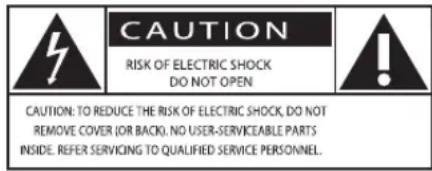
CAUTION RISK OF ELECTRIC SHOCK DO NOT OPEN CAUTION: TO REDUCE THE RISK OF ELECTRIC SHOCK, DO NOT REMOVE COVER (OR BACK). NO USER-SERVICEABLE PARTS INSIDE. REFER SERVICING TO QUALIFIED SERVICE PERSONNEL.This 'bolt of lightning' indicates uninsulated material within your unit may cause an electric shock. For the safety of everyone in your household, please do not remove product covering.
The 'exclamation mark' calls attention to features for which you should read the enclosed literature closely to prevent operating and maintenance problems.
WARNING: To reduce the risk of fire or electric shock, this apparatus should not be exposed to rain or moisture and objects filled with liquids, such as vases, should not be placed on this apparatus.
CAUTION: To prevent electric shock, fully insert the plug. (For regions with polarized plugs: To prevent electric shock, match wide blade to wide slot.)
Hearing safety
Listen at a moderate volume.
- Using headphones at a high volume can impair your hearing. This product can produce sounds in decibel ranges that may cause hearing loss for a normal person, even for exposure less than a minute. The higher decibel ranges are offered for those that may have already experienced some hearing loss.
- Sound can be deceiving. Over time your hearing 'comfort level' adapts to higher volumes of sound. So after prolonged listening, what sounds 'normal' can actually be loud and harmful to your hearing. To guard against this, set your volume to a safe level before your hearing adapts and leave it there.
To establish a safe volume level:
- Set your volume control at a low setting.
- Slowly increase the sound until you can hear it comfortably and clearly, without distortion.
Listen for reasonable periods of time:
- Prolonged exposure to sound, even at normally 'safe' levels, can also cause hearing loss.
- Be sure to use your equipment reasonably and take appropriate breaks.
Be sure to observe the following guidelines when using your headphones.
- Listen at reasonable volumes for reasonable periods of time.
- Be careful not to adjust the volume as your hearing adapts.
- Do not turn up the volume so high that you can't hear what's around you.
- You should use caution or temporarily discontinue use in potentially hazardous situations.
2 Your Docking Speaker
Congratulations on your purchase, and welcome to Philips! To fully benefit from the support that Philips offers, register your product at www.philips.com/welcome.
If you contact Philips, you will be asked for the model and serial number of this apparatus. The model number and serial number are on the bottom of the apparatus. Write the numbers here:
Model No. ____
Serial No. ____
Introduction
With this docking speaker, you can
- enjoy audio from the iPod/iPhone, other external audio devices, and play audio from your computer;
- synchronize the iPod/iPhone with your computer through USB socket.

Note
• The speaker supports Dock Studio software.
What's in the box
Check and identify the contents of your package:
- Main unit
- AC power adaptor
- USB cable
- Quick start guide
Overview of the speaker

text_image
Technical diagram of a device rear panel with numbered components for identification① DC IN
• Connect AC power.
② ⓤ Headphone jack.
③ USB
• Sync with a computer through USB cable.
• Play audio from your computer.
④ MP3-LINK
• Connect an external audio device.
⑤ Turn the docking speaker on or switch to standby mode.
⑥ DOCK
• Dock for iPod/iPhone.
⑦ VOLUME + / -
• Adjust volume.
3 Get started
Always follow the instructions in this chapter in sequence.
Connect power

Caution
- Risk of product damage! Make sure that the power supply voltage matches the voltage printed on the bottom of the unit.
- Risk of electric shock! When you unplug the AC adaptor, always pull the plug from the socket. Never pull the cord.
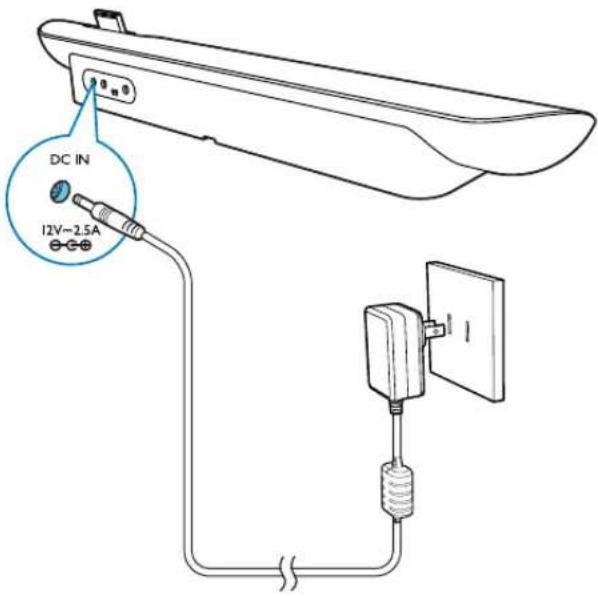
Connect the AC power adaptor to:
• the power socket at the back of the docking speaker.
- the wall socket.
text_image
DC IN 12V-2.5ATurn on
Press Ⓞto turn the docking speaker on.
Switch to standby mode
When you press ∅again, or the system is idle for 15 minutes, the docking speaker switches to standby mode.
4 Play
Play from iPod/iPhone
You can enjoy audio from your iPod/iPhone through this docking speaker.
Compatible iPod/iPhone
The docking speaker supports the following iPod,iPhone models:
Made for.
- iPod touch (1st, 2nd, 3rd, and 4th generation)
- iPod classic
- iPod nano (1st, 2nd, 3rd, 4th, 5th, and 6th generation)
- iPhone 4S
- iPhone 4
- iPhone 3GS
- iPhone 3G
- iPhone
Listen to the iPod/iPhone
Philips DockStudio app brings a suite of new features to your docking speaker. To enjoy more features, you are recommended to install the free DockStudio app.
1 Press to turn the docking speaker on.
→ The LED indicators light up.
2 Insert the iPod/iPhone into the dock.

natural_image
Illustration of a smartphone being placed on a tray with a note, showing the screen and app icon (no text or symbols)3 For first-time use, you will be asked to install DockStudio app on your iPod/ iPhone.
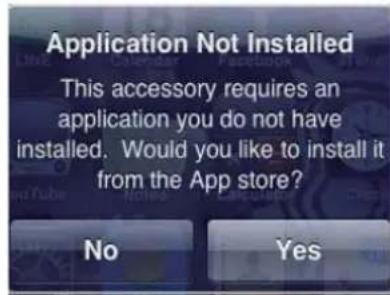
4 Tap [Yes] (yes) to accept the installation request.
5 Follow the on-screen instructions to complete the installation.
text_image
Application Not Installed This accessory requires an application you do not have installed. Would you like to install it from the App store? No Yes6 Launch the app after the installation.
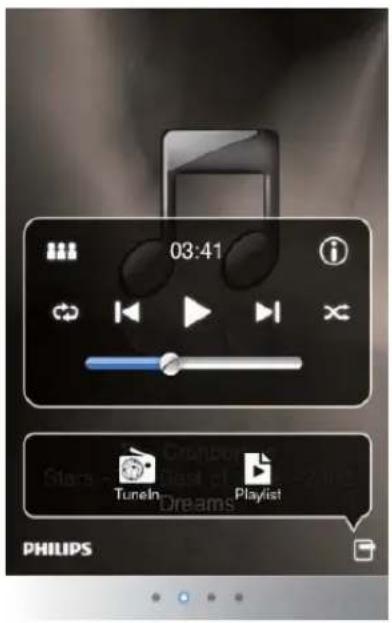
7 Play audio on your iPod/iPhone.
→ Audio comes out through this docking speaker.
text_image
03:41 Tuneln Playlist PHILIPS
Tip
- With the DockStudio app, you can enjoy music, set clock and alarm, adjust sound settings, and update firmware if necessary.
Charge the iPod/iPhone
When the docking speaker is connected to AC power, the docked iPod/iPhone begins to charge.

natural_image
Illustration of a smartphone being placed on a tray, with a blue mobile phone above it (no text or symbols present)Sync iPod/iPhone with PC

Note
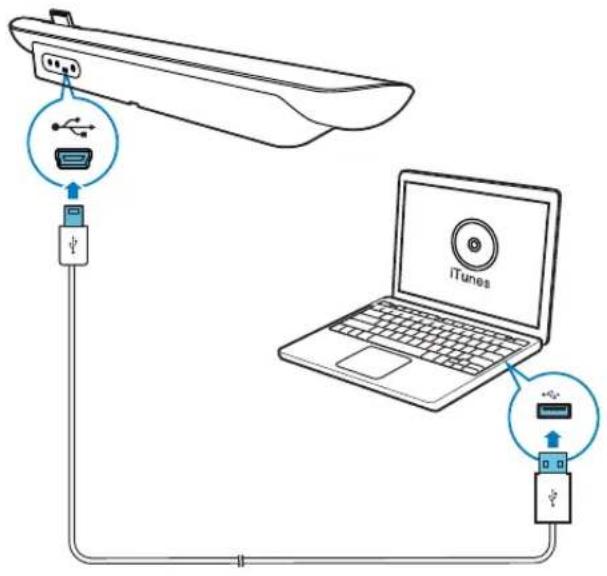
• Make sure that iTunes has been configured properly in your PC.
- Due to different materials and product techniques, some USB cables may not work with this device.
1 Insert the iPod/iPhone in the dock.
2 Press do switch to standby mode.
→ The LED indicators light off
3 Connect your docking speaker and PC with a USB cable.
4 Launch iTunes to synchronize your docking speaker with PC.
→ The docked iPod/iPhone is synchronized with PC successfully through the iTunes.
text_image
Diagram showing connections between a remote device, laptop, and USB cable with labeled componentsPlay audio from your PC
With this docking speaker, you can enjoy audio from your PC.
1 Connect the speaker with your computer with the supplied USB cable.
2 Play audio from your PC.

Note
• Make sure that the speaker is correctly connected with your computer through USB cable.
• Make sure that no iPod/iPhone is docked in the speaker.
Play from an external device
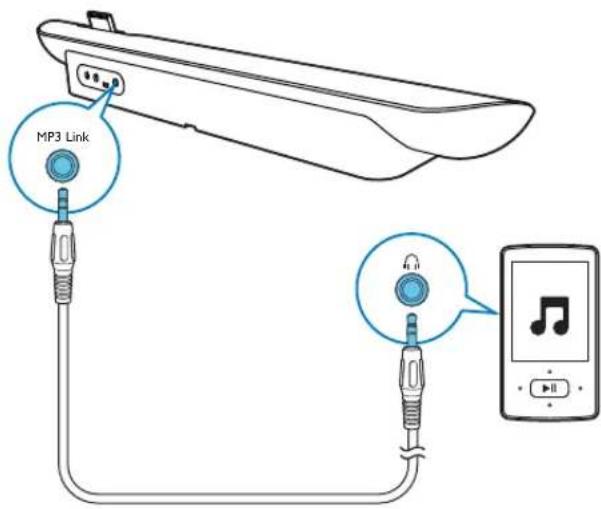
With this docking speaker, you can also enjoy audio from an external device such as an MP3 player.

Note
• Make sure that no iPod/iPhone is docked in the speaker.
1 Press to turn the docking speaker on.
2 Connect the MP3 link cable to:
- the MP3-LINK socket at the back of the docking speaker.
- the headphone socket on an external device.
→ The docking speaker switches to MP3 link mode automatically.
3 Play audio on the device (see the device's user manual).
text_image
MP3 LinkListen through headphone
Plug a headphone into the socket on the speaker.

Note
- When iPod/iPhone is docked in the speaker, the headphone function is not available.
Adjust volume
- Press +/- on your docking speaker; or
- Adjust the volume control of your iPod/iPhone or external device.
5 Troubleshooting

Warning
- Never remove the casing of this apparatus.
To keep the warranty valid, never try to repair the system yourself.
If you encounter problems when using this apparatus, check the following points before requesting service. If the problem remains unsolved, go to the Philips web site (www.philips.com/support). When you contact Philips, ensure that the apparatus is nearby and the model number and serial number are available.
No power
- Make sure that the AC power adaptor of the device is connected properly.
- Make sure that there is power at the AC outlet.
No sound or poor sound
- Adjust the volume of your docking speaker.
- Adjust the volume of your iPod/iPhone or external audio device.
No response from the unit
- Disconnect and reconnect the AC power plug, and then switch on the device again.
Cannot sync with PC
- Switch the docking speaker to standby mode.
- Try another USB cable.
• Install iTunes in PC properly.
6 Specifications
Amplifier
Rated Output Power 2 X 10 W RMS
General information
| AC power supply Model: AS300-120-AA250 (Philips);Input: 100-240 V ~,50/60Hz, 1.1A;Output: 12.0V==2.5 A | |
| Operation PowerConsumption 15W | |
| Standby PowerConsumption <0.5 W | |
| Max. load for iPod/iPhone 5 V | == 1 A |
| Dimensions- Main Unit(W x H x D) | 528 x 78 x 93mm |
| Weight- Main Unit- With Packing | 1.1 kg1.9kg |
7 Notice
Any changes or modifications made to this device that are not expressly approved by Philips Consumer Lifestyle may void the user's authority to operate the equipment.
This Class B digital apparatus complies with Canadian ICES-003.
This device complies with Industry Canada license-exempt RSS standard(s).
The device complies with the FCC-Rules, Part-
- Operation is subject to the following two conditions:
• This device may not cause harmful interference, and
- This device must accept any interference received, including interference that may cause undesired operation.
Your product is designed and manufactured with high quality materials and components, which can be recycled and reused. Never dispose of your product with other household waste. Please inform yourself about the local rules on the separate collection of electrical and electronic products. The correct disposal of these products helps prevent potentially negative consequences on the environment and human health. Please visit www.recycle.philips.com for additional information on a recycling center in your area.
Environmental information
All unnecessary packaging has been omitted. We have tried to make the packaging easy to separate into three materials: cardboard (box), polystyrene foam (buffer) and polyethylene (bags, protective foam sheet.) Your system consists of materials which can be recycled and reused if disassembled by a specialized company. Please observe the local regulations regarding the disposal of packaging materials, exhausted batteries and old equipment.
Made for

iPod iPhone
"Made for iPod" and "Made for iPhone" mean that an electronic accessory has been designed to connect specifically to iPod or iPhone respectively, and has been certified by the developer to meet Apple performance standards. Apple is not responsible for the operation of this device or its compliance with safety and regulatory standards. Please note that the use of this accessory with iPod or iPhone may affect wireless performance.
iPod and iPhone are trademarks of Apple Inc., registered in the U.S. and other countries.

Note
- The type plate is located on the bottom of the apparatus.
Register online at www.philips.com/welcome today to get the very most from your purchase.
Registering your model with PHILIPS makes you eligible for all of the valuable benefits listed below, so don't miss out. Register online at www.philips.com/welcome to ensure:
\*Product Safety Notification \*Additional Benefits
By registering your product, you'll receive notification - directly from the manufacturer.
Registering your product guarantees that you'll receive all of the privileges to which you're entitled, including special money-saving offers.
PHILIPS
Congratulations on your purchase, and welcome to the "family!"
Dear PHILIPS product owner:
Thank you for your confidence in PHILIPS.You've selected one of the best-built, best-backed products available today.We'll do everything in our power to keep you happy with your purchase for many years to come.
As a member of the PHILIPS "family," you're entitled to protection by one of the most comprehensive warranties in the industry. What's more, your purchase guarantees you'll receive all the information and special offers for which you qualify, plus easy access to accessories from our convenient home shopping network.
Most importantly, you can count on our uncompromising commitment to your total satisfaction.
All of this is our way of saying welcome - and thanks for investing in a PHILIPS product.
P.S. To get the most from your PHILIPS purchase, be sure to register online at:
www.philips.com/welcome
Know these
safety symbols

CAUTION
RISK OF ELECTRIC SHOCK
DO NOT OPEN

CAUTION: TO REDUCE THE RISK OF ELECTRIC SHOCK, DO NOT REMOVE COVER (OR BACK). NO USER-SERVICEABLE PARTS INSIDE. REFER SERVICING TO QUALIFIED SERVICE PERSONNEL.

This "bolt of lightning" indicates uninsulated material within your unit may
cause an electrical shock. For the safety of everyone in your household, please do not remove product covering.

The “exclamation point” calls attention to features for which you should be enclosed literature closely to pre-operating and maintenance problems.
WARNING: To reduce the risk of fire or electric shock, this apparatus should not be exposed to rain or moisture and objects filled with liquids, such as vases, should not be placed on this apparatus.
CAUTION: To prevent electric shock, match wide blade of plug to wide slot, fully insert.
Enter below the Serial No. which is located on the rear of the cabinet. Retain this information for future reference.
Model No.
Serial No.
PHILIPS Visit our World Wide Web Site at http://www.philips.com/welcome
PHILIPS LIMITED WARRANTY
ONE (1) YEAR
WARRANTY COVERAGE:
PHILIPS warranty obligation is limited to the terms set forth below.
WHO IS COVERED:
Philips warrants the product to the original purchaser or the person receiving the product as a gift against defects in materials and workmanship as based on the date of original purchase (“Warranty Period”) from an Authorized Dealer. The original sales receipt showing the product name and the purchase date from an authorized retailer is considered such proof.
WHAT IS COVERED:
The Philips warranty covers new products if a defect in material or workmanship occurs and a valid claim is received by Philips within the Warranty Period. At its option, Philips will either (1) repair the product at no charge, using new or refurbished replacement parts, or (2) exchange the product with a product that is new or which has been manufactured from new, or serviceable used parts and is at least functionally equivalent or most comparable to the original product in Philips current inventory, or (3) refund the original purchase price of the product. Philips warrants replacement products or parts provided under this warranty against defects in materials and workmanship from the date of the replacement or repair for ninety (90) days or for the remaining portion of the original product's warranty, whichever provides longer coverage for you. When a product or part is exchanged, any replacement item becomes your property and the replaced item becomes Philips' property. When a refund is given, your product becomes Philips' property.
Note: Any product sold and identified as refurbished or renewed carries a ninety (90) day limited warranty.
Replacement product can only be sent if all warranty requirements are met. Failure to follow all requirements can result in delay.
WHAT IS NOT COVERED - EXCLUSIONS AND LIMITATIONS:
This Limited Warranty applies only to the new products manufactured by or for Philips that can be identified by the trademark, trade name, or logo affixed to it. This Limited Warranty does not apply to any non-Philips hardware product or any software, even if packaged or sold with the product. Non-Philips manufacturers, suppliers, or publishers may provide a separate warranty for their own products packaged with the bundled product.
Philips is not liable for any damage to or loss of any programs, data, or other information stored on any media contained within the product, or any non-Philips product or part not covered by this warranty. Recovery or reinstallation of programs, data or other information is not covered under this Limited Warranty.
This warranty does not apply (a) to damage caused by accident, abuse, misuse, neglect, misapplication, or non-Philips product, (b) to damage caused by service performed by anyone other than Philips or Philips Authorized Service Location, (c) to a product or a part that has been modified without the written permission of Philips, or (d) if any Philips serial number has been removed or defaced, or (e) product, accessories or consumables sold "AS IS" without warranty of any kind by including refurbished Philips product sold "AS IS" by some retailers.
This Limited Warranty does not cover:
• Shipping charges to return defective product to Philips.
- Labor charges for installation or setup of the product, adjustment of customer controls on the product, and installation or repair of antenna/signal source systems outside of the product.
- Product repair and/or part replacement because of improper installation or maintenance, connections to improper voltage supply, power line surge, lightning damage, retained images or screen markings resulting from viewing fixed stationary content for extended periods, product cosmetic appearance items due to normal wear and tear, unauthorized repair or other cause not within the control of Philips.
- Damage or claims for products not being available for use, or for lost data or lost software.
- Damage from mishandled shipments or transit accidents when returning product to Philips.
- A product that requires modification or adaptation to enable it to operate in any country other than the country for which it was designed, manufactured, approved and/or authorized, or repair of products damaged by these modifications.
- A product used for commercial or institutional purposes (including but not limited to rental purposes).
- Product lost in shipment and no signature verification receipt can be provided.
- Failure to operate per Owner's Manual.
TO OBTAIN ASSISTANCE IN THE U.S.A., PUERTO RICO, OR U.S. VIRGIN ISLANDS...
Contact Philips Customer Care Center at: 1-888-PHILIPS (1-888-744-5477)
TO OBTAIN ASSISTANCE IN CANADA...
1-800-661-6162 (French Speaking) 1-888-PHILIPS (1-888-744-5477) - (English or Spanish Speaking)
REPAIR OR REPLACEMENT AS PROVIDED UNDER THIS WARRANTY IS THE EXCLUSIVE REMEDY FOR THE CONSUMER. PHILIPS SHALL NOT BE LIABLE FOR ANY INCIDENTAL OR CONSEQUENTIAL DAMAGES FOR BREACH OF ANY EXPRESS OR IMPLIED WARRANTY ON THIS PRODUCT. EXCEPT TO THE EXTENT PROHIBITED BY APPLICABLE LAW, ANY IMPLIED WARRANTY OF MERCHANTABILITY OR FITNESS FOR A PARTICULAR PURPOSE ON THIS PRODUCT IS LIMITED IN DURATION TO THE DURATION OF THIS WARRANTY.
Some states do not allow the exclusions or limitation of incidental or consequential damages, or allow limitations on how long an implied warranty lasts, so the above limitations or exclusions may not apply to you.
This warranty gives you specific legal rights. You may have other rights which vary from state/province to state/province.
Philips Consumer Lifestyle
A division of Philips Electronics North America Corporation
P.O. Box 10313
Stamford, CT 06904
Phone: 1-888-PHILIPS (744-5477)
Meet Philips at the Internet
http://www.philips.com/welcome

text_image
PHILIPSSpecifications are subject to change without notice
All rights reserved.
DS6100_37_UM_V1.0
