IdeaCentre B320 - Desktop computer LENOVO - Free user manual and instructions
Find the device manual for free IdeaCentre B320 LENOVO in PDF.


User questions about IdeaCentre B320 LENOVO
0 question about this device. Answer the ones you know or ask your own.
Ask a new question about this device
Download the instructions for your Desktop computer in PDF format for free! Find your manual IdeaCentre B320 - LENOVO and take your electronic device back in hand. On this page are published all the documents necessary for the use of your device. IdeaCentre B320 by LENOVO.
USER MANUAL IdeaCentre B320 LENOVO
Machine type: 10064/7745
Lenovo IdeaCentre B5 Series User Guide
Version 3.0 2010.12
CE
lenovo
Important Safety Information
Before using this manual, it is important that you read and understand all of the related safety information for this product. Refer to the Safety and Warranty Guide that you received with this product for the latest safety information. Reading and understanding this safety information reduces the risk of personal injury or damage to your product.

Danger: Be aware of extremely hazardous or lethal situations.

Attention: Be aware of possible damage to programs, devices, or data.

Note: Pay attention to this important information.
Contents
Important Safety Information
Chapter 1 Using the Computer Hardware .... 1
1.1 Front view ......2
1.2 Left and right view of the computer ....3
1.3 Rear view of the computer ....4
1.4 Computer stand instruction ....5
1.5 Connecting your computer ....7
1.6 Important information about using the computer ....10
1.7 Wireless keyboard and mouse ....12
Chapter 2 Touch screen user instruction .... 13
2.1 Touch Screen Calibration ....14
2.2 User Gesture Instructions for the Touch screen .....15
2.3 Attentions when using the Touch Screen ....23
Chapter 3 Using the Rescue System ...... 25
3.1 OneKey Recovery ....26
3.2 Driver and Application Installation ....26
3.3 System Setup 27
3.4 System Backup ....28
3.5 System Recovery ....28
3.6 Create Recovery Disc 28
Chapter 4 Using the Computer Software .... 29
4.1 Lenovo Dynamic Brightness system ....30
4.2 Lenovo Eye Distance System 31
Chapter 5 Troubleshooting and Confirming Setup .... 33
5.1 Troubleshooting Display Problems ....34
5.2 Troubleshooting Audio Problems ....35
5.3 Troubleshooting Software Problems....35
5.4 Troubleshooting Problems with Optical Drives and Hard Disks ....36
5.5 Special considerations for troubleshooting Windows .....37
5.6 Performing Daily Maintenance Tasks ....38
5.7 Wireless Keyboard and Mouse Connection Instructions and Troubleshooting ....39
5.8 Troubleshooting wireless mouse and keyboard issues .....41

Chapter
Using the Computer Hardware
This chapter contains the following topics:
▶ Computer hardware introduction
Information on computer connections
Note: The descriptions in this chapter might vary from your computer, depending on computer models and configurations.
1.1 Front view
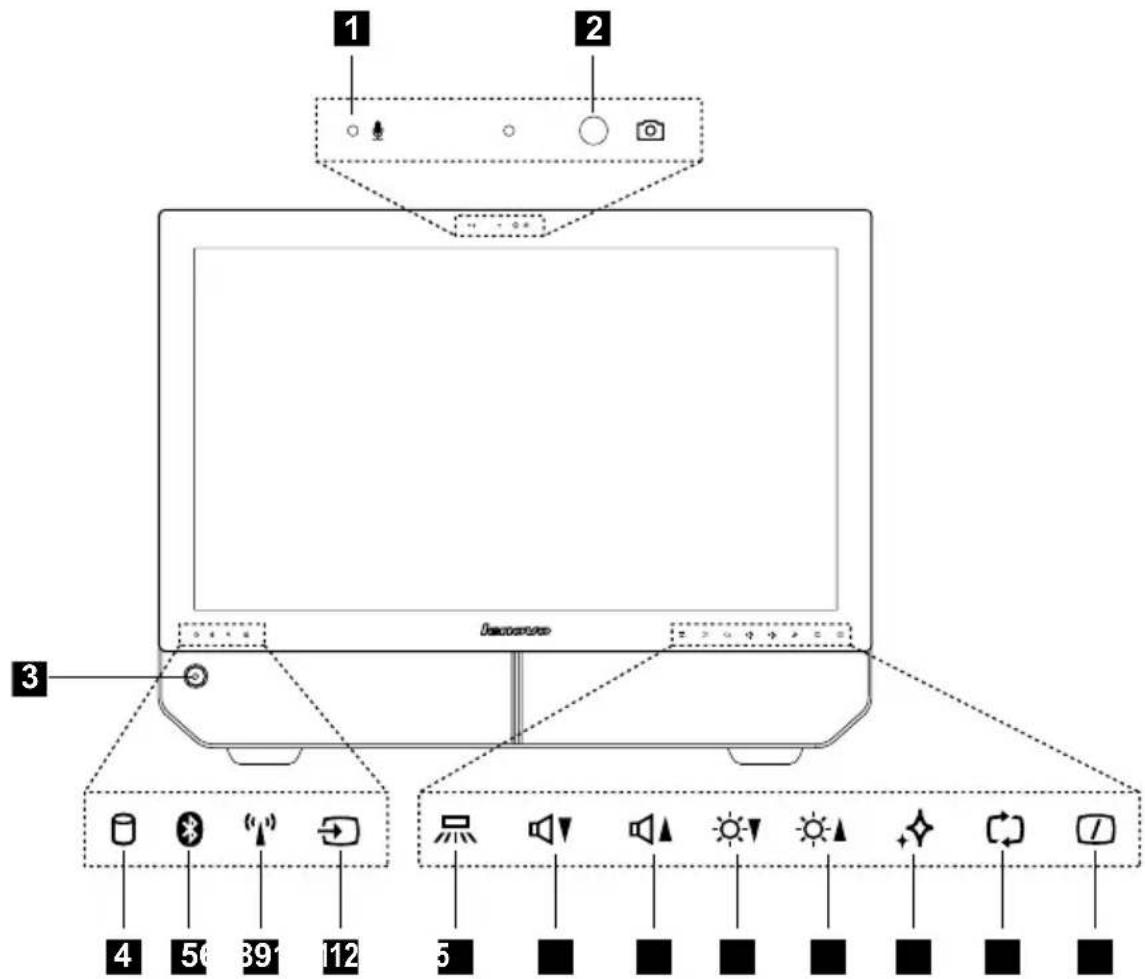
text_image
1 2 3 4 5 6 8 9 10 11 12 5 6 7 8 9 101 Built-in microphone Volume down
9
2 Camera Volume up
10
3 Power button Brightness down
11
4 Hard Disk Drive Indicator Brightness
12
5 Bluetooth status indicator Novo Vision13button
6 WIFI status indicator PC mode / HDM14n / AV-in switch
7 AV-in / HDMI-in indicator
15 Monitor On/Off
8 Indicator lights ON/OFF button
Note: The quality of video output will be affected accordingly due to the restriction of the actual bandwidth used by users and the limitation of data transmission speed of the video communication software.
1.2 Left and right view of the computer

Attention: Be sure not to block any air vents on the computer. Blocked air vents may cause thermal problems.

text_image
1 2 3 4 51 Memory card reader Microphone con-ctor
2 USB connector Optical drive 5
3 Headphone connector
1.3 Rear view of the computer
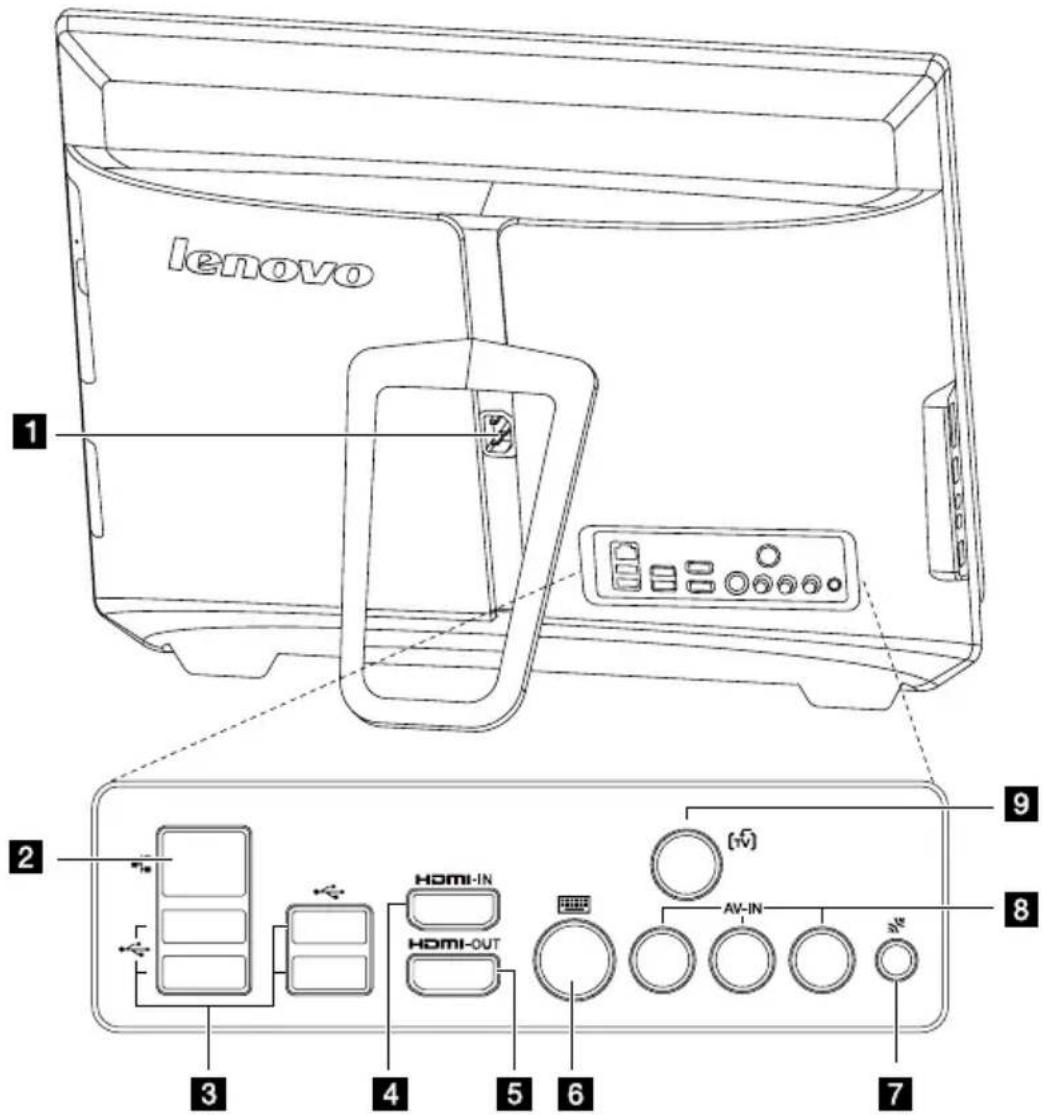
text_image
lenovo 1 2 3 4 5 6 7 8 9 [nV] [UV] HDMI-IN HDMI-OUT1 Power socket PS/2 keyboard port
2 Ethernet port Bluetooth reset button
7 hly some
models are functional)
3 USB ports (4) AV-IN ports (Selected
odels only)
4 HDMI in port (Selected models only)
tuner connector (Selected
5 HDMI out port
models only)

1.4 Computer stand instruction
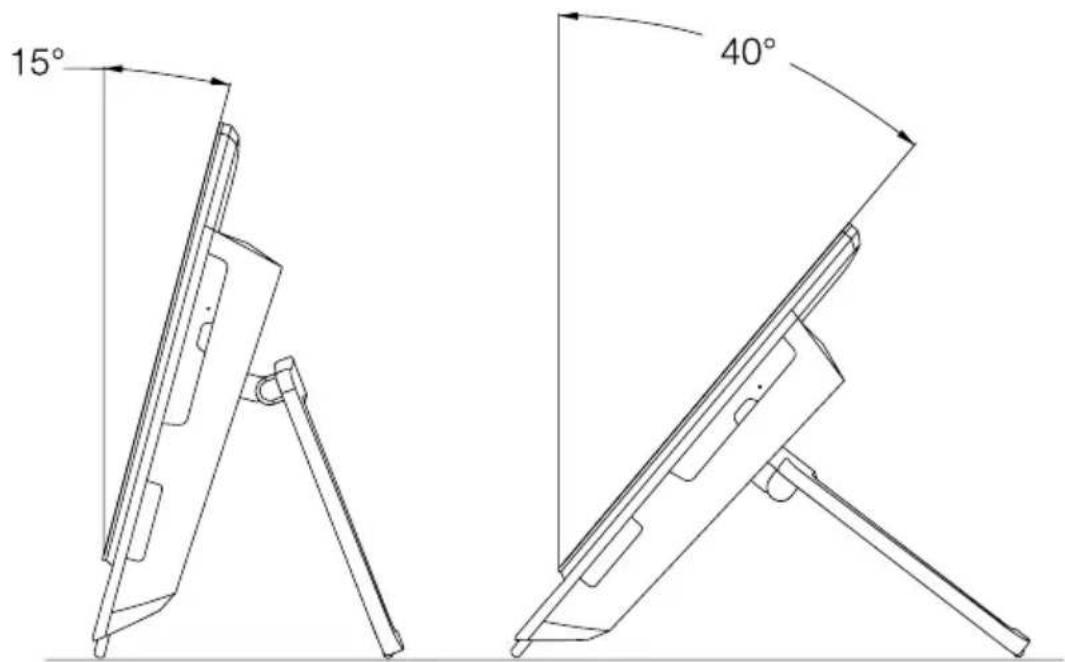
text_image
15° 40°Use the stand to position the display to your preference. It can be rotated between 15^ and 40^ from the vertical.
The stand provides stability to the computer; it is not a removable part.

Attention:
-
The computer stand must remain installed at all times to ensure maximum system stability.
-
Make sure the angle of the computer is at least 15 degrees from the vertical; otherwise the computer will be unstable and could fall over.
To open the computer stand, do the following:

natural_image
Line drawing of a Lenovo printer with a hand holding a handle, showing the blade and control panel (no text or symbols)The computer can be mounted on the wall.
To mount the computer on the wall, you need to install a wall mount VESA bracket adapter* (some models are shipped with this part) on the back of the computer. Using this bracket adapter to install a UL listed standard wall mount (purchased separately) to make the computer mounted on the wall.
Refer to Hardware Replacement Guide (HRG) for detail steps.
* VESA bracket adapter spec: VESA100, 100mm x 100mm, M4 bolts.
1.5 Connecting your computer
Use the following information to connect your computer:
- Look for the small connector icons on the back of your computer. Match the connectors to the icons.

Note: Your computer might not have all of the connectors that are described in this section.
1.5.1 Check the voltage rating before you connect the equipment to an electrical outlet to ensure that the required voltage and frequency match the available power source.
1.5.2 Connect the keyboard cable to the appropriate keyboard connector (PS/2 connector or USB connector).
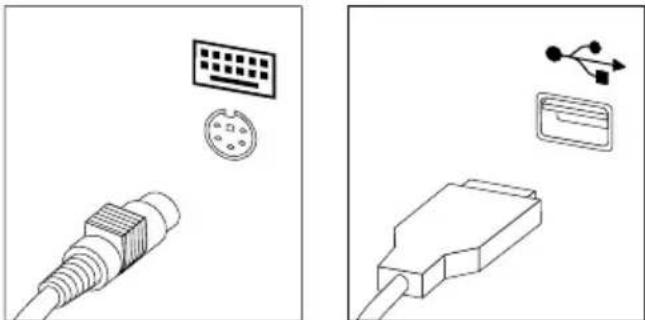
natural_image
Two technical line drawings of electrical connectors: one with a grid symbol and cable, the other with a plug and connector (no text or labels)1.5.3 Connect the mouse cable to the appropriate mouse connector (USB connector).
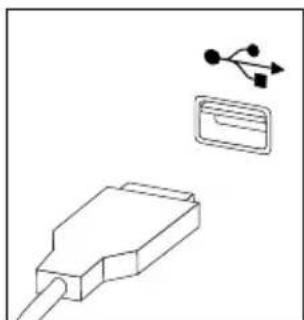
natural_image
Pure electrical connector diagram without any text, numbers, or symbols1.5.4 Connect the monitor cable to the monitor connector on the computer.
• If you have an HDMI monitor, connect the cable to the port as shown.
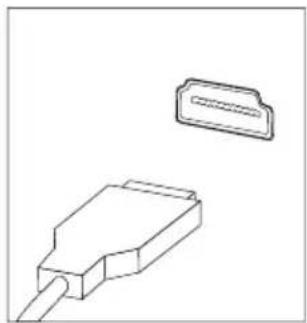
natural_image
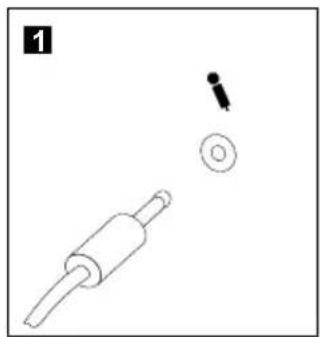
Technical line drawing of a connector with a separate rectangular housing (no text or symbols)1.5.5 If you have audio devices, attach them using the following instructions:
natural_image
Simple line drawing of a mechanical component with a circular end and an arrow indicating direction (no text or symbols)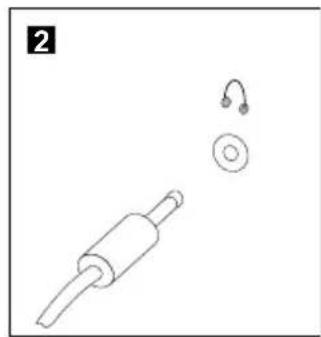
natural_image
Simple line drawing of a cylindrical object with two small circular components and a curved top, no text or symbols present.1 Microphone Use this connector to attach a microphone (purchased separately) to your computer when you want to record sound or if you use speech-recognition software.
2 Headphone Use this connector to attach headphones (purchased separately) to your computer when you want to listen to music or other sounds without disturbing anyone.
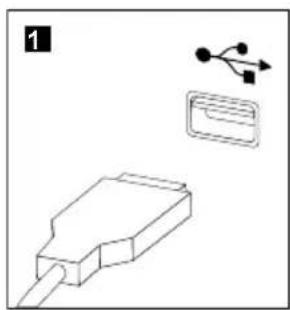
1.5.6 Connect any additional devices that you have. Your computer might not have all connectors shown.
natural_image
Technical line drawing of a plug and socket (no text or symbols)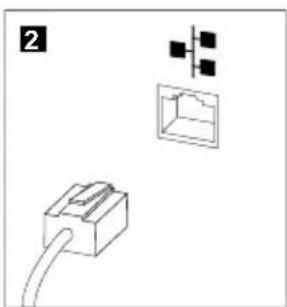
natural_image
Diagram showing three types of electrical connectors: a cable, a switch, and an open socket (no text or symbols present)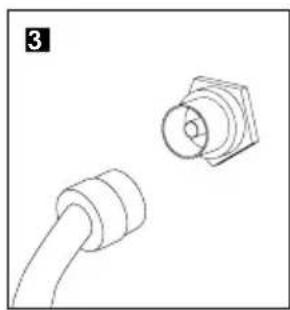
natural_image
Technical line drawing of two mechanical components: a cable and a hexagonal nut (no text or symbols)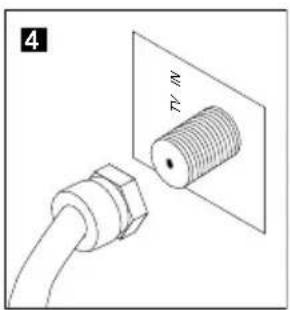
text_image
TV/IN 41 USB connector Use this connector to attach a device that requires a USB connection.
2 Network adapter connector Use this connector to attach the computer to an ethernet-type local area network.
3 TV-Tuner connector Only supported on systems with optional TV tuner (IEC type) card (Some models are equipped with this connector).
4 TV antenna to connect the signal input cable for CATV (Some connector (F type) models are equipped with this connector).
1.5.7 Connect the power cords properly to grounded electrical outlets.
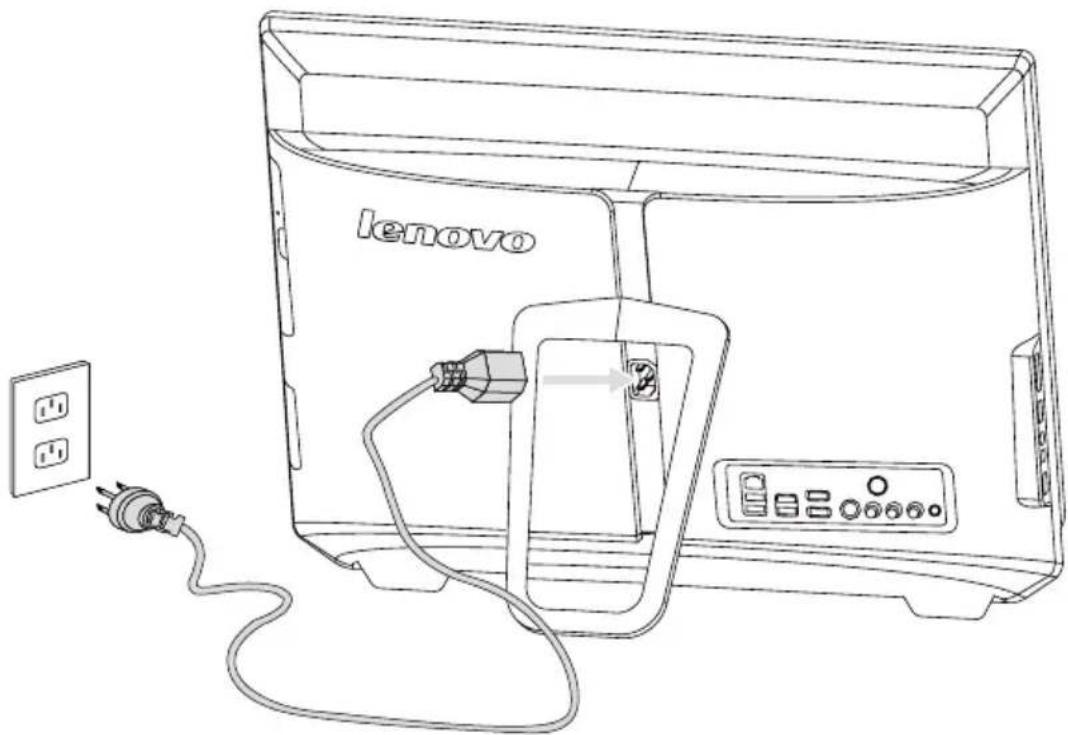
natural_image
Line drawing of a Lenovo portable device connected to a power outlet, showing wiring and plug connections (no text or symbols)1.5.8 Your computer is equipped with a Memory Card Reader Connector, it is able to read/write data from:
MS/MS Pro/MSXC/MMC/SD/SDHC/SDXC
1.6 Important information about using the computer
Press the power button on the bottom left of the screen to turn on the computer.
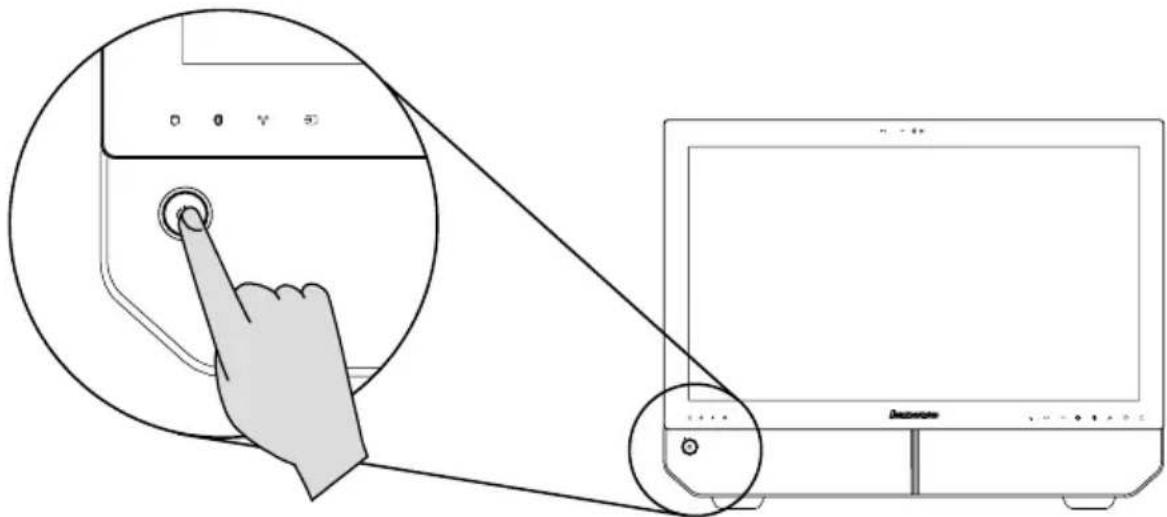
text_image
Diagram showing a hand pressing a button on a device with a magnified inset highlighting the function.Note: The buttons at the bottom of the screen are touch buttons. When you touch these, the indicator lights turn on.
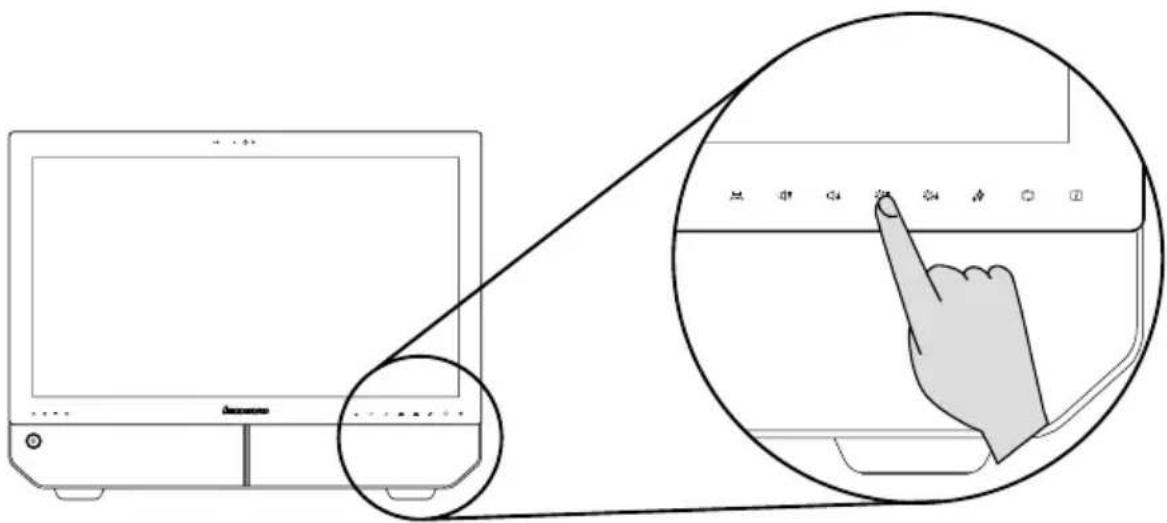
text_image
Diagram showing a device with a screen and a hand pointing to its control panel, with an inset magnified view highlighting the function.Hold the computer tightly when you carry it.

1.7 Wireless keyboard and mouse
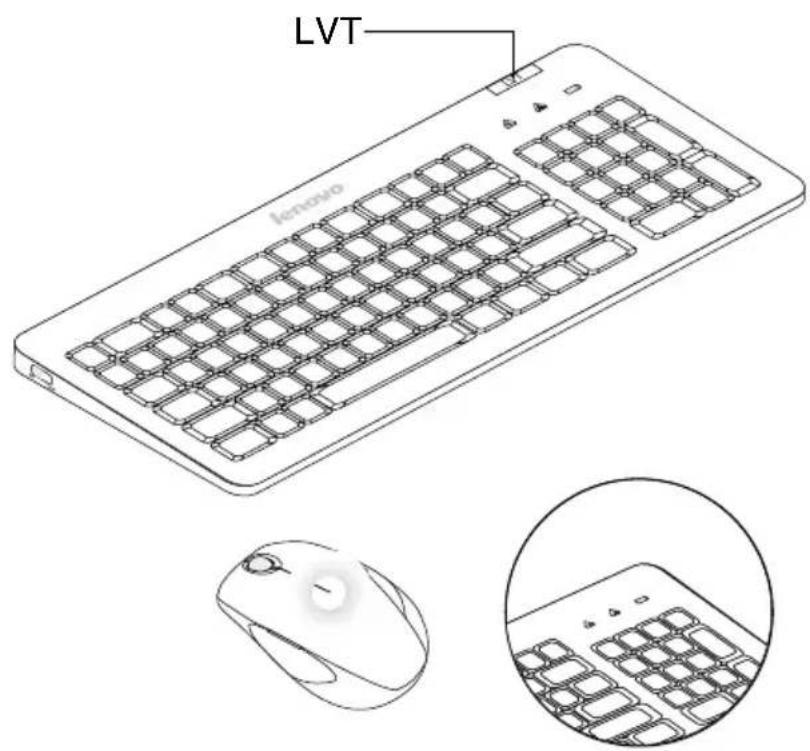
Refer to the Wireless keyboard and mouse instruction in Quick Reference for more information about the bluetooth connection.
text_image
LVT LenovoLVT —— After entering Windows, press this key to launch the LVT (Lenovo Vantage Technology) program, Lenovo's pre-loaded Home PC software. In addition to its own functions, the LVT program will allow you to start other Windows compatible software, specially configured to run on this model of computer.
F2 —— Your computer has the Lenovo Rescue System installed. To learn more about this program, repeatedly press and release the F2 key once turning on the computer until the Lenovo Rescue System open.
— When the battery indicator light blinks orange, it means that the battery power of the keyboard becomes low.
When the battery indicator light blinks white, it means that the keyboard is being connected.

Chapter
Touch screen user instruction
This chapter contains the following topics:
▶ Touch Screen Calibration
➢ User Gesture Instructions for the Touch screen
➢ Attentions when using the Touch Screen

Attention: Only some selected models are equipped with touch screens.
The monitor has touch capability due to a touch-sensitive screen installed. A touch screen is an input device just like a mouse or a keyboard, and the user's hand transmits position information via the touch screen to the computer. With this technology, you only need to touch the pictures or words on the computer display lightly with your finger, and the computer will react.
2.1 Touch Screen Calibration
Prior to first use or whenever the touch screen reacts in a different place where you are touching it, start the calibration program. The procedure is as follows:
- In Windows 7, Select "Start" – "Control Panel".
- In Control Panel, select "Hardware and Sound".
- In "Hardware and Sound" window, select "Tablet PC Settings".
- In "Tablet PC Settings" dialogue, click "Calibrate" button.
2.2 User Gesture Instructions for the Touch screen
The Touch screen supports single touches and rotational movements, enlargement and reduction multi-touch operations, and the user can transmit position information to the computer via touch. The touch screen uses a non-pressure movement recognition method, which only needs the finger to move lightly on the computer display screen or make a simple hand gesture to be detected by the main computer processor.

Note: The touch screen only allows the use of finger for touch screen operation.
2.2.1 Basic Hand Gestures
1. Single Click / Double Click
For the item selected on the touch screen, with one finger touch it one or two times, to perform a single click or double click operation. This is similar to the action performed by clicking the left mouse button.

natural_image
Simple line drawing of a hand pointing upward (no text or symbols)2. Single Finger Right Click
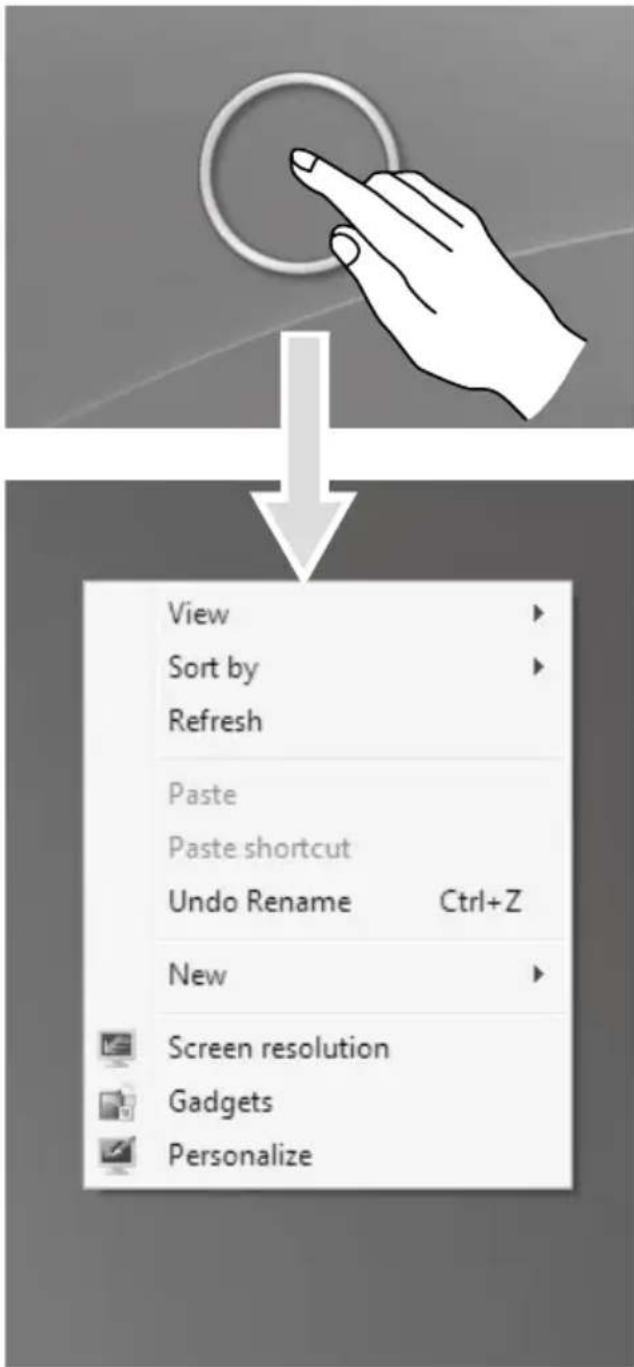
For the item selected on the touch screen, press and hold your finger on the screen until a circle appears. After lifting your finger from the touch screen, a menu bar will pop up, completing the single finger right click operation. This is similar to the action performed by clicking the right mouse button.
text_image
View Sort by Refresh Paste Paste shortcut Undo Rename Ctrl+Z New Screen resolution Gadgets Personalize3. Double Finger Right Click
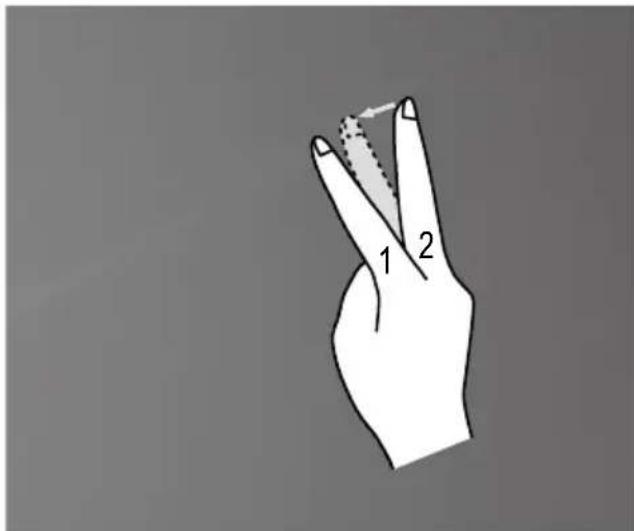
First touch a finger to the screen to select the desired item and hold it there, then touch another finger anywhere nearby on the screen and quickly lift it up again, to complete a double finger right click operation. The area where the first finger is placed can be used to show the right-click menu or perform related operations.
text_image
1 24. Dragging Movement
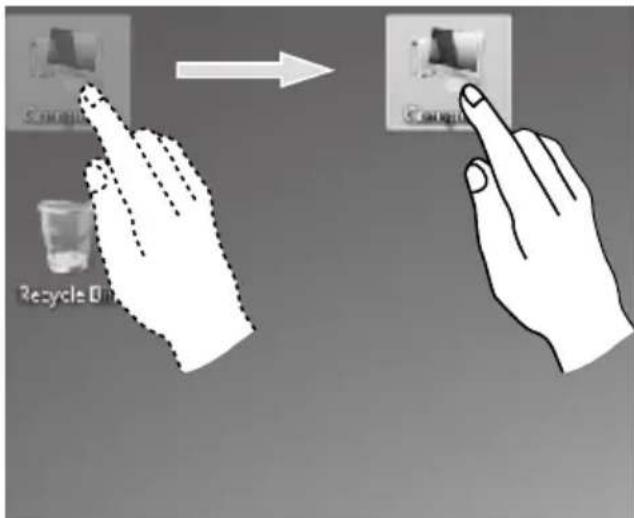
First touch your finger on the desired item on the screen and hold it there, then make a dragging movement. This is similar to the click and drag movement you can make with a mouse.
text_image
Concharge Concharge Recycle Diff5. High Speed Slide
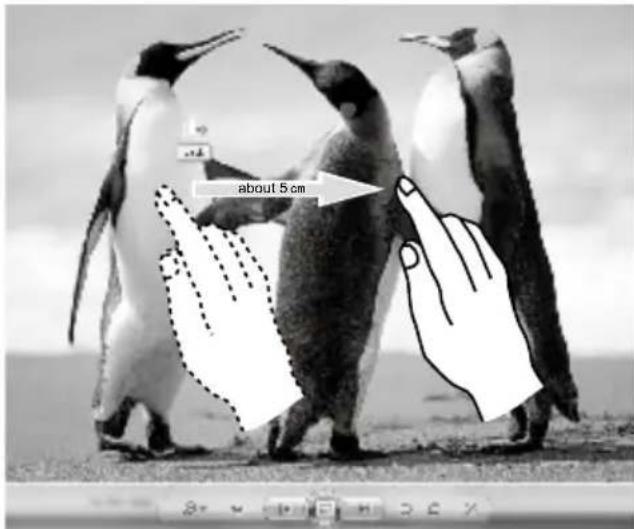
If you touch the screen with a single finger and slide it a short distance horizontally (about 5 cm), then quickly lift it up again, this is called a High Speed Slide, and the screen will show the “Forward” or “Back” icon.
In the default situation, a high speed horizontal sliding movement will execute a forward or back operation. For example: Forward and Back operations for the IE browser; or Previous and Next slide operations in Windows Photo Viewer slideshow mode.
text_image
about 5 cm6. Rolling Movement
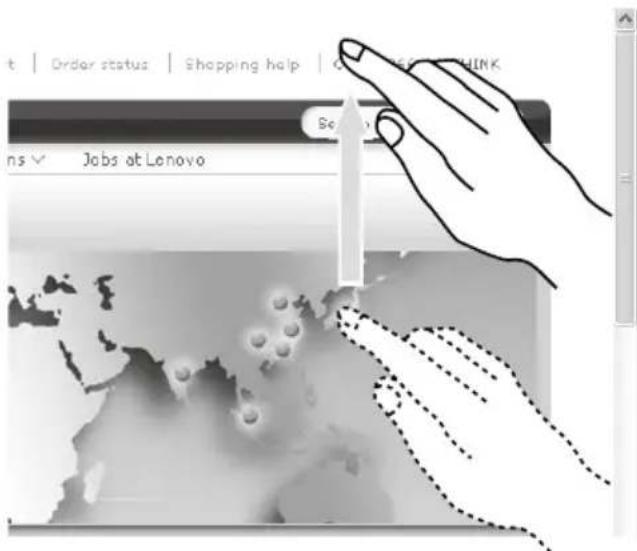
When you move your finger one time vertically (or horizontally) on the touch screen, this is called a Rolling Operation. For example: This operation is similar to moving the scroll wheel on the top of a mouse, and produces the same results as the scroll wheel interface does.
text_image
t | Order status | Shopping help | Search HINK Search Jobs at Lenovo7. Zoom Operation
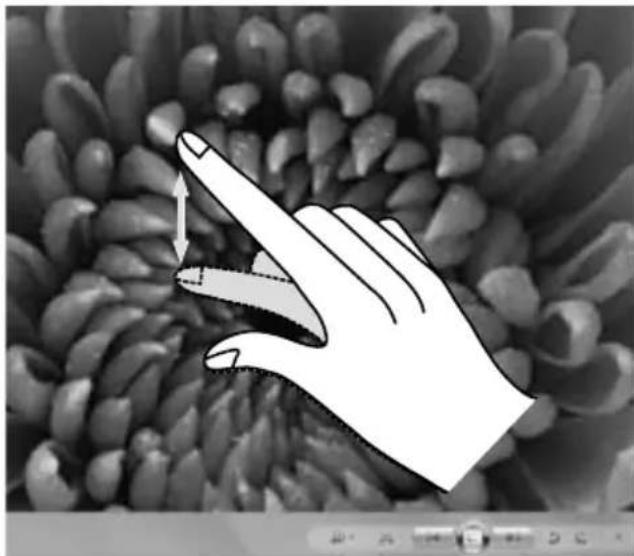
Touch two fingers lightly on the desired item on the touch screen, then keeping both fingers on the screen, change the distance between them. By increasing (or decreasing) the distance, you can perform a zoom out (or zoom in) operation. For example: you can enlarge or reduce the picture size in Windows Photo Viewer.
natural_image
Black-and-white illustration of a hand pointing at a flower petal (no text or symbols)8. Rotation Operation
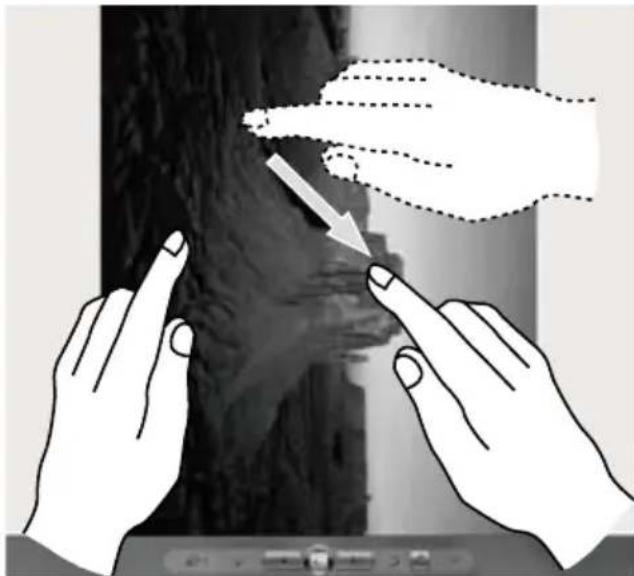
Use two figures to touch the desired item on the touch screen, then rotate them in the desired direction. For example: you can rotate the picture which is being displayed in Windows Photo Viewer.
natural_image
Illustration of two hands interacting with a textured surface, showing hand positioning and a magnified view of the surface (no text or symbols)2.2.2 Related Touch Screen Settings
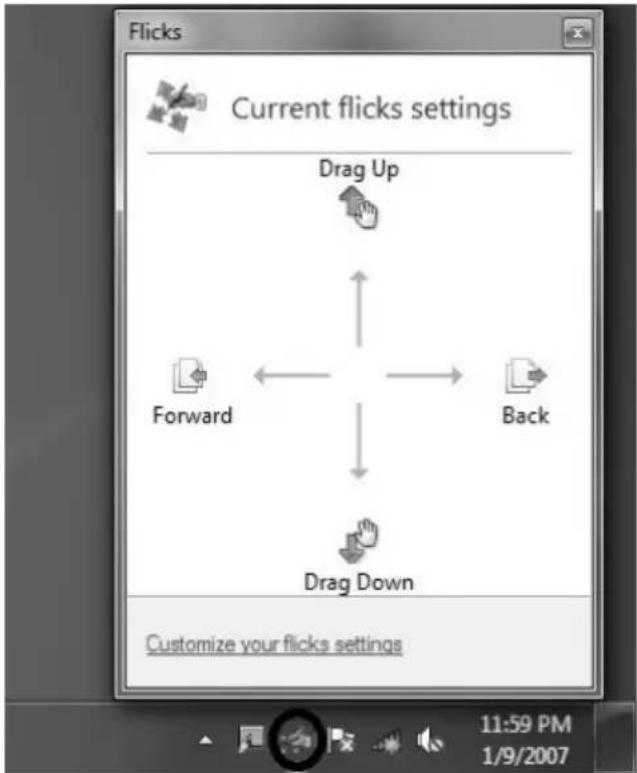
- Flicks: In the notification area of the taskbar at the bottom of the screen, click on the Flicks icon, and the current Flicks window will appear. Click once anywhere in this window to enter Flicks Training. The user can perform operations according to the advice given on screen.
text_image
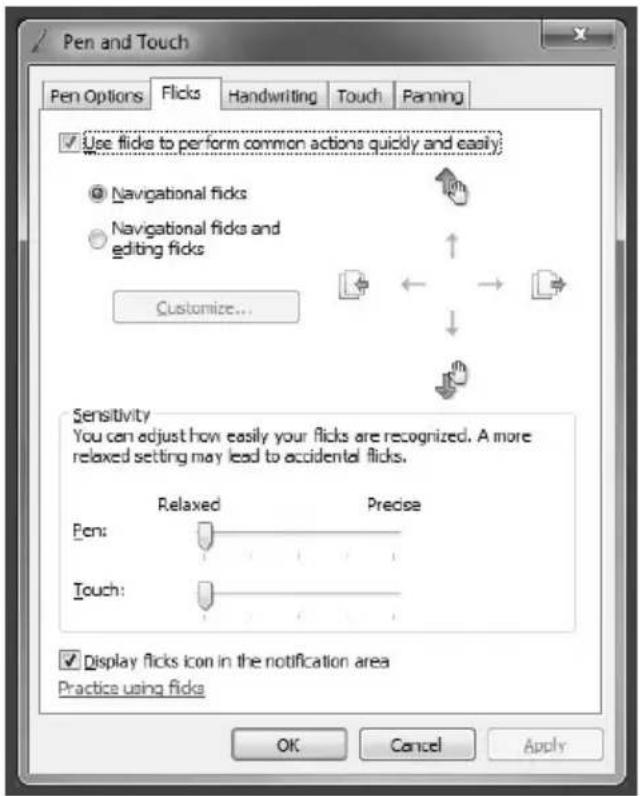
Flicks Current flicks settings Drag Up Forward Back Drag Down Customize your flicks settings 11:59 PM 1/9/2007- For more detailed configuration, you can click on the Flicks icon in the notification area of the taskbar at the bottom of the screen, then click on "Customize your flicks setting" in the Flicks pop-up window. In the "Pen and Touch" window, the user can adjust more settings related to "Pen and Touch" according to their specific preferences.
On the Flicksmenu you can:
- Select commonly used Flicks operation groups
- Adjust the sensitivity of the touch screen
text_image
Pen and Touch Pen Options Flicks Handwriting Touch Panning ✓ Use flicks to perform common actions quickly and easily? ● Navigational flicks ○ Navigational flicks and editing flicks Customize... Sensitivity You can adjust how easily your flicks are recognized. A more relaxed setting may lead to accidental flicks. Pen: Relaxed Precise Touch: ✓ Display flicks icon in the notification area Practice using flicks OK Cancel ApplyOn the Touch menu you can:
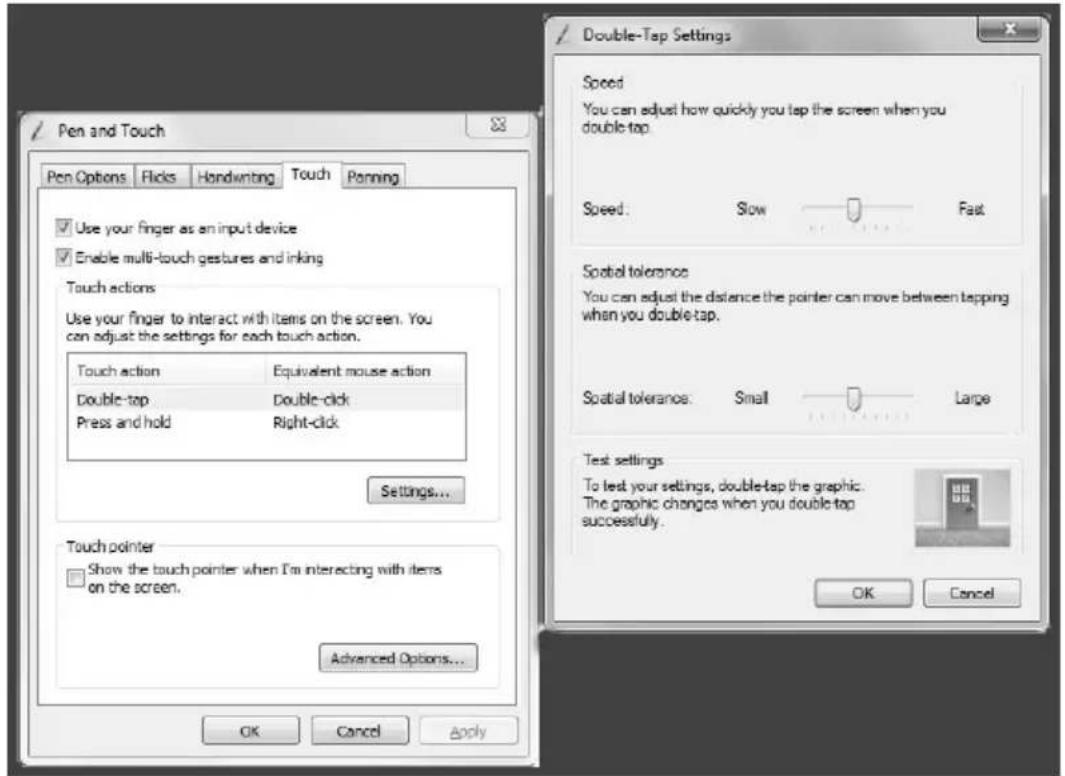
- Enable / disable options such as "Use your finger as an input device" and "Enable multi-touch gestures and inking".
- Select touch actions which you wish to adjust. By clicking on "Settings", you can adjust the "Speed" and "Spatial tolerance" parameters, to match the user's natural way of double-clicking. You can double-click on the lower right corner of the icon to test this.
- Enable / disable touch points.
text_image
Pen and Touch Pen Options Flicks Handwriting Touch Ponning Use your finger as an input device Enable multi-touch gestures and inking Touch actions Use your finger to interact with items on the screen. You can adjust the settings for each touch action. Touch action Equivalent mouse action Double-tap Double-click Press and hold Right-click Settings... Touch pointer Show the touch pointer when I'm interacting with items on the screen. Advanced Options... OK Cancel Apply Double-Tap Settings Speed You can adjust how quickly you tap the screen when you double-tap. Speed Slow Fast Spatial tolerance You can adjust the distance the pointer can move between tapping when you double-tap. Spatial tolerances: Small Large Test settings To test your settings, double-tap the graphic. The graphic changes when you double-tap successfully. OK CancelNote: Users can access more help information from the Windows "Help and Support" menu.
2.3 Attentions when using the Touch Screen
- When using it please remember not to tear the screen surface with any sharp object.

natural_image
Illustration of a hand pointing at a computer monitor with a pencil and a large 'X' symbol above it (no text or symbols present)-
In order not to affect the normal use of the touch screen, please keep its surface clean and dry, and ensure that your fingers are clean and dry.
-
In order not to affect the precision of positioning on the touch screen, please avoid handling or touching the glass frame of the touch screen by your hands when you are carrying out touching operations.
-
To ensure the safety of users, please clean the screen and frame with a soft cotton cloth after turning the screen off. In order to prevent the remaining water mark from affecting the touch operations, do not wipe it with a damp rag.
-
Do not place or drop anything which could obstruct it in the four corners of the screen or any part of its frame, because this could separate the screen from the frame and stop the screen from being able to sense position properly. Please avoid leaving water and dust in the gap between the casing and glass when you are cleaning the frame.
-
Avoid using it in dusty environments, or in very hot or humid conditions. The abrupt change of environmental temperature may in a short time cause on the glass screen inner surface some tiny spray, which will disappear after some time and will not affect the normal use.

Note: When it is used in normal operation, the touch screen process will not affect the running of other computer processes.
-
The recognition of touch gestures by this product can be influenced by the following factors:
-
Touching the correct place on the screen.
• The speed of movement.
• The time interval from when the screen was last touched.

Note: To learn accurate hand gesture operations, the user can consult this manual and also the related Windows help content.
- The touch screen does not function in Rescue System mode.
- The touch screen also does not function during the startup process, and in Sleep mode or Safe mode.
- The touch screen supports two-point touch only; if the touch screen is touched more than two points while attempting a touch-operation, it will not work properly.
- While performing a touch screen operation, please avoid placing any metal or conductive material on the screen.
This chapter contains the following topics:
OneKey Recovery
Driver and Application Installation
System Setup
System Backup
System Recovery
▶ Create Recovery Disc

Attention: Using this program will result in a loss of data.
- You can recover the C drive of the computer to the factory default settings or to the last system backup status using OneKey Recovery. With this operation, all of the existing data on drive C will be lost, whereas the content and format of the other partitions of the hard disk drive will remain unchanged.
- If you want to install an operating system and back it up with OneKey Recovery, you must format the C partition in NTFS format and install the operating system on the C partition. Otherwise, the OneKey Recovery system cannot run.
Note about the service partition:
The files and relevant data used by the rescue system are saved in the service partition. Deleting this partition will make the rescue system unusable. For more detailed information, see the following instructions:
By selecting Control Panel → Administrative Tools → Computer Management → Disk Management, you can see the service partition, which must not be deleted.
Note: The recovery files and relevant data used by the rescue system are saved in the service partition. If the service partition is deleted or damaged by someone other than authorized Lenovo servicers, Lenovo will not be liable for any losses arising there from in any way.
3.1 OneKey Recovery
OneKey Recovery is an easy-to use application. You can use it to restore your computer to the system default or a previously backed up state.
Detailed Operation Procedure
- Repeatedly press and release the F2 key once turning on the computer until the Lenovo Rescue System open, then select OneKey Recovery.
Note: System Recovery will overwrite all of the data on drive C. To prevent loss of data, be sure to back up relevant data before performing system recovery. - Follow the onscreen instructions to select the backup task you want to restore from and disk you want to install operation system, and press Next to start restoration.
- Please wait during the process of system recovery. Do not interrupt the operation during the recovery process.
- After the system is recovered successfully, the software prompts to restart the computer. Restart the computer and enter the system.
3.2 Driver and Application Installation
The Driver and Application Installation function in the rescue system provides a way for the user to conveniently re-install all of the Lenovo applications and drivers that were shipped with your Lenovo hardware.
Method 1: Automatic Installation
Repeatedly press and release the F2 key once turning on the computer until the Lenovo Rescue System open, then select Drivers and Application Installation.
Follow the screen prompts to install the Lenovo Drivers and Application Installation. Click Install to start installing the Lenovo Drivers and Application Installation.
The system will restart. After the system has restarted, the installation process will continue until completion.
Method 2: Manual Installation
In the Windows system, Click Start → All Programs → Lenovo → Lenovo Drivers and Application Installation.
After starting the procedure, install all the drivers and software manually according to the prompts.

Notes:
- It is recommended not to install the software which is already on the computer.
- Before accessing the operating system, make sure that the Drivers and Application installation has been installed automatically. After that, the manual installation function can be used.
3.3 System Setup
System Setup configures the network configuration for the Lenovo Rescue System to ensure your Rescue System can connect to internet. In addition, System Setup sets and manages all passwords for the Lenovo Rescue system.
3.3.1 Launch
Repeatedly press and release the F2 key once turning on the computer until the Lenovo Rescue System open, then select System Setup.
3.3.2 Network Settings
Depending on the network access mode of the computer, select "ADSL" or "LAN Connection" in the network connection modes.
-
If you select "ADSL," input the username and password of the ADSL connection.
-
If you select "LAN connection," configure the IP address and proxy server of the LAN.
3.3.3 Password Management
Password Management allows you to set the password for Lenovo Rescue System and manage it.
The default password is blank.
Set a password when you access the Password Management for the first time. If you don't want to set a password, access the system directly and operate accordingly.
3.4 System Backup
Back up your system partition to an image file. In case of a system failure, you can restore your system from this image file.
In the Windows system, click Start → All Programs → Lenovo → Lenovo Rescue System.
After starting the procedure, click System Backup to back up your system partition according to the prompts.
3.5 System Recovery
Reboot your computer into the system recovery environment. You can choose to restore to a system backup point or the initial state.
3.6 Create Recovery Disc
Create a bootable recovery disc from current system. These recovery discs are used to boot your computer and will guide you through the entire restoration process.
In the Windows system, click Start → All Programs → Lenovo → Lenovo Rescue System.
After starting the procedure, click Create Recovery Disc to create a bootable recovery disc from current system.
Follow the screen prompts to create recovery discs.
This chapter contains the following topics:
▶ Computer software instructions
Note: The interface and function of each of these features are subject to the actual software that was shipped with the computer model that you purchased.
4.1 Lenovo Dynamic Brightness system
Lenovo Dynamic Brightness System can automatically detect the surrounding ambient brightness and will adjust display brightness accordingly. You can set the screen brightness to a comfortable level for different environments. You can also set the display delay time to automatically turn off the display when you are away from the computer.
Note: The Auto Switch Display function can not be used when your computer is in standby mode, sleep mode or turned off.
Note: This function applies only to the computer equipped with a Lenovo PC camera and is available only after the camera is installed.
Before using this software, do the following:
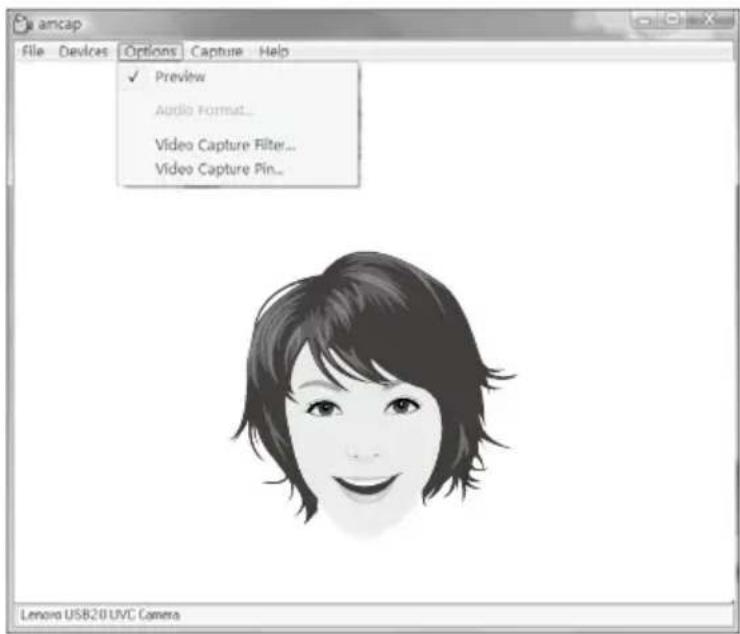
1) Click Start → All Programs → Lenovo USB2.0 UVC Camera → vmcap.
text_image
amcap File Devices Options Capture Help Preview Audio Format... Video Capture Filter... Video Capture Pin... Lenovo USB20 UVC Camera2) Select Options → Preview from the pop-up window to display the image in the video capture window.
Note: If there is no image display in the AMCAP video capture window, please confirm that preview in the options has been checked.
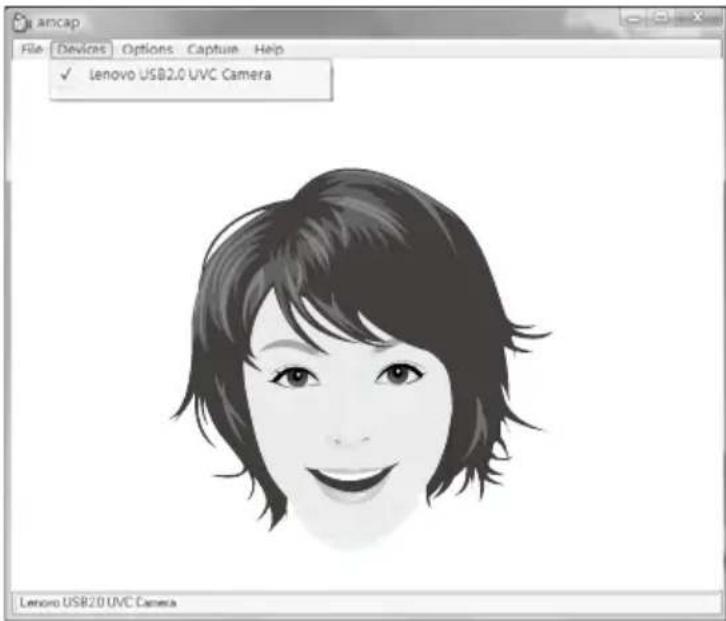
text_image
ancap File Devices Options Capture Help ✓ Lenovo USB2.0 UVC Camera Lenovo USB2.0 UVC Camera3) Confirm that Devices Lenovo USB2.0 UVC Camera has been checked. If there are other devices in this option, do not check them. Only choose the "Lenovo USB2.0 UVC Camera" device, and the window should display the camera image. An image, which is caught by Lenovo PC camera, will be displayed in the video capture window. Adjust the position and pitch angle of the camera to ensure the whole face is displayed in the video capture window.
To use this software, do the following:
Click Start → All Programs → Lenovo → Lenovo Dynamic Brightness system.
The default setting has been pre-selected. You can adjust the brightness and display delay time according to your needs.
4.2 Lenovo Eye Distance System
Lenovo Eye Distance System can automatically detect the distance between you and the display. It will alert you automatically when you sit too close to the display. You can also set viewing distance as well as the time interval beyond which a warning will pop up.
Note: This function applies only to the computer equipped with a Lenovo PC camera and is available only after the camera is installed.
To use this software, do the following:
Click Start → All Programs → Lenovo → Lenovo Eye Distance System.
The default setting has been pre-selected. You can adjust the viewing distance according to your needs.

Notes:
- Ensure the lens of the camera is exposed and not covered.
- Ensure your eyes are exposed and not covered.
(The function that detects the distance between the user and monitor is based on the position of the user's eyes. Therefore, if the eyes are covered or there is a strong reflection, the distance detection may be affected.)
Wear glasses may affect the accuracy of the face image verification.
- The limitation of the distance detection by the camera:
The minimum distance : about 20 centimeters (7.90 inches)
The maximum distance : about 70 centimeters (27.55 inches)
The pitch angle (the face rotary angle scope in the vertical):
Elevation angle: 20 degrees
Depression angle: 30 degrees
The horizontal rotary angle (the face rotary angle scope in the horizontal): -20 \~ +20 degrees
This chapter contains the following topics:
- Troubleshooting and Problem Resolution
Note: The description of the TV-Tuner card in this manual is only used for the machines which have the TV-Tuner card. It does not apply to those machines that do not have a TV-Tuner card.
Solving Problems
Follow these tips when you troubleshoot your computer:
- If you added or removed a part before the problem started, review the installation procedures and ensure that the part is correctly installed.
- If a peripheral device does not work, ensure that the device is properly connected.
- If an error message appears on the screen, write down the exact message. This message may help support personnel diagnose and fix the problem(s).
- If an error message occurs in a program, see the program's documentation.

Note: The procedures in this document were written for the Windows default view, so they may not apply if you set your Lenovo® computer to the Windows Classic view.
5.1 Troubleshooting Display Problems
Problem: Blank screen or no image is displayed on the monitor.
Troubleshooting and problem resolution:
Check that the LCD screen has been turned on; If not, press the LCD On/Off button to turn on the LCD.
If still cannot solve the problem, contact to Lenovo Customer Service.
Problem: You need to change display property settings.
Setting display background and icon properties:
- Right-click the desktop anywhere except over an icon, then select Personalize from the pop-up menu.
-
From here, select the appropriate options to:
-
Change the desktop background
- Select a screen saver
- Select colors and appearance options for icons and characters
- Set resolution and colors by using Display Settings options
Problem: Ripple on screen
Troubleshooting and problem resolution:
- Check for devices located less than one meter from the computer such as refrigerators, electric fans, electric dryers, UPSs, regulators, fluorescent lamps or other computers that may be generating magnetic interference.
- Move any interfering devices away from the computer.
- If the problem persists, consult with Lenovo Service.
5.2 Troubleshooting Audio Problems
Problem: No sound from integrated speakers.
Troubleshooting and problem resolution:
- Adjust the windows volume control — Double-click the speaker icon in the lower-right corner of your screen. Ensure that the volume is turned up and that the sound is not muted. Adjust the volume, bass, or treble controls to eliminate distortion.
• Reinstall the audio driver. - Disconnect headphones from the headphone connector — Sound from the speakers is automatically disabled when headphones are connected to the computer's side-panel headphone connector.
Problem: No sound from headphones.
Troubleshooting and problem resolution:
- Check the headphone cable connection — Ensure that the headphone cable is securely inserted into the headphone connector.
- Adjust the windows volume control — Click or double-click the speaker icon in the lower-right corner of your screen. Ensure that the volume is turned up and that the sound is not muted.
5.3 Troubleshooting Software Problems
Problem: You are unable exit a running program normally.
Troubleshooting and problem resolution:
- Open the Task Manager window by pressing Ctrl, Alt and Delete at the same time.
- Select the Application tab, select the problem program, and then click the End Task button.
Problem: You need to install or uninstall a program.
Problem resolution:
During installation never abort the install process by powering the system off or through other drastic means. This can cause system program disorder or even failure during system initialization.
During the uninstall process, never directly delete the files or folders. This is harmful to the system, and might cause a system-wide malfunction.
Use the following procedure to properly uninstall programs:
- Back up all documents and system settings related to the program before removing it.
- If the program has its own uninstaller, run it directly to uninstall the program.
- If the program does not have its own uninstaller, then select Control Panel from Start menu.
- From the Control Panel, choose Programs and Functions.
- Find the applicable program from the Programs and Functions dialog box and then select Uninstall/Modify.
- Perform the instructions displayed to uninstall the software.
5.4 Troubleshooting Problems with Optical Drives and Hard Disks
Problem: The Optical drive is unable to read a CD/DVD.
Troubleshooting and problem resolution:
- Check to determine if there is an optical drive icon in the resource manager of the operating system. If not, restart your computer. If there is still no icon, contact Lenovo Service. Otherwise, continue with the next step of this procedure.
- Confirm that the CD/DVD has been properly placed in the drive. If not, reload the CD or DVD. Otherwise, continue with the next step of this procedure.
- Check the specifications that came with your computer to confirm that this optical drive is supposed to be able to read this type of CD or DVD.
- If the CD/DVD cannot be read, replace it with a known good CD/DVD such as one that was shipped with the computer.
- If the known good CD cannot be read, visually check the operating side of the CD/DVD for defects.
Problem: The capacity of the hard disk, as indicated by the system, is less than the nominal capacity.
Troubleshooting and problem resolution: For computers equipped with the OneKey Recovery feature, the system recovery feature needs to occupy some hard disk space. This may account for the apparent hard disk capacity deficit.
Further Technical Explanation: The nominal capacity of the hard disk is expressed in the decimal system, 1000 bytes. But the actual hard disk capacity is expressed in the binary system as 1024 bytes (For example, the nominal capacity 1G is 1000M, while the actual capacity 1G is 1024M).
The capacity of the hard disk shown in Windows can be calculated according to the calculations in the following example:
The nominal capacity of the hard disk is 40G, while its actual capacity should be: 40 × 1000 × 1000 × 1000/(1024 × 1024 × 1024) = 37G .
If the Service partition of 3G - 3 x 1000 x 1000 x 1000/(1024 x 1024 x 1024) = 2.79G is subtracted, the capacity of the hard disk shown in the system can be obtained.
The capacity of the hard disk as calculated using this method may be slightly different from the actual capacity due to the rounding of totals.
5.5 Special considerations for troubleshooting Windows
Record the following information that may later be useful in troubleshooting system problems:
-
The serial number of the software. The serial number was shipped with the computer and was provided separately by the manufacturer. The Help Center is unable to retrieve this number.
-
The drivers for this computer model only support the Windows 7 system.
-
When you use the Windows Media Center to watch TV, be particularly attentive to the following:
• In the following two situations, you must re-save a channel list:
a. When you change your TV signal from digital to analog, your saved channel list for digital TV is deleted. When you want to watch digital TV again, you must create and save a new channel list.
b. When you change your TV signal from analog to digital, your saved channel list for analog TV is deleted. When you want to watch analog TV again, you must create and save a new channel list.
- Before you can watch teletext programming, you must set the TV tuner input signal to analog.
5.6 Performing Daily Maintenance Tasks
Cleaning the computer components
Because many of the computer components consist of sophisticated integrated circuit boards, it is very important to periodically clean around the computer to prevent dust buildup. The cleaning supplies you need in order to clean the components include: a vacuum cleaner, a soft cotton cloth, clear water (pure water preferred) and cotton swabs.

Attention: Before you clean your computer, disconnect the computer from the electrical outlet. Clean your computer with a soft cloth dampened with water. Do not use liquid or aerosol cleaners, which may contain flammable substances.

Note: To avoid damaging the computer or display, do not spray cleaning solution directly onto the display. Only use products specifically designed for cleaning displays, and follow the instructions that are included with the product.
The following are general methods for cleaning the components:
- You can use a soft cloth to remove dust on the surface of the computer, the monitor, the printer, the speakers and the mouse.
- You can use a vacuum cleaner to clean in otherwise inaccessible corners.
- To clean the keyboard thoroughly, shut down the computer and scrub it gently with a wet cloth.
- Do not use the keyboard until it is dry.
Do not do any of the following:
- Allow water to enter the computer
• Use a heavily dampened cloth - Spray water directly onto the surface of the monitor or inside of computer.
Daily attention should be given to LCD monitors. Use a dry cloth daily to brush dust from the monitor and keyboard. Keep all surfaces clean and free of grease stains.
5.7 Wireless Keyboard and Mouse Connection Instructions and Troubleshooting
- What is wireless connection?
Wireless connection is a Bluetooth pairing process. It connects the wireless keyboard and mouse to the computer so that you can use them normally.
- When do I need to use the wireless connection process?
You will need to use the wireless connection process in any of the following situations:
| NO. | Status |
| 1 | Some wireless keyboards and mice are not pre-paired before sale. You will have to pair these devices manually. |
| 2 | Some pre-paired wireless keyboards and mice may not work correctly. |
| 3 | If the wireless keyboard or mouse does not work as expected, it may need to be paired again. |
| 4 | If you want to install a new wireless keyboard and mouse, you will have to use this process. |
| 5 | For some other abnormal statuses. |
- Indicator light guide:
| Indicator lights status | Indicate |
| A. Blinking steadily 1. T | The wireless keyboard and mouse are in discovery mode and ready to pair with your computer.2. The batteries in the wireless keyboard and mouse are running low. Note: Refer to the Quick Reference poster or User Guide for more detail on the color of the indicator lights. Note: Refer to the Quick Reference poster or User Guide for more detail on the color of the indicator lights. |
| B. Off 1. The device's b | batteries have run out.2. The power switch is in the “OFF” position. |
| C. Blinking, then off 1. S | Successfully established a connection.2. If the device has spent too long trying to establish the wireless connection, the indicator light will automatically turn off to save power. |
| D. Bright for a few seconds, then off | The devices are powered on. |
- How can I tell if the wireless connection has been established successfully?
a. Check if the devices work: See if you can use the wireless keyboard and mouse normally.
b. Check the indicator lights: Refer to section "C" of the "Indicator light guide".
- Wireless keyboard and mouse connection instructions:
| Connection methods | Description Instructions | |
| Hardware method Press | ss the wireless reset button on the chassis to connect the wireless keyboard and mouse. | Refer to Methods 1 and 2. |
| Software method Connect | nect the wireless keyboard and mouse by adding devices in the Hardware and Sound dialog box. | Refer to Method 3. |
Method 1: (Before starting the operating system)
- Install the batteries, then turn on the power switches of the wireless keyboard and mouse (if they have power ON/OFF switches).
- Press the Connect buttons on the back of the keyboard and mouse.
- When the keyboard and mouse wireless indicator lights blink, turn on the computer. Press the Wireless Reset button on the chassis for 5 seconds or longer until the indicator lights of the keyboard and mouse turn off.
- Once the wireless connection has been successfully established, the wireless keyboard and mouse will work properly.
Method 2: (Using the operating system)
- Follow steps 1 and 2 from Method 1.
- When the keyboard and mouse wireless indicator lights start blinking, turn the computer on immediately.
- After the operating system starts up, press the Wireless Reset button for 5 seconds or longer to search for wireless devices.
Note: This process could take several minutes.
- The wireless mouse drivers will be installed automatically when the mouse is found.
-
When the wireless keyboard is found, enter the PIN code and press the Enter key to complete the pairing process.
-
Once the wireless connection has been successfully established, the wireless keyboard and mouse will work properly.
Method 3: (Using the operating system)

Notes:
• Prepare a wired keyboard and mouse before using this method.
- Follow the steps below to install a new wireless keyboard and mouse.
- Use a wired keyboard and mouse to start the operating system.
- Turn on the power switches of the wireless keyboard and mouse (if they have power ON/OFF switches).
- Press the Connect buttons on the back of the keyboard and mouse until the indicator lights blink.

Note: If the wireless indicator lights stop blinking, press the connect buttons on the keyboard and mouse again.
- Go to Windows and click Start → Control Panel → Hardware and Sound to open the Devices and Printers dialog box. Click on Add a device to open a new dialog box.
- Select the Lenovo Bluetooth Mouse and click Next to establish the Bluetooth connection.
- Select the Lenovo Bluetooth keyboard and click Next. (Click the Add a device icon if the dialog box has closed, then press the connect button again.)
- Enter the pairing code and press the Enter key to complete the Bluetooth connection.
5.8 Troubleshooting wireless mouse and keyboard issues
Problem: The wireless keyboard or mouse is not paired with your computer.
Troubleshooting and problem resolution:
- Follow the steps in the "Wireless keyboard and mouse instructions" section in the User Guide.
-
Check the indicator lights: for more information see the "Indicator light guide" section. If your wireless keyboard and mouse aren't paired with your computer, the indicator lights will start blinking, indicating your keyboard and mouse are in discovery mode and ready to pair with your computer.
-
Turn the wireless keyboard and mouse off and on again.
a. Reinstall all batteries.
b. Turn on the power switch (if the devices have ON/OFF switches).
c. Repair the devices as explained in the "Wireless keyboard and mouse instructions" section in the User Guide.
- Restart the computer.
a. Turn off the computer and unplug the main power cord.
b. Plug the main power cord in and restart the computer.
c. Repair the devices as explained in the "Wireless keyboard and mouse instructions" section in the User Guide.
-
If either the wireless keyboard or mouse has been connected to the computer, you only need to follow Method 3 to establish a connection for the other device.
-
If you have a wired keyboard and mouse, follow Method 3 to establish the connection.
Problem: The wireless keyboard and mouse are not active immediately after the computer starts up or wakes from sleep.
Troubleshooting and problem resolution:
Some Bluetooth devices may disconnect after no data has been transmitted for a certain amount of time to conserve battery power. If this happens, it may be necessary to press a key on the wireless keyboard or click a button on the mouse once or twice to wake them up.
Problem: Keyboard or mouse intermittently stops responding or takes a long time to respond.
Troubleshooting and problem resolution:
- Check for signal interference.
Avoid putting metal objects between the device and the computer. Do not place the computer under a metal surface or table. Move cordless phone base stations, microwave ovens, and other 2.4GHz electrical devices away from the computer. Keep wireless devices within 10 meters (33 feet) of the computer.
- Download the latest version of the device drivers.
You can download the latest drivers from the official Lenovo website at http://www.lenovo.com.
Problem: Mouse does not work as expected (pointer jittery, jumpy, slow or fast; mouse buttons not working properly).
Troubleshooting and problem resolution:
- Change the mouse properties to adjust pointer movement speed.
- Try using a different surface to see if the mouse's performance improves (Recommend to use a mouse pad).
- Turn the mouse over and check the sensor window. If there is any dust or debris, clean the sensor window gently.
- If multiple Bluetooth wireless devices are in use nearby, try turning them off to see if performance improves.