37RV635D - TV TOSHIBA - Free user manual and instructions
Find the device manual for free 37RV635D TOSHIBA in PDF.


User questions about 37RV635D TOSHIBA
0 question about this device. Answer the ones you know or ask your own.
Ask a new question about this device
Download the instructions for your TV in PDF format for free! Find your manual 37RV635D - TOSHIBA and take your electronic device back in hand. On this page are published all the documents necessary for the use of your device. 37RV635D by TOSHIBA.
USER MANUAL 37RV635D TOSHIBA
RV*** Digital Series

natural_image
Simple icon of an open book with a lowercase 'i' inside, no text or symbols present.Contents
SETTING UP
Safety precautions – Some do's and don't for you to be aware of 4
Installation and important information 5
The remote control - an at-a-glance guide 6
Connecting external equipment – a guide to connecting external equipment to the back of the television 7
Connecting an HDMI or DVI device to the HDMI input 8
Connecting a computer – connecting a computer to the HDMI terminal on the back of the television 9
Connecting a computer – connecting a computer to the RGB/PC terminal on the back of the television 10
Using the controls – switching on the television, standby, using the remote control, using the controls on the television, headphone socket 11
TUNING THE TELEVISION
Tuning the television for the first time 12
Setting antenna or cable 13
DTV auto tuning, manual tuning, manual tuning for DVB-C 14
DTV location, auto channel update, DVB character set, Analogue switch off 15
DTV sorting channels, skipping channels 16
ATV manual tuning, broadcast system 17
ATV skipping channels, sorting channel positions 18
CONTROLS AND FEATURES
General controls – selecting programme positions 19
Stereo and bilingual transmissions – stereo/mono or dual language broadcasts 19
Time display (ATV only) 19
Sound controls – volume, sound mute 19
Quick menu 19
Sound settings – dual, bass, treble and balance, advanced sound settings (stereo extension, voice enhancement, dynamic bass boost), stable sound ^® 20
Sound settings – dynamic range control (DTV only), audio level offset, headphone settings, audio description 21
Widescreen viewing 22
Picture controls – picture position (ATV only), picture mode, picture preferences (contrast, brightness, colour, tint, sharpness) 24
Picture controls – reset, backlight, 3D colour management, base colour adjustment 25
Picture controls – colour temperature, auto brightness sensor settings, active backlight control, black/white level 26
Picture controls – static gamma, MPEG noise reduction (MPEG NR), digital noise reduction (DNR), Resolution +, cinema mode, expert mode 27
Picture controls – reset, control visualization, panel lock (disabling the buttons on the television), automatic format (widescreen) 28
Picture controls – 4:3 stretch, blue screen, side panel adjustment, Toshiba illumination, picture still 29
Media player – opening media player automatically, opening media player from the menu, multi view 30
Media player – single view, slideshow 31
DTV programme timer 31
Timers – on timer (setting the television to turn on), sleep timer (setting the television to turn off) 32
DTV on-screen information 33
DTV programme guide 34
DTV Settings – setting the PIN code, parental control 35
DTV Settings – favourite channels, favourite channel lists, locking channels 36
DTV Settings – subtitles, audio languages, common interface 37
Software Upgrade – auto upgrade, searching for new software, software licences, system information, reset TV 38
PC settings for RGB/PC connections – picture position, clock phase, sampling clock, reset 39
Input selection and AV connections – input selection, external input skip, input signal selection, PC audio 40
Input selection and AV connections – HDMI1 Audio, HDMI settings (lip sync, INSTAPORT™, RGB range), digital output 41
TEXT SERVICES
ATV text services – selecting modes, general information, Auto and LIST modes 42
ATV text services – control buttons 43
DTV interactive services – general information 43
PROBLEM SOLVING
Questions and Answers – answers to some common queries including manual fine tuning and colour system 44
INFORMATION
Disposal 48
Specifications and Accessories – technical information about the television, supplied accessories 49
Safety Precautions
This equipment has been designed and manufactured to meet international safety standards but, like any electrical equipment, care must be taken to obtain the best results and for safety to be assured. Please read the points below for your own safety. They are of a general nature, intended to help with all electronic consumer products and some points may not apply to the goods you have just purchased.
Air Circulation
Leave more than 10cm clearance around the television to allow adequate ventilation. This will prevent overheating and possible damage to the television. Dusty places should also be avoided.
Heat Damage
Damage may occur if the television is left in direct sunlight or near a heater. Avoid places subject to extremely high temperatures or humidity. Place in a location where the temperature remains between 5°C (41°F) min. and 35°C (94°F) max.
Mains Supply
The mains supply required for this equipment is 220-240v AC 50/60Hz. Never connect to a DC supply or any other power source. DO ensure that the television is not standing on the mains lead. DO NOT cut off the mains plug from this equipment, this incorporates a special Radio Interference Filter, the removal of which will impair its performance. In the UK, the fuse fitted in the plug is approved by ASTA or BSI to BS1362. It should only be replaced by a correctly rated and approved type and the fuse cover must be refitted.
IF IN DOUBT PLEASE CONSULT A COMPETENT ELECTRICIAN.
Do
DO read the operating instructions before you attempt to use the equipment.
DO ensure that all electrical connections (including the mains plug, extension leads and inter-connections between pieces of equipment) are properly made and in accordance with the manufacturers' instructions. Switch off and withdraw the mains plug before making or changing connections.
DO consult your dealer if you are ever in doubt about the installation, operation or safety of your equipment.
DO be careful with glass panels or doors on equipment.
DO NOT REMOVE ANY FIXED COVERS AS THIS WILL EXPOSE DANGEROUS AND 'LIVE' PARTS.
THE MAINS PLUG IS USED AS A DISCONNECTING DEVICE AND THEREFORE SHOULD BE READILY OPERABLE.
Do not
DO NOT obstruct the ventilation openings of the equipment with items such as newspapers, tablecloths, curtains, etc. Overheating will cause damage and shorten the life of the equipment.
DO NOT allow electrical equipment to be exposed to dripping or splashing or objects filled with liquids, such as vases, to be placed on the equipment.
DO NOT place hot objects or naked flame sources, such as lighted candles or nightlights on, or close to equipment. High temperatures can melt plastic and lead to fires.
DO NOT use makeshift stands and NEVER fix legs with wood screws. To ensure complete safety, always fit the manufacturers' approved stand, bracket or legs with the fixings provided according to the instructions.
DO NOT leave equipment switched on when it is unattended, unless it is specifically stated that it is designed for unattended operation or has a standby mode. Switch off by withdrawing the plug, make sure your family know how to do this. Special arrangements may need to be made for people with disabilities.
DO NOT continue to operate the equipment if you are in any doubt about it working normally, or it is damaged in any way – switch off, withdraw the mains plug and consult your dealer.
WARNING – excessive sound pressure from earphones or headphones can cause hearing loss.
ABOVE ALL – NEVER let anyone, especially children, push or hit the screen, push anything into holes, slots or any other openings in the case.
NEVER guess or take chances with electrical equipment of any kind – it is better to be safe than sorry.
Installation and important information
Where to install
Locate the television away from direct sunlight and strong lights, soft, indirect lighting is recommended for comfortable viewing. Use curtains or blinds to prevent direct sunlight falling on the screen.
Place the TV on a stable, level surface that can support the weight of the TV. As an additional safety measure you can secure the TV to the level surface or a wall, as shown in the illustration, using a sturdy strap.
The LCD display panels are manufactured using an extremely high level of precision technology, however sometimes some parts of the screen may be missing picture elements or have luminous spots. This is not a sign of a malfunction.
Make sure the television is located in a position where it cannot be pushed or hit by objects, as pressure will break or damage the screen, and that small items cannot be inserted into slots or openings in the case.
Cleaning the screen and cabinet...
Turn off the power, clean the screen and cabinet with a soft, dry cloth. We recommend that you do not use any proprietary polishes or solvents on the screen or cabinet as this may cause damage.
Side View

text_image
Fixing strap 'P' ClipTop View

text_image
Stand clip 'P' Clip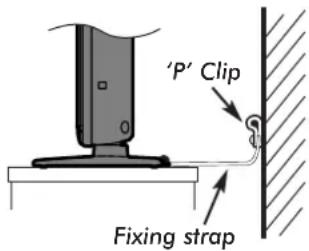
text_image
'P' Clip Fixing strapSturdy tie (as short as possible)
Stand style is dependant on the model
Please take note
The digital reception function of this television is only effective in the countries listed in Country in the SETUP menu. Depending on the country/area some of this television's functions may not be available. Reception of future additional or modified services can not be guaranteed with this television.
If stationary images generated by 4:3 broadcasts, text services, channel identification logos, computer displays, video games, on screen menus, etc. are left on the television screen for any length of time they could become conspicuous, it is always advisable to reduce both the brightness and contrast settings.
Very long, continuous use of the 4:3 picture on a 16:9 screen may result in some retention of the image at the 4:3 outlines, this is not a defect of the LCD TV and is not covered under the manufacturers warranty. Regular use of other size modes (eg. Superlive) and varying the "side panel" brightness (if available on the model) will prevent permanent retention.
EXCLUSION CLAUSE
Toshiba shall under no circumstances be liable for loss and/or damage to the product caused by:
i) fire;
ii) earthquake;
iii) accidental damage;
iv) intentional misuse of the product;
v) use of the product in improper conditions;
vi) loss and/or damage caused to the product whilst in the possession of a third party;
vii) any damage or loss caused as a result of the owner's failure and/or neglect to follow the instructions set out in the owner's manual;
viii) any loss or damage caused directly as a result of misuse or malfunction of the product when used simultaneously with associated equipment;
Furthermore, under no circumstances shall Toshiba be liable for any consequential loss and/or damage including but not limited to the following, loss of profit, interruption of business, the loss of recorded data whether caused during normal operation or misuse of the product.
NOTE: A Toshiba wall bracket or stand, where available, must be used to maintain the product's BEAB approval.
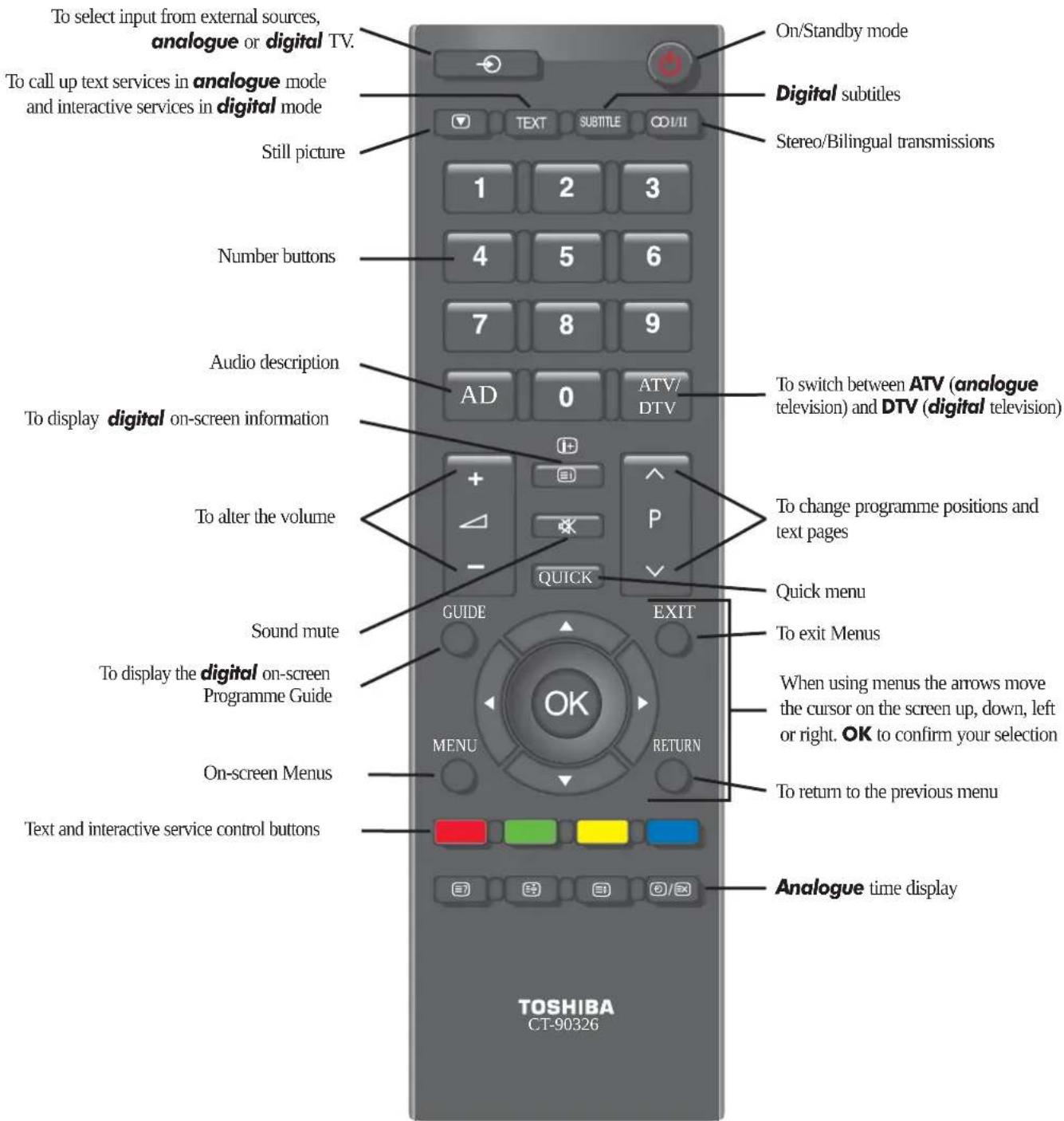
The remote control
Simple at-a-glance reference of your remote control.
text_image
To select input from external sources, analogue or digital TV. To call up text services in analogue mode and interactive services in digital mode Still picture 1 2 3 Number buttons 4 5 6 7 8 9 Audio description AD 0 ATV/ DTV To display digital on-screen information To alter the volume QUICK Sound mute GUIDE EXIT To display the digital on-screen Programme Guide MENU RETURN On-screen Menus Text and interactive service control buttons On/Standby mode Digital subtitles Stereo/Bilingual transmissions To switch between ATV (analogue television) and DTV (digital television) To change programme positions and text pages Quick menu To exit Menus When using menus the arrows move the cursor on the screen up, down, left or right. OK to confirm your selection To return to the previous menu Analogue time display TOSHIBA CT-90326Inserting batteries and effective range of the remote

natural_image
3D rendered image of a gray plastic tray with a slot and two side handles (no text or symbols)Remove the back cover to reveal the battery compartment and make sure the batteries are inserted the right way round. Suitable battery types for this remote are AAA, IEC R03 1.5V.
Do not combine a used, old battery with a new one or mix battery types. Remove discharged batteries immediately to prevent acid from leaking into the battery compartment. Dispose of them in accordance with the disposal instructions in this manual. Warning: batteries must not be exposed to excessive heat such as sunshine, fire or the like.
The performance of the remote control will deteriorate beyond a distance of five metres or outside an angle of 30 degrees from the centre of the television. If the operating range becomes reduced the batteries may need replacing.
Connecting external equipment
Before connecting any external equipment, turn off all main power switches. If there is no switch remove the mains plug from the wall socket.

text_image
OPTICAL DIGITAL AUDIO OUTPUT HDMI HDMI COMPONENT VIDEO INPUT (EXT3) SCART 2 (EXT2) SCART 1 (EXT1) * a decoder could be Digital Satellite or any other compatible decoder. IS-VIDEO (2S) COMPONENT VIDEO INPUT Y PstCa PstCa L AUDIO R RGB/PC PCI HDMI (AUDIO) RS-232C RS-232C port (for service use only) FIXING STRAP CABLE HOLDER Decoder* Media Recorder MEDIA REC. TV IN/OUT SAT The cable holders can be used for aerial, media recorder and audio cables. Do not use as handles and remove all cables before moving the television.Aerial cables:

Connect the aerial to the socket on the rear of the television. If you use a decoder* and/or a media recorder it is essential that the aerial cable is connected through the decoder and/or through the media recorder to the television.
SCART leads:
Connect the video recorder IN/OUT socket to the television. Connect the decoder TV socket to the television. Connect the media recorder SAT socket to the decoder MEDIA REC. socket.
Before running Auto tuning put your decoder and media recorder to Standby.
The phono sockets alongside the COMPONENT VIDEO INPUT sockets will accept L and R audio signals.
The Digital Audio Output socket enables the connection of a suitable surround sound system. NOTE: this output is always active.
HDMI (High-Definition Multimedia Interface) is for use with a DVD, decoder or electrical equipment with digital audio and video output. It is designed for best performance with 1080i and 1080p high-definition video signals but will also accept and display VGA, 480i, 480p, 576i, 576p and 720p signals.
PLEASE NOTE: Although this television is able to connect to HDMI equipment it is possible that some equipment may not operate correctly.
A wide variety of external equipment can be connected to the back of the television, therefore the relevant owners manuals for all additional equipment must be referred to.
We recommend SCART 1 for a decoder and SCART 2 for a media recorder.
If connecting S-VIDEO equipment, set the INPUT for EXT2. See page 40.
If the television automatically switches over to monitor external equipment, return to normal television by pressing the desired programme position button. To recall external equipment, press ⬤ to select between TV, EXT1, EXT2, EXT3C, HDMI1, HDMI2, HDMI3, HDMI4 (Model dependant) or PC.
When the external input mode is selected whilst viewing DTV mode the SCART socket will not output video/audio signals. The SCART output will also be muted in EPG mode.
DOLBY DIGITAL PLUS
Manufactured under license from Dolby Laboratories. Dolby and the double-D symbol are registered trademarks of Dolby Laboratories.
HDMI
HDMI, the HDMI logo and High-Definition Multimedia Interface are trademarks or registered trademarks of HDMI Licensing, LLC.
INSTAPORT™ and INSTAPORT logo are trademarks of Silicon Image, Inc. in the United States and other countries.
Connecting an HDMI or DVI device to the HDMI input
The HDMI input on the television receives digital audio and uncompressed digital video from an HDMI source device, or uncompressed digital video from a DVI (Digital Visual Interface) source device.
This input is designed to accept HDCP (High-Bandwidth Digital-Content Protection) programme material in digital form from EIA/CEA-861-D-compliant [1] consumer electronic devices (such as a set-top box or DVD player with HDMI or DVI output). For acceptable signal formats, see page 9.
NOTE: Some early HDMI equipment may not work properly with the latest HDMI TV, due to the adoption of a new standard. Please unplug the HDMI cable first and then try setting the options in HDMI Settings to Off. See page 41.
Supported Audio format: Linear PCM, sampling rate 32/44.1/48kHz.
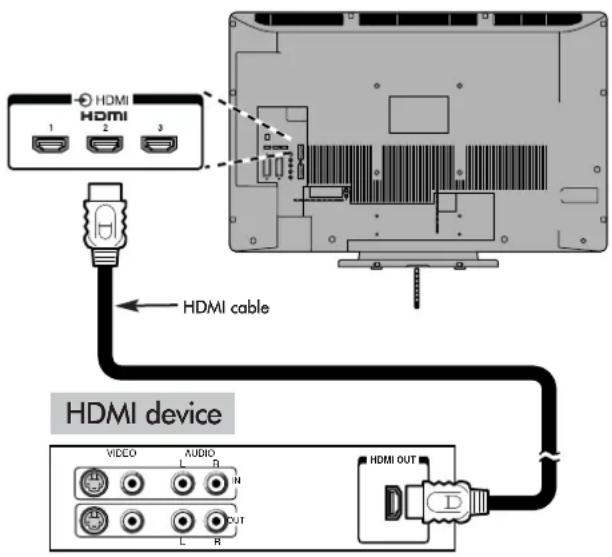
Connecting an HDMI Device
Connect an HDMI cable (type A connector) to the HDMI terminal. For proper operation, it is recommended that an HDMI cable with the HDMI Logo ( HDMI ) is used.
If the HDMI connection is capable of 1080p and/or the television is capable of refresh rates greater than 60Hz, a Category 2 cable will be required. Conventional HDMI/DVI cable may not work properly with this mode.
HDMI cable transfers both video and audio. Separate analogue audio cables are not required. See "HDMI1 Audio" on page 40.
text_image
HDMI 1 2 3 HDMI cable HDMI device VIDEO AUDIO L R N L OUT HDMI OUTTo view the HDMI device video, press the ⬤ to select HDMI1, HDMI2, HDMI3 or HDMI4 (Model dependant) mode.
Connecting a DVI Device
Connect an HDMI-to-DVI adaptor cable (HDMI type A connector) to the HDMI1 terminal and audio cables to the HDMI1 (AUDIO) socket. The recommended HDMI-to-DVI adaptor cable length is 6.6 ft (2m).
An HDMI-to-DVI adaptor cable transfers video only. Separate analogue audio cables are required. See "HDMI1 Audio" on page 41.
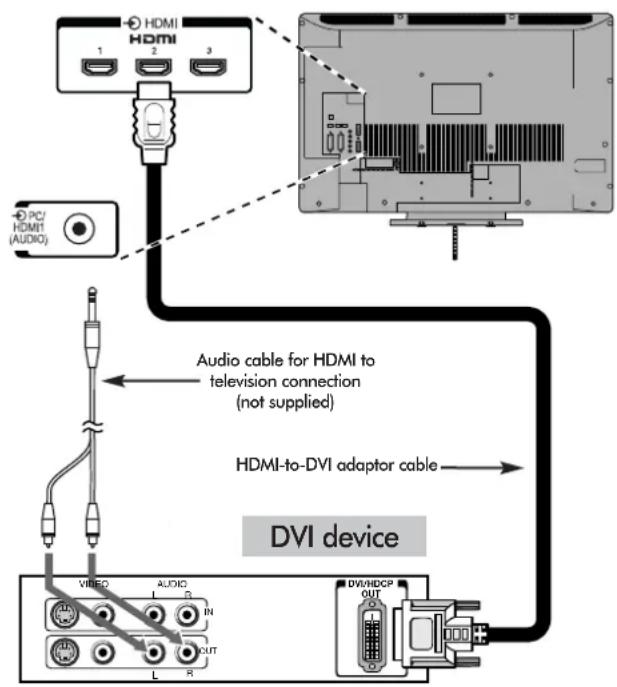
flowchart
graph TD
    A["PC/HDMI (AUDIO)"] --> B["HDMA"]
    B --> C["Audio cable for HDMI to television connection (not supplied)"]
    C --> D["HDMI-to-DVI adaptor cable"]
    D --> E["DVI device"]
    E --> F["Video/ Audio/ IN/ OUT/ L/R"]
    F --> G["DVI/HDCP OUT"]
NOTE: To ensure that the HDMI or DVI device is reset properly, it is recommended that these procedures are followed:
When switching on electronic components, switch on the television first and then the HDMI or DVI device. To switch off, first switch off the HDMI or DVI device and then the television.
[1] EIA/CEA-861-D compliance covers the transmission of uncompressed digital video with high-bandwidth digital content protection, which is being standardised for reception of high-definition video signals. Because this is an evolving technology, it is possible that some devices may not operate properly with the television. HDMI, the HDMI logo and High-Definition Multimedia Interface are trademarks or registered trademarks of HDMI Licensing, LLC. INSTAPORT™ and INSTAPORT logo are trademarks of Silicon Image, Inc. in the United States and other countries.
Connecting a computer via HDMI
With the HDMI connection, you can watch your computer's display on the television and hear the sound from the televisions speakers.
Connecting a PC to the HDMI Terminal

text_image
the back of your television HDMI-to-DVI adaptor cable 1 2 3 HDMI HDMI PC/ HDMI (AUDIO) Audio cable for PC to television connection (not supplied) ComputerWhen connecting a PC to the HDMI terminal on the television, use an HDMI-to DVI adaptor cable and an analogue audio cable.
If connecting a PC with an HDMI terminal, use an HDMI cable (type A connector). A separate analogue audio cable is not necessary). See page 8.
PLEASE NOTE:
It is possible that some PCs when connected may not display correctly. Some PC models cannot be connected to this television.
A band may appear at the edges of the screen or parts of the picture may be obscured. This is due to scaling of the picture by the set, it is not a malfunction.
Acceptable signals through HDMI terminals
| Format | Resolution | V. Frequency | H. Frequency | Pixel Clock Frequency |
| 480i 720 | X 480i 59.940/60.00Hz | 15.734/15.750kHz 2 | 7.000/27.027MHz | |
| 576i 720 | X 576i 50.000Hz 15.625kHz | 27.000MHz | ||
| 480p 720 | X 480p 59.940/60.00Hz | 31.469/31.500kHz | 27.000/27.027MHz | |
| 576p 720 | X 576p | 50.000Hz 31.250kHz 27.000MHz | ||
| 1080i | 1920 X 1080i | 59.940/60.000Hz | 33.716/33.750kHz | 74.176/74.250MHz |
| 1080i | 1920 X 1080i | 50.000Hz | 28.125kHz | 74.250MHz |
| 720p | 1280 X 720p | 59.940/60.000Hz | 44.955/45.000kHz | 74.176/74.250MHz |
| 720p | 1280 X 720p | 50.000Hz | 37.500kHz | 74.250MHz |
| 1080p | 1920 X 1080p | 59.940/60.000Hz | 67.500kHz | 148.500MHz |
| 1080p | 1920 X 1080p | 50.000Hz | 56.250kHz | 148.500MHz |
| 1080p | 1920 X 1080p | 24.000Hz | 27.000kHz | 74.250MHz |
| VGA | 640 X 480 | 59.940/60.000Hz | 31.469/31.500kHz | 25.175/25.200MHz |
Connecting a computer via RGB/PC
Before connecting any external equipment, turn off all main power switches. If there is no switch remove the mains plug from the wall socket.
text_image
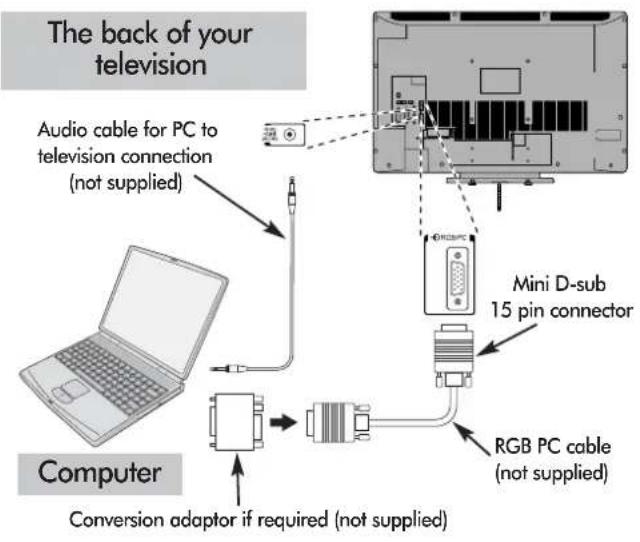
The back of your television Audio cable for PC to television connection (not supplied) Mini D-sub 15 pin connector Computer Conversion adaptor if required (not supplied) RGB PC cable (not supplied)Connect the PC cable from the computer to the PC terminal on the back of the television, then the audio cable to the PC/HDMI1 Audio socket on the back of the television. Select PC from the PC/HDMI1 Audio options in the AV connection menu located in the SET UP menu.
Press the to select PC mode.
IMPORTANT NOTE: Some PCs when connected they may not display correctly.
PLEASE NOTE:
Some PC models cannot be connected to this television.
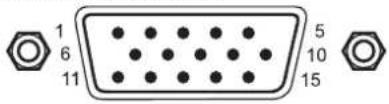
Pin assignment for RGB/PC terminal
text_image
1 6 11 5 10 15Signal information for Mini D-sub 15 pin connector
| Pin No. | Signal name | Pin No. | Signal name |
| 1 | R | 9 | NC |
| 2 | G | 10 Ground | |
| 3 | B | 11 NC | |
| 4 | NC (not connected) | 12 NC | |
| 5 | NC | 13 | H-sync |
| 6 | Ground | 14 | V-sync |
| 7 | Ground | 15 NC | |
| 8 | Ground |
An adaptor is not needed for computers with a DOS/V compatible mini D-sub 15 pin terminal.
A band may appear at the edges of the screen or parts of the picture may be obscured. This is due to scaling of the picture by the set, it is not a malfunction.
When PC input mode is selected some of the television's features will be unavailable e.g. Manual setting in the SET UP menu, Colour, Tint, DNR and Black Stretch in the Picture settings menu.
Acceptable PC signals through the PC terminal
| Format | Resolution | V. Frequency | H. Frequency | Pixel Clock Frequency |
| VGA 640 X 480 | X 480 | 59.940Hz 31.469kHz | 25.175MHz | |
| 72.809Hz 37.861kHz | 31.500MHz | |||
| 75.000Hz 37.500kHz | 31.500MHz | |||
| SVGA 800 X 600 | X 600 | 60.317Hz 37.879kHz | 40.000MHz | |
| 72.188Hz 48.077kHz | 50.000MHz | |||
| 75.000Hz 46.875kHz | 49.500MHz | |||
| XGA 1024 X 768 | X 768 | 60.004Hz 48.363kHz | 65.000MHz | |
| 70.069Hz 56.476kHz | 75.000MHz | |||
| 75.029Hz 60.023kHz | 78.750MHz | |||
| WXGA | 1280 X 768 | 59.995Hz 47.396kHz | 68.250MHz | |
| 59.870Hz 47.776kHz | 79.500MHz | |||
| 74.893Hz 60.289kHz | 102.250MHz | |||
| 1360 X 768 60.01 | 5Hz 47.712kHz 85.500MHz | |||
| SXGA 1280 X 1024 | X 1024 | 60.020Hz 63.981kHz | 108.000MHz | |
| 75.025Hz 79.976kHz | 135.000MHz |
Using the Controls
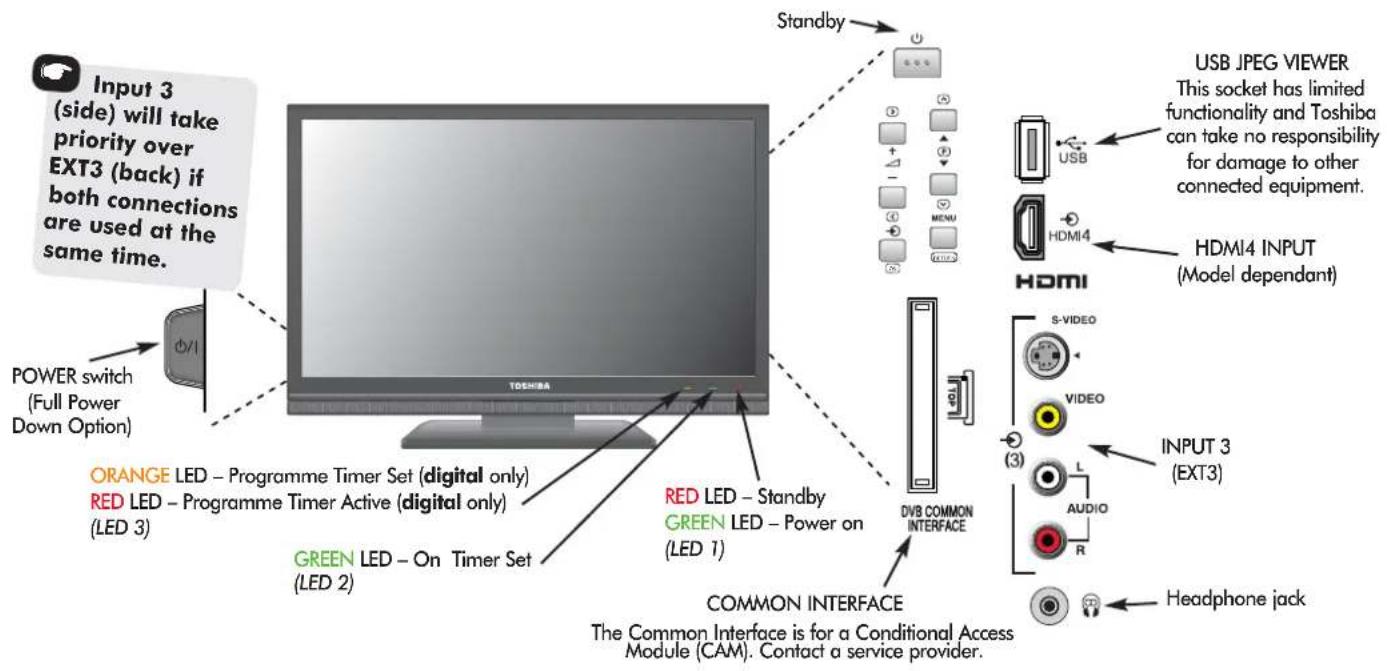
Whilst all the necessary adjustments and controls for the television are made using the remote control, the buttons on the television may be used for some functions.
text_image
Input 3 (side) will take priority over EXT3 (back) if both connections are used at the same time. POWER switch (Full Power Down Option) ORANGE LED – Programme Timer Set (digital only) RED LED – Programme Timer Active (digital only) (LED 3) GREEN LED – On Timer Set (LED 2) Standby USB JPEG VIEWER This socket has limited functionality and Toshiba can take no responsibility for damage to other connected equipment. HDMI4 INPUT (Model dependant) HDMI DVB COMMON INTERFACE COMMON INTERFACE The Common Interface is for a Conditional Access Module (CAM). Contact a service provider. INPUT 3 (EXT3) S-VIDEO VIDEO L AUDIO R Headphone jackSwitching On
If the RED LED is unlit check that the mains plug is connected to the power supply and press the ⏻/| POWER button on the left side of the television. If the picture does not appear press ⏻ on the remote control, it may take a few moments, the GREEN LED will be lit.
To put the television into Standby press ⏻ on the remote control. To view the television press ⏻ again. The picture may take a few seconds to appear.
NOTE: When the television is put into standby it will automatically search for updates if Auto Channel Update has been activated.
When the ⏻/| POWER switch is turned off, the digital channel position you previously viewed may not be memorised in the television memory.
Using the Remote Control
Press the MENU button on the remote control to see the menus.
The menu appears as a list of five topics. As each symbol is selected by pressing ◀ or ▶ on the navigation ring on the remote control, its respective options will appear below.
IMPORTANT: At the bottom of the screen will be a bar displaying a selection of control functions, i.e. Select, Watch, Back, Watch TV.
NOTE: The same menu is displayed in DTV (Digital TV) and ATV (Analogue TV) modes, however, where some items are not available in a mode they will appear greyed out.
To use the options press the ▲ and ▼ button on the remote control to move up and down through them and OK, ◀ ord ▶ to select the required choice. Follow the on screen instructions. The functions of each menu are described in detail throughout the manual.
Using the Controls
To alter the volume press — ∆ +.
To alter the programme position press ▼P ▲△
Press MENU and ⟨,⟩, √ or ∧ to control the sound and picture options.
Press MENU to finish.
When connecting sound equipment to EXT3, connect the audio output of the equipment to the phono sockets on the television.
To select the external input, press ⬤ and select the required input source. See page 40.
Please always refer to the owner's manual of the equipment to be connected for full details.
Please note: Inserting the headphone plug will mute the sound from all speakers.
Tuning the television for the first time
Before switching on the television put your decoder and media recorder to Standby if they are connected and ensure the aerial is connected. To set up the television use the buttons on the remote control as detailed on page 6.
1 Press the ⏻ button, the Quick Setup screen will appear. This screen will appear the first time that the television is switched on and each time Reset TV is selected.
| Quick Setup | |
| Menu Language | English |
| Country | UK |
| Primary Subtitle Language | English |
| Secondary Subtitle Language | English |
| Primary Audio Language | English |
| Secondary Audio Language | English |
2 Using ▼ highlight Menu Language, then ◀ or ▶ to select.
3 Press ▼ to highlight Country and ◀ or ▶ to select. The television will now tune the stations for your country. Press OK.
4 The Location screen will appear, press ◀ or ▶ to select between Home or Store (for normal home use select Home) then press OK.
If Home is selected the AutoView option will be activated, automatically adjusting the picture setting to the current viewing conditions. In most cases the television will then operate with lower energy consumption.
5 If the Ant/Cable In screen appears, press ◀ or ▶ to select between Antenna or Cable then press OK.
6 The Auto Tuning start up screen will appear with the option to select between DTV and ATV, DTV or ATV. Using ◀ or ▶ select DTV and ATV then press ▼ to highlight Start Scan.
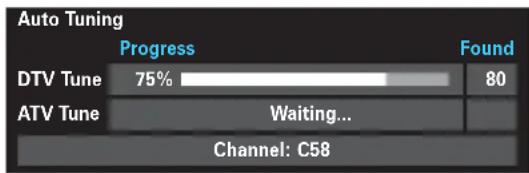
7 Press OK again to start Auto Tuning. The television will start to search for all available DTV and ATV stations. The progress bar will indicate progress.
You must allow the television to complete the search.
text_image
Auto Tuning Progress Found DTV Tune 75% 80 ATV Tune Waiting... Channel: C58When the search is complete the television will automatically select position one.
The Auto Tuning screen will display the total number of services found.

text_image
Auto Tuning DTV Services Found: 90 ATV Services Found: 4 DTV > ATV Type Pos. Name CH 1 BBC ONE 34 2 BBC TWO 34 3 ITV1 31 4 Channel 4 31 5 F I V E 6 ITV2 31 7 BBC THREE 348 Press ◀ or ▶ to view the DTV (digital channels) or ATV (analogue channels) lists.

text_image
Auto Tuning DTV Services Found: 90 ATV Services Found: 4 DTV ATV Pos. Name CH 0 VCR C60 1 BBC ONE C22 2 BBC TWO C28 3 ITV C25 4 CH4 C32 4 5 6 7 8 9 10 11 12 13 14 15 16 17 18 19 20 21 22 23 24 25 26 27 28 29 30 31 32 33 34 35 36 37 38 39 40 41 42 43 44 45 46 47 48 49 50 51 52 53 54 55 56 57 58 59 60 61 62 63 64 65 66 67 68 69 70 71 72 73 74 75 76 77 78 79 809 Use ▼ or ▲ to move through the list to select a channel then press EXIT to view.
In ATV mode some areas may receive duplicate stations. There may not be a clear picture or the signal may be weak, so the station order can be changed using ATV Manual Tuning.
NOTE: The time will be set automatically by transmission but can be advanced or decreased using Local Time Setting in the DTV Settings screen.
PLEASE NOTE
The Reset TV menu can also be accessed at any time from the SETUP menu.
Setting Antenna or Cable
Ant/Cable In
If this feature is available the television can be configured to either Antenna or Cable. If the setting is changed the Auto Tuning screen will automatically appear (if a Pin Code has been set this will have to be entered in order to change the setting). All current programmes and settings will be lost.
1 Press MENU and use ◀ or ▶ to select SETUP. Use ▼ to highlight Ant/Cable In.

text_image
SETUP Menu Language English Country UK Ant/Cable In Antenna Auto Tuning ATV Manual Tuning DTV Manual Tuning DTV Settings AV Connection2 Press ◀ or ▶ to select Antenna or Cable.
A screen will appear warning that the televisions features will be changed.
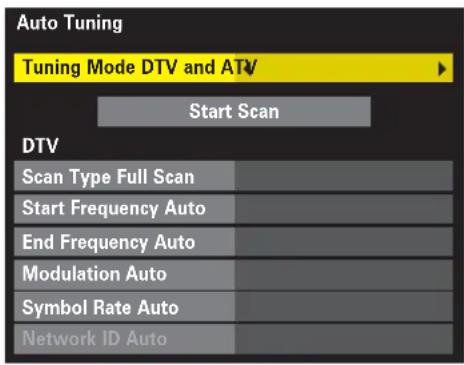
The Auto Tuning screen will appear. When Cable has been selected the Auto Tuning screen will show setting options.
text_image
Auto Tuning Tuning Mode DTV and ATV Start Scan DTV Scan Type Full Scan Start Frequency Auto End Frequency Auto Modulation Auto Symbol Rate Auto Network ID AutoWith the exception of Scan Type and Modulation, all of the settings have two options:
Auto – values are pre-set by the television's operating system.
Input – allows a single value to be entered in place of the pre-set value. If no channel is currently tuned and Input is chosen a system default value will be displayed. If a channel is currently tuned and Input is chosen the value of the channel will be displayed.
Scan Type
There are two options, Full Scan and Quick Scan. Quick Scan is a simplified version of Full Scan and takes less time to complete.
Start Frequency
This sets the frequency from which the scan will start.
End Frequency
This sets the frequency at which the scan will stop.
The valid entry range for frequency items is 113.000-858.000 for C-Book/Other and 114.000-858.000 for Nordig-C. If numbers outside of this range are entered the values will automatically set to the minimum or maximum valid values.
Modulation
There are five QAM modulation settings to choose from.
Symbol Rate
This is the Baud rate (KS/s) of the scan.
The valid entry range for Symbol Rate is 4000-7200. If a number outside of this range is entered the value will automatically set to the minimum or maximum valid value.
Network ID
This is the Network ID to be used for the scan. This item is greyed out when the Scan Type is set to Full Scan.
The valid entry range for Network ID is 1-65535. If a number outside of this range is entered the value will automatically set to the minimum or maximum valid value.
3 When the options have been set use ▼ or ▲ to highlight Tuning Mode, then press ◀ or ▶ to select between DTV and ATV, DTV or ATV.
4 Press ▼ to highlight Start Scan, then press OK.
DTV auto tuning, manual tuning, manual tuning for DVB-C
NOTE: As new services are broadcast it will be necessary to re-tune the television in order to view them.
Auto Tuning
Auto tuning will completely re-tune the television and can be used to up date the channel list.
It is recommended that DTV Auto tuning is run periodically to ensure that new services are added.
All current programmes and settings, i.e. favourites and locked programmes, will be lost.
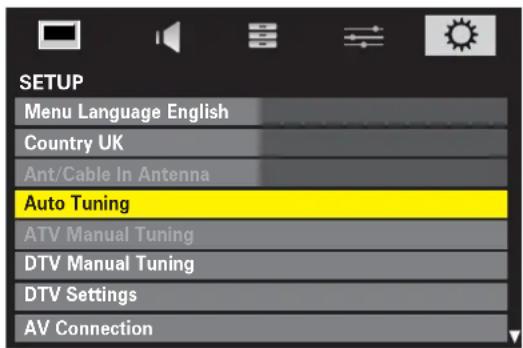
1 Press MENU and use ◀ or ▶ to select SETUP. If available use ▼ to highlight Ant/Cable In and then ◀ or ▶ to select Antenna or Cable.
2 Use ▼ to highlight Auto Tuning. Press OK.
text_image
SETUP Menu Language English Country UK Ant/Cable In Antenna Auto Tuning ATV Manual Tuning DTV Manual Tuning DTV Settings AV ConnectionA screen will appear warning that previous digital channels and settings will be deleted.

text_image
Auto Tuning Previous settings will be lost! Press EXIT for no change. Tuning Mode ← DTV and ATV → Start Scan3 Use ◀ or ▶ to select DTV then press ▼ to select Start Scan, press OK to start Auto tuning.
The television will start to search for all available DTV stations.
You must allow the television to complete the search.
When the search is complete the Auto Tuning screen will display the services found.
4 Use ▼ or ▲ to move through the list to select a channel then press OK to view.
Manual Tuning
This feature is available for service engineers or can be used for direct channel entry if the multiplex channel is known.
1 Select DTV Manual Tuning from the SETUP menu and press OK.
2 Enter the multiplex number using the number buttons or use ◀ or ▶ to adjust the number and then press ▼ to select Start Scan, press OK. The television will automatically search for that multiplex.
When the multiplex is found any channels not currently on the channel list will be added and the channel information at the top of the screen will be updated.
3 Repeat as necessary. Press EXIT to finish.
Manual Tuning for DVB-C
When Ant/Cable In is set to Cable, DTV Manual Tuning will display the following information:
Frequency - a specific frequency can be input for scanning.
Modulation - select from five QAM modulation options.
Symbol Rate - A specific baud rate (KS/s) can be input for manual scanning.
DTV location, auto channel update, DVB character set, Analogue switch off
Location
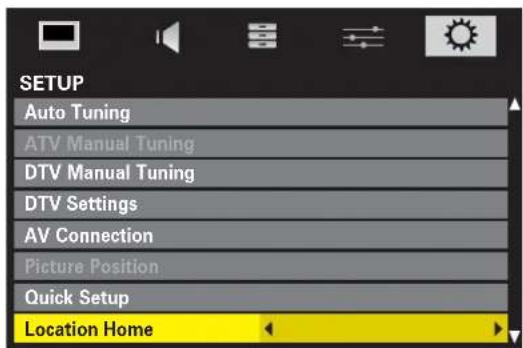
There are two options available Home and Store. Store is for use when a television is being used for display, i.e. in shops etc. Home is recommended for normal home use.
1 Press MENU and use ◀ or ▶ to select SETUP.
2 Use ▼ to highlight Location.
text_image
SETUP Auto Tuning ATV Manual Tuning DTV Manual Tuning DTV Settings AV Connection Picture Position Quick Setup Location Home3 Use ◀ or ▶ to select Home or Store.
When Home is selected the AutoView option will be activated, automatically adjusting the picture setting to the current viewing conditions. In most cases the television will then operate with lower energy consumption.
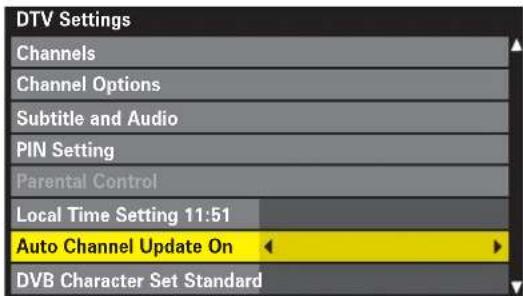
Auto Channel Update
If Auto Channel Update is set to On when the television is in standby mode Digital Tuning will automatically execute and new channels will be stored.
1 Press MENU and use ◀ or ▶ to select SETUP.
2 Use ▼ to highlight DTV Settings and press OK.
text_image
DTV Settings Channels Channel Options Subtitle and Audio PIN Setting Parental Control Local Time Setting 11:51 Auto Channel Update On DVB Character Set Standard3 Press ▼ to select Auto Channel Update and use ◀ or ▶ to select On.
DVB Character Set
The character set to be used for DVB-C or DVT-B channels can be set manually (Standard - Table 0 or Western - Table 5).
In the SETUP menu press ▼ to highlight DTV Settings and press OK.

text_image
DTV Settings Channels Channel Options Subtitle and Audio PIN Setting Parental Control Local Time Setting 11:51 Auto Channel Update On DVB Character Set Standard2 Press ▼ to select DVB Character Set and use ◀ or ▶ to select between Standard or West.
Analogue Switch-off
This is a digital television which is integrated to allow the use of both digital and analogue services. However, during the lifetime of this set it is very likely that analogue services will be switched off to allow for more new digital services.
This 'switch-off' will happen in a number of phases, which will be advertised in your area well in advance. It is recommended that at each phase the television is re-tuned to ensure that existing and new digital services can be viewed without disruption.
DTV sorting channels, skipping channels
NOTE: When the television is switched off the mode being viewed at the time will automatically be selected when the television is switched back on.
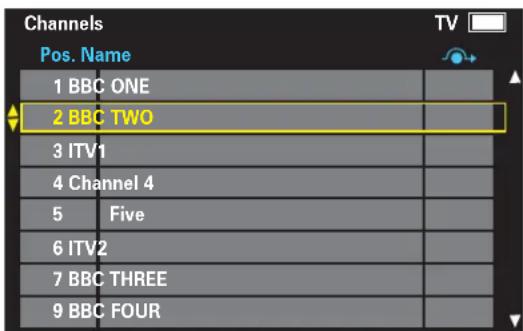
Sorting Channels
The channel order may be changed to suit personal preference.
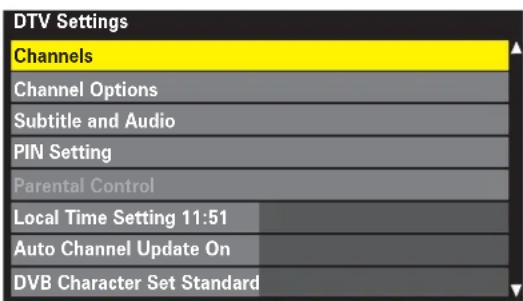
1 Press MENU and select the SETUP menu.
2 Use ▼ to move down through the list and highlight DTV Settings. Press OK.
text_image
DTV Settings Channels Channel Options Subtitle and Audio PIN Setting Parental Control Local Time Setting 11:51 Auto Channel Update On DVB Character Set Standard3 Use ▼ to select Channels then press OK.
4 With the list of channels now showing use ▼ or ▲ to highlight the station to be moved and press OK.
text_image
Channels Pos. Name 1 BBC ONE 2 BBC TWO 3 ITV1 4 Channel 4 5 Five 6 ITV2 7 BBC THREE 9 BBC FOUR5 Use ▼ or ▲ to move through the list to the preferred position, the other channels will move to make room.
Press OK to store the move. repeat as necessary then press EXIT.
Skipping Channels
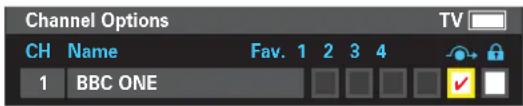
This feature allows the setting of channels that will be skipped when using P∨ and P∧. However, skipped channels can still be accessed by direct number entry.
1 Press MENU and select the SETUP menu.
2 Use ▼ to move down through the list and highlight DTV Settings. Press OK.

text_image
DTV Settings Channels Channel Options Subtitle and Audio PIN Setting Parental Control Local Time Setting 11:51 Auto Channel Update On DVB Character Set Standard3 Use ▼ to select Channel Options then press OK.
4 Use ▼ to select the channel to be skipped. Press ▶ repeatedly to select 🔍. Press OK, a tick will appear in the box to show that the channel has now been 'skipped'.
text_image
Channel Options CH Name Fav. 1 2 3 4 1 BBC ONE TVRepeat step 4 as necessary then press EXIT.
The selected channels will no longer be available when using P∧ and P∨ on the remote control.
ATV manual tuning
The television can be tuned-in manually using ATV Manual Tuning. For example: if the television cannot be connected to a media recorder/decoder with a SCART lead or to tune-in a station on another System.
Use ◀ and ▶ to move across the screen and select any of these ATV Manual Tuning options, then ▲ and ▼ to adjust the settings.

text_image
Position System Skip Signal System Class Channel Search Manual Fine Tuning StationPosition: The number to be pressed on the remote control.
System: Specific to certain areas.
Colour System: Factory set to Auto, should only be changed if problems are experienced, i.e. NTSC input from external source.
Skip: → means nothing has been stored or the facility to skip the channel is ON. See page 18.
Signal Class: C for standard terrestrial channels, S for cable channels
Channel: The channel number on which a station is being broadcast.
Search: Search up and down for a signal.
Manual Fine Tuning: Only used if interference/weak signal is experienced. See page 44.
Station: Station identification. Use the ▲ or ▼ and ◀ or ▶ buttons to enter up to seven characters.
To allocate a position on the television for a decoder and media recorder: turn the decoder on, insert a pre-recorded film in the media recorder and press PLAY, then manually tune.
1 Select ATV using ATV/DTV. Press MENU and use ◀ or ▶ to select the SET UP menu, with ▼ highlight ATV Manual Tuning, press OK to select.

text_image
SETUP Menu Language English Country UK Ant/Cable In Antenna Auto Tuning ATV Manual Tuning DTV Manual Tuning DTV Settings AV Connection2 Use ▲ or ▼ to highlight the position required e.g. we suggest Pos. 0 for a media recorder.

text_image
ATV Manual Tuning Pos. Channel Station 0 C60 1 C22 BBC1 2 C28 BBC2 3 C25 ITV 4 C32 CH4 5 C69 6 C69 7 C69 Different Channel numbers may be displayed3 Press OK to select. If the position is skipped, Skip must be removed before storing.
text_image
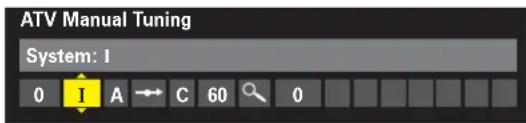
ATV Manual Tuning System: I 0 I A C 60 04 Press ▶ to select System and use ▲ or ▼ to change if required.
5 Then press ▶ to select Search.
6 Press ▲ or ▼ to begin the search. The search symbol will flash.

text_image
ATV Manual Tuning Search: Up 0 1 A → C 60 07 Each signal will show on the television, if it is not your media recorder, press ▲ or ▼ again to restart the search.
8 When your media recorder signal is found, press ▶ to move along to Station. With ▲, ▼, ◀ and ▶ put in the required characters, e.g. VCR.
ATV manual tuning (continued), skipping channels, sorting channel positions

text_image
ATV Manual Tuning Station: VCR 0 I A → C 60 0 V C R9 Press OK to store.
10 Repeat for each programme position you want to tune or, press MENU to return to the list of channels and select the next number to tune.
11 Press EXIT when you have finished.
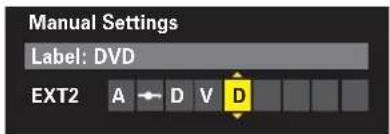
12 To name external equipment, e.g. DVD on EXT2, press → to select →2, then select Manual Settings from the SET UP menu.
13 Press ▶ to select Label then using ▲, ▼, ◀ and ▶ put in the required characters. Press OK.
text_image
Manual Settings Label: DVD EXT2 A D V DPLEASE NOTE
This television has direct channel entry if the channel numbers are known. Select the ATV Manual Tuning screen in Step 3. Enter the Programme number, the System, then C for standard (terrestrial) channels or S for cable channels and the Channel number. Press OK to store.
Skipping Channels
To prevent certain programmes from being viewed, the channel position can be skipped. The remote control must be removed as the channels will still be available using the number buttons. Programmes can then be watched as normal using the controls on the television, but the television will not show the skipped channel position.
1 Select ATV Manual Tuning from the SET UP menu.

text_image
ATV Manual Tuning Pos. Channel Station 2 C28 BBC2 3 C25 ITV 4 C32 CH4 5 C69 6 C69 7 C69 8 C69 9 C692 Use ▲ or ▼ to highlight the channel position to be skipped and press OK to select.
3 Press ▶ to select Skip.
4 Use ▲ or ▼ to turn Skip on. Press OK.
on the screen indicates a skipped channel position.

text_image
ATV Manual Tuning Skip: On 2 1 A C 28 0 B B C 25 Press MENU and repeat from Step 2 or press EXIT.
Each channel position has to be individually selected. To turn Skip off, repeat the procedure for each position.
Skipped channel positions cannot be selected by P ∧ and P ∨ or by the controls on the television, but can still be accessed by the number buttons on the remote control.
Sorting Channel Positions
Channels may be moved and stored on the position of your choice.
1 Select ATV Manual Tuning.
2 With the list of channels showing use ▼ or ▲ to highlight the channel to be moved and press ▶.

text_image
ATV Manual Tuning Pos. Channel Station 1 C22 BBC1 4 C32 CH4 2 C28 BBC2 3 C25 ITV 5 C69 6 C69 7 C69 8 C693 Use ▼ or ▲ to move through the list to your preferred position. As you do so the other channels will move to make room.
4 Press ◀ to store your move. Repeat as necessary, then press EXIT.
General controls, stereo/bilingual transmissions, time display (ATV only), sound controls, quick menu
Selecting Programme Positions
To select a programme position use the numbered buttons on the remote control.
Programme positions can also be selected using P^ and P ∨.
To display on-screen information i.e. programme position, channels, stereo/mono signal, signal strength, date and time, press iPress again to cancel. The information shown will vary depending on whether the television is in DTV or ATV mode.
Press ATV/DTV at any time to select between DTV TV, DTV RADIO, DTV TEXT and ATV modes.
Stereo and Bilingual Transmissions
If stereo or dual language broadcasts are transmitted the word Stereo or Dual will appear on the screen each time programme positions are changed, disappearing after a few seconds. If the broadcast is not in stereo the word Mono will appear.
For ATV programmes
Stereo... Press ∅I/II to select Stereo or Mono.
Bilingual... Bilingual transmissions are rare. If they are transmitted the word Dual will display. Choose the required programme number and if the word Dual appears press I/II to select Dual 1, Dual 2 or Mono.
For DTV programmes
For stereo or dual mono broadcasts, press I/II and use or to select settings.
The settings are as follows:
∞ Stereo
Press ▶ for Stereo → Left → Right
●O Dual Mono Press
▶ for Dual 1 → Dual 2 → Dual
Mono
Surround
Time Display (ATV only)
The time display facility allows the current (text service) time to be seen on the television screen.
Press ☐/☒ whilst watching a normal television broadcast to see a time display from the broadcaster. It will remain on screen for about 5 seconds.
NOTE: This display may not always be available.
Sound Controls
Volume
Press or to adjust the volume.
Sound Mute
Press ✗ once to turn the sound off and again to cancel.
Quick Menu
The Quick Menu gives fast access to various features, i.e. Picture Mode, Picture Size, Sleep Timer, Media Player etc.
The availability of the various features is dependant on the current mode and input source.
To access the Quick Menu, press QUICK then use ▼, ▲, ◀ and ▶ to select the features and to select options.
Sound settings – dual, bass, treble and balance, advanced sound settings, stable sound®
Dual
If a programme or film is being broadcast with a soundtrack in more than one language, the DUAL feature allows selection between them.
1 Select the SOUND menu.
2 Use ▼ to highlight Dual then press ◀ or ▶ to choose between Dual 1 or Dual 2.

text_image
SOUND Dual Dual 1 Bass 0 Treble 0 Balance 0 Advanced Sound Settings Stable Sound On Dynamic Range Control On Audio Level OffsetBass, Treble and Balance
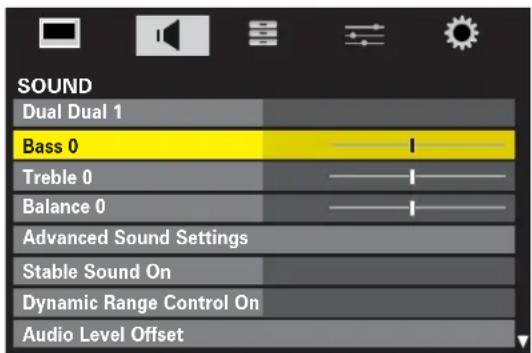
The Bass, Treble and Balance can be individually set to personal preference.
1 Press MENU and ◀ or ▶ to select SOUND.
text_image
SOUND Dual Dual 1 Bass 0 Treble 0 Balance 0 Advanced Sound Settings Stable Sound On Dynamic Range Control On Audio Level Offset2 Press ▼ or ▲ to highlight Bass, Treble or Balance and ◀ or ▶ to change the setting.
Advanced Sound Settings
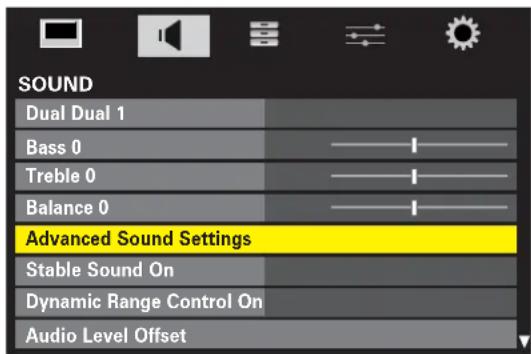
The Stereo Extension, Voice Enhancement and Dynamic Bass Boost features in the Advanced Sound Settings help to create an intense pseudo surround sound experience, making the television's audio sound richer and fuller.
In the SOUND menu select Advanced Sound Settings then press OK.
text_image
SOUND Dual Dual 1 Bass 0 Treble 0 Balance 0 Advanced Sound Settings Stable Sound On Dynamic Range Control On Audio Level Offset2 Use ▼ to highlight Stereo Extension then press ◀ or ▶ to select On or Off.

text_image
Advanced Sound Settings Stereo Extension Off Voice Enhancement On Dynamic Bass Boost Low3 Use ▼ to highlight Voice Enhancement then press ◀ or ▶ to select On or Off.
4 Use ▼ to highlight Dynamic Bass Boost then press ◀ or ▶ to select Low, High or Off.
Stable Sound®
The Stable sound feature limits high volume levels on the TV speakers, preventing the extreme changes in volume that can occur when channels are changed or a programme switches to a commercial.
1 In the SOUND menu use ▼ to highlight Stable sound.
2 Press ◀ or ▶ to select On or Off.
Sound settings (continued) – dynamic range control (DTV only), audio level offset, headphone settings, audio description
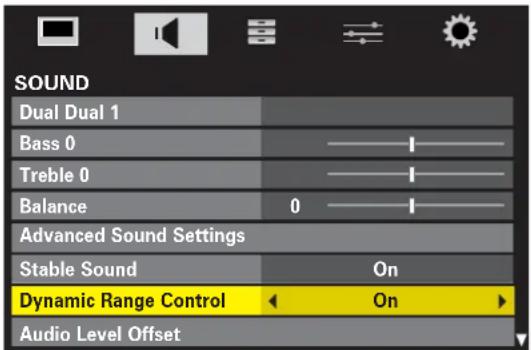
Dynamic Range Control (DTV only)
Dynamic Range Control allows control of audio compression for some digital television programmes (except MPEG-1 and MPEG-2).
In the SOUND menu press ▼ to select Dynamic Sound Control.
2 Press ◀ or ▶ to select On or Off.
text_image
SOUND Dual Dual 1 Bass 0 Treble 0 Balance 0 Advanced Sound Settings Stable Sound On Dynamic Range Control On Audio Level OffsetNOTE: If Stable Sound and Dynamic Sound Control are both set to On, each effect may not be noticeable.
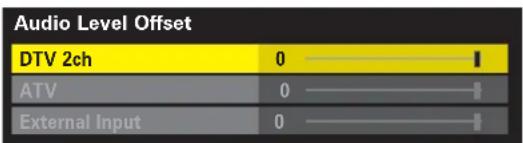
Audio Level Offset
This features allows the audio level offsets for ATV, DTV and external equipment to be set separately in order to stop the sudden changes in volume when switching between sources.
In the SOUND menu press ▼ to select Audio Level Offset then press OK.
text_image
Audio Level Offset DTV 2ch 0 ATV 0 External input 02 The selection available is dependant on which source is currently being viewed. Use ◀ or ▶ to adjust the level.
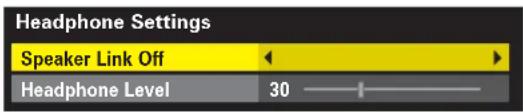
Headphone Settings
This feature controls the volume through the headphones. If Speaker Link is set to On the television volume controls the headphones and the speakers. If Speaker Link is set to Off the headphones work independently and the volume is controlled by the Headphone Level only.
In the SOUND menu. Press ▼ to highlight Headphone Settings then press OK.
2 Use ▼ to highlight Speaker Link then ◀ or ▶ to select Off.
text_image
Headphone Settings Speaker Link Off Headphone Level 303 Use ▼ to highlight Headphone Level then press ◀ or ▶ to adjust the volume.
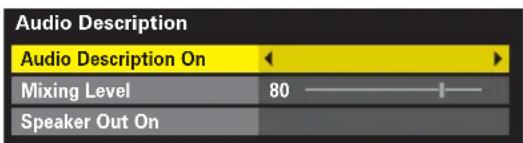
Audio Description
This feature provides a detailed narrative sound track for the visually impaired, provided it is being broadcast. The function is available through the speakers or headphones and is activated by pressing the AD button (AD will appear in the channel banner if it is available). The volume is altered by using the Mixing Level.
1 Select Audio Description from the SOUND menu and press OK.
2 Use ▼ to highlight Audio Description then press ◀ or ▶ to select On.
text_image
Audio Description Audio Description On Mixing Level 80 Speaker Out On3 Use ▼ to highlight Mixing Level then press ◀ or ▶ to adjust the volume.
4 Use ▼ to highlight Speaker Out then press ◀ or ▶, select On for sound from both the headphones and speakers, select Off for sound from headphones only. (See 'Headphone Settings' to adjust the headphone sound).
Widescreen viewing
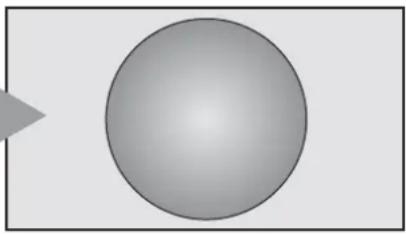
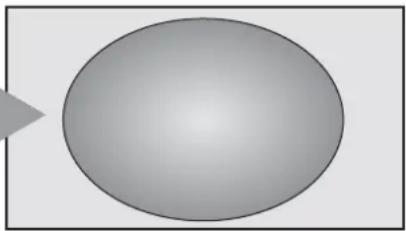
Depending on the type of broadcast being transmitted, programmes can be viewed in a number of formats, Wide, Super Live, Cinema, 4:3, Subtitle and 14:9.
SUPER LIVE
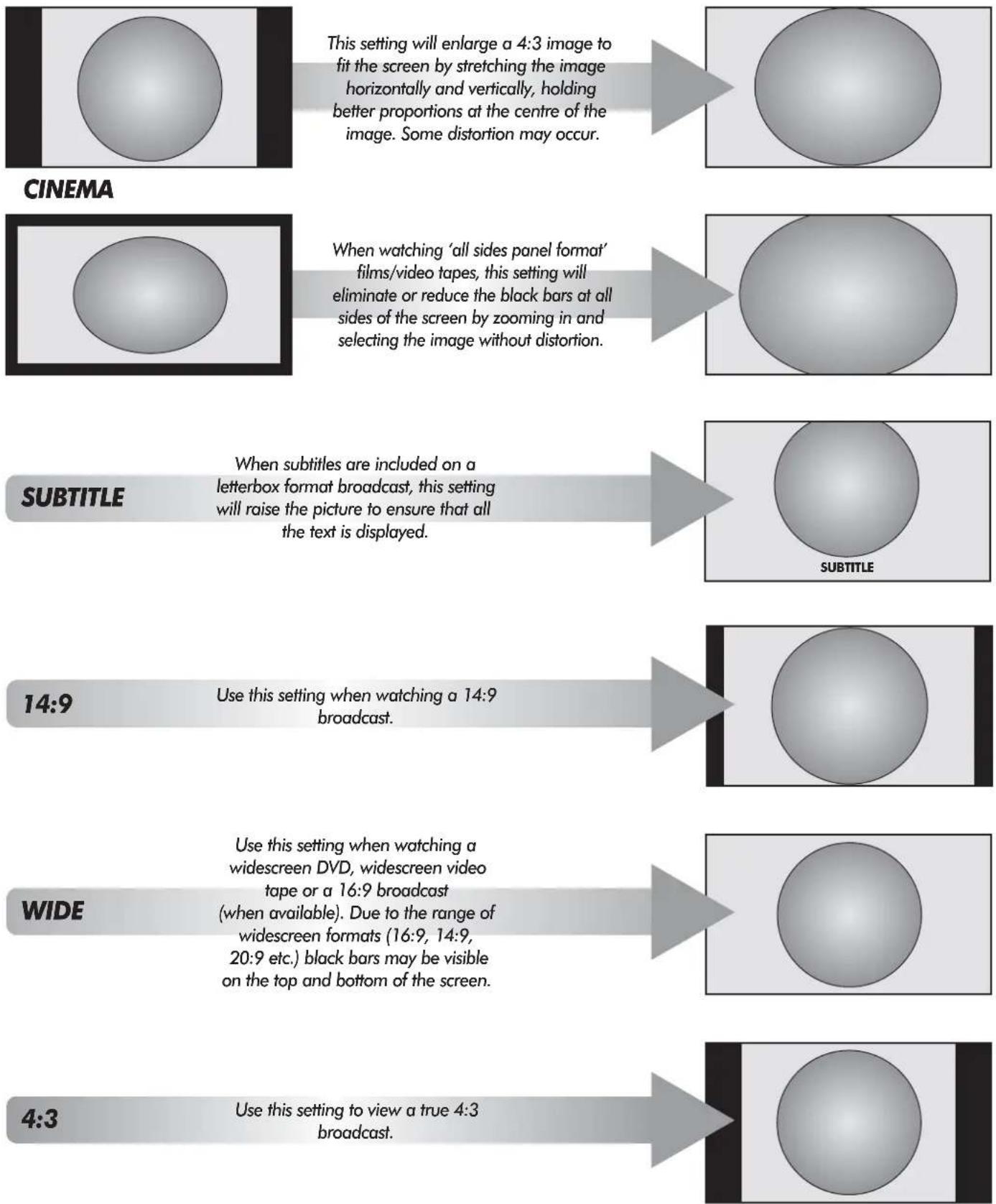
This setting will enlarge a 4:3 image to fit the screen by stretching the image horizontally and vertically, holding better proportions at the centre of the image. Some distortion may occur.
When watching 'all sides panel format' films/video tapes, this setting will eliminate or reduce the black bars at all sides of the screen by zooming in and selecting the image without distortion.
When subtitles are included on a letterbox format broadcast, this setting will raise the picture to ensure that all the text is displayed.
Use this setting when watching a 14:9 broadcast.
Use this setting when watching a widescreen DVD, widescreen video tape or a 16:9 broadcast (when available). Due to the range of widescreen formats (16:9, 14:9, 20:9 etc.) black bars may be visible on the top and bottom of the screen.
Use this setting to view a true 4:3 broadcast.
Widescreen viewing (continued)
NATIVE
Native will appear in the list when using equipment connected via HDMI. This setting will show the picture without over scan.
This option is only available when watching a video signal source.
natural_image
Simple grayscale diagram of a sphere with a shadow on the left side, no text or symbols present.AV FORMAT
Press QUICK to reveal the Quick Menu, press ▼ to highlight Picture Size, then ◀ or ▶ to view the list of available widescreen formats. Use ▼ or ▲ to highlight the required format and OK to select.

text_image
Picture Size Native Wide 4:3 Super Live Cinema Subtitle 14:9PC WIDE
When using a PC connected via HDMI this setting will show the picture without over scan and side panel.
This option is only available when watching a VGA signal source via HDMI.
natural_image
Simple gray oval shape with a small arrow pointing to its left side (no text or symbols)PC NORMAL
When using a PC connected via HDMI this setting will show the picture without over scan, i.e. WYSIWYG.
This option is only available when watching a VGA signal source via HDMI.
natural_image
Simple grayscale sphere with gradient shading on a white background (no text or symbols)DOT BY DOT
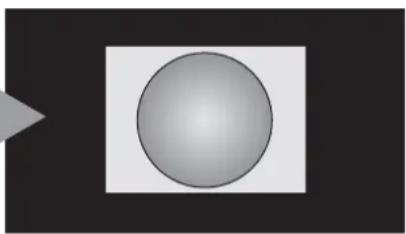
"Dot by Dot" is a non-scaling display. Depending on the input signal format this setting will display the picture with side panels and/or bars at the top and bottom (i.e VGA input source)
natural_image
Simple 3D-rendered gray sphere centered on a white square, with no text or symbolsVGA FORMAT
Press QUICK to reveal the Quick Menu, press ▼ to highlight Picture Size, then ◀ or ▶ to view the list of available PC formats. Use ▼ or ▲ to highlight the required format and OK to select.

Using the special functions to change the size of the displayed image (i.e. changing the height/width ratio) for the purposes of public display or commercial gain may infringe on copyright laws.
Picture controls
Most of the picture controls and functions are available in both digital and analogue modes. PLEASE NOTE: features not available will be greyed out.
Picture Position (ATV only)
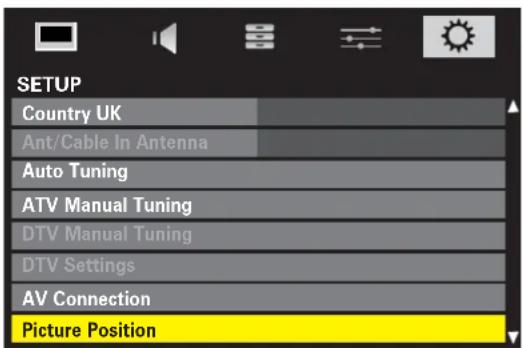
The picture position may be adjusted to suit personal preference and can be particularly useful for external inputs.
1 In the SETUP menu press ▼ until Picture Position is highlighted.
text_image
SETUP Country UK Ant/Cable In Antenna Auto Tuning ATV Manual Tuning DTV Manual Tuning DTV Settings AV Connection Picture Position2 Press OK to view the options available for the picture format that has been selected.
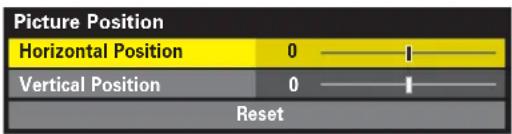
3 Press ▲ or ▼ to select an option, then ◀ or ▶ to adjust the settings.
The options alter depending on the widescreen format chosen (see the Quick Menu section) and when viewing connected equipment.
In Cinema:
text_image
Picture Position Horizontal Position 0 —— I Vertical Position 0 —— I ResetTo return to the original factory settings select Reset in the Picture Position menu and press OK.
Picture Mode
This television offers the choice of personalising the picture style.
AutoView, Dynamic, Standard, Movie and Store are preset options and effect many features/settings within the television. Store is only available when Location is set to Store.
Game option is available in external input mode (other than aerial input). Suitable widescreen formats will be selected.
PC option is available in RGB/PC input mode or HDMI input mode.
In the PICTURE menu press ▼ to select Picture Mode.

text_image
PICTURE Picture Mode Dynamic Reset Backlight 100 Contrast 100 Brightness 0 Colour 0 Tint 0 Sharpness 02 Press ◀ or ▶ to select an option.
NOTE: AutoView mode automatically adjusts picture settings according to the ambient light conditions and input signal, some features will not be available in this option.
The picture mode selected will only affect the source being viewed, different modes can be selected for each source.
Picture Preferences
Picture modes can be customised by selecting a mode and adjusting the settings/features.
1 In the PICTURE menu use ▼ to select Contrast, Brightness, Colour, Tint and Sharpness.
2 Use ◀ or ▶ to adjust the settings.
Picture controls (continued)
Reset
Reset returns all customised picture settings (except Picture Mode) back to factory settings. This feature will not be available until picture settings have been changed.
1 In the Picture menu press ▼ to select Reset. Press OK.
2 A confirmation screen will appear. Press ◀ or ▶ to select Yes or No. Press OK.
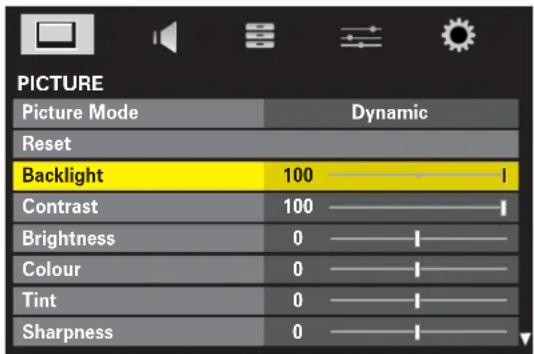
Backlight
Adjusting the Backlight can improve the clarity of the screen when viewing.
1 In the PICTURE menu press ▼ to select Backlight.
text_image
PICTURE Picture Mode Dynamic Reset Backlight 100 Contrast 100 Brightness 0 Colour 0 Tint 0 Sharpness 02 Press ◀ or ▶ to adjust.
3D Colour Management
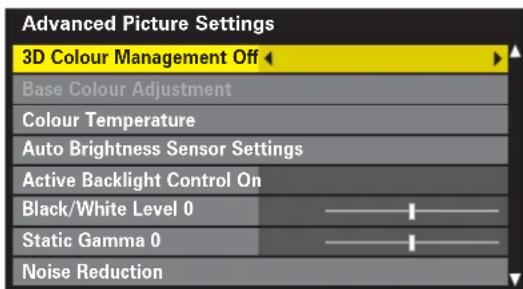
When 3D Colour Management is selected it allows the 'Base colour adjustment' feature to become available.
1 In the Picture menu press ▼ to highlight Advanced Picture Settings, press OK.
text_image
Advanced Picture Settings 3D Colour Management Off Base Colour Adjustment Colour Temperature Auto Brightness Sensor Settings Active Backlight Control On Black/White Level 0 Static Gamma 0 Noise Reduction2 In the Advanced Picture Settings menu press ▼ to select 3D Colour Management then use ◀ or ▶ to select On.
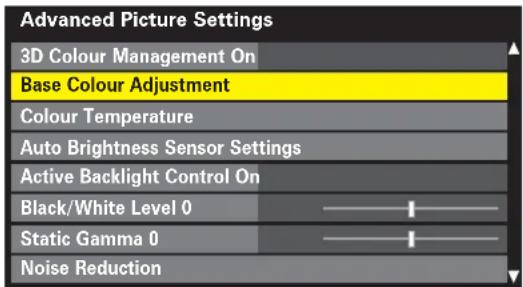
Base Colour Adjustment
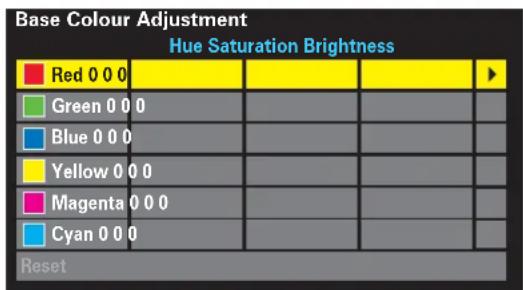
The Base Colour Adjustment feature allows the adjustment of individual colours to suit personal preference. This can be useful when using an external source.
In the Advanced Picture Settings menu press ▼ to select Base Colour Adjustment, then press OK.
text_image
Advanced Picture Settings 3D Colour Management On Base Colour Adjustment Colour Temperature Auto Brightness Sensor Settings Active Backlight Control On Black/White Level 0 Static Gamma 0 Noise Reduction2 Press ▲ or ▼ to highlight an option.
text_image
Base Colour Adjustment Hue Saturation Brightness Red 0 0 0 Green 0 0 0 Blue 0 0 0 Yellow 0 0 0 Magenta 0 0 0 Cyan 0 0 0 Reset3 Press ▶ to select.

text_image
Hue Saturation Brightness Red 0 0 04 Press ▶ to select Hue, Saturation and Brightness, then press ▲ or ▼ to adjust the settings.
To return to the original factory settings select Reset and press OK.
Picture controls (continued)
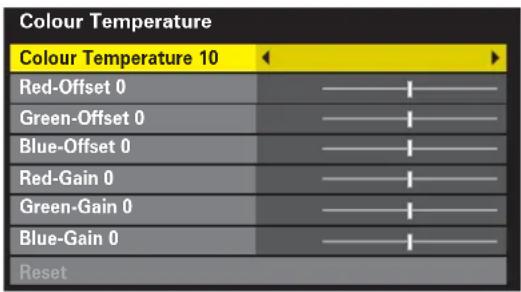
Colour Temperature
Colour Temperature increases the 'warmth' or 'coolness' of a picture by increasing the red or blue tint.
1 In the Advanced Picture Settings menu press ▼ to highlight Colour Temperature, press OK.
2 Use ◀ or ▶ to select a setting from 0 to 10.
text_image
Colour Temperature Colour Temperature 10 Red-Offset 0 Green-Offset 0 Blue-Offset 0 Red-Gain 0 Green-Gain 0 Blue-Gain 0 Reset3 Press ▼ or ▲ to select an option, then ◀ or ▶ to adjust the setting.
NOTE: If Picture Mode is set to AutoView the colour options will not be selectable.
Auto Brightness Sensor Settings
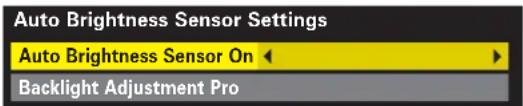
When the Auto Brightness Sensor Settings feature is activated it automatically adjusts the backlighting levels to suit the ambient light conditions.
In the Advanced Picture Settings menu press ▼ to highlight Auto Brightness Sensor Settings then press OK.
text_image
Auto Brightness Sensor Settings Auto Brightness Sensor On Backlight Adjustment Pro2 Press ◀ or ▶ to select On.
3 Press ▼ to select Backlight Adjustment Pro then press OK.
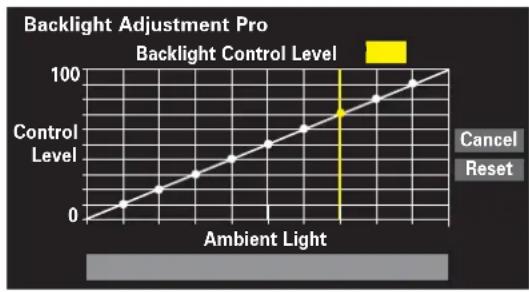
The Backlight Adjustment Pro screen will appear. Press OK again to view the adjustment window.
line
| Ambient Light | Control Level | | ------------- | ------------- | | 0 | 0 | | 10 | 20 | | 20 | 40 | | 30 | 60 | | 40 | 80 | | 50 | 100 |4 Press OK then ◀ or ▶ to select a point and ▼ or ▲ to adjust the level.
5 Press OK to store the adjustment.
6 To cancel the adjustment when selecting a point, press ▶ to select Cancel and press OK.
7 Select Reset then OK to return the adjustments to the factory settings.
Active Backlight Control
When Active Backlight Control is activated it will automatically optimise the backlighting levels for dark scenes.
1 In the Advanced Picture Settings menu press ▼ to highlight Active Backlight Control.
2 Press ◀ or ▶ to select On or Off.
Black/White Level
Black/White Level increases the strength of dark areas of the picture which improves the definition.
1 In the Advanced Picture Settings menu press ▼ to highlight Black/White Level.
2 Press ◀ or ▶ to adjust the level.
NOTE: The effect depends on the broadcast and is most noticeable on dark colours.
Picture controls (continued)
Static Gamma
The Static Gamma feature allows the adjustment of levels of black in the picture.
1 In the Advanced Picture Settings menu press ▼ to highlight Static Gamma.
2 Press ◀ or ▶ to select adjust the level.
MPEG NR – Noise Reduction
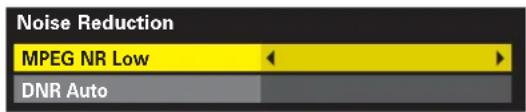
When watching a DVD the compression may cause some words or picture elements to become distorted or pixelated. Using the MPEG NR feature reduces this effect by smoothing out the edges.
In the Advanced Picture Settings menu press ▼ to highlight Noise Reduction then press OK.
2 Press▼ to select MPEG NR.
text_image
Noise Reduction MPEG NR Low DNR Auto3 Press◀ or ▶ to select between Low, Middle, High or Off.
DNR – Digital Noise Reduction
DNR enables you to 'soften' the screen representation of a weak signal to reduce the noise effect.
1 Select DNR from the Noise Reduction menu.
2 Use ◀ or ▶ to select between Auto, Off, Low, Middle or High. The differences may not always be noticeable (for the best result use lower settings as picture quality can be lost if the setting is too high).
Resolution +
This features modifies SD quality pictures to near HD quality levels, the levels can be selected for personal preference.
1 In the Advanced Picture Settings menu press ▼ to select Resolution + then press OK.

text_image
Resolution + Resolution + On Level 32 Press ▼ to select Resolution + and using ◀ or ▶ select On.
3 Press ▼ to select Level and using ◀ or ▶ adjust the level.
NOTE: Depending on the content, this may not work correctly.
Depending on the equipment connected to the television (i.e. equipment with specific enhancer functions), noise may appear on the image.
Cinema Mode
If there are lines or jagged edges in the film or programme being viewed, selecting Cinema Mode can help correct this by smoothing out the picture.
In the Advanced Picture Settings menu press ▼ to select Cinema Mode.
2 Press ◀ or ▶ to select On or Off.
NOTE: When a DVD with subtitles is being played this mode may not work correctly.
Expert Mode
Expert Mode allows the Red, Green and Blue colours to be switched on and off and individually adjusted.
1 In the Advanced Picture Settings menu press ▼ to select Expert Mode then press OK.
2 Press ▼ or ▲ to select a colour and then ◀ or ▶ to select On. Set the other colours to Off.

text_image
Expert Mode Red On Green On Blue On Colour 0 Tint 03 Press ▼ to select Colour or Tint then ◀ or ▶ to adjust.
NOTE: If Picture Mode is set to AutoView this feature will not be selectable.
Picture controls (continued)
Reset
Using Reset will return Advanced Picture Settings back to the factory settings.
In the Advanced Picture Settings menu press ▼ to select Reset.
2 A confirmation screen will appear. Press ◀ or ▶ to select Yes or No. Press OK.
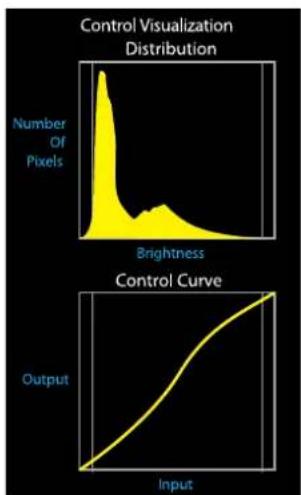
Control Visualization
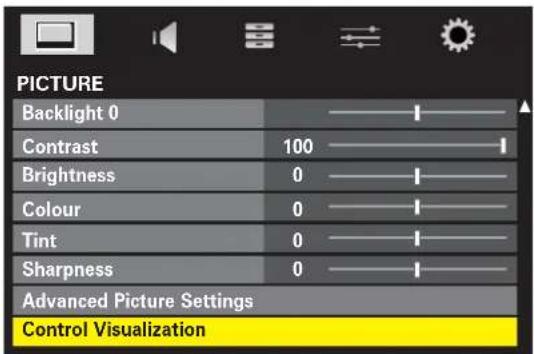
This feature displays the brightness histogram and control curve of each scene.
In the PICTURE menu press ▼ to select Control Visualization then press OK.
text_image
PICTURE Backlight 0 Contrast 100 Brightness 0 Colour 0 Tint 0 Sharpness 0 Advanced Picture Settings Control VisualizationThe histogram display will appear to the left of the picture being viewed.
line
| Input | Output | |-------|--------| | 0 | 0 | | 1 | 0.5 | | 2 | 1.0 | | 3 | 1.5 | | 4 | 2.0 | | 5 | 2.5 | | 6 | 3.0 | | 7 | 3.5 | | 8 | 4.0 | | 9 | 4.5 | | 10 | 5.0 | | 11 | 5.5 | | 12 | 6.0 | | 13 | 6.5 | | 14 | 7.0 | | 15 | 7.5 | | 16 | 8.0 | | 17 | 8.5 | | 18 | 9.0 | | 19 | 9.5 | | 20 | 10.0 |2 Press OK to exit.
Panel Lock
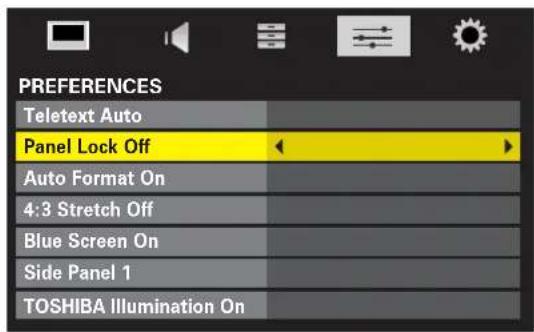
Panel lock disables the buttons on the television. All buttons on the remote control can still be used.
In the PREFERENCES menu press ▼ to select Panel Lock and choose On or Off using ◀ or ▶.
text_image
PREFERENCES Teletext Auto Panel Lock Off Auto Format On 4:3 Stretch Off Blue Screen On Side Panel 1 TOSHIBA Illumination OnWhen Panel lock is On, a reminder will appear when the buttons on the television are pressed. If the standby button is pressed the television will switch off and can only be brought out of standby by using the remote control.
Automatic Format (Widescreen)
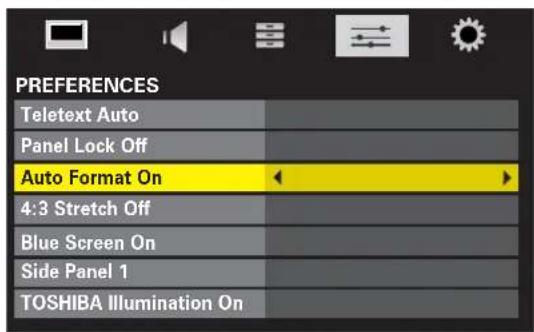
When this television receives a true Widescreen picture and Auto Format is On, it will automatically be displayed in Widescreen format, irrespective of the television's previous setting.
1 In the PREFERENCES menu press ▼ to select Auto Format.
text_image
PREFERENCES Teletext Auto Panel Lock Off Auto Format On 4:3 Stretch Off Blue Screen On Side Panel 1 TOSHIBA Illumination On2 Press ◀ or ▶ to select On or Off.
Picture controls (continued)
4:3 Stretch
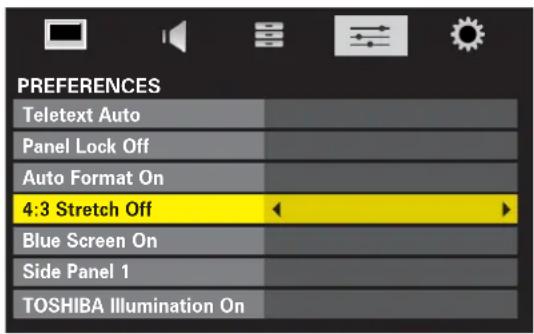
When 4:3 Stretch is activated the size switching system changes 4:3 programmes into a full screen picture.
1 In the PREFERENCES menu press ▼ to highlight 4:3 stretch.
text_image
PREFERENCES Teletext Auto Panel Lock Off Auto Format On 4:3 Stretch Off Blue Screen On Side Panel 1 TOSHIBA Illumination On2 Press ◀ or ▶ to select On or Off.
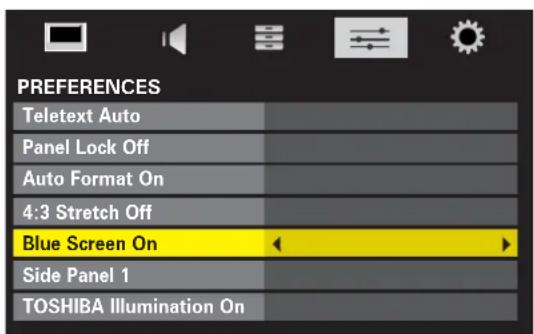
Blue Screen
When Blue Screen is selected the screen will turn blue and the sound will be muted when no signal is received.
1 In the PREFERENCES menu press ▼ to highlight Blue Screen.
2 Press ◀ or ▶ to select On or Off.
text_image
PREFERENCES Teletext Auto Panel Lock Off Auto Format On 4:3 Stretch Off Blue Screen On Side Panel 1 TOSHIBA Illumination OnSide Panel Adjustment
The Side Panel feature lightens or darkens the band each side of the screen when in 4:3 or 14:9 format. This helps prevent image retention of the band and can also make viewing in bright or dark conditions more comfortable.
1 In the PREFERENCES menu press ▼ until Side Panel is highlighted.
2 Press ◀ or ▶ to adjust.

text_image
PREFERENCES Teletext Auto Panel Lock Off Auto Format On 4:3 Stretch Off Blue Screen On Side Panel 1 TOSHIBA Illumination OnTOSHIBA Illumination (Model dependant)
This allows the illumination of the TOSHIBA logo, situated on the front of the television, to be switched On or Off.
1 In the PREFERENCES menu press ▼ to select TOSHIBA Illumination.
2 Use ◀ or ▶ to select On or Off.
Picture Still
This feature is used to hold a still image on the screen.
1 Press ▼ to hold an image on the screen, press ▼ again to cancel.
Media player
The Media Player allows the playback of JPEG files from a USB storage device. The files can be viewed individually in Single View or Slideshow mode or as thumbnails in Multi View mode.
Media Player specifications
Data type: JPEG Exif Version 2.2
File Format: DCF Version 1.1
Maximum photo size: 9MB
Maximum number of files: 2000/Folder
Maximum photo resolution: 16384 x 16384 Pixels
PLEASE NOTE
Any required permission must be obtained from copyright owners to use copyright material. Toshiba cannot and does not grant such permission.
Opening Media Player automatically
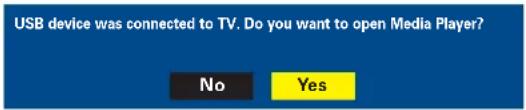
1 Connect a USB flash drive to the USB Port on the side of the television. A screen prompt will appear asking to open the Media Player.
text_image
USB device was connected to TV. Do you want to open Media Player? No Yes2 Press ◀ or ▶ to select Yes, the Media Player will open.
NOTE: The screen prompt will remain on screen for approximately 6 seconds.
Opening Media Player from the menu
1 Press MENU and ◀ or ▶ to select APPLICATIONS.

text_image
APPLICATIONS Media Player EPG Programme Timers On Timer Sleep Timer 00:002 Press ▼ to select Media Player then press OK.
text_image
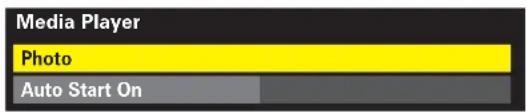
Media Player Photo Auto Start On3 Press ▼ or ▲ to highlight Photo and press OK, the Media Player will open.
NOTE: The Media Player will open even if there are no images on the USB flash drive.
Photo will only be selectable if a flash drive is connected.
Using Multi View
This view mode allows all the images within a selected folder to be viewed simultaneously, using thumbnail views in a grid. The initial highlighted position will be the top left image within the grid.
1 Open Media Player. Press ▲, ▼, ◀ and ▶ to select a folder then press OK. All the images in the folder will appear in the Multi View grid.

text_image
Photo /Folder/select Folder or File 1/54 E05265464.jpg 13.07 Fri, 30 Jan 2304 x 1536 OK Select P Page RETURNBack2 Press ▲, ▼, ◀ and ▶ to move through the images. If there are too many images for the screen, pressing ◀ on the top left image will show the previous page moving the highlight to the bottom right image. Alternatively, pressing ▶ on the bottom right image will show the next page moving the highlight to the top left image.
If there is more than one page of images with in the folder pressing P ∧ and P ∨ will move through the pages.
3 Press RETURN to leave the current folder.
4 Press EXIT to return to the last viewed source.
Media player (continued), the timers
Using Single View
This view mode displays all the images in a selected folder individually by scrolling through them manually.
1 Open Media Player. Press ▲, ▼, ◀ and ▶ to select a folder then press OK. All the images in the folder will appear in the Multi View grid.
2 Press OK on the highlighted image, the selected image will appear on the screen.
3 Press ▶ to move to the next image or ◀ to move back to the previous image.
4 Press ▲ to rotate the image 90° clockwise or ▼ to rotate 90° counterclockwise.
5 To display file information i.e. image number, image title, shot date and time, file size etc., press ⓘ+. The information will remain on screen for approximately 6 seconds or can be removed by pressing ⓘ+ again.
6 Press RETURN to leave the current folder and select another.
7 Press EXIT to return to the last viewed source.
Using Slideshow
This view mode displays all the images in a selected folder as a slideshow, scrolling through them automatically.
1 Open Media Player. Press ▲, ▼, ◀ and ▶ to select a folder then press OK. All the images in the folder will appear in the Multi View grid.
2 Press OK on the highlighted image, the selected image will appear on the screen in Single View.
3 Press OK again, Slideshow will now display all the images in the selected folder.
4 As with Single View pressing ◀ and ▶ will display previous and next images. The images can also be rotated and their information displayed.
5 Press EXIT to return to the last viewed source.
Programme Timers (DTV only)
This feature will set the television to go to a specific channel at a certain time. It can be used to view a particular programme, or by setting the mode to daily or weekly, can be used to view a series of programmes.
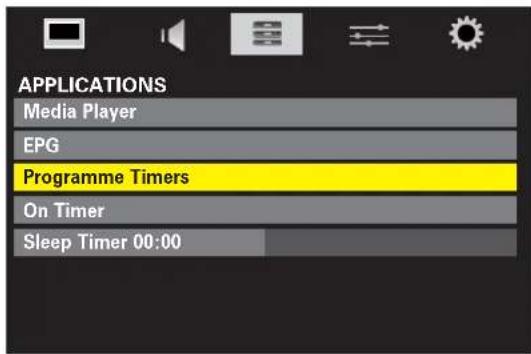
1 Press MENU and ◀ or ▶ to select the APPLICATIONS menu.
text_image
APPLICATIONS Media Player EPG Programme Timers On Timer Sleep Timer 00:002 Press ▼ to select Programme Timers, then press OK to select.
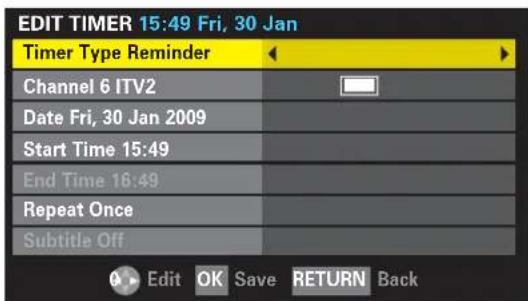
3 Press ▼ to select the first programme to be timed, then press OK. The EDIT TIMER menu will now appear on screen.
4 Press ▲ and ▼ to go through the list adding the details of the programme to be timed by using the number buttons as well as ◀ and ▶ to make selections.
text_image
EDIT TIMER 15:49 Fri, 30 Jan Timer Type Reminder Channel 6 ITV2 Date Fri, 30 Jan 2009 Start Time 15:49 End Time 16:49 Repeat Once Subtitle Off Edit OK Save RETURN Back5 When all the details have been entered press OK to save the timer.
The Orange/Red programme timer indicator on the front of the television will be lit indicating that the Programme Timers have been set.
The timers (continued)
PLEASE NOTE: When a timed programme is about to start, an information screen will appear offering the option of watching or cancelling the programme. The menus and other channels will not be available during the timed programme unless the programme timer is cancelled.
If the television is turned off using the ⏻/I POWER button any programmes set in the timers will be cancelled.
It is possible to set the timers to record, the media recorder will need to be AV link compatible.
Setting the On Timer
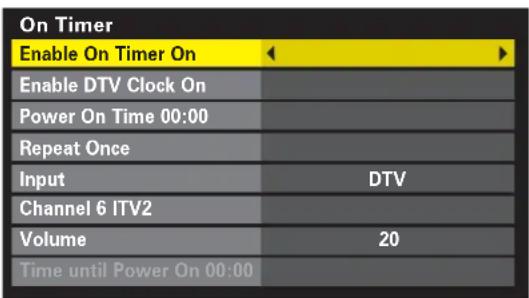
The On Timer sets the television to turn on automatically to a selected channel at a certain time of day or after a certain length of time.
1 In the APPLICATIONS menu, press ▼ to select On Timer then press OK.
Press ▼ to highlight Enable On Timer, then ◀ or ▶ to select On.
text_image
On Timer Enable On Timer On Enable DTV Clock On Power On Time 00:00 Repeat Once Input DTV Channel 6 ITV2 Volume 20 Time until Power On 00:002 Press ▼ to highlight Enable DTV Clock, then ◀ or ▶ to select On.
3 Press ▲ and ▼ to go through the list adding details to the on timer by using the number buttons as well as ◀ and ▶ to make selections.
4 Press OK to save the timer. The Green timer indicator on the front of the television will indicate that the timer has been set.
NOTE: When an external input is selected in the Input option the Channel option will no longer be available.
The Repeat option is only available when Enable DTV Clock is set to On.
The Time until Power On option is only available when Enable DTV Clock is set to Off.
Cancelling the On Timer
1 To cancel the On Timer menu, use ▼ to select Enable On Timer.
2 Use◀ or▶ to select Off.
Setting the Sleep Timer
The Sleep Timer turns the television off after a certain time.
1 In the APPLICATIONS menu, press ▼ to select Sleep Timer.
2 Using the number buttons set the required time. For example, to switch the television off in one and a half hours enter 01:30, or press ◀ or ▶ to increase/decrease in steps of 10 minutes.
3 Press EXIT to finish.
4 To cancel the Sleep timer, enter zero in the option.
DTV on-screen information
When viewing in digital mode, the on-screen information gives access to programme details for all available channels.
Information
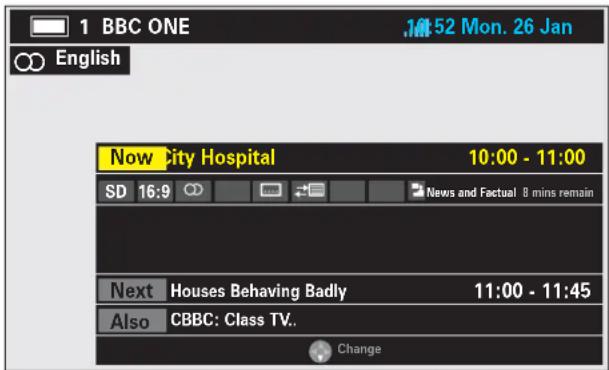
1 Select information by pressing i+ , the information screen will appear giving details of the channel and programme currently being viewed.
text_image
1 BBC ONE 52 Mon. 26 Jan English Now City Hospital 10:00 - 11:00 SD 16:9 News and Factual 8 mins remain Next Houses Behaving Badly 11:00 - 11:45 Also CBBC: Class TV. Change2 To see details of the next programme scheduled for the channel, press ▼ to select Next.
3 Press ▼ to select Also. Details of programmes that have started on other channels will be shown. Use ◀ or ▶ to change the display contents.
4 To set a reminder for the following programme, select Next then press OK. The EDIT TIMER screen will appear.

text_image
EDIT TIMER Mon. 26 Jan 11:00 ■ 1 BBC ONE Houses Behaving Badly Timer Type Reminder Start Time 12:30 End Time 13:00 Repeat Once Subtitle Off Edit OK Save RETURN Back5 The details of the programme will have been added to the screen. Press OK to save. The timer icon will appear on the information screen.
6 To record the programme use ◀ or ▶ to change the Timer Type to Record. This will allow more options to be available. Press ▼ and ◀ or ▶ to select options. Press OK to save.
NOTE: In order for the recording operation to work the media recorder must be AV link compatible.
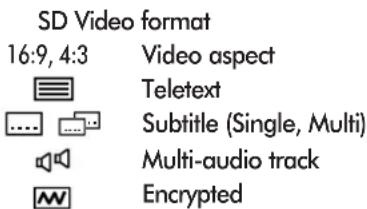
On-screen Information Icons
Icons will appear on the Information screen giving details about the programmes being broadcast. Details of these icons are listed below:
Service info

Audio Info

Audio/Subtitle info
Hard of Hearing
Event Info
text_image
SD Video format 16:9, 4:3 Video aspect Teletext Subtitle (Single, Multi) Multi-audio track EncryptedTimer Info
Timer status
DTV programme guide
When viewing in digital mode, the programme guide gives access to programme details for all available channels.
Guide
1 Select the on-screen guide by pressing GUIDE, the guide screen will appear highlighting details of the channel and programme currently being viewed. This may take a few moments to appear.

text_image
Fri 30 13:07 Fri. 30 Jan TV 13:00 13:30 14:00 14:30 15:00 1 BBC ONE BBC News ... Spot... 2 BBC TWO 3 ITV1 Loose Wom.. ITV Lunchtime Good Bid, Good Buy Daily Cooks ... 4 Channel 4 40 Where Angels Go, Trouble Follo.. 20 Selling Houses Abroad 5 Five 45 House 45 Neighb.. 15 Home and Aw.. I O .. Love.. 6 ITV2 Emmerdale The Jeremy Kyle Show 35 The Jeremy Kyle Show 7 BBC THREE.This Is BBC THREE 9 BBC FOUR.This Is BBC FOUR 10 ITV3 35.. 10 Heartbeat Pie in the Sky 26 L.. 11 SKY THREE Shadow Of The Shark Cruise & Stay .. Residensea 12 UKTV Histo.. Antiques Roadshow Sharpe 13 Channel 4..News at No.. Su. 14 More 4 10 Deal or No Deal ER Hill Street Bl.. OK Schedule ++ More Info Page Now View Genre Timers QUICK FeaturesNOTE: The channels are displayed in groups of service type (i.e. TV, Radio, Text). Press the ATV/DTV button to change service types.
2 Press ◀ or ▶ for information on other features scheduled for the channel selected.
3 For details of other programmes currently available, press ▼ or ▲ to scroll up and down the channel list. As channels are selected details of the programme currently being broadcast will appear. Press ◀or ▶ to view information on future features.
4 Press P √ to move on a page and P ∧ to return to the previous page.
5 For information on a highlighted programme press ⓘ+. To set the timer press the BLUE button to bring up the Programme Timer menu, then OK to set.
NOTE: Recording can be set from the guide. The media recorder must be set to the same time as the television. Refer to the the owner's manual for the recording equipment.
Topic Selection and Search
From the Guide set topics by colour and displays programmes according to their topic.
1 In the Guide screen press QUICK. Press ▼ to select Genre Colour then press OK.

text_image
Genre Colour Setup Movies Colour Setup RETURN Back2 Use ◀, ▶, ▼ and ▲ select a topic, then press a colour button button to assign that colour to the chosen topic. Four colours are available to set.
3 Press RETURN to return to the guide screen, the guide will automatically assign the colours to the chosen topics. Press the YELLOW button.

text_image
Genre Search 13:07 Fri, 30 Jan Movies 38 Topup Anytime 1 Darkman II: The Return of Durant Fri, 30 Jan 8:46-3.01 14 More 4 The Quiller Memorandum Fri, 30 Jan 10:45-12:55 32 Film 4 The Ghost and Mrs Muir Fri, 30 Jan 13:00-15:10 32 Film 4 Sands of Iwo Jima Fri, 30 Jan 15:10-17:20 32 Film 4 Carry On Behind Fri, 30 Jan 17:20-19:05 32 Film 4 Freaky Friday Fri, 30 Jan 19:05-21:00 11 Sky THREE Bloody Monday Fri, 30 Jan 21:00-22:45 32 Film 4 Transporter 2 Fri, 30 Jan 21:00-22:40 10 ITV3 Bloody Sunday Fri, 30 Jan 22:00-0:10 29 E4 The 51st State Fri, 30 Jan 22:00-0:00 14 More 4 Another 48 Hrs Fri, 30 Jan 22:35-0:25 32 Film 4 Fight Club Fri, 30 Jan 22:50-1:35 30 E4+1 The 51st State Fri, 30 Jan 23:00-1:00 OK Tune + More Info P Page EPG Timers4 Use ◀ or ▶ to select a topic. A list of available programmes and details will appear for that topic. Use ▼ or ▲ to highlight a particular programme.
5 For information on a highlighted programme press i+.
6 To view a current programme press OK.
7 Press the BLUE button to bring up the Programme Timer menu to set a reminder or record a future programme.
DTV Settings – setting the PIN code
In order to prevent viewing of unsuitable films and programmes, channels and menus can be locked. These can then only be accessed with a security code PIN when in digital mode.
Setting the PIN
1 Press MENU and ▶ to select the SETUP menu.
2 Press ▼ to select DTV Settings then press OK.
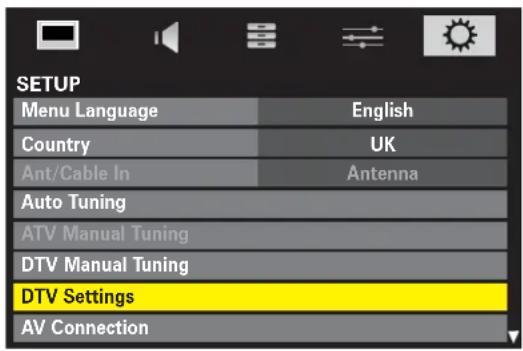
text_image
SETUP Menu Language English Country UK Ant/Cable In Antenna Auto Tuning ATV Manual Tuning DTV Manual Tuning DTV Settings AV Connection3 Use ▼ to select PIN Setting then press OK.

text_image
DTV Settings Channels Channel Options Subtitle and Audio PIN Setting Parental Control Local Time Setting 11:51 Auto Channel Update On DVB Character Set Standard4 Using the number buttons enter a four digit number, when these have been entered they will need to be confirmed by entering them again.

text_image
PIN Setting New PIN: * * * * Confirm PIN: * * * □The PIN number has now been set.
If the PIN number has been set a prompt will appear requiring the PIN number to be entered before television settings (i.e. Auto Tuning, Reset TV etc.) can be altered.
Parental Control
The Parental Control feature allows the blocking of programmes according to their rating levels. It will only be available when a PIN number has been set.
1 From the DTV Settings menu press ▼ to select Parental Control and press OK.
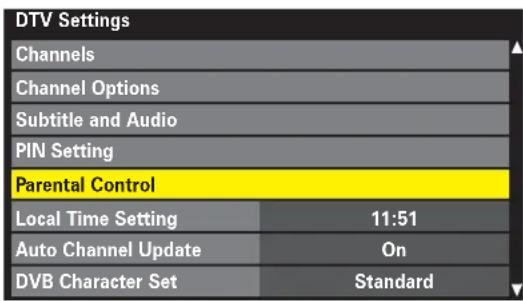
text_image
DTV Settings Channels Channel Options Subtitle and Audio PIN Setting Parental Control Local Time Setting 11:51 Auto Channel Update On DVB Character Set Standard2 Use ◀ or ▶ to choose between None and an age rating (4 to 18).

text_image
Parental Control Parental Setup NoneTo activate the Parental Controls switch the television off then on again.
To view a blocked programme the PIN number will now have to be entered.
DTV Settings – favourite channels, favourite channel lists, locking channels
Selecting Favourite Channels
Channel Options creates a list of the digital channels that are watched most. Four lists can be created, these can be a mixture of television and radio channels.
1 From the DTV Settings menu press ▼ to select Channel Options and press OK.

text_image
DTV Settings Channels Channel Options Subtitle and Audio PIN Setting Parental Control Local Time Setting 11:51 Auto Channel Update On DVB Character Set Standard2 Press ▶ to select the first 'favourite' List.
3 Use ▼ or ▲ to highlight channels. Press OK to select, a tick will appear in the box.

text_image
Channel Options CH Name Fav. 1 2 3 4 1 BBC ONE TV4 When all the required 'favourite' channels have been selected, press ▶ to created another List or EXIT to finish.
Favourite Channel Lists
1 Press QUICK to select the Quick Menu. Use ▼ or ▲ to select Favourites then press OK to bring up the Channel List.
2 Use ◀ or ▶ to select between All Channels or Favourites 1 - 4 (the number of lists available depends on how many have been created). Press ▼ or ▲ to select a channel then press OK.
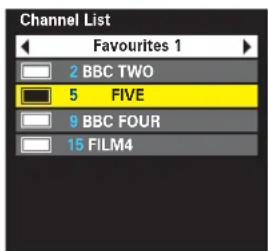
text_image
Channel List Favourites 1 2 BBC TWO 5 FIVE 9 BBC FOUR 15 FILM4Locking Channels
Locking channels stops the viewing of digital channels. The PIN must be set before programmes can be locked.
1 From the DTV Settings menu press ▼ to select Channel Options and press OK.

text_image
DTV Settings Channels Channel Options Subtitle and Audio PIN Setting Parental Control Local Time Setting 11:51 Auto Channel Update On DVB Character Set Standard2 Press▶ repeatedly to select the 'locked' option.
3 Use ▼ or ▲ to highlight channels. Press OK to select, a tick will appear in the box.

text_image
Channel Options CH Name Fav. 1 2 3 4 1 BBC ONE4 Press EXIT and put the television into standby.
The PIN must now be entered before any programmes being shown on locked channels can be accessed.
DTV settings – subtitles, audio languages, common interface
Subtitles
When in digital mode this feature will show subtitles on the bottom of the screen in the selected language provided they are being broadcast.
1 From the SETUP menu press ▼ to select DTV Settings. Press OK.
2 Press ▲ or ▼ to highlight Subtitle and Audio, then press OK.
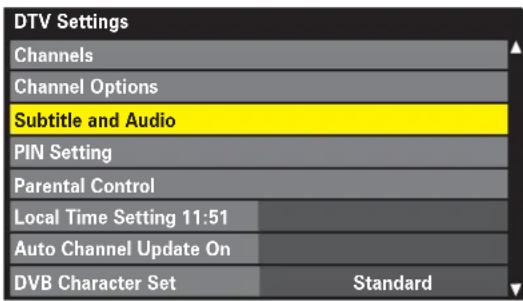
text_image
DTV Settings Channels Channel Options Subtitle and Audio PIN Setting Parental Control Local Time Setting 11:51 Auto Channel Update On DVB Character Set Standard3 Press ▼ to select Subtitle Type and use ◀ or ▶ to select Normal or Hard of Hearing.

text_image
Subtitle and Audio Subtitle Type Normal Primary Subtitle Language English Secondary Subtitle Language English Audio Type Normal Primary Audio Language English Secondary Audio Language English4 Press ▼ to select Primary Subtitle Language or Secondary Subtitle Language and use ◀ and ▶ to select an option.
5 Press the SUBTITLE button to select on or off, or choose if more than one of the selected languages are available.
Audio Languages
This feature allows a programme or film to be viewed with a choice of soundtrack language, provided they are currently being broadcast.
In the Subtitle and Audio menu press ▼ to select Audio Type and use ◀ or ▶ to select Normal or Hard of Hearing.

text_image
Subtitle and Audio Subtitle Type Normal Primary Subtitle Language English Secondary Subtitle Language English Audio Type Normal ◀ ► Primary Audio Language English Secondary Audio Language English2 Press ▼ to select Primary Audio Language or Secondary Audio Language and use ◀ and ▶ to select an option.
NOTE: If more than one soundtrack is available, use OOI/II to select between them.
Common Interface
The Common Interface Slot, situated on the side of the television, enables the insertion of a CAM (Conditional Access Module) and card. These are purchased from a service provider and allow additional subscription broadcasts to be viewed. For information contact a service provider.
1 Insert the CAM and card into the Common Interface Slot, following the instructions provided with the CAM. A box will appear on screen to confirm that the CAM is loaded.
2 In the DTV Settings menu press ▼ or ▲ to select Common Interface and press OK.
3 Details of the CAM should now be available.
Software upgrade, licences, system information, reset TV
Auto Upgrade
If Auto Upgrade is set to On the software will automatically upgrade as each version becomes available, provided the television is on or in standby.
In the SETUP menu press ▲ or ▼ to select Software Upgrade and press OK.
2 Press ▲ or ▼ to select Auto Upgrade.
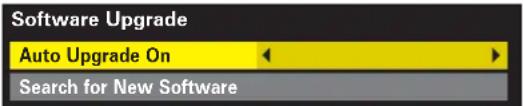
text_image
Software Upgrade Auto Upgrade On Search for New Software3 Use ◀ or ▶ to select On or Off.
Searching for New Software
If preferred, software upgrades can be searched for manually using Search for New Software.
1 In the Software Upgrade menu press ▼ to select Search for New Software. Press OK.
The television will automatically start searching for a software upgrade, the progress bar will move along the line.
SEARCHING FOR NEW SOFTWARE
Searching for a new software upgrade for this TV.
Searching
If an upgrade is found the television will automatically start downloading, if not a screen will appear stating that an upgrade is unavailable.
Software Licences
The licences for the software used in this television are available for viewing on screen.
1 In the SETUP menu press ▲ or ▼ to select Software Licences and press OK.
A screen will appear displaying all the licensing information required for the televisions software.
System Information
This feature can be used to check the version of software currently installed. In DTV mode it includes additional diagnostic information such as signal strength, signal quality, frequency etc.
1 From the SETUP menu press ▲ or ▼ to select System Information.
2 Press OK to display the System Information.
Reset TV
Selecting Reset TV will delete all television settings/features, including stored channels, returning the television to the original factory set up.
In the SETUP menu press ▼ until Reset TV is highlighted.
2 Press OK to select. A screen will appear warning that all previous settings will be lost, press ◀ or ▶ to select Yes or No, then press OK to continue.
The television will switch off then back on again and the Quick Setup screen will appear. Press OK to continue (see 'Quick Setup' section).
PC settings for RGB/PC connections – picture position, clock phase, sampling clock, reset
Sampling ClockPicture Position
Connect the PC (as shown in the 'Connecting a PC via RGB/PC' section) and ensure that a picture is showing on the television screen. The picture position may now be adjusted to suit personal preference.
Press ⬤ to select PC, then select PC Setting from the SET UP menu.
Ant/Cable In Antenna
Auto Tuning
ATV Manual Tuning
DTV Manual Tuning
DTV Settings
PC Settings
Press OK. Press ▲ and ▼ to select an option, then ◀ or ▶ to adjust the settings.
Horizontal Position 0
Clock Phase
The Clock phase matches the PC signal with the LCD display. Adjusting this can clear horizontal stripes and picture blur.
In the SET UP menu press ▼ until PC Setting is highlighted.
Press OK to select, then ▼ to highlight Clock phase.
Use ◀ or ▶ to adjust until the picture clears.
Adjusting the Sampling clock alters the number of pulses per scan, this will clear vertical lines on the screen.
In the SET UP menu press ▼ until PC Setting is highlighted.
Press OK to select, then ▼ to highlight Sampling clock.
Sampling Clock 0
Use ◀ or ▶ to adjust until the picture clears.
NOTE: The screen may be momentarily disrupted when adjusting PC settings. The default settings and adjustment ranges may vary depending on the input signal format.
Reset
To return to the original factory settings.
In the SET UP menu press ▼ until PC Setting is highlighted.
Press OK to select, then ▼ to highlight Reset.
Press OK.
When a PC is connected using HDMI none of these functions will be available.
Input selection and AV connections
Defining the INPUT and OUTPUT sockets so that the television recognises connected equipment. See page 7 for a clear view of the back connection recommendations.
Most media recorders and decoder send a signal through the SCART lead to switch the television to the correct Input socket.
Alternatively press the external source selection button → until the picture from connected equipment is shown.
This button must be used to view equipment connected using the COMPONENT VIDEO INPUT (EXT3C).
An S in the display e.g. 2S (EXT 2S), indicates the input is set for an S-Video signal.
Input Selection
1 At any time by pressing ➕ a list will appear on screen showing modes and all stored external equipment. Use ▼ or ▲ to highlight and OK to select.
Pressing → on the remote control
Pressing → on the TV side panel
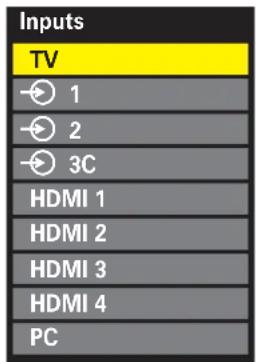
text_image
Inputs TV 1 2 3C HDMI 1 HDMI 2 HDMI 3 HDMI 4 PC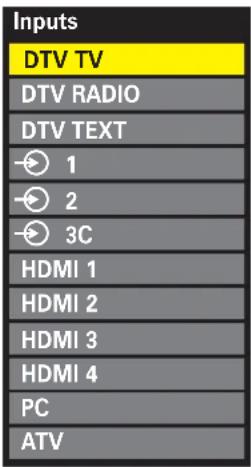
text_image
Inputs DTV TV DTV RADIO DTV TEXT 1 2 3C HDMI 1 HDMI 2 HDMI 3 HDMI 4 PC ATVHDMI displays equipment connected to HDMI on the back and side of the television.
PC displays a computer connected to RGB/PC on the back of the television.
External input skip
This feature makes input selection more convenient.
1 Press → to select the external input to be skipped (i.e. HDMI1).
1 In the SETUP menu press ▼ to highlight Manual Settings, then press OK.
2 Use▶ to select Skip then ▼ or ▲ to select On.

text_image
Manual Settings Skip: On HDMI 1Press EXIT. The skipped input will now be greyed out on the Input list and will be skipped over when ⬤ is pressed to go through the list.
INPUT Signal Selection
This specifies the type of signal going into SCART 2 (EXT2) on the back of the television. Please refer to the manufacturers instructions for the connected equipment.
In the SETUP menu press ▼ until AV connection is highlighted, then press OK.
2 With ◀ or ▶ select either AV or S-VIDEO as the required input for EXT2.

text_image
AV Connection PC/HDMI1 Audio PC HDMI1 Audio Digital HDMI Settings EXT2 Input AV Digital Audio Output PCMIf the colour is missing try the alternative setting.
PC Audio
To receive sound from a connected PC, plug the audio cable into the back of the television (see 'Connecting a computer' section), then use the PC/HDMI1 Audio setting.
1 In the AV connection menu press ▼ to highlight PC/HDMI1 Audio.
2 Use to ◀ or ▶ select the PC option.
NOTE: Selecting the PC option will force HDMI into digital audio.
Input selection and AV connections (continued)
HDMI1 Audio
If the connected HDMI source does not support digital audio, plug the audio cable into PC/HDMI1 (Audio) on the back of the television (as shown in the 'Connecting an HDMI or DVI device to the HDMI input' section), then use the HDMI1 Audio setting.
1 In the AV connection menu press ▼ to highlight PC/HDMI1 Audio and using ▶ select HDMI1.
2 Press ▼ to highlight HDMI1 Audio and using ◀ or ▶ select Auto, Digital or Analogue.
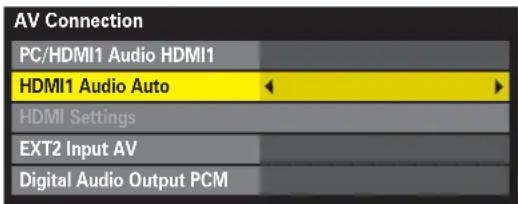
text_image
AV Connection PC/HDMI1 Audio HDMI1 HDMI1 Audio Auto HDMI Settings EXT2 Input AV Digital Audio Output PCMIf the sound is missing select an alternative setting.
NOTE: HDMI1 supports digital and analogue sound, HDMI2, HDMI3 and HDMI4 are digital sound only.
Certain DVD disk formats may not output from this TV (32/44.1/48kHz and 16/20/24 bits are acceptable).
HDMI Settings
The options in this features are only available when an HDMI input is selected (i.e. HDMI1, 2, 3 or 4). Some early HDMI equipment may not work properly with the HDMI television, setting the options in HDMI Settings to Off should help.
In the AV connection menu press ▼ to highlight HDMI settings then press OK.
2 Use ▲ or ▼ to select an option then ◀ or ▶ to select.
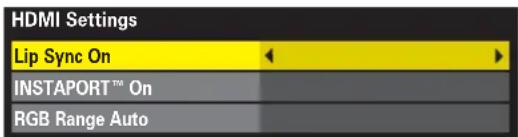
text_image
HDMI Settings Lip Sync On INSTAPORT™ On RGB Range AutoLip Sync
Activates an audio/video display timing adjustment that allows HDMI devices to automatically synchronise accurately.
If the HDMI source does not support these features the television may not work properly when they are activated.
INSTAPORT™
Reduces the log of switching times when switching HDMI sources.
RGB Range
Adjusts RGB full range signal automatically. When Limited is selected the RGB signal's output range is 16 to 235. When Full is selected the RGB signal's output range is 0 to 255.
NOTE: If the HDMI connection is capable of 1080p and/or the television is capable of refresh rates greater than 50Hz or supports Deep Colour, a Category 2 cable will be required. Conventional HDMI/DVI cables may not work properly with this mode.
Digital Output (optical)
When connecting a surround sound amplifier to the digital audio optical output (Sony/Philips Digital Interface Format [S/PDIF]) on the back of the television, the following options can be selected.
PCM: this mode outputs PCM format to the digital audio output socket.
Auto: this mode outputs audio format (eg. Dolby Digital) or PCM to the digital audio output socket providing it is being broadcast.
Dolby Digital → Dolby Digital Dolby Digital Plus → Dolby Digital MPEG → PCM
1 In the AV connection menu press ▼ to highlight Digital Audio Output.
2 Use ◀ or ▶ to select PCM or Auto.
EIA/CEA-861-D compliance covers the transmission of uncompressed digital video with high-bandwith digital content protection, which is being standardized for reception of high-definition video signals. Because this is an evolving technology, it is possible that some devices may not operate properly with the TV. HDMI, the HDMI logo and High-Definition Multimedia Interface are trademarks or registered trademarks of HDMI Licensing, LLC. INSTAPORT™ and INSTAPORT logo are trademarks of Silicon Image, Inc. in the United States and other countries.
ATV text services – selecting modes, general information, Auto and LIST modes
This television has a multi-page text memory, which takes a few moments to load. It offers two Modes of viewing text – Auto will display Fastext, if available. LIST will store your four favourite pages.
Selecting Modes
The text character set will be automatically chosen by the language setting in the SETUP menu.
1 Select Teletext from the PREFERENCES menu.
2 With ◀ or ▶ choose Auto or LIST then press EXIT.
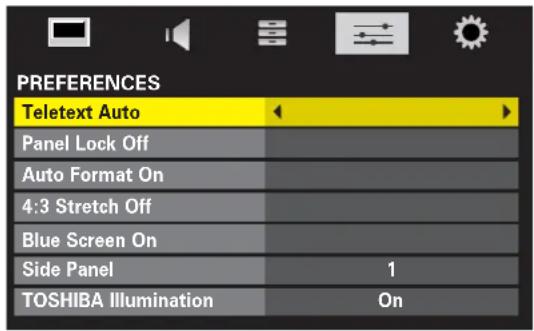
text_image
PREFERENCES Teletext Auto Panel Lock Off Auto Format On 4:3 Stretch Off Blue Screen On Side Panel 1 TOSHIBA Illumination OnText Information
The TEXT button:
To view text services press TEXT. Press again to superimpose the text over a normal broadcast picture and again to return to normal viewing. Channels cannot be changed until text is cancelled.
The first text page shown will be the initial page.
Any text page can be accessed by entering the 3 digit page number using the numbered buttons, pressing the coloured buttons or pressing P ↗ to advance to the next page and P ∨ to go back to the previous page.
Subtitles are available on page 888.
Sub-pages
If there are sub-pages they will automatically load into memory without changing the page on screen. A bar with numbers will appear on the bottom of the screen.
If a text page with sub-pages is selected, the sub-pages are displayed in sequence automatically, pressing ◀ or ▶ will move through the sub-pages manually and cancel the automatic sequence.
The sub-page being viewed will be highlighted, as the television loads any additional sub-pages the page numbers will appear in the bar indicating that they have loaded.
These sub-pages will remain available to view until another page is chosen or, in normal TV mode, the channel is changed.
Navigating Pages Using Auto
If Fastext is available four coloured titles will appear at the base of the screen.
To access one of the four given subjects, press the relevant coloured button on the remote control.
For further information on your particular text system(s), see the broadcast text index page or, consult your local Toshiba dealer.
Navigating Pages Using LIST
The four coloured choices at the bottom of the screen are numbers – 100, 200, 300 and 400, which have been programmed into the television's memory. To view these pages press the relevant coloured buttons.
Tochange these stored pages press the relevant coloured button and enter the 3 digit number. This number will change in the top left of the screen and in the coloured highlight.
Press OK to store. Whenever OK is pressed all four page numbers showing at the bottom will be stored and the previous ones will be lost.
If OK is not pressed the selection will be forgotten when text is cancelled.
Other pages may be viewed by entering the 3 digit page number – but DO NOT press OK or these pages will be stored.
ATV text services – control buttons DTV interactive services
Below is a guide to the functions of the remote control text buttons.

To display the index/initial page:
Press ☐ to access the index/initial page. The one displayed is dependant on the broadcaster.
TEXT
To display a page of text:
Press TEXT to display text. Press again to superimpose text over a normal picture. Press again to return to normal television viewing. Programmes cannot be changed until this has been done.

To reveal concealed text:
To discover the solutions on quiz and joke pages press the ☐? button.

To hold a wanted page:
At times it is convenient to hold a page of text. Press and will appear in the top left of the screen. The page will be held on screen until the button is pressed again.

To enlarge the text display size:
Press ☐ once to enlarge the top half of the page, press again to enlarge the bottom half of the page. Press again to revert to normal size.


To select a page whilst viewing a normal picture:
Enter the page number then press Ⓗ/EX, a normal picture will be displayed. The television will indicate when the page is present by displaying the page number at the top of the screen. Press Ⓗ/EX to view the page.
To display news flashes:
Select the news flash page for the chosen text service (see the index page of text service). Press 📋/EX. The news flashes will be displayed as and when they are broadcast. Press 📋/EX again to cancel the display.
The news flash page must be cancelled before changing programmes.

Remember to cancel text before changing channels – press the XT button twice.
DTV Interactive Services
The digital interactive services are the up-to-date way of viewing service information, using computer-style formats, incorporating pictures and interactive views.
They offer high quality on-screen images with multi-colour photographic still images, advanced text and graphics and are user-friendly. These services are free to anyone with a digital television, however, they are not available for all digital stations and are dependant on the broadcaster.

Ensure that digital mode has been selected. Press TEXT, it may take a few moments to load.

To navigate the pages and use the pull-down menus, use the coloured buttons and ▲, ▼, ◀ and ▶ as directed.

Press TEXT again at any time to cancel.
Questions and Answers
Below are the answers to some of the most common queries.
For more information go to www.toshiba.co.uk

Why is there no sound or picture?
A If the RED LED is unlit check that the mains plug is connected to the power supply and press the ⏻/I POWER button on the left side of the television. Then press ⏻ on the remote control, it may take a few moments, the GREEN LED will be lit.

Why doesn't the remote control work?
A Check the batteries aren't discharged completely or inserted incorrectly.

Why don't the controls on the front of the television work?
A Check that Panel lock is not On.

Why is DTV unavailable?
Another mode is selected. Press ➕ to select DTV.

Why is there a message permanently on the screen?
A Remove it by pressing .i+

Why is there a picture but no sound?
A Check all lead connections. Check the volume has not been turned down or that sound mute has not been selected.

Why doesn't the media being played show on screen?
A Make sure the media player is connected to the television as shown on page 7, then select the correct input by pressing ➕.

Why is the media picture in black and white?
A Check the correct input has been chosen, S-VIDEO or AV. See AV connections page 40.

What else can cause a poor analogue picture?
A Interference or a weak signal. Try a different television station. Manual Fine Tuning may help.
1 Select the ATV Manual Tuning menu. Highlight the station and press OK, then press ▶ to select Manual Fine Tuning.
2 Using ▲ or ▼ adjust to get the best picture and sound. Press OK and then EXIT.
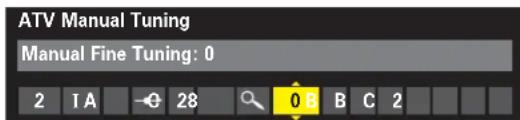
text_image
ATV Manual Tuning Manual Fine Tuning: 0 2 I A - G 28 0 B B C 2
There is a picture, but why is there little or no colour?
A When using an external source, for instance, a poor quality video tape, if there is little or no colour, improvements may sometimes be achieved. The colour is factory set to Auto. to automatically display the best colour system. To check that you have the best colour:
1 With the external source playing, select Manual Settings from the SETUP menu.
2 With ▲ or ▼ choose between Auto, PAL, SECAM, NTSC 4. 43 or 3. 58.
Q Why is there no sound or picture when in HDMI mode?
A Make sure that the cables used have the HDMI logo on them (HDMI). Some early HDMI equipment may not work properly with the latest HDMI television products, due to new standard adoption. Try setting Lip Sync, INSTAPORT™ and RGB Range to Off.
Questions and Answers (continued)

Why are the colours wrong when an NTSC source is played?

Connect the source via a SCART lead and play. Select Manual Settings from the SETUP menu.

text_image
Manual Settings Colour System: Auto EXT2 A1
Set the Colour to Auto and exit.
2
Go to the Picture settings menu and adjust the tint.

Why can popping noises be heard or blocks appear on the screen?
A
This is usually due to poor signal reception. Check the aerial/antenna connections and that the aerial not moved direction. An aerial/antenna upgrade may be required in order to receive all available services.

Why is there a square shaped picture on the widescreen television?
A
Some television programmes are transmitted in 4:3, in particular older programmes. Turning Autoformat will stop the television showing native picture sizes.

Why can television channels be seen in the dark background areas when playing DVDs?
A
This is usually due to poor connection leads (scart/HDMI) being used. Check all connections.

Why are there vertical stripes on the screen in PC mode?
A
The Sampling clock may need adjustment. Select PC Setting from the SET UP menu, highlight pling clock and adjust until the lines clear.

Why are there horizontal stripes and/or blurred images on the screen in PC mode?
A
The Clock phase may need adjustment. Select PC Setting from the SET UP menu, highlight Clock use and adjust until the picture clears.

Why is there a good media picture but no sound?
A
Check all lead connections.

Why is there no sound when the PC is connected?
A
Check all leads and connections.
A Note: No sound is output from a DVI connection (if using a DVI to HDMI lead). The audio input connection must also be used.

Why is the soundtrack in English when a different audio language has been selected?
A
The programme is currently being broadcast with an English soundtrack only.

Why is there incorrect or no sound when in DTV mode?
A
Press OII/II to check if another audio track has been selected.

Why when digital subtitles have been selected are they not showing on screen?
A
Subtitles are not currently being transmitted by the broadcaster.

Why is Digital Audio output for?
A
This is a superior connection for connecting to an audio sound system and allows transmission of i-channel sound.

Why is the digital channel locked?
A
The channel has been locked in Channel Options (see 'Digital Settings' section).

Why are some of the digital subscription channels unavailable?
A
Your subscription needs upgrading. Contact your service provider.
Questions and Answers (continued)

Why do other people receive a different number of digital channels?

Different areas can receive different numbers of channels depending on the localo transmissions.
These can be checked on internet sites such as www.ukfree.tv

When tuning channels why are the channel numbers not in sequential order?

In the UK DTV channel numbers are allocated by the broadcasters.

Why is there no digital text service?

The digital channel being viewed is not broadcasting digital text. Try another digital nel.

Why are there problems with analogue text?

Good performance of text depends on a good strong broadcast signal. This normally requires a loft aerial. If the text is unreadable or garbled, the aerial. Go to the main index page of the text and look for the User Guide. This will explain the operation of text in some detail. If further information is needed on how to use text see the section.

Why are the four coloured text numbers visible but no text?

Text has been selected whilst viewing an external source i.e. DVD or VCR. No text will appear on or a box may appear stating no information is able. Select a broadcasting channel and press TEXTcess.

Why can't teletext by accessed when using a media recorder?

Teletext is only available when viewing a broadcasting channel.

What is DVB-T?

Digital Video Broadcast via an aerial/antenna.

What is DVB-C?

Digital Video Broadcast via a cable connection (if available).

How are radio channels selected?

Press ATV/DTV on the remote control and select DTV RADIO. Alternatively select from the GUIDE.

What does AD mean?

Audio Description is a detailed narrative sound track, which is only available if being broadcast with the ramme being watched.

What is a CI slot?

The Common Interface slot is for pay per view services via a conditional access module. Contact local service provider for further details.

Is the television HD?

Yes, all Toshiba Regza LCD televisions are HD ready. A suitable HD decoder or similar is required to ly the television with an HD signal.

How can external speakers be connected?

This is not an available option.

How can the signal be output via HDMI sockets?

No HDMI connections are available from the television. An appropriate decoder or similar is fired.

Why are the phono inputs different colours?

Phono inputs are shown in different colours in order to identify the type of connection, i.e. red/white is lly left/right sound connections. Ensure colours are shed with the external equipment outputs.
Questions and Answers (continued)

Why are the LEDs on the front of the television flashing?

Check the table below.
| LED indication | Condition Solution | |||
| LED-3 | LED-2 | LED-1 | ||
| Orange (Solid) | Green (Solid) | Green (Solid) | Power ONOn Timer is setProgramme Timer is set | — |
| Red (Solid) | Green (Solid) | Green (Solid) | Power ONOn Timer is setProgramme Timer is working | — |
| OFF | Green (Solid) | Green (Solid) | Power ONOn Timer is setProgramme Timer is NOT set | — |
| Orange (Solid) | OFF | Green (Solid) | Power ONOn Timer is NOT setProgramme Timer is set | — |
| Red (Solid) | OFF | Green (Solid) | Power ONOn Timer is NOT setProgramme Timer is working | — |
| OFF | OFF | Green (Solid) | Power ONOn Timer is NOT setProgramme Timer is NOT set | — |
| Orange (Solid) | Green (Solid) | Red (Solid) | Power OFF (Standby)On Timer is setProgramme Timer is set | — |
| Red (Solid) | Green (Solid) | Red (Solid) | Power ON (Standby)On Timer is setProgramme Timer is working | — |
| OFF | Green (Solid) | Red (Solid) | Power OFF(Standby)On Timer is setProgramme Timer is NOT set | — |
| Orange (Solid) | OFF | Red (Solid) | Power OFF (Standby)On Timer is NOT setProgramme Timer is set | — |
| Red (Solid) | OFF | Red (Solid) | Power ON (Standby)On Timer is NOT setProgramme Timer is working | — |
| OFF | OFF | Red (Solid) | Power OFF(Standby)On Timer is NOT setProgramme Timer is NOT set | — |
| OFF | OFF | RedBlinks | Power protect detection | Turn OFF the TV and unplug the power cord. Plug the power cord in again and turn ON the TV |

How can a camera/camcorder be connected?

These can be plugged into the connections on the side of television.

Will other manufacturers AV equipment work with REGZA-LINK (SKY, Home Cinema etc)?

Most AV equipment with CEC link should function correctly, however only Toshiba products are assured work.

Why is there a red light on the back of the television and is it dangerous?

This is the optical Digital Audio output. Avoid contact with the eyes for any extended period of time.

What can be done if the PIN number has been forgotten?

Use the Master PIN code of 1276, then change to a number of your choice. Ensure that no-one else can be the Master PIN by removing the Owner's Manual.

Where is the Serial number/model name located?

The serial number is located centrally at the rear of the television. It is also printed on the carton box lied.

Why does the television get hot?

As with any device using lamps or similar, the television will output a certain amount of heat.

Where can replacement parts be purchased?

Contact your local dealer or the Toshiba helpline number.

What is the best way to clean the screen and bezel?

Use a lint free cleaning cloth, similar to the one provided. Use a non solvent cleaning product.
Questions and Answers (continued)

Are floor stands available?

Yes, these can be purchased from shops or directly from Toshiba Information Systems (UK) Ltd.

Can the television be hung on the wall?

Yes, using an appropriate Vesa wall bracket. These are readily available from shops and the internet.
IN NEED OF HELP
For television operation queries, please ring the helpline...

text_image
Toshiba customer helpline 0844 856 0730DISPOSAL...
The following information is only for EU-member states:
Disposal of products
The crossed out wheeled dust bin symbol indicates that products must be collected and disposed of separately from household waste. Integrated batteries and accumulators can be disposed of with the product. They will be separated at the recycling centres.
The black bar indicates that the product was placed on the market after August 13, 2005.
By participating in separate collection of products and batteries, you will help to assure the proper disposal of products and batteries and thus help to prevent potential negative consequences for the environment and human health.
For more detailed information about the collection and recycling programmes available in your country, please contact your local city office or the shop where you purchased the product.
Disposal of batteries and/or accumulators
The crossed out wheeled dust bin symbol indicates that batteries and/or accumulators must be collected and disposed of separately from household waste.
If the battery or accumulator contains more than the specified values of lead (Pb), mercury (Hg), and/or cadmium (Cd) defined in the Battery Directive (2006/66/EC), then the chemical symbols for lead (Pb), mercury (Hg) and/or cadmium (Cd) will appear below the crossed out wheeled dust bin symbol.
By participating in separate collection of batteries, you will help to assure the proper disposal of products and batteries and thus help to prevent potential negative consequences for the environment and human health.
For more detailed information about the collection and recycling programmes available in your country, please contact your local city office or the shop where you purchased the product.

EU
Specifications and accessories
DVB-T Broadcast systems/channels
UK UHF 21-68
France VHF 05-10 (VHF 01-05)
UHF 21-69
Germany VHF 05-12
UHF 21-69
Austria VHF 05-12
UHF 21-69
Switzerland VHF 05-12
UHF 21-69
Italy VHF 05-12 (D,E,F,G,H,H1,H2)
UHF 21-69
Spain UHF 21-69
External connections
| EXT1 | Input/Output |
21-pin SCART
RGB, A/V
EXT2
| Input/Output |
21-pin SCART
A/V, S-video
Selectable output
EXT3
Input
Phono jacks
Phono jacks
Y, P_B / C_B , P_R / C_R
Audio L + R
EXT3
Input (Side)
Phono jacks
Video, S-Video
Phono jacks
Audio L + R
HDMI1/2/3
Input
HDMI (Audio LIP SYNC, INSTAPORT™, RGB Range supported)
HDMI4
Input (Side)
HDMI (Audio LIP SYNC, INSTAPORT™, RGB Range supported)
(Model dependant)
PC
Input
Mini D-sub 15-pin
Analog RGB signal
PC/HDMI1 Audio
3.5mm mini jack
Audio
Digital Audio Output (S/PDIF) Optical
USB Port
USB Class: Mass Storage
File System: FAT 12/16/32
Remember
For television
operation queries,
please ring the
helpline...

0844 856 0730
UK ONLY
Stereo
Nicam
2 carrier system
Visible Screen Size
Model 32 80cm
(approx.)
37 94cm
42 107cm
Display
16:9
Sound output (at 10°
10W + 10W
Power consumption
Model 32 96W
(approx.)
37 124W
42 144W
Standby (approx.)
Model 32 0.8W
37 0.8W
42 0.8W
Dimensions Model
32 57cm (H) 79cm (W) 26cm (D)
37 64cm (H) 91cm (W) 26cm (D)
(Height dimension includes foot stand)
Weight (approx.)
Model 32 15.5kg
37 19.5kg
42 25.6kg
Headphone socket
3.5mm stereo
Accessories
Remote control
2 batteries
(AAA, IEC R03 1.5V)
Cleaning Cloth
P Clip
DVB is a registered trademark of the DVB Project
© Toshiba Information Systems (UK) Limited
All rights reserved. Reproduction in whole or part without written
permission is strictly prohibited.
Origination by Zushi Digital, Bristol, UK.
Toshiba Information Systems (UK) Limited
Consumer Products Division,
Toshiba Court, Weybridge Business Park,
Addlestone Road, Weybridge,
Surrey, KT15 2UL
England
Specification is subject to change without notice.