imageFORMULA DR-2580C - To scan CANON - Free user manual and instructions
Find the device manual for free imageFORMULA DR-2580C CANON in PDF.


User questions about imageFORMULA DR-2580C CANON
0 question about this device. Answer the ones you know or ask your own.
Ask a new question about this device
Download the instructions for your To scan in PDF format for free! Find your manual imageFORMULA DR-2580C - CANON and take your electronic device back in hand. On this page are published all the documents necessary for the use of your device. imageFORMULA DR-2580C by CANON.
USER MANUAL imageFORMULA DR-2580C CANON
natural_image
Technical line drawing of a rectangular electronic device casing with internal compartments (no text or symbols)FCC REGULATIONS (For 120 V model)
Document Scanner, Model M11052
This device complies with Part 15 of the FCC Rules. Operation is subject to the following two conditions: (1) This device may not cause harmful interference, and (2) this device must accept any interference received, including interference that may cause undesired operation.
Note: This equipment has been tested and found to comply with the limits for a Class B digital device, pursuant to Part 15 of the FCC Rules. These limits are designed to provide reasonable protection against harmful interference in a residential installation. This equipment generates, uses, and can radiate radio frequency energy and, if not installed and used in accordance with the instructions, may cause harmful interference to radio communications. However, there is no guarantee that interference will not occur in a particular installation. If this equipment does cause harmful interference to radio or television reception, which can be determined by turning the equipment off and on, the user is encouraged to try to correct the interference by one or more of the following measures:
- Reorient or relocate the receiving antenna.
- Increase the separation between the equipment and receiver.
- Connect the equipment into an outlet on a circuit different from that to which the receiver is connected.
- Consult the dealer or an experienced radio/TV technician for help.
Use of shielded cable is required to comply with class B limits in Subpart B of Part 15 of FCC Rules.
Do not make any changes or modifications to the equipment unless otherwise specified in the manual. If such changes or modifications should be made, you could be required to stop operation of the equipment.
Canon U.S.A. Inc.
One Canon Plaza, Lake Success NY 11042, U.S.A.
Tel. No. (516)328-5000
RADIO INTERFERENCE REGULATIONS (For 120 V models)
This digital apparatus does not exceed the Class B limits for radio noise emissions from digital apparatus as set out in the Interference-causing equipment standard entitled “Digital Apparatus”, ICES-003 of the Industry Canada.
RÈGLEMENT SUR LE BROUILLAGE RADIOÉLECTRIQUE (For 120 V models)
The following names may be provided for the safety regulations in each sales region of the Document Scanner.
DR-2580C: Model M11052
READ CAREFULLY BEFORE OPENING THE SEALED DISK PACKAGE
CANON SOFTWARE LICENSE AGREEMENT
IMPORTANT-READ THIS AGREEMENT BEFORE OPENING THE SEALED DISK PACKAGE! BY OPENING THE SEALED DISK PACKAGE, YOU ARE DEEMED TO AGREE TO BE BOUND BY THIS AGREEMENT.
This legal document is a license agreement between you and Canon Electronics Inc. ("Canon"). BY OPENING THE SEALED DISK PACKAGE, YOU ARE DEEMED TO AGREE TO BE BOUND BY THE TERMS OF THIS AGREEMENT. IF YOU DO NOT AGREE TO THE TERMS OF THIS AGREEMENT, DO NOT OPEN THE SEALED DISK PACKAGE AND PROMPTLY RETURN THE CANON SCANNER, THE DISK PACKAGE CONTAINING SCANNER DRIVER SOFTWARE PROGRAMS AND/OR SCANNER UTILITY SOFTWARE PROGRAM PROPRIETARY TO CANON OR ITS LICENSOR (THE "SOFTWARE") AND THE ACCOMPANYING DOCUMENTATION AND OTHER ITEMS TO THE PLACE WHERE YOU OBTAINED THEM FOR A REFUND BEFORE THEY ARE USED OR OPENED OR UNPACKED.
In consideration of the right to use the SOFTWARE, you agree to abide by the terms and conditions of this Agreement.
- GRANT OF LICENSE: Canon grants you the personal, non-exclusive right to use the SOFTWARE only on a single computer. You shall need to obtain multiple licenses separately from Canon when you shall install the SOFTWARE on multiple computers.
You shall not assign, sublicense, sell, rent, lease, loan, convey or transfer to any third party, or send or bring the SOFTWARE out of the country where you originally obtain it to other countries without required authorization of applicable governments, or copy, duplicate, translate or convert to another programming language the SOFTWARE or accompanying documentation, except as expressly provided herein.
Except as expressly permitted under the applicable law, you shall not alter, modify, disassemble, decompile or otherwise reverse engineer the SOFTWARE or accompanying documentation and you also shall not have any third party do so.
-
BACK-UP COPY: You may make one copy of the SOFTWARE solely for a back-up purpose or copy the SOFTWARE onto the permanent storage device (e.g. a hard disk) of your computer and retain the original for a back-up purpose. Except as expressly permitted under the applicable law, any other copying of the SOFTWARE is a violation of this Agreement. You must reproduce and include the copyright notice on the back-up copy.
-
SUPPORT AND UPDATE: Canon, Canon's affiliate, their distributor or dealer is not responsible for maintaining or helping you to use the SOFTWARE. No updates, fixes or support will be made available for the SOFTWARE.
-
LIMITED WARRANTY AND DISCLAIMER OF INDEMNITY: Canon, Canon's affiliate, their distributor or dealer will not guarantee uninterrupted service, or absence or correction of errors. Therefore, the SOFTWARE is licensed on an "AS IS" basis without warranty of any kind. The diskette on which the SOFTWARE is recorded is warranted against defective material or workmanship under normal use for a period of ninety (90) days from the date you purchased the same as evidenced by a receipt or otherwise. The limited warranty does not apply if the failure of the diskette resulted from accident, abuse or misapplication of the SOFTWARE and shall not extend to anyone other than the original user of the SOFTWARE.
CANON, CANON'S AFFILIATE, THEIR DISTRIBUTOR OR DEALER DISCLAIMS ALL IMPLIED WARRANTIES, INCLUDING ANY WARRANTY OF MERCHANTABILITY OR FITNESS FOR A PARTICULAR PURPOSE, WITH RESPECT TO THE SOFTWARE OR ACCOMPANYING DOCUMENTATION.
NEITHER CANON, CANON'S AFFILIATE, THEIR DISTRIBUTOR NOR DEALER IS LIABLE FOR ANY LOSS OR DAMAGE INCLUDING CONSEQUENTIAL OR INCIDENTAL LOSS OR DAMAGE SUCH AS LOSS OF PROFITS, EXPENSE OR INCONVENIENCE, WHATSOEVER CAUSED BY OR ARISING OUT OF THE SOFTWARE, ACCOMPANYING DOCUMENTATION OR THE USE THEREOF.
CANON, CANON'S AFFILIATE, THEIR DISTRIBUTOR OR DEALER SHALL HAVE NO OBLIGATION TO INDEMNIFY YOU AGAINST ANY CLAIM OR SUIT BROUGHT BY A THIRD PARTY ALLEGING THAT THE SOFTWARE, ACCOMPANYING DOCUMENTATION OR THE USE THEREOF INFRINGES ANY INTELLECTUAL PROPERTY OF SUCH THIRD PARTY.
THE ABOVE IS CANON'S ENTIRE LIABILITY AND YOUR EXCLUSIVE REMEDY IN CONNECTION WITH THE SOFTWARE AND ACCOMPANYING DOCUMENTATION.
-
TERM: This Agreement is effective upon opening the sealed disk package and remains in effect until terminated. You may terminate this Agreement by destroying the SOFTWARE and any copy thereof. This Agreement will also terminate if you fail to comply with any of the terms of this Agreement. In addition to Canon enforcing its respective legal rights, you must then promptly destroy the SOFTWARE and any copy thereof.
-
U.S. GOVERNMENT RESTRICTED RIGHTS NOTICE: The SOFTWARE is provided with RESTRICTED RIGHTS. Use, duplication or disclosure is subject to restrictions as set forth in either subparagraph (c) (1) (ii) of the Rights in Technical Data and Computer Software clause at DFARs 252.227-7013 or subparagraph (c) (1) and (2) of the Commercial Computer Software Restricted Rights Clause at FAR 52.227-19, as applicable.
-
SEVERABILITY: In the event that provision of this Agreement is declared or found to be illegal by any court or tribunal of competent jurisdiction, such provision shall be null and void with respect to the jurisdiction of that court or tribunal and all the remaining provisions of this Agreement shall remain in full force and effect.
-
ACKNOWLEDGEMENT: BY OPENING THE SEALED DISK PACKAGE, YOU ACKNOWLEDGE THAT YOU HAVE READ THIS AGREEMENT, UNDERSTOOD IT, AND AGREE TO BE BOUND BY ITS TERMS AND CONDITIONS. YOU ALSO AGREE THAT THIS AGREEMENT IS THE COMPLETE AND EXCLUSIVE STATEMENT OF AGREEMENT BETWEEN YOU AND CANON CONCERNING THE SUBJECT MATTER HEREOF AND SUPERSEDES ALL PROPOSALS OR PRIOR AGREEMENTS, VERBAL OR WRITTEN, AND ANY OTHER COMMUNICATIONS BETWEEN YOU AND CANON RELATING TO THE SUBJECT MATTER HEREOF. NO AMENDMENT TO THIS AGREEMENT SHALL BE EFFECTIVE UNLESS SIGNED BY A DULY AUTHORIZED REPRESENTATIVE OF CANON.
Should you have any questions concerning this Agreement, or if you desire to contact Canon for any reason, please write to Canon's local affiliate.
International ENERGY STAR ^® Office Equipment Program

As an ENERGY STAR ^® Partner, Canon Electronics Inc. has determined that this machine meets the ENERGY STAR ^® Program guidelines for energy efficiency.
The International ENERGY STAR ^® Office Equipment Program is an international program that promotes energy saving through the use of computers and other office equipment. The program backs the development and dissemination of products with functions that effectively reduce energy consumption. It is an open system in which business proprietors can participate voluntarily. The targeted products are office equipment, such as computers, monitors, printers, fax, machine, copiers, and scanners. The standards and logos are uniform among participating nations.
Trademarks
- Canon and the Canon logo are registered trademarks of Canon Inc. in the United States and may also be trademarks or registered trademarks in other countries.
- Microsoft and Windows are registered trademarks of Microsoft Corporation in the United States and other countries.
• ISIS is a trademark of EMC Corporation, in the United States. - Intel and Pentium are registered trademarks of Intel Corporation.
- ENERGY®SisTaAJ.R registered mark.
- Adobe is the registered trademark of Adobe Systems Incorporated in the United States and/or other countries.
- Adaptec is registered trademark of Adaptec Inc.
- Other product and company names herein may be the trademarks of their respective owners.
Copyright
Copyright 2006 by CANON ELECTRONICS INC. All rights reserved.
No part of this publication may be reproduced or transmitted in any form or by any means, electronic or mechanical, including photocopying and recording, or by any information storage or retrieval system without the prior written permission of CANON ELECTRONICS INC.
Disclaimers
The information in this document is subject to change without notice.
CANON ELECTRONICS INC. MAKES NO WARRANTY OF ANY KIND WITH REGARD TO THIS MATERIAL, EITHER EXPRESS OR IMPLIED, EXPECT AS PROVIDED HERE IN, INCLUDING WITHOUT LIMITATION, THERE OF, WARRANTIES AS TO MARKETABILITY, MERCHANTABILITY, FITNESS FOR A PARTICULAR PURPOSE OF USE OR NON-INFRINGEMENT. CANON ELECTRONICS INC. SHALL NOT BE LIABLE FOR ANY DIRECT, INCIDENTAL, OR CONSEQUENTIAL DAMAGES OF ANY NATURE, OR LOSSES OR EXPENSES RESULTING FROM THE USE OF THIS MATERIAL.
INTRODUCTION
Thank you for purchasing the Canon DR-2580C document scanner. Please read this manual thoroughly before using the machine to familiarize yourself with its capabilities, and to make the most of its many functions. After reading this manual, store it in a safe place for future reference.
Manuals for the Scanner
The DR-2580C Scanner has an Easy Start Guide and a User's Guide (this manual) included in the package, and a CapturePerfect 3.0 Operation Guide and Online Help.
For details on checking the packing list, software installation, computer connections, and scanner setup, see the Easy Start Guide. For details on preparing the scanner, and details on scanning and how to handle the scanner, see the User's Guide.
The following describes the manuals packaged with the scanner. Before you start using the scanner, be sure to read this User's Guide.
Easy Start Guide
This manual describes the procedure for removing the scanner from its box through to setting up the scanner for scanning.
User's Guide (this manual)
This manual describes the basic operations for using the scanner, performing routine maintenance, and troubleshooting, and provides the scanner specifications.
CapturePerfect 3.0 Operation Guide (PDF manual)
CapturePerfect 3.0 and its Operation Guide are both installed on your computer with CapturePerfect 3.0 Operation Guide. (See p. 32.)
Symbols Used in This Manual
The following symbols are used in this manual to explain procedures,
restrictions, handling precautions, and instructions that should be observed for safety.
WARNING
Indicates a warning concerning operations that may lead to death or injury to persons if not performed correctly. To use the machine safely, always pay attention to these warnings.
CAUTION
Indicates a caution concerning operations that may lead to injury to persons, or damage to property if not performed correctly. To use the machine safely, always pay attention to these cautions.
IMPORTANT
Indicates operational requirements and restrictions. Be sure to read these items carefully to operate the machine correctly, and avoid damage to the machine.
Note
Indicates a clarification of an operation, or contains additional explanations for a procedure. Reading these notes is highly recommended.
Contents
INTRODUCTION 1
Manuals for the Scanner 1
Symbols Used in This Manual 2
Chapter 1 Before Using the Scanner 5
- Important Safety Instructions .... 6
Installation Location 6
Power 7
Moving the Scanner 7
Handling 8
Disposal 9
-
Features of the DR-2580C Document Scanner 10
-
Names and Functions of Parts ...... 12
-
Installation Requirements .... 14
-
About the Setup Disc 16
Chapter 2 Using the Scanner 17
-
Documents 18
-
Preparing the Trays 20
Setting Up the Document Feed Tray 20
Document Eject Tray 22
- Placing Documents 25
How to Feed with the Page Separation Mode 25
How to Feed with the Bypass Mode 28
- Scanning Documents 30
Using CapturePerfect 3.0 30
Using the Job Function 36
About the Launcher 40
-
Clearing a Paper Jam 46
-
Other Functions 49
Scanning Folio (Folded Document) 49
Double Feed Detection Function 50
Long Document Mode 50
Flatbed Scanner Unit (Option) 54
-
Scanning Hints 55
-
Software Settings 61
ISIS Driver Settings 62
TWAIN Driver Settings 64
Job Registration Tool Settings 66
Chapter 3 Appendices 69
- Regular Maintenance 70
Cleaning the Scanner 70
Cleaning the feed path 70
Cleaning the Sensor Glass, Shading Boards, and the Rollers 71
- Removing and Attaching the Rollers 74
Roller Replacement Cycle 74
Resetting the Counter 75
Removing and Attaching the Feed Roller 79
Removing and Attaching the Retard Roller 83
- Troubleshooting 87
The Scanner Does Not Turn ON 87
The Scanner Is Not Recognized 87
Scanning Is Not Performed 88
Slow Scanning Speed 88
Documents Do Not Feed Properly 89
Saved Image Files Do Not Open 90
Scanning Results Are Not as Expected 91
The Flatbed Scanner (Option) Does Not Work 92
- Uninstalling Software 94
Uninstalling the ISIS/TWAIN Driver/Job Registration Tool .... 96
Uninstalling CapturePerfect 3.0 98
- Specifications 100
Specifications 100
External Dimensions 103
Index 104
Chapter 1
Before Using the Scanner
- Important Safety Instructions ...... 6
Installation Location 6
Power 7
Moving the Scanner 7
Handling 8
Disposal 9
- Features of the DR-2580C
Document Scanner 10
-
Names and Functions of Parts ..... 12
-
Installation Requirements .... 14
-
About the Setup Disc 16
1. Important Safety Instructions
To ensure the safe operation of this scanner, be sure to read the safety warnings and precautions described below.
Installation Location
The performance of this scanner is affected by the environment in which it is installed. Make sure that the location where the scanner is installed meets the following environmental requirements.
- Provide adequate space around the scanner for operation and maintenance.
- If scanned documents are ejected to the back of the scanner, provide adequate space behind the scanner for documents ejected after being scanned. (See p. 22.)
- Avoid installing the machine in direct sunlight. If this is unavoidable, use curtains to shade the scanner.
- Avoid locations where a considerable amount of dust accumulates.
- Avoid warm or humid locations, such as in the vicinity of a water faucet, water heater, or humidifier, and avoid locations where the fumes from ammonia, paint thinner, or other volatile chemicals may be present.
- Avoid locations where ammonia gas is emitted.
- Avoid locations near volatile or flammable materials, such as alcohol or paint thinner.
- Avoid locations that are subject to vibration.
- Avoid exposing the scanner to rapid changes in temperature. If the room in which the scanner is installed is cold but rapidly heated, water droplets (condensation) may form inside the scanner. This may result in a noticeable degradation in scanning quality.
The following conditions are recommended for optimal scanning quality:
Room temperature: 10 °C to 32.5 °C (50 °F to 90.5 °F)
Humidity: 20% to 80% RH - Avoid installing the scanner near equipment that generates a magnetic field (e.g. speakers, televisions, or radios).
Power
- Connect only to a power outlet of the rated voltage and power supply frequency. (either 120 V, 60 Hz or 220-240 V, 50/60 Hz depending on your region)
- Do not use a power supply that is not rated for the specified voltage. Doing so might cause fire or electric shock.
- Do not connect other electrical equipment to the same power outlet to which the scanner is connected. Also, when using an extension cord, make sure that the extension cord is rated for the current requirements of the scanner.
- Never try to disassemble the AC adapter or modify it in any way, as this is extremely dangerous.
- The power cord and AC adapter may become damaged if they are often stepped on or if heavy objects are placed on them. Continued use of a damaged power cord and AC adapter can lead to an accident, such as a fire or electrical shock.
- Do not use the power cord while it is coiled.
- Do not pull directly on the power cord. When disconnecting the power cord, grasp the plug and remove it from the outlet.
- Keep the area around the power plug clear of objects so that the power cord can be disconnected easily in an emergency.
- Use only the AC adapter provided with this scanner. Also, do not use the AC adapter provided with the scanner with any other electrical devices.
Model: MG1-4315
- If you have any questions regarding the power supply, contact your local authorized Canon dealer or service representative for further information.
Moving the Scanner
- When moving the scanner, always hold it with both hands to avoid dropping it. The scanner weighs approximately 3.9 lb (1.8 kg) alone, and approximately 7.9 lb (3.6 kg) with the optional flatbed scanner unit installed

natural_image
Illustration of two hands holding a rectangular device with internal compartments (no text or symbols)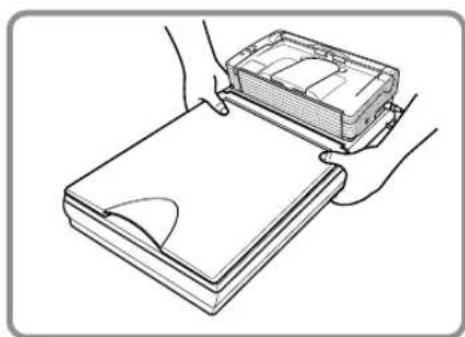
natural_image
Illustration of hands installing or maintaining a rectangular device with a lid (no text or symbols visible)With Optional Flatbed Scanner Unit Installed
- Make sure that the flatbed scanner unit is correctly attached to the DR-2580C scanner before moving the scanner.
- Make sure to disconnect the interface cable and power cord. If the scanner is transported with these items plugged in, the plugs and connectors may be damaged due to physical shock.
Handling
WARNING
Note the following precautions whenever using the scanner.
Failure to do so may result in a fire or electric shock.
- Never use alcohol, benzene, paint thinner, aerosol sprays, or any other highly flammable substance near the scanner.
- Do not cut, damage, or modify the power cord or AC adapter. Do not place heavy objects on the power cord or AC adapter, and do not pull or excessively bend the power cord.
- Never connect the power cord when your hands are wet.
- Do not connect the scanner to a multi plug power strip.
- Do not knot or coil the power cord as this may result in a fire or electric shock. When connecting the power cord, make sure that the power plug is securely and completely inserted into the power outlet.
- Do not use power cords and AC adapters other than the power cord and AC adapter provided with this scanner.
- Never try to take the scanner apart or modify it in any way.
- Never try to take the AC adapter apart or modify it in any way, as this is dangerous and may lead to a fire or electric shock.
- Do not use flammable aerosol sprays products near the scanner.
- When cleaning the scanner, turn the power switch OFF and disconnect the power cord from the power supply.
- Clean the scanner using a slightly dampened cloth which has been well wrung out. Never use alcohol, benzene, paint thinner, or any other flammable substances.
- If the scanner makes strange noises, or gives off, smoke, heat, or strange odors, or the scanner does not function or other abnormalities occur when you use the machine, immediately turn the power switch OFF, and disconnect the power plug from the power outlet. Then, contact your local authorized Canon dealer or the service representative for further information.
- Do not drop the scanner, or subject it to impact or strong shock. Should the scanner ever become damaged, immediately turn the power switch OFF, and disconnect the power plug from the power outlet. Then, contact your local authorized Canon dealer or service representative to have the unit serviced.
- Before moving the scanner, be sure to turn the power switch OFF, and disconnect the power plug from the power outlet.
CAUTION
- Do not install the scanner on a surface that is unstable or tilted, or in an area subject to excessive vibrations, as this may cause the scanner to fall, resulting in personal injury or damage to the scanner.
- Never place small metal objects such as staples, paper clips, or jewelry on the scanner. These items may fall into the scanner, and cause a fire or electric shock. Should such objects ever fall inside the scanner, immediately turn the power switch OFF, and disconnect the power plug from the power outlet. Then, contact your local authorized Canon dealer or service representative to have the unit serviced.
- Do not locate the scanner in a humid or dusty location. Doing so might cause fire or electric shock.
- Do not place objects on top of the scanner. Such objects may tip or fall over, resulting in personal injury.
- When unplugging the power cord, grasp it firmly by its plug. Do not pull directly on the power cord, as this may damage or expose the cord's internal wiring, resulting in a fire or electric shock.
- Leave sufficient space around the power plug so that it can be unplugged easily. If objects are placed around the power plug, you will be unable to unplug it in an emergency.
- Do not allow water or flammable substances (alcohol, paint thinner, benzene, etc.) to spill into the scanner, as this may result in a fire or electric shock.
- Turn OFF the power switch for safety when not using the scanner for a long period of time, such as overnight. Also, turn OFF the power switch, and disconnect the AC adapter from the scanner and disconnect the power cord from the power outlet for safety when the machine will not be used for an extended period of time, such as during consecutive holidays.
- Do not wear loose clothing or jewelry that may get caught in the scanner while you are using it. This may result in personal injury. Be extra careful of neckties and long hair. If anything becomes caught in the scanner, immediately disconnect the power cord to stop the scanner.
- Be careful when placing paper in the scanner and when removing jammed paper. It is possible to cut your hand on the edge of a sheet of paper.
Disposal
- When disposing of this scanner, be sure to follow all local ordinances and laws or consult with the retailer who sold you the scanner.
2. Features of the DR-2580C Document Scanner
The main features of the DR-2580C document scanner are described below.
■ Fast Document Feeding
The scanner can scan a maximum of 25 documents per minute in a range of sizes from business cards to LTR/A4 size. (Scanning conditions: Black and white, LTR/A4 size portrait, two sided, 200 dpi.)
USB 2.0 Interface
Hi-Speed USB 2.0 Interface is supported.
■ Waiting Time Is "0"
The DR-2580C is ready to scan after the power is turned ON without a waiting time.
■ Color/Grayscale Support
Documents can be scanned in 24-bit color or 256-level grayscale.
■ Supports a Variety of Scanning Modes
The scanner supports the following scanning modes, depending on the document type:
- Single-sided/double-sided mode
- Single sheet/dual feeding path
■ U-Turn Path
Documents are fed and ejected from the front of the scanner. (See p. 23.)
■ Straight Path
Documents are ejected to the back of the scanner. Note, the ejected documents are stacked in reverse order to how they were fed. (See p. 24.)
■ Paper Size Detection
The scanner automatically detects the size of a scanned document and eliminates any unnecessary space around the edges of the image when storing it, even when storing a document of irregular size.
Card Scan
It is possible to scan business card. (See p. 18.)
■ Folio Scan
A folio (folded in half) document can be set for scanning as it is, and the scanned images of both sides are combined as a single image. (See p. 49.)
■ Deskew
The Deskew function automatically straightens an image if the document was loaded askew.
■ Character Orientation Detector
Identifies the orientation of characters in a document, and rotates the image so the orientation of the scanned characters is straight.
■ Advanced Text Enhancement
Documents with dark backgrounds or documents with faint text written in pencil can be scanned clearly.
* This function sometimes does not function effectively on some documents.
- Dropout Color
The scanner is equipped with a Dropout Color function that allows you to specify a color for the scanner to omit from scanned images.
■ Skip Blank Page Function
The scanner is equipped with a Skip Blank Page function that allows it to scan a document regardless of whether every document is two-sided or onesided.
■ Prescan Function
The scanner is equipped with a Prescan function that allows you to adjust the contrast and brightness of a prescanned image and then send the adjusted image to the application software, without needing to scan the document again.
■ Remove Binder Holes
Deletes black spots left when scanning documents that have had holes punched in them to be stored in a binder.
■ Auto Start
The scanner is equipped with an Auto Start function that automatically initiates scanning when a document is placed in the document feed tray.
■ Long Paper Compatibility
You can scan documents that are a maximum of 1,000 mm long in the Long document mode. (See “Long Document Mode,” on p. 50.)
■ Compatible with Carbonless Duplicating Paper
The scanner is able to scan carbonless duplicating paper.
■ Job Function
Executing a scan with one of the scanner's job buttons automatically performs the specified process (save, print, mail attachment). (See p. 36.)
■ Flatbed Scanner Unit (Option)
The flatbed scanner unit can be attached to and used with the DR-2580C scanner. Contact your local authorized Canon dealer for more detailed information. (See p. 54.)
■ Energy Saving Mode
This scanner is compatible with the International Energy Star Program, and is designed to save power by using the energy saving feature except when scanning is being performed.

Note
Some functions may not be available depending on the software you are using.
3. Names and Functions of Parts
This section describes the name and function of each part. Make sure to read this section and familiarize yourself with the parts of the scanner before using the scanner.
■ Front

text_image
Job Buttons These buttons can be assigned functions using the Job Registration Tool. (See p. 36.) Feed Selection Lever Use it to change the way the documents are fed. Move it up (→to continuously feed documents (Page Separation mode). (See p. 25.) Move it down (→to feed documents one at a time or to feed documents that are fastened together, such as invoices, without separating them (Bypass mode). (See p. 28.) Power Indicator This indicator lights when the scanner is turned ON. OPEN Knob Opens the upper unit. (See p. 20, p. 47 and p. 71.) Document Eject Tray/ Upper Unit Scanned documents are ejected here. (See p. 22.) Open to clear paper jams and for cleaning. Document Guides Adjust them to align with the width of the document. (See p. 21 and p. 26.) Document Feed Tray Place the document to be scanned here. (See p. 20.) Document Eject Tray Extension Open when reading a document. (See p. 23.)■ Rear
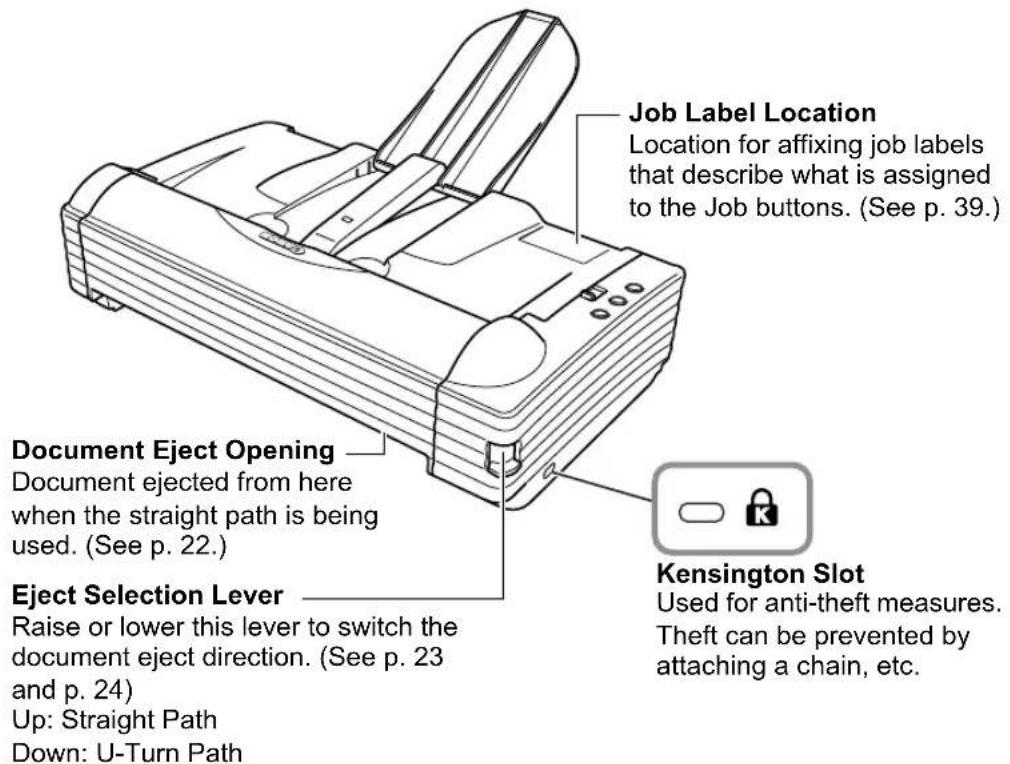
text_image
Job Label Location Location for affixing job labels that describe what is assigned to the Job buttons. (See p. 39.) Document Eject Opening Document ejected from here when the straight path is being used. (See p. 22.) Eject Selection Lever Raise or lower this lever to switch the document eject direction. (See p. 23 and p. 24) Up: Straight Path Down: U-Turn Path Kensington Slot Used for anti-theft measures. Theft can be prevented by attaching a chain, etc.
text_image
Diagram showing two directional arrows with a document icon, likely illustrating a process or movement concept.■ Side (Interfaces)

text_image
Power Switch This switch is used to turn the scanner ON. Power Connector Connect the bundled AC adaptor. DC16V Option Connector Interface connector for the optional flatbed scanner unit. USB Connector Connect the USB cable provided or one that supports Hi-Speed USB 2.0. (See p. 14.)CAUTION
Do not touch the connector's pins or contacts. Doing so may damage the scanner.
4. Installation Requirements
To use the DR-2580C, your computer must satisfy the following system requirements.
• One of the following operating systems:
- Microsoft Windows 98SE
- Microsoft Windows Me
- Microsoft Windows 2000 Professional SP4 or later
- Microsoft Windows XP Professional SP2 or later
- Microsoft Windows XP Home Edition SP2 or later
- A computer that meets the following specifications:
- CPU: Pentium4, 1.5 GHz or faster
- Memory: 512 MB or more
- Hard disk: 1 GB or more available space
- Hi-Speed USB 2.0 interface
- Monitor: Resolution of 1024 × 768 (XGA) or better recommended.
- USB interface connections vary according to the operating system as shown below.
- Windows 98SE/ME: USB Full-Speed (equal to USB 1.1)
- Windows 2000/XP: Hi-Speed USB 2.0/USB Full-Speed (equal to USB 1.1)
- An ISIS-compatible application or a TWAIN-compatible application that is compatible with the above operating systems.

IMPORTANT
- If you do not know the requirements for your computer system, contact the store where you purchased the computer or the manufacturer of the computer for more information.
- Use the most recent version of the USB 2.0 driver provided by Microsoft. Contact your local authorized Canon dealer or service representative for more detailed information.
- Not all USB interfaces provided as standard with personal computers are guaranteed. Contact your local authorized Canon dealer for more detailed information.
- Scanning speeds are lower if your computer's standard USB interface is USB Full-Speed (equal to USB 1.1).
- Use the USB cable provided with the scanner, or a Hi-Speed USB 2.0 compatible cable.
- If the CPU, memory, interface card, and other specifications do not satisfy the installation requirements, the scanning speed may be greatly reduced and transmission may take a long time.
- Even if the computer satisfies the recommended specifications, the scanning speed may vary, depending on the scan settings.
- The ISIS/TWAIN Drivers provided with the scanner do not necessarily operate on all ISIS- or TWAIN-compatible applications. For details, contact your application software retailer.
5. About the Setup Disc
The Canon DR-2580C scanner setup disc contains the software listed below:
- DR-2580C Driver
Scanner driver for use with the DR-2580C scanner, and the Job Registration Tool.
- CapturePerfect 3.0
ISIS-compatible application developed for Canon document scanners.

Note
- The following shows how the DR-2580C setup disc is configured.
For instructions on how to install the software included on the setup disc, see the Easy Start Guide.
Menu screen Typical Installation

flowchart
graph TD
    A["Read the manual Custom Installation"] --> B[" typical installation"]
    B --> C[" typical installation"]
    C --> D[" typical installation"]
    D --> E[" typical installation"]
    E --> F[" typical installation"]
    F --> G[" typical installation"]
    G --> H[" typical installation"]
    H --> I[" typical installation"]
    I --> J[" typical installation"]
    J --> K[" typical installation"]
    K --> L[" typical installation"]
    L --> M[" typical installation"]
    M --> N[" typical installation"]
    N --> O[" typical installation"]
    O --> P[" typical installation"]
    P --> Q[" typical installation"]
    Q --> R[" typical installation"]
    R --> S[" typical installation"]
    S --> T[" typical installation"]
    T --> U[" typical installation"]
    U --> V[" typical installation"]
    V --> W[" typical installation"]
    W --> X[" typical installation"]
    X --> Y[" typical installation"]
    Y --> Z[" typical installation"]
    Z --> AA[" typical installation"]
    AA --> AB[" typical installation"]
    AB --> AC[" typical installation"]
    AC --> AD[" typical installation"]
    AD --> AE[" typical installation"]
    AE --> AF[" typical installation"]
    AF --> AG[" typical installation"]
    AG --> AH[" typical installation"]
    AH --> AI[" typical installation"]
    AI --> AJ[" typical installation"]
    AJ --> AK[" typical installation"]
    AK --> AL[" typical installation"]
    AL --> AM[" typical installation"]
    AM --> AN[" typical installation"]
    AN --> AO[" typical installation"]
    AO --> AP[" typical installation"]
    AP --> AQ[" typical installation"]
    AQ --> AR[" typical installation"]
    AR --> AS[" typical installation"]
    AS --> AT[" typical installation"]
    AT --> AU[" typical installation"]
    AU --> AV[" typical installation"]
    AV --> AW[" typical installation"]
    AW --> AX[" typical installation"]
    AX --> AY[" typical installation"]
    AY --> AZ[" typical installation"]
    AZ --> BA[" typical installation"]
    BA --> BB[" typical installation"]
    BB --> BC[" typical installation"]
    BC --> BD[" typical installation"]
    BD --> BE[" typical installation"]
    BE --> BF[" typical installation"]
    BF --> BG[" typical installation"]
    BG --> BH[" typical installation"]
    BH --> BI[" typical installation"]
    BI --> BJ[" typical installation"]
    BJ --> BK[" typical installation"]
    BK --> BL[" typical installation"]
    BL --> BM[" typical installation"]
    BM --> BN[" typical installation"]
    BN --> BO[" typical installation"]
    BO --> BP[" typical installation"]
    BP --> BQ[" typical installation"]
    BQ --> BR[" typical installation"]
    BR --> BS[" typical installation"]
    BS --> BT[" typical installation"]
    BT --> BU[" typical installation"]
    BU --> BV[" typical installation"]
    BV --> BW[" typical installation"]
    BW --> BX[" typical installation"]
    BX --> BY[" typical installation"]
    BY --> BZ[" typical installation"]
    BZ --> CA[" typical installation"]
    CA --> CB[" typical installation"]
    CB --> CC[" typical installation"]
    CC --> CD[" typical installation"]
    CD --> CE[" typical installation"]
    CE --> CF[" typical installation"]
    CF --> CG[" typical installation"]
    CG --> CH[" typical installation"]
    CH --> CI[" typical installation"]
    CI --> CJ[" typical installation"]
    CJ --> CK[" typical installation"]
    CK --> CR[" typical installation"]
    CR --> CS[" typical installation"]
    CS --> CT[" typical installation"]
    CT --> CU[" typical installation"]
    CU --> CV[" typical installation"]
    CV --> CW[" typical installation"]
* The "Easy Start Guide", "User's Guide" and "CapturePerfect 3.0 operation guide" provided with the scanner.
* Only the software selected in the checkboxes is installed.
Chapter 2
Using the Scanner
- Documents ...... 18
- Preparing the Trays 20
Setting Up the Document Feed Tray ...... 20
Document Eject Tray 22
- Placing Documents 25
How to Feed with the Page Separation
Mode 25
How to Feed with the Bypass Mode ..... 28
- Scanning Documents ...... 30
Using CapturePerfect 3.0 .... 30
Using the Job Function 36
About the Launcher 40
-
Clearing a Paper Jam 46
-
Other Functions ...... 49
Scanning Folio (Folded Document) 49
Double Feed Detection Function 50
Long Document Mode 50
Flatbed Scanner Unit (Option) 54
-
Scanning Hints .... 55
-
Software Settings 61
ISIS Driver Settings 62
TWAIN Driver Settings 64
Job Registration Tool Settings 66
1. Documents
This scanner can scan documents ranging in size from business cards and checks to LTR/A4 size documents. The size of documents that can be scanned is shown below.
| Eject Direction (*1) U | -Turn Path Straight Path | |
| Width 2.08" to 8.5" | (53 mm to 216 mm) | 2.08" to 8.5"(53 mm to 216 mm) |
| Length(*2) (*3) 2.75" | to 13.9"(70mm to 355.5 mm) | 2.75" to 13.9"(70 mm to 355.5 mm) |
| Weight (*4)Feeding documents are separated | 14 to 32 lb bond(52 to 128 g/m2)0.0024" to 0.0059"(0.06 mm to 0.15 mm) | 11 to 40 lb bond(42 to 157 g/m2)0.0020" to 0.0079"(0.05 mm to 0.20 mm) |
| Feeding documents are not separated | 11 to 40 lb bond(42 to 157 g/m2)0.0020" to 0.0079"(0.05 mm to 0.20 mm) | 11 to 40 lb bond(42 to 157 g/m2)0.0020" to 0.0079"(0.05 mm to 0.20 mm) |
| Business Cards Cannot be scanned Can be scanned | (not separated)Size: 2.12" × 3.37"(53.9 mm × 85.5 mm)Thickness: 0.03" ± 0.003"(0.76 ± 0.08 mm)without embossing | |
(*1) For information about the output directions, see “Document Eject Tray,” on p. 22.
(*2) If the document is longer than 11.7" (297 mm), use the bypass mode with feed selection lever for document scanning. (See p. 28.)
(*3) When the scanner is set to Long Document mode it can scan documents on paper that is up to 1,000 mm long. See “Long Document Mode,” on p. 50 for details about Long Document mode.
(*4) For information about feeding a document, see “Placing Documents,” on p. 25.

IMPORTANT
A document must meet the following criteria to be scannable:
- When scanning a multipage document, pages must be grouped together so that they have the same size, thickness, and weight. Scanning different types of paper at one time can cause the scanner to jam.
- When using the U-Turn path to scan a document that is longer than 11.7" (297 mm), use the bypass mode and feed pages one at a time. Attempting to use the U-Turn path for continuous feed scanning of a document that is longer than 11.7" (297 mm) can cause the document pages to fall onto the feed tray and become jammed in the scanner.
- Scanning documents before the ink is dry can cause problems with the scanner. Always make sure that the ink on a document is dry before scanning it.
- Scanning documents that are written in pencil or similar material can make the rollers dirty, which can then transfer the dirt to subsequent documents. Always clean the rollers after scanning a document written in pencil.
- When scanning a two-sided document that is printed on thin paper, the image on the opposite side of each page may show through. Adjust the scanning intensity in the application software before scanning the document.
- Scanning the following types of documents can cause a paper jam or malfunction. To scan such a document, make a photocopy of the document and then scan the photocopy.

Wrinkled or creased documents

Documents with paper clips or staples

Extremely thin, translucent paper

Curled document C

paper

Torn documents Co

aper
- Note that glossy documents or business card sometimes cannot be scanned correctly, or functions such as paper size detection and deskew do not function properly due to reflected light.
- When scanning business cards, make sure to select the bypass mode and straight path.

CAUTION
The results of scanning embossed cards are not guaranteed. Note that scanning embossed cards may scratch the sensor glass.

text_image
DR-2580CEmbossed Card
2. Preparing the Trays
Prepare the document feed tray and document eject tray according to the paper size and feed/eject method.
Setting Up the Document Feed Tray
Pull the document feed tray towards you to open it.

natural_image
Technical line drawing of a device casing with internal components and a base plate (no text or symbols)Setting the Document Guide Adapters
If scanned documents are skewed or to scan folios or documents on extra-long paper, install the document guide adapters according to the procedure below and then scan the documents.
- Pressing the OPEN knob from both sides, raise the upper unit.
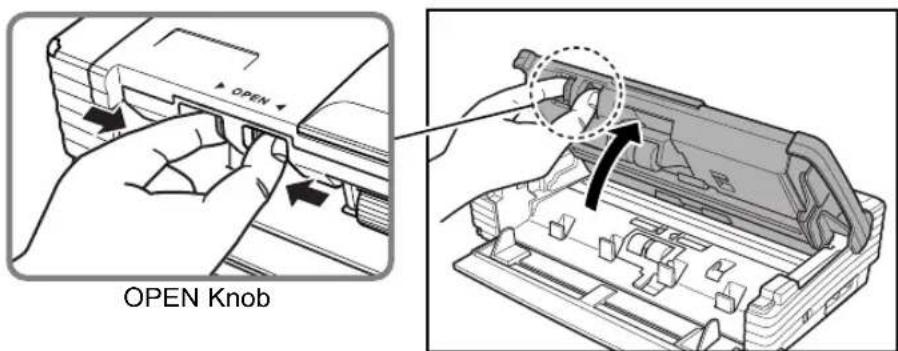
text_image
OPEN Knob- Set the document guide adapters onto the document guides.

Note
Cover the document guides from above with the document guide adapters, and insert them as far as they will go, until they click into place.
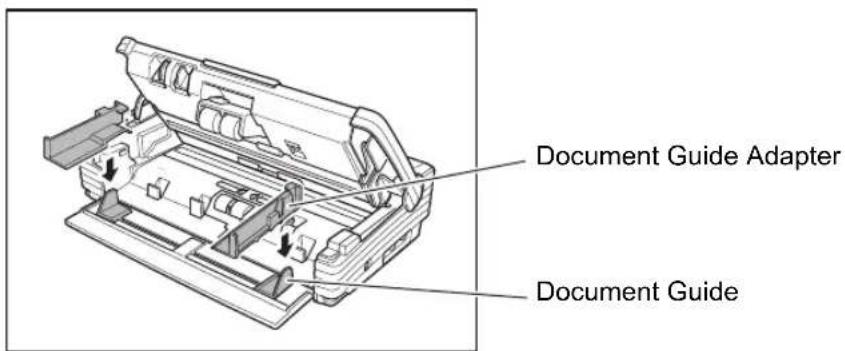
text_image
Document Guide Adapter Document Guide- Carefully close the upper unit.

natural_image
Illustration of a hand using a tool to press or install electronic components, with no visible text or symbols.
IMPORTANT
Do not force the upper unit to close. Doing so can damage the scanner.
- Be sure that the upper unit is completely closed by pushing on both edges with both hands until you hear a click.

natural_image
Technical line drawing of a rectangular electronic device with internal components and mounting brackets (no text or symbols)
IMPORTANT
- Do not hold the tips of the document guide adaptors when moving them. Doing so can damage the document tray.

natural_image
Illustration of hands inserting a device into a rack (no text or symbols visible)- Before removing the document guide adapters, be sure to open the upper unit first. Using undue force when removing the document guide adaptors can damage the document tray.
Document Eject Tray
The scanner has two eject methods: documents can be ejected to the front of the scanner in a U-Turn path, or to the back of the scanner in a Straight Path. The eject method can be switched by moving the eject selection lever up and down. Select the eject method according to what you need to do.
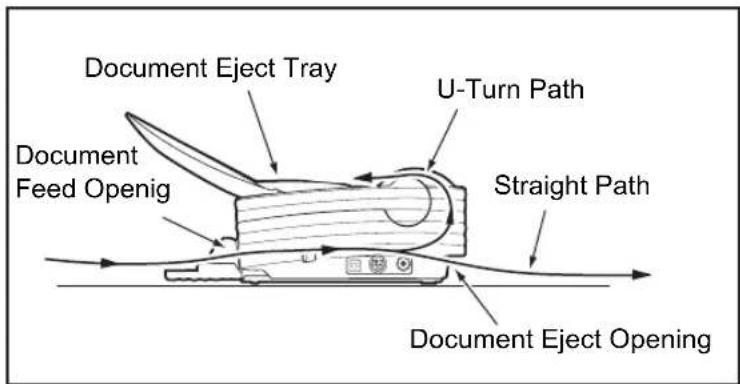
text_image
Document Eject Tray U-Turn Path Document Feed Openig Straight Path Document Eject Opening
Note
- The U-turn path is used to scan documents on paper of normal thickness. Scanned documents are ejected to the document eject tray.
- The straight path is used to scan documents on thin paper, base paper and business cards that cannot be scanned through the U-turn path. Scanned documents are ejected to the back of the scanner.
Using the U-Turn Path
1. Lower the eject selection lever.
Scanned documents will be ejected to the document eject tray.

text_image
Eject Selection Lever2. Pull the document eject tray extension towards you to open it.
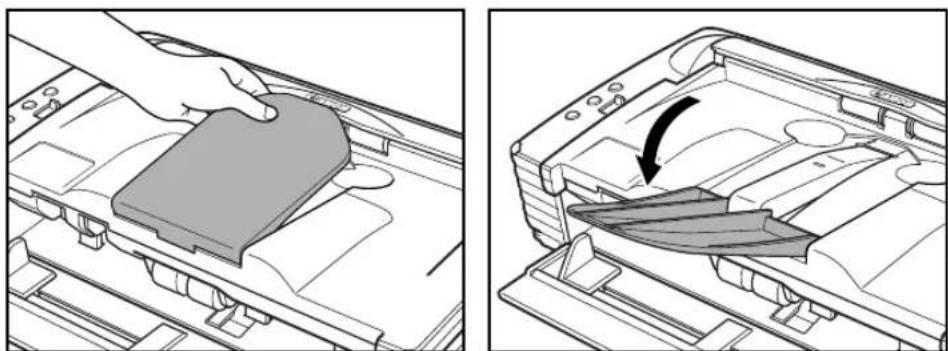
natural_image
Two technical diagrams showing a hand placing a gray plastic component into a device casing, with an arrow indicating the process (no text or symbols present)
IMPORTANT
- Be careful when opening the document eject tray extension. Forcing it open can damage it.
- Never try to raise the document eject tray extension more than necessary. Doing so can damage it.
- Do not place anything other than documents on the document eject tray extension. Doing so can damage it.
- Make sure the document eject tray extension is open when using the scanner. If the document eject tray extension is not opened, ejected documents can fall from the tray and become jammed in the scanner.
Using the Straight Path
1. Raise the eject selection lever.
Scanned documents will be ejected to the back of the scanner.
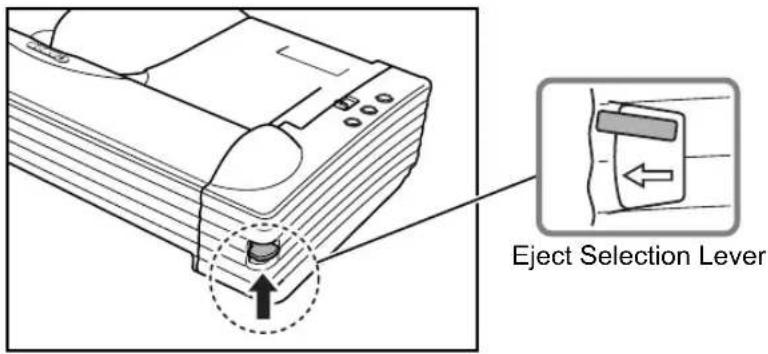
text_image
Eject Selection Lever
Note
When using the straight path, the ejected documents are stacked in reverse order to how they were fed.

IMPORTANT
- Be sure there is enough space for documents that are ejected behind the scanner when using the straight path. If there is not enough space for ejected documents, the documents may be damaged or a paper jam may occur.
- Switch the position of the eject selection lever before you start scanning. Changing the lever position while scanning is being performed can cause jamming.
3. Placing Documents
There are two methods for paper separation, called the page separation mode and bypass mode for feeding documents. Feeding documents continuously from a stack of documents placed in the feed tray is called the page separation mode. Feeding documents one sheet at a time by hand or feeding multiple sheet documents, such as invoices that are attached at one end, is called the bypass mode. The document feed method can be switched by moving the feed selection lever.

IMPORTANT
- Before you place a document, check to make sure it does not contain paper clips, staples, or other small metal objects. These objects may damage the document, or cause a paper jam or scanner malfunction.
- Do not wear loose clothing or jewelry that may get caught in the scanner while you are using it. This may result in personal injury. Be extra careful of neckties and long hair. If anything becomes caught in the scanner, immediately disconnect the power cord to stop scanning.
• Always smooth out any folds or curls in your documents before placing them into the feeder. If the leading edge of a document is curled, it may cause a paper jam.
How to Feed with the Page Separation Mode
- Move the feed selection lever to the page separation (→ side.
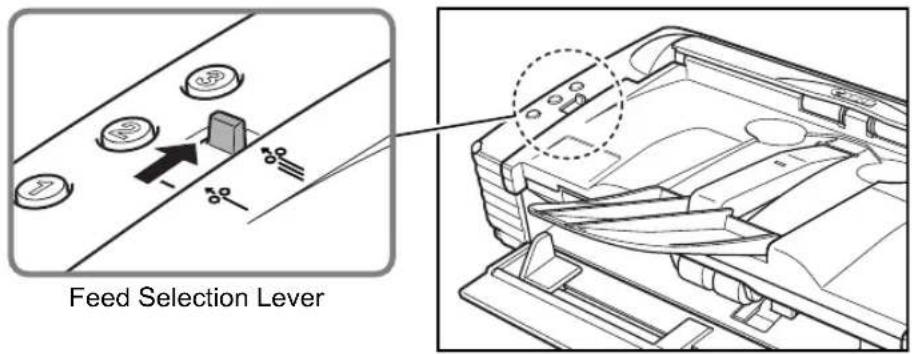
text_image
Feed Selection Lever- Straighten the edges of the stack of documents to be scanned.

natural_image
Line drawing of two hands holding a document with lines, placed on a stack of papers (no text or symbols visible)CAUTION
- Do not place the documents on top of the scanner to align them. Doing so may cause a malfunction.
-
Be careful when placing a document in the scanner. It is possible to cut your hand on the edge of a sheet of paper.
-
Set the document guides so they are wider than the document to be scanned.
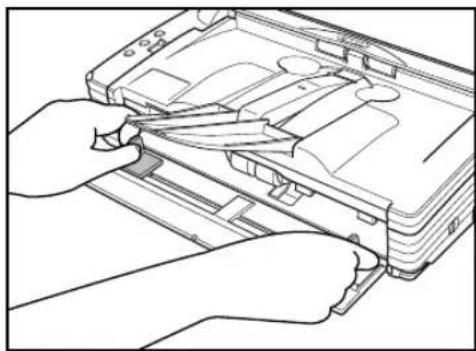
natural_image
Line drawing of hands assembling or adjusting a device component (no text or symbols visible)IMPORTANT
Do not hold the tips of the document guide adaptors when moving them. Doing so can damage the document tray.
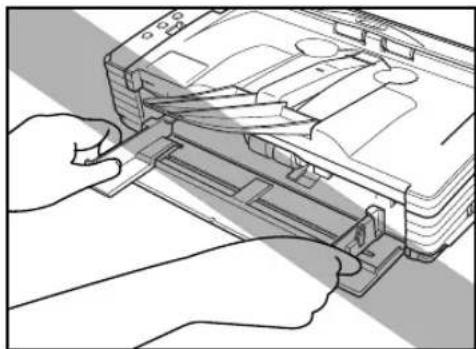
natural_image
Illustration of hands inserting a device into a rack (no text or symbols visible)- Place the documents face up into the feed tray, so that they touch the stoppers.

text_image
Stopper
IMPORTANT
There is a load limit mark ( × on the document guides. Do not stack documents higher than this mark (approximately 50 sheets of 20 lb bond (80 g/m ^2 ) paper). Doing so may cause a paper jam.
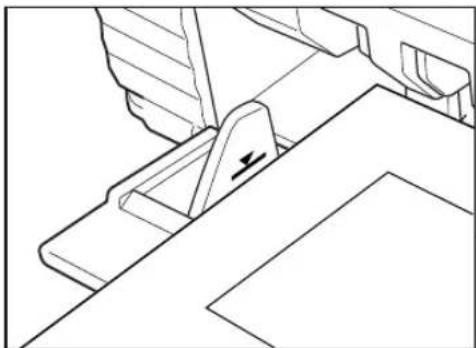
natural_image
Technical line drawing of a mechanical component with a downward force arrow (no text or symbols)- Adjust the document guides so they match the width of the document.

natural_image
Illustration of hands using a tool to adjust or install electronic components on a device (no text or symbols visible)
Note
Before starting a scan, make sure that the document is loaded in the scanner correctly. Scanning a curled document or a creased document can damage the document.
- Start scanning from the application.

IMPORTANT
- If the paper feed operation stops due to a system error or a paper jam while the scanner is scanning, resolve the problem, make sure that the scanned image of the last page that was fed has been stored, and then resume the scanning operation.
- Note that documents that are printed on thin paper may fall out of the document eject tray.
• After you finish scanning, close the document feed tray and the document eject tray extension to prevent damage to the scanner while it is not being used.
How to Feed with the Bypass Mode
- Move the feed selection lever to the nonseparated document (.) side.

text_image
Feed Selection Lever- Place the document into the document feed tray one sheet at a time, so that it touches the stoppers, and adjust the position of the document guides.
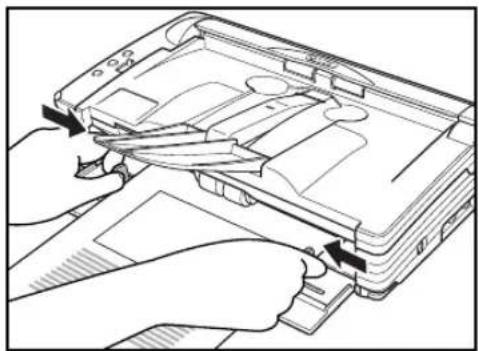
natural_image
Line drawing of hands inserting a device into a device casing (no text or symbols)-
Start scanning from the application.
-
The document is pushed against the document feed slot and is fed into the scanner.

natural_image
Diagram of a printer's internal structure showing paper feeding into a slot (no text or symbols present)IMPORTANT
- When scanning documents that are fastened together, such as invoices, set the edge that is fastened together as the leading edge.
- Note that when scanning with nonseparated feed, if you place several documents that are not fastened together on the feed tray at one time, they will be fed together.
- In particular, very thin or curled documents will not be fed very well. In this case, lightly press on the leading edge of the documents as you feed them.

natural_image
Illustration of hands handling a document with a printer in operation (no text or symbols visible)- After you finish scanning, close the document feed tray and the document eject tray extension to prevent damage to the scanner while it is not being used.
4. Scanning Documents
There are two methods of scanning documents using the DR-2580C document scanner. You can scan from an application, such as CapturePerfect 3.0, or you can use the Job function, which allows you to scan by pressing the scan buttons on the operation panel, without starting up an application.
This section describes the scanning flow of the CapturePerfect 3.0 application and the Job Function.
For details on how to install each application and the driver, see the Easy Start Guide.
Using CapturePerfect 3.0
CapturePerfect 3.0 is an ISIS-compatible application developed for Canon document scanners.
CapturePerfect 3.0 includes the following modes. Select the desired scan mode from the scan menu to perform scanning.
- Scan Batch to File
Documents are scanned with the preset scanning conditions, and the image file is saved to the specified folder.
- Scan Batch to Print
Documents are scanned with the preset scanning conditions, and the scanned image is printed on the specified printer.
- Scan Batch to Mail
Documents are scanned with the preset scanning conditions, the e-mail software is started up, and the scanned image is attached to a new e-mail message.
- Scan 1 Page
Only one page of the document is scanned.
- Scan Job
The scanning conditions and scan mode (Scan Batch to File, Scan Batch to Print, or Scan Batch to Mail) are registered in advance as a job. The scan job can then be performed by selecting the registered job from the drop-down list (①) and pressing 📋 (Scan JOB) on the toolbar (②).
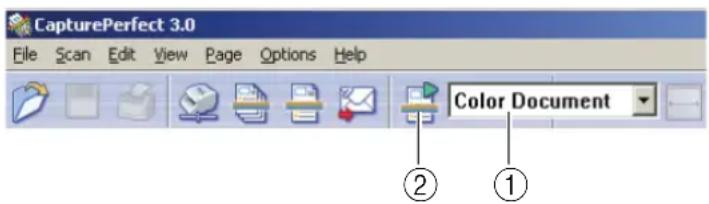
text_image
CapturePerfect 3.0 File Scan Edit View Page Options Help Color Document ② ①
Note
The following two jobs are already registered as scan jobs.
• Color Document
Document is scanned in 24 bit color, as Simplex 300 dpi and then saved in [My Pictures] in the My Documents folder.
- Binary Document
Document is scanned in black and white, as Simplex 200 dpi and then saved in [My Pictures] in the My Documents folder.
- Scan to Presentation Mode
This mode is handy when the scanner is used in environments, such as conference halls, where it can be connected to large displays or projectors. CapturePerfect 3.0 is switched to full-screen display, the document is scanned, and the scanned image is displayed at full size on the screen.
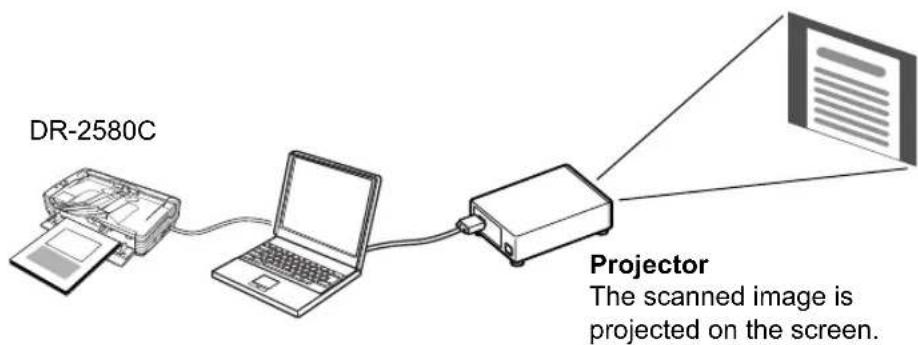
text_image
DR-2580C Projector The scanned image is projected on the screen.Scan to Presentation Mode

Note
For instructions on how to use CapturePerfect 3.0, see the CapturePerfect 3.0 operation guide and CapturePerfect Help. Be sure to read the CapturePerfect 3.0 operation guide and CapturePerfect Help before you use CapturePerfect 3.0.
CapturePerfect 3.0 Operation Procedure
This section describes how to start up CapturePerfect 3.0, select the scanner, and the procedure up to scanning with Scan Batch to File.
For details, see the CapturePerfect 3.0 Operation Guide and CapturePerfect Help.
- Click the Windows [Start] button, and then click [Programs] ([All Programs] for Windows XP) → [CapturePerfect 3.0] → [CapturePerfect 3.0].
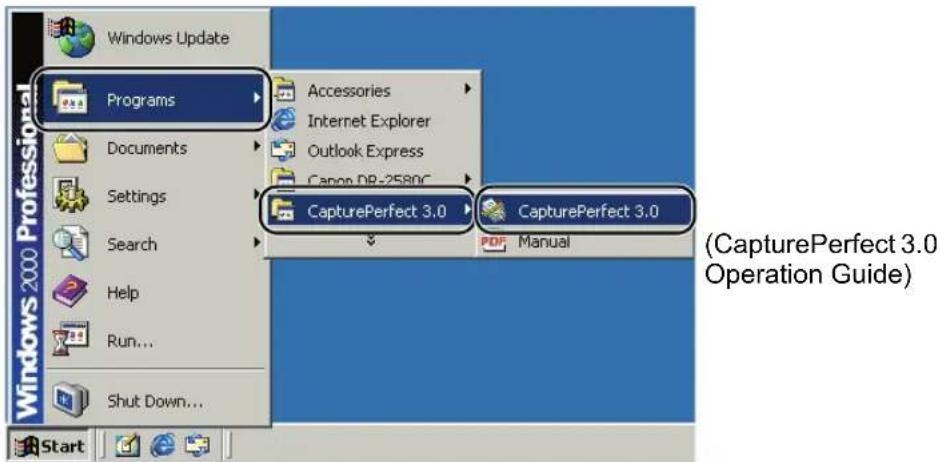
text_image
Windows Update Programs Accessories Internet Explorer Outlook Express Canon DB-2580C Settings CapturePerfect 3.0 CapturePerfect 3.0 (DapturePerfect 3.0 Operation Guide) Documents Search Help Run... Shut Down... StartCapturePerfect 3.0 starts up.
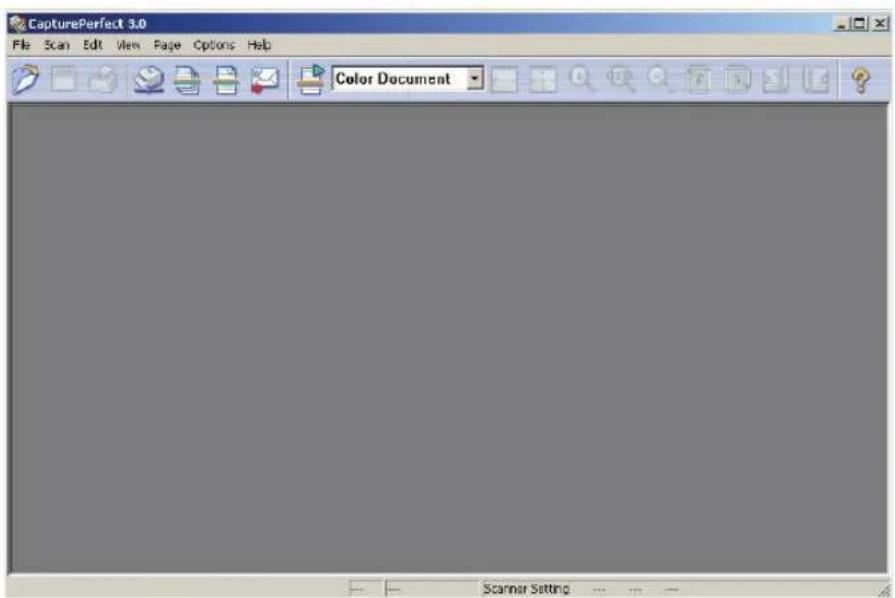
text_image
CapturePerfect 3.0 File Scan Edit View Page Options Help Color Document Scanner Setting-
Follow the procedure below to select the Canon DR-2580C document scanner as the scanner to be used.
-
On the [Scan] menu, click [Select Scanner].
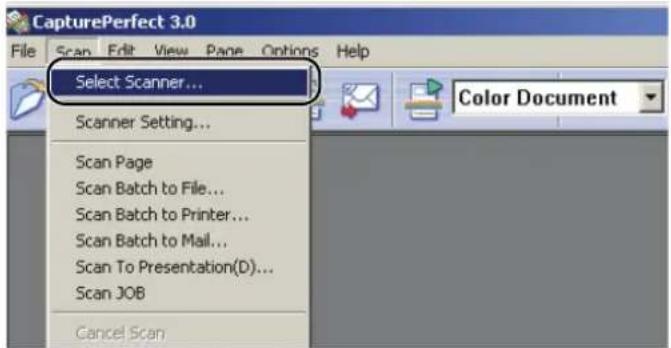
text_image
CapturePerfect 3.0 File Scan Edit View Page Options Help Select Scanner... Scanner Setting... Scan Page Scan Batch to File... Scan Batch to Printer... Scan Batch to Mail... Scan To Presentation(D)... Scan JOB Cancel Scan- Select [CANON DR-2580C] → click the [OK] button.
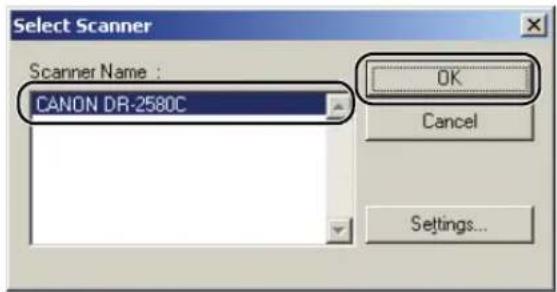
text_image
Select Scanner Scanner Name : CANON DR-2580C OK Cancel Settings...
Note
If [CANON DR-2580C] is not displayed in the list of scanners, re-install the ISIS/TWAIN driver. (See “Step 3. Installing the Software” in the Easy Start Guide.)
- Set the "Default Page Size" and click the [OK] button.

text_image
Configure Device Settings Selected Device : Canon DR-2580C on STI - 0000 Default Page Size : Letter - 8.5 x 11 in OK Cancel About...
Note
This dialog box is displayed only when you select [CANON DR-2580C] for the first time and you click the [OK] button, or when you click [Settings] on the [Select Scanner].
3. On the [Scan] menu, click [Scanner Setting].
![CANON imageFORMULA DR-2580C - On the [Scan] menu, click [Scanner Setting]. - 1](/content/2026/06/1236809/images/9bf0ba80f85fcb4db9f1dd4bd4587fbdd29e8f70287a9815179474e356b89294.jpg)
text_image
CapturePerfect 3.0 File Scan Edit View Page Options Help Select Scanner... Scanner Setting... Scan Page Scan Batch to File... Scan Batch to Printer... Scan Batch to Mail... Scan To Presentation(D)... Scan JOB Cancel ScanISIS driver basic setup dialog box opens.
![CANON imageFORMULA DR-2580C - On the [Scan] menu, click [Scanner Setting]. - 2](/content/2026/06/1236809/images/9a119eade7d1f7bd0196ec6beb9b3a0aabc56e69d30c0ef9ed1813a05cad61d9.jpg)
text_image
Canon DR-2580C on STI - 0000 User Preference : Save... Delete Mode: Black and White Page Size: Letter - 8.5 x 11 in Dots per inch: 300 dpi Brightness: 128 Contrast: 4 Scanning Side: Simplex Ratio of black pixels: 0.2% Feeding Option: Standard Feeding Delay: 0 sec Batch Separation: None Prescan Deskew Area... More... About... Default OK Cancel Help4. Set the scan settings.
For details setting the scanning settings, see “ISIS Driver Settings,” on p. 62, and ISIS/TWAIN Driver Help.
5. Place your document. (See "Placing Documents," on p. 25.)

natural_image
Diagram of a device with a tray and internal components, showing a tool interacting with a screen (no text or symbols present)- On the [Scan] menu, select [Scan Batch to File].
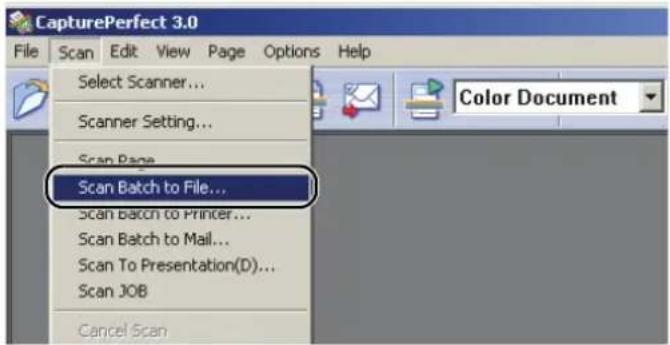
text_image
CapturePerfect 3.0 File Scan Edit View Page Options Help Select Scanner... Scanner Setting... Scan Page Scan Batch to File... Scan Batch to Printer... Scan Batch to Mail... Scan To Presentation(D)... Scan JOB Cancel ScanThe [Scan Batch to File Setting] dialog box opens.
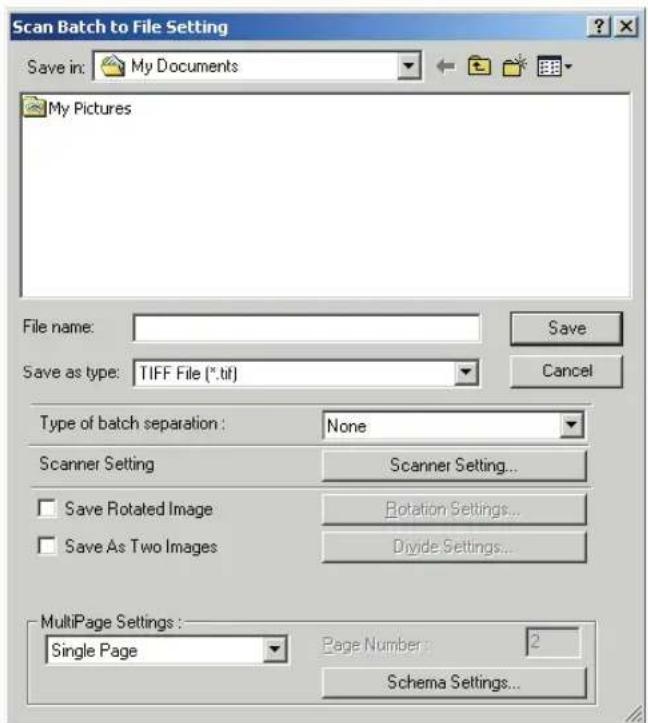
text_image
Scan Batch to File Setting Save in: My Documents My Pictures File name: Save Save as type: TIFF File (*.tif) Type of batch separation : None Scanner Setting Scanner Setting... Save Rotated Image Rotation Settings... Save As Two Images Divide Settings... MultiPage Settings : Single Page Page Number 2 Schema Settings...For more details on how to scan documents, see the CapturePerfect 3.0 operation guide and CapturePerfect Help.
- Specify the file name and the file type for saving the image data, and click [Save] to start scanning.
For details on the available settings in the [Scan Batch to File Setting] dialog box, see the CapturePerfect 3.0 operation guide and CapturePerfect Help.
- When there are no more pages of the document to scan, scanning stops. Scanning resumes or ends according to the "Feeding Option" setting in the scanner setup.
- When “Feeding Option” is set to [Standard Feeding] The continue dialog box is displayed. Place the next document, and click [Continue scanning] to resume scanning. Or, click [Stop Scanning] to end scanning.
- When “Feeding Option” is set to [Automatic Feeding] Place the next document. Scanning resumes when the scanner detects the document. Or, click the Job Button (stop) to end scanning.
- When "Feeding Option" is set to [Panel-Feeding] Place the next document and press the Job Button (start) to resume scanning. Or, click the Job Button (stop) to end scanning.

text_image
Job Buttons- After scanning is complete, select [Exit] on the [File] menu to quit CapturePerfect 3.0.

text_image
CapturePerfect 3.0 File Scan Edit View Page Options Help Open... Ctrl+O Save Page As... Close Close All the Files Print Ctrl+P Print Format Printer Setting... Exit Color DocumentUsing the Job Function
The Job Function, which is used to assign an arbitrary job to a Job Button on the scanner, allows you to assign a job that is executed when the Job Button is pressed to start scanning. This allows you to start scanning by just pressing a Job Button without starting up an application. The data for the scanned images is automatically processed according to the conditions set with the Job Registration Tool. (See “About Job Function,” on p. 37.)

text_image
Job ButtonsAbout Job Function
The Job Function has the following four functions and also functions as a start and stop button used by applications. These functions are used by assigning them to a Job button with the Job Registration Tool. (See “About Job Registration Tool,” on p. 38.)
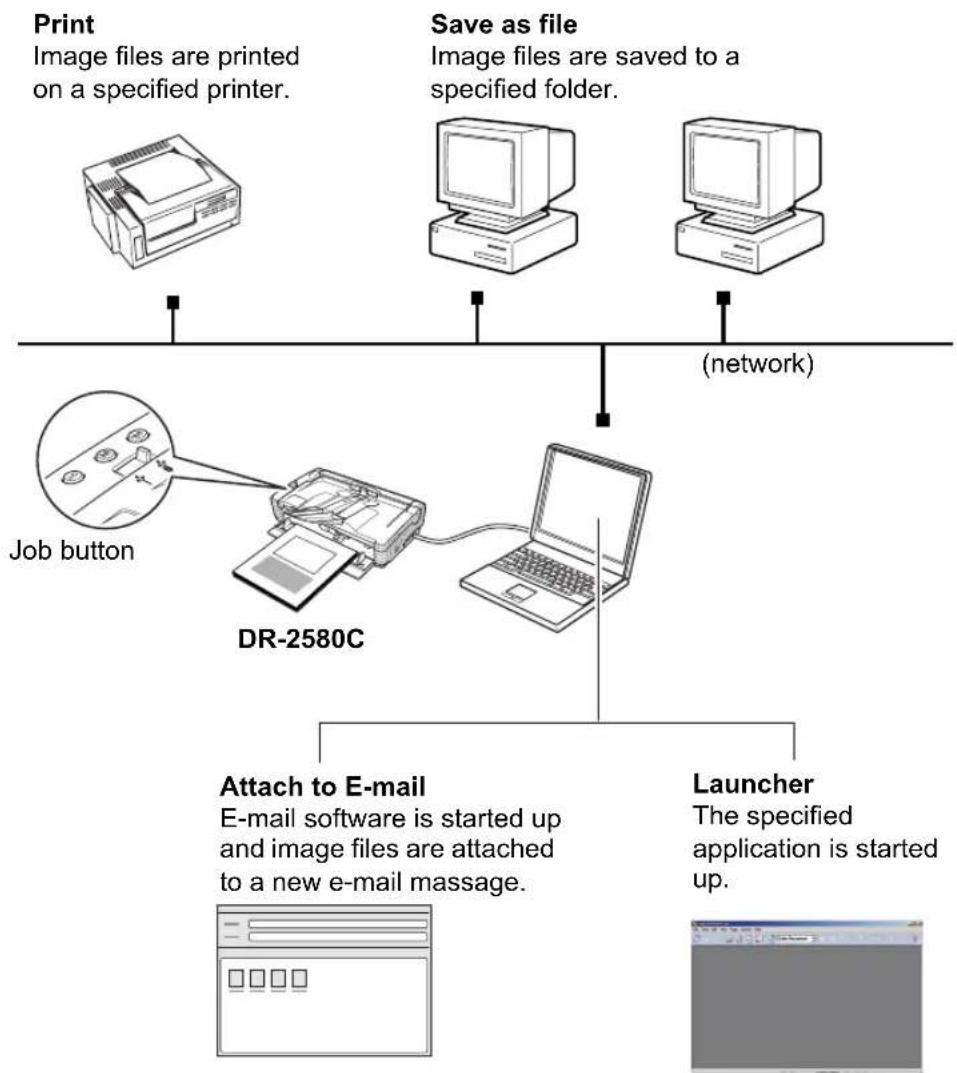
flowchart
graph TD
    A["Print\nImage files are printed on a specified printer."] --> B["Save as file\nImage files are saved to a specified folder."]
    B --> C["(network)"]
    D["Job button"] --> E["DR-2580C"]
    E --> F["Attach to E-mail\nE-mail software is started up and image files are attached to a new e-mail massage."]
    G["Launcher\nThe specified application is started up."] --> F

Note
You need to set the Windows event before using the Launcher. (See “About the Launcher,” on p. 40.)
About Job Registration Tool
The Job Registration Tool, which is used to set the Job buttons, is a TWAIN compatible application that is installed together with the ISIS/TWAIN driver.
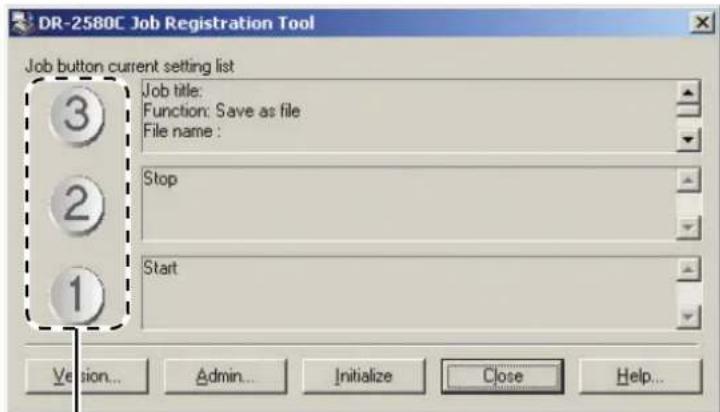
text_image
DR-2580C Job Registration Tool Job button current setting list 3 Job title: Function: Save as file File name : Stop 1 Start Version... Admin... Initialize Close Help...Job button settings
For details on the settings in Job Registration Tool, see “Job Registration Tool Settings,” on p. 66 and Job Registration Tool Help.

Note
• The following jobs are pre-assigned to the Job buttons.
① Start: Scanning starts according to the application settings.
②Stop: Scanning stops.
③Save as file: Scanned images are saved as PDF files to the My Pictures folder.
- To start up the Job Registration Tool, click the Windows [Start] button, and then click [Programs] ([All Programs] for Windows XP) [DR-2580C] [Job Registration Tool].
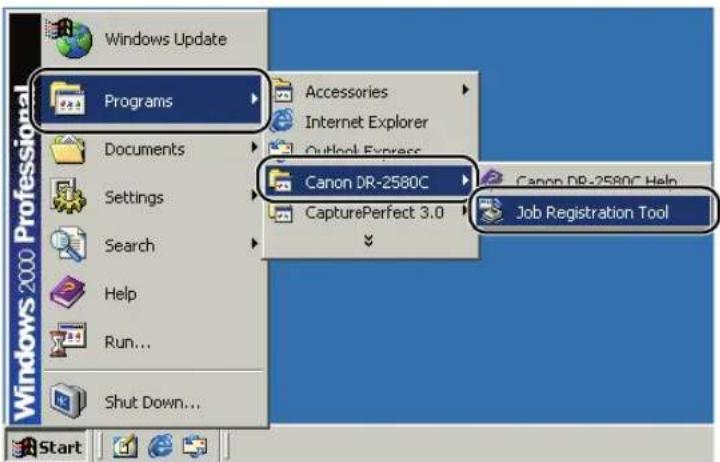
text_image
Windows Update Programs Accessories Internet Explorer Outlook Express Canon DR-2580C CapturePerfect 3.0 Canon DR-2580C Help Job Registration Tool Documents Settings Search Help Run... Shut Down...- Describe the jobs that you register with the Job Registration Tool on the job labels provided and stick them on the scanner.
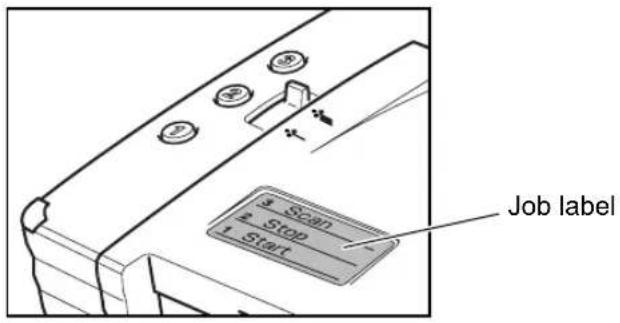
text_image
3 ScanStop
1 Start Job labelExecuting scanning with the Job Function
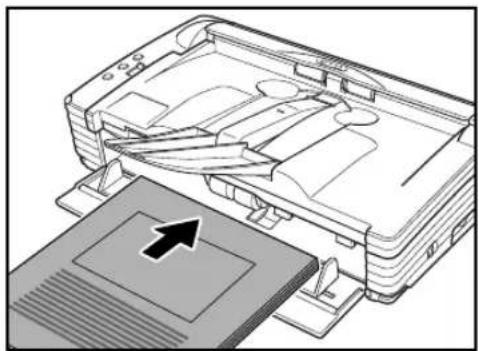
- Place the document. (See "Placing Documents," on p. 25.)
natural_image
Diagram of a computer printer with scissors inserted into a slot, showing internal components and a close-up of the slot (no text or symbols present)- Push the Job button to start a job.
The “Monitor for DR2580C” is displayed and scanning is executed.

text_image
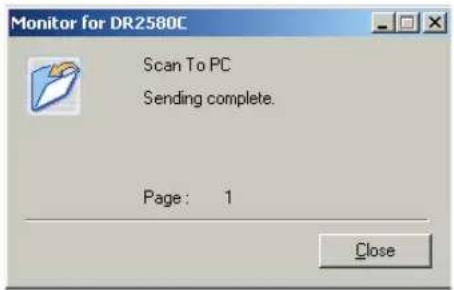
Monitor for DR2580C Scan To PC Scanning... Page: 0 Cancel- When there are no more document sheets, the image data is transferred according to the specified conditions.
[Sending complete] is displayed on the "Monitor for DR2580C."
text_image
Monitor for DR2580C Scan To PC Sending complete. Page: 1 Close- Click [Close] to close the "Monitor for DR2580C."
About the Launcher
Only applications supported by the Windows event function can be started with the Job Function's [Launcher]. To use the [Launcher], specify one application in advance to be started according to the event settings.

Note
- Depending on the application, it may not operate normally with the [Launcher].
- In the initial status of the DR-2580C immediately after setup, all the applications the event function supported are enabled. At this point, if no event settings are changed, the following dialog box is displayed when the [Launcher] is executed.
When this dialog box is displayed, you can either select and start an application or click [Cancel] to change the event settings.
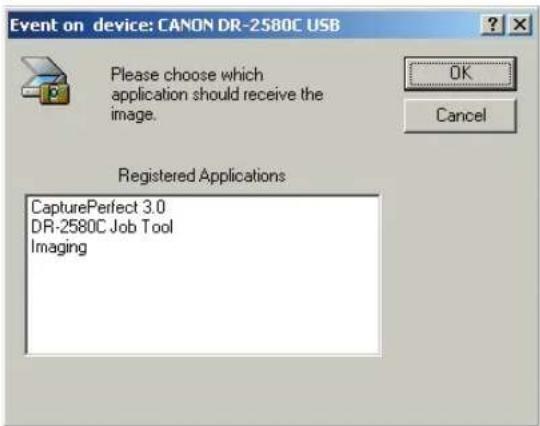
text_image
Event on device: CANON DR-2580C USB Please choose which application should receive the image. Registered Applications CapturePerfect 3.0 DR-2580C Job Tool ImagingSetting the Event Function
Follow the procedure below to set an event.
-
Use the following procedure to open the [Event settings] dialog box.
-
Click the [Start] button, and then click [Settings] on the [Start] menu → click [Control Panel]. (For Windows XP, click the [Start] button → click [Control Panel].)

text_image
Windows 2000 Professional Settings Control Panel Network and Dial-up Connections Printers Taskbar & Start Menu...- For Windows XP, switch the Control Panel to Classic View, or select [Printers and Other Hardware] in the working field.
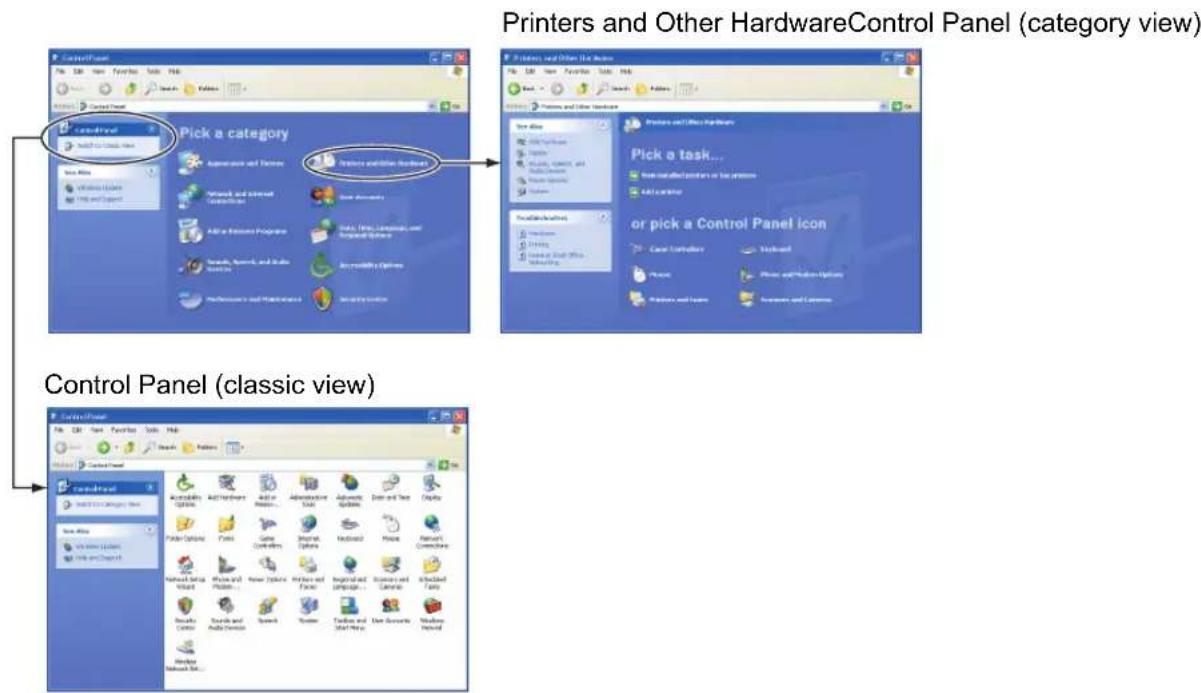
text_image
Printers and Other HardwareControl Panel (category view) Pick a category Pick a task... or pick a Control Panel icon Control Panel (classic view)- Double-click [Scanners and Cameras].
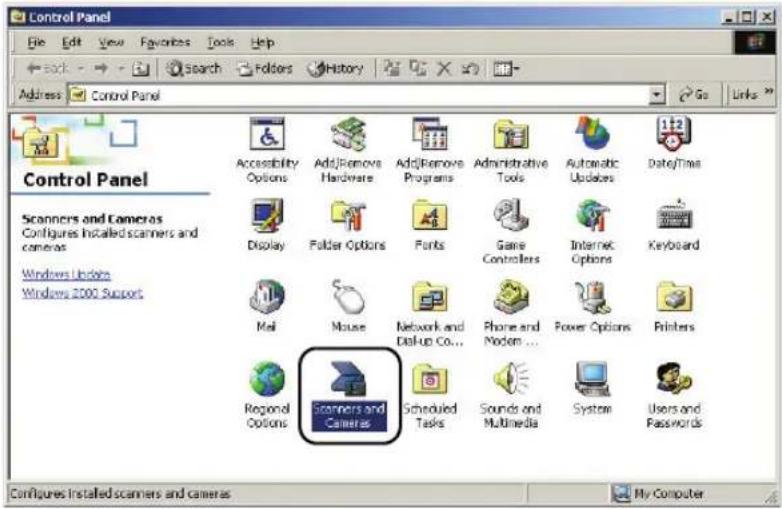
text_image
Control Panel Scanners and Cameras Configures Installed scanners and cameras Windows Undice Windows 2000 Support Accessibility Options Add/Remove Hardware Add/Remove Programs Administrative Tools Automatic Updates Date/Time Display Folder Options Fonts Game Controllers Internet Options Keyboard Mail Mouse Network and Disk-up Co... Phone and Modem ... Power Options Printers Regional Options Scanners and Cameras Scheduled Tasks Sounds and Multimedia System Users and Passwords Configure Installed scanners and cameras My Computer- Select [CANON DR-2580C USB], and then click [Properties].
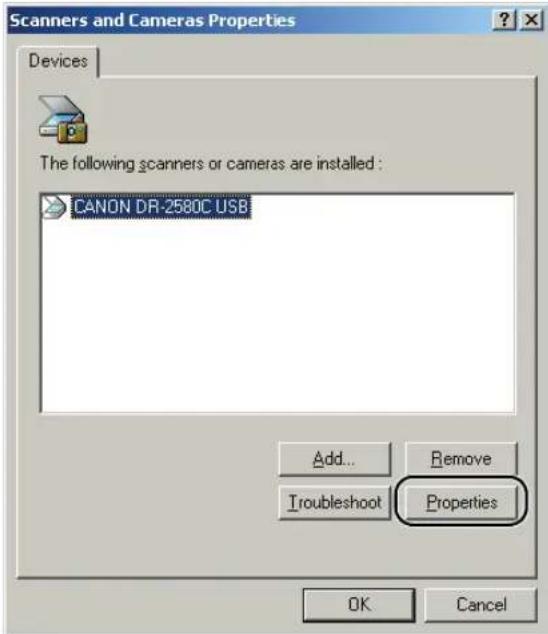
text_image
Scanners and Cameras Properties Devices The following scanners or cameras are installed : CANON DR-2580C USB Add... Remove Troubleshoot Properties OK Cancel[Canon DR-2580C USB Properties] is displayed.
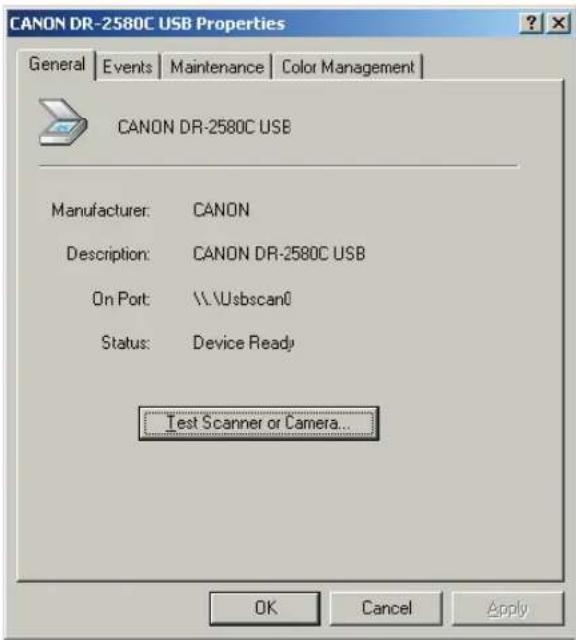
text_image
CANON DR-2580C USB Properties General Events Maintenance Color Management CANON DR-2580C USB Manufacturer: CANON Description: CANON DR-2580C USB On Port:\\\\.\bsscan0 Status: Device Ready Test Scanner or Camera... OK Cancel Apply- Click the [Events] tab.

text_image
CANON DR-2580C USB Properties General Events Maintenance Color Management CANON DR-2580C USB Scanner events Button No.1 Send to this application: CapturePerfect 3.0 DR-2580C Job Tool Imaging Disable device events OK Cancel Apply- Select the Job Button (Button No.1, Button No.2, or Button No.3) whose settings were changed with the scanner event.

text_image
CANON DR-2580C USB Properties General Events Maintenance Color Management CANON DR-2580C USB Scanner events Button No.1 Button No.1 Button No.2 Button No.3 Job Tool DR-2580C Job Tool Imaging Disable device events OK Cancel Apply- In the initial status, all the applications displaying [Send to this application] are checked. Select one application to be started with the [Launcher] and uncheck the checkboxes for the other applications and then click [Apply]. (See p. 40.)

text_image
CANON DR-2580C USB Properties General Events Maintenance Color Management CANON DR-2580C USB Scanner events Button No.3 Send to this application: CapturePerfect 3.0 DR-2580C Job Tool Imaging Disable device events OK Cancel Apply
IMPORTANT
You cannot use Job Functions if the [Disable device events] checkbox is checked. Do not check this checkbox.
- Click [OK] to close [CANON DR-2580C USB Properties].
- Restart Windows to enable the new settings for the event function.
- Click [OK] to close [CANON DR-2580C USB Properties].
- Restart Windows to enable the new settings for the event function.
5. Clearing a Paper Jam
When paper jams occur during scanning, use the following procedure to clear them.
CAUTION
Be careful when removing jammed paper. It is possible to cut your hand on the edge of a sheet of paper.
- Remove any documents that have been left in the eject tray.
- Close the document eject tray extension.
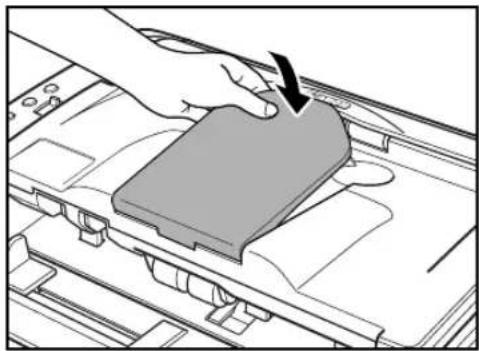
natural_image
Illustration of a hand pressing down on a gray plastic component inside a mechanical device (no text or symbols visible)IMPORTANT
If document ejection is stopped part way, perform this operation with the document eject tray extension open. Attempting to force the document eject tray extension closed can crease the document.
- Press on both sides of the back cover to open it.
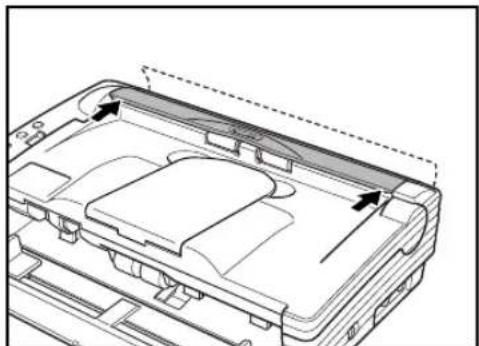
natural_image
Technical line drawing of a mechanical component with internal channels and mounting features (no text or symbols)- Pressing the OPEN knob from both sides, raise the upper unit.
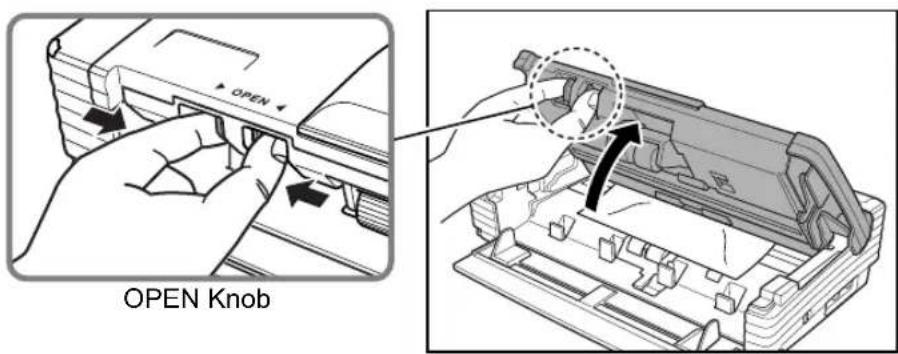
text_image
OPEN Knob- Remove the jammed document.
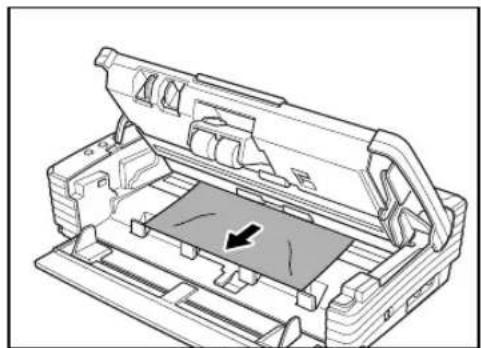
natural_image
Technical line drawing of a mechanical assembly with no visible text or symbolsIMPORTANT
Be sure to pull the document out carefully, without applying too much force. Should the document tear, be sure to remove any part remaining in the scanner.
- Close the upper unit slowly.

natural_image
Illustration of a hand inserting a device into a mechanical housing (no text or symbols visible)IMPORTANT
Do not force the upper unit to close. Doing so may damage the scanner.
- Be sure that the upper unit is completely closed by pushing on both edges with both hands until you hear a click.
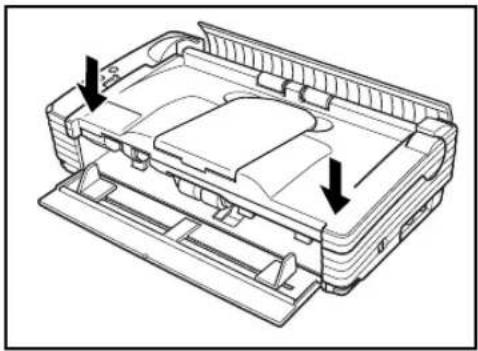
natural_image
Technical line drawing of a mechanical housing or enclosure with two arrows indicating directional components (no text or symbols present)- Press on both sides of the back cover to close it.

natural_image
Technical line drawing of a mechanical component with dashed arrows indicating assembly or alignment (no text or symbols)
IMPORTANT
Be sure to press on both sides of the upper unit and back cover to ensure that they are securely closed. Feeding errors will occur if only one side is closed.

Note
After removing the jammed paper, check to see if the last page was scanned, and then continue scanning.
6. Other Functions
This scanner also supports the scanning functions described below.
Scanning Folio (Folded Document) ......P. 49
Double Feed Detection Function....P. 50
Long Document Mode ......P. 50
Flatbed Scanner Unit (Option)....P. 54
Scanning Folio (Folded Document)
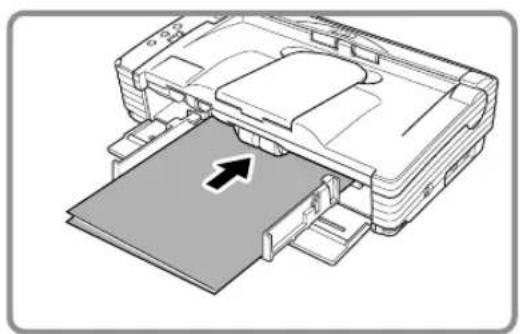
The scanner uses a folio scanning method to scan documents that are bigger than LTR/A4 size (maximum A3 size). To do folio scanning, fold the document in half and place it on the scanner. Both sides of the folded document are scanned and combined into a single image.
natural_image
Diagram of a printer's internal structure showing paper feed and printer tray (no text or symbols)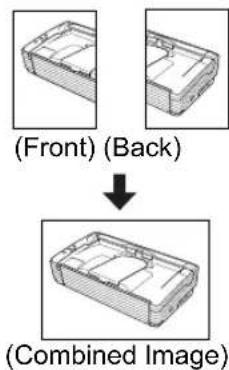
text_image
(Front) (Back) (Combined Image)
IMPORTANT
- Attach the document guide adaptors to prevent documents from skewing when doing folio scan. (See p. 21.)
- Use nonseparated document scanning when doing folio scan.
- Firmly set the fold in the document. The fold in the document may cause paper jams or misaligned images.

Note
- Folio scanning is set in the ISIS/TWAIN driver.
- The image on the front of the folded document appears as the left side of the image.
- Combined images can be a maximum of A3 size.
- A seam may appear where the images are combined if the document or the fold in the document is crooked.
Double Feed Detection Function
The scanner is equipped with a [Double Feed Detection] function that automatically detects when two or more documents are fed at the same time (double feed) while doing continuous scanning.
There are two methods for multiple feed detection as shown below, the detection method is selected by the “ISIS/TWAIN driver”.
Detecting Double Feed by Document Length
This detection method is effective when scanning a document on pages that are all the same size. The length of the first page scanned is used as a standard against which the rest of the pages are compared. If any page is 1.96" (50mm) longer or shorter than the first page it is considered a multiple feed and scanning stops.
Detecting Double Feed with Ultrasonic Waves
This detection method is effective when scanning a document on pages that are different sizes. Ultrasonic waves are used to detect pages that are fed at the same time as well as the space between pages. Scanning stops if they are detected.

Note
- Ultrasonic double feed detection works when the documents overlap by 1.96" (50 mm) or more.
- If the documents are stuck together with static electricity, the ultrasonic double feed detection will not correctly detect them as a double feed.
Long Document Mode
Normally the scanner can scan documents up to 13.97" (355 mm) in length, however if you change the settings to the Long Document mode it is possible to scan documents up to a maximum of 39.2" (1,000 mm) in length. To use the Long Document mode, change the scanner's settings to the Long Document mode in scanner properties. Set the paper size in the "ISIS/TWAIN driver" to [Automatic Detection] to allow the scanner to detect documents up to 39.2" (1,000 mm) long and to scan them.

IMPORTANT
Note the following points when using the Long Document mode.
- Documents may be scanned more slowly when the scanner is scanning with automatic size detection in Long Document mode.
-
When scanning in the Long Document mode, if the document is placed on the scanner in a skewed position, it may rub against both sides of the feed path and be damaged. Be careful to place the document so it is not skewed.
-
When using the Long Document mode, the paper jam detection may react slowly resulting in damage to the document. Be careful to avoid paper jams.
- Be sure to feed paper with the bypass mode when scanning in the Long Document mode.
Long Document Mode Settings
1. Use the following procedure to open the [Event settings] dialog box.
- Click the [Start] button, and then click [Settings] on the [Start] menu → click [Control Panel]. (For Windows XP, click the [Start] button → click [Control Panel].)
![CANON imageFORMULA DR-2580C - Use the following procedure to open the [Event settings] dialog box. - 1](/content/2026/06/1236809/images/f7b17ec85a8ec1c59df0cf5cdf9cb51404723856902198f209c1b73f09618d45.jpg)
text_image
Windows 2000 Professional Settings Control Panel Network and Dial-up Connections Printers Taskbar & Start Menu...- For Windows XP, switch the Control Panel to Classic View, or select [Printers and Other Hardware] in the working field.
Control Panel (category view) Printers and Other Hardware
![CANON imageFORMULA DR-2580C - Use the following procedure to open the [Event settings] dialog box. - 2](/content/2026/06/1236809/images/b36cfaf892e68f3599ba3a0dfc098d9322fa9bca6bbb653fdbf2a61a1b61bf0c.jpg)
text_image
Control Panel Pick a category Add to the client view Add to the client view Add to the client view Add to the client view Add to the client view Add to the client view Add to the client view Add to the client view Add to the client view Add to the client view Add to the client view Add to the client view Add to the client view Add to the client view Add to the client view Add to the client view Add to the client view Add to 100% or more than 100% or more than 100% Add to the client view Add to the client view Add to the client view Add to the client view Add to the client view Add to the client view Add to the client view Add to the client view Add to the client view Add to the client view Add to the client view Add to the client view Add to the client view Add to the client view Add to the client view Add to the client view Add to the child view Add to the child view Add to the child view Add to the child view Add to the child view Add to the child view Add to the child view Add to the child view Add to the child view Add to the child view Add to the child view Add to the child view Add to the child view Add to the child view Add to the child view Add to the child view Add to the child view Add 100% or more than 100% or more than 100% Add 100% or more than 100% or more than 100% Add 100% or more than 100% or more than 100% Add 100% or more than 100% or more than 100% Add 100% or more than 100% or more than 100% Add 100% or more than 150% or more than 150% Add 100% or more than 150% or more than 150% Add 100% or more than 200% or more than 200% Add 100% or more than 250% or more than 250% Add 100% or more than 300% or more than 300% Add 100% or more than 350% or more than 350% Add 100% or more than 400% or more than 400% Add 100% or more than 450% or more than 450% Add 100% or more than 500% or more than 500% Add 100% or more than 550% or more than 550% Add 100% or more than 600% or more than 600% Add 100% or more than 650% or more than 650% Add 100% or more than 700% or more than 700% Add 100% or more than 750% or more than 750% Add 100% or more than 800% or more than 800% Add 100% or more than 850% or more than 850% Add 100% or more than 900% or more than 900% Add 100% or more than 950% or more than 950% Add 100% or more than 1,000% Add 1,500% Add 2,500% Add 3,500% Add 4,500% Add 5,500% Add 6,500% Add 7,500% Add 8,500% Add 9,500% Add 1,5,5,5,5,5,5,5,5,5,5,5,5,5,5,5,5,5,5,5,5,5,5,5,5,5,5,5,5,5,5,5,5,5,5,5,5,5,5,5,5,5,5,5,5,5,5,5,5,5,5, Control Panel (classic view) Control Panel File Edit View Preferences Tools Help Control Panel Control Panel Install a category by: Test file Windows Name: Windows Server Test file and support... Scriminability: CIRISI Fillet Colors: Pinko Screen Colors: Yellow Network Colors: Redish Network Colors: Black Phone and Audio Colors: White Serials: Black Boxer/Black Boxer/Black Boxer/Black Boxer/Black Boxer/Black Boxer/Black Boxer/Black Boxer/Black Boxer/Black Boxer/Black Boxer/Black Boxer/Black Boxer/Black Boxer/Black Boxer/Black Boxer/Black Boxer/Black Boxer/Black Boxer/Black Boxer/Black Boxer/Black Boxer/Black Boxer/Black Boxer/Black Boxer/Black Boxer/ Black Boxer/ Black Boxer/ Black Boxer/ Black Boxer/ Black Boxer/ Black Boxer/ Black Boxer/ Black Boxer/ Black Boxer/ Black Boxer/ Black Boxer/ Black Boxer/ Black Boxer/ Black Boxer/ Black Boxer/ Black Boxer/ Black Boxer/ Black Boxer/ Black Boxer/ Black Boxer/ Black Boxer/ Black Boxer/ Black Boxer/ Black Boxer/ Black Boxer/ All-Boxer/ All-Boxer/ All-Boxer/ All-Boxer/ All-Boxer/ All-Boxer/ All-Boxer/ All-Boxer/ All-Boxer/ All-Boxer/ All-Boxer/ All-Boxer/ All-Boxer/ All-Boxer/ All-Boxer/ All-Boxer/ All-Boxer/ All-Boxer/ All-Boxer/ All-Boxer/ All-Blockers / All-Blockers / All-Blockers / All-Blockers / All-Blockers / All-Blockers / All-Blockers / All-Blockers / All-Blockers / All-Blockers / All-Blockers / All-Blockers / All-Blockers / All-Blockers / All-Blockers / All-Blockers / All-Blockers / All-Blockers / All-Blockers / All-Blockers / All-Blockers | Control Panel (classic view) Control Panel (classic view) Control Panel (classic view) Control Panel (classic view) Control Panel (classic view) Control Panel (classic view) Control Panel (classic view) Control Panel (classic view) Control Panel (classic view) Control Panel (classic view) Control Panel (classic view) Control Panel (classic view) Control Panel (classic view) Control Panel (classic view) Control Panel (classic view) Control Panel (classic view) Control Panel (classic view) Control Panel (classic viewing)- Double-click [Scanners and Cameras].
![CANON imageFORMULA DR-2580C - Use the following procedure to open the [Event settings] dialog box. - 3](/content/2026/06/1236809/images/1ea165d889c84659608d9339868e25956bb72d8b5ea21997b1c5f1e3d0467eb6.jpg)
text_image
Control Panel Scanners and Cameras Configures Installed scanners and cameras Windows Undices Windows 2000 Support Accessibility Options Add/Remove Hardware Add/Remove Programs Administrative Tools Automatic Updates Date/Time Display Folder Options Fonts Game Controllers Internet Options Keyboard Mail Mouse Network and Dial-up Co... Phone and Modem ... Power Options Printers Regional Options Scanners and Cameras Scheduled Tasks... Sounds and Multimedia System Users and Passwords Configure installed scanners and cameras My Computer- Select [CANON DR-2580C USB], and then click [Properties].
![CANON imageFORMULA DR-2580C - Use the following procedure to open the [Event settings] dialog box. - 4](/content/2026/06/1236809/images/f01b4fd3206bcdcfb701f76b7a24ce6676d9172382f0f1c3f45f994e86ae74d4.jpg)
text_image
Scanners and Cameras Properties Devices The following scanners or cameras are installed : CANON DR-2580C USB Add... Remove Troubleshoot Properties OK Cancel[CANON DR-2580C USB Properties] is displayed.
![CANON imageFORMULA DR-2580C - Use the following procedure to open the [Event settings] dialog box. - 5](/content/2026/06/1236809/images/446d8ef3525652b38d7d2a78d52cd7f5ea4dc3a8ab1641d14fac79ed2115b9de.jpg)
text_image
CANON DR-2580C USB Properties General Events Maintenance Color Management CANON DR-2580C USB Manufacturer: CANON Description: CANON DR-2580C USB On Port:\\\\.\bsscan0 Status: Device Ready Test Scanner or Camera... OK Cancel Apply- Click the [Maintenance] tab.
![CANON imageFORMULA DR-2580C - Use the following procedure to open the [Event settings] dialog box. - 6](/content/2026/06/1236809/images/9fc8fb3cdd468b3aad69ef709e31fee1faaf02bbe48a2a41d1cd132dedd387b7.jpg)
text_image
CANON DR-2580C USB Properties General Events Maintenance Color Management Feeder Scan Count : 7735 Current Rollers : 7735 Flatbed Scan Count : ---- Maximum length for paper size detection: • Standard (356 mm) • Long Document mode (1,000 mm) • Processing speed may decrease when scanning with paper size detection set to Long Document mode. • In Long Document mode, if a document is loaded into the scanner askew, it may catch on both edges of the feeder and suffer damage. Make sure to take extra care that documents are loaded straight in this mode. • In Long Document mode, documents may suffer damage because paper jam detection is delayed. Make sure to take extra care against paper jams in this mode. • Feed long documents in Manual Feed Mode. OK Cancel Apply- Click the [Long Document mode (1,000 mm)] check box.
![CANON imageFORMULA DR-2580C - Use the following procedure to open the [Event settings] dialog box. - 7](/content/2026/06/1236809/images/cc89a4515100abae623d11863a026d098e3a99d93ea61b157a56641e6b17c8ac.jpg)
text_image
CANON DR-2580C USB Properties General Events Maintenance Color Management Feeder Scan Count : 7735 Current Rollers : 7735 Flatbed Scan Count : ---- Maximum length for paper size detection: Standard (356 mm) Long Document mode (1,000 mm) • Processing speed may decrease when scanning with paper size detection set to Long Document mode. • In Long Document mode, if a document is loaded into the scanner askew, it may catch on both edges of the feeder and suffer damage. Make sure to take extra care that documents are loaded straight in this mode. • In Long Document mode, documents may suffer damage because paper jam detection is delayed. Make sure to take extra care against paper jams in this mode. • Feed long documents in Manual Feed Mode. OK Cancel Apply- Click [Apply] to change the scanner's settings.
- Click [OK] to close [Scanners and Cameras Properties].
- Turn the scanner OFF and then ON again.
Flatbed Scanner Unit (Option)
Optional flatbed scanner units are available for the DR-2580C. The flatbed scanner unit can be used to scan thick documents, books and other documents that cannot pass through the feeder without having to change the scanner or applications.

natural_image
Two technical line drawings of a device with a half-size cut, showing internal components and base plate (no text or symbols)Flatbed scanner unit (connected to the DR-2580C)

Note
The flatbed scanner unit cannot operate in a stand-alone configuration.
Contact your local authorized Canon dealer or service representative for more detailed information.
7. Scanning Hints
This section describes helpful hints for setting up and using your scanner.
Refer to these hints when you set up the ISIS/TWAIN driver. For more details on items not described in this section, see “Software Settings,” on p. 61.
Scanning Double-sided Documents
- I want to scan a double-sided document.
Set Scanning Side to [Duplex].
See “ISIS Driver Settings ⑦,” on p. 62, and “TWAIN Driver Settings ⑦,” on p. 64.
Scanning Non-standard Size Documents
- I want to scan non-standard size documents
When a non-standard size document is scanned with a standard size specified, a black margin around the scanned image. If you want to scan nonstandard size documents, set “Page Size” to [Auto-detection]. The size of the document is automatically detected.
See “ISIS Driver Settings ③,” on p. 62, and “TWAIN Driver Settings ③,” on p. 64.
- I want to scan documents on extra-long paper.
Set the scanner to Long Document mode and set the “Page Size” to [Auto-detection]. Documents on paper up to 1,000 mm long can be scanned. See “Long Document Mode,” on p. 50.
See “ISIS Driver Settings ③,” on p. 62, and “TWAIN Driver Settings ③,” on p. 64.
- I want to register non-standard size documents
A non-standard document size can be registered as a Custom Paper Size. See “ISIS Driver Settings ⑫,” on p. 62, and “TWAIN Driver Settings ⑫,” on p. 64.
- I want to scan only part of a document
The scan area can be specified before scanning. Note, however, that the scan area cannot be specified when “Page Size” is set to [Auto-detection].
See “ISIS Driver Settings ⑬,” on p. 62, and “TWAIN Driver Settings ⑬,” on p. 64.
Scanning Multiple Documents
- I want to divide a document that cannot be placed all at once into multiple stacks and scan them as a single file
Set the “Feeding Option” in the Scanner Settings to [Automatic Feeding].
When the scanner detects a document, scanning starts automatically, and you can continue scanning batches until your job is complete.
When “Feeding Option” is set to [Panel-Feeding], scanning does not start until you place your document and press Scan button. This is handy when you need to align the edges of the document after it has been placed.
See “ISIS Driver Settings ⑧,” on p. 62, and “TWAIN Driver Settings ⑧,” on p. 64.
- I want to divide up scanned images by individual document stacks to save as separate files
Set the “Feeding Option” to [Automatic Feeding] or [Panel-Feeding], and set “Batch Separation” to [Auto]. (ISIS driver only)
See “ISIS Driver Settings ⑧,” on p. 62, and “ISIS Driver Settings ⑨,” on p. 62.
- I want to scan a document one sheet at a time
Set the “Feeding Option” to [Automatic Feeding] or [Panel-Feeding] to scan one sheet at a time. Scanning is interrupted after one page of the document is scanned.
If the “Feeding Option” is set to [Automatic Feeding] and the next document is loaded, the scanner starts scanning when it detects the next document.
If the “Feeding Option” is set to [Panel-Feeding] and the next document is loaded, the scanner starts scanning when the Scan button is pressed.
See “ISIS Driver Settings ⑧,” on p. 62, and “TWAIN Driver Settings ⑧,” on p. 64.
- I want scanning to stop if two or more pages of the document are fed together.
Enable the double feed detection function. The scanner stops feeding the document if it detects that two pages of the document have been fed at the same time.
See “ISIS Driver Settings ⑮,” on p. 62, and “TWAIN Driver Settings ⑭,” on p. 64.
Scanning Documents Containing Blank Sheets
- I want to skip blank sheets contained in a document stack.
Set “Scanning Side” to [Skip blank page]. [Double-sided scanning] is not performed, and blank pages are skipped.
See “ISIS Driver Settings ⑦,” on p. 62, and “TWAIN Driver Settings ⑦,” on p. 64.
- Blank sheets are not skipped even if [Skip blank page] is set.
Set a higher [Ratio of black pixels] value (adjust the slider towards the right). If a low [Ratio of black pixels] value is set, blank sheets are sometimes not skipped due to the background color or dirt on the document.
- Documents full of text are skipped as blank sheets.
Set a lower [Ratio of black pixels] value (adjust the slider towards the left). If a high [Ratio of black pixels] value is set, even documents full of text are sometimes skipped as blank sheets.
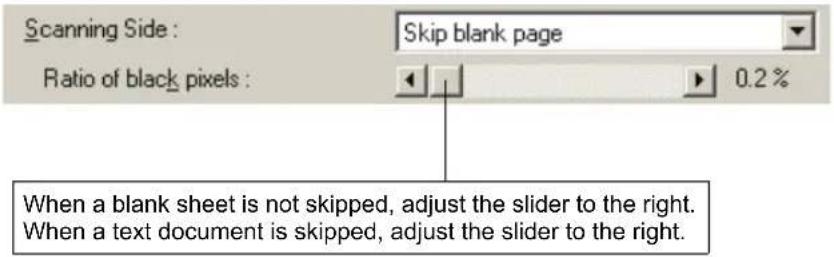
text_image
Scanning Side : Skip blank page Ratio of black pixels : 0.2% When a blank sheet is not skipped, adjust the slider to the right. When a text document is skipped, adjust the slider to the right.Adjusting Scanned Image
- I want to clearly scan dark background images
Set “Mode” to [Advanced Text Enhancement]. The background of the document is removed to enhance the text.
See “ISIS Driver Settings ②,” on p. 62, and “TWAIN Driver Settings ②,” on p. 64.
- I want to scan the document with its black and white areas reversed
Set the Scanning Modes to [Black and white], [Error diffusion], or [Advanced Text Enhancement] and check the [Reverse Image] checkbox.
Black and white areas are reversed in the scanned images. (TWAIN Driver only)
See “TWAIN Driver Settings ②,” on p. 64, and “TWAIN Driver Settings ⑯,” on p. 64.
- I want to rotate the scanned image
Specify the amount of rotation ( 0^ , 90^ , 180^ , 270^ ) in [Document Orientation]. The image is rotated as noted below depending on how the document is placed.
| Feeder, document: face up | 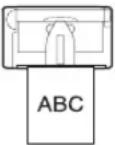 | 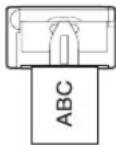 | 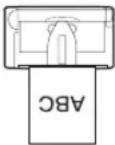 | 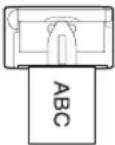 |
| Flatbed, document: face down | 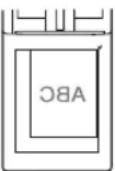 |  |  |  |
| Document Orientation (clockwise) | 0° 90° | 180° 270° | ||
| Output image | ABC | ABC | ABC | ABC |
See “ISIS Driver Settings ⑮,” on p. 62, and “TWAIN Driver Settings ⑮,” on p. 64.
- I want to rotate the image to coincide with the text on the document
Check the [Text Orientation Recognition] checkbox. The scanner detects the orientation of the text in the document and rotates the scanned image 90^ at a time.
See “ISIS Driver Settings ⑰,” on p. 62, and “TWAIN Driver Settings ⑰,” on p. 64.
• I want to skip specific colors
Specify the color to skip during scanning in [Color drop-out].
See “ISIS Driver Settings ②1,” on p. 62, and “TWAIN Driver Settings ②1,” on p. 64.
- I want to enhance specific colors (red, blue, green)
Select the color to enhance (red, blue or green) at [Color drop-out].
See “ISIS Driver Settings ②1,” on p. 62, and “TWAIN Driver Settings ②1,” on p. 64.
- I want to enhance image contours
Adjust the "Edge emphasis" setting.
See “ISIS Driver Settings ⑳,” on p. 62, and “TWAIN Driver Settings ⑳,” on p. 64.
- I want to delete black borders around images
Check the [Border Removal] checkbox.
See “ISIS Driver Settings ②,” on p. 62, and “TWAIN Driver Settings ②,” on p. 64.
- I want to delete the black spots that are left when scanning documents that have had holes put in them to be stored in a binder
Check the [Punch Hole Removal] checkbox.
See “ISIS Driver Settings ②3,” on p. 62, and “TWAIN Driver Settings ②3,” on p. 64.
Prescan Function
- I want to preview the image before I scan it
Check the [Prescan] checkbox.
When scanning starts, a single page of the document is scanned so you can check the image in the preview window displayed on the scanning panel.
See “ISIS Driver Settings ⑩,” on p. 62, and “TWAIN Driver Settings ⑨,” on p. 64.
Registering Settings
- I want to use preset scanning conditions again
Assign a name to the scanning conditions and register them as a user preference. If you select the name of an already registered user preference, the conditions you set overwrite the settings of the selected user preference.
See “ISIS Driver Settings ①,” on p. 62, and “TWAIN Driver Settings ①,” on p. 64.
Flatbed Scanning (Option)
• I want to scan on the flatbed
Set the “Scanning Side” setting to [Flatbed] or [Auto]. When Scanning Side is set to [Auto], the document on the [Flatbed] is scanned when there is no longer a document in the document feed opening.
If the flatbed unit is not connected, [Flatbed] and [Auto] do not appear in the “Scanning Side” settings.
See “ISIS Driver Settings ⑦,” on p. 62, and “TWAIN Driver Settings ⑦,” on p. 64.
8. Software Settings
This section describes the setting items when setting the ISIS driver, TWAIN driver, and Job Registration Tool. For a more detailed description, read the Help files for each item.
ISIS Driver Settings.....P. 62
TWAIN Driver Settings.....P. 64
Job Registration Tool Settings.....P. 66

Note
- The ISIS Driver Settings section explains the dialog boxes displayed in CapturePerfect 3.0. The basic setup dialog box may not be displayed in some ISIS compatible applications. In this case, the advanced settings dialog box, which includes some of the functions from the basic setup dialog box, is displayed.
- The TWAIN Driver Settings section explains the dialog boxes that are displayed for “Scanner Settings” in the Job Registration Tool dialog boxes.
- For TWAIN compatible applications that execute scanning directly from the basic setup dialog box, a [Scan] button is displayed instead of an [OK] button in the basic setup dialog box and, a [Preview] button and area window are displayed in the advanced settings dialog box.
- The PDF file that contains this User's Guide, which is on the setup disc, has a “Quick Guide” that has the same information as this section. Print it out and keep it near the scanner where it can be easily used.
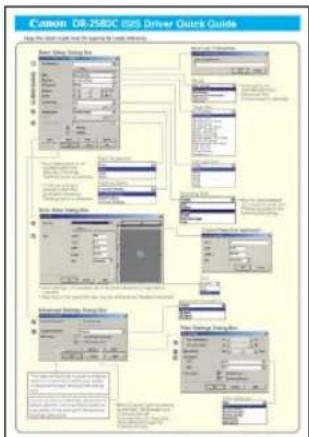
flowchart
graph TD
    A["Initial Setup"] --> B{Condition: 1.0?}
    B -->|Yes| C["OK"]
    B -->|No| D["End"]
    C --> E["Output: 100%"]
    D --> F["Final Output: 100%"]
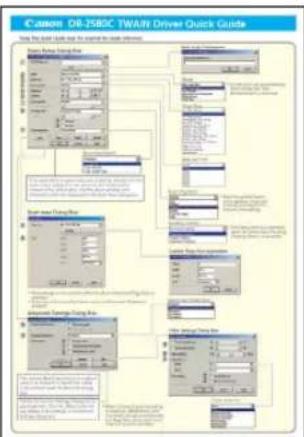
flowchart
graph TD
    A["Start"] --> B["Process Step 1"]
    B --> C["Component 1: System Configuration"]
    C --> D["Process Step 2"]
    D --> E["Component 2: System Configuration"]
    E --> F["End"]

flowchart
graph TD
    A["Job Regression Tool Using File"] --> B["User Interface"]
    B --> C{User Interface?}
    C -->|Yes| D["Output: 100%"]
    C -->|No| E["User Interface: 50%"]
    E --> F["Output: 50%"]
    F --> G["Output: 25%"]
    G --> H["Output: 10%"]
    H --> I["Output: 5%"]
    I --> J["Output: 2%"]
    J --> K["Output: 1%"]
ISIS Driver Settings
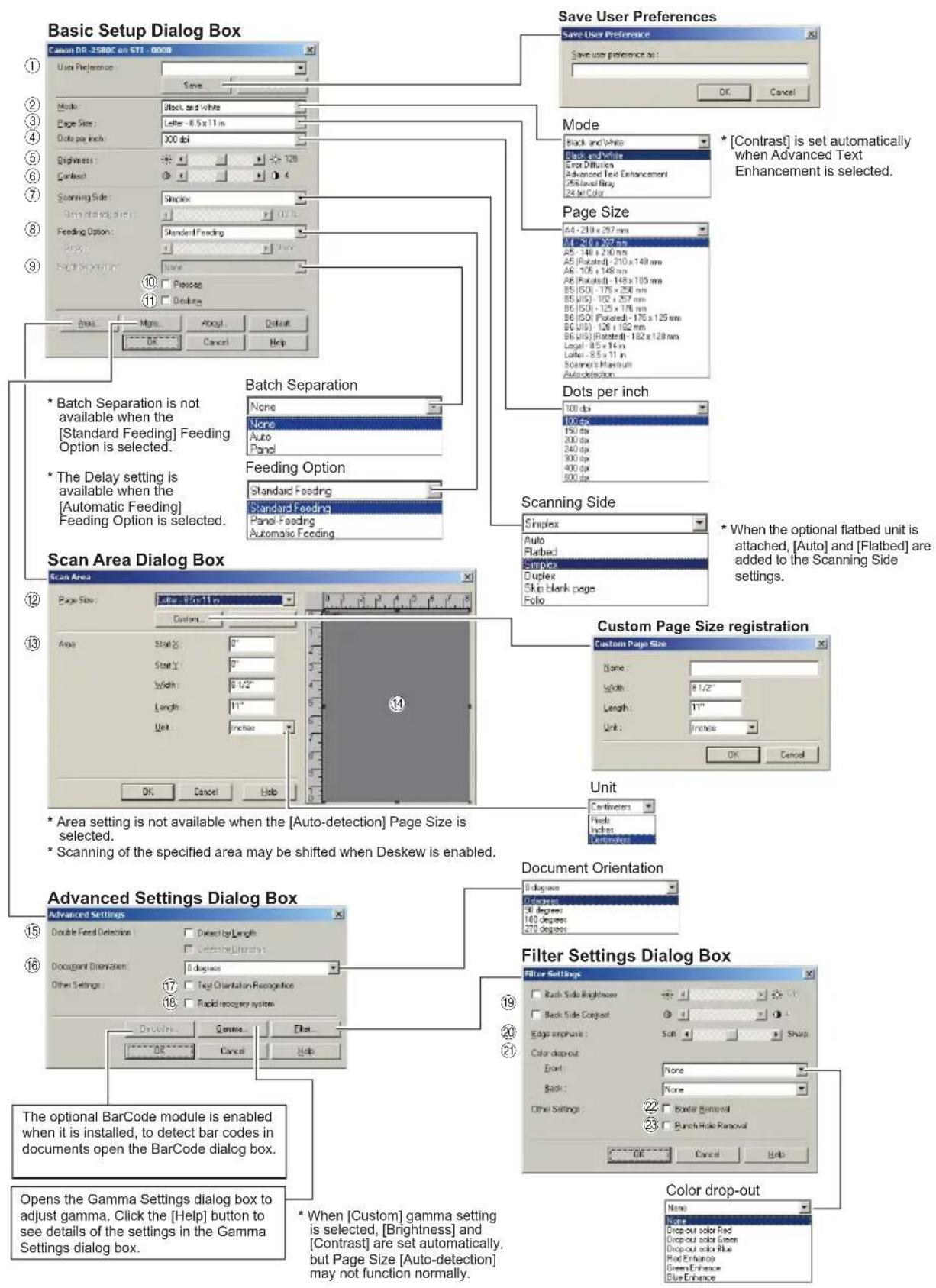
text_image
Basic Setup Dialog Box Save User Preferences Save User Preference Save user preference as: OK Cancel Basic Setup Dialog Box Save Save User Preference Save user preference as: Mode Black and White Black and White Extra Diffusion Advanced Text Enhancement 25x10x10.5x11.5m 24x10x10.5m Page Size A4 - 218 x 257 mm A4 - 216 x 257 mm A5 - 148 x 210 mm A5 - [Rotated] - 210 x 148 mm A6 - 105 x 148 mm A6 - Rotated] - 148 x 103 mm B5 (ISO) - 175 x 250 mm B6 (ISO) - 102 x 257 mm B6 (ISO) - 125 x 176 mm B6 (ISO) - Flotened] - 175 x 125 mm B6 (ISO) - 126 x 102 mm B6 (ISO) - Flotened] - 102 x 128 mm Auto detection. Dots per inch 100 dpi 100 dpi 150 dpi 200 dpi 240 dpi 300 dpi 400 dpi 500 dpi Batch Separation None None Auto Panel Feeding Option Standard Feeding Standard Feeding Panel Feeding Automatic Feeding Scanning Side Simplex Auto Flatted Simplex Duplex Skin Blank page Folio Scan Area Dialog Box Scan Area Page Size: Custom... Custom Page Size registration Custom Page Size Name: Width: 8/1/2" Length: 1" Unit: Inches Unit: Centimeters Fixed Inches Centimeters Area setting is not available when the [Auto-detection] Page Size is selected. Scanning of the specified area may be shifted when Deskew is enabled. Advanced Settings Dialog Box Advanced Settings Double Feed Detection: Select by Length: Select by Length: Select by Length: Select by Length: Select by Length: Select by Length: Select by Length: Select by Length: Select by Length: Select by Length: Select by Length: Select by Length: Select by Length: Select by Length: Select by Length: Select by Length: Select by Length: Select by Length: Select by Length: Select by Length: Select by Length: Select by Length: Select by Length: Select by Length: Select by Length: Select by Longer to select the settings in the Gamma Settings dialog box. The optional BarCode module is enabled when it is installed, to detect bar codes in documents open the BarCode dialog box. Opens the Gamma Settings dialog box to adjust gamma. Click the [Help] button to see details of the settings in the Gamma Settings dialog box. Save User Preferences Save user preference as: OK Cancel Save User Preferences Save user preference as: OK Cancel Save User Preferences Save user preference as: OK Cancel Save User Preferences Save user preference as: OK Cancel Save User Preferences Save user preference as: OK Cancel Save User Preferences Save user preference as: OK Cancel Save User Preferences Save user preference as: OK Cancel Save User Preferences Save user preference as: OK Cancel Save User Preferences Save user preference as: OK Cancel Save User PreferencesBasic Setup Dialog Box
①User Preference
Name and save your settings.
Names can consist of up to 32 characters.
②Mode
Selects the scanning mode.
③Page Size
Selects the size of the pages to be scanned.
Selecting [Auto-detection] causes automatic page size detection when scanning.
④Dots per inch
Selects scanning resolution.
⑤Brightness
Adjusts brightness of scanned images.
⑥Contrast
Adjusts the contrast of scanned images.
[Contrast] is set automatically when the Advanced Text Enhancement mode is selected.
⑦Scanning Side
Specifies the side of the document to scan.
When [Skip blank page] is selected, images are skipped if they are determined blank based on the [Ratio of black pixels] value.
When [Folio] is selected, both sides of a document are scanned, and the images displayed are combined into one image. For details on Folio, refer to "Scanning Folio (Folded Document)" (See p. 49.) in the user's guide.
[Ratio of black pixels] specifies the ratio of black areas (0 to 20%) when skipping blank pages.
⑧Feeding Option
Selects the document feeding method.
[Standard Feeding] scans loaded documents after starting scanning from the application program.
With [Panel-Feeding], scanning is started by pressing the Job Button assigned as the Start button after the document is placed.
[F] [Automatic Feeding] starts scanning whenever the scanner detects a loaded document.
⑨Batch Separation
This setting is enabled when the [Panel Feeding] or [Automatic Feeding] Feeding Option is selected. Documents can be scanned as separate batches.
⑩Prescan
When scanning starts, a page of the document is scanned and its image is displayed in the Prescan window.
⑪Deskew
When a document page feeds at a slant, the scanned image is straightened.
Scan Area Dialog Box
⑫Page Size
Selects the size of the pages to be scanned.
Click [Custom] to register a non-standard document size as a custom page size.
⑬Area
Specifies the area to be scanned.
These settings are disabled when [Autodetection] is selected for the Page Size.
⑭Area Window
The appearance of this window indicates the current Page Size setting.
The specified scan area can be adjusted by dragging the mouse.
Advanced Settings Dialog Box
⑮Double Feed Detection
The scanner stops feeding when it detects that two or more pages of the document have been fed at the same time.
⑯Document Orientation
Specify clockwise rotation of scanned images according to the orientation of documents to be scanned.
⑰Text Orientation Recognition
Detects the text orientation in scanned images and rotates the images in 90° increments to normalize text orientation.
⑱Rapid recovery system
Select this function to prevent error reporting to the application program when feeding is interrupted due to a paper jam or similar error while scanning. After fixing the cause of the interruption, scanning can be quickly resumed with standard operations.
Filter Settings Dialog Box
⑲Brightness/contrast of back side
The scanner checks the difference in density between the front and back sides of the document and adjusts the contrast and the brightness for the back side.
⑳Edge emphasis
Enhances contours in scanned images.
②1Color drop-out
Enabled for all scanning modes except [24 bit Color], this function selects skipping (drop-out) or enhancement of red, green or blue when scanning documents.
⑳Border Removal
Removes the black border that may be created around scanned images.
⑳Punch Hole Removal
Removes the black holes created in scanned images when scanned documents have holes punched for binding.
TWAIN Driver Settings

text_image
Basic Setup Dialog Box Save User Preferences Save User Preference as: OK Cancel Save Mode Black and White Black and White Order Diffinch Advanced Text Enhancement 25% Vertical Gray 24% Jet Color Page Size A4 - 210 x 287 mm A5 - 148 x 210 mm A6 - Polatid: - 216 x 148 mm A6 - 165 x 148 mm A6 (Polatid): - 148 x 108 mm B6 (ISO) - 176 x 259 mm B6 (US) - 182 x 257 mm B6 (ISO) - 125 x 175 mm B6 (ISO) (Polated): - 176 x 125 mm B6 (US) - 120 x 162 mm B6 (US) (Polated): - 162 x 128 mm Logical: 0.5 x 14 in Letter: - 8.5 x 11 in Scan Area Dialog Box If an application program executes scanning directly from the basic setup dialog box, the [Scan] button is displayed instead of the [OK] button, and the [Area window] and [Preview] button are displayed in the Scan Area dialog box. Scanning Option Standard Standard Scan Ahead Scan Single Page Scanning Side Simplex Auto Flatted Stonex Duplex Skip blank page Folo Feeding Option Standard Feeding Standard Feeding Panel Feeding Automatic Feeding The Delay setting is available when the [Automatic Feeding] Feeding Option is selected. Custom Page Size registration Custom Page Size Save: Width: 8.1/2" Length: 11" Unit: Inches OK Cancel Help Document Orientation 0 degrees 0 degrees 0 degrees 180 degrees 270 degrees Advanced Settings Dialog Box Double Feed Detection: Detect by Length Detect by Duration Document Orientation: 0 degrees Other Settings: Reverse Image Test Orientation Recognition Rapid recognition system OK Cancel Help Filter Settings Dialog Box Filter Settings Back Side Brightness: Back Side Contrast: Edge emphasis: Soft Color drop-out: None Back: None Other Settings: Border Removal: Bunch Hole Removal: OK Cancel Help Color drop-out: None Note: Drop out color Red Drop out color Green Drop out color Blue Red Entrance: Green Entrance: Blue Entrance: If an application program executes scanning directly from the basic setup dialog box, the [Scan] button is displayed instead of the [OK] button, and the [Area window] and [Preview] button are displayed in the Scan Area dialog box. Scanning Option: Scan Ahead Scan Area Dialog Box Advanced Settings Dialog Box to adjust gamma. Click the [Help] button to see details of the settings in the Gamma Settings dialog box.Basic Setup Dialog Box
①User Preference
Name and save your settings.
Names can consist of up to 32 characters.
②Mode
Selects the scanning mode.
③Page Size
Selects the size of the pages to be scanned.
Selecting [Auto-detection] causes automatic page size detection when scanning.
④Dots per inch
Selects scanning resolution.
⑤Brightness
Adjusts brightness of scanned images.
⑥Contrast
Adjusts the contrast of scanned images.
[Contrast] is set automatically when the Advanced Text Enhancement mode is selected.
⑦Scanning Side
Specifies the side of the document to scan.
When [Skip blank page] is selected, images are skipped if they are determined blank based on the [Ratio of black pixels] value.
When [Folio] is selected, both sides of a document are scanned, and the images displayed are combined into one image. For details on Folio, refer to "Scanning Folio (Folded Document)" (See p. 49.) in the user's guide.
[Ratio of black pixels] specifies the ratio of black areas (0 to 20%) when skipping blank pages.
⑧Feeding Option
Selects the document feeding method.
[Standard Feeding] scans loaded documents after starting scanning from the application program.
[Panel-Feeding] scans loaded documents after pressing the scanner's scan button.
[Automatic Feeding] starts scanning whenever the scanner detects a loaded document.
⑨Prescan
When scanning starts, a page of the document is scanned and its image is displayed in the Prescan window.
⑩Deskew
When a document page feeds at a slant, the scanned image is straightened.
⑪Scanning Option
Specifies operation during scanning.
[Standard]: after one page has been scanned and ejected, the next page is scanned.
[Scan Ahead]: scans document pages continuously.
[Scan Single Page]: Scanning Side is set and fixed at [Simplex], and only one page is scanned.
Scan Area Dialog Box
⑫Page Size
Selects the size of the pages to be scanned.
Click [Custom] to register a nonstandard document size as a custom page size.
⑬Area
Specifies the area to be scanned.
These settings are disabled when [Autodetection] is selected for the Page Size.
Advanced Settings Dialog Box
⑭Double Feed Detection
The scanner stops feeding when it detects that two or more pages of the document have been fed at the same time.
⑮Document Orientation
Specify clockwise rotation of scanned images according to the orientation of documents to be scanned.
⑯Reverse Image
When the [Black and White], [Error Diffusion] or [Advanced Text Enhancement] mode is selected, black and white are reversed in the scanned image.
⑰Text Orientation Recognition
Detects the text orientation in scanned images and rotates the images in 90° increments to normalize text orientation.
⑱Rapid recovery system
Select this function to prevent error reporting to the application program when feeding is interrupted due to a paper jam or similar error while scanning. After fixing the cause of the interruption, scanning can be quickly resumed with standard operations.
Filter Settings Dialog Box
⑲Brightness/contrast of back side
The scanner checks the difference in density between the front and back sides of the document and adjusts the contrast and the brightness for the back side.
⑳Edge emphasis
Enhances contours in scanned images.
②1Color drop-out
Enabled for all scanning modes except [24 bit Color], this function selects skipping (drop-out) or enhancement of red, green or blue when scanning documents.
⑳Border Removal
Removes the black border that may be created around scanned images.
②Punch Hole Removal
Removes the black holes created in scanned images when scanned documents have holes punched for binding.
Job Registration Tool Settings

text_image
Job Registration Tool Dialog Box ① ② ③ ④ ⑤ ⑥ ⑦ ⑧ ⑨ ⑩ ⑪ ⑫ ⑬ ⑭ ⑮ ⑯ ⑰ ⑱ ⑲ ⑳ ⑪ ⑫ ⑬ ⑭ ⑮ ⑯ ⑰ ⑱ ⑲ ⑳ ㉑ ㉒ ㉓ ㉔ ㉕ ㉖ ㉗ ㉘ ㉙ ㉚ ㉛ ㉜ ㉝ ㉞ ㉟ ㉞ ㉟ ㉞ ㉞ ㉞ ㉞ ㉞ ㉞ ㉞ ㉞ ㉞ ㉞ ㉞ ㉞ ㉞ ㉞ ㉞ ㉞ ㉞ ㉞ ㉞ ㉞ ㉞ ㉞ ㉞ ㉞ ㉞ ㉞ ㉞ ㉞ ㉞ ㉞ ㉞ ㉞ ㉞ ㉞Job Registration Tool Dialog Box
①List of Job Button settings
Shows the settings registered for Job Buttons.
②Job Button (1-3)
Correspond to the Job Buttons on the scanner. The Editing dialog box opens when you click these buttons.
③[Admin] button
Opens the Admin dialog box.
④[Initialize] button
Returns the Job Buttons to there factory settings.
Editing Dialog Box
⑤Job title
Enter the title of the job to display in the list of Job button settings.
You can enter up to 29 single-byte alphanumeric or kana characters.
⑥Function
Selects the function assigned to the Scan button.
The contents of the Editing dialog box are determined by the selected function.
⑦Scanner setting
Opens the TWAIN driver's basic setting dialog box to configure the scanner.
⑧Save to My Pictures folder
Saves scanned images in the My Pictures folder in My Documents.
When this check box is not selected, you can specify the destination folder for saving images.
⑨File name
Specifies the file name.
Image file names are created by appending a time stamp to the specified file name.
⑩File type
Selects the file format for saved images.
The [Setting] button is enabled when [PDF] or [TIFF] is selected.
⑪[Setting] button
This button is enabled when the PDF or TIFF file type is selected, and opens the PDF or TIFF Setting dialog box.
The PDF setting dialog box provides [Compression] and [OCR] settings.
The TIFF setting dialog box provides [Multi-tiff setting] and [Compression] settings.
⑫[Access setting] button
This button is available when using Windows 2000/XP, and opens the Access setting dialog box.
Enter the correct User name and Password to obtain access to a shared network folder.
⑬Printer
Shows the default printer. Printer settings can be changed by clicking the [Printer setting] button.
⑭Save Image
Select this check box to save images scanned using the [Scan To Mail] Function.
⑮Launcher
Starts applications set with the Windows event function. See the user's guide for detailed information. (See p. 40.).
PDF/TIFF Settings
⑯Compression rate
Selects [Normal] or [High Compression] rate.
[High Compression] reduces the file's size, but also reduces the image quality slightly.
[High Compression] is useful for grayscale and color images.
⑰Language for OCR/Apply OCR
Recognizes printed text in a document as characters, and adds text data to the PDF file.
When the [Apply OCR] check box is selected, recognized text data is saved where the printed text is located in the PDF file.
When OCR is applied, Deskew is enabled, regardless of the configured settings for the TWAIN driver.
⑱Multi-tiff setting
Selects the saving method for multiple page images.
[One page] creates one file for one page with the number of TIFF files corresponding to the number of pages.
[Multi pages] saves the images for all of the pages as one file.
⑲Compression
Compresses image files before saving them.
Black and white images are compressed as CCITT Group 4 images, while grayscale and color images are compressed as JPEG images.
Admin Dialog Box
⑳Capacity Warning Settings
Specifies the folder for saved image files, and the capacity of that folder, in advance.
After specifying the folder and starting to scan, a warning message is displayed when the specified capacity is reached while scanning.
②Register Folder/Display Warning Dialog
The [Capacity Observed Folder] and [Warning Size] items are enabled by specifying a [Register Folder] (number) and selecting the [Display Warning Dialog] check box.
When the capacity warning is displayed, follow the displayed instructions to continue scanning.
②Show Monitor Dialog
The Monitor for DR2580C dialog box appears when the Scan button is pressed, and the scan progress is displayed.
②Maximum size of attached file
Specifies a maximum size for image files to be attached to e-mails. This Quick Guide describes settings for the Job Registration Tool. Click the Help button for details.
⑳Job Backup/Restore
Backs up and restores registered jobs.
Backup files can be restored on another DR-2580C document scanner.
Chapter 3
Appendices
1. Regular Maintenance 70
Cleaning the Scanner 70
Cleaning the feed path 70
Cleaning the Sensor Glass, Shading
Boards, and the Rollers 71
2. Removing and Attaching
the Rollers 74
Roller Replacement Cycle 74
Resetting the Counter 75
Removing and Attaching the Feed Roller .. 79
Removing and Attaching the Retard
Roller 83
3. Troubleshooting 87
The Scanner Does Not Turn ON 87
The Scanner Is Not Recognized 87
Scanning Is Not Performed 88
Slow Scanning Speed 88
Documents Do Not Feed Properly 89
Saved Image Files Do Not Open 90
Scanning Results Are Not as Expected .... 91
The Flatbed Scanner (Option) Does
Not Work 92
4. Uninstalling Software 94
Uninstalling the ISIS/TWAIN Driver/
Job Registration Tool 96
Uninstalling CapturePerfect 3.0 98
5. Specifications 100
Specifications 100
External Dimensions 103
1. Regular Maintenance
Clean the scanner on a regular basis as described below to maintain peak scanning quality.
CAUTION
- When cleaning the scanner or inside of the scanner, turn OFF the power switch and unplug the Power Cord from the outlet.
- Do not use excessive force when removing or attaching the rollers. Doing so may damage them.
- Never use paint thinner, alcohol, or other organic solvents to clean the scanner. Such solvents can damage or discolor the exterior of the scanner. They also create a risk of fire or electrical shock.
Cleaning the Scanner
To clean the exterior of the scanner, dampen a cloth with water or a mild detergent, wring the cloth out thoroughly, and then wipe the dirt away. Then use a dry, soft cloth to wipe away any moisture.

natural_image
Line drawing of a hand cleaning a rectangular electronic device with a cloth (no text or symbols)Cleaning the feed path
Dust or paper particles in the document feed opening or inside the scanner can cause lines in scanned images. Use a blower to periodically clean dust and paper particles from the document feed opening and the inside of the scanner. After finishing a large scanning job, you should turn off the scanner and then clean out any paper particles.
Cleaning the Sensor Glass, Shading Boards, and the Rollers
If scanned images have extraneous marks, or if the scanned documents are dirty, then the sensor glass or rollers inside the scanner may be dirty. Clean them periodically.
- Pressing the OPEN knob from both sides, raise the upper unit.
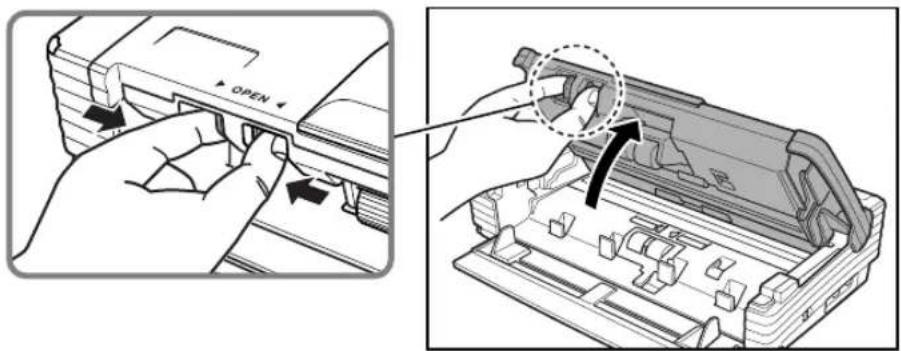
text_image
OPEN
Note
- The location of the sensor glass and various rollers are shown below.
- The scanner has white, 0.08" (2 mm) wide shading boards located at the front and back of the upper and lower sensor glasses. The scanner uses the shading boards to determine white standards during scanning. Dirty shading boards can cause stripes in scanned images. Periodically clean them to ensure good scanning results.
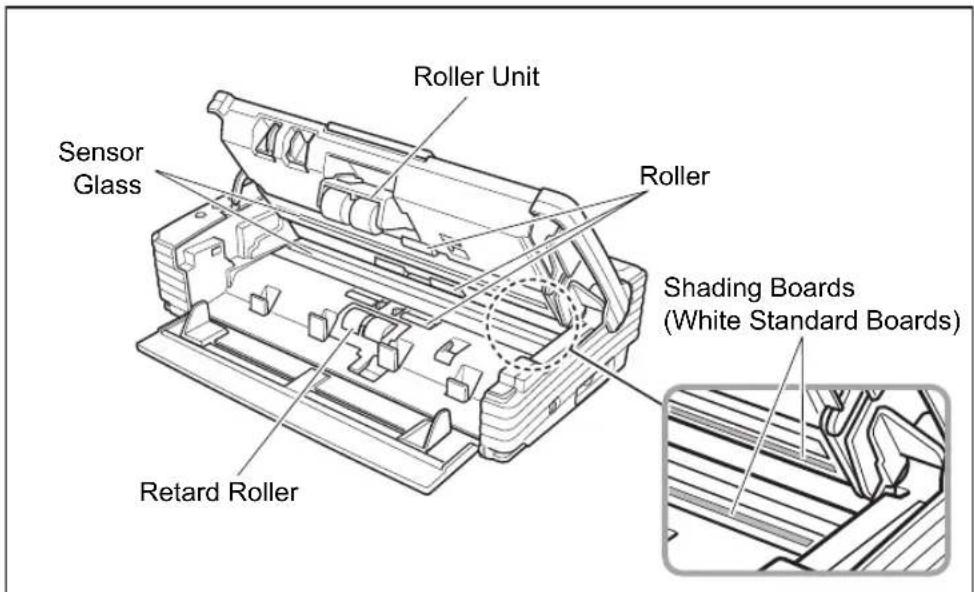
text_image
Roller Unit Sensor Glass Roller Shading Boards (White Standard Boards) Retard Roller-
Use a blower to keep the interior of the scanner free of dust and paper particles.
-
Use a clean dry cloth to wipe dirt off the sensor glass. Wipe both the top and bottom sensor glasses.

natural_image
Line drawing of a hand pressing down on a mechanical component (no text or symbols)CAUTION
Do not use spray type cleaners to clean the scanner. Precision mechanisms, such as the light source, may get wet which will cause a malfunction.
IMPORTANT
Scratches on the sensor glass may cause marks on the images and could cause feeding errors. If there are scratches on the sensor glass, contact your local authorized Canon dealer or service representative.
- Use a commercially available cotton swab to clean off any dirt from the shading boards at the front and back of the sensor glasses.
IMPORTANT
Wipe both the top and bottom shading boards.
- Wipe the rollers with a firmly wrung cloth moistened with water.
IMPORTANT
- Do not use detergent to clean the rollers, since any detergent on the rollers could cause a feeding error.
- If you cannot freely rotate the rollers, do not force them to rotate. Just clean the part that you can see. Forcing the rollers to rotate may cause a feeding error.
-
Remove the roller unit and retard roller. (See "Removing and Attaching the Feed Roller," on p. 79.)
-
Wipe the removed rollers with a firmly wrung cloth moistened with water.
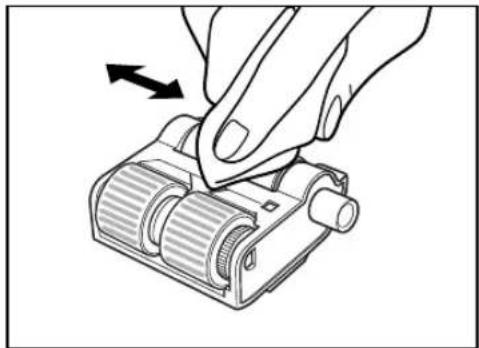
natural_image
Illustration of a hand turning a mechanical component with an arrow indicating rotation (no text or symbols)-
Attach the rollers that were removed. (See “Removing and Attaching the Feed Roller,” on p. 79.)
-
Close the upper unit slowly.

natural_image
Illustration of a hand inserting a device into a plastic housing (no text or symbols visible)IMPORTANT
Do not force the upper unit to close. Doing so may damage the scanner.
- Be sure that the upper unit is completely closed by pushing on both edges with both hands until you hear a click.
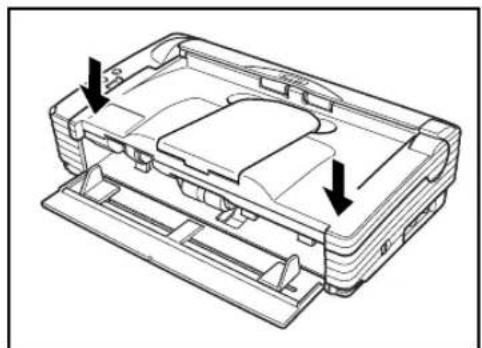
natural_image
Technical line drawing of a rectangular electronic device casing with two arrows indicating internal components (no text or symbols present)2. Removing and Attaching the Rollers
Follow the relevant procedure to remove and attach the roller unit and retard roller when you clean or replace them.

IMPORTANT
Feed rollers are consumable parts. When the rollers start to wear out, paper jams and misfeeds may occur more often. When this happens, buy a exchange roller kit, and replace the roller unit and the retard roller.

CAUTION
Do not use excessive force when removing or attaching the rollers. Doing so may damage them.
Roller Replacement Cycle
When the rollers being used have fed more than 100,000 pages, a roller replacement message is displayed on the computer. Buy a roller replacement kit and change the roller unit and the retard roller.

text_image
DR-2580C Attention! To maintain maximum performance, current rollers should be replaced now. Please follow the "Replacing the Rollers" in the Instructions. After you complete the replacement, please make sure to reset the counter. Please also refer to the Instructions to reset the counter. □ Do not show this message again. OK
IMPORTANT
- If misfeeds happen often, check the rollers for wear, and replace them if necessary before the message is displayed.
- Be sure to reset the counter after replacing the rollers. (See “Resetting the Counter,” on p. 75.)
- Contact your local authorized Canon dealer or service representative for information about the exchange roller kit (roller unit and retard roller).
Resetting the Counter
After replacing the feed rollers, open the [Counter setup] dialog box and reset the counter.
-
Follow the procedure below to open the [Counter setup] dialog box.
-
Click the [Start] button, and then click [Settings] on the [Start] menu → click [Control Panel]. (For Windows XP, click the [Start] button → click [Control Panel].)

text_image
Windows 200 Professional Settings Control Panel Network and Dial-up Connections Printers Taskbar & Start Menu...- For Windows XP, switch the Control Panel to Classic View, or select [Printers and Other Hardware] in the working field.
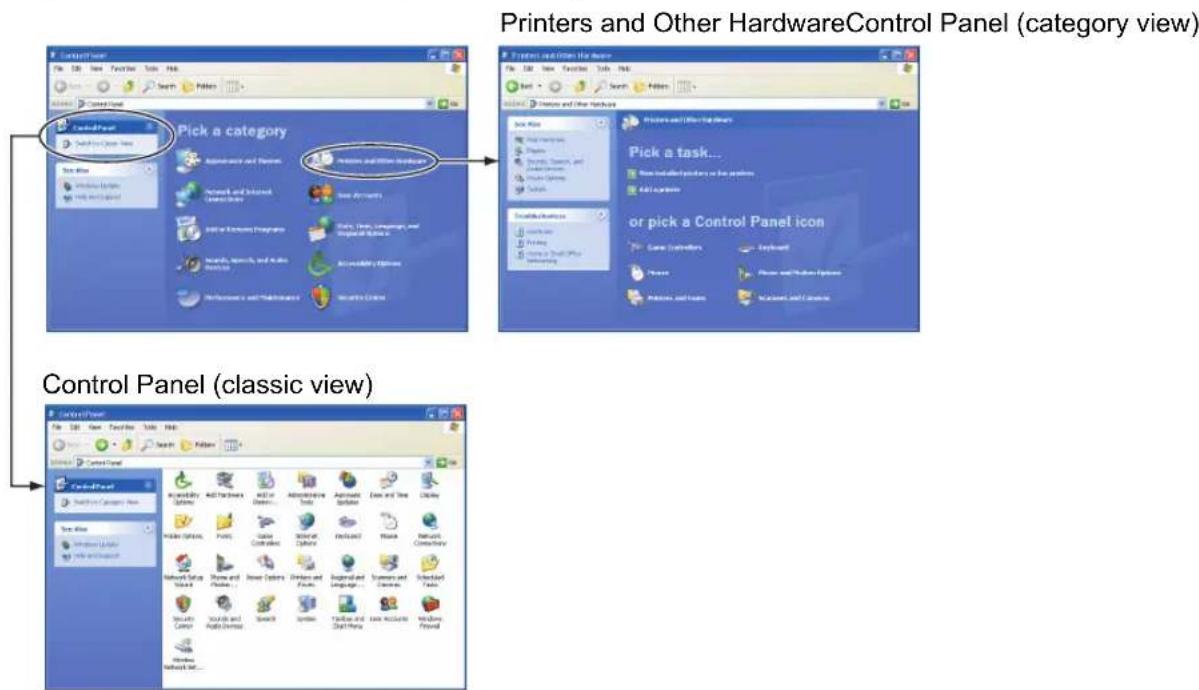
text_image
Printers and Other HardwareControl Panel (category view) Pick a category or pick a Control Panel icon and other hardware control panels and other hardware control panels and other hardware control panels and other hardware control panels and other hardware control panels and other hardware control panels and other hardware control panels and other hardware control panels and other hardware control panels and other hardware control panels and other hardware control panels and other hardware control panels and other hardware control panels and other hardware control panels and other hardware control panels and other hardware control panels and other hardware control panels and other software and other software and other software and other software and other software and other software and other software and other software and other software and other software and other software and other software and other software and other software and other software and other software and other software and other software and other software and other software and other software and other software and other software and other software and other software and other system and other system and other system and other system and other system and other system and other system and other system and other system and other system and other system and other system and other system and other system and other system and other system and other system and other system and other system and other system and other system and other system and other system and other system and other system and other systems and other system and other system and other system and other system and other system and other system and other system and other system and other system and other system and other system and other system and other system and other system and other system and other system and other system and other system and other system and other system and other system and other system and other system and other system and other platform123456780000000000000000000000000000000000000000000000000000000000000000000000000000000000000000000000000000- Double-click [Scanners and Cameras].

text_image
Control Panel Scanners and Cameras Configures Installed scanners and cameras Windows Undices Windows 2000 Support Accessibility Options Add/Remove Hardware Add/Remove Programs Administrative Tools Automatic Updates Date/Time Display Folder Options Fonts Game Controllers Internet Options Keyboard Mail Mouse Network and Dial-up Co... Phone and Modem ... Power Options Printers Regional Options Scanners and Cameras Scheduled Tasks Sounds and Multimedia System Users and Passwords Configure installed scanners and cameras My Computer- Select [CANON DR-2580C USB], and then click [Properties].
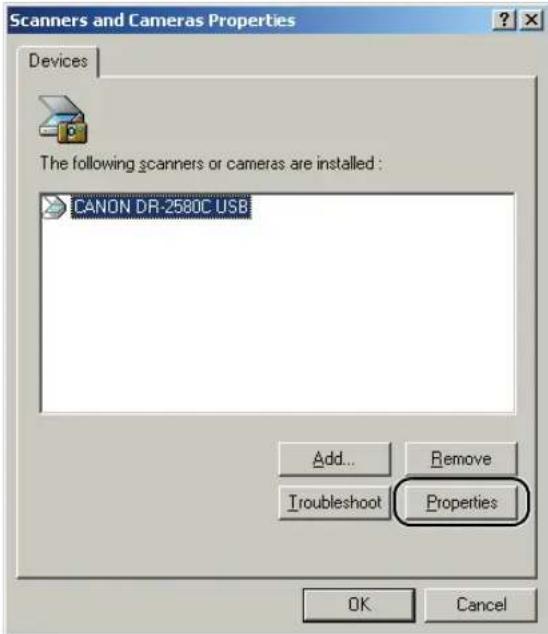
text_image
Scanners and Cameras Properties Devices The following scanners or cameras are installed : CANON DR-2580C USB Add... Remove Troubleshoot Properties OK Cancel[Canon DR-2580C USB Properties] is displayed.

text_image
CANON DR-2580C USB Properties General Events Maintenance Color Management CANON DR-2580C USB Manufacturer: CANON Description: CANON DR-2580C USB On Port:\\\\.\\bsscan0 Status: Device Ready Test Scanner or Camera... OK Cancel Apply- Click the [Maintenance] tab.
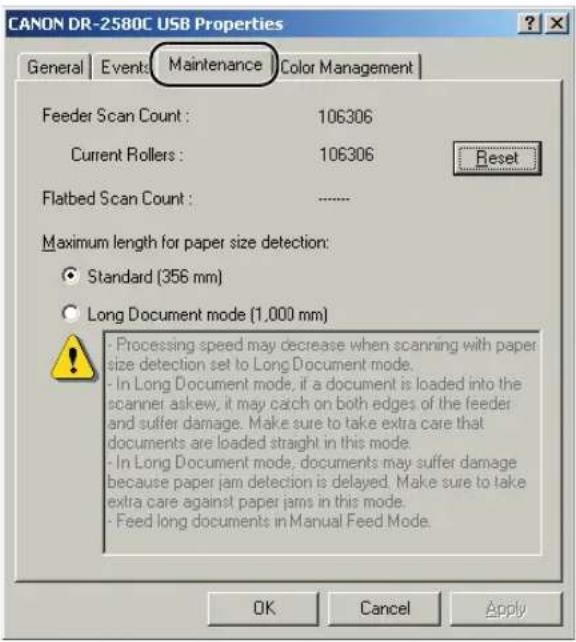
text_image
CANON DR-2580C USB Properties General Events Maintenance Color Management Feeder Scan Count : 106306 Current Rollers : 106306 Reset Flatbed Scan Count : ------------------ Maximum length for paper size detection: • Standard (356 mm) • Long Document mode (1,000 mm) • Processing speed may decrease when scanning with paper size detection set to Long Document mode. • In Long Document mode, if a document is loaded into the scanner askew, it may catch on both edges of the feeder and suffer damage. Make sure to take extra care that documents are loaded straight in this mode. • In Long Document mode, documents may suffer damage because paper jam detection is delayed. Make sure to take extra care against paper jams in this mode. • Feed long documents in Manual Feed Mode. OK Cancel Apply- Click the [Reset] button, and then make sure that the counter for the roller being used is set to 0.
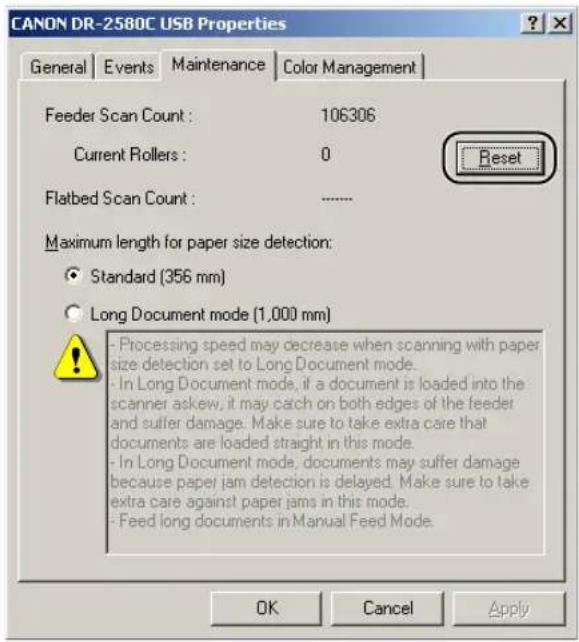
text_image
CANON DR-2580C USB Properties General Events Maintenance Color Management Feeder Scan Count : 106306 Current Rollers : 0 Flatbed Scan Count : .......... Reset Maximum length for paper size detection: ● Standard (356 mm) ○ Long Document mode (1,000 mm) ● Processing speed may decrease when scanning with paper size detection set to Long Document mode. ● In Long Document mode, if a document is loaded into the scanner askew, it may catch on both edges of the feeder and suffer damage. Make sure to take extra care that documents are loaded straight in this mode. ● In Long Document mode, documents may suffer damage because paper jam detection is delayed. Make sure to take extra care against paper jams in this mode. ● Feed long documents in Manual Feed Mode. OK Cancel ApplyRemoving and Attaching the Feed Roller
Follow the procedure below to remove and attach the roller unit for cleaning or replacement.

Note
When attaching the roller unit during installation, operate the roller fastening lever according to the removal procedure and then attach the roller unit.

CAUTION
Do not use excessive force when removing or attaching the rollers. Doing so may damage them.
Removing the Roller Unit
- Pressing the OPEN knob from both sides, raise the upper unit.
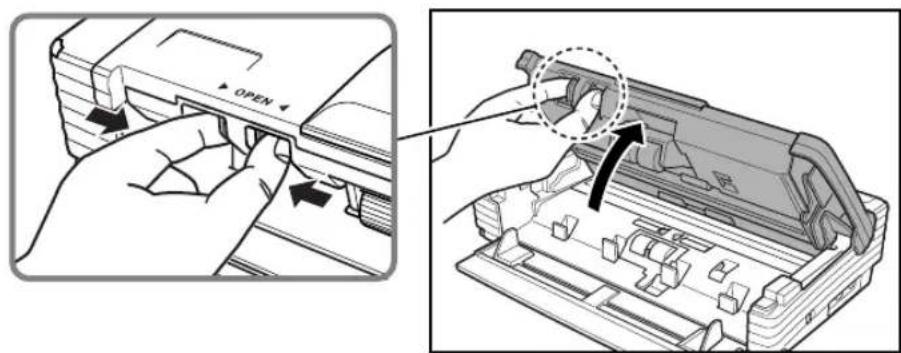
text_image
OPEN- Move the roller lock lever towards you.
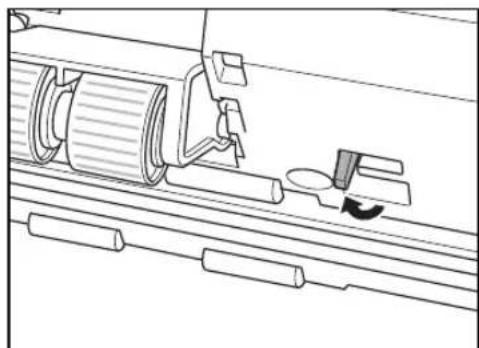
natural_image
Technical line drawing of a mechanical assembly with rollers and a tool (no text or symbols)- Supporting the roller unit with your hand, slide the roller lock lever to the right.
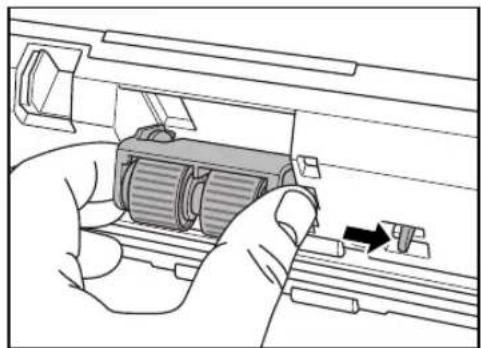
natural_image
Illustration of a hand operating a mechanical component with a black arrow indicating direction (no text or symbols present)- Lower the roller unit.
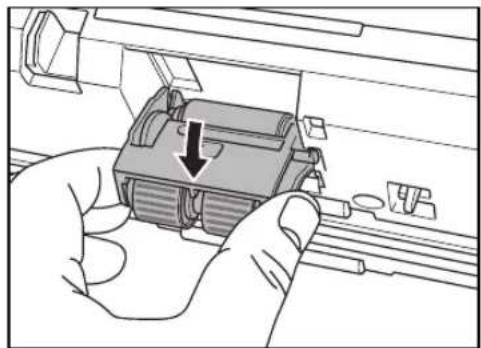
natural_image
Hand holding a mechanical component with a downward arrow indicating a process (no text or symbols visible)- First detach the right side of the roller unit (①), and then remove the roller unit (②).

text_image
Diagram showing a hand holding a device with labeled parts, including numbered annotations ① and ②.Attaching the Roller Unit
- Set the roller unit onto the scanner's shaft.

natural_image
Technical illustration showing a mechanical component being processed, with an inset close-up of the final part (no text or symbols present)- Insert the protrusion of the roller unit into the groove in the scanner, and then lift the roller unit.
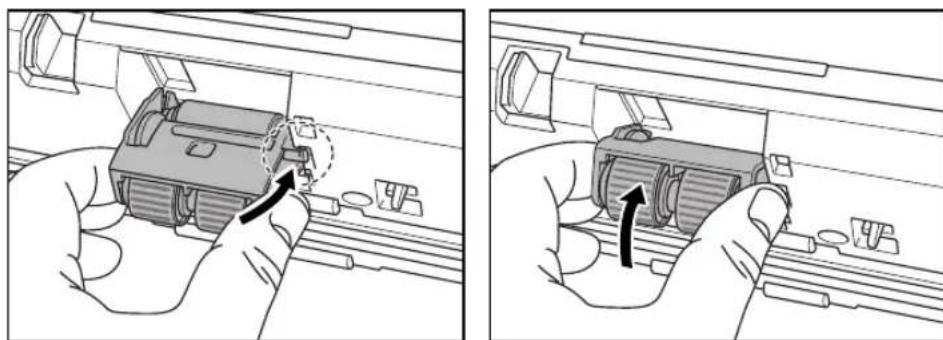
natural_image
Two-step diagram showing hands operating a mechanical component, with no visible text or symbols.3.Slide the roller lock lever to the left.

natural_image
Line drawing of a hand holding a mechanical component with a black arrow indicating direction (no text or symbols)- Push the roller lock lever towards the back of the scanner to lock the roller unit in place.

natural_image
Technical line drawing of a mechanical assembly with rollers and fasteners (no text or symbols)- Close the upper unit slowly.
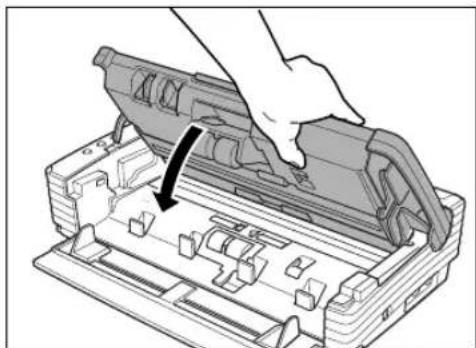
natural_image
Illustration of a hand inserting a device into a plastic housing (no text or symbols visible)IMPORTANT
Do not force the upper unit to close. Doing so may damage the scanner.
- Be sure that the upper unit is completely closed by pushing on both edges with both hands until you hear a click.

natural_image
Technical line drawing of a mechanical housing or enclosure with two arrows indicating directional components (no text or symbols present)Removing and Attaching the Retard Roller
Follow the procedure below to remove and attach the retard roller for cleaning or replacement.

Note
When attaching the retard roller during installation, operate the roller fastening lever according to the removal procedure and then attach the roller unit.

CAUTION
Do not use excessive force when removing or attaching the rollers. Doing so may damage them.
Removing the Retard Roller
- Pressing the OPEN knob from both sides, raise the upper unit.

text_image
OPEN- Remove the roller cover.
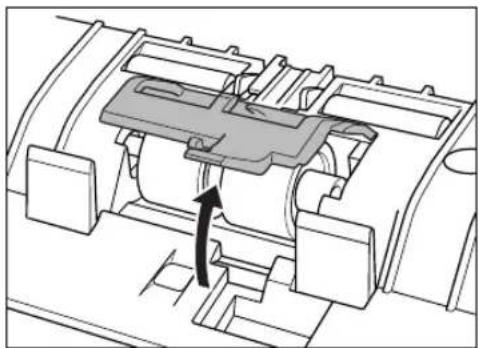
natural_image
Mechanical assembly diagram showing a component with internal parts and an arrow indicating motion (no text or symbols)- Move the roller lock lever upward (①), and then slide it to the right (②).
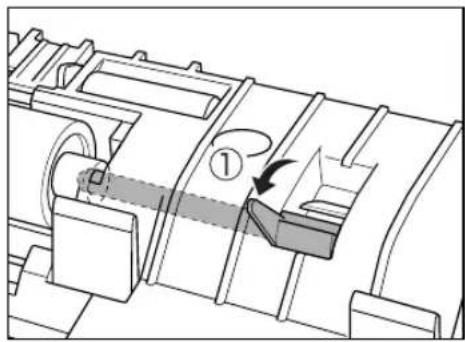
natural_image
Mechanical assembly diagram showing a piston-cranked shaft and housing (no text or symbols)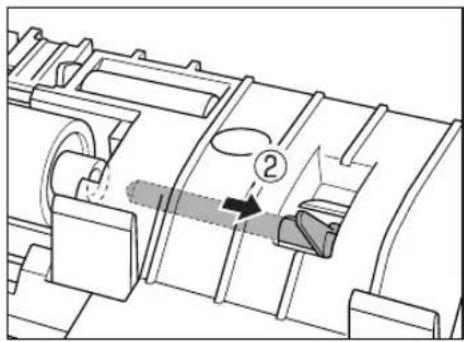
natural_image
Technical line drawing of a mechanical component with no visible text or symbols- Shift the retard roller to the right to remove it.

natural_image
Mechanical assembly diagram showing a cylindrical component being inserted into a housing (no text or symbols visible)Attaching the Retard Roller
- Position the retard roller so the notch in the roller is facing the scanner's shaft.

natural_image
Mechanical assembly diagram showing a gear shift and internal components (no text or labels)- Slide the roller lock lever to the left, and insert it into the retard roller hole.

natural_image
Technical line drawing of a mechanical component with internal channels and a highlighted section (no text or symbols)- Push the roller lock lever towards the back of the scanner to lock the retard roller in place.
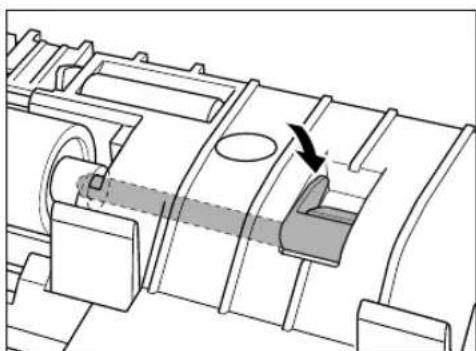
natural_image
Technical line drawing of a mechanical assembly with no visible text or symbols- Attach the roller cover.
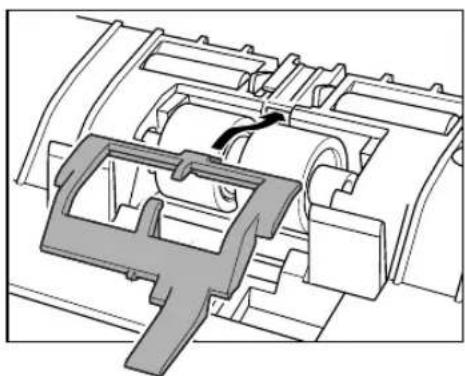
natural_image
Mechanical assembly diagram showing a bracket and housing components (no text or labels)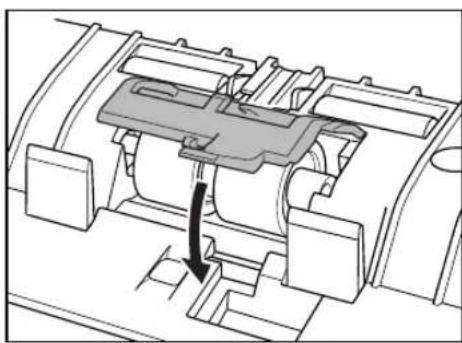
natural_image
Mechanical assembly diagram showing a piston-cranked piston mechanism with no visible text or symbols- Close the upper unit slowly.
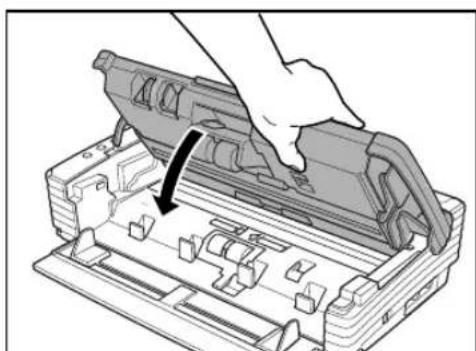
natural_image
Illustration of a hand using a tool to adjust or install a mechanical component, with no visible text or symbols.
IMPORTANT
Do not force the upper unit to close. Doing so may damage the scanner.
- Be sure that the upper unit is completely closed by pushing on both edges with both hands until you hear a click.
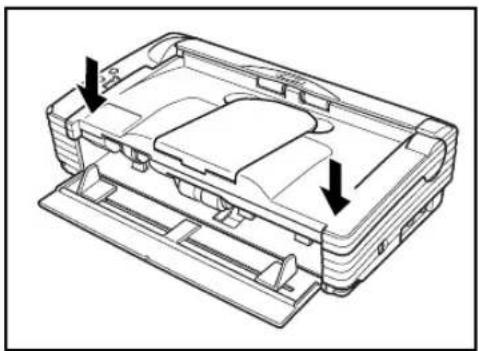
natural_image
Technical line drawing of a mechanical housing or enclosure with two arrows indicating directional components (no text or symbols present)3. Troubleshooting
This section describes the possible problems that might occur during use of the scanner and how to solve them.
The Scanner Does Not Turn ON....P. 87
The Scanner Is Not Recognized....P. 87
Scanning Is Not Performed....P. 88
Slow Scanning Speed....P. 88
Documents Do Not Feed Properly....P. 89
Saved Image Files Do Not Open....P. 90
Scanning Results Are Not as Expected....P. 91
The Flatbed Scanner (Option) Does Not Work.....P. 92
If, after consulting this section, you still cannot resolve the problem, contact your local authorized Canon dealer or your service representative.
The Scanner Does Not Turn ON
Check the following if the scanner does not turn on:
- Is the power cord connected correctly?
- Is the power cord inserted into the power outlet?
For details on connecting the power cord, see “Step 4. Connecting the Scanner to Your PC,” in the Easy Start Guide.
The Scanner Is Not Recognized
The following are possible causes of the PC failing to recognize the scanner. Check each possible cause.
Problem The scanner is not correctly connected.
Solution Make sure that the scanner and the computer are correctly connected with the USB cable. (See “Step 4. Connecting the Scanner to Your PC,” in the Easy Start Guide.)
Problem The scanner power is switched OFF.
Solution Make sure that the scanner is switched ON. If the scanner is OFF, turn the scanner ON. (See “Step 4. Connecting the Scanner to Your PC,” in the Easy Start Guide.)
Problem The scanner does not support your USB interface.
Solution This product is not guaranteed to operate with all types of USB interfaces. Contact your local authorized Canon dealer or service representative for more information. (See p. 14.)
Problem The scanner does not support the USB cable.
Solution Use the USB cable provided with the scanner.
Problem The USB hub is not compatible with the scanner.
Solution Remove the USB hub.
Scanning Is Not Performed
Check the following if the scanner does not scan an image even though the scanning operation is performed:
- Has the application software been installed correctly? Has the application software been set up correctly?
- Is there a problem in the PC system?
- Is the flatbed scanner unit (option) correctly attached

IMPORTANT
- If documents are not scanned normally even if the scanner setup is OK, a probable cause is that the scanner driver or application software is not running correctly. Re-install the scanner driver or application software.
- When system errors result in the scanner not functioning at all, turn OFF the scanner and wait at least ten seconds before turning it ON again. If the error continues to occur, restart the computer.
- When scanning continues, make sure that the last document scanned was scanned correctly.
- When using the flatbed scanner unit (option), make sure that the flatbed scanner unit is correctly attached to the DR-2580C before scanning. Scanning cannot be done if the flatbed scanner unit is not correctly attached to the DR-2580C.
Slow Scanning Speed
The following problems might cause the scanning speed to be slow.
Problem Other applications are running in the background on your PC.
Solution Quit all other applications that are running.
Problem Resident applications, such as anti-virus software, are draining memory resources.
Solution Quit all resident applications.
Problem Temporary files cannot be created in the TEMP folder, as there is not enough free space on the hard disk.
Solution Delete unwanted files on the hard disk to increase free space on the hard disk.
Problem The USB port you are using does not support Hi-Speed USB 2.0.
Solution Scanning speeds are lower if your computer's standard USB interface is not compatible with Hi-Speed USB 2.0. (See p. 14.) Use a computer that is equipped with USB that is compatible with Hi-Speed USB 2.0 as standard.
Problem The USB cable does not support Hi-Speed USB 2.0.
Solution Use the USB cable provided with the scanner.
Problem The USB hub does not support Hi-Speed USB 2.0.
Solution Remove the USB hub.
Documents Do Not Feed Properly
The following are possible causes of a document failing to feed properly. Check each possible cause.
Problem Static electricity, etc., is causing the pages of the document to stick together, and they cannot be separated correctly by the scanner.
Solution Before you place your document, thoroughly fan the stack of papers. (See “Placing Documents,” on p. 25.)
Problem Attempting to scan a document of a size, thickness, or weight that the scanner cannot scan.
Solution Check the size, thickness, and weight of the document. For precautions concerning documents, see “Documents,” on p. 18.
Problem The rollers inside the scanner are dirty or worn.
Solution Refer to p. 71 and clean the rollers. If the rollers are worn, then they need to be replaced. Contact your local authorized Canon dealer or service representative to purchase a roller replacement kit.

IMPORTANT
The retard roller and roller unit are consumable components. You need to replace the retard roller and roller unit when cleaning does not appear to improve them. Contact your local authorized Canon dealer and buy a roller replacement kit and then replace the retard roller and the roller unit.

text_image
Roller Unit Retard RollerSaved Image Files Do Not Open
When image files saved by CapturePerfect 3.0 cannot be opened by other applications, the probable causes are as follows.
Symptoms A multi-page TIFF file saved in CapturePerfect 3.0 cannot be opened by other applications.
Problem The application you are using to open the TIFF file does not support multi-page TIFF files.
Solution Open the file with an application that supports multi-page TIFF files.
Symptoms A TIFF file saved in CapturePerfect 3.0 cannot be opened by other applications.
Problem If the TIFF file saved in CapturePerfect 3.0 has been compressed, the application you are using to open the TIFF file does not support the compression type that was used to save the file in CapturePerfect 3.0.
Solution Set the compression type for the image file to [None] and save the file again in CapturePerfect 3.0.
Scanning Results Are Not as Expected
If there is a problem with the scanning result (e.g., the scanned image is not clear, or the image is striped or dirty), the probable causes are incorrect ISIS/TWAIN driver settings or a problem with the scanning unit inside the scanner. Scanning results can also become skewed if the ISIS/TWAIN driver has not been installed correctly, or the application in use does not support ISIS/TWAIN driver functions.
Symptoms The scanned image is too dark (or faint).
Problem The [Brightness] setting is not set to an appropriate value.
Solution If the image is dark, set a higher [Brightness] setting, or if the image is faint, set a lower [Brightness] setting. (See “Software Settings,” on p. 61.)
Symptoms Text or images on the rear side of your document appear in the scanned image.
Problem The [Brightness] setting is too low, or the paper is too thin.
Solution Set a higher [Brightness] setting. If the paper is too thin, make a copy of the documents and then scan the copy.
Symptoms Double-sided scanning is not possible.
Problem [Scanning Side] is set to [Simplex].
Solution Set [Scanning Side] to [Double-sided].
Symptoms A black margin appears around the scanned document.
Problem A document smaller than the preset paper size has been scanned. Or, the loaded document has shifted out of position.
Solution Set [Paper size] to [Auto-detection]. Or, set [Border Removal] to on.
Symptoms The scanned image is skewed.
Problem The document has been fed at an angle. (skew)
Solution Use the document guide adapter to prevent document skew, and set [Deskew] to on. (See “Software Settings,” on p. 61.)
Symptoms Lines, smudges, or dirt appear on the scanned image.
Problem The scanning glass or rollers inside the scanner are dirty.
Solution Clean the scanning glass and rollers.
If lines still appear on the image even after cleaning the scanning glass and rollers, the scanning glass inside the scanner may be scratched. Contact your local authorized Canon dealer or service representative. (See p. 70.)
Symptoms The scanned image is abnormal for certain documents.
Problem Functions such as [Auto-detection], [Deskew], or [Border Removal] were used when scanning documents containing text or photos up to their edges. (The scanner cannot accurately process the edges of documents.)
Solution Turn off functions such as [Auto-detection], [Deskew], or [Border Removal] when scanning documents containing text or photos up to their edges. (See “Software Settings,” on p. 61.)
Symptoms The scanned image is abnormal in some applications.
Problem A function not supported by the application was used.
Solution Some applications do not support functions such as auto-detection of the paper size. Scanning documents with an application such as this will result in an abnormal scanned image. Try scanning with auto-detection of the paper size set to “off.”
The Flatbed Scanner (Option) Does Not Work
Operational failure of the optional flatbed scanner unit can be caused by any of the reasons described below. Try the solution according to the problem.
Problem The ISIS/TWAIN scanner is set to something other than Flatbed.
Solution Set the ISIS/TWAIN driver to [Flatbed]. Refer to Help for the ISIS/TWAIN Driver for information about the ISIS/TWAIN Driver settings.
Problem The interface connector is not connected.
Solution Check the connections between the DR-2580C and the flatbed scanner unit.
Problem The DR-2580C is not installed correctly.
Solution Check the document size, thickness, and paper type. Remove the DR-2580C scanner and then reinstall it correctly.
Problem The hook is not correctly attached to the DR-2580C.
Solution Remove the DR-2580C scanner and then reinstall it correctly.
Problem The DR-2580C scanner was installed without removing the transport locks.
Solution Remove the DR-2580C scanner and remove the transport locks.
For information about removing the flatbed scanner unit, see the manual that comes with it.
4. Uninstalling Software
If the ISIS/TWAIN driver, “Job Registration Tool,” and “CapturePerfect 3.0” are not operating normally, follow the procedure below to uninstall them.
Then, re-install the software from the DR-2580C setup disc. (See “Step 3. Installing the Software,” in the Easy Start Guide.)

IMPORTANT
Be sure to log on as an administrator when using Windows 2000 Professional or Windows XP.
- Click the [Start] button → click [Settings] → [Control Panel].

Note
For Windows XP, click the [Start] button → click [Control Panel].
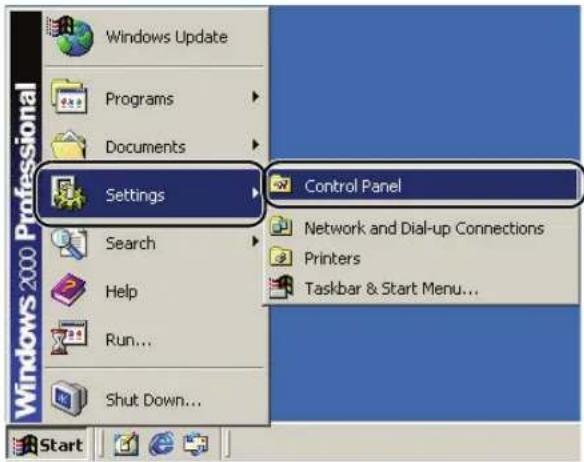
text_image
Windows 2000 Professional Settings Control Panel Network and Dial-up Connections Printers Taskbar & Start Menu...The [Control Panel] window appears.
- Double-click the [Add/Remove Programs].

Note
If you are using Windows XP, double-click the [Add or Remove Programs].

text_image
Control Panel Add/Remove Programs Installs and removes programs and Windows components Windows Update Windows 2000 Support Accessibility Options Add/Remove Hardware Add/Remove Programs Administrative Tools Automatic Updates Date/Time Display Folder Options Pants Game Controllers Internet Options Keyboard Mail Mouse Network and Backup Co... Phone and Modem ... Power Options Printers Regional Options Scanners and Cameras Scheduled Tasks Sounds and Multimedia System Users and Passwords Installs and removes programs and Windows components My ComputerThe [Add/Remove Programs Properties] dialog box appears.
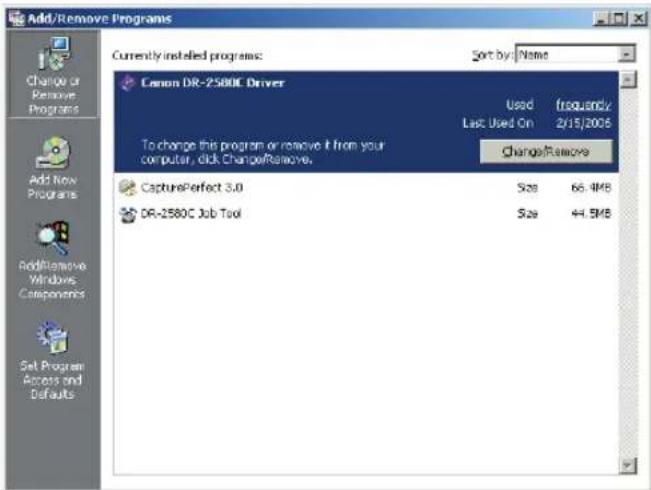
text_image
Add/Remove Programs Currently installed programs: Sort by: Name Canon DR-2580C Driver Used Last Used On frequency 2/15/2005 To change this program or remove if from your computer, click Change/Remove. Change/Remove CapturePerfect 3.0 Size 66.4MB DR-2580C Job Tool Size 44.5MB
Note
For Windows XP, the [Add or Remove Programs] dialog box appears.
- From the list in the dialog box, select the application you want to delete → click [Change/Remove].
For more information on uninstalling each application, see the following:
See "Uninstalling the ISIS/TWAIN Driver/Job Registration Tool," on p. 96.
See "Uninstalling CapturePerfect 3.0," on p. 98.
Uninstalling the ISIS/TWAIN Driver/Job Registration Tool
- From the Programs list in the dialog box, select [Canon DR-2580C Scanner Driver] (or [DR-2580C Job Tool]) click the [Change/Remove] button.

text_image
Add/Remove Programs Currently installed programs: Sort by: Name Canon DR-2580C Driver Used Last Used On frequency 2/15/2006 To change this program or remove if from your computer, click Change/Remove. Change/Remove CapturePerfect 3.0 Size 66.4MB DR-2580C Job Tool Size 44.9MB- The [Confirm File Deletion] screen appears. Click the [Yes] button.

text_image
Confirm File Deletion Are you sure you want to completely remove the selected application and all of its components? Yes NoThe [Remove Shared File ?] dialog box appears.
- Click the [Yes To All] button.

text_image
Remove Shared File? The system indicates that the following shared file is no longer used by any programs. If any programs are still using this file and it is removed, those programs may not function. Are you sure you want to remove the shared file? Leaving this file will not harm your system. If you are not sure what to do, it is suggested that you choose to not remove this shared component. File name: DR2580C.loc Located in: C:\WINNT\xpixtran\ Yes Yes To All No No to AllA confirmation message appears.
- Click the [Yes] button to start the uninstallation.

text_image
Remove Shared File? You have chosen to remove all shared components which the system indicates are no longer being used. This may cause some programs not to function if they still require any of these files. Are you sure you want to proceed? Yes No
Note
All deleted shared files can be reinstalled by installing the software again.
- After uninstall is complete, click the [OK] button to exit the uninstaller.
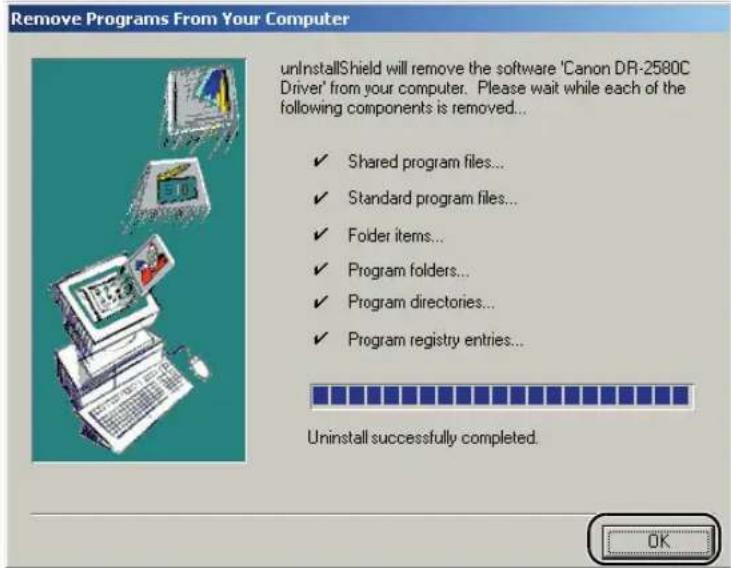
text_image
Remove Programs From Your Computer unInstallShield will remove the software 'Canon DR-2580C Driver' from your computer. Please wait while each of the following components is removed... ✓ Shared program files... ✓ Standard program files... ✓ Folder items... ✓ Program folders... ✓ Program directories... ✓ Program registry entries... Uninstall successfully completed. OKUninstalling CapturePerfect 3.0
- Select [CapturePerfect 3.0] from the list in the dialog box → click the [Remove] button.
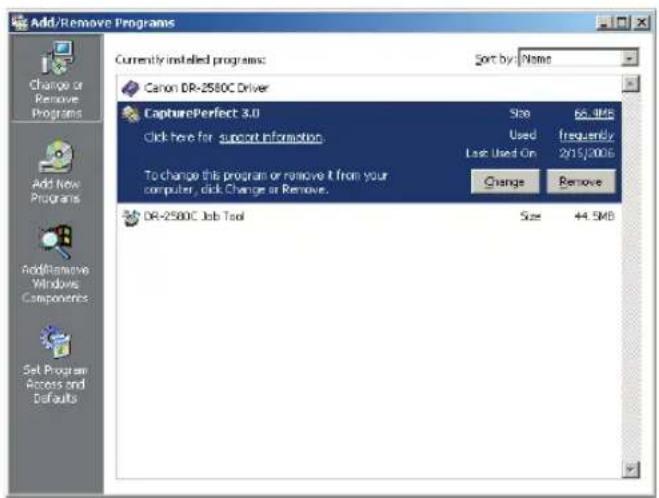
text_image
Add/Remove Programs Currently installed programs: Canon DR-2580C Driver CapturePerfect 3.0 Click here for support information To change this program or remove it from your computer, click Change or Remove. Stop 66.9MB Used Frequently Last Used On 2/15/2005 Change Remove DR-2580C Job Tool Size 44.5MB- The file delete confirmation screen appears. Click the [Yes] button.
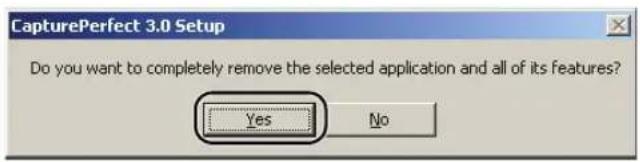
text_image
CapturePerfect 3.0 Setup Do you want to completely remove the selected application and all of its features? Yes NoUninstallation starts.
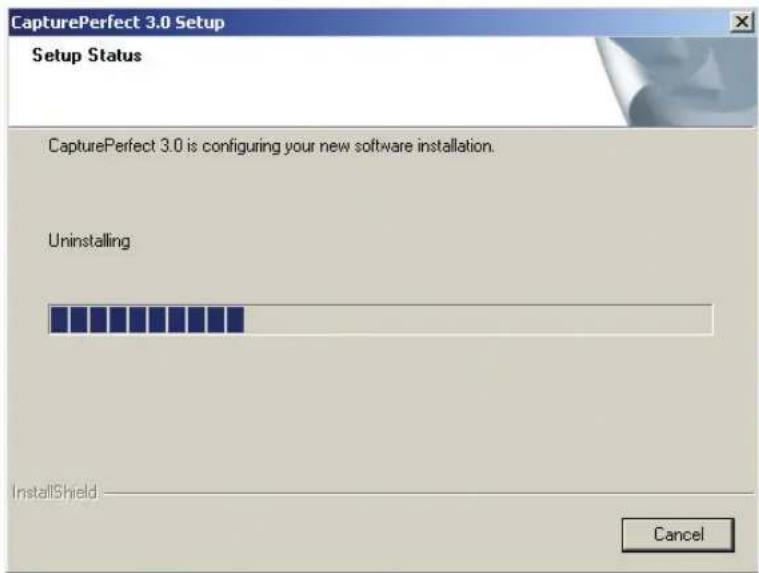
text_image
CapturePerfect 3.0 Setup Setup Status CapturePerfect 3.0 is configuring your new software installation. Uninstalling InstallShield Cancel- After uninstallation is complete, click the [Finish] button to exit the uninstaller.

text_image
CapturePerfect 3.0 Setup Uninstall Complete InstallShield Wizard has finished uninstalling CapturePerfect 3.0. < Back Finish Cancel5. Specifications
Specifications
Scanner
Type Desktop sheetfed scanner
Scanning Document Specifications
Width: 2.08" to 8.50" (53 mm to 216 mm)
Length: 2.75" to 13.9" (70 mm to 355.5 mm)
Weight: Using the U-Turn Path
(separated documents) 14 to 32 lb bond (0.0024" to 0.0059")
52 to 128g / m^2 (0.06 mm to 0.15 mm)
(nonseparated documents) 11 to 40 lb bond (0.0020" to 0.0079")
42 to 157 g/m ^2 (0.05 mm to 0.2 mm)
Weight: Using the Straight Path
(separated documents) 11 to 40 lb bond (0.0020" to 0.0079")
42 to 157 g/m² (0.05 mm to 0.2 mm)
(nonseparated documents) 11 to 40 lb bond (0.0020" to 0.0079")
42 to 157 g/m² (0.05 mm to 0.2 mm)
Business cards are supported (excluding embossed cards).
Size: 2.12" × 3.37" (53.9 mm × 85.5 mm)
Thickness: 0.03'' ± 0.003'' (0.76 ± 0.08 mm)
Document Feeding Method Automatic
Scanning Method Contact image sensor
Light Source LED
Scanning Side Simplex/Duplex/flatbed (option)
Scanning Modes Black and white, Advanced text enhancement,
Error diffusion, 256-level grayscale, 24 bit color
Scanning Resolution
100 × 100 dpi, 150 × 150 dpi, 200 × 200 dpi
(Primary Scan Lines ×
240 × 240 dpi, 300 × 300 dpi, 400 × 400 dpi
Secondary Scan Lines)
600 × 600 dpi
Scanning Speed LTR/A4
Black and White
Simplex
200 × 200 dpi 25 pages/minute
300 × 300 dpi 25 pages/minute
600 × 600 dpi 6 pages/minute
Duplex
200 × 200 dpi 50 images/minute
300 × 300 dpi 50 images/minute
600 × 600 dpi 12 images/minute
256-level Gray Simplex
| 200 × 200 dpi 25 pages/minute | |
| 300 × 300 dpi 25 pages/minute | |
| 600 × 600 dpi 6 pages/minute | |
| Duplex | |
24-bit Color Simplex
| 200 × 200 dpi 13 pages/minute | |
| 300 × 300 dpi 8 pages/minute | |
| 600 × 600 dpi 2 pages/minute | |
| Duplex | |
Amount of paper that can be
stacked in automatic feeder
Interface Hi-Speed USB 2.0
Other Functions Blank page skip, job function, folio scan
Dimensions (with trays close)
3.2" × 11.9" × 6.7" (W × D × H)
81mm× 302mm× 171mm (W× D× H)
Dimensions (with trays open)
5.4'' × 11.9'' × 10.5'' (W × D × H)
136mm× 302mm× 267mm (W× D× H)
Weight Approximately 4.2 lb (1.9 kg)
12.6 lb (5.7 kg) with flatbed scanner unit
Power Supply DC16 V 1.4 A
Power Consumption Maximum power: 19 W
23.4 W (with flatbed scanner unit)
Low power mode: 4 W
Power SW OFF: 0.5 W
Noise
Not more than 66 dB
Operating Environment
Temperature: 10°C to 32.5°C (50°F to 90.5°F)
Humidity: 20% to 80% RH
AC Adaptor
| Model | MG1-4315 |
| Input | AC 100-240 V 50/60 Hz 0.65-0.34 A |
| Output | DC16 V 1.8 A |
Weight Approximately 0.7 lb (0.3 kg) (including Power
Cord)
Replacement Parts
Roller replacement kit (product code: 0106B002)
Kit to replace the feed rollers (roller unit and retard roller).
- Refer to “Removing and Attaching the Feed Roller,” on p. 79 for information about replacing the rollers.
- Contact your local authorized Canon dealer or service representative for detailed information about the replacement parts.
Options
Flatbed scanner unit (Product code: 0106B004)
Flatbed scanner unit that is used by connecting it to the DR-2580C. (See p. 54.)
Flatbed scanner unit HS (Product code: 0106B003)
Flatbed scanner unit HS that is used by connecting it to the DR-2580C. (See p. 54.)
Bar code module (product code: 1922B001)
Additional software to allow the ISIS/TWAIN driver to recognize bar codes.
- Contact your local authorize Canon dealer or service representative for detailed information about the options.
Specifications are subject to change without notice.
External Dimensions
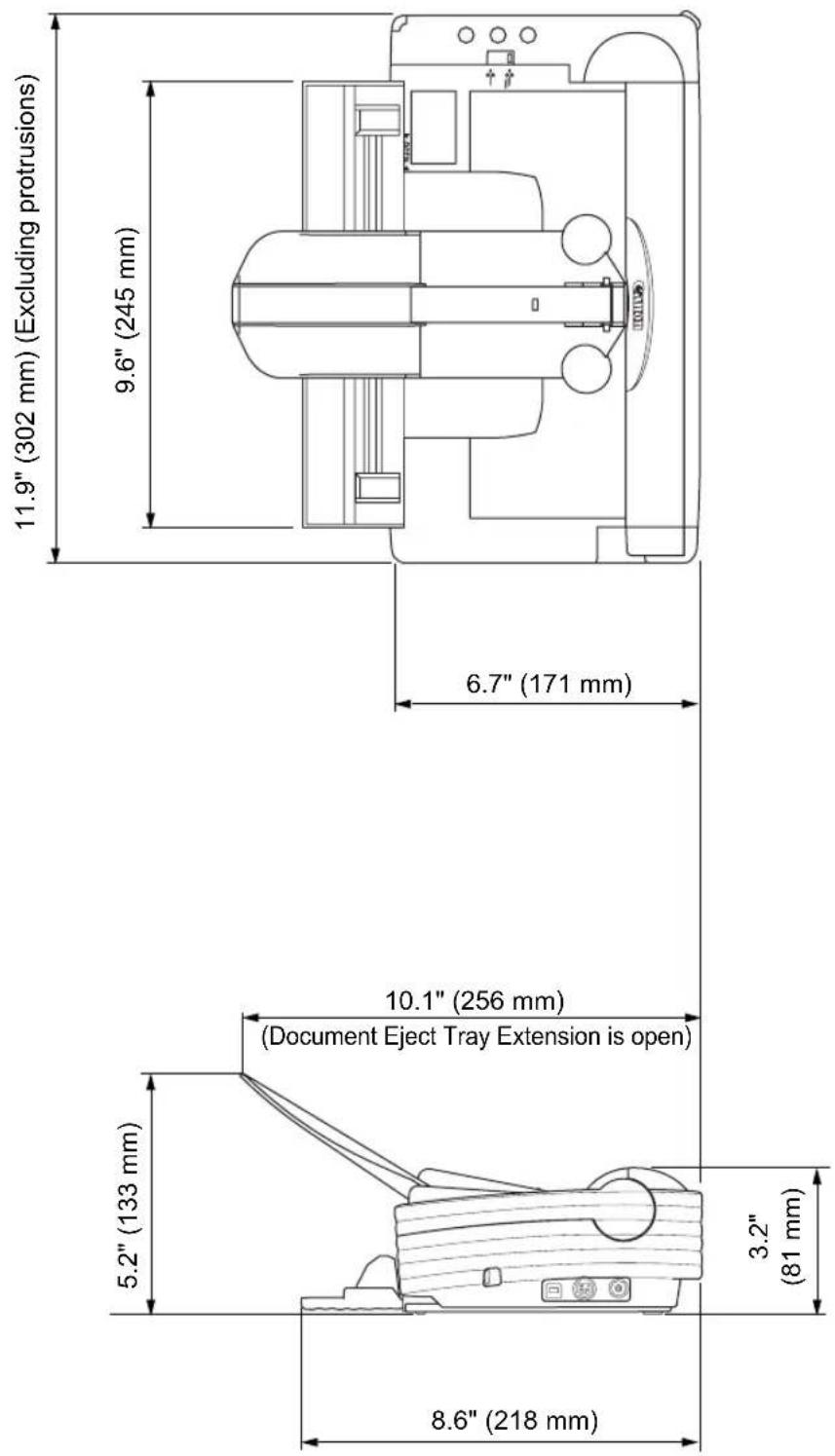
text_image
5.2" (133 mm) Document Eject Tray Extension is open 8.6" (218 mm) 3.2" (81 mm) 10.1" (256 mm) 11.9" (302 mm) (Excluding protrusions) 9.6" (245 mm) 6.7" (171 mm)Index
A
Attaching
Retard Roller 84
Roller Unit 81
C
CapturePerfect 3.0 ....30
D
Disposal 9
Document Eject Opening 13
Document Eject Tray 22
Document Eject Tray Extension .....12, 23
Document Eject Tray/Upper Unit ......12
Document Feed Tray 12, 20
Document Guide Adapters ......20
Document Guides ......12
Documents ......18
Double Feed Detection 50
E
Easy Start Guide ....1
Eject Selection Lever ......13, 23, 24
Event Function 41
F
Features 10
Feed Selection Lever 12, 25, 28
Flatbed Scanner Unit (Option) .....54
H
Handling 8
Hi-Speed USB 2.0 interface ....14
|
Installation Location 6
Installation Requirements ....14
J
Job Buttons 12
Job Function 36
Job Label Location ....13
Job Registration Tool 38
K
Kensington Slot 13
L
Launcher 40
Load Limit Mark 27
Long Document Mode ....50
Settings 51
M
Moving the Scanner 7
N
Names and Functions of Parts ...... 12
0
OPEN Knob 12
Operating Systems 14
Option Connector 13
P
Paper Jam 46
Placing Documents 25
Bypass Mode 28
Page Separation Mode 25
Power 7
Power Connector 13
Power Indicator 12
Power Switch 13
R
Regular Maintenance 70
Feed Path 70
Roller Unit 71
Rollers 71
Scanner 70
Sensor Glass 71
Shading Boards 71
Removing
Retard Roller 83
Roller Unit 79
Resetting the Counter 75
Roller Replacement Cycle 74
s
Scanning Folio 49
Scanning Hints 55
Setup Disc 16
CapturePerfect 3.0 16
DR-2580C Driver 16
Software Settings 61
ISIS Driver Settings 62
Job Registration Tool Settings 66
TWAIN Driver Settings 64
Specifications
AC Adaptor 101
External Dimensions 103
Options 102
Replacement Parts 102
Scanner 100
Stopper 27
Straight Path 24
T
Troubleshooting 87
U
Uninstalling 94
CapturePerfect 3.0 98
ISIS/TWAIN Driver 96
Job Registration Tool 96
USB Connector 13
U-Turn Path 23
Canon
CANON ELECTRONICS INC.
1248, SHIMOKAGEMORI, CHICHIBU-SHI, SAITAMA 369-1892, JAPAN
CANON U.S.A. INC.
ONE CANON PLAZA, LAKE SUCCESS, N.Y. 11042, U.S.A.
CANON CANADA INC.
6390 DIXIE ROAD, MISSISSAUGA, ONTARIO L5T 1P7, CANADA
CANON EUROPA N.V.
BOVENKERKERWEG 59-61, P.O.BOX 2262, 1180 EG AMSTELVEEN, THE NETHERLANDS
CANON LATIN AMERICA, INC.
703 WATERFORD WAY, SUITE 400 MIAMI, FLORIDA 33126, U.S.A.
CANON AUSTRALIA PTY. LTD.
1 THOMAS HOLT DRIVE, NORTH RYDE, SYDNEY. N.S.W, 2113. AUSTRALIA
CANON SINGAPORE PTE. LTD.
1 HARBOUR FRONT AVENUE #04-01, KEPPEL BAY TOWER, SINGAPORE 098632
19TH FLOOR, THE METROPOLIS TOWER, 10 METROPOLIS DRIVE, HUNGHOM, KOWLOON, HONG KONG.
Canon DR-2580C ISIS Driver Quick Guide
Keep this Quick Guide near the scanner for ready reference.
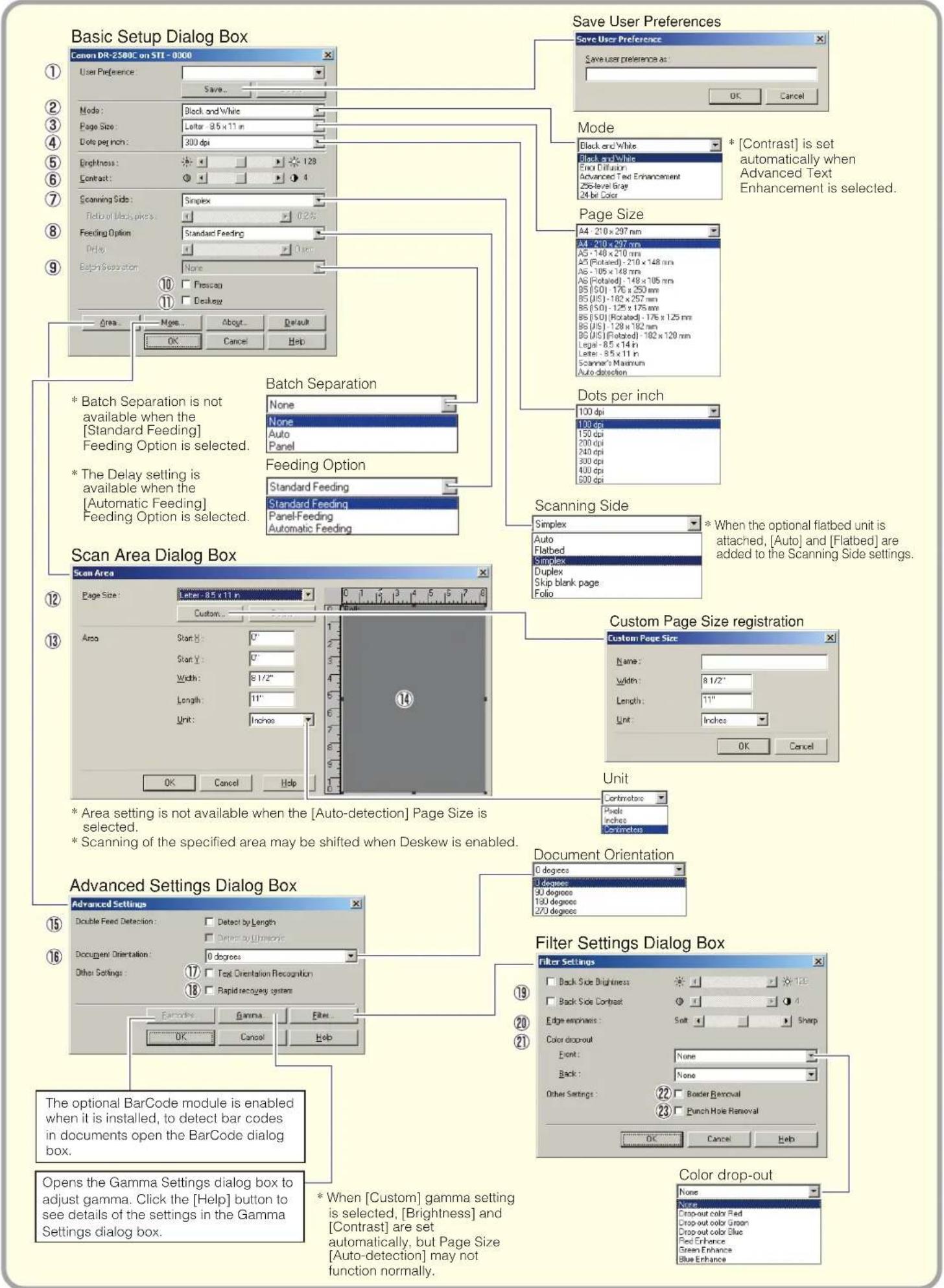
text_image
Basic Setup Dialog Box Cancel DR-2500C on 51T - 0000 Save User Preferences Save User Preference Save User preference as: OK Cancel ① ② ③ ④ ⑤ ⑥ ⑦ ⑧ ⑨ ⑩ Area More... About... Default Help Save User Preferences Mode Block and White Block and White End Diffusion Advanced Text Enhancement 25-Slower Size 4-Mel Color * [Contrast] is set automatically when Advanced Text Enhancement is selected. Scanning Side: Simplex Teel of Deaples: 102% Feeding Option: Standard Feeding Pelo: 100% Begri Separation: None Prescan Deskey Batch Separation None None Auto Panel Feeding Option Standard Feeding Panel-Feeding Automatic Feeding Page Size A4 210 x 297 mm A4 210 x 297 mm A5 - 148 x 210 mm A5 (Rotated) - 210 x 148 mm A6 - 195 x 148 mm A6 (Rotated) - 148 x 105 mm B5 (50) - 176 x 250 mm B5 (JIS) - 182 x 257 mm B6 (50) - 125 x 175 mm B6 (50) - Rotated - 176 x 125 mm B6 (JIS) - 128 x 182 mm B6 (JIS) (Rotated) - 182 x 120 mm Logar - 8.5 x 14 in Letter - 8.5 x 11 in Scanner's Maximum Auto detection Dots per inch 100 dpi 100 dpi 150 dpi 200 dpi 240 dpi 300 dpi 400 dpi 600 dpi Scanning Side Simplex When the optional flatbed unit is attached, [Auto] and [Flatbed] are added to the Scanning Side settings. Scan Area Dialog Box Scan Area Page Size: 8.5 x 11 in Custom... Area Start: 2" Start Y: 2" Width: 9.1/2" Length: 11" Unit: Inches OK Cancel Help Custom Page Size registration Name: Width: 9.1/2" Length: 11" Unit: Inches OK Cancel Unit Continuous Plastic Inches Extensioner Document Orientation 0 degrees 0 degrees 30 degrees 130 degrees 270 degrees Advanced Settings Dialog Box Advanced Settings Dialog Box Double Feed Detection: Detect by Length Detect by Unmeable Docugens Orientation: 0 degrees Other Settings: Text Orientation Recognition Rapid reacueng system Gamma: Gamma Filter OK Cancel Help Filter Settings Dialog Box Filter Settings Filter Settings: Back Side Brightness 120° Back Side Contrast 4° Edge openness: Soft Sharp Color drop-out: Point: None Back: None Other Settings: Border Removal 22 Border Removal 23 Punch Hole Removal OK Cancel Help The optional BarCode module is enabled when it is installed, to detect bar codes in documents open the BarCode dialog box. Opens the Gamma Settings dialog box to adjust gamma. Click the [Help] button to see details of the settings in the Gamma Settings dialog box. * When [Custom] gamma setting is selected, [Brightness] and [Contrast] are set automatically, but Page Size [Auto-detection] may not function normally. Color drop-out None Auto Drop-out color Red Drop-out color Green Drop-out color Blue Red Enhance Green Enhance Blue EnhanceKeep this Quick Guide near the scanner for ready reference.
Basic Setup Dialog Box
①User Preference
Name and save your settings.
Names can consist of up to 32 characters.
②Mode
Selects the scanning mode.
①Page Size
Selects the size of the pages to be scanned
Selecting [Auto-detection] causes automatic page size detection when scanning.
④Dots per inch
Selects scanning resolution.
⑤Brightness
Adjusts brightness of scanned images.
⑥Contrast
Adjusts contrast of scanned images.
[Contrast] is set automatically when the Advanced Text Enhancement mode is selected.
⑦Scanning Side
Specifies the side of the document to scan.
When [Skip blank page] is selected, images are skipped if they are determined blank based on the [Ratio of black pixels] value.
When [Folio] is selected, both sides of a document are scanned, and the images displayed are combined into one image. For details on Folio, refer to "Scanning Folio (Folded Document)" (see P.49.) in the user's guide.
[Ratio of black pixels] specifies the ratio of black areas (0 to 20%) when skipping blank pages.
⑧Feeding Option
Selects the document feeding method.
[Standard Feeding] scans loaded documents after starting scanning from the application program.
With [Panel-Feeding], scanning is started by pressing the Job Button assigned as the Start button after the document is placed.
[Automatic Feeding] starts scanning whenever the scanner detects a loaded document.
⑨Batch Separation
This setting is enabled when the [Panel-Feeding] or [Automatic Feeding] Feeding Option is selected. Documents can be scanned as separate batches.
⑩Prescan
When scanning starts, a page of the document is scanned and its image is displayed in the Prescan window.
⑪Deskew
When a document page feeds at a slant, the scanned image is straightened.
Scan Area Dialog Box
⑫Page Size
Selects the size of the pages to be scanned.
Click [Custom] to register a non-standard document size as a custom page size.
⑬Area
Specifies the area to be scanned.
These settings are disabled when [Auto-detection] is selected for the Page Size.
⑭Area Window
The appearance of this window indicates the current Page Size setting.
The specified scan area can be adjusted by dragging the mouse.
Advanced Settings Dialog Box
⑮Double Feed Detection
The scanner stops feeding when it detects that two or more pages of the document have been fed at the same time.
⑯Document Orientation
Specify clockwise rotation of scanned images according to the orientation of documents to be scanned.
⑰Text Orientation Recognition
Detects the text orientation in scanned images and rotates the images in 90° increments to normalize text orientation.
⑱Rapid recovery system
Select this function to prevent error reporting to the application program when feeding is interrupted due to a paper jam or similar error while scanning. After fixing the cause of the interruption, scanning can be quickly resumed with standard operations.
Filter Settings Dialog Box
⑲Brightness/contrast of back side
The scanner checks the difference in density between the front and back sides of the document and adjusts the contrast and the brightness for the back side.
⑳Edge emphasis
Enhances contours in scanned images.
②1Color drop-out
Enabled for all scanning modes except [24 bit Color], this function selects skipping (drop-out) or enhancement of red, green or blue when scanning documents.
②Border Removal
Removes the black border that may be created around scanned images.
②3Punch Hole Removal
Removes the black holes created in scanned images when scanned documents have holes punched for binding.
This Quick Guide describes the dialog boxes displayed by CapturePerfect. Depending on your application program, the basic setup dialog box may not be displayed. In this case, the Advanced Settings dialog box, which includes some of the functions in the basic setup dialog box, is displayed. Click the Help button for details.
Canon DR-2580C TWAIN Driver Quick Guide
Keep this Quick Guide near the scanner for ready reference.

text_image
Basic Setup Dialog Box Save User Preferences Save User Preference as: OK Cancel ① ② ③ ④ ⑤ ⑥ ⑦ ⑧ ⑨ ⑩ Area Name About Default OK Cancel Help Save Setup Dialog Box Save User Preferences Save user preference as: OK Cancel Mode Black and White Black and White End Diffusion Advanced Text Enhancement 250 bytes Gray 24 bit Color Bleeding Mode Scanning Side: Single Flow of Block levels: 0.25" Feeding Option: Standard Feeding Delay: 0 sec Process Discharge Scanning Option: Scan Ahead If an application program executes scanning directly from the basic setup dialog box, the [Scan] button is displayed instead of the [OK] button, and the [Area window] and [Preview] button are displayed in the Scan Area dialog box. Scanning Option Standard Standard Scan Ahead Scan Single Page If an application program executes scanning directly from the basic setup dialog box, the [Scan] button is displayed instead of the [OK] button, and the [Area window] and [Preview] button are displayed in the Scan Area dialog box. Scanning Side A4 210 x 297 mm A5 - 30 x 297 mm A6 - 140 x 210 mm A6 (Flated) - 210 x 148 mm A6 - 105 x 148 mm A6 (Rotated) - 148 x 105 mm B6 (S0) - 176 x 250 mm B6 (U5) - 182 x 257 mm B6 (S0) - 125 x 175 mm B6 (S0) - Rotated - 176 x 125 mm B6 (U5) - 128 x 182 mm B6 (U5) (Rotated) - 182 x 128 mm Auto dot direction Dots per inch 100 dpi 100 dpi 150 dpi 200 dpi 240 dpi 300 dpi 400 dpi 500 dpi Scanning Side Simplex * When the optional flatbed unit is attached, [Auto] and [Flatbed] are added to the Scanning Side settings. Feeding Option * The Delay setting is available when the [Automatic Feeding] Feeding Option is selected. Scanning Area Dialog Box Scan Area Dialog Box Page Size: Letter: 8.5 x 11 in Custom Area Start: 0" Start Y: 0" Width: 8.1/2" Length: 11" Unit: Inches Preview OK Cancel Help Scanning Side Standard Feeding Standard Feeding Panel-Feeding Automatic Feeding Custom Page Size registration Custom Page Size Name: width: 8.1/2" length: 11" Unit: Inches OK Cancel Document Orientation 0 degrees 30 degrees 130 degrees 270 degrees Advanced Settings Dialog Box Double Feed Detection: Detect by Length Detect by Ultrasonic Document Orientation: 0 degrees Other Settings: Reverse Image Test Orientation Recognition Rapid recaping system Encodes Gamma Filter... OK Cancel Help Filter Settings Dialog Box Filter Settings Filter Settings Back Side Brightness : 723 Back Side Contrast : 723 Edge emsnase : Soft Sharp Color doorout Front: None Back: None Other Settings : Border Removal Punch Hole Removal OK Cancel Help The optional BarCode module is enabled when it is installed, to detect bar codes in documents open the BarCode dialog box. Opens the Gamma Settings dialog box to adjust gamma. Click the [Help] button to see details of the settings in the Gamma Settings dialog box. * When [Custom] gamma setting is selected, [Brightness] and [Contrast] are set automatically, but Page Size [Auto-detection] may not function normally. Color drop-out None Dropout color Red Dropout color Green Dropout color Blue Paint Enhance Green Enhance Blue EnhanceCanon DR-2580C TWAIN Driver Quick Guide
Keep this Quick Guide near the scanner for ready reference.
Basic Setup Dialog Box
①User Preference
Name and save your settings.
Names can consist of up to 32 characters.
②Mode
Selects the scanning mode.
③Page Size
Selects the size of the pages to be scanned
Selecting [Auto-detection] causes automatic page size detection when scanning.
④Dots per inch
Selects scanning resolution.
⑤Brightness
Adjusts brightness of scanned images.
Contrast
Adjusts contrast of scanned images.
[Contrast] is set automatically when the Advanced Text Enhancement mode is selected.
⑦Scanning Side
Specifies the side of the document to scan.
When [Skip blank page] is selected, images are skipped if they are determined blank based on the [Ratio of black pixels] value.
When [Folio] is selected, both sides of a document are scanned, and the images displayed are combined into one image. For details on Folio, refer to "Scanning Folio (Folded Document)" (see P.49.) in the user's guide.
[Ratio of black pixels] specifies the ratio of black areas (0 to 20%) when skipping blank pages.
Feeding Option
Selects the document feeding method.
[Standard Feeding] scans loaded documents after starting scanning from the application program.
[Panel-Feeding] scans loaded documents after pressing the scanner's scan button.
[Automatic Feeding] starts scanning whenever the scanner detects a loaded document.
⑨Prescan
When scanning starts, a page of the document is scanned and its image is displayed in the Prescan window.
⑩Deskew
When a document page feeds at a slant, the scanned image is straightened.
⑪Scanning Option
Specifies operation during scanning.
[Standard]: After one page has been scanned and ejected, the next page is scanned.
[Scan Ahead]: Scans document pages continuously.
[Scan Single Page]: Scanning Side is set and fixed at [Simplex], and only one page is scanned.
Scan Area Dialog Box
⑫Page Size
Selects the size of the pages to be scanned.
Click [Custom] to register a non-standard document size as a custom page size.
Area
Specifies the area to be scanned.
These settings are disabled when [Auto-detection] is selected for the Page Size.
Advanced Settings Dialog Box
⑭Double Feed Detection
The scanner stops feeding when it detects that two or more pages of the document have been fed at the same time.
⑮Document Orientation
Specify clockwise rotation of scanned images according to the orientation of documents to be scanned.
⑯Reverse Image
When the [Black and White], [Error Diffusion] or [Advanced Text Enhancement] mode is selected, black and white are reversed in the scanned image.
⑰Text Orientation Recognition
Detects the text orientation in scanned images and rotates the images in 90° increments to normalize text orientation.
⑱Rapid recovery system
Select this function to prevent error reporting to the application program when feeding is interrupted due to a paper jam or similar error while scanning. After fixing the cause of the interruption, scanning can be quickly resumed with standard operations.
Filter Settings Dialog Box
⑲Brightness/contrast of back side
The scanner checks the difference in density between the front and back sides of the document and adjusts the contrast and the brightness for the back side.
⑳Edge emphasis
Enhances contours in scanned images.
②1Color drop-out
Enabled for all scanning modes except [24 bit Color], this function selects skipping (drop-out) or enhancement of red, green or blue when scanning documents.
②Border Removal
Removes the black border that may be created around scanned images.
②3Punch Hole Removal
Removes the black holes created in scanned images when scanned documents have holes punched for binding.
This Quick Guide describes the TWAIN driver settings. Click the Help button for details.
Canon DR-2580C Job Registration Tool Quick Guide
Keep this Quick Guide near the scanner for ready reference.

The dialog box changes according the Function selection.
Canon DR-2580C Job Registration Tool Quick Guide
Keep this Quick Guide near the scanner for ready reference.
Job Registration Tool Dialog Box
①List of Job Button settings
Shows the settings registered for Job buttons.
②Job Button (1-3)
Correspond to the Job buttons on the scanner. The Editing dialog box opens when you click these buttons.
③[Admin] button
Opens the Admin dialog box
④[Initialize] button
Returns the Job Buttons to there factory settings.
Editing Dialog Box
⑤Job title
Enter the title of the job to display in the list of Job button settings.
You can enter up to 29 single-byte alphanumeric or kana characters.
⑥Function
Selects the function assigned to the Scan button.
The contents of the Editing dialog box are determined by the selected function.
⑦Scanner setting
Opens the TWAIN driver's basic setting dialog box to configure the scanner.
⑧Save to My Pictures folder
Saves scanned images in the My Pictures folder in My Documents.
When this check box is not selected, you can specify the destination folder for saving images.
⑨File name
Specifies the file name.
Image file names are created by appending a time stamp to the specified file name.
⑩File type
Selects the file format for saved images.
The [Setting] button is enabled when [PDF] or [TIFF] is selected.
⑪[Setting] button
This button is enabled when the PDF or TIFF file type is selected, and opens the PDF or TIFF Setting dialog box.
The PDF setting dialog box provides [Compression] and [OCR] settings.
The TIFF setting dialog box provides [Multi-tiff setting] and [Compression] settings.
⑫[Access setting] button
This button is available when using Windows 2000/XP, and opens the Access setting dialog box.
Enter the correct User name and Password to obtain access to a shared network folder.
13 Printer
Shows the default printer.
Printer settings can be changed by clicking the [Printer setting] button.
⑭Save Image
Select this check box to save images scanned using the [Scan To Mail] Function.
⑮Launcher
Starts applications set with the Windows event function. See the user's guide for detailed information. (see P.40.)
PDF/TIFF Settings
⑯Compression rate
Selects [Normal] or [High Compression] rate.
[High Compression] reduces the file's size, but also reduces the image quality slightly.
[High Compression] is useful for grayscale and color images.
⑰Language for OCR/Apply OCR
Recognizes printed text in a document as characters, and adds text data to the PDF file.
When the [Apply OCR] check box is selected, recognized text data is saved where the printed text is located in the PDF file.
When OCR is applied, Deskew is enabled, regardless of the configured settings for the TWAIN driver.
⑱Multi-tiff setting
Selects the saving method for multiple page images.
[One page] creates one file for one page with the number of TIFF files corresponding to the number of pages.
[Multi pages] saves the images for all of the pages as one file.
⑲Compression
Compresses image files before saving them.
Black and white images are compressed as CCITT Group 4 images, while grayscale and color images are compressed as JPEG images.
Admin Dialog Box
⑳Capacity Warning Settings
Specifies the folder for saved image files, and the capacity of that folder, in advance.
After specifying the folder and starting to scan, a warning message is displayed when the specified capacity is reached while scanning.
②Register Folder/Display Warning Dialog
The [Capacity Observed Folder] and [Warning Size] items are enabled by specifying a [Register Folder] (number) and selecting the [Display Warning Dialog] check box.
When the capacity warning is displayed, follow the displayed instructions to continue scanning.
②Show Monitor Dialog
The Monitor for DR2580C dialog box appears when the Scan button is pressed, and the scan progress is displayed.
②Maximum size of attached file
Specifies a maximum size for image files to be attached to e-mails. This Quick Guide describes settings for the Job Registration Tool. Click the Help button for details.
⑳Job Backup/Restore
Backs up and restores registered jobs.
Backup files can be restored on another DR-2580C document scanner.
This Quick Guide describes settings for the Job Registration Tool. Click the Help button for details.