fi-5530C2 - To scan FUJITSU - Free user manual and instructions
Find the device manual for free fi-5530C2 FUJITSU in PDF.


User questions about fi-5530C2 FUJITSU
0 question about this device. Answer the ones you know or ask your own.
Ask a new question about this device
Download the instructions for your To scan in PDF format for free! Find your manual fi-5530C2 - FUJITSU and take your electronic device back in hand. On this page are published all the documents necessary for the use of your device. fi-5530C2 by FUJITSU.
USER MANUAL fi-5530C2 FUJITSU
fi-5530C2 Image Scanner Operator's Guide

natural_image
Line drawing of a printer with paper roll and front panel (no text or symbols)CONTENTS
■ Regulatory Information ...... vii
■ Note of Liability ix
■ Safety Precautions ...... xii
Chapter 1 BASIC SCANNER OPERATIONS.... 1
1.1 Turning the Scanner ON 2
1.2 Placing Documents on the ADF 6
1.3 Scanning Documents.... 10
1.4 How to Use Scanner Drivers.... 12
1.5 How to Use ScandAll PRO....29
Chapter 2 SCANNING VARIOUS TYPES OF DOCUMENTS 45
2.1 Scanning Double-Sided Documents.... 46
2.2 Scanning Documents of Different Widths...... 47
2.3 Scanning Thin Documents 48
2.4 Scanning Documents Longer Than A3 Size 49
2.5 Saving Scanned Images in PDF Format.... 51
2.6 Excluding a Color from Images (Dropout Color) ...... 62
2.7 Skipping Blank Pages 64
2.8 Detecting Multifeeds....66
2.9 Correcting Skew 71
2.10 To Output Multi-Images....74
2.11 Color/Monochrome Auto Detection 77
2.12 Splitting a Page in Two Pages 79
2.13 Removing Punch Holes from Images 81
2.14 Scanning by Pressing the Scan Button on the Scanner 84
Chapter 3 DAILY CARE 87
3.1 Cleaning Materials and Locations requiring Cleaning.. 88
3.2 Cleaning the ADF....90
Chapter 4 REPLACING CONSUMABLES 95
4.1 Consumable and Replacement Cycle.... 96
4.2 Replacing the Pad ASSY.... 99
4.3 Replacing the Pick Roller.... 102
Chapter 5 TROUBLESHOOTING....109
5.1 Removing Jammed Documents.... 110
5.2 Error Indications in the Function Number Display..... 112
5.3 Remedying Common Troubles.... 114
5.4 Items to check before contacting the agent where you bought the scanner 127
5.5 Checking Labels on the Scanner 130
Chapter 6 DOCUMENT SPECIFICATIONS FOR ADF ..... 131
6.1 Document Size.... 132
6.2 Document Quality.... 133
6.3 Maximum ADF Capacity....137
6.4 Area Not To Be Perforated.... 138
6.5 Specifying How to Detect Multifeed.... 139
Chapter 7 SCANNER SPECIFICATIONS .... 141
7.1 Basic Specifications.... 142
7.2 Installation Specifications .... 144
7.3 External Dimensions.... 145
APPENDIX A Using the [Scan] or [Send to] Button ...... AP-1
APPENDIX B GLOSSARY OF TERMS.... AP-4
INDEX IN-1
Thank you for purchasing the fi-5530C2 Duplex Color Scanner.
This document describes how to handle the fi-5530C2 and basic operations. Before you start using the fi-5530C2, be sure to read this manual thoroughly to ensure correct use.
■Regulatory Information
FCC declaration
This equipment has been tested and found to comply with the limits for a Class B digital device, pursuant to Part 15 of the FCC Rules. These limits are designed to provide reasonable protection against harmful interference in a residential installation. This equipment generates, uses, and can radiate radio frequency energy and, if not installed and used in accordance with the instruction manual, may cause harmful interference to radio communications. However, there is no guarantee that interference will not occur in a particular installation. If this equipment does cause harmful interference to radio or television reception, which can be determined by turning the equipment off and on, the user is encouraged to try to correct the interference by one or more of the following measures:
- Reorient or relocate the receiving antenna.
- Increase the separation between the equipment and receiver.
- Connect the equipment into an outlet on a circuit different from that to which the receiver is located.
- Consult your dealer or an experienced radio/TV technician.
FCC warning: Changes or modifications not expressly approved by the party responsible for compliance could void the user's authority to operate the equipment.
| NOTICE | The use of a shielded interface cable is required to comply with the Class B limits of Part 15 of FCC rules.The length of the AC cable must be 3 meters (10 feet) or less. |
Canadian DOC Regulations
This digital apparatus does not exceed the Class B limit for radio noise emissions from digital apparatus set out in the Radio interference Regulations of the Canadian Department of Communications.
This Class B digital apparatus complies with Canadian ICES-003.
As an ENERGY STAR ^® Partner, PFU LIMITED has determined that this product meets the ENERGY STAR ^® guidelines for energy efficiency.
The International ENERGY STAR ^® Office Equipment Program is an international program that promotes energy saving through the penetration of energy efficient computers and other office equipment. The program backs the development and dissemination of products with functions that effectively reduce energy consumption. It is an open system in which business proprietors can participate voluntarily. The targeted products are
office equipment such as computers, monitors, printers, facsimiles, copiers, scanners, and multifunction devices. Their standards and logos are uniform among participating nations.

text_image
energy ENERGY STAR■Note of Liability
READ ALL OF THIS MANUAL CAREFULLY BEFORE USING THIS PRODUCT. IF THIS PRODUCT IS NOT USED CORRECTLY, UNEXPECTED INJURY MAY BE CAUSED TO USERS OR BYSTANDERS.
Also, keep this manual in a safe place so that it can be easily referred to during use of this product.
While all efforts have been made to ensure the accuracy of all information in this manual, PFU assumes no liability to any party for any damage caused by errors or omissions or by statements of any kind in this manual, its updates or supplements, whether such errors are omissions or statements resulting from negligence, accidents, or any other cause. PFU further assumes no liability arising from the application or use of any product or system described herein; nor any liability for incidental or consequential damages arising from the use of this manual. PFU disclaims all warranties regarding the information contained herein, whether expressed, implied, or statutory.
Use in High-safety Applications
This product has been designed and manufactured on the assumption that it will be used in office, personal, domestic, regular industrial, and general-purpose applications. It has not been designed and manufactured for use in applications (simply called "high-safety applications" from here on) that directly involve danger to life and health when a high degree of safety is required, for example, in the control of nuclear reactions at nuclear power facilities, automatic flight control of aircraft, air traffic control, operation control in mass-transport systems, medical equipment for sustaining life, and missile firing control in weapons systems, and when provisionally the safety in question is not ensured. The user should use this product with adopting measures for ensuring safety in such high-safety applications. PFU LIMITED assumes no liability whatsoever for damages arising from use of this product by the user in high-safety applications, and for any claims or compensation for damages by the user or a third party.
About the Use of Mercury

Lamp(s) inside this product contain mercury and must be recycled or disposed of according to local, state, or federal laws.
To avoid unexpected injuries;
- Do not put the substance contained in the lamp in your mouth as it has mercury.
- Do not breathe the chemical liquid contained in the scanner lamps.
- Do not incinerate, crush, or shred the lamps or scanner parts.
Trademarks
Microsoft, Windows, and Windows NT are registered trademarks of Microsoft Corporation in the United States and/or other countries.
ISIS and QuickScan are trademarks or registered trademarks of EMC Corporation in the United States. Adobe, the Adobe logo, and Acrobat are either registered trademarks of Adobe Systems Incorporated in the United States and/or other countries.
Other product names are the trademarks or registered trademarks of the respective companies.
How Trademarks Are Indicated in This Manual
Operating systems (OS) are indicated as follows:
Windows 2000: Microsoft ^® Windows ^® 2000 Professional operating system
Windows XP: Microsoft® Windows® XP Professional operating system (32/64-bit)
Microsoft ^® Windows ^® XP Home Edition operating system
Windows Server 2003: Microsoft ^® Windows ^® Server ^TM 2003 Standard Edition operating system (32/64-bit)
Windows Vista: Microsoft® Windows Vista™ Home Basic operating system (32/64-bit)
Microsoft® Windows Vista™ Home Premium operating system (32/64-bit)
Microsoft ^® Windows Vista ^TM Business operating system (32/64-bit)
Microsoft® Windows Vista™ Enterprise operating system (32/64-bit)
Microsoft ^® Windows Vista ^TM Ultimate operating system. (32/64-bit)
Where there is no distinction between the different versions of the above operating system, the general term "Windows" is used.
Adobe Acrobat: Adobe ^® Acrobat ^®
All the descriptions in this manual assume the usage of Adobe Acrobat bundled with this product. However, Adobe Acrobat may be upgraded without notice. If the descriptions differ from the screens actually displayed, refer to the Acrobat's "Help".
Manufacturer
PFU LIMITED
International Sales Dept., Imaging Business Division, Products Group
Solid Square East Tower, 580 Horikawa-cho, Saiwai-ku, Kawasaki-shi Kanagawa 212-8563, Japan
All Rights Reserved, Copyright© PFU LIMITED 2007
About Maintenance
The user must not perform repairs on this scanner.
Contact the store where you purchased the scanner or an authorized FUJITSU Image Scanner service provider to make repairs to this product.
Warning Indications Used in This Manual

This indication alerts operators to an operation that, if not strictly observed, may result in severe injury or death.

This indication alerts operators to an operation that, if not strictly observed, may result in safety hazards to personnel or damage to equipment.
Symbols Used In This Manual
ATTENTION

This symbol alerts operators to particularly important information. Be sure to read this information.
HINT

This symbol alerts operators to helpful advice regarding operation.

A TRIANGLE symbol indicates that special care and attention is required. The drawing inside the triangle shows the specific caution.

A CIRCLE with a diagonal line inside shows action which users may not perform. The drawing inside or under the circle shows the specific action that is not allowed.

Outline characters on a colored background show instructions users should follow. It may also include the drawing that shows the specific instruction.
Warning Label

The glass surface inside the ADF becomes hot during the operation. Be careful not to touch the glass surface inside the ADF.
ATTENTION

Do NOT remove from the scanner, stain or scratch the warning labels.
Screen Examples In This Manual
The screen examples in this manual are subject to change without notice in the interest of product improvement. If the actual displayed screen differs from the screen examples in this manual, operate by following the actual displayed screen while referring to the User's Manual of the scanner application you are using.
The screenshots in this manual were captured from FUJITSU TWAIN 32 scanner driver, ScandAll PRO Image Capturing Utility Software, FUJITSU ISIS scanner driver and Adobe ^® Acrobat ^® .
■Safety Precautions

Do not damage the AC cable.

A damaged AC cable may cause fire or electric shock. Do not place heavy objects on AC cables, or pull, bend, twist, heat, damage or modify AC cables.
Do not use damaged AC cables or power plugs, or install any cables or power plugs to loose wall sockets.
Use only specified AC cables and connector cables

Use only specified AC cables and connector cables. Failure to use the correct cables might cause electric shock and/or equipment failure.
Please don't use the AC cable provided with this scanner for other devices, since this might cause equipment failure and other troubles or an electric shock.
Use this scanner only at the indicated power voltage. Do not connect to multiple-power strips.

Use this scanner only at the indicated power voltage and current. Improper power voltage and current might cause fire or electric shock. Do not connect to multiple-power strips.
Do not touch the AC cable with wet hands.

Do not touch the power plug with wet hands. Doing so might cause electric shock.
Wipe any dust from the power plug.

Wipe off any dust from metal parts on the power plug or metal fittings with a soft, dry cloth. Accumulated dust might cause fire or electric shock.
Do not install the device in locations that has oil smoke, steam, humidity, and dust.

Do not install the scanner in locations subject to oil smoke, steam, humidity, and dust. Doing so might cause a fire or electric shock.
Turn the scanner OFF if it is damaged.

If the scanner is damaged for any reason, disconnect immediately the power plug in order to turn out the scanner. Contact the store where you purchased the scanner.
Do not put liquids inside the scanner.

Do not insert or drop metal objects in to the scanner. Do not scan wet documents or documents with paper clips or staples. Do not splash or allow the scanner to get wet.

If foreign objects (water, small metal objects, liquids, etc.) get inside the scanner, immediately turn off the scanner and disconnect the power plug from the power outlet, then contact the store where you bought the scanner or the Maintenance Service Center. Pay particular attention to this warning in households where there are small children.

Do not touch the inside of the scanner unless necessary.

Do not take apart or modify the scanner. The inside of the scanner contains high-voltage components. Touching these components might cause fire or electric shock.
Do not use the scanner if there is a strange odor.

If you detect excessive heat coming from the device or detect other problems such as smoke, strange smells or noises, disconnect immediately the power plug in order to turn out the scanner. Make sure that any smoke coming from it has stopped, before contacting the store where you bought the scanner or an authorized FUJITSU scanner service provider.

CAUTION
Do not install the scanner on unstable surfaces.

Make sure that the scanner is installed on a flat, level surface and that none of its parts extend beyond the surface top, such as a desk or table. Do not install the scanner on unstable surfaces. Install the scanner on a level surface that is free of vibration to prevent it from falling.

Install the scanner on a strong surface that will support the weight of the scanner and other devices.
Do not block the ventilation ports.

Do not block the ventilation ports. Blocking the ventilation ports generates heat inside of scanner, which may results in fire or scanner failure.
Do not place heavy objects or stand on top of the scanner.

Do not place heavy objects on the scanner or use the scanner's surface top to perform other work. Improper installation might cause injuries and equipment failure.
Firmly insert the power plug.

Firmly insert the power plug as far it can go into the power outlet.
Avoid any contact when scanner is in use.

Avoid touching any scanner mechanism during scanning since this may cause injuries.
Do not use the scanner immediately after moving it from a cold place into a warm room.

Do not use the device immediately after moving it from a cold place into a warm room. This may cause condensation, which might lead to scanning errors. Let the device dry about one or two hours before you use it.
Before moving the scanner, disconnect the power plug from the power outlet.

Do not move the scanner with the power and interface cables connected as this might damage the cables, causing fire, electric shock or injuries. Before moving the scanner, be sure to disconnect the power plug from the power outlet, and all other data cables. Make sure that the floor is free of any obstruction.
Protect the scanner from static electricity.

Install the scanner away from strong magnetic fields and other sources of electronic noise. Also, protect the scanner from any static electricity as this might cause the scanner to malfunction.
Do not use aerosol sprays near the scanner.

Do not use aerosol sprays to clean the scanner. Aerosol sprays cause dirt and dust to enter the scanner, resulting scanner failure and malfunction.
Disconnect the power plug from the power outlet when the scanner is not used for a long period of time.

When the scanner is not going to be used for a long period of time, be sure to disconnect the power plug from the power outlet for safety.
Do not install the scanner in the direct sunlight.

Do not install the scanner under direct sunlight or near heating apparatus. Doing so might cause excessive heat to build up inside the scanner, which can cause scanner trouble or even fire. Install the scanner in a well-ventilated location.
BASIC SCANNER OPERATIONS
This chapter describes the basic operations of the scanner.
In this chapter, Windows XP screenshots are used as examples.
The screens and operations may differ slightly if the operating system (OS) you are using is not Windows XP.
In addition, when FUJITSU TWAIN 32 is updated, the screens and operations provided in this chapter may be different from the actual ones.
1.1 Turning the Scanner ON.... 2
1.2 Placing Documents on the ADF 6
1.3 Scanning Documents ...... 10
1.4 How to Use Scanner Drivers.... 12
1.5 How to Use ScandAll PRO 29
1.1 Turning the Scanner ON
- Press the power button on the operator panel.
The scanner is turned on, and the green LED on the operator panel illuminates.
During the initialization, the indication of the Function Number Display changes as follows: 8 P 0 1
A number "l" indicated on the operator panel shows that the scanner is in the ready status.
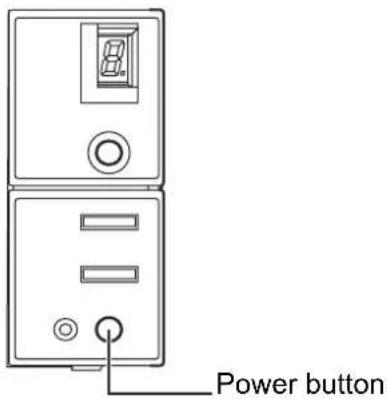
text_image
Power button
To turn the scanner off, hold the power button down for at least two seconds.
■ About Power ON/OFF Control
You can select how to power the scanner on/off; by pressing the Power button, or by connecting/disconnecting the AC cable.
The procedure is as follows:
- Open the [Scanner Properties] dialog box.
1) Turn on the scanner, and make sure that the scanner is connected to your personal computer. Refer to "2.2 Connecting the Scanner to a PC" in fi-5530C2 Getting Started contained in the CD-ROM for information about how to connect the scanner to your personal computer.
2) Double click the [Printer and Other Hardware] icon in Control Panel.
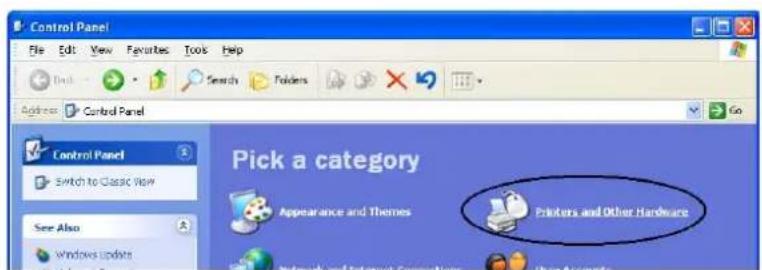
text_image
Control Panel File Edit View Favorites Tools Help Address Control Panel Control Panel Switch to Classic View See Also Windows Update Pick a category Appearance and Themes Printers and Other Hardware⇒ The [Printer and Other Hardware] window appears.
3) In the [Printers and Other Hardware] window, double click the [Scanners and Cameras] icon.

text_image
Printers and Other Hardware File Edit View Favorites Tools Help Desk Search Folders Address: Printers and Other Hardware See Also Add Hardware Display Sounds, Speech, and Audio Devices Power Options System Troubleshooters Hardware Printing Home or Small Office Networking Printers and Other Hardware Pick a task... View installed printers or fax printers Add a printer or pick a Control Panel icon Game Controllers Keyboard Mouse Phone and Modern Options Printers and Pases Scanners and Cameras⇒ The [Scanners and Cameras] window appears.
4) In Windows XP and Windows Server 2003, right-click on the [fi-5530C2dj] icon, and then select [Properties]. In Windows 2000 and Windows Vista, double-click on the [fi-5530C2dj] icon.

text_image
Scanners and Cameras File Edit View Favorites Tools Help Back Search Folders Add Scanners and Cameras Imaging Tasks Add an incoming device Allow this computer to use a network scanner f=5500C2dj⇒ The [fi-5530C2dj Properties] dialog box appears.
5) Select the [Device Set] tab.
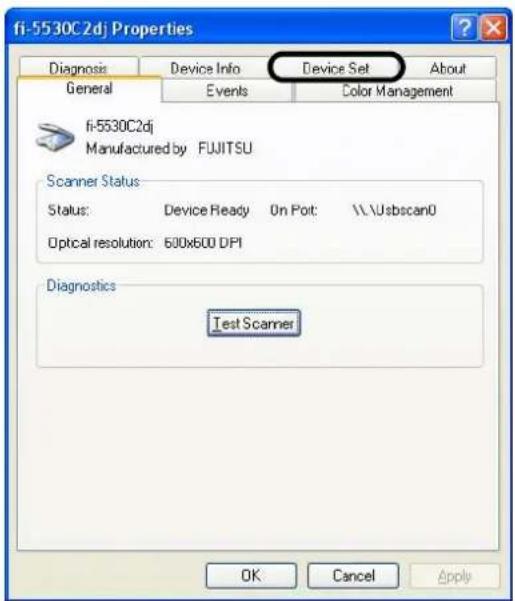
text_image
fi-5530C2dj Properties Diagnosis Device Info Device Set About General Events Color Management fi-5530C2dj Manufactured by FUJITSU Scanner Status Status: Device Ready On Port: \\.\usbscan0 Optical resolution: 600x600 DPI Diagnostics Test Scanner OK Cancel Apply⇒ The dialog box shown below appears.
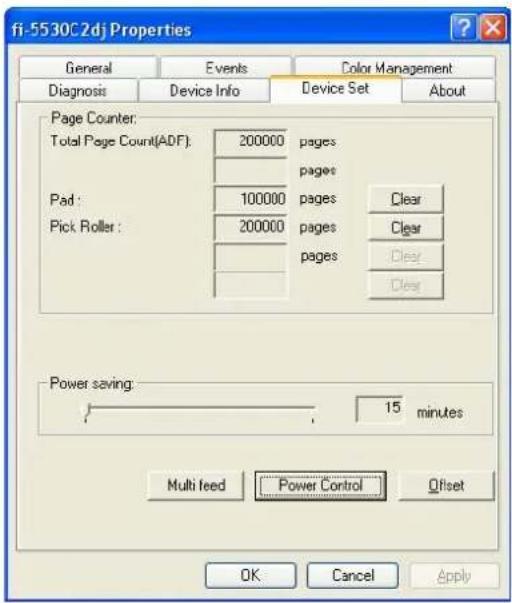
text_image
fi-5530C2dj Properties General Events Color Management Diagnosis Device Info Device Set About Page Counter: Total Page Count(ADF): 200000 pages pages Pad: 100000 pages Clear Pick Roller: 200000 pages Clear pages Clear Power saving: 15 minutes Multi feed Power Control Offset OK Cancel Apply- Click the [Power Control] button
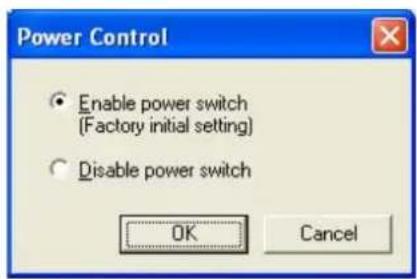
⇒ The dialog box shown below appears.
text_image
Power Control Enable power switch (Factory initial setting) Disable power switch OK Cancel- In this dialog box, do the following:
- To power on/off the scanner by pressing the Power button:
⇒ Select [Enable power switch].
- To power on/off the scanner by connecting/disconnecting the AC cable:
⇒ Select [Disable power switch].
■ Power Save Mode
The Power Save mode keeps the scanner in a low-powered state if no operation is performed on the scanner for 15 minutes after it has been turned on. The scanner is automatically switched to the Power Save mode.
In the Power Save mode, the indication of the Function Number Display on the operator panel goes out, while the green LED is kept lit.
To return the scanner from the Power Save mode, perform one of the following operations:
- Place documents on the ADF paper chute.
- Press any button on the operator panel.
The scanner will be turned off when pressing down the power button for 2 seconds or longer.
- Execute a command from the scanner driver.
1.2 Placing Documents on the ADF

For details about paper sizes and paper materials for the ADF to work properly, refer to Chapter 6 "DOCUMENT SPECIFICATIONS FOR ADF" (page 131).
- Align the edges of sheets in the document.
1) Confirm that all sheets have the same width.
2) Check the number of the sheets in the document stack.
The standard number of sheets that can be loaded on the scanner is as follows:
-
A4-size paper or smaller that makes a document stack of 10 mm or less (100 sheets at 80 g/m ^2 or at 20 lb)
• Over A4-size paper that makes a document stack of 5 mm or less (50 sheets at 80 g/m ^2 or at 20 lb) -
Fan the sheets as follows:
1) Lightly hold the both ends of the stack with both hands, and bend it as shown in the figure below.

natural_image
Line drawing of two hands gripping a curved, elongated object (no text or symbols)2) Hold the stack firmly with both hands and bend them back so that the bent section rises up in the middle of the stack as shown in the figure below.

natural_image
Illustration of two hands holding a curved, layered object with internal lines (no text or symbols)3) Repeat steps 1) and 2) a couple of times.
4) Rotate the document 90 degrees, and fan the stack again.
- Align the top of the sheets.

natural_image
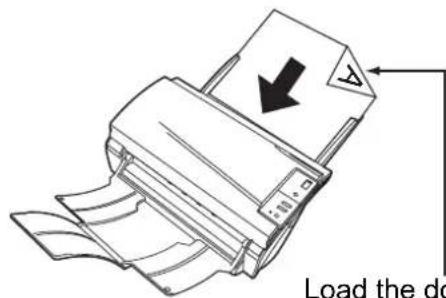
Illustration of two hands holding a stack of documents with a blue downward arrow (no text or symbols)- Place the document on the ADF paper chute.
Set the document face-down in the ADF paper chute (so that the side to be scanned faces toward the ADF paper chute).
text_image
Load the dcLoad the documents facing the ADF paper chute.(face down)


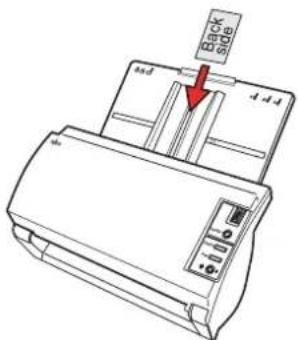
This scanner can scan ID cards through the ADF with the following precautions.
- Place one card at a time into the ADF.
- ID card feeding requires the card to be fed through the ADF in portrait mode as in the following figure.
text_image
Back 4-4-4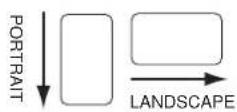
- Smooth cards should be placed face down in the ADF.
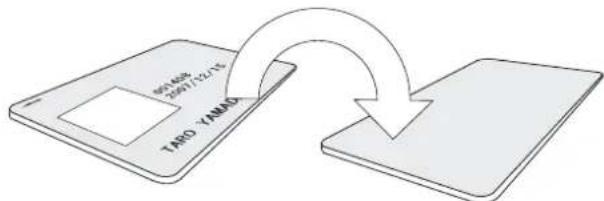
flowchart
graph TD
    A["TARO YIMMO"] --> B["Output"]
    style A fill:#f9f,stroke:#333
    style B fill:#bbf,stroke:#333
- The card to be scanned should be within the ISO7810 compliance, type ID-1.
ISO7810-compliant, Type ID-1 card
Material: PVC (Poly vinyl chloride) or PVCA (Polyvinyl chloride acetate) Dimensions: 3.4 inch (height) x 2.1 inch (width) / 86 mm x 54 mm Thickness: 0.03 ± 0.003inch / 0.76 ± 0.08mm
- Embossed cards (on which a raised effect is created) cannot be scanned.
- Cards that are excessively rigid or less flexible may not feed smoothly and excessive noise may occur.
- Cards should be clean from oil and without labels.
- Cards cannot be scanned when the imprinter is installed.


Before placing the document, pull out the ADF paper chute extension depending on the lengths of the document.
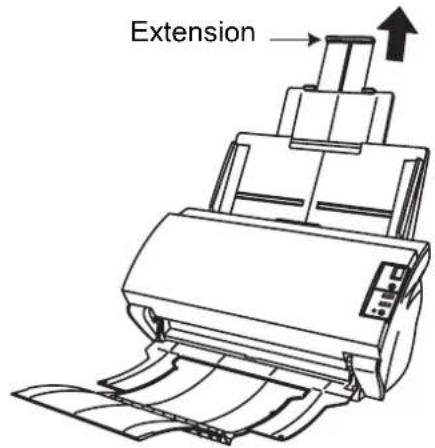
text_image
Extension
Place the document so that the height of the document will not surpass the line mark located at the side guide.
For A4-size paper or smaller, place the document so that the height of the document will not surpass the [Letter/A4/Smaller] line mark.
For paper larger than A4 size, place the document so that the height of the document will not surpass the [Over Letter/A4 Size] line mark.
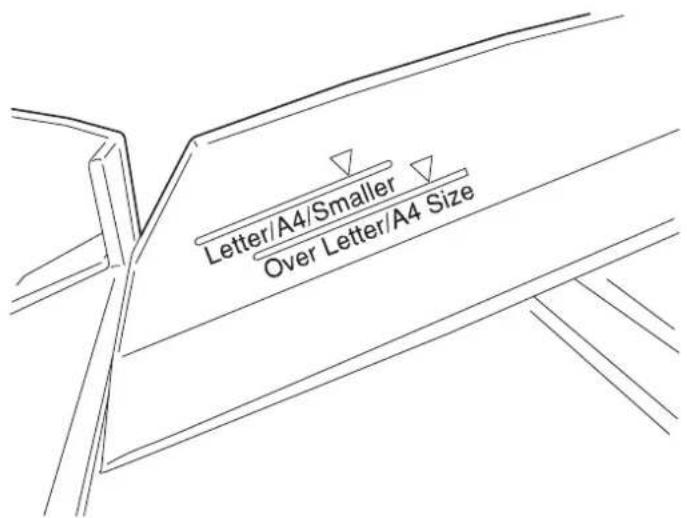
text_image
Letter/A4/Smaller Over Letter/A4 Size- Adjust the side guides to the width of the document.
Move the side guides so that they touch both sides of the document.
If there is any clearance between the side guides and the edges of the document, the scanned image may be skewed.

text_image
Side guides
The stacker prevents document sheets from being scattered after they were scanned.
Use the stacker as follows:
- Lift the stacker toward you by using your fingertips and the handle on the scanner.

text_image
handle- Lift the paper stop and extend it toward you by using your fingertips and the indentations on the stacker.

text_image
Indentation- Start up the scanner application, and then scan the document.
For details on how to scan documents using the ScandAll PRO application, refer to section 1.5 "How to Use ScandAll PRO" on page 29.
1.3 Scanning Documents
This section explains how to scan documents with this scanner. The following is a basic procedure for scanning documents:
- Place a document on the scanner.

natural_image
Line drawing of a printer with a paper feed and downward arrow indicating print direction (no text or symbols)- Launch an application you want to use for scanning.
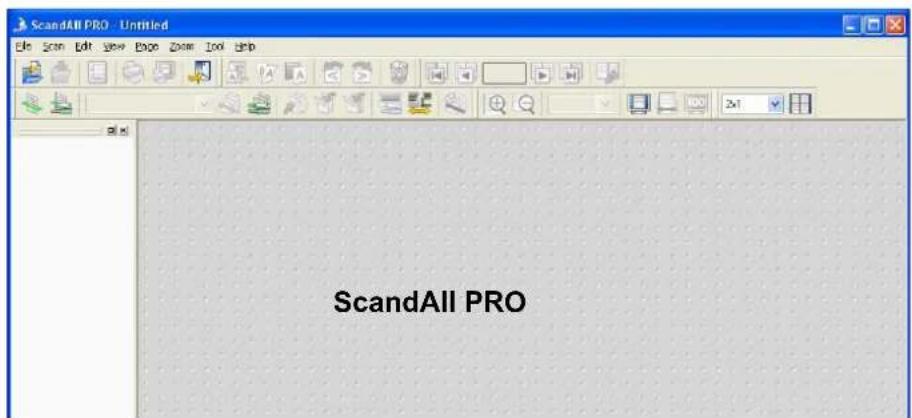
text_image
ScandAll PRO- Select a scanner to use.
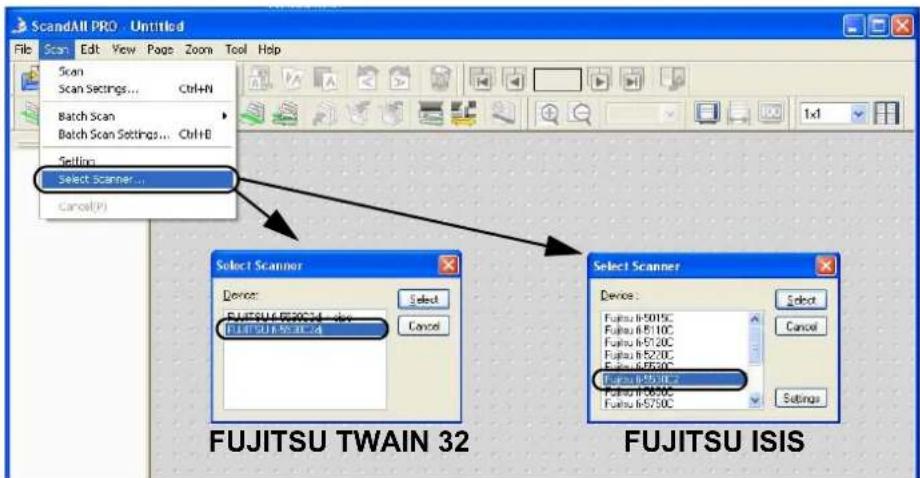
text_image
ScandAll PRO - Untitled File Scan Edit View Page Zoom Tool Help Scan Scan Settings... Ctrl+H Batch Scan Batch Scan Settings... Ctrl+B Settings: Select Scanner... Cancel(P) 1x1 Select Scanner Device: FUJITSU TWAIN 32 FUJITSU ISIS Select Scanner Device: FUJITSU TWAIN 32 FUJITSU ISIS Select Device: FUJITSU TWAIN 32 FUJITSU ISIS Select Device: FUJITSU TWAIN 32 FUJITSU ISIS Select Device: FUJITSU TWAIN 32 FUJITSU ISIS Select Device: FUJITSU TWAIN 32 FUJITSU ISIS Select Device: FUJITSU TWAIN 32 FUJITSU ISIS Selected Device: FUJITSU TWAIN 32 FUJITSU ISIS Selected Device: FUJITSU TWAIN 32 FUJITSU ISIS Selected Device: FUJITSU TWAIN 32 FUJITSU ISIS Selected Device: FUJITSU TWAIN 32 FUJITSU ISIS Selected Device: FUJITSU TWAIN 32 FUJITSU ISIS Select Device: FUJITSU TWAIN 32 FUJITSU ISIS Select Device: FUJITSU TWAIN 32 FUJITSU ISIS Select Device: FUJITSU TWAIN 32 FUJITSU ISIS Select Device: FUJITSU TWAIN 32 FUJITSU ISIS Supporting... Fujitsu TWAIN 32 Fujitsu TWAIN 32 Fujitsu TWAIN 32 Fujitsu TWAIN 32 Fujitsu TWAIN 32 Fujitsu TWAIN 32 Fujitsu TWAIN 32 Fujitsu TWAIN 32 Fujitsu TWAIN 32 Fujitsu TWAIN 32 Fujitsu TWAIN 32 Fujitsu TWAIN 32- In the application, invoke a scanner driver.
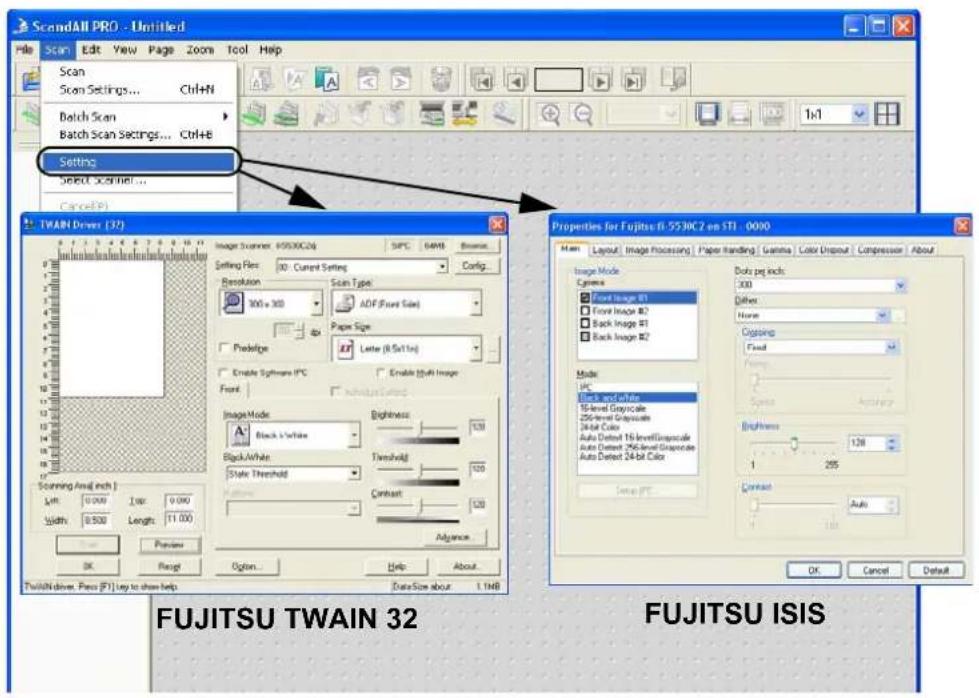
text_image
ScandAll PRO - Untitled File Scan Edit View Page Zoom Tool Help Scan Scan Settings... Ctrl+N Batch Scan Batch Scan Settings... Ctrl+B Setting Select Screen... Cancel(R) TWAIN Driver (32) Image Scanner: 65030C24 SIPC GAML Resource Setting Files: 30 : Current Setting Resolution Scan Type: 300 x 300 ADF (Front Size) Paper Size Preldege Letter (8.5x11x) Enable Software IPC Enable Multi Image Front Aircraft/Windows Image Mode Black & White Brightness 120 Black & White Single Level Gray-scale Single Level Gray-scale 24-bit Color Auto Detect 16-levelGray-scale Auto Detect 26-levelGray-scale Auto Detect 24-bit Color Constant 120 Source Update Accuracy Data Pack size: 300 Other Name Caption Fixed Type Specs Accuracy Background 120 1 255 Constant Auto OK Cancel Default TWAIN drive: Press [F1] key to show help DataSize about 1.1MB FUJITSU TWAIN 32 FUJITSU ISIS- In the driver setup dialog box, configure settings for scanning.
- Scan the document.
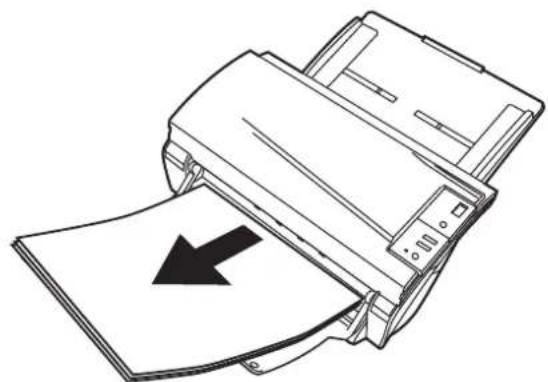
natural_image
Line drawing of a printer with a paper sheet being inserted, showing no text or symbols.- Save the scanned document image files.

- In this section, screenshots taken in ScandAll PRO are used as examples. Depending on the application you use, procedures and operations may differ from those examples herein.
- For more information about how to scan documents by using ScandAll PRO, refer to section "1.5 How to Use ScandAll PRO" on page 29. If you want to use other applications for scanning, refer to the respective manuals that come with the applications.
1.4 How to Use Scanner Drivers
To scan documents with the scanner, a scanner driver and application supported by the driver are prerequisites. This scanner is accompanied with two drivers; one is a TWAIN-compliant driver, FUJITSU TWAIN 32 Scanner Driver, and the other is an ISIS-compliant driver, FUJITSU ISIS Scanner Driver; and an application named ScandAll PRO, which supports both the drivers FUJITSU TWAIN 32 and FUJITSU ISIS.
In this section, how to use these drivers is described.
For information about how to use ScandAll PRO and how to invoke a scanner driver via ScandAll PRO, refer to section "1.5 How to Use ScandAll PRO" on page 29.
■ FUJITSU TWAIN 32 Scanner Driver
FUJITSU TWAIN 32 Scanner Driver is a driver for scanning documents with the scanner based on a TWAIN-compliant application.
Usually, you can configure the scanner settings in the scanner driver's setup dialog box, invoking a scanner driver via an application. (Depending on the application settings, this setup dialog box may not appear.)

How to invoke a scanner driver varies depending on the application. For details, refer to the manual or help of the application you use.
For information about how to invoke a driver via ScandAll PRO, refer to section "1.5 How to Use ScandAll PRO" on page 29.
FUJITSU TWAIN 32 Scanner Driver Setup

text_image
TWAIN Driver (32) Image Scanner: fi-5530C2cj SIPC 64MB Browse... Setting Files: 00 : Current Setting Config... Resolution Scan Type: 300 x 300 ADF (Front Side) 300 dpi Paper Size: Letter (8.5x11n) Predefine Enable Software IPC Enable Multi Image Front Individual Setting Image Mode: Black & White Brightness: 128 Black/White: Static Threshold Threshold: 128 Hafbone: Contrast: 128 Adjance... Scan Preview OK Reset Option... Help About... TWAIN driver. Press [F1] key to show help Data Size about 1.1MBConfigure FUJITSU TWAIN 32 Scanner Driver settings in the dialog box above. Major setting items are listed below.
* For details on each function, refer to "TWAIN Driver Help."
Resolution
You can specify the resolution for scanning images.
Default values are selectable from the drop-down list, and a [custom] value (can be specified in increments of 1 dpi from 50 to 600 dpi) can also be selected by clicking a pair of up/down buttons.
By marking the [Predefine] checkbox, you can select one of three predefined settings, [Best], [Better], and [Normal], and this allows you to scan documents simply and quickly. You can also set values of [Best], [Better], and [Normal] as desired in a window that appears when the [...] button is clicked.
Scan Type
You can specify the feeding method, the side(s) to be scanned (Front Side, Back Side, Duplex) or details of Long page (the size of documents longer than A3).
Paper Size
You can select the size of documents to be scanned from the list.
Windows for customizing the paper size will appear when you click the [...] button.
You can save any document size as a customized setting (up to three) or for changing the order of paper sizes in the list.
Image Mode
You can specify the image type to output the scanned documents.
Black & White Documents are scanned in binary (black and white) mode.
Halftone Documents are scanned through halftone processing in binary (black and white) mode.
Grayscale Documents are scanned in gradations from black to white. In this mode, you can select 256 gradations or 4 bit (16 gradations).
Color Documents are scanned in color mode. In this mode, you can select 24 bit Color, 256 Color, or 8 Color.
[Scan] Button
Clicking this button starts scanning documents with the current settings.
[Preview] Button
Documents are scanned preliminarily before the actual scanning.
You can confirm the image of the documents in the preview window.
[OK]/[Close] Button
Clicking this button saves the current settings and closes this window.
[Reset] Button
This button is used to undo changes of settings.
[Help] Button
Clicking this button opens the [FUJITSU TWAIN 32 Scanner Driver Help] window.
The window also opens by pushing the [F1] key.
[About] Button
Clicking this button opens an information window about the FUJITSU TWAIN 32
Scanner Driver's version.
[Option] Button
You can set options in the dialog box below.
![FUJITSU fi-5530C2 - [Option] Button - 1](/content/2026/06/1236805/images/e40e21de249841cb83648d2cef1b659052502e50d5120ae64b5af1fdabd77359.jpg)
text_image
Option Rotation | Jcb/Cache | Genetic | Startup | Filter | Compression | Flip Side Rotation Book Fanfold Rotation Rotation Degree: 0.0 degree Hole punch removal: Do not remove Automatic Size and Skew detection: Disable Priority: Split Image(V) Speed Accuracy Overscan OK Cancel Help[Rotation] Tab
Select this tab when configuring settings for the image rotation, document size and skew detection, overscan, hole punch removal, and split image.
[Job/Cache] Tab
Select this tab when setting cache mode, multifeed detection, blank page skipping, etc.
[Generic] Tab
Select this tab to change the unit displayed in the Setting Window for the FUJITSU TWAIN 32 Scanner Driver. Select [mm], [inch], or [pixel].
[Startup] Tab
Select this tab for configuring settings on the Scanner Operation Panel.
[Filter] Tab
Select this tab for setting the image processing filter(s).
Page Edge Filler: Fills up the margins of the scanned document images with a selected color.
Digital Endoser: A character string (alphanumerics) can be added in the scanned document.
[Compression] Tab
Select this tab for setting the compression rate of JPEG Transfer.
[Advance] Button
Click this button for settings of the advanced image processing.
You can set Edge Extract, Gamma Pattern, Dropout Color, Reverse, etc.
[Config] Button
Click this button for configuring the Setting Files.
You can save the changes made to a Setting File. From the next scanning, a set of settings are quickly switched by using these Setting Files.
For details of each function, refer to the "FUJITSU TWAIN 32 Scanner Driver Help."
■ FUJITSU ISIS Scanner Driver
FUJITSU ISIS Scanner Driver is a driver software used to scan documents with a scanner from an ISIS-compliant application.
Usually, you configure settings for scanning in the setup dialog box of the scanner driver, which is invoked from an application. (Depending on the application setting, the setup dialog box may not be displayed.)

How to invoke a scanner driver varies depending on the application. For details, refer to the manual or help of the application you use.
For information about how to invoke a driver via ScandAll PRO, refer to section "1.5 How to Use ScandAll PRO" on page 29.
FUJITSU ISIS Scanner Driver Setup
[Main] Tab

text_image
Properties for Fujitsu fi-5530C2 on None Compression Impinter About Main Layout Image Processing Paper Handling Gamma Color Dropout Image Mode Camera: Front Image #1 Front Image #2 Back Image #1 Back Image #2 Mode: IPC Black and White 16-level Grayscale 256-level Grayscale 24-bit Color Auto Detect 16-level Grayscale Auto Detect 256-level Grayscale Auto Detect 24-bit Color Setup IPC... Dots per inch: 300 Other: None Cropping: Fixed Density: Speed Accuracy Brightness 128 1 255 Contrast Auto OK Cancel DefaultCamera
You can selects a side or sides to scan.
The marked checkbox side is targeted for scanning.
When you mark only the Front Image checkbox, simplex scanning is performed. When you mark both the Front Image and Back Image checkboxes, duplex scanning is performed.
You can also specify two settings (#1/#2), Color/Grayscale and Binary (black-and-white), for each side, and output two types of images at a scan (multi-image).
Settings configured in this dialog box take effect on the selected side or sides (Front Image #1/Front Image #2/Back Image #1/Back Image #2).

If you select Color or Grayscale mode for a side (Front Image #1 or Back Image #1), you can select only Binary (black-and-white) mode for the same side (Front Image #2 or Back Image #2, respectively). In turn, if you select Binary (black-and-white) mode for a side (Front Image #1 or Back Image #1), you can select either Color or Grayscale mode for the same side (Front Side #2 or Back Image #2, respectively).
Mode
You can select a color mode to use from the menu.
IPC : Documents are scanned in binary (black-and-white) mode
with Image Processing Software Option. When this setting is selected, the [Setup IPC] button below becomes selectable. (This button is visible only if Image Processing Software Option is installed on the computer.)
Black & White : Documents are scanned according to a binary threshold.
Black and white are distinguished based on this set threshold. This mode is suitable for scanning line drawings and text only documents.
16-level Grayscale : Documents are scanned in 16 gray levels. In this mode, each pixel uses 4 bits.
256-level Grayscale : Documents are scanned in 256 gray levels. In this mode, each pixel uses 8 bits.
24-bit Color : Documents are scanned as 24-bit full-color images. This mode is suitable for scanning color photographs. More memory is used than in Grayscale mode.
Auto Detect : This mode automatically detects whether the scanned 16-level Grayscale documents are color or binary (black-and-white). In this 256-level Grayscale mode, color documents are output as color or grayscale images, and monochrome documents are output as binary (black-and-white) images. Under [Camera], configure settings for detected-as-color documents with #1, and configure settings for detected-as-black-and-white documents with #2.
[Setup IPC] Button
Click this button when configuring settings for scanning with Image Processing Software Option.
![FUJITSU fi-5530C2 - [Setup IPC] Button - 1](/content/2026/06/1236805/images/ea8d6d7fbe4a48e89eabf568208a7431c7bf414386826b0e70b9c4bea03721f9.jpg)
For how to configure settings for Image Processing Software Option, refer to "Image Processing Software Option USER'S GUIDE". To view "Image Processing Software Option USER'S GUIDE", from the [start] menu, select [All Programs] [Image Processing Software Option] [USER'S GUIDE].
Resolution
You can specify the number of pixels (dots) per inch.
Select a preset resolution from the list or type in any value (from 50 to 600, or 1200) in the box.
(If you enter a number from 601 to 1199, the resolution is automatically set to 300 dpi.)
The higher the resolution, the more memory is required.
Halftone
You can select a halftone pattern. This setting is available when [Black and White] is selected under [Mode].
Dither Pattern 0 : This setting is suitable for scanning highly-colored photographs.
Dither Pattern 1 : This setting is suitable for scanning highly-colored documents containing both text and photographs.
Dither Pattern 2 : This setting is suitable for scanning lightly-colored photographs.
Dither Pattern 3 : This setting is suitable for scanning lightly-colored documents containing both text and photographs.
Error Diffusion : This function minimizes differences between a target pixel and pixels near the target.
Download : This function processes gray tone images with the dithered pattern downloaded.
Cropping
Select how to crop scanned document images to output.
Fixed : Scanned document images are output in a specified size.
Detect Length : The rear end of a scanned document is detected and scanning is performed for the original length. When shorter sheets are included in a batch of documents to scan, output images are adjusted to their original size.
Automatic : The page size of the scanned documents is automatically detected and the images are output in the detected page size. The skew of documents is also automatically detected and corrected to output correct images.
Brightness
You can set the brightness of the entire image. Specify a number from 1 (darkest) to 255 (brightest) as the brightness value. The higher the value, the brighter the image.
The lower the value, the darker the image.
Contrast
You can set the contrast of the scanned image. Specify a number from 1 (low [soft]) to 100 (high [sharp]) to increase brightness for the entire image. Select a higher value to emphasize the difference in brightness between the light and dark areas of the image.
[Layout] Tab
![FUJITSU fi-5530C2 - [Layout] Tab - 1](/content/2026/06/1236805/images/12af76565fba65c2a3f3963215f80e15106fd8922b859a8d1aa2003caaaf9867.jpg)
text_image
Properties for Fujitsu fi-5530C2 on None Compression Main Layout Image Processing Paper Handling About Page Orientation Portrait Landscape Feed Direction Top first Bottom first Left first Right first Page Size: Letter - 8.5 x 11 in Split Image On Off Scan Area... OK Cancel DefaultPage Orientation
You can select the page orientation (Portrait or Landscape).
Page Size
You can specify the paper size of documents to be scanned. Select a size from the dropdown list.
Split Image
You can split a scanned image into two.
Scan Area
Clicking this button displays the [Scan Area] dialog box.
You can specify an area to be scanned for a page of the selected size. By dragging the rectangle on the page with the mouse, you can change the size of the area. You can also specify the area by typing in numbers in the boxes.

text_image
Scan Area Paper Size: Letter: -8.5 x 11 in Paper Layout ○ Pornish ○ Landscape Area X: 0° Y: 0° Width: 9 1/2" Length: 11" □ Pegg □ Inches □ Centimeters □ Snap OK Cancel Inches 0 1 2 3 4 5 6 7 8 Both[Image Processing] Tab
![FUJITSU fi-5530C2 - [Image Processing] Tab - 1](/content/2026/06/1236805/images/1180a4d3f140096f53a7c30edb0342549e225ae8ce7317dcb701f15e535676ee.jpg)
text_image
Properties for Fujitsu fi-5530C2 on None Compression Main Layout Image Processing Paper Handling About Image Mode Camera: Front Image #1 Front Image #2 Back Image #1 Back Image #2 Mode: IPC Black and White 16-level Grayscale 256-level Grayscale 24-bit Color Auto Detect 16-level Grayscale Auto Detect 256-level Grayscale Auto Detect 24-bit Color Setup IPC... Quick Set Normal documents (default) Use Brightness Control Standard 0 (Minimum) Advanced DTC Variance: Automatic Edge Processing: None Options: Reverse Image Format Overscan Punch Hole Removal On Fill with white Background color OK Cancel DefaultQuick Set
Some image-processing-related settings, which are commonly used, are readily available. Select a setting pattern, and you do not have to configure settings one by one. The following setting patterns are available (Selectable only when [Black and White] is selected under [Mode]):
Normal documents (default) : This setting pattern is suitable for scanning business documents often handled in the office.
Advanced DTC : Any types of documents are binarized in good conditions. Even if you scan documents containing light text, text on the colored background, and color charts, which do not lend themselves to scanning based on the ordinary binarization, you can obtain high-quality images.
NCR forms with back-ground removed : You can remove the background and smooth out jaggies in the image.
Magazines, Brochures, etc.: This setting pattern is suitable for scanning magazines and brochures, which contain both text and images.
Custom Settings : You can specify the following image-processing-related settings separately.
DTC Variance
You can select a DTC Variance setting depending on the brightness of the image.
Edge Processing
You can select a setting depending on how sharp you want to make the image.
Low, Mid, High: Outlines of images are emphasized. Select a setting from Low, Mid, and High.
Smoothing : Jaggies are smoothed.
Hole Punch Removal
When scanning punched documents that have punch holes on them, their images are output with punch holes removed.
Fill with white : Punch hole marks are filled with white.
Background color : Punch hole marks are filled with the most used color around the punch holes.
When scanning a color document, select [Background color]. If you select [Fill with white], punch holes will be filled with white.
Reverse Image Format
You can output reversed images.
Overscan
You can set the overscan function. Documents are scanned in a paper size larger than the one specified in the [Paper Size] drop-down list.
[Paper Handling] Tab
![FUJITSU fi-5530C2 - [Paper Handling] Tab - 1](/content/2026/06/1236805/images/d60b8067152d3a8cd79b8239d69c52f013324857afbc5ca67de3df42c75cc561.jpg)
text_image
Properties for Fujitsu fi-5530C2 on None Compression Impinter About Main Layout Image Processing Paper Handling Gamma Color Dropout Pre-pick Operator Panel Setting Backing White Multifeed Detection On Detect based on: Paper Overlap Paper Length +/- 20mm Do not stop scanning upon detection OK Cancel DefaultPre-pick
Pre-picking is a function that prepares the next document for scanning, feeding it to the position at which the scanning starts beforehand. You can specify whether you want to enable Pre-picking or not from this drop-down list.
Backing
You can specify the background color, white or black.
Multifeed Detection
Multifeed refers to an error that occurs when more than one sheet of paper is fed into the ADF at the same time. You can specify based on what (overlap or length) a multifeed error can be detected so that you can stop scanning at error detection and receive an error message.
Do not stop scanning upon detection
If this checkbox is marked, the scanner ignores multifeed errors and continues scanning.
[Gamma] Tab
![FUJITSU fi-5530C2 - [Gamma] Tab - 1](/content/2026/06/1236805/images/1cf5e00ca027a2946f484435a268f7a3cc293072b6e10e342930ea8e39f52d89.jpg)
text_image
Properties for Fujitsu fi-5530C2 on None Compression Main Layout Image Processing Inprinter Paper Handling About Gamma Color Dropout Image Mode Camera: ✓ Front Image #1 ☐ Front Image #2 ☐ Back Image #1 ☐ Back Image #2 Pattern: Normal Custom Properties Gamma: 0.0 Brightness: 0 Contrast: Auto Shadow: 0 Highlight: 255 Setup IPC... OK Cancel DefaultPattern
You can select one of five Gamma patterns from Normal, Soft, Sharp, Custom, and Download.
Custom Properties
You can specify custom properties (Gamma, Brightness, Contrast, Shadow, and Highlight) only when you select [Custom] as a Gamma pattern. Type in a numerical value in each box or click the forward/backward arrows to increase/decrease the numerical value. Of those items, [Shadow] and [Highlight] can be specified only when a Color or Grayscale setting is selected under [Mode].
[Color Dropout] Tab
![FUJITSU fi-5530C2 - [Color Dropout] Tab - 1](/content/2026/06/1236805/images/916620f8a115b644f7fba84e0015e8f2f735bd9b8b4d5f6489a255d19b4809b2.jpg)
text_image
Properties for Fujitsu fi-5530C2 on None Compression Impinter About Main Layout Image Processing Paper Handling Gamma Color Dropout Image Mode Camera: Front Image #1 Front Image #2 Back Image #1 Back Image #2 Color Dropout On Dropout Red Dropout Green Dropout Blue Mode: IPC Black and White 16-level Grayscale 256-level Grayscale 24-bit Color Auto Detect 16-level Grayscale Auto Detect 256-level Grayscale Auto Detect 24-bit Color Setup IPC... OK Cancel DefaultColor Dropout
Any of three primary colors (red-green-blue) can be dropped out from document images. For example, when scanning text in black with the red frame, selecting red color scans only text in black.
This setting is available only when Black and White or a Grayscale setting is selected.
[Compression] Tab
![FUJITSU fi-5530C2 - [Compression] Tab - 1](/content/2026/06/1236805/images/3fc1fbcfd2bd1653611fe10f307ff153c91016803c548416b203e4aa4a40cbdb.jpg)
text_image
Properties for Fujitsu fi-5530C2 on None Main Layout Image Processing Paper Handling Gamma Color Dropout Compression Imprinter About JPEG Quality: Download Custom Quality Table Extremely High Compression, Low Image Quality Very High Compression, Low Image Quality High Compression, Low Image Quality Medium Compression, Medium Image Quality Low Compression, High Image Quality Very Low Compression, High Image Quality Extremely Low Compression, High Image Quality Download... OK Cancel DefaultJPEG Quality
You can specify compression levels and image quality for scanning in Color or Grayscale mode.
[Imprinter] Tab
You can configure settings for using the imprinter option (to be purchased separately).
This tab is not displayed unless the imprinter option is installed.
![FUJITSU fi-5530C2 - [Imprinter] Tab - 1](/content/2026/06/1236805/images/a07f7d644f09d6c967839c8a444afede1921dcba985aeca424c79ec1b896c7f2.jpg)
text_image
Properties for Fujitsu fi-5530C2 on None Main Layout Image Processing Paper Handling Gamma Color Dropout Compression Impinter About On Format Template: Top Margin: 0.5 in Date Units: MMDDYYYY' None Font: Normal Counter Initial Value: 0 Field Width: 0 Number Control: Increase by 1 Rotation 90 degrees Example: OK Cancel Default[ON] Checkbox
Marking this checkbox enables the imprinter function.
Format Template
Characters typed in this box are printed on documents. You can use the following characters:
Alphabet : A to Z / a to z (single-width)
Numerics : 0, 1 to 9 (single-width)
Symbols : ! "\$ # % & ' () * +, -. / :; <= > ? @ [ \ ] ^ _ ' { | } (single-width)
Year/Month/Day : %Y
Time (HH:MM) : %T
Counter : %S (Select from 3 to 8 as the number of digits.)
Other :
You can type in up to 43 characters.

To print characters # and %, you have to type in ## and %% respectively because these are special characters. Take note that typing in only one character (#) displays the counter.
Date
You can specify how to indicate the date format.
Format : Type in the initial value.
Delimiter : Select a delimiter, which is a character that identifies the beginning or the end of a character string.
Counter
You can specify the rule to display the counter.
Initial Value : Set the initial value of the counter.
Field Width : Select the number of digits from 3 to 8.
Number Control : Select the increment of the counter value.
Top Margin
You can set the distance between the top of the page and the top of the first line printed on the page with a numeric.
Range : 0.5 to 10.5 in. (1.27 to 26.7 cm)
Minimum unit : 0.1 in. (0.01 cm)
Units
You can specify the unit of the top margin; in inch, in cm, or in pixel.
Font
You can specify the font style from Normal, Bold, and Narrow for printing characters.
Rotation
You can specify the text direction for printing characters.
[About] Tab
![FUJITSU fi-5530C2 - [About] Tab - 1](/content/2026/06/1236805/images/d7d558cac1af443d0ab9c1651b5b4096ac01d44ba6ad1eedc10337c767e9662d.jpg)
text_image
Properties for Fujitsu fi-5530C2 on None Main Layout Image Processing Paper Handling Gamma Color Dropout Compression Impinter About F1530C2 Version 2.1.10704.11001 Fujitsu fi-5530C2 Copyright (c) 2007 EMC Corporation QuickDriver Version 1.0.10703.7002 Device Information: Model: Fujitsu fi-5530C2 Firmware Version: 0100s Serial Number: -1 Device Interface: SCSI Simplex/Duplex: Simplex Impinter: Back First Read Date:On this tab, you can view the information about the ISIS driver and the scanner connected to your personal computer.
1.5 How to Use ScandAll PRO
ScandAll PRO is software for scanning images, which is in conformity with both TWAN/ISIS standards. Using FUJITSU TWAIN 32 or FUJITSU ISIS together with ScandAll PRO allows you to create document images.
The following explains how to scan documents with the scanner through ScandAll PRO.

For information about the features of ScandAll PRO, refer to ScandAll PRO Help.
■ Launching ScandAll PRO
From the [Start] menu, select [All Programs] [Fujitsu ScandAll PRO] [Fujitsu ScandAll PRO].
⇒ ScandAll PRO starts up.

text_image
ScandAll PRO - Untitled File Scan Edit View Page Zoom Tool Help 2x1 Ready 2x1 no Image■ Selecting a Scanner Driver
ScandAll PRO supports both TWAIN and ISIS standards and allows you to invoke either the TWAIN driver or the ISIS driver for scanning images with the scanner. This scanner comes with two drivers, FUJITSU TWAIN 32 Scanner Driver and FUJITSU ISIS Scanner Driver, which you can use with this scanner.
The following explains how to select a scanner driver with ScandAll PRO (how to switch between TWAIN and ISIS drivers.)

In ScandAll PRO, the default [Device Driver] is [TWAIN].
1) From the [Tool] menu, select [Preferences].

text_image
ScandAll PRO - Untitled File Scan Edit View Page Zoom Tool Help Preferences... Run Filters Setup Filters...⇒ The [Setup] dialog box appears.
2) On the [Scan] tab, under [Driver], select either of drivers. To use FUJITSU TWAIN 32 Scanner Driver, select [TWAIN]. To use FUJITSU ISIS Scanner Driver, select [ISIS].

text_image
Setup Print Scan View Hot Key Event Device Driver TWAIN ISIS Report Scan Result Output to screen and file File Name: E:\Documents and Settings\Owner\My Docum Browse... Temporary Directory E:\Documents and Settings\Owner\Local Settings\Temp Browse... Restore Defaults OK Cancel Apply Help3) Click the [OK] button to close the [Setup] dialog box.
■ Selecting a Scanner
To scan documents with a scanner, you have to select its name from the list beforehand. The following explains how to select a scanner to use.
1) From the [Scan] menu, select [Select Scanner].
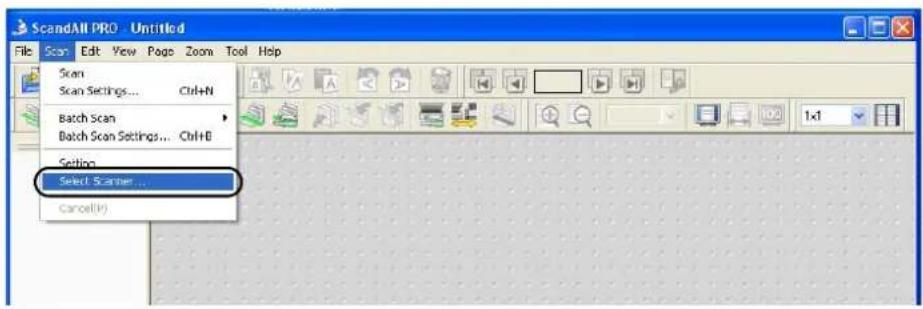
text_image
ScandAll PRO - Untitled File Scan Edit View Page Zoom Tool Help Scan Scan Settings... Ctrl+N Batch Scan Batch Scan Settings... Ctrl+B Setting Select Scanner... Cancel(R)⇒ The [Select Scanner] dialog box appears.
2) Select a scanner you want to use.
When the driver is FUJITSU TWAIN 32, select [FUJITSU fi-5530C2dj], and then click the [Select] button.
When the driver is FUJITSU ISIS, select [FUJITSU fi-5530C2], and then click the [Select] button.

text_image
Select Scanner Device: FUJITSU f-5530C2df + sinc FUJITSU fi-5530C2df Select CancelFUJITSU TWAIN 32

text_image
Select Scanner Device : Fujitsu fi-5015C Fujitsu fi-5110C Fujitsu fi-5120C Fujitsu fi-5220C Fujitsu fi-5530C Fujitsu fi-5530C2 Fujitsu fi-5650C Fujitsu fi-5750C Select Cancel SettingsFUJITSU ISIS
■ How to Display the Scanner Driver Setup Dialog Box
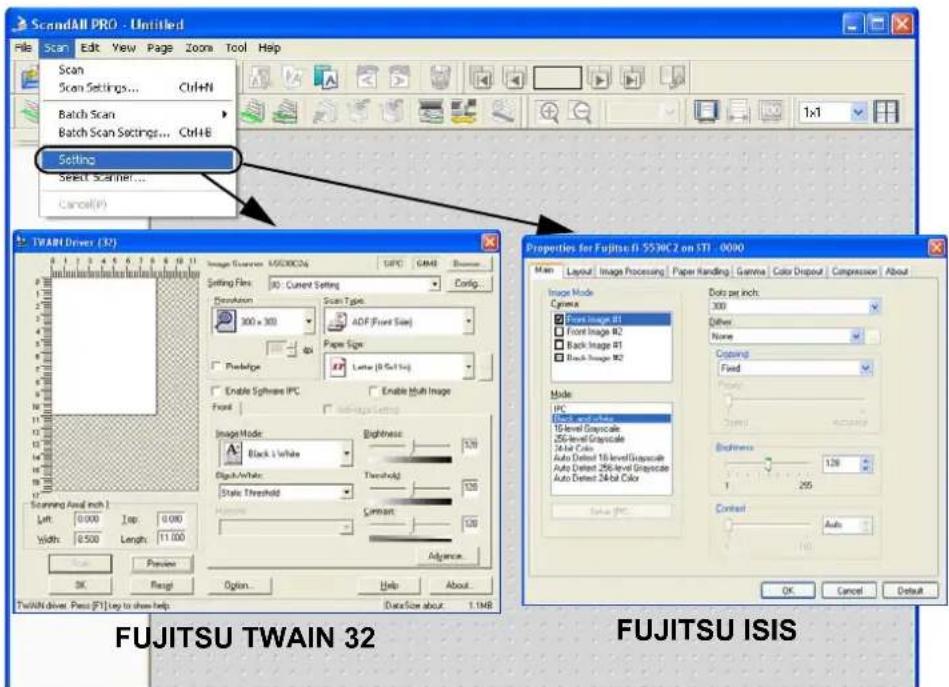
You can configure settings for scanning documents with the selected scanner in the setup dialog box of a scanner driver.
Select the [Scan] menu, and then select [Setting] to display the setup dialog box.
text_image
ScandAll PRO - Untitled File Scan Edit View Page Zoom Tool Help Scan Scan Settings... Ctrl+N Batch Scan Batch Scan Settings... Ctrl+B Setting Select Scan (N):... Cancel(P) TWAIN Driver (32) Image Sources: A5000C06 SIPC GM8 Setting Files 80: Current Settings Config... Resolution 300 x 300 Scan Type: ADF (Fixed Size) Paper Size Pode/Type Latte (9.5x1.5x) Enable Software IPC Enable Multi Image Front Image Mode: Black & White Brightness 120 Input/White: Threshold 120 Static Threshold 120 Properties for Fujitsu 01-SSRC2 on STI - 0000 Main Layout Image Processing Paper Handling Gamma Color Dropout Compression About Image Mode Cgamma Front Image #1 Front Image #2 Back Image #1 Back Image #2 Mode IPC Deck and white 10-level Grayscale 25-level Grayscale 34-bit Color Auto Delted 10-level Grayscale Auto Delted 256-level Grayscale Auto Delted 34-bit Color Data per inch: 300 Other None Camping Fixed Frame Balance Width: 120 1 255 Context: Auto OK Cancel Default Time/Min driver: Press [F1] key to show help Data Size about 1.1MB FUJITSU TWAIN 32 FUJITSU ISISFor information about setting items you can configure, refer to section "1.4 How to Use Scanner Drivers" on page 12.
■ How to Scan Documents
With ScandAll PRO, you can scan documents with a scanner, in either of two ways:
Scan (page. 33)
You have to configure settings, such as the file format, destination, and scanning parameters, every time you scan a document.
Use [Scan] when you want to scan a small amount of documents as necessary.
Batch Scan (page. 37)
You may want to use the same settings repeatedly. You can configure settings such as the scanning parameters, destination, image-related properties, and an application to link with and create a profile with these settings saved.
You can create more than one profile beforehand, so you do not have to configure settings every time you scan documents. You only switch between profiles.
Use [Batch Scan] when you want to scan a large volume of documents using various profiles.
Scan
1) Place the document on the scanner. For information about how to place documents, refer to section "1.2 Placing Documents on the ADF" on page 6.
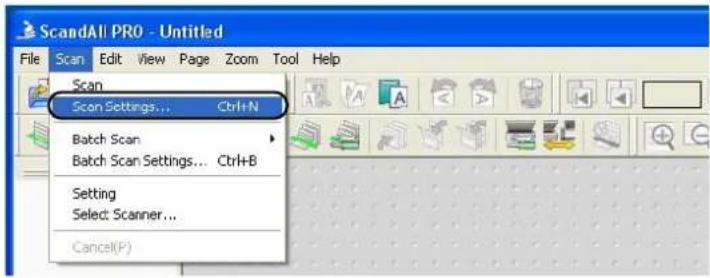
2) From the [Scan] menu, select [Scan Settings].
text_image
ScandAll PRO - Untitled File Scan Edit View Page Zoom Tool Help Scan Scan Settings... Ctrl+N Batch Scan Batch Scan Settings... Ctrl+B Setting Select Scanner... Cancel(P)Or, select the [Scan Settings] button () on the toolbar. ⇒ The [Scan Settings] dialog box appears.
3) In the [Scan Settings] dialog box, configure various settings for saving scanned document images.

text_image
Scan Settings Save to file Folder Name: E:\Documents and Settings\Owner\My Doccur Browse... File Name: image0001 Use the Name Rule Name Rule File Format: MultiPage Tagged Image File Format (*.tif) PDF Option... Color Format: Monochrome Compression: CCITT G4 JPEG Quality... Document Save all pages to one(1) file Divide a document into files, each consists of 1 page(s) File Overwrite Warning Display confirmation dialog on file overwrite Do not display confirmation dialog on file overwrite Number of pages to scan Scan all Scan the specified number of pages 1.3 Show confirmation when there is no paper on ADF Display the scanned document image immediately after the scan. Show TWAIN dialog before each batch scan process. Scanner Setting Scan OK Cancel Help[Save to file] Checkbox To save scanned document images immediately after scanning, mark this checkbox. If you want to verify scans before saving them to file, clear this checkbox.
Folder Name
You can specify a folder to save scanned document images.
Type in a full path in the box or click the [Browse] button to select a desired folder.
File Name
A file name used to save scanned document image files is displayed.
You may want to change the file name. Click the [Name Rule] button to display the [Name Rule] dialog box, and change the naming rule. When creating multiple image files at a scan, you can specify how to name those files.
[Use the Name Rule] Checkbox
Mark this checkbox when you want to use the name rule for file names.
Clear this checkbox when you want to specify a file name on this dialog box.
File Format
You can select a file format to save image files.
Bitmap (*.bmp), TIFF (*.tif), JPEG (*.jpg/*.j2k), or PDF (*.pdf), PDF/A (*.pdf) can be selected.
(When you select a multi-page format such as MultiPage TIFF, PDF, and PDF/A, multiple images can be saved in a file.)
Color Format
You can specify color mode.
Compression
You can select how to compress files to save.
Document
When scanning a document containing more than one page, you can specify whether to create one file containing all pages or to divide into files each containing the specified number of pages.
This becomes selectable only when a multi-page format is selected.
File Overwrite Warning
You can select whether you want to receive a confirmation message when scanned document image files with the same names already exist in the destination folder. If you select [Do not display confirmation dialog], those files are replaced with new ones.
Number of pages to scan
You can specify the number of pages to be scanned at a scan.
[Display the scanned document image immediately after the scan] checkbox Specify whether to preview a scanned document image or not.
By default, this checkbox is marked.
If memory becomes insufficient because the file size of a scanned document image is too large to display, clear this checkbox.
(*Only when the [Save to file] checkbox is marked, this checkbox can be cleared.)
[Show TWAIN dialog before each batch scan process] Checkbox
Marking this checkbox displays the setup dialog box at a scan when the TWAIN driver is used for scanning.
(* When FUJITSU ISIS Scanner Driver is used, this checkbox is not available.)
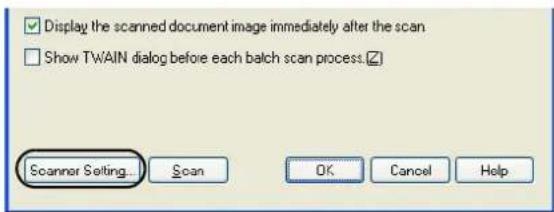
4) Click the [Scanner Setting] button.
text_image
Display the scanned document image immediately after the scan Show TWAIN dialog before each batch scan process. Scanner Setting... Scan OK Cancel Help⇒ The scanner driver setup dialog box appears.
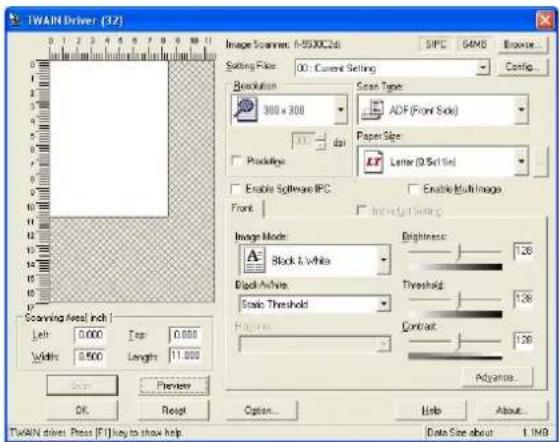
5) Configure various settings for scanning documents.
For more details about the settings, refer to section "1.4 How to Use Scanner Drivers" on page 12.
text_image
TWAIN Driver (32) Scanning Area: inch Left: 0.000 Width: 0.500 Length: 11.000 Scan Preview OK Reset Option... Help About... TwAIN drivers: Press [F] key to show help Image Scanmax: F-9500C26 SIPC GAMB Browse... Setting File: 00: Current Setting Resolution 300 x 300 Scan Type ADF (Front Side) Paper Size: Letter (0 Sel1in) Enable Software IPC Enable Multi Image Front Incremental Settings Image Mode: Block & White Black Active: Static Threshold Brightness: 1.28 Threshold: 1.28 Contact: 1.28 Adjarray...FUJITSU TWAIN 32

text_image
Properties for Fujitsu II 5530C2 on STI - 0000 Main Layout Image Preprocessing Paper Handling Gamma Color Dropout Compression About Image Mode Camera: Direct Image #1 Front Image #2 Back Image #1 Back Image #2 Mode: Size and Value: 16-level Gray-scale 256-level Gray-scale 28-bit Color Auto-Directed 16-level Gray-scale Auto-Directed 256-level Gray-scale Auto-Directed 24-bit Color Group PC Dots per inch: 309 Other: None: Crushing: Fixed Density: Density Accuracy Brightness: 128 1 255 Context: Auto OK Cancel DefaultFUJITSU ISIS
6) When you finished setting, click the [OK] button in the dialog box (FUJITSU TWAIN 32 Scanner Driver/ FUJITSU ISIS Scanner Driver).
⇒ You are returned to the [Scan Setting] dialog box.
7) Click the [Scan] button.

text_image
Display the scanned document image immediately after the scan. Show TWAIN dialog before each batch scan process. Scanner Setting... Scan OK Cancel Help
When you use FUJITSU TWAIN 32 Scanner Driver, clicking the [Scan] button may display the scanner driver's setup dialog box. If so, you can also change settings in the dialog box displayed.
Click the [Scan] button to scan documents.
Click the [Close] button when you finish scanning.

text_image
Scan Preview Advance... Close Reset Option... Help About... Select an scanning method. Data Size about: 25.3MBIf you do not want to display the scanner driver's dialog box after clicking the [Scan] button in step 7, do the following:
In the [Scan Settings] dialog box, clear the [Show TWAIN dialog before each batch scan process] checkbox.
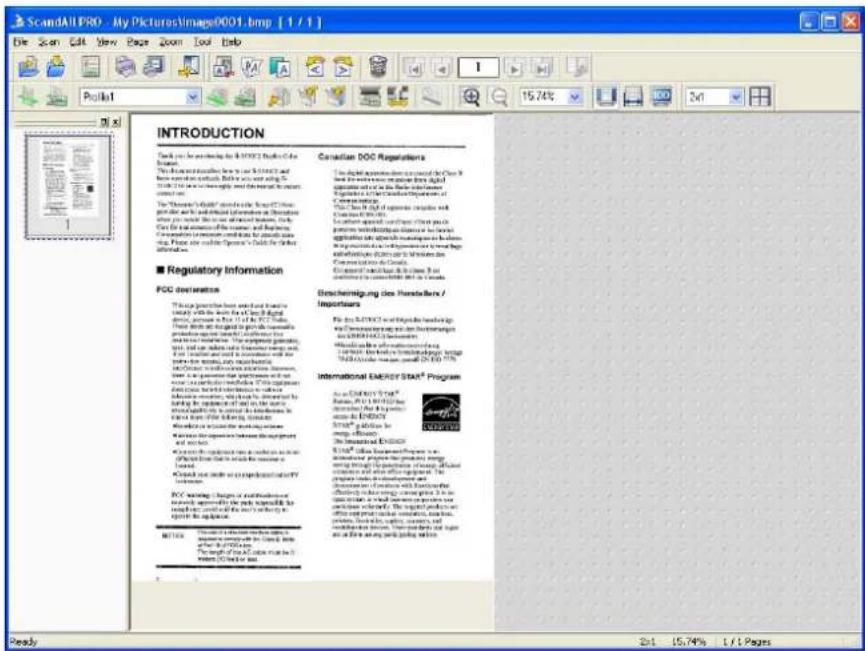
⇒ A document is scanned with the scanner, and the scanned document image is displayed on the ScandAll PRO window, and then the image is saved to file.
text_image
ScandAll PRO - My PicturesImage0001.bmp [1 / 1] File Scan Edit View Page Zoom Tool Help Pollut 15.74% 2nd INTRODUCTION Check up to be providing the 8000's Guide for the Report. This document includes how to call 8000's and have been written regularly. Before you are using it, the 8000's guide is not enough to ensure that this will be required correct to. The "Thermost High" guide is used for the 8000's guides. This is also a key insight that we should be in line with the following information on December when you need, this is not obtained from, but the this is not obtained from the source and by the information is important to provide data using the journal's Guide for the other information. ■ Regulatory Information PDC destination This is generating an essential and easy to sell it with the use of 800's Guide designs, where it is the PDC Guide. These are not intended to find some necessary provisions and services to continue. The appropriate guidelines, such as regulations and standards, are used in the PDC Guide. The PDC Guide has been used in the PDC Guide to the PDC Guide. It is a general approach to the PDC Guide to the PDC Guide. It is a general approach to the PDC Guide to the PDC Guide. It is a general approach to the PDC Guide to the PDC Guide. It is a general approach to the PDC Guide to the PDC Guide. It is a general approach to the PDC Guide to the PDC Guide. It is a general approach to the PDC Guide to the PDC Guide. It is a general approach to the PDC Guide to the PDC guide. It is a general approach to the PDC Guide to the PDC Guide to the PDC guide. It is a general approach to the PDC Guide to the PDC Guide to the PDC guide. It is a general approach to the PDC Guide to the PDC Guide to the PDC guide. It is a general approach to the PDC Guide to the PDC Guide to the PDC guide. It is a general approach to the PDC Guide to the PDC Guide to the PDC guide. Beschreibung des Herstelleren / Importants File the 8000's Guide for the 8000's guides. This is also a key insight that we should be in line with the following: in order to include this in line with the following: the PDC Guide. This is also a key insight that we should be in line with the following: the PDC Guide. This is also a key insight that we should be in line with the following: the PDC Guide. It is a general approach to the PDC Guide to the PDC Guide. It is a general approach to the PDC Guide to the PDC Guide. It is a general approach to the PDC Guide to the PDC Guide. It is a general approach to the PDC Guide to the PDC Guide. It is a general approach to the PDC Guide to the PDC Guide. It is a general approach to the PDC Guide to the PDC Guide. It is a general approach to the PDC Guide to the PDC Guide. International ENERGY START Program As in DARTORY'S TAKI, Basis, PCT & LTR (the control) that has been used in access to ENERGY. SPATG provides us for energy efficiency. The International ENERGY SPATG follows Energy Management Plan and international program that provides energy efficiency and energy efficiency. SPATG provides us for energy efficiency and energy efficiency. The International ENERGY Plan and international program that provides energy efficiency and energy efficiency. SPATG provides us for energy efficiency and energy efficiency. The International ENERGY Plan and international program that provides energy efficiency and energy efficiency. SPATG provides us for energy efficiency and energy efficiency. The International ENERGY Plan and international program that provides energy efficiency and energy efficiency. SPATG provides us for energy efficiency and energy efficiency. The International ENERGY Plan and international program that provides energy efficiency SPATG provides us for energy efficiency and energy efficiency. The International ENERGY Plan and international program that provides energy efficiency and energy efficiency. SPATG provides us for energy efficiency and energy efficiency. The International ENERGY Plan and international program that provides energy efficiency and energy efficiency. SPATG provides us for energy efficiency and energy efficiency. The International ENERGY Plan and international program that provides energy efficiency and energy efficiency. SPATG provides us for energy efficiency and gas efficiency. The International ENERGY Plan and international program that provides energy efficiency and energy efficiency. SPATG provides us for energy efficiency and gas efficiency. The International ENERGY Plan and international program that provides energy efficiency and gas efficiency. SPATG provides us for energy efficiency and gas efficiency. The International ENERGY Plan and international program that provides energy efficiency and gas efficiency. SPATG provides us for energy efficiency and gas efficiency. The International ENERGY Plan and international program that provides energy efficiency and gas efficiency. SPATG provides us for energy efficiency and gas efficiency. The International ENERGY Plan and international program that provides energy efficiency and gas efficiency. SPATG provides us for energy Efficiency and gas efficiency. The International ENERGY Plan and international program that provides energy efficiency and gas efficiency. SPATG provides us for energy Efficiency and gas efficiency. The International ENERGY Plan and international program that provides energy efficiency and gas efficiency. SPATG provides us for energy Efficiency and gas efficiency. The International ENERGY Plan and international program that provides energy efficiency and gas efficiency. SPATG provides us for energy Efficiency and gas efficiency. The International ENERGY PLAN and international program that provides energy efficiency and gas efficiency. SPATG provides us for energy Efficiency and gas efficiency. The International ENERGY PLAN and international program that provides energy efficiency and gas efficiency. SPATG provides us for energy Efficiency and gas efficiency. The International ENERGY PLAN and international program that provides energy efficiency and gas efficiency. SPATG provides us for energy Efficiency and gas efficiency. The International ENERGY PLAN and international program that provides energy efficiency and fuel efficiency. SPATG provides us for energy Efficiency and gas efficiency. The International ENERGY PLAN and international program that provides energy efficiency and fuel efficiency. SPATG provides us for energy Efficiency and gas efficiency. The International ENERGY PLAN and international program that provides energy efficiency and fuel efficiency. SPATG provides us for energy Efficiency and gas efficiency. The International ENERGY PLAN and international program that provides energy efficiency and fuel efficiency. SPATG provides us for energy Performance and gas efficiency. The International ENERGY PLAN and international program that provides energy efficiency and fuel efficiency. SPATG provides us for energy Performance and gas efficiency. The International ENERGY PLAN and international program that provides energy efficiency and fuel efficiency. SPATG provides us for Energy Efficiency and gas efficiency. The International ENERGY PLAN and international program that provides energy efficiency and fuel efficiency. SPATG provides us for Energy Performance and gas efficiency. The International ENERGY PLAN and international program that provides energy efficiency and fuel efficiency. SPATG provides us for Energy Performance and gas efficiency. The International ENERGY PLAN and international program that provides energy efficiency and fuel efficiency. SPATG provides us for Energy Performance and gas efficiency. The International ENERGY PLAN and international program that provides energy efficiency and fuel efficiency. SPATG provides us for Energy Performance and gas efficiency. The International ENERGYPLAN AND INTERNATIONAL PARANTES OF THE PANICUM OF THE PANICUM OF THE PANICUM OF THE PANICUM OF THE PANICUM OF THE PANICUM OF THE PANICUM OF THE PANICUM OF THE PANICUM OF THE PANICUM OF THE PANICUM OF THE PANICUM OF THE PANICUM OF THE PANICUM OF THE PANICUM OF THE PANICUM OF THE PANICUM OF THE PANICUM OF THE PANICUM OF THE PANICUM OF THE PANICUUM OF THE PANICUM OF THE PANICUM OF THE PANICUM OF THE PANICUM OF THE PANICUM OF THE PANICUM OF THE PANICUM OF THE PANICUM OF THE PANICUM OF THE PANICUM OF THE PANICUM OF THE PANICUM OF THE PANICUM OF THE PANICUM OF THE PANICUM OF THE PANICUM OF THE PANICUM OF THE PANICUM OF THE PANICUM OF THE PANIUM OF THE PANICUM OF THE PANICUM OF THE PANICUM OF THE PANICUM OF THE PANICUM OF THE PANICUM OF THE PANICUM OF THE PANICUM OF THE PANICUM OF THE PANICUM OF THE PANICUM OF THE PANICUM OF THE PANICUM OF THE PANICUM OF THE PANICUM OF THE PANICUM OF THE PANICUM OF THE PANICUM OF THE PANICUM OF THE PANCUM OF THE PANICUM OF THE PANICUM OF THE PANICUM OF THE PANICUM OF THE PANICUM OF THE PANICUM OF THE PANICUM OF THE PANICUM OF THE PANICUM OF THE PANICUM OF THE PANICUM OF THE PANICUM OF THE PANICUM OF THE PANICUM OF THE PANICUM OF THE PANICUM OF THE PANICUM OF THE PANICUM OF THE PANICUM OF THE PANACUM OF THE PANICUM OF THE PANICUM OF THE PANICUM OF THE PANICUM OF THE PANICUM OF THE PANICUM OF THE PANICUM OF THE PANICUM OF THE PANICUM OF THE PANICUM OF THE PANICUM OF THE PANICUM OF THE PANICUM OF THE PANICUM OF THE PANICUM OF THE PANICUM OF THE PANICUM OF THE PANICUM OF THE PANICUM OF THE PANINOMULATION FOR INCOME FROM A NEW EQUITY TO REVENUE TO REVENUE TO REVENUE TO REVENUE TO REVENUE TO REVENUE TO REVENUE TO REVENUE TO REVENUE TO REVENUE TO REVENUE TO REVENUE TO REVENUE TO REVENUE TO REVENUE TO REVENUE TO REVENUE TO REVENUE TO REVENUE TO REVENUE TO REVENUE TO REVENUE TO REVENUE TO REVENUE TO REVENUE TO REVENUS TO REVENUE TO REVENUE TO REVENUE TO REVENUE TO REVENUE TO REVENUE TO REVENUE TO REVENUE TO REVENUE TO REVENUE TO REVENUE TO REVENUE TO REVENUE TO REVENUE TO REVENUE TO REVENUE TO REVENUE TO REVENUE TO REVENUE TO REVENUE TO REVENUE TO REVENUE TO REVENUE TO REVENUE TO REVENUUTS FOR INCOME FROM A NEW EQUITY TO REVENUE TO REVENUE TO REVENUE TO REVENUE TO REVENUE TO REVENUE TO REVENUE TO REVENUE TO REVENUE TO REVENUE TO REVENUE TO REVENUE TO REVENUE TO REVENUE TO REVENUE TO REVENUE TO REVENUE TO REVENUE TO REVENUE TO REVENUE TO REVENUE TO REVENUE TO REVERUUTS FOR INCOME FROM A NEW EQUITY TO REVENUE TO REVENUE TO REVENUE TO REVENUE TO REVENUE TO REVENUE TO REVENUE TO REVENUE TO REVENUE TO REVENUE TO REVENUE TO REVENUE TO REVENUE TO REVENUE TO REVENUE TO REVENUE TO REVENUE TO REVENUE TO REVENUE TOREVERUUTS FOR INCOME FROM A NEW EQUITY TO REVENUE TO REVENUE TO REVENUE TO REVENUE TO REVENUE TO REVENUE TOREVERUUTS FOR INCOME FROM A NEW EQUITY TO REVENUE TO REVENUE TOREVERUUTS FOR INCOME FROM A NEW EQUITY TOREVERUUTS FOR INCOME FROM A NEW EQUITY TOREVERUUTS FOR INCOME FROM A NEW EQUITY TOREVERUUTS FOR INCOME FROM A NEW EQUITY TOREVERUUTS FOR INCOME FROM A NEW EQUITY TOREVERUUTS FOR INCOME FROM A NEW EQUITY TOREVERUUTS FOR INCOME FROM A NEW EQUITY TOREVERUUTS FOR INCOMEFROM A NEW EQUITY TOREVERUUTS FOR INCOME FROM A NEW EQUITY TOREVERUUTS FOR INCOME FROM A NEW EQUITY TOREVERUUTS FOR INCOME FROM A NEW EQUITY TOREVERUUTS FOR INCOME FROM A NEW EQUITY TOREVERUUTS FOR INCOME FROM A NEW EQUITY TOREVERUUTS FOR INCOME FROM A NEW EQUITY TOREVERUITS FOR INCOME FROM A NEW EQUITY TOREVERUUTS FOR INCOME FROM A NEW EQUITY TOREVERUUTS FOR INCOME FROM A NEW EQUITY TOREVERUUTS FOR INCOME FROM A NEW EQUITY TOREVERUUTS FOR INCOME FROM A NEW EQUITY TOREVERUUTS FOR INCOME FROM A NEW EQUITY TOREVERUUTS FOR INCOME FROM A NEW EQUity TOREVERUUTS FOR INCOME FROM A NEW EQUity TOREVERUUTS FOR INCOME FROM A NEW EQUity TOREVERUUTS FOR INCOME FROM A NEW EQUity TOREVERUUTS FOR INCOME FROM A NEW EQUity TURR UNTS FOR INCOME FROM A NEW EQUITY TURR UNTS FOR INCOME FROM A NEW EQUITY TURR UNTS FOR INCOME FROM A NEW EQUITY TURR UNTS FOR INCOME FROM A NEW EQUITY TURR UNTS FOR INCOME FROM A NEW EQUITY TURR UNTS FOR INCOME FROM A NEW EQUITY TURR UNTS FOR INCOME FROM A NEW EQUITY TURR UNTS FOR INCOMEFROM A NEW EQUITY TURR UNTS FOR INCOME FROM A NEW EQUITY TURR UNTS FOR INCOME FROM A NEW EQUITY TURR UNTS FOR INCOME FROM A NEW EQUITY TURR UNTS FOR INCOME FROM A NEW EQUITY TURR UNTS FOR INCOME FROM A NEW EQUITY TURR UNTS FOR INCOME FROM A NEW EQUITY TURR UHTS FOR INCOME FROM A NEW EQUITY TURR UHTS FOR INCOME FROM A NEW EQUITY TURR UHTS FOR INCOME FROM A NEW EQUITY TURR UHTS FOR INCOME FROM A NEW EQUITY TURR UHTS FOR INCOME FROM A NEW EQUITY TURR UHTS FOR INCOME FROM A NEW EQUITY TURR UHTS FOR INCOME FROM A NEW EQUity TURR UHTS FOR INCOME FROM A NEW EQUITY TURR UHTS FOR INCOME FROM A NEW EQUITY TURR UHTS FOR INCOME FROM A NEW EQUITY TURR UHTS FOR INCOME FROM A NEW EQUITY TURR UHTS FOR INCOME FROM A NEW EQUITY TURR UHTS FOR INCOME FROM A NEW EQUITY TURR UHTS FOR INCOMEFROM A NEW EQUITY TURR UHTS FOR INCOME FROM A NEW EQUITY TURR UHTS FOR INCOME FROM A NEW EQUITY TURR UHTS FOR INCOME FROM A NEW EQUITY TURR UHTS FOR INCOME FROM A NEW EQUITY TURR UHTS FOR INCOME FROM A NEW EQUITY TURR UHTS FOR INCOME FROM A NEW EQUITY TURR UMT S FRT S FRT S FRT S FRT S FRT S FRT S FRT S FRT S FRT S FRT S FRT S FRT S FRT S FRT S FRT S FRT S FRT S FRT S FRT S FRT S FRT S FRT S FRT S FRT S FRT S FRT S FRT S FRT S FRT S FRT S FRT S FRT S FRT S FRTS FRT S FRT S FRT S FRT S FRT S FRT S FRT S FRT S FRT S FRT S FRT S FRT S FRT S FRT S FRT S FRT S FRT S FRT S FRT S FRT S FRT S FRT S FRT S FRT S FRT S FRT S FRT S FRT S FRT S FRT S FRT S FRT S FRT S FTTSFRT S FTTSFRT S FTTSFRT S FTTSFRT S FTTSFRT S FTTSFRT S FTTSFRT S FTTSFRT S FTTSFRT S FTTSFRT S FTTSFRT S FTTSFRT S FTTSFRT S FTTSFRT S FTTSFRT S FTTSFRT S FTTSFRT S FTTSFRT S FTTSFRT S FTTSFRT S FTTSFTTFTTFTTFTTFTTFTTFTTFTTFTTFTTFTTFTTFTTFTTFTTFTTFTTFTTFTTFTTFTTFTTFTTFTTFTTFTTFTTFTTFTTFTTFTTFTTFTTFTTFTTFTTFTTFTTFTTFTTFTTFTTFTTFTTFTTFTTFTTFTTFTTFTTFTTTFTTFTTFTTFTTFTTFTTFTTFTTFTTFTTFTTFTTFTTFTTFTTFTTFTTFTTFTTFTTFTTFTTFTTFTTFTTFTTFTTFTTFTTFTTFTTFTTFTTFTTFTTFTTFTTFTTFTTFTTFTTFTTFTTFTTFTTFTTFTTFTTFTTFTNFTTTFTTTTTTTTTTTTTTTTTTTTTTTTTTTTTTTTTTTTTTTTTTTTTTTTTTTTTTTTTTTTTTTTTTTTTTTTTTTTTTTTTTTTTTTTTTTTTTTTTTTTTTTTTTTTTTTTTTTTTTTTTTTTTTTTTTTTTTTTTTTTTTTTTTTTTTTTTTTTTTTTTTTTTTTTTTTTTTTTTTTTTTTTTTTTTTTTTTTTTTTTTTG
- If you do not mark the [Save to file] checkbox in the [Scan Settings] dialog box, scanned document images are not saved. To save the files, from the [File] menu, select [Save As].
- To scan the next document with the same settings, from the [Scan] menu,
select [Scan]. Or, click the [Scan] button () on the toolbar.
For information about other scanning operations, refer to chapter "2 SCANNING VARIOUS TYPES OF DOCUMENTS" on page 45.
For more details about the features and operations of ScandAll PRO, refer to [ScandAll PRO Help].
Batch Scan
You can save various settings as profiles beforehand.
Batch Scan allows you to scan documents by using those profiles.
- From the [Scan] menu, select [Batch Scan Settings].
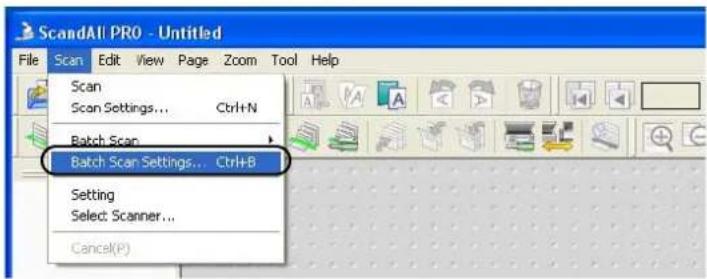
text_image
ScandAll PRO - Untitled File Scan Edit View Page Zoom Tool Help Scan Scan Settings... Ctrl+N Batch Scan Batch Scan Settings... Ctrl+B Setting Select: Scanner... Cancel(P)Or click the [Batch Scan Settings] button () on the toolbar.
⇒ The [Batch Scan Setting] dialog box appears.

text_image
Batch Scan Settings Profile: Profile Type Create OCRed PDF Template Archived documents Template Scan color documents at one time Template Output color-monochrome simultaneously Template Profile1 shared Add Copy Edit Delete Profile List Information about the profile is given here. Scan Close Help- Do the following as necessary:
•To create a new profile:
Click the [Add] button.
⇒ A new profile appears in the [Profile Editor] dialog box.
(Go to step 3.)
•To create a new profile based on an existing profile:
Select a profile you want to use as the basis from the profile list, and then click the [Copy] button.
⇒ A new profile based on the selected profile appears in the [Profile Editor] dialog box. (Go to step 3.)
- To change the settings of an existing profile:
Select a profile you want to change settings for, and click the [Edit] button.
⇒ The selected profile appears in the [Profile Editor] dialog box.
(Go to step 3.)
- To delete an existing profile from the profile list.
Select a profile you want to delete, and then click the [Delete] button. When you see a confirmation message, click the [Yes] button.
⇒ The selected profile is deleted.

If the [Type] of a profile in the profile list is [Template], it is a sample profile. It cannot be used for scanning documents. Use sample profiles as the basis for you to create new profiles.
- In the [Profile Editor] dialog box, configure settings for scanning and saving scanned document images.

text_image
Profile Editor General Scan File format and Name scheme Document separator Filter Linking Job Profile Name : Profile1 Description : Profile Type ● All User ○ Current User Only Image Property Description File format: MultiPage Tagged Image File Format (*.tif) Color Format: 24-Bit Color File compression format: No Compression Pixel Type: Monochrome Paper Size: A3 · 297 x 420 mm Resolution: 300 OK Cancel Apply Help[General] Tab
You can type in a profile name and description, and select a profile type.
[Scan] Tab
You can configure settings for a scanner to use.
Clicking the [Detail Scanner Settings] button displays the setup dialog box of the scanner driver.
[File format and Name scheme] Tab
You can specify various parameters for saving scanned document images.
[Document separator] Tab
You can select how to separate documents.
Each separated document is numbered according to the set Name Rule.
[Filter] Tab
You can select a filter to use for scanning.
[Linking] Tab
You can select what to do with scanned document images after scanning; send by e-mail, upload to the FTP server or Microsoft® SharePoint Server, print with a printer, or open with an application.
* For details about the above settings, refer to ScandAll PRO Help.
4. Click the [OK] button.
⇒ You are returned to the [Batch Scan Settings] dialog box.
Added or copied profiles by using the [Add] or [Copy] button appear in the profile list.
A: From the menu (Method 1)
1. Place the document on the scanner.
For information about how to place documents, refer to section "1.2 Placing Documents on the ADF" on page 6.
2. From the [Scan] menu, select [Batch Scan Settings].
⇒ The [Batch Scan Settings] dialog box appears.
![FUJITSU fi-5530C2 - From the [Scan] menu, select [Batch Scan Settings]. - 1](/content/2026/06/1236805/images/f3f8840aa7ff7d5893071ef6f4ab673808748a5fe9add223a4bf95bb583f888d.jpg)
text_image
Batch Scan Settings Profile: Profile Type Create OCRed PDF Template Archived documents Template Scan color documents at one lime Template Output color-monochrome simultaneously Template Profile1 shared Add Copy Edit Delete Profile List Scan Close Help3. Select a profile you want to use for scanning.
- Click the [Scan] button.

⇒ A document is scanned with the scanner, and the scanned document image is displayed on the ScandAll PRO window, and then the image is saved to file.
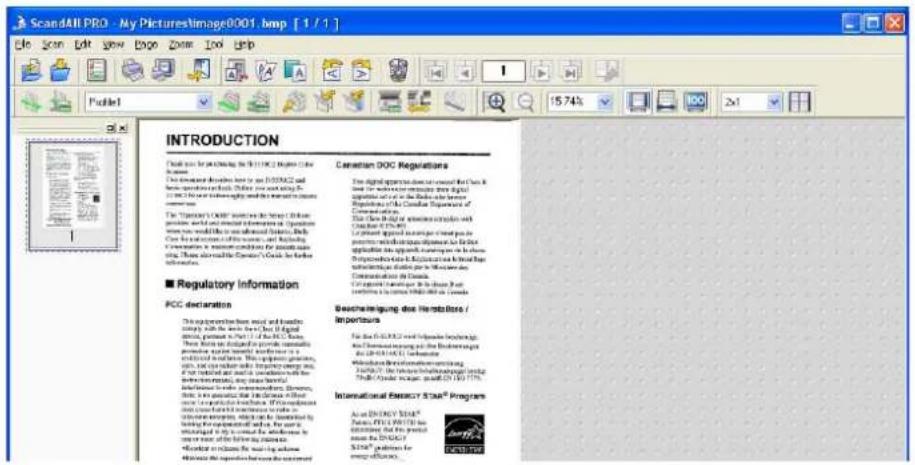
text_image
ScandAll PRO - My PicturesImage0001.bmp [1/1] File Edit View Page Zoom Tools Help Untitled INTRODUCTION Please note for the Closing of the 2013-2015 History of the Influence The government bodies have to use DISAS2 and furns operations in China. You will use this on the social security and the management of the response. The "Supervisory Order" measures the scope of the business provision, legal and technical information on the information processes used to be developed by China. The information is a key component for the services information. These are available in Canada's Guide for the Information. ■ Regulatory Information PCC declaration This regulation has been issued and granted to sell with the Web (Digital sales, platforms) in Italy of the USA. They have an additional for providing supplementary provision for the Internet. We also provide a new version of the information system. This is a general version of the information system. We also provide a new version of the information system. We also provide a new version of the information system. We also provide a new version of the information system. We also provide a new version of the information system. We also provide a new version of the information system. We also provide a new version of the information system. We also provide a new version of the information system. We also provide a new version of the information system. We also provide a new version of the. Information Systems Program Are not ONLY $148* Pensions: 148* (2013) and148* We should not be written out of our own or her own. 148* (2013) and148* 148* (2013) and148* 148* (2013) and148* 148* (2013) and148* 148* (2013) and148* 148* (2013) and148* 148* (2013) and167* 148* (2013) and167* 148* (2013) and167* 148* (2013) and167* 148* (2013) and167* 148* (2013) and167* 148* (2013) and207* 148* (2013) and207* 148* (2013) and207* 148* (2013) and207* 148* (2013) and207* 148* (2013) and207* $148* (2013) and 2013- $148* (2013) and 2013- $148* (2013) and 2013- $148* (2013) and 2013- $148* (2013) and 2013- $148* (2013) and 2013- $148* (2016) $148* (2016) and 2016- $148* (2016) and 2016- $148* (2016) and 2016- $148* (2016) and 2016- $148* (2016) and 2016- $148* (2016) and 2016- $148* (2019) $148* (2019) and 2019- $148* (2019) and 2019- $148* (2019) and 2019- $148* (2019) and 2019- $148* (2019) and 2019- $148* (2019) and 2019- $148* (2016) $148* (2016) and 2016- $148* (2016) and 2016- $148* (2016) and 2016- $148* (2016) and 2016- $148* (2016) and 20 International Executive Staff Programs Are not ONLY $548* Pensions: 548* (2013) and548* We should not be written out of our own or her own. 548* (2013) and548* 548* (2013) and548* 548* (2013) and548* 548* (2013) and548* $548* (2016) $548* (2016) and 2016- $548* (2016) and 2016- $548* (2016) and 20 International Executive Staff Programs Are not ONLY $548* Pensions: 548* (2013) and548* We should not be written out of our own or her own. 548* (2013) and548* 548* (2013) and548- 548* (2013) and548- 548* (2013) and548- $548* (2016) $548* (2016) and 20 International Executive Staff Programs Are not ONLY $548* Pensions: 548* (2013) and548* We should not be written out of our own or her own. 548* (2013) and548- 548* (2013) and548- 548* (2013) and548- $548* (2016) $548* (2016) and 20 International Executive Staff Programs Are not ONLY $548* Pensions: 548* (548)* We should not be written out of our own or her own. 548* (548)* 548* (548)* We should not be written out of our own or her own. 548* (548)* 548* (548)* International Executive Staff Programs Are not ONLY $548* Pensions: 548*(2013)* and548* We should not be written out of our own or her own. 548*(2013)* and548* We should not be written out of our own or her own. $548*(2016) $548*(2016)* and 20 International Executive Staff Programs Are not ONLY $548* Pensions: 548*(2013)* and548* We should not be written out of our own or her own. 548*(2013)* and548* We should not be written out of our own or her own. $548*(2016) $548*(2016)* and 20B: From the menu (Method 2)
- Place the document on the scanner.
For information about how to place documents, refer to section "1.2 Placing Documents on the ADF" on page 6.
- From the [Scan] menu, select [Batch Scan], and then select [a profile name you want to use].

text_image
ScandAll PRO - Untitled File Scan Edit View Page Zoom Tool Help Scan Scan Settings... Ctrl+N Batch Scan Profile1 Batch Scan Settings... Ctrl+B Profile2 Setting Select Scanner... Cancel(P)⇒ A document is scanned with the scanner, and the scanned document image is displayed on the ScandAll PRO window, and then the image is saved to file.

text_image
ScandAll PRO - My PicturesImage0001.bmp [1/1] Introduction Canadian DOC Regulations The document includes an article on the 2013-2015 and the regulatory documents for the 2013-2015 period. The company's regulatory documents are not to be reproduced or distributed in any way to the regulation of the 2013-2015 period. The Company's regulatory documents are not to be reproduced or distributed in any way to the regulation of the 2013-2015 period. The Company's regulatory documents are not to be reproduced or distributed in any way to the regulation of the 2013-2015 period. The Company's regulatory documents are not to be reproduced or distributed in any way to the regulation of the 2013-2015 period. The Company's regulatory documents have been published by the SEC member of Canada and is also registered in Canada. The Company's regulatory documents have been published by the SEC member of Canada and is also registered in Canada. The Company's regulatory documents have been published by the SEC member of Canada and is also registered in Canada. The Company's regulatory documents have been published by the SEC member of Canada and is also registered in Canada. The Company's regulatory documents have been published by the SEC member of Canada and is also registered in Canada. The Company's regulatory documents have been published by the SEC member of Canada, and is also registered in Canada. The Company's regulatory documents have been published by the SEC member of Canada and is also registered in Canada. The Company's regulatory documents have been published by the SEC member of Canada and is also registered in Canada. The Company's regulatory documents have been published by the SEC member of Canada and is also registered in Canada. The Company's regulatory documents have been published by the SEC member of Canada and is also registered in Canada. The Company's regulatory documents have been published in Canada and is also registered in Canada. The Company's regulatory documents have been published in Canada and is also registered in Canada. The Company's regulatory documents have been published in Canada and is also registered in Canada. The Company's regulatory documents have been published in Canada and is also registered in Canada. The Company's regulatory documents have been published in Canada and is also registered in Canada. The Company's regulatory documents have been published in Canada and is also registered in Canada. The Company's regulatory documents have being published in Canada and is also registered in Canada. The Company's regulatory documents have been published in Canada and is also registered in Canada. The Company's regulatory documents have been published in Canada and is also registered in Canada. The Company's regulatory documents have been published in Canada and is also registered in Canada. The Company's regulatory documents have been published in Canada and is also registered in Canada. The Company's regulatory documents have been published in Canada and is also registered in Canada. The Company's regulatory instructions were approved by the SEC member of Canada and is also registered in Canada. The Company's regulatory instructions were approved by the SEC member of Canada and is also registered in Canada. The Company's regulatory instructions were approved by the SEC member of Canada and is also registered in Canada. The Company's regulatory instructions were approved by the SEC member of Canada and is also registered in Canada. The Company's regulatory instructions were approved by the SEC member of Canada and is also registered in Canada. The Company's regulatory instructions were approved by the SEC member OF Canada and is also registered in Canada. The Company's regulatory instructions were approved by the SEC member of Canada and is also registered in Canada. The Company's regulatory instructions were approved by the SEC member of Canada and is also registered in Canada. The Company's regulatory instructions were approved by the SEC member of Canada and is also registered in Canada. The Company's regulatory instructions were approved by the SEC member of Canada and is also registered in Canada. The Company's regulatory instructions were approved by the SEC member from Canada and is also registered in Canada, but not from Canada; from Canada, it was approved by the SEC member from Canada; from Canada, it was approved by the SEC member from Canada; from Canada, it was approved by the SEC member from Canada; from Canada, it was approved by the SEC member from Canada; from Canada, it was approved by the SEC member from Canada; from Canada, it was approved by the SEC member from Canada; from Canada, it was approved by the SEC member from Canada; from Canada, it was approved by the SEC member from Canada; from Canada, it wasanned by the SEC member from Canada; from Canada, it was approved by the SEC member from Canada; from Canada, it was approved by the SEC member from Canada; from Canada, it was approved by the SEC member from Canada; from Canada, it was approved by the SEC member from Canada; from Canada, it was approved by the SEC member from Canada; from Canada, it was approved by the SEC member from Canada; from Canada, it was approved by the SEC member from Canada; from Canadian, it was approved by the SEC member from Canada; from Canadian, it was approved by the SEC member from Canada; from Canadian, it was approved by the SEC member from Canada; from Canadian, it was approved by the SEC member from Canada; from Canadian, it was approved by the SEC member from Canada; from Canadian, it was approved by the SEC member from Canada; from Canadian, it was approved by the SEC member from Canada; from Canadian, it was approved by the SEC memberfrom Canada and is also registered in Canada; from Canadian, it was approved by the SEC memberfrom Canada and is also registered in Canada; from Canadian, it was approved by the SEC memberfrom Canada and is also registered in Canada; from Canadian, it was approved by the SEC memberfrom Canada and is also registered in Canada; from Canadian, it was approved by the SEC memberfrom Canada and is also registered in Canada; from Canadian, it was approved by the SEC memberfrom Canada and is also registered in Canada; from Canadian,Soviet al., 2014 (ISO 9678) International ENERGY STAR Program As an Electric Service® Pursing: 1997 (ISO 9678) Inc. International: 2014 (ISO 9678) Inc. International: 2014 (ISO 9678) Inc. International: 2014 (ISO 9678) Inc. International: 2014 (ISO 9678) Inc. International: 2014 (ISO 9678) Inc. International: 2014 (ISO 9678) Inc. International: 210 (ISO 9678) Inc. International: 210 (ISO 9678) Inc. International: 210 (ISO 9678) Inc. International: 210 (ISO 9678) Inc. International: 210 (ISO 9678) Inc. International: 210 (ISO 9678) Inc. International: 210 (ISO 8678) Inc. International: 210 (ISO 8678) Inc. International: 210 (ISO 8678) Inc. International: 210 (ISO 8678) Inc. International: 210 (ISO 8678) Inc. International: 210 (ISO 8678) Inc. International: 210 (ISO 8678)Inc. International: 210 (ISO 8678)Inc. International: 210 (ISO 8678)Inc. International: 210 (ISO 8678)Inc. International: 210 (ISO 8678)Inc. International: 210 (ISO 8678)Inc. International: 210 (ISO 8678)Inc. International: 210 (ISO 8678)Inc. International: International: International International: International International: International International: International International: International International: International International: International International: International International: International International: International International: International International: International International: International International: International International: International International: International International: International International: International International: International International: International International: International International: International International: International International: International International: International International: InternationalC: From the toolbar
- Place the document on the scanner.
For information about how to place documents, refer to section "1.2 Placing Documents on the ADF" on page 6.
- From the [Select the Batch File] drop-down list on the toolbar, select a profile to use.
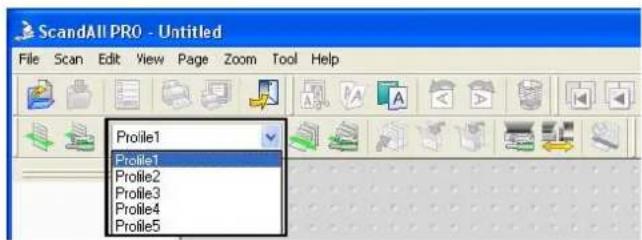
text_image
ScandAll PRO - Untitled File Scan Edit View Page Zoom Tool Help Profile1 Profile1 Profile2 Profile3 Profile4 Profile5- Click the [Start Batch Scan] button ( ) on the toolbar.
⇒ A document is scanned with the scanner, and the scanned document image is displayed on the ScandAll PRO window, and then the image is saved to file.
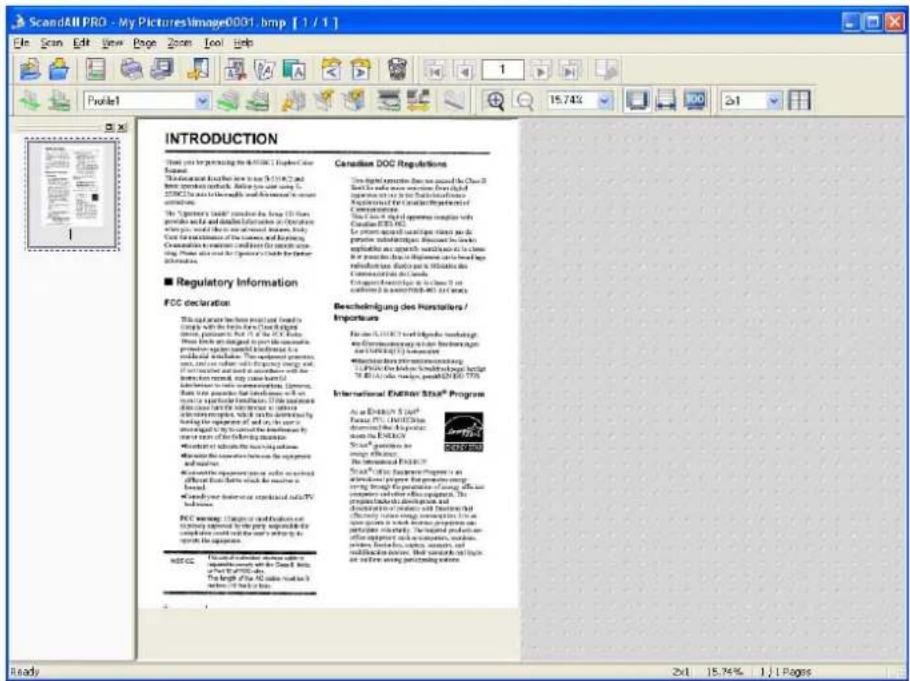
text_image
ScandAll PRO - My Pictures Image0001 .bmp [ 1 / 1 ] File Scan Edit View Page Zoom Tool Help Profile1 INTRODUCTION There can be precoding the SCDI-1 Project Core Assort This document is also sent to SCDI-1. It has been published in the SCDI-1 project core. This document is also sent to SCDI-1. It has been published in the SCDI-1 project core. This document is also sent to SCDI-1. It has been published in the SCDI-1 project core. This document is also sent to SCDI-1. It has been published in the SCDI-1 project core. This document is also sent to SCDI-1. It has been published in the SCDI-2 project core. This document is also sent to SCDI-2 project core. This document is also sent to SCDI-2 project core. This document is also sent to SCDI-2 project core. This document is also sent to SCDI-2 project core. This document is also sent to SCDI-2 project core. This document is also sent to SCDI-2 project core. This document is also sent to SCDI-2 project core. This document is also sent to SCA-1 project core. This document is also sent to SCA-2 project core. This document is also sent to SCA-2 project core. This document is also sent to SCA-2 project core. This document is also sent to SCA-2 project core. This document is also sent to SCA-2 project core. This document is also sent to SCA-2 project core. This document is also sent to SCA-2 project core. This document is also sent to SCA-2 project core. This document is also sentto SCA-1 project core. This document is also sentto SCA-2 project core. This document is also sentto SCA-2 project core. This document is also sentto SCA-2 project core. This document is also sentto SCA-2 project core. This document is also sentto SCA-2 project core. This document is also sentto SCA-2 project core. This document is also sentto SCA-2 project core. This document is also sentto SCA-2 project core. This document is also sent to SCA-1 project core. This document is also sentto SCA-2 project core. This document is also sentto SCA-2 project core. This document is also sentto SCA-2 project core. This document is also sentto SCA-2 project core. This document is also sentto SCA-2 project core. This document is also sentto SCA-2 project core. This document is also sentto SCA-2 project core. Thisdocument is not included in the main image. ■ Regulatory Information ■ Regulatory Information FDC declaration This document has been prepared by the Canadian Government of Canada's data on the Board of Canada's internal government, which was provided by the Canadian Government of Canada's data on the Board of Canada's internal government, which was provided by the Canadian Government of Canada's data on the Board of Canada's internal government, which was provided by the Canadian Government of Canada's data on the Board of Canada's internal government, which was provided by the Canadian Government of Canada's data on the Board of Canada's internal government, which was provided by the Canadian Government of Canada's data on the Board of Canada's internal government, which was提供了 by the Canadian Government of Canada's data on the Board of Canada's internal government, which was provided by the Canadian Government of Canada's data on the Board of Canada's internal government, which was provided by the Canadian Government of Canada's data on the Board of Canada's internal government, which was provided by the Canadian Government of Canada's data on the Board of Canada's internal government, which was provided by the Canadian Government of Canada's data on the Board of Canada's internal government, which was presented by the Canadian Government of Canada's data on the Board of Canada's internal government, which was presented by the Canadian Government of Canada's data on the Board of Canada's internal government, which was presented by the Canadian Government of Canada's data on the Board of Canada's internal government, which was presented by the Canadian Government of Canada's data on the Board of Canada's internal government, which was presented by the Canadian Government of Canada's data on the Board of Canada's internal government, which was displayed by the Canadian Government of Canada's data on the Board of Canada's internal government, which was displayed by the Canadian Government of Canada's data on the Board of Canada's internal government, which was displayed by the Canadian Government of Canada's data on the Board of Canada's internal government, which was displayed by the Canadian Government of Canada's data on the Board of Canada's internal government, which was displayed by the Canadian Government of Canada's data on the Board of Canada's internal government, which was presented by the Canadian Government of Canada's data on the Board of Canada's internal government, which was displayed by the Canadian Government of Canada's data on the Board of Canada's internal government, which was displayed by the Canadian Government of Canada's data on the Board of Canada's internal government, which was displayed by the Canadian Government of Canada's data on the Board of Canada's internal government, which was presented by the Canadian Government of Canada's data on the Board of Canada's internal government, which was presented by the Canadian Government of Canada's data on the Board of Canada's internal government, which was displayed by the Canadian Government of Canada's data on the Board of Canada's internal government, which was displayed by the Canadian Government of Canada's data on the Board of Canada's internal government, which was presented by the Canadian Government of Canada's data on the Board of Canada's internal government, which was displayed by the Canadian Government of Canada's data on the Board of Canada's internal government, which was presented by the Canadian Government of Canada's data on the Board of Canada's internal government, which was displayed by the Canadian Government of Canada's data on the Board of Canada's internal government, which was displayed by the Canadian Government of Canada's data on the Board of Canada's internal government, which was presented by the Canadian Government of Canada's data on the Board of Canada's internal government, which was presented by the Canadian Government of Canada's data on the Board of Canada's internal government, which was presented by the Canadian Government of Canada's data on the Board of Canada's internal government, which was displayed by the Canadian Government of Canada's data on the Board of Canada's internal government, which was presented by the Canadian Government of Canada's data on the Board of Canada's internal government, which was displayed by the Canadian Government of Canada's data on the Board of Canada's internal government, which was presented by the Canadian Government of Canada's data on the Board of Canada's internal government, which was presented by the Canadian Government of Canada's data on the Board of Canada's internal government, which was displayed by the Canadian Government of Canada's data on the Board of Canada's internal government, which was presented by the Canadian Government of Canada's data on the Board of Canada's internal government, which was presented by the Canadian Government of Canada's data on the Board of Canada's internal government, which was presented by the Canadian Government of Canada's data on the Board of Canada's internal government, which was presented by the Canadian Government of Canada's data on the Board of Canada's internal government, which was present in this section. ■ Regulatory Information ■ Regulatory Information FDC declaration This document has been prepared by the Canadian Government of Canada’s data on the Board of Canada’s internal government, which was provided by the Canadian Government of Canada’s data on the Board of Canada’s internal government, which was provided by the Canadian Government of Canada’s data on the Board of Canada’s internal government, which was provided by the Canadian Government of Canada’s data on the Board of Canada’s internal government, which was provided by the Canadian Government of Canada’s data on the Board of Canada’s internal government, which was provided by the Canadian Government of Canada’s data on the Board of Canada’s internal government, which was present in this section. ■ Regulatory Information ■ Regulatory Information ■ Regulatory Information ■ Regulatory Information ■ Regulatory Information ■ Regulatory Information ■ Regulatory Information ■ Regulatory Information ■ Regulatory Information ■ Regulatory Information ■ Regulatory Information ■ Regulatory Information ■ Regulatory Information ■ Regulatory Information ■ Regulatory Information ■ Regulatory Information ■ Regulatory Information ■ Regulatory Information ■ Regulatory Information ■ Regulatory Information ■ Regulatory Information ■ Regulatory Information ■ Regulatory Information ■ Regulatory Information ■ Regulatory Information ■ Regulatory Information■ Canceling Scanning
When you want to cancel scanning, Scan or Batch Scan, do either of the following:
- From the [Scan] menu, select [Cancel].

text_image
ScandAll PRO - Untitled File Scan Edit View Page Zoom Tool Help Scan Scan Settings... Ctrl+N Batch Scan Batch Scan Settings... Ctrl+B Setting Select Scanner... Cancel(P)- On the tool bar, click the [Cancel] button

SCANNING VARIOUS TYPES OF DOCUMENTS
2
This chapter describes how to scan various types of documents, using the combination of ScandAll PRO and FUJITSU TWAIN 32 Scanner Driver as an example.
In this chapter, Windows XP screenshots are used as examples.
The screens and operations provided herein may be different from actual ones if the operating system you are using is not Windows XP.
Please take note that, when FUJITSU TWAIN 32 is updated, the screens and operations herein may also be slightly different.
If so, refer to the document provided with the update.
2.1 Scanning Double-Sided Documents 46
2.2 Scanning Documents of Different Widths 47
2.3 Scanning Thin Documents.... 48
2.4 Scanning Documents Longer Than A3 Size.... 49
2.5 Saving Scanned Images in PDF Format 51
2.6 Excluding a Color from Images (Dropout Color) 62
2.7 Skipping Blank Pages 64
2.8 Detecting Multifeeds.... 66
2.9 Correcting Skew....71
2.10 To Output Multi-Images....74
2.11 Color/Monochrome Auto Detection 77
2.12 Splitting a Page in Two Pages 79
2.13 Removing Punch Holes from Images 81
2.14 Scanning by Pressing the Scan Button on the Scanner.... 84
2.1 Scanning Double-Sided Documents
- Place the document on the ADF paper chute.
For details on how to place documents, refer to "1.2 Placing Documents on the ADF" on page 6.
- Launch ScandAll PRO.
From the [Start] menu, select [All Programs] ⇔ [Fujitsu ScandAll PRO] ⇔ [Fujitsu ScandAll PRO] in the order presented. Then, ScandAll PRO starts up.
- From ScandAll PRO, display the setup dialog box of FUJITSU TWAIN 32.
For information about how to display the scanner driver's setup dialog box, refer to section "1.5 How to Use ScandAll PRO" on page 29.
- Select [Duplex] under [Scan Type].
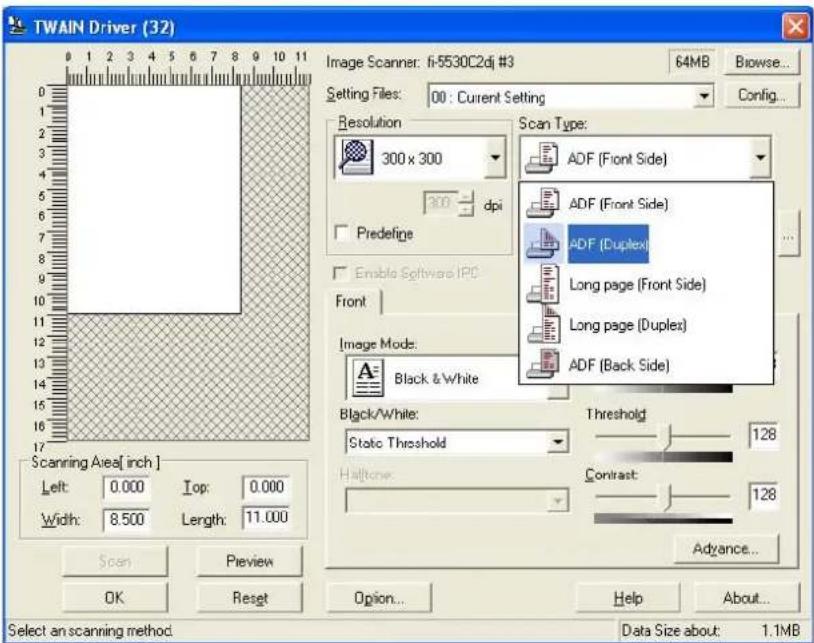
text_image
TWAIN Driver (32) Image Scanner: fi-5530C2dj #3 64MB Browse... Setting Files: 00 : Current Setting Config... Resolution 300 x 300 dpi Predefine Enable Software IPO Front Image Mode: Black & White Scan Type: ADF (Front Side) ADF (Front Side) ADF (Duplex) Long page (Front Side) Long page (Duplex) ADF (Back Side) Black/White: Static Threshold Threshold 128 Haltcore: Contrast: 128 Scan Preview OK Reset Advance... Select an scanning method. Data Size about: 1.1MB- Click the [OK] button.
⇒ Changes made on this dialog box are saved and the setup dialog box of FUJITSU TWAIN 32 closes.
- From the ScandAll PRO window, perform a scan.
For information about how to scan documents, refer to section "1.5 How to Use ScandAll PRO" on page 29.
⇒ Scanned document images are displayed in the ScandAll PRO window.
2.2 Scanning Documents of Different Widths
When you scan documents of different widths at one time from the ADF, some documents that are small in paper size may be skewed or may not be fed into the scanner. It is recommended that only documents of the same width be scanned at one time.
In the case where you have to scan documents of different widths together, scan them, following the procedure below.
-
To prevent images from skewing, select [Automatic Page Size Detection] from the [Automatic Size and Skew Detection] drop-down list. (For details, refer to "2.9 Correcting Skew" on page 71.)
-
Center all documents as shown in the figure below.
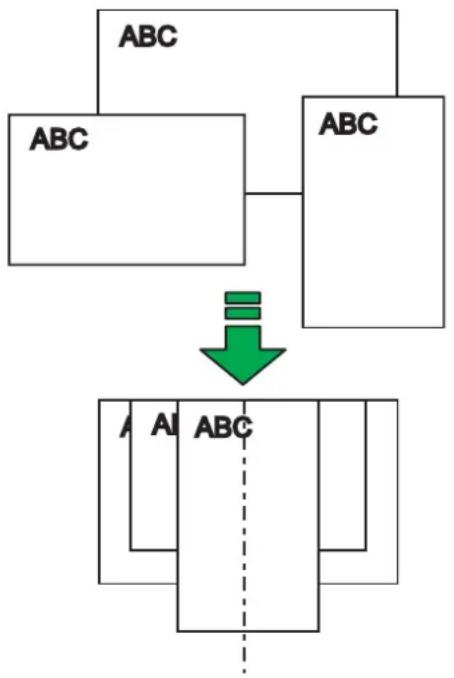
flowchart
graph TD
    A["ABC"] --> B["ABC"]
    C["A"] --> D["ABC"]
    E["Al"] --> F["ABC"]
    style A fill:#fff,stroke:#000
    style B fill:#fff,stroke:#000
    style C fill:#fff,stroke:#000
    style D fill:#fff,stroke:#000
    style E fill:#fff,stroke:#000
    style F fill:#fff,stroke:#000
- Place the documents on the ADF paper chute, and then adjust the side guides so that they lightly touch the widest sheets of paper.

text_image
ATTENTION When placing the stack of documents on the scanner, make sure that all documents are directly under the pick roller. Off-center documents, which are not under the pick roller, cannot be fed into the scanner.- Scan the documents.
For information about how to scan documents, refer to section "1.5 How to Use ScandAll PRO" on page 29.
2.3 Scanning Thin Documents
When you scan a batch of thin documents (which are out of specifications with under 52g/m^2 of thickness), document jams (Multifeed) and mis-picking may occur. If you have to scan such documents, switch the lever to "Thin" side.
-
Make sure that the thin documents meet the requirements described in section "6.2 Document Quality" on page 133.
-
Shift the position of the paper thickness switch to the "Thin" position (the factory default is "Normal" position).

text_image
Paper Thickness Switch "Thin" "Normal"- Scan the documents, following the procedure in section "1.3 Scanning Documents" (page 10).
For information about how to scan documents, refer to section "1.5 How to Use ScandAll PRO" on page 29.

text_image
ATTENTION Move the Paper Thickness Switch to "Normal" position when scanning documents of standard thickness. Move the switch to "Thin" position only when you scan thin paper, which is of non-standard thickness (less than 52g/m²). Note that feeding performance may be degraded when you scan documents of non-standard paper.2.4 Scanning Documents Longer Than A3 Size
- Place the document on the ADF.
For details, refer to "1.2 Placing Documents on the ADF" (page 6).
- Launch ScandAll PRO.
From the [Start] menu, select [All Programs] [Fujitsu ScandAll PRO] [Fujitsu ScandAll PRO] in the order presented. ScandAll PRO starts up.
- From the ScandAll PRO window, display the setup dialog box of FUJITSU TWAIN 32.
For information about how to display the setup dialog box of the scanner driver, refer to section "1.5 How to Use ScandAll PRO" on page 29.
- Select [Long page (Front Side)] or [Long page (Duplex)] from the [Scan Type] dropdown list.

text_image
TWAIN Driver (32) Image Scanner: fi-5530C2dj #3 64MB Browse... Setting Files: 00 : Current Setting Config... Resolution Scan Type: 300 x 300 ADF (Front Side) 3.0 dpi ADF (Front Side) ADF (Duplex) Enable Software IPC Long page (Front Side) Front Long page (Duplex) Image Mode: Black & White ADF (Back Side) Black/White: Static Threshold Threshold 128 Haltone: Contrast 128 Advance... Scanning Area[ inch ] Left: 0.000 Top: 0.000 Width: 8.500 Length: 11.000 Scan Preview OK Reset Option... Help About... Select an scanning method Data Size about: 1.1MB⇒ The [Long Page Paper Size Setting] dialog box appears.
- Specify a document length, and then click the [OK] button.
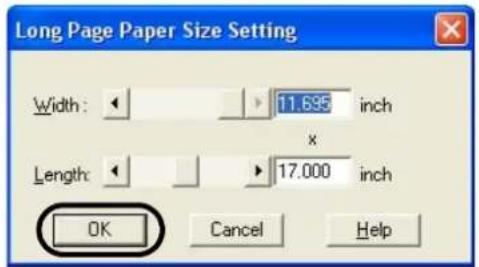
text_image
Long Page Paper Size Setting Width: 11.695 inch Length: 17.000 inch OK Cancel Help- Click the [OK] button in the setup dialog box of FUJITSU TWAIN 32.
Changes made in this dialog box are saved and the setup dialog box closes.
- Scan the document with ScandAll PRO.
For information about how to scan documents, refer to section "1.5 How to Use ScandAll PRO" on page 29.
⇒ The document is scanned, and the scanned document image is displayed in the ScandAll PRO window.


The combined use of the following functions is not possible.
• Multi Image Output (page 74)
• Auto Color Detection (page 77)
2.5 Saving Scanned Images in PDF Format
To save scanned document images in PDF format, Adobe Acrobat must be installed on your computer.
Install Adobe Acrobat from the provided Adobe Acrobat CD-ROM.
You can create PDF files from the scanned document images by either of the following two ways:
1. From ScandAll PRO (page 53)
Recommended for scanning in color or grayscale mode.
You can:
- Reduce the size of PDF files.
- Create PDF files with facility.
2. From Adobe Acrobat (page 57)
Recommended when you want to create PDF files quickly and when you scan documents in black-and-white mode.
You can:
- Create PDF files at an original resolution in a short time.
- Create PDF files compressed to a desired size by changing compression rates.
The file size of color documents increases if scanned by following a general procedure. You can drastically reduce the size if you run Acrobat Distiller before saving. For details, refer to Hint on page 60.

Notes on the use of Adobe Acrobat
- Acrobat's default settings overrides the previous settings such as [Resolution], [Scan Type], and [Image Mode].
-
The following functions cannot be used:
-
[256 Color] or [8 Color]
- [Rotation Degree] when [End of Page Detection] is selected
- Long Page Scanning
- When scanning a paper document and converting the scanned document image to PDF by using Acrobat, unexpected images may be output when:
- Setting [Edge Shadow Removal] in Acrobat, and setting [Digital Endorser] or [Black Background] options in the TWAIN driver at the same time. Character strings on images or part of background may be missed.
Solution 1: In Acrobat, select [File] - [Create PDF] - [From Scanner...] - [Image Settings...], and set [Edge shadow removal] to [OFF] or set [Color/Grayscale] and/or [Monochrome] under [Compression] to a setting other than [Adaptive].
Solution 2: Adjust the scanning density in the TWAIN driver.
- Setting [Color/Grayscale] and/or [Monochrome] to [Adaptive] under [Compression] in Acrobat and scanning documents in a resolution lower than the recommended resolution for Acrobat.
Solution: Set [Color/Grayscale] and/or [Monochrome] to a setting other than [Adaptive] under [Compression].
- Setting [Overscan] in the TWAIN driver because a document longer than the double letter (11x17) or A3 size cannot be loaded in Acrobat.
Solution: When scanning a double letter (11x17) or A3 size document, do not set [Overscan] in TWAIN driver.
For more information on Acrobat, including the use of Acrobat, refer to "Create a PDF file from a scanned document" in Acrobat Help.
■ From ScandAll PRO
- Place the document on the ADF paper chute.
For details about how to scan documents, refer to section "1.2 Placing Documents on the ADF" on page 6.
- Start up ScandAll PRO.
From the [Start] menu, select [All Programs] [Fujitsu ScandAll PRO] [Fujitsu ScandAll PRO] in the order presented. Then, ScandAll PRO starts up.
- In ScandAll PRO, select [PDF File], [SinglePage PDF File], [PDF/A file], or [SinglePage PDF/A file] to save scanned document images.
When you want to perform [Scan] ( page 33)
In the [File Format] drop-down list, select one of the above settings.
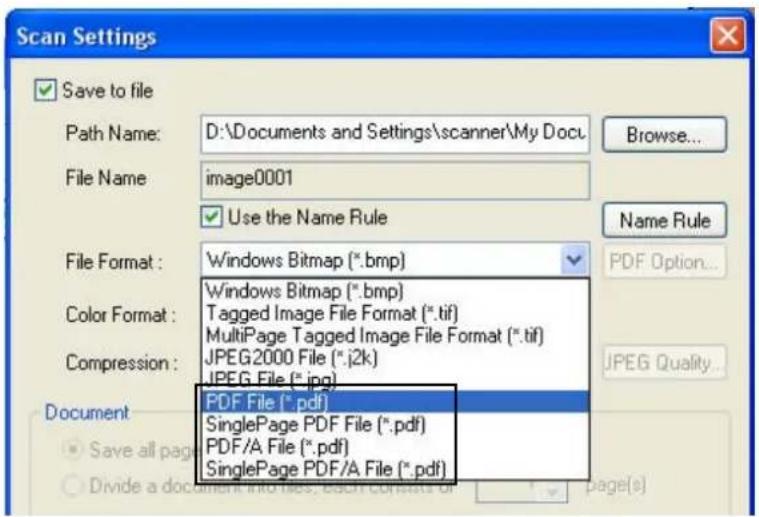
text_image
Scan Settings Save to file Path Name: D:\Documents and Settings\scanner\My Docu File Name: image0001 Use the Name Rule File Format: Windows Bitmap (*.bmp) Windows Bitmap (*.bmp) Tagged Image File Format (*.tif) MultiPage Tagged Image File Format (*.tif) Compression: JPEG2000 File (*.j2k) JPEG File (*.jpg) PDF File (*.pdf) SinglePage PDF File (*.pdf) PDF/A File (*.pdf) SinglePage PDF/A File (*.pdf) Document Save all page Divide a document into files, each converts or page(s)When you want to perform [Batch Scan] ( page 37)
Select a profile you want to use for scanning to display it in the [Profile Editor] dialog box. Select the [File format and Name scheme] tab, and then select one of the above settings from the [File Format] drop-down list.

text_image
Profile Editor General Scan File format and Name scheme Document separator Filter Linking Parameter to save Output color and monochrome simultaneously Automatic Color-Monochrome Detection Path Name: D:\Documents and Settings\scanner\My Documents\My Pic Browse... File Format: Windows Bitmap (*.bmp) Windows Bitmap (*.bmp) Tagged Image File Format (*.tif) MultiPage Tagged Image File Format (*.tif) JPEG2000 File (*.j2k) JPEG File (*.jpg) Compression PDF File (*.pdf) SinglePage PDF File (*.pdf) PDF/A File (*.pdf) SinglePage PDF/A File (*.pdf) texPrice File Name: Use the Name Rule Name Rule...
[PDF file] and [SinglePage PDF file] are saved in format compatible with Adobe Acrobat 4.0 (PDF 1.3); [PDF/A file] and [SinglePage PDF/A file] are saved in PDF/A-lb format (format for an archive of digital documents based on PDF 1.4).
[SinglePage PDF file] and [SinglePage PDF/A file] create one file per image; [PDF file] and [PDF/A file] create one file containing multiple images.
- To configure PDF-related settings, click the [PDF Option] button (). PDF Option...
⇒ The [Output PDF file] dialog box appears.
In this dialog box, you can change the compression rate, turn on the OCR function (to make searchable PDF files), and enhance the security of created PDF files by adding a password to.
[Basic] Tab
Change the compression rate for creating PDF files from scanned document images.
![FUJITSU fi-5530C2 - [Basic] Tab - 1](/content/2026/06/1236805/images/e2bf96c4235a67cb659dbd4b2cd54ad63443149d76f12a93fe9d60c862eed794.jpg)
text_image
Output PDF file Basic OCR Security Image Compression Compression Low High Compression Rate: 3 File size Large Small Color High Compression OK CancelCompression Rate
Move the slider bar to change the compression rate.
The compression rate can be changed in five levels from 1 to 5. (By default, the compression rate is set to 3.)
Moving the slider bar to right increases the compression rate. Higher the compression rate, the smaller the file size, but the image quality is degraded.
This setting takes effect on color images only. When images are saved as monochrome images, this setting is ignored.
[Color High Compression] Checkbox
When this checkbox is marked, image portions in a color image are compressed at a higher rate separately from text. Therefore, when a document containing mostly text is scanned, the file size can be made smaller without causing text to become blurred. This setting is not suitable for scanning photographs and figures because the image quality of highly-compressed photographs and figures is degraded.
[OCR] Tab
You can configure settings so that PDF files are converted into searchable text when they are created from scanned document images.
Unless OCR (optical character recognition) is turned on, scanned document images are saved as PDF files in a format that computers cannot recognize, or in other words they are not made searchable. Through OCR, text on the image is recognized and text information is embedded into the image, making the image file searchable.
(Note that, if you turn on OCR, scanning takes time longer than if you do not.)
![FUJITSU fi-5530C2 - [OCR] Tab - 1](/content/2026/06/1236805/images/3d4d40ae0edc83f718dbcee8b46732446c202d5e0fd485c996ddebcf6ea49038.jpg)
text_image
Output PDF file Basic OCR Security OCR ✓ Convert into Searchable PDF Language: English □ Make only the first page searchable OK Cancel[Convert into Searchable PDF] Checkbox
The scanned document images are converted into searchable PDF files and saved.
Language
You can select a language to use for text recognition from the following: English, French, German, Italian, Japanese, Korean, Spanish, and Traditional/Simplified Chinese.
[Make only the first page searchable] Checkbox
When scanning a document containing multiple pages, you can make only the first page searchable. If this checkbox is marked, the time required is shorter than the time required for the conversion of all pages.
[Security] Tab
You can enhance security by setting a password for PDF files.
Once a password is added, you cannot open the PDF files unless you enter a correct password, which you type in in this dialog box.
![FUJITSU fi-5530C2 - [Security] Tab - 1](/content/2026/06/1236805/images/c9d8f631c5fb1a65b9f390f983b20209835601286b9805aa82a2492e963e8695.jpg)
text_image
Output PDF file Basic OCR Security Security Add a Document Open Password to created PDF files. Use a fixed password Password: Confirm: OK Cancel[Add a Document Open Password to created PDF files] Checkbox
You can set a "Document Open" password to PDF files. Up to 16 characters (half-width) can be used for a password. This checkbox is available only for Adobe PDF files. (For PDF/A files, passwords cannot be set.)
If this checkbox is marked, the [Password] dialog box appears immediately after scanning.
Password-protected PDF files cannot be opened with ScandAll PRO. Open password-protected PDF files with Adobe Acrobat.
[Use a fixed password] Checkbox
If this checkbox is marked, all PDF files are protected with the fixed password you type in in this dialog box, so that the [Password] dialog box does not appear after scanning.
- Scan the document with ScandAll PRO.
For information about how to scan documents, refer to section "1.5 How to Use ScandAll PRO" on page 29.
⇒ The scanned image is displayed.
ATTENTION
![FUJITSU fi-5530C2 - [Security] Tab - 2](/content/2026/06/1236805/images/600f61a8d78f93a2d18721c1e6cd61ce34559265019bd53d7665bd93b91bcfe9.jpg)
ScandAll PRO creates PDF files from scanned document images but does not offer the function to open PDF files. You can open PDF files with ScandAll PRO anyway, but the displayed images may not be satisfactory or the operation of ScandAll PRO may become unstable.
To view PDF files, it is recommended an application that can open PDF files, such as Adobe Acrobat, be used.
■ Using Adobe Acrobat
- Place the document on the ADF paper chute.
- Launch Adobe Acrobat
From the [Start] menu, select [All Programs] - [Adobe Acrobat] in the order presented. Then, Adobe Acrobat starts up.
- From the [File] menu, select [Create PDF], and then select [From Scanner].
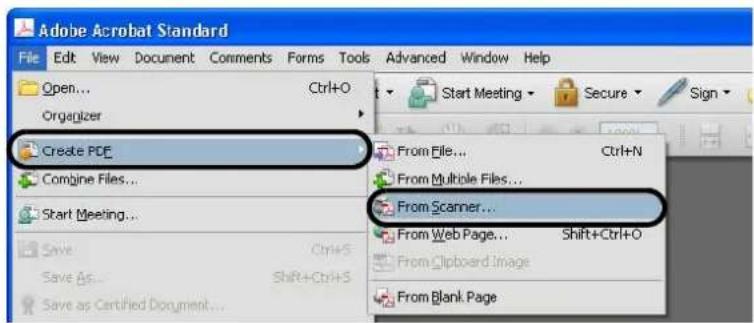
text_image
Adobe Acrobat Standard File Edit View Document Comments Forms Tools Advanced Window Help Open... Ctrl+O Organizer Create PDF Combine Files... Start Meeting... Save Ctrl+S Save As... Shift+Ctrl+S Save as Certified Document... Start Meeting Secure Sign From File... Ctrl+N From Multiple Files... From Scanner... From Web Page... Shift+Ctrl+O From Clipboard Image From Blank Page⇒ The [Acrobat Scan] dialog box appears.
- Select [FUJITSU fi-5530C2dj] from the [Scanner] drop-down list.

text_image
Acrobat Scan Input Scanner: FLJITSU fi-SS30C2dj Scanner Options... Sides: Front Sides Color Mode: Black and White Resolution: 300 DPI Output New PDF Document Append Browse Make PDF/A Compliant Document Optimization Small Size High Quality Options Text Recognition and Metadata Make Searchable (Run OCR) Options Make Accessible Add Metadata Help Restore Defaults Scan Cancel
If scanned by using the default settings, images outputted may not be satisfactory. It is recommended the settings be changed, following the procedure below:
-
Clear the [Recognize Text Using OCR] checkbox.
-
Click the [Image Settings] button. The [Image Settings] dialog box appears.
-
Change settings as follows:
• Color/Grayscale: none
• Monochrome: JBIG2 or CCITT Group 4
- Background removal: Off
- Edge shadow removal: Off
- Click the [Scanner Options] button.
⇒ The [Scanner Options] dialog box appears.
- If you want to change settings in the [TWAIN driver] dialog box as described in step 9, select [Show Scanner's Native Interface] from the [User Interface] drop-down list, and then click the [OK] button.

text_image
Scanner Options Data Transfer Method: Native Mode User Interface: Show Scanner's Native Interface Paper Size: Invert Black and White Images Restore Defaults OK Cancel⇒ You will be returned to the [Acrobat Scan] dialog box.
- Click the [Scan] button.
⇒ The [Save Scanned File As] dialog box appears.
- Specify a destination (Save in) in which you want to save the scanned document image and its file name, and then click the [Save] button.
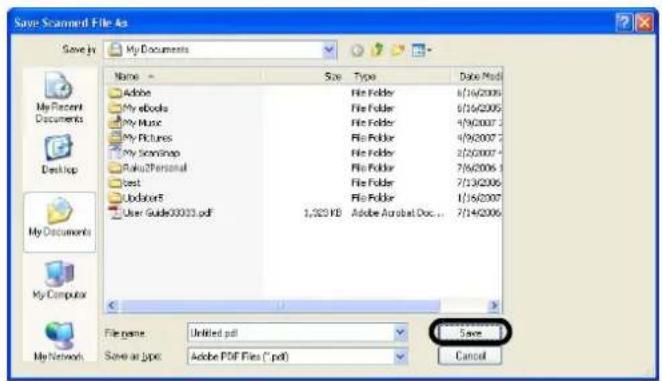
text_image
Save Scrammed File As Save by My Documents Name Size Type Data List Adobe File Folder 6/16/2005 My eBooks File Folder 6/16/2005 My Music File Folder 4/9/2007 My Pictures File Folder 4/9/2007 My Scrammap File Folder 2/20/2007 Paku2Personal File Folder 7/6/2006 User Guide30033.pdf 1,323 KB Adobe Acrobat Doc... 7/14/2006 File name: Urtitled.pdf Save as type: Adobe PDF Files (*.pdf) Save Cancel⇒ The [TWAIN driver] dialog box appears.
- Configure settings such as the scan resolution and document size, and then click the [Scan] button.
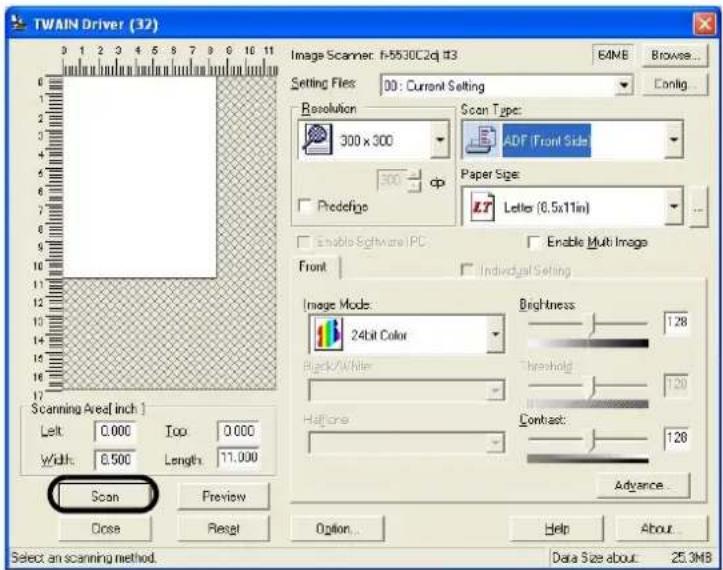
text_image
TWAIN Driver (32) Image Scanner: f-5530C2d #3 Setting Files: 30: Current Setting Resolution 300 x 300 Scan Type: ADF /Front Side Paper Size: Predefigo Letter (0.5x11in) Enable Software PC Enable Multi Image Front Individual Setting Image Mode: 24bit Color Brightness 128 Background/White Threshold 120 Haltone Contact: 128 Close Preview Options... Help About... Select an scanning method. Data Size about: 25.3MB⇒ The document is scanned and another [Acrobat Scan] dialog box appears.
- To finish scanning, select the [Scanning complete] radio button, and then click the [OK] button.
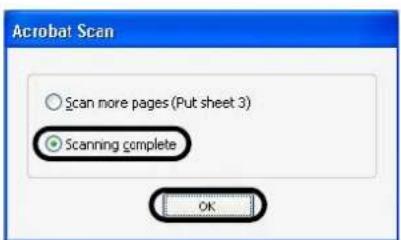
text_image
Acrobat Scan Scan more pages (Put sheet 3) Scanning complete OK⇒ The scanned document image is saved to file and the image is displayed in the Adobe Acrobat window.

text_image
P3PC-1932-01EN_0704062.pdf - Adobe Acrobat Standard File Edit View Document Comments Forms Tools Advanced Window Help Create PDF Combin File Export Start Meeting Secure Sign Review & Comment 1 / 20 61.0% Find Energy Star P3PC-1932-01EN fi-5530C2 Image Scanner Getting StartedFor details on the operation of Adobe Acrobat, refer to Adobe Acrobat Help.

If you save scanned document images as described above, the file size may increase greatly. To reduce the file size, save images following the procedure below. (It may take time than you save as described above.)
-
Select [File] - [Print]
-
In the dialog box below, select [Adobe PDF] from the [Name] dropdown list.

text_image
Print Printer Name: Adobe PDF Status: Ready Type: Adobe PDF Converter Properties Comments and Forms: Document and Markups Print Range All Current view Current page Pages: 1 - 28 Subset: All pages in range Fifverse pages Page Handling Copies: 1 Colloze Page Scaling: Shrink to Printable Area Auto-Rotate and Center Choose Paper Source by PDF page size Print to file Preview Composite 8.26 11.69 inSSNC2 image scanner Sitting Pattern refine Units: Inches Zoom: 100% 1/28 (1) Printing Tips Advanced Summarize Comments OK Cancel- Click the [Properties] button.
- Select the [Adobe PDF Settings] tab.
- Select a desired setting from the [Default Settings] drop-down list. The following shows an example when [Smallest File Size] is selected.
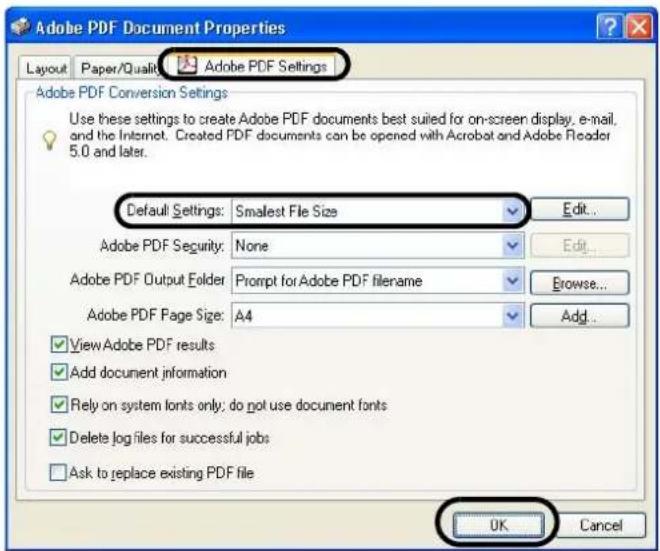
text_image
Adobe PDF Document Properties Layout Paper/Quality Adobe PDF Settings Adobe PDF Conversion Settings Use these settings to create Adobe PDF documents best suited for on-screen display, e-mail, and the Internet. Created PDF documents can be opened with Acrobat and Adobe Reader 5.0 and later. Default Settings: Smallest File Size Edit... Adobe PDF Security: None Edit... Adobe PDF Output Folder Prompt for Adobe PDF filename Browse... Adobe PDF Page Size: A4 Add... ✓ View Adobe PDF results ✓ Add document information ✓ Rely on system fonts only; do not use document fonts ✓ Delete log files for successful jobs ☐ Ask to replace existing PDF file UK Cancel- Click the [OK] button.
- Click the [OK] button in the [Print] dialog box.
- Enter a file name, and then click the [Save] button in the [Save PDF File As] dialog box.
2.6 Excluding a Color from Images (Dropout Color)
You can select a color from primary colors (red, green, and blue) to remove (drop out) from a scanned document image. For example, when you scan a document containing black text with green background, you can output an image of only black text.
Enable the dropout color setting in the setup dialog box of the scanner driver.

text_image
ABCABC Original Created imageExample: When green is selected as a dropout color
The following shows the procedure to change settings in the setup dialog box of FUJITSU TWAIN 32 Scanner Driver.
- From ScandAll PRO, display the setup dialog box of FUJITSU TWAIN 32.
For information about how to display the setup dialog box of the scanner driver, refer to section "1.5 How to Use ScandAll PRO" on page 29.
- In the TWAIN Driver dialog box, click the [Advance] button.
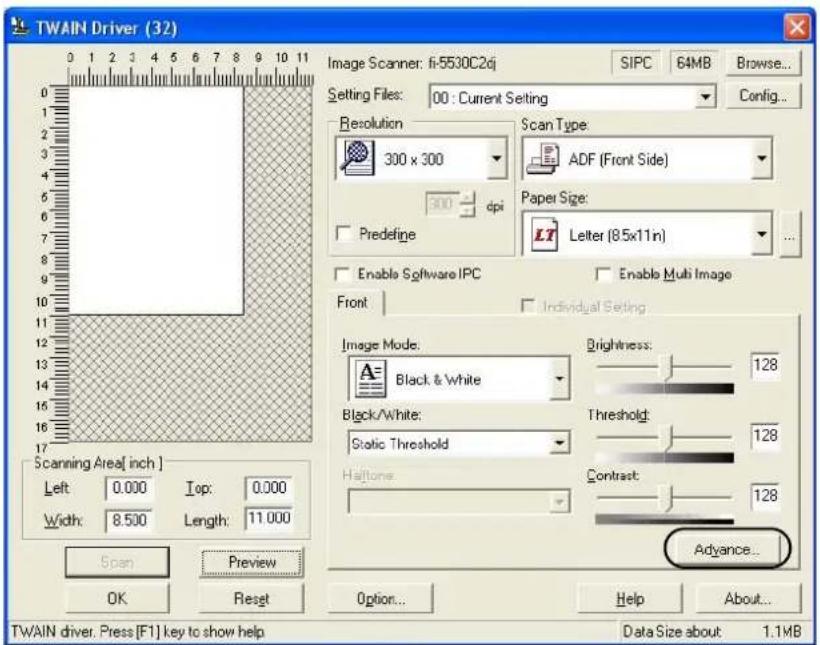
text_image
TWAIN Driver (32) Image Scanner: fi-5530C2dj SIPC 64MB Browse... Setting Files: 00 : Current Setting Config... Resolution Scan Type: 300 x 300 ADF (Front Side) 300 dpi Paper Size: Letter (8.5x11n) Predefine Enable Software IPC Enable Multi Image Front Individual Setting Image Mode: Black & White Brightness: 128 Black/White: Static Threshold Threshold: 128 Haltone: Contrast: 128 Advance... Scan Preview OK Reset Option... Help About... TWAIN driver. Press [F1] key to show help Data Size about: 1.1MB⇒ The [Advance] dialog box appears.
- Select a color you want to remove, from the [Dropout Color] drop-down list under [More].
For example, when you want to obtain only black text image from a document containing black text outlined in green, select [Green] from the list.
If you want no color to be dropped out, select [None].

text_image
Advance (Front) Image Mode: Black & White - Static Threshold Gray | Image Filler | Gamma Gamma Pattern: Normal Custom: 1.5 More White Level Follower: Auto Dropout Color: Green Green Red Blue None Reverse Default OK Cancel Help- Click the [OK] button.
⇒ You are returned to the [TWAIN Driver] dialog box.
- In the [TWAIN Driver] dialog box, click the [OK] button.
⇒ Changes made are saved and the [TWAIN Driver] dialog box closes.
Continue scanning in ScandAll PRO.
For information about how to scan documents, refer to section "1.5 How to Use ScandAll PRO" on page 29.
2.7 Skipping Blank Pages
Blank pages in a document are detected and removed automatically. For example, when scanning both double-sided and single-sided documents together in duplex mode, you can obtain the scanned document images without blank pages. Configure the setting in the setup dialog box of the scanner driver.
- From ScandAll PRO, display the setup dialog box of FUJITSU TWAIN 32.
For information about how to display the setup dialog box of the scanner driver, refer to section "1.5 How to Use ScandAll PRO" on page 29.
- In the TWAIN Driver dialog box, click the [Option] button.
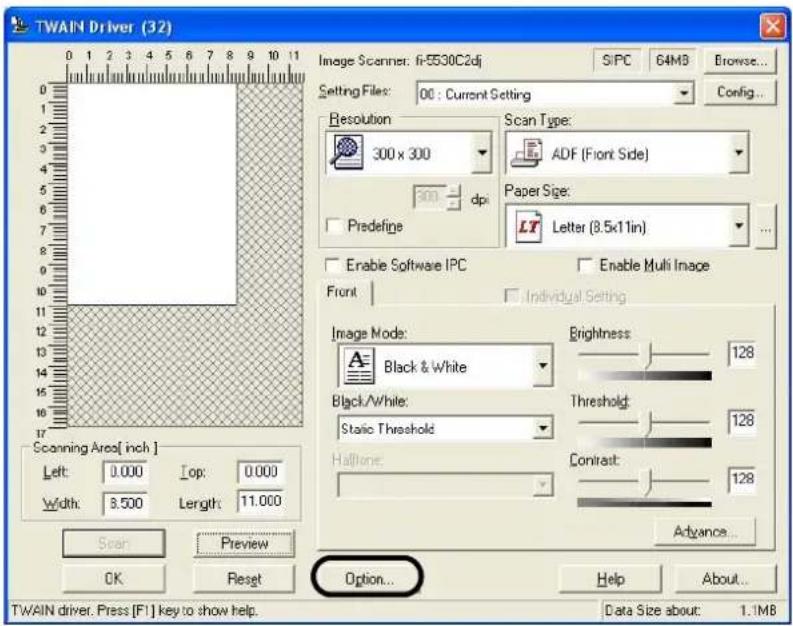
text_image
TWAIN Driver (32) Image Scanner: fi-5530C2dj S/PC 64M3 Browse... Setting File: 00 : Current Setting Config... Resolution 300 x 300 dp Scan Type: ADF (Front Side) Paper Size: Letter (8.5x11in) Predefine Enable Software IPC Enable Multi Image Front Individual Setting Image Mode: Black & White Brightness: 128 Black/White: Static Threshold Threshold: 128 Haltone: 128 Contrast: Advance... Scanning Area[ inch ] Left: 0.000 Top: 0.000 Width: 8.500 Length: 11.000 Scan Preview Help About... OK Reset Option... TWAIN driver. Press [F1] key to show help. Data Size about: 1.1MB⇒ The [Option] dialog box appears.
- Select the [Job/Cache] tab.
- Mark the [Blank Page Skip] checkbox.

text_image
Option Rotation Job/Cache Generic Startup Filter Compression Caching Cache Mode: Ram cache Memory Size: 10 MB ADF Option Batch Detection None Multifed Detection None Pre-Pick: Enable Check Overskew Blank Page Skip Blank Page Skip Black Dots Ratio: - % White Dots Ratio: - %If this checkbox is marked, cache mode is automatically changed to [Ram cache].
- With the slider control under [Blank Page Skip], specify the Blank Page Skip degree.

text_image
Black Dots Ratio: White Dots Ratio:For white pages, use the [Black Dots Ratio] slider bar to specify a degree of accuracy needed to skip blank pages. For black pages, use the [White Dots Ratio] scroll bar to specify a degree of accuracy needed to skip blank pages.
The value displayed to the right of the slider bar shows a noise (dots) ratio(*1). If a scanned page includes dots less than this value, the page is recognized as blank. You can select OFF(- - ) or a value from 0.2% to 3.0% (in increments of 0.2%).
*1: Ratio of black dots included in a scanned area. (for white pages)

natural_image
Simple line drawing of a horizontal beam with evenly spaced dots, no text or symbols presentUse the slider bar to specify a level in five levels from 1 to 5. The larger the number, the higher the accuracy.
- Click the [OK] button.
⇒ You are returned to the [TWAIN Driver] dialog box.
- In the [TWAIN Driver] dialog box, click the [OK] button.
⇒ Changes made are saved and the [TWAIN Driver] dialog box closes.
Continue scanning in ScandAll PRO.
For information about how to scan documents, refer to section "1.5 How to Use ScandAll PRO" on page 29.
2.8 Detecting Multifeeds
"Multifeed" is an error that occurs when two or more sheets are accidentally fed into the ADF at the same time. By changing a setting, you can receive an error message when the scanner detects a multifeed.
To enable multifeed detection, change the setting in the setup dialog box of a scanner driver.
The following shows the procedure to change settings in FUJITSU TWAIN 32 Scanner Driver.
- From ScandAll PRO, display the setup dialog box of FUJITSU TWAIN 32.
For information about how to display the setup dialog box of the scanner driver, refer to section "1.5 How to Use ScandAll PRO" on page 29.
- In the TWAIN Driver dialog box, click the [Option] button.

text_image
TWAIN Driver (32) Image Scanner: fi-5530C2dj SIPC 64MB Browse... Setting Files: 00 : Current Setting Config... Resolution Scan Type: 300 x 300 ADF (Front Side) 300 dpi Paper Size: Letter (8.5x11 in) □ Predetige □ Enable Software IPC □ Enable Multi Image Front □ Individual Setting Image Mode: Black & White Brightness: 128 Black/White: 128 Static Threshold Threshold Haltone: 128 Contrast: 128 Open... Scan Preview Help About... OK Reset TWAIN diver. Press [F1] key to show help. Data Size about: 1.1MB⇒ The [Option] dialog box appears.
-
Select the [Job/Cache] tab.
-
Select how to detect multifeeds from the [Multifeed Detection] drop-down list under [ADF Option].
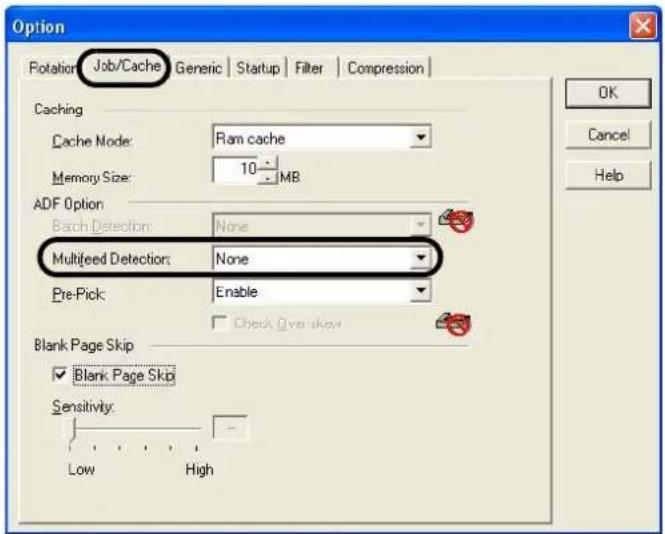
text_image
Option Rotation Job/Cache Generic Startup Filter Compression Caching Cache Mode: Ram cache Memory Size: 10 MB ADF Option Each Detection: None Multifeed Detection: None Pre-Pick: Enable Blank Page Skip Blank Page Skip Sensitivity: Low High OK Cancel HelpThe following are how to detect multifeeds:
None : Multifeed detection is not performed
Check overlapping : The scanner monitors the thickness of fed documents. The scanner detects a multifeed based on an increased thickness when multiple sheets are fed simultaneously.
Check length : The scanner monitors the length of fed documents. The scanner detects a multifeed based on an increased length when multiple sheets are fed simultaneously.
Check overlapping and length : The scanner monitors both document thickness and length to detect multifeeds.
For more information on multifeed detection, refer to "6.5 Specifying How to Detect Multifeed" on page 139.
- Click the [OK] button.
⇒ You are returned to the [TWAIN Driver] dialog box.
- In the [TWAIN Driver] dialog box, click the [OK] button.
⇒ Changes made are saved and the [TWAIN Driver] dialog box closes.
Continue scanning in ScandAll PRO.
For information about how to scan documents, refer to section "1.5 How to Use ScandAll PRO" on page 29.
■ To Specify the Area for Multifeed Detection
Normally, the multifeed detection function monitors paper overlaps at the central part of sheets (width: 35mm). Therefore, some types of documents, such as the resume and postcard, on which a photograph or stamp is pasted, may be accidentally recognized as multifed documents.
When scanning these types of documents, you can prevent multifeed errors by narrowing down the area to be detected. Enable this function, following the procedure below.
1. Open the Scanner's Properties dialog box.
1) Turn on your scanner, and then check that the scanner is connected to a personal computer. For information about how to connect the scanner to your personal computer, refer to "2.2 Connecting the Scanner to a PC" in fi-5530C2 Getting Started on the CD-ROM.
2) Double-click on the [Printer and Other Hardware] icon in Control Panel.
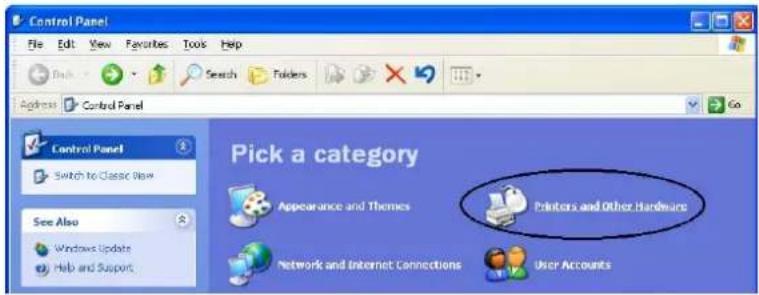
text_image
Control Panel File Edit View Favorites Tools Help Back Search Folders Address Control Panel Control Panel Switch to Classic View See Also Windows Update Help and Support Pick a category Appearance and Themes Printers and Other Hardware Network and Internet Connections User Accounts⇒ The [Printer and Other Hardware] window appears.
3) In the [Printers and Other Hardware] window, double-click on the [Scanners and Cameras] icon.

text_image
Printers and Other Hardware File Edit View Favorites Tools Help Back Search Folders Address Printers and Other Hardware See Also Add Hardwares Display Sounds, Speech, and Audio Devices Power Options System Troubleshooters Hardware Printing Home or Small Office Networking Printers and Other Hardware Pick a task... View installed printers or fax printers Add a printer or pick a Control Panel icon Game Controllers Keyboard Mouse Phone and Modern Options Printers and Faces Scanners and Cameras⇒ The [Scanners and Cameras] window is displayed.
4) Right-click on the [fi-5530C2dj] icon (in Windows XP/Windows Server 2003), or double-click on it (in Windows 2000/Windows Vista), and then select [Properties] from the pop-up menu.

text_image
Scanners and Cameras File Edit View Favorites Tools Help Back Search Folders Address Scanners and Cameras Imaging Tasks fi-5530C2dj⇒ The [fi-5530C2dj Properties] dialog box appears.
5) Select the [Device Set] tab.
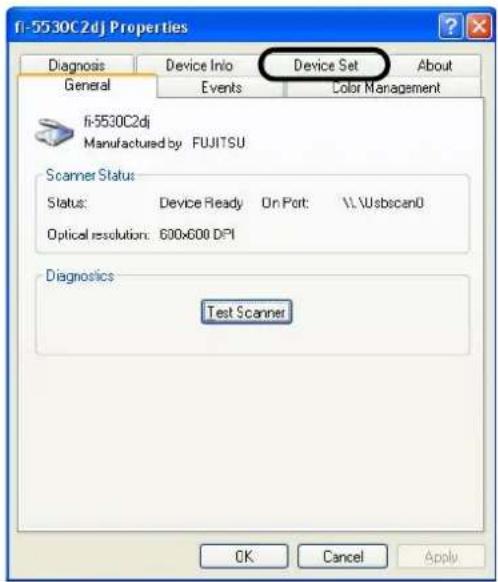
text_image
fi-5530C2dj Properties Diagnosis Device Info Device Set About General Events Color Management fi-5530C2dj Manufactured by FUJITSU Scanner Status: Status: Device Ready On Port: \\.\sbscan0 Optical resolution: 600x600 DPI Diagnostics Test Scanner OK Cancel Apply⇒ The following dialog box appears.
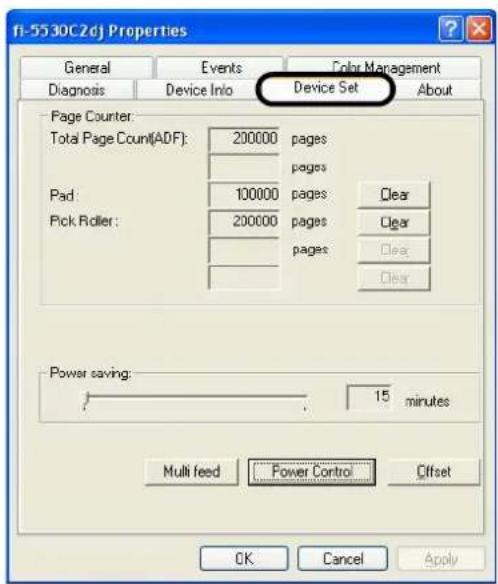
text_image
fi-5530C2dj Properties General Events身高 Color Management Diagnosis Device Info Device Set About Page Counter: Total Page Count(ADF): 200000 pages pages Pad: 100000 pages Clear Pick Roller: 200000 pages Clear pages Power saving: 15 minutes Multi feed Power Control Offset OK Cancel Apply- Click the [Multifeed] button.
⇒ The following dialog box appears.
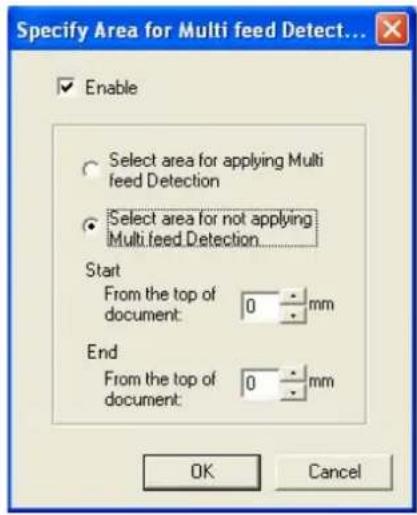
text_image
Specify Area for Multi feed Detect... Enable Select area for applying Multi feed Detection Select area for not applying Multi feed Detection Start From the top of document: 0 mm End From the top of document: 0 mm OK Cancel- Configure settings in the [Specify Area for Multifeed Detection] dialog box.
1) Mark the [Enable] check box.

- You can specify an area in the direction of the length of the document for detecting multifeed errors.
- Unless the [Enable] checkbox is marked, the area of [Select area for applying Multifeed Detection] or [Select area for not applying Multifeed Detection] cannot be specified. In this case, normal multifeed detection described above is performed. (Refer to "6.5 Specifying How to Detect Multifeed" on page 139.)
2) Select whether you want to specify an area to enable or disable multifeed detection.
• To specify an area for which the Multifeed Detection is performed:
⇒ Select the [Select area for applying Multifeed Detection] button.
• To specify an area for which the Multifeed Detection is NOT performed:
Select the [Select area for not applying Multifeed Detection] radio button.
3) Specify the [Start] position in the area.
Enter a distance from the top of the document as a starting position in millimeter.
(Select an even number from 0 mm to 510 mm)
4) Specify the [End] position in the area.
Enter a distance from the top of the document. (Select an even number from 0 mm to 510 mm)

The number you enter as the [End] position must be larger than that of the [Start] position.
2.9 Correcting Skew
The skew of documents can be detected and corrected automatically by enabling the automatic deskew function.
Change the setting in the setup dialog box of the scanner driver.
The following shows the procedure to change settings in the setup dialog box of FUJITSU TWAIN 32 Scanner Driver.
- From ScandAll PRO, display the setup dialog box of FUJITSU TWAIN 32.
For information about how to display the setup dialog box of the scanner driver, refer to "1.5 How to Use ScandAll PRO" on page 29.
- In the TWAIN Driver dialog box, click the [Option] button.

text_image
TWAIN Driver (32) Image Scanner: fi-5530C2dj SIPC 64MB Browse... Setting Files: 00 : Current Setting Config... Resolution Scan Type: 300 x 300 ADF (Front Side) 300 dpi Paper Size: Predefine Letter (8.5x11n) Enable Software IPC Enable Multi Image Front Individual Setting Image Mode: Brightness: Black & White 128 Black/White: Threshold: Static Threshold 128 Haltone Contrast 128 Scan Preview OK Reset Option... TWAIN driver. Press [F1] key to show help Data Size about 1.1MB⇒ The [Option] dialog box appears.
-
Select the [Rotation] tab.
-
Select [Automatic Page Size Detection] from the [Automatic Size and Skew Detection] drop-down list.
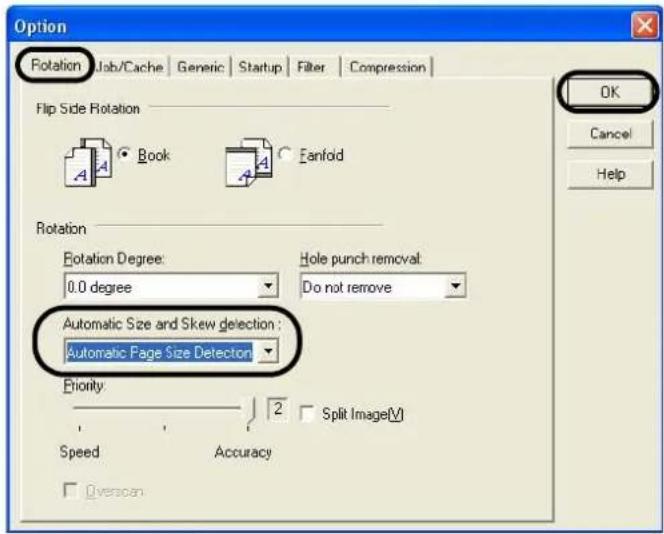
text_image
Option Rotation Job/Cache Generic Startup Filter Compression Flip Side Rotation Book Fanfold Rotation Rotation Degree: 0.0 degree Hole punch removal: Do not remove Automatic Size and Skew detection : Automatic Page Size Detection Priority: 2 Split Image(V) Speed Accuracy Overcan OK Cancel Help
With the [Priority] slider control, you can change the accuracy of Automatic Page Size Detection.
- Move the slider to right to improve the detection accuracy. Note that the higher the accuracy, the longer the processing time, and the scanning speed becomes slower.
- When detecting paper sizes of index sheets or documents to which sticky notes or index tabs are attached, set the Priority to 2.
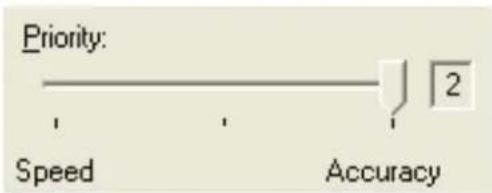
text_image
Priority: Speed Accuracy
If one of the following conditions is met, the Automatic Page Size Detection may not work properly.
- Paper is 52g/m ^2 or less in weight
- Documents are not rectangular
-
The margin of pages is filled with dark color
-
Click the [OK] button.
⇒ You are returned to the [TWAIN Driver] dialog box.
- In the [TWAIN Driver] dialog box, click the [OK] button.
⇒ Changes made are saved and the [TWAIN Driver] dialog box closes.
Continue scanning in ScandAll PRO.
For information about how to scan documents, refer to section "1.5 How to Use ScandAll PRO" on page 29.
2.10 To Output Multi-Images
You can obtain both color/grayscale and black-and-white images at a scan (Multi Image Output).
* Depending on the application to use, this function may not work properly.
Configure Multi Image settings using the scanner driver.
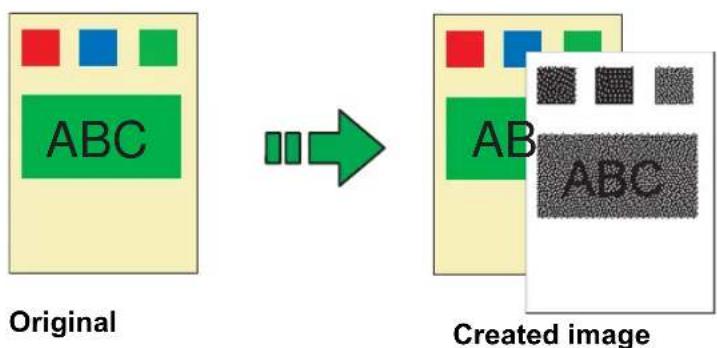
text_image
Original ABC Created image AB ABCExample: When the color document is scanned with Multi Image Output being set
The following shows the procedure to change settings in the setup dialog box of FUJITSU TWAIN 32 Scanner Driver.
- From ScandAll PRO, display the setup dialog box of FUJITSU TWAIN 32.
For information about how to display the setup dialog box of the scanner driver, refer to "1.5 How to Use ScandAll PRO" on page 29.
- In the TWAIN Driver dialog box, mark the [Enable Multi Image] checkbox.
* When you select [Long page] under [Scan Type], this checkbox is not available.
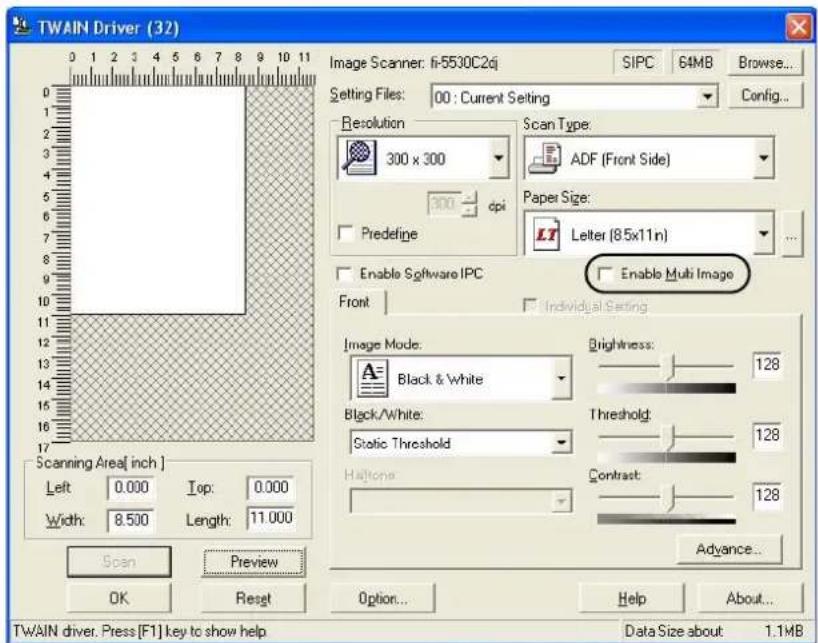
text_image
TWAIN Driver (32) Image Scanner: li-5530C2cj SIPC 64MB Browse... Setting Files: 00 : Current Setting Config... Resolution Scan Type: 300 x 300 ADF (Front Side) 300 dpi Paper Size: Letter (8.5x11n) Predefine Enable Software IPC Enable Multi Image Front Individual Setting Image Mode: Black & White Brightness: 128 Black/White: 128 Static Threshold Threshold: 128 Haltone: 128 Contrast: 128 Advance... Scanning Area[ inch ] Left 0.000 Top: 0.000 Width: 8.500 Length: 11.000 Scan Preview OK Reset Option... Help About... TWAIN driver. Press [F1] key to show help Data Size about 1.1MB⇒ The [Multi Image] dialog box appears.

text_image
Multi Image Output mode • Multi Image Output ○ Auto Color Detection Order (for MultiImage Output) ○ Primary: Color/Grayscale Secondary: Binary ● Primary: Binary Secondary: Color/Grayscale Select Current Image Setting ● Front: Primary ○ Front: Secondary ○ Back: Primary ○ Back: Secondary- Select [Multi Image Output] under [Output mode].
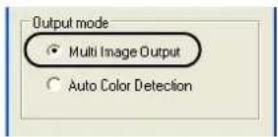
- Select the order to output multi-images under [Order (for Multi Image Output)].

text_image
Order (for Multi Image Output) ○ Primary: Color/Grayscale Secondary: Binary ● Primary: Binary Secondary: Color/Gray-scalePrimary: Color/Grayscale - Secondary: Binary
First, a Color or Grayscale image is output, and then a Black-and-White image.
Primary: Binary - Secondary: Color/Grayscale
First, a Black-and-White image is output, and then a Color or Grayscale image.
- Under [Select Current Image Setting], select a side, and then configure settings for each side in the [TWAIN Driver] dialog box.

text_image
Select Current Image Setting ● Front: Primary ○ Front: Secondary ○ Back: Primary ○ Back: Secondary
When scanning in duplex mode, the same [Image Mode] must be selected for both the front and back sides.
- In the [TWAIN Driver] dialog box, click the [OK] button.
⇒ Changes made are saved and the [TWAIN Driver] dialog box closes.
Continue scanning in ScandAll PRO.
For information about how to scan documents, refer to section "1.5 How to Use ScandAll PRO" on page 29.
2.11 Color/Monochrome Auto Detection
This scanner features automatic detection of color or black-and-white document scans (the term "scan," in this case, refers to a produced image by scanning).
Scanning color documents produces color (or grayscale) images, and scanning black-and-white documents produces black-and-white images.
* Depending on the application to use, this function may not work properly. Configure Multi Image settings using the scanner driver.
The following shows the procedure to change settings in the setup dialog box of FUJITSU TWAIN 32 Scanner Driver.
- From ScandAll PRO, display the setup dialog box of FUJITSU TWAIN 32.
For information about how to display the setup dialog box of the scanner driver, refer to section "1.5 How to Use ScandAll PRO" on page 29.
- In the TWAIN Driver dialog box, mark the [Enable Multi Image] checkbox.
* When you select [Long page] under [Scan Type], this checkbox is not available.
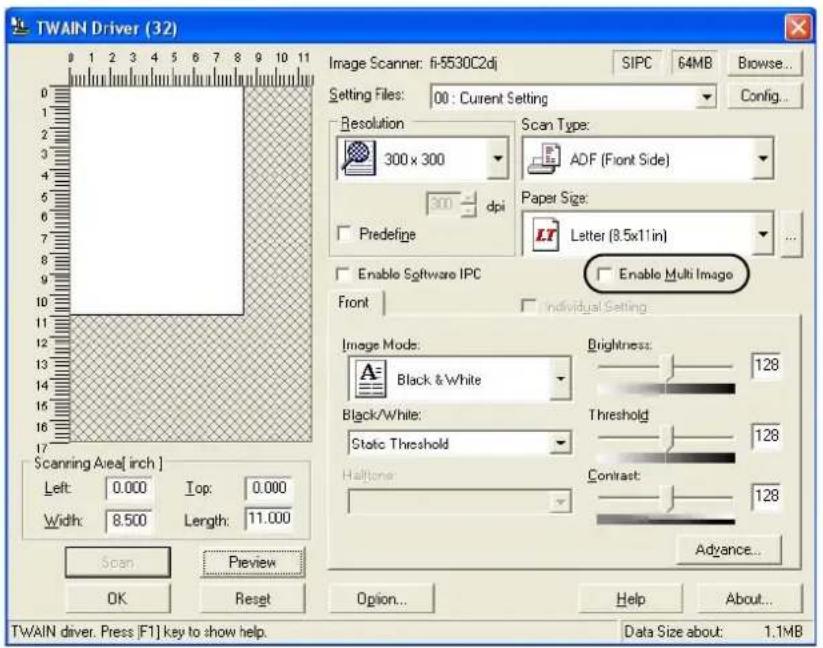
text_image
TWAIN Driver (32) Image Scanner: fi-5530C2dj SIPC 64MB Browse... Setting Files: 00 : Current Setting Config... Resolution Scan Type: 300 x 300 ADF (Front Side) 300 dpi Paper Size: Letter (8.5x11in) Predefige Enable Software IPC Enable Multi Image Front Individual Setting Image Mode: Black & White Brightness: 128 Black/White: Static Threshold Threshold: 128 Haltone: Contrast: 128 Width: 8.500 Length: 11.000 Advance... Scan Preview OK Reset Option... Help About... TWAIN driver. Press [F1] key to show help. Data Size about: 1.1MB⇒ The [Multi Image] dialog box appears.

text_image
Multi Image Output mode Multi Image Output Auto Color Detection Order (for Multi Image Output) Primary: Color/Grayscale Secondary: Binary Primary: Binary Secondary: Color/Grayscale Select Current Image Setting Front: Color/Grayscale Front: Binary Back: Color/Grayscale Back: Binary- Select [Auto Color Detection] under [Output mode].

- Under [Select Current Image Setting], select a side, and then configure settings for each side in the [TWAIN Driver] dialog box.
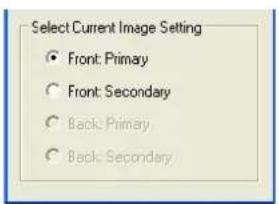
text_image
Select Current Image Setting • Front: Primary ○ Front: Secondary ○ Back: Primary ○ Back: Secondary
text_image
ATTENTION When scanning in duplex mode, the same [Image Mode] must be selected for both the front and back sides.- In the [TWAIN Driver] dialog box, click the [OK] button.
⇒ Changes made are saved and the [TWAIN Driver] dialog box closes.
Continue scanning in ScandAll PRO.
For information about how to scan documents, refer to section "1.5 How to Use ScandAll PRO" on page 29.
2.12 Splitting a Page in Two Pages
You can obtain two images by horizontally splitting a scanned page image.
* Depending on the application to use, this function may not work properly. Enable the Split Image function in the setup dialog box of the scanner driver.

flowchart
graph LR
    A["Original"] --> B["Created image"]
    A --> C["ABC"]
    A --> D["123"]
The following shows the procedure to change settings in the setup dialog box of FUJITSU TWAIN 32 Scanner Driver.
- From ScandAll PRO, display the setup dialog box of FUJITSU TWAIN 32.
For information about how to display the setup dialog box of the scanner driver, refer to section "1.5 How to Use ScandAll PRO" on page 29.
- In the TWAIN Driver dialog box, mark the [Option] checkbox.

text_image
TWAIN Driver (32) Image Scanner: fi-5530C2cj SIPC 64MB Browse... Setting Files: 00 : Current Setting Config... Resolution Scan Type: 300 x 300 ADF (Front Side) 300 dpi Paper Size: Predefine Letter (8.5x11n) Enable Software IPC Enable Multi Image Front Individual Setting Image Mode: Black & White Brightness: 128 Black/White: Stochastic Threshold Threshold: 128 Haltone: Contrast: 128 Advance... Scan Preview Help About... OK Reset Option... TWAIN driver. Press [F1] key to show help Data Size about 1.1MB⇒ The [Option] dialog box appears.
-
Select the [Rotation] tab.
-
Mark the [Split Image] checkbox.

text_image
Option Rotation Job/Cache Generic Startup Filter Compression Flip Side Rotation Book Fanfold Rotation Rotation Degree: Hole punch removal: 0.0 degree Do not remove Automatic Size and Skew detection: Disable Priority Split Image(V) Speed Accuracy Overcan OK Cancel Help
When a double-sided document is scanned in Duplex mode, the scanned document image is output according to the [Flip Side Rotation] setting in the order presented below:
• Book: Upper half → Lower half
• Fanfold: Lower half Upper half

If one of the following settings is set, this function is not available.
- Multi Image Output (page 74)
- Color/Monochrome Auto Detection (page 77)
-
The resolution is set to 1200dpi
-
Click the [OK] button.
⇒ You are returned to the [TWAIN Driver] dialog box.
- In the [TWAIN Driver] dialog box, click the [OK] button.
⇒ Changes made are saved and the [TWAIN Driver] dialog box closes.
Continue scanning in ScandAll PRO.
For information about how to scan documents, refer to section "1.5 How to Use ScandAll PRO" on page 29.
2.13 Removing Punch Holes from Images
You can remove (obscure) punch holes (black dots) from scanned document images when scanning punched documents.
Configure the Hole Punch Removal settings using the scanner driver.
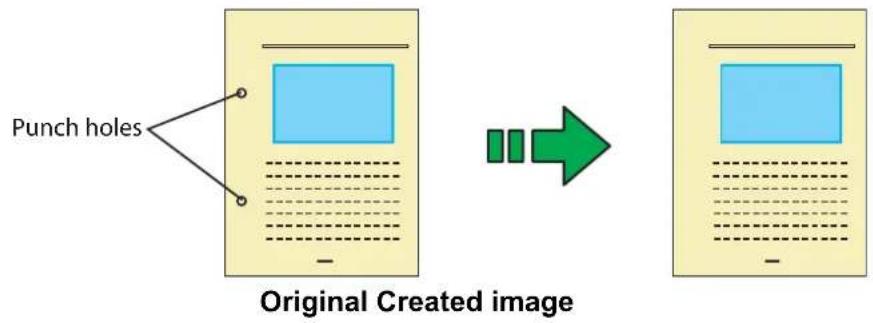
text_image
Punch holes Original Created imageThe following shows the procedure to change settings in the setup dialog box of FUJITSU TWAIN 32 Scanner Driver.
- From ScandAll PRO, display the setup dialog box of FUJITSU TWAIN 32.
For information about how to display the setup dialog box of the scanner driver, refer to section "1.5 How to Use ScandAll PRO" on page 29.
- In the TWAIN Driver dialog box, click the [Option] button.
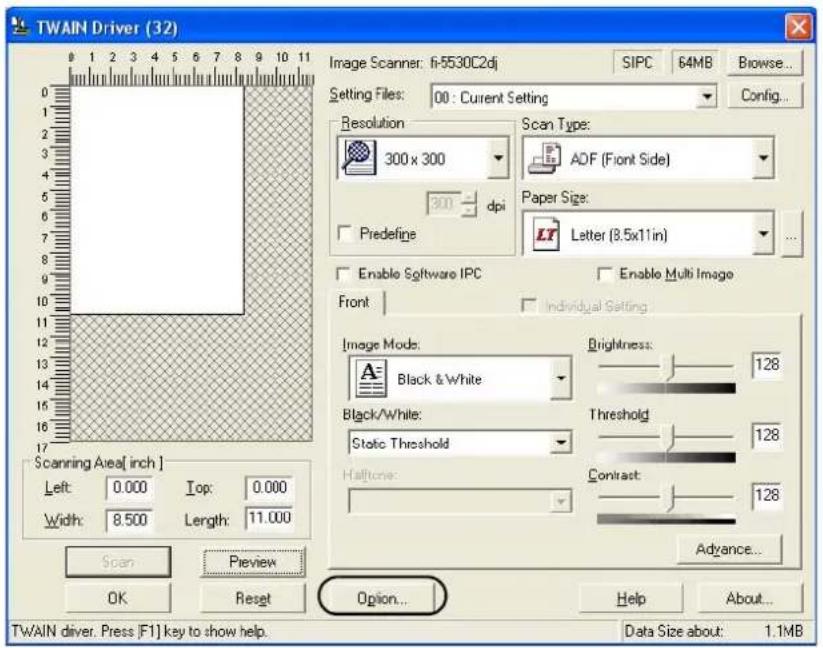
text_image
TWAIN Driver (32) Image Scanner: fi-5530C2dj SIPC 64MB Browse... Setting Files: 00 : Current Setting Config... Resolution Scan Type: 300 x 300 ADF (Front Side) 300 dpi Paper Size: Letter (8.5x11in) Predefine Enable Software IPC Enable Multi Image Front Individual Setting Image Mode: Black & White Brightness: 128 Black/White: Static Threshold Threshold 128 Halftone: Contract: 128 Width: 8.500 Length: 11.000 Advance... Scan Preview Help About... OK Reset Option... TWAIN driver. Press [F1] key to show help. Data Size about: 1.1MB⇒ The [Option] dialog box appears.
-
Select the [Rotation] tab.
-
Select [Automatic Page Size Detection] or [Black Background] from the [Automatic Size and Skew detection] drop-down list.
If you select a setting other than [Automatic Page Size Detection] or [Black Background], [Hole Punch Removal] is not available.

text_image
Option Rotation Job/Cache Generic Startup Filter Compression Flip Side Rotation Book Fanfold Rotation Rotation Degree: 0.0 degree Automatic Size and Skew detection Automatic Page Size Detection Hole punch removal: Do not remove Do not remove Fill with white Background color Priority: 2 Split Image(V) Speed Accuracy Overcan OK Cancel Help- Select [Fill with white] or [Background color] from the [Hole punch removal] drop-down list.
Fill with white: Punch hole marks are filled with white
Background color: Punch hole marks are filled with a color most used around the holes.
When scanning a color document, select [Background color]. If you select [Fill with white], punch holes will be filled with white.
- Click the [OK] button.
⇒ You are returned to the [TWAIN Driver] dialog box.
- In the [TWAIN Driver] dialog box, click the [OK] button.
⇒ Changes made are saved and the [TWAIN Driver] dialog box closes.
Continue scanning in ScandAll PRO.
For information about how to scan documents, refer to section "1.5 How to Use ScandAll PRO" on page 29.

Punch hole marks cannot be removed when:
- Hole marks are not aligned along with the edge of the document.
- Hole mark sizes vary or hole marks appear at various intervals.
- The document is not rectangular.
- The document of dark-colored background is scanned.
- Characters or figures exist at the edge of the document, or characters or figures overlap with hole marks.
- With [Automatic Page Size Detection] enabled, the document of a size larger than the specified page size is scanned.
- With [Black Background] selected, the document of a different size from the specified page size is scanned.
2.14 Scanning by Pressing the Scan Button on the Scanner
With ScandAll PRO, you can perform batch scan at a press of the button, by assigning a Batch Scan profile to the [Scan] or [Send to] button.
The following shows the procedure to do so.
- From the [Start] menu, select [Control Panel].
- Select [Scanners and Cameras].
- Display the [fi-5530C2dj Properties] dialog box.
In Windows XP or Windows Server 2003, right-click on the [fi-5330C2dj] icon. In Windows 2000 or Windows Vista, double-click on the [fi-5330C2dj] icon.
- Select the [Events] tab.
- Select a button to use for an event.
In Windows XP, from the [Select an event] drop-down list, select an event to launch the application.

text_image
fi-5530C2dj Properties Diagnosis Device Info Device Set About General Events Color Management Choose an event below, then select the action to take when that event occurs. Select an event: Scan Button Scan Button Send to 1 Send to 2 Send to 3 Prompt for which program to add Take no action Save all pictures to this folder D:\Documents and Settings\scanner\My Documents Browse... Create a subfolder using today's date Delete pictures from camera after saving them OK Cancel ApplyThe following events can be selected:
- Scan Button (Press the [Scan] button)
-
Send to 1 to 9 (With a number from 1 to 9 displayed on the Function Number Display, press the [Send to] button)
-
Select [ScandAll PRO] as the application to launch when an event occurs.
In Windows XP, select an application from the [Start this program] drop-down list under [Actions].
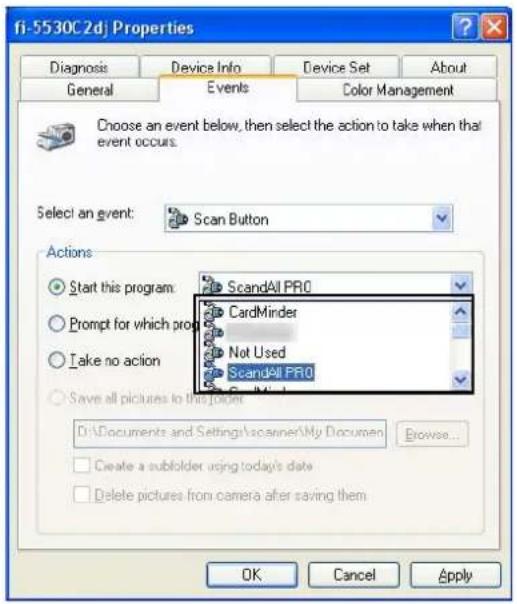
text_image
fi-5530C2dj Properties Diagnosis Device Info Device Set About General Events Color Management Choose an event below, then select the action to take when that event occurs. Select an event: Scan Button Actions Start this program ScandAll PRO Prompt for which prop CardMinder Take no action Not Used ScandAll PRO Save all pictures to this folder D:\Documents and Settings\scanner\My Documen Browse... Create a subfolder using today's date Delete pictures from camera after saving them OK Cancel Apply- Click the [OK] button.

To link another button, perform steps 5 to 7 again.
- Launch ScandAll PRO.
From the [Start] menu, select [All Programs] ⇔ [Fujitsu ScandAll PRO] ⇔ [Fujitsu ScandAll PRO], and then ScandAll PRO starts up.
- From the [Tool] menu, select [Preferences].
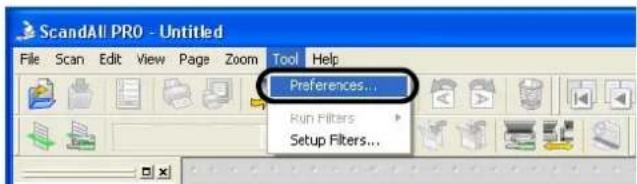
text_image
ScandAll PRO - Untitled File Scan Edit View Page Zoom Tool Help Preferences... Run Filters Setup Filters...⇒ The [Setup] dialog box appears.
-
Select the [Event] tab.
-
Click the action of the Event you selected in step 5, and then select a profile from the list you want to use for scanning.
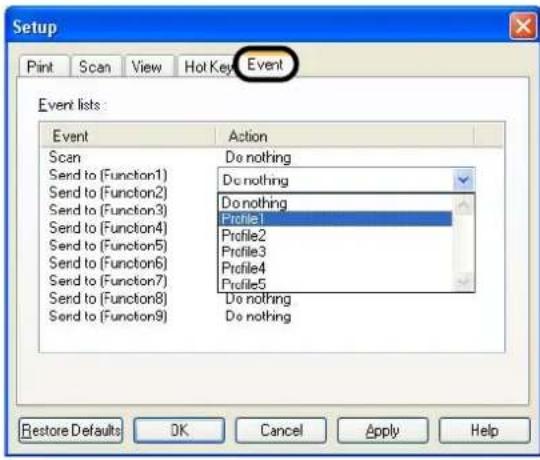
text_image
Setup Print Scan View Hot Key Event Event lists: Event Action Scan Do nothing Send to (Function1) Do nothing Send to (Function2) Do nothing Send to (Function3) Profile1 Send to (Function4) Profile2 Send to (Function5) Profile3 Send to (Function6) Profile4 Send to (Function7) Profile5 Send to (Function8) Do nothing Send to (Function9) Do nothing Restore Defaults OK Cancel Apply Help
You have to create profiles beforehand.
For information about how to create profiles, refer to "Batch Scan" (page 37) in section "1.5 How to Use ScandAll PRO" on page 29.
- Click the [OK] button.
- Exit ScandAll PRO.
When you press the linked button, ScandAll PRO starts up, and batch scan is executed according to the selected profile's settings.

Use the [Send to] button, following the procedure below:
- Press the [Function] button, and change a number displayed on the Function Number Display.
- When the displayed number and the event number you have selected in step 5 (Send to 1 - 9) matches, stop pressing the [Function] button.
- Press the [Send to] button.

text_image
Function Number Display Function Send to ScanDAILY CARE
This chapter describes how to clean the scanner.



The glass surface inside the ADF becomes hot during the operation of the scanner. Before you start cleaning the inner parts of the scanner, disconnect the AC adapter from the power outlet, and wait at least 15 minutes.
Do not turn off the scanner when you clean the Feed and Eject Rollers.
3.1 Cleaning Materials and Locations requiring Cleaning 88
3.2 Cleaning the ADF 90
3.1 Cleaning Materials and Locations requiring Cleaning
■ Cleaning Materials
| Cleaning Materials Parts Number Remarks | ||
Cleaner F1 PA03950-0352 | (*1) | 1 bottleMoisten a cloth with this fluid and wipe the scanner clean. |
| Lint-free dry cloth - Commercially available one | ||
For details about the cleaning materials, contact the FUJITSU scanner dealer where you purchased the scanner.
*1) It may take long before the cleaner vaporizes if a large quantity is used. When cleaning the scanner parts, dampen a cloth with modest quantities of the cleaner. In addition, wipe off the cleaner completely with a soft lint-free cloth to leave no residue on the surface of the cleaned parts.
■ Locations and Cycle for Cleaning
The following table shows a standard cycle provided as a guide for cleaning each location.
| Part to clean Standard Cleaning Cycle | |
| Pad ASSY Clean these parts after every 5,000 scans. | |
| Pick roller | |
| Feed rollers | |
| Plastic rollers | |
| Eject rollers | |
| Sheet guides | |
| Glass | |
| Ultra sonic sensor | |

The scanner must be cleaned more frequently if you scan any of the following type of sheets:
- Documents of coated paper
- Documents containing printed text or graphics all over the page
• Chemically treated documents such as carbonless paper - Documents containing a large amount of calcium carbonate
- A large volume of documents written with pencil
- Documents on which the toner is not fused sufficiently
3.2 Cleaning the ADF
As a guideline, clean the ADF after every 5,000 scans. Note that this guideline varies according to the type of documents you scan. For example, it may be necessary to clean the ADF more frequently when you scan documents on which the toner is not firmly fixed on.



The glass surface inside the ADF becomes hot during the operation of the scanner. Before you start to clean the inner parts of the scanner, disconnect the AC adapter from the power outlet, and wait at least 15 minutes.
Do not turn off the scanner when you clean the Feed and Eject Rollers.
■ Cleaning Method
- Open the ADF while pushing down the ADF button.

text_image
ADF Button
Be careful, the ADF cover may close suddenly and pinch your fingers.
- Clean the following locations with a lint-free cloth moistened with Cleaner F1.
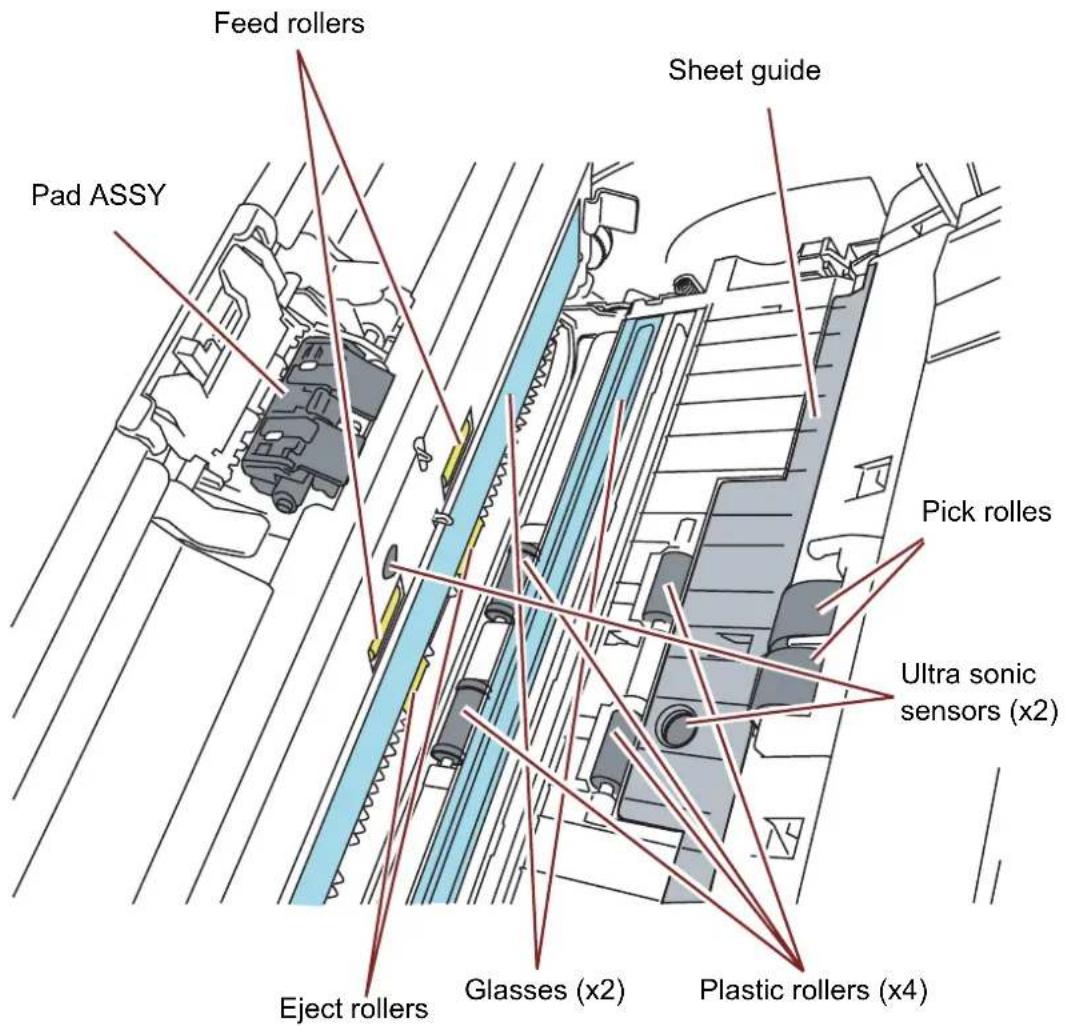
text_image
Feed rollers Sheet guide Pad ASSY Pick rolles Ultra sonic sensors (x2) Eject rollers Glasses (x2) Plastic rollers (x4)
It may take long before the cleaner vaporizes if a large quantity is used. When cleaning the scanner parts, dampen a cloth with modest quantities of the cleaner. In addition, wipe off the cleaner completely with a soft lint-free cloth to leave no residue on the surface of the cleaned parts.
- Pad ASSY
Clean the Pad ASSY (rubber surface) downward (in the direction of the arrow).
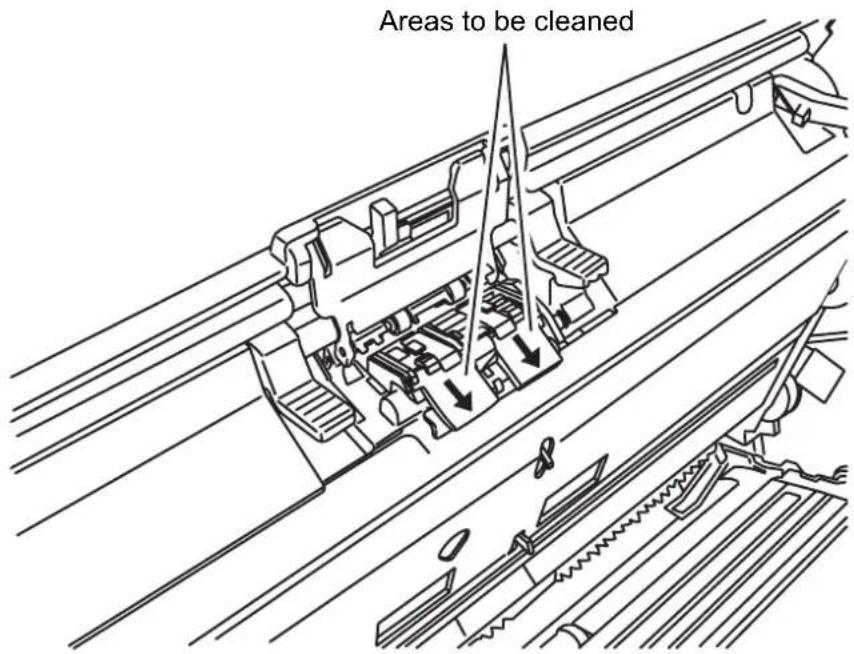
text_image
Areas to be cleaned- Pick rollers
Clean the Pick rollers lightly preventing scratches on the rollers' surface. Take particular care in cleaning these rollers as black debris on them adversely affects the pickup performance.

text_image
Pick rollers- Feed and Eject rollers
1) Open the ADF when "P" or "0" is not indicated on the Function Number display. If you open the ADF when "P" or "0" is indicated on the Function Number display, the Feed/Eject rollers will not rotate even if you perform step 2) below.
2) Simultaneously hold down the [Send to] and [Scan] buttons on the operator panel. The Feed/Eject rollers start rotating slowly.
3) Put a soft cloth moistened with cleaning fluid to the surface of the rotating Feed/Eject rollers lightly so that the surface of the rollers is cleaned. As a guideline, seven presses of the [Send to] and [Scan] buttons make the Feed/Eject rollers to rotate one full turn.
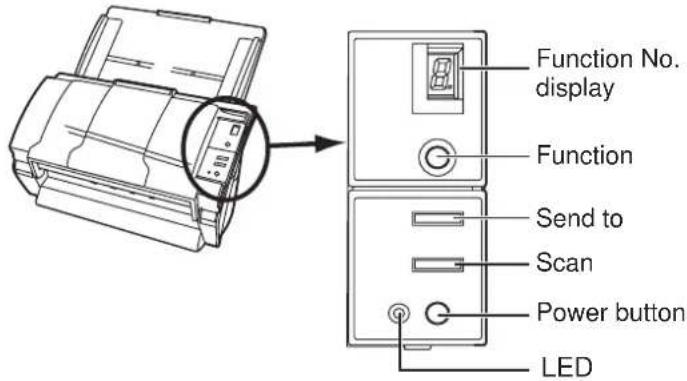
text_image
Function No. display Function Send to Scan Power button LED
In step 2), the Feed rollers turn at the same time while rotating the Eject rollers.
When cleaning the Eject rollers, be careful not to touch the Feed rollers and vice versa.
- Plastic rollers
Clean the Plastic rollers lightly, preventing scratches on the roller surfaces. Take particular care in cleaning these rollers as black debris on them adversely affects the pickup performance. Be careful not to damage the sponges beside the rollers.
- Sheet guides
Wipe clean lightly.
- Glass
Wipe clean lightly.
ATTENTION

If the glass gets dirty, vertical black streaks may appear in the scanned images.
- Ultra sonic sensor
Wipe clean lightly with a dry cloth.
- Push the ADF at its center to return it to its original position and lock the ADF button.
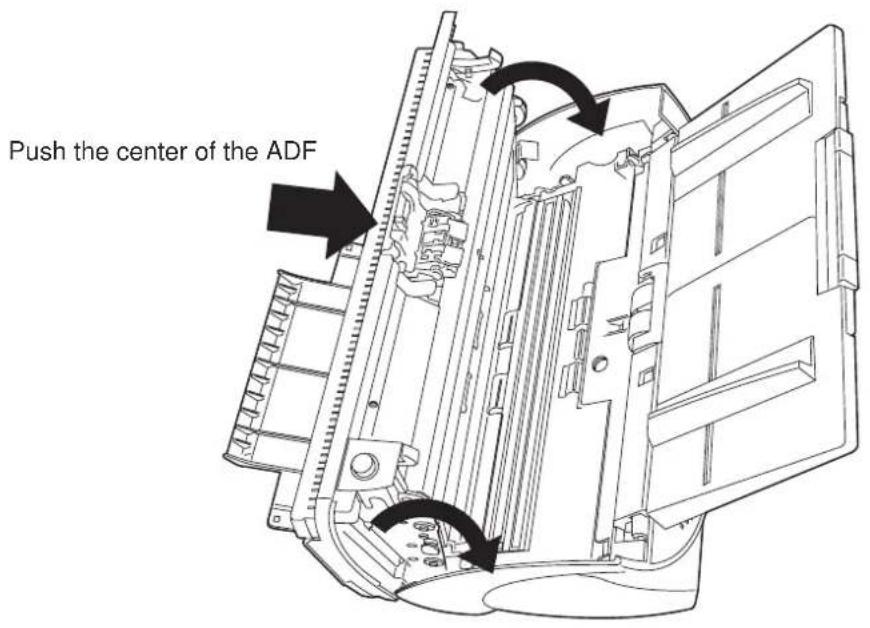
text_image
Push the center of the ADF
Close the ADF until you hear it click. Paper jams or feeding errors may occur if the ADF is not closed firmly.
REPLACING CONSUMABLES
This chapter describes how to replace scanner consumables.
In this chapter, Windows XP screenshots are used as examples.
The screens and operations provided herein may be different from actual ones if the operating system you are using is not Windows XP.
Please take note that, when FUJITSU TWAIN 32 is updated, the screens and operations herein may also be slightly different.
If so, refer to the document provided with the update.

When operating the scanner, the glass inside the ADF becomes very hot.
Before you replace the consumables, turn off the power and unplug the AC adapter from the outlet, and wait for at least 15 minutes.
4.1 Consumable and Replacement Cycle 96
4.2 Replacing the Pad ASSY 99
4.3 Replacing the Pick Roller.... 102
4.1 Consumable and Replacement Cycle
The following table shows the specifications of consumables and guidelines for the replacement cycle.
| Description Parts Number Standard Replacement Cycle | |
| Pad ASSY PA03334-0002 After 100,000 scans or one year | |
| Pick roller PA03334-0001 After 200,000 sheets or one year |
The replacement cycles above are rough guidelines for the use of A4/Letter woodfree or wood containing paper 64g / m^2 (17 lb). This cycle varies according to the type of the scanned paper and how frequently the scanner is used and cleaned.

text_image
ATTENTION Use only the specified consumables to avoid document feeding trouble.■ Guidelines for Consumable Replacement Cycle
With this product, you can check how many times the consumables have been used for you to replace them with new ones at a right timing.
- When turning on the power, make sure that the scanner is connected to your personal computer.
Refer to "2.2 Connecting the Scanner to a PC" in fi-5530C2 Getting Started on the CD-ROM for information about connecting the scanner to your personal computer.
- Double-click on the [Printer and Other Hardware] icon on the Control panel of your personal computer.
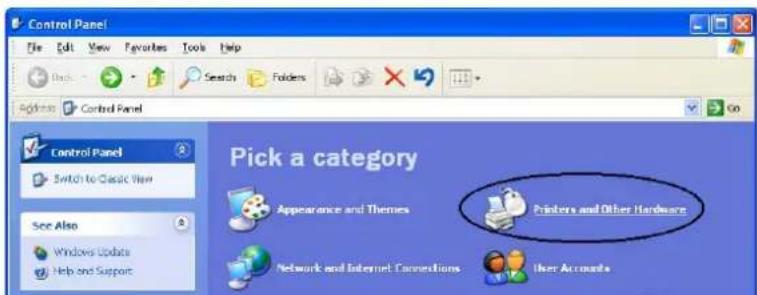
text_image
Control Panel File Edit View Favorites Tools Help Back Search Folders Address Control Panel Control Panel Switch to Classic View See Also Windows Updates Help and Support Pick a category Appearance and Themes Printers and Other Hardware Network and Internet Conversions User Accounts⇒ The [Printer and Other Hardware] window appears.
- In the [Printers and Other Hardware] window, double-click on the [Scanners and Cameras] icon.

text_image
Printers and Other Hardware File Edit View Favorites Tools Help Back Search Folders Address: Printers and Other Hardware See Also Add Hardware Deploy Sounds, Speech, and Audio Devices Power Options System Troubleshooters Hardware Printing Home or Send Office Networking Printers and Other Hardware Pick a task... View installed printers or fax printers Add a printer or pick a Control Panel icon Game Controllers Keyboard Mouse Phone and Modem Options Printers and Faces Scanners and Cameras⇒ The [Scanners and Cameras] window is displayed.
- In Windows XP or Windows Server 2003, right-click on the [fi-5530C2dj] icon, and then select [Properties]. In Windows 2000 or Windows Vista, double-click on the [fi-5530C2dj] icon.

text_image
Scanners and Cameras File Edit View Favorites Tools Help Back Search Folders Address Scanners and Cameras Imaging Tasks fi-5530C2dj Add an imaging device⇒ The [fi-5530C2 Properties] dialog box appears.
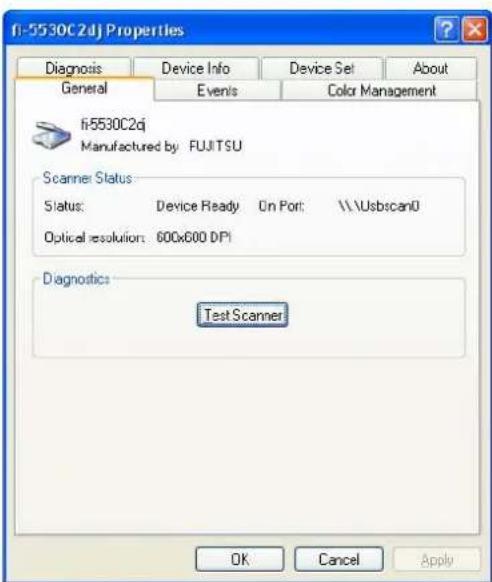
text_image
fi-5530C2dj Properties Diagnosis Device Info Device Set About General Events Color Management fi-5530C2dj Manufactured by FUJITSU Scanner Status: Status: Device Ready On Port: \\\\usbscan0 Optical resolution: 600x600 DPI Diagnostics: Test Scanner OK Cancel Apply5. Click the [Device Set] tab.
⇒ The following panel appears.
![FUJITSU fi-5530C2 - Click the [Device Set] tab. - 1](/content/2026/06/1236805/images/b4f5b9a4c1c366f1384d4dfdd9dca77d3bf08aa7ba9fa898b9662ea2bc24fdc1.jpg)
text_image
fi-5530C2dj Properties General Events Color Management Diagnosis Device Info Device Set About Page Counter Total Page Count(ADF): 200000 pages Pads: 100000 pages Clear Pick Roller: 200000 pages Clear Pages Clear Power saving: 15 minutes Multi feed Power Control Offset OK Cancel ApplyYou can check the following information in this panel:
• Total number of scans
- Pad counter (approximate number of scans after resetting the pad counter)
- Pick roller counter (approximate number of scans after resetting the Pick roller counter)
- Remaining ink (When the imprinter is connected, the remaining ink in the imprinter is indicated.)
The following message may appear during use of the scanner:
![FUJITSU fi-5530C2 - Click the [Device Set] tab. - 2](/content/2026/06/1236805/images/d4b1934568b95c79a6f719de12541fb5bb0b680d5971ff3b43f6ec3178c3be0e.jpg)
text_image
FJTWAIN It is about time to replace the consumable. Please replace Pick Roller in paper feeder if the feeding capability is deteriorated. Regarding how to replace the pad, please refer to the Operator's Guide. (Code: DS42005) This message not display again Warns again after scanning 1000 pages Ignore Cancel HelpReplace consumables when you see this message.
Click the [Ignore] button to hide this message and continue scanning.
It is recommended that the consumable be replaced at your early convenience.
By default, this message will appear again after another 1,000 scans. If you do not wish to see this message, mark the [This message not display again] checkbox.
To replace the consumable, stop scanning by clicking the [Cancel] button.
4.2 Replacing the Pad ASSY
- Remove all documents from the ADF paper chute.
- Open the ADF by pushing down the ADF button.
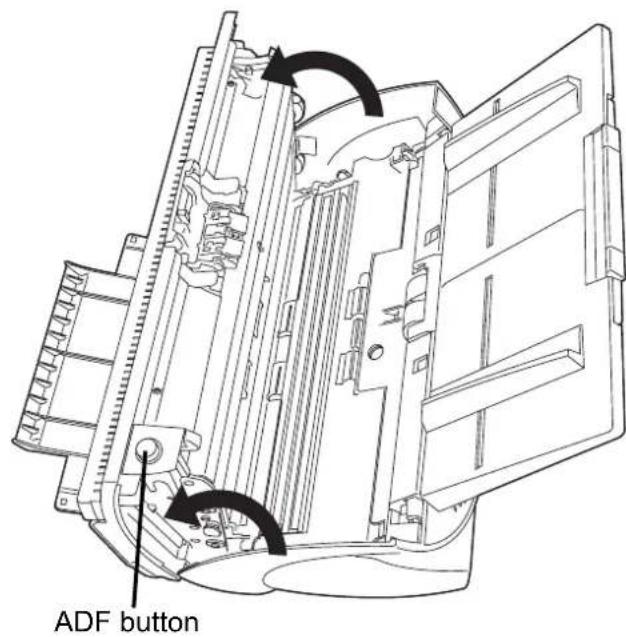
text_image
ADF button
Be careful, the ADF cover may close suddenly and pinch your fingers.
- Remove the Pad ASSY.
Pinch the Pad ASSY and slide it to the arrow direction, and then remove it.
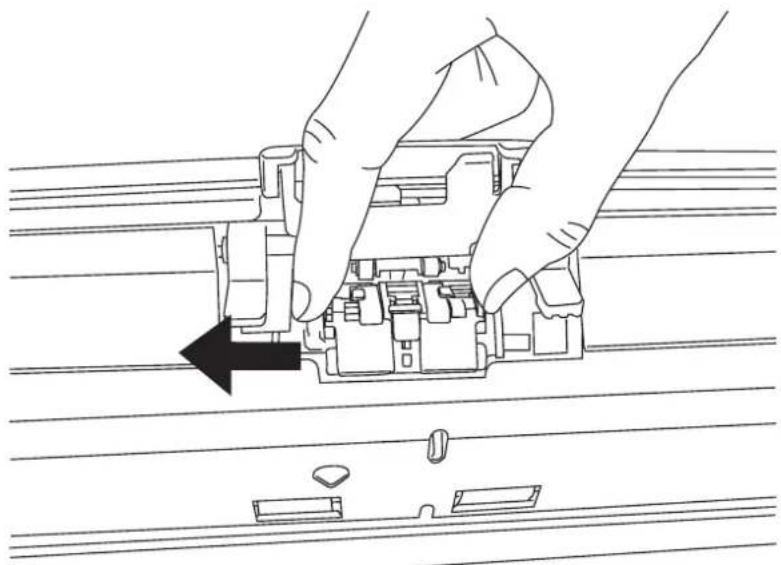
natural_image
Line drawing of hands assembling a mechanical component with an arrow indicating assembly direction (no text or symbols)4. Attach a new Pad ASSY.
Insert the claws of the Pad ASSY into the holes on the ADF.
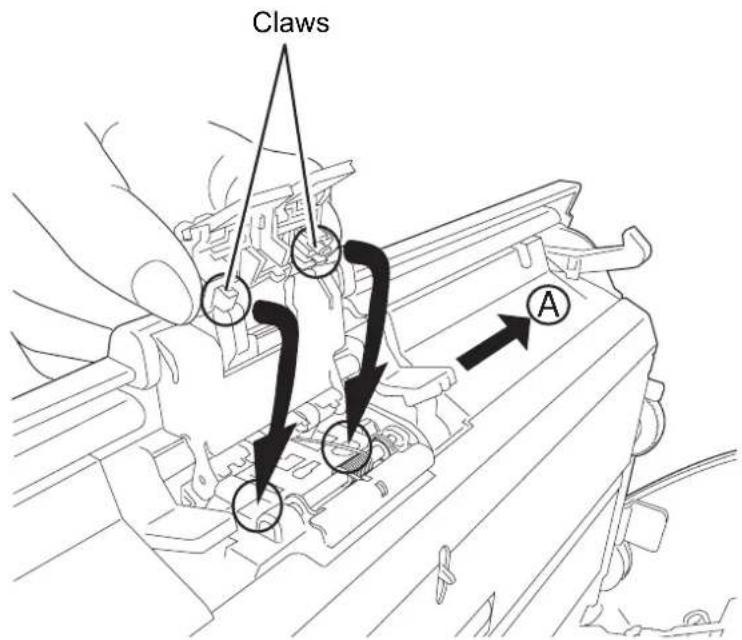
text_image
Claws AWhile pressing down the Pad ASSY, slide it to the direction "A" and install it.


Make sure that the Pad ASSY is firmly attached. If the Pad ASSY is not correctly attached, document jams or other feeding errors may occur.
5. Push the ADF at its center to close it, and lock the ADF.

text_image
Push the center of the ADF6. Reset the pad counter.
1) Check that the scanner is connected to your personal computer and turn on the scanner.
2) Open [Scanners and Cameras] from the control panel on your computer.
3) Select [Properties] of [fi-5530C2dj].
⇒ The [fi-5530C2dj Properties] dialog box appears.
4) Select the [Device Set] tab.
⇒ The following dialog box appears.
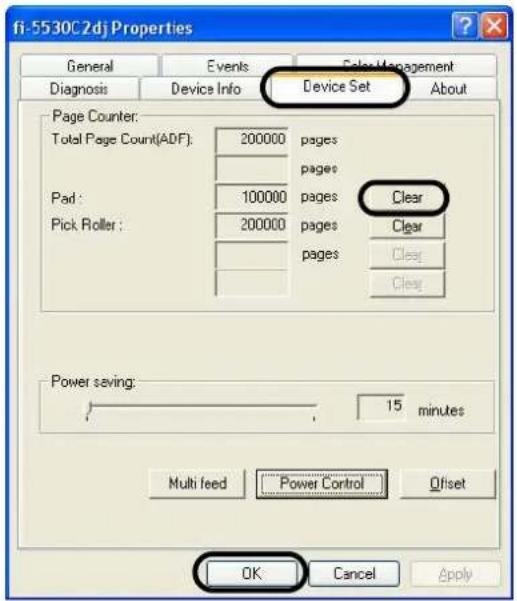
text_image
fi-5530C2dj Properties General Events SalesManagement Diagnosis Device Info Device Set About Page Counter: Total Page Count(ADF): 200000 pages pages Pad : 100000 pages Clear Pick Roller : 200000 pages Clear pages Clear Power saving: 15 minutes Multi feed Power Control Offset OK Cancel Apply5) Click the [Clear] button of [Pad] under [Page Counter], and then the [OK] button. ⇒ The following message appears.

text_image
Attention Write to EEPROM OK? OK CancelClick the [OK] button.
The Pad counter is reset to "0".
4.3 Replacing the Pick Roller
- Remove all documents from the ADF paper chute.
- Remove the ADF paper chute.
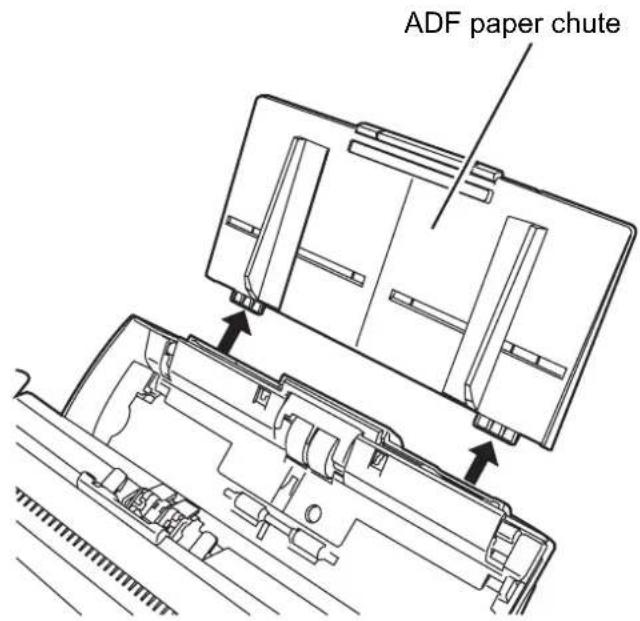
text_image
ADF paper chute- Open the ADF by pushing down the ADF button.
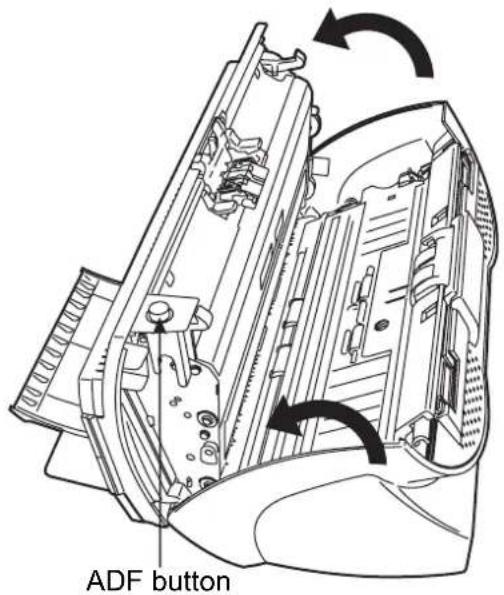
text_image
ADF button
Be careful, the ADF cover may close and pinch your fingers.
4. Remove the Pick roller from the scanner.
1) Pinch the knobs on the sheet guide and lift up the sheet guide to remove it.

text_image
Sheet guide2) Rotate the Pick roller bushing in the direction of the arrow.

text_image
Pick roller bushing3) Remove the Pick roller shaft while lifting it up in the direction of the arrow.

natural_image
Mechanical gear assembly diagram showing interlocking gears and shafts (no text or labels)
As the Pick roller bushing is firmly fixed, do not try to turn the roller bushing with your fingernails. Use a paper clip for turning the roller bushing if you cannot rotate it with your finger.
- Remove the Pick roller from the shaft while lifting up the tab on the Pick roller.

text_image
Tab Pick Roller Shaft
If you lift the pick roller tab with your fingernail, it may hurt your fingernail. Use a paper clip to lift the pick roller tab if you cannot do it with your finger.

text_image
Diagram of a mechanical device with labeled components and directional arrows indicating motion or force- Attach new Pick roller.
Insert new Pick roller aligning the screw on the shaft with the slot in the Pick roller.
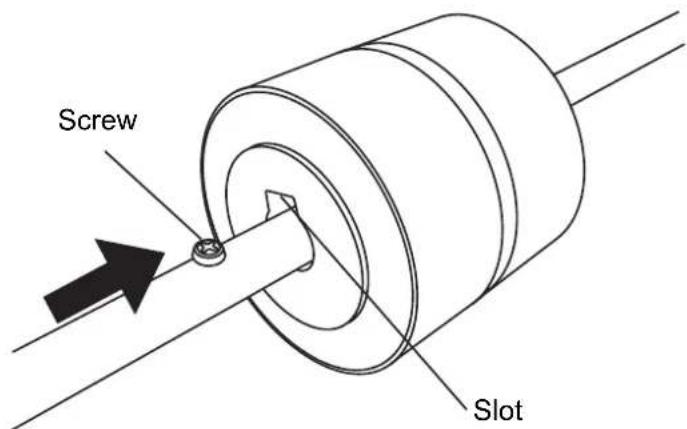
text_image
Screw Slot
Make sure that the Pick roller is correctly attached. The incompletely-attached Pick roller might cause document jams or other feed errors. When attaching the Pick roller to the shaft, make sure that the roller's tab clicks in to place.

text_image
"Click"7. Attach the Pick roller shaft to the scanner.
Attach the Pick roller shaft to the scanner in reverse order of removing.
1) Set the Pick roller inserting an end of shaft into the shaft hole.
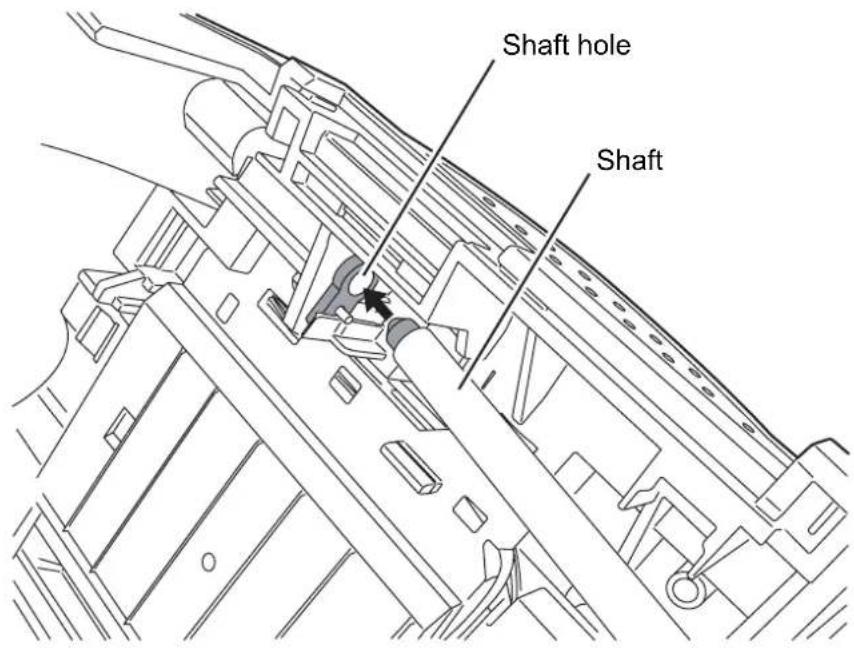
text_image
Shaft hole Shaft2) Turn the Pick roller bushing in the direction of the arrow.
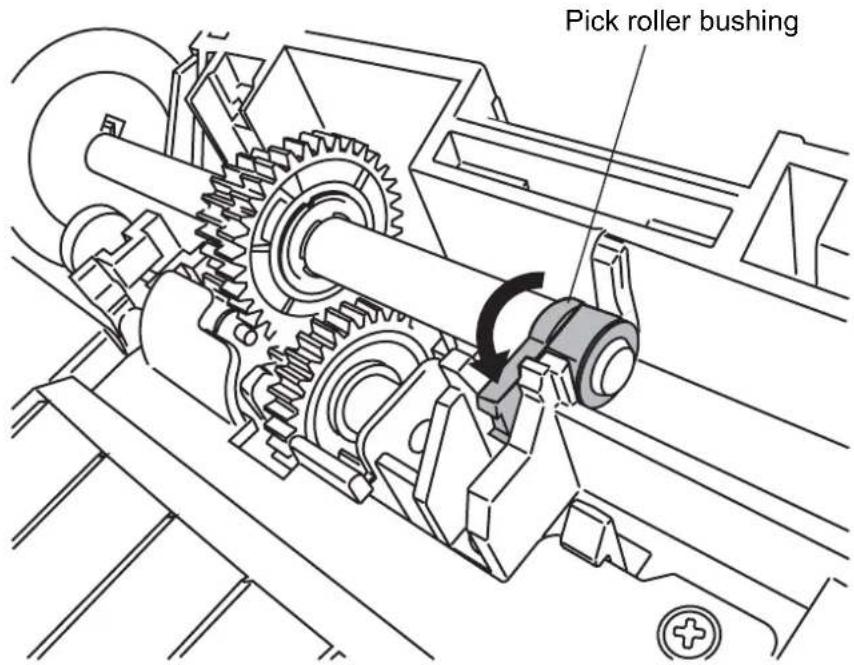
text_image
Pick roller bushing3) Attach the sheet guide.
- Push in the center of the ADF to close it until the ADF button is locked.
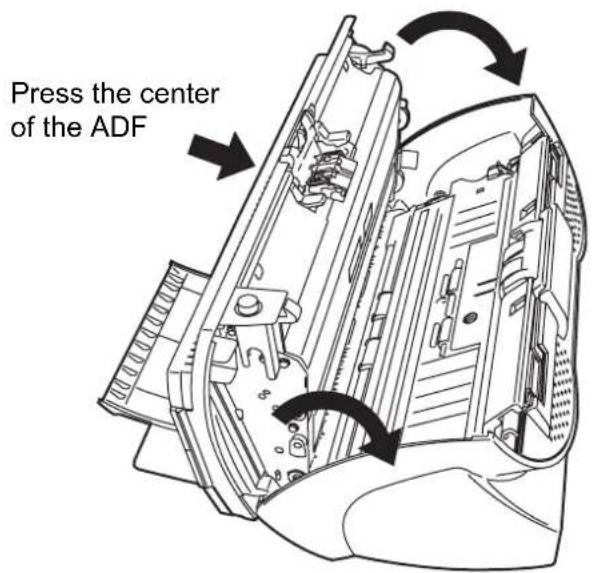
text_image
Press the center of the ADF- Attach the ADF paper chute to the scanner.

text_image
ADF Paper Chute10. Reset the pick counter.
1) When turning on the power, check that the scanner is connected to your personal computer.
2) Open the [Scanners and Cameras] from the control panel of your personal computer.
3) Open the [Properties] of [fi-5530C2dj] from the [Scanners and Cameras].
⇒ The [Properties of fi-5530C2dj] dialog box is displayed.
4) Click the [Device Set] tab.
⇒ The following window appears.
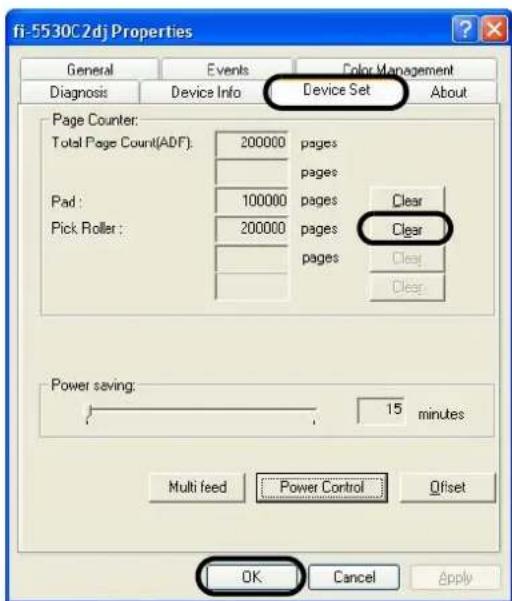
text_image
fi-5530C2dj Properties General Events Color Management Diagnosis Device Info Device Set About Page Counter: Total Page Count(ADF): 200000 pages pages Pad: 100000 pages Clear Pick Roller: 200000 pages Clear pages Clear Power saving: 15 minutes Multi feed Power Control Offset OK Cancel Apply5) After clicking the [Clear] button beside [Pick Roller] in [Page Counter], click the [OK] button.
⇒ The following window appears.

text_image
Attention Write to EEPROM OK? OK CancelClick the [OK] button.
The Pick roller counter returns to "0".
Chapter 5
TROUBLESHOOTING
This chapter describes what to do when a paper jam occurs, how to troubleshoot, and items to check before contacting an agent at which you bought the scanner, as well as what the labels on the scanner indicate.
5.1 Removing Jammed Documents 110
5.2 Error Indications in the Function Number Display 112
5.3 Remedying Common Troubles.... 114
5.4 Items to check before contacting the agent where you bought the scanner.....127
5.5 Checking Labels on the Scanner 130
5.1 Removing Jammed Documents
If a document jam occurred, follow the procedure below to remove the jammed documents.
- Table are not to get injured when removing the jammed documents.
- Be careful not to get neckties, necklaces, etc. entangled in the scanner when removing the jammed documents.
- The surface of the glass may become hot during operation. Take care not to get burned.
- Remove all documents from the ADF paper chute.
- Open the ADF by pushing down the ADF button.

text_image
ADF Button
The ADF cover may close accidentally. Be careful not to pinch your fingers.
- Remove the jammed documents.

Staples, paper clips, etc. cause document jams. Be sure to fully check the document and feed path, and remove any small metal objects such as these.
Also, before you start scanning, be sure to remove any staples, clips, etc. from the document.
- Push in the center of the ADF to close it until the ADF button is locked.

text_image
Push the center of the ADF
- Make sure that the ADF is completely closed. When it is not completely closed, document jams or feeding errors may occur.
- When the scanning is completed at the pre-determined sheet or canceled, the document might remain inside the ADF even though any error message is not displayed.
Follow the procedure below to remove the documents remaining in the ADF.
- Remove all documents from the ADF paper chute.
- Open the ADF by pushing down the ADF button.
- Remove the remaining documents.
- Push in the center of the ADF to close it until the ADF button is locked.
5.2 Error Indications in the Function Number Display
When any error occurs, the operator panel indicates "U" followed by a number alternately for temporary errors, or "E" followed by a number for device alarms (permanent error).
Temporary errors can be resolved by the operator, but the device alarm requires recovery works by support engineers.
When the Error Recovery Guide is installed on your personal computer and if any error or device alarm has occurred, this software displays information such as error names and error codes regarding the error/alarm. Take notes of the information and click [Details] on its window to learn detailed information for troubleshooting.
■ Temporary Errors:
A number appearing in alternation following the "U" refers to the following type of errors:
| Indication Meaning Solution | |
| U1 A paper feed error occurred. Remove the jammed documents.(Refer to "5.1 Removing Jammed Documents" on page 110.)Confirm that the document meet the paper conditions for scanning. (Refer to "6.2 Document Quality" on page 133.) | |
| U2 A multifeed error occurred. Press the [Send to] | button on theOperator Panel.The papers that were multi fed will be ejected. |
| U6 The print cartridge is not set. This is a temporary error related with the Imprinter option (sold separately).For details refer to fi-553PROperator's Guide, chapter "5 Error Message". |

The Error Recover Guide is stored in Setup CD-ROM. For installing the application software, refer to "2.3 Installing the Scanner Application" in fi-5530C2 Getting Started.
■ Device alarms:
A number appearing in alternation following the "E" refers to the following type of device alarms:
| Indication Meaning Solution | ||
| E2 Trouble in the optical system (front). | When you encounter any alarm, turn off and on the scanner. If the alarm is still displayed on the Function Number Display, contact the dealer where you purchased the scanner or an authorized FUJITSU scanner service provider. | |
| E3 Trouble in the optical system (back). | ||
| E4 The motor fuse has blown out. | ||
| E6 Trouble in the operator panel. | ||
| E7 Trouble occurred in the internal memory (EEPROM). | ||
| E8 The SCSI interface fuse has blown out. | ||
| E9 An error in the image memory. | ||
| Ec An alarm in the memory. | ||
| Ed Trouble in the SCSI interface controller | ||
| EF Trouble in the Background switching mechanism | ||
5.3 Remedying Common Troubles
This section describes troubles that may occur during scanning and how to remedy them. Before you ask for repair service, check the following flowcharts.
If you cannot solve the problem after checking the remedies in the flowcharts, check the items in "5.4 Items to check before contacting the agent where you bought the scanner" (page 127) and then contact the agent at which you bought the scanner or an authorized FUJITSU scanner service provider.
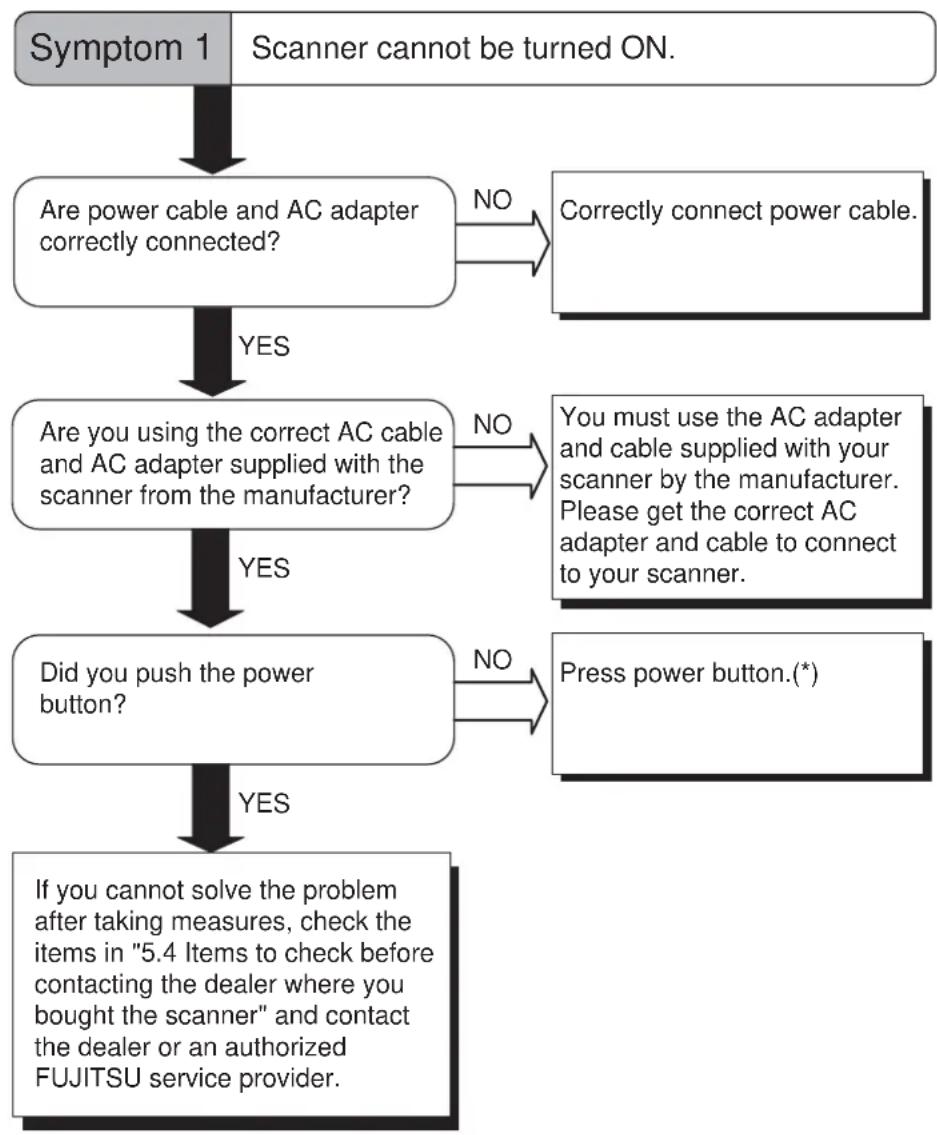
flowchart
graph TD
    A["Symptom 1"] --> B{Scanner cannot be turned ON.}
    B -->|NO| C["Correctly connect power cable."]
    B -->|YES| D{Are power cable and AC adapter correctly connected?}
    D -->|NO| E["Correctly connect power cable."]
    D -->|YES| F{Are you using the correct AC cable and AC adapter supplied with the scanner from the manufacturer?}
    F -->|NO| G["You must use the AC adapter and cable supplied with your scanner by the manufacturer. Please get the correct AC adapter and cable to connect to your scanner."]
    F -->|YES| H{Did you push the power button?}
    H -->|NO| I["Press power button.*"]
    H -->|YES| J{If you cannot solve the problem after taking measures, check the items in "5.4 Items to check before contacting the dealer where you bought the scanner" and contact the dealer or an authorized FUJITSU service provider.}
*) For details about how to turn the scanner on, refer to "1.1 Turning the Scanner ON" on page 2.
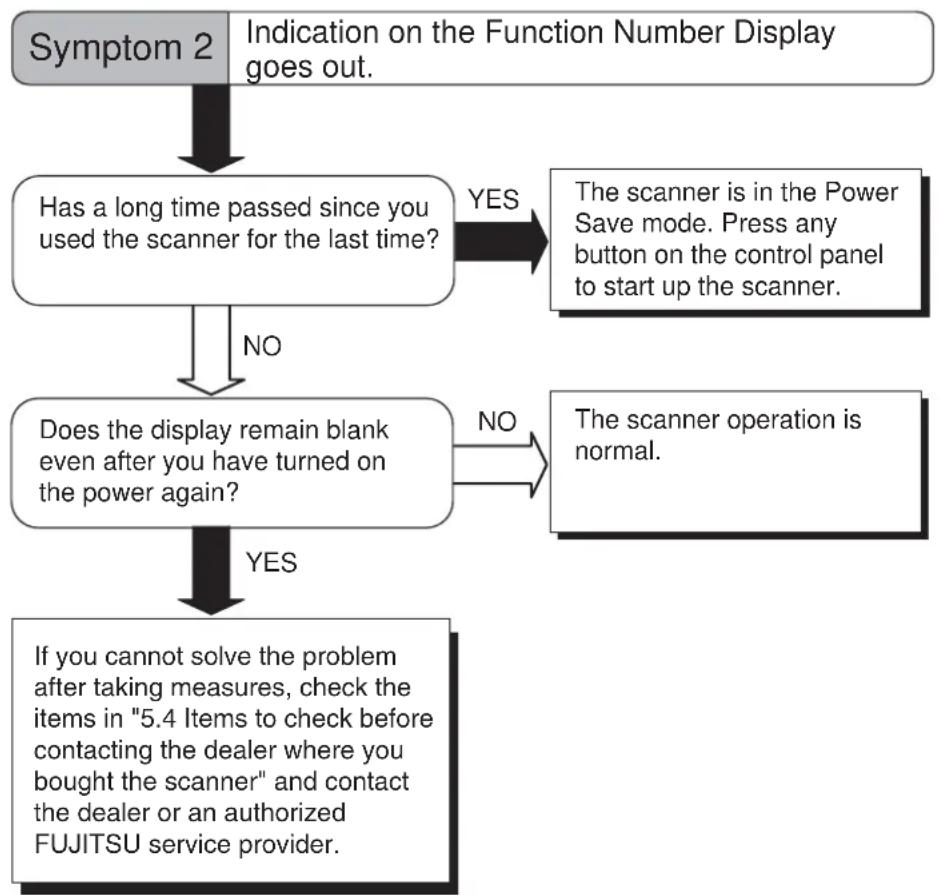
flowchart
graph TD
    A["Symptom 2"] --> B{Indication on the Function Number Display goes out.}
    B -->|YES| C["Has a long time passed since you used the scanner for the last time?"]
    C -->|NO| D["Does the display remain blank even after you have turned on the power again?"]
    D -->|YES| E["If you cannot solve the problem after taking measures, check the items in "5.4 Items to check before contacting the dealer where you bought the scanner" and contact the dealer or an authorized FUJITSU service provider."]
    D -->|NO| F["The scanner is in the Power Save mode. Press any button on the control panel to start up the scanner."]
    F --> G["The scanner operation is normal."]
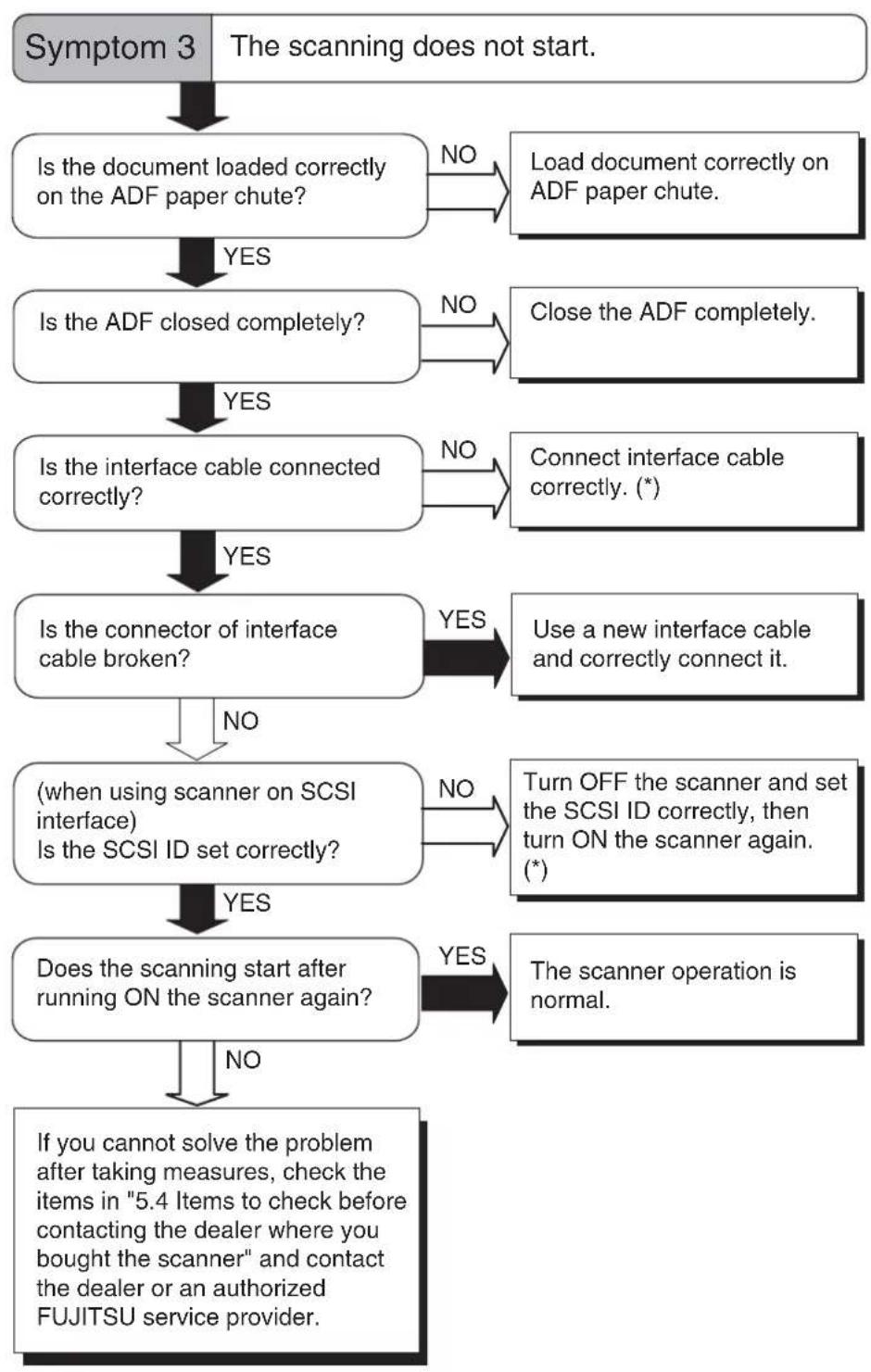
flowchart
graph TD
    A["Symptom 3"] --> B{Is the document loaded correctly on the ADF paper chute?}
    B -->|NO| C["Load document correctly on ADF paper chute."]
    B -->|YES| D{Is the ADF closed completely?}
    D -->|NO| E["Close the ADF completely."]
    D -->|YES| F{Is the interface cable connected correctly?}
    F -->|NO| G["Connect interface cable correctly. (*)"]
    F -->|YES| H{Is the connector of interface cable broken?}
    H -->|NO| I["(when using scanner on SCSI interface) Is the SCSI ID set correctly?"]
    H -->|YES| J{Does the scanning start after running ON the scanner again?}
    J -->|NO| K["If you cannot solve the problem after taking measures, check the items in "5.4 Items to check before contacting the dealer where you bought the scanner" and contact the dealer or an authorized FUJITSU service provider."]
    J -->|YES| L["The scanner operation is normal."]
    G --> M{Use a new interface cable and correctly connect it.}
    M --> N["Turn OFF the scanner and set the SCSI ID correctly, then turn ON the scanner again. (*)"]
*) For details, refer to Getting Started "2.2 Connecting the scanner to your PC".
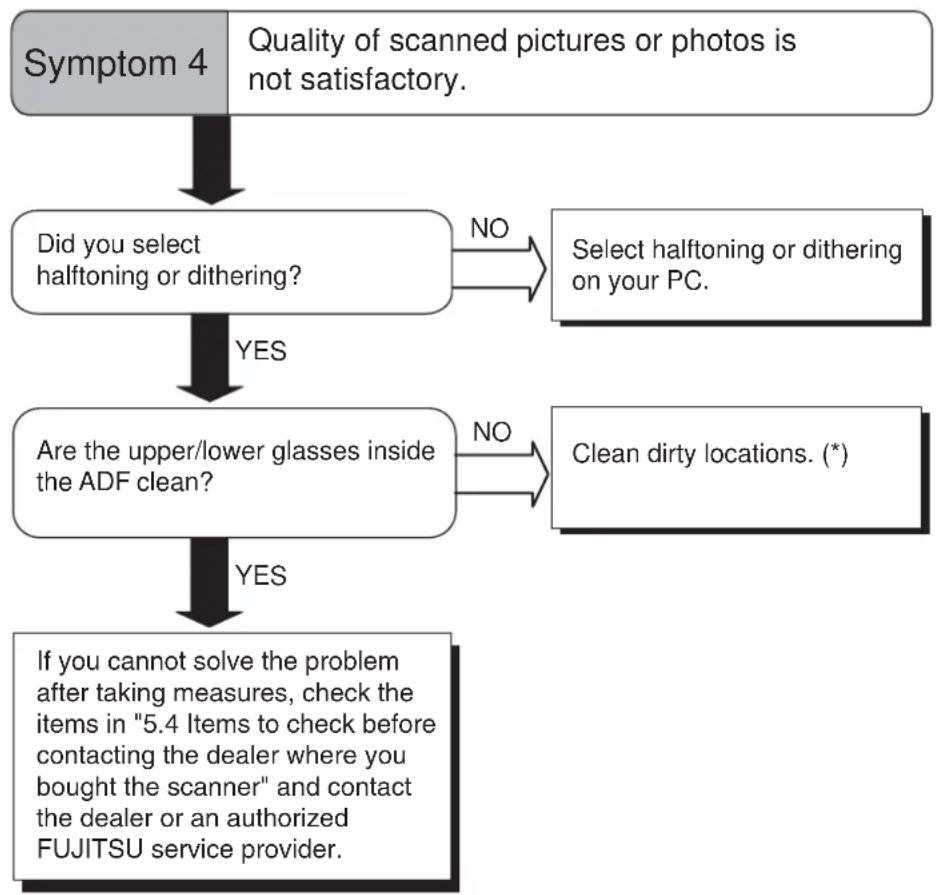
flowchart
graph TD
    A["Quality of scanned pictures or photos is not satisfactory."] --> B["Did you select halftoning or dithering?"]
    B -->|NO| C["Select halftoning or dithering on your PC."]
    B -->|YES| D["Are the upper/lower glasses inside the ADF clean?"]
    D -->|NO| E["Clean dirty locations. (*)"]
    D -->|YES| F["If you cannot solve the problem after taking measures, check the items in "5.4 Items to check before contacting the dealer where you bought the scanner" and contact the dealer or an authorized FUJITSU service provider."]
*) For details on how to clean dirty locations, refer to "3 DAILY CARE" on page 87.
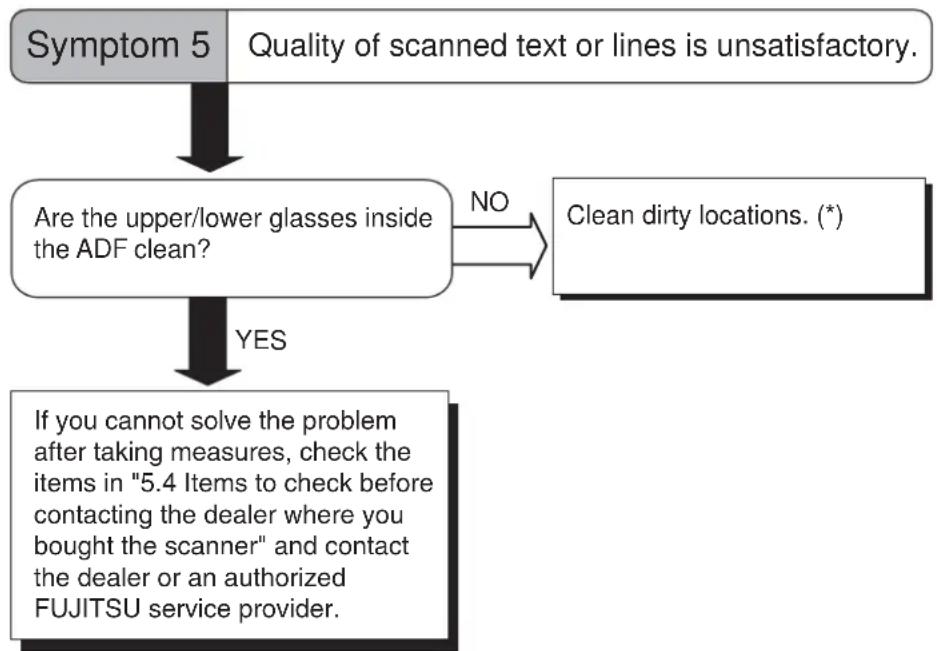
flowchart
graph TD
    A["Symptom 5"] --> B{Quality of scanned text or lines is unsatisfactory.}
    B --> C["Are the upper/lower glasses inside the ADF clean?"]
    C -->|NO| D["Clean dirty locations. (*)"]
    C -->|YES| E["If you cannot solve the problem after taking measures, check the items in "5.4 Items to check before contacting the dealer where you bought the scanner" and contact the dealer or an authorized FUJITSU service provider."]
*) For details on how to clean dirty locations, refer to "3 DAILY CARE" on page 87.
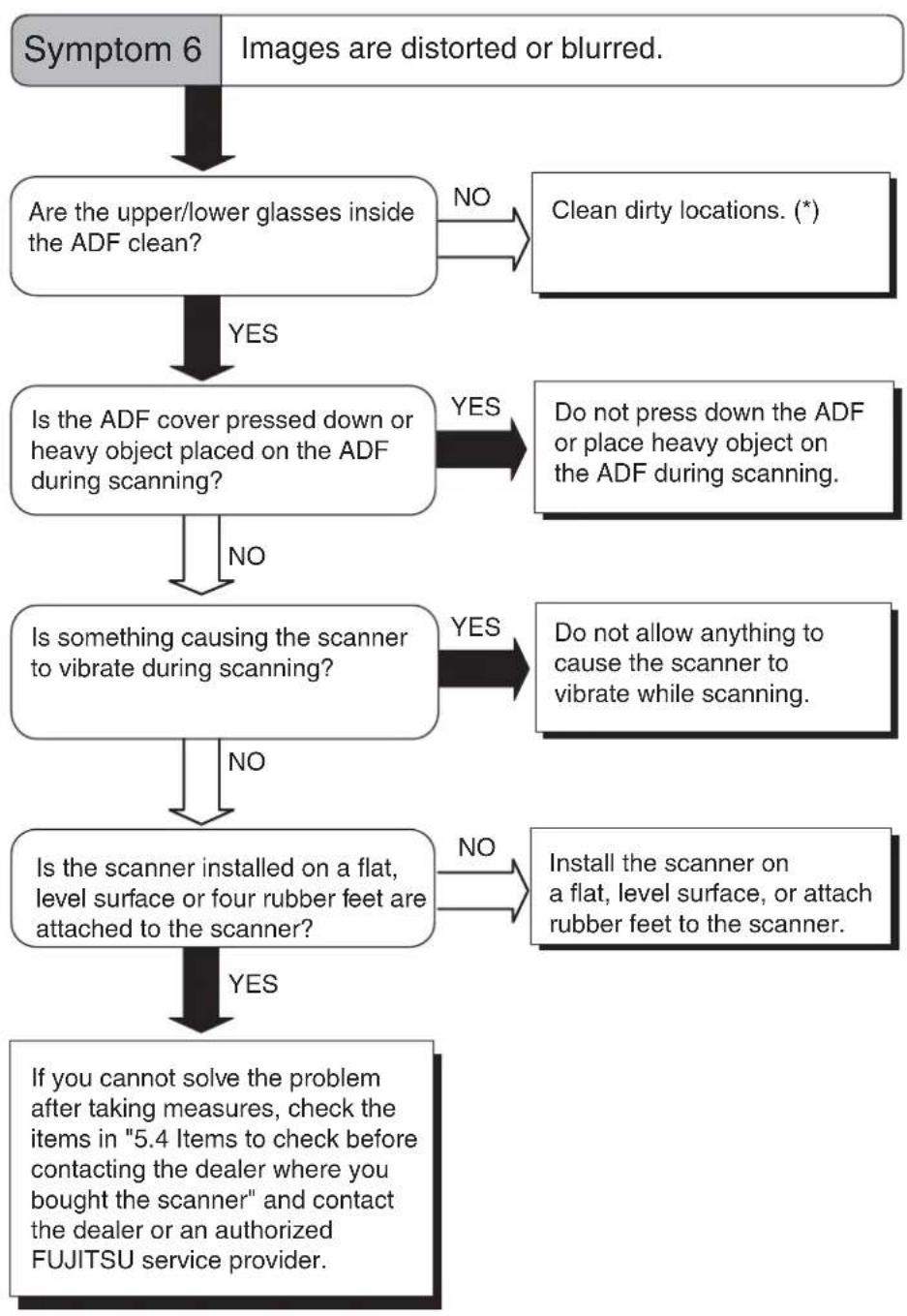
flowchart
graph TD
    A["Symptom 6 Images are distorted or blurred."] --> B["Are the upper/lower glasses inside the ADF clean?"]
    B -->|NO| C["Clean dirty locations. (*)"]
    B -->|YES| D["Is the ADF cover pressed down or heavy object placed on the ADF during scanning?"]
    D -->|YES| E["Do not press down the ADF or place heavy object on the ADF during scanning."]
    D -->|NO| F["Is something causing the scanner to vibrate during scanning?"]
    F -->|YES| G["Do not allow anything to cause the scanner to vibrate while scanning."]
    F -->|NO| H["Is the scanner installed on a flat, level surface or four rubber feet are attached to the scanner?"]
    G -->|NO| I["Install the scanner on a flat, level surface, or attach rubber feet to the scanner."]
    G -->|YES| J["If you cannot solve the problem after taking measures, check the items in "5.4 Items to check before contacting the dealer where you bought the scanner" and contact the dealer or an authorized FUJITSU service provider."]
*) For details on how to clean dirty locations, refer to "3 DAILY CARE" on page 87.

flowchart
graph TD
    A["Symptom 7"] --> B["Vertical lines appear in the scanned image."]
    B --> C{Do the lines appear on the same part of images?}
    C -->|YES| D["Clean the upper/lower glasses inside the ADF.(*)"]
    C -->|NO| E{Do the lines disappear on images with low resolution settings?}
    E -->|YES| F["Scan the documents with low resolution settings."]
    E -->|NO| G["If you cannot solve the problem after taking measures, check the items in "5.4 Items to check before contacting the dealer where you bought the scanner" and contact the dealer or an authorized FUJITSU service provider."]
*) The ADF glass, refer to "3.2 Cleaning the ADF" on page 90.

flowchart
graph TD
    A["Symptom 8"] --> B{Does the Function No. display indicate any alarm after turning ON the scanner again?}
    B -->|NO| C["The scanner operation is normal."]
    B -->|YES| D["If you cannot solve the problem after taking measures, check the items in "5.4 Items to check before contacting the dealer where you bought the scanner" and contact the dealer or an authorized FUJITSU service provider."]
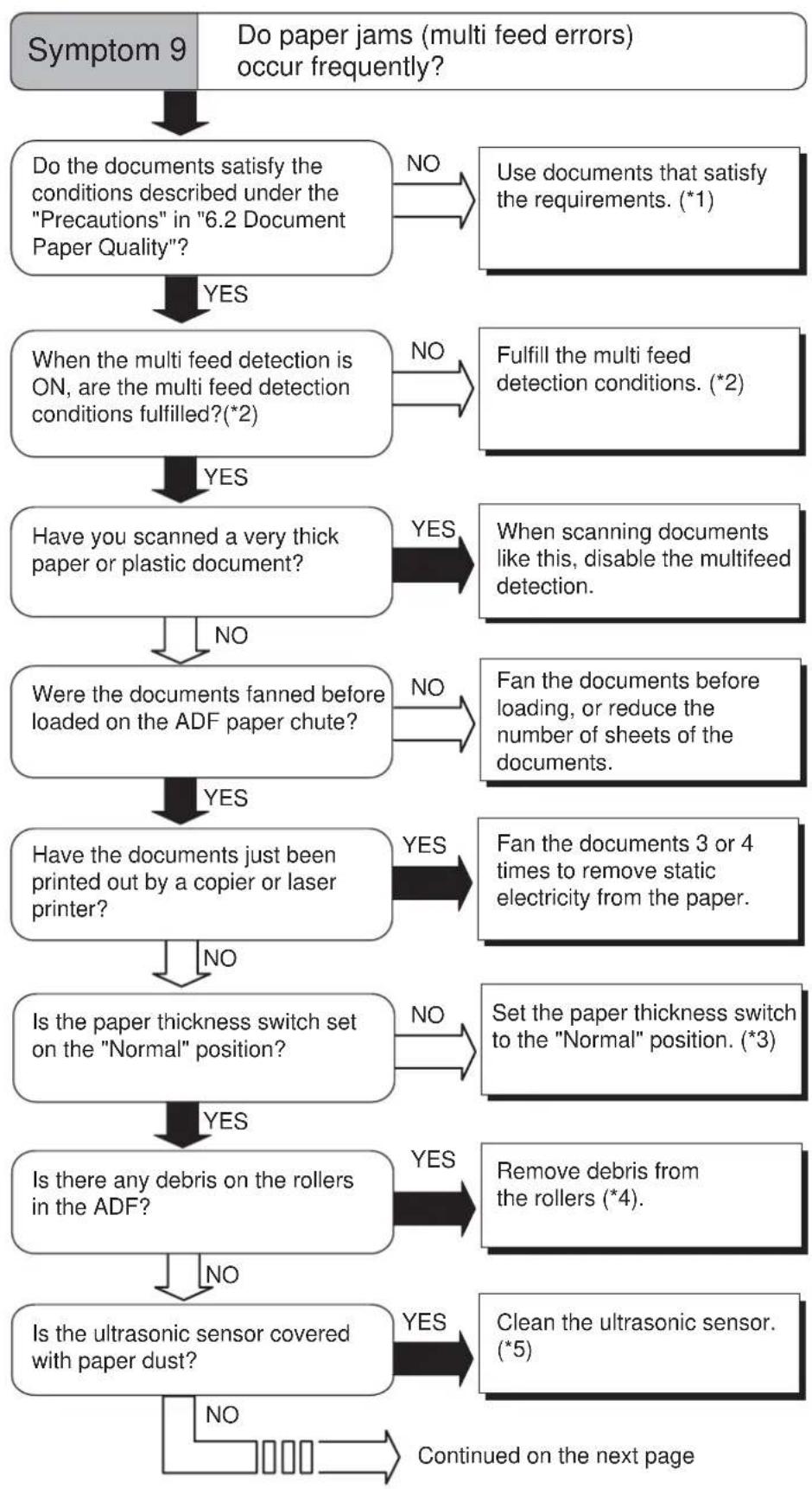
flowchart
graph TD
    A["Symptom 9"] --> B["Do paper jams (multi feed errors) occur frequently?"]
    B --> C["Do the documents satisfy the conditions described under the "Precautions" in "6.2 Document Paper Quality"?"]
    C -->|YES| D["When the multi feed detection is ON, are the multi feed detection conditions fulfilled?(*2)"]
    C -->|NO| E["Use documents that satisfy the requirements. (*1)"]
    D -->|YES| F["Have you scanned a very thick paper or plastic document?"]
    D -->|NO| G["Fulfill the multi feed detection conditions. (*2)"]
    F -->|YES| H["When scanning documents like this, disable the multifeed detection."]
    F -->|NO| I["Were the documents fanned before loaded on the ADF paper chute?"]
    I -->|YES| J["Have the documents just been printed out by a copier or laser printer?"]
    I -->|NO| K["Fan the documents before loading, or reduce the number of sheets of the documents."]
    J -->|YES| L["Is the paper thickness switch set on the "Normal" position?"]
    J -->|NO| M["Set the paper thickness switch to the "Normal" position. (*3)"]
    L -->|YES| N["Is there any debris on the rollers in the ADF?"]
    L -->|NO| O["Remove debris from the rollers (*4)."]
    N -->|YES| P["Is the ultrasonic sensor covered with paper dust?"]
    N -->|NO| Q["Clean the ultrasonic sensor. (*5)"]
    P -->|YES| R["Continued on the next page"]
    P -->|NO| S["Continued on the next page"]

flowchart
graph TD
    A["Continued from the previous page"] --> B{Is the document stack 10mm (A4)/5mm (A3) or less?}
    B -->|NO| C["Reduce the number of sheets in the stack."]
    B -->|YES| D{Is the Pad ASSY attached correctly?}
    D -->|NO| E["Attach the Pad ASSY correctly.*6"]
    D -->|YES| F{Is the Pad ASSY dirty?}
    F -->|YES| G["Clean the Pad ASSY.*7"]
    F -->|NO| H{Is the Pad ASSY worn out?}
    H -->|YES| I["Replace the Pad ASSY.*6"]
    H -->|NO| J{If you cannot solve the problem after taking measures, check the items in "5.4 Items to check before contacting the dealer where you bought the scanner" and contact the dealer or an authorized FUJITSU service provider.}
*1) For details on the requirements, refer to "6.2 Document Quality" on page 133.
*2) For details on multifeeds, refer to "6.5 Specifying How to Detect Multifeed" on page 139.
*3) For details on how to set paper thickness switch, refer to "2.3 Scanning Thin Documents" on page 48.
*4) For details on how to clean the rollers, refer to "3.2 Cleaning the ADF" on page 90.
*5) For details on how to clean the Ultrasonic sensor, refer to the "3.2 Cleaning the ADF" on page 90.
*6) For details on how to replace (or attach) the Pad ASSY, refer to "4.2 Replacing the Pad ASSY" on page 99.
*7) For details on how to clean the Pad ASSY, refer to "3.2 Cleaning the ADF" on page 90.
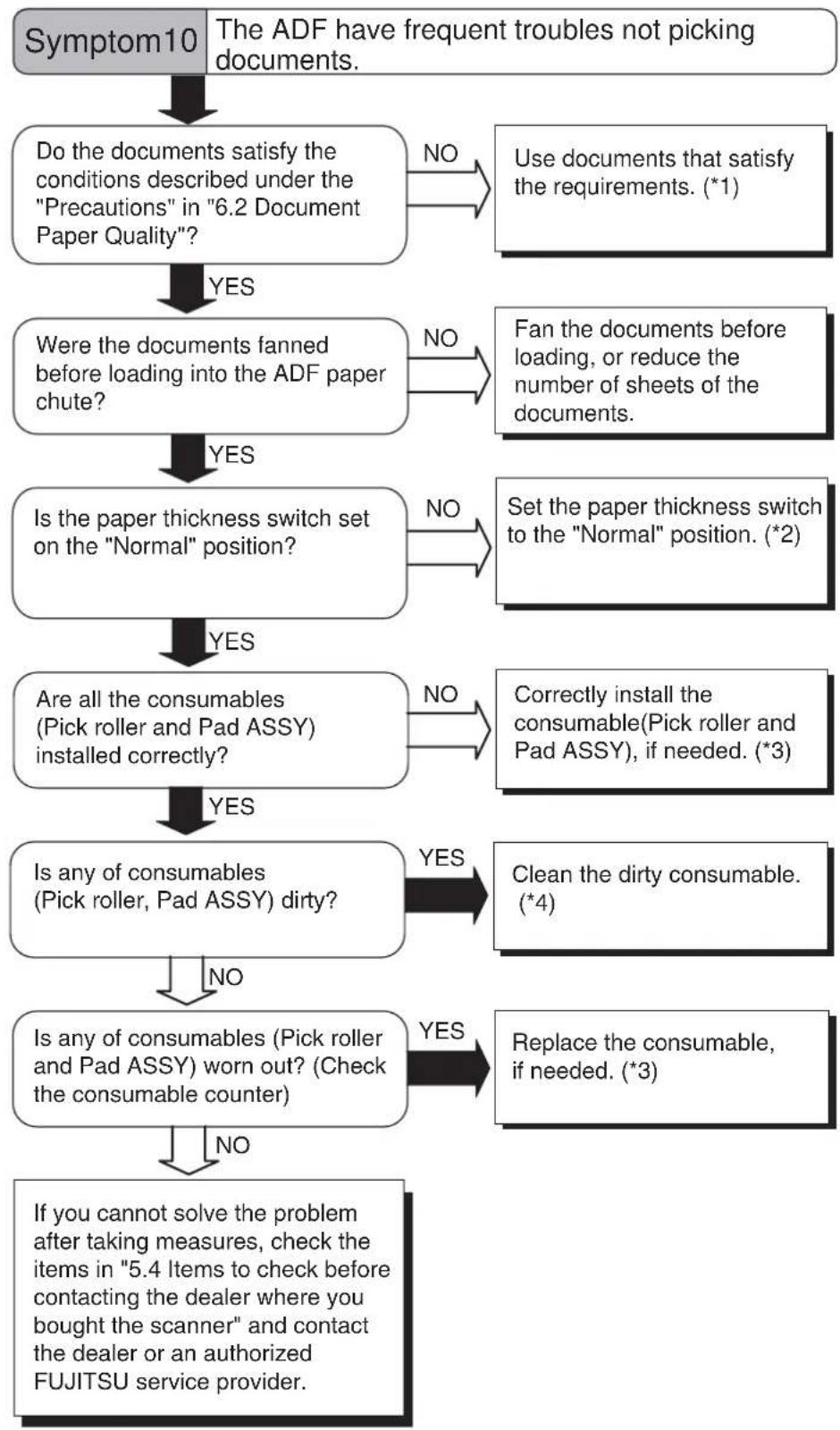
flowchart
graph TD
    A["Symptom10"] --> B["Do the documents satisfy the conditions described under the "Precautions" in "6.2 Document Paper Quality"?"]
    B -->|NO| C["Use documents that satisfy the requirements. (*1)"]
    B -->|YES| D["Were the documents fanned before loading into the ADF paper chute?"]
    D -->|NO| E["Fan the documents before loading, or reduce the number of sheets of the documents."]
    D -->|YES| F["Is the paper thickness switch set on the "Normal" position?"]
    F -->|NO| G["Set the paper thickness switch to the "Normal" position. (*2)"]
    F -->|YES| H["Are all the consumables (Pick roller and Pad ASSY) installed correctly?"]
    H -->|NO| I["Correctly install the consumable(Pick roller and Pad ASSY), if needed. (*3)"]
    H -->|YES| J["Is any of consumables (Pick roller, Pad ASSY) dirty?"]
    J -->|YES| K["Clean the dirty consumable. (*4)"]
    J -->|NO| L["Is any of consumables (Pick roller and Pad ASSY) worn out? (Check the consumable counter)"]
    L -->|YES| M["Replace the consumable, if needed. (*3)"]
    L -->|NO| N["If you cannot solve the problem after taking measures, check the items in "5.4 Items to check before contacting the dealer where you bought the scanner" and contact the dealer or an authorized FUJITSU service provider."]
*1) For details, refer to "6.2 Document Quality" on page 133.
*2) For details, refer to "2.3 Scanning Thin Documents" on page 48.
*3) For details, refer to "4 REPLACING CONSUMABLES" on page 95.
*4) For details, refer to "3.2 Cleaning the ADF" on page 90.
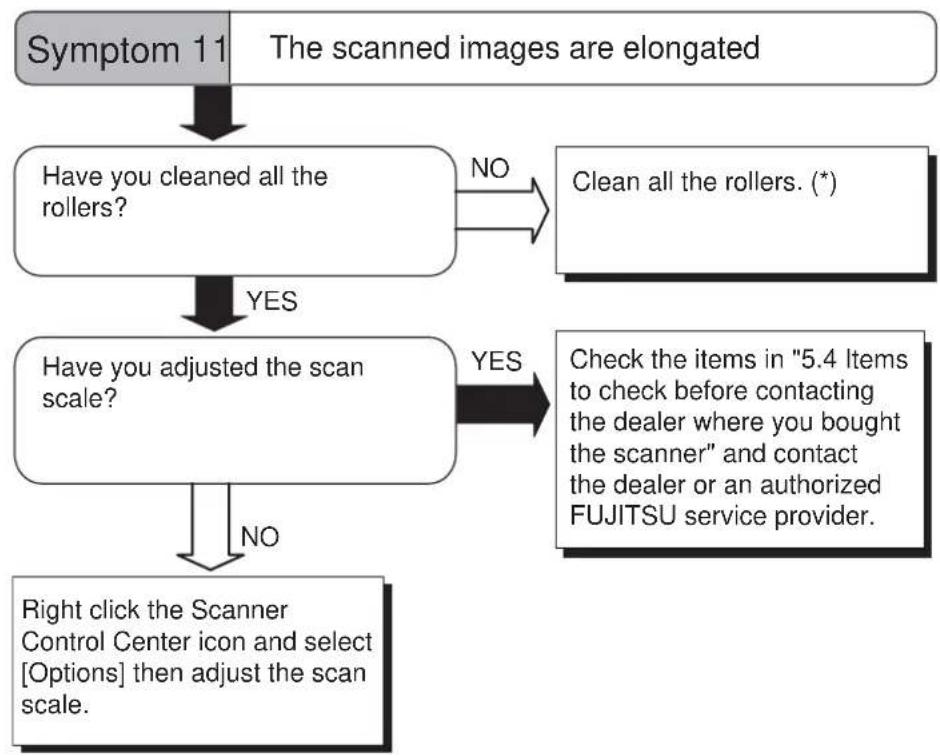
flowchart
graph TD
    A["Symptom 11"] --> B["The scanned images are elongated"]
    B --> C{Have you cleaned all the rollers?}
    C -->|NO| D["Clean all the rollers. (*)"]
    C -->|YES| E{Have you adjusted the scan scale?}
    E -->|YES| F["Check the items in "5.4 Items to check before contacting the dealer where you bought the scanner" and contact the dealer or an authorized FUJITSU service provider."]
    E -->|NO| G["Right click the Scanner Control Center icon and select [Options"] then adjust the scan scale.]
*) For details on how to clean the rollers, refer to "3.2 Cleaning the ADF" on page 90.
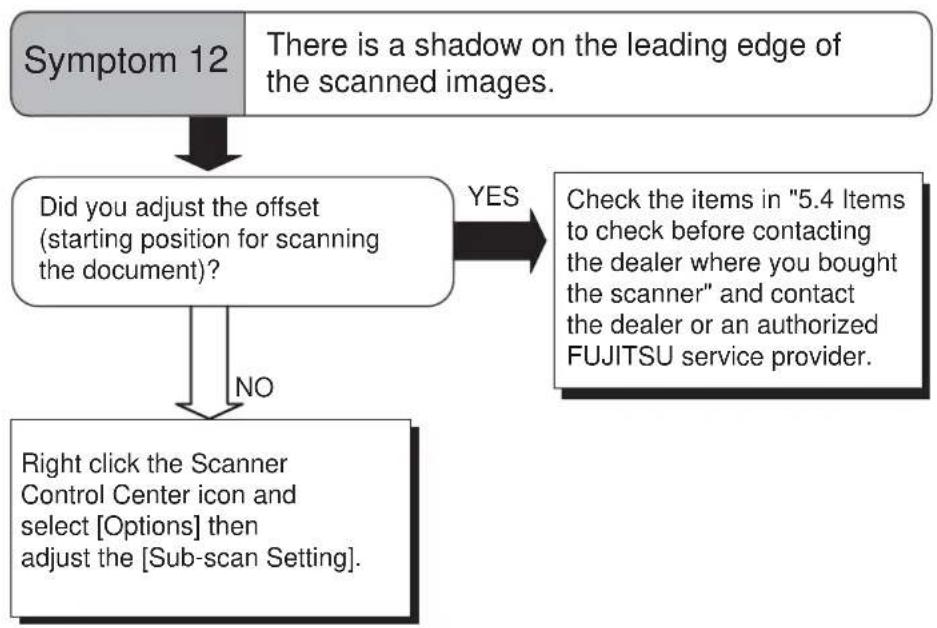
flowchart
graph TD
    A["Symptom 12"] --> B{Did you adjust the offset (starting position for scanning the document)?}
    B -->|YES| C["Check the items in "5.4 Items to check before contacting the dealer where you bought the scanner" and contact the dealer or an authorized FUJITSU service provider."]
    B -->|NO| D["Right click the Scanner Control Center icon and select [Options"] then_adjust_the["Sub-scan Setting"].]
    C --> E["End"]
5.4 Items to check before contacting the agent where you bought the scanner
Check the following items before you contact the agent where you bought the scanner.
■ General Details
| Item Findings | |
| Model fi-5530C2 | |
| Serial Number (Example) 000001For details on the serial number, refer to "5.5 Checking Labels on the Scanner" on page 130. | |
| Production date (Example) 2007-07 (July, 2007)For details on the production date, refer to "5.5 Checking Labels on the Scanner" on page 130. | |
| Date of purchase | |
| Symptom | |
| Frequency of trouble | |
■ Problems in Installation or PC connection
- Problems occur when connecting to your computer
| Item Findings | |
| OS | |
| Displayed error message | |
| Interface (Example) SCSI interface | |
| Interface controllers (Example) made by Adaptec SCSI Card 2940AU | |
- Problems in the feeding system
| Item Findings | |
| Document type | |
| Main purpose of use | |
| Last cleaning date | |
| Last consumables replacement date | |
| Operator panel status at trouble |
- Problems in the imaging system
| Item Findings | |
| Type and version of scanner driver | |
| Type of interface controller (Example) made by Adaptec SCSI Card 2940AU | |
| OS (Windows®) | |
| Application software (Example) ScandAll PRO, Acrobat | |
- Others
| Item Findings | |
| Can both the original document and the scanned document image (output paper with Fax) be sent out by e-mail or Fax? |
5.5 Checking Labels on the Scanner
■ Positions of Labels on the Scanner

text_image
Label A Label BLabel A (example): Indicates scanner information.
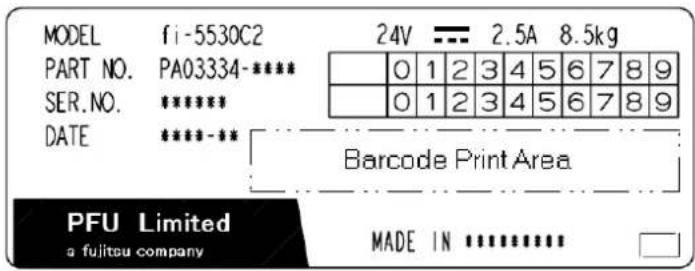
text_image
MODEL fi-5530C2 24V 2.5A 8.5kg PART NO. PA03334-**** SER. NO. ***** DATE ****-** Barcode Print Area PFU Limited a fujitsu company MADE INLabel B (example): Indicates various standards that the scanner conforms with.
This chapter describes the required document sizes and paper quality for ensuring a correct operation when scanning documents on the ADF.
6
6.1 Document Size 132
6.2 Document Quality 133
6.3 Maximum ADF Capacity 137
6.4 Area Not To Be Perforated 138
6.5 Specifying How to Detect Multifeed 139
6.1 Document Size
The following shows the size of documents that can be scanned.
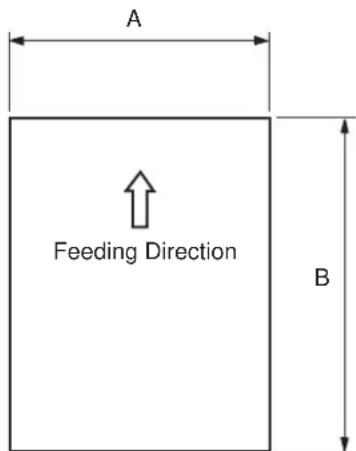
text_image
A Feeding Direction B| Maximum Minimum | |||
| A B A B | |||
| 297 (11.7 in) 86 | 3.6 (34 in) 53 (2.0 in) | 74 (2.9 in) | |
(Unit: mm)
6.2 Document Quality
This section describes the types and thicknesses of documents that can be scanned stably, and precautions to follow.
■ Document Type
The recommended following paper types are:
- Woodfree paper
- Wood containing paper
When using documents of a paper type other than the above, perform a test-scanning with a few sheets of the same type before executing the actual task in order to check whether or not the documents can be scanned.
■ Document Thickness
Paper thickness is expressed by "paper weight." The following shows the paper weights that can be used on this scanner:
- 52 ~g / m^-2 to 127 ~g / m^2 (13.9 lb to 34.0 lb)
Only a paper weight of 127 g/m^2 (34.0 lb) is allowed for A8-size documents.
■ Precautions
The following documents may not be scanned successfully.
- Documents of non-uniform thickness (e.g. envelopes and documents with photographs attached)
- Wrinkled or curled documents (Refer to HINT on page 135.)
- Folded or torn documents
- Documents with pictures and/or sticky notes attached
- Tracing paper
- Coated paper
- Carbon paper
- Carbonless paper
- Photosensitive paper
• Perforated or punched documents - Documents that are not square or rectangular
• Very thin documents - Photographs
Do not use the following documents:
• Paper-clipped or stapled documents
- Documents on which the ink is still wet
- Documents smaller than A8 (Portrait) in size
- Documents wider than A3 or 11x 17 in size
- Documents of materials other than paper such as the fabric, metal foil, transparency

- When scanning semi-transparent documents, slide the [Brightness] bar to light to avoid bleed through.
- To prevent the rollers from becoming dirty, avoid scanning documents containing large areas written or filled in pencil. If scanning of such documents is inevitable, clean the rollers more frequently.

- Carbonless paper contains chemical substances that may harm the Pad ASSY or rollers (e.g. Pick roller) when documents are fed. Pay attention to the following:
Cleaning: If document jams occur frequently, clean the Pad ASSY and the Pick roller. For details on cleaning the Pad ASSY and the Pick roller, refer to "3.2 Cleaning the ADF" on page 90.
Replacing parts: The service life of the Pad ASSY and the Pick roller may be shortened compared to the case of scanning wood containing paper documents.
- If paper containing wood is scanned, the service life of the Pad and Pick roller may become shorter than that of the Pad and Pick roller used for scanning only woodfree paper.
- The pad or rollers of the scanner could be damaged if photographs or sheets of paper attached to the scanned document have contact with the pad or rollers during scanning.
- Scanning documents of calendered paper such as photographs may damage the surface of them.

When using the ADF, the leading edge of all document sheets must be evenly aligned. Make sure that curling at the leading edge is within the following tolerances:

text_image
More than 30 mm Less than 3mm Top of the paper Read surface Feed direction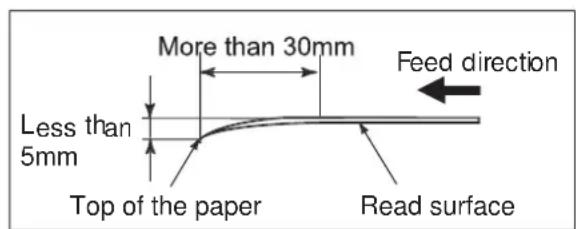
text_image
More than 30mm Less than 5mm Top of the paper Read surface Feed direction
This scanner can scan ID cards through the Automatic Document Feeder with the following precautions.
- Place one card at a time into the Auto Document Feeder.
- ID card feeding requires the card to be fed through the Auto Document Feeder in portrait mode as in the following figure.
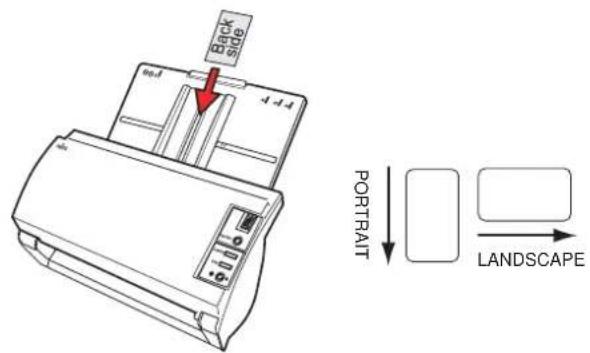
text_image
Cable 4-4-4 6-4 PORTRAIT LANDSCAPE- Smooth cards should be placed face down in the Auto Document Feeder.
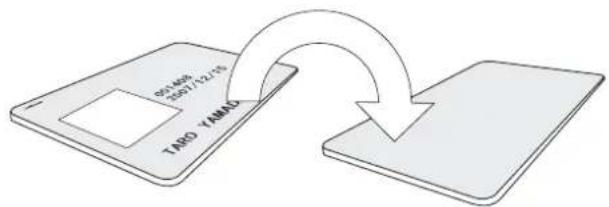
flowchart
graph TD
    A["800 Max<br>800*12.1*"] --> B["TADO YAMNO"]
    B --> C["Arrow"]
- The card to be scanned should be within the ISO7810 compliance, type ID-1.
ISO7810-compliant, Type ID-1 card
Material: PVC (Poly vinyl chloride) or PVCA (Polyvinyl chloride acetate)
Dimensions: 3.4 inch (height) x 2.1 inch (width) / 86 mm x 54 mm
Thickness: 0.03 ± 0.003inch / 0.76 ± 0.08mm
- Embossed cards (on which a raised effect is created) cannot be scanned.
- Cards that are excessively rigid or less flexible may not feed smoothly and excessive noise may occur.
- Cards should be clean from oil and without labels.
- Cards cannot be scanned when the imprinter is installed.
6.3 Maximum ADF Capacity
The maximum number of sheets that can be loaded on the ADF paper chute is determined by the size and weight of the documents. The following graph shows the maximum document loading capacity of ADF with respect to paper weight.
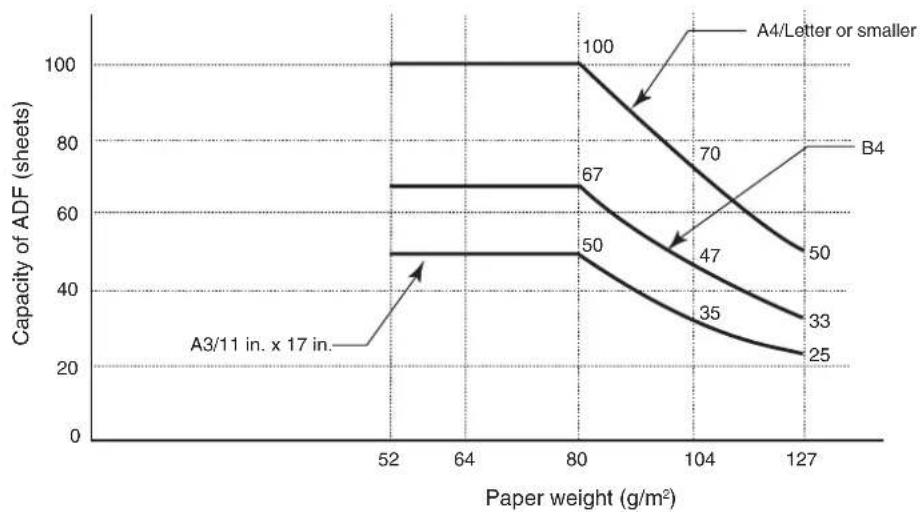
Paper weight conversion table
| Unit Conversion | |||||||
| g/m^2 | 52 | 64 | 75 | 80 | 90 | 104 | 127 |
| lb 13.9 | 17.0 | 20.0 | 21.0 | 24.0 | 27.9 | 34.0 | |
6.4 Area Not To Be Perforated
When using the ADF, document trouble might occur if there is any punched hole in the shaded area in the following figure.
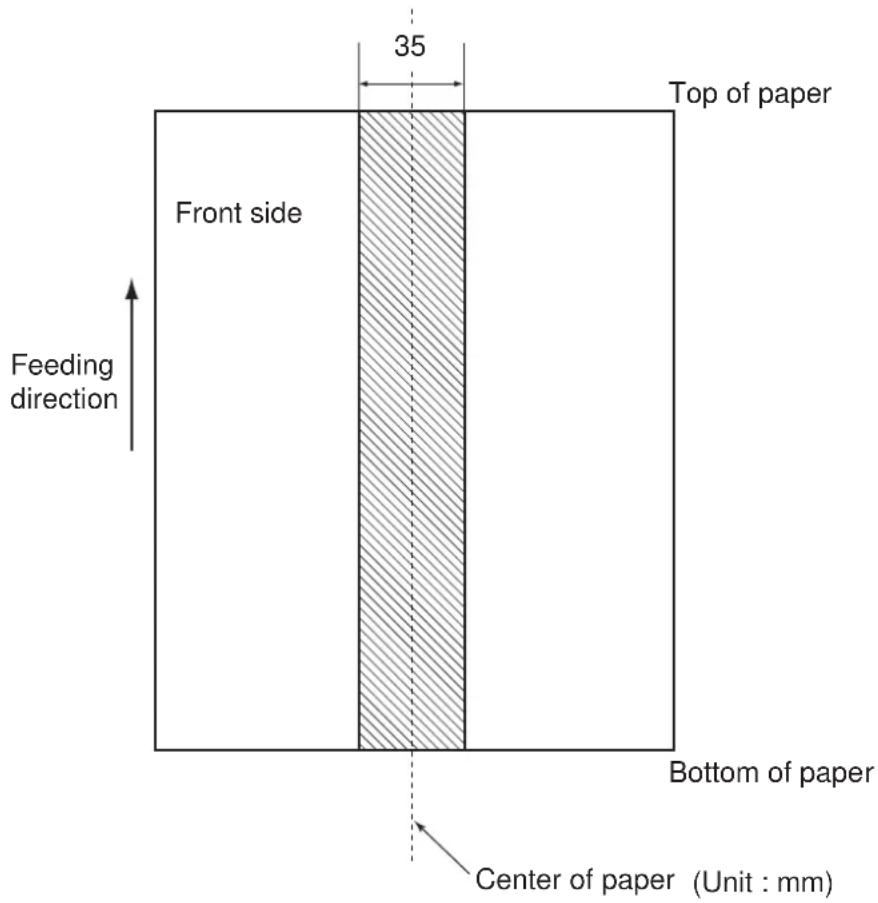
text_image
35 Top of paper Front side Feeding direction Bottom of paper Center of paper (Unit : mm)6.5 Specifying How to Detect Multifeed
One of the following is selected to detect a multifeed:
- Check overlapping
- Check length
- Check overlapping and length
The following describes what condition is required for each selection:
■ Check overlapping
Paper weight
$$ 5 2 \mathrm{g} / \mathrm{m} ^ {2} - 1 2 7 \mathrm{g} / \mathrm{m} ^ {2} (1 3. 9 \mathrm{lb} \text { to } 3 4. 0 \mathrm{lb}) $$
Punched holes are not allowed within 35 mm (1.4 in) of the vertical centerline of the document. Other paper shall not be glued within 35 mm (1.4 in) of the vertical centerline of the document.
■ Check length
Document length deviation 1% or less
Punched holes are not allowed within 35 mm (1.4 in) of the vertical centerline of the document.
■ Check overlapping and length
Paper weight
$$ 5 2 \mathrm{g} / \mathrm{m} ^ {2} - 1 2 7 \mathrm{g} / \mathrm{m} ^ {2} (1 3. 9 \mathrm{lb} \text { to } 3 4. 0 \mathrm{lb}) $$
Document length deviation 1% or less
Punched holes are not allowed within 35 mm (1.4 in) of the vertical centerline of the document. Other paper shall not be glued within 35 mm (1.4 in) of the vertical centerline of the document.


Multifeed detection by overlap will often mis-detect very thick paper or plastic document.
When scanning documents like this, please disable the multifeed detection.

- When the overlapping check is specified, the papers which contact closely each other, such as glued paper or electro-statically charged paper, can result in the miss-detection of multifeed.
- Normally multifeed detection will monitor the following area of the document.
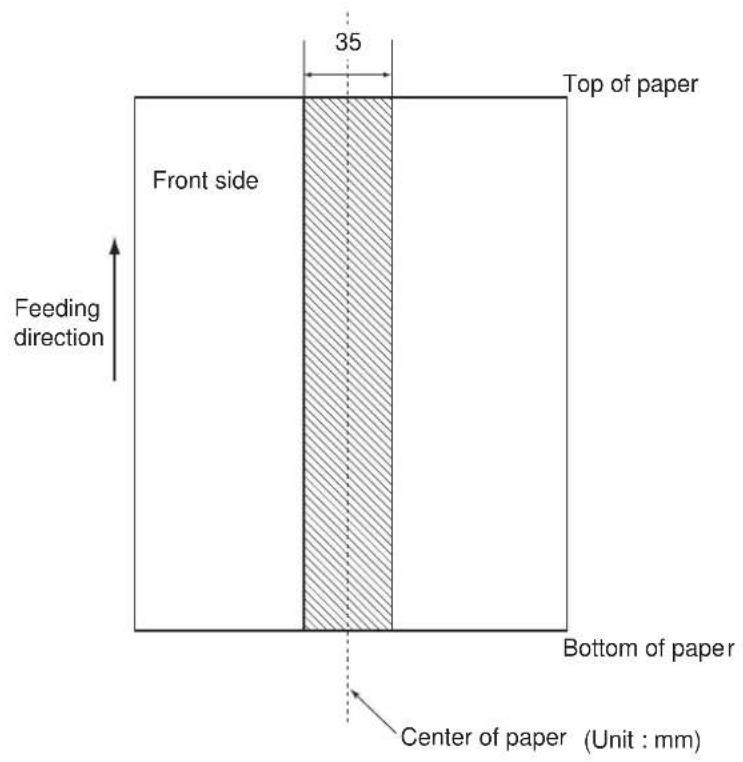
text_image
35 Top of paper Front side Feeding direction Bottom of paper Center of paper (Unit : mm)Chapter 7
SCANNER SPECIFICATIONS
This chapter lists the scanner specifications.
7.1 Basic Specifications .... 142
7.2 Installation Specifications.... 144
7.3 External Dimensions ...... 145
7.1 Basic Specifications
| No. | Item Specification | |||
| 1 | Scanner Type ADF | (Automatic Document Feeder) | - | |
| 2 | Image sensor CCD x 2 Front / Back | |||
| 3 | Light source Incandescent cold cathodefluorescent lamp x 2 | Front / Back | ||
| 4 | Scanning area | Minimum A8 portrait | x 17 in | 127 g/m2paper |
| Maximum A3 / 11 | ||||
| 5 | Paper Weight | 52 to 127 g/m2(13.9 to 34.0 lb) | (*1) | |
| 6 | Scanning Speed (A4 Portrait) (*2) | Color Grayscale Binary (Black and White) | Simplex: 35 sheets/min.Duplex: 70 pages/min. | 200 dpi |
| Scanning Speed (A4 Landscape) (*2) | Color Grayscale Binary (Black and White) | Simplex: 50 sheets /min.Duplex: 100 pages/min. | 200 dpi | |
| 7 | Capacity of ADF (*3) | 100 sheets | A4, 80 g/m2 | |
| 50 sheets | A3 80 g/m2 | |||
| 8 | Optical Resolution 600 dpi - | |||
| 9 | O u t p resolution | Binaryt (monochrome) | 50 - 600, 1200 dpi Scalable | in 1 dpi increments1200 dpi can be achieved by software processing(*4) |
| Glayscale | ||||
| Color | ||||
| 10 | Grayscale level | 8 bits per color | Internal 10 bits | |
| 11 | Halftone Patterns | Dither / Error diffusion | - | |
| 12 | Interface (*5) Ultra SCSI Shield-type | 50 | pin (pin-type) halfpich | |
| USB 2.0 / USB 1.1 (*6) B Type | ||||
| 13 | Other functions JPEG compression | - | ||
| Imprinter Port - | ||||
| 14 | Options Imaging Processing | Software | (*7) | |
| fi-553PR Imprinter (*8) | ||||
*1) For details, refer to "6 DOCUMENT SPECIFICATIONS FOR ADF" on page 131.
*2) The scanning speed shows the maximum performance of the scanner (hardware). Software processing time such as data transfer time is added to the actual scanning time. The scanning speed in color/grayscale mode shows the scanner performance when images already converted to JPEG are processed.
*3) The maximum stacking capacity varies according to the document thickness. For details, refer to "6 DOCUMENT SPECIFICATIONS FOR ADF" on page 131.
*4) With a high resolution of 600dpi or more, scanning may be limited depending on the scan mode, the size of the document, and the memory size of the computer you are using.
*5) The Ultra SCSI and USB2.0/1.1 interfaces cannot be used at the same time.
*6) If you connect the scanner with USB 2.0, it its required that the USB port and the Hub are compliant with USB 2.0. The scanning speed may slow down when connecting with USB 1.1.
*7) "Image Processing Software Option" is an optional software for FUJITSU fi-series scanners to perform advanced binarization processing using the "FUJITSU TWAIN 32" scanner driver.
*8) By Using the Imprinter, a character string, such as the alphabet and numbers, can be printed in the scanned document. It helps you to organize your documents by printing a name, date, time or a serial number on the scanned document.
7.2 Installation Specifications
| Item Specification | ||||
| Dimensions(Without ADF paper chute and Stacker) | Depth Width Height | |||
| 225 mm(8.9 in) | 399 mm(15.7 in) | 193 mm(7.6 in) | ||
| Installation Space(D x W x H) | 800 x 500 x 500 mm(31.5 x 19.7 x 19.7 in) | |||
| Weight 8.5 kg (18.7 lb) | ||||
| Input power Voltage | age 100 to 120 VAC ±10% 220 to 240 VAC ±10% | |||
| Phases Single-phase | ||||
| Frequency 50 / 60 ± 3Hz | ||||
| Power consumption 57 W or less | ||||
| Ambient condition | Device status Operating Not operating | |||
| Temperature 5 to 35 °C(41 to 95 °F) | -20 to 60 °C(-4 to 140 °F) | |||
| Humidity 20 to 80% 8 to 95% | ||||
| Heat capacity 49 kcal / H or less | ||||
| Shipping Weight | 12 kg (33 lb) | |||

Installation Space is the reference value of an installation space required to read A3 documents.

Refer to Chapter 4 "REPLACING CONSUMABLES" (page 95) for details on the scanned number of sheets for current consumable.
7.3 External Dimensions
The following shows the external dimensions of the fi-5530C2.

(Unit : mm)
Using the [Scan] or [Send to] Button
By linking software applications to the [Scan] or [Send to] button, you can launch the linked application at a press of a button.
(To use ScandAll PRO, read section 2.14 "Scanning by Pressing the Scan Button on the Scanner" on page 84.)
■ Settings to Configure on the Computer
- Select [Start]-[Control Panel].
- Select [Scanners and Cameras]-[Properties].
- Display the [fi-5530C2dj Properties] dialog box.
In Windows XP or Windows Server 2003, right-click on the [fi-5530C2dj] icon, and then select [Properties]. In Windows 2000 or Windows Vista, double-click on the [fi-5530C2dj] icon.
- Select the [Events] tab.
- Select an event.
When the operating system you are using is Windows XP, select an event for starting up any application from the [Select an event] menu.

text_image
fi-5530C2dj Properties Diagnosis Device Info Device Set About General Events Color Management Choose an event below, then select the action to take when that event occurs. Select an event: Scan Button Scan Button Send to 1 Send to 2 Send to 3 Start this program Prompt for which will be found to do Take no action Save all pictures to this folder H:\Documents and Settings\Owner\My Document Browse... Create a cubfolder using today's date Delete pictures from camera after saving them. OK Cancel Apply
The events available for this function are:
- Scan Button (Press the [Scan] button)
-
Send to 1-9 (With a number from 1 to 9 displayed on the Function Number Display, press the [Send to] button)
-
Select an application to be launched when an event occurs. If the operating system you are using is Windows XP, select [Start this program] under [Actions], and then select the application from the drop-down list.
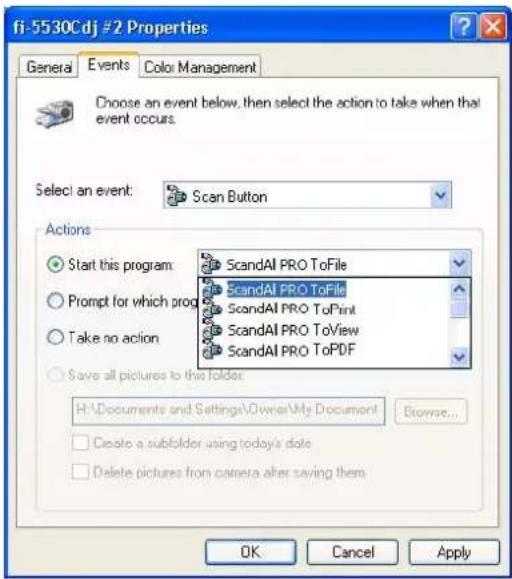
text_image
fi-5530Cdj #2 Properties General Events Cro: Management Choose an event below, then select the action to take when that event occurs. Select an event: Scan Button Actions Start this program ScandAI PRO ToFile Prompt for which prog ScandAI PRO ToFile Take no action ScandAI PRO ToPrint ScandAI PRO ToView ScandAI PRO ToPDF Save all pictures to the folder: H:\Documents and Settings\Owner\My Document Browse... Create a subfolder using today's date Delete pictures from camera after saving them OK Cancel Apply- Click the [OK] button.

The screens and operations may vary depending on the operating system you are using.
■ Settings to Configure on the Scanner

text_image
Function Number Display Function Send to Scan- When you want to use the [Scan] button
There is no specific settings.
⇒ Upon pressing the [Scan] button, the linked application starts up.
- When you want to use the [Send to] button
Press the [Function] button repeatedly to change a number displayed on the Function Number Display until the number matches the event number (from 1 to 9) you have set. Upon pressing the [Send to] button, the linked application starts up.

- For example, when you want to execute the [Send to 2] event, change the number on the Function Number Display to "2".
- Every time you press the [Function] button, the displayed number changes as follows:
1, 2, 3,...9, C, 1, 2, 3... etc.
A
GLOSSARY OF TERMS
A4 size
A standard paper size. Paper size is 210 x 297 mm.
A5 size
A standard paper size. Paper size is 148 x 210 mm.
A6 size
A standard paper size. Paper size is 105 x 148 mm.
A7 size
A standard paper size. Paper size is 74 x 105 mm.
A8 size
A standard paper size. Paper size is 53 x 74 mm.
ADF (Automatic Document Feeder)
A unit that allows the user to scan a number of pages consecutively. Fed documents are transported from the ADF paper chute (or hopper) to the Stacker. Actual scanning operation is executed by the mechanism inside of this unit. Backside reading = Backside scanning Refers to reading the backside of the document, specifically in Duplex reading mode.
Automatic separation
An image processing method in which the scanner automatically detects difference between text and photos, and chooses the threshold accordingly. This function allows the scanner to switch between line mode and half tone mode in one pass.
Automatic size/skew detection
A function that automatically detects the document' page size and adjusts output data to the detected page size. Document skewing is automatically detected and corrected for the output image.
Brake roller
A roller that prevents two or more sheets of paper from being fed simultaneously into the ADF.
Brightness
Refers to the brightness of scanned images in this manual.
Canadian DOC Regulations
"A standard issued by Industry Canada, a department of the Canadian government, which sets out the technical requirements relative to the radiated and conducted radio noise emissions from digital apparatus."
CCD (Charged Coupling Device) Image Sensor
A semiconductor device inside the scanner that registers light reflected from the original image and converts it into a digitized (electronic) form. CCD technology is the basis of high-quality image acquisition in scanners, cameras, and other specialized devices.
Cleaning paper
Sheets used with the F1 cleaner for cleaning the rollers (pick rollers, feed rollers, etc.) and complete document path in the scanner. Used in daily maintenance of the low volume production scanner to reduce paper transport problems. Note: these sheets are not meant to replace the more thorough periodic cleaning of the scanner.
Cleaning sheet
Adhesive sheets used for cleaning the rollers (pick rollers, feed rollers, etc.) and complete document path in the scanner. Used in daily maintenance of the high volume production level scanner to reduce paper transport problems. Note: these sheets are not meant to replace the more thorough periodic cleaning of the scanner.
Color balance
Balance of colors in images.
Default settings
Pre-set values for optional menus.
Density
In this manual, refers to a measurement of the depth of the display.
Dither
The process by which a group of dots is arranged to represent a shade of gray. The predetermined dot pattern simulates shades of gray. This scanning process offers the advantage of reduce memory requirements compared to multilevel gray.
Document jam
A warning that appears when document is jammed in the transport unit, or transportation is Interrupted because the paper is slipping.
dpi
Dots per inch. Number of dots lined along one inch A measurement of resolution normally used for scanners and printers. Higher dpi means better resolution.
Driver software
In this manual, driver software refers to software that allows the scanning application software to communicate with the scanner.
Dropout color
A color which is used in the document but does not appear in the read image.
Duplex reading mode
A mode for scanning both sides of the document in one pass.
Eject rollers
Rollers that transport documents from the ADF onto the Stacker.
Energy Star
ENERGY STAR is an international standard for energy-efficient electronic equipment. It was created by the US Environment Protection Agency (EPA) in 1992. The standard program has now been adopted by several countries around the world.
Equipment Error
An error that cannot be fixed by the operator. The operator should call the manufacturer for service.
Error diffusion
High-quality halftone (pseudo-grayscale) image production based on black-and-white pixel binarization. A pixel's optical density and that of adjacent pixels are summed, with black pixels relocated in their order of density as they relate to adjacent pixels. The purpose of this technique is to minimize the average error between read and printed densities. Density data for adjacent pixels is modified by diffusing errors on the objective pixel into several pixels, which are then binarized. This maintains high grayscale levels and resolution during reading, while suppressing more patterns by dotted halftone images such as newspaper photographs.
FCC
Acronym for "The Federal Communications Commission", an independent United States government agency which is in charge of regulating interstate and international communications via radio, television, wire, satellite and cable. The Part 15 of the FCC regulations mentioned in this manual is designed to prevent harmful interferences on radio communication of radio receivers and other devices which radiate radio frequency energy, and provides for the certification of radio receivers. It also provides the certification of low power transmitters and the operation of certificated transmitters without a license.
Feeds rollers
Rollers that feed documents through the ADF.
Filtering
A correction method that improves the read quality of handwritten documents. The read quality of images written in pencil or ball-pointed pen depends on the reflective light characteristics of the specific ink or lead used. Dropped pixels may produce outlines, gaps, or thin, barely connected lines due to uneven optical density. Filtering detects areas lighter than their surroundings and increases their density to improve image clarity. Flat bed An input device of the scanner, where documents are placed and scanned. Generally used for scanning pages out of a book, or paper that is out of the feeding specification of the ADF. Also used to scan a small volume of documents by manual operation.
Flatbed
An input device of the scanner, where documents are placed and scanned. Generally used for scanning pages out of a book, or paper that is out of the feeding specification of the ADF. Also used to scan a small volume of documents by manual operation.
Gamma
A unit of changes of images' brightness. It is expressed as a function of the electric input power to devices (scanner, display, etc.) and an image's brightness. If the gamma rate is larger than 1, the brightness of an image increases and vice versa. In order to adjust the brightness of an image close to the original, generally the gamma value is set to 1.
Grayscale
A method for realizing the gradation from black to white on the scanned image. For example, when scanning monochrome documents, the computer recognizes the document as sets of black and white dots. In the Gray scale method, each dot contains data regarding density of black. The original gradation of the document is realized as the gradation of the density data.
Halftone processing
Any method used to reproduce a photograph which includes a shade as an image composed of dots, namely, a binary image. Dithering and error diffusion processing are examples of halftone processing.
Image emphasis
Density is decreased for lighter but not completely white areas adjacent to black areas. Weakening this emphasis eliminates spot noise or produces softened images.
Image processing
An image is scanned with specified parameters.
Interface
The connection that allows communication from the computer to the scanner.
Inversion (Reverse-image reading)
In reverse-image reading, data is changed from black to white and vice versa.
IPC preset mode
While reading binary images, it is necessary to set the scanner according to the quality of the sheet to be read. In this mode, these settings can be performed in advance by corresponding each setting to a pattern number.
ISIS (Image Scanner Interface Specification)
A standard of API (Application Program Interface) or protocol for imaging devices (scanners, digital cameras, etc.) developed by Pixel Translations, a division of Captive Software. In order to use imaging devices designed on the ISIS standard, it is necessary to install the driver software of the same standard.
Jaggy images
Images that have sharp projections or irregular shape on their edges.
Job separation sheet
A sheet inserted between documents in a batch for separating different jobs.
Landscape
A document is transported and read with the Short side parallel to the moving direction.
Landscape orientation
A document is transported and scanned with the long side vertical to the moving direction.
Letter size
A standard paper size used in the U.S.A. and other countries. Paper size is 8-1/2 x 11 inches.
Linedrawing mode
Selecting linedrawing mode makes threshold and contrast settings effective but prevents brightness from being set. The specified threshold value determines whether black or white pixels are scanned. Line drawing mode is therefore appropriate for scanning text and line art images.
Multifeed detection
A scanner function which detects accidental feeding of multiple sheets into the ADF. This can be set as both enabled/disabled.
Mirror image
The read image is symmetrically flipped to produce a mirror image of the original detected in the main scanning direction.
Moire Patterns
Recurrent patterns on scanned images caused by incorrect settings of angles.
Noise removal
Isolated noise from an image appearing as black spots in white areas and voids in black areas is removed to improve image quality.
Removes particles from the document image. Common particles include toner and fax particles. Noise reduction works via an algorithm that removes pixels up to 5 x 5 dots apart. A dot is 1/400 inch. A particle can be distinguished from a character as it is not connected to another dot within 5 pixels.
OCR (optical character recognition)
Devices or technologies for identifying characters on documents and converting them into text data that can be manipulated. The documents are checked by light and the differences of light reflection are recognized as character shapes.
Operator panel
A panel consists of indicators and buttons. The operator panel is used to control scanner operations such as, selecting features, and changing settings.
Optical sensor
A type of sensor for detecting Multifeeding by light transmission. It also detects multifeeding by recognizing differences in length of documents.
Outline extraction
The boundary between black and white areas is traced and the outline extracted for closed areas.
Pad ASSY (Pad Assembly)
This part is used to separate a sheet of paper from a batch before feeding documents into the ADF. This assembly is made out of rubber.
Photograph mode (White level follower OFF)
Selecting photograph mode makes brightness and contrast settings effective but prevents the threshold from being set. With photograph mode, the darkness of image corresponds to the black-pixel density, making it suitable in scanning images such as photographs having gradations.
Pick roller
Roller(s) that picks the page from the batch of paper in the paper chute and feed it into the ADF.
Pick start time
The period from the manual insertion of the document until picking starts after the document passes the hopper empty sensor.
Pixel (Picture Element)
The tiny dots that make up a scanned image.
Portrait
Orientation of documents or images. Documents/images are set or displayed vertically.
Portrait orientation
A document is transported and read with the long side parallel to the moving direction.
Resolution
The measure of the details or grain of images displayed on a computer screen. As a metric of the resolution, dpi is customarily used.
SCSI (Small Computer System Interface)
An abbreviation for "Small Computer System Interface". SCSI is a standard for interfaces, used to connect devices such as hard disks, scanners, etc. Up to seven devices can be connected through this interface (daisy chain). The data transfer rates are different between "Fast SCSI" (Max. 10MB/sec.) and "Wide SCSI" (Max. 20MB/sec.).
SCSI-ID
Used to specify a particular SCSI device when the initiator selects a target or the target reconnects to the initiator.
Separation roller
A roller that separates the sheets of paper from each other.
Simplex reading mode
A mode for scanning only the front side of the document.
Smoothing
A process that eliminates "jaggies" from slanted lines and curves. Irregular convexities are deleted and irregular concavities filled in. This is useful in OCR applications, for example.
Storage temperature/humidity
The temperature and humidity levels necessary for proper storage of the scanner. Temporary Error
An error that can be fixed by the operator.
Terminator
Devices with a SCSI interface can be daisy-chained. A resistor that includes terminal circuits needs to be placed at both ends of the SCSI chain when devices are daisy-chained. If a device (such as a scanner) is the last device in a chain, leaving an interface connector unused, a Terminator therefore must be attached to provide those terminal circuits.
Third Party Interface
Used to install optional board provided by FUJITSU or interface board manufactured by a third party.
Threshold
A value used as a metric for judging a color as black or white. For scanning an image with gray gradation, this value must be defined. The threshold setting determines which pixels are converted to black and which will become white.
TUV
"An institution that controls products for conformity with various standards of security, usability and environmental matters."
TWAIN (Technology Without Any Interesting Name)
A standard for API (Application Program Interface) or protocol for imaging devices (scanners, digital cameras, etc.) developed by TWAIN Working Group. In order to use devices that comply with this standard, it is necessary to install driver software based on the same standard.
Ultrasonic sensor
A type of sensor for detecting multifeeding by ultrasonic sound. Scanners detect multifeeding by recognizing differences in the amount of ultrasonic waves that penetrates the document.
USB (Universal Serial Bus)
An abbreviation for "Universal Serial Bus". A standard for interfaces used to connect devices such as key boards, scanners, etc. Up to 127 devices can be connected through this interface. USB devices can be plugged/unplugged without turning off their power. Data transfer rates are different between the "Low speed mode" (1.5Mbps) and "High speed mode" (Max. 12Mbps).
White level follower
A function to correct the difference between white colors in unbleached paper (e.g. wood containing paper, etc.) and in scanned images.
White Reference Stripe
The white part located in the ADF that defines the lightest area in an image, causing all other areas to be adjusted accordingly.
B
Batch Scan 37
C
Checking Labels on the Scanner 130
Cleaning Materials 88
Cleaner F1 88
Color/Monochrome Auto Detection ..... 77
Compression 54
Consumable and Replacement Cycle ..... 96
Correcting the skewed
Documents ......71, 74, 77, 79, 81, 84
D
Detecting Multi Feeds 66
Dimensions 145
Document specifications 131
Area not to be perforated 138
Document Quality 133
Document Size 132
E
Eject roller 93
Excluding a Color from the Image
(dropout color) 62
Extension 8
F
Feed roller 93
FUJITSU ISIS Scanner Driver 16
FUJITSU TWAIN32 Scanner Driver .... 12
G
Glass 93
H
Hole Punch Removal 81
How to use the Scanner Driver ..... 12, 29
L
Loading Documents on the ADF for
Scanning 6
Locations for cleaning 91
Eject roller 91
Feed roller 91
Glasses 91
Pad ASSY 91
Pick roller 91
Plastic roller 91
Sheet guide 91
Ultra sonic sensor 91
M
Maximum ADF Capacity 137
Multi feed Detection Conditions 139
Multi Image 74
0
OCR 55
Open Password 56
P
Pad ASSY 92, 96
Paper Thicknesss Switch 48
Paper weight 137
Pick roller 92, 96
Plastic roller 93
Power button 2
Power Save Mode 5
Profile Editor 38
R
Remedying Common Troubles 114
Removing Jammed Documents 110
Replacing the Pad ASSY 99
Replacing the Pick Roller 102
Reset the pad counter 101
Reset the pick counter 108
s
Saving scanned Images in PDF Format . 5 1
Saving scanned images in PDF format
Using Adobe Acrobat 57
Using ScandAll PRO 53
Scan 33
Scanner spacifications 141
Capacity of ADF 142
Dimensions 144
Input power 144
Interface 143
Paper Weight 142
Scanning area 142
Scanning Speed 142
Weight 144
Scanning Documents 10
Scanning Documents longer than A3 size 49
Scanning Documents with different
Widths 47
Scanning double sided Documents ..... 46
Scanning thin Documents 48
Searchable PDF 55
Security 55
Sheet guide 93
Side guide 9
Skipping blank Pages 64
Split Image 79
Standard Cleaning Cycle 88
T
Troubleshooting 109
Turning the Scanner ON 2
U
Ultra sonic sensor 93
Using the (Scan) or (Send to) button ..... 1
fi-5530C2 Image Scanner Operator's Guide
P3PC-1922-01ENZ0
Issue Date: June, 2007
Issued by: PFU LIMITED
- The contents of this manual are subject to change without notice.
- PFU LIMITED is not liable whatsoever for any damages resulting from the use of this scanner and procedures described in this manual, profit loss due to defects, and any claims by a third party.
- Copying of the contents of this manual in whole or in part and copying of the scanner application is prohibited under the copyright law.