SL785 - Phone GIGASET - Free user manual and instructions
Find the device manual for free SL785 GIGASET in PDF.


User questions about SL785 GIGASET
0 question about this device. Answer the ones you know or ask your own.
Ask a new question about this device
Download the instructions for your Phone in PDF format for free! Find your manual SL785 - GIGASET and take your electronic device back in hand. On this page are published all the documents necessary for the use of your device. SL785 by GIGASET.
USER MANUAL SL785 GIGASET
By purchasing a Gigaset, you have chosen a brand that is fully committed to sustainability. This product's packaging is eco-friendly!
To learn more, visit www.gigaset.com.

text_image
green home SUSTAINABLE PACKAGINGBrief overview

text_image
INT 1 Oct 2008 07:15 Mo Tu We Th Fr Sa Su 01 02 03 04 05 06 07 08 09 10 11 12 13 14 15 16 17 18 19 20 21 22 23 24 25 26 27 28 29 30 31 Calls Calendar 1 2 3 4 5 6 7 8 9 10 11 12 1 abc def 3 4 ghi S jkl mno 6 7 pqrs 8 tuv wxyz 9 * ♀ O + ## R - ◇Base
text_image
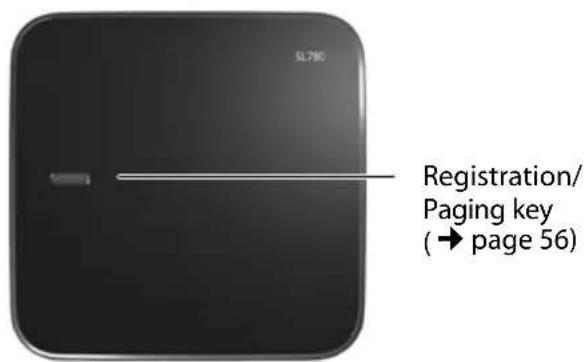
SL780 Registration/ Paging key (→ page 56)1 Display in idle status
2 Battery charge status (→ page 16)
3 Display keys (→ page 19)
4 Message key (→ page 35)
Access to calls and message lists;
Flashes: new message or new call
5 End call key, On/Off key
End call, cancel function, go back one menu level (press briefly), back to idle status (press and hold), activate/deactivate handset (press and hold in idle status)
6 Hash key
Keypad lock on/off (press and hold in idle status);
toggles between upper/lower case and digits
7 Call-by-call list key (→ page 30)
Open call-by-call list
8 Charging socket
9 Microphone
10 Recall key
- Consultation call (flash)
- Insert a dialling pause (press and hold)
11 Star key
Ring tone on/off (press and hold);
with an open connection: switch between dial pulsing/touch tone dialling (press briefly);
Text input: Open table of special characters
12 Key 1
Dial answering machine (SL785 only)/Network mailbox (press and hold)
13 Talk key
Accept a call; open redial list (press briefly); start dialling (press and hold)
When writing an SMS: send SMS
14 Speaker key
Switch between earpiece and speaker mode;
Lights up: speaker activated;
Flashes: incoming call
15 Control key ( → page 18)
16 Signal strength (→ page 16)
17 Answering machine symbol (SL785 only)
Answering machine switched on;
Flashes: Answering machine is recording a message or is being operated by another internal party
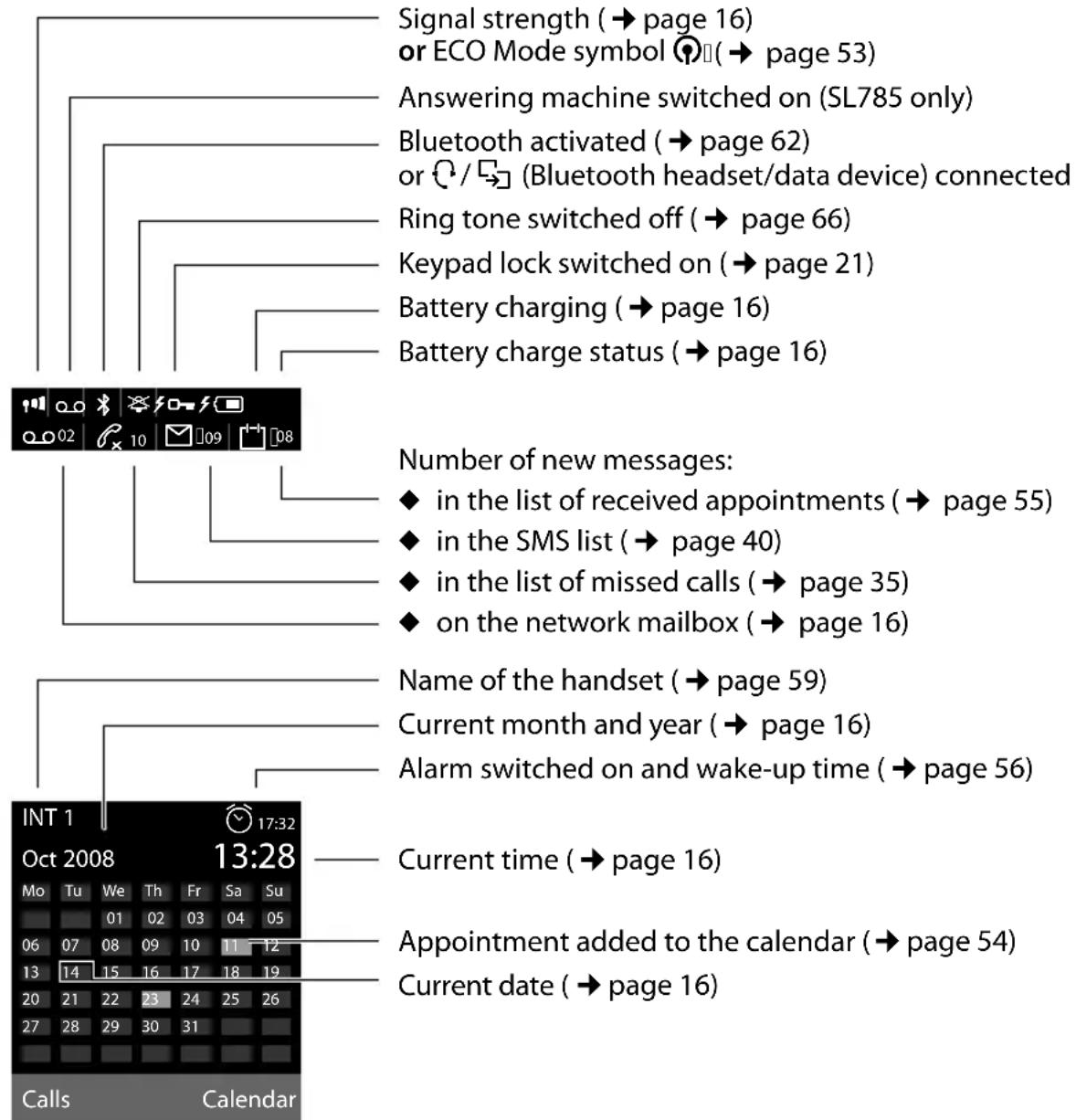
The following symbols are displayed independently from the settings and the operating status of your telephone:
text_image
Signal strength (→ page 16) or ECO Mode symbol 📋(→ page 53) Answering machine switched on (SL785 only) Bluetooth activated (→ page 62) or 📋/ 📋 (Bluetooth headset/data device) connected Ring tone switched off (→ page 66) Keypad lock switched on (→ page 21) Battery charging (→ page 16) Battery charge status (→ page 16) Number of new messages: ◆ in the list of received appointments (→ page 55) ◆ in the SMS list (→ page 40) ◆ in the list of missed calls (→ page 35) ◆ on the network mailbox (→ page 16) Name of the handset (→ page 59) Current month and year (→ page 16) Alarm switched on and wake-up time (→ page 56) Current time (→ page 16) Appointment added to the calendar (→ page 54) Current date (→ page 16) INT 1 Oct 2008 13:28 17:32 Mo Tu We Th Fr Sa Su 01 02 03 04 05 06 07 08 09 10 11 12 13 14 15 16 17 18 19 20 21 22 23 24 25 26 27 28 29 30 31 Calls CalendarSignalling
External call ( page 27)

natural_image
Simple white bell icon on gray background, no text or symbols presentAlarm clock ( page 56)

natural_image
Simple clock icon with hour and minute hands (no text or numbers)Internal call ( page 57)

natural_image
Simple icon of a house with sound waves, no text or symbols presentAnswering machine is recording ( page 46)

natural_image
Simple line drawing of a Wi-Fi symbol with no text or labelsAppointment ( page 54) / Anniversary ( page 34)

natural_image
Simple icon of a document with a clock and signal waves, no text or symbols present.Brief overview 1
Display symbols 2
Safety precautions 6
Gigaset SL780/SL785 – more than just a telephone ..... 7
First steps 8
Check the pack contents 8
Connecting the base 9
Installing the base and charging cradle 10
Setting up the handset for use 11
Setting the date and time 14
Connecting the USB data cable 16
What would you like to do next? 17
Using the phone 18
Control key 18
Display keys 19
Keys on the keypad 19
Correcting incorrect entries 19
Menu guidance 20
Activating/deactivating the handset 21
Activating/deactivating the keypad lock 21
Illustration of operating steps in the user guide 22
Menu tree 24
Making calls 27
Making an external call 27
Ending a call 27
Accepting a call 27
Calling Line Identification 27
Speaker talking 28
Switch to mute 28
Making calls using network services 29
Using the directory and lists 30
Directory/call-by-call list 30
Redial list 34
Incoming SMS message list 34
Answering machine list (Gigaset SL785 only) 34
Call lists 34
Opening lists with the message key 35
Making cost-effective calls 36
Linking call-by-call numbers with one number 36
Automatic network provider code (preselection) 36
SMS (text messages) 38
Writing/sending an SMS 38
Receiving an SMS 40
SMS with vCard 42
Notification by SMS 42
SMS mailboxes 42
Setting SMS centres 43
SMS on a PABX 44
Activating/deactivating first ring tone muting 44
Activating/deactivating SMS function 45
SMS troubleshooting 45
Operating the answering machine of the
Gigaset SL785 base 46
Operation via the handset 46
Activating/deactivating call screening 49
Setting the recording parameters 49
Resetting fast access for the answering machine using key 1 50
Operating when on the move (remote operation) 50
Using the network mailbox 52
Configuring fast access for the network mailbox 52
Viewing the network mailbox message 52
ECO DECT 53
Setting an appointment (calendar) 54
Displaying missed appointments, anniversaries 55
Setting the alarm clock 56
Using several handsets 56
Registering handsets 56
De-registering handsets 57
Locating a handset ("paging") 57
Changing the base 57
Making internal calls 57
Listening in to an external call 59
Changing the name of a handset 59
Changing a handset's internal number 60
Using a handset as a room monitor 60
Using Bluetooth devices 61
Handset settings 63
Quick access to functions and numbers 63
Changing the display language 64
Setting the display 64
Activating/deactivating auto answer 65
Changing the speaker/earpiece volume 65
Changing ring tones 66
Resource directory 67
Activating/deactivating advisory tones 68
Setting your own area code 68
Restoring the handset default settings 68
Base settings 69
Protecting against unauthorised access 69
Activating/deactivating music on hold 69
Repeater support 69
Restoring the base to the factory settings 69
Connecting the base to the PABX 70
Recall 70
Saving an access code (outside line code) 70
Setting pauses 71
Customer service & product warranty – Australia and New Zealand . 72
Questions and answers 74
Environment 75
Appendix 76
Caring for your telephone 76
Contact with liquid 76
Specifications 76
Writing and editing text 77
Additional functions via the PC interface 78
Accessories 80
Mounting the base to the wall 82
Index 83
Safety precautions
Warning
Read the safety precautions and the user guide before use.
Explain their content and the potential hazards associated with using the telephone to your children.
Only use the mains adapter supplied, as indicated on the underside of the base station.

Only use the recommended, rechargeable batteries ( page 76) as this could otherwise result in significant health risks and personal injury.

The operation of medical appliances may be affected. Be aware of the technical conditions in your particular environment, e.g. doctor's surgery.

Do not hold the rear of the handset to your ear when it is ringing or when the speaker function is activated. Otherwise you risk serious and permanent damage to your hearing.
The handset may cause an unpleasant humming noise in hearing aids.

Do not install the base or charging cradle in bathrooms or shower rooms. The base and charging cradle are not splashproof ( page 76).

Do not use your phone in environments with a potential explosion hazard (e.g. paint shops).

If you give your Gigaset to someone else, make sure you also give them the user guide.

Please remove faulty bases from use or have them repaired by our Service, as they could interfere with other wireless services.
Please note
Not all of the functions described in this user guide are available in all countries.
Warning
This equipment will be rendered inoperable when main power fails.
Gigaset SL780/SL785 – more than just a telephone
Your telephone sets new standards for the way you communicate at home.
The configuration and user interface of the cordless phone are unique, providing you with first-class voice quality in speaker mode, while the various ports (Bluetooth, USB) offer you high flexibility.
The large TFT display, user-friendly keypad and clearly laid out menu are very simple to use.
It can do a whole lot more:
◆You can use Bluetooth™ for wireless communication with other devices (e.g. headsets) that also use this technology.
◆Synchronise your address books on your telephone, mobile phone and PC with Bluetooth™ or via the USB port using the Gigaset QuickSync software.
◆You can save appointments and anniversaries in your phone and it will remind you of them in advance.
◆You can designate important people as VIPs so you can identify important calls from the ring tone.
If you do not wish to be disturbed, you can simply set up a time control so that your phone will only ring when it is convenient. VIP calls will still be connected.
◆You can programme the keys of your phone with important numbers or frequently used functions. The number is then dialled or the function started by simply pressing a key.
◆Gigaset Green Home – Be environmentally aware when using your phone. For more information, see www.gigaset.com/service.
You can find additional information on your telephone at www.gigaset.com/gigasetsl78h.
Have fun using your new phone!
Check the pack contents
1
natural_image
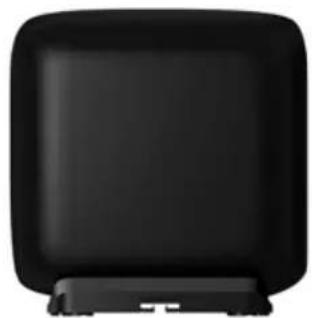
Black rectangular electronic device with rounded corners and a small screen on the left (no visible text or symbols)2
natural_image
Black rectangular electronic device with a flat top and base (no visible text or symbols)3
natural_image
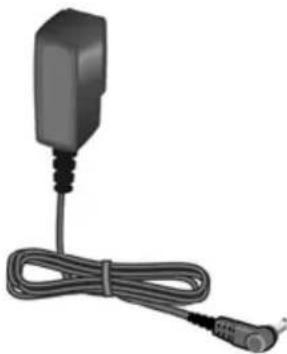
Black rectangular device with attached cable and connector (no visible text or symbols)4

natural_image
Front view of a mobile phone with keypad and screen (no visible text or symbols)5

6
natural_image
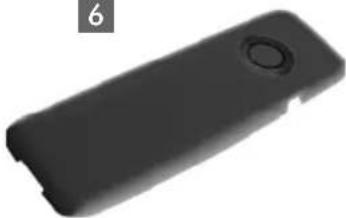
Black plastic electronic device casing with a circular button (no text or symbols visible)7

8
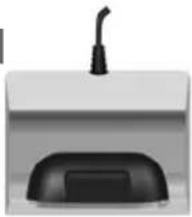
natural_image
Simple illustration of a desktop computer with a black tower and cable (no text or symbols)9
natural_image
Coiled black cable with connector, no visible text or symbols10

text_image
Gigaset SL780-SL7851 one Gigaset SL780/SL785 base
2 one base cover stand
3 one mains adapter for the base
4 one Gigaset SL78H handset
5 one battery
6 one battery cover
7 one belt clip
8 one charging cradle with mains adapter
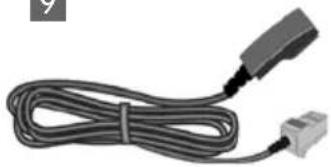
9 one phone cord
10 one user guide
Connecting the base
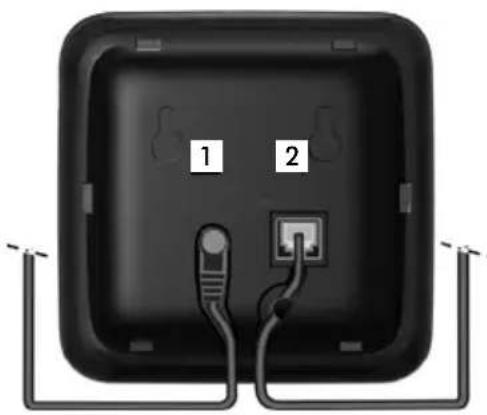
Connect the mains adapter 1 and phone jack 2 to the base and place the cables in the cable recesses.
text_image
1 2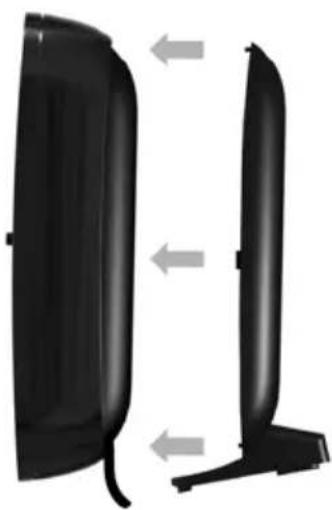
natural_image
Two black plastic or plastic components with curved ends, shown side by side with gray arrows indicating direction (no text or symbols)▶ Place the cover in the notches on the back of the base and click into place (not if mounting on the wall).
▶ First connect the phone jack 4.
▶ Then connect the mains adapter 3.

natural_image
Diagram of a TV cable connection setup with two connectors and a power outlet (no text or symbols)Please note:
◆ The mains adapter must always be connected, as the phone will not operate without mains connection.
Only use the mains adapter and phone cord supplied. Pin connections on telephone cables can vary (pin connections → page 77).
Installing the base and charging cradle
The base and charging cradle are designed for use in enclosed dry rooms with a temperature range of +5^ to +45^ .
▶ Install the base on a level, non-slip surface in a central location in your house or flat or mount the base on the wall → page 82.
Please note
Pay attention to the range of the base. This is up to 300 m in unobstructed outdoor areas and up to 50 m inside buildings.
The range is reduced when Eco Mode ( page 53) is activated.
The phone's feet do not usually leave any marks on surfaces. However, due to the multitude of different varnishes and polishes used on today's furnishings, the occurrence of marks on the surfaces cannot be completely ruled out.
Please note:
◆Never expose the telephone to the influence of heat sources, direct sunlight or other electrical devices.
◆Protect your Gigaset from moisture, dust, corrosive liquids and vapours.
Setting up the handset for use
The display and keypad are protected by a plastic film. Please remove the protective film!
Inserting the battery and closing the battery cover
Warning
Use only the rechargeable batteries ( page 76) recommended by Gigaset Communications GmbH, as this could otherwise result in significant health risks and damage to property. For example, the outer casing of the batteries could be destroyed or the batteries could explode. The phone could also malfunction or be damaged as a result of using batteries that are not of the recommended type.
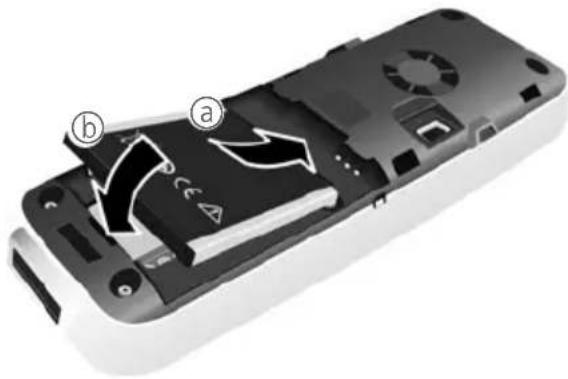
▶ First insert the battery at the top ⓐ.
▶ Then press the battery downwards ⓑ until it clicks into place.
natural_image
Interior view of a remote control casing showing internal components and labeled parts (a, b), with no readable text or symbols beyond labels.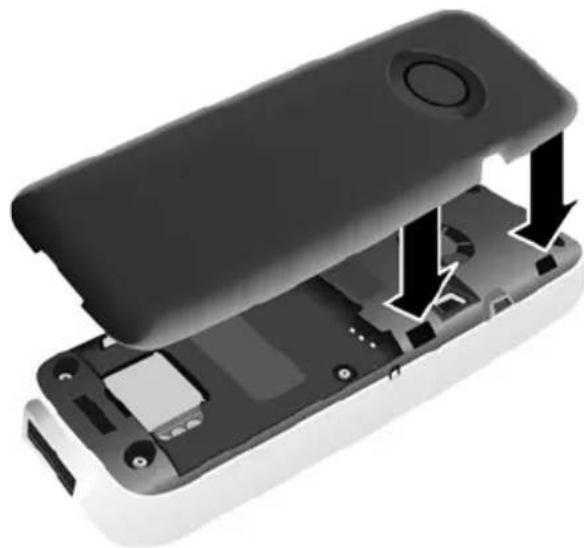
natural_image
Exploded view of a device showing internal components and casing (no text or symbols visible)▶ First, align the protrusions on the side of the battery cover with the notches on the inside of the casing.
▶ Then press the cover until it clicks into place.
First steps
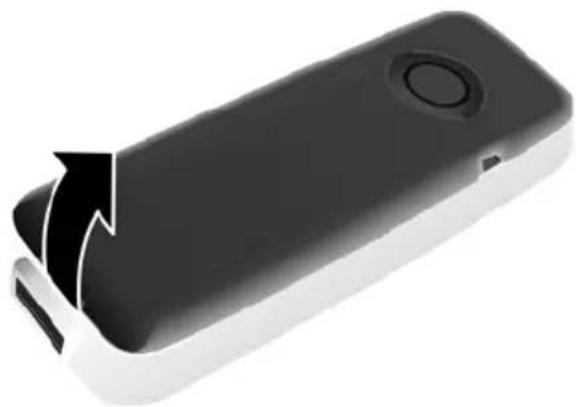
If you need to reopen the battery cover to connect the USB data cable or change the battery:
▶ Remove the belt clip (if attached).
▶ Place your fingernail into the notch at the bottom of the casing and pull the battery cover upwards.
natural_image
Black and white photo of a mobile phone casing with a circular button and a curved arrow indicating motion (no text or symbols)To change the battery, place your fingernail in the cavity in the casing and pull the battery upwards.

natural_image
Close-up of a black remote control casing with a white plastic cover and a black arrow pointing to the interior (no text or symbols visible)Attaching/removing the belt clip
The handset has notches on each side to attach the belt clip.
▶ To attach – press the belt clip onto the back of the handset so that the protrusions on the belt clip engage with the notches.
To remove – using your right thumb apply pressure to the centre right of the belt clip, push the fingernail of your left index finger between the clip and the casing and lift the clip upwards.

natural_image
Close-up of a black handheld device with a circular button and two arrows pointing to the side (no text or symbols visible)Placing the handset in the charging cradle
▶ Insert the mains adapter of the charging cradle into the mains socket.
Place the handset in the charging cradle with its display facing forward.
The handset is registered with the base at the factory. You do not need to complete a registration. If you wish to use your handset with a different base or use further handsets with your base, you will have to register the handset manually
→ page 56.
To charge the battery, leave the handset in the charging cradle.
Please note
Only place the handset in the charging cradle that is intended for it.
First battery charge and discharge
The correct charge status can only be displayed if the battery is first fully charged and discharged.

text_image
Place hours 6 hPlace the handset in the charging cradle for six hours.
▶ Once the battery is fully charged, remove the handset from the charging cradle and do not put it back again until the battery is fully discharged.
Please note
◆ After the first battery charge and discharge, you may place your handset in the charging cradle after every call.
◆Always repeat the charging and discharging procedure if you remove the battery from the handset and reinsert it.
◆The battery may heat up during charging. This is not dangerous.
◆After a time, the charge capacity of the battery will decrease for technical reasons.
Setting the date and time
Set the date and time so that the correct date and time can be assigned to incoming calls, and so that the alarm and the calendar can be used.
text_image
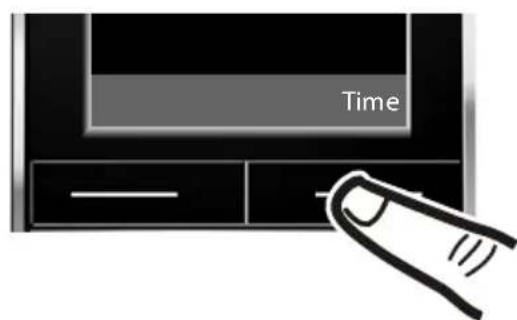
Time▶ Press the key below Time on the display screen to open the input field. (If you have already set the time and date, open the input field via the menu → page 26.)

text_image
Date/Time Date: 14.10.2008 Time: 00:00 Back SaveThe Date/Time submenu is shown on the display.
The active input position flashes. Enter day, month and year as an 8-digit number via the keypad, e.g. 1 oo 4 ghi 1 oo 0 + 2 abc 0 + 0 + 8 tuv for 14/10/2008.

text_image
INTPress the right or left control key to change the input position and correct an entry.

natural_image
Hand gesture pointing at a button with motion lines (no text or symbols)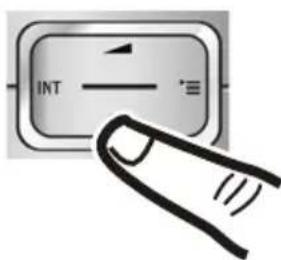
text_image
INT▶ Press down on the control key to switch to the time input field.
▶ Enter the hours and minutes as four digit numbers via the keypad, e.g. 0 + 7pqrs 1 5 jkl for 07:15 am. Change the input position with the control key if necessary.

text_image
Date/Time Date: 14.10.2008 Time: 00:00 Back Save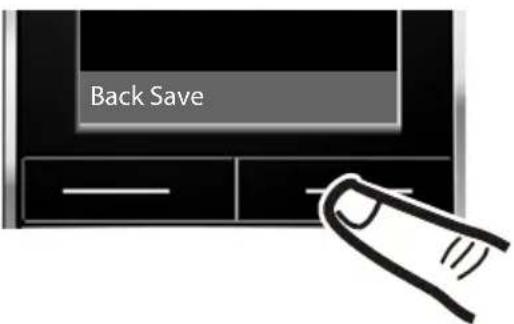
text_image
Back Save▶ Press the key below Save on the display screen to confirm your entry.

text_image
Date/Time SavedThe display shows Saved. You will hear a confirmation tone.

text_image
Date/Time Date: 14.10.2008 Time: 07:15 Back Save▶ Press the key below Back on the display screen to return to idle status.
Display in idle status
Once the phone is registered and the time set, the idle display is shown as in this example. If the answering machine is activated, the answering machine icon 🔊 will be displayed in the header.
The following is displayed after successful registration:
◆the strength of the reception signal between base and handset:
- good to poor: 🎨️ 🎯 🎯 🎯
- no reception:
◆battery charge status:
outside the charger
- white: charged over 66 %
- white: charged between 33 % and 66 %
- white or red*: charged under 33%
- ☐flashes red: battery almost empty (less than 10 minutes talktime)
in the charger
- lightning bolt lightning bolt lightning bolt white: battery is charging
* red: older firmware version, please update the handset's firmware (→ page 78)

text_image
INT 1 Oct 2008 07:15 Mo Tu We Th Fr Sa Su 06 07 08 09 10 11 12 13 14 15 16 17 18 19 20 21 22 23 24 25 26 27 28 29 30 31 Calls CalendarYour answering machine is set with a pre-recorded announcement.
Please note
◆ The range icon is only displayed in idle status if Eco Mode+ (→ page 53) is deactivated.
◆The display of the calendar in idle status can be activated or deactivated (→ page 54).
Your phone is now ready for use!
Connecting the USB data cable
You can connect a standard USB data cable with a mini-B connector to the back of your handset to connect the handset to a PC. To use this function, the Gigaset QuickSync software must be installed ( page 78).
▶ Remove the belt clip (if attached) ( page 12).
▶ Remove the battery cover (→ page 12).
▶ Connect the USB data cable to USB socket 1.

natural_image
Close-up of a black electronic device casing with a circular vent and a connector labeled '1' (no readable text or symbols beyond the label)What would you like to do next?
Now you have successfully started your Gigaset, you will probably want to adapt it to your personal requirements. Use the following guide to quickly locate the most important subjects.
If you are unfamiliar with menu-driven devices such as other Gigaset telephones you should first read the section entitled "Using the phone" → page 18.
Information on ... ... is located here.
Setting the ring tone and volume page 66
Setting the handset volume page 65
Recording your own announcement for the answering machine
Setting Eco Mode / Eco Mode+ page 53
Preparing the telephone for SMS reception page 38
Operating the telephone on a PABX page 70
Registering existing Gigaset handsets to a base page!
Transferring directory entries from existing Gigaset handsets to the new handset(s)
Using Bluetooth devices page 61
Connecting the phone to the PC page 78
page 46
page 32
If you have any questions about using your phone, please read the tips on troubleshooting ( page 74) or contact our Customer Care team ( page 72).
Control key
The control key has a number of different functions.
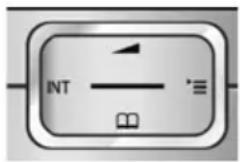
The sides of the control key that you must press for different operating situations,(top, bottom, right, left, centre), are marked with a black triangle as indicated in the diagrams below, e.g. ▶ for "press right on the control key" or ■ for "press the centre of the control key".
text_image
INT ≡When the handset is in idle status

Open
the
directory.

Open the main menu.

Open the list of handsets.

Menu for setting the handset's call volume ( page 65).
In the main menu, in submenus and lists


Scroll up/down line by line.
In input fields
You can use the control key to move the cursor up ▲, down ▼, right ▶ or left ◀. Press and hold ▶ or ◀ to move the cursor word by word.
During an external call

Open
the
directory.

Initiate an internal consultation call.

Adjust the loudspeaker volume for earpiece and speaker mode.
Functions when pressing the middle of the control key
Depending on the operating situation, the key has different functions.
◆In idle status the key opens the main menu.
◆ In submenus, selection and input fields the key takes on the function of the display keys OK, Yes, Save or Change.
Please note
In these instructions functions are explained using the right control key and the display keys. However, if you prefer, you can use the control key as described above.
Display keys
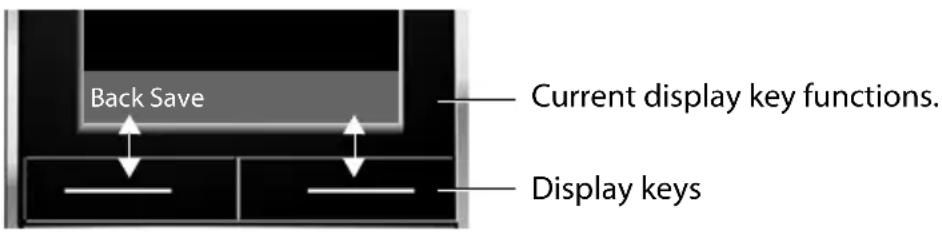
The function of the display keys changes depending on the particular operating situation. Example:
text_image
Back Save Current display key functions. Display keysSome important display keys:
| Options | Open a context-dependent menu. |
| OK | Confirm selection. |
| < C | Delete key: Delete character/word by word from right to left. |
| Back | Go back one menu level or cancel operation. |
| Save | Store entry. |
| →→ | Open the redial list. |
Keys on the keypad
= / □ + / * △ etc.
Press the matching key on the handset.

Enter digits or letters.
Correcting incorrect entries
You can correct incorrect characters in the input fields by navigating to the incorrect entry using the control key. You can then:
◆ Delete the character to the left of the cursor with the display key <C (press and hold to delete the word)
◆Insert characters to the left of the cursor.
◆Overwrite the highlighted (flashing) character, e.g. when entering time and date.
Menu guidance
Your telephone's functions are accessed using a menu that has a number of levels.
Main menu (first menu level)
▶ When the handset is in idle status press the right ▶ control key to open the main menu.
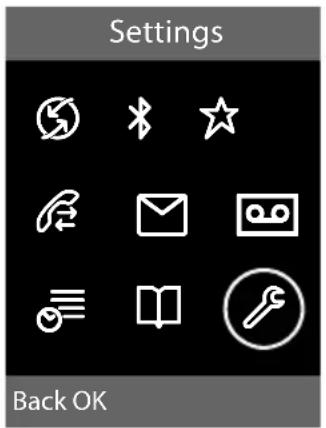
The main menu functions are shown in the display with icons. The selected function is marked by an orange circle around the symbol and the corresponding name is shown in the display header.
To access a function, i.e. to open the corresponding sub-menu (next menu level):
▶ Use the control key ⬆ to select the required function and press the display key OK.
Briefly press the display key Back or the end call key to revert back to idle status.
text_image
Settings Back OKSubmenus
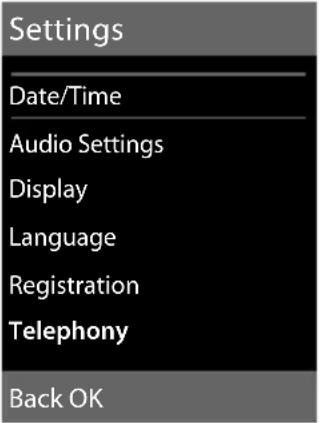
The functions in the submenus are displayed as lists (example on the right).
To access a function:
▶ Scroll to the function with the control key 🔊 and press OK.
Briefly press the display key Back or the end call key to return to the previous menu level/cancel the operation.
text_image
Settings Date/Time Audio Settings Display Language Registration Telephony Back OKReverting to idle status
You can revert to idle status from anywhere in the menu as follows:
▶ Press and hold the end call key ☐.
Or:
▶ Do not press any key: after 2 minutes the display will automatically revert to idle status.
Settings that have not been saved by selecting the display key OK, Yes, Save or Change will be lost
An example of the display in idle status is shown on page 16.
Activating/deactivating the handset

With the phone in idle status, press and hold the end call key (confirmation tone) to switch off the handset. Press and hold the end call key again to switch the handset on.
Please note
When the handset is switched on, an animation of a clock will be displayed for several seconds.
Activating/deactivating the keypad lock
The keypad lock prevents any inadvertent use of the phone.

Press and hold the hash key in idle status to activate or deactivate the keypad lock. You will hear the confirmation tone.
When the keypad lock is activated you will see the 📄 icon on the display and a message when you press a key.
The keypad lock is deactivated automatically if someone calls you. It is reactivated when the call is finished.
Using the phone
Illustration of operating steps in the user guide
The operating steps are shown in abbreviated form.
Example:
The illustration:

→ Settings → Telephony → Auto Answer (☑ = on)
means:

text_image
INT▶ Press right on the control key to open the main menu.

text_image
Settings Back OK▶ Use the right, left, down and up control key ↩ to navigate to the Settings submenu.
▶ Press the display key OK to confirm your selection.

text_image
Settings Date/Time Audio Settings Display Language Registration Telephony Back OK▶ Press down on the control key until the Telephony menu appears on the display.
▶ Press the display key OK to confirm your selection.
text_image
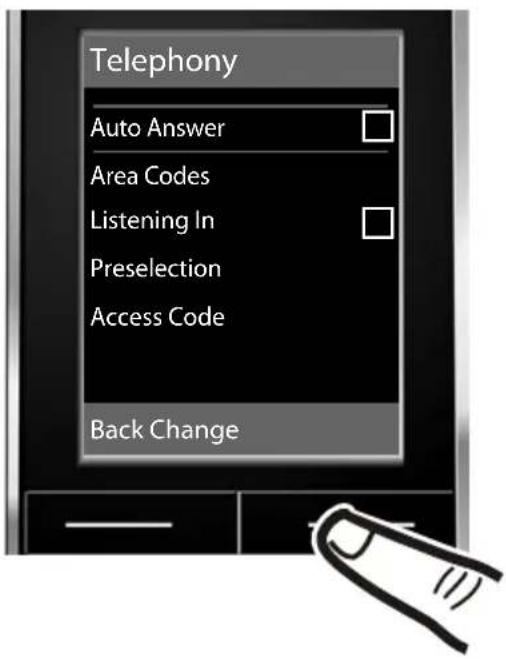
Telephony Auto Answer Area Codes Listening In Preselection Access Code Back ChangeThe Auto Answer function has already been selected.
▶ Press the display key Change to activate/deactivate the function.
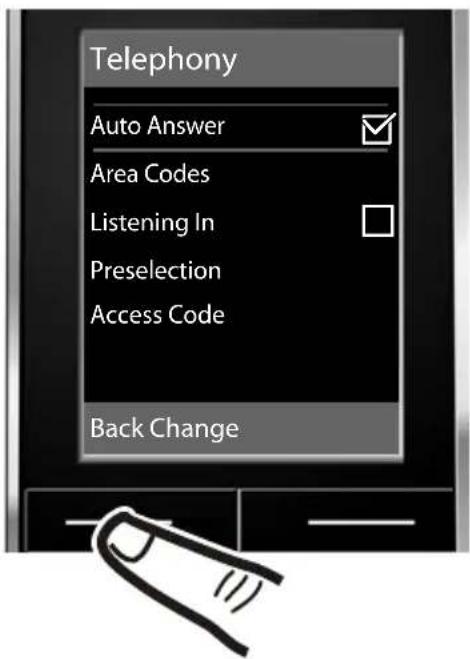
text_image
Telephony Auto Answer Area Codes Listening In Preselection Access Code Back ChangeChanges are effective immediately and do not have to be confirmed.
▶ Press the key below Back on the display to jump back to the previous menu level.
or
Press and hold the end call key ☐ to return to idle status.
With the telephone in idle status, press ▶ (open main menu):

Select Services

Bluetooth
| Activation → page 62 | |
| Search for Headset | → page 62 |
| Search for DataDevice | → page 62 |
| Known Devices | → page 62 |
| Own Device | → page 63 |

Additional Features
| Room Monitor → page 60 | |
| Resource Directory Screensavers | |
| Caller Pictures | |
| Sounds | |
| Capacity | |

Call Lists
| All Calls → page 34 | |
| Outgoing Calls | → page 34 |
| Accepted Calls | → page 34 |
| Missed Calls | → page 34 |

SMS
You have activated an SMS mailbox (general or private) without a PIN
| New SMS | → page 38 |
| Incoming | → page 41 |
| Draft | → page 39 |
You have activated an SMS mailbox with a PIN or 2-3 mailboxes
| Mailbox New SMS | → page 38 | |
| → page 41 | ||
| → page 39 | ||
| Mailbox 1 | New SMS | → page 38 |
| Mailbox 2 | Incoming | → page 41 |
| Mailbox 3 | Draft | → page 39 |
| Settings Service Centres | → page 44 | |
| → page 42 | ||
| → page 42 | ||
| → page 39 |

Answering Machine
| Play Messages | Network Mailbox | → page 52 |
| Answering Machine * | → page 46 | |
| Activation * | → page 46 | |
| Announcements * Record Ann | ncemnt. * | → page 46 |
| Play Announcement * | → page 46 | |
| Delete Announcemnt. * | → page 46 | |
| Record Advisory Msg. * | → page 46 | |
| Play Advisory Message * | → page 46 | |
| Delete Advisory Msg. * | → page 46 | |
| Recordings * | → page 49 | |
| Call Screening * | → page 49 | |
| Network Mailbox(base without answeringmachine only) | → page 52 | |
| Set Key 1 * Network Mailbox | → page 52 | |
| Answering Machine | → page 46 |
*Only base with answering machine

Organizer
| Calendar → page 54 |
| Alarm Clock → page 56 |
| Missed Alarms → page 55 |

Directory
| → page 30 |

Settings
| Date/Time → page 14 | ||
| Audio Settings Call Volume | → page 65 | |
| Ringer Settings | → page 66 | |
| Advisory Tones | → page 68 | |
| Music on hold | → page 69 | |
| Display Screensaver | → page 64 | |
| Backlight | → page 65 | |
| Language → page 64 | ||
| Registration Register Handset | → page 56 | |
| De-register Handset | → page 57 | |
| Select Base | → page 57 | |
| Telephony Auto Answer | → page 65 | |
| Area Codes | → page 68 | |
| Listening In | → page 59 | |
| Preselection | → page 37 | |
| Access Code | → page 70 | |
| Recall | → page 70 | |
| System Eco Mode | → page 53 | |
| Eco Mode+ | → page 53 | |
| Repeater Mode | → page 69 | |
| System PIN | → page 69 | |
| Reset Handset Reset | → page 68 | |
| Base Reset | → page 69 | |
Making calls
If the backlight is deactivated ( page 65) it is switched on by pressing any key. In this case the pressed key has no other function.
Making an external call
External calls are calls using the public telephone network.

Enter the number and press the talk key.
Or:
Press and hold the talk key ☐ and then enter the number.
You can cancel the dialling operation with the end call key ☐.
You are shown the duration of the call while the call is in progress.
Please note
Dialling using the directory, the call-by-call list (page 1, page 30) or the calls and redial list (page 34/page 34) saves you from having to re-enter numbers and network provider prefixes ("call-by-call numbers").
Continuing a call on a Bluetooth headset
Precondition: Bluetooth is activated; a connection has been established between the Bluetooth headset and the handset ( page 62).
Press the talk key on the Bluetooth headset; it may take up to 5 seconds to establish a connection to the handset.
For further details about your headset, see the user guide issued with it.
Ending a call

Press the end call key.
Accepting a call
The handset indicates an incoming call in three ways: by ringing, by a display on the screen and by the flashing speaker key ☐.
You can accept the call by:
▶ Pressing the talk key ☐.
▶ Pressing the speaker key □.
▶ Gigaset SL780: Press the display key
Accept.
▶ Gigaset SL785: Press the display key → ∞ to divert the call to the answering machine (→ page 48).
If the handset is in the charging cradle and the Auto Answer function is activated ( page 65), the handset will take a call automatically when you lift it out of the cradle.
To deactivate the ring tone, press the Silence display key. You can take the call as long as it is displayed on the screen.
Accepting a call on a Bluetooth headset
Precondition: Bluetooth is activated; a connection has been established between the Bluetooth headset and the handset ( page 62).
Only press the talk key on the headset when the headset rings; it can take up to 5 seconds.
For further details about your headset, see the user guide issued with it.
Calling Line Identification
When you receive a call, the caller's number is displayed on the screen if the following conditions are met:
◆Your network provider supports CLIP, CLI.
- CLI (Calling Line Identification): the caller's number is transmitted.
- CLIP (Calling Line Identification Presentation): the caller's number is displayed.
Making calls
◆You have arranged CLIP with your network provider.
◆The caller has requested CLI from the network provider.
Call display with CLIP/CLI
If the caller's number is saved in your directory, the caller's name will be displayed. If you have assigned a CLIP picture
(→ page 31) to the caller, this will be shown in the upper section of the display.
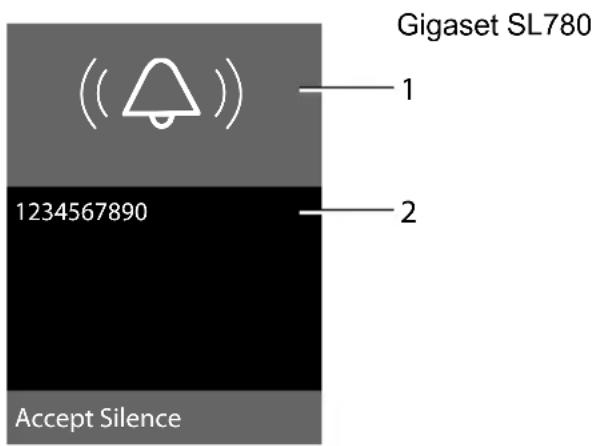
text_image
Gigaset SL780 1 2 1234567890 Accept Silenceor
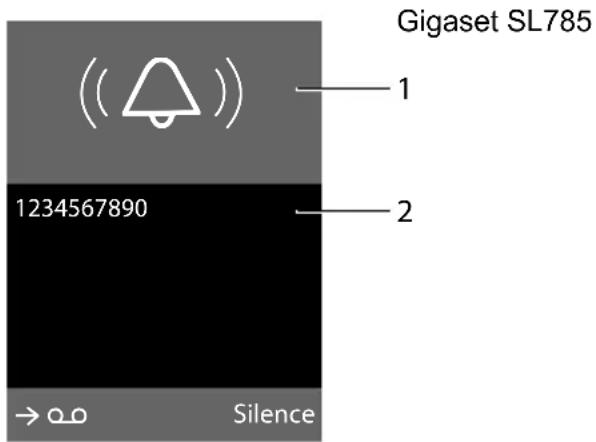
text_image
Gigaset SL785 1 2 1234567890 → 0.0 Silence1 Ring tone icon or CLIP picture
2 Number or name of caller
The following is displayed in place of the number:
◆External, if no number is transmitted.
◆Unavailable, if the caller has not arranged Calling Line Identification.
Speaker talking
In speaker mode, instead of holding the handset to your ear you can put it down, for example on the table in front of you. This allows others to participate in the call.
Activating/deactivating speaker mode
Activating while dialling

Enter the number and press the speaker key.
▶ You should inform your caller before you use the speaker function so that they know someone else is listening.
Switching between earpiece and speaker mode
Press the speaker key.
During a call and when listening to the answering machine (Gigaset SL785 only), activate or deactivate speaker mode.
If you wish to place the handset in the charging cradle during a call:
▶ Press and hold the speaker key ☐ while placing the handset in the base. If speaker key ☐ does not light up, press the key again.
For instructions on how to adjust the loudspeaker volume, → page 65.
Switch to mute
You can deactivate the microphone in your handset during an external call.
Mute Press the display key to mute the handset. The display shows Microphone is off.
Mute off Press the display key to reactivate the microphone.
Making calls using network services
Network services are functions that your network provider makes available to you. You have to request these services from your network provider.
▶ It is not possible to reprogram the network services.
▶ If you require assistance, please contact your network provider.
Using the directory and lists
The options are:
◆Directory
◆Call-by-call list
◆Redial list
◆Incoming SMS message list
◆Call lists
◆List of missed appointments
◆Answering machine list (Gigaset SL785 only)
You create the directory and call-by-call list for your own individual handset. You can also send lists/entries to other handsets ( page 32).
Directory/call-by-call list
You can save a total of 500 entries in the directory and call-by-call list.
Please note
For quick access to a number from the directory or the call-by-call list (using quick dial keys), you can assign the number to a key ( page 63).
Directory
In the directory, you can save
◆Up to three numbers and associated first names and surnames
◆E-mail address
◆Anniversaries with reminder
◆VIP ring tone with VIP symbol
◆CLIP pictures
In idle status, open the directory with the ▼ key or via the menu (→ page 26).
Length of the entries
3 numbers: each max. 32 digits
First name and surname: each max. 16 characters
E-mail address: max. 60 characters
Call-by-call list
The call-by-call list is used to store the access codes for network providers ("Call-by-call numbers").
▶ Open the call-by-call list in idle status by pressing the ☐ key.
Length of the entries
Number: max. 32 digits Name: max. 16 characters
Storing a number in the directory
→ New Entry
▶ Change multiple line input:
First Name: / Surname:
Enter the first and/or surname. If you do not enter a name in either of the fields, the phone number is also saved and displayed in place of a surname. (For instructions on how to enter text and special characters, please see → page 77.)
Phone (Home): / Phone (Office): / Phone (Mobile):
Enter a number in at least one of the fields. When scrolling through the directory, the entries are highlighted by a prefixed symbol: ///.
E-Mail:
Enter e-mail address.
Anniversary:
Select On or Off.
With setting On:
Enter Anniversary (Date) and Anniversary (Time) Anniversary (Signal) and select reminder type → page 33.
Caller Melody (VIP):
Mark a directory entry as a VIP (Very Important Person) by assigning a specific ring tone to it. VIP calls are recognised by the ring tone. When scrolling through the directory, VIP entries are highlighted by the VIP symbol.
Precondition: Calling Line Identification ( page 27).
Caller Picture:
If required, select a picture to be displayed when the caller calls (see Resource directory, page 67). Precondition: Calling Line Identification (CLIP).
Save Press the display key.
Storing a number in the call-by-call list
→ New Entry
▶ Change multiple line input:
Name:
Enter name.
Number:
Enter the number.
Save Press the display key.
Order of directory entries
Directory entries are generally sorted alphabetically by surname. Spaces and digits take first priority. If only the first name was entered in the directory, this is incorporated into the sort order instead of the surname.
The sort order is as follows:
- Space
- Digits (0–9)
- Letters (alphabetical)
- Other characters
To get round the alphabetical order of the entries, insert a space or a digit in front of the first letter of the surname. These entries will then move to the beginning of the directory.
Selecting entries in the directory and call-by-call list
/ Open the directory or call-by-call list.
You have the following options:
◆ Use ▼ to scroll through the entries until the required name is selected.
◆Enter the first letters of the name (max. 8), if necessary scroll to the entry with the ▼ key.
The directory searches for the surname. If a surname has not been added, then it will search for the first name.
Dialling with the directory/call-by-call list
/ → (Select entry).
= Press the talk key. The number is dialled.
Managing directory/call-by-call entries
Viewing entries
/ → (Select entry).
View Press the display key. The entry is displayed.
Options Press the display key.
The following functions can be selected with :
Display Number
To edit or add to a saved number, or to save it as a new entry, press → □□□□ after the number is displayed.
Delete Entry
Delete selected entry.
Copy Entry
to Internal: Send a single entry to a handset (→ page 32).
vCard via SMS: Send a single entry in vCard format via SMS.
vCard via Bluetooth: Send a single entry in vCard format via Bluetooth.
Editing entries
/ → (Select entry).
View Edit Press the display keys one after the other.
▶ Carry out changes and save.
Using other functions
/ → (Select entry)
→ Options (Open menu)
The following functions can be selected with ▲:
Display Number
Save or modify a saved number and then dial with ☐ or save as a new entry; to do so, press → after the number appears on the display.
Edit Entry
Edit selected entry.
Delete Entry
Delete selected entry.
Copy Entry
to Internal: Send a single entry to a handset (→ page 32).
vCard via SMS: Send a single entry in vCard format via SMS.
vCard via Bluetooth: Send a single entry in vCard format via Bluetooth.
Delete All
Delete all entries in the directory/call-by-call list.
Copy All
to Internal: Send the complete list to a handset ( page 32).
vCard via Bluetooth: Send the complete list in vCard format via Bluetooth.
Available Memory
Display the available entries in the directory and call-by-call list ( page 30).
Using quick dial keys
▶ Press and hold the required quick dial key ( page 63).
Sending the directory/call-by-call list to another handset
Preconditions:
◆The sending and receiving handsets must both be registered to the same base.
◆The other handset and the base can send and receive directory entries.
/ → (Select entry)
→ Options (Open menu) → Copy Entry /
Copy All → to Internal
Select the internal number of the receiving handset and press OK.
You can transfer several individual entries one after the other by responding Yes to the Entry copied - Copy next entry? prompt.
A successful transfer is confirmed by a message and confirmation tone on the receiving handset.
Please note:
◆Entries with identical numbers are not overwritten on the receiving handset.
◆The transfer is cancelled if the phone rings or if the memory of the receiving handset is full.
◆Entered anniversary reminders, pictures and sounds are not sent.
Transferring the directory as a vCard with Bluetooth
In Bluetooth mode ( page 62), you can transfer directory entries in vCard format, e.g. to exchange entries with your mobile phone.
→ (Select entry) → Options (Open menu) → Copy Entry / Copy All → vCard via Bluetooth
The list of "Known Devices" ( page 62) is displayed.
Select device and press OK.
Receiving a vCard with Bluetooth
If a device from the "Known Devices" list (→ page 62) sends a vCard to your handset, this occurs automatically. You are informed about it via the display.
If the sending device does not appear in the list, you will be asked on the display to enter the device PIN for the sending device:

Enter the PIN for the sending
Bluetooth device and press OK.
The transferred vCard is available as a directory entry.
Copying a displayed number to the directory
You can copy numbers displayed in a list, e.g. the call list or the redial list, or in an SMS to the directory.
A number is displayed:
Options → Copy to Directory
▶ Complete the entry → page 30.
Gigaset SL785: The message playback is interrupted during the number transfer from the answering machine list.
Copying a number or e-mail address from the directory
In some operating situations, you can open the directory to copy a number or e-mail address, for example. Your handset need not be in idle status.
▶ Depending on the operating situation, open the directory with ▼ or → □.

Select entry (
→ page 31).
Saving an anniversary in the directory
For each number in the directory, you can save an anniversary and specify a time at which a reminder call should be made on the anniversary (default setting: Anniversary: Off).
Anniversaries are automatically recorded in the calendar ( page 54).

→ □ (Select entry)

Edit Press the display keys one after the other.

Scroll to the Anniversary line.

Select On.
▶ Change multiple line input:
Anniversary (Date)
Enter day/month/year in 8-digit format.
Anniversary (Time)
Enter the hour/minute for the reminder call in 4-digit format.
Anniversary (Signal)
Select the type of signal for the reminder.

Press the display key.
Please note
A time must be specified for reminder calls. If you select a visual signal, a time is not required and is automatically set to 00.00.
Deactivating anniversaries

→ (Select entry)

Edit Press the display keys one after the other.

Scroll to the Anniversary line.

Select Off.

Press the display key.
Reminder call on an anniversary
In idle status, a reminder call is shown in the display of the handset ( page 2) and signalled with the selected ring tone.
You can:
SMS Write an SMS.
Off Press the display key to acknowledge and end the reminder call.
When you are on the phone a reminder call is indicated on the handset with a single advisory tone.
Anniversaries that are indicated during a call and that are elapsed, are entered in the Missed Alarms list ( page 55).
Redial list
The redial list contains the twenty numbers last dialled with the handset (max. 32 digits). If a number is in the directory or the call-by-call list, then the appropriate name will be displayed.
Manual last number redial
= Press the key briefly.
Select entry.
Press the talk key again. The number is dialled.
When a name is displayed, you can display the corresponding phone number by pressing the display key View.
Managing entries in the redial list

Press the key briefly.

Select entry.

Open menu.
The following functions can be selected with
Copy to Directory
Copy an entry to the directory (page 30).
Display Number (as in the directory, page 32)
Delete Entry (as in the directory, page 32)
Delete All (as in the directory, page 32)
Incoming SMS message list
All received SMS messages are saved in the incoming message list → page 40.
Answering machine list (Gigaset SL785 only)
You can use the answering machine list to listen to the messages that are on the answering machine.
Call lists
Precondition: Calling Line Identification (CLIP, page 27)
Your telephone stores various types of calls:
◆Answered calls
◆Outgoing calls
Missed calls
◆Calls recorded by the answering machine (Gigaset SL785 only)
You can view each type of call separately or gain an overview of all calls. Each call record contains the last 20 numbers in its category.
When in idle status, open the call lists by selecting the Calls display key or via the menu:


List entry
New messages are displayed at the top.
Example of list entries:
All Calls

10.10.08, 15:40

10.10.08, 15:32

10.10.08, 15:07
View Options
◆List type (in header)
◆Status of entry
Bold: New entry
◆Number or name of caller
◆Date and time of call (if set, page 14)
◆Type of entry:
- Accepted calls ( )
-Missed calls ( × )
-Outgoing calls ( _ ) - Calls recorded by the answering machine (O.O, Gigaset SL785 only)
Press the talk key ☐ to call the selected caller back.
Select the View display key to access additional information, including for example the number linked to the name
Select the Options display key to select the following options:
Copy to Directory
Copying a displayed number to the directory.
Delete Entry
Delete selected entry.
Delete All
Delete all entries.
When you quit the call lists, all entries are set to the status "old", i.e. the next time you call the list up they will no longer be shown in bold.
Opening lists with the message key
You can use the message key ☑ to open the following list selection:
◆Answering machine list (Gigaset SL785 only) or network mailbox, if your network provider supports this function and the fast access is set for the network mailbox (→ page 52).
◆ Incoming SMS message list (→ page 40)
If several mailboxes are set up
(→ page 42), several lists are displayed.
◆List of missed calls
◆List of missed appointments (→ page 55)
An advisory tone sounds as soon as a new message arrives in a list. The ☐ key flashes (it goes off when the key is pressed). In idle status, the display shows an icon for the new message:
Icon New message...
00
... in the answering machine list (Gigaset SL785 only) or on the network mailbox
_x
... in the missed call list
[Non-Text]
... in the SMS list
[NO TEXT]
... in the Missed Alarms list
The number of new entries is displayed to the right of the corresponding icon.

Please note
If calls are saved in the network mailbox, you will receive a message if the appropriate settings have been made (see your network provider user guide).
List selection
The lists displayed after pressing the message key ☑ depend on whether there are any new messages.
◆ ☑ key does not flash (no new messages): All the lists containing messages and the network mailbox list are displayed.
◆ key flashes (new messages received): You see all the lists containing new messages. If only one list contains new messages, this will be opened automatically.
Lists containing new messages are at the top of the list and are marked in a bold font.
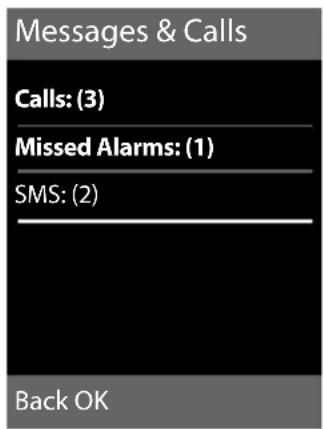
text_image
Messages & Calls Calls: (3) Missed Alarms: (1) SMS: (2) Back OKSelect a list with ⚠️. To open, press OK.
Making cost-effective calls
Sign up with a network provider who offers particularly low-cost call rates (call-by-call). You can manage the numbers in the call-by-call list.
Linking call-by-call numbers with one number
You can insert the dialling code of a network provider ahead of the number ("linking").
Open call-by-call list.
Select entry (call-by-call number).
Options Press the display key.
Display Number Select and press OK.
Enter number or select number from the directory (→ page 33).
= Press the talk key. Both numbers are dialled.
Automatic network provider code (preselection)
You can store a call-by-call number (preselection number), which is automatically placed in front of numbers when you dial them.
In the "With Preselection" list, specify the dialling codes or the first digits of the dial-ling codes with which you wish the preselection number to be used.
In the "Without Preselection" list enter the exception to the "With Preselection" list.
Example:
| Preselection Number 0999 | |
| With Preselection 08 | |
| Without Preselection 081 | 084 |
All numbers that start with 08 except for 081 and 084, are dialled with the preselection number 0999.
| Phone number Dialled number | |
| 07112345678 | → 07112345678 |
| 08912345678 | → 0999 08912345678 |
| 08412345678 | → 08412345678 |
Saving preselection numbers

→ 📋 → Telephony → Preselection
→ Preselection Number

Enter or change the preselection number (call-by-call number).
Save Press the display key.
Save or change entries in the preselection lists
Each of the two lists can contain 20 entries, each with 6 digits.
Numbers may be prefixed according to the country in the "with preselection" list. This means, for example, that all national calls or calls to the mobile network are automatically linked to the preselection number you have saved previously.

→ 📋 → Telephony → Preselection
→ With Preselection / Without Preselection

Select entry.

Enter or edit first digits of number.
Save Press the display key.
Temporarily cancelling preselection
= (press and hold) → Options → Preselection off → (Select number)
Permanently deactivating preselection
→ 📋 → Telephony → Preselection → Preselection Number
< C Press and hold the display key until the preselection number is deleted.
Save Press the display key.
SMS (text messages)
Your phone is supplied ready for sending SMS messages immediately.
Preconditions:
◆Calling Line Identification is enabled for your phone line.
◆Your network provider supports SMS on the fixed line network (information on this can be obtained from your network provider).
◆You are registered with your service provider to send and receive SMS.
◆To have reception you must be registered with your service provider. This is completed automatically when you send your first SMS.
Please note
If your phone is connected to a PABX, please read → page 44.
Writing/sending an SMS
Writing an SMS

Mailbox 2 Select mailbox if necessary and press OK.

text_image
Enter mailbox PIN if necessary and press OK.New SMS Select and press OK.

Please note
◆For instructions on how to enter text and special characters, please see → page 77.
◆An SMS may contain up to 612 characters. If there are more than 160 characters, the SMS is sent as a linked SMS (up to 4 SMS messages with 153 characters each). The top right of the display shows how many characters are still available and which part of a linked SMS is currently being written.
Sending an SMS
Press the talk key
Or:
Options Press the display key.
Send Select and press OK.
SMS Select and press OK.

Select number with area code (even if you are in that area) from the directory or call-by-call list, or enter number directly. For sending SMS to an SMS mailbox: add the mailbox ID to the end of the number.
Send Press the display key. The SMS is sent.
Please note
◆If you are interrupted by an external call while writing an SMS, the text is automatically saved in the draft message list.
◆If the memory is full, or if the SMS function on the base is being used by another handset, the operation is cancelled. An appropriate message appears in the display. Delete SMS messages you no longer require or wish to send later.
Setting input language
▶ You are writing an SMS.
Options Press the display key.
Select Language
Select and press OK. The current language is indicated by a ●.
Select the input language and press Select.
SMS status report
Precondition: Your network provider supports this feature.
If you have activated the status report, you will receive an SMS with a confirmation message after sending.
Activating/deactivating a status report
→ Settings
Status Report
Select and press Change (☑ = on).
Reading/deleting status report/saving number to directory
▶ Open the incoming message list ( page 40) and then:
Select SMS with State OK or State not OK status.
Read Press the display key.
◆Delete: Options → Delete Entry → OK.
◆Copy to directory: Options → Copy to Directory → OK.
◆Delete entire list: Options → Delete All → OK.
Draft message list
You can save an SMS in the draft message list, and edit and send it later.
Saving an SMS in the draft message list
▶ Writing an SMS (→ page 38).
Options Press the display key. Save Select and press OK.
Opening the draft message list
→ if necessary (Mailbox, mailbox PIN) → Draft
The first list entry is displayed, e.g.
Saved 10.10.08 15:07
The number will be displayed in the first line, if the entry has been saved with the phone number, i.e. when the SMS was saved from the incoming message list.
Reading or deleting SMS messages
▶ Open the draft message list and then:
Select SMS.
Read Press the display key. The entry will be displayed. Scroll line by line using ▲.
Or delete the SMS with
Options → Delete Entry → OK.
Writing/changing an SMS
▶ You are reading an SMS in the draft message list.
Options Open menu.
You have the following options:
Send
Send stored SMS.
Edit
Edit the text of the saved SMS and then send it ( page 38).
Character Set
Display text in the selected character set.
Deleting draft message list
▶ Open the draft message list and then:
Options Open menu.
Delete All Select, press OK and confirm with Yes. The list is cleared.
Sending SMS messages to an e-mail address
If your service provider supports the SMS as e-mail feature, you can also send your SMS messages to e-mail addresses.
The e-mail address must be at the beginning of the text. You must send the SMS to the e-mail service of your SMS send centre.

text_image
→ (Mailbox, mailbox PIN) → New SMS
text_image
Load the e-mail address from the directory or enter it directly. End the entry with a space or colon (depending on the serv- ice provider).
Options Press the display key.
Send Select and press OK.
E-mail Select and press OK. If the number of the e-mail service is not entered (→ page 43), enter the number of the e-mail service.
Send Press the display key.
Sending SMS messages as a fax
You can also send an SMS to a fax machine.
Precondition: Your network provider supports this feature.
▶ Writing an SMS (→ page 38).
Options Press the display key.
Send Select and press OK.
Fax Select and press OK.
Select number from the directory or enter directly. Enter the number with area code (even if you are in the same area).
Send Press the display key.
Receiving an SMS
All received SMS messages are saved in the incoming message list. Linked SMS messages are displayed as one message. If this is too long or is not transferred completely, it is split into individual messages. Since an SMS remains in the list even after it has been read, you should regularly delete SMS messages from the list.
The display tells you if the SMS memory is full.
Please note
Each incoming SMS is signalled by a single ring (ring tone as for external calls). If you accept such a "call", the SMS will be lost. To prevent this ring, mute the first ring tone for all external calls ( page 44).
Incoming message list
The incoming message list contains:
◆All received SMS messages, starting with the most recent.
◆SMS messages that could not be sent due to an error.
New SMS messages are signalled on all Gigaset SL78H handsets by the ☑ icon in the display, the flashing message key and an advisory tone.
Opening the incoming message list with the ☑ key
Press.
The incoming message list is indicated by the mailbox name and the number of entries (example):

bold: new entries
normal font: read entries
If necessary select a mailbox and open list by selecting OK (if necessary enter mailbox PIN and confirm by pressing OK).
The number and date of receipt are displayed in the entry list.
0123727859362922
10.10.08 09:07
Opening the incoming message list via the SMS menu
→ if necessary select mailbox, enter mailbox PIN) → Incoming
Deleting the incoming message list
All new and old SMS messages in the list are deleted.
▶ Open the incoming message list.
Options Open menu.
Delete All Select, press OK and confirm with Yes. The list is cleared.
Reading or deleting SMS messages
▶ Open the incoming message list, then:
Select SMS.
Read Press the display key. The entry will be displayed. Scroll line by line using ▲.
Or delete the SMS with
Options → Delete Entry → OK.
After you have read a new SMS, it is given the status "Old" (is no longer shown in bold).
Changing the character set
▶ Reading an SMS
Options Press the display key.
Character Set
Text is shown in the selected character set.
Replying to or forwarding text messages
▶ Reading an SMS
Options Press the display key.
You have the following options:
Reply
Write and send a new SMS in reply to the sender ( page 38).
Edit
Edit the text in the SMS and return it to the sender ( page 38).
Forward
Forward the SMS to another number ( page 38).
Copy number in the directory
Copying the sender's number
▶ Open the incoming message list and select entry (→ page 40).
Options → Copy to Directory
▶ Complete the entry → page 33.
Please note
An attached mailbox identifier is added to the directory.
Copying/dialling numbers from an SMS text
▶ Read the SMS and scroll to the telephone number.
The digits are highlighted.
→ ☐ Press the display key.
Complete the entry → page 33.
Or:
Press the talk key to dial the number.
If you wish to use the number to send an SMS:
▶ Save the number with the local area code (dialling code) in the directory.
SMS with vCard
The vCard is an electronic business card. It is displayed by the ☐ symbol in the body of the SMS.
A vCard can include:
◆Name
◆Private number
◆Business number
◆Mobile phone number
◆Birthday
Entries in a vCard can individually be saved to the directory one after the other.
Opening the vCard
▶ Read the SMS containing the vCard.
View Press the display key.
To return to the body of the SMS, press Back.
Select number.
Save Press the display key.
When you save a number, the directory is opened automatically. The number and name are copied. If a birthday is entered on the vCard, the date is copied to the directory as an anniversary.
▶ If necessary, edit the entry in the directory and save it. You will return to the vCard automatically.
Notification by SMS
You can be notified about missed calls or new answering machine messages (Gigaset SL785 only) via SMS.
Precondition: For missed calls, the caller's number (CLI) must have been transmitted.
Notification is sent to your mobile phone or another phone with SMS functionality.
You only need to save the telephone number to which you wish the message to be sent.
→ Settings → Notification
▶ Change multiple line input:
To:
Enter the number to which the SMS should be sent.
On Missed Call:
Select On if you require SMS notification.
On Msg. on Answering Machine:
(Gigaset SL785 only)
Select On if you require SMS notification.
Save Press the display key.
Warning
Do not enter your own fixed network number for the notification of missed calls. This can lead to chargeable endless looping.
SMS mailboxes
The general mailbox is the default setting. Anyone can access this mailbox and it cannot be protected by a PIN. You can additionally set up three personal mailboxes and protect these with a PIN. Each mailbox is identified by a name and a "mailbox ID" (a kind of extension number).
Please note:
◆If you operate a number of devices (bases) with SMS functionality on a single phone line, then each SMS mailbox ID may only occur once. In this case you must also change the preset ID of the general mailbox ("0").
◆You can only use personal mailboxes if your service provider supports this function. You can tell whether this is the case by the addition of a star (*) to the number of a (preset) SMS centre.
◆If you have forgotten your mailbox PIN, you can reset it by restoring the default settings of the base. This will delete all SMS messages from all mailboxes.
Setting up and changing a personal mailbox
Setting up a personal mailbox


text_image
Select mailbox, e.g. Mailbox 2 and press Edit.▶ Change multiple line input:
Activation:
Activate or deactivate mailbox.
Name:
Enter name.
Box ID:
Select mailbox ID (0–9). You can only select the available numbers.
Protection:
Activate/deactivate PIN protection.
SMS PIN:
If necessary, enter 4-digit PIN.
Save Press the display key.
Active mailboxes are marked with √ in the mailbox list. They are shown in the SMS list and can, if necessary, be displayed by pressing the message key ☑.
Deactivating a mailbox
▶ Set Activation to Off. Confirm message with Yes if necessary.
All SMS messages saved in this mailbox will be deleted.
Deactivating PIN protection
▶ Set Protection to Off.
The mailbox PIN is reset to "0000".
Changing the name of a mailbox


Edit Press the display key.

Save Press the display key.
Changing a mailbox's PIN and ID



text_image
Enter mailbox PIN if necessary and press OK.▶ Set Box ID, Protection and SMS PIN (→ page 43).
Sending an SMS to a personal mailbox
To send an SMS to a personal mailbox, the sender must know your ID and enter it after your number.
▶ You can send your SMS contact an SMS via your personal mailbox.
Your SMS contact will receive your SMS number with current ID and can save it in their directory. If the ID is invalid, the SMS will not be delivered.
Setting SMS centres
SMS messages are exchanged between SMS centres operated by service providers. You must enter the SMS centre through which you wish to send and receive SMS messages into your phone. You can receive SMS messages from every SMS centre that is entered, provided you have registered with your service provider.
Your SMS messages are sent via the SMS centre that is entered as the active send service centre. However, you can activate any other SMS centre as the active send service centre to send a current message ( page 44).
If no SMS service centre is entered, the SMS menu only contains the entry Settings.
Enter an SMS Service Centre ( page 43).
Entering/changing SMS centres
▶ You should find out about the services and special functions offered by your service provider before you make a new application and/or before you delete pre-configured call numbers.
→ Settings → Service
Centres
Select SMS centre (e.g. Service
Centr. 1) and press OK.
▶ Change multiple line input:
Active Send:
Select Yes if SMS messages are to be sent via the SMS centre. For the SMS centres 2 to 4, the setting only applies to the next SMS.
SMS:
Enter the number of the SMS service and insert a star if your service provider supports personal mailboxes.
E-mail:
Enter the number of the e-mail service.
Save Press the display key.
Please note
Ask your service provider for details on how to enter service numbers if you wish to use personal mailboxes (precondition: your service provider supports this function).
Sending an SMS via another SMS centre
▶ Activate the SMS centre (2 to 4) as the active send service centre.
▶ Send the SMS.
This setting only applies to the next SMS to be sent. After that, the setting returns to Service Centr. 1.
SMS on a PABX
◆You can only receive an SMS when the Calling Line Identification is forwarded to the extension of the PABX (CLIP). The CLIP evaluation of the phone number for the SMS centre takes place in your Gigaset.
◆Depending on your PABX, you may have to add the access code (external line prefix) before the number of the SMS centre. If in doubt, test your PABX, e.g. by sending an SMS to your own number: once with and once without the access code.
◆When you send SMS messages, your sender number may be sent without your extension number. In this case the recipient cannot reply to you directly.
Sending and receiving SMS messages on ISDN PABXs is only possible via the MSN number assigned to your base.
Activating/deactivating first ring tone muting
Open the main menu.
* ♀ ¬0 # 0 + 5 jkl -0 # 1 oo wxyz 9
Press keys.
☐ + OK Make the first ring audible.
Or:
1 OK Mute the first ring.
Activating/deactivating SMS function
If you deactivate the SMS function, you cannot send or receive any SMS messages with your phone.
The settings you have made for sending and receiving SMS messages (e.g. the numbers of the SMS centres) and the entries in the incoming and draft message lists are saved even after deactivation.

Open the main menu.

text_image
※ △ ↦ # 0 + 5 jkl ↦ # 2 abc mno 6 Enter the digits.☐ + OK Deactivate SMS function.
Or:
1∞ OK Activate SMS function (default setting).
SMS troubleshooting
Error codes when sending
| E0 | Calling Line Identification permanently withheld (CLIR) or Calling Line Identification not activated. |
| FE | Error occurred during SMS transfer. |
| FD | Connection to SMS centre failed; see self-help. |
Self-help with errors
The following table lists error situations and possible causes and provides notes on troubleshooting.
You cannot send messages.
- You have not requested the CLIP service (Calling Line Identification Presentation).
▶ Ask your service provider to enable this service. - SMS transmission has been interrupted (e.g. by a call).
▶ Re-send the SMS. - The network provider does not support this feature.
| 4. No number or an invalid number is entered for the SMS centre set as the active send service centre.► Enter the number ( → page 43). |
| You receive an incomplete SMS.1. Your phone's memory is full.► Delete old SMS messages ( → page 39).2. The service provider has not yet sent the rest of the SMS. |
| You have stopped receiving SMS messages.1. You have changed the ID of your mailbox.► Give your SMS contacts your new ID or undo the change ( → page 43).2. You have not activated your mailbox.► Activate your mailbox ( → page 43). |
| The SMS is played back.1. The "display call number" service is not activated.► Ask your service provider to activate this function (chargeable).2. Your mobile phone operator and your fixed line network SMS service provider have not agreed on a co-operation.► Obtain information from your fixed line network SMS service provider.3. Your terminal has been recorded by your SMS provider as having no fixed line network SMS functionality, i.e. you are not registered with the provider.► Send any SMS to automatically register your telephone to receive SMS. |
| Messages are only received during the day.The terminal is recorded in your SMS provider's database as having no fixed network SMS functionality, i.e. you are not registered with the provider.► Obtain information from your fixed line network SMS service provider.► Send any SMS to automatically register your telephone to receive SMS. |
Operating the answering machine of the Gigaset SL785 base
You can access the answering machine via the handset or by remote operation (from another telephone/mobile phone). You can record your own announcement message or advisory message via the handset.
Answering machine mode
You can use the answering machine in two different modes.
◆ In Answer & Record mode, the caller hears the announcement and can then leave a message.
◆ In Answer only mode, the caller hears your announcement but cannot leave a message.
Operation via the handset
The handset loudspeaker activates automatically if you receive an acoustic prompt or message while operating. You can switch it off with the speaker key ☐.
Activating/deactivating and setting the answering machine mode
You can choose between Answer & Record, Answer only and Alternating. By using the Alternating setting you can activate the answer and record mode for a set period, outside this period the caller will hear the advisory message.
→ Activation (√ = on)
Edit Press the display key.
▶ Change multiple line input:
Activation:
Select On or Off to activate/deactivate the answering machine.
Mode:
Select Answer & Record, Answer only or Alternating.
If the Alternating mode is selected:
Record from:
Enter hours/minutes for the start of the period in 4-digit format.
(The time must be set on the phone beforehand.)
Record until:
Enter hours/minutes for the end of the period in 4-digit format.
Save Press the display key.
When you switch the answering machine on, the remaining memory time is announced. If the time has not yet been set an appropriate announcement is made (Set time → page 14). The 🔒 icon appears in the display.
The phone is supplied with pre-recorded announcements for answer and record mode and for answer only mode. If a personal announcement has not been recorded, the relevant pre-recorded announcement is used.
If the messages memory is full and Activation: On has been selected, saving is interrupted and you will receive an instruction to delete old messages.
Recording a personal announcement/advisory message
→ Announcements → Record Announcemnt. / Record Advisory Msg.
OK Press the display key to start the recording.
You hear the ready tone (short tone).
▶ Now speak your announcement (at least 3 secs.).
End Press the display key to end the recording.
Cancel recording with ☐ or Back. Restart the recording with OK.
After recording, the announcement is played back for you to check. You can re-record the announcement with New.
Please note:
◆Recording ends automatically if the maximum recording time of 170 seconds is exceeded or there is a break in speech for more than 2 seconds.
◆If you cancel the recording, the pre-recorded announcement will be used again.
◆If the answering machine's memory is full, it will switch to Answer only mode.
▶ Delete old messages and the answering machine will automatically switch back to Answer & Record mode. Repeat recording if required.
Playing back announcements
→ Announcements → Play Announcement / Play Advisory Message
If you have not recorded a personal announcement, the relevant pre-recorded announcement is played.
Record a new announcement while playing back the announcement:
New Press the display key.
If the answering machine's memory is full, it will switch to Answer only mode.
▶ Delete old messages and the answering machine will automatically switch back to Answer & Record mode. Repeat recording if required.
Deleting announcements/advisory messages
→ Announcements → Delete Announcemnt. / Delete Advisory Msg.
Yes Press the display key to confirm the prompt.
Once you have deleted your announcement, the relevant pre-recorded announcement will be used again.
Playing back messages
The date and time of each message is logged (provided this has been set, → page 14) and displayed during the playback. If Calling Line Identification is activated, the caller's number is displayed. If the caller's number is saved in the directory, their name is displayed.
Playing back new messages
New messages that have not yet been played back are indicated by the Q-O symbol in the second display line and by the
key flashing on the handset.
Press the message key.
Answer. Machine:
Select and press OK.
If there are new messages, playback then begins with the first new message. After the last new message you will hear the end tone and an announcement about how much recording time remains.
If the message has been saved with the date and time, you will hear an appropriate announcement before playback begins.
Playing back old messages
You can listen to old message if there are no more new messages. Begin playback as described under "Playing back new messages".
After the entry time and date have been played back (after approx. 3 seconds) a new message assumes the status "old".
Stopping and controlling playback
During message playback:
2 abc Pause playback. Press 2 abc again to resume. or
Options Open menu.
Pause Select and press OK. To continue select Continue and press OK.
or 1
Go to the start of the current message.
Press twice to go back to the previous message.
or def 3
Skip to next message.
Press twice to skip to the next but one message.
If playback is interrupted for over a minute, the answering machine returns to idle status.
Marking a message as "new"
A previously played back "old" message is displayed as a "new" message again.
During message playback:
* ♀ Press the star key.
Or:
Options Open menu.
Mark as New
Select and press OK.
An announcement informs you of the message's new status.
Playback of the current message is cancelled. Playback of next message starts, if applicable.
The ☑ key on the handset flashes.
Copying the phone number of a message to the directory
During playback or pause:
Options → Copy to Directory
▶ Complete the entry → page 33.
Deleting messages
You can either delete all old messages together or individually.
Deleting all old messages
During playback or pause:
Options → Delete Old List
OK Press the display key to confirm the prompt.
Yes Press the display key to confirm the prompt.
Deleting individual old messages
During playback or pause:
Delete Press the display key.
Picking up a call from the answering machine
You can pick up a call while the answering machine is recording or is being operated via remote operation:
= / Accept
Press the talk or display key.
Recording stops and you can speak to the caller.
If 2 seconds of the call have already been recorded when you pick it up, the call will be displayed as a new message. The ☑ key on the handset flashes.
You can answer the call even if it is not signalled on the handset.
Diverting an external call to the answering machine
You can divert an incoming external call to the answering machine even if it is deactivated.
Precondition: Sufficient memory space is available on the answering machine.
An external call is signalled on the handset:
→∞ Select display key.
The answering machine immediately starts in recording mode and records the call. The set time for the call acceptance ( page 49) is ignored.
Activating/deactivating two-way record
You can record an external call with the answering machine.
▶ Inform the caller that the call is being recorded.
Options
Open
menu.
Two-Way Record
Select and press OK.
Two-way record is indicated on the display by an advisory text and is added to the answering machine list as a new message.
End
Press the display key to stop two-way record.
The maximum recording time depends on the memory available on the answering machine. If the memory is full you will hear an end tone, the recording is aborted, and the call recorded up to that point is listed in the answering machine list as a new message.
Please note
All persons using this device for recording telephone conversations shall comply with New Zealand law. This requires that at least one party to the conversation is to be aware that it is being recorded. In addition, the Principles enumerated in the Privacy Act 1993 shall be complied with disrespect to the nature of the personal information collected, the purpose for its collection, how it is used and what is disclosed to any other party.
Activating/deactivating call screening
During recording of a message you can screen a call via the loudspeaker of registered handsets.
Permanently activating/deactivating call screening


Change


Deactivating call screening for the current recording
You can switch off the function on the handset during the recording.
Silence


Setting the recording parameters
The answering machine has already been preset at the factory. Make individual settings using the handset.


▶ Change multiple line input:
Length:
Select maximum recording time: 1 Min., 2 Min., 3 Min. or Maximum.
Quality:
Select recording quality Long Play, High or Excellent. If the quality is higher, the maximum recording time is reduced.
Ring Delay:
Select when the answering machine should accept a call: No delay, after 10 sec., 18 sec., 30 sec. or Automatic.
Save
Press the display key.
Information about call acceptance
In Automatic mode, the following applies for call acceptance:
◆If there are no new messages, the answering machine answers a call after 18 seconds.
◆If new messages are present, the answering machine answers a call after 10 seconds.
When operating remotely ( page 50) you can tell after approx. 15 seconds that there are no new messages (otherwise the answering machine would already have accepted your call). There will be no call charges if you hang up now.
Please note:
You can configure your telephone so that the first ring tone is muted on all calls ( page 44). This means that the time selected for the call acceptance predetermines how long the caller must wait before the answering machine answers the call.
Resetting fast access for the answering machine using key 1
By default, key 100 has been assigned for fast access to the integrated answering machine. However, if you have set the network mailbox for fast access (→ page 52), you can reset this setting.


Set Key 1
Answering Machine
Select and press OK.
Once you have selected the answering machine, press and hold key 1 . You will be connected directly.
The setting for fast access applies to all registered handsets.
Operating when on the move (remote operation)
You can check and activate your answering machine from any other telephone (hotel, pay phone etc.), or initiate ringback from the answering machine with an SMS.
Preconditions:
◆You have set a system PIN other than 0000 (→ page 69).
◆The phone you are using for remote operation has touch tone dialling (DTMF), i.e. you hear different tones when you press the keys. Alternatively, you can use a code transmitter (available from your mobile phone retailer).
Calling the answering machine and playing back messages

Dial your own number.


When you hear your announcement, press 9 and enter the system PIN.
You will be informed whether any new messages have been recorded. The messages are now played back. You can now operate the answering machine with the keypad.
The following keys are used for operation:
To return to the start of the current message.
Press twice to go back to the previous message.
2 Stop playback. Press again to resume.
3 Go to the next message.

Delete
current
message
Activating the answering machine
▶ Phone home and let the phone ring until you hear: "Please enter PIN".

Enter system PIN.
Your answering machine is activated. It tells you how much memory time is left.
The messages are now played back.
The answering machine cannot be deactivated remotely.
Initiating ringback from the answering machine with SMS and listening to messages
Precondition: You must have stored a notification number ( page 42).
You can use the telephone (mobile phone or any other device with SMS functionality) for which you have stored the notification number in your phone to send an SMS to your answering machine when you are away from home. It will then call you back. The message playback begins when you accept the call and press any digit key.
The SMS must contain the following:
^
The ringback number is optional.
Examples:
*4711* or *4711*089123456*
If a ringback number is entered, it is dialled; otherwise the notification number is dialled.
You can now operate the answering machine via the keypad, as described in the previous sections.
Using the network mailbox
The network mailbox is your network provider's answering machine within the network. You cannot use the network mailbox unless you have requested it from your network provider.
Configuring fast access for the network mailbox
With fast access, you can dial the network mailbox or the integrated answering machine (Gigaset SL785 only) directly.
Gigaset SL780: Fast access is preset for the network mailbox. You only need to enter the number of the network mailbox.
Gigaset SL785: The integrated answering machine is preset for fast access. You can configure the network mailbox instead. Ask your network provider about this.
Configuring fast access for the network mailbox and entering the network mailbox number
Gigaset SL780:


Set Key 1
Network Mailbox
Select and press Select
(○ = selected).
Gigaset SL785:

Enter the number for the net-work mailbox.
Save Press the display key.
The setting for fast access applies to all Gigaset SL78H handsets.
Calling the network mailbox
1∞
Press and hold. You are connected straight to the network mailbox.
[Non-Text]
Press speaker key □ if required. You will hear the network mailbox announcement.
Viewing the network mailbox message
When a message is recorded, you receive a call from the network mailbox. If you have requested Calling Line Identification, the network mailbox number will be displayed. If you take the call, the new messages are played back. If you do not take the call, the network mailbox number will be saved in the missed call list and the message key flashes (→ page 35).
ECO DECT
You are helping to protect the environment with your Gigaset SL780/SL785.
Reduced energy consumption
Your telephone has a power-saving adapter plug and uses less power.
Reducing radiation
The radiation from your telephone is reduced automatically:
The closer the handset is to the base, the lower the radiation.
You can reduce the radiation from the handset and base even more by using Eco Mode:
◆Eco Mode
Reduces the radiation of the base station and handset by 80% - whether you are making a call or not. Eco Mode reduces the range of the base station by approx. 50%. Using Eco Mode always makes sense when a reduced range is sufficient.
Switching off radiation
◆Eco Mode+
When you activate Eco Mode+ the radiation of base and handset is switched off automatically and only turns on when calls are made.
This is also true when multiple handsets are used, if the handsets support Eco Mode+.
Eco Mode / Eco Mode+ can be activated/deactivated independently of one another and can also be used with multiple handsets.
Activate/deactivate Eco Mode / Eco Mode+:
→ Settings → System → Eco Mode / Eco Mode+
Change Press the display key (☑ = on).
Status displays
| Display icon | |
| Reception strength:– good to poor– no reception | |
| white | Eco Mode deactivated |
| green | Eco Mode enabled |
| white | Eco Mode+ enabled (displays instead of the reception strength icon when in idle status) |
| green | Eco Mode and Eco Mode+ activated |
Please note
When using Eco Mode+ you can ensure that the range of the base is sufficient by pressing and holding the talk key ☐. You hear the dial tone if the base can be reached.
- When Eco Mode+ is enabled:
- call setup is delayed by approx.
2 seconds.
- handset standby time is reduced
by approx. 50%.
◆Registering handsets that do not support Eco Mode+ causes the mode to be deactivated on the base and all other handsets.
◆ Activating Eco Mode reduces the range of the base.
◆Eco Mode / Eco Mode+ and repeater support (→ page 69) cancel each other out, i.e. if you use a repeater you cannot use Eco Mode and Eco Mode+.
Setting an appointment (calendar)
You can use your handset to remind yourself of up to thirty appointments. Anniversaries entered in the directory ( page 33) are automatically recorded in the calendar.
You can select whether the graphic calendar should be displayed in idle status. To do this, select
Calendar → Options → Show cal. in idle (☑ = display)
Press Change to activate/deactivate the function (☑ = o n).
Saving an appointment
Precondition: The date and time have already been set ( page 14).
→ Calendar
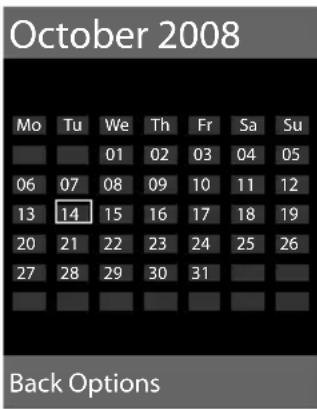
text_image
October 2008 Mo Tu We Th Fr Sa Su 01 02 03 04 05 06 07 08 09 10 11 12 13 14 15 16 17 18 19 20 21 22 23 24 25 26 27 28 29 30 31 Back Options◆The current day is selected (highlighted in orange).
◆Days on which appointments have already been saved are highlighted in orange.
Select the desired day in the graphic calendar.
The selected day is highlighted in orange. The current day is highlighted in white.
Press the middle of the control key.
◆If appointments have already been entered, this will open the list of existing appointments on that day.
Select
◆If no appointments have been entered, the data input window will open immediately to add the new appointment.
▶ Change multiple line input:
Appointment:
Select On or Off.
Date:
Enter day/month/year in 8-digit format.
Time:
Enter hours/minutes in 4-digit format.
Text:
Enter text (max. of 16 characters). The text appears as the appointment name in the list and will be displayed on the screen during the appointment reminder. If you do not enter any text, only the date and time of the appointment are displayed.
Save Press the display key.
Please note
If you have already saved thirty appointments, you will have to first delete an existing appointment before adding a new one.
Signalling appointments and anniversaries
In idle status, an appointment reminder is signalled with the selected ring tone ( page 66) and will sound for 60 seconds. The name is displayed for anniversaries, while the entered text is displayed for appointments along with the date and time.
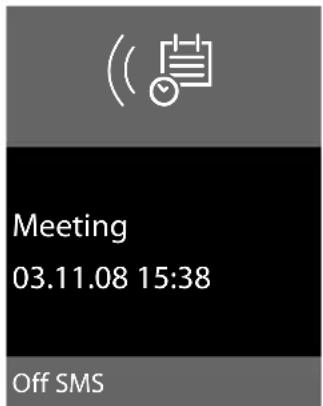
text_image
Meeting 03.11.08 15:38 Off SMSYou can either deactivate or answer an appointment reminder:
Off Press the display key to deactivate the appointment reminder.
Or:
SMS Press the display key to accept the appointment reminder with an SMS.
Please note
During a call, the appointment reminder is signalled by a short tone.
Managing appointments

Editing individual appointments
Select a day in the graphic calendar and press the control key. (Days on which appointments have already been saved are highlighted in orange in the calendar).
Select appointment for the day.
You have the following options:
View Select the display key and edit or confirm the entry.
Or:
Options Open the menu for editing, deleting and activating/deactivating.
Deleting all appointments
In the monthly view:
Options → Delete all appoint. → OK
Confirm the security prompt with Yes. All appointments are deleted.
Displaying missed appointments, anniversaries
Missed appointments/anniversaries
(→ page 33) are displayed in the Missed Alarms list if:
◆You do not accept an appointment/anniversary.
◆The appointment/anniversary was signalled during a phone call.
◆The handset is deactivated at the time of the appointment/anniversary.
The symbol ☐ and the number of new entries are shown in the display. The most recent entry is at the head of the list.
Open the list by selecting the message key (→ page 35) or via the menu:
→ ≡ → Missed Alarms
Select appointment/anniversary. Information about the appointment/anniversary is displayed. A missed appointment is displayed with the appointment name and a missed anniversary is displayed with the last name and first name. The date and time will also be given.
Delete Delete appointment
SMS Write an SMS.
If 10 entries are already stored in the list, the next appointment reminder will delete the oldest entry.
Setting the alarm clock
Precondition: The date and time have already been set ( page 14).
Activating/deactivating the alarm clock and setting the wake-up time

▶ Change multiple line input:
Activation:
Select On or Off.
Time:
Enter the wake-up time in 4-digit format.
Occurrence:
Select Daily or Monday-Friday.
Volume:
Set the volume (1–6).
Melody:
Select melody.
Save Press the display key.
In idle status, the ⏻ icon and wake-up time are displayed.
A wake-up call is signalled on the display and with the selected ring tone ( page 2).
The wake-up call sounds for 60 seconds. If no key is pressed, the wake-up call is repeated twice at five minute intervals and then turned off.
During a call, the wake-up call is only signalled by a short tone.
Deactivating the wake-up call/repeating after a pause (snooze mode)
Precondition: A wake-up call is sounding.
Off Press the display key. The wake-up call is deactivated.
or
Snooze Press the display key or any key. The wake-up call is deactivated and then repeated after 5 minutes. After the second repetition the wake-up call is deactivated completely.
Using several handsets
Registering handsets
You can register up to six handsets to your base.
A Gigaset SL78H handset can be registered on up to four bases.
Manually registering the Gigaset SL78H to the Gigaset SL780/SL785
You must activate manual registration of the handset on both the handset (1) and the base (2).
Once it has been registered, the handset returns to idle status. The handset's internal number is shown in the display e.g. INT 1. If not, repeat the procedure.
1) On the handset
The handset must not be registered to a base.
Register Press the display key.
The handset is already registered to a base:
→ Registration → Register Handset
Select base, e.g. Base 3 and press OK.
If required, enter the system PIN for the base and press OK.
A message displays that a search for a base that is ready for registration is being carried out.
2) On the base
Within 60 seconds press and hold the registration/paging key on the base ( page 1) (approx. 3 seconds).
Registering other handsets
You can register other Gigaset handsets and handsets for other devices with GAP functionality as follows.
1) On the handset
Start to register the handset as described in its user guide.
2) On the base
Press and hold the registration/paging key on the base ( page 1) (approx. 3 sec.).
De-registering handsets
You can de-register any other registered handset from any registered Gigaset SL78H handset.


Registration
→ De-register Handset

Select the internal subscriber
you wish to deregister and press
OK.
(The handset you are currently using is highlighted with <).

Enter the current system PIN
and press
Save.

Press the display key.
Locating a handset ("paging")
You can locate your handset using the base.
▶ Briefly press the registration/paging key on the base (→ page 1).
▶ All handsets will ring simultaneously ("paging"), even if the ring tones are deactivated.
Ending paging
▶ Briefly press the registration/paging key on the base or press the talk key ☐ on the handset.
Changing the base
If your handset is registered to more than one base, you can set it to a particular base or to the base that has the best reception (Best Base).


Registration →
Select Base

Select one of the registered bases or Best Base and press
Select.
Making internal calls
Internal calls to other handsets registered to the same base are free of charge.
Calling a specific handset

Initiate internal call.

Enter the number of the hand-set.
Or:

Initiate internal call.

Select
handset.

Press the talk key.
Calling all handsets ("group call")

Initiate internal call.

Press the star key.
or
Call All Select menu option and

Press the talk key.
All handsets are called.
Ending a call

Press the end call key.
Transferring a call to another handset
You can transfer an external call to another handset (connect).

Open the list of handsets.
The external participant hears hold music if activated ( page 69).

Select a handset or Call All and press OK.
When the internal participant answers:
▶ If necessary announce the external call.

Press the end call key.
The external call is transferred to the other handset.
If the internal participant does not answer or the line is busy, press the display key End to return to the external call.
When transferring a call you can also press the end call key ☐ before the internal participant answers.
Then, if the internal participant does not answer or the line is busy, the call will automatically return to you.
Internal consultation/conference calls
When you are conducting an external call, you can call an internal participant at the same time for consultation or hold a conference call between all 3 participants.
You are conducting an external call:

Open the list of handsets.
The external participant hears hold music if activated ( page 69).

Select handset and press OK.
You are connected to the internal participant.
either:
End Press the display key.
You are reconnected with the external subscriber.
Or:
Conf.
Press the display key.
All 3 participants are connected with each other.
Please note
This equipment may not provide for the effective handover of a call to another device connected to the same line.
Ending a conference call

Press the end call key.
If an internal participant presses the end call key ☐, the other handset remains connected to the external participant.
Call waiting
Many Telecommunication providers in Australia and New Zealand offer a Call waiting service on your Home Phone Line. Please speak to your service provider to check if your Home Phone line is activated for this service (charges may apply).
The most common providers instructions for Call waiting are as follows.
Please note
These processes depend on the network provider and are subject to change.
Australia:
Telstra:
To answer an incoming call when you're already on a call, or to switch between calls:
▶ Press the Recall key R and listen for the dial tone, then press 2 abc.
To hang up on one call and return to the other:
▶ Press the Recall key ☐ on your phone and listen for the dial tone, then press 1∞.
To reject an incoming call when you are already on a call:
▶ Push the Recall key ☐ on your phone and listen for the dial tone, then press ☐ again.
For more information please contact Telstra.
Optus:
You are on the phone and hear the beeps.
To put the first caller on hold and talk to the new caller (the caller on hold will hear nothing):
▶ Press the Recall key ☐ on your phone.
To return to the first caller:
▶ Press the Recall key ☐ and put the new caller on hold. You can alternate between the calls in this way. Or
▶ Hang up the first call. The phone will ring again with the second caller. This means that you will not be able to go back to the first caller.
For more information please contact Optus.
New Zealand:
Telecom NZ:
You are on the phone and hear four beeps.
To talk to the second caller:
▶ Press the Recall key ☐ on your phone.
To return to the first caller:
Press the Recall key R again and you will be able to continue your original conversation.
For more information please contact Telecom NZ.
Listening in to an external call
Precondition: The Listening In function must be activated.
You are conducting an external call. An internal participant can listen in on this call and take part in the conversation. All the participants are made aware of the "listening in" by a signal tone.
Activating/deactivating listening in
→ 📋 → Telephony → Listening In
Press Change to activate/deactivate the function (☑ = o n).
Internal listening in
The line is engaged with an external call. Your screen will display information to that effect. You want to listen in to the external call.
= Press and hold the talk key.
You can listen in to the call. All participants hear a signal tone. During this time, this handset displays the Conference message and it is not possible to dial another number from this handset.
Ending listening in
Press the end call key.
All participants hear a signal tone.
If the first internal participant presses the end call key ☐, the handset that has "listened in" remains connected to the external participant.
Changing the name of a handset
The names "INT 1", "INT 2" etc. are assigned automatically at registration. You can change these names. The name must be no more than 10 characters. The changed name is displayed in every handset's list.
Open the list of handsets. Your own handset is indicated by ◀.
Select handset.
Options Open menu.
Rename
Enter name.
Save Press the display key.
Changing a handset's internal number
A handset is automatically assigned the lowest free number when it is registered. If all slots are occupied, number 6 is overwritten if this handset is in idle status. You can change the internal number of all registered handsets (1–6).

Open the list of handsets. Your own handset is indicated by ◀.
Options
Open menu.
Assign Handset No.
Select and press OK.

Select number. Only numbers that have not been assigned are displayed.

Press the display key to save the input.
Using a handset as a room monitor
If the room monitor is activated, a previously saved destination number is called as soon as a set noise level is reached. You can save an internal or external number in your handset as the destination number. All of the handset keys are deactivated, with the exception of the display keys.
The room monitor call to an external number stops after around 90 seconds. The room monitor call to an internal number (handset) stops after approx. 3 minutes (depending on the base). When the room monitor is activated, all keys are locked except the end call key. The handset's speaker is muted.
When the room monitor is activated, incoming calls to the handset are indicated without a ring tone and are only shown on the screen. The display and keypad are not illuminated and advisory tones are also turned off.
If you accept an incoming call, the room monitor is suspended for the duration of the call, but the function remains activated.
If you deactivate then reactivate the handset, the room monitor remains activated.
Warning!
◆You should always check the operation of the room monitor before use. For example, test its sensitivity. Check the connection if you are diverting the room monitor to an outside number.
When the function is switched on, the handset's operating time is considerably reduced. If necessary, place the handset in the charging cradle. This ensures that the battery does not run down.
Ideally the handset should be positioned 1 to 2 metres away from the baby. The microphone must be directed towards the baby.
◆The connection to which the room monitor is diverted must not be blocked by an activated answering machine.
Activating the room monitor and entering the destination number


▶ Change multiple line input:
Activation:
Select On to activate.
Alarm to:
Select Internal or External.
External number: Select the number from the directory (press display key 📄) or enter it directly.
Internal number: Select display key
Change → Select handset or Call All if you want to call all registered handsets → OK.
In idle status, the destination number or the internal destination number is displayed.
Sensitivity:
Select noise level sensitivity (Low or High).
▶ Press Save to save the settings.
When the room monitor function is activated, the idle display looks as shown below:
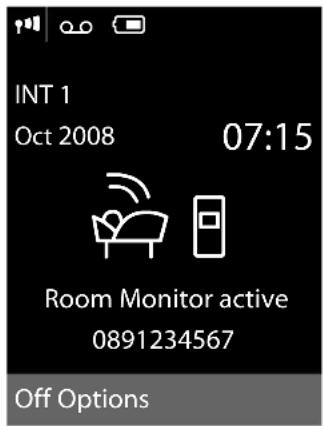
text_image
INT 1 Oct 2008 07:15 Room Monitor active 0891234567 Off OptionsChanging the set destination number
→ ☆ → Room Monitor
▶ Enter and save number as described in "Activating the room monitor and entering the destination number" (→ page 60).
Cancel/deactivate room monitor
Press the end call key ☐ to cancel the call when the room monitor is activated.
In the idle status press the display key Off to deactivate the room monitor mode.
Deactivating the room monitor remotely
Preconditions: The phone must support touch tone dialling and the room monitor should be set for an external destination number.
▶ Accept the call from the room monitor and press keys 9 #.
The room monitor function will deactivate after the call ends. There will be no further room monitor calls. The other room monitor settings (e.g. no ring tone) on the handset will remain activated until you press the display key Off on the handset.
To reactivate the room function with the same phone number:
▶ Turn on the activation again and save with Save (→ page 60).
Using Bluetooth devices
Your Gigaset SL78H handset can communicate wirelessly via Bluetooth™ with other devices using this technology.
Before you can use your Bluetooth devices, you must first activate Bluetooth and then register the devices to the handset.
You can register 1 Bluetooth headset to the handset. You can also register up to 5 data devices (PC, PDA) to send and receive directory entries as vCards or exchange data with the computer (→ page 78).
To use the phone numbers, dialling codes (country and area code) must be stored in the directory ( page 68).
You will find a description of how to operate your Bluetooth devices in the user guides for these devices.
Please note
You can operate headsets on your handset that have the headset or speaker profile. If both profiles are available, the speaker profile will be used to communicate.
It can take up to 5 seconds to create a connection between your handset and a Bluetooth headset. This applies both when a call is accepted using the headset or transferred to the headset, and when a number is dialled from the headset.
Activating/deactivating Bluetooth mode


Activation
Press Change to activate or deactivate Bluetooth mode (☑ = activated).
In idle status, the ✝ icon on the handset shows that Bluetooth mode is activated (→ page 2):
Registering Bluetooth devices
The distance between the handset in Bluetooth mode and the activated Bluetooth device (headset or data device) should be no more than 10 m.
Please note
◆If you register a headset, any headset that is already registered will be overwritten.
◆If you would like to use a headset with your handset that is already registered to another device (e.g. to a mobile phone), please deactivate this connection before you start the registration process.


Search for Headset /
Search for DataDevice
The search can take up to 30 seconds.
Once the device has been found, its name will be shown on the display.

Press the display key.
Trust Device
Select and press OK.

Enter the PIN for the Bluetooth device you want to register and press OK.
Please note
◆Enter a PIN of your choice for the data device. Then confirm the PIN on the data device.
◆ Enter the preset PIN for the headset (usually: 0000). For further information, please refer to the headset manufacturer's user guide.
The device is saved in the list of known devices.
Cancelling/repeating current search
To cancel search:
Cancel Press the display key.
Repeat search if necessary:
Options Press the display key.
Repeat Search
Select and press OK.
Editing the list of known (trusted) devices
Open list


Known Devices
A corresponding icon appears next to each device name in the list displayed:
Icon Meaning

Bluetooth headset

Bluetooth data device
If a device is connected, the corresponding symbol ✝ is shown in the header of the display.
Viewing entries
Open list → □ (select entry)
View Press the display key.
Device name and address are displayed.
Back with OK.
Deregistering Bluetooth devices
Open list → □ (select entry)
Options Press the display key.
Delete Entry
Select and press OK.
Please note
If you deregister an activated Bluetooth device, it may try to reconnect as an "unregistered device".
Changing the name of a Bluetooth device
Open list → □ (select entry)
Options Press the display key.
Edit Name Select and press OK.
Change the name. Save Press the display key
Rejecting/accepting an unregistered Bluetooth device
If a Bluetooth device that is not registered in the list of known devices tries to connect with the handset, you will be prompted on the display to enter the PIN for the Bluetooth device (bonding).
◆Reject
Back Press the display key.
◆Accept

Enter the PIN for the Bluetooth device you want to accept and press OK.
If you have accepted the device, you can use it temporarily (i.e. as long as it is within receiving range or until you deactivate the handset) or save it to the list of known devices.
Once the PIN has been confirmed, save to the list of known devices:
- Yes Press the display key.
- No Press the display key: use temporarily.
Changing the Bluetooth name of the handset
You can change the handset name used to identify it on the display of another Bluetooth device.

Change Press the display key
Change the name. Save Press the display key
Handset settings
Your handset is preconfigured, but you can change the settings to suit your individual requirements.
Quick access to functions and numbers
You can assign a number or a function to each of the digit keys 0 + and 2 abc to wxyz 9.
The left and right display keys have a function pre-selected by default. You can change the assignment ( page 64).
The number is then dialled or the function started by simply pressing a key.
Assigning digit keys
Precondition: You have not yet assigned a number or function to the digit key.
▶ Press and hold the digit key.
The list of possible key assignments is opened. The following can be selected:
Quick Dial / Call-by-Call
Assign key to a number from the directory or call-by-call list.
The directory or call-by-call list is opened.
▶ Select an entry and press OK.
If you delete or edit an entry in the directory or call-by-call list, this has no effect on the assignment to the digit/display key.
Room Monitor
Assign menu for setting and activating the room monitor to a key (→ page 60).
Alarm Clock
Assign menu for setting and activating the alarm clock to a key (→ page 56).
Calendar
Open calendar/enter new appointment.
Bluetooth
Assign the Bluetooth menu to a key.
Handset settings
Redial
Display the redial list.
More Functions...
More features are available:
INT
Internal calls ( page 57).
SMS
Assign menu for SMS functions to a key ( page 38).
SMS Notification
Assign menu for activating SMS notification to a key ( page 42).
Starting the function, dialling the number
Press and hold the digit key in idle status of the handset, or briefly press the display key.
Depending on the key assignment:
◆Numbers are dialled directly.
◆The function menu is opened.
Changing key assignments
Display key
▶ Press and hold the left or right display key.
The list of possible key assignments is opened.
▶ Proceed as described when first assigning the digit key ( page 63).
The selected function or name of the phone number in the directory or call-by-call list is displayed (abbreviated if necessary) in the bottom display line via the display key.
Digit key
▶ Briefly press the digit key.
§Change§ Press the display key. The list of possible key assignments is displayed.
▶ Proceed as is described when first assigning the key with a quick dial ( page 63).
Changing the display language
You can view the display texts in different languages.
→ Language
The current language is indicated by a Ⓑ.
Select language and press §Select§.
If you accidentally choose a language you do not understand:
→ → → →
Press keys in sequence and confirm by selecting §OK§.
Select the correct language and press the right display key.
Setting the display
Setting the screensaver
When in idle status, a picture, a Slideshow (all the pictures are displayed one after the other) in the Screensavers folder of the Resource Directory ( page 67) or the time can be displayed as a screensaver. This will replace the idle status display. It may conceal the calendar, date, time and name.
The screensaver is not displayed in certain situations, e.g. during a call or if the handset is deregistered.
If a screensaver is activated, the Screensaver menu option is marked with √.
→ Display → Screensaver
The current setting is displayed.
▶ Change multiple line input:
Activation:
Select On (screensaver is displayed) or Off (no screensaver).
Selection:
Select screensaver or
View Press the display key. The active screensaver is displayed.
Select screensaver and press OK.
Save Press the display key.
When the screensaver conceals the display, briefly press ☐ to show the idle display.
Please note
If the analogue clock has been set as screensaver, the second hand is shown only when the handset is in the charger.
Setting the display backlight
Depending on whether or not the handset is in the charging cradle, you can activate or deactivate the backlight. If it is activated, the display is permanently dimmed. If the backlight is deactivated it is switched on by pressing any key. In this case the pressed key has no other function.
→ Display → Backlight
The current setting is displayed.
▶ Change multiple line input:
In Charger
Select On or Off.
Out of Charger
Select On or Off.
Please note
With the On setting, the standby time of the handset can be significantly reduced.
Save Press the display key.
Activating/deactivating auto answer
If you activate this function, when you receive a call you can simply lift the handset out of the charging cradle without having to press the talk key ☐.
→ 📋 → Telephony → Auto Answer
Change Press display key (☑ = on).
Changing the speaker/earpiece volume
You can set the loudspeaker volume for speaker talking and the earpiece volume to five different levels.
In idle status:
Open the menu for setting the Call Volume.
Set the earpiece volume.
Scroll to the Speaker line.
Set the speaker volume.
Save Press display key if necessary to save the setting permanently.
Setting the volume during a call:
Press the control key.
Select volume.
The setting will automatically be saved after approx. 3 seconds, if not then press the display key Save.
If □ is assigned with another function:
Options Open menu.
Volume Select and press OK.
Configure setting (see above).
Please note
You can also set the call volume using the menu ( page 26).
Changing ring tones
Volume:
You can choose between five volumes (1–5; e.g. volume 3 = □□□□) and the "cre-scendo" ring tone (6; volume increases with each ring = □□□□ ▲).
◆Ring tones:
You can select various ring tones, melodies or any sound from the resource directory ( page 67).
You can set different ring tones for the following functions:
◆Extern. Calls: for external calls
◆Intern. Calls: for internal calls
◆Appts: for set appointments (→ page 54)
Set the volume and melody depending on the type of signalling required.
In idle status:

Ringer Settings
Select setting, e.g. Extern. Calls and press OK.
Set volume (1–6).
Scroll to the next line.
Select melody.
Save Press the display key to save the setting.
Additionally for external calls:
Once you have selected the melody, you can specify a time period when you do not want the telephone to ring, e.g. during the night.
Time Control:
Select On or Off.
Mute ring tone from:
Enter the start of the period in 4-digit format.
Mute ring tone until:
Enter the end of the period in 4-digit format.
Please note
During this period, you will continue to receive calls from numbers to which you have assigned a personalised melody in the directory (VIP).
Activating/deactivating the ring tone
You can deactivate the ring tone on your handset before you answer a call or when the handset is in idle status; the ring tone can be deactivated permanently or just for the current call. The ring tone cannot be re-activated while an external call is in progress.
Deactivating the ring tone permanently
* △ Press and hold the star key.
The ✕ icon appears in the display.
Reactivating the ring tone
* △ Press and hold the star key.
Deactivating the ring tone for the current call
Silence Press the display key.
Activating/deactivating the alert tone
In place of the ring tone you can activate an alert tone. When you get a call, you will hear a short tone ("Beep") instead of the ring tone.
* △ Press and hold the star key and within 3 seconds:
Beep Press the display key. A call will now be signalled by one short alert tone.
The ⏻ icon appears in the display.
Resource directory
The resource directory on the handset manages sounds, which you can use as ring tones, and pictures (CLIP pictures and screensavers), which you can use as caller pictures or as screensavers. Precondition: Calling Line Identification (CLIP). The resource directory can manage the following media types:
| Sound Format | |
| Ring tones Standard | |
| Monophonic Standard | |
| Polyphonic Standard | |
| Imported sounds WMA, MP3, WAV | |
| Picture- CLIP picture- Screensaver | BMP, JPG, GIF240 x 120 pixels240 x 320 pixels |
The icon is displayed in front of the name in the resource directory. Various mono and polyphonic sounds and pictures are preconfigured on your handset.
You can listen to the available sounds and view the pictures.
You can download pictures and sounds from a PC ( page 78). If there is not enough memory available, you must first delete one or more pictures or sounds.
Playing back sounds/viewing CLIP pictures
→ ☆ → Resource Directory → Screensavers / Caller Pictures / Sounds (select entry)
Pictures:
View Press the display key. The selected picture is displayed. Switch between pictures using the ▲▲▼ key.
If you have saved a picture in an invalid file format, you will see an error message after selecting the entry.
Sounds:
The selected sound is played back immediately. Switch between the sounds using the ▶ key.
You can set the volume during playback.
Volume Press the display key.
Set volume.
Save Press the display key.
Deleting/renaming a picture/sound
You have selected an entry.
Options Open menu.
If a picture/sound cannot be deleted, these options are not available. You can select the following functions:
Delete Entry
The selected entry is deleted.
Edit Name
Change the name (max. 16 characters) and press Save. The entry is stored with the new name.
Checking the memory
You can check how much memory is available for sounds and pictures.
→ ☆ → Resource Directory → Capacity
Activating/deactivating advisory tones
Your handset uses advisory tones to tell you about different activities and statuses. The following advisory tones can be activated/deactivated independently of each other:
◆Key click: every key press is confirmed.
◆Acknowledge tones:
- Confirmation tone (ascending tone sequence): at the end of an entry/setting and when an SMS or a new entry arrives in the answering machine list or call list
- Error tone (descending tone sequence): when you make an incorrect entry
- Menu end tone: when scrolling to the end of a menu
◆Battery low beep: the battery requires charging.
In idle status:

Advisory Tones
▶ Change multiple line input:
Key Tones: Select On or Off.
Confirmation: Select On or Off.
Battery: Select On, Off or In Call. The battery warning tone is only activated/deactivated and only sounds during a call.
Save Press the display key.
Setting your own area code
In order to transfer phone numbers (e.g. in vCards), it is essential that your area code (international and local area code) is saved on the phone.
Some of these numbers are already preset.

Check that the (pre)set area code is correct.
▶ Change multiple line input:
Select/change input field.
Navigate in the input field.
<C If necessary, delete number: press the display key.
Enter number.
Save Press the display key.
Example:
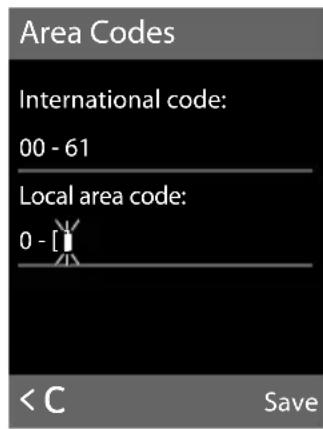
text_image
Area Codes International code: 00 - 61 Local area code: 0 - [ ]
Restoring the handset default settings
You can reset individual settings and changes that you have made.
The following settings are not affected by a reset
◆Registration to the base
◆Date and time
◆Entries in the calendar
◆Entries in the directory, call-by-call list, call lists, SMS lists and the content of the resource directory
→ Reset → Handset Reset
Yes Press the display key.
Base settings
The base settings are carried out using a registered Gigaset SL78H handset.
Protecting against unauthorised access
Protect the system settings of the base with a PIN known only to you. The system PIN must be entered when, for example, registering/deregistering a handset to/from the base or when restoring the default settings.
Changing the system PIN
You can change the 4-digit system PIN set on the base (default setting: 0000) to a 4-digit PIN known only by you.
Gigaset SL785: Setting a system PIN facilitates remote operation of the answering machine → page 50.
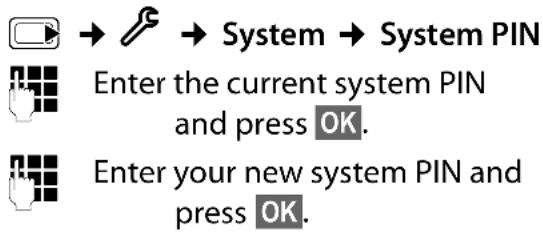
text_image
→ → System → System PIN Enter the current system PIN and press OK. Enter your new system PIN and press OK.Resetting the system PIN
If you have forgotten your system PIN you can reset the base to the original code 0000:
Disconnect the power cord from the base. Hold down the registration/paging key on the base while reconnecting the power cable to the base. Release the key after a while.
The base has now been reset and the system PIN 0000 set.
Please note
All handsets are deregistered and must be re-registered. All settings are restored to the factory settings.
Activating/deactivating music on hold
Press Change to activate or deactivate the music on hold (☑ = on).
Repeater support
With a repeater you can increase the range and reception strength of your base. You will need to activate repeater mode. This will terminate any calls that are in progress at the time.
Precondition: A repeater is registered. Eco mode is deactivated.

Press Change to deactivate repeater mode (☑ = on).
Please note
Repeater support and eco mode ( page 53) cancel each other out, i.e. both functions cannot be used at the same time.
Restoring the base to the factory settings
When the settings are restored
◆date and time will be retained
◆handsets are still registered
◆the system PIN is not reset


text_image
Enter the system PIN and press OK.Yes Press the display key.
Connecting the base to the PABX
The following settings are only necessary when your PABX requires them; see the PABX user guide.
You cannot send or receive SMS messages on PABXs that do not support Calling Line Identification.
Recall
The current setting is indicated by ●.
Setting recall
Your phone is preset at the factory for operation on the main connection. For operation on a PABX, you may have to change this value. Please refer to the user guide for your PABX.


Select recall and press Select. (○ = set value). Possible values are: 80 ms, 100 ms, 120 ms, 180 ms, 250 ms, 300 ms, 400 ms, 600 ms, 800 ms.
Saving an access code (outside line code)
Precondition: You may have to enter an access code for external calls in your PABX, e.g. "0".


Enter or change access code, max. 3 digits.
Save
Press the display key.
If an access code has been saved:
◆The access code is prefixed automatically when you select from the following lists: numbers of the SMS centres, call list or answering machine list.
◆The access code must be entered when dialling manually and when manually entering directory, emergency/quick dial numbers and SMS centre numbers.
◆If you copy the recipient's number from the directory when sending an SMS, you have to delete the access code.
◆An existing access code is deleted using <C.
Setting pauses
Changing pause after line seizure
You can change the length of pause that is inserted between pressing the talk key ☐ and sending the number.

Open the main menu.

Press keys.

Enter digit for the pause length
$$ (1 = 1 \text { sec. }; 2 = 3 \text { sec. }; 3 = 7 \text { sec. }) $$
$$ \text { and press OK. } $$
Changing the pause after the recall key
You can change the length of the pause if your PABX requires this (refer to the user guide for your PABX).

Open the main menu.

Press keys.

Enter a digit for the length of the
$$ \text { pause } (1 = 8 0 0 \mathrm{ms}; 2 = 1 6 0 0 \mathrm{ms}; $$
$$ 3 = 3 2 0 0 \mathrm{ms}) \text { and press } \quad \boxed {O K}. $$
Changing a dialling pause (pause after access code)
Precondition: You have saved an access code ( page 70).

Open the main menu.

Press keys.

Enter number for the length of the pause
$$ (1 = 1 \text { sec. }; 2 = 2 \text { sec. }; 3 = 3 \text { sec. }; $$
$$ 4 = 6 \text { sec. } $$
$$ \text { and press OK. } $$
To insert a dialling pause: press and hold R for 2 seconds. A P appears in the display.
Customer service & product warranty – Australia and New Zealand
IMPORTANT
Please retain your sales receipt as proof of the date of purchase.
Customer Service
If you require assistance in operating this product please contact us
AUS: 1300 780 878 or by e-mail at the Customer Care section of our website at
www.gigaset.com/au
NZ: 0800 780 878 or by e-mail at the Customer Care section of our website at
www.gigaset.com/au
If you are trying to access a Network Service and require assistance specifically related to the network service or would like to subscribe to the service, contact your service provider.
Product Warranty
Subject to the conditions below, this product, excluding battery and accessory devices, is guaranteed against any defect in materials or workmanship under conditions of normal use for a period of 12 months from date of purchase.
The benefits conferred by this warranty are in addition to other warranties and remedies that are implied under the Australian Trade Practices Act and similar Country, State and Territory laws (Statutory Rights).
Subject to your Statutory Rights, the goods will not be eligible for service under this warranty if:
- Proof of purchase cannot be provided;
- The defect was caused by an accident, misuse, abuse, improper installation or operation, vermin infestation, lack of reasonable care, unauthorised modification, loss of parts, tampering or attempted repair by a person not authorised by Gigaset; or
- The product has been damaged by lightning or a mains power surge.
- The Phone was not imported into Australia by Gigaset Communications GmbH.
To obtain service during the terms of this warranty call the Information Line on
AUS: 1300 780 878 or by e-mail at the Customer Care section of our website at
www.gigaset.com/au
NZ: 0800 780 878
If it is necessary to have the product serviced, the Customer Service Representative will inform you of the product return process.
Please ensure that:
- You provide proof of purchase;
- Your product is suitably packaged; and
- You have included all components from the original purchase.
Subject to your Statutory Rights:
- Any claim under this warranty is limited to the cost of repair or replacement of the product; and
- If the goods are found to be in sound working order by the authorised service centre, you may be charged a fee for service and for any other direct costs associated with having the product delivered for service.
Replacement or repair services are only offered for products purchased in Australia and New Zealand that bear Gigaset Communications GmbH local registered N Number and Telepermit markings.

natural_image
Two black square icons: a warning triangle symbol and a circular checkmark symbol (no text or labels)Please have your proof of purchase ready when calling.
Bluetooth ✱ Qualified Design Identity
The Bluetooth QD ID for your Gigaset SL78H is: B013322.
Questions and answers
If you have any questions about using your phone, visit us at www.gigaset.com/service at any time.
The table below contains a list of common problems and possible solutions.
| Registration or connection problems with a Bluetooth headset.▸ Reset the Bluetooth headset (see the user guide for your headset).▸ Delete registration data from the handset when deregistering the device ( → page 62).▸ Repeat the registration process ( → page 62). |
| The display is blank.1. The handset is not switched on.▸ Press and hold the end call key [IMAGE].2. The battery is flat.▸ Charge the battery or replace it ( → page 11). |
| "No Base" flashes in the display.1. The handset is outside the range of the base.▸ Move the handset closer to the base.The range of the base is reduced because eco mode is activated.▸ Deactivate eco mode ( → page 53) or reduce the distance between the handset and the base.2. Check the mains adapter of the base.▸ Check the base's mains adapter ( → page 9). |
| "Please register handset" flashes in the display.Handset has not been registered with the base or has been deregistered.▸ Register the handset ( → page 56). |
| Handset does not ring.The ring tone is deactivated.▸ Activate the ring tone ( → page 66). |
| You cannot hear a ring tone/dialling tone from the fixed line network.The phone cord supplied has not been used or has been replaced by a new cord with the wrong pin connections.► Please always use the phone cord supplied or ensure that the pin connections are correct when purchasing from a retailer ( → page 9). |
| Error tone sounds after system PIN prompt.You have entered the wrong system PIN.► Reset the system PIN to 0000 ( → page 69). |
| Forgotten the system PIN.► Reset the system PIN to 0000 ( → page 69). |
| The other party cannot hear you.You have pressed theMutedisplay key.The handset is "muted".► Activate the microphone again ( → page 28). |
| The number of the caller is not displayed despite CLIP.Calling Line Identification is not enabled.► The caller should ask the network provider to release Calling Line Identification (CLI). |
| You hear an error tone when keying an input (a descending tone sequence).Action has failed/invalid input.► Repeat the operation.Watch the display and refer to the user guide if necessary. |
| You cannot listen to messages on the network mailbox.Your PABX is set for dial pulsing.► Set your PABX to touch tone dialling. |
Gigaset SL785 only
No time is specified for a message in the call list.
Date and time have not been set.
▶ Set the date/time (→ page 14).
The answering machine announces "PIN is incorrect" during remote operation.
- You have entered the wrong system PIN.
▶ Enter the system PIN again.
- The system PIN is still set to 0000.
▶ Change the system PIN (→ page 69).
The answering machine is not recording any messages/has switched over to answer only.
Its memory is full.
▶ Delete old messages.
▶ Play back new messages and delete.
Exclusion of liability
Some displays may contain pixels (picture elements), which remain activated or deactivated. As a pixel is made up of three sub-pixels (red, green, blue), it is possible that pixel colours may vary.
This is completely normal and does not indicate an error.
Environment
Our environmental mission statement
We, Gigaset Communications GmbH, carry social responsibility and are actively committed to a better world. Our ideas, technologies and actions serve people, society and the environment. The aim of our global activity is to secure sustainable life resources for humanity. We are committed to a responsibility for our products that comprises their entire life cycle. The environmental impact of products, including their manufacture, procurement, distribution, use, service and disposal, are already evaluated during product and process design.
Further information on environmentally friendly products and processes is available on the Internet under www.gigaset.com.
Environmental management system

Gigaset Communications GmbH is certified pursuant to the international standards EN 14001 and ISO 9001.
ISO 14001 (Environment): certified since September 2007 by TüV SÜD Management Service GmbH.
ISO 9001 (Quality): certified since 17/02/1994 by TüV Süd Management Service GmbH.
Ecological energy consumption
The use of ECO DECT ( page 53) saves energy and is an active contribution towards protecting the environment.
Disposal
Batteries should not be disposed of in general household waste. Observe the local waste disposal regulations, details of which can be obtained from your local authority or the dealer you purchased the product from. All electrical and electronic equipment must be disposed of separately from general household waste using the sites designated by local authorities.

The appropriate disposal and separate collection of used equipment serve to prevent potential harm to the environment and to health. They are a precon-
dition for the re-use and recycling of used electrical and electronic equipment.
For further information on disposing of your used equipment, please contact your local authority or your refuse collection service.
Appendix
Caring for your telephone
Wipe the base station, charging cradle and handset with a damp cloth (do not use solvent) or an antistatic cloth.
Never use a dry cloth. This can cause static.
Contact with liquid

If the handset has come into contact with liquid:
- Switch off the handset and remove the battery pack immediately.
- Allow the liquid to drain from the handset.
-
Pat all parts dry, then place the handset with the battery compartment open and the keypad facing down in a dry, warm place for at least 72 hours (not in a microwave, oven etc.).
-
Do not switch on the handset again until it is completely dry.
When it has fully dried out, you will normally be able to use it again.
Specifications
Recommended batteries
Technology: Lithium ion (Li-Ion):
Voltage: 3.7 V
Capacity: 750 - 830 mAh
Type: V30145-K1310-X444
V30145-K1310-X445
The handset is supplied with the recommended battery. Only an original battery may be used.
Due to the constant progression in battery development, the list of recommended batteries in the FAQ section of the Gigaset Customer Care pages is regularly updated:
www.gigaset.com/service
Handset operating times/charging times
The operating time of your Gigaset depends on the capacity and age of the batteries and the way they are used. (All times are maximum possible times).
| Capacity (mAh) approx. 800 | |
| Standby time (hours)* | 200/55 |
| Talktime (hours) 14 | |
| Operating time for 1.5 hrs of calls per day (hours)** | 120 |
| Charging time in charger (hours) | 3,0 |
* without/with display backlight
**without display backlight
(Setting the display backlight → page 65)
General specifications
| DECT standard is supported | |
| GAP standard is supported | |
| No. of channels 60 duplex channels | |
| Radio frequency range | 1880–1900 MHz |
| Duplex method | Time multiplex,10 ms frame length |
| Channel grid | 1728 kHz |
| Bit rate | 1152 kbit/s |
| Modulation | GFSK |
| Language code 32 kbit/s | |
| Transmission power | 10 mW, average power per channel |
| Range | up to 300 m outdoors,up to 50 m indoors |
| Base power supply | 230 V ~/50 Hz |
| Environmental conditions in operation | +5°C to +45°C, 20% to 75% relative humidity |
| Dialling mode | DTMF (touch tone dial-ling) |
Base power consumption
| In standby condition approx. | 1.3 W |
| During a call approx. 1.5 W |
Pin connections on the telephone jack
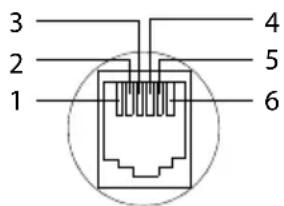
text_image
3 2 1 4 5 6| 1 | un | used |
| 2 | un | used |
| 3 | a | |
| 4 | b | |
| 5 | un | used |
| 6 | un | used |
Writing and editing text
The following rules apply when writing text:
◆ Each key between 0 + and wxyz 9 is assigned several letters and characters.
◆Control the cursor with □ □ □ ▲ □ ▼. Press and hold □ or □ to move the cursor word by word.
◆Characters are inserted to the left of the cursor.
◆Press the star key ☐ to show the table of special characters. Select the required character, press the display key Insert to insert the character at the cursor position.
◆ Press and hold □ + to wxyz 9 to enter digits.
◆ Press display key <C to delete the character to the left of the cursor. Press and hold to delete the word to the left of the cursor.
◆The first letter of the name of directory entries is automatically capitalised, followed by lower case letters.
Setting upper/lower case or digits
Repeatedly press the hash key # to change the text input mode.
| 123 Writing digits | |
| Abc Upper case * | |
| abc Lower case |
* 1st letter in capitals, all others in lower case
The active mode is indicated at the top right of the screen.
Writing an SMS/name
▶ Enter the individual letters/characters by pressing the corresponding key.
The characters assigned to the key are shown in a selection line at the bottom left of the screen. The selected character is highlighted.
▶ Briefly press the key several times in succession to select the required letter/character.
Standard characters
| 1x | 2x 3x | 4x 5x | 6x 7x | 8x 9x | 10x | |||||
| 1 a.o | ^1) | ^2) | 1 | |||||||
| 2 abc | a | b | c | 2 | ä | á | à | â | ã | ç |
| def 3 | d | e | f | 3 | ë | é | è | ê | ||
| 4 ghi | g | h | i | 4 | ï | í | ì | î | ||
| 5 jkl | j | k | l | 5 | ||||||
| mno 6 | m | n | o | 6 | ö | ñ | ó | ò | ô | õ |
| 7 pqrs | p | q | r | s | 7 | ß | ||||
| 8 tuv | t | u | v | 8 | ü | ú | ù | û | ||
| wxyz 9 | w | x | y | z | 9 | ÿ | ÿ | æ | ø | |
| 0 + | . | , | ? | ! | 0 |
1) Space
2) Line break
Additional functions via the PC interface
To enable your handset to communicate with the PC the "Gigaset QuickSync" program must be installed on your PC (free to download at www.gigaset.com/gigasetsl780).
Transferring data
After installing "Gigaset QuickSync", connect the handset to your computer using Bluetooth (→ page 61) or a USB data cable (→ page 16). If you want to use the Bluetooth connection, your computer must be equipped with a suitable dongle.
Please note
◆If the USB data cable is plugged in, a Bluetooth connection cannot be established.
◆If a USB data cable is plugged in during an existing Bluetooth connection, the Bluetooth connection is cancelled.
You can
◆synchronise your handset directory with Outlook,
◆download CLIP pictures (.bmp) from the computer to the handset,
◆download pictures (.bmp) as a screen-saver from the computer to the handset
◆download sounds (ring tones) from the computer to the handset.
During the transfer of data between handset and PC, you will see Data transfer in progress on the display. During this time the keypad is disabled, and incoming calls will be ignored.
Completing a firmware update
▶ Connect your phone to your PC using a USB data cable (→ page 16).
▶ Start the "Gigaset QuickSync" program on your PC.
▶ Establish a connection to your handset.
▶ Select [Settings] → [Device properties] to open the [Device] tab
▶ Click on [Firmware update]
This launches the firmware update.
The update process can take up to 10 minutes (not including the download time). Do not interrupt the process or remove the USB data cable.
The data is initially loaded from the update server on the Internet. The amount of time this takes is dependent on the speed of your Internet connection.
The display on your phone is switched off and the message key ☑ and the speaker key ☑ start flashing.
Once the update is complete, your phone will automatically restart.
Procedure in case of an error
If the update procedure fails or your phone does not work properly following the update, repeat the update procedure as follows:
▶ Close the "Gigaset QuickSync" program on the PC.
▶ Remove the USB data cable from the telephone.
▶ Remove the battery (→ page 12).
▶ Replace the battery.
▶ Complete the firmware update as described.
If the update procedure fails several times or you can no longer connect to the PC, proceed as follows:
▶ Close the "Gigaset QuickSync" program on the PC.
▶ Remove the USB data cable from the telephone.
▶ Remove the battery (→ page 12).
▶ Press and hold keys 4 ghi and mno 6 with the index and middle finger.
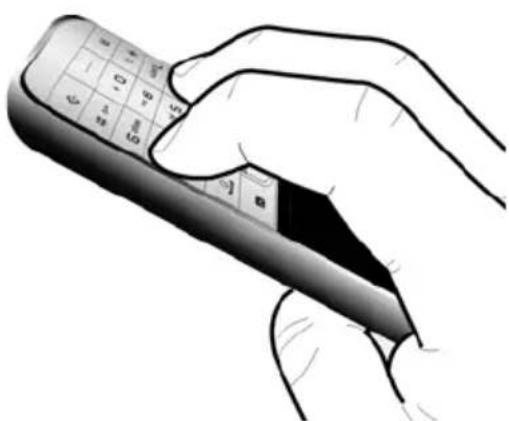
natural_image
Hand holding a mobile phone with visible keypad and screen (no text or symbols)▶ Replace the battery.
▶ Release keys 4 ghi and mno G. The message key ☑ and the speaker key will flash alternately.
▶ Complete the firmware update as described.
Gigaset handsets
Upgrade your Gigaset to a cordless PABX:
Gigaset SL78H handset
◆Illuminated graphical colour display (256k colours)
◆Illuminated keypad
◆Speaker talking
◆Polyphonic ring tones
◆Directory for around 500 entries
◆CLIP picture
◆SMS (precondition: CLIP must be enabled)
◆PC interface e.g. for managing directory entries, ring tones and screensavers
Bluetooth
◆Room monitor
www.gigaset.com/gigasetsl78h
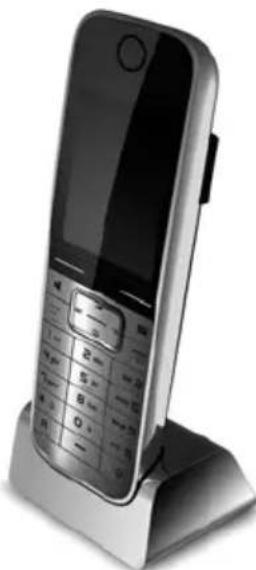
natural_image
Exterior view of a modern mobile phone on a stand (no visible text or symbols)Gigaset SL37H handset
◆Illuminated graphical colour display (65k colours)
◆Illuminated keypad
◆Speaker talking
◆Polyphonic ring tones
◆Directory for around 250 entries
◆CLIP picture
◆SMS (precondition: CLIP must be enabled)
◆ PC interface e.g. for managing directory entries, ring tones and screensavers
◆Headset socket
Bluetooth
◆Room monitor
◆ Walky-talky function
www.gigaset.com/gigasetsl37h
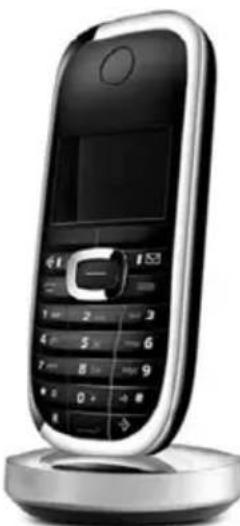
natural_image
Front view of a silver and black mobile phone with keypad and front panel (no visible text or symbols)Gigaset C610H handset
◆Illuminated graphic colour display (65k colours)
◆Illuminated keypad
◆Speaker mode
◆Polyphonic ringtones
◆Directory for around 150 entries
◆SMS (precondition: CLIP must be enabled)
◆Room monitor
www.gigaset.com/gigasetc610h
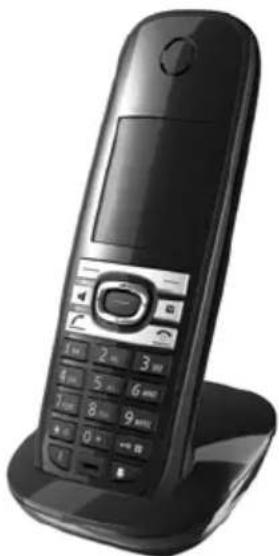
natural_image
Black mobile phone with keypad and control panel, displayed on a stand (no visible text or symbols)All accessories and batteries are available from your phone retailer.

Only use original accessories. This will avoid possible health risks and damage to property, and also ensure that all the relevant regulations are complied with.
Mounting the base to the wall
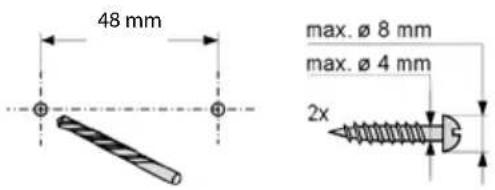
text_image
48 mm max. ø 8 mm max. ø 4 mm 2x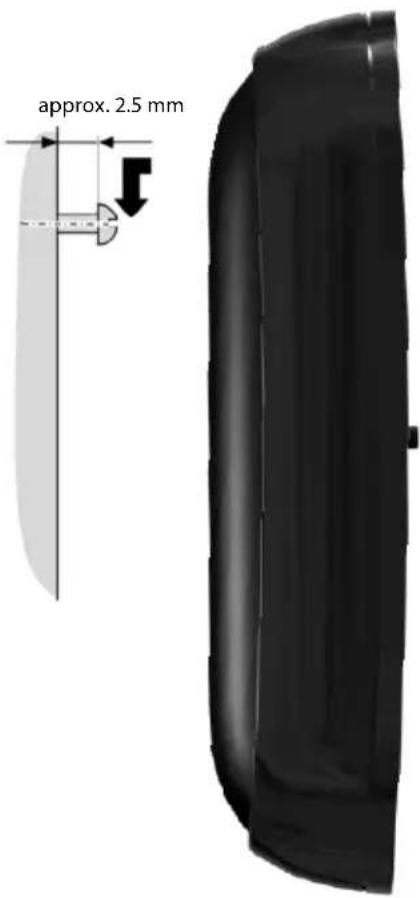
text_image
approx. 2.5 mmIndex
A
Access code 70
for a PABX 70
Access protection 69
Accessories 80
Acknowledge tones 68
Activating
advisory tones 68
answering machine 46
answering machine (remote operation)....51
appointment 54
call acceptance 65
handset....21
internal listening in. 59
keypad lock 21
muting ring tone. 44
room monitor 60
two-way record 49
Advisory tones 68
Alarm clock....56
Alert tone 66
Anniversary....33
deactivating 33
missed 55
saving in directory 33
Announcement (answering machine)... 47
Answer only mode (answering machine)....46
Answering machine 46
activating/deactivating....46
deleting messages 48
playing back messages 47
recording a personal announcement/answer only 46
remote operation .... 50
scrolling back....48
scrolling forward....48
Answering machine list .... 34, 35
Answering machine, see also Network mailbox
Appointment 54
Appointment/anniversary display missed.... 55
Appointments activating/deactivating.... 55
deleting.... 55
managing 55
Area code setting own area code....68
Assigning a key 63
Assigning a number key 63
Automatic call acceptance ..... 27, 65
network provider preselection ..... 36
B
Base changing.... 57
connecting....9
connecting to PABX 70
power consumption.... 77
restoring factory settings 69
setting....69
setting up 10
system PIN 69
Battery charging 1,2,13
display.... 1,2
icon....1,2,16
inserting 11
recommended batteries 76
tone 68
Best base.... 57
Birthday, see Anniversary
Bluetooth accepting a call 27
activate 62
changing device name 63
deregistering devices.... 62
list of known devices 62
registering devices 62
setting own area code....68
transferring directory (vCard) ..... 32
Index
C
Calendar 54
Call
accepting 27
accepting (Bluetooth) 27
diverting (connecting)....58
ending.... 27
external 27
internal 57
party listening in.... 59
picking up from answering machine.. 48
transferring (connecting) ..... 59
two-way record 49
Call acceptance .... 49, 65
Call duration.... 27
Call list 34
Call screening during recording ..... 49
Call waiting, incoming call ....58
Call-by-call 30
Call-by-call list key.....1
Call-by-call numbers....30, 36
Calling
external 27
internal 57
Calling Line Identification....27
Cancelling preselection 37
Caring for your telephone 76
Changing
destination number 61
device name (Bluetooth)....63
dialling mode....70
display language.... 64
earpiece volume 65
internal number of a handset ..... 60
name of a handset 59
pauses 71
ring tone 66
speaker volume.... 65
system PIN 69
Character set ....39, 41, 77
Charge status display.... 1,2
CLI, CLIP 27
CLIP picture....28, 31, 67
Conference (internal) 58
Confirmation tone. 68
Connecting, base to PABX.... 70
Consultation call (internal) 58
Control key 1,18
Correcting incorrect entries 19
Customer service & product warranty – Australia and New Zealand ..... 72
D
Deactivating
advisory tones 68
answering machine 46
appointment 54
call acceptance 65
handset.... 21
internal listening in. 59
keypad lock 21
muting ring tone.... 44
room monitor 61
two-way record.... 49
Delete key.... 19
Deleting
announcement for answering machine 47
characters....19
message 48
Deregistering (handset)....57
Deregistering devices (Bluetooth) ..... 62
Destination number (room monitor).... 60
Dialling
call-by-call list 31
directory 31
pause....71
quick dial.... 63
using quick dial 32
Directory 30
copying number from text.... 33
managing entries 31
opening.... 18
order of entries 31
saving anniversary 33
saving entry 30
saving the sender's number (SMS).... 41
sending entry/list to handset..... 32
transferring a vCard (Bluetooth).... 32
using to enter numbers.... 33
Display
backlight....65
changing display language ..... 64
in idle status.... 20
memory (directory/call-by-call)..... 32
memory (resource directory)....67
missed appointments/anniversaries .. 55
network mailbox message ..... 52
number (CLI/CLIP)....27
screensaver.... 64
setting 64
Display keys 1, 19
assigning....63
Disposal 75
Draft message list (SMS) 39
E
Earpiece mode.... 28
Earpiece volume 65
ECO DECT 53
Eco Mode....53
Eco Mode+ 53
E-mail address 40
copying from the directory 33
End call key....1,27
Ending, call 27
Entry
saving, changing (preselection) ..... 37
selecting from directory....31
Environment....75
Error tone 68
External call
diverting to ans. mach. 48
F
Fast access
answering machine 50
network mailbox....52
Fax (SMS) 40
Firmware Update 78
G
General troubleshooting.... 74
Group call 57
H
Handset
activating/deactivating.... 21
advisory tones 68
changing internal number 60
changing name 59
changing the number 60
changing to a different base ..... 57
changing to best reception 57
contact with liquid 76
de-registering 56, 57
display backlight.... 65
display language.... 64
diverting a call.... 58
earpiece volume 65
idle status 20
list.... 18
locating 57
muting.... 28
paging 57
registering 56
registering to a different base..... 57
restoring to factory settings.... 68
screensaver.... 64
setting 63
setting up 11
speaker volume.... 65
using room monitor.... 60
using several 56
Handset operating time
in room monitor mode 60
Hash key 1,21
Headset (Bluetooth) 61
Hearing aids ....6
Help 74
|
Icon
alarm clock.... 56
answering machine ..... 46, 49
battery.... 16
display.... 19
for new messages.... 35
keypad lock 21
new message....47
new SMS 40
ring tone 66
Index
Idle status
display 20
returning to 20
Incoming call
call waiting....58
Incoming message list (SMS) 40
Incorrect input (correction) ..... 19
Input language (SMS).... 39
Installing, base 10
Internal
conference 58
consulting.... 58
listening in 59
making calls 57
Internal call.... 57
K
Key 1 (fast access) ..... 1, 50
Keypad lock 21
Keys
call-by-call list ....1
control key 1,18
delete key 19
display keys 1,19
end call key....1,27
fast access.... 1,50
hash key 1,21
message key....1
on/off key 1
quick dial.... 32
recall key....1
speaker key....1
star key 1
talk key....1,27
L
Language, display.... 64
Last number redial 34
Linking, see SMS
Liquid....76
List....30
answering machine 34, 35
call list 34
call-by-call list 30
handsets 18
known devices (Bluetooth).... 62
missed calls. 34
network mailbox.... 34
SMS draft message list....39
SMS incoming message list 40
SMS list 34
Listening in to a call 59
Locating, handset 57
Lock
activating/deactivating keypad lock.. 21
M
Mailbox ID, see SMS
Mailboxes, see SMS
Mains adapter ....6
Making calls
accepting a call 27
cost-effective calls 36
external 27
internal 57
Manual last number redial 34
Medical appliances....6
Memory
directory/call-by-call 32
resource directory.... 67
Menu
end tone 68
opening.... 18
overview 24
prompting 20
Message key....1
open list. 40
opening lists.... 35
Messages.... 46
copy the number to the directory..... 48
deleting.... 48
marking as "new" 48
new message icon 47
playing back.... 47
Microphone ....1
Missed
anniversary.... 55
appointment 55
calls. 34
Music on hold.... 69
Muting
first ring.... 44
handset.... 28
N
Name
of a handset 59
Network mailbox....52
Network provider preselection,
automatic 36
Network services 29
Notification by SMS 42
Number
as destination for room monitor.....60
copying from an SMS text.....41
copying from directory 33
copying to directory.... 33
displaying caller's number (CLIP) ..... 27
entering with directory ..... 33
saving in the directory.... 30
0
On/Off key....1
Order in directory 31
P
PABX
connecting base 70
pauses....71
saving access code.... 70
setting dialling mode.... 70
setting recall.... 70
SMS.... 44
Pack contents 8
Paging 57
Paging key....1
Pause
after access code....71
after line seizure 71
after recall key 71
PC Interface 78
Picture
deleting....67
renaming. 67
Picture CLIP 31,67
PIN change
system PIN 69
Pin connections....77
Playing back
announcement (answering machine). 47
message (answering machine) ..... 47
Power consumption (base)....77
Preselection 36
cancelling 37
Protecting the phone against access.... 69
Q
Questions and answers 74
Quick dial 30,63
R
Range.... 10
Recall 70
Recall key.... 1,71
Reception booster, see Repeater
Recording
two-way record.... 49
Recording quality 49
Recording time 49
Registering (handset) 56
Registering devices (Bluetooth) ..... 62
Registration key....1
Reminder call 34
Remote operation.... 50
Repeater 69
Resource directory 67
Ring tone
changing.... 66
muting.... 44
setting volume 66
Room monitor 60
S
Saving (access code).... 70
Screensaver 64
Searching in directory 31
Sending
directory entry to handset 32
Sensitivity (room monitor) 61
Setting
date 14,26
screensaver. 64
time 14,26
Setting up
handset.... 11
Signal tone, see Advisory tones
Index
SMS....38
active send service centre....43
changing mailbox. 43
deleting....39,41
diverting 41
draft message list 39
incoming message list....40
input language 39
linked....38
list....34
mailbox ID. 42
mailboxes 42
notification by SMS. 42
PIN protection 43
reading 39,41
receiving 40
replying to or diverting....41
saving number....41
self help with error messages ..... 45
sending as a fax.... 40
sending to a personal mailbox ..... 43
sending to an e-mail address..... 40
status report....39
troubleshooting 45
vCard 42
writing....38,77
SMS centre changing number.... 44
setting 43
SMS to PABXs....44
Snooze mode....56
Sound, see Ring tone
Speaker key ....1
talking 28
Special functions....70
Specifications....76
Star key ....1
System settings 69
T
Talk key 1,27
Telephone jack, pin connections. ..... 77
Text message, see SMS
Touch tone dialling.... 70
Troubleshooting (SMS) 45
U
Update....78
USB connection 16
V
vCard (SMS).... 42
Viewing the network mailbox message . 52
VIP (directory entry) 30
Volume
earpiece.... 65
earpiece volume 65
handset speaker volume. 65
loudspeaker 65
ring tone 66
setting 66
W
Warning tone, see Advisory tones
Writing (SMS) 38
Writing and editing text 77
Issued by
Gigaset Communications GmbH
Frankenstr.2a,D-46395 Bocholt
© Gigaset Communications GmbH 2011
All rights reserved. Subject to availability.
Rights of modification reserved.
www.gigaset.com