Exilim EX-ZR400 - Camera CASIO - Free user manual and instructions
Find the device manual for free Exilim EX-ZR400 CASIO in PDF.


User questions about Exilim EX-ZR400 CASIO
0 question about this device. Answer the ones you know or ask your own.
Ask a new question about this device
Download the instructions for your Camera in PDF format for free! Find your manual Exilim EX-ZR400 - CASIO and take your electronic device back in hand. On this page are published all the documents necessary for the use of your device. Exilim EX-ZR400 by CASIO.
USER MANUAL Exilim EX-ZR400 CASIO
natural_image
Line drawing of a digital camera with lens and control panel (no text or symbols)Thank you for purchasing this CASIO product.
- Before using it, be sure to read the precautions contained in this User's Guide.
- Keep the User's Guide in a safe place for future reference.
- For the most up-to-date information about this product, visit the official EXILIM Website at http://www.exilim.com/
Accessories
As you unpack your camera, check to make sure that all accessories shown below are included. If anything is missing, contact your original retailer.
 |  |  |
| Rechargeable lithium ion battery (NP-130) | USB-AC adaptor (AD-C53U) | USB cable |
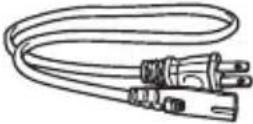 *The shape of the power cord plug varies according to country or geographic area.Power cord Strap *The shape of the power cord plug varies according to country or geographic area.Power cord Strap | To attach the strap to the camera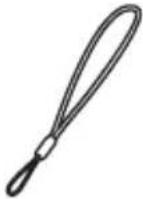  - Attach strap here. - Attach strap here. | |
 Basic Reference Basic Reference | ||
Read this first!
- The contents of this manual are subject to change without notice.
- The contents of this manual have been checked at each step of the production process. Feel free to contact us if you notice anything that is questionable, erroneous, etc.
- Any copying of the contents of this User's Guide, either in part or its entirety, is forbidden. Except for your own personal use, any other use of the contents of this manual without the permission of CASIO COMPUTER CO., LTD. is forbidden under copyright laws.
- CASIO COMPUTER CO., LTD. shall not be held liable for any damages or lost profits suffered by you or any third party due to the use or malfunction of this product.
- CASIO COMPUTER CO., LTD. shall not be held liable for any damages or lost profits caused by loss of memory contents due to malfunction, repair, or any other reason.
- Note that the example screens and product illustrations shown in this User's Guide may differ somewhat from the screens and configuration of the actual camera.
LCD Panel
The liquid crystal panel of the monitor screen uses high-precision technology that provides a pixel yield in excess of 99.99%. This means that some very small number of pixels may not light or may remain lit at all times. This is due to the characteristics of the liquid crystal panel, and does not indicate malfunction.
Take test shots
Before shooting your final image, shoot a test shot to ensure that the camera is recording correctly.
Contents
Accessories 2
Read this first! 3
General Guide 9
Monitor Screen Contents and How to Change Them 10
Quick Start Basics 14
What you can do with your CASIO camera 14
First, charge the battery prior to use.... 16
To load the battery 16
Charge the Battery 17
Configuring Basic Settings the First Time You Turn On the Camera. ..... 22
Preparing a Memory Card 23
■ Supported Memory Cards.... 23
To load a memory card 24
To format (initialize) a new memory card 25
Turning the Camera On and Off 26
Holding the Camera Correctly 27
To shoot a snapshot.... 28
■ Selecting an Auto Recording Mode 28
To shoot a snapshot 29
Viewing Snapshots 32
Deleting Snapshots and Movies 33
Snapshot Shooting Precautions 34
Snapshot Tutorial 36
Selecting the Recording Mode. 36
Using the Control Panel.... 38
Using the Self-timer ....(Self-timer) .. 39
Adjusting White Balance ..... (White Balance) .. 40
Selecting a Focus Mode .... (Focus) .. 42
Specifying ISO Sensitivity ..... (ISO) .. 45
Recording Beautiful Portraits .....(Make-up Level) .. 46
Correcting Image Brightness (EV Shift) . 47
Using Flash ..... (Flash) .. 48
Specifying the Metering Mode ..... (Metering) .. 50
Shooting with Zoom....51
■ Monitor Screen Information when Zooming 52
■ Zooming with Super Resolution .....(Zoom (SR))... 54
■ Expanding the Zoom Range to Shoot Clearer Snapshots .... (Multi SR Zoom) ... 55
Shooting a Burst of Images (High Speed CS) . 55
Using Focus Control 59
■ Shooting with a Blurred Background ..... (Blurred Background)... 59
■ Shooting with Full Focus Macro .....(All-In-Focus Macro)... 60
Shooting with Artistic Effects ..... (ART SHOT) .. 61
Saving a Second Normal Image When Shooting With HDR Art ....(Double (HDR Art))... 63
Shooting with Triple Shot.... 64
Recording Movies 65
To record a movie 65
Audio....66
Recording a High-definition Movie.... 68
Recording a High Speed Movie 68
Using Prerecord Movie . . . . . . . . . . . . . . . . . . . . (Prerecord (Movie)) . . 70
Recording a Movie for YouTube ..... (For YouTube) .. 72
Shooting a Snapshot while Shooting a Movie ..... (Snapshot In Movie) .. 73
Using BEST SHOT 74
To shoot with BEST SHOT 74
Creating and Using Your Own Setups .... (CUSTOM SHOT) .. 76
Digitally Correcting for Overexposure and Underexposure ..... (HDR) .. 77
Shooting Bright Images in the Dark without Flash (High Speed Night Shot) .. 78
Shooting with a Super Wide Angle of View ..... (Wide Shot) .. 79
Shooting a Panorama Image .....(Slide Panorama) .. 82
Shooting with Priority on Subject Faces .... (High Speed Best Selection) .. 84
Configuring the Camera to Help You Better Time Your Shots ....(Lag Correction) .. 85
Using Continuous Shutter with Auto Focus ..... (AF-CS) .. 87
Shooting with High Speed Anti Shake ..... (High Speed Anti Shake) .. 88
Shooting Snapshots (Snapshot) . 89
Using a TV Screen to Shoot Snapshots ..... (HDMI TV Output) .. 90
Advanced Settings (REC MENU) 92
Configuring Recording Settings 92
Assigning Functions to the [◀] and [▶] Keys ..... (L/R Key) .. 93
Saving a Second Normal Image When
Shooting With HDR Art .... (Double (HDR ART)) .. 94
To select the snapshot image size ..... (Image Size) .. 94
Specifying Snapshot Image Quality ..... (Image Quality) .. 96
Movie Image Quality Settings . . . . . . . . . . . . . . . . (Movie Quality) .. 96
Specifying ISO Sensitivity ..... (ISO) .. 97
Specifying the ISO Sensitivity Upper Limit .....(ISO High Limit) .. 98
Zooming with Super Resolution .....(Zoom (SR)) .. 99
Specifying the Auto Focus Area ..... (AF Area) .. 99
Reducing the Effects of Camera and Subject Movement . . . .(Anti Shake) . 100
Optimizing Image Brightness ..... (Lighting) . 101
Shooting with Continuous Auto Focus . . . . . . . . . . . (Continuous AF) . 102
Shooting with Face Detection ..... (Face Detection) . 102
Turning Digital Zoom On or Off . . . . . . . . . . . . . . . . . (Digital Zoom) . 103
Reducing Wind Noise during Movie Recording ..... (Wind Noise Cut) . 103
Recording Beautiful Portraits .....(Make-up Level) . 103
Correcting Image Brightness (EV Shift) . 104
Adjusting White Balance .....(White Balance) . 104
Selecting a Focus Mode (Focus) . 104
Using the Self-timer ....(Self-timer). 104
Specifying the Metering Mode ..... (Metering) . 104
Specifying Flash Intensity . . . . . . . . . . . . . . . . . . . . . . . . . . . . . (Flash Intensity) . 105
Controlling Image Sharpness (Sharpness). 105
Controlling Color Saturation (Saturation). 105
Adjusting Image Contrast . . . . . . . . . . . . . . . . . . . . . . . . . . . . . (Contrast) . 105
Using the Auto Focus Assist Light ..... (AF Assist Light) . 106
Displaying the On-screen Grid . . . . . . . . . . . . . . . . . . . . . . . . . . . . . . . . . . . . . . . . . . (Grid) . 106
Turning on Image Review (Review). 107
Using Icon Help (Icon Help) . 107
Configuring Power On Default Settings (Memory). 108
Viewing Snapshots and Movies 109
Viewing Snapshots 109
Viewing a Movie. 109
Viewing a Panorama Image. 110
Viewing Continuous Shutter Images .....111
■ Deleting Continuous Shutter Images 112
■ Dividing Up a CS Group 114
■ Copying a CS Group Image 115
Zooming an On-screen Image 116
Displaying the Image Menu 116
Viewing Snapshots and Movies on a TV Screen. 117
■ Viewing High-quality Movies on a Hi-Vision Television.... 118
Other Playback Functions (PLAY MENU) 121
Playing a Slideshow on the Camera . . . . . . . . . . . . . . . . (Slideshow) . 121
■ Transferring Music from Your Computer to Camera Memory ..... 122
Creating a Snapshot of Movie Frames . . . . . . . . . . (MOTION PRINT) . 123
Editing a Movie on the Camera . . . . . . . . . . . . . . . . . . . . . . (Movie Editing) . 124
Optimizing Image Brightness (Lighting). 125
Adjusting White Balance .....(White Balance) . 126
Adjusting the Brightness of an Existing Snapshot ..... (Brightness). 126
Selecting Images for Printing . . . . . . . . . . . . . . . . . . . (DPOF Printing) . 127
Protecting a File Against Deletion . . . . . . . . . . . . . . . . . . . . . . . . . (Protect) . 127
Editing the Date and Time of an Image ..... (Date/Time) . 129
Rotating an Image .....(Rotation). 129
Resizing a Snapshot . . . . . . . . . . . . . . . . . . . . . . . . . . . . . . . . . . . . . . . . . . . (Resize) . 130
Cropping a Snapshot (Trimming) . 130
Copying Files (Copy). 131
Dividing Up a Continuous Shutter Group ..... (Divide Group) . 131
Combining CS Images into a Single Still Image ..... (CS Multi Print) . 132
Editing a CS Image . . . . . . . . . . . . . . . . . . . . . . . . . . . . . (CS Frame Edit) . 132
Printing 133
Printing Snapshots.... 133
Connecting Directly to a PictBridge Compatible Printer 133
Using DPOF to Specify Images to be Printed and the Number of Copies .....(DPOF Printing) . 135
Using the Camera with a Computer 140
Things you can do using a computer.... 140
Using the Camera with a Windows Computer 141
■ Viewing and Storing Images on a Computer.... 141
■ Playing Movies 144
Using the Camera with a Macintosh 145
■ Connecting the Camera to Your Computer and Saving Files ..... 145
■ Playing a Movie.... 147
Using an SD Memory Card with Built-in LAN 148
■ Transferring Images with an Eye-Fi Card ..... (Eye-Fi).. 148
■ Using a Smartphone to Play Back Images Stored on a FlashAir Card ..... (FlashAir)..... 150
Files and Folders.... 152
Memory Card Data 153
Other Settings (SETTING) 155
Enabling Power Saving . . . . . . . . . . . . . . . . . . . (ECO Mode) . 155
Adjusting Monitor Screen Brightness .....(Screen) . 155
Turning off Eye-Fi Card Communication . . . . . . . . . . . . . . . (Eye-Fi) . 156
Configuring FlashAir Card Communication Settings .....(FlashAir) . 156
Configuring Camera Sound Settings (Sounds) . 156
Creating an Image Storage Folder . . . . . . . . . . . . . . . (Create Folder) . 157
Time Stamping Snapshots (Timestamp) . 157
Auto Image Orientation Detection and Rotation ..... (Auto Rotate) . 158
Specifying the File Name Serial Number Generation Rule ..... (File No.) . 158
Configuring Sleep State Settings .....(Sleep) . 159
Configuring Auto Power Off Settings (Auto Power Off) . 159
Configuring [☐] Setting .....(REC) . 160
Configuring [▶] Setting ..... (PLAY) . 160
Disabling File Deletion .....(Delete Key) . 160
Configuring World Time Settings ..... (World Time) . 161
Setting the Camera's Clock (Adjust). 162
Specifying the Date Style ..... (Date Style) . 162
Specifying the Display Language ..... (Language) . 163
Configuring USB Protocol Settings .....(USB) . 163
Selecting the Screen Aspect Ratio and
Video Output System (Video Out). 164
Selecting the HDMI Terminal Output Method .....(HDMI Output) . 164
Formatting Built-in Memory or a Memory Card .....(Format) . 165
Resetting the Camera to Factory Defaults .....(Reset). 165
Appendix 166
Safety Precautions.... 166
Precautions During Use.... 173
Power Supply.... 176
■ Charging 176
■ Battery Precautions.... 177
■ Using the Camera in another Country 177
Using a Memory Card 178
Reset Initial Default Settings 180
Using the On-screen Histogram to Check Exposure ..... (+Histogram). 182
When things don't go right.... 184
Troubleshooting 184
■ Display Messages.... 189
Number of Snapshots/Movie Recording Time 191
Specifications.... 195
General Guide
The numbers in parentheses indicate the pages where each item is explained.
Front Back

text_image
Labeled diagram of a digital camera with numbered parts for identification1 Mode dial (pages 28, 36, 65)
② Zoom controller (pages 29, 51, 116)
③ Shutter button (pages 26, 28)
4 Flash (page 48)
⑤ [ON/OFF] (Power) (pages 22, 26)
⑥ Front lamp (pages 39, 106)
⑦ [HS] (Continuous Shutter) (page 55)
8 Lens

text_image
5 9 10 12 13 14 11 21 19 20 18 17 15 16 DISP [▲] [◀] [▼] SET [▶] [SET] 面49 Microphones (page 66)
10 Back lamp (pages 18, 19, 26, 29, 48)
11 [RE] (REC) button (page 26)
12 [●] (Movie) button (page 65)
13 Strap hole (page 2)
14 Terminal cover
15 [USB/AV] port (pages 17, 18)
16 [HDMI OUT]
HDMI output (Mini)
(page 118)
17 [MENU] button (pages 65, 92)
18 [▶] (PLAY) button (pages 26, 32)
19 [SET] button (pages 38, 65, 92)
20 Control button
([▲] [▼] [◀] [▶])
(pages 38, 65, 74, 92)
21 Monitor screen (pages 10, 26)
Bottom

text_image
Technical diagram of a device with numbered parts labeled 23 to 25, showing internal components and connectors.22 Battery/memory card slots (pages 16, 24)
23 Battery cover
24 Tripod hole Use this hole when attaching to a tripod.
25 Speaker
Monitor Screen Contents and How to Change Them
The monitor screen uses various indicators, icons, and values to keep you informed of the camera's status.
- The sample screens in this section are intended to show you the locations of all the indicators and figures that can appear on the monitor screen in various modes.
They do not represent screens that actually appear on the camera.
■ Snapshot Recording (1 Shot)

text_image
1 2 3 4 5 6 7 8 9 10 ISO 100 24mm (+) 100 11 VAN 00:01:1 STG 12 13 14 15/ 1/ 1 12:00 16 17 18 19 20 21 22 23 P① Self-timer mode (page 39)
② Face Detection (page 102)
③ Recording mode (page 28)
④ Image deterioration indicator/Zoom (SR) indicator (page 53)
⑤ Remaining movie memory capacity (page 65)
⑥ Remaining snapshot memory capacity (page 191)
7 Snapshot image size/Quality (pages 94, 96)
⑧ Movie quality (FHD/STD movie)
(pages 65, 68)/
Recording speed (high speed movie) (page 68)
⑨ Focal distance
(Converted to 35 mm film format.) (page 52)
10 Anti Shake (page 100)
11 Timestamp indicator (page 157)
12 Histogram (page 182)
13 AF Area (page 99)
14Date/Time (pages 22, 162)
15 Focus frame (pages 29, 99)
16 Battery level indicator (page 21)
17 Metering mode (page 104)
18Flash (page 48)
19 Exposure compensation (page 47)
20Make-up level (page 46)
21 ISO sensitivity (page 45)
22 Focus mode (page 42)
23 White balance (page 40)
NOTE
- The semi-transparent gray frame on the monitor screen indicates the area that is recorded when shooting a movie. The area within the frame is recorded for a movie.
- Depending on recording settings, the aperture, shutter speed, and ISO sensitivity values may not appear on the monitor screen. These values will be red if the Auto Exposure (AE) is not correct for some reason.
■ Snapshot Recording (Burst Shooting)

text_image
1 2 3 4 5 6 30fps 1.0s/30 IMIN 00:35:19 FHD 26mm 14:451 Continuous Shutter (CS) speed (page 56)
②Recording mode (page 28)
③ Allowable CS time/number of CS images (page 56)
4 Continuous Shutter mode (page 55)
⑤Prerecord CS shots (page 57)
⑥Maximum CS shots (page 56)
■ Movie Recording

text_image
1 2 3 4 5 6 7 8 28 00:01:30 STO1 Snapshot recording mode (Snapshot In Movie) (page 73)
②Audio recording disabled (page 68)
③Recording mode (page 65)
4 Movie recording time (page 65)
⑤ Remaining movie memory capacity (page 65)
⑥ Movie recording in progress (page 65)
⑦Movie quality (FHD/STD movie)
(pages 65, 68)/
Recording speed (high speed movie) (page 68)
⑧ Remaining snapshot memory capacity (page 191)
■ Snapshot Viewing

text_image
101-0040 640 x 800 24mm ISO 100 F3.0 1/250 0.0 AVR 22 15/1/1 12:00 17 16 15 14 13 12 10 9 11 8 7 6 5 14 Folder name/file name (page 152)
5 Snapshot image quality (page 96)
6Recording mode (page 28)
⑦ Histogram (page 182)
⑧Date/time (page 162)
⑨ Metering mode (page 104)
10 White balance (page 126)
11 Battery level indicator (page 21)
12Flash (page 48)
13 Exposure compensation (page 47)
14 Shutter speed
15Aperture value
16 ISO sensitivity (page 45)
17 Focal distance
(Converted to 35 mm film format.)
1 File type
② Protect indicator (page 127)
③ Snapshot image size (page 94)
■ CS Image Viewing

text_image
[30] 101-0041 640x480 24N SET 15/ 1/ 1 12:00①Number of images in the group (page 111)
②CS group icon (page 111)
■ Movie Playback

text_image
1 161-0080 00:01:41 STD 3 4 5:1 15/ 1/ 1 12:00① No audio data available
②Movie recording time (page 109)
3 Recording mode/Movie quality/speed (pages 65, 68, 68)
4 YouTube (page 72)
■ Configuring Monitor Screen Settings
Each press of [▲] (DISP) will cycle through display settings that display or hide on-screen information. You can configure separate settings for the REC mode and PLAY mode.

text_image
3BP SET D1 M80[▲] (DISP)
REC mode
| Information on Displays setting information. | |
| Information on, histogram on | Displays setting information and a histogram (page 182) on the right side of the display. 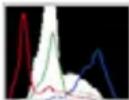 Histogram Histogram |
| Information off Hides setting information. | |
PLAY mode
| Information display on | Displays settings when shooting, current date and time, and other information. |
| Information on, histogram on | Displays settings when shooting, current date and time, histogram (page 182), and other information. |
| Information display off | No information displayed when shooting. |
Quick Start Basics
What you can do with your CASIO camera
Your CASIO camera is packed with a powerful selection of features and functions to make recording of digital images easier, including the following main functions.

natural_image
Aerial view of a densely built urban area with buildings, roads, and green spaces (no visible text or symbols)ART SHOT
A variety of artistic effects help to make even common, ordinary subjects become more novel and exciting. "ART SHOT" provides the following effects: HDR Art, Toy Camera, Soft Focus, Light Tone, Pop, Sepia, Monochrome, Miniature, Fisheye.
→See page 61 for more information.

natural_image
A child standing in a dark corridor with a large blue circular display wall, no visible text or symbols.High Speed Night Shot
The camera shoots a series of images and then merges them into a final image. The result is a bright image, even if shot in the dark without a flash.
→See page 78 for more information.

natural_image
Black-and-white portrait of a woman with shoulder-length hair, framed within a rectangular border (no text or symbols)
natural_image
Silhouette of a mountain range with trees and distant mountains, no text or symbols presentPremium Auto PRO
Select Premium Auto PRO recording and the camera automatically determines whether you are shooting a subject or scenery, and other conditions. Premium Auto PRO delivers higher image quality than standard Auto.
→See page 28 for more information.

natural_image
Composite photo showing a cyclist on a road with a bicycle, alongside a person in a blue jacket and a black arrow indicating rotation (no text or symbols)Triple Shot
Pressing the shutter button shoots a burst of three images and stores them in memory. This feature is great for making sure you don't miss those special moments when kids are around.
→See page 64 for more information.

natural_image
Portrait of a young girl in school uniform outdoors (no visible text or symbols)Blurred Background/All-In-Focus Macro (Focus Control)
Focus Control shoots and analyzes a burst of multiple images and combines them in a way that produces either image in which the background is blurred or everything is in focus: from nearby objects to distant objects.
→See page 59 for more information.

natural_image
Landscape view of a landscaped garden with manicured flower beds and a stone building in the background (no visible text or symbols)Wide Shot
With this feature, a number of images are shot and then combined to produce an image with a super-wide angle of view that exceeds the widest angle of view possible with the lens. Converted to 35 mm equivalents, the focal distances available with this feature enable shooting with approximate angles of view of 14 mm and 18 mm.
→See page 79 for more information.

natural_image
Close-up of a red dragonfly perched on a white flower branch, with blurred green foliage in the background (no text or symbols visible)High Speed Movie
Movies can be recorded at up to 1000 frames per second. This makes it possible to clearly view phenomena that are invisible to the human eye, in slow motion.
→See page 68 for more information.

natural_image
Mountain landscape with layered peaks and autumn foliage under a clear blue sky (no text or symbols visible)FHD Movie Recording
You can record movies in high-quality FHD. (1920×1080 pixels 30 fps)
→ See page 68 for more information.
First, charge the battery prior to use.
Note that the battery of a newly purchased camera is not charged. Perform the steps below to load the battery into the camera and charge it.
- Your camera requires a special CASIO rechargeable lithium ion battery (NP-130) for power. Never try to use any other type of battery.
To load the battery
1. Open the battery cover.

text_image
① OPEN LOCK ②2.Load the battery.
With the EXILIM logo on the battery facing downwards (in the direction of the lens), hold the stopper next to the battery in the direction indicated by the arrow as you slide the battery into the camera. Press the battery in until the stopper secures it in place.

text_image
Stopper NG OK Battery EXILIM logo3. Close the battery cover.

text_image
② OPEN LOCK ①To replace the battery
- Open the battery cover and remove the current battery.
2.Load a new battery.

text_image
StopperYou can use either of the two following methods to charge the camera's battery.
- USB-AC adaptor
• USB connection to a computer
■ To charge with the USB-AC adaptor
The adaptor lets you charge the battery while it is loaded in the camera.
While the camera is turned off, connect in the sequence shown below (①, ②, ③, ④).
Charging time: Approximately 240 minutes

text_image
[USB/AV] port USB cable (included with camera) Power cord ① ② ③ USB-AC adaptor ④Making sure that the ▶ mark on the camera is aligned with the ◀ mark of the USB cable connector, connect the cable to the camera.

IMPORTANT!
- A battery that has not been used for a long time, or ambient temperature extremes can cause charging to take longer than normal. If charging takes longer than about six hours, a timer will terminate it automatically, even if the battery is not fully charged. This is indicated by the back lamp flashing red. If the battery has not been used for a very long time, charging may be terminated automatically and the back lamp may start flashing red after only about 45 minutes. In either case, disconnect the USB cable from the camera and then reconnect it to resume charging.
- Make sure that you insert the cable connector into the [USB/AV] port until you feel it click securely into place. Failure to insert the connector fully can result in poor communication or malfunction.
- Note that even while the connector is fully inserted, you still will be able to see the metal part of the connector as shown in the illustration.

natural_image
Line drawing of a cable connector inserted into a socket (no text or symbols)Back Lamp Operation
| Lamp Status Description | |
| Lit Red Charging | |
| Flashing Red | Abnormal ambient temperature, USB-AC adaptor problem, or battery problem (page 176) |
| Off Charging complete |

text_image
Back lamp BHP SET■ To charge using a USB connection to a computer
USB connection lets you charge the battery while it is loaded in the camera. While the camera is turned off, connect in the sequence shown below (①, ②).

text_image
Computer (power turned on) USB port [USB/AV] port USB cable (included with camera)Making sure that the ▶ mark on the camera is aligned with the ◀ mark of the USB cable connector, connect the cable to the camera.
- If the camera is on, press [ON/OFF] (Power) to turn it off before connecting it to your computer.

IMPORTANT!
- The first time you connect the camera to your computer with the USB cable, an error message may appear on your computer. If this happens, disconnect and then reconnect the USB cable.
- A battery that has not been used for a long time, certain types of computers, and connection conditions can cause charging to take more than approximately six hours, which will trigger a timer that terminates charging automatically, even if the battery is not fully charged. If this happens, disconnect and then reconnect the USB cable to restart charging. To complete charging faster, use of the included USB-AC adaptor is recommended.
- If the battery has not been used for a very long time, charging may terminate automatically and the back lamp may start flashing red or go out after only about 45 minutes. In either case, use of the USB-AC adaptor that comes with the camera is recommended.
- If you turn on the camera while charging over a USB connection to a computer is in progress, the camera will establish a USB connection with the computer. Though charging normally should continue at this time, certain types of computers or connection environments may stop charging if supply power is low. This will be indicated by the camera's back lamp lighting green.
- Charging is not performed while the connected computer is in the hibernate mode.
Back Lamp Operation
| Lamp Status Description | |
| Lit Red,(Lit/Flashing Amber) | Charging |
| Flashing Red | Abnormal ambient temperature,charging taking abnormally long, orbattery problem (page 176) |
| Off, (Lit Green) Charging | complete |

text_image
Back lamp- The information in parentheses in the above table shows the lamp status while the camera is turned on during charging.
Other Charging Precautions
- With the two charging methods described above, you can charge the camera's battery (NP-130) without removing it from the camera. You also can charge the battery using an optionally available charger unit (BC-130L). Never use any other type of charger device. Attempting to use a different charger can result in unexpected accident.
- This model can be charged only via from USB 2.0 specification USB port only.
- USB charging devices and power supply devices are subject to fixed standards. Use of an inferior device or a device that is not up to standard can cause malfunction and/or failure of your camera.
- Operation is not guaranteed in the case of a computer built or modified by you. Even in the case of a commercially available computer, certain USB port specifications may make it impossible to charge via the USB cable.
- A battery that is still warm immediately after normal use may not charge fully. Give the battery time to cool before charging it.
- A battery discharges slightly even when it is not loaded in the camera. Because of this, it is recommended that you charge the battery immediately before you need to use it.
- Charging the camera's battery may cause interference with TV and radio reception. If this happens, plug the USB-AC adaptor into an outlet that is further away from the TV or radio.
- Actual charging time depends on current battery capacity and charging conditions.
- Do not use the USB-AC adaptor with any other device.
- Never use the power cord with another device.
Checking Remaining Battery Power
As battery power is consumed, a battery indicator on the monitor screen indicates remaining power as shown below.
| Remaining Power High Low | ←→ | ||||
| Battery Indicator → |  |  |  |  | |
| Indicator Color | White → White → Red → Red | ||||
indicates battery power is low. Charge the battery as soon as possible.
Recording is not possible when indicated. Charge the battery immediately.
- The level shown by the battery indicator may change when you switch between the REC mode and PLAY mode.
- Leaving the camera for about 30 days with no power supplied while the battery is dead will cause its date and time settings to be cleared. A message telling you to configure time and date settings will appear the next time you turn on the camera after restoring power. When this happens, configure date and time settings (page 162).
• See page 197 for information about battery life and number of shots.
Battery Power Conservation Tips
- Entering the "ECO Mode" enables low-power operation (page 155).
- When you do not need to use the flash, select ⚙ (Flash Off) for the flash setting (page 48).
- Enable the Auto Power Off and the Sleep features to protect against wasting battery power when you forget to turn off the camera (pages 159, 159).
- Select "Off" for "Continuous AF" (page 102).
Configuring Basic Settings the First Time You Turn On the Camera
The first time you load a battery into the camera, a screen appears for configuring the display language, date, and time settings. Failure to set the date and time correctly will cause the wrong date and time data to be recorded with images.

IMPORTANT!
- A screen for language selection will not appear in step 2 of the procedure below if you purchased a camera intended for the Japanese market. To change the display language from Japanese in this case, use the procedure under “Specifying the Display Language (Language)” (page 163). Note that a version of this manual in the language you select may not be included with a camera intended for the Japanese market.
- Camera models sold in certain geographic areas may not support display language selection.
1. Press [ON/OFF] (Power) to turn on the camera.
2. Use [▲], [▼], [◀], and [▶] to select the language you want and then press [SET].
![CASIO Exilim EX-ZR400 - Use [▲], [▼], [◀], and [▶] to select the language you want and then press [SET]. - 1](/content/2026/06/1236598/images/eba5655605027184dfba95415b4f291dc5dfb18ab0381b366ee87ac826a49880.jpg)
text_image
[ON/OFF] (Power) [▲] [◀] [▼] [SET] [▶] [SET]3. Use [▲] and [▼] to select a date style and then press [SET].
Example: July 10, 2015
YY/MM/DD → 15/7/10
DD/MM/YY → 10/7/15
MM/DD/YY → 7/10/15
4. Set the date and the time.
Use [◀] and [▶] to select the setting you want to change and then use [▲] and [▼] to change it. To switch between 12-hour and 24-hour format, select "24h" and then use [▲] and [▼] to change the setting.

text_image
Adjust 2015 / 1 / 1 0 : 00 24h Apply5. After setting the date and time, use [◀] and [▶] to select "Apply" and then press [SET].
If you make a mistake configuring display language, date, or time settings with the above procedure, refer to the following pages for information about how to correct the settings.
– Display language: page 163
– Date and time: page 162
NOTE
• Each country controls its local time offset and the use of summer time, and so they are subject to change.
- Removing the battery from the camera too soon after configuring time and date settings for the first time can cause the settings to be reset to their factory defaults. Do not remove the battery for at least 24 hours after configuring settings.
Preparing a Memory Card
Though the camera has built-in memory that can be used to store images and movies, you probably will want to purchase a commercially available memory card for greater capacity. The camera does not come with a memory card. Images recorded while a memory card is loaded are saved to the memory card. When no memory card is loaded, images are saved to built-in memory.
- For information about memory card capacities, see page 191.
Supported Memory Cards
- SD Memory Card
- SDHC Memory Card
- SDXC Memory Card

text_image
SD XC IUse one of the above types of memory card.
- The above are supported memory card types as of December 2012.
- This camera supports use of SD memory cards of the following types and capacities: SD memory cards up to 2GB, SDHC memory cards from 2GB up to 32GB, SDXC memory cards from 32GB up to 2TB. Note that the ability to use any particular card with this camera, even if it satisfies the above capacity and type requirements, is not guaranteed.
- This camera supports use of Eye-Fi cards and FlashAir cards.
■ Memory Card Handling Precautions
Certain types of cards can slow down processing speeds, and even can make it impossible to store High Quality movies correctly. Also, use of certain types of memory cards slows down data transfer and increases the time it takes to record movie data, which can result in movie frames being dropped. The REC indicator on the monitor screen turns yellow to indicate that frames are being dropped. In order to avoid problems such as these, use of an Ultra High Speed Type SD memory card is recommended. Note, however that CASIO makes no guarantees about the operation of any Ultra High Speed Type SD memory card used with this camera.
- Press [ON/OFF] (Power) to turn off the camera and then open the battery cover.

text_image
① OPEN LOCK ②2.Load a memory card.
Positioning the memory card so its front is facing upwards (towards the monitor screen side of the camera), slide it into the card slot all the way in until you hear it click securely into place.

text_image
MEMORY FRONT MEMORY CARDFront Back
- Close the battery cover.

text_image
① ② OPEN LOCKIMPORTANT!
- Never insert anything besides a supported memory card (page 23) into the memory card slot.
- Should water or any foreign object ever get into the card slot, immediately turn off the camera, remove the battery, and contact your retailer or nearest CASIO authorized service center.
To replace the memory card
Press the memory card and then release it. This will cause it to pop out of the memory card slot slightly. Pull the card out the rest of the way and then insert another one.
- Never remove a card from the camera while the back lamp is flashing green. Doing so can cause the image save operation to fail and even damage the memory card.

natural_image
Diagram of a computer with an open drive and a separate physical device (no text or symbols visible)To format (initialize) a new memory card
Format a memory card on the camera before using it for the first time.
IMPORTANT!
- Formatting a memory card that already has snapshots or other files on it, will delete its contents. Normally you do not need to format a memory card again. However, if storing to a card has slowed down or if you notice any other abnormality, re-format the card.
- Be sure to use the camera to format a memory card. Formatting a card on a computer will result in a non-SD standard format, which can greatly slow down processing time and cause compatibility, performance, and other problems.
- Before formatting a new Eye-Fi card to use it for the first time, copy the Eye-Fi Center install files to your computer. Do this before formatting the card.
-
Formatting a FlashAir card with the camera will delete files on the card that are required for communication. For details about formatting, see the instructions that come with the FlashAir card.
-
Turn on the camera and press [MENU].
-
Press [◀], use [▲] and [▼] to select the “SETTING” tab, and then press [▶].
-
Use [▲] and [▼] to select "Format" and then press [SET].
-
Use [▲] and [▼] to select "Format" and then press [SET].
-
Use [▲] and [▼] to select "Yes" and then press [SET].
Turning the Camera On and Off
■ To turn power on
Pressing [ON/OFF] (Power) enters the REC mode so you can record images. Pressing [▶] (PLAY) while in the REC mode enters the PLAY mode, which you can use to view snapshots and movies (pages 32, 109).
- You also can turn on the camera by pressing [▶] (PLAY).
- Pressing [图标] (REC) or the shutter button while in the PLAY mode returns to the REC mode.
• Take care to ensure that nothing is restricting or coming into contact with the lens as it extends. Holding the lens with your hand so it cannot extend creates the risk of malfunction. - About 10 seconds after you press [▶] (PLAY) to enter the PLAY mode, the lens will retract into the camera.
- The Sleep function or Auto Power Off (pages 159, 159) will turn off power automatically if you do not perform any operation for a preset amount of time.
[ON/OFF] (Power)

text_image
Technical diagram showing mechanical components with labels and annotations in ChineseShutter button
Back lamp

text_image
[▶] (PLAY) [●] (REC)■ To turn off the camera
Press [ON/OFF] (Power).
NOTE
- You also can configure the camera to turn on or off when you press [☐] (REC) (page 160).
- The camera can be configured so power turns off when [▶] (PLAY) is pressed (page 160).
Holding the Camera Correctly
Your images will not come out clearly if you move the camera when you press the shutter button. When pressing the shutter button, be sure to hold the camera as shown in the illustration, and keep it still by pressing your arms firmly against your sides as you shoot. Holding the camera still, carefully press the shutter button and take care to avoid all movement as the shutter releases and for a few moments after it releases. This is especially important when available lighting is low, which slows down the shutter speed.
Horizontal Vertical

natural_image
Line drawing of a hand holding a handheld device with a circular button (no text or symbols)
natural_image
Hand holding a device with a circular patterned body, no visible text or symbolsHold the camera so the flash is above the lens.
NOTE
• Take care that your fingers and the strap do not cover any of the areas indicated in the illustration.
• To protect against accidentally dropping the camera, attach the wrist strap and make sure it is around your fingers or wrist while you are operating the camera.
- Never swing the camera around by its strap.
- The supplied strap is intended for use with this camera only. Never use it for any other purpose.
- When the "Auto Rotate" setting is turned on, the camera will detect whether it is being held vertically or horizontally when a snapshot image is

text_image
Flash Front lamp Lensshot. When you display an image shot with the camera held vertically, the image is rotated automatically 90 degrees when displayed on the monitor screen (page 158).
IMPORTANT!
• Take care to ensure that your fingers are not blocking or are not too close to the flash. Fingers can cause unwanted shadows when using the flash.

natural_image
Line drawing of a hand holding a camera with concentric rings (no text or symbols)To shoot a snapshot
Selecting an Auto Recording Mode
You can select one of two auto recording modes (Program Auto or Premium Auto PRO) according to your digital imaging needs.
| Setting | REC Screen Icon Display | Description |
| P Program Auto |  | This is the standard Auto recording mode. |
| Premium Auto PRO |  | With Premium Auto PRO recording, the camera automatically determines whether you are shooting a subject or scenery, and other conditions. Premium Auto PRO recording delivers higher image quality than Program Auto recording.It also requires more power (and runs down the battery quicker) than Program Auto. |
1. Press [ON/OFF] (Power) to turn on the camera.
The camera will enter the REC mode.
- If the camera is in the PLAY mode, press the shutter button.
2. Align the mode dial with [P] (Program Auto) or [O-P] (Premium Auto PRO) to select Auto recording mode.
Remaining Snapshot Memory Capacity (page 191)
![CASIO Exilim EX-ZR400 - Align the mode dial with [P] (Program Auto) or [O-P] (Premium Auto PRO) to select Auto recording mode. - 1](/content/2026/06/1236598/images/320e1fbda5067ad0c5226279de6a2eab718aeea5e486462c31130dcfe1e086df.jpg)
text_image
11.04 6028124-3702 36mm 0 11:30Auto recording mode icon
![CASIO Exilim EX-ZR400 - Align the mode dial with [P] (Program Auto) or [O-P] (Premium Auto PRO) to select Auto recording mode. - 2](/content/2026/06/1236598/images/00145c5b7c077aac74fb95441668dac873014980df24bcd0c021b7b0e64078e5.jpg)
text_image
Monitor screen [ON/OFF] (Power) Shutter button Mode dial1. Point the camera at the subject.
If you are shooting with Premium Auto PRO, text will appear at the bottom of the monitor screen describing the type of shot the camera has detected.
- You can zoom the image, if you want.

text_image
Diagram showing a mechanical device with labeled parts and directional arrows indicating motion or assembly.Zoom controller

natural_image
Simple line drawing of a person sitting on a slope with hills in the background (no text or symbols)Wide Angle

natural_image
Black-and-white line drawing of a person's face with long hair and bangs (no text or symbols)Telephoto

natural_image
Scenic mountain landscape with clear blue sky and water reflection, no visible text or symbolsAppears when the camera detects it is stationary on a tripod.

Portrait-Low Light
If the camera decides that it needs to shoot a series of images with Continuous Shutter (CS), it will display “HS”. Take care to avoid any camera and subject movement until shooting of all of the CS images is complete.
2. Half-press the shutter button to focus the image.
When focus is complete, the camera will beep, the back lamp will light green, and the focus frame will turn green.
Back lamp

text_image
Diagram of a camera module with labeled buttons including ESP, SET, and control panel
natural_image
Illustration of a person standing with a stick and abstract lines, no text or symbols presentFocus frame
Half-press

text_image
until the button stops.Beep, beep (Image is in focus.)
When you half-press the shutter button, the camera automatically adjusts exposure and focuses on the subject it is currently pointed at. Mastering how much pressure is required for a half-press and a full-press of the shutter button is an important technique for good-looking images.
3. Continuing to keep the camera still, press the shutter button the rest of the way down.
This records the snapshot.
Full-press

text_image
Snap (Image is recorded.)Recording a Movie
Press [●] (Movie) to start movie recording. Press [●] (Movie) again to stop movie recording. See the following pages for details.
Standard movie (STD movie): page 65 High-definition movie (FHD movie): page 68 High speed movie (HS movie): page 68

text_image
[●] (Movie) 3MP SET B1■ If the image does not focus...
If the focus frame stays red and the back lamp is flashing green, it means that the image is not in focus (because the subject is too close, etc.). Re-point the camera at the subject and try to focus again.
■ Shooting with Auto
If the subject is not in the center of the frame...
"Focus lock" (page 44) is the name of a technique you can use when you want to shoot an image in which the subject to be focused on is not within the focus frame in the center of the screen.
To track the movement of a moving subject
Half-press the shutter button to follow and focus automatically on a moving subject. See “Tracking” (page 99) for more information.
■ Shooting with Premium Auto PRO
- In addition to shutter speed, aperture, and ISO sensitivity, the camera automatically executes the following operation as required when shooting with Premium Auto PRO.
– Continuous AF (page 102)
- Intelligent AF (page 99)
– Face Detection (page 102)
- Shooting with Premium Auto PRO can cause vibration and noise to occur due to lens operation. This does not indicate malfunction.
- When Shooting with Premium Auto PRO, the message “Processing Premium Auto.” may appear on the monitor screen. If you feel the camera is taking too long to process data, try shooting with standard Auto instead.
- In some cases, Premium Auto PRO may not be able to interpret the shooting environment correctly. If this happens, shoot with standard Auto.
- If “HS” is displayed, the camera will shoot a series of CS images and merge them into a final image. Take care to avoid any camera and subject movement until shooting of all of the CS images is complete. If you do not want to shoot CS images, select “Off” for the Control Panel (page 38) “HS Scene Shooting” item.
- Certain flash settings (page 48) can limit environmental factors detectable by Premium Auto PRO.
Viewing Snapshots
Use the following procedure to view snapshots on the camera's monitor screen.
- For information about how to play back movies, see page 109.
- For information about images recorded using continuous shutter (CS), see page 111.
1. Turn on the camera and press [▶] (PLAY) to enter the PLAY mode.
• This will display one of the snapshots currently stored in memory.
• Information about the displayed snapshot also is included (page 11).
- You also can clear the information to view only the snapshot (page 13).
- You can zoom in on the image by rotating the zoom controller towards [▲] (page 116). If you are recording a snapshot that is very important to you, it is recommended that you zoom the image and check its details after recording it.
![CASIO Exilim EX-ZR400 - Turn on the camera and press [▶] (PLAY) to enter the PLAY mode. - 1](/content/2026/06/1236598/images/e4c47f416bdd368afca00324105297df2141c859f1d6e4df2060c714e21710c4.jpg)
text_image
[▶] (PLAY)![CASIO Exilim EX-ZR400 - Turn on the camera and press [▶] (PLAY) to enter the PLAY mode. - 2](/content/2026/06/1236598/images/8a8fd9f4557d680f3cdbfb913a76d0ce4767a5a5db2e6d4841ad06d4ea5ab819.jpg)
natural_image
Tropical beach scene with palm trees and blue sky, no visible text or symbols2. Use [◀] and [▶] to scroll between images.
- Holding down either button scrolls at high speed.
![CASIO Exilim EX-ZR400 - Use [◀] and [▶] to scroll between images. - 1](/content/2026/06/1236598/images/89da4f1ba3fb6a3184d690118d2dfb5f6efcd711e27f8ca4c50050f326425a4b.jpg)
NOTE
- Half-pressing the shutter button while in the PLAY mode or while a menu screen is displayed will switch directly to the REC mode.
Deleting Snapshots and Movies
If memory becomes full, you can delete snapshots and movies you no longer need in order to free up storage and record more images.

IMPORTANT!
- Remember that a file (image) delete operation cannot be undone.
- For information about images recorded using continuous shutter (CS), see page 112.
- If you select "Disabled" for the "Delete Key" setting on the "SETTING" menu (page 160), the delete menu will not appear when you press [▼] (Delete). You can delete files only while "Enabled" is selected for "Delete Key".
■ To delete a single file
- Press [▶] (PLAY) to enter the PLAY mode and then press [▼] ( )

-
Use [◀] and [▶] to scroll through the files until the one you want to delete is displayed.
-
Use [▲] and [▼] to select "Delete" and then press [SET].
-
To delete other files, repeat steps 2 and 3.
- To exit the delete operation, press [MENU].
- If a CS group (page 111) is displayed when you perform the above procedure, all of the images in the currently displayed CS group will be deleted.
■ To delete specific files
-
Press [▶] (PLAY) to enter the PLAY mode and then press [▼] (☐).
-
Use [▲] and [▼] to select "Delete Files" and then press [SET].
- This displays a file selection screen.
-
Use [▲], [▼], [◀], and [▶] to move the selection boundary to the file you want to delete, and then press [SET].
-
This will select the check box in the lower left corner of the selected file's image and move the blue boundary to the next image.
-
You can enlarge the selected image before deleting it by rotating the zoom controller towards [▲] (○).
-
Repeat step 3 to select other files, if you want. After you are finished selecting files, press [MENU].
-
Use [▲] and [▼] to select "Yes" and then press [SET].
-
This deletes the files you selected.
- To cancel the delete operation, select "No" in step 5 and then press [SET].
■ To delete all files
-
Press [▶] (PLAY) to enter the PLAY mode and then press [▼] (☐).
-
Use [▲] and [▼] to select "Delete All Files" and then press [SET].
-
Use [▲] and [▼] to select "Yes" and then press [SET] to delete all files. This will cause the message "There are no files." to appear.
Snapshot Shooting Precautions
Operation
- Never open the battery cover while the back lamp is flashing green. Doing so can result in the image you just shot being saved incorrectly, damage to other images stored in memory, malfunction of the camera, etc.
- If unwanted light is shining onto the lens, shade the lens with your hand when shooting an image.
Monitor Screen when Shooting Snapshots
- Subject brightness conditions can cause monitor screen response to slow and can cause digital noise in the monitor screen image.
- The image that appears on the monitor screen is for image composition. The actual image will be recorded at the quality set for the image quality setting (page 96).
Shooting Indoors under Fluorescent Lighting
- Minute flickering of fluorescent lighting can affect the brightness or color of an image.
Other Precautions
- The slower the shutter speed, the greater the possibility that noticeable noise will be generated in an image. Because of this, the camera automatically performs a noise reduction at slow shutter speeds. The noise reduction process causes it to take longer to record images at lower shutter speeds. The shutter speeds for which noise reduction is performed depend on the camera setup and shooting conditions.
- A noise reduction process is performed when ISO sensitivity is set to a high value. This can cause the camera to take relatively longer to be ready to shoot again after you press the shutter button. Do not perform any key operation while the image recording operation is in progress.
- Due to the characteristics of the imaging element used by the camera, very fast moving objects in an image may appear distorted.
■ Auto Focus Restrictions
- Any of the following can make proper focus impossible.
– Solid color wall or other very low contrast subject
– Strongly back lit subject
– Very shiny subject
- Blinds or other subject with a repeating horizontal pattern
– Multiple subjects at varying distances from the camera
– Subject in a dark location
– Subject that is too far away for light from the AF assist light to reach
– Camera movement while shooting
– Fast-moving subject
– Subjects outside the focus range of the camera
- If you cannot focus properly, try using focus lock (page 44) or Manual Focus (page 42).
Snapshot Tutorial
Selecting the Recording Mode
Your camera has a variety of different recording modes. Before recording an image, rotate the mode dial to select the recording mode that suits the type of image you are trying to record.
Mode dial

text_image
Diagram showing a camera with an attached circular dial labeled P, S, Z, and directional arrows indicating rotation or positioning.| P Program Auto | |
| Standard Auto recording mode. This is the mode you normally should use (page 28). | |
| Premium Auto PRO | |
| With Premium Auto PRO recording, the camera automatically determines whether you are shooting a subject or scenery, and other conditions. Premium Auto PRO recording delivers higher image quality than standard Auto recording (page 28). | |
| BEST SHOT | |
| Simply select one of a collection of built-in sample scenes and the camera sets up automatically for beautiful images every time (page 74). | |
| Focus Control | |
| You can use Focus Control to configure the camera so the background is blurred and only the foreground subject is in focus (Blurred Background), or so everything is in focus (All-In-Focus Macro) (page 59). | |
| ART ART SHOT | |
| A variety of artistic effects help to make even common, ordinary subjects become more novel and exciting. | |
| Multi SR Zoom | |
| This feature uses super resolution technology and multiple Continuous Shutter (CS) images to expand the zoom range for overall images of higher quality and clarity (page 55). | |
| Triple Shot | |
| Shoots a burst of three images, making this feature is great for capturing all those special moments when kids are around (page 64). | |
| M M (Manual Exposure) mode | |
| This mode gives you total control over aperture and shutter speed settings.1 Press [SET] to open the Control Panel.2 Use [▲] and [▼] to select A (aperture).3 Use [◀] and [▶] to change the aperture setting.4 Use [▲] and [▼] to select S (shutter speed).5 Use [◀] and [▶] to change the shutter speed setting, and then press [SET]. | |
| S S (Shutter Speed Priority) mode | |
| In this mode, you select the shutter speed and other settings are adjusted accordingly.1 Press [SET] to open the Control Panel.2 Use [▲] and [▼] to select S (shutter speed).3 Use [◀] and [▶] to change the shutter speed setting, and then press [SET].• You also can select the EV shift setting located under the shutter speed setting and then specify an exposure value (EV shift), if you want. | |
| A A (Aperture Priority) mode | |
| In this mode, you select the aperture and other settings are adjusted accordingly.1 Press [SET] to open the Control Panel.2 Use [▲] and [▼] to select A (aperture).3 Use [◀] and [▶] to change the aperture setting, and then press [SET].• You also can select the EV shift setting located under the aperture setting and then specify an exposure value (EV shift), if you want. | |

IMPORTANT!
- In the S mode, ISO sensitivity (page 45) always operates according to its "Auto" setting. The ISO sensitivity setting cannot be changed while in the S mode.
- The flash ⚡A (Auto Flash) and Ⓞ (Red Eye Reduction) flash modes are not supported while A, S, or M is selected for the recording mode. If you want the flash to fire, select ⚡ (Flash On) as the flash mode.
- The displayed ISO sensitivity, shutter speed or aperture value will turn red when you half-press the shutter button if the image is overexposed or underexposed.
Using the Control Panel
The Control Panel can be used to configure camera settings.
1. In the REC mode, press [SET].
- You can also display the Control Panel by pressing [▼].
![CASIO Exilim EX-ZR400 - In the REC mode, press [SET]. - 1](/content/2026/06/1236598/images/99b0618aeb12f96755e87298168d1c409c555ebbd0508d0541cd04b780ff8c7c.jpg)
text_image
[▲] [▼] [◄] [►] SP SET [SET] B1 MEN22. Use [▲] and [▼] to select the item you want, and use [◀] and [▶] to select the setting you want.
This will select one of the Control Panel icons and display its settings.*
1 Self-timer (page 39)
② White balance (page 40)
③ Focus (page 42)
4 ISO sensitivity (page 45)
⑤ Make-up Level (page 46)
⑥ EV shift (page 47)
⑦ Flash (page 48)
⑧ Metering (page 50)
![CASIO Exilim EX-ZR400 - Use [▲] and [▼] to select the item you want, and use [◀] and [▶] to select the setting you want. - 1](/content/2026/06/1236598/images/e558381b667635ce2a49e696492c41cb5db9543b26bdc9789e39e5a1630a229d.jpg)
text_image
Control Panel 1 2 3 4 5 6 7 8 OFF WB AWB ISO Aero 3.0 10s 2s OFF x3 Self-timer Off*Items displayed in the Control Panel depend on the recording mode.
3. After all of the settings are the way you want, press [SET].
This will apply the settings and return to the REC mode.
NOTE
- You also can use on-screen menus to configure settings other than those listed above (page 92).
Using the Self-timer (Self-timer)
With the Self-timer, pressing the shutter button starts a timer. The shutter is released and the image is shot after a fixed amount of time.
- In the REC mode, press [SET].
- Use [▲] and [▼] to select the Ⓤ (Self-timer) Control Panel option.
- Use [◀] and [▶] to select the setting you want and then press [SET].
| Setting | REC Screen Icon Display | Description |
10s 10 sec 10-secc  timer timer | ||
| 2s 2 sec |  | 2-second Self-timerWhen shooting under conditions that slow down the shutter speed, you can use this setting to prevent image blur due to camera movement. |
| x3 ×3 (Triple Self-timer) |  | Shoots three images: one image 10 seconds after the shutter button is pressed, and the next two images as soon as the camera is ready after shooting the previous image. How long it takes for the camera to get ready to shoot depends on the image size and quality settings, whether or not a memory card is loaded in the camera, and the flash charge condition. |
| OFF Off None Turns off the Self-timer. | ||
- The front lamp flashes while the Self-timer countdown is in progress.
- You can interrupt an ongoing Self-timer countdown by pressing [SET].
Front lamp

natural_image
Pure technical diagram of a mechanical assembly with concentric circles and a bolt (no text or symbols)NOTE
- The Self-timer cannot be used together with the following features. High Speed CS with Prerecord CS, Prerecord (Movie), Lag Correction, Slide Panorama, Wide Shot, Triple Shot
- The Triple Self-timer cannot be used together with the following features. Movie, High Speed CS, Multi SR Zoom, High Speed Night Shot, High Speed Best Selection, For YouTube, Blurred Background, All-In-Focus Macro
Adjusting White Balance (White Balance)
You can adjust white balance to match the source of light available where you are shooting and avoid the blue cast that results when shooting outdoors when it is cloudy, and the green cast that results when shooting under fluorescent lighting.
- In the REC mode, press [SET].
- Use [▲] and [▼] to select the WB (White Balance) Control Panel option.
- Use [◀] and [▶] to select the shooting condition you want and then press [SET].
| Setting | REC Screen Icon Display | Description |
 Auto WB None Auto WB None | Configures the camera to adjust white balance automatically. | |
| [2CZT] Daylight For | shc  uto uto | doors on a clear day |
 Overcast Overcast |  | For shooting outdoors on an overcast rainy day, in the shade, etc. |
 Shade Shade |  | For shooting on a clear day in the shade of trees or buildings |
 DayWhite Fluorescent DayWhite Fluorescent |  | For shooting under white or day white fluorescent lighting |
| [49CY] Daylight Fluorescent |  | For shooting under daylight fluorescent lighting |
| [5233] Tungsten For | sh  under light bulb lighting under light bulb lighting | |
| MWB Manual WB | For configuring the camera manually to suit a particular light source1 Select “Manual WB”. Blank white paper2 Under the lighting conditions you plan to use when shooting, point the camera at a blank  white piece of paper so it fills the entire monitor screen and then press the shutter button.3 Press [SET].The white balance setting is retained even if you turn off the camera. white piece of paper so it fills the entire monitor screen and then press the shutter button.3 Press [SET].The white balance setting is retained even if you turn off the camera. |
- When “AWB Auto WB” is selected for the white balance setting, the camera automatically determines the white point of the subject. Certain subject colors and light source conditions can cause problems when the camera tries to determine the white point, which makes proper white balance adjustment impossible. If this happens, select the white balance setting that matches your shooting conditions (Daylight, Overcast, etc.).
Selecting a Focus Mode (Focus)
1. In the REC mode, press [SET].
2. Use [▲] and [▼] to select the ⚫ (Focus) Control Panel option.
3. Use [◀] and [▶] to select the setting you want and then press [SET].
| Settings | REC Screen Icon Display | Type of Shot | Focus Mode Approximate Focus Range *1 | |||
| Snapshot Movies Snapshot Movies | ||||||
| AF AF (Auto Focus) | None | General recording | Automatic Automatic *3 | 5 cm to ∞ (infinity)(2.0" to ∞)(Wide Angle)*2 | ||
| Macro | ![CASIO Exilim EX-ZR400 - Use [◀] and [▶] to select the setting you want and then press [SET]. - 1](/content/2026/06/1236598/images/67da7b4a6f7fbe1eb6e82527575551d33b577d3358fbebd78ee637a7cbbd3921.jpg) | Close ups | 1 cm to 50 cm(0.4" to 19.7")(Fifth step zoom from the Widest Angle setting)*2 | |||
| Super Macro | ![CASIO Exilim EX-ZR400 - Use [◀] and [▶] to select the setting you want and then press [SET]. - 2](/content/2026/06/1236598/images/3aa3d0e31acb55c0ce321fb0714d3397b65fb4ba8e5e429f858602b330249beb.jpg) | Close ups | 1 cm to 50 cm(0.4" to 19.7") | |||
| Infinity Focus | ![CASIO Exilim EX-ZR400 - Use [◀] and [▶] to select the setting you want and then press [SET]. - 3](/content/2026/06/1236598/images/a2c71c875d02db6d1ea172785ace40bea5eb73eec2504abdb0b9d56195d15572.jpg) | Scenery and other distant subjects | Fixed | Infinity (Wide Angle) | ||
| MF MF (Manual Focus) | ![CASIO Exilim EX-ZR400 - Use [◀] and [▶] to select the setting you want and then press [SET]. - 4](/content/2026/06/1236598/images/6cdad0af0c600164405ca453288c651fa086af6d62a3d0b20573dc82b47d2df0.jpg) | When you want to focus manually | Manual | 5 cm to ∞ (infinity)(2.0" to ∞)(Wide Angle)*2 | ||
*1 The focus range is the distance from the lens surface.
*2The focus range depends on the current optical zoom position.
*3During High Speed Movie recording, focus is fixed at the position where it was when recording started. To focus an image, half-press the shutter button for Auto Focus or focus manually before you press [●] (Movie) to start recording.
Super Macro
Super Macro fixes optical zoom at a position that allows you to shoot from the closest distance to the subject. The result is closer and larger subject images.
NOTE
- Zoom is fixed while Super Macro is selected, so no zoom operation is performed when you rotate the zoom controller.
To focus with manual focus
-
On the monitor screen, compose the image so the subject you want to focus on is within the yellow boundary.
-
Watching the image on the monitor screen use [◀] (nearer) and [▶] (further) to adjust focus.
- At this time the image that is within the boundary will enlarge and fill the monitor screen, which aids in focusing. If you do not perform any operation for two seconds while the enlarged image is displayed, the screen in step 1 will re-appear.

text_image
P 11 Ø3N 00 01 41 STD 26mm MF 181 12.00 Yellow boundaryNOTE
- An Auto Macro feature detects how far the subject is from the lens and automatically selects either Macro Focus or Auto Focus accordingly.
- Use of the flash together with Macro Focus can cause the light of the flash to become blocked, which may result in unwanted lens shadows in your image.
- In the case of movie recording, Auto Macro operates before you start recording. After recording is started, however, focus is fixed.
- Whenever you perform an optical zoom operation while shooting with Auto Focus, Macro Focus, or Manual Focus, a value will appear on the monitor screen to tell you the focus range, as shown below. Note that the focus range is displayed including the Auto Macro range only when shooting with Auto Focus.
Example: ^*cm-
*○○ is the actual focusing range value.
- The operations assigned to the [◀] and [▶] keys with the "L/R Key" setting (page 93) are disabled while Manual Focus is selected as the focus mode.
- The “Focus” setting is always fixed at “AF” (Auto Focus) whenever “Face Detection” is being used. If you want to change the “Focus” setting, first select “Off” for “Face Detection”.
Using Focus Lock
"Focus lock" is a technique you can use when you want to compose an image in which the subject you want to focus on is not within the focus frame in the center of the screen.
- To use focus lock, select "Spot" or "Tracking" for the Auto Focus area (page 99).
-
Align the monitor screen's focus frame with the subject you want to focus on and then half-press the shutter button.
-
Keeping the shutter button half-pressed (which maintains the focus setting), move the camera to compose the image.
- When “Tracking” is selected as the Auto Focus area, the focus frame will move automatically and follow the subject.
Subject to be focused on

text_image
Focus frame
natural_image
Illustration of a person holding a bag near a mountain with green directional arrows (no text or symbols)- When you are ready to shoot the image, press the shutter button the rest of the way down.
NOTE
- Focus lock also locks exposure (AE).
Specifying ISO Sensitivity (ISO)
ISO sensitivity is a measure of sensitivity to light.
- In the REC mode, press [SET].
- Use [▲] and [▼] to select the ISO (ISO Sensitivity) Control Panel option.
- Use [◀] and [▶] to select the setting you want and then press [SET].
| Setting | REC Screen Icon Display | Description | ||
| Auto None | Adjusts sensitivity automatically according to conditions. | |||
| ISO80 | ISO 80 | Lower sensitivity | Slow shutter speed | Less noise |
| ISO100 | ISO 100 | |||
| ISO200 | ISO 200 | |||
| ISO400 | ISO 400 | Higher sensitivity | Fast shutter speed (Set for shooting in dimly lit areas.) | Some coarseness (increased digital noise) |
| ISO800 | ISO 800 | |||
| ISO1600 | ISO 1600 | |||
| ISO3200 | ISO 3200 | |||
- While “Auto” is selected, Anti Shake corrects for subject movement only (page 100).
- Since higher ISO sensitivity values tend to result in digital noise in images, the camera performs a noise filtering process. Because of this, it may take relatively longer for the camera to finish recording an image after it is shot. You will not be able to perform any key operation while image recording is in progress.
Recording Beautiful Portraits (Make-up Level)
The Make-up Function smoothes the skin texture of the subject and softens facial shadows caused by harsh sunlight for better looking portraits. You can select a make-up level within the range of “0 (Off)” to “+12 (Max.)”.
-
Enter the REC mode, and then press [SET].
-
Use [▲] and [▼] to select the ⚙ (Make-up Level) Control Panel option.
-
Use [◀] and [▶] to select the Make-up Level setting you want, and then press [SET].
- You can select a make-up level within the range of "0 (Off)" to "+12 (Max.)".
- Shoot the image.
NOTE
- Selecting any Make-up Level setting from +1 (Min.) to +12 (Max.) causes the settings below to be configured automatically.
- Face Detection: On
- Focus Mode: AF (Auto Focus)
- Make-up cannot be used with the following functions.
Some BEST SHOT scenes, ART SHOT, Multi SR Zoom, High Speed CS
Correcting Image Brightness (EV Shift)
You can manually adjust an image's exposure value (EV value) before shooting it.
- Exposure Compensation Range: -2.0 EV to +2.0 EV
-
Unit: 1/3EV
-
In the REC mode, press [SET].
-
Use [▲] and [▼] to select the ☒ (EV Shift) Control Panel option.
- Use [◀] and [▶] to adjust the exposure compensation value.
[◀]:
Increases the EV value. A higher EV value is best for light-colored subjects and backlit subjects.

natural_image
Two-panel image showing a woman standing in a window, one with blurred background and the other with hands in front (no text or symbols)[▶]:
Decreases the EV value. A lower EV value is best for dark-color subjects and for shooting outdoors on a clear day.

natural_image
Two grayscale images showing a person's profile before and after transformation, with no visible text or symbols.To cancel exposure compensation, change the EV value to 0.0.
Exposure compensation value

- Press [SET].
This applies the exposure compensation value. The exposure compensation value you set remains in effect until you change it or turn off the camera (which causes it to revert to "0.0").
NOTE
- When shooting under very dark or very bright conditions, you may not be able to obtain satisfactory results even after performing exposure compensation.
Using Flash (Flash)
-
In the REC mode, press [▼] (☐) once.
-
Use [◀] and [▶] to select the flash setting you want and then press [SET].

text_image
DEP SET B1 MINI [▼] ( ) ↓
text_image
Flash| Setting | REC Screen Icon Display | Description |
| Auto Flash | None | Flash fires automatically in accordance with exposure (amount of light and brightness) conditions. |
| Flash Off Flash |  not fire. not fire. | |
| Flash On |  | Flash always fires. This setting can be used to brighten a subject that normally comes out dark due to daylight or backlight (daylight synchro flash). |
| Red Eye Reduction |  | Flash fires automatically. This type of flash can be used to reduce the chance of redness in the subject's eyes. |
3. Press the shutter button to shoot.

natural_image
Line drawing of a digital camera with control buttons and a battery icon (no text or symbols)Back lamp
Flashes orange while the flash is charging to indicate that image recording is disabled.
- You will not be able to take another flash snapshot until the lamp stops flashing orange, which indicates that charging is complete.
indicates the flash will fire.
- For information about Flash Range, see page 196.

IMPORTANT!
- Foreign matter on the flash window can react with the light of the flash, producing some smoke and abnormal odor. Though this does not indicate malfunction, oil from your fingers and other foreign matter when left on the flash window can become difficult to clean off later. Because of this, you should make it a regular habit to wipe the window clean regularly with a soft, dry cloth.
NOTE
• Take care so your fingers and the strap do not block the flash.
- The desired effect may not be obtained when the subject is too far away or too close.
- Flash charging time (page 196) depends on operating conditions (battery condition, ambient temperature, etc.).
- Shooting with flash turned off when lighting is dim results in a slow shutter speed, which can cause image blur due to camera movement. Under such conditions, secure the camera with a tripod, etc.
- With red eye reduction, the flash is fired automatically in accordance with exposure. It does not fire in areas where lighting is bright.
- The presence of outdoor sunlight, fluorescent lighting, or some other light source can cause abnormal image colors.
- Select ⚙️ (Flash Off) for the flash setting when shooting in areas where flash photography is prohibited.
- The flash ⚠A (Auto Flash) and Ⓞ (Red Eye Reduction) flash modes are not supported while A, S, or M is selected for the recording mode. If you want the flash to fire, select ⚠ (Flash On) as the flash mode.
Red-eye Reduction
Using the flash to shoot at night or in a dimly lit room can cause red spots inside the eyes of people who are in the image. This is caused when the light from the flash reflects off of the retina of the eye. When red-eye reduction is selected as the flash mode, the camera fires a pre-flash to cause the irises in the eyes of any people in the image to close, which reduces the chance of red eye.
Note the following important points when using red-eye reduction.
- Red-eye reduction does not work unless the people in the image are looking directly at the camera (flash).
- Red-eye reduction may not work very well if the subjects are located far away from the camera.
Specifying the Metering Mode (Metering)
The metering mode determines what part of the subject is metered for exposure.
-
In the REC mode, press [SET].
-
Use [▲] and [▼] to select the 📄 (Metering) Control Panel option.
-
Use [◀] and [▶] to select the setting you want and then press [SET].
| Setting | REC Screen Icon Display | Description |
| Multi None | Multi-pattern metering divides the image into sections and measures the light in each section for a balanced exposure reading. This type of metering provides error-free exposure settings for a wide range of shooting conditions. | |
| Center Weighted |  | Center weighted metering concentrates on the center of the focus area to measure light. This type of metering is best when you want some level of control over contrast. |
| Spot |  | Spot metering takes readings at a very small area. Use this metering method when you want exposure to be set according to the brightness of a particular subject, without being affected by surrounding conditions. |
Shooting with Zoom
Your camera is equipped with various types of zoom: optical zoom, HD Zoom, Single SR Zoom, Multi SR Zoom, and digital zoom. The maximum zoom factor depends on the image size setting and the digital zoom on/off settings.
| Optical zoom | Zooming is performed by changing the lens focal distance, so there is no deterioration of image quality. |
| HD Zoom | Allows greater zoom capabilities by cutting out a portion of the original image and enlarging it, without deterioration of image quality. |
| Single SR Zoom | Applies super resolution technology to suppress image deterioration (page 54). |
| Multi SR Zoom | Shoots a burst of high-speed images, which are then combined into a final image in a way that lessens deterioration of image quality. Multi SR Zoom is enabled only when the “Multi SR Zoom” recording mode is selected. (page 55) |
| Digital zoom | A digital process is used to enlarge the center of the image, so there is deterioration of image quality. |
1. In the REC mode, rotate the zoom controller to zoom.

natural_image
Simple line drawing of a person sitting on a slope with hills in the background (no text or symbols)Wide Angle

natural_image
Black-and-white line drawing of a person's face with long hair and bangs (no text or symbols)Telephoto

text_image
Diagram showing a mechanical device with labeled components and directional arrows indicating motion or rotation.Zoom controller
(Wide Angle): Reduces the size of the subject and broadens the range.
[◀] (Telephoto) : Enlarges the subject and narrows the range.
2. Press the shutter button to shoot.
NOTE
- Use of a tripod is recommended to protect against image blur due to camera movement when shooting with telephoto.
- Performing a zoom operation changes the lens aperture.
- Zoom operations are supported during movie recording. Zoom operations are disabled during high speed movie recording. To use zoom, perform the zoom operation before you press [●] (Movie) to start recording.
- Zoom operations are not supported while shooting with the following feature. The zoom setting is fixed at full wide angle.
Slide Panorama, Wide Shot, All-In-Focus Macro
A variety of information is shown on the monitor screen while a zoom operation is in progress.
■ Zoom Mode Icons

text_image
Zoom mode 91°AMN 00:01:41 STD AF 5cm-∞ 50mm (Φ) Focusing Range (Displayed for Auto Focus, Macro Focus, and Manual Focus.) 2.0x 25.0x Image quality limit (Deterioration starts from here.) Zoom barThe table below shows what appears on the monitor screen based on the zoom mode.
| Zoom mode REC Screen Icon Display | |
| Optical zoom None | |
| HD Zoom None | |
| Single SR Zoom SR (White) | |
| Multi SR Zoom SR (Black) | |
| Digital zoom ⊕ | |
■ Interpreting the Zoom Bar
During a zoom operation, a zoom bar appears on the monitor screen to show the current zoom setting.

text_image
Range where image deterioration is suppressed. Deteriorated image range Wide Angle Telephoto Optical zoom limit point Zoom pointer (Indicates current zoom.)Point from which image deteriorates
- The location of this point depends on the image size, the "Zoom (SR)" setting, and whether Multi SR Zoom is enabled.
■ Zoom Factor
The digital zoom factor depends on the image size (page 94), the super resolution zoom setting, and on whether or not “Multi SR Zoom” is selected (page 55).
- Multi SR Zoom is enabled only when the "Multi SR Zoom" recording mode is selected.
| Image size | Optical zoom | Maximum zoom factor where image deterioration can be suppressed | Total maximum zoom factor (In combination with digital zoom) | |
| Zoom (SR): Off (HD Zoom) | Multi SR Zoom Zoom (SR): Single | |||
| 16M 12.5X 12.5X 25.0X 50.0X | ||||
| 3:2 12.5X 12.5X 25.0X 50.0X | ||||
| 16:9 12.5X 12.5X 25.0X 50.0X | ||||
| 10M 12.5X 15.8X 31.6X 63.1X | ||||
| 5M 12.5X 22.5X 45.0X 90.0X | ||||
| 3M 12.5X 28.1X 56.3X 112.3X | ||||
| VGA 12.5X 90.0X 179.6X 199.3X | ||||
Zooming with Super Resolution (Zoom (SR))
There are two types of Super Resolution Zoom: Single SR Zoom and Multi SR Zoom. Single SR Zoom uses super resolution to expand the zoom range in which image quality deterioration is minimized. Multi SR Zoom shoots a series of High Speed CS images, which are then combined into an image that enables shooting at higher zoom ratios without loss of image quality. For information about the effective zoom factor ranges in which Super Resolution Zoom is effective, see page 53. The procedure below shows how to configure Single SR Zoom settings. For information about Multi SR Zoom, see page 55.
-
In the REC mode, press [MENU].
-
Press [◀], use [▲] and [▼] to select the “☐ REC MENU” tab, and then press [▶].
-
Use [▲] and [▼] to select "Zoom (SR)" and then press [SET].
-
Use [▲] and [▼] to select "Single" and then press [SET].
NOTE
- Single SR Zoom is effective when you want to capture delicate textures.
- Single SR Zoom does not work during movie recording.
- The following functions are disabled when shooting with Single SR Zoom. Triple Self-timer, ART SHOT, Multi SR Zoom, Triple Shot, some BEST SHOT scenes
Expanding the Zoom Range to Shoot Clearer Snapshots (Multi SR Zoom)
This feature uses super resolution technology and multiple Continuous Shutter (CS) images to expand the zoom range for overall images of higher quality and clarity (page 54).
1. Align the mode dial with [C_SR] (Multi SR Zoom).
2. Press the shutter button to shoot.
NOTE
- Multi SR Zoom is effective when you want to capture delicate textures.
- The following functions are disabled when shooting with Multi SR Zoom. Single SR Zoom, Triple Self-time, Sharpness, Contrast
- With Multi SR Zoom, the flash setting automatically becomes 📂 (Flash Off).
- Shooting with this function automatically sets Anti Shake to "Standard" (page 100), but large movement of the camera or subject make it impossible to achieve the desired shot.
- Depending on shooting conditions and image composition, Multi SR Zoom may not be able to produce the desired result.
- When shooting with this feature, "ISO 3200" cannot be selected for "ISO Sensitivity" (page 45).
Shooting a Burst of Images (High Speed CS)
Pressing [HS1] (Continuous Shutter) toggles between the Continuous Shutter mode and the Single Shot mode (page 28).

text_image
[HS] (Continuous Shutter)
natural_image
Sequence of six photos showing a dog jumping over grass under an elevated bridge, with no visible text or symbols.■ Shooting with High Speed CS
With High Speed CS, recording continues as long as you keep the shutter button depressed.
The table below shows the settings that can be specified for the CS speed and the number of images per High Speed CS operation.
| CS Speed(High Speed CS (fps)) | 3 fps, 5 fps, 10 fps, 15 fps, 30 fpsfps = frames per second |
| Maximum CS Shots | 5, 10, 20, 30 |

text_image
CS speed High Speed CS icon Maximum CS shots- Align the mode dial with [P] (Program Auto).
- Press [HS] (Continuous Shutter).
- This will display (High Speed CS). If this does not happen, press [] again.
- Press [SET].
- Use [▲] and [▼] to select the ⚪ (High Speed CS fps) Control Panel option.
- Use [◀] and [▶] to select the continuous shutter (CS) speed you want. • Use a higher “High Speed CS fps” setting when shooting a fast-moving subject.
- Use [▲] and [▼] to select the (Maximum CS Shots) Control Panel option.
- Use [◀] and [▶] to select the maximum number of shots and then press [SET].
- Press the shutter button the rest of the way and hold it down.
Shooting of images will continue as long as you depress the shutter button or until the maximum number of images specified by "High Speed CS fps" is reached.
■ Shooting with Prerecord CS
Half-pressing and holding the shutter button causes a pre-record buffer to be continually updated with images. When the shutter button is fully pressed, buffer contents are recorded along with a series of real-time images. Use Prerecord CS when you want to make sure you do not miss fast-moving action.

flowchart
graph LR
    A["Shutter button half-press"] --> B["Shutter button full-press"]
    B --> C["Shutter button release"]
    D["Pre-recorded images"] --> E["Recorded images (up to 30 images)"]
    E --> F["Continuous recording of images until shutter button released"]
- Align the mode dial with [P] (Program Auto).
- Press [HS] (Continuous Shutter).
- Press [SET].
- Use [▲] and [▼] to select the Ⓞ (High Speed CS fps) Control Panel option.
- Use [◀] and [▶] to select the continuous shutter (CS) speed you want.
- Use a higher “High Speed CS fps” setting when shooting a fast-moving subject.
- Use [▲] and [▼] to select the Ⓗ (Maximum CS Shots) Control Panel option.
- Use [◀] and [▶] to select the maximum number of shots.
- Use [▲] and [▼] to select the ⚙ (Pre-record CS Shots) Control Panel option and then press [SET].
- Use [◀] and [▶] to select the number of Prerecord (Still) images and then press [SET].
- Settings: 0 shots, 3 shots, 5 shots, 10 shots, 15 shots, 20 shots, 25 shots
- If you select "0 shots", no pre-record images will be stored when you half-press the shutter button.
10. Half-press and hold the shutter button to start pre-recording.
A pre-record buffer is continually updated with images as long as the shutter button is pressed.
- The camera will not emit shutter sounds as it pre-records images.
- Releasing the half-pressed shutter button will cause the contents of the pre-record buffer to be deleted.
11. Full press and hold down the shutter button.
This will record the images in the pre-record buffer followed by real-time recorded images. Shooting of images will continue as long as you depress the shutter or until the maximum number of images specified by “High Speed CS fps” is reached.
■ Continuous Shutter Precautions
- You can use the Manual Mode while a continuous shutter mode is selected. To do so, set the mode dial to [A], [S], or [M].
- The greater the number of shots, the longer it takes to save them after shooting is complete.
- When using a continuous shutter mode, keep the camera still until shooting is finished.
- Zoom is disabled during continuous shutter operations.
- When shooting with this function, the snapshot image quality automatically changes to "Normal".
- When shooting with this function, exposure and focus for the first image are applied for successive images as well.
- When shooting with this function, the flash setting automatically becomes 📊 (Flash Off).
- The following image sizes cannot be selected while shooting with this function: "3:2", "16:9". Entering the High Speed CS mode while any one of these image sizes is selected will cause the image size setting to change to "16M" automatically.
- The Triple Self-time cannot be used when shooting with this function.
- The Self-timer cannot be used in the Prerecord CS mode.
- Single SR Zoom and Multi SR Zoom cannot be used when shooting with this function.
Using Focus Control
You can use Focus Control to configure the camera so the background is blurred and only the foreground subject is in focus (Blurred Background), or so everything is in focus (All-In-Focus Macro).
Shooting with a Blurred Background (Blurred Background)
This function analyzes a burst of consecutive images and then blurs the background behind the main subject. This creates an effect that really makes the subject stand out, just like photographs taken with a single-lens reflex camera. The blur effect can be set to one of three levels.

natural_image
Portrait of a young girl outdoors in a forest setting (no visible text or symbols)
natural_image
Portrait of a young girl in a checkered shirt and scarf, outdoors with blurred greenery background (no text or symbols visible)Shot with "Program Auto". Shot with "Blurred Background".
-
Align the mode dial with [∅] (Focus Control).
-
Press [SET].
-
Use [▲] and [▼] to select ⚙, and then press [SET].
-
Use [◀] and [▶] to select “Blurred Background” and then press [SET].
-
Press [SET] and then use [▲] and [▼] to select the ⚙ (Blur Effect) Control Panel option.
-
Use [◀] and [▶] to select the Image Blur level you want, and then press [SET].
• The Image Blur level can be set to Level 1, Level 2, or Level 3.
- Press the shutter button to shoot.
- Get as close as possible to the subject. Also, the background should be as far away as possible from the subject. The required distances depend on the zoom factor being used.
Example: When zoom is set to full wide (W), the distance between the camera and subject should be 30cm, while the distance between the subject and background should be at least 1 meter.
- This will cause the message “Busy... Please wait...” to appear. Do not move the camera while this message is displayed. The recording process takes some time to complete after the message appears.
NOTE
- The current “Zoom (SR)” (page 54) setting is ignored when shooting with this function.
- With this function, the flash setting automatically becomes 📄 (Flash Off).
- Shooting with this function automatically sets Anti Shake to "Standard" (page 100), but large movement of the camera or subject make it impossible to achieve the desired shot.
- Depending on the shooting environment, image composition, and subject, this scene may not be able to produce the desired result.
- If the camera determines that it is unable to blur the background of an image for some reason, it will display the message “Blurring failed. Normal background recorded.”. Note, however, that the image will be saved, even if background blurring is not possible.
Shooting with Full Focus Macro (All-In-Focus Macro)
All-In-Focus Macro shoots and analyzes a burst of multiple images and combines them in a way that produces an image in which everything is in focus: from nearby objects to distant objects.

natural_image
Wicker basket with polka-dot bedding placed in a grassy field, with a blurred child in the background (no text or symbols visible)
natural_image
Wicker basket filled with blue polka-dot cloth and a small white hat, set in a grassy field (no text or symbols visible)"Program Auto" image All-In-Focus Macro
-
Align the mode dial with [∅] (Focus Control).
-
Press [SET].
-
Use [▲] and [▼] to select ⚙, and then press [SET].
-
Use [◀] and [▶] to select "All-In-Focus Macro" and then press [SET].
-
Press the shutter button to shoot.
-
Move the camera as close to the subject as possible, and take care to avoid camera movement and subject movement as you shoot.
- After you press the shutter button, the message “Busy... Please wait...” will appear on the monitor screen to let you know that shooting is in progress. Do not move the camera while this message is displayed. The recording process takes some time to complete after the message appears. Image shooting is disabled while the message is displayed.
NOTE
- When shooting with this function, zoom is fixed at wide angle.
- When shooting with this function, the flash setting automatically becomes
(Flash Off). - Shooting with this function automatically sets Anti Shake to “Standard” (page 100), but large movement of the camera or subject make it impossible to achieve the desired shot.
- Depending on shooting conditions, image composition, and the subject you are shooting, this scene may not be able to produce the desired result.
- The message “Image merging failed.” will appear if the All-In-Focus Macro process cannot be performed for some reason. The images shot by the camera will be saved even if they cannot be merged.
Shooting with Artistic Effects (ART SHOT)
A variety of artistic effects help to make even common, ordinary subjects become more novel and exciting.
| Scene Description | |
| HDR Art | Applies HDR (High Dynamic Range, page 77) photography to transform snapshots and movies into works of art that provide a greater degree of expression than conventional imaging. |
| Toy Camera | Darkens the periphery and changes hues for a toy camera effect. |
| Soft Focus Blurs overall focus for a mysteriously soft effect. | |
| Light Tone Weakens contrast to create an elegantly subdued effect. | |
| Pop Strengthens saturation for richer colors. | |
| Sepia Sepia colors are used to create a retro effect. | |
| Monochrome Enhances contrast to create a grainy print effect. | |
| Miniature | Blurs some of the focus to make the image look like a miniature. |
| Fisheye | Humorous effect that looks like it was shot with a fisheye lens. |
-
Align the mode dial with [ART] (ART SHOT).
-
Press [SET].
-
Use [▲] and [▼] to select ART, and then press [SET].
-
Select the ART SHOT scene you want to use and then press [SET].
Select from among: HDR Art, Toy Camera, Soft Focus, Light Tone, Pop, Sepia, Monochrome, Miniature, Fisheye
- Press [SET], use [▲] and [▼] to select the fifth Control Panel option from the top.
The intensity of the selected effect can be adjusted as described below.
| Scene Adjustment | |
| HDR Art Effect level | |
| Toy Camera Hue | |
| Soft Focus Effect level | |
| Light Tone Hue | |
| Pop Effect level | |
| Sepia Effect level | |
| Monochrome Effect level | |
| Miniature Focus area | |
| Fisheye Effect level |
-
Use [◀] and [▶] to change the setting.
-
Press [SET].
-
Press the shutter button to shoot.
■ Using the Scene Information Screen
To find out more about a scene, select it with the boundary on the scene menu and then rotate the zoom controller in either direction.
- To return to the scene menu, rotate the zoom controller again.
• To scroll between scenes, use [◀] and [▶]. - To configure the camera with the settings for the currently selected scene, press [SET].

text_image
Art Uses HDR to turn normal photos info works of art 1 HDR ArtNOTE
- Depending on the "ART SHOT" scenes, some of the items on the menu that appears may not be usable.
- With this “ART SHOT” scene, the flash setting automatically becomes 📄 (Flash Off).
- With HDR Art Movie, the "Movie Quality" setting can be either "HD" or "STD" only (page 96). When any "Movie Quality" setting other than "STD" is selected in another mode, the "HD" setting is used when shooting with HDR Art Movie.
- When using "HDR Art" for movie recording, the intensity of the art effect is fixed in accordance with movie settings.
Saving a Second Normal Image When Shooting With HDR Art (Double (HDR Art))
You can configure the camera to save two images when shooting with HDR Art: one image with HDR Art effects applied in accordance with the scene you selected plus another normal (Program Auto) image without any effects applied.
- Align the mode dial with [ART] and then press [MENU].
- Press [◀], use [▲] and [▼] to select the “☐ REC MENU” tab, and then press [▶].
- Use [▲] and [▼] to select "Double (HDR Art)" and then press [SET].
- Use [▲] and [▼] to select "On" and then press [SET].
While "Off" is selected for the above step, only a single HDR Art image is saved (normal image not saved).
- Press the shutter button to shoot.
Shooting with Triple Shot
Triple Shot shoots a burst of three images and stores them in memory. This feature is great for making sure you don't miss those special moments when kids are around.
1. Align the mode dial with [▶] (Triple Shot).
2. Point the camera at the subject and then half-press the shutter button.
The camera will start pre-recording images at this time.
- If you release the half-pressed shutter button before pressing it the rest of the way down, all of the images currently in the pre-record buffer will be deleted.
3. Press the shutter button all the way down to record.
This will record three images: one of the action before the shutter button is fully pressed plus two real-time images.
- Pressing the shutter button all the way without first half-pressing it will result in only two images being recorded.
NOTE
- The settings in the table below are fixed while shooting with this function.
| Self-timer Off | |
| Flash Flash Off | |
| Image Quality Normal | |
| Single SR Zoom Off | |
| Face Detection On | |
| Focus Mode AF | |
| AF Area “Intelligent” or “Spot”* | |
* If you select “Multi” or “Tracking” for this setting in another mode and then shoot with Triple Shot, shooting is performed using the “Spot” setting.
Recording Movies
To record a movie
The following procedure explains how to record a standard (STD) movie.
This camera supports Premium Auto PRO movie recording (page 66).
See the pages indicated below for more information about movies.
High-definition movie (FHD movie): page 68
High speed movie (HS movie): page 68
- Align the mode dial with [P] (Program Auto) or [O] (Premium Auto PRO).
- Press [MENU].
- Press [◀], use [▲] and [▼] to select the “☐ REC MENU” tab, and then press [SET].
- Use [▲] and [▼] to select "Movie Quality" and then press [▶].
-
Use [▲] and [▼] to select "STD" (Standard), and then press [SET].
-
Recording is performed with an aspect ratio of 4:3, an image size of 640 × 480 pixels, and a frame rate of 30 frames per second (STD Movie). Image size setting cannot be changed.
-
The semi-transparent gray frame on the monitor screen indicates the area that is recorded when shooting a movie. The area within the frame is recorded for a movie.
-
Press [●] (Movie).
This will start recording and display •REC on the monitor screen.
Movie recording includes stereo audio.
- Press [●] (Movie) again to stop recording.
• Each movie can be up to 29 minutes long. Movie recording stops automatically after 29 minutes of recording. Movie recording also will stop automatically if memory becomes full before you stop movie recording by pressing [●] (Movie) again.

text_image
Mode dial [●] (Movie) [SET] [MENU] [▲][▼][◀][▶]
text_image
Semi-transparent gray frame
text_image
Recording time Remaining recording time (page 192)Recording Movies with Premium Auto PRO
When Premium Auto PRO is enabled (page 28), the camera automatically make judgments about the subject, shooting conditions, and other parameters. The result is higher quality images than those produced by

Program Auto recording. The shooting environment detected by the camera is displayed at the bottom of the REC mode screen.
- Premium Auto PRO is enabled for FHD movies and STD movies only.
- Using Premium Auto PRO uses up the battery charge more quickly than using Program Auto recording.
Shooting with BEST SHOT
With BEST SHOT (page 74), you can select the sample scene that matches the type of movie you are trying to shoot and the camera will change its setup accordingly, for beautiful movies every time.
Minimizing the Effects of Camera Movement during Movie Recording
You can use Anti Shake (page 100) to configure the camera to minimize the effects of camera movement during FHD and STD movie recording. Note that Anti Shake cannot be used with HDR Art Movie and that Anti Shake does not prevent image blur due to subject movement.
Audio
Your camera has built-in microphones that can be used to record audio (stereo) during movie recording.
- Your camera has a function to reduce wind noise (Wind Noise Cut) when recording movies (page 103).
■ Recording Precautions
- The camera also records audio. Note the following points when shooting a movie.
- Take care that the microphones are not blocked by your fingers, etc.
- Good audio recording results are not possible when the camera is too far away from what you are trying to record.
- Performing a zoom operation while shooting can cause zoom and/or auto focus noise to be in the audio recording.
- Operating camera buttons while shooting can cause button noise to be picked up in the audio.
- When shooting with the "HS" movie mode at a frame rate setting of "30-120 fps" or "30-240 fps", audio is recorded only while the camera is shooting at 30 fps. Audio is not recorded at any other frame rates.
Microphones

text_image
L STRIKE 8 0413mm
IMPORTANT!
- Spending a long time using movie recording will cause the camera to become slightly warm to the touch. This is normal and does not indicate malfunction.
- Shooting movies for long periods in areas where temperature is relatively high can cause digital noise (dots of light) to appear in the movie image. A rise in the camera's internal temperature also may force movie recording to stop automatically. If this happens, stop recording and allow the camera to cool down, which should cause normal operation to resume.
- Using the camera's built-in memory or certain types of memory cards can slow down processing speed. Whenever possible use an Ultra High-Speed Type memory card. Note, however, that not all operations can be guaranteed even if an Ultra High-Speed Type memory card is used. Certain movie quality settings can result in too much time being required to record data, which can result in breaks in the image and/or audio during playback. If this happens, the -REC will turn yellow on the monitor screen.
NOTE
- Zoom operations are supported during movie recording (page 51). Zoom is disabled during high speed movie recording. To use zoom for high speed movie recording, perform the zoom operation before you press [●] (Movie) to start recording.
- Both Single SR Zoom (page 54) and Multi SR Zoom (page 55) are disabled during movie recording.
- The effects of camera movement in an image become more pronounced when you shoot close up or with a large zoom factor. Because of this, use of a tripod is recommended under these conditions.
- Except for High Speed Movie, Continuous AF (page 102) is performed during movie recording while “AF” (Auto Focus) or “Macro” is selected for the “Focus” setting.
- Face Detection is disabled during normal FHD and STD, and high speed movie recording. Face Detection is enabled when shooting movies with Premium Auto PRO (FHD and STD).
- The following functions do not support movie recording. Blurred Background, All-In-Focus Macro, Triple Shot, Multi SR Zoom, some BEST SHOT scenes
- The A, S, and M recording modes are not supported when shooting a movie, or when using the “Prerecord (Movie)” and “For YouTube” BEST SHOT scenes. In these cases, the recording mode is always P (Program Auto).
Recording a High-definition Movie
This camera supports recording of high-definition (FHD) movies. The aspect ratio of an FHD movie is 16:9, the image size is 1920 × 1080 pixels, and the frame rate is 30 fps. Image quality and image size settings cannot be changed.
- Align the mode dial with [P] (Program Auto) or [☐P] (Premium Auto PRO).
- Press [MENU].
- Press [◀], use [▲] and [▼] to select the “☐ REC MENU” tab, and then press [SET].
- Use [▲] and [▼] to select "Movie Quality" and then press [▶].
- Use [▲] and [▼] to select "FHD", and then press [SET].
- Record the movie the same way as you would a normal movie (page 65).
Press [●] (Movie) to start and stop recording.
Recording a High Speed Movie
This camera supports recording of high speed movies at a maximum speed of 1000 fps. The aspect ratio of movies recorded with this mode depends on the frame rate (recording speed).

natural_image
Five frames of a kingfish perched on a branch, showing detailed plumage and color variations (no text or symbols)- When recording with the frame rate setting of “30-120 fps” or “30-240 fps” frame rate setting, audio recording is supported during 30 fps recording only. Audio is not recorded at any other frame rates.
-
Align the mode dial with [P] (Program Auto).
-
Press [MENU].
-
Press [◀], use [▲] and [▼] to select the “☐ REC MENU” tab, and then press [SET].
-
Use [▲] and [▼] to select "Movie Quality" and then press [▶].
-
Use [▲] and [▼] to select the frame rate (recording speed) you want and then press [SET].
A fast frame rate (such as 1000 fps) will result in a smaller image size.
| Movie Quality | REC Screen Icon Display | Frame Rate | Image Size (Pixels) |
| HS1000 1000 fps 224 | HS1000 | ×64 | |
| HS480 480 fps 224 | HS480 | ×160 | |
| HS240 240 fps 512 | HS240 | ×384 | |
| HS120 120 fps 640 | HS120 | ×480 | |
| HS30-240 30-240 fps 512 | HS30 | 240 | ×384 |
| HS30-120 30-120 fps 640 | HS30 | 120 | ×480 |
-
fps (frames per second) is a unit of measurement indicating the number of images recorded or played back per second.
-
Record the movie the same way as you would a normal movie (page 65).
Press [●] (Movie) to start and stop recording.
- During High Speed Movie recording (HS120, HS240, HS480, HS1000), focus is fixed at the position where it was when recording started. To focus an image, half-press the shutter button for Auto Focus or focus manually before you press [●] (Movie) to start recording.
- Continuous AF is operational when recording at 30 fps with “HS30-120” or “HS30-240”. However, focus becomes fixed whenever you switch to 120 fps or 240 fps.
- When “HS30-120” or “HS30-240” is selected as the frame rate, recording always starts with a frame rate of 30 fps. You can switch the frame rate between 30 fps and 120 fps or between 30 fps and 240 fps only while recording is in progress. Press [◀], [▶], or [SET] to switch speeds. Audio is recorded only while shooting at a 30 fps.
NOTE
- The higher the frame rate (speed), the more lighting is required when shooting. When shooting a high speed movie, shoot in a well-lit environment.
- When recording certain types of movies, the image that appears on the monitor screen may be smaller than normal. When recording a high speed movie, there are black bands along the top, bottom, left, and right of the screen.
- When recording a high speed movie, light source flicker can cause horizontal bands to appear in the image. This does not indicate malfunction of the camera.
- Monitor screen content switching is disabled during high speed movie recording.
Using Prerecord Movie (Prerecord (Movie))
Prerecord (Movie) maintains a pre-recording of approximately five seconds of action (approximately two seconds for High Speed Movie). When you start real-time recording, the pre-recorded content is stored followed by the real-time recording, to help make sure you do not miss anything by being late pressing the record button.

text_image
[●] (Movie) Movie Real-time recording start Real-time recording endApproximately 5-second prerecorded part (from the buffer)
• Approximately two seconds for high speed movie
■ To set up the camera to shoot with Prerecord Movie
-
Align the mode dial with [BS] (BEST SHOT).
-
Press [MENU].
-
Press [◀], use [▲] and [▼] to select the “☐ REC MENU” tab, and then press [SET].
-
Use [▲] and [▼] to select "Movie Quality" and then press [▶].
-
Use [▲] and [▼] to select the movie mode you want to use for shooting and then press [SET].
6. Press [SET].
-
Use [▲] and [▼] to select BS, and then press [SET].
-
Use [▲], [▼], [◀], and [▶] to select the “Prerecord (Movie)” scene and then press [SET].
This causes 📄 (Prerecord (Movie)) to appear on the monitor screen, indicating that the camera is prerecording to its buffer.
■ To shoot a Prerecord Movie
-
After using the above procedure to set up the camera for Prerecord Movie, point the camera at the subject.
-
When you are ready to record, press [●] (Movie).
This will save the approximately five seconds of action that was prerecorded in the buffer before you pressed [●] (Movie) (two seconds if you are using high speed movie) and start real-time recording.
-
Press [●] (Movie) again to stop recording.
-
To turn off Prerecord Movie recording, align the mode dial with [P] (Program Auto) or [◎] (Premium Auto PRO).
- When shooting with the high speed movie “HS30-120” and “HS30-240” setting, you cannot change the speed (fps) setting while the camera is pre-recording to the buffer in step 1 of the above procedure. You can change the speed (fps) setting after you press [●] (Movie) to start real-time recording.
NOTE
- While the camera is set up for shooting with Prerecord Movie, pressing the shutter button will not shoot a snapshot unless movie recording is in progress. With high-definition (FHD) and standard (STD) movie, you can shoot still images while realtime movie recording is in progress.
- When shooting with Prerecord Movie in combination with high speed movie, pressing the [◀] or [▶] key will not change the EV shift or white balance setting, even if “EV Shift” or “White Balance” is assigned for the “L/R Key” function. To change the EV shift or white balance setting in this case, use the Control Panel.
Recording a Movie for YouTube (For YouTube)
The “For YouTube” scene records movies in a format that is optimal for uploading to the YouTube movie site, which is operated by YouTube, LLC. “For YouTube” can be used when shooting a standard (STD) movie, a high-definition (FHD) movie, or a high speed (HS) movie.
- Align the mode dial with [BS] (BEST SHOT).
- Press [MENU].
- Press [◀], use [▲] and [▼] to select the “☐ REC MENU” tab, and then press [SET].
- Use [▲] and [▼] to select "Movie Quality" and then press [▶].
- Use [▲] and [▼] to select the movie mode you want to use for shooting and then press [SET].
- Press [SET].
- Use [▲] and [▼] to select BS, and then press [SET].
- Use [▲], [▼], [◀], and [▶] to select the “For YouTube” scene and then press [SET].
This causes YouTube to appear on the monitor screen.
- Record the movie.
The movie file will be stored in a camera folder named "100YOUTB".
- Installing YouTube Uploader for CASIO simplifies uploading of movie files you recorded with the "For YouTube" scene to YouTube.
- To exit "For YouTube", align the mode dial with [P] (Program Auto) or [@P] (Premium Auto PRO).
NOTE
- Movies recorded with the “For YouTube” scene are stored in a special folder to make them easy to locate for uploading (page 153). “For YouTube” movies are shot using the image size, recording speed, and quality settings configured in the Movie Mode (page 65).
- Snapshots cannot be shot (regardless of whether you are recording or not) while the "For YouTube" scene is selected.
- A single movie can have a maximum file size of 2,048MB or a playback time of 15 minutes. The actual maximum recording time depends on the movie mode used for recording (page 193).
Shooting a Snapshot while Shooting a Movie (Snapshot In Movie)
You can shoot snapshots while movie recording is in progress. When the camera is in the Single Shot mode, you can shoot snapshots one-by-one. In the CS mode, holding down the shutter button will record up to seven consecutive images at a speed of approximately 10 images per second (fps). You can shoot a maximum total of 28 images during a single movie recording operation.
1. While a movie is being recorded, press the shutter button.
- In the CS mode, images continue to be shot as long as you keep the shutter button depressed.
- Movie recording is not interrupted while snapshots are being shot.
- While movie recording is in progress, you can toggle between the Single Shot Mode and the CS mode by pressing [HS] (Continuous Shutter), [◀], [▶], or [SET]. Note that this method for mode switching is possible only during movie recording. The CS mode is indicated when HS white (on the monitor screen), and the Single Shot mode is selected when □ is white.

text_image
27 00:01:39 STDNumber of recordable snapshots
NOTE
- Note that the flash cannot be used when shooting a Snapshot In Movie.
- Note that shooting a snapshot while shooting a movie is supported during FHD movie and STD movie recording only. It is not supported during other types of movie recording.
- Snapshots shot with Snapshot In Movie cannot be focused individually. The focus will be the same as the movie being recorded.
- The field of view of a snapshot shot while FHD movie recording is in progress will be wider than the field of view of the FHD movie.
- The snapshot image quality automatically changes to "Normal".
- The P (Program Auto) recording mode is used when you shoot a snapshot during movie recording.
Using BEST SHOT
BEST SHOT provides you with a collection of sample “scenes” that show a variety of different types of shooting conditions. When you need to change the setup of the camera, simply find the scene that matches what you are trying to achieve, and the camera sets up for it automatically. This helps to minimize the chance of ruined images due to poor exposure and shutter speed settings.
■ Some Sample Scenes
 |  |  |  |
| Portrait Scenery | High Speed Night Scene | High Speed Night Scene and Portrait |
To shoot with BEST SHOT
- Align the mode dial with [BS] (BEST SHOT).
- Press [SET].
- Use [▲] and [▼] to select BS, and then press [SET].
This will display a menu of BEST SHOT scenes.
-
Use [▲], [▼], [◀], and [▶] to move the boundary to the scene you want to select.
-
You can scroll to another page of scenes by pressing [▲] or [▼].
- To return to normal snapshot recording, align the mode dial with [P] (Program Auto).
[BS] [SET]

text_image
[▲] [▼] [◀] [▶]Currently selected
scene (with boundary)

text_image
BEST SHOT Scene name Scene number5. Press [SET] to configure the camera with the settings for the currently selected scene.
This returns to the REC mode.
- To select a different BEST SHOT scene, repeat the above procedure from step 1.
6. Press the shutter button (if you are shooting a snapshot) or [●] (Movie) (if you are shooting a movie).
■ Using the Scene Information Screen
To find out more about a scene, select it with the boundary on the scene menu and then rotate the zoom controller in either direction.
- To return to the scene menu, rotate the zoom controller again.
- To scroll between scenes, use [◀] and [▶].
- To configure the camera with the settings for the currently selected scene, press [SET].

text_image
Combines multiple images for best exposure, even for complex brightness conditions. 1 HDRBEST SHOT Precautions
- Sample images shown on BEST SHOT scene screens were not shot with this camera. There are provided to illustrate the effects and merits of each scene.
- Images shot using a BEST SHOT scene may not produce the results you expected due to shooting conditions and other factors.
- You can modify the camera settings that are configured after you select a BEST SHOT scene. Note, however, that the BEST SHOT settings revert to their defaults when you select another BEST SHOT scene or turn off the camera.
- Snapshot shooting is disabled while the following BEST SHOT scenes are being used. Prerecord (Movie), For YouTube
- Movie recording is disabled while the following BEST SHOT scenes are being used. High Speed Best Selection, Lag Correction, High Speed Anti Shake, Wide Shot, High Speed Night Shot, Slide Panorama, Snapshot, HDMI TV Output
- When the movie mode is FHD/STD, movies are recorded using the settings of the selected BEST SHOT scene. For high speed movie recording, BEST SHOT scene settings are ignored and movie recording is performed as it normally is.
- BEST SHOT scenes that use High Speed CS ignore the "Zoom (SR)" setting.
- With the BEST SHOT scenes below, certain shooting conditions can cause the image area to become narrower than normal.
High Speed Night Scene and Portrait, High Speed Night Scene
Creating and Using Your Own Setups (CUSTOM SHOT)
You can register up to 999 setups, based on snapshots shot with the camera, as "CUSTOM SHOT" scenes. Selecting a registered "CUSTOM SHOT" scene configures the camera with its settings. The setups of snapshots recorded with the following modes and features can be registered as CUSTOM SHOT scenes.
- Program Auto
- A Mode
- S Mode
- M Mode
- BEST SHOT (Excluding “Prerecord (Movie)”, “For YouTube”, and “HDMI TV Output”)
■ To register a CUSTOM SHOT scene
- On the BEST SHOT scene menu, select the scene named "CUSTOM SHOT (Register User Scene)" and then press [SET].
- Use [◀] and [▶] to select the snapshot whose setup you want to save.
- Use [▲] and [▼] to select "Save", and then press [SET].
Your scene will be assigned the name “Custom Scene”, along with a scene number.
NOTE
- A movie setup cannot be registered as a CUSTOM SHOT scene.
- You can check the settings of the currently selected CUSTOM SHOT scene by displaying the camera's setting menus and looking at its settings.
- CUSTOM SHOT scenes are assigned numbers in the sequence: U1, U2, and so on.
- The following are the settings that are saved for each CUSTOM SHOT scene. Face Detection, Focus, EV Shift, White Balance, Flash, ISO, Metering, Lighting, Flash Intensity, Sharpness, Saturation, Contrast
- CUSTOM SHOT scenes are stored in built-in memory (page 153) in the SCENE folder (snapshots).
- Formatting the camera's built-in memory (page 165) deletes all user CUSTOM SHOT scenes.
- Use the following procedure when you want to delete a CUSTOM SHOT scene.
①Display the information screen (page 75) of the user BEST SHOT scene you want to delete.
②Press [▼] ( ), select "Clear", and then press [SET].
■ To record with a registered CUSTOM SHOT scene
-
Align the mode dial with [BS] (BEST SHOT).
-
Press [SET].
-
Use [▲] and [▼] to select BS, and then press [SET].
-
Select the registered "Custom Scene", and then press [SET].
-
Press the shutter button to shoot.
Digitally Correcting for Overexposure and Underexposure (HDR)
With HDR (High Dynamic Range), the camera shoots a series of CS images using different exposure settings and combines them into a final image to correct for overexposure or underexposure of subjects of different brightness levels.
-
Align the mode dial with [BS] (BEST SHOT).
-
Press [SET].
-
Use [▲] and [▼] to select BS, and then press [SET].
-
Select "HDR" and then press [SET].
-
Press [SET] and then use [▲] and [▼] to select the HDR (HDR Level) Control Panel option.
-
Use [◀] and [▶] to select the HDR Level setting you want, and then press [SET].
- The HDR Level can be set to Level 1, Level 2, or Level 3.
- Press the shutter button to shoot.
NOTE
• HDR works best when shooting with the camera mounted on a tripod.
- Shooting with this function causes the flash setting to change automatically to 📄 (Flash Off).
- Anti Shake correction performed to compensate for camera movement while shooting with this function results in an image area that is narrower than normal.
- The desired HDR effect may not be attained if the camera or subject moves during shooting.
- Depending on shooting conditions and image composition, this function may not be able to produce the desired result.
Shooting Bright Images in the Dark without Flash (High Speed Night Shot)
The camera shoots a series of images and then merges them into a final image. The result is a bright image, even if shot in the dark without a flash.

natural_image
Dark indoor scene with indistinct figures and objects, possibly a person or staff, in a dimly lit environment (no visible text or symbols)
natural_image
A child standing in a tunnel with illuminated circular screens and streetlights, no visible text or symbols.Shot with "Program Auto", without flash Shot with "High Speed Night Shot"
- Align the mode dial with [BS] (BEST SHOT).
- Press [SET].
- Use [▲] and [▼] to select BS, and then press [SET].
- Select "High Speed Night Shot" and then press [SET].
- Press the shutter button to shoot.
• Take care to avoid camera movement and subject movement as you shoot.
- You should be able to see the subject(s) on the monitor screen when composing the image.
NOTE
- When shooting with this function, the “ISO Sensitivity” (page 45) becomes “Auto” (fixed).
- If camera movement occurs when shooting with this function, the anti-shake process will result in an image range that is narrower than normal.
- When shooting with this function, the 16M, 3:2, and 16:9 image size settings cannot be selected. If one of these sizes is selected in another mode, the image size will change to 10M when this function is selected.
Shooting with a Super Wide Angle of View (Wide Shot)
With this feature, a number of images are shot and then combined to produce an image with a super-wide angle of view that exceeds the widest angle of view possible with the lens. Converted to 35 mm equivalents, the focal distances available with this feature enable shooting with approximate angles of view of 14 mm and 18 mm.

natural_image
Exterior view of a two-story building surrounded by manicured gardens and trees (no signage or text visible)
natural_image
Exterior view of a historic building surrounded by manicured gardens and trees (no signage or text visible)
natural_image
Landscape view of a landscaped garden with manicured gardens, a central pavilion, and trees (no visible text or symbols)24 mm (lens widest angle) 18 mm 14 mm
- Align the mode dial with [BS] (BEST SHOT).
- Press [SET].
- Use [▲] and [▼] to select BS, and then press [SET].
- Select "Wide Shot" and then press [SET].
- Press [SET] and then use [▲] and [▼] to select the Ⓦ (Wide Level) Control Panel option.
- Use [◀] and [▶] to select the width setting (angle of view) you want and then press [SET].
There are two settings available: "18 mm" and "14 mm".
"14 mm" shoots a wider area than "18 mm".
7.Hold the camera so it is upright, with the shutter button and other controls at the bottom.
- Do not point the camera straight down at the ground at this time. If you do, the camera's built-in vertical/horizontal position sensor will not operate properly and may make it impossible to start shooting.

text_image
Control buttonShutter button
8. Point the camera at the subject you want in the center of the image and then half-press the shutter button to focus.
• The outer blue boundary on the screen indicates the recordable range of the image.

natural_image
Landscape view of a landscaped garden with colorful flower beds and a stone pavilion in the background (no visible text or symbols)Desired image

natural_image
Full-press shelter image showing a green photo of a house surrounded by trees and flowers (no text or symbols on the image itself)Blue boundary
Center part at the start of the shooting operation
9. Press the shutter button the rest of the way down and slowly move the camera in accordance with the instructions and arrow that appear on the monitor screen.
- Holding the camera firmly with both hands, follow the instructions that appear on the monitor screen to slowly slide the camera horizontally or vertically at a constant speed in an arc centered on your body. - When sliding the camera horizontally, do not allow your body to move left or right. A vertical line running through your body should serve as the axis.
- When sliding the camera vertically, do not allow your body to move upwards or downwards. A horizontal line between your shoulders should serve as the axis. - Take care not to slide the camera diagonally and be sure to maintain a firm grip on it.
- The camera will start composing the super-wide image internally when the slide cursor reached the other end of the movement range.
- Image composing also will start automatically if you stop moving the camera during super-wide shooting. After you stop moving the camera, the message "Busy... Please wait..." appears as the camera processes the image. Wait until this message disappears before using the camera. Image shooting is disabled while the message is displayed.

text_image
Move the camera in direction of arrow. Instructions ArrowNOTE
- The “14 mm” and “18 mm” angle of view values are approximate and are provided for reference only. Actual angle of view values are not guaranteed.
- Zoom operations are not supported during Wide Shot shooting. The zoom setting is fixed at full wide angle.
- This function makes it possible to shoot images with a maximum angle of view of 14 mm or 18 mm. Note, however, that shooting conditions can result in a smaller angle of view.
- The following conditions are not compatible with Wide Shot shooting.
- Subject whose brightness is very different from that of its surroundings due to artificial light, sunlight, etc.
– Rivers, waves, waterfalls, or other subject with constantly changing patterns
– Sky, beach, or other subject with continuous patterns
- Camera too close to the main subject
- Moving subject
- Panning upwards on a skyscraper or some other very tall structure or object
– Dark surroundings
- Any of the following can cause Wide Shot operation to stop part way through.
– Subject or camera movement
– Camera movement that is too fast or too slow
– Camera movement outside of the required route
– Camera movement in the wrong direction
- Shooting a Wide Shot image after half-pressing the shutter button to perform Auto Focus may not produce the desired results if there are considerable differences in the brightness, color, and/or focus of the individual images. If this happens, try changing the focus position by focusing on a different subject, etc.
- Since a Wide Shot image is created by joining multiple images together, there may be some roughness at the point where two images are joined.
- Shooting under a flickering light source (such as fluorescent lighting) may result in uneven brightness and/or coloring in the final Wide Shot image.
- The exposure and white balance when shooting Wide Shot images are fixed at the levels measured when you half-press the shutter button at the beginning of the operation.
- With this BEST SHOT scene, the flash setting automatically becomes Ⓤ (Flash Off).
Shooting a Panorama Image (Slide Panorama)
With Slide Panorama, you move the camera to compose and record multiple images, which are then combined to a panorama. This feature lets you shoot a panorama of up to 360 degrees, which is dramatically greater than the physical capabilities of the lens.

natural_image
Panoramic view of a coastal beach with turquoise water, surrounded by green hills under a clear blue sky (no text or symbols visible)- The final panorama image can be one of the two sizes shown below.
Slide Direction is Right or Left: Maximum 11520×1080 pixels Slide Direction is Up or Down: Maximum 1920×7296 pixels - Zoom operations are not supporting during Slide Panorama shooting. The zoom setting is fixed at full wide angle.
-
You can use Slide Panorama to shoot a horizontal image up to approximately 360 degrees and a vertical image up to approximately 180 degrees. If you shoot a horizontal Slide Panorama image that is less than 360 degrees, the image size will become 60, 120, 180, 240, or 300 degrees.
-
Align the mode dial with [BS] (BEST SHOT).
-
Press [SET].
-
Use [▲] and [▼] to select BS, and then press [SET].
-
Select "Slide Panorama" and then press [SET].
-
Press [SET] and then use [▲] and [▼] to select the ⚙ (Slide Direction) Control Panel option.
-
Use [◀] and [▶] to select the direction you are planning to move the camera while shooting, and then press [SET].
You can select one of four directions: Right, Left, Up, or Down.
- Point the camera at the start of the panorama and half-press the shutter button to allow the camera to focus automatically.
8. Press the shutter button the rest of the way down and a slide cursor will appear on the monitor screen. Slowly move the camera in the direction indicated by the arrow on the screen until the slide cursor reaches the other end of its movement range (i.e. all the way to the right when moving the camera to the right).
- The camera will start composing the panorama image internally when the slide cursor reached the other end of the movement range.
- Image composing also will start automatically if you stop moving the camera during panorama shooting. After you stop moving the camera, the message "Busy... Please wait..." appears as the camera processes the image. Wait until this message disappears before using the camera. Image shooting is disabled while the message is displayed.

flowchart
graph TD
    A[" "] --> B[" "]
    B --> C[" "]
    C --> D[" "]
    D --> E[" "]
    E --> F[" "]
    F --> G[" "]

natural_image
Video player interface with a play button and blank video frame against a blue sky with clouds (no text or symbols visible)Slide cursor
NOTE
- The following conditions are not compatible with Slide Panorama shooting.
- Subject whose brightness is very different from that of its surroundings due to artificial light, sunlight, etc.
– Rivers, waves, waterfalls, or other subject with constantly changing patterns
– Sky, beach, or other subject with continuous patterns
– Camera too close to the main subject - Moving subject
– Dark surroundings
- Slide Panorama may stop part way through in the following cases.
– Subject or camera movement
– Camera movement that is too fast or too slow
- Shooting a Slide Panorama image after half-pressing the shutter button to perform Auto Focus may not produce the desired results if there are considerable differences in the brightness, color, and/or focus of the individual images. If this happens, try changing the focus position by focusing on a different subject, etc.
- Since a Slide Panorama image is created by joining multiple images together, there may be some roughness at the point where two images are joined.
- Shooting under a flickering light source (such as fluorescent lighting) may result in uneven brightness and/or coloring in the final Slide Panorama image.
- The exposure and white balance when shooting Slide Panorama images are fixed at the levels measured when you half-press the shutter button at the beginning of the operation.
- Shooting with this function causes the flash setting to change automatically to 📍 (Flash Off).
Shooting with Priority on Subject Faces (High Speed Best Selection)
With High Speed Best Selection, the camera automatically shoots a series of images, and selects the best one based on facial image blur, and facial expression (whether the subject is smiling or blinking).
- Align the mode dial with [BS] (BEST SHOT).
- Press [SET].
- Use [▲] and [▼] to select BS, and then press [SET].
- Select "High Speed Best Selection" and then press [SET].
- Press the shutter button to shoot.
- This will cause the message “Busy... Please wait...” to appear. Do not move the camera while this message is displayed. The recording process takes some time to complete after the message appears.
NOTE
- Shooting with this function causes the flash setting to change automatically to 📄 (Flash Off).
- If one or more of the faces are blurred in all of the images that are shot, they will be blurred in the final image as well.
- The following conditions may make it impossible for the camera to determine if the subject is blinking or smiling. This may result in a final image in which the subject is blinking or not smiling.
- Faces that are partially or completely darkened by shadows, etc.
– Hair that is hiding or near the eyes - Eye glasses
- Small faces
– Faces that are not looking directly at the camera - Shooting a large group of people will cause processing of the image after shooting to take longer.
Configuring the Camera to Help You Better Time Your Shots (Lag Correction)
There always is some unavoidable time lag between the point you press the shutter button and the point that the image is actually recorded. The “Lag Correction” feature lets you configure the camera to lessen or even eliminate this lag to help you better time your shots and get exactly the moment you want. With “Lag Correction”, you half-press the shutter button and compose the image you want to shoot. Then when you full-press the shutter button, the camera pre-records a total of 5 images, including four images of action that happened before you fully pressed the shutter button. After that, you can view the images on the monitor screen and select the one you want to keep.
- Align the mode dial with [BS] (BEST SHOT).
- Press [SET].
- Use [▲] and [▼] to select BS, and then press [SET].
- Select "Lag Correction" and then press [SET].
- With the camera pointed at the subject, half-press and hold the shutter button.
The camera will start pre-recording images at this time.
- If you release the half-pressed shutter button before pressing it the rest of the way down, all of the pre-recorded images currently in the buffer will be deleted.
- When you are ready to shoot, press the shutter button all the way down.
After pre-recording is complete, one of the five images will appear on the monitor screen for about three seconds.
- If you want to view all five of the pre-recorded images, press [SET] within about three seconds after a recorded image appears on the monitor screen.
If you do not press [SET] within three seconds, the image displayed in step 6 will be saved automatically as the final image.
8. Use [◀] and [▶] to scroll through the pre-recorded images on the monitor screen.
Use [◀] and [▶] to scroll through the pre-recorded images. Each image appears, along with an indication of the timing when it was pre-recorded.
![CASIO Exilim EX-ZR400 - Use [◀] and [▶] to scroll through the pre-recorded images on the monitor screen. - 1](/content/2026/06/1236598/images/c22fbb669c1da82f05ae016f4c8bee8b3587aab0fb995582c8bcf820cb9c6354.jpg)
flowchart
graph LR
    A["-0.4 sec."] --> B["-0.3 sec."]
    B --> C["-0.2 sec."]
    C --> D["0.1 sec. SHUTTER"]
    D --> E["(0.1*)"]
    E --> F["(Full-press)"]
    style A fill:#f9f,stroke:#333
    style B fill:#f9f,stroke:#333
    style C fill:#f9f,stroke:#333
    style D fill:#f9f,stroke:#333
    style E fill:#f9f,stroke:#333
    style F fill:#f9f,stroke:#333
*Seconds prior to full-press of shutter button.
- The timing of the image you select here will be the timing of the image displayed first in step 6 the next time you perform the above procedure. If you select the image that was pre-recorded 0.3 seconds prior to full-press of the shutter button, for example, the -0.3-second image will be displayed in step 6 the next time you perform the above procedure.
9. To save the currently displayed image as the final images, press [SET].
NOTE
- With this BEST SHOT scene, the flash setting automatically becomes 📋 (Flash Off).
- The Self-timer cannot be used with this BEST SHOT scene.
- With this BEST SHOT scene, half-pressing the shutter button fixes focus and exposure at their current levels.
- With this BEST SHOT scene, image recording will not be successful if you full-press the shutter button without allowing enough time (at least 0.4 seconds) after half-pressing it.
- Pay close attention to the subject when shooting. Failure to do so can cause considerable lag from the instant you want to shoot until you actually full-press the shutter button. This can cause image recording to be too late, even if you use this function.
- The current “Review” setting (page 107) is ignored when shooting with this function. Immediately after you full-press the shutter button, one of the five pre-recorded images will appear on the display as in step 4 of the above procedure.
Using Continuous Shutter with Auto Focus (AF-CS)
AF-CS shoots up to 30 CS images while keeping the subject in focus. This feature comes in handy when shooting children and other fast-moving subjects. The CS speed is automatically adjusted in accordance with shooting conditions within the range of three to six frames per second.
- Align the mode dial with [BS] (BEST SHOT).
- Press [SET].
- Use [▲] and [▼] to select BS, and then press [SET].
- Select "AF-CS" and then press [SET].
- Press the shutter button the rest of the way down.
Hold down the shutter button to shoot up to 30 images at high speed.
NOTE
- Zoom is disabled during continuous shutter operations.
- The following image sizes cannot be selected while shooting with Auto Focus CS: 3:2, 16:9. If select AF-CS while either of these image sizes is selected, the camera will automatically switch the images size setting to 16M.
- The following camera features cannot be used while shooting with Auto Focus CS: Triple Self-timer, Single SR Zoom.
- The settings in the table below are fixed while shooting with AF-CS.
| Image Quality Normal | |
| Flash Flash Off | |
| Focus Mode AF | |
| AF Area Spot |
Shooting with High Speed Anti Shake (High Speed Anti Shake)
When you press the shutter button while High Speed Anti Shake is enabled, the camera records multiple images and automatically combines them in a way that produces a final image with minimal blur. You can shoot with this feature to minimize the effects of camera movement when shooting with optical Anti Shake does not produce the desired results.
- In the REC mode, set the mode dial to [BS] (BEST SHOT).
- Press [SET].
- Select "High Speed Anti Shake" and then press [SET].
- When you are ready to shoot, press the shutter button.
NOTE
- With this BEST SHOT scene, the flash setting automatically becomes ⚙ (Flash Off).
- High Speed Anti Shake may not operate properly resulting in blurred images if the camera is moved more than the allowable range or if the subject moves during shooting.
- When shooting with these BEST SHOT scenes, the “ISO Sensitivity” (page 45) and “ISO High Limit” (page 98) are fixed at “Auto”, and shooting is performed at a maximum of ISO 12800.
Shooting Snapshots (Snapshot)
This function adjusts exposure and shoots whenever the shutter button is half-pressed. This helps to ensure that you don't miss the shots you want. This feature comes in handy for daily shooting and when shooting natural scenery.
- Align the mode dial with [BS] (BEST SHOT).
- Press [SET].
- Use [▲] and [▼] to select BS, and then press [SET].
- Select "Snapshot" and then press [SET].
- Half-press the shutter button.
This will adjust exposure and shoot the snapshot.
- This will cause a pan focus distance value (PF -○.○m-) to appear in the upper left corner of the display. Everything from this distance and further will be in focus.
NOTE
- The focus frame will not appear for this type of shot.
- The settings below are fixed while shooting with this function.
| Focus Mode Pan Focus | |
| ISO Sensitivity Auto | |
| Make-up Level 0 (Off) | |
| Flash Flash Off |
- An image shot with this function can be zoomed up to 2X.
- Proper focusing may not be possible if the camera is too close to the subject, or if the camera is subjected to vibration or impact.
Using a TV Screen to Shoot Snapshots (HDMI TV Output)
Use the procedure below to configure the camera for shooting snapshots with an aspect ratio of 16:9, as you compose them on a TV screen.
1. Turn off the camera and use a commercially available HDMI cable to connect the camera to a TV.

text_image
HDMI output (Mini) HDMI mini connector HDMI cable (commercially available) HDMI connector HDMI input- Turn on the camera.
- Align the Mode Dial with [BS] (BEST SHOT).
- Press [SET].
- Use [▲] and [▼] to select BS and then press [SET].
- Select "HDMI TV Output" and then press [SET].
This will turn off the camera's monitor screen and display an image composition screen on the connected TV.
- Compose the image on the TV screen and press the shutter button to shoot.
NOTE
- For details about connecting to the camera and precautions when connecting, see page 118.
- If you want to change the digital video signal format, first unplug the HDMI cable from the camera (page 119).
- The settings in the table below are fixed while shooting with this function.
| Image Size 16:9 | |
| AF Area Spot | |
| Continuous AF Off | |
| Face Detection Off | |
| Make-up Level 0 (Off) | |
| White Balance Auto WB | |
| Metering Multi |
Advanced Settings (REC MENU)
The following are menu operations you can use to configure various camera settings.
- You also can use the Control Panel (page 38) to configure some of the settings that appear on the menu screen. Refer to the page references provided in this section for information about configuring settings using the Control Panel.
Configuring Recording Settings
■ Example Menu Screen Operation
1. In the REC mode, press [MENU].
This will display the menu screen (☐ REC MENU).
- Menu contents are different in the REC mode (☐ REC MENU) and PLAY mode (▶ PLAY MENU).
2. Press [◀], use [▲] and [▼] to select the tab where the menu item you want to configure is located, and then press [▶].
3. Use [▲] and [▼] to select the menu item you want, and then press [▶].
- Operating the zoom controller displays the next page of menu items.
4. Use [▲] and [▼] to change the setting of the selected menu item.
- In the case of the menu items below, use [◀] and [▶] to select the setting you want. Make-up Level, EV Shift, White Balance
5. After the setting is the way you want, press [SET] to apply the setting and return to the viewfinder screen.
![CASIO Exilim EX-ZR400 - After the setting is the way you want, press [SET] to apply the setting and return to the viewfinder screen. - 1](/content/2026/06/1236598/images/0595459a1ad7aa3d8c3815cb7a23ca5753675313c0404384e7337b96f87b34db.jpg)
text_image
[▲] [▼] [◀] [►] ISP SET B3 MENU [MENU] [SET]Example: When "Self-timer" is selected on the "REC MENU" tab
![CASIO Exilim EX-ZR400 - After the setting is the way you want, press [SET] to apply the setting and return to the viewfinder screen. - 2](/content/2026/06/1236598/images/ff3d76ca02d8a1ad5c2a6658c1e50e445a3f3ba95972417ce976effb42797f47.jpg)
text_image
Tabs REC MENU Focus 10 sec Self-timer 2 sec Marketing x3 Fish inventory Off Items- Pressing [MENU] cancels the current selections and returns to the menu screen.
- To display a different tab, press [MENU] to move the blue boundary to the menu item and then press [◀]. Next use [▲] and [▼] to select the tab you want, and then press [▶].
- Pressing [HS] (Continuous Shutter) interrupts the menu operation and exits the menu screen.
NOTE
- Depending on the recording mode, some of the items on the menu that appears may not be usable.
■ Menu Operations in This Manual
Menu operations are represented in this manual as shown below. The following operation is the same as the one described under “Example Menu Screen Operation” on page 92.

flowchart
graph TD
    A["Procedure"] --> B["Enter the REC Mode"]
    B --> C["Self-timer"]
    C --> D["[MENU"]]
    D --> E["Press [MENU"]]
    E --> F["REC MENU" Tab"]
    F --> G["Press [SET"]]
    style A fill:#f9f,stroke:#333
    style B fill:#ccf,stroke:#333
    style C fill:#cfc,stroke:#333
    style D fill:#fcc,stroke:#333
    style E fill:#cff,stroke:#333
    style F fill:#ffc,stroke:#333
    style G fill:#fcf,stroke:#333
Assigning Functions to the [◀] and [▶] Keys (L/R Key)
Procedure
Enter the REC Mode → [MENU] → “☐ REC MENU” Tab → L/R Key
You can select from among the functions described below and assign one to the [◀] and [▶] keys (Key Customize). After you do, you can select either of the functions by pressing the [◀] or [▶] key.
| Setting | [◀]/[▶] key operation |
| AF → 🎨 → 🎯s → ∞ | Selecting a Focus Mode (page 42)• “MF” (Manual Focus) cannot be selected. |
| AF Area Specifying the | Auto Focus Area (page 99) |
| Metering Changes the | Metering Mode (page 104) |
| Self-timer Sets the self- | timer time (page 39). |
| ISO Changes the ISO S | sensitivity setting (page 45). |
| White Balance Changes | the white balance setting (page 40). |
| EV Shift Adjusts the EV | shift value (page 47). |
| Off | Cancels [◀] and [▶] key assignments |
Saving a Second Normal Image When Shooting With HDR Art (Double (HDR ART))
Procedure
Enter the REC Mode → [MENU] → “☐ REC MENU” Tab → Double (HDR Art)
See page 63 for details.
To select the snapshot image size (Image Size)
Procedure
Enter the REC Mode → [MENU] → “☐ REC MENU” Tab → Image Size
| Image Size (Pixels) | REC Screen Icon Display | Suggested Print Size and Application | Description |
| 16M(4608×3456) |  | Poster Print | Good detail for better clarity even for images cropped (page 130) from the original |
| 3:2(4608×3072) |  | Poster Print | |
| 16:9(4608×2592) |  | HDTV | |
| 10M(3648×2736) |  | Poster Print | Good detail |
| 5M(2560×1920) |  | A4 Print | |
| 3M(2048×1536) |  | 3.5"×5" Print | Best when preserving memory capacity is relatively more important than image quality. |
| VGA(640×480) |  | Image files are smaller, which is better when attaching images to e-mail. However, images are relatively coarser. |
- The initial factory default image size setting is "16M".
- Selecting "3:2" records images with an aspect ratio of 3:2, which matches the standard aspect ratio of print paper.
-
The letters “HDTV” stand for “High Definition Television”. An HDTV screen has an aspect ratio of 16:9, which makes them wider than the usual 4:3 aspect ratio of television screens of the past. Your camera can record images that are compatible with the aspect ratio an HDTV screen.
-
You should regard the print paper sizes suggested here as guidelines only (200 dpi print resolution).
• Available image sizes are limited for some functions as noted below.
| 16M | This image size cannot be selected when using “High Speed Night Shot”. Selecting “16M” in another mode and then switching to “High Speed Night Shot” will cause the image size to change to “10M” automatically. |
| 3:2, 16:9 | These image sizes cannot be selected when using “High Speed CS” or “High Speed Night Shot”. Selecting “3:2” or “16:9” in another mode and then switching to “High Speed CS” will cause the image size to change to “16M” automatically. In the case of “High Speed Night Shot”, the image size will change to “10M” automatically. |
■ Pixels and image size
A digital camera image is a collection of small dots called "pixels". The more pixels there are in an image, the more detail there will be. However, you generally can do with fewer pixels when printing an image (L size) through a print service, attaching an image to e-mail, when viewing the image on a computer, etc. The size of an image indicates how many pixels it contains, and is expressed as horizontal pixels × vertical pixels.

text_image
PixelExample:
| Image size Pixels | |
| 16M 4608 | ×3456 (Approximately 16 million pixels) |
| 3M 2048 | ×1536 (Approximately 3 million pixels) |
- Note that larger images have more pixels, so they take up more memory space.
- For information about image size, image quality, and number of images that can be stored, see page 191.
- For information about movie image size, see page 96.
- For information about resizing existing snapshots, see page 130.
Specifying Snapshot Image Quality (Image Quality)
Procedure
Enter the REC Mode → [MENU] → “☐ REC MENU” Tab → Image Quality
| Setting | REC Screen Icon Display | Description |
| Fine Gives image quality. | ||
| Normal Normal | N | |
- The “Fine” setting helps to bring out details when shooting a finely detailed image of nature that includes dense tree branches or leaves, or an image of a complex pattern.
- Memory capacity (the number of images you can record) will be affected by the quality settings you configure (page 191).
Movie Image Quality Settings (Movie Quality)
Procedure
Enter the REC Mode → [MENU] → “☐ REC MENU” Tab → Movie Quality
This setting can be used to configure movie image quality settings and to select either normal movie recording or High Speed Movie recording.
| Settings (Quality (pixels)) | REC Screen Icon Display | Approximate Data Rate (Frame Rate) | Description |
| FHD |  | 14.2 Megabits/second (30 frames/second) | Select this setting record high-definition (FHD) movies (page 68). The aspect ratio of movies recorded with this setting is 16:9. |
| HD |  | 10.9 Megabits/second (15, 20, 30 frames/second) | Select this setting record high-definition (HD) movies. The aspect ratio of movies recorded with this setting is 16:9.• “HD” appears in place of “FHD” only when you are shooting with ART SHOT (page 61). The frame rate depends on the ART SHOT scene type. |
| STD |  | 3.9 Megabits/second (30 frames/second) | Use this setting for standard movie recording. Recording with this setting is performed using an aspect ratio of 4:3. |
| HS1000 |  | 40.0 Megabits/second (1000 frames/second) | The image size of movies recorded with this mode depends on the frame rate (recording speed (page 68)). |
| HS480 |  | 40.0 Megabits/second (480 frames/second) | |
| HS240 |  | 40.0 Megabits/second (240 frames/second) | |
| HS120 |  | 40.0 Megabits/second (120 frames/second) | |
| HS30-240 |  | 5.4 Megabits/second (30 frames/second) 40.4 Megabits/second (240 frames/second) | |
| HS30-120 |  | 10.4 Megabits/second (30 frames/second) 40.4 Megabits/second (120 frames/second) |
Specifying ISO Sensitivity (ISO)
Procedure
Enter the REC Mode → [MENU] → “☐ REC MENU” Tab → ISO
For details, see the Control Panel procedure on page 45.
Specifying the ISO Sensitivity Upper Limit (ISO High Limit)
Procedure
Enter the REC Mode → [MENU] → “☐ REC MENU” Tab → ISO High Limit
| Settings | REC Screen Icon Display | Description |
| Auto None | Shoots using the ISO sensitivity setting specified by the “ISO Sensitivity” setting (page 45). | |
| ISO 200 | ISO 200 | The setting selected here becomes the ISO sensitivity upper limit when “Auto” is selected for the “ISO Sensitivity” setting (page 45). |
| ISO 400 | ISO 400 | |
| ISO 800 | ISO 800 | |
| ISO 1600 | ISO 1600 | |
| ISO 3200 | ISO 3200 |
NOTE
- When the “ISO Sensitivity” setting (page 45) is something other than “Auto”, the “ISO High Limit” setting is ignored, and shooting is performed using the option selected for the “ISO Sensitivity” setting.
- The settings available for “ISO High Limit” become as shown below when shooting with “High Speed Night Scene” (page 78). Auto, ISO 1600, ISO 3200, ISO 6400, ISO 12800, ISO 25600
- The "ISO High Limit" setting cannot be configured while any one of the BEST SHOT scenes below is in use. Premium Auto PRO, M mode, some BEST SHOT scenes
- The “ISO 3200” setting cannot be selected while the Multi SR Zoom REC mode is selected. If “ISO 3200” is selected in another REC mode, switching to Multi SR Zoom causes the REC mode to change to “ISO 1600”.
Zooming with Super Resolution (Zoom (SR))
Procedure
Enter the REC Mode → [MENU] → “☐ REC MENU” Tab → Zoom (SR)
See page 54 for details.
Specifying the Auto Focus Area (AF Area)
Procedure
Enter the REC Mode → [MENU] → “☐ REC MENU” Tab → AF Area
You can use the following procedure to change the Auto Focus metering area for shooting snapshots.
- When recording movies, the AF metering area is always "Spot".
| Settings Description | |
| Intelligent | The camera automatically determines the focus point on the screen and focuses there (intelligent AF).• Face detection (page 102) operates automatically. |
| Spot | This mode takes readings of a small area in the center of the image. This setting works well with focus lock (page 44). |
| Multi | When you half-press the shutter button while this setting selected, the camera will select the optimum Auto Focus area from among nine possible areas. The focus frame of the area where the camera focuses will be displayed in green. |
| Tracking | When you half-press the shutter button while this setting is selected, the focus frame will follow the movement of the subject. |
"Intelligent"

natural_image
Simple line drawing of a vertical structure with three empty rectangular blocks on top, no text or symbols present.Focus frame
“[•] Spot” or “[★] Tracking”

natural_image
Simple diagram with a vertical line and four small square symbols on a dark background (no text or labels)Focus frame
“[●] Multi”

natural_image
Simple diagram of a table with three empty rectangular boxes on top, no text or symbols present.Focus frame
- Auto Focus is disabled when “MF” (Manual Focus) is selected for the focus mode (page 42), even if you select an AF area.
- With some BEST SHOT scenes, there are restrictions on the use of AF area settings. Because of this, you may not be able to use certain settings or you may not be able to specify any AF Area setting.
- While Face Detection (page 102) is turned on, regardless of the current AF Area setting, “[•] Spot” (center) focusing will be used automatically whenever a face cannot be detected for some reason.
Reducing the Effects of Camera and Subject Movement (Anti Shake)
Procedure
Enter the REC Mode → [MENU] → “☐ REC MENU” Tab → Anti Shake
You can turn on the camera's Anti Shake feature to reduce image blur due to subject movement or camera movement when shooting a moving subject using telephoto, when shooting a fast-moving subject, or when shooting under dim lighting conditions.
| Settings | REC Screen Icon Display | Description |
| Strong | ![CASIO Exilim EX-ZR400 - Enter the REC Mode → [MENU] → “☐ REC MENU” Tab → Anti Shake - 1](/content/2026/06/1236598/images/ddbd6ec5e2ea981ed9472e47b687935d6536a9cbec05f01186348bfb4f415213.jpg) | High-level Anti Shake processing that minimizes the effects of hand and subject movement.This setting can be used while the recording mode is Program Auto (except for High Speed CS) or High Speed Anti Shake. |
| Standard | ![CASIO Exilim EX-ZR400 - Enter the REC Mode → [MENU] → “☐ REC MENU” Tab → Anti Shake - 2](/content/2026/06/1236598/images/766627e780c97ce1ee91b16ed9b7b84e3254ad98feb9e2278e6843346df034b8.jpg) | Dramatically reduces the effects of hand and subject movement. |
| Off None Turns off Anti Shake settings. | ||
| DEMO | ![CASIO Exilim EX-ZR400 - Enter the REC Mode → [MENU] → “☐ REC MENU” Tab → Anti Shake - 3](/content/2026/06/1236598/images/7858a3cfb53134b3135324b27be5addf1011a02b3b489ce6a97f6f1d08a64ae0.jpg) | Half-pressing the shutter button demonstrates the effect of Anti Shake. However, the image is not recorded. |
NOTE
- Only camera shake correction can be used during FHD and STD movie recording.
- Anti Shake correction is not supported during High Speed Movie or HDR Art Movie recording.
- When Anti Shake is enabled and “Auto” is selected for “ISO” (page 45), ISO sensitivity, aperture, and shutter speed will not appear on the monitor screen when you half-press the shutter button. These values will appear in the display of the image immediately after it is shot.
- Shooting with Anti Shake enabled can cause an image to appear somewhat coarser than normal and can cause slight deterioration of image resolution.
- Anti Shake may not be able to eliminate the effects of camera or subject movement when movement is severe.
- Anti Shake may not work properly when the camera is mounted on a tripod. Turn off Anti Shake.
- Even if “Strong” is selected for the Anti Shake setting, the “Standard” setting is used automatically whenever any setting other than “Auto” is selected for the “ISO High Limit” setting.
- Even if “Strong” is selected for the Anti Shake setting, some shooting conditions may make it impossible to achieve the desired Anti Shake results.
Optimizing Image Brightness (Lighting)
Procedure
Enter the REC Mode → [MENU] → “☐ REC MENU” Tab → Lighting
You can use this setting to optimize the balance between bright areas and dark areas when shooting images.
| Settings Description | |
| On | Performs brightness correction. When this option is selected, it takes longer for the image to be stored after the shutter button is pressed. |
| Off Does not perform brightness correction. | |
Shooting with Continuous Auto Focus (Continuous AF)
Procedure
Enter the REC Mode → [MENU] → “☐ REC MENU” Tab → Continuous AF
When shooting a snapshot while “On” is selected for Continuous AF, Auto Focus is performed and focusing is continually updated until you half-press the shutter button.
- Before you half-press the shutter button, the camera focuses at the center of the screen.
Shooting with Face Detection (Face Detection)
Procedure
Enter the REC Mode → [MENU] → “☐ REC MENU” Tab → Face Detection
When shooting people, the face detection feature detects the faces of up to ten individuals and adjusts focus and brightness accordingly.
- Use [▲] and [▼] to select "On" and then press [SET].
- Point the camera at the subject(s).
The camera will detect human faces and display a frame around each one.
- Half-press the shutter button.
The camera will focus and the frames around the faces it focuses on will turn green.
![CASIO Exilim EX-ZR400 - Enter the REC Mode → [MENU] → “☐ REC MENU” Tab → Face Detection - 1](/content/2026/06/1236598/images/9140765ff73613a735d1a3f56e3f51b9cd7953e4cb4693108ef2a0758857a34c.jpg)
natural_image
Family photo with three people posing in front of a cherry blossom tree (no visible text or symbols)- Press the shutter button the rest of the way down.
Tips for Best Face Detection Results
- The camera performs center focus if it cannot detect a face.
- Always make sure that Auto Focus (AF) is selected as the focus mode when shooting with face detection.
- Detection of the following types of faces is not supported.
– A face that is obstructed by hair, sunglasses, a hat, etc., or a face in dark shade
– A profile or a face that is at an angle
– A face that is very far away and small, or very close and large
– A face in an area that is very dark
– A face of a pet or some other non-human subject

IMPORTANT!
- Face detection cannot be used in combination with any of the following features.
– Some BEST SHOT scenes
– Movie Mode (Including some BEST SHOT scenes that support High Speed Movie recording)
– High Speed CS with Prerecord CS (Including some BEST SHOT scenes that support High Speed CS recording) - The “Focus” setting is always fixed at “AF” (Auto Focus) whenever “Face Detection” is being used. If you want to change the “Focus” setting, first select “Off” for “Face Detection”.
Turning Digital Zoom On or Off (Digital Zoom)
Procedure
Enter the REC Mode → [MENU] → “☐ REC MENU” Tab → Digital Zoom
Select "On" when you want to use digital zoom (page 51).
- Digital zoom is disabled while shooting with the following feature.
– High speed movie recording, Some BEST SHOT scenes
Reducing Wind Noise during Movie Recording (Wind Noise Cut)
Procedure
Enter the REC Mode → [MENU] → “☐ REC MENU” Tab → Wind Noise Cut
Select “On” to reduce wind noise during movie recording. Note, however, that this will also cause the sound quality to change.
Recording Beautiful Portraits (Make-up Level)
Procedure
Enter the REC Mode → [MENU] → “☐ REC MENU” Tab → Make-up Level
For details, see the Control Panel procedure on page 46.
Correcting Image Brightness (EV Shift)
Procedure
Enter the REC Mode → [MENU] → “☐ REC MENU” Tab → EV Shift
For details, see the Control Panel procedure on page 47.
Adjusting White Balance (White Balance)
Procedure
Enter the REC Mode → [MENU] → “☐ REC MENU” Tab → White Balance
For details, see the Control Panel procedure on page 40.
Selecting a Focus Mode (Focus)
Procedure
Enter the REC Mode → [MENU] → “☐ REC MENU” Tab → Focus
For details, see the Control Panel procedure on page 42.
Using the Self-timer (Self-timer)
Procedure
Enter the REC Mode → [MENU] → “☐ REC MENU” Tab → Self-timer
For details, see the Control Panel procedure on page 39.
Specifying the Metering Mode (Metering)
Procedure
Enter the REC Mode → [MENU] → “☐ REC MENU” Tab → Metering
For details, see the Control Panel procedure on page 50.
Specifying Flash Intensity (Flash Intensity)
Procedure
Enter the REC Mode → [MENU] → “☐ REC MENU” Tab → Flash Intensity
You can specify flash intensity to one of five levels from +2 (brightest flash) to -2 (least bright flash).
- Flash intensity may not change when the subject is too far away or too close.
Controlling Image Sharpness (Sharpness)
Procedure
Enter the REC Mode → [MENU] → “☐ REC MENU” Tab → Sharpness
You can specify one of five sharpness settings from +2 (sharpest) to -2 (least sharp).
Controlling Color Saturation (Saturation)
Procedure
Enter the REC Mode → [MENU] → “☐ REC MENU” Tab → Saturation
You can specify one of five saturation settings from +2 (most saturated) to -2 (least saturated).
Adjusting Image Contrast (Contrast)
Procedure
Enter the REC Mode → [MENU] → “☐ REC MENU” Tab → Contrast
You can specify one of five contrast settings from +2 (most contrast between light and dark) to -2 (least contrast between light and dark).
Using the Auto Focus Assist Light (AF Assist Light)
Procedure
Enter the REC Mode → [MENU] → “☐ REC MENU” Tab → AF Assist Light
Half-pressing the shutter button while this setting is selected causes the front lamp to light, which provides illumination for focusing in areas where lighting is dim. Leaving this function turned off is recommended when shooting portraits from short distances, etc.
![CASIO Exilim EX-ZR400 - Enter the REC Mode → [MENU] → “☐ REC MENU” Tab → AF Assist Light - 1](/content/2026/06/1236598/images/3c62a0e888471b862d0f3e59074444a9e493c505aeaaf0b342e43d4bbb506a34.jpg)
text_image
Front lampIMPORTANT!
- Never look directly into the front lamp while it is lit.
- Make sure your finger is not covering the front lamp.
Displaying the On-screen Grid (Grid)
Procedure
Enter the REC Mode → [MENU] → “☐ REC MENU” Tab → Grid
The on-screen grid can be displayed on the REC mode monitor screen for easy vertical and horizontal alignment when composing images.
![CASIO Exilim EX-ZR400 - Enter the REC Mode → [MENU] → “☐ REC MENU” Tab → Grid - 1](/content/2026/06/1236598/images/308de22f338907b6ea48a762283e0d5828daef0b89133da8569db67a9fb4e36d.jpg)
natural_image
Grid of nine identical gray squares with white borders, no text or symbols present.Turning on Image Review (Review)
Procedure
Enter the REC Mode → [MENU] → “☐ REC MENU” Tab → Review
While Review is turned on, the camera will display an image for about one second immediately after it is recorded.
| Type 1 Displays a full-screen view of the image. | |
| Type 2, Type 3 | Displays a partial-screen view of the image. The difference between Type 2 and Type 3 is the way the image appears on the display. |
| Off Turns off review | image display |
- When shooting with some functions while “Type 1” is selected for “Review” will cause the message “Busy... Please wait...” to appear after you press the shutter button. Shooting another image is disabled while this message is displayed. Wait a while until the process being performed is complete.
- The Review image may not appear when shooting with some recording modes.
- When shooting with “High Speed CS”, “AF-CS”, or “Triple Shot”, the Review image is displayed as “Type 2” if “Type 1” is selected as the Review image type.
- Shooting an “ART SHOT” image while “On” is selected for the “Double (HDR Art)” setting and Review is enabled will cause both the “ART SHOT” image and the normal image to be displayed as the Review image.
Using Icon Help (Icon Help)
Procedure
Enter the REC Mode → [MENU] → “☐ REC MENU” Tab → Icon Help
While Icon Help is turned on, a textual description will appear on the display for certain icons when you switch between REC functions.
Functions Supported by Icon Help
- Recording mode
- Available options for the "L/R Key" setting
- Exposure warning when shutter button is half-pressed
Configuring Power On Default Settings (Memory)
Procedure
Enter the REC Mode → [MENU] → “☐ REC MENU” Tab → Memory
This setting lets you specify which camera settings should be remembered by the camera when it is turned off, and restored the next time the camera is turned on. To have the camera remember a setting, you should enable the setting's memory. Any setting whose memory is disabled will be reset to its initial default any time the camera is turned off.
| Setting Disabled (Initial Default Setting) Enabled | |
| High Speed CS Off | |
| Flash Auto | |
| Focus AF | |
| ISO Auto | |
| White Balance Auto WB | |
| EV Shift 0.0 | |
| AF Area Spot | |
| Metering Multi | |
| Self-timer Off | |
| Flash Intensity 0 | |
| Zoom (SR) Single | |
| Digital Zoom On | |
| MF Position | Position before manual focus was selected. |
| Zoom Position* | Full wide |
*Optical zoom setting only.
Viewing Snapshots and Movies
Viewing Snapshots
See page 32 for the procedure for viewing snapshots.
Viewing a Movie
-
Press [▶] (PLAY) and then use [◀] and [▶] to display the movie you want to view.
-
Press [SET] to start playback.

text_image
Movie icon: 101-0080 00:01:41 STD Recording time Image quality 5:1 15/ 1/ 1 12:00Movie Playback Controls
| Fast forward/fast reverse | [◀] [▶] (Playback in progress.)• Each press of either button increases the speed of the fast forward or fast reverse operation.• To return to normal playback speed, press [▼]. |
| Play/pause [SET] | |
| 1 frame forward/back | [◀] [▶] (Playback paused.)• Holding down either button scrolls continuously. |
| Volume adjustment | Press [▼] and then press [▲] [▼]• Volume can be adjusted only while movie playback is in progress. |
| Information display on/off | [▲] (DISP) |
| Change to normal playback speed during high speed movie playback | [●] (Movie)• Press [●] (Movie) again to return to the slow playback speed. This operation is not supported when playing a movie shot with “HS30-120” or “HS30-240”. |
| Zoom | Rotate the zoom controller in the direction of [◀] (○).• You can use [▲], [▼], [◀], and [▶] to scroll the zoomed image on the monitor screen. You can zoom a movie image up to 4.5 times normal size. |
| Stop playback [MENU] |
- Playback may not be possible for movies not recorded with this camera.
- A movie that has been rotated using “Rotation” (page 129) or “Auto Rotate” (page 158) cannot be zoomed.
Viewing a Panorama Image
-
Press [▶] (PLAY), and then use [◀] and [▶] to display the panorama images you want to view.
-
Press [SET] to start playback of the panorama.
Panorama playback causes the image to scroll left, right, up, or down.

natural_image
Beach scene with sandy shore, calm water, and green hills in background (no visible text or symbols)Playback Controls
| To start or pause playback | [SET] |
| To advance scroll while paused | [◀] [▶] (When the slide direction is left or right.) [▲] [▼] (When the slide direction is up or down.) • Holding down any button scrolls continuously. |
| To hide or show display information | [▲] (DISP) |
| To stop playback [MENU] |
- The following functions cannot be performed on a panorama image. MOTION PRINT, Movie Editing, Trimming, Resize, Lighting, White Balance, Brightness, Rotation
Viewing Continuous Shutter Images
Each time you perform a continuous shutter (CS) operation, the camera creates a CS group that includes all of the images for that particular CS session. You can use the following procedure to play back the images in a particular CS group.
1. Press [▶] (PLAY) and then use [◀] and [▶] to display the CS group whose images you want to view.
![CASIO Exilim EX-ZR400 - Press [▶] (PLAY) and then use [◀] and [▶] to display the CS group whose images you want to view. - 1](/content/2026/06/1236598/images/06b1c37d794ac01807aa0dcbb9c70e76561f3f0ba7a51ecb9e32a3ba828bdead.jpg)
text_image
Number of image files in the CS group CS group icon First image in the CS group2. About one second after you select a CS group, high speed playback of its images will start automatically.
- After playback of a CS Group is complete, the first image of the group will be displayed on the monitor screen.
- Pressing [SET] will pause playback. While playback is paused, you can adjust the playback speed, specify the playback direction, scroll forward or back, zoom images, and delete images.
Current image number/number of images in the group

text_image
CS speed* Playback guide*Displayed when the image was shot using "High Speed CS".
The following are operations that are supported after you press [SET] to start image playback.
| [◀] [▶] | During playback, changes the playback direction and playback speed.While playback is paused, scrolls forward or back.Playback speed cannot be adjusted while the displayed image is zoomed. |
| [SET] Toggles | between pause and play. |
| Zoom controller | Zooms the image.You can use [▲], [▼], [◀], and [▶] to scroll the zoomed image on the monitor screen.Rotating the zoom controller towards 📁 (☐) while an image is not zoomed will display a menu of images in the current CS group. |
| [MENU] Exits | CS group playback. |
| [▲] (DISP) | Cycles through information display formats. |
| [▼] Displays the “CS Frame Edit” menu. | |
Deleting Continuous Shutter Images
You can use the following procedures to delete images while playback is in progress or paused.
■ Deleting a Specific CS Group File
- While CS image playback is in progress or paused (toggle by pressing [SET]), press [▼].
This will display the "CS Frame Edit" menu.
- Use [▲] and [▼] to select "Delete" and then press [SET].
- Use [◀] and [▶] to display the image you want to delete.
- Use [▲] and [▼] to select "Delete" and then press [SET].
- To delete other files, repeat steps 3 and 4.
- To exit the delete operation, press [MENU].
■ Deleting Multiple Files in a CS Group
- While CS image playback is in progress or paused (toggle by pressing [SET]), press [▼].
This will display the "CS Frame Edit" menu.
-
Use [▲] and [▼] to select "Delete" and then press [SET].
-
Use [▲] and [▼] to select "Delete Frames" and then press [SET].
This displays a file selection screen.
-
Use [▲], [▼], [◀], and [▶] to move the selection boundary to the file you want to delete, and then press [SET].
-
This will select the check box in the lower left corner of the selected file's image and move the blue boundary to the next image.
-
You can enlarge the selected image before deleting it by rotating the zoom controller towards [▲] (○).
-
Repeat step 4 to select other files, if you want. After you are finished selecting files, press [MENU].
- Use [▲] and [▼] to select "Yes" and then press [SET].
- This deletes the files you selected.
- To cancel the delete operation, select "No" in step 6 and then press [SET].
■ Deleting All Files in a CS Group
- While CS image playback is in progress or paused (toggle by pressing [SET]), press [▼].
This will display the "CS Frame Edit" menu.
-
Use [▲] and [▼] to select "Delete" and then press [SET].
-
Use [▲] and [▼] to select "Del Group Images" and then press [SET].
-
Use [▲] and [▼] to select "Yes", and then press [SET].
Use the following to divide up a CS Group into individual images.
■ Dividing Up a Specific CS Group
- In the PLAY mode, press [MENU].
- Press [◀], use [▲] and [▼] to select the “▶ PLAY MENU” tab, and then press [SET].
- Use [▲] and [▼] to select "Divide Group" and then press [▶].
- Use [▲] and [▼] to select "Select File", and then press [SET].
- Use [◀] and [▶] to display the CS group you want to divide up.
- Use [▲] and [▼] to select "Divide" and then press [SET].
- To divide up other CS group files, repeat steps 5 and 6.
■ Dividing Up All CS Groups

IMPORTANT!
- Once a CS group is divided, it cannot be regrouped.
- In the PLAY mode, press [MENU].
- Press [◀], use [▲] and [▼] to select the “▶ PLAY MENU” tab, and then press [SET].
- Use [▲] and [▼] to select "Divide Group" and then press [▶].
- Use [▲] and [▼] to select "All Files" and then press [SET].
- Use [▲] and [▼] to select "Yes", and then press [SET].
Copying a CS Group Image
Use the following procedure to copy an image in a CS group to a location outside of the group.
- While CS image playback is in progress or paused (toggle by pressing [SET]), press [▼].
This will display the "CS Frame Edit" menu. - Use [▲] and [▼] to select "Copy", and then press [SET].
- Use [◀] and [▶] to display the image you want to copy.
- Use [▲] and [▼] to select "Copy", and then press [SET].
NOTE
- The functions below cannot be performed on snapshots inside a CS group. Before using either of these functions, perform the above procedure to copy the image first.
White Balance, Brightness, Trimming, Rotation, Resize
Zooming an On-screen Image
-
In the PLAY mode, use [◀] and [▶] to scroll through the images until the one you want is displayed.
-
Rotate the zoom controller towards [☐] (○) to zoom.
You can use [▲], [▼], [◀], and [▶] to scroll the zoomed image on the monitor screen. Rotate the zoom controller towards 🐘 to unzoom the image.
- When monitor screen contents are turned on, a graphic in the lower right corner of the screen shows what part of the zoomed image is currently displayed.
- To exit the zoom screen, press [MENU].
- Though the maximum image zoom factor is 8X, certain image sizes may not allow zooming up to the full 8X.
- Pressing [SET] will lock the current zoom factor for the on-screen image. You can then use [◀] and [▶] to scroll between images, using the same zoom factor. Pressing [SET] again will unlock the zoom factor and allow you to use [▲], [▼], [◀] and [▶] to move around the currently displayed images. This function cannot be used while viewing CS group images or movies. Also, CS group images and movies will not appear when you are scrolling images with [◀] and [▶].

text_image
Zoom factor Image area Current display areaDisplaying the Image Menu
- In the PLAY mode, rotate the zoom controller towards ☐ (☐).
Use [▲], [▼], [◀] and [▶] to move the selection boundary around the image menu.
To view a particular image, use [▲], [▼], [◀], or [▶] to move the selection boundary to the image you want and then press [SET].
- In the case of a movie or a continuous shutter (CS) file, the first frame of the file will be displayed.
- A question mark (?) will be displayed for images that cannot be displayed for some reason.

text_image
Boundary ?Viewing Snapshots and Movies on a TV Screen
1. Use the optionally available AV cable (EMC-8A) to connect the camera to the TV.
- For details about connecting to the camera and precautions when connecting, see page 17.

text_image
AV cable (EMC-8A) Yellow White Red Video Audio TV AUDIO IN jack (red) AUDIO IN jack (white) VIDEO IN jack (yellow)- Make sure that the camera is turned off before plugging in or unplugging the cable. Check the user documentation that comes with the TV for information about requirements before plugging into or unplugging from the TV.
2. Turn on the TV and select its video input mode.
If the TV has more than one video input, select the one where the camera is connected.
3. Turn on the camera and press [▶] (PLAY).
This will cause an image to appear on the TV screen, without anything appearing on the camera's monitor screen.
- You also can change the aspect ratio of the screen and the video output system (page 164).
4. Now you can display images and play back movies as you normally do.

IMPORTANT!
- Audio is initially output by the camera at maximum volume. When you first start displaying images, set the TV volume control at a relatively low level and then adjust it as required.
NOTE
- Audio is stereo.
- Some TVs may not be able to output images and/or audio correctly.
- All icons and indicators that appear on the monitor screen also appear on the TV screen. You can use [▲] (DISP) to change the display contents.
- Normally connecting the camera to a TV during recording will cause the camera's monitor screen to go blank and display the image picked up by the camera on the TV screen. If you are using Wide Shot (page 79), the image will be shown on the monitor screen but not the TV screen. Image recording can be performed in either case.
Viewing High-quality Movies on a Hi-Vision Television
Use a commercially available HDMI cable to connect the camera to the TV. For information about playback, see the procedure starting from step 2 under “Viewing Snapshots and Movies on a TV Screen” on page 117.

text_image
HDMI™HIGH DEFINITION MULTIMEDIA INTERFACE
- Use a commercially available HDMI cable that is marked with the logo shown to the right.

text_image
HDMI output (Mini) HDMI mini connector HDMI cable (commercially available) HDMI connector HDMI input
IMPORTANT!
- Output to a TV is not supported while the camera is in the REC mode.
NOTE
- Use a HDMI cable that with a plug that is compatible with the camera's HDMI mini connector on one end, and a plug that is compatible with your TV's HDMI connector on the other end.
- Proper image and/or audio output and other operations may not be possible with some devices.
- Connecting the camera to the HDMI connector of another device can damage both the camera and the other device. Never connect two HDMI output connectors to each other.
- Make sure that the camera is turned off before plugging in or unplugging the cable. Check the user documentation that comes with the TV for information about requirements before plugging into or unplugging from the TV.
- When cables are connected to both the USB/AV port and the HDMI output connector, the HDMI output connector connection is given priority.
- Disconnect the HDMI cable when you are not using HDMI output. The camera's monitor screen may not operate normally while the HDMI cable is connected.
- Audio is stereo.
- Audio is initially output by the camera at maximum volume. When you first start displaying images, set the TV volume control at a relatively low level and then adjust it as required.
■ Selecting the HDMI Terminal Output Method (HDMI Output)
Procedure
[MENU] → “SETTING” Tab → HDMI Output
Use this setting to select the digital signal format when connecting to a TV with an HDMI cable.
| Auto | This setting will cause the format to change automatically in accordance with the connected TV. Normally, you should use this mode. |
| 1080i 1080i | format output* |
| 480p 480p | format output |
| 576p 576p | format output |
*1080i corresponds to 1080 60i, but not 1080 50i. Because of this, the required output method may be 576p when outputting to a digital TV in a PAL reception area that does not support 1080i 60i. If you are in a PAL reception area and nothing is displayed automatically, change the setting to 576p.
- If an image does not appear when "Auto" is selected as the output method, try changing this setting to something else.
![CASIO Exilim EX-ZR400 - [MENU] → “SETTING” Tab → HDMI Output - 1](/content/2026/06/1236598/images/3de59a64019ba28e5100e4c54deba6fa163de7a06a9d4f68b9964b2021dafa80.jpg)
IMPORTANT!
- The “HDMI Output” setting cannot be changed as long as there is an HDMI cable connection between the camera and a TV. Disconnect the HDMI cable from the camera to change the “HDMI Output” setting.
Recording Camera Images to a DVD Recorder or Video Deck
Use the following method to connect the camera to the recording device using the AV cable (option).
– DVD recorder or video deck: Connect the AV cable to the VIDEO IN and AUDIO IN terminals
– Camera: Connect the AV cable to the USB/AV port.
You can play a slideshow of snapshots and movies on the camera and record it on a DVD or video tape. You can record movies by selecting “☐ Only” for the slideshow “Images” setting (page 121).
For information about connecting a monitor to the recording device and about how to record, see the user documentation that comes with the recording device you are using.
Other Playback Functions (PLAY MENU)
This section explains menu items that you can use to configure settings and perform other playback operations.
For information about menu operations, see page 92.
Playing a Slideshow on the Camera (Slideshow)
Procedure
[▶] (PLAY) → [MENU] → “▶ PLAY MENU” Tab → Slideshow
| Start | |
| Starts the slideshow | |
| Images | |
| Specifies the type of images to be included in the slideshowAll images: Snapshots, movies, continuous shutter imagesAll except □: All non-continuous shutter (CS) images□ Only: Snapshots only□ Only: Movies only | |
| Time | |
| Time from the start to the end of the slideshow3 minutes, 5 minutes, 10 minutes, 15 minutes, 30 minutes, 60 minutes | |
| Interval | |
| Amount of time each image remains displayedUse [▲] and [▼] to select one of the following settings: 1, 3, 5, 10, 15, 20, or 30 seconds, or “MAX”.If you specify a value other than “MAX”, movies play from beginning to end.When the slideshow reaches a movie file while “MAX” is selected, only the first frame of the movie will be displayed. | |
Effect
Select the effect you want. Pattern 1 to 5: Plays background music and applies an image change effect.
- Patterns 2 through 4 have different background music, but they all use the same image change effect.
- Pattern 5 can be used for playback of snapshots only (except for those that are part of a CS group), and the “Interval” setting is ignored.
- The currently selected image change effect setting is disabled automatically in following cases.
- When playing a slideshow for which “☐ Only” is selected for the “Images” setting
- When the interval setting is "MAX" or 1 second
– Before and after playback of a movie
– During CS group playback (Except the Pattern 1 effect)
Off: No image change effect or background music
- To stop the slideshow, press [SET] or [MENU]. Pressing [MENU] stops the slideshow and returns to the menu screen.
- Adjust audio volume by pressing [▼] and then press [▲] or [▼] during playback.
- All button operations are disabled while the slideshow is transitioning from one image to another.
- The time required for transition from one image to another may be longer in the case of an image that was not recorded with this camera.
Transferring Music from Your Computer to Camera Memory
You can replace the built-in slideshow background music with other music from your computer.
Supported File Types:
- PCM format (16-bit, monaural / stereo) WAV files
- Sampling Frequencies: 11.025 kHz/22.05 kHz/44.1 kHz
Number of Files: 9
File names: SSBGM001.WAV to SSBGM009.WAV
- Create the music files on your computer using the above names.
- Regardless of which effect pattern you select, the music files you store in camera memory are played back in name sequence.
1. Connect the camera to your computer (pages 142, 146).
If you plan to save the music files to the camera's memory card, make sure the card is loaded in the camera.
2. Perform one of the following operations to open the memory card or built-in memory.
This will cause the camera to be recognized by your computer as a Removable Disk (Drive).
- Windows
①Windows 8: Desktop → Explorer Windows 7, Windows Vista: Start → Computer Windows XP: Start → My Computer
②Double-click "Removable Disk". - Macintosh ①Double-click the camera's drive icon.
3. Create a folder named "SSBGM".
4. Double-click the "SSBGM" folder you created and copy the background music file to it.
- See the user documentation that comes with your computer for information about moving, copying, and deleting files.
- If there are background music files both in built-in memory and on the memory card loaded in the camera, the files on the memory card take priority.
• See page 153 for information about camera folders.
5. Disconnect the camera from the computer (pages 143, 146).
Creating a Snapshot of Movie Frames (MOTION PRINT)
Procedure
[▶] (PLAY) → Movie Screen → [MENU] → “▶ PLAY MENU” Tab → MOTION PRINT
1. Use [◀] and [▶] to scroll through the movie frames and display the one you want to use as the image of the MOTION PRINT image.
Holding down [◀] or [▶] scrolls at high speed.
2. Use [▲] and [▼] to select "Create" and then press [SET].
- Only the frames of movies recorded on this camera can be used in a MOTION PRINT image.
Editing a Movie on the Camera (Movie Editing)
Procedure
[▶] (PLAY) → Movie Screen of Movie to be Edited → [MENU] → “▶ PLAY MENU” Tab → Movie Editing
The Movie Editing feature lets you use one of the following procedures to edit out a specific part of a movie.
| Previous Cut | Cuts everything from the beginning of the movie up to the current location. |
| Intermediate Cut Cuts | everything between two points. |
| Next Cut | Cuts everything from the current location to the end of the movie. |
-
Use [▲] and [▼] to select the editing method you want to use and then press [SET].
-
Use the following operations to select the frame (point) from which or to which you want to cut the movie (the cut point).
| [◀] [▶] | During playback, changes the playback direction and playback speed. While playback is paused, scrolls forward or back. |
| [SET] Toggles between pause and play. | |

text_image
Specify cut location.Cut range (blue)
- Press [▼] to display the editing menu and specify one or two cut points.
| Previous Cut | While the frame you want the cut to be up to is displayed, press [▼]. |
| Intermediate Cut | 1 While the frame you want the first (From) cut to be is displayed, press [▼].2 Select another frame.3 While the frame you want the second (To) cut to be is displayed, press [▼]. |
| Next Cut | While the frame you want the cut to be from is displayed, press [▼]. |
4. Use [▲] and [▼] to select "Yes" and then press [SET].
The selected cut operation will take considerable time to complete. Don't try to perform any camera operation until the “Busy... Please wait...” message disappears from the monitor screen. Note that a cut operation can take a long time if the movie being edited is long.
![CASIO Exilim EX-ZR400 - Use [▲] and [▼] to select "Yes" and then press [SET]. - 1](/content/2026/06/1236598/images/1bba0dafab7bde95699673dfc5fc9dbb0237d08b717083af6677847832991755.jpg)
IMPORTANT!
- When you edit a movie, only the result is saved. The original movie is not retained. An editing operation cannot be undone.
NOTE
- A movie that is shorter than five seconds cannot be edited.
- Editing of movies recorded with a different type of camera is not supported.
- You will not be able to edit a movie if the amount of remaining memory capacity is less than the size of the movie file you want to edit. If there is not enough memory available, delete files you no longer need to free up more.
- Splitting of a movie into two movies and splicing of two different movies into a single movie are not supported.
- You also can start a movie editing operation while the movie you want to edit is playing back. When playback reaches a frame where you want a cut point to be, press [SET] to pause playback. Next, press [▼] to display the menu of editing options. Perform editing using the same procedures as described above.
Optimizing Image Brightness (Lighting)
Procedure
[▶] (PLAY) → Snapshot Screen → [MENU] → “▶ PLAY MENU” Tab → Lighting
You can use this setting to adjust the balance between bright areas and dark areas in existing images in the range of 0 (no optimization) to +2 (bright).
NOTE
- Correcting the lighting when shooting produces better results (page 101).
- Altering the lighting of an image causes the original image and the new (altered) version to be stored as separate files.
- When you display an altered image on the camera's monitor screen, the date and time indicates when the image was originally recorded, not when the image was altered.
Adjusting White Balance (White Balance)
Procedure
[▶] (PLAY) → Snapshot Screen → [MENU] →
"PLAY MENU" Tab → White Balance
You can use the white balance setting to select a light source type for a recorded image, which will affect the colors of the image.
| Daylight Outdoors, fair weather | |
| Overcast Outdoors, cloudy to rain, in tree shade, etc. | |
| Shade | Very high temperature light, such as building shade, etc. |
| Day White Fluor | White or day white fluorescent lighting, without suppressing color cast |
| Daylight Fluor | Daylight fluorescent lighting, while suppressing color cast |
| Tungsten Suppressing of the appearance of light bulb lighting | |
| Cancel No white balance adjustment | |
NOTE
- You also can adjust the white balance when recording images (page 40).
- The original snapshot is retained in memory and not deleted.
- When you display an altered image on the camera's monitor screen, the date and time indicates when the image was originally recorded, not when the image was altered.
Adjusting the Brightness of an Existing Snapshot (Brightness)
Procedure
[▶] (PLAY) → Snapshot Screen → [MENU] →
"PLAY MENU" Tab → Brightness
You can select one of five brightness levels, from +2 (brightest) to -2 (least bright).
NOTE
- The original snapshot is retained in memory and not deleted.
- When you display an altered image on the camera's monitor screen, the date and time indicates when the image was originally recorded, not when the image was altered.
Selecting Images for Printing (DPOF Printing)
Procedure
[▶] (PLAY) → Snapshot Screen → [MENU] → “▶ PLAY MENU” Tab → DPOF Printing
See page 135 for details.
Protecting a File Against Deletion (Protect)
Procedure
[▶] (PLAY) → [MENU] → “▶ PLAY MENU” Tab → Protect
| Select File | Protects specific files.1Use [◀] and [▶] to select the image that you want to protect.To view a particular image, rotate the zoom controller.2Press [SET].An image that is protected is indicated by theicon.3To protect other files, repeat steps 1 and 2.To exit the protect operation, press [MENU]. To unprotect a file, select an protected image and then press [SET]. |  |
| All Files | Protects all files.1Use [▲] and [▼] to select “All Files: On” and then press [SET].2Press [MENU].To unprotect all files, select “All Files: Off” instead of “All Files: On” in step 1 above. |

IMPORTANT!
- Note that even if a file is protected, it will be deleted if you perform the format operation (page 165).
■ To protect a specific image in a CS group
- While CS image playback is in progress or paused (toggle by pressing [SET]), press [▼].
This will display the "CS Frame Edit" menu.
-
Use [▲] and [▼] to select "Protect" and then press [SET].
-
Use [▲] and [▼] to select "Select Frames", and then press [SET].
-
Use [◀] and [▶] to select the image that you want to protect, and then press [SET].
This will protect the image and display the icon.
- To view a particular image, rotate the zoom controller.
- To unprotect a file, select an protected image and then press [SET].
5. After you are finished, press [MENU] to exit this operation.
![CASIO Exilim EX-ZR400 - After you are finished, press [MENU] to exit this operation. - 1](/content/2026/06/1236598/images/172b8e7317e3a8457b2267cf6a06fbbd0b1151275b65242739feb3ebf02bb192.jpg)
IMPORTANT!
- Note that even if a file is protected, it will be deleted if you perform the format operation (page 165).
■ To protect all the images in a CS group
- While CS image playback is in progress or paused (toggle by pressing [SET]), press [▼].
- Use [▲] and [▼] to select "Protect" and then press [SET].
- Use [▲] and [▼] to select "Frame all", and then press [SET].
- Use [▲] and [▼] to select "All Frames On" and then press [SET].
This will protect all the images in the group and display the icon.
- To unprotect all of the images in the group, select "All Frames Off" in step 4 and then press [SET].

IMPORTANT!
- Note that even if a file is protected, it will be deleted if you perform the format operation (page 165).
Editing the Date and Time of an Image (Date/Time)
Procedure
[▶] (PLAY) → Snapshot Screen → [MENU] →
“PLAY MENU” Tab → Date/Time
| [▲] [▼] | Changes the setting at the cursor location. |
| [◀] [▶] | Moves the cursor between settings. |
When the date and time settings are what you want, align the cursor with "Apply" and then press [SET] to apply them.
- To switch between 12-hour and 24-hour timekeeping, move the cursor to “am (pm)” and “24h” (one of which will be displayed) and then use [▲] and [▼] to change the setting.
NOTE
- The date and time stamped into an image using the Time Stamp (page 157) cannot be edited.
- You cannot edit the date and time of an image that is protected.
- You can input any date from 1980 to 2049.
Rotating an Image (Rotation)
Procedure
[▶] (PLAY) → Snapshot or Movie Screen → [MENU] →
“PLAY MENU” Tab → Rotation
- Use [▲] and [▼] to select "Rotation" and then press [SET].
Each press of [SET] will rotate the displayed image 90 degrees left.
- When the displayed image is at the orientation you want, press [MENU].
NOTE
- Rotating a CS image causes all of the images in the CS group to be rotated. You cannot rotate individual component image in a CS group.
- Rotation of a panorama image is not supported.
- Note that this procedure does not actually change the image data. It simply alters how the image is displayed on the camera's monitor screen.
- An image that has been protected or zoomed cannot be rotated.
- The original (unrotated) version of the image will be displayed on the image menu screen.
Resizing a Snapshot (Resize)
Procedure
[▶] (PLAY) → Snapshot Screen → [MENU] →
"PLAY MENU" Tab → Resize
You can reduce the size of a snapshot and save the result as a separate snapshot. The original snapshot is also retained. You can resize an image to one of three sizes: 10M, 3M, VGA.
- Resizing a 3:2 or 16:9 size snapshot will create an image with an aspect ratio of 4:3, with both sides cut off.
- The recording date of the resized version of the snapshot will be the same as the recording date of the original snapshot.
Cropping a Snapshot (Trimming)
Procedure
[▶] (PLAY) → Snapshot Screen → [MENU] →
"PLAY MENU" Tab → Trimming
You can crop a snapshot to trim parts you do not need, and save the result in a separate file. The original snapshot is also retained.
Use the zoom controller to zoom the image to the size you want, use [▲], [▼], [◀], and [▶] to display the portion of the image you want to cut out, and then press [SET].
- The image produced by cropping a 3:2 or 16:9 image will have an aspect ratio of 4:3.
- The recording date of the cropped image will be the same as the recording date of the original snapshot.

text_image
Zoom factor Represents snapshot area Part of snapshot that is currently displayedCopying Files (Copy)
Procedure
[▶] (PLAY) → Snapshot or Movie Screen → [MENU] → “▶ PLAY MENU” Tab → Copy
Files can be copied from the camera's built-in memory to a memory card or from a memory card to built-in memory.
| Built-in→Card | Copies all files from built-in camera memory to a memory card.This option copies all the files in built-in camera memory. It cannot be used to copy a single file. |
| Card→Built-in | Copies a single file on the memory card to camera built-in camera memory. Files are copied to the folder in built-in memory whose name has the largest serial number.You cannot copy a continuous shutter (CS) group image (page 115).1Use [◀] and [▶] to select the file you want to copy.2Use [▲] and [▼] to select “Copy” and then press [SET]. |
NOTE
- You can copy snapshots or movies you recorded with this camera.
Dividing Up a Continuous Shutter Group (Divide Group)
Procedure
[▶] (PLAY) → [MENU] → “▶ PLAY MENU” Tab → Divide Group See page 114 for details.
Combining CS Images into a Single Still Image (CS Multi Print)
Procedure
[▶] (PLAY) → Display CS group. → [MENU] →
“PLAY MENU” Tab → CS Multi Print
1. Use [▲] and [▼] to select "Create".
- You can use [◀] and [▶] to select a different CS group, if you want.
2. Press [SET].
This converts the CS group to a 16M (4608×3456) image with up to 30 CS frames (5 vertical × 6 horizontal).
- This camera may not be able to correctly convert a CS group image with another camera.
- The recording date of the converted image will be the same as the recording date of the original CS group.
- When converting a CS group whose images have been rotated by the "Rotation" feature to a CS Multi Print image, the arrangement of the images in the CS Multi Print will be different from that of normal (unrotated) CS images.
Editing a CS Image (CS Frame Edit)
Procedure
[▶] (PLAY) → [MENU] → “▶ PLAY MENU” Tab → CS Frame Edit
See the following pages for details.
DPOF Printing: page 135
Protect: page 127
Copy: page 115
Delete: page 112
Printing
Printing Snapshots
Professional Print Service\*
You can take a memory card that contains the images you want to print to a professional print service and have them printed.

natural_image
Illustration of two people in a meeting, one pointing at a small airplane (no text or symbols visible)Printing on a Home Printer\*
Printing Images on a Printer with Memory Card Slot
You can use a printer equipped with a memory card slot to print images directly from a memory card. For details, see the user documentation that comes with your printer.

natural_image
Diagram of a printer connected to a digital camera via cable (no text or symbols)Connecting Directly to a PictBridge Compatible Printer
You can print on a printer that supports PictBridge (page 133).
Printing with a Computer
After transferring the images to your computer, use commercially available software to print.

natural_image
Illustration of a desktop computer connected to a printer (no text or symbols present)* You can specify which images you want to print, the number of copies, and date stamp settings before printing (page 135).
Connecting Directly to a PictBridge Compatible Printer
You can connect the camera directly to a printer that supports PictBridge and print images without going through a computer.
■ To set up the camera before connecting to a printer
-
Turn on the camera and press [MENU].
-
On the “SETTING” tab, select “USB” and then press [▶].
-
Use [▲] and [▼] to select "PictBridge", and then press [SET].
■ Connecting the Camera to a Printer
Use the USB cable that comes bundled with the camera to connect the camera to your printer's USB port.
- For details about connecting to the camera and precautions when connecting, see page 17.

text_image
Small connector Large connector USB port USB cable (included with camera)- The camera does not draw power over the USB cable. Check the battery level before connecting and make sure it is not too low.
- Make sure that the camera is turned off before plugging in or unplugging the cable. Check the user documentation that comes with the printer for information about requirements before plugging into or unplugging from the printer.
■ To print
1. Turn on the printer and load paper.
2. Turn on the camera.
This will display the print menu screen.
3. Use [▲] and [▼] to select "Paper Size", and then press [▶].
4. Use [▲] and [▼] to select a paper size and then press [SET].
• The following are the available paper sizes.
3.5"×5", 5"×7", 4"×6", A4, 8.5"×11", By Printer
- Selecting "By Printer" prints using a paper size selected on the printer.
• See the documentation that comes with your printer for information about paper settings.
5. Use [▲] and [▼] to specify the print option you want.
1 Image : Prints one image. Select and then press [SET]. Next, use [◀] and [▶] to select the image you want to print.
DPOF Printing: Prints multiple images. Select and then press [SET]. With this option, images will be printed in accordance with DPOF settings (page 135).
- To toggle date stamping on and off, press [●] (Movie). The date stamp will be printed when “On” is indicated on the monitor screen.
6. Use [▲] and [▼] to select "Print" and then press [SET].
Printing will start and the message “Busy... Please wait...” will appear on the monitor screen. The message will disappear after a short while, even though printing is still being performed. Pressing any camera button will cause the printing status to re-appear. The print menu screen will re-appear when printing is complete.
- If you selected "1 Image", you can repeat the procedure from step 5, if you want.
7. After printing is complete, turn off the camera and disconnect the USB cable from the printer and camera.
Using DPOF to Specify Images to be Printed and the Number of Copies (DPOF Printing)
■ Digital Print Order Format (DPOF)
DPOF is a standard that allows you to include image type, number of copy, and time stamp on/off information on the memory card with the images. After configuring settings, you can use the memory card to print on a home printer that supports DPOF or take the memory card to a professional print service.

- Whether or not you will be able to use DPOF settings for printing depends on the printer you are using.
- Some professional print services may not support DPOF.
■ Configuring DPOF Settings Individually for Each Image
Procedure
[▶] (PLAY) → Snapshot Screen → [MENU] →
"PLAY MENU" Tab → DPOF Printing → Select images
-
Use [◀] and [▶] to scroll through the files until the image you want to print is displayed.
-
Use [▲] and [▼] to specify the number of copies.
You can specify a value up to 99. Specify 00 if you do not want to print the image.
- If you want to include the date in the images, press [●] (Movie) so “On” is shown for date stamping.
-
Repeat steps 1 and 2 to configure settings for other images, if you want.
-
Press [SET].
■ Configuring the Same DPOF Settings for All the Images
Procedure
[▶] (PLAY) → Snapshot Screen → [MENU] →
“PLAY MENU” Tab → DPOF Printing → All images
- Use [▲] and [▼] to specify the number of copies.
You can specify a value up to 99. Specify 00 if you do not want to print the image.
- Note that the specified number of copies will be printed for all of the images in any CS group included with the images.
-
If you want to include the date in the images, press [●] (Movie) so “On” is shown for date stamping.
-
Press [SET].
■ To specify the number of copies for a specific image in a CS group
- While CS image playback is in progress or paused (toggle by pressing [SET]), press [▼].
This will display the "CS Frame Edit" menu.
-
Use [▲] and [▼] to select "DPOF Printing" and then press [SET].
-
Use [▲] and [▼] to select "Select Frames" and then press [SET].
-
Use [◀] and [▶] to scroll through images until one you want to print is displayed.
-
Use [▲] and [▼] to specify the number of copies.
You can specify a value up to 99. Specify 00 if you do not want to print the image.
- If you want to include the date in the images, press [●] (Movie) so “On” is shown for date stamping.
- Repeat steps 4 and 5 to configure settings for other images, if you want.
- Press [SET].
■ To configure the same DPOF settings for all the images in a CS group
- While CS image playback is in progress or paused (toggle by pressing [SET]), press [▼].
This will display the "CS Frame Edit" menu.
-
Use [▲] and [▼] to select "DPOF Printing" and then press [SET].
-
Use [▲] and [▼] to select "Frame all" and then press [SET].
-
Use [▲] and [▼] to specify the number of copies.
You can specify a value up to 99. Specify 00 if you do not want to print the image.
- If you want to include the date in the images, press [●] (Movie) so “On” is shown for date stamping.
- Press [SET].
DPOF settings are not cleared automatically after printing is complete.
The next DPOF print operation you execute will be performed using the last DPOF settings you configured for the images. To clear DPOF settings, specify "00" for the number of copies of all images.
Tell your print service about your DPOF settings!
If you take a memory card to a professional print service, be sure to tell them that it includes DPOF settings for the images to be printed and the number of copies. If you don't, the print service may print all the images without regard to your DPOF settings, or they may ignore your date stamp setting.
■ Date Stamping
You can use one of the following three methods to include the recording date in the printout of an image.
| Configuring camera settings | |
| Configure DPOF settings (page 135).You can turn date stamping on and off each time you print. You can configure settings so some images include the date stamp and some don't. | |
| Configure the Camera's Timestamp setting (page 157).The camera's Timestamp setting imprints the date into a snapshot when you shoot it, so the date is always included when you print. It cannot be deleted.Do not turn on DPOF date stamping for an image that includes a date stamped with the camera's Timestamp function. Doing so can cause the two stamps to be overprinted. | |
| Configuring computer settings | |
| You can use commercially available image management software to date stamp images. | |
| Professional print service | |
| Request date stamping when ordering prints from a professional print service. | |
■ Standards Supported by the Camera
- PictBridge
This is a standard of the Camera and Imaging Products Association (CIPA). You can connect the camera directly to a printer that supports PictBridge, and perform image selection and printing using the camera monitor screen and controls.
• PRINT Image Matching III
Using image editing software and printing on a printer that supports PRINT Image Matching III makes it possible to use information about shooting conditions that is recorded with the image, and produce exactly the type of image you want. PRINT Image Matching and PRINT Image Matching III are trademarks of Seiko Epson Corporation.
- Ex if Print
Printing on a printer that supports Exif Print uses information about shooting conditions recorded with the image to enhance printed image quality. Contact your printer manufacturer for information about models that support Exif Print, printer upgrades, etc.


Using the Camera with a Computer
Things you can do using a computer...
You can perform the operations described below while the camera is connected to a computer.
| Save images to a computer and view them there |  | • Save images and view them manually (USB connection) (pages 141, 145).• Transfer images to a computer automatically over a wireless LAN for viewing (Eye-Fi) (page 148). |
| Play back and edit movies |  | • You can play back movies (pages 144, 147).To play back movies, use software that is compatible with your computer's operating environment.• To edit movies, use commercially available software as required. |
The procedures you need to perform are different for Windows and the Macintosh.
- Windows users should refer to "Using the Camera with a Windows Computer" on page 141.
- Macintosh users should refer to "Using the Camera with a Macintosh" on page 145.
Using the Camera with a Windows Computer
| When you want to do this: | Operating System Version | Install this software: | See page: |
| Save images to a computer and view them there manually | Windows 8, Windows 7, Windows Vista, Windows XP (SP3) | Installation not required. 141 | |
| Play movies | Windows 8, Windows 7 | Installation not required.• Windows Media Player 12, which is already installed on most computers, can be used for playback. | 144 |
| Windows Vista, Windows XP (SP3) | Movies can be played back using QuickTime 7.• You need to download QuickTime 7 on the Web if you want to use it. |
Viewing and Storing Images on a Computer
You can connect the camera to your computer in order to view and store images (snapshot and movie files).
Never use your computer to modify, delete, move, or rename any image files that are in the camera's built-in memory or on its memory card.
Doing so can cause problems with the camera's image management data, which will make it impossible to play back images on the camera and can drastically alter remaining memory capacity. Whenever you want to modify, delete, move, or rename an image, do so only on images that are stored on your computer.

IMPORTANT!
- Never unplug the USB cable, or operate the camera while viewing or storing images. Doing so can cause data to become corrupted.
NOTE
- You also can use your computer's card slot (if it has one) or a commercially available card reader to access image files directly from the camera's memory card. For details, see the user documentation that comes with your computer.
■ To connect the camera to your computer and save files
-
Turn on the camera and press [MENU].
-
On the “SETTING” tab, select “USB” and then press [▶].
-
Use [▲] and [▼] to select "Mass Storage", and then press [SET].
-
Turn off the camera and then use the USB cable that comes with the camera to connect it to your computer.
- For details about connecting to the camera and precautions when connecting, see page 18.

text_image
USB port USB USB cable- Turn on the camera.
- The first time you connect the camera to your computer with the USB cable, an error message may appear on your computer. If this happens, disconnect and then reconnect the USB cable.
-
Windows 8 users: Click "Desktop" and then "Explorer". Windows 7, Windows Vista users: Click "Start" and then "Computer". Windows XP users: Click "Start" and then "My Computer".
-
Double-click "Removable Disk".
- Your computer recognizes the memory card loaded in the camera (or built-in memory if there is no card) as a removable disk.
8.Right-click the "DCIM" folder.
-
On the shortcut menu that appears, click "Copy".
-
Windows 8 users: Click "Documents".
Windows 7, Windows Vista users: Click "Start" and then "Documents". Windows XP users: Click "Start" and then "My Documents".
- If you already have a “DCIM” folder in “Documents” (Windows 8, Windows 7, Windows Vista) or “My Documents” (Windows XP), the next step will overwrite it. If you want to keep the existing “DCIM” folder, you need to change its name or move it to a different location before performing the next step.
- Windows 8 users: On the “Documents” menus, click “Home” and then “Paste”.
Windows 7 users: On the “Documents” “Organize” menu, select “Paste”.
Windows Vista users: On the "Documents" "Edit" menu, select "Paste".
Windows XP users: On the “My Documents” “Edit” menu, select “Paste”.
This will paste the “DCIM” folder (and all the image files it contains) into your “Documents” (Windows 8, Windows 7, Windows Vista) or “My Documents” (Windows XP) folder. You now have a copy of the files that are in camera memory on your computer.
- After you finish copying images, disconnect the camera from the computer.
After confirming that the back lamp is not flashing red, disconnect the USB cable.
■ To view images you copied to your computer
-
Double-click the copied "DCIM" folder to open it.
-
Double-click the folder that contains the images you want to view.
-
Double-click the image file you want to view.
- For information about file names, see "Memory Folder Structure" on page 153.
- An image that was rotated on the camera will be displayed on your computer screen in its original (unrotated) orientation.
- Viewing a CS image on a computer will individually display the component images in the CS group. A CS group cannot be viewed as a CS image on a computer.
To play back a movie, first copy it to your computer and then double-click the movie file. Some operating systems may not be able to play back movies. If this happens, you need to install separately available software.
- With Windows 8 and Windows 7, playback is supported by Windows Media Player 12.
- If you are unable to play back movies, go to the URL below to download QuickTime 7 and install it on your computer.
http://www.apple.com/quicktime/
■ Minimum Computer System Requirements for Movie Playback
The minimum system requirements described below are necessary to play back movies recorded with this camera on a computer.
Operating System : Windows 8, Windows 7, Windows Vista, Windows XP (SP3)
CPU : Image Quality "FHD" or "HD":
Core 2 Duo 3.0GHz or higher
Image Quality "STD" or "HS":
Pentium 4 3.2GHz or higher
Required Software: QuickTime 7 (Not required with Windows 8 and Windows 7.)
- The above are recommended system environments. Configuring one of these environments does not guarantee proper operation.
- Certain settings and other installed software may interfere with proper playback of movies.
■ Movie Playback Precautions
- Be sure to move the movie data to the hard disk of your computer before trying to play it. Proper movie playback may not be possible for data accessed over a network, from a memory card, etc.
- Proper movie playback may not be possible on some computers. If you experience problems, try the following.
– Try recording movies with a quality setting of "STD".
- Quit any other applications you have running, and stop resident applications.
Even if proper playback is not possible on the computer, you can use the AV cable (option) to connect to the video input terminal of a TV or computer and play back movies that way.
Using the Camera with a Macintosh
| When you want to do this: | Operating System Version | Install this software: | See page: |
| Save images to your Macintosh and view them there manually | OS X Installation not required. 145 | ||
| Save images to your Macintosh automatically/ Manage images | OS X | Use iPhoto, which comes bundled with some Macintosh products. | - |
| Play movies OS X | Movie file playback is supported under OS X 10.4.11 or higher when QuickTime 7 or higher is installed. | 147 |
Connecting the Camera to Your Computer and Saving Files
Never use your computer to modify, delete, move, or rename any image files that are in the camera's built-in memory or on its memory card.
Doing so can cause problems with the camera's image management data, which will make it impossible to play back images on the camera and can drastically alter remaining memory capacity. Whenever you want to modify, delete, move, or rename an image, do so only on images that are stored on your computer.

IMPORTANT!
- Never unplug the USB cable, or operate the camera while viewing or storing images. Doing so can cause data to become corrupted.
- The camera does not support operation with Mac OS X 10.0. Operation is supported with Mac OS 10.1, 10.2, 10.3, 10.4, 10.5, 10.6, 10.7, and 10.8 (using the OS standard USB driver) only.
NOTE
- You also can use your computer's card slot (if it has one) or a commercially available card reader to access image files directly from the camera's memory card. For details, see the user documentation that comes with your computer.
■ To connect the camera to your computer and save files
-
Turn on the camera and press [MENU].
-
On the “SETTING” tab, select “USB” and then press [▶].
-
Use [▲] and [▼] to select "Mass Storage", and then press [SET].
-
Turn off the camera and then use the USB cable that comes with the camera to connect it to your Macintosh.
- For details about connecting to the camera and precautions when connecting, see page 18.

text_image
USB port USB USB cable- Turn on the camera.
The camera's back lamp will light green or amber at this time. In this mode, your Macintosh recognizes the memory card loaded in the camera (or the camera's built-in memory if it does not have a memory card loaded) as a drive. The appearance of the drive icon depends on the Mac OS version you are using.
- The first time you connect the camera to your Macintosh with the USB cable, an error message may appear on your computer. If this happens, disconnect and then reconnect the USB cable.
-
Double-click the camera's drive icon.
-
Drag the "DCIM" folder to the folder to which you want to copy it.
-
After the copy operation is complete, drag the drive icon to Trash.
-
Disconnect the camera from the computer.
After confirming that the back lamp is not flashing red, disconnect the USB cable.
■ To view copied images
- Double-click the camera's drive icon.
- Double-click the "DCIM" folder to open it.
- Double-click the folder that contains the images you want to view.
-
Double-click the image file you want to view.
-
For information about file names, see “Memory Folder Structure” on page 153.
- An image that was rotated on the camera will be displayed on your Macintosh screen in its original (unrotated) orientation.
- Viewing a CS image on a computer will individually display the component images in the CS group. A CS group cannot be viewed as a CS image on a computer.
Playing a Movie
You can use QuickTime, which comes bundled with your operating system, to play back movies on a Macintosh. To play back a movie, first copy it to your Macintosh and then double-click the movie file.
■ Minimum Computer System Requirements for Movie Playback
The minimum system requirements described below are necessary to play back movies recorded with this camera on a computer.
Operating System : Image Quality "FHD" or "HD": Mac OS X 10.4.11 or higher Image Quality "STD" or "HS": Mac OS X 10.3.9 or higher
Required Software: QuickTime 7 or higher
- The above are recommended system environments. Configuring one of these environments does not guarantee proper operation.
- Certain settings and other installed software may interfere with proper playback of movies.
■ Movie Playback Precautions
Proper movie playback may not be possible on some Macintosh models. If you experience problems, try the following.
– Try recording movies with a quality setting of "STD".
- Upgrade to the latest version of QuickTime.
- Shut down other applications that are running.
Even if proper playback is not possible on your Macintosh, you can use the AV cable (option) to connect to the video input terminal of a TV or Macintosh and play back movies that way.

IMPORTANT!
- Be sure to move the movie data to the hard disk of your Macintosh before trying to play it. Proper movie playback may not be possible for data accessed over a network, from a memory card, etc.
Using an SD Memory Card with Built-in LAN
Transferring Images with an Eye-Fi Card (Eye-Fi)
Shooting with an Eye-Fi wireless SD memory card loaded in the camera makes it possible to transfer image data automatically to a computer via wireless LAN.
- Configure LAN access point, transfer destination and other settings for the Eye-Fi card in accordance with the instructions that come with the Eye-Fi card.
- After configuring settings, load the Eye-Fi card into the camera and record.
Images you record are sent by wireless LAN to your computer, etc.
- For full details, see the user documentation that comes with the Eye-Fi card.
- Before formatting a new Eye-Fi card to use it for the first time, copy the Eye-Fi Center install files to your computer. Do this before formatting the card.

IMPORTANT!
- Recorded images are transferred over wireless LAN. Do not use the Eye-Fi card or turn off Eye-Fi card communication (page 156) when on an aircraft or in any other location where use of wireless communication is limited or prohibited.
- Loading an Eye-Fi card will cause the Eye-Fi indicator i:o-Fi appear on the monitor screen. Its transparent or not transparent appearance indicates the communication status as shown below.

| Transparent | Eye-Fi | Access point cannot be found or no transferable image data exists. |
| Not transparent | Image transfer in progress | |
| Flashing Searching | for access points |
- A communication icon will appear on the monitor screen while image data transfer is in progress.
- The camera's Auto Power Off (page 159) function is disabled while image data transfer is in progress.
- A confirmation message will appear on the monitor screen if you try to turn off the camera while image data transfer is in progress. Follow the instructions in the messages (page 189).
- Transfer of a large number of images can take some time to complete.
- Depending on the type of Eye-Fi card you are using and its settings, images on the Eye-Fi card may be deleted following image data transfer.
- Breaks in the image and/or audio may occur when recording a movie to or playing a movie from an Eye-Fi card.
- Proper Eye-Fi card data communication may not be possible due to camera settings, battery level, or operating conditions.
Using a Smartphone to Play Back Images Stored on a FlashAir Card (FlashAir)
Loading a commercially available FlashAir card in the camera makes it possible to view images on and copy them to a smartphone or computer over a wireless LAN connection.
- For more information, see the instructions that come with the card.
1. Use a computer or other device to configure the settings of the FlashAir card.
- To protect your personal information, it is recommended that you change the password of a FlashAir card after you purchase it. For more information, see the instructions that come with the card.
- If the FlashAir card's "Start automatically at boot" setting is selected, a wireless LAN connection will be established automatically whenever the camera is turned on.
- If you want to turn “FlashAir” (page 156) on and off manually on the camera, change the FlashAir card’s setting to “Start with the control image”.
2. Load the configured FlashAir card into the camera and shoot the images you want.
- Formatting a FlashAir card with the camera will delete files on the card that are required for communication. For details about formatting, see the instructions that come with the card.
3. Access the FlashAir card from a smartphone or other device.

IMPORTANT!
- When on an aircraft or in any other location where use of wireless communication is limited or prohibited, do not use a FlashAir card, or change the camera's "FlashAir" setting (page 156) and the FlashAir card's setting to those shown below. FlashAir: Off
Memory Card: Start with the control image
- Loading a FlashAir card into the camera will cause the FlashAir icon to appear on the monitor screen.
| Transparent No w |  | AN connection |
| Not transparent C |  | ication enabled |
| Flashing Running |  | unication disabled) |
- The following applies to camera operations while image data on a FlashAir card is being manipulated from a smartphone or other device.
- iron displayed on the monitor screen.
- The Sleep function (page 159) and Auto Power Off function (page 159) are disabled.
- A confirmation message appears on the monitor screen if you try to turn it off. If this happens, follow the instructions in the message (page 189).
- The FlashAir wireless LAN connection is automatically terminated if no operation is performed for a certain amount of time.
- Recording or playing back a movie to a FlashAir card can result in breaks in the image and/or audio.
- Proper FlashAir card communication may not be possible due to camera settings, battery level, or operating conditions.
- Changing the configuration of camera settings and performing other operations may take longer than normal when a FlashAir card is running.
Files and Folders
The camera creates a file each time you shoot a snapshot, record a movie, or perform any other operation that stores data. Files are grouped by storing them in folders. Each file and folder has its own unique name.
- For details about how folders are organized in memory, see “Memory Folder Structure” (page 153).
| Name and Maximum Number Allowed Example | ||
| File | ||
| Folders | ||
- You can view folder and file names on your computer. For details about how file names are displayed on the camera's monitor screen, see pages 11 and 12.
- The total number of folders and files allowed depends on the image size and quality, and capacity of the memory card being used for storage.
Memory Card Data
The camera stores images you shoot in accordance with the Design Rule for Camera File System (DCF).
■ About DCF
The following operations are supported for DCF-compliant images. Note, however, that CASIO makes no performance guarantees concerning these operations.
- Transferring this camera's DCF-compliant images to another manufacturer's camera and view them.
- Printing this camera's DCF-compliant images on another manufacturer's printer.
- Transferring another camera's DCF-compliant images to this camera and view them.
■ Memory Folder Structure

flowchart
graph TD
    A["DCIM"] --> B["100CASIO *1"]
    B --> C["CIMG0001.JPG"]
    B --> D["CIMG0002.MOV"]
    B --> E["..."]
    F["101CASIO *1"] --> G["102CASIO *1"]
    G --> H["..."]
    I["MISC"] --> J["AUTPRINT.MRK"]
    J --> K["DPOF File Folder"]
    J --> L["DPOF File"]
    M["SCENE *2"] --> N["Scene folder for snapshots registered with CUSTOM SHOT"]
    O["SSBGM"] --> P["Background Music Folder"]
    O --> Q["Background Music File"]
    O --> R["Background Music File"]
*1The BEST SHOT "For YouTube" scene sets up the camera for recording movies that are optimized for uploading to YouTube. Images recorded with the "For YouTube" scene are stored in a folder named "100YOUTB".
*2This folder or file can be created in built-in memory only.
■ Supported Image Files
• Image files shot with this camera
- DCF-compliant image files
This camera may not be able to display an image, even if it is DCF-compliant. When displaying an image recorded on another camera, it may take a long time for the image to appear on this camera's monitor screen.
■ Built-in Memory and Memory Card Data Handling Precautions
- Whenever copying memory contents to your computer, you should copy the DCIM folder and all of its contents. A good way to keep track of multiple DCIM folders it to change their names to dates or something similar after you copy them to your computer. If you later decided to return a DCIM folder to the camera, however, be sure to change its name back to DCIM. The camera is designed to recognize only a root file with the name DCIM. Note the camera also will not be able to recognize the folders inside the DCIM folder unless they have the names they originally had when you copied them from the camera to your computer.
- Folders and files must be stored in accordance with the “Memory Folder Structure” shown on page 153 in order for the camera to be able to recognize them correctly.
Other Settings (SETTING)
This section explains menu items that you can use to configure settings and perform other operations in both the REC mode and PLAY mode.
For information about menu operations, see page 92.
Enabling Power Saving (ECO Mode)
Procedure
[MENU] → “SETTING” Tab → ECO Mode
Enabling power saving reduces the brightness of the monitor screen and switches other camera operations to low-power operation, which allows a charge to last longer and increases the number of images that can be shot between charges.
Selecting “On” enters the “ECO Mode”, which is indicated by ECO on the monitor screen. The power saving effect of the “ECO Mode” is most efficient when “Auto” is selected for the recording mode. Use the “Auto” recording mode is recommended when using the “ECO Mode”.
NOTE
- You can achieve even greater power savings by using the “ECO Mode” in combination with Auto Power Off (page 159) and Sleep (page 159).
Adjusting Monitor Screen Brightness (Screen)
Procedure
[MENU] → “SETTING” Tab → Screen
| Auto | With this setting, the camera detects available light levels and automatically adjusts the brightness of the monitor screen accordingly. |
| +2 | Brightness that is greater than +1, which makes the screen easier to view. This setting consumes more power. |
| +1 Bright | setting for outdoor use, etc. Brightness that is greater than 0. |
| 0 Normal | monitor screen brightness for indoor use, etc. |
| -1 | Low monitor screen brightness for nighttime use, indoor use under dark conditions, etc. |
- Turning on the “ECO Mode” (page 155) while the “Screen” setting is +2 or +1 will cause the “Screen” setting to change to 0.
Turning off Eye-Fi Card Communication (Eye-Fi)
Procedure
[MENU] → “SETTING” Tab → Eye-Fi
Select "Off" to disable Eye-Fi card communication (page 148).
Configuring FlashAir Card Communication Settings (FlashAir)
Procedure
[MENU] → “SETTING” Tab → FlashAir
Selecting “Start with the control image” for the FlashAir card setting and selecting “On” for the camera’s “FlashAir” setting will establish a FlashAir wireless LAN connection (page 150).
- If the FlashAir card's "Start automatically at boot" setting is selected, a wireless LAN connection will be established automatically whenever the camera is turned on.
Configuring Camera Sound Settings (Sounds)
Procedure
[MENU] → “SETTING” Tab → Sounds
| Startup | Specifies the startup soundSound 1 - 5: Built-in sounds (1 through 5)Off: Sound off |
| Half Shutter | |
| Shutter | |
| Operation | |
| Operation Vol | Specifies the sound volume. This setting is also used as the audio level during video output (page 117). |
| Playback Vol | Specifies the volume of movie audio output. This volume setting is not used during video output (from the USB/AV port) (page 117). |
- Setting a volume level of 0 mutes output.
Creating an Image Storage Folder (Create Folder)
Procedure
[MENU] → “SETTING” Tab → Create Folder
| Create Folder | Creates a folder with a unique number (page 152). Files will be stored in the new folder starting from when you record your next image. |
| Cancel Cancels folder creation. | |
- Images recorded with the BEST SHOT “For eBay” or “Auction” scene, and the “For YouTube” scene are stored in special folders. They are not stored in the folder you create here.
- Deleting all of the files in a folder cause the folder to be deleted as well.
Time Stamping Snapshots (Timestamp)
Procedure
[MENU] → “SETTING” Tab → Timestamp
You can configure the camera to stamp the recording date only, or date and time in the lower right corner of each snapshot.
- Once date and time information is stamped into a snapshot, it cannot be edited or deleted.
Example: July 10, 2015, 1:25 p.m.
| Date 2015/7/10 | |
| Date & Time 2015/7/10 1:25pm | |
| Off No stamping of date and/or time | |
- Even if you do not stamp the date and/or time with Timestamp, you can do so later using the DPOF function or some printing application (page 138).
- Stamping is performed in accordance with the date and time settings (page 162) and the display style settings (page 162).
Auto Image Orientation Detection and Rotation (Auto Rotate)
Procedure
[MENU] → “SETTING” Tab → Auto Rotate
| On | Automatically rotates snapshots shot with the camera held vertically 90 degrees. |
| Off Images not rotated automatically. | |
The camera automatically detects whether a snapshot image was shot in portrait or landscape orientation and displays it accordingly.
Specifying the File Name Serial Number Generation Rule (File No.)
Procedure
[MENU] → “SETTING” Tab → File No.
Use the following procedure to specify the rule that governs generation of the serial number used in file names (page 152).
| Continue | Tells the camera to remember the last used file number. A new file will be named using the next sequential number, even if files are deleted or if a blank memory card is loaded. If a memory card is loaded and that card already has files stored on it and the largest sequential number in the existing file names is greater than the largest sequential number remembered by the camera, numbering of new files will start from the largest sequential number in the memory card file names plus 1. |
| Reset | Restarts the serial number from 0001 whenever all files are deleted or when the memory card is replaced with a blank one. If a memory card is loaded and that card already has files stored on it, numbering of new files will start from the largest sequential number in the memory card file names plus 1. |
Configuring Sleep State Settings (Sleep)
Procedure
[MENU] → “SETTING” Tab → Sleep
This feature turns off the monitor screen and lights the back lamp (green) whenever no camera operation is performed for a preset period of time. Press any button to turn the monitor screen back on.
Trigger Time Settings: 30 sec, 1 min, 2 min, Off (Sleep is disabled while "Off" is selected.)
- Sleep is disabled under any of the following conditions.
- In the PLAY mode
- While the camera is connected to a computer, TV, or other device
– During movie recording and playback
- When both sleep and Auto Power Off are turned on, Auto Power Off takes priority.
Configuring Auto Power Off Settings (Auto Power Off)
Procedure
[MENU] → “SETTING” Tab → Auto Power Off
Auto Power Off turns off the camera whenever no camera operation is performed for a preset amount of time.
Trigger Time Settings: 2 min, 5 min, 10 min (The trigger time is always 5 minutes in the PLAY mode.)
- Auto Power Off is disabled under any of the following conditions.
- While the camera is connected to a computer or other device
– During a slideshow
– During CS group playback
– During movie recording and playback
Configuring [☐] Setting (REC)
Procedure
[MENU] → “SETTING” Tab → REC
| Power On | Camera turns on whenever [☐] (REC) is pressed. |
| On/Off | Camera turns on or off whenever [☐] (REC) is pressed. |
| Off | Camera does not turn on or off when [☐] (REC) is pressed. |
- With "On/Off", the camera turns off when you press [☐] (REC) in the REC mode.
Configuring [▶] Setting (PLAY)
Procedure
[MENU] → “SETTING” Tab → PLAY
| Power On | Camera turns on whenever [▶] (PLAY) is pressed. |
| On/Off | Camera turns on or off whenever [▶] (PLAY) is pressed. |
| Off | Camera does not turn on or off when [▶] (PLAY) is pressed. |
- With "On/Off", the camera turns off when you press [▶] (PLAY) in the PLAY mode.
Disabling File Deletion (Delete Key)
Procedure
[MENU] → “SETTING” Tab → Delete Key
The camera will not start the image delete operation when you press [▼] ( ≡ ≡ ) while "Delete Key" is turned on.
You can protect against accidental deletion of images by selecting "Disabled" for "Delete Key".
- Performing a format operation (page 165) will cause all images to be deleted, even if file deletion is disabled (“Disabled” selected for “Delete Key”) for some images.
Configuring World Time Settings (World Time)
Procedure
[MENU] → “SETTING” Tab → World Time
You can use the World Time screen to view the current time in a zone that is different from your Home City when you go on a trip, etc. World Time displays the current time in 162 cities in 32 time zones around the globe.
1. Use [▲] and [▼] to select "Destination" and then press [▶].
- To change the geographic area and city for the time where you normally use the camera, select "Home".
2. Use [▲] and [▼] to select "City" and then press [▶].
- To change the “Destination” setting to summer time, use [▲] and [▼] to select “DST” and then select “On”. Summer time is used in some geographical areas to advance the current time setting by one hour during the summer months.
3. Use [▲] and [▼] to select the geographic area you want and then press [SET].
4. Use [▲] and [▼] to select the city you want and then press [SET].
5. Press [SET].
![CASIO Exilim EX-ZR400 - Press [SET]. - 1](/content/2026/06/1236598/images/ff73887ee8ad0e57c7f1ce026fcfe3c86db636f0b853603555a68380a21fbb87.jpg)
IMPORTANT!
- Before configuring World Time settings, make sure that the Home City setting is the place where you live or normally use the camera. If it isn't, select "Home" on the screen in step 1 and configure the Home City, date, and time settings as required (page 162).
Setting the Camera's Clock (Adjust)
Procedure
[MENU] → “SETTING” Tab → Adjust
When the date and time settings are what you want, select "Apply" and then press [SET] to apply them.
| [▲] [▼] | Change the setting at the cursor location |
| [◀] [▶] | Move the cursor between settings |
- To switch between 12-hour and 24-hour timekeeping, use move the cursor to “am (pm)” and “24h” (one of which will be displayed) and then use [▲] and [▼] to change the setting.
- You can specify a date from 2001 to 2049.
- Be sure to select your Home City (page 161) before setting the time and date. If you set the time and date while the wrong city is selected for your Home City, the times and dates of all of the World Time cities (page 161) will be wrong.
Specifying the Date Style (Date Style)
Procedure
[MENU] → “SETTING” Tab → Date Style
You can select from among three different styles for the date.
Example: July 10, 2015
| YY/MM/DD 15/7/10 | |
| DD/MM/YY 10/7/15 | |
| MM/DD/YY 7/10/15 |
Specifying the Display Language (Language)
Procedure
[MENU] → “SETTING” Tab → Language
■ Specify the display language you want.
① Select the bottom tab “⚙”.
②Select "Language".
③Select the language you want.
- Camera models sold in certain geographic areas may not support display language selection.

text_image
① ②③ SETTING World Time Home Adjust 2015/ 1 /1 Date Style YY/MM/DD Language English USB Mass Storage Video Out NTSC 4:3 HDMI Output AutoConfiguring USB Protocol Settings (USB)
Procedure
[MENU] → “SETTING” Tab → USB
You can use the procedure below to select the USB communication protocol, which is used when exchanging data with a computer, printer, or other external device.
| Mass Storage | Select this setting when connecting to a computer (pages 142, 146). With this setting, the computer sees the camera as an external storage device. Use this setting for normal transfer of images from the camera to a computer. |
| PictBridge | Select this setting when connecting to a printer that supports PictBridge (page 133). |
Selecting the Screen Aspect Ratio and Video Output System (Video Out)
Procedure
[MENU] → “SETTING” Tab → Video Output
You can use the procedure in this section to select either NTSC or PAL as the video output system. You can also specify an aspect ratio of 4:3 or 16:9.
| NTSC | Video system used in Japan, the U.S., and other countries |
| PAL | Video system used in Europe and other areas |
| 4:3 4:3 | aspect ratio |
| 16:9 Wide screen aspect ratio | |
- Select the aspect ratio (4:3 or 16:9) that matches the type of TV you plan to use. Images will not display correctly if you select the wrong aspect ratio.
- Images will not display correctly unless the camera's video signal output setting matches the video signal system of the TV or other video equipment.
- Images cannot be displayed correctly on a TV or video equipment that is not NTSC or PAL.
Selecting the HDMI Terminal Output Method (HDMI Output)
Procedure
[MENU] → “SETTING” Tab → HDMI Output
• See page 119 for details.
Formatting Built-in Memory or a Memory Card (Format)
Procedure
[MENU] → “SETTING” Tab → Format
If a memory card is loaded in the camera, this operation will format the memory card. It will format built-in memory if no memory card is loaded.
- The format operation will delete all contents on the memory card or in built-in memory. It cannot be undone. Make sure you do not need any data currently on the card or in built-in memory before you format it.
- Formatting built-in memory will delete the following data.
- Protected images
- "CUSTOM SHOT" setups
- Formatting a memory card will delete the following data.
- Protected images
- Formatting will cause all images to be deleted, even if file deletion is disabled ("Disabled" selected for "Delete Key" (page 160)) for some images.
- Check the battery level before starting a format operation and make sure it is not too low. Formatting may not be performed correctly and the camera may stop operating normally if the camera powers down while formatting is in progress.
- Never open the battery cover while formatting is in progress. Doing so can cause the camera to stop operating normally.
Resetting the Camera to Factory Defaults (Reset)
Procedure
[MENU] → “SETTING” Tab → Reset
See page 180 for details about the camera's factory default settings.
The settings below are not reset.
World Time settings, clock settings, date style, screen language, video output
Safety Precautions

DANGER
This symbol indicates information that, if ignored or applied incorrectly, creates the danger of death or serious personal injury.

WARNING
This indication stipulates matters that have the risk of causing death or serious injury if the product is operated incorrectly while ignoring this indication.

CAUTION
This indication stipulates matters that have the risk of causing injury as well as matters for which there is the likelihood of occurrence of physical damage only if the product is operated incorrectly while ignoring this indication.
Symbol Examples

This circle with a line through it ( ) means that the indicated action must not be performed. Indications within or nearby this symbol are specifically prohibited. (The example at left indicates that disassembly is prohibited.)

The black dot (●) means that the indicated action must be performed. Indications within this symbol are actions that are specifically instructed to be performed. (The example at left indicates that the power plug must be unplugged from the electrical socket.)

DANGER
■ Rechargeable Battery
- To charge the battery, use only the method specifically described in this manual. Attempting to charge the battery by an unauthorized means creates the risk of battery overheating, fire, and explosion.
- Do not expose or immerse the battery in fresh water or salt water. Doing so can damage the battery, and cause deterioration of its performance and loss of service life.
- The battery is intended for use with a CASIO Digital Camera only. Use with any other device creates the risk of the battery damage, or deterioration of battery performance and service life.


! DANGER
- Failure to observe any of the following precautions creates the risk of battery overheating, fire, and explosion.
- Never use or leave the battery near open flame.
- Do not expose the battery to heat or fire.
- Make sure the battery is oriented correctly when charging it.
- Never carry or store the battery together with items that can conduct electricity (necklaces, pencil lead, etc.).
- Never disassemble the battery, pierce it with a needle, or expose it to strong impact (hit it with a hammer, step on it, etc.), and never apply solder to it. Never place the battery into a microwave oven, dehumidifier, high-pressure generating device, etc.
- Never remove the outer sticker from the battery.
- Should you ever notice leakage, strange odor, heat generation, discoloration, deformation, or any other abnormal condition while using, charging, or storing a battery, immediately remove it from the camera and keep it away from open flame. Also, do not use the affected battery after the abnormal symptoms disappear.
- Do not use or leave the battery under direct sunlight, in an automobile parked in the sun, or in any other area subject to high temperatures. Doing so can damage the battery, and cause deterioration of its performance and loss of service life. Also, these conditions can cause the battery to swell to the point that you may not be able to remove it.
- Battery fluid can damage your eyes. Should battery fluid get into your eyes accidentally, immediately rinse them with clean tap water and then consult a physician.


WARNING
■ Smoke, abnormal odor, overheating, and other abnormalities
- Continued use of the camera while it is emitting smoke or strange odor, or while it is overheating creates the risk of fire and electric shock. Immediately perform the following steps whenever any of the above symptoms are present.

- Turn off the camera.
- If you are using the USB-AC adapter to power the camera, unplug the power cord plug from the power outlet. Also, remove the battery from the camera, taking care to protect yourself against burn injury.
- Contact your retailer or nearest CASIO authorized service center.
■ Keep Away From Fire
- Never expose the camera to fire, which can cause it to explode and creates the risk of fire and personal injury.

■ Avoid Use While In Motion
- Never use the camera to record or play back images while operating an automobile or other vehicle, or while walking. Looking at the monitor while in motion creates the risk of serious accident.

■ Flash and Other Light Emitting Functions
- Never use light emitting functions in areas where there is the chance of flammable or explosive gas being present. Such conditions create the risk of fire and explosion.

- Never fire the flash or use light emitting functions pointed in the direction of a person operating a motor vehicle. Doing so can interfere with the driver's vision and create the risk of accident.

USB-AC Adapter
- The power cord that comes with the camera is designed for use in the country where the camera was purchased. If you use the camera in another country, be sure to use a power cord that conforms to that country's ratings and power supply voltage. Use of an improper power cord creates the risk of fire and electric shock.

- Misuse of USB-AC adapter creates the risk of fire and electric shock. Be sure to observe the following precautions.

– Use only the specified USB-AC adapter.
– Never use the USB-AC adapter with another device.
- Use a power outlet that matches the power supply specified for the USB-AC adapter.
- Never plug the power cord into a wall outlet that is shared by other devices, or into a shared extension cord.
- Never locate the USB-AC adapter near a stove or other heating device.

WARNING
- Misuse of the USB-AC adapter can cause them to become damaged, creating the risk of fire and electric shock. Be sure to observe the following precautions.
- Never place heavy objects on the USB-AC adapter or subject it to direct heat.

- Do not modify the USB-AC adapter, allow it to become damaged, or forcibly bend it.
- Do not twist or pull on the USB-AC adapter cord.
- When in use, locate the cord where it will not be tripped over.
- Never touch the power plug while your hands are wet. Doing so creates the risk of electric shock.

- Should the power cord or power plug become damage, contact your retailer or nearest CASIO authorized service center.

- Do not use the USB-AC adapter in areas where liquids * might spill on them. Liquids create the risk of fire and electric shock.

* Liquids: Water, sports drinks, seawater, animal or pet urine, etc.
- Do not place a flower vase or any other liquid container on top of the USB-AC adapter. Water creates the risk of fire and electric shock.

- Do not touch the camera or USB-AC adapter during lightning storms.

- Before going out, be sure to unplug the USB-AC adapter from the power outlet and put in a place away from objects used by animals and pets.

An animal or pet chewing on the power cord can cause it short, leading to the risk of fire.
■ Water and Foreign Matter
- Water, other liquids, or foreign matter (especially metal) getting inside the camera creates the risk of fire and electric shock. Immediately perform the following steps whenever any of the above symptoms are

present. Particular care is required when using the camera where it is raining or snowing, near the ocean or other body of water, or in a bathroom.
- Turn off the camera.
- If you are using the USB-AC adapter to power the camera, unplug the power plug from the wall outlet. Also, remove the battery from the camera, taking care to protect yourself against burn injury.
- Contact your retailer or nearest CASIO authorized service center.
■ Disassembly and Modification
- Never try to take the camera apart or modify it in any way. Doing so creates the risk of electric shock, burn injury, and other personal injury.

Be sure to leave all internal inspection, maintenance, and repair up to your retailer or nearest CASIO authorized service center.

WARNING
■ Dropping and Rough Treatment
- Continued use of the camera after it is damaged by dropping or other rough treatment creates the risk of fire and electric shock. Immediately perform the following steps whenever any of the above symptoms are present.

- Turn off the camera.
- If you are using the USB-AC adapter to power the camera, unplug the power plug from the wall outlet. Also, remove the battery from the camera, taking care to protect yourself against burn injury.
- Contact your retailer or nearest CASIO authorized service center.
■ Memory Cards
- Memory cards are small and present a risk of accidentally being swallowed by infants and young children. Keep memory cards out of the reach of infants and young children. If a memory card is ever swallowed accidentally, contact a physician immediately.

■ Precaution when Camera is On
- Do not touch the camera for long periods while it is on. The camera becomes warm when on, and long term contact creates the risk of low-temperature burns.


CAUTION
USB-AC Adapter
- Misuse of the USB-AC adapter creates the risk of fire and electric shock. Make sure you observe the following precautions.
- Never cover the USB-AC adapter or power cord with a quilt, blanket, or other cover while it is in use, and do not use it near a heater. Doing so can interfere with heat radiation and cause the area around them to become hot.

- When unplugging from the wall outlet, never pull on the power cord. Grasp the power plug and pull.
- Do not use detergent when cleaning the power cord (especially the plug), the USB-AC adapter (especially the jack), or the USB cable (especially the plug).
- Insert the power plug into the wall outlet as far as it will go.
- Unplug the power plug from the wall outlet before leaving the camera unattended for long periods, such as when leaving on a trip, etc.

- At least once a year, use a cloth or vacuum cleaner to clean any dust build up on the prongs of the power plug and in the area around them.
CAUTION
■ Rechargeable Battery
- If battery charging does not end normally within the specified charging time, stop charging anyway and contact your local CASIO authorized service center. Continued charging creates the risk of battery overheating, fire, and explosion.
- Be sure to read the user documentation that comes with the camera and special charger unit before using or charging the battery.
- Store batteries in a location that cannot be reached by infants and young children. When using a battery where infants and young children are present, be on guard to ensure that they do not have the chance to remove the battery from the charger unit or camera.
- Do not leave batteries near areas used by pets. A pet chewing on a battery can lead to accidents caused by the battery leaking, overheating, or exploding.
- Should fluid from a battery accidentally get onto clothing or your skin, immediately rinse it off with clean tap water. Prolonged contact with battery fluid can cause skin irritation.
■ Connections
- Never plug any devices that are not specified for use with this camera into connectors. Connecting a non-specified device creates the risk of fire and electric shock.
■ Unstable Locations
- Never place the camera on an unstable surface, on a high shelf, etc. Doing so can cause the camera to fall, creating the risk of personal injury.
■ Locations To Be Avoided
- Never leave the camera in any of the following types of locations. Doing so creates the risk of fire and electric shock.
– Areas subject to large amounts of humidity or dust
– Food preparation areas or other locations where oil smoke is present
- Near heaters, on a heated carpet, in areas exposed to direct sunlight, in a closed vehicle parked in the sun, or other areas subject to very high temperatures


CAUTION
■ Monitor Screen
- Do not apply strong pressure to the LCD panel surface or subject it to strong impact. Doing so can cause the display panel glass to crack and lead to personal injury.
- Should the monitor screen ever become cracked, never touch any of the liquid inside the monitor screen. Doing so creates the risk of skin inflammation.
- Should monitor screen liquid ever get into your mouth, immediately rinse your mouth out and contact your physician.
- Should monitor screen liquid ever get into your eyes or onto your skin, immediately rinse with clean water for at least 15 minutes and contact your physician.
■ Backing Up Important Data
- Always keep backup copies of important data in camera memory by transferring it to a computer or other storage device. Note that data can be deleted in the case of camera malfunction, repair, etc.
■ Memory Protection
- Whenever replacing the battery, be sure to follow the correct procedure as described in the documentation that comes with the camera. Incorrectly replacing the battery can result in corruption or loss of data in camera memory.
■ Flash and Other Light Emitting Functions
- Never fire the flash or use light emitting functions pointed in the direction of and too close to a person's face. Doing so creates the risk of loss of eyesight. In the case of infants and young children in particular, keep the light source at least one meter away the eyes.
- Do not touch the flash unit when it is firing. Doing so creates the risk of burn injury.
■ Transport
- When in an aircraft or medical facility, comply with instructions of personnel in charge. Electromagnetic waves and other signals emitted by the camera can adversely affect other equipment.


Precautions During Use
■ Data Error Precautions
Your digital camera is manufactured using precision digital components. Any of the following creates the risk of corruption of data in camera memory.
- Removing the battery or memory card while the camera is performing some operation
- Removing the battery or memory card while the back lamp is flashing green after turning off the camera
- Disconnecting the USB cable while communication is in progress
- Shooting with a battery that quickly goes low right after it is charged
- Shooting with a battery that quickly goes low right after it is charged can also cause camera malfunction. Replace the battery with a new one immediately.
- Other abnormal operations
Any of the above conditions can cause an error message to appear on the monitor screen (page 189). Perform the action indicated by the message that appears.
■ Operating Environment
- Operating Temperature Requirements: 0 to 40^ (32 to 104^ )
- Operating Humidity: 10 to 85% (non condensation)
- Do not place the camera in any of the following locations.
– In an area exposed to direct sunlight, or large amounts of moisture, dust, or sand - Near heating or cooling devices, or in other areas subjected to extreme changes in temperature or humidity
- Inside of a motor vehicle on a hot day, or in an area subjected to strong vibration
Condensation
Sudden and extreme temperature changes, such as when the camera is moved from the outdoors on a cold winter day into a warm room, can cause water droplets called “condensation” to form on the interior and the exterior of the camera, which creates the risk of malfunction. To prevent condensation from forming seal the camera in a plastic bag before changing locations. Then leave the bag sealed to allow the air inside to naturally change to the same temperature as the air in the new location. After that, remove the camera from the bag and open the battery cover for a few hours.
Lens
- Never apply too much force when cleaning the surface of the lens. Doing so can scratch the lens surface and cause malfunction.
- You may sometimes notice some distortion in certain types of images, such as a slight bend in lines that should be straight. This is due to the characteristics of lenses, and does not indicate malfunction of the camera.
■ Caring for your camera
- Never touch the lens or flash window with your fingers. Finger smudges, dirt, and other foreign matter on the lens or flash window can interfere with proper operation of the camera. Use a blower or other means to keep the lens and flash window free of dirt and dust, and wipe gently with a soft, dry cloth.
- To clean the camera, wipe it with a soft, dry cloth.
■ Old Rechargeable Battery Handling Precautions
• Insulate the positive and negative terminals with tape, etc.
- Do not peel the covering off of the battery.
- Do not try to take the battery apart.
■ Discarding or Transferring Ownership of a Memory Card or the Camera
The format and delete functions of the camera do not actually delete files from the memory card. The original data remains on the card. Note that responsibility for the data on a memory card lies with you. The following procedures are recommended whenever you discard a memory card or the camera, or if you transfer ownership to another party.
- When discarding a memory card, either physically destroy the memory card or use commercially available data delete software to completely delete the data on the memory card.
- When transferring ownership of a memory card to another party, use commercially available data deletion software to completely delete the data on it.
- Use the format function (page 165) to completely delete the data in built-in memory before discarding or transferring ownership of the camera.
■ Other Precautions
The camera becomes slightly warm during use. This is normal and does not indicate malfunction.
■ Copyrights
Except for your own personal enjoyment, unauthorized use of snapshots or movies of images whose rights belong to others, without the permission of the right holder, is forbidden by copyright laws. In some cases, shooting of public performances, shows, exhibitions, etc. may be restricted entirely, even if it is for your own personal enjoyment. Regardless of whether such files are purchased by you or obtained for free, posting them on a website, a file sharing site, or any other Internet site, or otherwise distributing them to third parties without the permission of the copyright holder is strictly prohibited by copyright laws and international treaties. For example, uploading or distributing on the Internet images of TV programs, live concerts, music videos, etc. that were photographed or recorded by you may infringe upon the rights of others. Note that CASIO COMPUTER CO., LTD. shall not be held liable for use of this product in any way that infringes on the copyrights of others or that violates copyright laws.
The following terms, which are used in this manual, are registered trademarks or trademarks of their respective owners.
Note that trademark ^TM and registered trademark ^ are not used within the text of this manual.
- SDXC Logo is a trademark of SD-3C, LLC.
- Microsoft, Windows, Internet Explorer, Windows Media, Windows Vista, Windows 7, Windows 8, and DirectX are registered trademarks or trademarks of Microsoft Corporation in the United States and other countries.
• Macintosh, Mac OS, QuickTime, and iPhoto are trademarks of Apple Inc. - YouTube and the YouTube logo are trademarks or registered trademarks of Google Inc.
- HDMI, the HDMI logo, and High-Definition Multimedia Interface are trademarks or registered trademarks of HDMI Licensing, LLC.
- Eye-Fi and the Eye-Fi logo are trademarks of Eye-Fi, Inc.
- FlashAir and the FlashAir logo are trademarks of TOSHIBA CORPORATION.
- EXILIM is a registered trademark of CASIO COMPUTER CO., LTD.
- All other company or product names mentioned herein are registered trademarks or trademarks of their respective companies.
Any and all unauthorized copying, distribution, and transfer for commercial purposes of the software provided by CASIO for this product are prohibited.
The camera's YouTube recording function is provided under license granted by YouTube, LLC.
Power Supply
Charging
If the camera's back lamp starts flashing red...
If the back lamp starts flashing red during charging, it means that further charging is not possible for one of the reasons below. Perform the actions described below to correct the problem and then try charging again.
Ambient temperature or the temperature of the battery is abnormally high or low
Unplug the USB cable from the camera and wait for a while until the camera is within the temperature range of 10^ C to 35^ C ( 50^ F to 95^ F), and then try charging again.
Safety timer activated
A battery that has not been used for a long time, certain types of computers, and connection conditions can cause charging to take longer than normal. If charging takes longer than about 6 hours, a safety timer will terminate it automatically, even if the battery is not fully charged. If the battery has not been used for a very long time, charging may terminate automatically after only about 45 minutes.
1) Using a battery that has not been used for a long time.
Disconnect and then reconnect the USB cable to resume charging.
2) Insufficient power supply when connected to computer
The camera can be charged only via a USB 2.0 standard USB port. Connect directly to a USB port what supplies a current of 500mA.
For details about the power supply capacity of a computer's USB port, contact the manufacturer of the computer. Though disconnecting and then reconnecting the USB cable will resume charging, you may need to do so repeatedly if the power supply capacity of the computer is low.
If problems persist after you perform the above steps or if the battery fails to charge after 6 hours, it could mean that the battery is faulty. Contact your nearest CASIO authorized service center.
■ Precautions during Use
- Operation provided by a battery under cold conditions is always less than operation under normal temperatures. This is due to the characteristics of the battery, not the camera.
- Charge the battery in an area where the temperature is within the range of 10^ to 35^ (50°F to 95°F). Outside this temperature range charging can take longer than normal or even fail.
- Do not tear or remove the battery outer label.
- If a battery provides only very limited operation following a full charge, it probably means the battery has reached the end of its service life. Replace the battery with a new one.
■ Storage Precautions
- Storing the battery for a long time while it is charged can cause deterioration of battery characteristics. If you do not plan to use a battery for some time, fully use up its charge before storing it.
- Always remove the battery from the camera when you are not using it. A battery left in the camera can discharge and go dead, which will require some time to charge when you need to use the camera.
- Store batteries in a cool, dry place (20°C (68°F) or lower).
- To prevent over discharging of an unused battery, fully charge it, and then load it in the camera and fully use up the charge about once every six months.
Using the Camera in another Country
■ Precautions during Use
- The bundled USB-AC adaptor is designed for operation with any power supply in the range of 100V to 240V AC, 50/60Hz. Note, however, that the shape of the power cord plug depends on each country or geographic area. Before taking the camera and USB-AC adaptor along on a trip, check with travel agent about the power supply requirements in your destination(s).
- Do not connect the USB-AC adaptor to a power supply through a voltage converter or similar device. Doing so can lead to malfunction.
■ Extra Batteries
- Taking along extra fully charged batteries (NP-130) is recommended while on a trip in order to avoid not being able to shoot images due to the battery going dead.
Using a Memory Card
See page 23 for information about supported memory cards and how to load a memory card.
■ Using a Memory Card
- SD memory cards, SDHC memory cards, and SDXC memory cards have a write protect switch. Use the switch when you need to guard against accidentally deleting data. Note, however, if you write protect an SD memory card you must then turn write protection off whenever you want to record to it, format it, or delete any of its images.
- If a memory card starts to behave abnormally during image playback, you can restore normal operation by reformatting it (page 165). However, it is recommended that you always take along multiple memory cards whenever using the camera far away from the home or office.
- As you record data to and delete data from a memory card a number of times, it loses its ability to retain data. Because of this, periodic re-formatting of a memory card is recommended.
- Electrostatic charge, electrical noise, and other phenomena can cause data to become corrupted or even lost. Make sure that you always back up important data on other media (CD-R, CD-RW, hard disk, etc.).
■ Memory Card Handling Precautions
Certain types of memory cards can slow down processing speed. Whenever possible use an Ultra High-Speed Type memory card. Note, however, that not all operations can be guaranteed even if an Ultra High-Speed Type memory card is used. Certain movie quality settings can result in too much time being required to record data, which can result in breaks in the image and/or audio during playback. If this happens, the REC will turn yellow on the monitor screen.
Write enabled

text_image
Write disabled MEMORY CARD■ Discarding or Transferring Ownership of a Memory Card or the Camera
The format and delete functions of the camera do not actually delete files from the memory card. The original data remains on the card. Note that responsibility for the data on a memory card lies with you. The following procedures are recommended whenever you discard a memory card or the camera, or if you transfer ownership to another party.
- When discarding a memory card, either physically destroy the memory card or use commercially available data delete software to completely delete the data on the memory card.
- When transferring ownership of a memory card to another party, use commercially available data deletion software to completely delete the data on it.
Use the format function (page 165) to completely delete the data in built-in memory before discarding or transferring ownership of the camera.
Reset Initial Default Settings
The tables in this section show the initial default settings that are configured for menu items (displayed when you press [MENU]) after you reset the camera (page 165). Menu items depend on whether the camera is in the REC mode or PLAY mode.
- A dash (−) indicates an item whose setting is not reset or an item for which there is no reset setting.

IMPORTANT!
- Depending on the recording mode, some of the items on the menu that appears may not be usable.


REC MENU
| L/R Key Off | |
| Double (HDR Art) | On |
| Image Size 16M | |
| Image Quality Normal | |
| Movie Quality FHD | |
| ISO Auto | |
| ISO High Limit Auto | |
| Zoom (SR) Single | |
| AF Area | Spot |
| Anti Shake On | |
| Lighting On | |
| Continuous AF Off | |
| Face Detection Off | |
| Digital Zoom | On |
| Wind Noise Cut | Off |
| Make-up Level | Depends on the recording mode. |
| EV Shift | 0.0 |
| White Balance | Auto WB |
| Focus | AF |
| Self-timer | Off |
| Metering | Multi |
| Flash Intensity | 0 |
| Sharpness 0 | |
| Saturation | 0 |
| Contrast | 0 |
| AF Assist Light | On |
| Grid | Off |
| Review | Type 2 |
| Icon Help | On |
| Memory | High Speed CS:Off /Flash: On /Focus: Off /ISO: Off /White Balance: Off /EV Shift: Off /AF Area: On /Metering: Off /Self-timer: Off /Flash Intensity: Off /Zoom (SR): On /Digital Zoom: On /MF Position: Off /Zoom Position: Off |
PLAY MENU
| Slideshow | Images:All images /Time: 30 min /Interval: 3 sec /Effect: Pattern 1 |
| MOTION PRINT Create | |
| Movie Editing – | |
| Lighting – | |
| White Balance – | |
| Brightness – | |
| DPOF Printing – | |
| Protect – | |
| Date/Time – | |
| Rotation – | |
| Resize – | |
| Trimming – | |
| Copy – | |
| Divide Group – | |
| CS Multi Print – | |
| CS Frame Edit – |
■ SETTING
| ECO Mode Off | |
| Screen Auto | |
| Eye-Fi On | |
| FlashAir On | |
| Sounds | Startup: Sound 1 /Half Shutter:Sound 1 /Shutter: Sound 1 /Operation:Sound 1 /OperationVol: 3 /Playback Vol: 3 |
| Create Folder – | |
| Timestamp | Off |
| Auto Rotate | On |
| File No. | Continue |
| Sleep | 1 min |
| Auto Power Off 5 | min |
| REC | Off |
| PLAY | Power On |
| Delete Key | Enabled |
| World Time | - |
| Adjust | - |
| Date Style | - |
| Language | - |
| USB | Mass Storage |
| Video Output – | |
| HDMI Output | Auto |
| Format | - |
| Reset | - |
Using the On-screen Histogram to Check Exposure (+Histogram)
Displays a histogram on the monitor screen which you can use to check the exposure of an image before you shoot it. You also can display the histogram in the PLAY mode for information about the exposure levels of images.

natural_image
Aerial view of a rugged mountainous terrain with a highlighted inset showing two overlapping spectral lines (red and blue) against the right side.Histogram
NOTE
- A centered histogram does not necessarily guarantee optimum exposure. The recorded image may be over-exposed or under-exposed, even though its histogram is centered.
- Due to the limitations of exposure compensation, you may not be able to achieve an optimum histogram configuration.
- Use of the flash and certain shooting conditions can cause the histogram to indicate exposure that is different from the actual exposure of the image when it is shot.
- The histogram cannot be displayed during high speed movie recording.
■ How to Use the Histogram
A histogram is a graph that represents the lightness of an image in terms of the number of pixels. The vertical axis indicates the number of pixels, while the horizontal axis indicates lightness. If the histogram appears too lopsided for some reason, you can use EV shift to move it left or right in order to achieve better balance. Optimum exposure can be achieved by EV shifting so the graph is as close to the center as possible. For snapshots, you can even display individual histograms for R (red), G (green), and B (blue).
Example Histograms
A histogram towards the left side results when the overall image is dark. A histogram that is too far to the left may result in "black out" of the dark areas of an image.


natural_image
Mountain peak under clear blue sky, silhouetted against the sky (no text or symbols visible)A histogram towards the right side results when the overall image is light. A histogram that is too far to the right may result in "white out" of the light areas of an image.


natural_image
Mountain range with snow-capped peaks under a clear sky, silhouetted by trees (no text or symbols visible)An overall well-balanced histogram results when the overall image is at optimal lightness.


natural_image
Mountain peak with snow-covered peaks under a clear blue sky, silhouetted by trees in the foreground (no text or symbols visible)Troubleshooting
| Problem Possible Cause and Recommended Action | |
| Power Supply | |
| Power does not turn on. | 1)The battery may not be loaded correctly (page 16).2)The battery may be dead. Charge the battery (page 17). If the battery goes dead soon after being charged, it means the battery has reached the end of its life and needs to be replaced. Purchase a separately available CASIO NP-130 rechargeable lithium ion battery. |
| The camera suddenly powers down. | 1)Auto Power Off may have activated (page 159). Turn power back on.2)The battery may be dead. Charge the battery (page 17).3)The camera's protection function may have activated because camera temperature is too high. Turn off the camera and wait until it cools down before trying to use it again. |
| Power will not turn off. Nothing happens when a button is pressed. | Remove the battery from the camera and then reload them. |
| Image Recording | |
| Image is not recorded when the shutter button is pressed. | 1)If the camera is in the PLAY mode, press the shutter button to enter the REC mode.2)If the flash is charging, wait until the charge operation finishes.3)If the message “Memory Full” appears, transfer images to your computer, delete images you no longer need, or use a different memory card. |
| Auto Focus does not focus properly. | 1)If the lens is dirty, clean it off.2)The subject may not be in the center of the focus frame when you compose the image.3)The subject you are shooting may not be a type that is compatible with Auto Focus (page 35). Use manual focus (page 43).4)You may be moving the camera when shooting. Try shooting with Anti Shake or use a tripod.Problem Possible Cause and Recommended Action |
| The subject is out of focus in the recorded image. | |
| The flash does not fire. | |
| The red (Flash Off) icon is displayed on the monitor screen and the flash does not fire. | |
| Camera powers down during Self-timer countdown. | |
| The monitor screen image is out of focus. | |
| There is digital noise in images. | |
| A recorded image was not saved.1)Camera power may have been turned off before the save operation was complete, which will result in the image not being saved. If the battery indicator showscharge the battery as soon as possible (page 21).2)You may have removed the memory card from the camera before the save operation was complete, which will result in the image not being saved. Do not remove the memory card before the save operation is complete. | |
| Though available lighting is bright, the faces of people in the image are dark. Not enough light is reaching the subjects. Change the flash mode setting to(Flash On) for daylight synchro flash (page 48), or adjust EV shift to the + side (page 47). | |
| Night shots come out bad. Use the following BEST SHOT scenes (page 74) when shooting at night.• High Speed Night Scene (for shooting night scenery only)• High Speed Night Scene and Portrait (for shooting people against night scenery) | |
| Subjects are too dark when shooting images in a seashore or ski area. Sunlight reflected by water, sand, or snow, can cause underexposure of images. Change the flash mode setting to(Flash On) for daylight synchro flash (page 48), or adjust EV shift to the + side (page 47). | |
| Digital zoom will not go up to the maximum value.1)The digital zoom setting may be turned off. Turn on digital zoom (page 103).2)Zoom will not go up to the maximum value if the “Zoom (SR)” setting is “Single”. Change the setting to “Off” (page 54).3)Zoom will not go up to the maximum value if the snapshot size setting is “VGA”. Change to a different setting (page 94). | |
| The image is out of focus during movie recording.1)Focusing may not be possible because the subject is outside the focus range. Shoot within the allowable range.2)The lens may be dirty. Clean the lens (page 174).3)During High Speed Movie recording, focus is fixed at the position where it was when recording started. To focus an image, half-press the shutter button for Auto Focus or focus manually before you press [●] (Movie) to start recording. | |
| Movie recording suddenly stops. The camera’s protection function may have activated because camera temperature is too high. Wait until the camera temperature drops to normal levels. | |
| Problem Possible Cause and Recommended Action | ||
| Playback | ||
| The color of the playback image is different from what appears on the monitor screen when shooting. | Sunlight or light from another source may be shining directly into the lens when you are shooting. Position the camera so sunlight does not shine directly into the lens. | |
| Images are not displayed. | This camera cannot display non-DCF images recorded onto a memory card using another digital camera. | |
| Images cannot be edited (with White Balance, Brightness, Resize, Trimming, Rotation). | Note that you cannot edit the following types of snapshots.• Snapshots created using MOTION PRINT• CS group snapshots• Movies• Panorama Image• Snapshots recorded with another camera | |
| File Deletion | ||
| A file cannot be deleted. | 1)The file may be protected. Unprotect the file (page 127).2)“Delete Key” setting may be “Disabled”. Change the setting to “Enabled” (page 160). | |
| Other | ||
| The wrong date and time are displayed, or the wrong date and time are being stored along with image data. | The date and time setting is off. Set the correct date and time (page 162). | |
| The messages on the display are in the wrong language. | The wrong display language is selected. Change the display language setting (page 163). | |
| Images cannot be transferred over a USB connection. | 1)The USB cable may not be connected securely. Check all connections.2)The wrong USB communication protocol is selected. Select the correct USB communication protocol in accordance with the type of device you are connecting (pages 142, 145).3)If the camera is not turned on, turn it on.4)Your computer may not be able to recognize the camera if you connect via a USB hub. Always connect directly to the computer’s USB port. | |
| Problem Possible Cause and Recommended Action | ||
| Language selection screen appears when the camera is turned on. | 1)You did not configure initial settings after purchasing the camera or the camera may have been left with a dead battery. Configure the correct settings (pages 22, 163).2)There may be a problem with the camera's memory data. If this is the case, perform the reset operation to initialize the camera's setup (page 165). After that, configure each setting. If the language selection screen does not re-appear when you turn the camera on, it means that the camera's memory management data has been restored.If the same message appears after you turn power back on, contact your retailer or a CASIO authorized service center. | |
| There are various indicators and values on the monitor screen. | The monitor screen shows indicators and other information about shooting conditions and the image you are recording. You can use [▲] (DISP) to select what information you want to include on the display (page 10). | |
| The time and date settings configured the first time after purchasing the camera are reset to their factory defaults when I remove the camera's battery. | Load the camera's battery and reconfigure the time and date settings (page 22). Do not remove the battery from the camera for at least 24 hours after configuring time and date settings. After that, the settings will not be reset if you remove the battery.• If the time and date are reset to their factory default settings when you remove the battery after it has been loaded for more than 24 hours, it could mean that the camera's setting memory is defective. Contact your retailer or a CASIO authorized service center. | |
| Buttons are not responsive right after the power has been turned on. | With large capacity memory cards there is a delay after the power has been turned on before the buttons become responsive. | |
| ALERT | The camera's protection function may have activated because camera temperature is too high. Turn off the camera and wait until it cools down before trying to use it again. | |
| Battery is low. Battery | power is low. | |
| Can not find the file. | The image you specified with the slideshow "Images" setting cannot be found. Change the "Images" setting (page 121) and try again. | |
| Card ERROR | There is something wrong with the memory card. Turn off the camera, remove the memory card and then reload it into the camera. If this message re-appears when you turn the camera back on, format the memory card (page 165).IMPORTANT!• Formatting a memory card deletes all its files. Before formatting, try transferring recoverable files to a computer or some other storage device. | |
| Check connections! | You are attempting to connect the camera to a printer while the camera's USB settings are not compatible with the USB system of the printer (page 133). | |
| Connecting to the network | Camera power was turned off while image data was being copied to a computer or other device using a FlashAir card or an Eye-Fi card (pages 148, 150). | |
| File could not be saved because battery is low. | Battery power is low, so an image file could not be saved. | |
| Folder cannot be created. | You are trying to record a file while there are already 9999 files stored in the 999th folder. If you want to record more, delete files you no longer need (page 33). | |
| LENS ERROR | This message appears and the camera turns off whenever the lens performs some unexpected operation. If the same message appears after you turn power back on, contact a CASIO authorized service center or your original retailer. | |
| LENS ERROR 2 | The Anti Shake unit of the camera may be malfunctioning. If the same message appears after you turn power back on, contact your retailer or a CASIO authorized service center. | |
| Load paper! The printer | ran out of paper while printing. | |
| Memory Full | Memory is full with images you recorded and/or files saved by editing operations. When shooting with Prerecord CS, this message indicates that there is not enough memory capacity to record all of the pre-recorded images. Delete files you no longer need (page 33). | |
| Printing Error | An error occurred while printing.• The printer is turned off.• The printer generated an error, etc. | |
| Record Error | Image compression could not be performed for some reason during image data recording. Perform a zoom operation to change the composition of the image and shoot it again. | |
| SYSTEM ERROR | Your camera system is corrupted. Contact your retailer or a CASIO authorized service center. | |
| The card is locked. | The LOCK switch of the SD, SDHC, or SDXC LOCK memory card loaded in the camera is in the locked position. You cannot store images to or delete images from a memory card that is locked.  | |
| There are no files. | There are no files in built-in memory or on the memory card. | |
| There are no printing images. Set up DPOF. | There are currently no files specified for printing. Configure the required DPOF settings (page 135). | |
| There is no image to register. | The setup you are trying to save is for an image that cannot be saved as a user “CUSTOM SHOT” scene. | |
| This card is not formatted. | The memory card loaded in the camera is not formatted. Format the memory card (page 165). | |
| This file cannot be played. | The file you are trying to access is corrupted or is a type that cannot be displayed by this camera. | |
| This function cannot be used. | This message will appear part way through an operation when you attempt to use a function that is not allowed in combination with another function. | |
Number of Snapshots/Movie Recording Time
Snapshot
| Image Size (Pixels) | Quality File | Size | Built-in Memory*1 Recording Capacity | SD Memory Card *2 Recording Capacity |
| 16M(4608×3456) | Fine 10.71 | MB 3 1072 | ||
| Normal 5.57 | MB 5 1654 | |||
| 3:2(4608×3072) | Fine 9.43 | MB 4 1214 | ||
| Normal 4.92 | MB 6 1873 | |||
| 16:9(4608×2592) | Fine 7.83 | MB 5 1466 | ||
| Normal 4.1 | MB 7 2221 | |||
| 10M(3648×2736) | Fine 6.4 | MB 6 1787 | ||
| Normal 3.38 | MB 9 2728 | |||
| 5M(2560×1920) | Fine 2.99 | MB 10 2990 | ||
| Normal 1.72 | MB 14 4283 | |||
| 3M(2048×1536) | Fine 2.0 | MB 15 4669 | ||
| Normal 1.25 | MB 22 6533 | |||
| VGA(640×480) | Fine 430 | KB 67 19683 | ||
| Normal 290 | KB 91 26809 |
Movies
| Image Size/Pixels (Audio) | Approximate Data Rate (Frame Rate) | Maximum File Size | Built-in Memory*1 Recording Capacity | Maximum Recording Time with SD Memory Card*2 | File Size of 1-minute Movie | Continuous Recording Time per Movie*3 |
| FHD (1920×1080) (Stereo) | 14.2 Megabits/second (30 frames/second) | 4GB or 29 minutes | 27 seconds | 2 hours 13 minutes | 106.5 MB | 29 minutes |
| HD (1280×720) (Stereo)*5 | 10.9 Megabits/second (15, 20, 30 frames/second) | 35 seconds | 2 hours 53 minutes | 81.8 MB | 29 minutes | |
| STD (640×480) (Stereo) | 3.9 Megabits/second (30 frames/second) | 1 minute 41 seconds | 8 hours 12 minutes | 29.3 MB | 29 minutes | |
| HS1000 (224×64) (No audio) | 40.0 Megabits/second (1000 frames/second) | 10 seconds | 48 minutes | 300.0 MB | 13 minutes 10 seconds | |
| HS480 (224×160) (No audio) | 40.0 Megabits/second (480 frames/second) | 9 seconds | 48 minutes | 300.0 MB | 13 minutes 2 seconds | |
| HS240 (512×384) (No audio) | 40.0 Megabits/second (240 frames/second) | 9 seconds | 48 minutes | 300.0 MB | 12 minutes 58 seconds | |
| HS120 (640×480) (No audio) | 40.0 Megabits/second (120 frames/second) | 9 seconds | 47 minutes | 300.0 MB | 12 minutes 55 seconds | |
| HS30-240 (512×384) (Audio recording at 30 fps only) | 5.4 Megabits/second (30 frames/second) 40.4 Megabits/second (240 frames/second) | 1 minute 13 seconds *4 | 5 hours 59 minutes *4 | 40.5 MB *4 | 29 minutes *4 | |
| HS30-120 (640×480) (Audio recording at 30 fps only) | 10.4 Megabits/second (30 frames/second) 40.4 Megabits/second (120 frames/second) | 38 seconds *4 | 3 hours 5 minutes *4 | 78.0 MB *4 | 29 minutes *4 | |
| Image Quality (Pixels) / (Audio) | Approximate Data Rate (Frame Rate) | Maximum File Size | Built-in Memory*1 Recording Capacity | Maximum Recording Time with SD Memory Card*2 | Continuous Recording Time per Movie*3 | |
| YouTube (FHD) (1920×1080) (Stereo) | 14.2 Megabits/second (30 frames/second) | 2048MB or up to a maximum playback time of 15 minutes | 27 seconds | 2 hours 13 minutes | 15 minutes | |
| YouTube (STD) (640×480) (Stereo) | 3.9 Megabits/second (30 frames/second) | 1 minute 41 seconds | 8 hours 12 minutes | 15 minutes | ||
| YouTube (HS1000) (224×64) (No audio) | 40.0 Megabits/second (1000 frames/second) | 10 seconds 48 | minutes 27 seconds | |||
| YouTube (HS480) (224×160) (No audio) | 40.0 Megabits/second (480 frames/second) | 9 seconds 48 | minutes 56 seconds | |||
| YouTube (HS240) (512×384) (No audio) | 40.0 Megabits/second (240 frames/second) | 9 seconds 48 | minutes | 1 minute 52 seconds | ||
| YouTube (HS120) (640×480) (No audio) | 40.0 Megabits/second (120 frames/second) | 9 seconds 47 | minutes | 3 minutes 45 seconds | ||
| YouTube (HS30-240) (512×384) (Audio recording at 30 fps only) | 5.4 Megabits/second (30 frames/second) 40.4 Megabits/second (240 frames/second) | 1 minute 13 seconds *4 | 5 hours 59 minutes *4 | 15 minutes *4 | ||
| YouTube (HS30-120) (640×480) (Audio recording at 30 fps only) | 10.4 Megabits/second (30 frames/second) 40.4 Megabits/second (120 frames/second) | 38 seconds *4 | 3 hours 5 minutes *4 | 15 minutes *4 | ||
*1 Built-in memory capacity after formatting (Approx. 52.2MB)
*2When using a 16GB SDHC memory card (SanDisk Corporation). Number of image and recording time values depend on the memory card you are using.
*3 The allowable recording time will be shorter if the capacity of the SD memory card you are using is smaller than the maximum size of one file.
*4 Recordable time when the entire movie is recorded at 30 fps. Recording time is shorter if the 30 fps frame rate is switched to 120 fps or 240 fps during recording.
*5"HD" appears in place of "FHD" when you are shooting with "ART SHOT" (page 61).
- Snapshot and movie recording capacity values are approximate and intended for reference only. Actual capacity depends on image contents.
- File size and data rate values are approximate and intended for reference only. Actual values depend on the type of image being shot.
- When using a memory card with a different capacity, calculate the number of images as a percentage of 16GB.
- The time it takes to play back a high speed movie will be different from the time it takes to record it. If you record a 240 fps high speed movie for 10 seconds, for example, it will take 80 seconds to play it back.
Specifications
| File Format Snapshots: | |
| JPEG (Exif Version 2.3; DCF 2.0 standard; DPOF compliant)Movies:MOV format, H.264/AVC standard, IMA-ADPCM (stereo) | |
| Recording Media | Built-in Memory (Image Storage Area: 52.2MB*)SD/SDHC/SDXC*Built-in memory capacity after formatting |
| Recorded Image Sizes Snapshots: | |
| 16M (4608×3456), 3:2 (4608×3072), 16:9 (4608×2592),10M (3648×2736), 5M (2560×1920), 3M (2048×1536),VGA (640×480)Movies:FHD (1920×1080 30 fps), HD (1280×720 15 fps/20 fps/30 fps) (When shooting movie with ART SHOT only.),STD (640×480 30 fps), HS1000 (224×64 1000 fps),HS480 (224×160 480 fps), HS240 (512×384 240 fps),HS120 (640×480 120 fps),HS30-240 (512×384 30-240 fps switchable),HS30-120 (640×480 30-120 fps switchable) | |
| Effective Pixels 16.1 Megapixels | |
| Imaging Element Size: 1/2.3-inch square pixel high-speed CMOSTotal Pixels: 16.79 Megapixels | |
| Lens/Focal Distance(Snapshot) | F3.0 (W) to 5.9 (T) f = 4.24 to 53.0 mm(equivalent to 24 to 300 mm in 35 mm format) |
| Zoom 12.5X Optical zoom, 25.0X in combination with Multi SR Zoom4X Digital zoomUp to 199.3X when HD Zoom and Digital zoom are used incombination (VGA size) | |
| Focusing Contrast Detection Auto Focus; with AF assist light• Focus Modes:Auto Focus, Macro Focus, Super Macro Focus, Infinity,Manual Focus• A F A r e a :Intelligent, Spot, Multi, Tracking | |
| Approximate FocusRange(From Lens Surface) | Auto Focus: 5 cm to ∞ (2.0" to ∞) (Wide Angle)Macro Focus: 1 cm to 50 cm (0.4" to 19.7")(Fifth step zoom from the Widest Angle setting)Super Macro Focus: 1 cm to 50 cm (0.4" to 19.7")Infinity: ∞ (Wide Angle)Manual Focus: 5 cm to ∞ (2.0" to ∞) (Wide Angle)• Range is affected by optical zoom. |
| Metering Multi-pattern, center weighted, and spot by imaging element | |
| Exposure Control Program AE, Aperture Priority AE, Shutter Speed Priority AE,Manual Exposure | |
| ExposureCompensation | -2.0 EV to +2.0 EV (in 1/3EV steps) |
| Shutter CMOS electronic shutter, mechanical shutter | |
| Shutter Speed Snapshot (Program Auto): 1/4 to 1/2000 secondSnapshot (Premium Auto PRO): 4 to 1/4000 secondSnapshot (Aperture Priority AE): 1 to 1/2000 secondSnapshot (Shutter Speed Priority AE): 15 to 1/2000 secondSnapshot (Manual Exposure): 15 to 1/2000 second• 1/25000-second shutter speed is possible only with High speed Continuous Shutter, shutter speed priority AE or manual exposure.• May differ due to the camera setup. | |
| Aperture Value F3.0 (W) to F7.9 (W) (With ND filter)• Using optical zoom changes the aperture value. | |
| White Balance Auto, Daylight, Overcast, Shade, Day White Fluorescent, Daylight Fluorescent, Tungsten, Manual WB | |
| Sensitivity(Standard Output Sensitivity) | Snapshots:Auto, ISO 80, ISO 100, ISO 200, ISO 400, ISO 800,ISO 1600, ISO 3200 equivalentSnapshots (High Speed Night Shot):ISO 25600 equivalent maximumMovies: Auto |
| Flash Modes Auto, Off, On, Red-eye reduction | |
| Flash Range(ISO Sensitivity: Auto) | 0.4 m to 4.7 m (1.3' to 15.4') (Wide Angle)0.9 m to 2.4 m (3.0' to 7.9') (Telephoto)• Range is affected by optical zoom. |
| Flash Intensity Adjustment | -2, -1, 0, +1, +2 |
| Flash Charging Time Approximately 5 seconds | |
| Monitor Screen 3.0-inch TFT color LCD (Super Clear LCD)460,800 (960×480) dots | |
| External connection terminal | USB port (Hi-Speed USB compliance, USB charging),AV output terminal (NTSC/PAL)HDMI output (Mini) |
| Microphones Stereo | |
| Speaker Monaural | |
| Power Requirements Rechargeable lithium ion battery (NP-130) ×1 | |
Approximate Battery Life
All of the values provided below represent the approximate amount of time under normal temperature (23°C (73°F)) before the camera turns off. These values are not guaranteed. Low temperatures shorten battery life.
| Number of Shots (Operating Time)*1 | 515 shots |
| Number of Shots (ECO)*1 | 640 shots |
| Actual movie recording time (FHD Movie)*1 | 1 hour 35 minutes |
| Approximate continuous movie recording time (FHD Movie) 2 hours | 35 minutes |
| Approximate continuous movie recording time (High speed movie (HS 240)) | 2 hours 55 minutes |
| Continuous Playback (Snapshots)*2 | 5 hours 50 minutes |
- Battery: NP-130 (Rated Capacity: 1800 mAh)
- Recording Medium: 16GB SDHC memory card (SanDisk Corporation)
*1 In accordance with CIPA (Camera and Imaging Products Association) standards
*2 Standard temperature (23°C (73°F)), one-image scroll approximately every 10 seconds
- The above values are based a new battery, starting from a full charge. Repeated charging shortens battery life.
- Frequency of flash, zoom, High Speed Continuous Shutter, and Auto Focus usage, and the time the camera is on greatly affects recording time and number of shots values.
| Power Consumption 3.7 V DC, Approximately 5.6 W | |
| Dimensions 104.8 (W) | × 59.1 (H) × 28.6 (D) mm(4.1" (W) × 2.3" (H) × 1.1" (D))(24.2 mm (0.95") thick excluding projections) |
| Weight Approximately 205 g (7.2 oz)(including battery and memory card*)Approximately 165 g (5.8 oz)(excluding battery and memory card)*16GB SDHC memory card (SanDisk Corporation) | |
■ Rechargeable lithium ion battery (NP-130)
| Rated Voltage 3.7 V | |
| Rated Capacitance 1800 mAh | |
| Operating Temperature Requirements | 0 to 40°C (32 to 104°F) |
| Dimensions 37.8 (W) | ×44.8 (H) ×11.2 (D) mm(1.49" (W) ×1.76" (H) ×0.44" (D)) (excluding projections) |
| Weight Approximately 38 g (1.3 oz) | |
■ USB-AC adaptor (AD-C53U)
| Input Power 100 to 240 V AC, 50/60 Hz, 100 mA | |
| Output Power 5.0 V DC, 650 mA | |
| Operating Temperature Requirements | 5 to 35°C (41 to 95°F) |
| Dimensions 53 (W) | ×21 (H) ×45 (D) mm(2.1" (W)×0.83" (H) ×1.8" (D)) (excluding projections) |
| Weight Approximately 37 g (1.3 oz) | |
- Power cord precautions for use in Singapore The power cord set is not supplied. The power cord used must comply with relevant national and/or international standards.
Declaration of Conformity According to EU Directive

Manufacturer: CASIO COMPUTER CO., LTD. 6-2, Hon-machi 1-chome, Shibuya-ku, Tokyo 151-8543, Japan
Responsible within the European Union: CASIO EUROPE GmbH Casio-Platz 1, 22848 Norderstedt, Germany
CASIO®
CASIO COMPUTER CO., LTD.
6-2, Hon-machi 1-chome Shibuya-ku, Tokyo 151-8543, Japan