M1113 - Surveillance Camera AXIS - Free user manual and instructions
Find the device manual for free M1113 AXIS in PDF.


User questions about M1113 AXIS
0 question about this device. Answer the ones you know or ask your own.
Ask a new question about this device
Download the instructions for your Surveillance Camera in PDF format for free! Find your manual M1113 - AXIS and take your electronic device back in hand. On this page are published all the documents necessary for the use of your device. M1113 by AXIS.
USER MANUAL M1113 AXIS
ThismanualisintendedforadministratorsandusersoftheAXISM1113-ENetworkCamera,andisapplicabletofirmware5.40and later.Itincludesinstructionsforusingandmanagingtheproduction yournetwork.Previousexperienceofnetworkingwillbeofusewhen usingthisproduct.SomeknowledgeofUNIXorLinux-basedsystems may also be beneficial, for developing shell scripts and applications. Later versions of this document willbepostedtotheAxiswebsite asrequired.Seealsotheproduct'sonlinehelp,availableviathe web-basedinterface.
Liability
Everycarehasbeentakeninthepreparationofthismanual.Please inform your local Axis office of any inaccuracies or omissions. Axis CommunicationsABcannotbeheldresponsibleforanytechnicalor typographicalerrorsandreservestherighttomakechangestothe productandmanualswithoutpriornotice.AxisCommunicationsAB makesnowarrantyofanykindwithregardtothematerialcontained withinthisdocument,including,butnotlimitedto,theimplied warranties of merchantability and fitness for a particular purpose. Axis Communications AB shall not be liable nor responsible for incidental or consequentialdamagesinconnectionwiththefurnishing,performance or use of this material. This product is only to be used for its intended purpose.
IntellectualPropertyRights
Axis AB has intellectual property rights relating to technology embodied in the product described in this document. In particular, and without limitation, these intellectual property rights may include one or more of the patents listed at http://www.axis.com/patent.htm and one or more additional patents or pending patent applications in the US and other countries.
Thisproductcontainslicensedthird-partysoftware.Seethemenuitem "About"intheproduct'suserinterfaceformoreinformation.
ThisproductcontainssourcecodecopyrightAppleComputer, Inc., under the terms of Apple Public Source Lice http://www.opensource.apple.com/apsl).Thesourcecodeisavailable from http://developer.apple.com/darwin/projects/bonjour/
EquipmentModifications
This equipment must be installed and used in strict accordance with the instructions given in the user documentation. This equipment contains no user-serviceable components. Unauthorized equipment changes or modifications will invalidate all applicable regulatory certifications and approvals.
TrademarkAcknowledgments
Apple,Boa,Bonjour,Ethernet,InternetExplorer,Linux,Microso ft, Mozilla, Real, SMPTE, QuickTime, UNIX, Windows, Windows Vista and WWWareregisteredtrademarksoftherespectiveholders.Javaand allJava-basedtrademarksandlogosaretrademarksorregiste red trademarksofOracleand/oritsaffiliates.UPnP ^TM isacertification markoftheUPnP ^TM ImplementersCorporation.
Electromagnetic Compatibility(EMC)
This equipment has been designed and tested to fulfill applicable standards for:
- Radio frequency emission when installed according to the instructions and used in its intended environment.
- Immunitytoelectricalandelectromagneticphenomenawhen installedaccordingtotheinstructionsandusedinitsintended environment.
USA
This equipment has been tested using a shielded network cable (STP) and found to comply with the limits for a Class Digital device, pursuant to part 15 of the FCC Rules. These limits are designed to provide reasonable protection against harmful interference in residential installation. This equipment generates, uses and can radiate radio frequency energy and, if not installed and used in accordance with the instructions, may cause harmful interference or radio communications. However, there is no guarantee that interference will not occur in particular installation. If this equipment does cause harmful interference or radio or television reception, which can be determined by turning the equipment off and on, the user is encouraged to try to correct the interference by one or more of the following measures:
• Reorientorrelocatethereceivingantenna.
- Increase these separation between the equipment and receiver.
- Connect the equipment into an outlet on a circuit different from thattowhichthereceiverisconnected.
- Consultthedealeroranexperiencedradio/TVtechnicianforhelp.
Canada
ThisClassBdigitalapparatuscomplieswithCanadianICES-003.
Europe
CE This digital equipment fulfills the requirements for RF emission according to the Class B limit of EN 55022.
This product fulfill therequirements for immunity according to EN61000-6-1 residential, commercial and light-industrial environments.
This product fulfillstherequirementsforimmunityaccording to EN 55024 office and commercial environments.
Korea
Shouldyourequireanytechnicalassi stance,pleasecontactyourAxis reseller.Ifyourquestionscannotbeansweredimmediately,your resellerwillforwardyourqueriesthroughtheappropriatechannelsto ensurearapidresponse.Ifyouar econnectedtothelnternet,youcan:
- downloaduserdocumentationandsoftwareupdates
- find answers to resolved problems in the FAQ database. Search byproduct, category, orphrase
• report problems to Axis support staff by logging in to your private supportarea - chatwithAxissupportstaff(selectedcountriesonly)
- visit Axis Support at www.axis.com/techsup/
LearnMore!
Visit Axis learning center www.axis.com/academy for useful trainings, webinars, tutorialsandguides.
TableofContents
HardwareOverview 4
LED Indicators 4
AccessingtheProduct 5
AccessfromaBrowser 5
AccessfromtheInternet 6
SettheRootPassword 6
TheLiveViewPage 7
Media Streams 9
HowtoStreamH.264 9
MJPEG 9
AXISMediaControl(AMC) 9
Alternative Methods of Accessing the Video Stream 10
Setting Up the Product 12
Basic Setup 12
FocusAdjustment 12
Back Focus Adjustment 12
Video 13
VideoStream 13
Stream Profiles 14
CameraSettings 15
View Area 15
Overlay 16
Privacy Mask 17
Live View Config 18
PTZ (Pan Tilt Zoom) 20
PresetPositions 20
Guard Tour 20
Advanced 21
Detectors 22
CameraTampering 22
MotionDetection 22
Applications 25
Events 26
SettingUpanActionRule 27
Schedules 27
Recurrences 28
Recordings 29
Recording List 29
Continuous Recording 29
System Options 31
Security 31
Date & Time 33
Network 33
Storage 38
Maintenance 38
Support 39
Advanced 39
Reset to Factory Default Settings 40
Troubleshooting 41
CheckingtheFirmware 41
UpgradingtheFirmware 41
Emergency Recovery Procedure 41
Symptoms, Possible Causes and Remedial Actions 42
Technical Specifications 46
Performance Considerations 47
HardwareOverview

text_image
Technical diagram of a device with numbered components for identification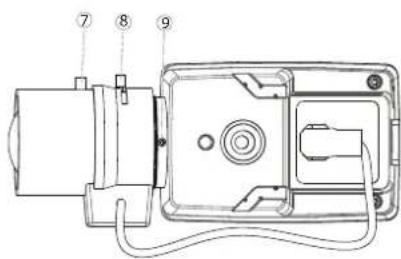
text_image
Technical diagram of an electronic device with numbered components labeled 7, 8, and 9- NetworkLED
- StatusLED
- PowerLED
- Irisconnector
- Networkconnector
- Controlbutton
- Zoompuller
- Focuspuller
- ScrewholdingCSring
LEDIndicators
| LED | Color | Indication |
| Network | Green | Steadyforconnectiontoa100MBit/snetwork.Flashesfornetworkactivity. |
| Amber | Steadyforconnectiontoa10MBit/snetwork.Flashesfornetworkactivity. | |
| UnlitNonetwork | connection. | |
| Status | GreenSteadygreen | enformormaloperation. |
| Amber | Steadyduring startupandwhenrestoringsettings. | |
| Red | Slowflashforfailedupgrade. | |
| Power | Green | Normaloperation. |
| Amber | Flashesgreen/amberduringfirmwareupgrade. |
Note
- The Status LED can be configured to be unlit during normal operation. To configure, go to Setup > System Options > Ports & Devices > LED. See the online help for more information.
- The Status LED can be configured to flash while an event is active.
- The Status LED can be configured to flash for identifying the unit. Go to Setup > System Options > Maintenance .
AccessingtheProduct
ToinstalltheAxisproduct, refertothel InstallationGuidesupplied with the product.
The product can be used with most operating systems and browsers. The recommended browsers are Internet Explorer with Windows, SafariwithMacintoshandFirefoxwithotheroperatingsystems.See TechnicalSpecifications,onpage46 .To view streaming video i Internet Explorer, allow installation of AXIS Media Control (AMC) when prompted.
The Axis product includes one (1) H.264 decoder license for viewing video streams. The license is automatically installed with AMC. The administratorcandisabletheinstallationofthedecoders,toppreventinstallationofunlicensedcopies.
Note
- QuickTime TM is also supported for viewing H.264 streams.
- If your computer restricts the use of additional software components, the product can be configured to use a Java appletforviewingMotionJPEG.
AccessfromaBrowser
- Startabrowser(InternetExplorer, Firefox, Safari).
- Enter the IP address or host name of the Axis product in the browser's Location/Address field. To access the product from a Macintosh computer (Mac OS X), click on the Bonjour tab and select the product from the drop-down list.
If you do not know the IP address, use AXIS IP Utility to locate the product on the network. For more information on how to discover and assign nanIPaddress, refertothelInstallationGuide.
- Enter your user name and password. If this is the first time the product is accessed, the root password must first be configured;forinstructionssee SettheRootPassword,onpage6 .
- The product'sLiveViewpageappearsinyourbrowser.
Note
The controls and layout of the Live View page may have been customized to meet specific installation requirements and userpreferences.Consequently, someoftheexamplesandfunctionsfe aturedheremaydifferfromthosedisplayedin yourownLiveViewpage.

natural_image
Interior view of an art gallery with visitors viewing framed artworks on the wall (no visible text or signage)Accessfromthelnternet
Once connected, the Axis product is accessible on your local network (LAN). To access the product from the Internet you must configure your network router to allow incoming data traffic to the product. To do this, enable the NAT-traversal feature, which will attempt to automatically configure the router to allow access to the product. This is enabled from Setup > System Options > Network>TCP/IPAdvanced.
Formoreinformation,pleasesee NATtraversal(portmapping)forIPv4,onpage35 .SeealsoAXISInternetDynamicDNSServiceat www.axiscam.net For Technical notes on this and other topics, visit the Axis Support web at www.axis.com/techsup
SettheRootPassword
To gain access to the Axis product, you must set the password for the default administrator user root. This is done in the Configure Root Password dialog, which appears when the product is accessed for the first time.
To prevent network eavesdropping, the root password can be set via an encrypted HTTPS connection, which requires an HTTPS certificate. HTTPS (Hypertext Transfer Protocol over SSL) is a protocol used to encrypt traffic between web browsers and servers. The HTTPS certificate ensures encrypted exchange of information.
To set the password via a standard HTTP connection, enter it directly in the first dialog.
TosetthepasswordviaanencryptedHTTPSconnection,followthesesteps:
- Click Create self-signed certificate.
- Provide the requested information and click OK. The certificate is created and the password can now be set securely. All traffictoandfromtheproductisencryptedfromthispointon.
- Enter a password and then re-enter to confirm the spelling. Click OK. The password has now been configured.
Note
- The default administrator user name root is permanent and cannot be deleted.
- If the password for root is lost, the product must be reset to the factory default settings. See ResettoFactoryDefault Settings, onpage40 .

text_image
Create Certificate Secure configuration of the root password via HTTPS requires a self- certificate. Create self-signed certificate... Configure Root Password using HTTP User name: root Password (max 64 characters): Confirm passwords: OK The password for the pre-configured administrator root must be changed before the product can be used. If the password for root is lost, the product must be reset to the factory default settings, by pressing the button located in the product's casing. Please see the user documentation for more information. ONVIF will be disabled. To enable ONVIF go to Setup > System Options > Security > ONVIF Create Self-Signed Certificate Common name: 10.92.25.211 Validity: 365 days [1..9644] *The name of the entity to be certified, i.e. the IP address or host name of this product. Once the certificate is created, this page will close and you will be able to configure the root password via HTTPS. AXIS Configure Root Password using HTTPS User name: root Password (max 64 characters): Confirm password: OK The password for the pre-configured administrator root must be changed before the product can be used. If the password for root is lost, the product must be reset to the factory default settings, by pressing the button located in the product's casing. Please see the user documentation for more information. ONVIF will be disabled. To enable ONVIF go to Setup > System Options > Security > ONVIFSetPowerLineFrequency
Power line frequency is set the first time the Axis product is accessed and can only be changed from Plain Config (see page40) or by resetting the product to factory default.
Select the power line frequency (50 Hz or 60 Hz) used at the location of the Axis product. Selecting the wrong frequency may cause image flicker if the product is used in fluorescent light environments.
When using 50Hz, the maximum framerate is limited to 25fps.
Note
Power line frequency is different in different geographic regions. In the Americas, 60 Hz is usually used; most other parts of the world use 50 Hz. Local variations may apply, always check with the local authorities.
TheLiveViewPage
The controls and layout of the Live View page may have been customized to meet specific installation requirements and user preferences. Consequently, some of the examples and functions featured here may differ from those displayed in your own Live View page. The following provides an overview of each available control.
ControlsontheLiveViewPage

The Stream Profile drop-down list allows you to select a customized or pre-programmed stream profile. Stream profiles are configured under Video > Stream Profiles. See StreamProfiles, onpage14 .

The Manual Trigger button is used to trigger an action rule from the Live View page; see . Enable this button from Live View Config > Action Buttons.

Click Snapshot to save a snapshot of the video image. Right-click the video image to save it in JPEG format on your computer. This button is primarily intended for use when the AXIS Media Control viewer toolbar is not available. Enable this button from Live View Config > Action Buttons.
AXISMediaControlviewer toolbar
The AXIS Media Control viewer toolbar is available in Internet Explorer only. See AXISMediaControl(AMC),onpage 9 formore information. Thetoolbardisplaysthefollowingbuttons:

The Play button connects to the Axis product and starts playing a media stream.

TheStopbuttonstopsthemediastream.

The Snapshot button takes a snapshot of the video image. The location where the image is saved can be specified intheAMCControlPanel.

Click the View Full Screen button and the video image will fill the entire screen. Press ESC (Escape) on the computer keyboardtocancelfullscreenview.

The Record button is used to record the current video stream. The location where the recording is saved can be specified intheAMCControlPanel.
PTZControls
The Live View page also displays Pan/Tilt/Zoom (PTZ) controls. The administrator can enable/disable controls for specified users under SystemOptions>Security>Users.
Note
AccessingtheProduct
Click the Ctrl panel button to open the PTZ control panel which provides additional PTZ controls. User-defined buttons can also appear in the Control panel. See Controls, onpage21.
Select a PTZ preset position to steer the camera view to the saved position. See PresetPositions, onpage20 .
text_image
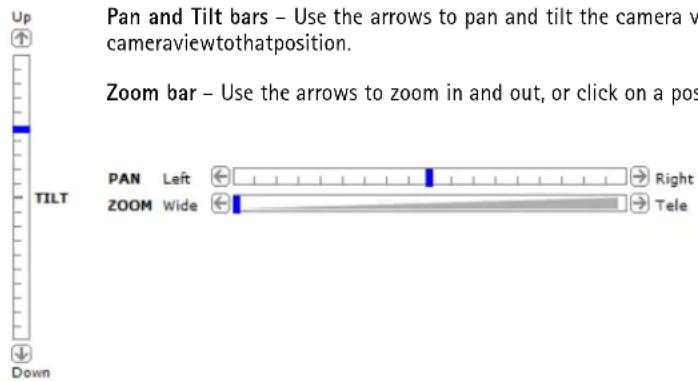
Pan and Tilt bars – Use the arrows to pan and tilt the camera v cameraviewtothatposition. Zoom bar – Use the arrows to zoom in and out, or click on a pos PAN Left Right ZOOM Wide Tele DownPan and Tilt bars – Use the arrows to pan and tilt the camera view, or click on a position on the bar to steer the cameraviewtothatposition.
Zoom bar – Use the arrows to zoom in and out, or click on a position on the bar to zoom to that position.
The PTZ controls can be disabled under PTZ > Advanced > Controls, see Controls, onpage21.
MediaStreams
The Axis product provides several video stream formats. Your requirements and the properties of your network will determine the typeyouuse.
The Live View page in the product provides access to H.264 and Motion JPEG video streams, and to the list of available stream profiles. Other applications and clients can access videostreams directly, without going via theLiveViewpage.
HowtoStreamH.264
The video compression standard H.264 makes good use of bandwidth, and can provide high quality video streams at less than 1 Mbit/s.
Deciding which combination of protocols and methods to use depends on your viewing requirements, and on the properties of your network. The available options in AXISMediaControlare:
| UnicastRTP | Thisunicastmethod(RTPoverUDP)isused forliveunicastvideo,especiallywhenitis importanttoalwayshaveanup-to-datevideo stream,evenifsomeimagesaredropped. | Unicastingisusedforvideo-on-demand transmission so that there is no video traffic onthenetworkuntilaclientconnectsand requeststhestream.Notethatthereareamaximumof20 simultaneousunicastconnections. |
| RTPoverRTSP | Thisunicastmethod(RTPtunneledoverRTSP) is useful as it is relatively simple to configure firewallstoallowRTSPtraffic. | |
| RTPoverRTSPoverHTTP | Thisunicastmethodcanbeusedtotraverse firewalls.Firewallsarecommonlyconfiguredto allowtheHTTPprotocol,thusallowingRTPto betunneled. | |
| MulticastRTP | This method (RTP over UDP) should be used for live multicast video. The video stream is always up-to-date,evenifsomeimagesaredropped.Multicasting provides the most efficient usage of bandwidth when there are large numbers of clientsviewingsimultaneously.Amulticastcannothewever,passanetworkrouterunlesstherouter is configured to allow this. It is not possible to multicast over the Internet, for example. Notealsothatallmulticastviewerscountasoneunicastviewerinthemaximumtotalof20 simultaneousconnections. | |
AXIS Media Control negotiates with the Axis product to determine the transport protocol to use. The order of priority, listed in the AMC Control Panel, can be changed and the options disabled, to suit specific requirements.
Note
H.264 is licensed technology. The Axis product includes one H.264 viewing client license. Installing additional unlicensed copies of the client is prohibited. To purchase additional licenses, contact your Axis reseller.
MJPEG
This format uses standard JPEG still images for the video stream. These images are then displayed and updated at a rate sufficient to create a stream that shows constantly updated motion.
The Motion JPEG stream uses considerable amounts of bandwidth, but provides excellent image quality and access to every image contained in the stream. The recommended method of accessing Motion JPEG live video from the Axis product is to use the AXIS MediaControlInInternetExplorerinWindows.
AXISMediaControl(AMC)
AXIS Media Control (AMC) in Internet Explorer in Windows is the recommended method of accessing live video from the Axis product.
MediaStreams
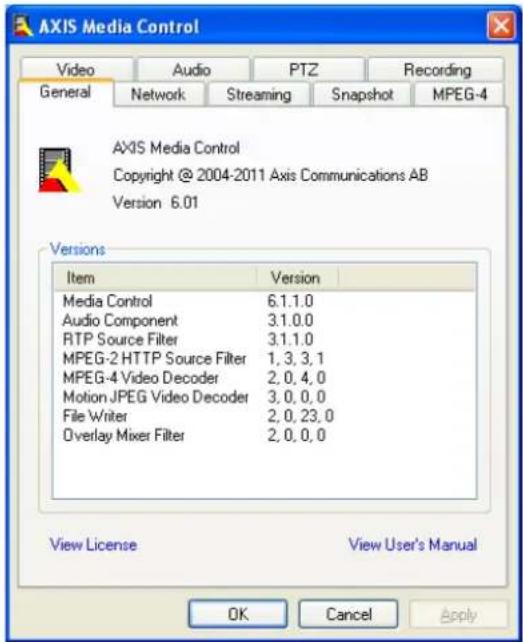
The AMC Control Panel can be used to configure various video settings. Please see the AXIS Media Control User's Manual for more information.
The AMC Control Panel is automatically installed on first use, after which it can be configured. Open the AMC Control Panel from:
- WindowsControlPanel(fromtheStartmenu)
• Alternatively, right-click the video image in Internet Explorer and click Settings.
text_image
AXIS Media Control Video Audio PTZ Recording General Network Streaming Snapshot MPEG-4 AXIS Media Control Copyright @ 2004-2011 Axis Communications AB Version 6.01 Versions Item Version Media Control 6.1.1.0 Audio Component 3.1.0.0 RTP Source Filter 3.1.1.0 MPEG-2 HTTP Source Filter 1, 3, 3, 1 MPEG-4 Video Decoder 2, 0, 4, 0 Motion JPEG Video Decoder 3, 0, 0, 0 File Writer 2, 0, 23, 0 Overlay Mixer Filter 2, 0, 0, 0 View License View User's Manual OK Cancel ApplyAlternativeMethodsofAccessingtheVideoStream
You can also access video and images from the Axis product in the following ways:
- Motion JPEG server push (if supported by the client, Firefox, for example). This option maintains an open HTTP connection to the browser and sends data as and when required, for as long as required.
- Still JPEG images in a browser. Enter the path http://
/axis-cgi/jpg/image.cgi -
Windows Media Player. This requires AXIS Media Control and the H.264 decoder to be installed. The following paths can be used:
-
UnicastviaRTP:axrtpu://
/axis-media/media.amp - UnicastviaRTSP:axrtsp://
/axis-media/media.amp - Unicast via RTSP, tunneled via HTTP: axrtsphttp://
/axis-media/media.amp - Multicast: axrtpm://
/axis-media/media.amp
-QuickTime TM.Thefollowingpathscanbeused:
- rtsp://
/axis-media/media.amp - rtsp://
/axis-media/media.3gp
MediaStreams
Note
=IPaddress
•TheAxisproductsupportsQuickTime6.5.1andlater.- QuickTimeaddslatencytothevideostream.
- It may be possible to use other players to view the H.264 stream using the paths above, although Axis does not guarantee this.
SettingUptheProduct
The Axis product can be configured by users with administrator or operator rights. To open the product's Setup pages, click Setup in thetopright-handcorneroftheLiveViewpage.
- Administratorshaveunrestrictedaccesstoallsettings.
- Operators have access to all settings except System Options
Seealsotheonlinehelp

BasicSetup
BasicSetupprovidesshortcutstothesettingsthat should be made before using the Axis product:
1.Users.See page31.
2.TCP/IP.See page33.
3. Date&Time.See page33.
4.VideoStream.See page13.
5.Focus.See page12
The Basic Setup menu can be disabled from System Options > Security > Users.
FocusAdjustment
The focus can be adjusted under Basic Setup > Focus. Follow the on-screen instructions to adjust the focus. For further information about focus, refertotheproduct's InstallationGuide.
BackFocusAdjustment
Ifthelensischangedtoanon-sta ndardlensorwhenthefocusachievedisnotsatisfactory,adjustthebackfocusasfollows:
- Loosenthescrewthatholds theCS-ring.See HardwareOverview,onpage4
- Direct the cameratow ards an object at least 7 meters away and check that it is possible to focus the camera in both max wide and max teleangles (adjust with the zoom puller).
- Direct the camera towards a close object, about 30 cm away and check that it is possible to focus the camera in both max wideandmaxteleangles(adjustwiththezoompuller).
- Ifitisnotpossibletofocusthecamerainstep2or3, adjusttheCS-ringandgobacktostep2.
- GentlytightenthescrewtosecuretheCS-ring'sposition.
- Adjust the zoom and focus position for the desired view.
Video
It is possible to configure the following video features in your Axis product:
•Videostream.See page13.
- S t r e a mpage14. o files.See
- Camerasettings.See page15.
• V i e w page15e a . S e e
•Overlayimage.See page16.
- Priva page17m ask. See
VideoStream
You can define the following video stream settings from Video > Video Stream:
- l m a page14. S e e
•H.264.See page14.
• M J P Page14. See

text_image
Basic Setup Video Stream Profiles Camera Settings View Area Overlay Image Privacy Mask Live View Config PTZ Detectors Applications Events Recordings System Options About Video Stream Settings Image H.264 MJPEG Image Appearance Resolution: 800x600 (4:3) pixels View area size: 800x600 Compression: 30 [0..100] Mirror image Rotate image: 180 degrees Video Stream Maximum frame rate: Unlimited Limited to [1..30] fps per viewer Overlay Settings Include overlay image at the coordinates: X 0 [0..] Y 0 [0..] Include date Include time Include text: Place text/date/time at top of image Preview View image stream while configuring. Video format: MJPEG Open... Save ResetPixelCount er
Thepix el counter shows the number of pixels in an area of the image. The pixel counter is useful in situations where there is a requirement that the image is a certain size, for example in face recognition.
Thepixelcountercanbeaccessedfrom:
- Video > Video Stream. Under Preview, click Open and select the Show pixel counter option to enable the rectangle in the image. Use the mouse to move and resize the rectangle, or enter the number of pixels in the Width and Height fieldsandclickApply.
Video
- The Live View page in Internet Explorer in Windows. Right-click in the image and select Pixel counter. Use the mouse to move and resize the rectangle.
Image
The default image settings can be configured under Video> Video Stream. Select the Image tab.
The followingsettingsareavailable:
• Resolution. Select the default resolution.
- Compression. The compression level affects the image quality, bandwidth and file size of saved images; the lower the compression, the higher the image quality with higher bandwidth requirements and larger file sizes.
- Rotate image. If required, the image can be rotated.
- Mirror.Ifrequired,theimagecanbemirrored.
• Maximum frame rate. To avoid bandwidth problems, the frame rate allowed to each viewer can be limited.
•Overlaysettings. See Overlay, onpage16 .
ClickSavetoapplythenewsettings.
H.264
H.264, also known as MPEG-4 Part 10/AVC, is a video compression standard that provides high quality video streams at low bit rates. An H.264 video stream consists of different types of frames such as I-frames and P-frames. An I-frame is a complete image whereas P-frames only contain the differences from previous frames.
The GOV length is the number of frames between two consecutive I-frames. Increasing the GOV length may save considerably on bandwidthrequirementsinsomecases,butmayalsohaveanadverseaffectonima gequality.
The bit rate can be set as Variable Bit Rate (VBR) or Constant Bit Rate (CBR). VBRadjuststhebitrateaccordingtotheimage complexity, using up more bandwidth for increased activity in the image, and less for lower image activity. CBR allows you to set a fixed Target bit rate that consumes a predictable amount of bandwidth. As the bit rate would usually need to increase for increased imageactivity, but in this case cannot, framerateandimagequality are affected negatively. To partly compensate for this, it is possible to prioritize either frame rate or image quality. Not setting a priority means that frame rate and image quality are equally affected. You must save your settings before they can take effect.
The current bit rate can be set to appear as text overlay. To do this, select the Include text check box option under Overlay Settings and enter the modifier #b in thefield.
MJPEG
Sometimes the image size is large due to low light or complex scenery. Adjusting the maximum frame size helps to control the bandwidth and storage used by the Motion JPEG video stream in these situations. Setting the frame size to the Default setting provides consistently good image quality at the expense of increased bandwidth and storage usage in low light. Limiting the frame size optimizes bandwidth and storage usage, but may give poor image quality. To prevent increased bandwidth and storage usage, themaximumframesizeshouldbesettoanoptimalvalue.
Stream Profiles
A stream profile is a set of pre-configured stream settings including resolution, compression, frame rate and overlay settings. Streamprofilescanbeused:
- Whensettinguprecordingusingactionrules,see
Events, onpage26 .
- Whensettingupacontinuousrecording,see
ContinuousRecording, onpage29 .
- In the Live View page — select the stream profile from the Stream profile drop-down list.
Video
Four pre-programmed stream profiles are available for quick set up. Each pre-programmed profile has a descriptive name, indicating its purpose. If required, the pre-programmed stream profiles can be modified and new customized stream profiles can be created.
To create a new profile or modify an existing profile, go to Setup > Video > Stream Profiles.
To select a default stream profile for the Live View page, go to Setup > Live View Config.
CameraSettings
The Video > Camera Settings page provides access to advanced image settings for the Axis product.
ImageAppearance
Increasing the Color level increases the color saturation. The value 100 gives maximum color saturation. The value 0 gives a blackandwhiteimage.
The image Brightness can be adjusted in the range 0–100, where a higher value produces a brighter image.
Increasing the Sharpness can increase bandwidth usage. A sharper image might increase image noise especially in low light conditions. Alowersetting reduces imagenoise, but the whole image will appear less sharp.
The Contrast changes the relative difference between light and dark. It can be adjusted using the slider.
WhiteBalance
White balance is used to make colors in the image appear the same regardless of the color temperature of the light source. The Axis product can be set to automatically identify the light source and compensate for its color. Alternatively, select the type of light sourcefromthedrop-downlist.Foradescriptionofeachavailablesetting,seetheonlinehelp
ExposureSettings
Configure the exposure settings to suit the image quality requirements in relation to lighting, framerate and bandwidth considerations.
Exposure value - Click in the bar to fine-tune the exposure.
Enable Backlight compensation - Enable this option if a bright spot of light, for example a light bulb, causes other areas in theimagetoappeartoodark.
Exposure zones - This settings determines which part of the image is used to calculate the exposure. For most situations, the Auto setting can be used. For particular requirement, select predefined area.
Exposurepriority-WhenMotion is prioritized, motion blur in the image is minimized. This can be useful for recognition of moving objects such as people and vehicles. However, prioritizing motion may cause an increase in image noise, especially in low light situations. When Low noise is prioritized, image noise is minimized. The file size is reduced, which can be useful if storage space or bandwidth this limited. However, prioritizing low noise may result in a very dark image, especially in low light situations.
ViewArea
A view a is a cropped part of the full view. The view area is treated as a video source in Live View and has its own video streamandPTZsettings.
When setting up a view area it is recommended that the video stream resolution is the same size as or smaller than the view area size. Setting the video stream resolution larger than the view area size implies digitally scaled up video after sensor capture, requiring more bandwidth without adding image information.
To enable a view area, go to Video > Camera Settings and select Enable View Area.
Toconfiguretheviewarea:
Video
1.GotoVideo>ViewArea.
2. Select an Aspect ratio and a Video stream resolution.
3. Usethemousetomoveandresizetheviewarea.
4. SelectEnablePTZtoenabledigitalPTZfortheviewarea.
5.ClickSavetosavethesettings.
Tip:
- The PTZ functionality is useful during installation of the Axis product. Use a view area to crop out a specific part of thefullview.
Overlay
Overlays are used to provide extra information, for example for forensic video analysis or during product installation and configuration. Overlays are superimposed over the video stream.
An overlay text can display the current date and time, or a text string. When using a text string, modifiers can be used to display information such as the current bit rate or the current frame rate. For information about available modifiers, see FileNaming&
Date/TimeFormats intheonlinehelp.
?
Toenableoverlays:
- Go to Video > Video Stream and select the Image tab.
- To include an overlay image, select Include overlay image at the coordinates. The overlay image must first be uploaded to theAxisproduct, see OverlayImage.
- To include date and time, select Include date and Include time.
-
To include a text string, select Include text and enter the text in the field. Modifiers can be used, see FileNaming&Date/TimeFormats intheonlinehelp.
-
Select the text color, the text background color and the position of the overlay.
6.ClickSave.
To modify the date and time format, go to System Options > Date & Time. See Date&Time,onpage33
OverlayImage
Anoverlayimageisas tatic image superimposed over the video stream. The image, for example company logo, is used to provide extrainformationortomaskapartoftheimage.
To use an overlay image, the image must first be uploaded to the Axis product:
- Go to Video > Overlay Image.
- Click Browse and browse to the file.
3.ClickUpload. - Select the imagetouse from the Use overlay imagelist.
5.ClickSave.
Todisplaytheoverlayimage:
- Go to Video > Video Stream and select the Image tab.
Video
- Under Overlay Settings, select Include overlay image at the coordinates and enter the X and Y coordinates.
3.ClickSave.
Forinformationaboutsupportedimageformats,seetheonlinehelp

PrivacyMask
A privacy mask is an area of solid color that prohibits users from viewing parts of the monitored area. Privacy masks cannot be bypassed via the VAPIX® Application Programming Interface (API).
The Privacy Mask List (Video > Privacy Mask) shows all the masks that are currently configured in the Axis product and indicates if they are enabled.
Youcanaddanewmask,re-sizethemaskwiththemouse,chooseacolorforthemask,andgivethemaskaname.
Formoreinformation,seetheonlinehelp

Important
Adding many privacy masks may affect the product's performance.
LiveViewConfig
You can customize the Live View page and alter it to suit your requirements. It is possible to define the following features of theLiveViewpage.
- S t r e a mpage14r. o file.See
- DefaultViewerforBrowser.See page18.
-ViewerSettings.See page19. - ActionButtons.Thesearethebuttonsdescribedin ControlsontheLiveViewPage,onpage7
• User De fimagle risks.See

text_image
Live View Layout Stream Profile Stream profile: Motion JPEG ✓ Show stream profile selection Default Viewer Windows Internet Explorer: AMC (ActiveX) Other Browsers: Server push Notes: QuickTime is only used with H.264, Motion JPEG will be shown with AMC in Windows Internet Explorer and with server push in other browsers. Viewer Settings ✓ Show viewer toolbar ✓ Enable H.264 decoder installation ✓ Show crosshair in PTZ joystick mode* ✓ Use PTZ joystick mode as default* ✓ Enable recording button *Not applicable to AMC (ActiveX). Action Buttons ✓ Show manual trigger button ✓ Show snapshot button User Defined Links Show custom link 1 Use as: cgi link web link Name: Custom link 1 URL: http:// Show custom link 2 Use as: cgi link web link Name: Custom link 2 URL: http:// Show custom link 3 Use as: cgi link web link Name: Custom link 3 URL: http:// Show custom link 4 Use as: cgi link web link Name: Custom link 4 URL: http:// Save ResetDefaultViewerforBrowser s
From Live View Config > Default Viewer select the default method for viewing video images in your browser. The product attempts to show the video images in the selected video format and viewer. If this is not possible, the product overrides the settings and selectsthebestavailablecombination.
| BrowserViewerDescription | ||
| WindowsInternetExplorer | AMC | RecommendedviewerinInternetExplorer(H.264/MotionJPEG) |
| QuickTime | H.264 | |
| Javaapplet | A slower imaging alternative to AMC (Motion JPEG). Requires one of the followinginstalledontheclient:•JVM(J2SE)1.4.2orhigher•JRE(J2SE)5.0orhigher | |
| StillimageDisplaysstillimagesonly.ClicktheRefreshbuttoninyourbrosertoviewa newimage | ||
| Otherbrowsers | ServerPush | Recommendedviewerforotherbrowsers(MotionJPEG). |
| QuickTime | H.264 | |
| Javaapplet | A slower imaging alternative to Server Push (Motion JPEG only). | |
| StillimageDisplaysstillimagesonly.ClicktheRefreshbuttoninyourbrosertoviewa newimage | ||
For more information, please see the online help ?
Viewer Settings
To configure options for the viewer, go to Live View Config > Viewer Settings.
- Select Show viewer toolbar to display the AXIS Media Control (AMC) or the QuickTime viewer toolbar under the video imageinyourbrowser.
- H.264 decoder installation. The administrator can disable installation of the H.264 decoder included with AXIS Media Control. This is used to prevent installation of unlicensed copies. Further decoder licenses can be purchased from your Axisreseller.
- Select Enable recording button to enable recording from the Live View page. This button is available when using the AMC viewer. The recordings are saved to the location specified in the AMC Control Panel. See AXISMediaControl (AMC), onpage9 .
User Defined Links
To display user-defined links in the Live View page, select the Show custom link option, give the link a name and then enter the URL to link to. When defining a web link do not remove the 'http://" from the URL address. Custom links can be used to run scripts or activate external devices connected to the product, or they can link to a web page. Custom links defined as cgi links will run the script in the background, in a hidden frame. Defining the link as a web link will open the link in a new window.
PTZ(PanTiltZoom)
The PTZ menu is available if digital PTZ (pan, tilt and zoom) is enabled in the selected view area. For more information on view areas, see ViewArea, onpage15 .
PresetPositions
A preset position is a predefined view that can be used to quickly steer the camera to a specific location. Preset positions can be accessed in several ways:
- By selecting the preset from the Preset positions drop-down list in the Live View Page.
- Whensettingupactionrules.See page26.
- WhensettingupGuardTour.See page20.
Toaddapresetposition:
- GotoPTZ>PresetPositions.
- Usethepan, tilt and zoom control, tosteer the camera view to the desired position.
- Enter a descriptive name in the Current position field.
The product can be configured to return to the Home position when the PTZ functionality has been inactive for a specified length of time. Enter the length of time in the field and click Save. Set the time to zero to prevent the product from automatically returning to the Home position.
To include the preset position name in the overlay text, go to Video, select Include overlay text and enter the modifier #P in the field.
Formoreinformationaboutmodifiers,see FileNaming&Date/TimeForma ts intheonlinehelp.

text_image
Basic Setup Video Live View Config PTZ Preset Positions Guard Tour Advanced Detectors Applications Events Recordings System Options About Preset Positions Preset Position Setup Current position: Add Available positions: Home (H) Go to Return to home after: 30 [0..390] seconds, 0 = disabled Save Up TILT Down Opening Motion JPEG >>>> PAR Left Right Home ZOOM Wide Tele Ctrl panelGuardTour
A guard tour displays the video stream from different preset positions, one-by-one, in a predetermined order or at random and for configurable time periods. The enabled guard tour will keep running after the user has logged off or closed the browser.
To add a guard tour:
-
Go to PTZ > Guard Tour and click Add.
2.Enteradescriptivename. -
Specify the pause length between runs.
- SelectanavailablepresetpositionandclickApply.
- Specify theViewTimeinsecondsorminutes.
- Specify the View Order or select the Random view order option.
7.ClickSave.
To modify or remove guard tours, go to PTZ > Guard Tour, select the guard tour in the Guard Tour List and click Modify/Remove.
Formoreinformationseetheonlinehelp

Advanced
Controls
Panel Shortcut Command Buttons can be configured to provide direct access to commands issued via the VAPIX® Application Programming Interface. The buttons will be displayed in the PTZ control panel, which is available in the Live View page through theCtrlpanelbutton,see page7.
Detectors
CameraTampering
Camera Tampering can generate an alarm whenever the camera is repositioned, or when the lens is covered, sprayed or severely defocused. Tosendanalarm, forexampleanemail, anactionrulemustbesetup.
Toconfiguretampering:
- GotoDetectors > CameraTampering.
- Set the Minimum duration, that is, the time that must elapse before an alarm is generated. This can help prevent false alarmsforknownconditionsthataffecttheimage.
- Select Alarm for dark images if an alarm should be generated if lights are dimmed or turned off, or if the lens is sprayed, covered, or rendered severely out of focus.
4.ClickSave.
Toconfiguretheproducttosendanalarmwhentamperingoccurs:
- GotoEvents>ActionRules.
2.ClickAddtosetupanewactionrule. - EnteraNamefortheactionrule.
- Under Condition, select Detectors from the Trigger list.
- SelectTamperingfromthelistofdetectors.
-
Optionally, select as schedule and set additional conditions.
-
Select the action. To send an email, select Send Notification and select a Recipient from the list of defined recipients.
Note
The While the rule is active option under Duration cannot be used with camera tampering, since camera tampering does not have a duration and once it has been triggered it will not automatically return to its untriggered state.
Formoreinformationonactionsrules,see Events,onpage26.
MotionDetection
Motion detection is used to generate an alarm whenever movement starts or stops in the camera view.
Motion detection is configured by defining up to 10 Include and Exclude windows:
- Include windows — define areas where motion should be detected
- Exclude windows – define areas within an Include window that should be ignored (areas outside Include windows are automatically ignored).
Forinstructions,see SetupMotionDetectionWindows,onpage23
To control the number of motion detection alarms, the parameters Object Size, History and Sensitivity can be adjusted. See Motion DetectionParameters, onpage23 .
Once motion detection windows are configured, the Axis product can be configured to perform actions when motion is detected. Possible actions include uploading images and start recording. Form more information, see SettingUpanActionRule, on page 27.
Detectors
Note
Usingthemotiondetectionfeaturemaydecreasetheproduct'soverallperformance.
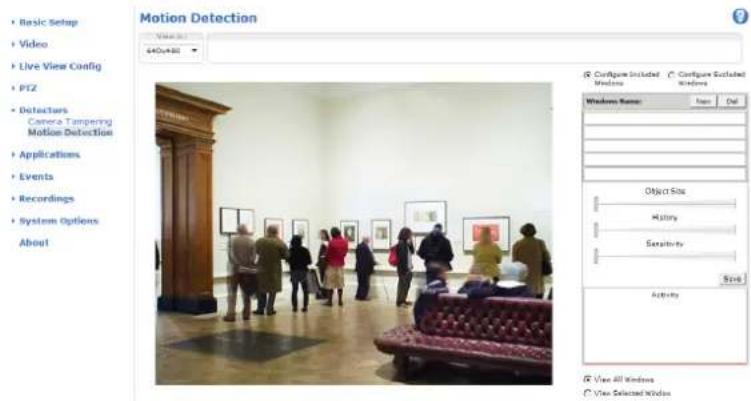
text_image
Motion Detection Basic Setup Video Live View Config PTZ Detectors Camera Tampering Motion Detection Applications Events Recordings System Options About Configure Included Windows Name: Edit Object Size History Sensitivity Start Activity View All Windows View Selected WindowSetUpMotionDetectionWindows
To set up a motion detection Include Window, follow these instructions:
-
GotoDetectors > MotionDetection.
-
Select the Configure Included Windows option and click New. Select the new window in the list of windows and enter adescriptivename.
- Adjust the size (drag the bottom right-hand corner) and the position (click on the text at the top and dragtothedesired position) of the window.
- Adjust the Object Size, History and Sensitivity profile sliders (see MotionDetectionParameters for details). Any detected motion within an active window is indicated by red peaks in the Activity window.
5.ClickSave.
To exclude parts of the include window, select the Configure Excluded Windows and position the exclude window within the includewindow.
Todeleteanincludeorexcludewindow,select the window in the list of windows and click Del.
MotionDetectionParameters
The parameters controlling motion detection are described in the table below:
| Parameter | ObjectSize | History | Sensitivity |
| Description | Objectsizerelativetowindow size. | Objectmemorylength. | Differenceinluminance betweenbackground and object. |
| Highlevel(100%) | Onlyverylargeobjectstrigger motiondetection. | Anobjectthatappearsin thewindowtriggersmotion detectionforalongtime beforeitisconsideredas non-moving. | Ordinarycoloredobjectson ordinarybackgroundstrigger motiondetection. |
| Mediumlevel(50%) | Alargedifferenceinluminance isrequiredtotriggermotion detection. |
Detectors
| Lowlevel(0%) | Evenverysmallobjectstrigger motiondetection. | Anobjectthatappearsin thewindowtriggersmotion detectiononlyforaveryshort timebeforeitisconsideredas non-moving. | Onlyverybrightobjectson adarkbackgroundtrigger motiondetection. |
| Recommendedvalues | 5–15%60–90%75–95% | ||
| Defaultvalues | 15%90%90% |
Note
- To trigger on small objects or movements, use several small motion detection windows rather than one large window and selectalowobjectsize.
- To avoid triggering on small objects, select a high object size.
- If no objects should appear in the Include Window, select a high history level. This will cause motion detection to triggeraslongastheobjectispresentinthewindow.
- To only detect flashing light, select a low sensitivity. In other cases high sensitivity is recommended.
Applications
Third party applications can be uploaded to and installed on the Axis product. For information about available applications, downloads, trials and licenses, got www.axis.com/applications
To upload an application, go to Applications > Overview, click Browse to locate the file and then click Upload Package. Click on the uploaded application's name to open the menu options Settings, License and About. For configuration instructions, please refer to the documentation provided with the application.
Most applications need a license to run. To install the license, select the License menu option. If the product is connected to the Internet, Automatic Installation appears in the web page. If the product is not connected to the Internet, go to www.axis.com/applications to acquire a License key. You will need a license code and the product's serial number (found on the label and under System Options > Support > System Overview) to receive a license key.
Installed Applications lists installed applications with information about the version and the vendor, the status of the application (runningornotrunning), and informationaboutthelicense.
Use the Start and Stop buttons to start and stop the application.
To generate a log file for the application, select the application and click Log.
Note
It is recommended to run one application at a time. Avoid running applications when motion detection is active.
Events
The Axis product can be configured to perform actions when different events occur, for example, start a recording when motion is detected. The set of conditions that defines how and when the action is triggered is called an Action Rule.
Available Action Rule triggers and conditions include:
- Applications – use installed applications to trigger the rule, see Applications,onpage25 .
- Detectors
-MotionDetection—triggertherulewhenmotionisdetected,see MotionDetection,onpage22
- Tampering – trigger the rule when tampering is detected, see CameraTampering, onpage22.
- Hardware
- Network – trigger the rule if network connection is lost or restored.
- InputSignal
- Manual Trigger — trigger the rule using the Manual Trigger button in the Live View page, see ControlsontheLiveViewPage,onpage7 . This can for example be used to validate actions during product installation and configuration.
•PTZ
- Moving — trigger the rule when the camera view moves due to a PTZ operation. This can for example be used as an additional condition to prevent an action rule triggered by motion detection to record video while the cameraviewmovesduetoaPTZoperation.
- Preset Reached — trigger the rule when the camera stops at a preset position. This can be for example be used with the SendImagesactiontouploadimagesfromthepresetposition.
•Storage
Available — trigger the rule when the storage device is unmounted or removed. This can for example be used to send maintenance notifications.
-Full—triggertherulewhenthe storedeviceisfull.Undernormaloperation,theoldestrecordingswillbe overwrittentopreventthestorgagedevicefrombecomingfull.
- Locked – trigger the rule if the storage device is locked (write protected).
•System
- System Initializing — trigger the rule when the product is being started. This can for example be used to send a notificationwhentheproductrestarts.
•Time
-Recurrence—triggertheruleperiodically,see uploadanimageevery5minutes. Recurrences,onpage28 .Thiscanforexamplebeusedto
- Use Schedule – trigger the rule according to the selected schedule, see Schedules, onpage27.
Availableactionsinclude:
- PTZControl
-PresetPosition—gotoapresetposition.
-GuardTour-startaguardtour,see GuardTour,onpage20 .
Events
- RecordVideo—recordvideotoaselectedstorage.
- SendImages— sendimagestoarecipient.
- Send Notifications – send a notification message to a recipient.
- Status LED — flash the LED indicator. This can for example be used to validate triggers such as motion detection during productinstallationandconfiguration.
SettingUpanActionRule
An action rule defines the conditions that must be met for the product to perform an action, for example record video or send email notifications. If multiple conditions are defined, all must be met to trigger the action.
The following example describes how to set up an action rule to record video to a network share if there is movement in the camera's fieldofview.
Setupmotiondetectionandaddanetworkshare:
- Go to Detectors > Motion Detection and configure a motion detection window, see page23
- Go to System Options > Storage and set up the network share, see page38.
Setuptheactionrule:
- Go to Events > Action Rules and click Add.
- SelectEnableruleandenteradescriptivenamefortherule.
- Select Detectors from the Trigger drop-down list.
- Select Motion Detection from the drop-down list. Select the motion detection window to use.
- Optionally, select a Schedule and Additional conditions, see below.
- Under Actions, select Record Video from the Type drop-down list.
- Select a Stream profile and configure the Duration settings as described below.
- Select Network Share from the Storage drop-down list.
To add additional criteria, select the Additional conditions option and add additional triggers. To prevent an action from being triggered repeatedly, a Wait at least time can be set. Enter the time in hours, minutes and seconds, during which the trigger should be ignored before the action rule can be activated again.
The recording Duration of some actions can be set to include time immediately before and after the event. Select Pre-trigger time and/or Post-trigger time and enter the number of seconds. When While the rule is active is enabled and the action is triggered again during the post-trigger time, the recording time will be extended with another post-trigger time period.
Formoreinformation,seetheonlinehelp

Schedules
Schedules can be used as action rule triggers or as additional conditions, for example to record video if motion is detected outside office hours. Use one of the predefined schedules or create a new schedule as described below.
Tocreateanewschedule:
- Go to Events > Schedules and click Add.
- Enter a descriptive name and the information needed for a daily, weekly, monthly or yearly schedule.
3.ClickOK.
Events
To use the schedule in an Action Rule, select the schedule from the Schedule drop-down list in the Action Rule Setup page.
Recurrences
Recurrences are used to trigger Action Rules repeatedly, for example every 5 minutes or every hour.
Tosetuparecurrence:
- Go to Events > Recurrences and click Add.
- Enter a descriptive name and recurrence pattern.
3.ClickOK.
To use the recurrence in an Action Rule, first select Time from the Trigger drop-down list in the Action Rule Setup page and thenselecttherecurrencefromtheseconddrop-downlist.
To modify or remove recurrences, select the recurrence in the Recurrences List and click Modify or Remove.
Recordings
The Axis product can be configured to record video continuously or according to an action rule:
•Tostartacontinuousrecording,see page29.
- Tosetupactionrules,see page27.
•Toaccessrecordings,see RecordingList,onpage29 .
• To configure camera controlled storage, see Storage,onpage38 .
RecordingList
Recorded videos are listed on the Recordings > List page. The list shows each recording's start date and time, duration and the event that triggered therecording.
Toplayordownloadarecording, followthesesteps:
- GotoRecordings>List.
- Use the filter to narrow the list of recordings. Enter the desired filter criteria and click Filter. Some filters may take alongtimetocomplete.
- Selecttherecording.
- Click Play to play the recording, or click Download to download the recording.
Multiple recordings can be downloaded at the same time. Select the recordings and click Download. The downloaded file is a zip file containing a minimum of three files, of which the Matroska (mkv) files are the actual recordings. The recordings are time-stamped withthedateandtimetheyweredownloaded(thatis,notthedatethe recordingsweremade).
Note
To play recordings in Windows Media Player, AXIS Matroska File Splitter must be installed. AXIS Matroska File Splitter can bedownloaded from www.axis.com/techsup/software
For detailed recording and video information, select a recording and click Properties.
To remove a recording, select the recording and click Remove.
ContinuousRecording
The Axis product can be configured to continuously save video to a storage device. See Storage, onpage38 formoreinformation about storage devices. To prevent the disk from becoming full, it is recommended to configure the disk to automatically remove oldrecordings.
Tostartacontinuousrecording,followthesesteps:
- GotoRecordings>Continuous.
- SelectEnabled.
- SelecttypeofstoragedevicefromtheDisklist.
- Select a Stream profile to use for continuous recordings.
5.ClickSavetosaveandstarttherecording.
Recordings
Note
If a new stream profile is selected while a recording is ongoing, the recording will be stopped and saved in the recording list and a new recording with the new stream profile will start. All previous continuous recordings will remain in the recording list until they are removed manually or through automatic removal of old recordings.
SystemOptions
Security
Users
User access control is enabled by default and can be configured under System Options > Security > Users. An administrator can set up other users by giving them user names and passwords. It is also possible to allow anonymous viewer login, which means that anybody may access the liveView page.
Theuserlistdisplaysauthorizedusersandusergroups(accesslevels):
Viewer-AccesstotheLiveViewpage
Operator - Access to the Live View page and to all settings except System Options
Administrator – Unrestricted access to all settings; can add, modify and remove other users.
Under HTTP/RTSP Password Settings, select the type of password to allow. You may need to allow unencrypted passwords if there are viewing clients that do not support encryption, or if you upgraded the firmware and existing clients support encryption but need to login again and be configured to use this functionality.
Under User Settings, select the Enable anonymous viewer login option to allow anonymous users access to the Live View page.
Select the Enable anonymous PTZ control login to allow anonymous users access to the PTZ controls.
Deselect the Enable Basic Setup option to hide the Basic Setup menu. Basic Setup provides quick access to settings that should be made before using the Axis product.
ONVIF
ONVIF (Open Network Video Interface Forum) is a global interface standard that makes it easier for end users, integrators, consultants, and manufacturers to take advantage of the possibilities offered by network video technology. ONVIF enables interoperability between different vendor products, increased flexibility, reduced costandfuture-proofsystems.
Bycreatingauseryouautomaticall yenableONVIFcommunication.UsetheusernameandpasswordwithallONVIFcommunication withtheproduct.Formoreinformationseewww.onvif.org
IPAddressFilter
IP address filtering is enabled on the System Options > Security > IP Address Filter page. Once enabled, the listed IP address are allowedordeniedacces s to the Axis product. Select Allow or Deny from the list and click Apply to enable IP address filtering.
The administrator can add up to 256 IP address entries to the list (a single entry can contain multiple IP addresses).
HTTPS
HTTPS (HyperText Transfer Protocol over Secure Socket Layer, or HTTP over SSL) is a web protocol providing encrypted browsing. HTTPS can also be used by users and clients to verify that the correct device is being accessed. The security level provided by HTTPS is considered adequate for most commercial exchanges.
The Axis product can be configured to require HTTPS when users from different user groups (administrator, operator, viewer) connect.
To use HTTPS, an HTTPS certificate must first be installed. Go to System Options > Security > Certificates to install and manage certificates. See Certificates, on page 32.
ToenableHTTPSontheAxisproduct:
- GotoSystemOptions>Security>HTTPS
SystemOptions
- Select an HTTPS certificate from the list of installed certificates.
- Optionally, click Ciphers and select the encryption algorithms to use for SSL.
- Set the HTTPS Connection Policy for the different user groups.
5.ClickSavetoenablethesettings.
To access the Axis product via the desired protocol, enter https://orhttp://in the address field in a browser.
The HTTPS port can be changed on the System Options > Network > TCP/IP > Advanced page.
IEEE802.1X
IEEE 802.1X is a standard for port-based Network Admission Control providing secure authentication of wired and wireless network devices. IEEE 802.1X is based on EAP (Extensible Authentication Protocol).
To access a network protected by IEEE 802.1X, devices must be authenticated. The authentication is performed by an authentication server, typically a RADIUS server, examples of which are FreeRADIUS and Microsoft Internet Authentication Service.
In Axis implementation, the Axis product and the authentication server identify themselves with digital certificates using EAP-TLS (Extensible Authentication Protocol - Transport Layer Security). The certificates are provided by a Certification Authority (CA). Youneed:
- a C A c e r t i ficatetoauthenticatetheauthenticationserver
- a CA-signed client certificate to authenticate the Axis product.
To create and install certificates, go to System Options > Security > Certificates. See Certificates, onpage32 . M a n y C A c e r t i f i c a t e arepreinstalled.
ToallowtheproducttoaccessanetworkprotectedbyIEEE802.1X:
- GotoSystemOptions>Security>IEEE802.1X.
- Select a CA Certificate and a Client Certificate from the lists of installed certificates.
- Under Settings, select the EAPOL version and provide the EAP identity associated with the client certificate.
- ChecktheboxtoenableIEEE802.1XandclickSave.
Note
For authentication to work properly, the date and time settings in the Axis product should be synchronized with an NTP server. See Date&Time,onpage33 .
Certificates
Certificates are used to authenticate devices on a network. Typical applications include encrypted web browsing (HTTPS), network protection via IEEE 802.1X and secure upload of images and notification messages for example via email. Two types of certificates can be used with the Axis product:
Server/Client certificates - to authenticate the Axis product
CA certificates - to authenticate peer certificates, for example the certificate of an authentication server in case the Axis product is connectedtoanIEEE802.1Xprotectednetwork.
Note
Installed certificates, except preinstalled CA certificates, will be deleted if the product is reset to factory default. Preinstalled CA certificates that have been deleted will be reinstalled.
A Server/Client certificate can be self-signed or issued by a Certificate Authority (CA). A self-signed certificate offers limited protection and can be used before a CA-issued certificate has been obtained.
Toinstallaself-signedcertificate:
- Go to System Options > Security > Certificates.
- Click Create self-signed certificate and provide the requested information.
TocreateandinstallaCA-signedcertificate:
- Createaself-signedcertificateasdescribedabove.
- Go to System Options > Security > Certificates.
- Click Create certificate signing request and provide the requested information.
- CopythePEM-formattedrequestandsendtotheCAofyourchoice.
- When the signed certificate is returned, click Install certificate and upload the certificate.
Server/Client certificates can be installed as Certificate from signing request or as Certificate and private key. Select Certificate and private key if the private key is to be upload as a separate file or if the certificate is in PKCS#12 format.
The Axis product is shipped with several preinstalled CA certificates. If required, additional CA certificates can be installed:
- Go to System Options > Security > Certificates
- Click Install certificate and upload the certificate.
Date&Time
The Axis product's date and time settings are configured under System Options > Date & Time.
CurrentServerTimedisplaysthecurrentdateandtime(24hcl ock).Thetimecanbedisplayedin12hclockinthetextoverlay(see below).
To change the date and time settings, select the preferred Time mode under New Server Time:
- Synchronize with computer time sets date and time according to the computer's clock. With this option, date and timearesetonceandwillnotbeupdatedautomatically.
- Synchronize with NTP Server obtains date and time from an NTP server. With this option, date and time settings are updated continuously. For information on NTP settings, see NTPConfiguration, on page 35.
Ifusingahostna me for the NTP server, a DNS server must be configured. See DNSConfiguration,onpage34 .
- Setmanual ly allows you to manually set date and time.
If using an NTP server, select your Time zone from the drop-down list. If required, check Automatically adjust for daylight saving timechanges.
The Date & Time Format Used in Images is the date and time format displayed as a text overlay in the video stream. Use the predefined formats or see FileNaming&Date/TimeFormats in the online help for information on how to create custom date and time formats. To include date and time in the overlay text, go to Video and select Include date and Include time.
Network
BasicTCP/IPSettings
The Axis product supports IP version 4 and IP version 6. Both versions can be enabled simultaneously, and at least one version mustalwaysbeenabled.
SystemOptions
IPv4AddressConfiguration
By default, the Axis product is set to use IPv4 (IP version 4) and to obtain the IP address automatically via DHCP. The IPv4 settings are configured under System Options > Network > TCP/IP > Basic.
DHCP (Dynamic Host Configuration Protocol) allows network administrators to centrally manage and automate the assignment of IP addresses. DHCP should only be enabled if using dynamic IP address notification, or if the DHCP can update a DNS server. It is then possible to access the Axis product by name (hostname).
If DHCP is enabled and the product cannot be accessed, run AXIS IP Utility to search the network for connected Axis products, or reset theproducttothefactorydefaultsettings(see page40)andthenperformtheinstallationagain.
To use a static IP address, check Use the following IP address and specify the IP address, subnet mask and default router.
IPv6AddressConfiguration
If IPv6 (IP version 6) is enabled, the Axis product will receive an IP address according to the configuration in the network router.
To enable IPv6, go to System Options > Network > TCP/IP > Basic. Other settings for IPv6 should be configured in the network router.
ARP/Ping
The IP address can be set using ARP and Ping. For instructions, see the product's Installation Guide.
ARP/Ping is enabled by default. To disable, uncheck the box under System Options > Network > TCP/IP > Basic.
The ARP/Ping service is automatically disabled two minutes after the product is started, or as soon as an IP address is set. To reset the IP address, the product must be restarted to activate ARP/Ping for an additional two minutes.
Pinging the product is still possible when this service is disabled.
AXISVideoHostingSystem(AVHS)
AVHS used in conjunction with an AVHS service, provides easy and secure Internet access to live and recorded video accessible from any location. For more information and help to find a local AVHS Service Providergotowww.axis.com/hosting
AVHS is enabled by default. The settings are configured under System Options > Network > TCPIP > Basic.
One-clickenabled-Presstheproduct'scontr o button(see HardwareOverview,onpage4 )toconnecttoanAVHSserviceoverthe Internet. Once registered, Always will be enabled and the Axis product stays connected to the AVHS service. If the product is not registered within 24 hours from when the button is pressed, the product will disconnect from the AVHS service.
Always - The Axis product will constantly attempt to connect to the AVHS service over the Internet. Once registered the product will stayconnectedtotheservice.This's option can be used when the product is already installed and it is not convenient to use the one-clickinstallation.
AXISInternetDynamicDNSService
AXISInternetDyna mic DNS Service assigns a host name for easy access to the product. For more information, see www.axiscam.net
Toregisterth e Axis product with AXIS Internet Dynamic DNS Service, go to System Options > Network > TCP/IP > Basic. Under Services, click the AXIS Internet Dynamic DNS Service Settings button (requires access to the Internet). The domain name currently registered at AXIS Internet Dynamic DNS service for the product can at any time be removed.
AdvancedTCP/IPSettings
DNSConfiguration
DNS (Domain Name Service) provides the translation of host names to IP addresses. The DNS settings are configured under System Options>Network>TCP/IP>Advanced.
SystemOptions
Select Obtain DNS server address via DHCP to use the DNS settings provided by the DHCP server.
To make manual settings, select Use the following DNS server address and specify the following:
Domain name – Enter the domain(s) to search for the host name used by the Axis product. Multiple domains can be separated by semicolons. The host name is always the first part of a fully qualified domain name, for example, myserver is the host name in the fully qualified domain name myserver.mycompany.com where mycompany.com is the domain name.
Primary/Secondary DNS server – Enter the IP addresses of the primary and secondary DNS servers. The secondary DNS server is optionalandwillbeusediftheprimaryisunavailable.
NTPConfiguration
NTP (Network Time Protocol) is used to synchronize the clock times of devices in a network. The NTP settings are configured under SystemOptions>Network>TCP/IP>Advanced.
Select Obtain NTP server address via DHCP to use the NTP settings provided by the DHCP server.
To make manual settings, select Use the following NTP server address and enter the host name or IP address of the NTP server.
HostNameConfiguration
The Axis product can be accessed using a host name instead of an IP address. The host name is usually the same as the assigned DNS name. The host name is configured under System Options > Network > TCP/IP > Advanced.
Select Obtain host name via IPv4 DHCP to use host name provided by the DHCP server running on IPv4.
SelectUsethehostnametosetthehostnamemanually.
Select Enable dynamic DNS updates to dynamically update local DNS servers whenever the Axis product's IP address changes.
Formoreinformation,seetheonlinehelp ?
Link-LocalIPv4Address
Link-Local Address is enabled by default and assigns the Axis product an additional IP address which can be used to access the product from other hosts on the same segment on the local network. The product can have a Link-Local IP and a static or DHCP-suppliedIPaddressatthesametime.
This function can be disabled under System Options > Network > TCP/IP > Advanced.
HTTP
The HTTP port used by the Axis product can be changed under System Options > Network > TCP/IP > Advanced. In addition to the default setting, which is 80, any port in the range 1024–65535 can be used.
HTTPS
The HTTPS port used by the Axis product can be changed under System Options > Network > TCP/IP > Advanced. In addition to the default setting, which is 443, any portion in the range 1024–65535 can be used.
To enable HTTPS, go to System Options > Security > HTTPS. For more information, see .
NATtraversal(portmapping)forIPv4
A network router allows devices on a private network (LAN) to share a single connection to the Internet. This is done by forwarding network traffic from the private network to the "outside", that is, the Internet. Security on the private network (LAN) is increased since most routers are pre-configured to stop attempts to access the private network (LAN) from the public network (Internet).
Use NAT traversal when the Axis product is located on an intranet (LAN) and you wish to make it available from the other (WAN) side of a NAT router. With NAT traversal properly configured, all HTTP traffic to an external HTTP port in the NAT router is forwarded to the product.
NAT traversal is configured under System Options > Network > TCP/IP > Advanced.
Note
- For NAT traversal to work, this must be supported by the router. The router must also support UPnP ^TM .
- The router has many different names: "NAT router", "Network router", "Internet Gateway", "Broadband router", "Broadband sharing device" or "Home firewall" but the essential purpose of the device is the same.
Enable/Disable - When enabled, the Axis product attempts to configure port mapping in a NAT router on your network, using UPnPTM. NotethatUPnP ^TM must be enabled in the product (see System Options > Network > UPnP).
Use manually selected NAT router - Select this option to manually select a NAT router and enter the IP address for the router in the field. If no router is specified, the product automatically searches for NAT routers on your network. If more than one router is found, the defaultrouter is selected.
Alternative HTTP port - Select this option to manually define an external HTTP port. Enter the port number in the field. If no port is enteredhere, aportnumberisautomaticallyselectedwhenNATtraversalisenabled.
Note
- An alternative HTTP port can be used or be active even if NAT traversal is disabled. This is useful if your NAT router does not support UPnP and you need to manually configure port forwarding in the NAT router.
- If you attempt to manually enter a port that is already in use, another available port is automatically selected.
- When the port is selected automatically it is displayed in this field. To change this, enter a new port number and click Save.
FTP
The FTP server running in the Axis product enables upload of new firmware, user applications, etc. The FTP server can be disabled underSystemOptions>Network>TCP/IP>Advanced.
Note
This FTP server has nothing to do with the product's ability to transfer images via FTP to other locations and servers.
RTSP
The RTSP server running in the Axis product allows a connecting client to start an H.264 stream. The RTSP port number can be changed under System Options > Network > TCP/IP > Advanced. The default port is 554.
Note
H.264 video streams will not be available if the RTSP server is disabled.
SOCKS
SOCKS is a networking proxy protocol. The Axis product can be configured to use a SOCKS server to reach networks on the other side of a firewall or proxy server. This functionality is useful if the Axis product is located on a local network behind a firewall, and notifications, uploads, alarms, etc need to be sent to a destination outside the local network (for example the Internet).
SOCKS is configured under System Options > Network > SOCKS. For more information, see the online help ?
QoS(QualityofService)
QoS (Quality of Service) guarantees a certain level of a specified resource to selected traffic on a network. A QoS-aware network prioritizes network traffic and provides a greater network reliability by controlling the amount of bandwidth an application may use.
TheQoS settings are configured under System Options > Network > QoS. Using DSCP (Differentiated Services Codepoint) values, the Axis product can mark the following types of traffic: live video, event/alarm traffic and management traffic.
SMTP(email)
To send email messages from the Axis product via SMTP (Simple Mail Transfer Protocol), an SMTP mail server must be set up. This is done under SystemOptions>Network>SMTP(email).
Enter the host names or IP addresses and port numbers for the primary and secondary mail servers in the fields provided. A From email address is also required. If the mail server requires authentication, check Use authentication to log in to this server and enter the necessary information.
SNMP
The Simple Network Management Protocol (SNMP) allows remote management of network devices. An SNMP community is the group of devices and management station running SNMP. Community names are used to identify groups.
The Axis product can be configured to support SNMP on the System Options > Network > SNMP page.
Depending on the level of security required, select the version on SNMPtouse.
SNMP v1/v2 provides the lowest level of security. The community name can be specified as a password for read or read/write access to all supported SNMP devices. The default password for the Read community is public and the default password for the Writecommunityiswrite.
Note
IfHTTPSisenabled,SNMPv1andSNMPv2cshouldbedisabled.
Traps for SNMP v1/v2 are used by the Axis product to send messages to a management system on important events and status changes. Check Enable traps and enter the IP address where the trap message should be sent and the Trap community that should receive them message.
The following traps are available:
- Cold start
- War m s t a r t
- Link up
- Authenticationfailed
SNMP v3 provides encryption and secure passwords. To use traps with SNMP v3, an SNMP v3 management application is required.
To use SNMP v3, HTTPS must be enabled, see . To enable SNMP v3, check the box and provide the initial user password.
Note
The initial password can only be set once. If the password is lost, the Axis product must be reset to factory default, see ResettoFactoryDefaultSettings, onpage40
UPnPTM
TheAxisproductincludessupportforUPnP ^TM . UPn ^TM isenabledbydefaultandtheproductisautomaticallydetectedbyoperating systemsandclientsthatsupportthisprotocol.
UPnP ^TM canbedisabledunderSystemOptions>Network>UPnP TM.
RTP/H.264
The RTP port range and multicast settings are configured under System Options > Network > RTP.
The RTP port range defines the range of ports from which the video ports are automatically selected. For multicast streams, only certainIPaddressesandportnumbersshouldbeused.
Select Always Multicast Video to start multicast streaming without opening an RTSP session.
Bonjour
The Axis product includes support for Bonjour. Bonjour is enabled by default and the product is automatically detected by operating systemsandclientsthatsupportthisprotocol.
Bonjour can be disabled under System Options > Network > Bonjour.
Storage
NetworkShare
Network share allows you to add network storage such as a NAS (Network Attached Storage) or any server that uses CIFS (Common InternetFileSystem) and usethemforstorageofrecordings.
Toaddanetworkshare:
- GotoSystemOptions>Storage.
2.ClickNetworkShare. - Enter the IP address, DNS or Bonjour name to the host server in the Host field.
- Enter the name of the share in the Share field.
- If required, select The share requires login and enter the user name and password.
6.ClickConnect.
To clear all recordings and data from the Axis product's folder on the designated share, click Clear under Storage Tools.
To avoid filling the share, it is recommended to remove recordings continuously. Under Recording Settings, select Remove recordings older than and select then number of days or weeks.
To stop writing to the share and protect recordings from being removed, select Lock under Recording Settings.
Maintenance
The Axis product provides several maintenance functions. These are available under System Options > Maintenance.
Click Restart to perform a correct restart if the Axis product is not behaving as expected. This will not affect any of the current settings.
Click Restore to reset most settings to the factory default values. The following settings are not affected:
•thebootprotocol(DHCPorstatic)
- thestaticlPaddress
- thedefaultrouter
- thesubnetmask
- the system time
•theIEEE802.1Xsettings
•thefocusposition
Click Default to reset all settings, including the IP address, to the factory default values. This button should be used with caution. The Axis product can also be reset to factory default using the control button, see ResettoFactoryDefaultSettings, onpage40 .
To identify the product or test the Status LED, click Flash LED under Identify and specify the duration in seconds, minutes or hours. This can be useful for identifying the product among other products installed in the same location.
For information about firmware upgrade, see UpgradingtheFirmware,onpage41.
Support
SupportOverview
The System Options > Support > Support Overview page provides information on troubleshooting and contact information, should you require technical assistance.
Seealso Troubleshooting, onpage41 .
SystemOverview
To get an overview of the Axis product's status and settings, go to System Options > Support > System Overview. Information that can be found here includes firmware version, IP address, network and security settings, event settings, image settings and recent log items. ManyofthecaptionsarelinkstotheproperSetuppage.
Logs&Reports
The System Options > Support > Logs & Reports page generates logs and reports useful for system analysis and troubleshooting. If contacting Axis Support, please provide a valid Server Report with your query.
SystemLog-Providesinformationaboutsystemevents.
Access Log - Lists all failed attempts to access the product. The Access Log can also be configured to list all connections to the product(seebelow).
Server Report – Provides information about the product status in a pop-up window. The Access Log is automatically included intheServerReport.
You can view or download the server report. Downloading the server report creates a .zip file that contains a complete server report text file in UTF-8 format. Select the Include snapshot with default image settings option to include a snapshot of the product's Live View that also shows the settings specified under Video Stream>Image>Image Appearance. The server report .zip file should always be included when contactingsupport.
Parameter List - Shows the product's parameters and their current settings. This may prove useful when troubleshooting or whencontactingAxisSupport.
Connection List - Lists all clients that are currently accessing media streams.
Crash Report – Generates an archive with debugging information. The report takes several minutes to generate.
The log levels for the System Log and the Access Log are set under System Options > Support > Logs & Reports > Configuration. TheAccessLogcanbec configured to list all connections to the product (select Critical, Warnings & Info). If required, a different log level can be used when sending emails.
Advanced
Scripting
Scriptingallowsexperienceduserstocustomizeandusetheirownscripts.
NOTICE
Improperuse may cause unexpected behavior and loss of contact with the Axis product.
Axis strongly recommends that you do not use this function unless you understand the consequences. Axis Support does not provide assistance for problems with customized scripts.
SystemOptions
To open the Script Editor, go to System Options > Advanced > Scripting. It is recommended to create a backup file before customizing the scripts. If a script causes problems, reset the product to its factory default settings, see page40.
Formoreinformation,seewww.axis.com/developer
FileUpload
Files, for example web pages and images, can be uploaded to the Axis product and used as custom settings. To upload a file, go toSystemOptions>Advanced>FileUpload.
Uploaded files are accessed through http://
PlainConfig
Plain Config is for advanced users with experience of Axis product configuration. Most parameters can be set and modified from this page.Helpisavailablefromthestandardhelppages.
To open Plain Config, go to System Options > Advanced > Plain Config.
ResettoFactoryDefaultSettings
This will reset all parameters, including the IP address, to the factory default settings:
- Disconnectpowerfromtheproduct.
- PressandholdtheControlbuttonandreconnectpower(see HardwareOverview, onpage4 ).
- Keep the Control button pressed for about 15 seconds until the Status indicator flashes amber.
- Release the Control button. The process is complete after about 1 minute (when the Status indicator turns green). The product has been reset to the factory default settings. The default IP address is 192.168.0.90
- Re-assignthelPaddress.
It is also possible to reset parameters to factory default via the web interface. Go to Setup > System Options > Maintenance.
Troubleshooting
CheckingtheFirmware
Firmware is software that determines the functionality of network devices. One of your first actions when troubleshooting a problem should be to check the current firmware version. The latest version may contain a correction that fixes your particular problem. The current firmware version in the Axis product is displayed in the page Setup > Basic Setup and in Setup > About.
UpgradingtheFirmware
When you upgrade the product with the latest firmware from Axis website, the product receives the latest functionality available. Always read the upgrade instructions and release notes available with each new release, before upgrading the firmware.
Toupgrade, followtheseinstructions:
- Save the firmware file to your computer. The latest version of the firmware is available free of charge from Axis website atwww.axis.com/techsup
- Go to Setup > System Options > Maintenance in the products web pages.
- Under Upgrade Server, click Browse and locate the file on your computer. Click Upgrade.
After starting the upgrade process, always wait at least 5–10 minutes before restarting the product, even if you suspect the upgrade has failed.
AXIS Camera Management can be used for multiple upgrades. See www.axis.com for more information.
Note
- Your dealer reserves the right to charge for any repair attributable to faulty upgrade by the user.
- Preconfigured and customized settings are saved when the firmware is upgraded (providingthefeaturesareavailable in the new firmware) although this is not guaranteed by Axis Communications AB.
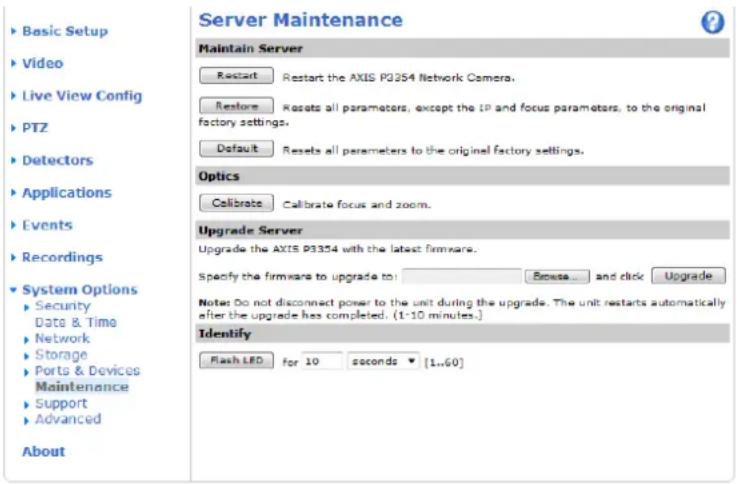
text_image
Server Maintenance Maintain Server Restart Restart the AXIS P3354 Network Camera. Restore Resets all parameters, except the IP and focus parameters, to the original factory settings. Default Resets all parameters to the original factory settings. Optics Calibrate Calibrate focus and zoom. Upgrade Server Upgrade the AXIS P3354 with the latest firmware. Specify the firmware to upgrade to: Browse... and click Upgrade Notes Do not disconnect power to the unit during the upgrade. The unit restarts automatically after the upgrade has completed. (1-10 minutes.) Identify Flash LED For 10 seconds [1..60] Basic Setup Video Live View Config PTZ Detectors Applications Events Recordings System Options Security Date & Time Network Storage Ports & Devices Maintenance Support Advanced AboutEmergencyRecoveryProcedure
If power or network connection is lost during the upgrade, the process fails and the product becomes unresponsive. Flashing red Status indicator indicates a failed upgrade. To recover the product, follow the steps below. The serial number is found on the product's label.
- In UNIX/Linux, typethefollowing from the commandline:
Troubleshooting
arp-s<IPaddress><serialnumber>temp
ping-s408<IPaddress>
In Windows, type the following from a command/DOS prompt (this may require that you run the command prompt as an administrator):
arp-s<IPaddress><serialnumber>
ping-1408-t<IPaddress>
- If the product does not reply in 30 seconds, restart it and wait for a reply. Press CTRL+C to stop Ping.
- Open a browser and type in the product's IP address. In the page that appears, use the Browse button to select the upgrade file to use. Then click Load to restart the upgrade process.
- After the upgrade is complete (1–10 minutes), the product automatically restarts and shows a steady green on the Status indicator.
- Reinstall the product, referring to the Installation Guide.
If the emergency recovery procedure does not get the product up and running again, contact Axis support at www.axis.com/techsup/
Symptoms, Possible Causes and Remedial Actions
ProblemssettingtheIPaddress
| WhenusingARP/Ping | Try the installation again. The IP address must be set within two minutes after power has been appliedtotheproduct.EnsurethePinglengththissetto408.SeethelInstallationGuidefor detailedinstructions. |
| Theproductislocatedona differentsubnet | IfthelPaddressintendedfortheproductandthelPaddressofthecomputerusedtoaccessthe productarelocatedondifferentsubnets,youwillnotbeabletosetthelPaddress.Contactyour networkadministratortoobtainanIPaddress. |
| ThelPaddressisbeingused byanotherdevice | Disconnect the Axis product from the network. Run the Ping command (in a Command/DOS window,typepingandthelPaddressoftheproduct:If you receive: Reply from: bytes=32; time=10... thismeansthatthelPaddressmayalreadybeinusebyanotherdeviceonthenetwork. ObtainanewIPaddressfromthenetworkadministratorandreinstalltheproduct.If you receive: Request timed out, this means that the IP address is available for usewiththeAxisproduct.Checkallcablingandreinstalltheproduct. |
| PossibleIPaddressconflict withanotherdeviceonthe samesubnet. | The static IP address in the Axis product is used before the DHCP server sets a dynamic address. This means that if the same default static IP address is also used by another device, there may beproblemsaccessingtheproduct. |
Theproductcannotbeaccessedfromabrowser
| Cannotlogin | When HTTPS is enabled, ensure that the correct protocol (HTTP or HTTPS) is used when attempting tologin.Youum ay need to manually type http or https in the browser's address field. |
| Ifthepas sword for root is lost, the product must be reset to the factory default settings. See ResettoFactoryDefaultSettings,onpage40 . |
Troubleshooting
| TheIPaddresshasbeen changedbyDHCP | If the product and the client are on the same network, run AXIS IP Utility to locate the product. Identifytheproductusingitsmodelorserialnumber.MovetheAxisproducttoanisolatednetwork,ortoonewithnoDHCPorBOOTPserver.SettheIP address again, using AXIS IP Utility or ARP/Ping (see the Installation Guide). Open the Setup pages anddisabledDHCPintheTCP/IPsettings.Returntheproducttothemainnetwork.Theproduct now has a fixed IP address that will not change. |
| Certificateerrorwhenusing IEEE802.1X | Forauthenticationtoworkproperly,thedateandtimesettingsintheAxisproductshouldbe synchronizedwithanNTPserver.See Date&Time,onpage33 . |
Theproductisaccessiblelocallybutnotexternally
| Router configuration | To configure your router to allow incoming data traffic to the Axis product, enable the NAT-traversal feature which will attempt to automatically configure the router to allow access to the Axis product,see NATtraversal(portmapping)forIPv4,onpage35 .TheroutermustsupportUPnP TM. |
| Firewallprotection | Check the Internet firewall with your network administrator. |
| Defaultroutersrequired | Checkifyouneedtoconfiguretheroutersettings. |
ProblemswiththeH.264format
| NoH.264displayedinthe client | Check that the relevant H.264 connection methods and correct interface are enabled in the AMC ControlPanel(streamingtab).SeeAXISMediaControl(AMC),onpage9. |
| In the AMC Control Panel, select the H.264 tab and click Set to default H.264 decoder. | |
| Check that RTSP is enabled under System Options > Network > TCP/IP > Advanced. | |
| NomulticastH.264 displayedintheclient | Check with your network administrator that the multicast addresses used by the Axis product are valid for your network. |
| Check with your network administrator to see if there is a firewall preventing viewing. | |
| MulticastH.264only accessiblebylocalclients | Checkifyourroutersupportsmulticasting,orifteroutersettingsbetweentheclientandthe product need to be configured. The TTL (Time To Live) value may need to be increased. |
| PoorrenderingofH.264 images | Colordepthsetincorrectlyonclients.Setto16-bitor32-bitcolor. |
| Iftextoverlaysareblurred,orifthereareotherrenderingproblems,youmayneedtoenable AdvancedVideoRenderingfromtheVideotabintheAMCControlPanel. | |
| Ensurethatyourgraphic scardisusingthelatestdriver.Thelatestdriverscanusuallybe downloadedfromthemanufacturer'swebsite. | |
| Colorsaturationisdifferent inH.264andMo tionJPEG | Modify the settings for your graphics adapter. Refer to the adapter's documentation for more information. |
| Lowerframeratethan expected | Reducethenumberofapplicationsrunningontheclientcomputer. |
| Limitthenumberofsimultaneousviewers. | |
| Check with the network administrator that there is enough bandwidth available. | |
| CheckintheAMCControlPanel(H.264tag)thatvideoprocessingisNOTsettoDecodeonly keyframes. | |
| Lowertheimageresolution. |
Troubleshooting
| Whydolnotgetmaximumframespersecond? | See PerformanceConsiderations,onpage47 . |
| The maximum frames per second is dependent on the utility frequency (60/50 Hz) of the Axis product.See TechnicalSpecifications,onpage46 . | |
| Imagedegeneration | Decrease the GOV length. Go to Video > Video Stream and select the H.264 tab to modify the GOVlength. |
StatusandNetworkindicatorLEDsareflashingredrapidly
| Hardwarefailure | ContactyourAxisreseller. |
| Status indicator LED is flashing red and the product is inaccessible | |
| Afirmwareupgradehas beeninterruptedorthe firmwarehasotherwisebeen damaged | See EmergencyRecoveryProcedure,onpage41 . |
| Noimagesdisplayedonwebpage | |
| ProblemswithAXISMedia Control(InternetExplorer only) | ToenabletheupdatingofvideoimagesinInternetExplorer,setthebrowsertoallowActiveX controls. Also, make sure that AXIS Media Control is installed on your computer. |
| Installationofadditional ActiveXcomponent restrictedorprohibited | Configure the Axis product to use a Java applet for updating video images in Internet Explorer. Go to Setup > Live View Config and select Java applet under Default viewer. |
| Videoandimageproblems,general | |
| Imagetoodarkortoolight | Check the video stream and camera settings under Setup > Video > Video Stream and Setup > Video>CameraSettings. |
| Missing images in uploads | This can occur when trying to use a larger image buffer than is actually available. Try lowering theframerateortheuploadperiod. |
| Slow image update | Configuring pre-buffers, motion detection, high-resolution images or high frame rates will affect the performance of the Axis product. |
| Poor performance | Poor performance may be caused by heavy network traffic, multiple users accessing the product, low performance clients, use of features such as motion detection, event handling or uploaded applications. |
| Poorqualitysnapshotimages | |
| Screenincorrectly configuredonyourcomputer | Configure your screen to show at least 65000 colors, that is, at least 16 bits. Using only 16 or 256 colorswillproduceditheringartifactsintheimage. |
| Overlayimageisnotdisplayed | |
| Incorrectsizeorlocationof overlayimage | The overlay image may have been positioned incorrectly or may be too large. See OverlayImage Settings in the online help for more information. |
| Privacymaskisnotdisplayed | |
| Incorrectsizeorlocationof privacymask | Theprivacymaskmayhavebeenpositionedincorrectlyormaybetoolarge. |
Troubleshooting
Browserfreezes
| Firefoxcansometimes freezeonaslowcomputer | Lowertheimageresolution |
| Problemsuploadingfiles | |
| Limited space | There is only limited space available for the upload of your own files. Delete existing files to free upspace. |
| MotionDetectiontriggersunexpectedly | |
| Changesinluminance | Motiondetectionisbasedonchangesinluminanceintheimage.Thismeansthatifthereare sudden changes in the lighting, motion detection may trigger mistakenly. Lower the sensitivity settingtoavoidproblemswithluminance. |
| Focus,zoom,andfan | |
| Remotefocusandzoomdo notwork | In subzero temperatures, function in these hardware parts is suspended until the camera is heated toapproximately 0^(32^) |
| Fan cannot be activated | In subzero temperatures, function in this hardware part is suspended until the camera is heated to approximately 0^(32^) |
TechnicalSpecifications
| Function/group | Item | Specifications |
| Camera | Models | AXISM1113-E |
| Imagesensor | 1/4"progressivescanRGBCMOS | |
| Lens | Varifocal2.9-8.2mm,F1.4,DC-iris,CSmountHorizontalangleofview:65°-25°Verticalangleofview:45°-20°Diagonalangleofview:75°-33° | |
| Minimum illumination | 0,6lux,F1.4 | |
| Shuttertime | 1/24,500to1/6s | |
| Pan/Tilt/Zoom | DigitalPTZ,presetpositions,guardtour | |
| Video | Video compression | H.264(MPEG-4Part10/AVC,Baselineprofile)MotionJPEG |
| Resolutions | 800x600(SVGA)to160x90 | |
| Framerate30fpsinall | resolutions | |
| Videostreaming | Multi-streamH.264andMotionJPEGH.264 and Motion JPEG: 1 stream in full resolution and frame rate. More streams in either compression if identical or limited in frame rate or resolutionControllableframerateandbandwidthVBR/CBRH.264 | |
| Imagesettings | Compression,color,brightness,sharpness,contrast,whitebalance,exposurecontrol,exposurezones,backlightcompensation,finetuningofbehavior atlowlight,mirroring ofimagesMirroringRotation:0°,90°,180°,270°TextandimageoverlayPrivacymask | |
| Network | SecurityPasswordprotection,IPaddres sfiltering,HTTPSencryption*,digestauthentication,user accesslog*This product includes software developed by the Open SSL Project for use in the Open SSLToolkit(www.openssl.org) | |
| Supported protocols | IPv4/v6,HTTP,HTTPS,SSL/TLS,QoSLayer3DiffServ,FTP,SMTP,Bonjour,UPnP,SNMPv1/v2c/v3(MIB-II),DNS,DynDNS,NTP,RTSP,RTP,TCP,UDP,IGMP,RTCP,ICMP,DHCP,ARP,CIFS/SMB,SOCKS,etc.*This product includes software developed by the Open SSL Project for use in the Open SSLToolkit(www.openssl.org) | |
| System Integration | Application Programming Interface | Open API for software integration, including VAPIX® from Axis Communications*, AXIS MediaControlSDK*,eventtriggerdatainvideostream.*availableatwww.axis.comEmbeddedLinuxoperatingsystemSupport for AXIS Video Hosting System (AVHS) with One-Click Camera connection |
| Intelligentvideo | Video motion detection, active tampering alarm, Support for AXIS Camera Application Platformenablinginstallationofadditionalapplications | |
| AlarmtriggersIntelligentvideo | ||
| AlarmeventsFileupload | adviaFTP,HTTPandemailNotificationviaemail,HTTPandTCPGotoPTZpresetGuardtour | |
TechnicalSpecifications
| Function/group | Item | Specifications |
| Videobuffer | 25MBpre-andpostalarm | |
| Videoaccessfrom webbrowser | CameraliveviewVideorecordingtofile(ASF)CustomizableHTMLpagesWindows7,Vista,XP,Server2008,Server2003 DirectX9corhigherForotheroperatingsystemsandbrowersseewww.axis.com/techsup | |
| Installation, management and maintenance | AXISCameraManagementtoolonCDandweb-basedconfigurationFirmware upgrades over HTTP or FTP, firmware available on www.axis.com | |
| General | Casing | Aluminiumandplastic |
| Processor, memory | ARTPEC-3,128MBRAM,128MBFlash | |
| Power | PoweroverEthernetIEEE802.3afClass1 | |
| EdgeStorage | Support for recording to network share (Network Attached Storage or file server) | |
| Connectors | RJ-4510BASE-T/100BASE-TXPoE | |
| Operating conditions | Temperature:-20°Cto50°C(-4°Fto122°F)•Humidity20-80%RH(non-condensing) | |
| Approvals | EN55022ClassB,EN61000-3-2,EN61000-3-3EN61000-6-1,EN61000-6-3,EN55024 FCCPart15SubpartBClassB ICES-003ClassB VCCIClassB C-tickAS/NZSCISPR22 KCCClassA EN60950-1 | |
| Dimensions | 95x126x304mm(3.8"x5"x12") | |
| Weight | 780g(1.72lb.) | |
| Included accessories | Camera stand, Installation Guide, CD with installation tools, recording software and User'sManual,Windowsdecoder1-userlicense | |
| Optional accessories | VarioushousingsAXIST8412InstallationDisplayAXISP8221Net workI/OAudioModule Lenses | |
| Video management software(not included) | AXIS Camera Companion - Basic surveillance, typical for small businesses, where video is recordedtoedgestorageAXIS Camera Station - Fully featured surveillance, typical for medium-sized businesses, wherevideoisrecordedonasystemserver(notincluded) For more software application via partners, see www.axis.com/products/video/software/ |
PerformanceConsiderations
When settings up your system, it is important to consider how various settings and situations will affect performance. Some factors affect the amount of bandwidth (the bit rate) required, others can affect the frame rate, and some affect both. If the load on the CPUreachesitsmaximum,thiswillalsoaffecttheframerate.
The following factors are among them most important to consider:
- High image resolution and/or lower compression levels result in images containing more data. Bandwidth affected.
TechnicalSpecifications
- AccessbylargenumbersofMotionJPEGand/orunicastH.264clients.Bandwidthaffected.
- Simultaneous viewing of different streams (resolution, compression) by different clients. Effect on frame rate and bandwidth.
- Accessing Motion JPEG and H.264 video streams simultaneously. Frame rate and bandwidth affected.
- Heavyusageofeventsettingsaffecttheproduct'sCPUload.Framerateaffected.
- Heavynetworkutilizationduetopoorinfrastructure.Bandwidthaffected.
• Viewing on poorly performing client computers lowers perceived performance. Frame rate affected.