
DR-3200 - Toner BROTHER - Free user manual and instructions
Find the device manual for free DR-3200 BROTHER in PDF.


| Product Type | Toner Cartridge (Remanufactured) |
| Model | Brother TN620 / TN650 (DR-3200 Drum Unit Compatible) |
| Compatible Printers | Brother HL-5340D, HL-5350DN, HL-5350DNLT, HL-5370DW, HL-5370DWT, HL-5380DN, DCP-8080DN, DCP-8085DN, MFC-8480DN, MFC-8880DN, MFC-8890DW |
| Page Yield (TN620) | 3,000 pages at 5% coverage |
| Page Yield (TN650) | 8,000 pages at 5% coverage |
| Drum Unit Life (DR-3200) | 25,000 pages |
| Toner Weight Remaining at End of Life | Approximately 65-70 grams (must be discarded) |
| Toner Fill Weight (TN620) | 115 grams |
| Toner Fill Weight (TN650) | 200 grams |
| Reset Gear Type | Two flags (TN620) or one flag (TN650); spring-loaded |
| Developer Roller Diameter | 42.5 mm |
| OPC Drum Diameter | 94.2 mm |
| Required Tools | Toner-approved vacuum, Phillips screwdriver, jeweler's screwdriver, needle nose pliers |
| Required Supplies | Dedicated toner, developer roller cover, lint-free cloths, toner magnet cloths, white lithium grease |
| Maintenance | Thoroughly clean supply chamber; do not reuse remaining toner |
| Safety Warning | Use toner-approved vacuum; avoid toner dust inhalation |
| Repairability | Remanufacturable; gears and seals replaceable |
| Included Parts | Toner cartridge (drum unit sold separately) |
| Dimensions (approx.) | 30 x 10 x 10 cm (TN650) |
| Weight (approx.) | 1.0 kg (TN650) |
Frequently Asked Questions - DR-3200 BROTHER
User questions about DR-3200 BROTHER
0 question about this device. Answer the ones you know or ask your own.
Ask a new question about this device
Download the instructions for your Toner in PDF format for free! Find your manual DR-3200 - BROTHER and take your electronic device back in hand. On this page are published all the documents necessary for the use of your device. DR-3200 by BROTHER.
USER MANUAL DR-3200 BROTHER
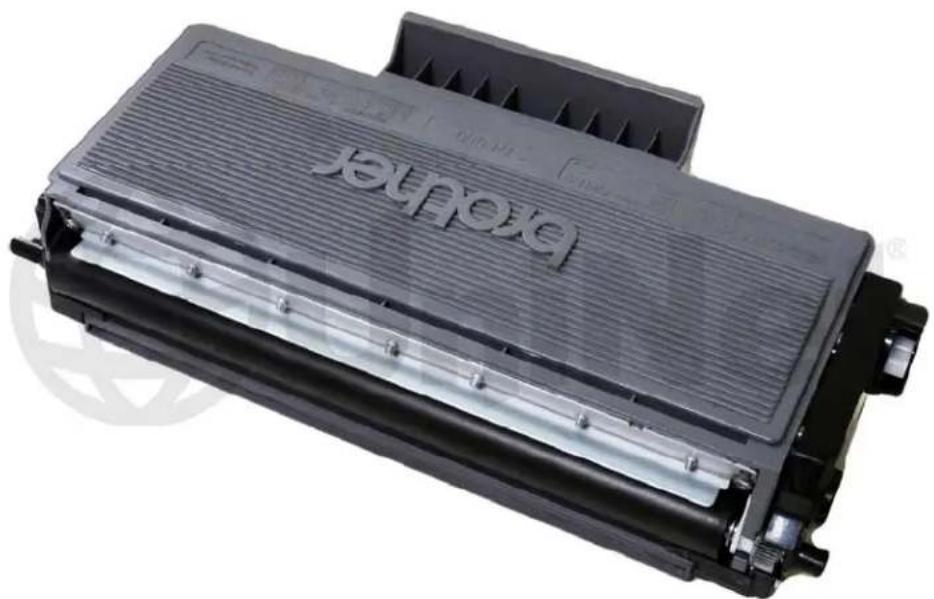
TONER CARTRIDGE REMANUFACTURING INSTRUCTIONS
natural_image
Exterior view of a black rectangular electronic device labeled 'Extruder', showing internal components and mounting brackets (no readable text beyond branding)BROTHER® TN650 TONER CARTRIDGE
REMANUFACTURING THE BROTHER HL-5300 SERIES / TN650 TONER CARTRIDGES
By Mike Josiah and the Technical Staff at UniNet
Released in April 2009, the Brother HL-5300 series printer is based on a new 32ppm, true 1200 DPI laser engine. These machines have a first page out in less than 8.5 seconds and come standard with 16 or 32Mb of memory, depending on the machine. The HL-5300 series also have built-in duplexing. Our HL-5370 machine came with a TN620 cartridge, which is rated for 3,000 pages.
The first section of this article covers the theory behind these cartridges. The first three paragraphs have some interesting information on the reset gears and how they work. The rest is standard Brother theory. If you are not familiar with Brother cartridges, it would be best to read through this entire section. It may save you a few very frustrating hours.
CURRENT MACHINES RELEASED SO FAR:
HL-5340D
HL-5350DN
HL-5350DNLT
HL-5370DW
HL-5370DWT
HL-5380DN
DCP-8080DN
DCP-8085DN
MFC-8480DN
MFC-8880DN
MFC-8890DW
There are two different yielding toner cartridges available for these machines, the TN620/650 (TN3230/3280 for Europe and TN3250/TN32900 for Asia). The TN620 cartridge is rated for 3,000 pages at 5%; The TN650 is rated for 8,000 pages at 5%. The drum unit is new as well (part number DR-620 [DR-3200, DR-3215]) and is rated for 25,000 pages. It will be covered in a future article.
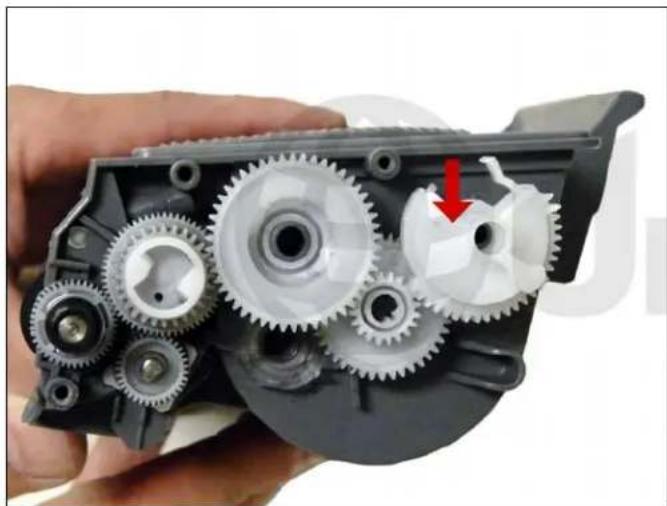
There is a reset gear resets the printer each time a new toner cartridge is installed. In our machine, the starter cartridge was a TN620 and had the reset gear installed. Both the TN620 and the TN650 cartridges use different reset gears. The TN620 gears, in addition to being a different color from the TN650, have two flags on them VS one flag for the TN650. That is how the machine knows if there is a standard or high yield cartridge installed. New high yield reset gears are being developed so that low yield cartridges can be made into high yield.
An interesting point in the reset procedure is what happens in addition to the counter being reset. When the printer senses a new toner cartridge, the bias voltage is set to a high voltage. As the cartridge is used, the bias voltage is reduced gradually down. This process is necessary because according to Brother, a new toner cartridge has a tendency to print light. As the cartridge is used, the density increases. To keep the density level even throughout its life, the density bias voltage is reduced accordingly. Each time a new cartridge is installed, the bias voltage is reset to the high voltage point, and the cartridge page count is reset to zero. Since different yields would dictate different decreases in density over time, Brother uses different reset gears. This was also done in other Brother cartridges, but after a time Brother just went with the high yield gear for both cartridges. Time will tell on what they do with these cartridges.
BASIC BROTHER PRINT THEORY
As with previous Brother cartridges, the waste toner is repelled out of the drum cartridge and picked up by the developer roller in the toner cartridge and brought back into supply chamber. That is why there will always be a good amount of toner left in the supply chamber when the cartridge is finished. This remaining toner MUST be completely removed from the supply chamber before adding new toner. Failure to do this will cause back grounding. In addition to contaminating the toner cartridge, this will also contaminate the cleaning section of the drum cartridge, which in turn will contaminate the toner cartridge again. The reasons for this are explained in the following cartridge theory section.
The cleaning section of the drum cartridge consists of a "cleaning brush" and a recovery blade. The cleaning brush has two opposite charges placed on it during the print cycle. The first attracts any remaining toner off the drum. The second repels the toner off the brush back onto the drum where it then transfers back into the toner cartridge. This is all done in a timing sequence that does not interfere with the printing process. If the cleaning brush becomes contaminated with bad toner that will not accept a charge, the brush will not be able to clean itself and back grounding will occur. It seems to be the nature of contaminated toner that it will accept most of the charge to be cleaned off the drum, but it will not accept the charge that would allow the brush to clean itself off at all. A properly working cleaning brush will at any given time have only a small amount of toner on it. Once contaminated, toner will accumulate, which will only cause the problems to get worse. Since the waste toner is transferred back into the supply of the toner cartridge. Once you print with a bad toner cartridge, the drum unit will become contaminated. Even when you change out the toner with a good properly recycled or new OEM cartridge, the drum unit will transfer some of the bad toner back into the good toner cartridge, which will again cause backgrounding. Both cartridges will be contaminated again. It can be a vicious circle. The remaining "toner" in the toner cartridge is just below the bare minimum that can maintain the proper charge level. When the change toner light comes on, the toner will not charge up to the proper level and will cause the backgrounding. As the toner cartridge reaches the end of it's useful life, the printer senses the low charge level in the toner supply and will try to keep the charge level up. This constant charging keeps an almost "empty" cartridge from back grounding. Once the printer cannot get the remaining toner up to the minimum charge, the change toner light comes on. The cartridge at this point will still be printing properly. If you were to take that same cartridge out of the machine for a few days, and then put it back in the printer with out doing anything to it, the cartridge will shade. This will happen because the charge level that the printer was trying so hard to keep up has dissipated out and the materials left can no longer accept a proper charge.
WHAT DOES THIS ALL MEAN?
- Make sure that your cartridge technicians thoroughly clean out the supply chamber of the toner cartridge.
- In the event that they forget and you have a shading cartridge, the toner must be completely cleaned out again. Do not use the toner over! New fresh toner must be installed.
- The drum unit has to be taken apart and cleaned out with emphasis on the cleaning brush area. This is a very simple process but very necessary once it is contaminated.
According to our tests, there will be approximately 65-70 grams of toner left when the cartridge is spent. This is normal. The remaining toner however, as stated above, is waste only and must be thrown out or there will be backgrounding issues.
How to run test pages, printer trouble shooting, common cartridge problems, as well as how to read the cartridge serial number will be covered at the end of this article.
REQUIRED TOOLS
- Toner approved vacuum
- Phillips head screwdriver
- Small common jeweler's screwdriver
- Needle nose pliers
REQUIRED SUPPLIES
-
Dedicated toner for use in Brother HL-5300 series (200g for TN650, 115g TN620)
-
Developer roller cover
-
Lint free cotton cloths
-
Toner magnet cloths
-
White lithium grease

- Vacuum the exterior of the cartridge. Remove the fill plug from the toner cartridge. Dump the remaining toner and vacuum/blow out the cartridge. Even though the gears are covered on these cartridges, we have found it best to keep one hand over the gear side to protect them.

natural_image
Close-up of a hand holding a damaged firearm component, showing internal parts and a red arrow indicating a specific part (no text or symbols visible)2 On the non-gear side of the developer roller, remove the screw and outer axle cover.

natural_image
Close-up of a mechanical component with red arrows pointing to features, no visible text or symbols- Remove the drum axle plate by pressing on the two tabs as indicated. Pry the plate off.

natural_image
Close-up of a hand holding a mechanical component with red arrows pointing to specific parts (no text or symbols visible)- On the gear side, remove the two screws and cover plate.
natural_image
Close-up of a mechanical gear assembly held in hand, showing internal gears and shafts (no text or symbols visible)
natural_image
Close-up of hands holding a mechanical gear assembly with a red circle highlighting a specific component (no text or symbols visible)- The reset gear is spring-loaded and must be positioned correctly for the printer to accept a new cartridge.
Our printer came with a TN620 starter cartridge that had a reset gear installed so all cartridges would be able to be recycled.

natural_image
Close-up of a hand holding a mechanical gear assembly with visible teeth and gears (no text or symbols)- Remove the black plastic spacer from the developer roller shaft.

natural_image
Close-up of hands assembling a mechanical gear assembly (no text or symbols visible)- Remove the E-Ring.

natural_image
Close-up of hands holding a mechanical device with multiple gears and components (no visible text or symbols)
natural_image
Close-up of hands holding a damaged mechanical component with a red circle highlighting a small metallic part (no text or symbols visible)- Remove all the remaining gears.
Do not lose the reset gear spring!

natural_image
Close-up of hands assembling a black plastic device with a red arrow pointing to a small component (no text or symbols visible)
natural_image
Close-up of a hand holding an open electronic device with visible internal components and a red circle highlighting a specific part (no text or symbols present)- On the gear side of the developer roller, press in on the locking tab and rotate the developer roller lock up.
natural_image
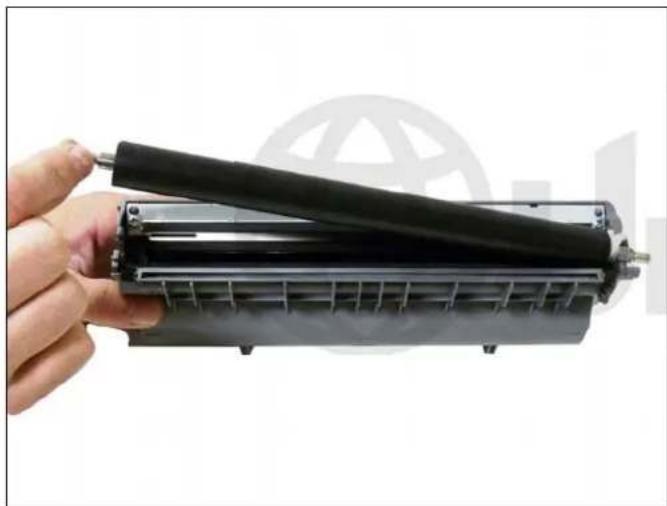
Hand holding a black cylindrical device with a metallic frame, against a plain background (no text or symbols visible)- Remove the developer roller. Vacuum the doctor blade and foam feed roller clean. Until new blades are available, we do not recommend that the doctor blade be removed or the developer roller felt seals disturbed. The doctor blade can be easily cleaned by first blowing off the excess toner and then wiping down, using a lint-free cloth. Be very careful not to leave any lint behind!
natural_image
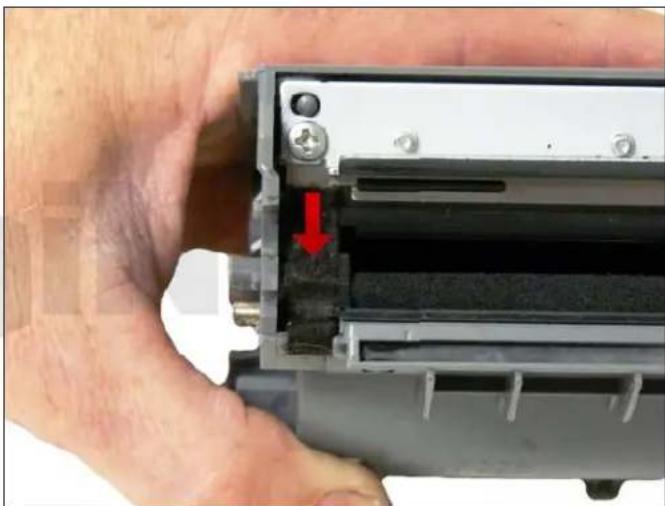
Close-up of a hand holding a mechanical device with a red arrow pointing to a component (no visible text or symbols)- Inspect the magnetic roller felts. If they are compressed (shiny), roughen them out using a small screwdriver. Clean the developer roller with a lint free cloth. Do not use any chemicals other than a dedicated cleaner for Brother rollers to clean the roller. A dry clean cloth will work fine.
natural_image
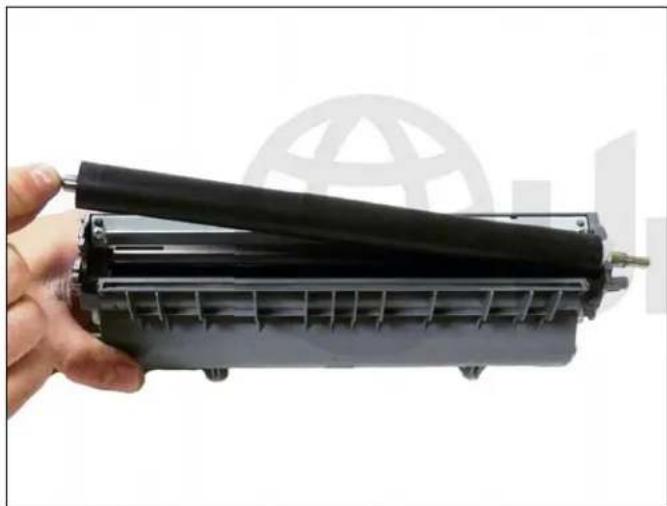
Hand holding a black cylindrical device with a metallic rod, against a white background with a globe graphic (no text or symbols visible)- Re-install the developer roller long shaft side to the gear side, and white lock pointing up.

natural_image
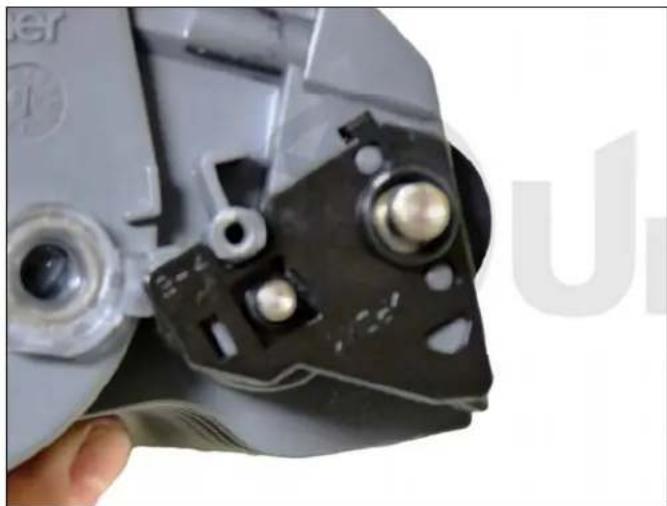
Close-up of a mechanical component with a red arrow pointing to a bolt and shaft (no visible text or symbols)Turn the lock towards the doctor blade until it locks in place.
natural_image
Close-up of a hand holding a mechanical device with metallic components and a white plastic housing (no visible text or symbols)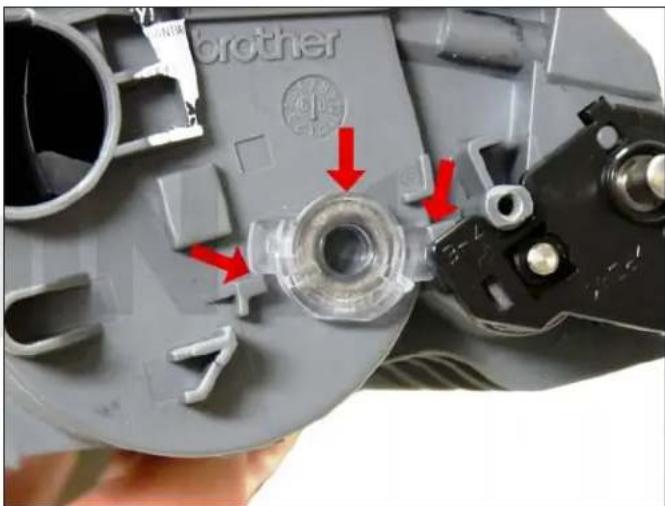
- Install the non-gear side axle plate. Make sure the clear plastic plug for the optical sensor is locked in the proper position. Clean the gears making sure that they have no toner on them. This is a good time to also check the gear shafts to make sure there is enough grease. If the shafts appear dry, or the grease is contaminated with toner, clean the shaft and inside of the gear. Replace the grease with white lithium grease.

natural_image
Close-up of mechanical gear assembly with a red circle highlighting a specific component (no visible text or symbols)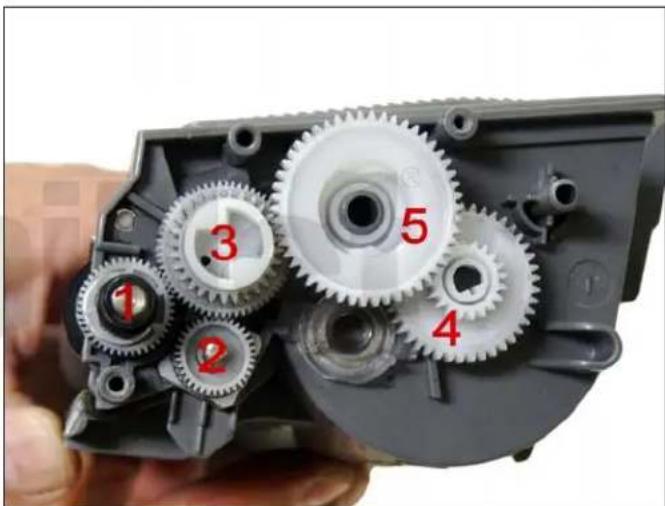
- Install the developer roller gear, E-ring, black axle spacer, and the rest of the gears in the order shown.
Make sure all the gears are meshing properly.

natural_image
Close-up of a mechanical gear assembly with visible gears and shafts, no text or symbols present
natural_image
Close-up of mechanical gears and a mechanical component, no visible text or symbols- Depending on the cartridge you have, set the reset gears as shown:
For the TN620.

natural_image
Close-up of mechanical gears and components, no visible text or symbolsFor the TN650.

natural_image
Close-up of a hand holding a black mechanical component with multiple holes and mounting holes (no visible text or symbols)- Install the gear cover plate and two screws:

natural_image
Close-up of a mechanical component with multiple circular features and a hand holding a cylindrical part (no visible text or symbols)For the TN650.
For the TN620.

natural_image
Close-up of a mechanical component with a red arrow pointing to a small metallic part (no visible text or symbols)- On the non-gear side, install the outer axle plate cover and screw.
natural_image
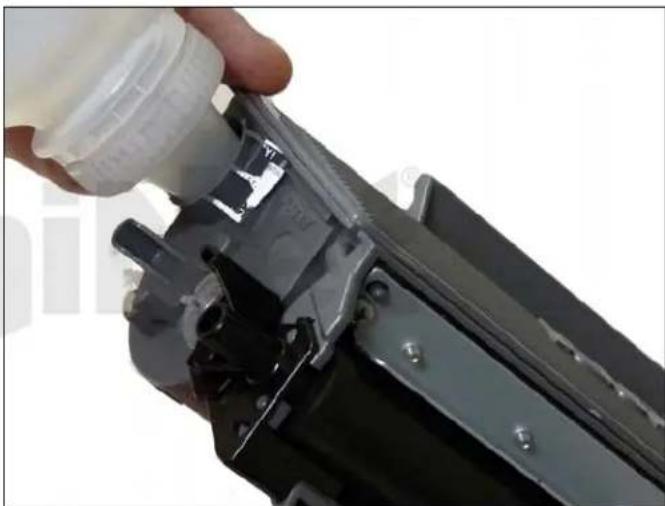
Close-up of a hand pouring liquid into a mechanical component (no visible text or symbols)- Fill the cartridge with black toner for Brother 5300 series.

natural_image
Close-up of a hand holding a gray electronic device with visible lens and components (no readable text or symbols)- Replace the fill plug.

natural_image
Close-up of a black and yellow electronic component with visible internal structure (no text or symbols)- Install the developer roller cover.
Wipe the cartridge down to remove any remaining toner dust.
TEST PAGES
- Press the "GO" Button 1x with the front cover closed and the "READY" light on.
- A test sample page will print
- Press the "GO" Button 2x with the front cover closed and the "READY" light on.
- The font pages will print.
DEFECT CHART
OPC drum 94.2 mm
Upper fuser roller 78.5 mm
Lower pressure roller 78.5 mm
Registration roller 44.0 mm
Developer roller 42.5 mm
If you are experiencing horizontal black streaks and changing cartridges does not help, look in the bottom of the paper tray. There is a small metal ground terminal. If it gets bent or dirty, it can cause this.
Brand : BROTHER
Model : DR-3200
Category : Toner