Zeppelin Air - Speaker BOWERS & WILKINS - Free user manual and instructions
Find the device manual for free Zeppelin Air BOWERS & WILKINS in PDF.


User questions about Zeppelin Air BOWERS & WILKINS
0 question about this device. Answer the ones you know or ask your own.
Ask a new question about this device
Download the instructions for your Speaker in PDF format for free! Find your manual Zeppelin Air - BOWERS & WILKINS and take your electronic device back in hand. On this page are published all the documents necessary for the use of your device. Zeppelin Air by BOWERS & WILKINS.
USER MANUAL Zeppelin Air BOWERS & WILKINS
To use the AirPlay feature, Zeppelin Air must be connected to your existing home network (from now on referred to as 'your home network').
The following procedure will give you a step-by-step guide to set up the AirPlay feature. This is accomplished by accessing the Zeppelin Air setup page using either a MAC or PC. Once accessed you can then name your Zeppelin Air device and allocate the home network to be used to provide the connection.
Before you start please ensure
- You have iTunes ^® 10.1 or later installed on your MAC / PC.
- You know the name of your existing home wireless network and any passwords (also referred to as "network key", "access code" or "phrase key") required to access it.
• You have saved data and closed other programs. - Your Wi-Fi access point (your hub or router) is functioning.
Depending on your operating system and browser the icons and windows may vary from the images shown in this guide.
If anything goes wrong during this process please follow the reset instructions at the end of this guide and try again.
Additional information can be found on the support pages of the Bowers & Wilkins website - www.bowers-wilkins.com

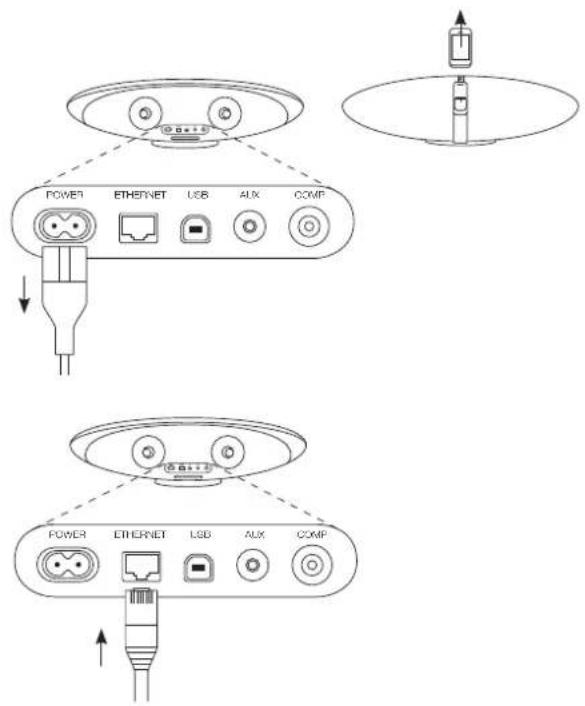
Ensure your iPod or iPhone is not docked when starting this process. Unplug every cable from Zeppelin Air, including the power cable.

Connect one end of the supplied Ethernet cable to the Zeppelin Air, and the other to your Mac/PC.
Do not connect to your router or hub.
text_image
POWER ETHERNET USB AUX COMP POWER ETHERNET USB AUX COMP3 Connect the power cable. Zeppelin will now be in Standby mode.
4 Press power button on the unit once. The indicator will flash purple. Wait until the indicator turns solid purple (could be up to 90 seconds).
If there is no indication or if the indicator turns yellow, double-check that your Ethernet cable is fully connected and repeat the process from step1.
5 Open your browser and type 169.254.1.1 in the address bar. Press return and the Zeppelin Air setup page will open.
If this page cannot be displayed please refer to support pages of the Bowers & Wilkins website.
6 Enter an appropriate name for the Zeppelin Air and click "Apply Now".

text_image
F:\未命名\PC\未命名\USB\打印机\COMPS 90s
text_image
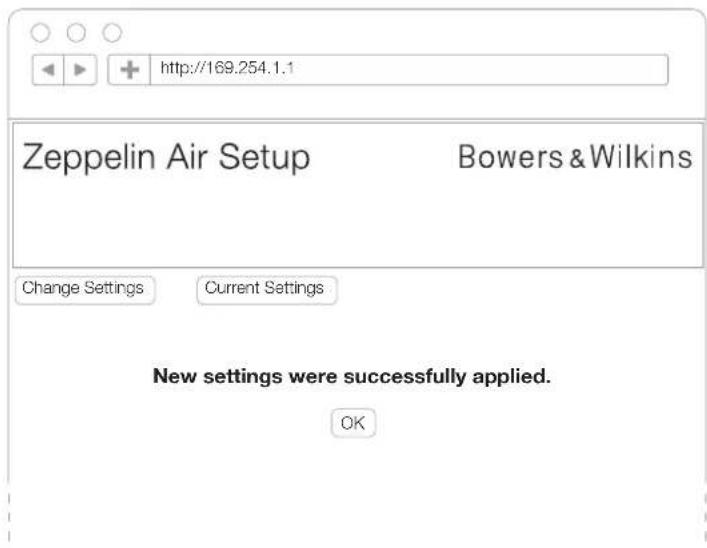
http://169.254.1.1 Zeppelin Air Setup Bowers & Wilkins Change Settings Current Settings Zeppelin Air Wireless Settings Zeppelin Air Name: Zeppelin Air Office Apply Now7 Click on "OK" at the "New setting were successfully applied" page to return to the setup page.
text_image
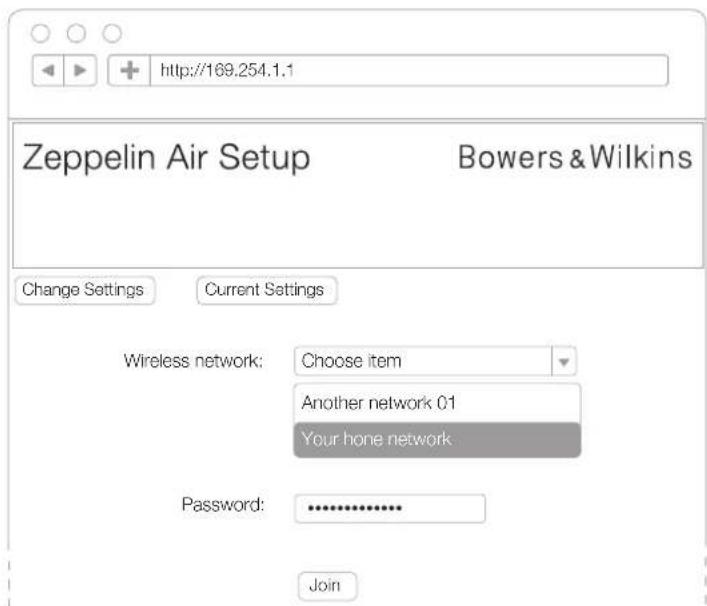
http://169.254.1.1 Zeppelin Air Setup Bowers & Wilkins Change Settings Current Settings New settings were successfully applied. OK8 Choose your home network from the list.
text_image
http://169.254.1.1 Zeppelin Air Setup Bowers & Wilkins Change Settings Current Settings Wireless network: Choose item Another network 01 Your hone network Password: ............. Join9 Carefully type your password
10 Click on 'Join'.
11 Click on 'OK' in the pop up dialog box displaying a warning message.
12 Once the 'New settings were successfully applied' page has loaded disconnect the Ethernet cable from the Zeppelin Air and MAC/PC.
13 The indicator will flash purple. Wait approximately 60 seconds for your Zeppelin Air to connect wirelessly. If successful, the Zeppelin Air's indicator will change from flashing purple to solid purple.
14 Start your iTunes ^® (10.1 or later) application.
15 Open preferences in iTunes.

text_image
http://...... Warning: Incorrect parameters may cause undesired behaviour. To save the new settings, click OK and then unplug the network cable Cancel OK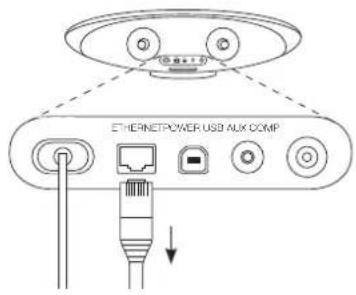
text_image
ETHERNETPOWER USB AUX COMP
text_image
60s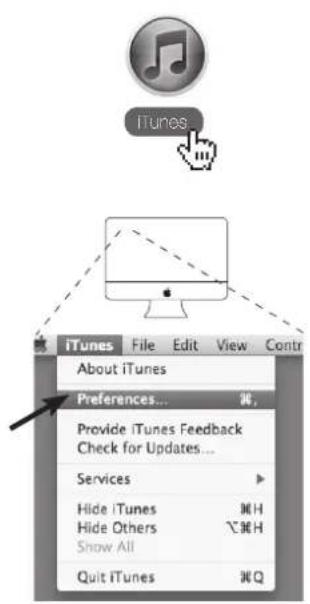
text_image
iTunes About iTunes Preferences... Provide iTunes Feedback Check for Updates... Services Hide iTunes Hide Others Show All Quit iTunes
text_image
iTunes File Edit View Controls Store Advanced Help Undo Ctrl+Z Redo Ctrl+Shift+Z Cut Ctrl+X Copy Ctrl+C Paste Ctrl+V Delete Select All Ctrl+A Select None Ctrl+Shift+A Preferences... Ctrl+,16 Click on the "Devices" tab.
17 Select the options to: Look for remote speakers connected with AirPlay" and "Allow iTunes control from remote speakers". Click OK and close iTunes preferences.
18 Look for the AirPlay icon in the bottom right corner of iTunes, select Zeppelin Air from the drop-down list.
19 Press play. The sound will now be heard from your Zeppelin Air.
If anything goes wrong at any stage during this process, you can start again by resetting the Zeppelin Air. To do this, use a paper clip, or similar small point, to press the reset button located on the back of the device between the USB and Ethernet ports. Hold the button down until the indicator changes to a dim red colour. The Zeppelin Air needs to be powered on for at least one minute before it will reset.
Check the support section of our website if you encounter an error message during this process.

text_image
Apple Microsoft Device Security Close Button Power Push, iPhone and iPad from spring automaticity Allow for remote speakers connected with AirPlay Allow iTunes connected from remote speakers Allow For iPad touch, iPhone and iPad Remotes Target All Remotes Look for remote speakers connected with AirPlay Allow iTunes control from remote speakers Look for iPod touch, iPhone and iPad Remotes Forget All Remotes
text_image
Screenshot of a macOS desktop interface showing file explorer and folder navigation with icons and arrows indicating navigation controls.
text_image
ETHERNETPOWER USB AUX COMP
For further support or to download the ZeppelinAir Reference Manual visit www.bowers-wilkins.com