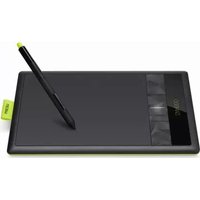
Bamboo Manga - Graphic tablet WACOM - Free user manual and instructions
Find the device manual for free Bamboo Manga WACOM in PDF.


| Product Type | Graphic Tablet |
| Dimensions | Approx. 278 x 176 x 9.8 mm (varies by model) |
| Weight | Approx. 420 g (varies by model) |
| Power Supply | USB bus power (5V) or optional rechargeable Li-Ion battery with wireless kit |
| Main Features | Pressure-sensitive pen (1024 levels), touch input (select models), 4 customizable ExpressKeys, wireless capability (optional), ergonomic design |
| Maintenance and Cleaning | Clean with soft, lint-free cloth. Avoid liquids and abrasives. Store in dry place. |
| Safety | Do not expose to liquids or extreme temperatures. Do not disassemble. Use only Wacom accessories. |
| Spare Parts and Repairability | Replaceable pen nibs, optional wireless kit and battery, replacement pen available |
| General Information | Wacom Bamboo Manga; compatible with Windows and Mac OS; USB interface; requires driver for full functionality |
Frequently Asked Questions - Bamboo Manga WACOM
User questions about Bamboo Manga WACOM
0 question about this device. Answer the ones you know or ask your own.
Ask a new question about this device
Download the instructions for your Graphic tablet in PDF format for free! Find your manual Bamboo Manga - WACOM and take your electronic device back in hand. On this page are published all the documents necessary for the use of your device. Bamboo Manga by WACOM.
USER MANUAL Bamboo Manga WACOM
natural_image
Digital tablet with black body and green accent, featuring a black pen and a yellow 'COCONO' logo (no text or symbols on device)User's manual
Bamboo (CTH-470, CTH-670)
Bamboo Pen (CTL-470)
Setting up
Navigating with touch
Customizing touch
Using the ExpressKeys
Using a pen
Customizing a pen
Going Wireless
Troubleshooting

natural_image
Abstract 3D illustration of six colored spheres arranged in a fan-like pattern (no text or symbols)Bamboo™
User's Manual
Version 1.0, Rev G1511
Copyright © Wacom Co., Ltd., 2011
All rights reserved. No part of this manual may be reproduced except for your express personal use.
Wacom reserves the right to revise this publication without obligation to provide notification of such changes.
Wacom does its best to provide current and accurate information in this manual. However, Wacom reserves the right to change any specifications and product configurations at its discretion, without prior notice and without obligation to include such changes in this manual.
The above year indicates when this manual was prepared. However, the date of release to the users of the “manual” is simultaneous with the introduction into the market of the applicable Wacom product.
Bamboo is a trademark and Wacom is a registered trademark of Wacom Co., Ltd.
Adobe and Photoshop are either registered trademarks or trademarks of Adobe Systems Incorporated in the United States and/or other countries. Microsoft, Windows, and Vista are either registered trademarks or trademarks of Microsoft Corporation in the United States and/or other countries. Apple, the Apple logo, and Mac are trademarks of Apple, Inc., registered in the U.S. and other countries.
Any additional company and product names mentioned in this documentation may be trademarked and/or registered as trademarks. Mention of third-party products is for information purposes only and constitutes neither an endorsement nor a recommendation. Wacom assumes no responsibility with regard to the performance or use of these products.
ExpressKey is a registered trademark of Ginsan Industries, Inc., and is used with permission.
TABLE OF CONTENTS
About the manual 5
YOUR BAMBOO 6
Identify your tablet model 6
Bamboo tablet 7
Bamboo Pen tablet 8
Pen 9
Pen holder 9
SETTING UP YOUR BAMBOO 10
Ergonomics 10
Configuring the tablet orientation 12
Understanding the tablet active area 13
Working with multiple monitors 15
Control panel basics 15
USING YOUR BAMBOO 16
The touch experience with Bamboo 16
Navigating with touch 17
Customizing touch 25
The pen experience with Bamboo 26
Holding the pen 26
Using the pen on the tablet 27
Positioning 27
Clicking 29
Dragging 29
Using the pen buttons 30
Writing and drawing with pressure sensitivity 31
Erasing 32
Eye-hand coordination exercise 33
Customizing pen input 33
Tablet controls 33
ExpressKey basics 34
Customizing the ExpressKeys 34
CUSTOMIZING YOUR BAMBOO 35
Opening the control panel 35
Control panel overview 36
Customize your touch experience 37
Setting the touch options 37
Setting the touch functions 38
Disabling touch 39
Customize your pen experience 40
Setting the tip and eraser feel, and double-click distance 41
Setting the pen button functions 42
Setting the tablet mapping 43
Portion of screen area 45
Portion of tablet area 45
Setting the pen speed in mouse mode 46
Customizing tablet and ExpressKey functions 47
Customizing the Pop-up Menu 48
Working with Display Toggle 49
Button functions 50
GOING WIRELESS WITH YOUR BAMBOO 55
Wireless accessory components 55
Wireless setup 56
Establishing a wireless connection 57
Optimizing the wireless connection 59
Battery and power management 60
Charging the battery 60
Battery and wireless connection status 61
Power saving features 62
Battery life information 63
Replacing the battery 64
Wireless module removal 65
Wireless receiver storage 66

BAMBOO™
Contents
Index


4
PROBLEMS WITH YOUR BAMBOO? 67
Testing your tablet 68
Testing a pen 70
Troubleshooting tables 71
General problems 71
Touch input problems 72
Pen input problems 73
Wireless connection problems 75
Windows-specific problems 77
Mac-specific problems 78
Technical support options 80
Obtaining driver downloads 81
APPENDIX 82
Caring for Bamboo 82
Replacing the pen nib 83
Bamboo Dock 84
Uninstalling Bamboo 84
Managing preferences 85
Pen and digital ink capabilities in Windows 86
Product information 87
Ordering parts and accessories 88
Available parts and accessories 88
GLOSSARY 89
INDEX 92
ABOUT THE MANUAL
This manual provides quick access to information about your Bamboo. The information is common to Windows and Mac computers and Windows screen captures are shown, unless otherwise noted.
- Go directly to table of contents or index topics by clicking on them.
- Use the navigation controls to move through the manual.

Go to front page.
Contents
Go to table of contents. Page back, page forward.
Index
Go to index. Go back to previous view.

topic
Go to topic. Topic continued.

- You can use your .pdf viewer zoom-in tool to increase the size of the manual on your display screen. Most .pdf viewers include additional tools for using and printing the manual. See the viewer application help for more information.
- SMALL CAPITAL LETTERS are used to identify the names of keyboard keys, dialog boxes, and control panel options.
- Be sure to see also the Important Product Information guide for Bamboo, located on the Bamboo Installation CD. The guide includes product safety precautions, specifications, and your license agreement.
- The following information is not included with this product: information about your specific computer hardware or operating system, or information about your application software. Your best source for this information is the set of manuals and discs that came with your hardware, operating system, or application.
- In addition to the built-in inking support found within Microsoft Windows 7 and Vista, many graphics applications also support pressure sensitivity and the pen eraser (when equipped). You can find a listing of applications that support these features on Wacom's web site (see product information).
- For information on how best to use Bamboo features within a specific application, see the instructions in that application's manuals.
Note: This manual does not describe how to install your Wacom tablet. Please refer to your product Quick Start Guide, and use the automated software installer (located on the Bamboo Installation CD).
Wacom's philosophy is to continually improve all of its products. As a result, engineering changes and improvements are made from time to time. Therefore, some changes, modifications, and improvements may not be covered in this manual.
YOUR BAMBOO
This section introduces you to your Bamboo. The quickest way to learn about your Bamboo tablet is to become familiar with its appearance and features.
- Not all product models are available in all regions.
- Your Bamboo tablet can only be used with compatible Wacom pens or input devices. Wacom cannot guarantee compatibility with older tablets or pens. You cannot use pens or input devices from a previous version Bamboo tablet. Nor can a pen from your new Bamboo tablet be used with other Wacom tablets or a previous version Bamboo tablet.
Identify your tablet model
Bamboo tablet
Bamboo Pen tablet
Pen
Pen holder
IDENTIFY YOUR TABLET MODEL
Each tablet model within the Bamboo family has a specific feature set. Not all models are available in all regions.
TABLET MODEL TOUCH INPUT PEN INPUT EXPRESSKEYS
| Bamboo(models CTH-470, CTH-670) | X | X | X |
| Bamboo Pen(model CTL-470) | X |
Icons are located near some of the topic headings in this manual. Use them to quickly identify sections that have information specific to touch or pen input.
- Touch input is identified by this icon:

- Pen input is identified by this icon:

Icons do not appear in common sections that may apply to all Bamboo tablet models.
Model-specific notes may be used as necessary.
BAMBOO TABLET


Status LED
Glows blue when Bamboo is connected to an active USB port. Brightens when you touch the active area or press an ExpressKey.
Glows white when using the pen.
For wireless operation, see battery and wireless connection status.
USB cable, detachable Disconnect the USB cable when storing Bamboo. Do not wrap the cable around the tablet.
Battery compartment, located beneath tablet See wireless setup.
Wacom wireless module slot
Storage compartment, for Wacom wireless receiver
See going wireless with your Bamboo.

Active area
This is the active area for pen and touch input. Learn about the pen experience and touch experience with Bamboo.
Glows blue when Bamboo is connected to an active USB port.
Brightens when using the pen.
USB cable, detachable
Disconnect the USB cable when storing Bamboo. Do not wrap the cable around the tablet.
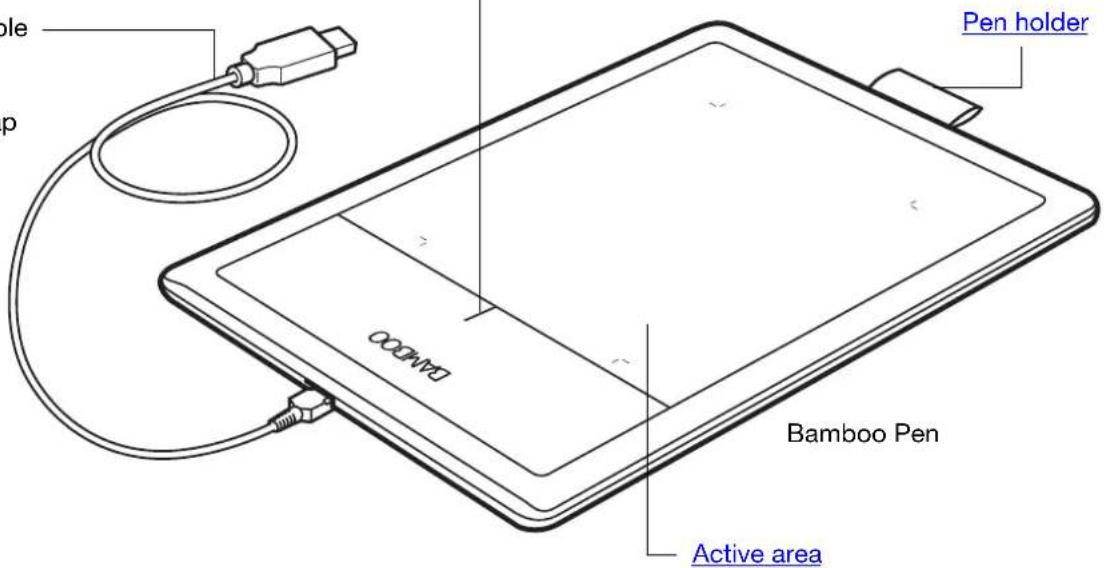
This is the active area for pen input. Learn about your pen and the pen experience with Bamboo.
PEN

Eraser (when equipped)

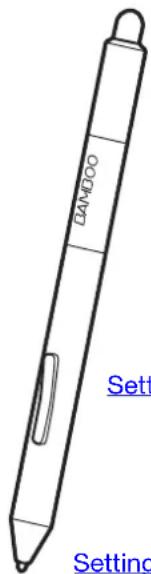
Pen
Cordless, battery-free, and pressure sensitive. Use this freehand tool for image editing and creating natural-looking pen strokes. It is also an efficient tool for document annotation and taking notes in applications that support handwriting recognition.
You will find the pen ideally suited to enhance your workflow by enabling the pen and digital ink features found within Microsoft Windows 7, Vista, and Office 2007 or later. Take advantage of digital mark-up for collaborative editing and use digital ink to take notes in applications that support handwriting recognition.
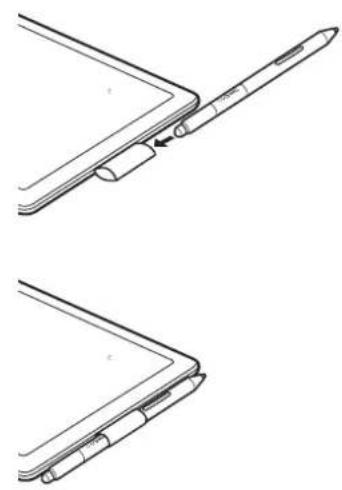
Important: When not in use, place the pen in the pen holder or lay it flat on your desk. The eraser end of the pen should be inserted first into the loop. To maintain the sensitivity of your pen, do not store it in a container where it will rest on the tip or eraser.
Leaving the pen on the tablet may interfere with screen cursor positioning when using other pointing devices, or may prevent your computer from going to sleep.
Replaceable nib (pen tip)
PEN HOLDER

When not in use, store the pen in the pen holder.
- Insert the eraser end of the pen into the loop.
- Do not wedge the pen buttons inside the loop. Doing so may cause the buttons to be continually depressed and possibly fail.
Important: You can also lay the pen flat on your desk. Leaving the pen on the tablet may interfere with screen cursor positioning when using other pointing devices, or may prevent your computer from going to sleep.
Do not store the pen in a holder or stand other than the one provided with your Bamboo tablet or purchased from Wacom. The pen may be damaged if it falls out of an unsuitable stand. The sensitivity of your pen may be affected if stored in a container where it rests on the tip or eraser.
natural_image
Technical line drawing showing two views of a flexible electronic device with a stylus, no text or symbols presentSETTING UP YOUR BAMBOO
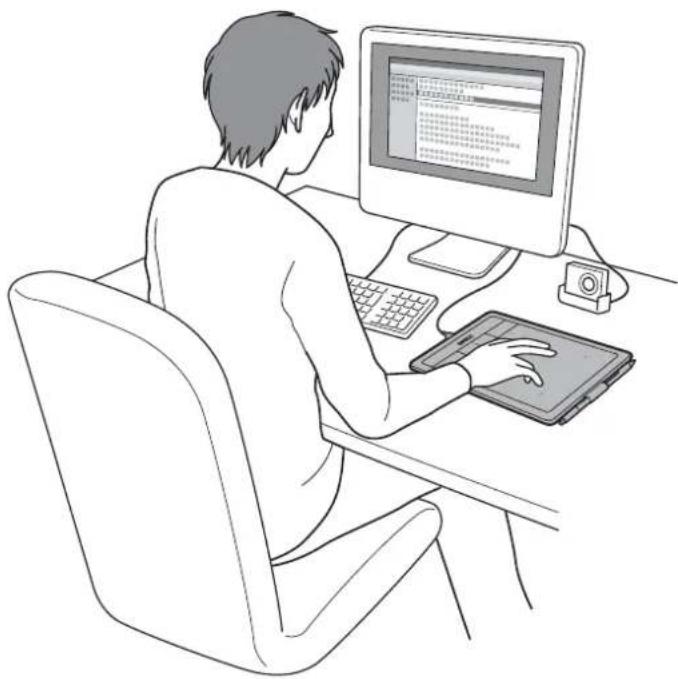
To minimize fatigue, comfortably organize your work area. Position your tablet, pen, and keyboard for easy access without unnecessary reaching. Adjust your monitor so you can view it comfortably with minimum eyestrain. For best results, position the tablet so the screen cursor follows the same direction as your hand movements on the tablet.
Ergonomics
Configuring the tablet orientation
Understanding the tablet active area
Working with multiple monitors
Control panel basics
ERGONOMICS

natural_image
Line drawing of a person using a computer at a desk with a monitor and tablet (no text or symbols)- Maintain a good posture at all times.
- Use a gentle grip when working with the pen.
- Periodically shift your gaze from your computer and focus on other objects within the room. This will help to relax your eyes.
• Take short breaks between tasks to stretch and relax your muscles. - Alternate tasks and tools throughout the day. Minimize awkward postures and repetitive movements that cause discomfort.
- Change your position if you feel any discomfort due to your work position.
- For right-handed use, position the tablet so the input (active) area is located to the right of the ExpressKeys. If using the tablet as a primary pointing device and mouse replacement, consider placing it to the right of your keyboard.
- For left-handed use, position the tablet with the input area to the left of the ExpressKeys. See configuring the tablet orientation. If using the tablet as a primary pointing device and mouse replacement, consider placing it to the left of your keyboard.
- If using the tablet primarily as a creative tool, consider placing the tablet below the keyboard, centered with respect to your monitor.
Note regarding RSI: Wacom makes no representation, promise or guarantee that Wacom products will cure or prevent, in whole or in part, mouse-induced repetitive stress symptoms, injuries or conditions. Individual results may vary. Always obtain competent medical advice to determine the most appropriate treatment for your specific situation.

As you work, you will discover many ways of interacting with your Bamboo tablet. For example:

Visual browsing
Use two fingers on the tablet surface to scroll through and navigate visual media within an application.
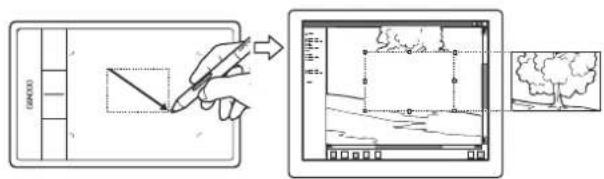
Photo editing
Use the pressure-sensitive pen to edit images within a photo or image editing application.
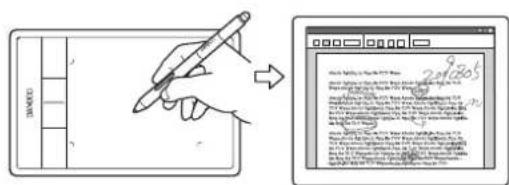
Annotation
Simplify document reviews by using the pen to digitally mark-up and annotate documents.
natural_image
Line drawing of a person sitting at a desk using a computer, with no visible text or symbols
flowchart
graph TD
    A["Start"] --> B["手触屏操作"]
    B --> C["数据采集与存储"]
    C --> D["系统监控与反馈"]
    D --> E["用户界面监控"]
    E --> F["系统交互与反馈"]
    F --> G["用户界面显示与反馈"]
    G --> H["系统响应与反馈"]
Presentation
Swipe three fingers across the tablet surface to quickly move between slides in a presentation.
For details on these and other ways to work with your tablet, see the touch experience with Bamboo or the pen experience with Bamboo.
CONFIGURING THE TABLET ORIENTATION
When you first installed Bamboo, you were prompted to choose a default tablet orientation. The orientation you chose was used to determine the tablet default settings.
However, you can easily reconfigure Bamboo for left- or right-handed users at any time. The ExpressKey settings are automatically reconfigured when you change the handedness setting.
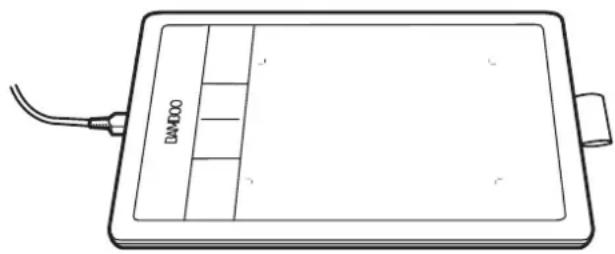
Right-handed operation:
- Open the Bamboo control panel and select the TABLET tab. Choose RIGHT HANDED. The tablet driver automatically configures all aspects of the tablet for correct right-handed use.
- Next, physically rotate your tablet so the tablet ExpressKeys are positioned to the left.
natural_image
Line drawing of a rectangular electronic device with a screen and cable, no text or symbols presentLeft-handed operation:
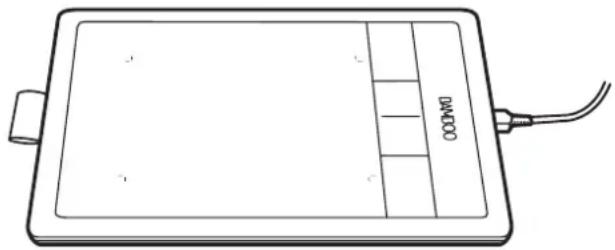
- Open the control panel_ and select the TABLET tab. Choose LEFT HANDED. The tablet driver automatically configures all aspects of the tablet for correct left-handed use.
- Next, physically rotate your tablet so the tablet ExpressKeys are positioned to the right.
natural_image
Line drawing of a rectangular electronic device with a screen and cable, no text or symbols present.Note: This procedure does not affect the default orientation. At the system log on and user switching screens, the tablet uses the default orientation you chose during the install process. To change the default orientation, you must re-install the tablet driver.
UNDERSTANDING THE TABLET ACTIVE AREA
Depending on your tablet model, Bamboo can accept pen input or both pen and touch input. Note, however, that pen and touch input cannot be used at the same time.
Touch input
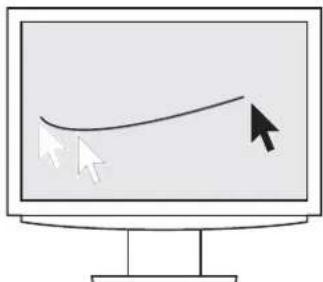
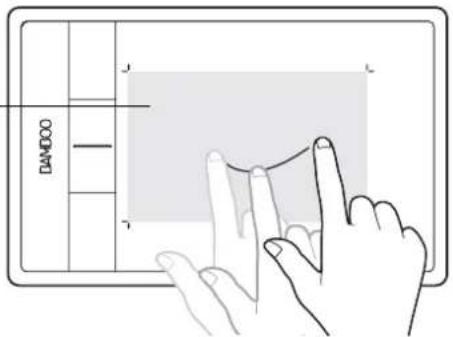
On touch-sensitive tablet models, slide your finger(s) across the active area to position the screen pointer.
- Click or right-click.
- Scroll or zoom.
- Move between pages in most web browsers and document or picture viewers.
- Switch between applications and perform other desktop functions.
Learn about the touch experience with Bamboo.
natural_image
Computer monitor displaying a curved arrow with two white arrows pointing at it, no text or symbols present.Tablet active area
The area of your Bamboo tablet that senses touch or pen input. For tablet models that support both pen and touch input, touch is ignored whenever the pen tip or eraser is within the tablet proximity range. Lift the pen and your hand away from the tablet active area to enable touch input.

Pen input
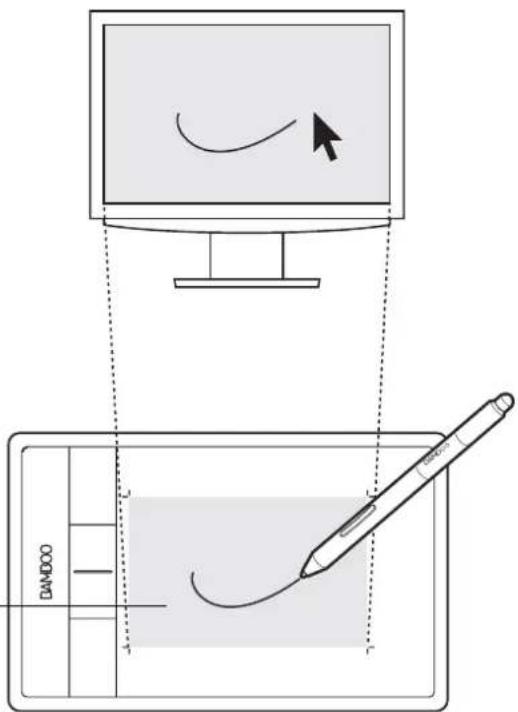
The pen works only on the active area of the tablet.
Wherever you place the pen on the tablet, the screen pointer will jump to the corresponding point on the screen. The screen pointer indicates pen position, and follows the movement of the pen across the tablet surface.
Learn about the pen experience with Bamboo.
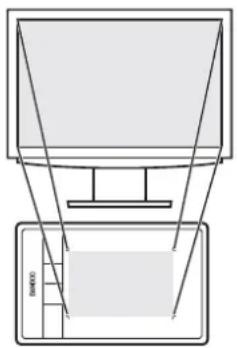
Note: The active area is a mapped representation of your computer screen(s). By default it uses the entire screen or all screens if you have multiple displays. You can customize the mapping relationship for pen input by setting the tablet mapping.
Tablet active area
The area of your Bamboo tablet that senses touch or pen input.
For tablet models that support both pen and touch input, touch is ignored whenever the pen tip or eraser is within the tablet proximity range. Lift the pen and your hand away from the tablet active area to enable touch input.
WORKING WITH MULTIPLE MONITORS
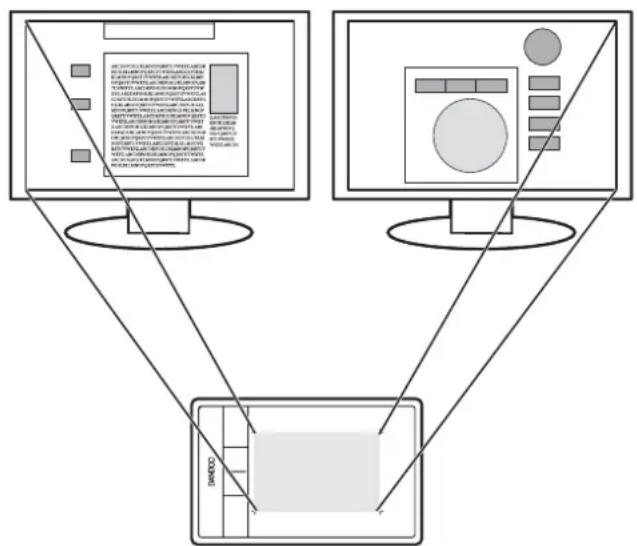
If your computer is equipped with more than one monitor, Bamboo will map to your monitors based upon how they are configured in the display properties control panel.
- If more than one monitor is in use and you are in extended monitor mode, the tablet maps to all monitors as if they were one large display.

natural_image
Line drawing of a computer monitor setup with a baseplate and stand (no text or symbols)Example of tablet mapping to a single monitor.
Monitor 1 Monitor 2
flowchart
graph TD
    A["Computer 1"] -->|Signal Line| D["Device 1"]
    B["Computer 2"] -->|Signal Line| D["Device 1"]
    D -->|Signal Line| C["Device 1"]
Example of tablet mapping to the entire system desktop, which is displayed on two monitors.
- If your monitors are in mirror mode (both monitors display the same content), the tablet maps to the entire space on each monitor and the screen cursor is displayed on each monitor simultaneously.
See your hardware and operating system documentation for details on configuring your computer and operating system for use with multiple monitors.
Tips:
You can customize the tablet to map to a single monitor, or to a portion of the monitor area. See setting the tablet mapping.
When your system is configured with multiple monitors, you can assign the DISPLAY TOGGLE function to an ExpressKey. This enables you to toggle the current tablet mapping and screen cursor between the system desktop or primary display and your other monitors. See working with Display Toggle.
CONTROL PANEL BASICS
After mastering the basics of using your Bamboo tablet, you may want to customize the way touch or pen input works. The Bamboo control panel is where you customize your Bamboo tablet settings.
Opening the control panel
Control panel overview
USING YOUR BAMBOO
If you are new to using Bamboo, read the following sections.
The touch experience with Bamboo
The pen experience with Bamboo
THE TOUCH EXPERIENCE WITH BAMBOO

Bamboo is designed to enhance the way you work. Touch input enables you to interact with a computer using only your fingertips on the Bamboo tablet.
First learn the basic actions to navigate and perform typical mouse operations. Then learn the gestural movements to control other functions such as scrolling, zooming, and rotating.
Touch input is activated whenever you touch the tablet active area.
- When using multi-finger input methods, you can generally position your fingers as far apart as is comfortable. Your fingers must remain within the active area. However, placing your fingers too closely together may be interpreted by the tablet as input from a single finger, or the tablet may confuse which finger initiated or performed an action or gesture.
- As you learn the different input methods, experiment with what works best for you. Take care to prevent accidental touch input. For example, if your small finger or the palm of your hand touches the active area of the tablet while you are navigating or performing a touch action, then your input may be interrupted or you may trigger an unanticipated right-click.
Note: For tablet models that support both pen and touch input, the pen disengages touch input whenever the pen tip or eraser is within the tablet proximity range. Lift the pen and your hand away from the tablet active area to enable touch input.
Navigating with touch
Customizing touch
ExpressKey basics
Customizing the ExpressKeys
Customizing the Pop-up Menu
Working with Display Toggle
NAVIGATING WITH TOUCH

The touch input feature of your Bamboo tablet enables you to control a computer using only your fingertips on the tablet surface. See understanding the tablet active area.
Before learning how to control your computer with touch input, familiarize yourself with the following concepts:
CONCEPT DESCRIPTION
| Track Touch and move a single finger across the tablet surface. |
| Tap Touch and lift a single finger from the tablet. Tap with two fingers to perform different functions. |
| Pan Touch the tablet surface with two fingers and move them in the same direction. |
| Swipe Touch the tablet surface with three or four fingers and move them in a horizontal or vertical direction. Your fingers should be spaced slightly apart from one another. |
| Pinch Touch the tablet with two fingers spaced slightly apart. While still touching the tablet surface, move or ‘pinch’ your fingers together. |
| Expand Touch the tablet with two fingers spaced closely together. While still touching the tablet surface, move your fingers apart. |
| Twist Touch the tablet with two fingers spaced slightly apart and move (rotate) them in a circular fashion, or move them in opposing directions. You can also hold one finger stationary and track your other finger around the stationary finger. |
You can customize your touch experience and also use the ExpressKeys to perform some touch functions.

Touch input options can be enabled or disabled within the Bamboo control panel. Touch actions and gestures are available when selected in the TOUCH FUNCTIONS tab.
- Basic actions enable you to navigate and perform typical mouse operations.
- Gestures enable you to scroll, zoom, rotate, and perform other functions. Some gestures may provide a visual cue on your display screen to indicate when the gesture has been recognized by your Bamboo.
Uncheck to disable touch input.


ONE-FINGER ACTIONS
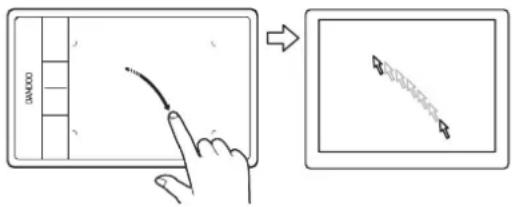
Track
Use a single finger to move the screen cursor. Touch and slide your finger across the tablet surface.
TAP TO CLICK

Click (single-finger tap)
Using a single finger, track to an item. Lift your finger and tap to select.
Alternatively, track to an item and then press an ExpressKey set to CLICK.

Double-click
Using a single finger, track to an item. Lift your finger and tap twice.
DRAG

Select and drag (DRAG LOCK disabled)
Using a single finger, tap on an item to select. Then again quickly tap down and track (slide) your finger across the tablet to drag. Lift your finger to release the item.
Alternatively, drag by tracking to an item, pressing an ExpressKey set to CLICK, and then continuing to move your finger across the tablet surface. Release the ExpressKey to release the item.
Tips:
You can select and drag multiple items on the system desktop:
Windows: Press the CTRL or SHIFT key as you tap to select multiple items.
Mac: Press the SHIFT or COMMAND key as you tap to select multiple items.
You can also select and drag with two fingers.

DRAG LOCK
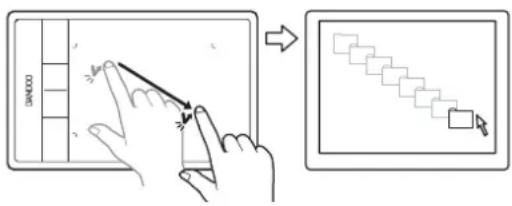
Drag lock (DRAG LOCK enabled)
Using a single finger, tap on an item to select. Then track (slide) your finger across the tablet to drag. Tap again to release the item.
TWO-FINGER ACTIONS AND GESTURES
ADD TAP TO CLICK
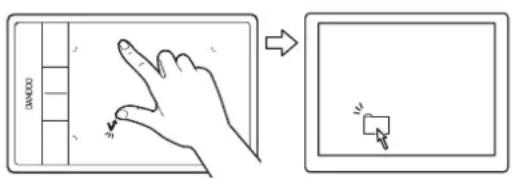
Select and drag
Using a single finger, track to an item. Select by touching your thumb or a second finger to the left of that finger. If you will be dragging an item or selecting blocks of text, we recommend using two fingers instead of your finger and thumb.
- To move the selected item, continue moving both fingers across the tablet.
- To highlight a text block, continue moving both fingers across the tablet as you select text.
- You can also extend a drag without releasing the selection. To do this, lift the first finger and move your second finger to a new position. Then again touch the first finger to the tablet and continue to drag with both fingers.
Lift your thumb or second finger to release.
Note: If the tablet is set for left-handed orientation, touch to the right of the primary finger.
ADD TAP TO RIGHT CLICK
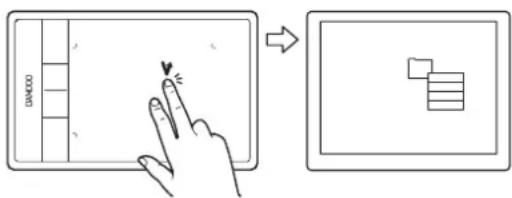
Right-click
Using a single finger, track to an item. Then with a second finger touch and release to the right of that finger. Releasing your finger issues a right-click and brings up a context menu at the screen cursor position.
You can then track to an option in the menu and select it by tapping your finger.
Note: If the tablet is set for left-handed orientation, touch to the left of the primary finger.

TAP TO RIGHT CLICK
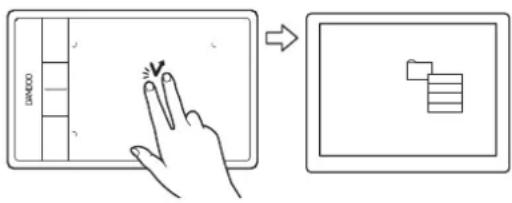
Right-click (two-finger tap)
To right-click and bring up a context menu at the screen cursor position, tap the tablet surface with two fingers spaced slightly apart. Use a quick tapping motion with both fingers at the same time.
You can then track to an option in the menu and select it by tapping your finger.
Alternatively, open a context menu by tracking to an item and then pressing an ExpressKey set to RIGHT CLICK.
SCROLL Scroll
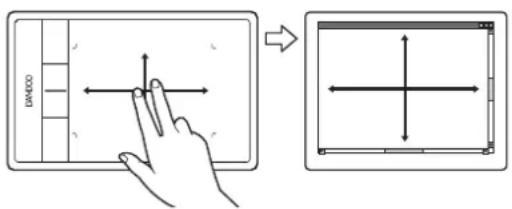
Place two fingers on the tablet surface. Using a smooth motion, move your fingers together in parallel.
- Scroll up by moving your fingers in an upward motion.
- Scroll down by moving your fingers in a downward motion.
- Scroll left by moving your fingers in a leftward motion.
- Scroll right by moving your fingers in a rightward motion.
Tips:
Flick your fingers at the end of the gesture to continue scrolling for a short time after your fingers leave the tablet.
For windows that scroll vertically and horizontally, move your fingers in any direction and the document view will follow.
If you prefer vertical only scrolling, from the Bamboo control panel TOUCH FUNCTIONS tab select VERTICAL from the SCROLL drop-down menu.

Fast scroll
Quickly move (or flick) two fingers together, lifting your fingers at the end of the motion.
- Fast scroll up by flicking your fingers in an upward motion.
- Fast scroll down by flicking your fingers in a downward motion.
Note: Fast scrolling works only for vertical scrolling.

Zoom Zoom
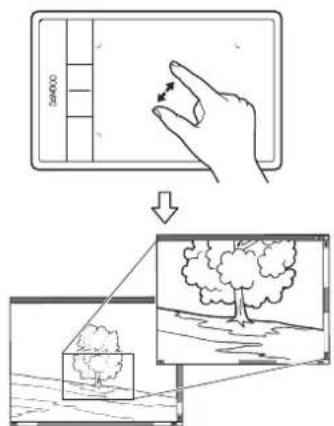
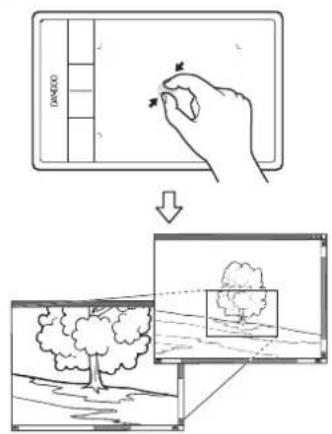
First place two fingers on the tablet surface.
- Zoom-in by moving (expanding) your fingers away from one another.
- Zoom-out by moving (pinching) your fingers toward one another.
Note: If zoom functions do not operate correctly within Adobe® Photoshop®, verify that the ZOOM WITH SCROLL WHEEL function is not selected within the Photoshop PREFERENCES options.

ROTATE Rotate (two finger rotate)


Place two fingers diagonally on the tablet surface and then rotate them clockwise or counter-clockwise.
For best recognition of this gesture, start with your fingers positioned diagonally on the tablet surface and keep them at least 25 mm (1 inch) apart.
Note: The rotation gesture may work differently depending on the application you are working with. For example, rotation may work smoothly, in 90-degree increments, or not at all.
Rotate (rotate around finger)
Place two fingers diagonally on the tablet surface. Keep one finger stationary and move the other finger around it.
For best recognition of this gesture, start with your fingers positioned diagonally on the tablet surface and keep them at least 25 mm (1 inch) apart.
Note: The rotation gesture may work differently depending on the application you are working with. For example, rotation may work smoothly, in 90-degree increments, or not at all.
THREE-FINGER GESTURES
SWIPE LEFT/RIGHT TO NAVIGATE
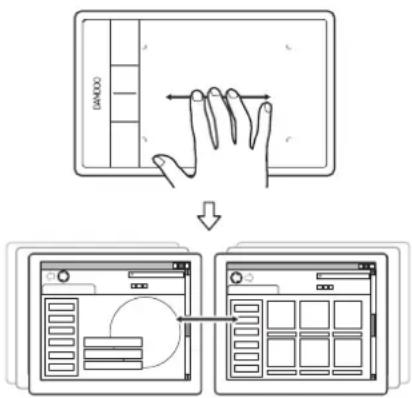
Forward or Back (swipe right or left)
Swipe using three fingers spaced slightly apart, lifting your fingers at the end of the motion.
- Send a 'Forward' command in most browsers and picture viewers by swiping to the right.
- Send a 'Back' command in most browsers and picture viewers by swiping to the left.
Tips:
Swiping is similar to using the right and left arrow keys in document viewers.
Use the swipe gestures to page forward or back in most web browsers.

FOUR-FINGER GESTURES
SWIPE LEFT/RIGHT TO SWITCH APPLICATIONS

flowchart
graph TD
    A["Hand with 'SIN4200' on screen"] --> B["Screen Display State"]
    B --> C["Screen Display State with 'SIN4200' highlighted"]
    C --> D["Screen Display State with 'SIN4200' highlighted"]
    D --> E["Screen Display State with 'SIN4200' highlighted"]
Switch applications
Using four fingers spaced slightly apart, move your fingers left or right to open the application switcher. Then using a single finger, move left or right to highlight an application. Tap to select an application.
Windows XP: Using four fingers, move them left or right to open the application switcher. Swipe your fingers again to open the next application in the list.
SWIPE DOWN FOR FLIP 3D/EXPOSÉ

flowchart
graph TD
    A["Hand Hand Icon"] --> B["Image Edit"]
    B --> C["Image Edit"]
    C --> D["Image Edit"]
    D --> E["Image Edit"]
    E --> F["Image Edit"]
    F --> G["Image Edit"]
    G --> H["Image Edit"]
    H --> I["Image Edit"]
Open Flip 3D (Windows) or Exposé (Mac)
Using four fingers spaced slightly apart, swipe down.
- W i n: Your first swipe opens Flip 3D. Swipe down again to close Flip 3D. Not available for Windows XP. Alternatively, move your fingers down 1 cm (0.4 inch) to open Flip 3D. Without lifting your fingers, continue moving downward to select applications to the left, or move upward to select applications to the right. Lift any finger to dismiss Flip 3D.
- Mac: Your first swipe opens Exposé. Swipe down again to close Exposé.

SWIPE UP TO SHOW DESKTOP

flowchart
graph TD
    A["Screen Screen"] --> B["Arrow to Screen Layout"]
    B --> C["Arrow to Tablet Layout"]
Show Desktop
Using four fingers spaced slightly apart, swipe up to show the desktop. Swipe up again to move your open windows back to the desktop.
CUSTOMIZING TOUCH

Use the Bamboo control panel to customize the touch input options for the way you like to interact with your tablet and computer.
Opening the control panel
Control panel overview
Customize your touch experience
THE PEN EXPERIENCE WITH BAMBOO

Bamboo is designed to enhance the way you work. Bamboo tablet models equipped for pen input enable you to interact with a computer using the pen on the active area of the tablet.
Note: For Bamboo tablets that support both pen and touch input, the pen disengages touch input whenever the pen tip or eraser (when equipped) is within the tablet proximity range. Lift the pen and your hand away from the tablet active area to enable touch input. If you experience unintended touch input from your hand, manually disable touch by pressing an Expresskey set to TOUCH TOGGLE. When done working with the pen, press the ExpressKey again to enable touch. See customizing tablet and ExpressKey functions. You can also use the Bamboo control panel to disable touch input.
Holding the pen
Using the pen on the tablet
Customizing pen input
ExpressKey basics
Customizing the ExpressKeys
Customizing the Pop-up Menu
Working with Display Toggle
HOLDING THE PEN

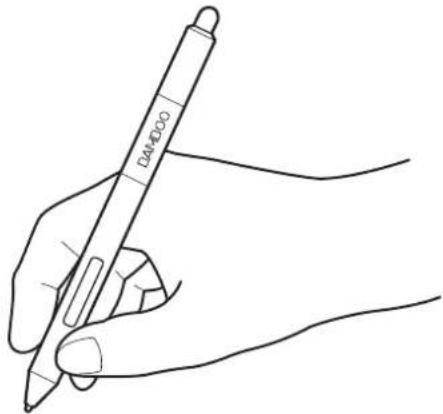
Hold the pen like you would hold a normal pen or pencil. Make sure the pen buttons are in a convenient location where you can toggle them with your thumb or forefinger, but not accidentally press them while drawing or positioning with the pen. Tilt the pen in any way that feels most comfortable.
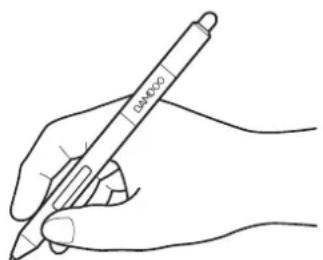
natural_image
Line drawing of a hand holding a pen, no text or symbols presentPosition for drawing and navigation
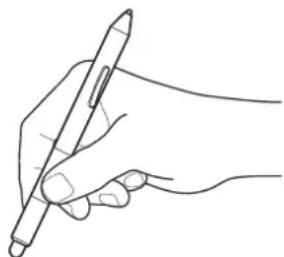
natural_image
Line drawing of a hand holding a pen, no text or symbols presentPosition for erasing
When you are not using the pen, store it in the pen holder. The eraser end of the pen should be inserted first into the loop.
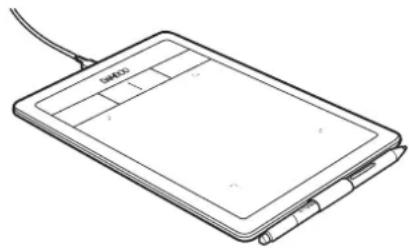
natural_image
Line drawing of a generic electronic device with a screen and antenna (no text or symbols)Important: When not in use, place the pen in the pen holder or lay it flat on your desk. To maintain the sensitivity of your pen, do not store it in a container where it will rest on the tip or eraser (when equipped). Leaving the pen on the tablet may interfere with screen cursor positioning when using other pointing devices, or may prevent your computer from going to sleep.
USING THE PEN ON THE TABLET

There are four basic techniques for using the pen: positioning, clicking, double-clicking, and dragging. If you are unfamiliar with using the pen, try the exercises on the following pages.
Positioning
Clicking
Dragging
Using the pen buttons
Writing and drawing with pressure sensitivity
Erasing
Eye-hand coordination exercise
POSITIONING

Use the pen to position the pointer (or cursor) on your screen.
Lift the pen and place the pen tip on the tablet active area. The cursor jumps to the new location.
Move the screen cursor by hovering the pen over the tablet surface. Do this without touching the tablet surface, but while still keeping the pen tip within proximity of the tablet.
To select an icon or folder, use your pen to position the screen cursor over the object. Press down to select.
Tips:
If you find using a pen to be somewhat difficult, try the eye-hand coordination exercise.
Pointing is easier when you orient the tablet square to the computer monitor so the screen cursor follows the same direction as your hand movements on the tablet.
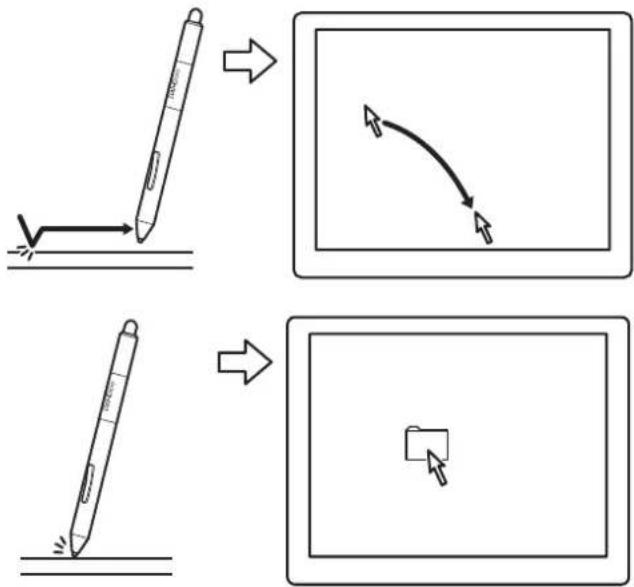
flowchart
graph TD
    A["Write: Pen"] --> B["Drawn"]
    B --> C["Drawn"]
    C --> D["Write: Screen with Arrow"]
    D --> E["Drawn"]
    E --> F["Write: Screen with Arrow"]

You can set the pen to position the screen cursor two different ways (see setting the tablet mapping).
- I _n_ pen wherever you place the pen on the tablet, the screen cursor will jump to a corresponding point on the display screen. The screen pointer indicates pen position, and follows the movement of the pen across the tablet surface. This is the default setting for the pen.

When positioning the screen cursor and operating a pen button, the pen tip needs to be within 7 mm (0.28 inch) of the tablet surface. The pen tip does not need to touch the tablet in order to move the screen cursor or use a pen button.
- I n ____ mouse you deve the cursor with a “pick up and slide” motion similar to using a mouse.
CLICKING

Click to highlight or select an item on the screen. Double-click to open it.
Clicking. Tap the pen tip once on the tablet, or press the pen tip on the tablet with enough force to register a click. Try clicking on a folder icon by moving the screen cursor over the icon and pressing down on the pen tip. The folder should highlight when you press.
If CLICK SOUND is selected in the Bamboo control panel and your computer speakers are on, then you will hear a "click" sound when the pen tip is pressed hard enough to generate a button click. Adjust your speaker volume as necessary.
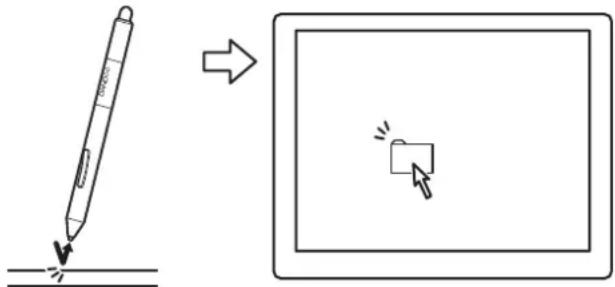
Tip: Configure Windows to select when hovering the pen over an icon and to launch the icon with a single click. To turn on this feature, first open a folder.
Windows 7 and Vista: From the ORGANIZE pull-down menu choose FOLDER AND SEARCH OPTIONS.... From the GENERAL tab select SINGLE-CLICK TO OPEN AN ITEM (POINT TO SELECT).
Windows XP: From the TOOLS pull-down menu choose FOLDER OPTIONS.... From the GENERAL tab select SINGLE-CLICK TO OPEN AN ITEM (POINT TO SELECT).
Double-clicking. Quickly tap the tablet twice in the same place with the pen tip. This is like clicking twice with a mouse button. Try double-clicking on a folder icon to open it.
Tip: Set a pen button to DOUBLE CLICK. This is easier than tapping twice with the pen tip, and is the preferred method of double-clicking with a pen.
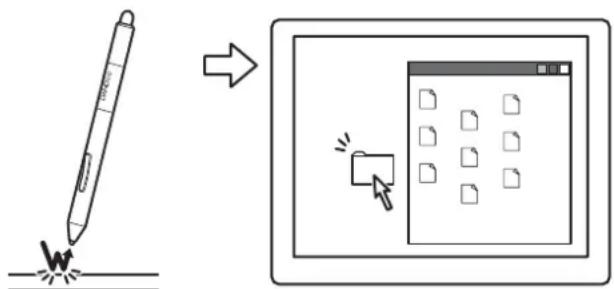
DRAGGING

Dragging is used to select and move objects on the monitor screen.
First point to an object. Then press the pen tip to the tablet and slide it across the tablet surface. The selected object will move across the display screen.
To select text within a document, move the screen cursor to the beginning of a text line. Then drag the pen across the tablet to highlight the text.
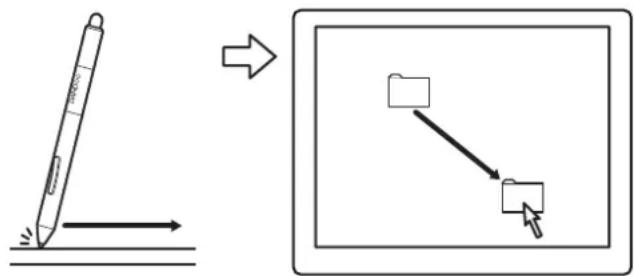
flowchart
graph TD
    A["Handwritten Pen"] --> B["Arrow to Paper"]
    B --> C["Folder with Arrow pointing to a Box"]
    C --> D["Arrow pointing to a Box"]
USING THE PEN BUTTONS

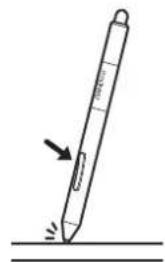
The pen comes equipped with two buttons. Each button has a programmable function that is selected when you press the button. You can use a pen button whenever the pen tip is within 7 mm (0.28 inch) of the tablet active area. You do not have to touch the pen tip to the tablet in order to use a button.
The default button positions are:
Upper: R IGHT CLICK
Lower: PAN/SCROLL
Tip: Set a pen button to DOUBLE CLICK. This is easier than tapping twice with the pen tip.
natural_image
Line drawing of a hand holding a pen, no text or symbols presentUse RIGHT CLICK to bring up application-specific or icon-specific menus.
→
natural_image
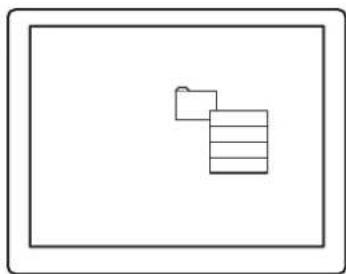
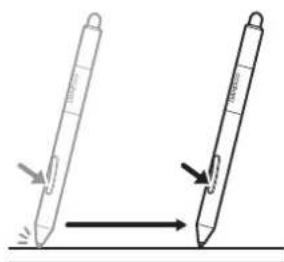
Simple line drawing of a folder icon with three horizontal lines inside, enclosed in a rectangular frame (no text or symbols)PAN/SCROLL lets you position a document or image in any direction within the active window simply by pressing the pen button and moving the pen tip across the tablet. As you move the pen tip, the document or image is repositioned to follow the direction of pen movement on the tablet. Release the pen button or lift the pen tip from the tablet surface when done.
In some application windows the document will precisely follow the screen cursor as you move the pen tip. In others it will simply move in the same general direction as the screen cursor.
natural_image
Two pen-like objects with arrows indicating motion, no text or symbols present→
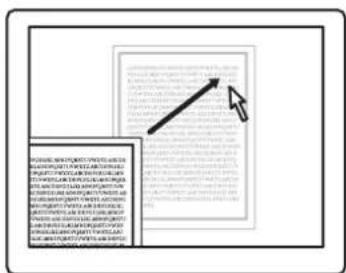
To assign new button functions, see setting the pen button functions
WRITING AND DRAWING WITH PRESSURE SENSITIVITY

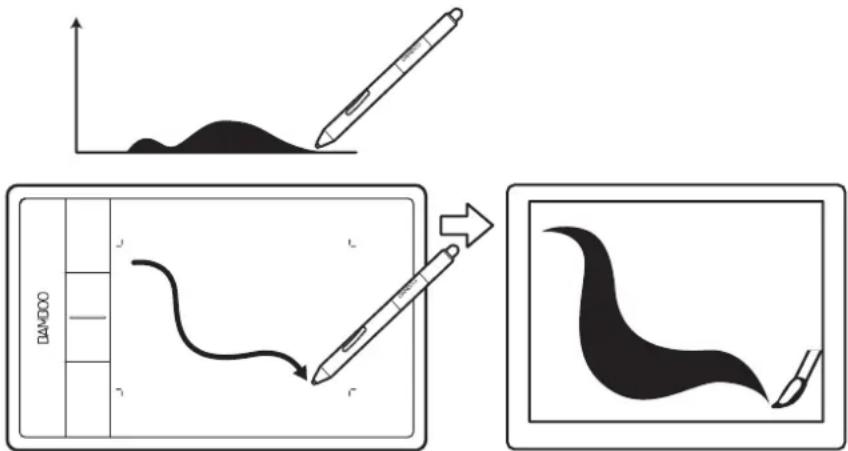
The pen responds to your hand movements, enabling you to create natural-looking pen and brush strokes within applications that support this feature. The digital ink tools in Microsoft Windows 7, Vista, and Office 2007 or later, as well as the drawing tools in many graphics applications, respond to the pressure you place on the pen. For example, sliders are used in some applications to vary line characteristics such as width, color, and opacity. These characteristics can be controlled much better by the pen's pressure sensitivity. You can vary line width, blend colors, and change opacity with the pressure you exert upon the pen.
To write, ink, or draw with pressure sensitivity, move the pen along the surface of the tablet while applying various amounts of pressure downward on the tip of the pen.
- Press hard for thick lines or dense color.
- Press gently for thin lines or softer color.
Note that some applications require you first select a pressure-sensitive tool from the application tool palette.
To adjust the tip feel, see setting the tip and eraser feel, and double-click distance.
Visit our web site for a list of applications that support pressure. See product information.
ERASING

The pen eraser (when equipped) works like the eraser on a pencil.
You can erase intuitively and naturally in graphics applications that support the pen eraser. When you use the pen eraser, the application will automatically switch to the eraser tool.
In applications that support pressure sensitivity, you can select pressure-sensitive tools in the application tool palette to vary the width and depth of your erasures as you change the amount of pressure exerted upon the pen.
See setting the tip and eraser feel, and double-click distance.

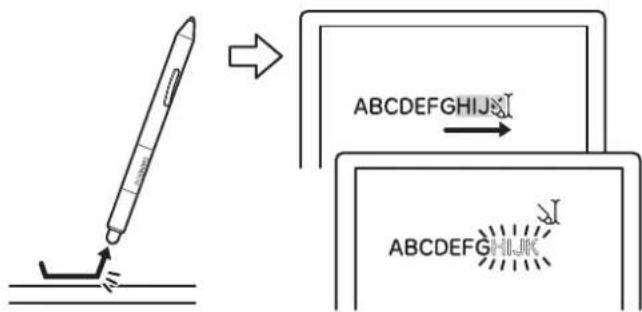
Use the pen eraser in Microsoft Windows 7, Vista, and Office 2007 or later to erase notes or sketches made with digital ink, and to select and delete text or spreadsheet cells within an application.
In supporting text applications use the eraser to select text, then lift the eraser from the tablet to delete the text.
flowchart
graph TD
    A["Pen Tip"] --> B["DNA Structure"]
    B --> C["ABCDEFGHIJX"]
    B --> D["ABCDEFGHIJK"]
Visit our web site for a list of applications that support the eraser (see product information). If the eraser is not supported in an application, you can still use the eraser for positioning, drawing, or annotation.
EYE-HAND COORDINATION EXERCISE

This exercise is designed to retrain your eye-hand coordination for using the pen:
- Open any graphics application. Use the line tool to draw a rectangular grid with line spacings of about 20-25 mm (3/4 to 1 inch). You can use your standard mouse to do this.
- Choose a free-hand tool in your application and use the pen to draw a dot at each grid intersection.
- Draw an X at each grid intersection.
- Clear your screen and make a simple drawing of your own. The more you use your pen, the easier writing, drawing, and navigation will become.
CUSTOMIZING PEN INPUT

You can easily customize the pen. Use the pen to open the Bamboo control panel. Then select the PEN tab to choose from the available options.
Opening the control panel
Control panel overview
Customize your pen experience
TABLET CONTROLS
Customizable ExpressKeys are featured on most Bamboo tablet models. ExpressKeys are not available for Bamboo Pen (model CTL-470).
ExpressKey basics
Customizing the ExpressKeys
EXPRESSKEY BASICS
Press individual keys to perform frequently used functions or keystrokes. ExpressKeys can also be used to modify touch or pen input properties as you work.
ExpressKeys
Consider some of these ways to use the ExpressKeys:
- Set a key to a commonly used keyboard shortcut.
- Set a key to launch a commonly used file or application, such as your email program.
- Choose from any of the other available functions.
Note: The ExpressKeys can be operated in combination with one another. For example, program one key for the CTRL function and another for ALT. When you press both keys at the same time a CTRL+ALT function is initiated.

natural_image
Line drawing of two hands interacting with a digital tablet device (no text or symbols present)ExpressKeys configuration when positioned on left side of tablet (RIGHT HANDED orientation)
Default settings:
ExpressKeys configuration when positioned on right side of tablet (LEFT HANDED orientation)

CUSTOMIZING THE EXPRESSKEYS
Use the Bamboo control panel to customize the ExpressKey options.
Opening the control panel
Control panel overview
Customizing tablet and ExpressKey functions
CUSTOMIZING YOUR BAMBOO
Use the Bamboo control panel to customize Bamboo for the way you like work.
Opening the control panel
Control panel overview
Customize your touch experience
Customize your pen experience
Customizing tablet and ExpressKey functions
Customizing the Pop-up Menu
Working with Display Toggle
Button functions
OPENING THE CONTROL PANEL
To open the control panel:
- W _ i _ n. Click on the Windows START button and choose ALL PROGRAMS. Then select BAMBOO and choose the BAMBOO PREFERENCES option.
- Mac. Open SYSTEM PREFERENCES from either the Dock, the Apple menu, or from the APPLICATIONS folder. Then click on the BAMBOO icon.
You can begin customizing Bamboo after opening the control panel. The control panel displays only those tabs and options that apply to your tablet model and configuration. See control panel overview.
Note: User-specific preferences are supported. After logging on, each user can customize their personal settings in the Bamboo control panel. Switching to another user will automatically load the settings for that user.
CONTROL PANEL OVERVIEW
After opening the control panel, you can begin customizing Bamboo.
Customizable settings are found on each tab.
The tabs that apply to your tablet model and configuration are displayed when you open the control panel.
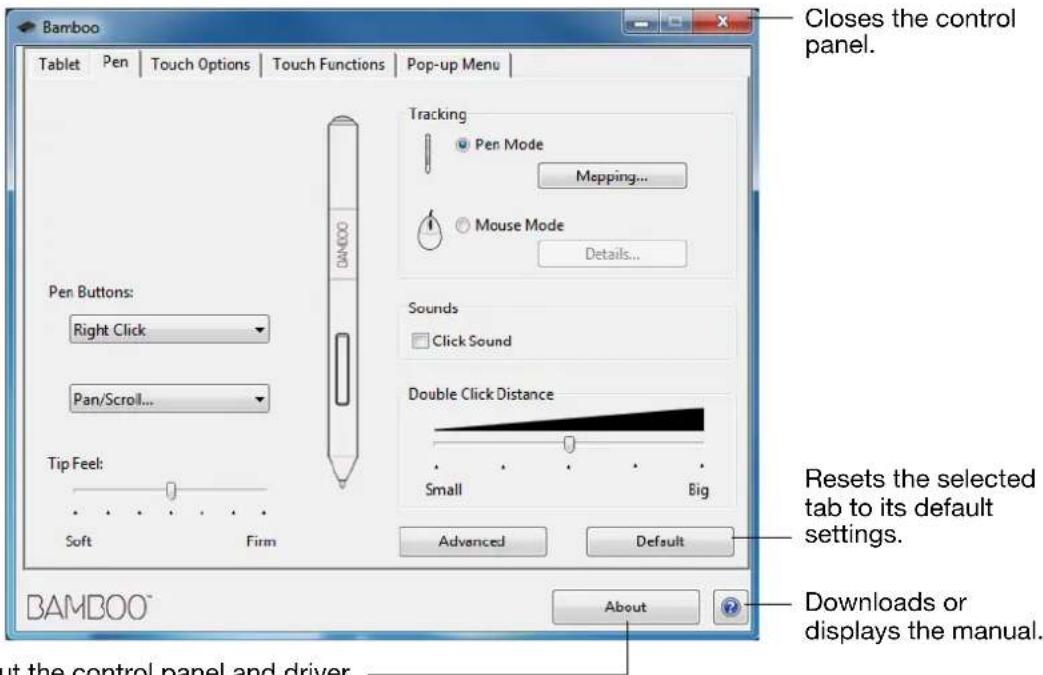
Displays information about the control panel and driver.
Experiment with different settings to find what works best for you. Any changes you make will take effect immediately. Click DEFAULT to return a tab to the factory settings.
Tool Tips are available for most control panel items. Position the screen cursor over an item and let it rest there. The appropriate Tool Tip will pop up in a few moments.
Your keyboard tab and arrow keys can also be used to navigate the control panel.
The following sections provide detailed information about each control panel tab and some of the more advanced concepts. Many of the sections also contain useful customizing tips.
Customize your touch experience
Customize your pen experience
Button functions
The control panel options enable you to customize Bamboo for the way you like to interact with your tablet and computer when using touch input. See also navigating with touch.
Setting the touch options
Setting the touch functions
Customizing tablet and ExpressKey functions
Disabling touch
SETTING THE TOUCH OPTIONS

Select the TOUCH OPTIONS tab. The touch options determine how fast you must move or tap your fingers in order for an action or gesture to be recognized.
Adjusts the screen pointer for speed of tracking and navigating. Choose a SLOW speed to move the screen cursor at a slower rate with more finger motion. Choose a FAST speed to move the screen cursor quickly with less motion.
Sets the acceleration level of the screen pointer. Choose a Low setting for a slower response to your finger motion on the tablet. Choose a HIGH setting for a quicker response.

Note: Touch speed and acceleration settings are independent of system settings. Changes you make to these settings in the Bamboo control panel do not affect similar system settings. However, changes made to similar system settings may affect your Bamboo tablet settings.
SETTING THE TOUCH FUNCTIONS

To customize Bamboo for your touch preferences, select the TOUCH FUNCTIONS tab.
Touchinput options can be enabled or disabled individually, and are dependent upon application support.
Touch actions and gestures are available when selected.
So that you may work in different ways, some functions (such as a right-click) can be performed using different actions or gestures.
See also navigating with touch.

Position the screen cursor over an option to see an animated demonstration of that function.
If you do not choose a specific option to view, then the control panel animation will demonstrate each option sequentially, from top to bottom.
DISABLING TOUCH

Choose the TOUCH FUNCTIONS or TOUCH OPTIONS tab to disable and enable touch input.
- Deselect to disable touch input. You can still work with the ExpressKeys (and pen).
- Select to E NABLE TOUCH INPUT.
- This option can also be changed by pressing an ExpressKey to which the TOUCH TOGGLE function has been assigned.

Touch Functions tab shown.
CUSTOMIZE YOUR PEN EXPERIENCE

You can easily customize the pen. Use the pen to open the Bamboo control panel. You can then customize Bamboo for the way you like to interact with your tablet and computer when using pen input.
Note: If you have more than one Bamboo pen (for example, a standard pen and a premium pen), any changes you make to the pen settings will apply to both pens.
Setting eraser feel
Setting the pen button functions
Setting tip feel and double-click
natural_image
Simple line drawing of a computer monitor and its corresponding screen (no text or symbols)Setting the tablet mapping
SETTING THE TIP AND ERASER FEEL, AND DOUBLE-CLICK DISTANCE

Select the PEN tab. To create broad brush strokes or to click with a light touch, use a soft tip setting. For maximum control while drawing thin lines, use a firm tip setting. To erase with a broad stroke or to click with a light touch, use a soft eraser setting. For maximum control while erasing, use a firm eraser setting.

Tips:
Use a soft TIP FEEL to reach the full pressure range with a lighter touch.
In some applications a soft pressure setting can make the pen overreact, causing any small press on the pen to be magnified on the screen. If you experience this, try a firmer TIP FEEL setting.
To make double-clicking easier, expand the tap area that accepts a double-click (the double-click distance).
A large double-click distance may cause a delay at the beginning of brush strokes in some drawing applications. This may also cause a delay at the beginning of a drag action or inking stroke. If you notice such effects, try setting a smaller double-click distance and using a pen button set to double-click (see using the pen buttons). You can also set an ExpressKey to double-click.
SETTING THE PEN BUTTON FUNCTIONS

Select the PEN tab. Each pen button can be set to simulate a variety of mouse functions.
Select the function to perform when pressing the upper or lower pen button.
The selected function occurs when you bring the pen tip within 7 mm (0.28 inch) of the tablet surface without touching the tablet and then press the upper or lower pen button.
Tip: To make double-clicking easier, set a pen button to double-click automatically by selecting DOUBLE CLICK.

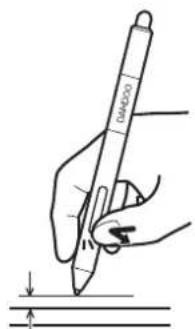
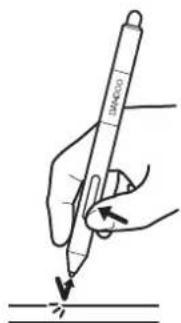
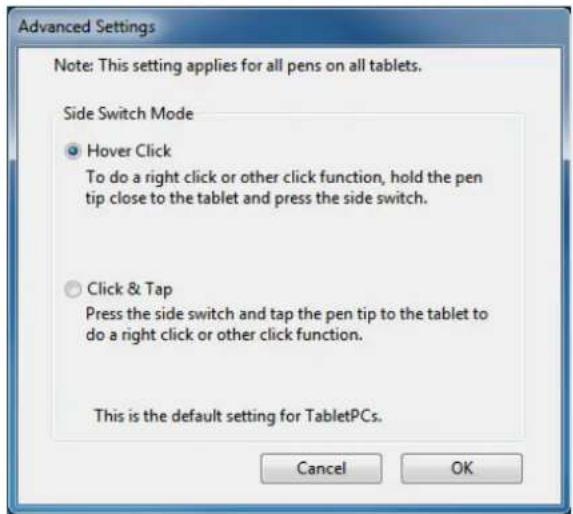
You can change the SIDE SWITCH MODE to best fit the way you like to use the pen when making right-clicks or other click functions. Click the ADVANCED button. —
- C h oover Clickdo perform click functions without touching the pen tip to the tablet surface.
- C h oLICK & TAP to enable the precise placement of click functions. When selected, you must first press the pen button and then touch the pen tip to the tablet surface in order to perform the click function.
Hover click Click tap
SETTING THE TABLET MAPPING

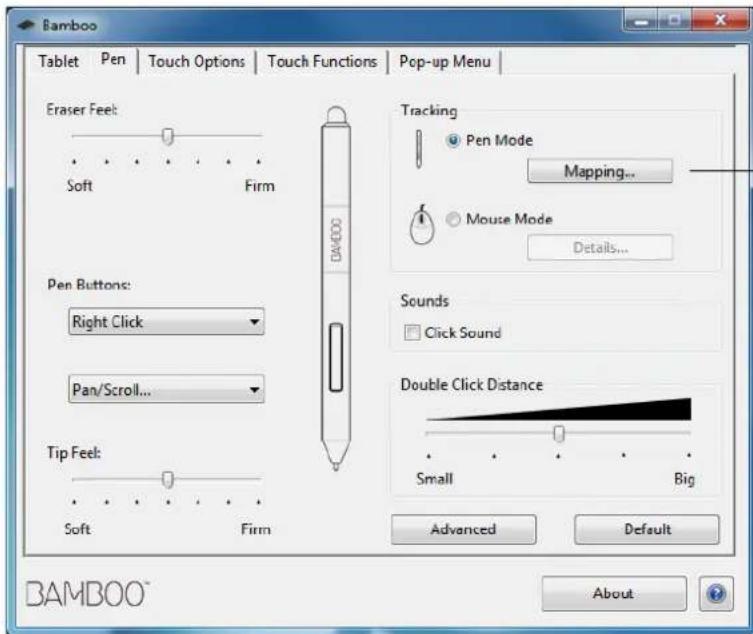
Select the PEN tab. The tablet TRACKING options enable you to define the relationship between pen movement on the tablet surface and cursor movement on the monitor screen.
By default the entire active area of the tablet maps to the entire monitor. If more than one monitor is in use the tablet will map to all monitors. See working with multiple monitors.
Note: If you frequently switch between pen mode and mouse mode, you can assign the MODE TOGGLE... function to one of your pen buttons or ExpressKeys.
TRACKING options control how the screen cursor moves:
- PEN MODE sets the cursor movement to correspond with the position of your pen on the tablet. Wherever you place your pen on the tablet, the cursor will jump to a corresponding point on the screen. This is known as absolute positioning, and is the default setting for the pen.
Click MAPPING... to customize the tablet mapping.
- MOUSE MODE enables you to move the screen cursor with a "pick up and slide" motion similar to using a standard mouse.
Click DETAILS... to set the pen speed in mouse mode.

In the Bamboo control panel PEN tab, click on the PEN MODE MAPPING... button to display the PEN MODE DETAILS dialog box.
Use the SCREEN AREA options to select a screen area for tablet to screen mapping.
- ALL SCREENS. The entire monitor(s) area is mapped. This is the default setting. See working with multiple monitors.
• MONITOR. The entire area of a single monitor that you choose is mapped. - PORTION. A portion of the desktop area is mapped. Click SET... to define the portion of screen area.
Use the TABLET AREA options to select a tablet area for tablet to screen mapping.
• FULL. The entire active area of the tablet is mapped. This is the default setting.
- PORTION. A portion of the tablet area is mapped. Click SET... to define the portion of tablet area.
Note: Although Bamboo is optimized for use with 16 : 10 aspect ratio displays, the default settings automatically adjust for use with other aspect ratio displays.

Returns settings to their factory defaults.
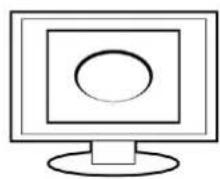
When FORCE PROPORTIONS is unchecked, the correct scale or proportions are not maintained. The selected tablet area is mapped to the selected display area. Drawing a circle on the tablet may create an ellipse on the display screen. This is the default setting.
When FORCE PROPORTIONS is checked, the correct vertical and horizontal proportions are maintained. Drawing a circle on the tablet results in a circle on the display screen. Depending on your settings, some portions of the tablet active area may no longer be usable when this option is selected.
natural_image
Simple line drawing of a computer monitor with a circular screen on the screen (no text or symbols)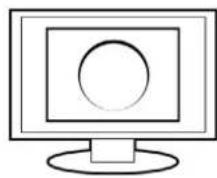
PORTION OF SCREEN AREA

To define which portion of the display screen your tablet will map to, click on the PEN tab PEN MODE MAPPING... button to display the PEN MODE DETAILS box. Choose SCREEN AREA PORTION and click SET....
In the dialog that appears, choose a method for defining a portion of the display.
- Drag corners of the foreground graphic to select the screen area.
- Select the C LICK TO DEFINE SCREEN AREA button and move the screen cursor to select the screen area. Be sure to follow any MESSAGE prompts.
After defining a portion of the screen, you may need to use a different input device to access other portions of the screen area.

PORTION OF TABLET AREA

To define the tablet area that will be mapped to the screen area, click on the PEN tab PEN MODE MAPPING... button to display the PEN MODE DETAILS box. Choose TABLET AREA PORTION and click SET....
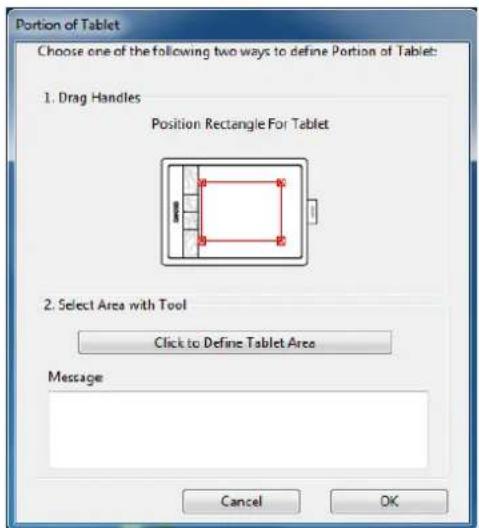
In the dialog that appears, choose a method for defining a portion of the tablet:
- Drag corners of the foreground graphic to select the tablet area that will be mapped to your selected screen area.
- Select the C LICK TO DEFINE TABLET AREA button and use your pen on the tablet to select the tablet area. Be sure to follow any MESSAGE prompts.
SETTING THE PEN SPEED IN MOUSE MODE

To change the screen cursor acceleration and speed when using the pen in mouse mode, click on the PEN tab MOUSE MODE DETAILS... button. A dialog box will be displayed where you can make your adjustments.
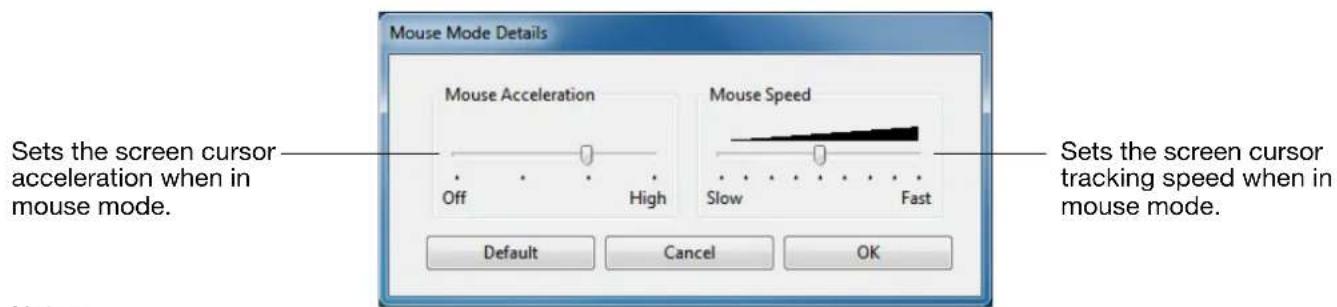
Notes:
The dialog box will also appear when you set a button to MODE TOGGLE... Only one acceleration and speed setting can be made.
The mouse mode acceleration and speed settings are independent of system settings. Changes you make to these settings in the Bamboo control panel do not affect similar system settings. However, changes made to similar system settings may affect your Bamboo tablet settings.
CUSTOMIZING TABLET AND EXPRESSKEY FUNCTIONS
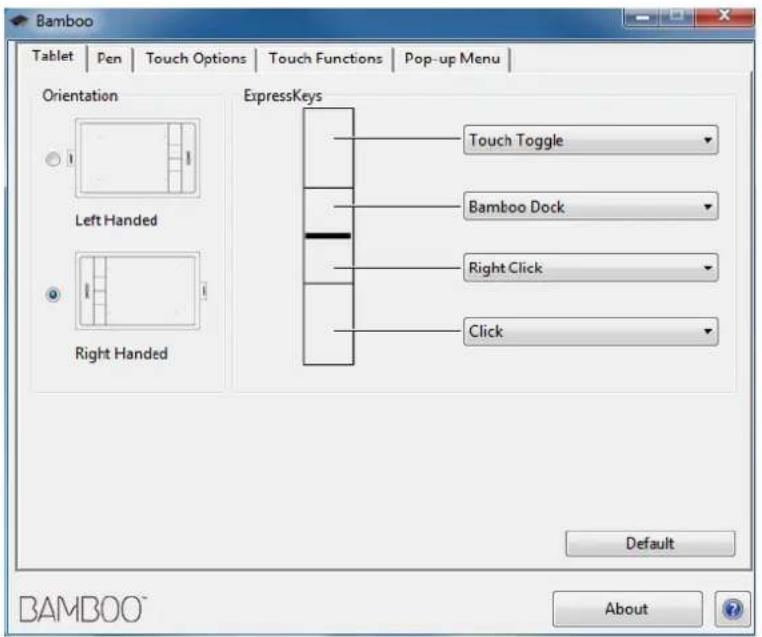
Choose the TABLET tab to set the tablet orientation and to customize the ExpressKeys.
ORIENTATION: Change how your tablet is oriented by selecting RIGHT HANDED or LEFT HANDED input. The tablet driver automatically configures all aspects of the tablet for the selected option. Next, physically rotate the tablet to match your selection.
Note: At the system log on and user switching screens, the tablet will use the default orientation that was selected when the driver was installed. If you want to change the default orientation, you must reinstall the driver. See configuring the tablet orientation.
EXPRESSKEYS: Use the pull-down menus to choose a function that will be performed when the key is pressed. Your choice will be displayed either within the pull-down menu or beneath the menu. By default:
- The upper key is set to TOUCH TOGGLE, allowing you to temporarily disable touch input when you press the ExpressKey. Press the ExpressKey again to re-enable touch input.
- You can use the 2nd from top key to launch Bamboo Dock or bring it to the foreground. Press the key again to minimize Bamboo Dock.
- The lower button default conditions are CLICK (bottom key) and RIGHT CLICK (2nd key up).
Note: Pen-only tablet models do not include ExpressKeys.
CUSTOMIZING THE POP-UP MENU
Select the POP-UP MENU tab to create a custom menu and define functions that will appear in the menu.
Select a button function to add to the Pop-up Menu.
Displays functions that have been added to the Pop-up Menu. To change the order of an item, drag it to a new location. Double-click on an item to make edits.
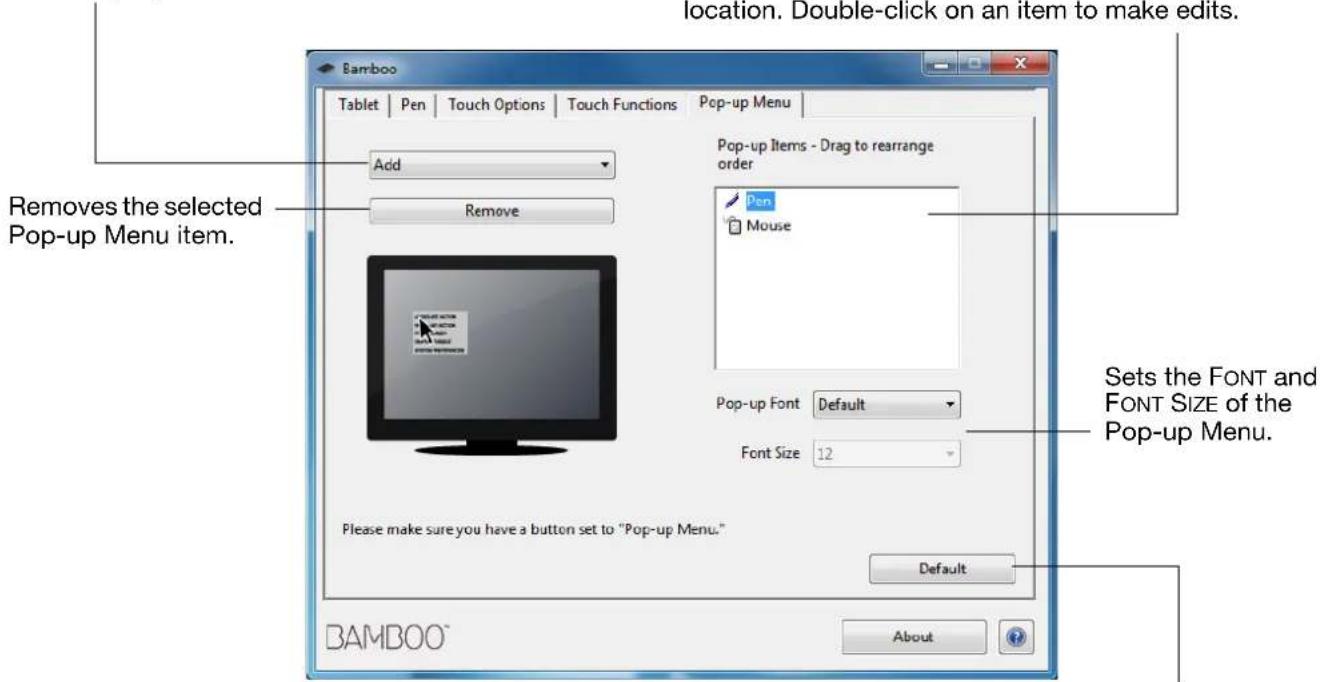
Returns the tab settings to the default values.
Important: This action will delete all Pop-up Menu items that have been defined.
To display the Pop-up Menu, set an ExpressKey or pen button to the POP-UP MENU function. When you press that button, the Pop-up Menu is displayed at the screen cursor position.
Click to choose options in the menu.
To close the Pop-up Menu without making a selection, click outside of the menu.
WORKING WITH DISPLAY TOGGLE
Display Toggle is available when working on multiple monitor systems. This feature allows you to work with your tablet on all displays or on one display at a time. See working with multiple monitors.
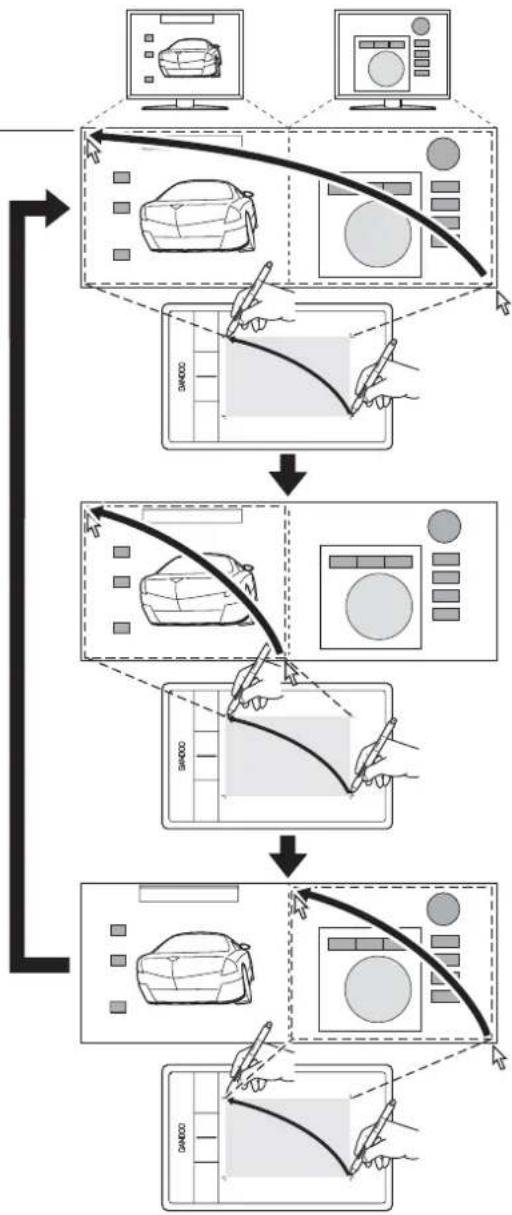
After setting an ExpressKey to DISPLAY TOGGLE, you can then press that button to sequentially toggle the current tablet mapping between a base mapping (the current setting from the PEN MODE DETAILS dialog) and other monitors. For example:
- The entire display area of a multi-monitor system is set up for extended mode and assigned to the active area of the Bamboo tablet.
- Pressing an ExpressKey to which the D ISPLAY TOGGLE function has been assigned toggles the tablet mapping to the next display in sequence.
All monitors are selected in the toggle sequence.
- The base mapping is the tablet and display mapping defined in the PEN MODE DETAILS dialog. By default, this includes all monitors unless you have defined a specific monitor as your primary monitor.
- As you toggle to the next monitor, the active tablet area is mapped to that monitor (in pen mode).
- Toggling one more time after the last selected monitor returns the system to the base mapping.
Any of the following actions will return the toggle sequence to the base mapping:
- Launching a graphics application that supports pressure sensitivity.
- Logging out of or rebooting the system.
- Switching users (Fast User Switching).
- Placing the system in sleep mode.
- Changing the P EN MODE DETAILS settings.
- Changing the resolution or number of displays on your system.
• U s i nDETOGGLE.h functionM - Selecting P EN MODE or MOUSE MODE from the Pop-up Menu.
flowchart
graph TD
    A["Car Drawing"] --> B["Draw Screen"]
    B --> C["Print Screen"]
    C --> D["Print Panel"]
    D --> E["Packaging"]
    E --> F["Final Packaging"]
BUTTON FUNCTIONS
Customize Bamboo for the way you like to work. Simply use the Bamboo control panel to change the button function that is assigned to a pen button, ExpressKey, or Pop-Up Menu setting. Button function options may vary, depending on your tablet model. Not all options are available for all controls or tablet models.

FUNCTION DESCRIPTION
| CLICKS | |
| CLICK | Simulates a primary mouse button click. Default setting for the pen tip. |
| RIGHT CLICK | Simulates a right mouse button click, which displays a context menu. |
| MIDDLE CLICK | Simulates a middle mouse button click. |
| DOUBLE CLICK | Simulates a double-click. For easier double-clicking, use this function instead of tapping twice with the pen tip. |
| CLICK LOCK | Simulates holding down the primary mouse button. Press the tool button once to initiate click lock. Press the button again to release click lock. Click lock is useful for dragging objects or selecting blocks of text. |
| 4TH CLICK | Simulates a 4th mouse button click. |
| 5TH CLICK | Simulates a 5th mouse button click. |
| BACK Simulates the BACK command in browser applications. | |
| FORWARD | Simulates the FORWARD command in browser applications. |
ERASE Pen only. Sets a button so that when the button is pressed, the pen tip will act like the eraser in applications that support the ERASE function. See erasing.

FUNCTION DESCRIPTION
KEYSTROKE... Enables you to simulate keystrokes. Select this option to display the
DEFINE KEYSTROKE dialog box.
Enter a keystroke or keystroke combination in the KEYS entry box. Keystroke combinations can include letters, numbers, function keys (such as F3) and modifier keys (such as SHIFT, ALT, or CTRL for Windows, or SHIFT, OPTION, COMMAND, and CONTROL for Mac). You can also choose special keystrokes or keystroke combinations from the ADD SPECIAL pull-down menu.
After defining a keystroke or keystroke sequence, click OK.
Important: Because the ENTER (Windows) and RETURN (Mac) keys can be selected as a defined keystroke, they cannot be used to select OK. You must use your pen to click on the OK button.
Enter a name for the keystroke definition. The name will be displayed with the respective control or in the Pop-up Menu list, as applicable.

To learn which keystroke shortcuts are supported by a particular application, see the documentation that came with the application.
MODIFIER...
Enables you to simulate modifier key(s) (such as SHIFT, ALT, or CTRL for Windows, or SHIFT, OPTION, COMMAND, and CONTROL for Mac). Many applications use modifier keys to constrain the size or placement of objects.
Choose one or more modifier key options.
Choose a CLICKS option to simulate pressing a button of the selected type on a mouse.


FUNCTION DESCRIPTION
| POP-UP MENU | Displays a Pop-up Menu on your screen. Seecustomizing the Pop-up Menufor more information. | |
| PAN/SCROLL | Pen only. Enables you to position a document or image in any direction within the active pane. Do this by pressing a pen button set for PAN/ SCROLL and then dragging with the pen tip across the tablet active area.When you select PAN/SCROLL, you are prompted to set a scrolling speed for use in applications that do not support grabber hand (pixel-level) panning.A slower setting reduces the scroll rate and is useful for close-up and detail work where you need precise control of the image. | 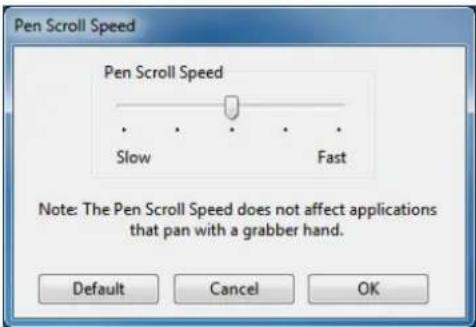 |
| As you move the pen tip, the document or image is repositioned to follow the direction of pen movement on the tablet.Release the button or lift the pen tip from the tablet surface when you are done. | 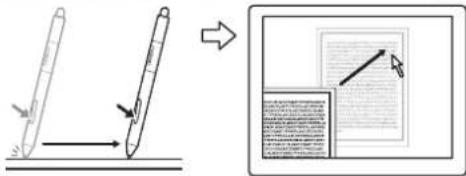 | |
| BAMBOO DOCK | Opens theBamboo Dock. | |
| BAMBOO PREFERENCES | Opens the Bamboo control panel. | |
| SHOW DESKTOP | Minimizes all open windows to display a clean desktop. | |
| DISPLAY TOGGLE | For multiple monitor systems. Enables you to toggle the current tablet mapping and screen cursor between different displays when you press an ExpressKey that has been assigned this function. Seeworking with Display Toggle. | |
| SWITCH APPLICATIONS | Brings up the application switching dialog with focus on the next open application. On Windows 7 or Vista systems running Aero, Flip 3D will be activated with focus on the next open application. | |

FUNCTION DESCRIPTION
| OPEN/RUN... | Opens the RUN APPLICATION dialog box.Click BROWSE... to locate an application, file, or script to launch. Your selection appears in the APPLICATION TO RUN box.Click OK to accept the selection.The dialog box will close and the OPEN/RUN... option you have selected will be assigned as your tool button option. Press the tool button to launch the assigned option.If your selection is for the Pop-up Menu, it will be displayed in the Pop-up Menu list. |
| TOUCH TOGGLE | (Not available for Bamboo Pen tablets.) TOUCH TOGGLE is useful when you are working with the pen and want to prevent accidental touch input (e.g., to prevent an accidental right-click). Temporarily disable touch by pressing an ExpressKey to which you have assigned the TOUCH TOGGLE function. Press the ExpressKey again to re-enable touch input. See alsocustomizing tablet and ExpressKey functions. |
| INK TOGGLE | (Mac.) Toggles the “ink in any application” function of Ink on and off. Ink automatically recognizes and converts your handwriting into text and inserts it into a document. Handwriting recognition must be turned on for this function to work. See your Mac help for information on working with Ink. |
| TABLET PC | |
| • TABLET PC INPUT PANEL | (Tablet PCs and Windows systems that support the Tablet PC Input Panel.) Opens the Tablet PC Input Panel when you press a tool button set to this function. |
| • JOURNAL | (Windows 7 and Vista, and Tablet PC systems that include Microsoft Journal.) Opens Microsoft Journal. |
| • TABLET PC DEFINED | (Tablet PCs and Windows systems that support the Tablet PC Input Panel.) Sets the button function according to settings found in the:• Windows 7 and Vista T ABLET PC SETTINGS and PEN AND INPUT DEVICES control panels.• Windows XP Tablet Edition T ABLET AND PEN SETTINGS control panel. |

FUNCTION DESCRIPTION
| EXPOSÉ | (Mac.) Tiles all open windows. To access this option, first choose KEYSTROKE... and then click on the ADD SPECIAL menu within the dialog box. |
| PRESSURE HOLD | Locks the pressure at the current pressure level until the button is released. For example, you can paint with pressure sensitivity until you reach the brush size that you like. You can then press the button and continue painting with the same size brush until the button is released. |
| MODE TOGGLE... | Toggles pen input between pen mode and mouse mode. See setting the pen speed in mouse mode. |
DISABLED Disables the button function.
DEFAULT Returns a button to its default setting.
GOING WIRELESS WITH YOUR BAMBOO
Bamboo tablets support both USB and wireless operation. Expand your creative freedom. Enable your Bamboo tablet for wireless operation by purchasing and installing a Wacom wireless accessory kit. See ordering parts and accessories.
Note: Bamboo models CTH-470 and CTH-670 support wireless operation.
Wireless accessory components
Wireless setup
Battery and power management
Battery life information
Replacing the battery
Wireless module removal
Wireless receiver storage
WIRELESS ACCESSORY COMPONENTS
The Wacom wireless accessory kit includes the following components:
Power button
Battery status LED
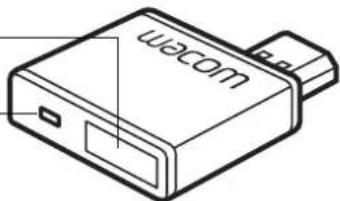
Wacom wireless module
Plugs into Bamboo tablet.

natural_image
Isometric line drawing of a wacom electronic component (no text or symbols)Wacom wireless receiver
Plugs into computer.
When not in use, can be stored in Bamboo tablet. See wireless receiver storage.

natural_image
Line drawing of a rectangular electronic device with a flat top and side connectors (no text or symbols)Rechargeable battery, Lithium-Ion (Li-Ion) Installs within Bamboo tablet.

Warning: See the Important Product Information for safety precautions. Located on the Bamboo Installation CD.
Note: The wireless module and receiver are factory paired. If lost or broken, you will need to purchase a new wireless accessory kit. The battery can be purchased separately.
To install the kit, see wireless setup
WIRELESS SETUP
Configure Bamboo for wireless operation.
- If you have been using Bamboo as a wired tablet, disconnect the USB cable.
-
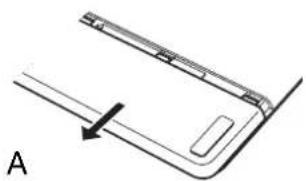
Turn the tablet over. Remove the wireless compartment cover(s). See (A). Slide cover(s) away from tablet body to remove. Tablet model CTH-670 is equipped with two covers: one for the Wacom wireless module, and one for the rechargeable battery.
-
Install the wireless components.
• Install the battery. Align contacts (B) as shown and press into place. See also replacing the battery.
• Install the wireless module. Lift away and remove the wireless module spacer (C). Slide the wireless module into the tablet, ensuring the connector is fully seated (D).
Important: Save the module spacer. You may need it as a tool for removal of the wireless module, and to protect the tablet interior from dust when the module is not installed. See wireless module removal.
- Replace the wireless compartment cover(s). Align and slide into place (E).
- Connect the Wacom wireless receiver to an active USB port on your computer or USB hub (F).
When not in use, store the receiver in the wireless receiver storage compartment. See wireless receiver storage.
natural_image
Diagram of a mechanical component with an arrow indicating direction, labeled 'A' (no text or symbols on the diagram itself)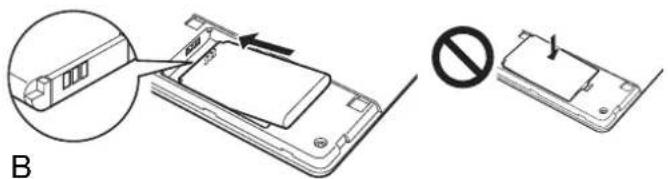

natural_image
Technical diagram of a mechanical component with labeled parts C and D, showing internal structure and directional arrow (no text or symbols beyond labels)
natural_image
Diagram of a device with two components, one showing an arrow pointing to a component (no text or symbols present)
natural_image
Simple line drawing of a door handle with an arrow indicating direction (no text or symbols)
natural_image
Line drawing of a laptop keyboard with an icon indicating a USB symbol (no text or labels)- If you have not already done so, turn on your computer and wait until the system has fully loaded.
Next, connect wirelessly.
Establishing a wireless connection
Optimizing the wireless connection
ESTABLISHING A WIRELESS CONNECTION
Connect wirelessly with Bamboo.
- Press the power button on the Wacom wireless module. A wireless connection should be established within 4 seconds. If not, the wireless module will turn off. If this should occur, see wireless connection problems.
Pairing is not required. The wireless module and Wacom wireless receiver are factory paired and work together as a discrete set. - Check the connection by using the pen on the tablet to move the screen cursor. See also battery and wireless connection status.
- Fully charge the tablet battery. See charging the battery.
Battery status LED
- Amber when USB cable is connected and battery is charging.
- Green when USB cable is connected and battery is fully charged.
- Off when using tablet wirelessly.

Power button
- Push to connect, or wake from sleep mode.
- Push to enter sleep mode.
Bamboo can operate wirelessly or in USB mode, but not both at the same time.
- Wireless mode is activated when Bamboo is properly configured for wireless operation and the USB cable is disconnected. When the USB cable is disconnected, the tablet searches and connects to the wireless receiver within 4 seconds. If the receiver is not found then the tablet enters sleep mode.
- USB connection deactivates wireless mode, and activates USB mode.
Notes:
Bamboo can operate wirelessly for up to 10 meters (33 feet) away from your computer. The wireless module uses radio-frequency technology, which can pass through non-metallic objects like desks. It is not necessary for Bamboo to be “in sight” of the wireless receiver.
Interference from other devices (especially audio devices) or networks operating in the 2.4 GHz range, or metallic objects located in or along the line of sight can negatively impact the tablet performance and operating distance. If you experience connection problems, see optimizing the wireless connection.
When starting up your computer, wait until your operating system has completely loaded and then turn on the wireless module (if not already on) to begin working wirelessly.

Important: The use of wireless devices is regulated in most countries. If your Bamboo is configured for wireless operation and you will be traveling, check with the appropriate regulatory authority for any restrictions that may apply to your product in the countries that you visit.
⚠️ Products using wireless signals may interfere with the equipment on commercial aircraft, and regulations require that all wireless devices be turned off when traveling in an airplane. Turn off the Bamboo tablet wireless signal by turning off or removing the wireless module (the tablet status LED will be off) and DO NOT power on the wireless module during takeoff, transit, or landing.
Do not use Bamboo wirelessly in a facility control system or any other environment that requires extremely high reliability, or where the use of a wireless device may cause interference. Wireless operation may interfere with or cause other electronic devices to malfunction, or other wireless devices may interfere with or cause the tablet to malfunction. Where use of wireless products is prohibited, power off or remove the wireless module (ensuring the wireless signal has been turned off) to prevent the possibility of it interfering with or causing other electronic devices to malfunction. Wacom does not accept any liability for direct or consequential damages. For details, please refer to your Warranty, located within the Important Product Information guide.
Power off your tablet in locations where/when electronic devices are not allowed. Because the tablet may cause other electronic devices to malfunction in some locations where/when the use of electronic devices is not allowed, such as within an airplane, be sure to turn off the tablet by unplugging the USB connector of this product from your computer.
OPTIMIZING THE WIRELESS CONNECTION
If your screen cursor lags behind the pen movement on the tablet or frequently “jumps” about, or if you see excessive straight line segments when drawing in graphics applications, then your wireless connection may not be able to transmit all of the data from the tablet with the necessary speed. This may be caused by interference from other radio sources, obstructions in the radio wave path, excessive distance from the computer, or a combination of the above.
To improve the wireless connection and optimize tablet performance:
- Remove any metallic objects that may be in the line of sight between Bamboo and the Wacom wireless receiver attached to your computer.
- Try connecting the wireless receiver to a USB extension cable, and place it on your desktop or somewhere in sight of Bamboo.
- Move the tablet closer to your computer.
- Switch off any other devices operating in the 2.4 GHz radio spectrum, such as WiFi networks, mobile telephones, etc., or move their antennas further away from your computer.
BATTERY AND POWER MANAGEMENT
This section contains important information about the rechargeable battery and power management features of your Bamboo tablet when configured for wireless operation. Be sure to review the following sections.
Charging the battery
Battery and wireless connection status
Power saving features
CHARGING THE BATTERY
Fully charge the tablet battery before using Bamboo for the first time in wireless mode.
Connect the USB cable between Bamboo and a primary USB port located directly on your computer, or to a powered USB hub.
- The battery charges whenever the cable is connected and the battery is not fully charged.
- For everyday use, charge your battery in approximately 4 hours. To fully charge an empty battery it takes approximately 6 hours. Actual charge time depends upon battery level and tablet use while charging.
- USB connection deactivates wireless mode.
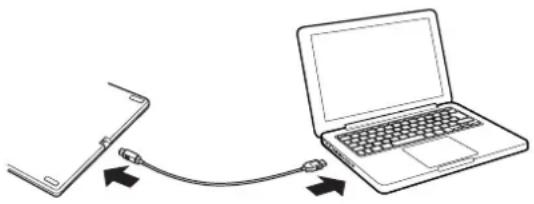
natural_image
Diagram showing a laptop connected to a flexible cable, with arrows indicating cable movement (no text or symbols present)Important: When charging the battery, always connect the USB cable directly to your computer or to a powered USB hub. A non-powered hub may not provide enough current to charge the battery, which may affect overall tablet operation.
When your tablet is not connected to your computer via USB cable, you can charge the battery using a standard wall adapter with 5V output voltage. Quick charging will not work during this process.
For more information, check the product information on the Wacom web site for your region.
Battery status LED
- Amber when USB cable is connected and battery is charging.
- Green when USB cable is connected and battery is fully charged.

natural_image
Line drawing of a device with ports and indicators (no text or symbols)
Warning: See the Important Product Information guide for safety precautions.
Tips:
When charging, be sure that both the battery and the Wacom wireless module are installed in the tablet.
To check the battery charge status, open the Bamboo control panel and select the TABLET tab. See battery and wireless connection status.
Make the most of your wireless time. See power saving features and battery life information.
BATTERY AND WIRELESS CONNECTION STATUS
When in wireless mode, Bamboo provides you with additional feedback about your tablet.
- The tablet status LED shows the following:
Blue, flashing Wireless mode connecting.
Blue Wireless mode on.
Off Sleep mode, or wireless mode off.
- On the Wacom wireless module, the battery status LED shows the following:
Amber USB cable connected and tablet battery charging.
Green USB cable connected and tablet battery fully charged.
Off USB cable connected, tablet is in USB suspend mode or USB connecting state.
USB cable disconnected, no charging activity.
- A battery status icon appears in the system task bar (Windows) or menu bar (Mac). Hover the screen cursor over the icon to learn specific details.
- The Bamboo control panel T ABLET tab updates to display the tablet battery status and control options.
The battery status icon indicates the tablet is in use, and shows an approximation of the battery charge remaining.
- A power plug symbol indicates tablet is running on external power through the USB cable, and the tablet battery is charging.
- A check mark symbol indicates battery is fully charged.
- An alert symbol indicates battery charge is below 20%.
The above points describe only the basic feedback elements of the battery status icon. You may see variations of these descriptions, depending on the actual status of your tablet and operating system. See also power saving features.
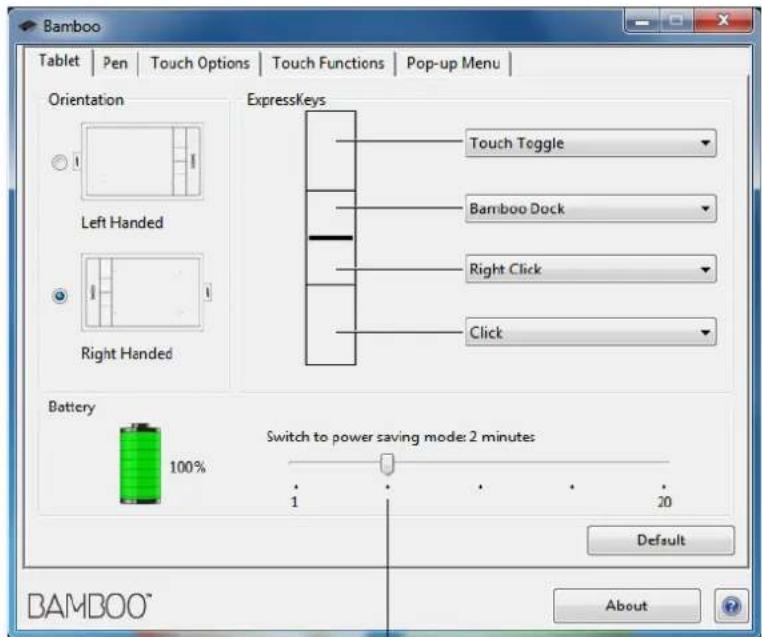
Adjust slider to determine when your tablet will switch to power saving mode.
POWER SAVING FEATURES
When configured for wireless operation, Bamboo uses a number of power saving features to conserve the tablet battery charge and improve performance.
Power saving mode
Tablet enters power saving mode after 2 minutes of no user input. The time parameter can be adjusted in the Bamboo control panel. See battery and wireless connection status.
Depending on your tablet model, wake from power saving mode by touching the tablet, pressing an ExpressKey, or placing the pen in proximity.
Sleep mode Tablet enters sleep mode:
- When there is no wireless connection for more than 4 seconds. For example, you switch off the computer, move the tablet out of range, or unplug the wireless receiver. To resume operations, correct any problem and ensure the tablet is within range of your computer. Then press the power button on the Wacom wireless module. See testing your tablet.
• After 30 minutes of no user input. - When the battery level is extremely low. Recharge the battery immediately.
To wake from sleep mode, first press the power button on the wireless module. Depending on your tablet model, touch the tablet surface with your finger or the pen. Then move your finger or pen along the tablet to fully activate Bamboo.
To manually enter sleep mode, press the power button on the wireless module.
Conserve battery power by turning off the wireless module when you are done working.
Important: The tablet draws current from the battery whenever the wireless module is on. Even in sleep mode a very small trickle of current will continue to flow, leading to eventual battery discharge and possible failure. It is a good idea to charge the battery and turn off the wireless module before leaving the tablet unused for a number of days. See battery life information.
BATTERY LIFE INFORMATION
The rechargeable battery should provide approximately 8 hours of wireless operation on a full charge. However, all batteries age over time and gradually lose their ability to hold a charge.
- The typical life span of a Li-Ion battery is two to three years, whether it is used or not. The life and performance of a Li-Ion battery is not improved by cycling (discharging and recharging).
- Always charge the battery whenever the low battery warning appears on your display screen. See also power saving features.
- The tablet draws current from the battery whenever the Wacom wireless module is on. To reduce power drain, the tablet will enter sleep mode whenever the battery level is very low. The battery must be recharged.
A small amount of current is drawn even in sleep mode, and will slowly discharge the battery. It is a good idea to charge the battery and turn the wireless module off before leaving the tablet unused for a number of days.
- Once the battery voltage has fallen below a minimum safety level, an internal protection circuit within the battery prevents any charging.
If a battery with a low charge remains in the tablet for an extended period of time, the small trickle of current used by the tablet may discharge the battery so far that the internal protection circuit is activated. If this occurs, you can no longer charge the battery. When leaving the tablet unused for an extended period of time, preserve the battery by removing it from the tablet.
You cannot recharge a Li-Ion battery that has been over-discharged.
- For extended battery storage (a month or longer), keeping the battery in a partially (not fully) charged state, along with cool storage, can slow the aging process. The recommended charge level is approximately 40% for optimum battery recharge when placed back into service. If storing both tablet and battery, you do not need to remove the battery. However, it is always good practice to remove the battery when storing the tablet.
Note that you may not be able to recharge the battery after 6 continuous months of non-use.
You will need to purchase a new battery when it is no longer capable of holding an adequate charge or can no longer be charged. See ordering parts and accessories.

Warning: See the Important Product Information guide for battery safety precautions.
REPLACING THE BATTERY
If your tablet battery has exceeded its life span and can no longer be charged or no longer holds a charge, it will need to be replaced. Be sure to use only the rechargeable battery designed for your tablet. For information, see ordering parts and accessories.
Important: Only use a Wacom battery specified for your tablet.
To replace the rechargeable battery:
- Turn the tablet over. Remove the wireless compartment cover. Tablet model CTH-670 is equipped with two covers: one for the Wacom wireless module, and one for the rechargeable battery. Slide cover away from tablet body to remove.
- Carefully remove the old battery as shown below.
- Install the new battery. Align the terminals of the new battery with the tablet contacts as shown below. Press the battery into the compartment.
- Replace the wireless compartment cover. Align and slide into place.
- Connect the USB cable and charge the battery for optimum performance. See charging the battery.
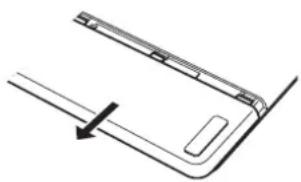
natural_image
Pure diagram of a curved mechanical component with a directional arrow, no text or symbols present
Be sure to first lift battery edge before sliding battery out of the compartment.
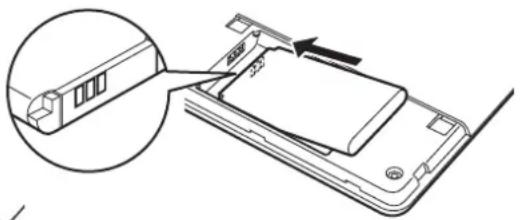
natural_image
Diagram showing a device being inserted into a mobile phone, with an arrow indicating the process (no text or symbols present)Install new battery.
Carefully install the battery at the angle shown to prevent damaging the battery contacts.
Important: When replacing the battery, be careful not to drop it on hard surfaces. The battery can be damaged internally when dropped, and should be replaced even if there is no obvious damage. This will help prevent any future damage that could occur to the tablet if the battery has been dropped, is installed in the tablet, and then later develops a short or leak while in the tablet.

Warning: See the Important Product Information guide for battery safety precautions.
Many communities offer voluntary or mandatory recycling programs for batteries. Properly recycle the old battery by following all applicable laws, and in accordance with the safety precautions for Lithium-Ion batteries as described in the Important Product Information guide. Keep batteries out of the reach of children, and promptly recycle old batteries.
WIRELESS MODULE REMOVAL
Once installed, the Wacom wireless module can be left in your Bamboo tablet. To remove the wireless module:
- Turn the tablet over. Remove the wireless compartment cover. Tablet model CTH-670 is equipped with two covers: one for the wireless module, and one for the rechargeable battery. Slide cover away from tablet body to remove.
- Place the wireless module spacer over the wireless module. Use the spacer as a hook to unseat and slide the wireless module out of the tablet. If the spacer is not available, use your thumbnail or other suitable, non-metallic tool to unseat the module.
- Separate the spacer from the wireless module. Press the spacer back into the wireless module slot.
- Replace the wireless compartment cover. Align and slide into place.
Store the wireless module in a safe place after removal.


natural_image
Isometric line drawing of a mechanical component with no text or symbolsThe Wacom wireless receiver is designed for portability. Plug it into a USB port on your computer. Then leave it there so the receiver will always be available for use with your tablet, even when you are traveling or otherwise on the go with Bamboo.
The wireless receiver can also be stored within your Bamboo tablet. To store the receiver in the tablet:
- Use your fingernail or other suitable, non-metallic tool to open the wireless receiver storage compartment.
- As you open the receiver storage door, slide the wireless receiver spacer partially out of the tablet body.
- Insert the receiver into the spacer.
- Slide the spacer fully back into the tablet body and close the receiver storage door.

natural_image
Three-step diagram showing hand holding a device with scroll arrows indicating rotation (no text or symbols)To remove the receiver from the tablet, open the compartment. Slide the spacer partially out of the tablet body. Remove the receiver from the spacer. Slide in the spacer and close the storage door.
PROBLEMS WITH YOUR BAMBOO?
Most of the time your tablet will work flawlessly. But if you are having trouble, Wacom recommends you do the following:
- If the tablet driver failed to load properly, first perform the recommended action in any error message that may appear on your screen. If that does not solve the problem, review the troubleshooting procedures in this chapter.
- Look in the troubleshooting tables. Your problem may be described there and you can try the solution offered.
- Open the Wacom tablet Read Me file and look for any information updates.
- Check the product FAQs (Frequently Asked Questions) on the Wacom web site for your region.
- If you are having a compatibility conflict between Bamboo and a new hardware or software product, see obtaining driver downloads for information on downloading an updated software driver. Wacom periodically updates the software driver to maintain compatibility with new products.
- Test your tablet and pen. See testing your tablet ____ and testing a pen.
- If you have tried the suggestions in this manual and still cannot resolve the problem, then contact Wacom for Technical Support. See technical support options and the Read Me file for information on where to obtain support for your region.
Testing your tablet
Testing a pen
Troubleshooting tables
Technical support options
Obtaining driver downloads
TESTING YOUR TABLET
- Turn on your computer and wait until the system has fully loaded.
- Check the USB connection. The tablet status LED should glow whenever the tablet is properly connected and your computer has registered it as a USB device. If not:
• Make sure the tablet USB cable is securely connected to an active USB port on your computer.
- Check the tablet USB cable for damage.
- If you are connecting the tablet to a USB hub (or hub device such as a keyboard with USB ports), be sure the USB hub is properly connected to your computer and is active.
- If the status LED does not illuminate after your computer is on and has finished booting up, your USB port may be disabled. Verify that you have connected the tablet to an active USB port.
- Connect the tablet to a different USB port or try connecting to the USB port on another computer.
-
For wireless operation, check the tablet connection. The tablet status LED should glow whenever the tablet is properly connected and your computer has registered it as a USB device. If not:
-
Verify that the wireless module is on. See battery and wireless connection status.
- Verify that the wireless module and receiver are properly installed. See wireless setup.
- Check the battery power. See battery and wireless connection status. If the battery charge is low, connect the USB cable and charge the battery. See charging the battery.
- Switch the wireless module off, and then back on.
-
Move the tablet closer to the computer. Make sure there are no metal or other high density obstructions in the line of sight between the tablet and computer.
-
Check touch and pen input:
- Check touch input. Attempt to move the screen cursor by tracking your finger across the tablet surface. Then tap to select an item. The status LED should brighten when you touch the active area of the tablet.
If the tablet driver does not load properly, basic touch movement will be recognized but other actions and gestures will not. If the driver does not properly load, the lower two ExpressKeys only will function at their default settings of CLICK (bottom key) and RIGHT CLICK (2nd key up). If gestures are not recognized and ExpressKeys do not function, install the tablet driver software.
- Check pen input. If the tablet driver does not load properly, pen input will not be available. (If you have a pen-only tablet model, you will be able to use the pen tip to move the screen cursor and click. You will also be able to use the pen buttons to CLICK and RIGHT CLICK, but there will be no other pen functionality.) Install the tablet driver software. See also testing a pen.

-
Check the ExpressKeys (if equipped). Do a quick check by pressing each key in turn. The status LED should brighten each time you press a key when there is no touch or pen input. Then open the Bamboo control panel and select the TABLET tab. Click on the DEFAULT button to return to the tablet default settings.
-
Press the upper ExpressKey to toggle touch input off and on.
- Press the second from top key to open Bamboo Dock (if installed).
- Position the screen cursor over an item, such as an empty folder on your desktop, and press the third ExpressKey to perform a right-click.
-
Position the screen cursor over an item, such as an empty folder on your desktop, and press the bottom ExpressKey to perform a click.
-
If any of these tests fail you may have defective hardware. See technical support options.
After testing, use the Bamboo control panel to reconfigure your tablet for any custom settings you may originally have been using.
TESTING A PEN

- First perform the procedures for testing your tablet.
- Check the pen by opening the Bamboo control panel and selecting the P EN tab. Click on the DEFAULT button to return the pen to its default settings. Next:
- Touch the pen tip and then the eraser (when equipped) to the tablet active area. Each time the tip or eraser makes contact with the tablet surface, the status LED should provide a visual indication. Models CTH-470 and CTH-670: the LED should glow white.
Model CTL-470: the LED should brighten.
- Without applying pressure to the pen tip, hold the pen tip within approximately 7 mm (0.28 inch) of the tablet surface and press each pen button in turn. For each button press, the status LED should provide a visual indication.
Models CTH-470 and CTH-670: The LED should glow white.
Model CTL-470: The LED should brighten.
- While still within proximity, but without touching the tablet surface, move your pen across the active area of the tablet. The screen cursor should move in the corresponding direction on your monitor or display screen.
- If any of these tests fail you may have defective hardware. See technical support options.
- After testing, use the Bamboo control panel to reconfigure your tablet and pen for any custom settings you may originally have been using.
TROUBLESHOOTING TABLES
If you encounter problems with your Bamboo tablet or pen, see the following tables. Your problem may be described here, and you can try the solution offered. Check the tablet Read Me file for the latest information updates.
For additional information, visit the Wacom web site at http://www.wacom.com.
General problems
Touch input problems
Pen input problems
Wireless connection problems
Windows-specific problems
Mac-specific problems
GENERAL PROBLEMS
| The computer does not have an available USB port. | Check if there is an available USB port on a USB hub. If not available you will need to add a USB hub or USB card. |
| The tablet status LED does not illuminate. | Verify that your tablet USB cable is properly connected to an active USB port. If you are connecting to a USB hub, make sure the hub is connected to an active USB port and that the hub is active.If using Bamboo in wireless mode, see alsowireless connection problems. |
| The computer does not go to sleep. | When you are not using the pen, remove it from the tablet surface or the tablet will continue to send data, keeping the computer awake.Note: Because some metallic or other conducting objects can also cause the tablet to send data, it is best to keep the tablet surface clear of all objects when not in use. |
| The screen cursor is very erratic or jumps around when using the tablet. | On rare occasions the tablet may receive interfering radio frequencies from a computer monitor or nearby AM radio station. If you notice interference from a monitor, try moving the tablet at least six (6) inches away from the monitor, or change the monitor refresh rate or monitor resolution. |
| The tablet is set for RIGHT HANDED (or LEFT HANDED), but at the log on screen the tablet seems to work upside down. | Reinstall the tablet driver software and change the default orientation of the tablet. Seeconfiguring the tablet orientation. |
TOUCH INPUT PROBLEMS

| Touch input does not work. | Re-enable touch input by pressing an ExpressKey that is set to TOUCH TOGGLE. Otherwise, open the Bamboo control panel and go to the TOUCH FUNCTIONS or TOUCH OPTIONS tab. Be sure the ENABLE TOUCH INPUT option is selected. |
| Touch input does not seem to fully work. The screen cursor can be moved, but more complex actions or gestures do not work. | If the tablet driver does not load properly, basic touch movement will be recognized but other actions and gestures will not. If the driver does not properly load, the lower two ExpressKeys only will function at their default settings of CLICK (bottom key) and RIGHT CLICK (2nd key up). Install the driver software for the tablet. |
| The tablet does not reliably recognize multi-finger input. | If you hold your fingers too close together, the tablet may not recognize them as being separate. Try moving your fingers a little further apart. |
| Cannot zoom-in or zoom-out when working with Adobe Photoshop. | If zoom functions do not operate correctly within Photoshop, verify that the ZOOM WITH SCROLL WHEEL function is not selected within the Photoshop PREFERENCES options. |
| Scrolling and panning gestures do not function correctly when working with Adobe Photoshop. | If touch input gestures do not operate correctly within Photoshop, verify that the ZOOM WITH SCROLL WHEEL function is not selected within the Photoshop PREFERENCES options. |
| Rotation gestures do not seem to work consistently, or not at all. | Rotation may work differently depending on the application you are working with. For example, rotation may work smoothly, in 90-degree increments, or not at all.For best recognition of this gesture, start with your fingers positioned diagonally on the tablet surface and keep them at least 25 mm (1 inch) apart. |
PEN INPUT PROBLEMS

| The pen does not position the screen cursor, or otherwise work. | If the tablet driver does not load properly, pen input will not be available.For tablet models that combine pen and touch input, basic touch movement will continue to be recognized but other actions and gestures will not. If the driver does not properly load, the lower two ExpressKeys only will function at their default settings of CLICK (bottom key) and RIGHT CLICK (2nd key up).If you have a pen-only tablet model, you will be able to use the pen tip to move the screen cursor and click. You will also be able to use the pen buttons to CLICK (lower button) and RIGHT CLICK (upper button), but there will be no other pen functionality.Install the driver software for the tablet. |
| The pen does not draw or ink with pressure sensitivity. | Some applications require that you turn on the pressure capabilities within the application or selected tool before the pen will respond as a pressure-sensitive tool.Verify also that your application supports pressure sensitivity. |
| Clicking is difficult. Open the Bamboo control panel and go to the P lighter TIP FEEL.Select the CLICK SOUND option (the check box should be checked). This will enable you to hear when the pen registers a mouse click. Your computer speakers must be turned on and the volume audible before you can hear a click sound. | |
| Double-clicking is difficult. | Be sure you are quickly tapping the tablet twice in the same place on the tablet active area.Using a pen button set to double-click is recommended (review the techniques in clicking).Open the Bamboo control panel and go to the PEN tab.Try increasing the D OUBLE CLICK DISTANCE.Try using a lighter T IP FEEL.Windows: Try setting your system to launch programs with a single click. See clicking. |
| The pen selects everything, will not stop selecting. | Open the Bamboo control panel and go to the PEN tab. Move the TIP FEEL slider toward FIRM. If this does not help, see testing a pen. |

| The eraser (when equipped) selects everything or will not stop erasing. | Open the Bamboo control panel and go to the PEN tab. Move the ERASER FEEL slider toward FIRM. If this does not help, see testing a pen. |
| You notice a screen delay at the beginning of pen or inking strokes. | Open the Bamboo control panel and go to the PEN tab. Try decreasing the DOUBLE CLICK DISTANCE. |
| You have to press hard with the pen when clicking, drawing, or writing. | Open the Bamboo control panel and go to the PEN tab. Move the TIP FEEL slider toward SOFT. |
| The pen tip does not function. | Depending on your tablet model, the status LED should brighten or change color when the pen tip is pressed to the tablet. Be sure you are using the pen that originally came with your product. Other pens may not function properly on the Bamboo tablet.See testing a pen to verify pen operation. If any of the tests fail you may have defective hardware. |
| The screen cursor jumps back. | Do not place the pen on the tablet when it is not in use or when you are using another pointing device. Leaving your pen on the tablet may interfere with screen cursor positioning when using other input devices. |
| The upper or lower pen button does not work. | Be sure you press the pen button when the pen tip is within 7 mm (0.28 inch) of the tablet active area. Do this without pressing down on the pen tip.From the Bamboo control panel, verify that the pen button is set to the function you are expecting to occur.In the Bamboo control panel, click on the PEN tab ADVANCED button. If CLICK & TAP is selected, you will need to first press the pen button and then touch the pen tip to the tablet surface in order to perform a click function. See setting the pen button functions.See testing a pen to verify pen operation. If any of the tests fail you may have defective hardware. |
| Cannot move the cursor where you want to on the screen, or the line you are drawing does not line up with the location of the pointer in paint applications. | Open the Bamboo control panel. Verify that PEN MODE is selected. If this does not help, click on the DEFAULT button to reestablish the default tablet to screen mapping. If you are still having difficulty, remove the tablet preferences (see Windows-specific problems or Mac-specific problems for details). |
WIRELESS CONNECTION PROBLEMS
| The computer does not have an available USB port. | Check if there is an available USB port on a USB hub. If not available, add a USB hub or USB card. |
| After pressing the power button on the wireless module, the tablet status LED glows steadily for 4 seconds and then turns off. | If a wireless connection is not established, the wireless module will turn off after 4 seconds.Make sure the wireless receiver is properly connected to an active USB port on your computer or USB hub.Move the tablet closer to the antenna and make sure there are no metal or other high-density obstructions in the line of sight between the tablet and your computer.Again press the power button to activate the connection. |
| After turning on the wireless module, the status LED indicates good functionality but the screen cursor cannot be moved with the pen. | Be sure you are using the pen correctly. Reviewusing the pen on the tablet.Switch the wireless module off, then back on.If the battery charge is low, trycharging the battery. |
| A wireless connection has been made, but the tablet does not seem to work correctly. | Be sure you have correctly installed the tablet driver software.See alsooptimizing the wireless connection. |
| The tablet works when connected with the USB cable, but turns off as soon as the cable is disconnected. | Confirm the wireless module and receiver are correctly installed, and that the wireless module is turned on.Check the battery. Seebattery and wireless connection status.Open the tablet wireless compartment cover and verify that the battery is properly installed. Tablet model CTH-670 is equipped with two covers: one for the Wacom wireless module, and one for the rechargeable battery.Check the battery appearance to ensure there is no leakage or other indication of damage.Charge the battery overnight and try again. If the problem persists, the battery may be completely discharged or damaged and can no longer hold a charge. You will have to purchase a replacement battery. Seeordering parts and accessories. |

| BAMBOO TM | Contents | Index | ↑ | | | ← | ← | → | 76 |
| The tablet status LED does not illuminate after pressing the power button on the wireless module. | Try again. Then:1. Verify the Wacom wireless receiver is properly connected to an active USB port. If connecting to a USB hub, make sure the hub is connected to an active USB port and that the hub is active.2. Verify the Wacom wireless module is properly installed in the tablet. Press the power button to connect wirelessly.3. If the tablet status LED still does not light, connect the USB cable between your tablet and computer.On the wireless module, check the battery status LED. Amber indicates the battery is charging. Green indicates the battery is fully charged. If the LED remains off, the battery may be defective. Replace the battery.4. If both the tablet status and wireless module LEDs remain off, then contact the Wacom support staff for the area where your product was purchased. Seetechnical support options |
| When using the tablet, the screen cursor or pen strokes seem to lag or skip in some applications. | Seeoptimizing the wireless connectionfor tips on improving the connection. |
| The battery charging process seems to stop whenever the computer enters sleep mode. | As required, adjust your system power or energy saver settings so that the computer does not enter sleep mode while the tablet battery is charging. |
WINDOWS-SPECIFIC PROBLEMS
You suspect the tablet preferences may be corrupted, or want to make certain that all settings are at their factory defaults.
Use the Bamboo Preference File Utility to work with preferences. Close any open applications. Click the START icon and select ALL PROGRAMS. Then select BAMBOO and BAMBOO PREFERENCE FILE UTILITY.
- It is a good idea to first back up your tablet preferences. In the BAMBOO PREFERENCE FILE UTILITY dialog box, click BACKUP... and follow the prompts.
- Then, use the Bamboo Preference File Utility to delete the tablet preferences as follows:
Single user. Under MY PREFERENCES, click REMOVE to delete the preferences for the current user.
Multiple users. Under ALL USER PREFERENCES, click REMOVE to delete preferences for multiple users. Administrator rights are required to delete preferences for all users. Relaunch any currently open tablet-aware applications that you may be running.
You can quickly restore tablet preferences that have been backed up by clicking RESTORE... under MY PREFERENCES.
MAC-SPECIFIC PROBLEMS
At startup, a dialog box appears telling you that either the driver failed to load or the tablet preferences have not yet been created.
The tablet was not detected at startup.
If using a wireless connection:
- Make sure the wireless connection is active. See battery and wireless connection status.
- F r o m menu, select UGILITIES and launch the SYSTEM PROFILER. Select USB from the HARDWARE section of the CONTENTS list. A Wacom USB tablet model should be listed. If a tablet model is not listed, check the wireless connection.
If connected with the provided USB cable:
- Make sure the USB cable is securely connected to an active USB port on your computer or USB hub. Make sure that the tablet status LED is illuminated.
- F r o m menu, hselect UGILITIES and launch the SYSTEM PROFILER. Select USB from the HARDWARE section of the CONTENTS list. A Wacom USB tablet model should be listed. If a tablet model is not listed, check the USB tablet cable connection or try plugging the tablet into a different USB port.
If you are still having difficulties, uninstall then reinstall the tablet driver software.
If this does not help, contact Wacom for Technical Support.
See technical support options

You suspect the tablet preferences may be corrupted, or want to make certain that all settings are at their factory defaults.
Use the Bamboo Utility to work with preferences. Close any open applications. Open the main APPLICATIONS folder. Then open the BAMBOO folder and run the BAMBOO UTILITY.
- It is a good idea to first back up your tablet preferences. In the Bamboo Utility, select CURRENT USER or ALL USERS. Then click BACKUP... and follow the prompts.
- Then, delete the tablet preferences as follows:
Single user. When the utility starts, select CURRENT USER and click REMOVE. Log out, then log back in. When the tablet driver loads it will create a new preferences file with the factory defaults.
Multiple users. When the utility starts, select ALL USERS and click REMOVE. Log out, then log back in. When the tablet driver loads it will create new preferences files with the factory defaults.
You can quickly restore tablet preferences that have been backed up for the CURRENT USER or ALL USERS by clicking on RESTORE... within the utility.
Note: Do not manually remove the B AMBOO.PREFPANE file from the main LIBRARY PREFERENCE PANES folder. This file is only to be removed when uninstalling the tablet software driver, and then only when using the BAMBOO UTILITY.
Ink does not work correctly with the tablet.
There may be a problem with the Ink preferences. Remove the damaged preference files as follows. They will be re-created when you enable handwriting recognition.
- Open SYSTEM PREFERENCES, choose SHOW ALL and select INK. Then turn off handwriting recognition.
- From the G o menu, choose your HOME. Open the LIBRARY and PREFERENCES folders. Remove the following preferences:
• COM.APPLE.INK.FRAMEWORK.PLIST
• COM.APPLE.INK.INKPAD.PLIST
• COM.APPLE.INK.INKPAD.SKETCH
- Go back to SYSTEM PREFERENCES and INK, and then enable handwriting recognition.
- Test the Ink function using your tablet and pen.
If this procedure does not resolve your problem with Ink, contact Apple Support for further assistance. Wacom is not the software manufacturer for Ink and we are limited in our abilities to support a third party software application.
TECHNICAL SUPPORT OPTIONS
If you have a problem with your tablet, first check the tablet Quick Start Guide to be sure the unit is installed correctly. Then review the troubleshooting procedures.
If you cannot find the answer in this manual, you may find updated information about your problem in the Read Me file for your platform (located on the Bamboo Installation CD). You can also check the product FAQs (Frequently Asked Questions) on the Wacom web site for your region.
If you have an Internet connection you can download the latest software drivers from the Wacom web site for your region. See obtaining driver downloads.
If you cannot solve the problem and you think your tablet is not working properly, contact the Wacom support staff for the area where your product was purchased. See the tablet Read Me file, located on the Bamboo Installation CD, for contact information.
When you call, you should be at your computer with the following information available:
- This manual.
- Tablet serial and model number. (Look on the bottom of the tablet.)
- Driver version number. (See the Bamboo Installation CD or click on the Bamboo control panel ABOUT button.)
- The make and model of your computer, and operating system version number.
- A list of peripheral devices attached to your computer.
- The software application and version you were using when the problem occurred.
- The exact wording of any error message that appeared on your screen.
- What happened and what you were doing when the problem occurred.
• How you tried to solve the problem.
You can also contact the Wacom Customer Care Center by visiting the Wacom web site for your region and completing an Email Inquiry form.
OBTAINING DRIVER DOWNLOADS
Wacom periodically updates the tablet software driver to maintain compatibility with new products. If you are having a compatibility problem between Bamboo and a new hardware or software product, it may be helpful to download a new software driver (when available) from the Internet.
USA, Canada, Central and South America
Worldwide Web: http://www.wacom.com Software updates
Europe, Middle East and Africa
Worldwide Web: http://www.wacom.eu/downloads Software updates
Japan
Worldwide Web: http://tablet.wacom.co.jp/download/down1.html Software updates (Japanese)
Asia Pacific (English)
Worldwide Web: http://www.wacom.asia Software updates (English)
China
Worldwide Web: http://www.wacom.com.cn Software updates
(Simplified Chinese)
Hong Kong
Worldwide Web: http://www.wacom.com.hk Software updates
(Traditional Chinese)
Korea
Worldwide Web: http://www.wacomkorea.com Software updates (Korean)
Taiwan
Worldwide Web: http://www.wacom.com.tw Software updates
(Traditional Chinese)
APPENDIX
This section contains tips on caring for Bamboo, instructions on how to uninstall the tablet software, information about digital inking, and more.
Caring for Bamboo
Replacing the pen nib
Bamboo Dock
Uninstalling Bamboo
Managing preferences
Pen and digital ink capabilities in Windows
Product information
Ordering parts and accessories
Available parts and accessories
CARING FOR BAMBOO
Keep your Bamboo tablet surface and pen clean. Dust and dirt particles can stick to the pen and cause excessive wear to the tablet surface. Regular cleaning with a soft, damp cloth will help to prolong the life of your tablet surface and pen. You can also dampen the cloth using a very mild soap diluted with water. Do not use volatile liquids, such as paint thinner or benzene, as they may damage the plastic case.
Keep Bamboo in a clean, dry place and avoid extremes in temperature. Room temperature is best. Also, your Bamboo tablet and pen are not made to come apart. Twisting the pen case can break the pen. Taking apart the product will void your warranty.
Important: Take care to never spill liquids onto the tablet or pen. Be especially careful of getting the tablet ExpressKeys or pen buttons, tip, and eraser (when equipped) wet. They contain sensitive electronic parts that will fail if liquid enters them.
REPLACING THE PEN NIB

The pen nib (tip) will wear with normal use. Excessive pressure will cause it to wear sooner. Replace the nib when it gets too short or develops a flat point.
- Clasp the old nib and pull it straight out of the pen. Use the nib removal tool, pair of tweezers, needle-nosed pliers, or similar instrument.
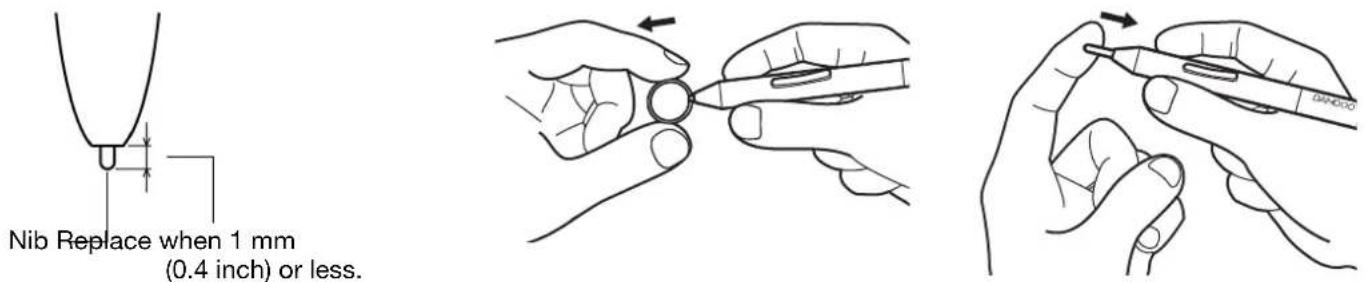
- Slide the end of the new nib straight into the barrel of the pen. Firmly push the nib until it stops.
Warning: Choking hazard. Prevent children from swallowing the pen nib or button part. The pen nib or button part may accidentally be pulled out if children are biting on them.
For replacement parts, see ordering parts and accessories.
Important: When not in use, place the pen in the pen holder or lay it flat on your desk. The eraser end of the pen should be inserted first into the loop. To maintain the sensitivity of your pen, do not store the pen in a container where it will rest on the tip or eraser (when equipped).
BAMBOO DOCK
Use the Bamboo Dock to work with your Bamboo tablet settings, and to view and add applications (apps) made for Bamboo. To learn more, visit http://bamboodock.wacom.com/ and choose your language.
To open Bamboo Dock, press a tablet ExpressKey to which the Bamboo Dock function has been assigned. Otherwise:
- W _ i _ n: ClickSTART and choose (ALL) PROGRAMS. Then select BAMBOO DOCK from the BAMBOO DOCK folder.
- Mac: From the Finder Go menu or PLACES sidebar, choose APPLICATIONS, open the BAMBOO DOCK folder, and double-click on the BAMBOO DOCK icon.
Draw to open or hide Bamboo Dock options.
Work with your Bamboo settings. Click the Bamboo settings (gear) icon. Here you can adjust your Bamboo tablet settings and more.
Learn about and install Bamboo apps. Click the Bamboo collection (+) icon. From games and sketching to composing music or sharing and connecting with friends, there is an ever-growing collection of Bamboo apps to choose from.
To uninstall Bamboo Dock
- W _ i _ n: ClickSTART and choose (ALL) PROGRAMS. Then select BAMBOO DOCK and UNINSTALL. Follow the prompts.
• Mac: In the APPLICATIONS folder, locate and trash the BAMBOO DOCK folder.
UNINSTALLING BAMBOO
Follow the appropriate procedure below to remove the tablet driver software from your system.
Important: When you remove the tablet software, your tablet will no longer operate with full tablet functionality but will continue to function as a mouse device.
Windows 7 and Vista: Click on the Windows START button and open the CONTROL PANEL. In the CONTROL PANEL window click on UNINSTALL A PROGRAM. In the dialog box that appears, choose BAMBOO and click UNINSTALL. Follow the prompts to remove the tablet driver. If prompted, enter your administrator log on name and password. Restart your computer after uninstalling the software.
Windows XP: Click on the Windows START button and open the CONTROL PANEL. In the CONTROL PANEL window select ADD OR REMOVE PROGRAMS. In the ADD OR REMOVE PROGRAMS window, choose BAMBOO and click REMOVE. Follow the prompts to remove the tablet driver. Restart your computer after uninstalling the software.
Mac: From the Go menu, choose APPLICATIONS and open the BAMBOO folder. Double-click on the BAMBOO UTILITY icon and select the TABLET SOFTWARE: REMOVE button. Enter your administrator login name and password. After the removal is completed, click OK. Restart your computer after uninstalling the software.
MANAGING PREFERENCES
Use the preference file utility to manage your tablet preferences for single or multiple users.
Windows: First close any open applications. Then open the utility by clicking the START icon and selecting ALL PROGRAMS. Select BAMBOO and BAMBOO PREFERENCE FILE UTILITY.
- To remove preferences for the current user, click R EMOVE under MY PREFERENCES.
- To delete preferences for multiple users, click R EMOVE under ALL USER PREFERENCES. Administrator rights are required to delete preferences for all users. Relaunch any currently open tablet-aware applications that you may be running.
- To back up your preferences, click B ACKUP... under MY PREFERENCES.
- To restore preferences that you had previously backed up, click R ESTORE... under MY PREFERENCES.
- Carefully follow any prompts that may appear.
Mac: Open the main APPLICATIONS folder. Then open the BAMBOO folder and run the BAMBOO UTILITY.
- To remove preferences, select CURRENT USER or ALL USERS. Then click REMOVE. Log out, then log back in. When the tablet driver loads it will create a new preferences file with the factory defaults.
- To back up your preferences, select CURRENT USER or ALL USERS. Then click BACKUP....
- To restore preferences that you had previously backed up, select CURRENT USER or ALL USERS. Then click RESTORE....
- Carefully follow any prompts that may appear.
PEN AND DIGITAL INK CAPABILITIES IN WINDOWS

Microsoft Windows 7 and Vista provide extensive support for pen input. Pen features are supported in all versions of Windows 7 and Vista except Windows 7 Starter and Home Basic, and Windows Vista Home Basic. Use Bamboo and your Wacom pen for quick, intuitive results.
- N o t eJottnotes andicapture quick sketches in Windows Journal. Use the Journal search engine to locate your handwritten content.
- Handwriting recognition. Quickly enter handwritten information anywhere the computer accepts typed input. Convert your handwritten content to typed text at any time.
- G e s. Make simple gestural movements on the tablet to trigger customizable actions. To customize gestures, select the FLICKS tab in the Windows 7 PEN AND TOUCH or Windows Vista PEN AND INPUT DEVICES control panel.
- Digital Ink in Microsoft Office 2007. Utilize the enhanced digital mark-up and inking tools found on the REVIEW tab within applicable applications.
The Windows 7 or Vista Input Panel enables you to use handwriting or an on-screen keyboard to directly enter text with your Wacom pen.
There are different ways to launch the Input Panel:
- Click on the Input Panel icon which appears when you move the screen cursor into a text entry area.
- Click on the Input Panel tab, located by default on the left edge of the display screen.
- Click on the Tablet PC Input Panel icon located on the Windows Taskbar. If the icon is not visible, right-click on the Taskbar, select TOOLBARS, and TABLET PC INPUT PANEL.
To disable the Input Panel
- Open the Tablet PC Input Panel.
- Select TOOLS and OPTIONS.
- Choose the O PENING tab and uncheck the following boxes:
• FOR TABLET PEN INPUT, SHOW THE ICON NEXT TO THE TEXT BOX
• SHOW THE INPUT PANEL TAB.
- Click OK.
For details, study the documentation that came with your system, including the Windows training tools and Tablet PC tutorial. To access the Tablet PC Pen Training, from the START menu choose ALL PROGRAMS, TABLET PC, and TABLET PC PEN TRAINING. Search the Windows help system for training tools if they are not available from the START menu.

Search the Microsoft web site for enhanced information about digital inking in Windows. You can also visit the Wacom web site at www.wacom.com/vista
Note: The following workarounds in the Wacom software driver improve performance in Windows 7 and Vista:
- The Pen Flicks and ‘press-and-hold-to-right-click’ features are disabled in graphics applications using the Wintab API.
- There is no pressure sensitivity in Journal and other Ink features when both the Flicks and 'press-and-hold-to-right-click' features are disabled in the Windows 7 PEN AND TOUCH or Windows Vista PEN AND INPUT DEVICES control panel.
PRODUCT INFORMATION
To learn more about Bamboo, visit the Wacom web site for your region. You can also discover which software applications are currently tablet enhanced to support the pressure sensitivity and other special functionality of your tablet.
USA, Canada, Central and South America http://www.wacom.com/productinfo
Europe, Middle East and Africa http://www.wacom.eu
Japan http://tablet.wacom.co.jp
Asia Pacific (English) http://www.wacom.asia
China (Simplified Chinese) http://www.wacom.com.cn
Hong Kong (Traditional Chinese) http://www.wacom.com.hk
Korea http://www.wacomkorea.com
Taiwan http://www.wacom.com.tw
Thailand http://www.wacom-thai.com
ORDERING PARTS AND ACCESSORIES
To purchase available parts and accessories, refer to the Wacom tablet Read Me file and see who to call for your region.
You can also do the following:
- In the USA or Canada, call 1.888.884.1870 (toll-free) or visit Wacom's web site at http://www.WacomDirect.com (USA only).
- I n E, call +49d(0)180.500.03.75 or send an email to spareparts@wacom.eu. Or, visit http://shop.wacom.eu. You can also contact your local dealer, distributor, or technical support using the appropriate number for your region.
- In Australia, Singapore, Taiwan and Korea, please visit: www.BuyWacom.com.au, www.BuyWacom.com.sg, www.BuyWacom.com.tw and www.BuyWacom.co.kr, respectively.
- In other countries, please contact your local dealer or distributor.
Some parts and accessories may not be available in all regions.
AVAILABLE PARTS AND ACCESSORIES
DESCRIPTION PART NUMBER
Wacom wireless accessory kit (includes Wacom wireless module, ACK-40401 Wacom wireless receiver, and rechargeable battery)
Rechargeable battery ACK-40403
Pen, standard, without eraser LP-170
Pen, premium, with eraser LP-170E
Pen nibs, black, qty 5 ACK-204-01K
Pen nibs, white, qty 5 ACK-204-01W
Carrying case, small ACK-403021
Additional parts and accessories may be available on the Wacom web site for your region. See ordering parts and accessories.
GLOSSARY
Active area. The navigation and drawing area of your Bamboo tablet where touch or pen input is detected. See touch sensor.
Aspect. The ratio between the vertical and horizontal dimension of the tablet or display.
Click force. The amount of force you must apply to the pen tip for a click to occur.
Digital Ink. A broad category that typically describes handwritten content which has been created using pen-based input on a computer. This handwritten content takes the form of sketches, ink mark-up, or handwriting. The handwriting can optionally be converted to typewritten text or simply left alone for use in its original format. Depending on your system and application settings, the handwritten text you make with digital ink can be converted on-the-fly or at another time.
Display Toggle. A Bamboo feature that allows you to work with your tablet on all displays or on one display at a time. Available only on multiple monitor systems. See working with Display Toggle.
Double-click distance. The maximum distance (in screen pixels) that the screen cursor can move between clicks and still be accepted as a double-click. Increasing the double-click distance makes double-clicking easier, but may cause a delay in brush strokes in some applications.
Eraser-aware application. A software application that has built-in support for the pen eraser. These applications take advantage of the eraser in different ways, depending on what makes sense for the application.
Expand. A motion used when navigating with touch. Touch the tablet with two fingers spaced closely together. Then while still touching the tablet surface, move your fingers apart.
ExpressKeys. The customizable control keys located on your Bamboo tablet.
ExpressKeys, LEFT HANDED. A tablet setting where the ExpressKeys are oriented to the right of the tablet.
ExpressKeys, RIGHT HANDED. A tablet setting where the ExpressKeys are oriented to the left of the tablet.
Journal. A Microsoft Windows application that electronically simulates a physical journal pad, but with the advantages of digital note taking. For example, you can create quick sketches and jot handwritten notes that can be converted to text and sent on to colleagues for digital mark-up. Journal includes a variety of pen, marker, and highlighter tools, plus an eraser that is easily activated by the eraser (when equipped) of the Wacom pen. Additionally, your handwritten content is searchable within Journal.
Mapping. The relationship between the pen position on your Bamboo tablet and the cursor position on the monitor screen.
Modifier. Modifier keys include SHIFT, ALT, and CTRL for Windows, or SHIFT, CONTROL, COMMAND, and OPTION for Mac. You can customize your Bamboo pen buttons or ExpressKeys to simulate a modifier key.

Mouse acceleration. A setting that allows you to adjust the screen cursor acceleration when using mouse mode.
Mouse mode. A method for positioning the screen cursor. When you place the pen on your Bamboo tablet, you can move the screen cursor with a "pick up and slide" motion similar to using a standard mouse. This is known as relative positioning. See also pen mode.
Mouse speed. A setting that allows you to adjust the speed at which your screen cursor moves when using mouse mode.
Nib. The replaceable pen tip.
Pan. A motion used when navigating with touch. Touch the tablet surface with your fingers and move them in the same direction.
Pairing. A method of creating a virtual cable link between to devices.
Pen input. A method of controlling a computer using the pen on your Bamboo tablet.
Pen mode. A pen input method of positioning the screen cursor. Wherever you place the pen on your Bamboo tablet, the screen cursor will jump to the corresponding point on the screen. This is known as absolute positioning, and is the default setting for the pen. Pen mode allows you to quickly position the screen cursor without having to first find it and then move it across the desktop. See also mouse mode.
Pinch. A motion used when navigating with touch. Touch the tablet with two fingers spaced slightly apart. Then while still touching the tablet surface, move or 'pinch' your fingers together.
Pixel. The smallest unit of measure on your monitor screen.
Pop-up Menu. A user-defined menu that displays a list of keystroke functions and other actions you can perform. You can customize the buttons of your pen to display this menu. Available for tablet models that are configured for both pen and touch input.
Pressure sensitive. A quality of the Wacom pen tip and eraser (when equipped) that senses the amount of pressure being applied. This is used to create natural-looking pen, brush, and eraser strokes in applications that are pressure sensitive.
Pressure-sensitive application. Any application that supports pressure-sensitive input.
Proximity. The height above the tablet active area where pen detection occurs. See also positioning.
Screen cursor. The pointer on the display screen. Screen cursors come in different shapes (such as an I-beam, arrow, or box), depending on which application you are running.
Swipe. A motion used when navigating with touch. Touch the tablet surface with three or four fingers and move them in the same direction.

Tablet PC Input Panel (TIP). The Microsoft Windows Tablet PC Input Panel enables you to use your Wacom pen to create handwritten notes or work with an on-screen keyboard. The Input Panel dynamically converts your handwriting to text. The information you create can then be inserted into other documents, spreadsheets, or illustrations.
Tap. A motion used when navigating with touch. Touch and lift a single finger from the tablet.
Touch input. A method of interacting with a computer using only your fingertips on the Bamboo tablet.
Touch sensor: The navigation area of your Bamboo tablet where touch input is detected. The touch sensor resides within the active area, and does not accept pen input.
Track. A motion used when navigating with touch. Touch and move a single finger across the tablet surface.
Twist. A motion used when navigating with touch. Touch the tablet with two fingers spaced slightly apart and move (rotate) them in a circular fashion, or move them in opposing directions. Alternatively, hold one finger stationary and track your other finger around the stationary finger.
USB. Universal Serial Bus. A hardware interface standard for connecting computer peripheral devices. USB ports support hot-plugging, which allows you to connect or disconnect a USB device without turning off your computer.
Wintab. An interface standard used by Windows applications for receiving tablet information. Bamboo supports all Wintab-compatible applications under Windows.
INDEX
About the manual 5
Accessories and parts, ordering 88
Accessories, available 88
Active area, understanding 13
Bamboo
caring for 82
customizing 35
Expresskey basics 34
pen input 26
problems with 67
product features 6
setting up 10
tablets matrix 6
the pen experience 26
the touch experience 16
touch input 16
troubleshooting 67
using 16
Bamboo Dock
Button functions
Care, for Bamboo
Click sound
Clicking, with pen
Control panel
basics 15
opening 35
overview 36
Controls, tablet 33
Customizing
Bamboo 35
button functions 50
double-click distance 41
eraser feel 41
ExpressKeys 34
functions 47
pen 40
acceleration in mouse mode 46
buttons 42
input 33
speed in mouse mode 46
Pop-up Menu 48
tablet orientation 47
tip feel 41
touch
functions 38
input 37
Digital inking capabilities 86
Disabling touch input 39
Display Toggle, working with 49
Double-click distance, customizing 41
Double-clicking, how to 29
Dragging, with pen 29
Drawing with pressure 31
Driver downloads, obtaining 81
Environmental conditions 82
Eraser feel, customizing 41
Erasing, with pen 32
Ergonomics 10
ExpressKeys
basics 34
customizing 34
setting functions 47
using 34
Eye-hand coordination exercise 33
Features
pen 9
pen & touch models 7
pen holder 9
pen models 8
Functions, button 50
General problems, troubleshooting 71
Holding the pen 26
Information, product 87
Mac-specific problems, troubleshooting 78
Manual, about 5

Mapping
tablet 43
to multiple monitors 15
Monitors, working with multiple 15
Navigation, customizing for touch input 37
Nib, replacing 83
Ordering parts and accessories 88
Orientation
configuring for tablet 12
setting for tablet 47
Overview, control panel 36
Parts and accessories, ordering 88
Parts, available 88
Pen
buttons
customizing 42
using 30
clicking with 29
customizing 40
double-clicking with 29
dragging with 29
drawing with pressure 31
erasing with 32
features 9
holding 26
input problems, troubleshooting 73
input, customizing 33
nib, replacing 83
pointing with 27
positioning with 27
speed, setting 46
testing 70
the experience 26
tip, replacing 83
using 26
on tablet 27
pen buttons 30
writing with pressure 31
Pen holder 9
Pointing, with pen 27
Pop-up Menu, customizing 48
Positioning, with pen 27
Preferences, managing 85
Pressure
drawing with 31
writing with 31
Problems, with Bamboo 67
Product
features 6
information 87
Proportions and scale 44
Scale and proportions 44
Set up 10
Settings, control panel 36
Software
driver downloads 81
uninstalling 84
Tablet
configuring orientation 12
controls 33
ExpressKeys 34
features matrix 6
mapping 43
area 44
for portion of screen area 45
for portion of tablet area 45
to multiple monitors 15
orientation, setting 47
pen & touch model features 7
pen model features 8
scale and proportions 44
storing 82
testing 68
tracking 43
Technical support options 80
Testing
pen 70
tablet 68
Tip
customizing feel 41
replacing 83
Touch
adjusting touch speed 37
basic actions 18
customizing 25
disabling 39

BAMBOO™
Contents
Index


94
four-finger gestures 24
gestures 18
input problems, troubleshooting 72
input, customizing 37
navigating with 17
one-finger actions 19
options 17
setting navigation features 37
setting touch functions 38
speed, adjusting 37
the experience 16
three-finger gestures 23
two-finger actions 20
two-finger gestures 20
Tracking, tablet 43
Troubleshooting 67
general problems 71
Mac-specific problems 78
pen input problems 73
tables 71
touch input problems 72
Windows-specific problems 77
wireless connection problems 75
Uninstalling tablet software 84
Using Bamboo 16
Windows-specific problems, troubleshooting 77
Wireless operation 55
battery life 63
battery management 60
battery replacement 64
battery, charging 60
components 55
connection problems 75
establishing a connection 57
optimizing the connection 59
power management 60
power saving 62
setup 56
status
battery 61
connection 61
troubleshooting 75
wireless module, removal from tablet 65
wireless receiver, storage in tablet 66
Work area, setting up 10
Writing with pressure 31
WACOM INTERNATIONAL OFFICES
WACOM TECHNOLOGY CORPORATION WACOM EUROPE GMBH
1311 SE Cardinal Court Europark Fichtenhain A9
Vancouver, WA 98683 47807 Krefeld
U.S.A. Germany
Telephone: +1.360.896.9833 Internet: http://www.wacom.eu
Fax: +1.360.896.9724
WACOM CO., LTD.
JAPAN TABLET SALES DIVISION
WACOM CO., LTD.
ASIA PACIFIC DIVISION
Harmony Tower 18F, 1-32-2 Hon-Cho, Harmony Tower 18F, 1-32-2 Hon-Cho,
Nakano-Ku, Tokyo 164-0012 Nakano-Ku, Tokyo 164-0012
Japan Japan
Internet: http://tablet.wacom.co.jp Telephone: +81.3.5309.1513
Fax: +81.3.5309.1514
WACOM CHINA CORPORATION
1103, Beijing IFC West Tower
No. 8 Jianguomenwai Street 1601 Sangam-dong, Mapo-gu, Seoul 121-913, Korea
Chaoyang District, Beijing 100022
China
Internet: http://www.wacom.com.cn
WACOM KOREA CO., LTD.
1211, 12F KGIT Sangam Center,
-gu, Seoul 121-913, Korea
Telephone: +82.2.557.3894
Fax: +82.2.557.3895
WACOM AUSTRALIA PTY. LTD.
Unit 8, Stage 1 Cumberland Green
2-8 South Street Rydalmere
NSW 2116 Australia
Telephone: +61.2.9422.6700
Fax: +61.2.9420.2272
WACOM SINGAPORE PTE. LTD.
5 Temasek Boulevard
12-09 Suntec Tower Five
Singapore 038985
Telephone: +65.6258.8640
Fax: +65.6258.8697
WACOM TAIWAN INFORMATION CO., LTD.
Suite 605, 6th floor, No. 205 Tun-Hwa North Road
Taipei, 105 Taiwan
Telephone: +886.2.2712.2675
Fax: +886.2.2712.9789
WACOM HONG KONG LIMITED
Room 1201, Tai Tung Building
8 Fleming Road
Wanchai, Hong Kong
Telephone: +852.25739322
Fax: +852.25739500


- User's manual
- Bamboo™
- TABLE OF CONTENTS
- PROBLEMS WITH YOUR BAMBOO? 67
- APPENDIX 82
- GLOSSARY 89
- INDEX 92
- ABOUT THE MANUAL
- YOUR BAMBOO
- IDENTIFY YOUR TABLET MODEL
- BAMBOO TABLET
- PEN
- PEN HOLDER
- SETTING UP YOUR BAMBOO
- ERGONOMICS
- CONFIGURING THE TABLET ORIENTATION
- Right-handed operation:
- Left-handed operation:
- UNDERSTANDING THE TABLET ACTIVE AREA
- Touch input
- Tablet active area
- Pen input
- WORKING WITH MULTIPLE MONITORS
- Tips:
- CONTROL PANEL BASICS
- USING YOUR BAMBOO
- THE TOUCH EXPERIENCE WITH BAMBOO
- NAVIGATING WITH TOUCH
- ONE-FINGER ACTIONS
- Track
- Click (single-finger tap)
- Double-click
- Select and drag (DRAG LOCK disabled)
- Drag lock (DRAG LOCK enabled)
- TWO-FINGER ACTIONS AND GESTURES
- Select and drag
- Right-click
- Right-click (two-finger tap)
- Fast scroll
- Rotate (rotate around finger)
- THREE-FINGER GESTURES
- Forward or Back (swipe right or left)
- FOUR-FINGER GESTURES
- Switch applications
- Open Flip 3D (Windows) or Exposé (Mac)
- Show Desktop
- CUSTOMIZING TOUCH
- THE PEN EXPERIENCE WITH BAMBOO
- HOLDING THE PEN
- USING THE PEN ON THE TABLET
- POSITIONING
- CLICKING
- DRAGGING
- USING THE PEN BUTTONS
- WRITING AND DRAWING WITH PRESSURE SENSITIVITY
- ERASING
- EYE-HAND COORDINATION EXERCISE
- CUSTOMIZING PEN INPUT
- TABLET CONTROLS
- EXPRESSKEY BASICS
- ExpressKeys
- CUSTOMIZING THE EXPRESSKEYS
- CUSTOMIZING YOUR BAMBOO
- OPENING THE CONTROL PANEL
- CONTROL PANEL OVERVIEW
- SETTING THE TOUCH OPTIONS
- SETTING THE TOUCH FUNCTIONS
- DISABLING TOUCH
- CUSTOMIZE YOUR PEN EXPERIENCE
- SETTING THE TIP AND ERASER FEEL, AND DOUBLE-CLICK DISTANCE
- SETTING THE PEN BUTTON FUNCTIONS
- SETTING THE TABLET MAPPING
- PORTION OF SCREEN AREA
- PORTION OF TABLET AREA
- SETTING THE PEN SPEED IN MOUSE MODE
- Notes:
- CUSTOMIZING TABLET AND EXPRESSKEY FUNCTIONS
- CUSTOMIZING THE POP-UP MENU
- WORKING WITH DISPLAY TOGGLE
- BUTTON FUNCTIONS
- FUNCTION DESCRIPTION
- GOING WIRELESS WITH YOUR BAMBOO
- WIRELESS ACCESSORY COMPONENTS
- WIRELESS SETUP
- ESTABLISHING A WIRELESS CONNECTION
- OPTIMIZING THE WIRELESS CONNECTION
- BATTERY AND POWER MANAGEMENT
- CHARGING THE BATTERY
- Battery status LED
- BATTERY AND WIRELESS CONNECTION STATUS
- POWER SAVING FEATURES
- Power saving mode
- BATTERY LIFE INFORMATION
- REPLACING THE BATTERY
- WIRELESS MODULE REMOVAL
- PROBLEMS WITH YOUR BAMBOO?
- TESTING YOUR TABLET
- TESTING A PEN
- TROUBLESHOOTING TABLES
- TOUCH INPUT PROBLEMS
- PEN INPUT PROBLEMS
- WINDOWS-SPECIFIC PROBLEMS
- MAC-SPECIFIC PROBLEMS
- TECHNICAL SUPPORT OPTIONS
- OBTAINING DRIVER DOWNLOADS
- APPENDIX
- CARING FOR BAMBOO
- REPLACING THE PEN NIB
- BAMBOO DOCK
- To uninstall Bamboo Dock
- UNINSTALLING BAMBOO
- MANAGING PREFERENCES
- PEN AND DIGITAL INK CAPABILITIES IN WINDOWS
- To disable the Input Panel
- PRODUCT INFORMATION
- ORDERING PARTS AND ACCESSORIES
- AVAILABLE PARTS AND ACCESSORIES
- DESCRIPTION PART NUMBER
- GLOSSARY
- INDEX
- Mapping
- Pressure
- Product
- Software
- Tablet
- Testing
- Tip
- Touch
- WACOM INTERNATIONAL OFFICES
- 1211, 12F KGIT Sangam Center,
- 12-09 Suntec Tower Five
Brand : WACOM
Model : Bamboo Manga
Category : Graphic tablet