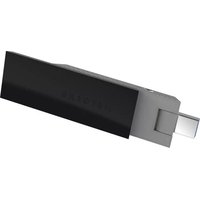
A6200 - Network card NETGEAR - Free user manual and instructions
Find the device manual for free A6200 NETGEAR in PDF.


| Product Type | Wireless USB Network Adapter |
| Model | A6200 |
| Standards | 802.11ac draft 2.0, 802.11n, 802.11g, 802.11b, 802.11a |
| Wireless Speed | Up to 866 Mbps (802.11ac), up to 300 Mbps (802.11n) |
| Frequency Bands | 2.4 GHz and 5 GHz |
| Antenna | 2 internal LDS antennas, extendable for improved range |
| Security Encryption | WPA2-PSK (AES), WPA-PSK (TKIP), 64-bit and 128-bit WEP |
| Bus Interface | USB 2.0 (compatible with USB 1.1) |
| Power Source | 5V bus-powered via USB port |
| Dimensions (W x D x H) | 95.3 x 31.4 x 14.3 mm (3.75 x 1.23 x 0.56 in) |
| Weight | 27 g (0.95 oz) |
| Operating Temperature | 0°C to 40°C (32°F to 104°F) |
| Supported Operating Systems | Windows 8, Windows 7, Windows Vista, Windows XP (32/64-bit) |
| Software | NETGEAR genie for easy network management |
| WPS Support | Yes, with dedicated WPS button on adapter |
| LED Indicator | Yes, shows connection status |
| Compliance | FCC, CE, IC |
| Included Accessories | Desktop dock, USB cable |
| Warranty | 1 year (check NETGEAR support for details) |
Frequently Asked Questions - A6200 NETGEAR
User questions about A6200 NETGEAR
0 question about this device. Answer the ones you know or ask your own.
Ask a new question about this device
Download the instructions for your Network card in PDF format for free! Find your manual A6200 - NETGEAR and take your electronic device back in hand. On this page are published all the documents necessary for the use of your device. A6200 by NETGEAR.
USER MANUAL A6200 NETGEAR
natural_image
3D rendering of a black and silver electronic device with a display panel and control buttons (no visible text or symbols)350 East Plumeria Drive San Jose, CA 95134 USA
November 2012 202-11093-01 v1.0
Support
Thank you for choosing NETGEAR.
After installing your device, locate the serial number on the label of your product and use it to register your product at https://my.netgear.com. You must register your product before you can use NETGEAR telephone support. NETGEAR recommends registering your product through the NETGEAR website. For product updates and web support, visit http://support.netgear.com.
Phone (US & Canada only): 1-888-NETGEAR.
Phone (Other Countries): Check the list of phone numbers at http://support.netgear.com/general/contact/default.aspx.
NETGEAR recommends that you use only the official NETGEAR support resources.
Trademarks
NETGEAR, the NETGEAR logo, and Connect with Innovation are trademarks and/or registered trademarks of NETGEAR, Inc. and/or its subsidiaries in the United States and/or other countries. Information is subject to change without notice. Other brand and product names are registered trademarks or trademarks of their respective holders. © NETGEAR, Inc. All rights reserved.
Revision History
| Publication Part Number | Version | Publish Date | Comments |
| 202-11093-01 | v1.0 | November 2012 | First publication |
Contents
Chapter 1 Set Up Your Wireless USB Adapter
USB Adapter Placement and Performance .....5
Attach the USB Adapter to Your Computer ....5
Expand Your USB Adapter Range ....7
NETGEAR genie Desktop Icon 7
NETGEAR genie Home ....8
Status Bar....8
Join a Wireless Network with NETGEAR genie .....9
Network Details 10
Join a Network or Connect to a Different Network .....11
Join a Hidden Network 13
Install a Standalone Driver without NETGEAR genie....15
Chapter 2 Maintenance
Other Screen 17
Sent/Receive Activity .....17
Network 17
Adapter....17
Support....18
Help 18
Remove the genie Software ....18
Frequently Asked Questions (FAQs)....19
Appendix A Technical Specifications and Factory Default Settings
Technical Specifications....23
Factory Default Settings 24
Appendix B Notification of Compliance
Set Up Your Wireless USB Adapter
1
This chapter describes how to set up the 802.11ac USB WiFi Adapter (A6200) and includes the following sections:
• USB Adapter Placement and Performance
• NETGEAR genie Desktop Icon
• NETGEAR genie Home
- Join a Wireless Network with NETGEAR genie
• Install a Standalone Driver without NETGEAR genie
For help installing your USB adapter, see the installation guide that came in the package. The installation is also available at the NETGEAR Download Center at downloadcenter.netgear.com.
Note: For more information about the topics covered in this manual, visit the support website at support.netgear.com.
Note: Firmware updates with new features and bug fixes are made available from time to time on downloadcenter.netgear.com. Some products can regularly check the site and download new firmware, or you can check for and download new firmware manually. If the features or behavior of your product do not match what is described in this guide, you might need to update your firmware.
USB Adapter Placement and Performance
You can position the USB adapter to best suit your own environment and to ensure maximum performance.
Attach the USB Adapter to Your Computer
To attach the USB adapter directly:
Use the USB adapter without the desktop dock, and connect it directly into a USB port on your computer.

natural_image
Close-up of a modern laptop with a metallic stand emerging from its side (no visible text or symbols)The USB connector on the USB adapter can swivel so the USB adapter can be positioned flat against your computer.

natural_image
Close-up of a black electronic device with a red circular highlight on its side (no visible text or symbols)To attach the USB adapter using the desktop dock:
- Insert the USB adapter into the desktop dock.

natural_image
Diagram showing a USB device connected to a black terminal block with a cable, no text or symbols present.- Connect the USB cable of the desktop dock to your computer USB port.

natural_image
Illustration of a USB device connected to a laptop via cable (no text or symbols present)Expand Your USB Adapter Range
For added range and performance, you can flip the top portion of the USB adapter so that it is perpendicular to the USB adapter:

natural_image
3D model of a black and gray electronic device with no visible text or symbols on its body (pure branding)In this position, the internal antennas are extended out from the USB adapter for increased WiFi performance.
NETGEAR genie Desktop Icon
When you install your USB adapter, the NETGEAR genie icon appears in the Windows system tray and on the desktop. You can click this icon to open NETGEAR genie to make changes or connect to a different wireless network. The color of the icon indicates the strength of your wireless connection:

White. 3–5 bars (strong connection)

Yellow. 1–2 bars (weak connection)

Red. 0 (zero) bars (no connection)
If you remove your USB adapter, NETGEAR genie is not available, and the icon is not displayed. When you insert the USB adapter again, the icon returns.
NETGEAR genie Home
When you launch NETGEAR genie, the Home screen displays.

This screen shows you at a glance if you are connected to a network, and if you have Internet access. The following options are available:
- Select Language. If more than one language is available, you can select a language from this drop-down list. NETGEAR genie screens are displayed in the language that you select.
- Home button. The currently selected Home screen. You can click the Home button to return here from a different screen.
- Join a Network button. View a list of wireless networks and join a network.
• Other button. View more information or check for software updates.
• Help. Display the help.
Status Bar
The status bar is at the bottom of the screen:

Figure 1. Status bar
The following information is displayed:
• Network name. The network name (SSID) of the wireless network to which the USB adapter is connected.
- Connection status. The connection status is one of the following (this status is also shown in the diagram in the middle of this screen):
- Con nected to the Internet
- Con nected to the Router
- No Con nection
• Network security. The lock symbol shows whether the network you are connected to uses wireless security. An open lock indicates an open network without wireless security, such as one that you might use in a coffee shop.
- Wireless channel. The wireless channel of the network to which the USB adapter is connected.
• Physical rate. The physical transmission rate for wireless communication.
• Signal strength. The strength of the wireless signal. Three to five bars indicate a good signal. One or two bars indicate a weak signal.
Join a Wireless Network with NETGEAR genie
In NETGEAR genie, click the Join a Network button to display the following screen:

The following information, link, and button are displayed:
• Network list. View the wireless networks in the area. Click a network to select it.
- Manually Connect to a network. Click this link to join a network without viewing it on the network list, or to connect to a hidden network. A hidden network does not broadcast its wireless network name (SSID).
• Refresh. Click this button to scan for available networks in the area.
Network Details
From the Join a Network screen, you can view more details about a specific network.
To view network details:
- In the n etwork list, click a network to select it.

- Click the Det ails button to display a screen similar to the following one:

The following information is displayed:
- Network name (SSID). The name assigned to a wireless network. As a security measure, some wireless access points do not broadcast their SSIDs. In such cases, the network is hidden. The name (SSID) field is blank even though the rest of the information is displayed.
- Channel. The channel on which the wireless network operates. NETGEAR recommends that you choose a network that uses a different channel from that of neighboring networks.
-
Wireless Mode. The wireless technology used for the router or access point, such as N, A, G, B, or AC.
-
WPS support. Identifies whether the router or access point for this network supports WPS (Wi-Fi Protected Setup).
- MAC address. The unique hardware address of the wireless device broadcasting this information. Typically, the wireless device is a wireless router or access point.
Join a Network or Connect to a Different Network
If your wireless network supports WPS, you can use WPS to join a wireless network. Or you can join a wireless network from this NETGEAR genie screen.
- WPS. Press and hold the WPS button on the side of the USB adapter for 3 seconds. Then within 2 minutes, press the WPS button on your wireless router or access point.
- NETGEAR genie. Click your wireless network to select it from the list, and click Connect. If the network is secure, enter its password or network key.
After the USB adapter joins the network, it automatically saves the network connection information to a Windows profile. Windows profiles can be used by genie and the Windows utility. If there is no change in the network information, the next time you launch NETGEAR genie, it automatically connects to the network you previously joined.
To use WPS to join a wireless network:
- Press and hold the WPS button on the side of the USB adapter for 2 seconds.

natural_image
Close-up of a black NETGEAR device with a red circular button highlighting a small object (no readable text or symbols)- Then wit hin 2 minutes, press the WPS button on your wireless router or access point. The USB adapter joins the network, which can take a few minutes. Your settings are saved in a profile.
To select and join a wireless network:
1. From NETGEAR genie, click Join a Network.

- Loo k for the network you want to join in the list on this screen. If you do not see your network, you might need to scroll down to view more networks.
If the network name is not displayed, that indicates a hidden network that does not broadcast its SSID. Use the manual method to connect to a hidden network. See Join a Hidden Network on page 13.
Select the network that you want to join.

- Click the Conn ect button.
- If the wireless network is secure, enter the network password.
The USB adapter joins the wireless network. This process could take a few minutes.
Join a Hidden Network
A hidden network does not broadcast its SSID.
- From NETGEAR genie, click Join a Network.
- Select the Manually Connect to a network (for hidden networks) link.

You can use WPS to connect, or enter the wireless information yourself.
To manually connect using WPS:
- Click the St art button.
A pop-up window displays WPS instructions telling you to press the WPS button both on the USB adapter and the router.
- Press the WPS button on your USB adapter.
- Go to your wireless router or access point, and press its WPS button.
To manually connect without WPS:
1. Select the Enter wireless information myself radio button.

There are four security types that can be displayed for the network: None, WEP, WPA-PSK, and WPA2-PSK.
• None. There is no password.
• WEP. The password (key) is a 10 or 26 hexadecimal digit.
- WPA-PSK. The password (passphrase) is 8–63 characters in length.
- WPA2-PSK. The password (passphrase) is 8–63 characters in length.
- In the fields provided, type the network name (SSID), select the security type, and type the passphrase (password).
Note: NETGEAR genie does not let you select the WPA or WPA2 security type. Windows 8, Windows 7, and Windows Vista, use the Windows WLAN Autoconfig service to enter WPA or WPA2 credentials to join the network. For Windows XP, use the Wireless Zero Configuration service to enter WPA or WPA2 credentials to join the network.
Install a Standalone Driver without NETGEAR genie
For Windows 8, Windows 7, and Windows Vista, you can install the Windows driver without the NETGEAR genie and use the Windows WLAN Autoconfig service to join a network. For Windows XP, you can install the Windows driver without the NETGEAR genie and use the Wireless Zero Configuration service to join a network.
To install the standalone driver and join a network:
- Insert the resource CD in your computer CD drive. If the CD main screen does not display, browse the files on the CD and double-click autorun.exe. The Welcome screen displays:

- Click Inst all Windows Standalone Driver.
The driver installs on your computer.
- Either insert the USB adapter into a USB port on your computer, or connect it with the USB cable that came in the package.
- Use the Windows WLAN Autoconfig service to join a network. (For Windows XP, use the Wireless Zero Configuration service.)
This chapter includes the following sections:
- Other Screen
- Remove the genie Software
• Frequently Asked Questions (FAQs)
Other Screen
In NETGEAR genie, click the Other button to display the following screen:

Sent/Receive Activity
- Sent Packets. Total number of packets sent during communication with the wireless network.
- Received Packets. Total number of packets received during communication with the wireless network.
Network
- IPv4 Address. The IPv4 address assigned to this USB adapter. The IPv4 address can change if you disconnect from the network and rejoin it later.
- IPv6 Address. The IPv6 address assigned to this USB adapter. The IPv6 address can change if you disconnect from the network and rejoin it later.
- Security Type. Wireless security used for the USB adapter to connect to the current wireless network.
Adapter
- Adapter MAC Address. The Media Access Control (MAC) address of this USB adapter. The MAC address is a unique 48-bit hardware address assigned to each wireless device. As a security measure, some wireless networks restrict access based on a list of known MAC addresses. If you try to join such a network, you have to provide your USB adapter's MAC address (shown here) to the network administrator before you can connect.
- Region. The region setting for the USB adapter. Wireless channels in use depend on the country or region. Your USB adapter automatically scans approved channels for your region when it checks to see which networks are available in your area. Governments regulate the channels used for wireless transmission. Operating the USB adapter in a different region might violate local laws.
Support
- Get Diagnostics Info. Click the Get Info button if support has directed you to do so. The genie displays the System Information screen and starts collecting system information, IP information, client driver and profile information, and site survey information.
- Software Update. You can check for software updates at the NETGEAR website. Click the Check button, and the genie displays the Live Check screen and checks for available software upgrades. If new software is found, the USB adapter software is automatically updated.
Note: During the software update process, the old software version is removed and all saved profiles are deleted before the new software version is installed. When the software update process is complete, the USB adapter no longer connects to the network automatically. You need to join the network as described in Join a Wireless Network with NETGEAR genie on page 9. (If you do not use the NETGEAR genie, see Install a Standalone Driver without NETGEAR genie on page 15.)
Help
Click the Help button to display help.
Remove the genie Software
You can remove the USB adapter software in several different ways:
- Uninstall. In Windows, select Start > All Programs > NETGEAR A6200 genie > Uninstall NETGEAR A6200 Software.
• Control Panel. Follow the appropriate instructions for your Windows operating system:
- W indows 8. Move the pointer to the left bottom corner of the screen to display the Windows pop-up Start menu. Right-click your mouse button, select 'Program and Feature' to Uninstall, and select NETGEAR A6200 genie.
- W indows 7. Select Start > Control Panel > Programs and Features, and then select NETGEAR A6200 genie. Click Uninstall and follow the screen prompts.
- Windows Vista. Select Start > Control Panel > Programs and Features, and then select NETGEAR A6200 genie. Click Uninstall/Change from the top menu and follow the screen prompts.
- W indows XP. Select Start > Control Panel > Add or Remove Programs, and then select NETGEAR A6200 genie.
Frequently Asked Questions (FAQs)
The USB adapter LED is not lit.
The USB adapter is not inserted securely in the USB port (or USB cable if used) or the A6200 software is not installed.
- Remove and reinsert the USB adapter.
- Check the Windows device manager to see if the USB adapter is recognized and enabled. Reinstall the A6200 software, if necessary.
- Insert the USB adapter in a different USB port on your computer if one is available.
I do not see the icon.
Check to make sure that your USB adapter is inserted in the USB port. If it is removed, then the icon is not displayed. When you insert the USB adapter into the USB port, the icon returns to your desktop and the Windows system tray.
I cannot connect to a wireless network.
- Make sure that your USB adapter is inserted securely into the USB port on your computer or the USB cable if you are using it. The USB adapter LED should light or blink (see NETGEAR genie Desktop Icon on page 7 for details).
- Click the icon to open NETGEAR genie. The following screen displays if the USB adapter cannot connect to the network that you selected:

- If the network uses wireless security, you need to either know the wireless security settings or use Push 'N' Connect if the network supports WPS. Some networks also restrict use to only computers or wireless devices with known MAC addresses. If that is the case, on the NETGEAR genie screen, click Other to find the MAC address for your USB adapter and provide it to the network administrator.
When I connect to the network, I cannot access the Internet.
Click No open NETGEAR genie. The following screen displays if the USB adapter can connect to the network that you selected but you cannot access the Internet:

flowchart
graph LR
    A["Home"] --> B["Join a Network"]
    B --> C["Other"]
    D["HP_DV6000"] --> E["Genie"]
    E --> F["NetGear"]
    F --> G["Internet"]
    style D fill:#f9f,stroke:#333
    style F fill:#bbf,stroke:#333
    style G fill:#dfd,stroke:#333
Make sure that you are connected to the correct network. If you are, then check to see if the router's Internet connection is working. If the router's Internet connection is not working, restart the modem, router, and computer.
When I connect to the network, I cannot access shared resources such as printers.
• Make sure that the router or access point is physically connected to the Ethernet network.
- Make sure that the IP addresses and the Windows networking settings are configured correctly.
Do the USB ports go into a sleep mode if there is no traffic?
The USB devices do go into sleep mode if a USB feature called Selective Suspend is enabled, which it is by default. If this feature is enabled, and the connected USB devices to go into Selective Suspend mode, the network disconnects. To prevent this type of network disconnection, you can disable Selective Suspend.
To disable Selective Suspend mode:
- Select S tart > Control Panel > Hardware and Sound > Power Options > Edit Plan Settings > Change Advanced Power Settings > USB Settings.
- Change the setting for Selective Suspend mode to Disabled.
How can I improve the speed of my wireless connection?
You can use the USB cable and USB adapter that came in the package to position the USB adapter for better wireless communication.
The connection speed can vary depending on the type of USB port on your computer, the capacity of the router or access point for the wireless network, and the type of Internet connection. You can view the throughput in the status bar at the bottom of the Smart Wizard screen.
- If the throughput is 54 Mbps, you could be connected to an 802.11g network, or the wireless-N network could be set with WPA (TKIP) security.
When WPA (TKIP) security mode is configured on the router or access point, WiFi regulations allow the USB adapter to connect only at up to 54 Mbps. For a faster connection, configure the security for the router or access point as WPA2 or WPA + WPA2 mixed wireless security. The connection speed still depends on the wireless capacity of the router or access point.
- If you do not have a USB 2.0 port on your computer, the throughput is limited to the 14 Mbps of the older USB 1.1 standard.
How can I view the IP address for the USB adapter?
Click the N icon to open NETGEAR genie. Then click the Other button to view the IP address.
No IP address is assigned to the USB adapter.
IP address assignment can be lost if you upgraded your USB adapter software and did not reboot your computer. To correct this problem, either restart your computer, or connect to a different access point.
Technical Specifications and Factory Default Settings

This appendix covers the following topics:
• Technical Specifications
• Factory Default Settings
Technical Specifications
The following table provides technical specifications for the USB adapter.
| Feature Description | |
| Antenna 2 LDS antennas | |
| Standards • 8 | 02.11ac draft 2.0802.11n802.11g802.11b802.11a |
| Radio data rate Autosensing | |
| Frequency • 2. | 4 GHz to 2.5 GHz CCK and OFDM Modulation5 GHz OFDM and 802.11n MCS0-15, MCS32 coding scheme, and 802.11ac MCS0-9 coding scheme |
| Encryption • WP | A2-PSK [AES]WPA-PSK [TKIP]40-bit (also called 64-bit) WEP data encryption128-bit WEP data encryption |
| Power 5V bus powered | |
| Bus interface USB 2.0, compatible with USB 1.1 | |
| Provided drivers • Microso ft Windows 8Microsoft Windows 7Microsoft VistaMicrosoft Windows XP (32/64-bit) | |
| Dimensions 95.3 x 31.4 x 1 | 4.3 mm (3.75 x 1.23 x.56 in.) |
| Weight 27 g (0.95 oz) | |
| Operating temperature | 0–40°C (32–104°F) |
| Emissions | FCC, CE |
Factory Default Settings
The following table lists the default settings of your USB adapter.
| Default Settings | |
| Wireless communication Enabled | |
| Country/region United States (varies by region) | |
| Operating mode 802.11ac draft 2.0, | 802.11n, 802.11a, or 802.11g |
| Data rate • Up to 866 | Mbps with a router or access point that supports 802.11ac• Upto 300 Mbps with a router or access point that supports 802.11n |
Notification of Compliance
NETGEAR Dual Band Wireless Adapters
B
Regulatory Compliance Information
This section includes user requirements for operating this product in accordance with National laws for usage of radio spectrum and operation of radio devices. Failure of the end-user to comply with the applicable requirements may result in unlawful operation and adverse action against the end-user by the applicable National regulatory authority.
Note: This product's firmware limits operation to only the channels allowed in a particular Region or Country. Therefore, all options described in this user's guide may not be available in your version of the product.
FCC Requirements for Operation in the United States
FCC Information to User
This product does not contain any user serviceable components and is to be used with approved antennas only. Any product changes or modifications will invalidate all applicable regulatory certifications and approvals
Operations in the 5.15-5.25 GHz band are restricted to indoor usage only.
FCC RF Radiation Exposure and SAR Statements
SAR Statement
The 802.11ac USB WiFi Adapter (A6200) has been tested for body-worn Specific Absorption Rate (SAR) compliance. The FCC has established detailed SAR requirements and has established that these requirements have been met while the 802.11ac USB WiFi Adapter (A6200) was installed in a host notebook computer. The SAR limit set by the FCC is 1.6 W/kg.
RF Exposure Information
The radio module has been evaluated under FCC Bulletin OET 65C (01-01) and found to be compliant to the requirements as set forth in CFR 47 Sections, 2.1093, and 15.247 (b) (4) addressing RF Exposure from radio frequency devices. This model meets the applicable government requirements for exposure to radio frequency waves. The highest SAR level measured for this device was 1.18 W/kg. The FCC ID for this device is PY312200200.
Product label: To view the FCC ID, rotate the upper part of the device.
FCC Declaration of Conformity
We, NETGEAR, Inc., 350 East Plumeria Drive, San Jose, CA 95134, declare under our sole responsibility that the 802.11ac USB WiFi Adapter (A6200) complies with Part 15 Subpart B of FCC CFR47 Rules.
Operation is subject to the following two conditions:
- This device may not cause harmful interference, and
- This device must accept any interference received, including interference that may cause undesired operation.
FCC Radio Frequency Interference Warnings & Instructions
This equipment has been tested and found to comply with the limits for a Class B digital device, pursuant to Part 15 of the FCC Rules. These limits are designed to provide reasonable protection against harmful interference in a residential installation. This equipment uses and can radiate radio frequency energy and, if not installed and used in accordance with the instructions, may cause harmful interference to radio communications. However, there is no
guarantee that interference will not occur in a particular installation. If this equipment does cause harmful interference to radio or television reception, which can be determined by turning the equipment off and on, the user is encouraged to try to correct the interference by one or more of the following methods:
- Reorient or relocate the receiving antenna.
- Increase the separation between the equipment and the receiver.
- Connect the equipment into an electrical outlet on a circuit different from that which the radio receiver is connected.
- Consult the dealer or an experienced radio/TV technician for help.
Canadian Department of Communications Radio Interference Regulations
This digital apparatus (802.11ac USB WiFi Adapter (A6200)) does not exceed the Class B limits for radio-noise emissions from digital apparatus as set out in the Radio Interference Regulations of the Canadian Department of Communications.
This Class [B] digital apparatus complies with Canadian ICES-003.
This device complies with RSS-210 of the Industry Canada Rules. Operation is subject to the following two conditions: (1) This device may not cause harmful interference, and (2) this device must accept any interference received, including interference that may cause undesired operation.
Under Industry Canada regulations, this radio frequency power amplifier may only be used with the transmitter with which the amplifier has been certified by Industry Canada. The certification number for the transmitter with which this amplifier is permitted to operate is IC: SKY85803.
The device for the band 5150-5250 MHz is only for indoor usage to reduce potential for harmful interference to co-channel mobile satellite systems.
High power radars are allocated as primary users (meaning they have priority) of 5250-5350 MHz and 5650-5850 MHz and these radars could cause interference and/or damage to LE-LAN devices.
Avertissement:
IMPORTANT NOTE: Radiation Exposure Statement
This equipment complies with IC radiation exposure limits set forth for an uncontrolled environment. This equipment should be installed and operated with minimum distance 20cm between the radiator & your body.
Europe – EU Declaration of Conformity

Marking by the above symbol indicates compliance with the Essential Requirements of the R&TTE Directive of the European Union (1999/5/EC).
This equipment meets the following conformance standards:
• EN300 328 (2.4Ghz), EN301 489-17, EN301 893 (5Ghz), EN60950-1
- This device is a 2.4 GHz and 5 GHz wideband transmission system (transceiver), intended for use in all EU member states and EFTA countries, except in France and Italy where restrictive use applies.
- In Italy the end-user should apply for a license at the national spectrum authorities in order to obtain authorization to use the device for setting up outdoor radio links and/or for supplying public access to telecommunications and/or network services.
- This device may not be used for setting up outdoor radio links in France and in some areas the RF output power may be limited to 10 mW EIRP in the frequency range of 2454 – 2483.5 MHz. For detailed information the end-user should contact the national spectrum authority in France.
For the complete EU Declarations of Conformity, visit http://support.netgear.com/app/answers/detail/a_id/11621/.
| Language Statement | |
| Cesky [Czech] NETGEAR Inc. tím to prohlašuje, že tento Radiolan je ve shode se základními požadavky a dalšími príslušnými ustanoveními smernice 1999/5/ES. | |
| Dansk [Danish] | Undertegnede NETGEAR Inc. erklærer herved, at følgende udstyr Radiolan overholder de væsentlige krav og øvrige relevante krav i direktiv 1999/5/EF. |
| Deutsch [German] | Hiermit erklärt NETGEAR Inc., dass sich das Gerät Radiolan in Übereinstimmung mit den grundlegenden Anforderungen und den übrigen einschlägigen Bestimmungen der Richtlinie 1999/5/EG befindet. |
| Eesti [Estonian] Käesolevaga kinnitab NETGEAR Inc . seadme Radiolan vastavust direktiivi 1999/5/EÜ põhinõuetele ja nimetatud direktiivist tulenevatele teistele asjakohastele sätetele. | |
| English | Hereby, NETGEAR Inc., declares that this Radiolan is in compliance with the essential requirements and other relevant provisions of Directive 1999/5/EC. |
| Español [Spanish] | Por medio de la presente NETGEAR Inc. declara que el Radiolan cumple con los requisitos esenciales y cualesquiera otras disposiciones aplicables o exigibles de la Directiva 1999/5/CE. |
| Ελληνική [Greek] | ME THN ΠΑΡΟΥΣΑ NETGEAR Inc. ΔΗΛΩΝΕΙ OTI Radiolan ΣΥΜΜΟΡΦΩΝΕΤΑΙ ΠΡΟΣ ΤΙΣ ΟΥΣΙΩΔΕΙΣ ΑΠΑΙΤΗΣΕΙΣ ΚΑΙ ΤΙΣ ΛΟΙΠΕΣ ΣΧΕΤΙΚΕΣ ΔΙΑΤΑΞΕΙΣ ΤΗΣ ΟΔΗΓΙΑΣ 1999/5/EK. |
| Français [French] Par la présente NETGEAR Inc . déclare que l'appareil Radiolan est conforme aux exigences essentielles et aux autres dispositions pertinentes de la directive 1999/5/CE. | |
| Italiano [Italian] Con la presente NET GEAR Inc. dichiara che questo Radiolan è conforme ai requisiti essenziali ed alle altre disposizioni pertinenti stabilite dalla direttiva 1999/5/CE. | |
| Latviski [Latvian] | Ar šo NETGEAR Inc. deklarē, ka Radiolan atbilst Direktīvas 1999/5/EK būtiskajām prasībām un citiem ar to saistītajiem noteikumiem. |
| Language | Statement |
| Lietuvių [Lithuanian] | Šiuo NETGEAR Inc. deklaruoja, kad šis Radiolan atitinka esminius reikalavimus ir kitas 1999/5/EB Direktyvos nuostatas. |
| Nederlands [Dutch] | Hierbij verklaart NETGEAR Inc. dat het toestel Radiolan in overeenstemming is met de essentiële eisen en de andere relevante bepalingen van richtlijn 1999/5/EG. |
| Malti [Maltese] | Hawnhekk, NETGEAR Inc., jiddikjara li dan Radiolan jikkonforma mal-htigijiet essenzjali u ma provvedimenti ohrajn relevanti li hemm fid-Dirrettiva 1999/5/EC. |
| Magyar [Hungarian] | Alulírott, NETGEAR Inc. nyilatkozom, hogy a Radiolan megfelel a vonatkozó alapvető követelményeknek és az 1999/5/EC irányelv egyéb előírásainak. |
| Polski [Polish] | Niniejszym NETGEAR Inc. oświadcza, że Radiolan jest zgodny z zasadniczymi wymogami oraz pozostałymi stosownymi postanowieniami Dyrektywy 1999/5/EC. |
| Português [Portuguese] | NETGEAR Inc. d eclara que este Radiolan está conforme com os requisitos essenciais e outras disposições da Directiva 1999/5/CE. |
| Slovensko [Slovenian] | NETGEAR Inc. izjavlja, da je ta Radiolan v skladu z bistvenimi zahtevami in ostalimi relevantnimi določili direktive 1999/5/ES. |
| Slovensky [Slovak] NETGEAR Inc. tý mto vyhlasuje, že Radiolan splňa základné požiadavky a všetky príslušné ustanovenia Smernice 1999/5/ES. | |
| Suomi [Finnish] NETGEAR Inc. vakuu ttaa täten että Radiolan tyyppinen laite on direktiivin 1999/5/EY oleellisten vaatimusten ja sitä koskevien direktiivin muiden ehtojen mukainen. | |
| Svenska [Swedish] | Härmed intygar NETGEAR Inc. att denna Radiolan står I överensstämmelse med de väsentliga egenskapskrav och övriga relevanta bestämmelser som framgår av direktiv 1999/5/EG. |
| Íslenska [Icelandic] Hér með lýsir NETGEAR Inc . yfir því að Radiolan er í samræmi við grunnkröfur og aðrar kröfur, sem gerðar eru í tilskipun 1999/5/EC. | |
| Norsk [Norwegian] NETGEAR Inc. e rklærer herved at utstyret Radiolan er i samsvar med de grunnleggende krav og øvrige relevante krav i direktiv 1999/5/EF. | |
Interference Reduction Table
The following table shows the recommended minimum distance between NETGEAR equipment and household appliances to reduce interference (in feet and meters).
| Household Appliance | Recommended Minimum Distance (in feet and meters) |
| Microwave ovens 30 feet / 9 meters | |
| Baby Monitor - Analog | 20 feet / 6 meters |
| Baby Monitor - Digital 40 feet / 1 meter | 2 meters |
| Cordless phone - Analog | 20 feet / 6 meters |
| Cordless phone - Digital | 30 feet / 9 meters |
| Bluetooth devices | 20 feet / 6 meters |
| ZigBee | 20 feet / 6 meters |
- Support
- Trademarks
- Contents
- Chapter 1 Set Up Your Wireless USB Adapter
- Chapter 2 Maintenance
- Appendix A Technical Specifications and Factory Default Settings
- Appendix B Notification of Compliance
- Set Up Your Wireless USB Adapter
- 1
- USB Adapter Placement and Performance
- Attach the USB Adapter to Your Computer
- To attach the USB adapter directly:
- To attach the USB adapter using the desktop dock:
- Expand Your USB Adapter Range
- NETGEAR genie Desktop Icon
- NETGEAR genie Home
- Status Bar
- Join a Wireless Network with NETGEAR genie
- Network Details
- To view network details:
- Join a Network or Connect to a Different Network
- To use WPS to join a wireless network:
- To select and join a wireless network:
- From NETGEAR genie, click Join a Network.
- Join a Hidden Network
- To manually connect using WPS:
- To manually connect without WPS:
- Select the Enter wireless information myself radio button.
- Install a Standalone Driver without NETGEAR genie
- To install the standalone driver and join a network:
- Other Screen
- Sent/Receive Activity
- Network
- Adapter
- Help
- Remove the genie Software
- Frequently Asked Questions (FAQs)
- The USB adapter LED is not lit.
- I do not see the icon.
- I cannot connect to a wireless network.
- When I connect to the network, I cannot access the Internet.
- When I connect to the network, I cannot access shared resources such as printers.
- Do the USB ports go into a sleep mode if there is no traffic?
- To disable Selective Suspend mode:
- How can I improve the speed of my wireless connection?
- How can I view the IP address for the USB adapter?
- No IP address is assigned to the USB adapter.
- Technical Specifications and Factory Default Settings
- Technical Specifications
- Factory Default Settings
- Notification of Compliance
- NETGEAR Dual Band Wireless Adapters
- B
- Regulatory Compliance Information
- FCC Requirements for Operation in the United States
- FCC Information to User
- FCC RF Radiation Exposure and SAR Statements
- SAR Statement
- RF Exposure Information
- FCC Declaration of Conformity
- FCC Radio Frequency Interference Warnings & Instructions
- Canadian Department of Communications Radio Interference Regulations
- Avertissement:
- IMPORTANT NOTE: Radiation Exposure Statement
- Europe – EU Declaration of Conformity
- Interference Reduction Table
Brand : NETGEAR
Model : A6200
Category : Network card