TS-419P II - NAS QNAP - Free user manual and instructions
Find the device manual for free TS-419P II QNAP in PDF.


User questions about TS-419P II QNAP
0 question about this device. Answer the ones you know or ask your own.
Ask a new question about this device
Download the instructions for your NAS in PDF format for free! Find your manual TS-419P II - QNAP and take your electronic device back in hand. On this page are published all the documents necessary for the use of your device. TS-419P II by QNAP.
USER MANUAL TS-419P II QNAP
For user manuals of other Turbo NAS models and firmware versions, please visit http://docs.qnap.com
© 2013 QNAP Systems, Inc. All Rights Reserved.
Table of Contents
1. Notice....5
1.1 Legal Notice and Disclaimer.... 6
1.2 Regulatory Notice....8
1.3 Symbols in this Document.... 12
1.4 Safety Information and Precautions.... 13
2. Getting Started....14
2.1 Hardware Installation.... 15
2.1.1 Hard Disk Drive Compatibility List.... 16
2.1.2 Checking System Status.... 17
2.2 Software Installation.... 21
2.2.1 Online Installation.... 22
2.2.2 Cloud Installation.... 35
2.2.3 CD Installation.... 44
2.3 Getting Utilities.... 45
2.4 Connecting to NAS Shared Folders.... 48
2.4.1 Connecting to NAS shared folders in Windows.... 49
2.4.2 Connecting to NAS shared folders in Mac or Linux.... 54
2.5 Connecting to NAS by Web Browser.... 60
2.6 Migrating from Old NAS.... 62
3. QTS Basics and Desktop....65
3.1 Introducing QTS.... 66
3.2 Using QTS Desktop.... 70
4. System Settings....86
4.1 General Settings....87
4.2 Storage Manager.... 95
4.2.1 Volume Management.... 96
4.2.2 RAID Management.... 100
4.2.3 Hard Disk S.M.A.R.T.... 123
4.2.4 Encrypted File System.... 124
4.2.5 iSCSI.... 135
4.2.5.1 Portal Management 136
4.2.5.2 Target Management 144
4.2.5.3 Advanced ACL 170
4.2.5.4 LUN Backup.... 173
4.2.6 Virtual Disk 200
4.3 Network.... 205
4.4 Security.... 229
4.5 Hardware 232
4.6 Power.... 238
4.7 Notification.... 243
4.8 Firmware Update.... 246
4.9 Backup/Restore 250
4.10 External Device.... 252
4.10.1 External Storage.... 253
4.10.2 USB Printer.... 261
4.10.2.1 Setting up Printer Connection in Windows 7 265
4.10.2.2 Setting up Printer Connection in Windows XP 270
4.10.2.3 Setting up Printer Connection in Mac OS 10.6 272
4.10.2.4 Setting up Printer Connection in Mac OS 10.5 275
4.10.2.5 Setting up Printer Connection in Mac OS 10.4 280
4.10.2.6 Setting up Printer Connection in Linux (Ubuntu 10.10) 284
4.10.3 UPS.... 289
4.11 System Status.... 295
4.12 System Logs 302
5. Privilege Settings....308
5.1 Users.... 309
5.2 User Groups.... 325
5.3 Shared Folders.... 327
5.4 Quota.... 363
5.5 Domain Security.... 365
5.5.1 Joining NAS to Active Directory (Windows Server 2003/2008).... 367
5.5.2 Connecting NAS to an LDAP Directory.... 378
6. Network Services....384
6.1 Win/Mac/NFS 385
6.2 FTP 393
6.3 Telnet/SSH.... 396
6.4 SNMP Settings.... 397
6.5 Service Discovery.... 399
6.6 Network Recycle Bin.... 401
6.7 Qsync.... 403
7. Applications....426
7.1 Station Manager.... 427
7.2 iTunes Server.... 435
7.3 DLNA Media Server.... 437
7.4 Media Library.... 439
7.5 Web Server.... 444
7.5.1 Virtual Host.... 465
7.6 LDAP Server.... 469
7.7 VPN Service.... 473
7.8 MySQL Server.... 489
7.9 Syslog Server.... 491
7.10 Antivirus.... 498
7.11 RADIUS Server.... 509
7.12 TFTP Server.... 513
8. QNAP Applications....515
8.1 Backup Station.... 516
8.1.1 Backup Server.... 517
8.1.2 Remote Replication.... 526
8.1.3 Cloud Backup.... 550
8.1.4 External Backup.... 557
8.2 myQNAPcloud Service.... 576
8.3 File Station.... 599
8.4 Photo Station.... 623
8.5 Music Station.... 638
8.6 Multimedia Station.... 644
8.7 Download Station.... 672
8.8 HD Station.... 691
8.9 Surveillance Station Pro.... 713
8.10 App Center.... 723
9. Use the LCD Panel....731
10. GNU GENERAL PUBLIC LICENSE....737
1. Notice
Legal Notice and Disclaimer 6
Regulatory Notice 8
Symbols in this Document 121
Safety Information and Precautions 13
1.1 Legal Notice and Disclaimer
Thank you for choosing QNAP products! This user manual provides detailed instructions of using the Turbo NAS (network-attached storage). Please read carefully and start to enjoy the powerful functions of the Turbo NAS!
• The Turbo NAS is hereafter referred to as the NAS.
- This manual provides the description of all the functions of the Turbo NAS. The product you purchased may not support certain functions dedicated to specific models.
Legal Notices
All the features, functionality, and other product specifications are subject to change without prior notice or obligation. Information contained herein is subject to change without notice.
QNAP and the QNAP logo are trademarks of QNAP Systems, Inc. All other brands and product names referred to are trademarks of their respective holders.
Further, the ® or ™ symbols are not used in the text.
Disclaimer
Information in this document is provided in connection with QNAP® products. No license, express or implied, by estoppels or otherwise, to any intellectual property rights is granted by this document. Except as provided in QNAP's terms and conditions of sale for such products, QNAP Assumes no liability whatsoever, and QNAP disclaims any express or implied warranty, relating to sale and/or use of QNAP products including liability or warranties relating to fitness for a particular purpose, merchantability, or infringement of any patent, copyright or other intellectual property right.
QNAP products are not intended for use in medical, life saving, life sustaining, critical control or safety systems, or in nuclear facility applications.
In no event shall QNAP Systems, Inc. (QNAP) liability exceed the price paid for the product from direct, indirect, special, incidental, or consequential damages resulting from the use of the product, its accompanying software, or its documentation. QNAP makes no warranty or representation, expressed, implied, or statutory, with respect to its
products or the contents or use of this documentation and all accompanying software, and specifically disclaims its quality, performance, merchantability, or fitness for any particular purpose. QNAP reserves the right to revise or update its products, software, or documentation without obligation to notify any individual or entity.
Back up the system periodically to avoid any potential data loss. QNAP disclaims any responsibility of all sorts of data loss or recovery.
Should you return any components of the NAS package for refund or maintenance, make sure they are carefully packed for shipping. Any form of damages due to improper packaging will not be compensated.
QNAP, QNAP logo, QTS, myQNAPcloud and VioStor are trademarks or registered trademarks of QNAP Systems, Inc. or its subsidiaries. Other names and brands may be claimed as the property of others.

FCC Notice
QNAP NAS comply with different FCC compliance classes. Please refer the Appendix for details. Once the class of the device is determined, refer to the following corresponding statement.
FCC Class A Notice
This device complies with Part 15 of the FCC Rules. Operation is subject to the following two conditions:
- This device may not cause harmful interference.
- This device must accept any interference received, including interference that may cause undesired operation.
Note: This equipment has been tested and found to comply with the limits for a Class A digital device, pursuant to Part 15 of the FCC Rules. These limits are designed to provide reasonable protection against harmful interference when the equipment is operated in a commercial environment. This equipment generates, uses, and can radiate radio frequency energy, and if not installed and used in accordance with the instruction manual, may cause harmful interference to radio communications. Operation of this equipment in a residential area is likely to cause harmful interference, in which case the user will be required to correct the interference at his own expense.
Modifications: Any modifications made to this device that are not approved by QNAP Systems, Inc. may void the authority granted to the user by the FCC to operate this equipment.
FCC Class B Notice
This device complies with Part 15 of the FCC Rules. Operation is subject to the following two conditions:
- This device may not cause harmful interference.
- This device must accept any interference received, including interference that may cause undesired operation.
Note: This equipment has been tested and found to comply with the limits for a Class B digital device, pursuant to Part 15 of the FCC Rules. These limits are designed to provide reasonable protection against harmful interference in a residential installation. This equipment generates, uses, and can radiate radio frequency energy and, if not installed and used in accordance with the instructions, may cause harmful interference to radio communications. However, there is no guarantee that interference will not occur in a particular installation. If this equipment does cause harmful interference to radio or television reception, which can be determined by turning the equipment off and on, the user is encouraged to try to correct the interference by one or more of the following measures:
- Reorient or relocate the receiving antenna.
- Increase the separation between the equipment and receiver.
- Connect the equipment into an outlet on a circuit different from that to which the receiver is connected.
- Consult the dealer or an experienced radio/television technician for help.
Modifications: Any modifications made to this device that are not approved by QNAP Systems, Inc. may void the authority granted to the user by the FCC to operate this equipment.
QNAP Turbo NAS models comply with different CE compliance classes. Please refer to the table below for details.
| NAS Models | FCC | CE |
| TS-EC1679U-RP | Class A | Class A |
| TS-EC1279U-RP | Class A | Class A |
| TS-EC879U-RP | Class A | Class A |
| TS-1679U-RP | Class A | Class A |
| TS-1279U-RP | Class A | Class A |
| TS-879U-RP | Class A | Class A |
| TS-1270U-RP | Class A | Class A |
| TS-879U-RP | Class A | Class A |
| TS-1269U-RP | Class A | Class A |
| TS-869U-RP | Class A | Class A |
| TS-469U-RP/SP | Class A | Class A |
| TS-419U II | Class A | Class A |
| TS-412U | Class A | Class A |
| TS-420U | Class A | Class A |
| TS-421U | Class A | Class A |
| TS-1079 Pro | Class A | Class A |
| TS-879 Pro | Class A | Class A |
| TS-869 Pro | Class B | Class B |
| TS-669 Pro | Class B | Class B |
| TS-569 Pro | Class B | Class B |
| TS-469 Pro | Class B | Class B |
| TS-269 Pro | Class B | Class B |
| TS-869L | Class B | Class B |
| TS-669L | Class B | Class B |
| TS-569L | Class B | Class B |
| TS-469L | Class B | Class B |
| TS-269L | Class B | Class B |
| TS-419P II | Class B | Class B |
| TS-219P II | Class B | Class B |
| TS-119P II | Class B | Class B |
| TS-412 | Class B | Class B |
| TS-212 | Class B | Class B |
| TS-112 | Class B | Class B |
| TS-120 | Class B | Class B |
| TS-220 | Class B | Class B |
| TS-420 | Class B | Class B |
| TS-121 | Class B | Class B |
| TS-221 | Class B | Class B |
| TS-421 | Class B | Class B |
1.3 Symbols in this Document
 Warning Warning | This icon indicates the instructions must be strictly followed.Failure to do so could result in injury to human body or death. |
 Caution Caution | This icon indicates the action may lead to disk clearance or loss OR failure to follow the instructions could result in data damage, disk damage, or product damage. |
 Important Important | This icon indicates the information provided is important or related to legal regulations. |
- The NAS can operate normally in the temperature of 0^ C– 40^ C and relative humidity of 0%–95%. Please make sure the environment is well-ventilated.
- The power cord and devices connected to the NAS must provide correct supply voltage (100W, 90-264V).
- Do not place the NAS in direct sunlight or near chemicals. Make sure the temperature and humidity of the environment are in optimized level.
- Unplug the power cord and all the connected cables before cleaning. Wipe the NAS with a dry towel. Do not use chemical or aerosol to clean the NAS.
- Do not place any objects on the NAS during normal system operations and to avoid overheat.
- Use the flat head screws in the product package to lock the hard disk drives in the NAS when installing the hard drives for proper operation.
- Do not place the NAS near any liquid.
- Do not place the NAS on any uneven surface to avoid falling off and damage.
- Make sure the voltage is correct in your location when using the NAS. If unsure, please contact the distributor or the local power supply company.
- Do not place any object on the power cord.
- Do not attempt to repair the NAS in any occasions. Improper disassembly of the product may expose you to electric shock or other risks. For any enquiries, please contact the distributor.
- The chassis (also known as rack mount) NAS models should only be installed in the server room and maintained by the authorized server manager or IT administrator. The server room is locked by key or keycard access and only certified staff is allowed to enter the server room.

Warning:
- Danger of explosion if battery is incorrectly replaced. Replace only with the same or equivalent type recommended by the manufacturer. Dispose of used batteries according to the manufacturer's instructions.
- Do NOT touch the fan inside the system to avoid serious injuries.
2. Getting Started
New NAS users are advised to follow the steps below one by one to complete their NAS installation. For users who already own a QNAP NAS and would like to move the data to a new QNAP NAS, please refer to Migrating from Old NAS for detailed instructions.
For New NAS Users:
Hardware Installation 15
Software Installation 21
Getting Utilities 45
Connecting to the Shared Folders 48
Connecting to the NAS by Web Browser 60
For Existing NAS Users:
Migrating from Old NAS 62
2.1 Hardware Installation
After unpacking the NAS from the package, please first follow the instructions below to install your hardware:
- Install the hard drives. Please also make sure that the hard drives (HDDs) that you use are compatible with the NAS. Go to the Hard Disk Drive Compatibility List 16 section for more details.
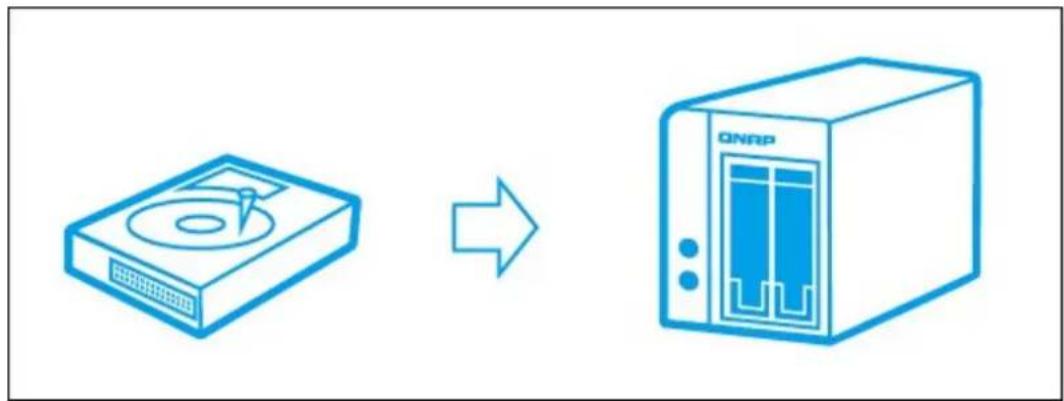
flowchart
graph LR
    A["CD"] --> B["QNRP"]
- Connect the QNAP NAS to the same network as your PC and power it on. During your installation process, please pay attention to LEDs and alarm buzzers to make sure that the NAS functions properly. Go to the Checking System Status 17 section for details.

natural_image
Line drawing of a network device connected to a laptop via USB and network ports (no text or symbols)Note: The steps above are also illustrated in the Quick Installation Guide (QIG) that can be found in the product package or QNAP website (http://start.qnap.com).
Hard Disk Drive Compatibility List
This product works with 2.5-inch and 3.5-inch SATA hard disk drives and/or solid-state drives (SSD) from major hard drive brands. For the compatible hard disks, please check the compatibility list on QNAP website (http://www.qnap.com/compatibility).

Important: QNAP disclaims any responsibility for product damage/malfunction or data loss/recovery due to misuse or improper installation of hard disks in any occasions for any reasons.

Caution: Note that if you install a hard drive (new or used) which has never been installed on the NAS before, the hard drive will be formatted and partitioned automatically and all the disk data will be cleared.
LED Display & System Status Overview
| LED | Colour | LED Status | Description |
| System Status | Red/ Green | Flashes green and red alternately every 0.5 sec | 1)The hard disk drive on the NAS is being formatted.2)The NAS is being initialized.3)The system firmware is being updated.4)RAID rebuilding is in process.5)Online RAID capacity expansion is in process.6)Online RAID level migration is in process. |
| Red | 1)The hard disk drive is invalid.2)The disk volume has reached its full capacity.3)The disk volume is going to be full.4)The system fan is out of function (TS-119 does not support smart fan).5)An error occurs when accessing (read/write) the disk data.6)A bad sector is detected on the hard disk drive.7)The NAS is in degraded read-only mode (2 member hard drives fail in a RAID 5 or RAID 6 configuration, the disk data can still be read).8)(Hardware self-test error). | ||
| Flashes red every 0.5 sec | The NAS is in degraded mode (one member hard drive fails in RAID 1, RAID 5 or RAID 6 configuration). | ||
| Flashes green every 0.5 sec | 1)The NAS is starting up.2)The NAS is not configured.3)The hard disk drive is not formatted. | ||
| Green | The NAS is ready. | ||
| Off | All the hard disk drives on the NAS are in standby mode. | ||
| LAN | Orange | Orange | The disk data is being accessed from the network and a read/write error occurs during the process. |
| Flashes orange | The NAS is connected to the network. | ||
| 10 GbE* | Green | Green | The 10GbE network expansion card is installed. |
| Off | No 10GbE network expansion card is installed. | ||
| HDD | Red/ Green | Flashes red | The NAS is being accessed from the network. |
| Red | A hard drive read/write error occurs. | ||
| Flashes green | The disk data is being accessed. | ||
| Green | The hard drive can be accessed. | ||
| USB | Blue | Flashes blue every 0.5 sec | 1)A USB device (connected to front USB port) is being detected.2)A USB device (connected to front USB port) is being removed from the NAS.3)The USB device (connected to the front USB port) is being accessed.4)The data is being copied to or from the external USB or eSATA device. |
| Blue | A front USB device is detected (after the device is mounted). | ||
| Off | 1)No USB device is detected.2)The NAS has finished copying the data to or from the USB device connected to the front USB port of the NAS. | ||
| eSATA* * | Orange | Flashes | The eSATA device is being accessed. |
| Off | No eSATA device can be detected. |
*The 10 GbE network expansion function is only supported by the TS-470 Pro, TS-670
Pro, TS-870 Pro, TS-870U-RP, TS-879 Pro, TS-1079 Pro, TS-879U-RP, TS-1270U-RP, TS-1279U-RP, TS-EC879U-RP, and TS-EC1279U-RP.
**TS-210, TS-212, TS-219, TS-439U-SP/RP, TS-809 Pro, TS-809U-RP do not support eSATA port.
Alarm Buzzer
The alarm buzzer can be disabled in "Control Panel" > "System Settings" > "Hardware" > "Buzzer".
| Beep sound | No. of Times | Description |
| Short beep(0.5 sec) | 1 | 1)The NAS is starting up.2)The NAS is being shut down (software shutdown).3)The user presses the reset button to reset the NAS.4)The system firmware has been updated. |
| Short beep(0.5 sec) | 3 | The NAS data cannot be copied to the external storage device from the front USB port. |
| Short beep(0.5 sec), long beep (1.5 sec) | 3, every 5 min | The system fan is out of function (TS-119 does not support smart fan). |
| Long beep(1.5 sec) | 2 | 1)The disk volume is going to be full.2)The disk volume has reached its full capacity.3)The hard disk drives on the NAS are in degraded mode.4)The user starts hard drive rebuilding. |
| 1 | 1)The NAS is turned off by force shutdown (hardware shutdown).2)The NAS has been turned on and is ready. |
2.2 Software Installation
After installing the NAS hardware, proceed to software installation. There are three approaches for software installation:
- Online Installation 22
- Cloud Installation 35
- CD Installation 44
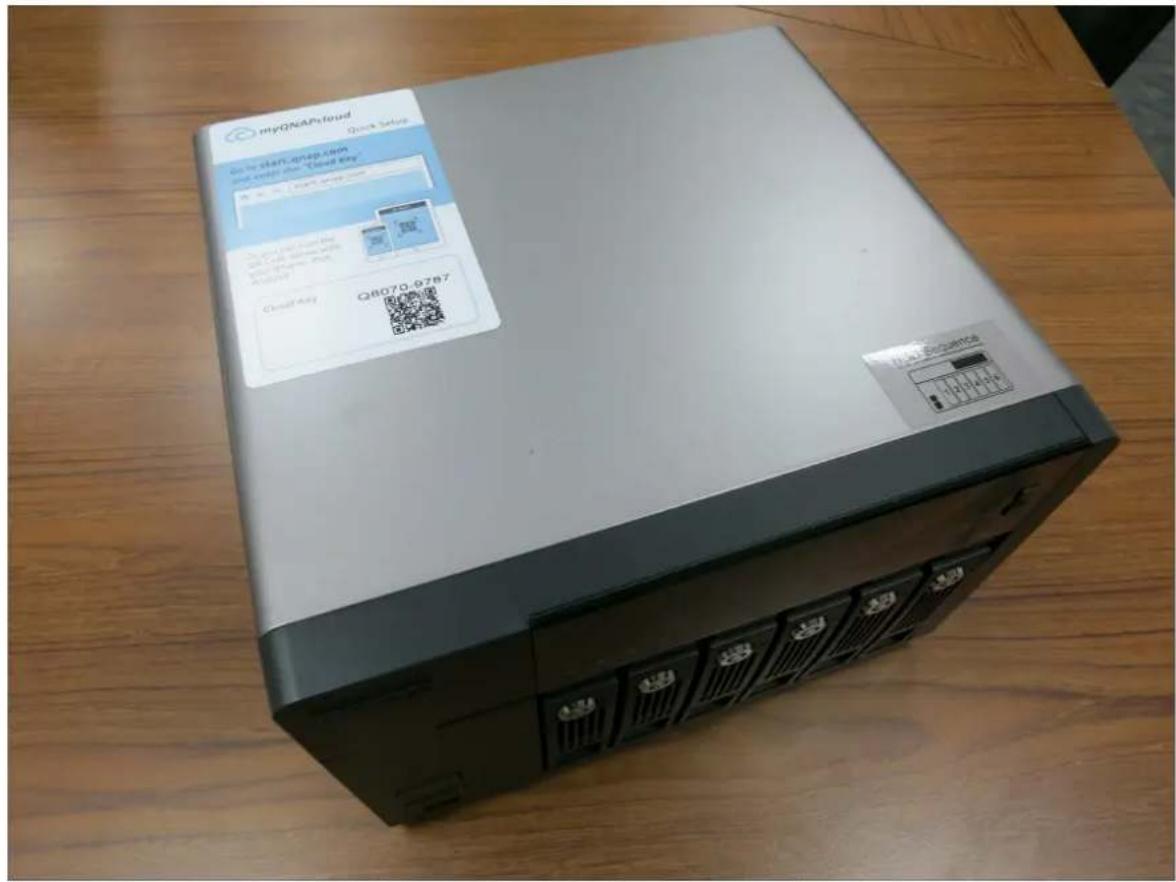
Online installation is available for all home and SOHO models, and cloud installation is only for selected home and SOHO models. CD installation is designed only for SMB models. To verify if your NAS supports cloud installation, please check if there is a sticker on the NAS, as shown in the figure below:
text_image
miGNApcloud Quick Setup Go by start<|rotate_right|>.com and create the "Closed Key" Q8070-9787 Binary Serial 11/11/2016To confirm if your NAS is a home and SOHO model or SMB model, please check the QNAP website (go to http://www.qnap.com/ > Products > Storage.) All home and SOHO users are encouraged to use cloud and online installation. For all problems encountered in the installation process, please contact our technical support department (go to http://www.qnap.com/ > Support > Customer Service.)
Follow the steps in this section to complete online installation for your NAS.
- Go to http://start.qnap.com and click "Start Now".

text_image
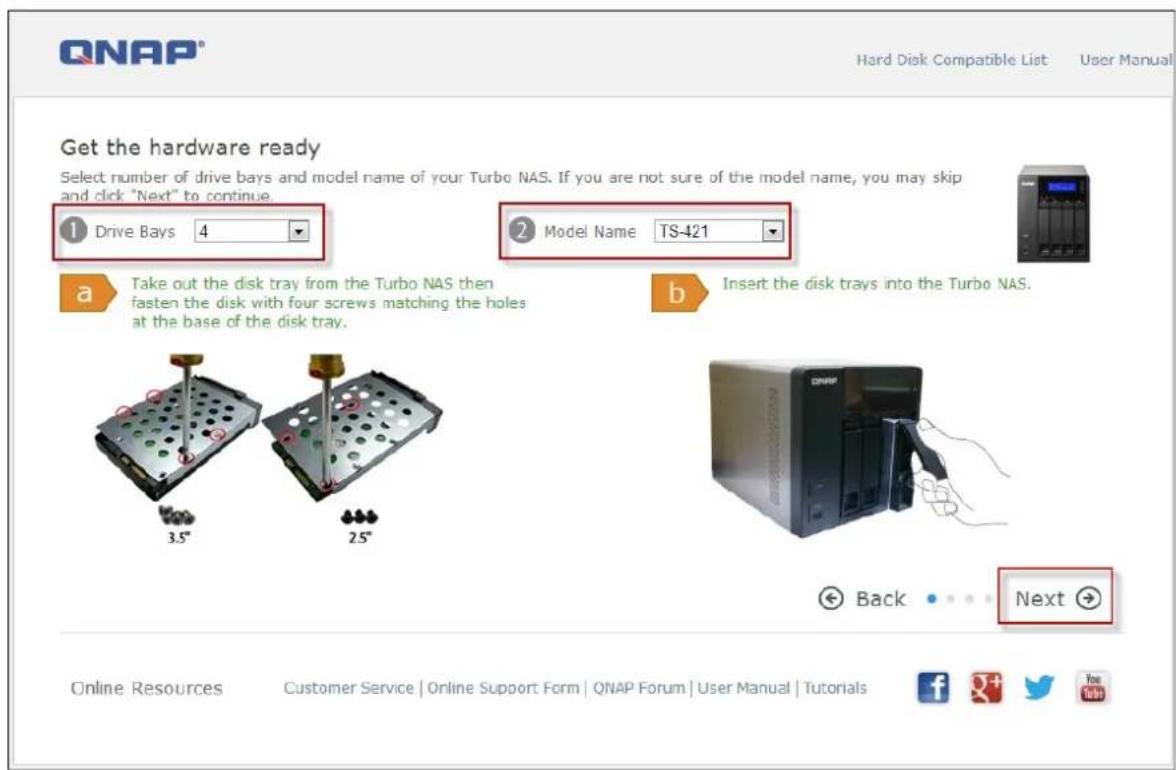
QNAP Hard Disk Compatible List User Manual English - Global Set Up Your Turbo NAS New to Turbo NAS ? Follow the steps to get started: 1. Set up the hardware for your Turbo NAS 2. Install firmware and configure your Turbo NAS 3. Get useful tools to enjoy your Turbo NAS Start Now Cloud Installation Handy utilities assist you anytime Various handy tools are available to smooth your work with the Turbo NAS. You can enjoy convenient data backup, smart download management, remote access to the Turbo NAS anytime and anywhere. Remote access on the go Access and manage your Turbo NAS and enjoy multimedial files on mobile devices wherever, wherever. [ Customer Service | Online Support Form | QNAP Forum | User Manual | Tutorials ] Asia - Taiwan QNAP Systems, Inc. TEL: +886-2-2541 2000 FAX: +886-2-2541 0555 Copyright ©2013; QNAP Systems, Inc. All Rights Reserved.- Choose the number of HDD bays and the model of your NAS and click "Next".
text_image
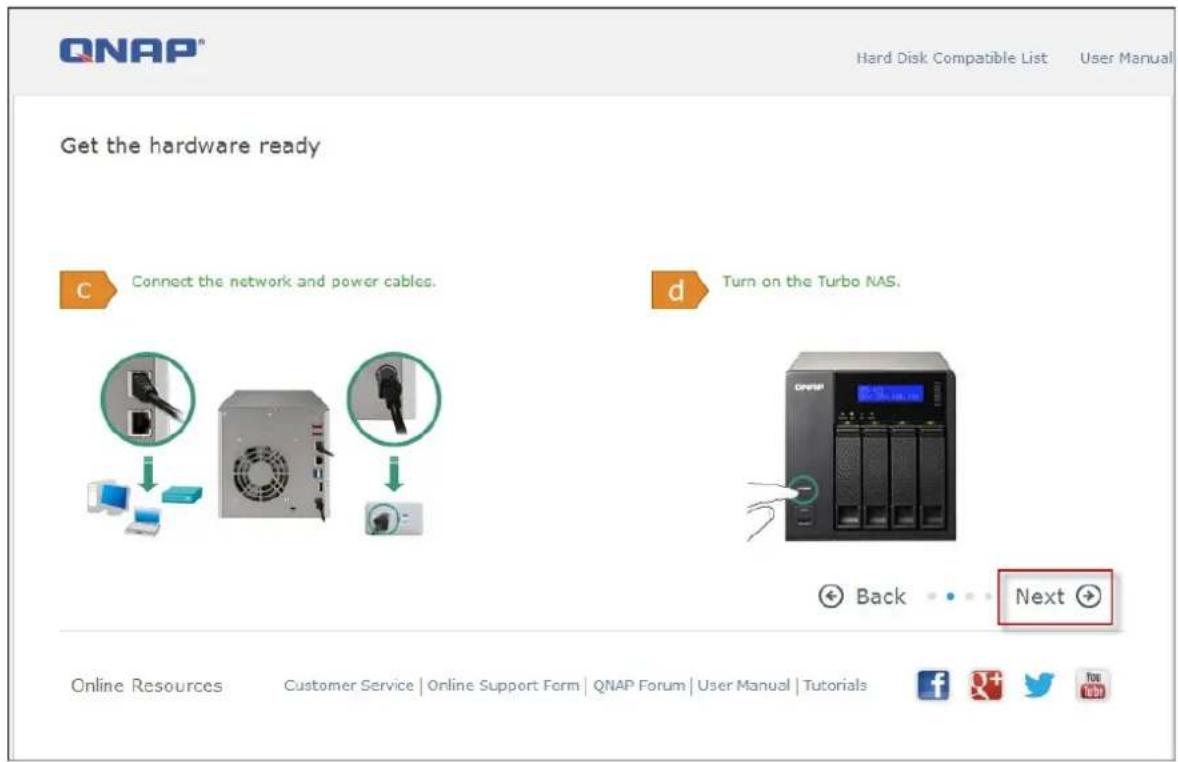
QNAP® Hard Disk Compatible List User Manual Get the hardware ready Select number of drive bays and model name of your Turbo NAS. If you are not sure of the model name, you may skip and click "Next" to continue. ① Drive Bays 4 ② Model Name TS-421 a Take out the disk tray from the Turbo NAS then fasten the disk with four screws matching the holes at the base of the disk tray. b Insert the disk trays into the Turbo NAS. 3.5" 25" Back Next Online Resources Customer Service | Online Support Form | QNAP Forum | User Manual | Tutorials- Connect the network and power cables of your NAS, turn on the Turbo NAS and click "Next".
text_image
QNAP® Hard Disk Compatible List User Manual Get the hardware ready Connect the network and power cables. Turn on the Turbo NAS. Back Next Online Resources Customer Service | Online Support Form | QNAP Forum | User Manual | Tutorials- Click the operating system your computer is running on.
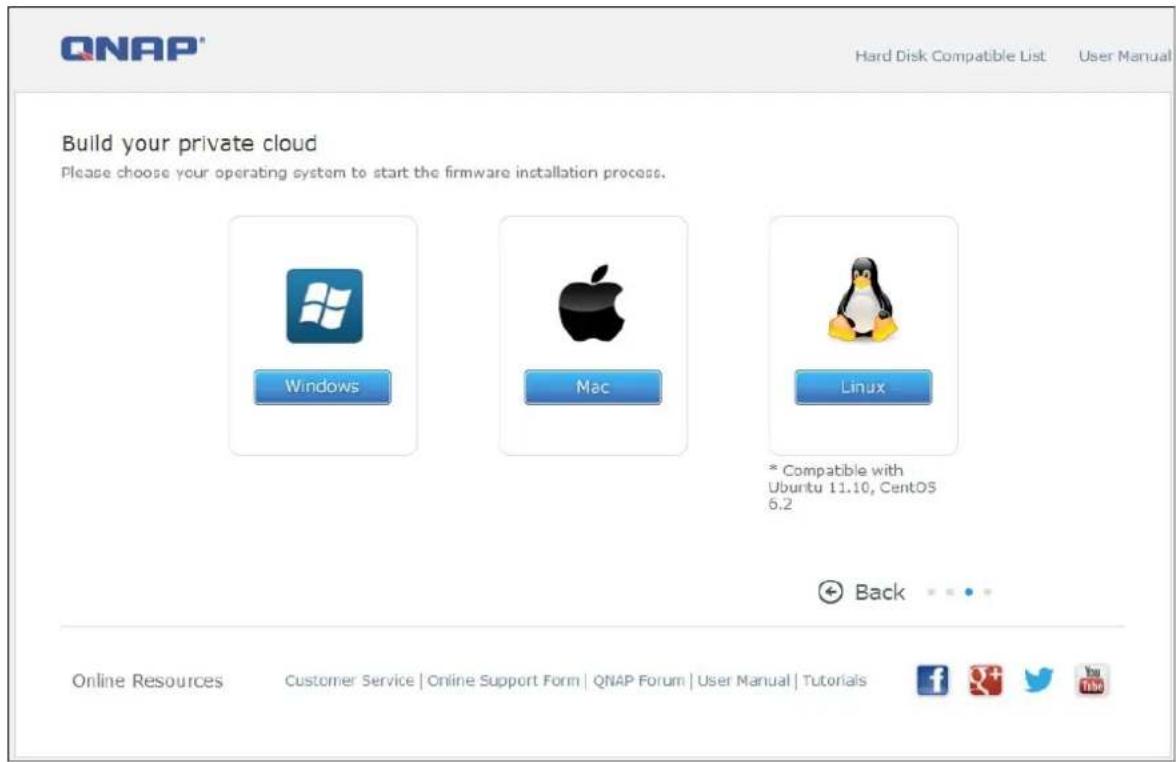
text_image
QNAP® Hard Disk Compatible List User Manual Build your private cloud Please choose your operating system to start the firmware installation process. * Compatible with Ubuntu 11.10, CentOS 6.2 Back Online Resources Customer Service | Online Support Form | QNAP Forum | User Manual | Tutorials- Click "Get Qfinder" to download the QNAP Qfinder utility (For Mac users, please skip to Step 19)
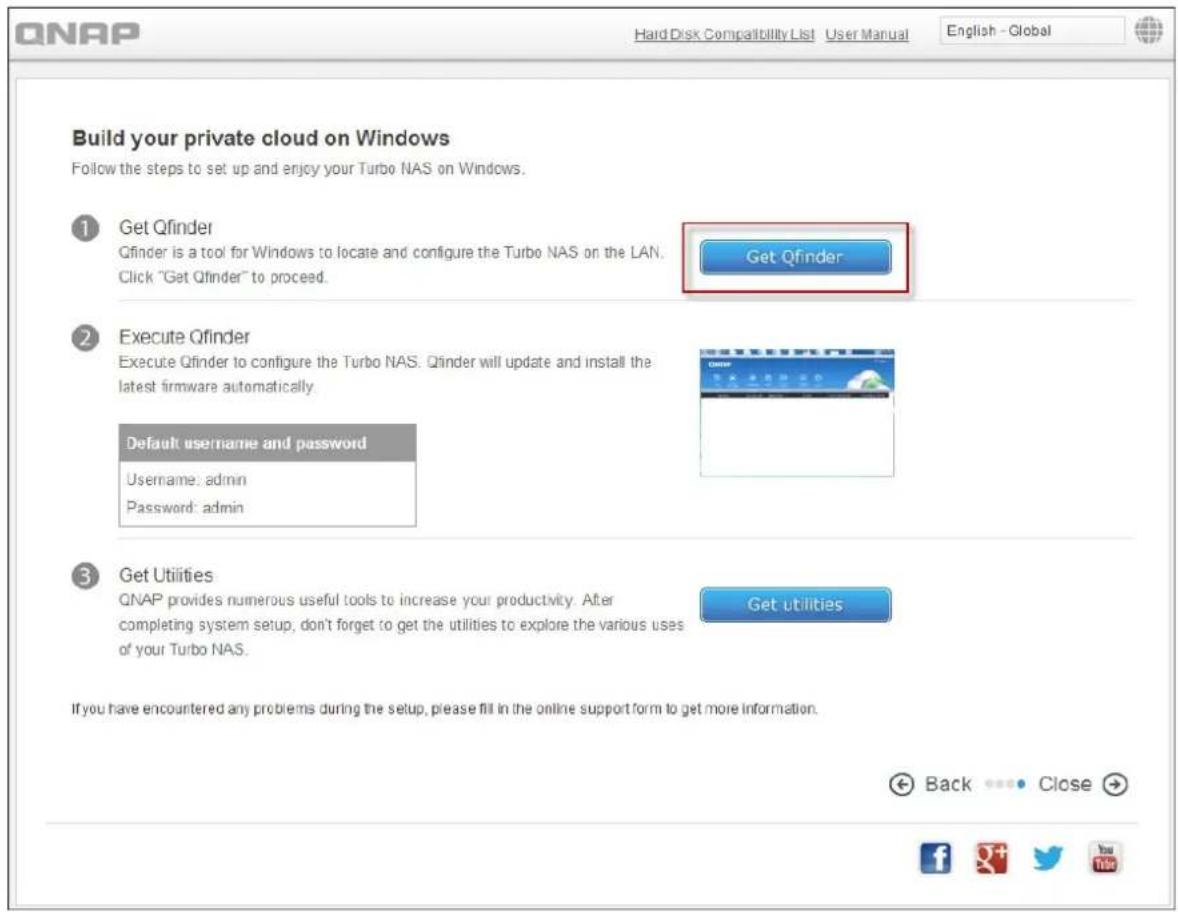
text_image
QNAP Build your private cloud on Windows Follow the steps to set up and enjoy your Turbo NAS on Windows. ① Get Qfinder Qfinder is a tool for Windows to locate and configure the Turbo NAS on the LAN. Click "Get Qfinder" to proceed. Get Qfinder ② Execute Qfinder Execute Qfinder to configure the Turbo NAS. Qinder will update and install the latest firmware automatically. Default username and password Username: admin Password: admin ③ Get Utilities QNAP provides numerous useful tools to increase your productivity. After completing system setup, don't forget to get the utilities to explore the various uses of your Turbo NAS. Get utilities If you have encountered any problems during the setup, please fill in the online support form to get more information. Back Close- Launch the QNAP Qfinder installer from your computer and click "Next".

text_image
QNAP Qfinder Installer Welcome to the Qfinder Setup Setup will guide you through the installation of Qfinder. It is recommended that you close all other applications before starting Setup. This will make it possible to update relevant system files without having to reboot your computer. Click Next to continue. Next > Cancel- Read the license agreement, check "I accept the terms of the License Agreement," and click "Next".
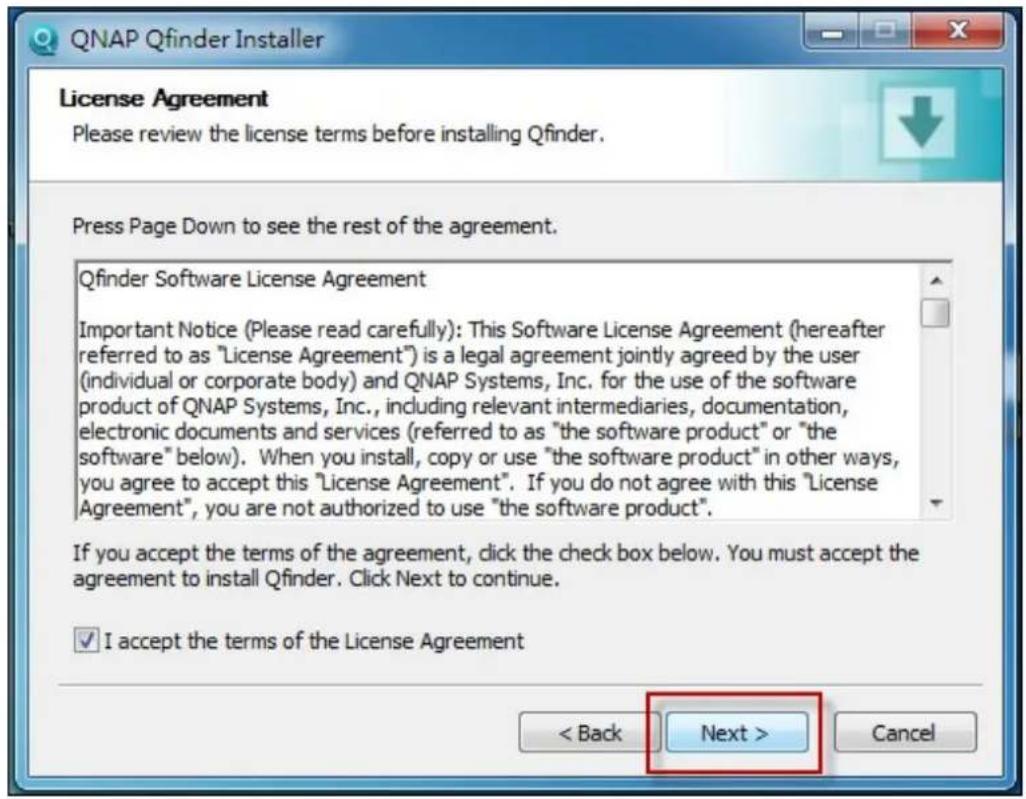
text_image
QNAP Qfinder Installer License Agreement Please review the license terms before installing Qfinder. Press Page Down to see the rest of the agreement. Qfinder Software License Agreement Important Notice (Please read carefully): This Software License Agreement (hereafter referred to as "License Agreement") is a legal agreement jointly agreed by the user (individual or corporate body) and QNAP Systems, Inc. for the use of the software product of QNAP Systems, Inc., including relevant intermediaries, documentation, electronic documents and services (referred to as "the software product" or "the software" below). When you install, copy or use "the software product" in other ways, you agree to accept this "License Agreement". If you do not agree with this "License Agreement", you are not authorized to use "the software product". If you accept the terms of the agreement, click the check box below. You must accept the agreement to install Qfinder. Click Next to continue. ✓ I accept the terms of the License Agreement < Back Next > Cancel8. Click "Next".

text_image
QNAP Qfinder Installer Choose Components Choose which features of Qfinder you want to install. Check the components you want to install and uncheck the components you don't want to install. Click Next to continue. Select components to install: ✓ Qfinder (required) ✓ Desktop Shortcuts ✓ Quick Launch Shortcuts Space required: 112.8MB < Back Next > Cancel9. Click "Install".

text_image
QNAP Qfinder Installer Choose Install Location Choose the folder in which to install Qfinder. Setup will install Qfinder in the following folder. To install in a different folder, click Browse and select another folder. Click Install to start the installation. Destination Folder C:\Program Files (x86)\QNAP\Qfinder Browse... Space required: 112.8MB Space available: 18.9GB < Back Install Cancel10. Click "Finish".
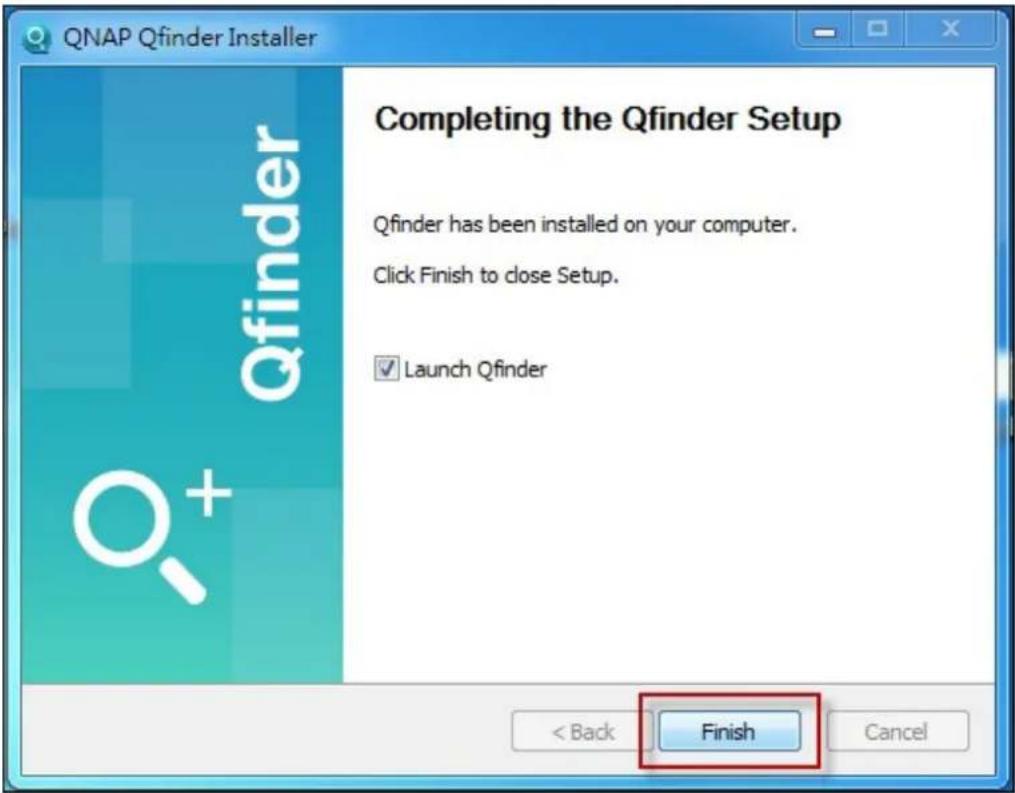
text_image
QNAP Qfinder Installer Completing the Qfinder Setup Qfinder has been installed on your computer. Click Finish to close Setup. ✓ Launch Qfinder < Back Finish Cancel11. Launch the QNAP Qfinder from your desktop.

text_image
QNAP Logon Network Dlives Configuration Detail Resource Monitor Bookmark the NAS Refresh Bookmark Name IP Address mVCMAPCloud Device Name Server Type Version MAC Address auss670 10.8.13.106 -- TS-670Pro 10.8.12.135 qtsdemogogogo TS-670 Pro 4.0.0 (20130517) 00-08-9B-D4-C5-E6 Kentest269 10.8.12.19 -- TS-269L 4.0.1 (20130530) 00-08-9B-D4-C5-BC TS-809U 10.8.12.101 -- TS-809U 3.8.3 (20130426) 00-08-9B-D2-2C-A9 QNAP-FTP 10.8.12.199 -- TS-509 3.8.0 (20121114) 00-08-9B-BA-80-31 My-NAS03 10.8.12.157 alexwu TS-469 Pro 4.0.0 (20130522) 00-08-9B-CF-AC-4C Ken879 10.8.12.122 -- TS-879 Pro 3.8.3 (20130417) 00-00-08-79-00-27 NAS8CD6BB 10.8.12.60 -- TS-509 3.8.3 (20130430) 00-08-9B-8C-D6-BB NASD1FE9B 10.8.12.79 -- Q802 3.8.3 (20130524) 00-08-9B-D1-FE-9B A4 10.8.12.111 -- TS-509 3.8.2 (20130301) 00-08-9B-BA-B4-A5 PMalex01 10.8.12.82 -- TS-119P II 3.8.1 (20121205) 00-08-9B-C3-7E-B2 NASCFADD8 10.8.12.146 dfsdfsgsdfsgsdfsdfsdf TS-469 Pro 4.0.0 (20130523) 00-08-9B-CF-AD-D8 NAS-469G 10.8.12.57 -- TS-469-G 3.8.2 (20130321) 00-08-9B-CC-I2-58 nas 10.8.13.59 -- TS-119P+ 4.0.0 (20130514) 00-08-9B-C5-A3-01 CSD-659 10.8.12.126 -- TS-659 Pro II 3.8.3 (20130426) 00-08-9B-C7-77-BF Art-CSD559 10.8.12.80 -- TS-559 Pro+ 4.0.0 (20130510) 00-08-9B-C7-64-3F NASD2QA10 10.8.12.147 TS-76P Pro 4.0.0 (20130527) 00-08-9B-D2-OA-19 On-line: 47.- The Quick Setup Wizard will be launched automatically. Please confirm that the IP address shown up on the dialog window matches the Turbo NAS you are trying to configure (please check the MAC address from the QNAP Qfinder and its corresponding IP address.) Click "Yes" to configure your Turbo NAS.
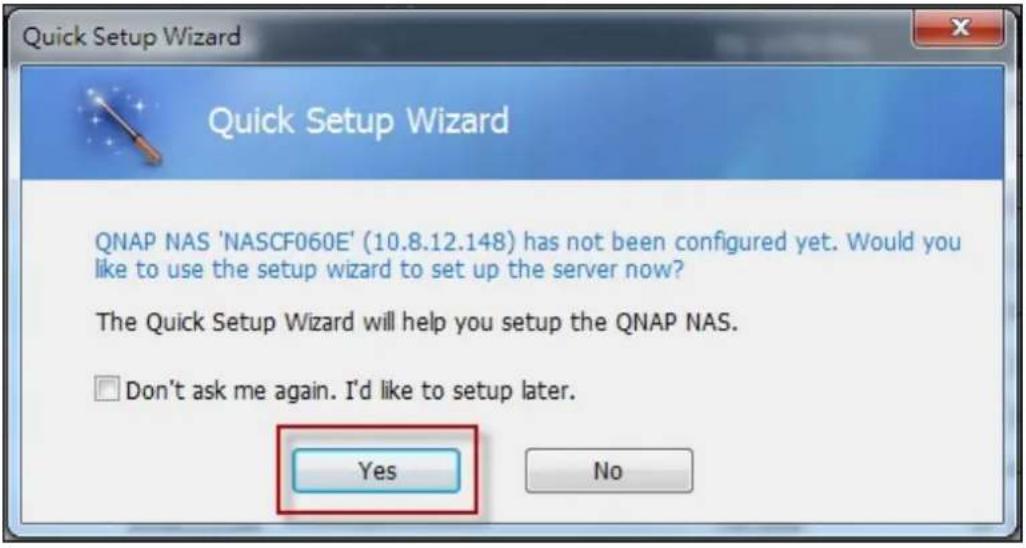
text_image
Quick Setup Wizard Quick Setup Wizard QNAP NAS 'NASCF060E' (10.8.12.148) has not been configured yet. Would you like to use the setup wizard to set up the server now? The Quick Setup Wizard will help you setup the QNAP NAS. Don't ask me again. I'd like to setup later. Yes No- Click "Quick Setup".
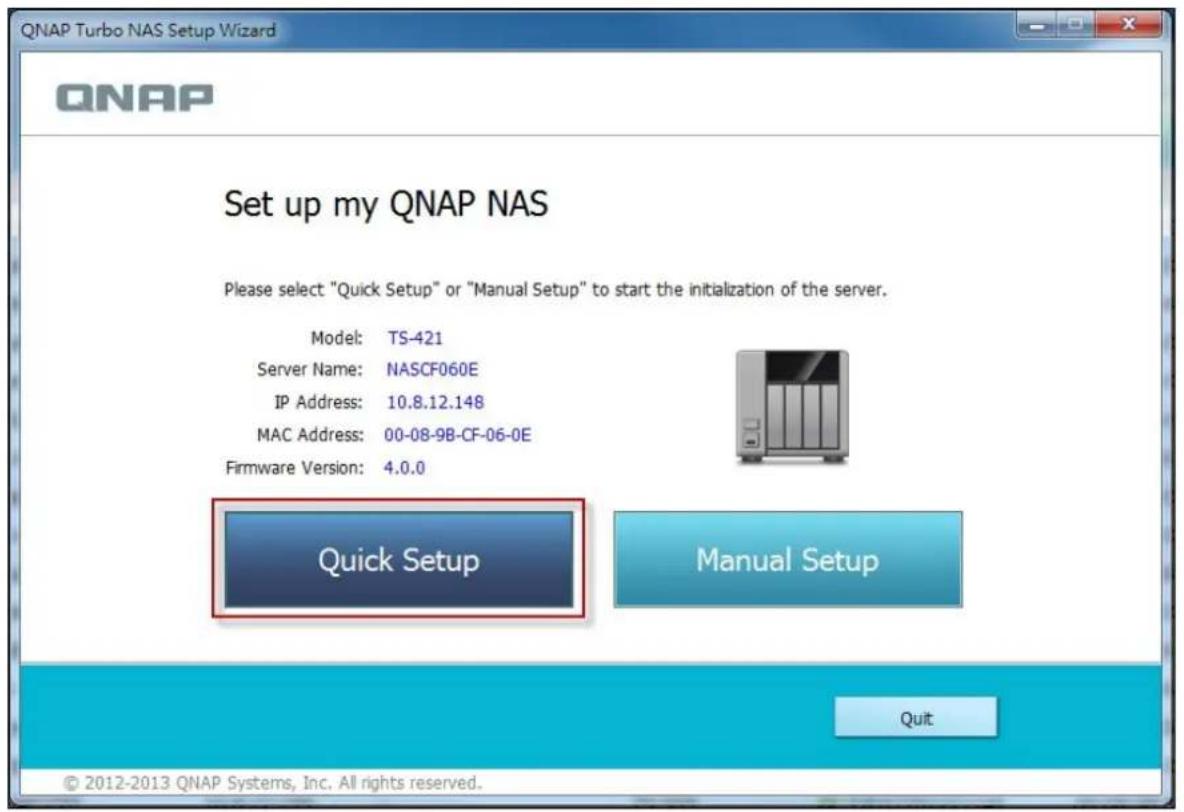
text_image
QNAP Turbo NAS Setup Wizard QNAP Set up my QNAP NAS Please select "Quick Setup" or "Manual Setup" to start the initialization of the server. Model: TS-421 Server Name: NASCF060E IP Address: 10.8.12.148 MAC Address: 00-08-9B-CF-06-0E Firmware Version: 4.0.0 Quick Setup Manual Setup Quit © 2012-2013 QNAP Systems, Inc. All rights reserved.- Install a hard drive on your Turbo NAS if you have not already done so and click "Detect Again".

text_image
QNAP Turbo NAS Setup Wizard Hard drive missing The server cannot detect any installed hard disk drives. Please install hard disks or re-install the hard disk drives properly, and click "Detect Again". Detect Again Cancel- Confirm the setup details and click "Next".

text_image
QNAP Turbo NAS Setup Wizard QNAP Confirm the setup information Please check the setup information. Server name: NASCF060E Administrator's user name: admin Administrator's password: •••••• (Default: admin) Confirm password: •••••• Show password Network Settings: Obtain an IP address automatically Back Next Quit © 2012-2013 QNAP Systems, Inc. All rights reserved.- The wizard will proceed to finish the installation process.
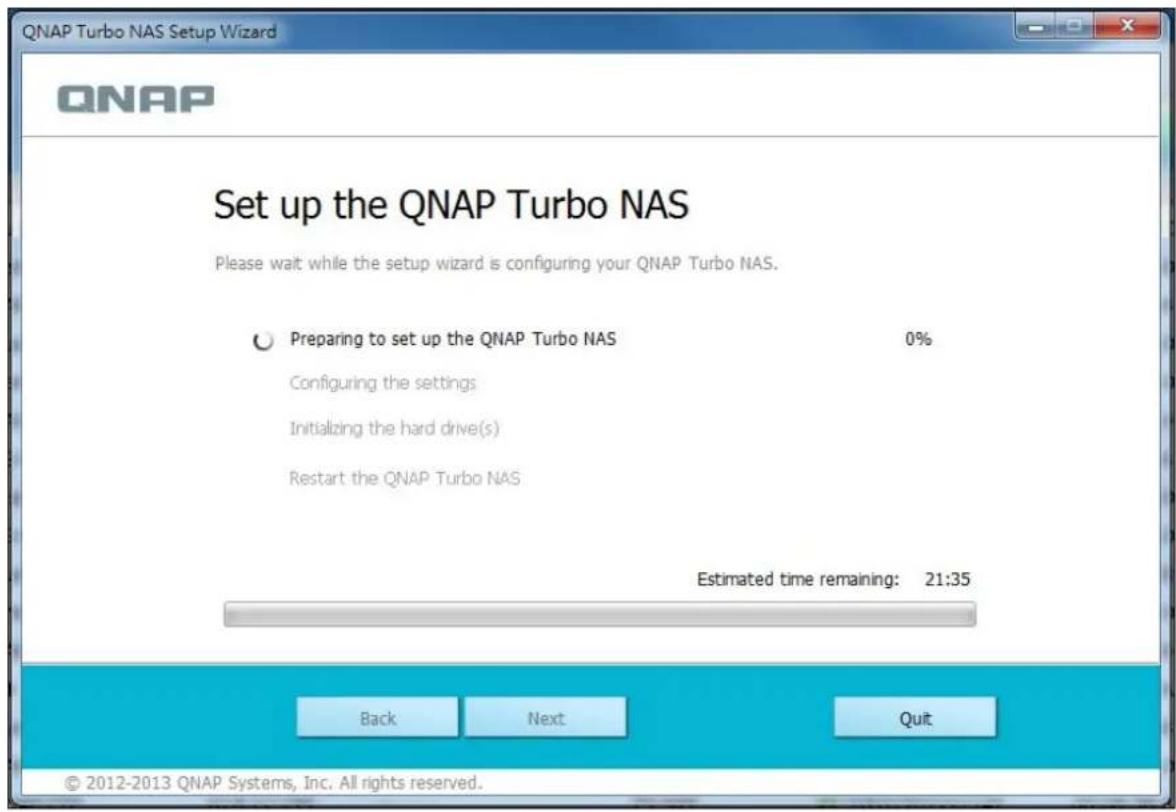
text_image
QNAP Turbo NAS Setup Wizard QNAP Set up the QNAP Turbo NAS Please wait while the setup wizard is configuring your QNAP Turbo NAS. Preparing to set up the QNAP Turbo NAS 0% Configuring the settings Initializing the hard drive(s) Restart the QNAP Turbo NAS Estimated time remaining: 21:35 Back Next Quit © 2012-2013 QNAP Systems, Inc. All rights reserved.- Click "Finish" to complete the installation process and open the NAS login page.

text_image
QNAP Turbo NAS Setup Wizard QNAP Set up the QNAP Turbo NAS Please wait while the setup wizard is configuring your QNAP Turbo NAS. ✓ Preparing to set up the QNAP Turbo NAS 100% ✓ Configuring the settings 100% ✓ Initializing the hard drive(s) 100% ✓ Restart the QNAP Turbo NAS 100% Estimated time remaining: 0:00 Finish © 2012-2013 QNAP Systems, Inc. All rights reserved.- Key in the user ID and password entered in the "Confirm the setup information" page.
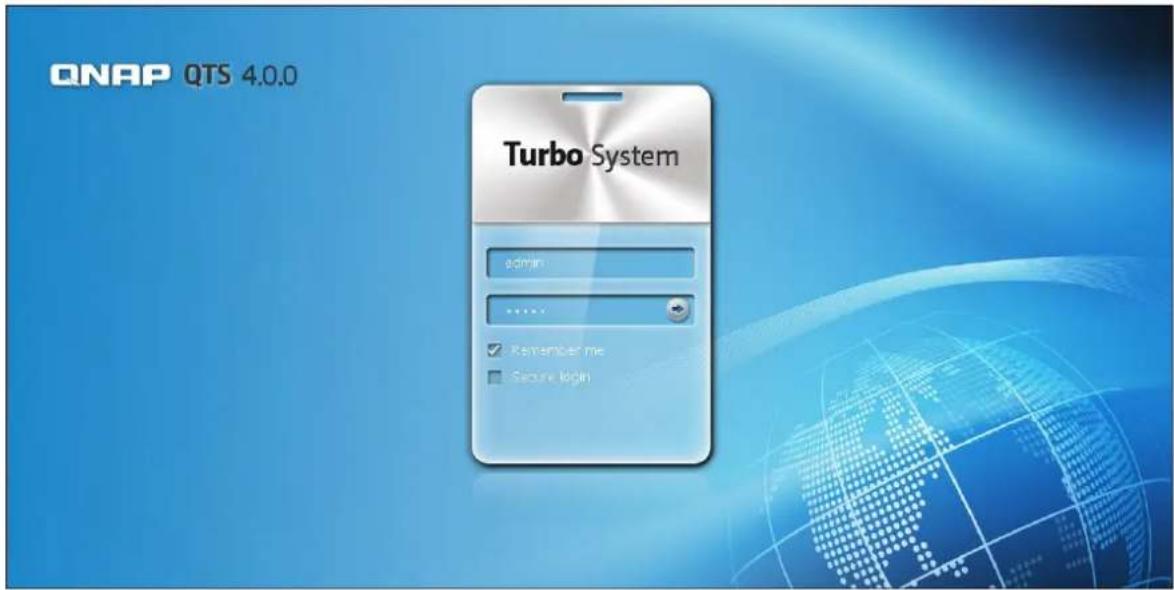
text_image
QNAP QTS 4.0.0 Turbo System admin ...... Remember me Secure login- Click "Get Qfinder" to download the QNAP Qfinder utility (Steps 19 to 23 are for Mac users.)

text_image
Build your private cloud on Mac Follow the steps to set up and enjoy your Turbo NAS on Mac. ① Get Qfinder Qfinder is a tool for Mac to locate and configure the Turbo NAS on the LAN. Click "Get Qfinder" to download. Get Qfinder ② Execute Qfinder Execute Qfinder to configure the Turbo NAS. Default username and password Username: admin Password: admin ③ Get Utilities QNAP provides many useful tools to increase your productivity. After completing system setup, don't forget to get utilities to explore the various uses of your Turbo NAS. Get utilities If you have encountered any problems during the setup, please fill in the online support form to get more information. Back Close- Install the QNAP Qfinder.

text_image
QNAPQFinderMac-1.0.17.1101 QFINDER for MAC QFinder Applications- Execute the QNAP Qfinder and connect to the NAS.
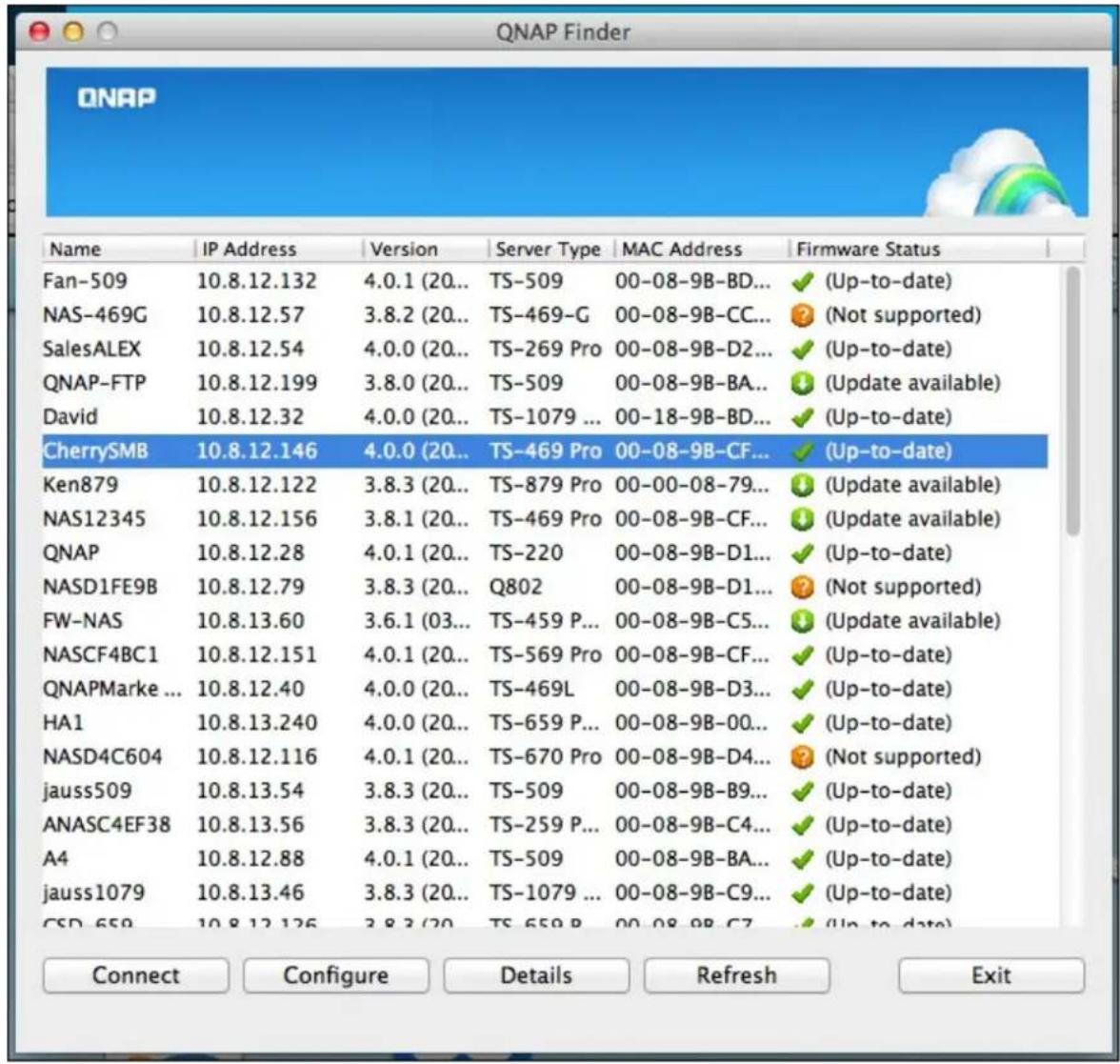
text_image
QNAP Finder ONAP Name IP Address Version Server Type MAC Address Firmware Status Fan-509 10.8.12.132 4.0.1 (20.. TS-509 00-08-9B-BD... ✓ (Up-to-date) NAS-469G 10.8.12.57 3.8.2 (20.. TS-469-G 00-08-9B-CC... ? (Not supported) SalesALEX 10.8.12.54 4.0.0 (20.. TS-269 Pro 00-08-9B-D2... ✓ (Up-to-date) QNAP-FTP 10.8.12.199 3.8.0 (20.. TS-509 00-08-9B-BA... ↓ (Update available) David 10.8.12.32 4.0.0 (20.. TS-1079 ... 00-18-9B-BD... ✓ (Up-to-date) CherrySMB 10.8.12.146 4.0.0 (20.. TS-469 Pro 00-08-9B-CF... ✓ (Up-to-date) Ken879 10.8.12.122 3.8.3 (20.. TS-879 Pro 00-00-08-79... ↓ (Update available) NAS12345 10.8.12.156 3.8.1 (20.. TS-469 Pro 00-08-9B-CF... ↓ (Update available) QNAP 10.8.12.28 4.0.1 (20.. TS-220 00-08-9B-D1... ✓ (Up-to-date) NASD1FE9B 10.8.12.79 3.8.3 (20.. Q802 00-08-9B-D1... ? (Not supported) FW-NAS 10.8.13.60 3.6.1 (03.. TS-459 P... 00-08-9B-C5... ↓ (Update available) NASCF4BC1 10.8.12.151 4.0.1 (20.. TS-569 Pro 00-08-9B-CF... ✓ (Up-to-date) QNAPMarke ... 10.8.12.40 4.0.0 (20.. TS-469L 00-08-9B-D3... ✓ (Up-to-date) HA1 10.8.13.240 4.0.0 (20.. TS-659 P... 00-08-9B-00... ✓ (Up-to-date) NASD4C604 10.8.12.116 4.0.1 (20.. TS-670 Pro 00-08-9B-D4... ? (Not supported) jauss509 10.8.13.54 3.8.3 (20.. TS-509 00-08-9B-B9... ✓ (Up-to-date) ANASC4EF38 10.8.13.56 3.8.3 (20.. TS-259 P... 00-08-9B-C4... ✓ (Up-to-date) A4 10.8.12.88 4.0.1 (20.. TS-509 00-08-9B-BA... ✓ (Up-to-date) jauss1079 10.8.13.46 3.8.3 (20.. TS-1079 ... 00-08-9B-C9... ✓ (Up-to-date) CSD 658 10 8 13 126 3 8 3 (2) TS 659 B- Start the Web Installation step.
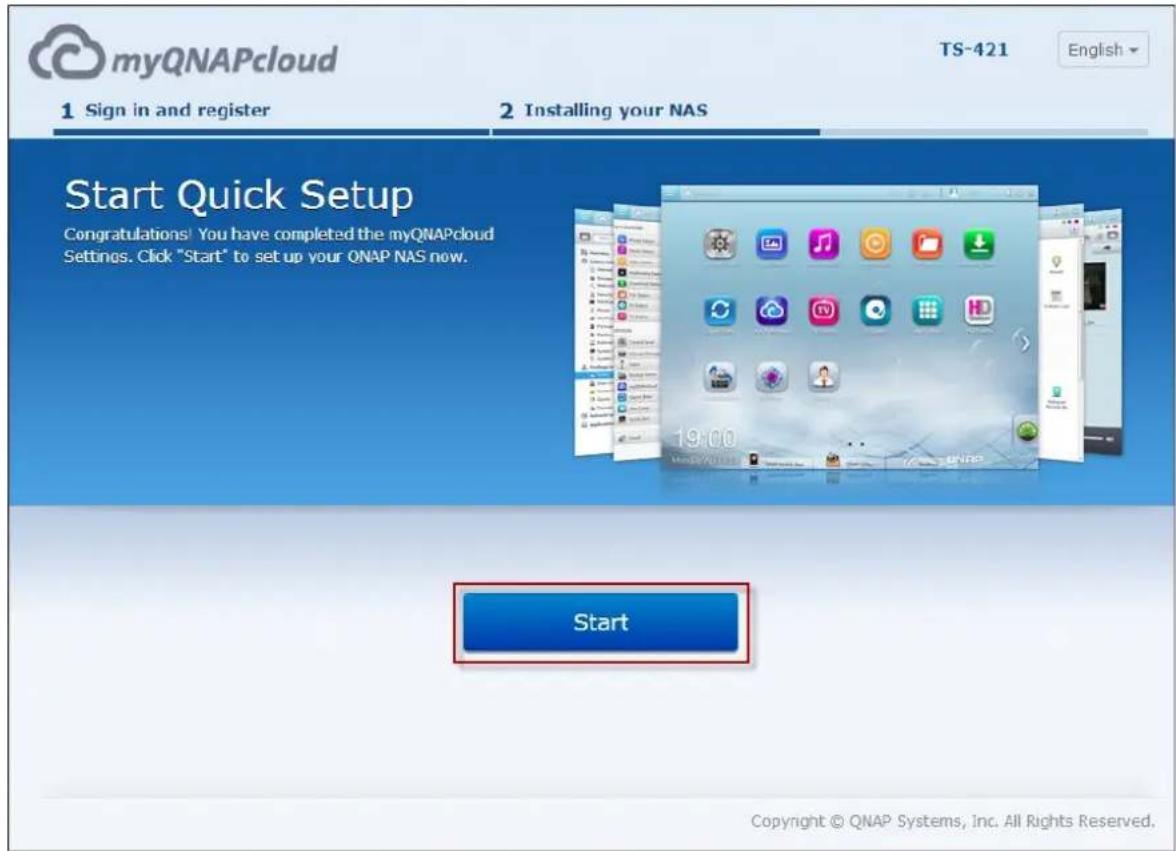
text_image
myQNAPcloud 1 Sign in and register 2 Installing your NAS TS-421 English Start Quick Setup Congratulations! You have completed the myQNAPcloud Settings. Click "Start" to set up your QNAP NAS now. 19:00 Start Copyright © QNAP Systems, Inc. All Rights Reserved.- Key in the user ID and password entered in the "Confirm the setup information" page.
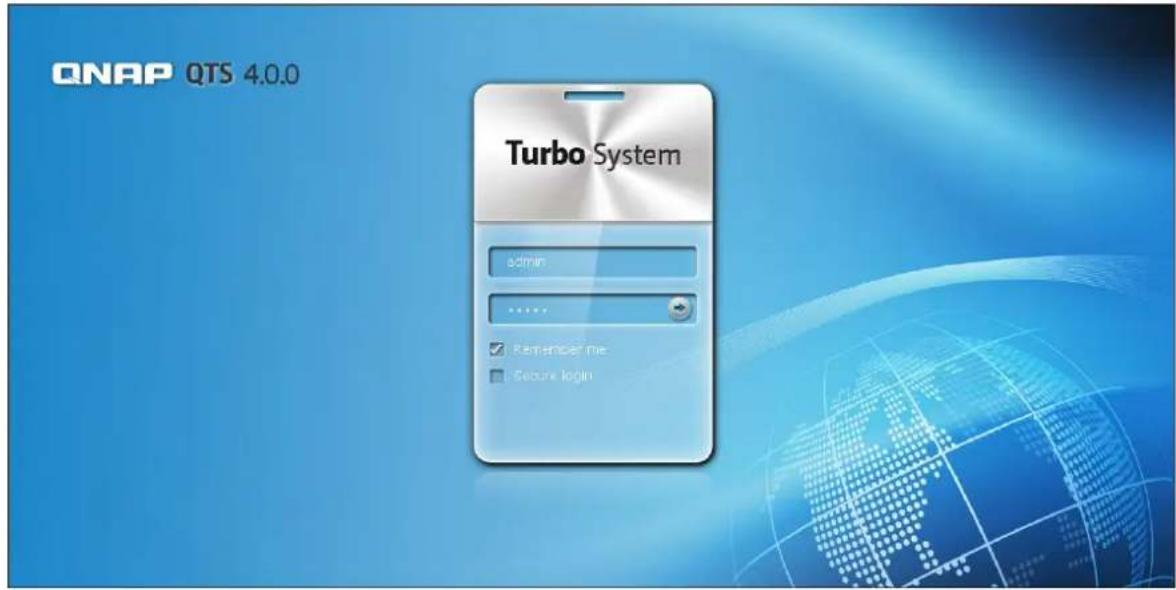
text_image
QNAP QTS 4.0.0 Turbo System admin ...... Remember me Secure loginFollow the steps in this section to complete cloud installation for your NAS.
- Connect your NAS to the Internet, and on your PC, go to "start.qnap.com" and click "Cloud Installation".
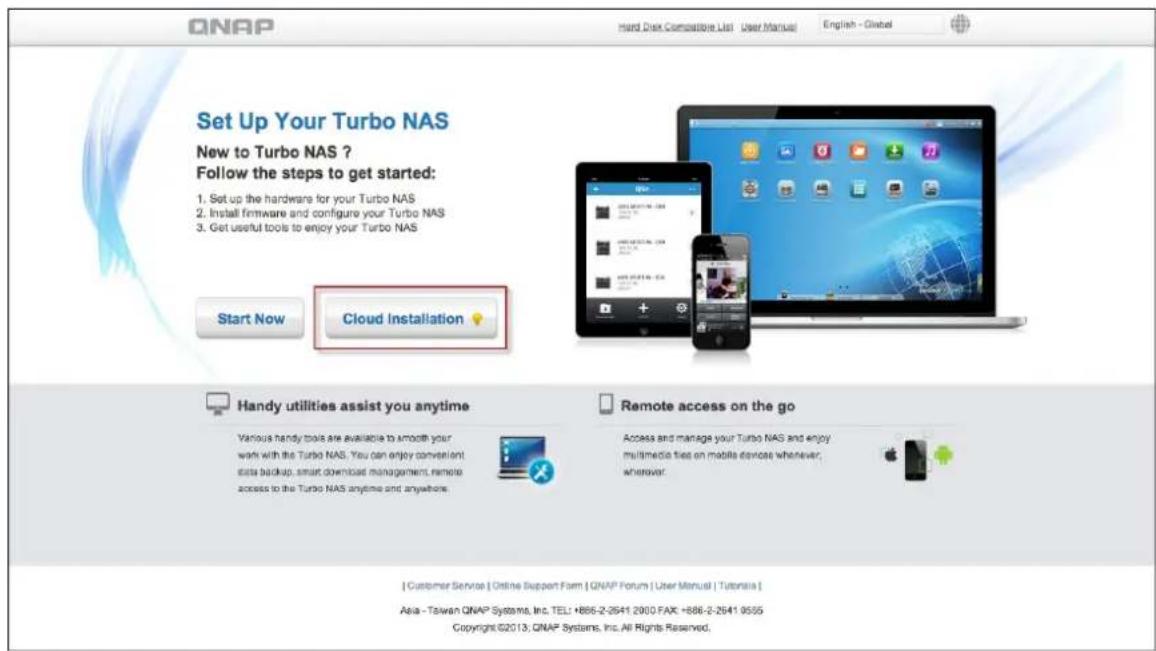
text_image
QNAP Hard Disk Computaire List User Manual English - Global Set Up Your Turbo NAS New to Turbo NAS ? Follow the steps to get started: 1. Set up the hardware for your Turbo NAS 2. Install firmware and configure your Turbo NAS 3. Get useful tools to enjoy your Turbo NAS Start Now Cloud Installation Handy utilities assist you anytime Remote access on the go Various handy tools are available to smooth your work with the Turbo NAS. You can enjoy convenient data backup, smart download management, remote access to the Turbo NAS anytime and anywhere. Access and manage your Turbo NAS and enjoy multimedia files on mobile devices whenever, wherever. [Customer Service | Online Support Form | QNAP Forum | User Manual | Tutorasia ] Asia - Taiwan QNAP Systems, Inc. TELI +886-2-2641 2000 FAX: +886-2-2641 9555 Copyright ©2013, QNAP Systems, Inc. All Rights Reserved,- Alternatively, you may scan the QR code using your mobile phone to start cloud installation.

text_image
中華電信 3G 下午5:47 92% myQNAPcloud QNAP Cloud Installation Welcome to the QNAP Cloud Installation. Please find your "Cloud Key" on the top of your QNAP NAS and enter it to start the installation. Cloud Key: Q - Enter Cannot find the Cloud Key? Please click here to set up your QNAP NAS.- Enter the cloud key (cloud key can be found from the sticker on top of your QNAP NAS) and click "Enter".
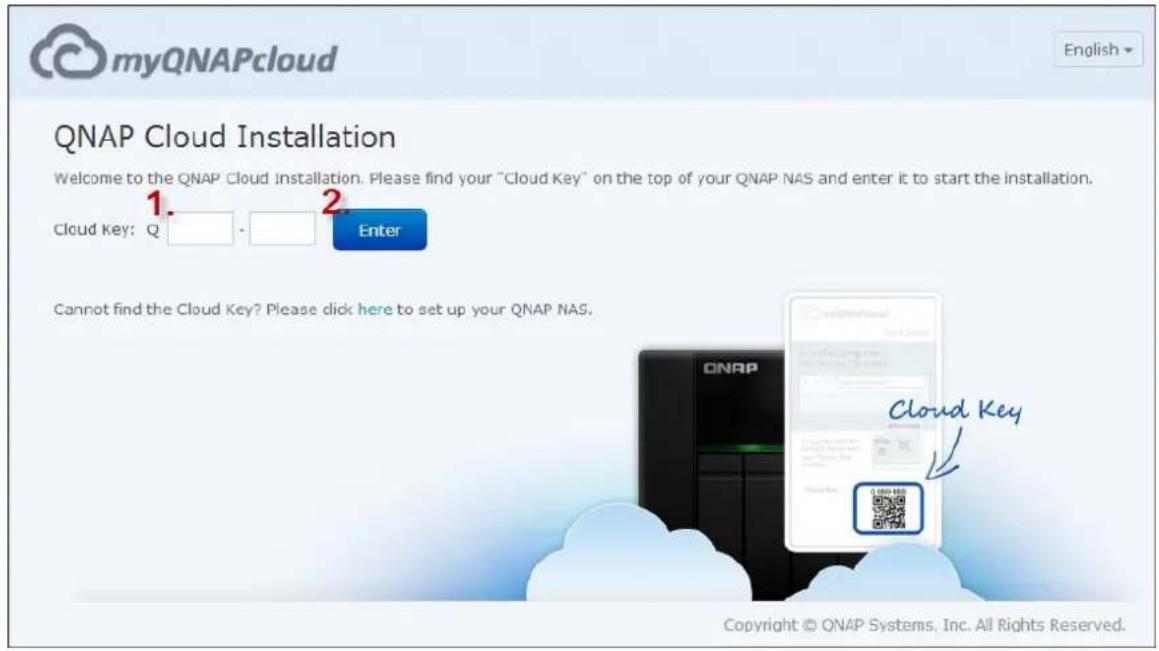
text_image
myQNAPcloud English QNAP Cloud Installation Welcome to the QNAP Cloud installation. Please find your "Cloud Key" on the top of your QNAP NAS and enter it to start the installation. Cloud Key: Q Enter Cannot find the Cloud Key? Please click here to set up your QNAP NAS. Cloud Key Copyright © QNAP Systems, Inc. All Rights Reserved.Note: If you encounter the "Device not found" message on screen, please make sure 1) your NAS has been powered on; 2) the network cable is connected to the NAS and the orange and green indicator lights on its LAN port(s) are blinking; and 3) the cloud key is correct.
- Fill out all fields to register your myQNAPcloud account or sign in your myQNAPcloud account. check "I agree to myQNAPcloud Terms of Use and QNAP Privacy Policy" and click "Next Step".
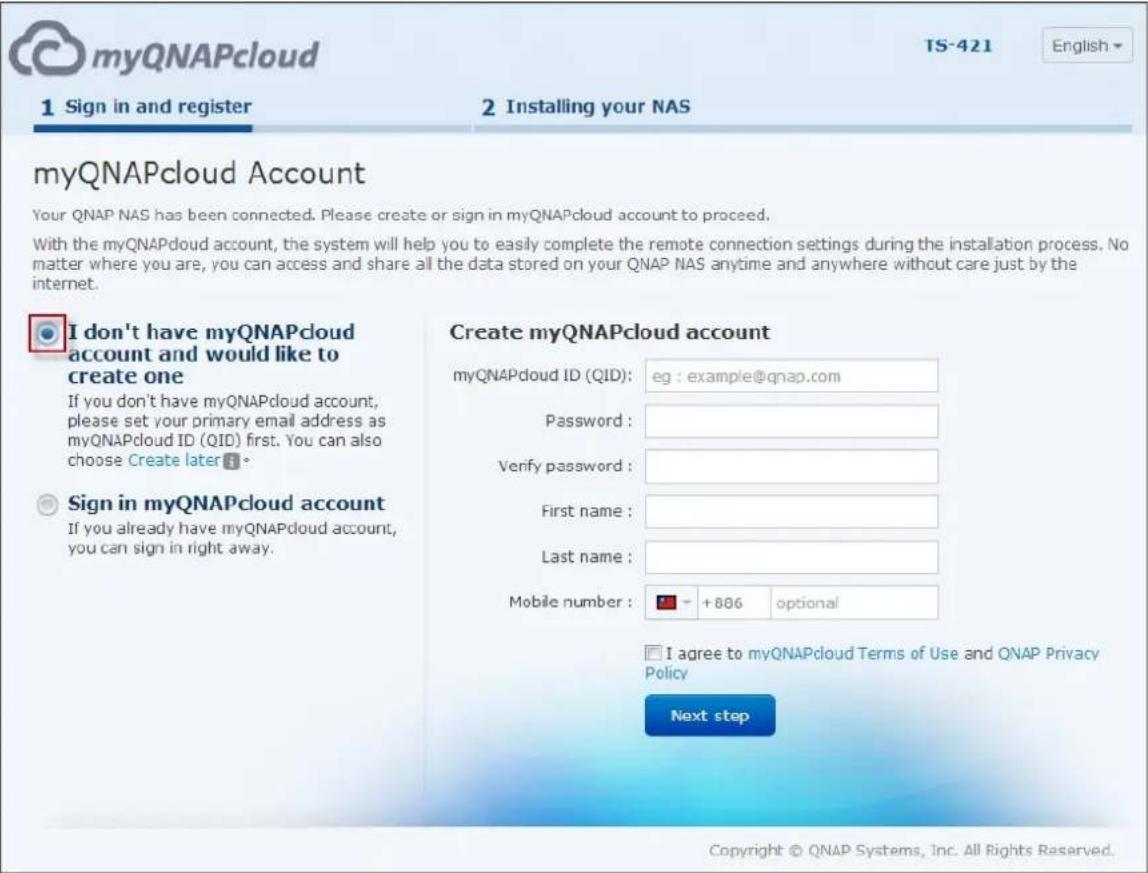
text_image
myQNAPcloud 1 Sign in and register 2 Installing your NAS TS-421 English myQNAPcloud Account Your QNAP NAS has been connected. Please create or sign in myQNAPcloud account to proceed. With the myQNAPdoud account, the system will help you to easily complete the remote connection settings during the installation process. No matter where you are, you can access and share all the data stored on your QNAP NAS anytime and anywhere without care just by the internet. I don't have myQNAPcloud account and would like to create one If you don't have myQNAPcloud account, please set your primary email address as myQNAPcloud ID (QID) first. You can also choose Create later # Sign in myQNAPcloud account If you already have myQNAPdoud account, you can sign in right away. Create myQNAPcloud account myQNAPdoud ID (QID): eg : example@qnap.com Password : Verify password : First name : Last name : Mobile number : +886 optional I agree to myQNAPcloud Terms of Use and QNAP Privacy Policy Next step Copyright © QNAP Systems, Inc. All Rights Reserved.Note: Before proceeding to Step 4, please be sure to activate your myQNAPcloud account after your account registration is confirmed (an email will be sent to the email address provided to create your myQNAPcloud account, and the account activation link will be included in that email.) For details, please refer to the chapter on myQNAPcloud Service this manual.
If you already have a myQNAPcloud account, please select "Sign in myQNAPcloud account" and login with your account credentials.
- Type in the name of your Turbo NAS to register it and click "Register".
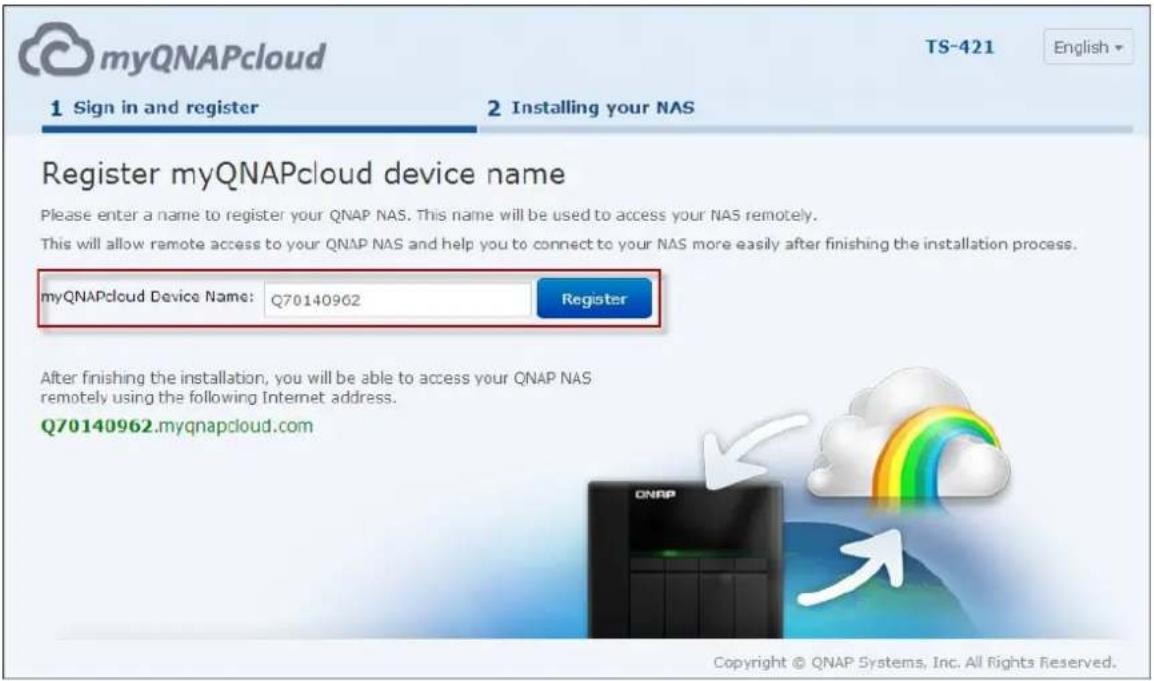
text_image
myQNAPcloud 1 Sign in and register 2 Installing your NAS Register myQNAPcloud device name Please enter a name to register your QNAP NAS. This name will be used to access your NAS remotely. This will allow remote access to your QNAP NAS and help you to connect to your NAS more easily after finishing the installation process. myQNAPcloud Device Name: Q70140962 Register After finishing the installation, you will be able to access your QNAP NAS remotely using the following Internet address. Q70140962.myqnapcloud.com Copyright © QNAP Systems, Inc. All Rights Reserved.- Install a hard drive on your Turbo NAS if you have not already done so.
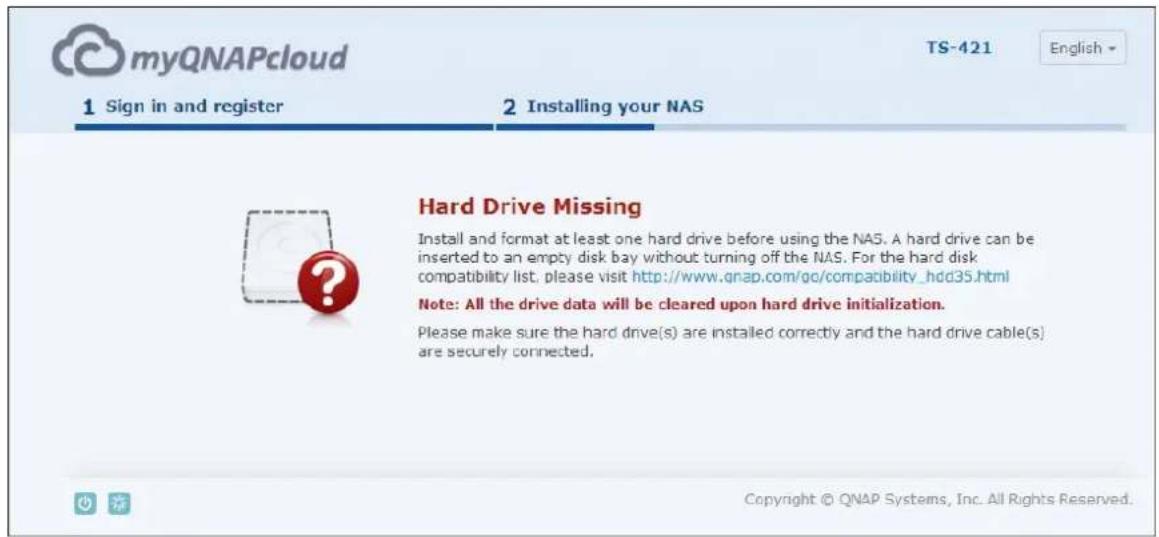
text_image
myQNAPcloud TS-421 English 1 Sign in and register 2 Installing your NAS Hard Drive Missing Install and format at least one hard drive before using the NAS. A hard drive can be inserted to an empty disk bay without turning off the NAS. For the hard disk compatibility list, please visit http://www.qnap.com/go/compatibility_hd35.html Note: All the drive data will be cleared upon hard drive initialization. Please make sure the hard drive(s) are installed correctly and the hard drive cable(s) are securely connected.- Click "Begin" to install firmware on your Turbo NAS.
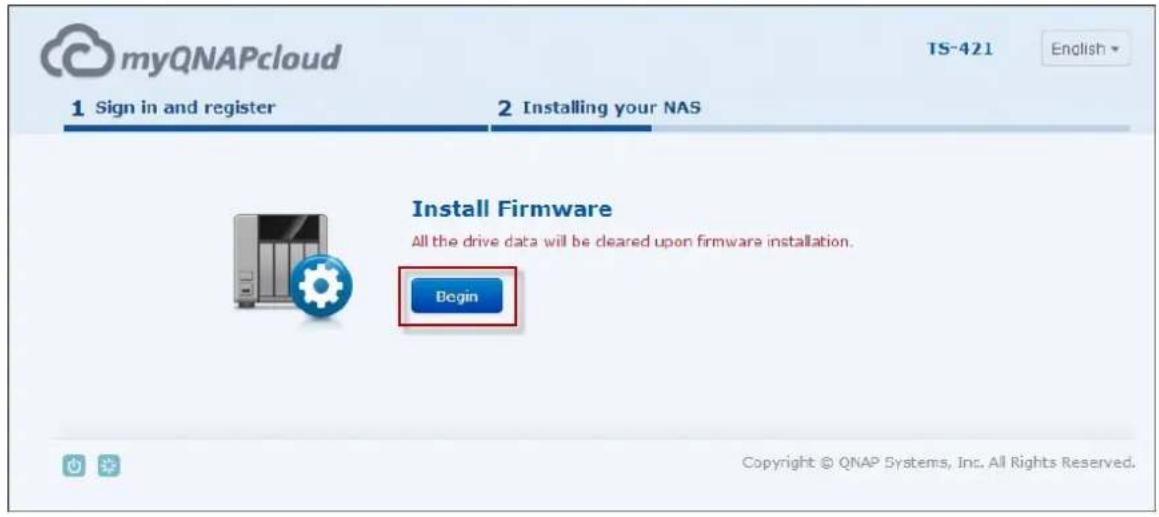
text_image
myQNAPcloud 1 Sign in and register 2 Installing your NAS TS-421 English Install Firmware All the drive data will be cleared upon firmware installation. Begin Copyright © QNAP Systems, Inc. All Rights Reserved.- Click "Start" to start the quick setup.
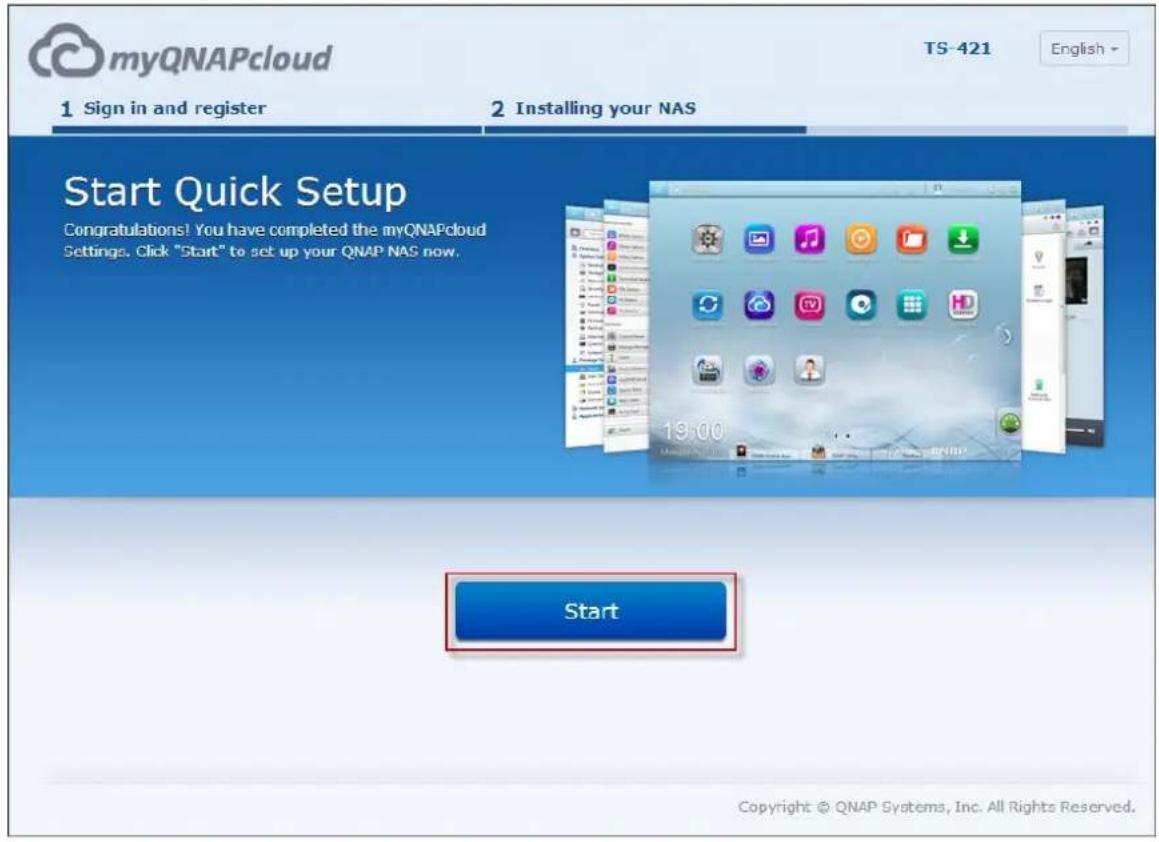
text_image
myQNAPcloud 1 Sign in and register 2 Installing your NAS TS-421 English Start Quick Setup Congratulations! You have completed the myQNAPcloud Settings. Click "Start" to set up your QNAP NAS now. 19:00 Start Copyright © QNAP Systems, Inc. All Rights Reserved.- Confirm all details and click "Proceed".
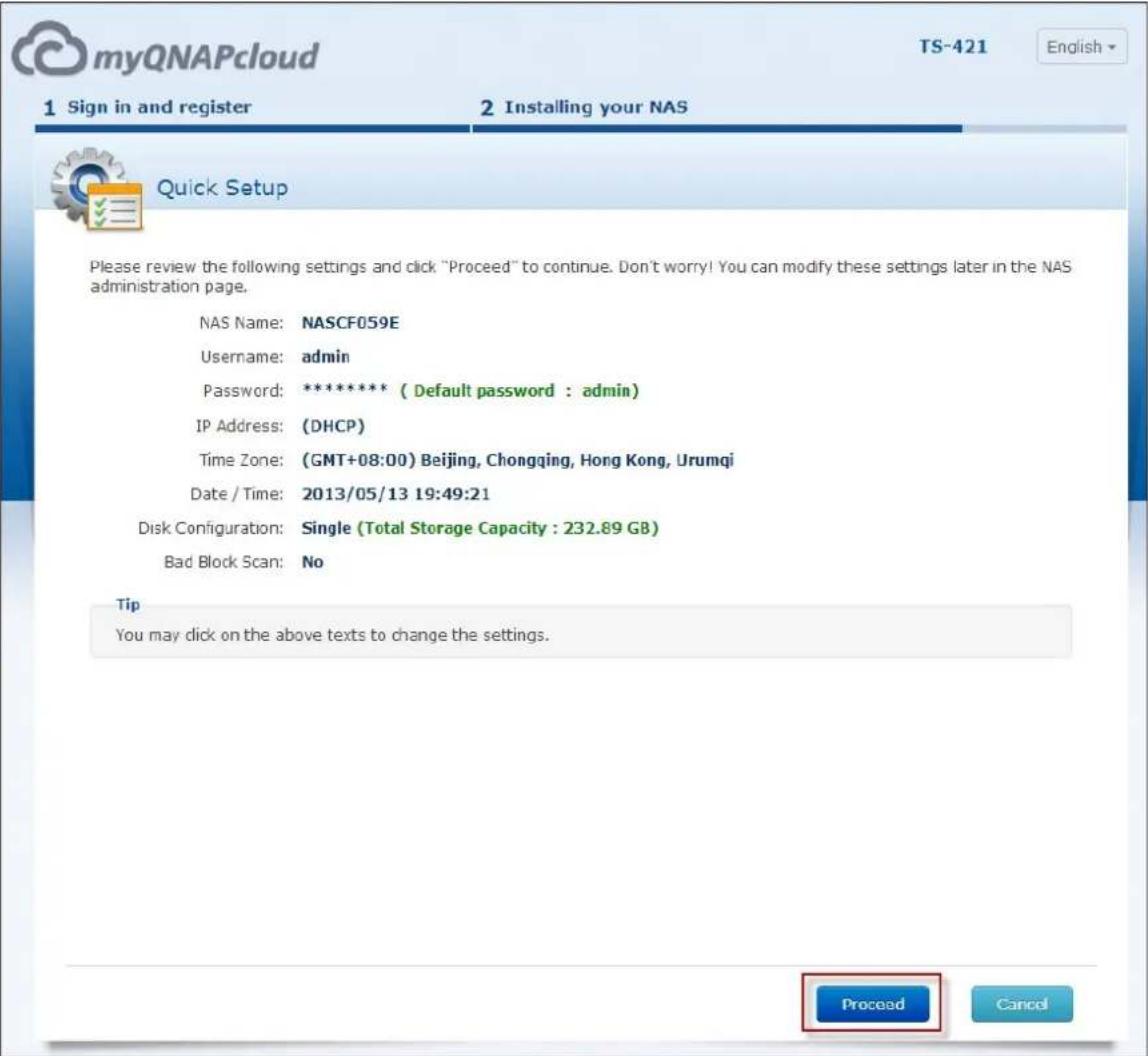
text_image
myQNAPcloud TS-421 English 1 Sign in and register 2 Installing your NAS Quick Setup Please review the following settings and click "Proceed" to continue. Don't worry! You can modify these settings later in the NAS administration page. NAS Name: NASCF059E Username: admin Password: ********* ( Default password : admin) IP Address: (DHCP) Time Zone: (GMT+08:00) Beijing, Chongqing, Hong Kong, Urumqi Date / Time: 2013/05/13 19:49:21 Disk Configuration: Single (Total Storage Capacity : 232.89 GB) Bad Block Scan: No Tip You may click on the above texts to change the settings. Proceed Cancel- Follow the onscreen instructions.
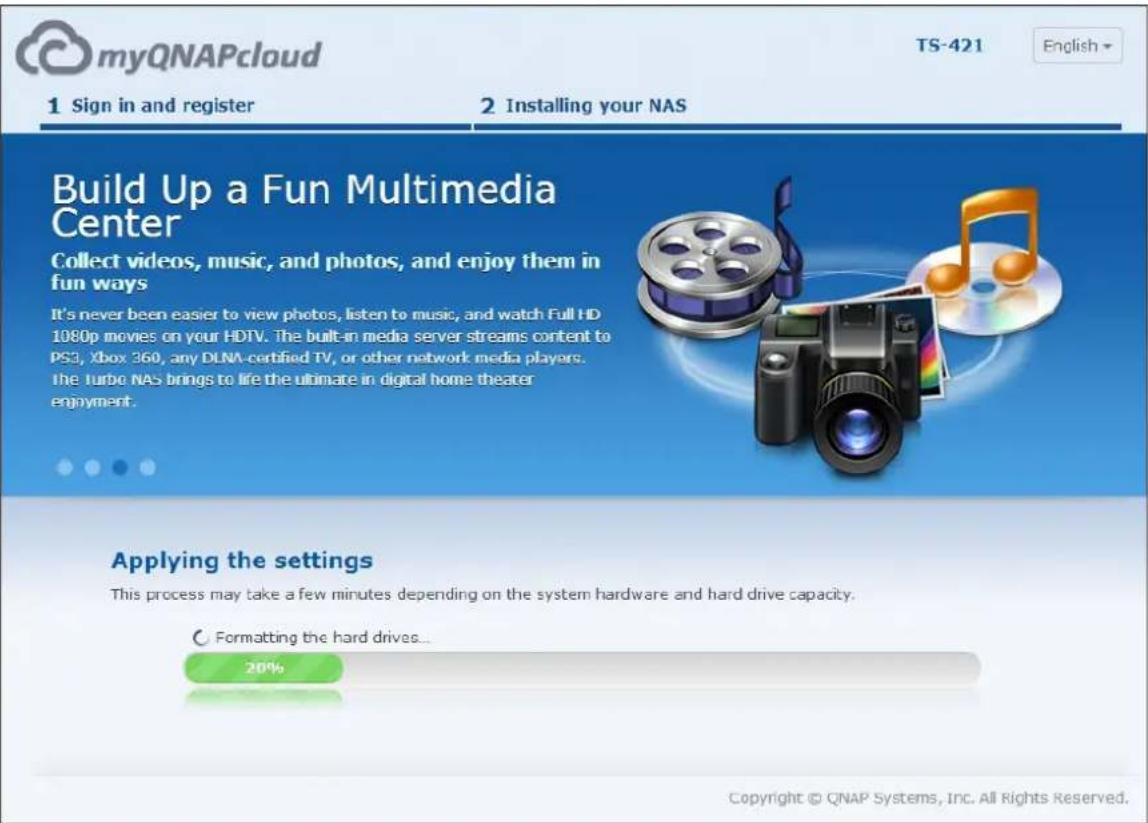
text_image
myQNAPcloud TS-421 English 1 Sign in and register 2 Installing your NAS Build Up a Fun Multimedia Center Collect videos, music, and photos, and enjoy them in fun ways It's never been easier to view photos, listen to music, and watch Full HD 1080p movies on your HDTV. The built-in media server streams content to PS3, Xbox 360, any DLNA-certified TV, or other network media players. The Turbo NAS brings to live the ultimate in digital home theater enjoyment. Applying the settings This process may take a few minutes depending on the system hardware and hard drive capacity. ○ Formatting the hard drives... 20% Copyright © QNAP Systems, Inc. All Rights Reserved.- Click "Connect and Login QTS".
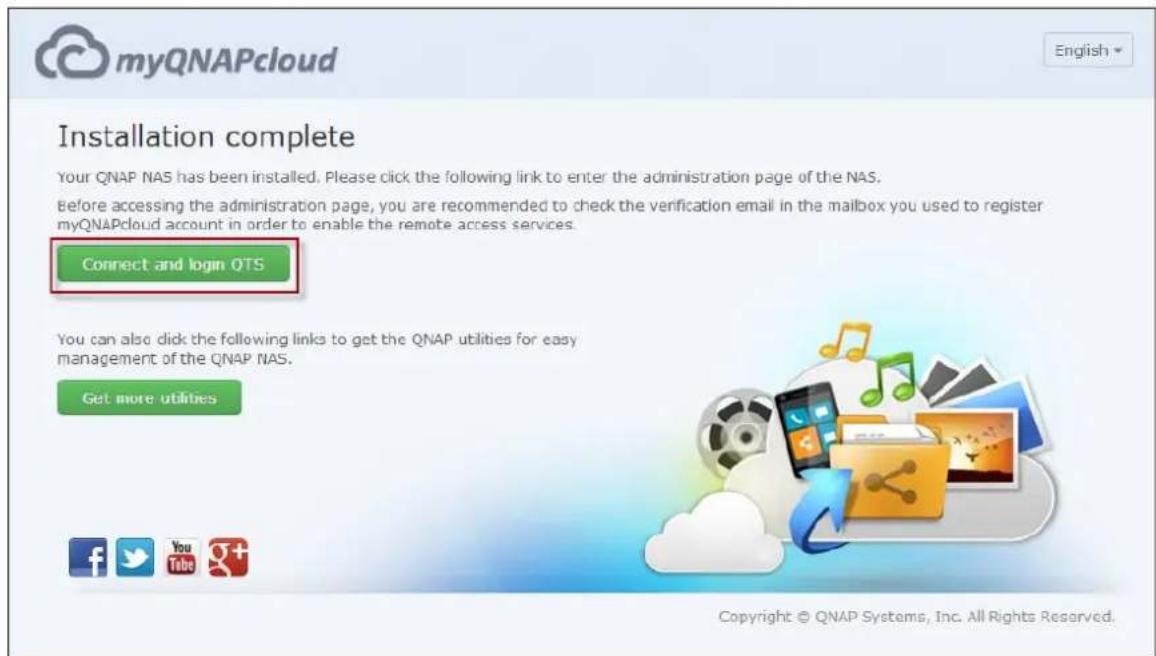
text_image
myQNAPcloud English Installation complete Your QNAP NAS has been installed. Please click the following link to enter the administration page of the NAS. Before accessing the administration page, you are recommended to check the verification email in the mailbox you used to register myQNAPcloud account in order to enable the remote access services. Connect and login QTS You can also click the following links to get the QNAP utilities for easy management of the QNAP NAS. Get more utilities Copyright © QNAP Systems, Inc. All Rights Reserved.- Key in the user ID and password to login your Turbo NAS.
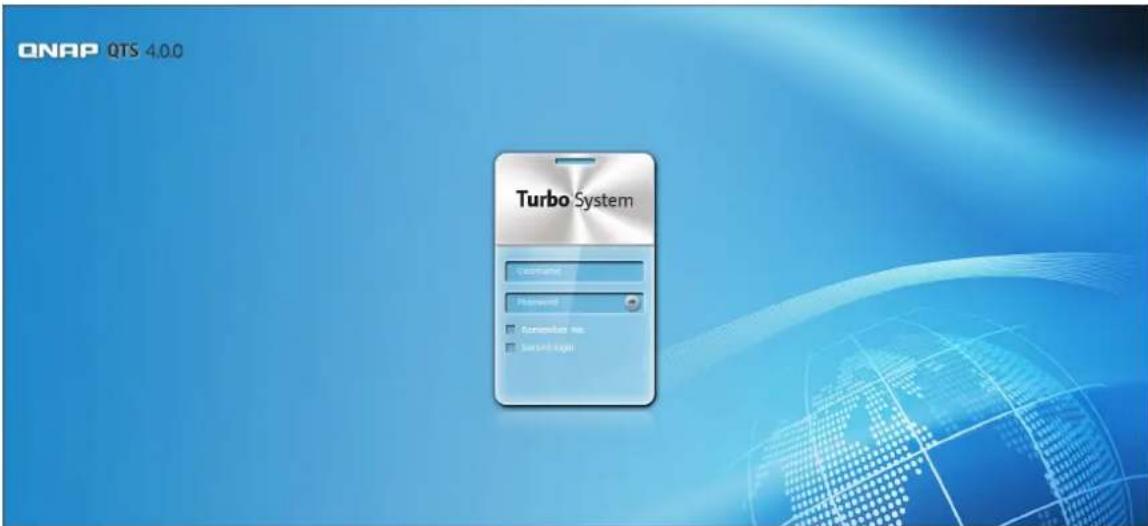
text_image
ONAP QTS 4.0.0 Turbo System Standard Standard Remember No. Save RightFollow the steps in this section to complete CD installation for your NAS.
- Install the QNAP Qfinder from the product CD-ROM.

text_image
NAS QNAP Quick Installation Guide Install QNAP Finder Install MyCloudNAS Connect Install NetBak Replicator Install QGet User Manual and Application Notes Browse CD Product Support and Registration Website Back Exit www.QNAP.com- Run the QNAP Qfinder. If the QNAP Qfinder is blocked by your firewall, unblock the utility.
- Follow the steps outlined in the Online Installation section and finish the installation process.
Note:
- Some new NAS models, such as TS-x12, TS-x20 and TS-x21, no longer have the installation CD included.
- The default login ID and password of the NAS are both admin.
2.3 Getting Utilities
QNAP has prepared a number of practical and useful utilities to enhance your NAS experiences. After setting up your NAS, please choose from the following two methods to install the utilities.
A. Dow nload from the Q NAP w ebsite
Type http://www.qnap.com/ in your browser, go to Features > For Home ("For Business" if you are business users). Scroll down to the bottom of the screen and click "Utilities". Choose to download and install utilities on your PC.
Home > Features > For Business > Utility
QNAP utilities
• Qfinder
• myQNAPcloud Connect
- Qsync
- NetBak Replicator
• QGet
• vSphere Clinet plug-in
Various handy utilities are available for you to work smartly with your Turbo NAS. These utilities help increase your productivity and make it absolutely easy with connecting the Turbo NAS, setting up the system, data backup and synchronization, downloading files, and so on. Visit the Download center, find your Turbo NAS model, and the list of available utilities are ready for you.
B. Install from the product CD-R OM
The product CD-ROM contains software utilities QNAP Qfinder, myQNAPcloud Connect, NetBak Replicator, and QGet.
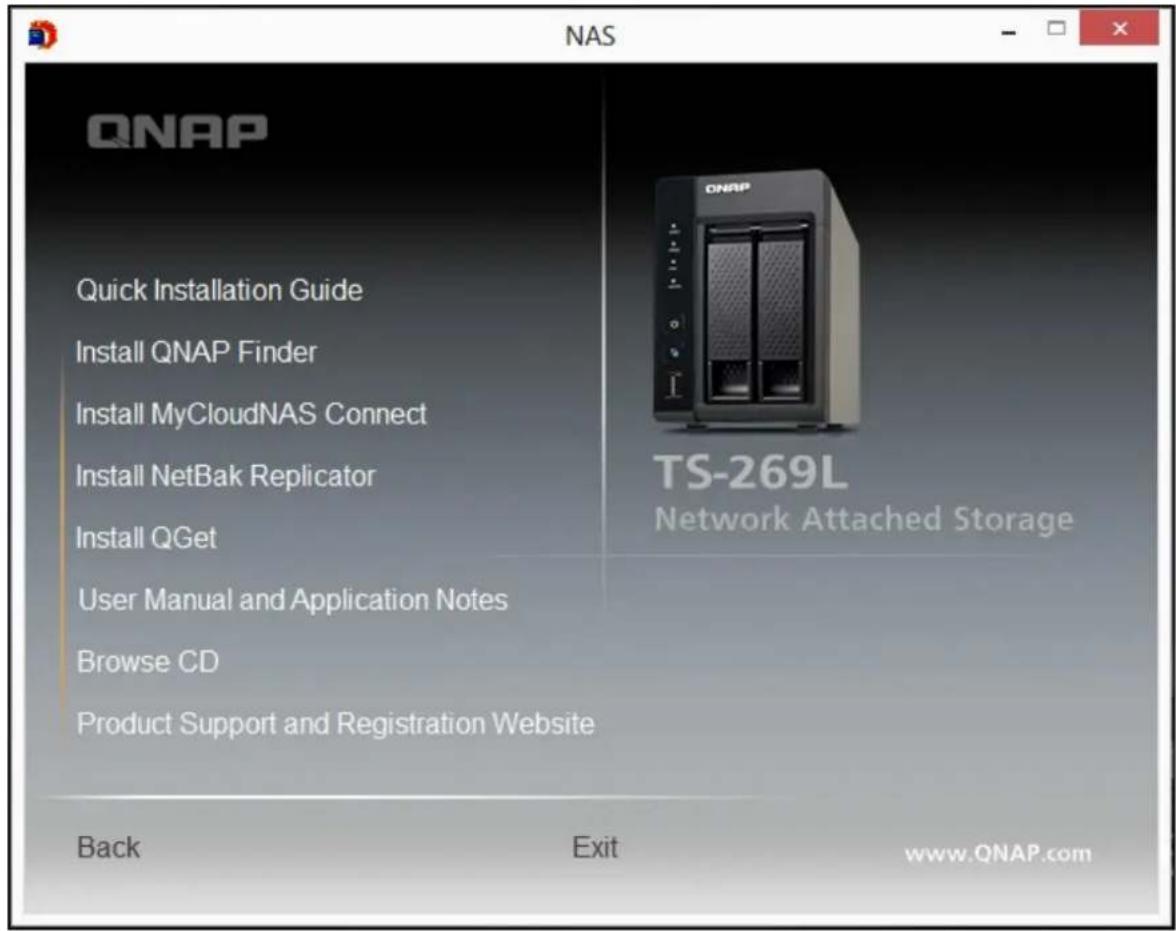
text_image
NAS QNAP Quick Installation Guide Install QNAP Finder Install MyCloudNAS Connect Install NetBak Replicator Install QGet User Manual and Application Notes Browse CD Product Support and Registration Website Back Exit www.QNAP.com TS-269L Network Attached StorageBrowse the CD-ROM and access the following contents:
- Quick Installation Guide: View the hardware installation instructions of the NAS.
• Install QNAP Qfinder: The setup program of the QNAP Qfinder (for Windows OS.) - Install myQNAPcloud Connect: The setup program of the myQNAPcloud Connect (for Windows OS.)
- Install NetBak Replicator: The setup program of NetBak Replicator (Windows utility for data backup from Windows OS to the QNAP NAS.)
• Install QGet: The setup program of the QGet download utility (for Windows OS.) - User Manual and Application Notes: Software user manuals, and hardware manual of the Turbo NAS.
2.4 Connecting to NAS Shared Folders
Connecting to NAS shared folders in Windows 49 Connecting to NAS shared folders in Mac or Linux 54
2.4.1 Connecting to NAS shared folders in Windows
For Windows operating systems, there are two methods to connect to shared folders of the NAS:
A. QNAP Qfinder 49
B. My Network Places or Run 52
A. Connect to the shared folders of the NAS by using the QNAP Qfinder:
- Launch the QNAP Qfinder. Select the NAS detected and then click "Map Network Drive".

text_image
QNAP Ofinder 4.0.0 Servers Connect Settings Tools Help Map Network Drive Restart Server Shut down Server Remote Wake Up (Wake On LAN) Search Network Camera SMTP Settings Update Firmware Resource Monitor NetBak Replicator QBack QGet VioGate Player VioGate Master d Device Name Server Type Version MAC Address jauss219offi TS-219P II ✓ 3.8.2 (20130301) 00-08-9B-C3-0B-89 csd-269 TS-269 Pro ✓ 3.8.2 (20130301) 00-08-9B-D1-EC-0A TS-670Pro TS-670 Pro ✓ 4.0.0 (20130430) 00-08-9B-D4-C5-BC NAS8CC4EC TS-409 ✓ 3.3.2 (0918T) 00-08-9B-8C-C4-EC Ken879 TS-879 Pro ✓ 3.8.3 (20130417) 00-00-08-79-00-27 Fan-219PII TS-219P II ✓ 3.8.3 (20130423) 00-08-9B-C3-0B-01 Fan-509 TS-509 ✓ 3.8.3 (20130419) 00-08-9B-BD-D8-10 Kendheah TS-121 ✓ 4.0.0 (20130412) 00-08-9B-C9-41-EB NASD4C604 TS-670 Pro ✓ 4.0.0 (20130513) 00-08-9B-D4-C6-04 CSD-659 TS-659 Pro II ✓ 3.8.2 (20130301) 00-08-9B-C7-77-BF NASD20A10 TS-269 Pro ✓ 4.0.0 (20130507) 00-08-9B-D2-0A-10 A4 TS-509 ✓ 3.8.2 (20130301) 00-08-9B-BA-84-A5 NASCFOS9E 10.8.12.153 - TS-421 ✓ 4.0.0 (20130411) 00-08-9B-CF-05-9E NAS12345 10.8.12.156 - TS-469 Pro ✓ 3.8.1 (20121205) 00-08-9B-CF-AE-BE My-NASO3 10.8.12.157 - TS-469 Pro ✓ 4.0.0 (20130429) 00-08-9B-CF-AC-4C NASC2E7AD 10.8.12.160 - TS-410 ✓ 4.0.0 (20130408) 00-08-9B-C2-E7-AD NCSNAS TS-219P II ✓ 3.8.3 (20130321) 00-08-9B-C2-BF-12 On-line: 46.- Select a shared folder on the NAS to be mapped as a network drive and click "Map Network Drive".

text_image
Map Network Drive Select a network share to be mapped as a network drive : Download home homes Multimedia Public Qsync Recordings Usb Web Map Network Drive Cancel- Enter the username and password to connect to the NAS and click "OK".
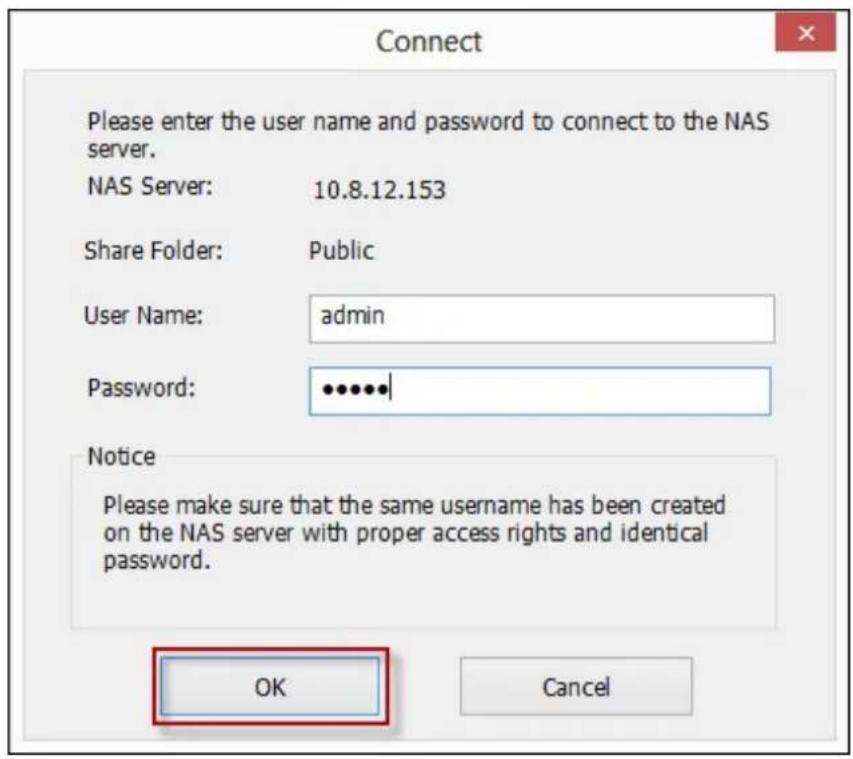
text_image
Connect Please enter the user name and password to connect to the NAS server. NAS Server: 10.8.12.153 Share Folder: Public User Name: admin Password: ••••••| Notice Please make sure that the same username has been created on the NAS server with proper access rights and identical password. OK Cancel- Select a drive in the OS to map the folder chosen in Step 2 and click "Finish".
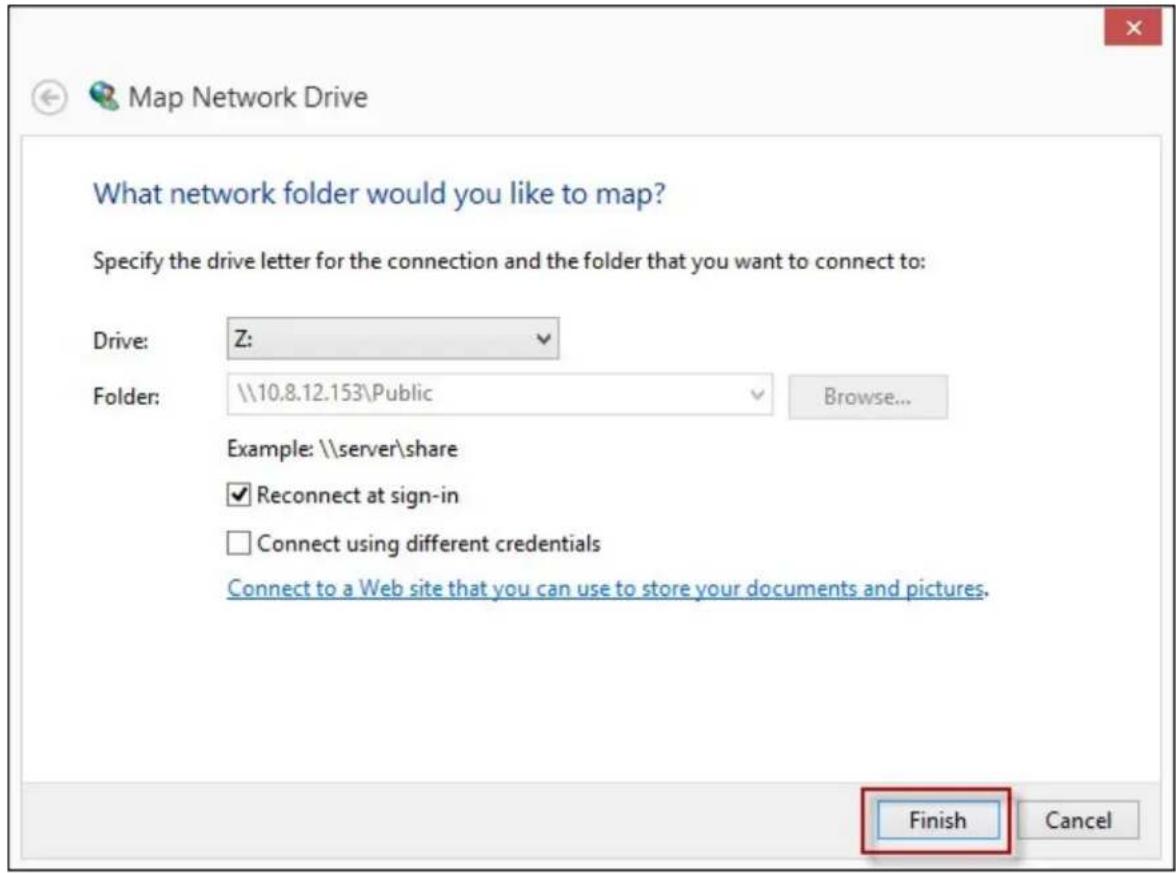
text_image
Map Network Drive What network folder would you like to map? Specify the drive letter for the connection and the folder that you want to connect to: Drive: Z: Folder: \\10.8.12.153\Public Browse... Example: \\server\share ✓ Reconnect at sign-in ☐ Connect using different credentials Connect to a Web site that you can use to store your documents and pictures. Finish Cancel- The mapped folder will appear when opening the File Explorer.
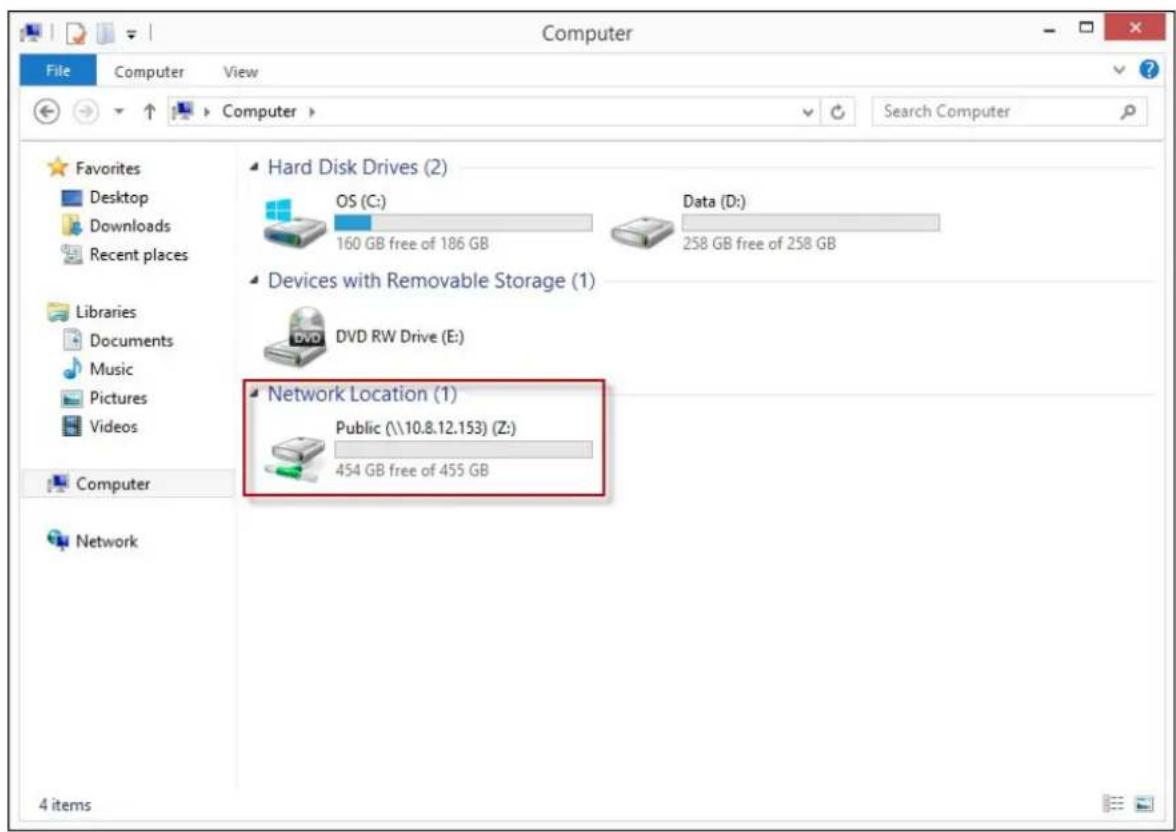
text_image
Computer File Computer View Favorites Desktop Downloads Recent places Libraries Documents Music Pictures Videos Computer Network 4 items Hard Disk Drives (2) OS (C:) 160 GB free of 186 GB Data (D:) 258 GB free of 258 GB Devices with Removable Storage (1) DVD RW Drive (E:) Network Location (1) Public (\10.8.12.153) (Z:) 454 GB free of 455 GBNote: Alternatively, you can use the Storage Plug & Connect Wizard to connect NAS shared folders. The steps: 1) Launch the QNAP Qfinder; 2) Select Storage Plug & Connect under Connect; 3) Check Login with username and password" and enter username and password; 4) Click a NAS shared folder; and 5) Click "Map the Network Drive" on top of the screen.
B. Connect to the shared folders of the NAS by using My Network Places or Run
1a. Open My Network Places and find the workgroup of the NAS. If the NAS cannot be found, browse the whole network to search for the NAS. Double click the name of the NAS for connection.
1b. Use the Run function in Windows. Enter \NAS_name or \NAS_IP.
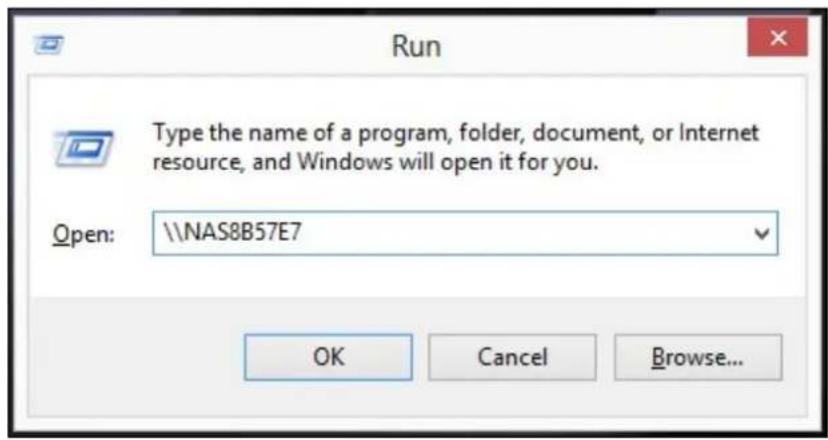
text_image
Run Type the name of a program, folder, document, or Internet resource, and Windows will open it for you. Open: \NAS8B57E7 OK Cancel Browse...
text_image
Run Type the name of a program, folder, document, or Internet resource, and Windows will open it for you. Open: \169.254.100.100 OK Cancel Browse...- Enter the default administrator name and password.
Default username: admin
Default password: admin
- You can upload files to the shared folders.
Mac Users
There are two methods to connect shared folders on a NAS:
A. Using QNAP Qfinder 54
B. Connect to Server 56
A. Using QNAP Qfinder
- Launch the QNAP Qfinder, select the NAS you would like to connect to, and go to "Connect" > "Open in File Explorer".

text_image
Open in Web Browser Open in File Explorer Connect via FTP QNAP Finder Name IP Address Version Server Type MAC Address Firmware Status Art-CSD559 10.8.12.80 4.0.1 (20.. TS-559 P... 00-08-9B-C7... ✓ (Up-to-date) PMalex01 10.8.12.82 3.8.1 (20.. TS-119P II 00-08-9B-C3... ✓ (Update available) CSD-639 10.8.12.84 4.0.1 (20.. TS-639 00-08-9B-BA... ✓ (Up-to-date) A4 10.8.12.87 4.0.1 (20.. TS-509 00-08-9B-BA... ✓ (Up-to-date) Jason670 10.8.12.90 4.0.2 (20.. TS-670 00-08-9B-D4... ✓ (Not supported) NASC3C806 10.8.12.93 3.8.2 (20.. TS-559 00-08-9B-C3... ✓ (Update available) PMKen559a 10.8.12.95 4.0.2 (20.. TS-559 P... 00-08-9B-BD... ✓ (Up-to-date) ANASC4EF38 10.8.12.108 3.8.3 (20.. TS-259 P... 00-08-9B-C4... ✓ (Up-to-date) NASD22C85 10.8.12.112 3.8.3 (20.. TS-269L 00-08-9B-D2... ✓ (Up-to-date) demo1 10.8.12.115 4.0.1 (20.. TS-469 Pro 00-08-9B-CC... ✓ (Up-to-date) NASD4C604 10.8.12.116 4.0.2 (20.. TS-670 Pro 00-08-9B-D4... ✓ (Not supported) 670Pro 10.8.12.118 4.0.1 (20.. TS-670 Pro 00-08-9B-D4... ✓ (Not supported) demo2 10.8.12.119 4.0.1 (20.. TS-469 Pro 00-08-9B-CF... ✓ (Up-to-date) Ken879 10.8.12.122 4.0.0 (20.. TS-679 Pro 00-08-9B-79... ✓ (Up-to-date) CSD-659 10.8.12.126 3.8.3 (20.. TS-659 P... 00-08-9B-C7... ✓ (Up-to-date) Fan-509 10.8.12.132 4.0.1 (20.. TS-509 00-08-9B-BD... ✓ (Up-to-date) F470 10.8.12.145 4.0.1 (20.. TS-470 Pro 00-08-9B-D4... ✓ (Not supported) CherrySMB 10.8.12.146 4.0.0 (20.. TS-469 Pro 00-08-9B-CF... ✓ (Up-to-date) NASCF4BC1 10.8.12 15:1 4.0.1 (20.. TS-569 Pro 00-08-9B-CF... ✓ (Up-to-date) Alfonsr 10.8.12 15:3 4.0.1 (20.. TS_470 Pro 00-08-9B-D4... ✓ (Not supported) Connect Configure Details Refresh Exit- Enter your login ID and password.

text_image
Enter your name and password for the server "10.8.12.151". Connect as: Guest Registered User Name: admin Password: ............. Remember this password in my keychain Cancel Connect- Select the folder you want to mount and click "OK".
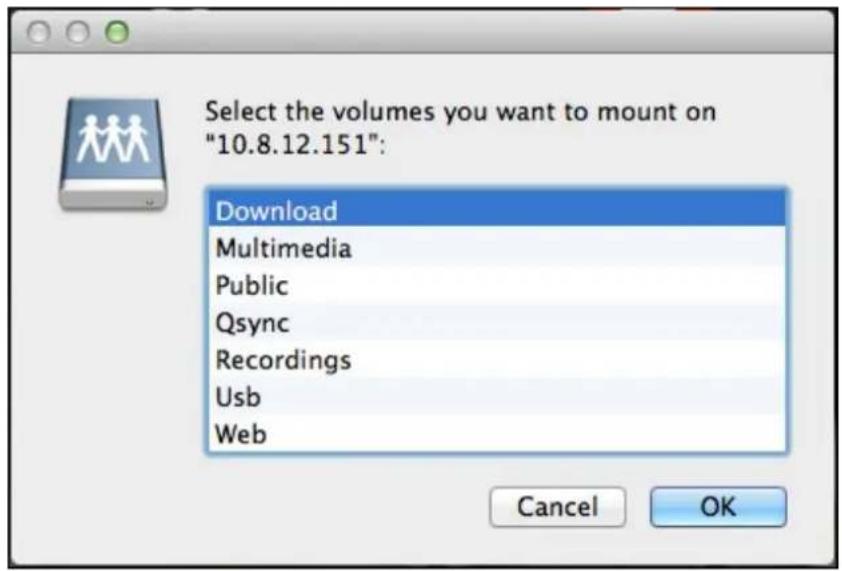
text_image
Select the volumes you want to mount on "10.8.12.151": Download Multimedia Public Qsync Recordings Usb Web Cancel OK- The folder is mounted.
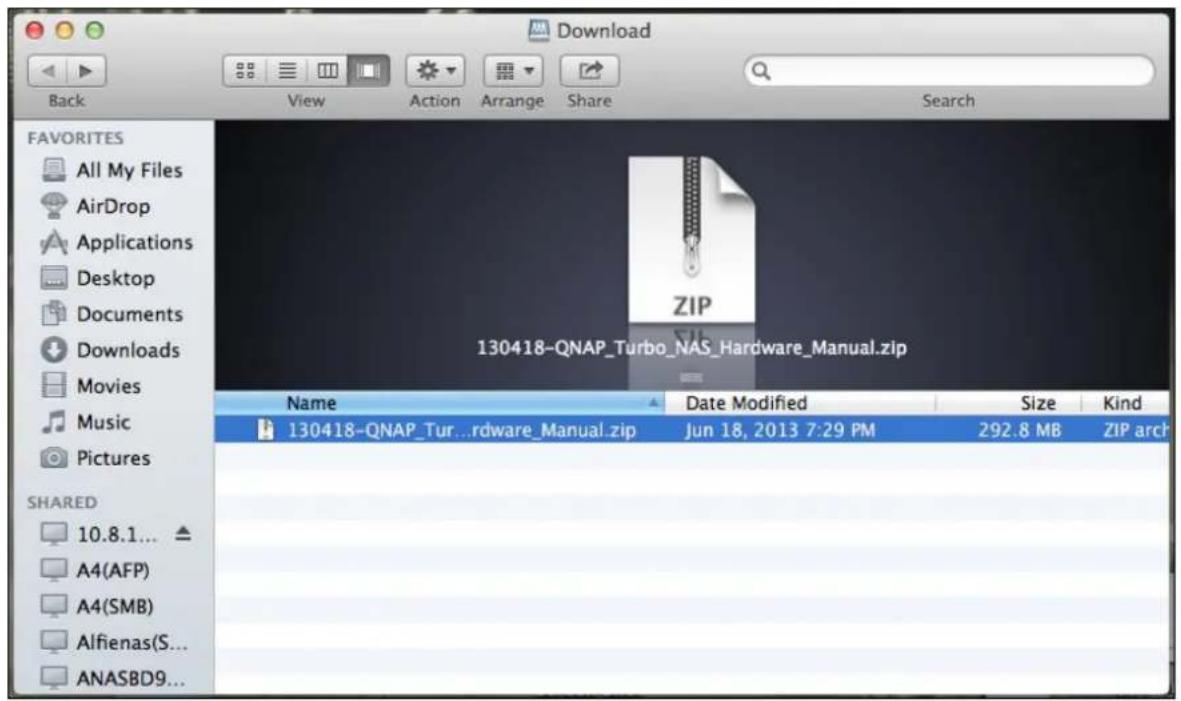
text_image
Download Back View Action Arrange Share Search FAVORITES All My Files AirDrop Applications Desktop Documents Downloads Movies Music Pictures 130418-QNAP_Turbo_NAS_Hardware_Manual.zip Name Date Modified Size Kind 130418-QNAP_Tur...rdware_Manual.zip Jun 18, 2013 7:29 PM 292.8 MB ZIP arch SHARED 10.8.1... A4(AFP) A4(SMB) Alfienas(S... ANASBD9...B. Connect to Server
- Choose "Go" > "Connect to Server".
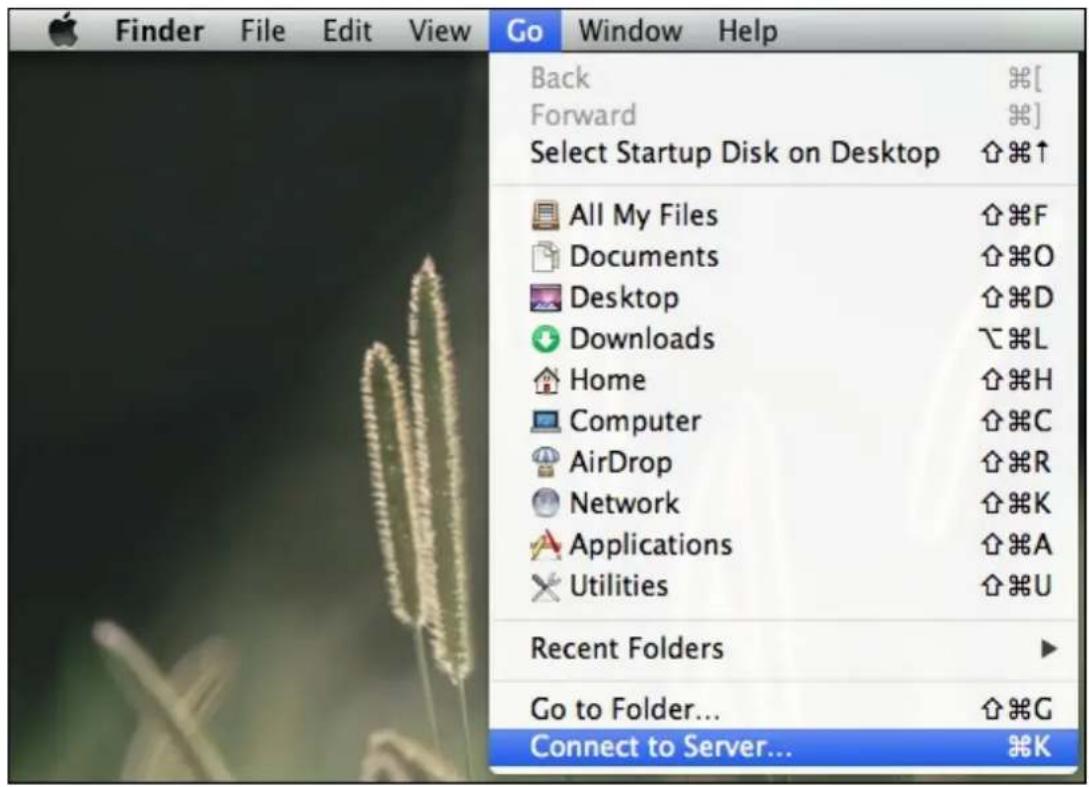
text_image
Finder File Edit View Go Window Help Back Forward Select Startup Disk on Desktop All My Files Documents Desktop Downloads Home Computer AirDrop Network Applications Utilities Recent Folders Go to Folder... Connect to Server... [ ] [O] D L H C R K A U G K- Enter the NAS IP address.
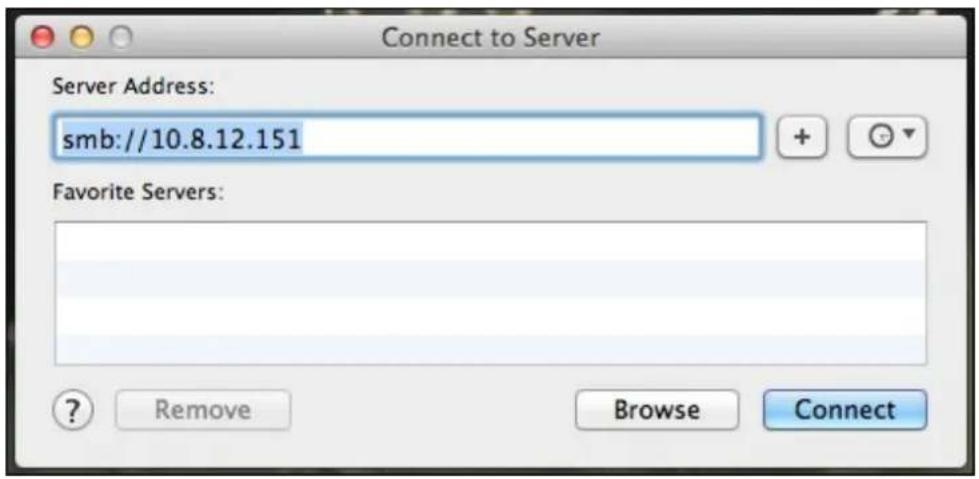
text_image
Connect to Server Server Address: smb://10.8.12.151 Favorite Servers: ? Remove Browse Connect- Enter your login ID and password.
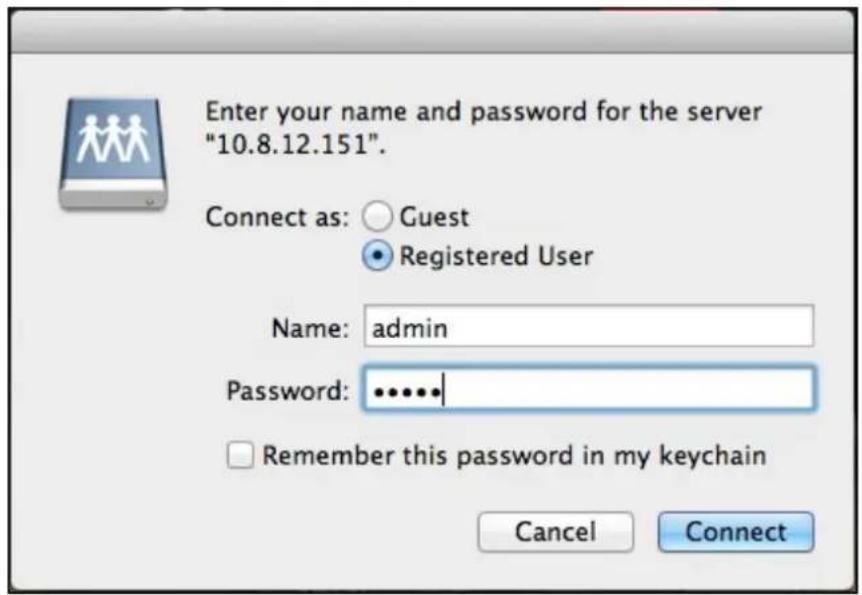
text_image
Enter your name and password for the server "10.8.12.151". Connect as: Guest Registered User Name: admin Password: ............. Remember this password in my keychain Cancel Connect- Select the folder you want to mount and click "OK".
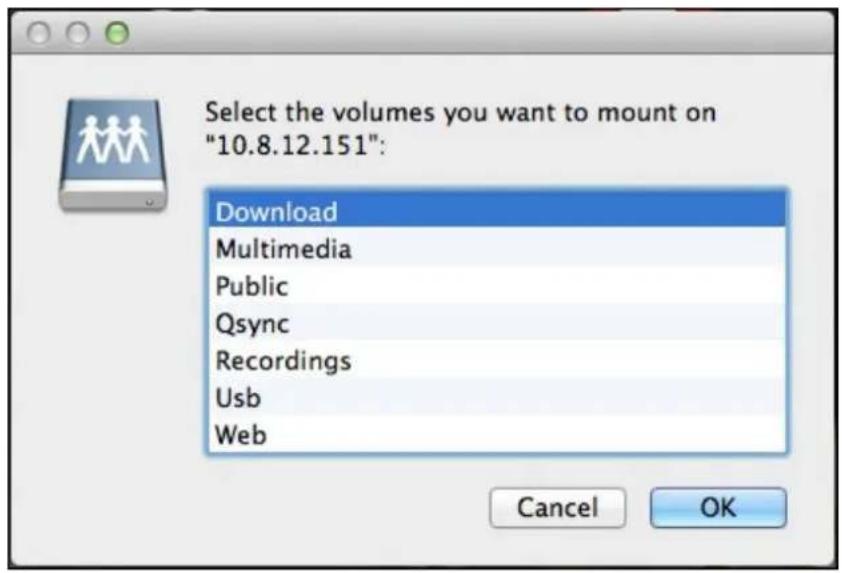
text_image
Select the volumes you want to mount on "10.8.12.151": Download Multimedia Public Qsync Recordings Usb Web Cancel OK5. The folder is mounted.
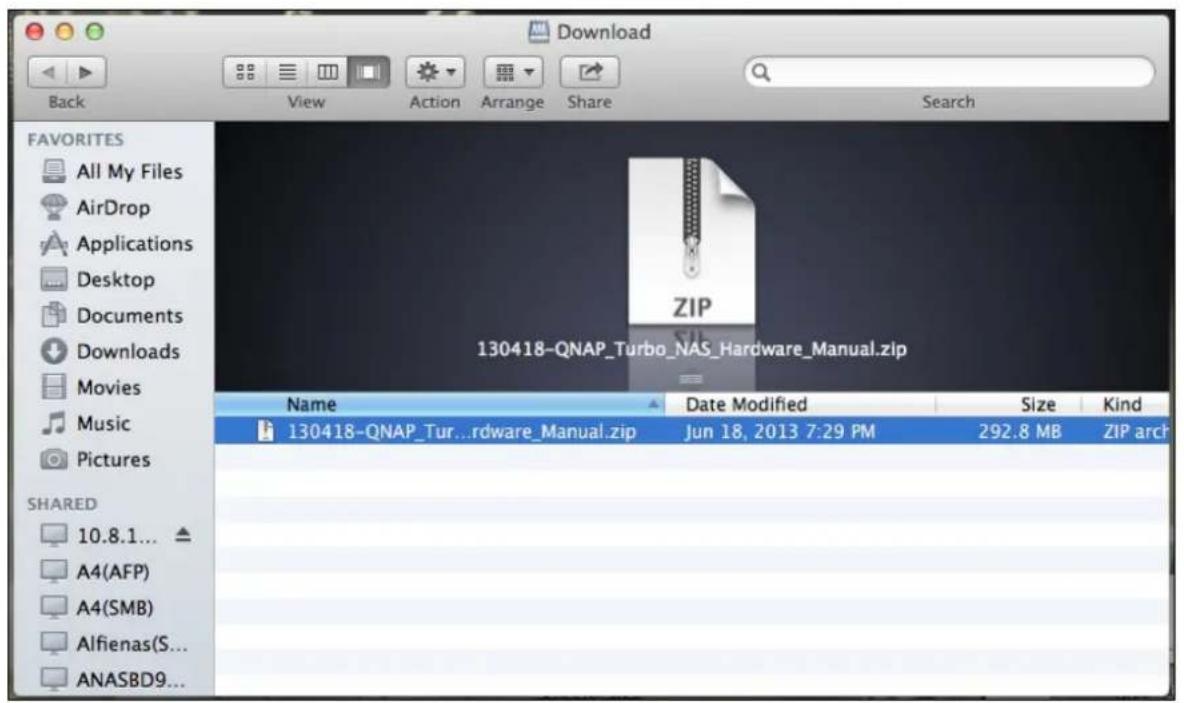
text_image
Download Back View Action Arrange Share Search FAVORITES All My Files AirDrop Applications Desktop Documents Downloads Movies Music Pictures 130418-QNAP_Turbo_NAS_Hardware_Manual.zip Name Date Modified Size Kind 130418-QNAP_Tur...rdware_Manual.zip Jun 18, 2013 7:29 PM 292.8 MB ZIP arch SHARED 10.8.1... A4(AFP) A4(SMB) Alfienas(S... ANASBD9...Linux Users
On Linux, run the following command:
mount -t nfs
For example, if the IP address of the NAS is 192.168.0.1, to connect to the shared folder "public" under the /mnt/pub directory, use the following command:
m ount -t nfs 192.168.0.1:/public /m nt/pub
Note: You must login as the "root" user to initiate the above command.
Login the NAS with the specified user ID, use the mounted directory to connect to the shared folders.
To connect to the NAS by a web browser, follow the steps below:
- Enter http://NAS IP:8080 or use the QNAP Qfinder to find the NAS. Double click the NAS name, and the NAS login page will open.

text_image
QNAP QTS 4.0.0 Turbo System admin ...... Remember me Secure loginNote: The default NAS IP is 169.254.100.100:8080. If the NAS has been configured to use DHCP, you can use the QNAP Qfinder to check the IP address of the NAS. Make sure the NAS and the computer that runs the QNAP Qfinder are connected to the same subnet. If the NAS cannot be found, connect the NAS to the computer directly and run the QNAP Qfinder again.
- Enter the administrator name and password. Turn on the option "Secure login" (Secure Sockets Layer login) to allow secure connection to the NAS. If a user without administration right login the NAS, the user can only change the login password.
Default username: admin Default password: admin
Note: If the NAS is behind an NAT gateway, to connect to the NAS by secure login on the Internet, the port 443 must be opened on the NAT router and forwarded to the LAN IP of the NAS.
- The NAS Desktop will show up.

text_image
NASCINFO Control Panel Photo Station Music Station Video Station Download Station File Station Backup Station myQNAPcloud Qsync (Beta) Surveillance Station Pro Antivirus App Center 19:17 Wednesday, May 15 QNAP Mobile App Feedback ONAP TS-421Users can migrate their QNAP NAS to another Turbo NAS model with all the data and configuration retained by simply installing the hard drives of the original (source) NAS on the new (destination) NAS according to its original hard drive order and restart the NAS.
Due to different hardware design, the NAS will automatically check if a firmware update is required before system migration. After the migration has finished, all the settings and data will be kept and applied to the new NAS. However, the system settings of the source NAS cannot be imported to the destination NAS via "System Administration" > "Backup/Restore Settings". Configure the NAS again if the settings were lost.
The NAS models which support system migration are listed below.
| Source NAS | Destination NAS | Rem ark |
| TS-x10, TS-x12, TS-x19,TS-x20, TS-x21, TS-x39,TS-509, TS-809, SS-x39,SS-469, TS-x59, TS-x69,TS-x70, TS-x79 | TS-x10, TS-x12, TS-x19,TS-x20, TS-x21, TS-x39,TS-509, TS-809, SS-x39 | Firmware update required. |
| TS-x10, TS-x12, TS-x19,TS-x20, TS-x21, TS-x39,TS-509, TS-809, SS-x39,TS-x59, TS-x69, TS-x70,TS-x79 | TS-x59, TS-x69, TS-x70,TS-x79, SS-469 Pro | Firmware update not required. |
Note:
- The destination NAS should contain enough drive bays to house the hard drives of the source NAS.
- SS-x39 and SS-469 Pro series support only 2.5-inch hard disk drives.
-
A NAS with ed disk volume cannot be migrated to a NAS which does not support file system encryption. File system encryption is not supported by TS-110, TS-119, TS-210, TS-219, TS-219P, TS-x20, TS-x21, TS-410, TS-419P, TS-410U, TS-419U, TS-119P+, TS-219P+, TS-419P+, TS-112, TS-212, TS-412, TS-419U+, TS-412U, TS-420U and TS-421U.
-
The Multimedia Station, Download Station, iTunes Server, and DLNA Media Server features will be removed after migrating the non-TS-x79 models to the TS-x70U/TS-x79 models. The shared folders Multimedia/Qmultimedia, Download/Qdownload and all the downloaded files will be kept.
- The registered myQNAPcloud name on the source NAS will not be moved to the destination NAS after system migration. To use the same myQNAPcloud name on the destination NAS, change the myQNAPcloud name on the source NAS before system migration and register the same name on the destination NAS after the process. Please contact the QNAP technical support department if you need to keep myQNAPcloud name after system migration.
| Destination NAS | Disk volum e supported for system m igration |
| 1-bay NAS | 1-drive single disk volume |
| 2-bay NAS | 1 to 2-drive single disk volume, JBOD, RAID 0, 2-drive RAID 1. |
| 4-bay NAS | 1 to 4-drive single disk volume, JBOD, RAID 0, 2-drive RAID 1, 3 to 4-drive RAID 5, 4-drive RAID 6, 4-drive RAID 10. |
| 5-bay NAS | 1 to 5-drive single disk volume, JBOD, RAID 0, 2-drive RAID 1, 3 to 5-drive RAID 5, 4 to 5-drive RAID 6, 4-drive RAID 10. |
| 6-bay NAS | 1 to 6-drive single disk volume, JBOD, RAID 0, 2-drive RAID 1, 3 to 6-drive RAID 5, 4 to 6-drive RAID 6, 4-drive or 6-drive RAID 10. |
| 8-bay NAS | 1 to 8-drive single disk volume, JBOD, RAID 0, 2-drive RAID 1, 3 to 8-drive RAID 5, 4 to 8-drive RAID 6, 4-drive, 6-drive, or 8-drive RAID 10. |
Follow the steps below to perform system migration.
- Turn off the source NAS and unplug the hard drives.
- Remove the hard drives from the old trays and install them to the hard drive trays of the new NAS.
- Plug the hard drives to the destination NAS (new model). Make sure the hard drives are installed in the original order.
- Follow the instructions of the Quick Installation Guide (QIG) to connect the power supply and network cable(s) of the new NAS.
- Turn on the new NAS. Login the web administration interface as an administrator (default login: admin; password: admin).
- If you are informed to update the firmware of the new NAS, follow the instructions to download and install the firmware.
- Click "Start Migrating". The NAS will restart after system migration. All the data and settings will be retained.

Caution: To avoid system damage or serious injuries, the system migration procedure should be performed by an authorized server manager or IT administrator.
Some system settings will be removed after system migration due to a different system design. Configure the following settings again on the new NAS:
- Windows AD
- Some apps need to be resintalled.
3. QTS Basics and Desktop
Introducing QTS 661
Using QTS Desktop 70
3.1 Introducing QTS
Built on a Linux foundation, QTS 4.0 Turbo NAS operating system is shaped from the optimized kernel to deliver high-performance services satisfying your needs in file storage, management, backup, multimedia applications, and surveillance, and more.
The intuitive, multi-window and multi-tasking QTS 4.0 GUI make it incredibly easy to manage your Turbo NAS, utilize its rich home applications, enjoy multimedia collections with more fun, and install a rich set of applications in the App Center on demand to expand your Turbo NAS experience.
Moreover, QTS 4.0 adds value to business applications with its abundant features, including file sharing, iSCSI and virtualization, backup, privilege settings, and so on, effectively increasing business efficiency.
Coupled with various utilities and smart mobile apps, QTS 4.0 is the ultimate platform for building a personal or private cloud, synchronizing data and sharing files.

flowchart
graph TD
    A["QTS 4.0 Kernel"] --> B["Storage Manager"]
    A --> C["Data Security Encryption"]
    A --> D["Data Privacy Management"]
    A --> E["Backup Station"]
    A --> F["App Center"]
    A --> G["Cloud Service"]
    A --> H[" Surveillance Management"]
    A --> I["Data Security Management"]
    A --> J["Security Management"]
    A --> K["Package Management"]
    A --> L["Multi-Device Access"]
    A --> M["Multi Docking"]
    A --> N["Backup Gateway"]
    A --> O["Media Service"]
    A --> P["Video Application"]
    A --> Q["Downloaded Station"]
    A --> R["Mobile Apps"]
    A --> S["Mobile Apps"]
    A --> T["Mobile Apps"]
    A --> U["Mobile Apps"]
    A --> V["Mobile Apps"]
    A --> W["Mobile Apps"]
    A --> X["Mobile Apps"]
    A --> Y["Mobile Apps"]
    A --> Z["Mobile Apps"]
    A --> AA["Mobile Apps"]
    A --> AB["Mobile Apps"]
    A --> AC["Mobile Apps"]
    A --> AD["Mobile Apps"]
    A --> AE["Mobile Apps"]
    A --> AF["Mobile Apps"]
    A --> AG["Mobile Apps"]
    A --> AH["Mobile Apps"]
    A --> AI["Mobile Apps"]
    A --> AJ["Mobile Apps"]
    A --> AK["Mobile Apps"]
    A --> AL["Mobile Apps"]
    A --> AM["Mobile Apps"]
    A --> AN["Mobile Apps"]
*Click the figure above to check for more details.
Turbo NAS for Home - Easily enrich home entertainment and content sharing
Tons of photos, music, videos and documents are often scattered across multiple computers in modern homes. QNAP Turbo NAS lineup of home network storage servers feature plenty of handy applications to let you smartly connect and manage these assets and enjoy a truly digital life in a well-secured home network. No boundaries for multimedia sharing at home, and no boundaries for sharing content with family, and friends. Learn more about the exciting features that QNAP Turbo NAS offers to you:
• Cross platform data storage, backup and sharing center
• Revolutionary music, photo and home video center
• Personal cloud storage
• Free and large capacity for Dropbox-style data sync
• Over 90 Install-on-demand applications via the App Center
• Energy-efficient & eco-friendly
- Intuitive GUI with Multi-Windows, Multi-Tasking, Multi-Application, Multi-Device access support
Turbo NAS for Business - Optimize business IT infrastructure with ease and efficiency
IT efficiency, coupled with low total cost of ownership (TCO) is an essential factor for business competitiveness. QNAP Turbo NAS features high performance, business critical applications, and affordability; helping businesses achieve seamless file sharing, easy integration into existing networks, flexible virtualized IT environments, and many other advanced capabilities for keeping businesses running at maximum efficiency. Learn more about the compelling features that QNAP Turbo NAS offers to businesses:
• Large data storage, backup and file sharing center
• Supports both scale-up and scale-out solution for large storage capacity demand
- Advanced storage management with dynamic thin-provisioning, SSD caching and JBOD expansion functions
- Trustworthy data security and data encryption
- The reliable IP SAN storage (iSCSI) as primary and secondary storage for virtualization environment
- Private cloud storage
• Free and large capacity for Dropbox-style data sync
• Over 90 Install-on-demand applications via the App Center
• Development Center for 3rd party partners to build apps on the Turbo NAS
3.2 Using QTS Desktop
After you finish the basic NAS setup and login to the NAS, the following desktop will appear. Each main desktop feature is introduced in the following sections.
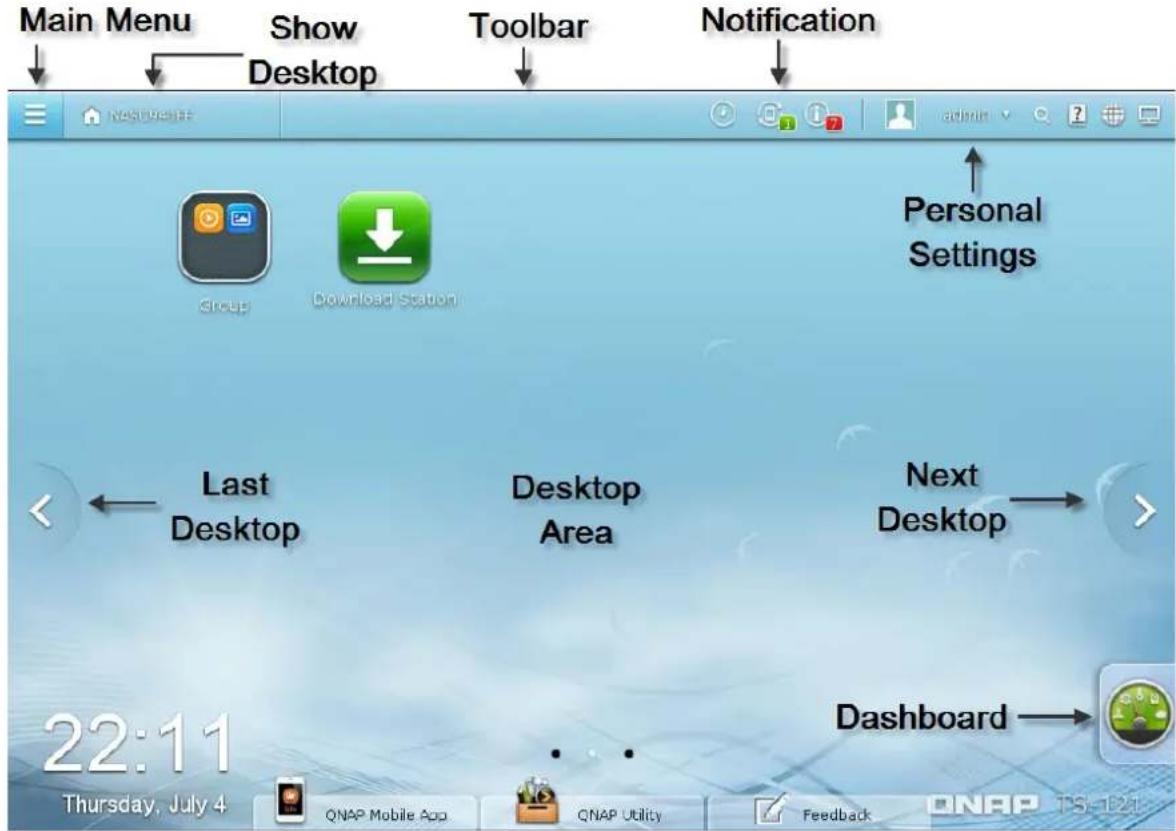
text_image
Main Menu Show Desktop Toolbar Notification NATAPRARE Group Download Station Personal Settings Last Desktop Desktop Area Next Desktop Dashboard 22:11 Thursday, July 4 ONAP Mobile App ONAP Utility Feedback ONAP TS-1021Toolbar
Main Menu
Click to show the Main Menu. It includes three parts: 1) QNAP applications; 2) system features and settings; and 3) third party applications. Items under "
APPLICATIONS" are developed by QNAP to enhance your NAS experience. Items under "SYSTEMS" are key system features designed to manage or optimize your NAS. Items at the bottom section of the menu are applications designed and submitted by independent developers and approved by QNAP. Those applications can add functionalities to the NAS (for their introduction, please refer to their description at the App Center.) Please note that the default Internet browser, instead of a window on the NAS Desktop, will be launched once you click a third party application. Click the icon from the menu to launch
the selected application.
APPLICATIONS

Photo Station

Music Station

Video Station

Download Station

File Station

Surveillance Station Pro

DJ Station

Digital TV Station
SYSTEMS

Control Panel

Storage Manager

Users

Backup Station

myQNAPcloud

Qsync (Beta)

App Center

Quick Start

TappIn

QAirplay

HappyGet 2

Fengoffice

Claroline
Show Desktop
Click to minimize or restore all open windows and show the desktop.
Background Task
Click to review and control all tasks running in the background (such as HDD SMART scanning, antivirus scanning, file backup or multimedia conversion.)
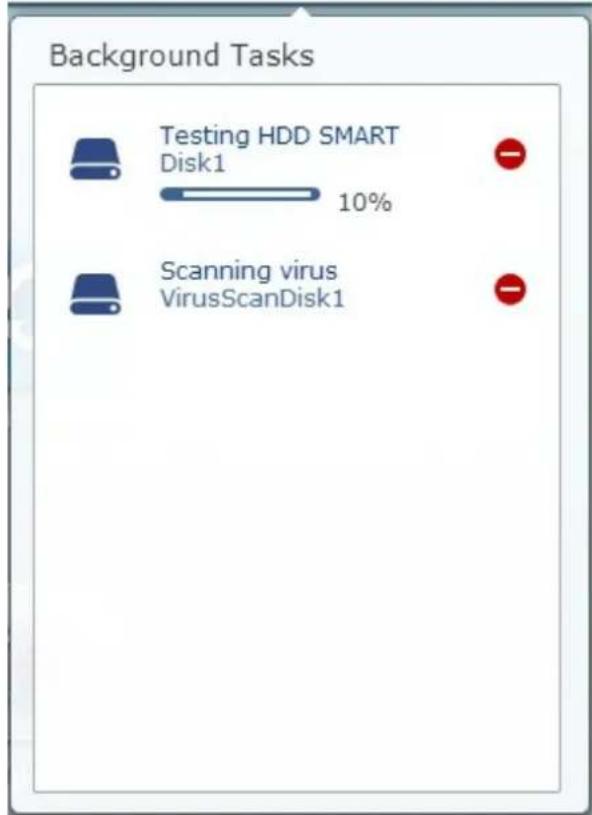
bar
| Background Tasks | Percentage | | ---------------- | ---------- | | Testing HDD SMART Disk1 | 10% | | Scanning virus VirusScanDisk1 | - |External Device
Click to list all external devices that are connected to the NAS via its USB or SATA ports. Click the device listed to open the File Station for that device. Click the "External Device" header to open the External Device page for relevant settings and operations
(for details on the File Station, please refer to the chapter on File Station.) Click to eject the external device.

text_image
External Device USB 2.0 Device StoreJet Transcend USBDisk1 : 698.63 GB USB 2.0 Device PI-288 USB 2.0 Drive USBDisk2 : 465.76 GBNotification and Alert
Click to check for recent system error and warning notifications. Click "Clear All" to clear all entries from the list. To review all historical event notifications, click the "Event Notifications" header to open the System Logs. For details on System Logs, please refer to the chapter on System Logs [302]
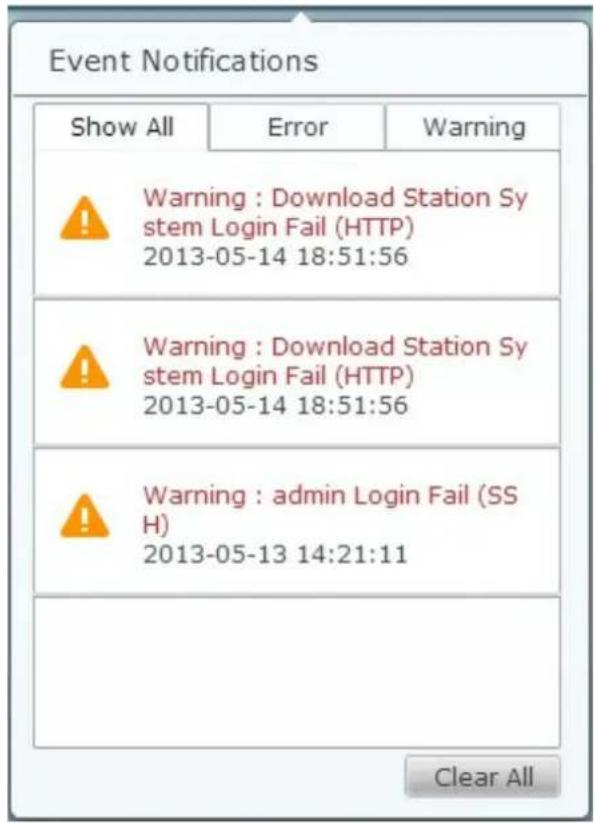
text_image
Event Notifications Show All Error Warning Warning : Download Station System Login Fail (HTTP) 2013-05-14 18:51:56 Warning : Download Station System Login Fail (HTTP) 2013-05-14 18:51:56 Warning : admin Login Fail (SS H) 2013-05-13 14:21:11 Clear AllPersonal Setting
Admin Control: Click to customize your user specific settings, change your user password, restart/shut down the NAS or log out your user account.
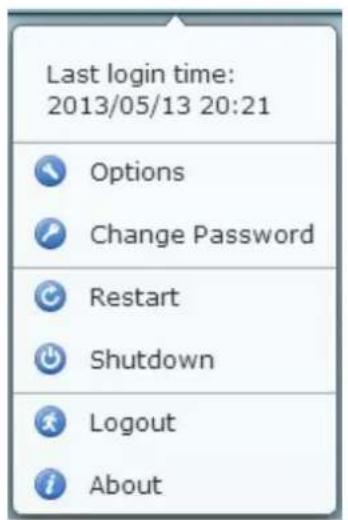
text_image
Last login time: 2013/05/13 20:21 Options Change Password Restart Shutdown Logout About1) Options:
i. Profile: Specify your user email address and change your profile picture.
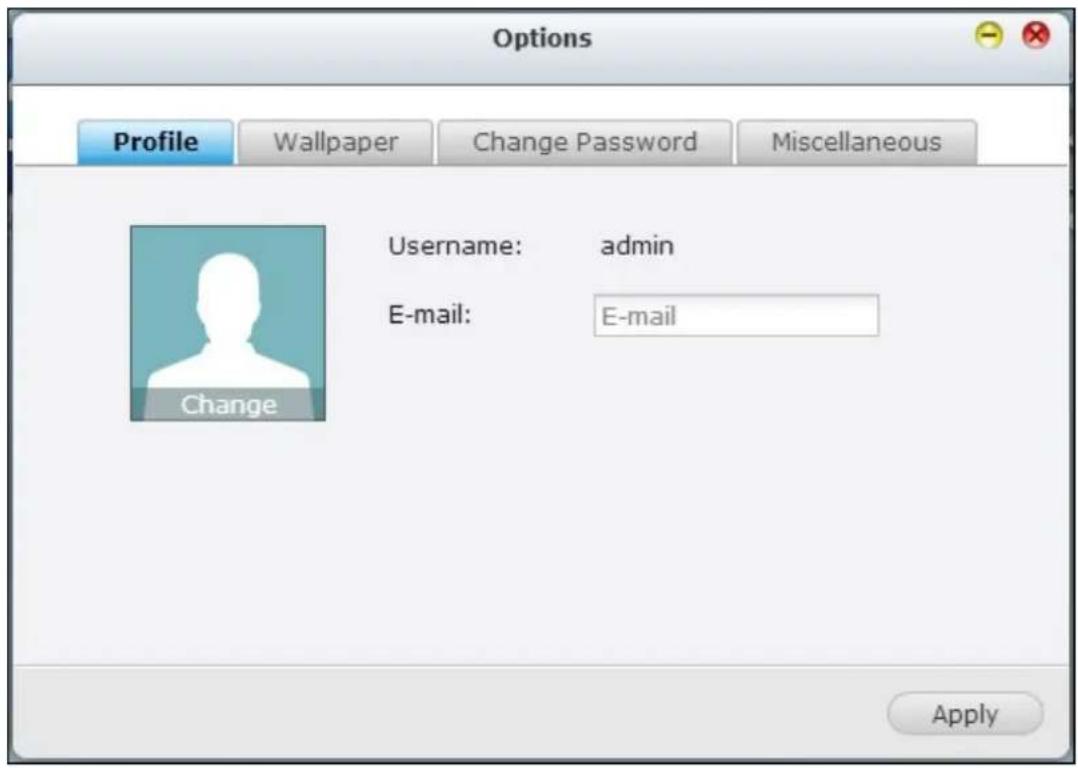
text_image
Options Profile Wallpaper Change Password Miscellaneous Username: admin E-mail: E-mail Change Applyii. Wallpaper: Change the default wallpaper or upload your own wallpaper.

text_image
Options Profile Wallpaper Change Password Miscellaneous Select the default wallpaper. Or upload my own photo Stretch Applyiii. Change Password: Change your login password.
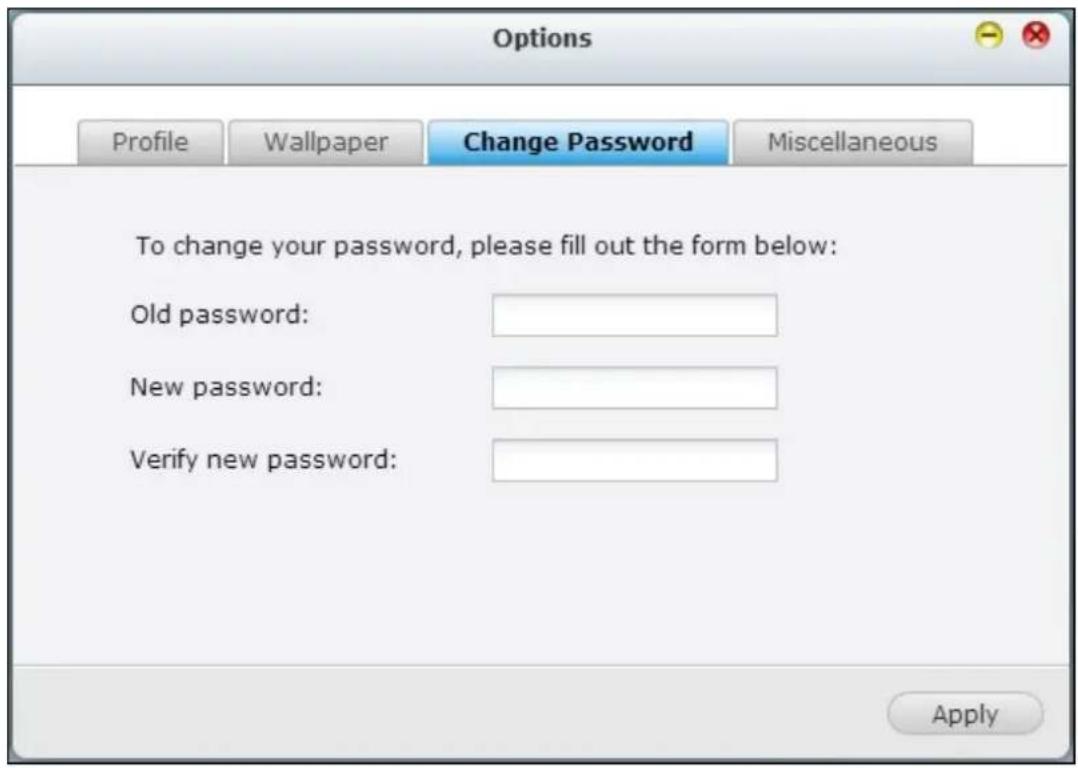
text_image
Options Profile Wallpaper Change Password Miscellaneous To change your password, please fill out the form below: Old password: New password: Verify new password: Applyiv. Miscellaneous:

text_image
Options Profile Wallpaper Change Password Miscellaneous ✓ Warn me when leaving QTS ☐ Reopen windows when logging back into QTS ✓ Show the desktop switching button ✓ Show the "QNAP Utility" tab ✓ Show the Dashboard button ✓ Show the NAS time on the desktop Apply- Warn me when leaving QTS: Check this option, and users will be prompted for confirmation each time they leave the QTS Desktop (such as clicking the back icon (

this option.
- Reopen windows when logging back into QTS: Check this option, and all the current desktop settings (such as the "windows opened before your logout") will be kept after you login the NAS the next time.
- Show the desktop switching button: Check this option to hide the next desktop button ( ) and last desktop button ( ) and only display them when you move your mouse cursor close to the buttons.
- Show the "QNAP Utility" tab: Check this option to show the "QNAP Mobile App", "QNAP Utility" and "Feedback" tabs at the bottom of the Desktop.
- Show the Dashboard button: If you would like to hide the Dashboard button ( ) at the bottom right side of the NAS Desktop, uncheck this option.
- Show the NAS time on the desktop: If you prefer not to show the NAS time at bottom left side of the desktop, uncheck this option.
- Change Password: Click this button to change your login password.
2) Restart: Click this button to restart your NAS.
3) Shutdown: Click this button to shut down your NAS.
4) Logout: Click this button to log yourself out.
5) About: Click this button to check for the NAS model, firmware version, HDDs already installed and available (empty) bays.

text_image
About TS-670 Pro Version 4.0.0 (2013/05/13) Hard disks installed:1 Empty bays:5 ©2013 QNAP Systems, Inc. All Rights Reserved. QNAP® www.qnap.com OKSearch
Click 🔒 and enter a feature specific keyword in the search box to search for the
desired function and its corresponding online help. Click the result in the search box to launch the function or open its online QTS help.
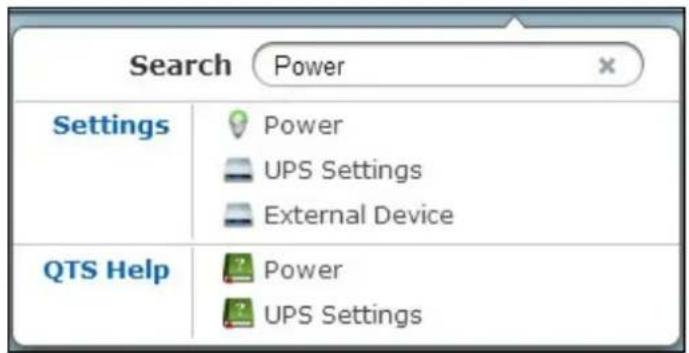
text_image
Search Power Settings Power UPS Settings External Device QTS Help Power UPS SettingsOnline Resource
Click to display a list of online references, including the Quick Start Guide, QTS Help, Tutorials, QNAP Wiki and QNAP Forum, and customer support such as Customer Service (live support) and Feedback (feature request / bug report) are available here.

text_image
Quick Start QTS Help Tutorials QNAP Wiki QNAP Forum Customer Service FeedbackLanguage
Click to choose your preferred language for the UI.

text_image
Auto Detect English 简体中文 繁體中文 Czech Dansk Deutsch Español Français Italiano 日本語 한글 Norsk Polski Русский Suomi Svenska Nederlands Turk dili 'Inu Português Magyar Ελληνικά RomânDesktop Preference
Click to choose the application icon displaying style and select your preferred application opening mode on the desktop. Application icons can be switched between
small thumbnails ( ) and detailed thumbnails ( ) and applications can be opened in the tab mode or the window mode.
For the tab mode, the window will be opened to fit the entire NAS Desktop and only one application window can be displayed at once, while in the window mode, the application window can be resized and reshaped to a desirable style. Please note that if you login the NAS using a mobile device, only the tab mode is available.
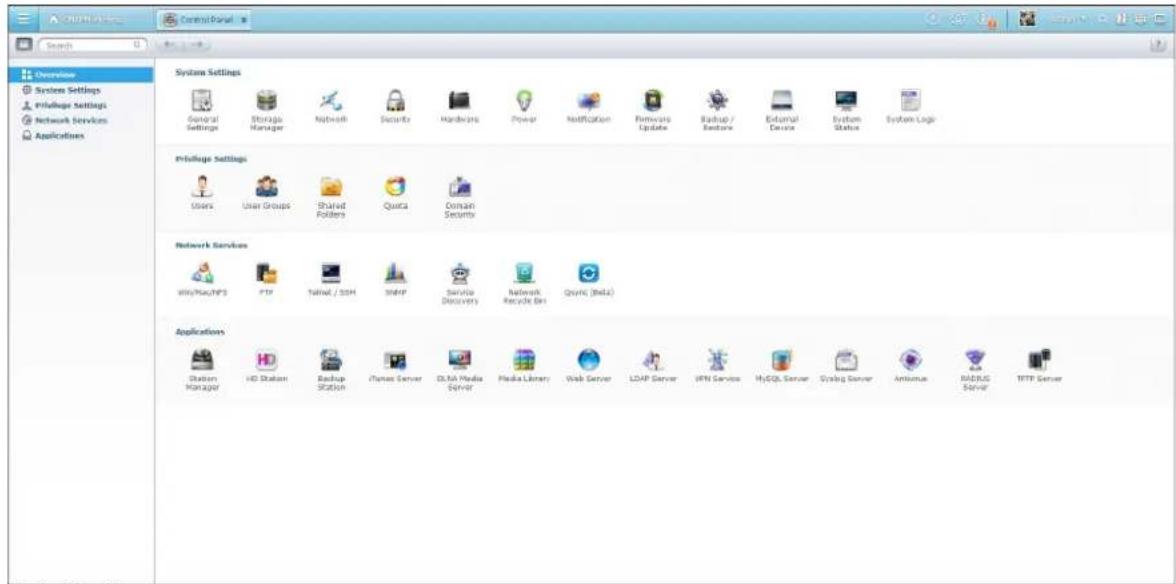
text_image
Control Panel Overview System Settings Privilege Settings Network Services Applications System Settings General Settings Storage Manager Network Security Hardware Power Notification Firmware Update Backup / Restore External Device System Status System Logic Privilege Settings Users User Groups Shared Folders Quick Domain Security Network Services Win/Win/Win3 FTP Talnet / SSH SNIP Service Discovery Network Recycle Bin Query (SnLL) Applications Station Manager HD Station Backup Station Phone Server SQL Media Server Media Library Web Server LDAP Server VPN Service MySQL Server Casing Server Antivirus BLOGS Server TFTP ServerTab Mode
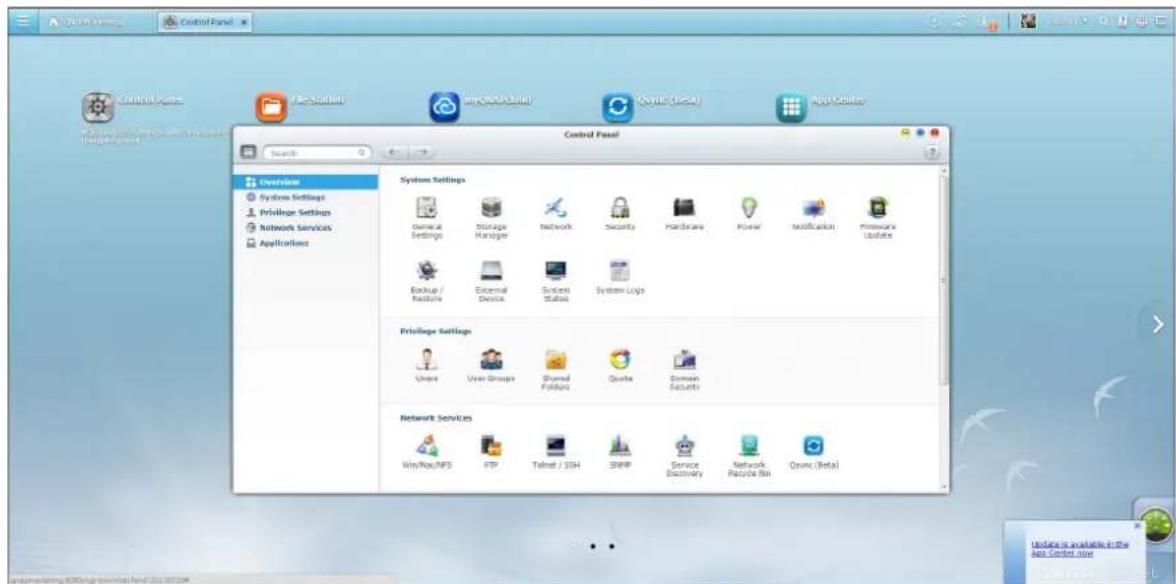
text_image
Control Panel System Settings General Settings Storage Manager Network Security Hardware Power Notification Hardware Update Backup / Redraw External Device System Status System Logo Privilege Settings Units User Groups Shared Patterns Quote Domain Security Network Services Win/Win/NPS FTP Telnet / SSH SNPP Service Discovery Network Parlock Bin Quick (Beta) Update is available in the Web Control windowWindow mode
Desktop Area
Remove or arrange all applications on the desktop, or drag one application icon over the top of another to put them in the same folder ( ).
Next Desktop and Last Desktop
Click the next desktop button ( ) (right side of the current desktop) or the last desktop button ( ) (left side of the current desktop) to switch between desktops. The position of the desktop is indicated by the three dots at bottom of the desktop ( ).
Dashboard
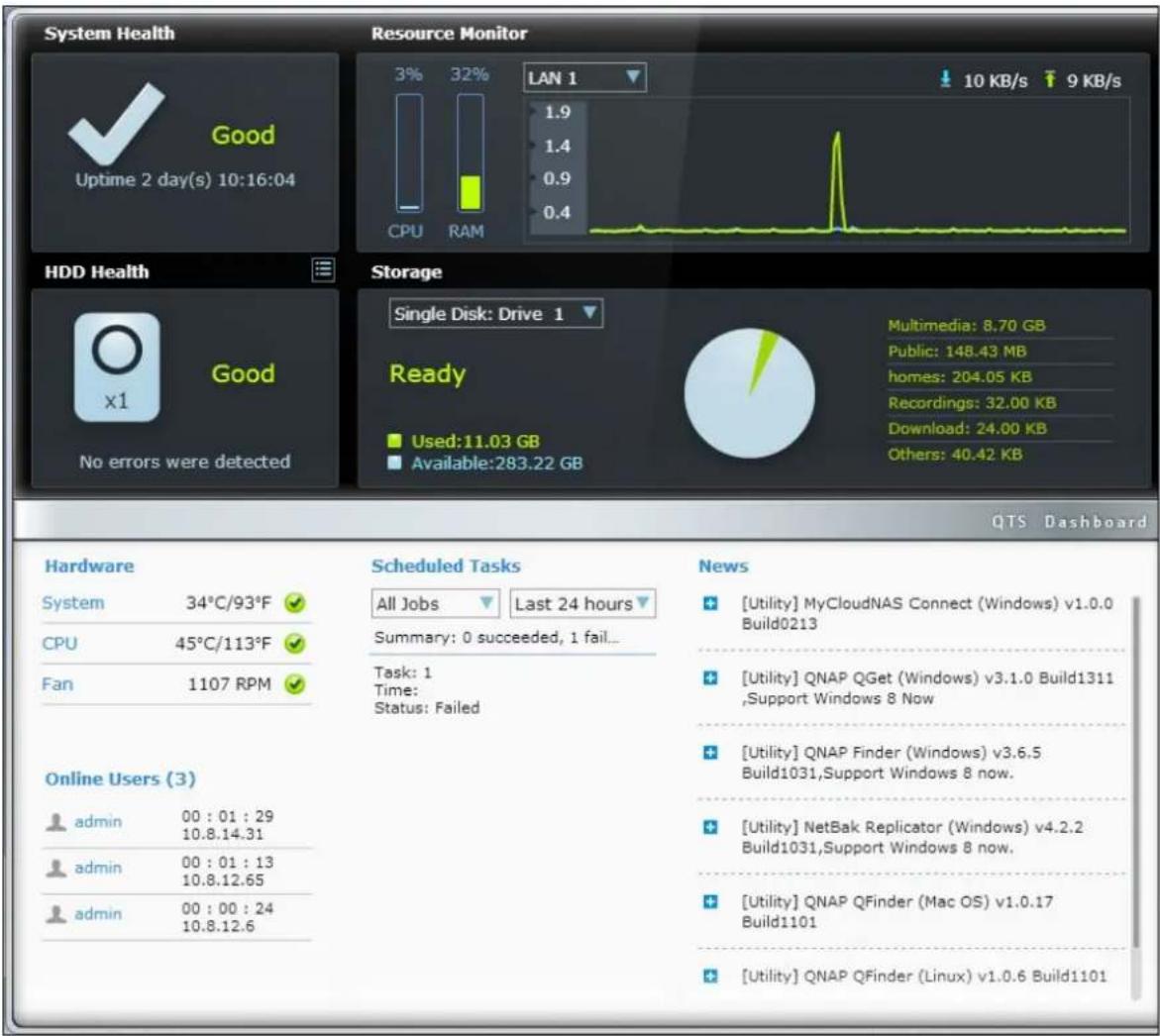
All important system and HDD statistics can be reviewed in the QTS Dashboard.
text_image
System Health Good Uptime 2 day(s) 10:16:04 Resource Monitor 3% 32% LAN 1 CPU RAM LAN 1 1.9 1.4 0.9 0.4 10 KB/s 9 KB/s HDD Health Good x1 No errors were detected Storage Single Disk: Drive 1 Ready Used:11.03 GB Available:283.22 GB Multimedia: 8.70 GB Public: 148.43 MB homes: 204.05 KB Recordings: 32.00 KB Download: 24.00 KB Others: 40.42 KB Hardware System 34°C/93°F ✓ CPU 45°C/113°F ✓ Fan 1107 RPM ✓ Scheduled Tasks All Jobs Last 24 hours Summary: 0 succeeded, 1 fail... Task: 1 Time: Status: Failed News [Utility] MyCloudNAS Connect (Windows) v1.0.0 Build0213 [Utility] QNAP QGet (Windows) v3.1.0 Build1311 ,Support Windows 8 Now [Utility] QNAP Finder (Windows) v3.6.5 Build1031,Support Windows 8 now. [Utility] NetBak Replicator (Windows) v4.2.2 Build1031,Support Windows 8 now. [Utility] QNAP QFinder (Mac OS) v1.0.17 Build1101 [Utility] QNAP QFinder (Linux) v1.0.6 Build1101 Online Users (3) admin 00 : 01 : 29 10.8.14.31 admin 00 : 01 : 13 10.8.12.65 admin 00 : 00 : 24 10.8.12.6- System Health: The status of the NAS system is indicated in this section. Click the header to open the "System Status" page.
-
HDD Health: The status of the HDDs currently installed in the NAS will be shown in here. X1 means that only one HDD is currently installed in the NAS. For multiple HDDs installed in the NAS, the status indicated is only for the HDD with the worst condition. Click the "HDD Health" header to open the "HDD SMART" page in Storage Manager and review the status of each HDD. For details on the Storage Manager, please refer to the chapter on Storage Manager. Click the icon to switch between the "HDD Summary" page and the HDD status indicator. Please note that the color of the HDD symbol will change based on HDD health.
-
Resource Monitor: The CPU, RAM and bandwidth usages are displayed here. Click the "Resource Monitor" header to open the corresponding page in System Status for details. Please note that if the port trunking feature is activated, the bandwidth statistic is the combined usage of all NICs.
- Storage: The shared folder (top five largest folders), volume and storage statistics are summarized here. Click the "Storage" header to open the corresponding page in System Status for details.
- Hardware: The system and HDD temperatures, fan speeds and hardware usages are summarized here. Please note that the statistics listed here vary based on the NAS model purchased. Click the "Hardware" header to open the corresponding page in "System Status" for details.
- Online Users: All users currently connected to the NAS are listed here. To disconnect or block a user or IP, right click the user and choose the desired actions. Click the "Online Users" header to open the corresponding page in "System Logs" for details.
- Scheduled Tasks: Tasks scheduled are listed here. Click the task dropdown list to list only the chosen category and the time drop down list to specify the time range for tasks to be listed.
- News: NAS related news from QNAP will be listed here. Click the news link to visit the corresponding webpage on the QNAP website.
Tip:
- All widgets within the Dashboard can be dragged onto the desktop for monitoring specific details.
- The Dashboard will be presented differently on different screen resolutions.
• The color of the Dashboard button will change based on the status of system
health for quick recognition (

- QNAP Mobile App: Click this tab to check and download the latest and available QNAP mobile applications.
- QNAP Utility: Click this tab to check and download the latest and available NAS utilities.
- Feedback: Click this tab to file a feature request and bug report.
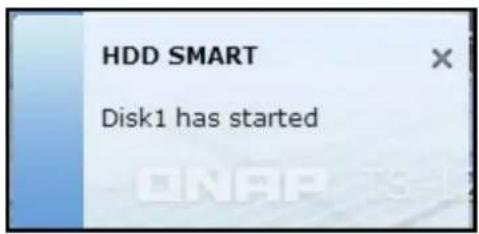
- Slide-in window: System-related news will be displayed on the window at bottom right side of the desktop. Click the update to check for relevant details.
text_image
HDD SMART Disk1 has startedNote: If you would like to use your home NAS model as a business NAS model, please first install business applications from the App Center and drag the corresponding item from the Main Menu and drop it to the QTS Desktop.
4. System Settings
General Settings 87
Storage_Manager95
Network205
Security 229
Hardware232
Power238
Notification 243
Firmware Update246
Backup/Restore250
External_Device252
System_Status295
System Logs 302
4.1 General Settings
System Administration
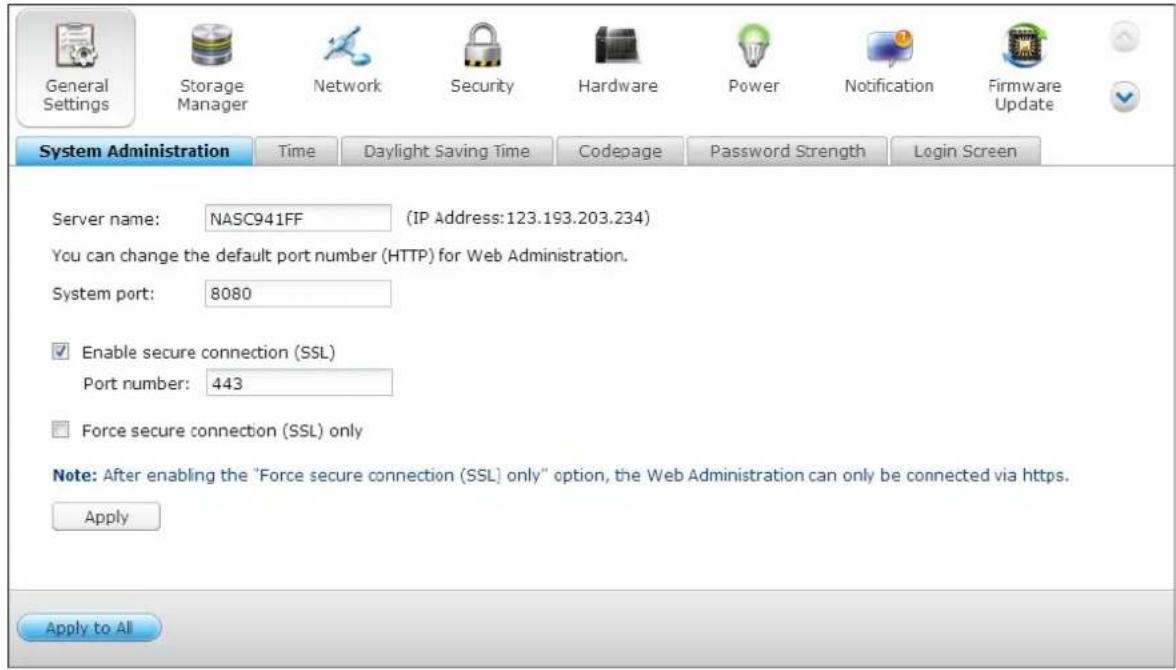
Enter the name of the NAS. The NAS name supports maximum 14 characters and can be a combination of the alphabets (a-z, A-Z), numbers (0-9), and dash (-). Space (), period (.), or pure number are not allowed.
text_image
General Settings Storage Manager Network Security Hardware Power Notification Firmware Update System Administration Time Daylight Saving Time Codepage Password Strength Login Screen Server name: NASC941FF (IP Address:123.193.203.234) You can change the default port number (HTTP) for Web Administration. System port: 8080 Enable secure connection (SSL) Port number: 443 Force secure connection (SSL) only Note: After enabling the "Force secure connection (SSL) only" option, the Web Administration can only be connected via https. Apply Apply to AllEnter a port number for the system management. The default port is 8080. The services which use this port include: System Management, File Station, Multimedia Station, and Download Station. If you are not sure about this setting, use the default port number.
Enable Secure C onnection (SSL)
To allow the users to connect the NAS by HTTPS, turn on secure connection (SSL) and enter the port number. If the option "Force secure connection (SSL) only" is turned on, the users can only connect to the web administration page by HTTPS connection.
Disable and hide the hom e/m ultim edia features such as Multim edia Station, Photo Station, Music Station, Surveillance Station, Download Station, iTunes server, and DLNA m edia server
The multimedia features, including the Multimedia Station, Photo Station, Music Station,
Surveillance Station, Download Station, iTunes server, Media Library and DLNA media server, may be hidden or disabled by default on the following SMB models: x70U, x79 Pro, x79U. To enable the multimedia features for those models, please uncheck this option.
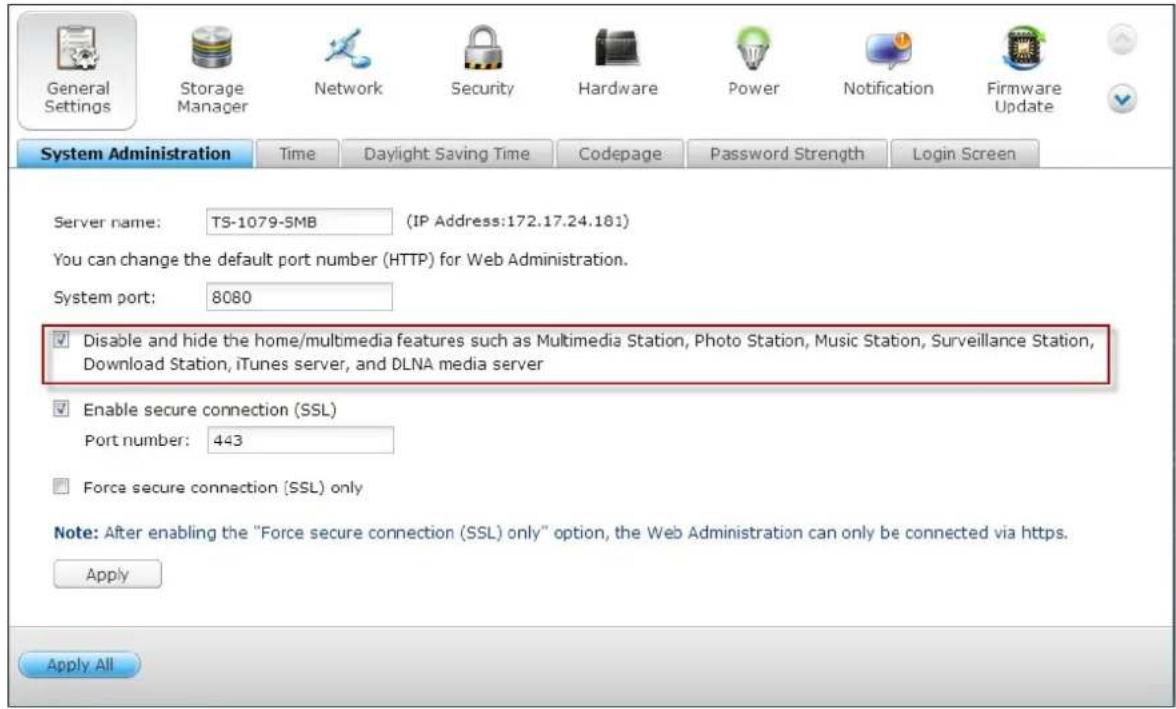
text_image
General Settings Storage Manager Network Security Hardware Power Notification Firmware Update System Administration Time Daylight Saving Time Codepage Password Strength Login Screen Server name: TS-1079-SMB (IP Address:172.17.24.181) You can change the default port number (HTTP) for Web Administration. System port: 8080 Disable and hide the home/multimedia features such as Multimedia Station, Photo Station, Music Station, Surveillance Station, Download Station, iTunes server, and DLNA media server Enable secure connection (SSL) Port number: 443 Force secure connection (SSL) only Note: After enabling the "Force secure connection (SSL) only" option, the Web Administration can only be connected via https. Apply Apply AllTime
Adjust the date, time, and time zone according to the location of the NAS. If the settings are incorrect, the following problems may occur:
- When using a web browser to connect to the NAS or save a file, the display time of the action will be incorrect.
- The time of the event log displayed will be inconsistent with the actual time when an action occurs.
Set the server time the same as your computer time
To synchronize the time of the NAS with the computer time, click "Update now" next to this option.
Synchronize with an Internet time server automatically
Turn on this option to synchronize the date and time of the NAS automatically with an NTP (Network Time Protocol) server. Enter the IP address or domain name of the NTP server, for example, time.nist.gov, time.windows.com. Then enter the time interval for synchronization. This option can be used only when the NAS is connected to the Internet.
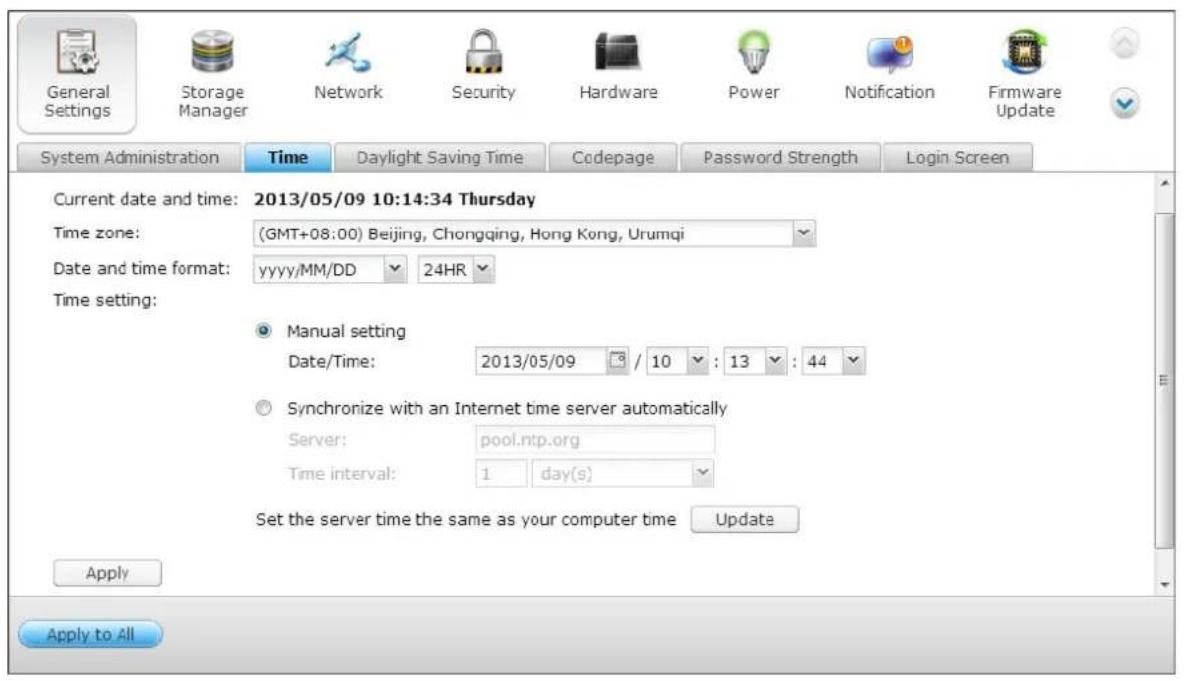
text_image
General Settings Storage Manager Network Security Hardware Power Notification Firmware Update System Administration Time Daylight Saving Time Codepage Password Strength Login Screen Current date and time: 2013/05/09 10:14:34 Thursday Time zone: (GMT+08:00) Beijing, Chongqing, Hong Kong, Urumqi Date and time format: yyyy/MM/DD 24HR Time setting: ● Manual setting Date/Time: 2013/05/09 3 / 10 : 13 : 44 ○ Synchronize with an Internet time server automatically Server: pool.ntp.org Time interval: 1 day(s) Set the server time the same as your computer time Update Apply Apply to AllNote: The first time synchronization may take several minutes to complete.
Daylight Saving Time
If your region adopts daylight saving time (DST), turn on the option "Adjust system clock automatically for daylight saving time". Click "Apply". The latest DST schedule of the time zone specified in the "Time" section will be shown. The system time will be adjusted automatically according to the DST.

text_image
General Settings Storage Manager Network Security Hardware Power Notification Firmware Update System Administration Time Daylight Saving Time Codepage Password Strength Login Screen Time zone: (GMT+08:00) Beijing, Chongqing, Hong Kong, Urumqi Recent daylight saving time: -- ~ -- Offset: -- minutes ✓ Adjust system clock automatically for daylight saving time. ☐ Enable customized daylight saving time table. Add Daylight Saving Time Data Delete Start Time End Time Offset Action Apply to AllNote that if your region does not adopt DST, the options on this page will not be available.
To enter the daylight saving time table manually, select the option "Enable customized daylight saving time table". Click "Add Daylight Saving Time Data" and enter the daylight saving time schedule. Then click "Apply" to save the settings.
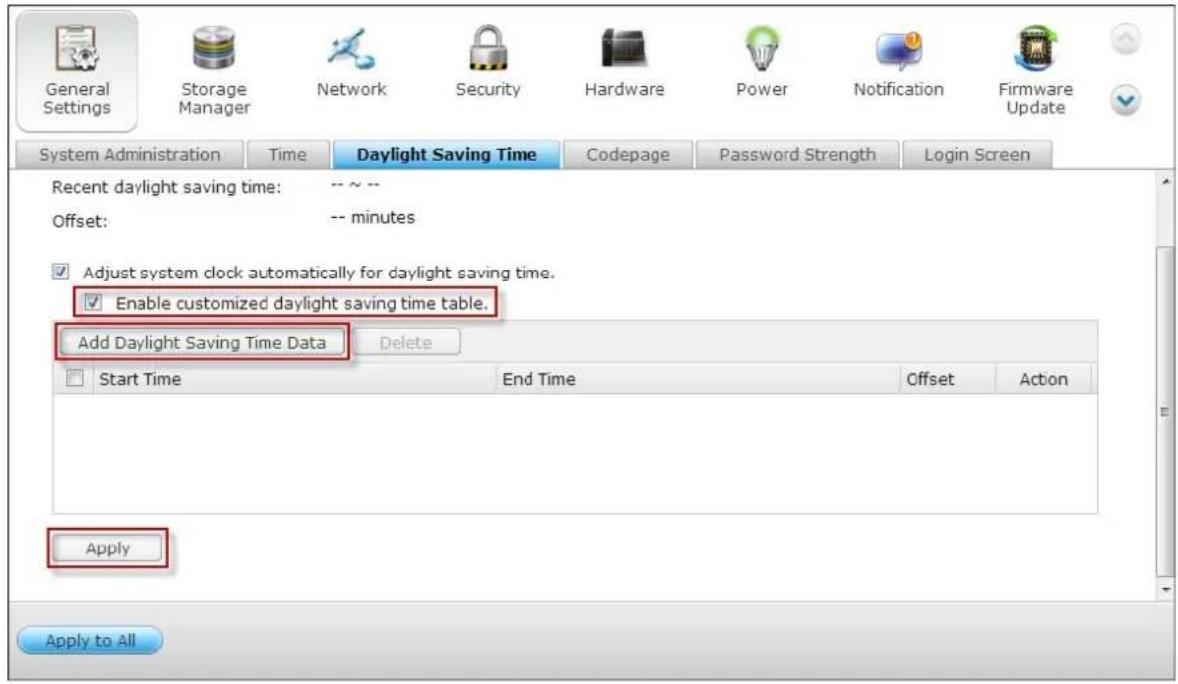
text_image
General Settings Storage Manager Network Security Hardware Power Notification Firmware Update System Administration Time Daylight Saving Time Codepage Password Strength Login Screen Recent daylight saving time: -- ~ -- Offset: -- minutes ✓ Adjust system clock automatically for daylight saving time. ✓ Enable customized daylight saving time table. Add Daylight Saving Time Data Delete Start Time End Time Offset Action Apply Apply to AllCodepage
Select the language the NAS uses to display the files and directories.
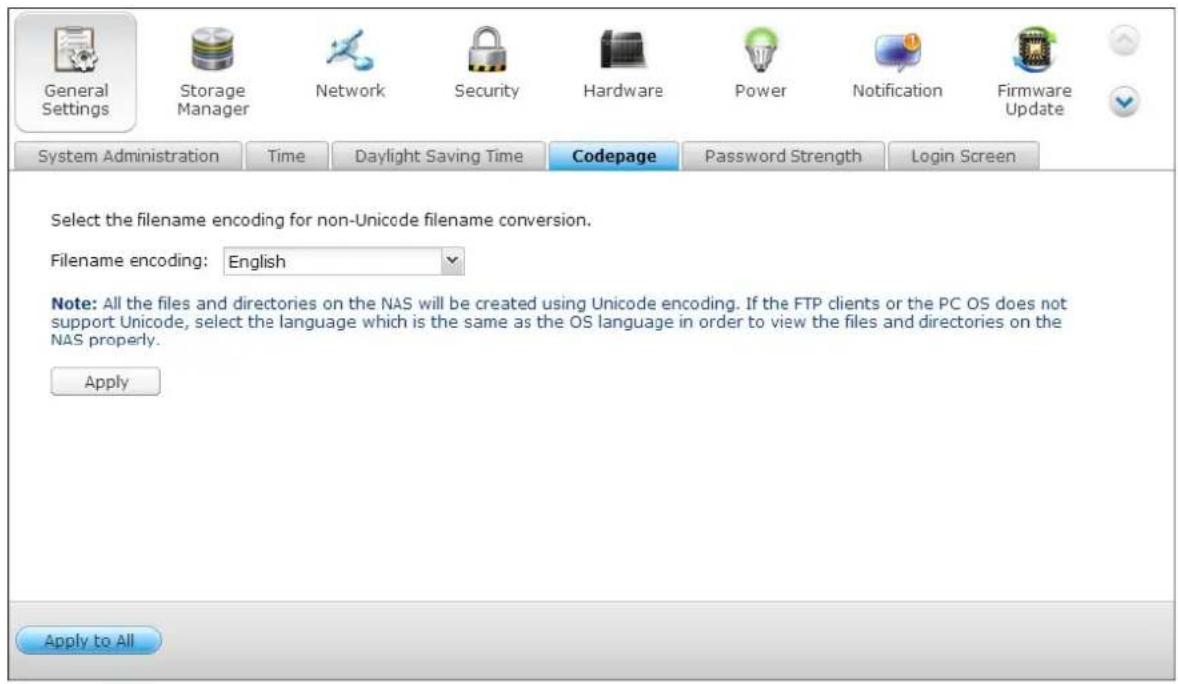
text_image
General Settings Storage Manager Network Security Hardware Power Notification Firmware Update System Administration Time Daylight Saving Time Codepage Password Strength Login Screen Select the filename encoding for non-Unicode filename conversion. Filename encoding: English Note: All the files and directories on the NAS will be created using Unicode encoding. If the FTP clients or the PC OS does not support Unicode, select the language which is the same as the OS language in order to view the files and directories on the NAS properly. Apply Apply to AllNote: All the files and directories on the NAS will be created using Unicode encoding. If the FTP clients or the PC OS does not support Unicode, select the language which is the same as the OS language in order to view the files and directories on the NAS properly.
Passw ord Strength
Specify the password rules. After applying the setting, the NAS will automatically check the validity of the password.

text_image
General Settings Storage Manager Network Security Hardware Power Notification Firmware Update System Administration Time Daylight Saving Time Codepage Password Strength Login Screen The following criteria could be applied to strengthen password security. A new password has to contain characters from at least three of the following classes: lowercase letters, uppercase letters, digits, and special characters. No character in the new password may be repeated more than three times consecutively. The new password must not be the same as the associated username, or the username reversed. Apply Apply to AllLogin Screen
Set the login screen style. First click the desired template and then click "Preview" to preview the chosen template or "Apply" to apply the chosen login screen.
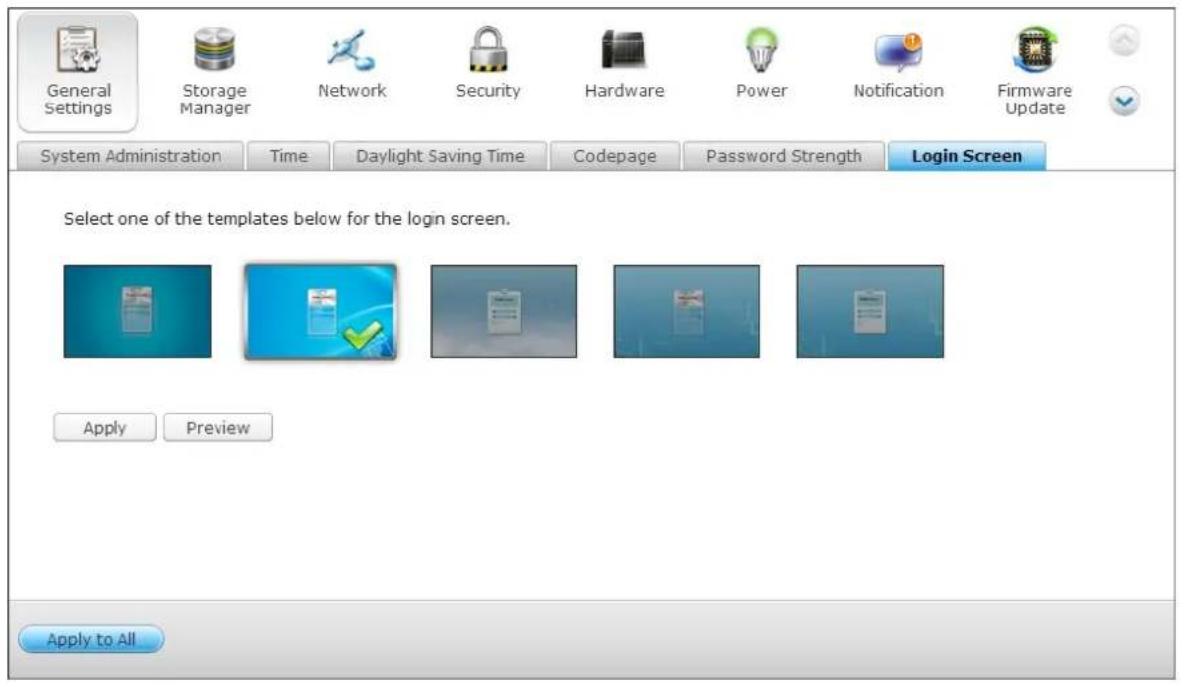
text_image
General Settings Storage Manager Network Security Hardware Power Notification Firmware Update System Administration Time Daylight Saving Time Codepage Password Strength Login Screen Select one of the templates below for the login screen. Apply Preview Apply to All4.2 Storage Manager
Volume Management 961 RAID Management 100 Hard Disk S.M.A.R.T 123 Encrypted File System 124 iSCSI 135 Virtual Disk 200
4.2.1 Volume Management
This page shows the model, size, and current status of the hard drives on the NAS. You can format and check the hard drives, and scan the bad blocks on the hard drives. When the hard drives have been formatted, the NAS will create the following default share folders:
- Public: The default shared folder for file sharing by everyone.
- Qdownload/Download*: The shared folder for Download Station.
- Qmultimedia/Multimedia*: The shared folder for Multimedia Station.
- Qusb/Usb*: The shared folder for data copy function using the USB ports.
- Qweb/Web*: The shared folder for Web Server.
- Qrecordings/Recordings*: The shared folder for Surveillance Station.
*The default shared folders of the TS-x59 and TS-x69 Turbo NAS series are Public, Download, Multimedia, Usb, Web, and Recordings.
Note: The default shared folders of the NAS are created on the first disk volume and the directory cannot be changed.
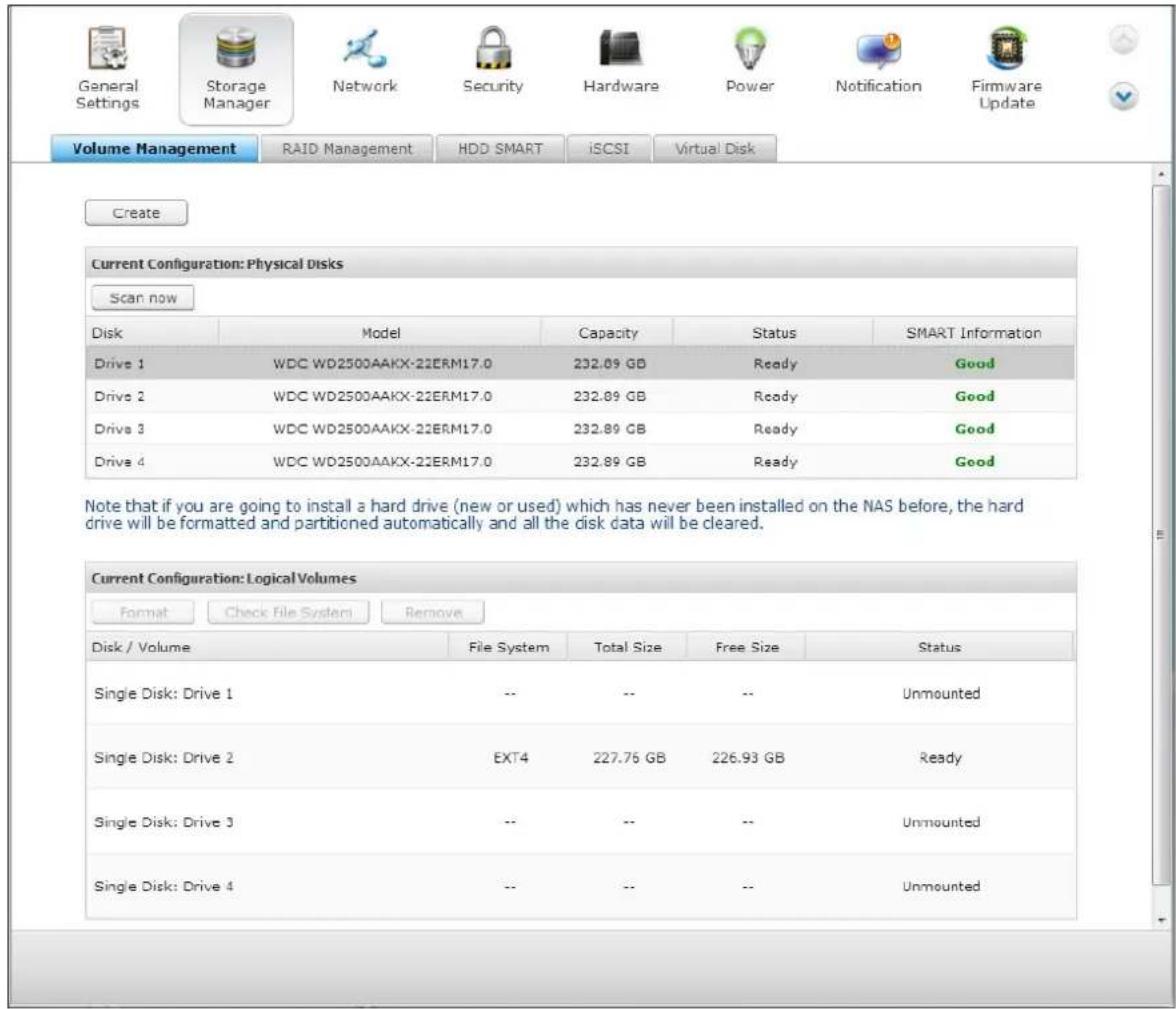
text_image
General Settings Storage Manager Network Security Hardware Power Notification Firmware Update Volume Management RAID Management HDD SMART iSCSI Virtual Disk Create Current Configuration: Physical Disks Scan now Disk Model Capacity Status SMART Information Drive 1 WDC WD2500AAKX-22ERM17.0 232.89 GB Ready Good Drive 2 WDC WD2500AAKX-22ERM17.0 232.89 GB Ready Good Drive 3 WDC WD2500AAKX-22ERM17.0 232.89 GB Ready Good Drive 4 WDC WD2500AAKX-22ERM17.0 232.89 GB Ready Good Note that if you are going to install a hard drive (new or used) which has never been installed on the NAS before, the hard drive will be formatted and partitioned automatically and all the disk data will be cleared. Current Configuration: Logical Volumes Format Check File System Remove Disk / Volume File System Total Size.Free Size Status Single Disk: Drive 1 -- -- -- Unmounted Single Disk: Drive 2 EXT4 227.75 GB 226.93 GB Ready Single Disk: Drive 3 -- -- -- Unmounted Single Disk: Drive 4 -- -- -- Unmounted| Disk Configuration | Applied NAS Models |
| Single disk volume | All models |
| RAID 1, JBOD (just a bunch of disks) | 2-drive models or above |
| RAID 5, RAID 6, RAID 5+hot spare | 4-drive models or above |
| RAID 6+hot spare | 5-drive models or above |
| RAID 10 | 4-drive models or above |
| RAID 10+hot spare | 5-drive models or above |
| Single Disk VolumeEach hard drive is used as a standalone disk. If a hard drive is damaged, all the data will be lost. | |
| JBOD (Just a bunch of disks)JBOD is a collection of hard drives that does not offer any RAID protection.The data are written to the physical disks sequentially. The total storage capacity is equal to the sum of the capacity of all member hard drives. | 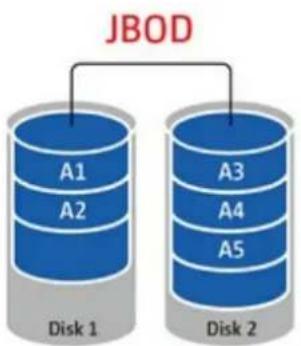 |
| RAID 0 Striping Disk VolumeRAID 0 (striping disk) combines 2 or more hard drives into one larger volume. The data is written to the hard drive without any parity information and no redundancy is offered.The total storage capacity of a RAID 0 disk volume is equal to the sum of the capacity of all member hard drives. | 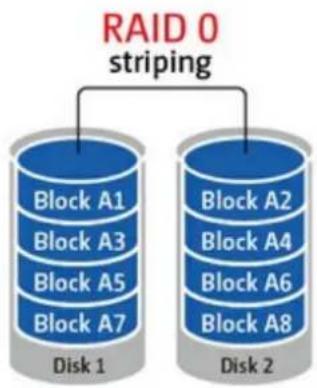 |
| RAID 1 Mirroring Disk VolumeRAID 1 duplicates the data between two hard drives to provide disk mirroring. To create a RAID 1 array, a minimum of 2 hard drives are required.The storage capacity of a RAID 1 disk volume is equal to the size of the smallest hard drive. | 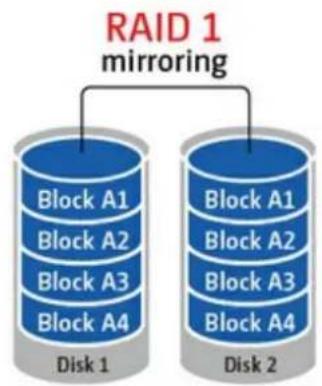 |
| RAID 5 Disk VolumeThe data are striped across all the hard drives in a RAID 5 array. The parity information is distributed and stored across each hard drive. If a member hard drive fails, the array enters degraded mode. After installing a new hard drive to replace the failed one, the data can be rebuilt from other member drives that contain the parity | 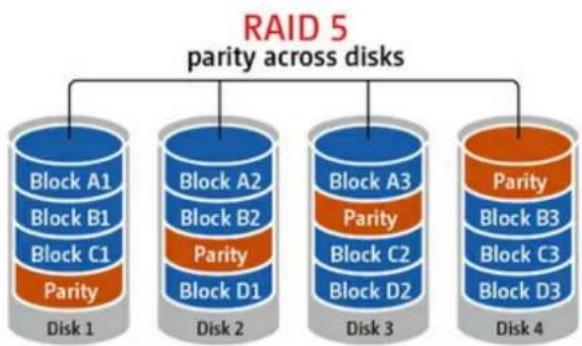 |
| information.To create a RAID 5 disk volume, a minimum of 3 hard drives are required.The storage capacity of a RAID 5 array is equal to (N-1) * (size of smallest hard drive). N is the number of hard drives in the array. | |
| RAID 6 Disk VolumeThe data are striped across all the hard drives in a RAID 6 array. RAID 6 differs from RAID 5 that a second set of parity information is stored across the member drives in the array. It tolerates failure of two hard drives.To create a RAID 6 disk volume, a minimum of 4 hard drives are required.The storage capacity of a RAID 6 array is equal to (N-2) * (size of smallest hard drive). N is the number of hard drives in the array. | 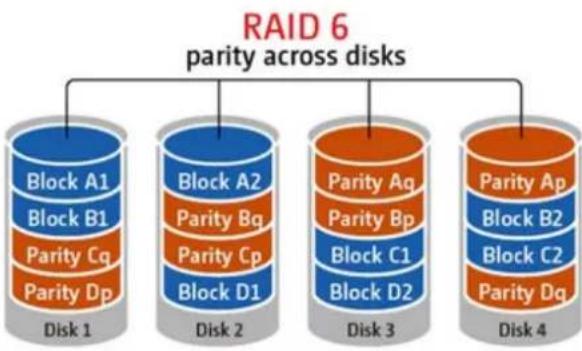 |
| RAID 10 Disk Volum eRAID 10 combines four or more disks in a way that protects data against loss of non-adjacent disks. It provides security by mirroring all data on a secondary set of disks while using striping across each set of disks to speed up data transfers.RAID 10 requires an even number of hard drives (minimum 4 hard drives). The storage capacity of RAID 10 disk volume is equal to (size of the smallest capacity disk in the array) * N/2. N is the number of hard drives in the volume. | 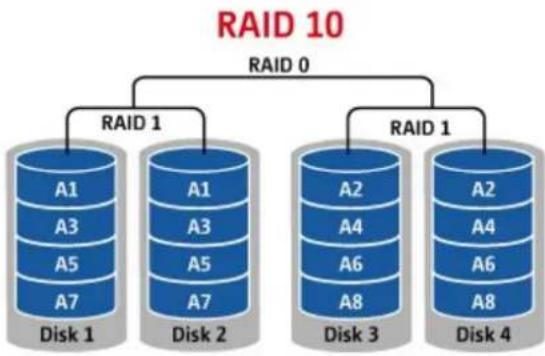 |
*Online RAID capacity expansion, online RAID level migration, and RAID recovery are not supported by one-bay NAS models, TS-210, and TS-212.
You can perform online RAID capacity expansion (RAID 1, 5, 6, 10) and online RAID level migration (single disk, RAID 1, 5, 10), add a hard drive member to a RAID 5, 6, or 10 configuration, configure a spare hard drive (RAID 5, 6, 10) with the data retained, enable Bitmap, recover a RAID configuration, and set a global spare on this page.

text_image
Volume Management RAID Management HDD SMART iSCSI Virtual Disk Action Expand Capacity Add Hard Drive Migrate Configure Spare Drive Enable Bitmap Recover Global Spare Total Size Bitmap Status 227.76 GB -- Ready 455.52 GB no ReadyTo expand the storage capacity of a RAID 10 volume, you can perform online RAID capacity expansion or add an even number of hard disk drives to the volume.
Expand Capacity (Online RAID Capacity Expansion)
Scenario
You bought three 250GB hard drives for initial setup of a TS-509 Pro NAS and configured RAID 5 disk configuration with the three hard drives.
A half year later, the data size of the department has largely increased to 1.5TB. In other words, the storage capacity of the NAS is running out of use. At the same time, the price of 1TB hard drives has dropped to a large extent.
Operation procedure
In "Storage Manager" > "RAID Management", select the disk volume for expansion and click "Expand Capacity".
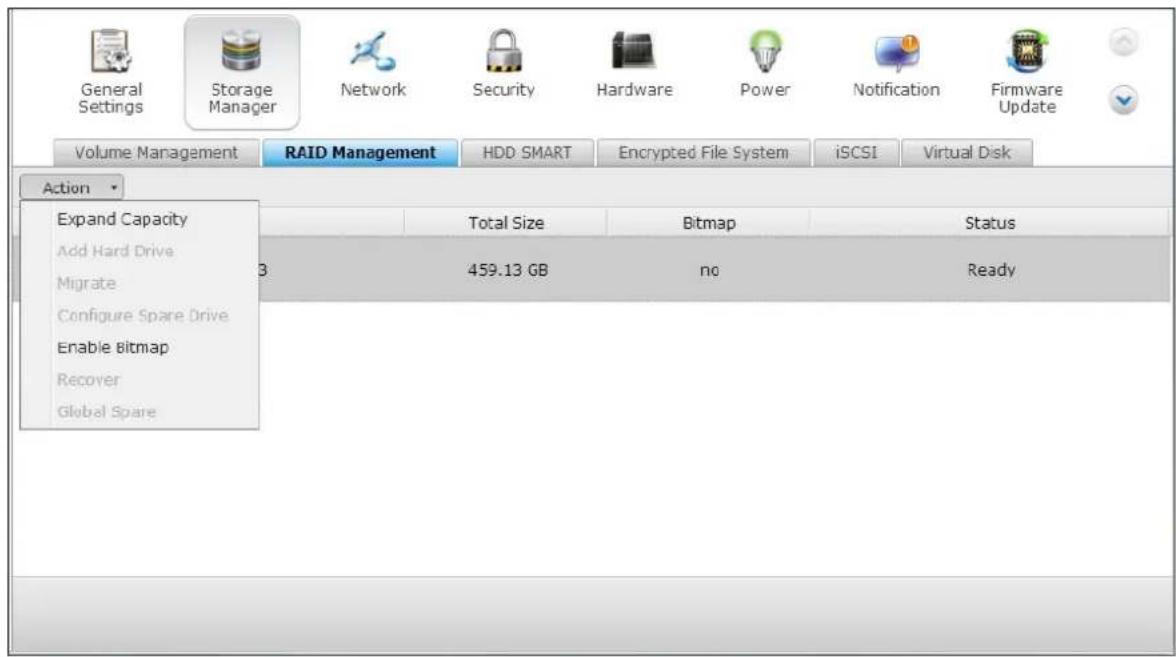
text_image
General Settings Storage Manager Network Security Hardware Power Notification Firmware Update Volume Management RAID Management HDD SMART Encrypted File System iSCSI Virtual Disk Action Expand Capacity Add Hard Drive Migrate Configure Spare Drive Enable Bitmap Recover Global Spare Total Size Bitmap Status 3 459.13 GB no ReadyClick "Change" for the first hard drive to be replaced. Follow the instructions to proceed.

text_image
General Settings Storage Manager Network Security Hardware Power Notification Firmware Update Volume Management RAID Management HDD SMART Encrypted File System iSCSI Virtual Disk Expand Capacity Change Disk Model Capacity Status Description Drive 1 WDC WD2500AAKX-22ER... 232.89 GB Ready You can replace this drive. Drive 2 WDC WD2500AAKX-22ER... 232.89 GB Ready You can replace this drive. Drive 3 WDC WD2500AAKX-22ER... 232.89 GB Ready You can replace this drive. Source Disk Volume: RAID 5 Disk Volume: Drive 1 2 3 The system can only support expanding the volume size up to 16TB (and under). Expand Capacity BackTip: After replacing the hard drive, the description field shows "You can replace this drive". This means you can replace the hard drive to a larger one or skip this step if the hard drives have been replaced already.

Caution: When the hard drive synchronization is in process, do NOT turn off the NAS or plug in or unplug the hard disk drives.
When the description displays "Please remove this drive", remove the hard drive from the NAS. Wait for the NAS to beep twice after removing the hard drive.
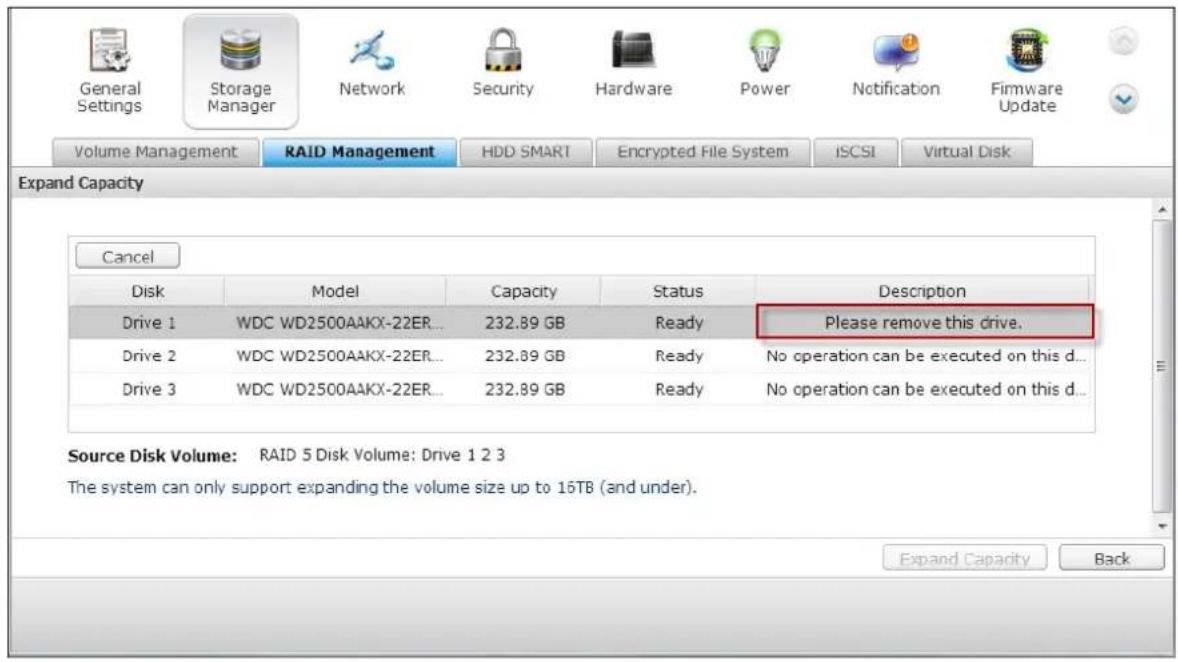
text_image
General Settings Storage Manager Network Security Hardware Power Notification Firmware Update Volume Management RAID Management HDD SMART Encrypted File System iSCSI Virtual Disk Expand Capacity Cancel Disk Model Capacity Status Description Drive 1 WDC WD2500AAKX-22ER... 232.89 GB Ready Please remove this drive. Drive 2 WDC WD2500AAKX-22ER... 232.89 GB Ready No operation can be executed on this d... Drive 3 WDC WD2500AAKX-22ER... 232.89 GB Ready No operation can be executed on this d... Source Disk Volume: RAID 5 Disk Volume: Drive 1 2 3 The system can only support expanding the volume size up to 16TB (and under). Expand Capacity BackWhen the description displays "Please insert the new drive", plug in the new hard drive to the drive slot.
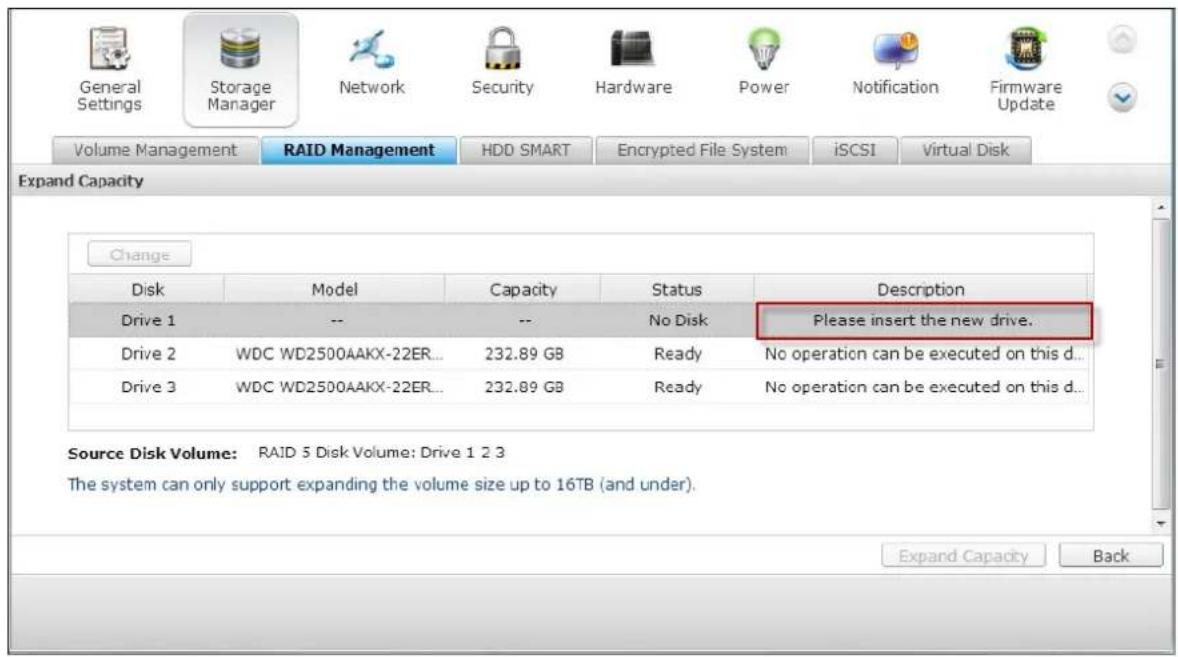
text_image
General Settings Storage Manager Network Security Hardware Power Notification Firmware Update Volume Management RAID Management HDD SMART Encrypted File System iSCSI Virtual Disk Expand Capacity Change Disk Model Capacity Status Description Drive 1 -- -- No Disk Please insert the new drive. Drive 2 WDC WD2500AAKX-22ER... 232.89 GB Ready No operation can be executed on this d... Drive 3 WDC WD2500AAKX-22ER... 232.89 GB Ready No operation can be executed on this d... Source Disk Volume: RAID 5 Disk Volume: Drive 1 2 3 The system can only support expanding the volume size up to 16TB (and under). Expand Capacity BackAfter plugging in the hard drive, wait for the NAS to beep. The system will start rebuilding.
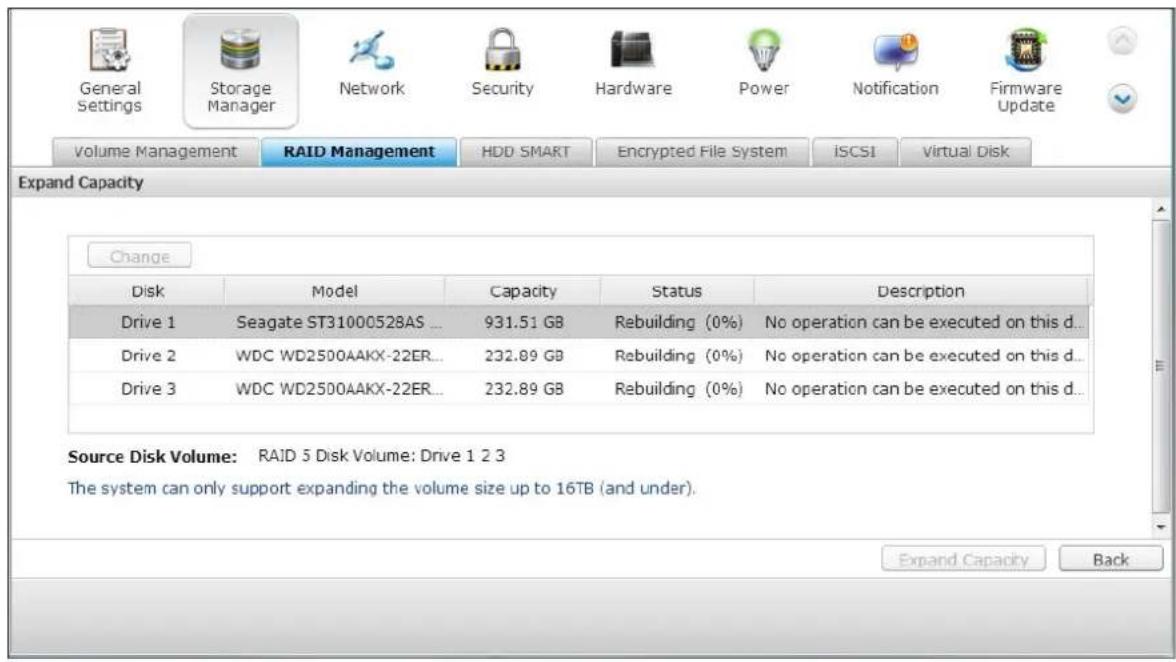
text_image
General Settings Storage Manager Network Security Hardware Power Notification Firmware Update Volume Management RAID Management HDD SMART Encrypted File System iSCSI Virtual Disk Expand Capacity Change Disk Model Capacity Status Description Drive 1 Seagate ST31000528AS ... 931.51 GB Rebuilding (0%) No operation can be executed on this d... Drive 2 WDC WD2500AAKX-22ER... 232.89 GB Rebuilding (0%) No operation can be executed on this d... Drive 3 WDC WD2500AAKX-22ER... 232.89 GB Rebuilding (0%) No operation can be executed on this d... Source Disk Volume: RAID 5 Disk Volume: Drive 1 2 3 The system can only support expanding the volume size up to 16TB (and under). Expand Capacity BackAfter rebuilding has completed, repeat the steps above to replace other hard drives.
After changing the hard drives and disk rebuilding has completed, click "Expand Capacity" to execute RAID capacity expansion.
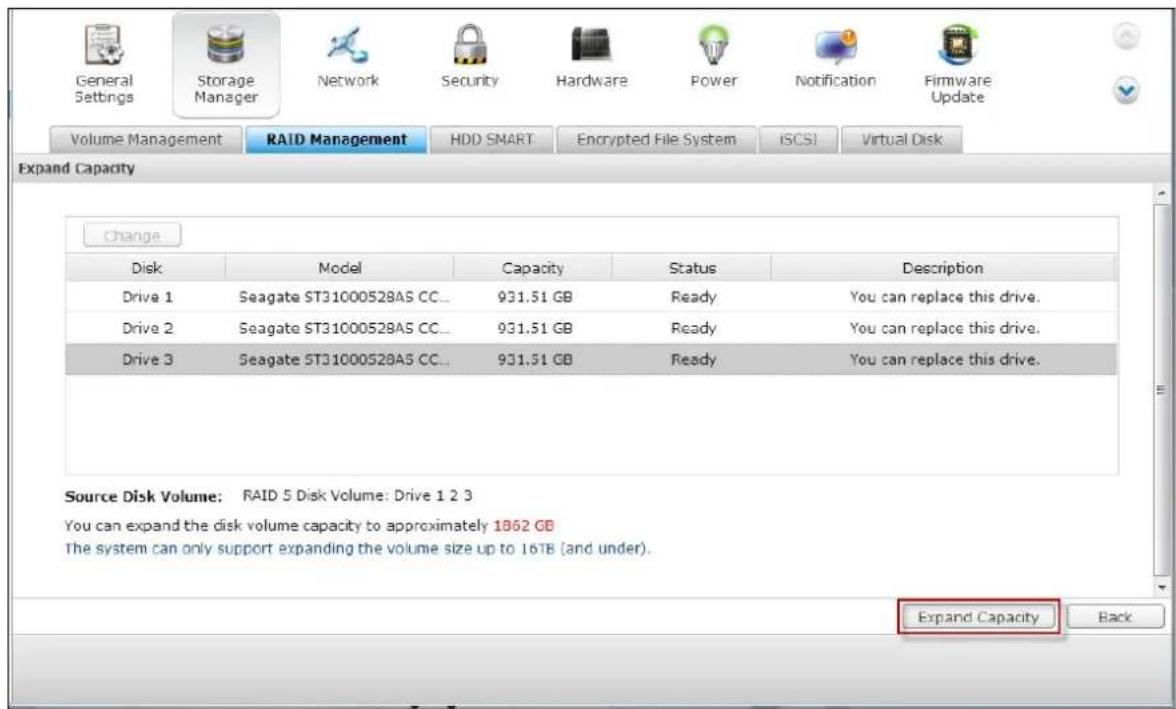
text_image
General Settings Storage Manager Network Security Hardware Power Notification Firmware Update Volume Management RAID Management HDD SMART Encrypted File System iSCSI Virtual Disk Expand Capacity Change Disk Model Capacity Status Description Drive 1 Seagate ST31000528AS CC... 931.51 GB Ready You can replace this drive. Drive 2 Seagate ST31000528AS CC... 931.51 GB Ready You can replace this drive. Drive 3 Seagate ST31000528AS CC... 931.51 GB Ready You can replace this drive. Source Disk Volume: RAID 5 Disk Volume: Drive 1 2 3 You can expand the disk volume capacity to approximately 1862 GB The system can only support expanding the volume size up to 16TB (and under). Expand Capacity BackClick "OK" to proceed.
The NAS beeps and starts to expand the capacity.

text_image
General Settings Storage Manager Network Security Hardware Power Notification Firmware Update Volume Management RAID Management HDD SMART Encrypted File System ISCSI Virtual Disk Action - Disk / Volume Total Size Bitmap Status RAID 5 Disk Volume: Drive 1 2 3 450.13 GB no Expanding... (12%) - 00:00:20The process may take from hours to tens of hours to finish depending on the drive size. Please wait patiently for the process to finish. Do NOT turn off the power of the NAS.
After RAID capacity expansion has finished, the new capacity is shown and the status is "Ready". You can start to use the NAS. (In the example you have 1.8TB logical volume.)

text_image
General Settings Storage Manager Network Security Hardware Power Notification Volume Management RAID Management HDD SMART Encrypted File System iSCSI Virtual Disk Action Disk / Volume Total Size Bitmap Status RAID 5 Disk Volume: Drive 1 2 3 1845.38 GB no ReadyTip: If the description still shows "You can replace this hard drive" and the status of the drive volume says "Ready", it means the RAID volume is still expandable.
Migrate (Online RAID Level Migration)
During the initial setup of the TS-509 Pro, you bought a 250GB hard drive and configured it as single disk. The TS-509 Pro is used as a file server for data sharing among the departments.
After a half year, more and more important data are saved on the TS-509 Pro. There is a rising concern for hard drive damage and data loss. Therefore, you planned to upgrade the disk configuration to RAID 5.
You can install one hard drive for setting up the TS-509 Pro and upgrade the RAID level of the NAS with online RAID level migration in the future. The migration process can be done without turning off the NAS. All the data will be retained.
You can do the following with online RAID level migration:
- Migrate the system from single disk to RAID 1, RAID 5, RAID 6 or RAID 10
- Migrate the system from RAID 1 to RAID 5, RAID 6 or RAID 10
- Migrate the system from RAID 5 with 3 hard drives to RAID 6
You need to:
- Prepare a hard drive of the same or larger capacity as an existing drive in the RAID configuration.
- Execute RAID level migration (migrate the system from single disk mode to RAID 5 with 4 hard drives).
Go to "Storage Manager" > "Volume Management". The current disk volume configuration displayed on the page is single disk (the capacity is 250GB).
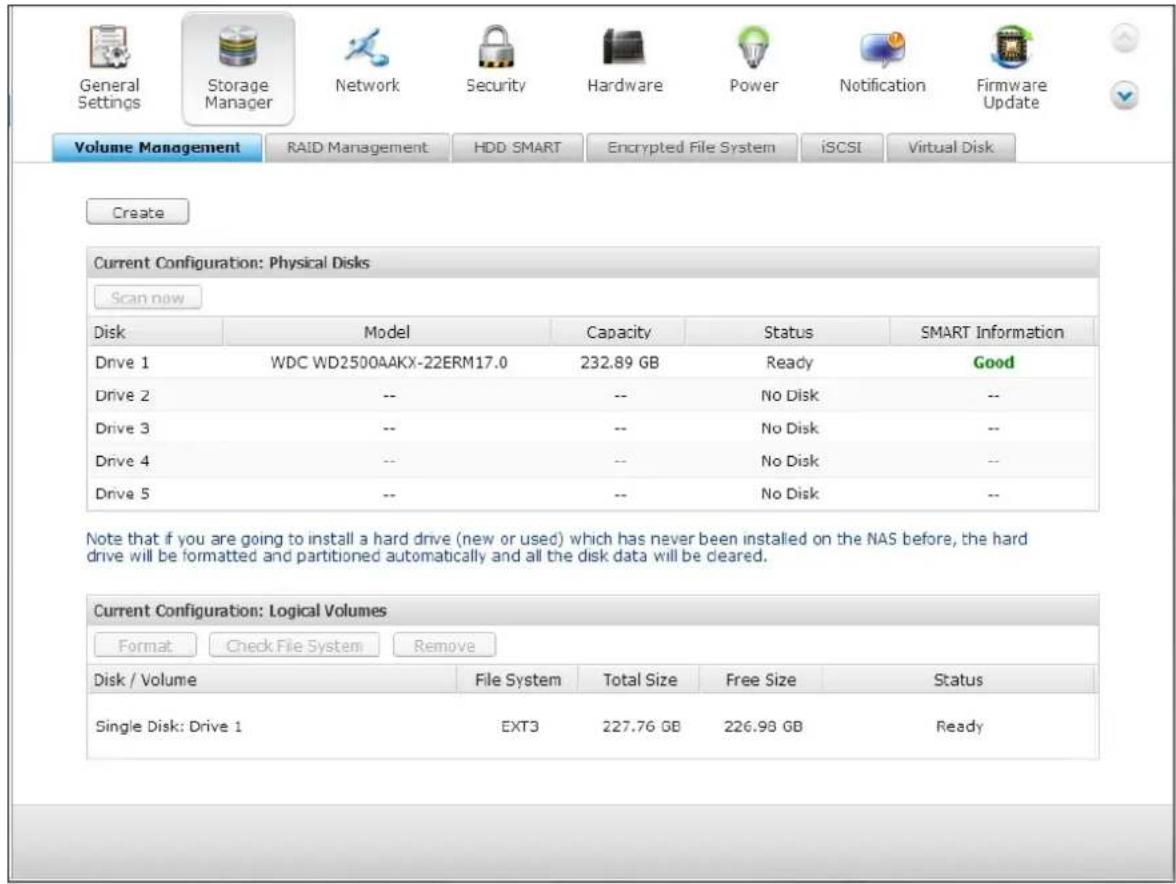
text_image
General Settings Storage Manager Network Security Hardware Power Notification Firmware Update Volume Management RAID Management HDD SMART Encrypted File System iSCSI Virtual Disk Create Current Configuration: Physical Disks Scan now Disk Model Capacity Status SMART Information Drive 1 WDC WD2500AAKX-22ERM17.0 232.89 GB Ready Good Drive 2 -- -- No Disk -- Drive 3 -- -- No Disk -- Drive 4 -- -- No Disk -- Drive 5 -- -- No Disk -- Note that if you are going to install a hard drive (new or used) which has never been installed on the NAS before, the hard drive will be formatted and partitioned automatically and all the disk data will be cleared. Current Configuration: Logical Volumes Format Check File System Remove Disk / Volume File System Total Size.Free Size Status Single Disk: Drive 1 EXT3 227.76 GB 226.98 GB ReadyPlug in the new 250GB hard drives to drive slots 2 and 3 of NAS. The NAS will detect the new hard drives. The status of the new hard drives is "Unmounted".
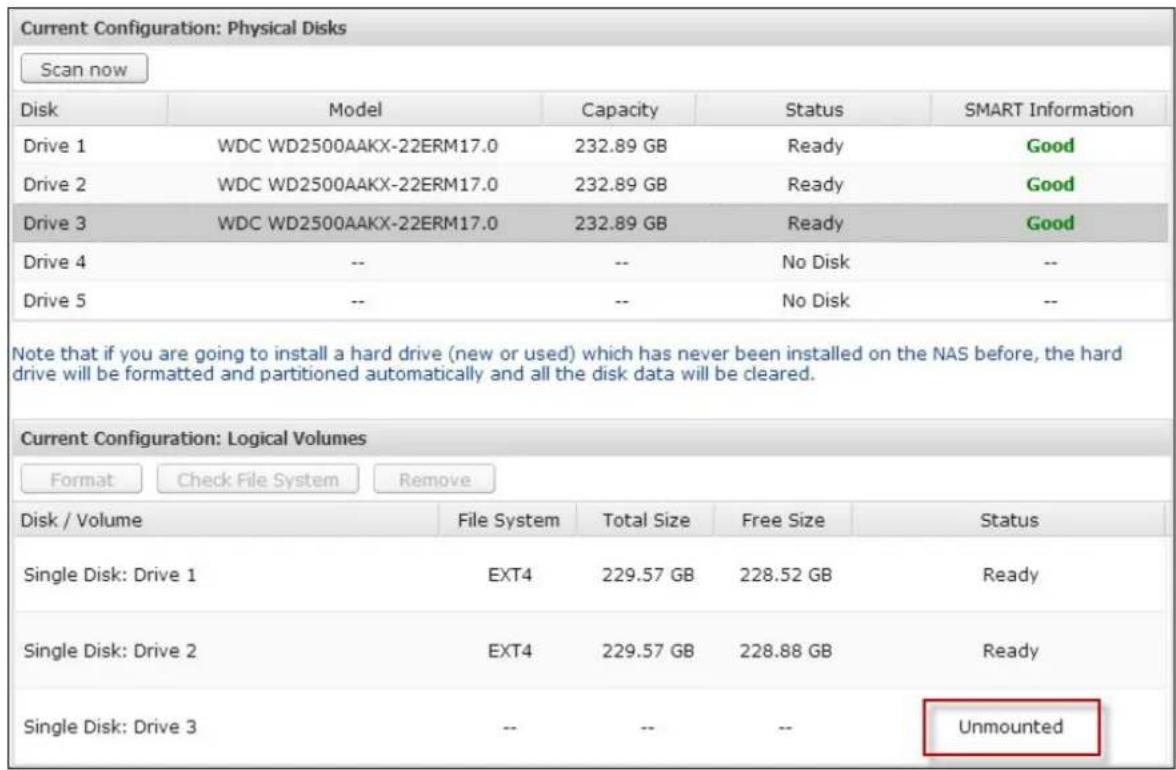
text_image
Current Configuration: Physical Disks Scan now Disk Model Capacity Status SMART Information Drive 1 WDC WD2500AAKX-22ERM17.0 232.89 GB Ready Good Drive 2 WDC WD2500AAKX-22ERM17.0 232.89 GB Ready Good Drive 3 WDC WD2500AAKX-22ERM17.0 232.89 GB Ready Good Drive 4 -- -- No Disk -- Drive 5 -- -- No Disk -- Note that if you are going to install a hard drive (new or used) which has never been installed on the NAS before, the hard drive will be formatted and partitioned automatically and all the disk data will be cleared. Current Configuration: Logical Volumes Format Check File System Remove Disk / Volume File System Total Size Free Size Status Single Disk: Drive 1 EXT4 229.57 GB 228.52 GB Ready Single Disk: Drive 2 EXT4 229.57 GB 228.88 GB Ready Single Disk: Drive 3 -- -- -- UnmountedGo to "Storage Manager" > "RAID Management", click "Migrate" from the "Action."
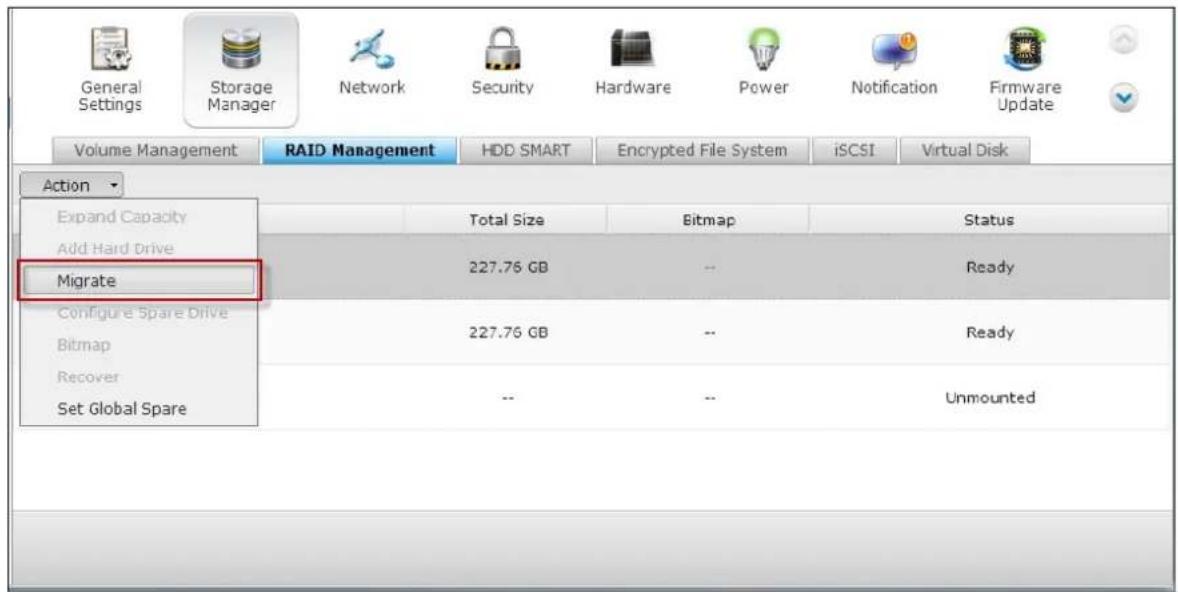
text_image
General Settings Storage Manager Network Security Hardware Power Notification Firmware Update Volume Management RAID Management HDD SMART Encrypted File System iSCSI Virtual Disk Action Expand Capacity Add Hard Drive Migrate Total Size Bitmap Status 227.76 GB -- Ready Configure Spare Drive Bitmap 227.76 GB -- Ready Recover Set Global Spare -- -- UnmountedSelect one or more available drives and the migration method. The drive capacity after migration is shown. Click "Migrate".
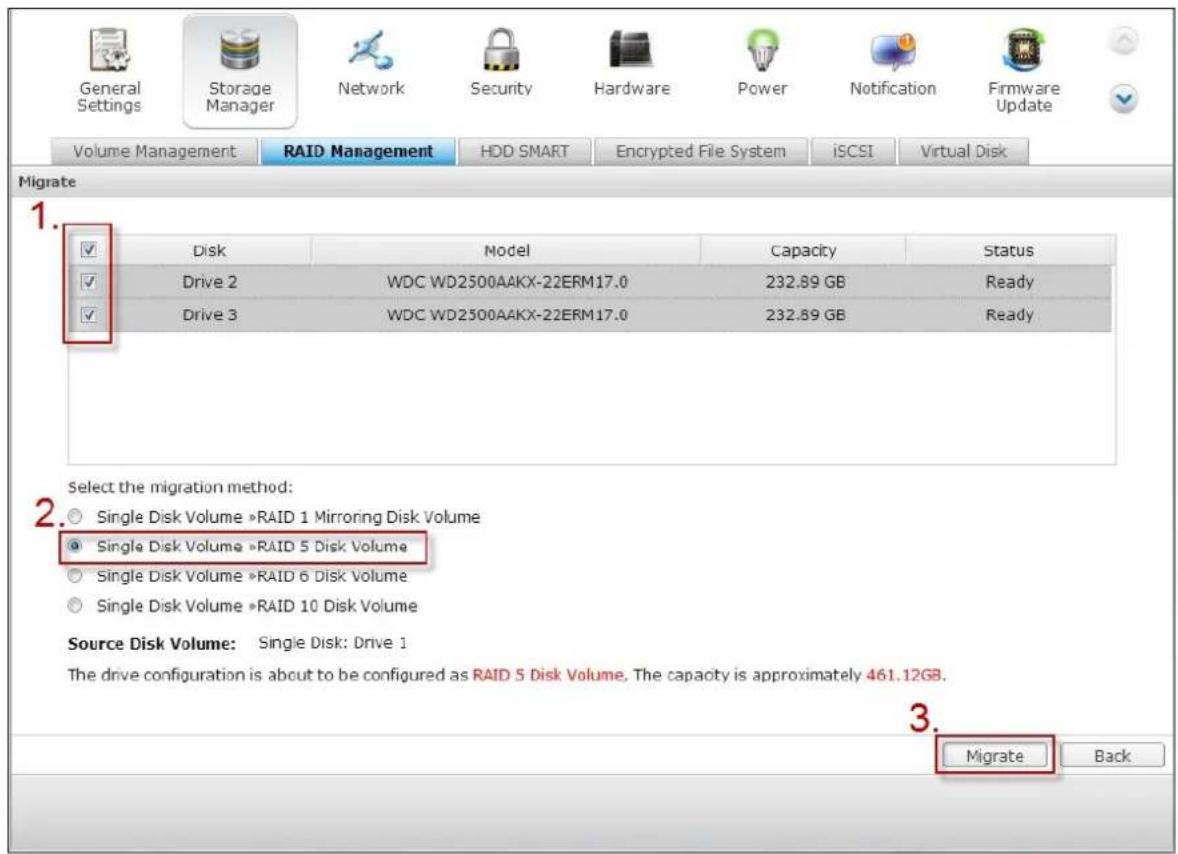
text_image
General Settings Storage Manager Network Security Hardware Power Notification Firmware Update Volume Management RAID Management HDD SMART Encrypted File System iSCSI Virtual Disk Migrate 1. Disk Model Capacity Status Drive 2 WDC WD2500AAKX-22ERM17.0 232.89 GB Ready Drive 3 WDC WD2500AAKX-22ERM17.0 232.89 GB Ready Select the migration method: Single Disk Volume *RAID 1 Mirroring Disk Volume Single Disk Volume *RAID 5 Disk Volume Single Disk Volume *RAID 6 Disk Volume Single Disk Volume *RAID 10 Disk Volume Source Disk Volume: Single Disk: Drive 1 The drive configuration is about to be configured as RAID 5 Disk Volume, The capacity is approximately 461.12GB. Migrate BackNote that all the data on the selected hard drive will be cleared. Click "OK" to confirm.
When migration is in process, the required time and total drive capacity after migration are shown in the description field.

text_image
General Settings Storage Manager Network Security Hardware Power Notification Volume Management RAID Management HDD SMART Encrypted File System iSCSI Virtual Disk Action Disk / Volume Total Size Bitmap Status Single Disk: Drive 1 227.76 GB -- Migrating... (9%) - 00:01:39The NAS will enter "Read only" mode when migration is in process during 11%–49% to assure the data of the RAID configuration will be consistent after RAID migration completes.
After migration completes, the new drive configuration (RAID 5) is shown and the status is Ready. You can start to use the new drive configuration.
The process may take from hours to tens of hours to finish depending on the hard drive size. You can connect to the web page of the NAS to check the status later.
Use Online RAID Capacity Expansion and Online RAID Level Migration
Scenario
You had a tight schedule to set up a file server and an FTP server. However, you had only one 250GB hard drive. Therefore, you set up the TS-509 Pro with the single disk configuration.
The original plan was to set up a 3TB RAID 5 network data center with the TS-509 Pro. You now plan to upgrade the disk configuration of the TS-509 Pro to RAID 5 and expand the total storage capacity to 3TB with all the original data retained after the hard drives are purchased.
Execute online RAID level migration to migrate the system from single disk to RAID 5. The total storage capacity will be 750GB, RAID 5 (with one 250GB hard drive and three 1TB hard drives, the disk usage will be 250GB*4 for RAID 5). You can refer to the previous step for the operation procedure.
Execute online RAID capacity expansion to replace the 250GB hard drive with a new 1TB hard drive, and then expand the logical volume from 750GB to 3TB of RAID 5. You can refer to the previous step for the operation procedure.
Add a hard drive
Follow the steps below to add a hard drive member to a RAID 5 or RAID 6 disk configuration.
- Make sure the status of the RAID 5 or RAID 6 configuration is "Ready".
- Install a hard drive on the NAS. If you have a hard drive which has already been formatted as single disk volume on the NAS, you can add this hard drive to the RAID 5 or RAID 6 configuration. You are recommended to use hard disk drives of the same storage capacity for the RAID configuration.
- Select the RAID 5 or RAID 6 configuration on the "RAID Management" page and click "Add Hard Drive".
- Select the new hard drive member. The total drive capacity after adding the drive will be shown. Click "Add Hard Drive."
- All the data on the new hard drive member will be deleted during this process. The data on the original RAID 5 or RAID 6 configuration will be retained. Click "OK". The NAS will beep twice.
To add hard drives member to a RAID 10 disk volume, repeat the above steps. Note that you need to add an even number of hard disk drives to a RAID 10 volume. The storage capacity of the RAID 10 volume will increase upon successful configuration.
This process may take a few hours to tens of hours to complete depending on the number and the size of the hard drive. Please wait patiently for the process to finish. Do NOT turn off the NAS during this process. You can use a RAID configuration of larger capacity after the process.
Configure Spare Drive
You can add a spare drive to or remove a spare drive from a RAID 5, 6, or 10 configuration.
Follow the steps below to use this feature.
- Make sure the status of the RAID 5, 6, 10 configuration is "Ready".
- Install a hard drive on the NAS. If you have a hard drive which has already been formatted as single disk volume on the NAS, you can configure this hard drive as the spare drive. You are recommended to use hard disk drives of the same storage capacity for the RAID configuration.
- Select the RAID volume and click "Configure Spare Drive."
- To add a spare drive to the selected configuration, select the hard drive and click "Configure Spare Drive." To remove a spare drive, unselect the spare drive and click "Configure Spare Drive."
- All the data on the selected hard drive will be deleted. Click "OK" to proceed.
The original data on the RAID 5, 6, or 10 disk volume will be retained. After the configuration completes, the status of the disk volume will become "Ready".
Note: A hot spare drive must be removed from the disk volume before executing the following action:
• Online RAID capacity expansion
• Online RAID level migration
- Adding a hard drive member to a RAID 5, RAID 6 or RAID 10 volume
Bitmap
Bitmap improves the time for RAID rebuilding after an unexpected error, or removing or re-adding a member hard drive of the RAID configuration. If an array has a bitmap, the member hard drive can be removed and re-added and only blocks changes since the removal (as recorded in the bitmap) will be re-synchronized. To use this feature, select a RAID volume and click "Enable Bitmap".

text_image
General Settings Storage Manager Network Security Hardware Power Notification Firmware Update Volume Management RAID Management HDD SMART Encrypted File System iSCSI Virtual Disk Action Expand Capacity Add Hard Drive Migrate Configure Spare Drive Enable Bitmap Recover Global Spare Total Size Bitmap Status 3 459.13 GB no ReadyNote: Bitmap support is only available for RAID 1, 5, 6, and 10.
Recover (RAID Recovery)
RAID Recovery: When the NAS is configured as RAID 1, RAID 5, or RAID 6 and any number of hard drives is unplugged from the NAS accidentally, you can plug in the same hard drives into the same drive slots and click "Recover" to recover the volume status from "Not active" to "Degraded mode".
If the disk volume is configured as RAID 0 or JBOD and one or more of the hard drive members are disconnected or unplugged, you can plug in the same hard drives into the same drive slots and use this function to recover the volume status from "Not active" to "Normal". The disk volume can be used normally after successful recovery.
| Disk volum e | Supports RAID recovery | Maxim um num ber of disk rem oval allowed |
| Single | No | - |
| JBOD | Yes | 1 or more |
| RAID 0 | Yes | 1 or more |
| RAID 1 | Yes | 1 or 2 |
| RAID 5 | Yes | 2 or more |
| RAID 6 | Yes | 3 or more |
| RAID 10 | No | - |
Note:
- After recovering a RAID 1, RAID 5 or RAID 6 disk volume from not active to degraded mode by the RAID recovery, you can read or write the volume normally. The volume status will be recovered to normal after synchronization.
- If the disconnected drive member is damaged, the RAID recovery function will not work.
| Standard RAID 5 | QNAP RAID 5 | Standard RAID 6 | QNAP RAID 6 | |
| Degraded mode | N-1 | N-1 | N-1 & N-2 | N-1 & N-2 |
| Read Only Protection (for immediate data backup & hard drive replacement) | N/A | N-1, bad blocks found in the surviving hard drives of the array. | N/A | N-2, bad blocks found in the surviving hard drives of the array. |
| RAID Recovery (RAID Status: Not Active) | N/A | If re-plugging in all original hard drive to the NAS and they can be spun up, identified, accessed, and the hard drive superblock is not damaged. | N/A | If re- plugging in all original hard drives to the NAS and they can be spun up, identified, accessed, and the hard drive superblock is not damaged). |
| RAID Crash | N-2 | N-2 failed hard drives and any of the remaining hard drives cannot be spun up/identified/accessed. | N-3 | N-3 and any of the remaining hard drives cannot be spun up/identified/accessed. |
N = Number of hard disk drives in the array
Set/Cancel Global Spare
A global spare drive replaces a failed hard drive in any RAID 1, 5, 6, 10 disk volumes on the NAS automatically. When the same global spare drive is shared by multiple RAID volumes on the NAS, the spare drive will replace the first failed drive in a RAID volume.
To set a disk drive as a global spare drive, select the single disk volume and click "Set Global Spare". All the disk data will be cleared on the hard drive.

text_image
General Settings Storage Manager Network Security Hardware Power Notification Volume Management RAID Management HDD SMART Encrypted File System iSCSI Virtual Disk Action Expand Capacity Add Hard Drive Migrate Configure Spare Drive Bitmap Recover Set Global Spare Total Size Bitmap Status -- -- Unmounted 3 455.52 GB no ReadyNote: The capacity of the global spare drive must be equal to or larger than that of a member drive of a RAID disk volume.
To cancel a global spare drive, select the drive and click "Cancel Spare Drive".

text_image
General Settings Storage Manager Network Security Hardware Power Notification Volume Management RAID Management HDD SMART Encrypted File System iSCSI Virtual Disk Action Expand Capacity Add Hard Drive Migrate Configure Spare Drive Bitmap Recover Cancel Global Spare Total Size Bitmap Status -- -- Global Spare 3 455.52 GB no ReadyFurther information about RAID management of the NAS:
The NAS supports the following actions according to the number of hard disk drives and disk configurations supported. Please refer to the following table for the details.
| Original DiskConfiguration * No.of Hard Disk Drives | No. of NewHard DiskDrives | Action | New DiskConfiguration *No. of Hard DiskDrives |
| RAID 5 * 3 | 1 | Add hard drivemember | RAID 5 * 4 |
| RAID 5 * 3 | 2 | Add hard drivemember | RAID 5 * 5 |
| RAID 5 * 3 | 3 | Add hard drivemember | RAID 5 * 6 |
| RAID 5 * 3 | 4 | Add hard drivemember | RAID 5 * 7 |
| RAID 5 * 3 | 5 | Add hard drivemember | RAID 5 * 8 |
| RAID 5 * 4 | 1 | Add hard drivemember | RAID 5 * 5 |
| RAID 5 * 4 | 2 | Add hard drivemember | RAID 5 * 6 |
| RAID 5 * 4 | 3 | Add hard drivemember | RAID 5 * 7 |
| RAID 5 * 4 | 4 | Add hard drivemember | RAID 5 * 8 |
| RAID 5 * 5 | 1 | Add hard drivemember | RAID 5 * 6 |
| RAID 5 * 5 | 2 | Add hard drivemember | RAID 5 * 7 |
| RAID 5 * 5 | 3 | Add hard drivemember | RAID 5 * 8 |
| RAID 5 * 6 | 1 | Add hard drive member | RAID 5 * 7 |
| RAID 5 * 6 | 2 | Add hard drive member | RAID 5 * 8 |
| RAID 5 * 7 | 1 | Add hard drive member | RAID 5 * 8 |
| RAID 6 * 4 | 1 | Add hard drive member | RAID 6 * 5 |
| RAID 6 * 4 | 2 | Add hard drive member | RAID 6 * 6 |
| RAID 6 * 4 | 3 | Add hard drive member | RAID 6 * 7 |
| RAID 6 * 4 | 4 | Add hard drive member | RAID 6 * 8 |
| RAID 6 * 5 | 1 | Add hard drive member | RAID 6 * 6 |
| RAID 6 * 5 | 2 | Add hard drive member | RAID 6 * 7 |
| RAID 6 * 5 | 3 | Add hard drive member | RAID 6 * 8 |
| RAID 6 * 6 | 1 | Add hard drive member | RAID 6 * 7 |
| RAID 6 * 6 | 2 | Add hard drive member | RAID 6 * 8 |
| RAID 6 * 7 | 1 | Add hard drive member | RAID 6 * 8 |
| RAID 10 * 4 | 2 | Add hard drive member | RAID 10 * 6 |
| RAID 10 * 4 | 4 | Add hard drive member | RAID 10 * 8 |
| RAID 10 * 6 | 2 | Add hard drive member | RAID 10 * 8 |
| RAID 1 * 2 | 1 | Online RAID capacity expansion | RAID 1 * 2 |
| RAID 5 * 3 | 1 | Online RAID capacity expansion | RAID 5 * 3 |
| RAID 5 * 4 | 1 | Online RAID capacity expansion | RAID 5 * 4 |
| RAID 5 * 5 | 1 | Online RAID capacity expansion | RAID 5 * 5 |
| RAID 5 * 6 | 1 | Online RAID capacity expansion | RAID 5 * 6 |
| RAID 5 * 7 | 1 | Online RAID capacity expansion | RAID 5 * 7 |
| RAID 5 * 8 | 1 | Online RAID capacity expansion | RAID 5 * 8 |
| RAID 6 * 4 | 1 | Online RAID capacity expansion | RAID 6 * 4 |
| RAID 6 * 5 | 1 | Online RAID capacity expansion | RAID 6 * 5 |
| RAID 6 * 6 | 1 | Online RAID capacity expansion | RAID 6 * 6 |
| RAID 6 * 7 | 1 | Online RAID capacity expansion | RAID 6 * 7 |
| RAID 6 * 8 | 1 | Online RAID capacity expansion | RAID 6 * 8 |
| RAID 10 * 4 | 1 | Online RAID capacity expansion | RAID 10 * 4 |
| RAID 10 * 6 | 1 | Online RAID capacity expansion | RAID 10 * 6 |
| RAID 10 * 8 | 1 | Online RAID capacity expansion | RAID 10 * 8 |
| Single * 1 | 1 | Online RAID level migration | RAID 1 * 2 |
| Single * 1 | 2 | Online RAID level migration | RAID 5 * 3 |
| Single * 1 | 3 | Online RAID level migration | RAID 5 * 4 |
| Single * 1 | 4 | Online RAID level migration | RAID 5 * 5 |
| Single * 1 | 5 | Online RAID level migration | RAID 5 * 6 |
| Single * 1 | 6 | Online RAID level migration | RAID 5 * 7 |
| Single * 1 | 7 | Online RAID level migration | RAID 5 * 8 |
| Single * 1 | 3 | Online RAID level migration | RAID 6 * 4 |
| Single * 1 | 4 | Online RAID level migration | RAID 6 * 5 |
| Single * 1 | 5 | Online RAID level migration | RAID 6 * 6 |
| Single * 1 | 6 | Online RAID level migration | RAID 6 * 7 |
| Single * 1 | 7 | Online RAID level migration | RAID 6 * 8 |
| Single * 1 | 3 | Online RAID level migration | RAID 10 * 4 |
| Single * 1 | 5 | Online RAID level migration | RAID 10 * 6 |
| Single * 1 | 7 | Online RAID level migration | RAID 10 * 8 |
| RAID 1 * 2 | 1 | Online RAID level migration | RAID 5 * 3 |
| RAID 1 * 2 | 2 | Online RAID level migration | RAID 5 * 4 |
| RAID 1 * 2 | 3 | Online RAID level migration | RAID 5 * 5 |
| RAID 1 * 2 | 4 | Online RAID level migration | RAID 5 * 6 |
| RAID 1 * 2 | 5 | Online RAID level migration | RAID 5 * 7 |
| RAID 1 * 2 | 6 | Online RAID level migration | RAID 5 * 8 |
| RAID 1 * 2 | 2 | Online RAID level migration | RAID 6 * 4 |
| RAID 1 * 2 | 3 | Online RAID level migration | RAID 6 * 5 |
| RAID 1 * 2 | 4 | Online RAID level migration | RAID 6 * 6 |
| RAID 1 * 2 | 5 | Online RAID level migration | RAID 6 * 7 |
| RAID 1 * 2 | 6 | Online RAID level migration | RAID 6 * 8 |
| RAID 1 * 2 | 2 | Online RAID level migration | RAID 10 * 4 |
| RAID 1 * 2 | 4 | Online RAID level migration | RAID 10 * 6 |
| RAID 1 * 2 | 6 | Online RAID level migration | RAID 10 * 8 |
| RAID 5 * 3 | 1 | Online RAID level migration | RAID 6 * 4 |
| RAID 5 * 3 | 2 | Online RAID level migration | RAID 6 * 5 |
| RAID 5 * 3 | 3 | Online RAID level migration | RAID 6 * 6 |
| RAID 5 * 3 | 4 | Online RAID level migration | RAID 6 * 7 |
| RAID 5 * 3 | 5 | Online RAID level migration | RAID 6 * 8 |
Monitor the hard disk drives (HDD) health, temperature, and the usage status by HDD S. M.A.R.T. (Self-Monitoring Analysis and Reporting Technology).
The following information of each hard drive on the NAS is available.
| Field | Description |
| Summary | Display the hard drive S.M.A.R.T. summary and the latest test result. |
| Hard disk information | Display the hard drive details, for example, model, serial number, HDD capacity. |
| SMART information | Display the hard drive S.M.A.R.T. information. Any items that the values are lower than the threshold are regarded as abnormal. |
| Test | Perform quick or complete hard drive S.M.A.R.T. test. |
| Settings | Configure temperature alarm. When the hard drive temperature is over the preset values, the NAS records the error logs.You can also set the quick and complete test schedule. The latest test result is shown on the Summary page. |

text_image
General Settings Storage Manager Network Security Hardware Power Notification Firmware Update Volume Management RAID Management HDD SMART iSCSI Virtual Disk Monitor hard disk health, temperature, and usage status by the hard disk S.M.A.R.T. mechanism. Disk 1 Summary Hard Disk Information SMART Information Test Settings Good No errors were detected on the hard disk. Your hard disk should be operating properly. Hard disk model: WDC WD2500AAKX-22ERM17.0 Drive capacity: 232.89 GB Hard drive health: Good Temperature: 40°C/104°F HDD I/O Status: Good Test time: --- Test result: Not testedThis feature is not supported by TS-110, TS-119, TS-210, TS-219, TS-219P, TS-410, TS-419P, TS-410U, TS-419U, TS-119P+, TS-219P+, TS-419P+, TS-112, TS-212, TS-412, TS-419U+, TS-412U and ARM-Based models.
You can manage the encrypted disk volumes on the NAS on this page. Each encrypted disk volume is locked by a particular key. The encrypted volume can be unlocked by the following methods:
- Encryption Password: Enter the encryption password to unlock the disk volume. The default password is "admin". The password must be 8-16 characters long. Symbols (! @ # \$ % ^ & * ( )_+ = ?) are supported.
- Encryption Key File: Upload the encryption file to the NAS to unlock the disk volume. The key can be downloaded from "Encryption Key Management" page after the disk volume has been unlocked successfully.
The data encryption functions may not be available in accordance to the legislative restrictions of some countries.
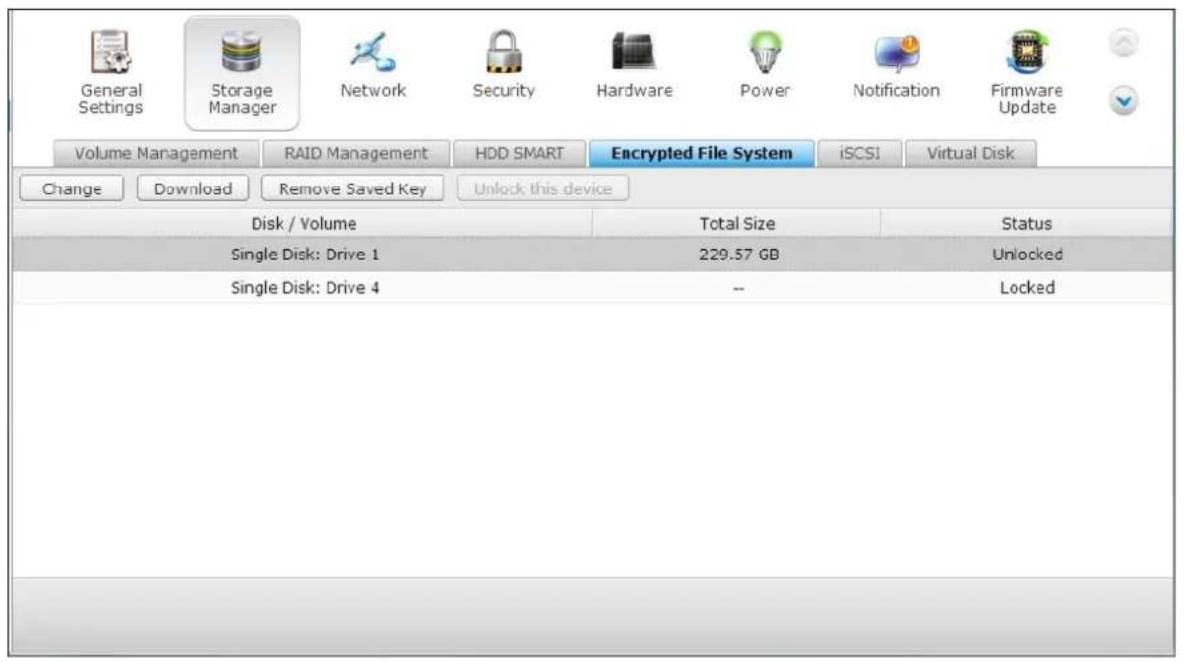
text_image
General Settings Storage Manager Network Security Hardware Power Notification Firmware Update Volume Management RAID Management HDD SMART Encrypted File System iSCSI Virtual Disk Change Download Remove Saved Key Unlock this device Disk / Volume Total Size Status Single Disk: Drive 1 229.57 GB Unlocked Single Disk: Drive 4 -- LockedHow to use the data encryption feature on QNAP Turbo NAS
The disk volumes on the NAS can be encrypted with 256-bit AES encryption for data breach protection. The encrypted disk volumes can only be mounted for normal read/write access with the authorized password. The encryption feature protects the confidential data from unauthorized access even if the hard drives or the entire NAS were stolen.
About AES encryption:
In cryptography, the Advanced Encryption Standard (AES) is an encryption standard adopted by the U.S. government. The standard comprises three block ciphers, AES-128, AES-192 and AES-256 [...]. Each AES cipher has a 128-bit block size, with key sizes of 128, 192 and 256 bits, respectively. The AES ciphers have been analyzed extensively and are now used worldwide. (Source: http://en.wikipedia.org/wiki/
Advanced_Encryption_Standard)
The AES volume-based encryption is applicable only to specific QNAP NAS models.
Please refer to the comparison table at: http://www.qnap.com/images/products/comparison/Comparison_NAS.html
Before you start
Please beware of the following before using the data encryption feature of the NAS.
- The encryption feature of the NAS is volume-based. A volume can be a single disk, a JBOD configuration, or a RAID array.
- Select whether or not to encrypt a disk volume before it is created on the NAS. In other words, you will not be able to encrypt a volume after it has been created unless the disk volume is initialized. Note that initializing a disk volume will clear all the disk data.
- The encryption on the disk volume cannot be removed without initialization. To remove the encryption on the disk volume, you have to initialize the disk volume and all the data will be cleared.
- Keep the encryption password or key safe. If you forgot the password or lost the encryption key, the data cannot be accessed anymore.
- Before you start, read the instructions carefully and strictly adhere to the instructions.
Create a new encrypted disk volume with new hard drives
If the NAS has been installed, to create a new encrypted disk volume by installing new hard drives on the NAS, follow the steps below:
- Install the new hard drive(s) on the NAS.
-
Login the NAS as an administrator. Go to Storage Manager" > "Volume Management".
-
Click "Create".
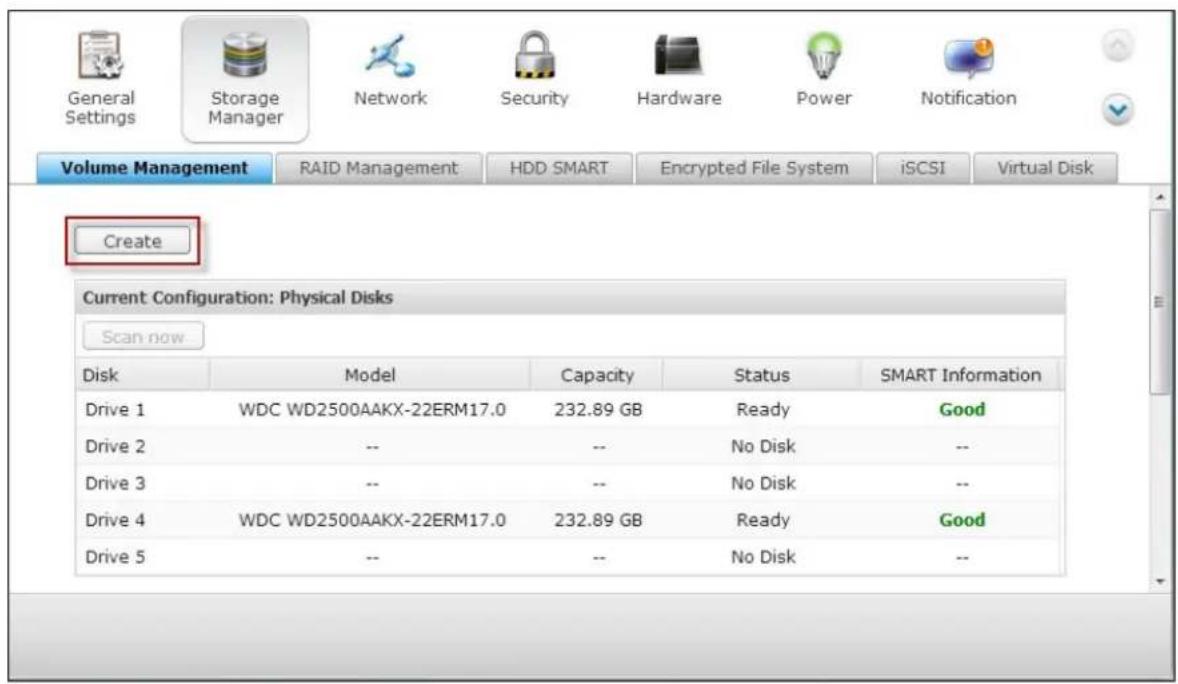
text_image
General Settings Storage Manager Network Security Hardware Power Notification Volume Management RAID Management HDD SMART Encrypted File System iSCSI Virtual Disk Create Current Configuration: Physical Disks Scan now Disk Model Capacity Status SMART Information Drive 1 WDC WD2500AAKX-22ERM17.0 232.89 GB Ready Good Drive 2 -- -- No Disk -- Drive 3 -- -- No Disk -- Drive 4 WDC WD2500AAKX-22ERM17.0 232.89 GB Ready Good Drive 5 -- -- No Disk --- Select the disk volume you want to configure according to the number of new hard drives installed.
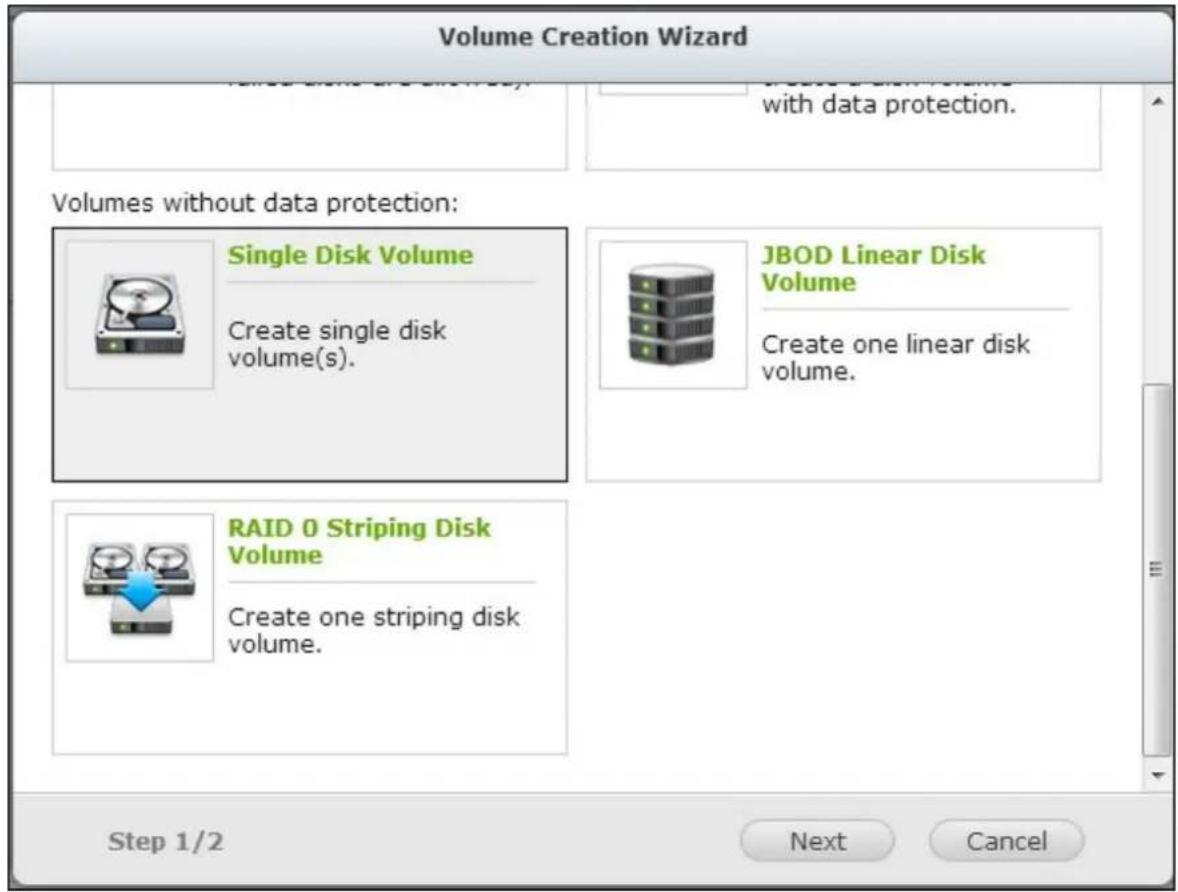
text_image
Volume Creation Wizard with data protection. Volumes without data protection: Single Disk Volume Create single disk volume(s). JBOD Linear Disk Volume Create one linear disk volume. RAID 0 Striping Disk Volume Create one striping disk volume. Step 1/2 Next Cancel- Check the drive for the intended volume.
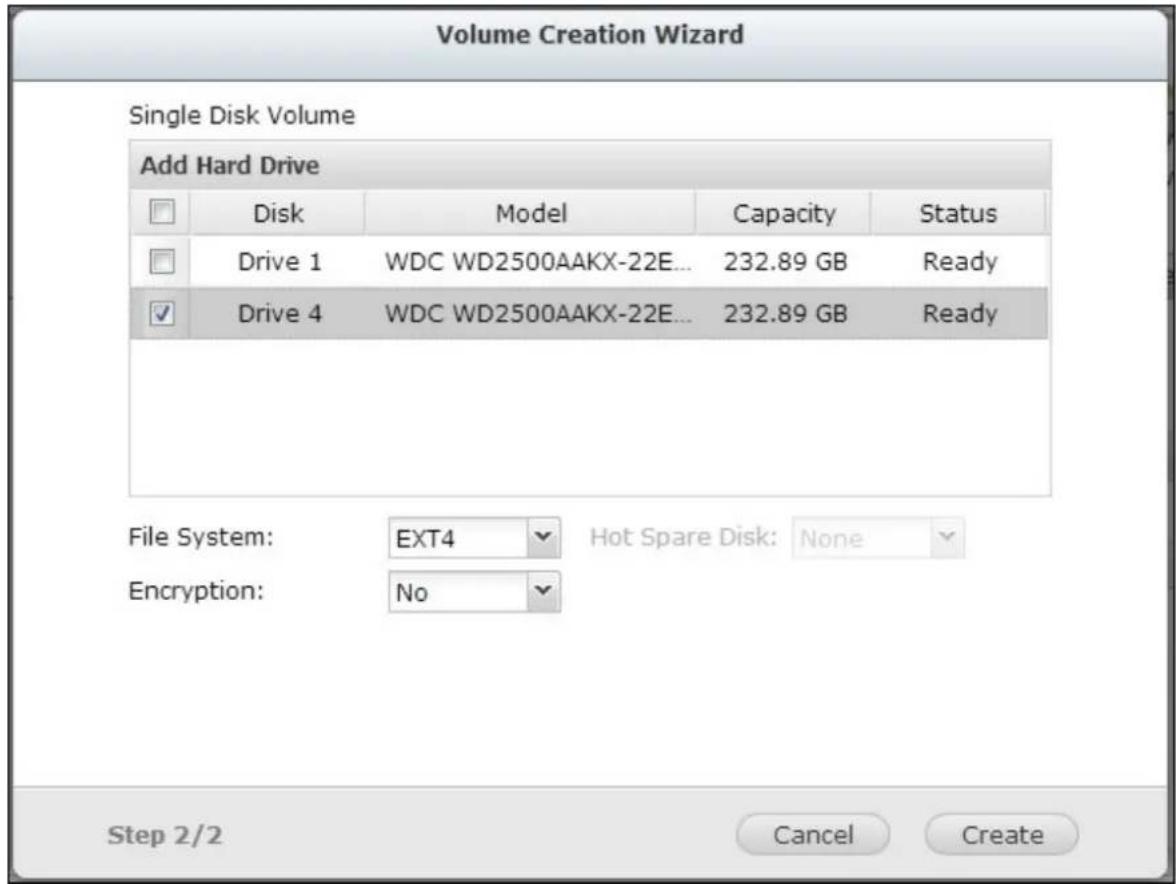
text_image
Volume Creation Wizard Single Disk Volume Add Hard Drive Disk Model Capacity Status Drive 1 WDC WD2500AAKX-22E... 232.89 GB Ready Drive 4 WDC WD2500AAKX-22E... 232.89 GB Ready File System: EXT4 Hot Spare Disk: None Encryption: No Step 2/2 Cancel Create- Select "Yes" for the "Encryption" option and enter the encryption settings. Then click "Create" to create the new encrypted volume.

text_image
Volume Creation Wizard Single Disk Volume Add Hard Drive Disk Model Capacity Status Drive 1 WDC WD2500AAKX-22... 232.89 GB Ready Drive 4 WDC WD2500AAKX-22... 232.89 GB Ready File System: EXT4 Hot Spare Disk: None Encryption: Yes Password: Borceler Re-enter Password: Borceler Use Default Value Save encryption key Step 2/2 Cancel CreateNote that all the data on the selected drives will be DELETED! Please back up the data before creating the encrypted volume.
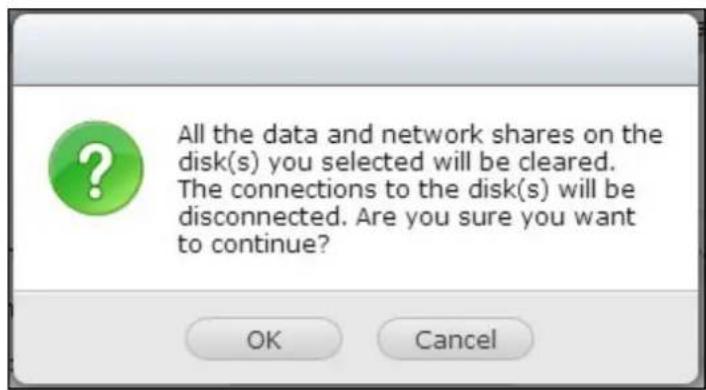
text_image
All the data and network shares on the disk(s) you selected will be cleared. The connections to the disk(s) will be disconnected. Are you sure you want to continue? OK CancelYou have created an encrypted disk volume on the NAS.
Verify that disk volume is encrypted
To verify the disk volume is encrypted, login the NAS as an administrator. Go to "Storage Manager" > "Volume Management".
You will be able to see the encrypted disk volume, with a lock icon in the Status column. The lock will be open if the encrypted volume has been unlocked. A disk volume without
the lock icon in the Status column is not encrypted.

text_image
Current Configuration: Logical Volumes Format Check File System Remove Disk / Volume File Sys... Total Si... Free Size Status Single Disk: Drive 1 EXT4 229.57... 228.78... Ready Single Disk: Drive 4 EXT4 229.57... 228.88... ReadyBehavior of an encrypted volum e upon system reboot
In this example, we have two encrypted disk volumes on the NAS.
The first volume (Single Disk Drive 1) has been created with the option "Save Encryption Key" enabled.
The second volume (Single Disk Drive 4) has been created with the option "Save Encryption Key" disabled.
After restarting the NAS, check the volume status. The first drive has been unlocked and mounted but the second drive is locked. Since the encryption key is not saved on the second disk volume, you have to manually enter the encryption password to unlock it.
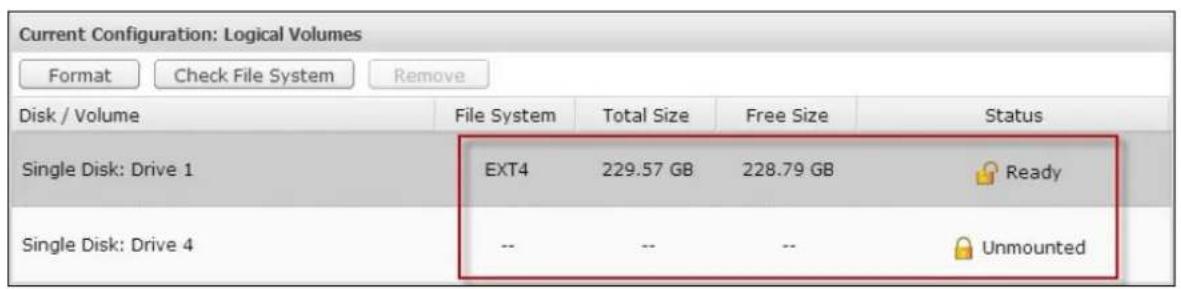
text_image
Current Configuration: Logical Volumes Format Check File System Remove Disk / Volume File System Total Size Free Size Status Single Disk: Drive 1 EXT4 229.57 GB 228.79 GB Ready Single Disk: Drive 4 -- -- -- Unmounted- Saving the key on the NAS will protect you only if your hard drives are stolen. However, there is a risk of data breach if the entire NAS is stolen as the data is accessible after restarting the NAS.
- If you select not to save the encryption key on the NAS, your NAS will be protected against data breach even if the entire NAS were stolen. The disadvantage is that you have to unlock the disk volume manually on each system restart.
Encryption key management:
To manage the encryption key settings, login the NAS as an administrator and go to Storage Manager" > "Encrypted File System".
There are four options to manage the encryption key:
• Change the encryption key
- Download the encryption key file
- Remove the saved key
- Save the encryption key on the NAS

text_image
General Settings Storage Manager Network Security Hardware Power Notification Firmware Update Volume Management RAID Management HDD SMART Encrypted File System iSCSI Virtual Disk Change Download Remove Saved Key Unlock this device Disk / Volume Total Size Status Single Disk: Drive 1 229.57 GB Unlocked Single Disk: Drive 4 -- Locked- Change the encryption key: Input your old encryption password and input the new password. (Note that after the password is changed, any previously exported keys will not be working anymore. You have to download the new encryption key if necessary, see below).
- Download Encryption Key File: Input the encryption password to download the encryption key file. Downloading the encryption key file will allow you to save the encryption key in a file. The file is also encrypted and can be used to unlock a volume, without knowing the real password (see "unlock a disk volume manually" below). Please save the encryption key file in a secure place!
- Remove Saved Key: Remove saved keys with this option.
- Save Encryption Key: Save the encryption key on the NAS for automatic unlocking and mounting the encrypted disk volume when the NAS restarts.
Unlock a disk volum e m anually
To unlock a volume, login the NAS as an administrator. Go to "Storage Manager" > "Encrypted File System".
You will be able to see your encrypted volumes and their status: locked or unlocked.
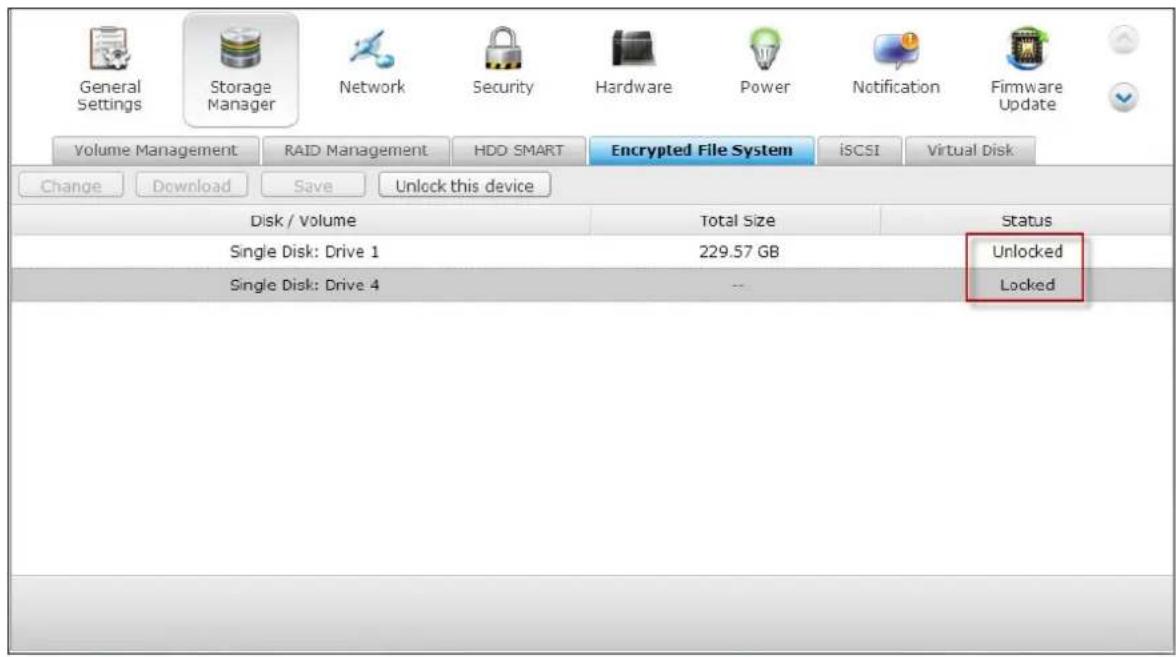
text_image
General Settings Storage Manager Network Security Hardware Power Notification Firmware Update Volume Management RAID Management HDD SMART Encrypted File System iSCSI Virtual Disk Change Download Save Unlock this device Disk / Volume Total Size Status Single Disk: Drive 1 229.57 GB Unlocked Single Disk: Drive 4 LockedTo unlock your volume, first click "Unlock this device".
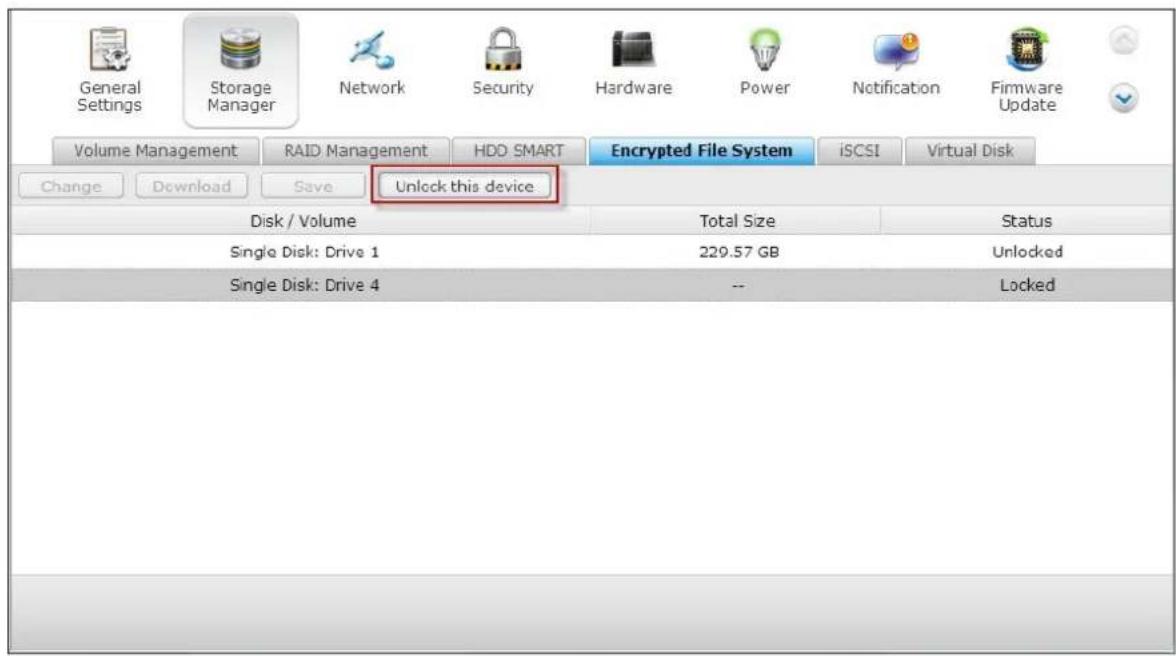
text_image
General Settings Storage Manager Network Security Hardware Power Notification Firmware Update Volume Management RAID Management HDD SMART Encrypted File System iSCSI Virtual Disk Change Download Save Unlock this device Disk / Volume Total Size Status Single Disk: Drive 1 229.57 GB Unlocked Single Disk: Drive 4 -- LockedChoose to either input the encryption password, or use the encryption key file that has been exported previously.
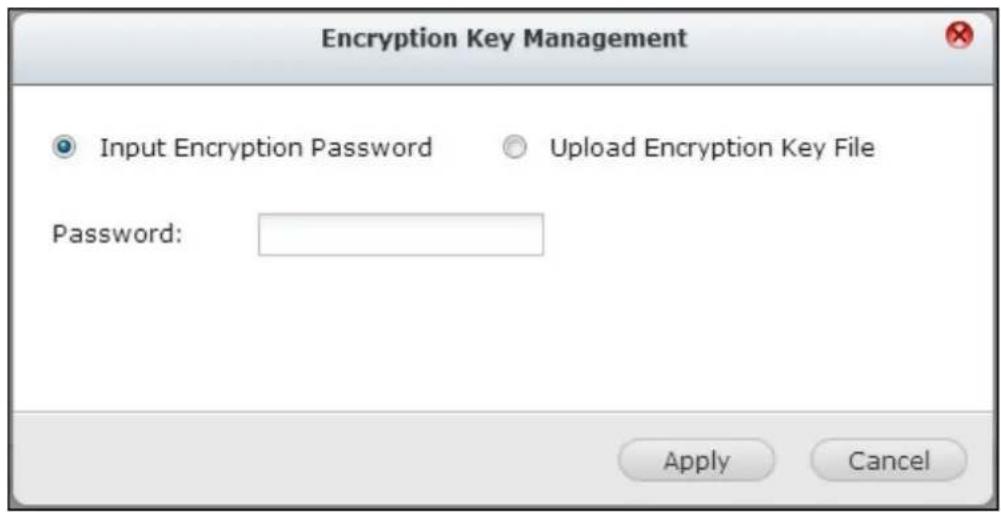
text_image
Encryption Key Management Input Encryption Password Upload Encryption Key File Password: Apply Cancel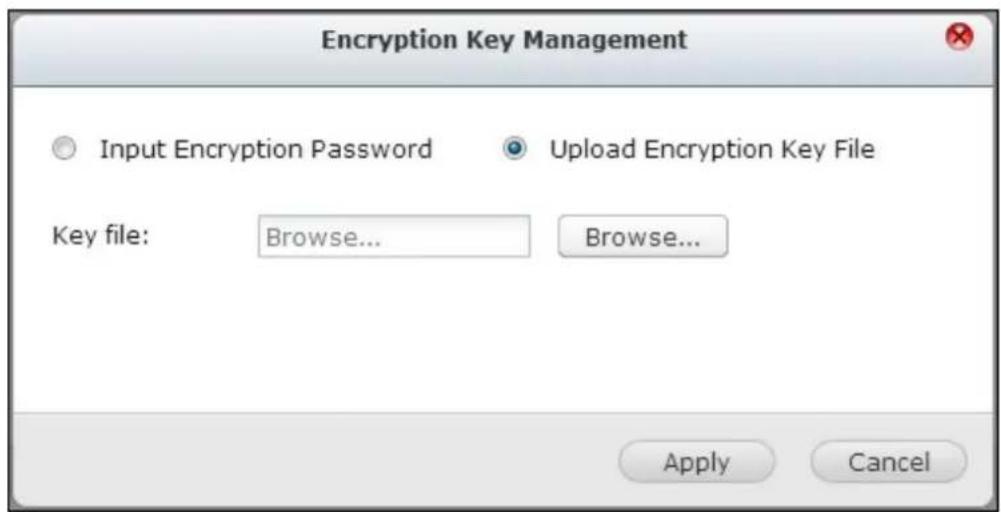
text_image
Encryption Key Management Input Encryption Password Upload Encryption Key File Key file: Browse... Browse... Apply CancelIf the encryption password or the key file is correct, the volume will be unlocked and become available.
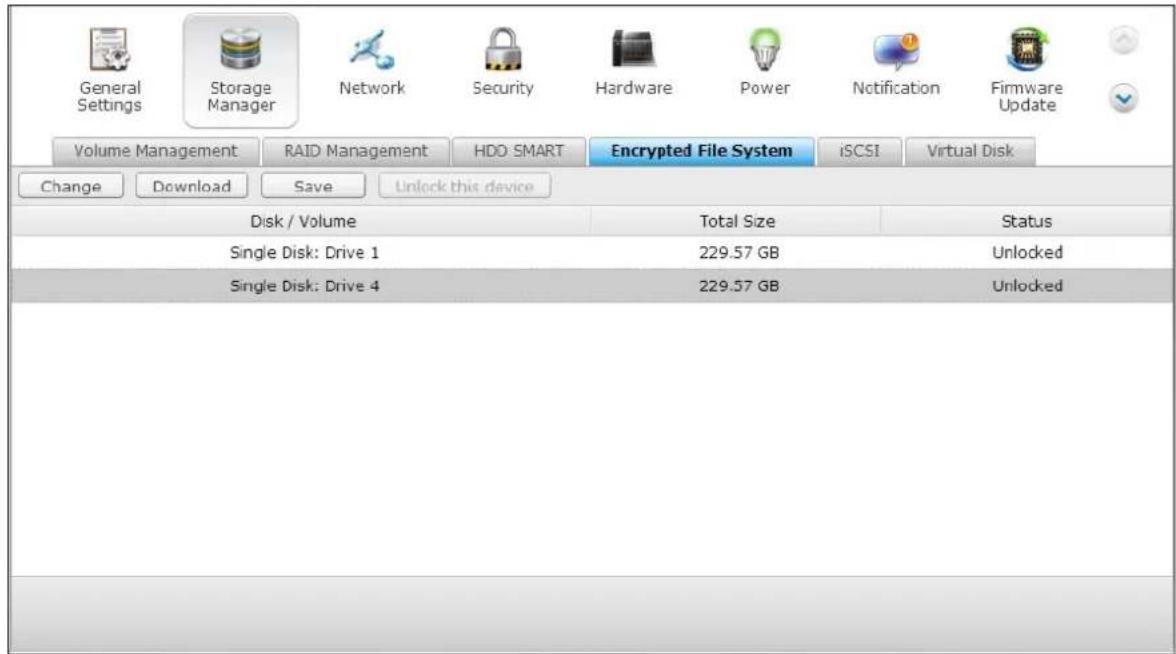
text_image
General Settings Storage Manager Network Security Hardware Power Notification Firmware Update Volume Management RAID Management HDD SMART Encrypted File System iSCSI Virtual Disk Change Download Save Unlock this device Disk / Volume Total Size Status Single Disk: Drive 1 229.57 GB Unlocked Single Disk: Drive 4 229.57 GB Unlocked4.2.5 iSCSI
Portal Management ^136 Target Management ^144 Advanced ACL ^170 LUN Backup ^173
The NAS supports built-in iSCSI (Internet Small Computer System Interface) service for server clustering and virtualized environments.
iSCSI Configuration
The NAS supports built-in iSCSI service. To use this function, follow the steps below:
- Install an iSCSI initiator on the computer (Windows PC, Mac, or Linux).
- Enable iSCSI Target Service on the NAS and create an iSCSI target.
- Run the iSCSI initiator and connect to the iSCSI target (NAS).
- After successful logon, format the iSCSI target (disk volume). You can start to use the disk volume on the NAS as a virtual drive on the computer.
In between the relationship of your computer and the storage device, the computer is called an initiator because it initiates the connection to the device, which is called a target.
Note: It is suggested NOT to connect to the same iSCSI target with two different clients (iSCSI initiators) at the same time, because this may lead to data damage or disk damage.
iSCSI Quick Configuration Wizard
A maximum of 256 iSCSI targets and LUNs can be created. For example, if you create 100 targets on the NAS, the maximum number of LUNs you can create is 156. Multiple LUNs can be created for each target. However, the maximum number of concurrent connections to the iSCSI targets supported by the NAS varies depending on the network infrastructure and the application performance. Too many concurrent connections may slow down the performance of the NAS.
Follow the steps below to configure the iSCSI target service on the NAS.
- Under the "Portal Management" tab enable iSCSI target service. Apply the settings.

text_image
General Settings Storage Manager Network Security Hardware Power Notification Firmware Update Volume Management RAID Management HDD SMART iSCSI Virtual Disk Portal Management Target Management Advanced ACL LUN Backup. Enable iSCSI target service iSCSI service port: 3260 Enable iSNS iSNS server IP: Apply- Go to the "Target Management" tab and create iSCSI targets on the NAS. If you have not created any iSCSI targets, the Quick Installation Wizard will automatically be launched and prompt users to create iSCSI targets and LUNs (Logical unit number). Click "OK".
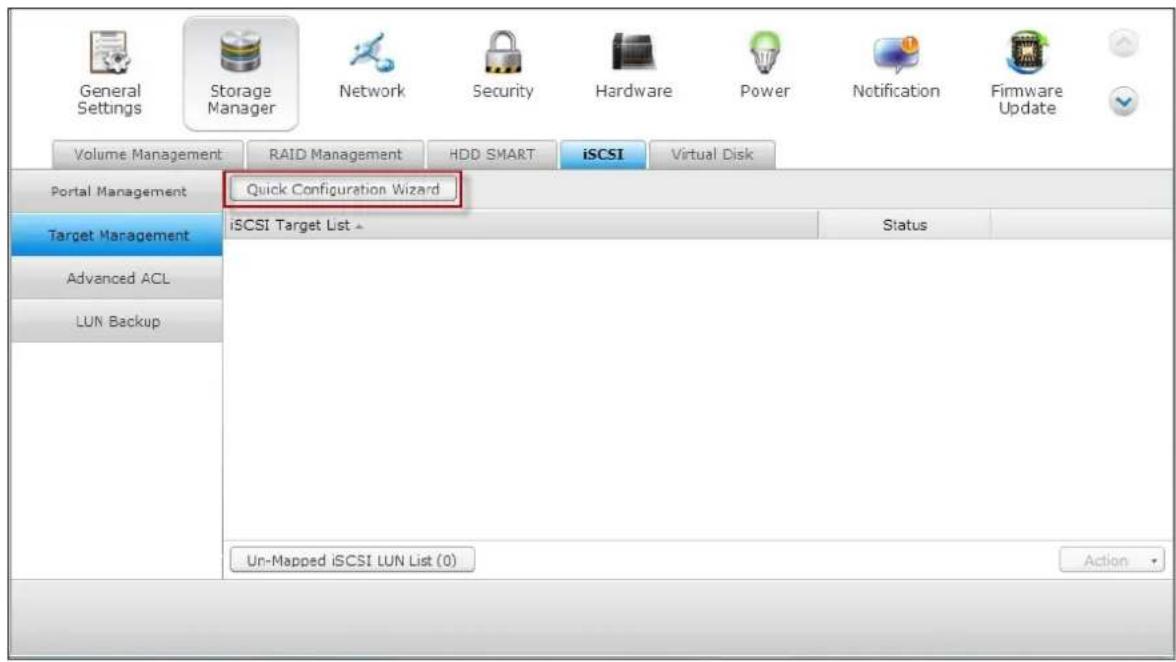
text_image
General Settings Storage Manager Network Security Hardware Power Notification Firmware Update Volume Management RAID Management HDD SMART iSCSI Virtual Disk Portal Management Quick Configuration Wizard Target Management iSCSI Target List ▶ Status Advanced ACL LUN Backup Un-Mapped iSCSI LUN List (0) Action- Select to create an iSCSI target with a mapped LUN, an iSCSI target only, or an iSCSI LUN only. Click "Next."
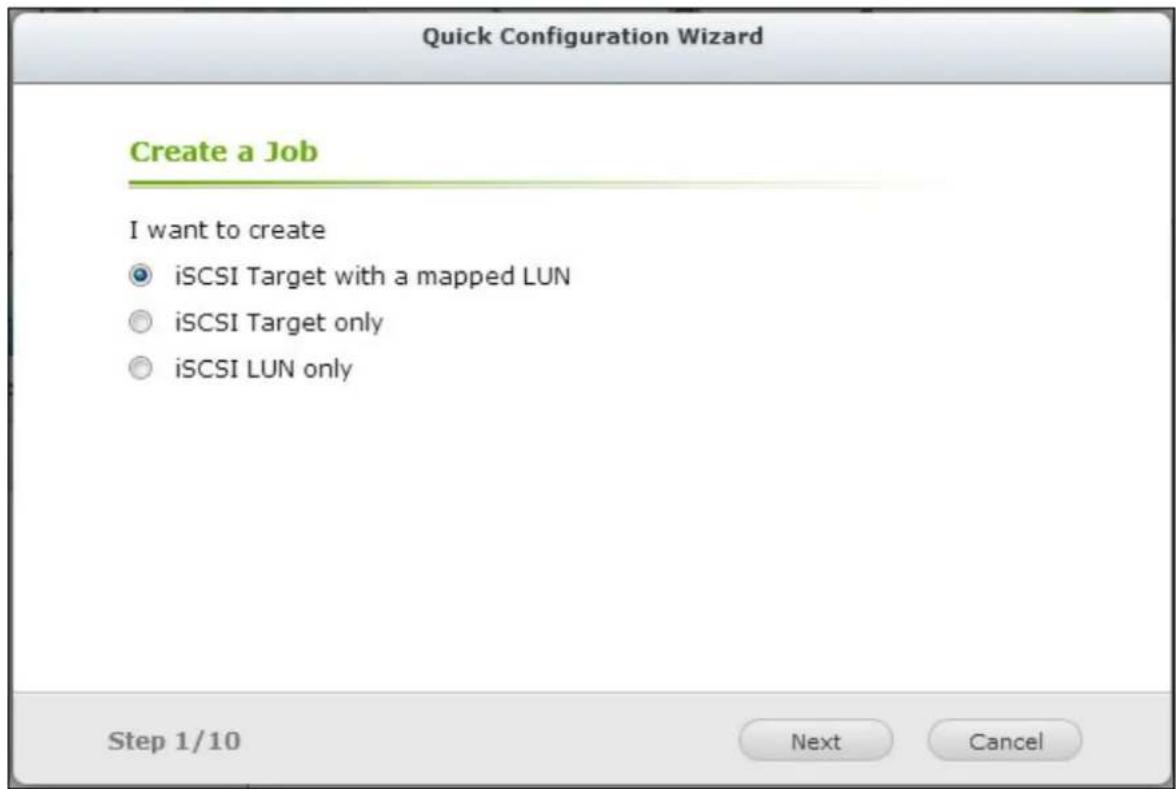
text_image
Quick Configuration Wizard Create a Job I want to create iSCSI Target with a mapped LUN iSCSI Target only iSCSI LUN only Step 1/10 Next Cancel- Create iSCSI target with a mapped LUN.
- Click "Next."
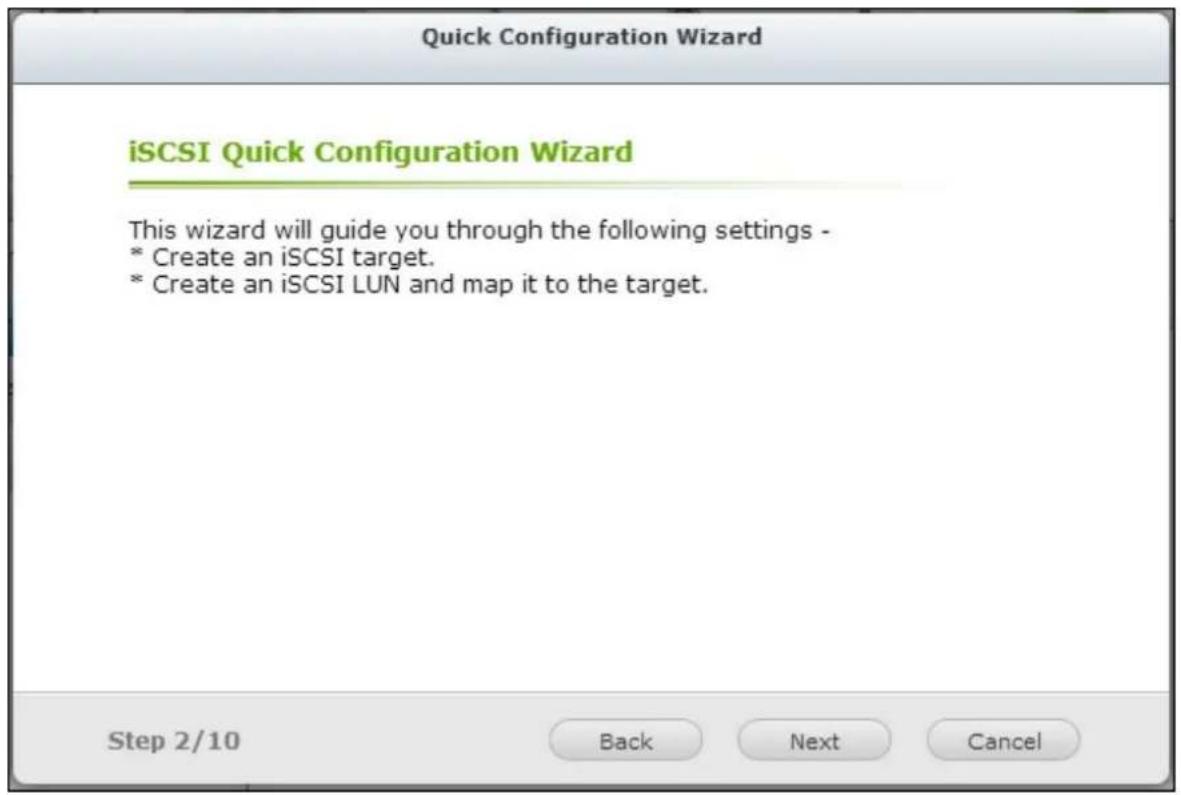
text_image
Quick Configuration Wizard iSCSI Quick Configuration Wizard This wizard will guide you through the following settings - * Create an iSCSI target. * Create an iSCSI LUN and map it to the target. Step 2/10 Back Next Cancel- Enter the target name and target alias. You may check the options "Data Digest" and/or "Header Digest" (optional). These are the parameters that the iSCSI initiator will be verified when it attempts to connect to the iSCSI target.

text_image
Quick Configuration Wizard Create New iSCSI Target iSCSI Target Profile Target Name: target01 iSCSI Target IQN: iqn.2004-04.com.qnap:ts-421:iscsi.target01.cf059e Target Alias: target CRC/Checksum (optional) □ Data Digest □ Header Digest Step 3/10 Back Next Cancel- Enter the CHAP authentication settings. If you enter the username and password settings under "Use CHAP authentication" only, only the iSCSI target authenticates the initiator, i.e. the initiators have to enter the username and password settings here to access the target.
Mutual CHAP: Enable this option for two-way authentication between the iSCSI target and the initiator. The target authenticates the initiator using the first set of username and password. The initiator authenticates the target using the "Mutual CHAP" settings.
| Field | Usernam e lim itation | Password lim itation |
| Use CHAP authentication | The only valid characters are 0-9, a-z, A-ZMaximum length: 256 characters | The only valid characters are 0-9, a-z, A-ZMaximum length: 12-16 characters |
| Mutual CHAP | The only valid characters are 0-9, a-z, A-Z, : (colon), . (dot), and - (dash)Maximum length: 12-16 characters | The only valid characters are 0-9, a-z, A-Z, : (colon), . (dot), and - (dash)Maximum length: 12-16 characters |
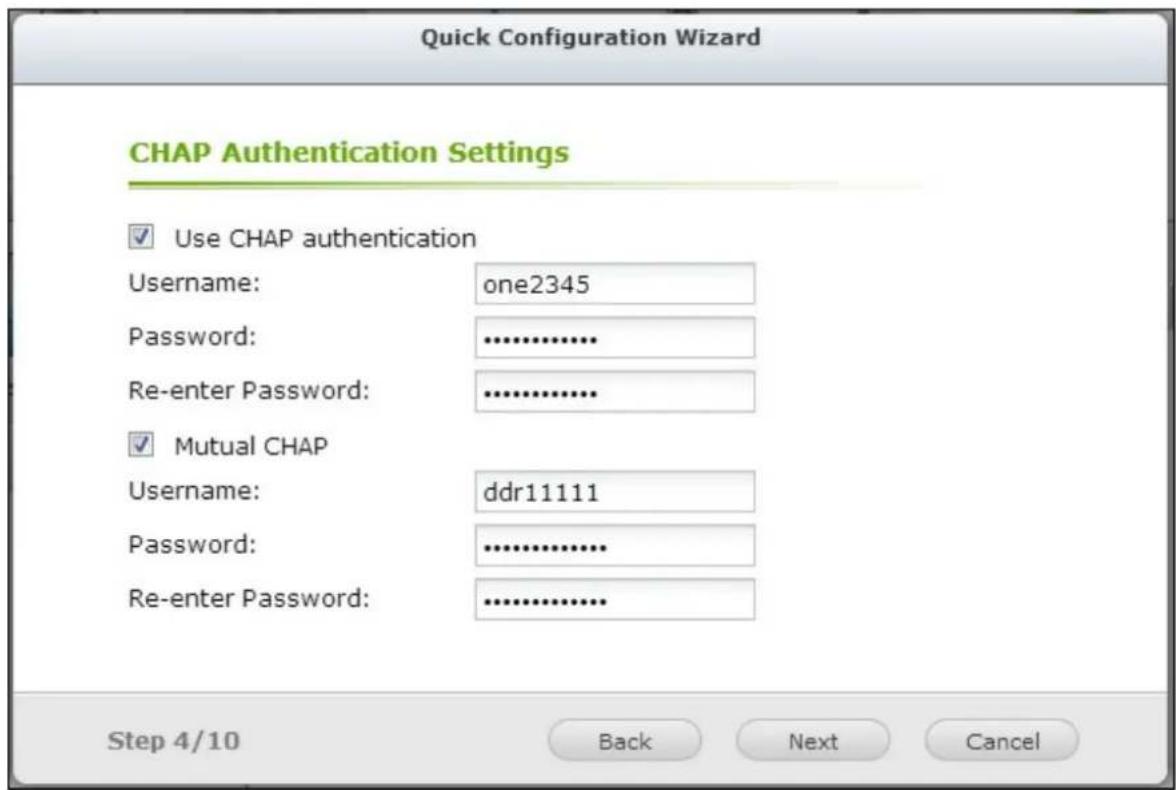
text_image
Quick Configuration Wizard CHAP Authentication Settings ✓ Use CHAP authentication Username: one2345 Password: ............. Re-enter Password: ............. ✓ Mutual CHAP Username: ddr11111 Password: ............. Re-enter Password: ............. Step 4/10 Back Next CancelCreate an iSC SI LUN.
An iSCSI LUN is a logical volume mapped to the iSCSI target. Select one of the following modes to allocate the disk space to the LUN:
- Thin Provisioning: Allocate the disk space in a flexible manner. You can allocate the disk space to the target anytime regardless of the current storage capacity available on the NAS. Over-allocation is allowed as the storage capacity of the NAS can be expanded by online RAID capacity expansion.
-
Instant Allocation: Allocate the disk space to the LUN instantly. This option guarantees the disk space assigned to the LUN but may take more time to create the LUN.
-
Enter the name of the LUN and specify the LUN location (disk volume on the NAS). Enter the capacity for the LUN. Click "Next".

text_image
Quick Configuration Wizard Create an iSCSI LUN LUN Allocation: Thin Provisioning i Instant Allocation LUN Name: 001 LUN Location: Single Disk: Drive 4 [226.62 GB] Capacity: 1 GB Step 5/10 Back Next Cancel- Confirm the settings and click "Next".

text_image
Quick Configuration Wizard Confirm the Settings Target Name: target01 Target IQN: iqn.2004-04.com.qnap:ts-421:iscsi.target01.cf059e Target Alias: target Data Digest: No Header Digest: No CHAP authentication: Yes CHAP Username: one2345 Mutual CHAP Authentication: Yes Mutual CHAP Username: ddr11111 Step 9/10 Back Next Cancel- When the target and the LUN have been created, click "Finish".

text_image
Quick Configuration Wizard iSCSI Quick Configuration Wizard Created successfully! You can perform advanced settings at the "TARGET MANAGEMENT" and "ADVANCED ACL" page. Step 10/10 Finish- The target and LUN are shown on the list under the "Target Management" tab.

text_image
General Settings Storage Manager Network Security Hardware Power Notification Firmware Update Volume Management RAID Management HDD SMART iSCSI Virtual Disk Portal Management Target Management Advanced ACL LUN Backup Quick Configuration Wizard iSCSI Target List - status target [target01] Ready id:0 - 001 ( 1.00 GB) Enabled Un-Mapped iSCSI LUN List (0) ActionCreate iSCSI targets
The description below applies to non Intel-based NAS models running firmware version 3.3.0 or later and Intel-based NAS models running firmware version 3.2.0 or later only.
You can create multiple LUNs for an iSCSI target. Follow the steps below to create more LUNs for an iSCSI target.
- Click "Quick Configuration Wizard" under "Target Management".

text_image
General Settings Storage Manager Network Security Hardware Power Notification Volume Management RAID Management HDD SMART Encrypted File System iSCSI Virtual Disk Portal Management Target Management Advanced ACL LUN Backup Quick Configuration Wizard iSCSI Target List ▲ target [target01] id:0 - 001 ( 1.00 GB) Status Ready Enabled Un-Mapped iSCSI LUN List (0) Action- Select "iSCSI LUN only" and click "Next".

text_image
Quick Configuration Wizard Create a Job I want to create ○ iSCSI Target with a mapped LUN ○ iSCSI Target only ● iSCSI LUN only Step 1/10 Next Cancel- Select the allocation method. Enter the name of the LUN, select the LUN directory, and specify the capacity for the LUN. Click "Next."
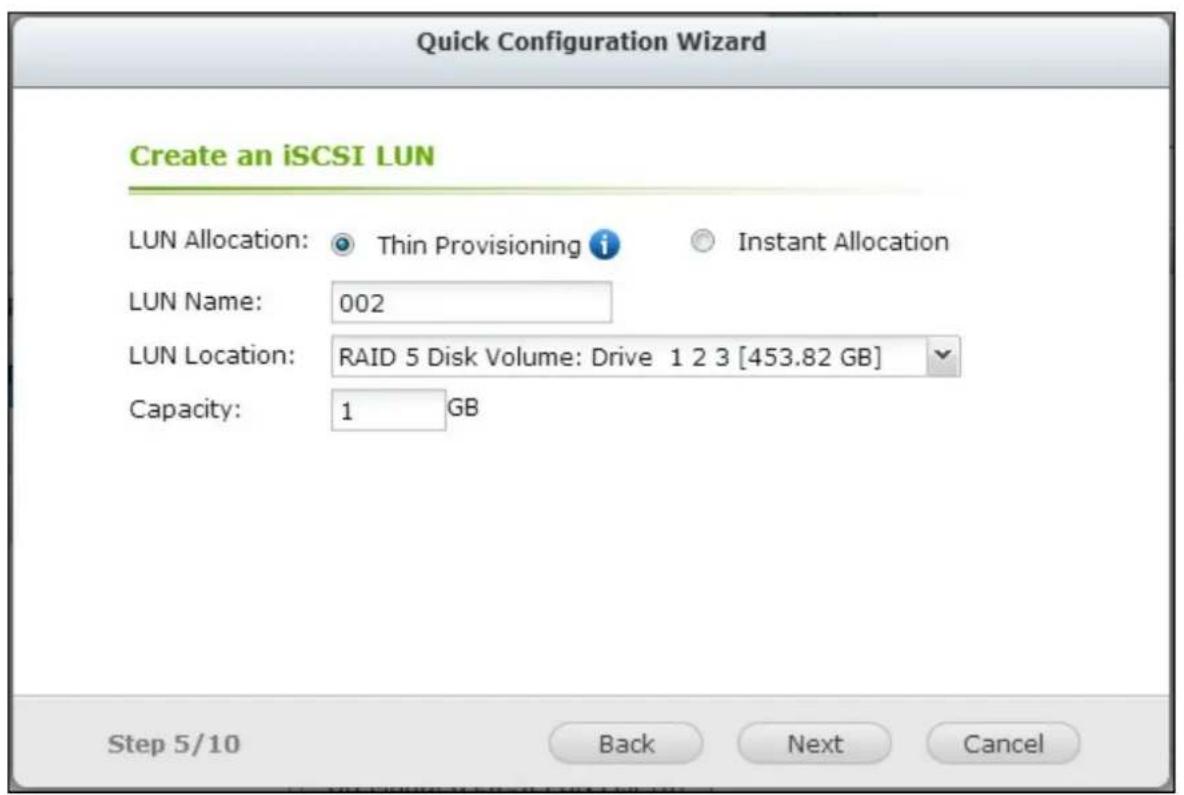
text_image
Quick Configuration Wizard Create an iSCSI LUN LUN Allocation: Thin Provisioning i Instant Allocation LUN Name: 002 LUN Location: RAID 5 Disk Volume: Drive 1 2 3 [453.82 GB] Capacity: 1 GB Step 5/10 Back Next Cancel- Select the target to map the LUN to (optional step).

text_image
Quick Configuration Wizard Map to Target (Optional) Do not map it to a target for now. Target Alias Target IQN targetSQIQN.2004-04.com.qnap:ts-569pro:iscsi.target01.cf4bc1 aSQIQN.2004-04.com.qnap:ts-569pro:iscsi.a01.cf4bc1 allen01SQIQN.2004-04.com.qnap:ts-569pro:iscsi.allen.cf4bc1 david01SQIQN.2004-04.com.qnap:ts-569pro:iscsi.david.cf4bc1 Step 6/10 Back Next Cancel- Confirm the settings and click "Next."
- When the LUN has been created, click "Finish" to exit the wizard.

text_image
Quick Configuration Wizard iSCSI Quick Configuration Wizard Created successfully! You can perform advanced settings at the "TARGET MANAGEMENT" and "ADVANCED ACL" page. Step 10/10 Finish- The LUNs created can be mapped to and unmapped from the iSCSI target anytime. You can also unmap the LUN from a target and map it to another target.
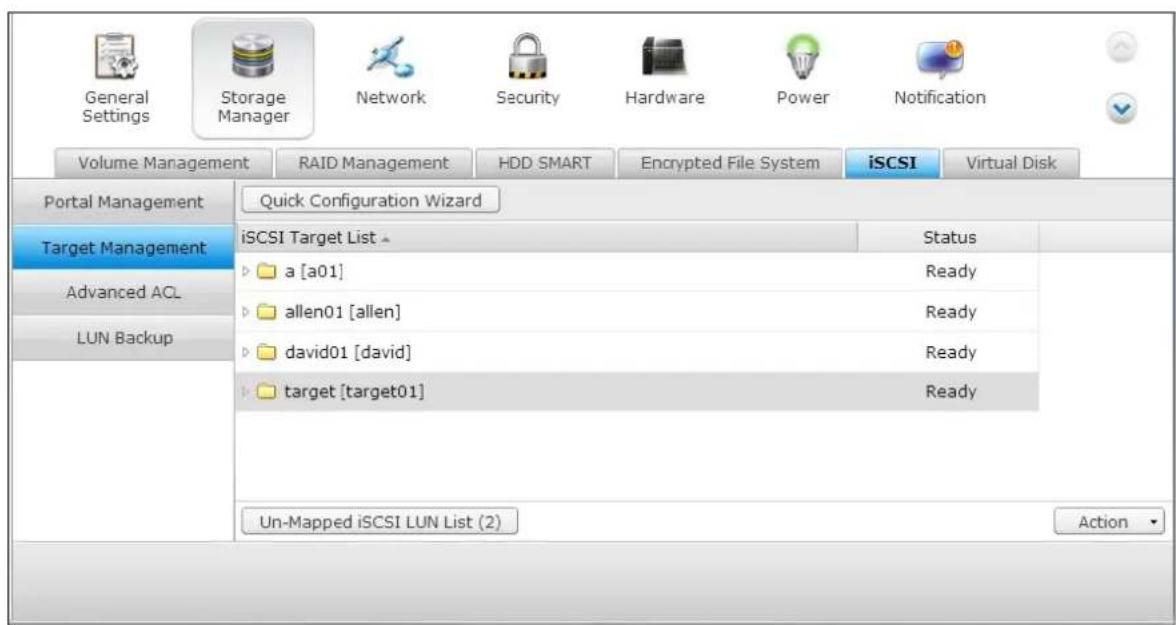
text_image
General Settings Storage Manager Network Security Hardware Power Notification Volume Management RAID Management HDD SMART Encrypted File System iSCSI Virtual Disk Portal Management Quick Configuration Wizard Target Management iSCSI Target List ▲ Status a [a01] Ready allen01 [allen] Ready LUN Backup david01 [david] Ready target [target01] Ready Un-Mapped iSCSI LUN List (2) Action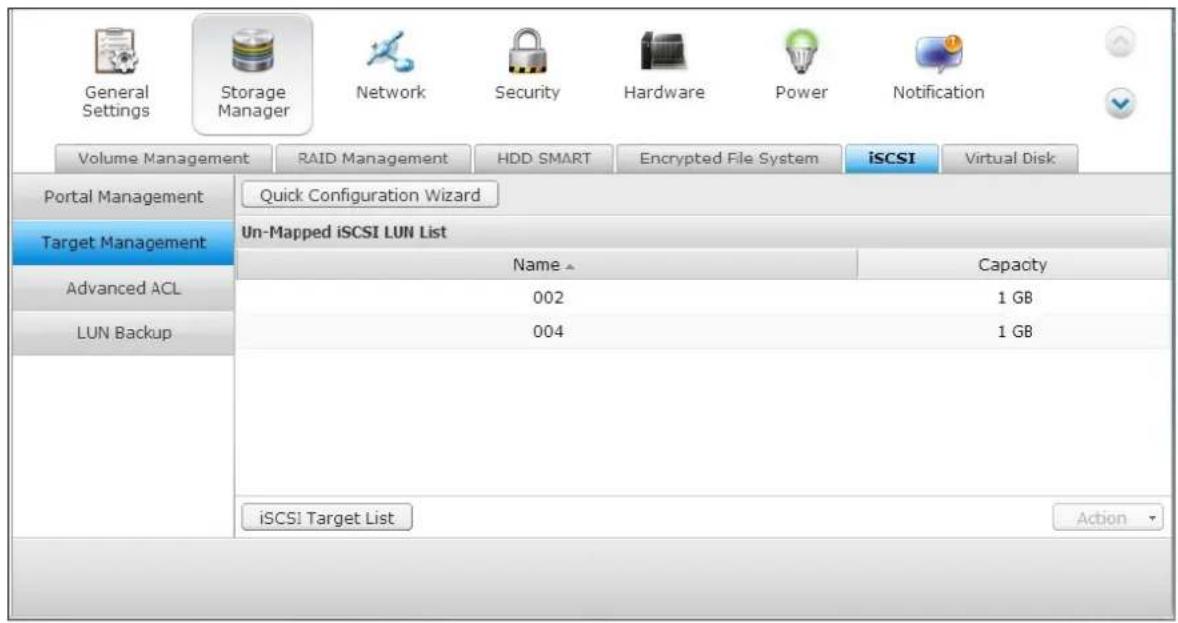
text_image
General Settings Storage Manager Network Security Hardware Power Notification Volume Management RAID Management HDD SMART Encrypted File System iSCSI Virtual Disk Portal Management Quick Configuration Wizard Target Management Un-Mapped iSCSI LUN List Name ▲ Capacity Advanced ACL 002 1 GB LUN Backup 004 1 GB iSCSI Target List Action| Item | Status | Description |
| iSCSI target | Ready | The iSCSI target is ready but no initiator has connected to it yet. |
| Connected | The iSCSI target has been connected by an initiator. | |
| Disconnected | The iSCSI target has been disconnected. | |
| Offline | The iSCSI target has been deactivated and cannot be connected by the initiator. | |
| LUN | Enabled | The LUN is active for connection and is visible to authenticated initiators. |
| Disabled | The LUN is inactive and is invisible to the initiators. |
| Button | Description |
| Deactivate a ready or connected target. Note that the connection from the initiators will be removed. | |
| Activate an offline target. | |
| [KHBZ] | Modify the target settings: target alias, CHAP information, and checksum settings.Modify the LUN settings: LUN allocation, name, disk volume directory, etc. |
 | Delete an iSCSI target. All the connections will be removed. |
 | Disable an LUN. All the connections will be removed. |
 | Enable an LUN. |
 | Unmap the LUN from the target. Note that you must disable the LUN first before unmapping the LUN. When you click this button, the LUN will be moved to "Un-Mapped iSCSI LUN List". |
 | Map the LUN to an iSCSI target. This option is only available on the "Un-Mapped iSCSI LUN List". |
 | View the connection status of an iSCSI target. |
Switch LUN mapping
The description below applies to non Intel-based NAS models running firmware version 3.3.0 or later and Intel-based NAS models running firmware version 3.2.0 or later only.
Follow the steps below to switch the mapping of an iSCSI LUN.
- Select an iSCSI LUN to unmap from an iSCSI target and click (Disable).

text_image
General Settings Storage Manager Network Security Hardware Power Notification Volume Management RAID Management HDD SMART Encrypted File System iSCSI Virtual Disk Portal Management Quick Configuration Wizard Target Management iSCSI Target List ▶ Status a [a01] Ready id:0 - 003 ( 1.00 GB) Enabled allen01 [allen] Ready david01 [david] Ready target [target01] Ready Un-Mapped iSCSI LUN List (2) Action Disable Modify- Next, click "Unmap" to unmap the LUN. The LUN will appear on the Un-Mapped iSCSI LUN List. Click "Map" to map the LUN to another target.

text_image
General Settings Storage Manager Network Security Hardware Power Notification Volume Management RAID Management HDD SMART Encrypted File System iSCSI Virtual Disk Portal Management Quick Configuration Wizard Target Management iSCSI Target List ▶ Status a [a01] Ready id:0 - 003 ( 1.00 GB) Disabled advanced ACL allen01 [allen] Ready LUN Backup david01 [david] Ready target [target01] Ready Un-Mapped iSCSI LUN List (2) Action Enabled Modify Un-map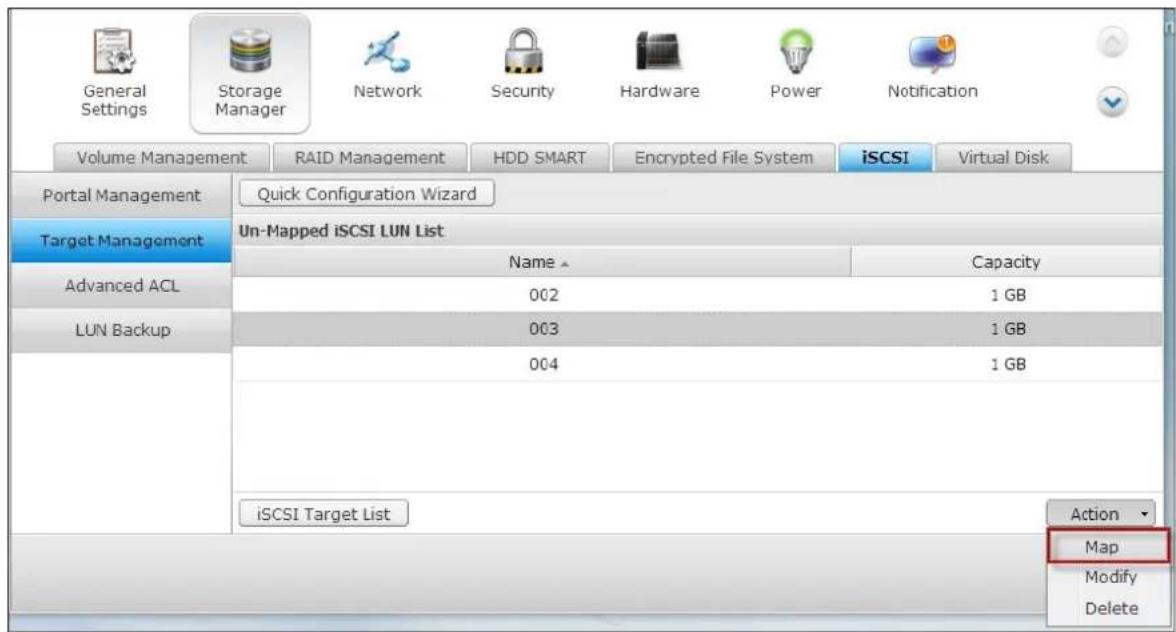
text_image
General Settings Storage Manager Network Security Hardware Power Notification Volume Management RAID Management HDD SMART Encrypted File System iSCSI Virtual Disk Portal Management Quick Configuration Wizard Target Management Un-Mapped iSCSI LUN List Name ▲ Capacity Advanced ACL 002 1 GB LUN Backup 003 1 GB 004 1 GB iSCSI Target List Action ▼ Map Modify Delete- Select the target to map the LUN to and click "Apply"
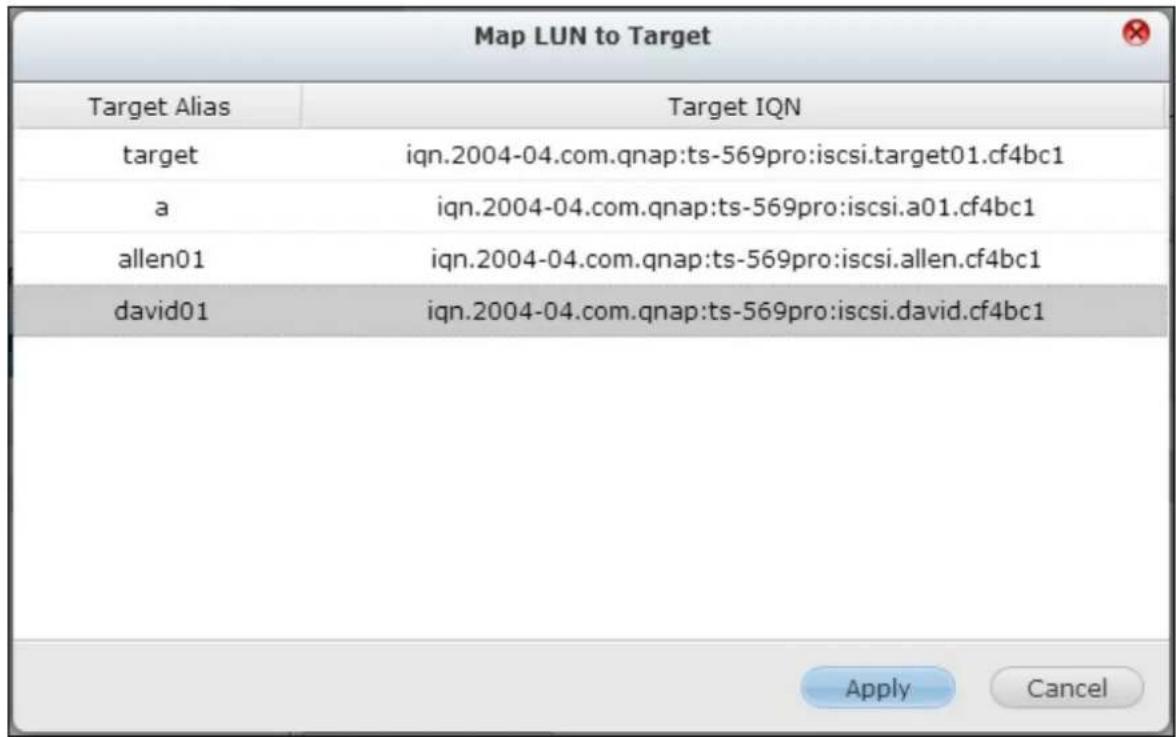
text_image
Map LUN to Target Target Alias Target IQN targetSQn.2004-04.com.qnap:ts-569pro:iscsi.target01.cf4bc1 aSQn.2004-04.com.qnap:ts-569pro:iscsi.a01.cf4bc1 allen01SQn.2004-04.com.qnap:ts-569pro:iscsi.allen.cf4bc1 david01SQn.2004-04.com.qnap:ts-569pro:iscsi.david.cf4bc1 Apply Cancel- The LUN is mapped to the target.
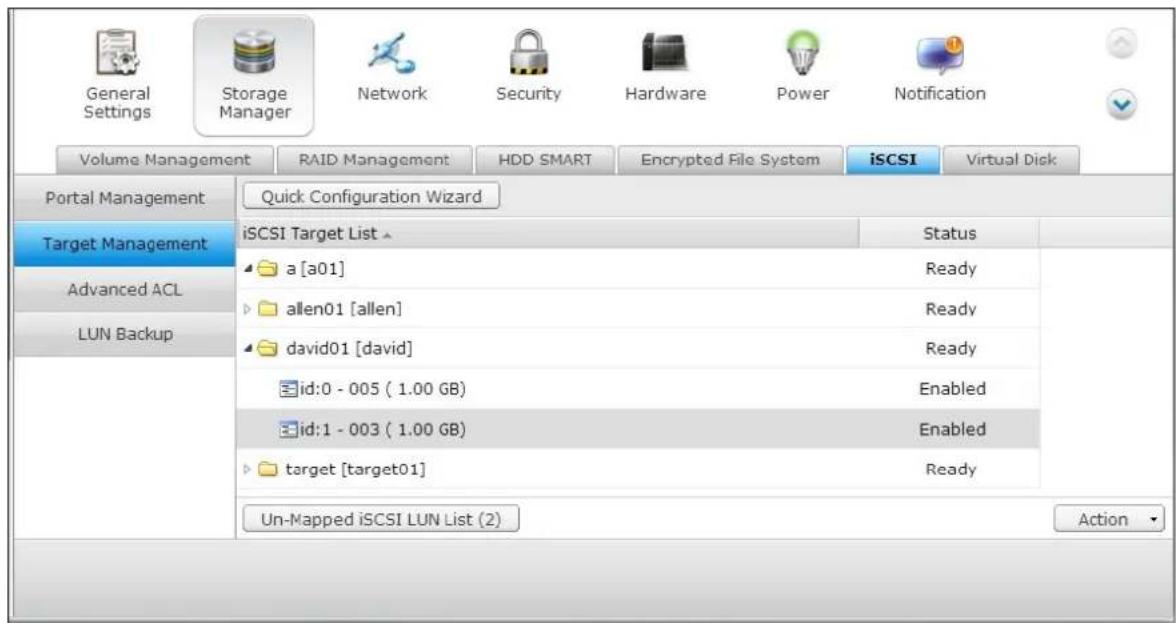
text_image
General Settings Storage Manager Network Security Hardware Power Notification Volume Management RAID Management HDD SMART Encrypted File System iSCSI Virtual Disk Portal Management Quick Configuration Wizard Target Management iSCSI Target List ▲ Status a [a01] Ready allen01 [allen] Ready david01 [david] Ready id:0 - 005 ( 1.00 GB) Enabled id:1 - 003 ( 1.00 GB) Enabled target [target01] Ready Un-Mapped iSCSI LUN List (2) ActionAfter creating the iSCSI targets and LUN on the NAS, you can use the iSCSI initiator installed on your computer (Windows PC, Mac, or Linux) to connect to the iSCSI targets and LUN and use the disk volumes as the virtual drives on your computer.
iSCSI LUN capacity expansion
The NAS supports expanding the capacity of an iSCSI LUN. To do so, follow the steps below.
- Locate an iSCSI LUN on the iSCSI target list in "iSCSI" > "Target Management". Click "Modify".
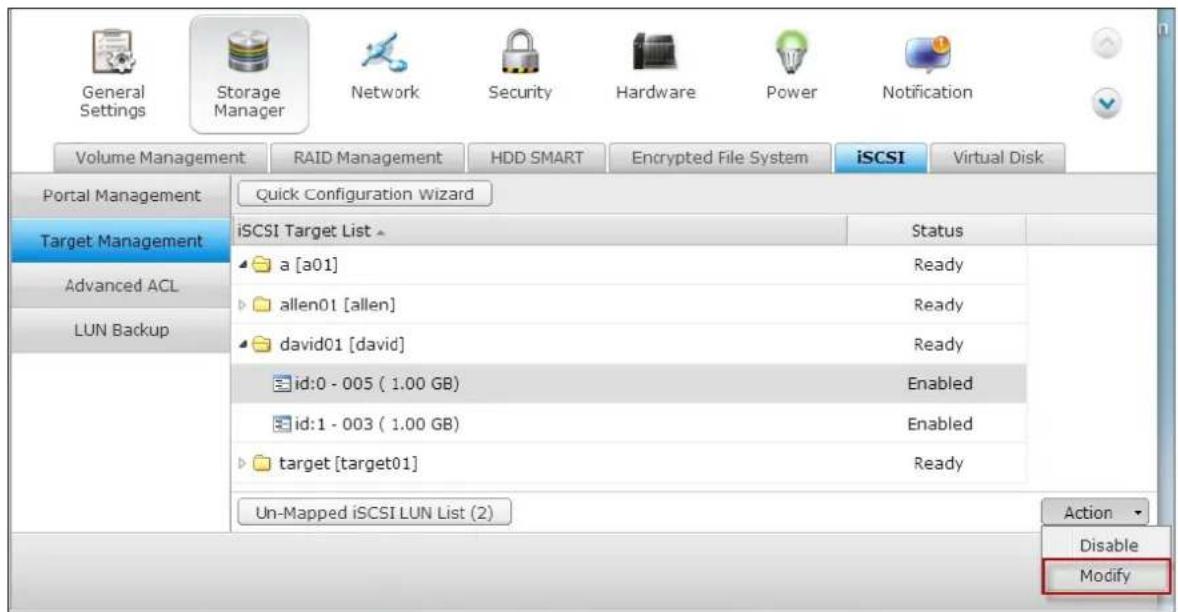
text_image
General Settings Storage Manager Network Security Hardware Power Notification Volume Management RAID Management HDD SMART Encrypted File System iSCSI Virtual Disk Portal Management Quick Configuration Wizard Target Management iSCSI Target List ▶ Status a [a01] Ready allen01 [allen] Ready david01 [david] Ready id:0 - 005 ( 1.00 GB) Enabled id:1 - 003 ( 1.00 GB) Enabled target [target01] Ready LUN Backup Un-Mapped iSCSI LUN List (2) Action Disable Modify- Specify the capacity of the LUN. Note that the LUN capacity can be increased many times up to the maximum limit but cannot be decreased.
| Type of LUN allocation | Maxim um LUN capacity |
| Thin Provisioning | 32TB |
| Instant Allocation | Free size available on the disk volume |
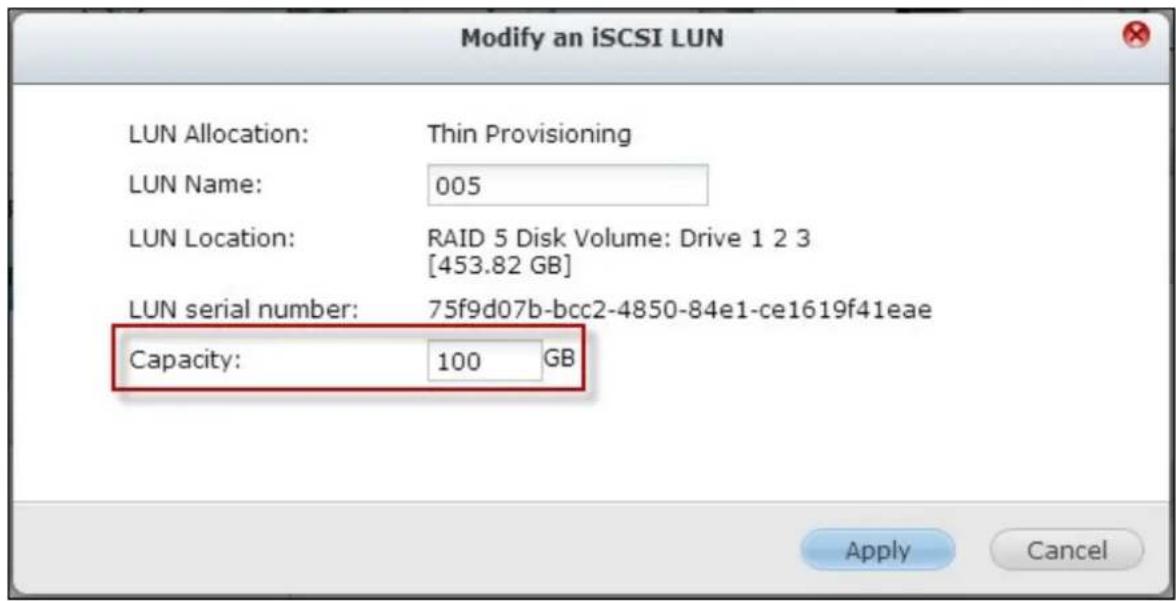
text_image
Modify an iSCSI LUN LUN Allocation: Thin Provisioning LUN Name: 005 LUN Location: RAID 5 Disk Volume: Drive 1 2 3 [453.82 GB] LUN serial number: 75f9d07b-bcc2-4850-84e1-ce1619f41eae Capacity: 100 GB Apply Cancel- Click "Apply" to save the settings.
Note: An iSCSI LUN must be mapped to an iSCSI target before increasing the capacity.
Optimize iSCSI performance
In the environments that require high performance storage, such as virtualization, users are recommended to do the following to optimize the iSCSI and NAS hard disks performance:
- Use instant allocation: When creating an iSCSI LUN, select "Instant Allocation" to achieve slightly higher iSCSI performance. However, the benefits of thin provisioning will be lost.

text_image
Quick Configuration Wizard Create an iSCSI LUN LUN Allocation: Thin Provisioning i Instant Allocation LUN Name: myLUN LUN Location: RAID 5 Disk Volume: Drive 1 2 3 [453.82 GB] Capacity: 200 GB Step 5/10 Back Next Cancel- Create multiple LUNs: Create multiple LUNs according to the processor number of the NAS. The information can be checked in "System Status" > "Resource Monitor." If the NAS has four processors, it is advised to create four or more LUNs to optimize the iSCSI performance.
- Use different LUNs for heavy load applications: Spread the applications such as database and virtual machines that need high Read/Write performance on different LUNs. For example, if there are two virtual machines which read and write data intensively on the LUNs, it is recommended to create two LUNs on the NAS so that the VM workloads can be efficiently distributed.
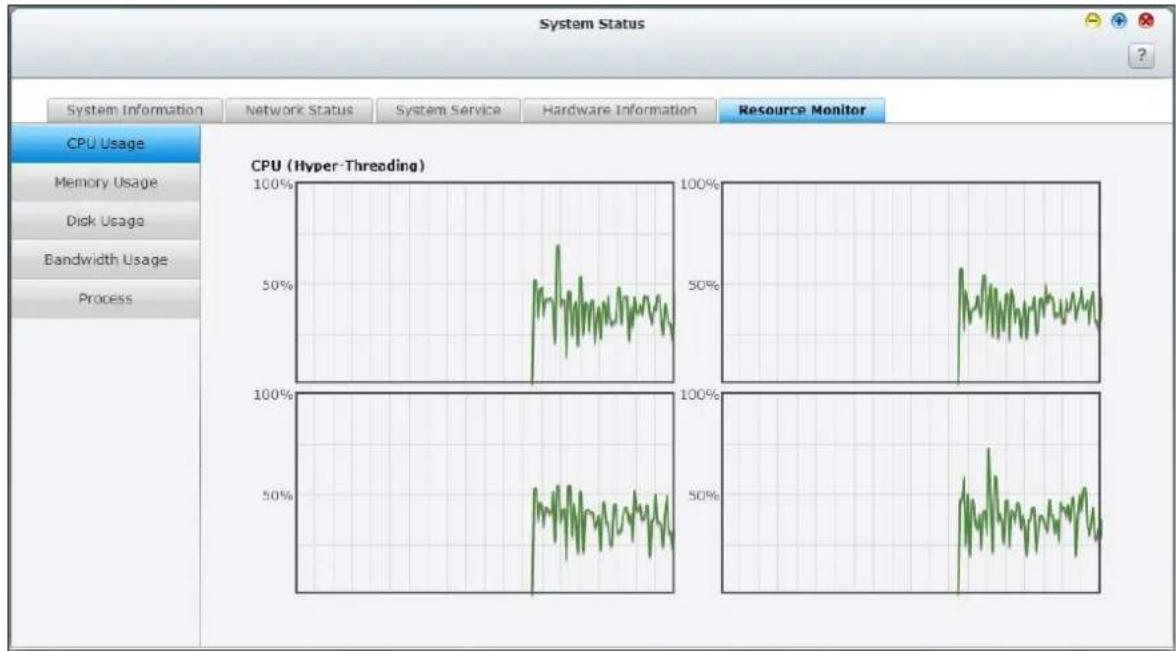
line
| CPU (Hyper-Threading) | Value | | --------------------- | ----- | | 100% | 100% | | 50% | 50% | | 100% | 100% | | 50% | 50% | | 100% | 100% |Before you start to use the iSCSI target service, make sure you have created an iSCSI target with a LUN on the NAS and installed the correct iSCSI initiator for your OS.
ISCSI initiator on Windows:
Microsoft iSCSI Software Initiator v2.07 is an official application for Windows OS 2003, XP, and 2000 to allow users to implement an external iSCSI storage array over the network. If you are using Windows Vista or Windows Server 2008, Microsoft iSCSI Software Initiator is included. For more information and the download location, visit: http://www.microsoft.com/downloads/details.aspx?familyid=12cb3c1a-15d6-4585-b385-befd1319f825&displaylang=en
Start iSCSI initiator from "Control Panel" > "Administrative Tools". Under the "Discovery" tab click "Add Portal". Enter the NAS IP and the port number for the iSCSI service.
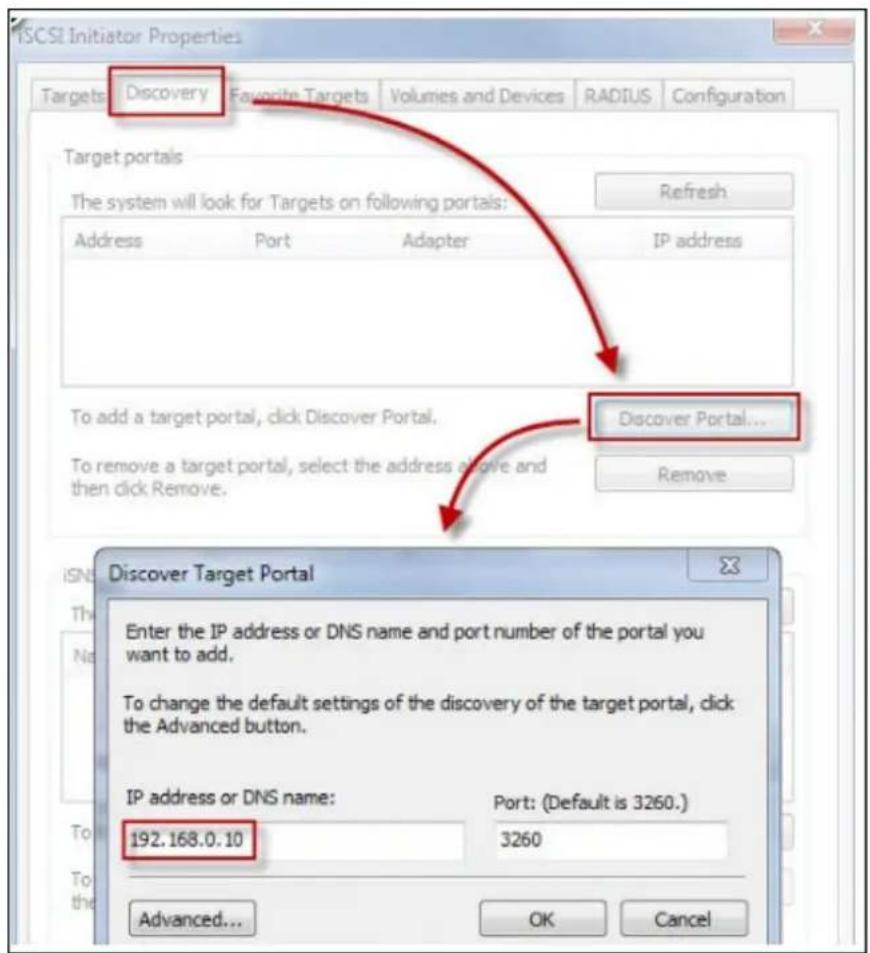
text_image
ICSI Initiator Properties Targets Discovery Favorite Targets Volumes and Devices RADIUS Configuration Target portals The system will look for Targets on following portals: Refresh Address Port Adapter IP address To add a target portal, click Discover Portal. Discover Portal... To remove a target portal, select the address above and then click Remove. Remove Discover Target Portal Enter the IP address or DNS name and port number of the portal you want to add. To change the default settings of the discovery of the target portal, click the Advanced button. IP address or DNS name: Port: (Default is 3260.) 192.168.0.10 3260 Advanced... OK CancelThe available iSCSI targets and their status will then be shown under the "Targets" tab. Select the target you wish to connect then click "Connect".
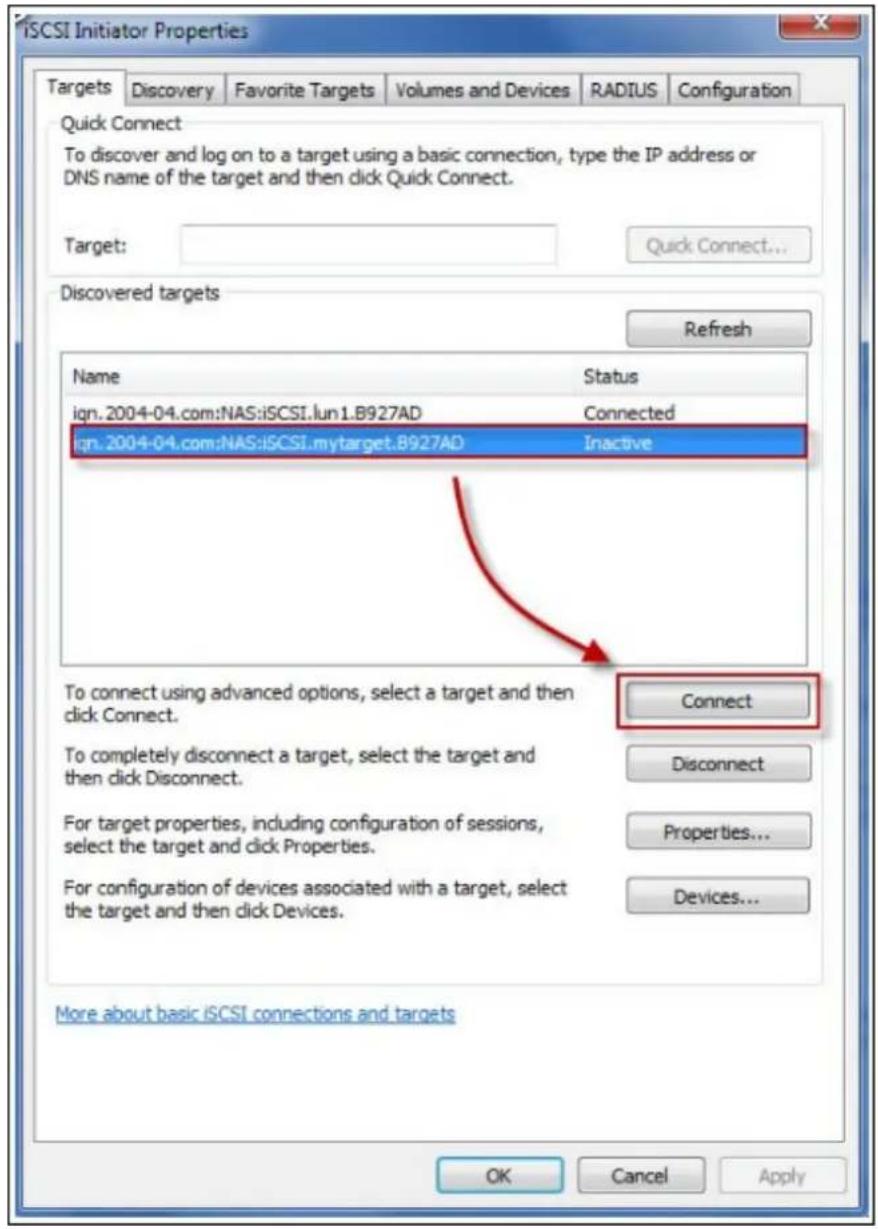
text_image
ISCSI Initiator Properties Targets Discovery Favorite Targets Volumes and Devices RADIUS NepalConfiguration Quick Connect To discover and log on to a target using a basic connection, type the IP address or DNS name of the target and then click Quick Connect. Target: Quick Connect... Discovered targets Refresh Name Status ign.2004-04.com:NAS:iSCSI.lun1.B927AD Connected ign.2004-04.com:NAS:iSCSI.mytarget.B927AD Inactive To connect using advanced options, select a target and then click Connect. To completely disconnect a target, select the target and then click Disconnect. For target properties, including configuration of sessions, select the target and click Properties. For configuration of devices associated with a target, select the target and then click Devices. More about basic iSCSI connections and targets Connect Disconnect Properties... Devices...You may click "Advanced" to specify the logon information if you have configured the authentication otherwise simply click "OK" to continue.
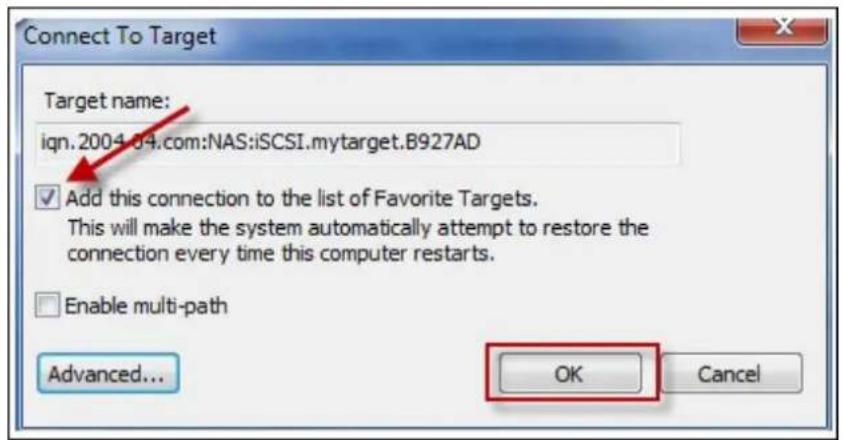
text_image
Connect To Target Target name: iqn.2004-04.com:NAS:iSCSI.mytarget.B927AD Add this connection to the list of Favorite Targets. This will make the system automatically attempt to restore the connection every time this computer restarts. Enable multi-path Advanced... OK CancelUpon successful logon, the status of the target now shows "Connected".

text_image
Name Status iqn.2004-04.com:NAS:iSCSI.lun1.B927AD Connected iqn.2004-04.com:NAS:iSCSI.mytarget.B927AD ConnectedAfter the target has been connected Windows will detect its presence and treat it as if a new hard disk drive has been added which needs to be initialized and formatted before we can use it. Right click "My Computer" > "Manage" to open the "Computer Management" window then go to "Disk Management" and a window should pop up automatically asking whether you want to initialize the newly found hard drive. Click "OK" then format this drive as normally you would when adding a new disk.

text_image
Computer Management File Action View Help Computer Management (Local System Tools Task Scheduler Event Viewer Shared Folders Local Users and Groups Performance Device Manager Storage Disk Management Services and Applications Volume Layout Type File System Status (C:) Simple Basic NTFS Healthy (System, Boot, Page File, Active, C 250G-0 (D:) Simple Basic NTFS Healthy (Primary Partition) 250G-1 (E:) Simple Basic NTFS Healthy (Logical Drive) iSCSI_LUNI (G:) Simple Basic NTFS Healthy (Primary Partition) Initialize Disk You must initialize a disk before Logical Disk; Manager can access it. Select disks: Disk 3 Use the following partition style for the selected disks: MBR (Master Boot Record) GPT (GUID Partition Table) Note: The GPT partition style is not recognized by all previous versions of Windows. It is recommended for disks larger than 2TB, or disks used on Itanium-based computers. OK CancelAfter disk initialization and formatting, the new drive is attached to your PC. You can now use this iSCSI target as a regular disk partition.

text_image
Computer Management File Action View Help Volume Layout Type File System Status (C:) Simple Basic NTFS Healthy (System, Boot, Page File, Activ 250G-0 (D:) Simple Basic NTFS Healthy (Primary Partition) 250G-1 (E:) Simple Basic NTFS Healthy (Logical Drive) iSCSI LUN1 (G:) Simple Basic NTFS Healthy (Primary Partition) My iSCSI Target (F:) Simple Basic NTFS Healthy (Primary Partition) Disk 0 Basic 232.89 GB Online 250G-0 (D:) 250G-1 (E:) 182.88 GB NTFS Healthy (Logical Drive) 50.00 GB NTFS Healthy (Primary Partition) Disk 1 Basic 465.76 GB Online (C:) 465.76 GB NTFS Healthy (System, Boot, Page File, Active, Crash Dump, Primary Disk 2 Basic 2048.00 GB Online iSCSI_LUN1 (G:) 2048.00 GB NTFS Healthy (Primary Partition) Disk 3 Basic 10.00 GB Online My iSCSI Target (F:) 10.00 GB NTFS Healthy (Primary Partition) Unallocated Primary partition Extended partition Free space Logical driveThis section shows you how to use Xtend SAN iSCSI Initiator on Mac OS to add the iSCSI target (QNAP NAS) as an extra partition. Before you start to use the iSCSI target service, make sure you have created an iSCSI target with a LUN on the NAS and installed the correct iSCSI initiator for your OS.
About Xtend SAN iSCSI initiator:
ATTO's Xtend SAN iSCSI Initiator for Mac OS X allows Mac users to utilize and benefit from iSCSI. It is compatible with Mac OS X 10.4.x to 10.6.x. For more information, please visit:
http://www.attotech.com/products/product.php?sku=INIT-MAC0-001
After installing Xtend SAN iSCSI initiator, you can find it in "Applications".

text_image
Xtend SAN DEVICES Macintosh HD iDisk VMware Fusion SHARED 172.17.21.5 172.17.22.93 (AFP)1 (SAMBA) (SAMBA)1 0000(SAMBA) (2) 259327OK(AFP) All... PLACES Desktop JW Applications Documents Dropbox SEARCH FOR Today Yesterday iWeb iWork '09 jDownloader Komodo Edit Mail Microsoft Messenger Movist Nally Notes Paragon NTFS for Mac OS X Photo Booth Preview QuickTime Player Safari ScreenFlow Skype Stickies Stuffit System Preferences TeamViewer TextEdit Time Machine Utilities VMware Fusion Xtend SAN Uninstaller Xtend SAN Xtend_SAN...tallLog.log Preview: Name Xtend SAN Kind Application Size 1.9 MB on disk Created 5/31/10 12:24 PM Modified 5/31/10 12:24 PM Last opened Today 3:10 PM Version 3.25 More info... 1 of 3 selected, 362.88 GB availableClick the "Discover Targets" tab, you can either choose "Discover by DNS/IP" or "Discover by iSNS" according to the network topology. In this example, we will use the IP address to discover the iSCSI targets.

text_image
ATTO iSCSI Mac Initiator--Xtend SAN Hosts JW-MacBook-Pro.local Initiator Discover Targets Discover by DNS/IP Discover by iSNS Discovered Targets Add Clear ATTOFollow the screen instructions and enter the server address, iSCSI target port number (default: 3260), and CHAP information (if applicable). Click "Finish" to retrieve the target list after all the data have been entered correctly.
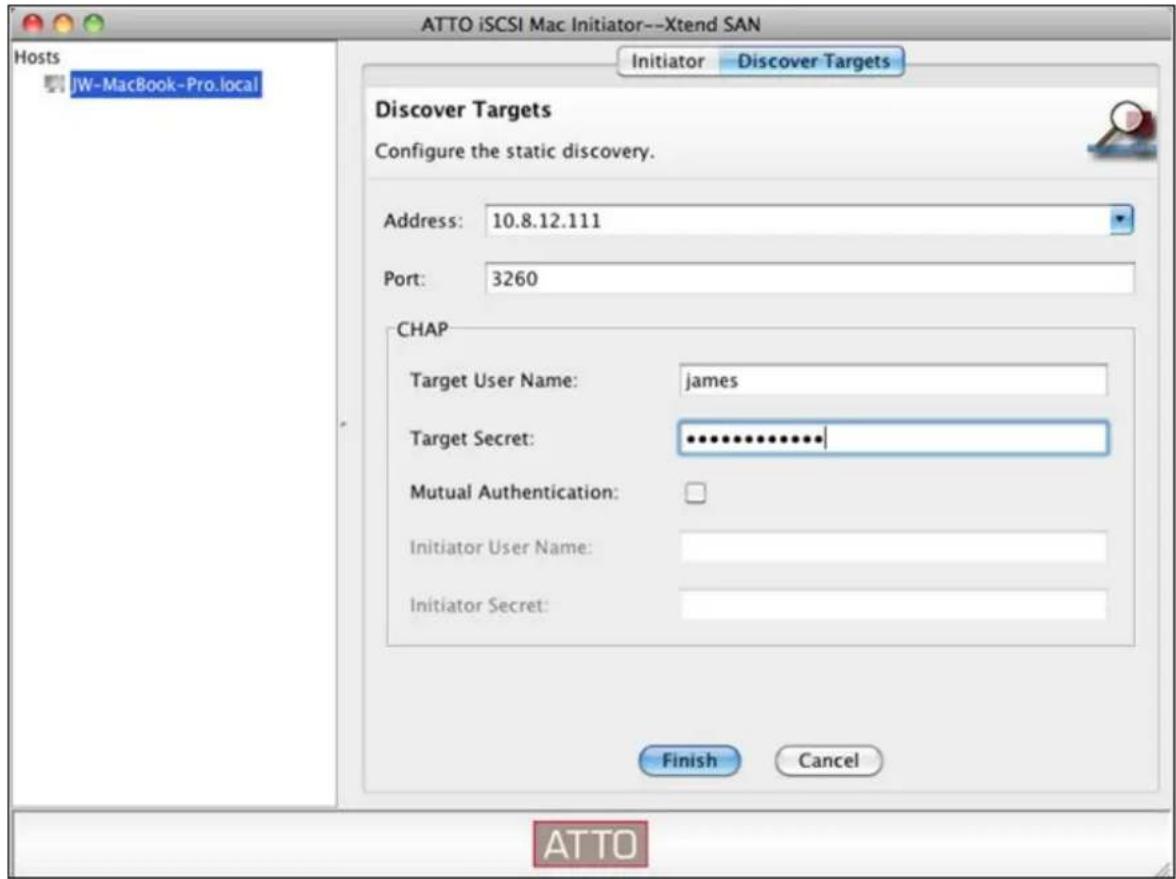
text_image
ATTO iSCSI Mac Initiator--Xtend SAN Hosts JW-MacBook-Pro.local Initiator Discover Targets Discover Targets Configure the static discovery. Address: 10.8.12.111 Port: 3260 CHAP Target User Name: james Target Secret: ************ Mutual Authentication: Initiator User Name: Initiator Secret: Finish Cancel ATTOAll the available iSCSI targets on the NAS will be shown. Select the target you would like to connect and click "Add".

text_image
ATTO iSCSI Mac Initiator--Xtend SAN Hosts JW-MacBook-Pro.local Initiator Discover Targets Discover by DNS/IP Discover by iSNS Discovered Targets iqn.2004-04.com.qnap:ts-439proii:iscsi.forvista.be23f2 iqn.2004-04.com.qnap:ts-439proii:iscsi.vdd.be23f2 iqn.2004-04.com.qnap:ts-439proii:iscsi.formac.be23f2 Add Clear ATTOYou can configure the connection properties of the selected iSCSI target in the "Setup" tab.

text_image
ATTO iSCSI Mac Initiator--Xtend SAN Hosts JW-MacBook-Pro.local iqn.2004-04.com.qnap.ts- Setup Status LUNs Name: iqn.2004-04.com.qnap.ts-439proii:iscsi.formac.be23f2 Alias: Ports Network Node Visible Auto Login 10.8.12.111:3260 Parameters Security Save Remove ATTOClick the "Status" tab, select the target to connect. Then click "Login" to proceed.

text_image
ATTO iSCSI Mac Initiator--Xtend SAN Hosts JW-MacBook-Pro.local ign.2004-04.com.qnap.ts- Setup Status LUNs Name: iqn.2004-04.com.qnap.ts--439proii:iscsi.formac.be23f2 Alias: Ports Network Node Status Auto Login 10.8.12.111:3260 Not Connected Yes Login Logout Parameters ATTOThe first time you logon to the iSCSI target, a popup message will be shown to remind you the disk is not initialized. Click "Initialize..." to format the disk. You can also open the "Disk Utilities" application to do the initialization.
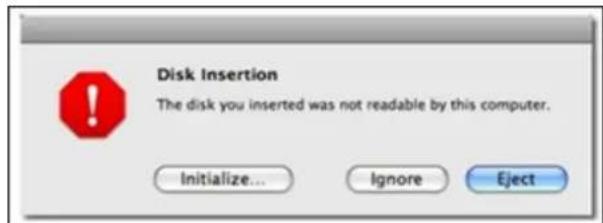
text_image
Disk Insertion The disk you inserted was not readable by this computer. Initialize... Ignore EjectYou can now use the iSCSI target as an external drive on your Mac.
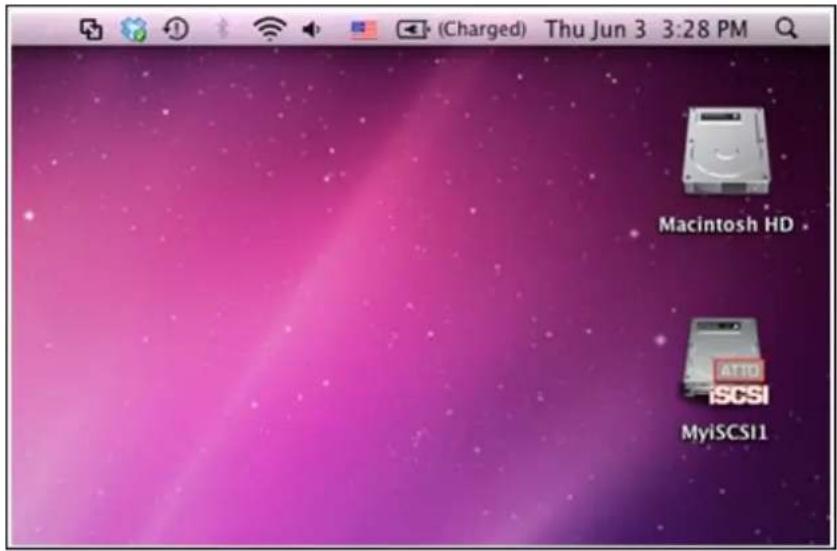
text_image
(Charged) Thu Jun 3 3:28 PM Macintosh HD iSCSI MyiSCSI1This section shows you how to use Linux Open-iSCSI Initiator on Ubuntu to add the iSCSI target (QNAP NAS) as an extra partition. Before you start to use the iSCSI target service, make sure you have created an iSCSI target with a LUN on the NAS and installed the correct iSCSI initiator for your OS.
About Linux Open-iSC SI Initiator
The Linux Open-iSCSI Initiator is a built-in package in Ubuntu 8.04 LTS (or later). You can connect to an iSCSI volume at a shell prompt with just a few commands. More information about Ubuntu is available at http://www.ubuntu.com and for information and download location of Open-iSCSI, please visit: http://www.open-iscsi.org
Before you start
Install the open-iscsi package. The package is also known as the Linux Open-iSCSI Initiator.
<h1 id="sudo-apt-get-install-open-iscsi">sudo apt-get install open-iscsi</h1>
Now follow the steps below to connect to an iSCSI target (QNAP NAS) with Linux Open-iSCSI Initiator.
You may need to modify the iscsid.conf for CHAP logon information, such as node.session.auth.username & node.session.auth.password.
<h1 id="vi-etciscsiiscsidconf">vi /etc/iscsi/iscsid.conf</h1>
Save and close the file, then restart the open-iscsi service.
<h1 id="etcinitdopen-iscsi-restart">/etc/init.d/open-iscsi restart</h1>
Discover the iSCSI targets on a specific host (the QNAP NAS in this example), for example, 10.8.12.31 with default port 3260.
<h1 id="iscsiadm-m-discovery-t-sendtargets-p-10812313260">iscsiadm -m discovery -t sendtargets -p 10.8.12.31:3260</h1>
Check the available iSCSI node(s) to connect.
<h1 id="iscsiadm-m-node">iscsiadm -m node</h1>
** You can delete the node(s) you do not want to connect to when the service is on with the following command:
<h1 id="iscsiadm-m-node-op-delete-targetname-the_target_iqn">iscsiadm -m node --op delete --targetname THE_TARGET_IQN</h1>
Restart open-iscsi to login all the available nodes.
<h1 id="etcinitdopen-iscsi-restart-2">/etc/init.d/open-iscsi restart</h1>
You should be able to see the login message as below:
Login session [iface: default, target: iqn.2004-04.com:NAS:iSCSI.ForUbuntu.B9281B,
portal: 10.8.12.31,3260] [OK]
Check the device status with dmesg.
<h1 id="dmesg-tail">dmesg | tail</h1>
Enter the following command to create a partition, /dev/sdb is the device name.
<h1 id="fdisk-devsdb">fdisk /dev/sdb</h1>
Format the partition.
<h1 id="mkfsext3-devsdb1">mkfs.ext3 /dev/sdb1</h1>
Mount the file system.
<h1 id="mkdir-mntiscsi">mkdir /mnt/iscsi</h1>
<h1 id="mount-devsdb1-mntiscsi">mount /dev/sdb1 /mnt/iscsi/</h1>
You can test the I/O speed using the following command.
<h1 id="hdparm-tt-devsdb1">hdparm -tT /dev/sdb1</h1>
Below are some "iscsiadm" related commands.
Discover the targets on the host:
<h1 id="iscsiadm-m-discovery-type-sendtargets-portal-host_ip">iscsiadm -m discovery --type sendtargets --portal HOST_IP</h1>
Login a target:
<h1 id="iscsiadm-m-node-targetname-the_target_iqn-login">iscsiadm -m node --targetname THE_TARGET_IQN --login</h1>
Logout a target:
<h1 id="iscsiadm-m-node-targetname-the_target_iqn-logout">iscsiadm -m node --targetname THE_TARGET_IQN --logout</h1>
Delete a Target:
<h1 id="iscsiadm-m-node-op-delete-targetname-the_target_iqn-2">iscsiadm -m node --op delete --targetname THE_TARGET_IQN</h1>
The description below applies to non Intel-based NAS models running firmware version 3.3.0 or later and Intel-based NAS models running firmware version 3.2.0 or later only.
You can create LUN masking policy to configure the permission of the iSCSI initiators which attempt to access the LUN mapped to the iSCSI targets on the NAS. To use this feature, click "Add a Policy" under "Advanced ACL".
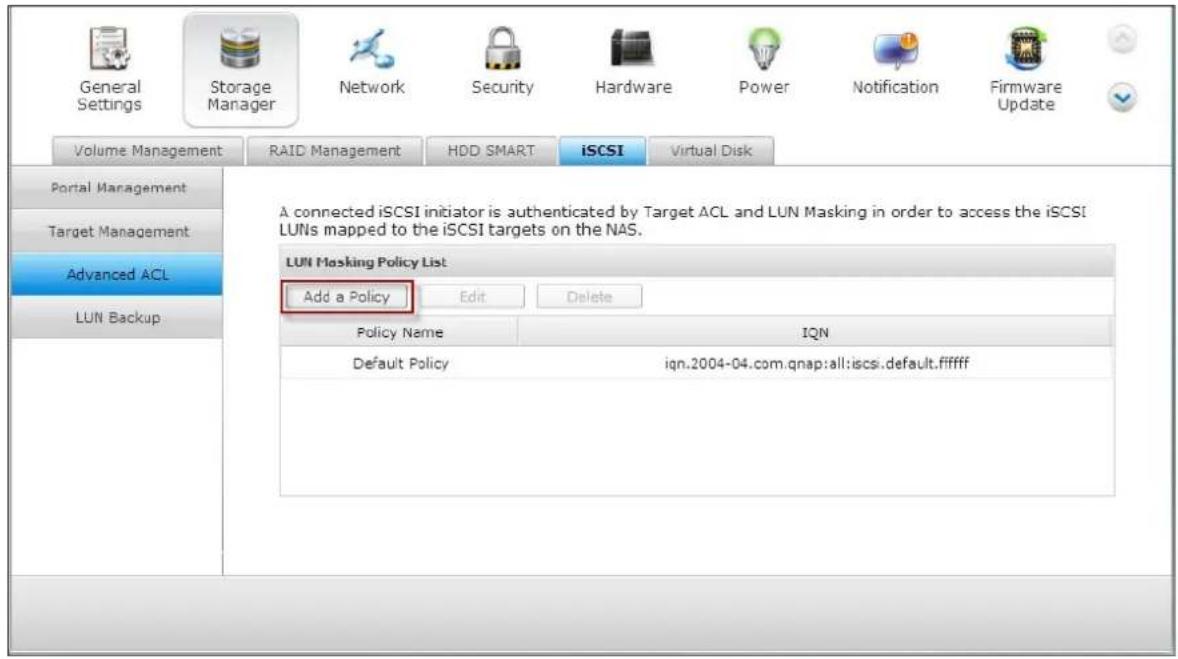
text_image
General Settings Storage Manager Network Security Hardware Power Notification Firmware Update Volume Management RAID Management HDD SMART iSCSI Virtual Disk Portal Management Target Management Advanced ACL LUN Backup A connected iSCSI initiator is authenticated by Target ACL and LUN Masking in order to access the iSCSI LUNs mapped to the iSCSI targets on the NAS. LUN Masking Policy List Add a Policy Edit Delete Policy Name IQN Default Policy iqn.2004-04.com.qnap:all:iscsi.default.ffffffEnter the policy name, the initiator IQN, and assign the access right for each LUN created on the NAS.
- Read-only: The connected initiator can only read the data from the LUN.
- Read/Write: The connected initiator has read and write access right to the LUN.
- Deny Access: The LUN is invisible to the connected initiator.

text_image
Add a Policy Define the LUN Masking policy for the initiator you input below. Policy Name: reinb Initiator IQN: iqn.1991-05.com.micro Name ▲ Read Only Read/Write Deny Access 001 No No Yes Apply CancelIf no LUN masking policy is specified for a connected iSCSI initiator, the default policy will be applied. The system default policy allows read and write access from all the connected iSCSI initiators. You can click "Edit" to edit the default policy.

text_image
General Settings Storage Manager Network Security Hardware Power Notification Firmware Update Volume Management RAID Management HDD SMART iSCSI Virtual Disk Portal Management Target Management Advanced ACL LUN Backup A connected iSCSI initiator is authenticated by Target ACL and LUN Masking in order to access the iSCSI LUNs mapped to the iSCSI targets on the NAS. LUN Masking Policy List Add a Policy Edit Delete Policy Name IQN Default Policy ign.2004-04.com.qnap:all:iscai.default.ffffff reinb ign.1991-05.com.microsoft:reinbNote: Make sure you have created at least one LUN on the NAS before editing the default LUN policy.
Hint: How do I find the initiator IQN?
Start Microsoft iSCSI initiator and click "General". You can find the IQN of the initiator as shown below.
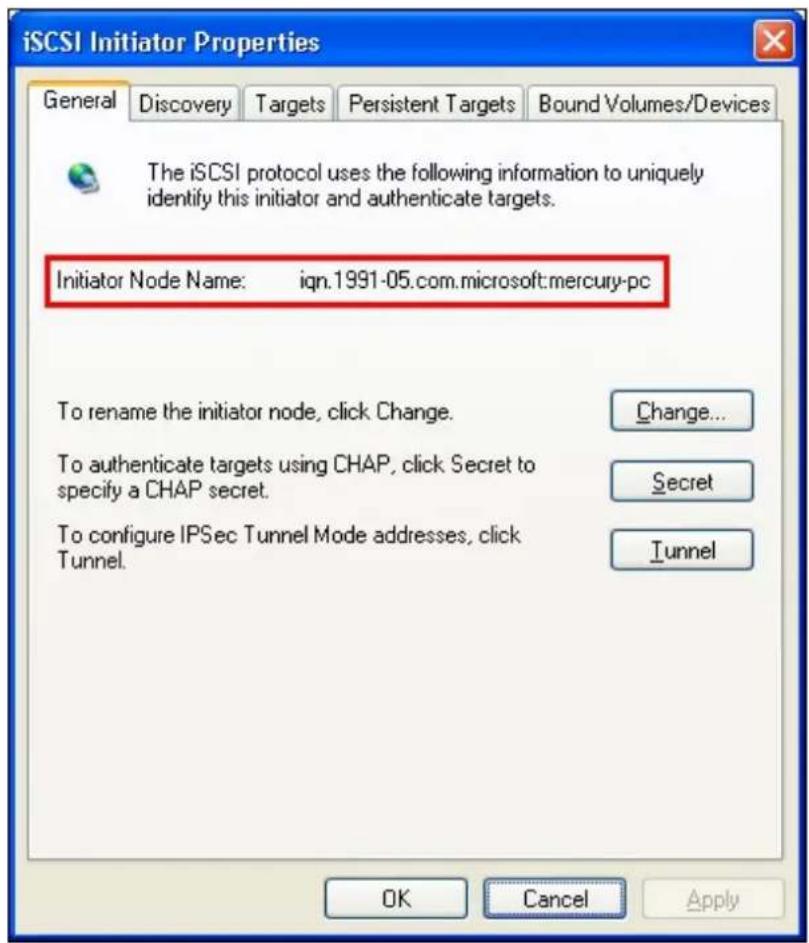
text_image
iSCSI Initiator Properties General Discovery Targets Persistent Targets Bound Volumes/Devices The iSCSI protocol uses the following information to uniquely identify this initiator and authenticate targets. Initiator Node Name:SQn.1991-05.com.microsoft:mercury-pc To rename the initiator node, click Change. To authenticate targets using CHAP, click Secret to specify a CHAP secret. To configure IPSec Tunnel Mode addresses, click Tunnel. Change... Secret Tunnel OK Cancel ApplyThe NAS supports backing up iSCSI LUNs to different storage locations (Windows, Linux, or local shared folders), restoring the LUNs to the NAS, or creating a LUN snapshot and mapping it to an iSCSI target.
Back up an iSC SI LUN
Before backing up an iSCSI LUN, make sure at least one iSCSI LUN has been created on the NAS. To create iSCSI targets and LUN, go to "Storage Manager" > "iSCSI" > "Target Management".
- Go to "Storage Manager" > "iSCSI" > "LUN Backup". Click "Create a new job".
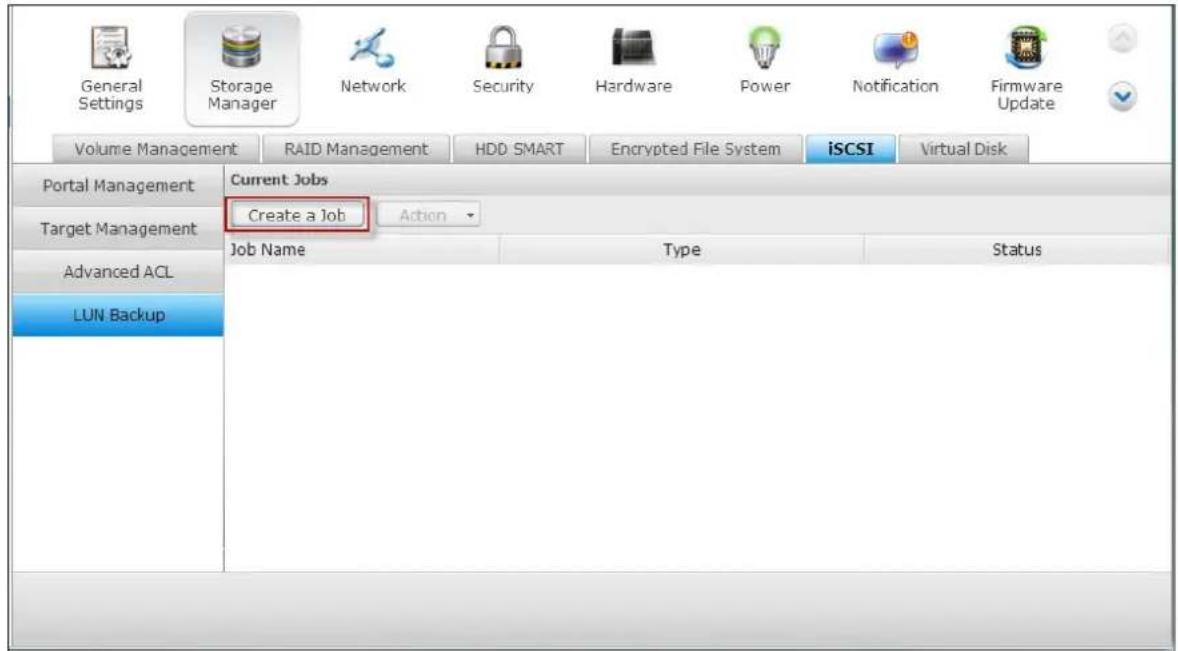
text_image
General Settings Storage Manager Network Security Hardware Power Notification Firmware Update Volume Management RAID Management HDD SMART Encrypted File System iSCSI Virtual Disk Portal Management Current Jobs Create a Job Action Target Management Job Name Type Status Advanced ACL LUN Backup- Select "Back up an iSCSI LUN" and click "Next".

text_image
Create a Job LUN Backup/Restore/Snapshot This wizard helps you back up or restore an iSCSI LUN, or create a LUN snapshot. Please select the action: ● Back up an iSCSI LUN ○ Restore an iSCSI LUN ○ Create a LUN Snapshot Step 1/15 Next Cancel- Select the source LUN for backup. If an online LUN is selected, the NAS will create a point-in-time snapshot for the LUN automatically.
| Back up an iSCSI LUN | |||
| Select Source LUN | |||
| LUN ▲ | Status | Capacity | iSCSI Target |
| myLUN01 | Enabled | 1.00 GB | target |
| myLUN02 | Enabled | 1.00 GB | a |
| myLUN03 | Enabled | 1.00 GB | allen01 |
| myLUN04 | Enabled | 1.00 GB | david01 |
| Step 2/15 Back Next Cancel | |||
- Specify the destination where the LUN will be backed up to. The NAS supports LUN backup to a Linux share (NFS), a Windows share (CIFS/SMB), and a local folder on the NAS. Click "Test" to test the connection to the specified path. Then click "Next".

text_image
Back up an iSCSI LUN Select Destination Linux Share (NFS) Windows Share (CIFS/SMB) Local IP Address/Host Name: 10.8.12.79 Examples: 192.168.0.100, nas.com, nas,... Username: admin Password: •••••• Folder or Path: /Download Remote Host Testing: Test Step 3/15 Back Next Cancel- Enter a name of the backup LUN image or use the one generated by the NAS.
Select the subfolder where the image file will be stored. Select to use compression* or not. Click "Next".
*Use Compression: When this option is enabled, more CPU resources of the NAS will be consumed but the size of the backup LUN can be reduced. The backup time may vary depending on the size of the iSCSI LUN.

text_image
Back up an iSCSI LUN Select Location LUN Image Name: backup-myLUN01 LUN Image Path: /Download Cancel Select Location /Download ✓ Use Compression Step 4/15 Back Next Cancel-
Specify the backup schedule. The options available are:
-
Now
- Hourly
- Daily
- Weekly
• Monthly
Click "Next".
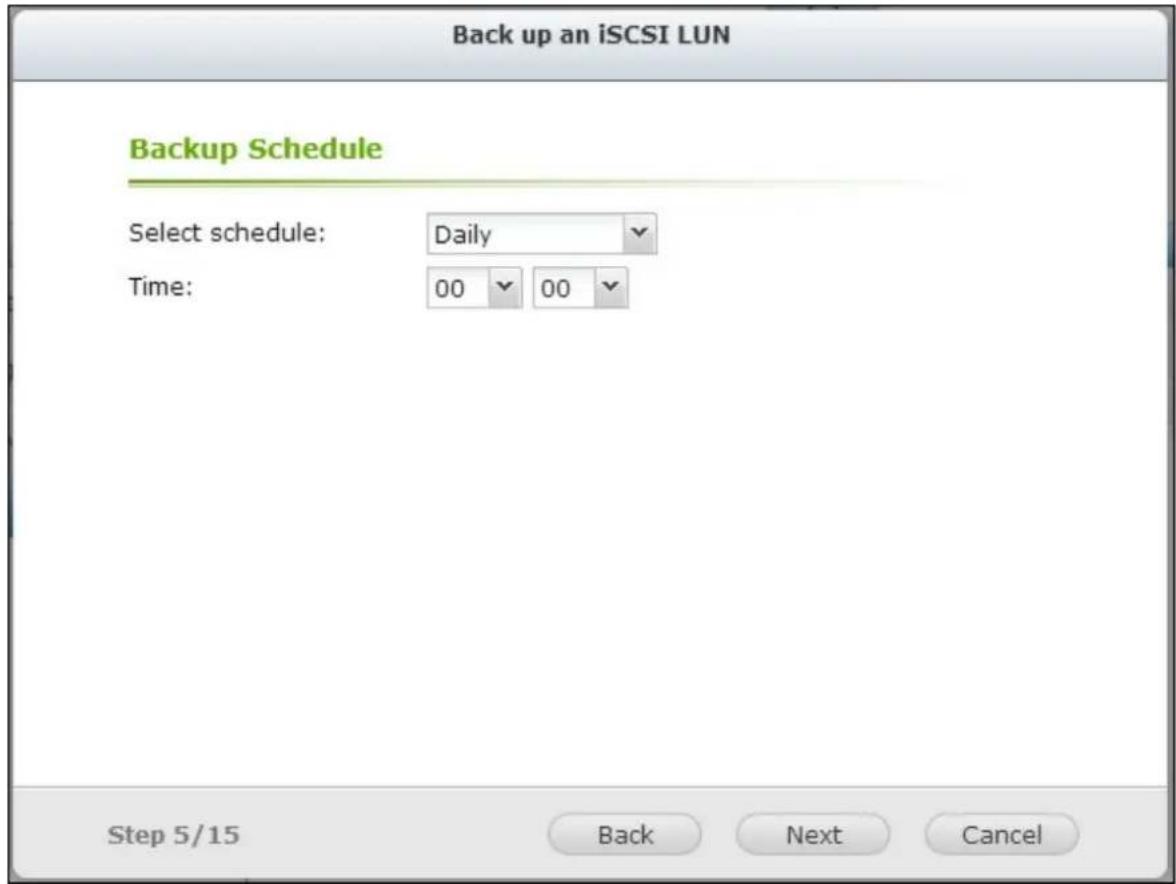
text_image
Back up an iSCSI LUN Backup Schedule Select schedule: Daily Time: 00 00 Step 5/15 Back Next Cancel- The settings will be shown. Enter a name for the job or use the one generated by the NAS. Click "Next."

text_image
Back up an iSCSI LUN Confirm Settings Job Name: Backup_myLUN01->backup-myLUN01 Source LUN: myLUN01 (1.00 GB) Protocol: Windows Share (CIFS/SMB) Select Destination: 10.8.12.79 /Download/ LUN Image Name: backup-myLUN01 Schedule: Daily [00:00] Step 6/15 Back Next Cancel- Click "Finish" to exit.
text_image
Back up an iSCSI LUN Setup complete Congratulations! The settings have been completed. Click "Finish" to exit the wizard. Step 15/15 Finish- The backup job is shown on the list.
| Button | Description |
| Start the job immediately. | |
| Stop the running job. | |
| Edit the job settings. | |
| View the job status and logs. |

text_image
General Settings Storage Manager Network Security Hardware Power Notification Firmware Update Volume Management RAID Management HDD SMART Encrypted File System iSCSI Virtual Disk Portal Management Current Jobs Create a Job Action Target Management Job Name Type Status Advanced ACL Backup_myLUN01->backup-myL_ Backup (Schedule: Daily 00:00) LUN Backup ---Restore an iSCSI LUN
- To restore an iSCSI LUN to the NAS, go to "Storage Manager" > "iSCSI" > "LUN Backup". Click "Create a job".
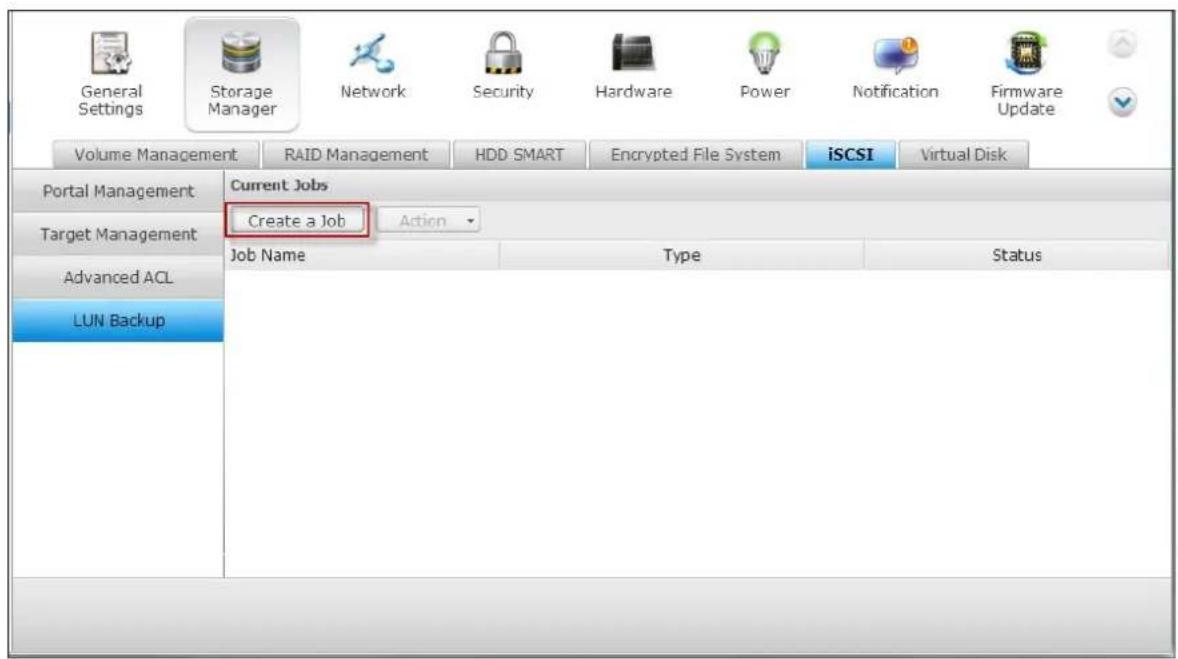
text_image
General Settings Storage Manager Network Security Hardware Power Notification Firmware Update Volume Management RAID Management HDD SMART Encrypted File System iSCSI Virtual Disk Portal Management Current Jobs Create a Job Target Management Action Job Name Type Status Advanced ACL LUN Backup- Select "Restore an iSCSI LUN" and click "Next."
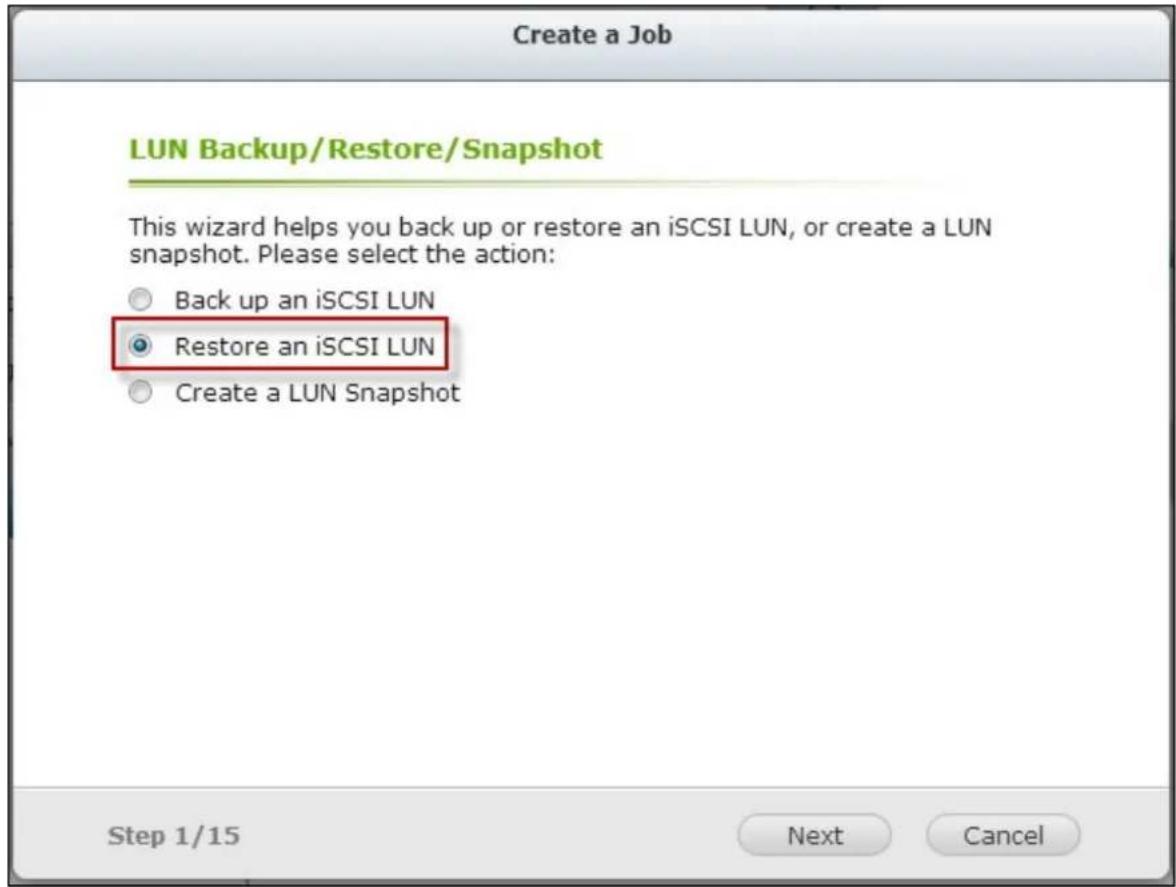
text_image
Create a Job LUN Backup/Restore/Snapshot This wizard helps you back up or restore an iSCSI LUN, or create a LUN snapshot. Please select the action: ○ Back up an iSCSI LUN ● Restore an iSCSI LUN ○ Create a LUN Snapshot Step 1/15 Next Cancel- Specify the protocol, IP address/host name, and folder/path of the restore source. Click "Test" to test the connection. Then click "Next".

text_image
Restore an iSCSI LUN Select Restore Source Linux Share (NFS) Windows Share (CIFS/SMB) Local IP Address/Host Name: 10.8.12.79 Examples: 192.168.0.100, nas.com, nas,... Username: admin Password: •••••• Folder or Path: /Download Remote Host Testing: Test Step 7/15 Back Next Cancel- Browse and select the LUN image file. Click "Next."

text_image
Restore an iSCSI LUN Select Source Location LUN Image Path: /Download/backup-myLUN01 Cancel Select Source Location /Download backup-myLUN01 Step 8/15 Back Next Cancel-
Select the destination.
-
Overwrite existing LUN: Restore the iSCSI LUN and overwrite the existing LUN on the NAS. All the data on the original LUN will be overwritten.
- Create a new LUN: Restore the iSCSI LUN to the NAS as a new LUN. Enter the name and select the location of the new LUN.
Click "Next".

text_image
Restore an iSCSI LUN Select Destination Overwrite existing LUN myLUN01 (1.00 GB, Enabled) Note: The original data on the LUN will be overwritten. Create a new LUN LUN Name: test-2 LUN Location: RAID 5 Disk Volume: Drive 1 2 3 [393.63] Step 9/15 Back Next Cancel- The settings will be shown. Enter a name for the job or use the one generated by the NAS. Click "Next".
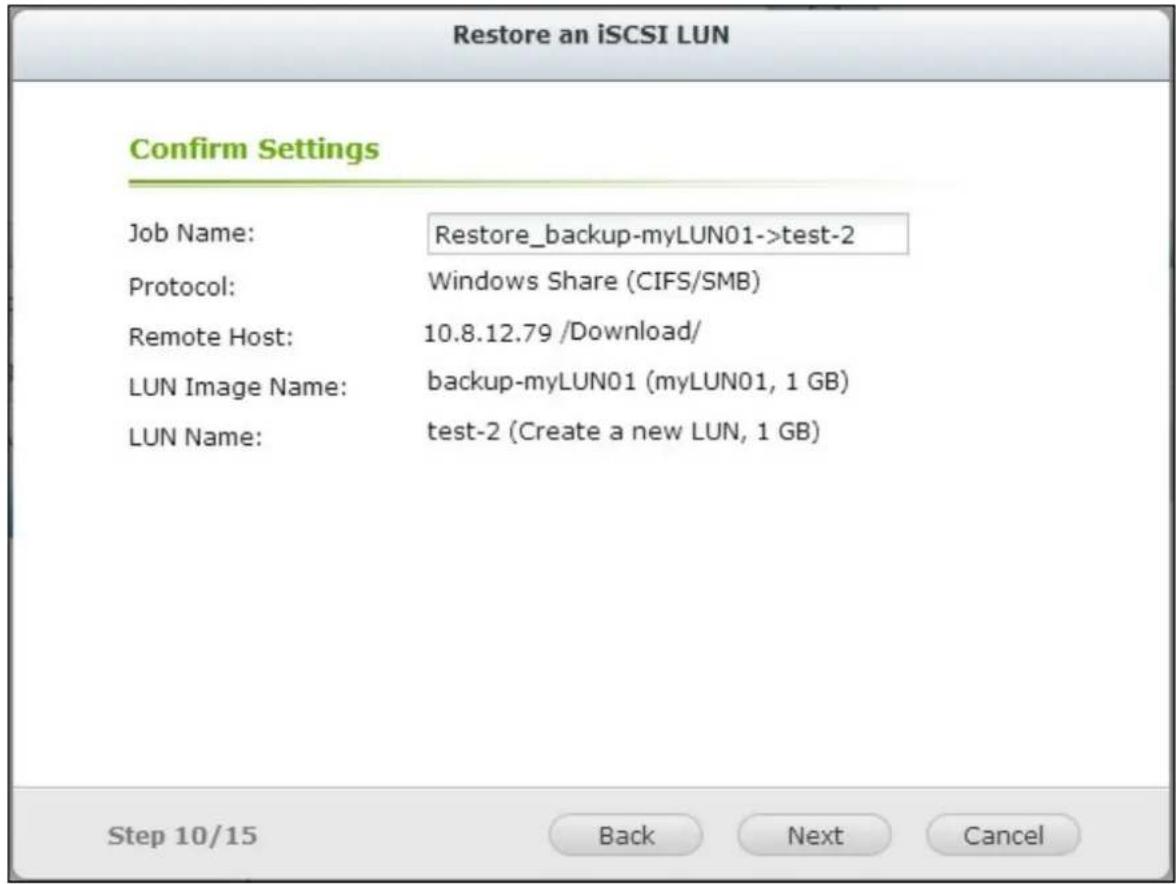
text_image
Restore an iSCSI LUN Confirm Settings Job Name: Restore_backup-myLUN01->test-2 Protocol: Windows Share (CIFS/SMB) Remote Host: 10.8.12.79 /Download/ LUN Image Name: backup-myLUN01 (myLUN01, 1 GB) LUN Name: test-2 (Create a new LUN, 1 GB) Step 10/15 Back Next Cancel- Click "Finish" to exit.

text_image
Restore an iSCSI LUN Setup complete Congratulations! The settings have been completed. Click "Finish" to exit the wizard. Step 15/15 FinishThe restore job will be executed immediately.
| Button | Description |
 | Stop the running job. |
 | Edit the job settings. |
| [DZKB] | View the job status and logs. |

text_image
General Settings Storage Manager Network Security Hardware Power Notification Firmware Update Volume Management RAID Management HDD SMART Encrypted File System iSCSI Virtual Disk Portal Management Current Jobs Create a Job Action Target Management Job Name Type Status Backup_myLUN01->backup-myL_ Backup (Schedule: Now) Finished (2013/05/28 16:48:58) Advanced ACL LUN Backup Restore_backup-myLUN01->tes... Recovery Finished (2013/05/28 16:56:27)Create an iSC SI LUN Snapshot
Before creating an iSCSI LUN snapshot, make sure at least one iSCSI LUN and one iSCSI target has been created on the NAS. To create iSCSI targets and LUN, go to "Storage Manager" > "iSCSI" > "Target Management".
- To create an iSCSI LUN snapshot, go to "Storage Manager" > "iSCSI" > "LUN Backup". Click "Create a job".
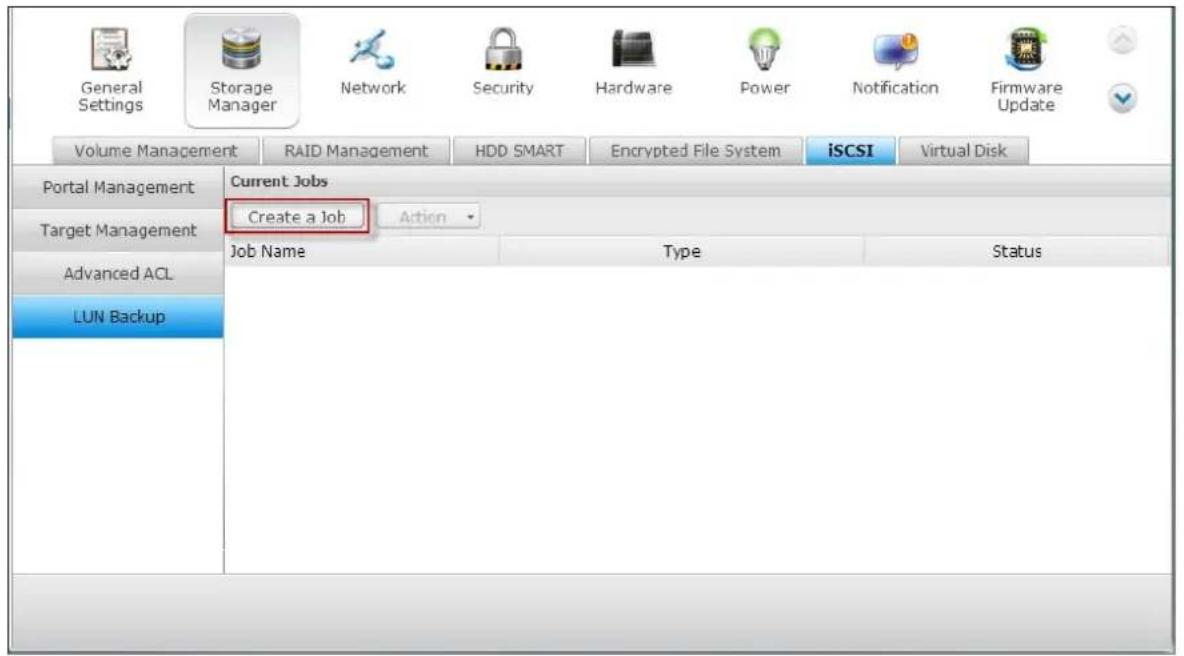
text_image
General Settings Storage Manager Network Security Hardware Power Notification Firmware Update Volume Management RAID Management HDD SMART Encrypted File System iSCSI Virtual Disk Portal Management Current Jobs Create a Job Action Target Management Job Name Type Status Advanced ACL LUN Backup- Select "Create a LUN Snapshot" and click "Next".

text_image
Create a Job LUN Backup/Restore/Snapshot This wizard helps you back up or restore an iSCSI LUN, or create a LUN snapshot. Please select the action: ○ Back up an iSCSI LUN ○ Restore an iSCSI LUN ● Create a LUN Snapshot Step 1/15 Next Cancel- Select an iSCSI LUN on the NAS. Only one snapshot can be created for each iSCSI LUN. Click "Next".

text_image
Create a LUN Snapshot Select Source LUN LUN ▲ Status Capacity iSCSI Target myLUN01 Enabled 1.00 GB target myLUN02 Enabled 1.00 GB a myLUN03 Enabled 1.00 GB allen01 myLUN04 Enabled 1.00 GB david01 test-2 Unmapp... 1.00 GB -- Note: Only one snapshot can be created for each iSCSI LUN. Step 11/15 Back Next Cancel- Enter a name for the LUN snapshot or use the one generated by the NAS. Select an iSCSI target where the LUN snapshot is mapped to. Click "Next". The LUN snapshot must be mapped to another iSCSI target different from the original one.

text_image
Create a LUN Snapshot Configure LUN Settings LUN Snapshot Name: snap-myLUN03 Target Alias Target IQN target iqn.2004-04.com.qnap:ts-569pro:iscsi.target01.cf4bc1 a iqn.2004-04.com.qnap:ts-569pro:iscsi.a01.cf4bc1 allen01 iqn.2004-04.com.qnap:ts-569pro:iscsi.allen.cf4bc1 david01 iqn.2004-04.com.qnap:ts-569pro:iscsi.david.cf4bc1 Step 12/15 Back Next Cancel- Specify the snapshot schedule and the snapshot duration. The snapshot will be removed automatically when the snapshot duration is reached.
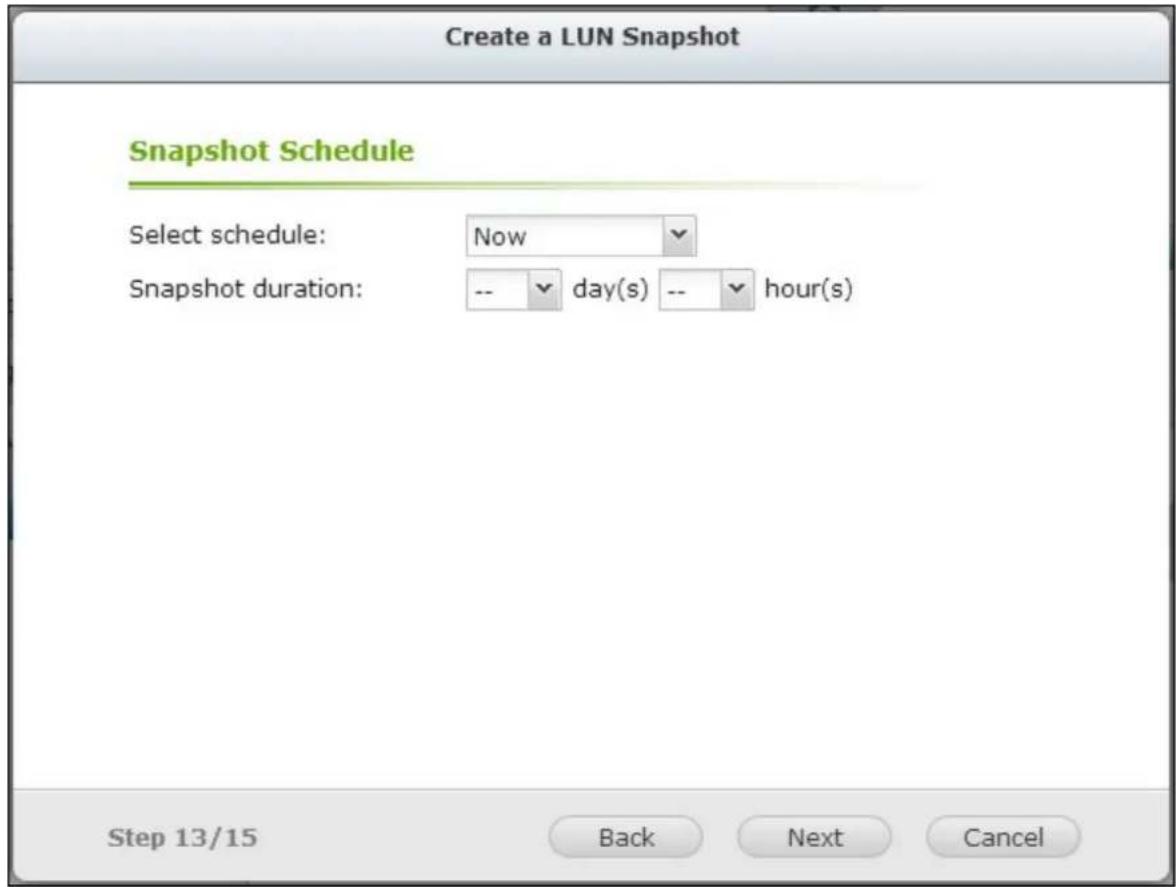
text_image
Create a LUN Snapshot Snapshot Schedule Select schedule: Now Snapshot duration: -- day(s) -- hour(s) Step 13/15 Back Next Cancel- The settings will be shown. Enter a name for the job or use the one generated by the NAS. Click "Next".

text_image
Create a LUN Snapshot Confirm Settings Job Name: Snapshot_myLUN03->snap-myLUN03 Source LUN: myLUN03 LUN Snapshot Name: snap-myLUN03 Map LUN to Target: a iqn.2004-04.com.qnap:ts- 569pro:iscsi.a01.cf4bc1 Schedule: Now Step 14/15 Back Next Cancel- Click "Finish" to exit.

text_image
Create a LUN Snapshot Setup complete Congratulations! The settings have been completed. Click "Finish" to exit the wizard. Step 15/15 Finish- The snapshot will be created immediately. The status and duration will be shown on the list.
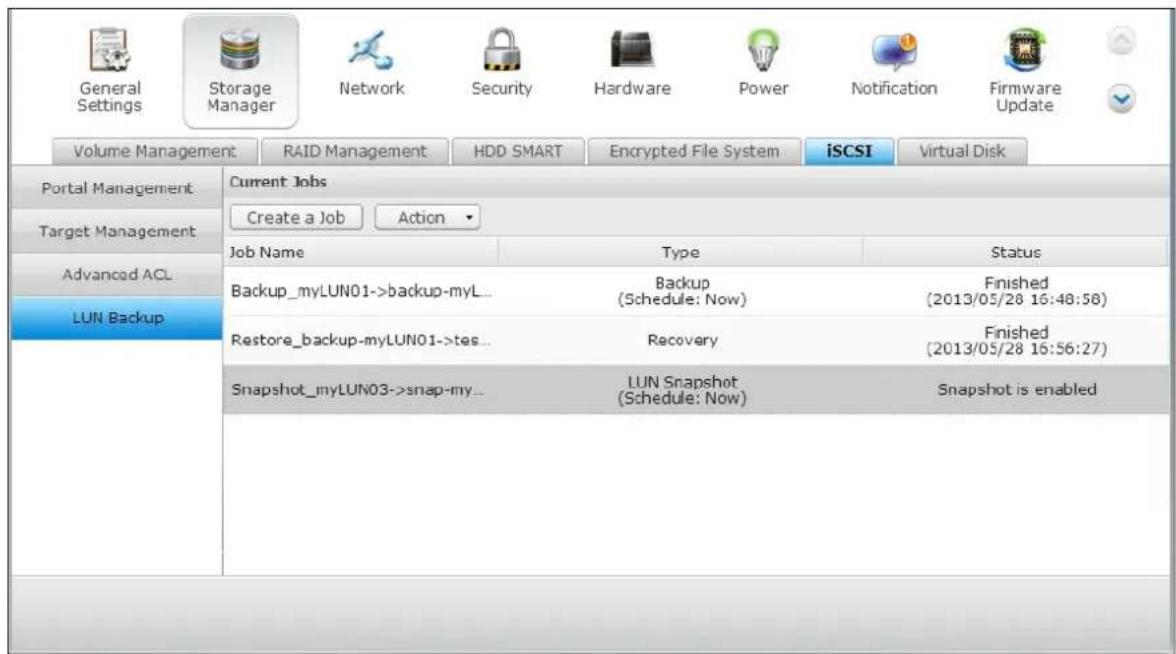
text_image
General Settings Storage Manager Network Security Hardware Power Notification Firmware Update Volume Management RAID Management HDD SMART Encrypted File System iSCSI Virtual Disk Portal Management Current Jobs Create a Job Action Target Management Job Name Type Status Backup_myLUN01->backup-myL... Backup (Schedule: Now) Finished (2013/05/28 16:48:58) Advanced ACL Restore_backup-myLUN01->tes... Recovery Finished (2013/05/28 16:56:27) LUN Backup Snapshot_myLUN03->snap-my... LUN Snapshot (Schedule: Now) Snapshot is enabled- Go to "iSCSI" > "Target Management", the snapshot LUN will be shown in the iSCSI
Target List. Use iSCSI initiator software to connect to the iSCSI target and access the point-in-time data on the snapshot LUN. For the information of connecting to the iSCSI targets on QNAP NAS, please refer to http://www.qnap.com/pro_application.asp?ap_id=135.

text_image
General Settings Storage Manager Network Security Hardware Power Notification Firmware Update Volume Management RAID Management HDD SMART Encrypted File System iSCSI Virtual Disk Portal Management Target Management Advanced ACL LUN Backup Quick Configuration Wizard iSCSI Target List ▶ Status a [a01] Ready id:0 - myLUN02 ( 1.00 GB) Enabled id:1 - snap-myLUN03 ( 1.00 GB) Enabled allen01 [allen] Ready david01 [david] Ready target [target01] Ready Un-Mapped iSCSI LUN List (1) ActionNote: The source LUN and snapshot LUN cannot be mounted on the same NAS on certain operating systems such as Windows 7 and Windows 2008 R2. Please mount the LUN to different NAS servers in such case.
Manage LUN Backup/Restore/Snapshot by Com m and Line
QNAP NAS users can execute or stop the iSCSI LUN backup, restore, or snapshot jobs on the NAS by command line. Follow the instructions below to use this feature.
Note: The following instructions should only be operated by IT administrators who are familiar with command line.
- First make sure the iSCSI LUN backup, restore, or snapshot jobs have been created on the NAS in "Storage Manager" > "iSCSI" > "LUN Backup".
- Connect to the NAS by an SSH utility such as Pietty.

text_image
PieTTY Configuration It's Easy To Create Your Connection. Host Name (or IP address) Port 172.17.30.130 22 Telnet (BBS) SSH User Interface ✓ Menubar □ PuTTY mode ✓ English UI PieTTY Information PieTTY Version 0.4.00 (beta 14) by Hung-Te Lin- Login the NAS as an administrator.
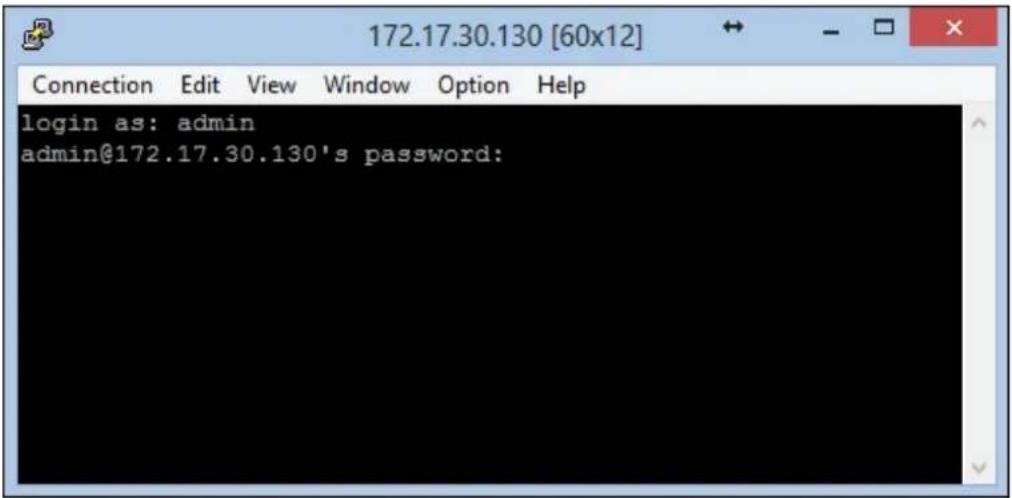
text_image
login as: admin admin@172.17.30.130's password:- Input the command "lunbackup". The command usage description will be shown.

text_image
[~] # lunbackup Usage: lunbackup -j[ob] JOB_NAME -status lunbackup -j[ob] JOB_NAME -start lunbackup -j[ob] JOB_NAME -stop [~] #- Use the lunbackup command to start or stop an iSCSI LUN backup, restore, or snapshot job on the NAS.

text_image
[~] # lunbackup -j 'Snapshot_LUN_0->snap-LUN_0' -start Snapshot is now enabled. [~] #4.2.6 Virtual Disk
You can use this function to add the iSCSI targets of other QNAP NAS or storage servers to the NAS as the virtual disks for storage capacity expansion. The NAS supports maximum 8 virtual disks.
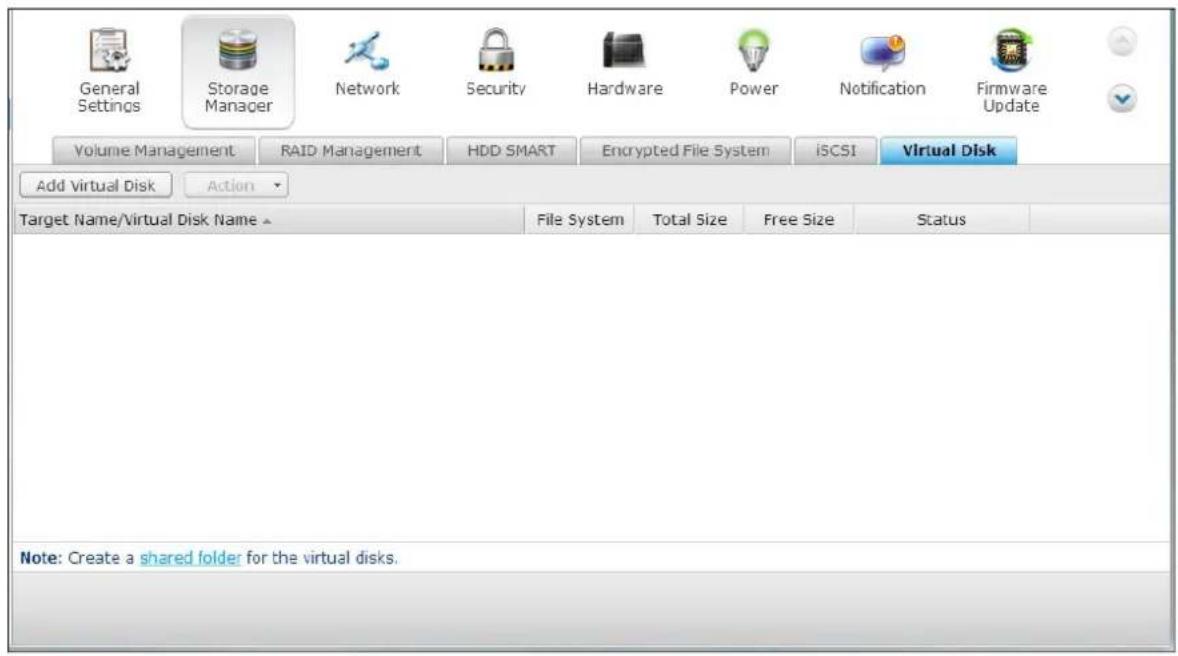
text_image
General Settings Storage Manager Network Security Hardware Power Notification Firmware Update Volume Management RAID Management HDD SMART Encrypted File System iSCSI Virtual Disk Add Virtual Disk Action Target Name/Virtual Disk Name ▲ File System Total Size Free Size Status Note: Create a shared folder for the virtual disks.Note:
- The maximum size of a virtual disk the NAS supports is 16TB.
- When the virtual disk (iSCSI target) was disconnected, the virtual disk will disappear on the NAS interface and the NAS will try to connect to the target in two minutes. If the target cannot be connected after two minutes, the status of the virtual disk will become "Disconnected".
To add a virtual disk to the NAS, make sure an iSCSI target has been created. Click "Add Virtual Disk".
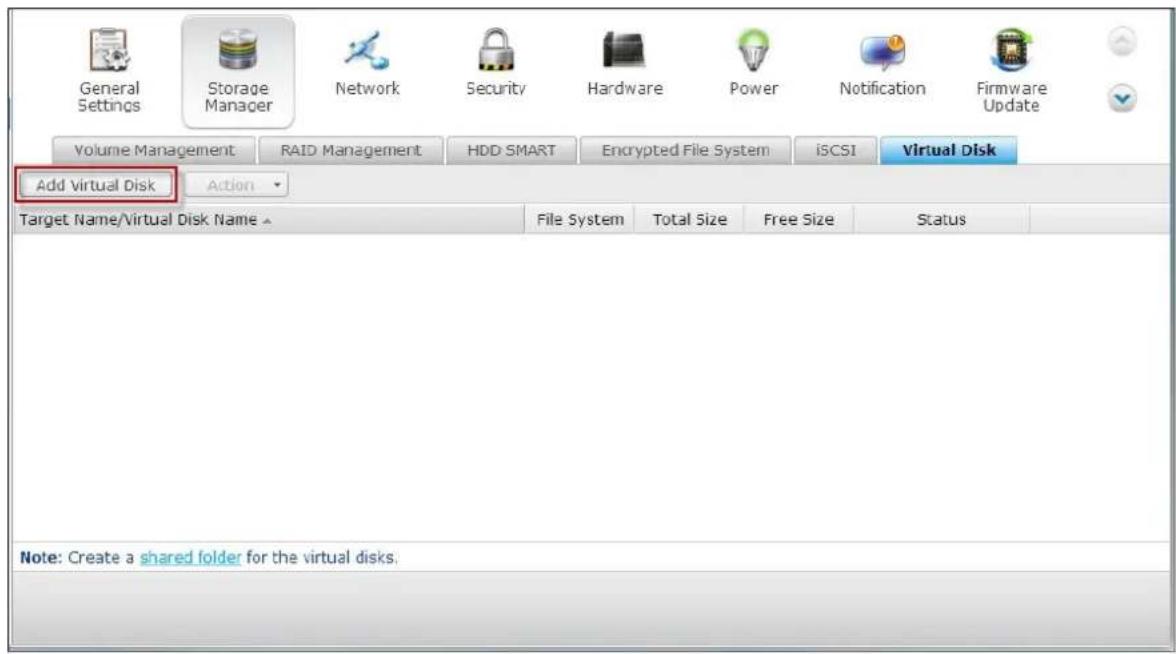
text_image
General Settings Storage Manager Network Security Hardware Power Notification Firmware Update Volume Management RAID Management HDD SMART Encrypted File System iSCSI Virtual Disk Add virtual Disk Action Target Name/Virtual Disk Name ▲ File System Total Size Free Size Status Note: Create a shared folder for the virtual disks.Enter the target server IP and port number (default: 3260). Click "Get Remote Disk". Select a target from the target list. If authentication is required, enter the username and the password. You may select the options "Data Digest" and/or "Header Digest" (optional). These are the parameters that the iSCSI initiator will be verified when it attempts to connect to the iSCSI target. Then, click "Next".
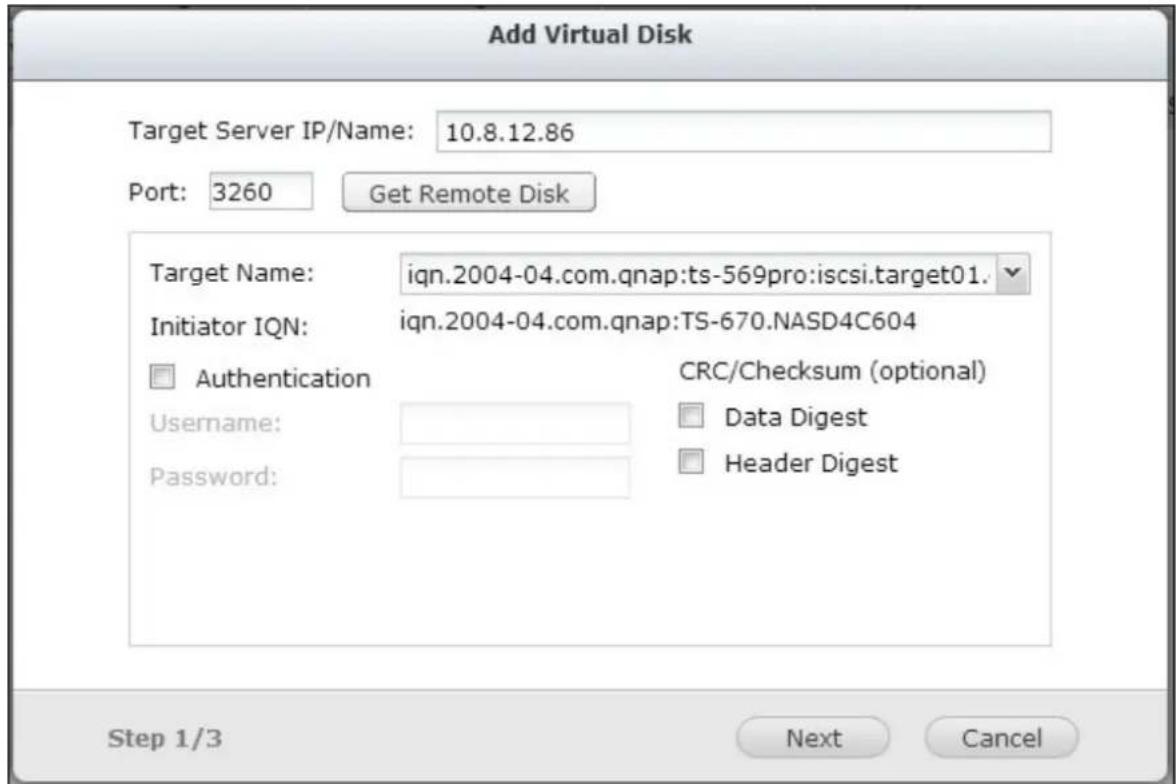
text_image
Add Virtual Disk Target Server IP/Name: 10.8.12.86 Port: 3260 Get Remote Disk Target Name: iqn.2004-04.com.qnap:ts-569pro:iscsi.target01. Initiator IQN: iqn.2004-04.com.qnap:TS-670.NASD4C604 Authentication CRC/Checksum (optional) Username: Data Digest Password: Header Digest Step 1/3 Next CancelEnter a name for the virtual disk. If the target is mapped with multiple LUNs, select a LUN from the list. Make sure only this NAS can connect to the LUN. The NAS supports mounting EXT3, EXT4, FAT32, NTFS, HFS+ file systems. If the file system of the LUN is "Unknown", select "Format virtual disk now" and the file system. You can format the virtual disk as EXT3, EXT4, FAT 32, NTFS, or HFS+. By selecting "Format virtual disk now", the data on the LUN will be removed.

text_image
Add Virtual Disk Virtual Disk Name: VirtualDisk1 LUN List: LUN:0 File System: Unknown Note: Make sure only this NAS can connect to the selected LUN. ✓ Format virtual disk now File System: EXT3 Warning: All the disk data will be removed! Step 2/3 Back Next CancelClick "Finish" to exit the wizard.
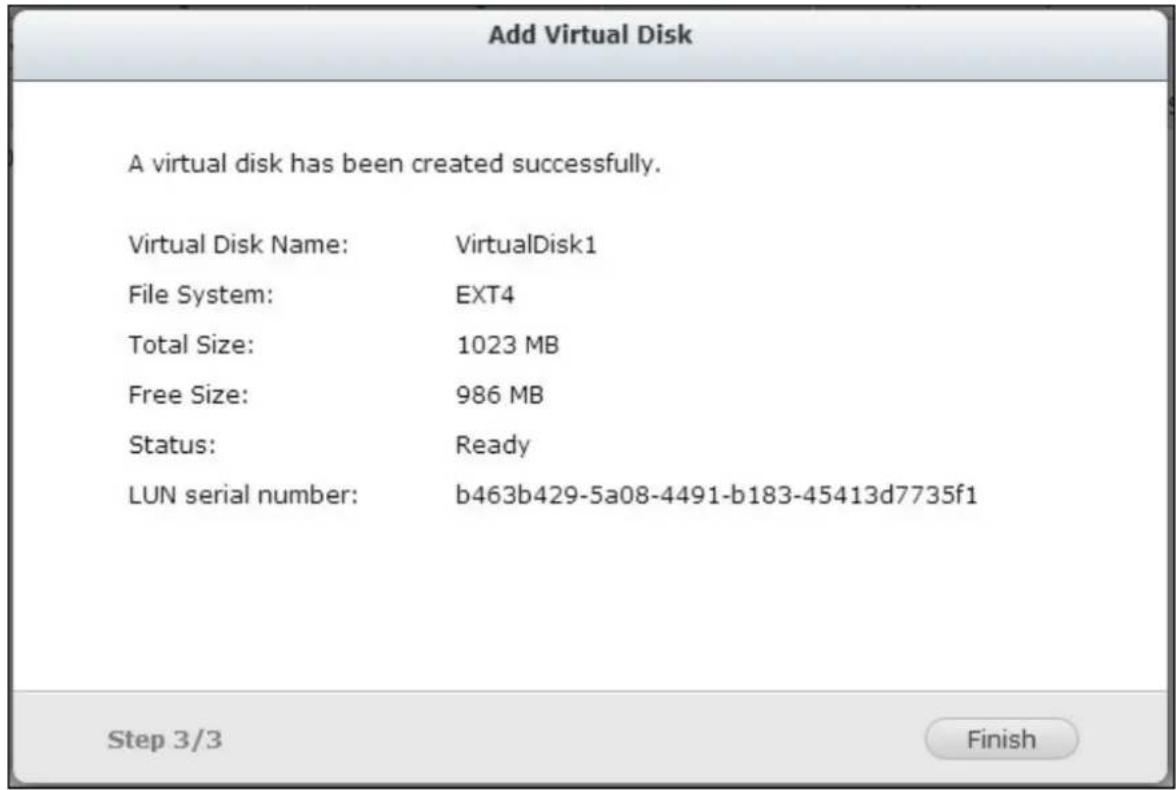
text_image
Add Virtual Disk A virtual disk has been created successfully. Virtual Disk Name: VirtualDisk1 File System: EXT4 Total Size: 1023 MB Free Size: 986 MB Status: Ready LUN serial number: b463b429-5a08-4491-b183-45413d7735f1 Step 3/3 FinishThe storage capacity of your NAS has been expanded by the virtual disk. You can go to "Privilege Settings" > "Share Folders" to create new shared folders on the virtual disk.

text_image
General Settings Storage Manager Network Security Hardware Power Notification Firmware Update volume Management RAID Management HDD SMART Encrypted File System ISCSI Virtual Disk Add Virtual Disk Action Target Name/Virtual Disk Name File System Total Size Free Size Status 10.8.12.86 (ign.2004-04.com.qnap:ts-569pro:iscsi.t... Connected VirtualDisk1 EXT4 1023 MB 986 MB Ready Note: Create a shared folder for the virtual disks.| Icon | Description |
 (Edit) (Edit) | To edit a virtual disk name or the authentication information of an iSCSI target. |
 (Connect) (Connect) | To connect to an iSCSI target. |
 (Disconnect) (Disconnect) | To disconnect an iSCSI target. |
| [W5A4] (Format) | To format a virtual disk as EXT3, EXT 4, FAT 32, NTFS, or HFS+ file system. |
| [6KW] (Delete) | To delete a virtual disk or an iSCSI target. |
T CP/IP
(i) IP Address
Configure the TCP/IP settings, DNS Server and default Gateway of the NAS on this page.
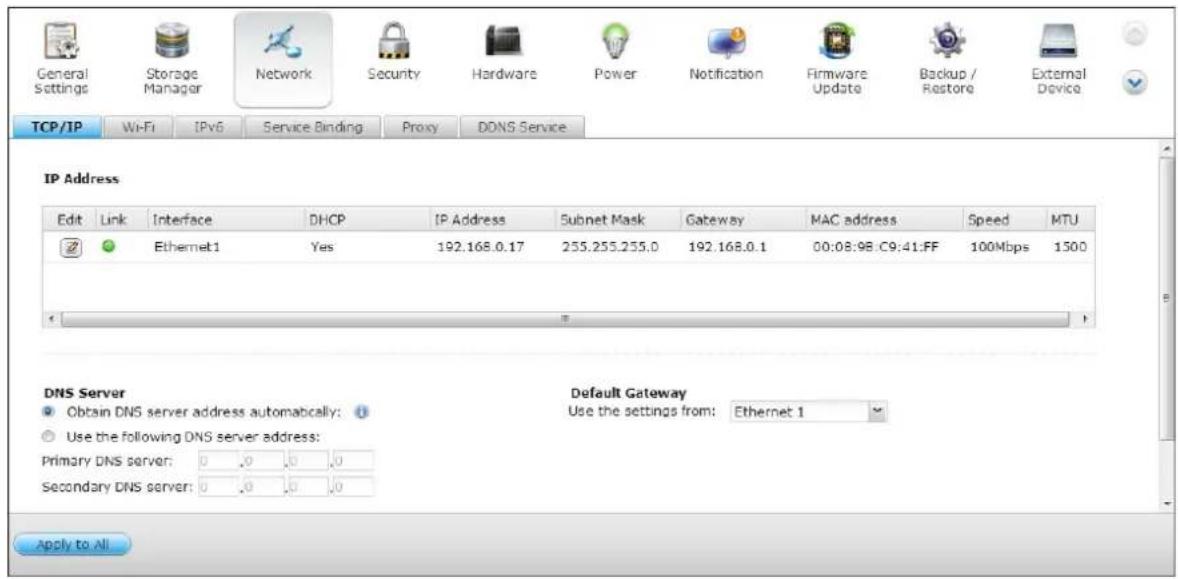
text_image
General Settings Storage Manager Network Security Hardware Power Notification Firmware Update Backup / Restore External Device TCP/IP Wi-Fi IPv6 Service Binding Proxy DDNS Service IP Address Edit Link Interface DHCP IP Address Subnet Mask Gateway MAC address Speed MTU Ethernet1 Yes 192.168.0.17 255.255.255.0 192.168.0.1 00:08:98:C9:41:FF 100Mbps 1500 DNS Server Obtain DNS server address automatically: Use the following DNS server address: Primary DNS server: Secondary DNS server: Default Gateway Use the settings from: Ethernet 1 Apply to AllClick to edit the network settings. For the NAS with two LAN ports, users can connect both network interfaces to two different switches and configure the TCP/IP settings. The NAS will acquire two IP addresses which allow access from two different subnets. This is known as multi-IP settings*. When using the Finder to detect the NAS IP, the IP of the Ethernet 1 will be shown in LAN 1 only and the IP of the Ethernet 2 will be shown in LAN 2 only. To use the port trunking mode for dual LAN connection, see section (iii).
* TS-110, TS-119, TS-210, TS-219, TS-219P, TS-119P+, TS-219P+, TS-112, and TS-212 provide one Giga LAN port only therefore do not support dual LAN configuration or port trunking.

text_image
IP Address Edit Link Interface DHCP IP Address Subnet Mask Gateway MAC address Speed MTU 2 Ethermet1 Yes 192.168.0.17 255.255.255.0 192.168.0.1 00:08:9B:C9:41:FF 100Mbps 1500Network Parameters
Under the Network Parameters tab on the TCP/IP Property page, configure the following settings:
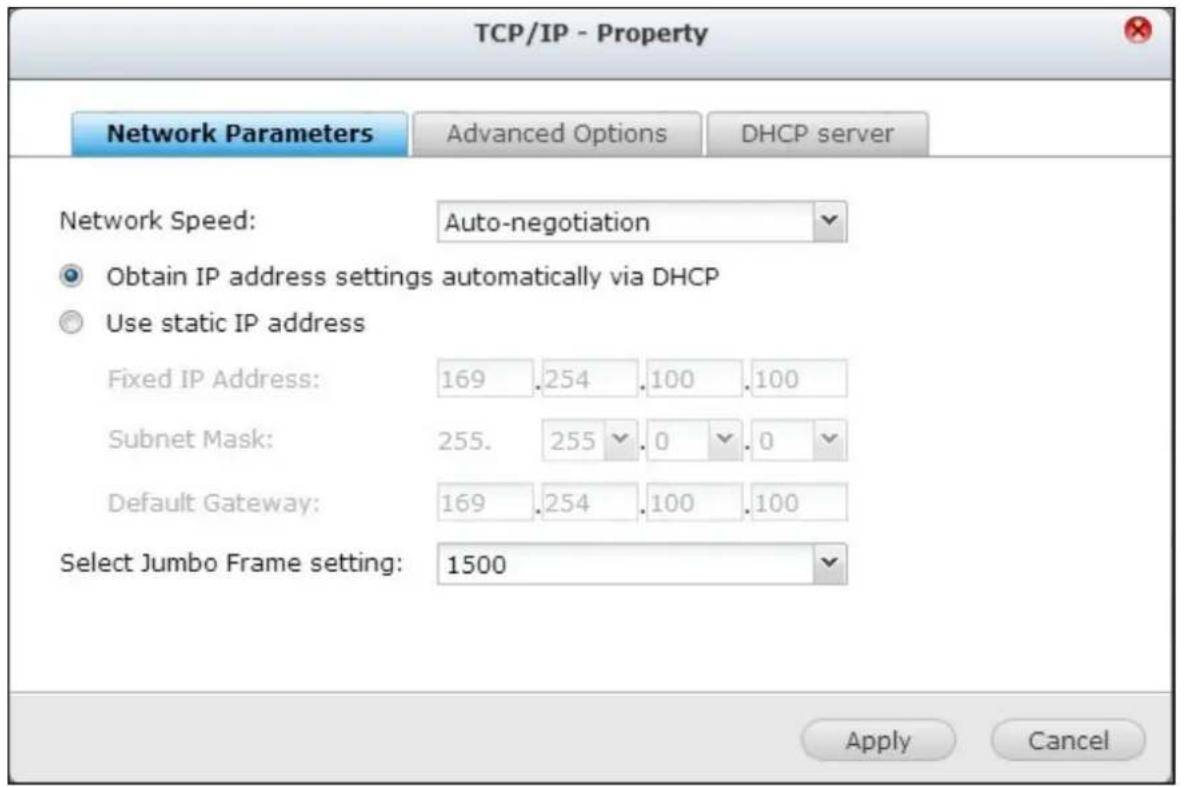
text_image
TCP/IP - Property Network Parameters Advanced Options DHCP server Network Speed: Auto-negotiation Obtain IP address settings automatically via DHCP Use static IP address Fixed IP Address: 169 .254 .100 .100 Subnet Mask: 255. 255 .0 .0 Default Gateway: 169 .254 .100 .100 Select Jumbo Frame setting: 1500 Apply CancelNetwork Speed
Select the network transfer rate according to the network environment to which the NAS is connected. Select auto negotiation and the NAS will adjust the transfer rate automatically.
Obtain the IP address settings automatically via DHC P
If the network supports DHCP, select this option and the NAS will obtain the IP address and network settings automatically.
Use static IP address
To use a static IP address for network connection, enter the IP address, subnet mask, and default gateway.
Jum bo Fram e Settings (MTU)
This feature is not supported by TS-509 Pro, TS-809 Pro, and TS-809U-RP.
"Jumbo Frames" refer to the Ethernet frames that are larger than 1500 bytes. It is
designed to enhance Ethernet networking throughput and reduce the CPU utilization of large file transfers by enabling more efficient larger payloads per packet.
Maximum Transmission Unit (MTU) refers to the size (in bytes) of the largest packet that a given layer of a communications protocol can transmit.
The NAS uses standard Ethernet frames: 1500 bytes by default. If the network appliances support Jumbo Frame setting, select the appropriate MTU value for the network environment. The NAS supports 4074, 7418, and 9000 bytes for MTU.
Note: The Jumbo Frame setting is valid in Gigabit network environment only. All the network appliances connected must enable Jumbo Frame and use the same MTU value.
Advanced Options
A Virtual LAN (VLAN) is a group of hosts which communicate as if they were attached to the same broadcast domain even if they were located in different physical locations. The NAS can be joined to a VLAN and configured as a backup storage of other devices on the same VLAN.
To join the NAS to a VLAN, select "Enable VLAN" and enter the VLAN ID (a value between 0 and 4094). Please keep the VLAN ID safe and make sure the client devices are able to join the VLAN. If you forgot the VLAN ID and were not able to connect to the NAS, you would need to press the reset button of the NAS to reset the network settings. Once the NAS is reset, the VLAN feature will be disabled. If the NAS supports two Gigabit LAN ports and only one network interface is configured to enable VLAN, you may also connect to the NAS via the other network interface.
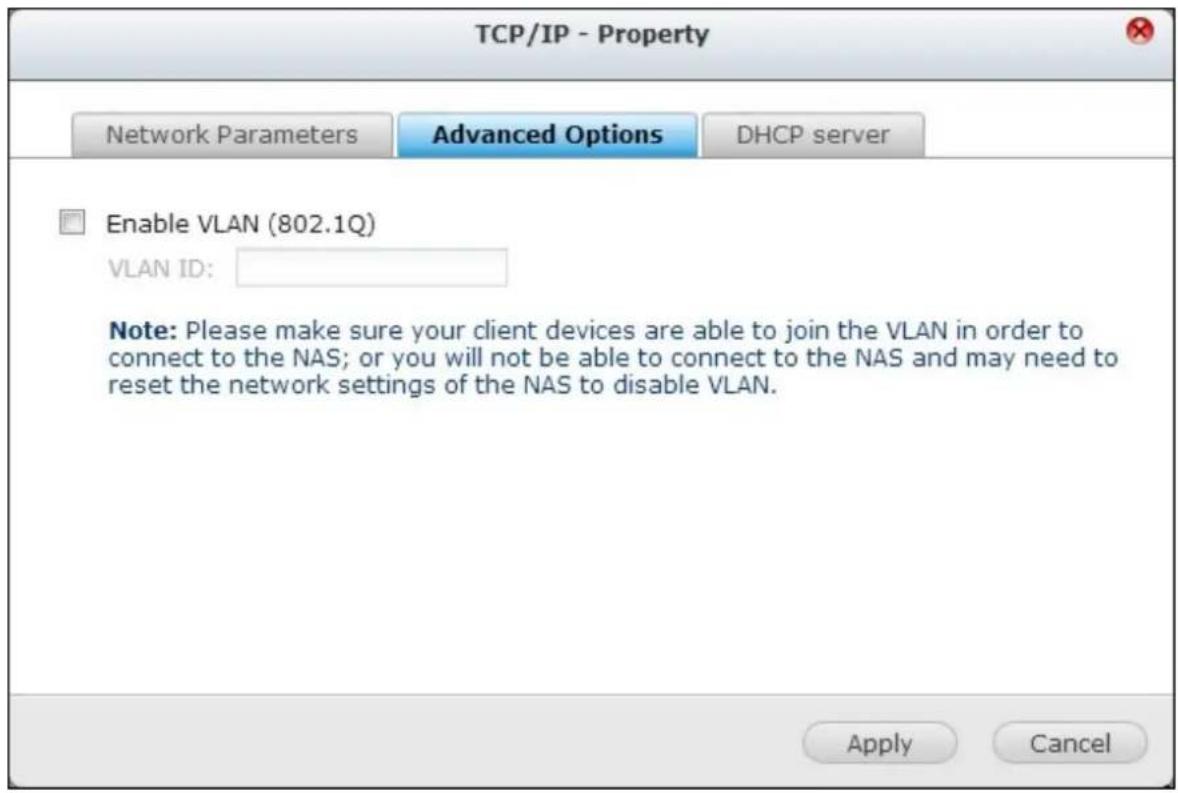
text_image
TCP/IP - Property Network Parameters Advanced Options DHCP server Enable VLAN (802.1Q) VLAN ID: Note: Please make sure your client devices are able to join the VLAN in order to connect to the NAS; or you will not be able to connect to the NAS and may need to reset the network settings of the NAS to disable VLAN. Apply CancelNote: The VLAN feature is supported by Intel-based NAS models only. Please visit http://www.qnap.com for details.
DHCP Server
A DHCP (Dynamic Host Configuration Protocol) server assigns IP addresses to the clients on a network. Select "Enable DHCP Server" to set the NAS a DHCP server if there is none on the local network where the NAS locates.
Note:
- Do not enable DHCP server if there is one the local network to avoid IP address conflicts or network access errors.
- The DHCP server option is available to Ethernet 1 only when both LAN ports of a dual LAN NAS are connected to the network and configured as standalone IP settings.
Start IP, End IP, Lease Time: Set the range of IP addresses allocated by the NAS to the DHCP clients and the lease time. The lease time refers to the time that an IP address is leased to the clients. During that time, the IP will be reserved to the assigned client. When the lease time expires, the IP can be assigned to another client.
WINS Server (optional) : WINS (Windows Internet Naming Service) resolves Windows network computer names (NetBIOS names) to IP addresses, allowing Windows computers on a network to easily find and communicate with each other. Enter the IP address of the WINS server on the network if available.
DNS Suffix (optional) : The DNS suffix is used for resolution of unqualified or incomplete host names.
TFTP Server & Boot File (optional) : The NAS supports PXE booting of network devices. Enter the IP address of the TFTP server and the boot file (including directory on the TFTP server and file name). For remote booting of the devices, enter the public IP address of the TFTP server.

text_image
TCP/IP - Property Network Parameters Advanced Options DHCP server Enable DHCP Server Start IP address: 192 .168 .1 .100 End IP address: 192 .168 .1 .200 Lease Time : 1 day 0 Hour WINS Server: 0 .0 .0 .0 DNS Suffix : TFTP Server: 0 .0 .0 .0 Boot File: Apply Cancel(ii) DNS Server
A DNS (Domain Name Service) server translates between a domain name (such as google.com) and an IP address (74.125.31.105). Configure the NAS to obtain a DNS server address automatically or specify the IP address of a DNS server.
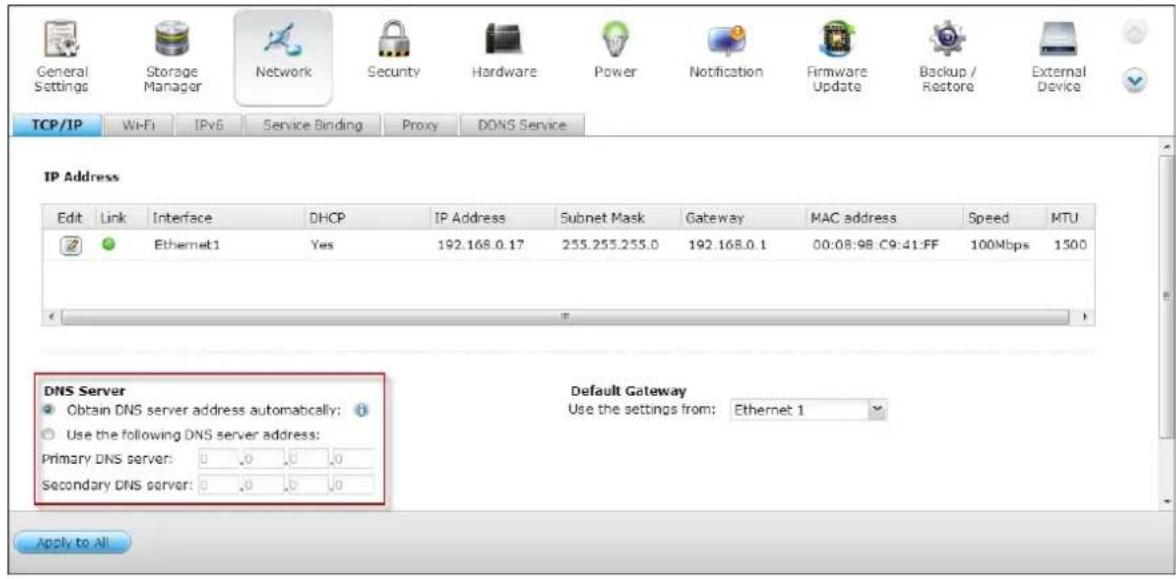
text_image
General Settings Storage Manager Network Security Hardware Power Notification Firmware Update Backup / Restore External Device TCP/IP Wi-Fi IPv6 Service Binding Proxy DONS Service IP Address Edit Link Interface DHCP IP Address Subnet Mask Gateway MAC address Speed MTU Ethernet1 Yes 192.168.0.17 255.255.255.0 192.168.0.1 00:08:98:C9:41:FF 100Mbps 1500 DNS Server Obtain DNS server address automatically: Use the following DNS server address: Primary DNS server: Secondary DNS server: Default Gateway Use the settings from: Ethernet 1 Apply to AllPrimary DNS Server: Enter the IP address of the primary DNS server.
Secondary DNS Server: Enter the IP address of the secondary DNS server.
Note:
- Please contact the ISP or network administrator for the IP address of the primary and the secondary DNS servers. When the NAS plays the role as a terminal and needs to perform independent connection, for example, BT download, enter at least one DNS server IP for proper URL connection. Otherwise, the function may not work properly.
- If you select to obtain the IP address by DHCP, there is no need to configure the primary and the secondary DNS servers. In this case, enter "0.0.0.0".
(iii) Default Gateway
Select the gateway settings to use if both LAN ports have been connected to the network (dual LAN NAS models only).

text_image
General Settings Storage Manager Network Security Hardware Power Notification Firmware Update Backup / Restore External Device TCP/IP Wi-Fi IPv6 Service Binding Proxy DONS Service IP Address Edit Link Interface DHCP IP Address Subnet Mask Gateway MAC address Speed MTU Ethernet1 Yes 192.168.0.17 255.255.255.0 192.168.0.1 00:08:98:C9:41:FF 100Mbps 1500 DNS Server Obtain DNS server address automatically: Use the following DNS server address: Primary DNS server: Secondary DNS server: Default Gateway Use the settings from: Ethernet 1 Apply to All(iv) Port Trunking
Applicable to NAS models with two or more LAN ports only.
The NAS supports port trunking which combines two Ethernet interfaces into one to increase the bandwidth and offers load balancing and fault tolerance (also known as failover). Load balancing is a feature which distributes the workload evenly across two Ethernet interfaces for higher redundancy. Failover is the capability to switch over to a standby network interface (also known as the slave interface) when the primary network interface (also known as the master interface) does not correspond correctly to maintain high availability.
To use port trunking on the NAS, make sure at least two LAN ports of the NAS have been connected to the same switch and the settings described in sections (i) and (ii) have been configured.
Follow the steps below to configure port trunking on the NAS:
- Click "Port Trunking".
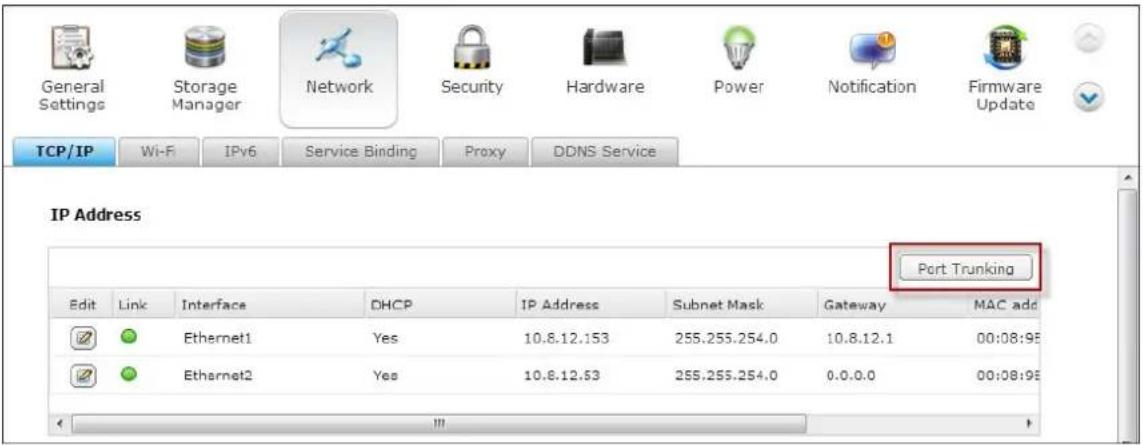
text_image
General Settings Storage Manager Network Security Hardware Power Notification Firmware Update TCP/IP Wi-Fi IPv6 Service Binding Proxy DDNS Service IP Address Port Trunking Edit Link Interface DHCP IP Address Subnet Mask Gateway MAC add Ethernet1 Yes 10.8.12.153 255.255.254.0 10.8.12.1 00:08:95 Ethernet2 Yes 10.8.12.53 255.255.254.0 0.0.0.0 00:08:95- Select the network interfaces for a trunking group (Ethernet 1+2, Ethernet 3+4, Ethernet 5+6, or Ethernet 7+8). Choose a port trunking mode from the drop-down menu. The default option is Active Backup (Failover).

text_image
TCP/IP - Port Trunking Select the port trunking membership and mode. Please note that incompatible mode settings might cause the network interface to hang or affect the overall performance. For more information, please click here. Interface Standalone Trunking Group 1 Active Backup Ethernet 1 Balance-rr Active Backup Balance XOR Ethernet 2 Broadcast IEEE 802.3ad Balance-tlb Balance-alb Use the settings from: Ethernet 1 Apply Cancel- Select a port trunking group to use. Click "Apply".
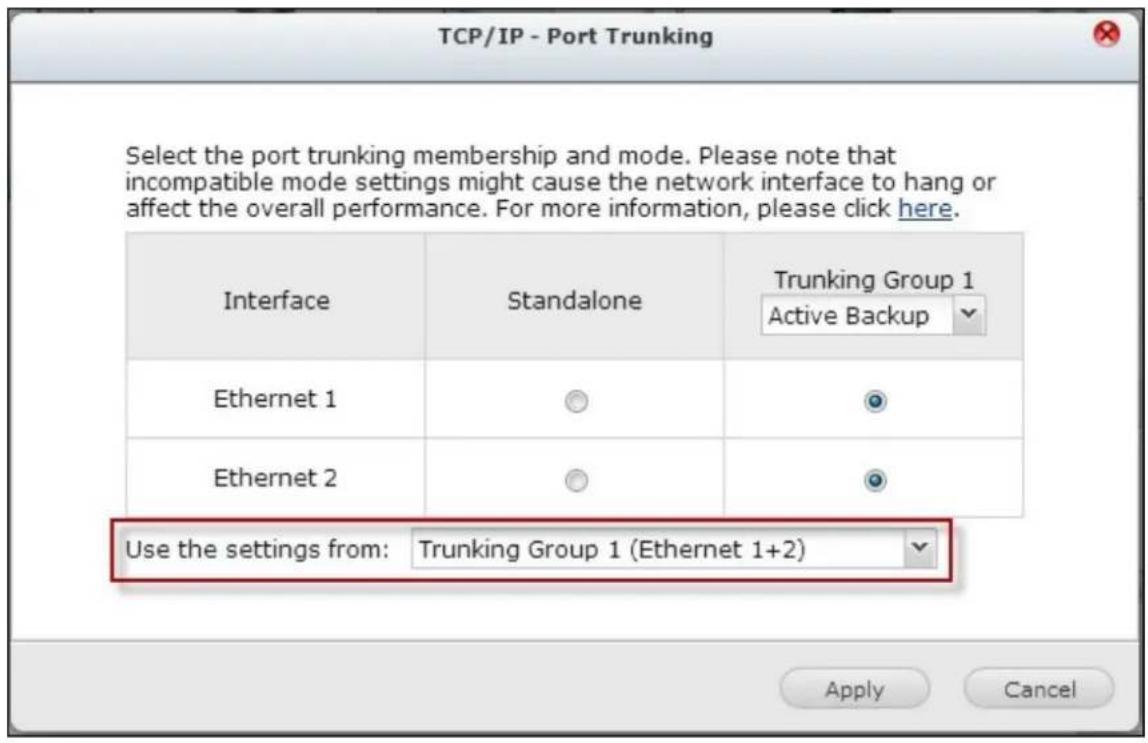
text_image
TCP/IP - Port Trunking Select the port trunking membership and mode. Please note that incompatible mode settings might cause the network interface to hang or affect the overall performance. For more information, please click here. Interface Standalone Trunking Group 1 Active Backup Ethernet 1 ○ ○ Ethernet 2 ○ ○ Use the settings from: Trunking Group 1 (Ethernet 1+2) Apply Cancel- Click "here" to connect to the login page.

text_image
General Settings Storage Manager Network Security Hardware Power Notification Firmware Update TCP/IP Settings The TCP/IP settings are being configured. Please wait and use the following link to connect to the server. If you cannot connect to the server, please use the Finder to find the new IP of the server. Configuration completed. Click here to connect to the login page.- Click the Edit button under "IP Address" to edit the network settings.

text_image
TCP/IP Wi-Fi IPv6 Service Binding Proxy DCNS Service IP Address Port Trunking Edit Link Interface DHCP IP Address Subnet Mask Gateway MAC address Speed NTU Ethernet 1+2 Yes 10.8.12.153 255.255.254.0 10.8.12.1 00:08:9B/CF:05:9E 100Mbps 1500Note: Make sure the Ethernet interfaces are connected to the correct switch and the switch has been configured to support the port trunking mode selected on the NAS.
The port trunking options available on the NAS:
| Field | Description | Switch Required |
| Balance-rr(Round-Robin) | Round-Robin mode is good for general purpose load balancing between two Ethernet interfaces. This mode transmits packets in sequential order from the first available slave through the last. Balance-rr provides load balancing and fault tolerance. | Supports static trunking. Make sure static trunking is enabled on the switch. |
| Active Backup | Active Backup uses only one Ethernet interface. It switches to the second Ethernet interface if the first Ethernet interface does not work properly. Only one interface in the bond is active. The bond's MAC address is only visible externally on one port (network adapter) to avoid confusing the switch. Active Backup mode provides fault tolerance. | General switches |
| Balance XOR | Balance XOR balances traffic by splitting up outgoing packets between the Ethernet interfaces, using the same one for each specific destination when possible. It transmits based on the selected transmit hash policy. The default policy is a simple slave count operating on Layer 2 where the source MAC address is coupled with destination MAC address. Alternate transmit policies may be selected via the xmit_hash_policy option. Balance XOR mode provides load balancing and fault tolerance. | Supports static trunking. Make sure static trunking is enabled on the switch. |
| Broadcast | Broadcast sends traffic on both network interfaces. This mode provides fault tolerance. | Supports static trunking. Make sure static trunking is enabled on the switch. |
| IEEE 802.3ad (Dynamic Link Aggregation) | Dynamic Link Aggregation uses a complex algorithm to aggregate adapters by speed and duplex settings. It utilizes all slaves in the active aggregator according to the 802.3ad specification. Dynamic Link Aggregation mode provides load balancing and fault tolerance but requires a switch that supports IEEE 802.3ad with LACP mode properly configured. | Supports 802.3ad LACP |
| Balance-tlb (Adaptive Transmit Load Balancing) | Balance-tlb uses channel bonding that does not require any special switch. The outgoing traffic is distributed according to the current load on each Ethernet interface (computed relative to the speed). Incoming traffic is received by the current Ethernet interface. If the receiving Ethernet interface fails, the other slave takes over the MAC address of the failed receiving slave. Balance-tlb mode provides load balancing and fault tolerance. | General switches |
| Balance-alb (Adaptive Load Balancing) | Balance-alb is similar to balance-tlb but also attempts to redistribute incoming (receive load balancing) for IPV4 traffic. This setup does not require any special switch support or configuration. The receive load balancing is achieved by ARP negotiation sent by the local system on their way out and overwrites the source hardware address with the unique hardware address of one of the Ethernet interfaces in the bond such that different peers use different hardware address for the server. This mode provides load balancing and fault tolerance. | General switches |
Wi-Fi
To connect the NAS to a Wi-Fi network, plug in a wireless dongle into a USB port of the NAS. The NAS will detect a list of wireless access points. You can connect the NAS to the Wi-Fi network in two ways.
Note:
- The wireless connection performance depends on many factors such as the adapter model, the USB adapter's performance, and the network environment. For higher connection performance, you are recommended to use wired connection.
- The system supports only one USB Wi-Fi dongle at a time.
A. Connect to an existing Wi-Fi network:
A list of Wi-Fi access points with signal strength are displayed on the "Wi-Fi Network Connection" panel.
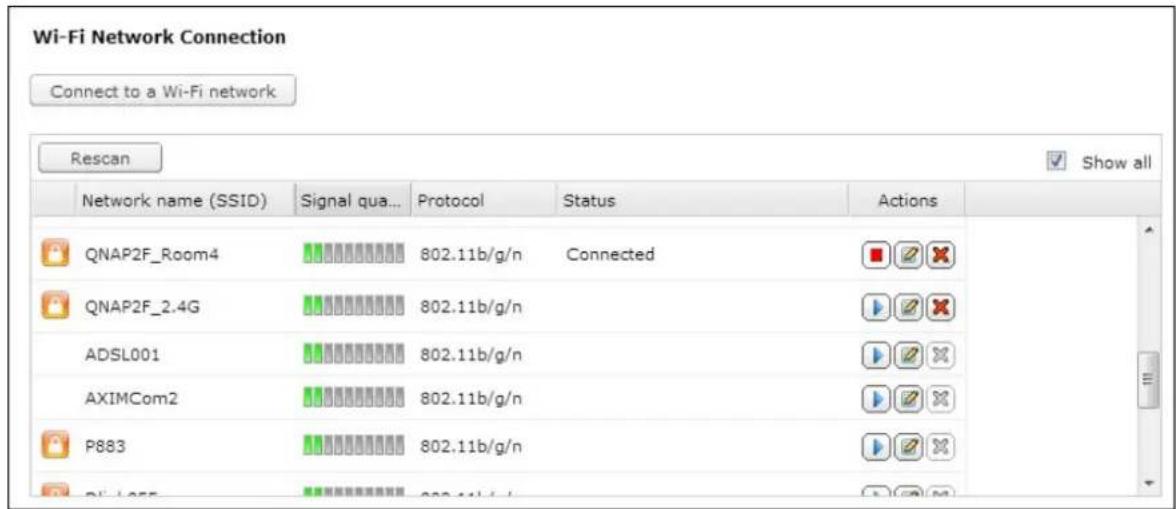
text_image
Wi-Fi Network Connection Connect to a Wi-Fi network Rescan Network name (SSID) Signal qua... Protocol Status Actions QNAP2F_Room4 802.11b/g/n Connected QNAP2F_2.4G 802.11b/g/n ADSL001 802.11b/g/n AXIMCom2 802.11b/g/n P883 802.11b/g/n| Icons and Options | Description |
| Rescan | To search for the Wi-Fi networks in range. |
| (Secured network) | This icon shows that the Wi-Fi network requires a network key; enter the key to connect to the network. |
| (Connect) | To connect to Wi-Fi network. If a security key is required, you will be prompted to enter the key. |
| (Edit) | To edit the connection information. You may also select to connect to the Wi-Fi network automatically when it is in range. |
| (Disconnect) | To disconnect from the Wi-Fi network. |
| (Remove) | To delete the Wi-Fi network profile from the panel. |
| Show all | Select this option to display all the available Wi-Fi networks. Unselect this option to show only the configured network profiles. |
Click "Rescan" to search for available Wi-Fi networks in range. Select a Wi-Fi network to connect to and click . Enter the security key if it is a security-key enabled network. Click "Next" and the NAS will attempt to connect to the wireless network.
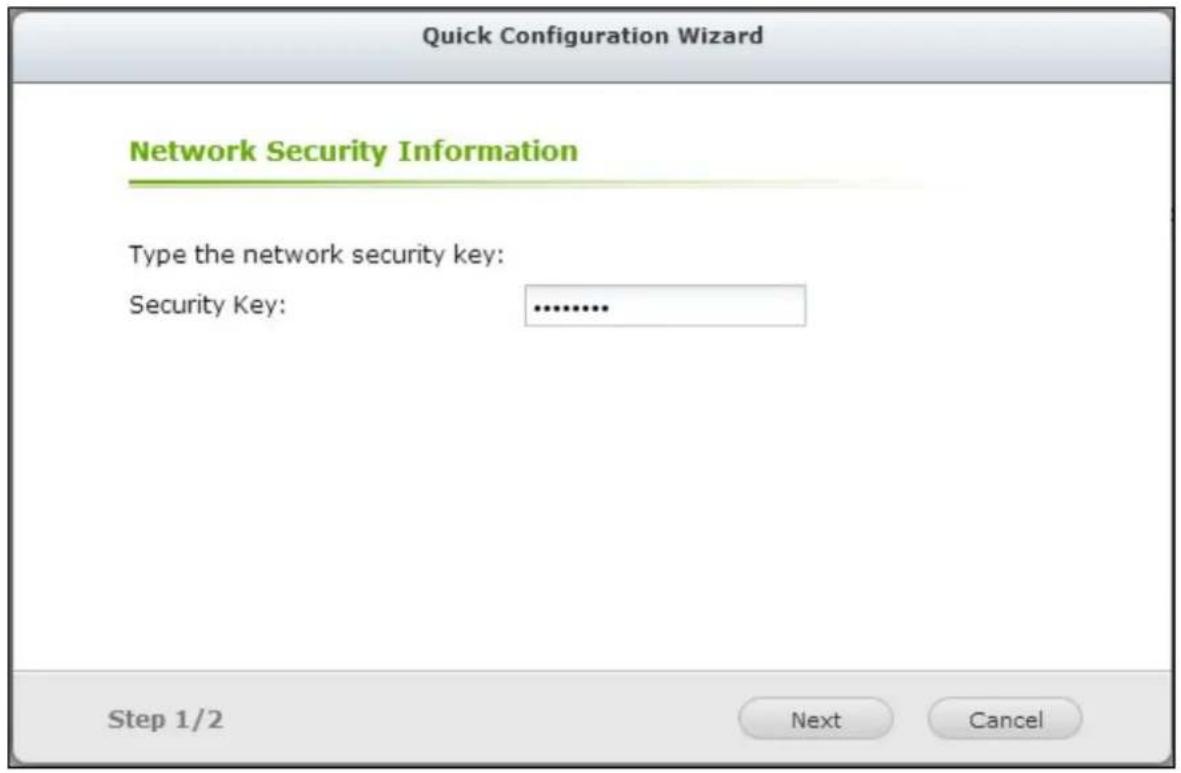
text_image
Quick Configuration Wizard Network Security Information Type the network security key: Security Key: ...... Step 1/2 Next Cancel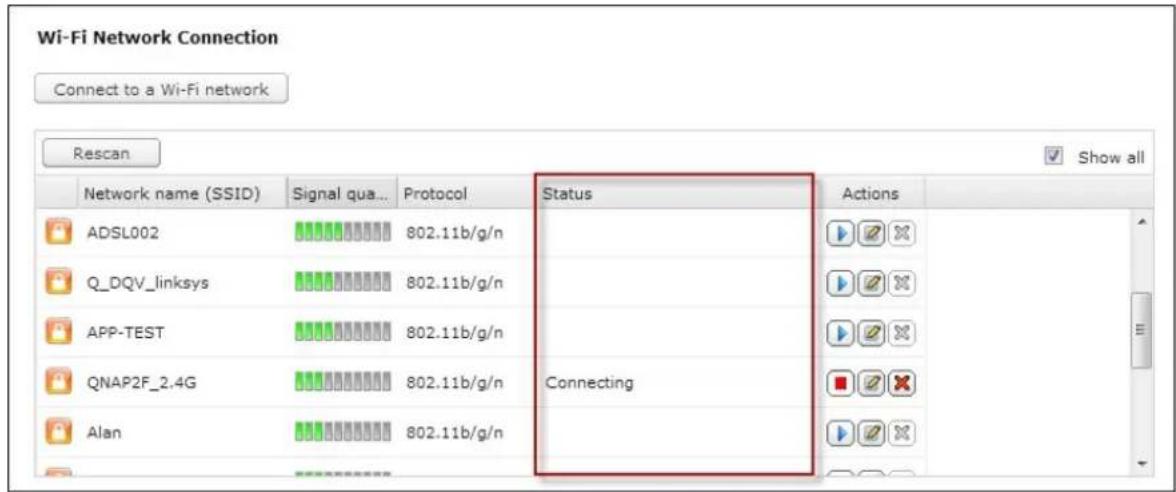
text_image
Wi-Fi Network Connection Connect to a Wi-Fi network Rescan Network name (SSID) Signal qua... Protocol Status Actions ADSL002 802.11b/g/n Q_DQV_linksys 802.11b/g/n APP-TEST 802.11b/g/n QNAP2F_2.4G 802.11b/g/n Connecting Alan 802.11b/g/nYou can view the status of the configured network profiles.
| Message | Description |
| Connected | The NAS is currently connected to the Wi-Fi network. |
| Connecting | The NAS is trying to connect to the Wi-Fi network. |
| Out of range or hidden SSID | The wireless signal is not available or the SSID is not broadcast. |
| Failed to get IP | The NAS is connected to the Wi-Fi network but could not get an IP address from the DHCP server. Please check the router settings. |
| Association failed | The NAS cannot connect to the Wi-Fi network. Please check the router settings. |
| Incorrect key | The security key entered is incorrect. |
| Auto connect | Automatically connect to the Wi-Fi network if it is in range.The auto connection function is not supported if the SSID of the Wi-Fi network is not broadcast. |
B. Manually connect to a Wi-Fi network:
To manually connect to a Wi-Fi network that does not broadcast its SSID (network name), click "Connect to a Wi-Fi network".
text_image
Wi-Fi Network Connection Connect to a Wi-Fi networkYou can choose to connect to an ad hoc network in which you can connect to any wireless devices without the need for an access point.
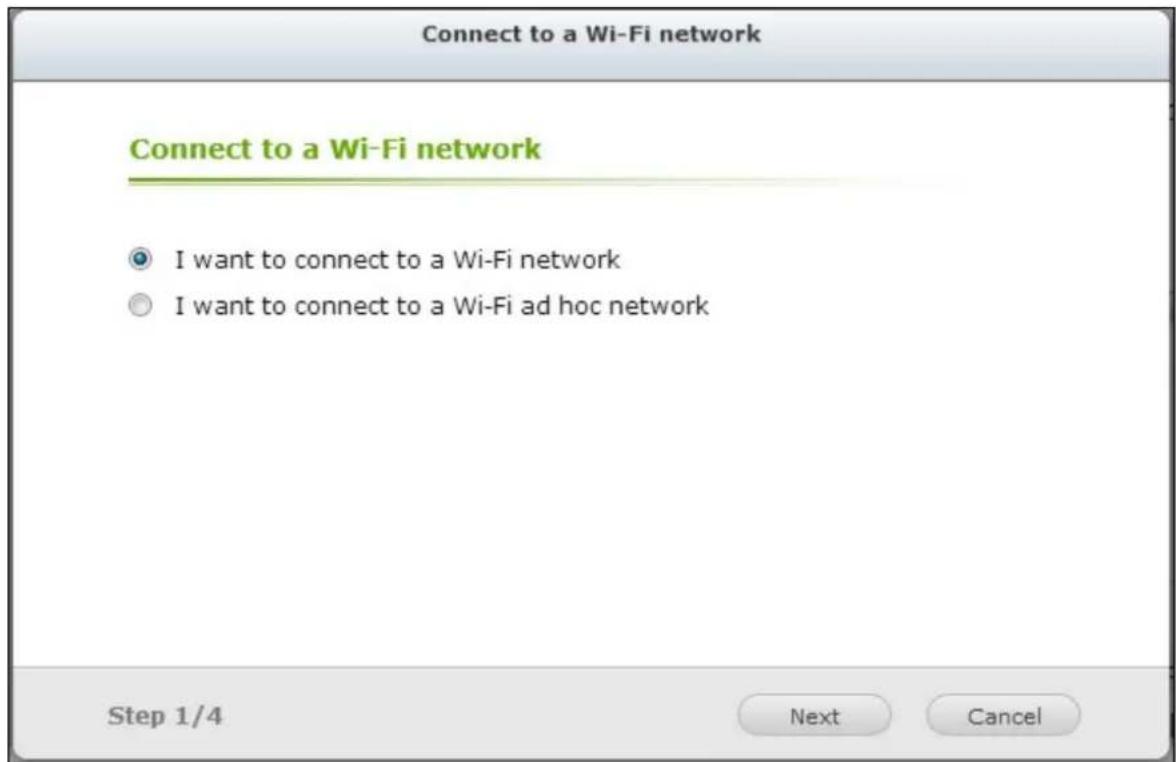
text_image
Connect to a Wi-Fi network Connect to a Wi-Fi network ● I want to connect to a Wi-Fi network ○ I want to connect to a Wi-Fi ad hoc network Step 1/4 Next CancelEnter the network name (SSID) of the wireless network and select the security type.
- No authentication (Open): No security key required.
- WEP: Enter up to 4 WEP keys and choose 1 key to be used for authentication.
- WPA-Personal: Choose either the AES or TKIP encryption type and enter the encryption key.
• WPA2-Personal: Enter a security key.
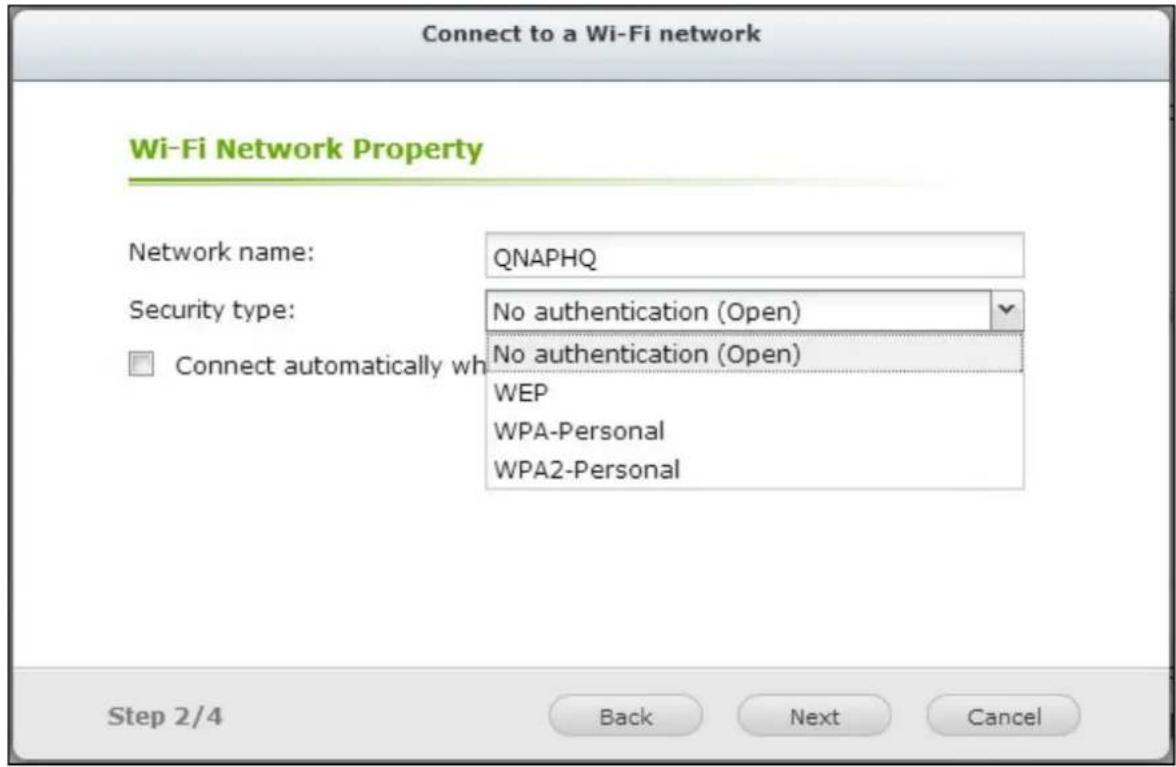
text_image
Connect to a Wi-Fi network Wi-Fi Network Property Network name: QNAPHQ Security type: No authentication (Open) No authentication (Open) Connect automatically wh WEP WPA-Personal WPA2-Personal Step 2/4 Back Next CancelNote:
- The WEP key must be exactly 5 or 13 ASCII characters; or exactly 10 or 26 hexadecimal characters (0-9 and A-F).
- If you have trouble connecting to an encrypted wireless network, check the wireless router/AP settings and change the transfer rate from "N-only" mode to "B/G/N mixed" or similar settings.
- Users of Windows 7 with WPA2 encryption cannot establish ad-hoc connection with the NAS. Please change to use WEP encryption on Windows 7.
- A fixed IP address is required for the wireless interface in order to establish an ad-hoc connection.
Type in the security key.

text_image
Connect to a Wi-Fi network Wi-Fi Network Property Network name: QNAPHQ Security type: WPA2-Personal Encryption type: AES Security Key: ............| Step 2/4 Back Next CancelClick "Finish" after the NAS has added the Wi-Fi network.
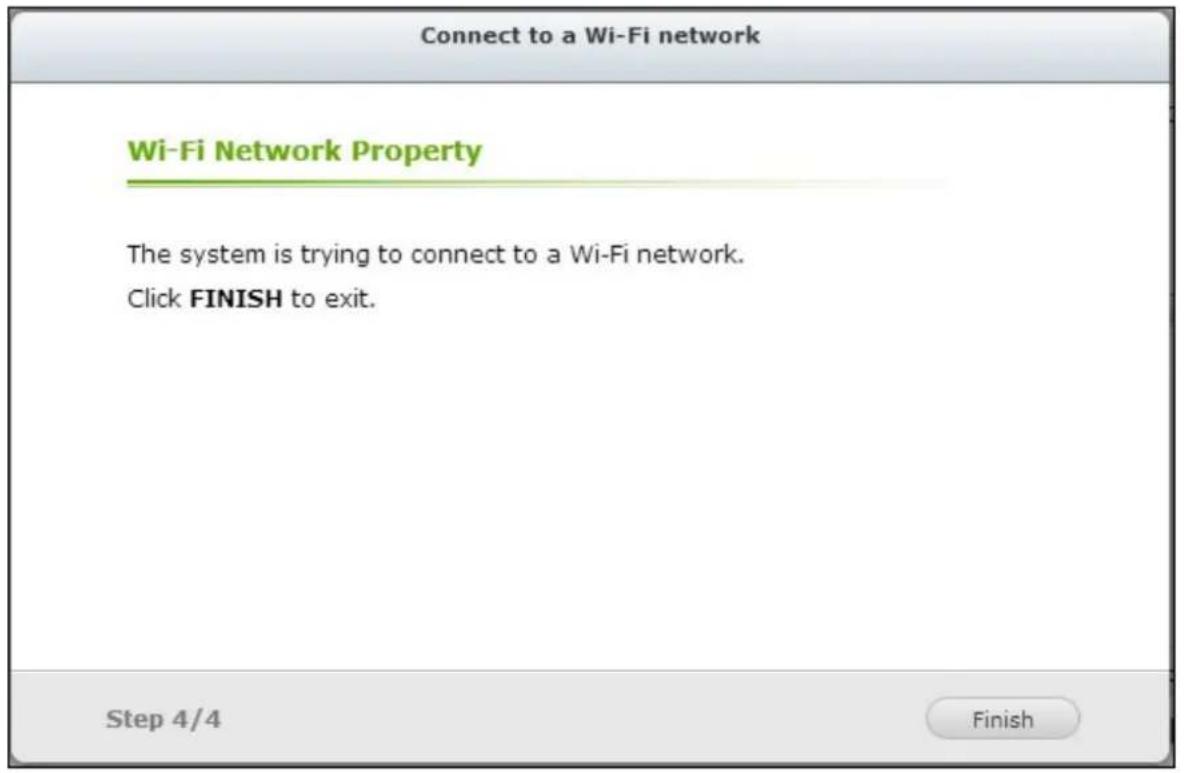
text_image
Connect to a Wi-Fi network Wi-Fi Network Property The system is trying to connect to a Wi-Fi network. Click FINISH to exit. Step 4/4 FinishTo edit the IP address settings, click . You can select to obtain the IP address automatically by DHCP or configure a fixed IP address.
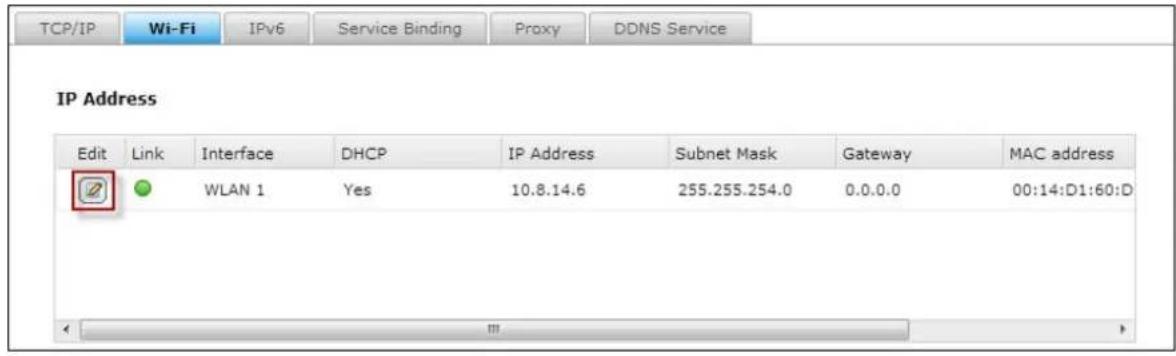
text_image
TCP/IP Wi-Fi IPv6 Service Binding Proxy DDNS Service IP Address Edit Link Interface DHCP IP Address Subnet Mask Gateway MAC address 2 WLAN 1 Yes 10.8.14.6 255.255.254.0 0.0.0.0 00:14:D1:60:DIf the Wi-Fi connection is the only connection between the NAS and the router/AP, you must select "WLAN1" as the default gateway in "Network" > "TCP/IP" page. Otherwise, the NAS will not be able to connect to the Internet or communicate with another network.

text_image
General Settings Storage Manager Network Security Hardware Power Notification TCP/IP Wi-Fi IPv6 Service Binding Proxy DDNS Service IP Address Port Trunking Edit Link Interface DHCP IP Address Subnet Mask Gateway MAC addre Ethernet1 Yes 10.8.12.153 255.255.254.0 10.8.12.1 00:08:9B: Ethernet2 Yes 0.0.0.0 0.0.0.0 0.0.0.0 00:08:9B: DNS Server Obtain DNS server address automatically Use the following DNS server address: Primary DNS server: 10 ,8 ,13 ,230 Secondary DNS server: 0 ,0 ,0 ,0 Default Gateway Use the settings from: WLAN 1 ApplyIPv6
The NAS supports IPv6 connectivity with "stateless" address configurations and RADVD (Router Advertisement Daemon) for IPv6, RFC 2461 to allow the hosts on the same subnet to acquire IPv6 addresses from the NAS automatically. The NAS services which support IPv6 include:
- Remote replication
- Web Server
- FTP
• iSCSI (Virtual disk drives) - SSH (putty)

text_image
General Settings Storage Manager Network Security Hardware Power Notification Firmware Update TCP/IP Wi-Fi IPv6 Service Binding Proxy DDNS Service IP Address Enable IPv6 Edit Link Interface Auto Configu... IPv6 Address Prefix ... Gateway Ethernet 1 Yes fe80::208:9bff:fec9:4_ 64 : DNS Server Apply AllTo use this function, select the option "Enable IPv6" and click "Apply". The NAS will restart. After the system restarts, login the IPv6 page again. The settings of the IPv6 interface will be shown. Click ☑ to edit the settings.
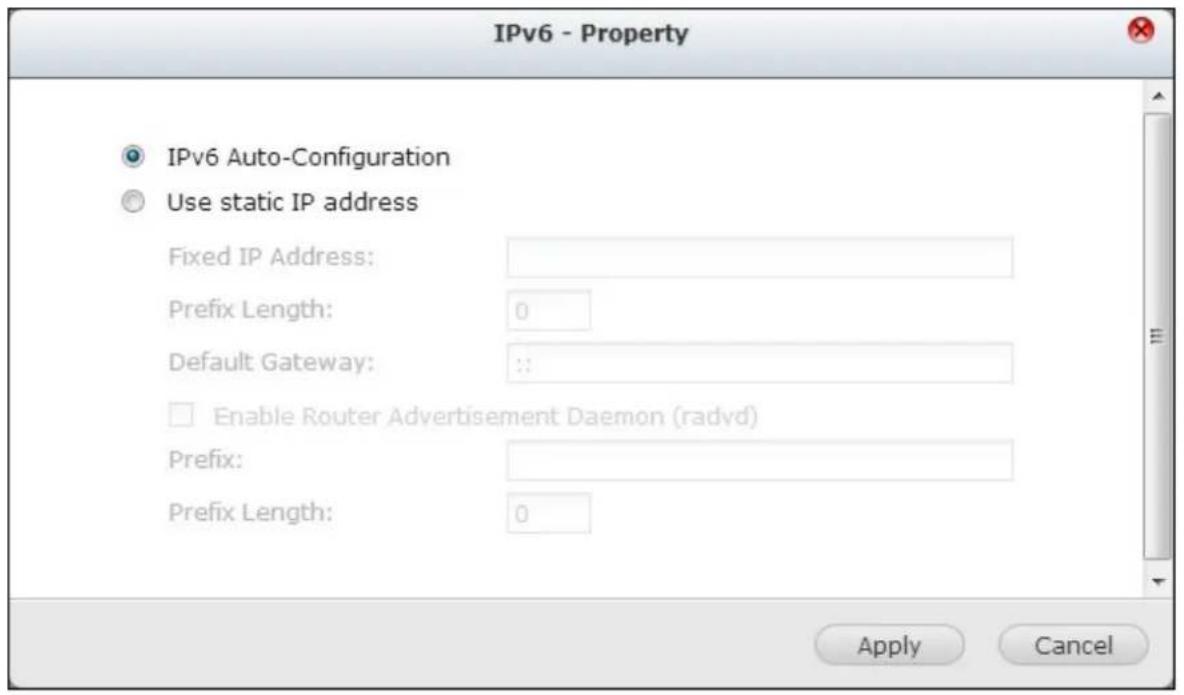
text_image
IPv6 - Property IPv6 Auto-Configuration Use static IP address Fixed IP Address: Prefix Length: 0 Default Gateway: :: Enable Router Advertisement Daemon (radvd) Prefix: Prefix Length: 0 Apply CancelIPv6 Auto C onfiguration
If an IPv6 enabled router is available on the network, select this option to allow the NAS to acquire the IPv6 address and the configurations automatically.
Use static IP address
To use a static IP address, enter the IP address (e.g. 2001:bc95:1234:5678), prefix length (e.g. 64), and the gateway address for the NAS. You may contact your ISP for the information of the prefix and the prefix length.
- Enable Router Advertisement Daemon (radvd): To configure the NAS as an IPv6 host and distribute IPv6 addresses to the local clients which support IPv6, enable this option and enter the prefix and prefix length.
IPv6 DNS server
Enter the preferred DNS server in the upper field and the alternate DNS server in the lower field. Contact the ISP or network administrator for the information. If IPv6 auto configuration is selected, leave the fields as "::".
Service Binding
The NAS services run on all available network interfaces by default. To bind the services to one or more specific network interfaces (wired or wireless), enable service binding.

text_image
General Settings Storage Manager Network Security Hardware Power Notification Firmware Update TCP/IP Wi-Fi IPv6 Service Binding Proxy DDNS Service The NAS services run on all available network interfaces by default. To bind the services to one or more specific network interfaces (wired or wireless), enable service binding and configure the settings. The users will only be able to connect to the services via the specified network interface(s). Enable Service Binding Apply Apply AllNote: The service binding feature is only available for the NAS with more than one network interfaces (wired and wireless).
The available network interfaces on the NAS will be shown. All the NAS services run on all network interfaces by default. Select at least one network interface that each service should be bound to. Then click "Apply". The users will only be able to connect to the services via the specified network interface(s).
If the settings cannot be applied, click "Refresh" to list the current network interfaces on the NAS and configure service binding again.
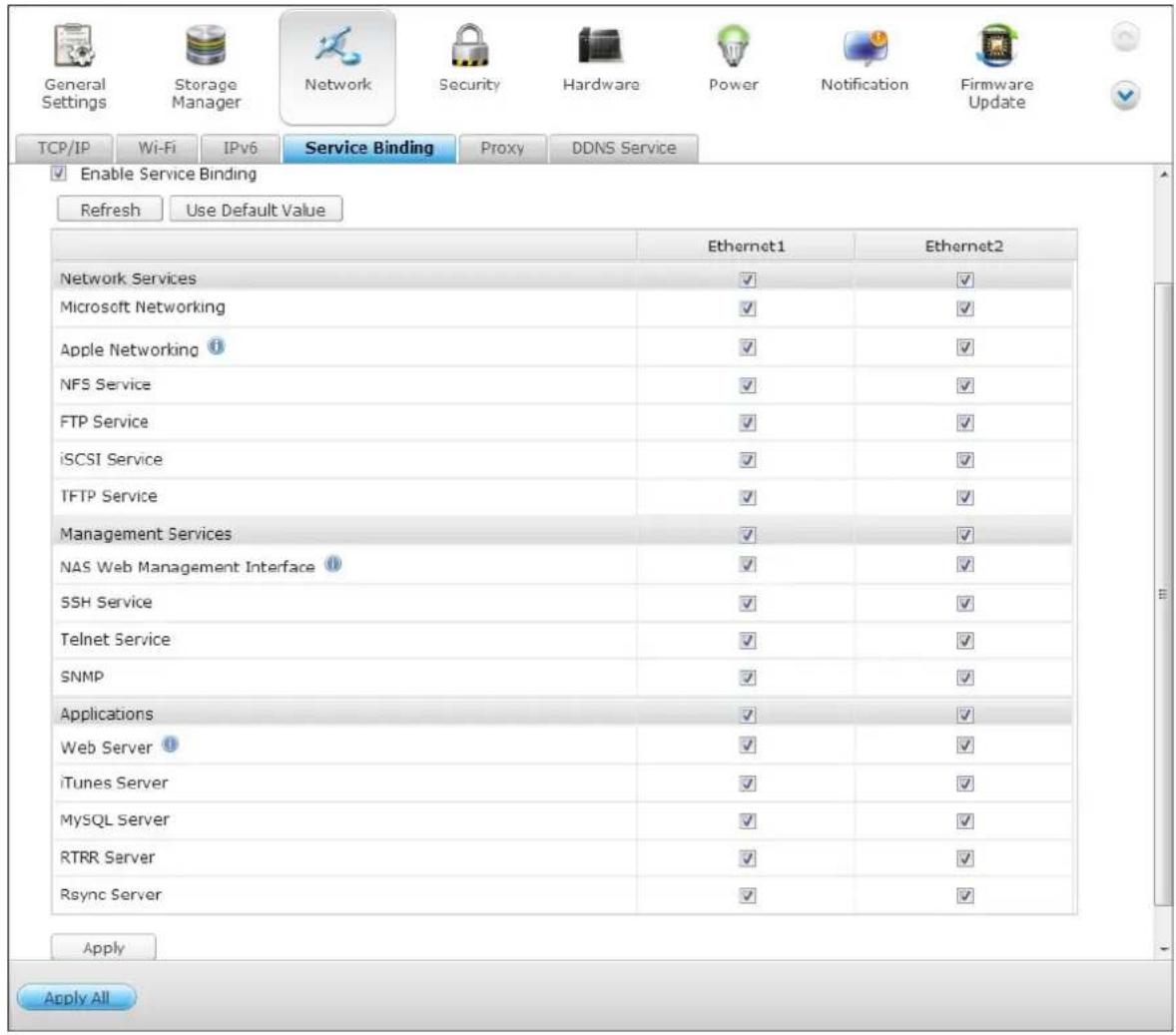
text_image
General Settings Storage Manager Network Security Hardware Power Notification Firmware Update TCP/IP Wi-Fi IPv6 Service Binding Proxy DDNS Service Enable Service Binding Refresh Use Default Value Ethernet1 Ethernet2 Network Services ✓ ✓ Microsoft Networking ✓ ✓ Apple Networking ✓ ✓ NFS Service ✓ ✓ FTP Service ✓ ✓ iSCSI Service ✓ ✓ TFTP Service ✓ ✓ Management Services ✓ ✓ NAS Web Management Interface ✓ ✓ SSH Service ✓ ✓ Telnet Service ✓ ✓ SNMP ✓ ✓ Applications ✓ ✓ Web Server ✓ ✓ iTunes Server ✓ ✓ MySQL Server ✓ ✓ RTRR Server ✓ ✓ Rsync Server ✓ ✓ Apply Apply AllNote: After applying the service binding settings, the connection of the currently online users will be kept even if they were not connecting to the services via the specified network interface(s). The specified network interface(s) will be used for the next connected session.
Proxy
Enter the proxy server settings to allow the NAS to access the Internet through a proxy server for live update of the firmware, virus definition update, and App add-ons download.
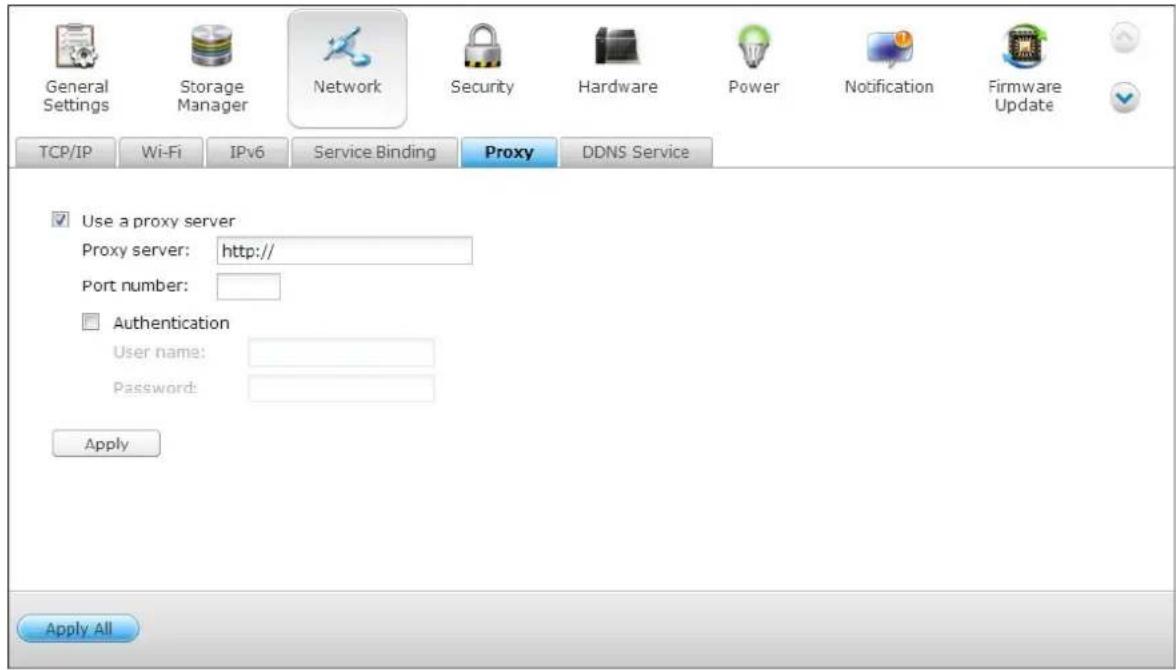
text_image
General Settings Storage Manager Network Security Hardware Power Notification Firmware Update TCP/IP Wi-Fi IPv6 Service Binding Proxy DDNS Service Use a proxy server Proxy server: http:// Port number: Authentication User name: Password: Apply Apply AllDDNS Service
To allow remote access to the NAS using a domain name instead of a dynamic IP address, enable the DDNS service.

text_image
General Settings Storage Manager Network Security Hardware Power Notification Firmware Update TCP/IP Wi-Fi IPv6 Service Binding Proxy DDNS Service DDNS Service Enable Dynamic DNS Service Select DDNS server: www.dyndns.com Enter the account information you registered with the DDNS provider Username: Password: Host name: Check the external IP address automatically 10 minutes Current WAN IP: 61.62.220.74 Apply AllThe NAS supports the DDNS providers: http://www.dyndns.com, http://update.ods.org, http://www.dhs.org, http://www.dyns.cx, http://www.3322.org, http://www.no-ip.com.
4.4 Security
Security Level
Specify the IP address or the network domain from which the connections to the NAS are allowed or denied. When the connection of a host server is denied, all the protocols of that server are not allowed to connect to the NAS.
After changing the settings, click "Apply" to save the changes. The network services will be restarted and current connections to the NAS will be terminated.

text_image
General Settings Storage Manager Network Security Hardware Power Notification Firmware Update Security Level Network Access Protection Certificate & Private Key Allow all connections Deny connections from the list Allow connections from the list only Enter the IP address or network from which the connections to this server will be allowed or rejected. Add Remove Genre IP Address or Network Domain Time Left for IP Blocking Apply Apply AllNetwork Access Protection
The network access protection enhances system security and prevents unwanted intrusion. You can block an IP for a certain period of time or forever if the IP fails to login the NAS from a particular connection method.
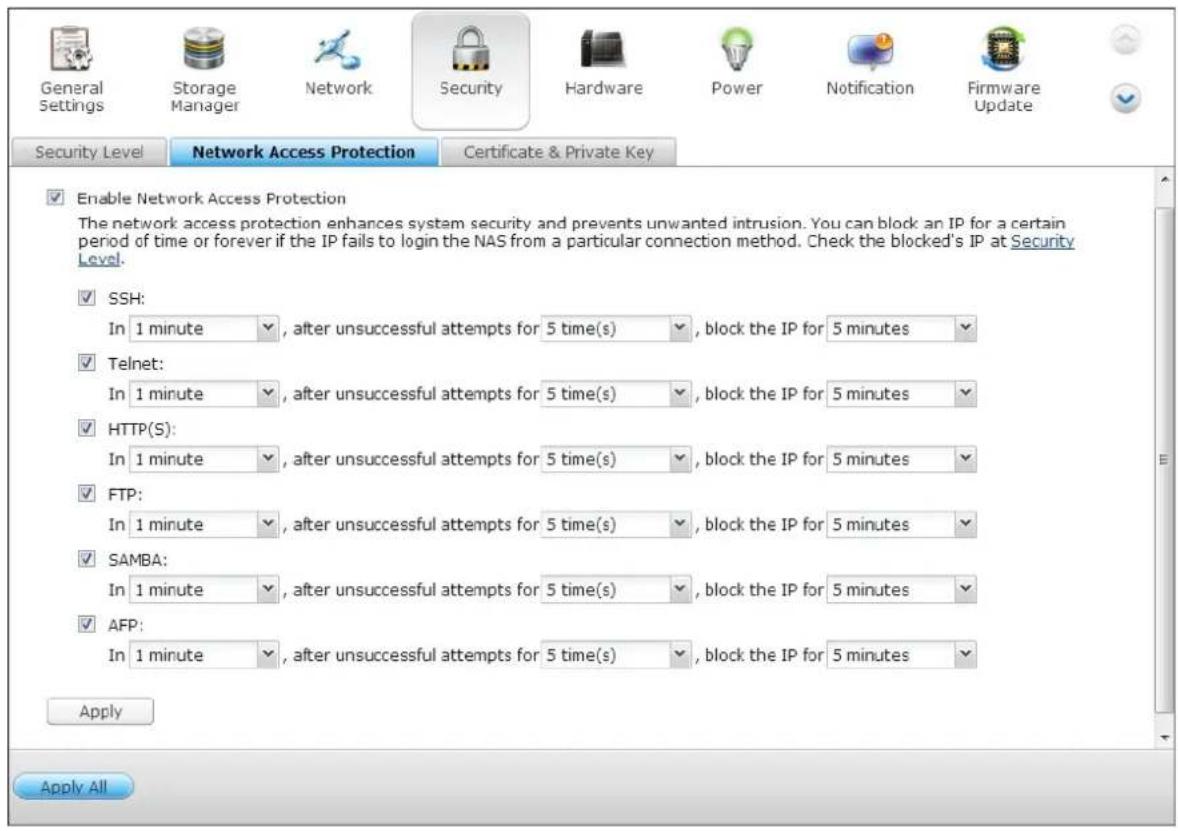
text_image
General Settings Storage Manager Network Security Hardware Power Notification Firmware Update Security Level Network Access Protection Certificate & Private Key Enable Network Access Protection The network access protection enhances system security and prevents unwanted intrusion. You can block an IP for a certain period of time or forever if the IP fails to login the NAS from a particular connection method. Check the blocked's IP at Security Level. SSH: In 1 minute , after unsuccessful attempts for 5 time(s) , block the IP for 5 minutes Telnet: In 1 minute , after unsuccessful attempts for 5 time(s) , block the IP for 5 minutes HTTP(S): In 1 minute , after unsuccessful attempts for 5 time(s) , block the IP for 5 minutes FTP: In 1 minute , after unsuccessful attempts for 5 time(s) , block the IP for 5 minutes SAMBA: In 1 minute , after unsuccessful attempts for 5 time(s) , block the IP for 5 minutes AFP: In 1 minute , after unsuccessful attempts for 5 time(s) , block the IP for 5 minutes Apply Apply AllCertificate & Private Key
The Secure Socket Layer (SSL) is a protocol for encrypted communication between the web servers and the web browsers for secure data transfer. You can upload a secure certificate issued by a trusted provider. After uploading a secure certificate, users can connect to the administration interface of the NAS by SSL connection and there will not be any alert or error message. The NAS supports X.509 certificate and private key only.
- Download Certificate: To download the secure certificate which is currently in use.
- Download Private Key: To download the private key which is currently in use.
- Restore Default Certificate & Private Key: To restore the secure certificate and private key to system default. The secure certificate and private key in use will be overwritten.

text_image
General Settings Storage Manager Network Security Hardware Power Notification Firmware Update Security Level Network Access Protection Certificate & Private Key You can upload a secure certificate issued by a trusted provider. After you have uploaded a secure certificate successfully, you can access the administration interface by SSL connection and there will not be any alert or error message. If you upload an incorrect secure certificate, you may not be able to login the server via SSL. To resolve the problem, you can restore the secure certificate to default and access the system again. Status:default secure certificate being used Download Certificate Download Private Key Restore Default Certificate & Private Key Certificate:please enter a certificate in X.509PEM format below. View Sample Private Key:please enter a certificate or private key in X.509PEM format below. View Sample Clear UploadConfigure the hardware functions of the NAS.
General
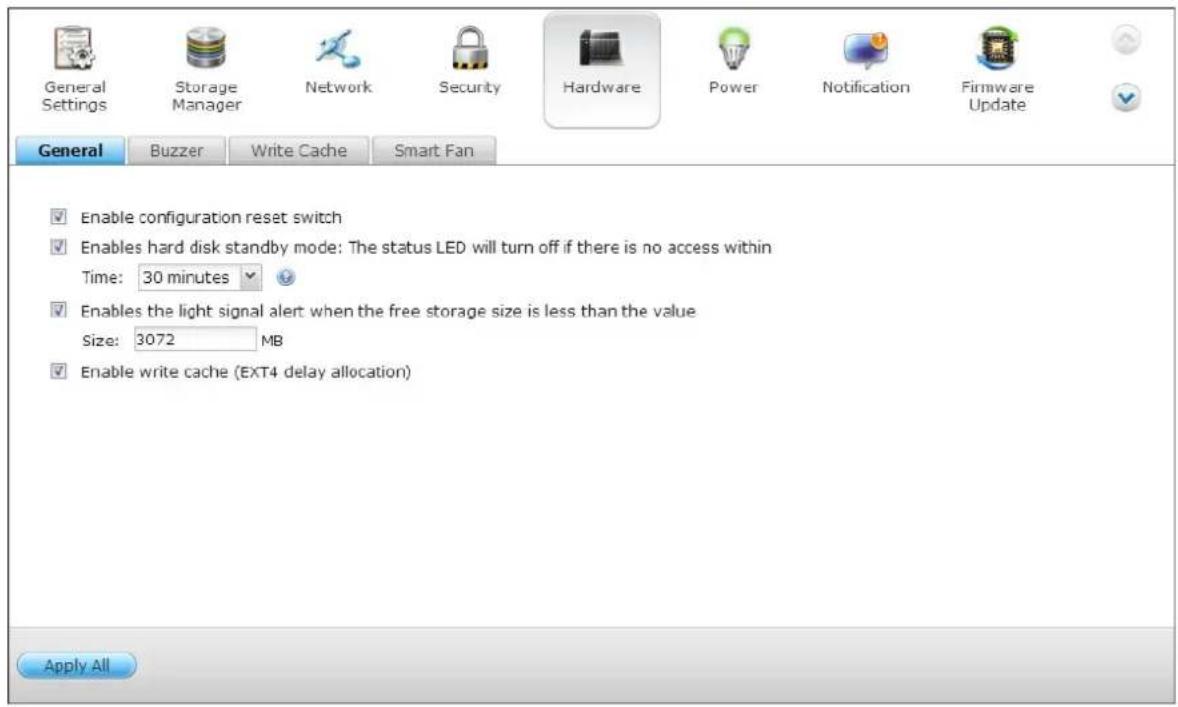
text_image
General Settings Storage Manager Network Security Hardware Power Notification Firmware Update General Buzzer Write Cache Smart Fan Enable configuration reset switch Enables hard disk standby mode: The status LED will turn off if there is no access within Time: 30 minutes Enables the light signal alert when the free storage size is less than the value Size: 3072 MB Enable write cache (EXT4 delay allocation) Apply AllEnable configuration reset switch
When this function is turned on, you can press the reset button for 3 seconds to reset the administrator password and the system settings to default. The disk data will be retained.
| System | Basic system reset(1 beep) | Advanced system reset(2 beeps) |
| All NAS models | Press the reset button for 3 sec | Press the reset button for 10 sec |
Basic system reset (3 sec)
After pressing the reset button for 3 seconds, a beep sound will be heard. The following settings will be reset to default:
• System administration password: admin.
- TCP/IP configuration: Obtain IP address settings automatically via DHCP.
- TCP/IP configuration: Disable Jumbo Frame.
- TCP/IP configuration: If port trunking is enabled (dual LAN models only), the port
trunking mode will be reset to "Active Backup (Failover)".
• System port: 8080 (system service port).
• Security level: Low (Allow all connections).
• LCD panel password: (blank)*.
• VLAN will be disabled.
• Service binding: All NAS services run on all available network interfaces.
*This feature is only provided by the NAS models with LCD panels. Please visit http://www.qnap.com for details.
Advanced system reset (10 sec)
After pressing the reset button for 10 seconds, you will hear two beeps at the third and the tenth seconds. The NAS will reset all the system settings to default as it does by the web-based system reset in "Administration" > "Restore to Factory Default" except all the data are reserved. The settings such as the users, user groups, and the shared folders previously created will be cleared. To retrieve the old data after advanced system reset, create the same shared folders on the NAS and the data will be accessible again.
Enable hard disk standby mode
This option allows the hard drives on the NAS to enter standby mode if there is no disk access within the specified period.
Enable light signal alert when the free size of SATA disk is less than the value:
The status LED flashes red and green when this option is turned on and the free space of the SATA hard drive is less than the value. The valid range of the value is 1-51200 MB.
Enable write cache (EXT4 only)
If the disk volume of the NAS is formatted as EXT4, turn on this option for higher write performance. Note that an unexpected system shutdown may lead to incomplete data transfer when data write is in process. This option will be turned off when any of the following services is enabled: Download Station, MySQL service, user quota, and Surveillance Station. You are recommended to turn this option off if the NAS is set as a shared storage in a virtualized or clustered environment.
Enable warning alert for redundant power supply on the web-based interface:
If two power supply units (PSU) are installed on the NAS and connected to the power
sockets, both PSU will supply the power to the NAS (applied to 1U and 2U models). Turn on the redundant power supply mode in "System Settings" > "Hardware" to receive warning alert for the redundant power supply. The NAS will sound and record the error messages in "System Logs" when the PSU is plugged out or does not correspond correctly.
If only one PSU is installed on the NAS, do NOT enable this option.
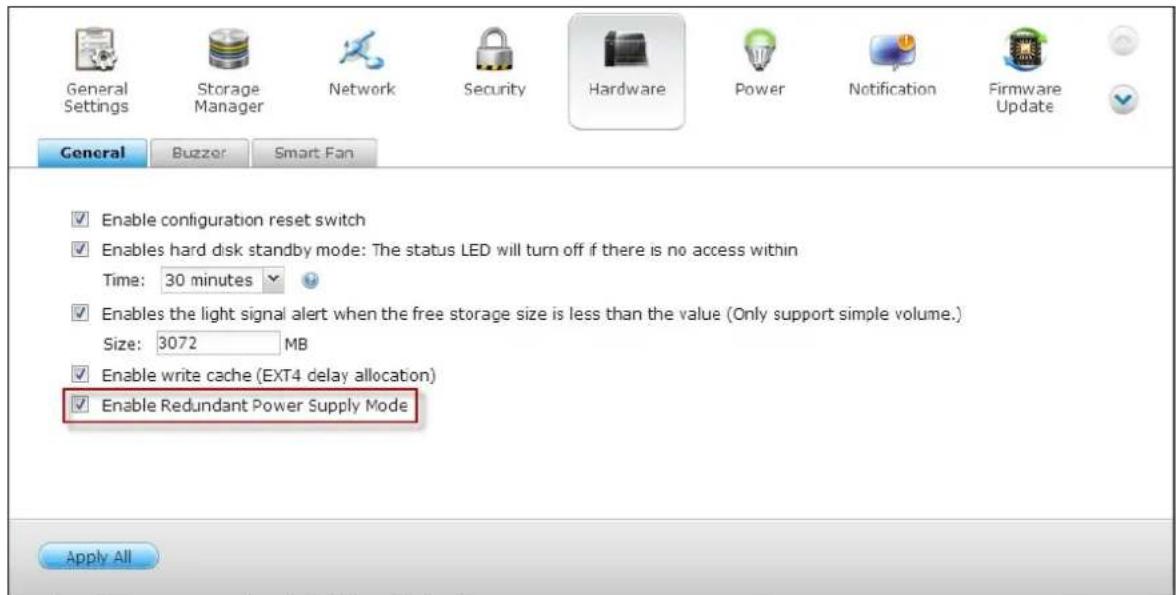
text_image
General Settings Storage Manager Network Security Hardware Power Notification Firmware Update General Buzzer Smart Fan Enable configuration reset switch Enables hard disk standby mode: The status LED will turn off if there is no access within Time: 30 minutes Enables the light signal alert when the free storage size is less than the value (Only support simple volume.) Size: 3072 MB Enable write cache (EXT4 delay allocation) Enable Redundant Power Supply Mode Apply All* This function is disabled by default.
Buzzer
Enable alarm buzzer
Turn on this option to allow the alarm buzzer to beep when certain system operations (startup, shutdown, or firmware upgrade) are executed or system events (error or warning) occur.

text_image
General Settings Storage Manager Network Security Hardware Power Notification Firmware Update General Buzzer Write Cache Smart Fan Enable Alarm Buzzer ✓ System operations (startup, shutdown, and firmware upgrade) ✓ System events (error and warning) Apply AllWrite Cache
Better write performance can be obtained when this option is enabled. Please not that an unexpected system shutdown might cause incomplete data transfer when data write is in progress. This option will be disabled when Download Station or MySQL service is enabled.

text_image
General Settings Storage Manager Network Security Hardware Power Notification Firmware Update General Buzzer Write Cache Smart Fan You can gain better write performance when this option is enabled. Please note an unexpected system shutdown might cause incomplete data transfer when data write is in process. This option will be disabled when Download Station or MySQL service is enabled. ✓ Enable write cache (EXT4 delay allocation) Apply AllSmart Fan
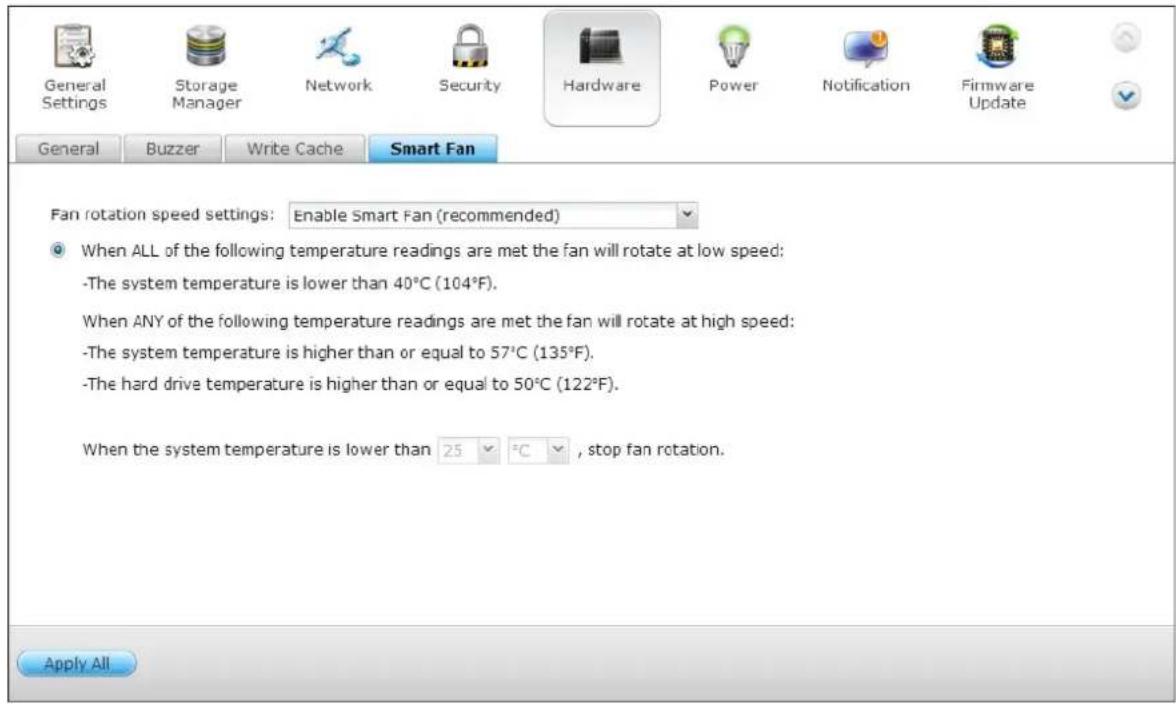
text_image
General Settings Storage Manager Network Security Hardware Power Notification Firmware Update General Buzzer Write Cache Smart Fan Fan rotation speed settings: Enable Smart Fan (recommended) When ALL of the following temperature readings are met the fan will rotate at low speed: -The system temperature is lower than 40°C (104°F). When ANY of the following temperature readings are met the fan will rotate at high speed: -The system temperature is higher than or equal to 57°C (135°F). -The hard drive temperature is higher than or equal to 50°C (122°F). When the system temperature is lower than 25 °C, stop fan rotation. Apply AllSmart Fan Configuration:
- Enable smart fan (recommended)
Select to use the default smart fan settings or define the settings manually. When the system default settings are selected, the fan rotation speed will be automatically adjusted when the NAS temperature, CPU temperature, and hard drive temperature meet the criteria. It is recommended to enable this option.
- Set fan rotation speed manually
By manually setting the fan rotation speed, the fan rotates at the defined speed continuously.
You can restart or shut down the NAS, specify the behavior of the NAS after a power recovery, and set the schedule for automatic system power on/off/restart on this page.
EuP Mode Configuration
EuP (also Energy-using Products) is a European Union (EU) directive designed to improve the energy efficiency of electrical devices, reduce use of hazardous substances, increase ease of product recycling, and improve environment-friendliness of the product.

text_image
General Settings Storage Manager Network Security Hardware Power Notification Firmware Update EuP Mode Configuration Wake-on-LAN (WCL) Power Recovery Power Schedule Enable Disable Note: When EuP is enabled, the Wake on LAN, AC power resumption, and power schedule settings will be disabled so that the server maintains low power consumption (less than 1W) when the server is powered off. Apply Apply AllWhen EuP is enabled, the following settings will be affected so that the NAS maintains low power consumption (less than 1W) when the NAS is powered off:
- Wake on LAN: Disabled.
- AC power resumption: The NAS will remain off after the power restores from an outage.
- Scheduled power on, off, restart settings: Disabled.
When EuP is disabled, the power consumption of the NAS is slightly higher than 1W when the NAS is powered off. EuP is disabled by default so that you can use the functions Wake on LAN, AC power resumption, and power schedule settings properly.
This feature is only supported by certain NAS models, please visit http://www.qnap.com
for details.
Wake-on-LAN (W OL)
Turn on this option to allow the users to power on the NAS remotely by Wake on LAN. Note that if the power connection is physically removed (in other words, the power cable is unplugged) when the NAS is turned off, Wake on LAN will not function whether or not the power supply is reconnected afterwards.
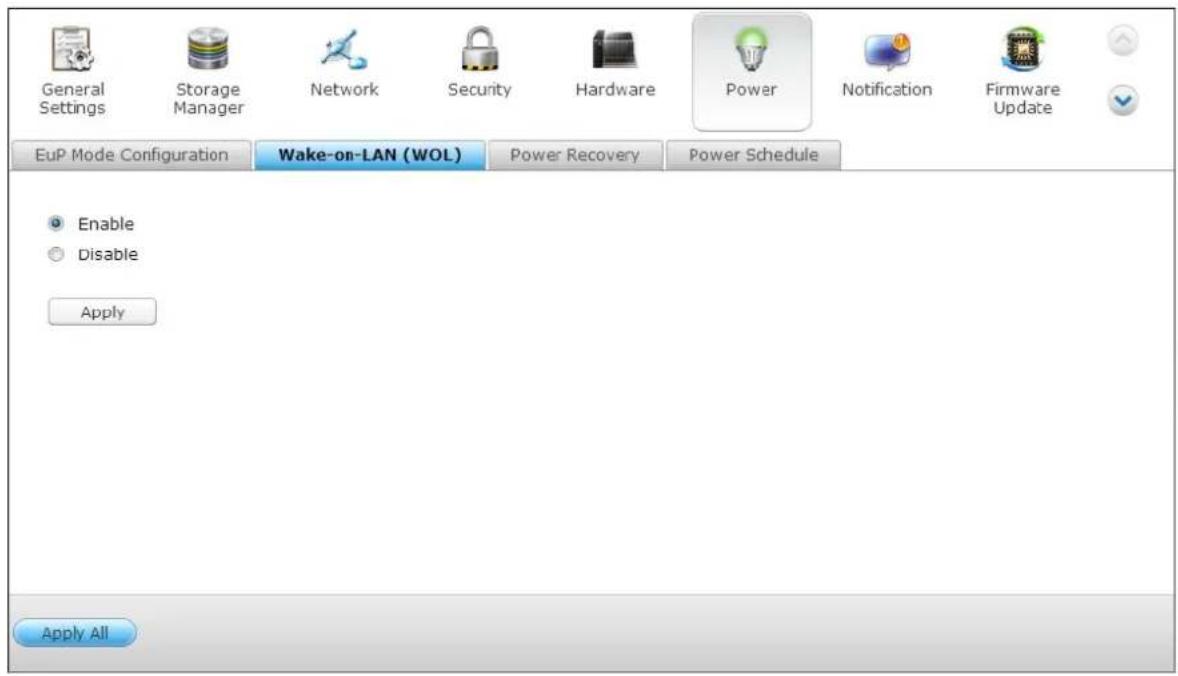
text_image
General Settings Storage Manager Network Security Hardware Power Notification Firmware Update EuP Mode Configuration Wake-on-LAN (WOL) Power Recovery Power Schedule Enable Disable Apply Apply AllThis feature is only supported by certain NAS models, please visit http://www.qnap.com for details.
Power Recovery
Configure the NAS to resume to the previous power-on or power-off status, turn on, or remain off when the AC power resumes after a power outage.
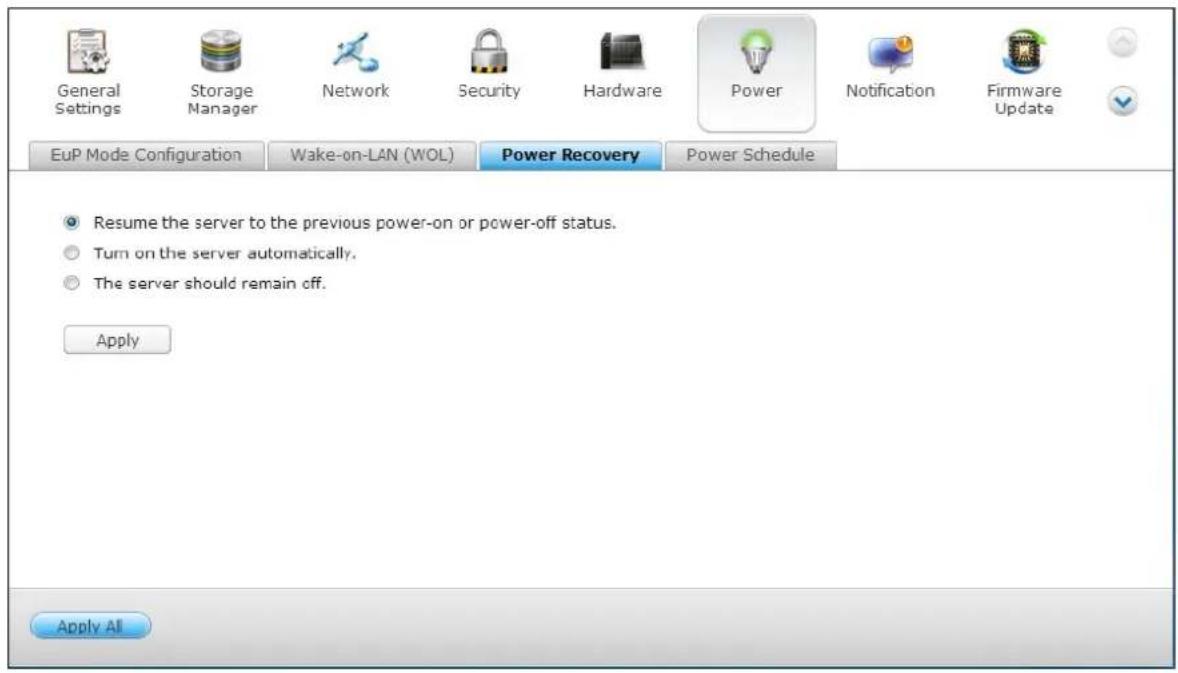
text_image
General Settings Storage Manager Network Security Hardware Power Notification Firmware Update EuP Mode Configuration Wake-on-LAN (WOL) Power Recovery Power Schedule Resume the server to the previous power-on or power-off status. Turn on the server automatically. The server should remain off. Apply Apply AllPower Schedule
Specify the schedule for automatic system power on, power off, or restart. Weekdays stand for Monday to Friday; weekend stands for Saturday and Sunday. Up to 15 schedules can be set.

text_image
General Settings Storage Manager Network Security Hardware Power Notification Firmware Update EuP Mode Configuration Wake-on-LAN (WOL) Power Recovery Power Schedule Enable schedule Postpone the restart/shutdown schedule when a replication job is in progress. Add Remove Restart Monday 23 59 Shutdown Sunday 7 0 Apply Apply AllTurn on the option "Postpone the restart/shutdown schedule when replication job is in process" to allow the scheduled system restart or shutdown to be carried out after a running replication job completes. Otherwise, the NAS will ignore the running replication job and execute scheduled system restart or shutdown.
SMT P Server
The NAS supports email alert to inform the administrator of system errors and warning. To receive the alert by email, configure the SMTP server.
- Select an email account: specify the type of email account you would like to use for email alerts.
- SMTP Server: Enter the SMTP server name, for example, smtp.gmail.com.
- Port Number: Enter the port number for the SMTP server. The default port number is 25.
- Email: Enter email address of the alert recipient.
- Username and Password: Enter the login information of the email account.
- Secure connection: Choose SSL or TLS to ensure a secure connection between the NAS and SMTP server, or None based on your needs. It is advised to turn this function on if the SMTP server supports it.
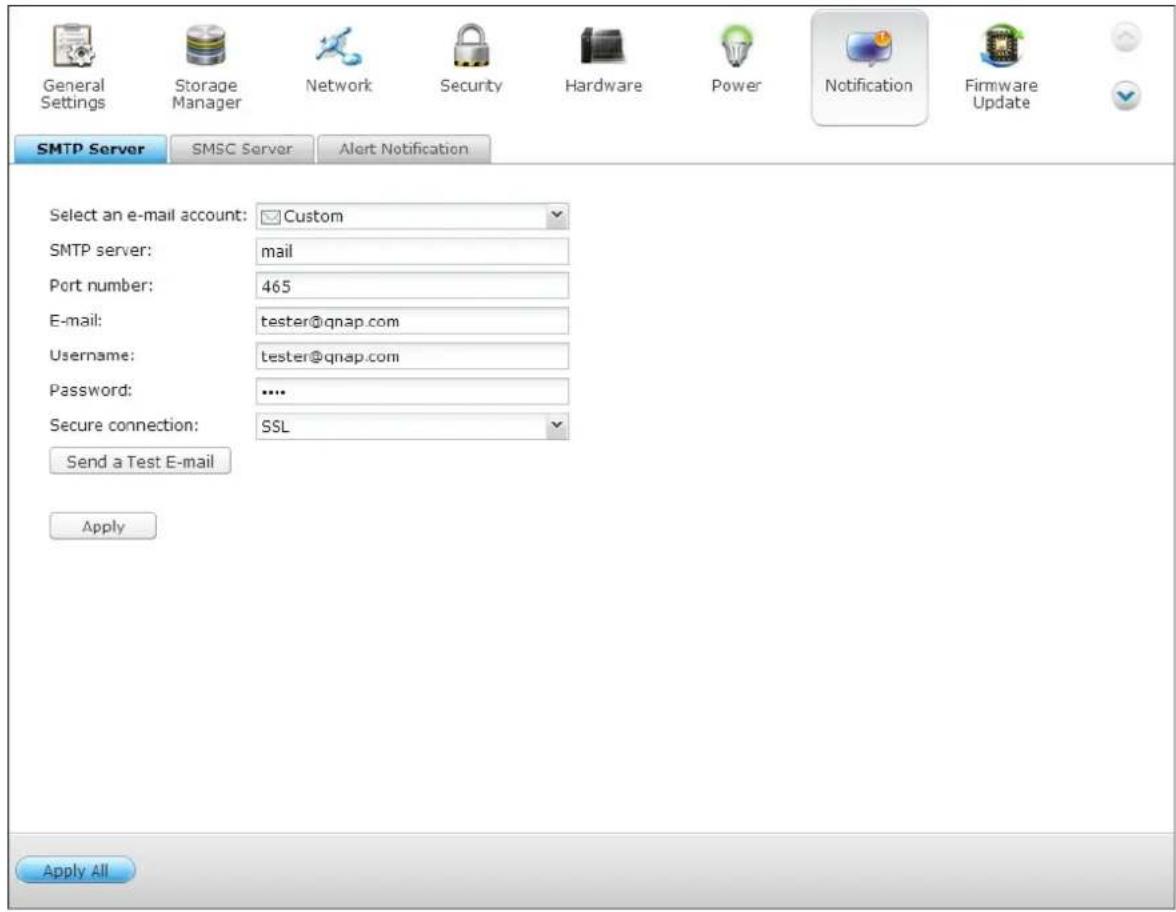
text_image
General Settings Storage Manager Network Security Hardware Power Notification Firmware Update SMTP Server SMSC Server Alert Notification Select an e-mail account: Custom SMTP server: mail Port number: 465 E-mail: tester@qnap.com Username: tester@qnap.com Password: .... Secure connection: SSL Send a Test E-mail Apply Apply AllSMSC Server
Configure the SMSC server settings to send SMS messages to the specified phone number(s) from the NAS. The default SMS service provider is Clickatell. You can add your own SMS service provider by selecting "Add SMS Provider" from the drop-down menu.
When "Add SMS service provider" is selected, enter the name of the SMS provider and the URL template text.
Note: The URL template text must follow the standard of the SMS service provider to receive the SMS alert properly.
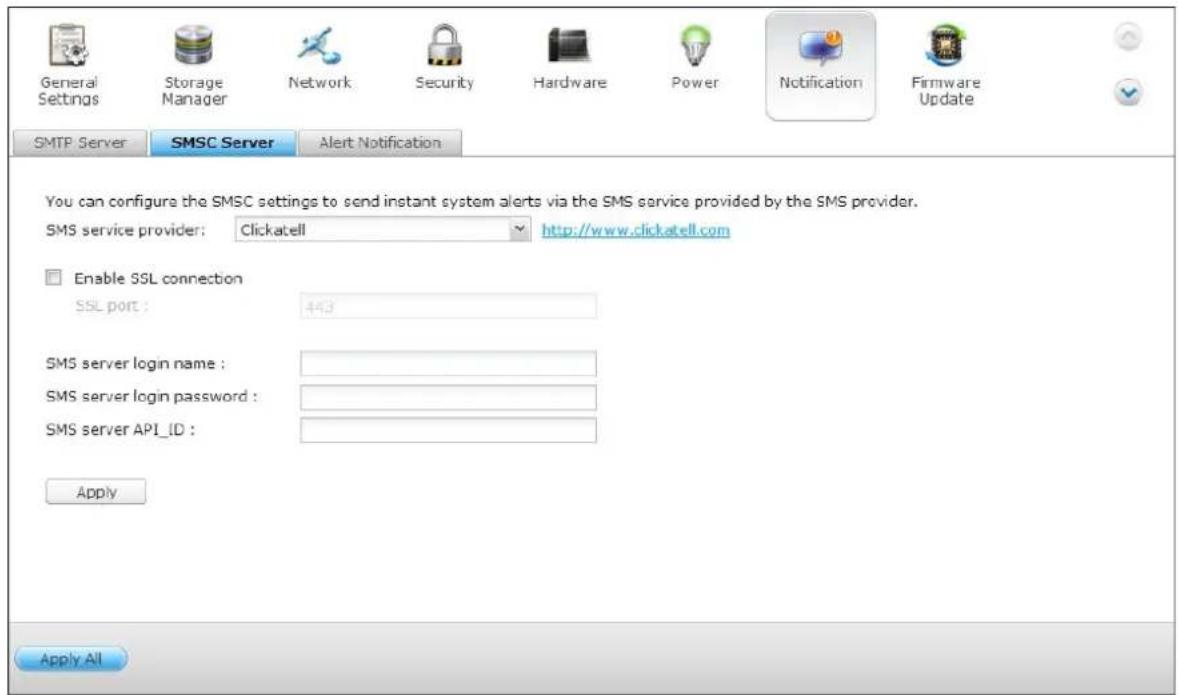
text_image
General Settings Storage Manager Network Security Hardware Power Notification Firmware Update SMTP Server SMSC Server Alert Notification You can configure the SMSC settings to send instant system alerts via the SMS service provided by the SMS provider. SMS service provider: Clickatell http://www.clickatell.com Enable SSL connection SSL port : 443 SMS server login name : SMS server login password : SMS server API_ID : Apply Apply AllAlert Notification
Select the type of instant alert the NAS will send to the designated users when system events (warning/error) occur.

text_image
General Settings Storage Manager Network Security Hardware Power Notification Firmware Update SMTP Server SMSC Server Alert Notification Alert Notification When a system event occurs, do the following immediately: Send system error alert by: ✓ E-mail ✓ SMS Send system warning alert by: ✓ E-mail E-mail Notification Settings E-mail address 1: E-mail address 2: Send a Test E-mail Note: The SMTP server must be configured first for alert mail delivery. SMS Notification Settings Country code: Afghanistan(+93) Cell phone No. 1: +93 Cell phone No. 2: +93 Send a Test SMS Message Note: You must configure the SMSC server to be able to send SMS notification properly. Apply Apply AllE-mail Notification Settings
Specify the email addresses (maximum 2) to receive instant system alert from the NAS.
SMS Notification Settings
Specify the cell phone numbers (maximum 2) to receive instant system alert from the NAS.
Live Update
Select "Automatically check if a newer version is available when logging into the NAS web administration interface" to allow the NAS to automatically check if a new firmware version is available for download from the Internet. If a new firmware is found, you will be notified after logging in the NAS as an administrator.
Click "Check for Update" to check if any firmware update is available.
Note that the NAS must be connected to the Internet for these features to work.
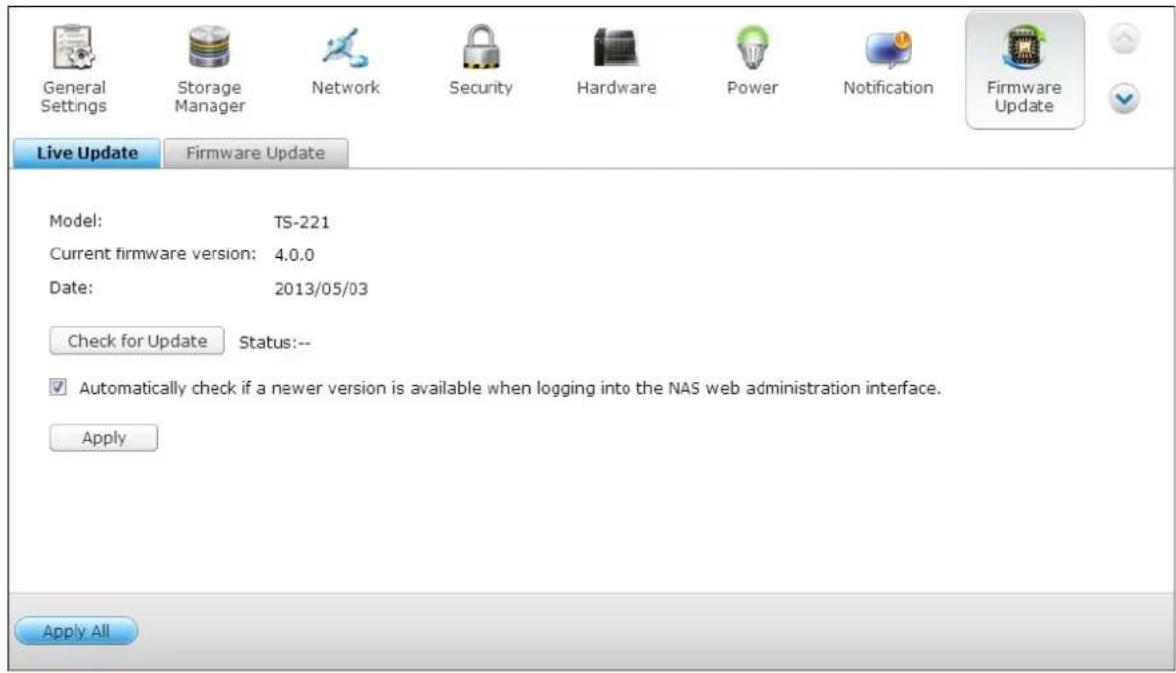
text_image
General Settings Storage Manager Network Security Hardware Power Notification Firmware Update Live Update Firmware Update Model: TS-221 Current firmware version: 4.0.0 Date: 2013/05/03 Check for Update Status:-- ✓ Automatically check if a newer version is available when logging into the NAS web administration interface. Apply Apply AllFirmware Update

text_image
General Settings Storage Manager Network Security Hardware Power Notification Firmware Update Live Update Firmware Update Model: TS-221 Current firmware version: 4.0.0 Date: 2013/05/03 Before updating system firmware, please make sure the product model and firmware version are correct. Follow the steps below to update firmware: 1. Download the release notes of the same version as the firmware from QNAP website http://www.qnap.com/ Read the release notes carefully to make sure you need to update the firmware. 2. Before updating system firmware, back up all disk data on the server to avoid any potential data loss during system update. 3. Click the [Browse...] button to select the correct firmware image for system update. Click the [Update System] button to update the firmware. Browse... Update System Note: System update may take tens of seconds to several minutes to complete depending on the network connection status, please wait patiently. The system will inform you when system update is completed.Note: If the system is running properly, you do not need to update the firmware.
Before updating the system firmware, make sure the product model and firmware version are correct. Follow the steps below to update firmware:
- Download the release notes of the firmware from the QNAP website http://www.gnap.com. Read the release notes carefully to make sure it is required to update the firmware.
- Download the NAS firmware and unzip the IMG file to the computer.
- Before updating the system firmware, back up all the disk data on the NAS to avoid any potential data loss during the system update.
- Click "Browse" to select the correct firmware image for the system update. Click "Update System" to update the firmware.
The system update may take tens of seconds to several minutes to complete depending on the network connection status. Please wait patiently. The NAS will inform you when the system update has completed.
Update Firmw are by Q NAP Qfinder
The NAS firmware can be updated by the QNAP Qfinder. Follow the steps below:
- Select a NAS model and choose "Update Firmware" from the "Tools" menu.
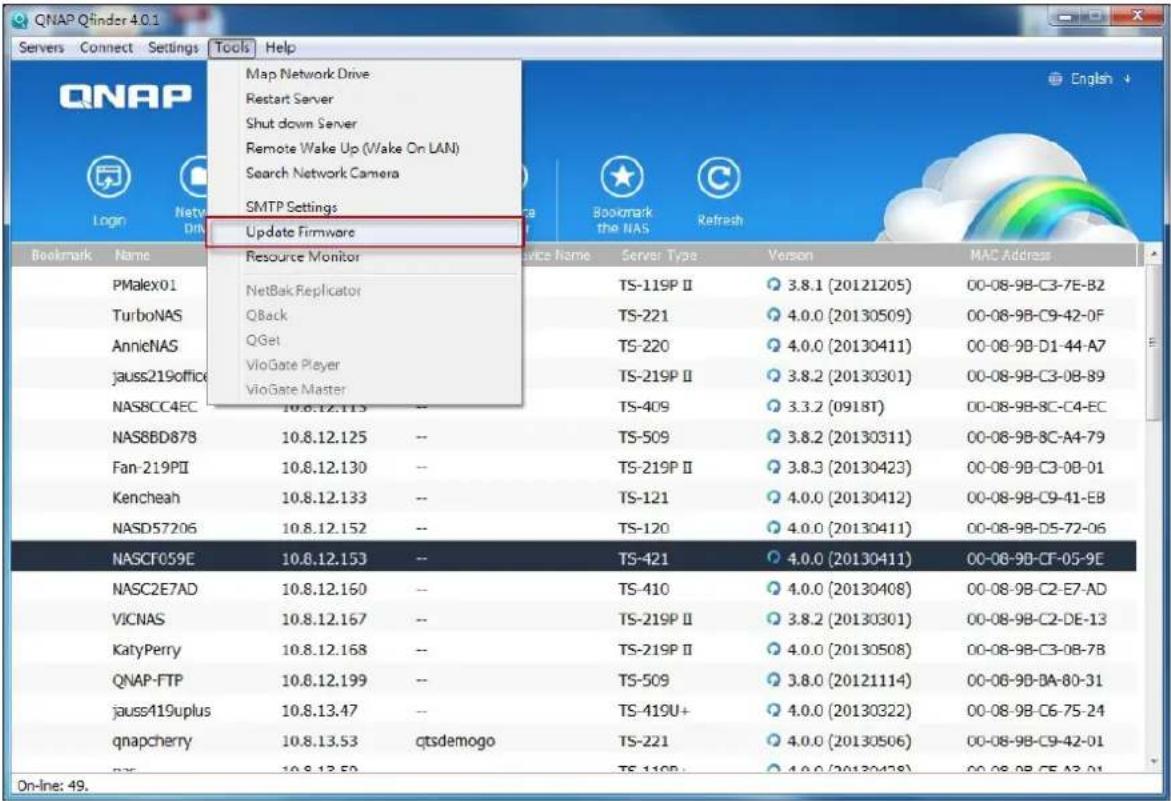
text_image
QNAP Servers Connect Settings Tools Help Map Network Drive Restart Server Shut down Server Remote Wake Up (Wake On LAN) Search Network Camera SMTP Settings Update Firmware Resource Monitor MT-119P II TS-221 TS-220 TS-219P II TS-409 TS-509 TS-219P II TS-121 TS-120 TS-421 TS-410 TS-219P II TS-509 TS-419U+ TS-221 TS-119P+ 3.8.1 (20121205) 00-08-9B-C3-7E-B2 4.0.0 (20130509) 00-08-9B-C9-42-0F 4.0.0 (20130411) 00-08-9B-D1-44-A7 3.8.2 (20130301) 00-08-9B-C3-08-B9 3.3.2 (0918T) 00-08-9B-8C-C4-EC 3.8.2 (20130311) 00-08-9B-8C-A4-79 3.8.3 (20130423) 00-08-9B-C3-08-01 4.0.0 (20130412) 00-08-9B-C9-41-EB 4.0.0 (20130411) 00-08-9B-D5-72-06 4.0.0 (20130411) 00-08-9B-CF-05-9E 4.0.0 (20130408) 00-08-9B-C2-E7-AD 3.8.2 (20130301) 00-08-9B-C2-DE-13 4.0.0 (20130508) 00-08-9B-C3-08-7B 3.8.0 (20121114) 00-08-9B-BA-8O-31 4.0.0 (20130322) 00-08-9B-C6-75-24 4.0.0 (20130506) 00-08-9B-C9-42-01 4.0.0 (20130428) 00-08-9B-CF-A3-01 On-Line: 49.- Login the NAS as an administrator.
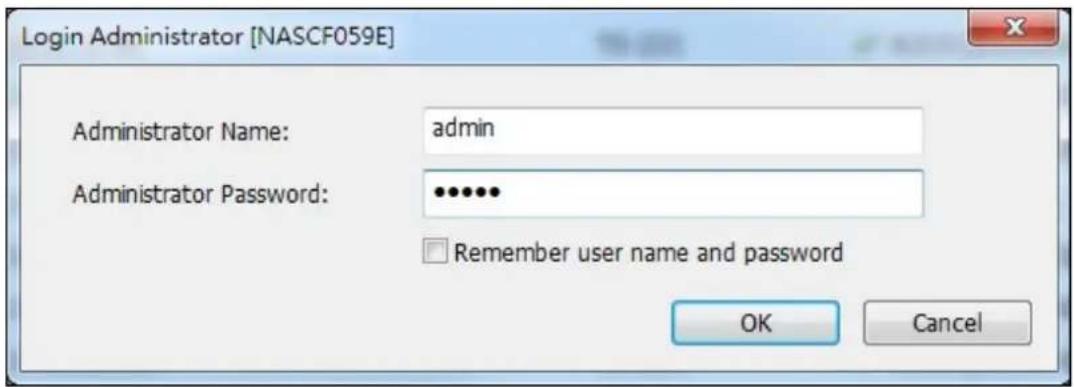
text_image
Login Administrator [NASCF059E] Administrator Name: admin Administrator Password: •••••• Remember user name and password OK Cancel- Browse and select the firmware for the NAS. Click "Start" to update the system.
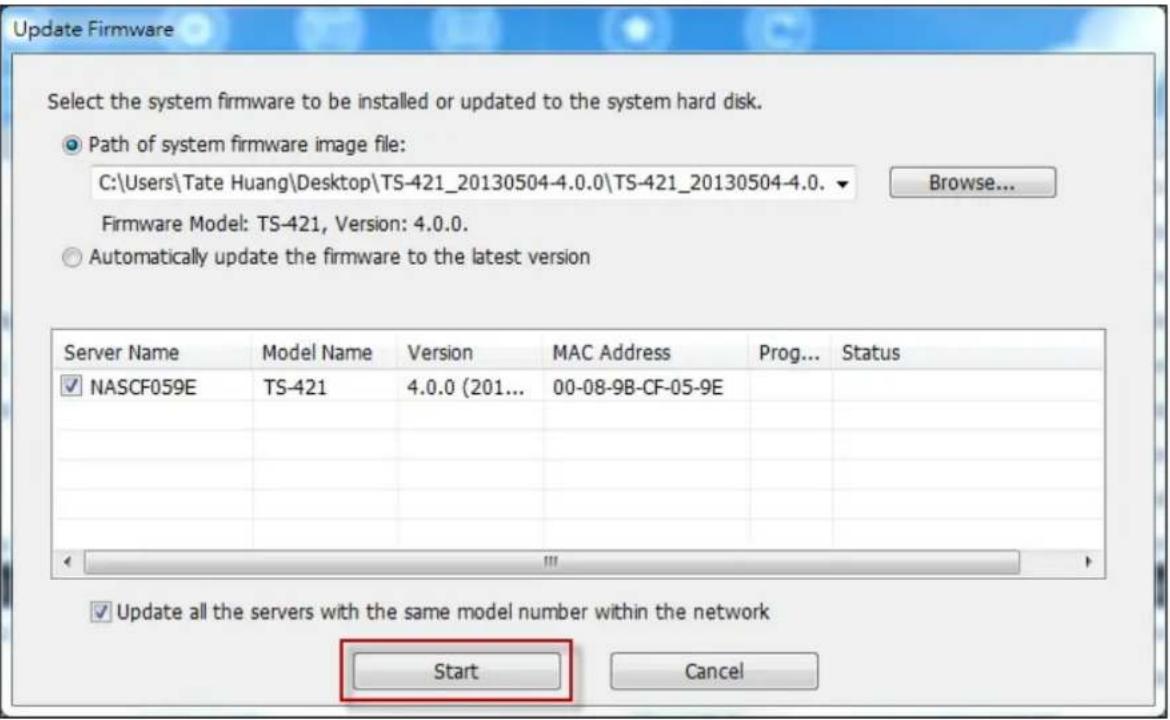
text_image
Update Firmware Select the system firmware to be installed or updated to the system hard disk. Path of system firmware image file: C:\Users\Tate Huang\Desktop\TS-421_20130504-4.0.0\TS-421_20130504-4.0. Browse... Firmware Model: TS-421, Version: 4.0.0. Automatically update the firmware to the latest version Server Name Model Name Version MAC Address Prog... Status ✓ NASCF059E TS-421 4.0.0 (201... 00-08-9B-CF-05-9E ✓ Update all the servers with the same model number within the network Start CancelNote: The NAS servers of the same model on the same LAN can be updated by the Finder at the same time. Administrator access is required for system update.
4.9 Backup/Restore
Backup/Restore Settings
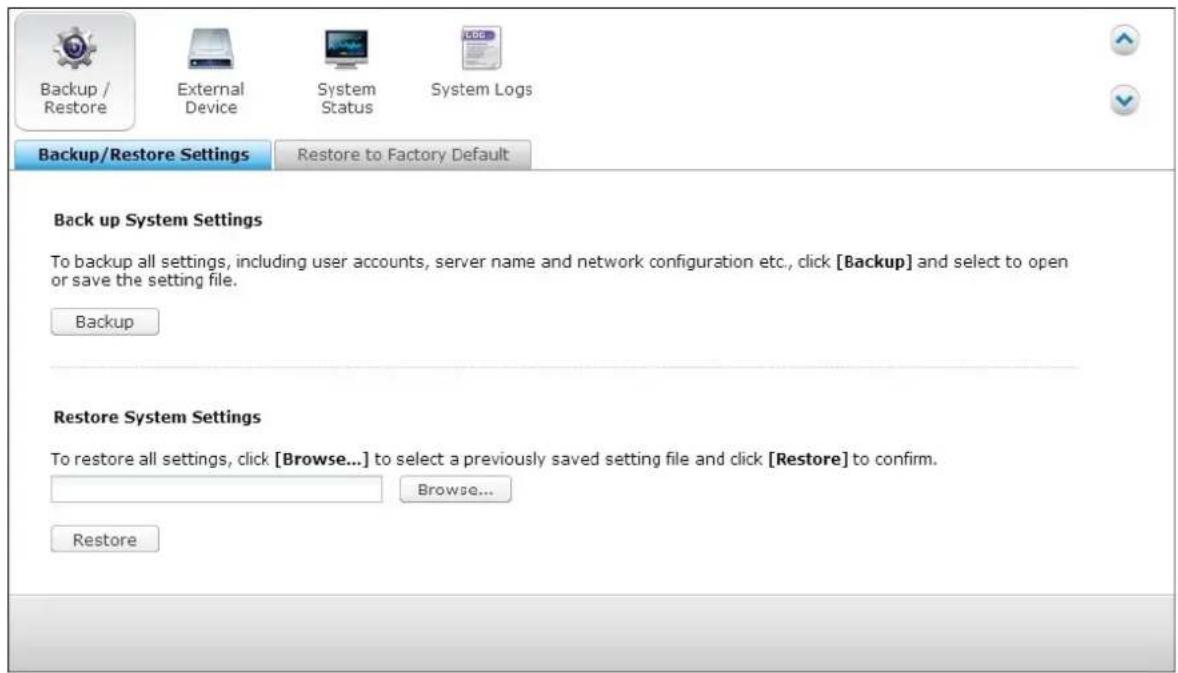
text_image
Backup / Restore External Device System Status System Logs Backup/Restore Settings Restore to Factory Default Back up System Settings To backup all settings, including user accounts, server name and network configuration etc., click [Backup] and select to open or save the setting file. Backup Restore System Settings To restore all settings, click [Browse...] to select a previously saved setting file and click [Restore] to confirm. Browse... RestoreBack up System Settings
To back up all the settings, including the user accounts, server name, network configuration and so on, click "Backup" and select to open or save the setting file.
To restore all the settings, click "Browse" to select a previously saved setting file and click "Restore".
Restore to Factory Default
To reset all the system settings to default, click "RESET" and then click "OK".

Caution: When "RESET" is pressed on this page, all the disk data, user accounts, shared folders, and system settings will be cleared and restored to default. Always back up all the important data and system settings before resetting the NAS.
To reset the NAS by the reset button, see "System Settings" > "Hardware".
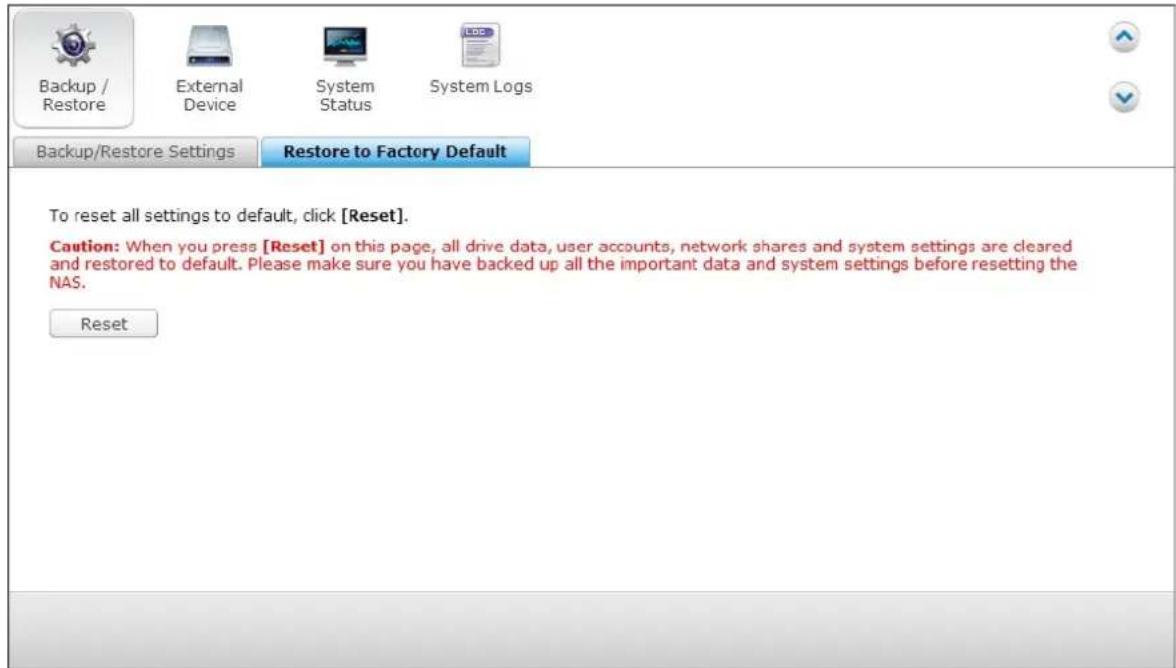
text_image
Backup / Restore External Device System Status System Logs Backup/Restore Settings Restore to Factory Default To reset all settings to default, click [Reset]. Caution: When you press [Reset] on this page, all drive data, user accounts, network shares and system settings are cleared and restored to default. Please make sure you have backed up all the important data and system settings before resetting the NAS. Reset4.10 External Device
External Storage ^253
USB Printer261
UPS289
The NAS supports external USB and eSATA storage devices* for backup and data storage. Connect the external storage device to a USB or an eSATA interface of the NAS, when the device is successfully detected, the details will be shown on this page.
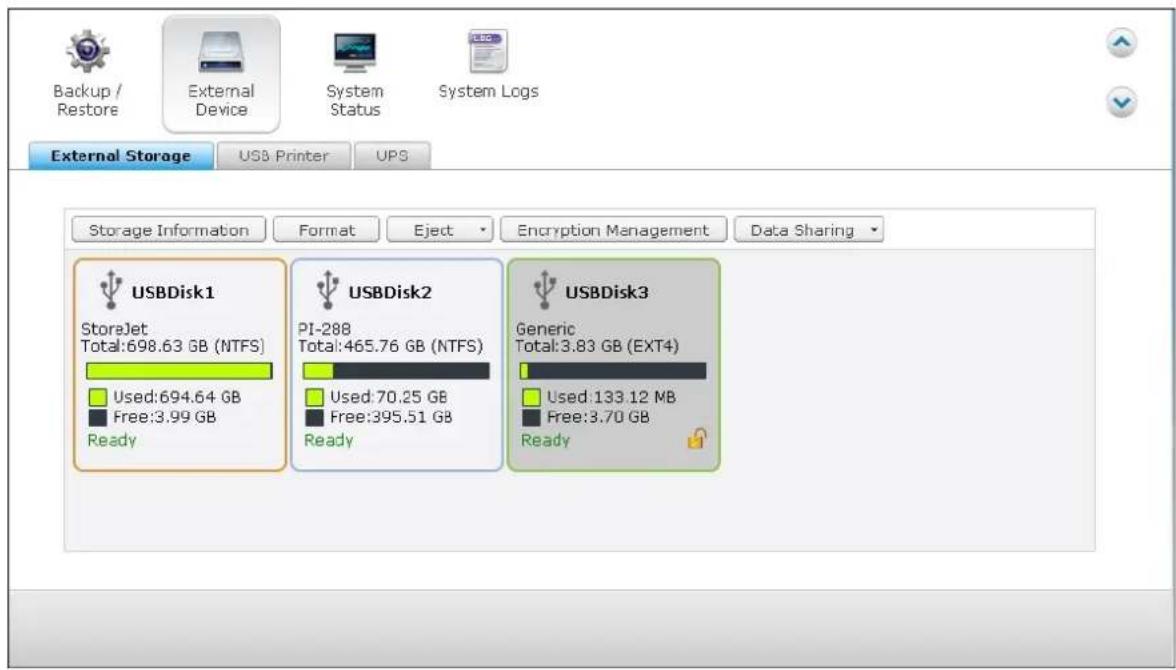
text_image
Backup / Restore External Device System Status System Logs External Storage USB Printer UPS Storage Information Format Eject Encryption Management Data Sharing USBDisk1 StoreJet Total:698.63 GB (NTFS) Used:694.64 GB Free:3.99 GB Ready USBDisk2 PI-288 Total:465.76 GB (NTFS) Used:70.25 GB Free:395.51 GB Ready USBDisk3 Generic Total:3.83 GB (EXT4) Used:133.12 MB Free:3.70 GB ReadyStorage Information
Select a storage device and click Storage Information to check for its details.
| Storage Information | |
| Storage Name | USBDisk2 |
| Manufacturer | PI-288 |
| Model | USB 2.0 Drive |
| Total / Free Size | 465.76 GB / 395.51 GB |
| File System | NTFS |
| Shared Folder | USBDisk2 |
| Device Type | USB 2.0 |
| Status | Ready |
*The number of USB and eSATA interfaces supported varies by models. Please refer to http://www.qnap.com for details.
It may take tens of seconds for the NAS server to detect the external USB or eSATA device successfully. Please wait patiently.
Format
The external storage device can be formatted as EXT3, EXT4, FAT32, NTFS, or HFS+ (Mac only) file system. Click "Format" and select the option from the drop-down menu.
The NAS supports external drive encryption. To encrypt an external storage device, click "Encryption". Select the encryption method: AES 128-, 192- or 256-bit and enter the password (8-16 characters). Select "Save encryption key" to save the password in a hidden location on a hard drive of the NAS. The NAS will unlock the encrypted external storage device automatically every time the device is connected. Click Format to proceed.
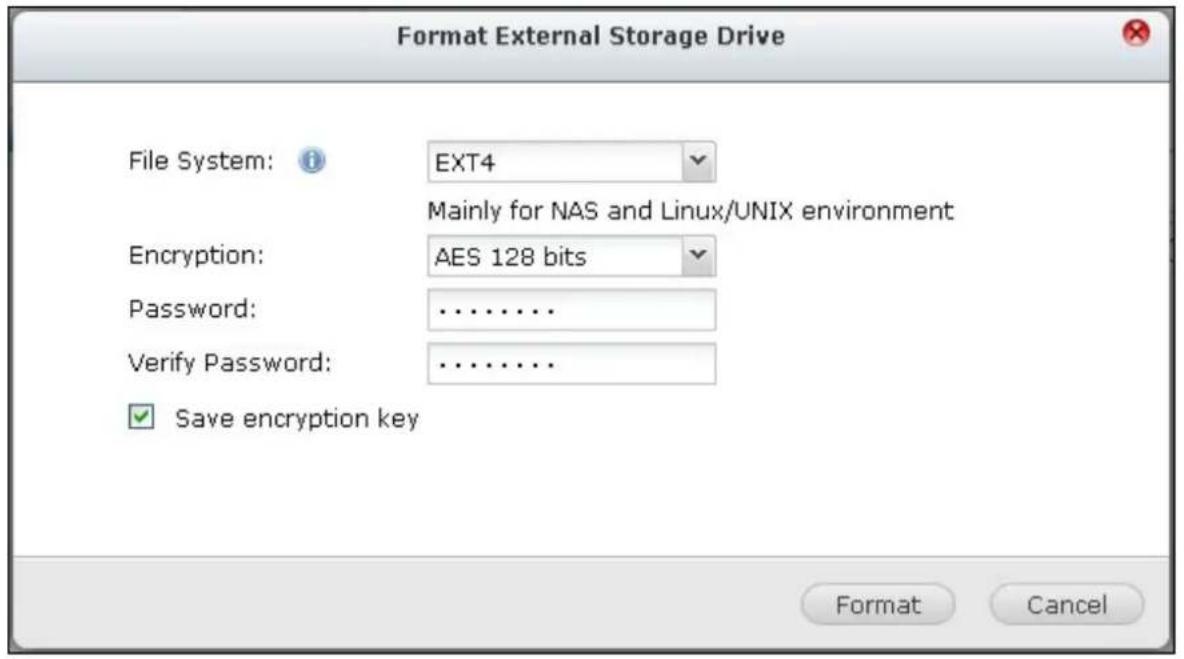
text_image
Format External Storage Drive File System: EXT4 Mainly for NAS and Linux/UNIX environment Encryption: AES 128 bits Password: ...... Verify Password: ...... Save encryption key Format CancelClick "OK" and all the data will be cleared.

text_image
All disk data will be removed. Are you sure? OK CancelThe device will be "Ready" after disk initialization.
text_image
USBDisk3 Generic Total:3.83 GB (EXT4) Used:133.12 MB Free:3.70 GB ReadyEject
"Eject" offers two different options. "Disconnect disk partition" allows you to remove a single disk partition or a disk drive in a multi-drive enclosure. "Remove device" allows you to disconnect external storage devices without the risk of losing any data when the device is removed.
First choose a device to eject, click "Eject" and then to disconnect the disk partition or remove the device.
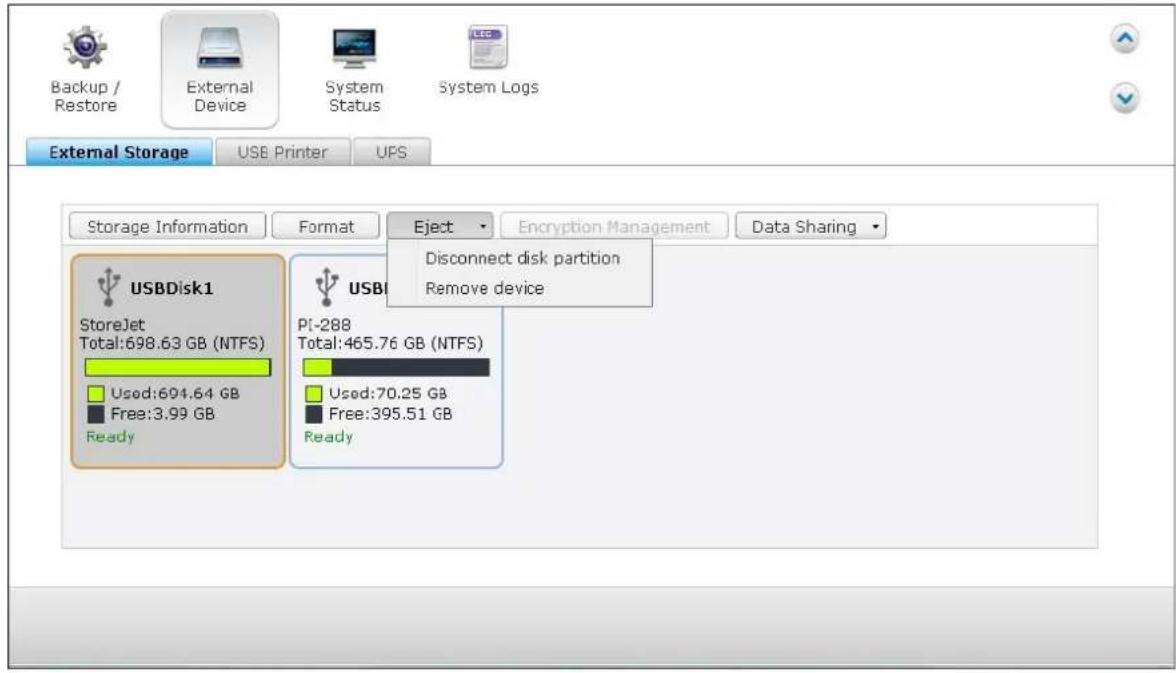
text_image
Backup / Restore External Device System Status System Logs External Storage USB Printer UPS Storage Information Format Eject Encryption Management Data Sharing USBDisk1 StoreJet Total:698.63 GB (NTFS) Used:694.64 GB Free:3.99 GB Ready USB PI-288 Total:465.76 GB (NTFS) Used:70.25 GB Free:395.51 GB Ready Disconnect disk partition Remove deviceEncryption management
If an external storage device is encrypted by the NAS, the button "Encryption
Management" will appear. Click this button to manage the encryption password/key, or lock or unlock the device.
Lock the device
Note: The external storage device cannot be locked if a real-time or scheduled backup job is running on the device. To disable the backup job, go to "Control Panel" > "Applications" > "Backup Station" > "External Drive".
- To lock an encrypted external storage device, click "Encryption Management".
- Select "Lock this device" and click "Next".

text_image
Encryption Management Encryption Management Lock this device Manage encryption key Next Cancel- Click "Next" to lock the device.
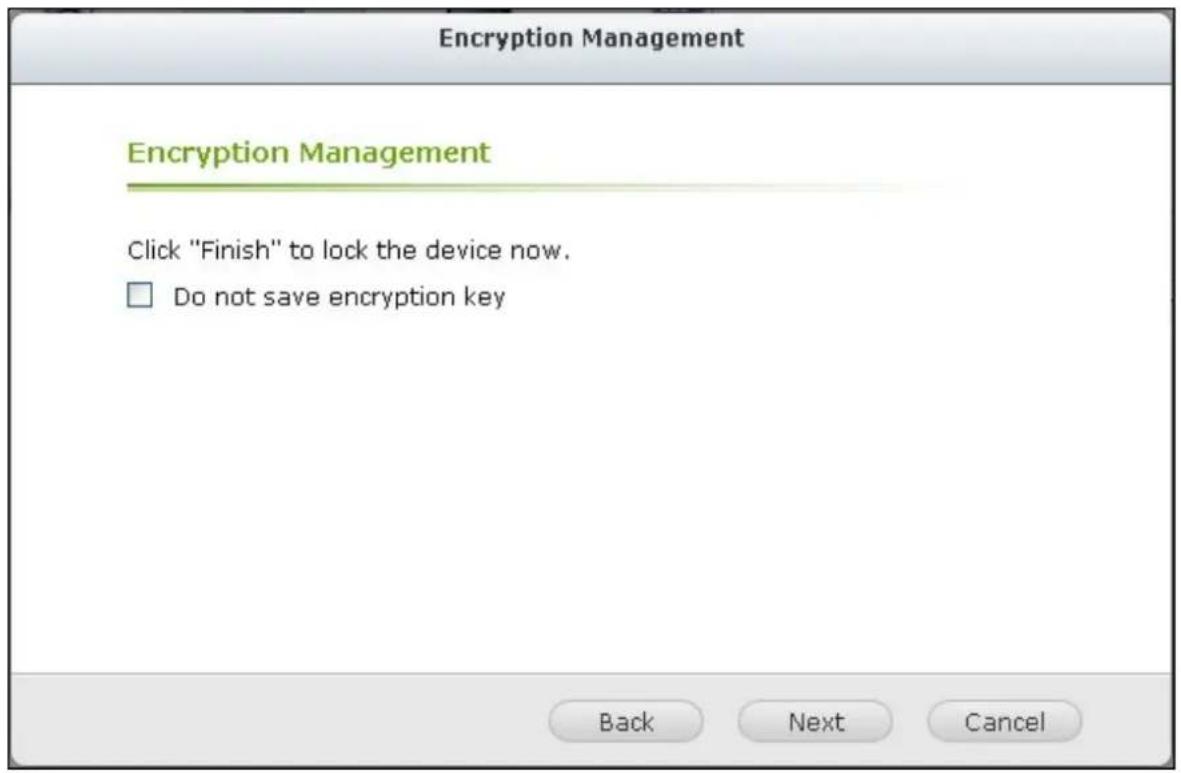
text_image
Encryption Management Encryption Management Click "Finish" to lock the device now. □ Do not save encryption key Back Next CancelUnlock the device
- To unlock an encrypted external storage device, click "Encryption Management".
- Select "Unlock this device". Click "Next".

text_image
Encryption Management Encryption Management Unlock this device Manage encryption key Next Cancel- Enter the encryption password or upload the key file. Select "Save encryption key" to save the password in a hidden location on a hard drive of the NAS. The NAS will unlock the encrypted external storage device automatically every time the device is connected. Click "Next".

text_image
Encryption Management Encryption Management Unlock this device by: Password Key File Password: ..... Save encryption key Back Next CancelManage the encryption key
- To change an encryption password or download an encryption key file, click "Encryption Management".
- Select "Manage encryption key". Click "Next".

text_image
Encryption Management Encryption Management Lock this device Manage encryption key Next Cancel- Select to change the encryption password or download the encryption key file to the local PC. Click "Next".
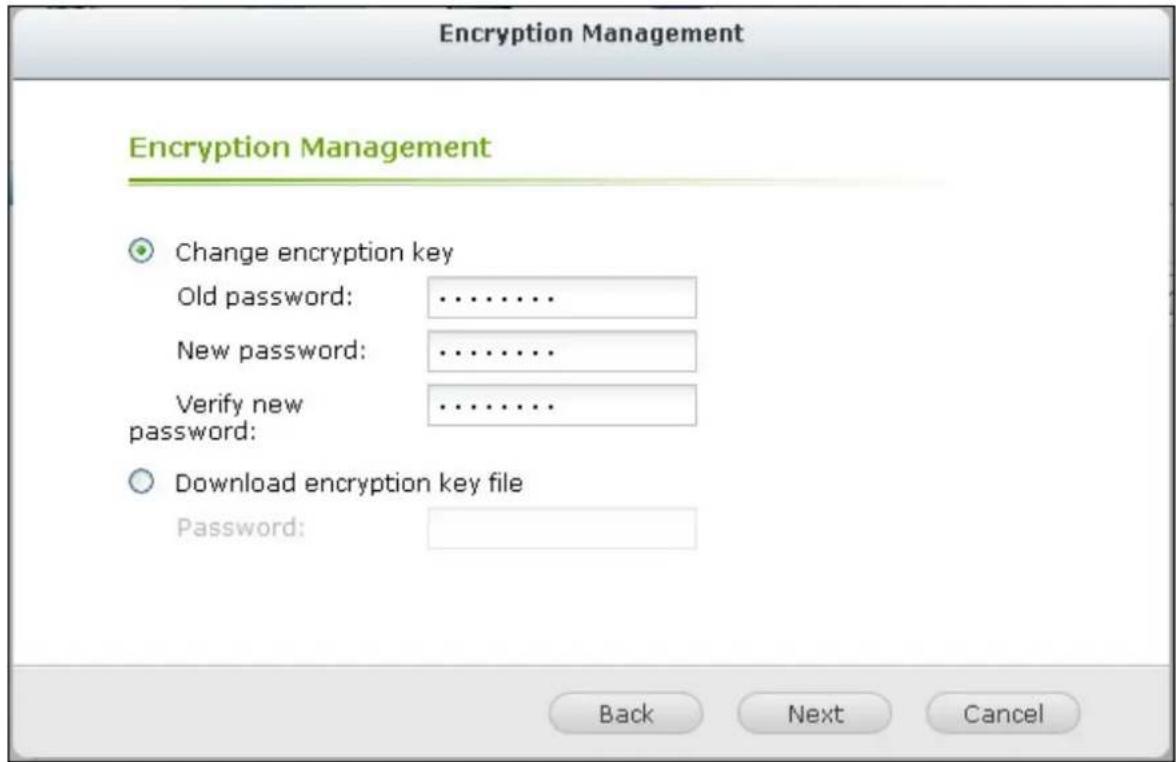
text_image
Encryption Management Encryption Management Change encryption key Old password: ...... New password: ...... Verify new password: Download encryption key file Password: Back Next CancelData Sharing
Disk usage settings for 1-drive models.
Select one of the following settings for an external storage device connected to a 1-drive NAS:
• Data sharing: Use the external drive for storage expansion of the NAS.
• Q-RAID 1: Configure the external drive and a local hard drive on the NAS as Q-RAID
1. Q-RAID 1 enables one-way data synchronization from the NAS to the external storage device but does not offer any RAID redundancy. Note that the external drive will be formed when Q-RAID 1 is executed.
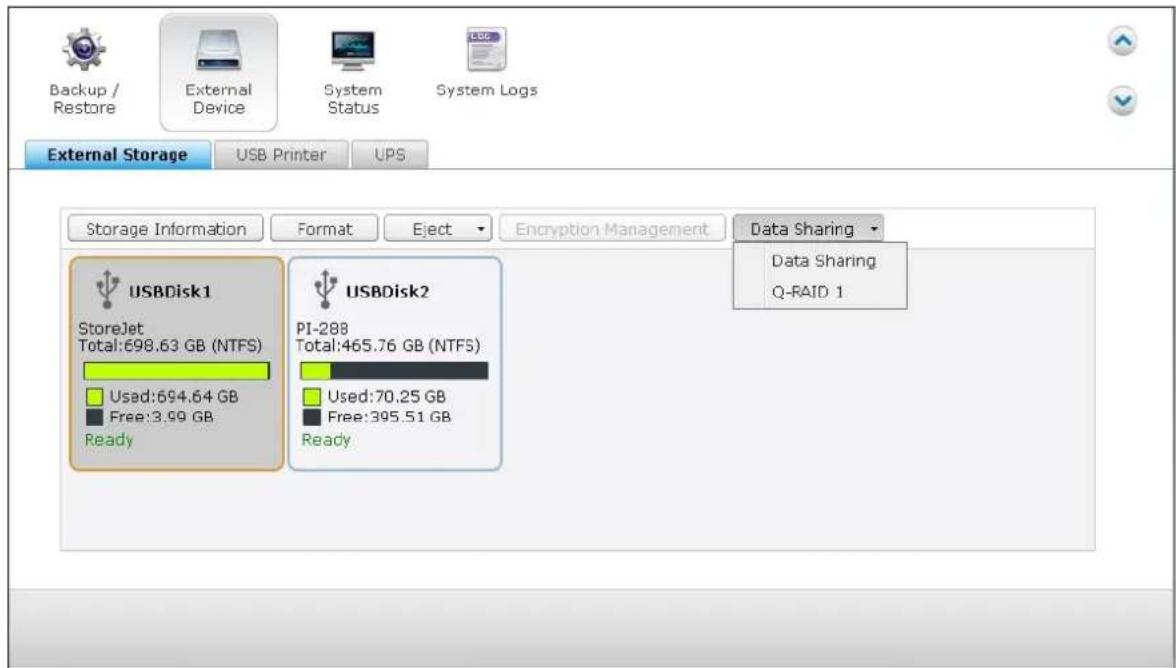
text_image
Backup / Restore External Device System Status System Logs External Storage USB Printer UPS Storage Information Format Eject Encryption Management Data Sharing Data Sharing Q-RAID 1 USBDisk1 StoreJet Total:698.63 GB (NTFS) Used:694.64 GB Free:3.99 GB Ready USBDisk2 PI-288 Total:465.76 GB (NTFS) Used:70.25 GB Free:395.51 GB ReadyAfter Q-RAID 1 has been executed once, the NAS data will be automatically copied to the external storage device whenever it is connected to the NAS.
Note:
- Only one external hard disk can be set as Q-RAID 1 at one time.
- It is recommended to use an external storage device of the same capacity as the internal hard drive of the NAS. If the storage capacity of the external storage device is too small to synchronize with the internal hard drive, the device can only be used for data sharing.
The NAS supports network printing sharing service over local network and the Internet in Windows, Mac, and Linux (Ubuntu) environments. Up to 3 USB printers are supported.
To share a USB printer by NAS, connect the printer to a USB port of the NAS. The printer will be detected automatically and the printer's information will be shown.
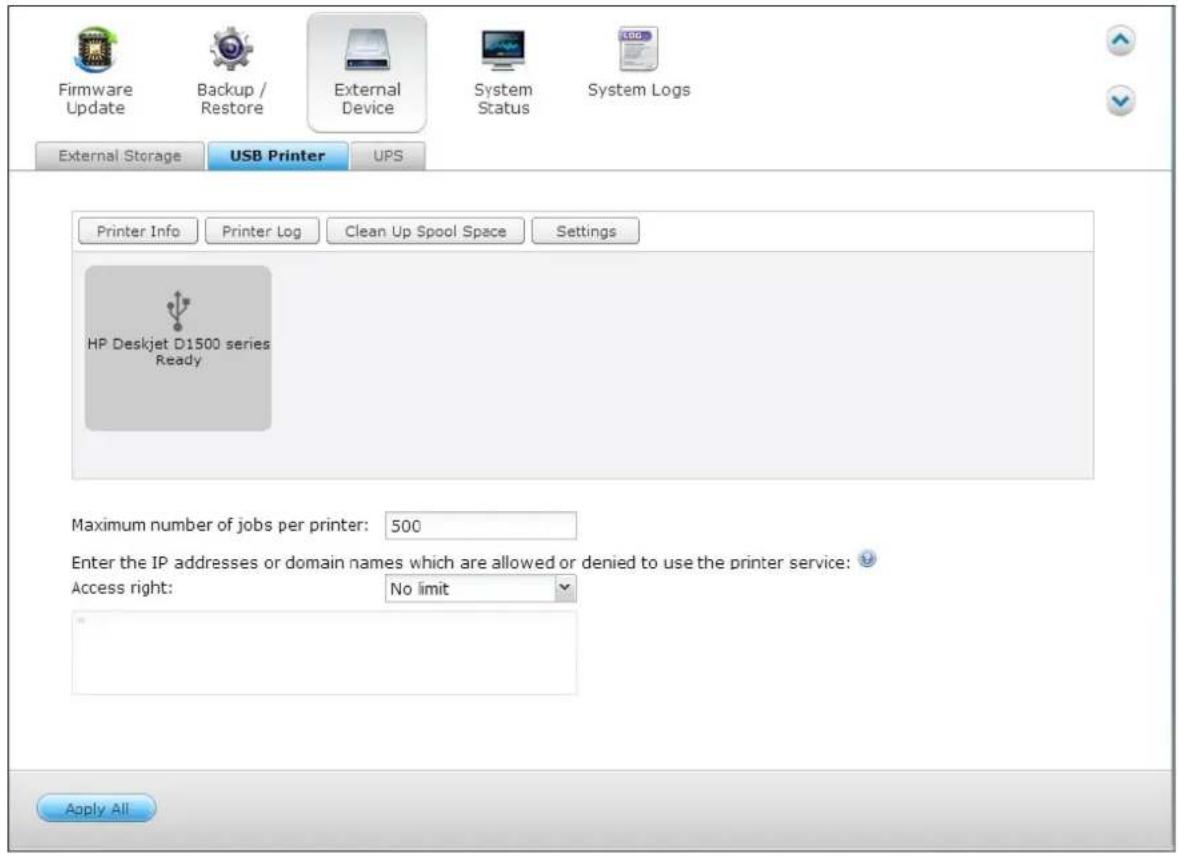
text_image
Firmware Update Backup / Restore External Device System Status System Logs External Storage USB Printer UPS Printer Info Printer Log Clean Up Spool Space Settings HP Deskjet D1500 series Ready Maximum number of jobs per printer: 500 Enter the IP addresses or domain names which are allowed or denied to use the printer service: Access right: No limit Apply AllPrinter Info
click a connected USB printer and then "Printer Info" to review printer details.

text_image
Printer Info Service Name NASCF059EPR Manufacturer HP Model Deskjet D1500 series Status ReadyNote:
- Please connect a USB printer to the NAS after the software configuration is completed.
• The NAS does not support multifunction printer. - The file name display on the printer job table is only available for printer jobs sent via IPP (Internet Printing Protocol) connection.
- For the information of the supported USB printer models, please visit http://www.qnap.com
Printer Log
click a connected USB printer and then "Printer Log" to view its print job history. You can pause or cancel ongoing or pending jobs, resume paused jobs, or delete completed or pending jobs here. To clear the history, click "Clear".
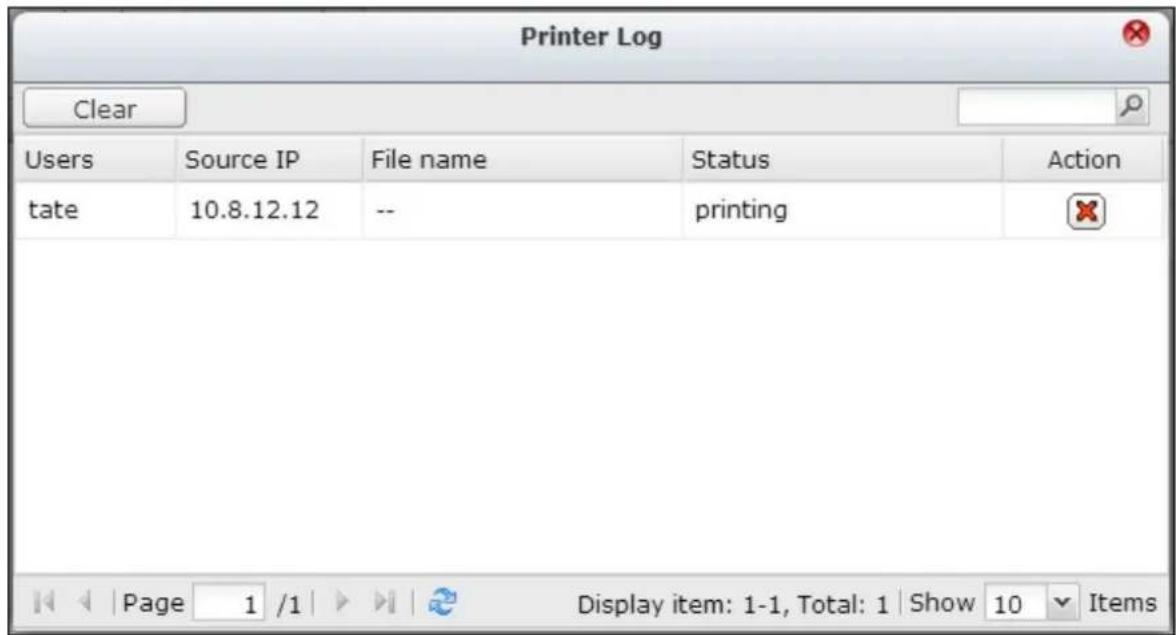
text_image
Printer Log Clear Users Source IP File name Status Action tate 10.8.12.12 -- printing Display item: 1-1, Total: 1 Show 10 ItemsNote: Do NOT restart the NAS or update the system firmware when printing is in process or there are queued jobs. Otherwise all the queued jobs will be cancelled and removed.
Clean Up Spool Space
click "Clean Up Spool Space to clean up the data saved in the printer spool.
Settings
click "Settings" to configure basic settings of the printer.
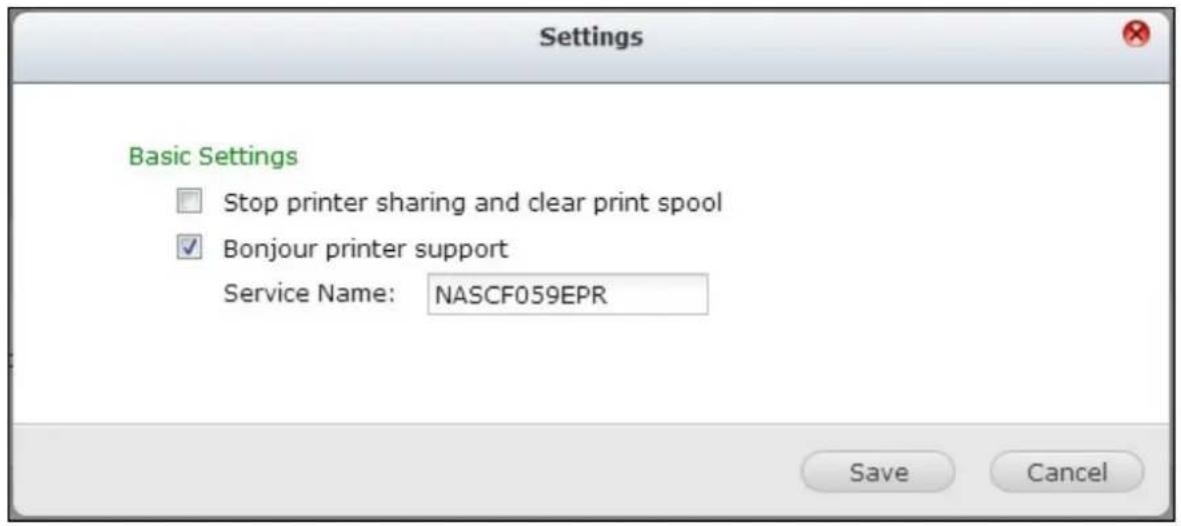
text_image
Settings Basic Settings □ Stop printer sharing and clear print spool ✓ Bonjour printer support Service Name: NASCF059EPR Save CancelStop printer sharing and clear print spool
Select this option to temporarily disable the selected printer for print sharing. All the data in the printer spool will also be cleared.
Bonjour printer support
Select this option to broadcast printing service to Mac users via Bonjour. Enter a service name, which allows the printer to be found by Bonjour. The name can only contain "a-z", "A-Z", "0-9", dot (.), comma (,) and dash (-).
Maximum Printer Jobs and Blacklist
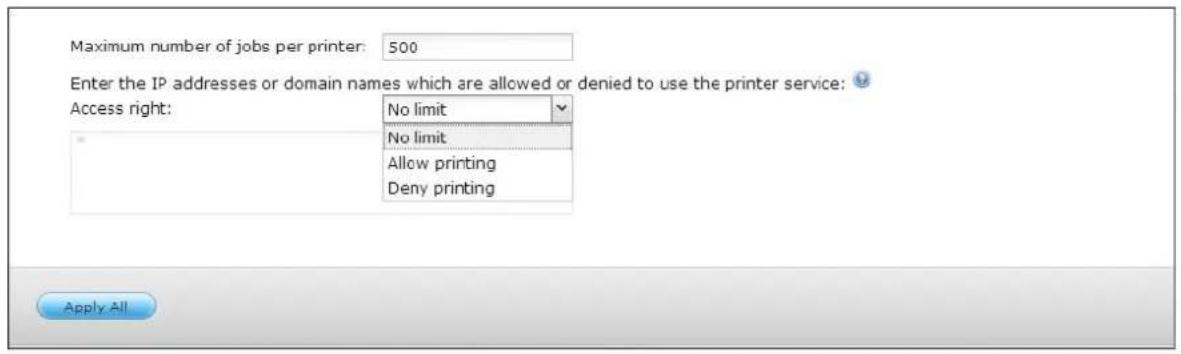
text_image
Maximum number of jobs per printer: 500 Enter the IP addresses or domain names which are allowed or denied to use the printer service: Access right: No limit No limit Allow printing Deny printing Apply AllSpecify the maximum number of printer jobs for a printer. A printer supports maximum 1,000 printer jobs. The oldest printer job will be overwritten by the newest one if the
printer has reached the maximum number of printer jobs.
Enter IP addresses or domain names to allow or deny printing access
To allow or deny particular IP addresses or domain names to use the printing service of the NAS, select "Allow printing" or "Deny printing" and enter the IP address(es) or domain name(s). An asterisk (*) denotes all connections. To allow all users to use the printer, select "No limit". Click "Apply" to save the settings.
Note: This feature only works for printing service configured via IPP and Bonjour, but not Samba.
The following description applies to Windows 7.
Follow the steps below to set up your printer connection.
1. Go to Devices and Printers.

text_image
Getting Started Windows Media Center Calculator Sticky Notes Snipping Tool Paint Remote Desktop Connection Magnifier Solitaire All Programs Search programs and files jason Documents Pictures Music Games Computer Control Panel Devices and Printers Default Programs Help and Support Windows Security Log off- Click "Add a printer".
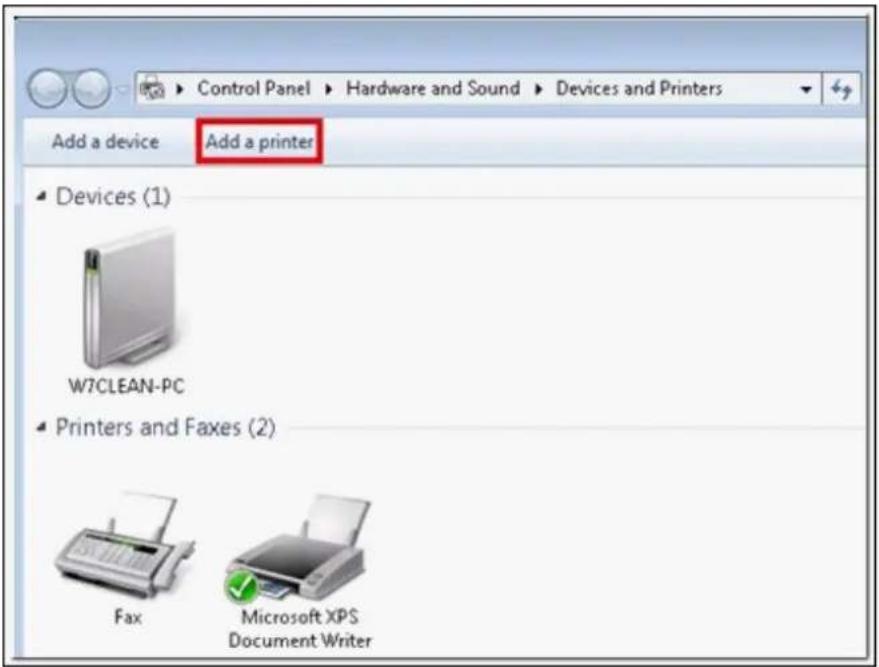
text_image
Control Panel > Hardware and Sound > Devices and Printers Add a device Add a printer Devices (1) W7CLEAN-PC Printers and Faxes (2) Fax Microsoft XPS Document Writer- In the Add printer wizard, click "Add a network, wireless or Bluetooth printer".
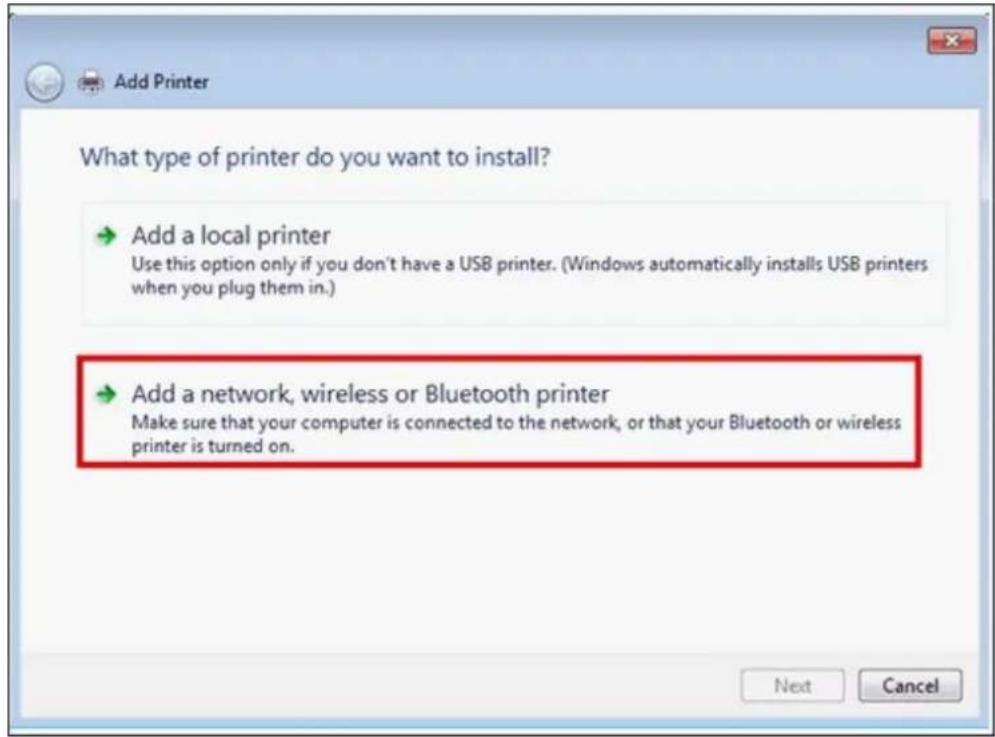
text_image
Add Printer What type of printer do you want to install? → Add a local printer Use this option only if you don't have a USB printer. (Windows automatically installs USB printers when you plug them in.) → Add a network, wireless or Bluetooth printer Make sure that your computer is connected to the network, or that your Bluetooth or wireless printer is turned on. Next Cancel- While Windows is searching for available network printers, click "The printer that I want isn't listed".

text_image
Add Printer Searching for available printers... Printer Name Address Stop → The printer that I want isn't listed Next Cancel- Click "Select a shared printer by name", and then enter the address of the network printer. The address is in the following format - http://NAS_IP:631/printers/ServernamePR, where the NAS_IP can also be a domain name address if you want to print remotely. For example, http://10.8.13.59:631/printers/NASPR3
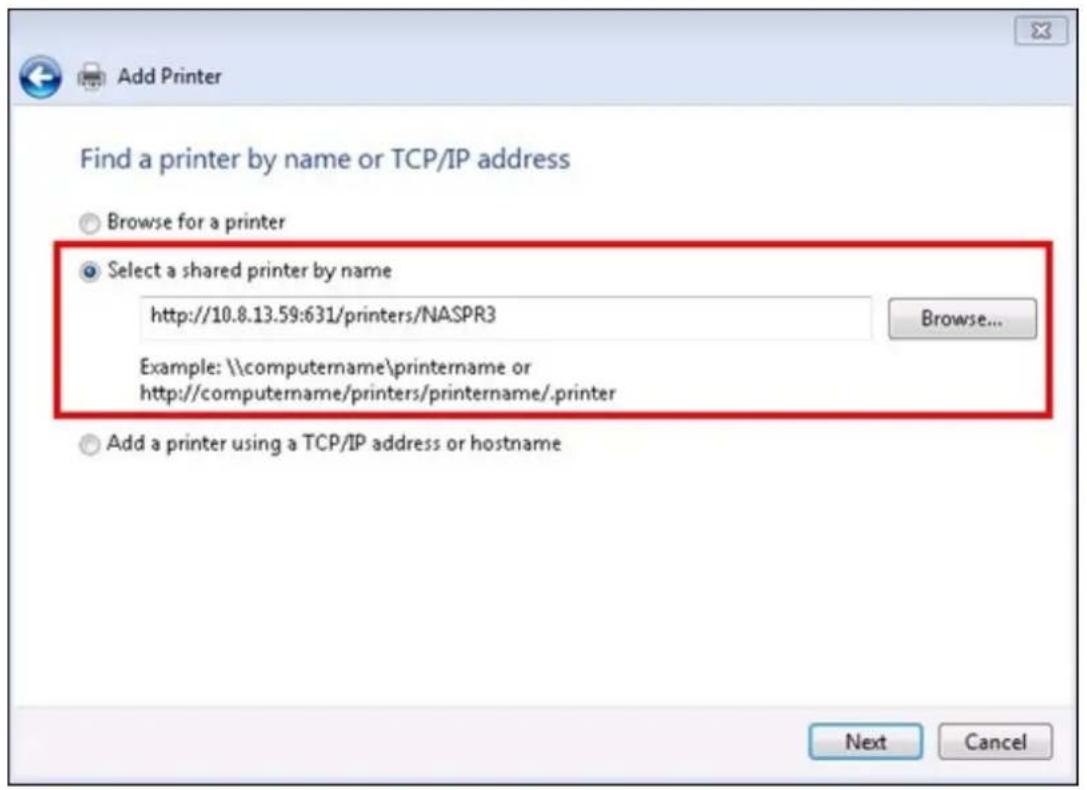
text_image
Add Printer Find a printer by name or TCP/IP address Browse for a printer Select a shared printer by name http://10.8.13.59:631/printers/NASPR3 Example: \computername\printename or http://computername/printers/printename/.printer Add a printer using a TCP/IP address or hostname Next Cancel- The wizard will prompt you for the correct printer driver. You may also download the latest printer driver from the manufacturer's website if it is not built-into Windows operating system.

text_image
Add Printer Wizard Select the manufacturer and model of your printer. If your printer came with an installation disk, click Have Disk. If your printer is not listed, consult your printer documentation for a compatible printer. Manufacturer Gestetner HP infotec KONICA MINOLTA Kuocera Printers hp digital copier 410 HP LaserJet 2200 Series PCL 5 HP LaserJet 2300 Series PS HP LaserJet 2300L PS HP LaserJet 2050 PCI 5 This driver is digitally signed. Tell me why driver signing is important Have Disk... OK Cancel- After installing the correct printer driver, the wizard shows the address and driver of the new network printer.
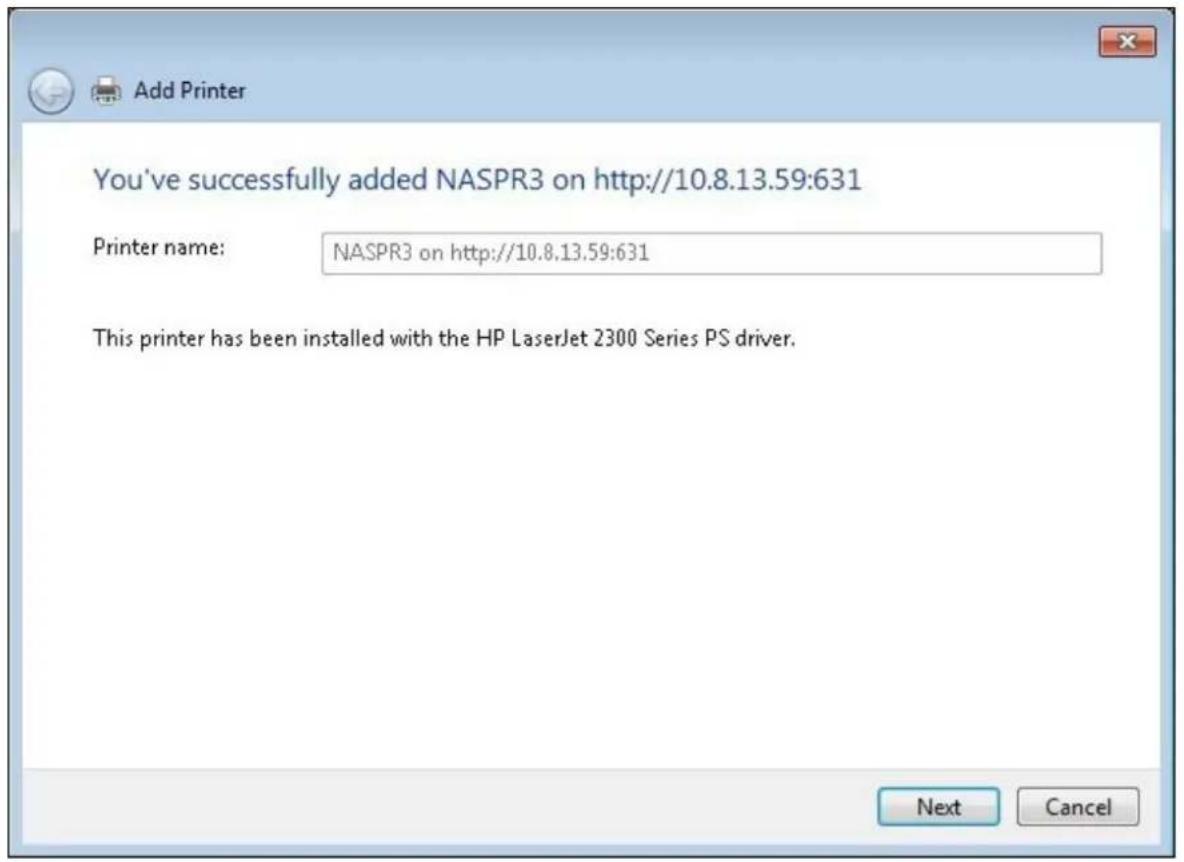
text_image
You've successfully added NASPR3 on http://10.8.13.59:631 Printer name: NASPR3 on http://10.8.13.59:631 This printer has been installed with the HP LaserJet 2300 Series PS driver. Next Cancel- You may also set the network printer as the default printer or print a test page.
Click "Finish" to exit the wizard.

text_image
You've successfully added NASPR3 on http://10.8.13.59:631 To check if your printer is working properly, or to see troubleshooting information for the printer, print a test page. Print a test page Finish Cancel- The new network printer is now available for printing.
Follow the steps below to set up your printer connection.
Method 1
- Enter \NAS IP in Windows Explorer.
- A printer icon is shown as a shared folder on the server. Double click the icon.
- Install the printer driver.
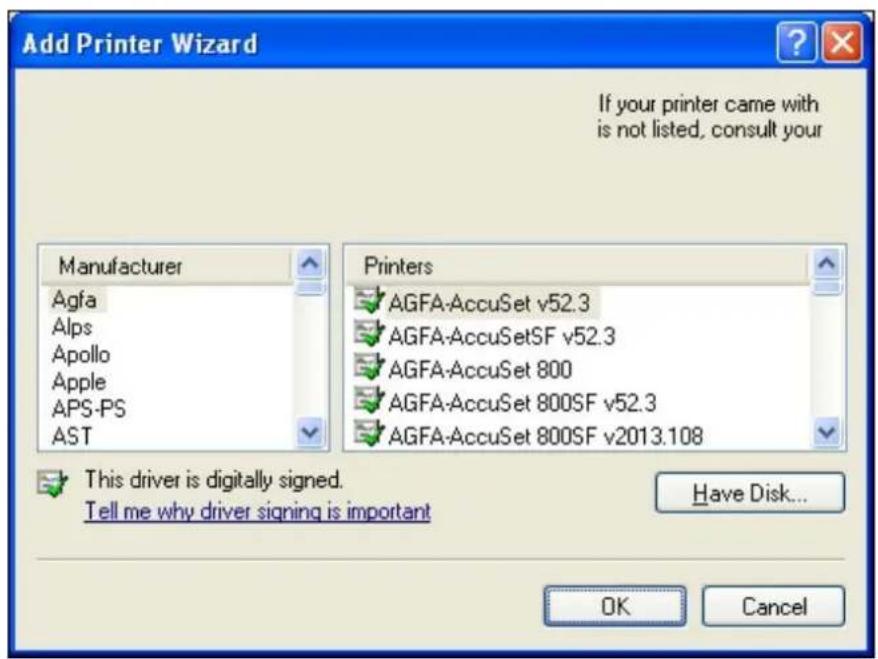
text_image
Add Printer Wizard If your printer came with is not listed, consult your Manufacturer Agfa Alps Apollo Apple APS-PS AST Printers AGFA-AccuSet v52.3 AGFA-AccuSetSF v52.3 AGFA-AccuSet 800 AGFA-AccuSet 800SF v52.3 AGFA-AccuSet 800SF v2013.108 This driver is digitally signed. Tell me why driver signing is important Have Disk... OK Cancel- When finished, you can start to use the network printer service of the NAS.
Method 2
The following configuration method has been verified on Windows XP only:
- Open "Printers and Faxes".
- Delete the existing network printer (if any).
- Right click the blank area in the Printers and Faxes window. Select "Server Properties".
- Click the "Ports" tab and delete the ports configured for the previous network printer (if any).
- Restart your PC.
- Open Printers and Faxes.
- Click "Add a printer" and click "Next".
-
Select "Local printer attached to this computer". Click "Next".
-
Click "Create a new port" and select "Local Port" from the drop-down menu. Click "Next".
- Enter the port name. The format is \NAS IP\NAS namepr, for example, NAS IP=192.168.1.1, NAS name=myNAS, the link is \192.168.1.1\myNASpr.
- Install the printer driver.
- Print a test page.
If you are using Mac OS 10.6, follow the steps below to configure the printer function of the NAS.
- First make sure the Bonjour printer support is enabled on the NAS in "External Device" > "USB Printer" > "Settings". You may change the Service Name to better represent the printer.
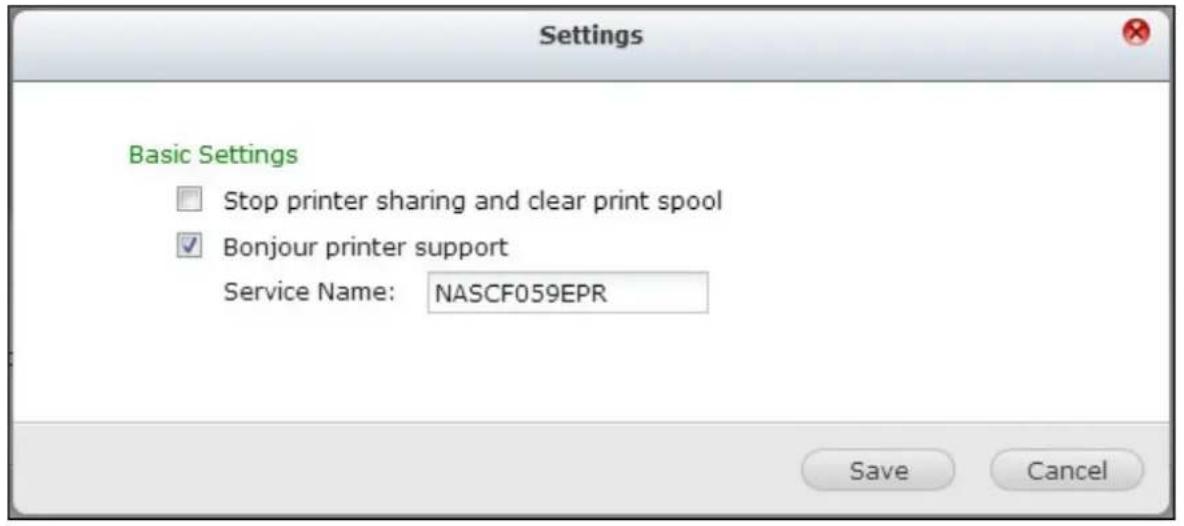
text_image
Settings Basic Settings □ Stop printer sharing and clear print spool ✓ Bonjour printer support Service Name: NASCF059EPR Save Cancel- On your Mac, go to "System Preferences", and then click "Print & Fax".

text_image
System Preferences Show All Personal Appearance Desktop & Screen Saver Dock Exposé & Spaces International Security Spotlight Hardware Bluetooth CDs & DVDs Displays Energy Saver Keyboard & Mouse Trackpad Print & Fax Sound- In the Print & Fax window, click + to add a printer.
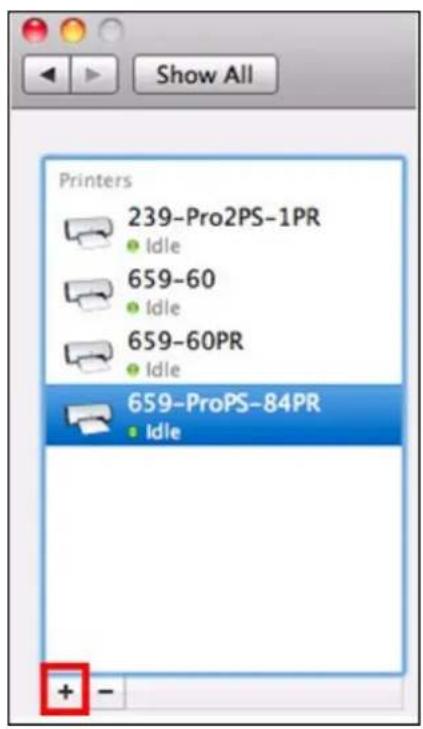
text_image
Show All Printers 239-Pro2PS-1PR • Idle 659-60 • Idle 659-60PR • Idle 659-ProPS-84PR • Idle + -- The USB network printer will be listed via Bonjour. Select the default printer driver or you may download and install the latest one from the printer manufacturer's website. Click "Add" to add this printer.

text_image
Add Printer Default Fax IP Windows Search Printer Name Kind AL-C1100-3F12C0 Bonjour Brother MFC-7440N Bonjour HP LaserJet M1120n MFP Bonjour NASPR3 Bonjour Name: NASPR3 Location: HewLett Packard HP LaserJet 2200 Print Using: Generic PostScript Printer The selected printer software isn't from the manufacturer and may not let you use all the features of your printer. Add- Additional options may be available for your printer. Click "Continue".

text_image
Installable Options NASPR3 Make sure your printer's options are accurately shown here so you can take full advantage of them. For information on your printer and its optional hardware, check the documentation that came with it. □ Duplex Printing Unit Cancel Continue- The new network printer is now available for printing.

text_image
Printers 239-Pro2PS-1PR • Idle 659-60 • Idle 659-60PR • Idle 659-ProPS-84PR • Idle NASPR3 • Idle NASPR3 Open Print Queue... Options & Supplies... Location: HewLett Packard HP LaserJet 2200 Kind: Generic PostScript Printer Status: Idle Share this printer on the network Sharing Preferences...If you are using Mac OS X 10.5, follow the steps below to configure the printer function of the NAS.
Make sure your printer is connected to the NAS and the printer information is displayed correctly on the "USB Printer" page.
- Go to "Network Services" > "Win/Mac/MFS" > "Microsoft Networking". Enter a workgroup name for the NAS. You will need this information later.

text_image
Win/Mac/NFS FTP Telnet / SSH SNMP Service Discovery Network Recycle Bin Qsync Microsoft Networking Apple Networking NFS Service Enable file service for Microsoft networking Server description (Optional): NAS Server Workgroup: Workgroup Standalone server AD domain member (To enable Domain Security, please click here.) LDAP domain authentication (To enable Domain Security, please click here.) Current Samba ID: -- Advanced Options Apply Apply All- Go to "Print & Fax" on your Mac.

text_image
System Preferences Show All Personal Appearance Desktop & Screen Saver Dock Exposé & Spaces International Security Spotlight Hardware Bluetooth CDs & DVDs Displays Energy Saver Keyboard & Mouse Trackpad Print & Fax Sound- Click + to add a printer.

text_image
Print & Fax Show All Click + to add a printer or fax No Printer Selected + - Default Printer: Last Printer Used Default Paper Size in Page Setup: A4 Click the lock to prevent further changes.- Select the NAS workgroup and find the printer name.
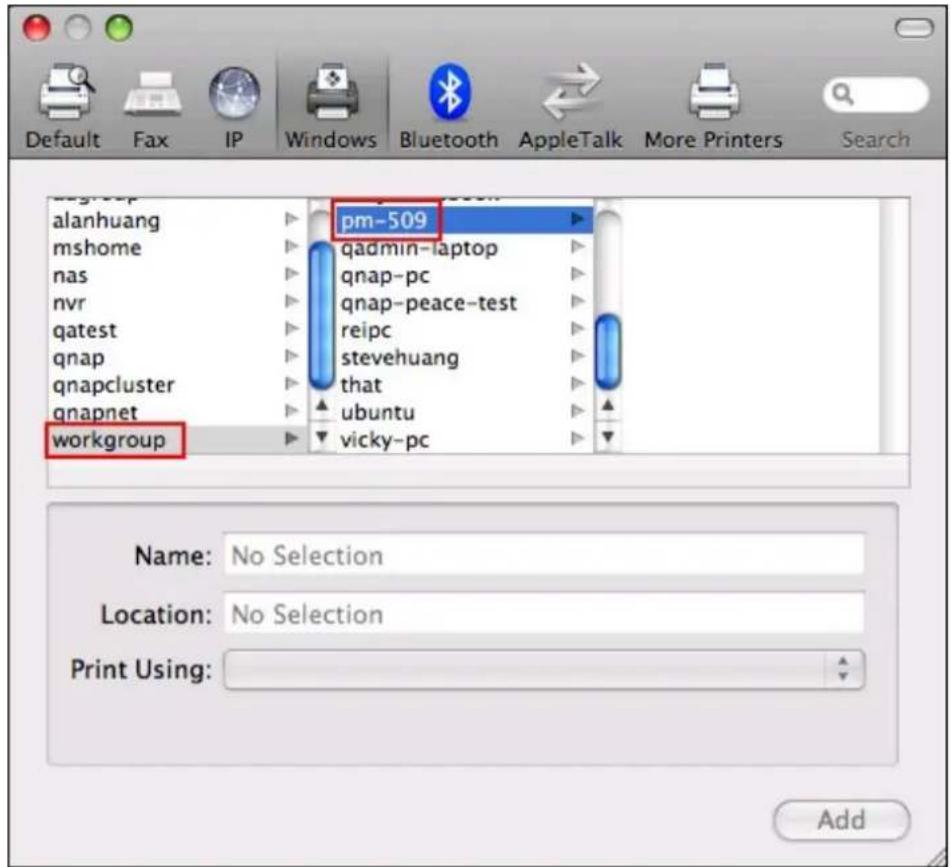
text_image
default Fax IP Windows Bluetooth AppleTalk More Printers Search alanhuang mshome nas nvr qatest qnap qnapcluster gnapnet workgroup pm-509 qadmin-laptop qnap-pc qnap-peace-test reipc stevehuang that ubuntu vicky-pc Name: No Selection Location: No Selection Print Using: Add- Enter the username and password to login the printer server on the NAS.

text_image
Enter your user name and password to access the print server "pm-509". Connect as: Guest Registered User Name: admin Password: ............. Remember this password in my keychain Cancel Connect- Select the printer driver.

text_image
Default Fax IP Windows Bluetooth AppleTalk More Printers Search alanhuang mshome nas nvr qatest qnap qnapcluster qnapnet workgroup meiji-macbook pm-509 qadmin-laptop qnap-pc qnap-peace-test stevehuang that ubuntu vicky-pc PM-509PR Name: PM-509PR Location: Print Using: Please select a driver or printer model Add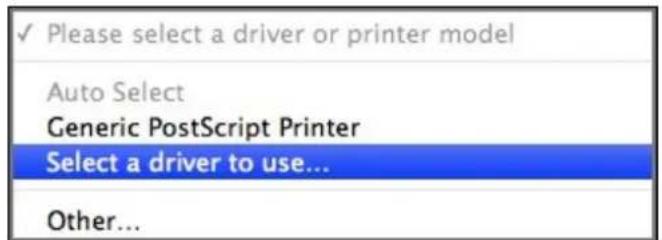
text_image
✓ Please select a driver or printer model Auto Select Generic PostScript Printer Select a driver to use... Other...- After installing the printer driver correctly, you can start to use the printer.
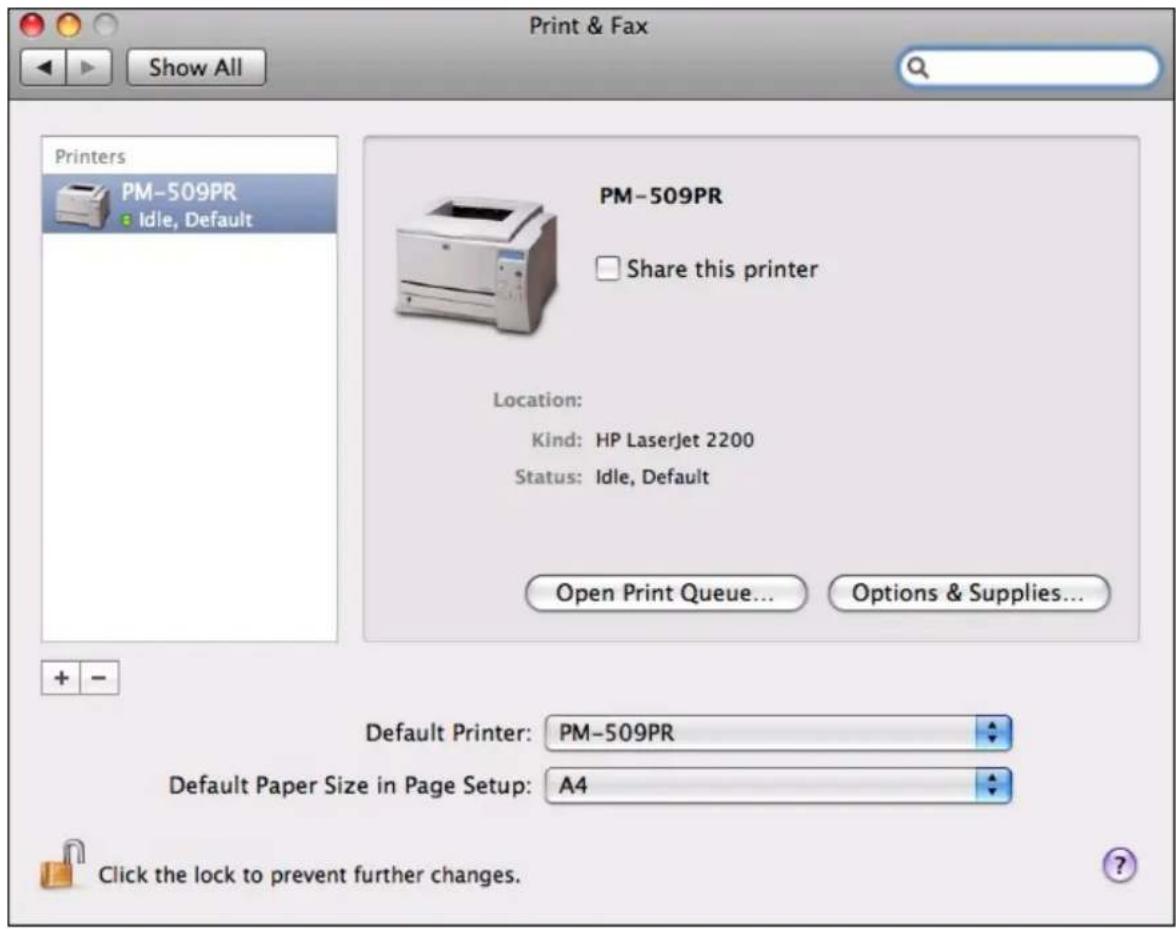
text_image
Print & Fax Show All Printers PM-509PR Idle, Default PM-509PR Share this printer Location: Kind: HP LaserJet 2200 Status: Idle, Default Open Print Queue... Options & Supplies... Default Printer: PM-509PR Default Paper Size in Page Setup: A4 Click the lock to prevent further changes.If you are using Mac OS 10.4, follow the steps below to configure the printer function of the NAS.
- On the toolbar, click "Go/Utilities".

text_image
Finder File Edit View Go Window Help Back Forward Enclosing Folder Computer Home Network iDisk Applications Utilities Recent Folders Go to Folder... Connect to Server... Help SnapNDrag firmware.img ck Install Wizard- Click "Printer Setup Utility".
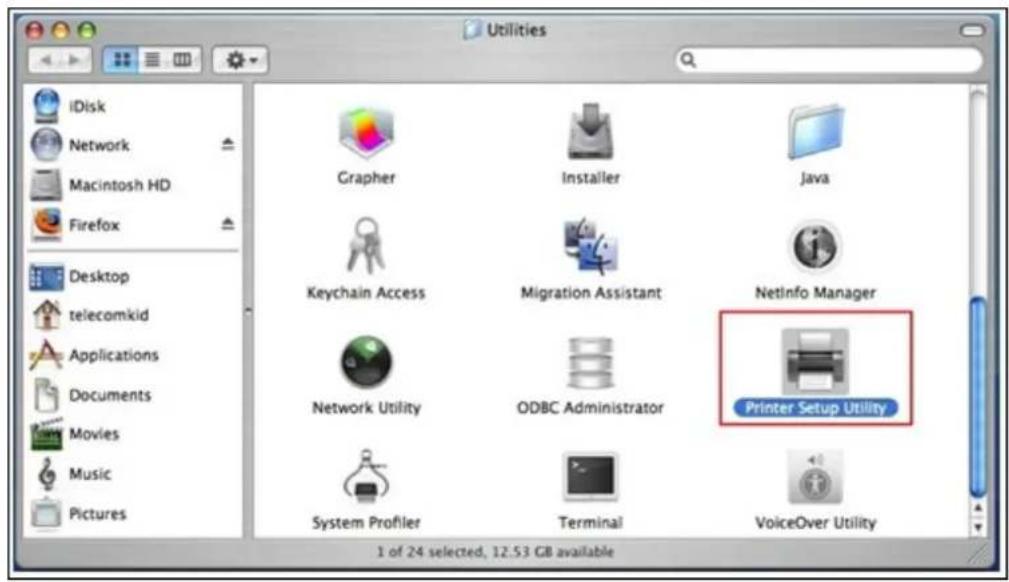
text_image
iDisk Network Macintosh HD Firefox Desktop telecomkid Applications Documents Movies Music Pictures Utilities Grapher Installer Java Keychain Access Migration Assistant Netinfo Manager Network Utility ODBC Administrator Printer Setup Utility System Profiler Terminal VoiceOver Utility 1 of 24 selected, 12.53 GB available- Click "Add".

text_image
Printer List Make Default Add Delete Utility ColorSync Show Info Name Status Kind
- Press and hold the "alt" key on the keyboard and click "More Printers" concurrently.
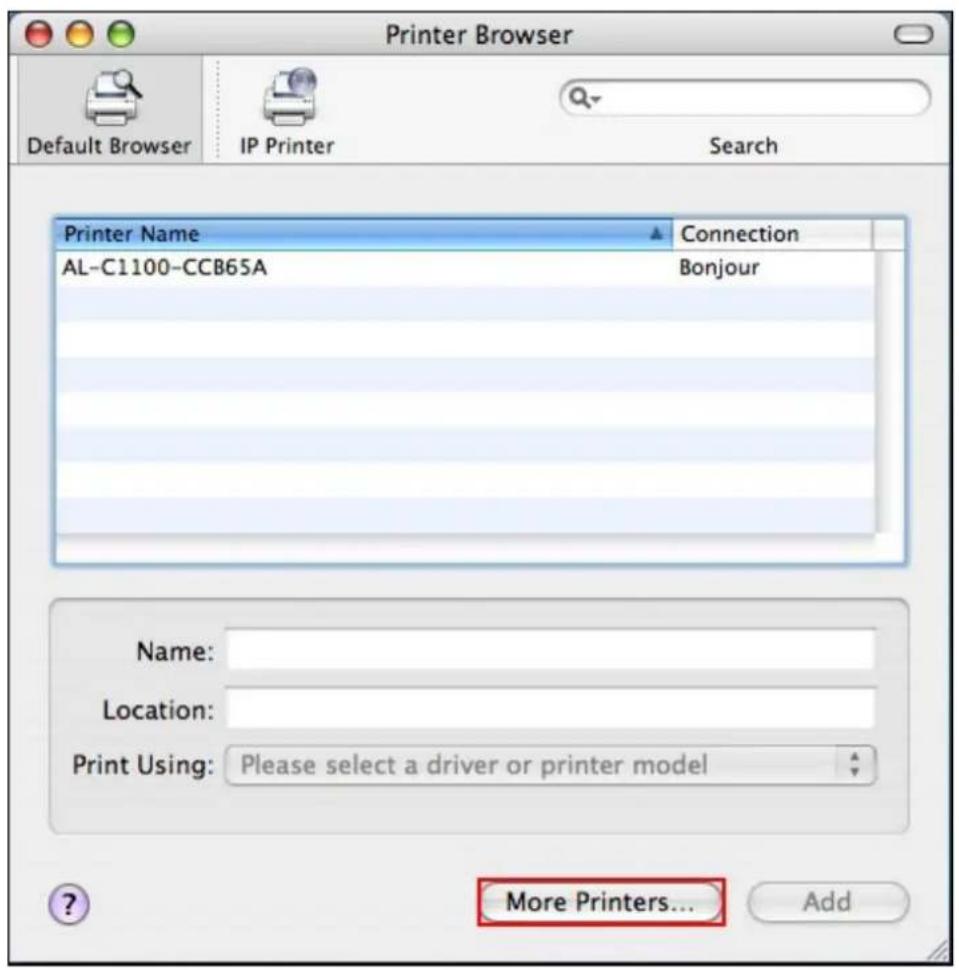
text_image
Printer Browser Default Browser IP Printer Search Printer Name Connection AL-C1100-CCB65A Bonjour Name: Location: Print Using: Please select a driver or printer model More Printers... Add-
In the pop up window:
-
Select "Advanced"*.
- Select "Windows Printer with SAMBA".
- Enter the printer name.
- Enter the printer URI, the format is smb://NAS IP/printer name. The printer name is found on the "Device Configuration" > "USB Printer page".
- Select "Generic" for Printer Model.
- Click "Add".
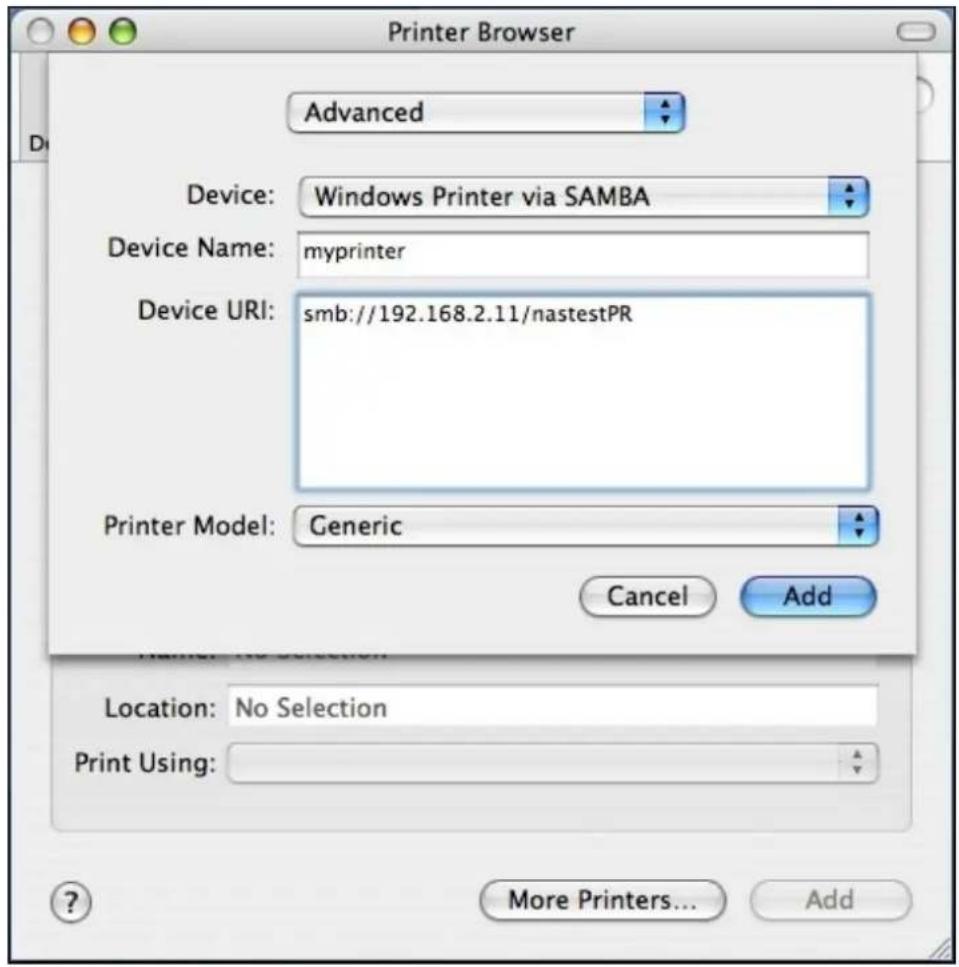
text_image
Printer Browser Advanced Device: Windows Printer via SAMBA Device Name: myprinter Device URI: smb://192.168.2.11/nastestPR Printer Model: Generic Cancel Add Name: No Selection Location: No Selection Print Using: More Printers... Add*Note that you must hold and press the "alt" key and click "More Printers" at the same time to view the Advanced printer settings. Otherwise, this option does not appear.
- The printer appears on the printer list. It is ready to use.

text_image
Printer List Make Default Add Delete Utility ColorSync Show Info Name Status Kind myprinter Generic PostScript ...Note: The network printer service of the NAS supports Postscript printer on Mac OS only.
If you are using Linux (Ubuntu 10.10), follow the steps below to configure the printer function of the NAS.
- Click the "System" tab, choose "Administration". Then select "Printing".

text_image
System Preferences Administration Help and Support About GNOME About Ubuntu Additional Drivers Computer Janitor Disk Utility Language Support Log File Viewer Login Screen Network Tools Printing- Click "Add" to add a printer.

text_image
Printing - localhost Server Printer Group View Help Add Filter: Connected to localhost- Click "Network Printer", and then select "Internet Printing Protocol (ipp)". Enter the NAS IP address in "Host". "/printers" is already present. Enter the printer name after "printers/" in the field "Queue".
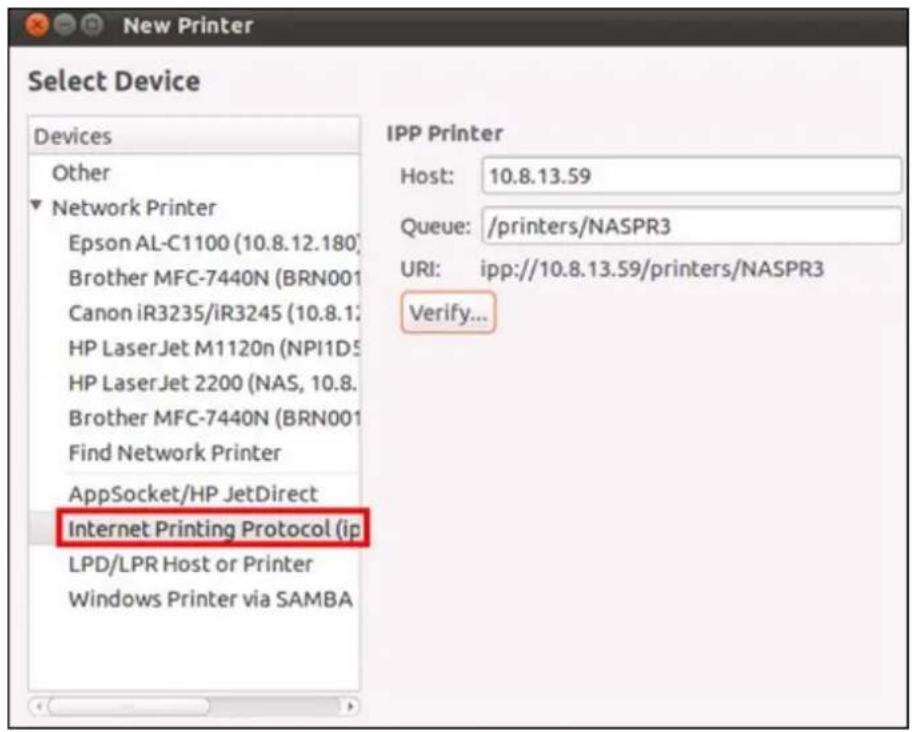
text_image
New Printer Select Device Devices Other Network Printer Epson AL-C1100 (10.8.12.180) Brother MFC-7440N (BRN001 Canon iR3235/iR3245 (10.8.12 HP LaserJet M1120n (NPI1DS HP LaserJet 2200 (NAS, 10.8. Brother MFC-7440N (BRN001 Find Network Printer AppSocket/HP JetDirect Internet Printing Protocol (ip LPD/LPR Host or Printer Windows Printer via SAMBA IPP Printer Host: 10.8.13.59 Queue: /printers/NASPR3 URI: ipp://10.8.13.59/printers/NASPR3 Verify...- Before you continue, you may click "Verify" to test the printer connection.
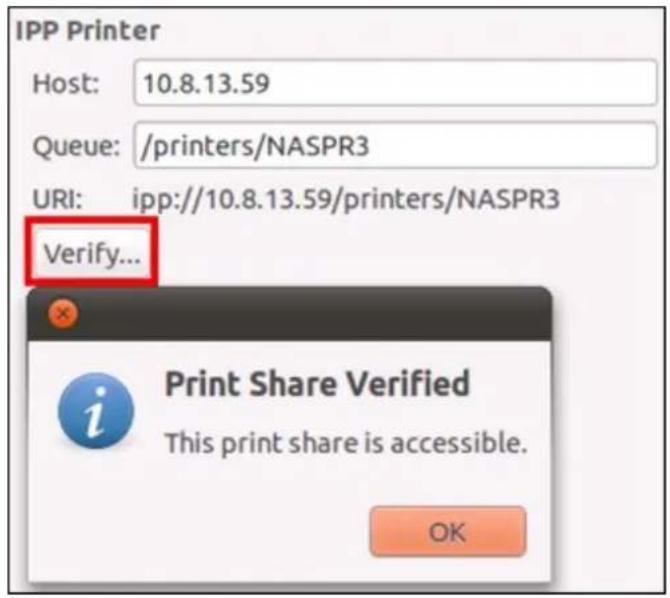
text_image
IPP Printer Host: 10.8.13.59 Queue: /printers/NASPR3 URI: ipp://10.8.13.59/printers/NASPR3 Verify... Print Share Verified This print share is accessible. OK- The operating system starts to search for the possible driver list.
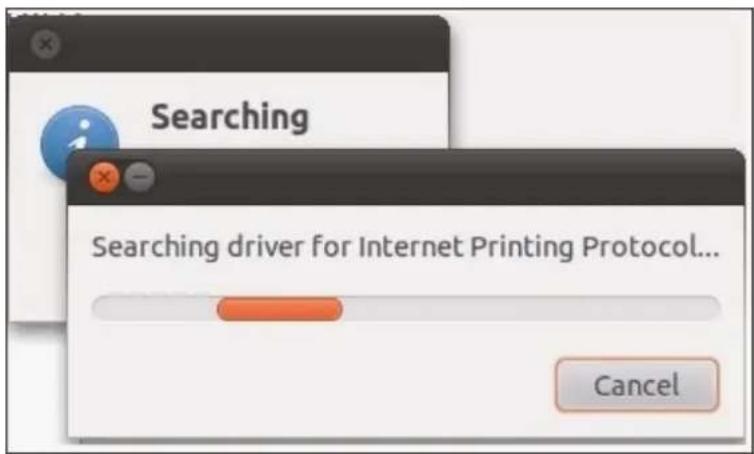
text_image
Searching Searching driver for Internet Printing Protocol... Cancel- Select the printer driver from the built-in database, or search online.

text_image
New Printer Choose Driver Select printer from database Provide PPD file Search for a printer driver to download The foomatic printer database contains various manufacturer provided PostScript Printer Description (PPD) files and also can generate PPD files for a large number of (non PostScript) printers. But in general manufacturer provided PPD files provide better access to the specific features of the printer. Makes Heidelberg Hitachi HP IBM Imagen Imagistics InfoPrint Infotec Kodak Back Cancel Forward- Choose the correct printer model and driver. Depending on the printer, some additional printer options may be available in the next step.
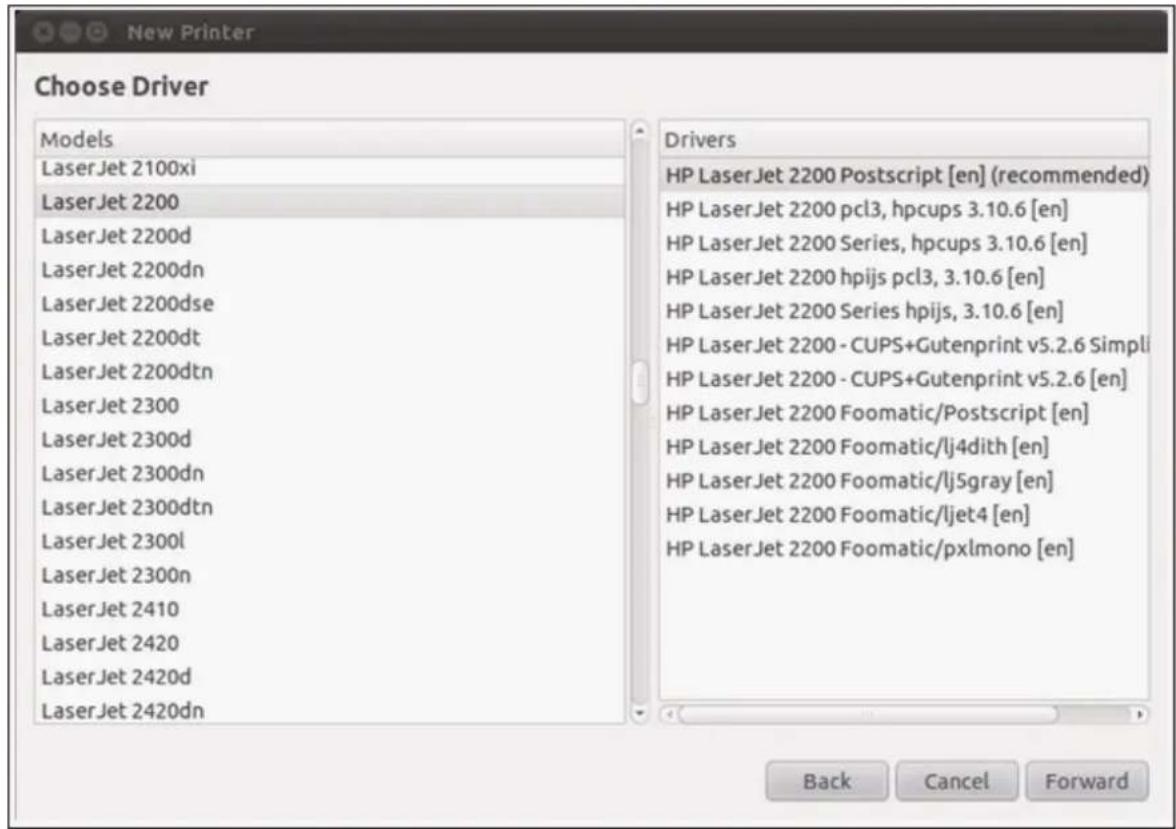
text_image
Choose Driver Models LaserJet 2100xi LaserJet 2200 LaserJet 2200d LaserJet 2200dn LaserJet 2200dse LaserJet 2200dt LaserJet 2200dtn LaserJet 2300 LaserJet 2300d LaserJet 2300dn LaserJet 2300dtn LaserJet 2300l LaserJet 2300n LaserJet 2410 LaserJet 2420 LaserJet 2420d LaserJet 2420dn Drivers HP LaserJet 2200 Postscript [en] (recommended) HP LaserJet 2200 pcl3, hpcups 3.10.6 [en] HP LaserJet 2200 Series, hpcups 3.10.6 [en] HP LaserJet 2200 hpijs pcl3, 3.10.6 [en] HP LaserJet 2200 Series hpijs, 3.10.6 [en] HP LaserJet 2200 - CUPS+Gutenprint v5.2.6 Simpli HP LaserJet 2200 - CUPS+Gutenprint v5.2.6 [en] HP LaserJet 2200 Foomatic/Postscript [en] HP LaserJet 2200 Foomatic/lj4dith [en] HP LaserJet 2200 Foomatic/lj5gray [en] HP LaserJet 2200 Foomatic/ljet4 [en] HP LaserJet 2200 Foomatic/pxlmono [en] Back Cancel Forward- You can rename this printer or enter additional information. Click "Apply" to exit and finish.
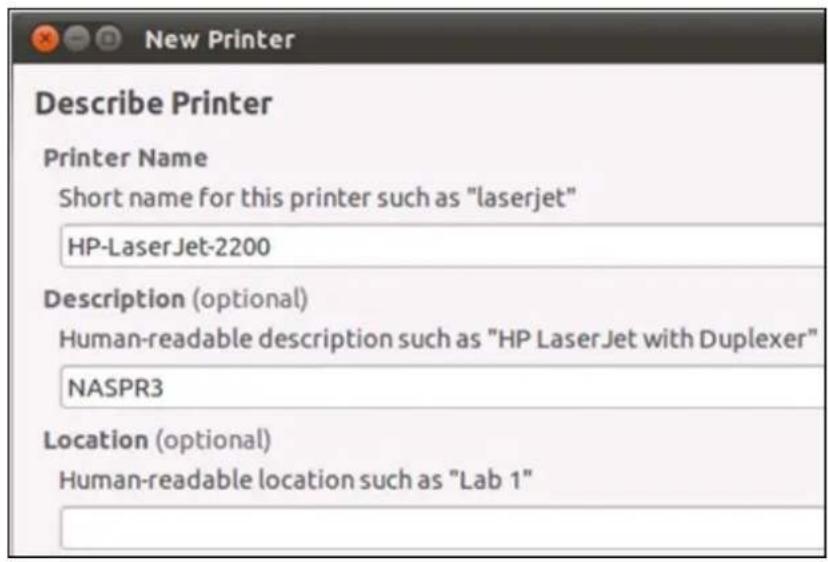
text_image
New Printer Describe Printer Printer Name Short name for this printer such as "laserjet" HP-LaserJet-2200 Description (optional) Human-readable description such as "HP LaserJet with Duplexer" NASPR3 Location (optional) Human-readable location such as "Lab 1"- The network printer is now available for printing.
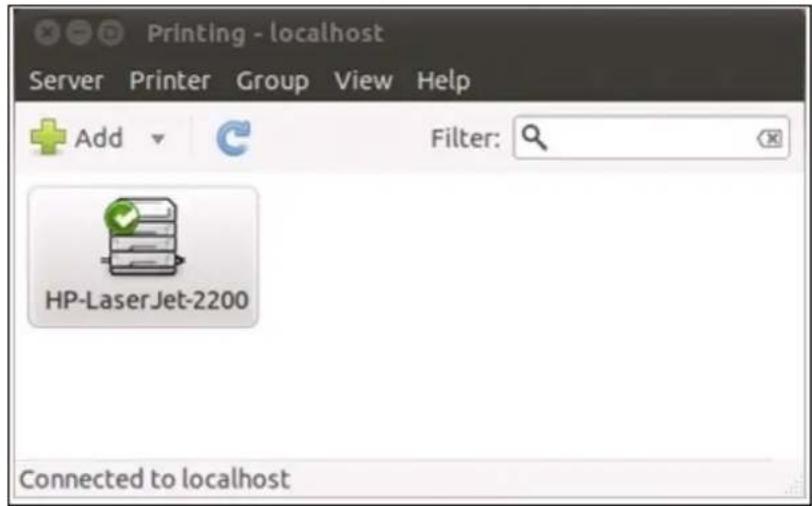
text_image
Printing - localhost Server Printer Group View Help Add Filter: HP-LaserJet-2200 Connected to localhostBy enabling the UPS (Uninterruptible Power Supply) support, you can protect your NAS from abnormal system shutdown caused by power disruption. In the event of a power failure the NAS will shut down automatically or enter auto-protection mode by probing the power status of the connected UPS unit.
Standalone mode - USB
To operate under USB standalone mode, follow the steps below:
- Plug in the USB cable on the UPS to the NAS.
- Select the option "Enable UPS Support".
-
Choose between whether the NAS will shut down or enter auto-protection mode after AC power fails. Specify the time in minutes that the NAS should wait before executing the option you have selected. After the NAS enters auto-protection mode, the NAS resumes the previous operation status when the power restores.
-
Click "Apply All" to confirm.
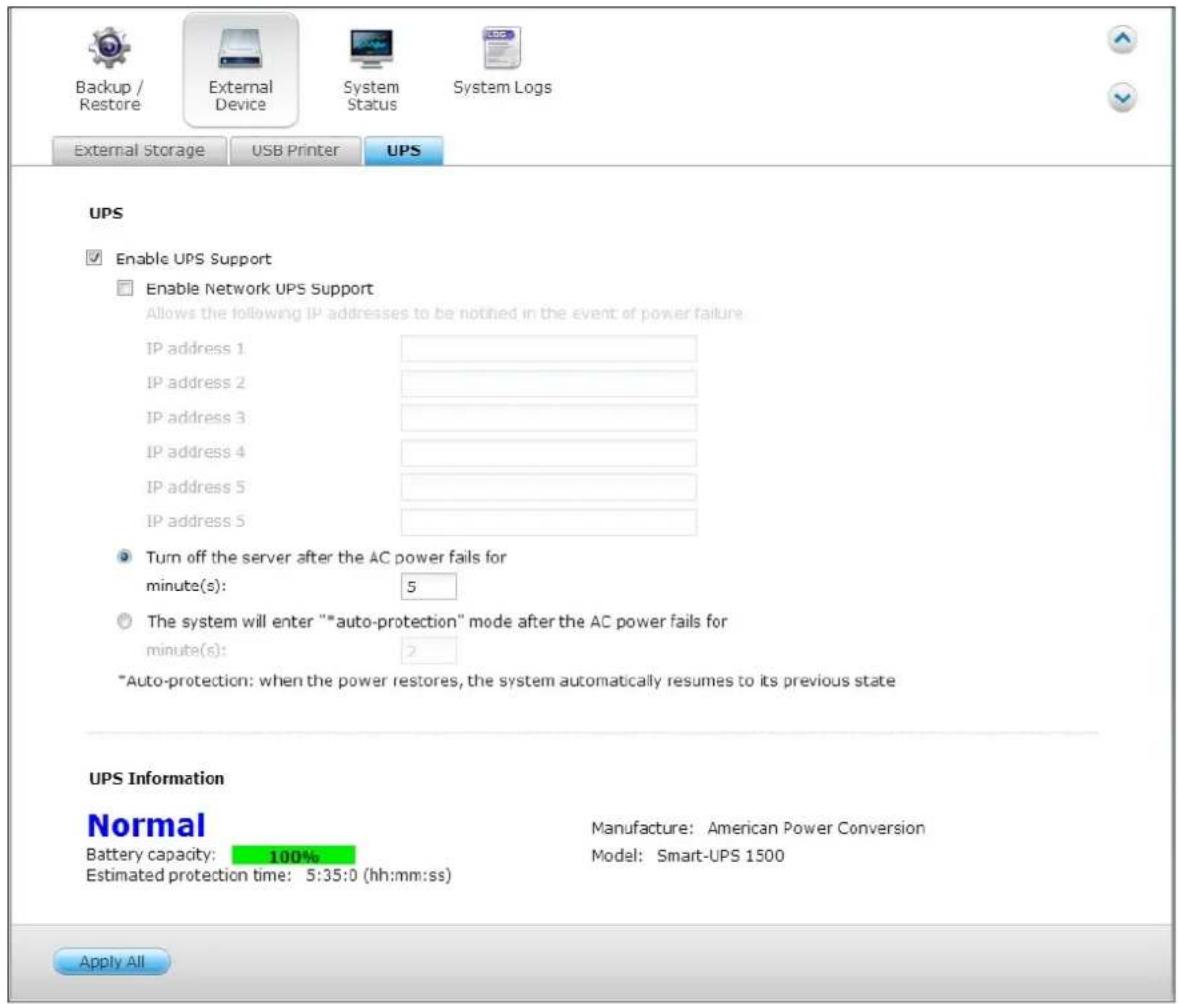
text_image
Backup / Restore External Device System Status System Logs External Storage USB Printer UPS UPS Enable UPS Support Enable Network UPS Support Allows the following IP addresses to be notified in the event of power failure IP address 1 IP address 2 IP address 3 IP address 4 IP address 5 IP address 5 Turn off the server after the AC power fails for minute(s): 5 The system will enter ""auto-protection" mode after the AC power fails for minute(s): 2 *Auto-protection: when the power restores, the system automatically resumes to its previous state UPS Information Normal Battery capacity: 100% Estimated protection time: 5:35:0 (hh:mm:ss) Manufacture: American Power Conversion Model: Smart-UPS 1500 Apply AllStandalone mode - SNMP
To operate under SNMP standalone mode, follow the steps below:
- Make sure the NAS is connected to the same physical network as the SNMP-based UPS.
- Select the option "Enable UPS Support".
- Select "APC UPS with SNMP management" from the "Protocol" drop down menu.
- Enter the IP address of the SNMP-based UPS.
-
Choose between whether the NAS will shut down or enter auto-protection mode after AC power fails. Specify the time in minutes that the NAS should wait before executing the option you have selected. After the NAS enters auto-protection mode, the NAS resumes the previous operation status when the power restores.
-
Click "Apply All" to confirm.
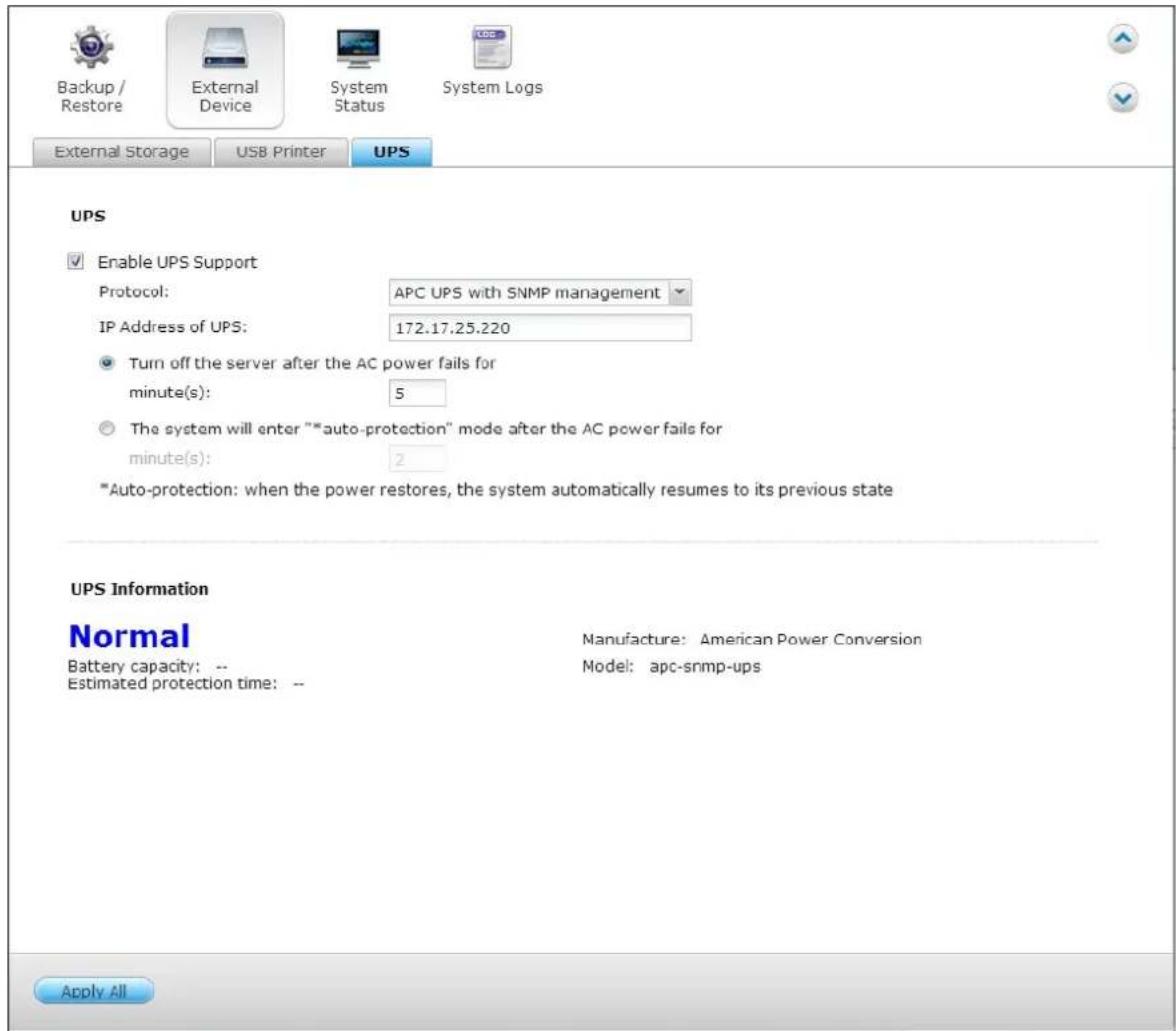
text_image
Backup / Restore External Device System Status System Logs External Storage USB Printer UPS UPS Enable UPS Support Protocol: APC UPS with SNMP management IP Address of UPS: 172.17.25.220 Turn off the server after the AC power fails for minute(s): 5 The system will enter "auto-protection" mode after the AC power fails for minute(s): 2 *Auto-protection: when the power restores, the system automatically resumes to its previous state UPS Information Normal Battery capacity: -- Estimated protection time: -- Manufacture: American Power Conversion Model: apc-snmp-ups Apply AllNetwork master mode
A network UPS master is responsible for communicating with network UPS slaves on the same physical network about critical power status. To set up your NAS with UPS as
network master mode, plug in the USB cable on the UPS to the NAS and follow the steps below:
- Make sure the NAS (the "UPS master") is connected to the same physical network as the network UPS slaves.
- Select the option "Enable UPS Support".
- Click "Enable network UPS Support". This option appears only when your NAS is connected to the UPS by a USB cable.
-
Choose between whether the NAS will shut down or enter auto-protection mode after AC power fails. Specify the time in minutes that the NAS should wait before executing the option you have selected. After the NAS enters auto-protection mode, the NAS resumes the previous operation status when the power restores.
-
Enter the "IP address" of other network UPS slaves to be notified in the event of power failure.
-
Click "Apply All" to confirm and continue the setup for the NAS systems which operate in network slave mode below.
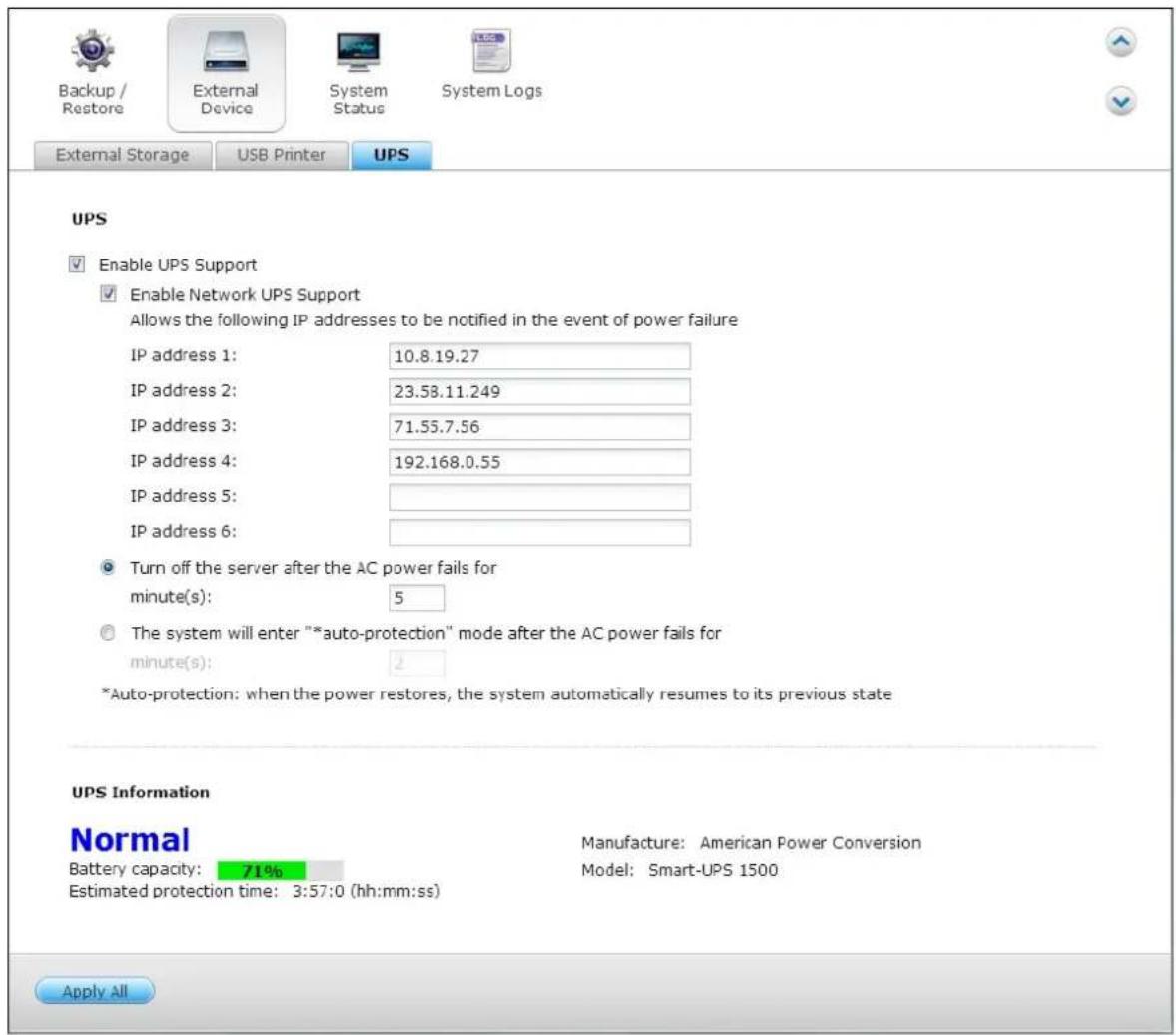
text_image
Backup / Restore External Device System Status System Logs External Storage USB Printer UPS UPS Enable UPS Support Enable Network UPS Support Allows the following IP addresses to be notified in the event of power failure IP address 1: 10.8.19.27 IP address 2: 23.58.11.249 IP address 3: 71.55.7.56 IP address 4: 192.168.0.55 IP address 5: IP address 6: Turn off the server after the AC power fails for minute(s): 5 The system will enter "*auto-protection" mode after the AC power fails for minute(s): *Auto-protection: when the power restores, the system automatically resumes to its previous state UPS Information Normal Battery capacity: 71% Estimated protection time: 3:57:0 (hh:mm:ss) Manufacture: American Power Conversion Model: Smart-UPS 1500 Apply AllNetwork slave mode
A network UPS slave communicates with network UPS master to receive the UPS status.
To set up your NAS with UPS as network slave mode, follow the steps below:
- Make sure the NAS is connected to the same physical network as the network UPS master.
- Select the option "Enable UPS Support".
- Select "Network UPS slave" from the "Protocol" drop down menu.
- Enter the IP address of the network UPS server.
-
Choose between whether the NAS will shut down or enter auto-protection mode after AC power fails. Specify the time in minutes that the NAS should wait before executing the option you have selected. After the NAS enters auto-protection mode, the NAS resumes the previous operation status when the power restores.
-
Click "Apply All" to confirm.

text_image
Backup / Restore External Device System Status System Logs External Storage USB Printer UPS Enable UPS Support Protocol: Network UPS slave IP address of network UPS server: 10.8.12.153 Turn off the server after the AC power fails for minute(s): 5 The system will enter "*auto-protection" mode after the AC power fails for minute(s): 2 *Auto-protection: when the power restores, the system automatically resumes to its previous state UPS Information AC power status: -- Battery capacity: -- Estimated protection time: -- Manufacture: -- Model: -- Apply AllNote: To allow the UPS device to send SNMP alerts to the QNAP NAS in case of power loss, you may have to enter the IP address of the NAS in the configuration page of the UPS device.
Behavior of the UPS feature of the NAS:
In case of power loss and power recovery, the events will be logged in the "System
Event Logs".
During a power loss, the NAS will wait for the specified time you enter in the "UPS
Settings" before powering off or entering auto-protection mode.
If the power restores before the end of the waiting time, the NAS will remain in operation and cancel its power-off or auto-protection action.
Once the power restores:
- If the NAS is in auto-protection mode, it will resume to normal operation.
- If the NAS is powered off, it will remain off.
Difference between auto-protection m ode and power-off m ode
| Mode | Advantage | Disadvantage |
| Auto-protection mode | The NAS resumes after power recovery. | If the power outage lasts until the UPS is turned off, the NAS may suffer from abnormal shutdown. |
| Power-off mode | The NAS will be shut down properly. | The NAS will remain off after the power recovery. Manual power on of the NAS is required. |
If the power restores after the NAS has been shut down and before the UPS device is powered off, you may power on the NAS by Wake on LAN* (if your NAS and UPS device both support Wake on LAN and Wake on LAN is enabled on the NAS).
*This feature is not supported by TS-110, TS-119, TS-210, TS-219, TS-219P, TS-410, TS-419P, TS-410U, TS-419U, TS-112, TS-212, TS-412, TS-412U. Please visit http://www.qnap.com for details.
If the power restores after both the NAS and the UPS have been shut down, the NAS will react according to the settings in "System Settings" > "Power Recovery".

text_image
General Settings Storage Manager Network Security Hardware Power Notification Firmware Update EuP Mode Configuration Wake-on-LAN (WOL) Power Recovery Power Schedule Resume the server to the previous power-on or power-off status. Turn on the server automatically. The server should remain off. Apply4.11 System Status
System Information
View the summary of system information such as the server name, memory, firmware and system up time on this page.

text_image
System Status System Information Network Status System Service Hardware Information Resource Monitor Summary Server name NASC941FF Model name TS-121 Serial number Q124BA19457 Total memory 1011.1 MB Firmware version 4.0.0 Build 20130411 System up time 6 day 23 Hour 23 Minute(s) Time zone (GMT+08:00) Beijing, Chongqing, Hong Kong, Urumqi Filename encoding EnglishNetwork Status
View the current network settings and statistics on this page and they are displayed based on network interfaces. click the up arrow at top right to collapse the interface page and down arrow to expand the page.

text_image
System Status System Information Network Status System Service Hardware Information Resource Monitor Ethernet 1 Link Up IP address 192.168.0.17(DHCP) MAC address 00:08:98:C9:41:FF Subnet mask 255.255.255.0 DNS 61.31.233.1 61.31.1.1 168.95.1.1 Packets received 13142160 Packets sent 18240597 Error packets 0System Service
View the current settings of system services provided by the NAS on this page.

text_image
System Status System Information Network Status System Service Hardware Information Resource Monitor Antivirus Rsync Server Enabled Enabled Apple Networking RTRR Server Enabled Enabled Apple Zone name * RADIUS Server DDNS Service Enabled Enabled Service Binding Disk Management Enabled Enable iSCSI target service SNMP Port 3260 Enabled Download Station Port 161 Enabled Surveillance Station FTP Service Enabled Enabled Syslog Server Enabled Port 21 Enabled Maximum connections 30 System Port Management LDAP Server Port 8080 Enabled Secure connection port 443Hardware Information
View basic hardware information of the NAS on this page.
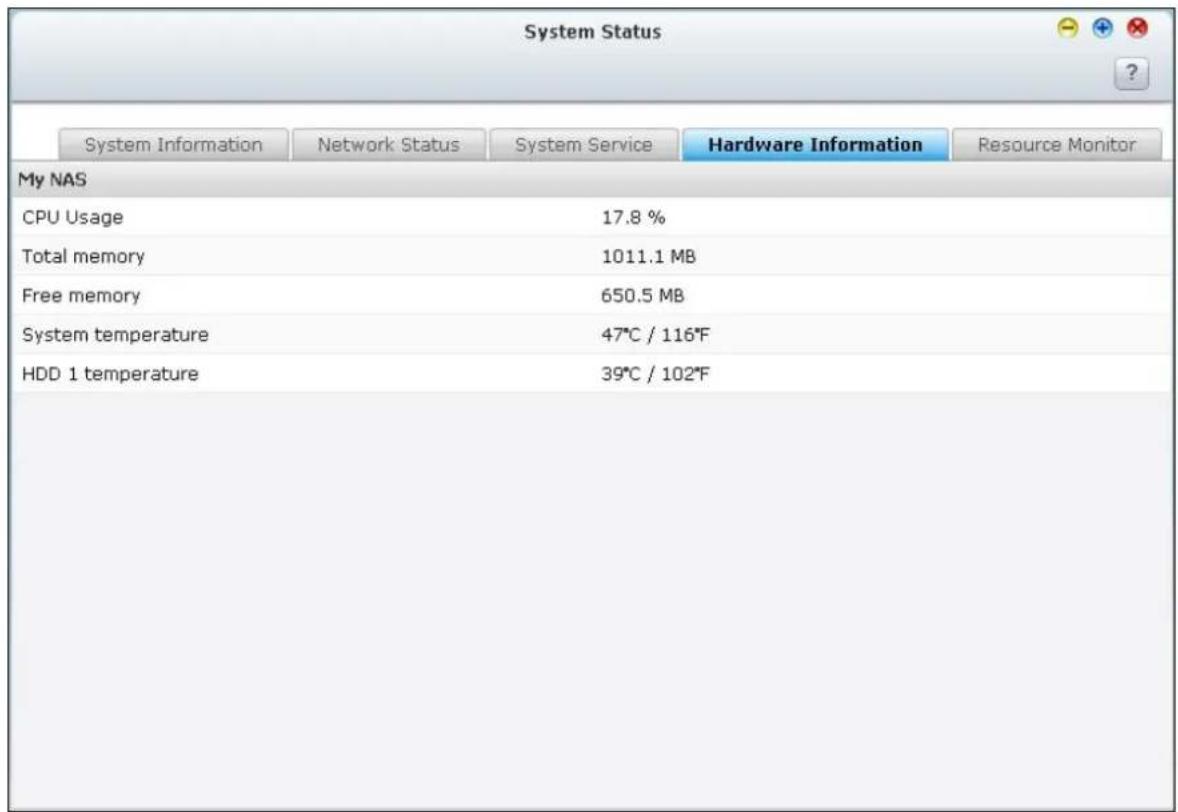
text_image
System Status System Information Network Status System Service Hardware Information Resource Monitor My NAS CPU Usage 17.8 % Total memory 1011.1 MB Free memory 650.5 MB System temperature 47°C / 116°F HDD 1 temperature 39°C / 102°FResource Monitor
You can view the CPU usage, disk usage, and bandwidth transfer statistics of the NAS on this page.
• CPU Usage: This tab shows the CPU usage of the NAS.
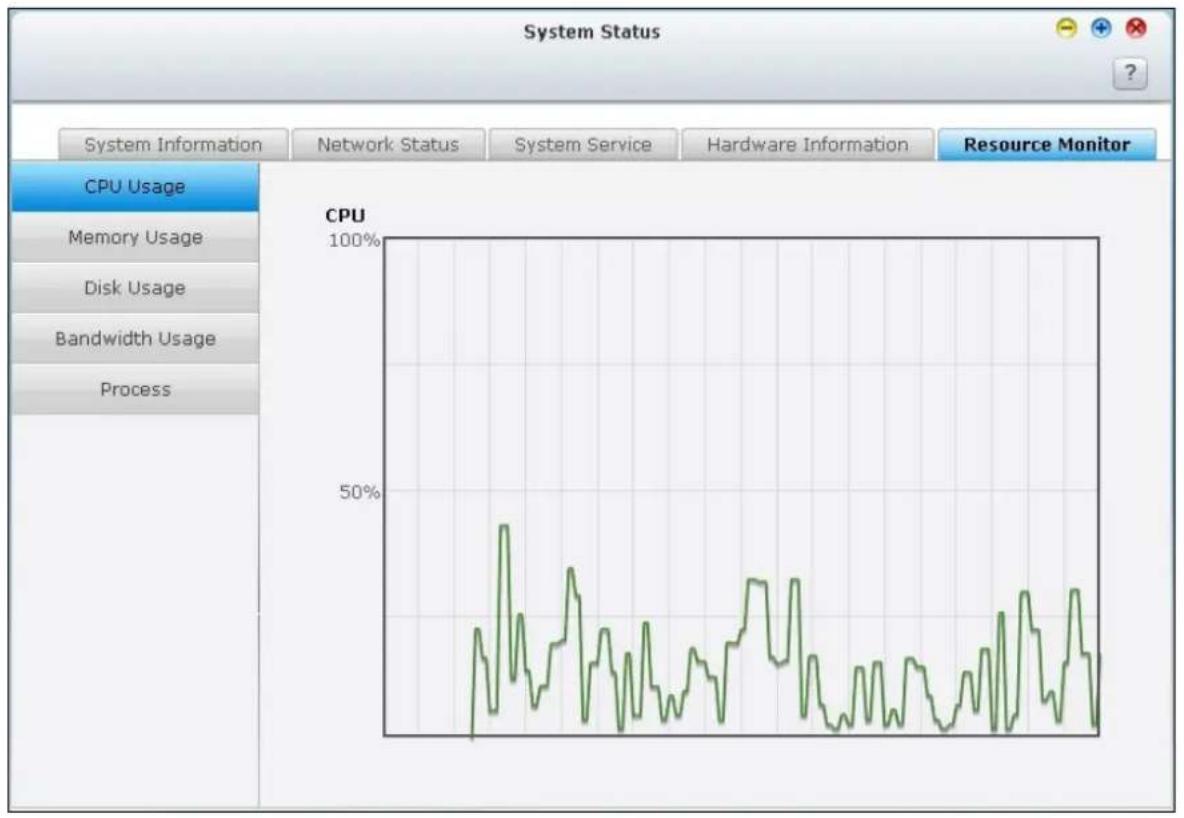
line
| Time Point | CPU (%) | | ---------- | ------- | | 1 | ~20 | | 2 | ~40 | | 3 | ~30 | | 4 | ~25 | | 5 | ~35 | | 6 | ~28 | | 7 | ~32 | | 8 | ~27 | | 9 | ~38 | | 10 | ~29 | | 11 | ~34 | | 12 | ~26 | | 13 | ~36 | | 14 | ~28 | | 15 | ~37 | | 16 | ~27 | | 17 | ~39 | | 18 | ~29 | | 19 | ~35 | | 20 | ~31 | | 21 | ~28 | | 22 | ~33 | | 23 | ~27 | | 24 | ~36 | | 25 | ~29 | | 26 | ~34 | | 27 | ~30 | | 28 | ~26 | | 29 | ~37 | | 30 | ~28 | | 31 | ~35 | | 32 | ~31 | | 33 | ~27 | | 34 | ~33 | | 35 | ~29 | | 36 | ~36 | | 37 | ~30 | | 38 | ~28 | | 39 | ~34 | | 40 | ~32 | | 41 | ~27 | | 42 | ~35 | | 43 | ~29 | | 44 | ~38 | | 45 | ~31 | | 46 | ~26 | | 47 | ~37 | | 48 | ~30 | | 49 | ~35 | | 50 | ~28 | | 51 | ~36 | | 52 | ~31 | | 53 | ~27 | | 54 | ~34 | | 55 | ~29 | | 56 | ~37 | | 57 | ~30 | | 58 | ~28 | | 59 | ~35 | | 60 | ~32 | | 61 | ~27 | | 62 | ~36 | | 63 | ~30 | | 64 | ~26 | | 65 | ~34 | | 66 | ~29 | | 67 | ~35 | | 68 | ~31 | | 69 | ~28 | | 70 | ~37 | | 71 | ~30 | | 72 | ~26 | | 73 | ~35 | | 74 | ~29 | | 75 | ~36 | | 76 | ~31 | | 77 | ~27 | | 78 | ~34 | | 79 | ~29 | | 80 | ~37 | | 81 | ~30 | | 82 | ~28 | | 83 | ~35 | | 84 | ~31 | | 85 | ~27 | | 86 | ~36 | | 87 | ~29 | | 88 | ~34 | | 89 | ~30 | | 90 | ~28 | | 91 | ~35 | | 92 | ~31 | | 93 | ~27 | | 94 | ~36 | | 95 | ~30 | | 96 | ~26 | | 97 | ~34 | | 98 | ~29 | | 99 | ~35 | | 100 | ~31 |- Memory Usage: This tab shows the memory usage of the NAS by real-time dynamic graph.

line
| Metric | Value | | -------------- | --------- | | Total | 1011.05 MB | | Used | 361.82 MB | | Free | 649.24 MB | | Total | 517.62 MB | | Used | 191.04 MB | | Free | 326.58 MB |- Disk Usage: This tab shows the disk space usage of each disk volume and its shared folders.

pie
| Category | Value | | -------------- | --------- | | Download | 53.62 GB | | Public | 251.10 MB | | Multimedia | 18.42 MB | | homes | 836.03 KB | | Dept | 36 KB | | Others | 204.15 KB | | Free Space | 860.59 GB |- Bandwidth Usage: This tab provides information about bandwidth transfer of each available LAN port of the NAS.
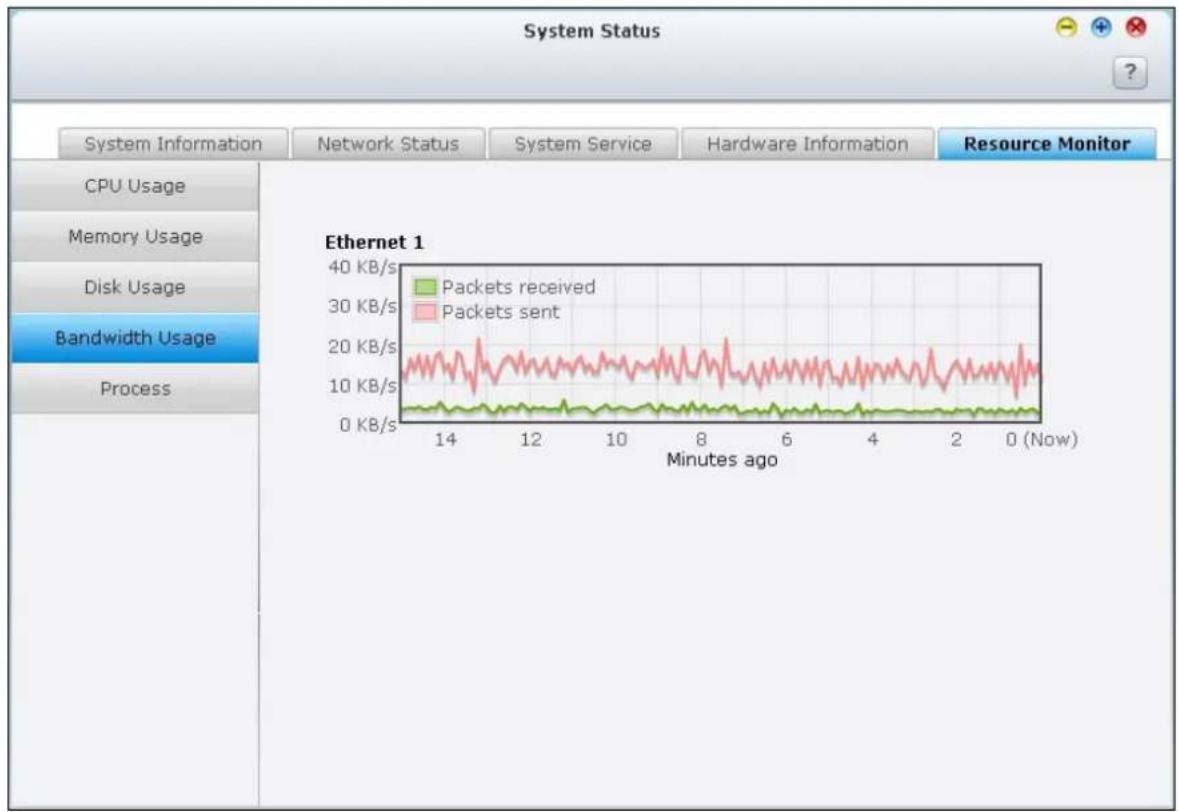
line
| Minutes ago | Packets received (KB/s) | Packets sent (KB/s) | | ----------- | ------------------------ | -------------------- | | 14 | ~5 | ~20 | | 12 | ~5 | ~20 | | 10 | ~5 | ~20 | | 8 | ~5 | ~20 | | 6 | ~5 | ~20 | | 4 | ~5 | ~20 | | 2 | ~5 | ~20 | | 0 (Now) | ~5 | ~20 |- Process: This tab shows information about the processes running on the NAS.
| System Information | Network Status | System Service | Hardware Information | Resource Monitor | ||
| CPU Usage | Process Name | Users | PID | CPU ... | Memory ▲ | |
| Memory Usage | md9_raid1 | admin | 449 | 0.9 % | 0 K | |
| top | admin | 10847 | 4.6 % | 872 K | ||
| Disk Usage | _thttpd_ | admin | 26325 | 0 % | 1748 K | |
| Bandwidth Usage | twonkymediaserv | admin | 4157 | 0 % | 1776 K | |
| Process | apache | httpdusr | 23902 | 0 % | 1828 K | |
| mysqld | admin | 7217 | 0 % | 1880 K | ||
| nvrd | admin | 17675 | 0 % | 2156 K | ||
| iscsid | admin | 7143 | 0 % | 2200 K | ||
| manaRequest.cgi | admin | 10876 | 3.7 % | 3164 K | ||
| manaRequest.cgi | admin | 10839 | 0 % | 3168 K | ||
| manaRequest.cgi | admin | 10854 | 4.6 % | 3184 K | ||
| squid | httpdusr | 7093 | 0 % | 3272 K | ||
| apache | httpdusr | 10123 | 0 % | 3488 K | ||
| proftpd | guest | 6790 | 0 % | 4504 K | ||
| btd | admin | 6424 | 0.9 % | 8148 K | ||
4.12 System Logs
System Event Logs
The NAS can store 10,000 recent event logs, including warning, error, and information messages. If the NAS does not function correctly, refer to the event logs for troubleshooting.
Tip: Right click a log to delete the record. To clear all logs, click "Clear".

text_image
System Event Logs System Connection Logs Online Users Syslog Client Management All events Clear Save Content Search Type Date Time Users Source IP Computer name Content 2013-05-07 17:07:04 System 127.0.0.1 localhost [Drive 1] The scanning is stopped by user. 2013-05-07 17:06:55 System 127.0.0.1 localhost [Drive 1] Start scanning bad blocks. 2013-05-06 08:04:00 System 127.0.0.1 localhost [USBDisk2] Device detected. The file system is ndfs. 2013-05-06 02:46:29 System 127.0.0.1 localhost [USBDisk2] Device removed. 2013-05-03 23:23:50 System 127.0.0.1 localhost [Video Station] Video Station is enabled successfully. 2013-05-03 17:40:41 admin 61.62.220.74 --- [VPN Service] PPTP started successfully. 2013-04-30 22:52:30 System 127.0.0.1 localhost LAN 1 link is Up. 2013-04-30 22:44:18 System 127.0.0.1 localhost [USBDisk3] Device removed. 2013-04-30 22:43:43 System 127.0.0.1 localhost [USBDisk3] Device detected. The file system is ndfs. 2013-04-30 22:43:36 System 127.0.0.1 localhost [USBDisk3] Device removed. 2013-04-30 22:43:16 System 127.0.0.1 localhost [USBDisk3] Device detected. The file system is ndfs. Page 1 /1 Display item: 1-39, Total: 39 Show 50 ItemsSystem Connection Logs
The NAS supports recording HTTP, FTP, Telnet, SSH, AFP, NFS, SAMBA, and iSCSI connections. Click "Options" to select the connection type to be logged. The file transfer performance can be slightly affected when this feature is turned on.
Tip: Right click a log and select to delete the record or block the IP and select how long the IP should be blocked. To clear all the logs, click "Clear".
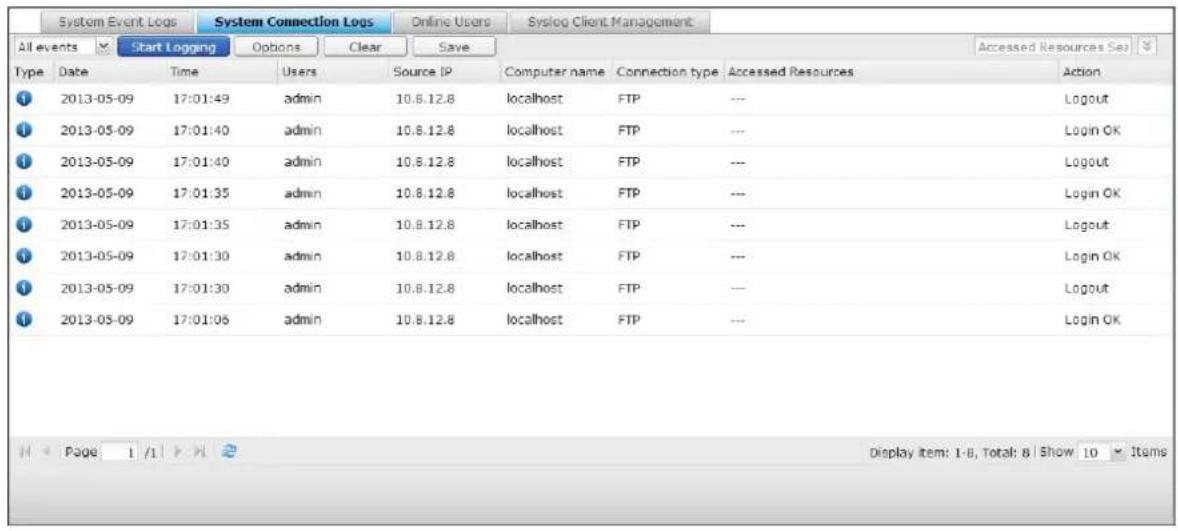
text_image
System Event Logs System Connection Logs Online Users Syslog Client Management All events Start Logging Options Clear Save Accessed Resources Set Type Date Time Users Source IP Computer name Connection type Accessed Resources Action 2013-05-09 17:01:49 admin 10.8.12.8 localhost FTP ... Logout 2013-05-09 17:01:40 admin 10.8.12.8 localhost FTP ... Login OK 2013-05-09 17:01:40 admin 10.8.12.8 localhost FTP ... Logout 2013-05-09 17:01:35 admin 10.8.12.8 localhost FTP ... Login OK 2013-05-09 17:01:35 admin 10.8.12.8 localhost FTP ... Logout 2013-05-09 17:01:30 admin 10.8.12.8 localhost FTP ... Login OK 2013-05-09 17:01:30 admin 10.8.12.8 localhost FTP ... Logout 2013-05-09 17:01:06 admin 10.8.12.8 localhost FTP ... Login OKStart Logging: Turn on this option to archive the connection logs. The NAS generates a CSV file automatically and saves it to a specified folder when the number of logs reaches the upper limit.
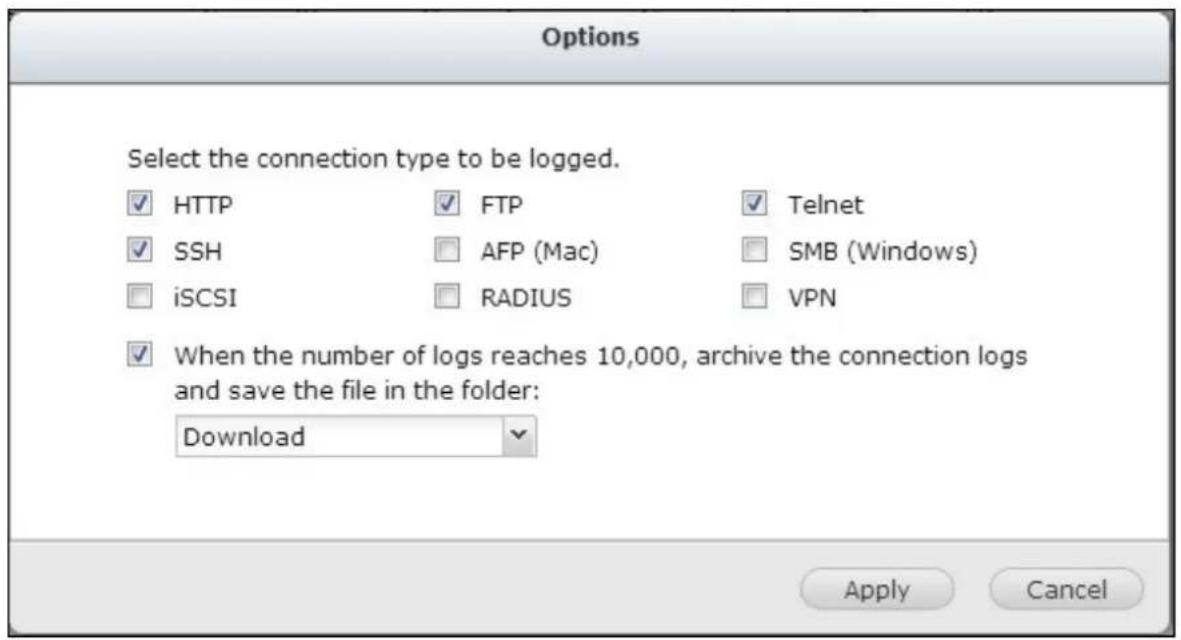
text_image
Options Select the connection type to be logged. ✓ HTTP ✓ FTP ✓ Telnet ✓ SSH □ AFP (Mac) □ SMB (Windows) □ iSCSI □ RADIUS □ VPN ✓ When the number of logs reaches 10,000, archive the connection logs and save the file in the folder: Download Apply CancelThe file-level access logs are available on this page. The NAS will record the logs when users access, create, delete, move, or rename any files or folders via the connection type specified in "Options". To disable this feature, click "Stop logging".

text_image
System Event Logs System Connection Logs Online Users Syslog Client Management All events Stop Logging Options Clear Save Accessed Resources Set Type Date Time Users Source IP Computer name Connection type Accessed Resources Action 2013-05-10 17:31:52 guest 10.8.12.6 tatehuang-nb SAMBA Public/Transmissio... Read 2013-05-10 17:31:50 guest 10.8.12.6 tatehuang-nb SAMBA Public/Transmissio... Read 2013-05-10 17:31:48 guest 10.8.12.6 tatehuang-nb SAMBA Public/Transmissio... Read 2013-05-10 17:31:48 guest 10.8.12.6 tatehuang-nb SAMBA Public/Transmissio... Read 2013-05-10 17:31:47 guest 10.8.12.6 tatehuang-nb SAMBA Public/Mistead_QN... Read 2013-05-10 17:31:35 guest 10.8.12.6 tatehuang-nb SAMBA Public/Chrome_gra... Read 2013-05-10 17:31:30 guest 10.8.12.6 tatehuang-nb SAMBA Public/Chrome_gra... Read 2013-05-10 17:31:29 guest 10.8.12.6 tatehuang-nb SAMBA Public/Chrome_gra... Read 2013-05-10 17:31:28 guest 10.8.12.6 tatehuang-nb SAMBA Public/Mistead_QN... Read 2013-05-10 17:31:28 guest 10.8.12.6 tatehuang-nb SAMBA Public/Mistead_QN... ReadOnline Users
The information of the on-line users connecting to the NAS by networking services is shown on this page.
Tip: Right click a log to disconnect the IP connection and block the IP.
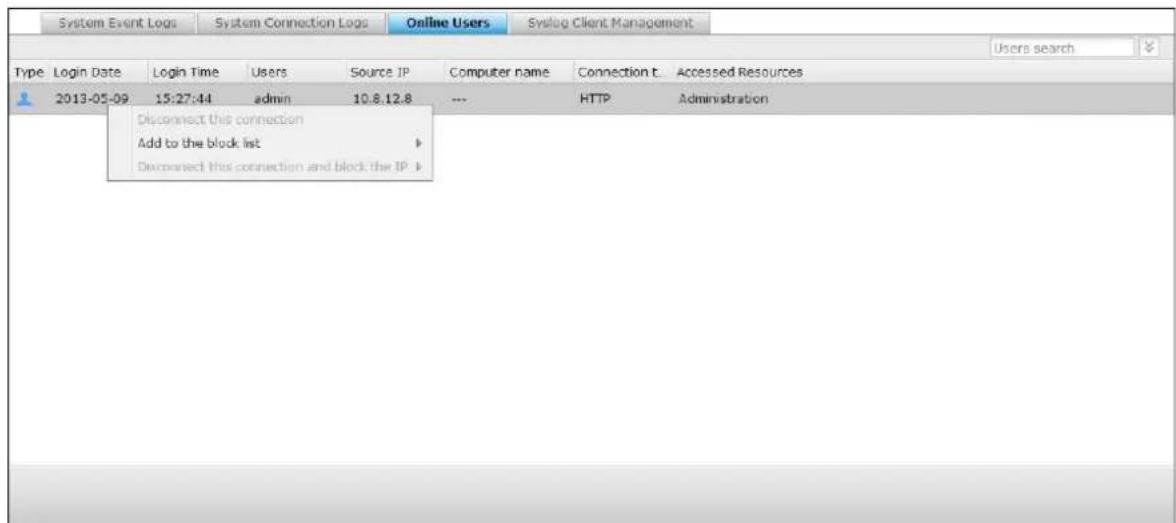
text_image
System Event Logs System Connection Logs Online Users Syslog Client Management Users search Type Login Date Login Time Users Source IP Computer name Connection t. Accessed Resources 2013-05-09 15:27:44 admin 10.8.12.8 --- HTTP Administration Disconnect this connection Add to the block list Divconnect this connection and block the IPSyslog Client Management
Syslog is a standard for forwarding the log messages on an IP network. Turn on this option to save the event logs and connection logs to a remote Syslog server.
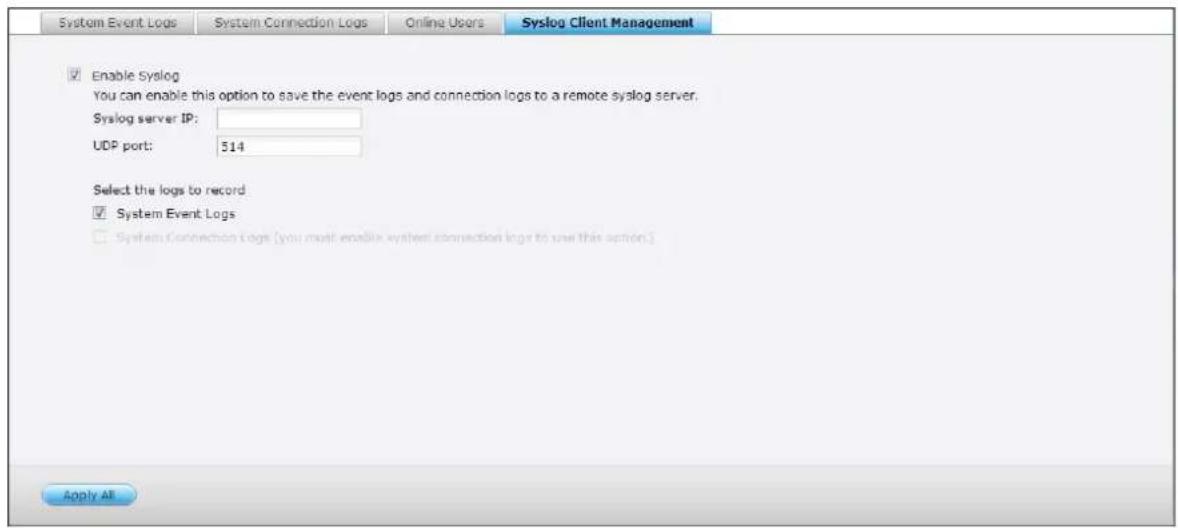
text_image
System Event Logs System Connection Logs Online Users Syslog Client Management Enable Syslog You can enable this option to save the event logs and connection logs to a remote syslog server. Syslog server IP: UDP port: 514 Select the logs to record System Event Logs System Connection Logs [you must enable system connection logs to save this option] Apply AllWhen converting the connection logs into a CSV file, the connection type and action will be number coded. Please refer to the table below for the code meaning.
| Connection type codes | Action codes |
| 0 - UNKNOWN | 0 - UNKNOWN |
| 1 - SAMBA | 1 - DEL |
| 2 - FTP | 2 - READ |
| 3 - HTTP | 3 - WRITE |
| 4 - NFS | 4 - OPEN |
| 5 - AFP | 5 - MKDIR |
| 6 - TELNET | 6 - NFSMOUNT_SUCC |
| 7 - SSH | 7 - NFSMOUNT_FAIL |
| 8 - ISCSI | 8 - RENAME |
| 9 - LOGIN_FAIL | |
| 10 - LOGIN_SUCC | |
| 11 - LOGOUT | |
| 12 - NFSUMOUNT | |
| 13 - COPY | |
| 14 - MOVE | |
| 15 - ADD |
Advanced Log Search
Advanced log search is provided to search for system event logs, system connection logs and online users based on user preferences. First, specify the log type, users, computer name, date range and source IP and click "Search" to search for the desired logs or reset to list all logs.
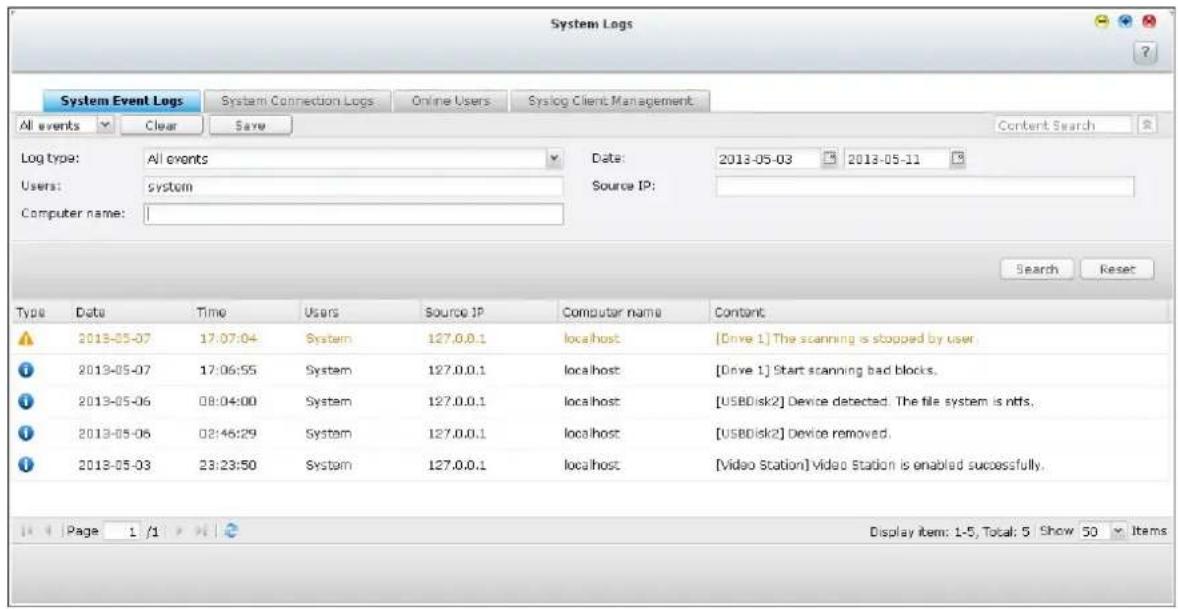
text_image
System Logs System Event Logs System Connection Logs Online Users Syslog Client Management All events Clear Save截至目前 Search Log type: All events Data: 2013-05-03 2013-05-11 Users: systemITO Computer name: Search Reset Type Data Time Users Sompo IP Computer name Content ▲ 2013-05-07 17:07:04 System 127.0.0.1 localhost [Drive 1] The scanning is stopped by user. ● 2013-05-07 17:06:55 System 127.0.0.1 localhost [Drive 1] Start scanning bad blocks. ● 2013-05-06 08:04:00 System 127.0.0.1 localhost [USBDisk2] Device detected. The file system is nfts. ● 2013-05-06 02:46:29 System 127.0.0.1 localhost [USBDisk2] Device removed. ● 2013-05-03 23:23:50 System 127.0.0.1 localhost [Video Station] Video Station is enabled successfully. Page 1 /1 Display item: 1-5, Total: 5 Show 50 ItemsPlease note that for online users, only the source IP and Computer name can be specified.
5. Privilege Settings
Users309
User Groups325
Share Folders327
Quota 363
Domain Security ^365
The NAS has created the following users by default:
- admin
The administrator "admin" has full access to system administration and all shared folders. It cannot be deleted.
- guest
This is a built-in user and will not be displayed on the "User Management" page. A guest does not belong to any user group. The login password is "guest".
- anonymous
This is a built-in user and will not be shown on the "User Management" page. When you connect to the server by FTP, you can use this name to login.
The number of users you can create on the NAS varies according to the NAS models. If your NAS models are not listed, please visit http://www.qnap.com for details.
| Maxim um num ber of users | NAS m odels |
| 1,024 | TS-110, TS-210 |
| 2,048 | TS-112, TS-119, TS-119P+, TS-212, TS-219P+, TS-410, TS-239 Pro II+, TS-259 Pro+ |
| 4,096 | TS-412, TS-419P+, TS-410U, TS-419U, TS-412U, TS-419U+, SS-439 Pro, SS-839 Pro, TS-439 Pro II+, TS-459U-RP/SP, TS-459U-RP+/SP+, TS-459 Pro+, TS-459 Pro II, TS-559 Pro+, TS-559 Pro II, TS-659 Pro+, TS-659 Pro II, TS-859 Pro+, TS-859U-RP, TS-859U-RP+, TS-809 Pro, TS-809U-RP, TS-879 Pro, TS-1079 Pro, TS-879U-RP, TS-EC879U-RP, TS-1279U-RP, TS-EC1279U-RP |
The following information is required to create a new user:
- Username
The username is case-insensitive and supports multi-byte characters, such as Chinese, Japanese, Korean, and Russian. The maximum length is 32 characters. The invalid characters are listed below:
$$ " / \backslash [ ]:; | = , + *? < > ^ {\prime} $$
- Password
The password is case-sensitive and supports maximum 16 characters. It is recommended to use a password of at least 6 characters.

text_image
Users User Groups Shared Folders Quota Domain Security Create Delete Home Folders Local Users Username Description Quota Action admin administrator -- Ted User -- Display item: 1-2, Total: 2 | Show 10 ItemsCreate a User
To create a user on the NAS, click "Create a User".

text_image
Users User Groups Shared Folders Quota Domain Security Create Delete Home Folders Local Users Create a User Description Quota Action Create Multiple Users administrator -- Import/Export Users User -- Page 1 /1 Display item: 1-2, Total: 2 | Show 10 ItemsFollow the instructions of the wizard to complete the details.
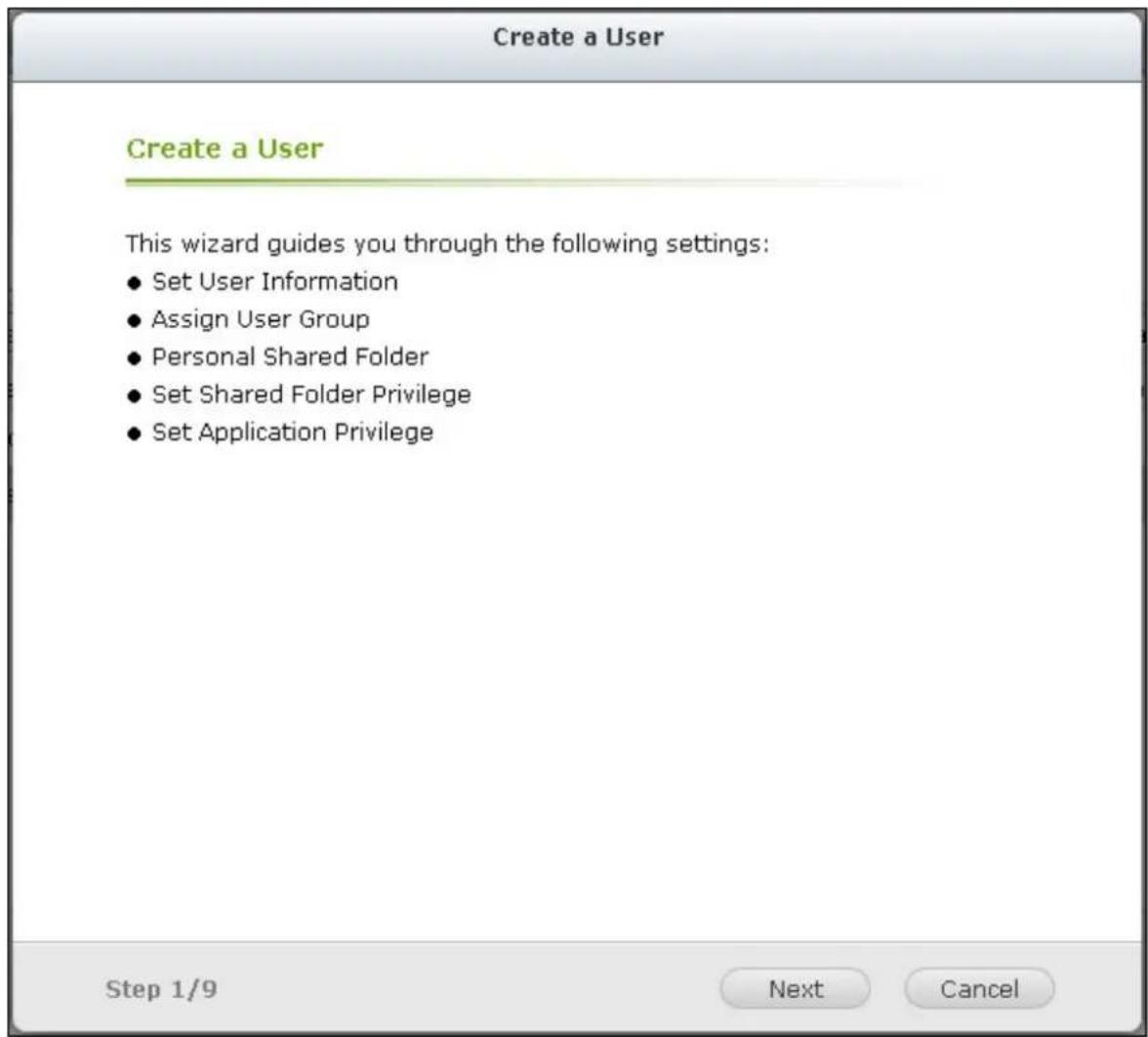
text_image
Create a User Create a User This wizard guides you through the following settings: • Set User Information • Assign User Group • Personal Shared Folder • Set Shared Folder Privilege • Set Application Privilege Step 1/9 Next CancelCreate Multiple Users
- To create multiple users on the NAS, click "Create Multiple Users".

text_image
Users User Groups Shared Folders Quota Domain Security Create Delete Home Folders Local Users Create a User Description Quota Action Create Multiple Users administrator - Import/Export Users User - Page 1 /1 Display item: 1-2, Total: 2 | Show 10 Items- Click "Next".

text_image
Multiple Users Creation Wizard Create Multiple Users This wizard helps you create multiple users. Click NEXT to proceed. Step 1/5 Next Cancel- Enter the name prefix, e.g. test. Enter the start number for the username, e.g.
0001 and the number of users to be created, e.g. 10. The NAS creates ten users named test0001, test0002, test0003...test0010. The password entered here is the same for all the new users.
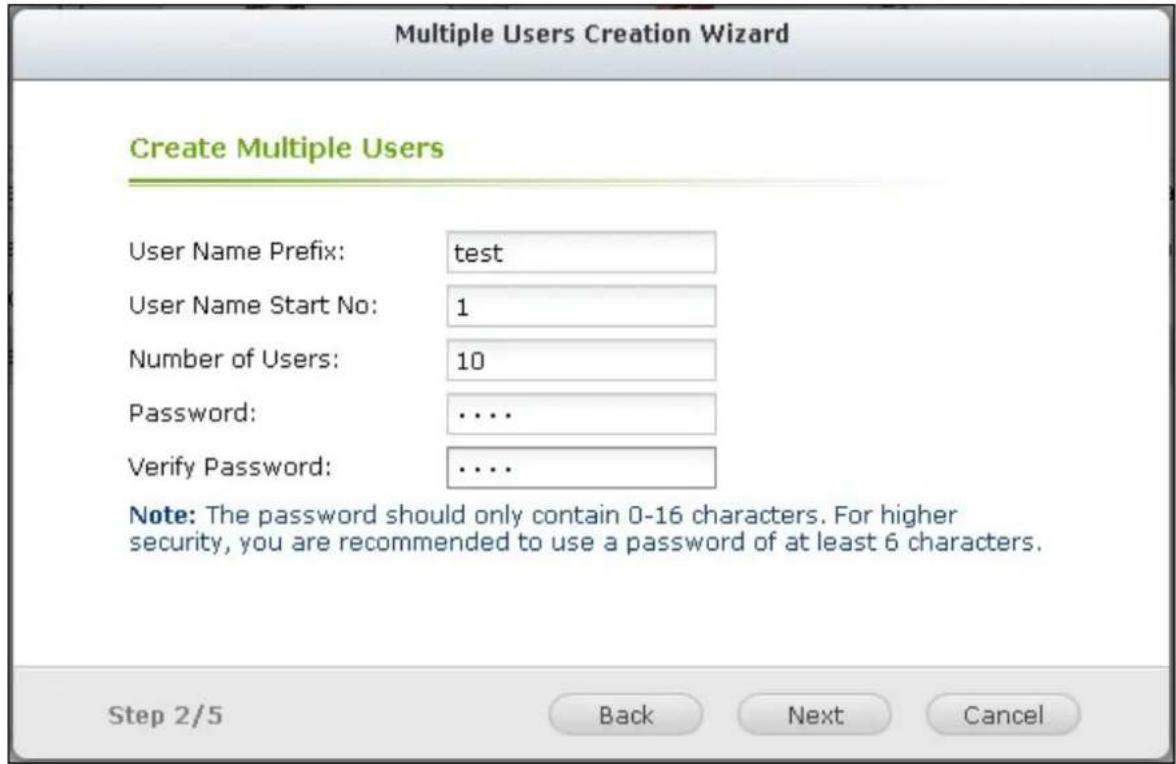
text_image
Multiple Users Creation Wizard Create Multiple Users User Name Prefix: test User Name Start No: 1 Number of Users: 10 Password: .... Verify Password: .... Note: The password should only contain 0-16 characters. For higher security, you are recommended to use a password of at least 6 characters. Step 2/5 Back Next Cancel- Select to create a private shard folder for each user or not. The shared folder will be named after the username. If a shared folder of the same name has already existed, the NAS will not create the folder.
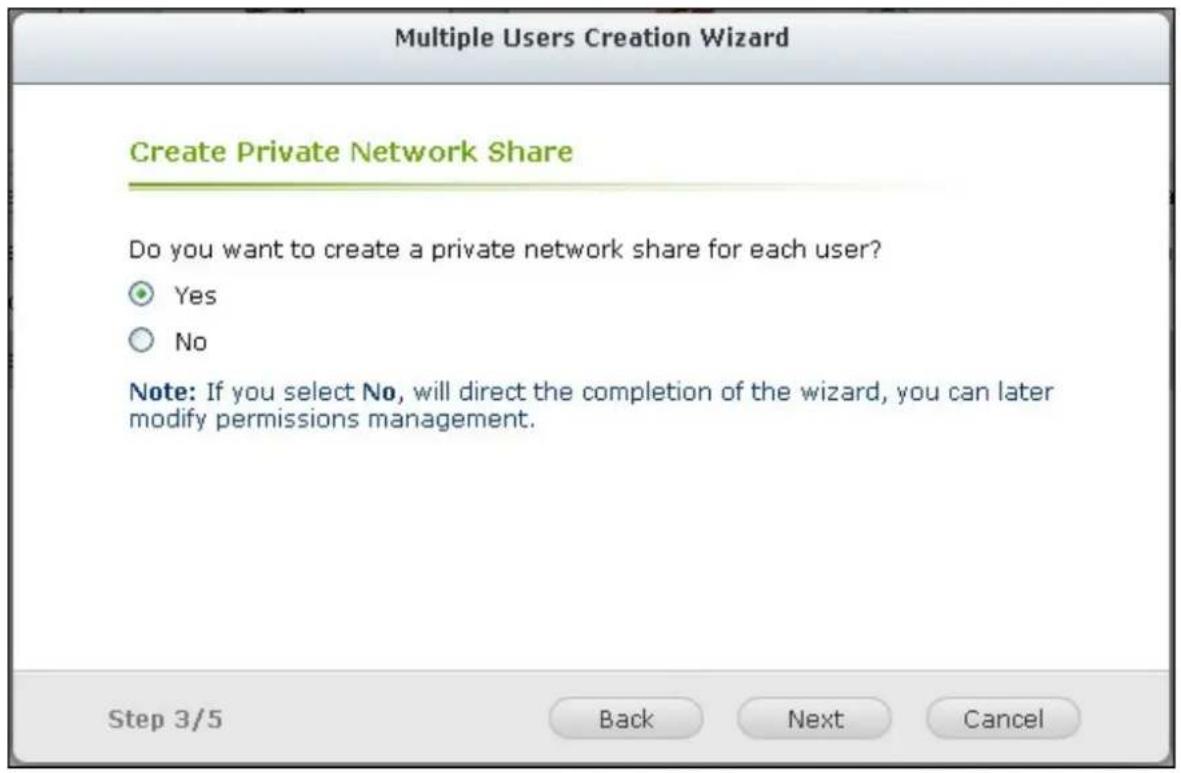
text_image
Multiple Users Creation Wizard Create Private Network Share Do you want to create a private network share for each user? Yes No Note: If you select No, will direct the completion of the wizard, you can later modify permissions management. Step 3/5 Back Next Cancel- Specify the folder settings.
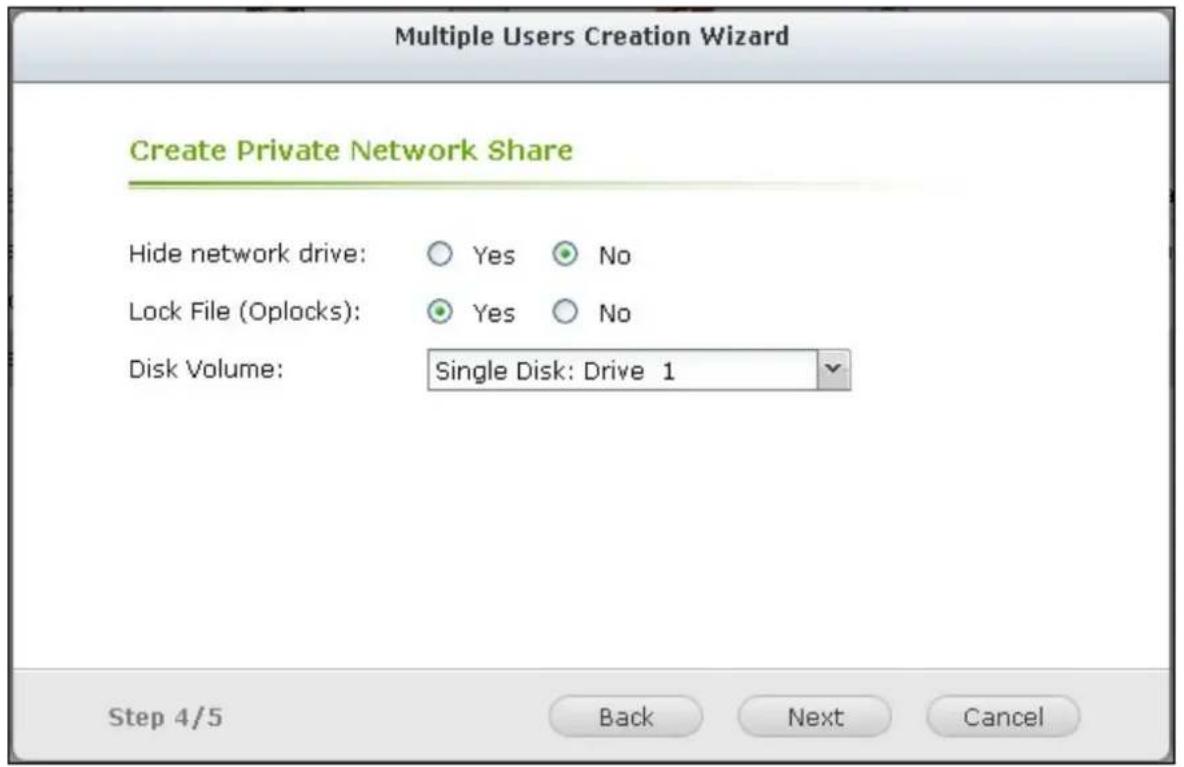
text_image
Multiple Users Creation Wizard Create Private Network Share Hide network drive: Yes No Lock File (Oplocks): Yes No Disk Volume: Single Disk: Drive 1 Step 4/5 Back Next Cancel- You can view the new users created in the last step. Click "Finish" to exit the wizard.
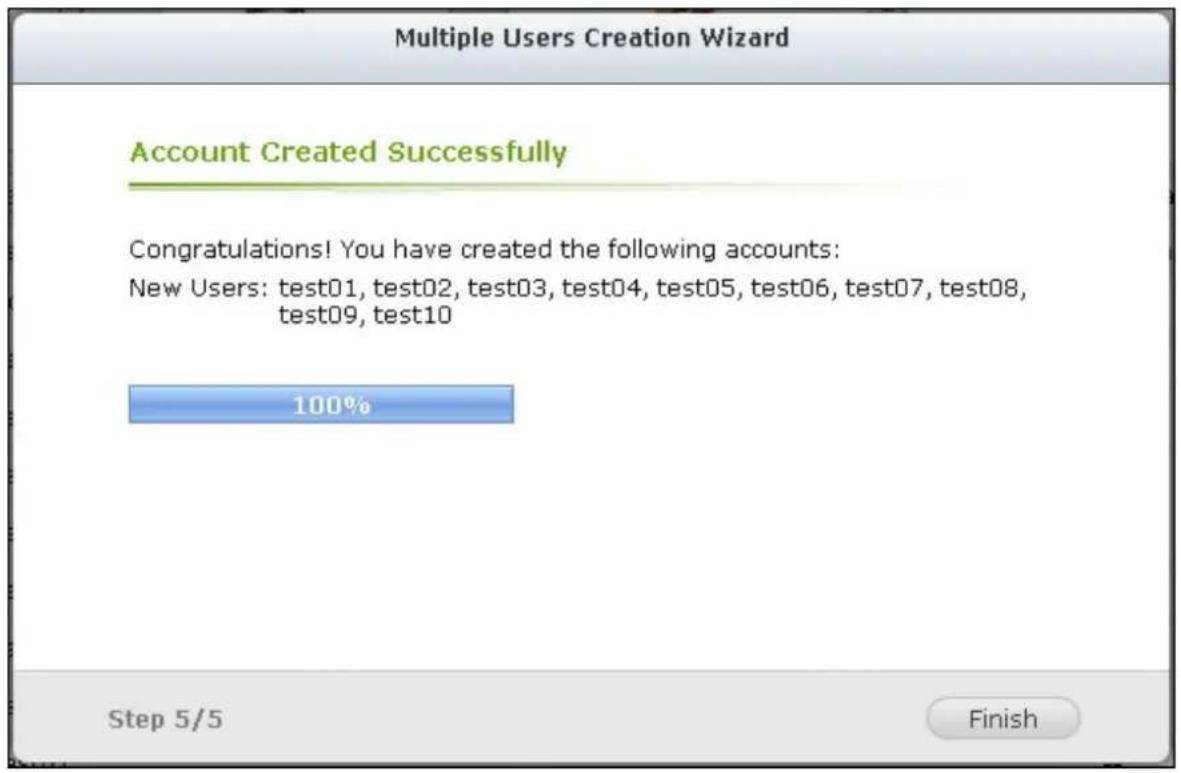
text_image
Multiple Users Creation Wizard Account Created Successfully Congratulations! You have created the following accounts: New Users: test01, test02, test03, test04, test05, test06, test07, test08, test09, test10 100% Step 5/5 Finish- Check that the users have been created.
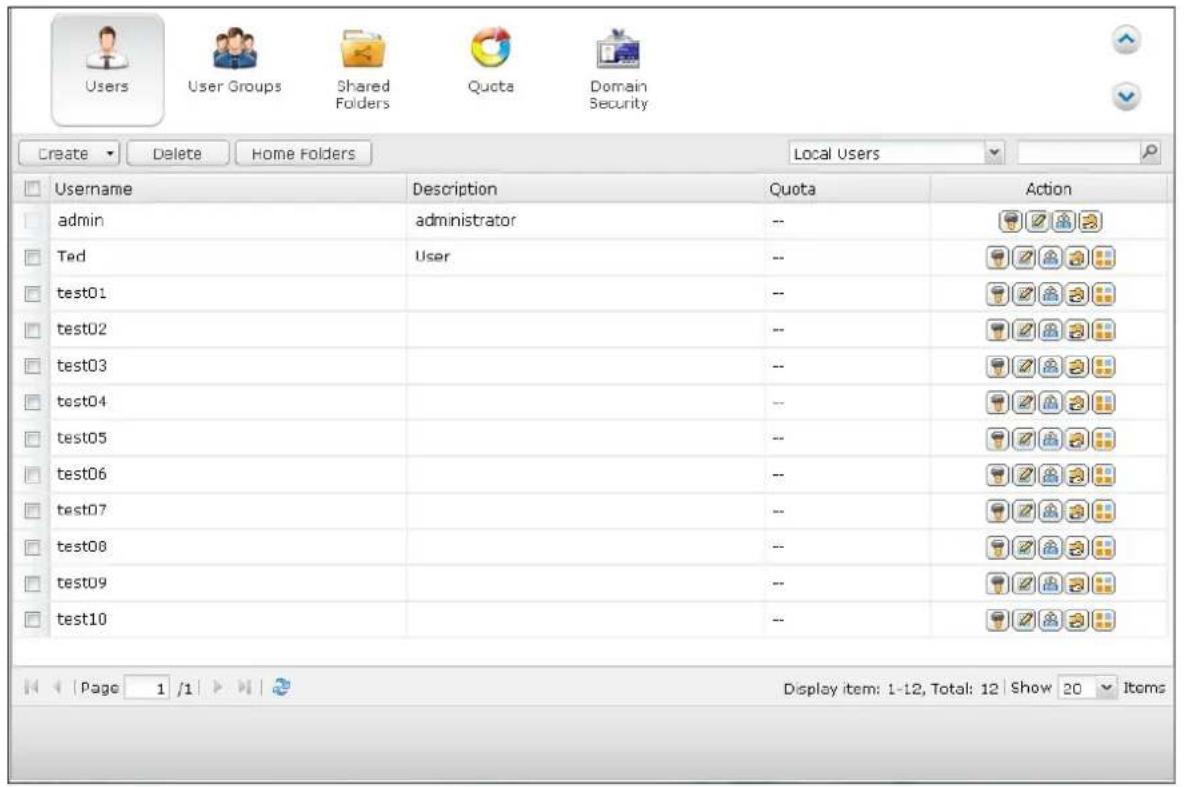
text_image
Users User Groups Shared Folders Quota Domain Security Create Delete Home Folders Local Users Username Description Quota Action admin administrator -- Ted User -- test01 -- test02 -- test03 -- test04 -- test05 -- test06 -- test07 -- test08 -- test09 -- test10 Display item: 1-12, Total: 12 | Show 20 Items- Check that the shared folders have been created for the users.

text_image
Users User Groups Shared Folders Quota Domain Security Shared Folder Advanced Permissions Folder Aggregation Create Remove Restore Default Shared Folders Folder Name Size Folders Files Hidden Volume Action Multimedia 18.42 MB 21 235 No Single Disk: Drive 1 Public 250.07 MB 9 90 No Single Disk: Drive 1 Recordings 32 KB 6 1 No Single Disk: Drive 1 TedHome 20 KB 3 1 No Single Disk: Drive 1 USBDisk1 694.02 GB 30959 338379 No USB 1 USBDisk2 70.04 GB 868 13879 No USB 2 Usb 12 KB 1 1 No Single Disk: Drive 1 Web 16.15 KB 1 7 No Single Disk: Drive 1 homes 836.03 KB 8 9 No Single Disk: Drive 1 test01 4 KB 0 0 No Single Disk: Drive 1 test02 4 KB 0 0 No Single Disk: Drive 1 test03 4 KB 0 0 No Single Disk: Drive 1 test04 4 KB 0 0 No Single Disk: Drive 1 test05 4 KB 0 0 No Single Disk: Drive 1 test06 4 KB 0 0 No Single Disk: Drive 1 test07 4 KB 0 0 No Single Disk: Drive 1 test08 4 KB 0 0 No Single Disk: Drive 1 test09 4 KB 0 0 No Single Disk: Drive 1 test10 4 KB 0 0 No Single Disk: Drive 1 Display item: 1-20, Total: 20 | Show 100 ItemsImport/Export Users
You can import users to or export users from the NAS with this function.
Note: The password rules (if applicable) will not be applied when importing the users.
Export users:
Follow the steps below to export users from the NAS:
- Click "Import/Export Users".
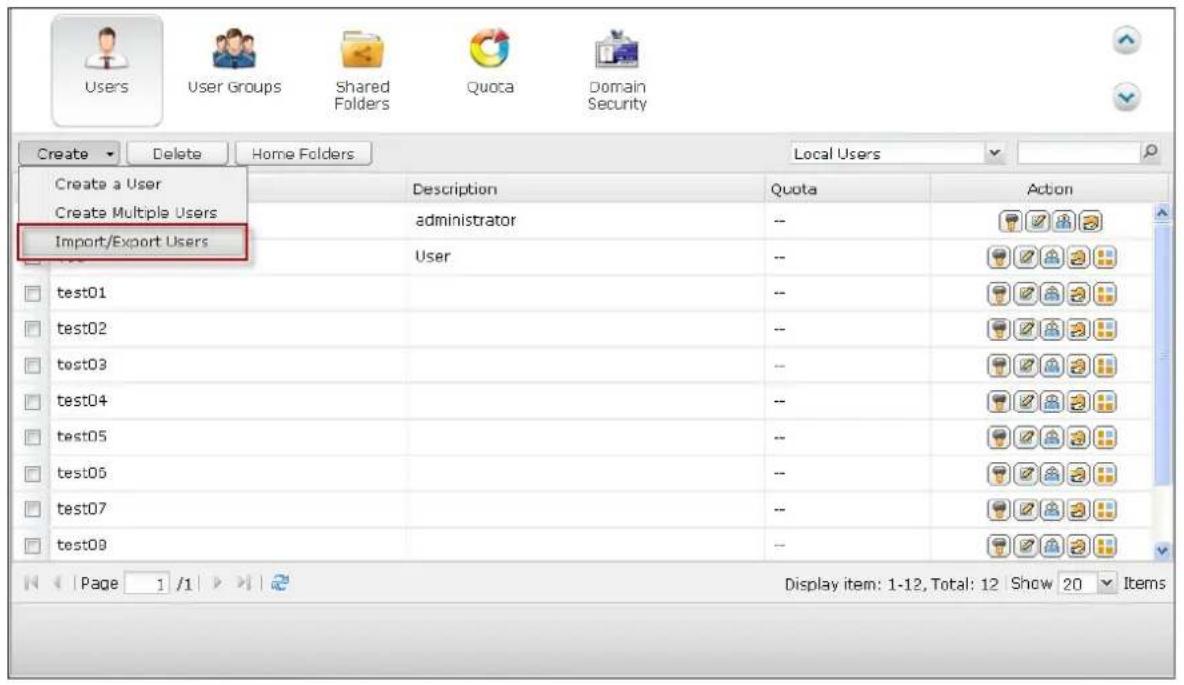
text_image
Users User Groups Shared Folders Quota Domain Security Create Delete Home Folders Local Users Create a User Description Quota Action Create Multiple Users administrator -- user -- test01 -- test02 -- test03 -- test04 -- test05 -- test06 -- test07 -- test08 -- Display item: 1-12, Total: 12 Show 20 Items- Select the option "Export user and user group settings".
- Click "Next" to download and save the account setting file (*.bin). The file can be imported to another NAS for account setup.

text_image
Import/Export Users Import/Export Users Import user and user group settings You can import multiple users and their settings to the NAS from a TXT, CSV, or BIN file (settings from another NAS). For detailed instructions, please refer to the online help. Overwrite duplicate users Browse... Export user and user group settings Next CancelNote that the quota settings can be exported only when the quota function is enabled in "Privilege Settings" > "Quota".
Import users:
Before you import users to the NAS, make sure you have backed up the original users settings by exporting the users. Follow the steps below to import users to the NAS:
- Click "Import/Export Users".

text_image
Users User Groups Shared Folders Quota Domain Security Create Delete Home Folders Local Users Create a User Create Multiple Users Import/Export Users Description Quota Action administrator -- user -- test01 -- test02 -- test03 -- test04 -- test05 -- test06 -- test07 -- test08 -- Display item: 1-12, Total: 12 Show 20 Items- Select "Import user and user group settings". Select the option "Overwrite duplicate users" to overwrite existing users on the NAS. Click "Browse" and select the file (*.txt, *.csv, *.bin) which contains the users information and click "Next" to import the users.

text_image
Import/Export Users Import/Export Users Import user and user group settings You can import multiple users and their settings to the NAS from a TXT, CSV, or BIN file (settings from another NAS). For detailed instructions, please refer to the online help. Overwrite duplicate users NASC941FF_20130516.bin Browse... Export user and user group settings Next Cancel- Click "Finish" after the users have been created.

text_image
Import/Export Users Import/Export Users 12 user accounts and 3 groups have been imported. Finish- The imported user accounts will be shown.
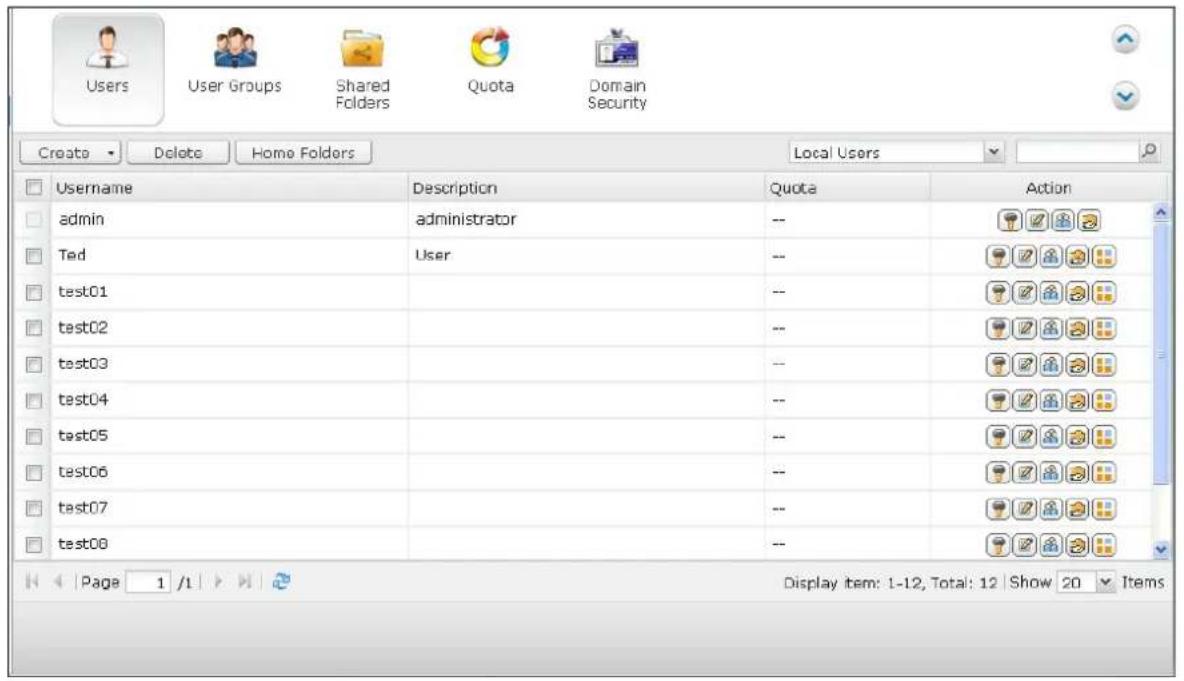
text_image
Users User Groups Shared Folders Quota Domain Security Create Delete Home Folders Local Users Username Description Quota Action admin administrator -- Ted User -- test01 -- test02 -- test03 -- test04 -- test05 -- test06 -- test07 -- test08 Display item: 1-12, Total: 12 | Show 20 ItemsThe NAS supports importing user accounts from TXT, CSV or BIN files. To create a list of user accounts with these file types, follow the steps below.
TXT
- Open a new file with a text editor.
- Enter a user's information in the following order and separate them by ",":
Username, Password, Quota (MB), Group Name - Go to the next line and repeat the previous step to create another user account.
Each line indicates one user's information. - Save the file in UTF-8 encoding if it contains double-byte characters.
An example is shown as below. Note that if the quota is left empty, the user will have no limit in using the disk space of the NAS.
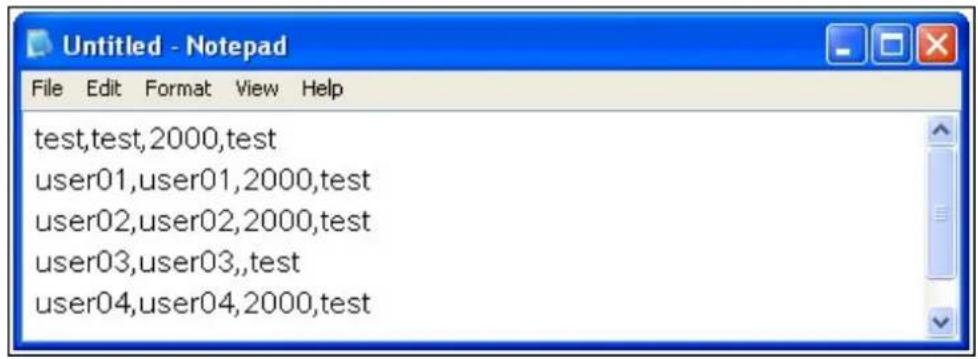
text_image
test,test,2000,test user01,user01,2000,test user02,user02,2000,test user03,user03,,test user04,user04,2000,testCSV (Excel)
- Open a new file with Excel.
-
Enter a user's information in the same row in the following order:
Column A: Username
Column B: Password
Column C: Quota (MB)
Column D: Group name -
Go to the next row and repeat the previous step to create another user account.
Each row indicates one user's information. Save the file in CSV format. -
Open the CSV file with Notepad and save it in UTF-8 encoding if it contains double-byte characters.
An example is shown as below:
| A | B | C | D | |
| 1 | test | test | 2000 | test |
| 2 | user01 | user01 | 2000 | test |
| 3 | user02 | user02 | 2000 | test |
| 4 | user03 | user03 | test | |
| 5 | user04 | user04 | 2000 | test |
| 6 | user05 | user05 | 2000 | test |
BIN (Exported from the NAS)
The BIN file is exported from a QNAP NAS. It contains information including username, password, quota, and user group. The quota setting can be exported only when the quota function is enabled in "Privilege Settings" > "Quota".
Home Folders
Enable Home Folders to create a personal folder to each local and domain user on the NAS. Users can access their folders "home" via Microsoft networking, FTP, AFP, and File Station. All the home folders are located in the shared folder "Homes", which can only be accessed by "admin" by default.
To use this feature, click "Home Folders".

text_image
Users User Groups Shared Folders Quota Domain Security Create Delete Home Folders Local Users Username Description Quota Action admin administrator -- Tad User -- test01 -- test02 -- test03 -- test04 -- test05 -- test06 -- test07 -- test08 -- test09 -- test10 Display item: 1-12, Total: 12 | Show 20 ItemsSelect "Enable home folder for all users" and the disk volume where the home folders will be created in. Click "Apply".
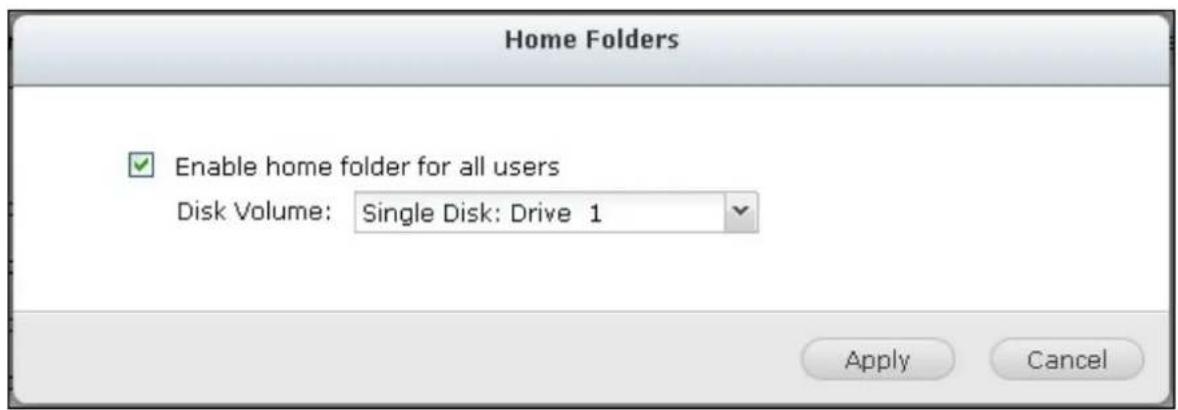
text_image
Home Folders Enable home folder for all users Disk Volume: Single Disk: Drive 1 Apply CancelA user group is a collection of users with the same access right to the files or folders.
The NAS has created the following user groups by default:
- administrators
All the members in this group have the administration right of the NAS. This group cannot be deleted.
- everyone
All the registered users belong to everyone group. This group cannot be deleted.
The number of user groups you can create on the NAS varies according to the NAS models. If your NAS models are not listed, please visit http://www.qnap.com for details.
| Maxim um num ber of user groups | NAS models |
| 128 | TS-110, TS-210 |
| 256 | TS-112, TS-119, TS-119P+, TS-212, TS-219P+, TS-410, TS-239 Pro II+, TS-259 Pro+ |
| 512 | TS-412, TS-419P+, TS-410U, TS-419U, TS-412U, TS-419U+, SS-439 Pro, SS-839 Pro, TS-439 Pro II+, TS-459U-RP/SP, TS-459U-RP+/SP+, TS-459 Pro+, TS-459 Pro II, TS-559 Pro+, TS-559 Pro II, TS-659 Pro+, TS-659 Pro II, TS-859 Pro+, TS-859U-RP, TS-859U-RP+, TS-809 Pro, TS-809U-RP, TS-879 Pro, TS-1079 Pro, TS-879U-RP, TS-EC879U-RP, TS-1279U-RP, TS-EC1279U-RP |
A group name must not exceed 256 characters. It is case-insensitive and supports double-byte characters, such as Chinese, Japanese, and Korean, except the following ones:
$$ " / \backslash [ ]:; | = , + *? < > ^ {\prime} $$

text_image
Users User Groups Shared Folders Quota Domain Security Create Delete Local Groups Group Name Action administrators everyone User Display item: 1-3, Total: 3 | Show 10 ItemsShared Folders
You can create multiple shared folders on the NAS and specify the access rights of the users and user groups to the shares.
The number of shared folders you can create on the NAS varies according to the NAS models. If your NAS models are not listed, please visit http://www.qnap.com for details.
| Maximum number of shared folders | NAS models |
| 256 | TS-110, TS-210, TS-112, TS-119, TS-119P+, TS-212, TS-219P+, TS-x20, TS-x21, TS-410, TS-239 Pro II+, TS-259 Pro+ |
| 512 | TS-412, TS-419P+, TS-410U, TS-419U, TS-412U, TS-419U+, SS-439 Pro, SS-839 Pro, TS-439 Pro II+, TS-459U-RP/SP, TS-459U-RP+/SP+, TS-459 Pro+, TS-459 Pro II, TS-559 Pro+, TS-559 Pro II, TS-659 Pro+, TS-659 Pro II, TS-859 Pro+, TS-859U-RP, TS-859U-RP+, TS-809 Pro, TS-809U-RP, TS-x70, TS-879 Pro, TS-1079 Pro, TS-879U-RP, TS-EC879U-RP, TS-1279U-RP, TS-EC1279U-RP |
On the folder list, you can view the current data size, number of sub-folders and files created in the shared folder, and the folder status (hidden or not).
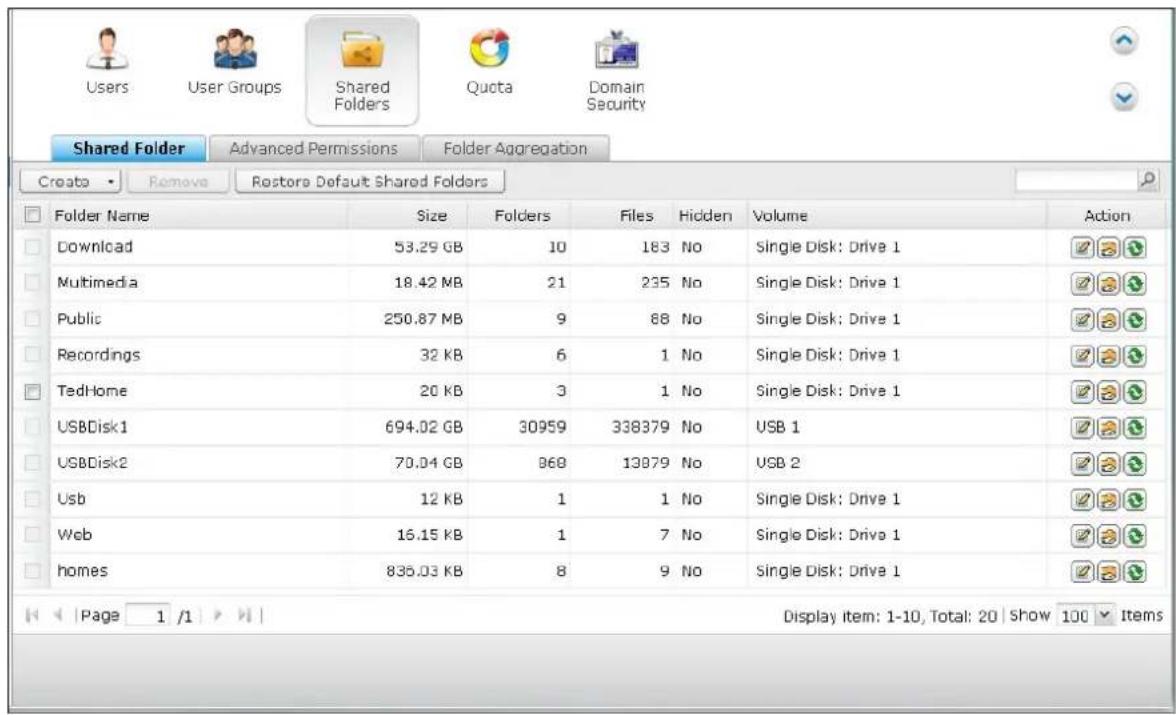
text_image
Users User Groups Shared Folders Quota Domain Security Shared Folder Advanced Permissions Folder Aggregation Create Remove Restore Default Shared Folders Folder Name Size Folders Files Hidden Volume Action Download 53.29 GB 10 183 No Single Disk: Drive 1 Multimedia 18.42 MB 21 235 No Single Disk: Drive 1 Public 250.87 MB 9 88 No Single Disk: Drive 1 Recordings 32 KB 6 1 No Single Disk: Drive 1 TedHome 20 KB 3 1 No Single Disk: Drive 1 USBDisk1 694.02 GB 30959 338379 No USB 1 USBDisk2 70.04 GB 868 13879 No USB 2 Usb 12 KB 1 1 No Single Disk: Drive 1 Web 16.15 KB 1 7 No Single Disk: Drive 1 homes 836.03 KB 8 9 No Single Disk: Drive 1 Display item: 1-10, Total: 20 | Show 100 Items- To create a shared folder, click Create > "Shared Folder".
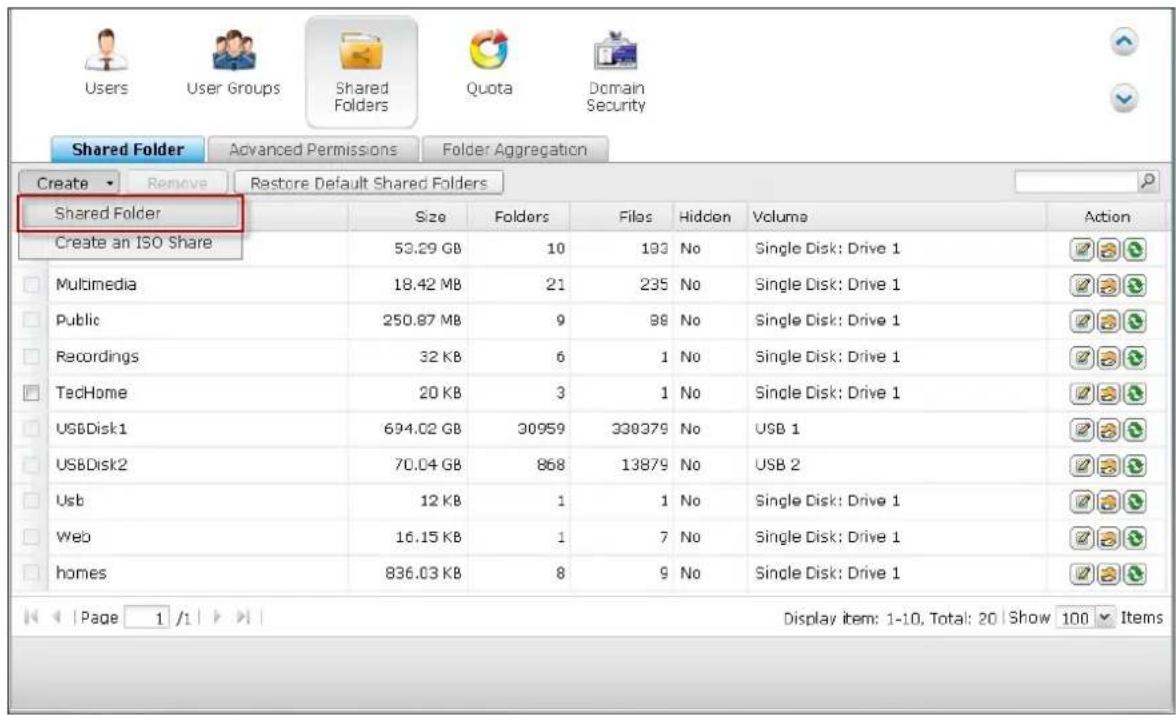
text_image
Users User Groups Shared Folders Quota Domain Security Shared Folder Advanced Permissions Folder Aggregation Create Remove Restore Default Shared Folders Shared Folder Create an ISO Share Size Folders Files Hidden Volume Action 53.29 GB 10 193 No Single Disk: Drive 1 Multimedia 18.42 MB 21 235 No Single Disk: Drive 1 Public 250.87 MB 9 98 No Single Disk: Drive 1 Recordings 32 KB 6 1 No Single Disk: Drive 1 TechHome 20 KB 3 1 No Single Disk: Drive 1 USBDisk1 694.02 GB 30959 338379 No USB 1 USBDisk2 70.04 GB 868 13879 No USB 2 Usb 12 KB 1 1 No Single Disk: Drive 1 Web 16.15 KB 1 7 No Single Disk: Drive 1 homes 836.03 KB 8 9 No Single Disk: Drive 1 Display item: 1-10, Total: 20 | Show 100 Items- Click "Next".

text_image
Create A Shared Folder Create a Shared Folder This wizard guides you through the following settings: • Shared Folder Settings • Privilege To continue, click Next. To exit, click Cancel. Step 1/7 Next Cancel- Enter the folder settings.
- Folder name: Enter the share name. The share name does not support "/ \ [ ] : ; | = , + * ? < > ' '
- Disk Volume: Select which disk volume on which to create the folder.
• Description: Enter an optional description of the shared folder.
- Hide Folder: Select to hide the shared folder or not in Microsoft Networking. When a shared folder is hidden, you have to enter the complete directory \NAS_IP\share_name to access the share.
- Lock file (oplocks): Opportunistic locking is a Windows mechanism for the client to place an opportunistic lock (oplock) on a file residing on a server in order to cache the data locally for improved performance. Oplocks is enabled by default for everyday usage. For networks that require multiple users concurrently accessing the same file such as a database, oplocks should be disabled.
- Recycle Bin: Enable the Network Recycle Bin for created shared folders. The option
"Restrict the access of Recycle Bin to administrators only for now", once enabled, will ensure that files deleted and moved to the Network Recycle Bin can only be recovered by administrators.
- Path: Specify the path of the shared folder or select to let the NAS specify the path automatically.

text_image
Create A Shared Folder Shared Folder Settings Folder Name: test Disk Volume: Single Disk: Drive 1 Description: Advanced Settings Hidden Folder: Yes No Lock File (Oplocks): Yes No Recycle Bin: Enable Disable ✓ Restrict the access of Recycle Bin to administrators only for now. Path: Specify path automatically Enter path manually Step 2/7 Back Next Cancel- Select the way you want to specify the access right to the folder and specify the guest access right.
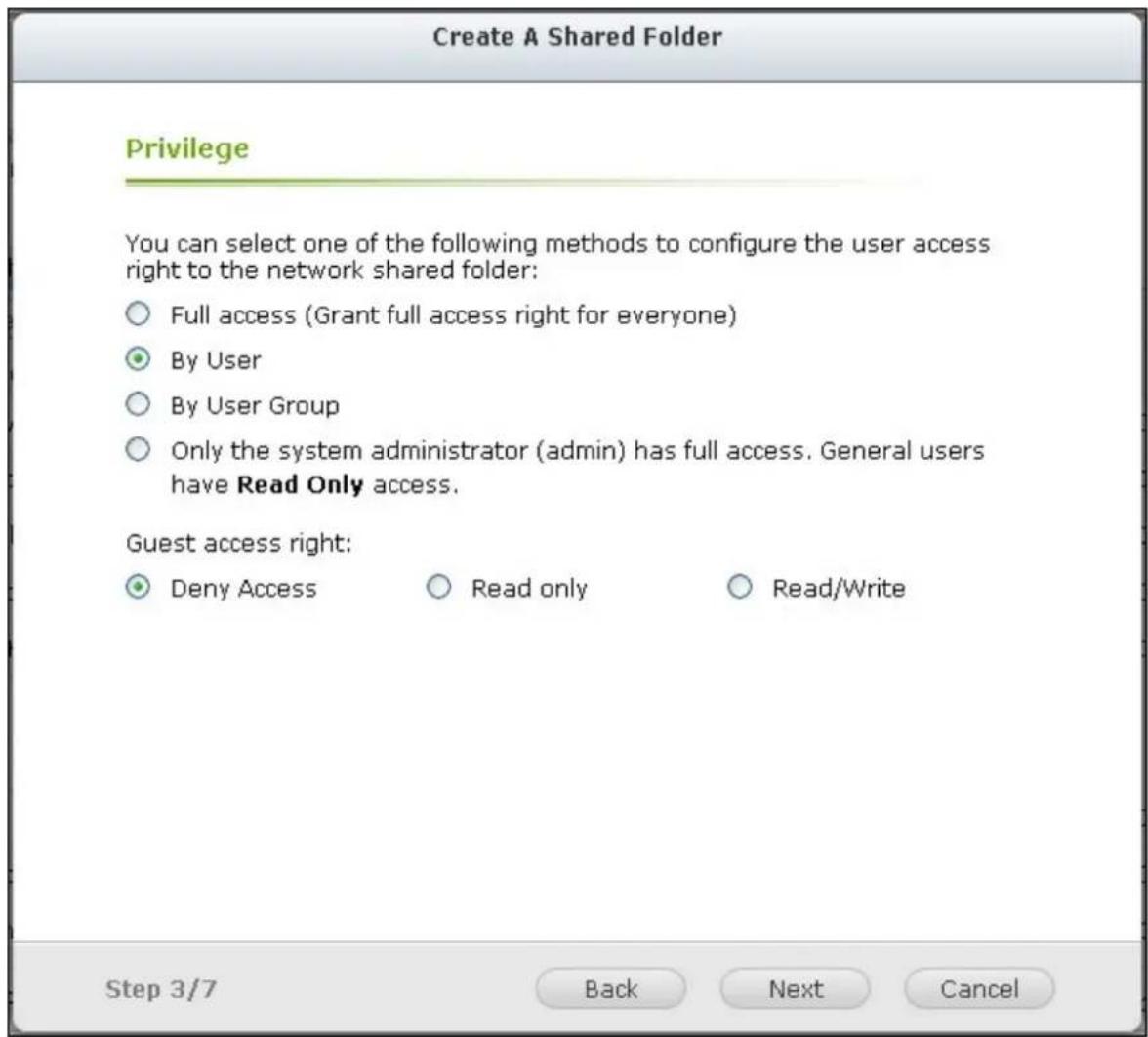
text_image
Create A Shared Folder Privilege You can select one of the following methods to configure the user access right to the network shared folder: Full access (Grant full access right for everyone) By User By User Group Only the system administrator (admin) has full access. General users have Read Only access. Guest access right: Deny Access Read only Read/Write Step 3/7 Back Next Cancel- If you select to specify the access right by user or user group, you can select to grant read only, read/write, or deny access to the users or user groups.

text_image
Create A Shared Folder Access Control (By User) User name Preview RO RW Deny admin Read/Write □ ✓ □ Ted Read Only ✓ □ □ test01 Deny Access □ □ ✓ test02 Deny Access □ □ ✓ test03 Deny Access □ □ ✓ Page 1 /1 Display item: 1-5, Total: 5 Note: 1. The permission settings of user and group will effect the result of "preview" Step 4/7 Back Next Cancel- Confirm the settings and click "Next".
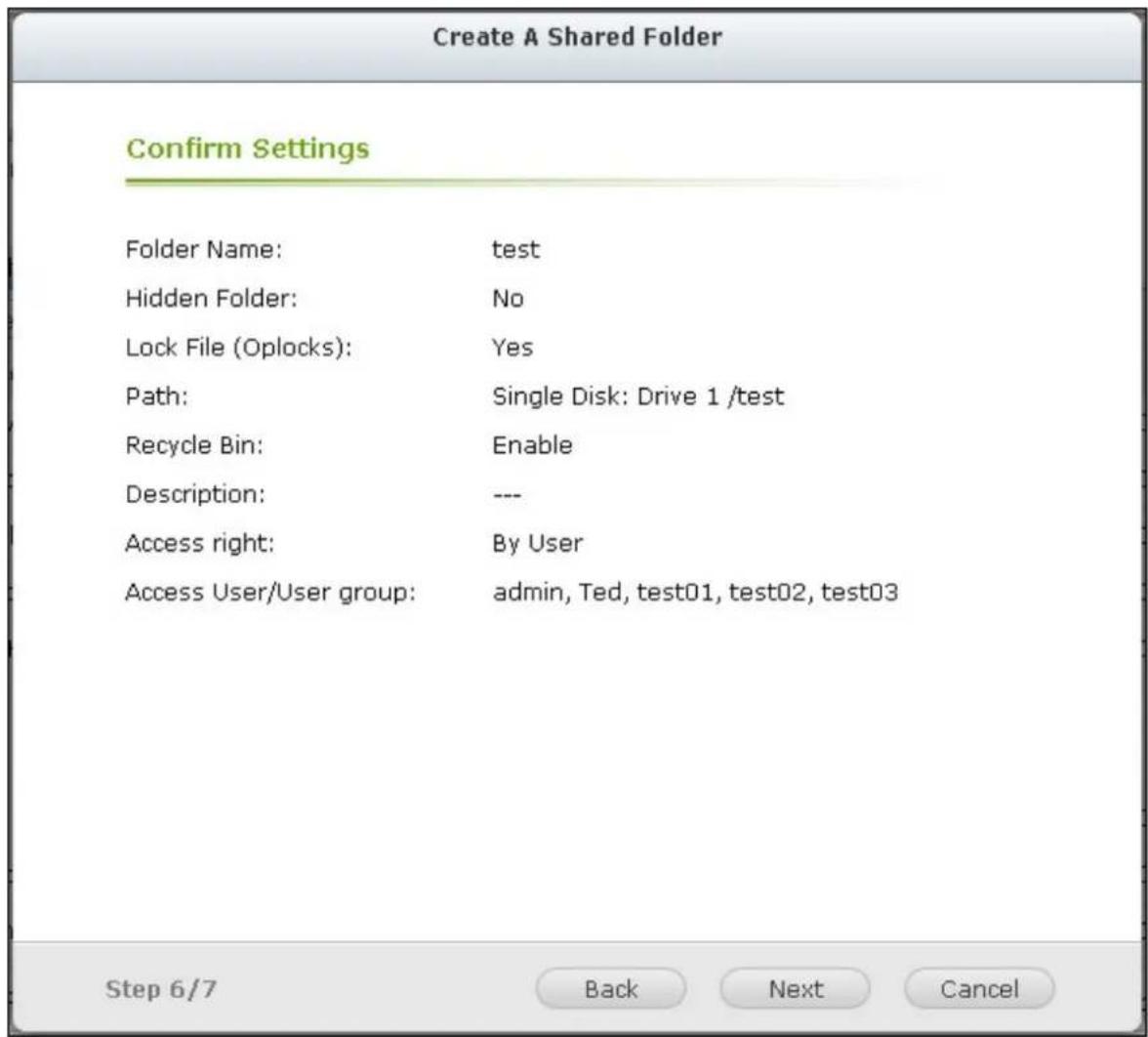
text_image
Create A Shared Folder Confirm Settings Folder Name: test Hidden Folder: No Lock File (Oplocks): Yes Path: Single Disk: Drive 1 /test Recycle Bin: Enable Description: --- Access right: By User Access User/User group: admin, Ted, test01, test02, test03 Step 6/7 Back Next Cancel- Click "Finish" to complete the setup.
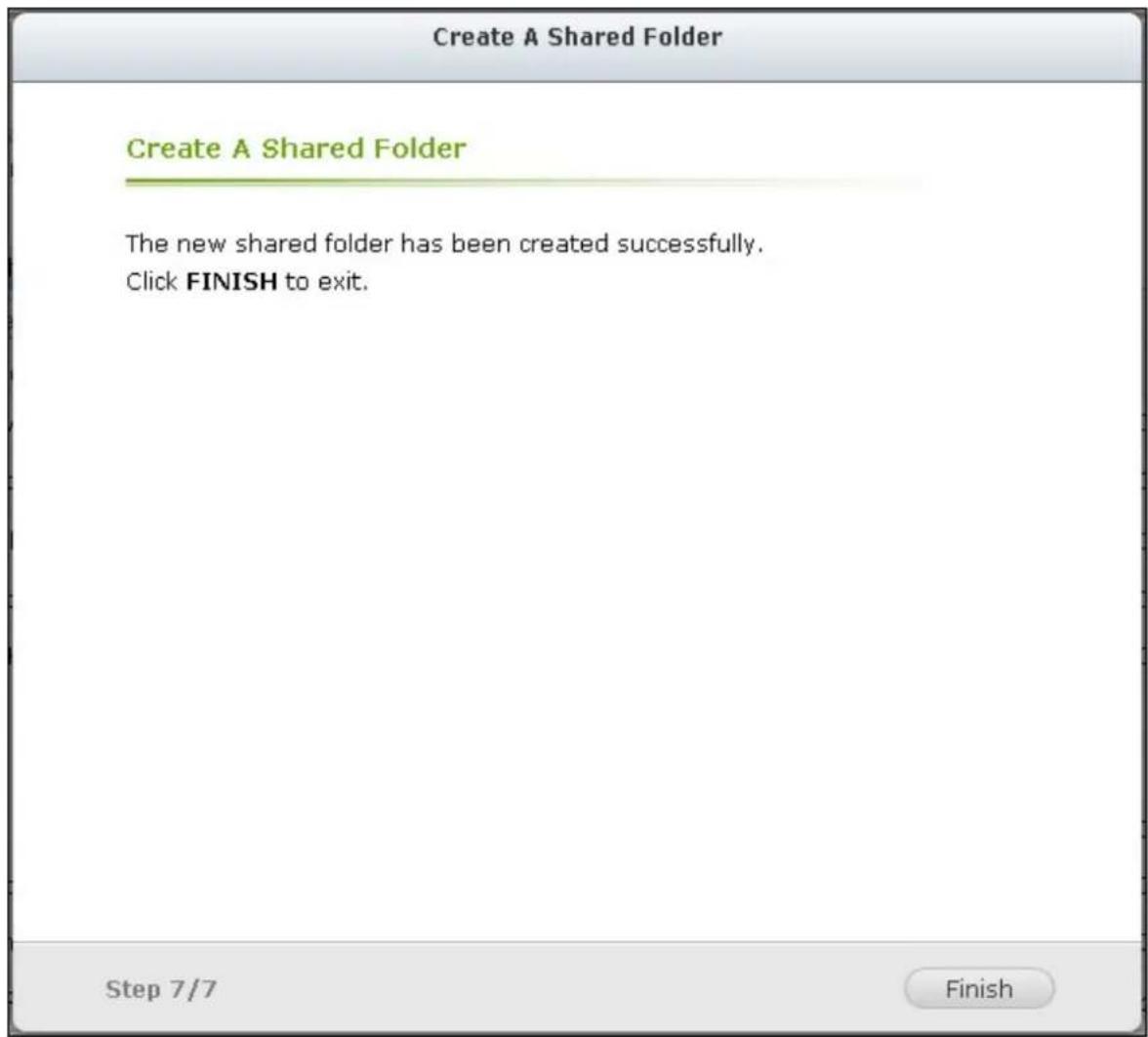
text_image
Create A Shared Folder Create A Shared Folder The new shared folder has been created successfully. Click FINISH to exit. Step 7/7 FinishTo delete a shared folder, select the folder checkbox and click "Remove". You can select the option "Also delete the data. (Mounted ISO image files will not be deleted)" to delete the folder and the files in it. If you select not to delete the folder data, the data will be retained in the NAS. You can create a shared folder of the same name again to access the data.
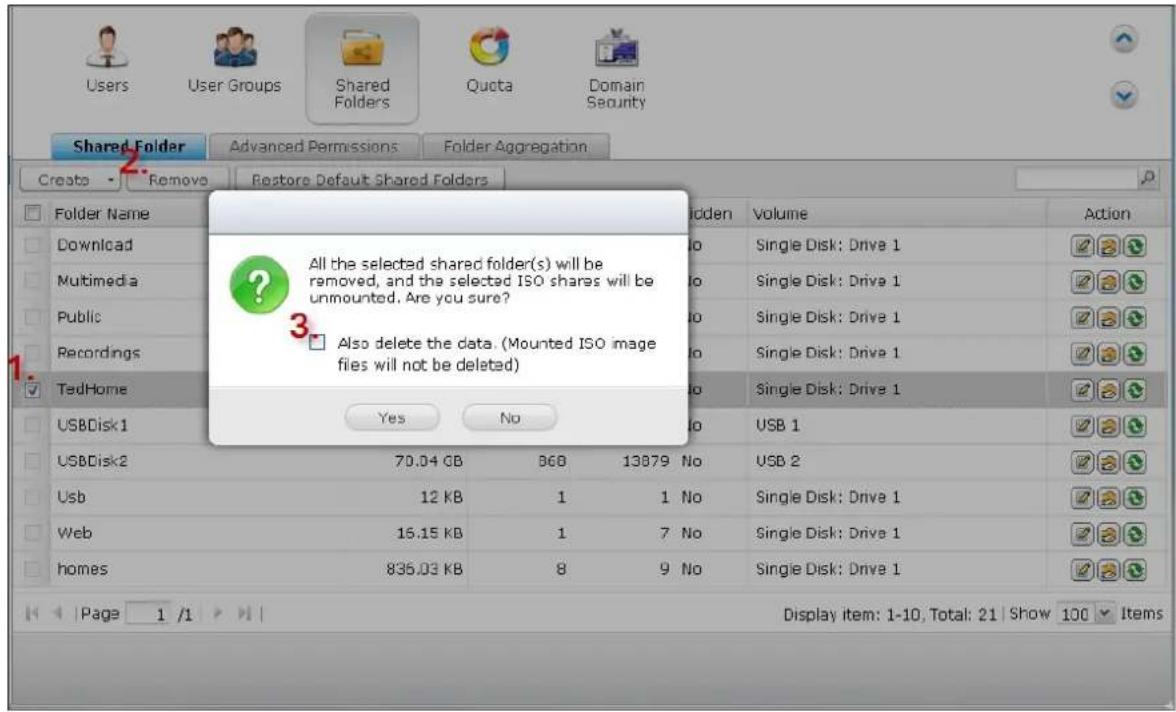
text_image
Users User Groups Shared Folders Quota Domain Security Shared Folder Advanced Permissions Folder Aggregation Creates Remove Restore Default Shared Folders Folder Name Download Multimedia Public Recordings TedHome USBDisk1 USBDisk2 Usb Web homes 70.04 GB 12 KB 15.15 KB 835.03 KB All the selected shared folder(s) will be removed, and the selected ISO shares will be unmounted. Are you sure? Also delete the data. (Mounted ISO image files will not be deleted) Yes No Volume Single Disk: Drive 1 Single Disk: Drive 1 Single Disk: Drive 1 Single Disk: Drive 1 Single Disk: Drive 1 Single Disk: Drive 1 USB 1 USB 2 Single Disk: Drive 1 Single Disk: Drive 1 Single Disk: Drive 1 Display item: 1-10, Total: 21 | Show 100 Items| Icon | Description |
| [HASH] (Folder property) | Edit the folder property. Select to hide or show the network drive, enable or disable oplocks, folder path, comment, restrict the access of Recycle Bin to administrators (files can only be recovered by administrators from the Network Recycle Bin) and enable or disable write-only access on FTP connection. |
| [AACK] (Folder permissions) | Edit folder permissions and subfolder permissions. |
| [BKT8] (Refresh) | Refresh the shared folder details. |


Shared Folder
Advanced Permissions
Folder Aggregation

text_image
All the selected shared folder(s) will be removed, and the selected ISO shares will be unmounted. Are you sure? Also delete the data. (Mounted ISO image flies will not be deleted) Yes No Volume Single Disk: Drive 1 Single Disk: Drive 1 Single Disk: Drive 1 Single Disk: Drive 1 Single Disk: Drive 1 Single Disk: Drive 1 USB 1 USB2 USB USB USB USB USB USB USB USB USB USB USB USB USB USB USB USB USB USB USB USB USB USB USB USB USB USB USB USB USB USB USB USB USB USB USB USB USB USB USB USB USB USB USB USB USB USB USB USB USB USB USBDisk1 USBDisk2 USb Web homes



Display item: 1-10, Total: 21 Show 100 Items
| Icon | Description |
| (Folder property) | Edit the folder property. Select to hide or show the network drive, enable or disable oplocks, folder path, comment, restrict the access of Recycle Bin to administrators (files can only be recovered by administrators from the Network Recycle Bin) and enable or disable write-only access on FTP connection. |
| (Folder permissions) | Edit folder permissions and subfolder permissions. |
| (Refresh) | Refresh the shared folder details. |
Folder Permissions
Configure folder and subfolder permissions on the NAS. To edit basic folder permissions,
locate a folder name in "Privilege Settings" > "Shared Folders" and click.
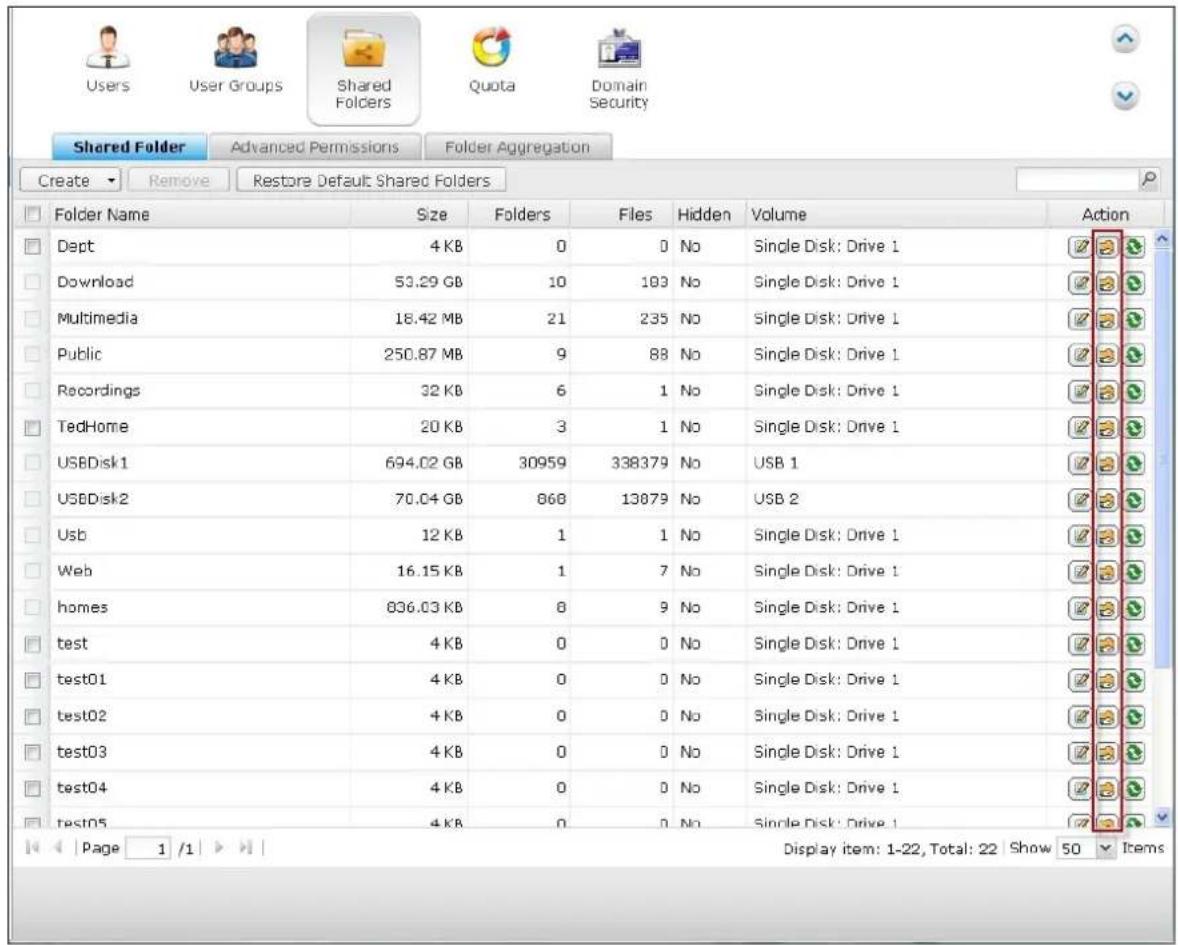
text_image
Users User Groups Shared Folders Quota Domain Security Shared Folder Advanced Permissions Folder Aggregation Create Remove Restore Default Shared Folders Folder Name Size Folders Files Hidden Volume Action Dept 4 KB 0 0 No Single Disk: Drive 1 Download 53.29 GB 10 193 No Single Disk: Drive 1 Multimedia 18.42 MB 21 235 No Single Disk: Drive 1 Public 250.87 MB 9 88 No Single Disk: Drive 1 Recordings 32 KB 6 1 No Single Disk: Drive 1 TedHome 20 KB 3 1 No Single Disk: Drive 1 USBDisk1 694.02 GB 30959 338379 No USB 1 USBDisk2 70.04 GB 868 13879 No USB 2 Usb 12 KB 1 1 No Single Disk: Drive 1 Web 16.15 KB 1 7 No Single Disk: Drive 1 homes 836.03 KB 8 9 No Single Disk: Drive 1 test 4 KB 0 0 No Single Disk: Drive 1 test01 4 KB 0 0 No Single Disk: Drive 1 test02 +KB 0 0 No Single Disk: Drive 1 test03 4 KB 0 0 No Single Disk: Drive 1 test04 4 KB 0 0 No Single Disk: Drive 1 test05 4 KB 0 0 No Single Disk: Drive 1 Display item: 1-22, Total: 22 Show 50 ItemsThe folder name will be shown on the left and the users with configured access rights are shown in the panel. You can also specify the guest access right at the bottom of the panel.
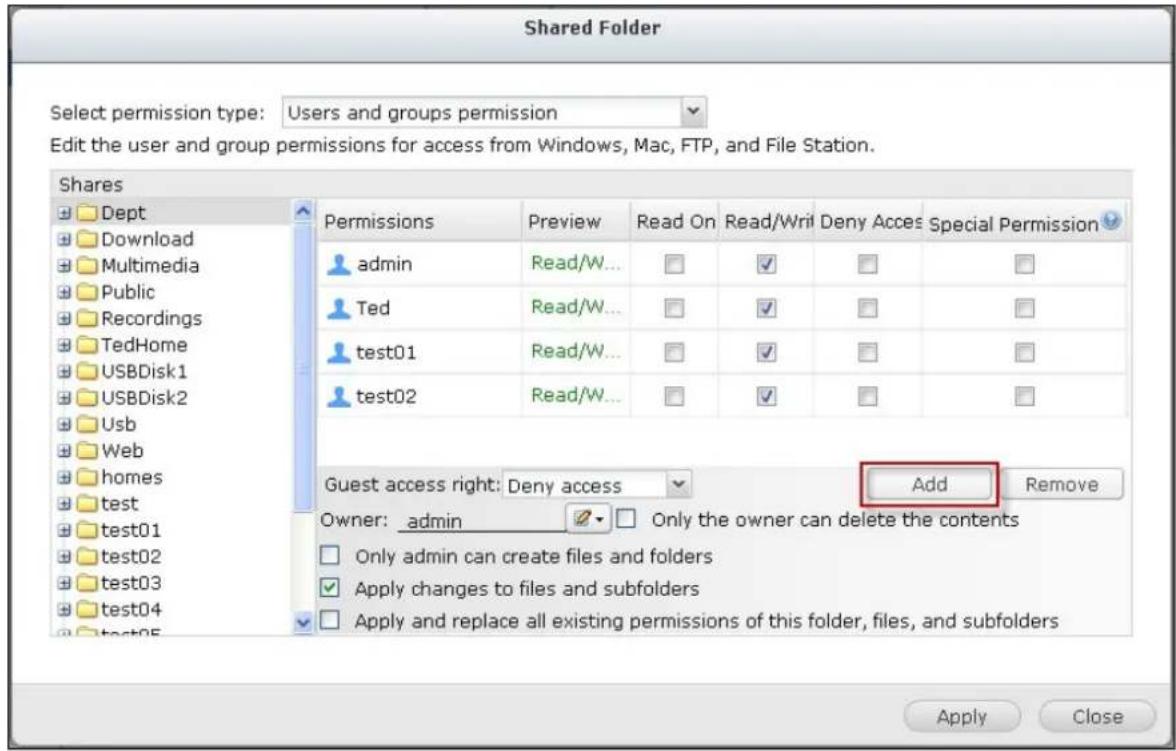
text_image
Shared Folder Select permission type: Users and groups permission Edit the user and group permissions for access from Windows, Mac, FTP, and File Station. Shares Dept Download Multimedia Public Recordings TedHome USBDisk1 USBDisk2 Usb Web homes test test01 test02 test03 test04 test05 Permissions Preview Read On Read/Wrl Deny Acces Special Permission admin Care/W... ✓ ✓ ✓ ✓ ✓ ✓ ✓ ✓ ✓ ✓ ✓ ✓ ✓ ✓ ✓ ✓ ✓ ✓ ✓ ✓ ✓ ✓ ✓ ✓ ✓ ✓ ✓ ✓ ✓ ✓ ✓ ✓ ✓ ✓ ✓ ✓ ✓ ✓ ✓ ✓ ✓ ✓ ✓ ✓ ✓ ✓ ✓ ✓ ✓ ✓ Guest access right: Deny access Add Remove Owner: admin Only the owner can delete the contents Only admin can create files and folders Apply changes to files and subfolders Apply and replace all existing permissions of this folder, files, and subfolders Apply CloseClick "Add" to select more users and user groups and specify their access rights to the folder. Click "Add" to confirm.
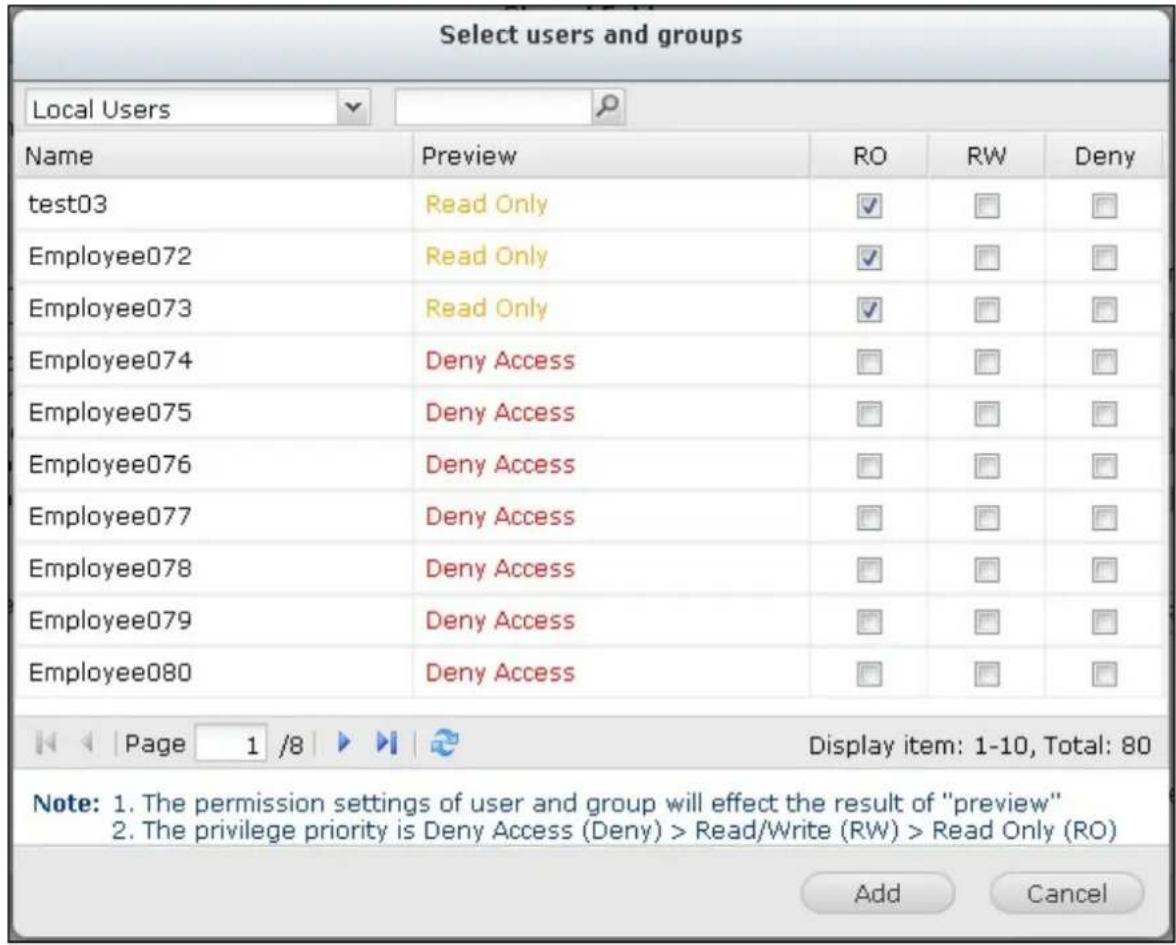
text_image
Select users and groups Local Users Name Preview RO RW Deny test03 Read Only ✓ □ □ Employee072 Read Only ✓ □ □ Employee073 Read Only ✓ □ □ Employee074 Deny Access □ □ □ Employee075 Deny Access □ □ □ Employee076 Deny Access □ □ □ Employee077 Deny Access □ □ □ Employee078 Deny Access □ □ □ Employee079 Deny Access □ □ □ Employee080 Deny Access □ □ □ Page 1 /8 Display item: 1-10, Total: 80 Note: 1. The permission settings of user and group will effect the result of "preview" 2. The privilege priority is Deny Access (Deny) > Read/Write (RW) > Read Only (RO) Add CancelClick "Remove" to remove any configured permissions. You can select multiple items by holding the Ctrl key and left clicking the mouse. Click "Apply" to save the settings.
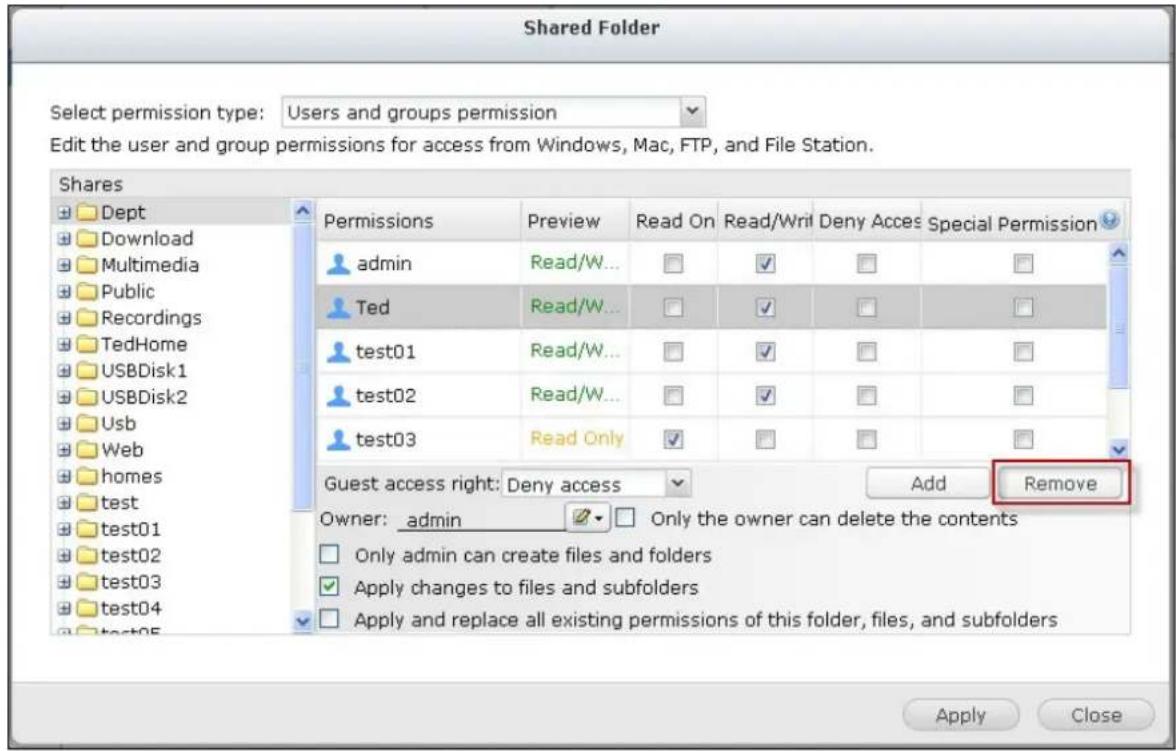
text_image
Shared Folder Select permission type: Users and groups permission Edit the user and group permissions for access from Windows, Mac, FTP, and File Station. Shares Dept Download Multimedia Public Recordings TedHome USBDisk1 USBDisk2 Usb Web homes test test01 test02 test03 test04 test05 Permissions Preview Read On Read/Wrl Deny Acces Special Permission admin Care/W... ✓ ✓ ✓ ✓ ✓ ✓ ✓ ✓ ✓ ✓ ✓ ✓ ✓ ✓ ✓ ✓ ✓ ✓ ✓ ✓ ✓ ✓ ✓ ✓ ✓ ✓ ✓ ✓ ✓ ✓ ✓ ✓ ✓ ✓ ✓ ✓ ✓ ✓ ✓ ✓ ✓ ✓ ✓ ✓ ✓ ✓ ✓ ✓ ✓ ✓ test01 Care/W... ✓ ✓ ✓ ✓ ✓ ✓ ✓ ✓ ✓ ✓ ✓ ✓ ✓ ✓ ✓ ✓ ✓ ✓ ✓ ✓ ✓ ✓ ✓ ✓ ✓ ✓ ✓ ✓ ✓ ✓ ✓ ✓ ✓ ✓ ✓ ✓ ✓ ✓ ✓ ✓ ✓ ✓ ✓ ✓ ✓ ✓ ✓ ✓ test02 Care/W... ✓ ✓ ✓ ✓ ✓ ✓ ✓ ✓ ✓ ✓ ✓ ✓ ✓ ✓ ✓ ✓ ✓ ✓ ✓ ✓ ✓ ✓ ✓ ✓ ✓ ✓ ✓ ✓ ✓ ✓ ✓ ✓ test03 Read Only✓✓✓✓✓✓✓✓✓✓✓✓✓✓✓✓✓✓✓✓✓✓✓✓✓✓✓✓✓✓✓✓✓✓✓✓✓✓✓✓✓✓✓✓✓✓✓✓✓✓✓✓✓✓✓✓✓✓✓✓✓✓✓✓✓✓✓✓✓✓✓✓✓✓✓✓✓✓✓✓✓✓✓✓✓✓✓✓✓✓✓✓✓✓✓✓✓✓✓✓ Guest access right: Deny access Add Remove Owner: admin ▼ Only the owner can delete the contents Only admin can create files and folders Apply changes to files and subfolders Apply and replace all existing permissions of this folder, files, and subfolders Apply CloseSubfolder Permissions
The NAS supports subfolder permissions for secure management of the folders and subfolders. You can specify read, read/write, and deny access of individual user to each folder and subfolder.
To configure subfolder permissions, go to "Privilege Settings" > "Shared Folders" > "Advanced Permissions" tab. Select "Enable Advanced Folder Permissions" and click "Apply".

text_image
Users User Groups Shared Folders Quota Domain Security Shared Folder Advanced Permissions Folder Aggregation When this option is enabled, you can assign the folder and subfolder permission to individual users and user groups. ✓ Enable Advanced Folder Permissions ✓ Enable Windows ACL support Apply AllNote: You can create maximum 230 permission entries for each folder when Advanced Folder Permission is enabled.
Go to "Privilege Settings" > "Shared Folders" > "Shared Folders" tab. Select a root folder, for example Dept, and click

text_image
Users User Groups Shared Quota Domain Shared Folder Advanced Permissions Folder Aggregation Create Remove Restore Default Shared Folders Folder Name Size Folders Files Hidden Volume Action Dept 4 KB 0 0 No Single Disk: Drive 1 Download 53.29 GB 10 183 No Single Disk: Drive 1 Multimedia 18.42 MB 21 235 No Single Disk: Drive 1 Public 250.87 MB 9 88 No Single Disk: Drive 1 Recordings 32 KB 6 1 No Single Disk: Drive 1 TedHome 20 KB 3 1 No Single Disk: Drive 1 USBDisk1 694.02 GB 30959 338379 No USB 1 USBDisk2 70.04 GB 660 13079 No USB 2 Usb 12 KB 1 1 No Single Disk: Drive 1 Web 16.15 KB 1 7 No Single Disk: Drive 1 Display item: 1-10, Total: 22 Show 50 ItemsThe shared folder name and its first-level subfolders are shown on the left. The users with configured access rights are shown in the panel, with special permission below. Double click the first-level subfolders to view the second-level subfolders. Select the root folder (Dept). Click "+ Add" to specify read only, read/write, or deny access for the users and user groups.
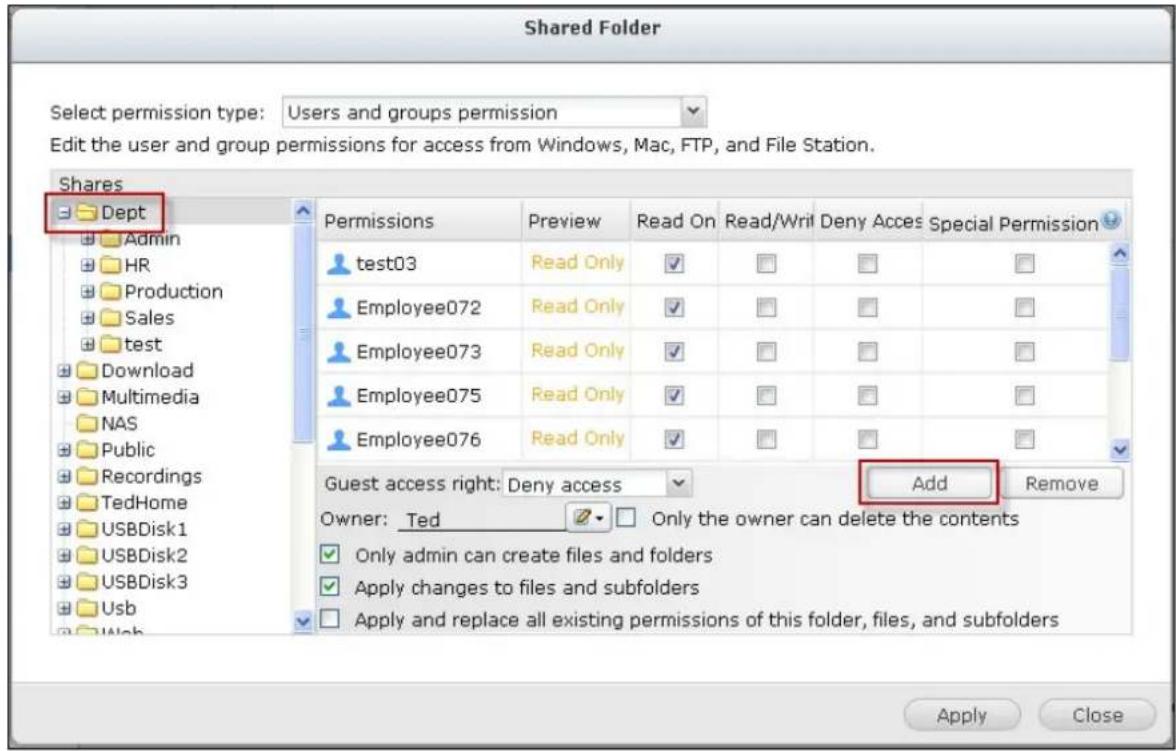
text_image
Shared Folder Select permission type: Users and groups permission Edit the user and group permissions for access from Windows, Mac, FTP, and File Station. Shares Dept Admin HR Production Sales test Download Multimedia NAS Public Recordings TedHome USBDisk1 USBDisk2 USBDisk3 Usb Web Permissions Preview Read On Read/Wrl Deny Acces Special Permission test03 Read Only ✓ □ □ □ Employee072 Read Only ✓ □ □ □ Employee073 Read Only ✓ □ □ □ Employee075 Read Only ✓ □ □ □ Employee076 Read Only ✓ □ □ □ Guest access right: Deny access Add Remove Owner: Ted Only the owner can delete the contents Only admin can create files and folders Apply changes to files and subfolders Apply and replace all existing permissions of this folder, files, and subfolders Apply CloseNote:
- If you have specified "deny access" for a user on the root folder, the user will not be allowed to access the folder and subfolders even if you select read/write access to the subfolders.
- If you have specified "read only access" for a user on the root folder, the user will have read only access to all the subfolders even if you select read/write access to the subfolders.
- To specify read only permission on the root folder and read/write permission on the subfolders, you must set read/write permission on the root folder and use the option "Only admin can create files and folders" (to be explained later).
- If an unidentified account ID (such as 500) is shown for a subfolder on the permission assignment page after you click the "Access Permissions" button next to a shared folder in "Control Panel">"Privilege Settings">"Shared Folders">"Shared Folder", it is likely that the permission of that subfolder has been granted to a user account that no longer exists. In this case, please select this unidentified account ID and click "Remove" to delete this account ID.
Click "Add" when you have finished the settings.

text_image
Select users and groups Local Users Name Preview RO RW Deny Employee074 Deny Access □ □ □ Employee075 Read Only ✓ □ □ Employee076 Read Only ✓ □ □ Employee077 Deny Access □ □ □ Employee078 Deny Access □ □ □ Employee079 Deny Access □ □ □ Employee080 Deny Access □ □ □ Employee081 Deny Access □ □ □ Employee082 Deny Access Deny Access □ □ □ Employee083 Deny Access □ □ □ Page 1 /8 Display item: 1-10, Total: 77 Note: 1. The permission settings of user and group will effect the result of "preview" 2. The privilege priority is Deny Access (Deny) > Read/Write (RW) > Read Only (RO) Add CancelSpecify other permissions settings below the folder permissions panel.
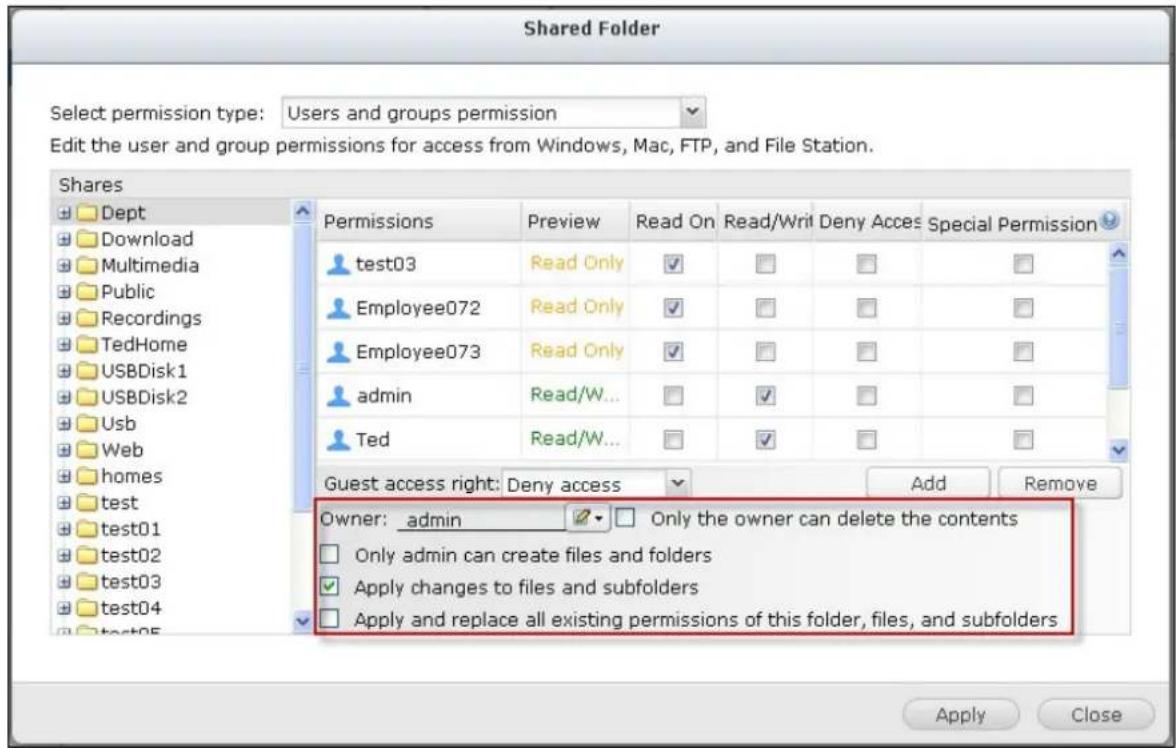
text_image
Shared Folder Select permission type: Users and groups permission Edit the user and group permissions for access from Windows, Mac, FTP, and File Station. Shares Dept Download Multimedia Public Recordings TedHome USBDisk1 USBDisk2 Usb Web homes test test01 test02 test03 test04 test05 Permissions Preview Read On Read/Wrl Deny Acces Special Permission test03 Read Only ✓ □ □ □ Employee072 Read Only ✓ □ □ □ Employee073 Read Only ✓ □ □ □ admin Read/W... □ ✓ □ □ Ted Read/W... □ ✓ □ □ Guest access right: Deny access Add Remove Owner: admin Only the owner can delete the contents Only admin can create files and folders Apply changes to files and subfolders Apply and replace all existing permissions of this folder, files, and subfolders Apply CloseGuest Access Right: Specify to grant full or read only access or deny guest access.
Owner: Specify the owner of the folder. By default, the folder owner is the creator. To
change the folder owner, click

text_image
Shared Folder Select permission type: Users and groups permission Edit the user and group permissions for access from Windows, Mac, FTP, and File Station. Shares Dept Download Multimedia Public Recordings TedHome USBDisk1 USBDisk2 Usb Web homes test test01 test02 test03 test04 test05 Permissions Preview Read On Read/Writ Deny Acces Special Permission test03 Read Only ✓ □ □ □ Employee072 Read Only ✓ □ □ □ Employee073 Read Only ✓ □ □ □ admin Read/W... □ ✓ □ □ Ted Read/W... □ ✓ □ □ Guest access right: Deny access Add Remove Owner: admin Only the owner can delete the contents Only admin can create files and folders Apply changes to files and subfolders Apply and replace all existing permissions of this folder, files, and subfolders Apply CloseSelect a user from the list or search a username. Then click "Set".

text_image
Local Users Search to select the user admin Ted test01 test02 test03 Employee072 Employee073 Employee074 Set- Only the owner can delete the contents: When you apply this option to a folder, e.g. Dept, only the folder owner can delete the first-level subfolders and files. Users who are not the owner but possess read/write permission to the folder cannot delete the folders Admin, HR, Production, Sales, and test in this example. This option does not
apply to the subfolders of the selected folder even if the options "Apply changes to files and subfolders" and "Apply and replace all existing permissions of this folder, files, and subfolders" are selected.
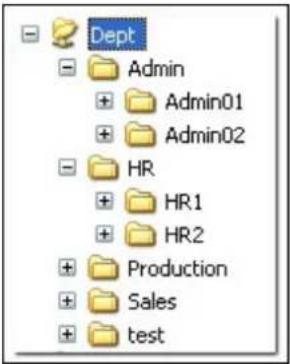
text_image
Dept Admin Admin01 Admin02 HR HR1 HR2 Production Sales test- Only admin can create files and folders: This option is only available for root folders. Select this option to allow admin to create first-level subfolders and files in the selected folder only. For example, in the folder "Dept", only admin can create files and subfolders Admin, HR, Production, and so on. Other users with read/write access to Dept can only create files and folders in the second and lower-level subfolders such as Admin01, Admin02, HR1, and HR2.
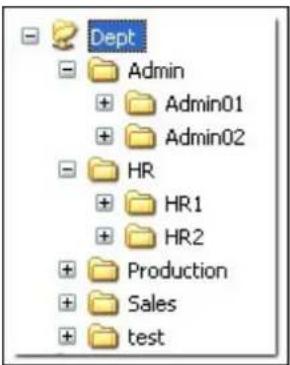
text_image
Dept Admin Admin01 Admin02 HR HR1 HR2 Production Sales test- Apply changes to files and subfolders: Apply permissions settings except owner protection and root folder write protection settings to all the files and subfolders within the selected folder. These settings include new users, deleted users, modified permissions, and folder owner. The options "Only the owner can delete the contents" and "Only admin can create files and folders" will not be applied to subfolders.
- Apply and replace all existing permissions of this folder, files, and subfolders: Select this option to override all previously configured permissions of the selected folder and its files and subfolders except owner protection and root folder write protection settings. The options "Only the owner can delete the contents" and "Only admin can create files and folders" will not be applied to subfolders.
- Special Permission: This option is only available for root folders. Select this option and choose between "Read only" or "Read/Write" to allow a user to access to all the contents of a folder irrespectively of the pre-configured permissions. A user with special permission will be identified as "admin" when he/she connects to the folder via Microsoft Networking. If you have granted special permission with "Read/Write" access to the user, the user will have full access and is able to configure the folder permissions on Windows. Note that all the files created by this user belong to "admin". Since "admin" does not have quota limit on the NAS, the number and size of the files created by users with special permission will not be limited by their pre-configured quota settings. This option should be used for administrative and backup tasks only.
After changing the permissions, click "Apply" and then "YES" to confirm.

text_image
Shared Folder Select permission type: Users and groups permission Edit the user and group permissions for access from Windows, Mac, FTP, and File Station. Shares Dept Download Multimedia Public Recordings TedHome USBDisk1 USBDisk2 Usb Web homes test test01 test02 test03 test04 test05 Permissions Preview Read On Read/Wrist Deny Access Special Permission test03 Read Only ✓ □ □ □ Employee072 Read Only ✓ □ □ □ Employee073 Read Only ✓ □ □ □ admin Read/W... □ ✓ □ □ Ted Read/W... □ ✓ □ □ Guest access right: Deny access Add Remove Owner: admin Only the owner can delete the contents Only admin can create files and folders Apply changes to files and subfolders Apply and replace all existing permissions of this folder, files, and subfolders Apply Close
Applying the permissions to files and subfolders may take some time depending on the number of files and folders to be processed. Do you want to apply the permissions now?
Are you sure you want to continue?

No
Microsoft Networking Host Access Control
The NAS folders can be accessed via Samba connection (Windows) by default. You can specify the IP addresses and hosts which are allowed to access the NAS via Microsoft
Networking. Click


text_image
Users User Groups Shared Folders Quota Domain Security Shared Folder Advanced Permissions Folder Aggregation Create Remove Restore Default Shared Folders Folder Name Size Folders Files Hidden三人 Dept 36 KB 6 1 No Single Disk: Drive 1 Download 53.62 GB 13 183 No Single Disk: Drive 1 Multimedia 18.42 MB 21 235 No Single Disk: Drive 1 NAS 587.25 MB 6 891 No ISO Public 251.1 MB 9 89 No Single Disk: Drive 1 Recordings 32 KB 6 1 No Single Disk: Drive 1 TedHome 20 KB 3 1 No Single Disk: Drive 1 USBDisk1 694.6 GB 30966 339270 No USB 1 Display item: 1-24, Total: 24 | Show 50 ItemsSelect "Microsoft Networking host access" from the dropdown menu on top of the page.
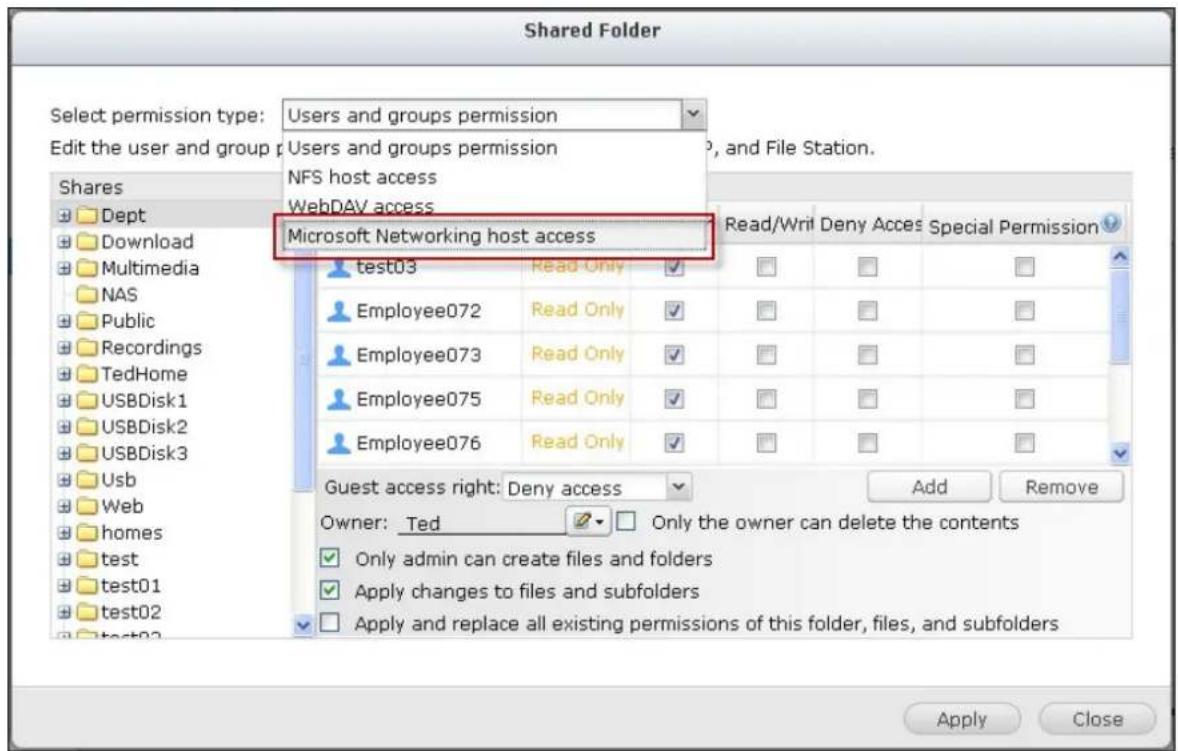
text_image
Shared Folder Select permission type: Users and groups permission Edit the user and group permission NFS host access WebDAV access Microsoft Networking host access Read/Wrl Deny Acces Special Permission test03 Read Only Employee072 Read Only Employee073 Read Only Employee075 Read Only Employee076 Read Only Guest access right: Deny access Add Remove Owner: Ted Only the owner can delete the contents Only admin can create files and folders Apply changes to files and subfolders Apply and replace all existing permissions of this folder, files, and subfolders Apply CloseSpecify the allowed IP addresses and host names. The following IP address and host name are used as example here:
| IP address | 192.168.12.12192.168.*.* |
| Host name | dnsname.domain.local*.domain.local |
click "Add" to enter the IP address and host name and then "Apply".

text_image
Shared Folder Select permission type: Microsoft Networking host access Specify the computers which can access the shared folders via Microsoft Networking. Shares Dept Download Multimedia NAS Public Recordings TedHome USBDisk1 USBDisk2 USBDisk3 Usb Web homes test test01 test02 test03 Enter the hosts or IP addresses which are allowed to connect to this shared folder: Dept Note: Users will still need access permissions to access the shared folder. Delete Add Host / IP / Network 192.168.*.* *.domain.local Note: Please make sure the format you enter is correct. An incorrect format can lead to access error. If no entry is entered, all hosts access will be allowed. Apply CloseWildcard characters
You can enter wildcard characters in an IP address or host name entry to represent unknown characters.
Asterisk (\*)
Use an asterisk (*) as a substitute for zero or more characters. For example, if you enter *.domain.local, the following items are included:
a.domain.local
cde.domain.local
test.domain.local
Question mark (?)
Use a question mark (?) as a substitute for only one character. For example, test?.
domain.local includes the following:
test1.domain.local
test2.domain.local
testa.domain.local
When you use wildcard characters in a valid host name, dot (.) is included in wildcard characters. For example, when you enter *.example.com, "one.example.com" and "one.two.example.com" are included.
ISO Shared Folders
You can mount the ISO image files on the NAS as ISO shares and access the contents without disc burning. The NAS supports mounting up to 256 ISO shares.
TS-110, TS-119, TS-120, TS-121, TS-210, TS-219, TS-219P, TS-220, TS-221, TS-410, TS-119P+, TS-219P+, TS-112, TS-212 support maximum 256 network shares only (including 6 default network shares). The maximum number of ISO image files supported by these models is less than 256 (256 minus 6 default shares minus number of network recycle bin folders).
Follow the steps below to mount an ISO file on the NAS by the web interface.
- Login the NAS as an administrator. Go to "Share Folders" > "Create". Click "Create an ISO Share".

text_image
Users User Groups Shared Folders Quota Domain Security Shared Folder Advanced Permissions Folder Aggregation Create Remove Restore Default Shared Folders Shared Folder Create an ISO Share Size Folders Files Hidden Volume Action 4 KB 0 0 No Single Disk: Drive 1 Download 53.29 GB 10 183 No Single Disk: Drive 1 Multimedia 18.42 MB 21 235 No Single Disk: Drive 1 Public 250.87 MB 9 88 No Single Disk: Drive 1 Recordings 32 KB 6 1 No Single Disk: Drive 1 TedHome 20 KB 3 1 No Single Disk: Drive 1 USBDisk1 694.02 GB 30959 338379 No USB 1 USBDisk2 70.04 GB 660 13079 No USB 2 Usb 12 KB 1 1 No Single Disk: Drive 1 Web 16.15 KB 1 7 No Single Disk: Drive 1 Display item: 1-10, Total: 22 Show 50 Items- Select an ISO image file on the NAS. Click "Next".

text_image
Create an ISO Share Choose An ISO Image File This wizard guides you through the following settings: • ISO Shared Folder Settings • Privilege Source ISO Image File: /USBDisk1/500G/Game/MGS Note: Only ISO image files will be listed. The ISO shared folders can be unshared by clicking "Remove" in the folder list. Step 1/7 Next Cancel- The image file will be mounted as a shared folder of the NAS. Enter the folder name.

text_image
Create an ISO Share ISO Shared Folder Settings Folder Name: NAS Hidden Folder: Yes No Description: Step 2/7 Back Next Cancel- Specify the access rights of the NAS users or user groups to the shared folder.
You can also select "Deny Access" or "Read only" for the guest access right. Click "Next".
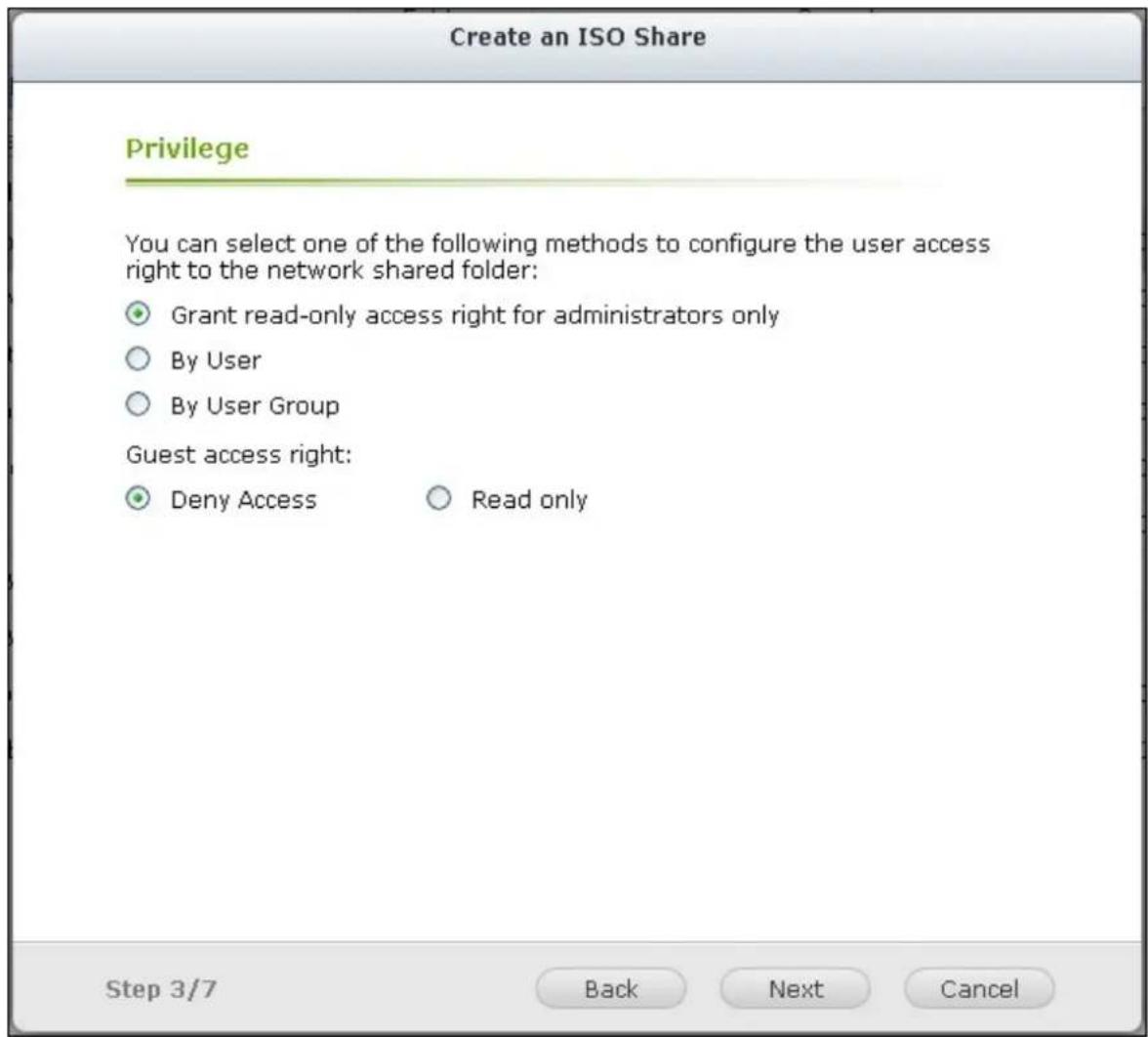
text_image
Create an ISO Share Privilege You can select one of the following methods to configure the user access right to the network shared folder: ● Grant read-only access right for administrators only ○ By User ○ By User Group Guest access right: ● Deny Access ○ Read only Step 3/7 Back Next Cancel- Confirm the settings and click "Next".
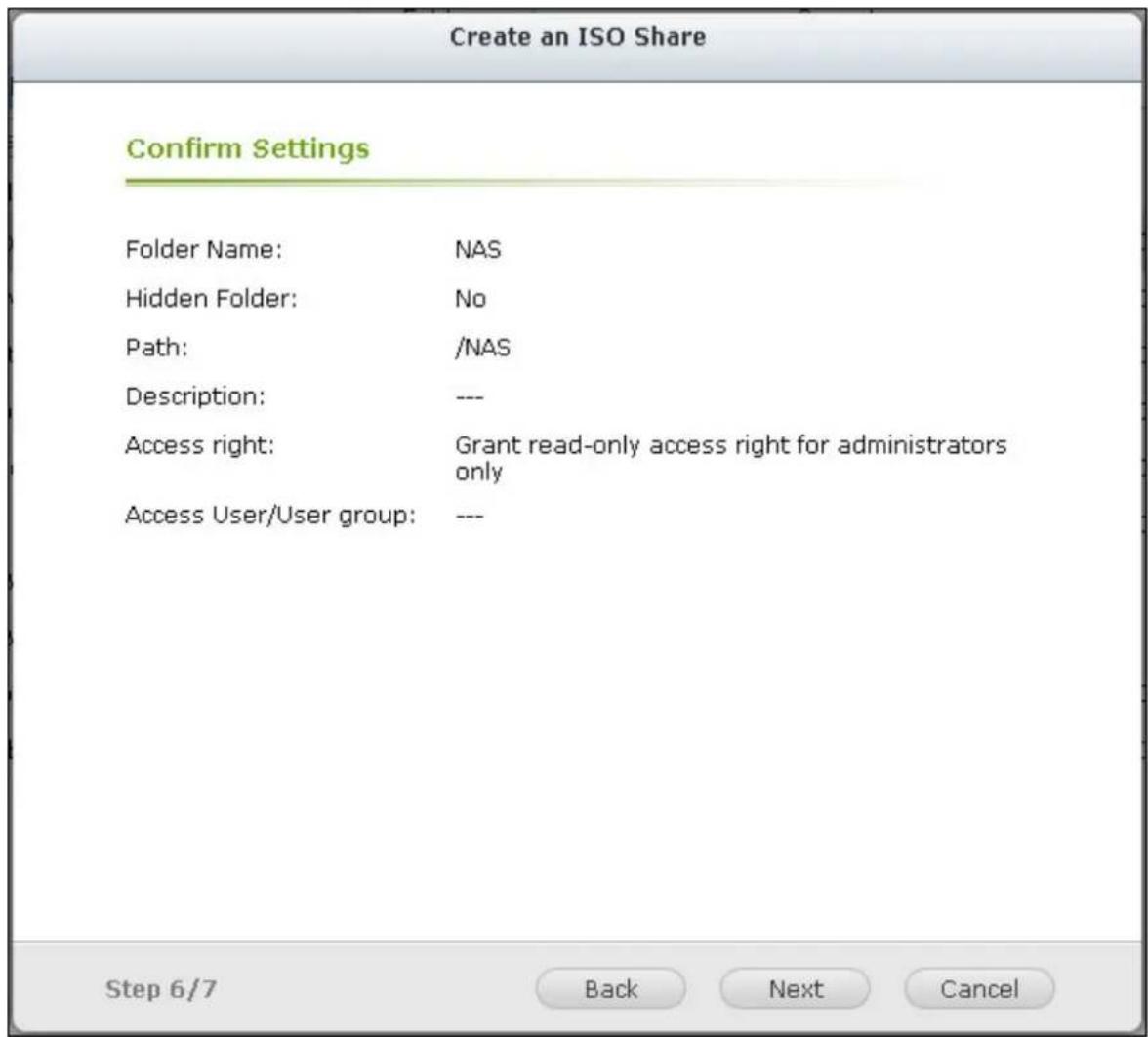
text_image
Create an ISO Share Confirm Settings Folder Name: NAS Hidden Folder: No Path: /NAS Description: --- Access right: Grant read-only access right for administrators only Access User/User group: --- Step 6/7 Back Next Cancel- Click "Finish".
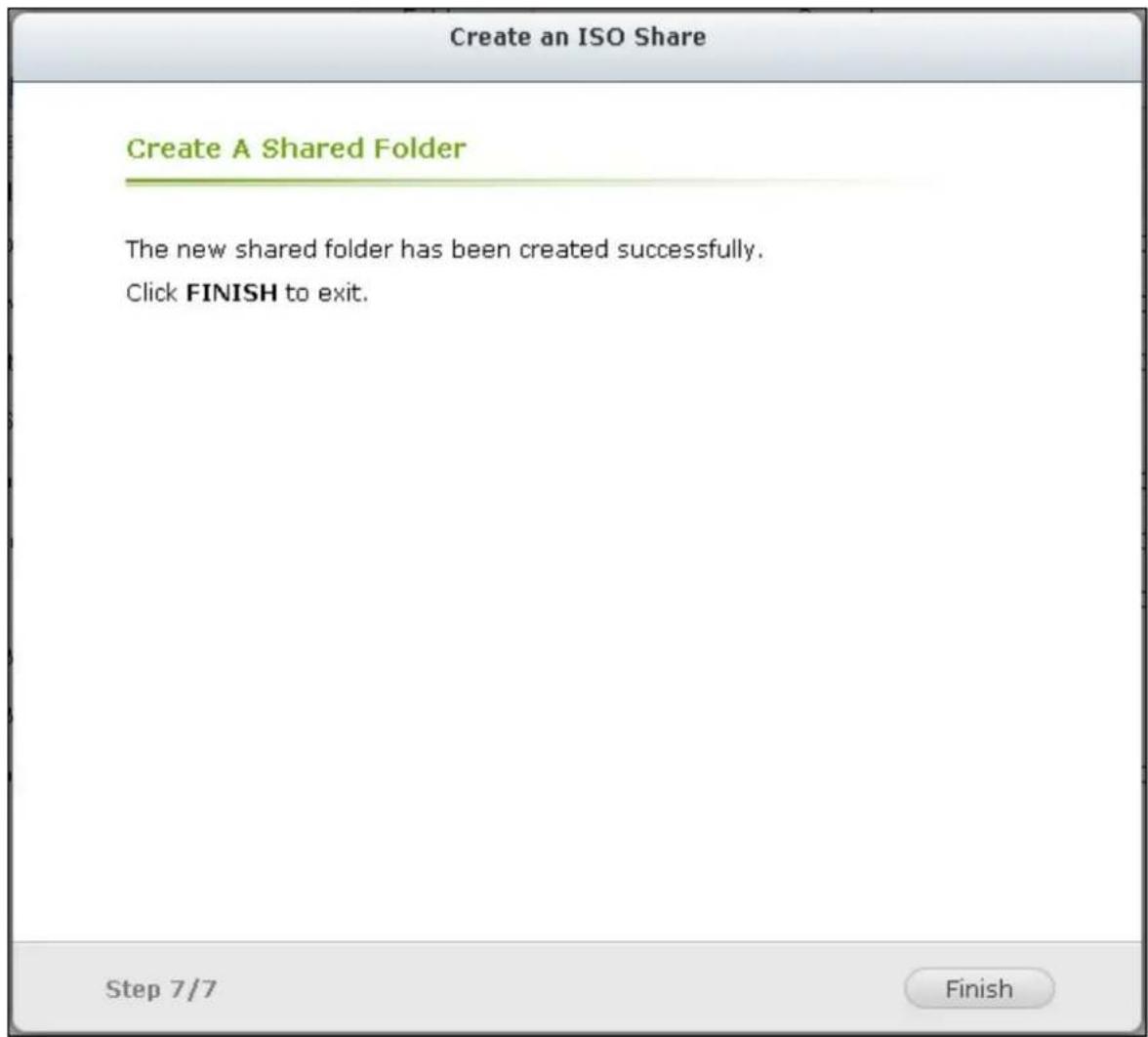
text_image
Create an ISO Share Create A Shared Folder The new shared folder has been created successfully. Click FINISH to exit. Step 7/7 Finish- After mounting the image file, you can specify the access rights of the users over different network protocols such as SMB, AFP, NFS, and WebDAV by clicking the Access Permission icon in the "Action" column.

text_image
Users User Groups Shared Folders Quota Domain Security Shared Folder Advanced Permissions Folder Aggregation Create Remove Restore Default Shared Folders Folder Name Size Folders Files Hidden三人ihen Volume Action Dept 4 KB 0 0 No Single Disk: Drive 1 Download 53.29 GB 10 183 No Single Disk: Drive 1 Multimedia 18.42 MB 21 235 No Single Disk: Drive 1 NAS 507.25 MB 6 091 No ISO Public 250.87 MB 9 88 No Single Disk: Drive 1 Recordings 32 KB 6 1 No Single Disk: Drive 1 TedHome 20 KB 3 1 No Single Disk: Drive 1 USBDisk1 694.02 GB 30959 338379 No USB 1 USBDisk2 70.04 GB 060 13079 No USB 2 Usb 12 KB 1 1 No Single Disk: Drive 1 Display item: 1-10, Total: 23 | Show 50 ItemsThe NAS supports mounting ISO image files by the File Station. Please refer to the chapter on File Station for details.
Folder Aggregation
You can aggregate the shared folders on Microsoft network as a portal folder on the NAS and let the NAS users access the folders through your NAS. Up to 10 folders can be linked to a portal folder.
Note: This function is supported only in Microsoft networking service and recommended for a Windows AD environment.
To use this function, follow the steps below.
1. Enable folder aggregation.
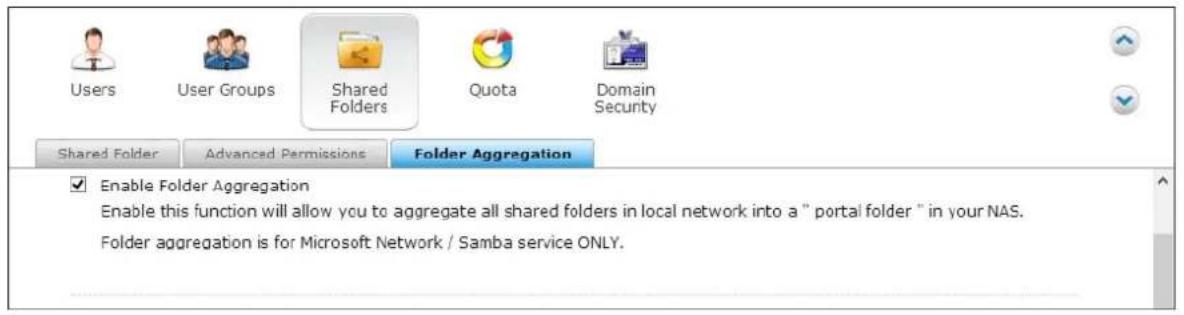
text_image
Users User Groups Shared Folders Quota Domain Security Shared Folder Advanced Permissions Folder Aggregation Enable Folder Aggregation Enable this function will allow you to aggregate all shared folders in local network into a " portal folder " in your NAS. Folder aggregation is for Microsoft Network / Samba service ONLY.2. Click "Create A Portal Folder".

text_image
Folder Aggregation List Create a Portal Folder Delete Import/ Export Folder Tree Portal Folder Name Action- Enter the portal folder name. Select to hide the folder or not, and enter an optional comment for the portal folder.

text_image
Create a Portal Folder Folder Name: Shares Hidden Folder: Yes No Comment: Apply Cancel- Click (Link Configuration) and enter the remote folder settings. Make sure the folders are open for public access.

text_image
Users User Groups Shared Folders Quota Domain Security Shared Folder Advanced Permissions Folder Aggregation Enable Folder Aggregation Enable this function will allow you to aggregate all shared folders in local network into a " portal folder " in your NAS. Folder aggregation is for Microsoft Network / Samba service ONLY. Folder Aggregation List Create a Portal Folder Delete Import/ Export Folder Tree Portal Folder Name Action Shares Apply All
text_image
Remote Folder Link Portal Folder Name: Shares Link | Name | Host Name | Remote Shared Folder 1 | Public on 10.8.12.153 | 10.8.12.153 | Public 2 | Marketing on 10.8.1... | 10.8.13.89 | Marketing 3 | 4 | 5 | 6 | 7 | 8 | 9 | 10 Apply CancelNote: If there is permission control on the folders, you need to join the NAS and the remote servers to the same AD domain.
- Upon successful connection, you can connect to the remote folders through the NAS.
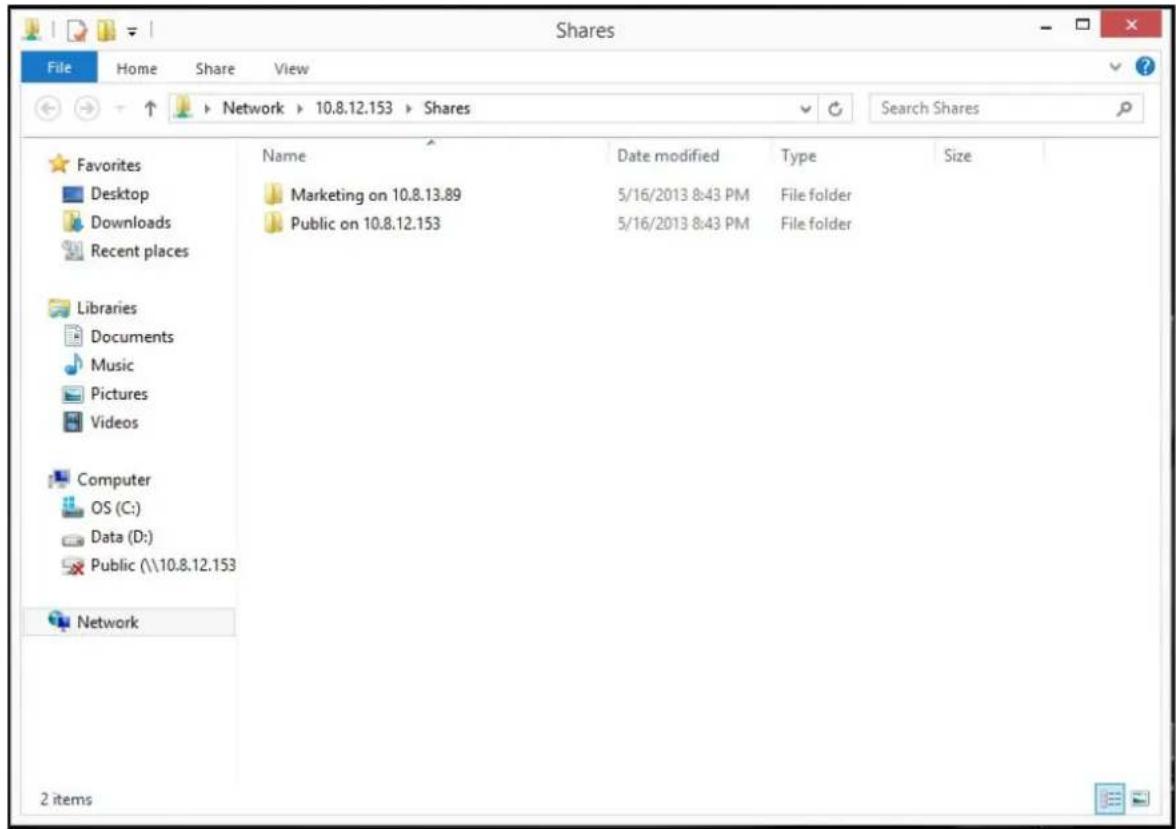
text_image
Shares File Home Share View Network 10.8.12.153 Shares Search Shares Favorites Desktop Downloads Recent places Marketing on 10.8.13.89 Public on 10.8.12.153 Date modified Type Size 5/16/2013 8:43 PM File folder 5/16/2013 8:43 PM File folder Libraries Documents Music Pictures Videos Computer OS (C:) Data (D:) Public (\10.8.12.153) Network 2 itemsAdvanced Permissions
"Advanced Folder Permissions" and "Windows ACL" provide subfolder and file level permissions control. They can be enabled independently or together.
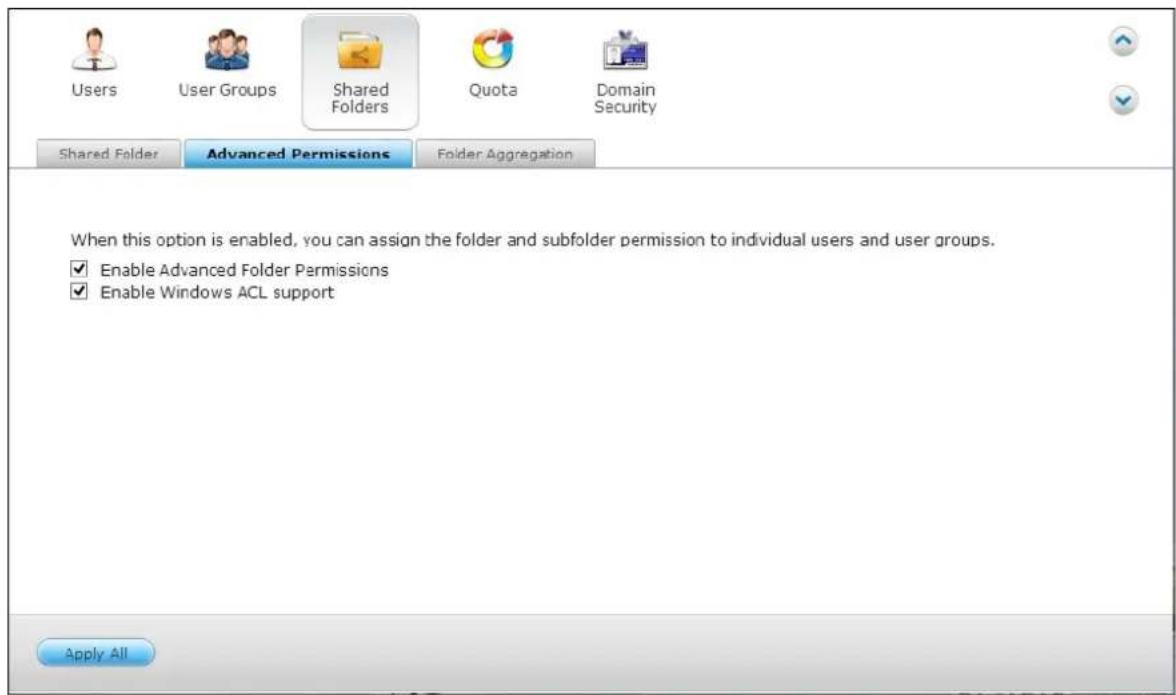
text_image
Users User Groups Shared Folders Quota Domain Security Shared Folder Advanced Permissions Folder Aggregation When this option is enabled, you can assign the folder and subfolder permission to individual users and user groups. ✓ Enable Advanced Folder Permissions ✓ Enable Windows ACL support Apply All| Protocols | Perm ission | Options | How to C onfigure |
| Advanced Folder Permissions | FTP, AFP, File Station, Samba | 3 (Read, Read & Write, Deny) | NAS web UI |
| Windows ACL | Samba | 13 (NTFS permissions) | Windows File Explorer |
| Both | FTP, AFP, File Station, Samba | Please see the application note (http://www.qnap.com/index.php?lang=en&sn=4686) for more details. | Windows File Explorer |
Advanced Folder Perm issions
Use "Advanced Folder Permissions" to configure subfolder permissions directly from the NAS UI. There is no depth limitation for the subfolder permissions. However, it is highly recommended to change the permissions only on the first or second level of the subfolders. When "Advanced Folder Permissions" is enabled, click the "Folder Permissions"
icon under the "Shared Folders" tab to configure the subfolder permission settings. See "Shared Folders" > "Folder Permission" of this section for details.
Windows ACL
Use "Windows ACL" to configure the subfolder and file level permissions from Windows File Explorer. All Windows Permissions are supported. For detailed Windows ACL behavior, please refer to standard NTFS permissions: http://www.ntfs.com/#ntfs_permiss
- To assign subfolder and file permissions to a user or a user group, full control share-level permissions must be granted to the user or user group.
- When Windows ACL is enabled while "Advanced Folder Permissions" are disabled, subfolder and file permissions will have effect only when accessing the NAS from Windows File Explorer. Users connecting to the NAS via FTP, AFP, or File Station will only have share-level permissions.
- When Windows ACL and Advanced Folder Permissions are both enabled, users cannot configure Advanced Folder Permissions from the NAS UI. The permissions (Read only, Read/Write, and Deny) of Advanced Folder Permissions for AFP, File Station, and FTP will automatically follow Windows ACL configuration.
5.4 Quota
To allocate the disk volume efficiently, you can specify the quota that can be used by each user. When this function is enabled and a user has reached the disk quota, the user cannot upload any data to the server anymore. By default, no limitations are set for the users. You can modify the following options:
- Enable quota for all users
• Quota size on each disk volume

text_image
Users User Groups Shared Folders Quota Domain Security Quota Enable quota for all users Quota size on the disk 100 MB Note: To change the individual user quota size, go to "Users" > "Edit Account Profile". Apply Apply to AllAfter applying the changes, the quota settings will be shown. Click "Generate" to generate a quota settings file in CSV format. After the file has been generated, click "Download" to save it to your specified location.
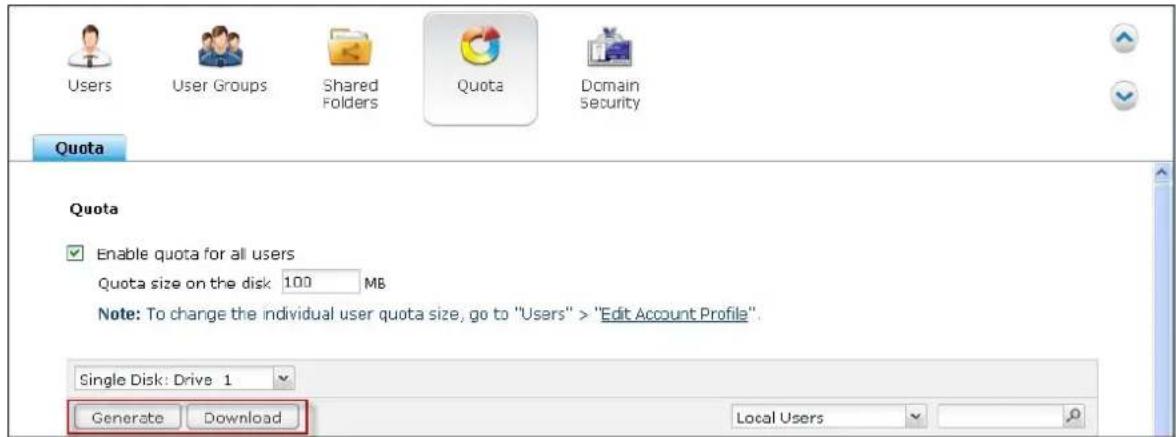
text_image
Users User Groups Shared Folders Quota Domain security Quota Enable quota for all users Quota size on the disk 100 MB Note: To change the individual user quota size, go to "Users" > "Edit Account Profile". Single Disk: Drive 1 Generate Download Local UsersThe NAS supports user authentication by local access right management, Microsoft Active Directory (Windows Server 2003/2008), and Lightweight Directory Access Protocol (LDAP) directory. By joining the NAS to an Active Directory or a LDAP directory, the AD or LDAP users can access the NAS using their own accounts without extra user account setup on the NAS.
No domain security
Only the local users can access the NAS.
Active Directory authentication (domain members)
Join the NAS to an Active Directory. The domain users can be authenticated by the NAS. After joining the NAS to an AD domain, both the local NAS users and AD users can access the NAS via the following protocols/services:
• Samba (Microsoft Networking)
- AFP
- FTP
- File Station
LDAP authentication
Connect the NAS to an LDAP directory. The LDAP users can be authenticated by the NAS. After connecting the NAS to an LDAP directory, either the local NAS users or the LDAP users can be authenticated to access the NAS via Samba (Microsoft Networking). Both the local NAS users and LDAP users can access the NAS via the following protocols/services:
- AFP
- FTP
- File Station

text_image
Users User Groups Shared Folders Quota Domain Security No domain security (Local users only) Active Directory authentication (Domain member) LDAP authentication ApplyActive Directory is a Microsoft directory used in Windows environments to centrally store, share, and manage the information and resources on the network. It is a hierarchical data centre which centrally holds the information of the users, user groups, and the computers for secure access management.
The NAS supports Active Directory (AD). By joining the NAS to the Active Directory, all the user accounts of the AD server will be imported to the NAS automatically. The AD users can use the same set of username and password to login the NAS.
If you are using Active Directory with Windows Server 2008 R2, you must update the NAS firmware to V3.2.0 or above to join the NAS to the AD.
Follow the steps below to join the QNAP NAS to the Windows Active Directory.
-
Login the NAS as an administrator. Go to "System Settings" > "General Settings" > "Time". Set the date and time of the NAS, which must be consistent with the time of the AD server. The maximum time difference allowed is 5 minutes.
-
Go to "System Settings" > "Network" > "TCP/IP". Set the IP of the primary DNS server as the IP of the Active Directory server that contains the DNS service. It must be the IP of the DNS server that is used for your Active Directory. If you use an external DNS server, you will not be able to join the domain.

text_image
General Settings Storage Manager Network Security Hardware Power Notification Firmware Update TCP/IP Wi-Fi IPv6 Service Binding Proxy DDNS Service IP Address Port Trunking Edit Link Interface DHCP IP Address Subnet Mask Gateway MAC address Ethernet1 Yes 10.8.12.153 255.255.254.0 10.8.12.1 00:08:9B:CF:05 Ethernet2 Yes 0.0.0.0 0.0.0.0 0.0.0.0 00:08:9B:CF:05 DNS Server Obtain DNS server address automatically: Use the following DNS server address: Primary DNS server: 10 ,8 ,13 ,230 Secondary DNS server: 0 ,0 ,0 ,0 Default Gateway Use the settings from: Ethernet 1 Apply Apply All- Go to "Privilege Settings" > "Domain Security". Enable "Active Directory authentication (domain member)", and enter the AD domain information.

text_image
Users User Groups Shared Folders Quota Domain Security No domain security (Local users only) Active Directory authentication (Domain member) Quick Configuration Wizard Manual Configuration Quick Configuration Wizard will help you join the NAS to an Active Directory domain. LDAP authentication ApplyNote:
- Enter a fully qualified AD domain name, for example, qnap-test.com
- The AD user entered here must have the administrator access right to the AD domain.
- WINS Support: If you are using a WINS server on the network and the workstation is configured to use that WINS server for name resolution, you must set up the WINS server IP on the NAS (use the specified WINS server.)
Join the NAS to Active Directory (AD) by Quick Configuration Wizard
To join the NAS to an AD domain by the Quick Configuration Wizard, follow the steps below.
- Go to "Privilege Settings" > "Domain Security". Select "Active Directory authentication (domain member)" and click "Quick Configuration Wizard".
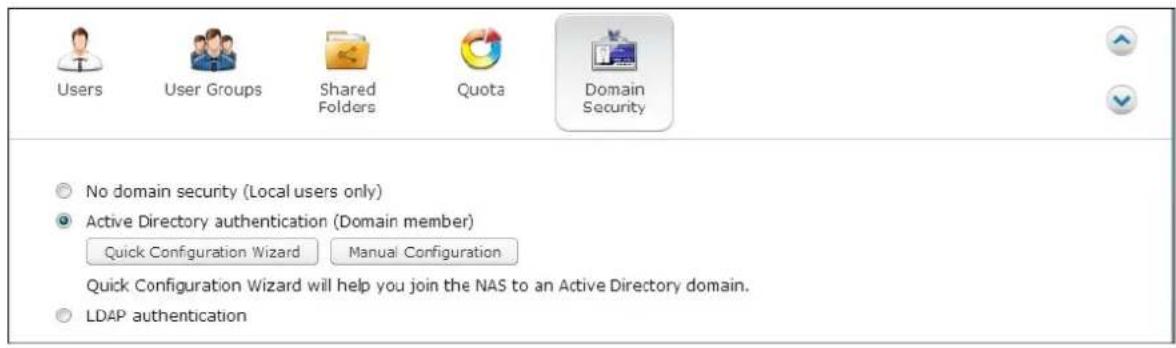
text_image
Users User Groups Shared Folders Quota Domain Security No domain security (Local users only) Active Directory authentication (Domain member) Quick Configuration Wizard Manual Configuration Quick Configuration Wizard will help you join the NAS to an Active Directory domain. LDAP authentication- Read the introduction of the wizard. Click "Next".
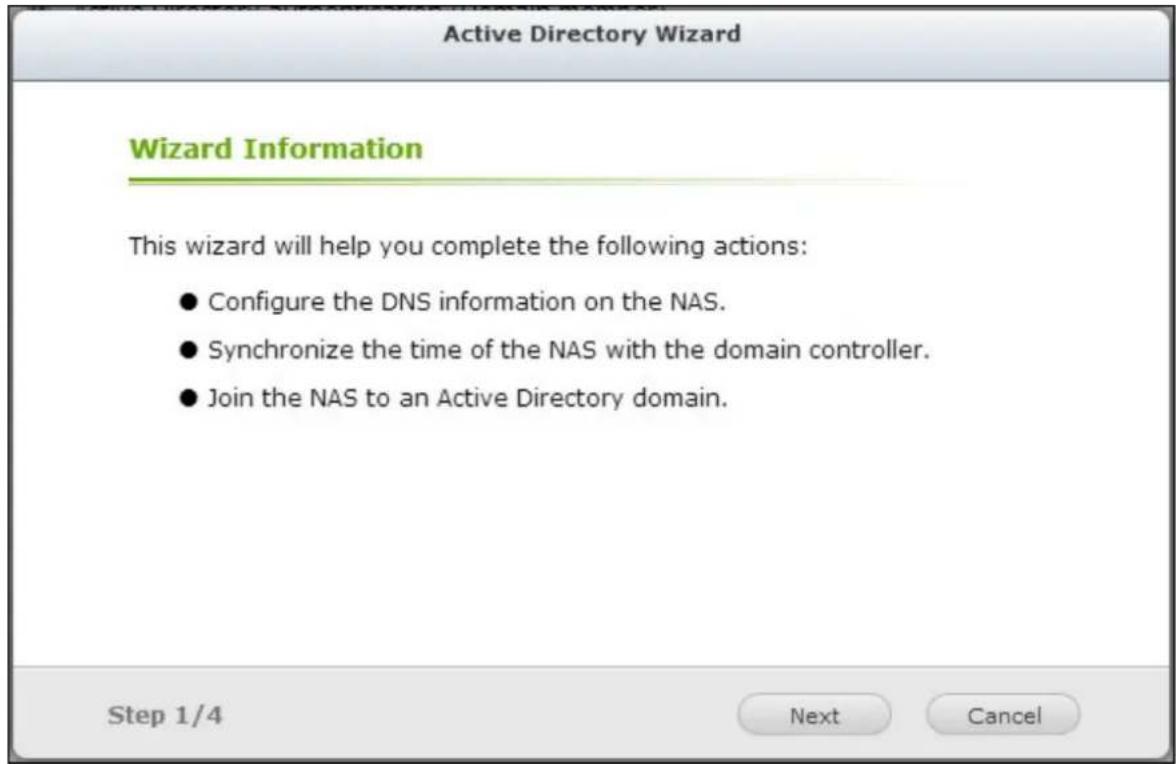
text_image
Active Directory Wizard Wizard Information This wizard will help you complete the following actions: ● Configure the DNS information on the NAS. ● Synchronize the time of the NAS with the domain controller. ● Join the NAS to an Active Directory domain. Step 1/4 Next Cancel- Enter the domain name of the domain name service (DNS). The NetBIOS name will be generated automatically when you type the domain name. Specify the DNS server IP for domain resolution. The IP must be the same as the DNS server of your Active Directory. Click "Next".

text_image
Active Directory Wizard Wizard Information Full DNS domain name: adtest5.local Example: mydomain.local NetBios domain name: ADTEST5 Example: MYDOMAIN Enter the DNS Server IP for the domain resolution. It must be the DNS server of your Active Directory. Obtain DNS server address automatically by DHCP server. Domain DNS Server: 10 .8 .13 .230 Step 2/4 Back Next Cancel- Select a domain controller from the drop-down menu. The domain controller is responsible for time synchronization between the NAS and the domain server and user authentication. Enter the domain administrator name and password. Click "Join".
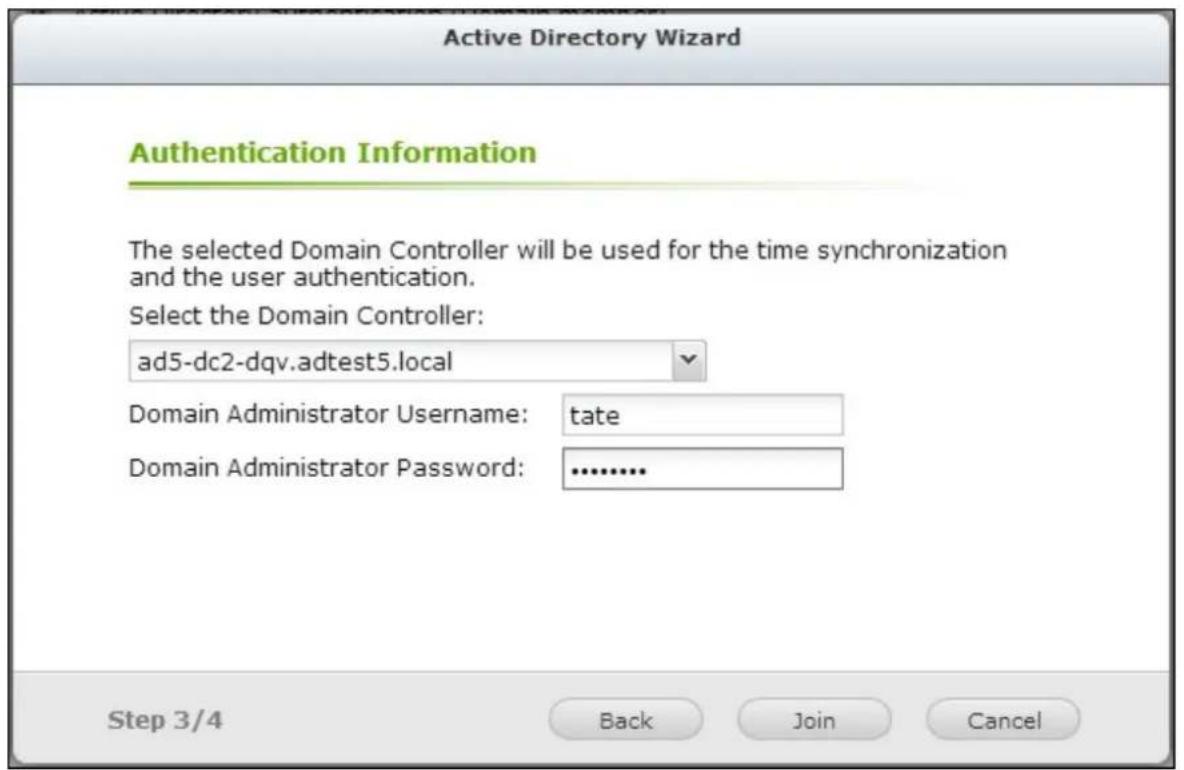
text_image
Active Directory Wizard Authentication Information The selected Domain Controller will be used for the time synchronization and the user authentication. Select the Domain Controller: ad5-dc2-dqv.adtest5.local Domain Administrator Username: tate Domain Administrator Password: ............. Step 3/4 Back Join Cancel- Upon successful login to the domain server, the NAS has joined to the domain.
Click "Finish" to exit the wizard.

text_image
Active Directory Wizard Summary Domain information DNS Server: 10.8.13.230 DNS name: adtest5.local NetBIOS Name: ADTEST5 Domain controller: ad5-dc2-dqv.adtest5.local Time Server: ad5-dc2-dqv.adtest5.local The NAS has joined the domain successfully. Step 4/4 Finish- Go to "Privilege Settings" > "Users" or "User Groups" to load the domain users or user groups to the NAS.

text_image
Users User Groups Shared Folders Quota Domain Security Create Delete Home Folder Domain Users Username Description Quote Action ADTESTS+Administrator -- ADTESTS+Guest -- ADTESTS+krbtgt -- ADTESTS+backupadm -- ADTESTS+aa -- ADTESTS+bb -- ADTESTS+tony -- ADTESTS+kent -- ADTESTS+ken -- Display item: 1-10, Total: 39 Show 10 ItemsWindows 2003
The AD server name and AD domain name can be checked in "System Properties".
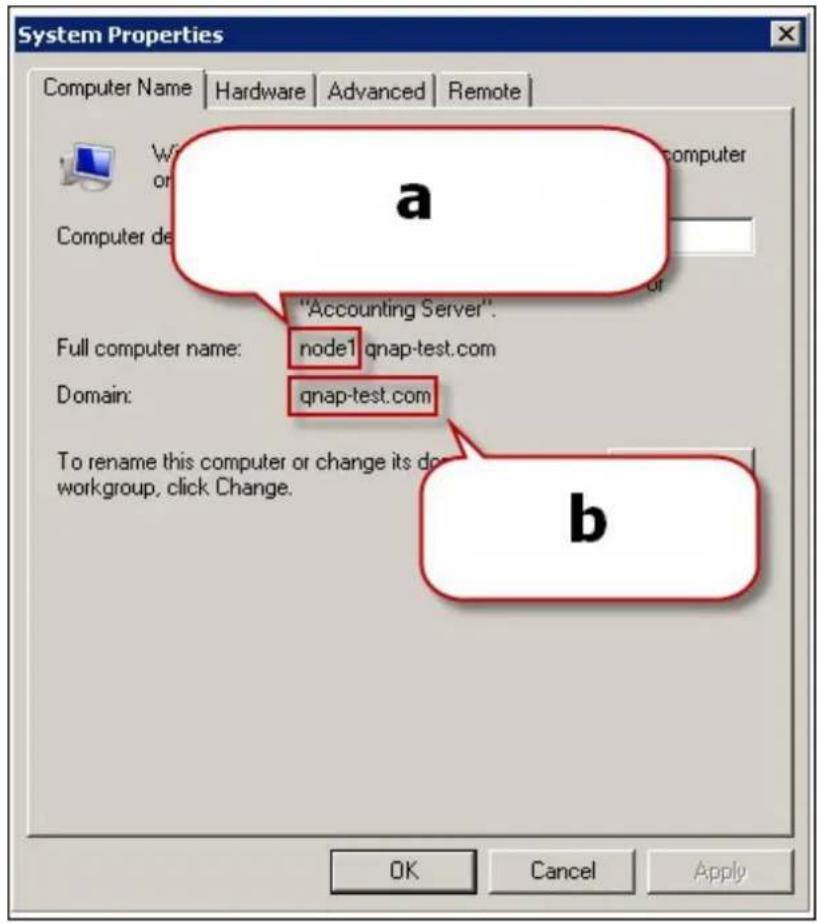
text_image
System Properties Computer Name | Hardware | Advanced | Remote | a Computer de "Accounting Server". Full computer name: node1 qnap-test.com Domain: qnap-test.com To rename this computer or change its done workgroup, click Change. OK Cancel Applya. In Windows 2003 servers, the AD server name is "node1" NOT "node1.qnap-test.com".
b. The domain name remains the same.
Windows Server 2008
Check the AD server name and domain name in "Control Panel" > "System".
a. This is the AD server name.
b. This is the domain name.
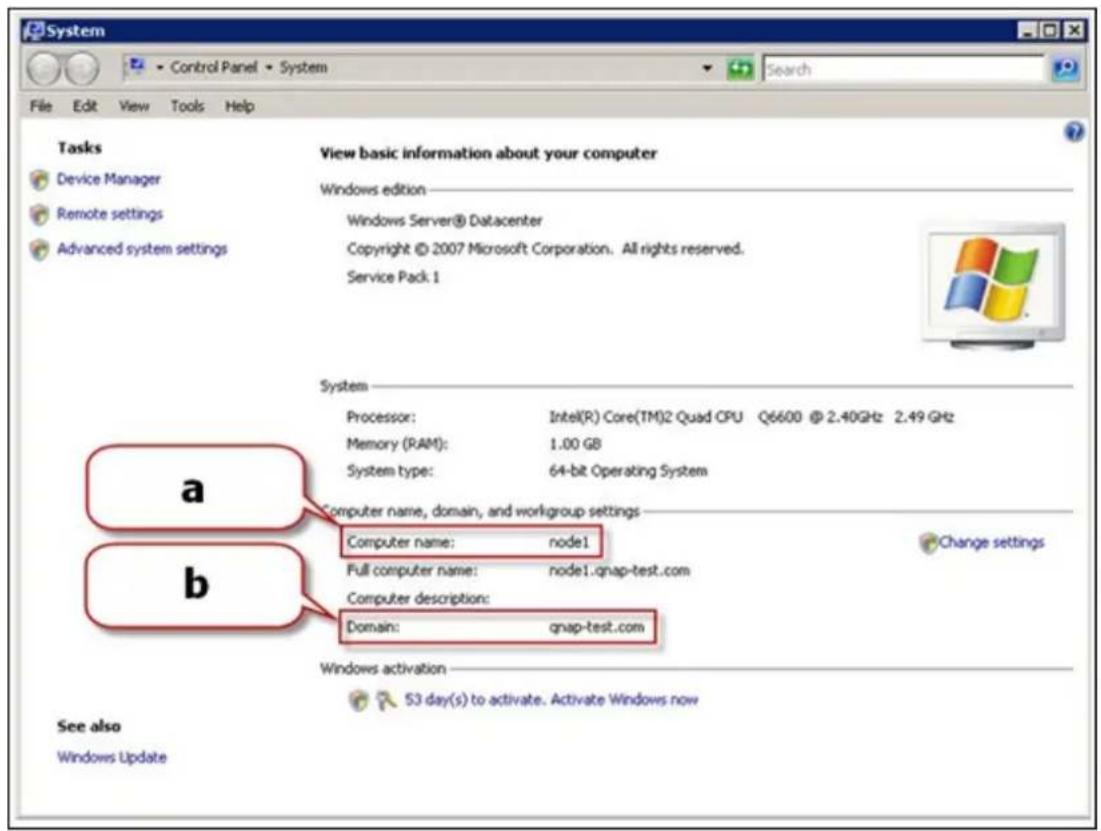
text_image
System File Edit View Tools Help Control Panel - System Search Tasks Device Manager Remote settings Advanced system settings View basic information about your computer Windows edition Windows Server® Datacenter Copyright © 2007 Microsoft Corporation. All rights reserved. Service Pack 1 System Processor: Intel(R) Core(TM)2 Quad CPU Q6600 @ 2.40GHz 2.49 GHz Memory (RAM): 1.00 GB System type: 64-bit Operating System a Computer name, domain, and workgroup settings b Computer name: node1 Full computer name: node1.qnap-test.com Computer description: Domain: qnap-test.com Change settings Windows activation 53 day(s) to activate. Activate Windows now See also Windows UpdateNote:
- After joining the NAS to the Active Directory, the local NAS users who have access right to the AD server should use "NASname\username" to login; the AD users should use their own usernames to login the AD server.
- For TS-109/209/409/509 series NAS, if the AD domain is based on Windows 2008 Server, the NAS firmware must be updated to version 2.1.2 or above.
Windows 7
If you are using a Windows 7 PC which is not a member of an Active Directory, while your NAS is an AD domain member and its firmware version is earlier than v3.2.0, change your PC settings as shown below to allow your PC to connect to the NAS.
- Go to "Control Panel" > "Administrative Tools".

text_image
Control Panel ▶ All Control Panel Items ▶ Adjust your computer's settings Action Center BitLocker Drive Encryption Administrative Tools Color Management- Click "Local Security Policy".

text_image
All Control Panel Items ▶ Administrative Tools Organize ▼ Open Burn Favorites Libraries Computer Network Name Date modified Type Size Component Services 14/07/2009 12:46 Shortcut 2 KB Computer Management 14/07/2009 12:41 Shortcut 2 KB Data Sources (ODBC) 14/07/2009 12:41 Shortcut 2 KB Event Viewer 14/07/2009 12:42 Shortcut 2 KB iSCSI Initiator 14/07/2009 12:41 Shortcut 2 KB Local Security Policy 13/11/2009 17:31 Shortcut 2 KB- Go to "Local Policies" > "Security Options". Select "Network security: LAN Manager authentication level".

text_image
Local Security Policy File Action View Help Security Settings Account Policies Local Policies Audit Policy User Rights Assignment Security Options Windows Firewall with Advanced Sec Network List Manager Policies Public Key Policies Software Restriction Policies Application Control Policies IP Security Policies on Local Compute Advanced Audit Policy Configuration Policy Security Setting Network security: Configure encryption types allowed for Ke... Not Defined Network security: Do not store LAN Manager hash value on ... Enabled Network security: Force logoff when logon hours expire Disabled Network security: LAN Manager authentication level Not Defined Network security: LDAP client signing requirements Negotiate signing Network security: Minimum session security for NTLM SSP ... Require 128-bit encrypti... Network security: Minimum session security for NTLM SSP ... Require 128-bit encrypti... Network security: Restrict NTLM: Add remote server excepti... Not Defined Network security: Restrict NTLM: Add server exceptions in t... Not Defined Network security: Restrict NTLM: Audit Incoming NTLM Tra... Not Defined Network security: Restrict NTLM: Audit NTLM authenticatio... Not Defined- Select the "Local Security Setting" tab, and select "Send LM & NTLMv2 - use NTLMv2 session security if negotiated" from the list. Then click "OK".
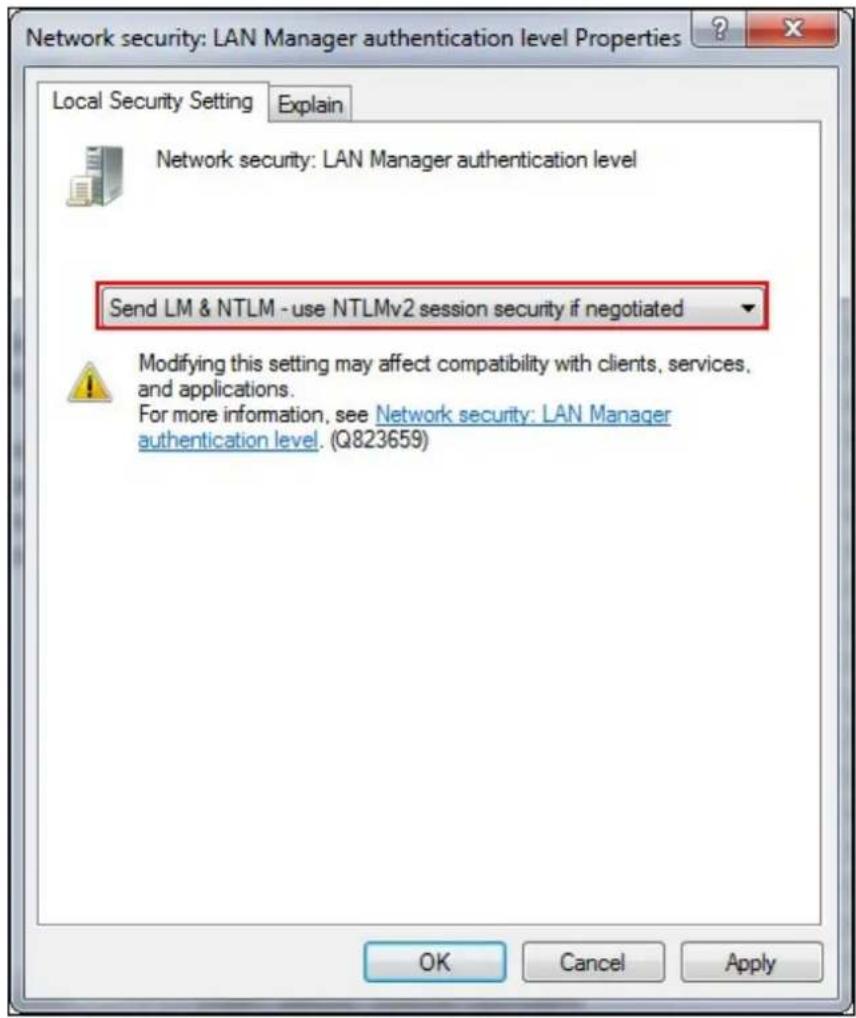
text_image
Network security: LAN Manager authentication level Properties Local Security Setting Explain Network security: LAN Manager authentication level Send LM & NTLM - use NTLMv2 session security if negotiated Modifying this setting may affect compatibility with clients, services, and applications. For more information, see Network security: LAN Manager authentication level. (Q823659) OK Cancel ApplyVerifying the settings
To verify that the NAS has been joined to the Active Directory successfully, go to "Privilege Settings" > "Users" and "User Groups". A list of users and user groups will be shown on the "Domain Users" and "Domain Groups" lists respectively.
If you have created new users or user groups in the domain, you can click the reload button. This will reload the user and user group lists from the Active Directory to the NAS. The user permission settings will be synchronized in real time with the domain controller.
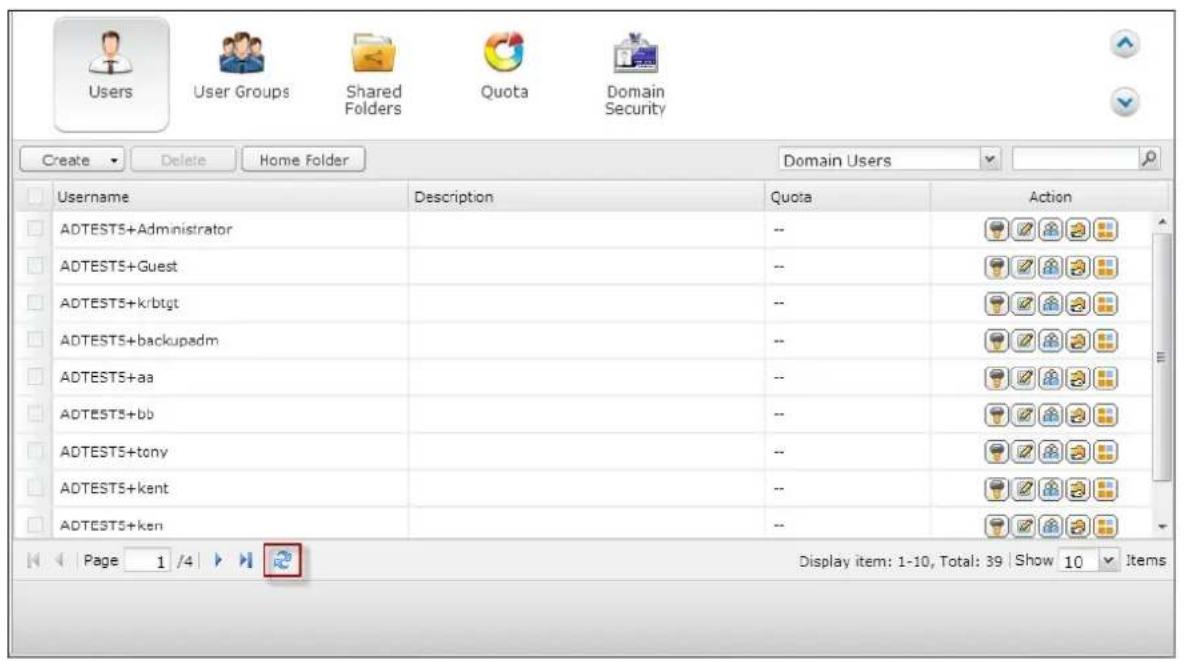
text_image
Users User Groups Shared Folders Quota Domain Security Create Delete Home Folder Domain Users Username Description Quota Action ADTEST5+Administrator -- ADTEST5+Guest -- ADTEST5+krbtgt -- ADTEST5+backupadm -- ADTEST5+aa -- ADTEST5+bb -- ADTEST5+tony -- ADTEST5+kent -- ADTEST5+ken -- Display item: 1-10, Total: 39 | Show 10 | ItemsLDAP stands for Lightweight Directory Access Protocol. It is a directory that can store the information of all the users and groups in a centralized server. Using LDAP, the administrator can manage the users in the LDAP directory and allow the users to connect to multiple NAS servers with the same username and password.
This feature is intended for administrator and users who have some knowledge about Linux servers, LDAP servers, and Samba. An LDAP server which is up and running is required when using the LDAP feature of the QNAP NAS.
Required information/settings:
- The LDAP server connection and authentication information
- The LDAP structure, where the users and groups are stored
• The LDAP server security settings
Follow the steps below to connect the QNAP NAS to an LDAP directory.
- Login the web interface of the NAS as an administrator.
- Go to "Privilege Settings" > "Domain Security". By default, the option "No domain security" is enabled. That means only the local NAS users can connect to the NAS.
- Select "LDAP authentication" and complete the settings.
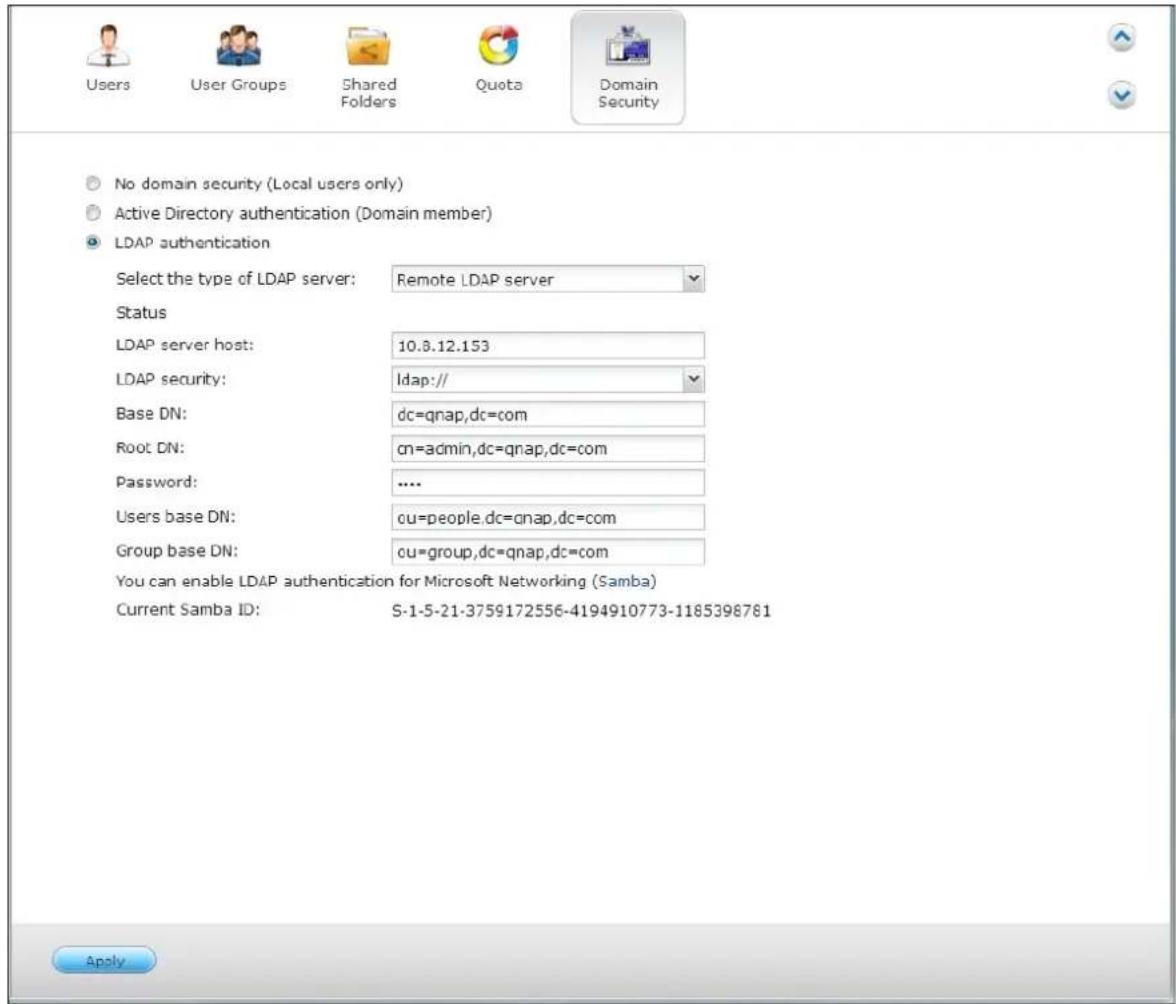
text_image
No domain security (Local users only) Active Directory authentication (Domain member) LDAP authentication Select the type of LDAP server: Remote LDAP server Status LDAP server host: 10.8.12.153 LDAP security: ldap:// Base DN: dc=qnap,dc=com Root DN: cn=admin,dc=qnap,dc=com Password: .... Users base DN: cu=people,dc=qnap,dc=com Group base DN: cu=group,dc=qnap,dc=com You can enable LDAP authentication for Microsoft Networking (Samba) Current Samba ID: S-1-5-21-3759172556-4194910773-1185398781 Apply- LDAP Server Host: The host name or IP address of the LDAP server.
- LDAP Security: Specify how the NAS will communicate with the LDAP server:
- ldap:// = Use a standard LDAP connection (default port: 389).
- ldap:// (ldap + SSL) = Use an encrypted connection with SSL (default port: 686). This is usually used by older version of LDAP servers.
-
Ldap:// (ldap + TLS) = Use an encrypted connection with TLS (default port: 389). This is usually used by newer version of LDAP servers
-
BASE DN: The LDAP domain. For example: dc=mydomain, dc=local
- Root DN: The LDAP root user. For example cn=admin, dc=mydomain, dc=local
- Password: The root user password.
- Users Base DN: The organization unit (OU) in which users are stored. For example: ou=people, dc=mydomain, dc=local
-
Groups Base DN: The organization unit (OU) in which groups are stored. For example ou=group,dc=mydomain,dc=local
-
Click "Apply" to save the settings. Upon successful configuration, the NAS will be able to connect to the LDAP server.
- Configure LDAP authentication options.
- If Microsoft Networking has been enabled (Network Services > Win/Mac/NFS > Microsoft Networking) when applying the LDAP settings, specify the users who can access the NAS via Microsoft Networking (Samba).
- Local users only: Only the local NAS users can access the NAS via Microsoft Networking.
- LDAP users only: Only the LDAP users can access the NAS via Microsoft Networking.
Note: Both the LDAP users and local NAS users can access the NAS via File Station, FTP, and AFP.
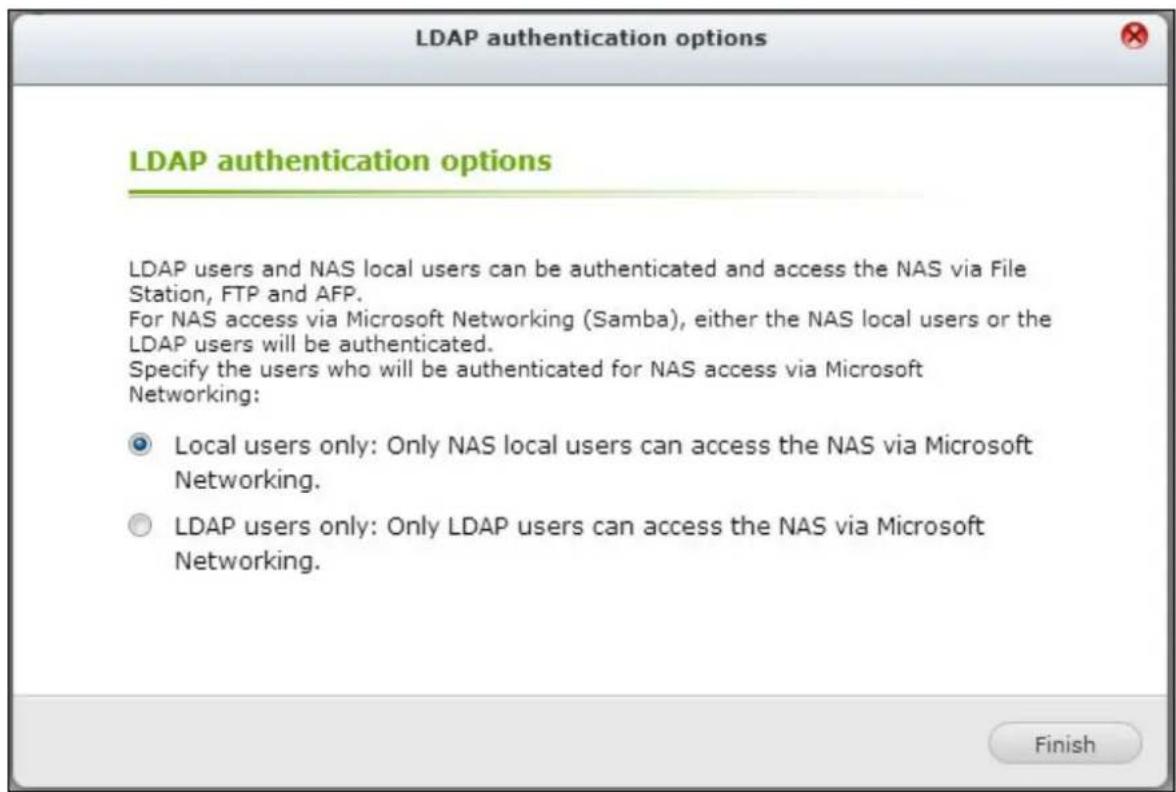
text_image
LDAP authentication options LDAP authentication options LDAP users and NAS local users can be authenticated and access the NAS via File Station, FTP and AFP. For NAS access via Microsoft Networking (Samba), either the NAS local users or the LDAP users will be authenticated. Specify the users who will be authenticated for NAS access via Microsoft Networking: ● Local users only: Only NAS local users can access the NAS via Microsoft Networking. ○ LDAP users only: Only LDAP users can access the NAS via Microsoft Networking. Finish- If Microsoft Networking is enabled after the NAS has already been connected to the LDAP server, select the authentication type for Microsoft Networking.
- Standalone Server: Only local NAS users can access the NAS via Microsoft Networking.
- LDAP Domain Authentication: Only LDAP users can access the NAS via Microsoft Networking.
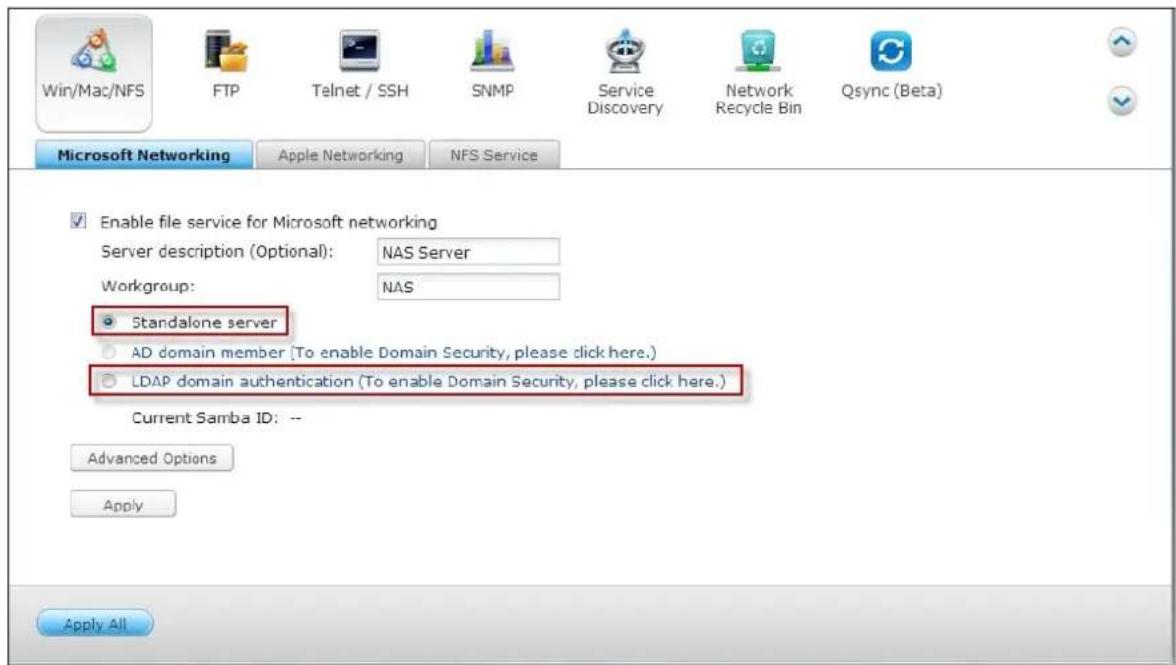
text_image
Win/Mac/NFS FTP Telnet / SSH SNMP Service Discovery Network Recycle Bin Qsync (Beta) Microsoft Networking Apple Networking NFS Service Enable file service for Microsoft networking Server description (Optional): NAS Server Workgroup: NAS Standalone server AD domain member (To enable Domain Security, please click here.) LDAP domain authentication (To enable Domain Security, please click here.) Current Samba ID: -- Advanced Options Apply Apply All-
When the NAS is connected to an LDAP server, the administrator can:
-
Go to "Privilege Settings" > "Users" and select "Domain Users" from the drop-down menu. The LDAP users list will be shown.
- Go to "Privilege Settings" > "User Groups" and select "Domain Groups" from the dropdown menu. The LDAP groups will be shown.
- Specify the folder permissions of the LDAP domain users or groups in "Privilege
Settings" > "Shared Folders" > "Access Permissions".

text_image
Users User Groups Shared Folders Qucta Domain Security Shared Folder Advanced Permissions Folder Aggregation Create Remove Restore Default Shared Folders Folder Name Size Folders Files Hidden Volume Action Dept 36 KB 6 1 No Single Disk: Drive 1 Download 53.62 GB 13 183 No Single Disk: Drive 1 Multimedia 18.42 MB 21 235 No Single Disk: Drive 1 NAS 587.25 MB 6 891 No ISO Public 251.1 MB 9 08 No Single Disk: Drive 1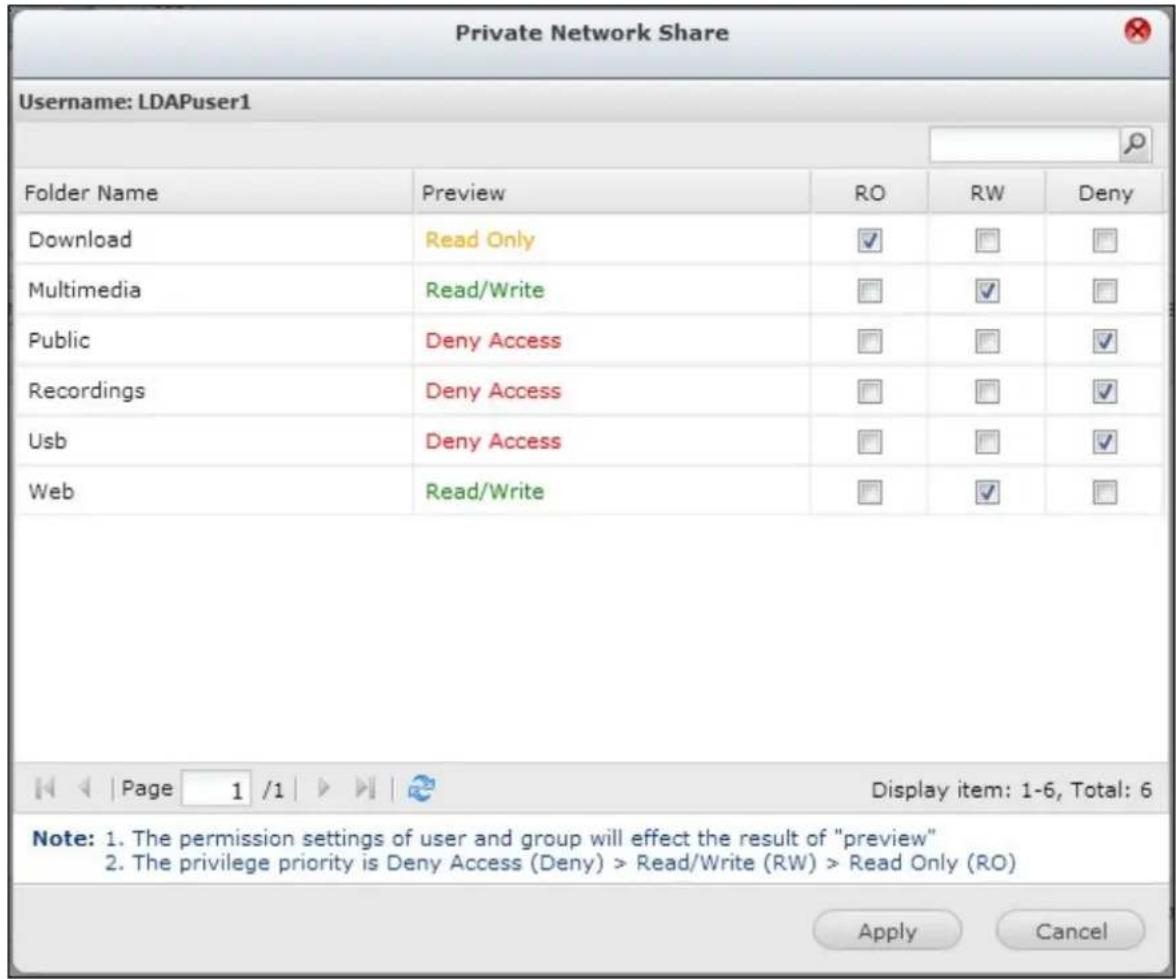
text_image
Private Network Share Username: LDAPuser1 Folder Name Preview RO RW Deny Download Read Only ✓ □ □ Multimedia Read/Write □ ✓ □ Public Deny Access □ □ ✓ Recordings Deny Access □ □ ✓ Usb Deny Access □ □ ✓ Web Read/Write □ ✓ □ Display item: 1-6, Total: 6 Note: 1. The permission settings of user and group will effect the result of "preview" 2. The privilege priority is Deny Access (Deny) > Read/Write (RW) > Read Only (RO) Apply CancelTechnical requirements of LDAP authentication with Microsoft Networking:
Required items to authenticate the LDAP users on Microsoft Networking (Samba):
- a third party software to synchronize the password between LDAP and Samba in the LDAP server.
- importing the Samba schema to the LDAP directory.
A. Third-party software:
Some software applications are available and allow management of the LDAP users, including Samba password. For example:
- LDAP Account Manager (LAM), with a Web-based interface, available at: http://www.ldap-account-manager.org/
- smbldap-tools (command line tool)
- webmin-ldap-useradmin - LDAP user administration module for Webmin.
B.Sam ba schem a:
To import the samba schema to the LDAP server, please refer to the documentation or
FAQ of the LDAP server.
The samba.schema file is required and can be found in the directory examples/LDAP in the Samba source distribution.
Example for open-ldap in the Linux server where the LDAP server is running (it can be different depending on the Linux distribution):
Copy the samba schema:
zcat /usr/share/doc/samba-doc/examples/LDAP/samba.schema.gz > /etc/ldap/schema/samba.schema
Edit /etc/ldap/slapd.conf (openldap server configuration file) and make sure the following lines are present in the file:
include /etc/ldap/schema/samba.schema
include /etc/ldap/schema/cosine.schema
include /etc/ldap/schema/inetorgperson.schema
include /etc/ldap/schema/nis.schema
Configuration exam ples:
The following are some configuration examples. They are not mandatory and need to be adapted to match the LDAP server configuration:
- Linux OpenLDAP Server
Base DN: dc=qnap,dc=com
Root DN: cn=admin,dc=qnap,dc=com
Users Base DN: ou=people,dc=qnap,dc=com
Groups Base DN: ou=group,dc=qnap,dc=com
- Mac Open Directory Server
Base DN: dc=macserver,dc=qnap,dc=com
Root DN: uid=root,cn=users,dc=macserver,dc=qnap,dc=com
Users Base DN: cn=users,dc=macserver,dc=qnap,dc=com
Groups Base DN: cn=groups,dc=macserver,dc=qnap,dc=com
6. Network Services
Win/Mac/NFS ^385 FTP ^393 Telnet/SSH ^396 SNMP Settings ^397 Service_Discovery ^399 Network_Recycle_Bin ^401 Qsync ^403
Microsoft Networking
To allow access to the NAS on Microsoft Windows Network, enable file service for Microsoft networking. Specify also how the users will be authenticated.
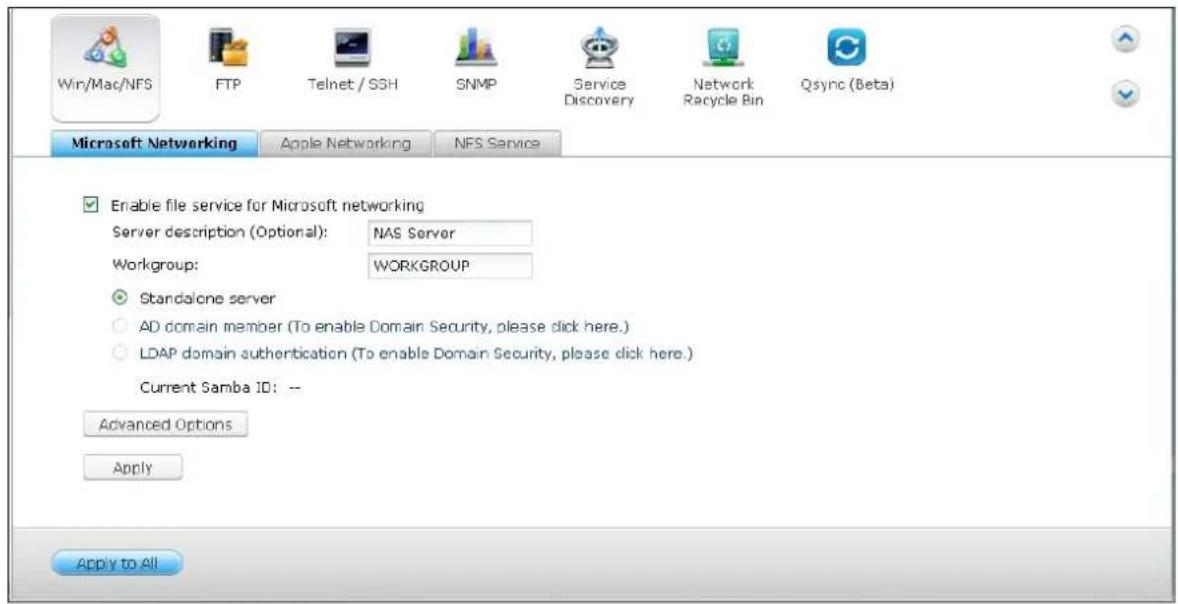
text_image
Wiry/Mac/NFS FTP Telnet / SSH SNMP Service Discovery Network Recycle Bin Qsync (Beta) Microsoft Networking Apple Networking NFS Service Enable file service for Microsoft networking Server description (Optional): NAS Server Workgroup: WORKGROUP Standalone server AD domain member (To enable Domain Security, please click here.) LDAP domain authentication (To enable Domain Security, please click here.) Current Samba ID: -- Advanced Options Apply Apply to AllStandalone Server
Use local users for authentication. The NAS will use the local user accounts information (created in "Privilege Settings" > "Users") to authenticate the users who access the NAS.
- Server Description (optional): Describe the NAS so that the users can easily identify the server on Microsoft Network.
- Workgroup: Specify the workgroup to which the NAS belongs. A workgroup name supports up to 15 characters but cannot contain: " + = / \ : | * ? < > ; [ ] % ,
AD Dom ain Mem ber
Use Microsoft Active Directory (AD) to authenticate the users. To use this option, enable Active Directory authentication in "Privilege Settings" > "Domain Security" and join the NAS to an Active Directory.
LDAP Domain Authentication
Use Lightweight Directory Access Protocol (LDAP) directory to authenticate the users.
To use this option, enable LDAP authentication and specify the settings in "Privilege Settings" > "Domain Security". When this option is enabled, you need to select either the local NAS users or the LDAP users can access the NAS via Microsoft Networking.
Advanced Options
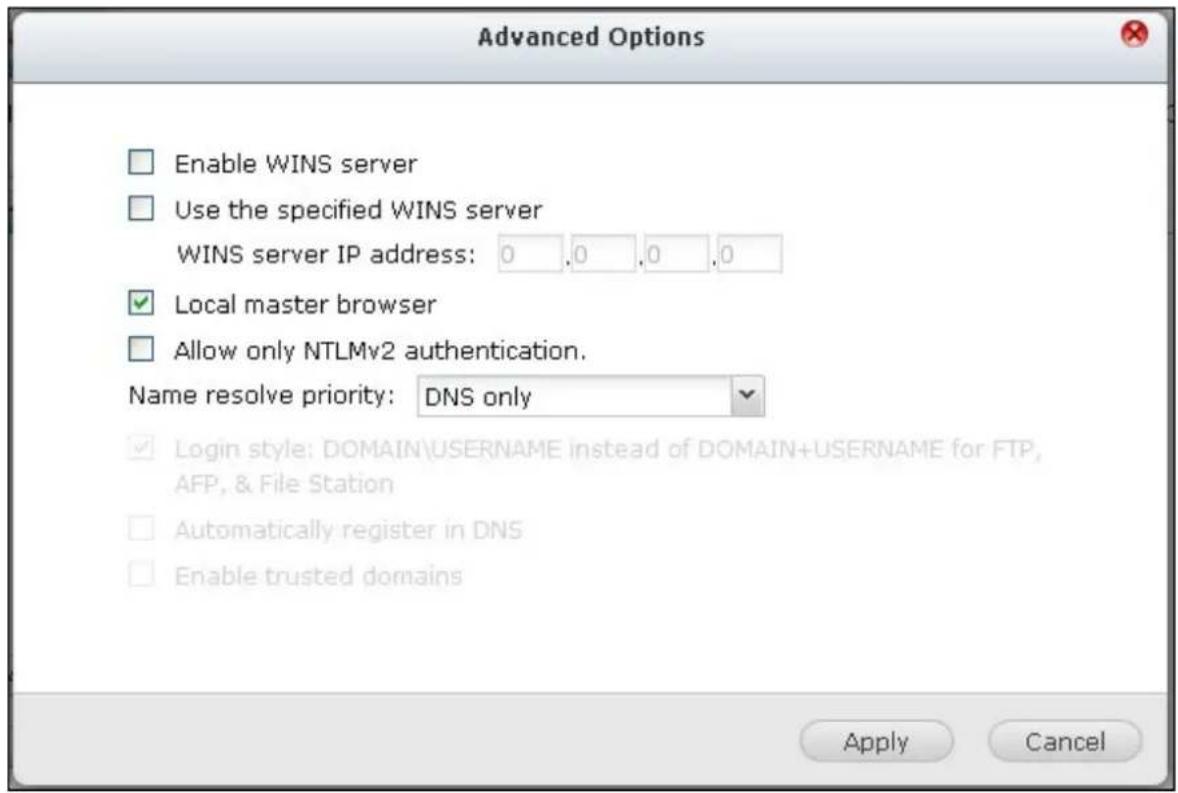
text_image
Advanced Options Enable WINS server Use the specified WINS server WINS server IP address: 0.0.0.0 Local master browser Allow only NTLMv2 authentication. Name resolve priority: DNS only Login style: DOMAIN\USERNAME instead of DOMAIN+USERNAME for FTP, AFP, & File Station Automatically register in DNS Enable trusted domains Apply CancelWINS server:
If the local network has a WINS server installed, specify the IP address. The NAS will automatically register its name and IP address with WINS service. If you have a WINS server on your network and want to use this server, enter the WINS server IP. Do not turn on this option if you are not sure about the settings.
Local Domain Master:
A Domain Master Browser is responsible for collecting and recording resources and services available for each PC on the network or a workgroup of Windows. When you find the waiting time for connecting to the Network Neighborhood/My Network Places too long, it may be caused by failure of an existing master browser or a missing master browser on the network. If there is no master browser on your network, select the option "Domain Master" to configure the NAS as the master browser. Do not turn on this option if you are not sure about the settings.
Allow only NTLMv2 authentication:
NTLMv2 stands for NT LAN Manager version 2. When this option is turned on, login to the shared folders by Microsoft Networking will be allowed only with NTLMv2 authentication. If the option is turned off, NTLM (NT LAN Manager) will be used by default and NTLMv2 can be negotiated by the client. The default setting is disabled.
Nam e resolution priority:
You can select to use DNS server or WINS server to resolve client host names from IP addresses. When you set up your NAS to use a WINS server or to be a WINS server, you can choose to use DNS or WINS first for name resolution. When WINS is enabled, the default setting is "Try WINS then DNS". Otherwise, DNS will be used for name resolution by default.
Login style: DOMAIN\USERNAME instead of DOMAIN+USERNAME for FTP, AFP, and File Station
In an Active Directory environment, the default login formats for the domain users are:
- Windows shares: domain\username
- FTP: domain+username
- File Station: domain+username
• AFP: domain+username
When you turn on this option, the users can use the same login name format (domain\username) to connect to the NAS via AFP, FTP, and File Station.
Automatically register in DNS: When this option is turned on and the NAS is joined to an Active Directory, the NAS will register itself automatically in the domain DNS server. This will create a DNS host entry for the NAS in the DNS server. If the NAS IP is changed, the NAS will automatically update the new IP in the DNS server.
Enable trusted domains: Select this option to load the users from trusted Active Directory domains and specify their access permissions to the NAS in "Privilege Settings" > "Shared Folders". (The domain trusts are set up in Active Directory only, not on the NAS.)
Apple Networking
To connect to the NAS from Mac, enable Apple Filing Protocol. If the AppleTalk network uses extended networks and is assigned with multiple zones, assign a zone name to the NAS. Enter an asterisk (*) to use the default setting. This setting is disabled by default.
To allow access to the NAS from Mac OS X 10.7 Lion, enable "DHX2 authentication support". Click "Apply" to save the settings.

text_image
Win/Mac/NFS FTP Telnet / SSH SNMP Service Discovery Network Recycle Bin Qsync (Beta) Microsoft Networking Apple Networking NFS Service Enable AFP (Apple Filing Protocol) Zone: * DHX2 authentication support Apply Apply to AllYou can use the Finder to connect to a shared folder from Mac. Go to "Go" > "Connect to Server", or simply use the default keyboard shortcut "Command+k".
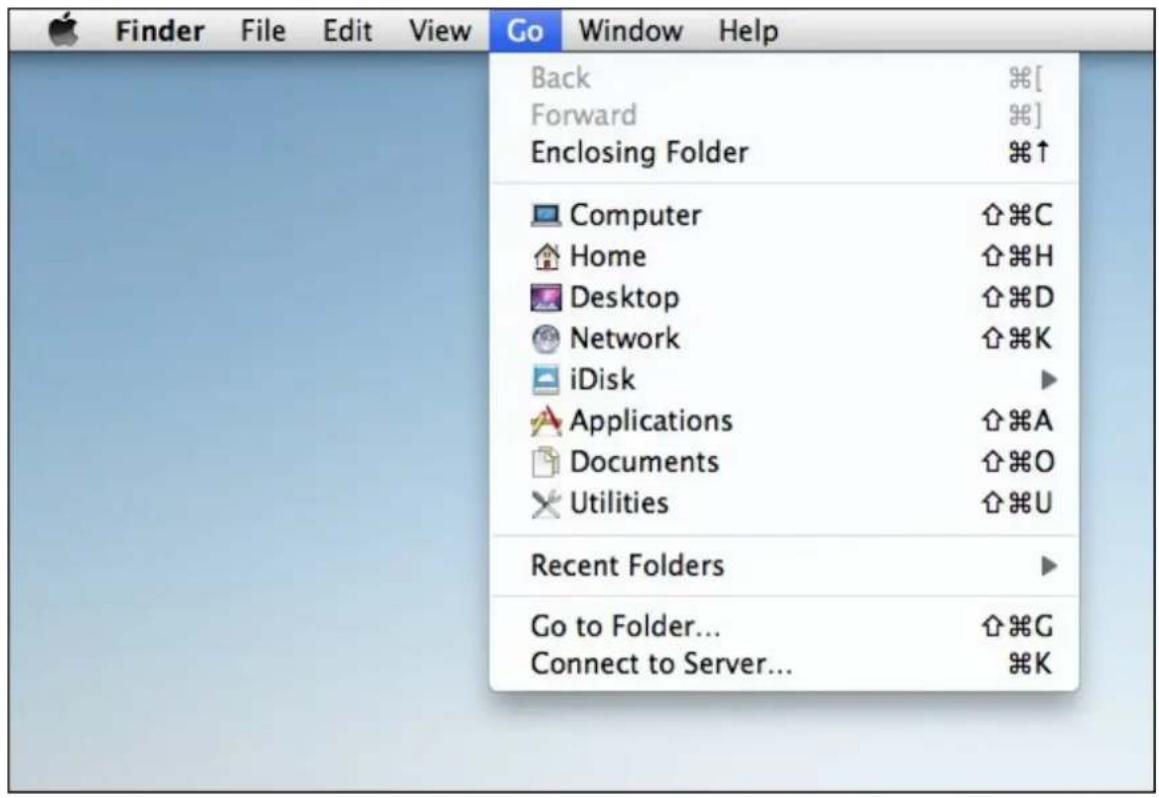
text_image
Finder File Edit View Go Window Help Back Forward Enclosing Folder Computer Home Desktop Network iDisk Applications Documents Utilities Recent Folders Go to Folder... Connect to Server... [ ] [H] H D K A O U G KEnter the connection information in the "Server Address" field, such as "afp://YOUR_NAS_IP_OR_HOSTNAME". Here are some examples:
- afp://10.8.12.111
- afp://NAS-559
- smb://192.168.1.159

text_image
Connect to Server Server Address: afp://192.168.1.159 Favorite Servers: afp://192.168.1.159 afp://10.8.12.111 ? Remove Browse ConnectNote: Mac OS X supports both Apple Filing Protocol and Microsoft Networking. To
connect to the NAS via Apple Filing Protocol, the server address should start with "afp://". To connect to the NAS via Microsoft Networking, please use "smb://".
NFS Service
To connect to the NAS from Linux, enable NFS service.
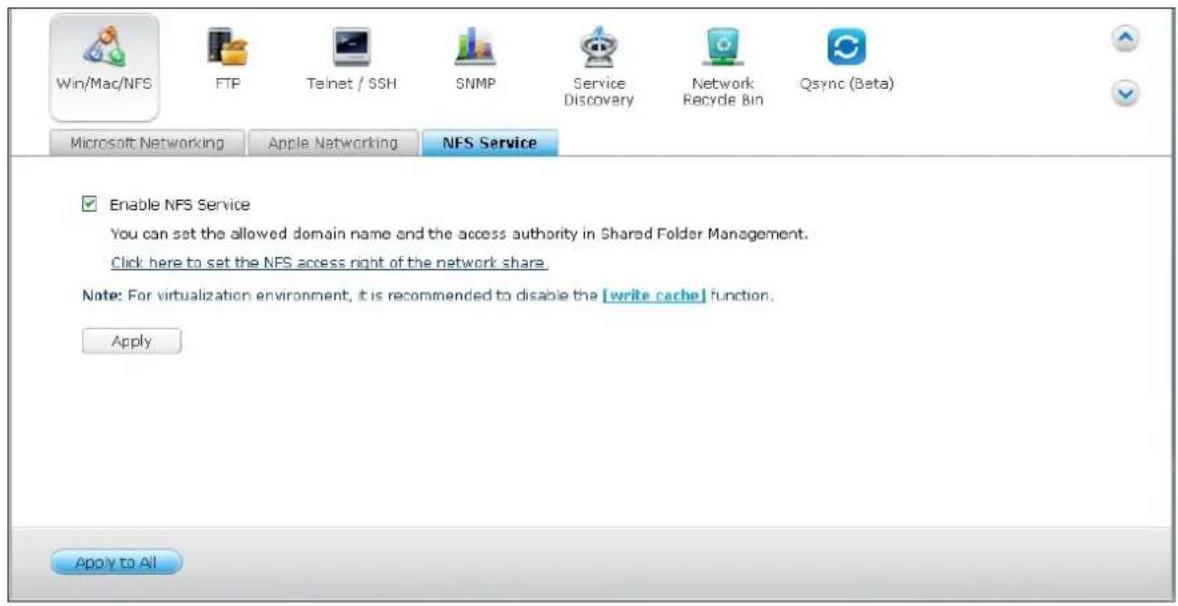
text_image
Win/Mac/NFS FTP Telnet / SSH SNMP Service Discovery Network Recycle Bin Qsync (Beta) Microsoft Networking Apple Networking NFS Service Enable NFS Service You can set the allowed domain name and the access authority in Shared Folder Management. Click here to set the NFS access right of the network share. Note: For virtualization environment, it is recommended to disable the [write cache] function. Apply Apply to AllTo configure the NFS access right to the shared folders on the NAS, go to "Privilege Settings" > "Share Folders". Click the Access Permission button on the "Action" column.
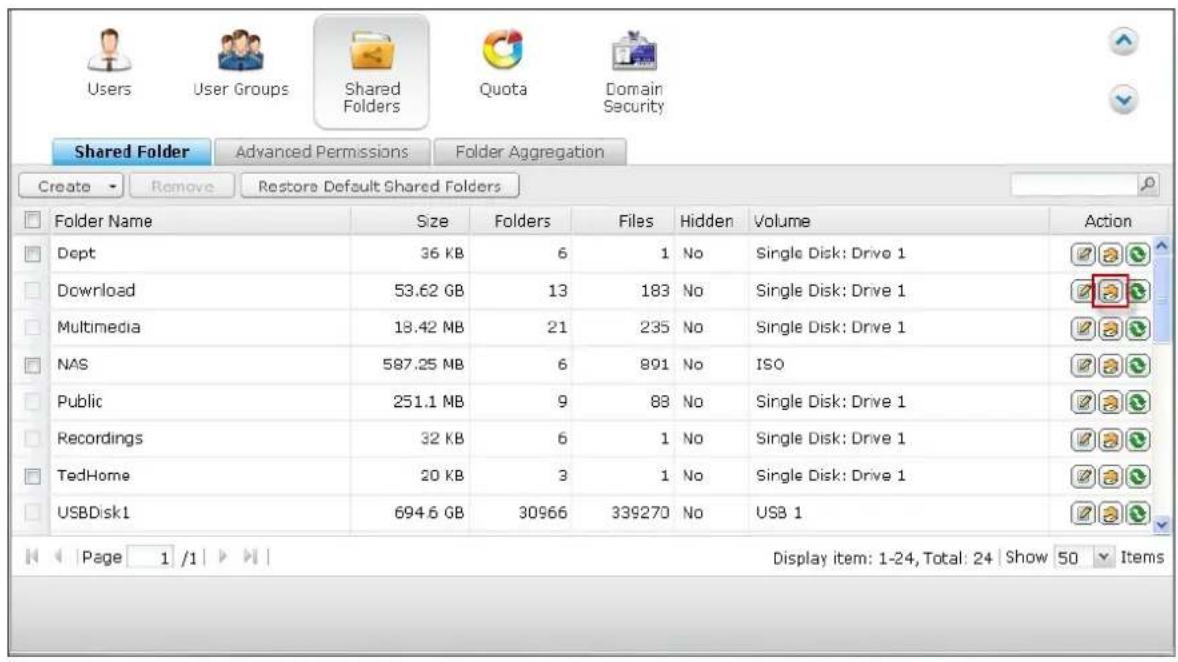
text_image
Users User Groups Shared Folders Quota Domain Security Shared Folder Advanced Permissions Folder Aggregation Create Remove Restore Default Shared Folders Folder Name Size Folders Files Hidden Volume Action Dept 36 KB 6 1 No Single Disk: Drive 1 Download 53.62 GB 13 183 No Single Disk: Drive 1 Multimedia 18.42 MB 21 235 No Single Disk: Drive 1 NAS 587.25 MB 6 801 No ISO Public 251.1 MB 9 88 No Single Disk: Drive 1 Recordings 32 KB 6 1 No Single Disk: Drive 1 TedHome 20 KB 3 1 No Single Disk: Drive 1 USBDisk1 694.6 GB 30966 339270 No USB 1 Display item: 1-24, Total: 24 | Show 50 ItemsSelect NFS host access from the dropdown menu on top of the page and specify the access right. If you select "No limit" or "Read only", you can specify the IP address or domains that are allowed to connect to the folder by NFS.
- No limit: Allow users to create, read, write, and delete files or folders in the shared folder and any subdirectories.
- Read only: Allow users to read files in the shared folder and any subdirectories but they are not allowed to write, create, or delete any files.
- Deny access: Deny all access to the shared folder.
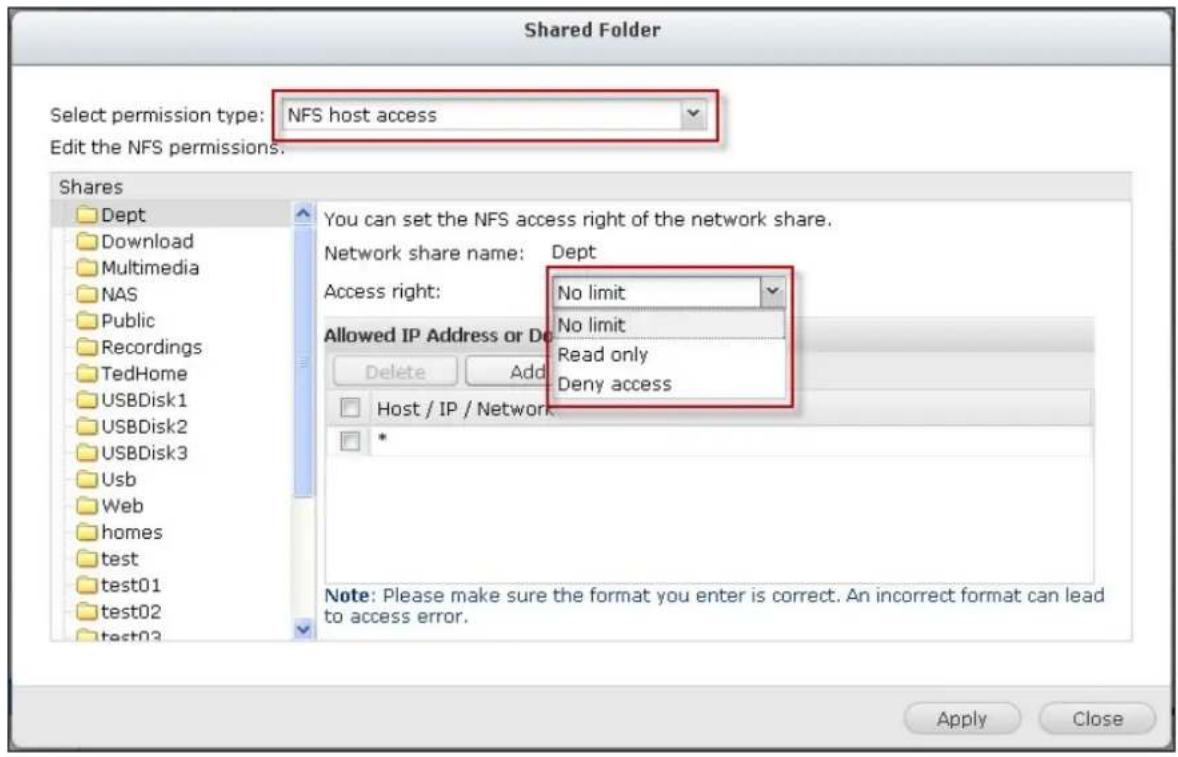
text_image
Shared Folder Select permission type: NFS host access Edit the NFS permissions. Shares Dept Download Multimedia NAS Public Recordings TedHome USBDisk1 USBDisk2 USBDisk3 Usb Web homes test test01 test02 test03 You can set the NFS access right of the network share. Network share name: Dept Access right: No limit No limit Read only Deny access Allowed IP Address or De Delete Add Host / IP / Network * Note: Please make sure the format you enter is correct. An incorrect format can lead to access error. Apply CloseConnect to the NAS by NFS
On Linux, run the following command:
m ount -t nfs
For example, if the IP address of your NAS is 192.168.0.1 and you want to link the shared folder "public" under the /mnt/pub directory, use the following command:
m ount -t nfs 192.168.0.1:/public /m nt/pub
Note: You must login as the "root" user to initiate the above command.
Login as the user ID you define, you can use the mounted directory to connect to your shared files.
FT P Service
When you turn on FTP service, you can specify the port number and the maximum number of users that are allowed to connect to the NAS by FTP at the same time.
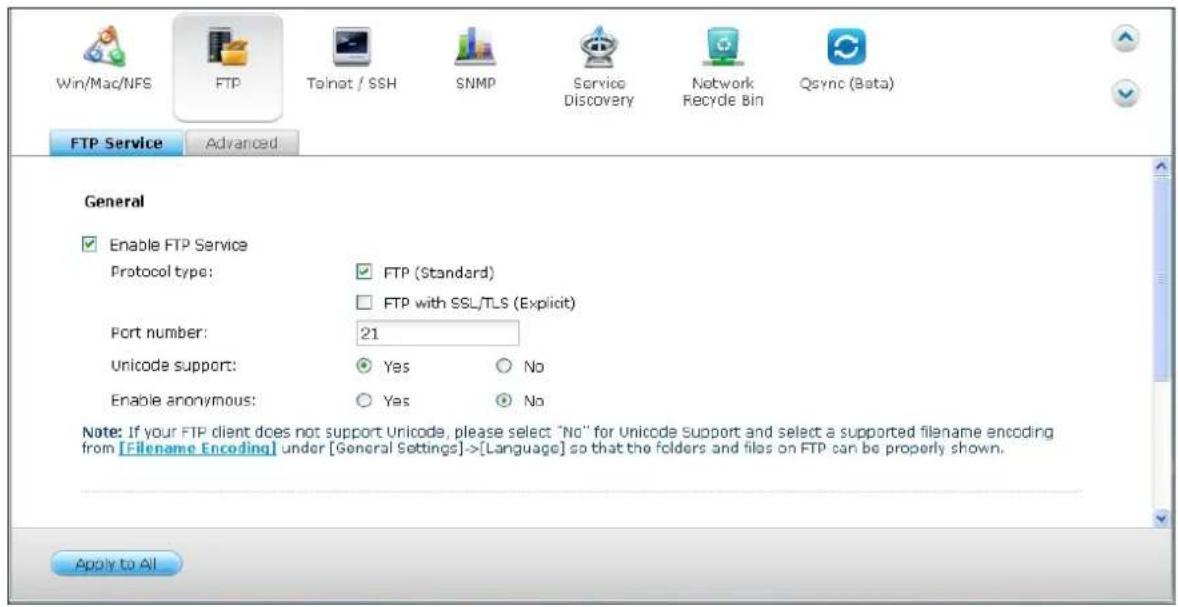
text_image
Win/Mac/NFS FTP Telnet / SSH SNMP Service Discovery Network Recycle Bin Qsync (Beta) FTP Service Advanced General Enable FTP Service Protocol type: FTP (Standard) FTP with SSL/TLS (Explicit) Port number: 21 Unicode support: Yes No Enable anonymous: Yes No Note: If your FTP client does not support Unicode, please select "No" for Unicode Support and select a supported filename encoding from [Filename Encoding] under [General Settings]->[Language] so that the folders and files on FTP can be properly shown. Apply to AllTo use the FTP service of the NAS, enable this function. Open an IE browser and enter ftp://NAS IP. Enter the username and the password to login the FTP service.
Protocol Type:
Select to use standard FTP connection or SSL/TLS encrypted FTP. Select the correct protocol type in your client FTP software to ensure successful connection.
Unicode Support:
Turn on or off the Unicode support. The default setting is No. If your FTP client does not support Unicode, you are recommended to turn off this option and select the language you specify in "General Settings" > "Codepage" so that the file and folder names can be correctly shown. If your FTP client supports Unicode, enable Unicode support for both your client and the NAS.
Anonymous Login:
You can turn on this option to allow anonymous access to the NAS by FTP. The users can connect to the files and folders which are open for public access. If this option is turned off, the users must enter an authorized username and password to connect to
the server.
Advanced

text_image
Win/Mac/NFS FTP Telnet / SSH SNMP Service Discovery Network Recycle Bin Qsync (Beta) FTP Service Advanced Passive FTP port range: Use the default port range Define port range: 55536 - 56559 Respond with external IP address for passive FTP connection request External IP address: Apply to AllPassive FTP Port Range:
You can use the default port range (55536-56559) or specify a port range larger than 1023. When using this function, make sure you have opened the ports on your router or firewall.
Respond with external IP address for passive FTP connection request:
When passive FTP connection is in use, the FTP server (NAS) is behind a router, and a remote computer cannot connect to the FTP server over the WAN, enable this function. When this option is turned on, the NAS replies the IP address you specify or automatically detects the external IP address so that the remote computer is able to connect to the FTP server.
6.3 Telnet/SSH
Turn on this option to connect to the NAS by Telnet or SSH encrypted connection (only the "admin" account can login remotely). Use Telnet or SSH connection clients, for example, putty for connection. Make sure the specified ports have been opened on the router or firewall.
To use SFTP (known as SSH File Transfer Protocol or Secure File Transfer Protocol), make sure the option "Allow SSH connection" has been turned on.
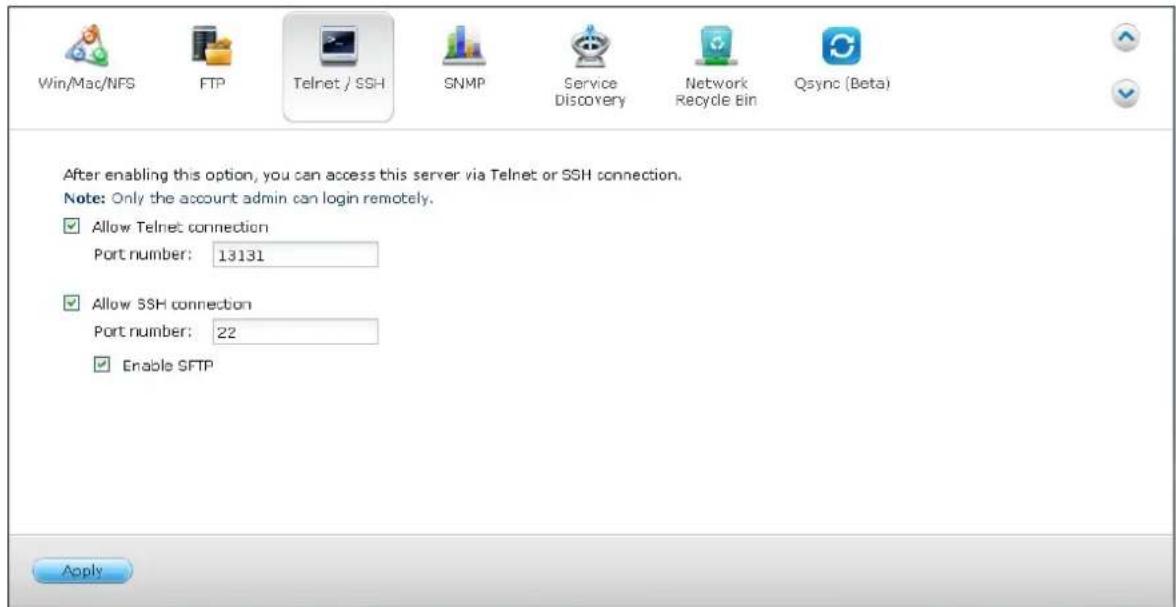
text_image
Win/Mac/NFS FTP Telnet / SSH SNMP Service Discovery Network Recycle Bin Qsync (Beta) After enabling this option, you can access this server via Telnet or SSH connection. Note: Only the account admin can login remotely. ✓ Allow Telnet connection Port number: 13131 ✓ Allow SSH connection Port number: 22 ✓ Enable SFTP Apply6.4 SNMP Settings
Enable SNMP (Simple Network Management Protocol) service on the NAS and enter the trap address of the SNMP management stations (SNMP manager), for example, PC with SNMP software installed. When an event, warning, or error occurs on the NAS, the NAS (SNMP agent) reports the real-time alert to the SNMP management stations.

text_image
Win/Mac/NFS FTP Telnet/SSH SNMP三人服务 Service Discovery Network Recycle Bin Qsync (Beta) SNMP After enabling this service, the NAS will be able to report information via SNMP to the managing systems. ✓ Enable SNMP service Port number: 161 SNMP trap Level: Information Warning Error Trap address 1: Trap address 2: Trap address 3: SNMP version: SNMP V1/V2 Community: public SNMP MIB To install the MIB to your managing systems, click [Download]. Download ApplyThe fields are described as below:
| Field | Description |
| SNMP Trap Level | Select the information to be sent to the SNMP management stations. |
| Trap Address | The IP address of the SNMP manager. Specify maximum 3 trap addresses. |
| SNMP MIB (Management Information Base) | The MIB is a type of database in ASCII text format used to manage the NAS in the SNMP network. The SNMP manager uses the MIB to determine the values or understand the messages sent from the agent (NAS) within the network. You can download the MIB and view it with any word processor or text editor. |
| Community (SNMP V1/V2) | An SNMP community string is a text string that acts as a password. It is used to authenticate messages that are sent between the management station and the NAS. The community string is included in every packet that is transmitted between the SNMP manager and the SNMP agent. |
| SNMP V3 | The NAS supports SNMP version 3. Specify the authentication and privacy settings if available. |
UPnP Discovery Service
When an UPnP device is added to the network, the UPnP discovery protocol allows the device to advertise its services to the control points on the network.
By enabling UPnP Discovery Service, the NAS can be discovered by any operating systems that support UPnP.

text_image
Win/Mac/NFS FTP Telnet / SSH SNMP Service Discovery Network Recycle Bin Qsync (Beta) UPnP Discovery Service Bonjour After enabling this service, your NAS can be discovered by any operating systems that support UPnP. ✓ Enable UPnP Discovery Service Apply Apply to AllBonjour
By broadcasting the network service(s) with Bonjour, your Mac will automatically discover the network services, such as FTP, running on the NAS without the need to enter the IP addresses or configure the DNS servers.
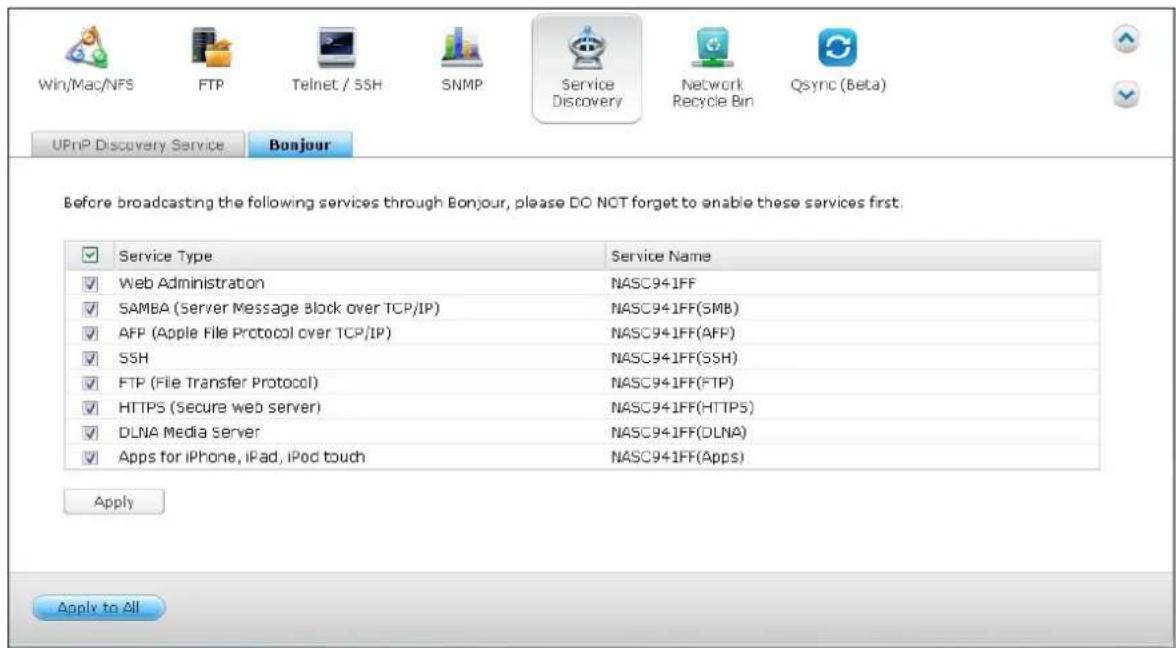
text_image
Win/Mac/NFS FTP Telnet / SSH SNMP Service Discovery Network Recycle Bin Qsync (Beta) UPnP Discovery Service Bonjour Before broadcasting the following services through Bonjour, please DO NOT forget to enable these services first. ✓ Service Type ✓ Web Administration ✓ SAMBA (Server Message Block over TCP/IP) ✓ AFP (Apple File Protocol over TCP/IP) ✓ SSH ✓ FTP (File Transfer Protocol) ✓ HTTPS (Secure web server) ✓ DLNA Media Server ✓ Apps for iPhone, iPad, iPod touch Service Name NASC941FF NASC941FF(SMB) NASC941FF(AFF) NASC941FF(SSH) NASC941FF(FTP) NASC941FF(HTTPS) NASC941FF(DLNA) NASC941FF(Apps) Apply Apply to AllNote: You have to activate the services on their setup pages and then turn them on in this section so that the NAS will advertise this service with Bonjour.
6.6 Network Recycle Bin
The Network Recycle Bin keeps the deleted files on the NAS. Within each shared folder, a dedicated folder by the name @Recycle is created after this feature is enabled. Specify the number of days (1-180) to keep the deleted files and older files deleted will be deleted first. You may also specify the file extensions to be excluded from the bin. Click "Apply" and the NAS will create a shared folder "Network Recycle Bin" automatically. Note that this feature only supports file deletion via Samba, AFP and QNAP File Station.
Empty Network Recycle Bin
To delete all the files in the bin, click "Empty All Network Recycle Bin".
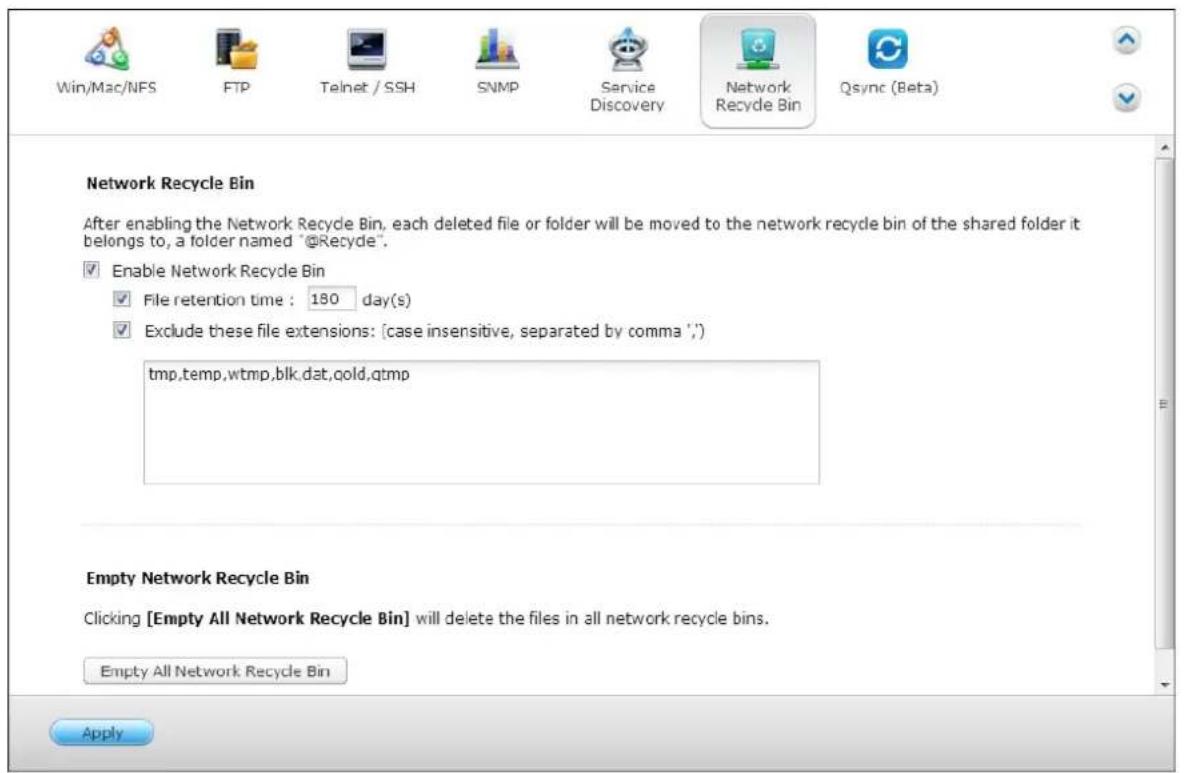
text_image
Win/Mac/NFS FTP Telnet / SSH SNMP Service Discovery Network Recycle Bin Qsync (Beta) Network Recycle Bin After enabling the Network Recycle Bin, each deleted file or folder will be moved to the network recycle bin of the shared folder it belongs to, a folder named "©Recycle". ✓ Enable Network Recycle Bin ✓ File retention time : 180 day(s) ✓ Exclude these file extensions: [case insensitive, separated by comma ';') tmp,temp,wtmp,blk.dat,qold,qtmp Empty Network Recycle Bin Clicking [Empty All Network Recycle Bin] will delete the files in all network recycle bins. Empty All Network Recycle Bin ApplyPlease note that this feature does not support virtual disks or external storage devices (external devices connected to the USB or eSATA port of the NAS.)
To recover deleted files from the Network Recycle Bin, right click the files in the @Recycle folder and select "RECOVER".

text_image
File Station Search More Action NASCF059E Download home homes Multimedia @Recycle Samples Transcode Public Recordings Usb Web tatehuang-nb eMachines (C:) Data (D:) E:\ Qsync Recycle Bin Multimedia > @Recycle > Samples Name Modified Date Type Size @ Transcode 2013/05/14 17:07:15 Folder sample002.jpg 2013/05/13 19:57:53 JPG File 119.72 KB Del (from recycle) RECOVER Empty Recycle Bin Page 1 /1 Display item: 1-3, Total: 2 Show 20 Items Name: sample002.jpg Modified Date: 2013/05/13 19:57:53 Type: jpg File Size: 119.72KBTo permanently delete a file in the recycle bin, right click the file in the @Recycle folder and select "Del (from recycle)".
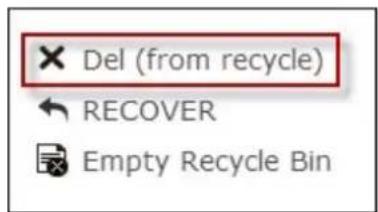
text_image
Del (from recycle) RECOVER Empty Recycle BinTo empty the recycle bin for an individual shared folder, right click inside the recycle bin and select "Empty Recycle Bin".
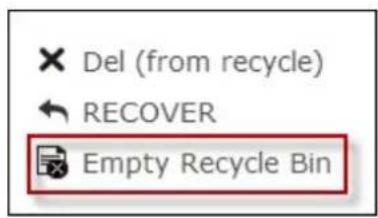
text_image
Del (from recycle) RECOVER Empty Recycle Bin6.7 Qsync
Qsync is a cloud based file synchronization service empowered by QNAP Turbo NAS. Simply add files to your local Qsync folder, and they will be available on your Turbo NAS and all its connected devices.
Before you start
Follow the 3 steps below before Qsync deployment.
- Create user accounts on the NAS,
- Install Qsync on your computers and Qfile on your mobile devices,
- Login the NAS (serving as a Qsync server) from your computers or mobile devices (referred to in this document as "Qsync clients".)
1. Create user accounts on the NAS
Please create user accounts for Qsync users.
For NAS administrator: Please go to "Control Panel" > "Privilege Settings" > "Users" > click "Create".
For NAS users: Please have the system administrator create an account for you.
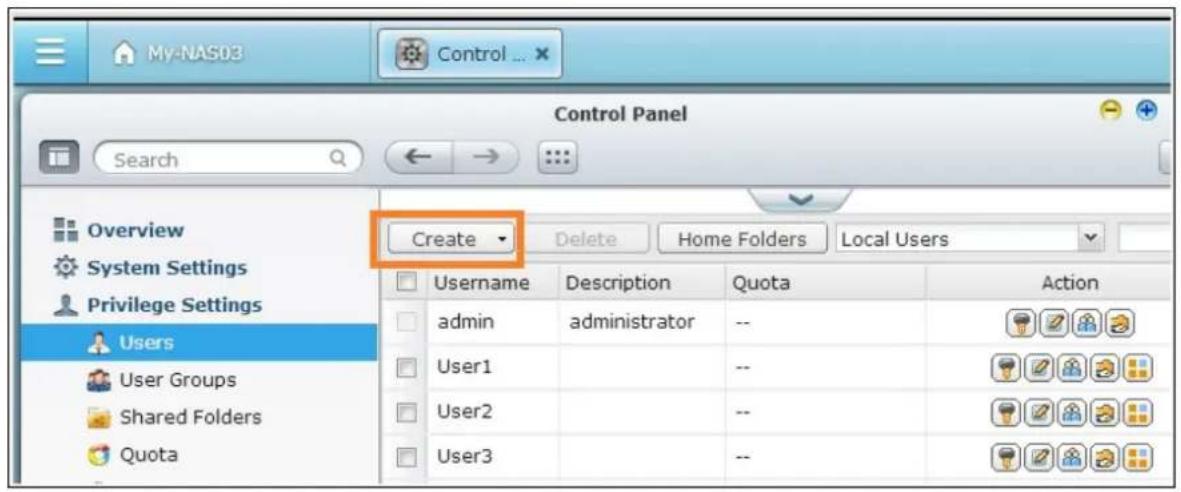
text_image
My-NAS03 Control Panel Search Overview System Settings Privilege Settings Users User Groups Shared Folders Quota Create Delete Home Folders Local Users Username Description Quota Action admin administrator -- User1 -- User2 -- User3 --2. Install Qsync utility
Qsync will synchronize all chosen files on your computers or mobile devices.
Follow the instructions detailed on the "Overview" page to download the utility (Login the NAS > click the Qsync shortcut on the NAS Desktop > "Overview" page,) or download the utility from the QNAP website: "Support" > "Download" > "Utilities".
- For computers, please download the Qsync utility (available for Windows operating
systems.)
- For mobile devices, please download and install Qfile (available for iOS or Android operating systems.)
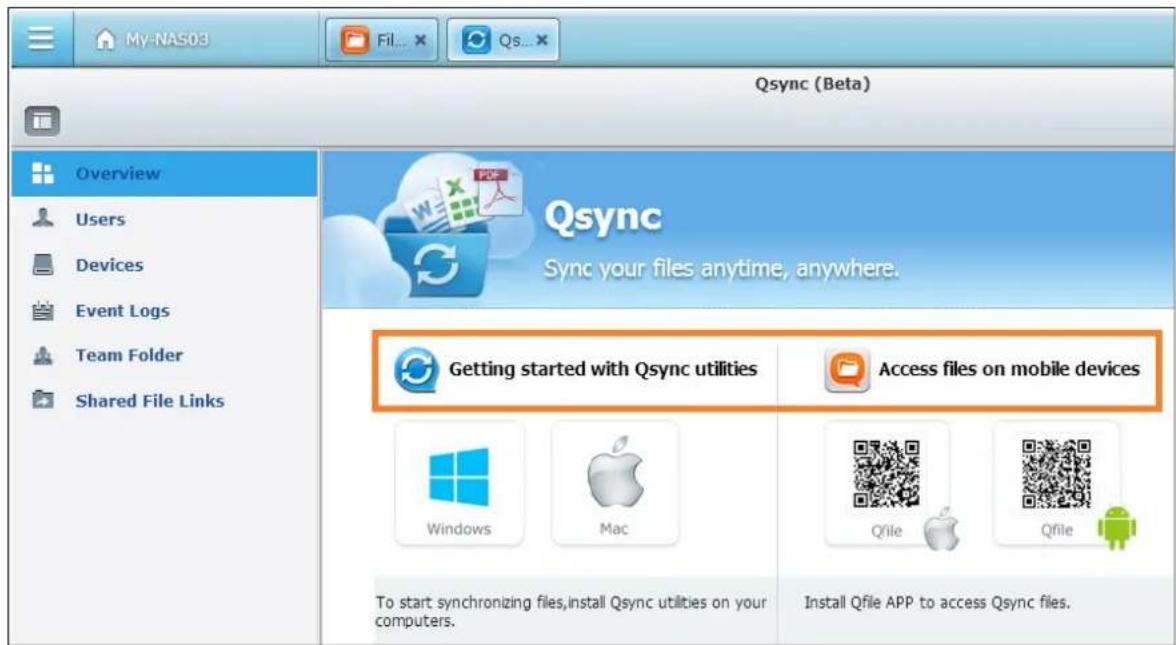
text_image
My-NAS03 Qsync (Beta) Overview Users Devices Event Logs Team Folder Shared File Links Qsync Sync your files anytime, anywhere. Getting started with Qsync utilities Access files on mobile devices Windows Mac To start synchronizing files, install Qsync utilities on your computers. Qfile APP to access Qsync files.3. Login the NAS
After installing the utility, enter the user ID and password and specify the designated NAS as the Qsync server.
To locate the NAS within a LAN environment, simply click "Search" or key in its IP address or name (e.g. IP address: 10.8.1.20 or 192.168.1.100).
To connect to a remote NAS (over the Internet,) please use your myQNAPcloud address to login (e.g. andy@myQNAPcloud.com).
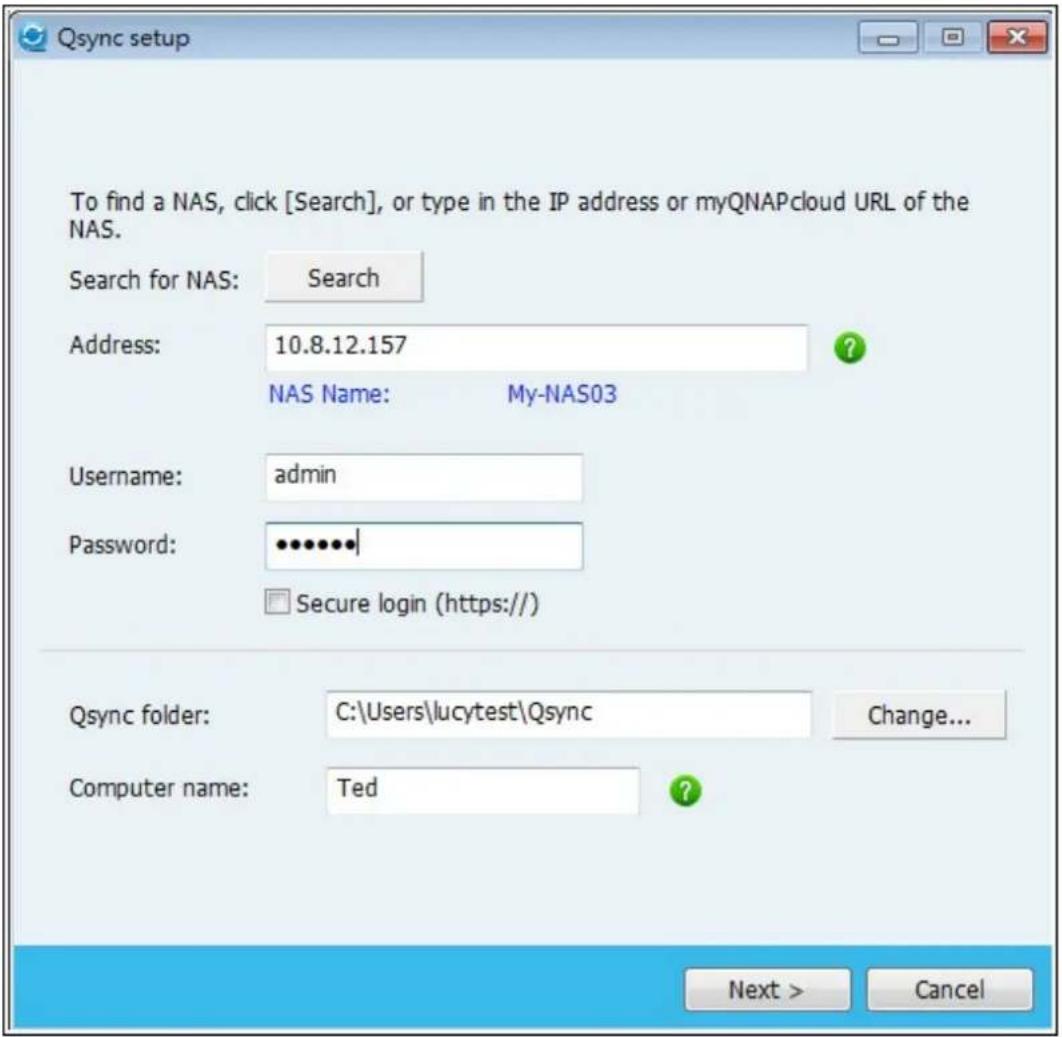
text_image
Qsync setup To find a NAS, click [Search], or type in the IP address or myQNAPcloud URL of the NAS. Search for NAS: Search Address: 10.8.12.157 NAS Name: My-NAS03 Username: admin Password: ••••••• Secure login (https://) Qsync folder: C:\Users\lucytest\Qsync Change... Computer name: Ted ? Next > CancelNote: If the ports have been changed for NAS connection, please add the port number after the IP address; otherwise, please only enter an IP address. (Default port number: 8080)
Start using Qsync
Double click the Qsync shortcut on the Windows desktop to open the Qsync local folder. Click the Qsync icon on the taskbar at bottom right side of the screen to bring up the menu.
Now, copy or move your files to the local Qsync folder in one of your devices, the files will be copied to all your other devices (devices with Qsync installed and are connected to the NAS.)
From now on, there is no need to copy files back and forth between your PC and external devices or worry about the size of the files as you try to attach them to an email.
Synchronization
There are several methods you can synchronize your files. Qsync will automatically synchronize the files among your computers or mobile devices that have Qsync installed, and they will also be synchronized to the Qsync folder on the NAS.
- For PCs, drag and drop files directly to the local Qsync folder.

text_image
Test ▶ Qsync ▶ Organize ▼ Include in library ▼ Share with ▼ Burn New folder Favorites Desktop Downloads Qsync Recent Places Desktop Libraries Documents Photo Share sharefolder- For mobile devices (Qfile), copy or move files into the Qsync folder.
- For the NAS, copy or move files to the Qsync folder via the File Station (web based file explorer).
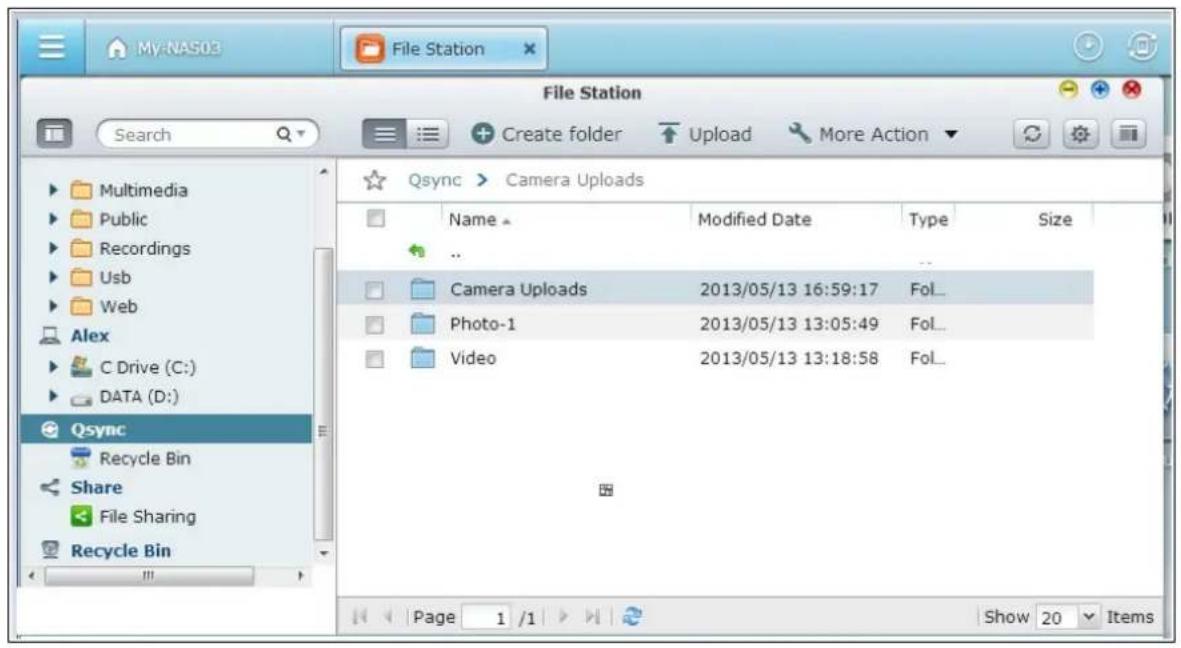
text_image
My-NAS03 File Station File Station Search Create folder Upload More Action Multimedia Public Recordings Usb Web Alex C Drive (C:) DATA (D:) Qsync Recycle Bin Share File Sharing Recycle Bin Qsync > Camera Uploads Name Modified Date Type Size Camera Uploads 2013/05/13 16:59:17 Fol_ Photo-1 2013/05/13 13:05:49 Fol_ Video 2013/05/13 13:18:58 Fol_ Page 1 /1 Show 20 ItemsNote:
- If files are "dragged and dropped" to the Qsync folder, they will be moved to the Qsync folder, instead of being copied into the folder, if the files and the Qsync folder are on the same disk drive. The behavior is the same as the Windows File Explore.
- The maximum size of a single file that Qsync can transmit is 50GB in a LAN.
- Qsync does not support SAMBA, FTP or AFP for files access. Please access files using the File Station or Qsync.
- Qfile can only synchronize the file list and does not download the files to a mobile device. Please download the files when you need them.
Offline editing
You can browse and edit your files offline, and once your device is online, Qsync will synchronize the files you edited offline for you automatically.
Sharing
Share files by download links
You can share files by sending file download links to those who haven't installed Qsync.
For Windows:
- Right click the file that you would like to share in the local Qsync folder and click "Share the link".

text_image
Share the link Delete this folder/file but keep its copy on the NAS Open with Qsync Share with WinZip Restore previous versions Send to Cut Copy Create shortcut Delete Rename Properties Photo_2012_11 Name Food-1.jpg Food-2.jpg IMAG0251.jpg IMG_6167.JPG P1000520.JPG PS060057.JPG Photo_2012_11- Select to send the link via email or copy the link to others.
- Click "Advanced" to check more options for the link, such as creating a SSL link, the expiration date, or password.
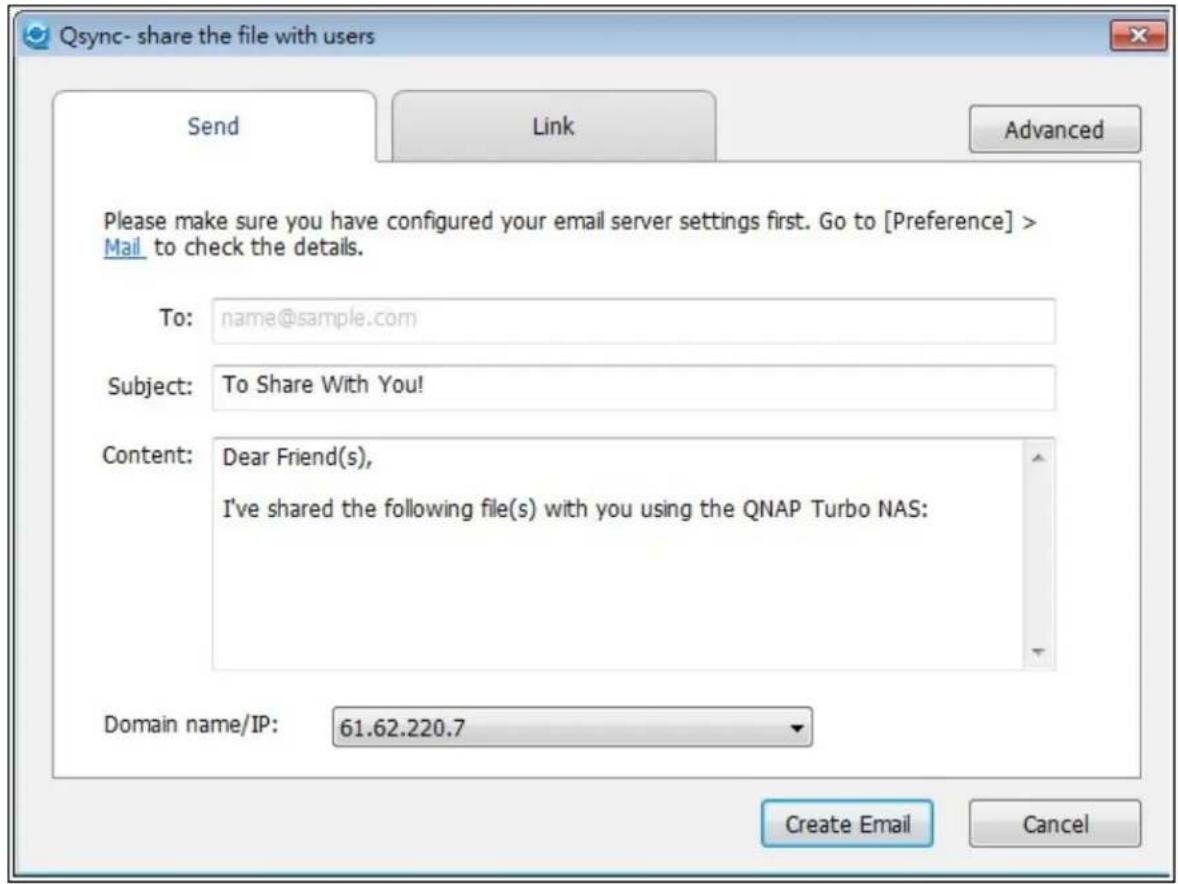
text_image
Qsync- share the file with users Send Link Advanced Please make sure you have configured your email server settings first. Go to [Preference] > Mail to check the details. To: name@sample.com Subject: To Share With You! Content: Dear Friend(s), I've shared the following file(s) with you using the QNAP Turbo NAS: Domain name/IP: 61.62.220.7 Create Email Cancel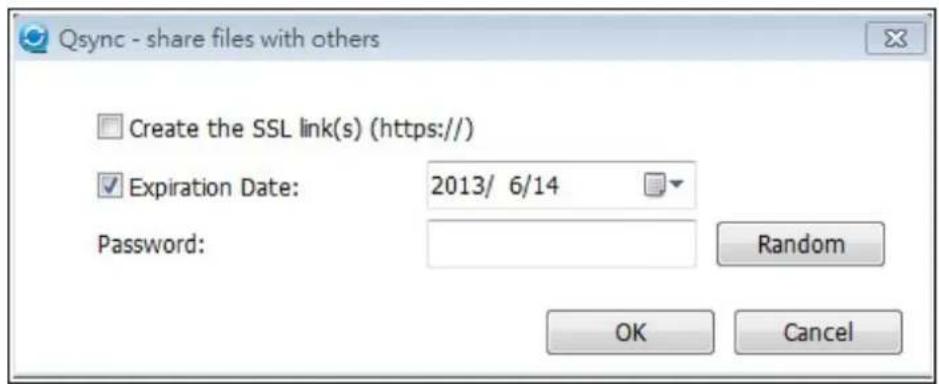
text_image
Qsync - share files with others Create the SSL link(s) (https://) Expiration Date: 2013/ 6/14 Password: Random OK CancelFor the NAS, right click the file that you would like to share in the Qsync folder within the File Station and click "Share".
For mobile devices, launch the Qfile to share the file in the Qsync folder by clicking the icon to the right and click "Share".
The file recipients can click the link or copy and paste it to a web browser to download the file.
Share folders with a group
You can share a folder with a user group. If any member from the group shares the files
in the folder, other members can receive the file.
Steps:
- Create user accounts in the NAS for each group member.
-
Have the Qsync utility installed on each member's device.
-
Right click the folder that you would like to share in the local Qsync folder and click "Share this folder as a team folder".

text_image
Administrator > Qsync > Search Qsync Organize Open Include in library Share with Burn ? My Pictures Name Date modified Type Size My Videos Camera Uploads 5/13/2013 5:33 PM File folder Qsync Photo-1 5/13/2013 5:33 PM File folder Share1 Open folder Video Open in new window folder Qsynq Share this folder as team folder Share with Delete this folder/file but keep its copy on the NAS Restore previous versions Scan for Viruses... Saved Games Searches Share1 Date modified: 5/13/2013 1:56- Select users from the list of local or domain users.

text_image
Qsync- share with users Folder name: Video Local Users Username admin User1 User2 User3 Page 1 / 1 Show 10 items Apply CancelAll members in the group will receive a file sharing invitation. Once accepted, the group members can start to access this shared folder.
Note:
- The team folder will only take effect after users you send the invitation to accept the invitation.
- Users cannot share the team folders which are shared from others again.
Remote access
Access the NAS over the Internet
To connect to a remote NAS (over the Internet), the administrator is required to configure the device name for the NAS in "myQNAPcloud" first (Login the NAS> NAS Desktop > click the myQNAPcloud shortcut.)
Next, notify the users about the myQNAPcloud web address for their remote access. You can then use the myQNAPcloud address to login the remote NAS. (e.g.
andy@myQNAPcloud.com)
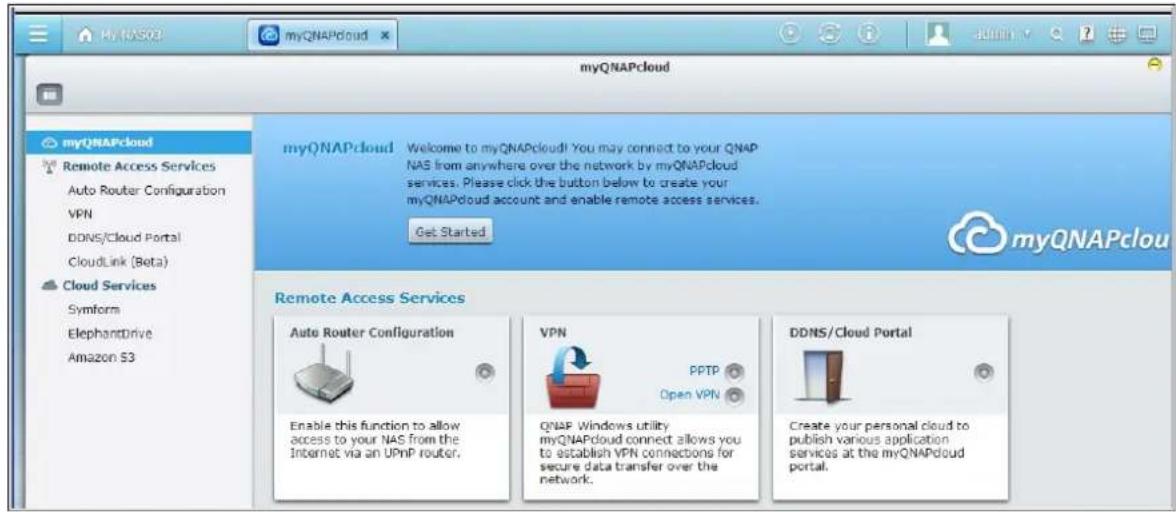
text_image
My NASO myQNAPcloud myQNAPcloud myQNAPcloud Remote Access Services Auto Router Configuration VPN DDNS/Cloud Portal CloudLink (Beta) Cloud Services Symform ElephantDrive Amazon S3 Welcome to myQNAPcloud! You may connect to your QNAP NAS from anywhere over the network by myQNAPcloud services. Please click the button below to create your myQNAPcloud account and enable remote access services. Get Started Remote Access Services Auto Router Configuration Enable this function to allow access to your NAS from the Internet via an UPnP router. VPN PPTP Open VPN DDNS/Cloud Portal QNAP, Windows utility myQNAPcloud connect allows you to establish VPN connections for secure data transfer over the network. Create your personal cloud to publish various application services at the myQNAPcloud portal.Note:
- The connection with the NAS over the Internet will take longer, when compared to a LAN environment.
- As you switch back to a LAN environment where your NAS is located, please connect to the NAS again through LAN, instead of the myQNAPcloud service for better connection quality.
- For better performance on file transmission, it is recommended to configure port forwarding on the router if possible.
Synchronize photos and videos automatically
Qsync can synchronize your photos and videos on mobile devices to the Qsync folder across all Qsync clients automatically.
Steps:
- Install Qfile on your mobile devices by following instructions outlined in the Qsync page on the NAS or find it on the App Store.
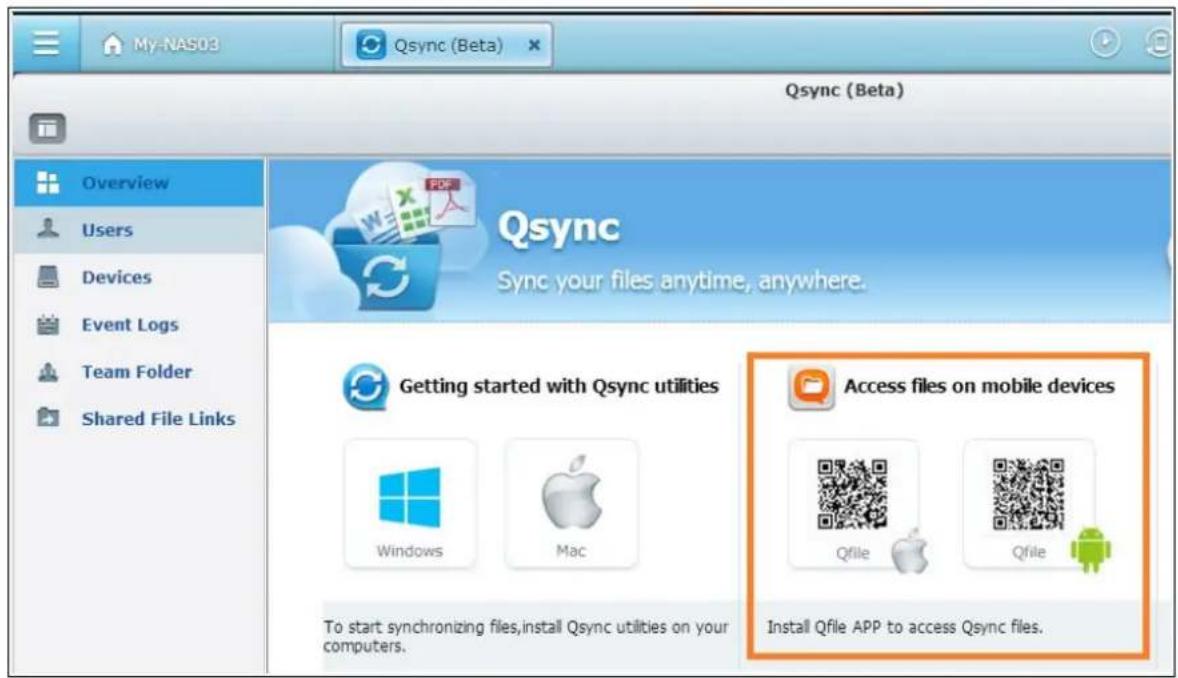
text_image
My-NAS03 Qsync (Beta) Qsync (Beta) Overview Users Devices Event Logs Team Folder Shared File Links Qsync Sync your files anytime, anywhere. Getting started with Qsync utilities Access files on mobile devices Windows Mac To start synchronizing files, install Qsync utilities on your computers. Install Qfile APP to access Qsync files.- Launch Qfile.
- Click "Settings" on the bottom right side of the screen.
- Scroll down and look for "Auto upload from photo gallery" and click "Set up now".
- Select a NAS to upload photos and videos to.
- Select the folder.
- Select "Use default setting" (/Qsync/Camera Uploads) or select "Set up manually" to set the path.
- Select if you want to upload all photos from the photo gallery immediately.
- You can check the checkbox "Limit to Wi-Fi" to upload files through Wi-Fi and avoid possible expenses associated with the 3G usage.
- The uploaded files will be synchronized to the Camera Uploads folder under the Qsync folder on Qsync client devices.
Note: If files uploaded before are deleted from the Camera Uploads folder, the Qfile will not upload those copies in the photo library again.
Click the Qsync icon on the taskbar to see the management functions:
text_image
05:19 2013/5/14
text_image
Open Qsync folder View files by the web browser Sharing & File Update Center Recently changed files My-NAS03 - 24.4 MB used, 145 GB free Pause syncing Sync with NAS now All files are up to date Preferences... Exit- Add files and view the synchronization result on the NAS:
a. Open the Qsync folder: Open the Qsync folder to add files,
b. View files by the web browser: Open the File Station (web based file explorer) and browse files in the Qsync folder on the NAS.
- Control synchronization progress:
a. Pause syncing / Resume syncing: Click to pause or resume file synchronization,
b. Sync with NAS now: Force Qsync to scan again and refresh the synchronization list.
- Information for syncing and sharing:
a. Sharing & File Update Center
i. File Update Center: List the file or folder update logs.
ii. Sharing Center: List the folders or files shared with others. Users can choose to accept or decline the team folders. However, users cannot share team folders that are shared by others.
b. Recently changed files: List the recently updated files.
| Date | Time | Path | File Name | Update From | Operation | Restore |
| 2013-5-14 | 19:55:56 | Qsync\Video | 2.jpg | Local | File added | |
| 2013-5-14 | 19:55:55 | Qsync\Video | 2(Conflicted copy 201... | Local | File added | |
| 2013-5-14 | 19:55:55 | Qsync\Video | 1.jpg | Local | File added | |
| 2013-5-14 | 19:55:54 | Qsync\Video | 1(Conflicted copy 201... | Local | File added | |
| 2013-5-14 | 19:55:53 | Qsync\ | Video | Local | Folder added | |
| 2013-5-14 | 19:55:52 | Qsync\Photo-1 | Photo 2012 11 19 0... | Local | File added | |
| 2013-5-14 | 19:55:52 | Qsync\Photo-1 | P5060057.JPG | Local | File added | |
| 2013-5-14 | 19:55:51 | Qsync\Photo-1 | P1000520.JPG | Local | File added | |
| 2013-5-14 | 19:55:50 | Qsync\Photo-1 | IMG 6167.JPG | Local | File added | |
| 2013-5-14 | 19:55:50 | Qsync\Photo-1 | IMAG0251.jpg | Local | File added |
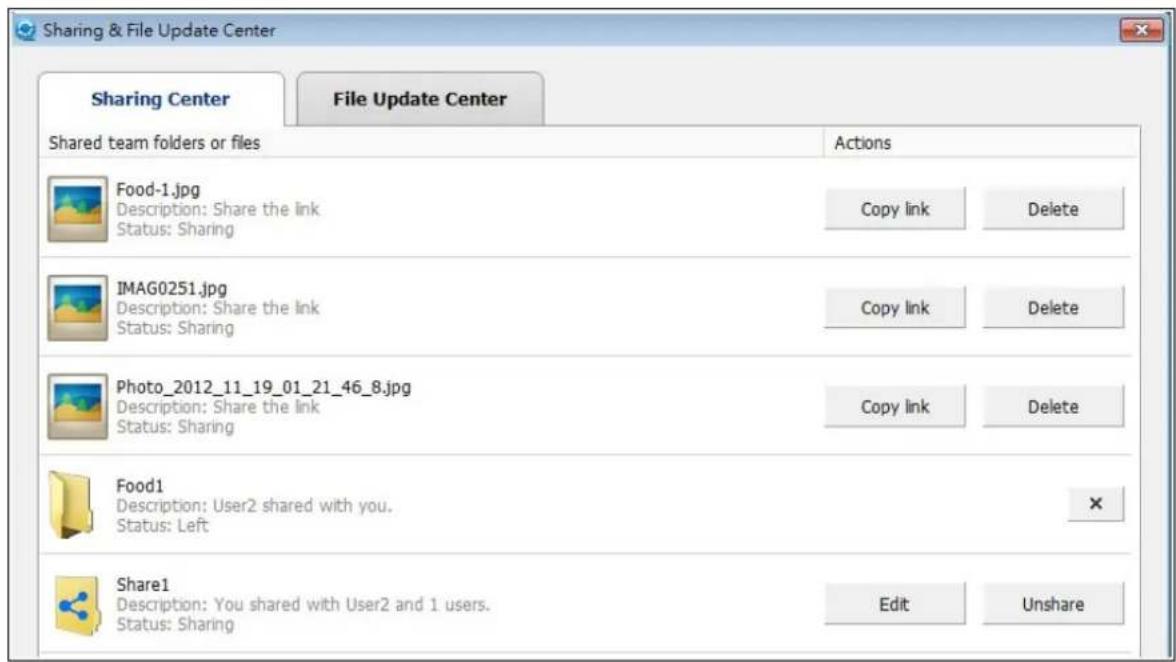
text_image
Sharing & File Update Center Shared center File Update Center Shared team folders or files Actions Food-1.jpg Description: Share the link Status: Sharing Copy link Delete IMAG0251.jpg Description: Share the link Status: Sharing Copy link Delete Photo_2012_11_19_01_21_46_8.jpg Description: Share the link Status: Sharing Copy link Delete Food1 Description: User2 shared with you. Status: Left Share1 Description: You shared with User2 and 1 users. Status: Sharing Edit Unshare4. Preference:
a. General:
i. Link Status: Show the current status. Click "Logout" to change users.
ii. Network Recycle Bin: Browse or recover files deleted from the Qsync folder.

text_image
Qsync preferences General Sync Policy Mail Advanced Link Status NAS Address: My-NAS03 (10.8.12.157) Username: admin Computer name: test Connection status: Connected (LAN) Data path: C:\Users\lucytest\Qsync Logout Sharing Center Visit the Sharing Center and view your shared team folders or files. File Update Center Visit the File Update Center to view the logs of updated files and folders. • View files by the web browser • Network Recycle Bin OK Cancel Applyb. Sync:
i. Selective Synchronization: Select the folder to synchronize to the computers.
ii. Do not remove any files on the NAS when synchronizing: You can remove files within the local Qsync folder, and files deleted from your computer will not be synchronized with the NAS. The NAS still keeps copies of the deleted files.
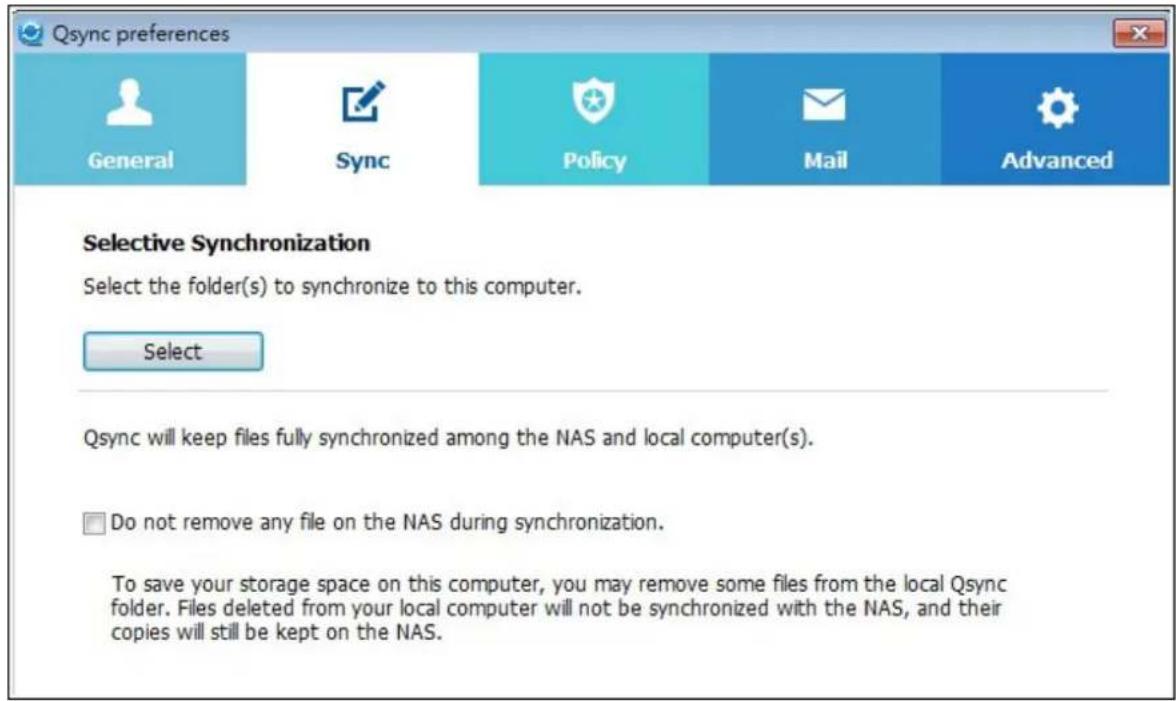
text_image
Qsync preferences General Sync Policy Mail Advanced Selective Synchronization Select the folder(s) to synchronize to this computer. Select Qsync will keep files fully synchronized among the NAS and local computer(s). Do not remove any file on the NAS during synchronization. To save your storage space on this computer, you may remove some files from the local Qsync folder. Files deleted from your local computer will not be synchronized with the NAS, and their copies will still be kept on the NAS.c. Policy:
i. Conflict Policies: The policies for handling the name conflicts between the Qsync server (NAS) and clients after it is back online from its disconnection:
(1).Rename the local file(s),
(2).Rename the remote NAS file(s),
(3).Replace local files with remote NAS file(s),
(4). or Replace remote NAS files with local file(s).
ii. Sharing Policies: The policies of the team folders when other Qsync users share them to this local computer:
(1).Always reject sharing,
(2). Automatically accept sharing, or
(3). Send a notification message once sharing occurs.
iii. Filter Settings: During file synchronization, Qsync will not synchronize the types of files specified in filter settings.
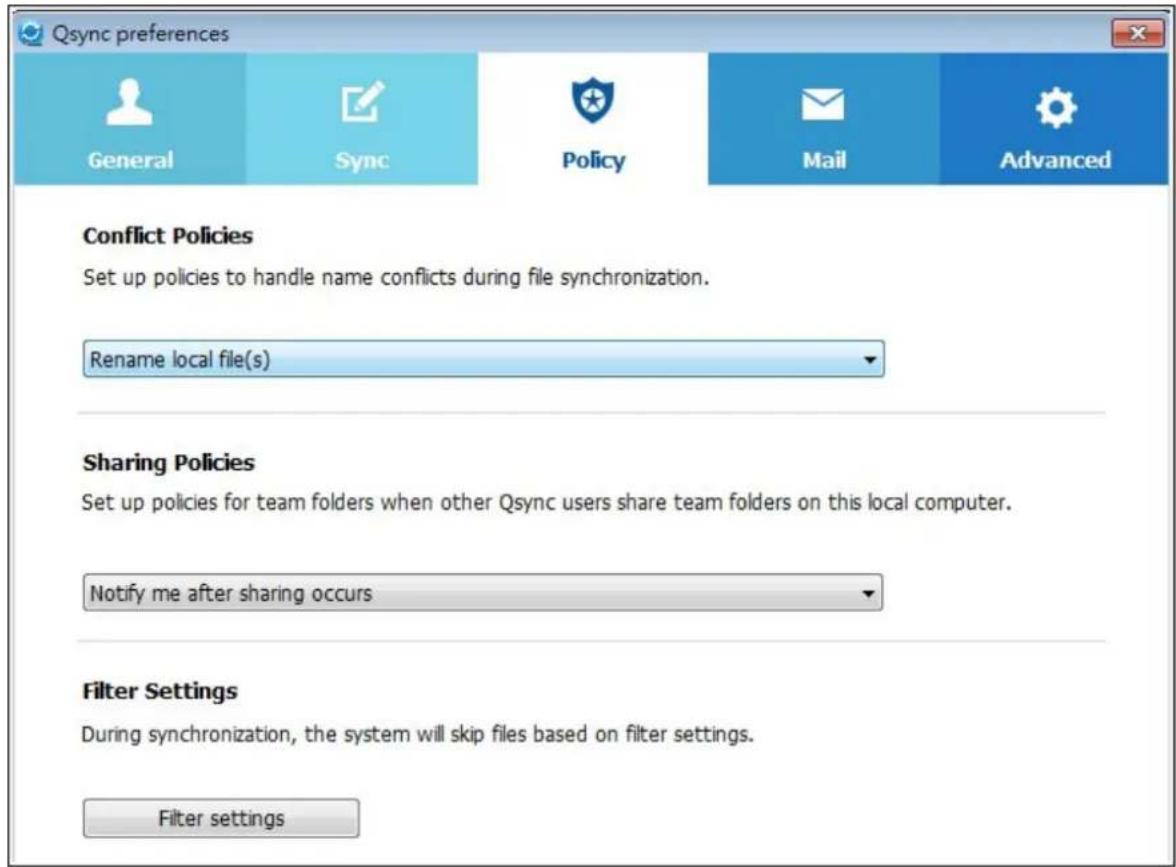
text_image
Qsync preferences General Sync Policy Mail Advanced Conflict Policies Set up policies to handle name conflicts during file synchronization. Rename local file(s) Sharing Policies Set up policies for team folders when other Qsync users share team folders on this local computer. Notify me after sharing occurs Filter Settings During synchronization, the system will skip files based on filter settings. Filter settingsd. Email:
i. Set up E-mail: Set up an email account for sharing file links. You can use the NAS SMTP server settings (for NAS administrators only) or configure a new SMTP server.

text_image
Qsync preferences General Sync Policy Mail Advanced Set up E-mail Set up emails to send links of shared files Use the NAS SMTP server settings (NAS Administrator use only) Configure a new SMTP server ? Sender E-mail address: Enable SMTP authentication Username: Password: Advanced Send a test email to myself: Sende. Advanced:
i. Import photos and videos: Import photos and videos when an USB external device is connected. This feature only applies to photos and videos located in the DCIM folder in the root directory of the USB external device.

text_image
Qsync preferences General Sync Policy Mail Advanced Import Photos and Videos ✓ Import photos and videos when there are USB external devices connected Change AutoPlay Settings Startup Settings ✓ Launch Qsync at startup Language English About QNAP Qsync 1.0.0.1714 ©2013 QNAP Systems, Inc. All rights reserved.Managing or monitoring Qsync status via web browser
Login the NAS via a web browser and click the Qsync button.
- Overview: Provide links to install the utility and to File Station and list the total number of online users and devices. You can also choose to enable or disable the Qsync service (for administrators only.)

text_image
Qsync (Beta) Overview Users Devices Event Logs Team Folder Shared File Links Qsync Sync your files anytime, anywhere. Enabled Online Users : 1 Online Devices : 3 Getting started with Qsync utilities Access files on mobile devices Manage Qsync files from browser Windows Mac Qtile Qtile To start synchronizing files, install Qsync utilities on your computers. Install Qtile APP to access Qsync files. Manage Qsync files or restore deleted files from browser Synchronizing over internet- Users: List information of online users, and you can manage the Qsync service for users (for administrators only.)
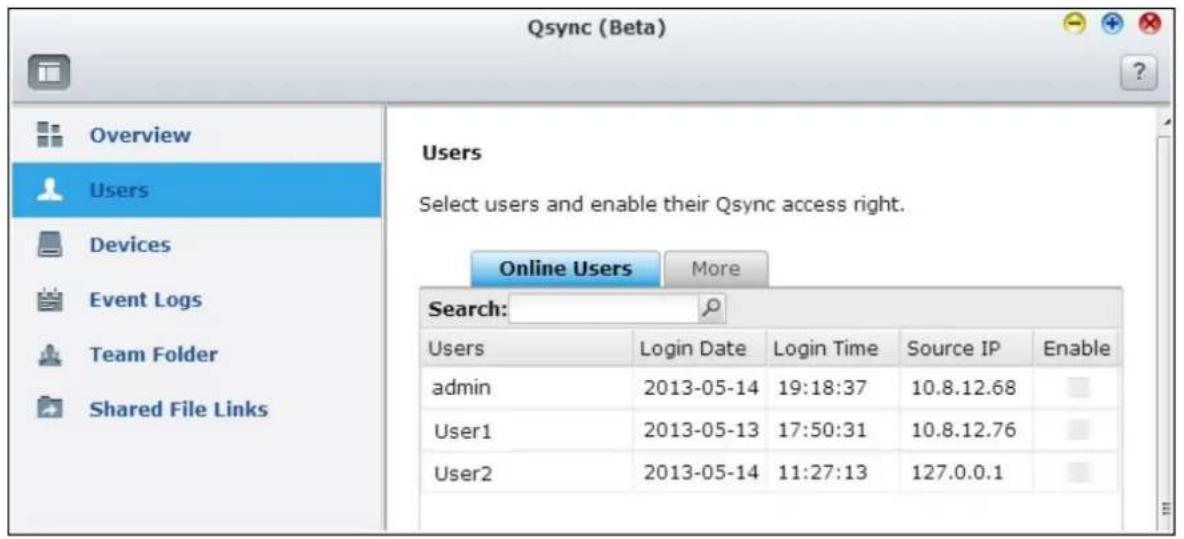
text_image
Qsync (Beta) Overview Users Devices Event Logs Team Folder Shared File Links Users Select users and enable their Qsync access right. Online Users More Search: Users Login Date Login Time Source IP Enable admin 2013-05-14 19:18:37 10.8.12.68 User1 2013-05-13 17:50:31 10.8.12.76 User2 2013-05-14 11:27:13 127.0.0.1- Devices: List the status of connected devices and you can choose to allow or terminate connection of the devices.
i. If users login from their PC, the name of the device will be shown as their computer name.
ii. If users login from Qfile, the name of the device will be shown as "Qfile-Android" or "Qfile-iPhone".
iii. If users move or copy files to the Qsync folder in the File Station, the name of the device will be shown as "Qsync-File Station".

text_image
Qsync (Beta) Overview Users Devices Event Logs Team Folder Shared File Links Devices You can check the connection status of devices from the list below. Select User: Local Users admin Search: Device: Content Search Devices IP Latest Event Event Time Connectionwerin Action ALEX 10.8.12.53 Logged out 2013-05-08 20:13:07 Disconnect JO-VAIO 192.168.68.34 Logged out 2013-05-09 20:10:14 Disconnect Qfile-iPad 10.8.12.18 Logged in 2013-05-13 18:36:27 Disconnect Qsync-File Station 10.8.12.68 Logged in 2013-05-13 16:51:46 Disconnect TEST1225 10.8.12.76 Finished synd... 2013-05-13 17:56:10 Connect ... USER-PC 127.0.0.1 Finished synd... 2013-05-14 17:58:02 Connect ... test 10.8.12.68 Finished synd... 2013-05-14 19:18:46 Connect ...- Event Logs: List the activity details by each user.

text_image
Qsync (Beta) Overview Users Devices Event Logs Team Folder Shared File Links Event Logs Check the activities of Qsync. Select User: Local Users admin Search: Device: Content Search Action: Start Time Device Action Details IP 2013-05-14 19:... test Finished syncing Synced 0 files 10.8.12.6 2013-05-14 19:... test Started syncing Started sync 10.8.12.6 2013-05-14 19:... test Logged in Logged in 10.8.12.6 2013-05-14 19:... test Logged out Logged out 10.8.12.6 2013-05-14 19:... test Finished syncing Synced 0 files 10.8.12.6 2013-05-14 19:... test Started syncing Started sync 10.8.12.6 2013-05-14 19:... test Logged in Logged in 10.8.12.6 2023-05-14 19:... test Logged out Logged out 10.8.12.6- Team folder: List the status of the team folder, including folders that you shared
and are shared by others.
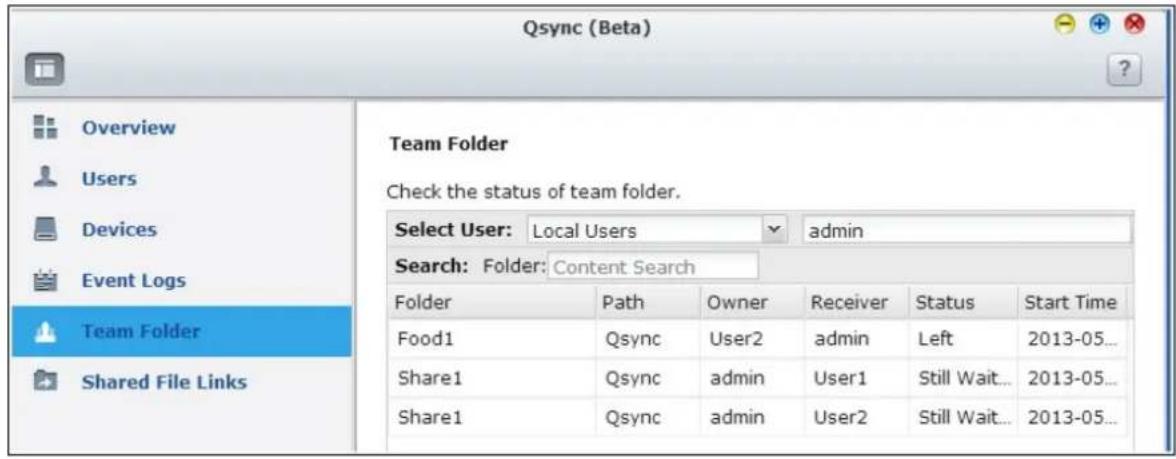
text_image
Qsync (Beta) Overview Users Devices Event Logs Team Folder Shared File Links Team Folder Check the status of team folder. Select User: Local Users admin Search: Folder: Content Search Folder Path Owner Receiver Status Start Time Food1 Qsync User2 admin Left 2013-05... Share1 Qsync admin User1 Still Wait... 2013-05... Share1 Qsync admin User2 Still Wait... 2013-05...- Shared File Links: List the status of shared links.
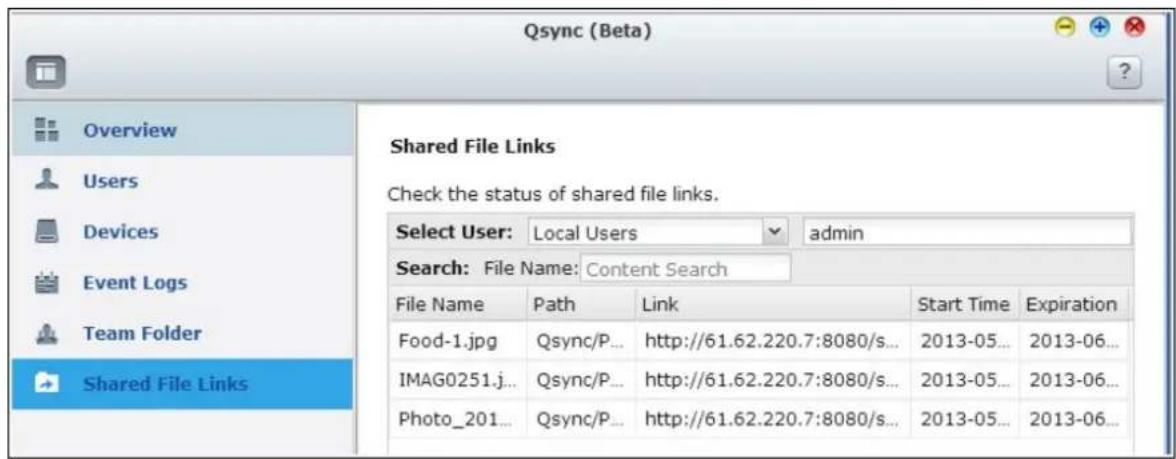
text_image
Qsync (Beta) Overview Users Devices Event Logs Team Folder Shared File Links Shared File Links Check the status of shared file links. Select User: Local Users admin Search: File Name: Content Search File Name Path Link Start Time Expiration Food-1.jpg Qsync/P... http://61.62.220.7:8080/s... 2013-05... 2013-06... IMAG0251.j... Qsync/P... http://61.62.220.7:8080/s... 2013-05... 2013-06... Photo_201... Qsync/P... http://61.62.220.7:8080/s... 2013-05... 2013-06...7. Applications
Station_Manager427
iTunes Server 435
DLNA Media Server437
Media_Library439
Web Server444
LDAP Server469
VPN Service 473
MySQL Server489
Syslog Server491
Antivirus498
RADIUS Server509
TFTP Server 513
7.1 Station Manager
The Station Manager is an integrated control panel for all QNAP Stations and they can be enabled or disabled here.
Photo Station
Check "Enable Photo Station" to enable this station and click the links below to directly login to the application.
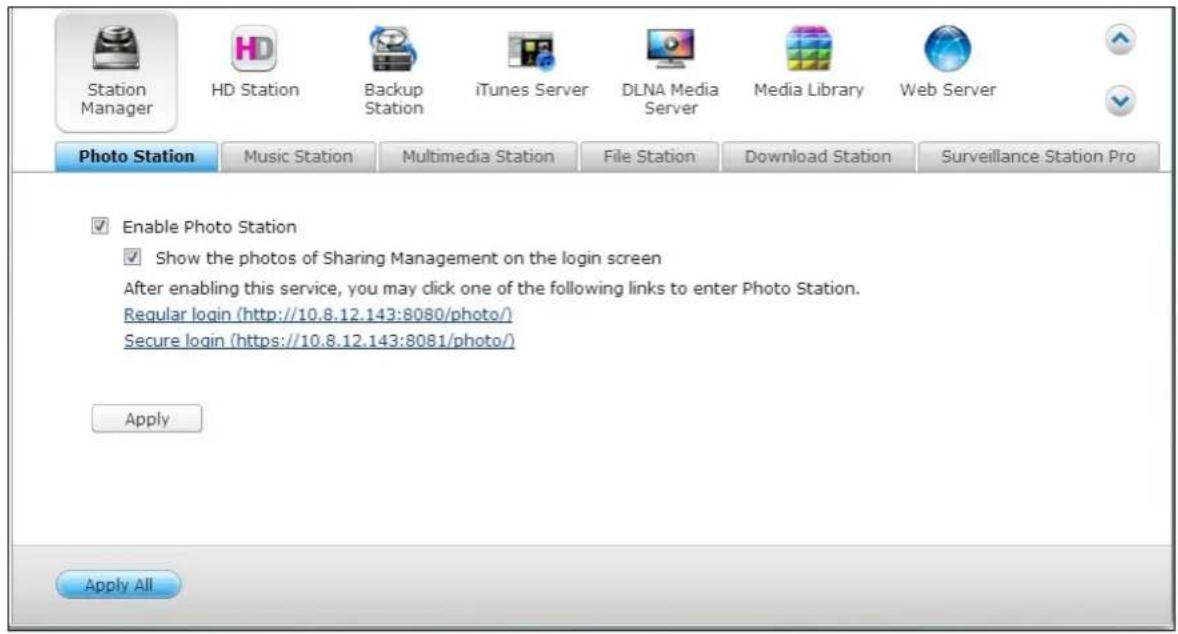
text_image
Station Manager HD Station Backup Station iTunes Server DLNA Media Server Media Library Web Server Photo Station Music Station Multimedia Station File Station Download Station Surveillance Station Pro Enable Photo Station Show the photos of Sharing Management on the login screen After enabling this service, you may click one of the following links to enter Photo Station. Regular login (http://10.8.12.143:8080/photo/) Secure login (https://10.8.12.143:8081/photo/) Apply Apply AllCheck "Show the photos of Sharing Management on the login screen" to display photo albums on the login page. This will allow users to directly view the photos of the chosen album as a guest.

text_image
ONAP QTS 4.0.1 Turbo System Driver set Password Sensitibal nu Secure sign
text_image
Adobe Photoshop Adobe 搜索工具 SearchButton: 1 , Vertical: 11Please note that the Photo Station can only be launched after it is enabled in the Station Manager.
For details on the Photo Station, please refer to the chapter on Photo Station. [623]
Note: Photo Station 2 will remain installed after the NAS firmware is upgraded to QTS 4.0.
Music Station
Check "Enable Music Station" to enable this station and click the links below to directly login to the application.

text_image
Station Manager Backup Station iTunes Server DLNA Media Server Media Library Web Server LDAP Server VPN Service Photo Station Music Station Multimedia Station File Station Download Station Surveillance Station Pro Enable Music Station After enabling this service, you may click one of the following links to enter Music Station. Regular login (http://192.168.0.17:80/musicstation/) Secure login (https://192.168.0.17:8081/musicstation/) Apply Apply to AllPlease note that the Music Station can only be launched after it is enabled in the Station Manager.
For details on the Music Station, please refer to the chapter on Music Station. 638
Multimedia Station
Check "Enable Multimedia Station" to enable this station and click the links below to directly login to the application.
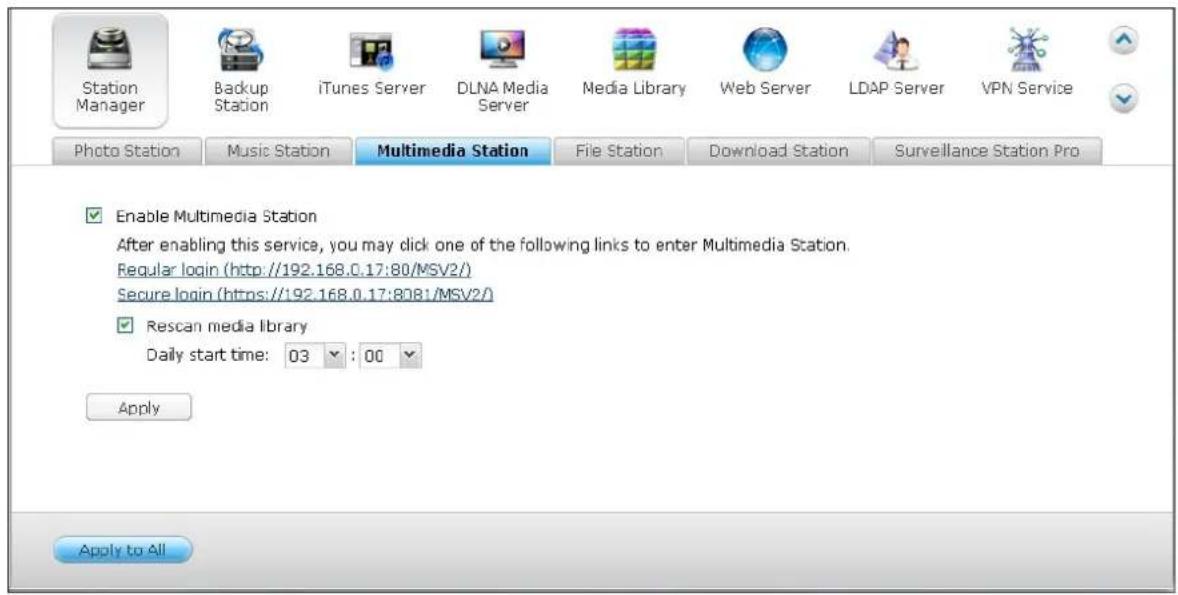
text_image
Station Manager Backup Station iTunes Server DLNA Media Server Media Library Web Server LDAP Server VPN Service Photo Station Music Station Multimedia Station File Station Download Station Surveillance Station Pro Enable Multimedia Station After enabling this service, you may click one of the following links to enter Multimedia Station. Regular login (http://192.168.0.17:80/MSV2/) Secure login (https://192.168.0.17:8081/MSV2/) Rescan media library Daily start time: 03 : 00 Apply Apply to AllTo schedule routine scans on the Media Library, check "Rescan Media Library" and specify the start time for the daily scan.
Please note that the Music Station can only be launched after it is enabled in the Station Manager.
For details on the Multimedia Station, please refer to the chapter on Multimedia Station [644].
File Station
Check "Enable File Station" to enable this station and click the links below to directly login into the application.
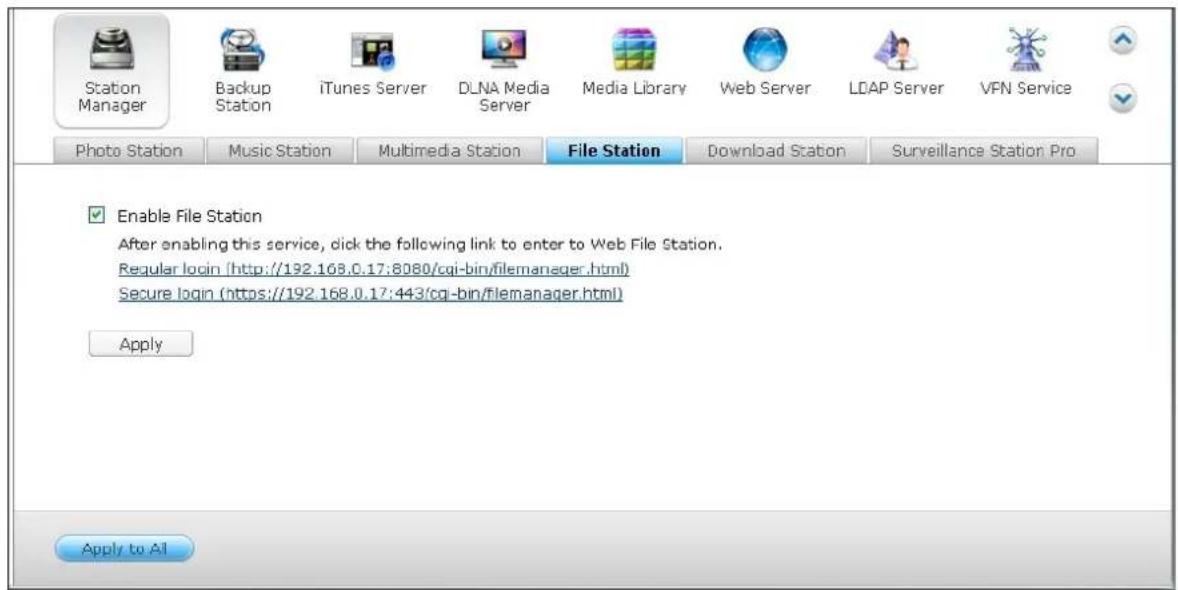
text_image
Station Manager Backup Station iTunes Server DLNA Media Server Media Library Web Server LDAP Server VPN Service Photo Station Music Station Multimedia Station File Station Download Station Surveillance Station Pro Enable File Station After enabling this service, click the following link to enter to Web File Station. Regular login (http://192.168.0.17:8080/cgi-bin/filemanager.html) Secure login (https://192.168.0.17:443/cgi-bin/filemanager.html) Apply Apply to AllPlease note that the File Station can only be launched after it is enabled in the Station Manager.
For details on the File Station, please refer to the chapter on File Station . [599]
Download Station
Check "Enable Download Station" to enable this station and click the links below to directly login to the application.
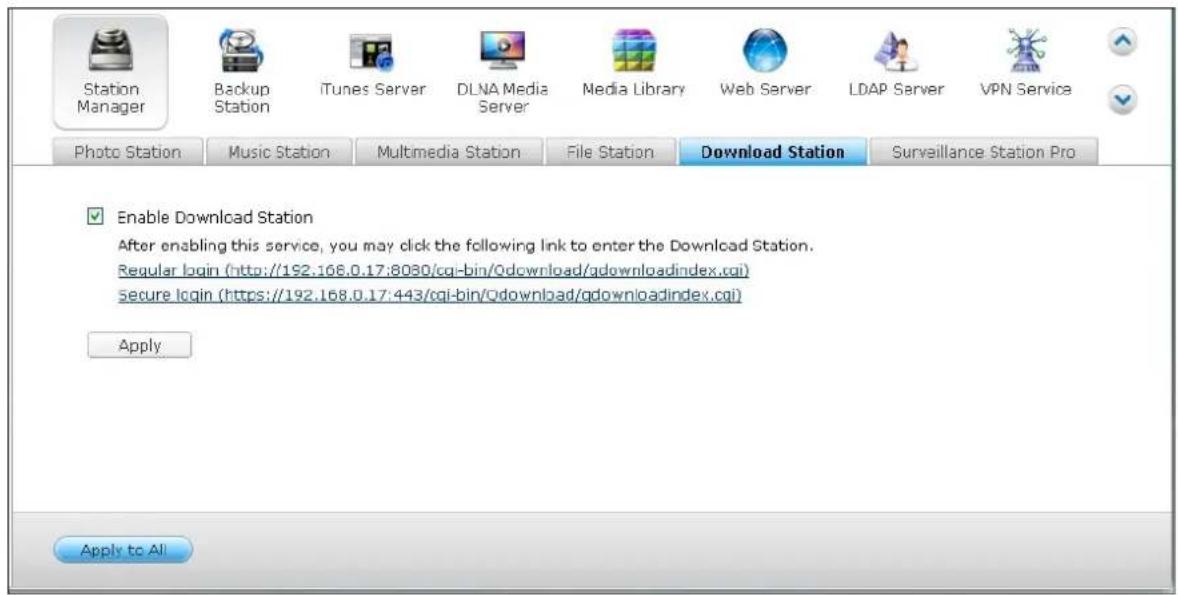
text_image
Station Manager Backup Station iTunes Server DLNA Media Server Media Library Web Server LDAP Server VPN Service Photo Station Music Station Multimedia Station File Station Download Station Surveillance Station Pro Enable Download Station After enabling this service, you may click the following link to enter the Download Station. Regular login (http://192.168.0.17:8030/cgi-bin/Qdownload/qdownloadindex.cgi) secure login (https://192.168.0.17:443/cgi-bin/Qdownload/qdownloadindex.cgi) Apply Apply to AllPlease note that the Download Station can only be launched after it is enabled in the Station Manager.
For details on the Download Station, please refer to the chapter on Download Station . 6721
Surveillance Station Pro
Check "Enable Surveillance Station" under "Settings" to enable this station and click the links below to directly login to the application.
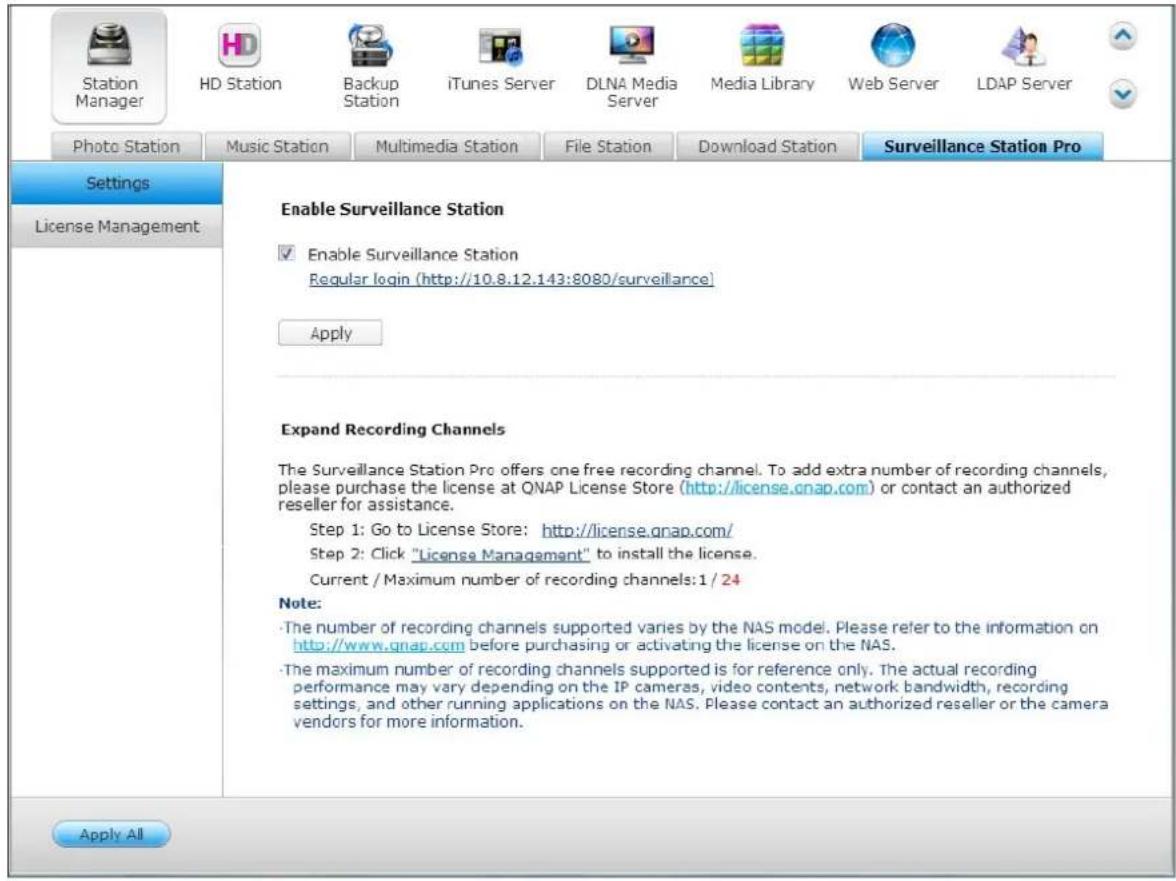
text_image
Station Manager HD Station Backup Station iTunes Server DLNA Media Server Media Library Web Server LDAP Server Photo Station Music Station Multimedia Station File Station Download Station Surveillance Station Pro Settings License Management Enable Surveillance Station ✓ Enable Surveillance Station Regular login (http://10.8.12.143:8080/surveillance) Apply Expand Recording Channels The Surveillance Station Pro offers one free recording channel. To add extra number of recording channels, please purchase the license at QNAP License Store (http://license.cnap.com) or contact an authorized reseller for assistance. Step 1: Go to License Store: http://license.cnap.com/ Step 2: Click "License Management" to install the license. Current / Maximum number of recording channels: 1 / 24 Note: • The number of recording channels supported varies by the NAS model. Please refer to the information on http://www.cnap.com before purchasing or activating the license on the NAS. • The maximum number of recording channels supported is for reference only. The actual recording performance may vary depending on the IP cameras, video contents, network bandwidth, recording settings, and other running applications on the NAS. Please contact an authorized reseller or the camera vendors for more information. Apply AllThe Surveillance Station Pro offers one free recording channel. To add extra recording channels, please purchase the license at QNAP License Store (http://license.qnap.com) or contact the authorized reseller at your region for details.
Note:
- The number of recording channels supported varies by the NAS model. Please refer to the QNAP License Store (http://license.qnap.com/) for details before purchasing or activating the license on the NAS.
-
The maximum number of recording channels supported is for reference only. The actual recording performance may vary depending on the IP cameras, video contents, network bandwidth, recording settings, and other applications running on the NAS. Please contact an authorized reseller or camera vendors for more information.
-
For step-by-step tutorial on adding extra channels, please refer to the QNAP website (Resource > Tutorials > "How to support additional recording channels on Surveillance Station Pro?").
- Windows users are advised to use IE 10, Chrome or Firefox for live view and playback operations.
- Mac users are recommended to use QNAP Surveillance Client for Mac for live view and playback operations. QNAP Surveillance Client for Mac can be downloaded at http://www.qnap.com/download.
To check on license details, switch to the "License Management" page.

text_image
Station Manager Backup Station iTunas Server DLNA Media Server Media Library Web Server LDAP Server VPN Service Photo Station Music Station Multimedia Station File Station Download Station Surveillance Station Pro Settings License Management System UDI:1FF000NOC9489BQNAP0000 Install License License Name License ID PAK Channel N... Expire Days Status Action Surveillance Station Pro - 1 Channe... TS-CAM-BS-01 -- 1 -- Activat... Display item: 1-1, Total: 1 | Show 10 Items Apply to All7.2 iTunes Server
The MP3 files on the Qmultimedia/Multimedia folder of the NAS can be shared to iTunes by this service. All the computers with iTunes installed on LAN are able to find, browse, and play the shared music files on the NAS.
To use iTunes Server, install iTunes (www.apple.com/itunes/) on your computer. Enable this feature and then upload the music files to the Qmultimedia/Multimedia folder of the NAS.

text_image
Station Manager Backup Station iTunes Server DLNA Media Server Media Library Web Server LDAP Server VPN Service After enabling iTunes server, all the iTunes clients on the same subnet can play the music files in "Multimedia" folder on the server. Enable iTunes Server After enabling this service, click the following link to enter iTunes Web Server configuration page. http://192.168.0.17:3689/ Username: admin Password: ...... ApplyNote: iTunes Server may be disabled or hidden on the following business models: TS-x70U, TS-x79 Pro and TS-x79U. To enable iTunes server, please refer to "System Administration" in the General Settings section.
To configure the iTunes server settings and add smart playlists, login the web page of iTunes server:
http://NAS-IP:3689/index.html

text_image
Firefly The best open-source media server for the Roku SoundBridge and iTunes Configuration Show advanced config Server Config File Location /mnt/HDA_ROOT/.config/mt-daapd.conf Server Name KenTest659(iTunes) The name iTunes and other daap clients should see Logfile Admin password admin The password for this administration interface. Music Password The password clients need to access this server. Music Files Music Folder /share/Multimedia Remove Music Folder /share/Public Remove Add music folder Extensions .mp3,.m4a,.m4p,.aif,.wav., Playlist File Database Scan Type 0 - Normal Rescan Interval 180 How often should Firefly look for new files? In seconds. Always Scan No Save CancelConnect the PC and the NAS to the same LAN and run iTunes on the PC. Find the NAS name under "SHARED" and start to play the music files or playlists.
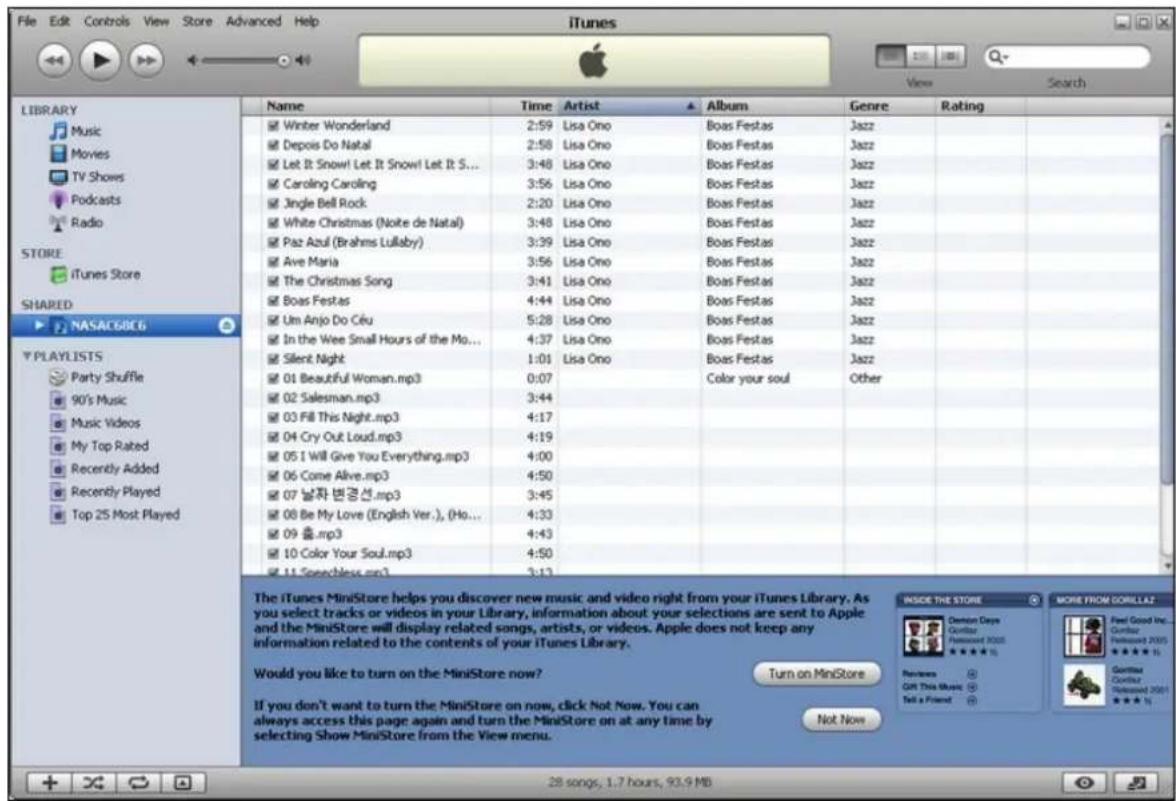
text_image
File Edit Controls View Store Advanced Help iTunes View Search Library Music Movies TV Shows Podcasts Radio STORE iTunes Store SHARED NASAC680G PLAYLISTS Party Shuffle 90's Music Music Videos My Top Rated Recently Added Recently Played Top 25 Most Played Name Time Artist Album Genre Rating Winter Wonderland 2:59 Lisa Ono Boas Festas Jazz Depois Do Natal 2:58 Lisa Ono Boas Festas Jazz Let It Snow! Let It Snow! Let It S... 3:48 Lisa Ono Boas Festas Jazz Caroling Caroling 3:56 Lisa Ono Boas Festas Jazz Jingle Bell Rock 2:20 Lisa Ono Boas Festas Jazz White Christmas (Noite de Natal) 3:48 Lisa Ono Boas Festas Jazz Paz Azul (Brahms Lullaby) 3:39 Lisa Ono Boas Festas Jazz Ave Maria 3:56 Lisa Ono Boas Festas Jazz The Christmas Song 3:41 Lisa Ono Boas Festas Jazz Boas Festas 4:44 Lisa Ono Boas Festas Jazz Um Anjo Do Céu 5:28 Lisa Ono Boas Festas Jazz In the Wee Small Hours of the Mo... 4:37 Lisa Ono Boas Festas Jazz Silent Night 1:01 Lisa Ono Boas Festas Jazz 01 Beautiful Woman.mp3 0:07 Color your soul Other 02 Salesman.mp3 3:44 03 Fill This Night.mp3 4:17 04 Cry Out Loud.mp3 4:19 05 I Will Give You Everything.mp3 4:00 06 Come Alive.mp3 4:50 07 날자 변공선.mp3 3:45 08 Be My Love (English Ver.), Ho... 4:33 09 mb.mp3 4:43 10 Color Your Soul.mp3 4:50 11 Speechless.mp3 3:13 The iTunes MiniStore helps you discover new music and video right from your iTunes Library. As you select tracks or videos in your Library, information about your selections are sent to Apple and the MiniStore will display related songs, artists, or videos. Apple does not keep any information related to the contents of your iTunes Library. Would you like to turn on the MiniStore now? Turn on MiniStore If you don't want to turn the MiniStore on now, click Not Now. You can always access this page again and turn the MiniStore on at any time by selecting Show MiniStore from the View menu. Not Now INSIDE THE STORE Demon Days Curtier Personal Music ★★★★☆ Reinforces Gift This Music Tell a Friend MORE FROM GORILLAT Feel Good Inc... Curtier Personal Music ★★★★☆7.3 DLNA Media Server
QNAP Turbo NAS supports two types of DLNA Media Servers: QNAP Media Server and Twonky Media DLNA Server.
QNAP Media Server is developed by QNAP, while Twonky Media DLNA Server is a third party media server.
To allow DLNA media player to access and play the multimedia contents on the NAS via QNAP Media Server, enable QNAP Media Server and configure the Media Library for QNAP Media Server.
To allow DLNA media players to access and play the multimedia contents on the NAS via the Twonky Media DLNA Server, enable it and click the link (http://NAS IP:9000/) to enter the configuration page of the TwonkyMedia DLNA DLNA Media Server.
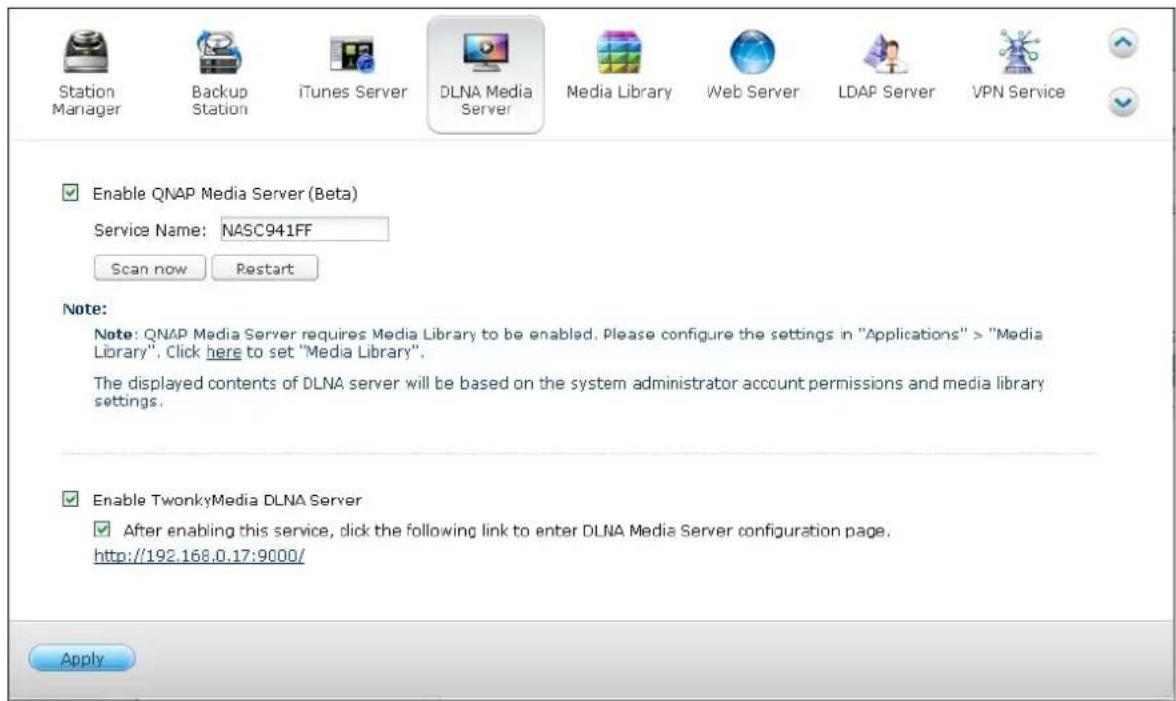
text_image
Station Manager Backup Station iTunes Server DLNA Media Server Media Library Web Server LDAP Server VPN Service Enable QNAP Media Server (Beta) Service Name: NASC941FF Scan now Restart Note: Note: QNAP Media Server requires Media Library to be enabled. Please configure the settings in "Applications" > "Media Library". Click here to set "Media Library". The displayed contents of DLNA server will be based on the system administrator account permissions and media library settings. Enable TwonkyMedia DLNA Server After enabling this service, click the following link to enter DLNA Media Server configuration page. http://192.168.0.17:9000/ ApplyClick the link http://NAS IP:9000/. Go to "TwonkyMedia Settings" > "Basic Setup" to configure the basic server settings.
The contents on the Qmultimedia or Multimedia folder of the NAS will be shared to the digital media players by default. You can go to "Basic Setup" > "Sharing" > "Content Locations" to change the folder or add more folders.
After configuring the settings, you can upload MP3, photos, or video files to the specified folders on the NAS.
Note: If you upload multimedia files to the default folder but the files are not shown on Media Player, click "Rescan content directories" or "Restart server" on the Media Server configuration page.
7.4 Media Library
The Media Library service can scan multimedia files, such as photos, music and videos from designated media folders and index them into the media library for their display in multimedia applications. Thumbnails of photos, music and videos will be automatically generated to enhance your user experience as you browse through multimedia files in their corresponding applications.
Settings
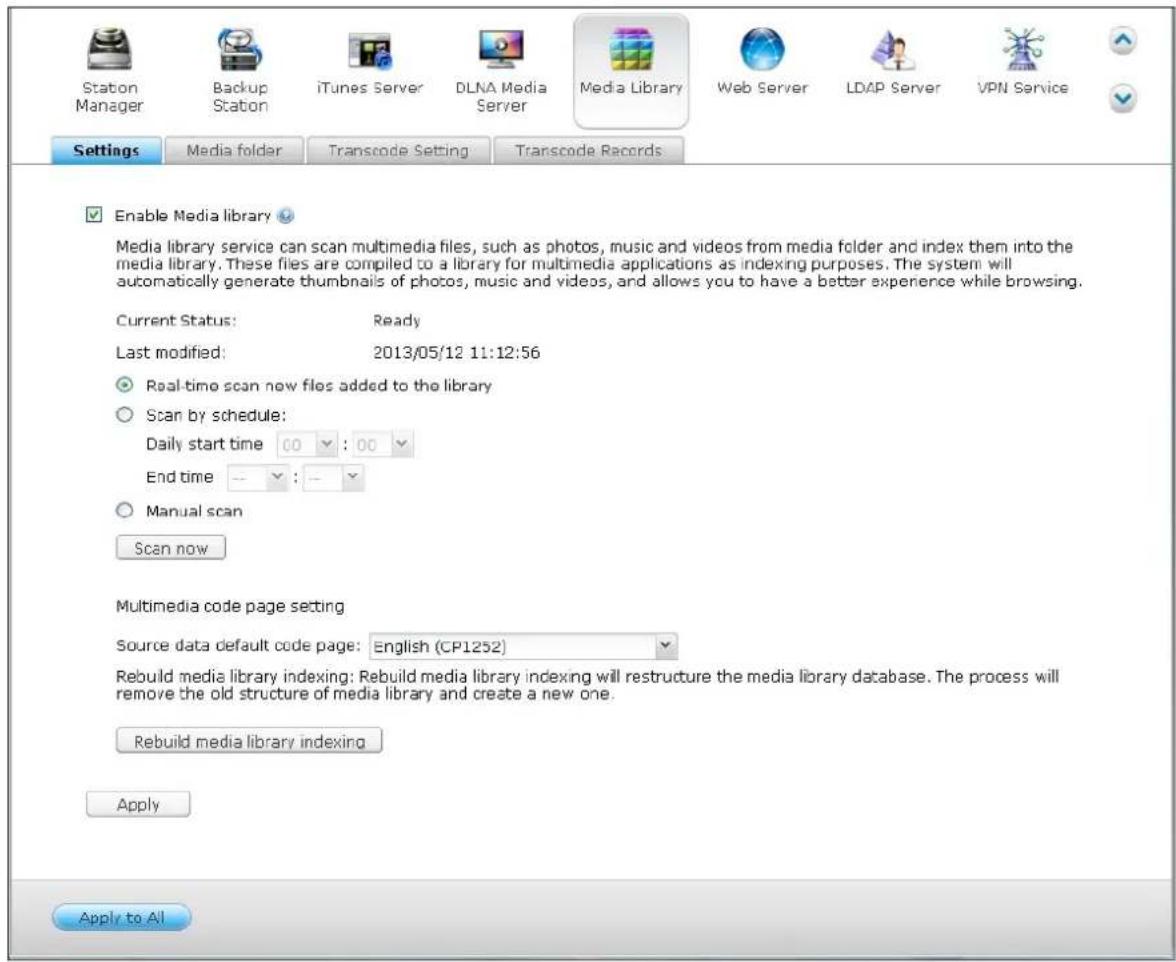
text_image
Station Manager Backup Station iTunes Server DLNA Media Server Media Library Web Server LDAP Server VPN Service Settings Media folder Transcode Setting Transcode Records Enable Media library Media library service can scan multimedia files, such as photos, music and videos from media folder and index them into the media library. These files are compiled to a library for multimedia applications as indexing purposes. The system will automatically generate thumbnails of photos, music and videos, and allows you to have a better experience while browsing. Current Status: Ready Last modified: 2013/05/12 11:12:56 Real-time scan new files added to the library Scan by schedule: Daily start time 00 : 00 End time : : : : : : : : : : : : : : : : : : : : : : : : : : : : : : : : : : : : : : : : : : : : : : : : : : : : : : : : : : : : : : : : : : : : : : : : : : : : : : : : : : : : : : : : : : : : : : : : : : : : : Manual scan Scan now Multimedia code page setting Source data default code page: English (CP1252) Rebuild media library indexing: Rebuild media library indexing will restructure the media library database. The process will remove the old structure of media library and create a new one. Rebuild media library indexing Apply Apply to AllCheck the "Enable Media Library" to enable this service.
Note:
- iTunes Server may be disabled or hidden on the following business models: x70U, x79 Pro and x79U. To enable iTunes server, please refer to "System Administration" in the General Settings section.
- If the media library is not enabled, services like the Photo Station and Music Station, as well as the DLNA Media Server will not function properly.
Scan Setting:
Three options are provided for the media scan:
- Real-time scan: New files are scanned in real time as soon as they are added to the media folders.
- Scan by schedule: Here you can specify the start and end time for the scan, and it will be conducted automatically on a daily basis.
- Manual Scan: The scan only starts when "Scan now" is clicked.
Multimedia code page setting:
Change this setting to the corresponding code page for non UTF media files for the NAS to display correct information in the associated applications.
Rebuild media library indexing:
By rebuilding the media library, the NAS will scan the specified media folders and replace the existing library with a new library.
Media Folder

text_image
Station Manager Backup Station iTunes Server DLNA Media Server Media Library Web Server LDAP Server VPN Service Settings Media folder Transcode Setting Transcode Records Add Edit Delete Media Folder Pictures Music Video /Multimedia ( Default ) V V VBy default, there are two folders which will be scanned for multimedia files (Multimedia and Home). Click "Add" to add another folder to your media library.
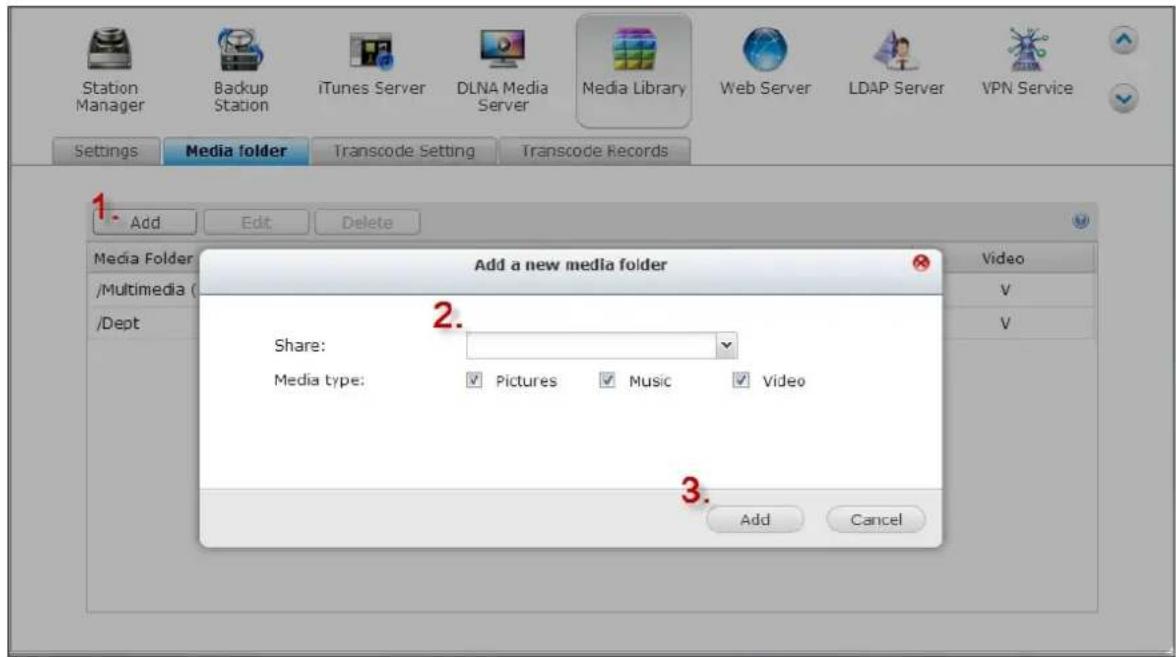
text_image
Station Manager Backup Station iTunes Server DLNA Media Server Media Library Web Server LDAP Server VPN Service Settings Media folder Transcode Setting Transcode Records Add Edit Delete Add a new media folder Share: Media type: Pictures Music Video Video V V 3. Add CancelThe types of files which will be scanned include pictures, music or videos. Click "Add" to confirm the settings.
Click "Edit" to change the scanned file types and folder, and "Delete" to remove media folders from the list.
Transcode Setting
All ongoing transcoding tasks can be managed here. The transcoding service is enabled by default and can transcode video files to H.264 format (with MP4 extension) which can be played by most media players or smart phones. The video files will be converted into 240p, 360p and 720p resolutions for different devices.
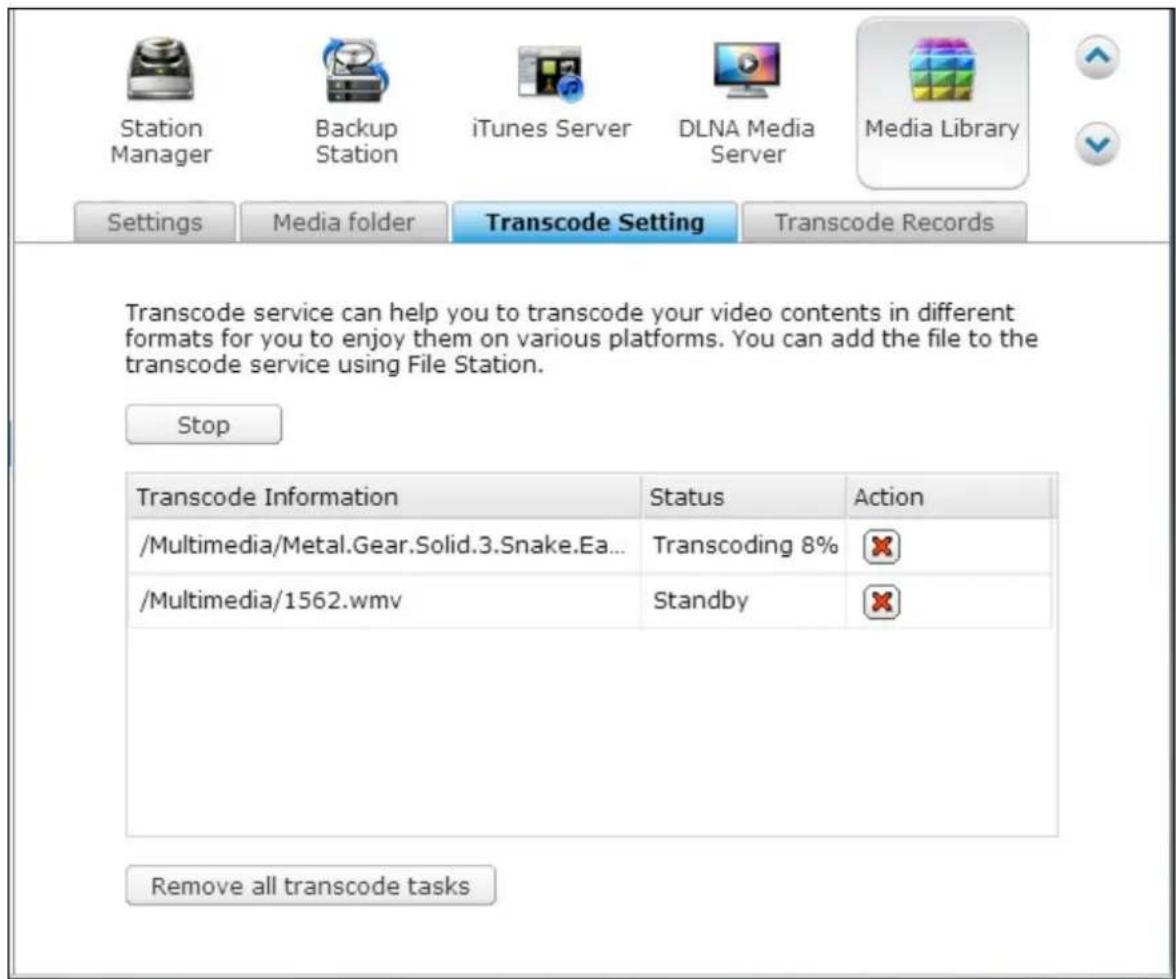
text_image
Station Manager Backup Station iTunes Server DLNA Media Server Media Library Settings Media folder Transcode Setting Transcode Records Transcode service can help you to transcode your video contents in different formats for you to enjoy them on various platforms. You can add the file to the transcode service using File Station. Stop Transcode Information Status Action /Multimedia/Metal.Gear.Solid.3.Snake.Ea... Transcoding 8% /Multimedia/1562.wmv Standby Remove all transcode tasksClick "Stop" to suspend all ongoing tasks in the list. Click "Remove all transcode tasks" to remove all tasks from the list.
Adjust the order each task is executed by clicking on under the Action column and to remove the selected task from the list.
Note: You can manually add the files to transcode from the File Station.
T ranscode R ercords
A list of transcoded video files, their status and the time the transcoding task is finished are listed here. Click "Clear records" to clear the history and "Refresh" to refresh the list.
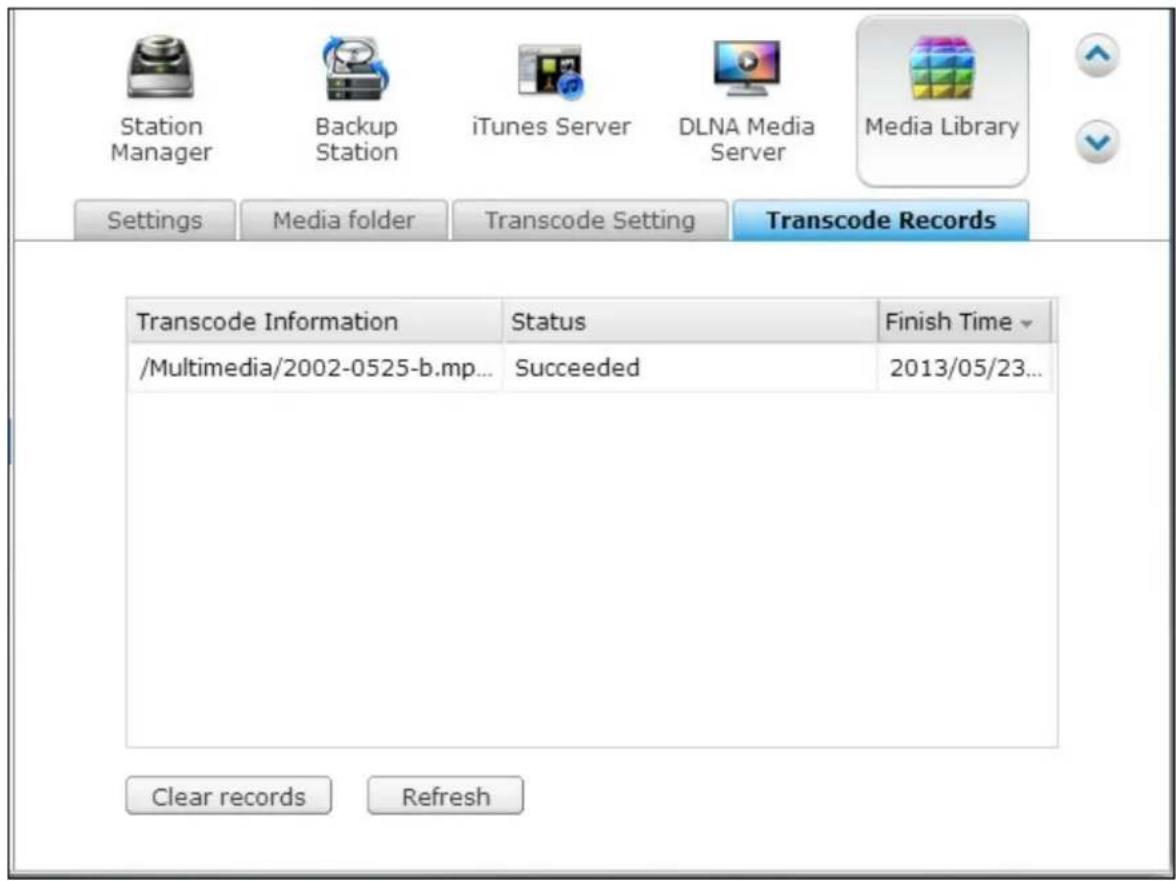
text_image
Station Manager Backup Station iTunes Server DLNA Media Server Media Library Settings Media folder Transcode Setting Transcode Records Transcode Information Status Finish Time /Multimedia/2002-0525-b.mp... Succeeded 2013/05/23... Clear records RefreshWeb Server
The NAS supports Web Server for web sites creation and management. It also supports Joomla!, PHP and MySQL/SQLite to establish an interactive website.
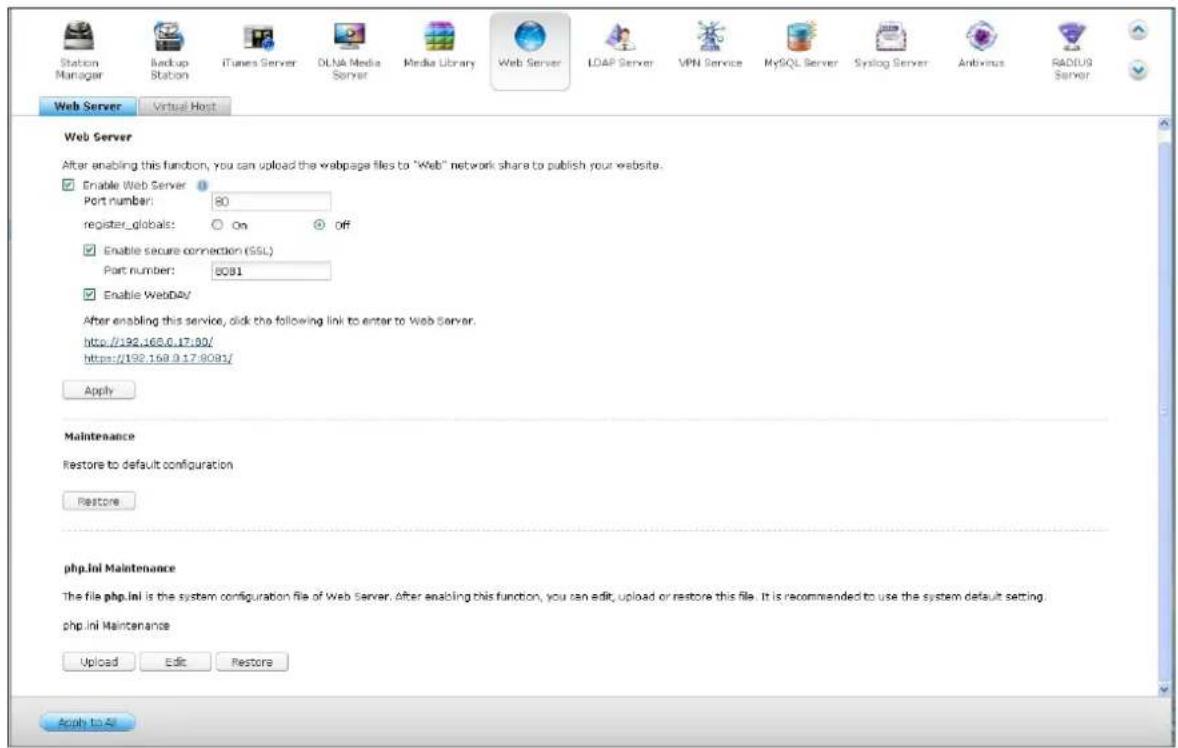
text_image
Station Manager Backup Station iTunes Server DLNA Media Server Media Library Web Server LDAP Server VPN Service MySQL Server Syslog Server Anivirus RADIUS Server Web Server Virtual Host Web Server After enabling this function, you can upload the webpage files to "Web" network share to publish your website. Enable Web Server 1 Port number: 80 register_globals: On Off Enable secure connection (SSL) Port number: 8081 Enable WebDA/ After enabling this service, click the following link to enter to Web Server. http://192.168.0.17:00/ https://192.168.0.17:00/1/ Apply Maintenance Restore to default configuration Restore php.ini Maintenance The file php.ini is the system configuration file of Web Server. After enabling this function, you can edit, upload or restore this file. It is recommended to use the system default setting. php.ini Maintenance Upload Edit Restore Apply to AllTo use the Web Server, follow the steps below.
- Enable the service and enter the port number. The default number is 80.
- Configure other settings:
a. Configure register_globals: Select to enable or disable register_globals. The setting is disabled by default. When the web program prompts you to enable php register_globals, enable this option. However, for system security concern, it is recommended to turn this option off.
b. Maintenance: Click "Restore" to restore web server configuration to default.
c. php.ini Maintenance: Select the option "php.ini Maintenance" and choose to upload, edit or restore php.ini.
-
Secure Connection (SSL): Enter the port number for SSL connection.
-
Upload the HTML files to the shared folder (Qweb/Web) on the NAS. The file index.html, index.htm or index.php will be the home path of your web page.
- You can access the web page you upload by entering http://NAS IP/ in the web browser. Note that when Web Server is enabled, you have to enter http://NAS IP:8080 in your web browser to access the login page of the NAS.
Note:
- Please be reminded that Please note that after the Web Server is disabled, all relevant applications, including the Music Station, Photo Station, Happy Get, or QAirplay will become unavailable.
- To use PHP mail(), go to "System Settings" > "Notification" > "SMTP Server" and configure the SMTP server settings.
WebDAV
WebDAV (Web-based Distributed Authoring and Versioning) is a set of extensions to the HTTP(S) protocol that allow the users to edit and manage the files collaboratively on the remote World Wide Web servers. After turning on this function, you can map theshared folders of your NAS as the network drives of a remote PC over the Internet. To edit the access right settings, go to "Privilege Settings" > "Shared Folders" page.
Note: Currently, the WebDAV feature supports NAS user accounts only and AD and LDAP user accounts are not supported.
To map a shared folder on the NAS as a network drive of your PC, turn on WebDAV and follow the steps below.
Go to "Privilege Settings" > "Shared Folders". Click the "Access Permission" button for the designated folder under the "Action" column.
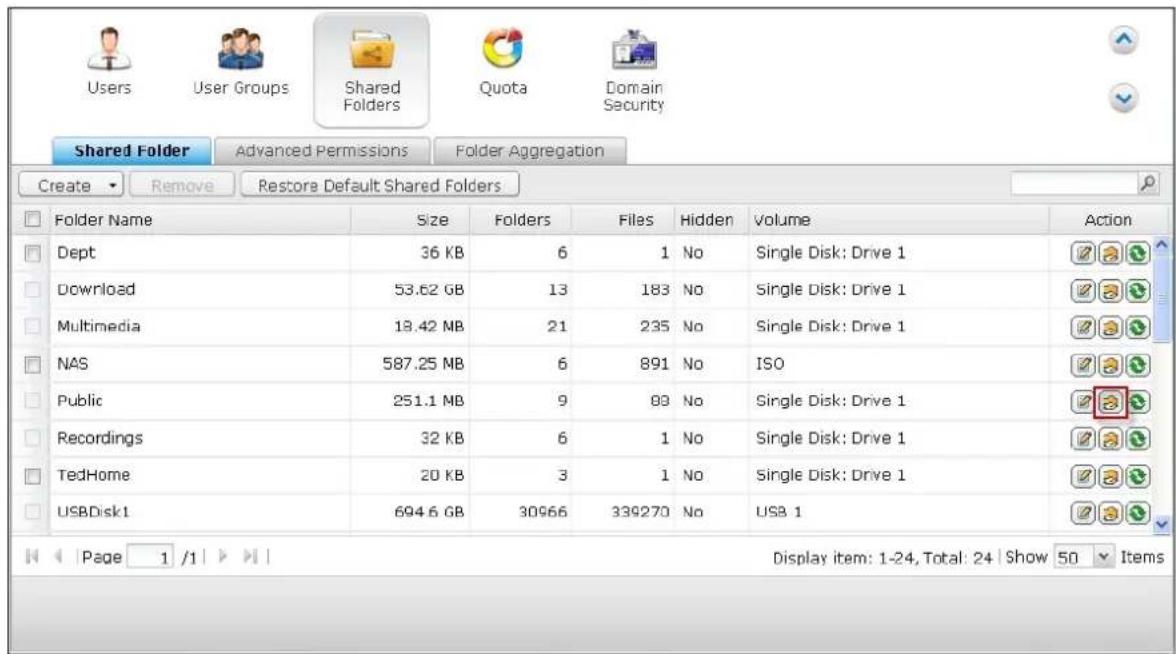
text_image
Users User Groups Shared Folders Quota Domain Security Shared Folder Advanced Permissions Folder Aggregation Create Remove Restore Default Shared Folders Folder Name Size Folders Files Hidden Volume Action Dept 36 KB 6 1 No Single Disk: Drive 1 Download 53.62 GB 13 183 No Single Disk: Drive 1 Multimedia 18.42 MB 21 235 No Single Disk: Drive 1 NAS 587.25 MB 6 891 No ISO Public 251.1 MB 9 88 No Single Disk: Drive 1 Recordings 32 KB 6 1 No Single Disk: Drive 1 TedHome 20 KB 3 1 No Single Disk: Drive 1 USBDisk1 694.6 GB 30966 339270 No USB 1 Page 1 /1 | >> Display item: 1-24, Total: 24 | Show 50 ItemsSelect "WebDAV access" from the dropdown menu on top of the page and specify the access right. Choose the authentication level or scroll down to search for the account to grant its access rights. Click "Apply" and all settings are complete.
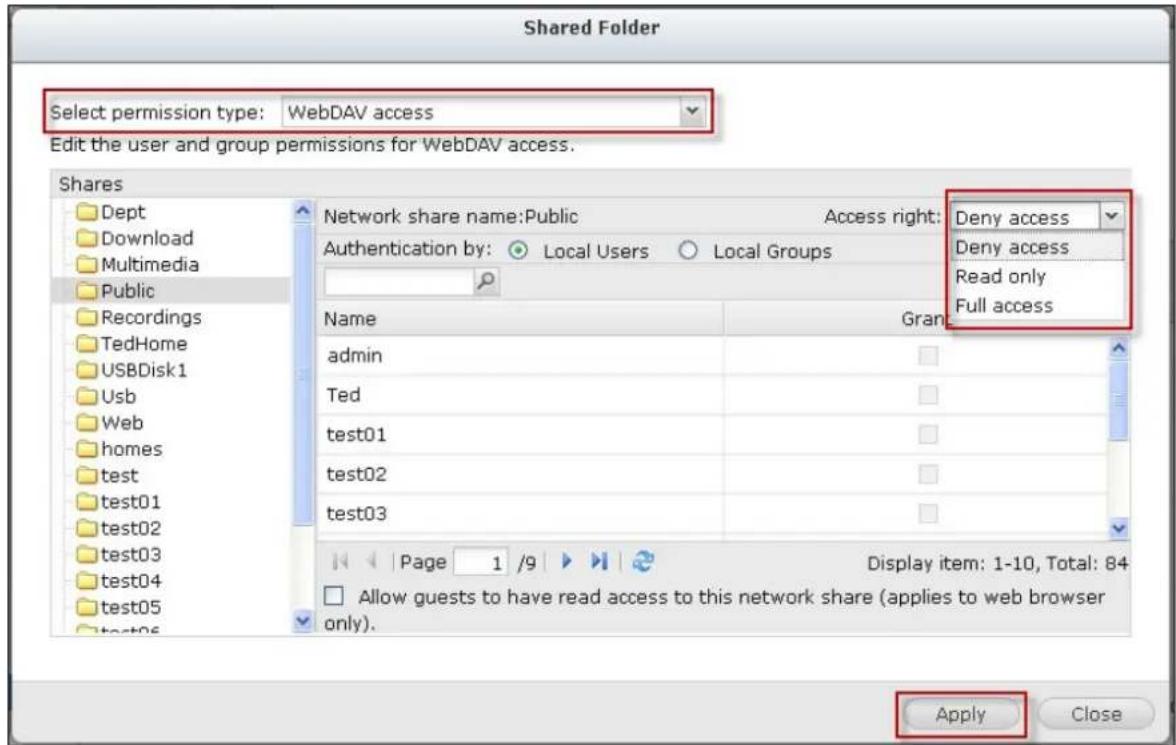
text_image
Shared Folder Select permission type: WebDAV access Edit the user and group permissions for WebDAV access. Shares Dept Download Multimedia Public Recordings TedHome USBDisk1 Usb Web homes test test01 test02 test03 test04 test05 test06 Network share name: Public Access right: Deny access Authentication by: Local Users Local Groups Name admin Ted test01 test02 test03 Apply Close Display item: 1-10, Total: 84 Allow guests to have read access to this network share (applies to web browser only).Next, mount the shared folders of the NAS as the shared folders on your operating systems by WebDAV.
Windows XP:
- Right click "My Computer" and select "Map Network Drive..."
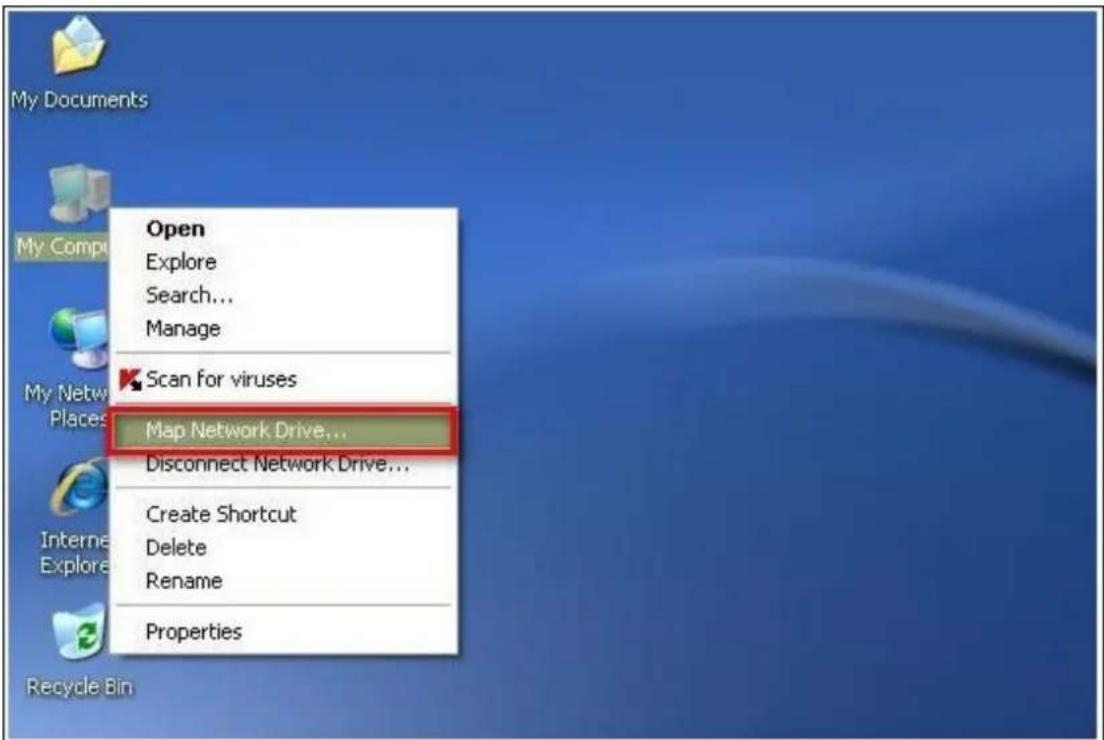
text_image
My Documents Open Explore Search... Manage My Compu Scan for viruses My Network Places Map Network Drive... Disconnect Network Drive... Create Shortcut Delete Rename Properties Recycle Bin- Click "Sign up for online storage or connect to a network server".

text_image
Map Network Drive Windows can help you connect to a shared network folder and assign a drive letter to the connection so that you can access the folder using My Computer. Specify the drive letter for the connection and the folder that you want to connect to: Drive: Y: Folder: Browse... Example: \\server\share Reconnect at logon Connect using a different user name. Sign up for online storage or connect to a network server. < Back Finish Cancel- Select "Choose another network location".
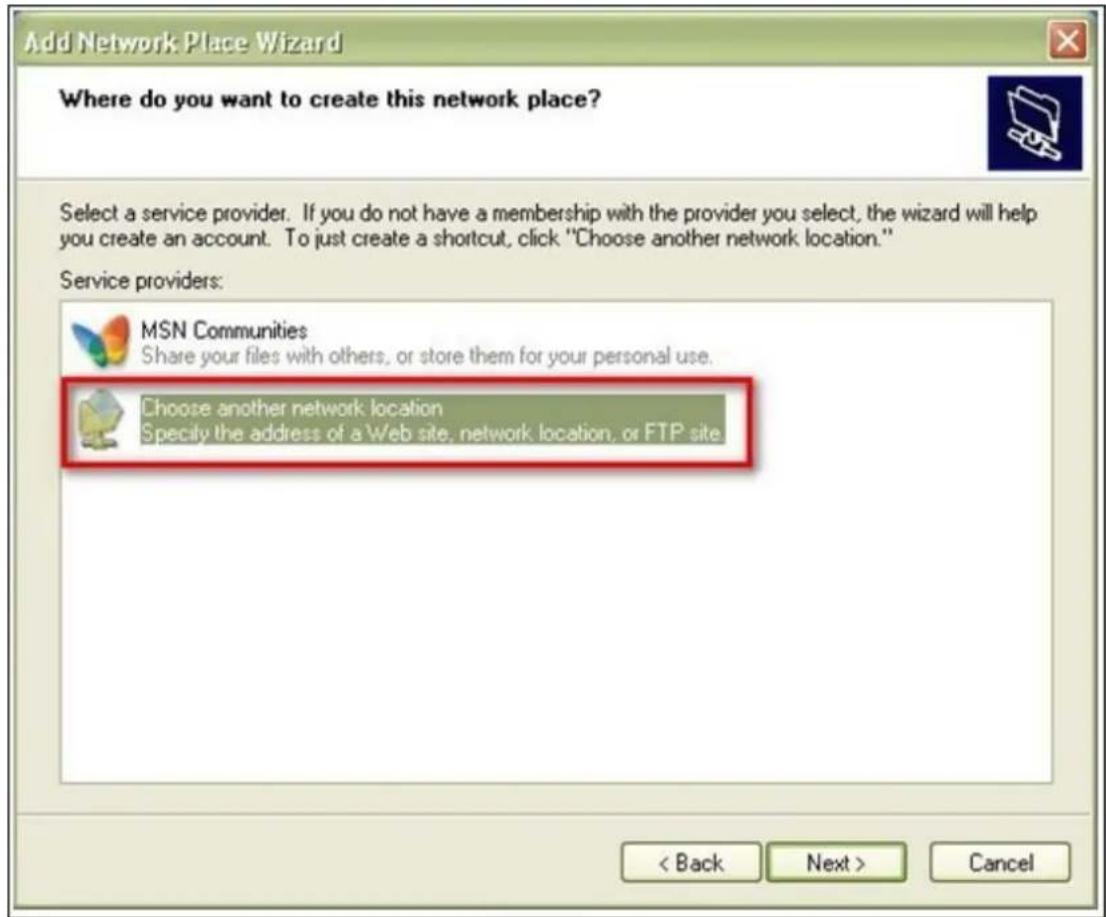
text_image
Add Network Place Wizard Where do you want to create this network place? Select a service provider. If you do not have a membership with the provider you select, the wizard will help you create an account. To just create a shortcut, click "Choose another network location." Service providers: MSN Communities Share your files with others, or store them for your personal use. Choose another network location Specify the address of a Web site, network location, or FTP site. < Back Next > Cancel- Enter the URL of your NAS with the folder name. Note that you should put a “#” key at the end of the URL. Click “Next”. Format: http://NAS_IP_or_HOST_NAME/SHARE_FOLDER_NAME/#
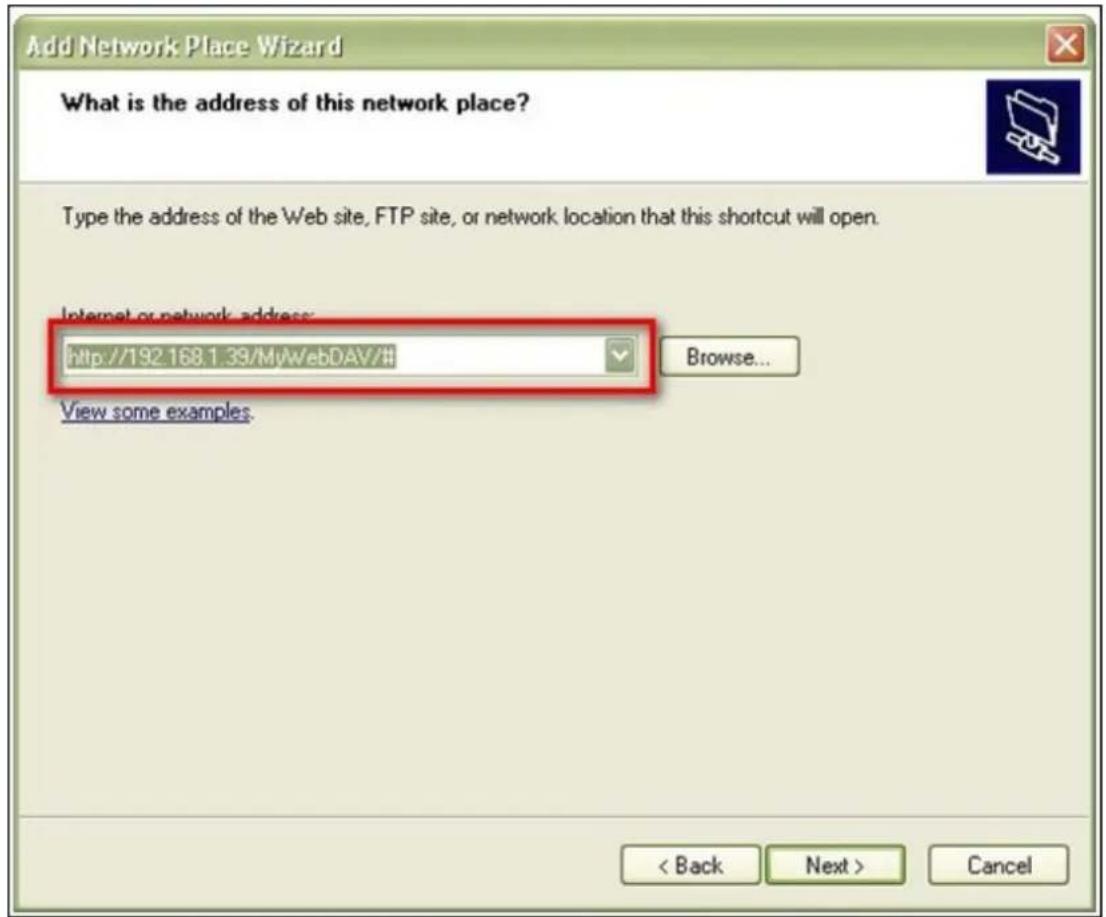
text_image
Add Network Place Wizard What is the address of this network place? Type the address of the Web site, FTP site, or network location that this shortcut will open. Internet or network address: http://192.168.1.39/MyWebDAV/# Browse... View some examples. < Back Next > Cancel- Enter the username and password which has the WebDAV access right to connect to the folder.
- Type a name for this network place.
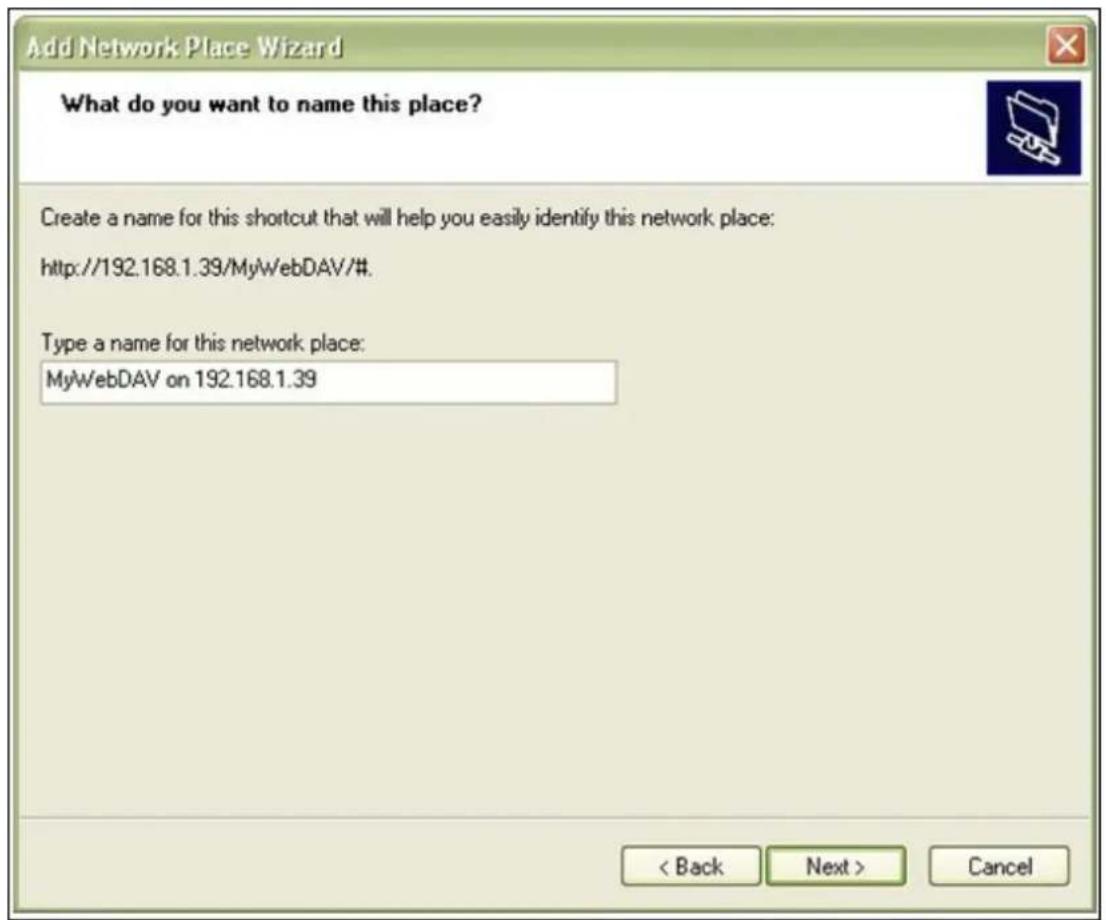
text_image
Add Network Place Wizard What do you want to name this place? Create a name for this shortcut that will help you easily identify this network place: http://192.168.1.39/MyWebDAV/#. Type a name for this network place: MyWebDAV on 192.168.1.39 < Back Next > Cancel- The network place has been created and is ready to be used.

text_image
Add Network Place Wizard Completing the Add Network Place Wizard You have successfully created this network place: MyWebDAV on 192.168.1.3S A shortcut for this place will appear in My Network Places. ✓ Open this network place when I click Finish. To close this wizard, click Finish. < Back Finish Cancel- Now you can connect to this folder anytime through WebDAV. A shortcut has also been created in "My Network Places".
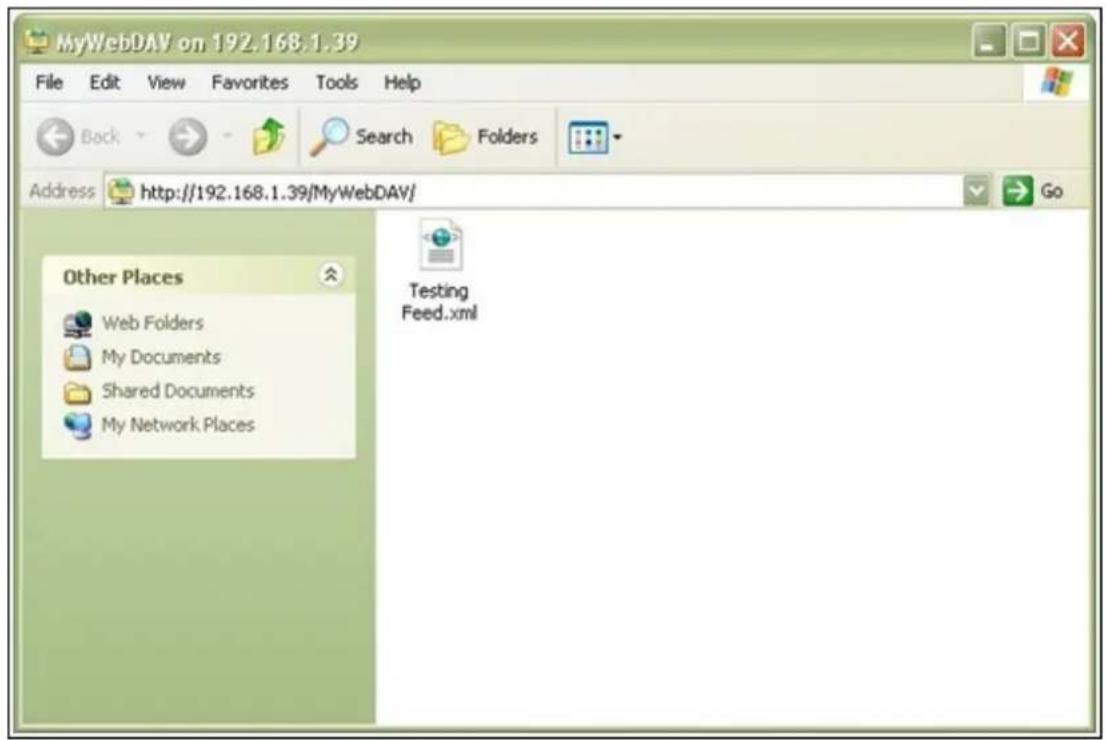
text_image
MyWebDAV on 192.168.1.39 File Edit View Favorites Tools Help Back Search Folders Address http://192.168.1.39/MyWebDAV/ Go Other Places Web Folders My Documents Shared Documents My Network Places Testing Feed.xmlWindows Vista
If you are using Windows Vista, you might need to install the "Software Update for Web Folders (KB907306)". This update is for 32-bit Windows OS only. http://www.microsoft.com/downloads/details.aspx?FamilyId=17c36612-632e-4c04-9382-987622ed1d64&displaylang=en
- Right click "Computer" and select "Map Network Drive..."

text_image
Open Explore Manage Map Network Drive... Disconnect Network Drive... Create Shortcut Delete Rename Properties- Click "Connect to a Web site that you can use to store your documents and pictures".
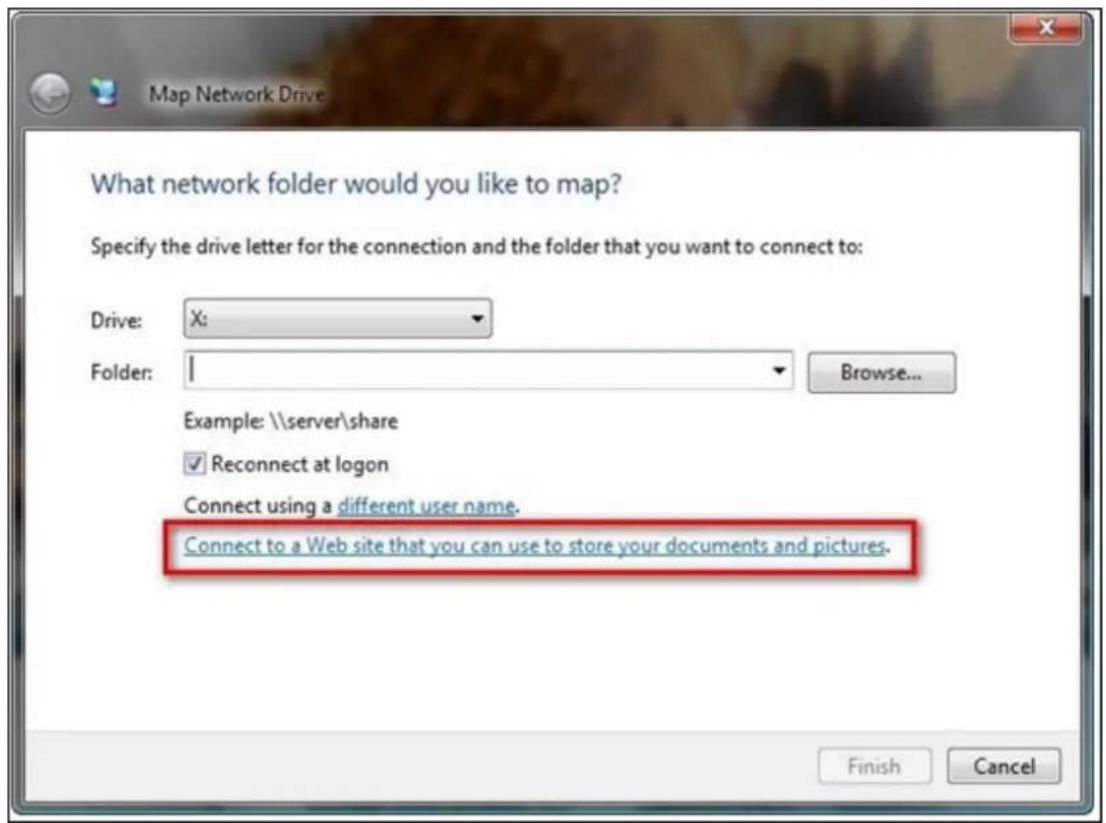
text_image
Map Network Drive What network folder would you like to map? Specify the drive letter for the connection and the folder that you want to connect to: Drive: X: Folder: Browse... Example: \\server\share ✓ Reconnect at logon Connect using a different user name. Connect to a Web site that you can use to store your documents and pictures. Finish Cancel- Select "Choose a custom network location".

text_image
Add Network Location Where do you want to create this network location? Choose a custom network location Specify the address of a website, network location, or FTP site. Next Cancel- Enter the URL of your NAS with the folder name.
Format: http://NAS IP or HOST NAME/SHARE FOLDER NAME
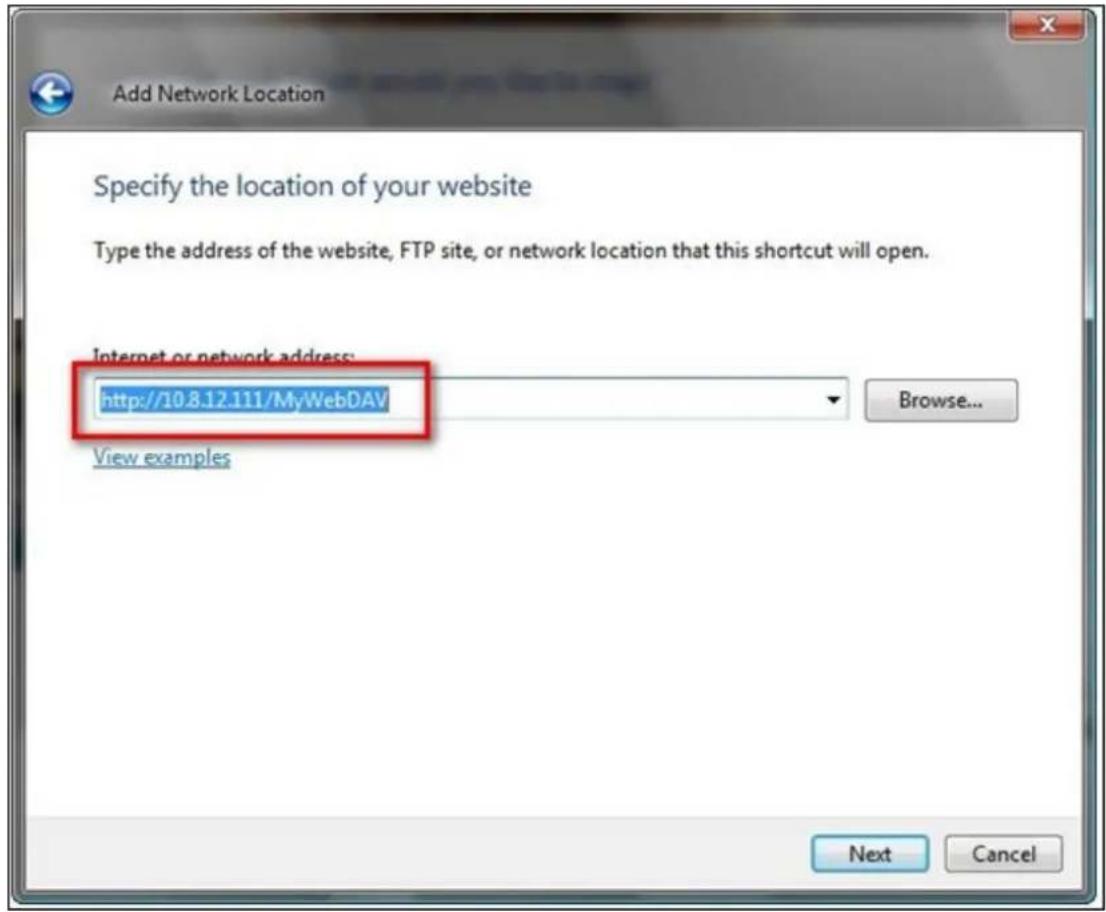
text_image
Add Network Location Specify the location of your website Type the address of the website, FTP site, or network location that this shortcut will open. Internet or network address: http://10.8.12.111/MyWebDAV Browse... View examples Next Cancel- Enter the username and password which has the WebDAV access right to connect to this folder.
- Type a name for this network location.
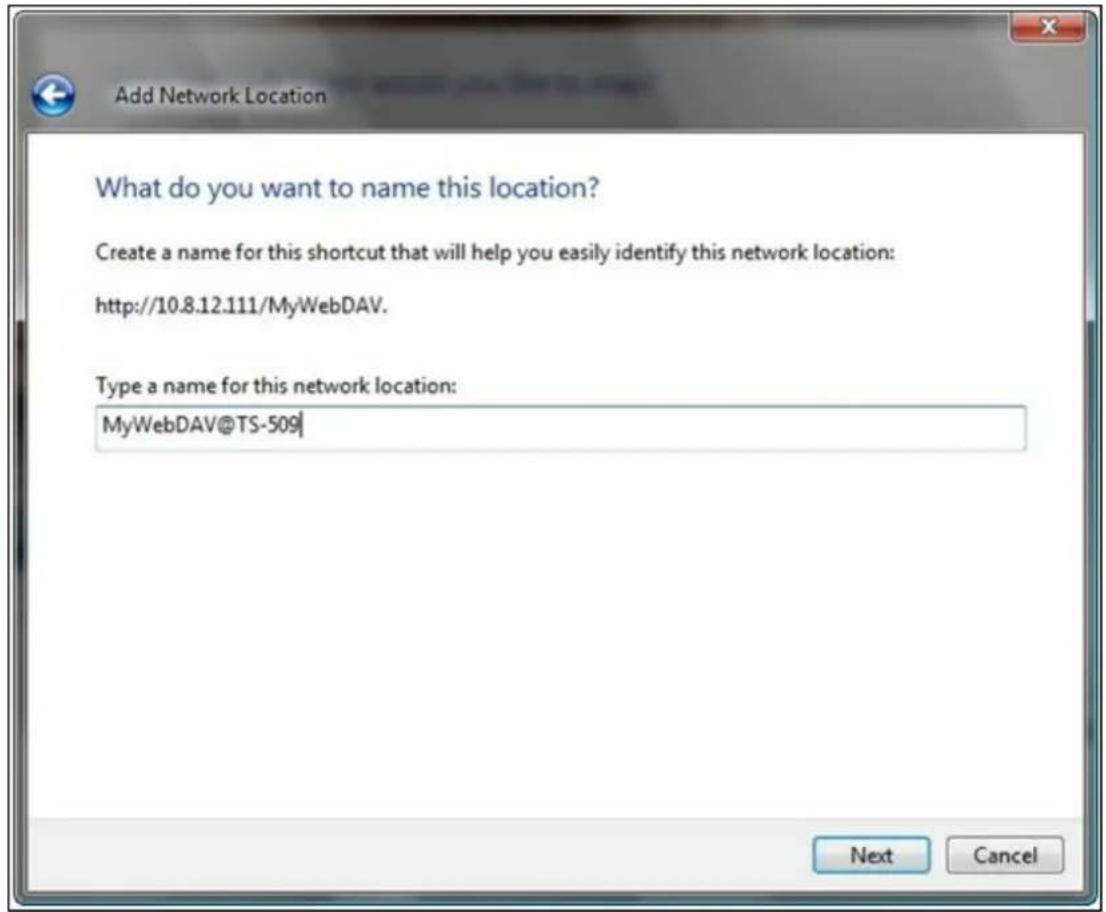
text_image
What do you want to name this location? Create a name for this shortcut that will help you easily identify this network location: http://10.8.12.111/MyWebDAV. Type a name for this network location: MyWebDAV@TS-509 Next Cancel- The Web folder has been successfully created.
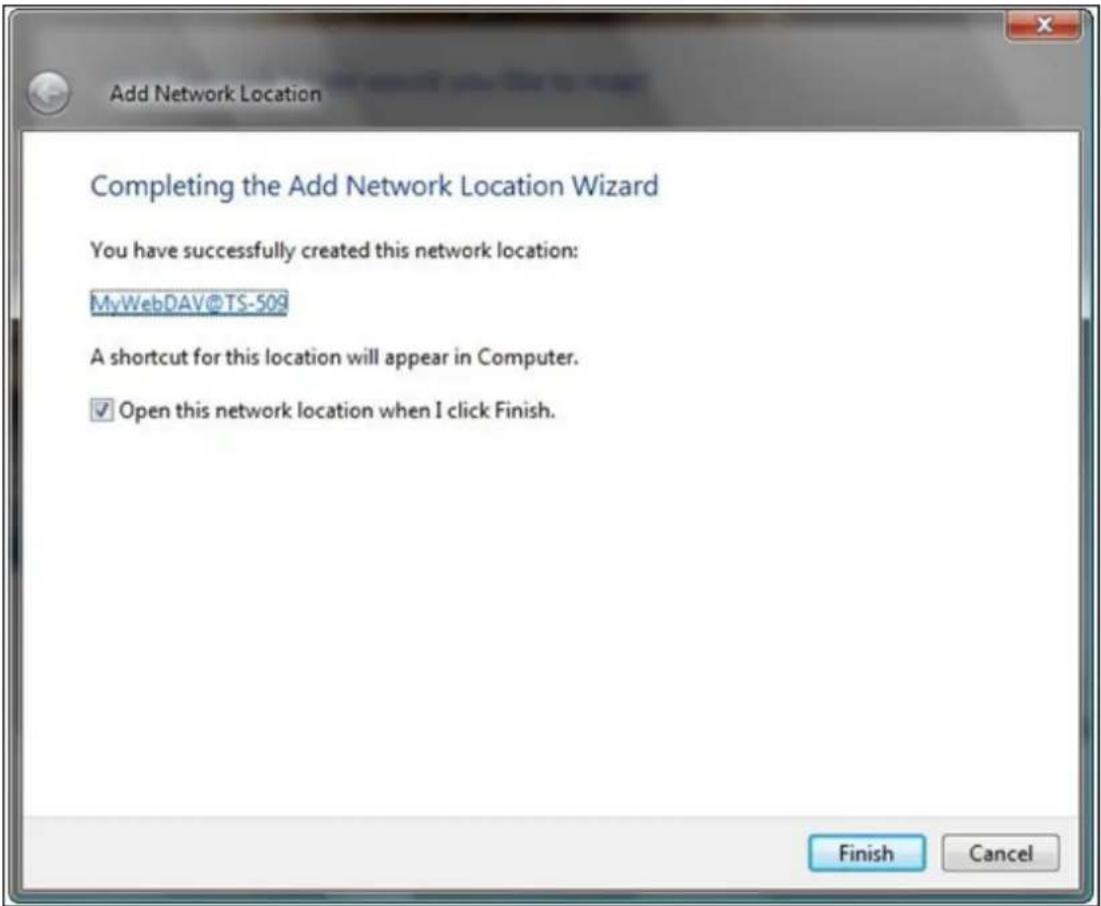
text_image
Add Network Location Completing the Add Network Location Wizard You have successfully created this network location: MyWebDAV@TS-509 A shortcut for this location will appear in Computer. ✓ Open this network location when I click Finish. Finish Cancel- You can locate the web folder in the "Network Location" section in "Computer".

text_image
Organize Views System properties Uninstall or change a program Map network drive Favorite Links Documents Pictures Music Recently Changed Searches Public Name Type Total Size Free Space Devices with Removable Storage (6) DVD RW Drive (E:) CD Drive (J:) Removable Disk (F:) Removable Disk (G:) Removable Disk (H:) Removable Disk (I:) Network Location (3) Qmultimedia (\10.8.12.119) QBackup-James (\10.8.12.139) (Z:) Y:) MyWebDAV@TS-509 Folders JW-PC Workgroup: WORKGROUP Processor: Intel(R) Pentium(R) D CPU 2.80GHz Memory: 3.00 GB- You can connect to the folder though this link via HTTP/WebDAV.
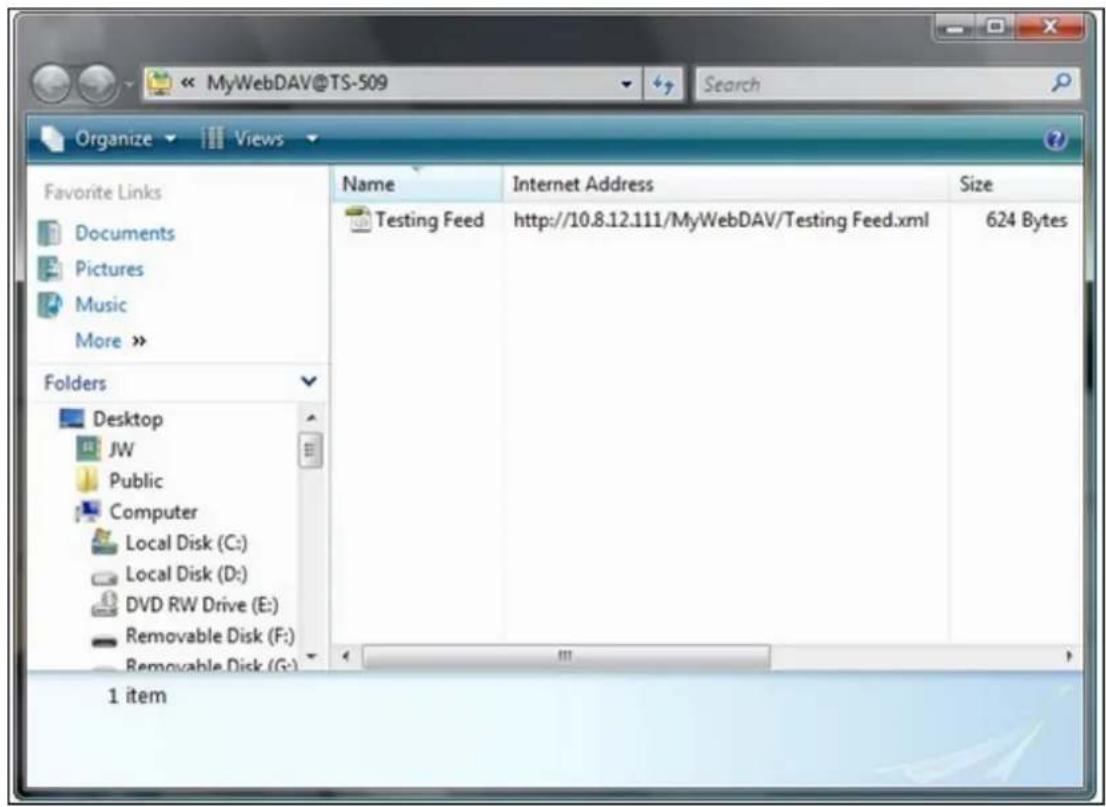
text_image
MyWebDAV@TS-509 Organize Views Favorite Links Documents Pictures Music More >> Folders Desktop JW Public Computer Local Disk (C:) Local Disk (D:) DVD RW Drive (E:) Removable Disk (F:) Removable Disk (G:) 1 item Name Internet Address Size Testing Feed http://10.8.12.111/MyWebDAV/Testing Feed.xml 624 BytesMac OS X
Follow the steps below to connect to your NAS via WebDAV on Mac OS X.
Client Operating System: Mac OS X Snow Leopard (10.6.1)
- Open "Finder" > "Connect to Server", and enter the URL of the folder. Format: http://NAS_IP_or_HOST_NAME/SHARE_FOLDER_NAME
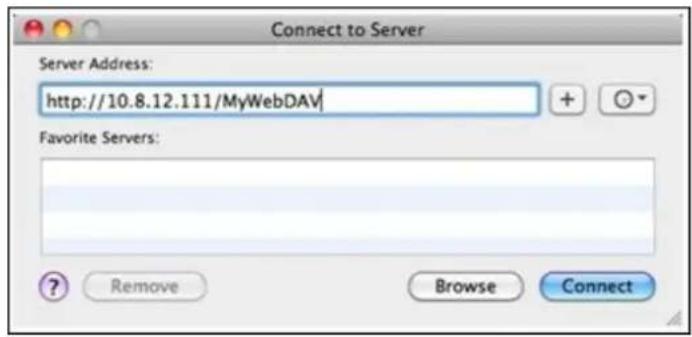
text_image
Connect to Server Server Address: http://10.8.12.111/MyWebDAV Favorite Servers: ? Remove Browse Connect- Enter the username and password which has the WebDAV access right to connect to this folder.
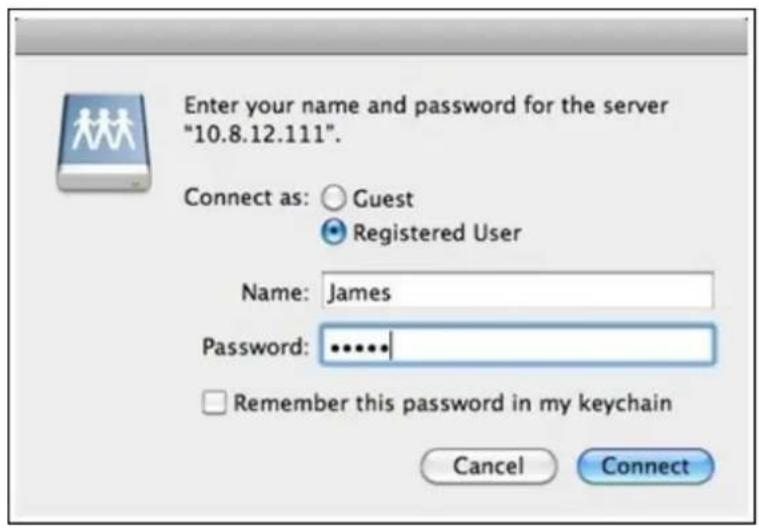
text_image
Enter your name and password for the server "10.8.12.111". Connect as: Guest Registered User Name: James Password: ****** Remember this password in my keychain Cancel Connect- You can connect to the folder through this link via HTTP/WebDAV.
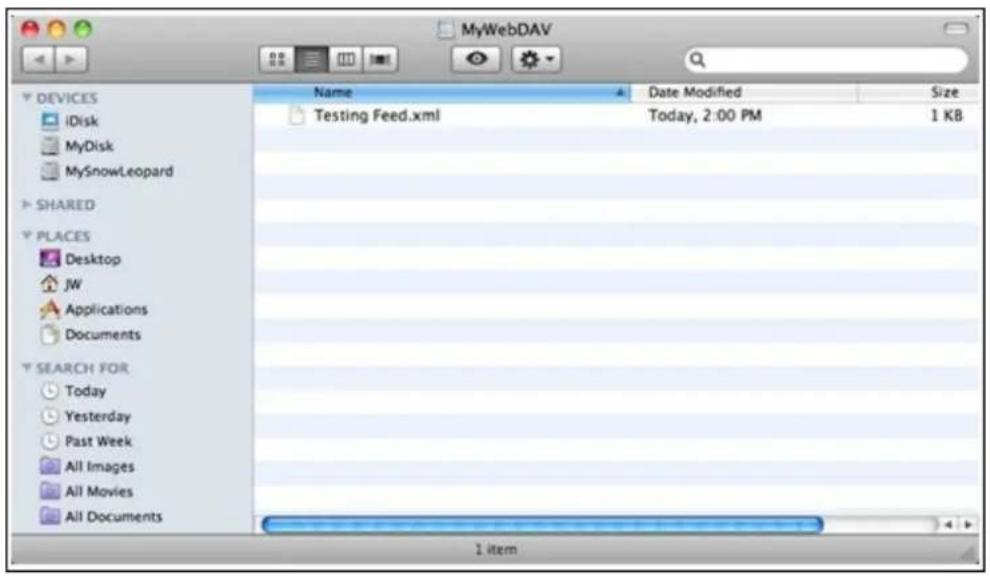
text_image
MyWebDAV Name Date Modified Size Testing Feed.xml Today, 2:00 PM 1 KB I item- You can also find the mount point in the "SHARED" category in Finder and make it one of the login items.
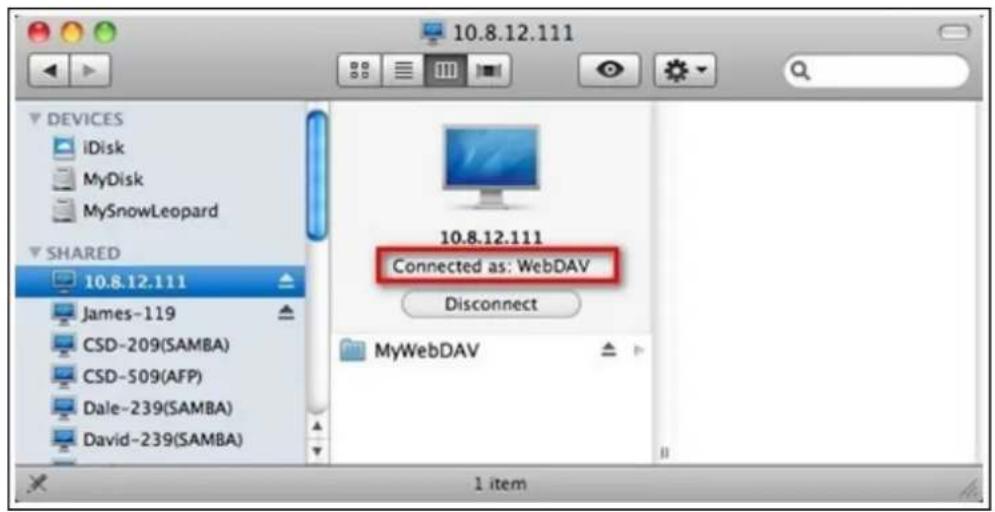
text_image
10.8.12.111 DEVICES iDisk MyDisk MySnowLeopard SHARED 10.8.12.111 James-119 CSD-209(SAMBA) CSD-509(AFP) Dale-239(SAMBA) David-239(SAMBA) 10.8.12.111 Connected as: WebDAV Disconnect MyWebDAV 1 itemNote that the instructions above are based on Mac OS X 10.6, and can be applied to 10.4 or later.
Ubuntu
Follow the steps below to connect to your NAS via WebDAV on Ubuntu.
Client Operating System: Ubuntu 9.10 Desktop
- Open "Places" > "Connect to Server..."
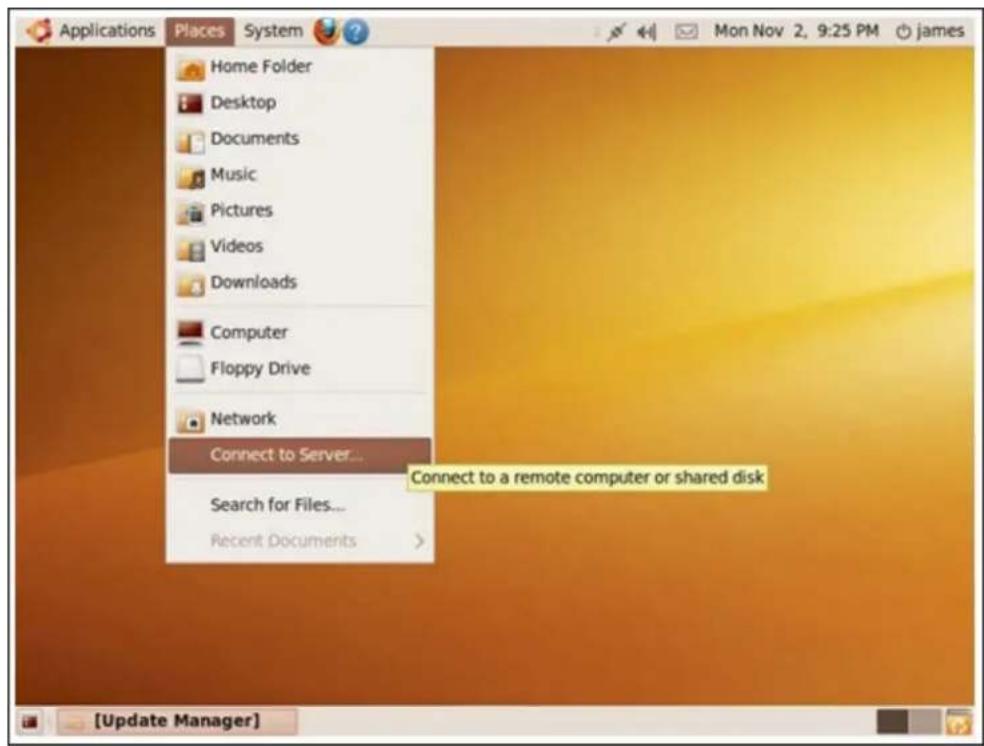
text_image
Applications Places System Home Folder Desktop Documents Music Pictures Videos Downloads Computer Floppy Drive Network Connect to Server... Search for Files... Recent Documents > Mon Nov 2, 9:25 PM james Connect to a remote computer or shared disk [Update Manager]- Select "WebDAV (HTTP)" or "Secure WebDAV (HTTPS)" for the Service type according to your NAS settings and enter your host information. Enter the username and password which has the WebDAV access right to connect to this folder. Click "Connect" to initialize the connection.

text_image
Applications Places System Mon Nov 2, 9:26 PM james Connect to Server Service type: WebDAV (HTTP) Server: 10.8.12.111 Optional information: Port: 80 Folder: MyWebDAV User Name: james Add bookmark Bookmark name: Help Cancel Connect [Update Manager] Connect to Server- This WebDAV connection has been established successfully, a linked folder will be created on the desktop automatically.
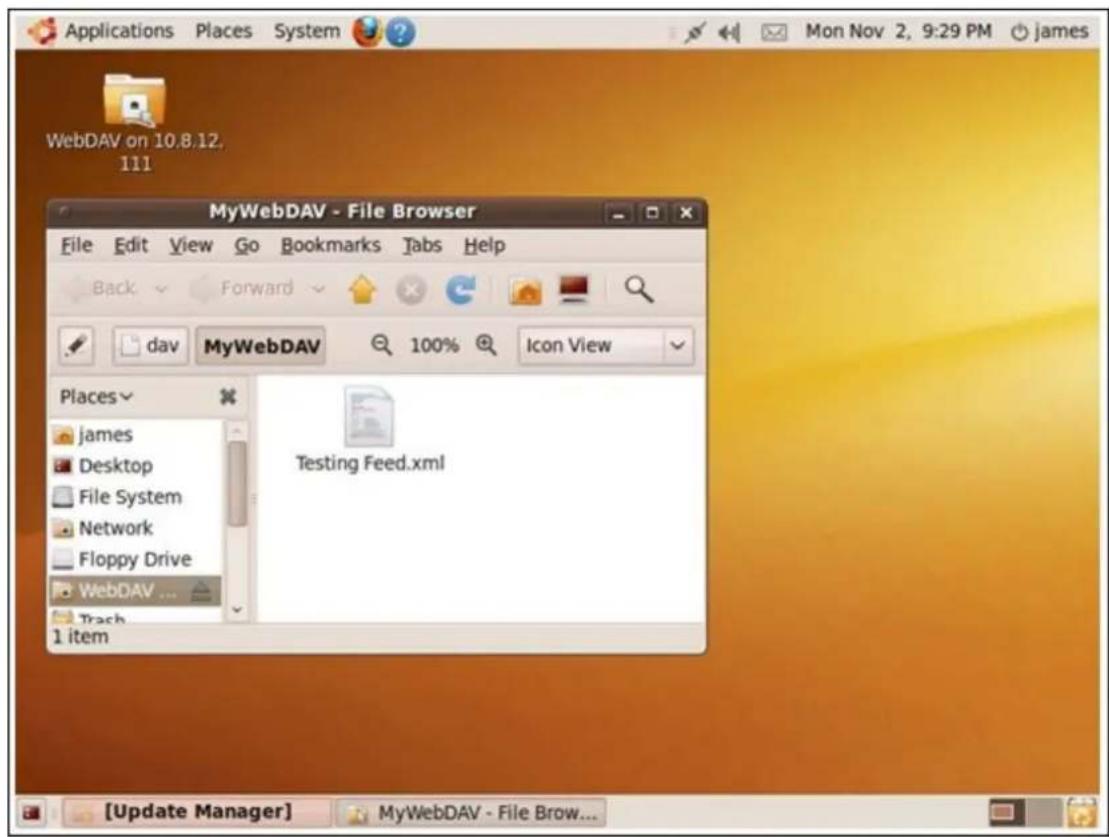
text_image
Applications Places System Mon Nov 2, 9:29 PM james WebDAV on 10.8.12. 111 MyWebDAV - File Browser File Edit View Go Bookmarks Tabs Help Back Forward dav MyWebDAV 100% Icon View Places James Desktop File System Network Floppy Drive WebDAV ... Track 1 item Testing Feed.xml [Update Manager] MyWebDAV - File Brow...MySQL Management
Install phpMyAdmin software and save the program files in the Web or Qweb share of the NAS. You can change the folder name and connect to the database by entering the URL in the browser.
Note: The default username of MySQL is "root". The password is "admin". Please change your root password immediately after logging in to the phpMyAdmin management interface.
SQLite Managem ent
Follow the steps below or refer to the INSTALL file in the downloaded SQLiteManager-*.tar.gz? to install SQLiteManager.
- Unpack the downloaded file SQLiteManager-*.tar.gz.
- Upload the unpacked folder SQLiteManager-* to \NAS IP\Web\ or \NASIP\Qweb.
- Open a web browser and go to http://NAS IP/SQLiteManager-*/.
?: The symbol “*” refers to the version number of SQLiteManager.
Virtual host is a web server technique that provides the capability to host more than one domain (website) on one physical host offers a cost-effective solution for personal and small business with such need. You can host multiple websites (maximum 32) on the NAS with this feature.
In this tutorial we will use the information provided in the table below as the reference guide.
| Host name | WAN/LAN IP and port | Docum ent root | Dem o web application |
| site1.mysite.com | WAN IP: 111.222.333.444 LAN IP: 10.8.12.45 (NAS) Port: 80 (NAS) | /Qweb/site1_mysite | Joomla! |
| site2.mysite.com | /Qweb/site2_mysite | WordPress | |
| www.mysite2.com | /Qweb/ www_mysite2 | phpBB3 |
Before you start, make sure you have checked the following items:
- Web Server: Enable Web Server in "Applications" > "Web Server".
- DNS records: The host name must point to the WAN IP of your NAS and you can normally configure this from your DNS service providers.
- Port forwarding: If the web server listens on port 80 you need to configure port forwarding on your router to allow inbound traffic from port 80 to the LAN IP (10.8.12.45) of your NAS.
- SSL certificate import: If you are going to enable SSL connection for the website and intend to use your own trusted SSL certificates you may import the certificate from within the administration backend under "System Settings" > "Security" > "Certificate & Private Key".
Follow the steps below to use virtual host.
-
Select "Enable Virtual Host" and click "Apply".
-
Click "Create a Virtual Host".

text_image
Station Manager Backup Station iTunes Server DLNA Media Server Media Library Web Server LDAP Server VPN Service MySQL Server Web Server Virtual Host After enabling this function, you can create multiple websites by uploading Web files to each folder. Enable Virtual Host Apply Create a Virtual Host Delete Host Name Folder Name Protocol Port Action Apply to All- Enter the host name and specify the folder (under Web or Qweb) where the web files will be uploaded to.
- Specify the protocol (HTTP or HTTPS) for connection. If you select HTTPS, make sure the option "Enable Secure Connection (SSL)" in Web Server has been turned on.
- Specify the port number for connection.
- Click "Apply".
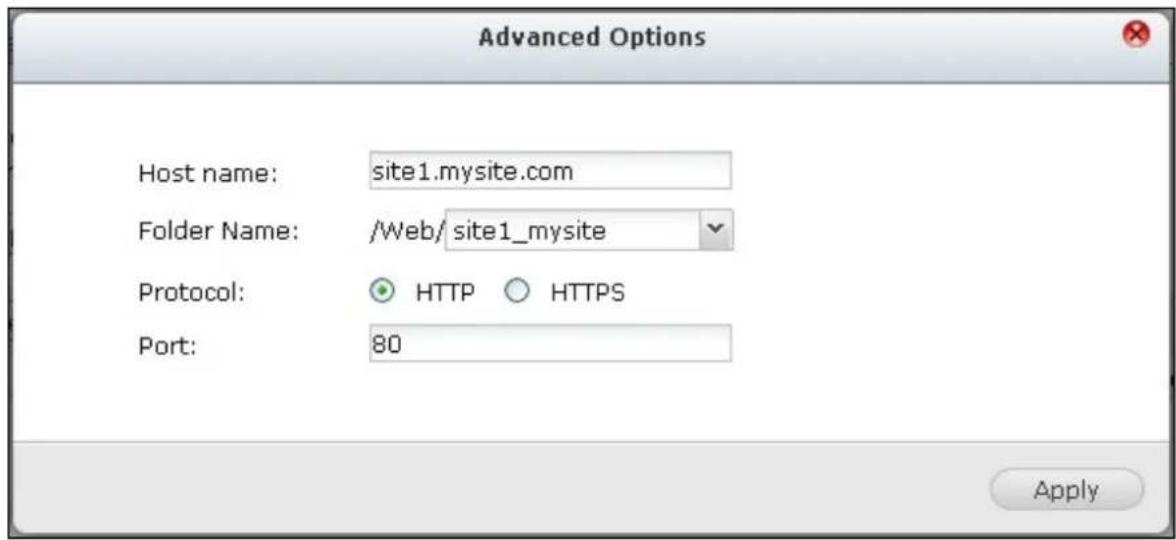
text_image
Advanced Options Host name: site1.mysite.com Folder Name: /Web/ site1_mysite Protocol: HTTP HTTPS Port: 80 Apply- Continue to enter the information for the rest of the sites you want to host on the NAS.

text_image
Station Manager Backup Station iTunes Server DLNA Media Server Media Library Web Server LDAP Server VPN Service MySQL Server Web Server Virtual Host After enabling this function, you can create multiple websites by uploading Web files to each folder. Enable Virtual Host Apply Create a Virtual Host Delete Host Name Folder Name Protocol Port Action site1.mysite.com /Web/site1_mysite HTTP 80 ☑ site2.mysite.com /Web/site2_mysite HTTP 80 ☑ www.mysite2.com /Web/www_mysite2 HTTP 80 ☑ Apply to All- Create a folder for each website (site1_mysite, site2_mysite, and www_mysite2) and start transferring the website files to the corresponding folders.

text_image
Organize Burn New folder Downloads Web Sites Joomla phpBB3 WordPress site1_mysite site2_mysite www_mysite2 3 Minutes and 30 Seconds remaining Copying 4,978 items (14.1 MB) from Joomla (C:\Users...\Joomla) to site1_mysite (P:\site1_mysite) About 3 Minutes and 30 Seconds remaining More details CancelOnce the files transfers complete point your web browser to the websites by http://NAS_host_name or https://NAS_host_name according to your settings. In this example, the URLs are:
http://site1.mysite.com
http://site2.mysite.com
http://www.mysite2.com
You should see the Joomla!, phpBB3, and WordPress web pages, respectively.
The LDAP server of the NAS allows the administrator to create users to access multiple NAS servers with the same username and password. Follow the instructions below to configure the LDAP server.
- Enable LDAP Server: Login the NAS as "admin". Go to "Applications" > "LDAP Server" and enable LDAP server. Enter the full LDAP domain name and the password for the LDAP server, then click "Apply".
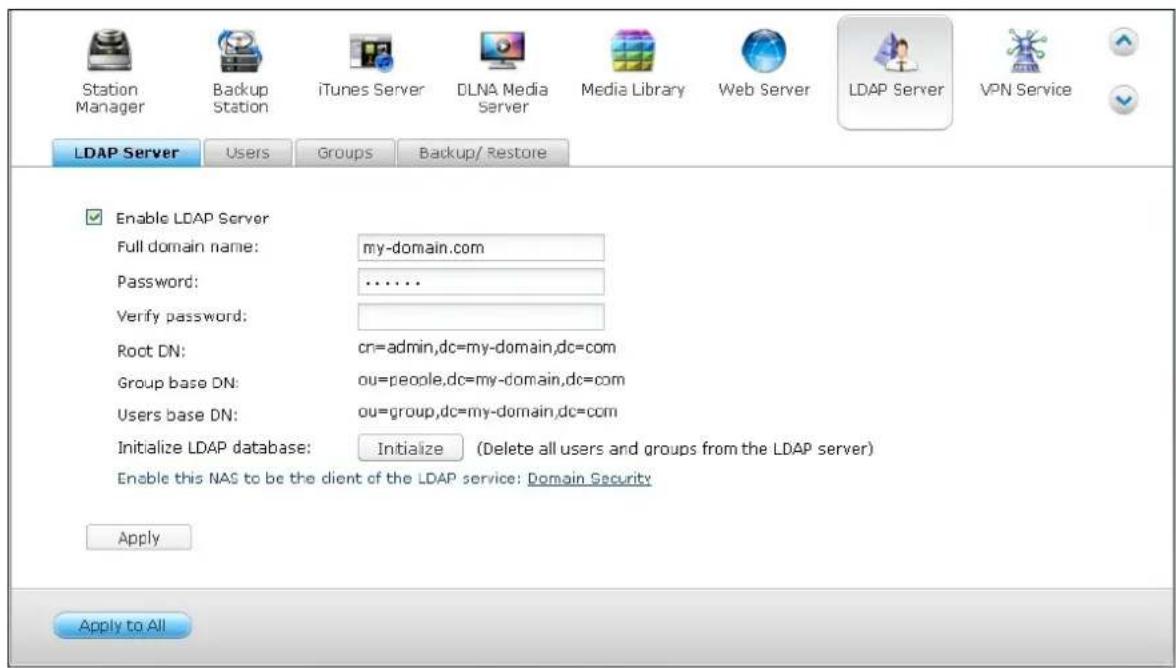
text_image
Station Manager Backup Station iTunes Server DLNA Media Server Media Library Web Server LDAP Server VPN Service LDAP Server Users Groups Backup/ Restore Enable LDAP Server Full domain name: my-domain.com Password: ...... Verify password: Root DN: cn=admin,dc=my-domain,dc=com Group base DN: ou=people,dc=my-domain,dc=com Users base DN: ou=group,dc=my-domain,dc=com Initialize LDAP database: Initialize (Delete all users and groups from the LDAP server) Enable this NAS to be the client of the LDAP service: Domain Security Apply Apply to All- Create LDAP Users: Under the "Users" tab, click "Create a User" or "Create Multiple Users" or "Batch Import Users". Follow the instructions of the wizard to create the LDAP users.
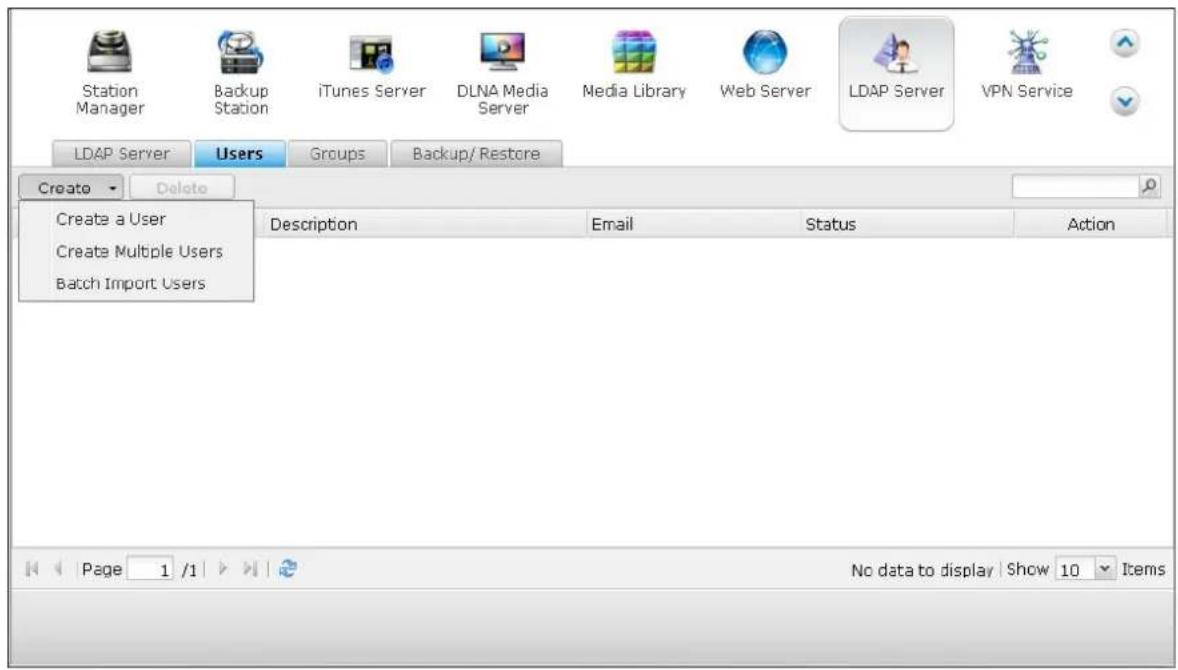
text_image
Station Manager Backup Station iTunes Server DLNA Media Server Media Library Web Server LDAP Server VPN Service LDAP Server Users Groups Backup/ Restore Create Delete Create a User Create Multiple Users Batch Import Users Description Email Status Action Page 1 /1 No data to display | Show 10 ItemsOnce you have created the LDAP users, the NAS can be joined to the domain. You can set the permissions of the LDAP users and allow them to be authenticated by the NAS.
- Join a NAS to LDAP Domain: To allow the LDAP users to connect to the NAS, join the NAS to the LDAP domain. Go to "Privilege Settings" > "Domain Security". Select "LDAP authentication" and choose "LDAP server of local NAS" as the server type. Then click "Apply".
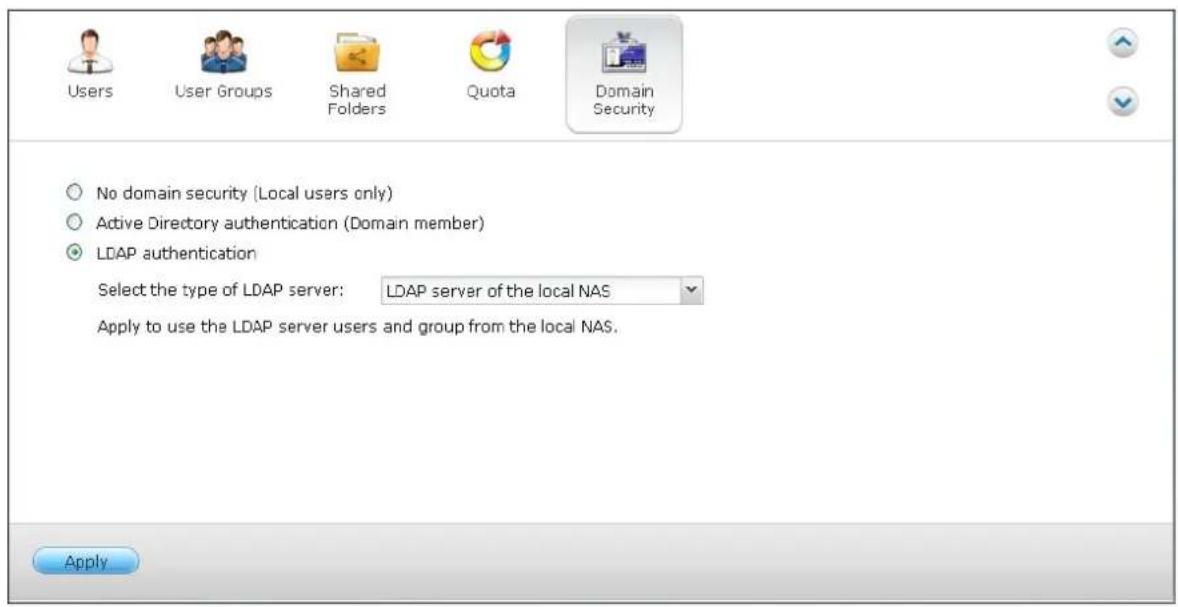
text_image
Users User Groups Shared Folders Quota Domain Security No domain security (Local users only) Active Directory authentication (Domain member) LDAP authentication Select the type of LDAP server: LDAP server of the local NAS Apply to use the LDAP server users and group from the local NAS. ApplyThe NAS is now a client of the LDAP server. To view the domain users or groups, go to "Privilege Settings" > "Users" or "User Groups", then select "Domain Users" or "Domain
Groups". You can also set the folder permission for the domain users or groups.
- Join a Second NAS to LDAP Domain: You can join multiple NAS servers to the same LDAP domain and allow the LDAP users to connect to the NAS servers using the same login credentials. To join another NAS to the LDAP domain, login the NAS and go to "Privilege Settings" > "Domain Security". Select "LDAP authentication" and then "LDAP server of a remote NAS" as the server type. Enter the DNS name or IP address of the remote NAS, the name of the LDAP domain that you created previously, and enter the LDAP server password. Click "Apply".

text_image
Users User Groups Shared Folders Quota Domain Security No domain security (Local users only) Active Directory authentication (Domain member) LDAP authentication Select the type of LDAP server: LDAP server of the remote NAS Status: IP address or NAS name: 10.8.13.59 LDAP domain: my-domain.local Example: mydomain.local Password: ...... ApplyBack up/Restore LDAP Database
To back up the LDAP database on the NAS, select "Back up Database" and specify the backup frequency, destination folder on the NAS and other options. To restore an LDAP database, browse to select the *.exp file and click "Import". Click "Apply" to apply the settings.

text_image
Station Manager Backup Station iTunes Server DLNA Media Server Media Library Web Server LDAP Server VPN Service LDAP Server Users Groups Backup/ Restore Back up LDAP Database ✓ Backup Database 1. Backup frequency: Daily 2. Start Time: 0 :00 3. Destination folder: /Public 4. Backup options ○ Overwrite existing backup file (LDAP_Backup.exp) ○ Create a new file for each backup and append the date to the filename (LDAP_backup_yyyy_mm_dd.exp) 5. Apply Apply Restore LDAP Database You can import a backup file to restore the entire LDAP configuration and contents. Select a backup file to import: Browse... Import Apply to AllNote:
- If the name of a user is changed in the LDAP server, it is necessary to assign the folder permission again on the NAS.
- To avoid account conflicts, please do not create NAS local user accounts that already exist in the LDAP directory.
The NAS supports Virtual Private Network (VPN) service for users to access the NAS and resources on a private network from the Internet. Follow the instructions below for the first time setup of the VPN service on the NAS.
- Select a network interface to connect
- Enable PPTP or OpenVPN service
- Configure port forwarding by auto router configuration
- Register myQNAPcloud service
- Add VPN users
- Connect to the private network by a VPN client
VPN Service Setup
- Select a network interface to connect: Login the NAS as "admin" and go to "Applications" > "VPN Service" > "VPN Server Settings". Under "General Settings", select a network interface to connect to the desired network which the NAS belongs to.
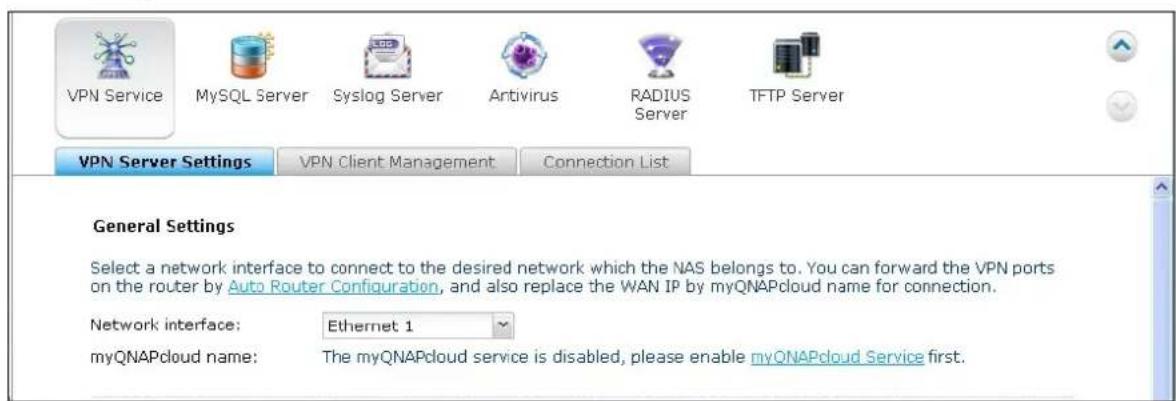
text_image
VPN Service MySQL Server Syslog Server Artivirus RADIUS Server TFTP Server VPN Server Settings VPN Client Management Connection List General Settings Select a network interface to connect to the desired network which the NAS belongs to. You can forward the VPN ports on the router by Auto Router Configuration, and also replace the WAN IP by myQNAPcloud name for connection. Network interface: Ethernet 1 myQNAPcloud name: The myQNAPcloud service is disabled, please enable myQNAPcloud Service first.- Enable PPTP or OpenVPN service: The NAS supports PPTP and OpenVPN for VPN connection. Select either one option and configure the settings.
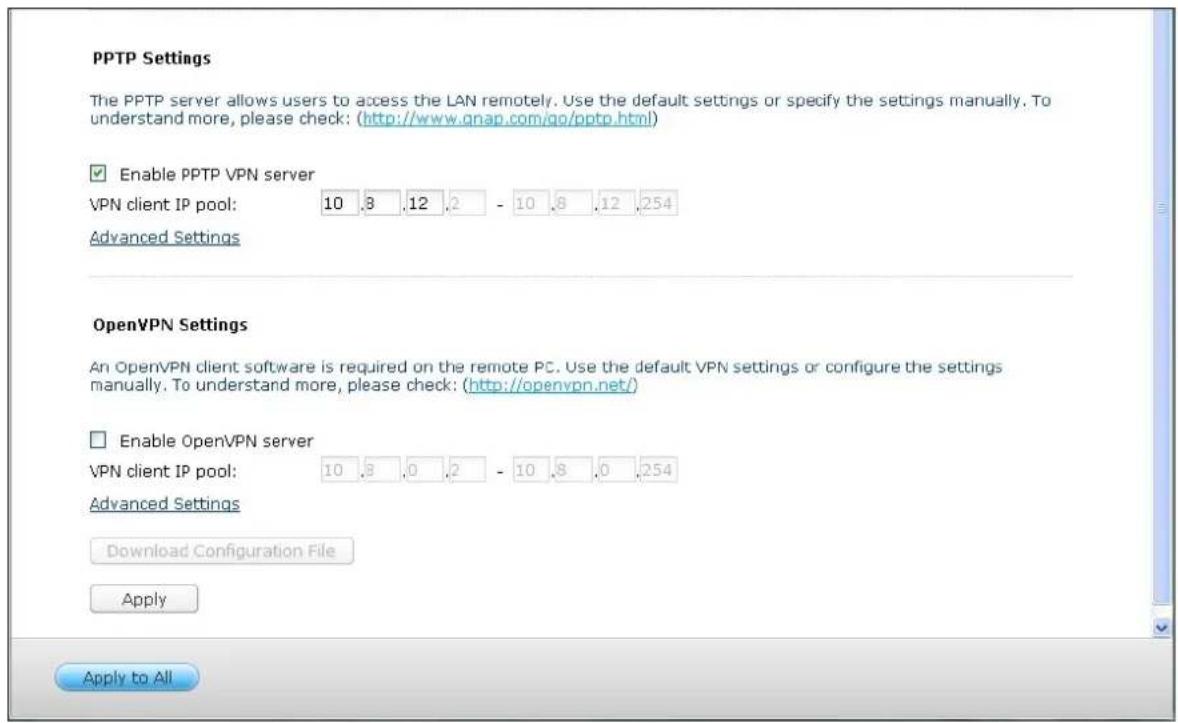
text_image
PPTP Settings The PPTP server allows users to access the LAN remotely. Use the default settings or specify the settings manually. To understand more, please check: (http://www.qnap.com/go/pptp.html) Enable PPTP VPN server VPN client IP pool: 10 .8 .12 .2 - 10 .8 .12 .254 Advanced Settings OpenVPN Settings An OpenVPN client software is required on the remote PC. Use the default VPN settings or configure the settings manually. To understand more, please check: (http://openvpn.net/) Enable OpenVPN server VPN client IP pool: 10 .8 .0 .2 - 10 .8 .0 .254 Advanced Settings Download Configuration File Apply Apply to AllPPTP: Point-to-Point Tunneling Protocol (PPTP) is one of the most commonly used methods for VPN connection. It is natively supported by Windows, Mac, Linux, Android, and iPhone.
Note: The default NAS IP is 10.0.0.1 under PPTP VPN connection.
OpenVPN: OpenVPN is an open source VPN solution which utilizes SSL encryption for secure connection. To connect to the OpenVPN server, OpenVPN client must be installed on your PC. Click "Download Configuration File" to download the VPN client settings, certificate/key and installation guide from the NAS and upload the files to the OpenVPN client.
Note: Upload the configuration file to the OpenVPN client every time the OpenVPN settings, myQNAPcloud name, or the secure certificate is changed.
- Configure port forwarding by auto router configuration: The NAS supports auto port forwarding for UPnP (Universal Plug-and-Play network protocol) routers. Go to "myQNAPcloud" > "Auto Router Configuration" to enable UPnP port forwarding and open the ports of the PPTP or OpenVPN service on the router.
Note: To connect to the PPTP server on the Internet, the PPTP passthrough options on some routers have to be opened. PPTP uses only port TCP-1723; forward this port manually if your router does not support UPnP.
- Register myQNAPcloud service: You can connect to the NAS by WAN IP or myQNAPcloud name. To configure myQNAPcloud service, check the chapter on myQNAPcloud Service or visit myQNAPcloud (http://www.qnap.com/pro_application.asp?ap_id=637).
- Add VPN users: Go to "Applications" > "VPN Service" > "VPN Client Management", click "Add VPN Users". The local NAS users will be listed. Select the users who are allowed to use the VPN service and their connection method (PPTP, OpenVPN, or both). Click "Add".
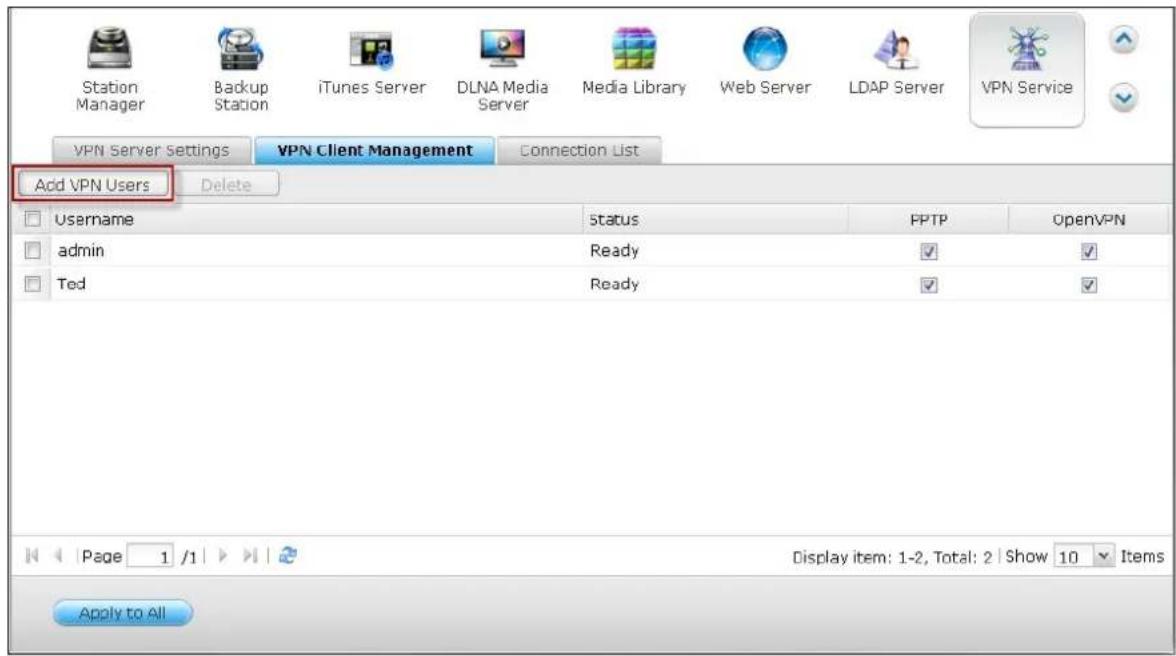
text_image
Station Manager Backup Station iTunes Server DLNA Media Server Media Library Web Server LDAP Server VPN Service VPN Server Settings VPN Client Management Connection List Add VPN Users Delete Username status PPTP OpenVPN admin Ready ✓ ✓ Ted Ready ✓ ✓ Page 1 /1 Display item: 1-2, Total: 2 | Show 10 Items Apply to All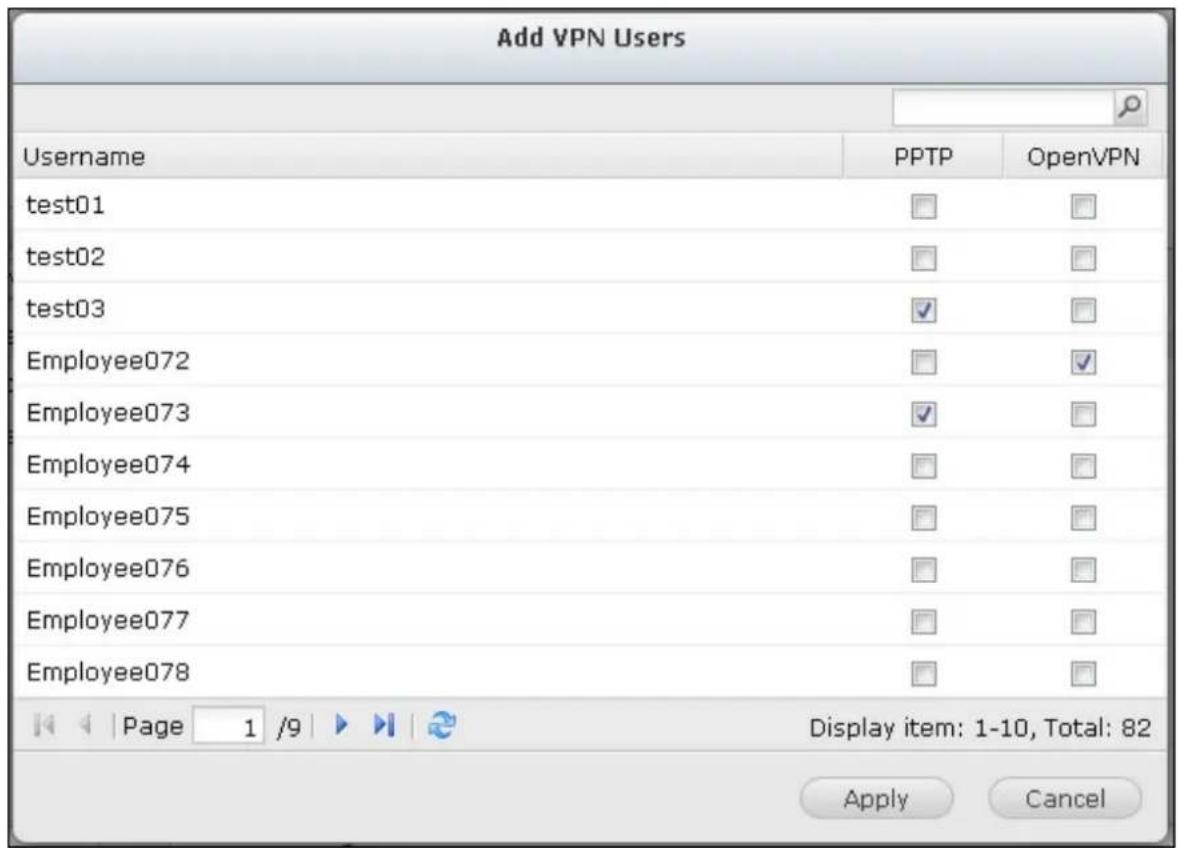
text_image
Add VPN Users Username PPTP OpenVPN test01 □ □ test02 □ □ test03 ✓ □ Employee072 □ ✓ Employee073 ✓ □ Employee074 □ □ Employee075 □ □ Employee076 □ □ Employee077 □ □ Employee078 □ □ Page 1 /9 Display item: 1-10, Total: 82 Apply Cancel- Connect to the private network by a VPN client: Now you can use your VPN client to connect to the NAS via the VPN service.
VPN Client Setup
PPTP on Windows 7
- Go to "Control Panel" > "Network and Sharing Center". Select "Set up a new connection or network".

text_image
Control Panel Home Change adapter settings Change advanced sharing settings View your basic network information and set up connections alfred-PC (This computer) Network Internet See full map View your active networks Connect or disconnect Network Public network Access type: Internet Connections: Local Area Connection Change your networking settings Set up a new connection or network Set up a wireless, broadband, dial-up, ad hoc, or VPN connection; or set up a router or access point. Connect to a network Connect or reconnect to a wireless, wired, dial-up, or VPN network connection. Choose homegroup and sharing options Access files and printers located on other network computers, or change sharing settings. Troubleshoot problems Diagnose and repair network problems, or get troubleshooting information. See also HomeGroup Internet Options Windows Firewall- Select "Connect to a workplace" and click "Next".

text_image
Set Up a Connection or Network Choose a connection option Connect to the Internet Set up a wireless, broadband, or dial-up connection to the Internet. Set up a new network Configure a new router or access point. Connect to a workplace Set up a dial-up or VPN connection to your workplace. Set up a dial-up connection Connect to the Internet using a dial-up connection. Next Cancel- Select "Use my Internet connection (VPN)".
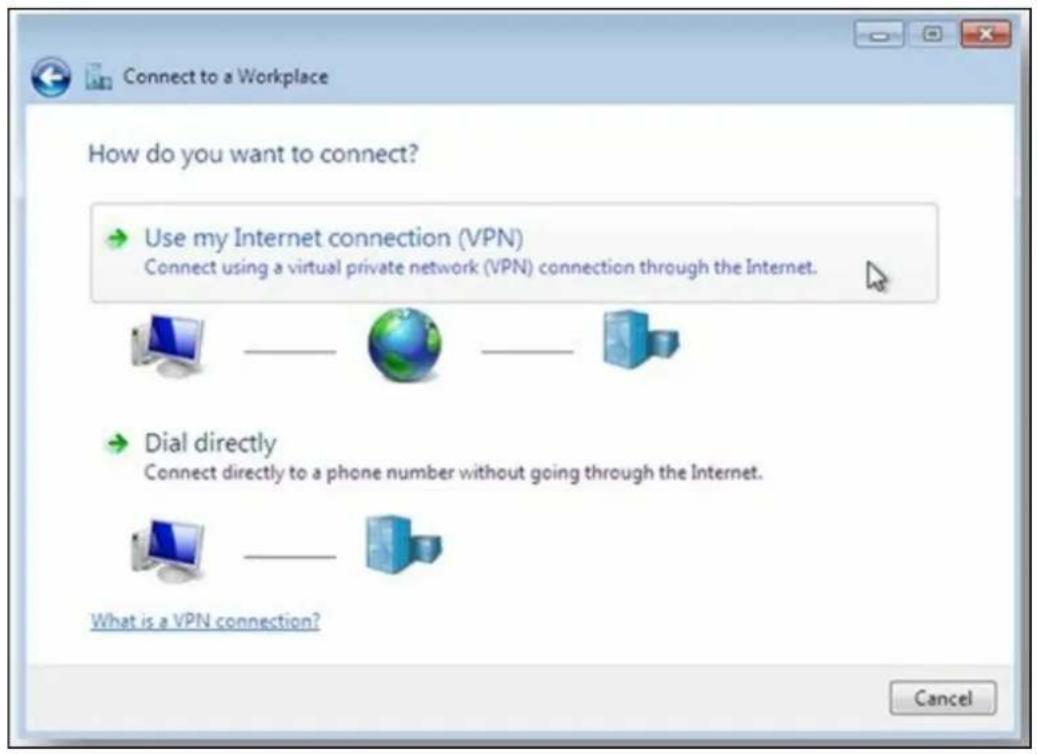
text_image
Connect to a Workplace How do you want to connect? → Use my Internet connection (VPN) Connect using a virtual private network (VPN) connection through the Internet. Dial directly Connect directly to a phone number without going through the Internet. What is a VPN connection? Cancel- Enter the MyQNAPcloud name or the WAN IP of the NAS and enter a name of the connection. Then click "Next".

text_image
Connect to a Workplace Type the Internet address to connect to Your network administrator can give you this address. Internet address: [Example:Contoso.com or 157.54.0.1 or 3ffe:1234:1111] Destination name: VPN Connection Use a smart card Allow other people to use this connection This option allows anyone with access to this computer to use this connection.- Enter your username and password which is added from the NAS for VPN access. Click "Connect".
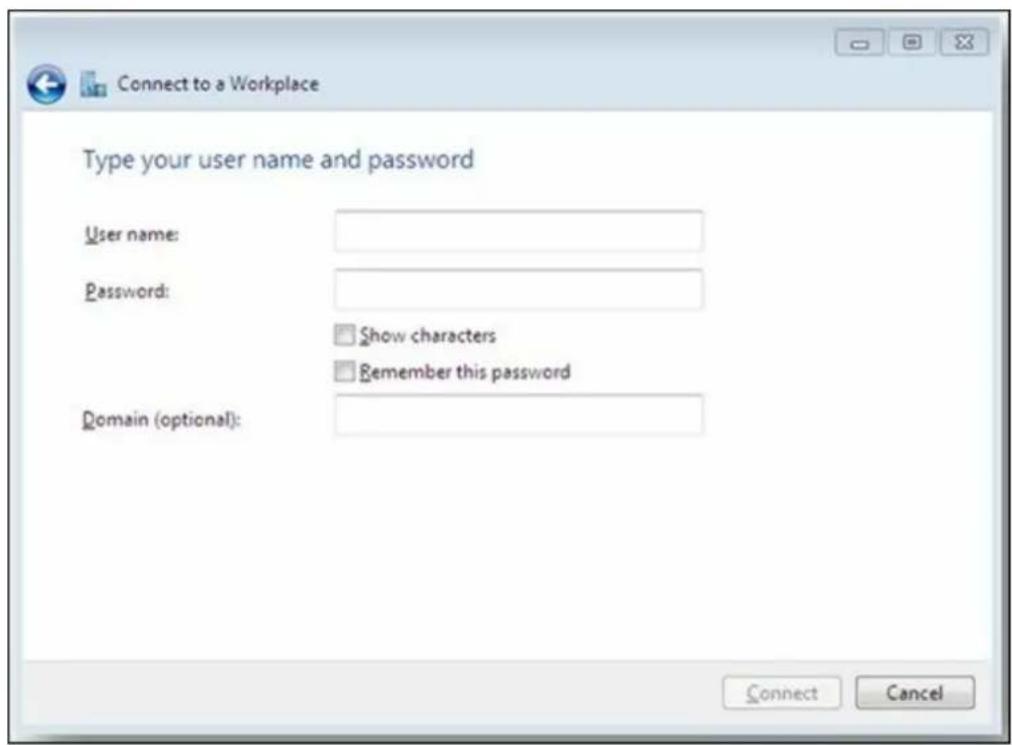
text_image
Connect to a Workplace Type your user name and password User name: Password: Show characters Remember this password Domain (optional): Connect CancelPPTP on Mac OS X 10.7
- Choose "Apple menu" > "System Preferences", and click "Network".
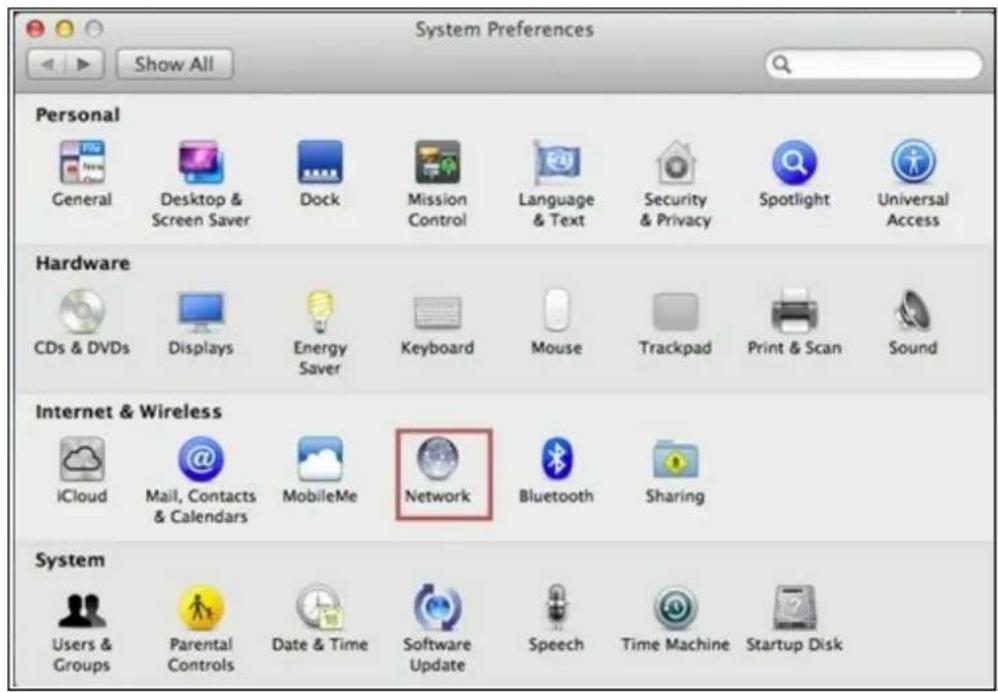
text_image
System Preferences Show All Personal General Desktop & Screen Saver Dock Mission Control Language & Text Security & Privacy Spotlight Universal Access Hardware CDs & DVDs Displays Energy Saver Keyboard Mouse Trackpad Print & Scan Sound Internet & Wireless iCloud Mail, Contacts & Calendars MobileMe Network Bluetooth Sharing System Users & Groups Parental Controls Date & Time Software Update Speech Time Machine Startup Disk- Click "Add (+)" at the bottom of the list, and choose "VPN" as the interface.

text_image
Network Select the interface and enter a name for the new service. Interface ✓ Wi-Fi Bluetooth DUN VPN PPPoE 6 to 4 Wi-Fi Connected Service Name Hi-Fi Off has the IP Bluetooth PA Not Connected Network Name: Q PM2 ✓ Ask to join new networks Known networks will be joined automatically. If no known networks are available, you will be asked before joining a new network. ✓ Show Wi-Fi status in menu bar Advanced... Click the lock to prevent further changes. Assist me... Revert Apply- Choose the VPN type according to the settings of the NAS to connect. Enter the service name.

text_image
Network Show All Select the interface and enter a name for the new service. Interface: VPN VPN Type: PPTP Service Name: VPN (PPTP) Cancel Create Wi-Fi Off has the IP Bluetooth PA Not Connected ✓ Ask to join new networks Known networks will be joined automatically. If no known networks are available, you will be asked before joining a new network. ✓ Show Wi-Fi status in menu bar Advanced... Click the lock to prevent further changes. Assist me... Revert Apply- In "Server Address", enter the myQNAPcloud name or the WAN IP of the NAS. In "Account Name", enter your username which is added from the NAS.
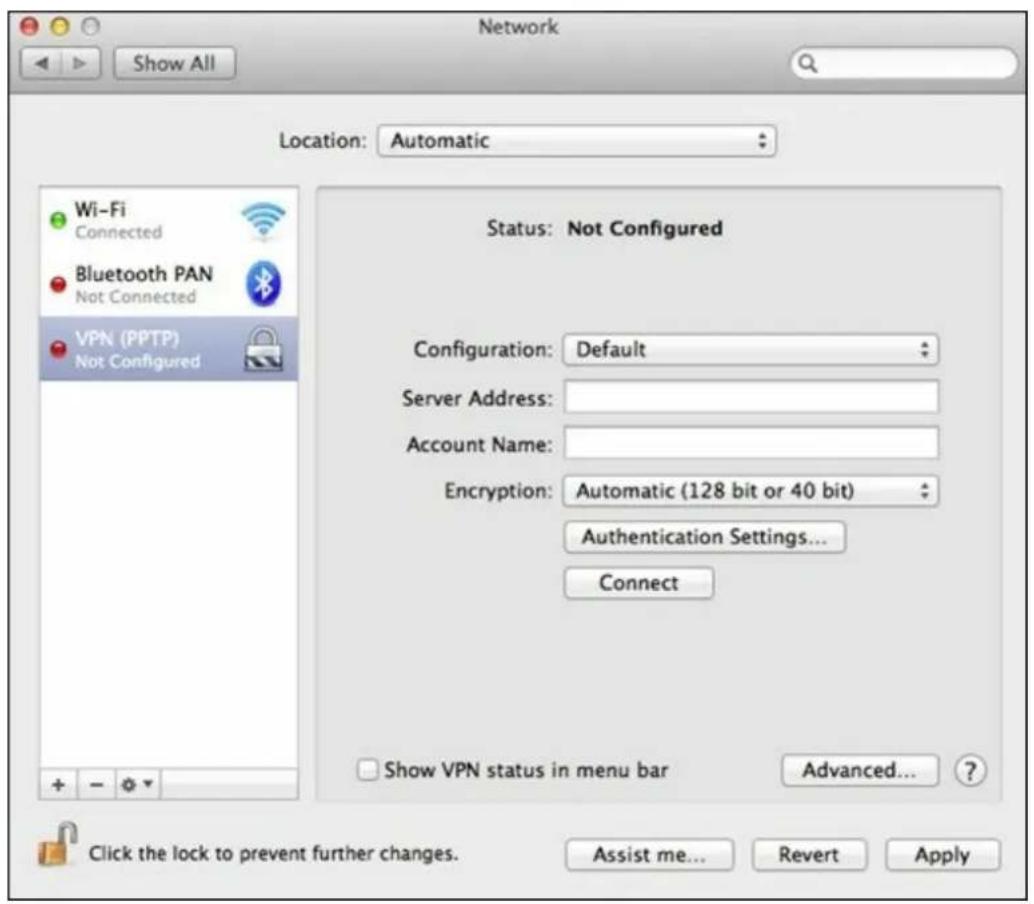
text_image
Network Show All Location: Automatic Wi-Fi Connected Bluetooth PAN Not Connected VPN (PPTP) Not Configured Status: Not Configured Configuration: Default Server Address: Account Name: Encryption: Automatic (128 bit or 40 bit) Authentication Settings... Connect Show VPN status in menu bar Advanced... Click the lock to prevent further changes. Assist me... Revert Apply- Click "Authentication Settings", and enter the user authentication information given by the network administrator.

text_image
Network Show All Location: Automatic Wi-Fi Connected Bluetooth PAN Not Connected VPN (PPTP) Not Configured Status: Not Configured Configuration: Default Server Address: Account Name: Encryption: Automatic (128 bit or 40 bit) Authentication Settings... Connect Show VPN status in menu bar Advanced... Click the lock to prevent further changes. Assist me... Revert Apply- After entering the user authentication information, click "OK", and then click "Connect".
PPTP on iOS 5
- Go to "Settings" > "General" > "Network", select "VPN".
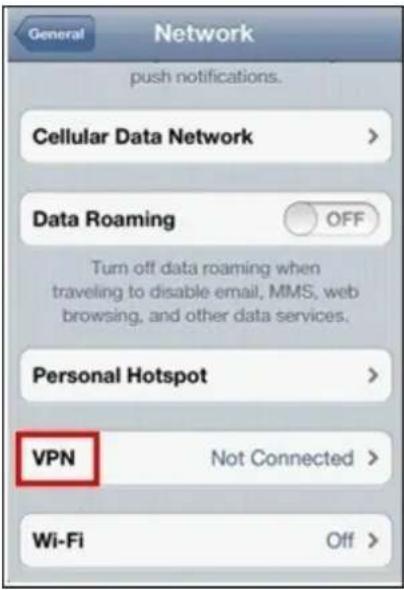
text_image
General Network push notifications. Cellular Data Network Data Roaming OFF Turn off data roaming when traveling to disable email, MMS, web browsing, and other data services. Personal Hotspot VPN Not Connected > Wi-Fi Off >- Select "Add VPN Configuration".

text_image
Network VPN Choose a Configuration... ✓ Tony Custom Add VPN Configuration...- Select "PPTP", and enter the Description, Server, Account, and Password for the connection.
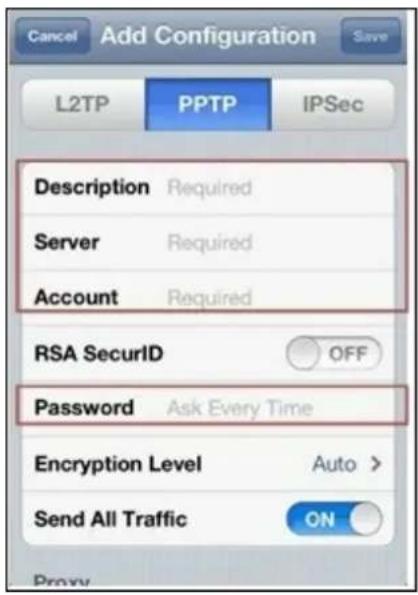
text_image
Cancel Add Configuration Save L2TP PPTP IPSec Description Required Server Required Account Required RSA SecurlD OFF Password Ask Every Time Encryption Level Auto > Send All Traffic ON Proxy- Return to "Settings" > "General" > "Network" > "VPN", and enable "VPN".

text_image
Network VPN Choose a Configuration... ✓ Tony Custom Add VPN Configuration... >OpenVPN on Windows
- Download OpenVPN from http://openvpn.net/index.php/open-source/downloads.html
- Install OpenVPN client on Windows. The default installation directory is C:\Program Files\OpenVPN.
- Run OpenVPN GUI as administrator.
- Download OpenVPN configuration file and certificate from the NAS ("Applications" > "VPN Service" > "VPN Server Settings" > "OpenVPN Settings")
- Edit openvpn.ovpn and replace "OPENVPN_SERVER_IP" with the OpenVPN server IP.
- Put "ca.crt" and "openvpn.ovpn" into the configuration folder under OpenVPN configuration subdirectory (C:\Program Files\OpenVPN\config).
Note: If the OpenVPN client is running on Windows 7, add the firewall rules in the advanced settings of OpenVPN.
OpenVPN on Linux
- Download OpenVPN from http://openvpn.net/index.php/open-source/downloads.htm
- Install OpenVPN client on Linux.
- Download OpenVPN configuration file and certificate from the NAS ("Applications" > "VPN Service" > "VPN Server Settings" > "OpenVPN Settings").
- Edit openvpn.ovpn and replace "OPENVPN_SERVER_IP" with OpenVPN server IP.
-
Put "ca.crt" and "openvpn.ovpn" into the configuration folder under OpenVPN configuration subdirectory.
-
Run OpenVPN.
OpenVPN on Mac
- Download the disk image of OpenVPN client from http://code.google.com/p/tunnelblick/
- Launch Tunnelblick.
- Download OpenVPN configuration file and certificate from the NAS ("Applications" > "VPN Service" > "VPN Server Settings" > "OpenVPN Settings").
- Edit openvpn.ovpn and replace OPENVPN_SERVER_IP (alfred.myqnapnas.com) with OpenVPN server IP.
- Put "ca.crt" and "openvpn.ovpn" into the configuration folder under OpenVPN configuration subdirectory.
- Run OpenVPN.
Note: To use this feature on the TS-x39/509/809 series, please update the system firmware with the image file enclosed in the product CD or download the latest system firmware from http://www.qnap.com.
You can enable MySQL Server as the website database.
Enable TC P/IP Networking:
You can enable this option to configure MySQL server of the NAS as a database server of another web server in remote site through Internet connection. When you disable this option, your MySQL server will only be configured as local database server for the web server of the NAS.
After enabling remote connection, assign a port for the remote connection service of MySQL server. The default port is 3306.
After the first-time installation of the NAS, a folder phpMyAdmin is created in the Qweb/Web network folder. You can enter http://NAS IP/phpMyAdmin/ in the web browser to enter the phpMyAdmin page and manage the MySQL database.
Note:
- Do not delete the phpMyAdmin folder. You can rename this folder but the link on the MySQL server page will not be updated. To connect to the renamed folder, you can enter the link http://NAS IP/renamed folder in the web browser.
- The phpMyAdmin folder is created after the first-time installation. When you update the firmware, the folder remains unchanged.
Database Maintenance:
- Reset root password: Execute this function to reset the password of MySQL root as "admin".
- Re-initialize database: Execute this function to delete all the data on MySQL database.
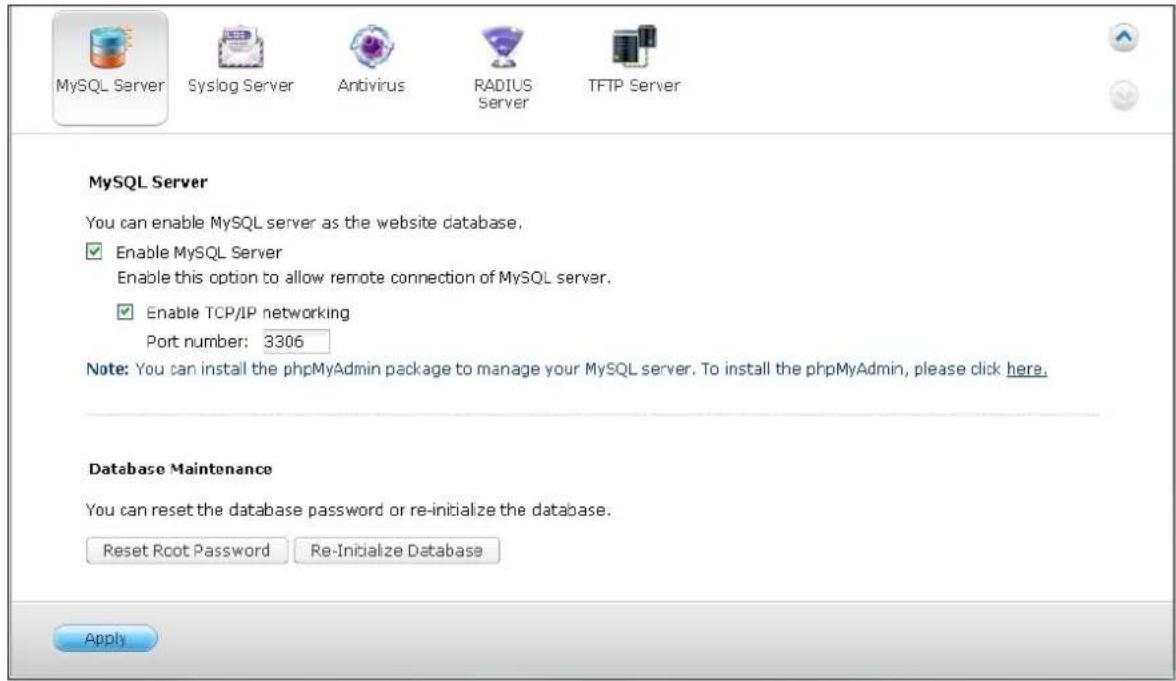
text_image
MySQL Server Syslog Server Antivirus RADIUS Server TFTP Server MySQL Server You can enable MySQL server as the website database. Enable MySQL Server Enable this option to allow remote connection of MySQL server. Enable TCP/IP networking Port number: 3306 Note: You can install the phpMyAdmin package to manage your MySQL server. To install the phpMyAdmin, please click here. Database Maintenance You can reset the database password or re-initialize the database. Reset Root Password Re-Initialize Database ApplyServer Settings
To configure the NAS as a Syslog server and allow it to receive Syslog messages from the clients, enable Syslog Server. Select the protocols (TCP and/or UDP) the NAS uses to receive Syslog messages. Specify the port numbers if necessary or use the default port number 514. Click "Apply" to save the settings. After enabling the NAS as a Syslog server, enter the NAS IP as the Syslog server IP on the Syslog clients to receive the Syslog messages from them.
Log Settings
Specify the maximum log size (1-100 MB) of the Syslog messages, the location (NAS shared folder) to which the logs will be saved, and the file name. Once the logs have reached the maximum size, the log file will be automatically archived and renamed with the archive date as MyLogFile_yyyy_mm_dd, for example MyLogFile_2011_12_31. If multiple log files are archived on the same day, the file will be named as MyLogFile_yyyy_mm_dd.[number]. For example, MyLogFile_2011_12_31.1, MyLogFile_2011_12_31.2, and so on. Click "Apply" to save the settings.

text_image
MySQL Server Syslog Server Antivirus RADIUS Server TFTP Server Server Settings Filter Settings Syslog Viewer Server Settings Enable Syslog Server Enable TCP TCP port: 514 Enable UDP UDP port: 514 Log Settings Maximum log size (MB): 50 Log file: Public / messages Email Notification If the severity of a received log message is higher the selected severity level, the system will send an alert email automatically. Enable the email notification Severity level: Emerg Note: The SMTP server must be configured first for alert mail delivery. Click this to configure the SMTP server Apply Apply to AllEm ail Notification:
The NAS supports sending email alert to dedicated email addresses (maximum 2, configured in "System Settings" > "Notification" > "Alert Notification") when the severity of the received Syslog messages match the specified level. To use this feature, configure the SMTP server settings in "System Settings" > "Notification" > "SMTP Server". Next, enable email notification and select the severity level in "Applications" > "Syslog Server" > "Server Settings". Click "Apply" to save the settings.
| Severity | Level(sm allest num ber the highest) | Description |
| Emerg | 0 | Emergency: the system is unusable.Alert emails will be sent when Syslog messages of levels 0-4 are received. |
| Alert | 1 | Alert: immediate action required.Alert emails will be sent when Syslog messages of levels 1-4 are received. |
| Crit | 2 | Critical: critical conditions.Alert emails will be sent when Syslog messages of levels 2-4 are received. |
| Err | 3 | Error: error conditions.Alert emails will be sent when Syslog messages of levels 3-4 are received. |
| Warning | 4 | Warning: warning conditions.Alert emails will be sent when Syslog messages of level 4 are received. |
Email Notification
If the severity of a received log message is higher the selected severity level, the system will send an alert email automatically.
√ Enable the email notification
Severity level:
Emerg
V
Note: The SMTP server must be configured first for alert mail delivery. Click this to configure the SMTP server
Apply
Filter Settings
This feature should only be operated by system administrators who are familiar with Syslog filters.
Follow the steps below to create Syslog filters for the NAS to receive Syslog messages that match the criteria.
1. Click "Add a Filter".

text_image
MySQL Server Syslog Server Antivirus RADIUS Server TFTP Server Server Settings Filter Settings Syslog Viewer Add a Filter Delete Filter Status Action- Define the filter settings and click "Add". To edit the filters or add the filters manually, click "Manual Edit" and modify the contents in the dialog. Click "Apply" to save the filter.
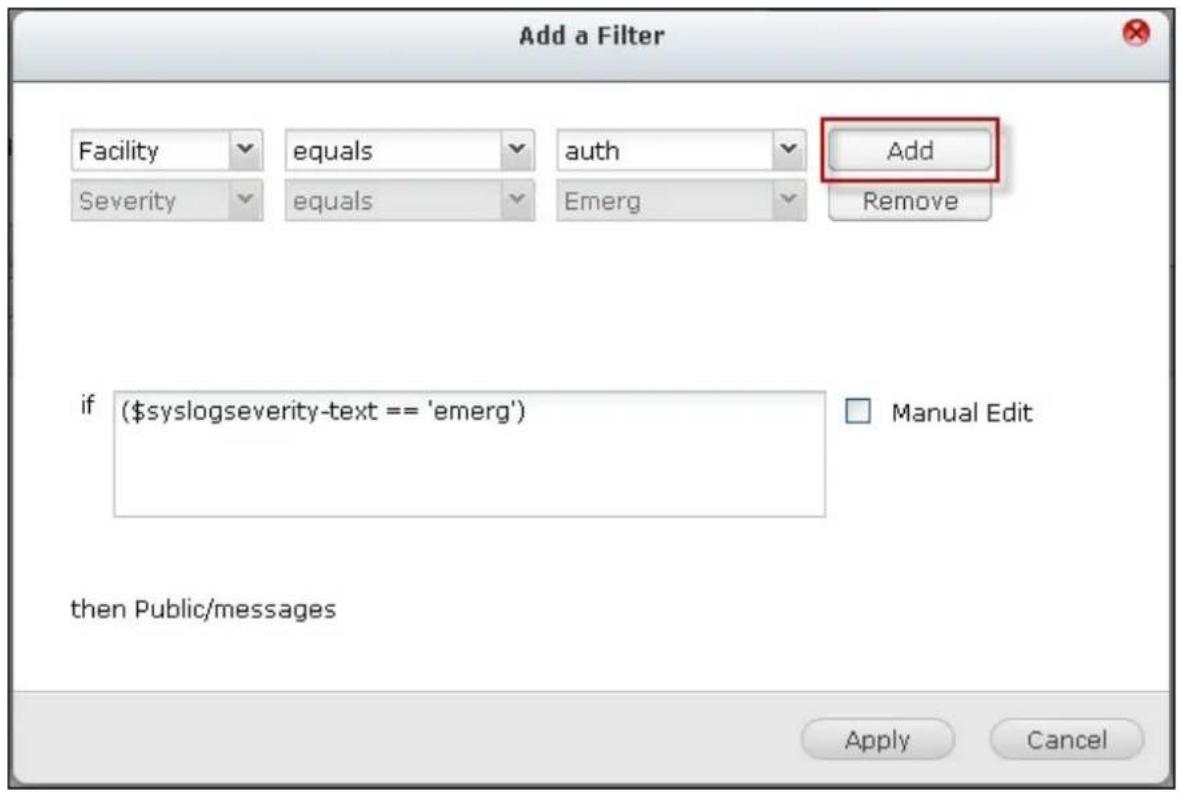
text_image
Add a Filter Facility equals auth Add Severity equals Emerg Remove if ($syslogseverity-text == 'emerg') Manual Edit then Public/messages Apply Cancel- The filters will be shown on the list. The NAS will only receive the Syslog messages that match the filters which are in use.
| Button | Description |
| Enable a filter | |
| Disable a filter | |
| Edit the filter settings | |
| Delete | Delete one or more filters |

text_image
MySQL Server Syslog Server Antivirus RADIUS Server TFTP Server Server Settings Filter Settings Syslog Viewer Add a Filter Delete Filter ($syslogseverity-text == 'emerg') (syslogseverity-text == 'emerg') and (syslogfacility-text == 'auth') Status Disable Enable ActionSyslog View er
Use the web-based Syslog viewer to view the available Syslog messages on the NAS. Select to view the latest logs or the logs in a particular archived file. The log files can be accessed on the directory configured in "Syslog Server" > "Server Settings" > "Log Settings".
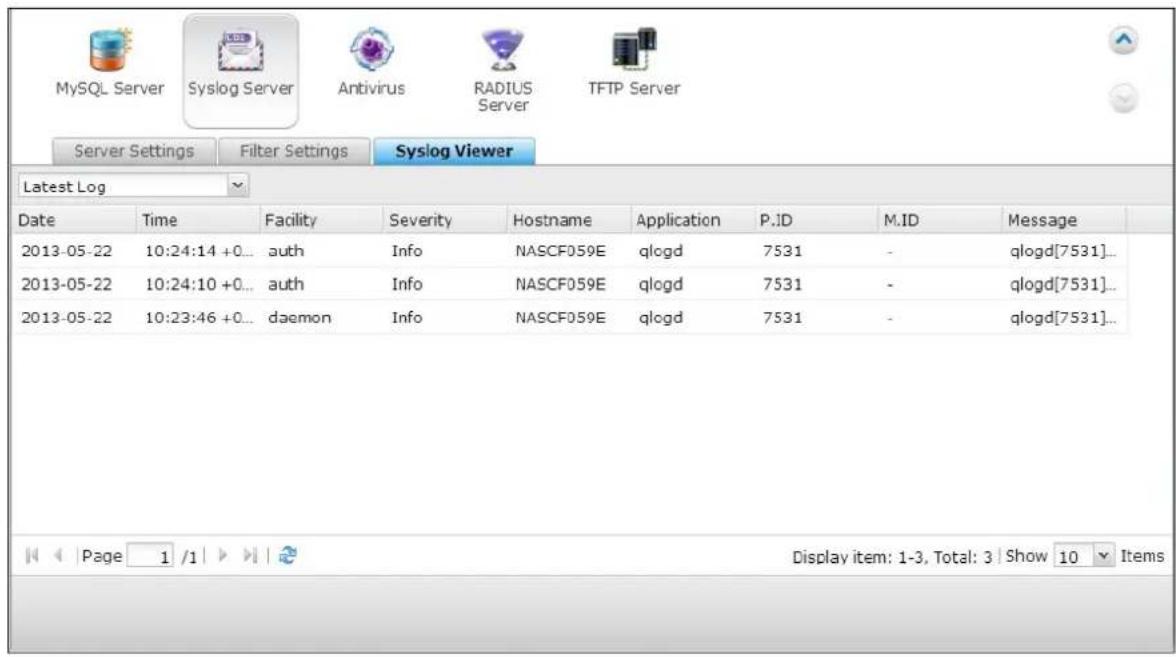
text_image
MySQL Server Syslog Server Antivirus RADIUS Server TFTP Server Server Settings Filter Settings Syslog Viewer Latest Log Date Time Facility Severity Hostname/Application P.ID M.IDväve 2013-05-22 10:24:14 +0...authInfo NASCF059E&qlogd 7531 -qlogd[7531]... 2013-05-22 10:24:10 +0...authInfo NASCF059E&qlogd 7531 -qlogd[7531]... 2013-05-22 10:23:46 +0...daemonInfo NASCF059E&qlogd 7531 -qlogd[7531]... Display item: 1-3, Total: 3 | Show 10 ItemsOverview
Use the antivirus feature to scan the NAS manually or on recurring schedule and delete, quarantine, or report files infected by viruses, malware, Trojans, and other malicious threats. To use this feature, select "Enable antivirus" and click "Apply".
Update:
Select "Check and update automatically" and specify the interval in days to update the antivirus definitions automatically. Click "Update Now" next to online update to update the antivirus definitions immediately. Users can also download the update files from http://www.clamav.net and update the antivirus definitions manually.
The NAS must be connected to the Internet to use this feature.
Quarantine:
View the quarantine information of the disk volumes on the NAS. For the details, go to "Applications" > "Antivirus" > "Quarantine".

text_image
MySQL Server Syslog Server Antivirus RADIUS Server TFTP Server Overview Scan Jobs Reports Quarantine Antivirus Enable antivirus Virus definitions: 2013/05/20 10:17 Last virus scan: 2013/05/15 19:44:29 Last infected file found: -- Status: Scanning... Update Check and update automatically. Frequency in days: 1 Online update: Update now Manual update (*.cvd): Browse... Import Update file available at: http://www.damay.net Quarantine Single Disk: Drive 1 : -- Apply Apply to AllScan Jobs
The NAS supports manual and scheduled scanning of all or specific shared folders. Up to 64 schedules can be created and maximum 5 scan jobs can run concurrently. To create a scan job, follow the steps below.
- Go to "Applications" > "Antivirus" > "Scan Jobs". Click "Add a Scan Job".

text_image
MySQL Server Syslog Server Antivirus RADIUS Server TFTP Server Overview Scan Jobs Reports Quarantine Add a Scan Job Job Name Last Scan Duration Infected Files Action Page 1 /1 No data to display Show 10 Items- Enter the job name and select the shared folders to scan. To scan a specific shared folder, select the share and click "Add".
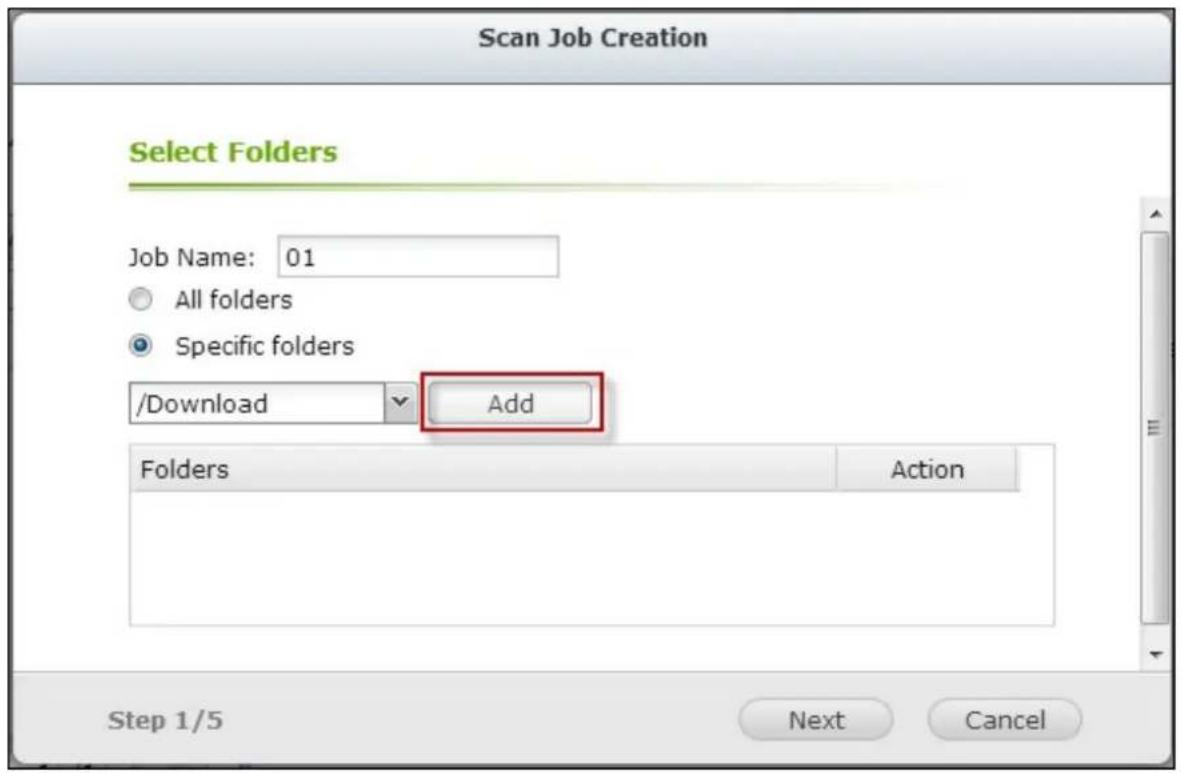
text_image
Scan Job Creation Select Folders Job Name: 01 All folders Specific folders /Download Add Folders Action Step 1/5 Next Cancel- Multiple shared folders can be selected. To remove a shared folder, click next to the share name. Click "Next".
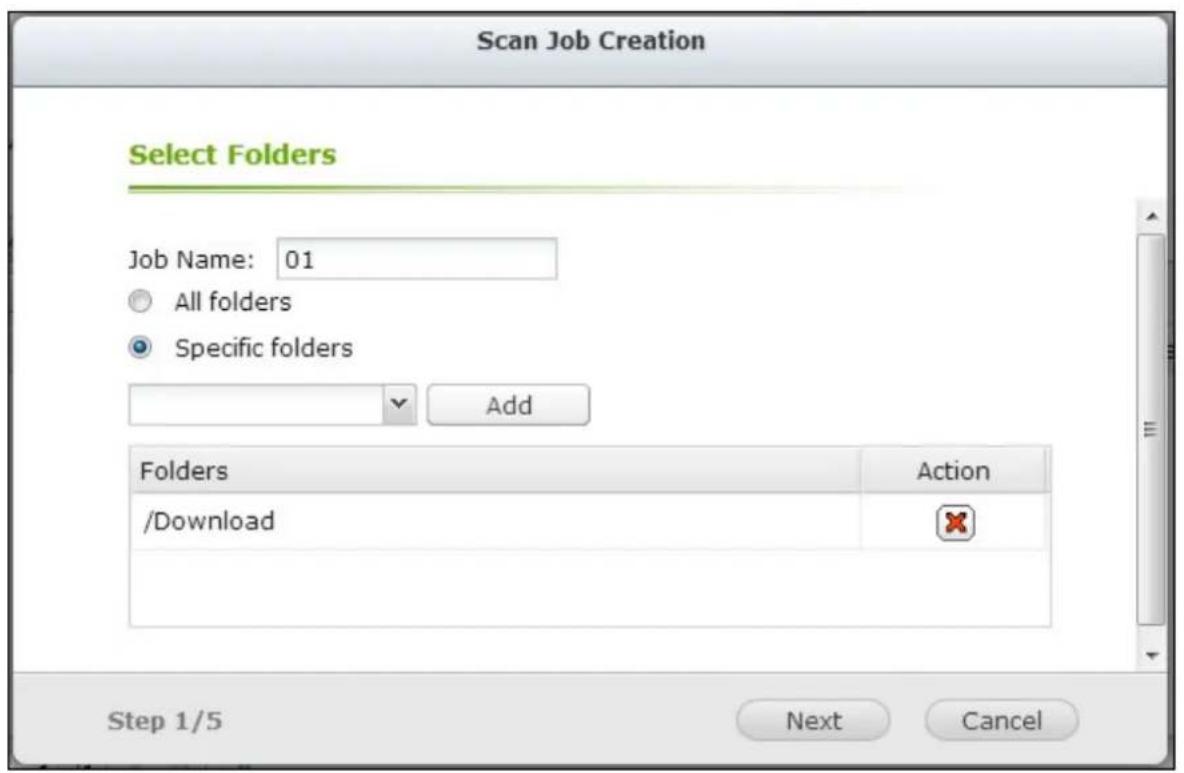
text_image
Scan Job Creation Select Folders Job Name: 01 All folders Specific folders Add Folders /Download Action Step 1/5 Next Cancel- Define the schedule for the scan job. Click "Next".
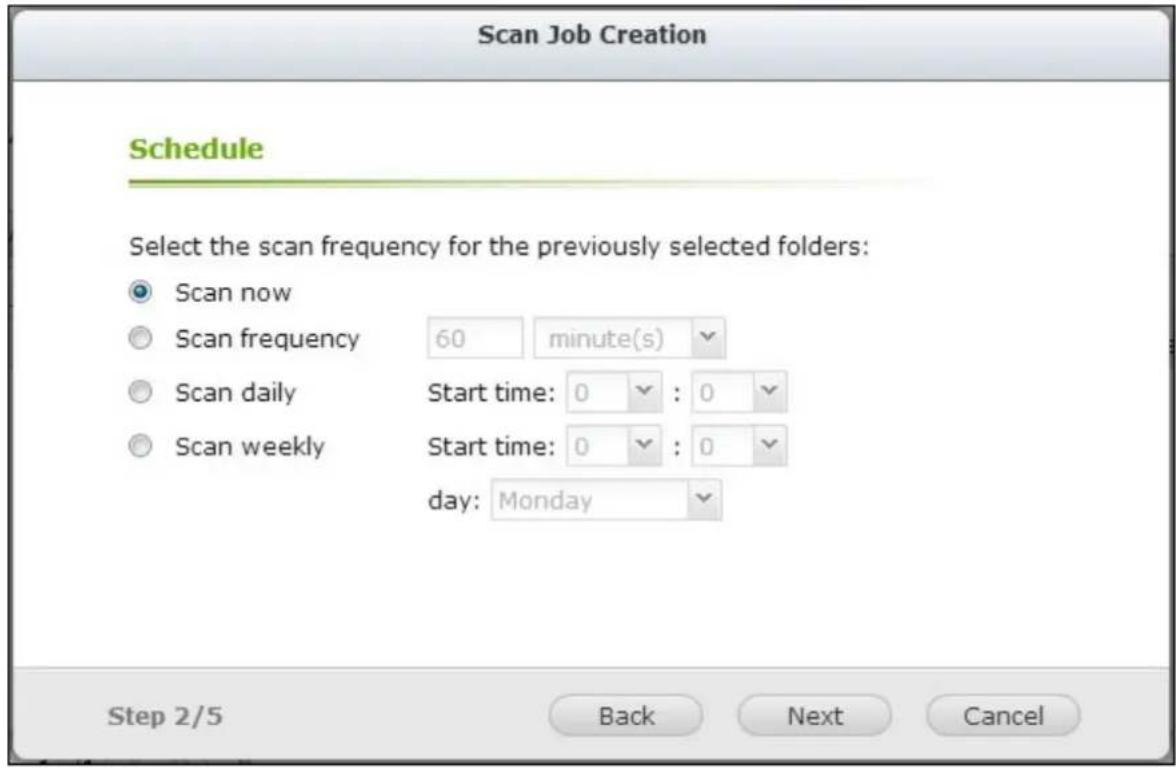
text_image
Scan Job Creation Schedule Select the scan frequency for the previously selected folders: Scan now Scan frequency 60 minute(s) Scan daily Start time: 0 : 0 Scan weekly Start time: 0 : 0 day: Monday Step 2/5 Back Next Cancel- Select to scan all the files in the shared folder(s) or quick scan to scan only potentially dangerous files. Select "Exclude files or folders" and specify a file, a folder, or a file extension to be excluded from the virus scan. Separate each entry by a space in the same line or enter one entry per line. For example:
/Public/testfile.txt
/Download
*.log
*.exe *.com
*.txt
Click "Next".
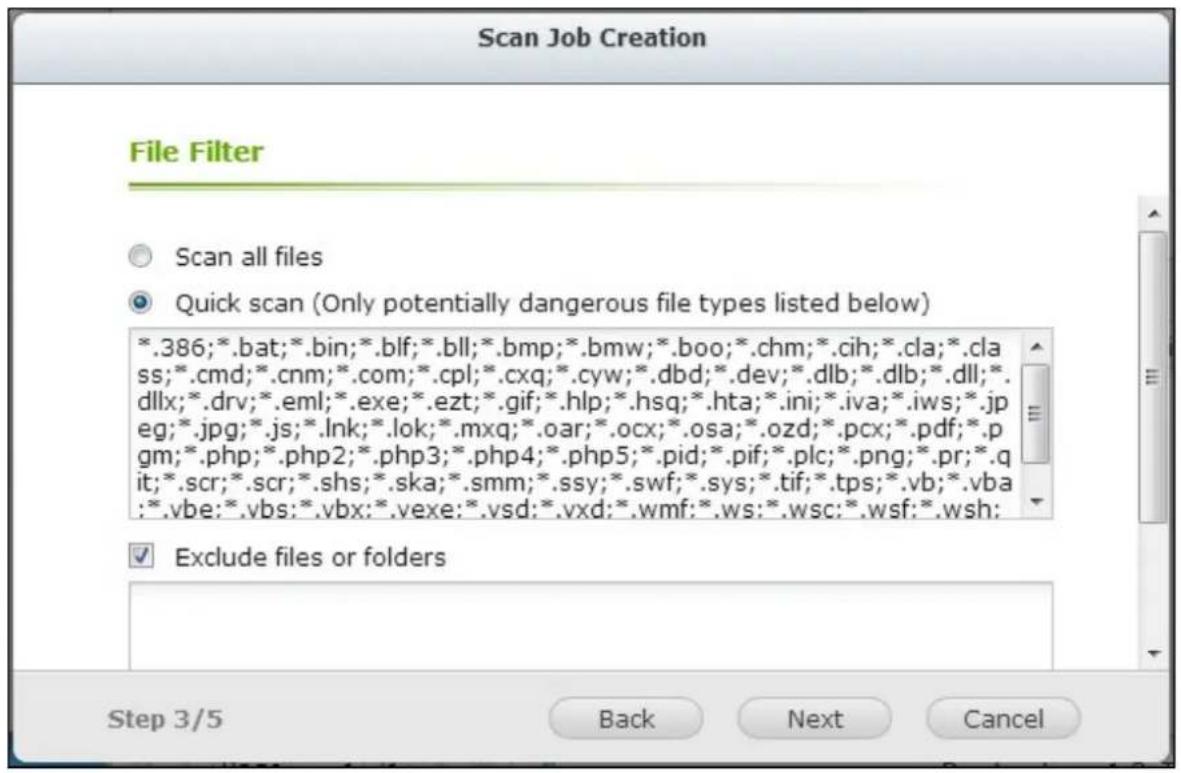
text_image
Scan Job Creation File Filter Scan all files Quick scan (Only potentially dangerous file types listed below) *.386;*.bat;*.bin;*.blf;*.bll;*.bmp;*.bmw;*.boo;*.chm;*.cih;*.cla;*.class;*.cmd;*.cnm;*.com;*.cpl;*.cxq;*.cyw;*.dbd;*.dev;*.dlb;*.dlb;*.dll;*.dllx;*.drv;*.eml;*.exe;*.ezt;*.gif;*.hlp;*.hsq;*.hta;*.ini;*.iva;*.iws;*.jpeg;*.jpg;*.js;*.lnk;*.lok;*.mxq;*.oar;*.ocx;*.osa;*.ozd;*.pcx;*.pdf;*.pgm;*.php;*.php2;*.php3;*.php4;*.php5;*.pid;*.pif;*.plc;*.png;*.pr;*.qit;*.scr;*.scr;*.shs;*.ska;*.smm;*.ssy;*.swf;*.sys;*.tif;*.tps;*.vb;*.vba:*.vbe;*.vbs;*.vbx;*.vexe;*.vsd;*.vxd;*.wmf;*.ws;*.wsc;*.wsf;*.wsh; Exclude files or folders Step 3/5 Back Next Cancel-
Enable other scan options:
-
Specify the maximum file size (1-4096 MB) allowed for scanning.
- To scan compressed files in the shared folder(s), enable "Scan compressed files". Specify the maximum amount of data (1-4096 MB) in an archive file for scanning if applicable.
- To scan MS Office and Mac Office files, RTF, PDF, and HTML files, select "Deep scan for document files". Click "Next".

text_image
Scan Job Creation Scan Options ✓ Maximum file size for scanning (MB) 25 ✓ Scan compressed files content ✓ Maximum file size for scanning (MB) 100 ✓ Deep scan for document files Step 4/5 Back Next Cancel-
Specify the actions to take when infected files are found.
-
Only report the virus: The virus scan reports are recorded under the "Reports" tab. No actions will be done to the infected files.
- Move infected files to quarantine: The infected files will be quarantined and cannot be accessed from the original shared folders. Users can view the virus scan reports under the "Reports" tab and delete/restore the infected files under the "Quarantine" tab.
- Delete infected files automatically: Note that The infected files will be deleted and cannot be recovered.
To receive an alert email when an infected file is found or after scanning has completed, configure the SMTP server settings in "System Settings" > "Notification" > "SMTP Server". Click "Finish" to create the scan job.
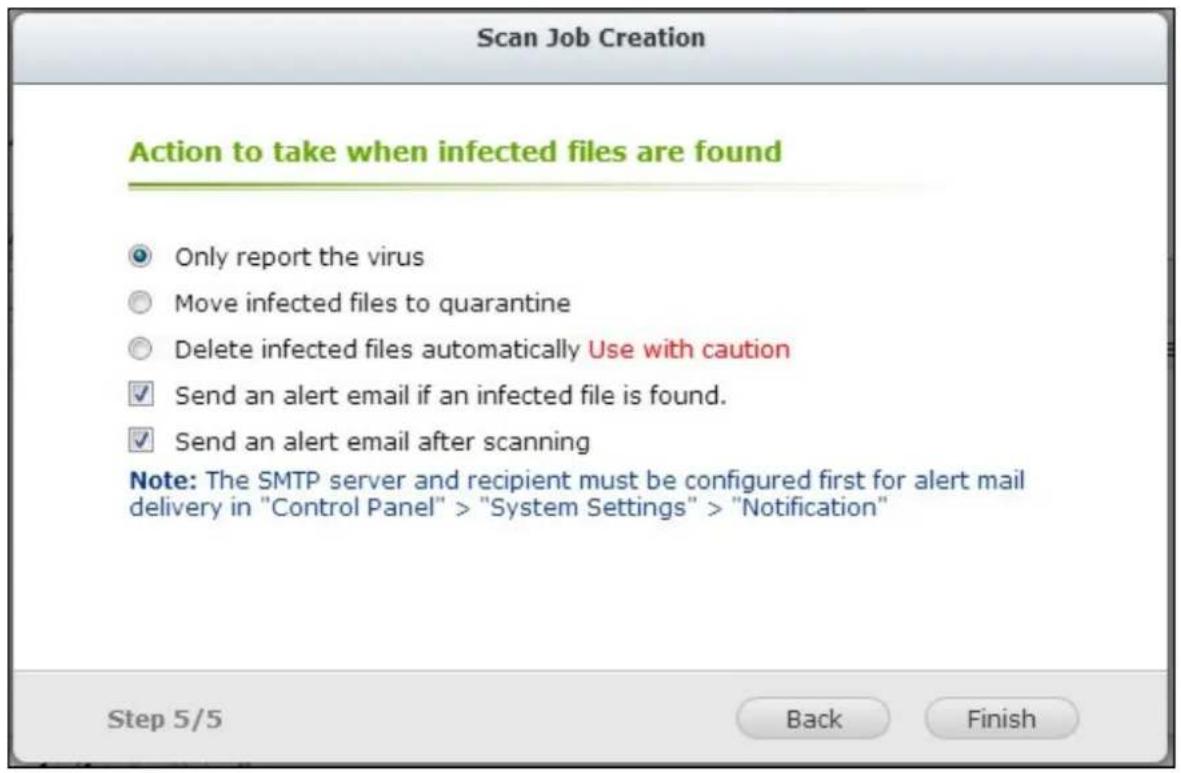
text_image
Scan Job Creation Action to take when infected files are found Only report the virus Move infected files to quarantine Delete infected files automatically Use with caution Send an alert email if an infected file is found. Send an alert email after scanning Note: The SMTP server and recipient must be configured first for alert mail delivery in "Control Panel" > "System Settings" > "Notification" Step 5/5 Back Finish- The scan job will run according to the specified schedule.
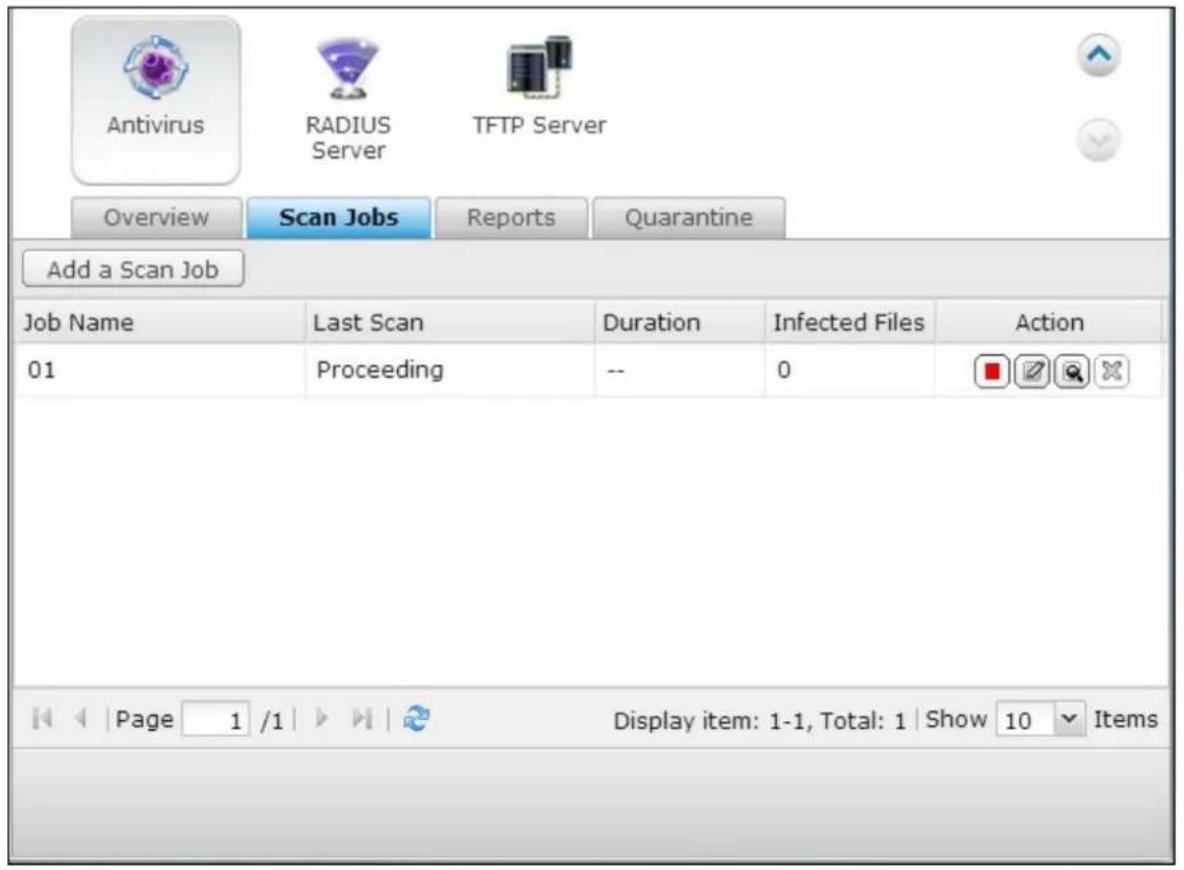
text_image
Antivirus RADIUS Server TFTP Server Overview Scan Jobs Reports Quarantine Add a Scan Job Job Name Last Scan Duration Infected Files Action 01 Proceeding -- 0 Display item: 1-1, Total: 1 | Show 10 ▼ Items| Button | Description |
 | Run the scan job now. |
| [SSH0] | Stop the scan job. |
 | Edit the scan job settings. |
 | Download the last virus scan summary. The file can be opened by a text editor, such as WordPad. |
 | Delete the scan job. |
Reports
View or download the reports of the latest scan jobs on the NAS.
| Button | Description |
| [56CS] | Download the virus scan report. The file can be opened by a text editor, such as WordPad. |
| [WDXS] | Delete an entry on the list. |
| DOWNLOAD | Download all the virus scan logs on the list as a zip file. |
Report options
- Specify the number of days (1-999) to keep the logs
- Enable the option "Archive logs after expiration" and specify the shared folder to save the logs once the number of days to keep the logs has been reached. Click "Apply All" to save the changes.

text_image
Antivirus RADIUS Server TFTP Server Overview Scan Jobs Reports Quarantine Number of days to keep the logs: 10 Archive logs after expiration. Save the archive files in the folder: /Download Apply Job N... Last Scan Duration Infected Files Action 01 2013/05/22 10:59:51 -- 0 01 2013/05/22 10:58:28 stopped 0 Display item: 1-2, Total: 2 Show 10 Items Download All Logs Apply AllQuarantine
This page shows the quarantined files on the NAS. Users can manually delete or restore the quarantined files, or restore and add the files to the exclude list.
| Button | Description |
| [2WWY] | Delete an infected file. The file cannot be recovered. |
| [KYDS] | Restore an infected file to its original shared folder. |
 | Restore an infected file and add the file into the exclude list (scan filter). |
| Restore Selected Files | Restore multiple files on the list. |
| Delete Selected Files | Delete multiple files on the list. The files cannot be recovered. |
| Delete All Files | Delete all the files on the list. The files cannot be recovered. |
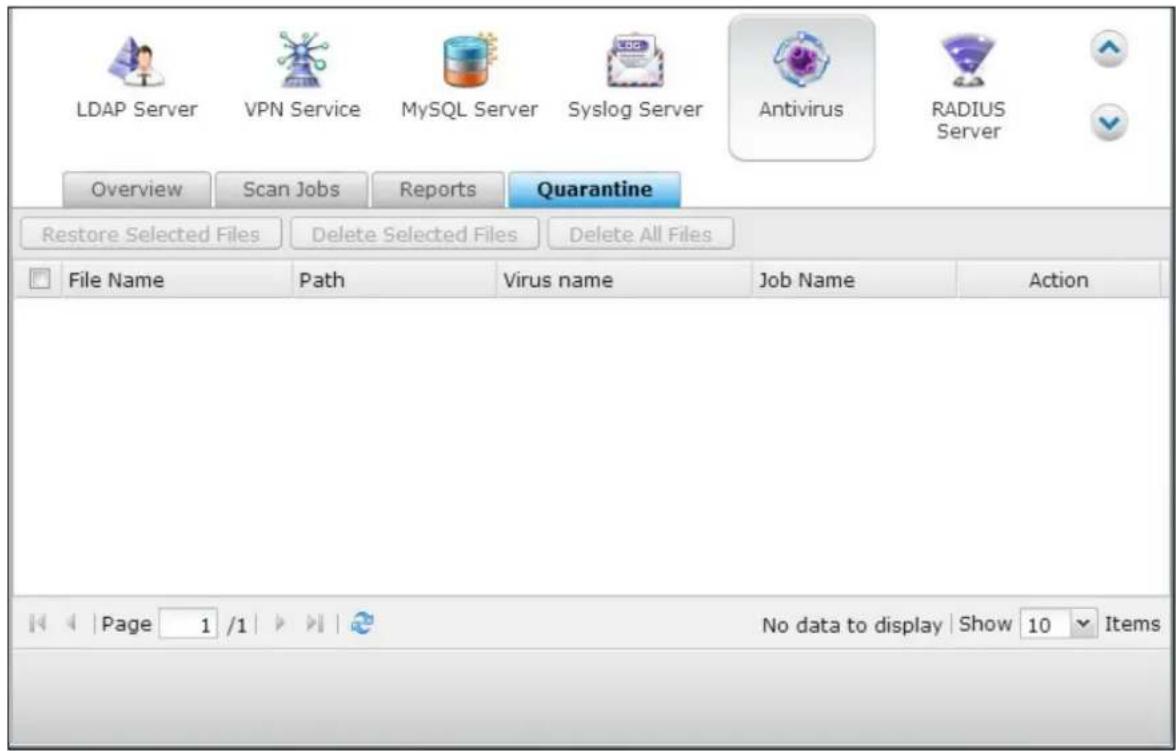
text_image
LDAP Server VPN Service MySQL Server Syslog Server Antivirus RADIUS Server Overview Scan Jobs Reports Quarantine Restore Selected Files Delete Selected Files Delete All Files File Name Path Virus name Job Name Action Page 1 /1 No data to display Show 10 Items7.11 RADIUS Server
The NAS can be configured as a RADIUS (Remote Authentication Dial In User Service) server to provide centralized authentication, authorization, accounting management for computers to connect and use a network service.
To use this feature, follow the steps below:
- Enable RADIUS Server on the NAS in "RADIUS Server" > "Server Settings". Click "Apply".
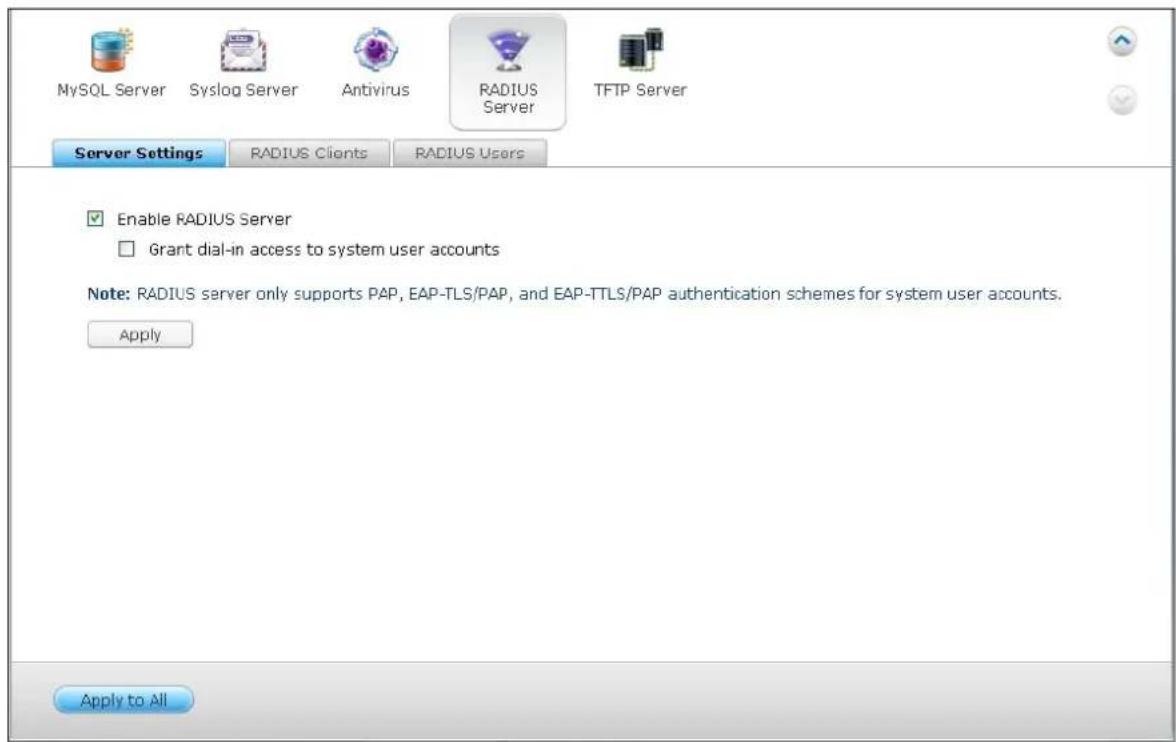
text_image
MySQL Server Syslog Server Antivirus RADIUS Server TFTP Server Server Settings RADIUS Clients RADIUS Users Enable RADIUS Server Grant dial-in access to system user accounts Note: RADIUS server only supports PAP, EAP-TLS/PAP, and EAP-TTLS/PAP authentication schemes for system user accounts. Apply Apply to All- Add RADIUS clients, such as Wi-Fi access points and VPN, on the NAS in "RADIUS Server" > "RADIUS Clients". Up to 10 RADIUS clients are supported. Click "Create a Client".

text_image
MySQL Server Syslog Server Antivirus RADIUS Server TFTP Server Server Settings RADIUS Clients RADIUS Users Create a Client Delete Name IP Address Prefix Length Status Action WirelessAP1 192.168.1.0 24 Enabled- Enter the client information and click "Apply".
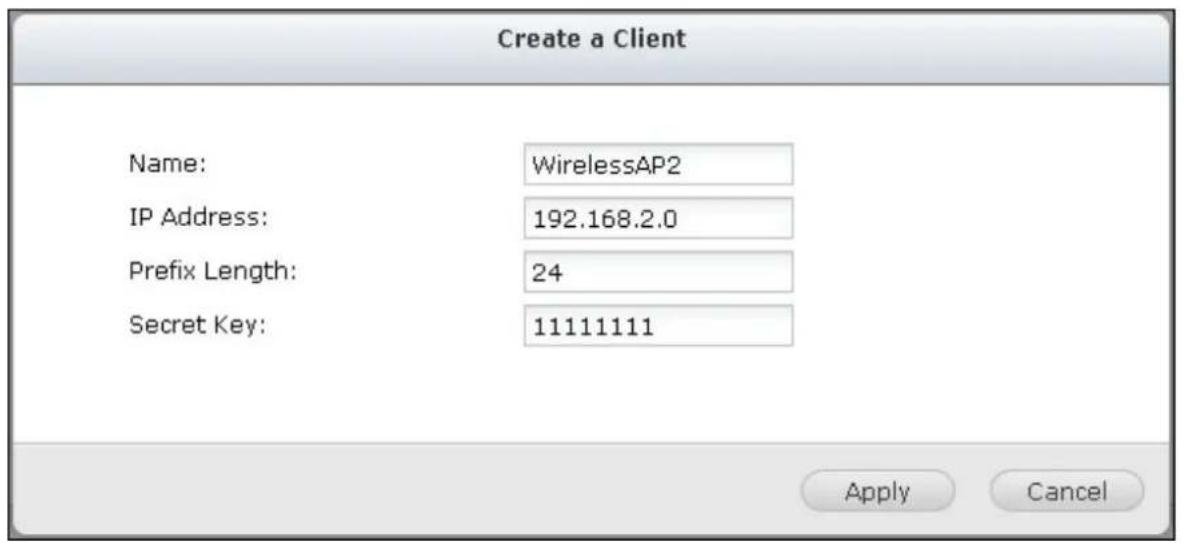
text_image
Create a Client Name: WirelessAP2 IP Address: 192.168.2.0 Prefix Length: 24 Secret Key: 11111111 Apply Cancel- The clients are shown on the list.
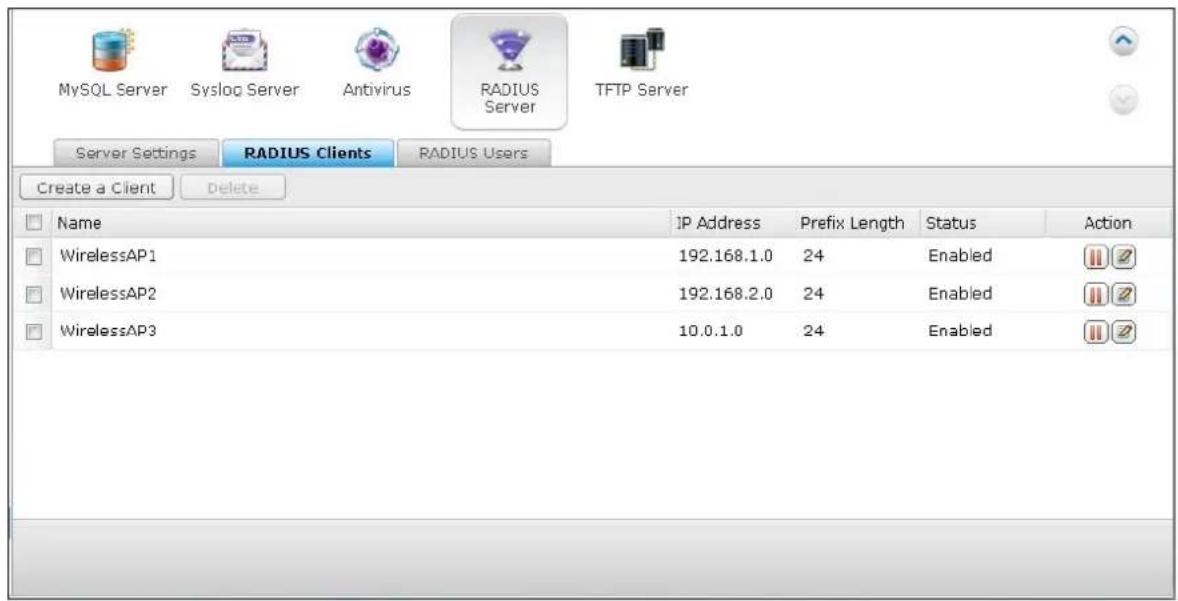
text_image
MySQL Server Syslog Server Antivirus RADIUS Server TFTP Server Server Settings RADIUS Clients RADIUS Users Create a Client Delete Name IP Address Prefix Length Status Action WirelessAP1 192.168.1.0 24 Enabled WirelessAP2 192.168.2.0 24 Enabled WirelessAP3 10.0.1.0 24 Enabled- Create RADIUS users and their password in "RADIUS Server" > "RADIUS Users". The users will be authenticated when trying to access the network through the RADIUS clients. The maximum number of RADIUS users the NAS supports is the same as the maximum number of local NAS users supported. See http://docs.qnap.com/nas/en/index.html?users.htm for details. Click "Create a User".

text_image
MySQL Server Syslog Server Antivirus RADIUS Server TFTP Server Server Settings RADIUS Clients RADIUS Users Create a User Delete Username Status Action user1 Enabled Page 1 /1 Display item: 1-1, Total: 1 | Show 10 Items- Enter the username and password. The username supports alphabets (a-z and A-Z) and numbers (0-9) only. The password must be 8-32 characters (a-z, A-Z, and 0-9 only). Click "Apply".
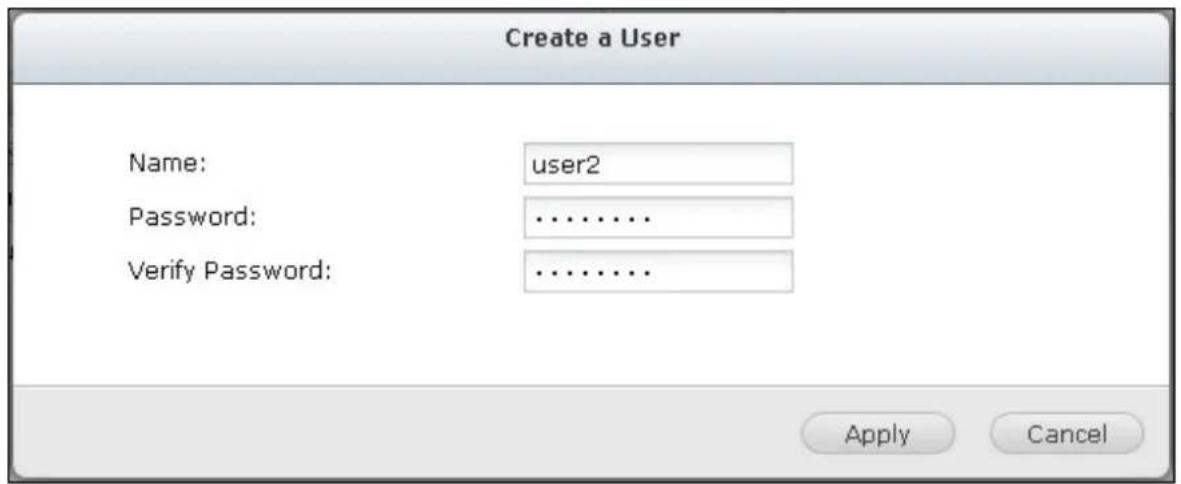
text_image
Create a User Name: user2 Password: ...... Verify Password: ...... Apply Cancel- Specify to grant dial-in access to local NAS users. Enable this option to allow the local NAS users to access the network services through the RADIUS clients using their NAS login name and password. Click "Apply".

text_image
MySQL Server Syslog Server Antivirus RADIUS Server TFTP Server Server Settings RADIUS Clients RADIUS Users Enable RADIUS Server Grant dial-in access to system user accounts Note: RADIUS server only supports PAP, EAP-TLS/PAP, and EAP-TTLS/PAP authentication schemes for system user accounts. Apply Apply to AllNote: The RADIUS server only supports PAP, EAP-TLS/PAP, and EAP-TTLS/PAP authentication for local NAS user accounts.
Configure the NAS as a TFTP (Trivial File Transfer Protocol) server for configuration management of network devices and remote network booting of computers for system imaging or recovery. TFTP is a file transfer protocol with the functionality of a very basic form of FTP. TFTP does not provide user authentication and cannot be connected by a standard FTP client.
Follow the steps below to use this feature:
- Select "Enable TFTP Server".
- The default UDP port for file transfer is 69. Change the port number only when necessary.
- Specify a folder on the NAS as the root directory of the TFTP server.
- Enable TFTP Logging: Enable this option and specify the directory to save the TFTP log file (opentftpd.log). It is recommended to view the log file by Microsoft Excel or WordPad on Windows OS or by TextEdit on Mac OS.
- Assign read only or full access to the clients.
- Restrict the TFTP client access by specifying the IP address range or select "Anywhere" to allow any TFTP client access.
- Click "Apply".
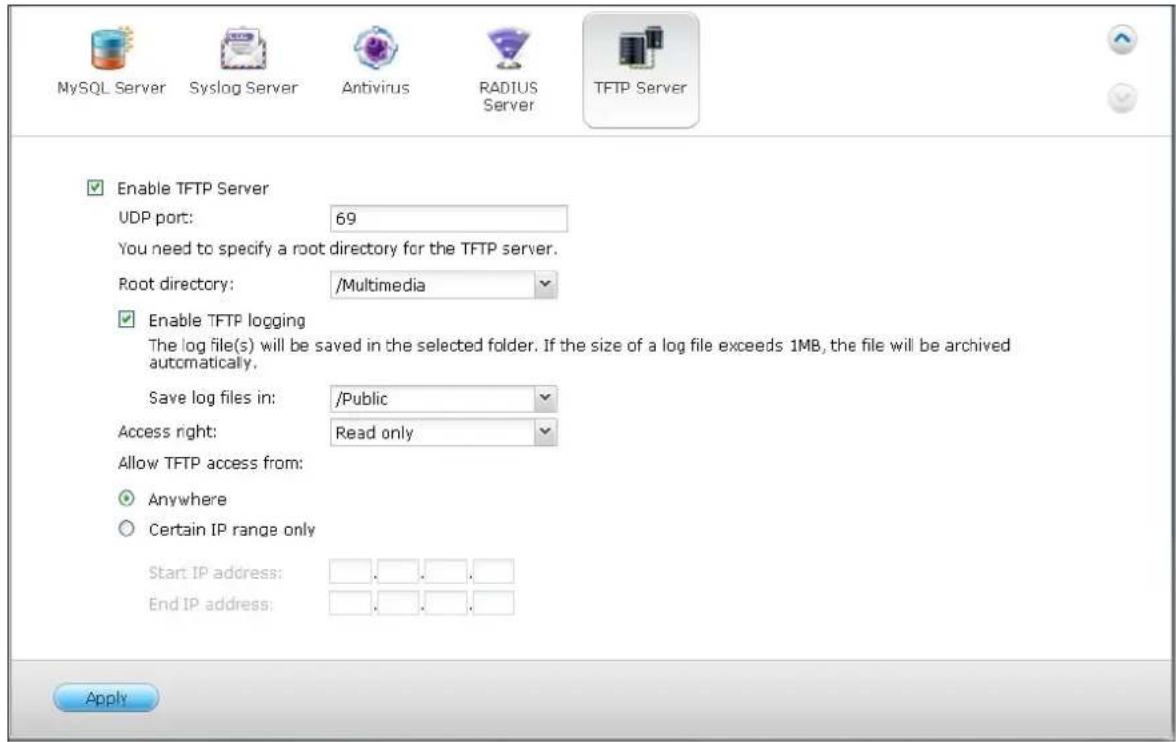
text_image
MySQL Server Syslog Server Antivirus RADIUS Server TFTP Server Enable TFTP Server UDP port: 69 You need to specify a root directory for the TFTP server. Root directory: /Multimedia Enable TFTP logging The log file(s) will be saved in the selected folder. If the size of a log file exceeds 1MB, the file will be archived automatically. Save log files in: /Public Access right: Read only Allow TFTP access from: Anywhere Certain IP range only Start IP address: End IP address: Apply8. QNAP Applications
Backup_Station ^516 myQNAPcloud_Service ^576 File_Station ^599 Photo_Station ^623 Music_Station ^638 Multimedia_Station ^644 Download_Station ^672 HD_Station ^691 Surveillance_Station_Pro ^713 App_Center ^723
8.1 Backup Station
Backup Server517
Remote Replication ^526
Cloud Backup550
External Backup557
Rsync Server
Enable Rsync server to configure the NAS as a backup server for data backup from a remote Rsync server or NAS server. The default port number for remote replication via Rsync is 873. Specify the maximum download rate for bandwidth control. 0 means unlimited.
Enable backup from a rem ote server to the local host:
Select this option to allow data backup from a remote server (NAS) to the local server (NAS).
Allow rem ote Rsync server to back up data to the NAS:
Select this option to allow data backup from an Rsync server to the local server (NAS). Enter the username and password to authenticate the Rsync server which attempts to back up data to the NAS.
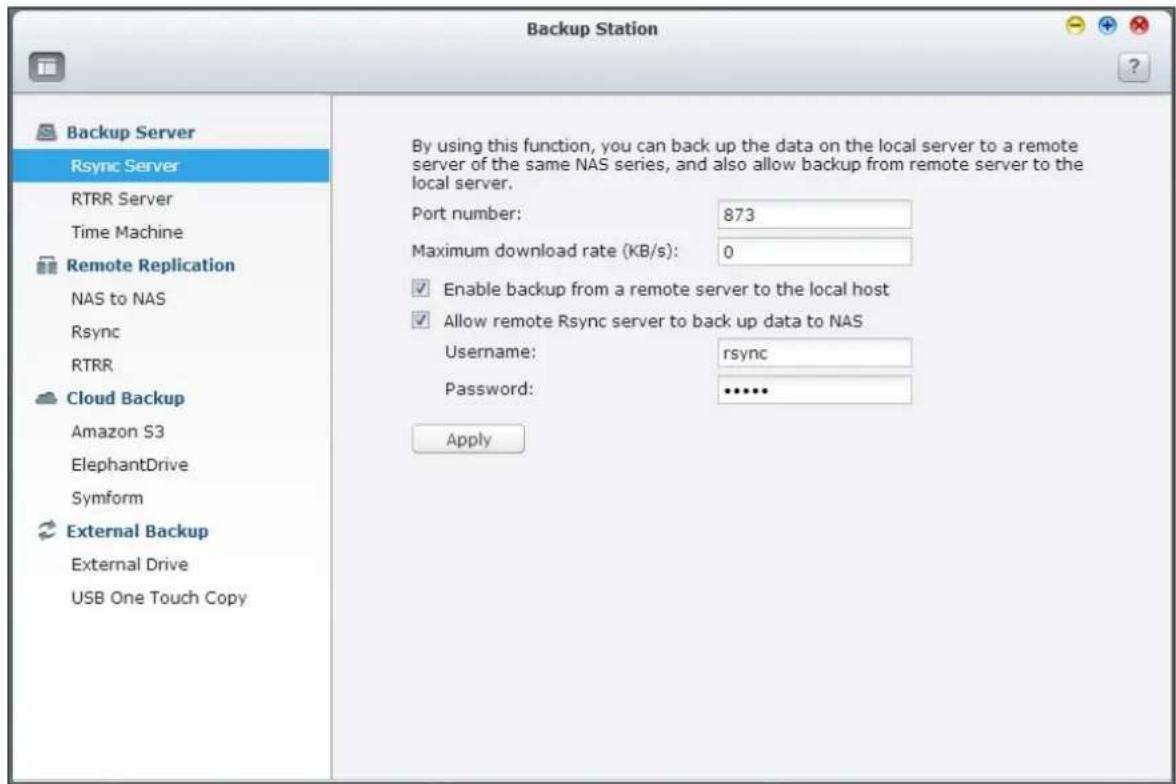
text_image
Backup Station Backup Server Rsync Server RTRR Server Time Machine Remote Replication NAS to NAS Rsync RTRR Cloud Backup Amazon S3 ElephantDrive Symform External Backup External Drive USB One Touch Copy By using this function, you can back up the data on the local server to a remote server of the same NAS series, and also allow backup from remote server to the local server. Port number: 873 Maximum download rate (KB/s): 0 Enable backup from a remote server to the local host Allow remote Rsync server to back up data to NAS Username: rsync Password: •••••• ApplyRTRR Server
To allow real-time or schedule data replication from a remote server to the local NAS, select "Enable Real-time Remote Replication Server". You can specify the port number for remote replication. The default port number is 8899. Specify the maximum upload and download rate for bandwidth control. 0 means unlimited. To allow only authenticated access to back up data to the local NAS, specify the access password. The client server will be prompted to enter the password to back up data to the NAS via RTRR.
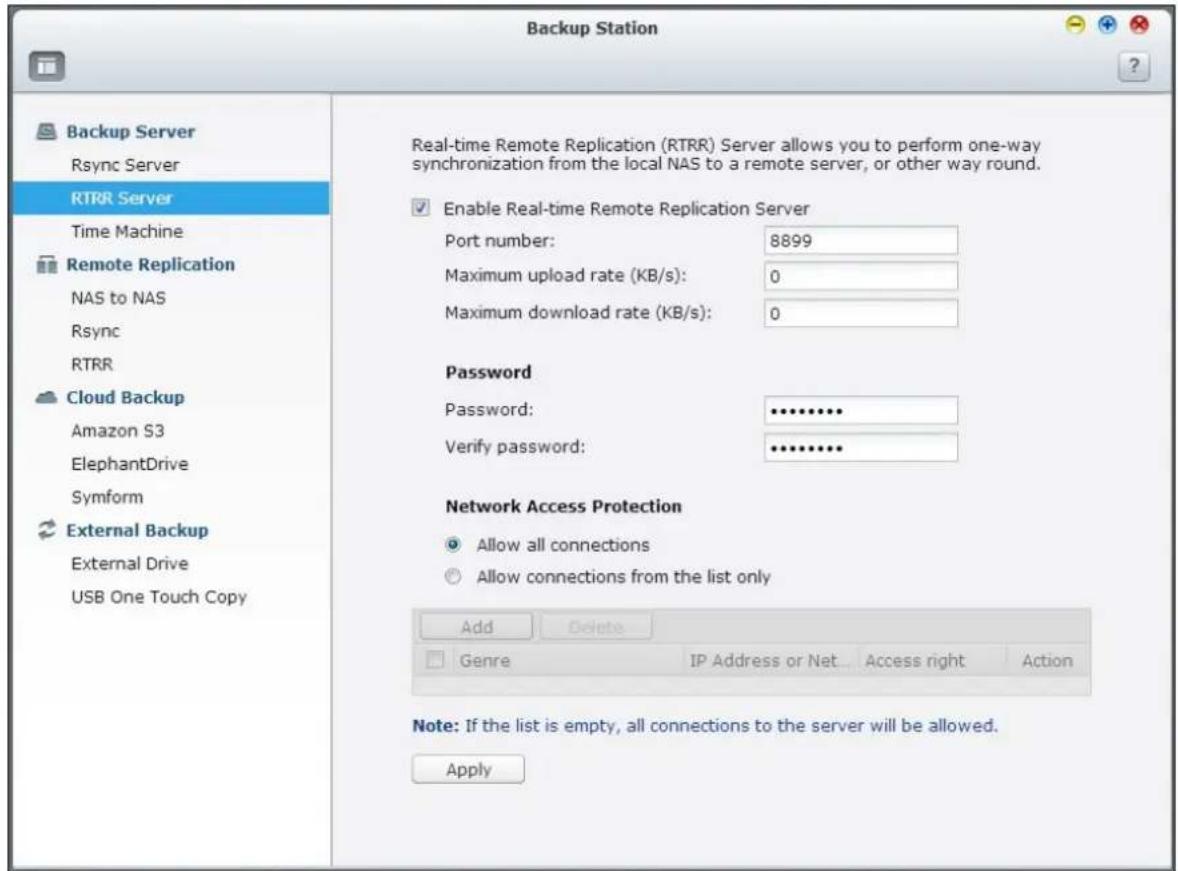
text_image
Backup Station Backup Server Rsync Server RTRR Server Time Machine Remote Replication NAS to NAS Rsync RTRR Cloud Backup Amazon S3 ElephantDrive Symform External Backup External Drive USB One Touch Copy Real-time Remote Replication (RTRR) Server allows you to perform one-way synchronization from the local NAS to a remote server, or other way round. Enable Real-time Remote Replication Server Port number: 8899 Maximum upload rate (KB/s): 0 Maximum download rate (KB/s): 0 Password Password: ********** Verify password: ********** Network Access Protection Allow all connections Allow connections from the list only Add Delete Genre IP Address or Net... Access right Action Note: If the list is empty, all connections to the server will be allowed. ApplyYou can specify the IP addresses or host names which are allowed to access the NAS for remote replication. Up to 10 rules can be configured. To allow all connections, select "Allow all connections". To specify the IP addresses or host names, select "Allow connections from the list only" and click "Add".

text_image
Network Access Protection Allow all connections Allow connections from the list only Add Delete Genre IP Address or Net... Access right Action Note: If the list is empty, all connections to the server will be allowed. ApplyEnter an IP address or specify a range of IP addresses by entering the IP and subnet mask. Select the access right "Read Only" or "Read/Write". By selecting "Read/Write", the client server is allowed to delete the files on the local NAS. Click "Finish" to exit.
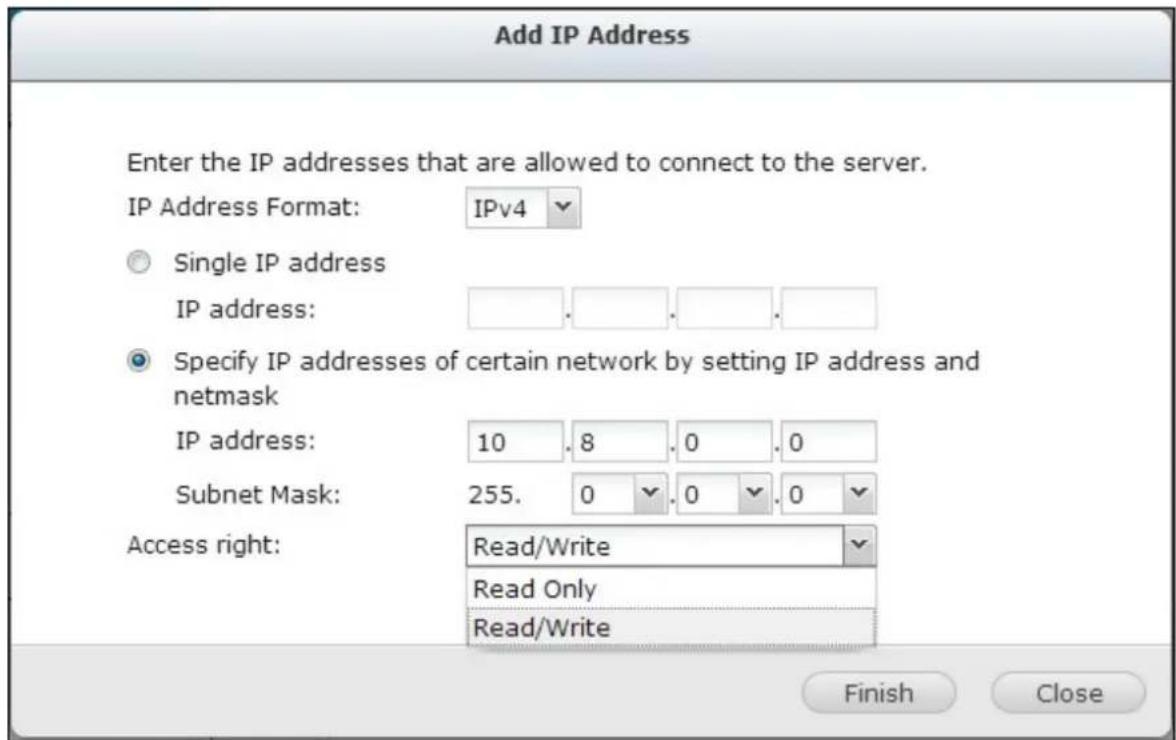
text_image
Add IP Address Enter the IP addresses that are allowed to connect to the server. IP Address Format: IPv4 Single IP address IP address: Specify IP addresses of certain network by setting IP address and netmask IP address: 10.8.0.0 Subnet Mask: 255.0.0.0 Access right: Read/Write Read Only Read/Write Finish CloseAfter saving the access rule, click "Apply" and the NAS will restart to apply the settings.
Network Access Protection
Allow all connections
Allow connections from the list only
| Add Delete | ||||
| Genre | IP Address or Net... | Access right | Action | |
| Network | 10.8.0.0/8 | Read/Write | ||
Note: If the list is empty, all connections to the server will be allowed.
Apply
Time Machine
You can enable Time Machine support to use the NAS as a backup destination of multiple Mac by the Time Machine feature on OS X.
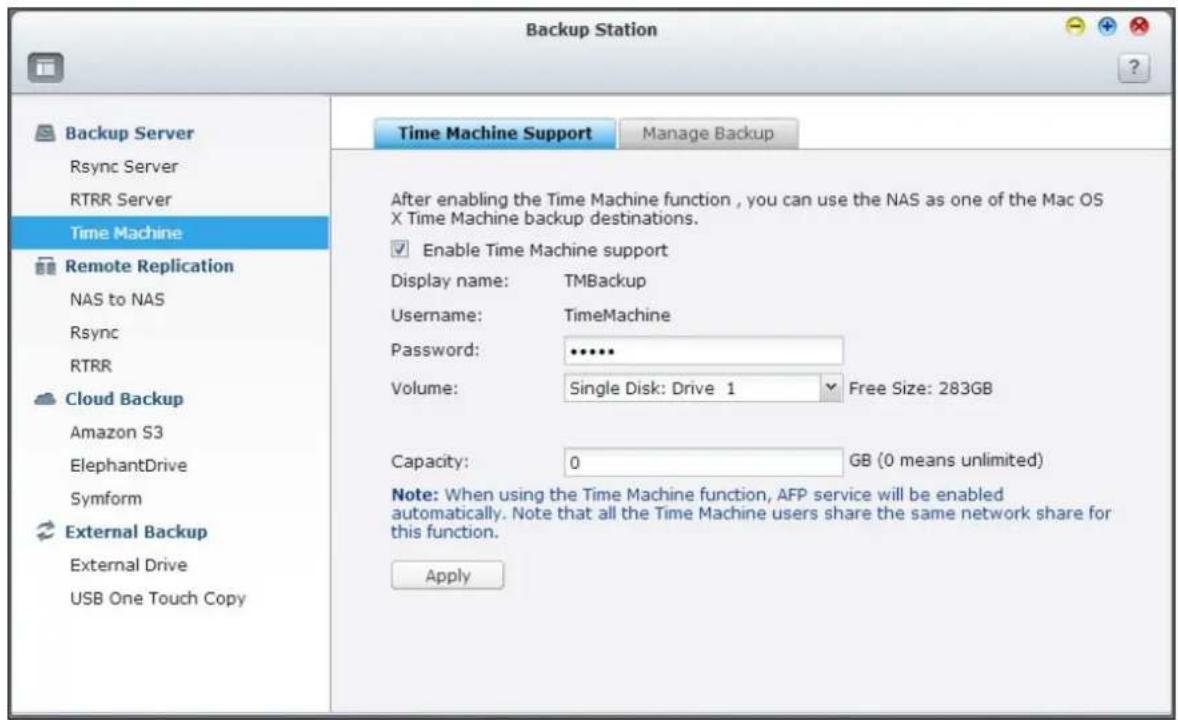
text_image
Backup Station Backup Server Rsync Server RTRR Server Time Machine Remote Replication NAS to NAS Rsync RTRR Cloud Backup Amazon S3 ElephantDrive Symform External Backup External Drive USB One Touch Copy Time Machine Support Manage Backup After enabling the Time Machine function, you can use the NAS as one of the Mac OS X Time Machine backup destinations. Enable Time Machine support Display name: TMBackup Username: TimeMachine Password: ••••• Volume: Single Disk: Drive 1 Free Size: 283GB Capacity: 0 GB (0 means unlimited) Note: When using the Time Machine function, AFP service will be enabled automatically. Note that all the Time Machine users share the same network share for this function. ApplyTo use this function, follow the steps below.
Configure the settings on the NAS:
- Enable Time Machine support.
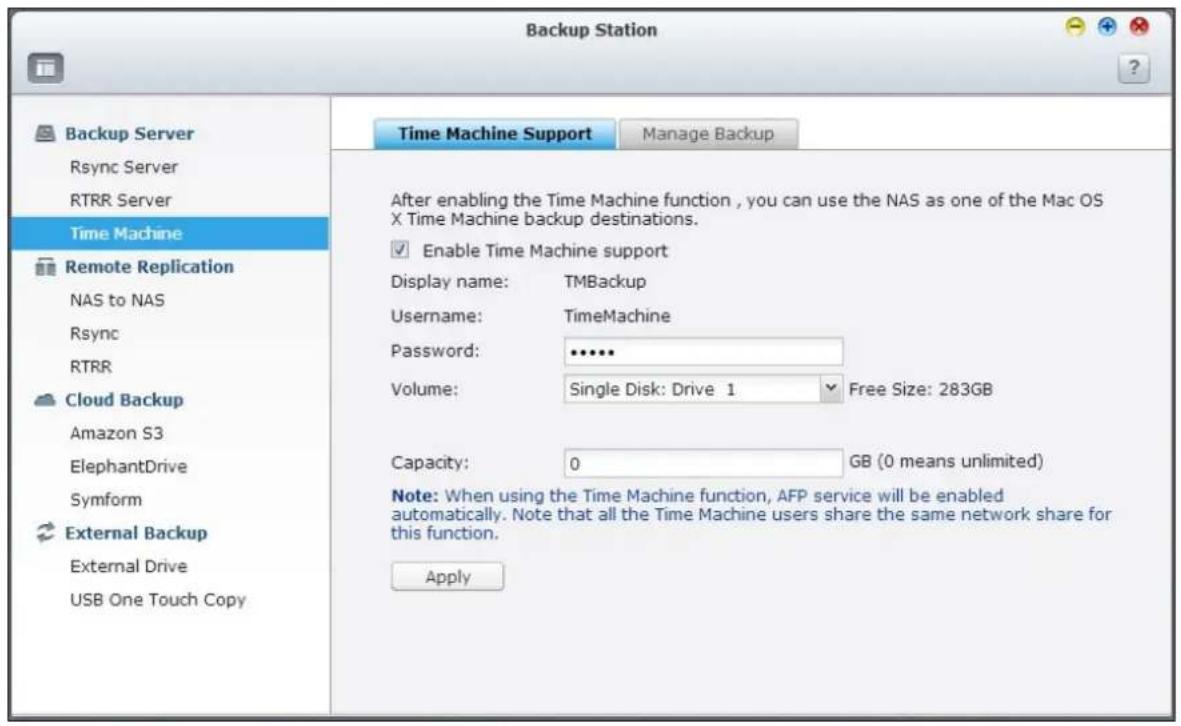
text_image
Backup Station Backup Server Rsync Server RTRR Server Time Machine Remote Replication NAS to NAS Rsync RTRR Cloud Backup Amazon S3 ElephantDrive Symform External Backup External Drive USB One Touch Copy Time Machine Support Manage Backup After enabling the Time Machine function, you can use the NAS as one of the Mac OS X Time Machine backup destinations. Enable Time Machine support Display name: TMBackup Username: TimeMachine Password: ••••• Volume: Single Disk: Drive 1 Free Size: 283GB Capacity: 0 GB (0 means unlimited) Note: When using the Time Machine function, AFP service will be enabled automatically. Note that all the Time Machine users share the same network share for this function. Apply- Enter the Time Machine password. The password is empty by default.
- Select a volume on the NAS as the backup destination.
- Enter the storage capacity that Time Machine backup is allowed to use. The maximum value is 4095GB. To specify a larger capacity, please enter 0 (unlimited).
- Click "Apply" to save the settings.
All the Time Machine users share the same shared folder for this function.
Configure the backup settings on Mac:
- Open Time Machine on your Mac and click "Select Backup Disk".
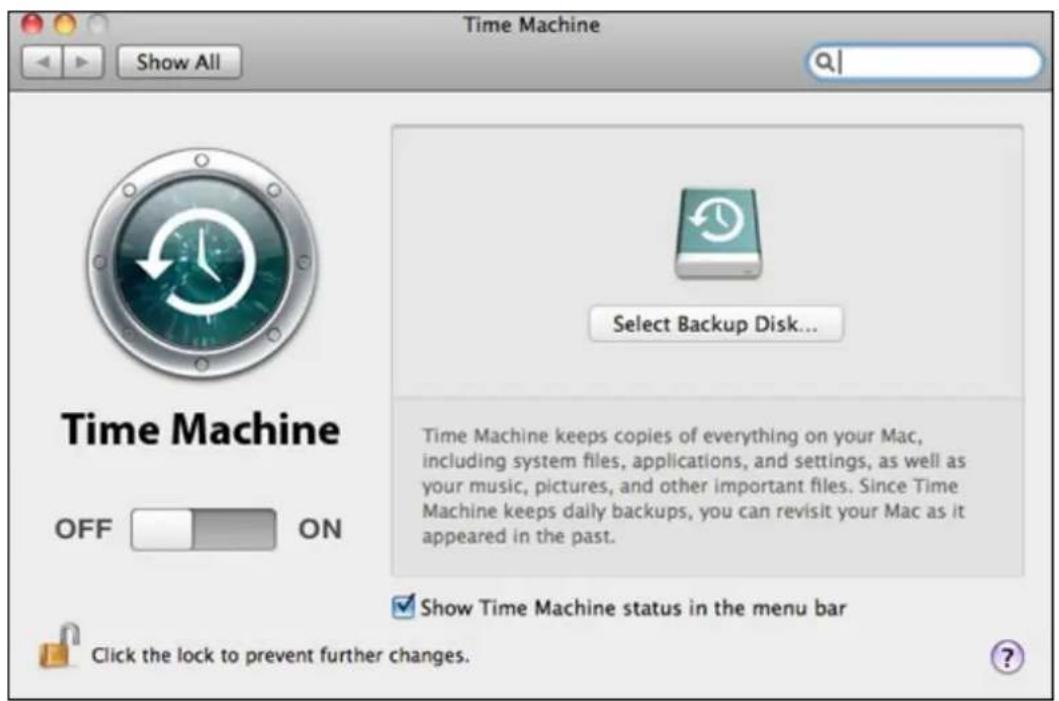
text_image
Time Machine Show All Select Backup Disk... Time Machine keeps copies of everything on your Mac, including system files, applications, and settings, as well as your music, pictures, and other important files. Since Time Machine keeps daily backups, you can revisit your Mac as it appeared in the past. Show Time Machine status in the menu bar Click the lock to prevent further changes.- Select the TMBackup on your NAS from the list and click "Use for Backup".

text_image
TMBackup on "NASAABB0E" Set Up Time Capsule Cancel Use for Backup-
Enter the username and password to login the QNAP NAS. Then click "Connect".
-
Registered username: TimeMachine
- Password: The password you have configured on the NAS. It is empty by default.
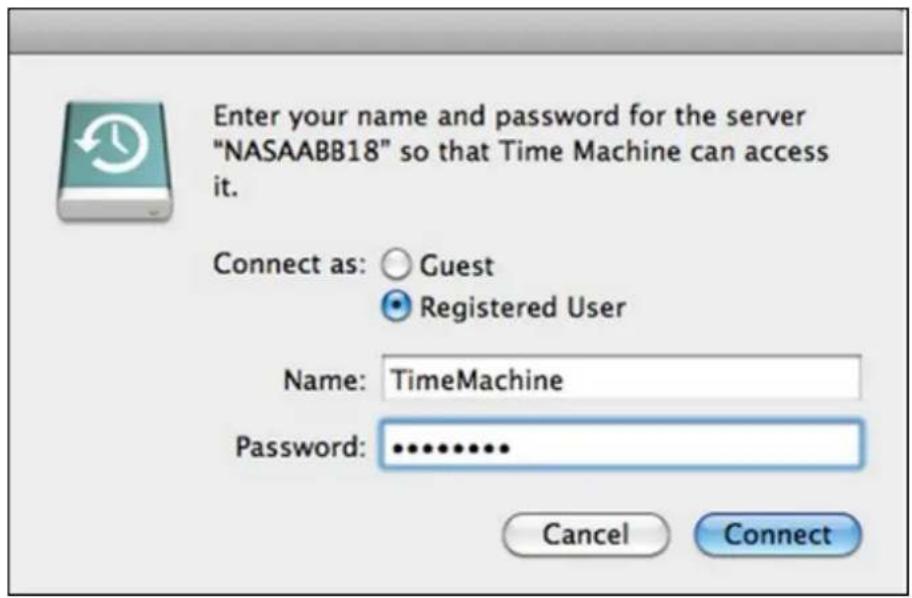
text_image
Enter your name and password for the server "NASAABB18" so that Time Machine can access it. Connect as: Guest Registered User Name: TimeMachine Password: ******** Cancel Connect- Upon successful connection, the Time Machine is switched "ON". The available space for backup is shown and the backup will start in 120 seconds.

text_image
Time Machine Show All Show All Name: TMBackup NASAABB18 Available: 168.09 GB of 311.9 GB Oldest Backup: -- Latest Backup: -- Options... Next Backup: 103 seconds... Time Machine keeps: • Hourly backups for the past 24 hours • Daily backups for the past month • Weekly backups for all previous months The oldest backups are deleted when your disk becomes full. Click the lock to prevent further changes. Show Time Machine status in the menu barThe first time backup may take more time according to the data size on Mac. To recover the data to the Mac OS, see the tutorial on http://www.apple.com.
Manage Backup
You can manage the existing backup on this page.
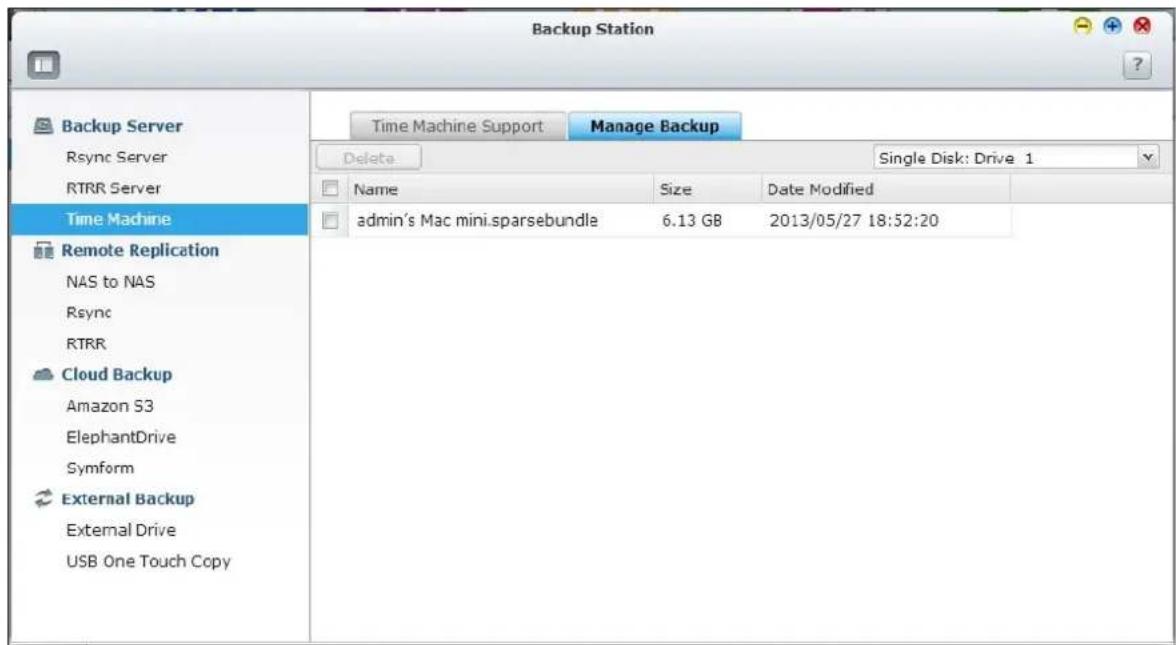
text_image
Backup Station Backup Server Rsync Server RTRR Server Time Machine Remote Replication NAS to NAS Rsync RTRR Cloud Backup Amazon S3 ElephantDrive Symform External Backup External Drive USB One Touch Copy Time Machine Support Manage Backup Delete Single Disk: Drive 1 Name Size Date Modified admin's Mac mini.sparsebundle 6.13 GB 2013/05/27 18:52:20- Volume (drop down menu on top right side of the screen): Display Time Machine backup tasks stored in the volume.
- Name: The name of the Time Machine backup (the sparse bundle disk image which was created by Time Machine).
• Size: Size of this Time Machine backup. - Date Modified: Last modified date of this Time Machine backup.
- Delete: Delete the selected Time Machine backup.
NAS to NAS and Rsync
The NAS data can be backed up to a remote NAS or Rsync server by Rsync remote replication. If the backup destination is a NAS, go to "Main Menu" > "Backup Station" > "Rsync Server" and enable the remote NAS as an Rsync backup server.
- To create a replication job, click "Create a Replication Job".
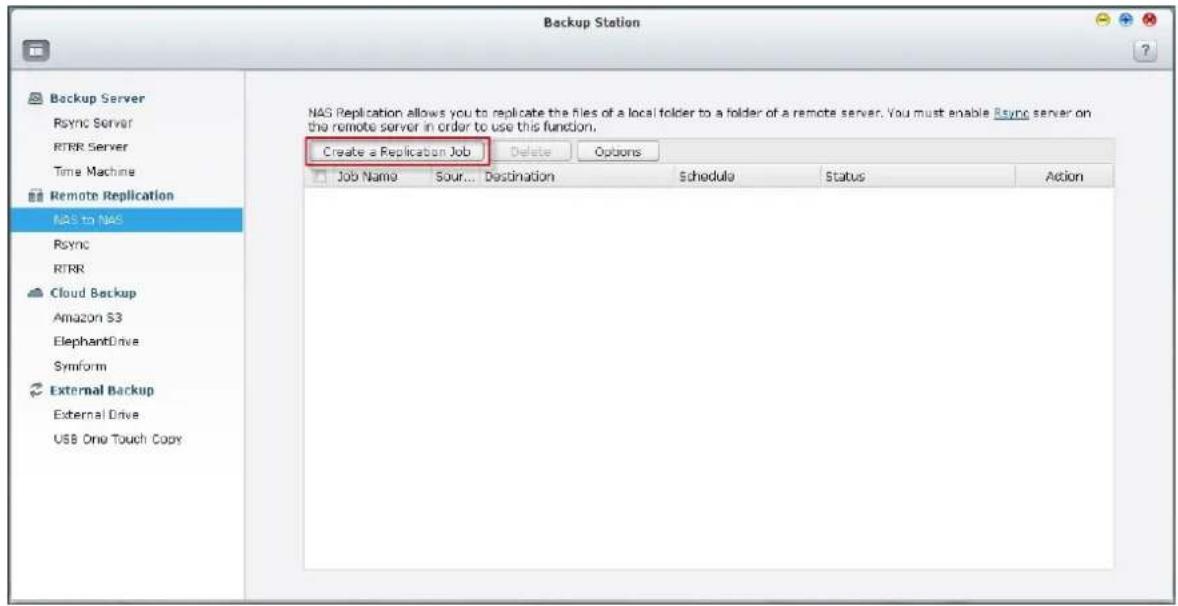
text_image
Backup Station Backup Server Rsync Server RTRR Server Time Machine Remote Replication NAS to NAS Rsync RTRR Cloud Backup Amazon S3 ElephantDrive Symform External Backup External Drive USB One Touch Copy NAS Replication allows you to replicate the files of a local folder to a folder of a remote server. You must enable Rsync server on the remote server in order to use this function. Create a Replicaton Job Delete Options Job Name Sour... Destination Schedule Status Action- Specify the server type, NAS or Rsync server, of the remote server. Enter a job name. Click "Next".
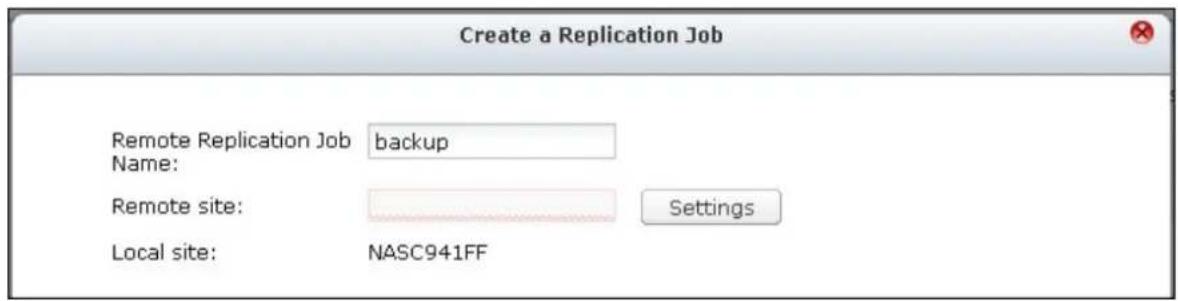
text_image
Create a Replication Job Remote Replication Job backup Name: Remote site: Settings Local site: NASC941FF- Enter the IP address, port number, username and password to login the remote server. The default port number is 873. Note that the login username must have read/write access to the remote server and sufficient quota limit on the server. Click "Test" to verify the connection. Then click "Apply".
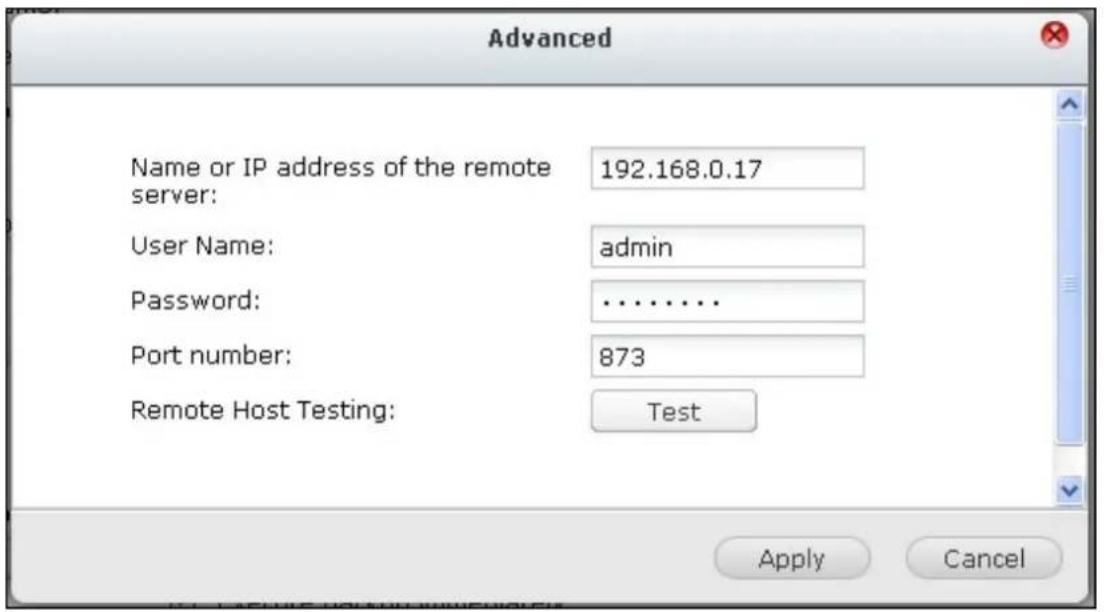
text_image
Advanced Name or IP address of the remote server: 192.168.0.17 User Name: admin Password: .......... Port number: 873 Remote Host Testing: Test Apply Cancel- Specify the local folder by clicking the Source folder box. After expanding and locating the folder, double click the folder to set it as the directory where the data will be replicated from.
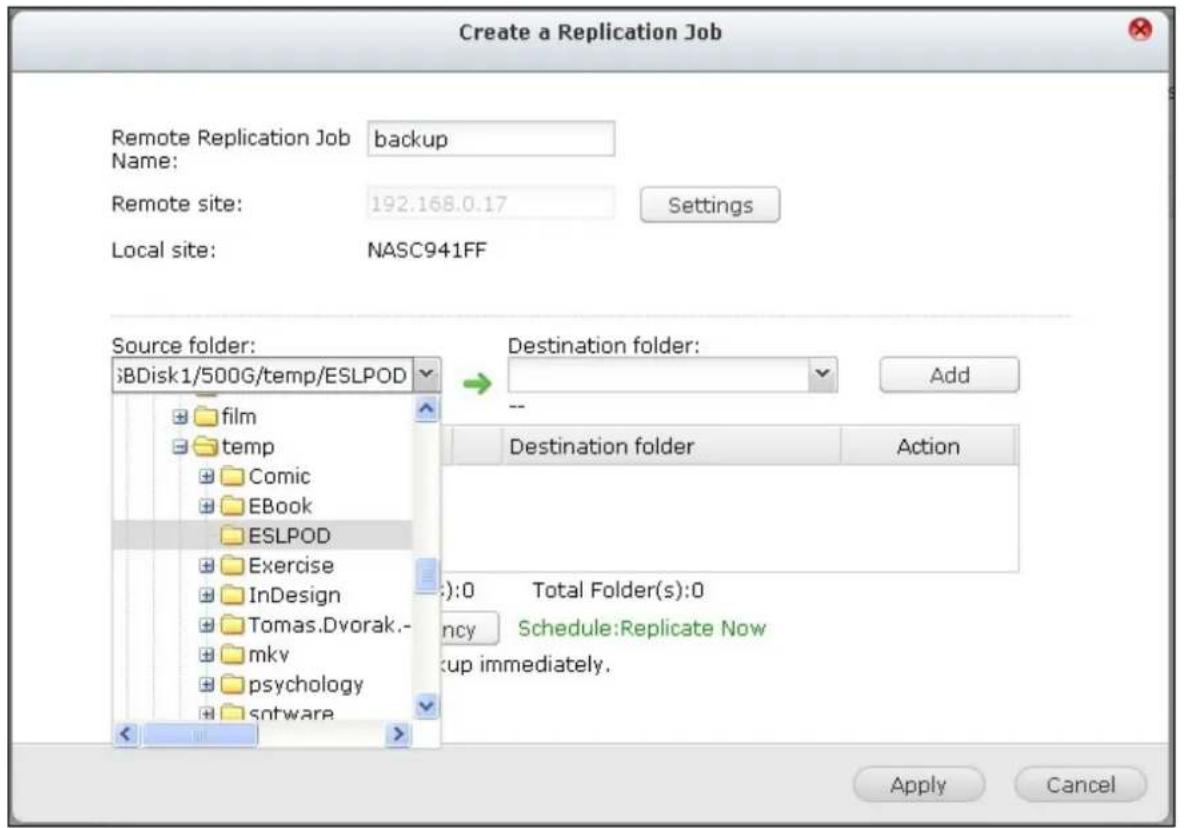
text_image
Create a Replication Job Remote Replication Job backup Name: Remote site: 192.168.0.17 Settings Local site: NASC941FF Source folder: GBDisk1/500G/temp/ESLPOD film temp Comic EBook ESLPOD Exercise InDesign Tomas.Dvorak.- mkv psychology software Destination folder: Add Destination folder Action Total Folder(s):0 Schedule:Replicate Now cup immediately. Apply Cancel- Specify the destination folder Destination folder box. Locate the folder in the folder tree and double click the folder to set it as the directory where the data will be replicated to. And, click "Add" to add this pair of replication folders.
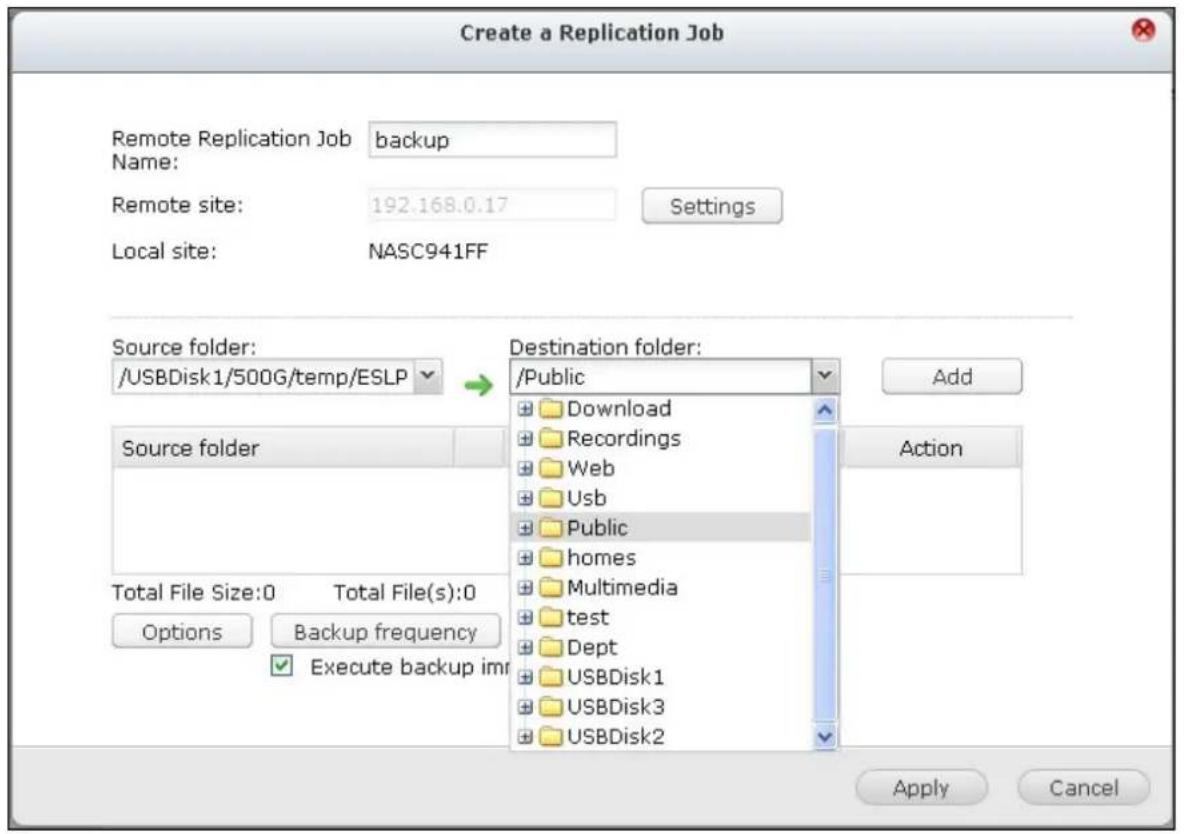
text_image
Create a Replication Job Remote Replication Job: backup Name: Remote site: 192.168.0.17 Settings Local site: NASC941FF Source folder: /USBDisk1/500G/temp/ESLP → Destination folder: /Public Download Recordings Web Usb Public homes Multimedia test Dept USBDisk1 USBDisk3 USBDisk2 Add Action Total File Size:0 Total File(s):0 Options Backup frequency Execute backup imr Apply CancelNote: The order of selecting the source and destination folders can be changed. The above is just an example.
- Click "Backup frequency" to configure the backup frequency.
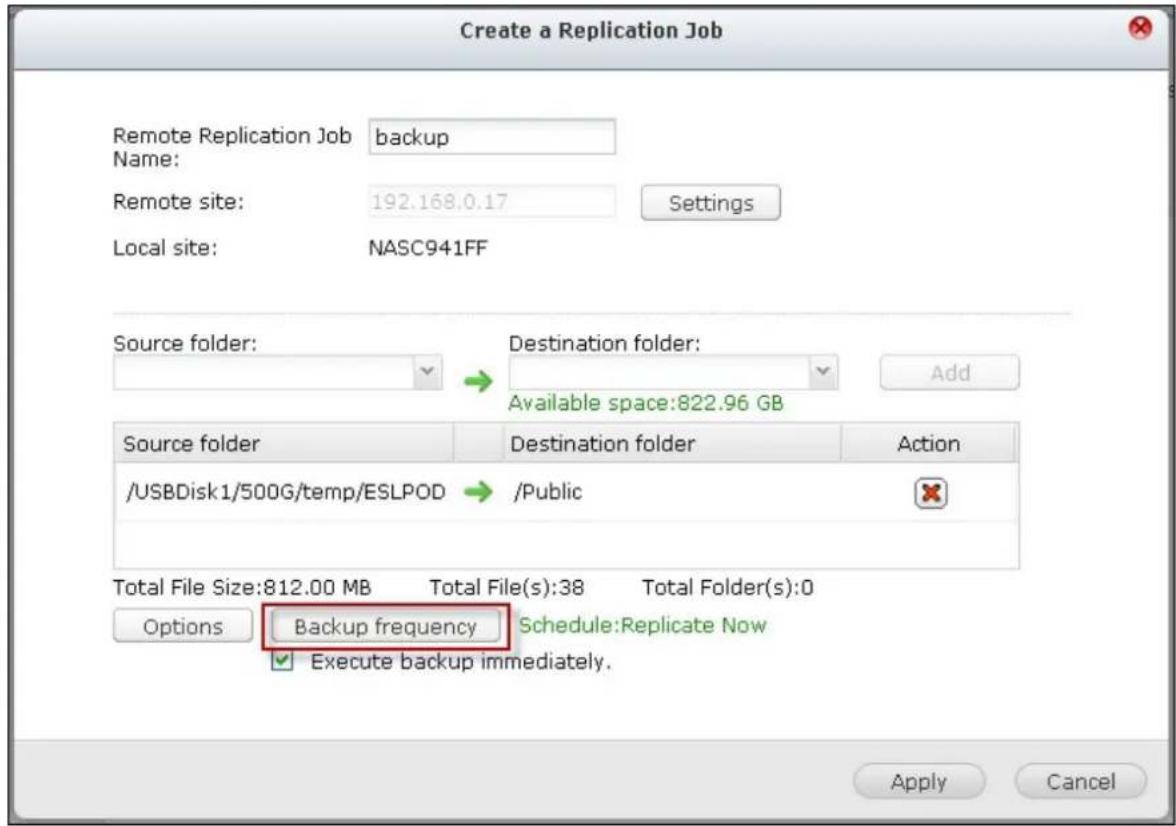
text_image
Create a Replication Job Remote Replication Job backup Name: Remote site: 192.168.0.17 Settings Local site: NASC941FF Source folder: Destination folder: Available space:822.96 GB Add Source folder Destination folder Action /USBDisk1/500G/temp/ESLPOD /Public Total File Size:812.00 MB Total File(s):38 Total Folder(s):0 Options Backup frequency Schedule:Replicate Now ✓ Execute backup immediately. Apply CancelSelect to replicate the data immediately or specify the backup schedule.
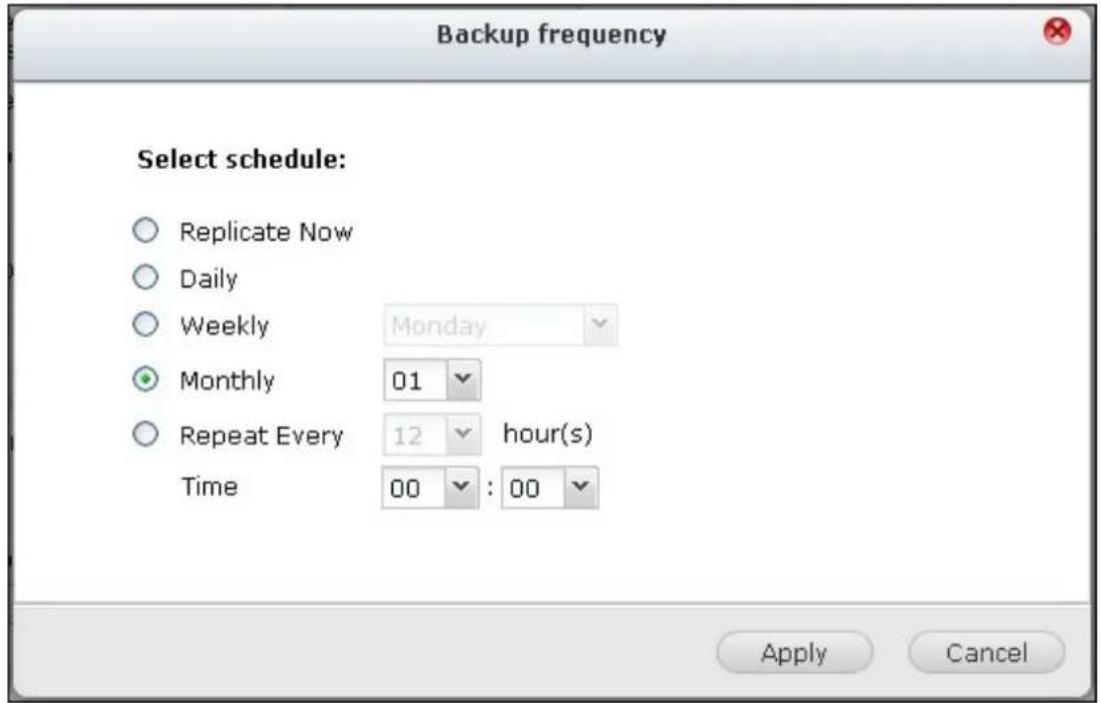
text_image
Backup frequency Select schedule: Replicate Now Daily Weekly Monday Monthly 01 Repeat Every 12 hour(s) Time 00 : 00 Apply Cancel-
Specify other options as follows for the remote replication job by clicking the "Options" button and click "Apply".
-
Enable encryption: Select this option to execute encrypted remote replication. Note that you must turn on "Allow SSH connection" in "Network Services > "Telnet/SSH" and specify the same port number for SSH and encrypted remote replication.
- Activate file compression: Turn on this option to allow file compression during the data transfer process. This option is recommended for low bandwidth environment or remote replication over WAN.
- Perform incremental replication: When this option is turned on, after the first-time replication, the NAS will only back up the files that have been changed since the last backup. The files of the same name, size, and modified time will not be copied again. You are recommended to turn on this option for the replication job which will be executed for more than once in order to shorten the backup time.
- Delete extra files on remote destination: Select the option to synchronize the source data with the destination data (one-way synchronization). Extra files on the destination will be deleted. Source data will remain unchanged.
- Handle sparse files efficiently: A sparse file is a type of computer file that contains large blocks of zero-byte data. Turning on this option may reduce the time required for remote replication.

text_image
Options Enable encryption, port number: 22 (Note: You have to enable SSH connection on the remote host, and use the "admin" account to execute the encrypted replication job. Besides, the port number must be the same as the SSH port of the remote host.) Activate file compression Perform incremental replication Delete extra files on remote destination Handle sparse files efficiently Maximum transfer rate (KB/s): 0 Apply Cancel- Click "Apply". If you select the "Execute backup immediately" option, the replication task will start at once. Otherwise, it will be performed according to your schedule. Note that the job is recursive. Do not turn off the local NAS and the remote server when remote replication is running.
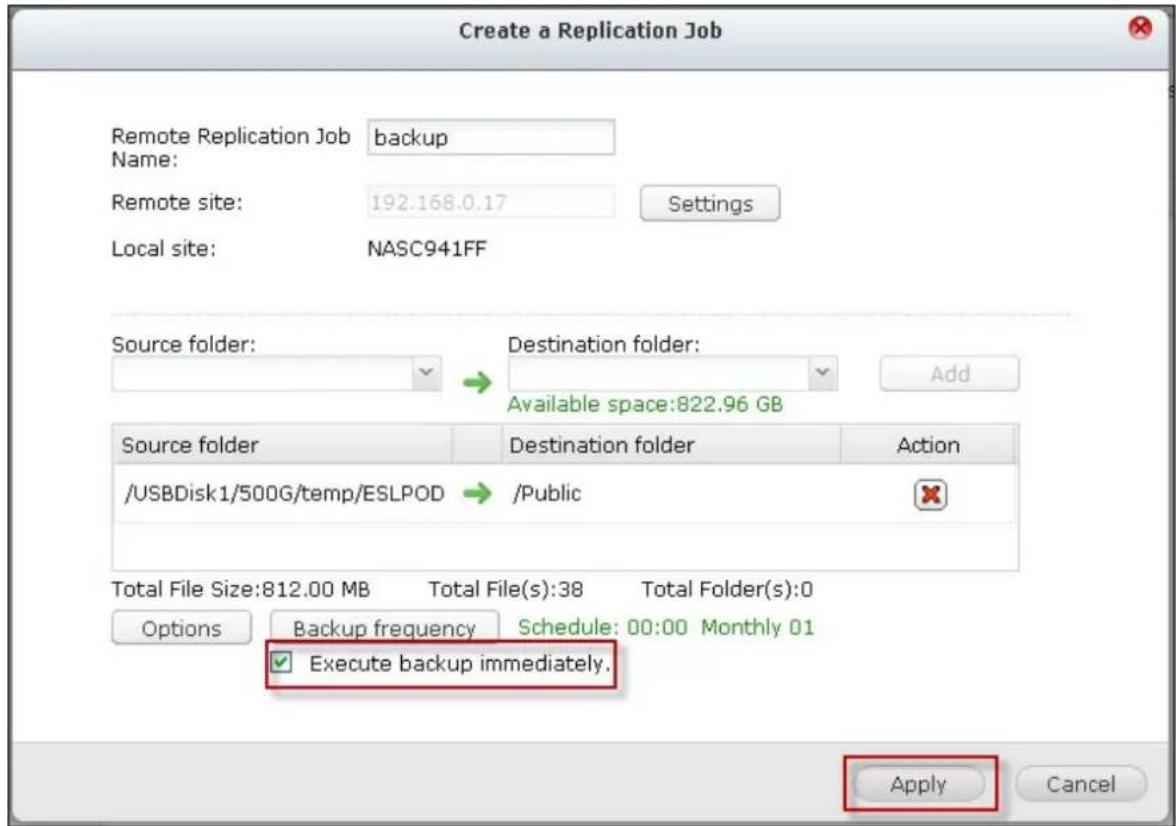
text_image
Create a Replication Job Remote Replication Job backup Name: Remote site: 192.168.0.17 Settings Local site: NASC941FF Source folder: Destination folder: Available space:822.96 GB Add Source folder Destination folder Action /USBDisk1/500G/temp/ESLPOD /Public Total File Size:812.00 MB Total File(s):38 Total Folder(s):0 Options Backup frequency Schedule: 00:00 Monthly 01 ✓ Execute backup immediately. Apply Cancel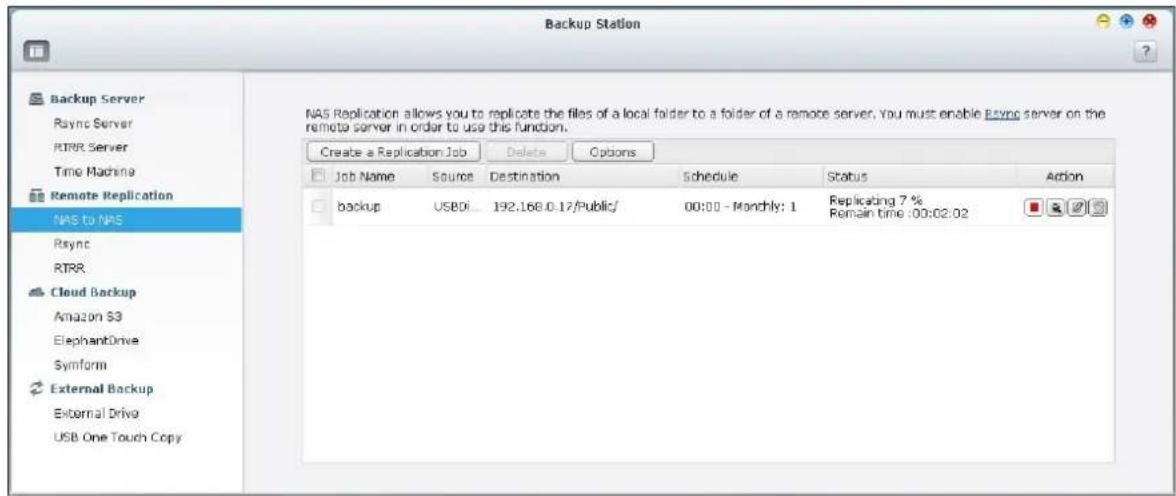
text_image
Backup Station Backup Server Rsync Server RTRR Server Time Machine Remote Replication NAS to NAS Rsync RTRR Cloud Backup Amazon S3 ElephantDrive Symform External Backup External Drive USB One Touch Copy NAS Replication allows you to replicate the files of a local folder to a folder of a remote server. You must enable Esync server on the remote server in order to use this function. Create a Replication Job Delete Options Job Name Source Destination Schedule Status Action backup USB01 192.168.0.17/Public/ 00:00 - Monthly: 1 Replicating 7 % Remain time :00:02:02| Icon | Description |
| Start a replication job immediately. | |
| Stop a running replication job. | |
| View Rsync logs (replication results). | |
| Edit a replication job. | |
| Disable replication schedule. |

Enable replication schedule.
To configure the timeout and retry settings of the replications jobs, click "Options".
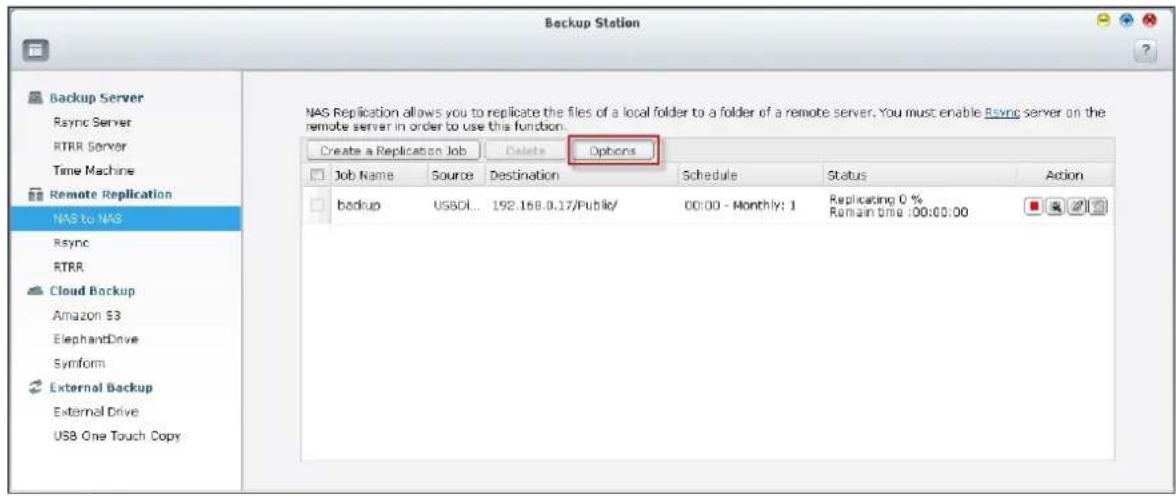
text_image
Backup Station Backup Server Sync Server RTRR Server Time Machine Remote Replication NAS to NAS Sync RTRR Cloud Backup Amazon $3 ElephantDrive Symform External Backup External Drive USB One Touch Copy NAS Replication allows you to replicate the files of a local folder to a folder of a remote server. You must enable Sync server on the remote server in order to use this function. Create a Replication Job Delete Options Job Name Source Destination Schedule Status Action backup US$01... 192.168.0.17/Public/ 00:00 - Monthly: 1 Replicating 0 % Remain time :00:00:00- Timeout (second): Specify a timeout value for each replication job. This is the maximum number of seconds to wait until a replication job is cancelled if no data has been received.
- Number of retries: Specify the number of times the NAS should try to execute a replication job should it fail.
- Retry intervals (second): Specify the number of seconds to wait in between each retry.
For example, if you entered 600 seconds for timeout, 3 retries, and 60 seconds for retry intervals, a replication job will timeout in 600 seconds if no data is received. The NAS will wait for 60 seconds and try to execute the job a second time. If the job timed out again, the NAS wait for another 60 seconds and retry for a third time.
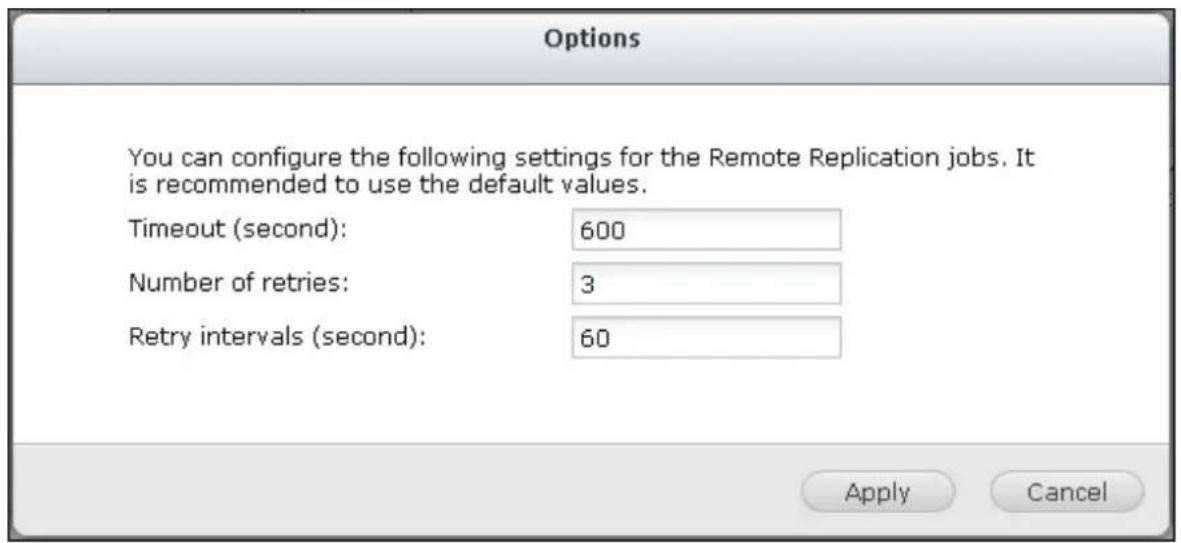
text_image
Options You can configure the following settings for the Remote Replication jobs. It is recommended to use the default values. Timeout (second): 600 Number of retries: 3 Retry intervals (second): 60 Apply CancelRTRR
Real-time Remote Replication (RTRR) provides real-time or scheduled data replication between the local NAS and a remote NAS, an FTP server, or an external drive, or replication between two local folders. In real-time mode, the source folder will be monitored and any files that are new, changed, and renamed will be replicated to the target folder immediately. In scheduled mode, the source folder will be replicated to the target folder according to the pre-defined schedule.
If the backup destination is a NAS, you must first enable RTRR server ("Main Menu" > "Backup Station" > "RTRR Server") or FTP service ("Main Menu" > "Control Panel" > "Network Services" > "FTP") on the remote NAS.
| NAS models | Firmware | Maximum number of replication jobs supported |
| Intel-based NAS | Prior to v3.5.0 | 64* |
| v3.5.0 or above | 32* | |
| ARM-based (Non Intel-based) NAS | Prior to v3.5.0 | RTRR replication not supported. |
| v3.5.0 or above | 8* |
*Each job supports maximum 5 folder pairs.
If your NAS models are not listed below, please visit http://www.qnap.com for details.
| Intel-based NAS | TS-x39 series, TS-x59 series, TS-x69 series, TS-509, TS-809, TS-809 Pro, TS-809U-RP, SS-439 Pro, SS-839 Pro, TS-x59 Pro+, TS-879 Pro, TS-1079 Pro, TS-879U-RP, TS-EC879U-RP, TS-1279U-RP, TS-EC1279U-RP |
| ARM-based (Non Intel-based) NAS | TS-x10, TS-x12, TS-x19 series |
Follow the steps below to create a replication job.
- To create a real-time or scheduled remote replication, click "Create a Replication Job".
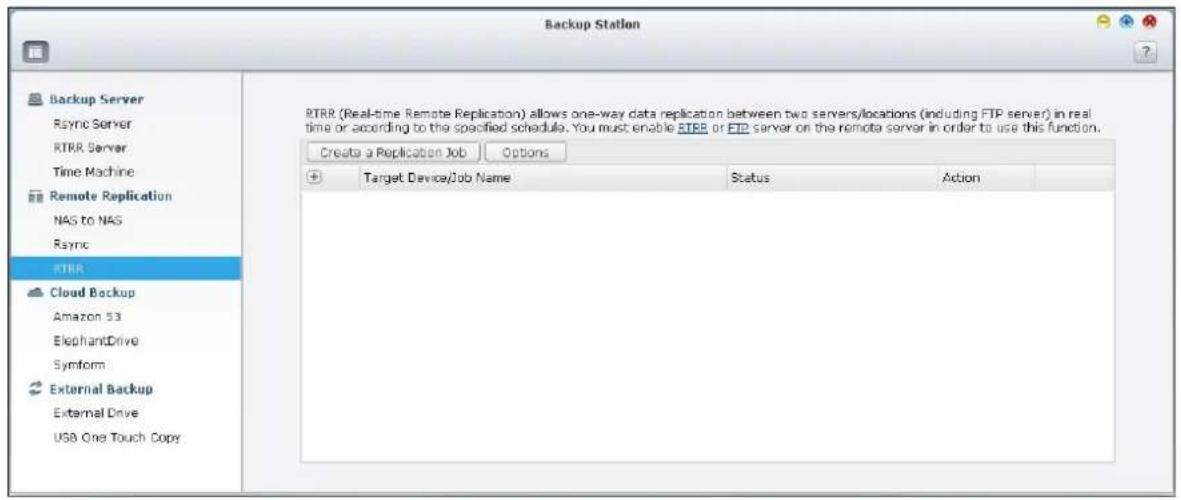
text_image
Backup Station Backup Server Sync Server RTRR Server Time Machine Remote Replication NAS to NAS Sync RTRR Cloud Backup Amazon 53 ElephantDrive Symform External Backup External Drive USB One Touch Copy RTRR (Real-time Remote Replication) allows one-way data replication between two servers/locations (including FTP server) in real time or according to the specified schedule. You must enable RTRR or FTP server on the remote server in order to use this function. Create a Replication Job Options + Target Device/Job Name Status Action- When the wizard shows up, click "Next".

text_image
Create a Replication Job Synchronization Job Wizard This wizard helps you create a sync job through the following steps. 1. Connect to a remote host. 2. Create folder pairs for sync operations. 3. Configure real-time or scheduled sync options. Click "Next" to start. Step 1/11 Next Cancel-
Select the synchronization locations. Make sure the destination device has been formatted and folders have been created. The NAS supports:
-
Synchronize data from a local folder to a remote folder (NAS or FTP server)
- Synchronize data from a remote folder (NAS or FTP server) to a local folder
- Synchronize data from a local folder to another local folder or an external drive Click "Next".
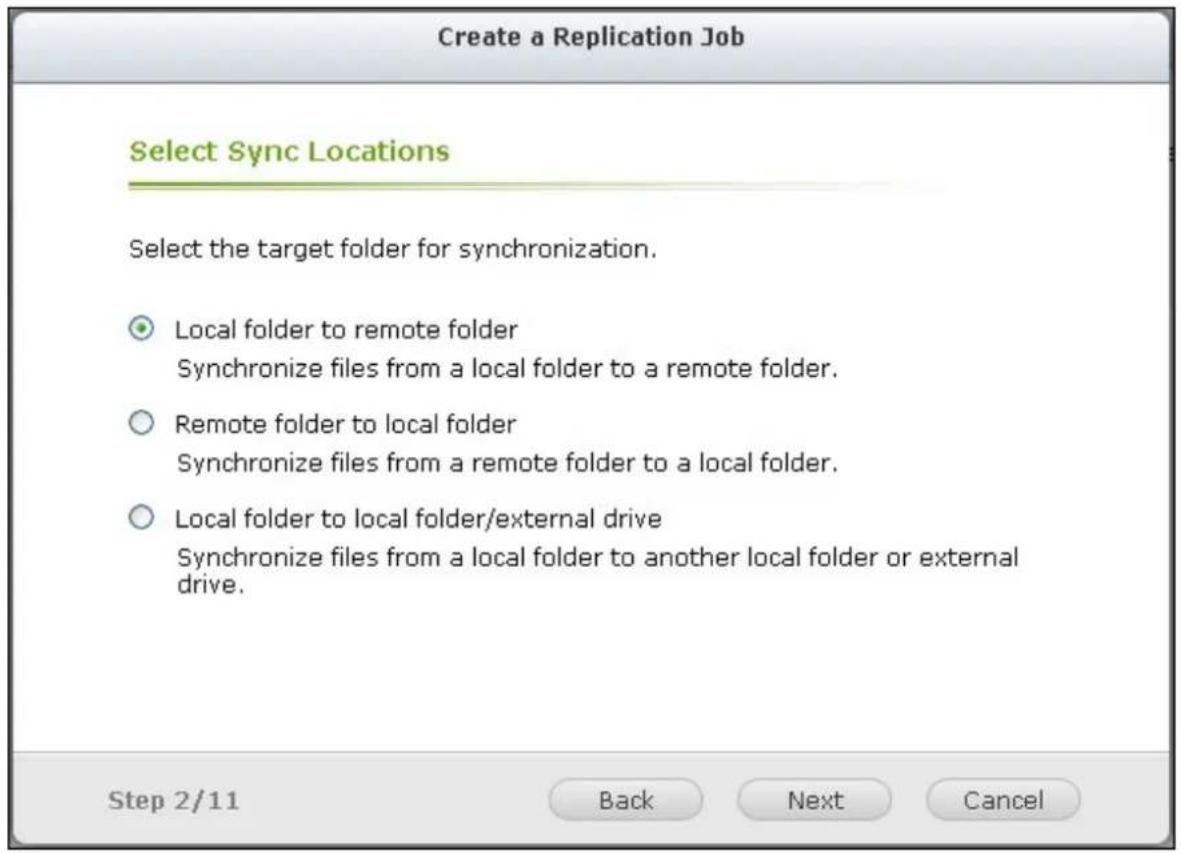
text_image
Create a Replication Job Select Sync Locations Select the target folder for synchronization. ○ Local folder to remote folder Synchronize files from a local folder to a remote folder. ○ Remote folder to local folder Synchronize files from a remote folder to a local folder. ○ Local folder to local folder/external drive Synchronize files from a local folder to another local folder or external drive. Step 2/11 Back Next Cancel- Enter the IP address or host name. Select the server type (FTP server or NAS server with RTRR service enabled).
Remote replication to FTP server
Specify the port number and if you want to enable FTP with SSL/TLS (Explicit) for encrypted data transfer. If the FTP server is behind a firewall, enable passive mode. Enter the username and password with read/write access to the server. Click "Next".
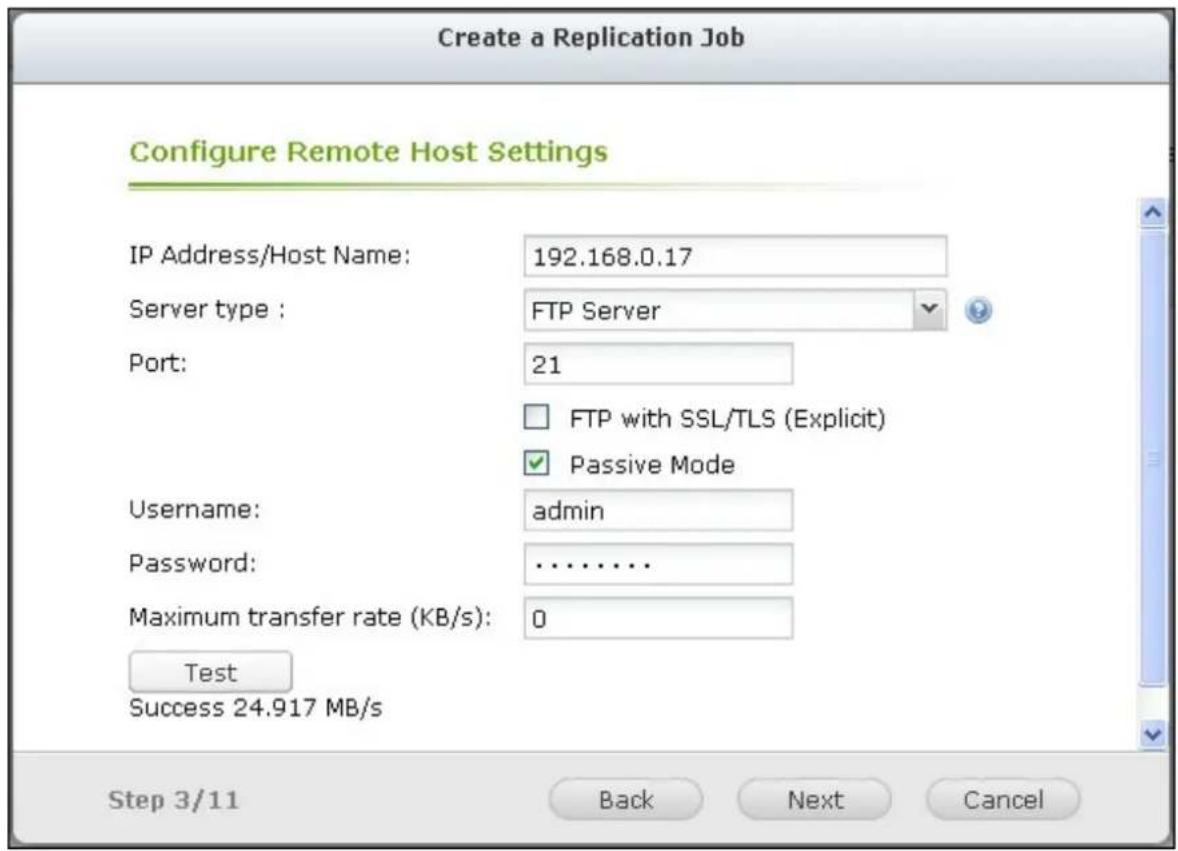
text_image
Create a Replication Job Configure Remote Host Settings IP Address/Host Name: 192.168.0.17 Server type : FTP Server Port: 21 FTP with SSL/TLS (Explicit) Passive Mode Username: admin Password: ............. Maximum transfer rate (KB/s): 0 Test Success 24.917 MB/s Step 3/11 Back Next CancelRemote replication to NAS with RTRR service
Enter the IP address of the RTRR service-enabled server. Specify the connection port and select whether or not to enable secure connection. The default port number for remote replication via RTRR is 8899. Enter the password for RTRR connection. Click "Next".

text_image
Create a Replication Job Configure Remote Host Settings IP Address/Host Name: 192.168.0.17 Server type : RTRR Service Port: 8899 Enable secure connection (SSL) Password: . Maximum transfer rate (KB/s): 0 Test Success 30.591 MB/s Step 3/11 Back Next Cancel- Select the folder pair for data synchronization.
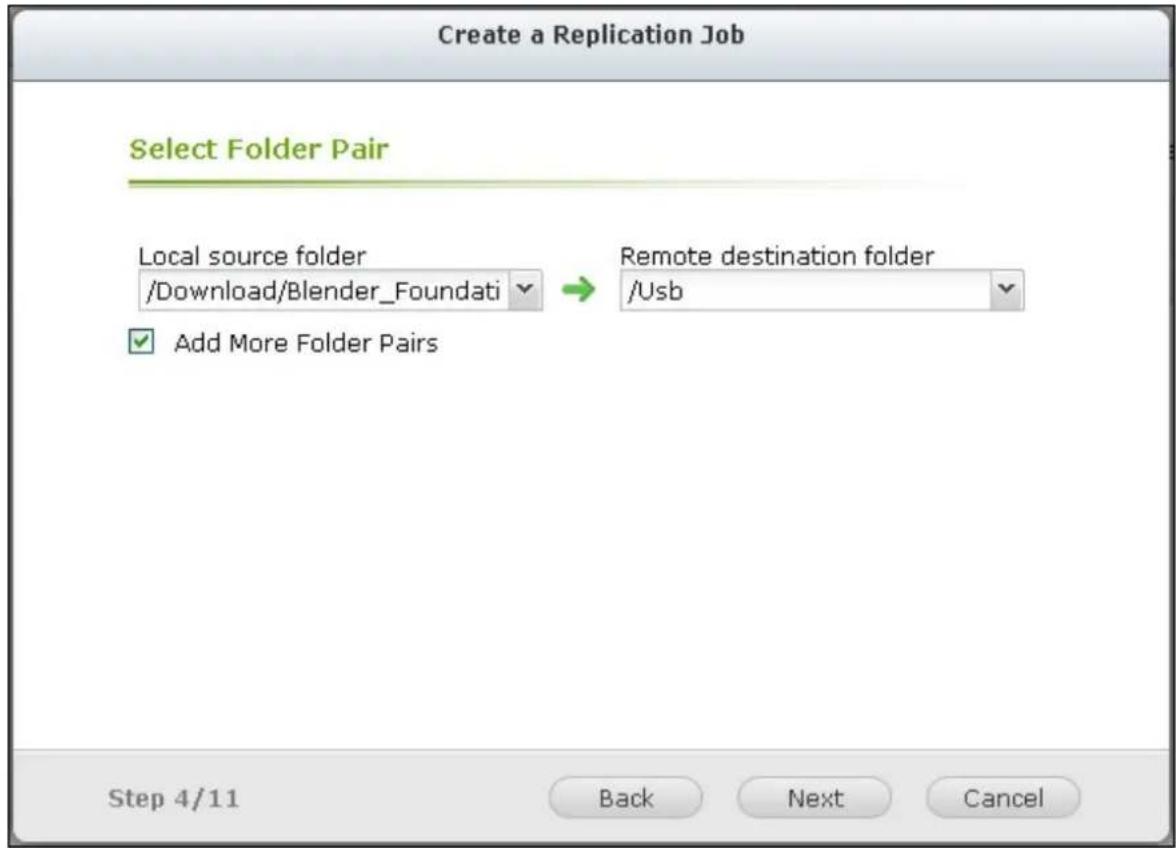
text_image
Create a Replication Job Select Folder Pair Local source folder /Download/Blender_Foundati Add More Folder Pairs Remote destination folder /Usb Step 4/11 Back Next CancelNote: If a folder or its parent folder or child folder has been selected as the source or destination in a folder pair of a replication job, you cannot select the folder as the source or destination of another folder pair of the same job.
- Each sync job supports maximum 5 folder pairs. Select more folder pairs and click "Add". Click "Next".

text_image
Create a Replication Job Configure Multiple Folder Pairs Local source folder: /Recordings Remote destination folder: /Public Add Local source folder Remote destination folder Action /Download/Blender_Fou... /Usb Step 5/11 Back Next Cancel- Choose between real-time and scheduled synchronization. Real-time synchronization copies files that are new, changed, and renamed from the source folder to the target folder as soon as the changes are made after the first-time backup.
Note: RTRR does not support bi-directional synchronization in the current version. The folder pair cannot be synchronized between two NAS servers in real-time mode. To synchronize the data between the folder pair of two NAS servers, please use scheduled backup.
Scheduled synchronization copies files from the source folder to the target folder according to the pre-configured schedule. The options are:
• Replicate Now: Replicate data immediately.
- Periodically: Enter the time interval in hour and minute that the backup should be executed. The minimum time interval is 5 minutes.
- Hourly: Specify the minute when an hourly backup should be executed, e.g. enter 01 to execute backup each first minute of every hour, 1:01, 2:01, 3:01...
- Daily: Specify the time when a daily backup should be executed, e.g. 02:02 every day.
- Weekly: Select a day of the week and the time when a weekly backup should be executed.
- Monthly: Select a day of the month and the time when a monthly backup should be executed.
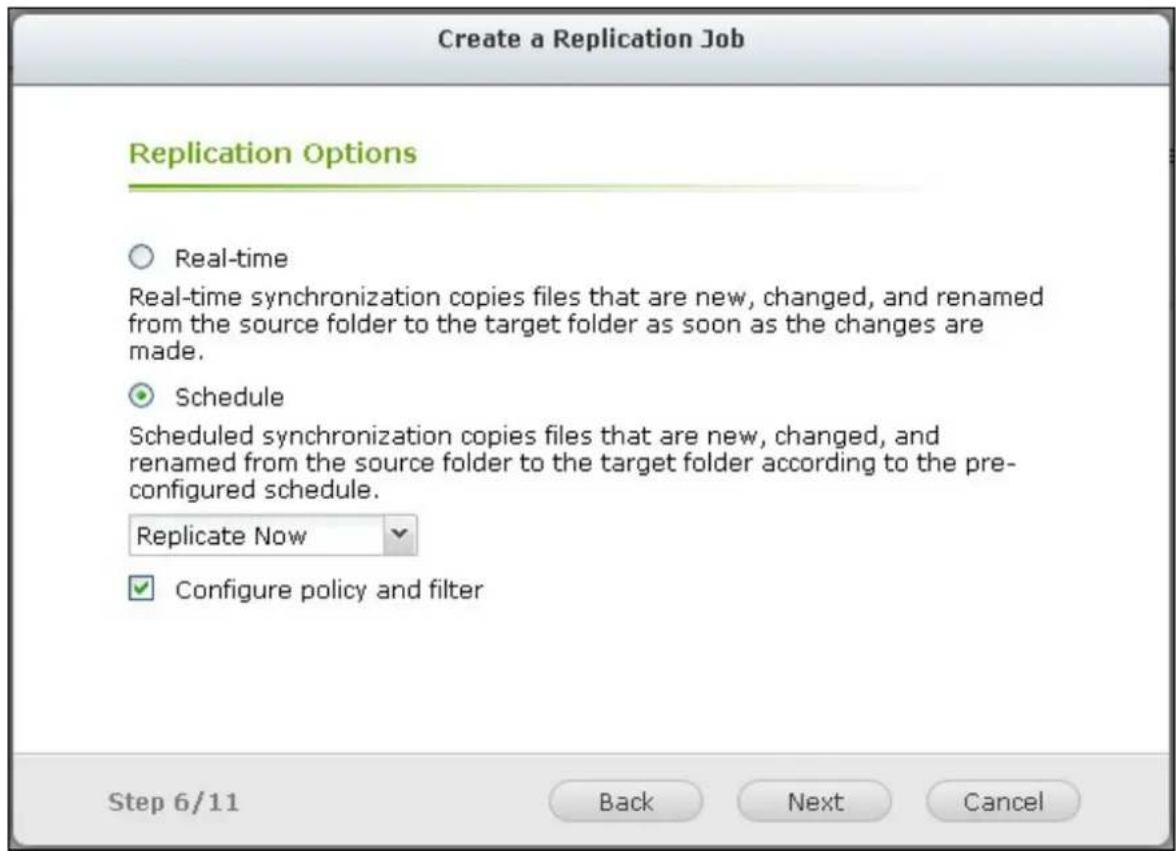
text_image
Create a Replication Job Replication Options Real-time Real-time synchronization copies files that are new, changed, and renamed from the source folder to the target folder as soon as the changes are made. Schedule Scheduled synchronization copies files that are new, changed, and renamed from the source folder to the target folder according to the pre-configured schedule. Replicate Now Configure policy and filter Step 6/11 Back Next Cancel- To configure synchronization policy, select "Configure policy and filter" and click "Next".
Select whether or not to enable the following options:
- Delete extra files: Delete extra files in the target folder. Deletions made on the source folder will be repeated on the target folder. This option is not available for real-time synchronization.
- Detect sparse files: Select this option to ignore files of null data.
- Check file contents: Specify to examine file contents, date, size, and name to determine if two files are identical. This option is not available for real-time synchronization.
-
Compress files during transmissions: Specify whether or not the files should be compressed for synchronization operations. Note that more CPU resources will be consumed.
-
Ignore symbolic links: Select this option to ignore symbolic links in the pair folder.
- Extended attributes: Select this option to keep the information in extended attributes.
- Timeout and retry settings: Specify the timeout period and retry settings if a synchronization operation fails.

text_image
Create a Replication Job Configure synchronization policy Timeout and Retry Settings Timeout (second): 120 Retry intervals (second): 60 Delete extra files Check file contents Ignore symbolic links Detect sparse files Compress files during transmission Extended attributes Step 7/11 Back Next Cancel-
Specify the file size, file types to include/exclude, and file date/time to filter data synchronization.
-
File size: Specify the minimum and maximum size of the files to be replicated.
- Include file types: Specify the file types to be replicated.
- Exclude file types: Specify the file types to be excluded for replication.
- File date/time: Specify the date and time of the files to be replicated.
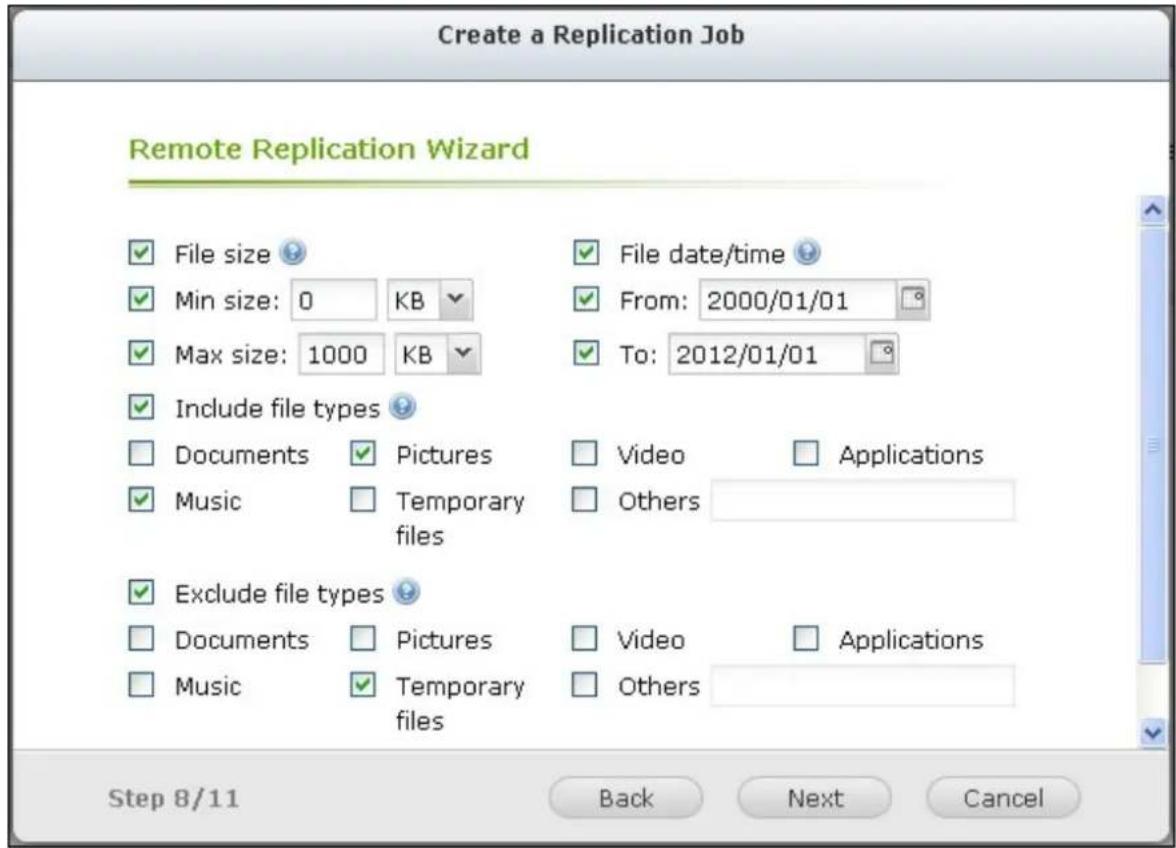
text_image
Create a Replication Job Remote Replication Wizard ✓ File size ✓ ✓ Min size: 0 KB ✓ ✓ Max size: 1000 KB ✓ ✓ Include file types ✓ ☐ Documents ✓ Pictures ✓ Video ✓ Applications ✓ Music ✓ Temporary files ✓ Others ✓ Exclude file types ✓ ☐ Documents ✓ Pictures ✓ Video ✓ Applications ☐ Music ✓ Temporary files ✓ Others Step 8/11 Back Next Cancel- Enter a job name. Click "Next".

text_image
Create a Replication Job Enter a sync job name Job Name: Blender_Foundation_-_Elepha-->R Specify a name for the sync job. It is a required field and cannot be empty. Step 9/11 Back Next Cancel- Confirm the settings and click "Next".
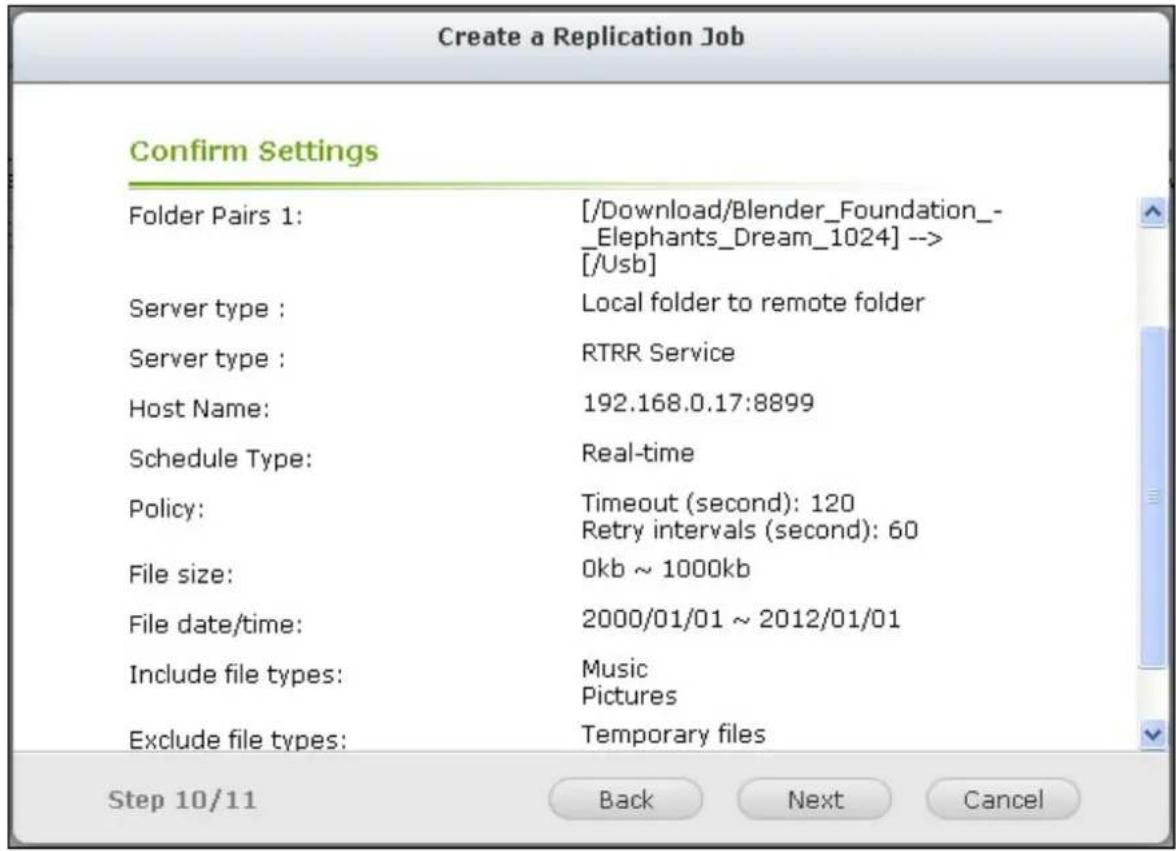
text_image
Create a Replication Job Confirm Settings Folder Pairs 1: [/Download/Blender_Foundation_-_Elephants_Dream_1024] --> [/Usb] Server type : Local folder to remote folder Server type : RTRR Service Host Name: 192.168.0.17:8899 Schedule Type: Real-time Policy: Timeout (second): 120 Retry intervals (second): 60 File size: 0kb ~ 1000kb File date/time: 2000/01/01 ~ 2012/01/01 Include file types: Music Pictures Exclude file types: Temporary files Step 10/11 Back Next Cancel- Click "Finish" to exit the wizard.

text_image
Create a Replication Job Setup complete Congratulations. You have finished all the steps for Quick Configuration. Step 11/11 Finish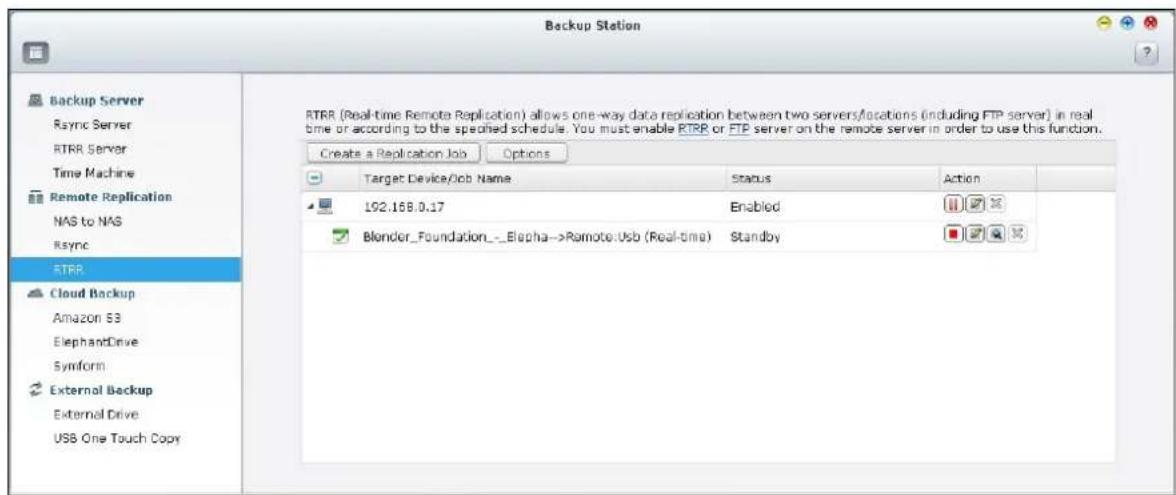
text_image
Backup Station Backup Server Rsync Server RTRR Server Time Machine Remote Replication NAS to NAS Rsync RTRR Cloud Backup Amazon S3 ElephantDrive Symforin External Backup External Drive USB One Touch Copy RTRR (Real-time Remote Replication) allows one-way data replication between two servers/locations (including FTP server) in real time or according to the specified schedule. You must enable RTRR or FTP server on the remote server in order to use this function. Create a Replication Job Options Target Device/Ocb Name Status Action 192.168.0.17 Enabled Blonder_Foundation_-_Elepha-->Remote:Usb (Real-time) Standby| Icon | Description |
| Enable connection to a remote server.Start a replication job. | |
| Stop connection to a remote server or external drive. | |
| Stop a replication job. | |
| View job status and logs; download logs. | |
| Edit the connection settings of a remote server.Edit the settings of a replication job. | |
| Delete connection settings to a remote server.Delete a replication job.This button is available only after a replication job is stopped or the connection to the remote server is stopped. |
To edit the replication job properties, click "Options".

text_image
Backup Station Backup Server Sync Server RTRR Server Time Machine Remote Replication NAS to NAS Sync RTRR Cloud Backup Amazon 53 ElephantDrive Symform External Backup External Drive USB One Touch Copy Create a Replication Job Options Target Device/Job Name Status Action 192.168.0.17 Enabled Blender_Foundation_-_Elepha-->Remote:Usb (Real-time) Standby RTRR (Real-time Remote Replication) allows one-way data replication between two servers/rotations (including FTP server) in real time or according to the specified schedule. You must enable RTPR or FTP server on the remote server in order to use this function.Under "Event Logs" you can select to enable "Download Detailed Logs" and specify the maximum file size of the log file. You can also select to send an email alert when synchronization fails or completes. Note that the SMTP server settings must be properly set up on the NAS ("System Settings" > "Notification").
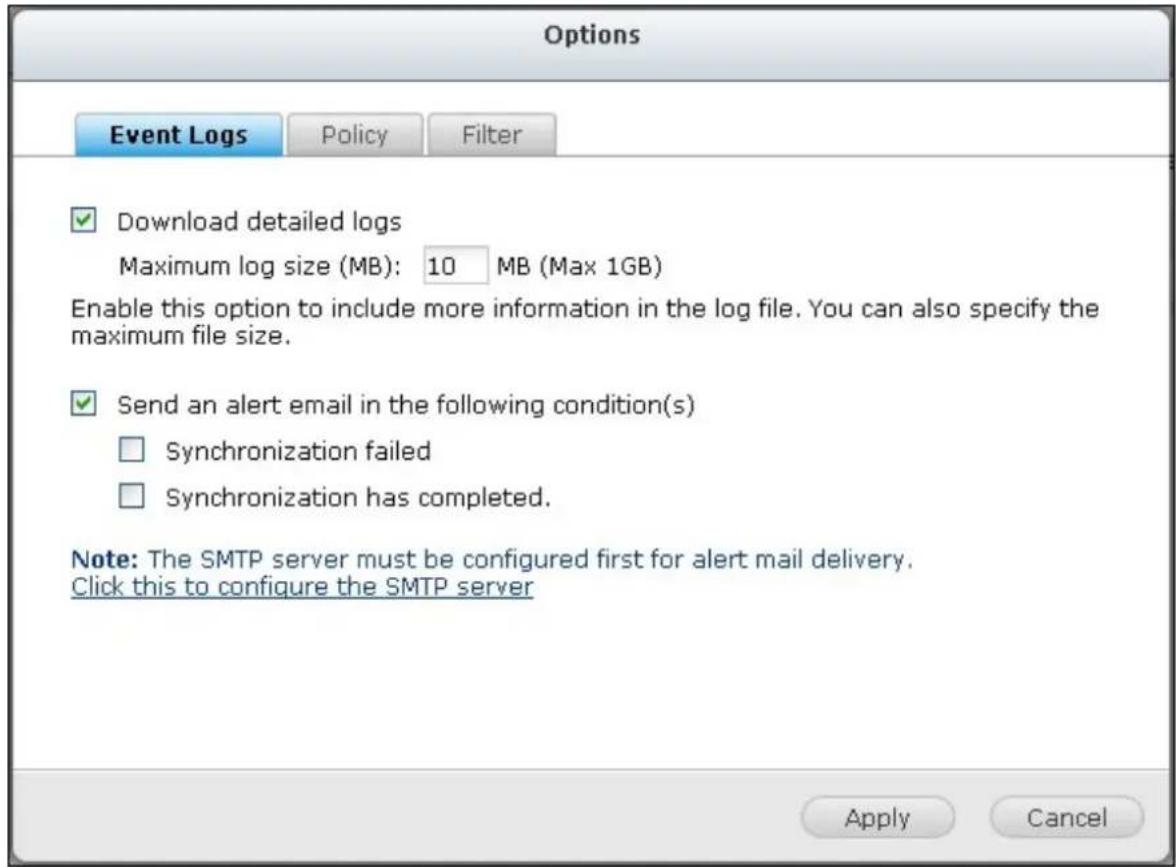
text_image
Options Event Logs Policy Filter ✓ Download detailed logs Maximum log size (MB): 10 MB (Max 1GB) Enable this option to include more information in the log file. You can also specify the maximum file size. ✓ Send an alert email in the following condition(s) □ Synchronization failed □ Synchronization has completed. Note: The SMTP server must be configured first for alert mail delivery. Click this to configure the SMTP server Apply CancelSpecify the replication policy in "Policy" and filter settings in "Filter". These will become the default settings for all RTRR replication jobs.
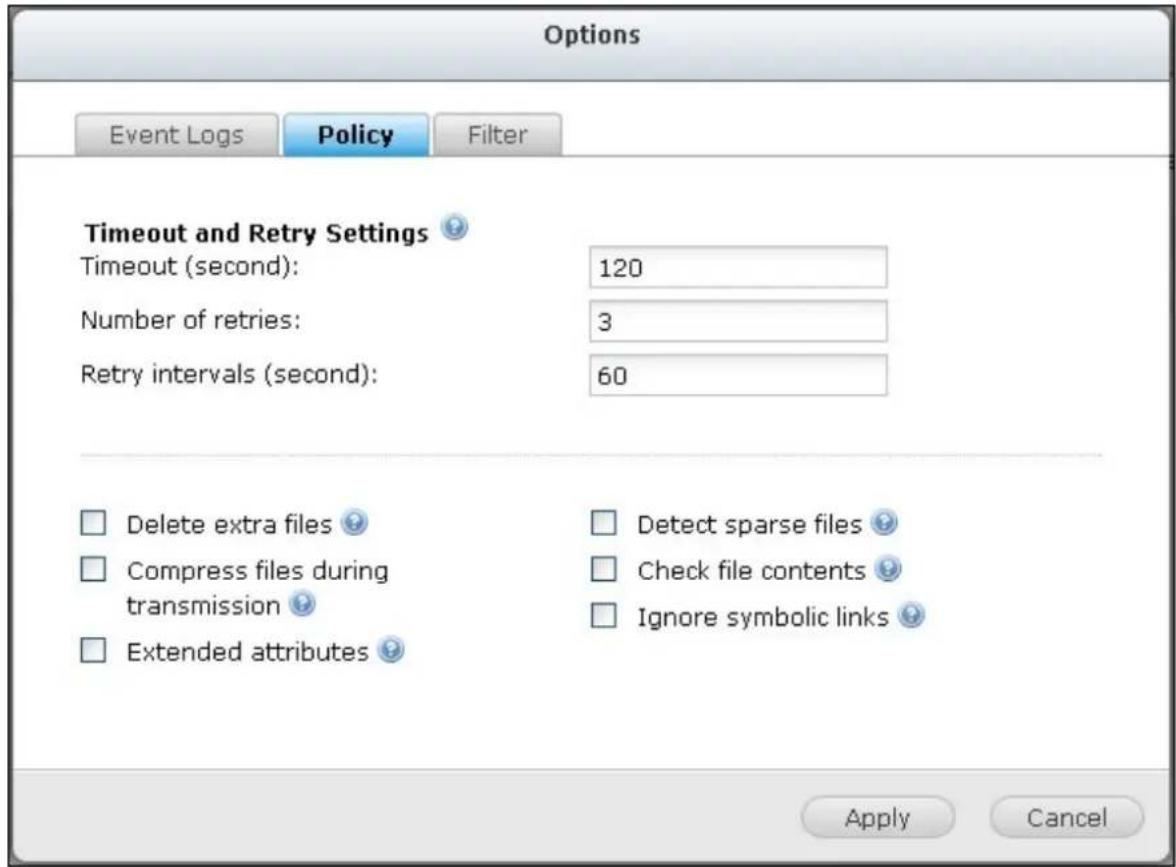
text_image
Options Event Logs Policy Filter Timeout and Retry Settings Timeout (second): 120 Number of retries: 3 Retry intervals (second): 60 Delete extra files Compress files during transmission Extended attributes Detect sparse files Check file contents Ignore symbolic links Apply CancelDownload replication job logs
To view the status and logs of a replication job, click

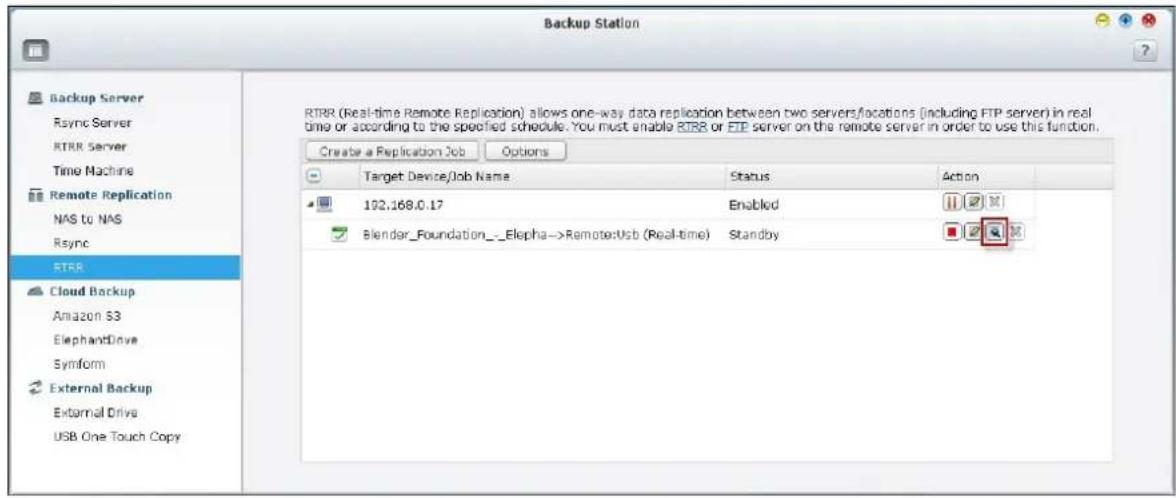
text_image
Backup Station Backup Server Sync Server RTRR Server Time Machine Remote Replication NAS to NAS Sync RTRR Cloud Backup Amazon 53 ElephantDrive Symform External Backup External Drive USB One Touch Copy RTRR (Real-time Remote Replication) allows one-way data replication between two servers/locations (including FTP server) in real time or according to the specified schedule. You must enable RTRR or FTP server on the remote server in order to use this function. Create a Replication Job Options Target Device/Job Name Status Action 192,168.0.17 Enabled Shader_Foundation_-_Elepha-->Remote:Usb (Real-time) StandbyYou can view the details of a replication job.
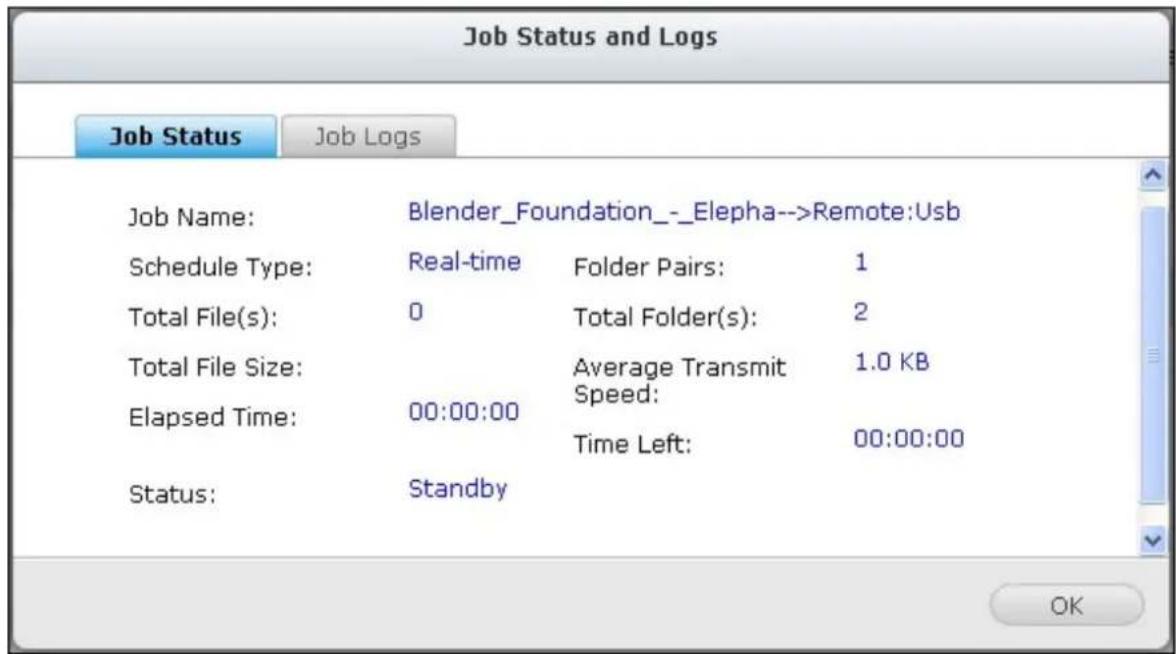
text_image
Job Status and Logs Job Status Job Logs Job Name: Blender_Foundation_-_Elepha-->Remote:Usb Schedule Type: Real-time Folder Pairs: 1 Total File(s): 0 Total Folder(s): 2 Total File Size: Average Transmit 1.0 KB Elapsed Time: 00:00:00 Speed: Time Left: 00:00:00 Status: Standby OKYou can view the job logs or download the logs by clicking "Download Logs". The log file can be opened by Microsoft Excel or other text editor software. Note that this button is only available after you have enabled "Download Detailed Logs" in "Options" > "Event Logs" and executed the replication job once.
| Job Status and Logs | ||
| Job Status | Job Logs | |
| Date | Time | Content |
| 2013/05/28 | 16:19:27 | Job [Web-->Remote:Download] started. |
| 2013/05/28 | 16:19:27 | Synchronize files between a local folder and an external drive. |
| 2013/05/28 | 16:19:27 | The number of folder pairs = 1. |
| 2013/05/28 | 16:19:27 | Pair1 = [Web, Download]. |
| 2013/05/28 | 16:19:27 | Schedule type: Realtime. |
| Download Logs | ||
Amazon S3
Amazon S3 (Simple Storage Service) is an online storage web service offered by AWS (Amazon Web Services). It provides a simple web services interface that can be used to store and retrieve the data from anywhere on the web. With Amazon S3, you can upload the data from your NAS to Amazon S3 or download the data from Amazon S3 to your NAS.
Note that you need to register an AWS account from http://aws.amazon.com and pay for the service. After signing up for an account, you need to create at least one bucket (root folder) on Amazon S3 by an Amazon S3 application. We recommend the Mozilla Firefox add-on "S3Fox" for beginners.

text_image
Backup Station Backup Server Sync Server RTRR Server Time Machine Remote Replication NAS to NAS Sync RTRR Cloud Backup Amazon 53 ElephantDrive Symform External Backup External Drive USB One Touch Copy This function allows you to upload the data from the NAS to Amazon 53, or vice versa. Note: Please synchronize the system time with an Internet time server before using this function. To configure the system date and time, please click here. Create a Replication Job Job Name Usage Ty... Schedule Status Action Disclaimer: The cloud storage services are provided by the third party vendors on an "as is" basis. QNAP is not liable for the data security or any loss or damage of data that may have been caused by using these services.After setting up the Amazon S3 account, follow the steps below to back up the data to or retrieve the data from Amazon S3 using the NAS.
- Click "Create a Replication Job".
- Enter the remote replication job name.
- Select the usage type: "Upload" or "Download" and enter other settings. A bucket is the root directory on Amazon S3. You can test the connection to the remote host testing by clicking "Test". Other settings are optional.
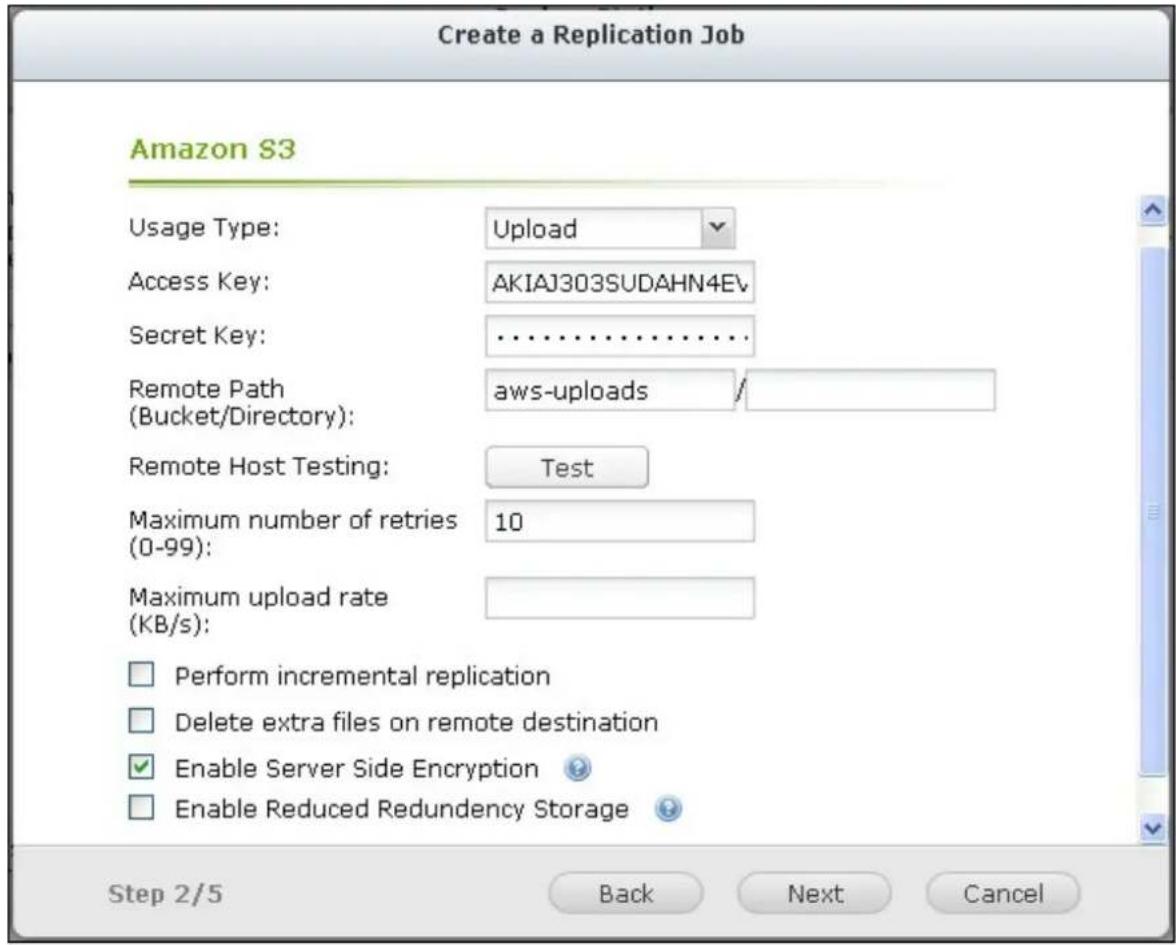
text_image
Create a Replication Job Amazon S3 Usage Type: Upload Access Key: AKIAJ303SUDAHN4Ev Secret Key: ...... Remote Path (Bucket/Directory): aws-uploads / Remote Host Testing: Test Maximum number of retries (0-99): 10 Maximum upload rate (KB/s): Perform incremental replication Delete extra files on remote destination Enable Server Side Encryption Enable Reduced Redundency Storage Step 2/5 Back Next Cancel- Specify the local directory on the NAS for replication.
- Enter the replication schedule.
- Click "Finish". The replication job will be executed according to your schedule.
ElephantDrive
To use ElephantDrive Service, select "Enable ElephantDrive Service". Enter your email and password for the ElephantDrive service. If you do not have an account, enter the information and click "Create".
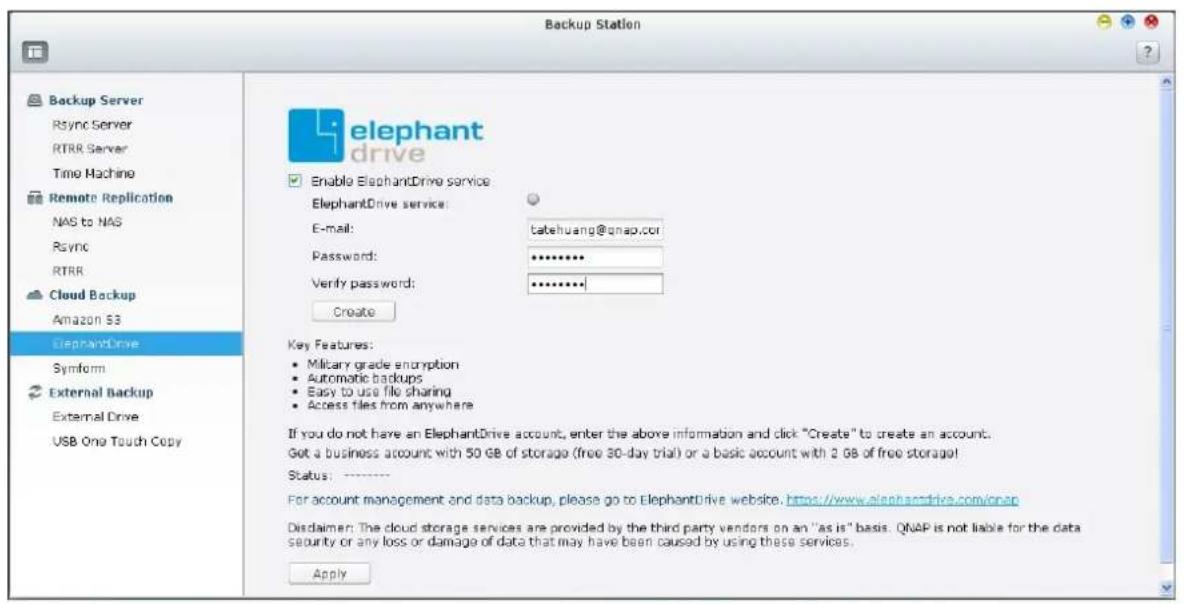
text_image
Backup Station Backup Server Rsync Server RTRR Server Time Machine Remote Replication NAS to NAS Rsync RTRR Cloud Backup Amazon 53 ElephantDrive Symform External Backup External Drive USB One Touch Copy ElephantDrive Enable ElephantDrive service ElephantDrive service: E-mail: tabehuang@qnap.com Password: ********** Verify password: ********** Create Key Features: • Military grade encryption • Automatic backups • Easy to use file sharing • Access files from anywhere If you do not have an ElephantDrive account, enter the above information and click "Create" to create an account. Got a business account with 50 GB of storage (free 30-day trial) or a basic account with 2 GB of free storage! Status: ---- For account management and data backup, please go to ElephantDrive website. https://www.elephardrive.com/qnap Disclaimer: The cloud storage services are provided by the third party vendors on an "as is" basis. QNAP is not liable for the data security or any loss or damage of data that may have been caused by using these services. ApplyClick "OK" to confirm.
After creating an account, click "Apply". The NAS will help you login the ElephantDrive service.
After you have logged in ElephantDrive service on the NAS, you can go to ElephantDrive website (http://www.elephantdrive.com/qnap) and manage the backup.
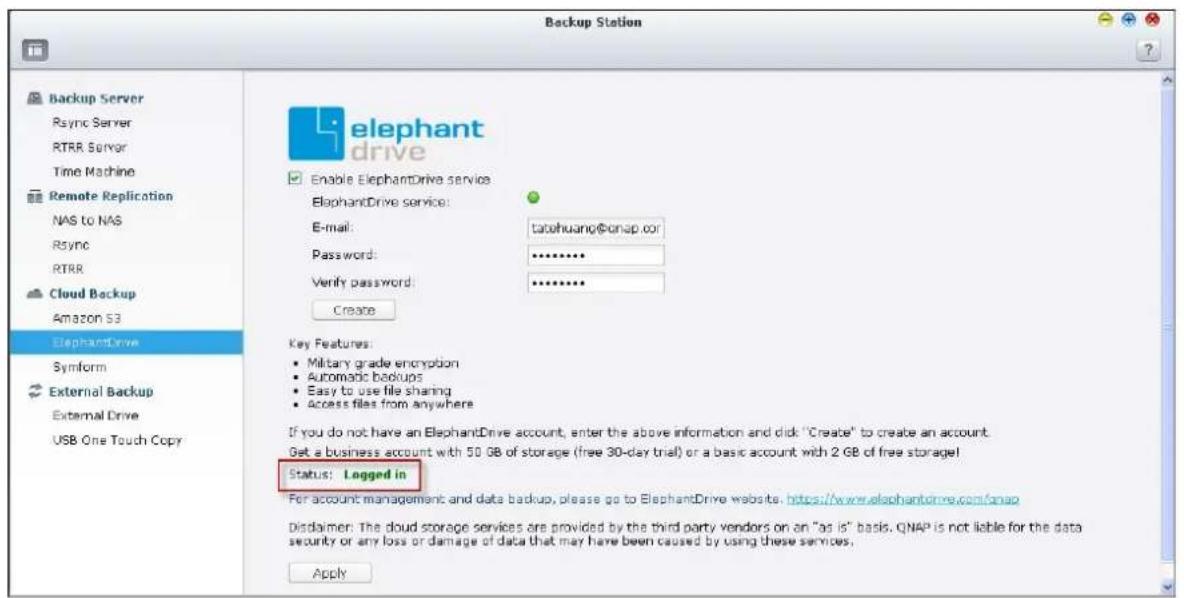
text_image
Backup Station Backup Server Rsync Server RTRR Server Time Machine Remote Replication NAS to NAS Rsync RTRR Cloud Backup Amazon 53 ElephantDrive Symform External Backup External Drive USB One Touch Copy elephant drive Enable ElephantDrive service ElephantDrive service: E-mail: taobhuang@onap.oor Password: ********** Verify password: ********** Create Key Features: • Military grade encryption • Automatic backups • Easy to use file sharing • Access files from anywhere If you do not have an ElephantDrive account, enter the above information and click "Create" to create an account. Get a business account with 50 GB of storage (free 30-day trial) or a basic account with 2 GB of free storage! Status: Logged in For account management and data backup, please go to ElephantDrive websites. https://www.elephantdrive.com/onep Disclaimer: The cloud storage services are provided by the third party vendors on an "as is" basis. QNAP is not liable for the data security or any loss or damage of data that may have been caused by using these services. ApplyLogin your ElephantDrive account. You can manage the backup and restore jobs on the website (https://www.elephantdrive.com/qnap).
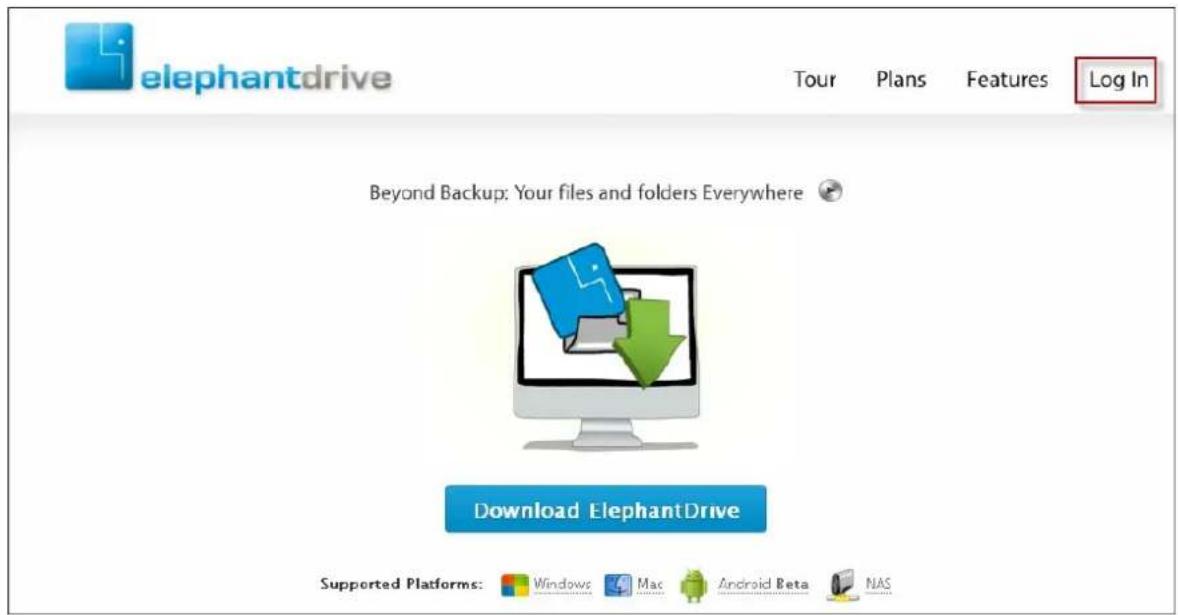
text_image
elephantdrive Tour Plans Features Log In Beyond Backup: Your files and folders Everywhere Download ElephantDrive Supported Platforms: Windows Mac Android Beta NASSymform
To use Symform cloud backup, go to "Backup Station> Cloud Backup > Symform". Click "Get Started Now" to install Symform. The NAS will download, verify, and install the package automatically.

text_image
Backup Station Backup Server Rsync Server RTRR Server Time Machine Remote Replication NAS to NAS Rsync RTRR Cloud Backup Amazon S3 ElephantDrive Symform External Backup External Drive USB One Touch Copy powered by symform Back up your folders to the Symform Cloud Storage Network for FREE when you contribute excess local drive space. Key Features: • Patented RAID 96 technology for safe, distributed cloud backup • Extending QNAP device to the Symform cloud for secondary backup and disaster recovery • Fast data seeding and instant restore • File sharing across multiple devices and locations Click here for pricing and offers. Already a user: Get Started Now * The free cloud storage is earned by contributing your excess local storage from your QNAP device. Disclaimer: The cloud storage services are provided by the third party vendors on an "as is" basis. QNAP is not liable for the data security or any loss or damage of data that may have been caused by using these services. ApplyClick "Configure".

text_image
Backup Station Backup Server Sync Server RTRR Server Time Machine Remote Replication NAS to NAS Sync RTRR Cloud Backup Amazon S3 ElephantDrive Symform External Backup External Drive USB One Touch Copy powered by symform Back up your folders to the Symform Cloud Storage Network for FREE when you contribute excess local drive space. Key Features: • Patented RAID 96 technology for safe, distributed cloud backup • Extending QNAP device to the Symform cloud for secondary backup and disaster recovery • Fast data seeding and instant restore • File sharing across multiple devices and locations Click here for pricing and offers. Enable Symform Configure Uninstall * The free cloud storage is earned by contributing your excess local storage from your QNAP device. Disclaimer: The cloud storage services are provided by the third party vendors on an "as is" basis. QNAP is not liable for the data security or any loss or damage of data that may have been caused by using these services. ApplyEnter your email address and click "Sign-In" to activate Symform on the NAS. An activation code will be sent to this address.
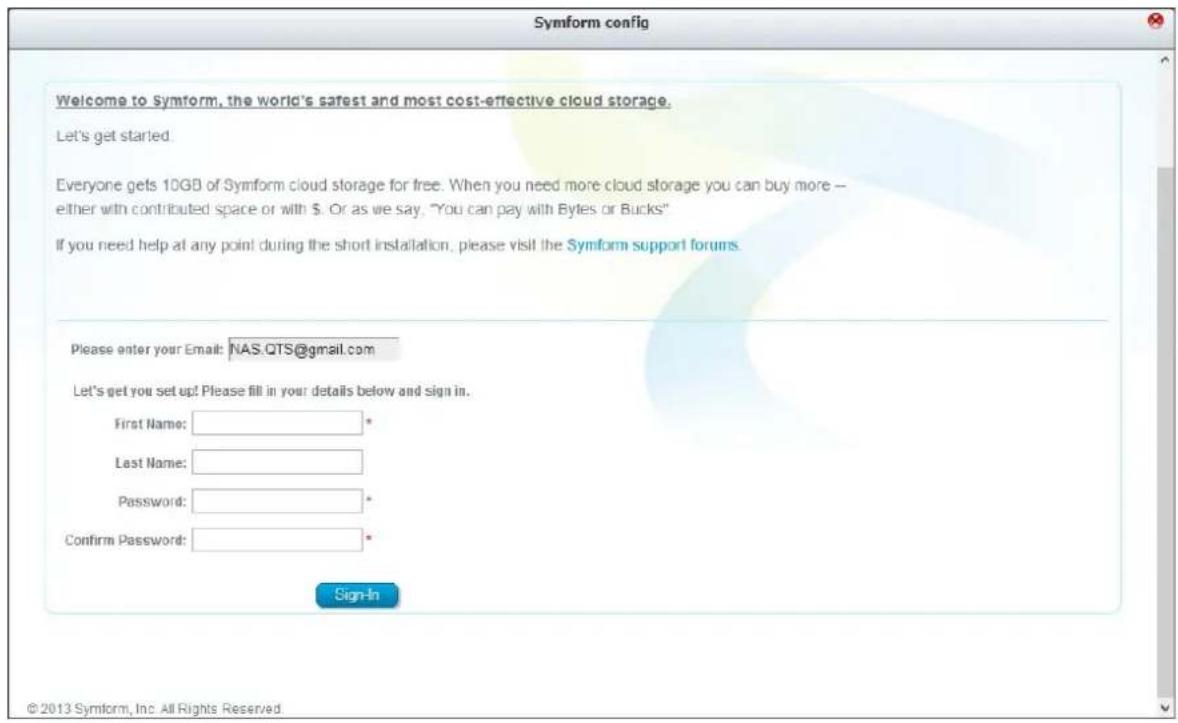
text_image
Symform config Welcome to Symform, the world's safest and most cost-effective cloud storage. Let's get started. Everyone gets 10GB of Symform cloud storage for free. When you need more cloud storage you can buy more — either with contributed space or with $. Or as we say, "You can pay with Bytes or Bucks" If you need help at any point during the short installation, please visit the Symform support forums. Please enter your Email: NAS.QTS@gmail.com Let's get you set up! Please fill in your details below and sign in. First Name: * Last Name: * Password: * Confirm Password: * Sign-In © 2013 Symform, Inc. All Rights ReservedCheck your email to get the activation code and finish the setup.
Configure Symform according to the instructions.
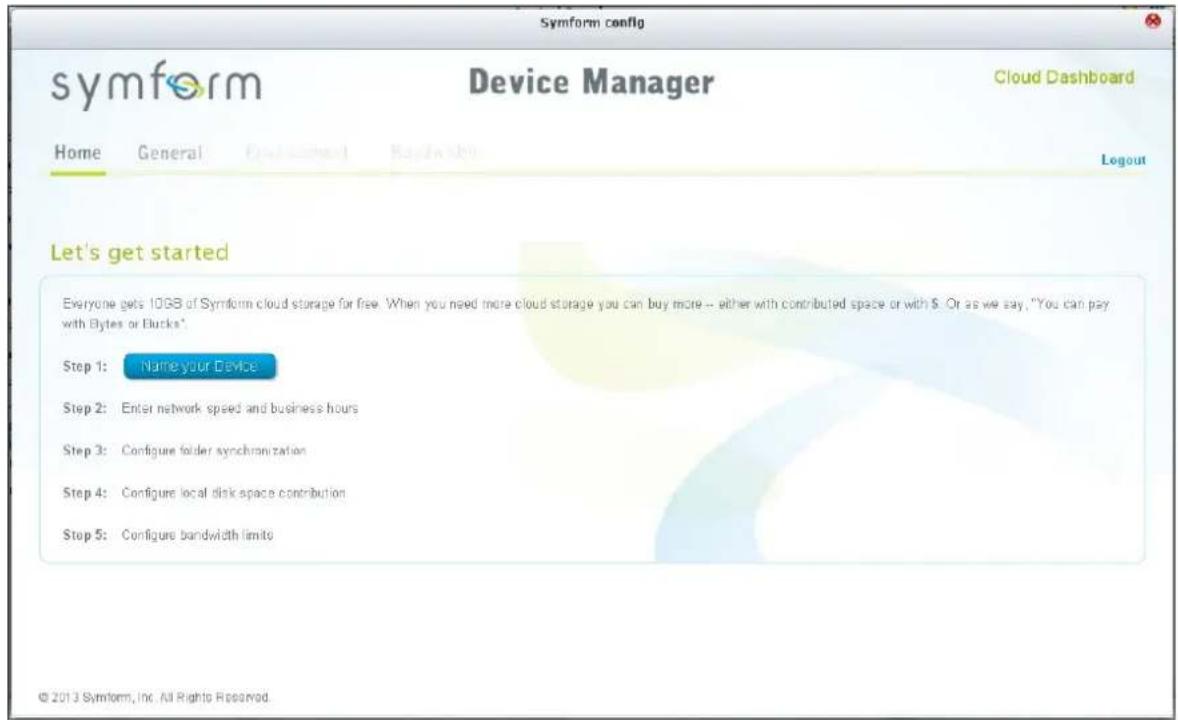
text_image
Symform config symform Device Manager Cloud Dashboard Home General (Default) Edit In Web Logout Let's get started Everyone gets 10GB of Symform cloud storage for free. When you need more cloud storage you can buy more -- either with contributed space or with $ . Or as we say, "You can pay with Bytes or Bucks". Step 1: Name your Device Step 2: Enter network speed and business hours Step 3: Configure folder synchronization Step 4: Configure local disk space contribution Step 5: Configure bandwidth limits © 2013 Symform, Inc. All Rights Reserved.When done, the folders chosen during the setup will be backed up to Symform Storage Cloud.
After Symform is activated, you will be able to see the device configuration. Click "Cloud Dashboard" to have access to Symform Cloud Dashboard and check the status of all the devices that are running Symform Storage Cloud.
Note about Sym form service:
• Web administration interface TCP port: 59234
- Contribution TCP port: Defined randomly during Symform setup and can be changed if necessary.
- All TCP outbound ports are mandatory.
- The hard drive standby function of the NAS may not work when contribution is in use, because Symform service always reads and writes data on the hard drives.
- Symform with contribution requires network bandwidth. If contribution is enabled, there will always be communication between the NAS and Symform Cloud. This may cause network utilization and the bandwidth can be limited as needed.
External Drive
The NAS supports real-time and scheduled data backup between the internal disks volumes on the NAS and external USB/eSATA storage devices. To use this feature, follow the steps below.
Note: If an external storage device is encrypted by the NAS, make sure it is unlocked in "External Device" > "External Storage" before creating any backup jobs.
- Connect one or more external storage devices to the USB or eSATA (if available) interfaces of the NAS.
- Click "Create a new job".
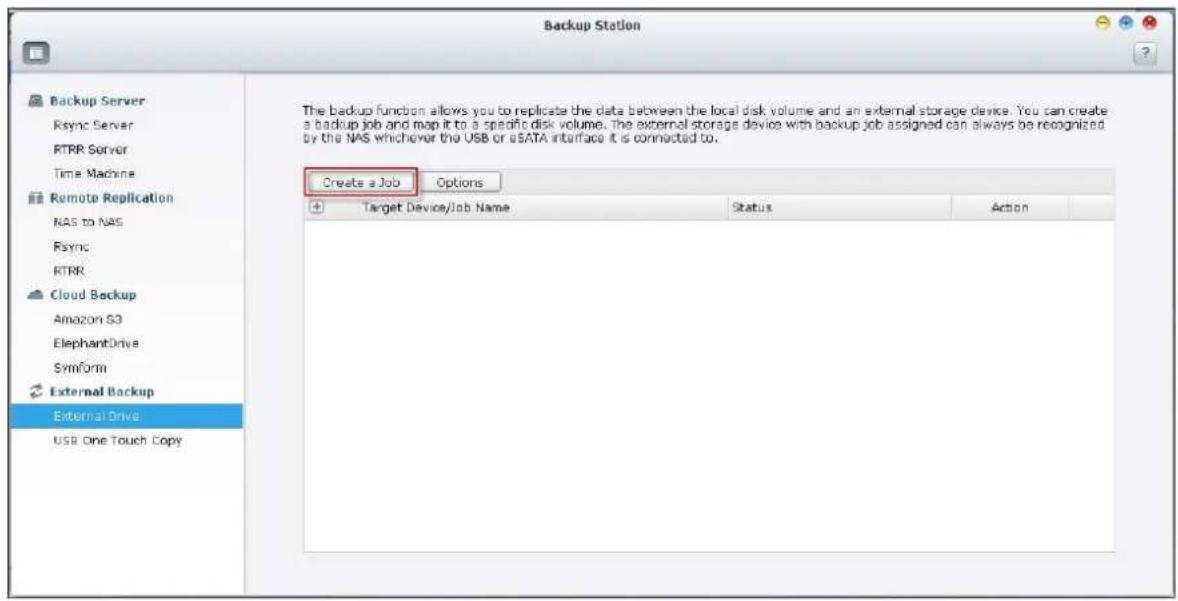
text_image
Backup Station Backup Server Rsync Server RTRR Server Time Machine Remote Replication NAS to NAS Rsync RTRR Cloud Backup Amazon S3 ElephantDrive SymForm External Backup External Drive USB One Touch Copy The backup function allows you to replicate the data between the local disk volume and an external storage device. You can create a backup job and map it to a specific disk volume. The external storage device with backup job assigned can always be recognized by the NAS whichever the USB or aSATA interface it is connected to. Create a Job Options + Target Device/Job Name Status Action- When the wizard is shown, read the instructions carefully and click "Next".

text_image
Create a Job Synchronization Job Wizard This wizard helps you create a sync job through the following steps. 1. Connect to an external storage device. 2. Create folder pairs for sync operations. 3. Configure real-time or scheduled sync options. Click "Next" to start. Step 1/9 Next Cancel- Select the backup locations.
a. Select an external disk volume* from the drop-down menu. The NAS supports EXT3, EXT4, FAT, NTFS, and HFS+ file systems. The general information of the storage device will be shown.
b. Select "Map this backup job to the volume ID only" to map the backup job to this particular external storage device. The NAS will recognize the device and execute the backup job according to the settings automatically every time it is connected to the NAS via any USB/eSATA interface.
c. Select to back up the data from local disk volume to the external storage or vice versa.
d. Click "Next".
*Multiple partitions on the external storage device will be recognized as individual disk volumes.
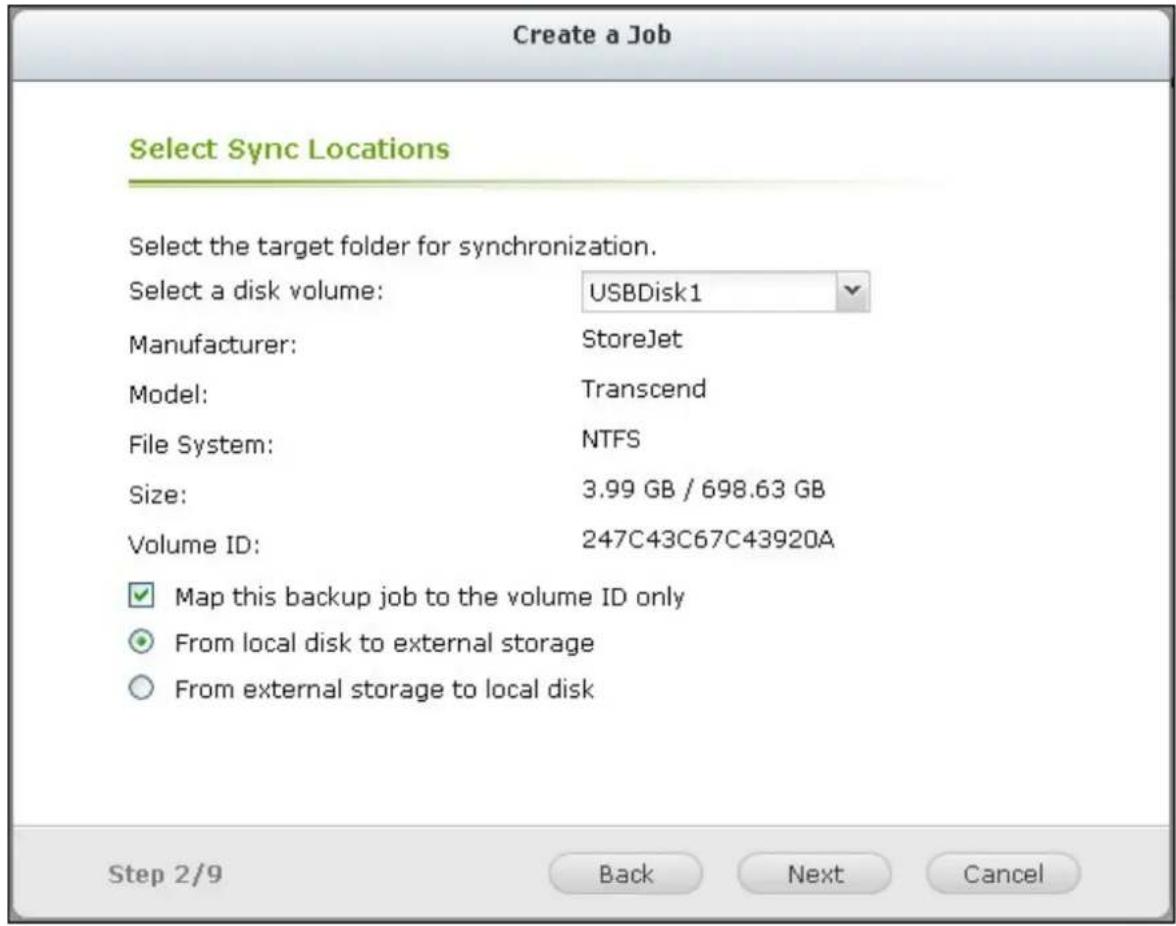
text_image
Create a Job Select Sync Locations Select the target folder for synchronization. Select a disk volume: USBDisk1 Manufacturer: StoreJet Model: Transcend File System: NTFS Size: 3.99 GB / 698.63 GB Volume ID: 247C43C67C43920A ✓ Map this backup job to the volume ID only ○ From local disk to external storage ○ From external storage to local disk Step 2/9 Back Next Cancel- Select the source and destination folders for backup. Then click "Add". Up to 5 folder pairs can be created. Click "Next".

text_image
Create a Job Configure Multiple Folder Pairs Local source folder: /Dept/Sales → Remote destination folder: /USBDisk1 Add Local source folder Remote destination folder Action /Dept/Sales → /USBDisk1 Step 3/9 Back Next CancelNote: If a folder or its parent folder or child folder has been selected as the source or destination in a folder pair of a backup job, the same folder cannot be selected as the source or destination of another folder pair of the same backup job.
- Choose between real-time and scheduled backup. Real-time backup copies files that are new, changed, and renamed from the source folder to the target folder as soon as the changes are made after the first-time backup.
Scheduled backup copies files from the source folder to the target folder according to the schedule. The options are:
- Replicate Now: Copy the data immediately.
- Periodically: Enter the time interval in hour and minute that the backup job should be executed. The minimum time interval is 5 minutes.
- Hourly: Select the minute when an hourly backup should be executed, e.g. select 01 to execute the backup job every first minute of an hour, 1:01, 2:01, 3:01...
- Daily: Specify the time when a daily backup should be executed, e.g. 02:02 every day.
• Weekly: Select a day of the week and the time when a weekly backup should be
executed.
- Monthly: Select a day of the month and the time when a monthly backup should be executed.
- Auto-Backup: Execute data backup automatically every time the device is connected and detected by the NAS.
To configure the backup policy and filter settings, select "Configure policy and filter". Click "Next".

text_image
Create a Job Replication Schedule Real-time Real-time synchronization copies files that are new, changed, and renamed from the source folder to the target folder as soon as the changes are made. Schedule Scheduled synchronization copies files that are new, changed, and renamed from the source folder to the target folder according to the pre-configured schedule. Monthly 00 : 00 01 Configure policy and filter Step 4/9 Back Next Cancel-
Select whether or not to enable the following options:
-
Delete extra files: Delete extra files in the target folder. Deletions made on the source folder will be repeated on the target folder. This option is not available for real-time data backup.
- Detect sparse files: Select this option to ignore files of null data.
• Overwrite the file if the source file is newer or the file size is different - Check file contents: Examine the file contents, date, size, and name to determine if two files are identical. This option is not available for real-time data backup.
- Ignore symbolic links: Select this option to ignore symbolic links in the pair folder.
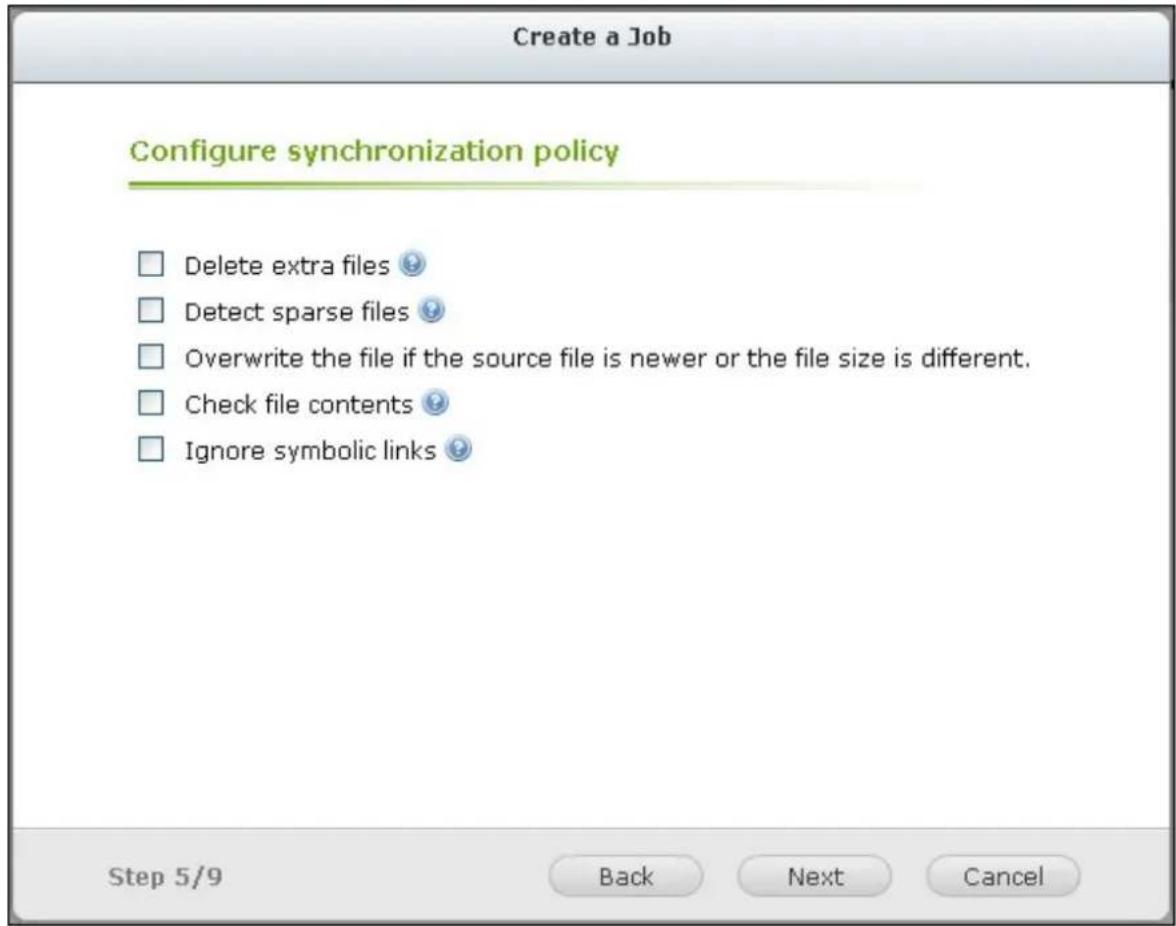
text_image
Create a Job Configure synchronization policy Delete extra files Detect sparse files Overwrite the file if the source file is newer or the file size is different. Check file contents Ignore symbolic links Step 5/9 Back Next Cancel-
Create filters for the backup job.
-
File size: Specify the minimum and maximum size of the files to be copied.
- File date/time: Specify the date and time of the files to be copied.
- Include file types: Specify the file types to be copied.
- Exclude file types: Specify the file types to be excluded for data copy.
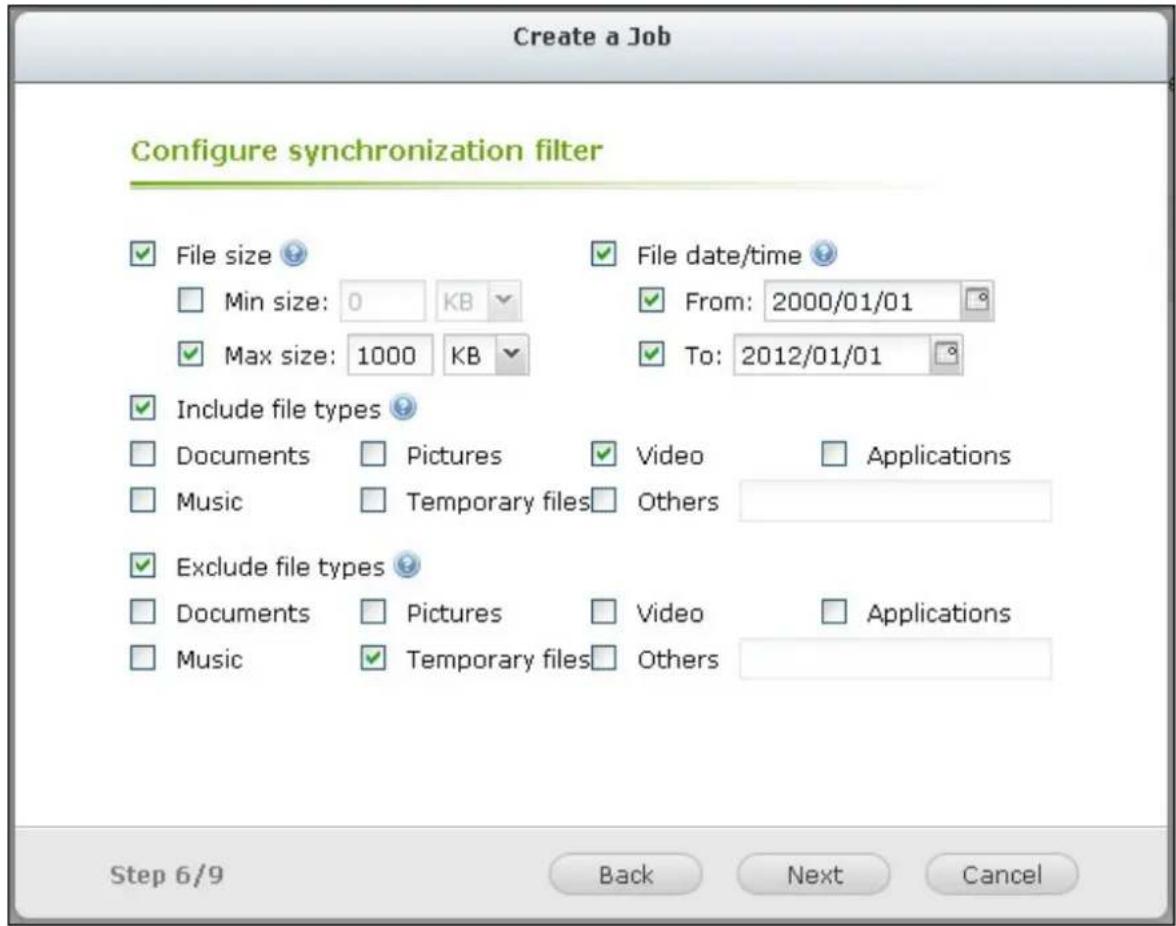
text_image
Create a Job Configure synchronization filter ✓ File size ✓ File date/time ✓ □ Min size: 0 KB ✓ From: 2000/01/01 ✓ ✓ Max size: 1000 KB ✓ To: 2012/01/01 ✓ ✓ Include file types ✓ □ Documents □ Pictures ✓ Video □ Applications □ Music □ Temporary files □ Others ✓ ✓ Exclude file types ✓ □ Documents □ Pictures □ Video □ Applications □ Music ✓ Temporary files □ Others ✓ Step 6/9 Back Next Cancel- Enter a name for the backup job. A job name supports up to 63 characters; it cannot start or end with a space. Click "Next".
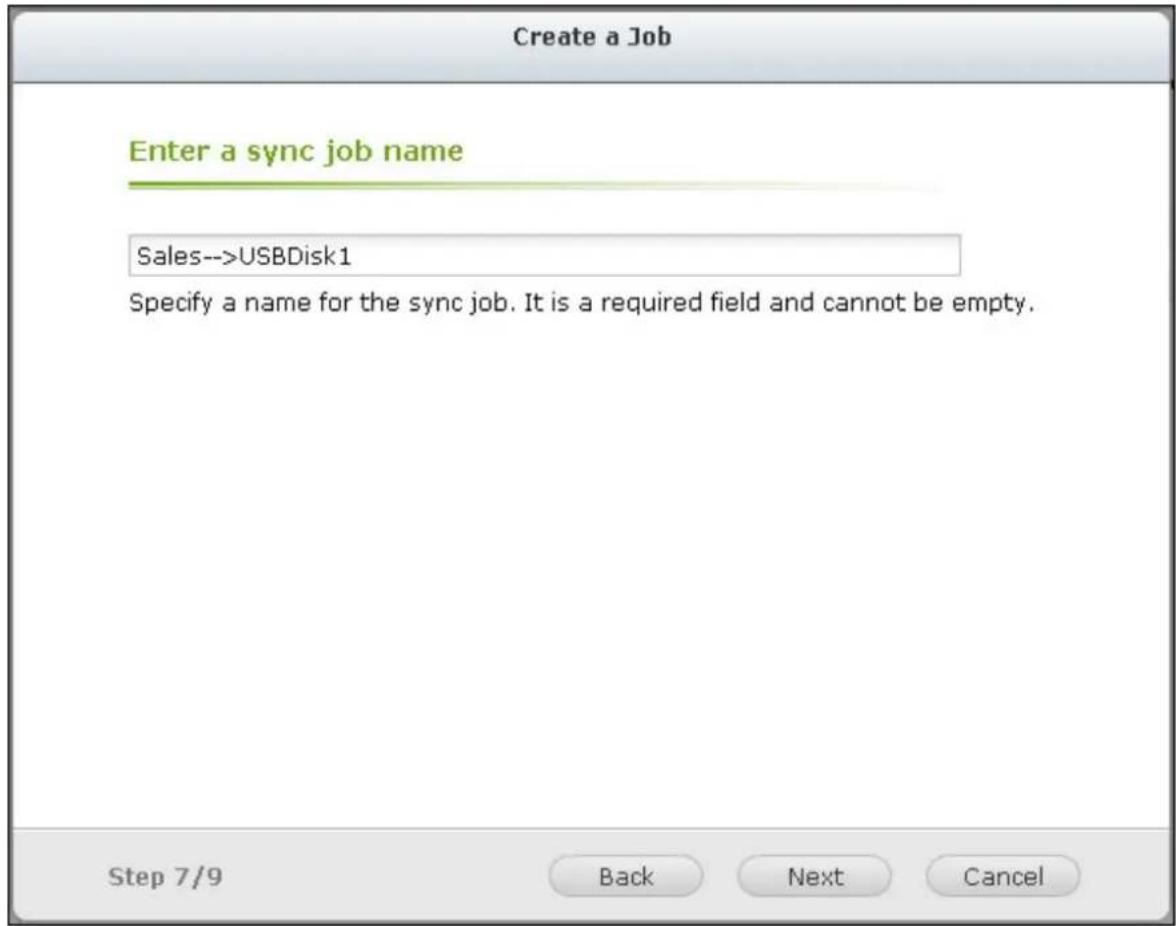
text_image
Create a Job Enter a sync job name Sales-->USBDisk1 Specify a name for the sync job. It is a required field and cannot be empty. Step 7/9 Back Next Cancel- Confirm the settings and click "Next".
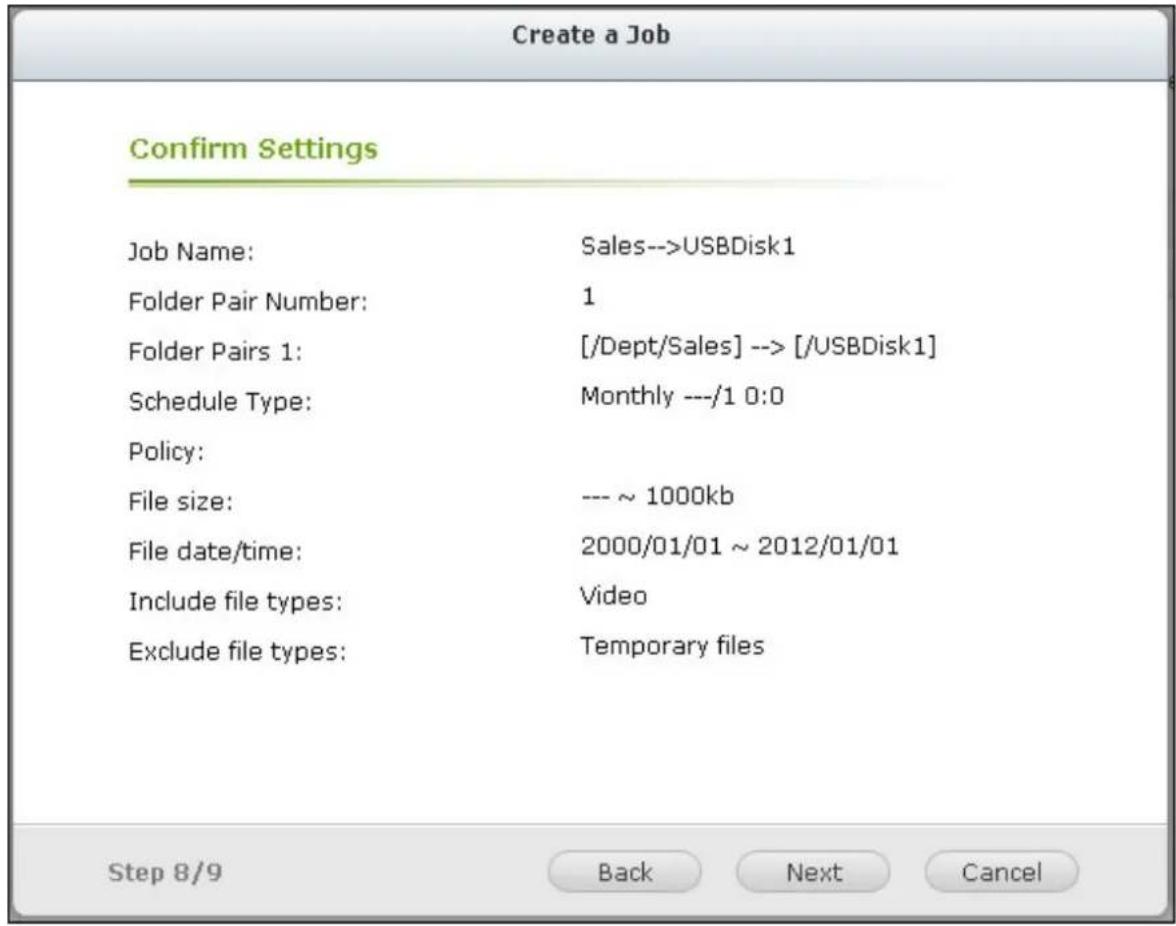
text_image
Create a Job Confirm Settings Job Name: Sales-->USBDisk1 Folder Pair Number: 1 Folder Pairs 1: [/Dept/Sales] --> [/USBDisk1] Schedule Type: Monthly ---/1 0:0 Policy: File size: --- ~ 1000kb File date/time: 2000/01/01 ~ 2012/01/01 Include file types: Video Exclude file types: Temporary files Step 8/9 Back Next Cancel- Click "Finish" to exit the wizard.
text_image
Create a Job Setup complete Congratulations. You have finished all the steps for Quick Configuration. Step 9/9 Finish- The backup job and the status will be shown on the list.

text_image
Backup Station Backup Server Rsync Server RTRR Server Time Machine Remote Replication NAS to NAS Rsync RTRR Cloud Backup Amazon S3 ElephantDrive Symform External Backup External Drive USB One Touch Copy The backup function allows you to replicate the data between the local disk volume and an external storage device. You can create a backup job and map it to a specific disk volume. The external storage device with backup job assigned can always be recognized by the NAS whichever the USB or eSATA interface it is connected to. Create a Job Options Target Device/Job Name Status Action Storelet Transcend (NTFS, 698.63 GB) Sales-->USBDisk1 (Schedule: Monthly --/01 00:00) ----| Button | DescriptionStart a backup job. |
| Stop a backup job. | |
| Edit the settings of a backup job. | |
| View the job status and logs.Download the logs of a backup job. | |
| Delete a backup job.This button is available only after a backup job is stopped. |
To disable the backup schedule of a backup job, click and select "Disabled" under "Settings" > "Schedule Type" and click "OK".
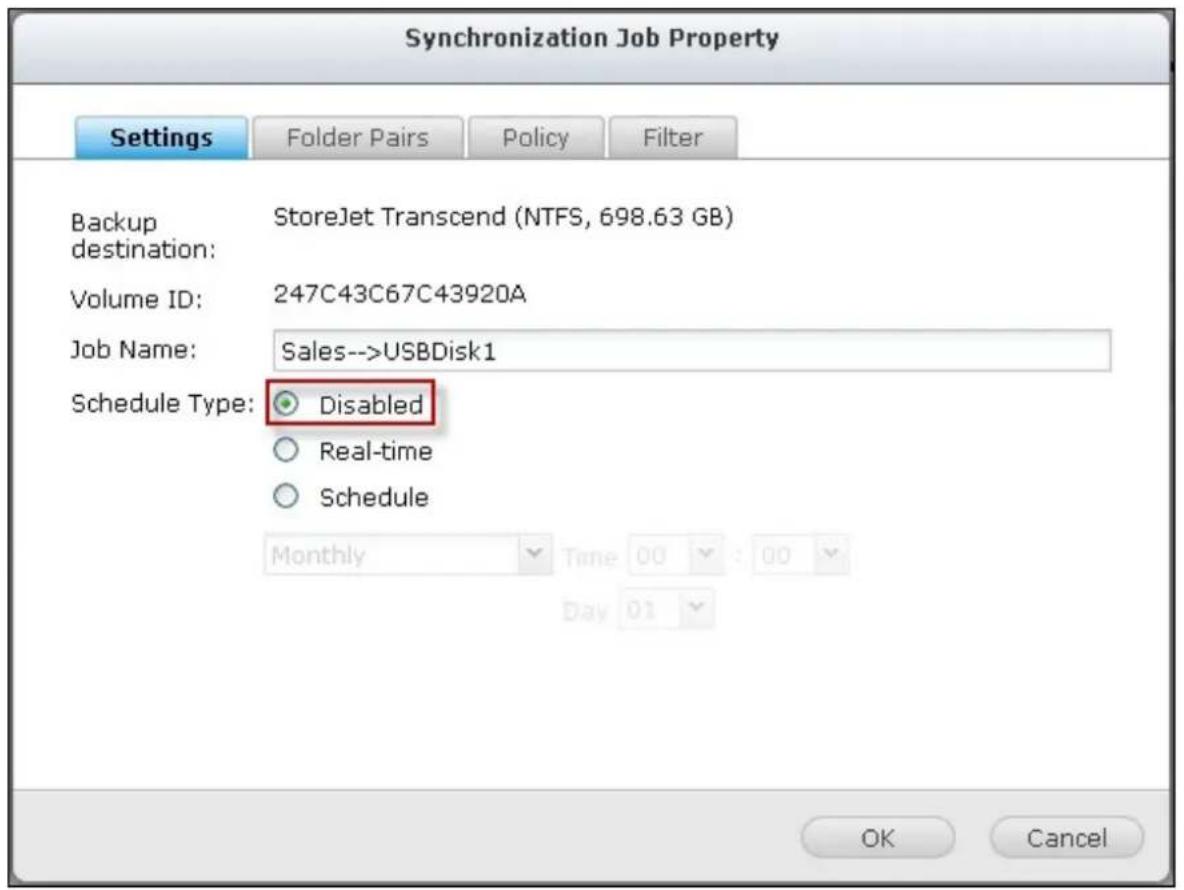
text_image
Synchronization Job Property Settings Folder Pairs Policy Filter Backup StoreJet Transcend (NTFS, 698.63 GB) destination: Volume ID: 247C43C67C43920A Job Name: Sales-->USBDisk1 Schedule Type: Disabled Real-time Schedule Monthly Time 00 : 00 Day 01 OK CancelDefault Backup Job Settings
To edit the default backup job properties, click "Options".

text_image
Backup Station Backup Server Rsync Server RTRR Server Time Machine Remote Replication NAS to NAS Rsync RTRR Cloud Backup Amazon S3 ElephantDrive Symform External Backup External Drive USB One Touch Copy The backup function allows you to replicate the data between the local disk volume and an external storage device. You can create a backup job and map it to a specific disk volume. The external storage device with backup job assigned can always be recognized by the NAS whichever the USB or eSATA interface it is connected to. Create a Job Options Target Device/Job Name Status Action StoreJet Transpend (NTFS, 698.63 GB)Under "Event Logs" you can select to enable "Download Detailed Logs" and specify the maximum file size of the log file. Select to send an email alert when a backup job fails or completes. Note that the SMTP server settings must be properly set up in "System Settings" > "Notification".
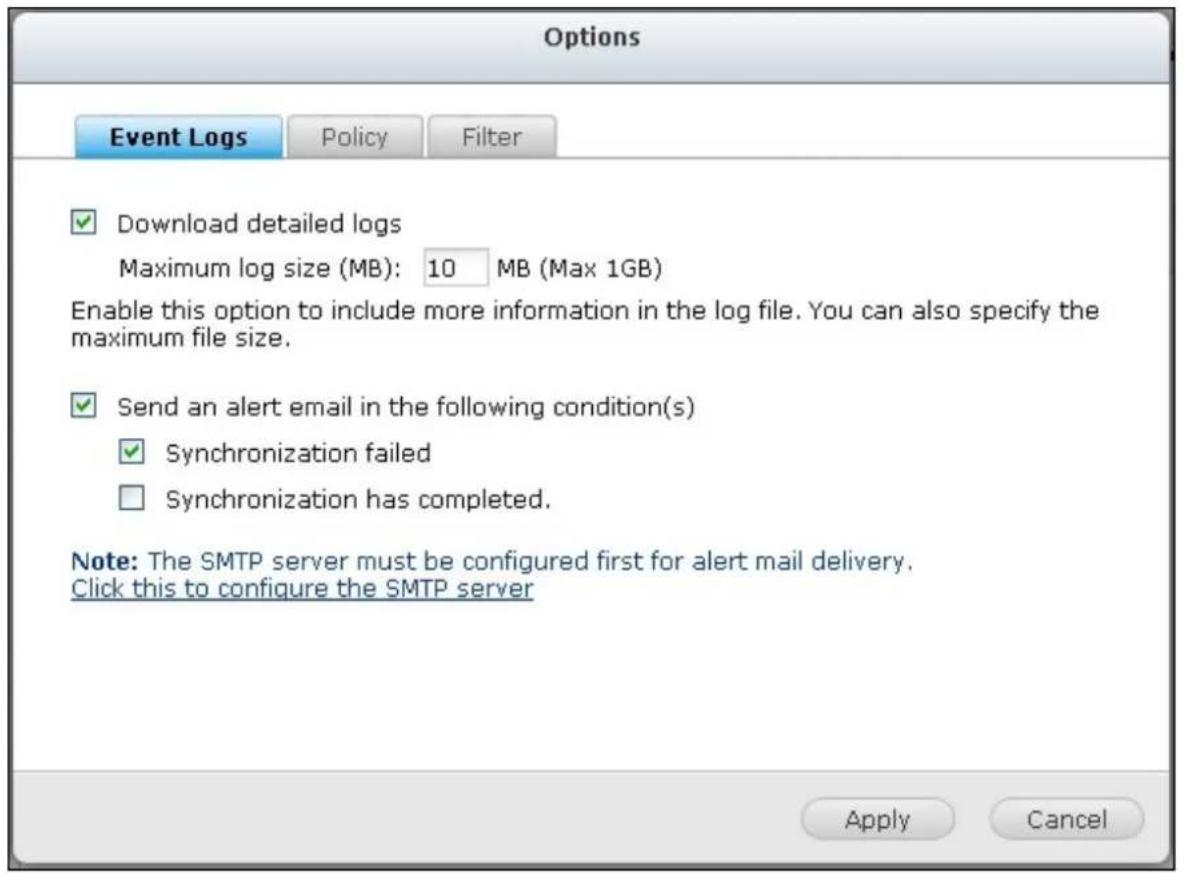
text_image
Options Event Logs Policy Filter ✓ Download detailed logs Maximum log size (MB): 10 MB (Max 1GB) Enable this option to include more information in the log file. You can also specify the maximum file size. ✓ Send an alert email in the following condition(s) ✓ Synchronization failed □ Synchronization has completed. Note: The SMTP server must be configured first for alert mail delivery. Click this to configure the SMTP server Apply CancelSpecify the backup policy in "Policy" and filter settings in "Filter". These will become the
default settings for all the backup jobs.
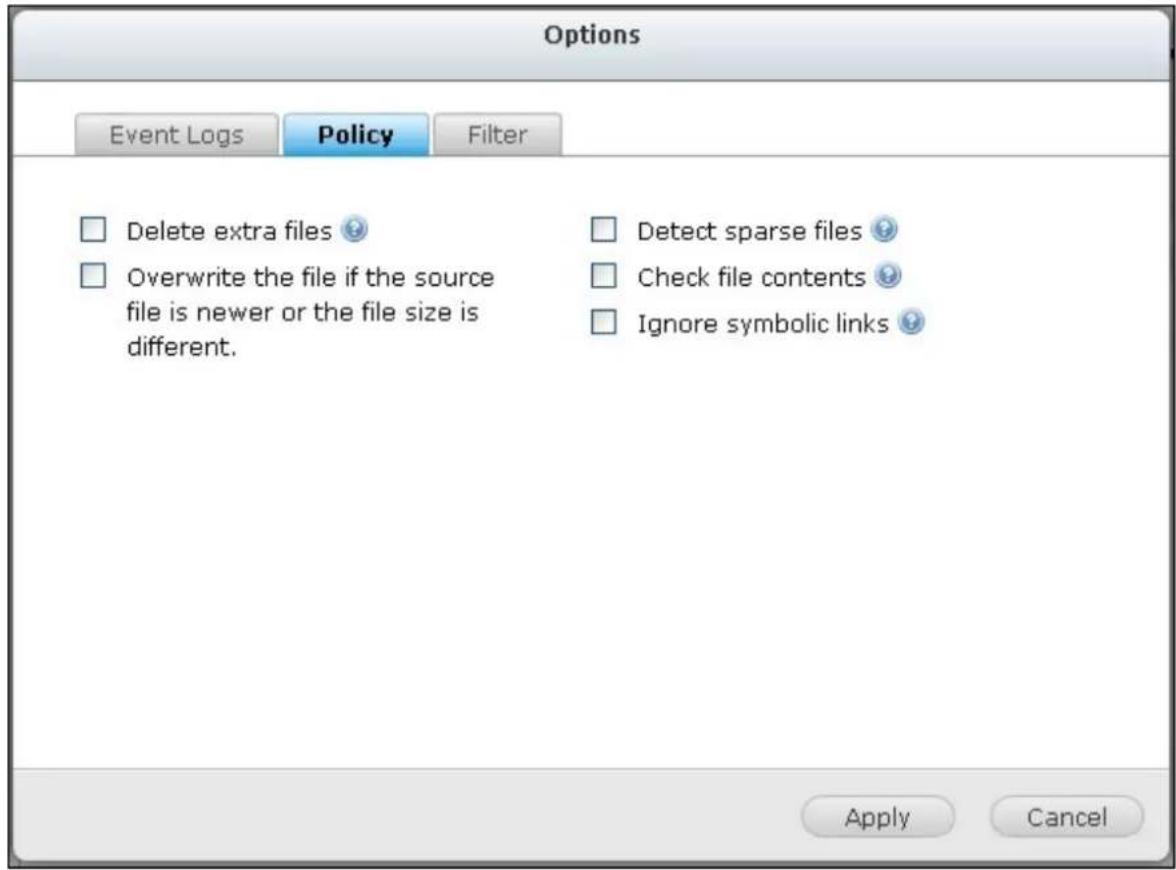
text_image
Options Event Logs Policy Filter Delete extra files Detect sparse files Overwrite the file if the source file is newer or the file size is different. Check file contents Ignore symbolic links Apply Cancel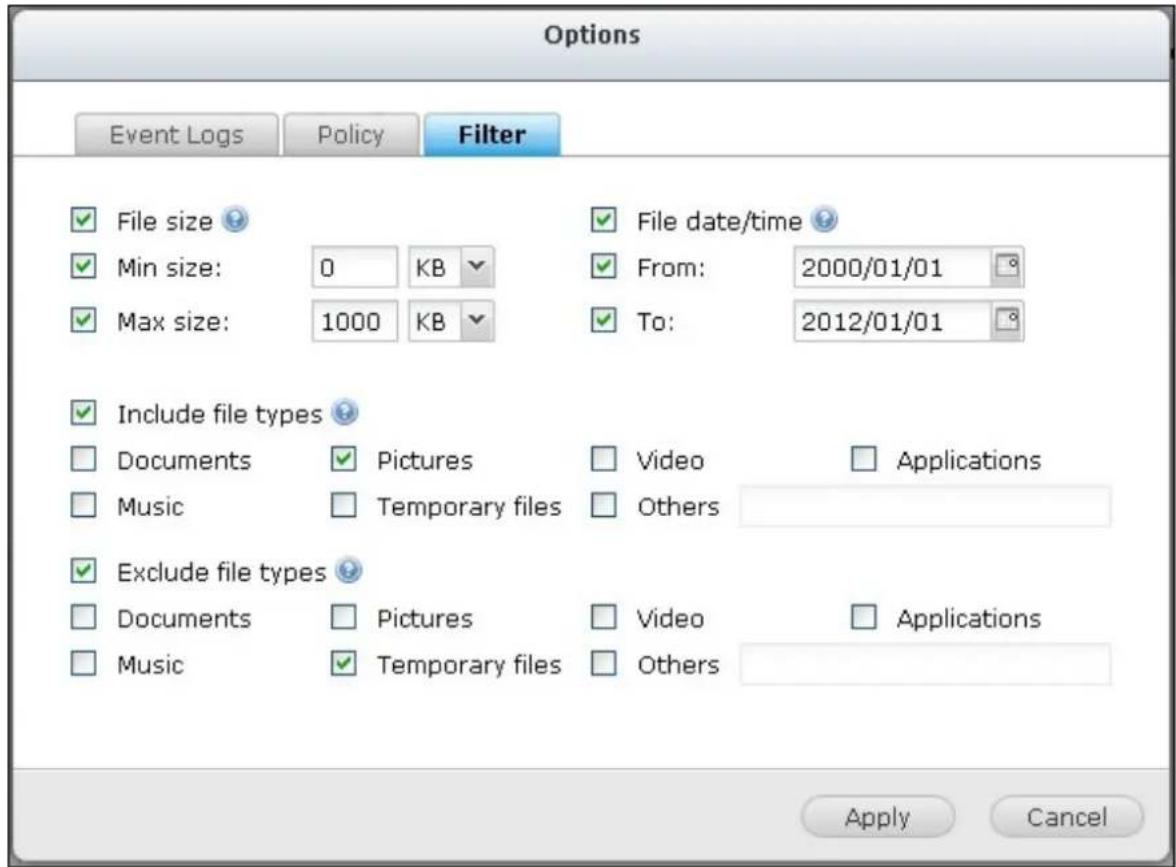
text_image
Options Event Logs Policy Filter ✓ File size ✓ File date/time ✓ Min size: 0 KB ✓ From: 2000/01/01 ✓ Max size: 1000 KB ✓ To: 2012/01/01 ✓ Include file types □ Documents ✓ Pictures □ Video □ Applications □ Music □ Temporary files □ Others ✓ Exclude file types □ Documents □ Pictures □ Video □ Applications □ Music ✓ Temporary files □ Others Apply CancelDownload Backup Logs
- To download the logs of a backup job, make sure the option "Download Detailed Logs" in "Options" > "Event Logs" has been enabled.
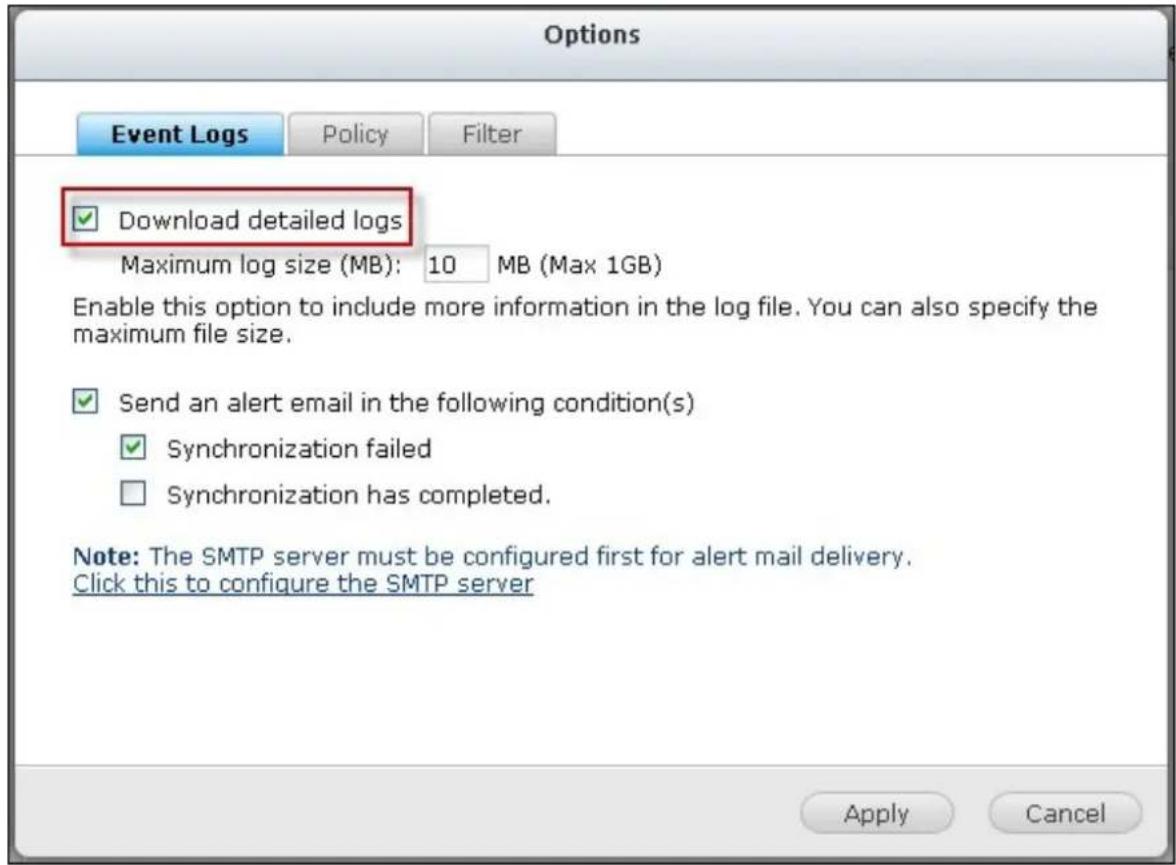
text_image
Options Event Logs Policy Filter ✓ Download detailed logs Maximum log size (MB): 10 MB (Max 1GB) Enable this option to include more information in the log file. You can also specify the maximum file size. ✓ Send an alert email in the following condition(s) ✓ Synchronization failed □ Synchronization has completed. Note: The SMTP server must be configured first for alert mail delivery. Click this to configure the SMTP server Apply Cancel2. Click in "Action" column of a backup job.
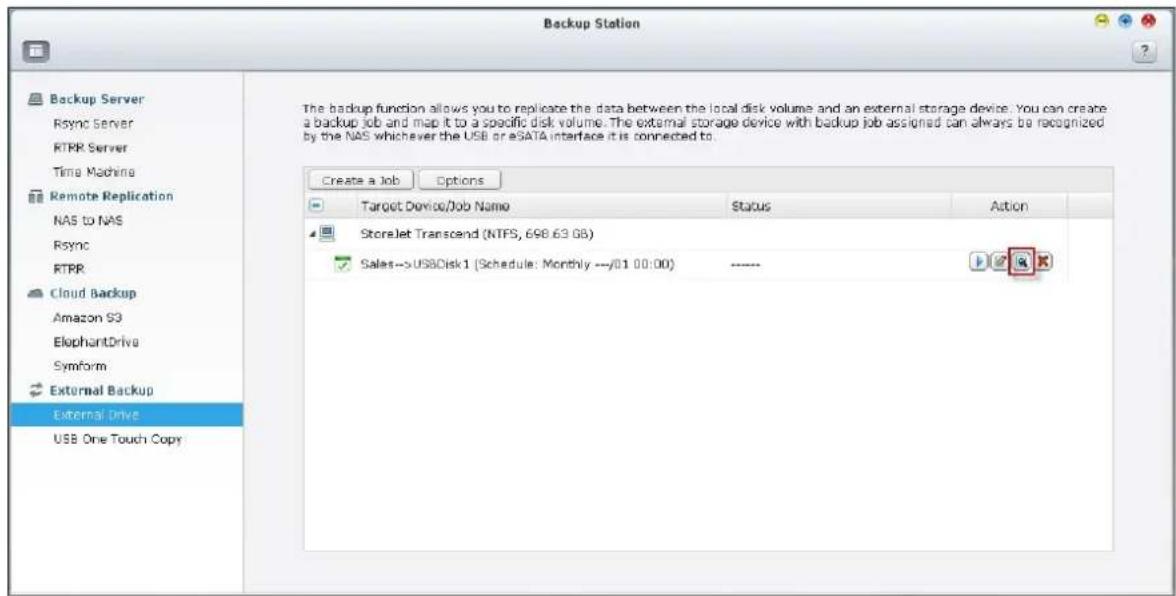
text_image
Backup Station Backup Server Rsync Server RTPR Server Time Machines Remote Replication NAS to NAS Rsync RTPR Cloud Backup Amazon 93 ElephantDrive Symform External Backup External Drive USB One Touch Copy The backup function allows you to replicate the data between the local disk volume and an external storage device. You can create a backup job and map it to a specific disk volume. The external storage device with backup job assigned can always be recognized by the NAS whichever the USB or eSATA interface it is connected to. Create a Job Options Target Device/Job Name Status Action StoreJet Transcend (NTFS, 698.69 GB) Sales->USBCisk1 (Schedule: Monthly --y01 00:00) ---- The backup function allows you to replicate the data between the local disk volume and an external storage device. You can create a backup job and map it to a specific disk volume. The external storage device with backup job assigned can always be recognized by the NAS whichever the USB or eSATA interface it is connected to. The backup function allows you to replicate the data between the local disk volume and an external storage device. You can create a backup job and map it to a specific disk volume. The external storage device with backup job assigned can always be recognized by the NAS whichever the USB or eSATA interface it is connected to.- Go to "Job Logs" and click "Download Logs". The log file can be opened by Microsoft Excel or any other text editor software. Note that this button is only available after you have enabled "Download Detailed Logs" in "Options" > "Event Logs" and executed the backup job once.
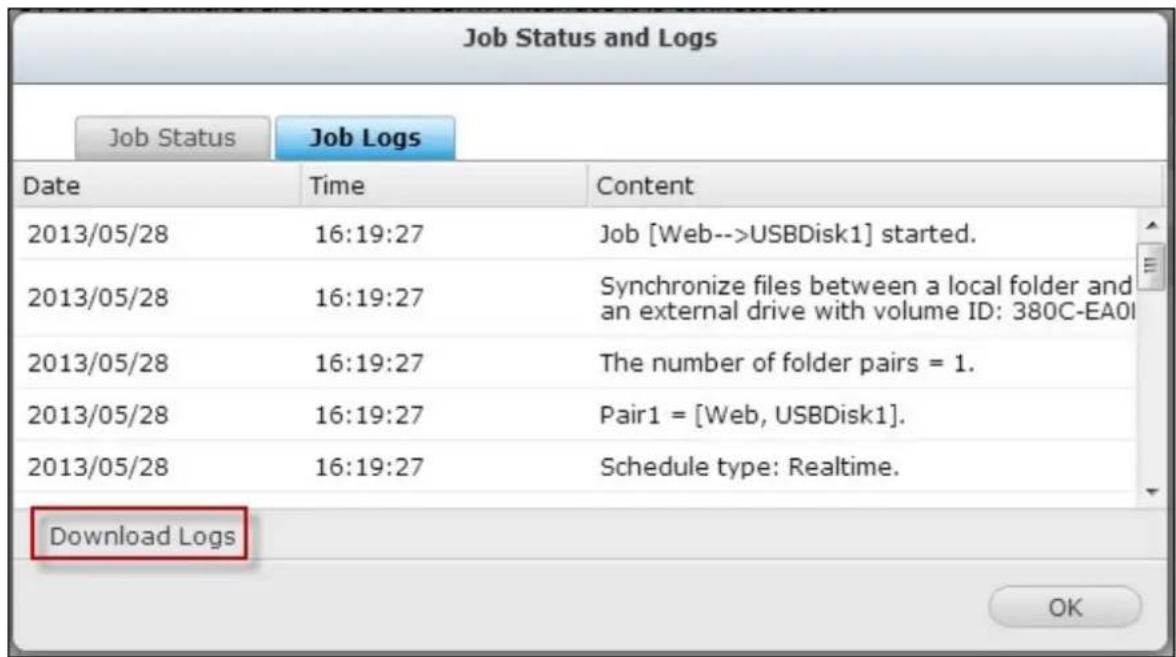
text_image
Job Status and Logs Job Status Job Logs Date Time Content 2013/05/28 16:19:27 Job [Web-->USBDisk1] started. 2013/05/28 16:19:27 Synchronize files between a local folder and an external drive with volume ID: 380C-EA0I 2013/05/28 16:19:27 The number of folder pairs = 1. 2013/05/28 16:19:27 Pair1 = [Web, USBDisk1]. 2013/05/28 16:19:27 Schedule type: Realtime. Download Logs OKUSB One Touch Copy
Enable the USB one touch copy button to back up data from the front USB drive to the NAS or vice versa. This feature is not supported by TS-809U-RP, TS-879U-RP, TS-EC879U-RP, TS-1279U-RP, TS-EC1279U-RP.
Smart Import (Beta)
When users connect an external device, such as a camera, to the front USB port, all photos and videos on the device will be imported to the NAS automatically without pressing the "Copy" button. Imported files will be stored in "SmartImport," a newly created folder, under the default backup directory. During each import, only new photos and videos will be imported to a new folder.

text_image
Backup Station Backup Server Sync Server RTRR Server Time Machine Remote Replication NAS to NAS Sync RTRR Cloud Backup Amazon S3 ElephantDrive Symform External Backup External Drive USB One Touch Copy Configure the behavior of the USB one touch copy button to back up the data from the front USB drive to the NAS or vice versa. Smart Import (Beta) USB One Touch Copy As an external storage drive Smart Import (Beta) Default Backup Directory: Multimedia When you connect an external device, such as a camera, to the front USB port, all the photos and videos on the device will be imported to the NAS automatically without the need to press the "COPR" button. Imported files will be stored in a newly created folder, "SmartImport", under the default backup directory. During each import operation, only new photos and videos will be imported to a new folder. If you want to customize the backup configuration, please select "USB One Touch Copy". ApplyFor customized backup configuration, please select "USB One Touch Copy."
USB One Touch Copy

text_image
Backup Station Configure the behavior of the USB one touch copy button to back up the data from the front USB drive to the NAS or vice versa. ○ Smart Import (Beta) ○ USB One Touch Copy ○ As an external storage drive USB One Touch Copy You can configure the backup mode of pressing the "COPY" button when an external drive is connected to the front USB port. ● Backup from the front USB drive to the NAS ○ Backup from the NAS to the front USB drive Backup method: Synchronize WARNING! Files are copied from the source to the destination. Extra files on the destination will be deleted, files of the same names will be overwritten by the source. Source data will remain unchanged. ✓ Handle sparse files efficiently Add Options Source folder Destination folder Action /FrontUSB/HP160G/GV-PPT /Download ✓ Unmount the front USB drive manually ✓ Enable Alarm Buzzer Note: 1. Backup: Press the Copy button for 2 seconds and release the button. (If the alarm buzzer is enabled, you will hear a short beep meaning backup has started). The USB LED light blinks when data backup is in process. Please wait for the backup to finish and the USB LED to become steady light. 2. Unmount the front USB drive: Press the Copy button for about 8-10 seconds till the USB LED light turns off. (If the alarm buzzer is enabled, you will hear two short beeps meaning unmount has started). 3. After the backup task has completed or failed, the Copy button will become invalid. To use the one touch copy function again, remove the front USB drive and connect it to the NAS again. Apply- Backup direction: From the front USB drive to the NAS or vice versa.
- Backup method:
A. Create directory: A new directory will be created on the destination and the source data will be copied to this directory. The new directory will be named as
the backup date (YYYYMMDD). If there are two or more backups on the same day, the directory will be named with YYYYMMDD-1, YYYYMMDD-2... and so on.
B. Copy: Back up data to the destination share. If the same file exists, the destination file will be overwritten.
C. Synchronize: Back up data to the destination share and clear the redundant files.
If the same file exists, the destination file will be overwritten.
Note: If there are multiple partitions on the source storage device, a new folder will be created for each partition on the destination as the backup folder. The backup folder will be named with the backup date and the partition number, YYYYMMDD-1 for partition 1, YYYYMMDD-2 for partition 2... and so on. If the source storage device contains only one partition, the backup folder will be named as YYYYMMDD only.
- Handle sparse files efficiently: A sparse file is a type of computer file that contains large blocks of zero-byte data. Turn on this option may reduce the time required for backup.
- Source and destination folders: Specify the folder pairs for backup and click "Add". Maximum 9 folder pairs can be added.
- Options: Click "Options" to set up notification of the backup jobs by email, SMS, or instant messaging (IM).
- Unmount the front USB drive manually: When enabled, users can press the Copy button for about 8–10 seconds until the USB LED light turns off and remove the front USB drive from the NAS.
- Enable the alarm buzzer:
- One short beep: Backup has started.
- Two short beeps: The front USB drive is being unmounted.
Data copy by front USB port
The NAS supports instant data copy backup from the external USB device to the NAS or the other way round by the front one touch copy button. To use this function, follow the steps below:
- Make sure a hard drive is installed and formatted on the NAS. The default shared folder Qusb/Usb has been created.
- Turn on the NAS.
- Configure the behavior of the Copy button on "Backup Station" > "USB One Touch
Copy" page.
- Connect the USB device, for example, digital camera or flash, to the front USB port of the NAS.
- Press the Copy button once. The data will be copied according to your settings on the NAS.
Note: Incremental backup is used for this feature. After the first time data backup, the NAS only copies the changed files since the last backup.

Caution: Files are copied from the source to the destination. Extra files on the destination will be deleted; files of the same names will be overwritten by the source. Source data will remain unchanged.
As an external storage drive
When an external device is connected to the front USB port, it will be identified as an external storage drive connected to the port.

text_image
Backup Station Backup Server Sync Server RTRP Server Time Machine Remote Replication NAS to NAS Sync RTRP Cloud Backup Amazon S3 ElephantDrive Symform External Backup External Drive USB One Touch Copy Configure the behavior of the USB one touch copy button to back up the data from the front USB drive to the NAS or vice versa. Smart Import (Beta) USB One Touch Copy As an external storage drive When an external device is connected to the front USB port, it will be treated as an external storage drive like being connected to the back USB port. Apply8.2 myQNAPcloud Service
The myQNAPcloud service is a function which provides host name registration, mapping of the dynamic NAS IP to a domain name, and auto port mapping of UPnP router on the local network. Use the myQNAPcloud wizard to register a unique host name for the NAS, configure automatic port forwarding on the UPnP router, and publish NAS services for remote access over the Internet.
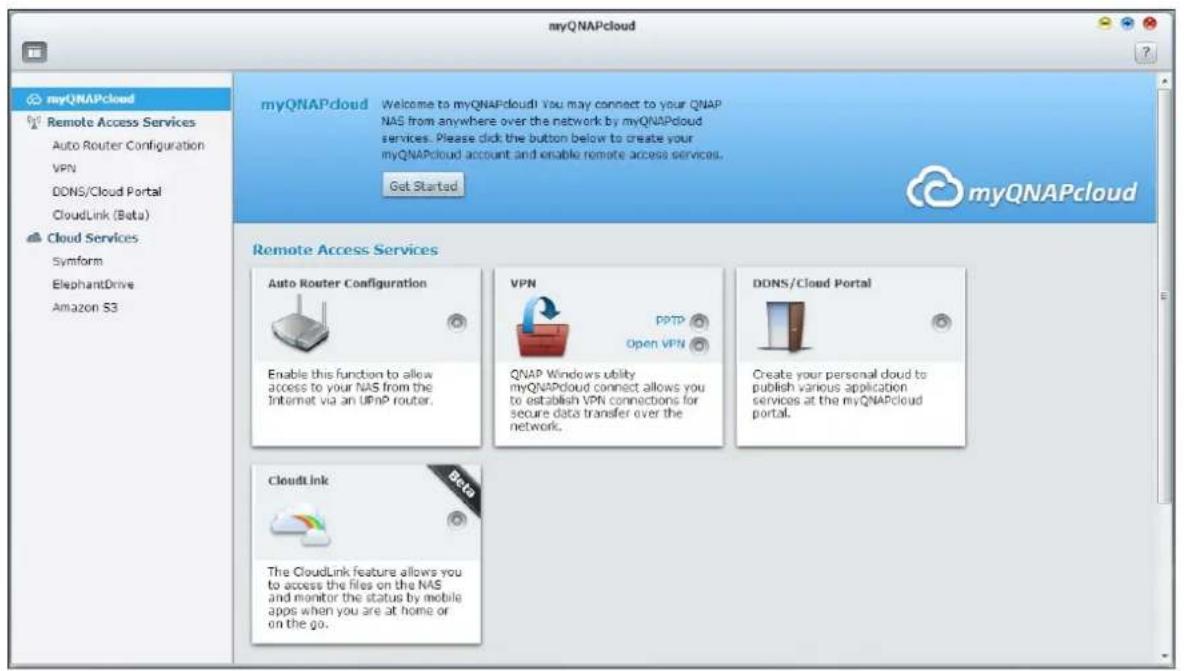
text_image
myQNAPcloud myQNAPcloud Welcome to myQNAPcloud! You may connect to your QNAP NAS from anywhere over the network by myQNAPcloud services. Please click the button below to create your myQNAPcloud account and enable remote access services. Get Started myQNAPcloud Remote Access Services Auto Router Configuration Enable this function to allow access to your NAS from the Internet via an UPnP router. VPN PPTP Open VPN DDNS/Cloud Portal Create your personal cloud to publish various application services at the myQNAPcloud portal. CloudLink The CloudLink feature allows you to access the files on the NAS and monitor the status by mobile apps when you are at home or on the go.To use the myQNAPcloud service, make sure the NAS has been connected to an UPnP router and the Internet and click the myQNAPcloud shortcut from the NAS Desktop or Main Menu.
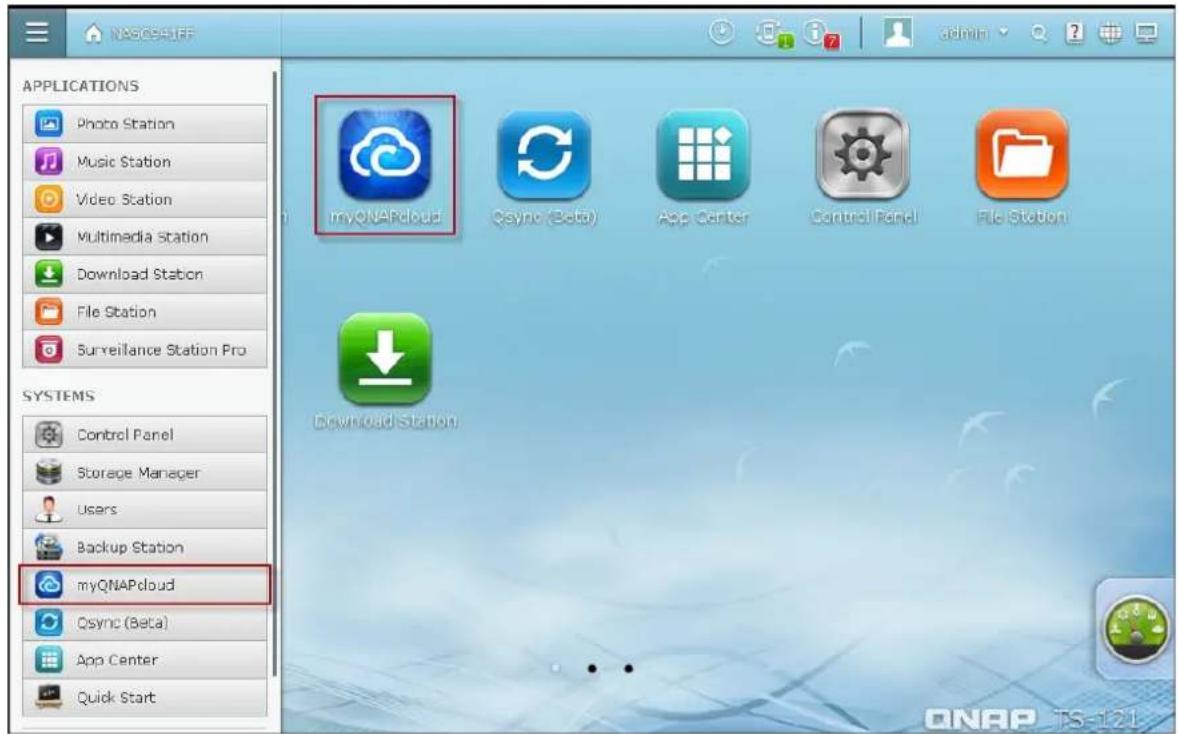
text_image
NASCESHIF APPLICATIONS Photo Station Music Station Video Station Multimedia Station Download Station File Station Surveillance Station Pro SYSTEMS Control Panel Storage Manager Users Backup Station myQNAPcloud Qsync (Beta) App Center Control Panel File Station Download Station ONAP TS-121myQNAPcloud w izard
The first time you use the myQNAPcloud service, you are recommended to use the myQNAPcloud wizard to complete the settings. Follow the steps below:
- Click "Get Started" to use the wizard.
myQNAPcloud
Welcome to myQNAPcloud! You may connect to your QNAP NAS from anywhere over the network by myQNAPcloud services. Please click the button below to create your myQNAPcloud account and enable remote access services.
Get Started
- Click "Start".
Welcome to myQNAPcloud!


Hello! Welcome to myQNAPcloud wizard.
This wizard helps you set up the QNAP NAS for remote access on the Internet by the steps below:
- Create or sign in a myQNAPcloud account
- Register your NAS
- Enable myQNAPcloud remote access services
Start
Quit
- Fill out all required fields, agree to the terms and conditions and click "Next" to create a myQNAPcloud account (or, click "Sign in myQNAPcloud account" to login to your myQNAPcloud account if you already have an account.)

text_image
Welcome to myQNAPcloud! Create myQNAPcloud account Please create a myQNAPcloud Account to proceed. ( or Sign in myQNAPcloud account ) myQNAPcloud ID (QID) : Your email Password : Password (Must be 6 characters long at least) Verify Password: First name: Last name: Mobile number: Taiwan Mobile number: (optional) I agree to myQNAPcloud Terms of Use and QNAP Privacy Policy I'd like to receive the latest E-news from QNAP. Step 1/4 Next Cancel
text_image
Welcome to myQNAPcloud! Sign in myQNAPcloud account Please sign in myQNAPcloud account to proceed ( or Create myQNAPcloud account ) myQNAPcloud ID (QID) : Your email Password : Password Forgot your password? Step 1/4 Next Cancel- Enter a name to register your NAS and click "Next".
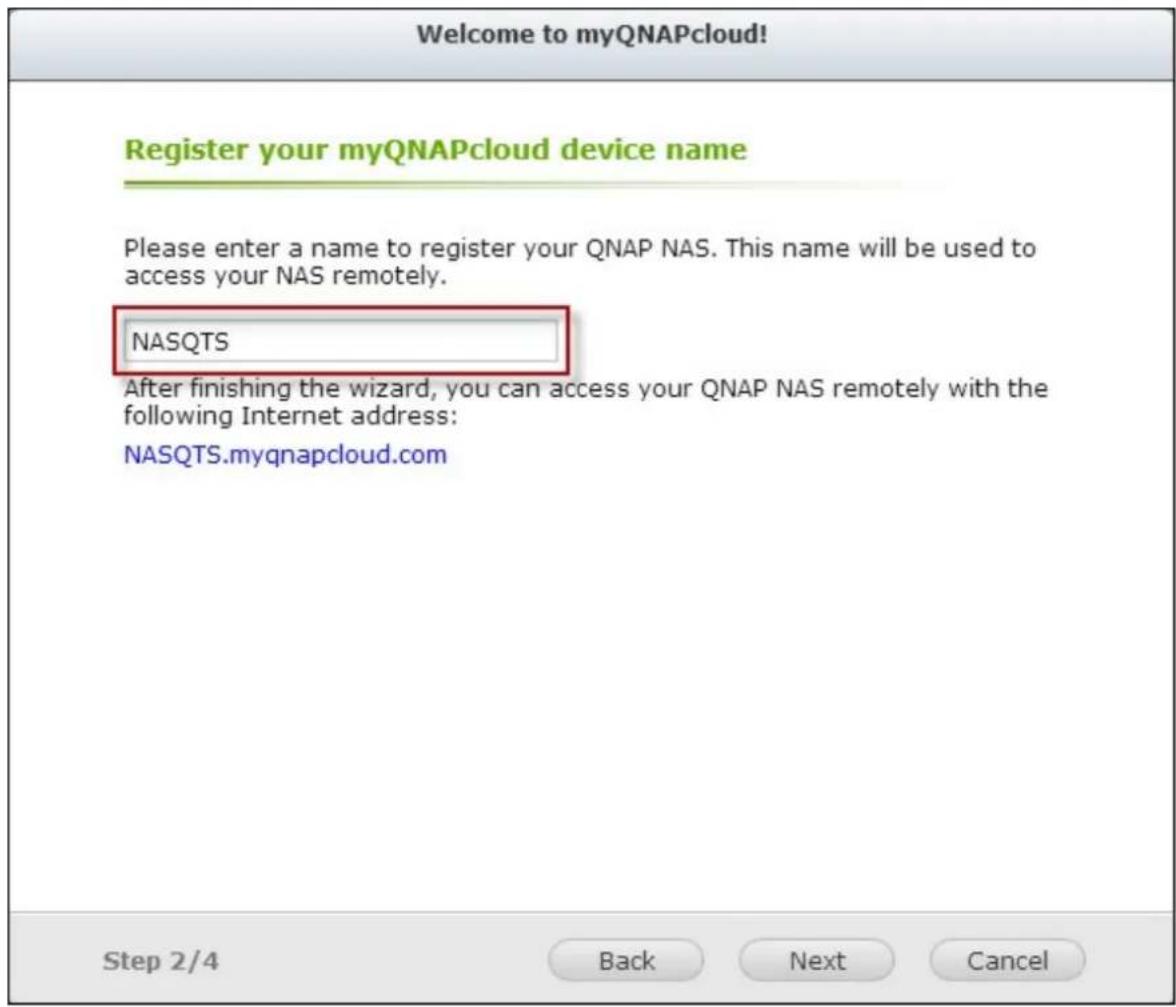
text_image
Welcome to myQNAPcloud! Register your myQNAPcloud device name Please enter a name to register your QNAP NAS. This name will be used to access your NAS remotely. NASQTS After finishing the wizard, you can access your QNAP NAS remotely with the following Internet address: NASQTS.myqnapcloud.com Step 2/4 Back Next Cancel- The wizard will configure your router automatically.

text_image
Welcome to myQNAPcloud! Configuring your router... Please wait patiently. The router configuration will be completed in a minute. Configuring network environment and applying myQNAPcloud services... 15% Step 3/4 Next- Review the summary page and click "Finish" to complete the wizard.

text_image
Welcome to myQNAPcloud! Summary Congratulations! You have completed the following settings. You can now access your QNAP NAS remotely on the Internet. ✓ Auto router configuration (UPnP port forwarding) Setup successfully ✓ myQNAPcloud device name likeqnap Connect to the QNAP NAS from the myQNAPcloud website (http://www.myqnapcloud.com) by entering the device name, or use the following Internet address: name: likeqnap.myqnapcloud.com ✓ Publish NAS services on the cloud portal: QTS, Photo Station, Music Station ✓ Enable VPN server QNAP provides the Windows utility myQNAPcloud connect that allows you to establish VPN connections for secure data transfer over the network. ✓ Enable the CloudLink function Access the files on your NAS remotely, or monitor and manage system status. Step 4/4 Finish- If any of the settings is unsuccessful, follow the instructions provided to troubleshoot the issues. After the wizard is finished, a confirmation email will be sent to the email account specified. Click "Confirm Registration" from the email and proceed to complete the registration process.
Dear Mr./Mrs.,
Thanks for registering myQNAPcloud account.
Your myQNAPcloud ID (QID) is NAS.QTS@gmail.com
Click the link below to confirm registration:
Confirm Registration
Notice: The link will automatically expire after 30 days.
When someone creates a QNAP User Account, this email will be sent automatically.
Your email address must be validated.
Then, you can start to access more services provided by QNAP with the QNAP User Account.
For more information, please refer to:
What's myQNAPcloud
Thank you,
QNAP Customer Support
Manage and configure your myQNAPcloud account
Click "Manage myQNAPcloud Account" on top of the page after launching myQNAPcloud or log into your account at http://www.myqnapcloud.com.

text_image
myQNAPcloud myQNAPcloud ID (QID) : NAS.QTS@gmail.com myQNAPcloud Device Name : NASQTS ✓ QNAP NAS Internet Address : NASQTS.myqnapdoud.com What is myQNAPdoud ? Manage myQNAPcloud Account Sign out myQNAPcloud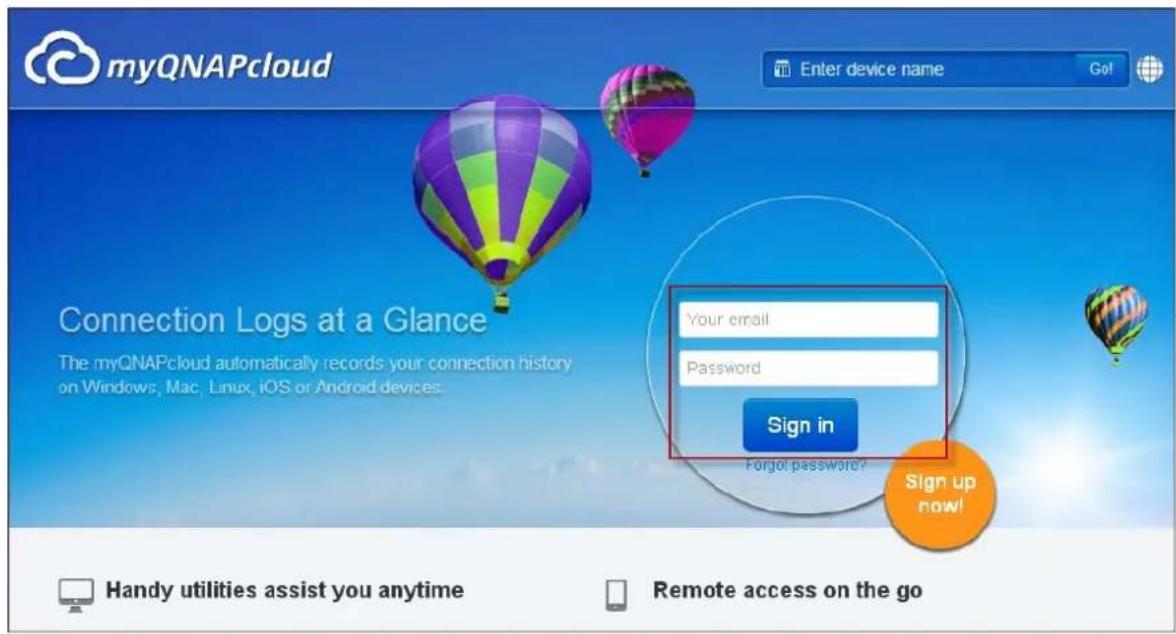
text_image
myQNAPcloud Enter device name Go! Connection Logs at a Glance Your email Password Sign in Forgot password? Sign up now! Handy utilities assist you anytime Remote access on the goClick your login ID next to the "Enter device name" box and select "My Devices" from the drop down menu to review your device details, including the name, DDNS address, LAN and WAN IP.
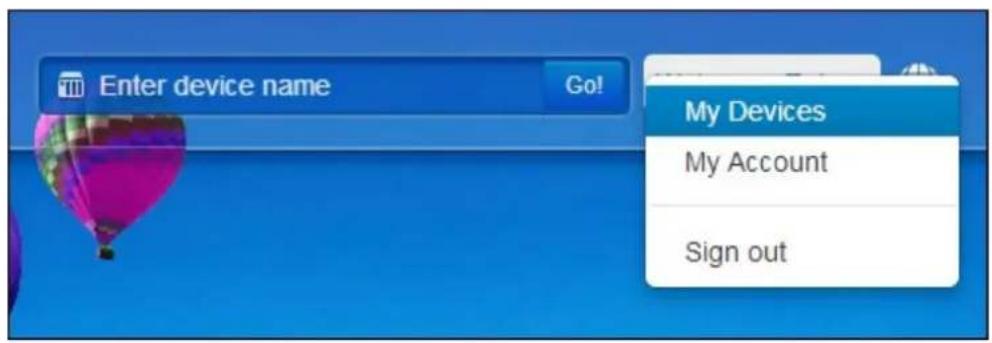
text_image
Enter device name Go! My Devices My Account Sign out
text_image
myQNAPcloud Enter device name Go! Welcome, NAS My Profile My Devices NASQTS NASQTS Unregister TS-669 Pro myQNAPcloud device name NASGTS myQNAPcloud internet NASGTS.myqnapcloud.com address LAN IP 10.8.12.148 WAN IP 61.62.220.74 Firmware version 4.0.2 Last update time 2013-09-11 15:52:16Or, select "My Account" to check your profile, change your password and monitor your account activity.
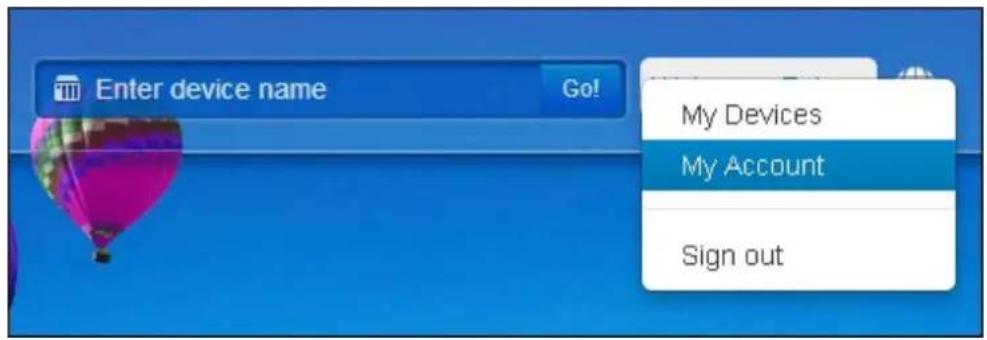
text_image
Enter device name Go! My Devices My Account Sign out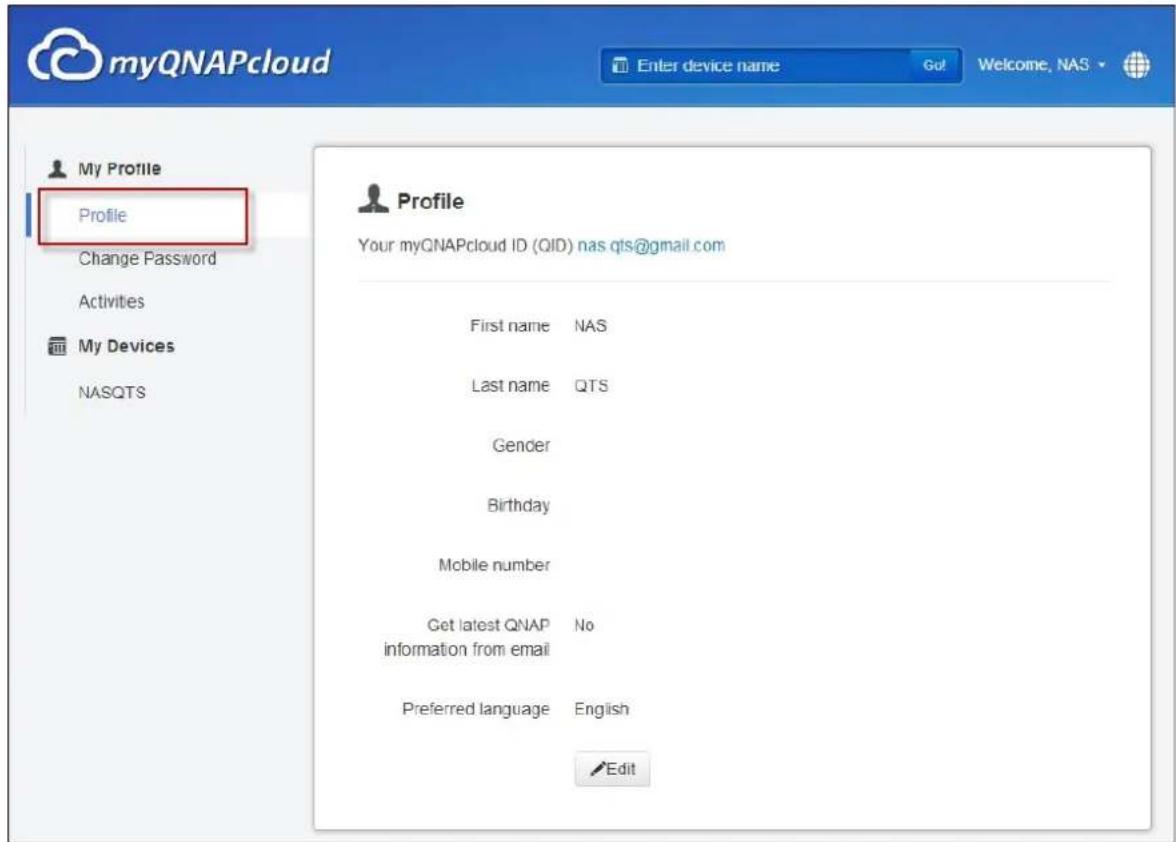
text_image
myQNAPcloud Enter device name Go! Welcome, NAS My Profile Profile Change Password Activities My Devices NASQTS Profile Your myQNAPcloud ID (QID) nas qts@gmail.com First name NAS Last name QTS Gender Birthday Mobile number Get latest QNAP No information from email Preferred language English Edit
text_image
myQNAPcloud Enter device name Go! Welcome, NAS My Profile Profile Change Password Activities My Devices NASQTS Change Password Old password Your old password New password Must be 6 characters long at least Confirm password Must be 6 characters long at least Change
text_image
myQNAPcloud Enter device name Col Welcome, NAS - My Profile Profile Change Password Activities My Devices NASQTS Activities Source IP / Country Device APP name Action Time 61.62.220.74 Taiwan Portal Sign in 2013- 15:44:42 61.62.220.74 Taiwan Portal Sign out 2013- 15:44:39 61.62.220.74 Taiwan Portal Sign in 2013- 15:42:20 61.62.220.74 Taiwan NASQTS NAP NAS CGI accounted for 2013- 15:41:18 61.62.220.74 Taiwan NAP NAS CGI accounted for 2013- 15:41:18 ← Next Previous →Access NAS services via the myQNAPcloud w ebsite
To access the NAS services via the myQNAPcloud website, specify the NAS you registered with in the search box and click "Go!".

text_image
NASQTS Go!The published public NAS services will be listed.
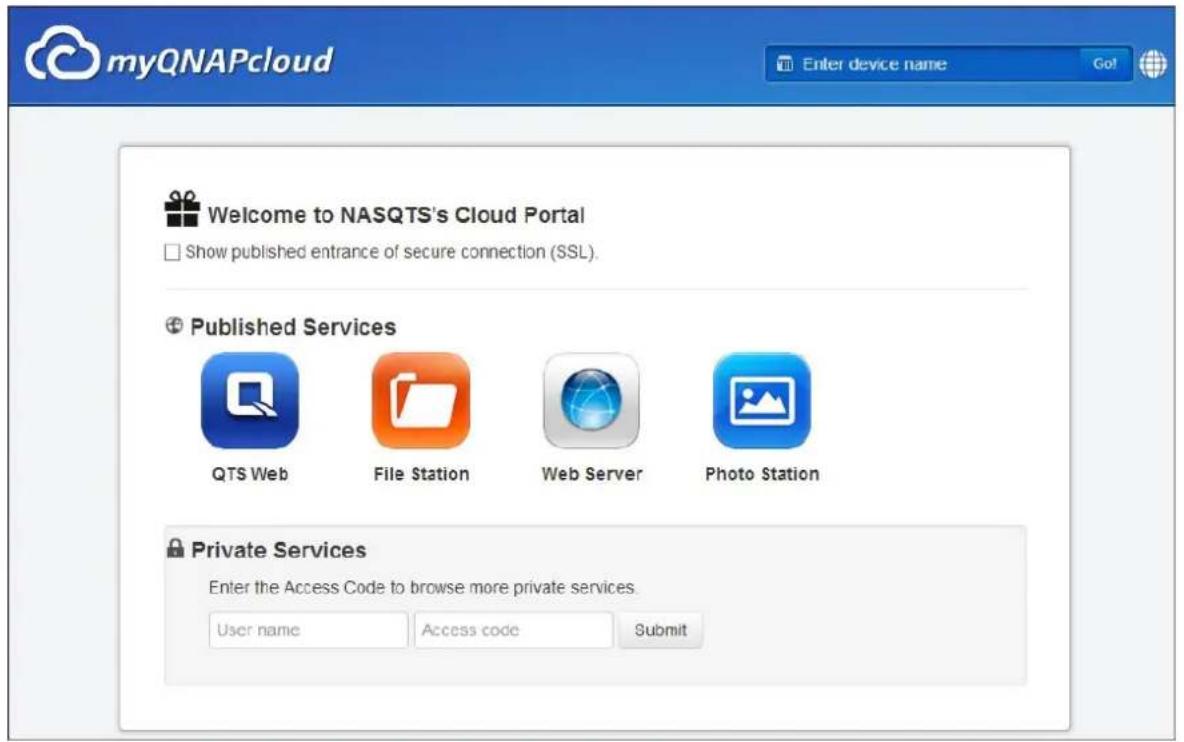
text_image
myQNAPcloud Enter device name Go! Welcome to NASQTS's Cloud Portal Show published entrance of secure connection (SSL). Published Services QTS Web File Station Web Server Photo Station Private Services Enter the Access Code to browse more private services. User name Access code SubmitEnter the access code to browse private services.
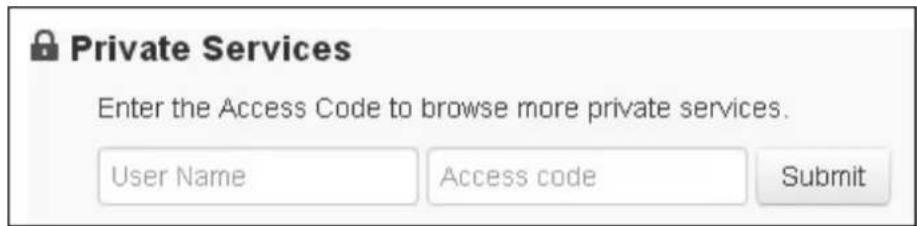
text_image
Private Services Enter the Access Code to browse more private services. User Name Access code Submit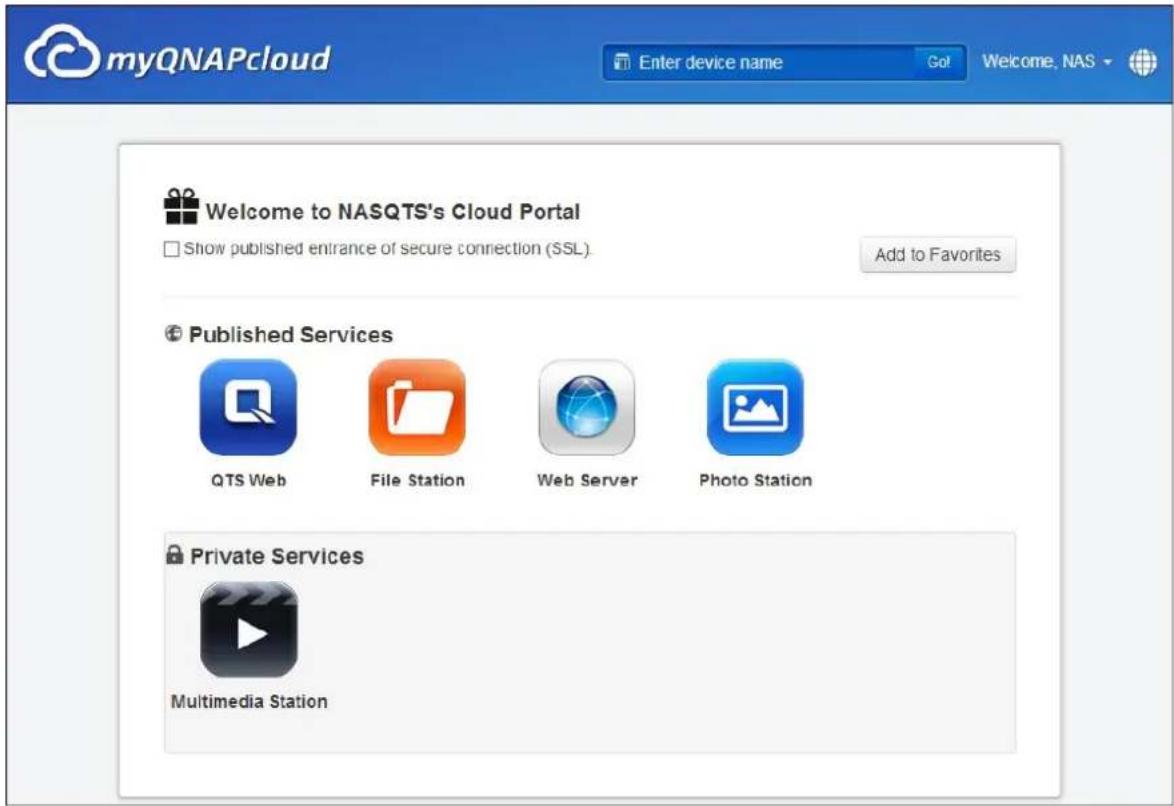
text_image
myQNAPcloud Enter device name Go! Welcome, NAS Welcome to NASQTS's Cloud Portal Show published entrance of secure connection (SSL) Add to Favorites Published Services QTS Web File Station Web Server Photo Station Private Services Multimedia StationNote: For configuration on private NAS services, please refer to the DDNS/Cloud Portal section later in this chapter.
Auto Router Configuration
In "Remote Access Services" > "Auto Router Configuration", you can enable or disable UPnP port forwarding. When this option is enabled, your NAS is accessible from the Internet via the UPnP router.
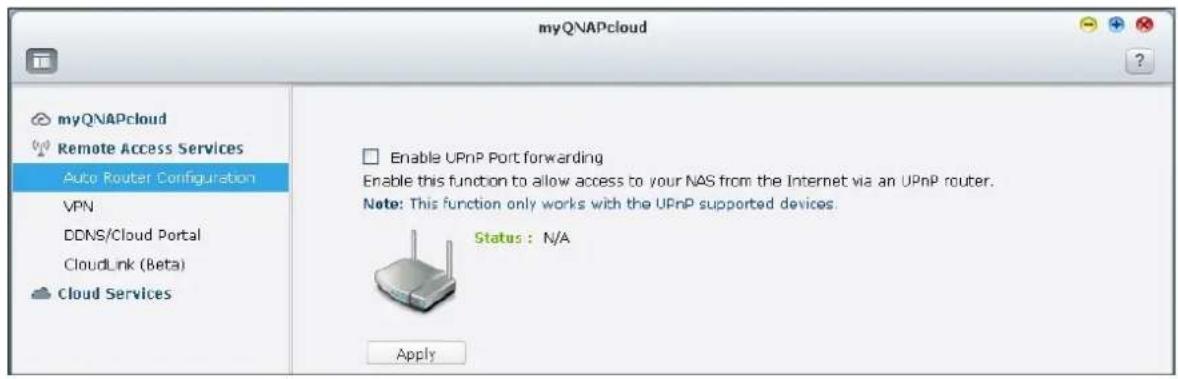
text_image
myQNAPcloud myQNAPcloud Remote Access Services Auto Router Configuration VPN DDNS/Cloud Portal CloudLink (Beta) Cloud Services Enable UPnP Port forwarding Enable this function to allow access to your NAS from the Internet via an UPnP router. Note: This function only works with the UPnP supported devices. Status : N/A ApplyNote: If there is more than one routers on the network, only the one which is set as the default gateway of the NAS will be detected.
Click "Rescan" to detect the router if no UPnP router is found on the local network and "Diagnostics" to check the diagnostic logs.
Enable UPnP Port forwarding
Enable this function to allow access to your NAS from the Internet via an UPnP router.
Note: This function only works with the UPnP supported devices.
Status : No UPnP router found on the network
Rescan
Diagnostics

text_image
Network Diagnostics ---- NAT PMP Diagnostics ---- initnatpmp() returned 0 (SUCCESS) using gateway : 10.8.12.1 sendpublicaddressrequest returned 2 (SUCCESS) readnatpmpresponseorretry returned -7 (FAILED) ---- UPnP Diagnostics ---- upnpc : miniupnpc library test client. (c) 2006-2011 Thomas Bernard Go to http://miniupnp.free.fr/ or http://miniupnp.tuxfamily.org/ for more information. List of UPNP devices found on the network : desc: http://10.8.12.103:2869/upnphost/udhisapi.dll?content=uuid:f45aff05-f6cb-4607- 8f14-78d35a7bf081 st: upnp:rootdeviceIf the UPnP router is incompatible with the NAS, click and then click "UPnP Router Compatibility Feedback..." (http://www.qnap.com/go/compatibility_router.html) to contact the technical support.

text_image
Your router does not support UPnP protocol or you have not enabled the UPnP function on the router. UPnP Router Compatibility Feedback...Select the NAS services to be allowed for remote access. Click "Apply to Router". The NAS will configure the port forwarding on the UPnP router automatically. You will then be able to access the NAS services from the Internet.
| Service Name | Ports | Protocol |
| Web Administration (includes File Station, D... | 8080 | TCP |
| Secure Web Administration | 443 | TCP |
| FTP/FTPS with SSL/TLS Server | 20,21 | TCP |
| Telnet Server | 13131 | TCP |
| SSH server, SFTP server | 22 | TCP |
| Web Server, Multimedia Station | 80 | TCP |
| Secure Web Server | 8081 | TCP |
| Remote Replication | 873,8899 | TCP |
| VPN Server (PPTP) | 1723 | TCP |
| VPN Server (OpenVPN) | 1194 | UDP |
Note:
- If more than two NAS are connected to one UPnP router, please specify a different port for each NAS. If the router does not support UPnP, users are required to configure port forwarding manually on the router. Please refer to the links below:
• Application note: http://www.qnap.com/go/notes.html
• FAQ: http://www.qnap.com/faq - UPnP router compatibility list: http://www.qnap.com/UPnP_Router_Compatibility_List
DDNS/Cloud Portal
With the Cloud Portal, web-based NAS services such as web administration, Web Server, Multimedia Server, and File Station, can be published to http://www.myqnapcloud.com. By enabling the NAS services in this step, they are opened for remote access even if they are not published.
Enable the My DDNS service in "Remote Access Service" and the NAS will notify the myQNAPcloud server automatically if the WAN IP address of the NAS has changed. To use the myQNAPcloud service, make sure the NAS has been connected to an UPnP router and the Internet.

text_image
myQNAPcloud myQNAPcloud Remote Access Services Auto Router Configuration VPN My DDNS/Cloud Portal CloudLink (Beta) Cloud Services SymForm ElephantDrive Amazon $3 My DDNS Cloud Portal Enable myQNAPcloud DDNS service Enable myQNAPcloud DDNS service and complete the settings to connect to your NAS by a web browser with the following URL: likeqnap.myqnapcloud.com To change myQNAPcloud DDNS domain name, please click here ApplyNote:
- The myQNAPcloud name of each QNAP NAS is unique. One myQNAPcloud name can only be used with one NAS.
- A registered myQNAPcloud name will expire in 120 days if your NAS remains offline within the period. Once the name is expired, it will be released for new registration by other users.
In "Remote Access Services" > "DDNS/Cloud Portal" > "Cloud Portal", the web-based NAS services are shown. Select "Publish" to publish the NAS services to myQNAPcloud website. Select "Private" to hide the published NAS services from public access. The private services on the myQNAPcloud website are only visible to specified users with the myQNAPcloud access code.
Note that if a disabled NAS service is published, the service will not be accessible even the corresponding icon is shown on myQNAPcloud website (http://www.myQNAPcloud.com).
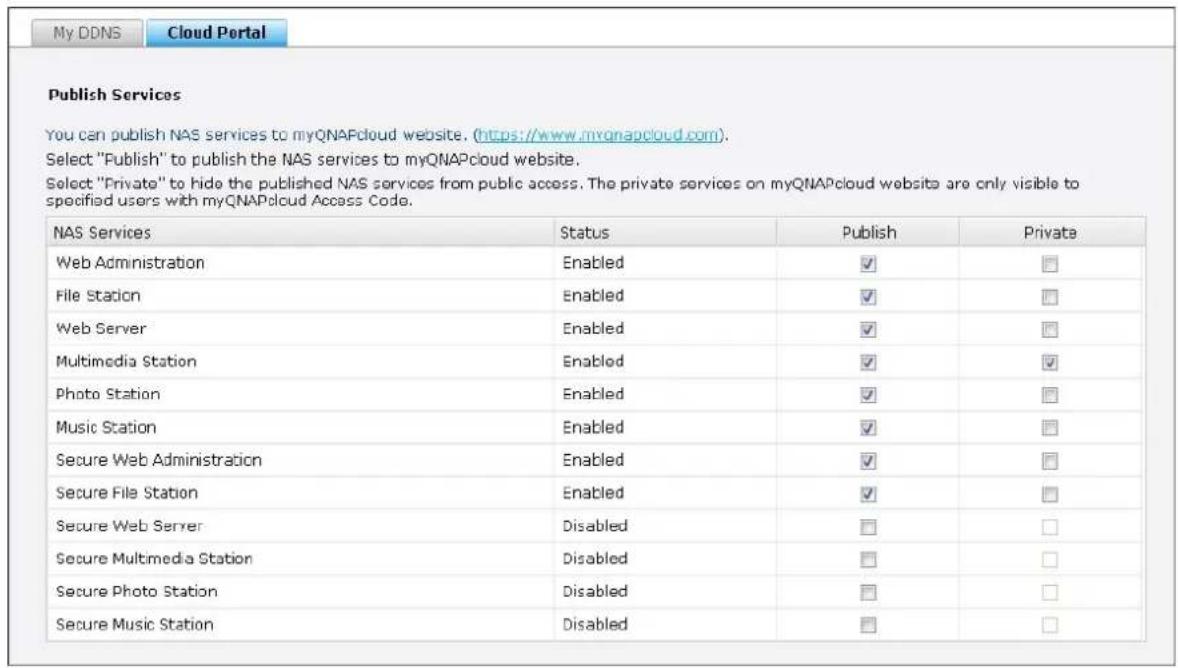
text_image
My DDNS Cloud Portal Publish Services You can publish NAS services to myQNAPcloud website. (https://www.myqnapcloud.com). Select "Publish" to publish the NAS services to myQNAPcloud website. Select "Private" to hide the published NAS services from public access. The private services on myQNAPcloud websites are only visible to specified users with myQNAPcloud Access Code. NAS Services Status Publish Private Web Administration Enabled ✓ ☐ File Station Enabled ✓ ☐ Web Server Enabled ✓ ☐ Multimedia Station Enabled ✓ ✓ Photo Station Enabled ✓ ☐ Music Station Enabled ✓ ☐ Secure Web Administration Enabled ✓ ☐ Secure File Station Enabled ✓ ☐ Secure Web Server Disabled ☐ ☐ Secure Multimedia Station Disabled ☐ ☐ Secure Photo Station Disabled ☐ ☐ Secure Music Station Disabled ☐ ☐Set myQNAPcloud Access Code: Enter a code of 6-16 characters (a-z, A-Z, 0-9 only). The code is required when NAS users attempt to view the private NAS services on the myQNAPCloud website.
myQNAPcloud Access Code
Set the myQNAPcloud Access Code:
Note: The code must be 6-16 characters (a-z, A-Z, 0-9 only).
Click "Add Users" and specify maximum 9 local NAS users who are allowed to view the private NAS services published on the myQNAPcloud website.
User Management
Click "Add User" and specify the local NAS users who are allowed to view the private NAS services published on myQNAPcloud website. These users may also use the myQNAPcloud Connect at the same time for remote access. Maximum 9 users can be specified.
Select the users and click "Send Invitation" to send an email with instruction to access the services.

text_image
Delete Add Users Send Invitation Username myQNAPcloud Connect (VPN) myQNAPcloud WebsiteSelect the connection method: the myQNAPcloud Connect (VPN) utility and/or myQNAPcloud website. Click "Apply".
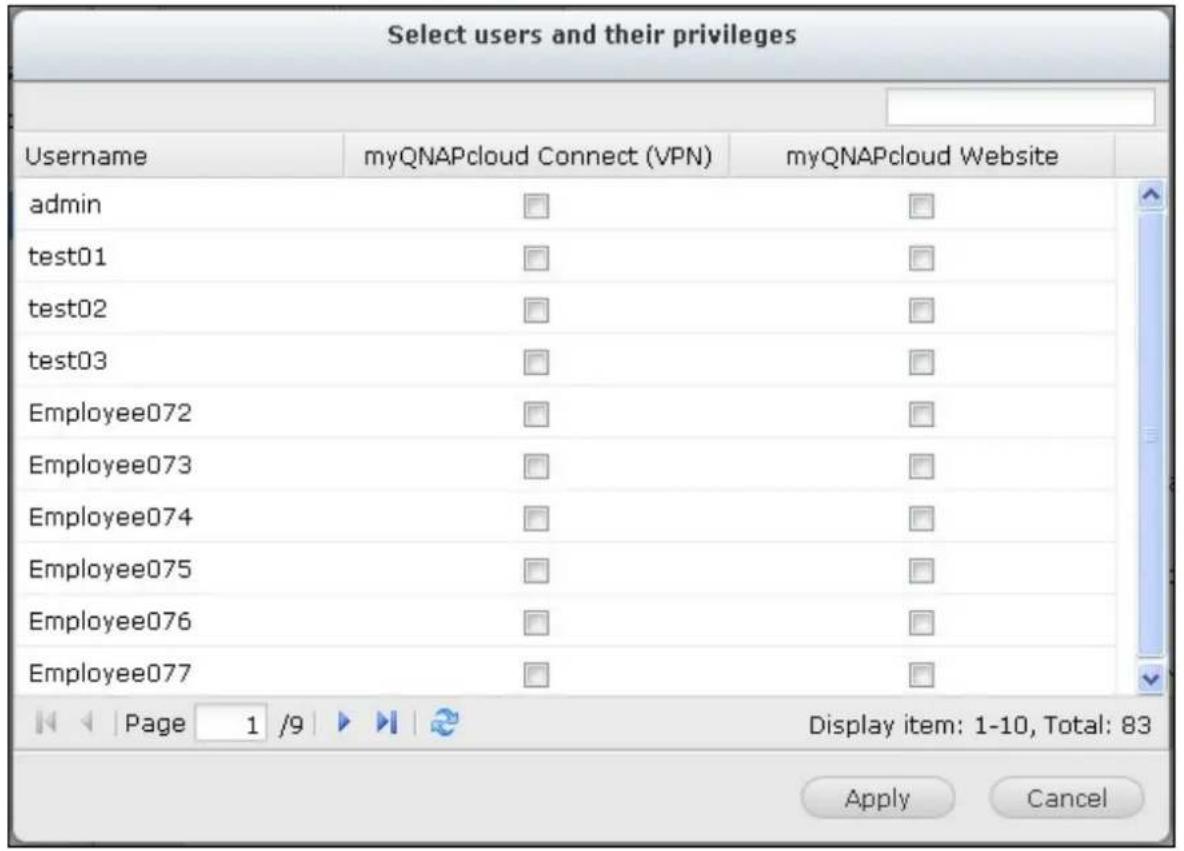
text_image
Select users and their privileges Username myQNAPcloud Connect (VPN) myQNAPcloud Website admin test01 test02 test03 Employee072 Employee073 Employee074 Employee075 Employee076 Employee077 Display item: 1-10, Total: 83 Apply CancelClick "Apply" to save the settings.
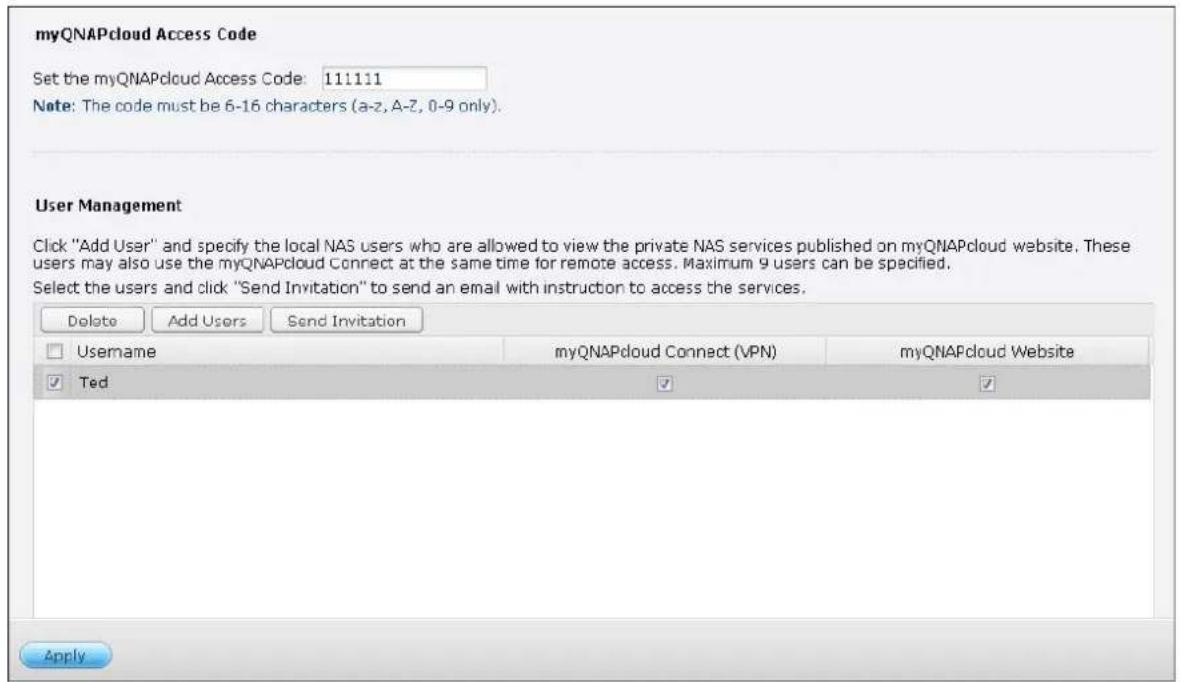
text_image
myQNAPcloud Access Code Set the myQNAPcloud Access Code: 111111 Note: The code must be 6-16 characters (a-z, A-Z, 0-9 only). User Management Click "Add User" and specify the local NAS users who are allowed to view the private NAS services published on myQNAPcloud website. These users may also use the myQNAPcloud Connect at the same time for remote access. Maximum 9 users can be specified. Select the users and click "Send Invitation" to send an email with instruction to access the services. Delete Add Users Send Invitation Username myQNAPcloud Connect (VPN) myQNAPcloud Website Ted ✓ ✓ ApplyTo send the instructions of the myQNAPcloud service to users via email, select the user (s) and click the "Send Invitation" button.
Note: To use this function, the mail server settings must be properly configured in "System Settings" > "Notification" > "SMTP Server".
Enter the email address. Click "Send".

text_image
Invite users with email notification to access service Username E-mail Status Ted Ted.Christ@gmail.com Send CloseCloudLink (Beta)
The CloudLink is a new service provided by QNAP for remote access to your QNAP NAS over the network without changing the settings of your router, even if UPnP is not supported. Check "Enable CloudLink (Beta) service" to enable this service.
√ Enable CloudLink (Beta) service
CloudLink is an innovative technology provided by QNAP for remote access to your QNAP NAS over the network without changing the settings of your routers. It may work even if your router does not support UPnP. You may enter your myQNAPcloud device name in QNAP applications to connect to your NAS. However, your NAS is required to have access to the Internet.
The File Station allows the users to access the NAS on the Internet and manage the files by a web browser.
Before getting started
Enable the service in "Control Panel" > "Applications" > "Station Manager". Click the link on the page to access the File Station.
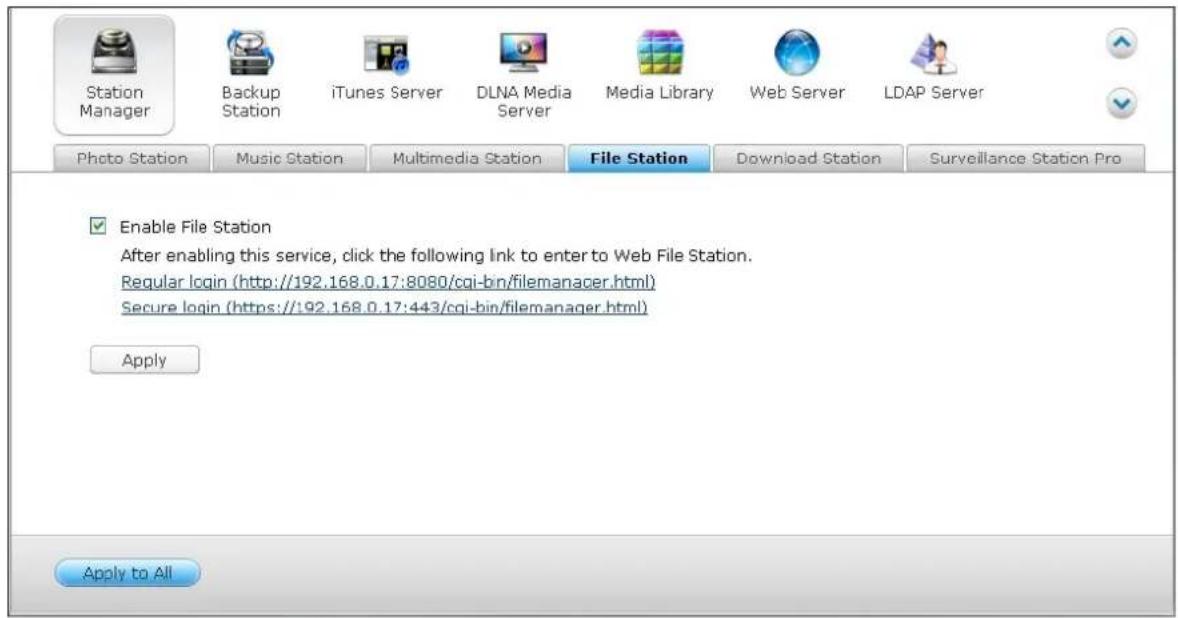
text_image
Station Manager Backup Station iTunes Server DLNA Media Server Media Library Web Server LDAP Server Photo Station Music Station Multimedia Station File Station Download Station Surveillance Station Pro Enable File Station After enabling this service, click the following link to enter to Web File Station. Regular login (http://192.168.0.17:8080/cqi-bin/filemanager.html) Secure login (https://192.168.0.17:443/cqi-bin/filemanager.html) Apply Apply to AllThe File Station can be launched from the Main Menu or the File Station icon on the Desktop.
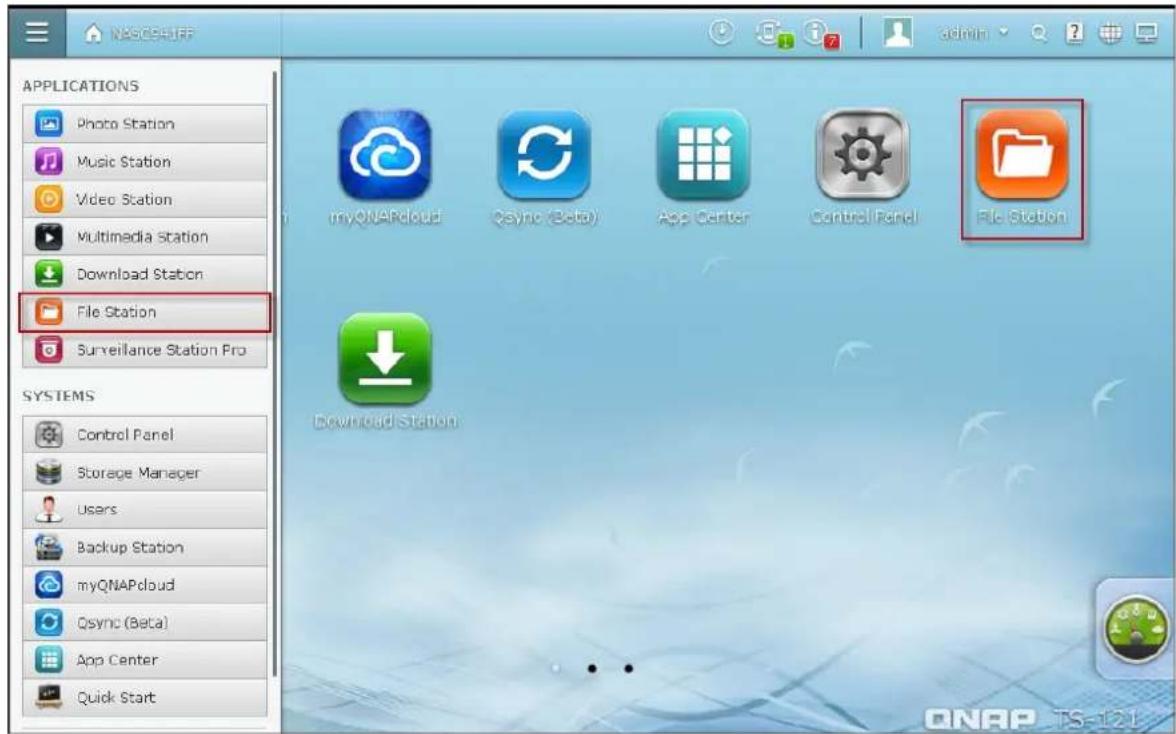
text_image
NASCOSHFF ADMIN APPLICATIONS Photo Station Music Station Video Station Multimedia Station Download Station File Station Surveillance Station Pro SYSTEMS Control Panel Storage Manager Users Backup Station myQNAPcloud Qsync (Beta) App Center Control Panel File Station Download Station ONAP TS-121You can upload, download, rename, move, copy, or delete the files and folder on the NAS.
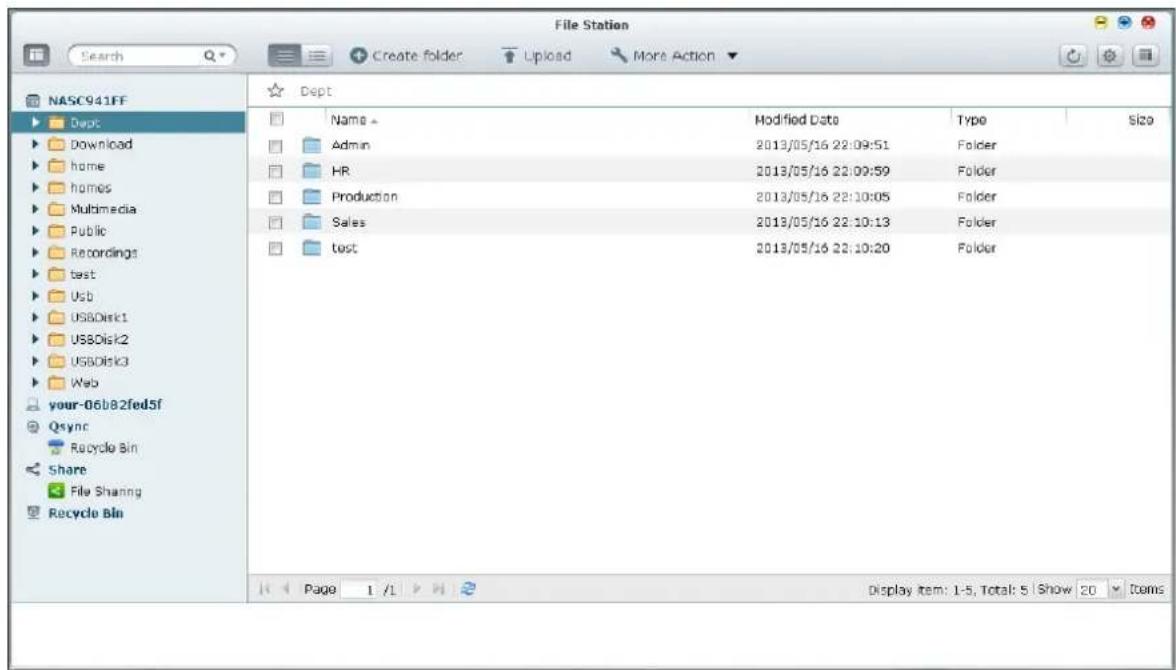
text_image
File Station Search Create folder Upload More Action NASC941FF Dept Download home homes Multimedia Public Recordings test Usb USBDisk1 USBDisk2 USBDisk3 Web your-06b82fed5f Qsync Recycle Bin Share File Sharing Recycle Bin Dept Name Admin HR Production Sales test Modified Date 2013/05/16 22:09:51 2013/05/16 22:09:59 2013/05/16 22:10:05 2013/05/16 22:10:13 2013/05/16 22:10:20 Type Folder Folder Folder Folder Page 1 /1 Display item: 1-5, Total: 5 | Show 20 | ItemsUploading files
To use this feature, install Adobe Flash plug-in for your web browser.
Upload
- Select a folder and click .
- Click "Browse" to select the file(s).
- Select to skip or overwrite the existing file(s) in the folder.
- Click to upload a file or "Upload All" to upload all the selected files.
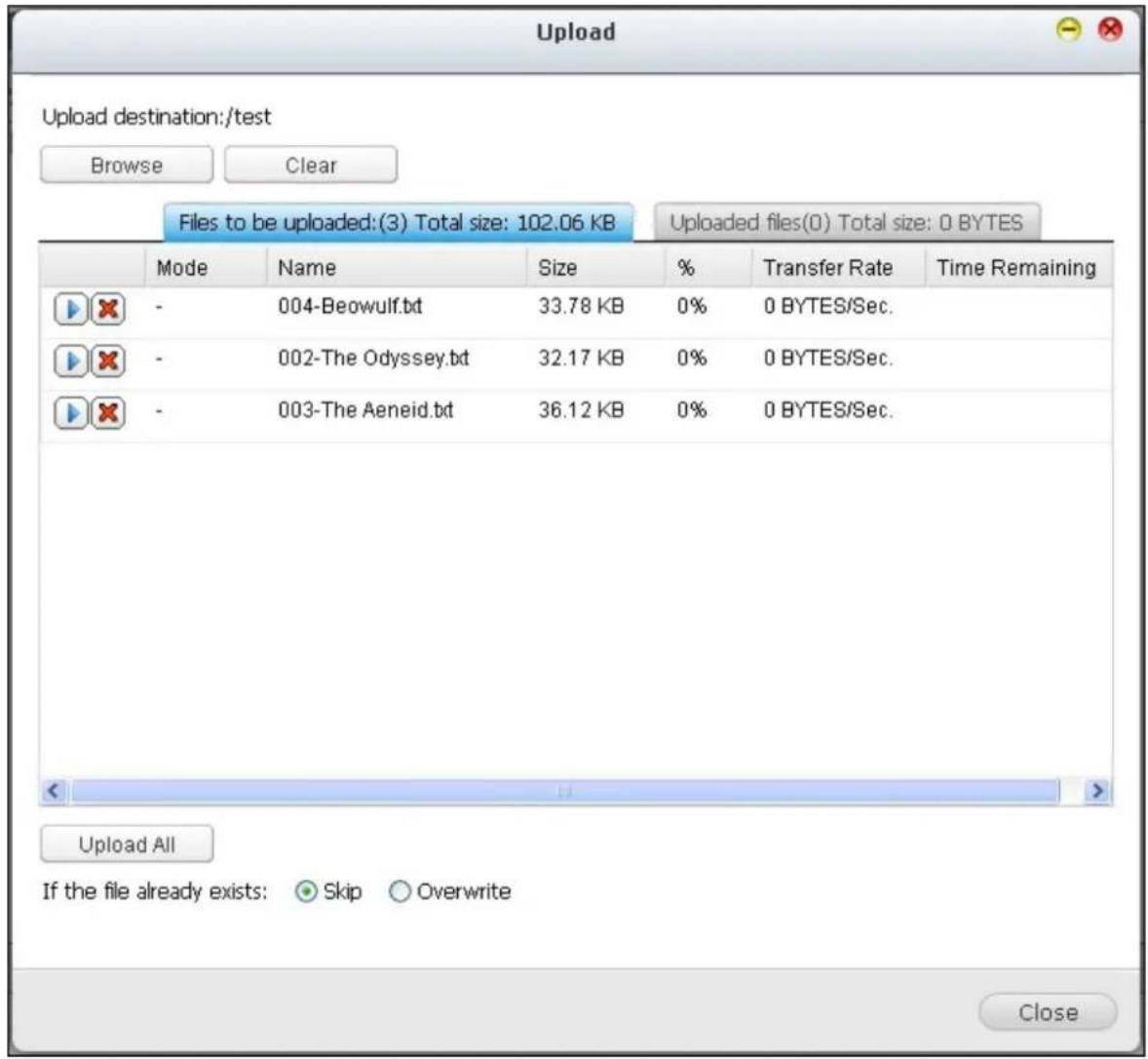
text_image
Upload Upload destination:/test Browse Clear Files to be uploaded:(3) Total size: 102.06 KB Uploaded files(0) Total size: 0 BYTES Mode Name Size % Transfer Rate Time Remaining - 004-Beowulf.txt 33.78 KB 0% 0 BYTES/Sec. - 002-The Odyssey.txt 32.17 KB 0% 0 BYTES/Sec. - 003-The Aeneid.txt 36.12 KB 0% 0 BYTES/Sec. Upload All If the file already exists: ○ Skip ○ Overwrite CloseNote: The maximum size of a file that can be uploaded to the NAS by the File Station is 2GB without JAVA plug-in.
Downloading files
- Select a file or folder to download.
- Right click the mouse and select "Download" to download the file. Please note that if all files within a folder are selected, they will be compressed and downloaded as a zip file.

text_image
002-The Odyssey.txt 003-The Aeneid.txt 004-Beowulf.txt Create folder Copy Share Download Move Delete Cut Compress(Zip) PropertiesCreating folders
-
Select a shared folder or folder in which you want to create a new folder.
-
Click .

- Enter the name of the new folder and click "OK".
Renaming files or folders:
- Select a file or folder to rename.
- Right click the mouse and select "Rename" to rename the file.

text_image
apple.jpg FStest.zip Lily-1.jpg Metal.Gear.S rose.jpg SpaceMagici. Create folder Copy Share Open Download Rename Move Delete Cut Compress(Zip) Properties- Enter the new file or folder name and click "OK".
Copying files or folders
-
Select the files or folders to copy.
-
Click .
-
Click the destination folder.
-
Click and confirm to copy the files or folders.
Moving files or folders
- Select the files or folders to move.
- Right click the mouse and select "Move".
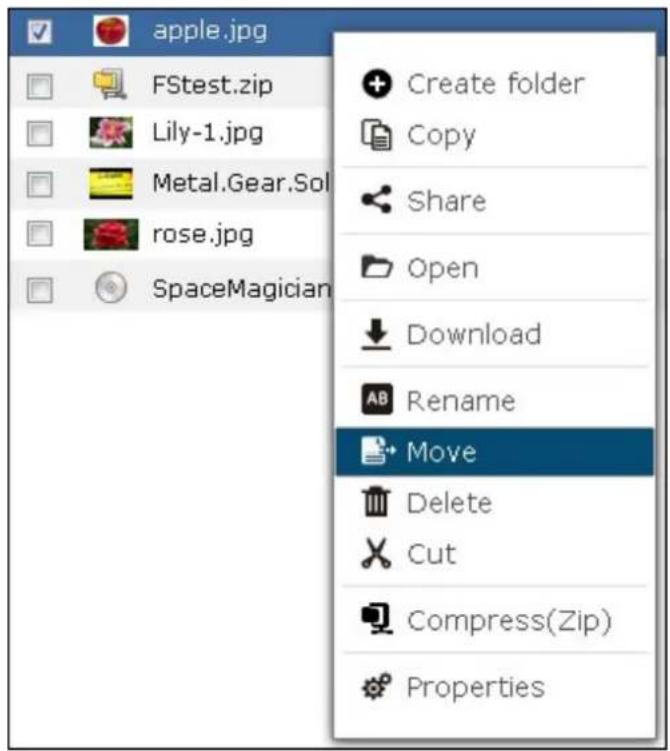
text_image
apple.jpg FStest.zip Lily-1.jpg Metal.Gear.Sol rose.jpg SpaceMagician Create folder Copy Share Open Download Rename Move Delete Cut Compress(Zip) Properties- Select the destination folder. Click "OK".
Deleting files or folders
- Select a file or folder to delete.
- Right click the mouse and select "Delete".

text_image
Lily-1.jpg Metal.Gear.Solid rose.jpg SpaceMagician- Create folder Copy Share Download Move Delete Cut Compress(Zip) Properties- Confirm to delete the file or folder.
Transcoding files
- Select a media file.
- Right click the mouse and select "Add to Transcode".

text_image
1562.wmv 2002-0525-b.mpeg Metal.Gear.Solid.3.Sr Metal.Gear.Solid.3.Sr 2004/04/01 21:18:36 Create folder Copy Share Open Download AB Rename Move Delete Cut Add to Transcode Transcode Information Compress(Zip) Properties- Confirm to transcode the file.
Playing media files
- To play a media file in different resolutions, left click the media file and select a desired resolution.
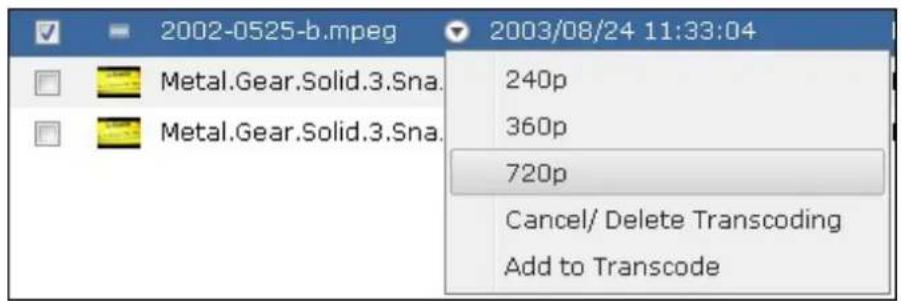
text_image
2002-0525-b.mpeg 2003/08/24 11:33:04 Metal.Gear.Solid.3.Sna. Metal.Gear.Solid.3.Sna. 240p 360p 720p Cancel/ Delete Transcoding Add to Transcode- The built-in QNAP Media Viewer will open to play the file.
Extracting files
- To extract a zipped file on the NAS, right click the zipped file and select "Extract".
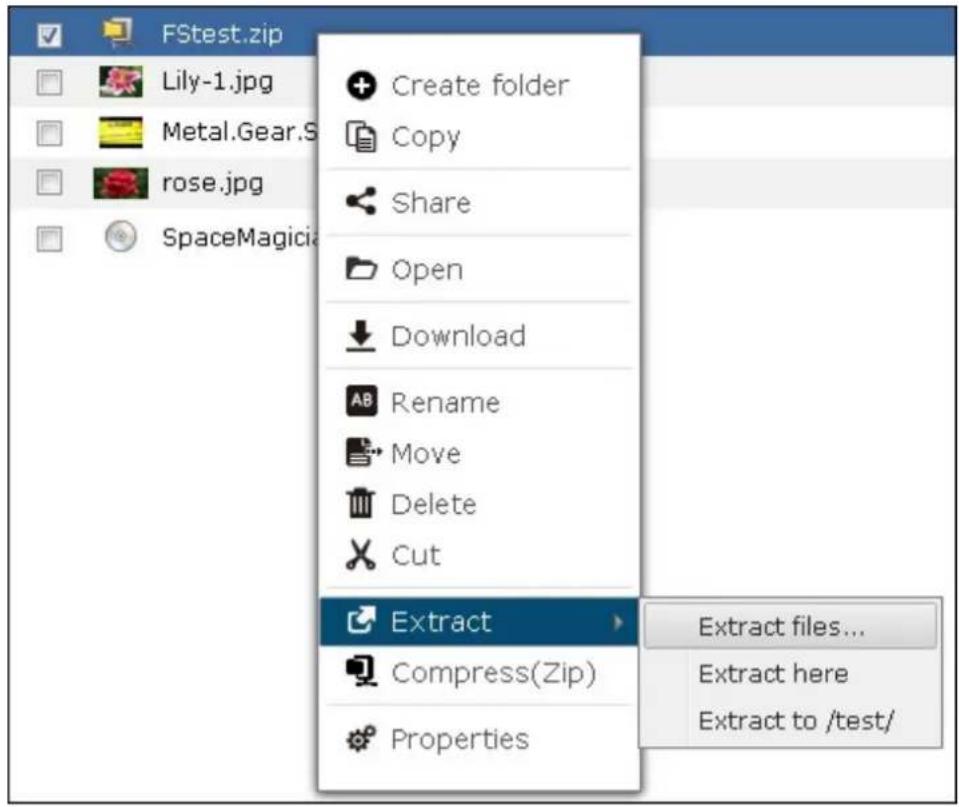
text_image
FStest.zip Lily-1.jpg Metal.Gear.S rose.jpg SpaceMagicia Create folder Copy Share Open Download Rename Move Delete Cut Extract Compress(Zip) Properties Extract files... Extract here Extract to /test/- Select the files to extract and configure the extraction settings.

text_image
Extract - FStest.zip File List Settings / Name Size Packed Modified Date 001-The Iliad.txt 39.06... 14.88 KB 2001/08/20 18:... 005-The Divine Come... 37.4 KB 14.3 KB 2001/08/20 18:... 006-The Travels of Ma... 38.02... 15.14 KB 2001/08/20 18:... 007-Canterbury Tales... 39.52... 15.46 KB 2001/08/20 18:... 008-Don Quixote.txt 31.54... 11.84 KB 2001/08/20 18:... Display item: 1-5, Total: 5 Extract to /test Extract Select Extract All CancelFile/Folder search
The File Station supports smart search of files, sub-folders, and folders on the NAS. You can search a file or folder by all or part of the file or folder name, or by the file extension, for example, AVI, MP3.
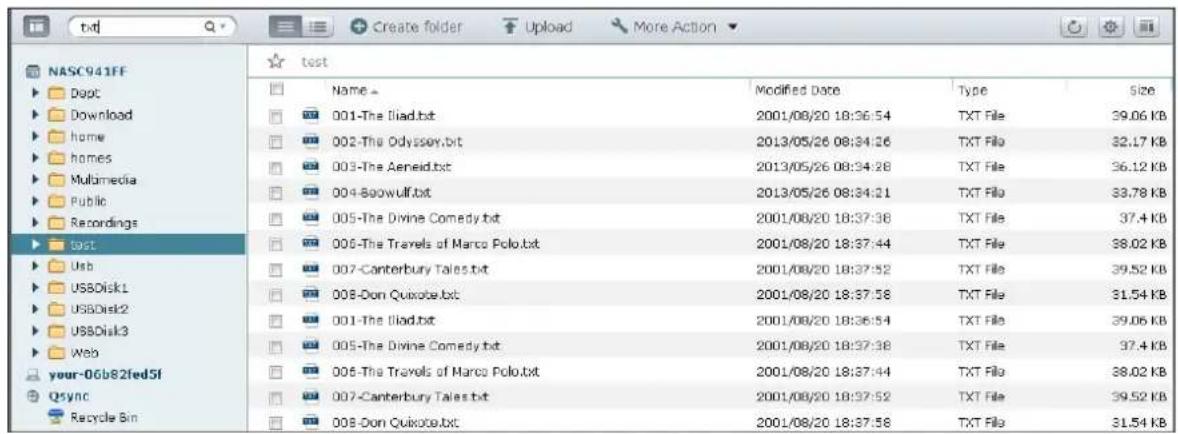
text_image
NASC941FF Dept Download home homes Multimedia Public Recordings Last Usb USBDisk1 USBDisk2 USBDisk3 Web your-06b82fed5f Qsync Recycle Bin test Name 001-The Iliad.txt 002-The Odyssey.txt 003-The Aeneid.txt 004-Beowulf.txt 005-The Divine Comedy.txt 006-The Travels of Marco Polo.txt 007-Canterbury Tales.txt 008-Don Quixote.txt 001-The Iliad.txt 005-The Divine Comedy.txt 006-The Travels of Marco Polo.txt 007-Canterbury Tales.txt 008-Don Quixote.txt Modified Date 2001/08/20 18:36:54 2013/05/26 08:34:26 2013/05/26 08:34:28 2013/05/26 08:34:21 2001/08/20 18:37:38 2001/08/20 18:37:44 2001/08/20 18:37:52 2001/08/20 18:37:58 2001/08/20 18:36:54 2001/08/20 18:37:38 2001/08/20 18:37:44 2001/08/20 18:37:52 2001/08/20 18:37:58 2001/08/20 18:37:54 2001/08/20 18:37:58 Type TXT File TXT File TXT File TXT File TXT File TXT File TXT File TXT File TXT File TXT File TXT File TXT File TXT File TXT File TXT Fileclick the down arrow in the search box to reveal additional options. Check "Music", "Video", "Photo" to list corresponding files within the folder or specify detailed criteria in the advanced search (such as file size or type.)
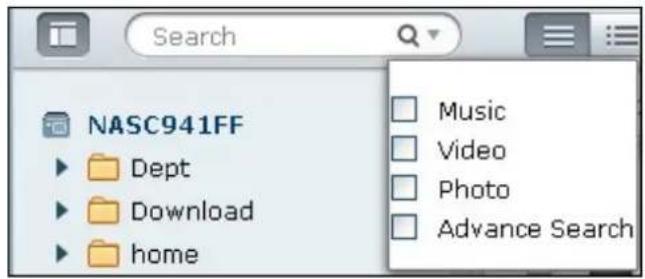
text_image
Search NASC941FF Dept Download home Music Video Photo Advance SearchMount ISO Shares
To mount an ISO file on the NAS as a shared folder, follow the steps below:
Locate the ISO file on the NAS. Right click the file and select "Mount ISO".

text_image
SpaceMagician-Images.ISO Create folder Copy Share Open Download Rename Move Delete Cut Compress(Zip) Mount ISO PropertiesEnter the share name and click "OK".

text_image
Mount ISO Share folder name: SpaceMagician-Images OK CancelClick "OK" to confirm.

text_image
System message This ISO share [SpaceMagician-Images] has been mounted successfully. OKThe ISO share will appear on the folder list. You can access the contents of the ISO image file. You can login the NAS web interface with an administrator account and specify the access rights of the users in "Privilege Settings" > "Share Folders".
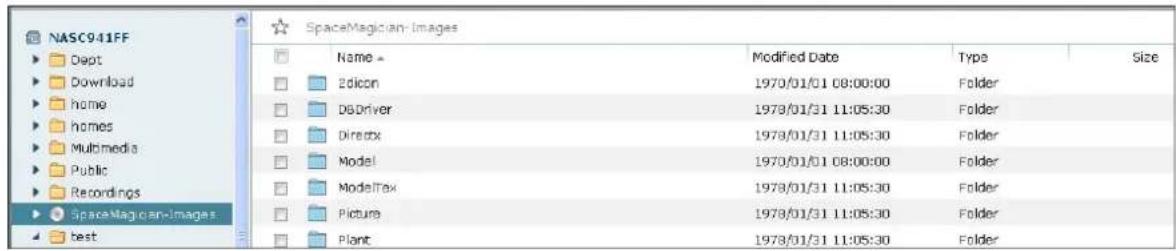
text_image
NASC941FF Dept Download home homes Multimedia Public Recordings SpaceMagician-Images best SpaceMagician-Images Name 2dicon D&Driver Directrx Model Modelfrx Picture Plant Modified Date 1970/01/01 08:00:00 1978/01/31 11:05:30 1978/01/31 11:05:30 1970/01/01 08:00:00 1978/01/31 11:05:30 1978/01/31 11:05:30 1978/01/31 11:05:30 Modified Date Type Folder Folder Folder Folder FolderTo unmount the share, right click the folder name and select "Unmount". Click "Yes" to confirm.
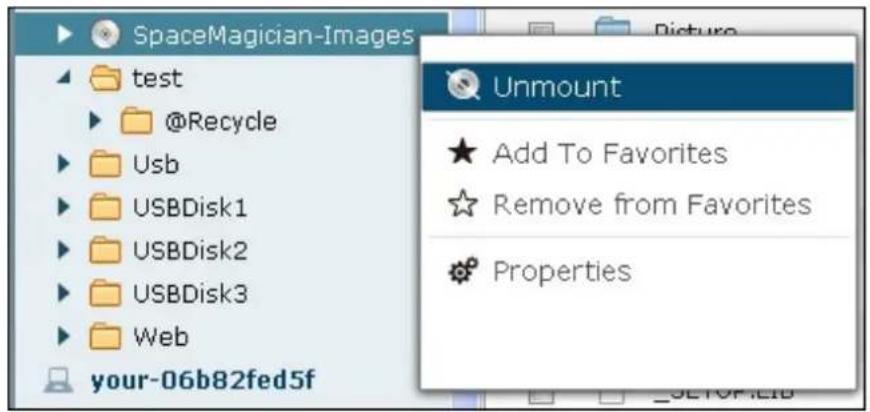
text_image
SpaceMagician-Images test @Recycle Usb USBDisk1 USBDisk2 USBDisk3 Web your-06b82fed5f Picture Unmount ★ Add To Favorites ☆ Remove from Favorites PropertiesSet file/folder level permission
You can set file or folder level permissions on the NAS by the File Station. Right click a file or folder and select "Properties".
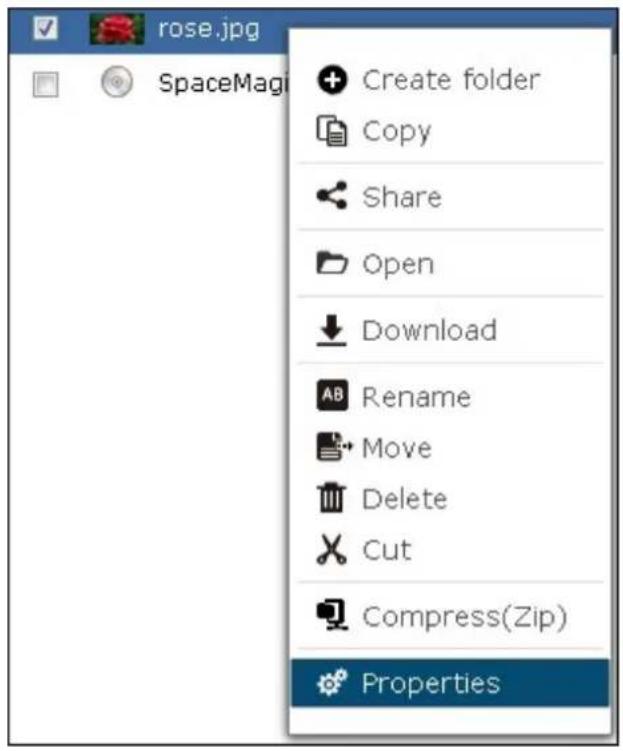
text_image
rose.jpg SpaceMagi Create folder Copy Share Open Download AB Rename Move Delete Cut Compress(Zip) PropertiesIf the "Advanced Folder Permissions" option is disabled in "Privilege Settings" > "Shared Folder" > "Advanced Permissions", the following settings will be shown. Define the Read, Write, and Execute access rights for Owner, Group, and Others.
- Owner: Owner of file or folder.
• Group: Group owner of the file or folder. - Others: Any other (local or domain member) users who are not the owner or a member of the group owner.
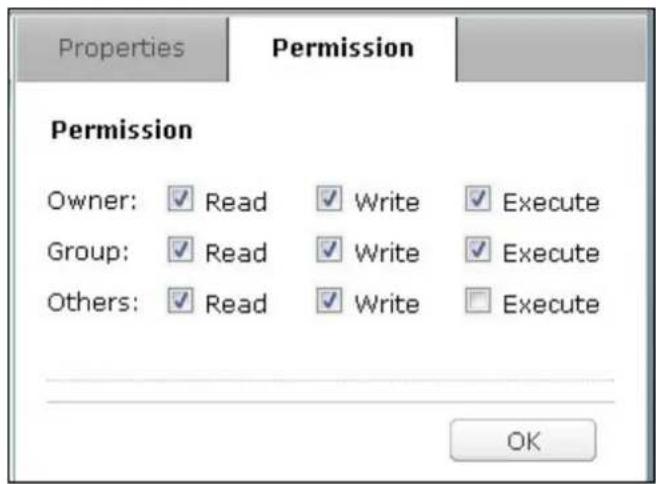
text_image
Properties Permission Permission Owner: ✓ Read ✓ Write ✓ Execute Group: ✓ Read ✓ Write ✓ Execute Others: ✓ Read ✓ Write □ Execute OKIf a folder is selected, you can choose "Apply changes to folder(s), subfolder(s) and file (s)" to apply the settings to all the files and subfolders within the selected folder. Click "OK" to confirm.

text_image
Properties Permission Permission Owner: ✓ Read ✓ Write ✓ Execute Group: ✓ Read ✓ Write ✓ Execute Others: ✓ Read ✓ Write ✓ Execute □ Apply changes to the folder(s), subfolder(s) and file(s) OKIf the "Enable Advanced Folder Permissions" option is enabled in "Privilege Settings" > "Shared Folder" > "Advanced Permissions", you will be able to specify the file and folder permissions by users and user groups. Click +.
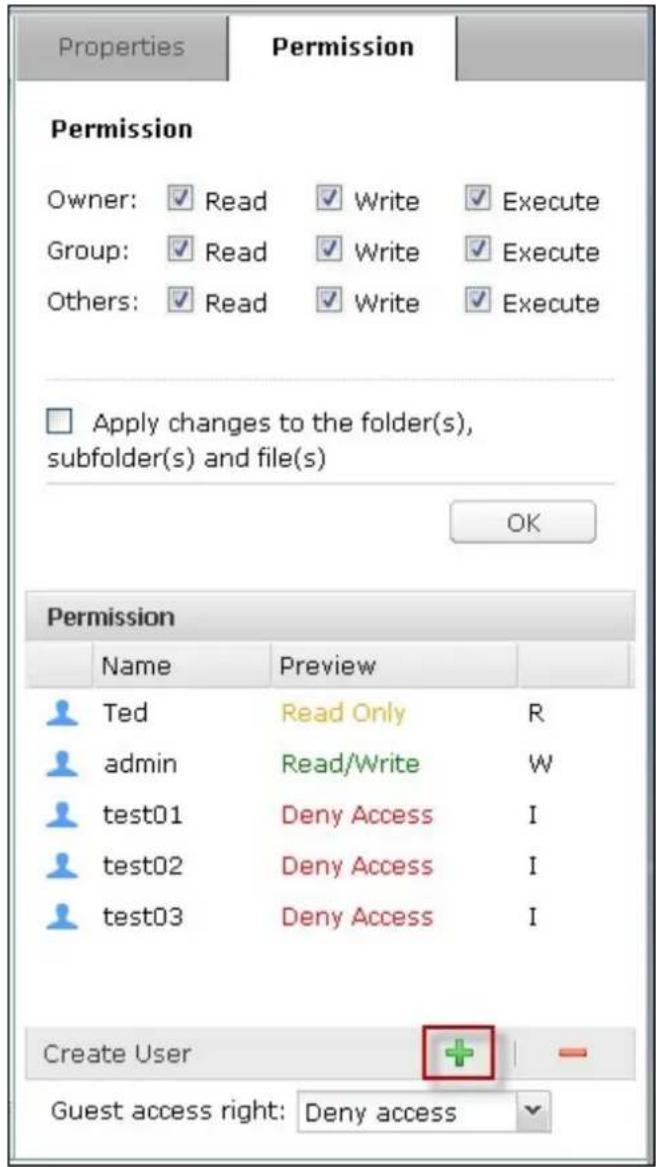
text_image
Properties Permission Permission Owner: ✓ Read ✓ Write ✓ Execute Group: ✓ Read ✓ Write ✓ Execute Others: ✓ Read ✓ Write ✓ Execute Apply changes to the folder(s), subfolder(s) and file(s) OK Permission Name Preview Ted Read Only R admin Read/Write W test01 Deny Access I test02 Deny Access I test03 Deny Access I Create User + Guest access right: Deny accessSelect the users and user groups and specify the Read and Write rights. Click "Add".

text_image
Select users and groups Local Users Name Preview RO RW Deny Employee072 Read Only ✓ □ □ Employee073 Read/Write □ ✓ □ Employee074 Read Only ✓ □ □ Employee075 Deny Access □ □ □ Employee076 Read Only ✓ □ □ Employee077 Read Only ✓ □ □ Employee078 Deny Access □ □ □ Employee079 Read/Write □ ✓ □ Employee080 Deny Access □ □ ✓ Employee081 Deny Access □ □ □ Page 1 /4 Display item: 1-79, Total: 79 Add CancelTo remove the permissions on the list, select the user(s) or user group(s) and click -.

text_image
Properties Permission Permission Name Preview Ted Read Only R admin Read/Write W test01 Deny Access I test02 Deny Access I test03 Deny Access I Create User + Guest access right: Deny access Owner: admin Only the owner can delete the contents Only admin can create files and folders Apply changes to files and subfolders Apply and replace all existing permissions of this folder, files, and subfolders OKYou can also define the file and folder owner by clicking . Select a user from the list or search a username. Then click "Set".

text_image
Local Users Search to select the user: admin Employee072 Employee073 Employee074 Employee075 Employee076 Employee077 Employee078 Set CancelThe following options are available for folder permission settings. You are recommended
to configure folder permissions and subfolder permissions in "Privilege Settings" > "Shared Folders".
- Only the owner can delete the contents: When you apply this option to a folder, the first-level subfolders and files can be deleted only by their owner.
- Only admin can create files and folders: When you apply this option to a folder, only administrators can create files or folders.
- Apply changes to files and subfolders: Apply changed permissions settings except owner protection to all the files and subfolders within the selected folder. The option "Only the owner can delete the contents" will not be applied to subfolders.
- Apply and replace all existing permissions of this folder, files, and subfolders: Select this option to override all previously configured permissions of the selected folder and its files and subfolders except owner protection. The option "Only the owner can delete the contents" will not be applied to subfolders.
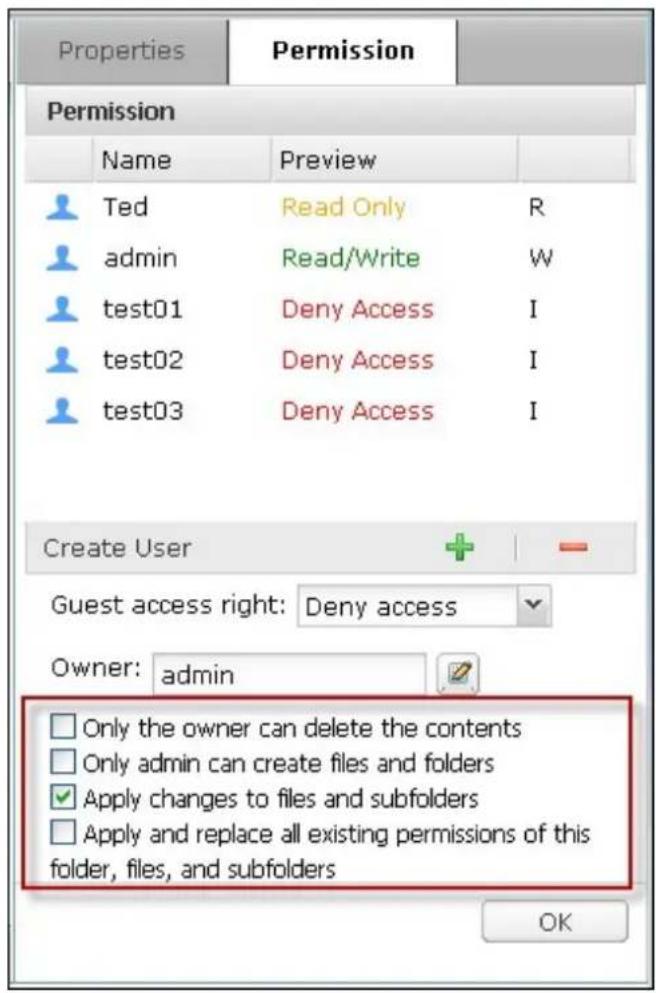
text_image
Properties Permission Name Preview Ted Read Only R admin Read/Write W test01 Deny Access I test02 Deny Access I test03 Deny Access I Create User Guest access right: Deny access Owner: admin Only the owner can delete the contents Only admin can create files and folders Apply changes to files and subfolders Apply and replace all existing permissions of this folder, files, and subfolders OKSharing Files
To share the files on the NAS by the File Station, right click the file(s) and select "Share".
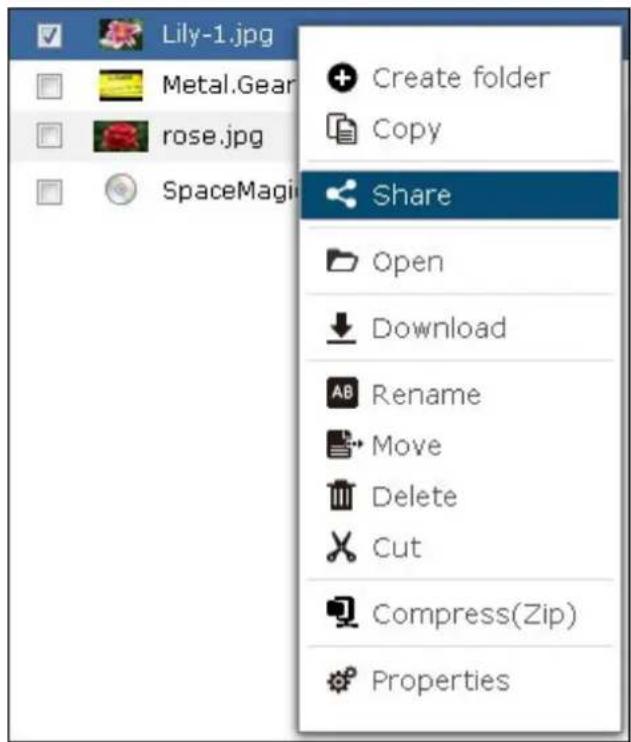
text_image
Lily-1.jpg Metal.Gear rose.jpg SpaceMagi Create folder Copy Share Open Download Rename Move Delete Cut Compress(Zip) PropertiesNote: This feature can only be used by admin.
Select the IP or domain name of the NAS. Select to create the link(s) in SSL (optional) and specify the expiration settings and enter a password (optional).

text_image
Create Download Links Domain name/IP: jntest.myqnapcloud.com □ Create the link(s) in SSL (https://) Expiration: ○ Expire in: 07 Day(s) 00 Hour(s) ○ Valid until: 2013/05/26 23 : 59 ○ Always valid Password protection (optional): Random □ Share the download links through email: Create CancelTo share the links by emails, select "Share the download links through email" and enter the contents. Click "Create".

text_image
Create Download Links Domain name/IP: 10.8.12.148 □ Create the link(s) in SSL (https://) Expiration: ● Expire in: 07 Day(s) 00 Hour(s) ○ Valid until: 2013/09/11 23 : 59 ○ Always valid Password protection (optional): TwNuqBxQ Random ✓ Share the download links through email: To: Ted.Christ@gmail.com Subject: To Share with You! Content: I've shared the following file(s) with you using QNAP Turbo NAS: ✓ Include the password *Note: Separate the email addresses by comma (,) or a semi-colon (;). Up to 5 email addresses can be sent. Create CancelNote: To use this function, the mail server settings must be properly configured in "System Settings" > "Notification" > "SMTP Server".
Confirm the information and click "Start Sharing".
Sharing Links
- /Multimedia/Samples/sample007.jpg http://10.8.12.148:8080/share.cgi?ssid=0bcgYoO
Period of validity: 09/18/2013 23:26
Use local computer to mail the link(s).
Start sharing
Cancel
Note: Up to 1000 sharing links are supported.
8.4 Photo Station
The Photo Station is a web album for organizing and sharing photos and videos with your friends, family, and the world. After uploading files to the NAS, thumbnails will be automatically generated for quick preview. You can customize the album banner and the background music for slideshow viewing. Also, you can share the photos by email or publish them to popular social websites such as Facebook, Twitter, MySpace, etc.
Before you start
- Enable the service in "Control Panel" > "Applications" > "Station Manager" > "Photo Station". Click the link on the page to directly access the Photo Station from the webpage.
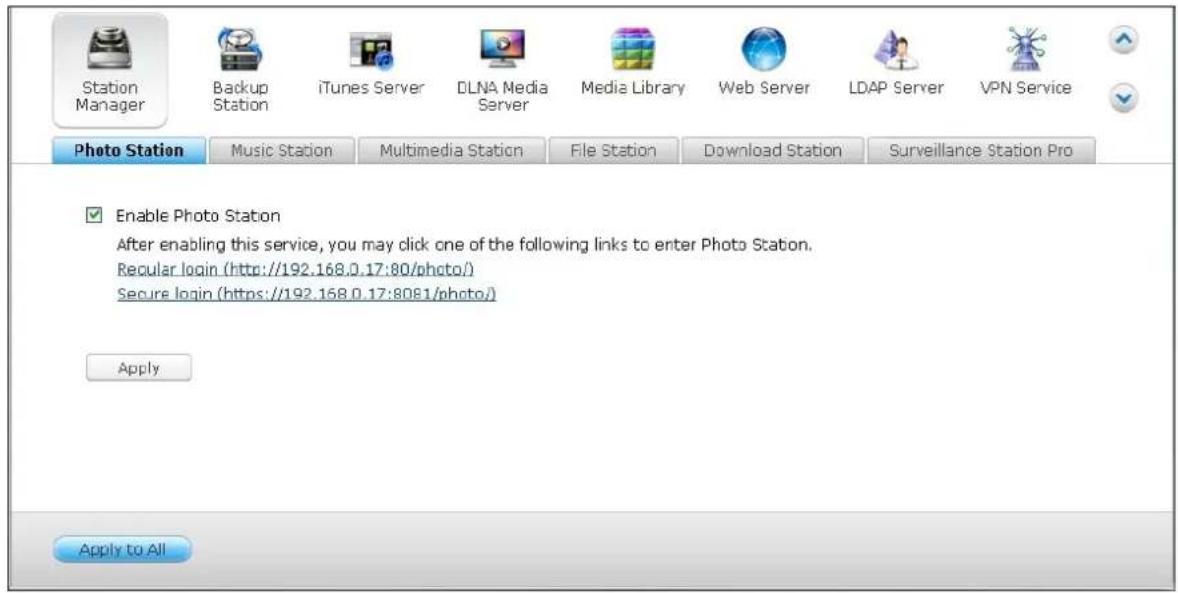
text_image
Station Manager Backup Station iTunes Server DLNA Media Server Media Library Web Server LDAP Server VPN Service Photo Station Music Station Multimedia Station File Station Download Station Surveillance Station Pro Enable Photo Station After enabling this service, you may click one of the following links to enter Photo Station. Regular login (http://192.168.0.17:80/photo/) Secure login (https://192.168.0.17:8081/photo/) Apply Apply to AllNote: The option "Show the photos of Sharing Management on the login screen", once enabled, will show a photo album on the NAS login page, and other users can directly click that album on the login page to view photos contained with that album as a guest. For details on this option, please refer to the chapter on Station Manager. 95
- Upload or copy videos or pictures to the designated media folders and scan them using the Media Library before launching the Photo Station (if this is the first time the Photo Station is used.) For details on media folders, please refer to the
chapter on Media Library 439
The Photo Station supports the following file format:
| Images | BMP (Intel-based NAS only), RAW, GIF, PNG, JPG, and JPEG |
| Video | FLV and H.264 (AAC) |
Tips on file upload:
• The maximum size of an image file is 2GB.
- The maximum size of multiple files that can be uploaded at a time is 2GB.
- Launch the Photo Station from the Main Menu or the Photo Station shortcut on the Desktop or login directly to the Photo Station by keying in the URL provided in the Station Manager into a web browser ("Control Panel" > "Applications" > "Station Manager" > "Photo Station").

text_image
NISOPRAPER Photo Station APPLICATIONS Photo Station Music Station Video Station Multimedia Station Download Station File Station Surveillance Station Pro System Control Panel Storage Manager Users Backup Station myQNAPcloud Qsync (Beta) App Center Quick Start Icon myqiaiAndroid Audio (Beta) App Center Control Panel Image Station Music Station Audio StationNote:
- The admin login credential of the Photo Station is the same as that of the NAS administrator.
- To show photo albums on the NAS login page, check "Show the photos of sharing management on the login screen" on the Station Manager ("Control Panel" > "Applications" > "Station Manager" > "Photo Station").

text_image
Photo Station Search Q Selected: 1, Total: 72 Photo Video Media Library Fol... Album 123 Private Collection Photo Video Qsync Recent Imported Photos Photos Taken Imported Videos Videos Taken Slideshow Sharing Managem... Trash Can Date taken: 2012-07-16 1 Item(s) Date taken: 2012-01-30 1 Item(s) Date taken: 2011-03-21 2 Item(s) Large Map Aperture 2.6 ISO equiv 80 Exposure t 1/50 Camera pr SAMSUNG Camera m GT-19300 Lens Info Focal length 3.7 White Bala Auto White Balance Flash Flash did not fire Metering M AverageMenu Bar
| Icon | Description |
 | Search photo and video files in the Media Library by title, photo date, tag, rating, or color label. |
 | Switch between the thumbnail browsing mode ( ) and detail browsing mode ( ) to display the photos and video thumbnails. |
 | Display photos or videos as timeline. Click to organize photos or videos chronically as timeline and to list photos or videos by date. |
 | Refresh the current page. |
 | Set media folders to view your photos/videos. |
 | Bring up the Media Folder page in the Media Library. |
Left Panel
- Photo: List all photos from the media folders defined in the Media Library. Click or to upload photos from local PC. A new folder named with the date files are uploaded will be created under the "Multimedia" folder to store your uploaded files. A virtual album named using the date will be created as well.
- Video: List all videos from the media folders defined in the Media Library. Click for to upload videos from local PC. A new folder named with the date files are uploaded will be created under the "Multimedia" folder to store your uploaded files.
- Media Library Folder: List all photos and videos by folders defined in Media Library. click a folder in the list to enter its next level, to go back one level up (or click the folder directly in the path on top to go straight to that folder.)
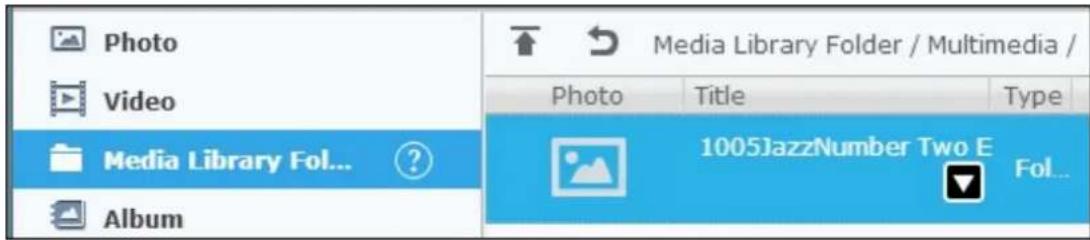
text_image
Photo Video Media Library Fol... Album Media Library Folder / Multimedia / Photo Title Type 1005JazzNumber Two E Fol...Note:
- The folders "Multimedia" and "Home Folder" are set as the media folder for photos, pictures and videos by default.
- Please note that the "Multimedia" and "Download" folders are public folders accessible to all users while "Home Folder" can only be accessed by its owner (users for whom the "Home" folder is created) and NAS administrators. For your private photos and videos reserved only to yourself, please consider storing them only in the "Home Folder".
- For configuration on media folders, please refer to the chapter on Media Library [439]. For user setup and configuration, please refer to the "User" section in the chapter on Privilege Settings [308].
- If the photos or videos uploaded do not show up in the Photo Station, please scan the Media Library and wait until the scan is finished. For details on the scan, please refer to the chapter on Media Library [439]
- Album: List all virtual albums. Click to add an album. Note that all entries listed under an album are only links to the physical files. This can effectively conserve your NAS storage space. Right click an album to rename or to download that album. Click to delete an album.
- Private Collection: the "Photo" under "Private Collection" lists all photos in the "Home" folder, while the "Video" lists all videos in the "Home" folder. Click to add an album. Note that, unlike album, all entries listed under an album are physical files. So, when a file is dragged and dropped to the album under "Private Collection", that file is moved to that album. Right click an album to rename, download, remove, or add it to sharing management. Click to delete an album.
- Recent: Include photos and videos recently imported (within a month) from local device or taken with a camera or recording device.
- Slideshow: List all slideshows. Click to add a slideshow. Drag and drop photos to
add them to a slideshow. Right click a slideshow to rename or download that
slideshow. Click to delete a slideshow. click a slideshow and then on top to play that slideshow.
- Sharing management: List all photos, videos, albums and slideshows already shared using the sharing feature in the right panel. Right click an entry, a menu will show up and choose to download, email, publish and share that entry from the menu (refer to
the Sharing feature in the right panel later in this chapter for details). Click delete a slideshow.

- Trash Can: All photos and videos deleted can be found here and right click the deleted item in the Trash Can to recover or permanently delete them. Note that only deleted physical files (instead of virtual links) will show up in the trash can.
Right Panel and Photo/Video Sharing Management
- EXIF ( ): Review photo/video EXIF information and photos can be geotagged here.
- Info ( ): Edit and browse photo/video details, tags and descriptions.
- Sharing ( ): Drag files to this area and share them via a link. There are three methods the links can be shared:
-
Email ( ): Share a link via email. Specify the sender, recipient, subject and message body of the email and click "Send" to send the email. Make sure your email account is properly configured. Go to "Control Panel" > "System Settings" > "Notifications" > "SMTP Server" for email configuration.
-
Social Sharing ( ): Share a link with selected files on social networking sites. Specify the subject and message body and click the social networking site icon to share.
-
Link ( ): Share a link by directly pasting it into an email or instant message. Under "Select Link Format", select the DDNS name, LAN IP or WAN IP address (note that the myQNAPcloud.com DDNS name is only available after it is registered in myQNAPcloud. Please refer to the chapter on myQNAPcloud Service for details) and HTML format (click to choose a URL link, HTML code, vB Forum code or Alt Forum code) from the drop down menu. Click "Create Link", specify the name of the album displayed on the page seen as recipients open the link. Copy and paste the URL link in the dialog window to your preferred applications.
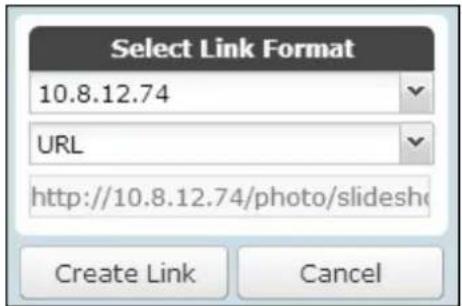
text_image
Select Link Format 10.8.12.74 URL http://10.8.12.74/photo/slidesh( Create Link CancelPhoto and video operations
Right click a photo or video, a drop down menu will show up, and users can choose to perform a desired action from the list.
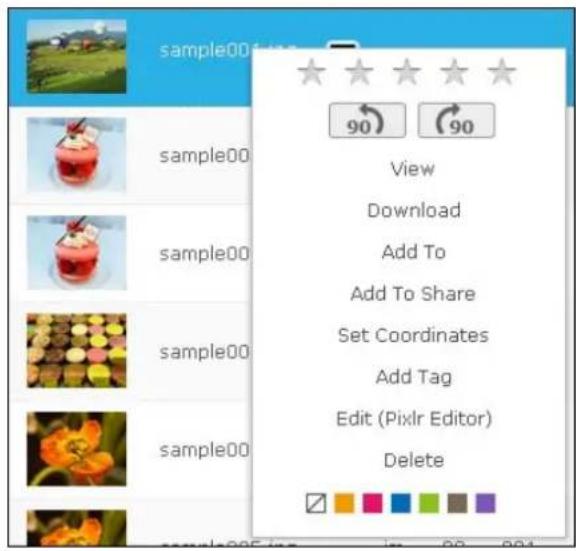
text_image
sample00 90 View Download Add To Add To Share Set Coordinates Add Tag Edit (Pixlr Editor) DeletePhoto

text_image
magicgo.asf vid... Open Download Add To Add To Share Add Tag DeleteVideo
| Operation | Description |
 | Rate the photo. |
 | Rotate the photo 90 degrees clockwise or counter-clockwise. |
| View | Switch to the viewing mode. |
| Open | Switch to the viewing mode. |
| Download | Download the photo. |
| Add to | Add the photo to an album, “Private Collection”, “Sharing Management” or “Slideshow”. |
| Add to Share | Add the photo to the “Sharing Management” in the right panel. |
| Set Coordinates | Set GPS information of a photo. |
| Add Tag | Add a tag to the photo. |
| Edit | Edit the photo. |
| Delete | Delete the photo. |
| Color-label the photo. |
To tag, rate or color label multiple photos or videos, first click on top of the screen or hold the Ctrl key on the keyboard, select your desired photos or videos and right click the photos or videos to perform desired actions.
After photos or videos are tagged, rated, or color labeled, they can be searched by their rating, color label or tag in the search box.

text_image
Search photo Video Folder Album 013-06-02 Private Collection Clear Title Photo date Tag ★★★★★ ★★★★★Photo and video viewing mode
Double click a photo to switch to the viewing mode.
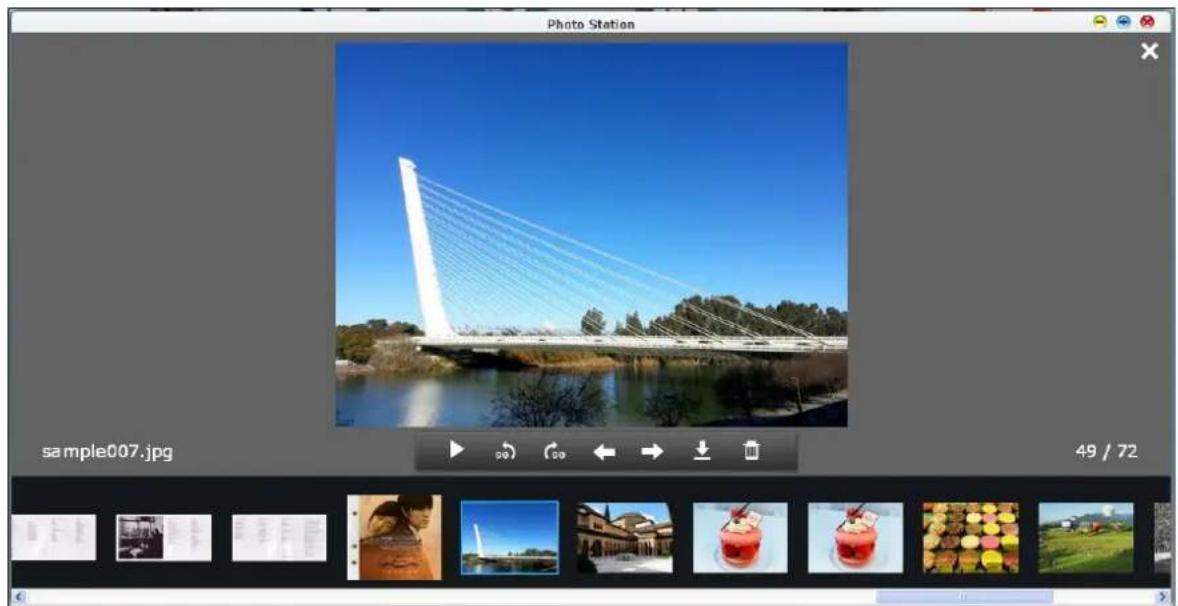
natural_image
Photo of a modern cable-stayed bridge over a river under a clear blue sky, displayed within an image viewer window.Photo viewing mode

text_image
Photo Station 1562.wmv 3 / 35Video viewing mode
Use the buttons on the menu bar for viewing operations.
| Icon | Description |
| Auto play photos or play a video. | |
 | Rotate the photo counter-clockwise by 90 degrees (for photos only.) |
 | Rotate the photo clockwise by 90 degrees (for photos only.) |
 | Play the last photo or video. |
 | Play the next photo or video. |
 | Download the photo or video. |
 | Delete the photo or video. Please note that the photos or videos deleted in the viewing mode will first be marked with an "X" on that photo or video ( [IMAGE] and only deleted as you exit the viewing mode. To unmark a photo or video, first select the marked photo or video and click  . . |
 | Switch back to the browsing mode. |
Playing slideshows
Select an album or slideshow and click to switch to the viewing mode.

text_image
Photo Station Testt (private) Face Medium Sappara café 2/4Use the buttons on the menu bar for slideshow or album operations.
| Icon | Description |
 | Play the slideshow or album. |
 | Go to the last slide. |
 | Go to the next slide. |
 | Turn the background music on (W6Y5)  f (). f (). |
 | Show the photo title. |
 | Switch back to the browsing mode. |
 (private) (private) | Switch between different playlists defined in the Music Station(from the "My Playlist" in the left panel.) Please refer to the chapteron Music Station for details. |
 | |
| Fade | Set a different slide transition effect. |

Set the slide speed.
Geotagging photos
To geotag a photo, first select a photo, click "Large Map" under the EXIF tab.

natural_image
Close-up photo of purple bougainvillea flowers with green foliage, no visible text or symbolsEnter the name of the location in the search bar on top and hit the Enter key in your keyboard. Right click the map and click "Set Coordinates".

Media Library and Privacy Settings
Photo and video files in the Photo Station are listed according to shared folder privileges (media folders) and settings in the Media Library. Photos and videos stored in the media shared folders are only visible after the files are detected and scanned by the Media Library. Users can store the files in their /home folder to hide them from other users. For details on media folder settings, please refer to the chapter on Media Library 4391
8.5 Music Station
The Music Station helps you create a personal music center on the cloud. This web-based application is designed for users to play music files on the NAS or a media server, listen to thousands of Internet radio stations using a web browser and share your music collections with your friends and families. Your music collection stored on the Turbo NAS is automatically organized into categories for easy browsing.
Before you start
- Enable the service in "Control Panel" > "Applications" > "Station Manager" > "Music Station". Click the link on the page to directly access the Music Station from the webpage.
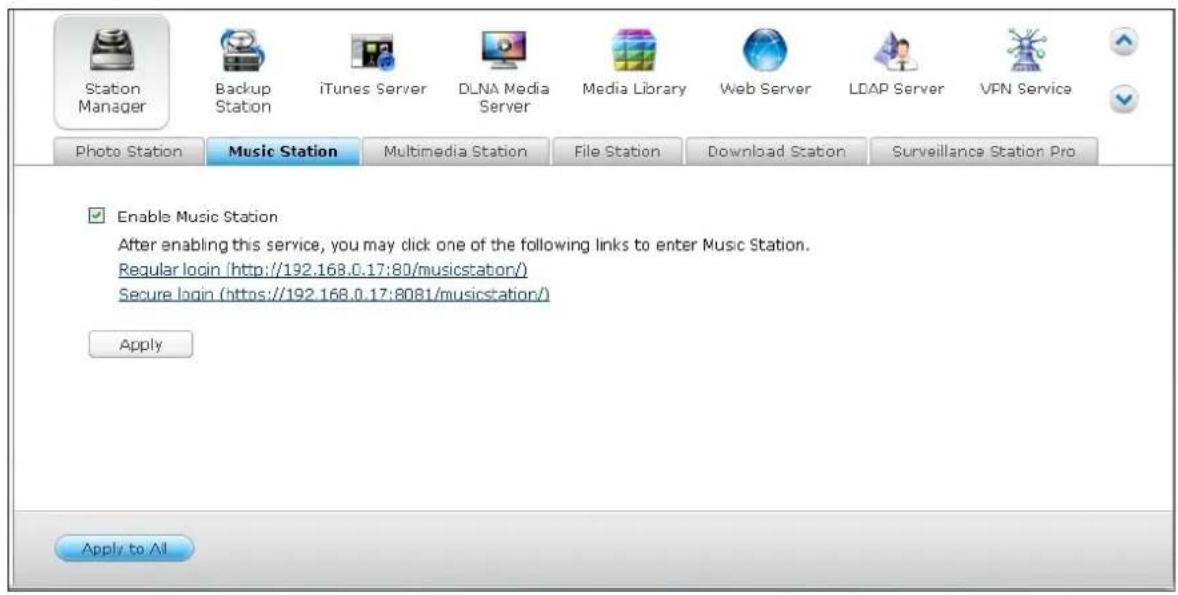
text_image
Station Manager Backup Station iTunes Server DLNA Media Server Media Library Web Server LDAP Server VPN Service Photo Station Music Station Multimedia Station File Station Download Station Surveillance Station Pro Enable Music Station After enabling this service, you may click one of the following links to enter Music Station. Regular login (http://192.168.0.17:80/musicstation/) Secure login (https://192.168.0.17:8081/musicstation/) Apply Apply to AllNote:
- The admin login credential of the Music Station is the same as that of the NAS administrator.
-
Users are recommended to upload or copy music files to the media shared folders and scan them using the Media Library if this is the first time the Music Station is launched. For details on media folders, please refer to the chapter on Media Library [439].
-
The Music Station can be launched from the Main Menu or the Music Station icon on the Desktop.
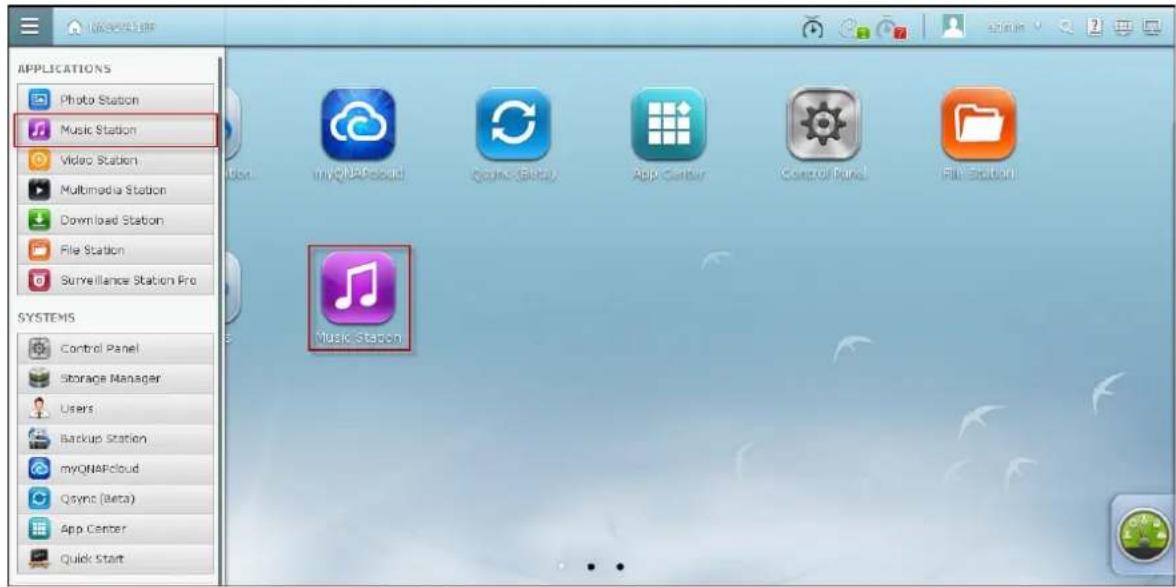
text_image
APPLICATIONS Photo Station Music Station Video Station Multimedia Station Download Station File Station Surveillance Station Pro SYSTEMS Control Panel Storage Manager Users Backup Station myQNAPcloud Qsync (Beta) App Center Quick Start MyQNAPcloud Qsync (Beta) App Center Cnspf01Pund File Station Music Station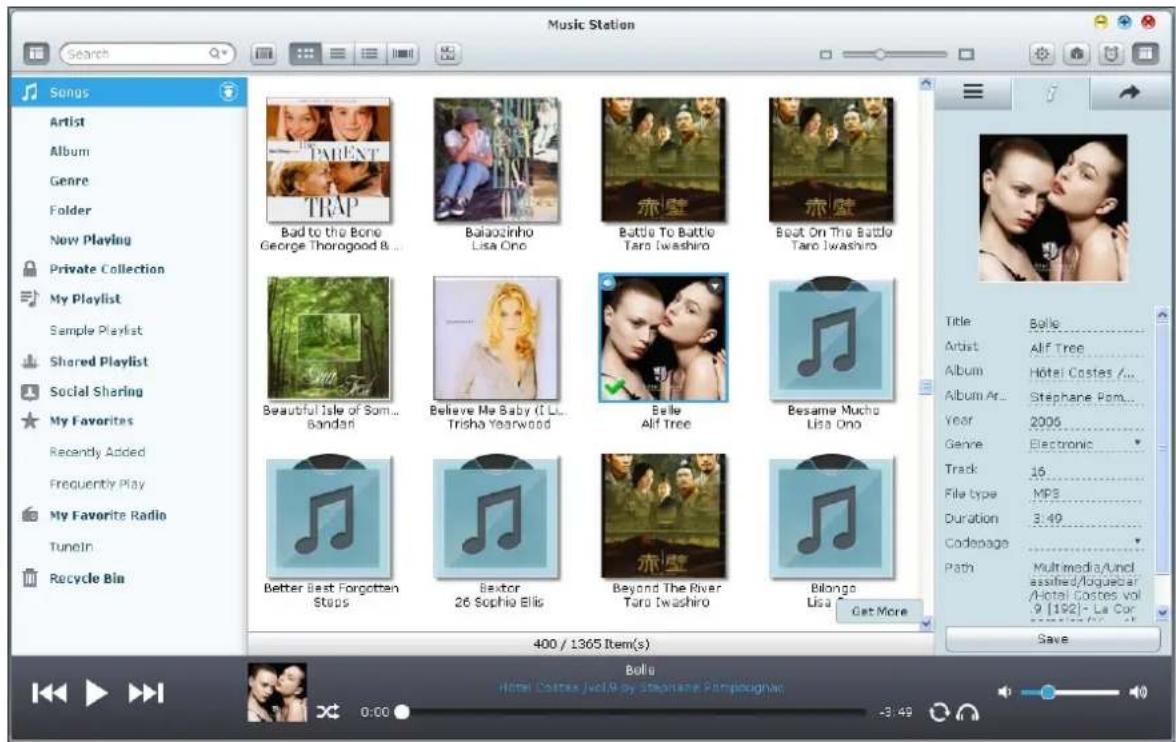
text_image
Music Station Search Songs Artist Album Genre Folder Now Playing Private Collection My Playlist Sample Playlist Shared Playlist Social Sharing My Favorites Recently Added Frequently Play My Favorite Radio Tunoin Recycle Bin PARENT TRAP Bad to the Bone George Thorogood & Baiapzinho Lisa Ono Battle To Battle Taro Iwashiro Beat On The Battle Taro Iwashiro Beautiful Isle of Som... Bandari Believe Me Baby (I L. Trisha Yearwood) Belle Alf Tree Besame Mucho Lisa Ono Better Best Forgotten Stops Bextor 26 Sophie Ellis Beyond The River Taro Iwashiro Bilongo Lisa Get More 400 / 1365 Item(s) Belle Hotel Costes (vol) by stehanane Pamploughway 0:00 -9:49 SaveMenu Bar
| Icon | Description |
 | Search music files in the Media Library by artist, album, or title. |
 | Switch between the thumbnail browsing mode ( ), detailbrowsing mode ( ), list browsing mode ( ), and cover flowbrowsing mode ( ) to list the songs. |
 | Set privileges on file access, NAS audio output, Internet radio,shared playlist and social sharing for users created in “Privilege Settings” > “Users”. |
 | Bring up the “Media Folder” page under the Media Library. |
 | Set the music alarm. |
Player
| Icon | Description | |
 | Play. | |
 | Pause. | |
 | Play the previous item. | |
 | Play the next item. | |
 | Shuffle on/off. | |
 | No repeat, repeat once, or repeat all. | |
 | Playing mode:• Streaming Mode: Stream the music files to the computer or the device and play them using a web browser. | |
 | Adjust the volume. | |
Left Panel
- Songs, Artist, Album, Genre, and Folder: All authorized music files are listed here for
users by the following categories: all songs, artist, album, genre and folder. Click next to Songs to upload songs from your PC. All imported contents are saved in the "/Multimedia" shared folder named with date.

- Now Playing: Songs in the "Now Playing" list can be reordered by drag-and-drop, or removing songs from the list.
- Private Collection: Personal music files in the "/home" folder are listed here. The music files belong only to the user that is currently logged in.
- My Playlist: Playlists can be created, managed, and deleted here. Up to 200 playlists can be created, and up to 600 items can be included in each playlist. To create a
playlist, click. To add items to a playlist, simply drag and drop music files to the list. Right click a playlist to rename or delete it, or add it to "Now Playing" and click

next to the playlist.
• Public playlist: All users can view public playlists and play music from them.
Authorized users can create, manage, and delete public playlists. A maximum of 200 public playlists can be created, and up to 600 items can be included in each public playlist.
- Sharing management: All shared music files on the right column are listed here. Users can edit or re-share them.
- My Favorites: All songs rated at least 1 star are listed here. All un-starred songs will be removed from here. To rate a song, switch to the detail, list, or cover flow browsing mode and click the star(s) under rating.
• Recently Added: Songs recently added to the Media Library are listed here.
- Frequently Played: Songs most frequently played are listed here.
- My Favorite Radio: User's favorite Internet radio stations can be added by entering the radio URL or by searching TuneIn Radio. A maximum of 1024 items are supported. Please note that the type of files the radio station URL points to must be MP3.
- TuneIn: Users can browse and play Internet radio stations streamed by TuneIn.
- Trash Can: All deleted music files can be found in here and permanently deleted or restored. Trash Can is always enabled.
Note:
- Characters not allowed for "My Playlist" and "Public Playlist" include: / | \ : ? <
* " ' and \$.
- Entries under "Recently Added" are listed based on the time they are scanned by the Media Library.
- The Music Station only supports the following file formats: MP3, OGG, WAV, AIFF, AU, FLAC, M4A and APE.
Right Panel and Music Sharing Management
- Lyrics ( ): Add lyrics to a song and browse them here.
- Info ( ): Edit and browse music details here.
- Sharing ( ): Drag music files to the area under "Songs" to share them as a link. There are three methods links can be shared:
-
Email ( ): Share the link via email. Specify the subject and message body of the message and click "Send" to send the email. Make sure your email account is properly configured. Go to "Control Panel" > "System Settings" > "Notification" > "SMTP Server" for email configuration.
-
Social Sharing ( ): Share a link with selected songs on social networking sites. Specify the subject and message body and click the social networking site to share.
-
Link ( ): Share a link by directly pasting it into an email or instant message. Under the "Link Code", select the DDNS name, LAN IP or WAN IP address for the link (Note that the myQNPcloud.com DDNS name is only available after it is registered in myQNAPcloud. Please refer to the chapter on myQNAPcloud Service for details) from the drop down menu. Click "Save", and copy and paste the URL link in the dialog window to your preferred applications.
text_image
Link Code 192.168.100.112 Save CancelMedia Library and Privacy Settings
Music files in the Music Station are listed according to shared folder privileges (media folders) and settings in the Media Library. Music files stored in the shared folders are only visible to users who have "Read/Write" or "Read Only" privileges to those shared folders, and after the music files are detected and scanned by the Media Library. Users can store
music files in their "/home" folder to hide them from other users. For details on the media folder settings, please refer to the chapter on Media Library 439
Note:
- Initially, shared folders are accessible to all users. To configure shared folder privileges for each shared folder, please go to "Control Panel" > "Privilege Settings" > "Users".
- Advanced Folder Permissions are not supported.
- Go to "Control Panel" > "Applications" > "Media Library" for detailed settings in the Media Library.
- For configuration on the Media Library and privilege settings, please refer to the chapter on Media Library 439
8.6 Multimedia Station
The Multimedia Station is a web-based application for viewing the photos, playing music and videos on the NAS by a web browser, and sharing files to popular social networking sites such as Facebook, Plurk, Twitter, Blogger, and so on.
To use the Multimedia Station, follow the steps below.
- Go to "Control Panel" > "Applications" > "Web Server". Turn on the web server feature. To allow access to the Multimedia Station by HTTPS, turn on the option "Enable Secure Connection (SSL)".
- Go to "Control Panel" > "Applications" > "Station Manager" > "Multimedia Station". Enable the service.
- Enable the option "Rescan media library" and specify the time for the NAS to scan the media library daily. The NAS will generate thumbnails, retrieve media information and transcode videos for the newly added files at the specified time every day.
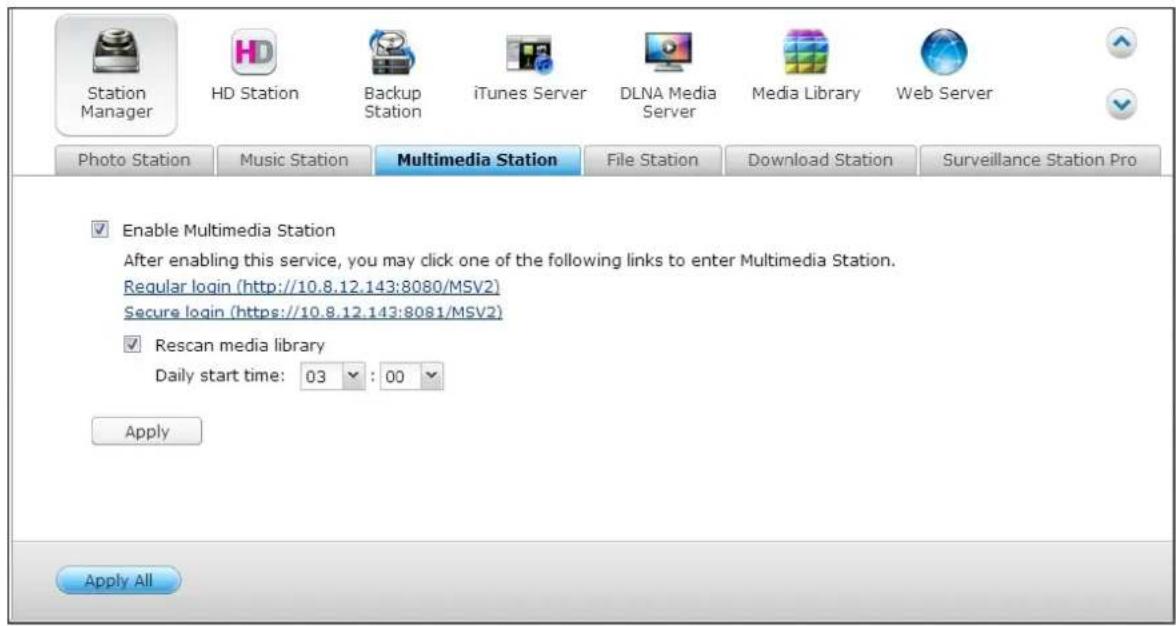
text_image
Station Manager HD Station Backup Station iTunes Server DLNA Media Server Media Library Web Server Photo Station Music Station Multimedia Station File Station Download Station Surveillance Station Pro Enable Multimedia Station After enabling this service, you may click one of the following links to enter Multimedia Station. Regular login (http://10.8.12.143:8080/MSV2) Secure login (https://10.8.12.143:8081/MSV2) Rescan media library Daily start time: 03 : 00 Apply Apply All- Connect to the Multimedia Station from the NAS Desktop or enter http://NAS_IP:80/MSV2/ or https://NAS_IP:8081/MSV2/ (secure connection) in a web browser. Login the application when you are prompted to. Only the administrator (admin) can create users and configure the advanced settings.

text_image
ONAP MULTIMEDIA STATION Home | Login | About | Help | English | Media Center View: All Sort: Name A→Z No public foldersfiles available for viewing Copyright ©2010 QNAP Systems, Inc. All Rights Reserved.Note: The admin login information of the Multimedia Station is the same as that of the NAS web login.
The Multimedia Station consists of the Media Center, My Jukebox, and Control Panel.

text_image
ONAP MULTIMEDIA STATION Home | My Photo Media Center My Music My Photo My Video Sample 1 Sample 2 Sample 3 Boston City Fla... Costa Rican Fr... IMG_0013.JPG IMG_0022.JPG IMG_0023.JPG IMG_0024.JPG IMG_0035.JPG IMG_0036.JPG IMG_0044.JPG IMG_0045.JPG IMG_0050.JPG IMG_0052.JPG IMG_0053.JPG IMG_0054.JPG IMG_0056.JPG IMG_0059.JPG IMG_0061.JPG IMG_0063.JPG IMG_0067.JPG IMG_0069.JPG IMG_0071.JPG IMG_0072.JPG IMG_0074.JPG IMG_0076.JPG IMG_0077.JPG IMG_0078.JPG IMG_0084.JPG IMG_0087.jpg Pensive Park...Media Center
The folders and multimedia files of the default shared folder (Qmultimedia/Multimedia) of the Multimedia Station are shown in Media Center. You can view or play the multimedia contents (images, videos, and audio files) on the NAS by a web browser over LAN or WAN.
Supported file form at
| Type | File form at |
| Audio | MP3 |
| Image | JPG/JPEG, GIF, PNG(The animation will not be shown for animated GIF files.) |
| Video | Playback: FLV, MPEG-4 Video (H.264 + AAC)Transcode: AVI, MP4, M4V, MPG, MPEG, RM, RMVB, WMV(The files will be converted to FLV.) |
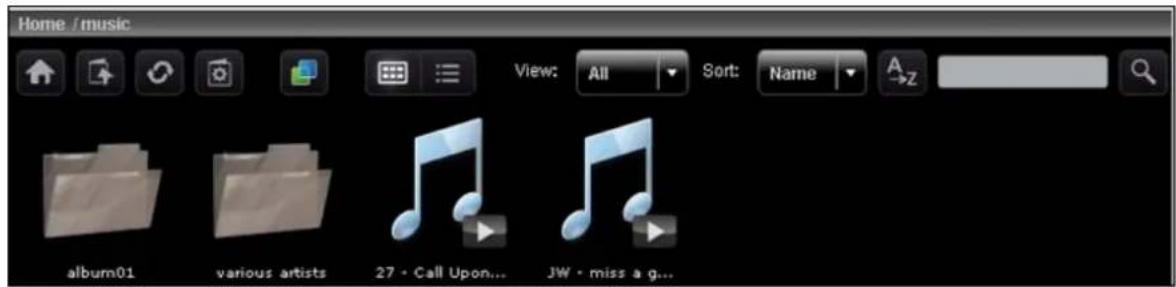
text_image
Home / music View: All Sort: Name A Z album01 various artists 27 - Call Upon... JW - miss a g...| Icon | Description |
 | HomeReturn to the home directory of the Multimedia Station. |
 | Parent DirectoryReturn to the parent directory. |
 | RefreshRefresh the current directory. |
 | Manage Album*You can: 1. create albums under the current directory and 2. add files to the album by copying or uploading files to the directory. |
 | Set Album Cover*You can set up the album cover for each album/directory by specifying one photo in the album/directory. |
 | CoolirisBrowse your photos in 3-dimensional way with Cooliris. You need to install the Cooliris plug-in for the web browser. |
 | Slide ShowStart the slide show. You can set up the photo frame, background music, and animation in the slide show mode. |
 | Publish*Publish the chosen photos (max. 5 photos) to popular social networking sites: Twitter, Facebook, MySpace, Plurk, Windows Live, or Blogger. Note that the album must be set to public (Control Panel > Set Folder Public) before it can be published, and the Multimedia Station must be accessible from the Internet. It is suggested to set up the DDNS for the NAS before using this feature. |
 | Email*Send photos (max. 5 photos) to friends by emails. Note that you have to set up the SMTP server in the NAS administration console before using this feature. |
 | ThumbnailsBrowse the files in thumbnail view (default). |
 | DetailsBrowse the files in detailed view. It supports the functions: Open, Rename, Delete, Download, and Full Image View. |
 | SortSort the files alphabetically in ascending or descending order. |
 | SearchSearch files within the current directory. |
*These features can only be operated by the administrator.
Playing music
Click an MP3 file to play the music by a web browser. When you click a music file in a folder, all the other supported music files in the folder will also be added to the playlist. Click "X" to exit.

text_image
01 Love of My Life.mp3 01 Love of My Life.mp3 02 Can't Live a Day.mp3 03 Celebrate You.mp3 04 If You Could See What I See.mp3 05 Answered Prayer.mp3 06 God Causes All Things to Grow.mp3 07 Love Will Be Our Home.mp3 08 Go There with You.mp3 09 How Beautiful.mp3 10 Shine on Us.mp3 11 In Remembrance of Me.mp3 12 Household of Faith.mp3 Title: 01 Love of My Life Artist: Album: Year: Track: 0 Genre : 255 02:04 / 04:50 Volume:Viewing image files
When viewing an image file, click "EXIF" to view the detailed information such as file name, size, date, and aperture. To add a caption for the file, click "Edit caption" and enter the description. The description must not exceed 512 characters.
You can also submit your comments on the image file and view the comments from other users on "All comments". Each comment cannot exceed 128 characters.

text_image
EXIF Photo Frame Comment All comments Edit caption Name: admin Comment: SubmitSetting background music
To set the background music of an image file or a folder of image files, make sure you have created a playlist in "Control Panel" > "Playlist Editor" (to be introduced later) in the Multimedia Station.
Open an image file in Media Center and click

natural_image
Close-up of white flowers in a grassy field with blurred background, no text or symbols visibleSelect the playlist and click "Save". To remove the background music, you can select "No music".
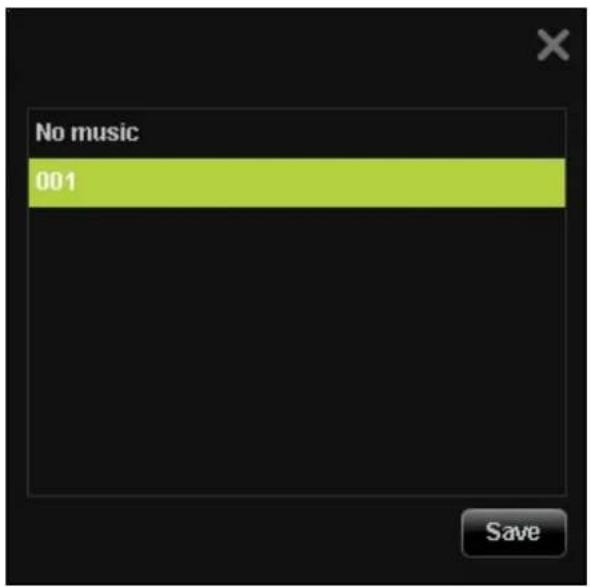
text_image
No music 001 SaveCreating album
To create an album (folder) by the web-based interface of the Multimedia Station, locate
the directory in Media Center. Click (Evaluate Album).
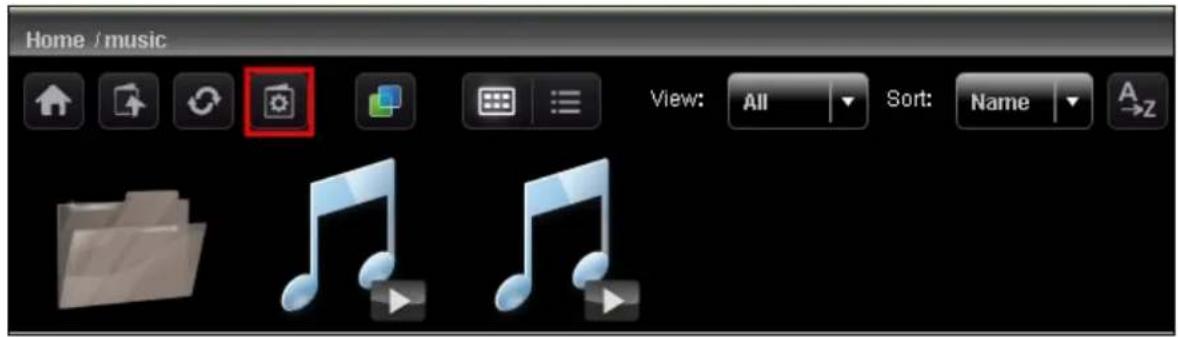
text_image
Home / music View: All Sort: Name A→ZSelect "Create New Album" and enter the album name. Click "Next".
The album name must be 1 to 64 characters long, and cannot contain | \ : ? " < > *
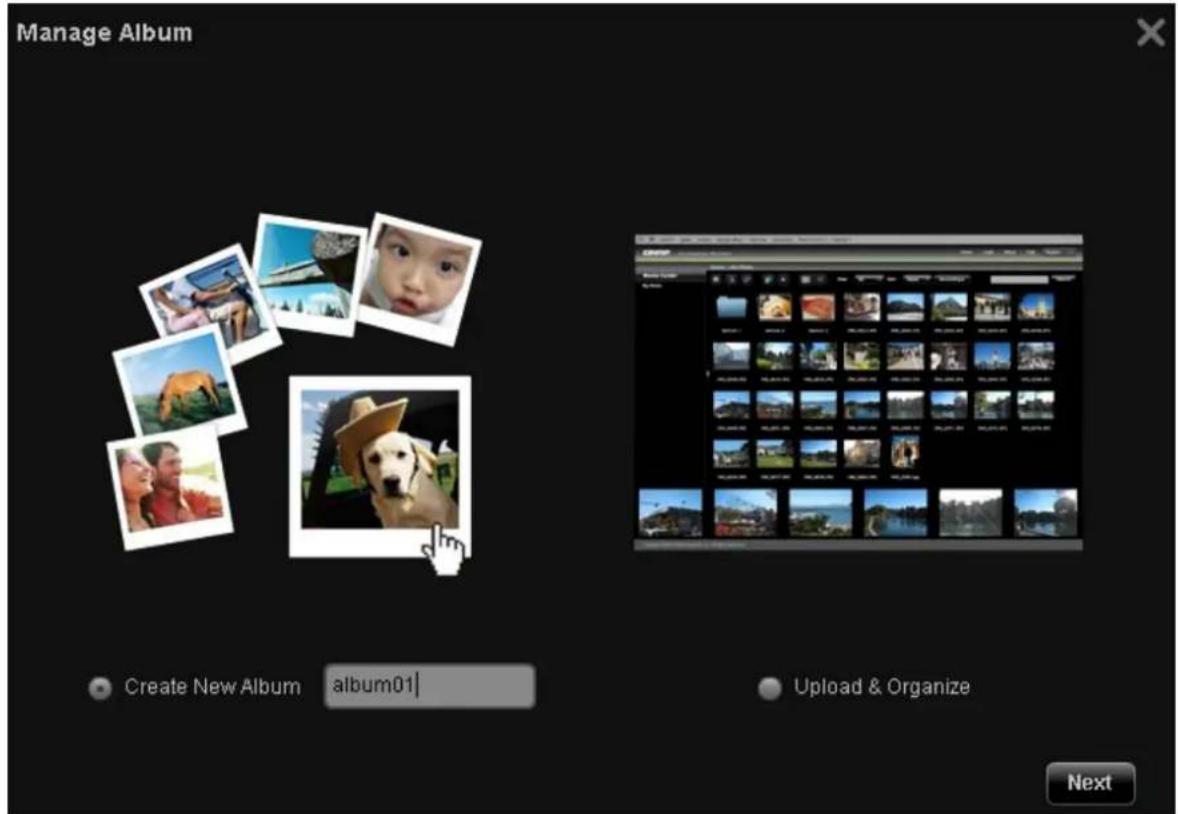
text_image
Manage Album Create New Album album01 Upload & Organize NextTo copy the files from other location in Media center to the album, select "File Copy", choose the files to copy and click >. Then click "File Copy" to start copying the files.

text_image
Manage Album Note: The files of the same name as the files in the destination folder will be skipped. File Copy File Upload Current Path: Home/photos music photos video Song_of_Solomon_01.mp3 Song_of_Solomon_01.mp3 File CopyTo upload files to the album, click "Browse" to select the files and click "File Upload".

text_image
Manage Album Note: The files of the same name as the files in the destination folder will be skipped. File Copy File Upload Current Path: Home/photos 2010-05-18_095043.png 2010-05-20_153954.png 2010-05-18_095043.png 2010-05-18_111205.jpg Browse Remove File UploadManaging album
To manage an album (folder) by the web-based interface of the Multimedia Station,
locate the directory in Media Center. Click (Activate Album).
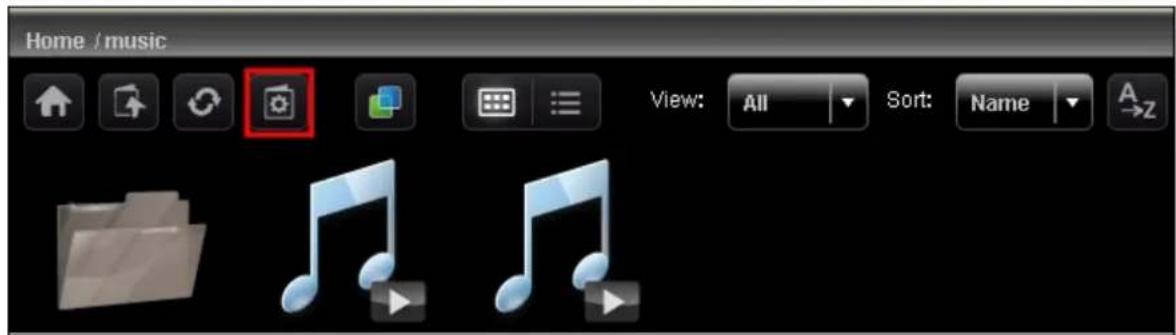
text_image
Home / music View: All Sort: Name A →ZSelect "Upload & Organize" and click "Next".

text_image
Manage Album Create New Album Upload & Organize NextTo copy the files from other location in Media center to the album, select "File Copy", choose the files to copy and click >. Then click "File Copy" to start copying the files. To upload files to the album, click "Browse" to select the files and click "File Upload".
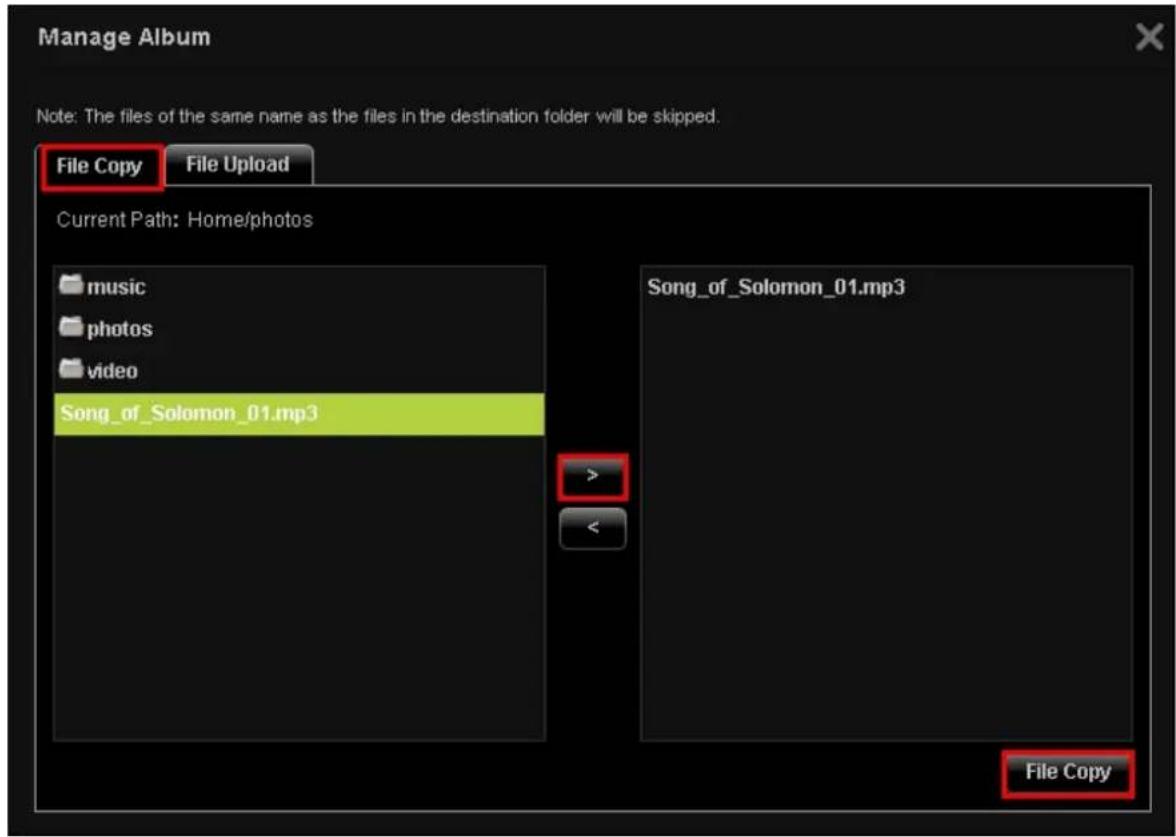
text_image
Manage Album Note: The files of the same name as the files in the destination folder will be skipped. File Copy File Upload Current Path: Home/photos music photos video Song_of_Solomon_01.mp3 Song_of_Solomon_01.mp3 File CopyYou can click to browse the multimedia contents in details and click the icons to open, rename, delete, or download the files or folders.

text_image
Home / music View: All Sort: Name A Name Date Type Size album01 2010/05/17 Folder various artists 2010/05/17 Folder 27 - Call Upon.mp3 2009/11/25 audio 8,136KBSetting album cover
To set an image file as the album cover, click


text_image
Home / photos View: 1024-768.jpg 12616-1920-1... 12650-1600-1... 1272-1600-12... 12_61_52_pre... flowers.jpg Snowdrops.jpgSelect the image file and click "Save".
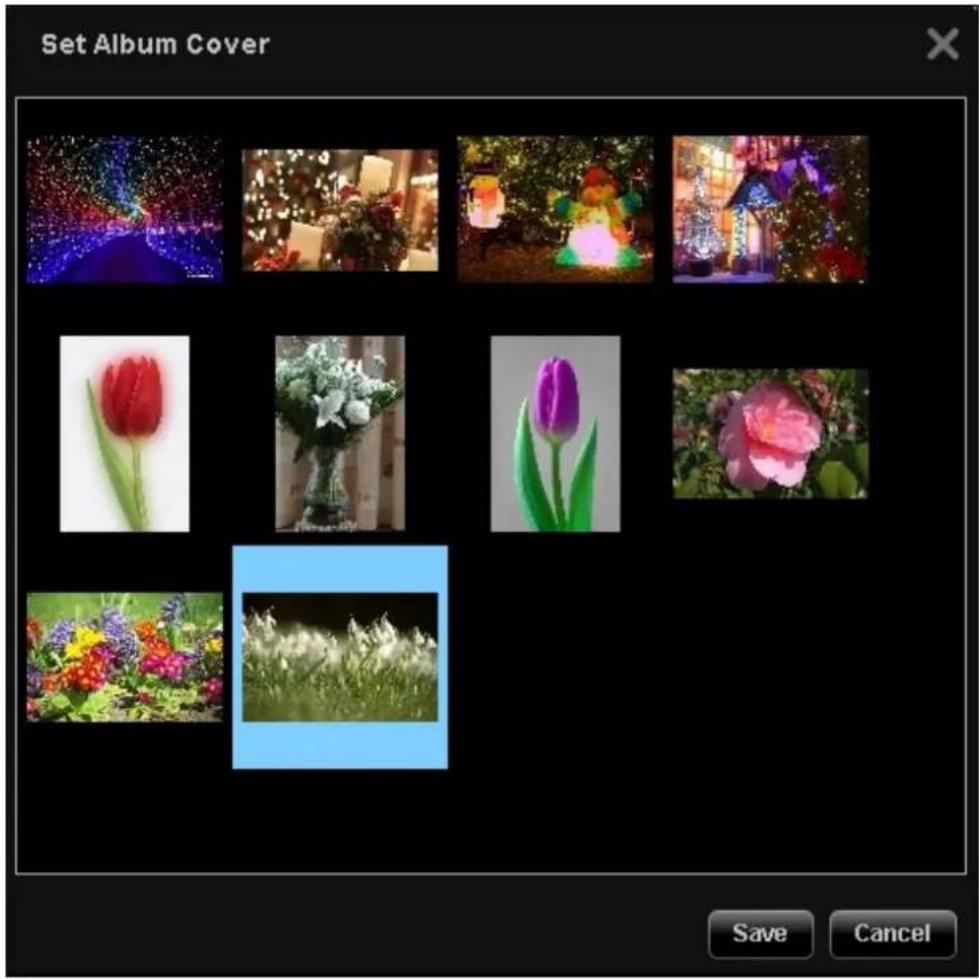
text_image
Set Album Cover Save CancelSlideshow
Click to view multiple image files in slide show. Select the playback speed (3s/6s/9s/15s) and the slide show effect (for full screen display) from the drop-down menu. You can also select the photo frame for displaying the image file. To view the
image files in 3-dimensional (3D) display, click

natural_image
Digital photo of a red tulip against a white background, displayed within an image editing software interface (no text on the flower or background)Publishing image files
You can publish the image files on the Multimedia Station to social networking sites such
as Facebook and Twitter. Click


text_image
Home /photos 01 Love of My ... 1024-768.jpg 12616-1920-1... 12650-1600-1... 1272-1600-12... 12_61_52_pre... 12_69_4_prev.... flowers.jpg JW_Missing_A... Snowdrops.jpgSelect the image files to publish. You can publish maximum 5 photos at a time. Enter the title and description. Then select the website to publish the files to and enter the login information of the website. Note that the album must be set to public (Control Panel > Set Folder Public) before it can be published, and the Multimedia Station must be accessible from the Internet. It is suggested to set up the DDNS for the NAS before using this feature.
| Field | Limitation |
| Title | Maximum number of characters: 256 |
| Link (the IP address or host name of the NAS) | Support alphanumeric characters, dot (.), and slash (/) onlyMaximum number of characters: 256 |
| Description | Maximum number of characters: 1024 |
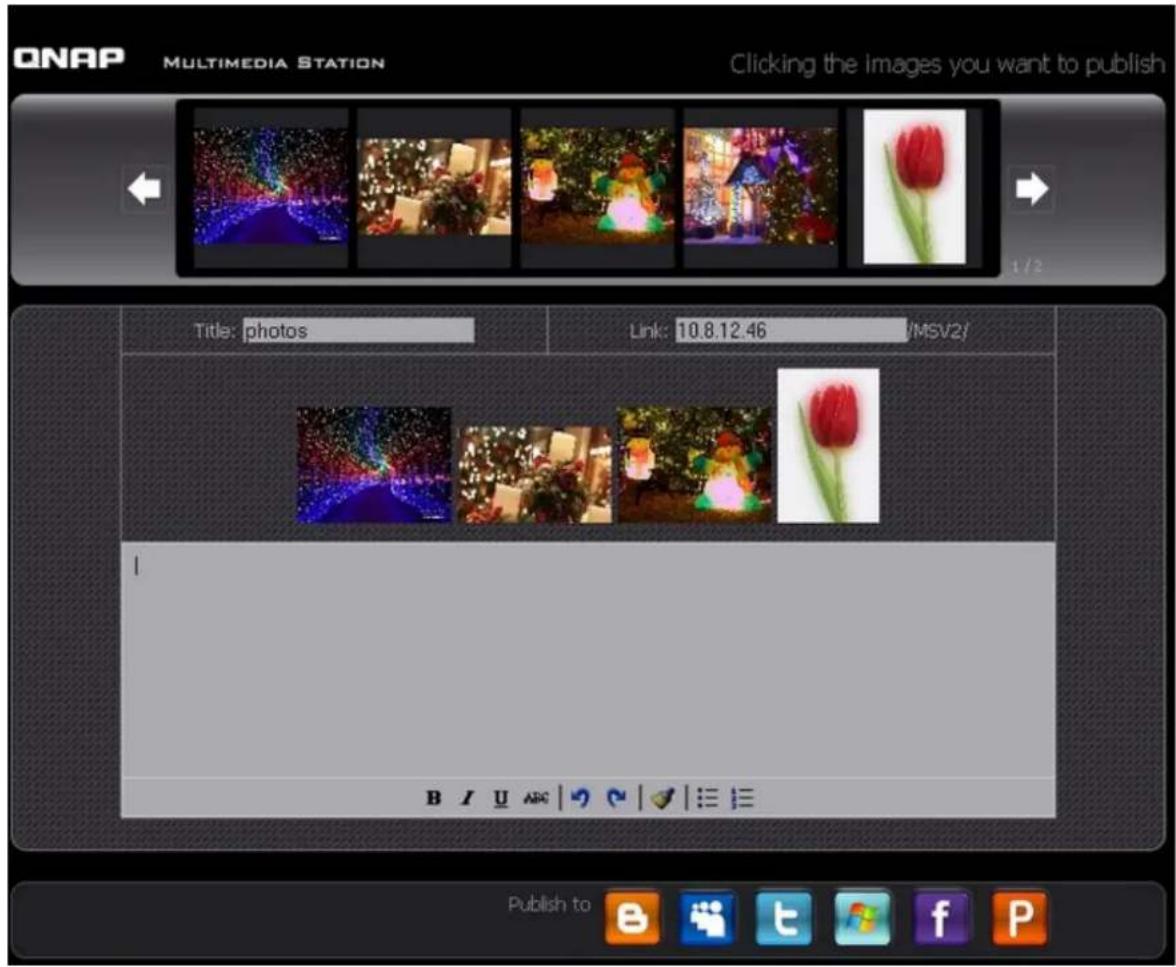
text_image
ONAP MULTIMEDIA STATION Clicking the images you want to publish Title: photos Link: 10.8.12.46 /MSV2/ B I U ABC | 📋 | 🕒 | 🌐 | 🌞 | 🐎 Publish to B t f PEmailing image files
To email the image files, make sure SMTP server settings have been correctly configured
on the NAS. Click

Enter the information and click "Send".
| Field | Lim itation |
| Subject | Maximum number of characters: 128 |
| My Name | The name only supports alphabets (A-Z and a-z), numbers (0-9), dash (-), and underscore (_) |
| My Email | Maximum number of characters: 128 |
| Friend's Name | Maximum number of characters: 128 |
| Friend's Email | Maximum number of characters: 128 |
| Message | Maximum number of characters: 1024 |

text_image
ONAP MULTIMEDIA STATION Clicking the images you want to publish Selected Images Subject: My Name: admin My Email: Friend's Name: Friend's Email: Message: You can post your personal message here. SendPlaying video
The NAS supports playing video files on the web browser. Simply click a video file on the web page, the NAS will start playing it. If you click a video file in a folder, all other supported video files in the folder will also be shown in the playlist and played. Click "X" to exit the playback page.

text_image
QNAP TS-639 Pro Turbo NAS.MP4 ALL-IN-ONE SERVER QNAP TS-639 Pro Turbo NAS.MP4 00:01:19 / 00:07:27 seeking Volume: Copyright ©2010 QNAP Systems, Inc. All Rights Reserved.Transcoding video
If the video files are in AVI, M4V, MPG/MPEG, RM/RMVB, WMV formats, you need to transcode the file in order to play it on the Multimedia Station properly. A video file which can be transcoded is shown with an icon like below in thumbnail view.

Click the icon and confirm to perform video transcoding. Wait patiently when transcoding is in process.

text_image
View: All Sort: Name 22 2010-05-05 2... QNAP TS-639 ... QNAP TS-639 ... test.AVI test.flvThe video will be converted to FLV format. You can then play it on your web browser. Only administrators are allowed to transcode a video.
QNAP does not guarantee all video formats or codecs are supported. You are highly recommended to convert the video files into the formats that the Multimedia Station supports before uploading the files to the NAS.

text_image
Home /video View: All Sort: Name A Name Date Type Size 22 2010/05/17 Folder 2010-05-05 22-00-07~22-01-09.avi 2010/05/17 video 2,010KB QNAP TS-639 Pro Turbo NAS_MP4 2010/05/13 video 27,849KB QNAP TS-639 Pro Turbo NAS_2.MP4 2010/05/17 video 27,852KB test.AVI 2010/05/17 video 129,870KB test.flv 2010/05/17 video 40,477KBMy Jukebox
You can create playlists of music files and play them in My Jukebox. The album art and its information will be read from the ID3 tag automatically if applicable.
To create or edit your own playlist for My Jukebox, go to "Control Panel" > "Playlist Editor". Note that only the administrators can edit the playlists. The playlists in My Jukebox will be shared with all the users of the Multimedia Station.
Control Panel
User Management:
You can create multiple user accounts on the Multimedia Station. Note that the user accounts created here are different from the system accounts you create on NAS (Privilege Settings> Users). Click "Add User" to create a user. The maximum number of users the Multimedia Station supports is 128, including "admin".
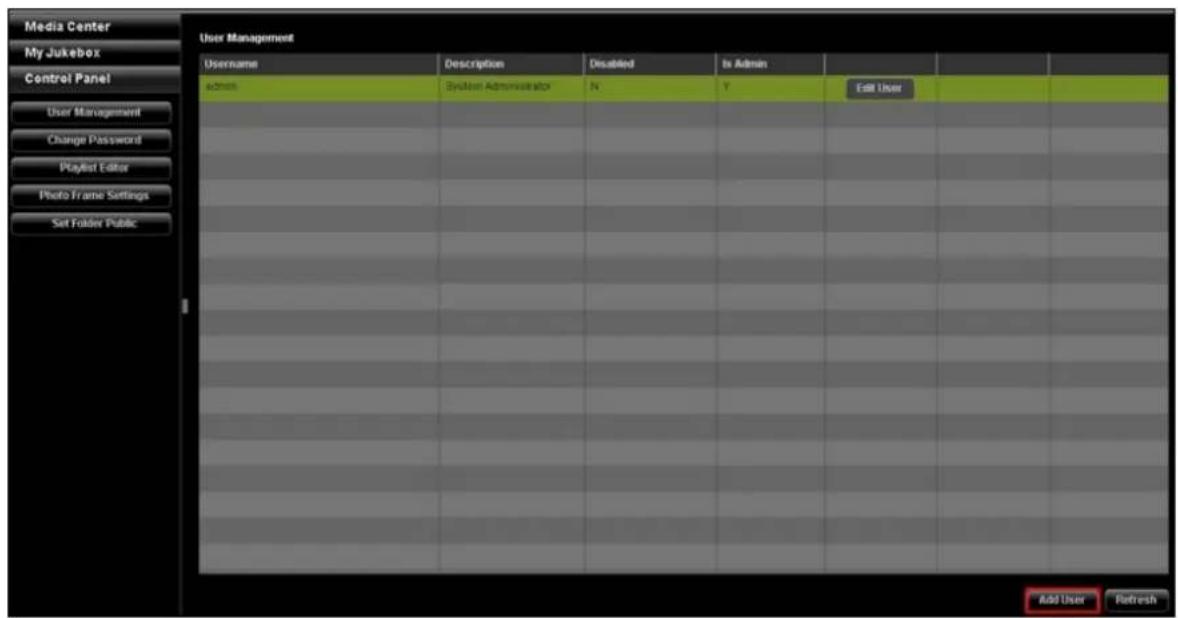
text_image
Media Center My Jukebox Control Panel User Management Username Description Disabled Is Admin admin System Administrator N Y Edit User User Management Change Password Playlist Editor Photo Frame Settings Set Folder Public Add User RefreshEnter the user information. The username only supports alphabets (A-Z and a-z), numbers (0-9), dash (-), and underscore (_). The username cannot exceed 32 characters.
Specify whether or not the user is an administrator and the folders that the user can or cannot access. Click "Save". Note that the password must be 1 to 16 characters long. It can only contain A-Z, a-z, 0-9, -, !, @, #, \$, %, _.
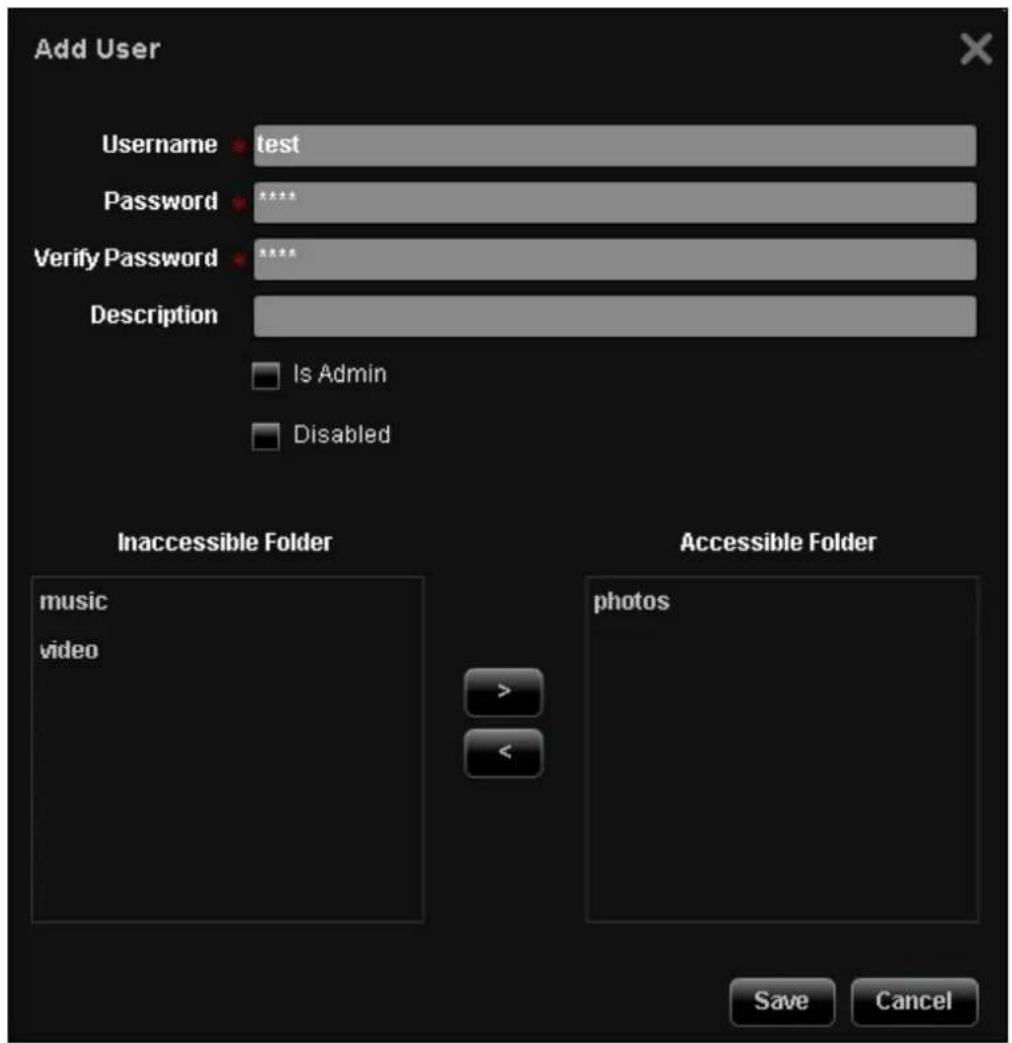
text_image
Add User Username test Password ****** Verify Password ****** Description Is Admin Disabled Inaccessible Folder music video Accessible Folder photos Save CancelThe users are shown on the list. You can edit the user information, delete the user, or change the login password. Note that the default account "admin" cannot be deleted.

text_image
User Management Username Description Disabled Is Admin admin System Administra N Y Edit User test N N Edit User Delete User Change PasswordChanging Password
You can change the administrator password in this section. The password must be 1 to 16 characters long. The password can only contain A-Z, a-z, 0-9, -, !, @, #, \$, %, _.

text_image
Media Center My Jukebox Control Panel User Management Change Password Playlist Editor Photo Frame Settings Set Folder Public User Management Username Description Disabled Is Admin Change Password Old Password New Password Verify Password SavePlaylist Editor
To create a playlist, enter Playlist Editor. Select an existing playlist from the drop down menu or click "Add" to create a playlist.
Next, select the music files from the left column (folders on the Multimedia Station) and click > to add the files to the playlist. Click "Save" and then "Close".
After creating the playlist, you can play it in My Jukebox.
| Maximum number of characters in a playlist | 24 |
| Maximum number of songs in a playlist | 512 |
| Maximum number of playlists | 128 |
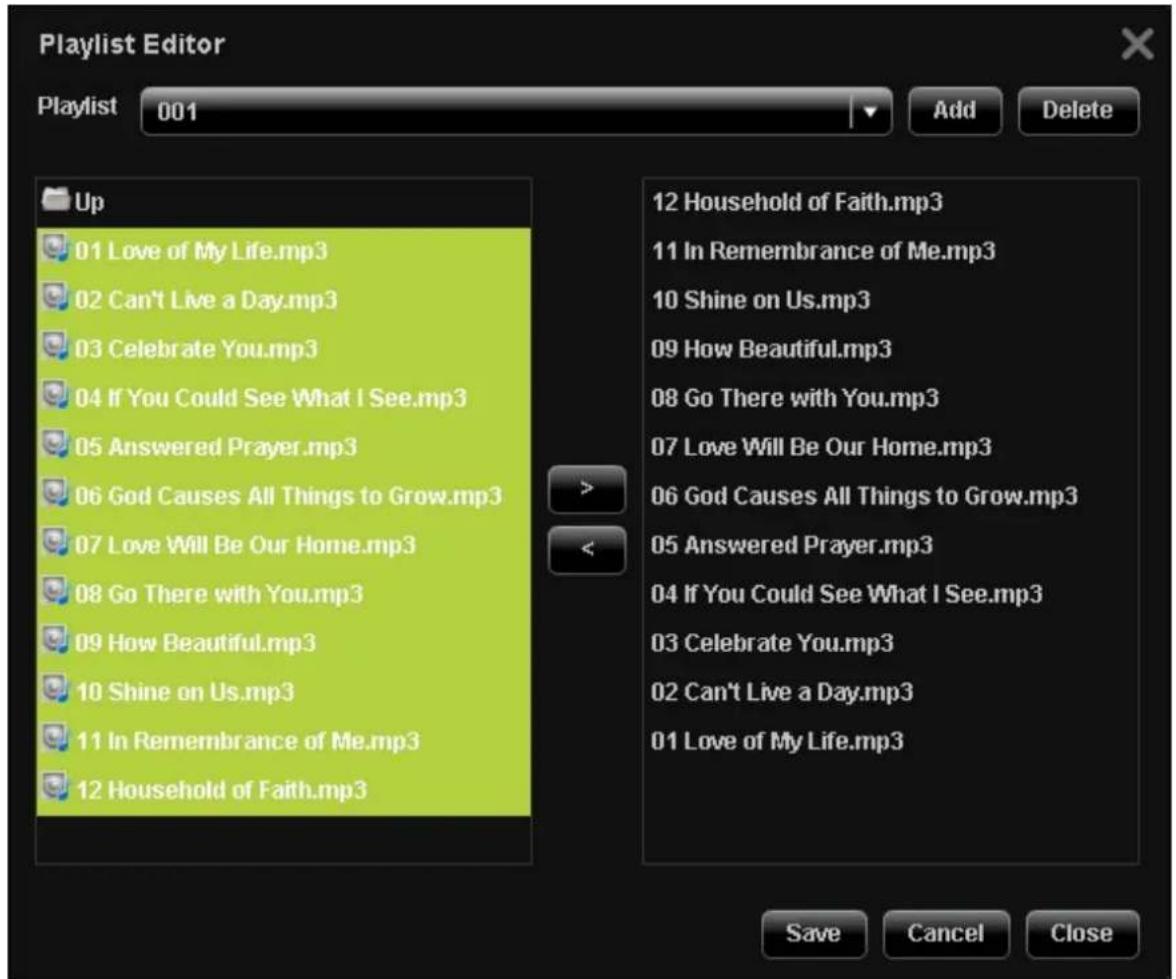
text_image
Playlist Editor Playlist 001 Add Delete Up 01 Love of My Life.mp3 02 Can't Live a Day.mp3 03 Celebrate You.mp3 04 If You Could See What I See.mp3 05 Answered Prayer.mp3 06 God Causes All Things to Grow.mp3 07 Love Will Be Our Home.mp3 08 Go There with You.mp3 09 How Beautiful.mp3 10 Shine on Us.mp3 11 In Remembrance of Me.mp3 12 Household of Faith.mp3 12 Household of Faith.mp3 11 In Remembrance of Me.mp3 10 Shine on Us.mp3 09 How Beautiful.mp3 08 Go There with You.mp3 07 Love Will Be Our Home.mp3 06 God Causes All Things to Grow.mp3 05 Answered Prayer.mp3 04 If You Could See What I See.mp3 03 Celebrate You.mp3 02 Can't Live a Day.mp3 01 Love of My Life.mp3 Save Cancel ClosePhoto Frame Settings
You can upload your photo frames for viewing the image files. The suggested resolution is 400 (width) x 300 (height) pixels, or you can use an image with 4:3 aspect ratio. The supported format is PNG. To add a photo frame, click "Add" and upload the file.
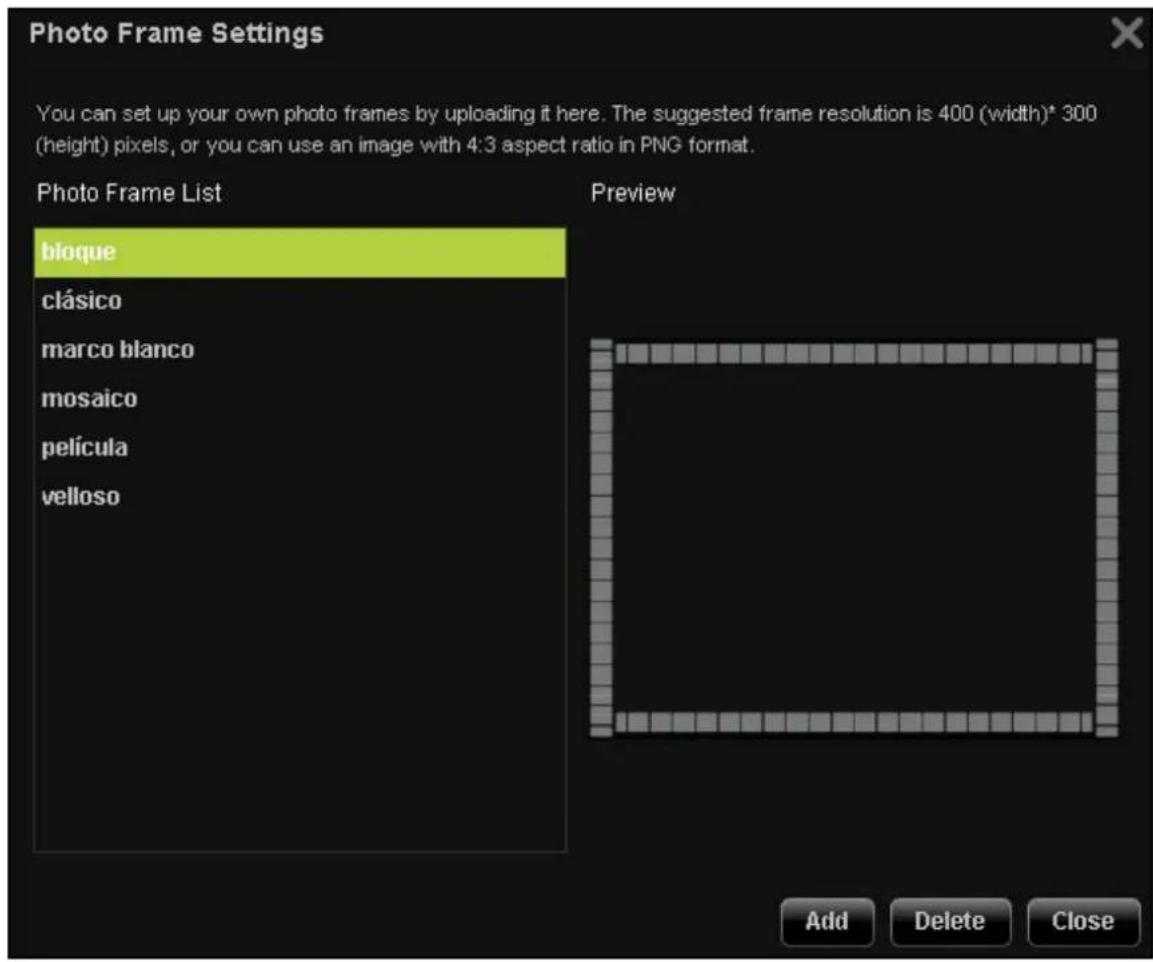
text_image
Photo Frame Settings You can set up your own photo frames by uploading it here. The suggested frame resolution is 400 (width)* 300 (height) pixels, or you can use an image with 4:3 aspect ratio in PNG format. Photo Frame List bloque clásico marco blanco mosaico película velloso Preview Add Delete CloseThe name of a photo frame must be 1 to 16 characters long. The maximum number of photo frames the Multimedia Station supports is 64 (including the system default photo frames). Note that the system default photo frames cannot be deleted.
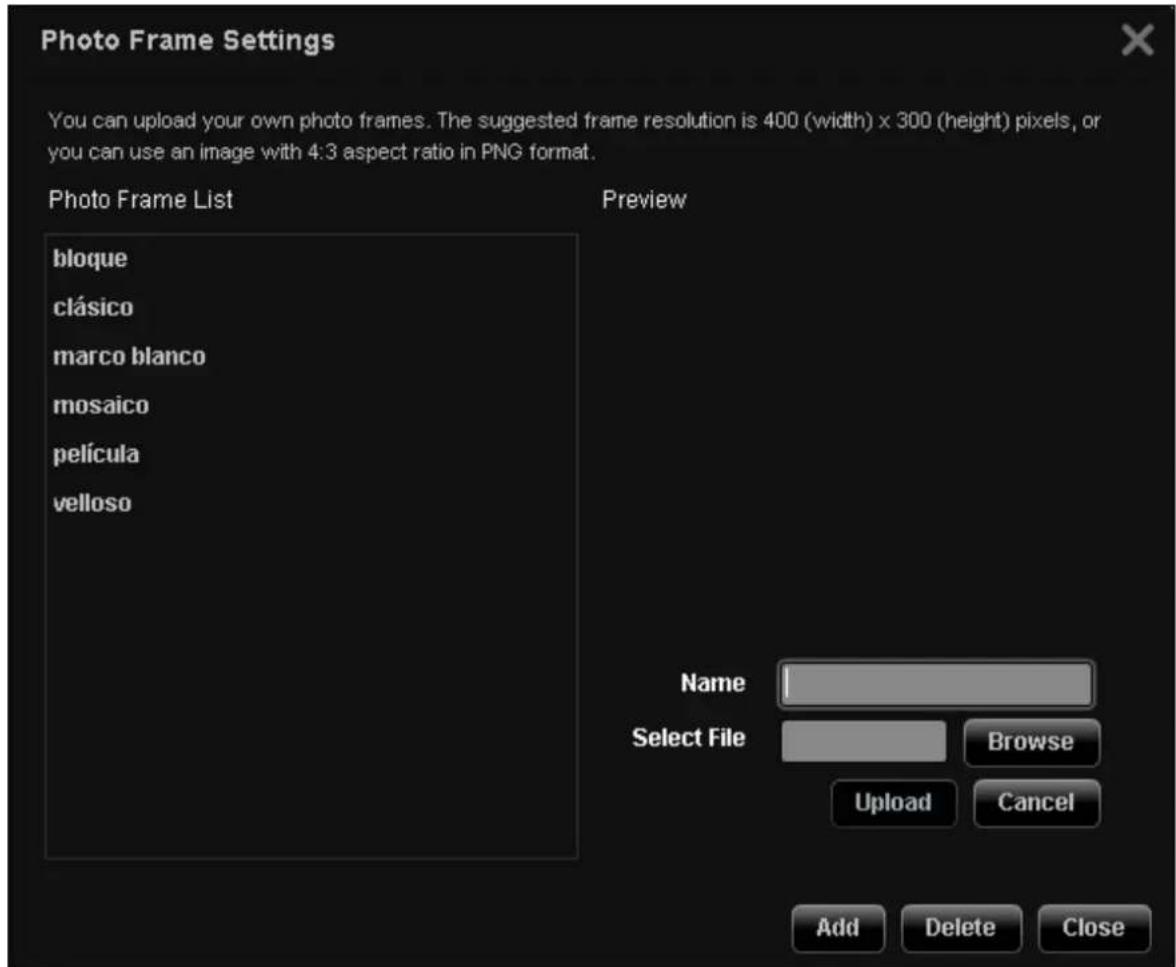
text_image
Photo Frame Settings You can upload your own photo frames. The suggested frame resolution is 400 (width) x 300 (height) pixels, or you can use an image with 4:3 aspect ratio in PNG format. Photo Frame List Preview bloque clásico marco blanco mosaico película velloso Name Select File Browse Upload Cancel Add Delete CloseSetting Folder Public
To publish the image files to the Web, you have to make the folder public. Select the folder to allow public access and click >. Then click "Save". Note that the public folders will be seen and accessed by anyone without logging in the Multimedia Station.
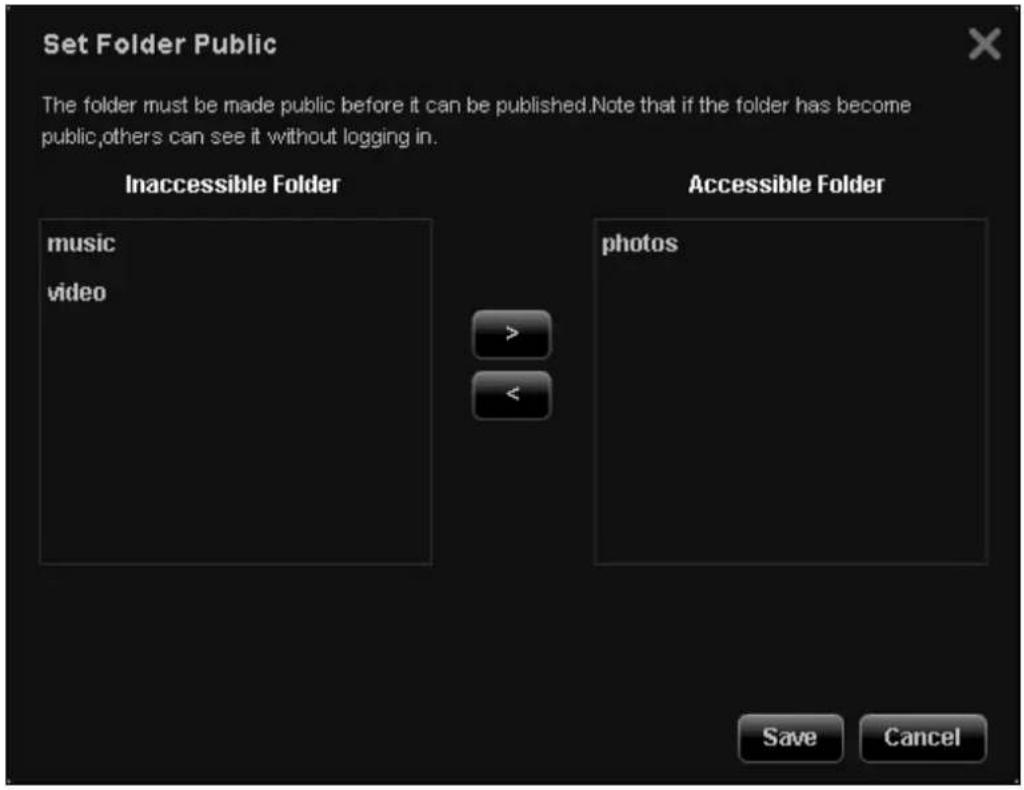
text_image
Set Folder Public The folder must be made public before it can be published. Note that if the folder has become public, others can see it without logging in. Inaccessible Folder music video Accessible Folder photos Save Cancel8.7 Download Station
The Download Station supports BT, HTTP, FTP, RapidShare, and Magnet download without a PC.

Important: Please be warned against illegal downloading of copyrighted materials. The Download Station functionality is provided for downloading authorized files only. Downloading or distribution of unauthorized materials may result in severe civil and criminal penalty. Users are subject to the restrictions of the copyright laws and should accept all the consequences.
Go to "Control Panel" > "Applications" > "Station Manager" > "Download Station". Enable the service.
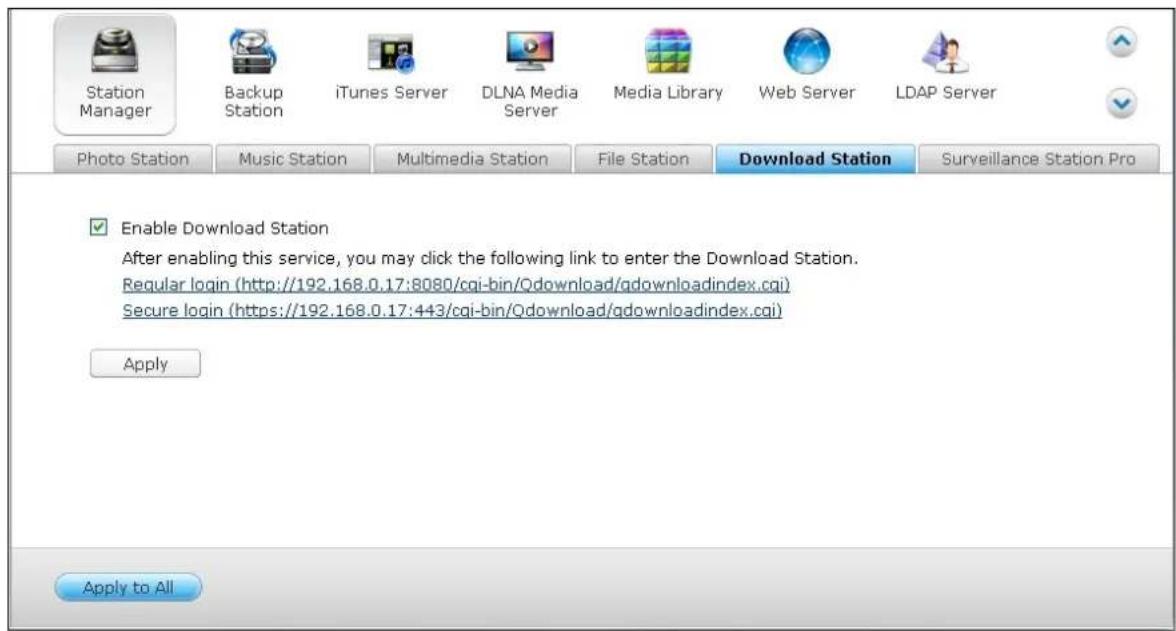
text_image
Station Manager Backup Station iTunes Server DLNA Media Server Media Library Web Server LDAP Server Photo Station Music Station Multimedia Station File Station Download Station Surveillance Station Pro Enable Download Station After enabling this service, you may click the following link to enter the Download Station. Regular login (http://192.168.0.17:8080/cqi-bin/Qdownload/gdownloadindex.cqi) Secure login (https://192.168.0.17:443/cqi-bin/Qdownload/gdownloadindex.cqi) Apply Apply to AllDownload Station Login
Connect to the Download Station from the NAS Desktop or Main Menu.
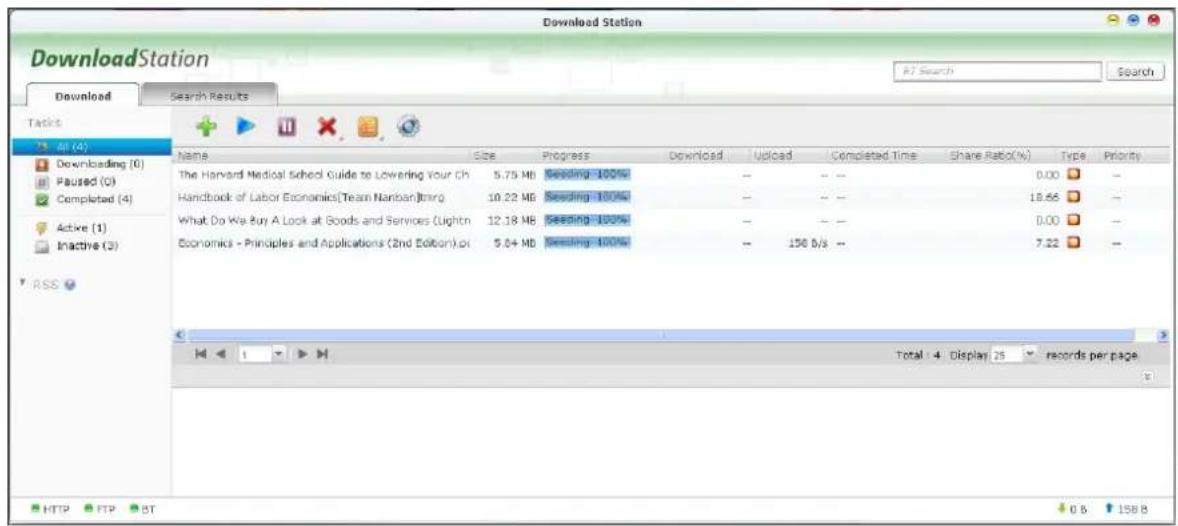
text_image
Download Station DownloadStation R7 Search Search Download Search Results Tasks All (4) Downloading (0) Paused (0) Completed (4) Active (1) Inactive (3) RSS Name Size Progress Download Upload Completed Time Share Ratio(%) Type Priority The Harvard Medical School Guide to Lowering Your Ch 5.75 MB Reading 100% -- -- 0.00 - Handbook of Labor Economics(Team Nanben)trng 10.22 MB Reading 100% -- -- 18.66 - What Do We Buy A Look at Goods and Services (Lightn 12.18 MB Reading 100% -- -- 0.00 - Economics - Principles and Applications (2nd Edition).pc 5.64 MB Reading 100% -- 156 b/s - Total: 4 Display 25 records per page HTTP FTP ST 0.6 158 B
Before you start to download the files, click to configure the settings.
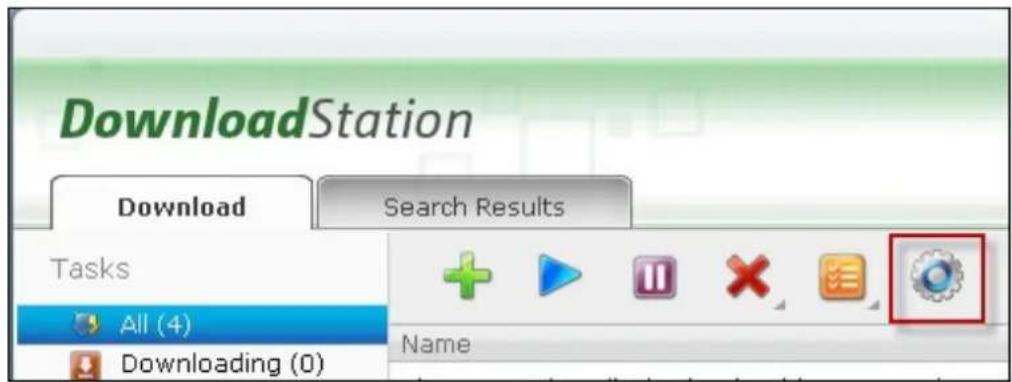
text_image
DownloadStation Download Search Results Tasks All (4) Downloading (0) NameSettings
Global Settings
- Download Schedule: Select continuous download or specify the download schedule. When setting the download schedule, select "Full speed" to use the global speed limit (unlimited) for all the download tasks. Select "Limited" to apply the speed limit settings of the downloaded services.
- Location of Downloaded Files: Specify the default directory on the NAS for the downloaded files.
- Notification: Select to send a notification by email and/or instant messaging when a download task has completed. Note that the SMTP settings must be configured properly in "System Settings" > "Notification".

text_image
Settings Global HTTP FTP BT Account List RSS Add-on Download Schedule Location of Downloaded Notification Continuous download Download Schedule Sunday 0 1 2 3 4 5 6 7 8 9 10 11 12 13 14 15 16 17 18 19 20 21 22 23 Monday Tuesday Wednesday Thursday Friday Saturday Full speed Turn off Limited "Limited" applies speed limitation settings of the download services. "Full Speed" ignores speed limitation of the download services. Apply CancelHTTP
- Connection: Specify the maximum number of concurrent HTTP downloads.
- Bandwidth Limit: Specify the maximum download rate of HTTP download tasks. 0 means no limit.
| NAS m odels | Maximum num ber of concurrent downloads |
| Intel-based NAS | 30 |
| ARM-based (Non Intel-based) NAS | 10 |
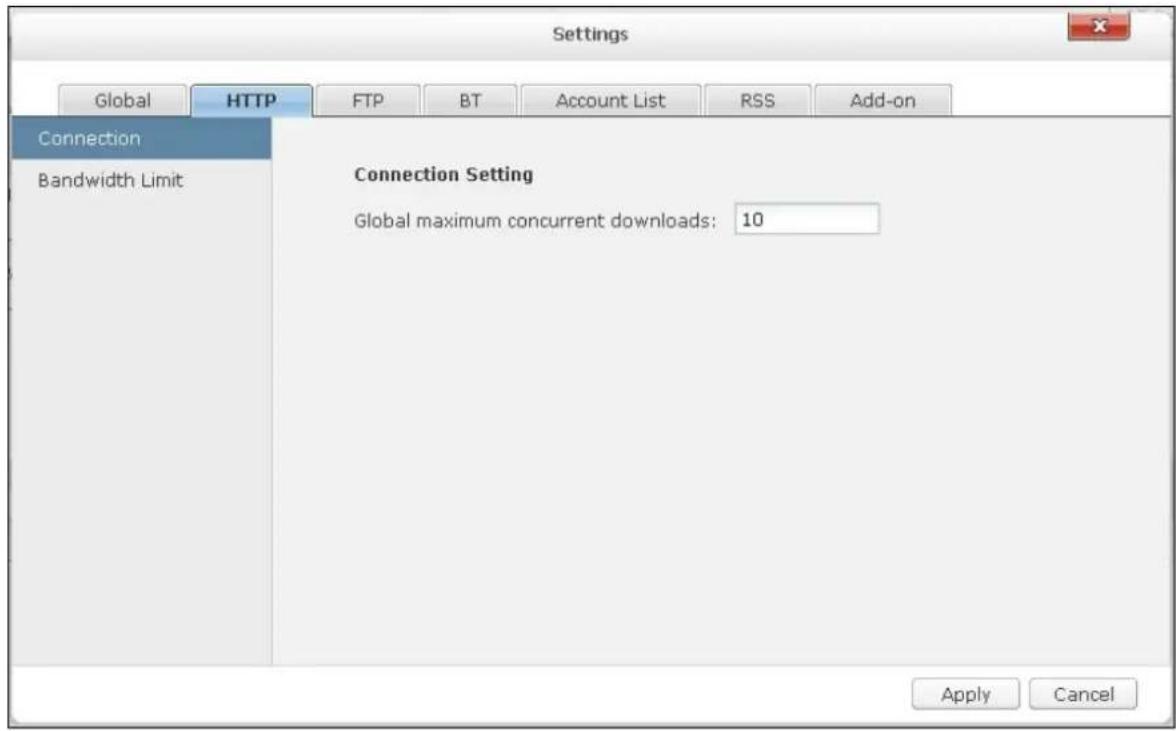
text_image
Settings Global HTTP FTP BT Account List RSS Add-on Connection Bandwidth Limit Connection Setting Global maximum concurrent downloads: 10 Apply CancelFTP
- Connection: Specify the maximum number of concurrent FTP downloads.
- Bandwidth Limit: Specify the maximum download rate of FTP download tasks. 0 means no limit.
| NAS m odels | Maxim um num ber of concurrent downloads |
| Intel-based NAS | 30 |
| ARM-based (Non Intel-based) NAS | 10 |

text_image
Settings Global HTTP FTP BT Account List RSS Add-on Connection Bandwidth Limit Connection Setting Global maximum concurrent downloads: 10 Apply CancelBT
- Connection Setting:
- Specify the ports for BT download. The default port numbers are 6881-6889.
- Enable UPnP port mapping: Enable automatic port mapping on the UPnP supported gateway.
- Enable DHT network: To allow the NAS to download the files even no trackers of the torrent can be connected, enable DHT (Distributed Hash Table) network and specify the UDP port number for DHT.
- Protocol encryption: Enable this option for encrypted data transfer.

text_image
Settings Global HTTP FTP BT Account List RSS Add-on Connection Bandwidth Limit BT Search Connection Setting Port used for incoming connections: 6881 - 6889 Enable UPnP port mapping Enable DHT network UDP port to use for DHT: 6881 Protocol Encryption Outgoing traffic: Disabled Apply Cancel- Bandwidth Limit: Specify the maximum download rate of BT download tasks. 0 means no limit.
- Global maximum concurrent downloads: Specify the maximum number of concurrent BT downloads.
| NAS m odels | Maxim um num ber of concurrent downloads |
| Intel-based NAS | 30 |
| ARM-based (Non Intel-based) NAS | 10 |
- Global maximum upload rate (KB/s): Enter the maximum upload rate for BT download. 0 means no limit.
- Global maximum download rate (KB/s): Enter the maximum download rate for BT download. 0 means no limit.
- Maximum upload rate per torrent (KB/s): Enter the maximum upload rate per torrent. 0 means no limit.
- Global maximum number of connections: This refers to the maximum number of allowed connections to the torrent.
o Maximum number of connected peers per torrent: This refers to the maximum number of allowed peers to connect to a torrent.
- Seeding Preferences: Specify the share ratio for seeding a torrent and the sharing time. The share ratio is calculated by dividing the amount of uploaded data by the amount of downloaded data.

text_image
Settings Global HTTP FTP BT Account List RSS Add-on Connection Bandwidth Limit BT Search Bandwidth Limit Global maximum concurrent downloads: 5 Global maximum upload rate (KB/s) [0 means unlimited]: 0 Global maximum download rate (KB/s) [0 means unlimited]: 0 Maximum upload rate per torrent (KB/s) [0 means unlimited]: 0 Global maximum number of connections: 300 Maximum number of connected peers per torrent: 0 Seeding Preferences Share Ratio: 150 % Share Time: Manual Stop Apply Cancel- BT Search: Select the BT engines to enable for BT search on the Download Station.

text_image
Settings Global HTTP FTP BT Account List RSS Add-on Connection Enabled Name Ver Description Bandwidth Limit ✓ Vertex 1.0 BT Search ✓ KickAssTorrents 1.0 ✓ TorrentReactor 1.0 isohunt 1.0 BTDigg 1.0 PirateBay 1.0 .Mininova 1.0 Extratorrent 1.0 CancelAccount List
You can save the login information of maximum 64 HTTP, FTP, and RapidShare accounts. To add login information, click "Add Account".
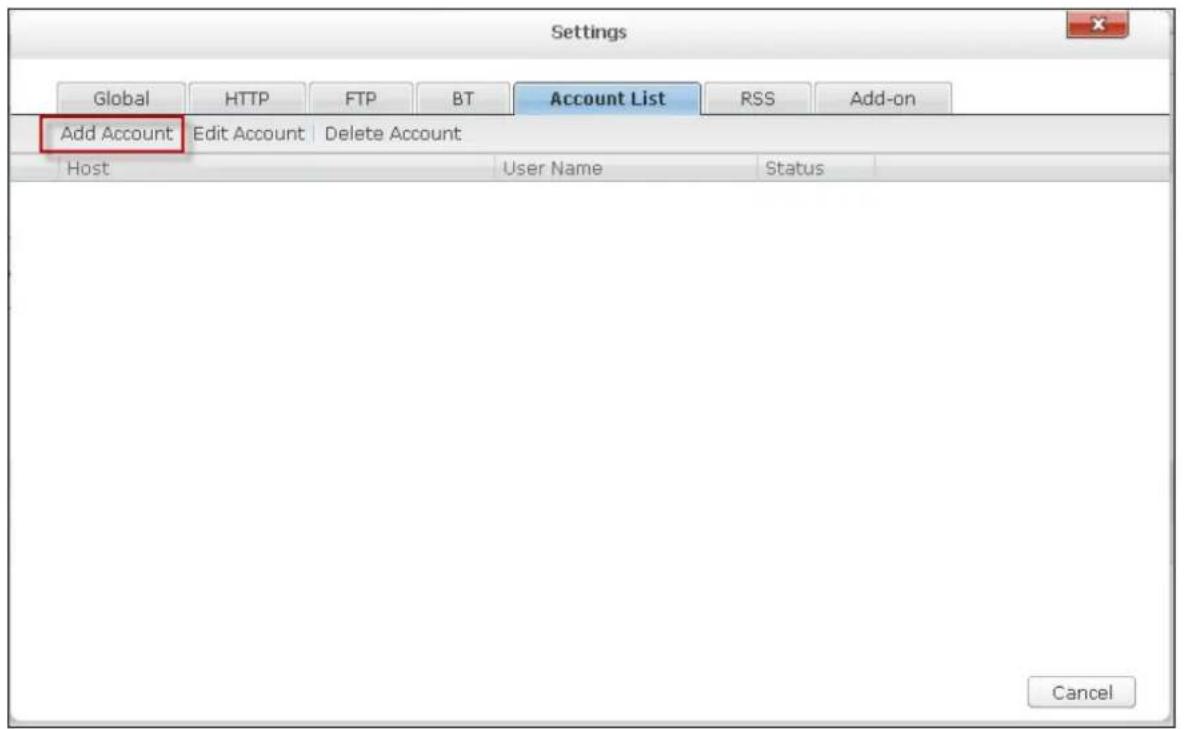
text_image
Settings Global HTTP FTP BT Account List RSS Add-on Add Account Edit Account Delete Account Host User Name Status CancelThe default host is rapidshare.com. To enter the login information for an HTTP or FTP server, select "Input manually".
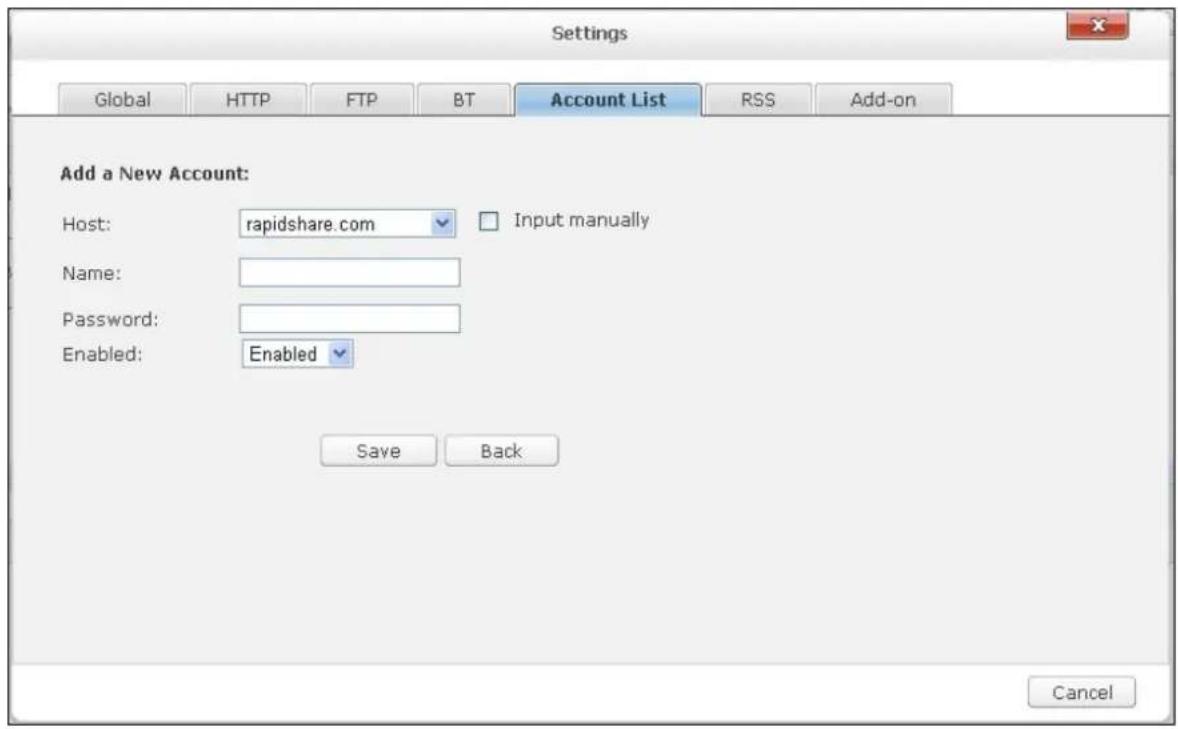
text_image
Settings Global HTTP FTP BT Account List RSS Add-on Add a New Account: Host: rapidshare.com Input manually Name: Password: Enabled: Enabled Save Back CancelEnter the host name or IP, username and password. To allow the login information to appear for account selection when configuring HTTP, FTP, or RapidShare download, select "Enabled" from the drop-down menu. Click "Save" to confirm or "Back" to cancel.

text_image
Settings Global HTTP FTP BT Account List RSS Add-on Add a New Account: Host: rapidshare.com □ Input manually Name:qqq123 Password:.......... Enabled:Enabled Save Back CancelTo edit the settings of an account, select an entry on the list and click "Edit Account". To delete an account, select an entry on the list and click "Delete Account".
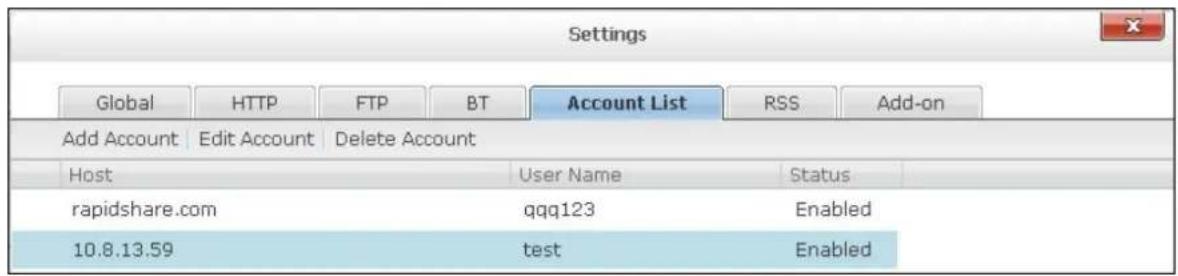
text_image
Settings Global HTTP FTP BT Account List RSS Add-on Add Account Edit Account Delete Account Host User Name Status rapidshare.com(qqq123 Enabled 10.8.13.59 ultimately elevated test EnabledRSS
Update: Enable RSS download and specify the time interval to for the NAS to update the RSS feeds and check if any new contents that match the filters are available.
RSS Download Manager:
You can use RSS Download Manager to create and manage filters to download particular torrent files for BT Download.
• To add a filter, click "Add".
- Enter the filter name and specify the keyword to include and exclude.
- Select the RSS feed to apply the filter settings.
- You may also specify the quality of the video torrent files (leave it as "All" if you do not need this function or the torrent file is not a video.)
- Episode number: Select this option to specify particular episodes or a serial of episodes of a drama work. For example, to download episodes 1-26 of season 1 of a TV program, enter 1x1-26. To download only episode 1 of season 1, enter 1x1.
- Select the time interval for automatic update of the RSS feeds. The NAS will update the RSS feeds and check if any new contents that match the filters are available.
- Click "Save" to save the filter or "Cancel" to cancel or exit.
- To delete a filter, select the filter from the list and click "Delete".
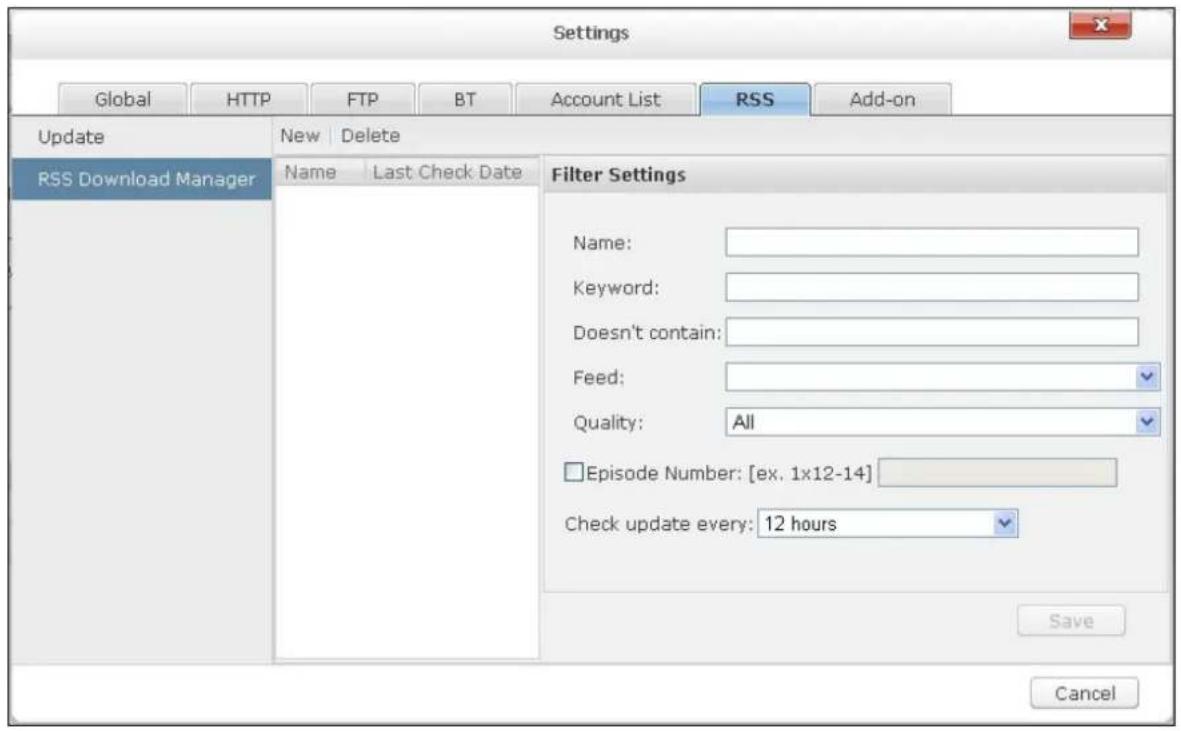
text_image
Settings Global HTTP FTP BT Account List RSS Add-on Update New Delete RSS Download Manager Name Last Check Date Filter Settings Name: Keyword: Doesn't contain: Feed: Quality: All Episode Number: [ex. 1x12-14] Check update every: 12 hours Save CancelAdd-on
To download the YouTube videos by the HappyGet add-on to the NAS, enable the website subscription service. For more details, please see the application note: http://www.qnap.com/en/index.php?sn=5319&lang=en
BT Download
To download a BT file, click

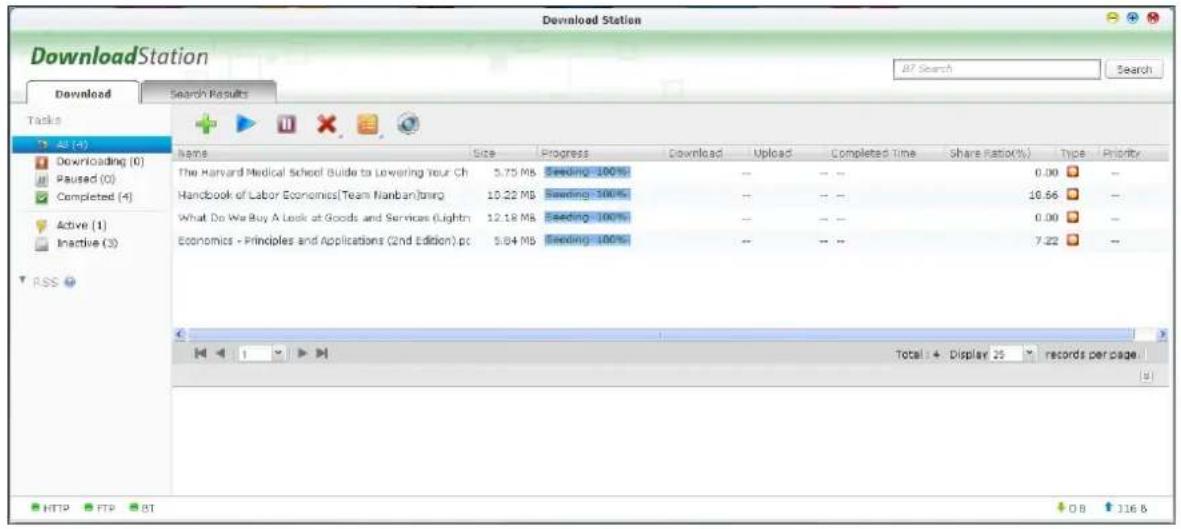
text_image
Download Station DownloadStation B7 Search Search Results Tasks AS (4) Downloading (0) Paused (0) Completed (4) Active (1) Inactive (3) RSS Name Size Progress Download Upload Completed Time Share Ratio(%) Type Priority The Harvard Medical School Guide to Lowering Your Ch 5.75 Mb Seeding: 100% -- -- 0.00 -- Handbook of Labor Economics(Team Nanban)trang 10.22 Mb Seeding: 100% -- -- 16.66 -- What Do We Buy A Look at Goods and Services (Lightn 12.18 Mb Seeding: 100% -- -- 0.00 -- Economics - Principles and Applications (2nd Edition) pc 5.64 Mb Seeding: 100% -- -- 7.22 -- Total: 4 Display: 25 records per page HTTP FTP BT OB 116 BClick "Add File". Browse and select a torrent file.
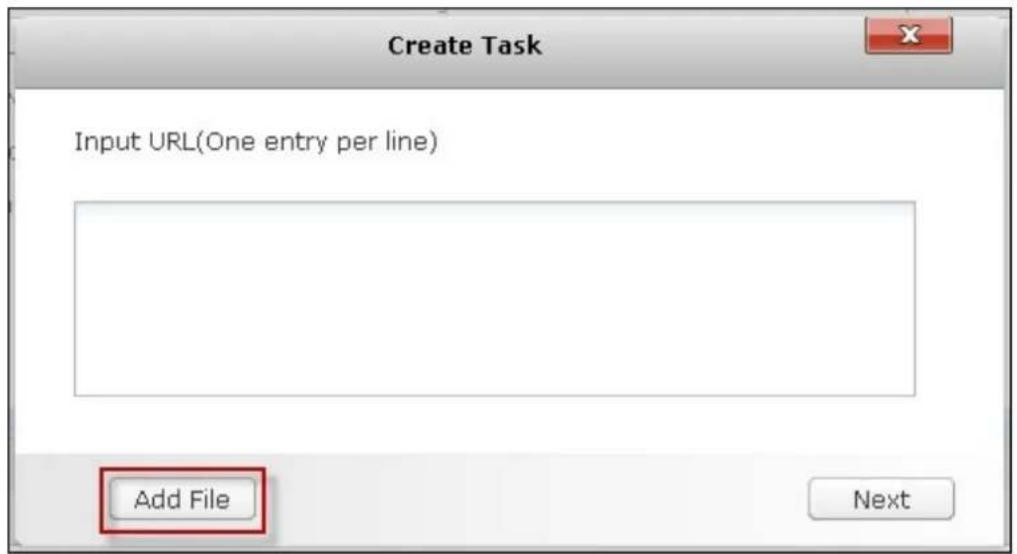
text_image
Create Task Input URL(One entry per line) Add File NextSpecify the folder where the downloaded files will be saved to.
Use credentials: Select this option and enter the login information to download the files.
Show torrent files: Select this option to choose the files to download after clicking "OK".

text_image
Create Task Move the completed downloads to: Download Use credentials Show torrent files OKSelect the file(s) to download and click "OK".
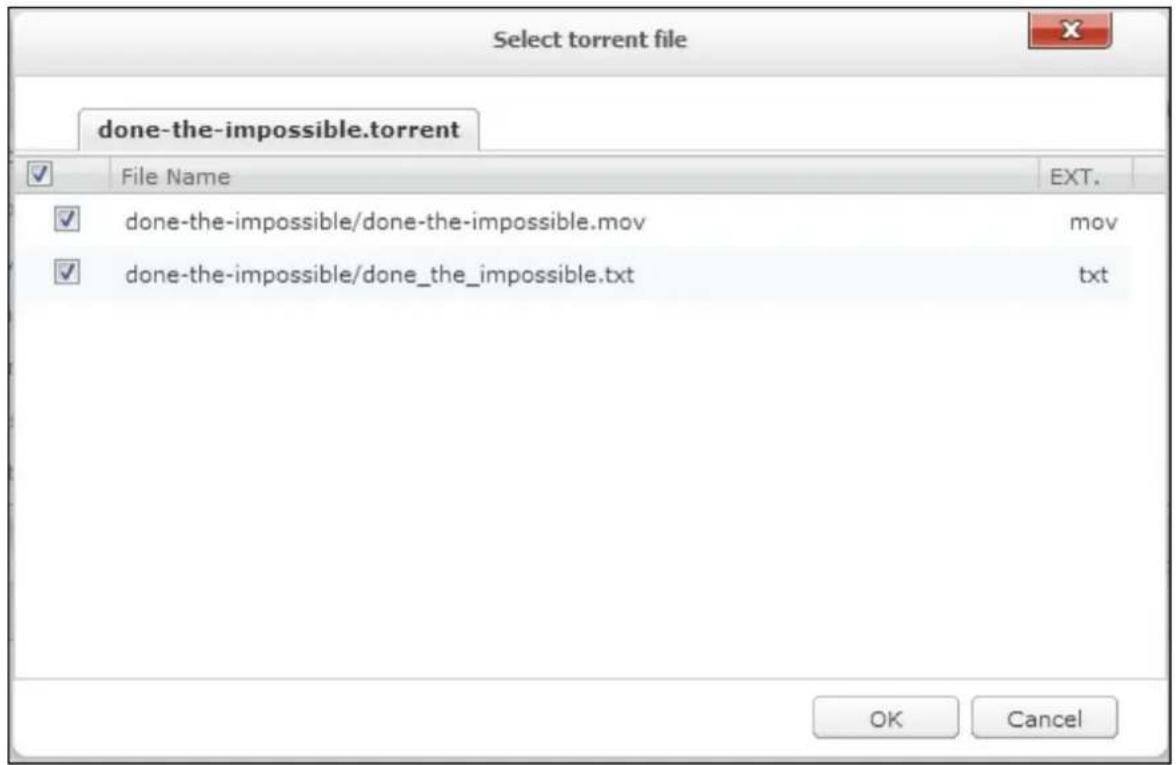
text_image
Select torrent file done-the-impossible.torrent ✓ File Name EXT. ✓ done-the-impossible/done-the-impossible.mov mov ✓ done-the-impossible/done_the_impossible.txt txt OK CancelClick the icons to manage the download tasks.
Icon | DescriptionStart a download task. |
 | Pause a download task. |
 | Delete a download task. |
 | Start all, pause all, or pause all download tasks for a specified time period, remove all completed tasks, remove all completed tasks and delete data. |
HTTP, FTP, RapidShare, Magnet Download
To add an HTTP, FTP, RapidShare, or Magnet download task, click .


text_image
DownloadStation Download Search Results Tasks All (4) Downloading (0) NameEnter the URL of the download task (one entry per line). Then select the download type: HTTP/FTP, RapidShare, or Magnet Link. If a username and password is required to access the file, select "Use credentials" and select a pre-configured account (Settings > Account List) or enter a username and password. Then click "OK". The NAS will download the files automatically.

text_image
Create Task Input URL(One entry per line) URL(s) : 1 http://ftp.cuhk.edu.hk/pub/windows/nero/InCD-4.3.23.2.exe Add File NextNote: You can only enter maximum 30 entries at one time.
RSS Feed
You can subscribe to RSS feeds by the Download Station and download the torrent files
in the feeds. Click to add an RSS feed.
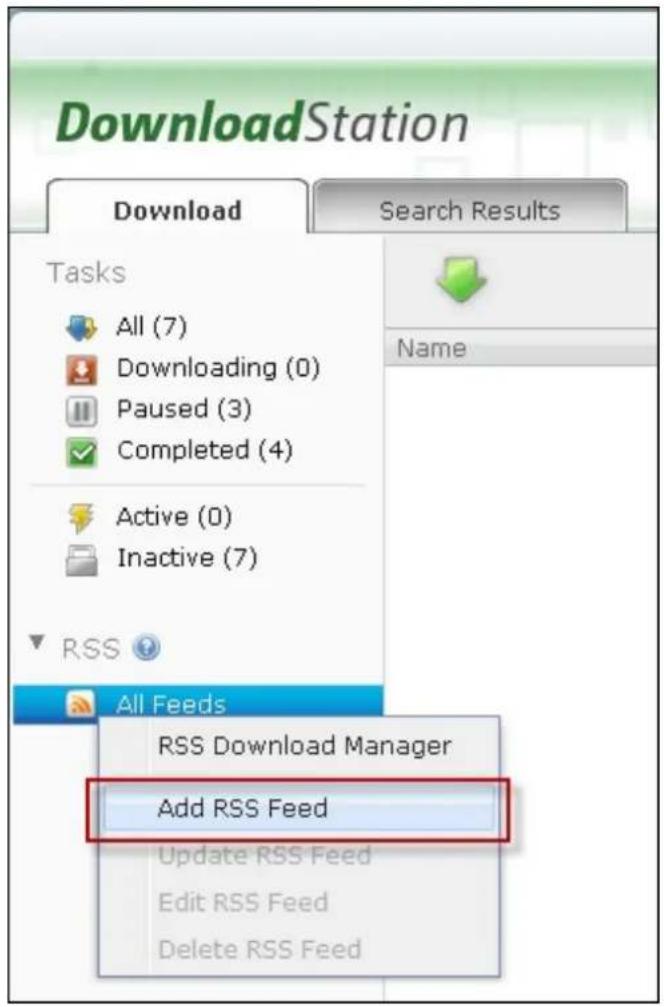
text_image
DownloadStation Download Search Results Tasks All (7) Downloading (0) Paused (3) Completed (4) Active (0) Inactive (7) RSS All Feeds RSS Download Manager Add RSS Feed Update RSS Feed Edit RSS Feed Delete RSS Feed NameEnter the URL and the label.

text_image
Add RSS Feed Feed URL: http://www.mininova.org/rss.xml Label: Mininova OK CancelTo download a torrent file from an RSS feed, select the file and click or right click the feed and select "Download".
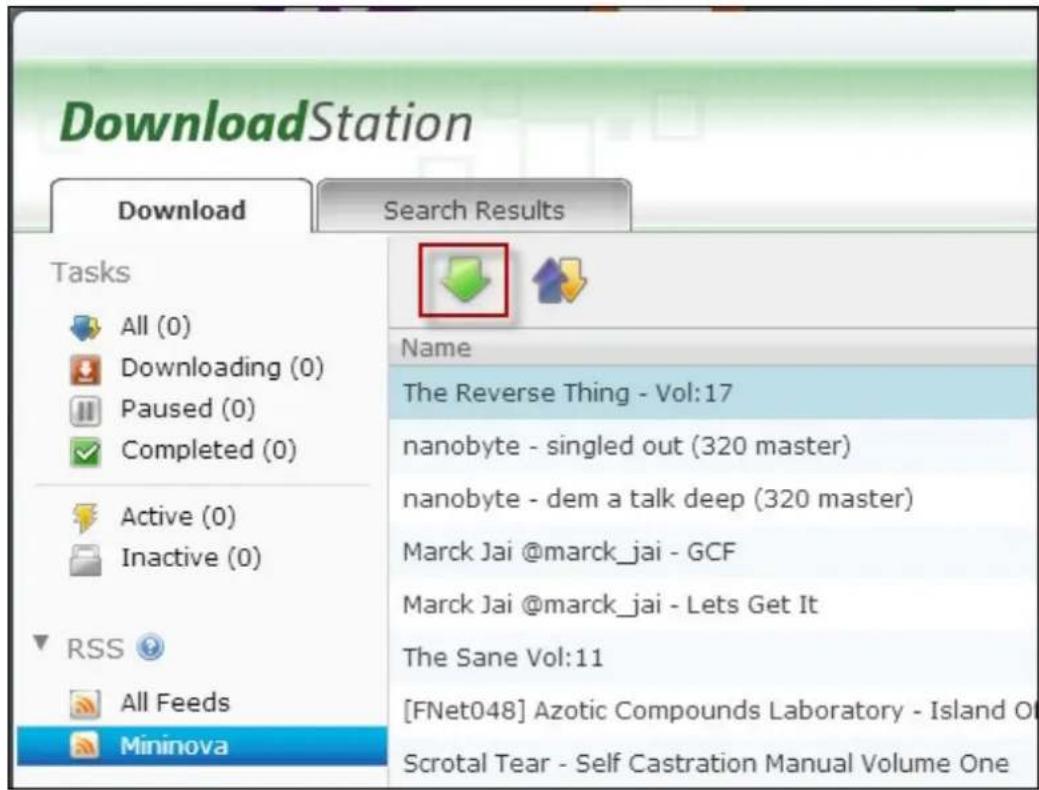
text_image
DownloadStation Download Search Results Tasks All (0) Downloading (0) Paused (0) Completed (0) Active (0) Inactive (0) RSS All Feeds Mininova Name The Reverse Thing - Vol:17 nanobyte - singled out (320 master) nanobyte - dem a talk deep (320 master) Marck Jai @marck_jai - GCF Marck Jai @marck_jai - Lets Get It The Sane Vol:11 [FNet048] Azotic Compounds Laboratory - Island Of Scrotal Tear - Self Castration Manual Volume OneThe NAS will start to download the file automatically. You can view the download status in the Downloading list.
To manage the RSS feeds subscription, right click an RSS feed label. You can open the RSS Download Manager, add, update, edit, or delete an RSS feed.
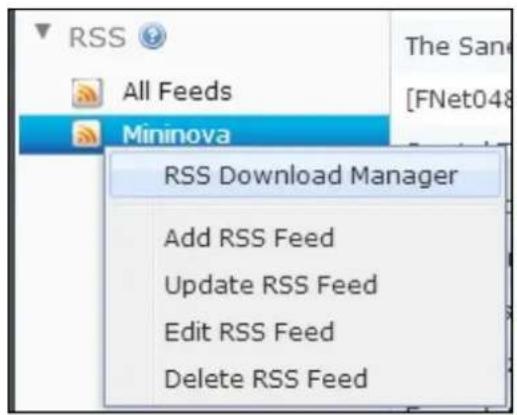
text_image
RSS All Feeds Mininova RSS Download Manager Add RSS Feed Update RSS Feed Edit RSS Feed Delete RSS FeedThe common reasons for slow BT download rate or download error are as below:
- The torrent file has expired, the peers have stopped sharing this file, or there is error in the file.
- The NAS has configured to use fixed IP but DNS server is not configured, or DNS server fails.
- Set the maximum number of simultaneous downloads as 3-5 for the best download rate.
- The NAS is located behind NAT router. The port settings have led to slow BT download rate or no response. You may try the following means to solve the problem:
a. Open the BT port range on NAT router manually. Forward these ports to the LAN IP of the NAS.
b. The new NAS firmware supports UPnP NAT port forwarding. If your NAT router supports UPnP, enable this function on the NAT. Then enable UPnP NAT port forwarding of the NAS. The BT download rate should be enhanced.
8.8 HD Station
The HD Station is a platform where the famous XBMC application or Chrome browser can be installed to let you directly play back your NAS multimedia contents or browse the internet websites on the TV screen thru the HDMI interface.
Note: Currently, the HD Station is supported by the TS-x69L, TS-x69 Pro, TS-x70 and TS-x70 Pro Turbo NAS models.
Create your lovely media environment by following the steps below:
1. Setting up the environment of the HD Station: Connect the NAS to the HDMI TV with a HDMI cable
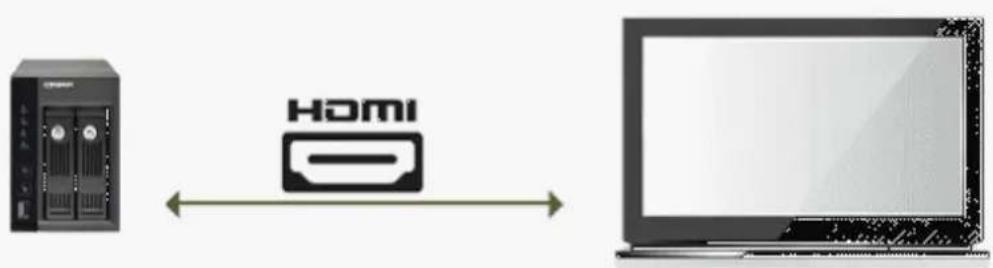
text_image
Diagram showing a server connected to a HDMI device via bidirectional arrow, next to a laptop screen.Remote controller: There are 4 different ways to control the HD Station.
A. QNAP remote controller
B. MCE remote controller
C. USB keyboard or mouse
D. Qremote: QNAP remote app, exclusively designed for the HD Station.
Note: If you want to use the Chrome to browse an internet website, you are required to use the mouse function on the Qremote or use the USB mouse directly connected to the NAS.
2. Installing the HD Station:
Go to "Applications" > "HD Station" and click the "Get Started Now" button. Then, the system will install the HD Station automatically.
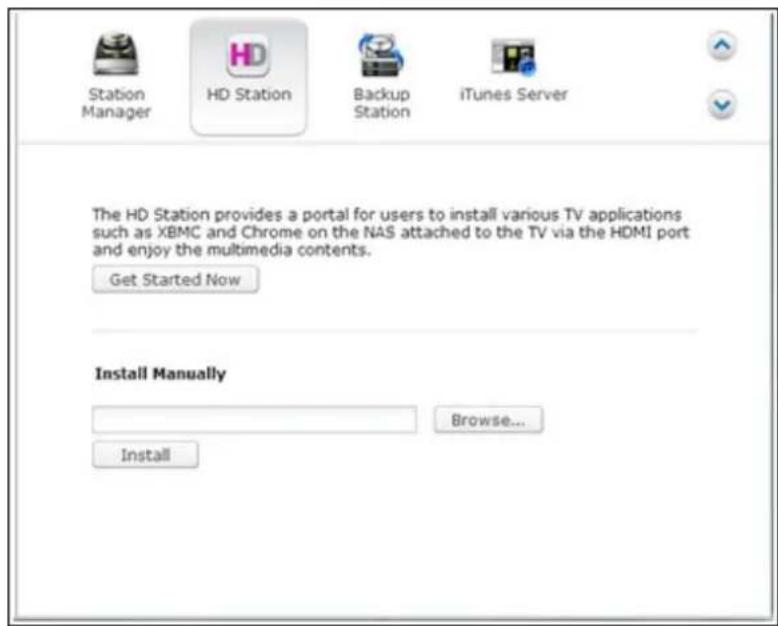
text_image
Station Manager HD Station Backup Station iTunes Server The HD Station provides a portal for users to install various TV applications such as XBMC and Chrome on the NAS attached to the TV via the HDMI port and enjoy the multimedia contents. Get Started Now Install Manually Browse... Install3. Choosing the applications to install.
- HD Station: The HD Station portal, which allows you to use the following applications on the TV screen.
- XBMC: An application for you to operate and enjoy your multimedia data on the TV screen.
- Chrome: With the help of Chrome, the QNAP Turbo NAS brings endless web content to your HDTV. Just sit back, relax, and surf the Internet on your couch.
- YouTube: Simply browse and click to enjoy millions of YouTube videos on your TV.
- My NAS: An application for you to enter the local NAS administration web page to view the NAS functions and settings.

text_image
The HD Station provides a portal for users to install various TV applications such as XBMC and Chrome on the NAS attached to the TV via the HDMI port and enjoy the multimedia contents. Disable Remove Chrome 23.0.1271 QNAP Systems, Inc With the help of Chrome, the QNAP NAS brings endless web content to your HDTV. Just sit back, relax and surf the Internet on your couch. > Disable > Remove My NAS 1.0.0 QNAP Systems, Inc An application to let you enter the local NAS administration web page to view the NAS functions and settings. > Disable > Remove XBMC 11.0.2 QNAP Systems, Inc. XBMC is an award-winning free and open source (GPL) software media player and entertainment hub for digital media.Enjoy the comfort of your living room and play movies, photos, and music directly on your TV. Powered by XBMC, the QNAP NAS is now also a home entertainment hub and a media player! > Disable > Remove YouTube 1.0.0 QNAP Systems, Inc Simply browse and click to enjoy millions of videos with YouTube on your TV. > Disable > RemoveNote:
- Keeping staying at XBMC, Chrome, or other applications could affect the hard drive hibernation of the NAS. Please always exit the application and return to the HD Station portal.
- Press the power button on the remote control for 6 seconds anytime to exit an application.
- Press the one touch copy button on the NAS for 6 seconds to restart the HD Station.
- For the best HD Station experience, QNAP recommends upgrading your Turbo NAS memory to 2GB or more.
- To use the AirPlay function provided by XBMC, please upgrade your Turbo NAS memory to 2GB or more.
- The HD Station will restart when formatting an USB external device.
- The first time XBMC is launched, it will index the "Multimedia" shared folder and it may consume a lot of system resources if the folder contains a lot of multimedia files.
After installation, please choose your preferred language on the TV screen.
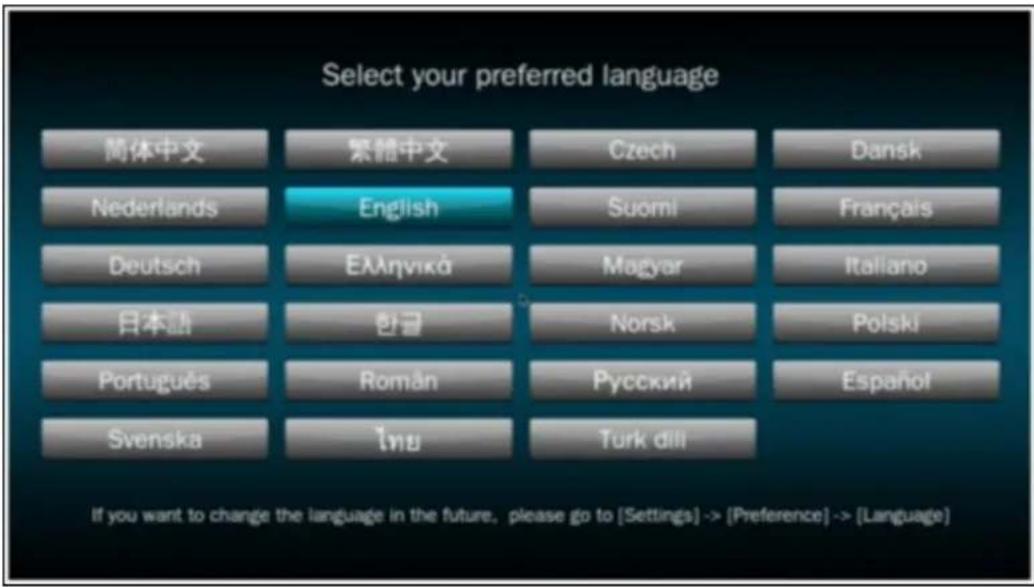
text_image
Select your preferred language 简体中文 繁體中文 Czech Dansk Nederlands English Suomi Français Deutsch Ελληνικά Magyar Italiano 日本語 한글 Norsk Polski Português Român Rусский Espanol Svenska Íny Turk dili If you want to change the language in the future, please go to [Settings] -> [Preference] -> [Language]After selecting the language, you will see the HD Station portal as shown below.
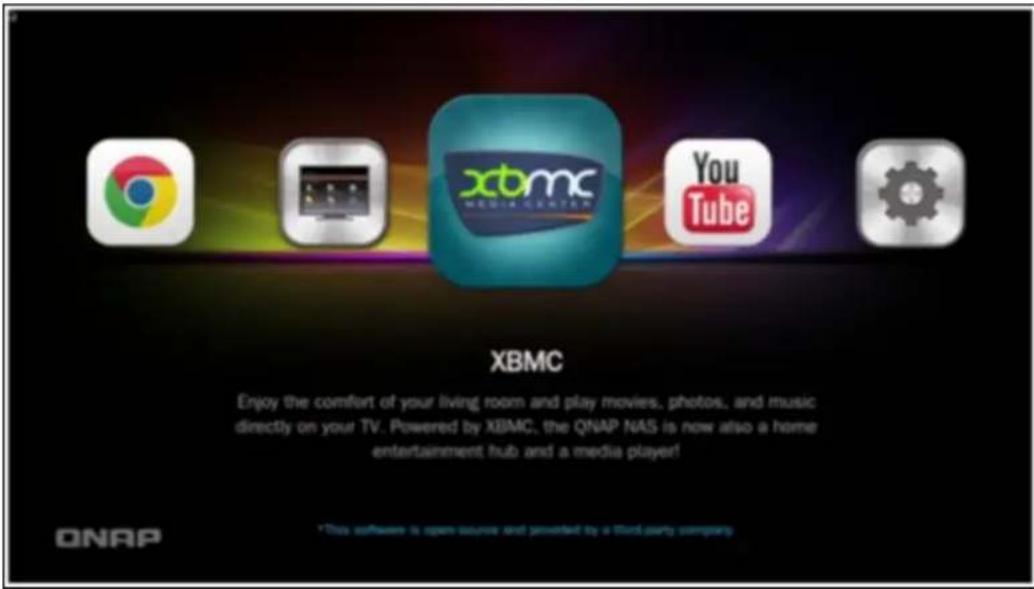
text_image
XBMC Enjoy the comfort of your living room and play movies, photos, and music directly on your TV. Powered by XBMC, the QNAP NAS is now also a home entertainment hub and a media player! ONAP *This software is open-source and provided by a third party company- Enjoying the HD Station: At the HD Station portal, sim ply choose the application you want to use to start enjoying the service.
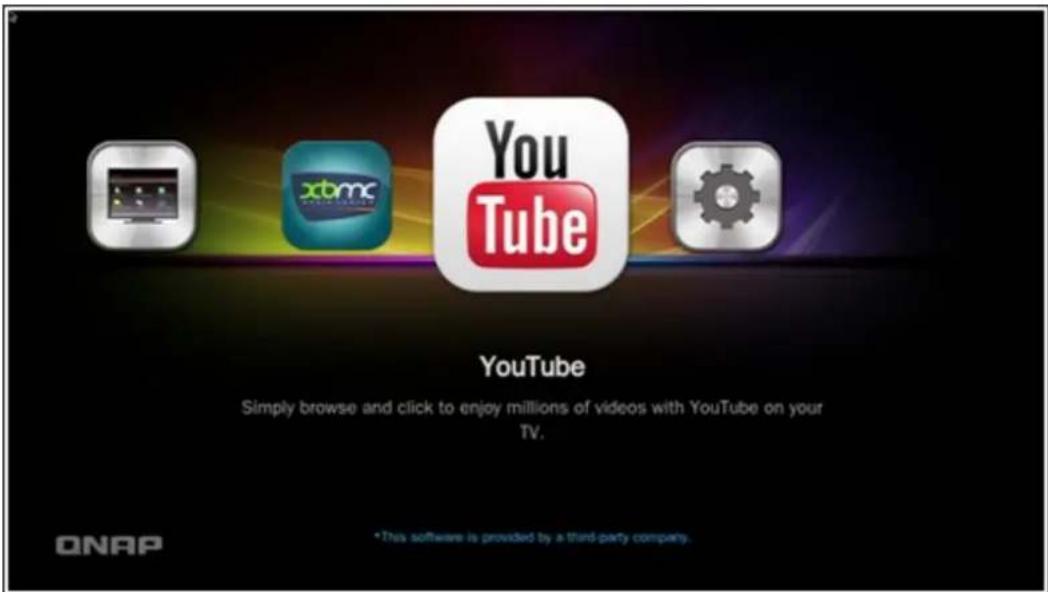
text_image
YouTube Simply browse and click to enjoy millions of videos with YouTube on your TV. QNAP *This software is provided by a third-party company.Enjoy the comfort of your living room and play movies, photos, and music directly on your TV by XBMC or other applications.
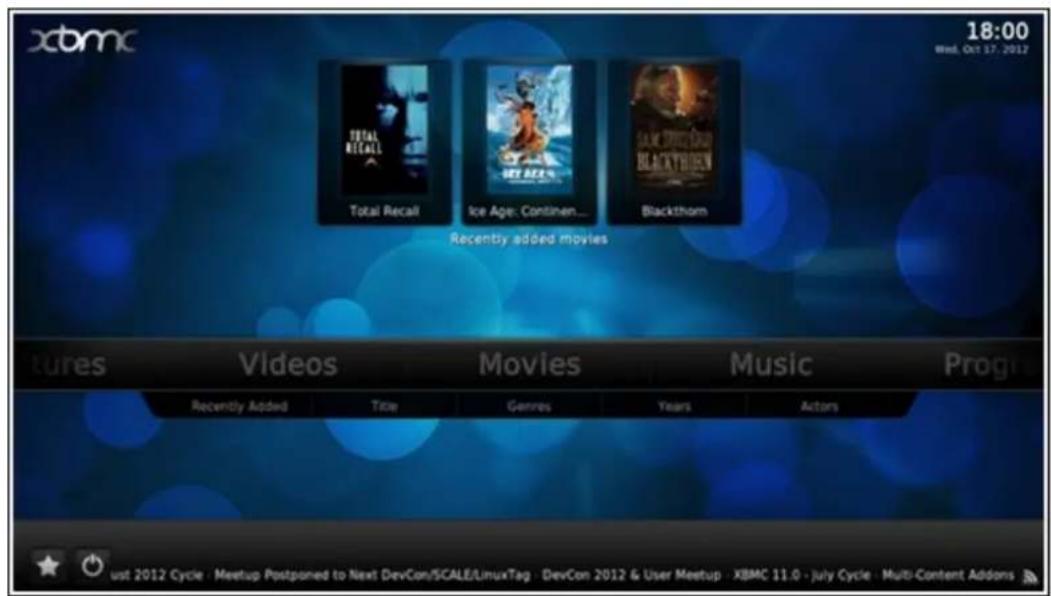
text_image
xbmc 18:00 Wed, Oct 17, 2012 Total Recall Ice Age: Continen... Blackthorn Recently added movies Pictures Videos Movies Music Progr Recently Added Title Genres Years Actors ust 2012 Cycle - Meetup Postponed to Next DevCon/SCALE/LinuxTag - DevCon 2012 & User Meetup - XBMC 11.0 - July Cycle - Multi-Content AddonsTake a picture with your smart phone and watch on your TV
The first part is done by Qfile on your phone:
a. Use Qfile to browse your NAS.
b. Choose the multimedia shared folder.
c. Select the upload function.
d. Take a picture and upload it to the NAS.
The second part is performed by the HD Station on your TV:
e. Turn on your TV and choose XBMC.
f. Choose "Pictures" like below:
text_image
20°C Mom, 19 Nov 2012 | 5:06 PM Weather Pictures Videos Music Add new xbmc - i skin developers! OpenELEC 2.0 now available - Now with PVR Support XBMCC September Cycle 10-year anniversary for XBMCC Our Camg. Select the "Multimedia" folder.
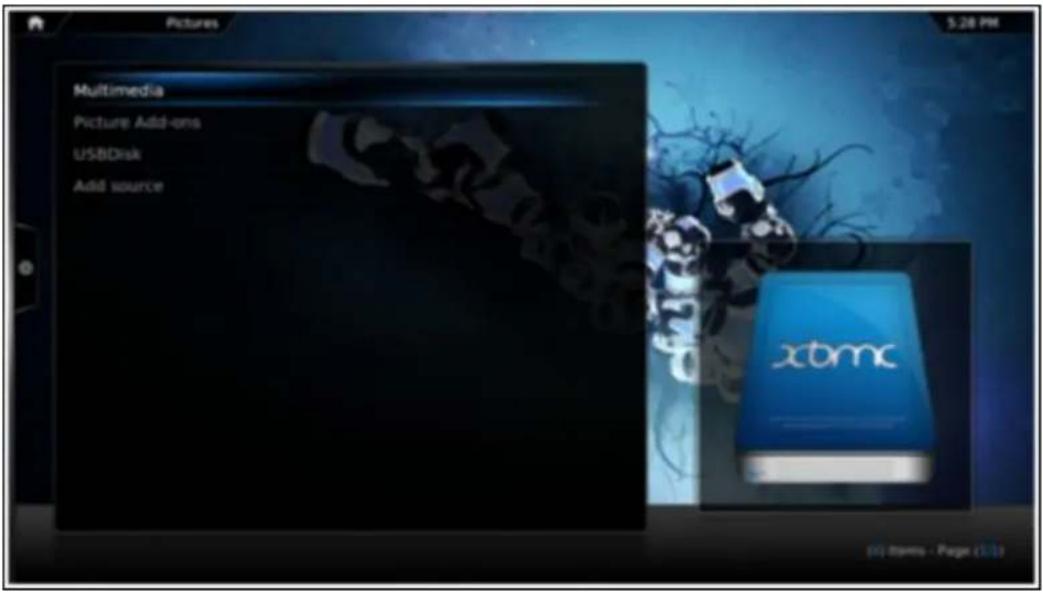
text_image
Pictures Multimedia Picture Add-ons USBDisk Add source xomc (1) Items - Page (1/1)h. Double click the picture you just uploaded.
text_image
Pictures 5:04 PM sample001.jpg sample002.jpg sample003.jpg sample004.jpg sample005.jpg sample006.jpg sample007.jpg sample008.jpg sample009.jpg sample010.jpg [10] Items - Page 1.5.5Viewing photos on your USB device or camera
a. Connect your USB device or camera to the USB port of your NAS.
b. Choose "Pictures".
c. Choose "USBDisk".

text_image
Pictures 16:10 Multimedia Picture Add-ons USBDisk Add source xtomc (H) Rems - Page (103)d. Select the photo you want to view.
text_image
Pictures Photo 16:11 photo-015.jpg photo-024.jpg photo-030.jpg photo-068.jpg photo-075.jpg photo-093.jpg photo-095.jpg photo-138.jpg photo-147.jpg photo-010.jpg photo-090.jpg photo-058.jpg photo-084.jpg (1.3) Items - Page (1/1)Importing media contents to your NAS
Use one of the several types of network protocols (Samba, AFP, FTP, and NFS) to save the media content files in the "Multimedia" or "Qmultimedia" shared folder, or copy them from an external USB or eSATA device.
To browse the media contents in different folders other than the default "Multimedia" shared folder, perform the following steps:
a. Choose "Files" under "Videos".
text_image
20°C Mon, 19 Nov 2012 | 6:10 PM ather Pictures Videos Music Program Movies Files Library Add-ons xbmc XBMc XBMc 12.0 Frodo - Beta 1 - Frodo Feature Freeze!b. Choose "Add Videos".
text_image
Videos Multimedia USBDisk Add Videos... 6:10 PM 250GB (7) Items - Page (1/2)c. Click "Browse".
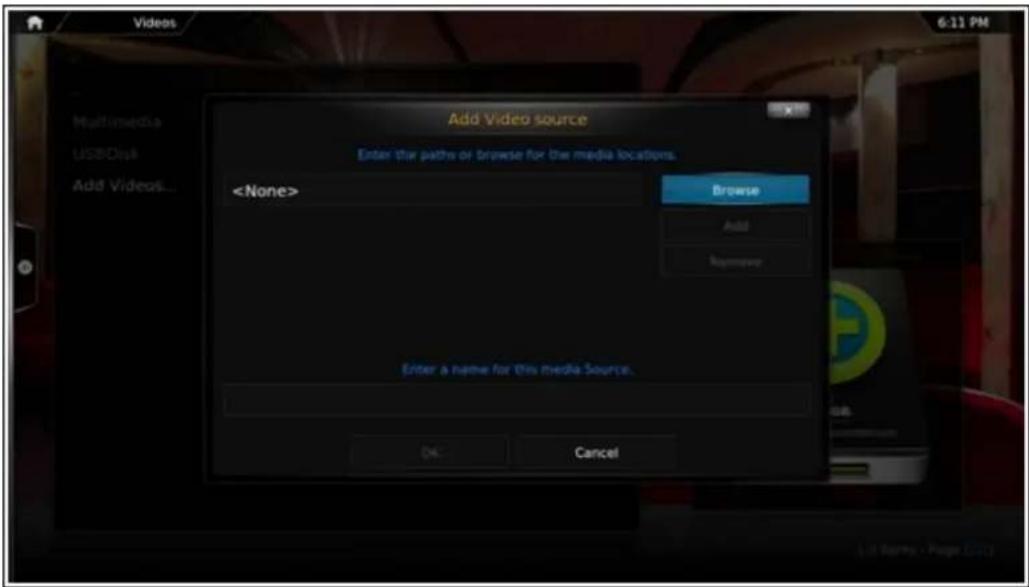
text_image
Add Video source Enter the paths or browse for the media locations.d. Choose "Root filesystem".
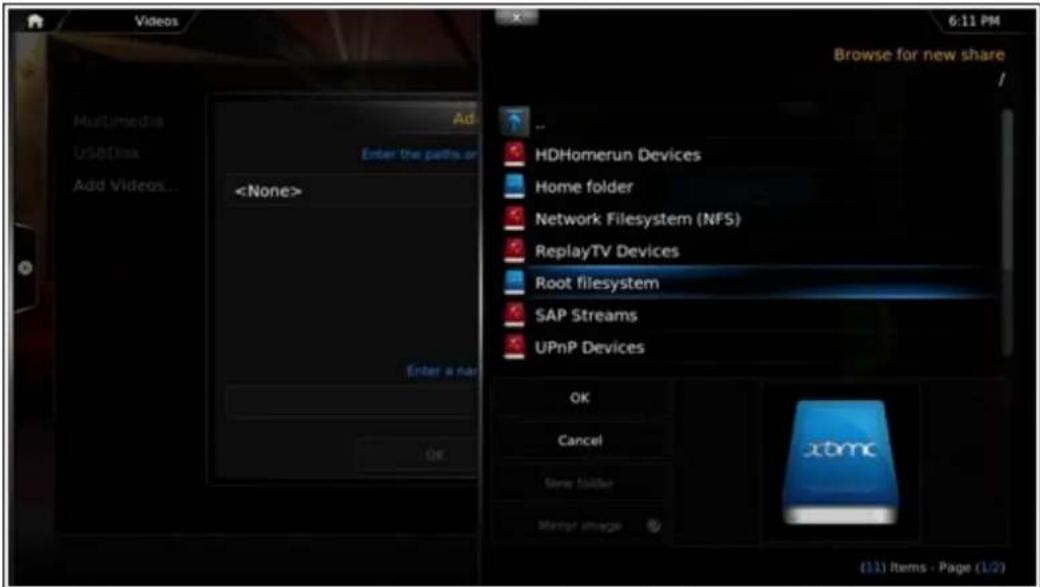
text_image
Videos Multimedia USB Disk Add Videos... Ad Enter the paths ore. Choose "share".
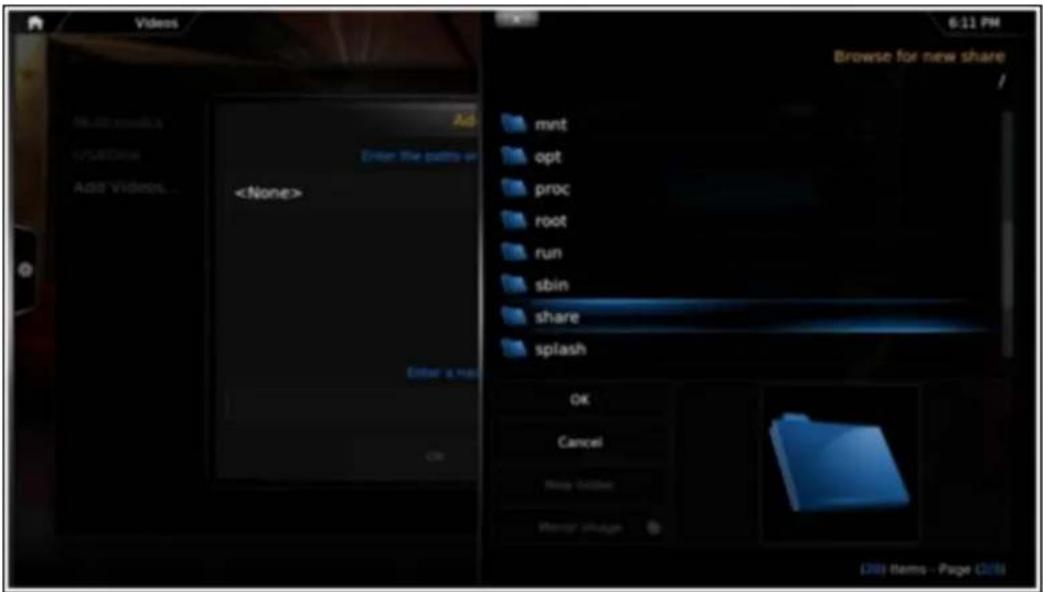
text_image
Videos 6:11 PM Browse for new share / mnt opt proc root run sbin share splash OK Cancel New Folder Rename Image [200] Items - Page [201]f. If you want to add the "Download" shared folder, for example, choose "Download" like below. Otherwise, just choose the shared folder you would like to add as a video source.
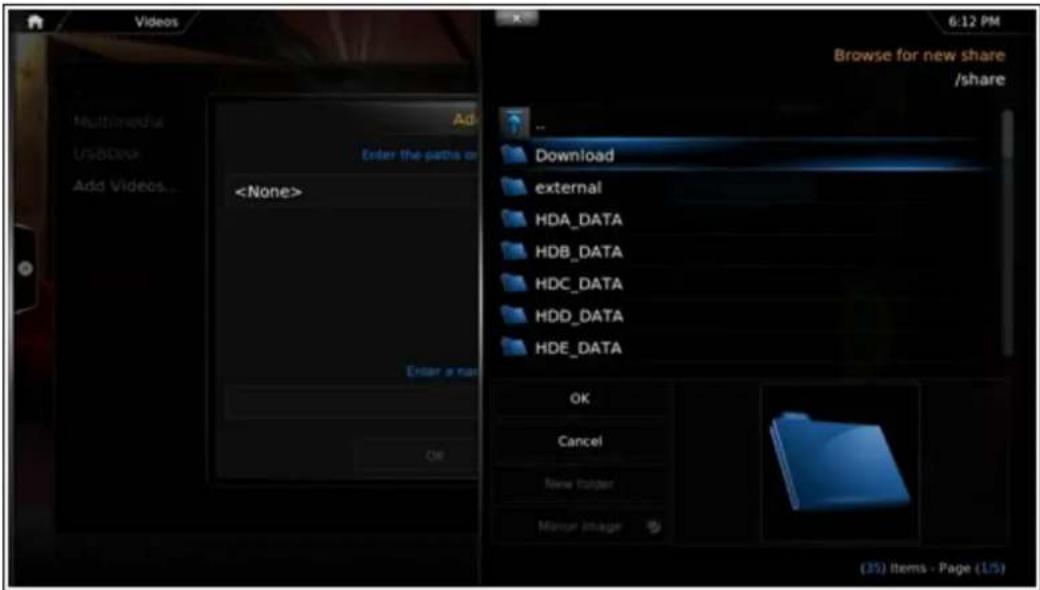
text_image
Videos Multimedia USB/Disk Add Videos... Ad Enter the paths org. Click "OK" to add this source.
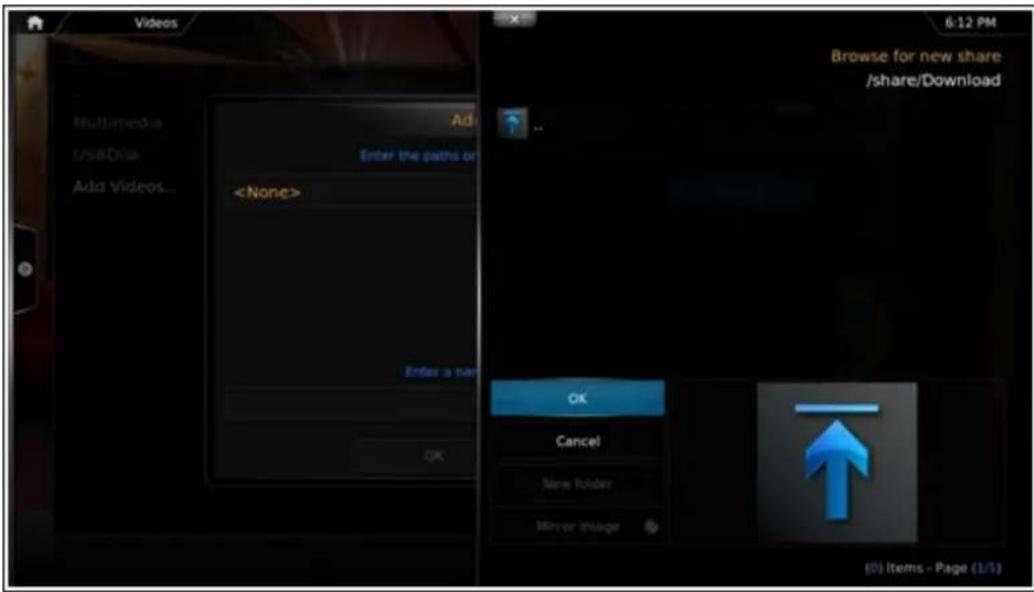
text_image
Videos Multimedia USB Disk Add Videos... Ad Enter the paths orh. You will see the "Download" shared folder in the list.
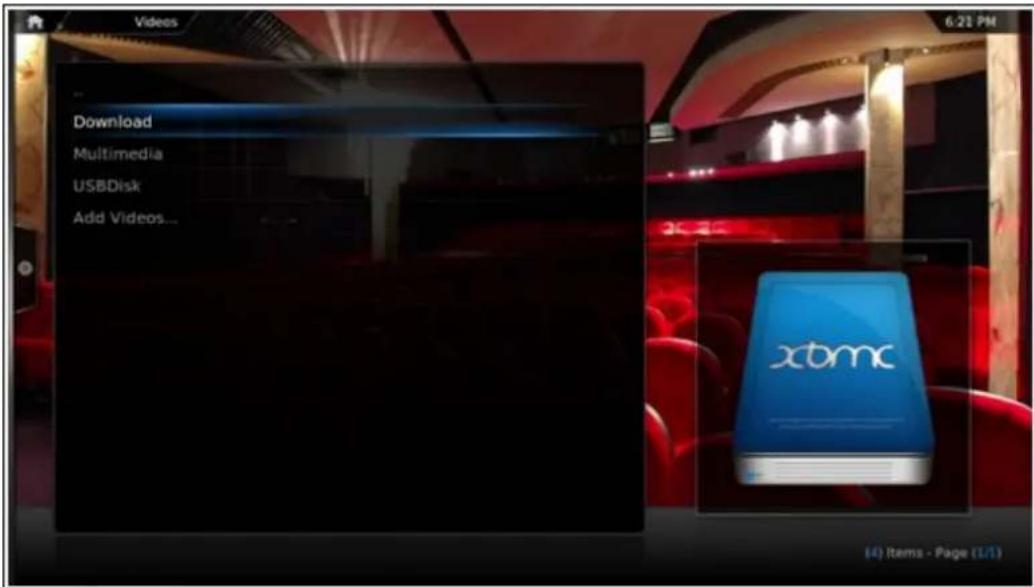
text_image
Videos 6:21 PM Download Multimedia USBDisk Add Videos... xbmc (4) Items - Page (1/1)Note:
- If you encounter any video playback quality issues with some video formats, you may enable the following settings on the XBMC:
- Go to "Setting" > "Video" > "Playback", and then enable "Adjust display refresh rate to match video" and "Sync playback to display".
Chrome
Select the Chrome application at the main page of the HD Station like below:
text_image
Chrome With the help of Chrome, the QNAP NAS brings endless web content to your HDTV. Just sit back, relax and surf the Internet on your couch. *This software is provided by a third-party company. QNAPYou may surf the web like using a web browser on your PC.
Note: In order to use this application, you are required to use the mouse function on the Qremote, or use the USB mouse directly connected to the NAS.
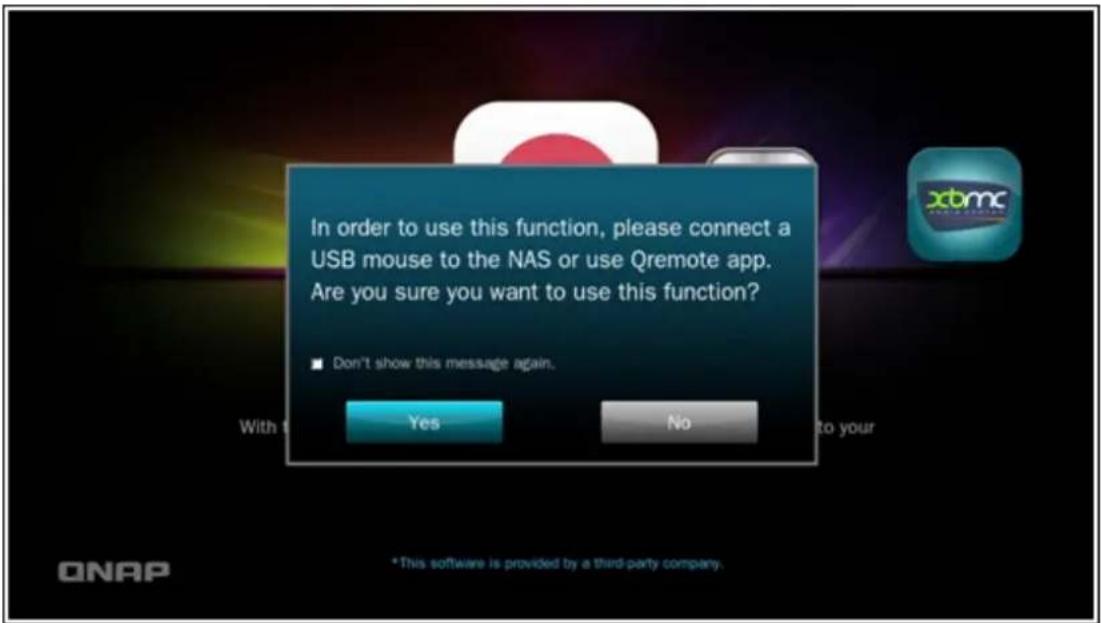
text_image
In order to use this function, please connect a USB mouse to the NAS or use Qremote app. Are you sure you want to use this function? ■ Don't show this message again. With t Yes No to your *This software is provided by a third-party company.YouTube
Enjoy the YouTube contents via the HD Station.

text_image
YouTube Simply browse and click to enjoy millions of videos with YouTube on your TV. *This software is provided by a third-party company.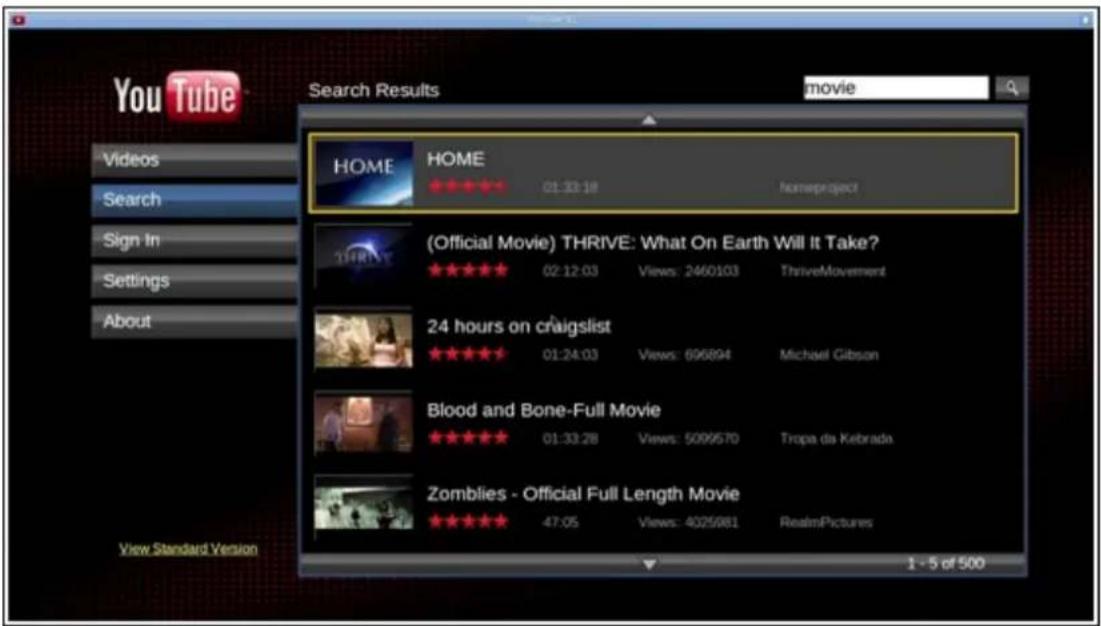
text_image
YouTube Search Results movie Videos Search Sign In Settings About HOME HOME 01:33:18 homeproject (Official Movie) THRIVE: What On Earth Will It Take? 02:12:03 Views: 2460103 ThriveMovement 24 hours on craigslist 01:24:03 Views: 696894 Michael Gibson Blood and Bone-Full Movie 01:33:28 Views: 5099570 Tropa da Kebrada Zombies - Official Full Length Movie 47:05 Views: 4025981 RealmPictures View Standard Version 1 - 5 of 500MyNAS
Enter the local NAS administration web page to view the NAS functions and settings.

text_image
MyNAS Enter the local NAS administration web page to view the NAS functions and settings. QNAP
text_image
QNAP QTS 4.0.0 Turbo System admin ...... Reinverical mode End-use loginConfiguring settings of the HD Station
Configure the HD Station by choosing "Settings" at the HD Station portal.
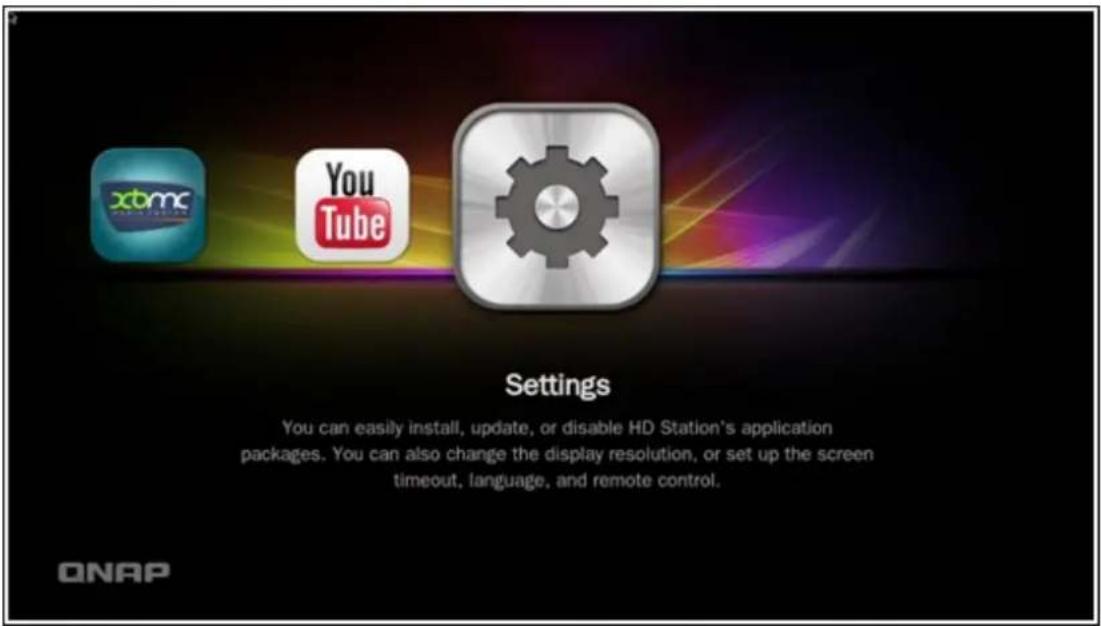
text_image
Settings You can easily install, update, or disable HD Station's application packages. You can also change the display resolution, or set up the screen timeout, language, and remote control. QNAPi. App: The applications can be enabled or disabled in this feature.

text_image
Settings App Display Preferences About Chrome MyNAS XBMX YouTube P: 10.8.12.40ii. Display: Here you may change the screen resolution and set up to turn off the screen after an amount of idle time.

text_image
Settings App Display Preferences About Resolution 1280x720 Turn off the screen when idle Off P: 10.8.12.40 Note: The option may not be applied to third party software.iii. Preferences: Here you may change the language or type of remote control and audio output. The default setting is HDMI. If you have a USB sound card installed, you can choose that option in the NAS Audio Output.
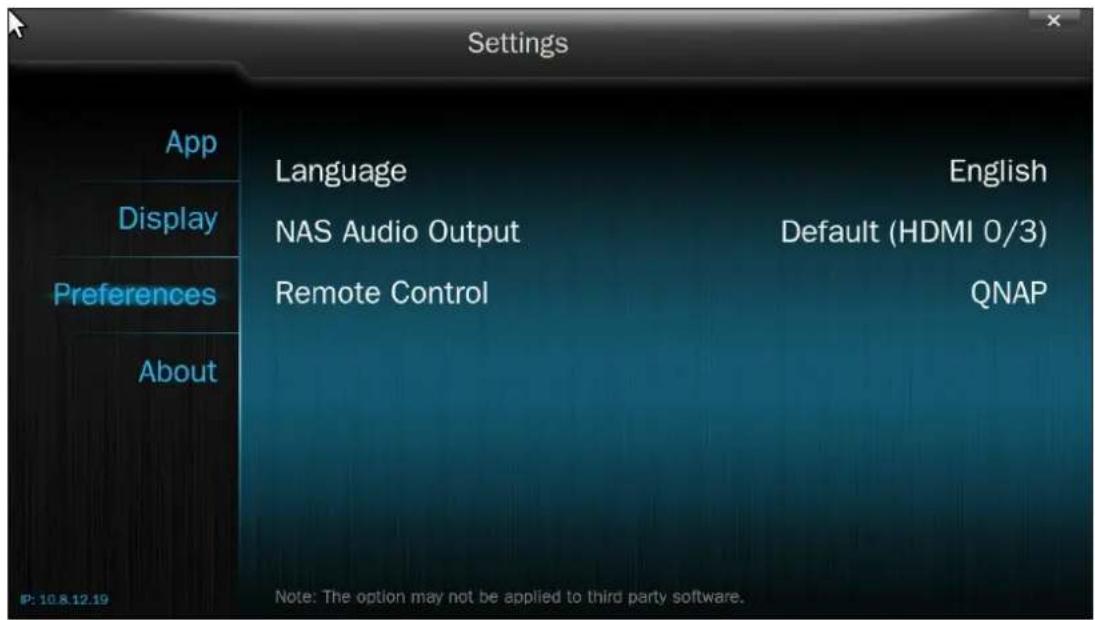
text_image
Settings App Display Preferences About Language English NAS Audio Output Default (HDMI 0/3) Remote Control QNAP IP: 10.8.12.19 Note: The option may not be applied to third party software.Note: Only the QNAP remote or MCE remote control is supported. NOT all the TS-x69 models support the internal remote control and the TS-x70 models only support the MCE remote control.
Remote Control Mappings
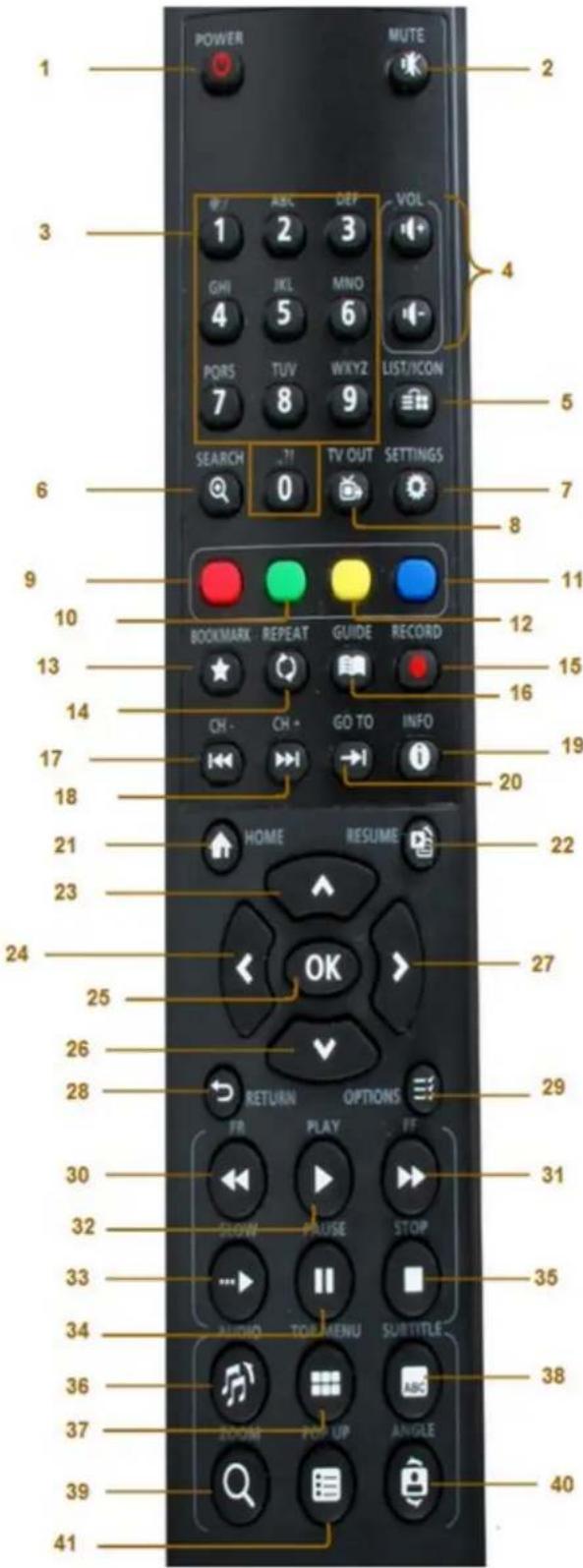
text_image
POWER MUTE 1 ABC DEP VOL 2 3 GHI JKL MNO 4 5 6 PORS TUV WXYZ LIST/ICON 7 8 9 5 SEARCH TV OUT SETTINGS 0 6 7 8 9 10 BOOKMARK REPEAT GUIDE RECORD 11 12 13 14 CH- GO TO INFO 15 16 17 20 18 21 HOME RESUME 22 23 24 25 OK 27 26 RETURN OPTIONS 28 FR PLAY FF 30 31 32 SLOW PHASE STOP 33 AUDIO TOP MENU SUBTITLE 34 35 36 38 37 200R POP UP ANGLE 39 40 41
text_image
1 2 3 4 5 6 7 8 9 10 11 12 13 14 15 16 17 18 19 Clear Enter 20 21 22 23 24 25 26 27 28 29 30 31 32 33 34 hp| RM-IR001RemoteControl | Action | MCERemoteControl | XBMCFunction | HD Station | |||
| Power | Power | 1 | N/A | Power | 1 | Power menu | |
| Mute | 2 | OK | Mute | 13 | Mute | ||
| Number | 0,1,2,3,4,5,6,7,8,9 | 3 | OK | 0,1,2,3,4,5,6,7,8,9 | 18 | 0,1,2,3,4,5,6,7,8,9 | |
| Vol+, Vol- | 4 | OK | Vol+, Vol- | 12 | Vol+, Vol- | ||
| List/Icon | 5 | N/A | View mode | ||||
| Search | 6 | N/A | |||||
| TV Out | 8 | N/A | |||||
| Settings | 7 | N/A | Settings | ||||
| Shortcut | Red - (Home) | 9 | OK | Red - (Home) | 3 | Home | |
| Green (Video) | 10 | OK | Green (Video) | 4 | Video menu | ||
| Yellow (Music) | 11 | OK | Yellow (Music) | 22 | Music menu | ||
| Blue (Picture) | 12 | OK | Blue (Picture) | 23 | Photo menu | ||
| Video Menu | Bookmark | 13 | N/A | Favorite | |||
| Repeater | 14 | N/A | Repeater | ||||
| Guide | 16 | N/A | Help | ||||
| Record | 15 | N/A | |||||
| CH- | 17 | Previous | Previous | 32 | Skip back | ||
| CH+ | 18 | Next | Next | 33 | Skip forward | ||
| Go to | 20 | N/A | Video progress bar | ||||
| Info | 19 | OK | Info | 10 | File info | ||
| Play Control | Home | 21 | OK | Home menu | |||
| Resume | 22 | N/A | Now playing | ||||
| Return | 28 | OK | Back | 7 | Back | ||
| Options | 29 | N/A | More | Playback menu | |||
| OK | 25 | OK | OK | 7 | OK | OK | |
| Up | 23 | OK | Up | 7 | Up | Up | |
| Down | 26 | OK | Down | 7 | Down | Down | |
| Right | 27 | OK | Right | 7 | Right | Right | |
| Left | 24 | OK | Left | 7 | Left | Left | |
| Video Play | Move backward | 30 | OK | Move backward | 16 | Move backward | |
| Move forward | 31 | OK | Move forward | 31 | Move forward | ||
| Play | 32 | OK | Play | 15 | Play | ||
| Slow | 33 | N/A | Slow | ||||
| Pause | 34 | OK | Pause | 30 | Pause | ||
| Stop | 35 | OK | Stop | 33 | Stop | ||
| Video Setting | Audio | 36 | Audio List | Language track | |||
| Top/ Menu | 37 | Video List | Movie menu | ||||
| Subtitle | 38 | OK | Subtitle | 2 | Subtitle track | ||
| Zoom | 39 | N/A | Zoom | ||||
| Pop up | 40 | N/A | Movie menu | ||||
| Angle | 41 | N/A | Angle | ||||
| Input | Clear (N/A) | 19 | Clear | ||||
| OK | Enter | 34 | Confirm | ||||
| Switch 16:9 / 4:3 | 27 |
The Surveillance Station Pro offers live video monitoring and recording of IP cameras on the local network or the Internet. Enable this feature in "Control Panel" > "Applications" > "Station Manager".

text_image
Station Manager Backup Station iTunes Server DLNA Media Server Media Library Web Server LDAP Server VPN Service Photo Station Music Station Multimedia Station File Station Download Station Surveillance Station Pro Settings License Management Enable Surveillance Station Enable Surveillance Station Regular login (http://192.168.0.17.8080/surveillance) ApplyPlease visit http://www.qnap.com/en/index.php?lang=en&sn=4056 for the IP cameras compatibility list.
The application is compatible with more than 1400 IP cameras, supports adding extra number of recording channels by license management, user access control, advanced alarm settings, etc. The Surveillance Station Pro offers one free recording channel by default. To add extra number of recording channels, please purchase the license at the QNAP License Store (http://license.qnap.com) or contact an authorized reseller.
The following Turbo NAS models support the Surveillance Station Pro by default.
| NAS m odels |
| TS-269 Pro, TS-469 Pro, TS-569 Pro, TS-669 Pro, TS-869 Pro, TS-469U-RP/SP, TS-869U-RP, TS-1269U-RP, TS-269L, TS-469L, TS-569L, TS-669L, TS-869L |
The Surveillance Station Pro can be installed on other Turbo NAS models by installing the add-on in "App Center" (launched from the NAS Desktop or Main Menu.)
| NAS models | Maxim um num ber of recording channels supported (by license purchase with the Surveillance Station Pro) |
| ARM series (TS-x10, TS-x12, TS-x19, TS-x20, TS-x21) | 8 |
| x86 series (TS-x39, TS-x59, TS-x69, TS-x70 Pro, SS-x39, SS-469 Pro) | 16 |
| TS-x70U, TS-x79 series | 40 |
Using Surveillance Station Pro
Click the service link on "Control Panel" > "Applications" > "Station Manager" >
"Surveillance Station" to connect to the application. Enter the username and password when you are prompted to.
Note: For live view and playback, the Surveillance Station Pro supports the following platforms:
- Windows PC: 32-bit Internet Explorer version 9.0 or above, Google Chrome, or Mozilla Firefox
• Mac OS X: QNAP Surveillance Client for Mac (http://www.qnap.com/utility)
To set up your network surveillance system by the NAS, follow the steps below:
- Plan your home network topology
- Set up the IP cameras
- Configure the camera settings on the NAS
- Configure your NAT router (for remote monitoring over the Internet)
Planning your home network topology
Write down your plan of the home network before setting up the surveillance system.
Consider the following when doing so:
i. The IP address of the NAS
ii. The IP address of the IP cameras
Your computer, the NAS, and the IP cameras should be connected to the same router on the LAN. Assign fixed IP addresses to the NAS and the IP cameras. For example,
• The LAN IP of the home router: 192.168.1.100
• Camera 1 IP: 192.168.1.10 (fixed IP)
• Camera 2 IP: 192.168.1.20 (fixed IP)
• NAS IP: 192.168.1.60 (fixed IP)

flowchart
graph TD
    A["DSL/Cable modem"] --> B["NAT rouber"]
    C["PC"] --> B
    D["Camera 1"] -->|LAN IP:192.168.1.10| B
    E["Camera 2"] -->|LAN IP:192.168.1.10| B
    F["QNAP NAS"] -->|LAN IP:192.168.1.60| B
    G["Internet"] --> B
    B -->|LAN IP:192.168.1.100| B
    B -->|LAN IP:192.168.1.32| B
Setting up the IP cameras
In this example, two IP cameras will be installed. Connect the IP cameras to your home network. Then set the IP address of the cameras so that they are in the same LAN as the computer. Login the configuration page of the Camera 1 by a web browser. Enter the IP address of the first IP camera as 192.168.1.10. The default gateway should be set as the LAN IP of the router (192.168.1.100 in this example). Then configure the IP address of the second IP camera as 192.168.1.20.
Some IP cameras provide a utility for IP configuration. You may refer to the user manual of the cameras for further details.

text_image
Surveillance Station Pro Monitor ▶ Playback Camera Settings Camera Status Camera Configuration Recording Settings Schedule Settings Alarm Settings System Settings Advanced Settings Privilege Settings Protocol Management Surveillance Logs License Management Channel No. Camera Name Brand 1 Camera 1 Axis 2 Camera 2 Sony 3 4 Camera Brand: Sony Camera Model: Sony SNC-DF50 Camera Name: Camera 2 IP Address: 1 Port: 8099 WAN IP Address: Port: 80 User Name: adults Password: ...... Enable recording on this camera Test* Please refer to http://www.qnap.com for the supported network camera list.
Configuring camera settings on the NAS
Login the Surveillance Station Pro by a web browser to configure the IP cameras. Go to "Camera Settings" > "Camera Configuration". Enter the IP camera information, for example, name, model, and IP address.
Click "Test" on the right to ensure the connection to the IP camera is successful.
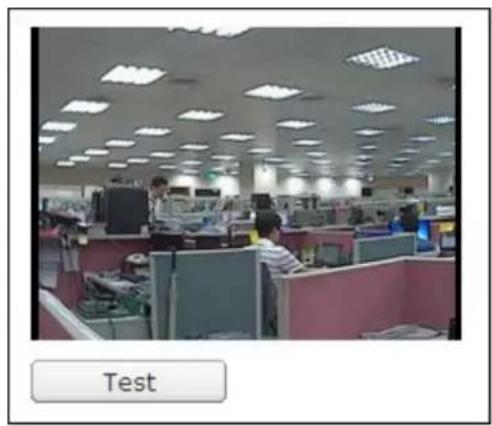
text_image
TestIf your IP camera supports audio recording, you may enable the option on the "Recording Settings" page. Click "Apply" to save the changes.
| Video Compression: | Motion JPEG |
| Resolution: | 320x240(QVGA) |
| Frame Rate: | 10 |
| Quality: | Level 5 |
Configure the settings of IP camera 2 following the above steps.
After you have added the network cameras to the NAS, click . The first
time you connect to this page by a web browser, you have to install additional plug-ins in order to view the images of IP camera 1 and IP camera 2. You can start to use the monitoring and recording functions of the Surveillance Station Pro.

text_image
HACCPINCE (14.3.0/08:20:13:00) Camera 1 Camera 2 Camera 3 Camera 4 2006-01-04 22:50:47 No Settings No SettingsTo use other functions such as motion detection recording, scheduled recording, and video playback, see the online help.
Configuring your NAT router (for remote monitoring over the Internet)
To view the monitoring video and connect to the NAS remotely, you need to change the network settings by forwarding different ports to the corresponding LAN IP on your NAT router.
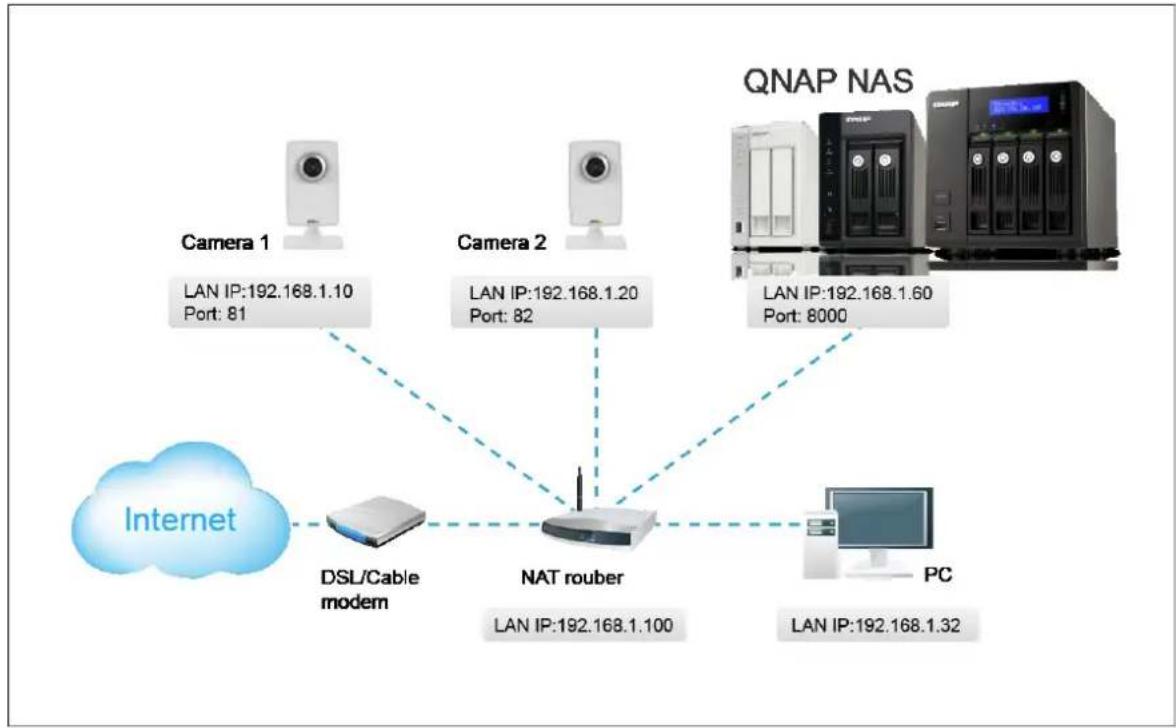
flowchart
graph TD
    A["DSL/Cable modem"] -->|LAN IP:192.168.1.10 Port: 81| B["Camera 1"]
    A -->|LAN IP:192.168.1.20 Port: 82| C["Camera 2"]
    A -->|LAN IP:192.168.1.60 Port: 8000| D["QNAP NAS"]
    A --> E["NAT rouber"]
    E --> F["PC"]
    E --> G["Internet"]
    E --> H["PC"]
Changing port settings of NAS and IP cameras
The default HTTP port of NAS is 8080. In this example, the port is changed to 8000. Therefore, you have to connect to the NAS via http://NAS IP:8000 after applying the settings.
Then login the network settings page of the IP cameras. Change the HTTP port of IP camera 1 from 80 to 81. Then change the port of IP camera 2 from 80 to 82.
Next, login the Surveillance Station Pro. Go to "Camera Settings" > "Camera Configuration". Enter the port numbers of IP camera 1 and IP camera 2 as 192.168.1.10 port 81 and 192.168.1.20 port 82 respectively. Enter the login name and the password for both IP cameras.
Besides, enter the WAN IP address (or your domain address on the public network, for example, MyNAS.dyndns.org) and the port on the WAN for the connection from the Internet. After finishing the settings, click "Test" to verify the connection.
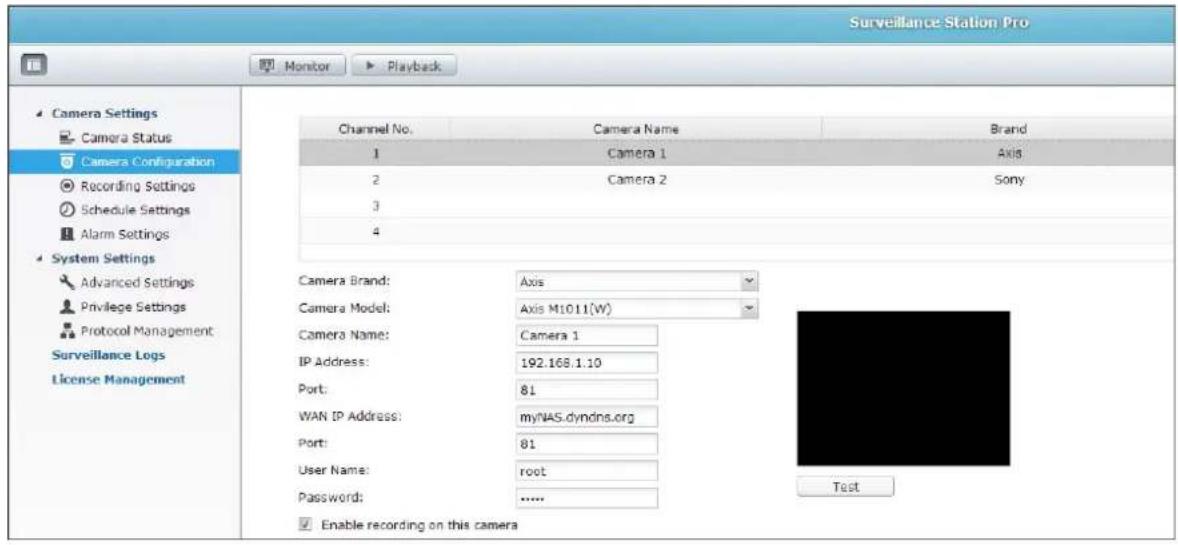
text_image
Surveillance Station Pro Monitor Playback Camera Settings Camera Status Camera Configuration Recording Settings Schedule Settings Alarm Settings System Settings Advanced Settings Privilege Settings Protocol Management Surveillance Logs License Management Channel No. Camera Name Brand 1 Camera 1 Axis 2 Camera 2 Sony 3 4 Camera Brand: Axis Camera Model: Axis M1011(W) Camera Name: Camera 1 IP Address: 192.168.1.10 Port: 81 WAN IP Address:=myNAS.dyndns.org Port: 81 User Name:=root Password: ...... Enable recording on this camera TestGo to the configuration page of your router and configure the port forwarding as below:
• Forward port 8000 to the LAN IP of the NAS: 192.168.1.60
- Forward port 81 to the LAN IP of IP camera 1: 192.168.1.10
• Forward port 82 to the LAN IP of IP camera 2: 192.168.1.20
Note: When you change the port settings, make sure remote access is allowed. For example, if you office network blocks the port 8000, you will not be able to connect to
your NAS from the office.
After you have configured the port forwarding and the router settings, you can start to use the Surveillance Station for remote monitoring over the Internet.
Connecting to the snapshots and video recordings of Surveillance Station:
All the snapshots are saved in "My Documents" > "Snapshot" (Windows XP) in your computer. If you are using Windows 7 or Vista, the default directory is "Documents" > "Snapshot".

text_image
Snapshot File Edit View Favorites Tools Help Back Search Folders Address C:\Documents and Settings\user\My Documents\Snapshot Go File and Folder Tasks Camera 1 2008-05-30-17-05-12.jpg Camera 2 2008-05-30-16-42-01.jpg Size Type 66 KB ACDSee 9.0 JPEG I.. 208 KB ACDSee 9.0 JPEG I.. Other Places Details 2 objects 272 KB My ComputerThe video recordings will be saved in \NASIP\Qrecordings or \NASIP\Recordings. The general recordings are saved in the folder "record_nvr" and the alarm recordings are saved in the folder "record_nvr_alarm".
The App Center is an app store for installing apps onto the NAS. Users can search for, install, remove and update apps through the App Center.
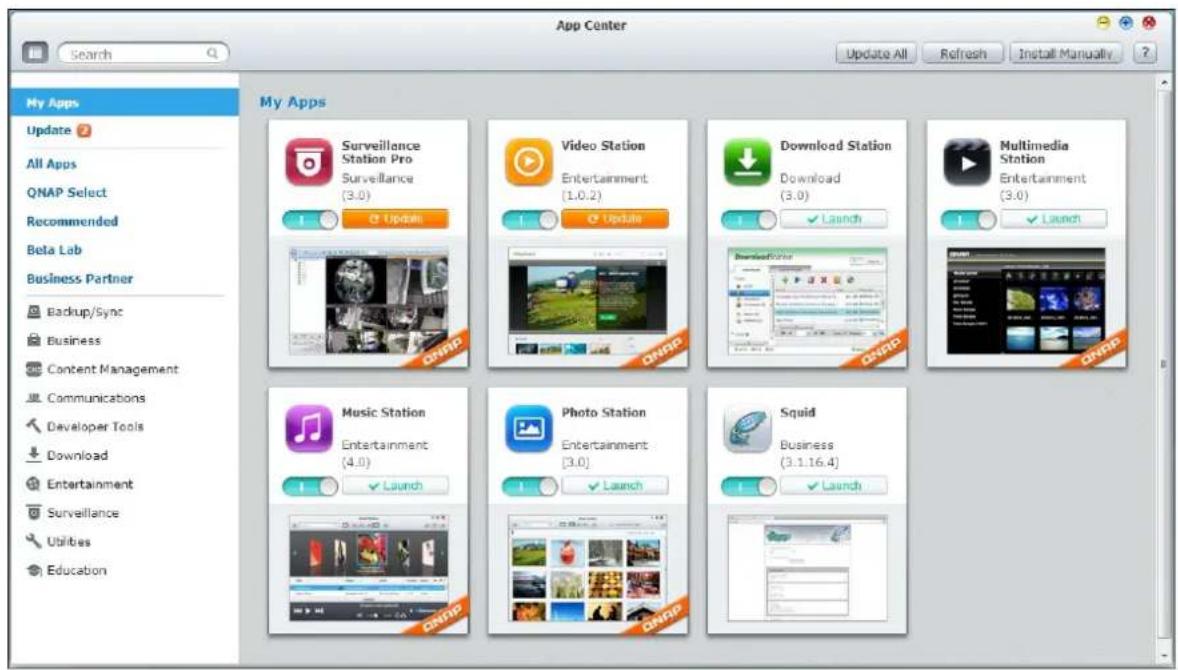
text_image
App Center Search Update All Refresh Install Manually My Apps Update ? All Apps QNAP Select Recommended Beta Lab Business Partner Backup/Sync Business Content Management Communications Developer Tools Download Entertainment Surveillance Ublites Education My Apps Surveillance Station Pro Surveillance (3.0) Update Video Station Entertainment (1.0.2) Update Download Station Download (3.0) Launch Multimedia Station Entertainment (3.0) Launch Music Station Entertainment (4.0) Launch Photo Station Entertainment (3.0) Launch Squid Business (3.1.16.4) LaunchThe App Center can be launched from the Main Menu or the App Center icon ( ) on the NAS Desktop.
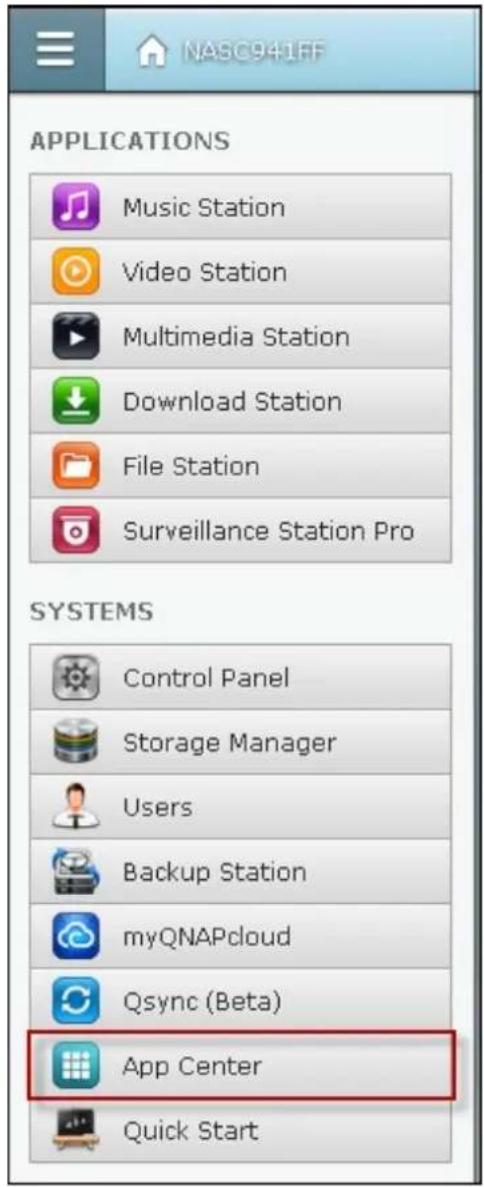
text_image
NASC941FF APPLICATIONS Music Station Video Station Multimedia Station Download Station File Station Surveillance Station Pro SYSTEMS Control Panel Storage Manager Users Backup Station myQNAPcloud Qsync (Beta) App Center Quick StartBrow sing and searching for apps
Apps are classified into categories listed in the left panel:
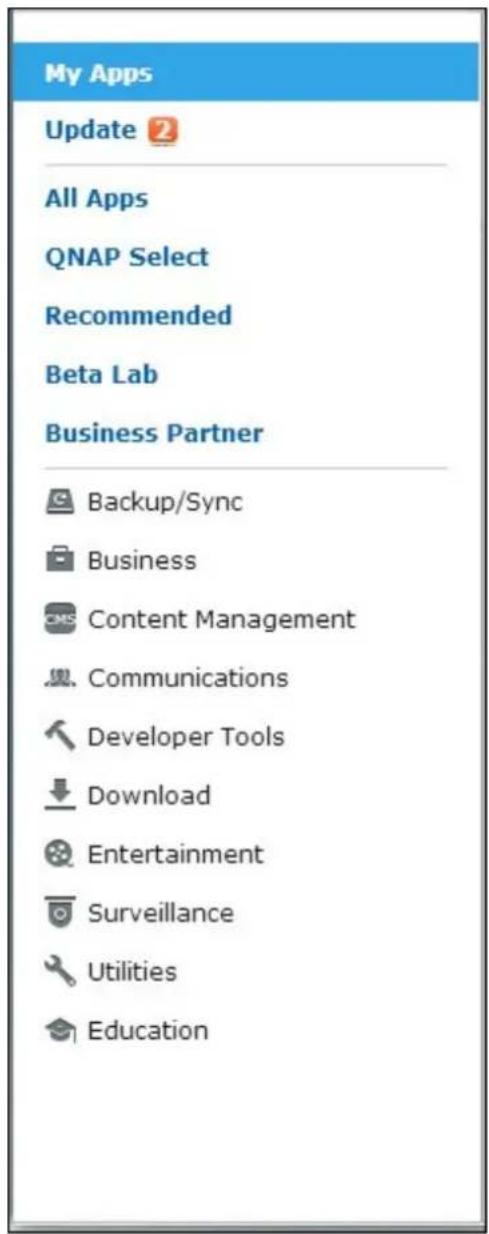
text_image
My Apps Update 2 All Apps QNAP Select Recommended Beta Lab Business Partner Backup/Sync Business Content Management Communications Developer Tools Download Entertainment Surveillance Utilities Education- My Apps: List apps that have been installed on the NAS. Note that the number shown next to the category name is the number of app updates available now.
- All Apps: List all apps that can be installed on the NAS.
• QNAP Select: List apps developed by QNAP. - Recommended: List apps recommended by QNAP (they could be developed by QNAP or third party developers.)
• Beta Lab: List beta apps for your first-hand experiences.
- Apps by types: From Backup/Sync to Education, those are app categories listed to facilitate your app searches.
To search for an app, click the desired category introduced above or key in the keyword in the search box. Note that the search box will only search for apps within the selected category.
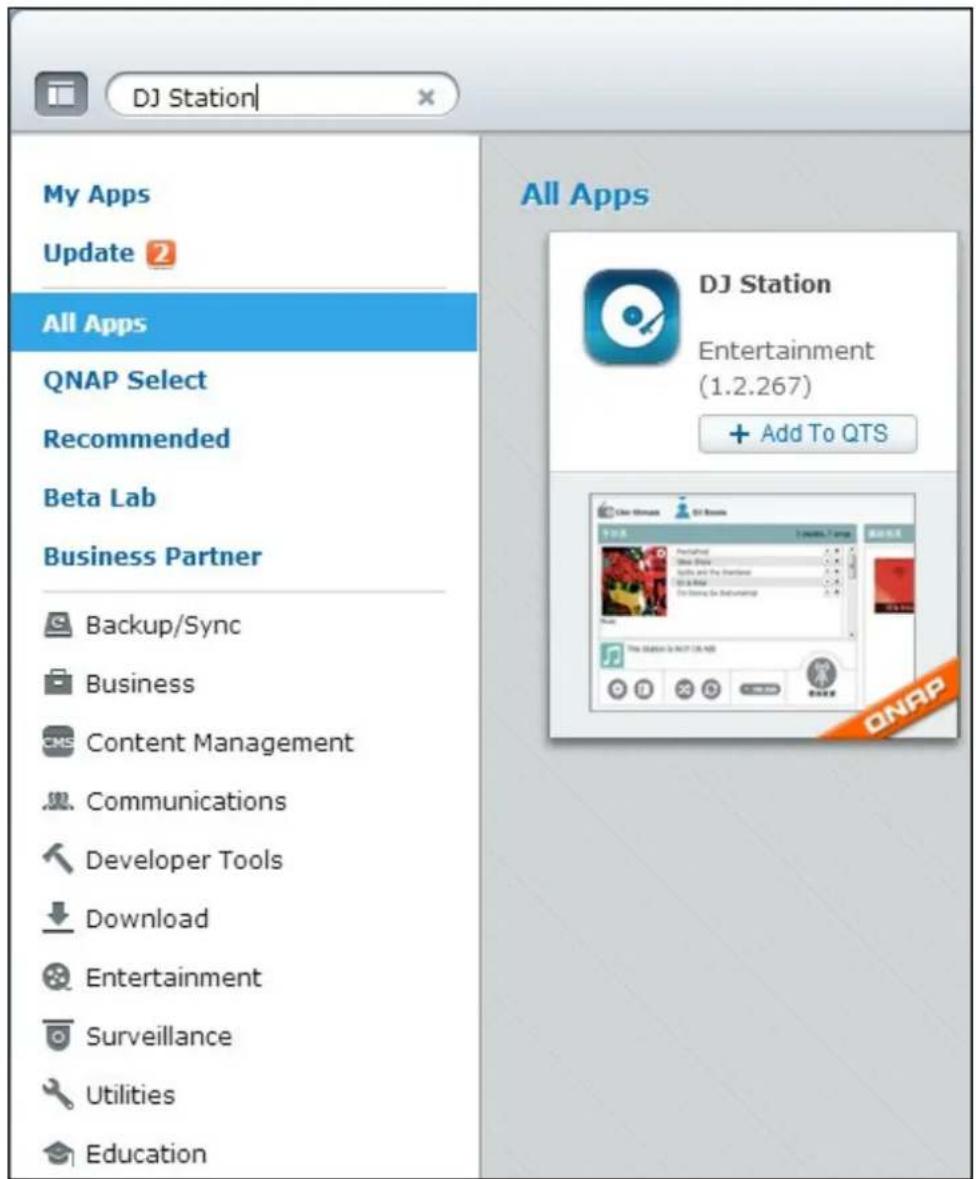
text_image
DJ Station My Apps Update 2 All Apps QNAP Select Recommended Beta Lab Business Partner Backup/Sync Business Content Management Communications Developer Tools Download Entertainment Surveillance Utilities Education All Apps DJ Station Entertainment (1.2.267) + Add To QTS User https://www.tj.nap/ Participated One Day Tools and the Frontline DJ & Web Do Using Do BackUping The Station is NOT OK AND ONAPInstalling, updating and removing apps
To install an app, click the "+ Add to QTS" button and the installation process will begin.

text_image
DJ Station Entertainment (1.2.267) + Add To QTS Our Minutes DJ Room 1 play, 7 song 播放选项 Peripherals Other Files Spills and TV Services Dio & Web Dio Gaming for Entertainment Music The Station is NOT OK! ONAPAfter the installation process is complete, the "+ Add to QTS" button will turn to the "Launch" button and you can directly click this button to launch this newly installed app. This newly installed app will then show up in "My Apps".
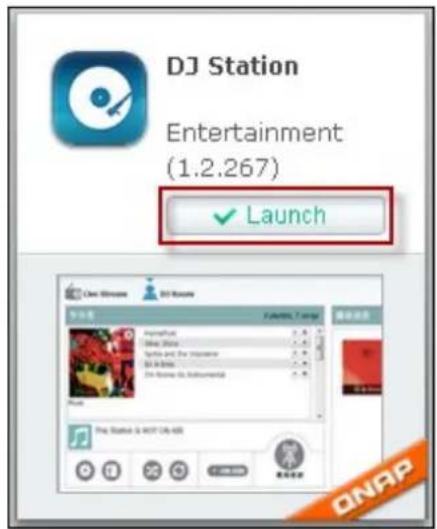
text_image
DJ Station Entertainment (1.2.267) LaunchNote:
• Make sure the NAS is connected to the Internet.
- QNAP is not responsible for troubleshooting any issues caused by the open source software/add-ons. Users are recommended to participate in the discussion in the QNAP community forum or contact the original creators of the open source software for the solutions.
- When installing an add-on which requires a prerequisite app, the prerequisite add-on will be added to the installation queue automatically prior to the dependent add-on.
- If the app update process is canceled before it is finished, please install the app from the App Center again.
To update an app, click "Update" and click "OK" to confirm.

text_image
Squid Business (3.1.16.3) UpdateAlternatively, you may click "Update All" on top right side of the screen to install all updates and "Refresh" to refresh for the latest updates. The button will turn to "Launch" to signify that the update has been complete for an app.
To remove an app, first click an installed app to open its introduction page. click "Remove" on the page to uninstall it from the NAS and click "OK" to confirm.

DJ Station
V1.2.267 (2013/04/25) | Entertainment | Total Installs: 741


text_image
DJStation Live Stream DJStream Program List Playback New Playing Playback Playback Number of online users: 01517.000000000, 01 Right Reserved. Tens: 01517.000000000, Auto: 26131124Developer: QNAP Systems, Inc.
Resource: Forum
Language: English, 簡体中文, 繁體中文, Czech, Dansk, Deutsch, Español, Français, Italiano, 日本語, 한글, Norsk, Polski, Pyccanai, Suomi, Svenska, Nederlands, Turk dili, 'Inu, Português, Magyar, Ellarvica, Román
Description:
DJ Station is a live audio streaming service that you can set up your personal radio station by creating custom playlists and broadcasting your favorite music to your friends on Facebook. The DJ Station provides audio streaming by
Note:
- Click to enable or disable an app.
- For more apps, please visit the QNAP official site (Resources > App Center).
Offline Installation
To install apps when the NAS is offline or beta apps that are not officially available on the QNAP App server, users can download the app files from QNAP website (http://www.qnap.com/QPKG.asp) or forum (http://forum.qnap.com/), unzip the files, and install the apps manually by clicking "Install Manually" on top right side of the page.

text_image
Install a new app manually To install a package, please follow the steps below: 1. Click here to browse more QPKG add-ons including those newly developed ones from the QPKG lab. You can download and unzip the add-ons to your computer. QPKG Development: If you would like to develop QPKG add-ons, the QDK has the tools, documentation, and sample codes you need to create great applications. 2. Browse to the location where the unzipped file is, and then click [Install]. Browse... Install Close9. Use the LCD Panel
This feature is only provided by the NAS models with LCD panels. Please visit http://www.qnap.com for details.
You can use the LCD panel to perform disk configuration and view the system information.
When the NAS has started up, you will be able to view the NAS name and IP address:
| N | A | S | 5 | F | 4 | D | E | 3 | ||||||
| 1 | 6 | 9 | . | 2 | 5 | 4 | . | 1 | 0 | 0 | . | 1 | 0 | 0 |
For the first time installation, the LCD panel shows the number of hard drives detected and the IP address. You may select to configure the hard drives.
| Num ber of hard drives detected | Default disk configuration | Available disk configuration options* |
| 1 | Single | Single |
| 2 | RAID 1 | Single -> JBOD ->RAID 0 -> RAID 1 |
| 3 | RAID 5 | Single -> JBOD -> RAID 0 -> RAID 5 |
| 4 or above | RAID 5 | Single ->JBOD -> RAID 0 -> RAID 5 -> RAID 6 |
*Press the "Select" button to choose the option, and press the "Enter" button to confirm.
For example, when you turn on the NAS with 5 hard drives installed, the LCD panel shows:
| C | o | n | f | i | g | . | D | i | s | k | s | ? | |||
| → | R | A | I | D | 5 |
You can press the "Select" button to browse more options, for example, RAID 6.
Press the "Enter" button and the following message shows. Press the "Select" button to select "Yes" to confirm.
| C | h | o | o | s | e | R | A | I | D | 5 | ? |

text_image
→ Y e s N oWhen you execute RAID 1, RAID 5, or RAID 6 configuration, the system will initialize the hard drives, create the RAID device, format the RAID device, and mount it as a volume on the NAS. The progress will be shown on the LCD panel. When it reaches 100%, you can connect to the RAID volume, for example, create folders and upload files to the folders on the NAS. In the meantime, to make sure the stripes and blocks in all the RAID component devices are ready, the NAS will execute RAID synchronization and the progress will be shown on "Storage Manager" > "Volume Management" page. The synchronization rate is around 30-60 MB/s (varies depending on the hard drive models, system resource usage, etc.)
Note: If a member drive of the RAID configuration was lost during the synchronization, the RAID device will enter degraded mode. The volume data is still accessible. If you add a member drive to the device, it will start to rebuild. You can check the status on the "Volume Management" page.
To encrypt the disk volume*, select "Yes" when the LCD panel shows
| E | n | c | r | y | p | t | V | o | l | u | m | e | ? | ||
| → | Y | e | s | N | o |
When the configuration is finished, the NAS name and IP address will be shown. If the NAS fails to create the disk volume, the following message will be shown.
| C | r | e | a | t | i | n | g | . | . | . | ||||
| R | A | I | D | 5 | F | a | i | l | e | d |
*This feature is not supported by TS-110, TS-119, TS-210, TS-219, TS-219P, TS-410, TS-419P, TS-410U, TS-419U, TS-119P+, TS-219P+, TS-419P+, TS-112, TS-212, TS-412, TS-419U+, TS-412U.
The data encryption functions may not be available in accordance to the legislative restrictions of some countries.
View system information by the LCD panel
When the LCD panel shows the NAS name and IP address, you may press the "Enter" button to enter the Main Menu. The Main Menu consists of the following items:
- TCP/IP
- Physical disk
- Volume
- System
- Shut down
- Reboot
- Password
- Back
TCP/IP
In TCP/IP, you can view the following options:
- LAN IP Address
- LAN Subnet Mask
- LAN Gateway
- LAN PRI. DNS
- LAN SEC. DNS
- Enter Network Settings
• Network Settings – DHCP
• Network Settings - Static IP*
• Network Settings - BACK
7. Back to Main Menu
* In Network Settings – Static IP, you can configure the IP address, subnet m ask, gateway, and DNS of LAN 1 and LAN 2.
Physical disk
In Physical disk, you can view the following options:
- Disk Info
- Back to Main Menu
The disk info shows the temperature and the capacity of the hard drives.
| D | i | s | k | : | 1 | T | e | m | p | : | 5 | 0 | ° | C | |
| S | i | z | e | : | 2 | 3 | 2 | G | B |
Volume
This section shows the hard drive configuration of the NAS. The first line shows the RAID configuration and storage capacity; the second line shows the member drive number of the configuration.
| R | A | I | D | 5 | 7 | 5 | 0 | G | B | ||||||
| D | r | i | v | e | 1 | 2 | 3 | 4 |
If there is more than one volume, press the "Select" button to view the information. The following table shows the description of the LCD messages for RAID 5 configuration.
| LCD Display | Drive configuration |
| RAID5+S | RAID5+spare |
| RAID5 (D) | RAID 5 degraded mode |
| RAID 5 (B) | RAID 5 rebuilding |
| RAID 5 (S) | RAID 5 re-synchronizing |
| RAID 5 (U) | RAID 5 is unmounted |
| RAID 5 (X) | RAID 5 non-activated |
System
This section shows the system temperature and the rotation speed of the system fan.
| C | P | U | T | e | m | p | : | 5 | 0 | ° | C | ||||
| S | y | s | T | e | m | p | : | 5 | 5 | ° | C |
| S | y | s | F | a | n | : | 8 | 6 | 5 | R | P | M | |||
Shut down
Use this option to turn off the NAS. Press the "Select" button to select "Yes". Then press the "Enter" button to confirm.
Reboot
Use this option to restart the NAS. Press the "Select" button to select "Yes". Then press the "Enter" button to confirm.
Password
The default password of the LCD panel is blank. Enter this option to change the password of the LCD panel. Select "Yes" to continue.
| C | h | a | n | g | e | P | a | s | s | w | o | r | d | ||
| Y | e | s | - | N | o |
You may enter a password of maximum 8 numeric characters (0-9). When the cursor moves to "OK", press the "Enter" button. Verify the password to confirm the changes.
| N | e | w | P | a | s | s | w | o | r | d | : | ||||
| O | K |
Back
Select this option to return to the main menu.
System Messages
When the NAS encounters system error, an error message will be shown on the LCD panel. Press the "Enter" button to view the message. Press the "Enter" button again to view the next message.
| S | y | s | t | e | m | E | r | r | o | r | ! | ||||
| P | l | s | . | C | h | e | c | k | L | o | g | s |
| System Message | Description |
| Sys. Fan Failed | The system fan fails. |
| Sys. Overheat | The system overheats. |
| HDD Overheat | A hard drive overheats. |
| CPU Overheat | The CPU overheats. |
| Network Lost | Both LAN 1 and LAN 2 are disconnected in failover or load balancing mode. |
| LAN1 Lost | LAN 1 is disconnected. |
| LAN2 Lost | LAN 2 is disconnected. |
| HDD Failure | A hard drive fails. |
| Vol1 Full | The disk volume (1) is full. |
| HDD Ejected | A hard drive is ejected. |
| Vol1 Degraded | The disk volume (1) is in degraded mode. |
| Vol1 Unmounted | The disk volume (1) is unmounted. |
| Vol1 Nonactivate | The disk volume (1) is inactive. |
10. GNU GENERAL PUBLIC LICENSE
Version 3, 29 June 2007
Copyright © 2007 Free Software Foundation, Inc. http://fsf.org/
Everyone is permitted to copy and distribute verbatim copies of this license document, but changing it is not allowed.
Preamble
The GNU General Public License is a free, copyleft license for software and other kinds of works.
The licenses for most software and other practical works are designed to take away your freedom to share and change the works. By contrast, the GNU General Public License is intended to guarantee your freedom to share and change all versions of a program--to make sure it remains free software for all its users. We, the Free Software Foundation, use the GNU General Public License for most of our software; it applies also to any other work released this way by its authors. You can apply it to your programs, too.
When we speak of free software, we are referring to freedom, not price. Our General Public Licenses are designed to make sure that you have the freedom to distribute copies of free software (and charge for them if you wish), that you receive source code or can get it if you want it, that you can change the software or use pieces of it in new free programs, and that you know you can do these things.
To protect your rights, we need to prevent others from denying you these rights or asking you to surrender the rights. Therefore, you have certain responsibilities if you distribute copies of the software, or if you modify it: responsibilities to respect the freedom of others.
For example, if you distribute copies of such a program, whether gratis or for a fee, you must pass on to the recipients the same freedoms that you received. You must make sure that they, too, receive or can get the source code. And you must show them these terms so they know their rights.
Developers that use the GNU GPL protect your rights with two steps: (1) assert copyright on the software, and (2) offer you this License giving you legal permission to
copy, distribute and/or modify it.
For the developers' and authors' protection, the GPL clearly explains that there is no warranty for this free software. For both users' and authors' sake, the GPL requires that modified versions be marked as changed, so that their problems will not be attributed erroneously to authors of previous versions.
Some devices are designed to deny users access to install or run modified versions of the software inside them, although the manufacturer can do so. This is fundamentally incompatible with the aim of protecting users' freedom to change the software. The systematic pattern of such abuse occurs in the area of products for individuals to use, which is precisely where it is most unacceptable. Therefore, we have designed this version of the GPL to prohibit the practice for those products. If such problems arise substantially in other domains, we stand ready to extend this provision to those domains in future versions of the GPL, as needed to protect the freedom of users.
Finally, every program is threatened constantly by software patents. States should not allow patents to restrict development and use of software on general-purpose computers, but in those that do, we wish to avoid the special danger that patents applied to a free program could make it effectively proprietary. To prevent this, the GPL assures that patents cannot be used to render the program non-free.
The precise terms and conditions for copying, distribution and modification follow.
TERMS AND CONDITIONS
0. Definitions.
'This License' refers to version 3 of the GNU General Public License.
'Copyright' also means copyright-like laws that apply to other kinds of works, such as semiconductor masks.
'The Program' refers to any copyrightable work licensed under this License. Each licensee is addressed as 'you'. 'Licensees' and 'recipients' may be individuals or organizations.
To 'modify' a work means to copy from or adapt all or part of the work in a fashion requiring copyright permission, other than the making of an exact copy. The resulting work is called a 'modified version' of the earlier work or a work 'based on' the earlier work.
A 'covered work' means either the unmodified Program or a work based on the Program.
To 'propagate' a work means to do anything with it that, without permission, would make you directly or secondarily liable for infringement under applicable copyright law, except executing it on a computer or modifying a private copy. Propagation includes copying, distribution (with or without modification), making available to the public, and in some countries other activities as well.
To 'convey' a work means any kind of propagation that enables other parties to make or receive copies. Mere interaction with a user through a computer network, with no transfer of a copy, is not conveying.
An interactive user interface displays 'Appropriate Legal Notices' to the extent that it includes a convenient and prominently visible feature that (1) displays an appropriate copyright notice, and (2) tells the user that there is no warranty for the work (except to the extent that warranties are provided), that licensees may convey the work under this License, and how to view a copy of this License. If the interface presents a list of user commands or options, such as a menu, a prominent item in the list meets this criterion.
1. Source Code.
The 'source code' for a work means the preferred form of the work for making modifications to it. 'Object code' means any non-source form of a work.
A 'Standard Interface' means an interface that either is an official standard defined by a recognized standards body, or, in the case of interfaces specified for a particular programming language, one that is widely used among developers working in that language.
The 'System Libraries' of an executable work include anything, other than the work as a whole, that (a) is included in the normal form of packaging a Major Component, but which is not part of that Major Component, and (b) serves only to enable use of the work with that Major Component, or to implement a Standard Interface for which an implementation is available to the public in source code form. A 'Major Component', in this context, means a major essential component (kernel, window system, and so on) of the specific operating system (if any) on which the executable work runs, or a compiler used to produce the work, or an object code interpreter used to run it.
The 'Corresponding Source' for a work in object code form means all the source code needed to generate, install, and (for an executable work) run the object code and to modify the work, including scripts to control those activities. However, it does not include the work's System Libraries, or general-purpose tools or generally available free
programs which are used unmodified in performing those activities but which are not part of the work. For example, Corresponding Source includes interface definition files associated with source files for the work, and the source code for shared libraries and dynamically linked subprograms that the work is specifically designed to require, such as by intimate data communication or control flow between those subprograms and other parts of the work.
The Corresponding Source need not include anything that users can regenerate automatically from other parts of the Corresponding Source.
The Corresponding Source for a work in source code form is that same work.
2. Basic Permissions.
All rights granted under this License are granted for the term of copyright on the Program, and are irrevocable provided the stated conditions are met. This License explicitly affirms your unlimited permission to run the unmodified Program. The output from running a covered work is covered by this License only if the output, given its content, constitutes a covered work. This License acknowledges your rights of fair use or other equivalent, as provided by copyright law.
You may make, run and propagate covered works that you do not convey, without conditions so long as your license otherwise remains in force. You may convey covered works to others for the sole purpose of having them make modifications exclusively for you, or provide you with facilities for running those works, provided that you comply with the terms of this License in conveying all material for which you do not control copyright. Those thus making or running the covered works for you must do so exclusively on your behalf, under your direction and control, on terms that prohibit them from making any copies of your copyrighted material outside their relationship with you.
Conveying under any other circumstances is permitted solely under the conditions stated below. Sublicensing is not allowed; section 10 makes it unnecessary.
3. Protecting Users' Legal Rights From Anti-Circumvention Law.
No covered work shall be deemed part of an effective technological measure under any applicable law fulfilling obligations under article 11 of the WIPO copyright treaty adopted on 20 December 1996, or similar laws prohibiting or restricting circumvention of such measures.
When you convey a covered work, you waive any legal power to forbid circumvention of
technological measures to the extent such circumvention is effected by exercising rights under this License with respect to the covered work, and you disclaim any intention to limit operation or modification of the work as a means of enforcing, against the work's users, your or third parties' legal rights to forbid circumvention of technological measures.
4. Conveying Verbatim Copies.
You may convey verbatim copies of the Program's source code as you receive it, in any medium, provided that you conspicuously and appropriately publish on each copy an appropriate copyright notice; keep intact all notices stating that this License and any non-permissive terms added in accord with section 7 apply to the code; keep intact all notices of the absence of any warranty; and give all recipients a copy of this License along with the Program.
You may charge any price or no price for each copy that you convey, and you may offer support or warranty protection for a fee.
5. Conveying Modified Source Versions.
You may convey a work based on the Program, or the modifications to produce it from the Program, in the form of source code under the terms of section 4, provided that you also meet all of these conditions:
a) The work must carry prominent notices stating that you modified it, and giving a relevant date.
b) The work must carry prominent notices stating that it is released under this License and any conditions added under section 7. This requirement modifies the requirement in section 4 to 'keep intact all notices'.
c) You must license the entire work, as a whole, under this License to anyone who comes into possession of a copy. This License will therefore apply, along with any applicable section 7 additional terms, to the whole of the work, and all its parts, regardless of how they are packaged. This License gives no permission to license the work in any other way, but it does not invalidate such permission if you have separately received it.
d) If the work has interactive user interfaces, each must display Appropriate Legal Notices; however, if the Program has interactive interfaces that do not display Appropriate Legal Notices, your work need not make them do so.
A compilation of a covered work with other separate and independent works, which are not by their nature extensions of the covered work, and which are not combined with it such as to form a larger program, in or on a volume of a storage or distribution medium,
is called an 'aggregate' if the compilation and its resulting copyright are not used to limit the access or legal rights of the compilation's users beyond what the individual works permit. Inclusion of a covered work in an aggregate does not cause this License to apply to the other parts of the aggregate.
6. Conveying Non-Source Forms.
You may convey a covered work in object code form under the terms of sections 4 and 5, provided that you also convey the machine-readable Corresponding Source under the terms of this License, in one of these ways:
a) Convey the object code in, or embodied in, a physical product (including a physical distribution medium), accompanied by the Corresponding Source fixed on a durable physical medium customarily used for software interchange.
b) Convey the object code in, or embodied in, a physical product (including a physical distribution medium), accompanied by a written offer, valid for at least three years and valid for as long as you offer spare parts or customer support for that product model, to give anyone who possesses the object code either (1) a copy of the Corresponding Source for all the software in the product that is covered by this License, on a durable physical medium customarily used for software interchange, for a price no more than your reasonable cost of physically performing this conveying of source, or (2) access to copy the Corresponding Source from a network server at no charge.
c) Convey individual copies of the object code with a copy of the written offer to provide the Corresponding Source. This alternative is allowed only occasionally and noncommercially, and only if you received the object code with such an offer, in accord with subsection 6b.
d) Convey the object code by offering access from a designated place (gratis or for a charge), and offer equivalent access to the Corresponding Source in the same way through the same place at no further charge. You need not require recipients to copy the Corresponding Source along with the object code. If the place to copy the object code is a network server, the Corresponding Source may be on a different server (operated by you or a third party) that supports equivalent copying facilities, provided you maintain clear directions next to the object code saying where to find the Corresponding Source. Regardless of what server hosts the Corresponding Source, you remain obligated to ensure that it is available for as long as needed to satisfy these requirements.
e) Convey the object code using peer-to-peer transmission, provided you inform other peers where the object code and Corresponding Source of the work are being offered to the general public at no charge under subsection 6d.
A separable portion of the object code, whose source code is excluded from the Corresponding Source as a System Library, need not be included in conveying the object code work.
A 'User Product' is either (1) a 'consumer product', which means any tangible personal property which is normally used for personal, family, or household purposes, or (2) anything designed or sold for incorporation into a dwelling. In determining whether a product is a consumer product, doubtful cases shall be resolved in favor of coverage. For a particular product received by a particular user, 'normally used' refers to a typical or common use of that class of product, regardless of the status of the particular user or of the way in which the particular user actually uses, or expects or is expected to use, the product. A product is a consumer product regardless of whether the product has substantial commercial, industrial or non-consumer uses, unless such uses represent the only significant mode of use of the product.
'Installation Information' for a User Product means any methods, procedures, authorization keys, or other information required to install and execute modified versions of a covered work in that User Product from a modified version of its Corresponding Source. The information must suffice to ensure that the continued functioning of the modified object code is in no case prevented or interfered with solely because modification has been made.
If you convey an object code work under this section in, or with, or specifically for use in, a User Product, and the conveying occurs as part of a transaction in which the right of possession and use of the User Product is transferred to the recipient in perpetuity or for a fixed term (regardless of how the transaction is characterized), the Corresponding Source conveyed under this section must be accompanied by the Installation Information. But this requirement does not apply if neither you nor any third party retains the ability to install modified object code on the User Product (for example, the work has been installed in ROM).
The requirement to provide Installation Information does not include a requirement to continue to provide support service, warranty, or updates for a work that has been modified or installed by the recipient, or for the User Product in which it has been modified or installed. Access to a network may be denied when the modification itself materially and adversely affects the operation of the network or violates the rules and protocols for communication across the network.
Corresponding Source conveyed, and Installation Information provided, in accord with
this section must be in a format that is publicly documented (and with an implementation available to the public in source code form), and must require no special password or key for unpacking, reading or copying.
7. Additional Terms.
'Additional permissions' are terms that supplement the terms of this License by making exceptions from one or more of its conditions. Additional permissions that are applicable to the entire Program shall be treated as though they were included in this License, to the extent that they are valid under applicable law. If additional permissions apply only to part of the Program, that part may be used separately under those permissions, but the entire Program remains governed by this License without regard to the additional permissions.
When you convey a copy of a covered work, you may at your option remove any additional permissions from that copy, or from any part of it. (Additional permissions may be written to require their own removal in certain cases when you modify the work.) You may place additional permissions on material, added by you to a covered work, for which you have or can give appropriate copyright permission.
Notwithstanding any other provision of this License, for material you add to a covered work, you may (if authorized by the copyright holders of that material) supplement the terms of this License with terms:
a) Disclaiming warranty or limiting liability differently from the terms of sections 15 and 16 of this License; or
b) Requiring preservation of specified reasonable legal notices or author attributions in that material or in the Appropriate Legal Notices displayed by works containing it; or
c) Prohibiting misrepresentation of the origin of that material, or requiring that modified versions of such material be marked in reasonable ways as different from the original version; or
d) Limiting the use for publicity purposes of names of licensors or authors of the material; or
e) Declining to grant rights under trademark law for use of some trade names, trademarks, or service marks; or
f) Requiring indemnification of licensors and authors of that material by anyone who conveys the material (or modified versions of it) with contractual assumptions of liability to the recipient, for any liability that these contractual assumptions directly impose on those licensors and authors.
All other non-permissive additional terms are considered 'further restrictions' within the
meaning of section 10. If the Program as you received it, or any part of it, contains a notice stating that it is governed by this License along with a term that is a further restriction, you may remove that term. If a license document contains a further restriction but permits relicensing or conveying under this License, you may add to a covered work material governed by the terms of that license document, provided that the further restriction does not survive such relicensing or conveying.
If you add terms to a covered work in accord with this section, you must place, in the relevant source files, a statement of the additional terms that apply to those files, or a notice indicating where to find the applicable terms.
Additional terms, permissive or non-permissive, may be stated in the form of a separately written license, or stated as exceptions; the above requirements apply either way.
8. Termination.
You may not propagate or modify a covered work except as expressly provided under this License. Any attempt otherwise to propagate or modify it is void, and will automatically terminate your rights under this License (including any patent licenses granted under the third paragraph of section 11).
However, if you cease all violation of this License, then your license from a particular copyright holder is reinstated (a) provisionally, unless and until the copyright holder explicitly and finally terminates your license, and (b) permanently, if the copyright holder fails to notify you of the violation by some reasonable means prior to 60 days after the cessation.
Moreover, your license from a particular copyright holder is reinstated permanently if the copyright holder notifies you of the violation by some reasonable means, this is the first time you have received notice of violation of this License (for any work) from that copyright holder, and you cure the violation prior to 30 days after your receipt of the notice.
Termination of your rights under this section does not terminate the licenses of parties who have received copies or rights from you under this License. If your rights have been terminated and not permanently reinstated, you do not qualify to receive new licenses for the same material under section 10.
9. Acceptance Not Required for Having Copies.
You are not required to accept this License in order to receive or run a copy of the
Program. Ancillary propagation of a covered work occurring solely as a consequence of using peer-to-peer transmission to receive a copy likewise does not require acceptance.
However, nothing other than this License grants you permission to propagate or modify any covered work. These actions infringe copyright if you do not accept this License.
Therefore, by modifying or propagating a covered work, you indicate your acceptance of this License to do so.
10. Automatic Licensing of Downstream Recipients.
Each time you convey a covered work, the recipient automatically receives a license from the original licensors, to run, modify and propagate that work, subject to this License. You are not responsible for enforcing compliance by third parties with this License.
An 'entity transaction' is a transaction transferring control of an organization, or substantially all assets of one, or subdividing an organization, or merging organizations. If propagation of a covered work results from an entity transaction, each party to that transaction who receives a copy of the work also receives whatever licenses to the work the party's predecessor in interest had or could give under the previous paragraph, plus a right to possession of the Corresponding Source of the work from the predecessor in interest, if the predecessor has it or can get it with reasonable efforts.
You may not impose any further restrictions on the exercise of the rights granted or affirmed under this License. For example, you may not impose a license fee, royalty, or other charge for exercise of rights granted under this License, and you may not initiate litigation (including a cross-claim or counterclaim in a lawsuit) alleging that any patent claim is infringed by making, using, selling, offering for sale, or importing the Program or any portion of it.
11. Patents.
A 'contributor' is a copyright holder who authorizes use under this License of the Program or a work on which the Program is based. The work thus licensed is called the contributor's 'contributor version'.
A contributor's 'essential patent claims' are all patent claims owned or controlled by the contributor, whether already acquired or hereafter acquired, that would be infringed by some manner, permitted by this License, of making, using, or selling its contributor version, but do not include claims that would be infringed only as a consequence of further modification of the contributor version. For purposes of this definition, 'control' includes the right to grant patent sublicenses in a manner consistent with the
requirements of this License.
Each contributor grants you a non-exclusive, worldwide, royalty-free patent license under the contributor's essential patent claims, to make, use, sell, offer for sale, import and otherwise run, modify and propagate the contents of its contributor version.
In the following three paragraphs, a 'patent license' is any express agreement or commitment, however denominated, not to enforce a patent (such as an express permission to practice a patent or covenant not to sue for patent infringement). To 'grant' such a patent license to a party means to make such an agreement or commitment not to enforce a patent against the party.
If you convey a covered work, knowingly relying on a patent license, and the Corresponding Source of the work is not available for anyone to copy, free of charge and under the terms of this License, through a publicly available network server or other readily accessible means, then you must either (1) cause the Corresponding Source to be so available, or (2) arrange to deprive yourself of the benefit of the patent license for this particular work, or (3) arrange, in a manner consistent with the requirements of this License, to extend the patent license to downstream recipients. 'Knowingly relying' means you have actual knowledge that, but for the patent license, your conveying the covered work in a country, or your recipient's use of the covered work in a country, would infringe one or more identifiable patents in that country that you have reason to believe are valid.
If, pursuant to or in connection with a single transaction or arrangement, you convey, or propagate by procuring conveyance of, a covered work, and grant a patent license to some of the parties receiving the covered work authorizing them to use, propagate, modify or convey a specific copy of the covered work, then the patent license you grant is automatically extended to all recipients of the covered work and works based on it.
A patent license is 'discriminatory' if it does not include within the scope of its coverage, prohibits the exercise of, or is conditioned on the non-exercise of one or more of the rights that are specifically granted under this License. You may not convey a covered work if you are a party to an arrangement with a third party that is in the business of distributing software, under which you make payment to the third party based on the extent of your activity of conveying the work, and under which the third party grants, to any of the parties who would receive the covered work from you, a discriminatory patent license (a) in connection with copies of the covered work conveyed by you (or copies made from those copies), or (b) primarily for and in connection with specific products or
compilations that contain the covered work, unless you entered into that arrangement, or that patent license was granted, prior to 28 March 2007.
Nothing in this License shall be construed as excluding or limiting any implied license or other defenses to infringement that may otherwise be available to you under applicable patent law.
12. No Surrender of Others' Freedom.
If conditions are imposed on you (whether by court order, agreement or otherwise) that contradict the conditions of this License, they do not excuse you from the conditions of this License. If you cannot convey a covered work so as to satisfy simultaneously your obligations under this License and any other pertinent obligations, then as a consequence you may not convey it at all. For example, if you agree to terms that obligate you to collect a royalty for further conveying from those to whom you convey the Program, the only way you could satisfy both those terms and this License would be to refrain entirely from conveying the Program.
13. Use with the GNU Affero General Public License.
Notwithstanding any other provision of this License, you have permission to link or combine any covered work with a work licensed under version 3 of the GNU Affero General Public License into a single combined work, and to convey the resulting work. The terms of this License will continue to apply to the part which is the covered work, but the special requirements of the GNU Affero General Public License, section 13, concerning interaction through a network will apply to the combination as such.
14. Revised Versions of this License.
The Free Software Foundation may publish revised and/or new versions of the GNU General Public License from time to time. Such new versions will be similar in spirit to the present version, but may differ in detail to address new problems or concerns.
Each version is given a distinguishing version number. If the Program specifies that a certain numbered version of the GNU General Public License 'or any later version' applies to it, you have the option of following the terms and conditions either of that numbered version or of any later version published by the Free Software Foundation. If the Program does not specify a version number of the GNU General Public License, you may choose any version ever published by the Free Software Foundation.
If the Program specifies that a proxy can decide which future versions of the GNU General Public License can be used, that proxy's public statement of acceptance of a
version permanently authorizes you to choose that version for the Program.
Later license versions may give you additional or different permissions. However, no additional obligations are imposed on any author or copyright holder as a result of your choosing to follow a later version.
15. Disclaimer of Warranty.
THERE IS NO WARRANTY FOR THE PROGRAM, TO THE EXTENT PERMITTED BY APPLICABLE LAW. EXCEPT WHEN OTHERWISE STATED IN WRITING THE COPYRIGHT HOLDERS AND/OR OTHER PARTIES PROVIDE THE PROGRAM 'AS IS' WITHOUT WARRANTY OF ANY KIND, EITHER EXPRESSED OR IMPLIED, INCLUDING, BUT NOT LIMITED TO, THE IMPLIED WARRANTIES OF MERCHANTABILITY AND FITNESS FOR A PARTICULAR PURPOSE. THE ENTIRE RISK AS TO THE QUALITY AND PERFORMANCE OF THE PROGRAM IS WITH YOU. SHOULD THE PROGRAM PROVE DEFECTIVE, YOU ASSUME THE COST OF ALL NECESSARY SERVICING, REPAIR OR CORRECTION.
16. Limitation of Liability.
IN NO EVENT UNLESS REQUIRED BY APPLICABLE LAW OR AGREED TO IN WRITING WILL ANY COPYRIGHT HOLDER, OR ANY OTHER PARTY WHO MODIFIES AND/OR CONVEYS THE PROGRAM AS PERMITTED ABOVE, BE LIABLE TO YOU FOR DAMAGES, INCLUDING ANY GENERAL, SPECIAL, INCIDENTAL OR CONSEQUENTIAL DAMAGES ARISING OUT OF THE USE OR INABILITY TO USE THE PROGRAM (INCLUDING BUT NOT LIMITED TO LOSS OF DATA OR DATA BEING RENDERED INACCURATE OR LOSSES SUSTAINED BY YOU OR THIRD PARTIES OR A FAILURE OF THE PROGRAM TO OPERATE WITH ANY OTHER PROGRAMS), EVEN IF SUCH HOLDER OR OTHER PARTY HAS BEEN ADVISED OF THE POSSIBILITY OF SUCH DAMAGES.
17. Interpretation of Sections 15 and 16.
If the disclaimer of warranty and limitation of liability provided above cannot be given local legal effect according to their terms, reviewing courts shall apply local law that most closely approximates an absolute waiver of all civil liability in connection with the Program, unless a warranty or assumption of liability accompanies a copy of the Program in return for a fee.
END OF TERMS AND CONDITIONS