BlackWire C520-M - Helmet PLANTRONICS - Free user manual and instructions
Find the device manual for free BlackWire C520-M PLANTRONICS in PDF.


User questions about BlackWire C520-M PLANTRONICS
0 question about this device. Answer the ones you know or ask your own.
Ask a new question about this device
Download the instructions for your Helmet in PDF format for free! Find your manual BlackWire C520-M - PLANTRONICS and take your electronic device back in hand. On this page are published all the documents necessary for the use of your device. BlackWire C520-M by PLANTRONICS.
USER MANUAL BlackWire C520-M PLANTRONICS
System Requirements 3
Need More Help? 3
What's in the package 4
Basics 5
Wearing Your Headset 6
Fit Headset 6
Daily Use 7
Connect PC and Call 7
Incoming/Outgoing Calls 7
Adjust Your Headset Volume 8
Mute a Call 8
Optional Plantronics Spokes software 9
Plantronics Control Panel 9
Applications tab 9
Preferences tab 10
About tab 10
Plantronics Update Manager 11
Troubleshooting 12
Headset 12
Microsoft Lync/Office Communicator usage 13
Smart Sensors 13
Welcome
Congratulations on purchasing your new Plantronics product. This guide contains instructions for setting up and using your Blackwire C510-M/C520-M headset.
Please refer to the safety instructions in the quick start guide for important product safety information prior to installation or use of the product.
System Requirements
Computer
- Supported Operating Systems: Windows ^® 7, Windows ^® 8, Windows XP ^® , Windows Vista ^®
- Processor: 400 MHz Pentium® processor or equivalent (Minimum); 1 GHz Pentium processor or equivalent (Recommended)
• RAM: 96 MB (Minimum); 256 MB (Recommended) - Hard Disk: 280 MB (Minimum); 500 MB or more (Recommended)
- Microsoft Windows XP-Service Pack 3 (SP3) or later (Recommended) Microsoft Windows Vista-Service Pack 1 (SP1) or later (Recommended)
Display
- At least 800 x 600, 256 colors
- 1024 x 768 high color, 32-bit (Recommended)
Browser
- Internet Explorer® V6 or better must be on the user's system (Required)
Need More Help?
Visit our website at www.plantronics.com/support for technical support including frequently asked questions, compatibility and accessibility information.
What's in the package
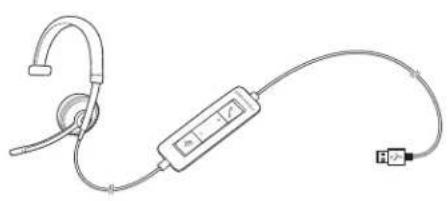
natural_image
Line drawing of a medical or electronic device with ear, connector, and cable (no text or symbols)Blackwire C510M Headset with inline controller (monaural)

natural_image
Line drawing of a portable ear with earphones and connected audio equipment (no text or symbols)Blackwire C520M Headset with inline controller (stereo)

natural_image
Simple line drawing of a rounded rectangular object with a loop at the bottom (no text or symbols)Carrying case
Basics

text_image
plesmosics + - - -Headset inline control icons Function
| Answer/End buttonAnswers or ends a call |  In In | |
| (Sewal) | (6025) | |
| (Sewal) | Volume up button |  Increases the listening volume Increases the listening volume |
| (2749) | Volume down button | (Sewal)Decreases the listening volume |
| (Sewal) | Mute/Unmute buttonMutes/unmutes the headset microphone | (7802) |
Smart Sensor™ technology
Sensors detect whether or not you are wearing the headset. Sensors are located in the speaker capsule on the microphone boom side.
Smart Sensor Feature Function
Auto Answer Call
When you are not wearing your headset and have an incoming call on your PC, put on the headset and the call will be answered automatically. You do not have to press the Answer/End button.

Wearing Your Headset
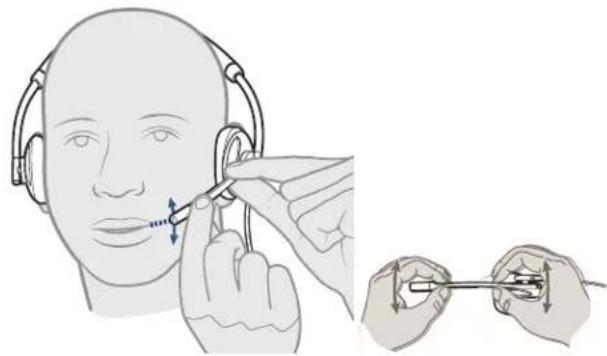
Fit Headset 1 Slide the headband until it fits comfortably over both ears.

natural_image
Illustration of a person wearing headphones with arrows indicating head direction (no text or symbols)2 If still too tight, stretch the headband for better comfort.

natural_image
Diagram of a curved medical device with two side sensors and directional arrows indicating movement (no text or symbols)3 For optimal voice clarity, bend the boom and place the microphone close to mouth.
natural_image
Illustration of a person wearing headphones with earphones and a close-up of hands holding a tool, no text or symbols present.Daily Use
Connect PC and Call
1 Ensure Microsoft Lync is running on your PC.
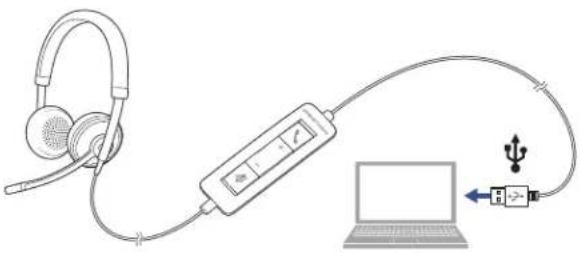
2 Connect the headset into the USB port of the computer. The headset will automatically power on.
natural_image
Diagram showing a laptop connected to an audio recording device via cable, with headphones and USB interface (no text or symbols)3 Check your Audio Settings. Confirm the speaker and microphone settings for your PC softphone are set to Plantronics C510/C520.
• PC Audio Setup for Windows 7 and Windows 8
Go to Control Panel -> Sound -> Playback tab, and set the Plantronics C510/C520 device as the Default Communications Device.
• PC Audio Setup for Windows XP
Go to Control Panel -> Sound and Audio Devices, and in the Audio tab set the Plantronics C510/C520 device for the Sound Playback.
4 Place a call using the Microsoft Lync software.
Incoming/Outgoing Calls
1 To place a call Dial number using Microsoft Lync/Office Communicator
2 To answer a call
- Put on headset to answer call with Smart Sensor technology or,
- If already wearing headset press the Answer/End button
3 To end a call Short press the Answer/End button.
Adjust Your Headset Volume

text_image
Diagram of a device with labeled ports and control buttons, showing signal flow indicatorsListening Volume
1 Press the volume up button (⊕) on the headset inline control to increase listening volume.
2 Press the volume down button (_) on the headset inline control to decrease listening volume.
Mute a Call
During a call, press the mute button on the headset inline control to mute the microphone. When mute is on, the mute LED is solid red (you will still be able to hear the caller).

text_image
端2 To turn mute off, press the mute button again.
Optional Plantronics Spokes software
Optional Plantronics Spokes software must be downloaded to access the Plantronics Control Panel. Install Spokes software by visiting plantronics.com/software and click on the download button.
Plantronics Control Panel
To start this utility, click Start > Programs > Plantronics > Plantronics Control Panel.

text_image
Plantronics Control Panel Devices Applications Preferences About Devices Blackwire C5xx Device Settings Set Default Software Default Software Microsoft OC/Lyns Audio Settings Your Plantronics devices and software do not control audio routing on your system. Make sure your Windows audio settings and the software and media player audio settings are correct. OK Cancel ApplyApplications tab
The Applications tab displays the status of Plantronics support for various applications such as softphones and media players.

text_image
Plantronics Control Panel Devices | Applications | Preferences | About Status of the Plantronics application Integration modules Name Enabled Running Avaya IP Agent ✓ Avaya IP Sulfphone ✓ Avaya one-X Agent ✓ Avaya one-X Communicator ✓ Docus IP Communicator ✓ Docus UC Dents (CSF) ✓ Docus WebEx Connect ✓ IBM Semisphere ✓ iTunes ✓ Microsoft OC/Lyne ✓ ✓ NEC SP350 ✓ ShoreTel Call Manager ✓ ShoreTel Communicator ✓ Skype ✓ Vibamp ✓ Windows Media Player ✓ OK Cancel ApplyPreferences tab
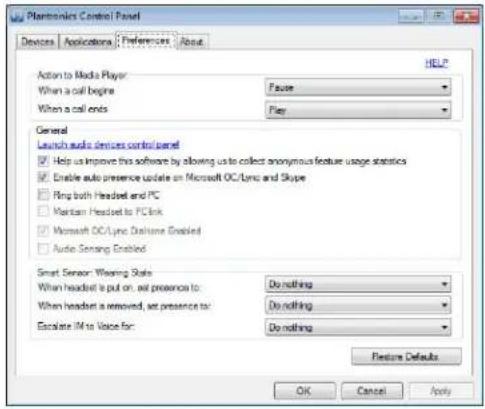
Allows you to set preferences for:
• Media player Modify call action: Pause, Play, Mute or Do Nothing
- General use
- Lync presence based on wearing state When headset is put on, or removed set presence to: Available, Busy, Do not disturb, Be right back or Offline
text_image
Plastrovics Control Panel Devices Applications Preferences About Action to Media Player When a call begine Faste When a call ends Play General Launch audio devices control panel Help us improve this software by allowing us to collect anonymous feature usage statistics Enable auto presence update on Microsoft OC/Lync and Skype Ring both Headed and PC Maintain Headed to PC link Microsoft OC/Lync Draftome Enabled Audio Sensing Enabled Smart Sensor: Wearing Status When headed is put on, all presence to: Do nothing When headed is removed, set presence to: Do nothing Escalate IM to Voice for: Do nothing Configure Defaults OK Cancel ApplyAbout tab
Provides online access to the user guide and support and displays your headset system's information.

text_image
Plantronics Control Panel Devices | Applications | Preferences | About Support User Guide Contact Platforms Device Information Product ID 0x100 Product Name Backover CS20-H Manufacturer Name Plantronics USB Adaptor/Base Serial Number Headset Serial Number nsnsnsnsnsnsnsnsnsnsnsnsnsnsnsnsnsnsnsnsnsnsnsnsnsnsnsnsnsnsnsnsnsnsnsnsnsnsnsnsnsnsnsnsnsnsnsnsnsnsnsnsnsnsnsnsnsnsnsnsnsnsnsnsnsnsnsnsnsnsnsnsnsnsnsnsnsnsnsnsnsnsnsnsnsnsnsnsnsnsnsnsnsnsnsnsnsnsnsnsn Software Version Plantronics Control Panel 2.757855.0 Plantronics United Runtime Engine 2.757855.0 Hardware Version USB Firmware 33 Base Headset OK Cancel ApplyPlantronics Update Manager
Using Plantronics Update Manager, you can download new software and firmware versions when they are available. To change settings such as checking for updates manually or automatically or to install new updates, go to the Start menu > Programs > Plantronics > Plantronics Update Manager.
Check for Updates Automatically
Select the box "Check for Updates Automatically" and you will be notified automatically when new software and firmware updates are available.
Check for Updates Manually
Check for available software and firmware updates at any time by clicking on the "Check For Updates Now" button.
Install Updates
If new updates are available after a manual or automatic check, click on the "Install Checked Updates" button and installation will begin.
Troubleshooting
Headset
| I cannot hear caller. | Listening volume is too low. Press the volume up button on the headset.The USB headset is not set as the default audio device. Use the audio settings in your sound control panel/preferences to select your headset as the default audio device.For Windows XP systemsGo to Control Panel > Sounds and Audio Devices > Audio tab.Select your headset as the "Sound playback" default device.For Windows Vista and Windows 7 systemsGo to Control Panel > SoundHighlight the headset, select the Set Default > Default Communications Device from the drop-down list and click OK.For Mac OS XChoose Apple menu > System Preferences > Sound > Output tab.Select your headset in the "Select a device for sound output" window. |
| Callers cannot hear me. | Headset is muted. Press the mute button to unmute the microphone.Headset microphone boom aligned incorrectly. Align the headset boom with your mouth.The USB headset is not set as the default Voice device. Use the audio settings in your sound control panel/preferences to change the input device.For Windows XP systemsGo to Control Panel > Sounds and Audio Devices > Audio tab.Select your headset as the "Sound recording" default device.For Windows Vista and Windows 7 systemsGo to Control Panel > Sound > Recording tab.Highlight the headset, select the Set Default button and click OK.For Mac OS XChoose Apple menu > System Preferences > Sound > Input tab.Select your headset in the "Select a device for sound input" window |
| The sound in the headset is distorted.I can hear an echo in the headset. | Lower the listen volume on your softphone until the distortion disappears.Adjust volume on headset. |
| The other headset I was using to listen to music does not work any more. | The USB headset will set itself as the default audio device in Windows. Use the audio settings in your sound control panel/ preferences to change the audio device.For Windows XP systemsGo to Control Panel > Sounds and Audio Devices > Audio tab.Under "Sound Playback", change the default setting from your headset to your device choice. |
Microsoft Lync/Office Communicator usage
Smart Sensors
For Windows Vista and Windows 7 systems
- Go to Control Panel > Sound > Recording tab.
- Highlight your device choice, select the Set Default button and click OK.
For Mac OS X
- Choose Apple menu > System Preferences and click Sound.
- Click Output, and then select "Internal Speakers" or your device choice.
| My headset stops responding to button presses. | When a PC goes into standby or hibernation, the USB headset no longer is powered on. Be sure your PC is in an active state. |
| I cannot hear. | Ensure that the Blackwire C510/C520 is set as the default playback device in Windows.Ensure that the Blackwire C510/C520 is set as the audio device in Microsoft Lync/Office Communicator.Make sure that Windows and the Audio Device Settings in Microsoft Lync/Office Communicator are not turned down too low. |
| I cannot be heard. | Ensure that the Blackwire C510/C520 is set as the default recording device in Windows.Ensure that the Blackwire C510/C520 is set as the audio device in Microsoft Lync/Office Communicator.Make sure that Windows and the Audio Device Settings in Microsoft Lync/Office Communicator are not turned down too low. |
| My headset doesn't work with Microsoft Lync/Office Communicator. | Make sure your headset is connected.Press the Answer/End button on the inline controller.Adjust the listening volume with the volume bar on the inline controller.If the volume is still too low, adjust the listening volume on the PC using Microsoft Lync/Office Communicator. |
| The sound is distorted or I hear an echo in the headset. | Reduce speaking volume on the PC using Microsoft Lync/Office Communicator.Point microphone towards your chin.If the distortion is still present, lower the volume using the Volume (−) button. |
| The "Auto Answer call" function is not working. | Make sure the speaker capsule is placed on your ear so the ear cup makes good contact with your ear. |
NEED MORE HELP?
www.plantronics.com/support
Plantronics, Inc. Plantronics BV
345 Encinal Street
South Point Building C
Santa Cruz, CA 95060
Scorpius 140
United States
2132 LR Hoofddorp
Netherlands
© 2013 Plantronics, Inc. All rights reserved. Plantronics, the logo design, and Blackwire are trademarks or registered trademarks of Plantronics, Inc. All other trademarks are the property of their respective owners. Apple, iTunes and Mac are trademarks of Apple Inc., registered in the U.S. and other countries. Microsoft, Vista, Windows and XP are trademarks of Microsoft Corporation in the US and other countries. Pentium is a trademark of Intel Corporation in the U.S. and/or other countries. Skype is a trade mark of Skype Limited and is used with the permission of Skype Limited.
200219-06 (03.13)