Popcorn Hour A-400 - Media player Syabas - Free user manual and instructions
Find the device manual for free Popcorn Hour A-400 Syabas in PDF.


User questions about Popcorn Hour A-400 Syabas
0 question about this device. Answer the ones you know or ask your own.
Ask a new question about this device
Download the instructions for your Media player in PDF format for free! Find your manual Popcorn Hour A-400 - Syabas and take your electronic device back in hand. On this page are published all the documents necessary for the use of your device. Popcorn Hour A-400 by Syabas.
USER MANUAL Popcorn Hour A-400 Syabas
natural_image
Digital TV setup with a large desktop monitor displaying a 'Get Started with NMJ' screen, connected to a remote and tablet device (no readable text or symbols on devices)Popcorn Hour A-400
User Manual
Table of Contents
- Introduction ...... 3
- Package Contents .... 3
- Safety Notes 4
- Technical Specifications .... 5
- Getting Started 6
5.1 Popcorn Hour A-400 Overview 6
5.2 Connecting to TV via HDMI 7
5.3 Connecting to TV via Composite 8
5.4 Connecting to TV via Component 9
- Remote Control 10
- Introduction to Home Menu 16
- Quick Setup Wizard 17
- Setup 23
9.1 Preferences 24
9.2 Audio 25
9.3 Video 26
9.4 Network (Configure IP) 29
9.5 Network Share 30
9.5.1 Add Share 31
9.5.2 Browse Share 32
9.5.3 Edit Share 33
9.6 Parental Control 34
9.7 BD/DVD/Audio CD 35
9.8 Maintenance 36
9.8.1 Firmware Update 37
- Apps Market 38
10.1 Login to Apps Market 40 - File Browser 41
11.1 Settings 41
11.2 View Mode 42
11.3 File Manager 44
- Movie Meta Data 45
12.1 Movie Info Page Walk-through 46
12.2 Download Movie Thumbnail and Meta Data 47
12.3 Edit or Update Movie Information 49
12.4 Download Subtitles 52
- Networked Media Jukebox 54
13.1 Configuring NMJ 55
13.2 Navigating in NMJ 60
13.3 Updating NMJ Information 64
13.4 Networked Media Jukebox Manager 67
- NMT Apps 69
14.1 Installing NMT Apps 70
14.2 Using the FTP Server 74
14.3 Using the Samba Server 74
14.4 Using the Torrent Client 75
14.5 Using the Usenet Client 76
14.5.1 Setting up NZBGET 77
14.5.2 Accessing the NZBGET Client 77
- Updating firmware 80
- Troubleshooting 83
- NMJ Navigator 85
1. Introduction

natural_image
Exterior view of a silver remote control with black caseboard and external antenna (no visible text or symbols)Thank you for purchasing the Popcorn Hour A-400 Networked Media Jukebox. Powered by Syabas Technology, the Popcorn Hour A-400 is a state of the art digital entertainment center with a TV apps market to enhance your home entertainment.
2. Package Contents
- Popcorn Hour A-400
- Remote Control
- 2x AAA Batteries
- HDMI Cable
- USB Slave Cable
- eSATA cable
- AC Adapter
- AC Power Cord

natural_image
Line drawings of various electronic devices including a power adapter, cable bundles, remote control, and a device with a USB port (no text or symbols present)3. Safety Notes
Read these operating instructions carefully before using the unit. Follow the safety instructions on the unit and the applicable safety instructions listed below. Keep these operating instructions handy for future reference.
1) Keep these instructions.
2) Heed all warnings.
3) Do not use this device near water.
4) Clean only with a dry cloth.
5) Do not block any ventilation openings. Install in accordance with the manufacturer's instructions.
6) Do not install near any heat sources such as radiators, heat registers, stoves, or other apparatus (including amplifiers) that produce heat.
7) Do not defeat the safety purpose of the polarized or grounding-type plug. A polarized plug has two blades with one wider than the other. A grounding-type plug has two blades and a third grounding prong. The wide blade or the third prong are provided for your safety. If the provided plug does not fit into your outlet, consult an electrician for replacement of the obsolete outlet.
8) Protect the power cord from being stepped on or pinched particularly at plugs, convenience receptacles, and the point where they exit from the apparatus.
9) Only use attachments/accessories specified by the manufacturer.
10) Unplug this device during lightning storms or when unused for long periods of time.
11) Refer all servicing to qualified service personnel. Servicing is required when
the apparatus has been damaged in any way, such as power-supply cord or plug is damaged, liquid has been spilled or objects have fallen into the apparatus, the apparatus has been exposed to rain or moisture, does not operate normally, or has been dropped.
WARNING:
TO REDUCE THE RISK OF FIRE, ELECTRIC SHOCK OR PRODUCT DAMAGE:
1) DO NOT EXPOSE THIS APPARATUS TO MOISTURE OF ANY TYPE AND ENSURE THAT NO OBJECTS FILLED WITH LIQUIDS, SUCH AS CUPS OR VASES, ARE PLACED ON THE APPARATUS.
2) ONLY USE RECOMMENDED ACCESSORIES.
3) DO NOT REMOVE THE COVER (OR BACK). THERE ARE NO USER SERVICEABLE PARTS INSIDE. REFER SERVICING TO QUALIFIED SERVICE PERSONNEL.
CAUTION!
DO NOT INSTALL OR PLACE THIS UNIT IN A BOOKCASE, BUILT-IN CABINET OR IN ANOTHER CONFINED SPACE. ENSURE THE UNIT IS WELL VENTILATED. TO PREVENT RISK OF ELECTRIC SHOCK OR FIRE HAZARD DUE TO OVERHEATING, ENSURE THAT CURTAINS AND ANY OTHER MATERIALS DO NOT OBSTRUCT THE VENTILATION VENTS.
- Technical Specifications
| Hardware Specifications | |
| CPU | Sigma Designs SMP8911, 800MHz Dual-Core CPU w/ 512 KB L2 Cache |
| Memory | 512MB DDR2 DRAM, 256MB NAND Flash |
| AV Outputs | HDMI, Component Video, CVBS, Stereo Analog Audio, Digital Optical, Digital Coaxial |
| Interfaces | 2 x Host USB 2.0, 1 x Slave USB 3.0, 1 x eSATA, 1 x SD Card Reader |
| Network | Gigabit Ethernet, Wireless N USB dongle (optional) |
| Chassis Dimension / Weight | Vented Aluminum Body, Fanless, Quiet Operation182mm(W) x 55.5mm(H) x 158mm (L)Weight: 1.3kg |
| Power | 12V DC, 3.5A Max |
| Software Specifications | |
| Video | MPEG1/2/4 Elementary (M1V, M2V, M4V), MPEG1/2 PS (M2P, MPG, DAT, VOB), MPEG2 Transport Stream (TS, TP, TRP, M2T, M2TS, MTS), AVI, ASF, WMV, Matroska (MKV), MOV (H.264), MP4, 3DMKV, 3D BD ISOXVID SD/HD, MPEG-1, MPEG-2 MP@HL, MPEG-4.2 ASP@L5, 720p, 1-point GMC, MPEG-4.10 (H.264): BP@L3, MP@L4.0, HP@L4.0, HP@L4.1, WMV9: MP@HL, SMPTE 421M (VC-1): MP@HL, AP@L3 |
| Audio | AAC, M4A, MPEG audio (MP1, MP2, MP3, MPA), WAV, WMA, FLAC, OGG, APE, TTA |
| Photo | JPEG, BMP, PNG, GIF, TIFF |
| Decoders | Dolby Digital, DTS, WMA, WMA Pro, MPEG-1 (Layer 1, 2, 3), MPEG-4 AAC-LC, MPEG-4 HE-AAC, MPEG-4 BSAC, LPCM, FLAC, Vorbis |
| Pass-through | DTS, DTS-HD HR, DTS-HD MA, Dolby Digital, Dolby Digital Plus, Dolby True HD |
| Other Formats | ISO and IFO navigation, Simple BD navigation |
| Subtitle | SRT, MicroDVD SUB, SSA, SUB/IDX, Opensubtitle |
5. Getting Started
5.1 Popcorn Hour A-400 Overview

text_image
eSATA HDMIUSB3.0 SLAVE HDMI AUDIOVIDEO LPb Y COAXIAL Pr CVBS R OPTICAL POWER 12.0V = 3.5A MAX5.2 Connecting to TV via HDMI
What you need:
o Popcorn Hour A-400
o Power Supply
o HDMI Cable
o TV with HDMI terminal
Step 1
Connect the HDMI cable to your TV HDMI terminal and the other end to your Popcorn Hour A-400.
Note: Some HDMI TVs have input and output HDMI terminals. Please make sure the HDMI terminal is connected to input rather than output.

text_image
HDMI USB port USB port HDMI port USB port USB port USB port USB port USB port USB port USB port USB port USB port USB port USB port USB port USB port USB port USB port USB port USB port USB port USB port USB port USB port USB port USB port USB port USB port USB port USB port USB port USB port USB port USB port USB port USB port USB ports
text_image
TV Back Panel Connectors VARIABLE AUDIO OUT VOLT-CTRL ANT-IN HDMI IN PC / DM AUDIO IN PC IN HP-ID EXT (RGB) COMPONENT IN -RIPStep 2
Connect the AC power cord to AC power adapter. Then plug the power cord into your wall socket and connect the power lead to Popcorn Hour A-400. Your Popcorn Hour A-400 is booting up now, check your TV for further instructions.

text_image
HDMI AUDIO/CCO LTD * COXIVAL OFFICIAL POWER DATA / HDMI/SSO & SLAVS 12 13 14 15 16 17 18 19 20 21 22 23 24 25 26 27 28 29 30 31 32 33 34 35 36 37 38 39 40 41 42 43 44 45 46 47 48 49 50 51 52 53 54 55 56 57 58 59 60 61 62 63 64 65 66 67 68 69 70 71 72 73 74 75 76 77 78 79 805.3 Connecting to TV via Composite
What you need:
o Popcorn Hour A-400
o Power Supply
o Composite Cables (not included)
o TV with Composite Terminal
Step 1
Connect the composite cables to both the composite terminals on the A-400 and your TV by matching the yellow, red and white plugs to their coordinating terminals.
Note: Some TVs have input and output terminals for composite connection. Please ensure that it is connected to the input terminal.

text_image
TV Back Panel Connectors VARIABLE AUDIO OUT ANT IN HDMI IN VOL CTR PC/DM AUDIO IN PC IN HP-ID -AUDIO - COMPOSITE IN -AUDIO - COMPONENT IN UPStep 2
Connect the AC power cord to AC power adapter. Then plug the power cord into your wall socket and connect the power lead to Popcorn Hour A-400. Your Popcorn Hour A-400 is booting up now, check your TV for further instructions.

text_image
HDMI USB/DCO FU V L COADUAL FR EMS B OPTICAL POWER BRATA HOMIUSOLE SLAW HVAC5.4 Connecting to TV via Component
What you need:
o Popcorn Hour A-400
o Power Supply
o Component Cables (not included)
o TV with Component Terminal
Step 1
Connect the component cables to both the component terminals on the A-400 and your TV by matching the green, blue and red video plugs and the red and white audio plugs to their coordinating terminals.
Note: If your component cables only include the green, blue and red plugs you will need to use a set of composite cables to connect to the TV for audio. If doing so, you do not need to connect the yellow plug.

text_image
TV Back Panel Connectors AUDIO/EO COAVAL HDMI VOL-CTRL VARIABLE AUDIO OUT ANT IN HDMI IN PC/DVI AUDIO IN PC IN HP-ID -AUDIO - 1 COMPOSITE IN -RIP DATA HOMUSB PRICE POWERStep 2
Connect the AC power cord to AC power adapter. Then plug the power cord into your wall socket and connect the power lead to Popcorn Hour A-400. Your Popcorn Hour A-400 is booting up now, check your TV for further instructions.

text_image
VIDEO AUDIO COXIAL USB/LI SLAVE ASATA HDMI PT DMB D OPTICAL POWER6. Remote Control

text_image
EJECT TV MODE SETUP SUSPEND 1 ./:@ 2 abc 3 def 4 ghi 5 jkl 6mno 7pqrs 8 tuv 9wxyz DELETE 0 CAPS/ A-B FILE MODE TIME SEEK RETURN SOURCE ENTER INFO STOP PAGE UP PLAY PAGE DOWN Pause MUTE REV FWD MENU PREV NEXT TITLE REPEAT SLOW ANGLE AUDIO SUBTITLE ZOOM POP CORN HOUPOWER | In STANDBY mode:Press once to turn player ON.In ON mode:1. Press POWER once turn player in VIDEO OFF mode (video and audio are OFF, other player tasks still run).2. Press POWER – EJECT to soft reboot player.3. Press POWER – DELETE to turn player into STANDBY mode.4. Press POWER for about 5 seconds, until red LED begin flashes, to turn player into STANDBY mode.In VIDEO OFF mode:Press once to turn player into VIDEO ON mode |
EJECT | Ejects the optical disc of a CD/DVD/BD-ROM drive, attached to player.Ends a media playback in Apps Market.Press POWER – EJECT to soft reboot player |
TV Mode | Quick-access button to select TV output resolution. See9.3 Video(page 26-27) for more information |
SETUP | Quick access to setup page.During video playback allow customization of the display output and settings of audio sync.Press SETUP – PLAY to unlock Settings after locking |
| SUSPENDBT | This button is reserved for future use |
| 0 – 9Alphanumeric Keypad | Allows users to input alphanumeric values.During media playback, pressing a number on the keypad will skip to a certain percentage of the total playback time of the media file. For example, pressing 3 will skip to 30% of the media file and start the playback from there |
| DELETE | To erase alphanumeric values during input.Press POWER – DELETE to turn player into STANDBY mode |
| CAPS / NUM | To switch between capitalized, numeric and non-capitalized letters during alphanumeric value input |
A-B / HOME
 | Press HOME to return to main menu. In App/Apps Market, press to quit app or apps market. During playback, this button enables or disables Repeat A/B function. |
FILE MODE
 | This button is reserved for future use |
TIME SEEK
 | Allows you to time-seek the current selected media for a jump to a particular playback time. Data format hours:minutes:seconds = 00:00:00. Use numeric buttons to input the desired playback time |
 | Context sensitive. Refer to the legend on the bottom of the user interface |
 | Context sensitive. Refer to the legend on the bottom of the user interface |
 | Context sensitive. Refer to the legend on the bottom of the user interface |
 | Context sensitive. Refer to the legend on the bottom of the user interface |
RETURN
 | Return to previous menu |
SOURCE
 | Returns to the Media Source screen. While viewing the images (listening audio files) allows to switch to the selections of images (audio files) and toggle between audio playback, photo slideshows and the menu screen mode |
ENTER
 | Confirm selection. Start media playback of both single file and DVD/BD formats |
D PAD | Navigate within the user interfacePartial time seek during movie playback (LEFT and RIGHT directional keys only).Display File mode menu if available (LEFT and RIGHT directional keys only).While viewing the images shifts the screen into the direction buttons pressed, stopping the sequential play, if a slideshow |
INFO | Bring up meta-data of selected media file.During playback displays the timeline bar and media file information. |
STOP | Stop media playback and returns to the menu screen |
PAGE UP / VOL+ | Moves up a page on a list of media files.Increases the volume during media playback |
PAGE DOWN / VOL- | Moves down a page on a list of media files.Decreases the volume during media playback |
PLAY | Creates a temporary playlist of all files in the directory and start it playback.Resumes playlist playback after pause |
| PAUSE[Hx5K] | Pause media playback |
MUTE | Mutes the audio output |
REV | Rewind the current media playback.Press again to toggle 1x, 2x, 4x and 8x rewinding |
FWD | Fast-forward the current media playback.Press again to toggle 2x, 4x and 8x fast-forwarding |
MENU | Bring up DVD menu during playback to allow playback customization.Opens menu in NMJ.During the slideshow bring up the settings menu, allowing to select the type of effects and the time interval of slide changes |
PREV | Skip backward within playlist.During video playback, skip to previous chapter if available |
NEXT | Skip forward within playlist.During video playback, skip to next chapter if available |
TITLE | Bring up Title menu where supported to change scene, audio language or subtitle. |
REPEAT | Repeat the current media playback.During music playback, this button offers three playback modes:Press once: Chosen song is played repeatedly.Press twice: Playback will restart at the top of the list once the final song on the list is done playing.Press thrice: Chosen songs are played in a shuffled order. |
SLOW | Slows down the current media playback.Toggle between 1/2, 1/4 and 1/8 speed playback. |
ANGLE | Switches the camera or viewing angle during DVD playback (only applicable for supported multiangle DVD playback formats).Switches the PMT for TS with multiple-PMT support |
AUDIO | Cycle through audio tracks during video playback.In background music mode (for example, during slideshow) bring up the audio player control menu |
SUBTITLE | Turns ON the subtitles and toggles through its options (if available with your video playback). Use AUTO for color and subtitle tags will be observed for ASS/SSA anime type subtitles.More functions of the Subtitle button:Press once for timing offset. Use the LEFT / RIGHT D-Pad buttons to set the timing offset.Press twice to display the language used. Use the LEFT / RIGHT D-Pad buttons to toggle between languages or turn subtitles OFF.Press three times to change the color of the subtitles. Use the LEFT / RIGHT D-Pad buttons to change the colors.Press four times to display the subtitle size. Use the LEFT / RIGHT D-Pad buttons to change the size.Press five times to change subtitle position. Use the LEFT / RIGHT D-Pad buttons to lower/raise the subtitle position on the screen.Press the Subtitle button on the Media Source screen to display the timeAvailable options vary according to subtitle type. |
ZOOM | Toggles between the available viewing options.During single file playback, the Zoom button functions:Press once and use the LEFT / RIGHT D-Pad button to toggle between Actual Size, Fit To Screen, Crop or Full Screen.Press twice to Magnify the screen size. Use the LEFT / RIGHT D-Pad buttons to reduce or enlarge by 1% increments.Press three times to Pan / Scan. Use the D-Pad buttons to move the display screen on the X-axis/Y-axis.During DVD Playback:During playback of a DVD / BR / ISO file, press Zoom once, then use LEFT / RIGHT D-Pad buttons to zoom in/out.Pressing ZOOM button the NMT browser allows to increase the screen area by 50% or 100%, which improves the readability of text on the screen at a large distance to the TV |
Tip: Replace the Remote Control batteries with two new AAA ones if the Remote Control is slow to respond or does not respond at all.
7. Introduction to Home menu
The HOME screen is the main hub for accessing content from a local source (USB or internal hard drive), a network share or from the apps market. You can also view the current time and weather.

text_image
3°C 02:54 MON, 19 DEC 2011 Apps MarketWeather Forecast
Know the weather without leaving the comfort of your couch.
Time and Date
Current date and time.
Menu Bar
| Apps Market | Free and premium on-demand video, social networking and game apps |
| Local Media | Access your internal hard drive and connected USB storage devices |
| Setup Wizard Launch the setup wizard to go through initial setup | |
| Setup | Access advanced settings such as audio/video outputs, subtitle languages, parental control and more |
| Network | Browse your local area network for your shared folders that contain your digital media files |
8. Quick Setup Wizard
Setting up your Popcorn Hour A-400 using the setup wizard is vital for proper operation of the media player. For advance users, you may skip to Chapter 9.

text_image
3°C 02:54 MON , 19 DEC 2011 Setup WizardUsing your remote control, navigate to the Setup Wizard icon and press ENTER

text_image
Step 01 | Language Setting English 简体中文 繁体中文 Deutsch Еллгvikä Nederlands русский Français Italiano Čeština Svenska Español Polski Português български Norsk(bokmál) Magyar Slovensčina 日本語 Türkçe Tiếng Việt Dansk у 27:19 Hrvatski 한국어 Românã Cancel NextChoose your desired language for the user interface. Proceed to next step by pressing the GREEN button.
Note: This does not affect subtitle language.
Popcorn Hour A-400 User Manual

text_image
Step 02 | Network Connection Wired (Continue to Step 04) (Ethernet cable) Wireless (USB adapter) Return Cancel NextChoose your network connection type according to your setup and press the GREEN button to continue.
1) Wired (Ethernet cable).
2) Wireless (optional wireless dongle needed).

text_image
Step 03 | Select Wi-Fi Network Penang Free Wifi Chew Wireless ECO-USER14_Network PNS linksys& kilay2000 Russian Resources 5/15 Return Cancel Next Rescan Other NetworkFor wireless connection only: Select your SSID listed and proceed.

text_image
This wireless network requires a password to connect. Password : ******** Yes No Raven Cancel Next Hastan Citic NetworkFor wireless connection only: Enter your Wi-Fi password for your router.

text_image
Step 03 Select Wi-Fi Network Error. Unable to link up. Please check your password or local connection. OKFor wireless connection only: If your password is wrong, an error message will be displayed. Please check your password and re-enter it.

text_image
Step 04 Configure IP Address Obtain an IP address automatically IP Address 192.168.0.35 Subnet Mask 255.255.255.0 Gateway 192.168.0.1 Return Cancel NextReview your IP settings and press the GREEN button to continue.

text_image
Step 05 Configure Proxy Server (Optional) Please leave these fields blank if you want to skip this step. HTTP Proxy Port User Name Password Return Cancel NextOptional: If you do not have a proxy server on your network, you may proceed to next step.

natural_image
Abstract pattern of colorful dots and arcs on white background (no text or symbols)
text_image
Step 06 | Network Status Congratulations. You have established an Internet connection. Your Device Home Network Internet IP Address : 192.168.0.35 Subnet Mask : 255.255.255.0 Gateway : 192.168.0.1 Return Cancel NextVerify your Internet and network connection. If you received the congratulations prompt, your network setup is complete.
Otherwise, please press the RETURN button to go back and check your settings again.

text_image
Step 07 Time Setting 08:54 Time Zone GMT 00:00 > Daylight Saving Off > Time Format 24 Hours > Return Cancel NextChoose your time-zone and daylight savings setting. This will affect system timing and the time is reflected on your home screen.

text_image
Setup Summary Congratulations! Setup complete. ✓ Language Setting ✓ Network Connection ✓ Time Setting ✓ Widgets Setting Start Over DoneYour setup is complete. Press the GREEN button to finish and return to the HOME menu.
9. Setup
Advanced settings such as video/audio output, color-space, subtitle languages, and parental controls can be setup here.

text_image
Setup Wizard Preferences Audio Video Network Network Share NMT Application Parental Control BD/DVD/Audio CD Maintenance PopcomHour English > 简体中文 > 30 min > Repeat All > On > On > Home MenuNote: If you have completed the setup wizard steps, the corresponding settings can be found and update here.
9.1 Preferences

text_image
Preferences Device Name PopcornHour System Language English > Subtitle Language 简体中文 > Photo Slide Show > Screensaver Time 30 min > Time > Play Mode Repeat All > Widgets > Auto Start NMJ Menu On > Prompt For Firmware Update On > Home Menu| Device Name | A unique name to identify your device on your network.Only applicable if you install NMT apps |
| System Language Display language for the user interface | |
| Subtitle Language Default subtitle track for video playback | |
| Photo Transition Transition setting for photo slideshows | |
| Photo Interval | Determines how long each photo will remain on screen during a slideshow |
| Screensaver Time Set the amount of idle time required before the screensaver turns on | |
| Time Adjust system time and date | |
| Play Mode | Configure repeat option to none, repeat, or repeat all for media playback |
| Widgets Configure your location and other settings for the weather widget | |
| Auto start NMJ menu | Specify if you automatically enter into NMJ mode whenever an NMJ source is detected |
| Prompt for firmware update | System automatically checks for firmware updates online |
9.2 Audio Codec

text_image
Audio HDMI Audio On > PCM Downmix > AAC Downmix > WMA Pro Downmix > DTS Downmix > Dolby Digital Downmix > DRC Off > Home MenuHDMI Audio
| ON Enable audio signal output from HDMI cable connection | |
| OFF Disable audio signal output from HDMI cable connection |
Audio Codec
Adjust how the media player handles each audio codec to match your entertainment system's capabilities. Only select Passthrough if your external decoder is capable of decoding the audio signal.
| Audio Codec Options |
| PCM Downmix or Passthrough |
| AAC Downmix or Passthrough |
| WMA Pro Downmix or Passthrough |
| DTS Downmix or Passthrough |
| Dolby Digital Downmix or Passthrough |
Notes: If you are connecting directly to your TV without going through an external decoder such as AVR, please choose Downmix for the media player to handle all audio decoding.
If you are using an AVR please check each codec in the AVR decoding spec as most will only decode some audio codecs and not all.
DRC (Dynamic Range Compression)
| ON | Will reduce volume for louder scenes and amplify quieter sounds for a more even volume level throughout playback on AC3 tracks only. Useful for night time watching |
| OFF Disable |
9.3 Video

text_image
Video Video Output 1080i 60hz > Framerate Sync NTSC /PAL / 24p > Video Zoom Fit To Screen > TV Type 16.9 > Color Space sRGB (0-255) > 3D Output On > VXP Features : Adaptive Contrast Enhancement > Adaptive Deinterlacing & Film Cadence Detection On > Home MenuVideo Output
It's highly recommended that you set the video output according to the specification of your TV. Please check your TV specifications before setting the video resolution.
| AUTO | System automatically selects the most suitable video resolution for your display (Should only be used for initial setup) |
| NTSC Composite Output | |
| PAL Composite Output | |
| High Definition Mode (Component Connection) | 720p/50Hz, 720p/60Hz, 1080i/50Hz, 1080i/60Hz |
| High Definition Mode (HDMI Connection) | 720p/50Hz, 720p/60Hz, 1080i/50Hz, 1080i/60Hz, 1080p/50Hz, 1080p/60Hz |
| 1080p/24Hz Mode | 1080p displayed at 24 frames per second; only applicable on 78Hz, 120Hz, and 240Hz TVs |
Tip: A list of some common output resolutions and their quick-access with remote control buttons see below:
| Quick-access button Video resolution | |
| TV Mode – 0 Auto (default) | |
| TV Mode – 1 Component / Composite | NTSC 480i |
| TV Mode – 2 Component / Composite | PAL 576i |
| TV Mode – 4 Component 720p 60Hz | |
| TV Mode – 5 Component 1080i 60Hz | |
| TV Mode – 6 Component 1080p 60Hz | |
| TV Mode – 7 HDMI / Component 720p 60Hz | |
| TV Mode – 8 HDMI / Component 1080i 60Hz | |
| TV Mode – 9 HDMI / Component 1080p 60Hz | |
Framerate Sync
Reduce video jitter by selecting the correct framerate sync according to your TV specification. If your TV is a NTSC TV then do not set PAL in framerate sync. Only set 24p if you have checked your TV specification and it can display at 24p.
Video Zoom
Setup how you like the media player to handle your video zoom level.
| Actual Size Disable video zooming | ||
| Fit to screen |  Video fills as much of the screen as possible without being cropped or changing the aspect ratio Video fills as much of the screen as possible without being cropped or changing the aspect ratio | |
| Crop |  Video fills as much of the screen as possible by cropping portions of the video Video fills as much of the screen as possible by cropping portions of the video | |
| Full Screen |  Video fills as much of the screen as possible by stretching the image. Nothing is cropped but the aspect ratio is not maintained Video fills as much of the screen as possible by stretching the image. Nothing is cropped but the aspect ratio is not maintained | |
TV Type
Setup your TV or display aspect ratio
| 4:3 Typically for older TV sets using CRT technology and 4:3 computer displays | |
| 16:9 | Most High Definition TVs such as LCD and plasma as well as HD projectors use 16:9 |
| 16:10 For | widescreen computer displays where typical aspect ratio is 16:10 |
Color Space
Define color space adjustment according to your TV specification.
Select Auto if your TV can display both SD and HD.
3D Output
If you do not have a 3D enabled TV, you may turn this option off.
VXP - Adaptive Contrast Enhancement

text_image
Adaptive Contrast Enhancement Demo Off > Shadows 10 > Highlight 10 >| Demo | This option allows you to test drive the enhancement by splitting the screen into half.OffLeft : Enhance Right : OriginalRight : Enhance Left : Original |
| Shadows Tune the levels of shadows in your video | |
| Highlight Tune the levels of highlight in your video | |
VXP - Adaptive deinterlacing and film cadence detection
Depending on your preference, you may turn this option ON or OFF.
9.4 Network (Configure IP)

text_image
Configure IP MAC Address 00.00.00.01.01.D9 Mode Wired > DHCP Manual > IP 192.168.0.154 × Subnet Mask 255.255.255.0 × Gateway 192.168.0.1 × DNS Manual > Primary DNS 8.8.8.8 × Secondary DNS 8.8.4.4 × Home MenuMAC Address
Your unique NIC MAC address. This is needed when engaging support services or trouble shooting.
Mode
| Wired | Select this if your media player is connected to the router via an Ethernet cable |
| Wireless | Select this if a wireless dongle is inserted and you have a wireless network you want to connect to |
Note: Wireless is not available when the media player does not detect a compatible wireless dongle.
DHCP
| Auto | Automatically resolve an IP address from your router. DHCP must be enabled on your router for this to work |
| Manual Manually specify a static internal IP address | |
IP Address and DNS
No input or modification is required if you have set your DHCP to Auto, your router will provide all the information.
If your DHCP setting is set to manual, you will need to provide the static internal IP address of your router, the subnet mask, the static internal IP address you want your device to have, and the DNS servers.
See the NMT WIKI for Guides.
9.5 Network Share

text_image
Network Share Add Share Browse Share Edit Share 00.00.00.01.01.D9 Wired > Manual > 192.168.0.154 × 255.255.255.0 × 192.168.0.1 × Manual > 8.8.8.8 × 8.8.4.4 × Home MenuAdd Share
Manually add a network share on your PC, MAC or network attached storage (NAS). If you frequently access a network share, it's recommended that you add it so it will always appear at the top of your network devices list.
Browse Share
Browse through a list of available network shares using the file browser and quickly add a network share without manually entering the IP address and share name.
Edit Share
Remove or edit an existing network share.
9.5.1 Add Share

text_image
Add Share Field marked with * are mandatory. *Protocol Samba > *IP/Host Name *Shared Folder Share Name User Name Password Save Home MenuProtocol
| Samba | Windows computers and most NAS devices use Samba by default. It can also be used on MAC and Linux based devices |
| NFS | The NFS protocol offers faster network transfer speeds however not every device supports it. Please refer to your devices’ network share settings |
| NFS TCP NFS over TCP/IP transport | |
Network Share Information
| IP/Host Name Enter the IP address or host name of the device that you are connecting | |
| Share Folder The | name of the network share that you are trying to access |
| Share Name | The display name for this network share in the Popcorn Hour's Network devices list |
| Username | If your network share requires a username and password please supply it here |
| Password | If your network share requires a username and password please supply it here |
9.5.2 Browse Share

text_image
Network Browser 01 AGROUP 02 HOME 03 MSHOME 04 MYGROUP 05 NOGROUP 06 SYABAS 07 NFS_Servers 7 item(s) ReturnUnder Network Browser, select the workgroup and then the device you want to access.

text_image
Network Browser/MSHOME 01 ANNIETEOH 02 CSLEE 03 HSLOK-PC 04 KLLEONG-PC 05 MACMINI-18FCA6 06 NICHOLASSIA-PC 07 SW-10 08 SW-25 09 SW-4 10 SYABAS-45LYXOCO 11 WLCHEAH-PC 11 item(s) ReturnSelect the folder you would like to add.

natural_image
Abstract pattern of colorful dots and arcs on white background (no text or symbols)
text_image
Network Browser/MSHOME/KLLEONG-PC 01 Pictures 02 TEST 03 Users 3 item(s) Return Add shareThe protocol, IP/host name and shared folder information is automatically added for you. If required, you can add a username and password at this stage and then save this share.
9.5.3 Edit Share

text_image
Edit Share Media video ccc name 192.168.0.152_scan & me 192.8.9.9_qq d testtesttest Home MenuChoose the shared folder that you want to edit or remove.
9.6 Parental Control

text_image
Parental Control Setup Lock Off > File Lock Off > Child Lock Off > Mature Content Apps Off > Change Password > Home MenuSetup Lock
| Setup Lock Default | |
| ON | Lock the setup page to prevent unauthorized changes to your settings.The Default password is 4896 |
Tip: Press SETUP – PLAY to disable the Setup Page Lock option.
File Lock
| OFF Default | |
| ON | Prevents users from editing or deleting files. Useful in NMJ as deleting removes the file as well as any images or other files. |
Child Lock
This only applies to DVD and Blu-ray movies. For more information, please refer to your local ratings system.
| OFF Default, allows all access | |
| Kid Safe General Audiences. All Ages Admitted | |
| G/TV-Y/TV-Y7/TV-G General Audiences. All Ages Admitted | |
| PG/TV-PG Parental Guidance Suggested. Some Material May Not Be Suitable For Children | |
| PG-13/ TV-14 | Parents Strongly Cautioned. Some Material May Be Inappropriate For Children Under 13 |
| PG-15 | Parents Strongly Cautioned. Some Material May Be Inappropriate For Children Under 15 |
| R Restricted. Children Under 17 Require Accompanying Parent or Adult | |
| NC-17 No One 17 and Under Admitted | |
| Adult Adult video | |
Change Password
Allows you to set a password of your choosing. This password is used for disabling the setup lock, file lock and child lock.
9.7 BD/DVD/Audio CD

text_image
BD/DVD/Audio CD Auto Play On > Audio Language English > BD Navigation Simple BD only >Auto Play
| OFF Default | |
| ON Automatically playback when external optical disc detected | |
Note: Require external optical devices. Popcorn Hour A-400 does not support commercial Blu-ray disc.
BD Navigation
| File view | When you select a BD IFO you can browse the folder contents. BD ISO files will prompt you for the navigation method |
| Simple BD only | Launches video playback. The Blu-ray menu is replaced by the BD Lite menu |
| Prompt When you select a Blu-ray, you are prompted to choose menu style | |
Subtitle Language
Pre-select the default subtitle track for DVD and Blu-ray videos.
9.8 Maintenance

text_image
Maintenance Firmware Update NMT Setup Wizard Open Source License Legal Info On > English > Simple BD only > Off > Home MenuFirmware Update
This section allows you to check the currently installed firmware version. You can also manually check for a firmware update and reset the device to factory settings from this menu.
Open Source License
In accordance with GPL, a list of open source licenses that the device uses are listed here.
Legal Info
Information and disclaimers regarding any of the device's licenses are displayed here.
9.8.1 Firmware Update

text_image
Firmware Update Firmware Version 05-01-121010-24-POP-422-094 Kernel Version 24-POP NMT Version 05-01-121010-24-POP-422 Check For Firmware Update Reset To Factory Setting Home MenuIMPORTANT: Please restart your device by removing the power cord from the wall outlet or power connector port on the rear of the device. This will ensure that your device is ready for the firmware update process.
Firmware Version
Your current firmware version, changes according to the current public release firmware.
Kernel Version
System kernel version
Check for Firmware Update
Ensure that you are connected to the Internet before proceeding. Use this option to check if a new firmware is available for your device. If it is, you will be presented with a disclaimer. Please read it carefully before proceeding with the firmware update.
WARNING: DO NOT DISCONNECT THE POWER TO THE DEVICE DURING THE FIRMWARE UPDATE PROCESS. Doing so may cause the device to become inoperable.
Tip: The Popcorn Hour A-400 supports offline firmware updating. Please visit our support website for more information.
Reset to Factory Setting
If you ever need to reset all your device settings, you may do so here. You should do this after each firmware update.
10. Apps Market
Get access to the Apps Market where you can get free and premium apps for your TV. Access instant video on demand services, online radio, social networking, games and much more. The apps market is updated frequently and geospecific so check back to expand your multimedia lineup.

text_image
3°C 02:54 MON, 19 DEC 2011 Apps MarketNavigate to the Apps Market Icon and press ENTER on your remote.

text_image
Apps Market : Most Recent My Apps Updates (0) Login Most Recent Most Popular All TV | Movies Web Video Music | Radio News | Sports Social | Photos YouTube Ver 1.6.5 Description : YouTube is the most popular online video community, allowing millions of people to discover, watch and share originally-created videos. YouTube provides a forum for people to connect, inform, and inspire 1 / 60 Info ExitChoose your desired app and press ENTER on your remote.

text_image
Apps Market : Most Recent Speed Test Ver 1.0.0 Syabas 347 KB Description Application to test your Internet bandwidth speed. Install Release Notes Screenshots CloseInstall by pressing ENTER on your remote or exit by press the INFO button.

text_image
My Apps My Apps Updates (0) Login Most Recent Most Popular All TV | Movies Web Video Music | Radio News | Sports Social | Photos facebook FLINGO. Livestation Music on air RssRecover Revision3 Powered by SHOWfast Radio SPEED TEST sudoku viewster YouTube VIDEOS 1/11 AV ExitThe installed apps will appear in the My Apps category.
Tip: To uninstall any app, press the INFO button on your remote.
10.1 Login to Apps Market
Login to the Apps Market to purchase premium apps or access a private store provided by your content provider.

text_image
My Apps Login Email -- Please Select -- Password Remember me Login Close Sign Up Forgot Password- On the left navigation pane, choose LOGIN.
- If you already have an account, please enter your email address and password.
- Otherwise, move down to SIGN UP and create your Apps Market account.
Tip: If you cannot locate your premium content, please ensure that you are logged in to the Apps Market.
11. File Browser
The file browser allows quick access and navigation to your files. Using the file browser you can copy, move, delete and rename files. You can also view information and download poster art and subtitles for individual files here. The file browser displays all your folders and files in list format and allows for different sort and filter options. You can play your media directly from this view.
| Network | Access and browse your network shares from the network option. Network shares that you have added are listed at the top and any other auto-discovered network devices are listed below. If a username and password is required to access the share, you will be prompted |
| Local Media | Browse your media files stored on your external connected USB device, such as portable HDD, USB Thumbdrive, and optical device. You can also elect to install a hard drive inside the Popcorn Hour A-400 to store media files on the device itself |
11.1 Settings

text_image
KINGSTON/Movies AB | By Home Networked Media Jukebox 01 Alvin and the Chipmunks - Chipwrecked.mov 02 Carnage.mov 03 Happy Feet Two.mov 04 Hugo.mov 05 Immortals.mov 06 Jack and Jill.mov 07 Mission Impossible - Ghost Protocol.mov 08 New Year's Eve.mov 09 Sherlock Holmes - A Game of Shadows.mov 10 Snow White and the Huntsman.fanart.jpg 11 Snow White and the Huntsman.jpg 17 item(s) 18 MB 19.12.2011 Return Info Descending MarkIn the file browser, press the LEFT arrow on your D-pad to bring up the menu options.
| Networked Media Jukebox | Launch the NMJ interface |
| NMJ Manager Launch the Jukebox Manager to configure all your NMJ sources | |
| Search Let's you search for a file by entering the name here | |
| Return Closes the menu options | |
| Eject Safely remove USB connected devices such as USB thumbdrives | |
| Filter Filter media type: movie, music, photo or all | |
| Sort Sort by Name, Date or Size | |
| Settings Access settings specific to the file browser | |
Note: The file browser behaves exactly the same in local media or network folder mode.
11.2 View Mode

text_image
Setting View mode Listing File listing info Size only > Show tooltips On > ReturnView Mode
This will allow you to switch between list view and thumbnail view.
| Listing | 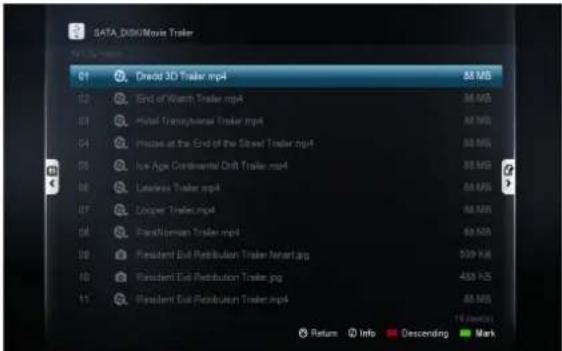 A traditional file list with filename, date and size A traditional file list with filename, date and size |
| Thumbnail | 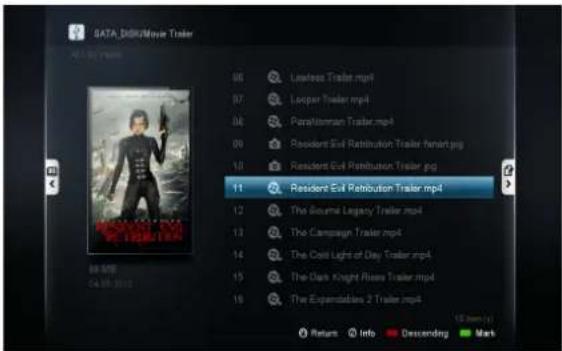 This view displays the thumbnail (if available) and information for the currently selected file This view displays the thumbnail (if available) and information for the currently selected file |
File Listing Info
| None Disable date and size information display in the file browser | |
| Auto Automatically displays date or size when using the sort options | |
| Size Only Displays the file size only | |
| Date Only Displays the file's modified date only | |
| Date and Size Displays both date and size information |
Show Tooltips
| On Displays tips for tools when you highlight them | |
| Off Disables tip information |
11.3 File Manager
You can use the file manager to copy, move delete and rename files as well as create new folders on your storage device.

text_image
SATA_DISK/Movie Trailer All | By name 01 Dredd 3D Trailer.mp4 88 MB 02 End of Watch Trailer.mp4 88 MB 03 Hotel Transylvania Trailer.mp4 88 MB 04 House at the End of the Street Trailer.mp4 88 MB 05 Ice Age Continental Drift Trailer.mp4 88 MB 06 Lawless Trailer.mp4 88 MB 07 Looper Trailer.mp4 88 MB 08 ParaNorman Trailer.mp4 88 MB 09 Resident Evil Retribution Trailer.fanart.jpg 539 KB 10 Resident Evil Retribution Trailer.jpg 488 KB 11 Resident Evil Retribution Trailer.mp4 88 MB 18 item(s) Return Info Descending UremarkMark the files that you want to copy/move/delete by pressing the GREEN button. A checkmark is visible on the filename to indicate that it has been marked.
Press the RIGHT button on the D-pad to access the file manager menu.
| Copy To Copy the marked file(s) to a different folder |
| Move To Move the marked file(s) to a different folder |
| Create a new folder Create a new folder |
| Delete Delete marked file(s) or folder(s) |
| Rename Rename the marked file |
| Fetch Online Subtitle Download subtitles for the marked file(s). Only applicable to video |
Tip: Make sure that the destination folder or drive is not copy-protected.
12. Movie Meta Data
One of the main features of the Popcorn Hour A-400 is the ability to download and manage movie meta data without the use of a PC. This feature differs from NMJ as this is only visible in the file browser mode.

text_image
RESIDENT ÉVIL: AFTERLIFE Resident Evil: Afterlife Directed by Paul W.S. Anderson Milla Jovovich, Wentworth Miller, Ali Larter, Kim Coates, Kacey Barnfield R 2010-09-10 ★★★ 97 mins ReturnMovie Synopsis

text_image
SATA_DISK/Movie Trailer All By name: 06 Lawless Trailer.mp4 07 Looper Trailer.mp4 08 ParaNorman Trailer.mp4 09 Resident Evil Retribution Trailer.fanart.jpg 10 Resident Evil Retribution Trailer.jpg 11 Resident Evil Retribution Trailer.mp4 12 The Bourne Legacy Trailer.mp4 13 The Campaign Trailer.mp4 14 The Cold Light of Day Trailer.mp4 15 The Dark Knight Rises Trailer.mp4 16 The Expendables 2 Trailer.mp4 88 MB 04.09.2012 18 item(s) Return Info Descending MarkMovie Thumbnail
Tip: Enable thumbnail view by going to file browser settings. See page 37.
12.1 Movie Info Page Walk-through
Press the INFO button on your remote to bring up the movie info page.

text_image
1 2 3 Resident Evil: Retribution Directed by Paul W.S. Anderson Milla Jovovich, Ali Larter, Sienna Guillory, Michelle Rodriguez, Kevin Durand 2012-09-14 ★★★★ Synopsis- Movie Fanart.
- Movie Poster or thumbnail.
- 4 options are available here.
| Synopsis | Movie synopsis gives you an overview of the movie. Including parental ratings, casts, director, plot, etc. |
| Fetch Online Subtitle | Download subtitles for your movie from the Internet straight on your player without using a PC. Supports multiple languages |
| Edit | If the automatically selected meta data is incorrect, or you wish to change the fanart or thumbnail, you may edit the selection |
| Download | After you have confirmed the meta data and fanart, use the download option to save it on your storage device |
12.2 Download Movie Thumbnail and Meta Data

text_image
SATA_DISK/Movie Trailer Video | By name 01 Dredd 3D Trailer.mp4 02 End of Watch Trailer.mp4 03 Hotel Transylvania Trailer.mp4 04 House at the End of the Street Trailer.mp4 05 Ice Age Continental Drift Trailer.mp4 06 Lawless Trailer.mp4 07 Looper Trailer.mp4 08 ParaNorman Trailer.mp4 09 Resident Evil Retribution Trailer.mp4 10 The Bourne Legacy Trailer.mp4 11 The Campaign Trailer.mp4 88 MB 04.09.2012 16 item(s) Return Info Descending MarkOn file browser, highlight the movie that you want to download data for and press the INFO button on your remote.

text_image
Resident Evil: Retribution Directed by Paul W.S. Anderson Milla Jovovich, Ali Larter, Sienna Guillory, Michelle Rodriguez, Kevin Durand 2012-09-14 ★★★★ Synopsis ReturnThe fanart, movie poster and meta data are automatically pulled from the Internet and displayed on your screen.

text_image
Resident Evil: Retribution Directed by Paul W. S. Kanderson Milla Jovovich, All Latur, Scenna Gallery, Michaels Rodriguez, Kevin Dorend. Download ReturnNavigate to the Download option on the bottom right and press ENTER on your remote.
The poster, fanart and NFO files are downloaded and saved on the same storage device that your video file is located on.
Tip: If you encounter an error, make sure you are able to write files to your storage device. For local storage it must be formatted either in the NTFS, FAT32, EXT2 or EXT3 file system. For network storage devices, make sure you are logged in with a user account that has write/read/edit permissions enabled.
Repeat the process for any of your movies and TV shows.
12.3 Edit or Update Movie Information
If the scanner pulls the incorrect information for the file, or if you wish to change the poster or fanart for your video, you can do so by editing the movie meta data.

text_image
Resident Evil: Retribution EditNavigate to the Edit option on the bottom right and press ENTER on your remote.

text_image
Change Fanart Change Info Change Poster Wrong video info Please insert the correct movie title Resident Evil Info language English Please tick one or more of the items below: Download Poster Download Fanart Download Movie Info © ReturnYou can either use the numerical pad or the onscreen keyboard to enter in the movie or TV show title. Then select the items you would like to download. When you're ready to search highlight the search icon and press ENTER on your remote.
Tip: By default, the filename will be in the search field and all items will be checked.

text_image
Change Fanart Resident Evil (2002) Resident Evil: Damnation (2012) Resident Evil: Retribution (2012) Resident Evil: Afterlife (2010) Resident Evil: Extinction (2007) Resident Evil: Degeneration (2008) Resident Evil: Apocalypse (2004) Resident Evil: First Hour (2011) Resident Evil: Degeneration (2008) 3 / 9 item(s) featureChange info
Under the Change info section, select the correct title for your video. You can press INFO on your remote to see the synopsis before selecting that particular entry.

text_image
Change Poster Change Fanart Change Info CancelChange fanart
Under the Change fanart section you can select from a number of photos that can be used as the background display when viewing the video information.

text_image
Change Info Change Poster Change Fanart MILKA JOVOVICH RESIDENT EVL: AFTERLIFE 3D MILKA JOVOVICH RESIDENT EVL: ULTRATUMBA -- 3D RESIDENT EVL AFTERLIFE 3D ACTION IN ENER MELEN DIMENSION MILKA NOBOVICH OBYTEAL BAA B 3D: NOCHB DOKAE ONERTH RESIDENT EVL: AFTERLIFE CancelChange poster
In the Change poster section you can choose the movie poster you would like to use.
Afterwards, remember to download the data that way the changes you selected will always be used when you press the INFO button on your video.
Tip: In order to download meta data, you must ensure that your Popcorn Hour A-400 is connected to the Internet.
12.4 Download Subtitles

text_image
Resident Evil: Retribution Directed by Pacl W. S. Ameliano Milla Leovich, Ali Larter, Sunny Gollary, Michelle Rodriguez, Kevin Durand Fetch Online Subtitle ReturnOn the movie info page, navigate to the Fetch online subtitle option and press ENTER on your remote.

text_image
Resident Evil Retribution Trailer.mp4 Search for subtitles in english ruby-reafterlife.srt ruby-reafterlife.Hi.srt twiz-resevilafterlifer5.srt Resident Evil Afterlife 2010 R5.[2010].DVDRIP.DIVX [Eng]-DUQ/ Resident Evil Afterlife.2010.R5.LiNE.Xvid {1337x}-Noir.srt Resident.Evil.Afterlife.2010.480p.BRRip.H264.Feel-Free.srt Resident.Evil.Afterlife.2010.Bluray.720p.DTS.x264-CHD.srt 1 / 15 item(s) Cancel Search Other LanguagesA list of results will come up. Choose the subtitle that best matches your movie.

natural_image
Abstract pattern of colorful dots and arcs on white background (no text or symbols)
text_image
Resident Evil Retribution Trailer.mp4 Search for subtitle language: 简体中文 繁体中文 Deutsch Еллгviká Nederlands Русский Français 8 / 28 item(s) Cancel OpenSubtitles.org Durand ReturnIf you need to get subtitles in a different language than your default, press the GREEN button on your remote to change your language filter.
The downloaded SRT subtitle file will be saved on the same storage device as your video file. In order to enable it, start playback of your movie and press the SUBTITLE button on the remote.
13. Networked Media Jukebox
Interested in downloading information for all your movies and TV shows in one go? Do you want to browse your video collection based on the movie poster? With the Network Media Jukebox you can! Without the need of additional PC software, the Popcorn Hour A-400 will scan your movie and TV show library and download the poster, fanart and meta-data for you. When you want to watch a movie, you can sort through and view your collection using the posters, just like if you were at a movie store.
The Networked Media Jukebox software will also organize your photo and music library so you can view those files in a beautiful and easy to use interface.

text_image
SATA_DISK By Movie By TV Series By Genre By Year By User Rating Search Parental Control View Mode Help13.1 Configuring NMJ
The Networked Media Jukebox, or NMJ, software works by creating a database for your storage device. This database contains all the info, posters and fanart for your entire movie and TV show library as well as any other media you scan in.

text_image
Local media 01 KINGSTON Networked Media Jukebox 1 item(s) ReturnTo create the NMJ database, use the file browser to navigate to your media storage device. Then press LEFT on D-PAD and choose Networked Media Jukebox.

text_image
KINGSTON/Movies 01 The Hunger Games mov 17 MB 02 War Horse mov 35 MB ? Create NMJ for this device? This may take a while Yes No 09 Happy Feet Two mov 41 MB 10 The Desondants.mov 20 MB 11 Jack and Jill.mov 37 MB 15 (Ams)You'll be prompted to create an NMJ database for your device. Select YES to begin.
Tip: Building the NMJ database can take several hours depending on the size of your library. It's recommended to start this procedure before you go to bed or during a time where you don't expect to use the device.

text_image
A - C D - F G - I J - L M - O P - R Cloudy with a Chance The Networked Media Jukebox (NMJ) will categorize and tag your media collection for easy viewing. Just specify the folders you wish to scan and the NMJ will locate all your video, music and photo files and collate them into a database. Furthermore, the NMJ can also help you tag your media by grabbing additional Details from the internet. NMJ scanning configuration: Scan entire folder Specify scan target(s)NMJ Scanning Configuration
| Scan Entire Folder | NMJ will automatically scan the entire folder for supported media and add it to the NMJ database |
| Specify Scan Target(s) | Allows you to specify which folders the NMJ software will scan and add media from. (Recommended) |
In this example, we will select the Specify Scan Target(s) option.

text_image
01 Select language 02 Select media type 03 Select folder(s) 04 Confirm your selection SATA_DISK Specify the language for video tagging English Svenska Norsk Dansk Suomeksi Nederlands Deutsch Italiano 1 / 26 Cancel NextSelect the desired language you would like the NMJ software to use when downloading video information. NMJ will try and use that version of the meta data if available; otherwise it will default to English.

text_image
01 Select language 02 Select media type 03 Select folder(s) 04 Confirm your selection SATA_DISK Select the media type(s) for the folder(s) you going to scan All Video Music Photo Personal video Cancel Previous NextSelect the type of media you would like added to the database. Any file types that aren't selected here will be ignored.

text_image
01 Select language 02 Select media type 03 Select folder(s) 04 Confirm your selection SATA_DISK Select the folder you wish to scan, then press ENTER Cartoon Home Video Horror Movie Trailer My Music My Trip 5 / 6 Cancel Previous NextSelect the folders that you would like the NMJ software to scan.
Tips: You may add additional folder at any time via the NMJ Manager. You may add "no_xxx.nmj" files to stop certain folders or images being included in the NMJ output. See the NMT forum NMJ section for more information.

text_image
01 Select language 02 Select media type 03 Select folder(s) 04 Confirm your selection SATA_DISK Confirm your selection Movie Trailer My Music Auto Download Fanart Cancel Add more folder(s) Restart DoneOn the confirmation page you may review the folders you have selects, remove them from the list or add additional ones if necessary. Once you are finished, press the BLUE button on your remote to complete the setup.

text_image
Who IM DVD BOX SET Coca-Cola X-Z Recently watched A-C D-F G-I J-L M-O PR X-Z ICEACE DAWH! SINGAPOREY NEMO SUGAR BROOD'S LIP RED GLASS RICHARDEN Get Started with NMJCongratulations! Your first NMJ database setup is completed. The system is now scanning your files, downloading relevant data and creating a database. Depending on how large your library is, it can take several minutes or even hours to complete.

text_image
HELP GENERAL VIDEO MUSIC PHOTO QUIT HOW TO... How to toggle the menu view on start-up. How to browse videos. How to browse music. How to browse photos. How to browse jukebox manager. How to switch to file browser. How to change my view mode. How to hide the menu view. iPad® NMJ Navigator Available at Apple App Store 1 /8 HelpWhile your database is being created, you can view the onscreen NMJ help guide and learn valuable information for organizing your media library, navigating inside the NMJ software and playing back your media.

text_image
MEI_AI Recent Scanned Movie TV Series By Genre By Year By User Rating Search Parental Control View Mode Help Toggle The Menu View On Start-Up From the "Setup Page", select "Preferences" and access the "NMJ Startup Menu" option to toggle the display of the menu view on start-up.13.2 Navigating in NMJ
Press the MENU button on your remote to bring up the NMJ menu. This will help you navigate and sort your content in the NMJ software.

text_image
USB_DRIVE_1 Recent Scanned Movie TV Series By Genre By Year By User Rating Search Parental Control View Mode HelpMOVIES
| Recent Scanned This will display all your recent movies and TV shows recently scanned | |
| Movie This will display all of your movies | |
| TV Series This will display all of your TV shows | |
| By Genre This will display all your videos grouped into different genres | |
| By Year Displays a list of years, select one to view all videos released in that year | |
| By User Rating | Displays a list of ratings, select one to view all videos with that rating (ratings are pulled from the web at first and can be set by users later) |
| Search You can search videos by title, cast or director | |
| Parental Control | Configure what content is displayed in the NMJ library based on parental ratings |
| View Mode Change | view mode between category, movie wall and list view |
| Help | Bring up the on screen help to view more information about the NMJ software |
Tip: Press the RED button to quickly exit from NMJ mode.

text_image
USB_DRIVE_1 Recent Scanned By Album By Playlist By Song By Genre By Artist By Year By User Rating Search View Mode HelpMUSIC
| Recent Scanned Recent Scanned - This will display all of your songs recently scanned | |
| By Album This will display all your music by album | |
| By Playlist Displays a list of playlists in your NMJ database | |
| By Song Displays music tracks alphabetically in a list | |
| By Genre Displays albums based on Genre | |
| By Artist Displays a list of artists, once selected their albums are displayed | |
| By Year | Displays a list of years, once selected the albums released that year are displayed |
| By User Rating | Groups all audio tracks based on rating (rating must be added to audio track by user in the NMJ) |
| Search Search audio track by name or artist | |
| View Mode Change view mode between category, movie wall and list view | |
| Help | Bring up the on screen help to view more information about the NMJ software |

text_image
USB_DRIVE_1 Recent Scanned By Date By Album Slide Show Setting View Mode Help 2008-06-01 2008-04-26 2008-04-27 2008-04-28 2008-05-26 2008-05-27 2008-05-28PHOTO
| Recent Scanned This will | display all of your photos recently scanned. |
| By Date | Displays a list of years, once selected all photos taken in that year are displayed |
| By Album | Displays a list of albums, once selected all photos in that album are displayed (photo albums are folders) |
| Slide show setting Configure the transition effect and interval timer for slideshows | |
| View Mode Change view mode between category, movie wall and list view | |
| Help | Bring up the on screen help to view more information about the NMJ software |

text_image
USB_DRIVE_1 Recent Scanned Movie TV Series By Genre By Year By User Rating Search Parental Control View Mode HelpNMJ Media Menu
To bring up the Media Menu, simply press LEFT on the D-pad.
| Video Switch to the video section of NMJ |
| Music Switch to the music section of NMJ |
| Photo Switch to the photo section of NMJ |
| Jukebox Manager Launch the Networked Media Jukebox Manager |
| File browser Exit the NMJ and return to the file browser |
Tip: The Popcorn Hour A-400 remembers your preferences for different storage devices. If you were using the NMJ view the last time, it will automatically launch NMJ the next time you select that device. If you want to exit back to the file browser, use the Jukebox Manager or the Switch to File Browser option.
13.3 Updating NMJ Information
Sometimes the scanner might download the wrong information for your video file. To fix this, you can manually edit the file in the NMJ library right from the device.

text_image
Director Paul W.S. Anderson Genre Horror | Action | Thriller | Science Fiction Cast Milla Jovovich | Ali Larter | Sienna Guillory Synopsis Alice fights alongside a resistance movement in the continuing battle against the Umbrella Corporation and the undead. Subtitle Remember Me Resident Evil: Retribution 2 Mins 2012 MPEG-4 1920x912 F8-1/Movie Trailer/Resident Evil Retribution.mp4In the NMJ library, select the item that's incorrect and open up the media control panel. Navigate to the Edit option and press ENTER on the remote.

text_image
Change Fanart Change Info Change Poster Wrong video info Please insert the correct movie title Resident Evil Retribution Year Info Language English > Please tick one or more of the items below: Download Poster Download Fanart Download Movie Info © Return Search By Video IDYou can use the on screen keyboard on the numerical pad to enter in the title of the movie or TV show.

text_image
Change Fanart Change Info Change Poster Wrong video info Please insert the correct movie title Resident Evil Retribution 3 Year Info Language English > Please tick one or more of the items below: Download Poster Download Fanart Download Movie Info Return Search By Video IDIn this example we removed the subtitle and tried to simplify the search more.

text_image
Change Fanart Change Info Change Poster Wrong video info Please insert the correct movie title Resident Evil Retribution Year Info Language English > Please tick one or more of the items below: Download Poster Download Fanart Download Movie Info Return Search By Video IDOnce you are done typing in the title of the video, navigate down to the search icon and press ENTER on your remote.

text_image
Change Fanart Change Info Change Poster Resident Evil: Retribution (2012) Feature 1 / 1 item(s) Return Info CancelDepending on the movie title, multiple results may be shown. Choose the correct result and press ENTER on remote.

text_image
Director Paul W.S. Anderson Genre Horror | Action | Thriller | Science Fiction Cast Milla Jovovich | Ali Larter | Sienna Guillory Synopsis Alice fights alongside a resistance movement in the continuing battle against the Umbrella Corporation and the undead. Remember Me Resident Evil: Retribution Rio mov 2 Min 2012 MPEG-4 1920x912 F8-1/Movie Trivial/Resident Evil Retribution.mp4 Subtitle MovieThe new poster, fanart and meta data will be downloaded and your database will be updated.
Tip: the NMT forum has tools/guides to help you manipulate your NMJ data in many ways.
13.4 Networked Media Jukebox Manager

text_image
Jukebox Manager Add Folder(s) Scan All Rescan All Delete All Scan Option To Jukebox To Source KINGSTON Movies Music 1 / 2 Delete Rescan Update| Add folder(s) | Add additional directories for the NMJ to monitor and add to the NMJ database |
| Scan All Will scan and add | any new files added to the monitored folders |
| Rescan All This option will | rescan all media and download everything again |
| Delete All This option will | delete the NMJ database |
| Scan Option Configure ad | ditional scan settings, more information below |
| To Jukebox Launches the | NMJ software |
| To Source Launches the file browser | |

text_image
Jukebox Manager Scan Option Add Folder(s) Scan All Rescan All Delete All Scan Option To Jukebox To Source Auto Download Fanart Scan Language English Close 1 / 2 DELETE Delete Rescan UpdateScan Option
| Auto Download Fanart Enable or disable automatic download of fanart for videos | |
| Scan Language | Specify which language to download meta data in (if not available, will default to English) |
Additional Information
A new folder named "NMJ_Database" will be created on your storage device. Please do not remove or edit this folder as it contains the NMJ database for your media.
14. NMT Apps
NMT Apps turn your Popcorn Hour A-400 into a network attached storage device, Torrent Client and UseNet Client. An internal hard drive or external storage device is required to install the NMT apps.

text_image
NMT Application Samba Workgroup WORKGROUP Change Password > FTP Server : Started NFS Server : Started Samba Server : Started Torrent : Started UPnP Server : Started Usenet Client : Started Home MenuIn order to enable file transfer from your PC to the A-400, you will need to enable SAMBA Server.
| Samba Workgroup | Specify the samba workgroup you’d like the Popcorn Hour A-400 device to be on |
| Change Password | Change the password used to access the local storage via samba or FTP |
| FTP Server Start or stop the FTP server | |
| NFS Server Start or stop the NFS server | |
| Samba Server Start or stop the Samba server | |
| Torrent Start or stop the torrent client | |
| UPnP Server Start or stop the UPnP server | |
| Usenet Client Start or stop the Usenet client | |
Note: The username to access your local storage over samba or FTP is "nmt" without quotes.
14.1 Installing the NMT Applications

text_image
Maintenance Firmware Update NMT Setup Wizard Open Source License Legal Info PopcornHour English > English > 15 min > Repeat Off > On > On > Home MenuIn the Setup menu, select Maintenance and then NMT Setup Wizard.
Note: The option is only visible if you have a storage device installed.

text_image
Setup Options This setup process will install the following Networked Media Tank (NMT) Applications: UPnP AV Server Torrent Client NFS Server Samba Server FTP Server Fresh Setup (ReFormats storage device and installs NMT Applications) Cancel NextSelect the Fresh Setup option and press the GREEN button the remote to proceed.

text_image
Step 01 | Storage Device Please choose a storage device. USB_DRIVE_A USB_DRIVE_SD_CARD_P3 © Back Cancel NextSelect the storage device that you want to install the NMT applications on. Please note that you can install the NMT applications on an external USB device, however it will need to remain attached for the NMT applications to work. Once you have selected the storage device press the GREEN button on the remote to proceed.

text_image
Step 01 | Storage Device WARNING! Fresh Setup will format USB_DRIVE_A to .ext3 format and remove all storage device content. It will then install NMT Applications. If this is your desired option, press NEXT to continue.WARNING: Please note that this will format the storage device you are setting up; all files on the storage device will be erased and will become unrecoverable.
The NMT applications will be stored on a small hidden partition and any remaining space will be formatted in EXT3 as local storage.

text_image
Step 02 Media Destination Please choose a NMT media destination. Set to selected storage device SATA_DISK USB_DRIVE_SD_CARD_P3 Back Cancel NextChoose which disk you want to store your media files.

text_image
Step 03 Setup Source Please choose a NMT setup source. Online Local Media © Back Cancel NextIn this example we chose the Online option. If you choose this option, you will be presented with the release notes and terms and conditions.
IMPORTANT: We strongly advise that you read this information before proceeding. Proceeding any further indicates that you agree to the terms and conditions.
Once you're ready to proceed, go ahead and press the GREEN button on your remote.

text_image
Step 03 | Setup Source Please Wait...Step 1/3 Formatting drive...0%The formatting and installation process then begins. Depending on the size of your storage devices, it may take several minutes to complete. Once the NMT applications are installed, the Popcorn Hour A-400 will restart.

text_image
Setup Setup Wizard Preferences Audio Video Network Network Share NMT Application Parental Control BD/DVD/Audio CD Maintenance PopcomHour English > 简体中文 > 30 min > Repeat All > On > On > Home MenuOnce the NMT applications are installed, you see a new option in the Setup menu titled NMT Applications. In this area you can start and stop the NMT applications.
14.2 Using the FTP Server
The FTP service allows for simple and convenient file transfer to and from your Popcorn Hour A-400. To use the FTP service goes into the NMT Applications section of the Setup menu and starts the service. Please note that the service will remain on, even after a power cycle, until you go back and stop it.
To connect to the Popcorn Hour A-400 via FTP, you will need to use an FTP client. Some free clients are FileZilla and Winscp.
If you are using a Windows computer you can use Windows Explorer as an FTP client by typing the following into the address bar:
ftp://NMT-IP/
Where NMT-IP is the IP address or host name of the Popcorn Hour A-400. For example: 192.168.1.101 or A400.
When prompted for credentials use the information provided below (unless you changed the ftp password).
Host: IP Address of your device
Port: 21
Username: nmt
Password: 1234
14.3 Using the Samba Server
A Samba Server is one of the most common ways to share files over a network. Samba can also be used to stream your content on your local storage to other devices on your network. To use the Samba service goes into the NMT Applications section of the Setup menu and starts the service. Please note that the service will remain on, even after a power cycle, until you go back and stop it.
To access your Popcorn Hour A-400 over samba, type the IP address or hostname of the device into the address bar on your computer's file browser.
Example: \A-400\
\192.168.1.101\
\10.0.0.57\
Note: The device name by default is A-400 but can be changed in the Preference section of the Setup menu.
When prompted, use the following credentials (unless you changed the samba password):
Username: nmt
Password: 1234
14.4 Using Torrent Client

text_image
Open Search File Edit View Insert Search All Search Active Downloading Sending Page1 Finished 503.0 KB 5.2 KB gported-Rev-8.16.0-3.no Downloading from 1-bit 1 page - 0x 1632 KBps (A) - 0.9 KBps $27 KB at 163.7 KB (7 KB) - 12-min, 37 seconds remainingThe Popcorn Hour A-400 has a built in torrent client, called Transmission. You can use this torrent client to download files rather than leave your computer on. To use the torrent client go into the NMT Applications section of the Setup menu and start the service. Please note that the service will remain on, even after a power cycle, until you go back and stop it.
IMPORTANT: The torrent client uses the formatted local storage to save your downloaded files. Please make sure you have enough space for the download to complete.
Once the torrent service has been enabled on the Popcorn hour A-400, you can use your computer's web browser to access the Torrent client interface. Type the following address in the address bar of your web browser:
http://NMT-IP:8077/transmission/web
Where NMT-IP is the IP address or host name of your Popcorn Hour A-400. For example: 192.168.1.101 or A-400.
IMPORTANT: The computer or device you are using the web browser on must be on the same network as the Popcorn Hour A-400.
At the BitTorrent client GUI, click on Browse and select the torrent file.
Once the torrent file is selected, click on Upload to add the torrent file to the torrent list on your Popcorn Hour A-400. The torrent client will start to download the file(s).
Other settings are available through the web GUI such as the Scheduler which can be used to schedule torrent downloads and set their upload/download limits.
IMPORTANT: The Popcorn Hour A-400 has to be switched ON and properly connected to the internet during the scheduled download time in order for the BitTorrent client to download the required files.
14.5 Using Usenet Client
NZBGet is a command-line based binary newsgrabber that downloads files from Usenet servers based on information given in NZB files. NZBGet can be installed on the Popcorn Hour A-400, as part of NMT Apps, and the files can be downloaded directly to the local storage formatted in the NMT Setup Wizard. To use the NZBGet client go into the NMT Applications section of the Setup menu and start the Usenet service. Please note that the service will remain on, even after a power cycle, until you go back and stop it.
To run the NZBGet application you need access to a Usenet provider. Your internet service provider may have a news server that you can access, or you can have a separate Usenet account on a pay-server.
Once you have a Usenet account, you can configure NZBGet on your NMT to access the account.
Your Usenet provider will provide you with the information required, such as:
- User ID and Password.
- News-server name and port to connect (usually at port 119).
- Number of concurrent connections allowed.
14.5.1 Setting up NZBGET
In the root of your hard disk you will find a folder called .nzbget. Inside this folder you will find two files: nzbget.conf and unpak.sh.
IMPORTANT: Some FTP clients may hide this folder because it begins with a dot. On UNIX systems, files or folders that begin with a dot are hidden from normal directory listings. If you cannot see the folder, find an option on your client that will show hidden files or try to type in the folder name.
You can open and edit nzbget.conf with a UNIX format capable text editor.
In the text editor, fill in the information you got from your Usenet provider:
# Host-name of news server:
server1.host=news.yourserver.com (Put the server name behind the =)
# Port to connect to (default should be set to 119 if not specified):
server1.port=119
# Username to use for authentication (change USERNAME to the name supplied by your Usenet provider):
server1.username=USERNAME
# Password to use for authentication (change PASSWORD to the password supplied by your Usenet provider):
server1.password=PASSWORD
# Maximum number of simultaneous connections to this server:
server1.connections=4
Once completed, save the file to the same place and restart the Usenet service in the NMT Applications menu (Setup > NMT Applications).
14.5.2 Accessing NZBGET client
To access the NZBget client, type the following into the address bar of your computer's web browser:
http://NMT-IP:8066
Where NMT-IP is the IP address or host name of your Popcorn Hour A-400. For example: 192.168.1.101 or A-400.
To log in, use the following access username and password (unless you changed the password):
User ID: nmt
Password: 1234

text_image
NZBGet Web Interface Please login Username: nmt Password: ••••• Login
text_image
NZBGet Web Interface v 1.0 Upload NZB file Choose a file to upload: Browse... Upload File upload status Max download rate New rate: 0 Set NZBGet version 0.4.1 uptime: 0:38:21 download time: 0:36:21 average download rate: 0KB/s total downloaded: 0 MB free disk space: 2.06 GB pause resume refresh logout view mode: groups files Next updates in 6 seconds Currently downloading name download rate left remaining time My Kids Performance Day 0KB/s 4.52 GB 0% Messages DETAIL Waiting 10 sec to retry DETAIL Waiting 10 sec to retry DETAIL Waiting 10 sec to retry DETAIL Waiting 10 sec to retry DETAIL Waiting 10 sec to retry DETAIL Waiting 10 sec to retry DETAIL Waiting 10 sec to retry DETAIL Waiting 10 sec to retry DETAIL Waiting 10 sec to retry DETAIL Waiting 10 sec to retry DETAIL Waiting 10 sec to retry DETAIL Waiting 10 sec to retry
text_image
NZBGet Web Interface v 1.0 Upload NZB file Choose a file to upload: Browse... Upload Files upload status Max download rate New rate: 0 Set NZBGet version 0.4.1 uptime: 0:36:21 download time: 0:36:21 average download rate: 0KB/s total downloaded: 0 MB free disk space: 2.06 GB pause resume refresh logout view mode: groups files Next updates in 6 seconds Currently downloading name download rate left remaining time My Kids Performance Day 0KB/s 4.52 GB 0% Messages DETAIL Waiting 10 sec to retry DETAIL Waiting 10 sec to retry DETAIL Waiting 10 sec to retry DETAIL Waiting 10 sec to retry DETAIL Waiting 10 sec to retry DETAIL Waiting 10 sec to retry DETAIL Waiting 10 sec to retry DETAIL Waiting 10 sec to retry DETAIL Waiting 10 sec to retry DETAIL Waiting 10 sec to retry DETAIL Waiting 10 sec to retry DETAIL Waiting 10 sec to retry (My Recent Documents) DETAIL Waiting 10 sec to retry (My Documents) DETAIL Waiting 10 sec to retry (My Computer) DETAIL Waiting 10 sec to retry (My Network Places) 1 2 3 4 5 File Upload Desktop My Documents My Computer My Network Places File name: Files of type: All Files Open CancelTo perform a download, upload your NZB file by clicking on the Browse... button and navigating to the NZB file.
Next, click the Upload File button and begin the download.
The file will be uploaded to your NMT and added to download queue. (This process does not upload any files to the Internet).
After uploading the NZB file, it will take a minute before the program commences the download. There is a safety interval of 1 minute while NZBGet ensures that the NZB file is completely on the HDD before commencing the download.
You may adjust the safety interval in nzbget.conf, option NzbDirFileAge. The progress of the download is displayed on the web GUI for your convenience.
After the download is finished and the NZB file set contains par2 files, your download will be checked and repaired if necessary. The unpack script in .nzbget will be called and your download will be unpacked. The unpack script of the Popcorn Hour A-400 is able to unpack .RAR packed files.
With the GUI you will be able to pause, delete, and move your downloads. You may set the file download priority of important files by moving them to the top of the queue with the buttons in front of the file set.
If you want to pause all downloads, you can do that via the pause button on the bottom left of the web GUI, and restart it again with the resume button.
All downloads will be downloaded and unpacked to the folder Download on your Popcorn Hour A-400's storage device formatted during the NMT Setup Wizard. A subdirectory with the same name as the NZB file will be created.
15. Updating firmware
During the lifespan of the Popcorn Hour A-400, we will continue to develop and improve on the firmware. To receive the latest update, you just have to update the firmware online or via a downloaded firmware package.
Automatic Update
"If you have enabled the "Check for firmware update" option in the Preferences section of the Setup menu, the system will automatic prompt you whenever there is a new firmware update available.
The system will automatically download the latest firmware from our server and update your device accordingly.

text_image
A new version of firmware is ready to be installed! Would you like to continue? Ok Cancel 2°C 00:57 MON. 19 DEC 2011IMPORTANT: It is recommended that before the firmware update you do a complete power cycle of the device. This will ensure that the system is prepared for firmware update process.
Manual Update
You may also manually check for firmware updates via the Maintenance section in Setup.

text_image
Maintenance Firmware Update NMT Setup Wizard Open Source License Legal Info English > Off > Fade > 3 sec > Off > Repeat all > Home MenuNavigate to Setup -> Maintenance -> Firmware Update and press ENTER on the remote.

text_image
Firmware Update Firmware Version 05-01-110826-23-POP 421-000 Kernel Version 23-POP NMT Version Check For Firmware Update Reset To Factory Setting Home MenuChoose the Check For Firmware Update option and press ENTER on remote.
You can update the firmware in two ways; either directly off the web or you can manually download the update from http://support.popcornhour.com/ and update it over USB.

text_image
Firmware Update There is a firmware found in your usb drive. Would like to proceed to update your device with this firmware? Ok CancelIf you have manually downloaded the firmware from our support site and have the USB drive with it inserted, the system will prompt you to continue with the update.
If you are updating via the web, you will see the release notes as well as the terms and conditions for the firmware. Press the GREEN button on your remote to agree and begin the update.
IMPORTANT: We strongly advise that you read this information before proceeding. Proceeding any further indicates that you agree to the terms and conditions.

text_image
// Updating Firmware Downloading Image... 10%When the firmware is updating, you will see a blue screen with the status.
WARNING: DO NOT DISCONNECT THE POWER TO THE DEVICE DURING THE FIRMWARE UPDATE PROCESS. Doing so may cause the device to become inoperable.
TIP: It is best practice to do a Factory reset after doing each firmware update
16. Troubleshooting
My Popcorn Hour A-400 doesn't start - no red LED on the player.
Please check that the power cord is plugged in and the power-lead is inserted fully into the power terminal.
Popcorn Hour A-400 stuck on the splash screen.
Unplug the player for a few minutes and then try again. If problem persist, please contact our technical support team.
If you have a large HDD connected it may take some time before the user interface appears.
Nothing appears on my TV screen after several minutes.
Check all the cable connections and check your TV settings for the correct TV INPUT.
Still nothing but the unit appears fully powered and connected, on the remote press TV Mode + 0 to recover the TV mode setting to Auto.
Can't upgrade the firmware - System prompt error.
Please recycle the power on your Popcorn Hour A-400 and try again.
Check the error code on the WIKI and disconnect the HDD if user apps are causing shutdown issues.
I have poor performance from wireless streaming.
Wireless connection has lower bandwidth compared to wired plus wireless signal strength is vital for smooth video streaming. If the problem persists, you may have to increase the signal level by adding a wireless range extender or bridge and thereby use the Ethernet rather than the USB connection.
There is no guarantee that wireless will ever be able to stream successfully as it depends on environmental factors.
Apps Market Connection fails.
Please make sure that you have a valid internet connection. Check DNS servers.
Remove all Apps from My Apps quickly.
To remove all apps installed on your Popcorn Hour A-400. You may want to consider resetting the player to factory default. This will flash the memory on the device and you have a fresh Apps market.
My ip starts 169.254. what happen?
Your device cannot obtain an ip from your local network. Check your cables, router, and try an internal static ip.
Do you have a hardware compatible list?
Yes, we do. Please visit http://www.networkedmediatank.com/wiki for the most current list.
Why is my WD Green HDD not working well in the player?
You need to adapt the HDD spindown time using wdidle3.
Where can i find more resources to learn more about my new A-400?
Please visit our user community forum at www.networkedmediatank.com
17. NMJ Navigator
The NMJ Navigator is an iPad® app that transform your iPad® into a 2nd companion screen for your NMJ database. In order to enjoy this app, your are require to setup at least one NMJ database.

text_image
QR code image containing encoded data, no visible human-readable textScan this QR code to download the NMJ Navigator.
17.1 NMJ Navigator Walk-through

text_image
g1 (192.168.0.89) Select Device NetworkedMedia Jukebox Select your Source Local Media Network Media| Select Device If you have more than one NMJ device, proceed here to switch | |
| Local Media Display your local media NMJ database | |
| Network Media Display your network shared folder NMJ database |

text_image
iPad 14:49 86% Browse More... Movie Search Video By Genre Action Action and Adventure Adventure Animation Comedy Crime Documentary Drama Eastern Family Fantasy Grown Ups Halloween The Hangover 2010 PG-13 Halloween 2007 PG-13 Halloween 2009 PG-13 Harry Potter... 2009 PG-13 Harry Potter... 2007 PG-13 Harry Potter... 2008 PG-13 Hellboy II... 2008 PG-13 HARRY POTTER... 2009 PG-13 LOSE FRIENDS & ALIENATEPEOPLE DRAGON HUBBLE 3D| Main Screen Your movies collection cover-art displaying in the main screen | |
| Browse Tab Browse by Genre | |
| More.. Tab | Source - Bring back to home screen for source selectionNow Playing - Show what media is currently playing in your NMJ device (2 fingers gesture swipe from right to left)Remote Control - Bring up the soft remote for your NMJ device (2 fingers gesture swipe from left to right) |
| Search Field Search your NMJ database with movie names etc | |

text_image
iPad 12:19 58% More... Play Harry Potter Movie Info Synopsis File Info Last Harry Potter and the Order Returning for his fifth year of study at the venerable He ever-maturing Harry Potter is stunned to find that his have been ignored. Left with no choice, Harry takes r group of students -- dubbed "Dumbledore's Army" -- Remote Control Power Source House Print Return Enter Menu i Info Page Up Setup Page Down Rev Paid Stop Pause| Soft remote Full function remote for your NMJ | |
| Twitter Share with your friends | on twitter what you are watching now |
| Play Play selected movie | |