
Boxee Box - Media player D-LINK - Free user manual and instructions
Find the device manual for free Boxee Box D-LINK in PDF.


| Product Type | Media Player |
| Brand | D-Link |
| Model | Boxee Box |
| Dimensions (approx.) | 4.5 x 4.5 x 1.5 inches |
| Weight (approx.) | 0.5 kg |
| Power Supply | 5V DC, 2A |
| Supported Video Formats | H.264, VC-1, MPEG-1/2/4, DivX, Xvid, WMV9 |
| Supported Audio Formats | MP3, WAV, WMA, AAC, OGG, FLAC, DTS, Dolby Digital |
| Supported Image Formats | JPEG, PNG, GIF, BMP, TIFF |
| Internet Streaming | Netflix, MLB.TV, Pandora, Last.fm, Flickr, Facebook, Twitter |
| Local Media Playback | Movies, TV shows, Music, Photos from hard drive or network |
| Remote Control | QWERTY remote included |
| Social Media Integration | Share and receive recommendations via Facebook, Twitter, Google Buzz |
| User Accounts | Multiple user profiles supported |
| Parental Control | Hide adult content with password lock |
| Cleaning Instructions | Wipe with a soft, dry cloth. Do not use liquids. |
| Safety Precautions | Keep away from water and heat sources. Use only provided power adapter. |
| Spare Parts Available | Remote control, power adapter (contact D-Link support) |
| General Information | First major device powered by Boxee software; designed for TV use |
Frequently Asked Questions - Boxee Box D-LINK
User questions about Boxee Box D-LINK
0 question about this device. Answer the ones you know or ask your own.
Ask a new question about this device
Download the instructions for your Media player in PDF format for free! Find your manual Boxee Box - D-LINK and take your electronic device back in hand. On this page are published all the documents necessary for the use of your device. Boxee Box by D-LINK.
USER MANUAL Boxee Box D-LINK
natural_image
Green abstract logo with three circular cutouts and a central dot, no text or symbols present.Boxee User Manual
Table of contents
About Boxee
Boxee Features
Boxee FAQ
Installing Boxee
• Supported Platforms
• Minimum system Requirements
Installing the Software
- Windows
- Mac OS
- Linux Ubuntu
- Apple TV
Setting Up Boxee
- First Time Use
- Basic Settings
• Calibrating the Screen - Setting Up Resolution
- Setting Up Secondary Screen
- Setting Up your Region
- Changing Background Image
Organizing your Media Library
- Adding Media Sources
- File Scanning
- Naming policy
- Resolving Unidentified Movie files
• Manual Movie and TV Show Identification - Resetting/Erasing database
- Hiding Adult content
Setting up Services and Users
- Adding Social Network feeds
- Adding and Removing User
Using Boxee
- Navigating Boxee
- Adding Removing Shortcut
- Removing Shows from History
- Search
Movies and TV Shows
• Viewing a Local Movie or a TV Show
• The TV Show Library
• The Movie Library
- Adding and Removing to the Queue
Music
- Listening to local Music
Photos
- Viewing Local Photos
Apps
- Adding and removing Apps
- Adding Third-Party Apps Repository
Files
- Local Sources
- Look & Feel
- Media
- System
- Network
- Personal
- Parental Control
- OSD - Video
- OSD – Audio
- OSD – Subtitles
Useful Links
About Boxee
Boxee is the first free, open source social-media software that allows users to personalize their home media experience. Boxee is available for Windows, Mac, Linux and Apple TV(through a 3rd developer).
Boxee allows users to instantly access their personal library of digital movies, TV shows, music and photos, and stream content to their TV from websites like Netflix, MLB.TV, Comedy Central, Pandora, Last.fm, and Flickr. Boxee's wired to social networking sites like Facebook and Twitter, so users can share their favorite media with friends and family. All this from a free software program that visually beautiful and simple to use.

natural_image
Four stylized icons in gray, green, red, and orange with arrow symbols (no text or numbers)Boxee Features
Home Screen
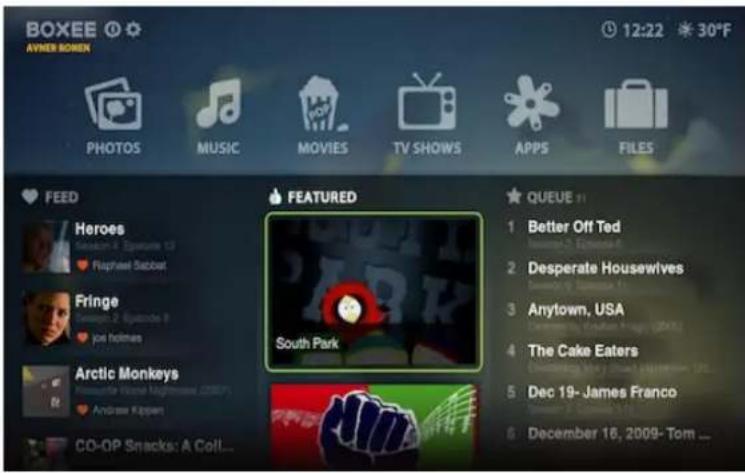
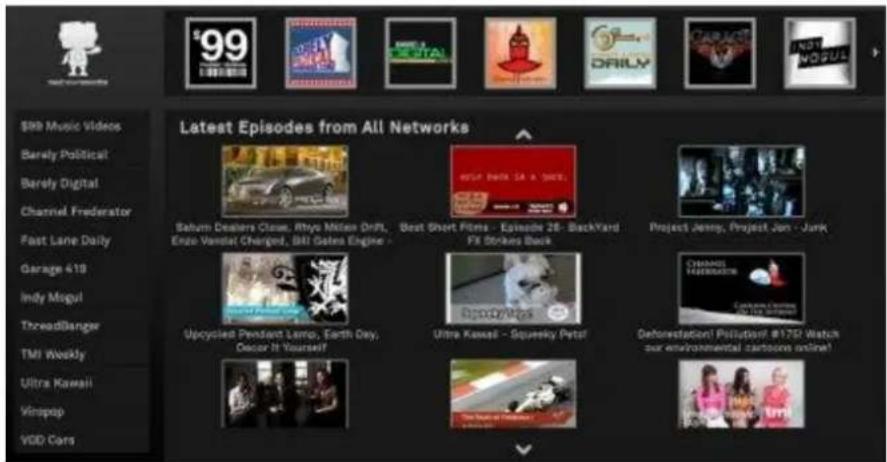
The Home Screen is your hub for recommendations and content: see recommendations from your friends on Boxee, Facebook or Twitter in Boxee's Feed; recommendations from Boxee's staff and partners in our Featured section; and the latest episodes from your favorite shows or things you've saved for later in your Queue.
The Home Screen is where it all starts! You will be able to navigate to any area of Boxee from the here.
The Boxee Home Screen
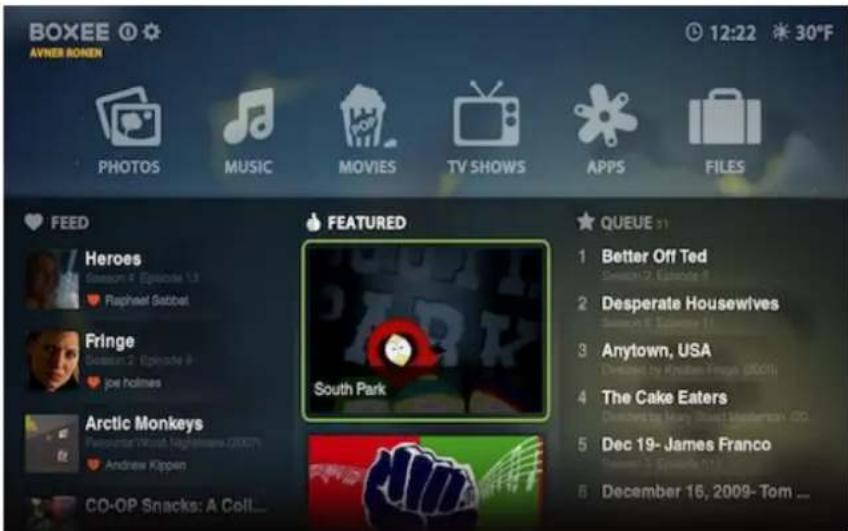
Designed for your TV screen, Boxee's user interface defaults to full screen mode, You can change the display settings to force the application to appear in a window if you prefer (see Settings). You can use a mouse, a remote control, a keyboard or any combination you choose to navigate the controls of the Boxee user interface (UI).
Global Menu Screen
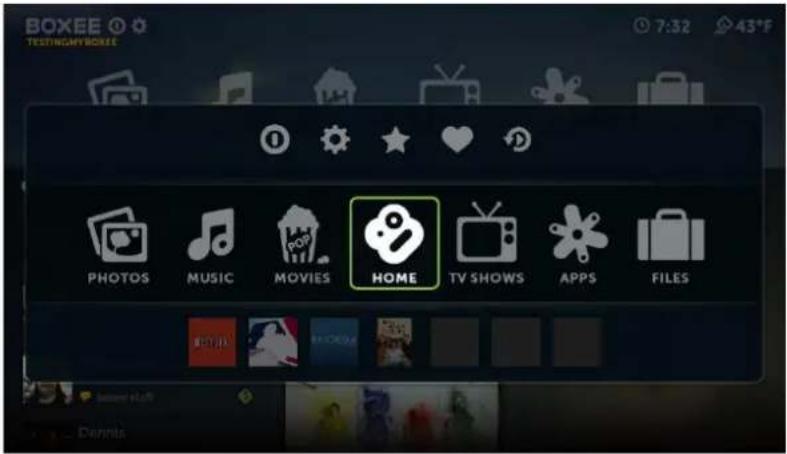
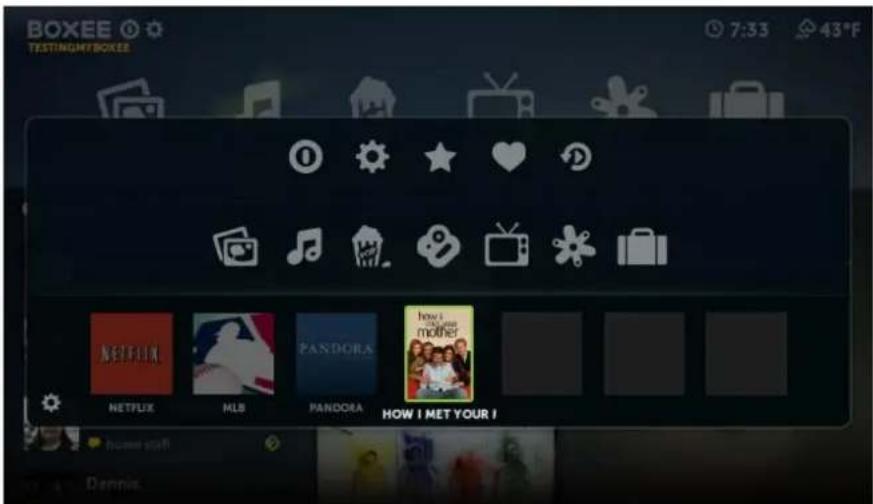
This menu makes it easy to access helpful resources and it is made up of three rows.
- Logout Row - Logout, Settings, Queue, Feed, History
- Media Row - Photos, Music, Movies, Home, TV Shows, Apps, Files
- ShortCuts Row - to your favorite Apps, TV Shows, Movies, or folders/files
Media Row
Logout Row

ShortCuts Row
Featured
Featured Section on Home Screen
Featured

Feed
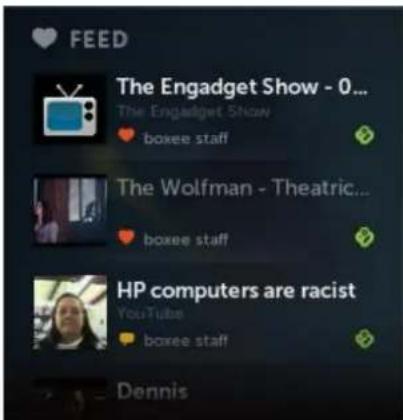
Feed Screen

Queue
Queue Section on Home Screen
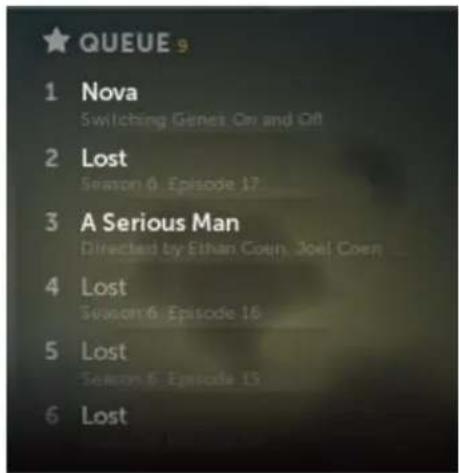
Queue Screen

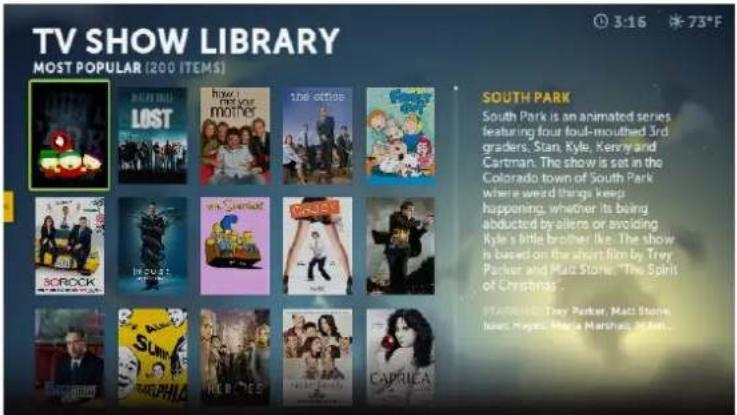
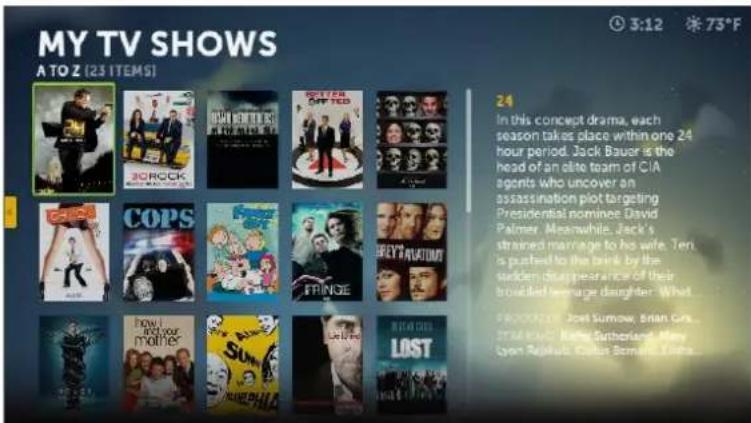
TV Shows
TV Show Library
My TV Shows
Movies


Applications


Files
![FILE BROWSER SMB:\SERVER\MEDIA (F)\TV SHOWS\ [25 ITEMS] 3:07 永 79*F AMERICANIDOL-5305726-0.MPG PLAY Roth empty\SERVER\Media\JETV\Show\Americasides_5305726.0.mpg PrisonersControl#03/531E78s.0.mpg PrisonersControl-531E78s.0.mpg 05/29/2014 1:5:08](/content/2026/06/1236348/images/daac614e1a224c480bf6e470d7a53d2ccac12dba332485e6021423eb15723578.jpg)
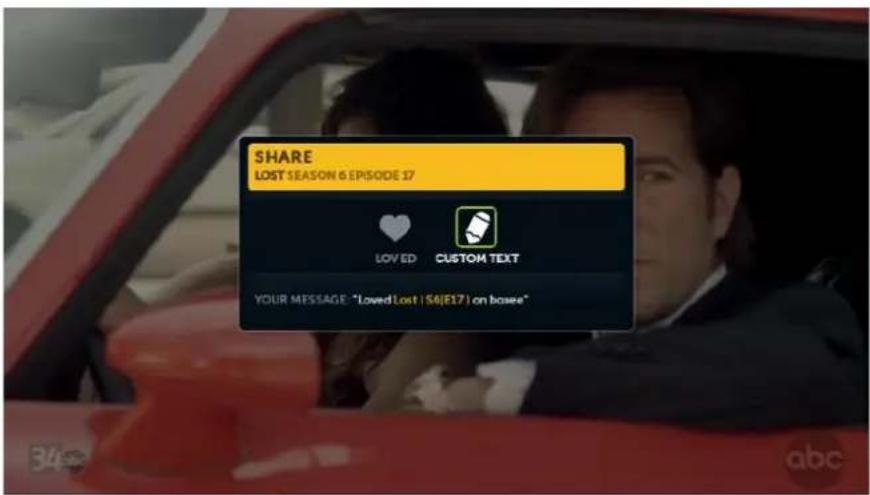
Sharing
Boxee FAQ
1. What is Boxee?
Boxee is the best way to watch movies, TV shows and clips from the Internet on your TV. You can buy a device powered by Boxee or build your own Boxee using a new or used computer.
2. What can I watch on my Boxee?
If it's available on the Internet, then you can probably watch it on your Boxee - there are more than 40,000 TV show episodes and movies currently available through Boxee. Plus, you can play personal stuff from your network or hard-drive.
3. How do I watch live TV?
It depends on what you want to watch. Some Boxee applications like BBC or MLB broadcast live content. However, most content from mainstream TV makes it way into our TV Show library soon after it airs.
4. Are there monthly fees to use the Boxee?
Boxee does not charge you any monthly fees, but some premium applications accessible through Boxee require a fee.
5. What is the Boxee Box by D-Link?
It's the first major device powered by Boxee on the market. It's an all-in-one box specialized to run Boxee and it comes with a useful QWERTY remote -- all eliminating the need to use a computer to run Boxee on your TV.
6. Why does Boxee require a login?
Boxee is meant to be social - not just with friends online, but also with people in your house. With this in mind we designed Boxee with multiple user accounts so that your social network, favorite TV shows and apps remain personalized and accessible only to you. If you want Boxee to log in to your account automatically when it starts up, make sure there are no other user accounts added to your Boxee and select "remember password" from the login screen.
7. I can't remember my password, how can I fetch a new one?
Use our Password Recovery tool.
8. How do I know that an application or TV show is not playing because it's geoblocked, and not because of some other problem with Boxee?
Some content providers block access to their content from outside their region due to distribution agreements in different parts of the world.
The easiest way to know which is which is to visit to the original content provider's website and try to play the media directly from there. If it works on their website, it should also work in Boxee. If it won't play on their website, then Boxee won't play it either.
9. How do I upgrade Boxee?
You will be prompted to upgrade when a new version is available whenever you login.
10. Which video formats can Boxee play?
Boxee supports Adobe Flash 10.1, FLV/On2 VP6 (FLV/FV4/M4V), H.264 AVC
(TS/AVI/MKV/MOV/M2TS/MP4), VC-1 (TS/AVI/MKV/WMV), MPEG-1 (DAT/MPG/MPEG), MPEG-2 (MPG/MPEG/VOB/TS/TP/ISO/IFO), MPEG-4 (MP4/AVI/MOV), DivX 3/4/5/6 (AVI/MKV), Xvid (AVI/MKV), and WMV9 (WMV/ASF/DVR-MS).
11. Which audio formats can Boxee play?
Boxee supports MP3, WAV/PCM/LPCM, WMA, AIF/AIFF, AC3/AAC, OGG, FLAC, DTS, and Dolby Digital/Dolby True HD
12. Which image formats can Boxee display?
Boxee supports JPEG, PNG, GIF, BMP, TIFF.
13. How can I contact Boxee?
There are many ways:
If you want to report a bug, ask us a question or even suggest an improvement, then you should visit our Knowledge Base. There you'll find our Getting Started and Troubleshooting guides. If you still can't find the answer you need, then try our Community Forums where expert users assist others -- The response is usually pretty fast.

natural_image
Green abstract logo with circular and linear elements on a dark background (no text or symbols)Installing Boxee
Supported Platforms

Apple Macintosh
Mac OS X (Intel Only) (Tiger 10.4, Leopard 10.5, Snow Leopard 10.6)

Linux
Ubuntu (9.10 Karmic Koala, 10.04 Lucid Lynx)

Windows
Windows (XP, Vista, 7)

Apple TV
Boxee is available for the Apple TV through a 3rd party developer (firmware 2.x and above)
What are the minimum system requirements to run Boxee?
Suggested Hardware
CPU
Apple Macintosh
- dual-core x86 (Intel only) based system running at 2.66GHz or greater
• 2 GB system memory (RAM) or more
Linux
- dual-core x86 (Intel/AMD processor) based system running at 2.0GHz or greater
- video card that supports VDPAU(currently NVIDIA GeForce 8 series and later) AND libvdpau1 installed.
• 2 GB system memory (RAM) or more
Windows (Vista, 7)
- dual-core x86 (Intel/AMD processor) based system running at 1.6GHz or greater
• video card that supports hardware accelerated Flash (see below)
• 2 GB system memory (RAM) or more
Windows (XP) - does NOT support hardware accelerated video
- dual-core x86 (Intel/AMD processor) based system running at 2.4GHz or greater
• 2 GB system memory (RAM) or more
Video Card
(for hardware accelerated Flash(10.1) video with Windows Vista, Windows 7 ONLY)
- NVidia Cards: Geforce GTS xxx, Geforce GTX xxx, Geforce GT xxx, Geforce 9xxx, Geforce 8xxx, MCP79 (Ion), MCP78, MCP7A
- ATI Cards: Radeon HD 4xxx, Mobility Radeon HD 4xxx, Radeon HD 3xxx
- Intel Cards: X4500HD (part of G45 chipset), X4500MHD (part of GM45 chipset)
Recommended minimum internet connection speed?
To enjoy Boxee's online content we recommend the follow minimum internet connection speed for Boxee to perform well :
• SD (360p) requires at least 1000 kbps
• 480p requires at least 1500 kbps
• HD (720p) requires at least 2500 kbps
• HDX (1080p) requires 4500 kbps
Installing Boxee
Ensure the machine you are installing Boxee on has up-to-date software and drivers.
Download the relevant version of Boxee for your operating system.
To use the Boxee application you will need to register with Boxee. So why not do it while the file downloads?
If you choose not to register at this time, you can also register when you first use Boxee. Just check New User and enter a valid email address, then pick a user name and password.
Already a registered Boxee user? Great! There is no need to log in now. Just download the file and continue to follow the directions for your operating system below.
Windows Installation
- Click on the file that was downloaded
- Click on Yes (to answer the windows warning message)
• The following screen will appear
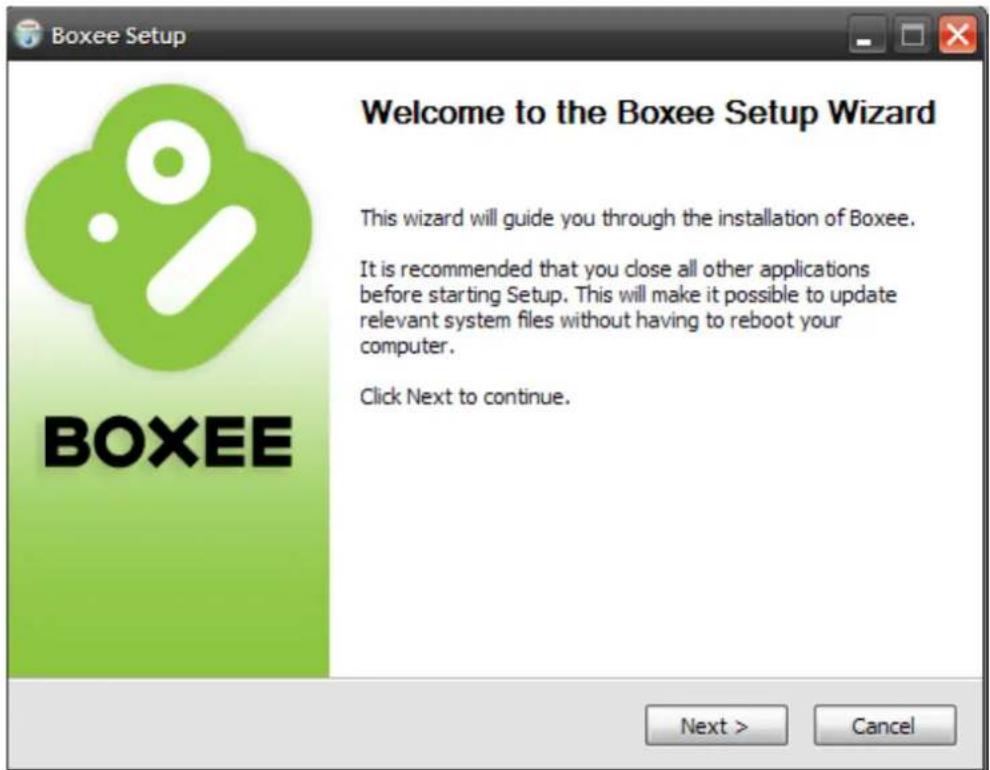
- Click Next
- Click I Agree (Boxee license agreement)
• If the default destination folder is OK with you, then click Next -
Click Install
-
Click Finish
- Click on the Boxee icon that was added to your desktop
- Boxee will start
- Now go to first time use to continue the installation process
Mac Installation
- Click on the .dmg file that was downloaded
- You'll now see the initial install screen for Boxee which currently looks like this.
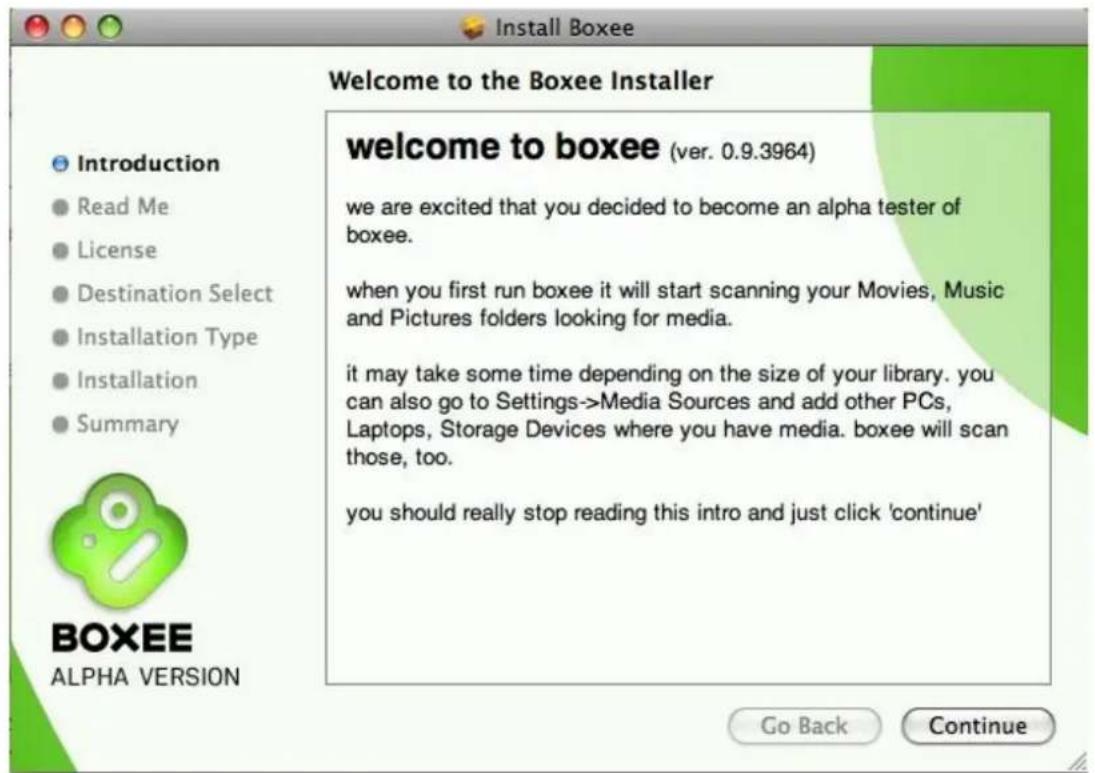
- Continue through the install process and complete the installation of Boxee
- Click on Boxee in your Applications folder
- Boxee will start
- Now go to first time use to continue the installation process
Linux Ubuntu Installation
- Click on the .deb file that was downloaded
- Click on Install Package
- Wait for it to finish
- Click Close
• To start Boxee go to: Applications > Sound & Video > Boxee - Boxee will start
- Now go to first time use to continue the installation process
Apple TV Installation
Installing Boxee on an AppleTV will require three things:
- a computer running Mac OS X or Windows XP/Vista
- a USB flash drive which will work as a patchstick
- an AppleTV
Here are a couple of video tutorials that will walk through this process:
• How to make the patchstick
• How to install the patchstick on Apple TV
Not all USB flash drives will work to patch the AppleTV but there is an AppleTV Flash Drive Compatibility List.
Once you've obtained a flash drive you'll need to download the most recent version of atvusb-creator.
- Insert a "bootable" USB drive into your PC/Mac
- Run the ATVUSB-Creator
- Click on Create Using or Create Patchstick
- Remove the USB drive and plug it into your Apple TV
Installing
- Power on your Apple TV and the patchstick will run the ATV bootloader
- After the bootloader finishes, remove it and restart your Apple TV
- It now has options for Boxee / XBMC on the main menu
- Click on Boxee, then select update launcher and then update Boxee Beta
- Once Boxee is done installing, restart your Apple TV
- Click Boxee
- Boxee will start
- Now go to first time use to continue the installation process
Setting Up Boxee
First time use
Welcome to Boxee. Congratulations, you are about to use your TV in a brand new way!
Once you download and install Boxee there are a few things that are specific for first time use.
The first time you start / run Boxee you will be presented with the login screen.
Registered User
If you have already registered at the Boxee Website, you will be asked to enter your username and password.
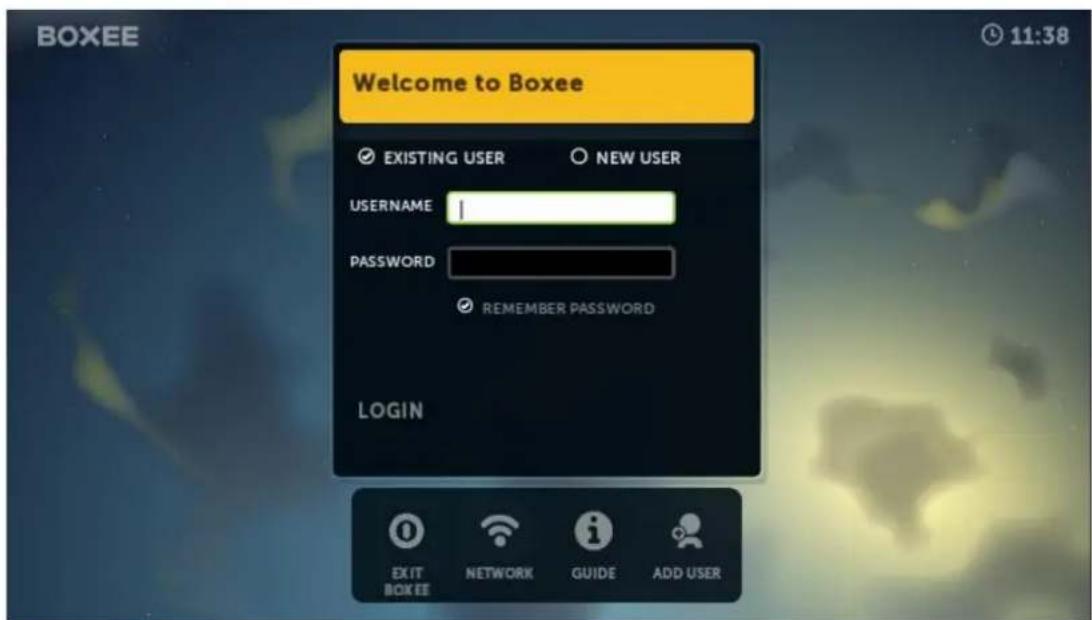
- Choose 'Remember Password' to automatically log in to Boxee each time you start Boxee. (this can be changed at any time in Change User)
- Select Login
Not Registered
If you have not yet registered at the Boxee Website, check New User and then enter your email address, a username, and password.
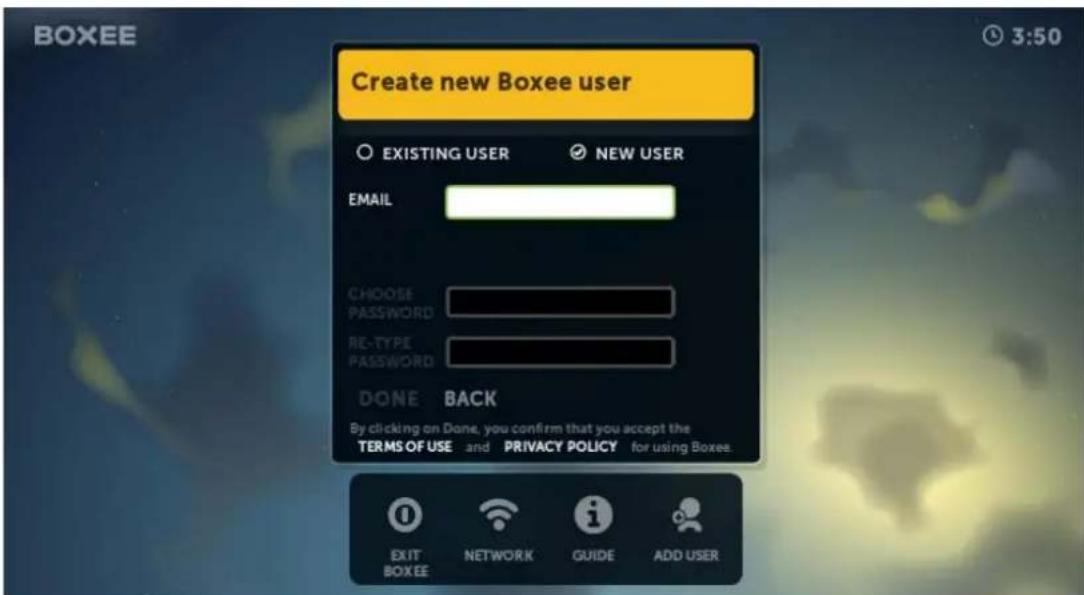
- Choose 'Remember Password' to automatically log in to Boxee each time you start Boxee. (this can be changed at any time in Change User)
- Select Done
You will then be asked if you would like to do a screen calibration.
• If you feel your screen is OK (looks like the ones above), Select Skip.
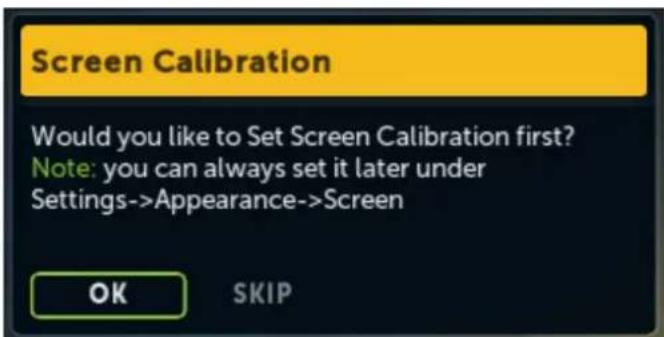
- If you feel your screen is not OK (does not look like the ones above), Select OK.
Basic Settings
Calibrating the Screen
When running Boxee for the first time after an install, you will be asked if you would like to calibrate the screen. You can choose to calibrate now or skip calibration. If you choose not to calibrate at install, you can always do this adjustment at any time if you find your screen is not calibrated correctly and/or parts of the Boxee user interface are missing off the screen.
To set Boxee to fit your screen, please follow these instructions:
- Go to Settings > Look & Feel > Screen > Screen Format & overscan...
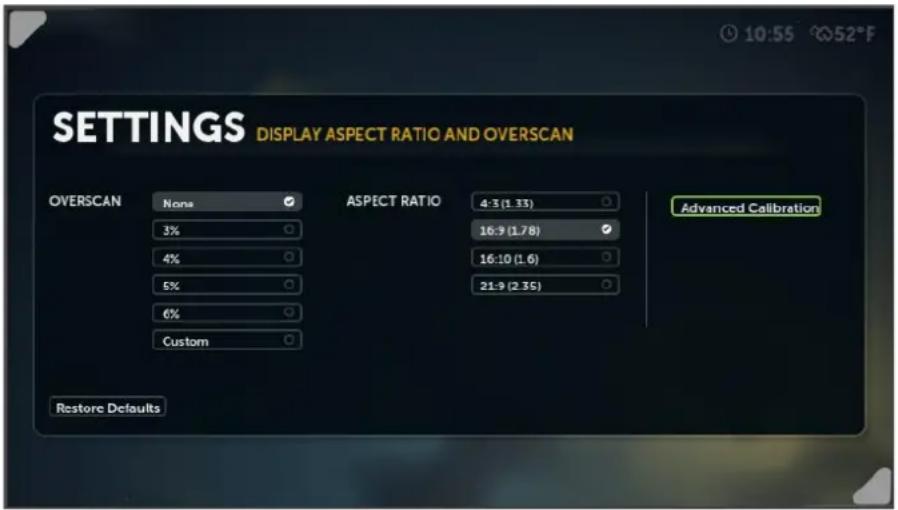
- You may be able to get your screen adjusted correctly by using the 'standard adjustments' above.
- If your screen still needs more adjustment then click on Advanced Calibration
- You will be presented a screen like you see below:

- On this screen use the enter / select key to move between the four adjustment cursors. They will turn green when selected.
- First, go to the top left cursor (seen above) and use the arrow keys to position it in the top left corner of the screen. You should be able to see the green arrow-head and two thin green lines in the corner.
- Next, switch to the bottom right cursor and adjust it so you see the arrowhead and the two thin lines in that corner.
- Now select the subtitle positioning bar and move it up or down to the position on the screen were you would like to see the subtitles presented.
- Finally, move to the center square (aspect ratio) and adjust it to ensure box is square(use a flexible ruler if required) and the circle round.
- That's it! Your screen is now calibrated. Hit Esc or Back until you reach the Home Screen.
Setting Screen Resolution
Since Boxee has been designed as a home media center, it starts in full screen mode the first time you use it. You can change this at any time by changing the resolution for Boxee on your display from the menu at Settings > Look & Feel > Screen > Resolution. If you have one display attached you will be given two options: Full Screen and Windowed. Select the option you would like to use, then select Test & apply resolution and OK.

Setting up a Secondary Screen
If you have two displays attached, you can control the resolution for Boxee in your main, as well as your secondary display.
Set your display preferences to "extended desktop" on you computer.
- Run Boxee.
- Go to Settings > Appearance > Screen.
- For Resolution, choose Full Screen #2.
- Click on Test Resolution.
You can also toggle between window and full screen modes, by hitting the "\" (backslash) key.
Set your Region
Set your Region and Language by going to Settings > Look & Feel > Region in the Boxee.
Setting your region enables you to personalize your version of Boxee in your preferred language with the correct time, date and weather temperature(displayed in the top right corner of your screen).
- Some content providers block access to their content from outside their region. That has to do with distribution rights in different parts of the world, and lots of legal mumble jumbo we won't get into here.
- Technically, those content providers check the IP address of your the computer, and block access to IP's not within the authorized region.
- There are some ways of getting the desired IP address for your computer, even when connecting from different parts of the world, and you can probably google for more info on that matter.
How do I know that an application is not playing because it's geo-blocked, and not because of some other problem with Boxee?
The easiest way would be to pay a visit to the original content provider's website and try to play the media directly from there. If it works on their website, it should also work in Boxee. If it won't play on their website, then Boxee won't play it either.
So, which Boxee applications are geo-blocked?
Here's a short and partial (as we don't really know which applications the community is adding to Boxee, we can only testify on the apps developed in-house) list of the geo-blocked services in Boxee:
Blocked for IP's outside the US:
• CBS
- Hulu feeds
• Joost (only part of the content)
• MTV (most of the content)
- Netflix
- The WB
- Amazon
- Pandora
Blocked for IP's outside the UK:
- BBC iPlayer
So why are you showing me stuff I can't watch?
If you do not wish to see those feeds and applications pointing to such content, please do the following:
- Open Boxee Settings > Look & Feel > Region.
- Check the Hide feeds and applications that cannot be played in your region option.
That's it. Now you will not see those feeds and applications any more.
Change the Background Image
Change the background image Boxee uses at:
- Settings > Look & Feel > Background Image
- Select Set background image
- Browse your local file system to the desired image
- Select the image and then select OK
You can also have Boxee cycle through images in a folder you specify to be displayed in the background.
Change the Background images folder at:
- Settings > Look & Fee > Background Image
- Select Set background images folder
- Browse your local file system to the desired folder
- Select the folder and then select OK
If the background images folder has been previously set it can be reset to the default image by going back to:
- Settings > Look & Fee > Background Image
- Select Reset background images folder
Organizing your media library
Adding Media Sources
Media sources are folders or drives Boxee looks through to identify and add media content to the TV Shows, Movies, Music, Photos and Files screens. By default, a few sources are pre-defined in the Boxee installation, and those include your operating system's default media folders (i.e. Microsoft Windows' "My Music", "My Videos" and "My Pictures" folders).
You can add as many sources to Boxee as you like from your local hard drive, external hard drives or from your network. You will need to make sure you have access to shared folders in the networked computer hosting the media you want to share. If the media source is on a Mac computer, you will need to define the share as SMB.
There are several ways by which you can get to adding a source in Boxee.
From the Home Screen select one of the following methods:
- Settings > Local Sources > Add Sources, select the source you would like to add, select Add Source
-
Settings > Local Sources > Add Sources, go to the bottom of the list and select Manually Enter IP / Name...
-
Enter the Hostname or IP of the remote machine
- Enter the Username and Password of the remote machine and select OK
- Choose the drive, folder or file you would like to add and then select Add Source
-
NOTE: if you do not set a static IP for the source computer, the source might become unavailable when the IP address changes.
-
Files, select the source you would like to add, from the left/slide menu select Add Media Share
-
Movies, TV Shows or Music, from the left/slide menu select Manage Sources > Add Sources select the source you would like to add, select Add Source
You will be presented with this screen (SETTINGS : LOCAL FILES):
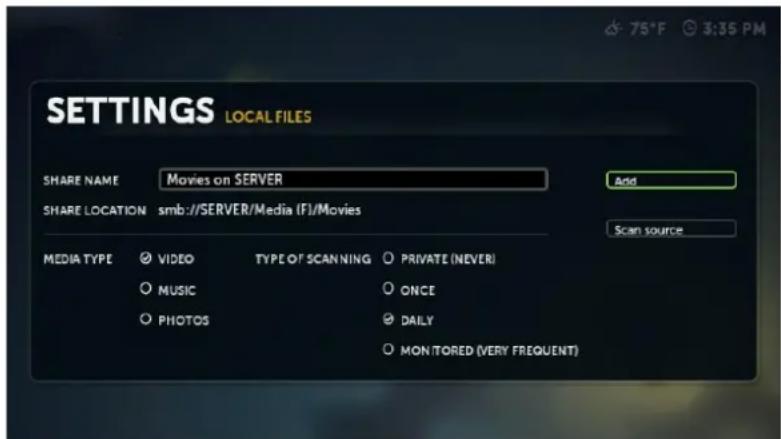
Once here you can then:
- Enter the SHARE NAME for your source (keep it simple so you can easily identify it later).
- Review the SHARE LOCATION for correctness.
- Check the source MEDIA TYPE (multiple selection is available for multiple media types in the source).
- Choose TYPE OF SCANNING for how often or if Boxee should scan your media:
o PRIVATE (NEVER): If you don't want the content in the specific source scanned.
- ONCE: Boxee will scan this folder once when added, and never again.
o DAILY : Boxee will check this folder for new content once a day for new content.
○ MONITORED (VERY FREQUENT): recommended if you are adding/deleting files regularly.
- Click on the Add button
• Done! Source added.
Once your content has been indexed or recognized by Boxee, you will be able to locate your media in its appropriate location on Boxee (Movies / TV Shows / Music / Photos / Files).
File Scanning and Identification Progress
Boxee scans for media only when it is idle and not doing other tasks. Adding media shares does not mean they will show up in "My TV Shows", "My Movies", "My Music or "My Photos" immediately. Boxee scans for the media shares, tries to identify the media and checks sources on the web to get data like cover art, fan art, thumbnails and other metadata to allow Boxee to present a rich interface to the user.
You can now specify the frequency of scanning(Private, Once, Daily, Monitored) for media of folders on your computer. It provides for better performance and greater control over the process. You can manually initiate a scan when browsing local folders (Main Menu > Files) or define a folder as a new media source.
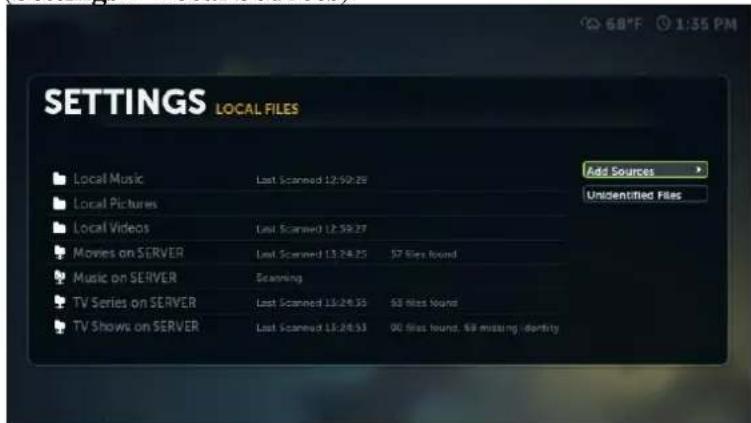
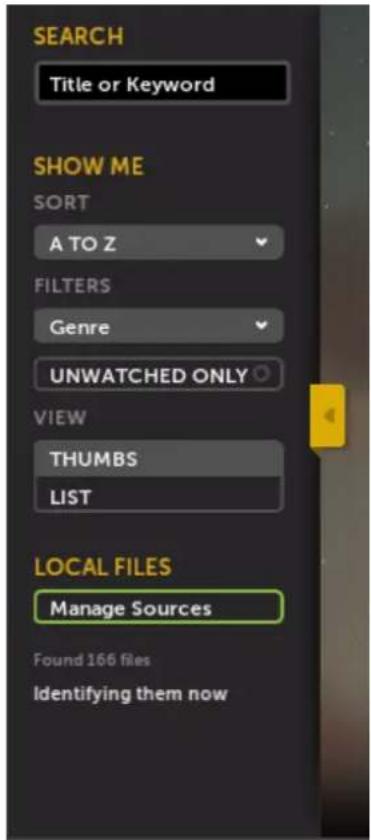
- You can easily see how many files Boxee is scanning, has identified, and/or doesn't recognize within your media collection. Check the status from any menu sidebar (TV shows, Movies, Music) or from the Media settings menu (Settings > Local Sources).
Correctly naming local media files
After setting up your media sources Boxee will start to retrieve artwork and information, based on how your media files are named.
There is a specific way you must name your movie files and your TV shows and episodes for the function to work correctly.
For correct names of Movies and TV shows, please refer to IMDB.com
Movies
It is recommended to place a single movie inside a directory.
Boxee currently supports the following naming convention for movies:
Title.extension
Examples:
• Die.Hard.avi
- Toy.Story.2.avi
It is recommended that you add the movie's release year for greater accuracy, especially when dealing with remakes.
Title.(YEAR).extension
Examples:
• The.Day.the.Earth.Stood.Still.(1951).avi
• The.Day.the.Earth.Stood.Still.(2008).avi
For multi-part movie both part# and cd# are supported.
Title.part#.extension
Examples:
- Seven.Pounds.cd1.avi
- Seven.Pounds.cd2.avi
• The.Simpsons.Movie.part1.avi
• The.Simpsons.Movie.part2.avi
All parameters can be used in conjunction - Title.(Year).part.extension Examples:
• The.Stepford.Wives.(2004).part1.avi
• The.Stepford.Wives.(2004).part2.avi
• The.Stepford.Wives.(1975).cd1.avi
• The.Stepford.Wives.(1975).cd2.avi
TV Shows
TV Shows' file names are usually consisted of the show's name, the season (usually indicated by the letter "S", or just the number), the episode (usually indicated by the letter "E", or just the number), the episode's title, and some more info regarding the quality and source of the file.
Boxee currently supports the following types of naming conventions for tv shows.
Show.Title.S##E##.info.extension (double digits are required: S#E# will not work.) Examples:
• The.Sopranos.S02E01.avi
- Entourage.S05E01.avi
Show.Title.#x##.info.extension
Examples:
• How.I.Met.Your.Mother.1x01.Pilot.avi
• The.Office.02×02.stuff.avi
Please note: Adding the series' release year in the file will help resolve remakes and TV shows with similar names
(please refer to IMDB.com to find the correct release year of the show)
Extra/Special episodes:
Season number should be '00', episode number should be 01-##.
The episode number should be assigned according to thetvdb.com listings.
Example:
South Park extra episode called "The Spirit of Christmas (santa vs frosty)" http://www.thetvdb.com/?tab=episode&seriesid=75897&seasonid... should be named South.Park.S00E02
Music
With music, the most important issue is the id3 tags.
These tags hold all the information such as album name, artist, year, genre and even artwork. Whatever is there, will be presented in Boxee, so be sure to include as much info as possible in your id3 tags.
If you do not want to keep the artwork as part of the id3 tag, you can also put a picture file of the artwork in the relevant folder, and name the file 'folder.jpg'.
Resolving an Unidentified Movie or TV Show
There is a specific way you must name your movie files and your TV shows and episodes for the function to work correctly.
After setting up your media sources, Boxee will start to retrieve artwork, information and other metadata, based on how your media files are named.
If Boxee finds some media files that were unresolved, Boxee's manual resolve function allows you to complete the information for you favorite media. Here is a step-by-step guide to help you.
Manual Movie & TV Show identification
Fix unresolved Movies or TV show seasons and episodes to ensure your collection is pristine.
- Select Unidentified Files from Settings > Local Sources
- OR -
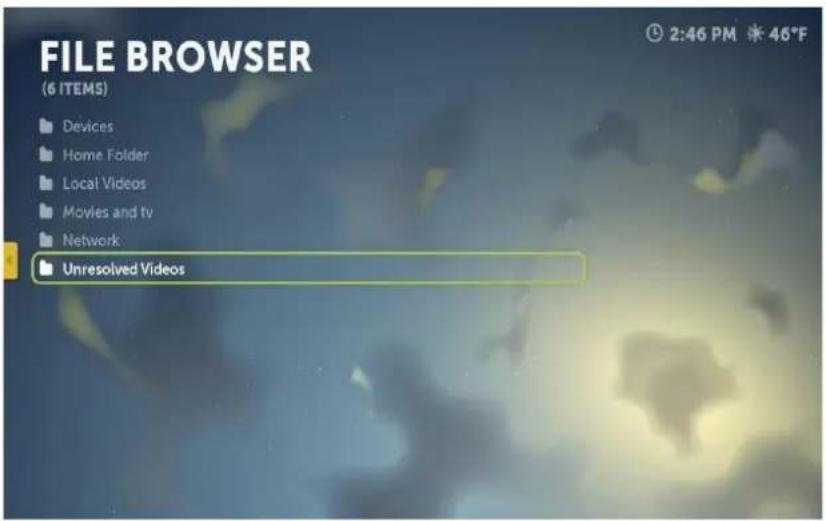
- Select Files icon from the Jump Menu, and then select the Unresolved Videos folder at the bottom of the list
- Click on one of the videos in the list
- Choose the Identify Video icon
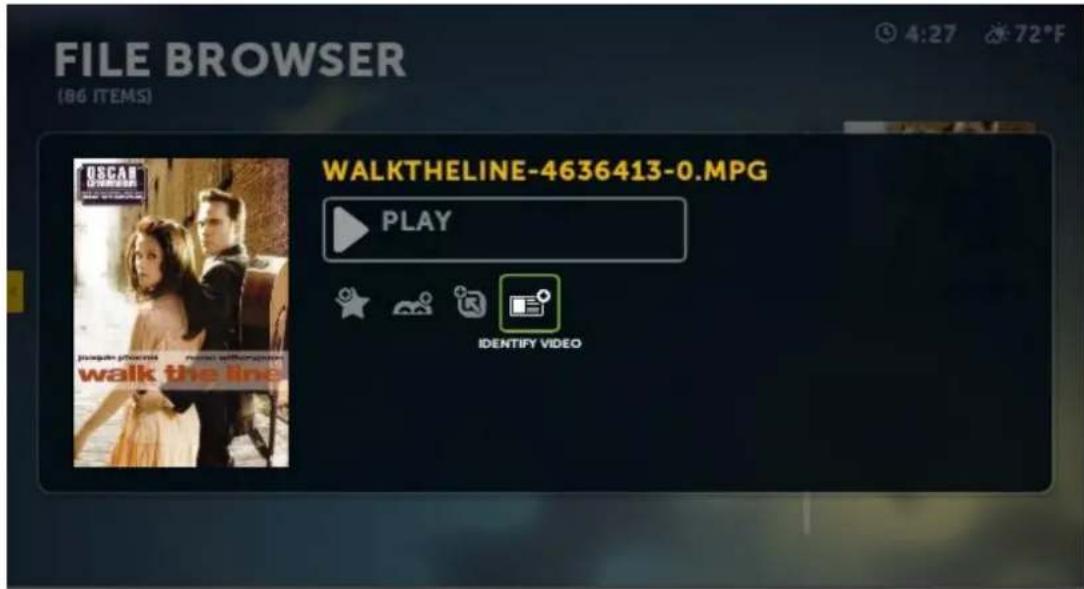
- Enter the correct name for the movie or show.
- Click on Search.
- Choose the movie or show that matches the one you trying to resolve from the results list.

- You should now see the correct video information.

- Select Done if you agree.
This will usually do the trick. However, if the movie or show is not in the online databases that Boxee uses for indexing your media(IMDB), then Boxee will not be able to recognize the media. In such a case, you will always be able to access those unrecognized videos through the File Browser.
If you find that Boxee just does not know what to do with your video file at this point, please submit this online form if you are having trouble with a movie or submit this online form if you are having trouble with a TV show.
Reset/Erase your Database
To erase the media information from the Boxee library go to Settings > System > Advanced and select:
Clear media information from the library (media files will remain intact)
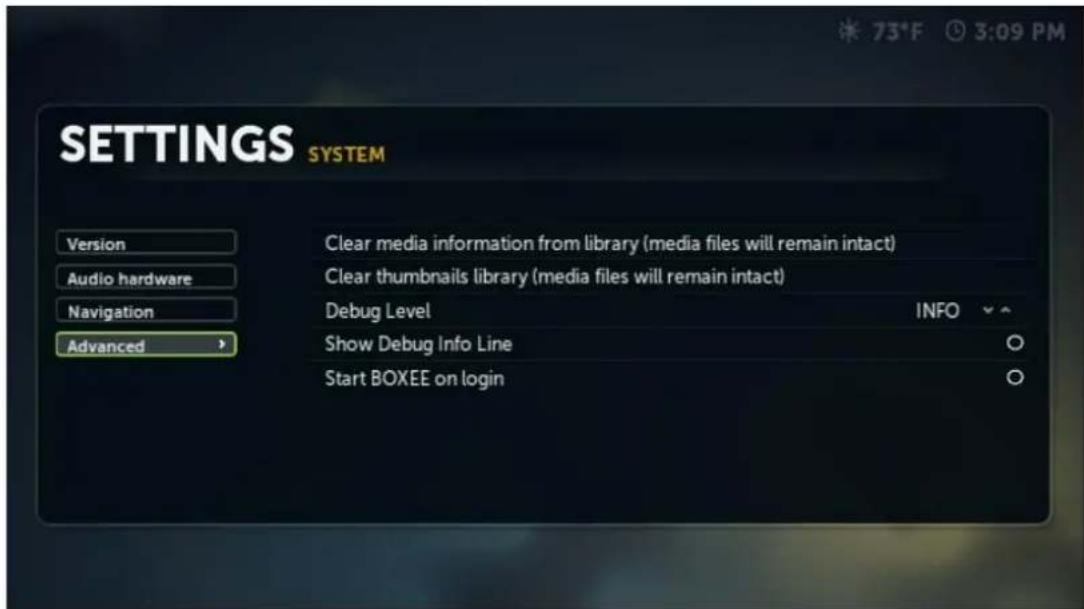
Select "OK" the erase the media database.

To erase the thumbnails from the Boxee library go to Setting > System > Advanced and select:
Clear thumbnails library (media files will remain intact)
Select "OK" the erase the thumbnails from the library.

Hide Adult content
Boxee allows the user to get digital entertainment from across the entire internet. But, Boxee also allows you to block adult content not suited for all viewers. To set Boxee to hide adult content two things need to be done. First is to check circle next to "Hide adult feeds and applications" by going to:
Setting > Parental Control > Hide adult feeds and applications
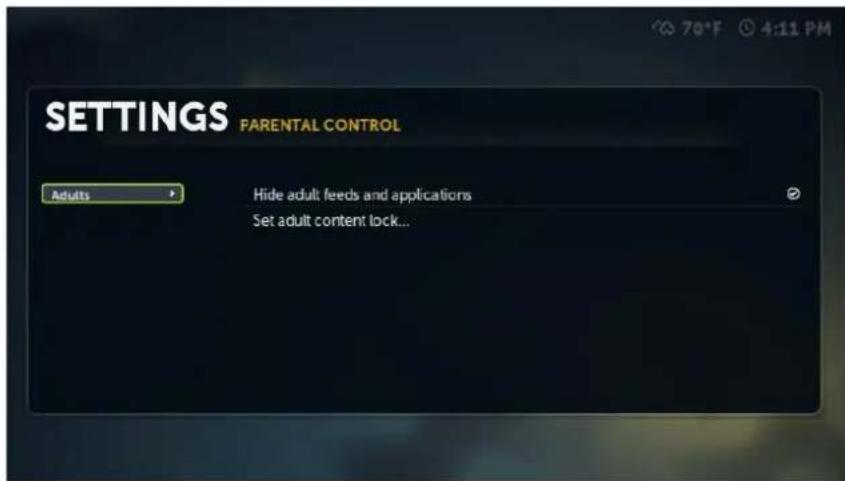
Then, to stop the unauthorized changing of the above action, select "Set adult content lock" by selecting:
Setting > Parental Control > Set adult content lock...
Enter a password of your choosing then select "Done" or hit enter. Boxee will ask you to enter the password again, so do that and select "Done or hit enter again.
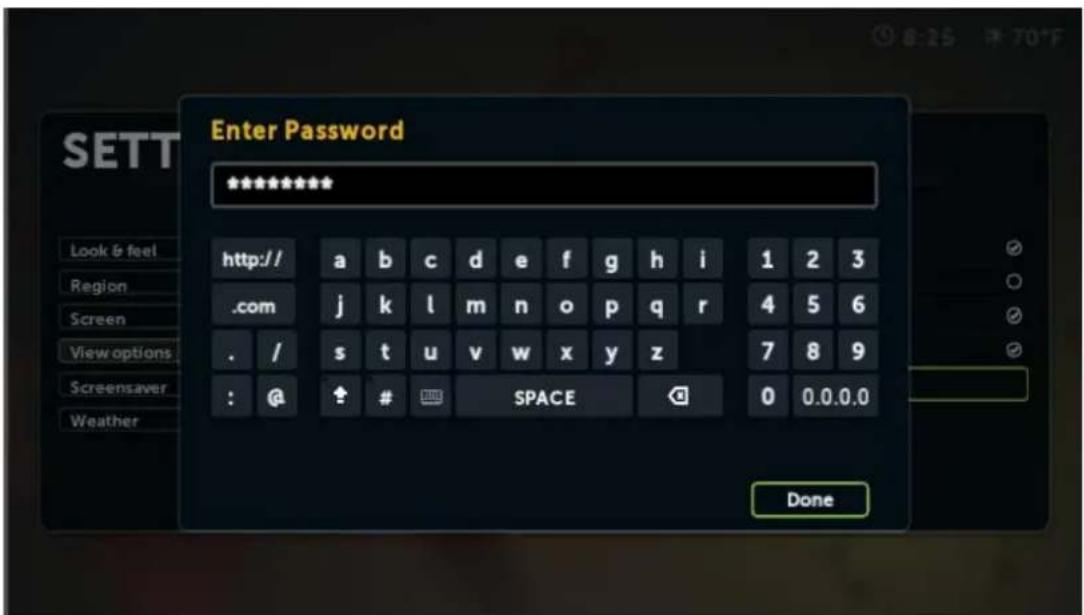
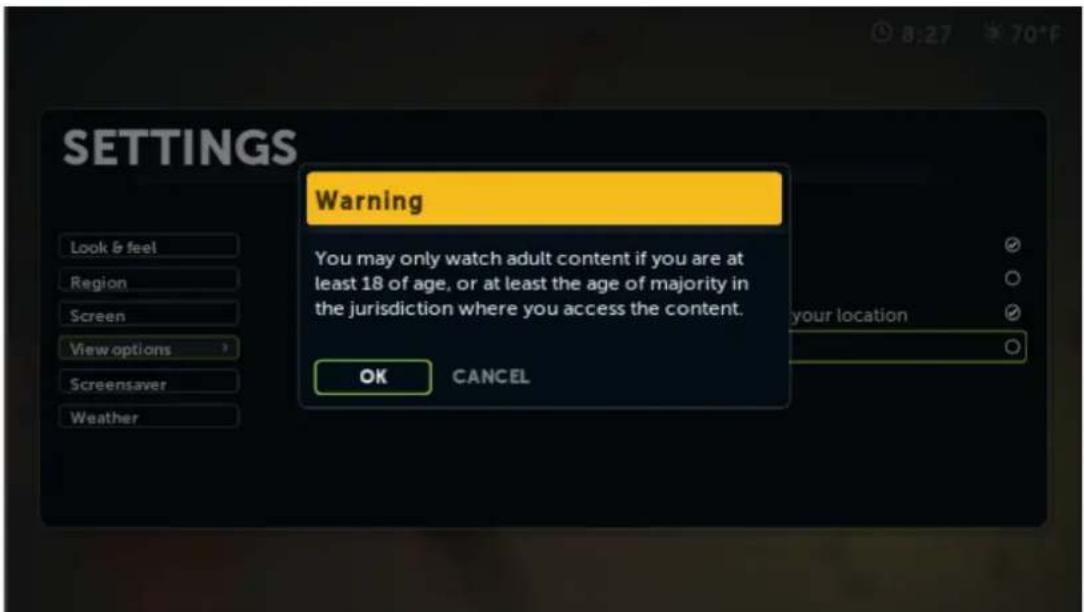
Now, the only way to uncheck the "Hide adult feeds and applications" is to enter the correct password. A warning message will be displayed if the "Hide adult feeds and applications" circle is unchecked. Selecting "OK" will allow for the password to be entered, but if an incorrect password is entered the "Hide adult feeds and applications" circle will remain checked.
Setting up Services and users
Adding Your Account Services
The Boxee App Library has services you get and use through Boxee. Boxee supports services from the following providers:




Facebook Twitter
Google Buzz
FriendFeed
Tumblr
NetFlix Fli
ckr Digg
MUBI
MLB.TV
To access these services on Boxee, you'll need to pair your account first. <<
Here are the steps to follow to get a service to work in Boxee:
- You must first sign up for the service you want at one of the supported services websites.
- Once you have a username and password for the service, login to the Boxee website and go to the services section in your account settings.
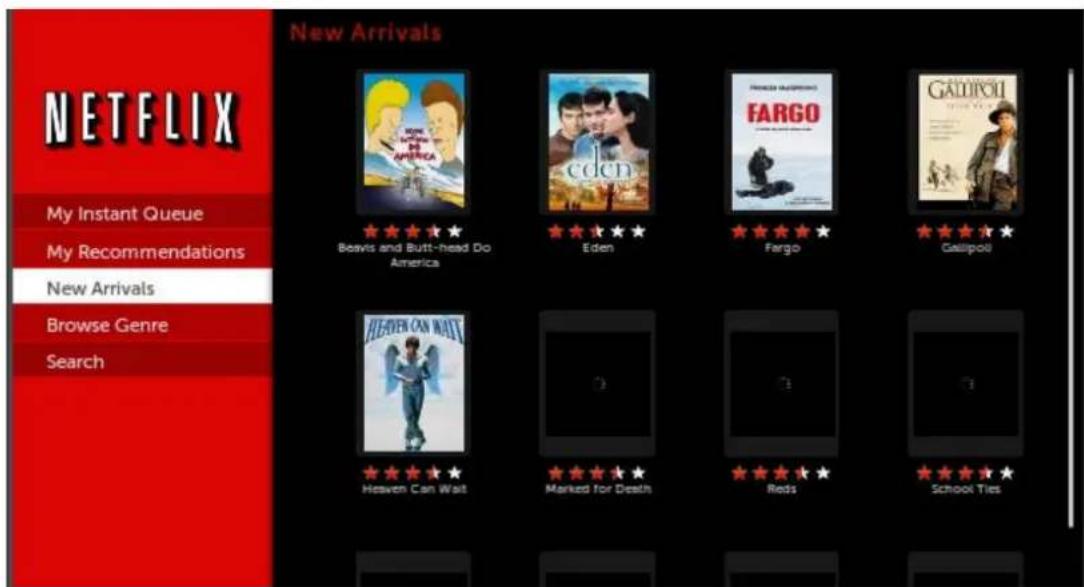
- Select the service you would like to add (NetFlix in this example), then click Authorize.

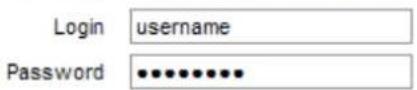
- Enter the username and password for the chosen service.

To confirm, please login to Netflix:
Yes, Link This Account
- Now go to the Apps Library in Boxee and select the App for the service you would like to add.
- On the next screen you can select Start, Add To My Apps or Add Shortcut.
- Selecting Start will take you to that service app.
Adding Facebook/Twitter/Google Buzz Feeds
In addition to pushing out your recommendations to social networks, you can now also pull in recommendations from your friends on Facebook, Twitter and Google Buzz. Shared videos appear automatically in your feed with an icon on the right to let you know where they came from.
To set up this new option in your services section for Facebook, Twitter and/or Google Buzz.
Once you have set the services up in your online account you can then go to Setting > Personal to toggle the services you selected on or off.


Adding / Removing a User
Adding a User
If you don't have a Boxee account when you first launch Boxee or would like to set up a new user account, you can do so from the login screen.
If you're already logged in to Boxee, and you want to create a new user, use the Boxee Power button and select Change User and then select Add User.
- Check New User
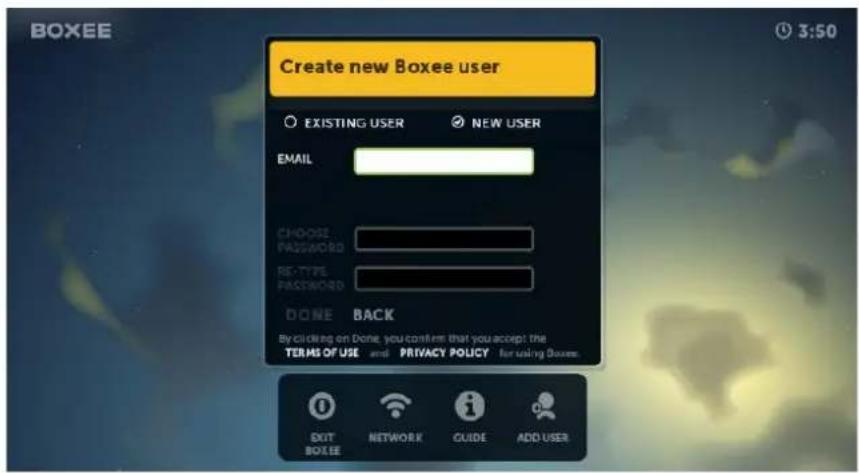
- Enter your email address and then choose a username:
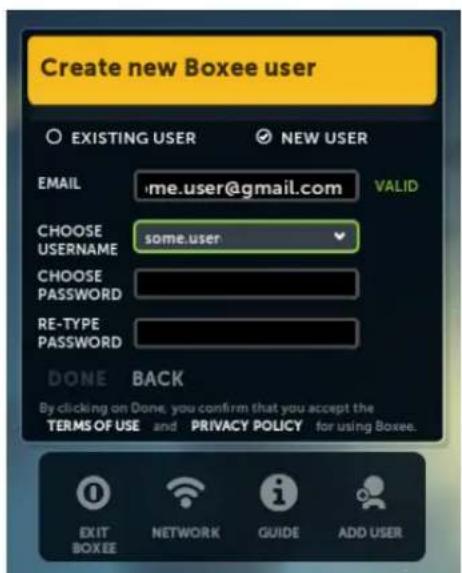

- Boxee will verify that your username is available and then prompt you to enter a password:
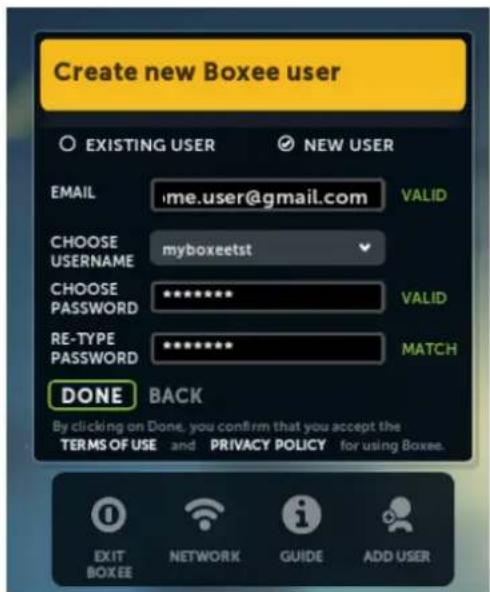
- Select Done. There will be a slight pause as Boxee creates the new user profile. When everything is ready, you should see:
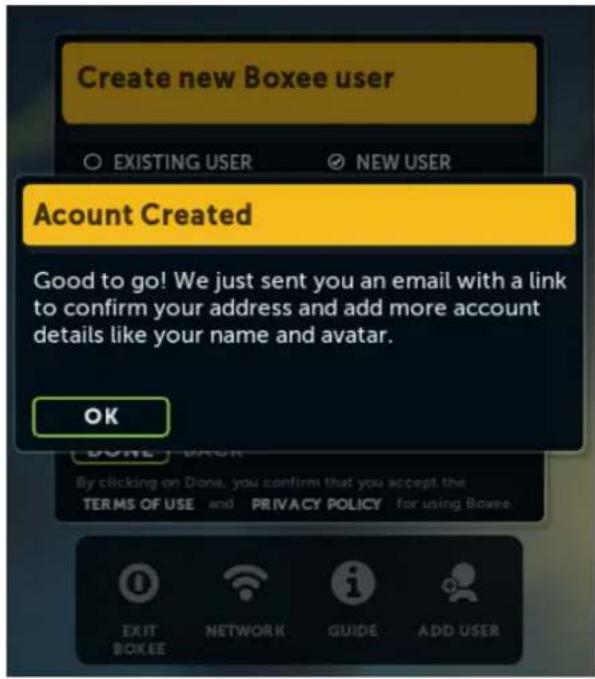
- Select OK and you will automatically be logged into Boxee. Congratulations! You're ready to begin using Boxee!
Removing a User
You can remove a user only if you have entered more than one account in the Boxee application by doing the following:
-
Select the Power icon(top left corner) and choose Change User.
-
Choose the appropriate user you want to remove and select the Settings Icon next to their name.
-
Click the Remove User Button.
Using Boxee
General
Navigating in Boxee
Navigating in Boxee is simple and intuitive. You can use a mouse, a keyboard, a remote control or a combination that suits your needs.
Keyboard control
Navigation:
- Use the arrow keys to move the cursor
• Make a selection using the Enter key - Use "\" OR "Ctrl+f" to toggle between full screen and windowed
• Use "Esc" or "Backspace" to go back to the previous screen - Use "Home" to go to the top of a list
- Use "End" to go to the bottom of a list
- Use "s" to exit or suspend
• Use "h" to go to the Home Screen
Boxee presents a keyboard to the user whenever text data needs to be entered(such as search, share). When you see one of these displays, enter the required test and then hit enter with the lower right key (enter, done, share, etc)
Left side Menu Keyboard

Pop Up Keyboard
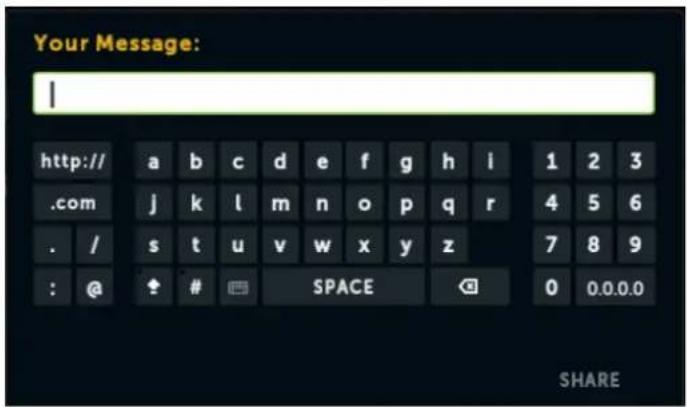

The 'keyboard' icon shown on the 'on screen keyboards' allows you to toggle through the 3 available keyboard languages that are set in Settings > Appearance > Region
During Playback:
• Volume control: +/- OR Up/Down arrow keys
• Show the OSD / make selections by pressing Select / Enter
- Play / Pause: Space bar
- Short skips: Left/Right arrow keys
- Long skips: "[" and "]" keys
- Use "," to go to the beginning
- Use "x" OR "." to stop playback and exit
- Hide the OSD by pressing ESC
Remote control
Navigation:
- Move the cursor using up, down right and left.
- Make a selection using Play, Pause, or OK.
- Go back to previous screen using BACK / MENU.
During Playback:
- Control volume level using +/- or the up and down arrows
- Show the OSD and make selections using Play, Pause, or OK.
- Skip using the Back and Forward buttons.
- Hide the OSD using BACK / MENU.
On Screen Display(OSD)
Boxee displays an On Screen Display(OSD) whenever you press select/enter while playing a video or song, or while viewing an image/photo. Below are a few examples of the typical displays that will be presented.
• View the OSD by pressing Enter
- Use the arrow keys to navigate through the playback controls
- Make selections on the OSD using Enter
- Hide the OSD by pressing ESC
For more information on remote controls go to:
• List of Boxee Remotes
Adding / Removing a Shortcut
You can add Apps, TV shows, media folders or even specific files as shortcuts for easy access on the Global Menu.

How to add a shortcut
- Browse to the appropriate file via the Movie, TV Show, or File icon or chose an app from the App Library.
- Select the Movie, TV Show, File or App and then choose Add Shortcut.
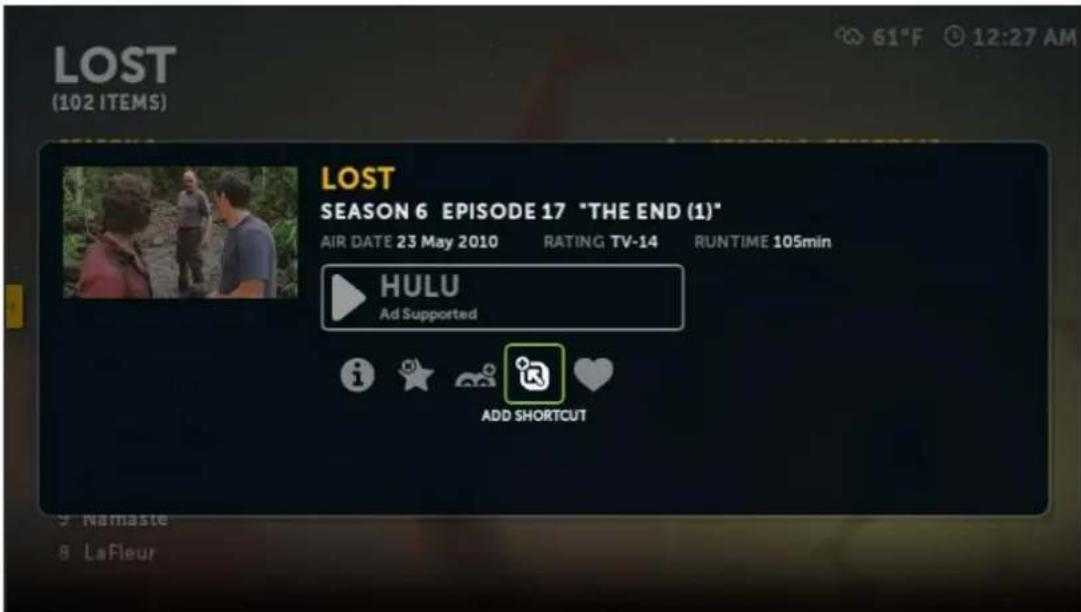
- The shortcut will be added to the Shortcuts Row in the Jump Menu for easy access.
How to remove a shortcut
-
Open the application window and select the appropriate item.
-
Select the Remove Shortcut button.

How do I manage shortcuts?
-
Open the Jump Menu
-
Select the cog/settings icon on the bottom left corner of the Shortcuts Row

- A dashed border will appear around each shortcut icon as you move from left to right.
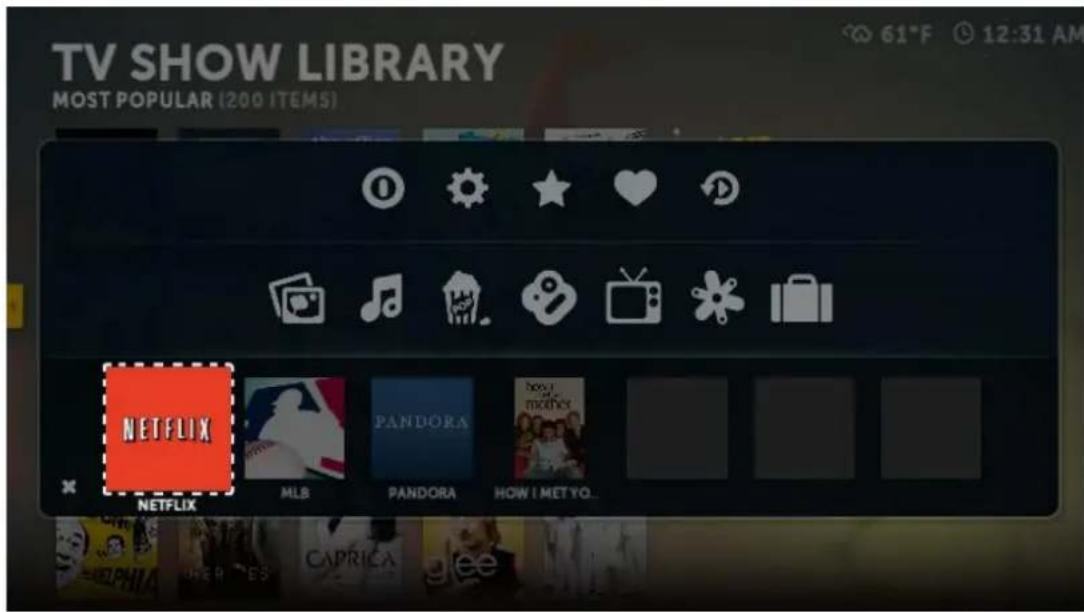
- Select the shortcut and you will be given options to either Move or Remove it.
Removing Shows From History
Boxee keeps a history of all of the media that you have watch on your computer so you will be able to go back and replay it without having to track down where you found it in the first place. If you ever want to remove any or all of your history, Boxee makes it easy to do that as well. To delete any show from the history just follow these steps:
- Select History icon on the Jump Menu

- Select the show you would like to remove from your history

- Click the "Remove From History" icon
- Done... the file is no longer in your history file.
If you would like to clear the entire history from Boxee you can delete the playbackhistory.dmp file located in the Boxee userdata folder. The location of this folder depends on the platform in which Boxee is installed.
The generic location for this file is:
For example on Windows Vista / 7 the file is here:
c:\users\
Search
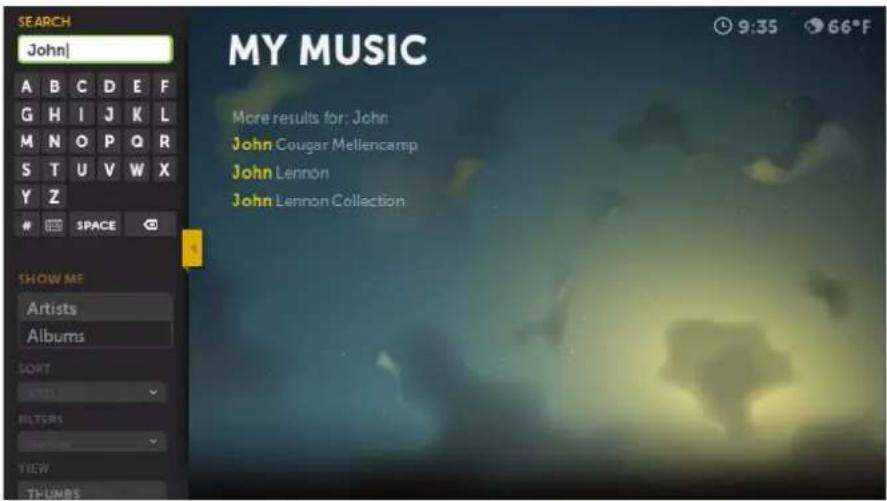
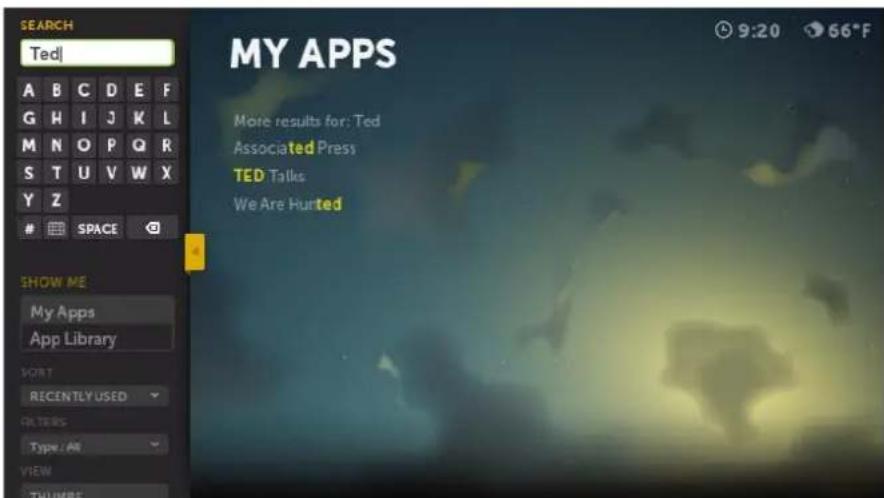
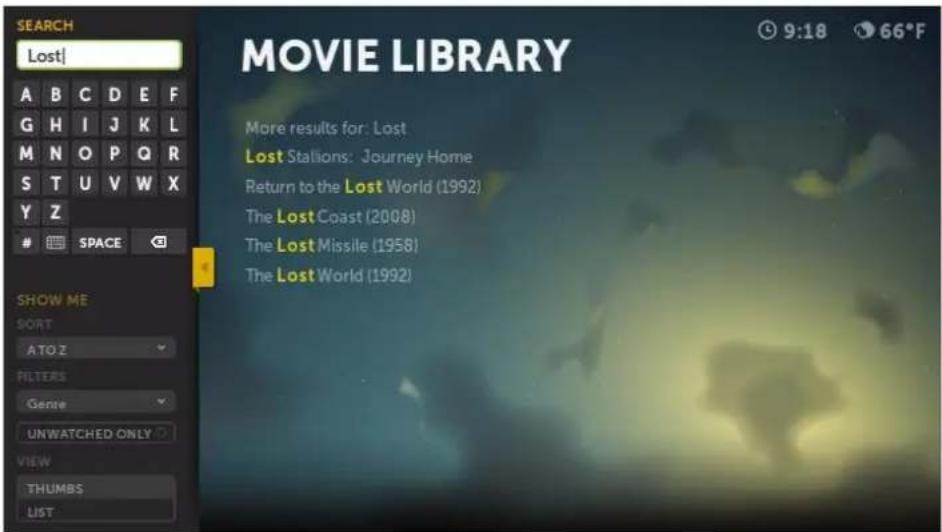
Searching for a TV Show, Movie, Music or App in Boxee is easy! Search is supported for Movies, TV Shows, Music and Apps and can be accessed from the left menu.
To search:
- First go to the screen in Boxee for the type of media you are looking for(TV Show, Movie, Music or App).
- Open the left slide menu and enter the search title or keywords you are looking for in the search box. Boxee will update the list on the right as you enter the search argument.
- Once you see the item you are looking for in the right side list, you can move the cursor over to the item and watch the show.
Boxee will search your local sources any TV Show, Movie, Music or Apps and also go out to the internet to search for online TV Shows and display the results.
Music Search (local only)
Apps Search (Boxee and installed repositories)
TV Show Search (local and online)

Movie Search (local and online)
Movies and TV Shows
Viewing a Local Movie or TV Show
Once Boxee has imported and indexed your local media shares you can watch them in My Movies or My TV Shows.
Local Movies
- From the Home Screen, click on Movies.

- Select the movie from the right side of the screen.

-
Watch movie.
-
A Video will automatically be marked as watched after a you finish watching it. You can also mark videos as watched or unwatched manually when clicking on them.
Local TV Shows
- From the Home Screen, click on TV Shows.

- Using the left/slide menu and select My TV Shows.
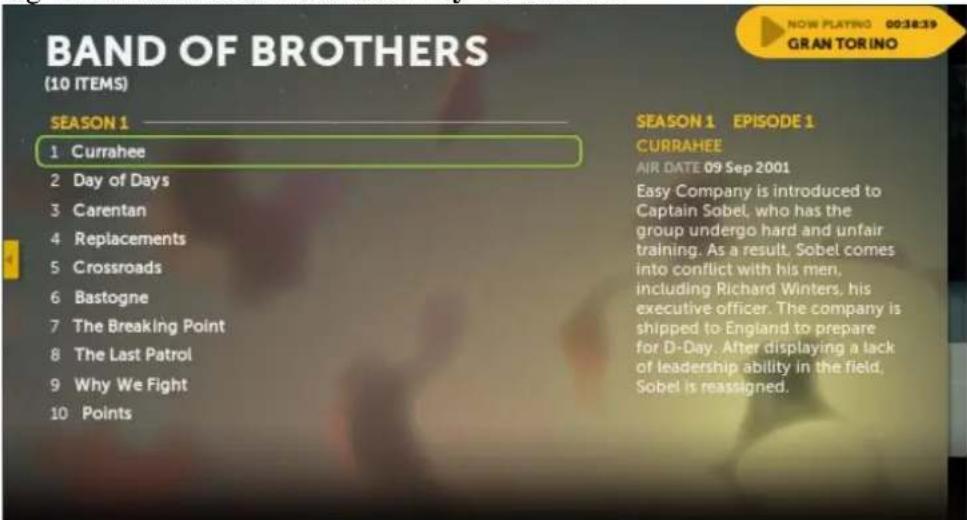
- Select the episode you would like to watch.

-
Watch movie.
-
A Video will automatically be marked as watched after a you finish watching it. You can also mark videos as watched or unwatched manually when clicking on them.
The TV Show Library
There are a number of ways to view online content from Boxee. The most popular method is to use the TV Show Library:
- From the Home Screen, click on TV Shows.
- Using the left/slide menu, select TV Show Library.

- Select any TV show, for example Chuck. A list of available episodes will appear.
- Select the episode and as needed, select which source you want to watch.
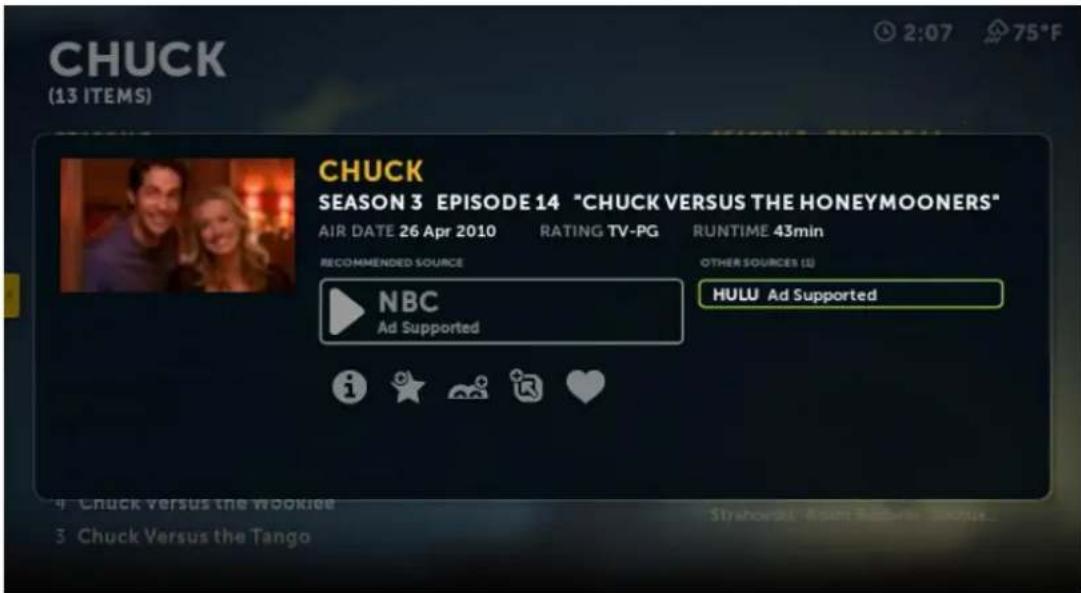
- And Enjoy!
Don't see the TV show you want in the "top 200"? Try the search function also in the left/slide menu:
![SEARCH pbs A B C D E F G H I J K L M N O P Q R S T U V W X Y Z # SPACE TV SHOW LIBRARY More results for: pbs NOW on PBS [2002] PBS KIDS Previews PBS NewsHour PBS Presents SHOW ME My TV Shows TV Show Library SORT MOST POPULAR FILTERS Genres VIEW THUMBS](/content/2026/06/1236348/images/e1f2b23d66e487fd870246fd494a669ef140eb43fe1b743ed9fe2d5f32d75388.jpg)
The Movie Library
Boxee now includes a "Movie Library" option in the sidebar that provides access to a huge global catalogue of streaming movies from:

* To access MUBI on Boxee, you'll need to pair your account first. To add more credit to your account go to the Mubi website.
- From the Home Screen, click on Movies.
- Using the left/slide menu, select Movie Library.

- Select any movie, for example Home.
- Select the source(if more than one source is available) you would like to want to watch the movie from.
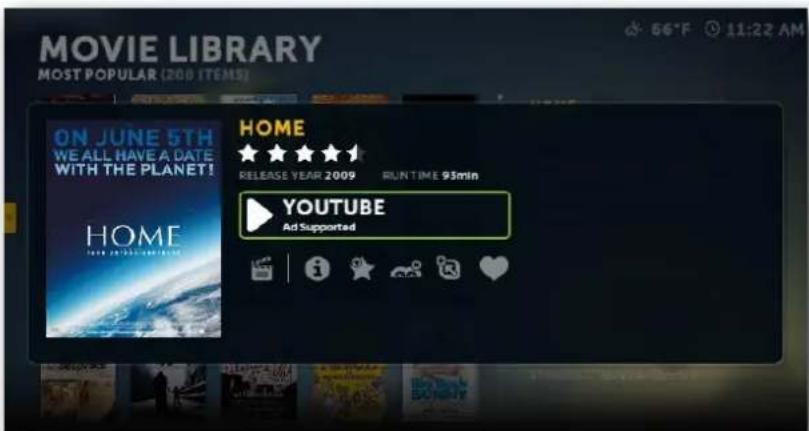
And Enjoy!
Don't see the movie you want in the "top 200"? Try the search function also in the left/slide menu:
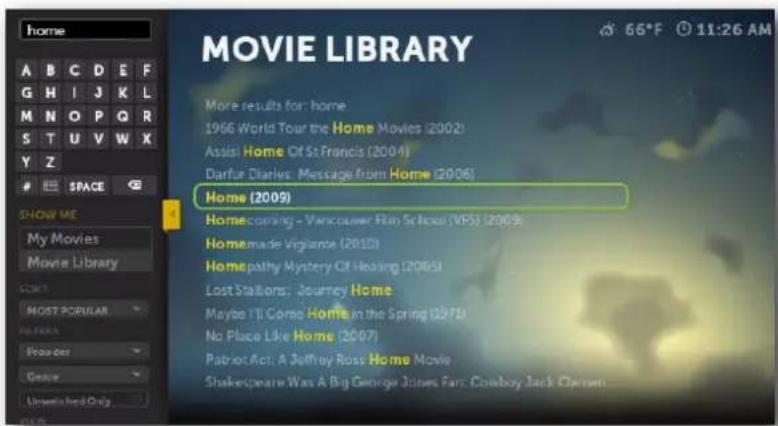
Adding and Removing a TV Show to the Queue
Boxee can automatically add new episodes of your favorite TV shows to your Queue when they become available for online viewing.
- From the Home Screen, select TV Shows.
- Navigate to the TV show you want to add to your Queue, either from the My TV Shows screen or from the TV Show Library screen.
- Use the left/slide menu and select Add to my shows (queue new episodes).
![SHOW ME SORT NEWEST FIRST FILTERS ALL SEASONS EXTRAS Add to my shows [queue new episodes] ADD SHORTCUT CHUCK (13 ITEMS) SEASON 3 14 Chuck Versus the Honeymooners 13 Chuck Versus the Other Guy 12 Chuck Versus the American Hero 11 Chuck Versus the Final Exam 10 Chuck Versus the Tic Tac 9 Chuck Versus the Beard 1 Chuck Versus the Pink Slip SEASON 1 6 Chuck Versus the Sandworm 5 Chuck Versus the Sizzling Shrimp 4 Chuck Versus the Wookiee 3 Chuck Versus the Tango 2:36 75°F](/content/2026/06/1236348/images/55417664bf5906b688f3542b81d7ecf3ca2c39448145fe35ed3ab20d59bb2a8a.jpg)
Note: Nothing will be added to the queue for this show until the next new episode becomes available online, e.g. episode #15 in this example.
- Chuck will also now show up in the My TV Shows screen.
To remove a TV show from your Queue, simply navigate to the TV show again, use the left/slide menu and select Remove from my shows.
Removing an Individual Item from the Queue
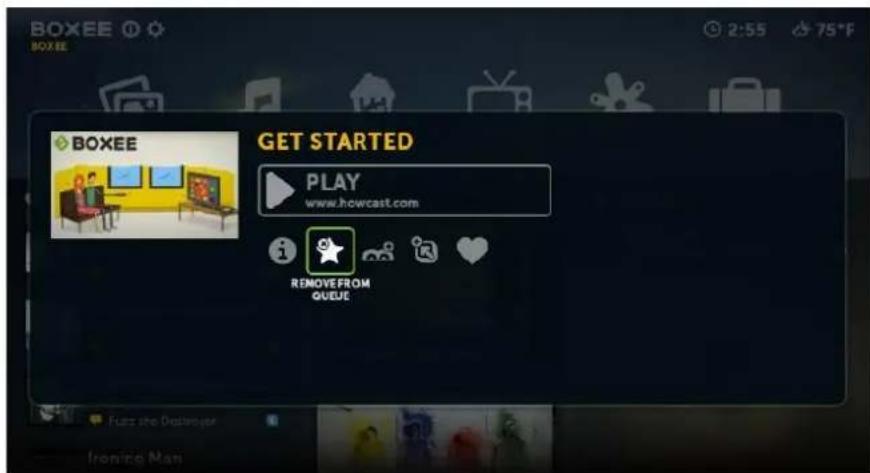
If there is ever an item in your Queue that you want removed, simply select that item from your Queue and select Remove from Queue.
Music
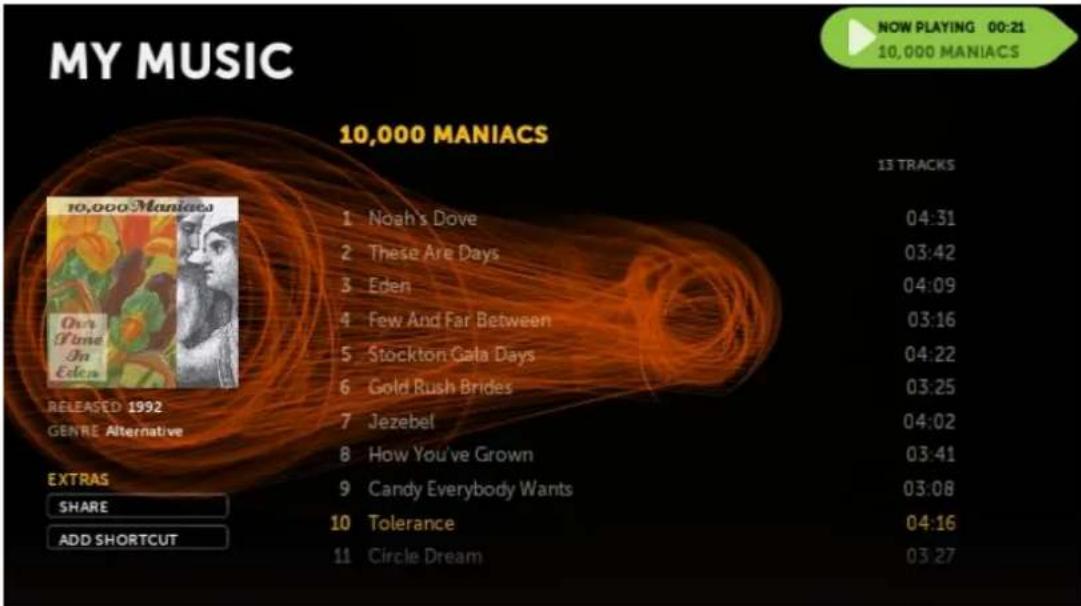
Listening to Local Music
Boxee can play many common digital music formats with options like track mix, repeat all tracks, repeat 1 track and visualization. To change the settings in Boxee go to Settings > Media > Music from the Boxee Home Screen.
It is important to note that for Boxee to find your local and network music you must set Boxee to access the appropriate shares and allow some time for Boxee to do the file scanning and identification process after adding the share the first time.
You can reach the My Music screen from the Home Screen or Global Menu by selecting the Music icon.
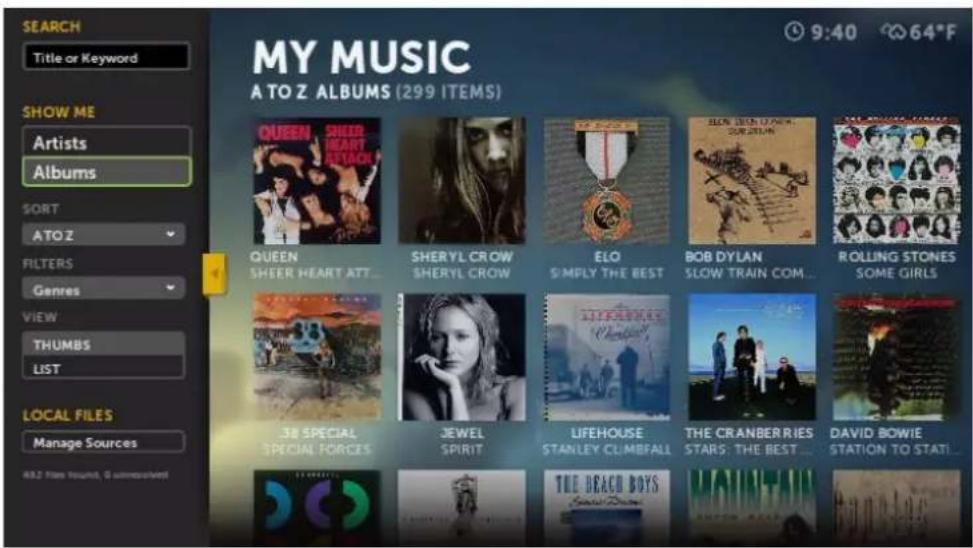
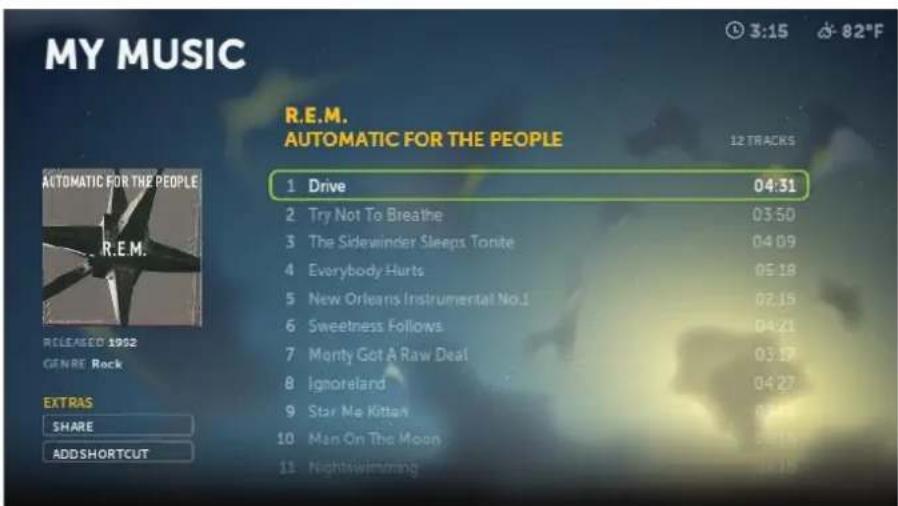
Select the Album or Artist you would like to play then select a song from the list to start playing the song. You can move through the songs with the right and left arrow keys on the remote or keyboard.
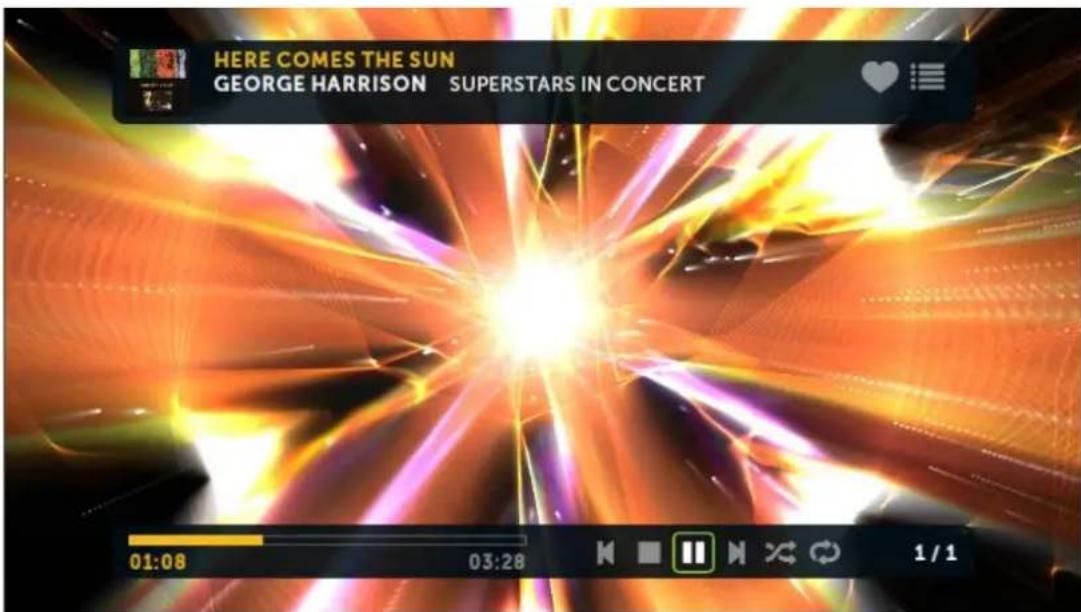
To activate the on screen display controls (shown below) press select/enter the use the right an left arrow keys to navigate the OSD using enter to select the action. You can see the effects of the visualization(Mike Drop) below.
Photos
Viewing Local Photos
Boxee can display all common digital picture / image formats with options like slide show with the "Ken Burns Effect" and the ability to zoom / pan on an image. To change the settings in Boxee go to Settings > Media > Photos from the Boxee Home Screen. To change the slideshow to show photos in a random order check mark Settings > Look & Feel > Screensaver > Randomize.
It is important to note that for Boxee to find your local and network photos you must set Boxee to access the appropriate shares and allow some time for Boxee to do the file scanning and identification process after adding the share the first time.
You can reach the My Photos screen from the Home Screen or Global Menu by selecting the Photos icon.

Select the source folder you would like to access then select a photo from the right side of the screen to start viewing the photos/images. You can move through the images with the right and left arrow keys on the remote or keyboard. To activate the on screen display controls (shown below) press select/enter the use the right an left arrow keys to navigate the OSD using enter to select the action.

natural_image
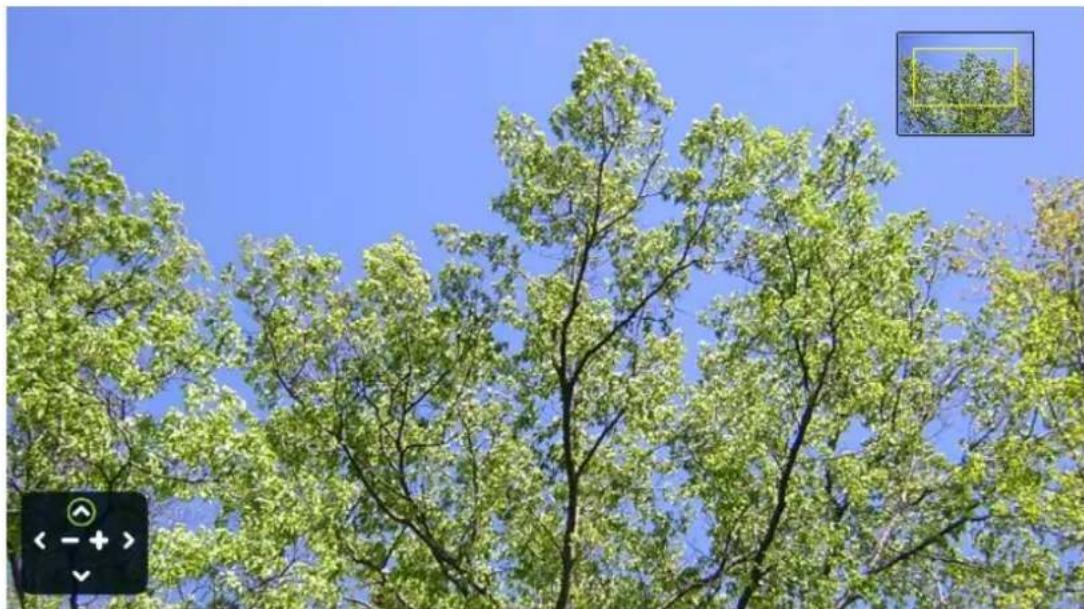
Misty forest scene with tall trees and autumn foliage, no visible text or symbolsThe OSD shown below allows you to control the pan and zoom functions on a particular image.
natural_image
Tree canopy with broad green leaves against a clear blue sky, no text or symbols visibleApps
The full list of Boxee apps can be found in 3rd party app repositories.
Adding and Removing Apps from My Apps
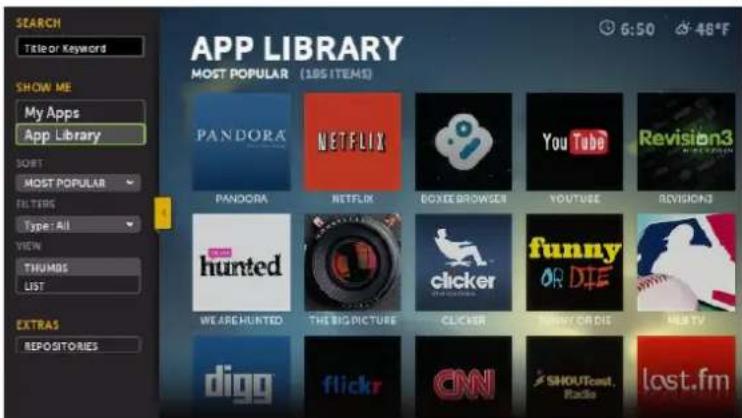
By default, the My Apps screen is populated with some of the more interesting and popular Boxee Apps. However, there are many many more Apps available in the App Library:
- From the My Apps screen, use the left/slide menu and select App Library
-
From here you can peruse the large list of additional applications available in Boxee for accessing various kinds of online content. You'll also notice that some of these Apps (like YouTube) are already present on the My Apps screen. You can think of the App Library as the default master list of Apps that Boxee makes available and the My Apps screen as your set of favorite Apps.
-
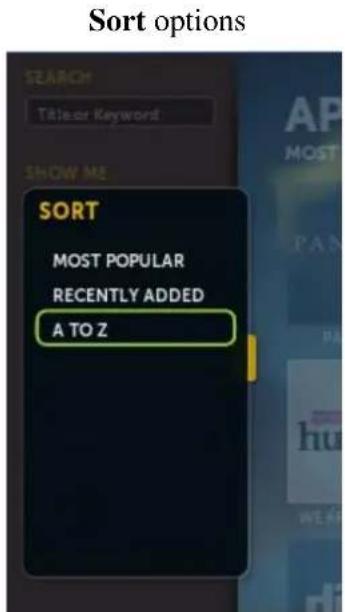
On the left/slide menu you have a number of options for sorting and filtering as well
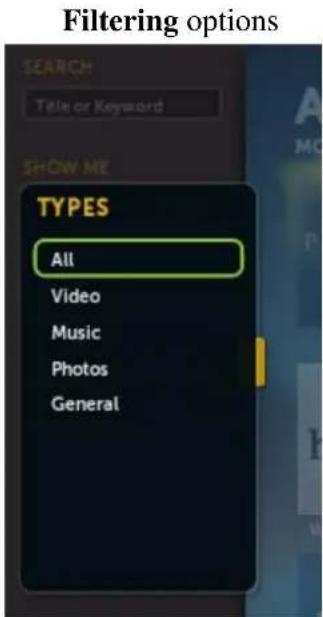
• You can even use list mode instead of thumbs:

Once you have found an App (or several Apps) of interest, you can do any of the following:
- Launch the App (take it for a test run, so to speak) by selecting Start
- Select Add to My Apps so that the App will show up in the My Apps screen every time
- Select Shortcut to add the App to your Shortcuts (more on Shortcuts)
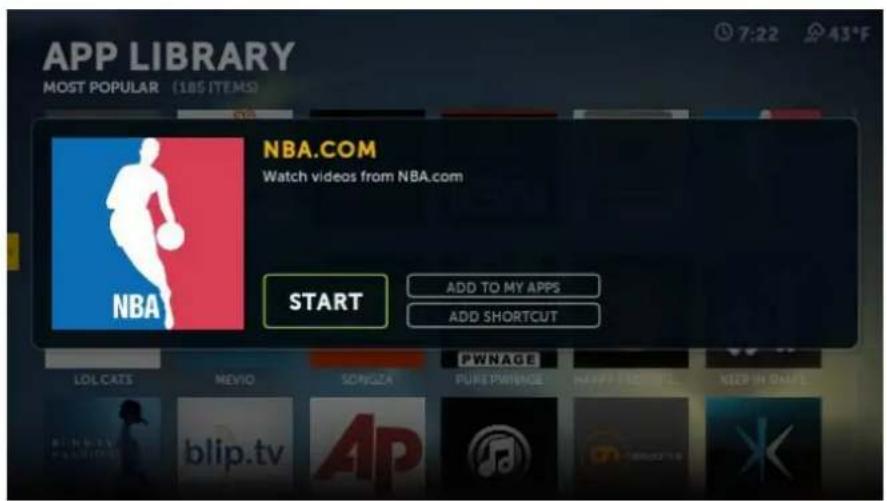
Note: Once an App has been added to the My Apps screen, the option Remove From My Apps is displayed instead of Add to My Apps.
Adding a Third-party Repository
Although Boxee has many Apps to start, believe it or not, there are even more Boxee applications available to chose from. Third-party developers (those not on the Boxee team) can also create and share Boxee applications with Boxee users. They do this by creating a Boxee Repository, a place where they publicly store their Boxee application and from where you can access it via Boxee.
First, find a Repository with Boxee Apps that you want to add to Boxee. One site with a list of a lot of repositories is http://fuzzthed.com/repository.php Once you have found a repository with one or more applications you would like to use, then:
Make a note of the repository URL, for example, dir.fuzzthed.com
• From the My Apps or Apps Library screen open the left/slide menu.
- Select Repositories.
- Click on Add Repository from the left menu:
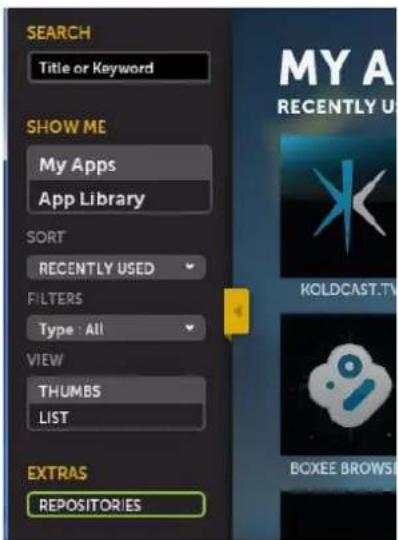
- Type in the repository's address, for example: dir.fuzzthed.com

- Select Done. If the repository was successfully added to Boxee, the name of the repository will be listed in the My Repositories screen.
-
Click on the repository to view the new applications and then select any of the available applications to:
-
Launch the App (take it for a test run, so to speak) by selecting Start
- Select Add to My Apps so that the App will show up in the My Apps screen every time
- Select Shortcut to add the App to your Shortcuts (more on Shortcuts below)
You can add as many repositories as you can find -- the possibilities are nearly endless!
Files
Using the File Browser
Boxee has a File Browser that allows you to browse through and select any media on your network that has been shared. You can play/view the media, add a selected source as a Boxee Mediashare or go to the Unresolved Videos folder and work through resolving them.
You can reach the File Browser screen from the Home Screen or Global Menu by selecting the Files icon.
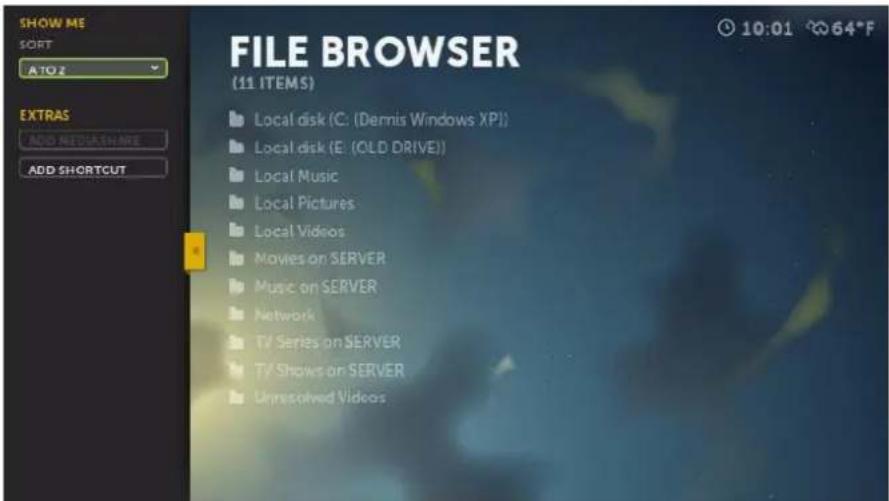
To add a Mediashare with the File Browser, browse through all of your media shares until you find the file, folder or drive you would like to add. Select it and then using the left side menu select Add Mediashare. You can also set a shortcut to a media source.
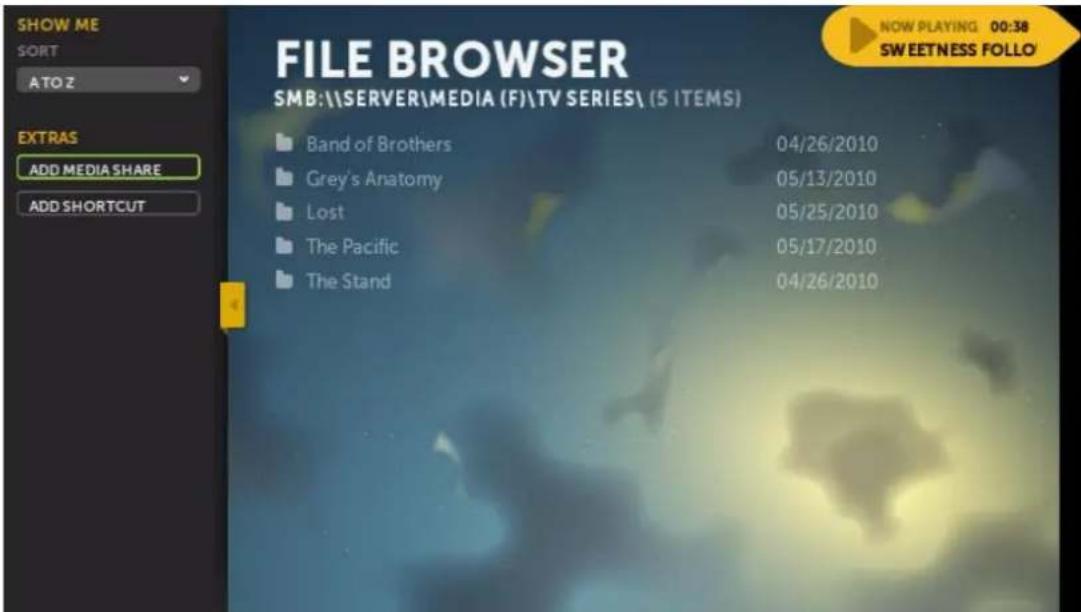
Settings
Settings > Local Sources

Here is where you Add Sources for media and resolve any Unidentified Files.
This screen also informs you of the status of the file scanning progress, files found and number of unidentified files.
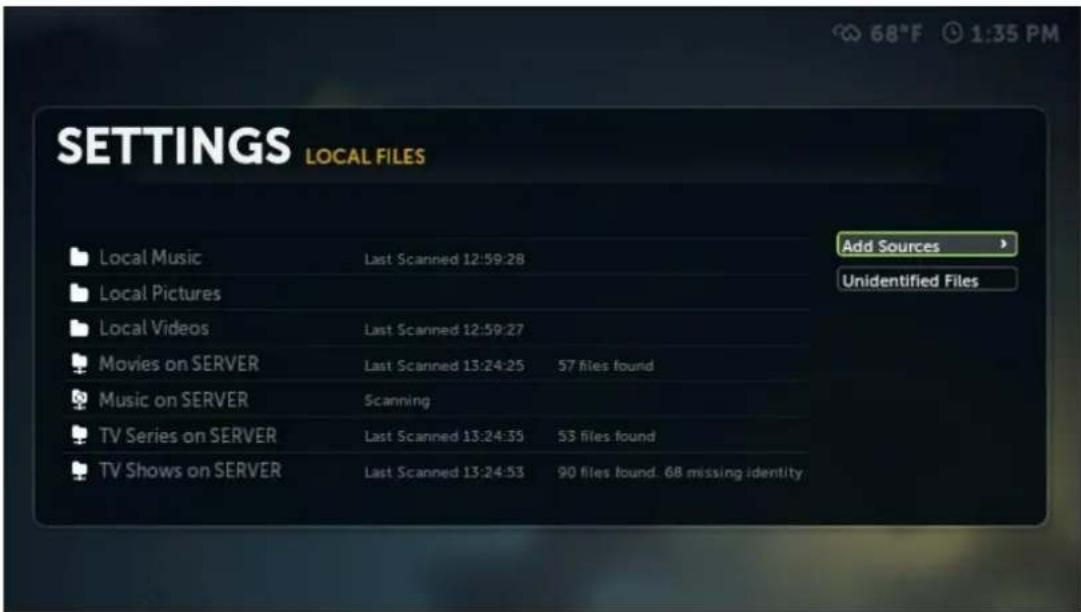
Settings > Look & Feel

The settings under Look & Feel are a group of settings in Boxee that control how Boxee presents itself to you.
Region »
- Your Location
- Time Format
• Temperature Scale
• Hide feeds and applications that cannot be played in your location
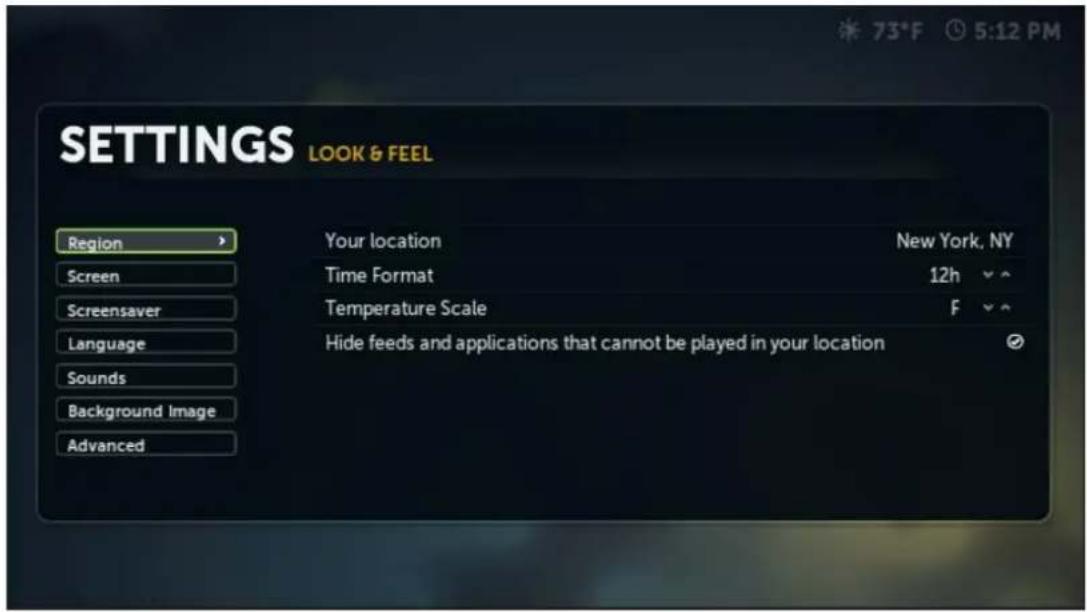
• Your location - New York, NY(default)
• Time Format - 12h(default), 24h
• Temperature Scale - F(default), C
- Hide feeds and application that cannot be played in your location - checked(default)
Screen »
- Resolution
• Test & apply resolution
• Screen format & overscan... - Test patterns...
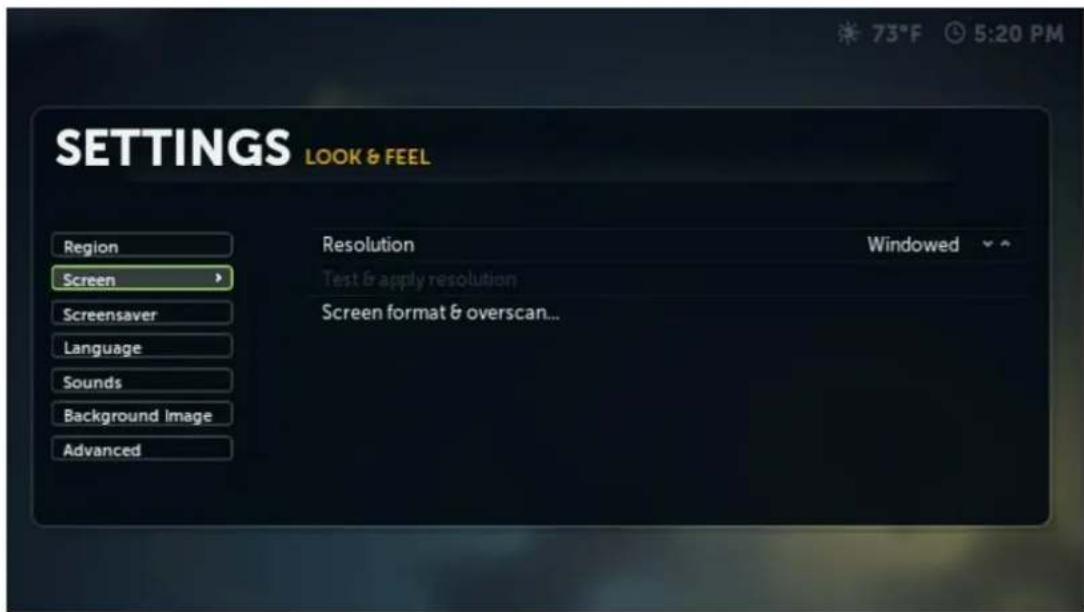
Resolution
• Full Screen (default)
- Windowed
Test & apply resolution
- To test an apply the resolution settings.
Screen format & overscan...
- Overscan
○ None (default), 3%, 4%, 5%, 6%
- Aspect Ratio
4:3(1.33), 16:9(1.78) (default), 16:10(1.6), 21:9(2.35)
• Advanced Calibration
- Allows the user to set the boundaries on the TV screen that Boxee will use. The user can select the top left, the bottom right and placement of subtitles. Change these setting if Boxee menus are off the screen or if Boxee is not using the full screen.
- Retore Defaults
- Restore to "factory" defaults.
Screensaver »
- Screensaver mode
- Screensaver preview
• Screensaver idle timeout - Enable power saving when idle
• Screensaver fade level - Slideshow folder
- Randomize
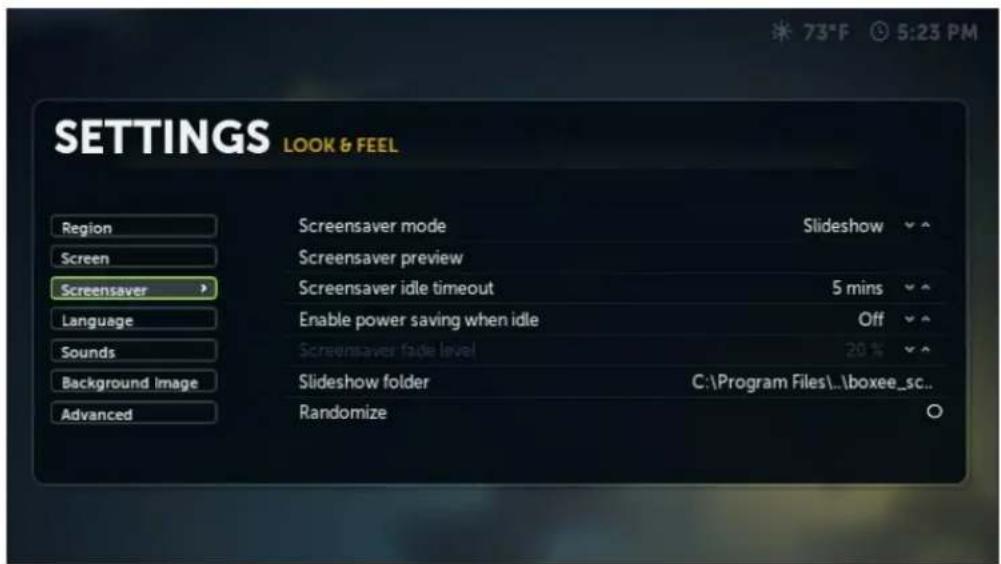
- Screensaver mode - Slidshow(default), Black, Dim, Off
• Screensaver preview - use to preview the screensaver currently set - Screensaver mode idle timeout - 5 mins(default), set time delay in minutes(1-60) before the screensaver starts
- Enable power saving when idle- Off(default), set power saving mode off or in increments of 5 minutes up to 240
- Screensaver fade level - 20%(default), set amount of fade (0-80%) when screensaver mode is set to dim
- Slidshow folder - \~\Boxee\media\boxee_screen_saver(default), set ot desired slideshow folder
• Randomize - unchecked(default)
Language »
- Language
- Charset
• Additional Keyboard 1
• Additional Keyboard 2
• Additional Keyboard 3
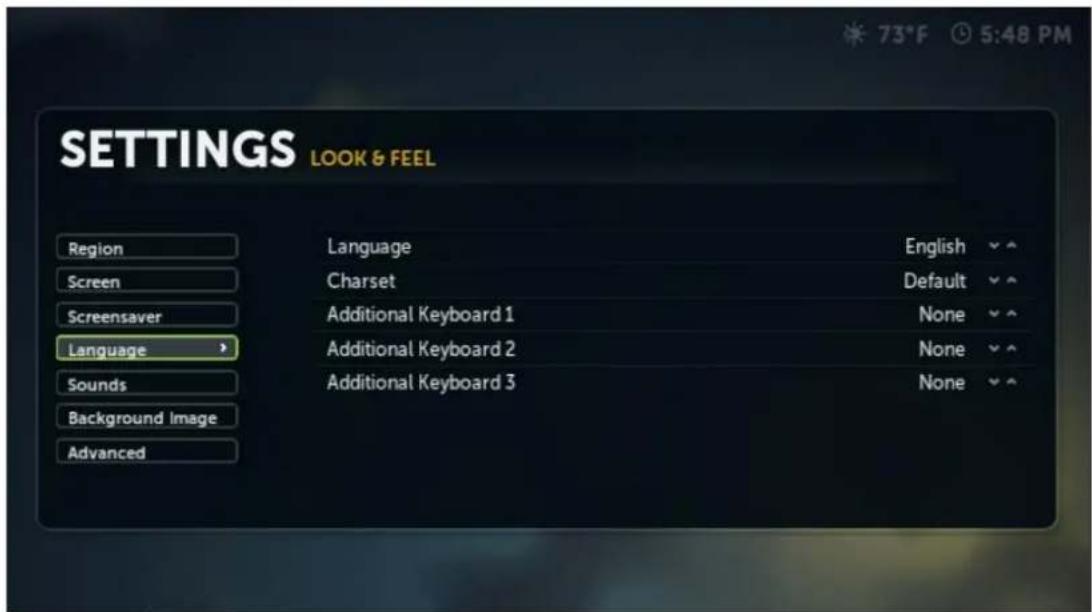
Sounds »
- Navigation sounds

Background Image »
- Set background image
- Set background images folder
- Reset background image

Advanced »
• Vertical blank sync
• Show hidden files and directories

Advanced
- Vertical blank sync - Always enabled (default), Enable during video playback, Disabled, Let driver choose (requires restart)
• Show hidden files and directories - unchecked(default)
Settings > Media

Here is where you set the Boxee configurations pertaining to Media.
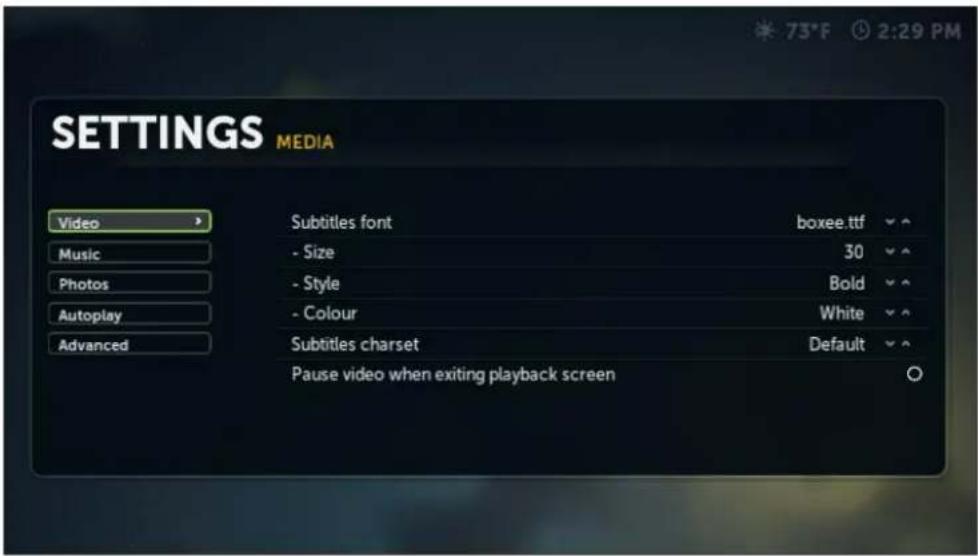
Video
- Subtitles font - boxee.ttf(default)
○ Size - 30(default), range 16-74
- Style - Bold(default), normal, bold italics, italics
○ Color - White(default), yellow, cyan, yellow green, bright green, blue
- Subtitles charset - Default(default)
| Default | Western Europe (Windows) | Western Europe (ISO) | Vietnamese (Windows) | Turkish (Windows) |
| Turkish (ISO) | Thai (Windows) | South Europe (ISO) | Korean | Japanese (Shift-JIS) |
| Hong Kong (Big5-HKSCS) | Hebrew (Windows) | Hebrew (ISO) | Greek (Windows) | Greek (ISO) |
| Cyrillic (Windows) | Cyrillic (ISO) | Chinese Traditional (Big5) | Chinese Simplified (G8K) | Central Europe (Windows) |
| Central Europe (ISO) | Baltic (Windows) | Baltic (ISO) | Arabic (Windows) | Arabic (ISO) |
Additional keyboard 1,2,3
- Pause video when exiting playback screen - not checked(default)

Music
- Visualization - MilkDrop(default), Spectrum_win32dx, Waveform, None
• Auto play next item - checked(default)

Photos
• Show each image for - 5 secs(default) - range 1-100secs
- The amount of time in seconds the image is displayed
• Transition time - 2500ms(default) - range 100-10000ms
- The amount of time in milliseconds of the fading transition between displayed images
• Use pan and zoom effects - checked(default)
- Use pan and zoom effects when the images is displayed
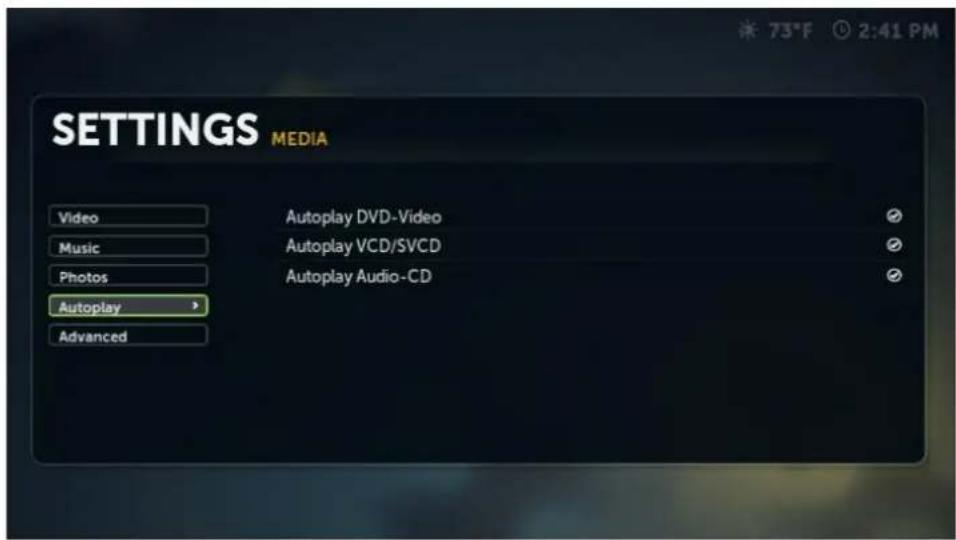
Autoplay
• Autoplay DVD-Video - checked(default)
- Play a DVD when inserted into the drive
- Autoplay VCD/SVCD - checked(default)
- Play a VCD/SVCD when inserted into the drive
• Autoplay Audio CD - checked(default)
- Play a CD when inserted into the drive

Advanced
- Enable hardware assisted decoding when possible - checked(default)
- Automatically generate thumbs for videos with no cover art - checked (default)
• Do not resolve videos under this size (MB) - 50(default)
Settings > System
This is where all things related to the Boxee "System" are set.
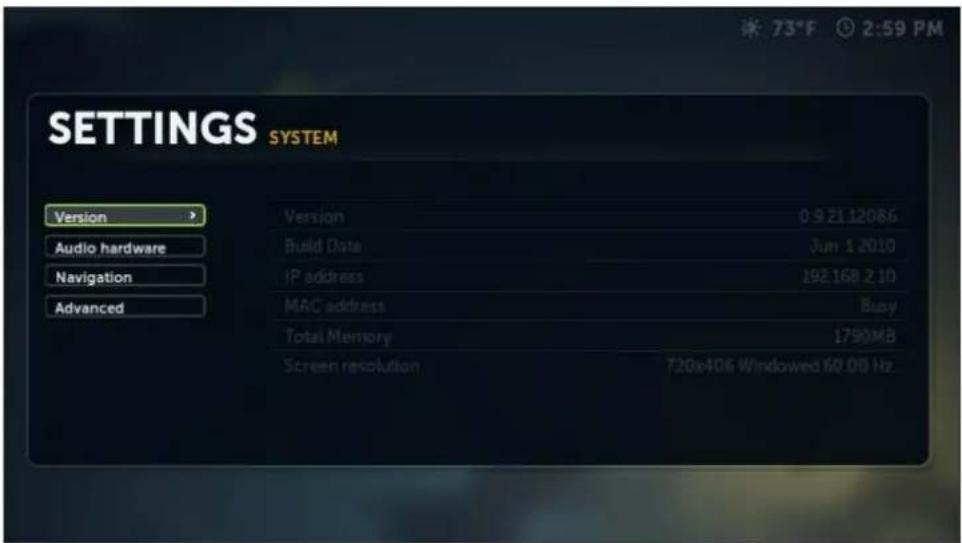
Version
• Version - the version of Boxee installed
• Build Date - the build date of the Boxee software
- IP Address - the IP address of the computer Boxee is installed
• MAC Address - the MAC address of the computer Boxee is installed
• Total Memory - the total system memory on the computer Boxee is installed
- Screen resolution - the CURRENT resolution of the Boxee screen
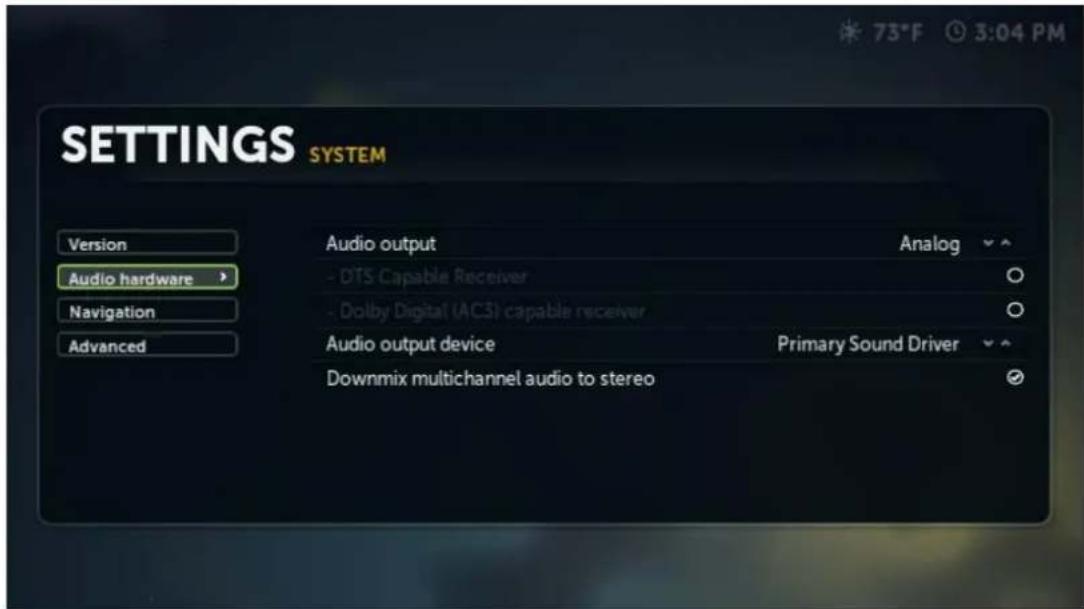
Audio hardware
• Audio output - Analog(default), Digital
- DTS Capable receiver - checked(default)
- Dolby Digital(AC3) capable receiver - checked(default)
• Audio outout device - Primary Sound Driver(default), 'other' Audio Output
- Downmix multichannel audio to stereo - checked(default)
Settings > Network

This is where all things relating to the Boxee network settings are configured.

Network
- Enable HTTP proxy - unchecked(default)
- HTTP proxy host - blank(default)
- HTTP proxy port - 8080(default)
- HTTP proxy username - blank(default)
- HTTP proxy password - blank(default)
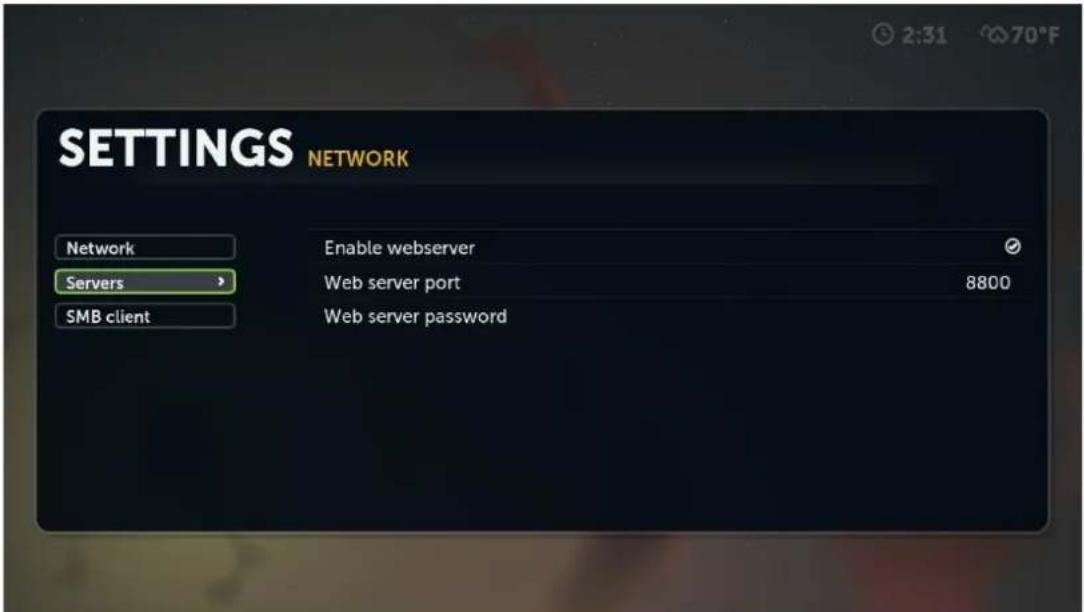
Servers -Please make sure this option is enabled if you are using the Boxee Remote for the Iphone/ipod
- Enable webserver - checked(default)
• Web server port - 8080(default)
• Web server Password - blank(default)

SMB client
• Default username - blank(default)
- Default password - blank(default)
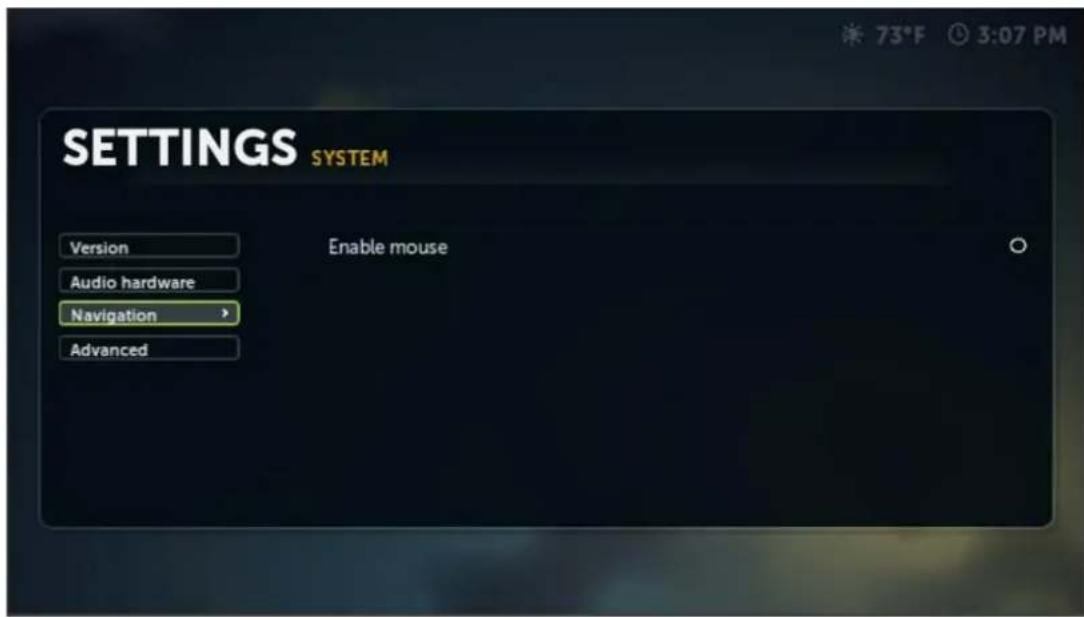
Navigation
- Enable mouse - checked(default)

Advanced
• Clear media information from library (media files will remain intact)
- Clear thumbnails library (media files will remain intact)
- Debug Level - INFO(default),
• Show Debug Info Line - unchecked(default)
• Start BOXEE on login - unchecked(default)
Settings > Personal

Follow what your friends are sharing with you from Facebook, Twitter and Google Buzz. You can control what is being put into the Feed section on your Home Screen from these sources by using these settings.

Feeds
Toggle which services you'd like to include in you video feeds.
• Facebook - unchecked(default)
• Twitter - unchecked(default)
• Google Buzz - unchecked(default)
NOTE: You must first activate your Facebook, Twitter and/or Google Buzz before these can be set.

Settings > Parental Control
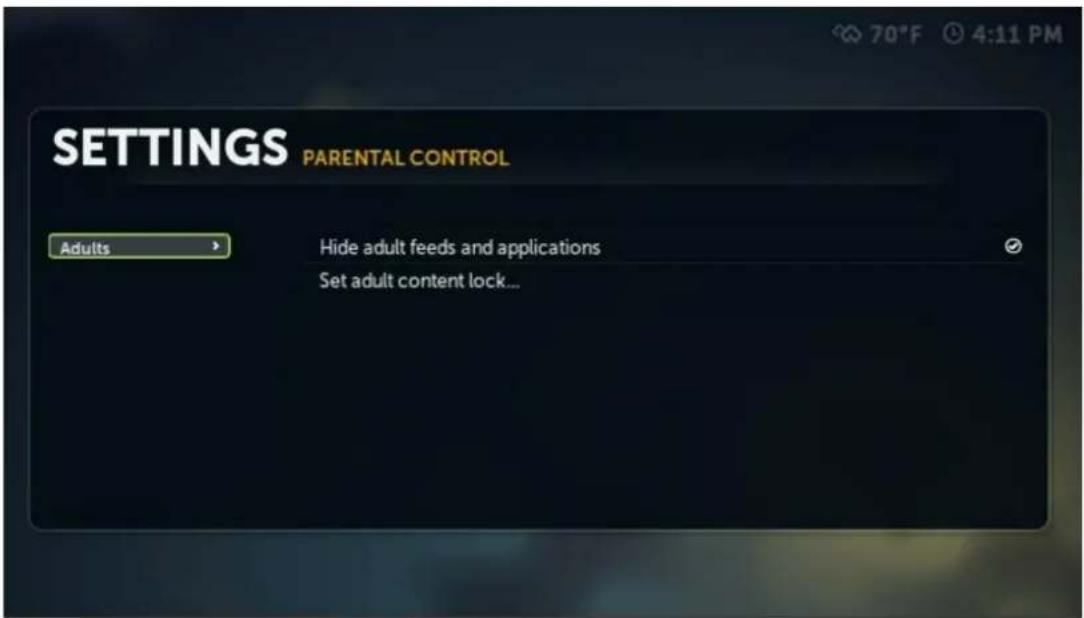
Adults
- Hide adult feeds an applications - checked(default)
- Set adult lock... - Allows you to set a password for adult content.
OSD > Settings > Video
While you are watching a video, there are video settings that can be adjusted.
- To adjust settings while watching video, click/select the 'gear' icon in the upper right corner of the screen.
- After selecting Settings, a group of settings will appear in the upper left corner of the screen.
• To adjust the video settings select Video
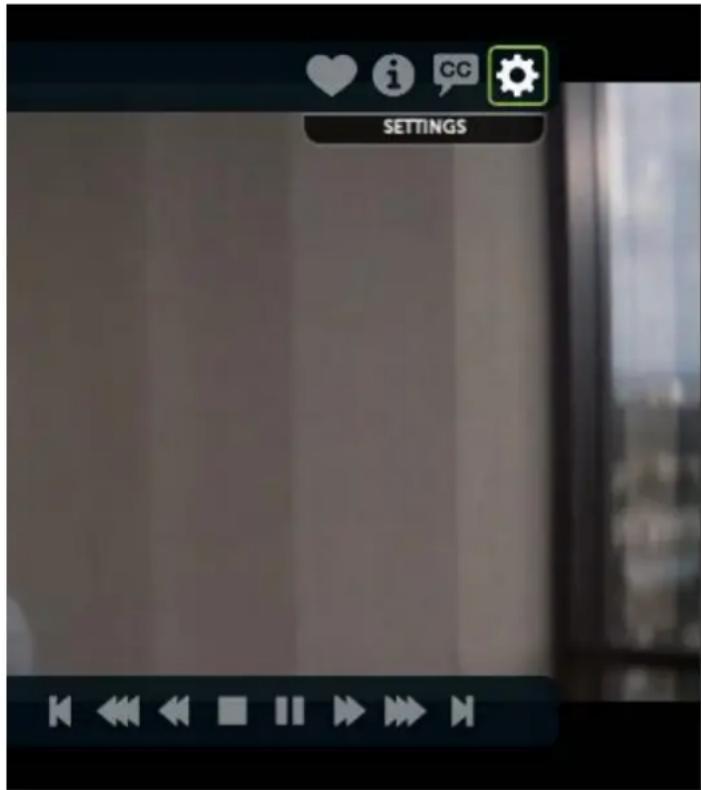
- A new drop-down will appear with the settings that are available for video adjustment
- Standard drop down
- View Mode - Normal(default), Custom, Original Size, Stretch 16:9, Stretch 14:9, Stretch 4:3, Zoom
- Screen format & overscan... - Will allow to format the screen and adjust the overscan amount.
- Show Advanced - Drops down Advanced video adjustment selections.
- Advanced drop down
○ Zoom amount - 1.0(default) - The amount of zoom applied to the video.
- Pixel ratio -- 1.0(default) - The amount of adjustment to the screen geometry.
○ Interlaced handling - None(default), Inverse Telecine, De-interlace, Bob, Bob(inverted), Weave, Weave(inverted), Blen, Auto Select
- Hide Advanced - Removes Advance video adjustment selections from the drop down.
OSD > Settings > Audio
While you are watching a video, there are video settings that can be adjusted.
- To adjust settings while watching video, click/select the 'gear' icon in the upper right corner of the screen.
- After selecting Settings, a group of settings will appear in the upper left corner of the screen.
• To adjust the video settings select Audio

OSD > Settings > Subtitles
While you are watching a video, there are subtitle settings that can be adjusted.
- To adjust settings while watching video, click/select the 'gear' icon in the upper right corner of the screen.
- After selecting Settings, a group of settings will appear in the upper left corner of the screen.
• To adjust the video settings select Subtitle
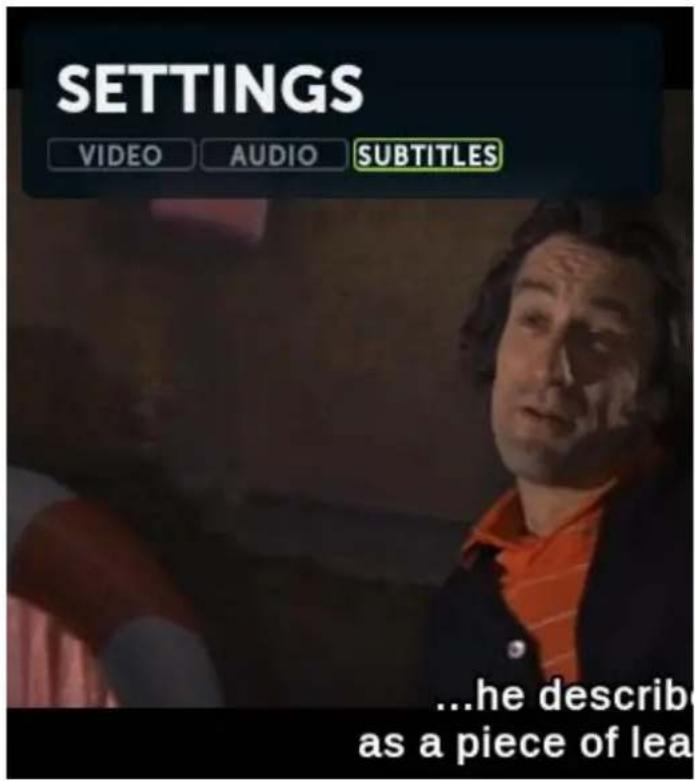
- A new drop-down will appear with the settings that are available for subtitles settings
• In the drop down you will find:
○ Enable subtitles - Checked(default) - Toggle check box to enable or disable subtitles.
Subtitles offset - 0.0(default) - The amount of time in seconds the subtitles is offset from the audio.
o Subtitle - Select the subtitle you would like to display
○ Browse for subtitle - browse and load downloaded subtitles
o Subtitle charset -Select the the subtitle character set
Subtitles drop down

Boxee Useful Links
Boxee Site
Knowledge Base
3rd Party Apps
App Submission
Video Tutorials



- Boxee User Manual
- Table of contents
- Installing Boxee
- Installing the Software
- Setting Up Boxee
- Organizing your Media Library
- Setting up Services and Users
- Using Boxee
- Movies and TV Shows
- Music
- Photos
- Apps
- Files
- Useful Links
- About Boxee
- Boxee Features
- Home Screen
- The Boxee Home Screen
- Global Menu Screen
- Media Row
- Logout Row
- ShortCuts Row
- Featured
- Featured Section on Home Screen
- Feed
- Feed Screen
- Queue
- Queue Section on Home Screen
- Queue Screen
- TV Shows
- TV Show Library
- My TV Shows
- Movies
- Sharing
- Boxee FAQ
- What is Boxee?
- What can I watch on my Boxee?
- How do I watch live TV?
- Are there monthly fees to use the Boxee?
- What is the Boxee Box by D-Link?
- Why does Boxee require a login?
- I can't remember my password, how can I fetch a new one?
- How do I know that an application or TV show is not playing because it's geoblocked, and not because of some other problem with Boxee?
- How do I upgrade Boxee?
- Which video formats can Boxee play?
- Which audio formats can Boxee play?
- Which image formats can Boxee display?
- How can I contact Boxee?
- Supported Platforms
- Apple Macintosh
- Linux
- Windows
- Apple TV
- What are the minimum system requirements to run Boxee?
- Suggested Hardware
- CPU
- Windows (Vista, 7)
- Windows (XP) - does NOT support hardware accelerated video
- Video Card
- Recommended minimum internet connection speed?
- Windows Installation
- Mac Installation
- Linux Ubuntu Installation
- Apple TV Installation
- Installing
- First time use
- Registered User
- Not Registered
- Basic Settings
- Calibrating the Screen
- Setting Screen Resolution
- Setting up a Secondary Screen
- Set your Region
- How do I know that an application is not playing because it's geo-blocked, and not because of some other problem with Boxee?
- So, which Boxee applications are geo-blocked?
- So why are you showing me stuff I can't watch?
- Change the Background Image
- Adding Media Sources
- File Scanning and Identification Progress
- Correctly naming local media files
- Extra/Special episodes:
- Resolving an Unidentified Movie or TV Show
- Manual Movie & TV Show identification
- Reset/Erase your Database
- Hide Adult content
- Setting > Parental Control > Hide adult feeds and applications
- Setting > Parental Control > Set adult content lock...
- Adding Your Account Services
- Adding Facebook/Twitter/Google Buzz Feeds
- Adding / Removing a User
- Adding a User
- Removing a User
- General
- Navigating in Boxee
- Keyboard control
- Navigation:
- During Playback:
- Remote control
- On Screen Display(OSD)
- Adding / Removing a Shortcut
- How to add a shortcut
- How to remove a shortcut
- How do I manage shortcuts?
- Removing Shows From History
- Search
- To search:
- Music Search (local only)
- Apps Search (Boxee and installed repositories)
- TV Show Search (local and online)
- Viewing a Local Movie or TV Show
- Local Movies
- Local TV Shows
- The TV Show Library
- The Movie Library
- SPACE
- Adding and Removing a TV Show to the Queue
- Removing an Individual Item from the Queue
- Listening to Local Music
- Viewing Local Photos
- Adding and Removing Apps from My Apps
- Adding a Third-party Repository
- Using the File Browser
- Settings
- Region »
- Screen »
- Resolution
- Test & apply resolution
- Screen format & overscan...
- Screensaver »
- Language »
- Sounds »
- Background Image »
- Advanced »
- Advanced
- Settings > Media
- Video
- Additional keyboard 1,2,3
- Autoplay
- Settings > System
- Version
- Audio hardware
- Settings > Network
- Network
- Servers -Please make sure this option is enabled if you are using the Boxee Remote for the Iphone/ipod
- SMB client
- Navigation
- Settings > Personal
- Feeds
- Settings > Parental Control
- Adults
- OSD > Settings > Video
- OSD > Settings > Audio
- OSD > Settings > Subtitles
- Boxee Useful Links
Brand : D-LINK
Model : Boxee Box
Category : Media player