FI-6110 - To scan FUJITSU - Free user manual and instructions
Find the device manual for free FI-6110 FUJITSU in PDF.


User questions about FI-6110 FUJITSU
0 question about this device. Answer the ones you know or ask your own.
Ask a new question about this device
Download the instructions for your To scan in PDF format for free! Find your manual FI-6110 - FUJITSU and take your electronic device back in hand. On this page are published all the documents necessary for the use of your device. FI-6110 by FUJITSU.
USER MANUAL FI-6110 FUJITSU
Thank you for purchasing the fi-6110 color image scanner.
This manual explains about the basic operations and handling of the scanner.
For information on scanner installation, connection and software installation, refer to "Getting Started".

natural_image
Illustration of a printer and a large stylized 'S' symbol against a blue striped background (no text or symbols)P3PC-3012-01ENZ0
| TOP | |
| Contents | |
| Index | |
| Introduction | |
| Explains the names and functions of parts and basic scanner operation. | Scanner Overview |
| Explains how to load documents on the scanner. | How to Load Documents |
| Explains about the setting items in the scanner drivers. | Configuring the Scan Settings |
| Explains how to use the Operator Panel. | How to Use the Operator Panel |
| Explains about various ways of scanning. | Various Ways to Scan |
| Explains how to clean the scanner. | Daily Care |
| Explains how to replace the consumables. | Replacing the Consumables |
| Explains about troubleshooting. | Troubleshooting |
| Explains how to use the Software Operation Panel to configure the scanner settings. | Operational Settings |
| Appendix | |
| Glossary |

How to Use This Manual
How to Use This Manual
The following shows the tips for using this manual.
Cover page

text_image
FJUITSU 6-6110 Image Scanner Operator's Guide Thank you for purchasing the first page of image scanners. This manual copies about the basic operations and handling of the scanner. For information in scanner installation, implementation and software installation, rate to "Getting Started." How to do the Tile Manager Jumps to the first page of each chapter. Jumps to thisTOP: Jumps to the cover page.
CONTENTS: Jumps to the contents page.
INDEX: Jumps to the index page.
Contents page

text_image
Contents How to Use The Manual Introduction Categories Chapter Summary Overview 1. Main Function 1.1.1.2.3.4.5.6.7.8.9.10.11.12.13.14.15.16.17.18.19.20.21.22.23.24.25.26.27.28.29.30.31.32.33.34.35.36.37.38.39.40.41.42.43.44.45.46.47.48.49.50.51.52.53.54.55.56.57.58.59.60.61.62.63.64.65.66.67.68.69.70.71.72.73.74.75.76.77.78.79.80.81.82.83.84.85.86.87.88.89.90.91.92.93.94.95.96.97.98.99.100. Chapter Summary Overview 100 101 102 103 104 105 106 107 108 109 110 111 112 113 114 115 116 117 118 119 120 121 122 123 124 125 126 127 128 129 130 131 132 133 134 135 136 137 138 139 140 141 142 143 144 145 146 147 148 149 150 151 152 153 154 155 156 157 158 159 160 161 162 163 164 165 166 167 168 169 170 171 172 173 174 175 176 177 178 179 180 181 182 183 184 185 186 187 188 189 190 191 192 193 194 195 196 197 198 199 200Click a title to jump to the page.
Index page

text_image
Index A Advanced scoring B Basic flow of scoring functions C D E F G H I J K L M N O P Q R S T U V W X Y Z Click an index title to jump to the page.Common notes:
- To display or print this manual, either Adobe® Acrobat® (7.0 or later) or Adobe® Reader® (7.0 or later) is required.
- Click a blue character string (where the mouse pointer changes to a shape such as y to move to the linked section.
- In this manual, you can use the navigation option of Adobe® Acrobat® or Adobe® Reader®.
For details, refer to the Adobe® Acrobat® or Adobe® Reader® Help. - Use the [Page Up] key to return to the previous page, and the [Page Down] key to go to the next page.
Introduction
Introduction
Thank you for purchasing the fi-6110 color image scanner.
About This Product
The fi-6110 is equipped with an Automatic Document Feeder (ADF) that allows duplex (double-sided) scanning.
Manuals
The following manuals are included for this product. Read them as needed.
| Manual Description | |
| Safety Precautions (paper) | Contains important information about the safe use of this product.Make sure to read this manual before using the fi-6110. |
| Getting Started (paper, PDF) | Outlines the procedures from installation to operation of the scanner.The PDF version is included in the Setup DVD-ROM. |
| Operator's Guide (this manual) (PDF) | Provides detailed information on how to operate and maintain the scanner daily, how to replace the consumables, and how to troubleshoot problems. Included in the Setup DVD-ROM. |
| How to Use ScandAll PRO (PDF) | Provides information on how to scan documents by using ScandAll PRO.Included in the Setup DVD-ROM. |
| Manual Description | |
| TWAIN User's Guide (PDF) | Explains how to install and operate the TWAIN driver. Included in the Setup DVD-ROM. |
| Image Processing Software Option User's Guide (PDF) | Explains how to install and operate the Image Processing Software Option. Included in the Setup DVD-ROM. |
| Error Recovery Guide (HTML Help) | Details the status of the scanner and explains how to resolve problems encountered. Contains movies that explain how to clean and replace the consumables. Included in the Setup DVD-ROM. |
| Help (scanner driver) Explains how to use and configure the settings for the scanner drivers. Can be referenced from each scanner driver. | |
| Help (application) Explains how to use and configure the settings for the application software. Can be referenced from each application. | |
TOP
Contents
Index
Introduction
Scanner Overview
How to Load Documents
Configuring the Scan Settings
How to Use the Operator Panel
Various Ways to Scan
Daily Care
Replacing the Consumables
Troubleshooting
Operational Settings
Appendix
Glossary
Introduction
Trademarks
Microsoft, Windows, Windows Server, Windows Vista, and SharePoint are either registered trademarks or trademarks of Microsoft Corporation in the United States and/or other countries.
ISIS and QuickScan are either registered trademarks or trademarks of EMC Corporation in the United States.
Adobe, the Adobe logo, Acrobat, and Adobe Reader are either registered trademarks or trade names of Adobe Systems Incorporated in the United States and/or other countries.
Other company names and product names are the registered trademarks or trademarks of the respective companies.
Manufacturer
PFU LIMITED
International Sales Dept., Imaging Business Division, Products Group
Solid Square East Tower,
580 Horikawa-cho, Saiwai-ku, Kawasaki, Kanagawa
212-8563, Japan.
Phone: (81-44) 540-4538
All Rights Reserved, Copyright © PFU LIMITED 2010
TOP
Contents
Index
Introduction
Scanner Overview
How to Load Documents
Configuring the Scan Settings
How to Use the Operator Panel
Various Ways to Scan
Daily Care
Replacing the Consumables
Troubleshooting
Operational Settings
Appendix
Glossary
Conventions
Safety Information
The attached "Safety Precautions" manual describes important details for users to use this product safely and correctly. Read the Safety Precautions thoroughly before you start using this product.
Symbols Used in This Manual
The following indications are used in this manual to obviate any chance of accident or damage to you, and your property. Warning labels indicate the warning level and statements. The symbols indicating warning levels and their meanings are as follows.

This indication alerts operators to an operation that, if not strictly observed, may result in severe injury or death.

This indication alerts operators to an operation that, if not strictly observed, may result in safety hazards to personnel or damage to the product.
Besides warning indicators, the following symbols are used in this manual.

This symbol alerts operators to particularly important information. Be sure to read this information.

This symbol alerts operators to helpful advice regarding operation.
Naming Conventions in This Manual
The operating systems and products in this manual are indicated as follows.
| Product Indication | Indicat | |
| Windows® XP Home Edition(Service Pack 2 or later)Windows® XP Professional(Service Pack 2 or later)Windows® XP Professional x64 Edition | Windows XP | Windows (*1) |
| Windows Server® 2003 Standard EditionWindows Server® 2003 Standard x64 EditionWindows Server® 2003 R2, Standard EditionWindows Server® 2003 R2, Standard x64 Edition | Windows Server 2003 | |
| Windows Vista® Home Basic (32/64-bit)Windows Vista® Home Premium (32/64-bit)Windows Vista® Business (32/64-bit)Windows Vista® Enterprise (32/64-bit)Windows Vista® Ultimate (32/64-bit) | Windows Vista | |
| Windows Server® 2008 Standard (32/64-bit)Windows Server® 2008 R2 Standard (64-bit) | Windows Server 2008 | Windows (*1) |
| Windows® 7 Home Premium (32/64-bit)Windows® 7 Professional (32/64-bit)Windows® 7 Enterprise (32/64-bit)Windows® 7 Ultimate (32/64-bit) | Windows 7 | |
Conventions
| Product Indication | |
| Microsoft® Office SharePoint® Portal Server 2003 | Microsoft SharePoint Server |
| Microsoft® Office SharePoint® Server 2007 | |
| Adobe® Acrobat® | Adobe Acrobat (*2) |
*1: Where there is no distinction between the different versions of the above operating system, the general term "Windows" is used.
*2: All the descriptions in this manual assume the usage of Adobe Acrobat bundled with this product. However, Adobe Acrobat may be upgraded without notice. If the descriptions differ from the actual displayed screens, refer to the Adobe Acrobat Help.
Arrow Symbols in This Manual
Right-arrow symbols ( ) are used to separate icons or menu options you should select in succession.
Example: Click the [Scan] menu → [Scan Setting].
Screen Examples in This Manual
The screen examples in this manual are subject to change without notice in the interest of product improvement.
If the actual displayed screen differs from the screen examples in this manual, operate by following the actual displayed screen while referring to manual of the software that you are using.
The screen examples used in this manual are of the TWAIN driver, ISIS driver, ScandAll PRO (an image acquisition application), and Adobe Acrobat.
This manual uses screenshots from Windows Vista. The windows that appear and the operations differ by the operating system that you are using. Also note that, with some scanner models, the screens and operations may differ from this manual when you update the TWAIN driver or the ISIS driver. In that case, refer to the manual provided upon updating the driver.
Contents
Contents
How to Use This Manual 2
Introduction 3
Conventions 5
Chapter 1 Scanner Overview ...... 13
1.1 Main Features .... 14
1.2 Parts and Functions 15
Front 15
Back 16
Removable Parts....17
1.3 Turning the Power ON/OFF 18
How to Turn the Power ON 18
How to Turn the Power OFF 18
1.4 Opening/Closing the ADF 19
How to Open the ADF 19
How to Close the ADF....19
1.5 Setting Up the ADF Paper Chute 20
1.6 Setting Up the Stacker 21
1.7 Resuming from Power Saving Mode 22
1.8 Basic Flow of Scanning Operation 23
Chapter 2 How to Load Documents .... 26
2.1 Loading Documents 27
Preparation....27
How to Load Documents....28
TOP
Contents
Index
Introduction
Scanner
Overview
How to Load
Documents
Configuring the
Scan Settings
How to Use the
Operator Panel
Various Ways to
Scan
Daily Care
Replacing the
Consumables
Troubleshooting
Operational
Settings
Appendix
Glossary
Contents
2.2 Documents for Scanning 30
Paper Size 30
Paper Quality....30
Loading Capacity 32
Area Not to Be Perforated 32
Conditions for Multifeed Detection 33
Conditions for Mixed Batch Scanning 34
Conditions for Using the Carrier Sheet....36
Chapter 3 Configuring the Scan Settings ...... 37
3.1 TWAIN Driver 38
[Resolution] 39
[Scan Type] 39
[Paper Size] 39
[Image Mode] 39
[Scan] Button 39
[Preview] Button 40
[Close] / [OK] Button 40
[Reset] Button 40
[Help] Button....40
[About] Button....40
[Option] Button 40
[Advance] Button 41
[Config] Button....41
[Browse] Button 41
3.2 ISIS Driver 42
[Main] Tab 43
[Layout] Tab 43
[Image Processing] Tab 44
TOP
Contents
Index
Introduction
Scanner
Overview
How to Load
Documents
Configuring the
Scan Settings
How to Use the
Operator Panel
Various Ways to
Scan
Daily Care
Replacing the
Consumables
Troubleshooting
Operational
Settings
Appendix
Glossary
Contents
[Paper Handling] Tab 45
[Gamma] Tab 45
[Color Dropout] Tab....46
[Compression] Tab 46
[Blank Page Deletion] Tab....47
[About] Tab....47
Chapter 4 How to Use the Operator Panel .... 48
4.1 Operator Panel 49
Names and Functions 49
Indications on Function Number Display....50
Chapter 5 Various Ways to Scan .... 51
5.1 Summary 52
5.2 Scanning Documents of Different Types and Sizes 53
Scanning Both Sides at Once 53
Documents with Different Widths 54
Documents Larger than A4/Letter Size 55
Long Page Scanning....57
5.3 Advanced Scanning 59
Removing a Color from the Scanned Image (Dropout Color) 59
Skipping Blank Pages 62
5.4 Configuring Post-Scan Operations and Handling 64
Automatically Correcting Skewed Images....64
Automatically Correcting the Page Orientation 66
Saving Scanned Images in PDF Format 68
Splitting the Scanned Image in Two....72
Using the Multi Image Output....74
Automatically Detecting Color/Monochrome Documents 76
TOP
Contents
Index
Introduction
Scanner
Overview
How to Load
Documents
Configuring the
Scan Settings
How to Use the
Operator Panel
Various Ways to
Scan
Daily Care
Replacing the
Consumables
Troubleshooting
Operational
Settings
Appendix
Glossary
Contents
5.5 Customizing the Scanner Settings 78
Using a Button on the Scanner to Start Scanning....78
Detecting Multifeed Errors....80
Ignoring Multifeed for a Set Pattern....82
Chapter 6 Daily Care 85
6.1 Cleaning Materials and Locations that Require Cleaning 86
Cleaning Materials....86
Location and Frequency 86
6.2 Cleaning the Outside 87
6.3 Cleaning the Inside 88
6.4 Cleaning the Carrier Sheet 90
Chapter 7 Replacing the Consumables ...... 91
7.1 Consumables and Replacement Cycles 92
7.2 Replacing the Pad Assy 93
7.3 Replacing the Pick Roller 94
7.4 Purchasing the Carrier Sheet 98
Chapter 8 Troubleshooting 99
8.1 Paper Jam 100
8.2 Error Indications on Operator Panel 101
Temporary Errors 102
Device Errors....102
8.3 Troubleshooting 104
Scanner cannot be powered ON....105
The Function Number Display switches OFF....106
Scanning does not start....107
Quality of the scanned photo/picture is poor when scanning in black & white mode. 108
Quality of scanned text or lines is unsatisfactory. 109
TOP
Contents
Index
Introduction
Scanner
Overview
How to Load
Documents
Configuring the
Scan Settings
How to Use the
Operator Panel
Various Ways to
Scan
Daily Care
Replacing the
Consumables
Troubleshooting
Operational
Settings
Appendix
Glossary
Contents
Images are distorted or not clear....110
Vertical streaks appear on the scanned image. 111
"E" (or other numbers/letters) is already displayed on the Function Number Display after power-on.... 112
Multifeed error occurs frequently....113
Situation in which the document is not fed into the ADF occurs frequently.... 115
Paper jams/pick errors occur frequently....116
Scanned images turn out elongated....117
A shadow appears at the top or the bottom of the scanned image. 118
There are black traces on the document....119
Paper jams occur frequently when scanning with the Carrier Sheet.... 120
8.4 Before You Contact the Scanner Service Provider 121
General....121
Error Status 122
8.5 Checking the Product Labels 123
Location....123
Chapter 9 Operational Settings ...... 124
9.1 Starting Up the Software Operation Panel 125
9.2 Password Setting 126
Setting a Password 126
Setting the [View Only mode]....127
Clearing the [View Only mode]....128
Changing the Password 129
Clearing the Password 130
Resetting the Password 131
9.3 Configuration Items 132
Device Setting 132
Device Setting 2....134
TOP
Contents
Index
Introduction
Scanner
Overview
How to Load
Documents
Configuring the
Scan Settings
How to Use the
Operator Panel
Various Ways to
Scan
Daily Care
Replacing the
Consumables
Troubleshooting
Operational
Settings
Appendix
Glossary
Contents
9.4 Settings Related to Page Counters 137
Checking and Resetting the Counters [Page Counter] 137
Replacement Cycle of Consumables [Life Counter Alarm Setting] 139
9.5 Settings Related to Scanning 140
Adjusting the Start Position for Scanning [Offset/Vertical magnification Adjustment] 140
Removing Shadows/Streaks that Appear around the Scanned Image [Page Edge Filler (ADF)] 142
Removing a Color from the Scanned Image [Dropout color].... 143
Number of Paper Feeding Retries....144
9.6 Settings Related to Multifeed Detection 145
Method of Multifeed Detection [Multifeed] 145
Specifying an Area to Detect Multifeed [Document check area specification for Multifeed Detection]....147
Specifying an Area Not to Detect Multifeed [Intelligent Multifeed Function].... 150
9.7 Settings Related to Waiting Time 151
Waiting Time to Enter Power Saving Mode [Power saving] 151
9.8 Settings Related to Power ON/OFF 152
Method of Turning the Scanner ON/OFF [Power SW Control].... 152
Appendix 153
A.1 Basic Specification 154
A.2 Installation Specification 156
A.3 Outer Dimensions 157
A.4 Uninstalling the Software 158
Glossary 159
Index 170
TOP
Contents
Index
Introduction
Scanner
Overview
How to Load
Documents
Configuring the
Scan Settings
How to Use the
Operator Panel
Various Ways to
Scan
Daily Care
Replacing the
Consumables
Troubleshooting
Operational
Settings
Appendix
Glossary
Chapter 1 Scanner Overview
This chapter explains about the names and functions of the scanner parts, as well as the methods for basic operations.
1.1 Main Features....14
1.2 Parts and Functions....15
1.3 Turning the Power ON/OFF 18
1.4 Opening/Closing the ADF....19
1.5 Setting Up the ADF Paper Chute....20
1.6 Setting Up the Stacker....21
1.7 Resuming from Power Saving Mode ....22
1.8 Basic Flow of Scanning Operation ....23
1.1 Main Features
This section explains about the main features of this product. The scanner is equipped with the following features.
Realizes a scanning speed of 20 ppm/40 ipm (under JPEG compression)
The scanner can achieve a scanning speed of up to 20 ppm/40 ipm (300 dpi) with A4/Letter size color documents. Furthermore, you can load up to 50 sheets of documents for continuous scanning which allows you to quickly digitize a large volume of documents.
Capable of scanning documents larger than A4/Letter size
The bundled "Carrier Sheet" allows you to scan documents that are larger than A4/Letter size.
Function Number Display
The scanner mounts a "Function Number Display" which displays error indications. It is used to easily check the status of the scanner.
Improved efficiency for pre-scan work
The scanner can perform "batch scanning" which allows you to scan documents with different paper weight and size at once, simplifying the process of sorting the documents before scanning.
Reduced work loss caused by multifeeds
The scanner mounts an ultrasonic multifeed sensor that accurately detects "multifeed" errors where two or more sheets are fed through the scanner at once. This multifeed detection is reliable even when scanning a mixed batch of documents with different paper weight and size, avoiding potential work loss.
Intelligent Multifeed function
When there is paper of the same size attached to a designated location on the page, the Intelligent Multifeed function enables the scanner to recognize the location of the attachment. This allows you to continue scanning instead of pausing the scan by detecting every paper attachment as multifeed.
Advanced image processing functions
The scanner's automatic detection function outputs images in color or monochrome by the document content.
1.2 Parts and Functions
This section shows the names of the scanner parts.
Front

text_image
Side Guide Guides the documents in width direction as they are fed into the scanner. ADF (Automatic Document Feeder) Pulls and feeds the documents one sheet at a time from the ADF paper chute. Open to replace consumables or clean the inside of the scanner. Stacker Stacks up the ejected documents. Stacker Extension Lift up to adjust to the paper length. ADF Paper Chute Holds the documents to be scanned. Chute Extension 2 Pull out to adjust to the paper length. Chute Extension 1 Pull out to adjust to the paper length. ADF Release Tab Pull this tab to open the ADF. Operator Panel Consists of the Function Number Display, buttons, and Check LED. Can be used to operate the scanner or check the status. For details about the operator panel, refer to "Chapter 4 How to Use the Operator Panel" (page 48).Chapter 1 Scanner Overview
Back

text_image
Ventilation Port Holes for ventilating hot air from inside the scanner. Power Connector Used to connect the power cable. Power cable refers to the AC cable and AC adapter connected together. Security Cable Slot Used to connect an anti-theft security cable (commercially available). USB Connector Used to connect a USB cable.Removable Parts

text_image
Pad AssyFor details about removing the pad assy, refer to "7.2 Replacing the Pad Assy" (page 93).

ADF Paper Chute
For details about removing the ADF paper chute, refer to "7.3 Replacing the Pick Roller" (page 94).

Sheet Guide
For details about removing the sheet guide, refer to "7.3 Replacing the Pick Roller" (page 94).

natural_image
Technical line drawing of a mechanical component with no visible text or symbolsPick Roller
For details about removing the pick roller, refer to "7.3 Replacing the Pick Roller" (page 94).

natural_image
Technical line drawing of a mechanical component with two views: top shows cylindrical shaft and end cap, bottom shows cylindrical rod with internal components (no text or symbols)1.3 Turning the Power ON/OFF
This section explains how to power on/off the scanner.

The method by which the scanner is powered ON/OFF can be specified from one of the following:
- Press the [Power] button on the operator panel
● Unplug the power cable then plug it back in
● Have the scanner turn ON/OFF in sync with the computer's power
For details, refer to "Method of Turning the Scanner ON/OFF [Power SW Control]" (page 152).
How to Turn the Power ON
1 Press the [Power] button on the scanner's operator panel.

text_image
Chassis Function Send to Start Elon Power [Power] ButtonThe power is turned on, and the [Power] button lights in green.
During initialization, the Function Number Display of the operator panel changes as follows: "8" → "P" → "0" → "1". The scanner is ready when "1" is displayed.

When you press the [Power] button, the Check LED will flash once. Note that this is an initial diagnosis and not a malfunction.
How to Turn the Power OFF
1 Press the [Power] button on the operator panel for more than two seconds.
The power is turned off, and the [Power] button switches off.
1.4 Opening/Closing the ADF
This section describes how to open and close the ADF. How to Open the ADF
1 Remove all documents from the ADF paper chute.
2 Pull the ADF release tab towards you to open the ADF.

text_image
ADF Release TabCAUTION
Be careful not to have your fingers caught when the ADF closes.
How to Close the ADF
1 Close the ADF.
Push the center of the ADF until it locks in place.

natural_image
Illustration of a hand inserting a printer into a paper airplane (no text or symbols visible)
● Make sure that there is no foreign matter inside the ADF.
- Be careful not to have your fingers caught.
1.5 Setting Up the ADF Paper Chute
Documents loaded in the ADF paper chute are fed into the scanner one by one.
Using the chute extension 1 and chute extension 2 as shown below will keep the documents straight and feed them smoothly.
1 Pull out chute extension 1.

text_image
Chute Extension 1
Make sure to hold the scanner while you pull out the chute extension 1.
2 Pull out chute extension 2.

text_image
Chute Extension 2
Make sure to hold the scanner while you pull out the chute extension 2.
1.6 Setting Up the Stacker
Documents loaded in the ADF paper chute are ejected onto the stacker one by one.
Using the stacker and stacker extension as follows will keep the documents straight and stack them neatly.
1 Pull out the stacker from the top towards you.

text_image
Stacker2 Lift up the stacker extension.

text_image
Stacker Extension1.7 Resuming from Power Saving Mode
Power saving mode keeps the power consumption low when the scanner has not been used for a certain period of time.
If the scanner is left powered on for 15 minutes without being used, it automatically enters power saving mode.
When it enters power saving mode, the Function Number Display on the operator panel switches off but the [Power] button remains lit in green.
To resume from power saving mode, perform one of the following:
- Load a document in the ADF paper chute
- Press any button on the operator panel
* Note that pressing the [Power] button for more than two seconds will turn the power off.
● Perform scanning from the scanner driver

The waiting time for entering power saving mode can be changed in the Software Operation Panel.
For details, refer to "Waiting Time to Enter Power Saving Mode [Power saving]" (page 151).
1.8 Basic Flow of Scanning Operation
This section explains about the basic flow of performing a scan.
In order to perform a scan, you need a scanner driver and an application that supports the driver.
There are two scanner drivers bundled with this scanner; "TWAIN driver" and "ISIS driver", which are compliant to the TWAIN and ISIS standards, respectively. Also bundled is an application called "ScandAll PRO" (for TWAIN/ISIS) which supports both drivers.

- For details about the scanner drivers, refer to:
- "Chapter 3 Configuring the Scan Settings" (page 37)
- TWAIN driver Help
- ISIS driver Help
- For details about ScandAll PRO, refer to:
- How to Use ScandAll PRO
- ScandAll PRO Help
The following describes the flow of performing a scan.
1 Turn on the scanner.
For details, refer to "1.3 Turning the Power ON/OFF" (page 18).
2 Load a document in the ADF paper chute.
Set the document with its front side (scanning side) facing the ADF paper chute.

natural_image
Illustration of a printer with a paper roll being inserted, showing paper flow (no text or symbols)For details, refer to "Chapter 2 How to Load Documents" (page 26).
Chapter 1 Scanner Overview
3 Start up the application to use for scanning. ScandAll PRO will be used here as an example to explain the procedure.

text_image
When ScandAll PRO is launchedFor details about how to start up ScandAll PRO, refer to "How to Use ScandAll PRO".
4 Select a scanner driver.

text_image
Setup Print Scan View Hot Key Event Password Log Device Driver TWAIN Enable automatic search of scanners ISIS / VRS Report Scan Result Do not output File Name C:\Documents\report.log Temporary Directory C:\AppData\Local\Temp5 Select a scanner.

text_image
ScandAll PRO - Untitled File Scan Edit View Page Mark Zoom Tool Help Scan Scan Settings... Ctrl+N Batch Scan Batch Scan Settings... Ctrl+B Save Batch Scan Restore Batch Scan... Delete Saved Data Scanner Settings... Select Scanner... Cancel(P)TWAIN driver:

text_image
Select Scanner Device : FUJITSU fi-6110di + sinc FUJITSU fi-6110di Select CancelISIS driver:

text_image
Select Scanner Device : Fuitsu fi-6110 Select Cancel Settings...Chapter 1 Scanner Overview
6 Launch the scanner driver from the application.

text_image
ScandAll PRO - Untitled File Scan Edit View Page Mark Zoom Tool Help Scan Scan Settings... Ctrl+N Batch Scan Batch Scan Settings... Ctrl+B Save Batch Scan Restore Batch Scan... Delete Saved Data Scanner Setting... Select Scanner... Cancel(P)TWAIN driver:

text_image
TAMTS (Color: 32) Image Source: HIST106 Setting Area: 50% Correct Setting Color Value: 100% Size: 100% Name: XLS-300 Opacity: 100% Paredity: 100% ✓ Select Image PC ✓ Select Image Font: Image Size: 50% Size: 50% Size: 50% Size: 50% Size: 50% Size: 50% Size: 50% Size: 50% Size: 50% Size: 50% Size: 50% Size: 50% Size: 50% Size: 50% Size: 50% Size: 50% Size: 50% Size: 5 Size: 5 Size: 5 Size: 5 Size: 5 Size: 5 Size: 5 Size: 5 Size: 5 Size: 5 Size: 5 Size: 5 Size: 5 Size: 5 Size: 5 Size: 5 Size: 5 Size: 5 Size: 5 Size: 5 Size: 5ISIS driver:

text_image
Properties for Light 4.420 GB Image Format Dim: 100% Size: 500 Resolution: 100% Output: 100% Output: 100% Output: 100% Output: 100% Output: 100% Output: 100% Output: 100% Output: 100% Output: 100% Output: 100% Output: 100% Output: 100% Output: 100% Output: 100% Output: OK Cancel Default Help7 In the scanner driver's setup dialog box, configure the scan settings and then click the [OK] button.
8 Scan the document by clicking the [Scan] menu → [Scan].

natural_image
Illustration of a printer with a blue arrow indicating a directional flow or movement (no text or symbols present)For details about scanning with ScandAll PRO, refer to "How to Use ScandAll PRO".
9 Save the scanned image to a file.

Do not unplug the USB cable or log off the user account when the scanner and the computer are communicating, for instance, during scanning.

Procedures and operations slightly vary depending on the application used. For more details about scanning with ScandAll PRO, refer to "How to Use ScandAll PRO". To perform scanning with other applications, refer to the manual bundled with the application.
Chapter 2 How to Load Documents
This chapter explains how to load documents on the scanner.
2.1 Loading Documents....27
2.2 Documents for Scanning ....30
TOP
Contents
Index
Introduction
Scanner
Overview
How to Load
Documents
Configuring the
Scan Settings
How to Use the
Operator Panel
Various Ways to
Scan
Daily Care
Replacing the
Consumables
Troubleshooting
Operational
Settings
Appendix
Glossary
2.1 Loading Documents
This section explains how to load documents on the scanner.
Preparation

For details about the paper size and quality required for normal operations, refer to "2.2 Documents for Scanning" (page 30).
1 Check the documents.
1 Check if the documents to be loaded are of the same width or different widths.
Ways to load documents differ depending on whether they are the same width or not.
If the document width varies, refer to "Conditions for Mixed Batch Scanning" (page 34) or "Documents with Different Widths" (page 54).
2 Check the number of sheets.
Up to 50 sheets can be loaded (with paper weight of 80 g/m ^2 (20 lb) and thickness of the document stack under 5 mm).
For details, refer to "Loading Capacity" (page 32).
2 Fan the documents.
1 Grab a stack of documents, which should be 5mm or less.
2 Hold both ends of the documents and fan them a few times.

natural_image
Illustration of two hands folding paper sheets with a curved handle, showing a green arrow indicating transformation (no text or symbols)3 Rotate the documents by 90 degrees and fan them in the same manner.
4 Perform steps 1 to 3 for all documents.
5 Align the edges of the documents.

For details about how to fan documents, refer to the Error Recovery Guide.
The Error Recovery Guide is included in the Setup DVD-ROM. For details about the installation, refer to "Installing the Scanner Software" in Getting Started.
How to Load Documents
1 Pull out the chute extension 1 and chute extension 2 according to the length of the document.
For details, refer to "1.5 Setting Up the ADF Paper Chute" (page 20).
2 Load the document in the ADF paper chute.
Set the document with its front side (scanning side) facing the ADF paper chute.

natural_image
Illustration of a printer with a paper roll and arrow indicating compression (no text or symbols)
Remove all paper clips and staples. Reduce the amount of documents if a multifeed or pick error occurs.

Make sure to keep the documents within the limit which is indicated by the line on the inside of each side guide.

text_image
Line Side Guide3 Adjust the side guides to the width of the document. Set the side guides so that there is no space left between the side guides and the document. Otherwise, the document may be fed skewed.

text_image
Side GuideChapter 2 How to Load Documents
4 Lift up the stacker and stacker extension according to the length of the document.
For details, refer to "1.6 Setting Up the Stacker" (page 21).
5 Start up an application for scanning and perform a scan. For details about the scanning procedure in ScandAll PRO, refer to "How to Use ScandAll PRO".
2.2 Documents for Scanning
Paper Size
The paper sizes that can be scanned are as follows.

text_image
A Feed direction BA: 52 to 216.0 mm (2.1 to 8.5 in.)
B: 74 to 355.6 mm (2.9 to 14.0 in.)(*1)
*1: Long page scanning supports scanning of documents with a length up to 3,048 mm (120 in.) in feed direction.
Paper Quality
Paper type
Recommended paper types for scanning are as follows:
- Wood-free paper
- Wood-containing paper
- PPC paper (recycled)
When using paper types other than the above, make sure to test with the same type of paper to see if it can be scanned before you start scanning the actual document.
Paper weight
The following range is supported for paper weight:
52 to 127 g/m² (14 to 34 lb)
*127 g/m ^2 (34 lb) applies to A8 size only.
Precautions
The following types of documents may not be scanned successfully:
● Documents of non-uniform thickness
(e.g. envelopes, documents with photographs attached)
● Wrinkled or curled documents
- Folded or torn documents
- Tracing paper
- Coated paper
- Carbon paper
● Photosensitive paper
● Perforated documents
● Documents that are neither square nor rectangular
- Very thin paper
● Photographs (photographic paper)
The following types of documents must not be scanned:
● Paper-clipped or stapled documents
● Documents on which the ink is still wet
● Documents smaller than A8 size
● Documents wider than 216 mm (8.5 in.)
● Documents other than paper such as fabric, metal foil and OHP film
- Important documents such as certificates and cash vouchers which must not be damaged

- Since carbonless paper contains chemical substances that may harm the rollers (e.g. pick roller), take note of the following:
Cleaning : If paper jams occur frequently, clean the pad assy and pick roller. For details, refer to "Chapter 6 Daily Care" (page 85).
Parts replacement : The life of the pad assy and pick roller may end sooner compared to scanning wood-containing papers.
- When scanning wood-containing papers, the life of the pad assy and pick roller may end sooner compared to scanning wood-free papers.
- Pad assy and pick roller may be damaged when a photo/sticky note on the document contacts these parts during scanning.
- The surface of the document may be damaged when scanning gloss papers such as photographs.

- To scan documents that are semi-transparent, slide the [Brightness] bar to light to avoid bleed through.
- When you scan documents written with lead pencil, make sure to clean the rollers frequently. Otherwise, the rollers will be contaminated which may leave black traces on the document or cause feeding errors.
For details, refer to "Chapter 6 Daily Care" (page 85).
- If multifeeds, pick errors or paper jams occur frequently, refer to "8.3 Troubleshooting" (page 104) for troubleshooting.
- All documents must be flat on the leading edge. Make sure that curls on the leading edge of the documents are kept within the following range.

text_image
30 mm or more (1.18 in.) Feeding direction 3 mm or loss (0.12 in.) Scanned side Scanned side 5 mm or loss (0.20 in.) Feeding direction 30 mm or more (1.18 in.) Leading sides Leading sidesLoading Capacity
The number of sheets that can be loaded in the ADF paper chute is determined by the paper size and paper weight of the document. See the graph below.

line
| Paper weight (g/m²) | A4/Letter or smaller | Legal | |---|---|---| | 52 | 60 | 50 | | 64 | 60 | 50 | | 80 | 50 | 41 | | 104 | 35 | 29 | | 127 | 29 | 24 | The chart displays a descending trend for both lines as paper weight increases, with the red line representing 'A4/Letter or smaller' and the blue line representing 'Legal'. Vertical dashed lines mark key paper weight thresholds at 52, 64, and 80 g/m².| Paper weight (unit) | Conversion | ||||||
| g/m^2 | 52 64 | 75 80 | 90 104 | 127 | |||
| lb 14 17 20 21 24 | 28 34 | ||||||
| kg 45 55 64.5 69 | 77.5 90 | 110 | |||||
Area Not to Be Perforated
An error may occur when there are punched holes in the area shaded in light blue in the following picture.

text_image
Reference point 50 Top Front side Feed direction Bottom Center of document (Unit : mm)
The above condition applies when the document is set to the center of the pick roller width.

If there are any holes in the 50 mm-wide central column, you can move the document to the left or right to avoid an error.
Conditions for Multifeed Detection
Multifeed is an error where two or more sheets are fed through the ADF at once. It is also called a multifeed when a different document length is detected.
Multifeed detection is performed by either checking the overlapping of documents, length of the documents, or the combination of both. The following conditions are required for an accurate detection.
Detection by overlapping
- Load documents of the same paper weight in the ADF paper chute.
● Paper weight: 52 to 127 g/m ^4 (14 to 34 lb) - Do not punch holes within 50 mm (1.97 in.) over the vertical center line of the document. See Fig.1.
- Do not attach other documents within 50 mm (1.97 in.) over the vertical center line of the document. See Fig.1.
Detection by length
- Load documents of the same length in the ADF paper chute.
● Variance in document lengths: 1% or less - Do not punch holes within 50 mm (1.97 in.) over the vertical center line of the document. See Fig.1.
Detection by overlapping and length
- Load documents of the same paper weight and length in the ADF paper chute.
● Paper weight: 52 to 127 g/m ^4 (14 to 34 lb)
● Variance in document lengths: 1% or less - Do not punch holes within 50 mm (1.97 in.) over the vertical center line of the document. See Fig.1.
- Do not attach other documents within 50 mm (1.97 in.) over the vertical center line of the document. See Fig.1.

The above condition applies when the document is set to the center of the pick roller width.
Fig. 1

text_image
Reference point 50 Top Front side Feed direction Bottom Center of document (Unit : mm)
- The rate of multifeed detection may drop with some documents.
Multifeed cannot be detected within 30 mm from the leading edge of the document. - For the area in Fig. 1, you can also specify a length (feed direction) in the Software Operation Panel to disable multifeed detection.
For details, refer to "9.6 Settings Related to Multifeed Detection" (page 145).
Conditions for Mixed Batch Scanning
The following conditions apply when scanning a mixed batch of documents with different paper weights/friction coefficients/ sizes. Always test a few sheets first and see if the documents can be fed through before scanning a mixed batch of documents.
For details about scanning, refer to "Documents with Different Widths" (page 54).
Paper direction
Align the direction of the paper fiber with the feed direction.
Paper weight
For a mixed batch with different paper weight, the following range is supported for paper weight:
52 to 127 g/m ^4 (14 to 34 lb)
Friction coefficient
It is recommended to use the same type of paper from the same manufacturer.
When papers of different manufacturers/brands are mixed, it affects the feeding performance as the difference in the friction coefficient increases.
The recommended friction coefficients are as follows: 0.35 to 0.60 (reference value for paper friction coefficient)
Document position
Make sure to place the documents so that every document in the batch passes through the 37 mm (1.46 in.) width of the pick roller in the center.

Paper size
When you scan a mixed batch with different sizes, not feeding the documents straight may cause paper jams or part of the image to appear missing.
It is recommended to check the documents thoroughly before scanning and also check the image if the document was skewed.

- When scanning a mixed batch with different sizes, documents are more likely to skew because the side guides do not contact every sheet.
- Do not use [Check Length] or [Check Overlapping and Length] for multifeed detection.
Documents that cannot be scanned in a mixed batch
The following types of documents cannot be mixed in the same batch:
- Carbonless paper
- Bond paper
● Perforated documents - Thermal paper
● Carbon-backed paper - OHP film
- Tracing paper
- Carrier Sheet
Chapter 2 How to Load Documents
Combinations of standard paper sizes in a mixed batch
Refer to the table below for a guideline of the range available for mixed batch scanning.
However, note that not feeding the documents straight may cause paper jams or part of the image to appear missing.
It is recommended to check the documents thoroughly before scanning and also check the image when the document was skewed.

LTR: Letter size

Note that B8 size and A8 size cannot be scanned with other paper sizes.
Conditions for Using the Carrier Sheet
Paper size
The paper sizes that can be scanned are as follows:
A3 (297 × 420 mm)
B4 (257 × 364 mm)
- 11" × 17" (279.4 × 431.8 mm)
* The above paper sizes must be folded in half to be scanned.
Paper quality
Paper type
Recommended paper type for scanning is as follows:
- Standard office paper
Paper weight
The following range is supported for paper weight:
- Up to 63.5 g/m ^2 (17 lb)
Precautions
Take note of the following:
- You cannot mix the Carrier Sheet and regular documents in the same batch for scanning.
- Up to three Carrier Sheets can be loaded at once.
- Depending on the amount of memory used by running applications, there may be insufficient memory to scan a double-page spread document with the Carrier Sheet in high resolution. In that case, specify a lower resolution and try scanning again.
- Do not write on, color, stain, or cut the end with a black & white pattern because the Carrier Sheet will not be recognized properly.
- Do not place the Carrier Sheet upside down. Otherwise, a paper jam may occur and damage the Carrier Sheet and the document inside.
- Do not leave your document inside the Carrier Sheet for a long time. Otherwise, the ink on the document may be transferred onto the Carrier Sheet.
- To avoid deformation, do not use or leave the Carrier Sheet in high temperature places such as under direct sunlight or near a heating apparatus for a long time.
-
Do not fold or pull the Carrier Sheet.
-
Do not use a damaged Carrier Sheet because it may damage or cause the scanner to malfunction.
- To avoid deformation, keep the Carrier Sheet on a flat surface without any weight on it.
- Be careful not to cut your finger on the edge of the Carrier Sheet.
- If paper jams occur frequently, feed about 50 sheets of PPC paper (recycled paper) before scanning with the Carrier Sheet. The PPC paper (recycled paper) can either be blank or printed.
Chapter 3 Configuring the Scan Settings
This chapter explains about the scan parameters of the scanner drivers.
3.1 TWAIN Driver....38
3.2 ISIS Driver 42
TOP
Contents
Index
Introduction
Scanner Overview
How to Load Documents
Configuring the Scan Settings
How to Use the Operator Panel
Various Ways to Scan
Daily Care
Replacing the Consumables
Troubleshooting
Operational Settings
Appendix
Glossary
3.1 TWAIN Driver
The TWAIN driver is a driver that conforms to the TWAIN standard. It can be used with an application that supports TWAIN to perform scanning.
Normally, the scanner driver is launched via an application, and then the scan settings are configured in the setup dialog box of the driver (some applications may not display the setup dialog box).

Ways to launch the scanner driver differ depending on the application.
For more details, refer to the manual or the Help files of the application.

text_image
TWAIN Driver (32) 0 1 2 3 4 5 6 7 8 1 2 3 4 5 6 7 Image Scanner: f-6110d SIPC Browse... Setting Files: 00 : Current Setting Config... Resolution Scan Type: 300 x 300 ADF (Front Side) Paper Size: 300 dpi Letter (8.5x11in) Predefige Enable Software IPC Enable Multi Image Front Individual Setting Image Mode: Black & White Brightness: 129 Black & White: Static Threshold Threshold: 129 Hathone: Contrast: 129 Width: 8.500 Length: 11.000 Scan Preview OK Reset Option... Help About... TWAIN driver: Press [F1] key to show help. Data Size about: 25.3MBSettings for TWAIN driver are configured in the above dialog box.
The following are descriptions of the main configuration items. For details, refer to the TWAIN driver Help.
[Resolution]
Specify the resolution for scanning.
You can either select a predefined value from the list, or specify a custom resolution which can range between 50 dpi and 600 dpi (in increments of 1 dpi).
Also, selecting the [Predefine] check box allows you to perform scanning easily by selecting a predefined resolution from [Best], [Better] and [Normal].
Values in [Predefine] can be changed by clicking the [...] button.
[Scan Type]
Specify the side(s) to scan.
Scanning side(s) can be selected from the following:
- ADF Front Side
- ADF Duplex
- Long Page (Front side)
- Long Page (Duplex)
- ADF Back Side
- Double-page spread
[Paper Size]
Select a paper size from the drop-down list.
Up to three custom sizes can be added to the list by using the [...] button.
You can also change the order in which the items (sizes) are listed.
[Image Mode]
Specify the type of the scanned image.
| Item Description | |
| Black & White Scans in binary (black & white) mode. | |
| Halftone Scans via halftone processing in binary (black & white) mode. | |
| Grayscale Scans in gradations from black to white. Select [Grayscale] (256) or [4bit Grayscale] (16 grayscale). | |
| Color Scans in color mode. Select [24 bit Color], [256 Color], or [8 Color]. |
[Scan] Button
Click this button to start scanning by the current settings.
Chapter 3 Configuring the Scan Settings
[Preview] Button
Allows you to preview the scanned image.
Perform a test scan by the current settings and display the result in the Preview window.
[Close] / [OK] Button
Click this button to save the current settings and close the window.
[Reset] Button
Click this button to undo the changes made.
[Help] Button
Displays the TWAIN driver Help which can also be displayed by the [F1] key.
[About] Button
Displays the version information of TWAIN driver.
[Option] Button
Configure the optional settings in the following window.
![FUJITSU FI-6110 - [Option] Button - 1](/content/2026/06/1236342/images/f214369b5a26780fceacb20919b3af9573ccbd2a0bab6ed987677cace089879e.jpg)
text_image
Option Rotation | Job/Cache | Generic | Startup | Filter | Compression | Flip Side Rotation Book Eanfold Rotation Rotation Degree: 0.0 degree Hole punch removal: Do not remove Automatic Size and Skew detection: Disable Density: Speed Accuracy Split Image(V) 0 视角形的文档 1. Document without tab 2. Document with tab 3. Document in dark background color 0 Direction• [Rotation] tab
Configure settings such as the binding direction of double-sided documents, image rotation, deskew, page size detection, end of page detection, overscan, and splitting the image in two.
[Job/Cache] tab
Configure settings such as caching, multifeed detection, and blank page skip.
• [Generic] tab
Specify the measurement unit to display in the [TWAIN Driver (32)] dialog box.
Select from inch, mm, and pixel.
- [Startup] tab
Configure the settings of the operator panel on the scanner.
Chapter 3 Configuring the Scan Settings
• [Filter] tab
Select the filter for image processing.
| Item Description |
| Digital Endorser Adds alphanumeric character strings on the scanned image data. |
| Page Edge Filler Fills in the margins of the scanned image in a specified color. |
• [Compression] tab
Specify the compression rate for JPEG transfer.
[Advance] Button
Click this button to configure detailed settings related to image processing.
Items such as gamma pattern, dropout color, reverse and edge extract can be configured.
[Config] Button
Click this button to manage the setup files.
Scan settings can be changed easily if you save the settings configured in the [TWAIN Driver (32)] dialog box onto a file under [Setting File].
[Browse] Button
Click this button to view a list of connected scanners.
3.2 ISIS Driver
The ISIS driver is a driver that conforms to the ISIS standard. It can be used with an application that supports ISIS to perform scanning.
Normally, the scanner driver is launched via an application, and then the scan settings are configured in the setup dialog box of the driver (some applications may not display the setup dialog box).

Ways to launch the scanner driver differ depending on the application.
For more details, refer to the manual or the Help files of the application.

text_image
Properties for Fujitsu 61.10 on Color Dropout Compression Black Page Deletion About Main Layout Image Processing Paper Handling Gamma Image Mode Camera ■ First Image #1 □ First Image #2 □ Back Image #1 □ Back Image #2 Mode PC 16 Level Grayscale 256 Level Grayscale 24-bit Color Auto Detect 16 Level Grayscale Auto Detect 256 Level Grayscale Auto Detect 24-bit Color Setup: I²C... Dots per inch: 300 Diff: None Cropping: Fixed Energy Coded Automatic Brightness: 128 1 255 Context: Auto OK Cancel Default HelpSettings for ISIS driver are configured in the above dialog box. For details, refer to the ISIS driver Help.
Chapter 3 Configuring the Scan Settings
[Main] Tab
![FUJITSU FI-6110 - [Main] Tab - 1](/content/2026/06/1236342/images/c21df8221faa8bbed8a37e999778ebc93368a7a9e81b6dbb5a3296fd10c54a60.jpg)
text_image
Properties for Fujitsu f6110 on Color Discount Man Layout Compression Blank Page Deletion About Image Processing Paper Handling Gamma Image Mode Camera Front Image #1 Front Image #2 Back Image #1 Back Image #2 Dos peak inch 300 Other: None Capping Fixed Priority Speed Accuracy 1 3 Brightness 120 Auto 255 Contrast Auto 1 100 Setup JPC... OK Cancel Default HelpSettings such as the scanning side(s), color (color/grayscale/black & white), resolution, brightness and contrast can be configured.
[Layout] Tab
![FUJITSU FI-6110 - [Layout] Tab - 1](/content/2026/06/1236342/images/0b4c4c9adce6200eab1b7f5e0ab81f5db3e78e7c0be50ddeb6a398a07ae4e267.jpg)
text_image
Properties for Fujitsu fi-6110 on Color Dropout Composition Blank Page Deletion About Main Layout Image Processing Paper Handling Gamma Page Orientation Top/Right Landscape Automatic Food Direction Top Left Bottom Left Left Left Right Left Page Size: Letter: -3.5 x 11 m Custom Page: Width: x 0.00 - 0.00 in Length: x 0.00 - 0.00 in g' Split Image: On Off Scan Area... OK Cancel Default HelpSettings such as the page orientation, feed direction, paper size and image split can be configured.
Clicking the [Scan Area] button displays the [Scan Area] dialog box.
![FUJITSU FI-6110 - [Layout] Tab - 2](/content/2026/06/1236342/images/20741d1860b3bd638fb6b38f1080ecf3acbf71e07bbfcd3731b5ad51097b2eaf.jpg)
Note that [Automatic] in [Page Orientation] is only available when ScandAll PRO is installed.
Chapter 3 Configuring the Scan Settings
[Scan Area] Dialog Box
![FUJITSU FI-6110 - [Layout] Tab - 3](/content/2026/06/1236342/images/c93a88e900c83667234c4ef52a41d8837932d1ad2f0d05cb2b08fc234b1a40b4.jpg)
text_image
Scan Area Page Size: Letter - 8.5 x 11 in Custom Page Width: 0.00 0.00 m² g' Length: 0.00 0.00 m² g' Page Layout Portrait Landscape Area X: 0° Pieces Y: 0° Inches Width: 8 1/2" Centimeter Length: 11" Swap OK CancelThe scanning area for the specified paper size can be selected.
[Image Processing] Tab
![FUJITSU FI-6110 - [Layout] Tab - 4](/content/2026/06/1236342/images/702aea497211f67e4cd9b5028134feee9500626d31051ebd2b720b6673aca9f8.jpg)
text_image
Properties for Fujitsu fr-61.10 on Color Dropout Compression Blank Page Deletion About Main Layout Image Mode Camera ☑ Front Image #1 ☐ Front Image #2 ☐ Back Image #1 ☐ Back Image #2 Mode PC 16-level Grayscale 258-level Grayscale 248-bit Color Auto Detect 16-level Grayscale Auto Detect 258-level Grayscale Auto Detect 248-bit Color Setup /PC... Image Processing Paper Handling Gamma Quick Set Normal documents (default) Use Brightness Control Standard 0 (Minimum) Advanced DTC Valence Automatic Edge Processing None Options Reverse Image Format Overlapan OK Cancel Default HelpYou can select a configuration pattern that is used frequently for scanning.
Chapter 3 Configuring the Scan Settings
[Paper Handling] Tab
![FUJITSU FI-6110 - [Layout] Tab - 5](/content/2026/06/1236342/images/0fb3ce479b5ab5d298bed2ca9b12f493351a8c33c259aa50c36b3fab823329a6.jpg)
text_image
Properties for Fujitsu fr-6110 on Color Dropout Compression Black Box Direction About Main Layout Image Processing Paper Handing Gamma Paper Source Multihead Detection On Direct Based On: Paper Ordering Paper Length: +/- 20mm □ Be not up to scanning upon deletion Multihead Recovery On Auto cancel Timer 0 0% 50 OK Cancel Default HelpYou can configure the settings for during scanning such as multifeed detection.
[Gamma] Tab
![FUJITSU FI-6110 - [Layout] Tab - 6](/content/2026/06/1236342/images/2e2debbb3a225b574e446519fe89aaabc3a80007ee9885b47f7f050831b90c5c.jpg)
text_image
Properties for Fujitsu fin-61.10 on Color Dropout Compression Blank Page Deletion Snout Main Layout Image Processing Paper Handling Gamma Image Mode Camera ✓ Front Image #1 ☐ Front Image #2 ☐ Back Image #1 ☐ Back Image #2 Mode IPC 16 Level Grayscale 258-level Grayscale 24bit Color Auto Detect 16 Level Grayscale Auto Detect 258-level Grayscale Auto Detect 24bit Color Setup IPC... Edition: Normal Custom Properties Gamma + 0.0 Engineer + 0.0 Contract + Auto Shrinker + 0.0 Highlight + 255 Reset OK Cancel Default HelpYou can specify the gamma correction pattern. You can customize detail settings such as the gamma value and brightness.
Chapter 3 Configuring the Scan Settings
[Color Dropout] Tab
![FUJITSU FI-6110 - [Layout] Tab - 7](/content/2026/06/1236342/images/4383d7329de6713cc908d0fe3972d5c894af6d1d5496015833f919b91d106a7b.jpg)
text_image
Properties for Fujitsu F-6110 on Main Layout Image Processing Paper Handling Gamma Compression Blank Page Deletion About Color Dropout Image Mode Camera Front Image #1 Front Image #2 Back Image #1 Back Image #2 Mode IPC F-6 Level Grayscale 255-level Grayscale 24-bit Color Auto-Detect 16 level Grayscale Auto-Detect 255-level Grayscale Auto-Detect 24-bit Color Setup IPC... Color Dropout On Dropout Red Dropout Green Dropout Blue Use Custom Color Dropout Custom Color Dropout Color: 0 Green: 100% Blue: 0 Fill... Plainly Black Sensitivity: OK Cancel Default HelpSelect a color to drop out when scanning documents.
[Compression] Tab
![FUJITSU FI-6110 - [Layout] Tab - 8](/content/2026/06/1236342/images/f0663619fcaca6dc71f1a966272f0abe6e9d09b0df06ba6a87c3aa91a5b087e7.jpg)
text_image
Properties for Fujitsu fn-6L10 on Main Layout Image Processing Paper Handling Gamma Color Dropout Compression Blank Page Deletion About JPEG Quality Download Custom Quality Tools Extremely High Compression, Low Image Quality Very High Compression, Low Image Quality High Compression, Low Image Quality High Compression, High Image Quality Low Compression, High Image Quality Very Low Compression, High Image Quality Extremely Low Compression, High Image Quality Download Quality Tools Sample Box: YUV 2.2.4 YUV 4.2.2 YUV 4.2.1 OK Cancel Default HelpSelect a compression rate and the image quality for scanning in color/grayscale.
You can also configure a sample ratio used for compression.
Chapter 3 Configuring the Scan Settings
[Blank Page Deletion] Tab
![FUJITSU FI-6110 - [Blank Page Deletion] Tab - 1](/content/2026/06/1236342/images/b349d5e4b86e9e6e3e657db724fd9c0d71f0cba479b2b45fca9f9a0e02b5b67f.jpg)
text_image
Properties for Fujitsu fr-6110 on Main Layout Image Processo Power History Gamma Color Dropout Compression Blank Page Deletion Image Mode Camera Front Image #1 Front Image #2 Back Image #1 Back Image #2 Mode PC Black Dot Rate 75-level Grayscale 255-level Grayscale 24-bit Color Auto-Detect 75-level Grayscale Auto-Detect 255-level Grayscale Auto-Detect 24-bit Color Setup JPC... Blank Page Deletion On Dot Rate Black Dot Rate White Dot Rate 0% 0% 0% Sensitivity 0 1 5 OK Cancel Default HelpYou can configure the setting for deleting blank pages.
When scanning in black & white mode, you can use the dot ratio to process the blank page(s) for the white and black backgrounds separately.
When scanning in grayscale/color, you can use the sensitivity to process the blank page(s) for the white and black backgrounds together.
[About] Tab
![FUJITSU FI-6110 - [About] Tab - 1](/content/2026/06/1236342/images/a9e61de557c30b0d763a1b24ead9160e17a570bc0761b343479fc6824794419c.jpg)
text_image
Properties for Fujitsu fin-6L10 on Main Layout Image Processing Paper Handling Design Color Dropout Compression Bank Page Deletion About F6L10 Version 2.1.1 Fujitsu F6L10 Copyright (c) 2019 EMC Corporation QuickDriver Version 1.0.12612.11001 Device Information: EMC, Creative and ISIS are either registered trademarks or trademarks of EMC Corporation in the United States and/or other countries. QuickDriver is a trademark of EMC Corporation. All other trademarks used herein are the property of their respective owners. Copyright (c) 2019 EMC Corporation. All rights reserved. OK Cancel Default HelpSelect this tab to view information related to the version of the ISIS driver as well as the scanner connected to the computer.
Chapter 4 How to Use the Operator Panel
This chapter explains how to use the operator panel.
4.1 Operator Panel 49
4.1 Operator Panel
The operator panel consists of the Function Number Display, buttons, and Check LED.
Names and Functions

text_image
Check LED Lights in orange when an error occurs. Flashes when the ADF is open. Function Number Display Indicates the status of the scanner. Switches off when the scanner enters power saving mode. [Function] Button Switches the number (1 to 9/C) assigned to the application launched by the [Send to] button. [Send to] Button (*1) Launches the linked application software. Clears the displayed error indication. [Scan/Stop] Button (*1) Launches the linked application software. Clears the displayed error indication. Cancels the scan during scanning. [Power] Button Press to turn the power ON/OFF. Lights in green when the scanner is turned on. *1: For details about how to scan by pressing the [Scan/Stop] or [Send to] button, refer to the TWAIN driver Help provided in the Setup DVD-ROM or "Using a Button on the Scanner to Start Scanning" (page 78).
Do not use the operator panel while the Software Operation Panel is running.
Chapter 4 How to Use the Operator Panel
Indications on Function Number Display
| Display Description | |
| 8 Displayed when the scanner has just been powered on. | |
| P Processing initialization. | |
| 0 Initialization is almost complete. | |
| 1 Ready to start scanning.Indicates that the initialization was successfully completed.This state is referred to as "ready". | |
| Function number (flash) | A function number will flash after detecting a multifeed. This indication prompts whether or not to memorize the overlap pattern.For details, refer to "Ignoring Multifeed for a Set Pattern" (page 82). |
| c (flash) | Indicates that the ADF was opened when the status was ready ("1"). Note that the Check LED will also flash.To return to ready ("1") status, close the ADF by referring to "How to Close the ADF" (page 19).If the display does not return to ready ("1") after closing the ADF, turn the power off then back on.If the problem still persists, contact your FUJITSU scanner dealer or an authorized FUJITSU scanner service provider. |
| h | Indicates that the scanner is operating in protection mode.The scanner may enter this protection mode if it is used for many hours continuously under high room temperature.Note that the interval to feed the documents becomes longer in this mode, but it is not a malfunction. (The recommended operating environment is 35°C (95°F) or less)It will return to normal as you just continue scanning. |
| Display | Description |
| JU | Indicates that a temporary error occurred during scanning.The display will switch between either "J" or "U", and an "error number".For information about the error details, refer to "Temporary Errors" (page 102).The display will return to ready ("1") if the [Scan/Stop] or [Send to] button is pressed. |
| EHL | Indicates that a device error (alarm) occurred during initialization or scanning.The display will switch between either "E", "H" or "L", and an "alarm" number.For information about the error details, refer to "Device Errors" (page 102).The display will return to ready ("1") if the [Scan/Stop] or [Send to] button is pressed.When this alarm occurs, turn the power off then back on.If the problem still persists, contact your FUJITSU scanner dealer or an authorized FUJITSU scanner service provider. |
| None The display switches off when the scanner enters power saving mode. | |
Chapter 5 Various Ways to Scan
This chapter explains how to scan documents in various ways, by using examples of the TWAIN driver started via ScandAll PRO.
5.1 Summary....52
5.2 Scanning Documents of Different Types and Sizes....53
5.3 Advanced Scanning....59
5.4 Configuring Post-Scan Operations and Handling....64
5.5 Customizing the Scanner Settings ....78
5.1 Summary
The following lists various ways of scanning documents.
Scanning documents of different types and sizes
● "Scanning Both Sides at Once" (page 53)
● "Documents with Different Widths" (page 54)
● "Documents Larger than A4/Letter Size" (page 55)
● "Long Page Scanning" (page 57)
Advanced scanning
- "Removing a Color from the Scanned Image (Dropout Color)" (page 59)
● "Skipping Blank Pages" (page 62)
Configuring post-scan operations and handling
● "Automatically Correcting Skewed Images" (page 64)
● "Automatically Correcting the Page Orientation" (page 66)
● "Saving Scanned Images in PDF Format" (page 68)
● "Splitting the Scanned Image in Two" (page 72)
● "Using the Multi Image Output" (page 74)
● "Automatically Detecting Color/Monochrome Documents" (page 76)
Customizing the scanner settings
- "Using a Button on the Scanner to Start Scanning" (page 78)
● "Detecting Multifeed Errors" (page 80)
● "Ignoring Multifeed for a Set Pattern" (page 82)
For information on how to scan documents in the following methods, refer to "How to Use ScandAll PRO".
● Dividing a Multipage Document Using Patch Codes
● Dividing a Multipage Document Using Barcodes
- Specifying the Result of Zone OCR as a File Name
- Specifying the Result of Barcode Recognition as a File Name
- Creating Saving Folders for Each Batch Scan
- Saving Scanned Images from a Batch Scan to a Microsoft SharePoint Server
- Restarting a Suspended Batch Scan
- Outputting Indexing Information File and Linking with an Application
5.2 Scanning Documents of Different Types and Sizes
Scanning Both Sides at Once
1 Load documents in the ADF paper chute.
For details, refer to "Chapter 2 How to Load Documents" (page 26).
2 Start up ScandAll PRO and click the [Scan] menu → [Scanner Setting].
⇒ The [TWAIN Driver (32)] dialog box appears.

If the [TWAIN Driver (32)] dialog box does not appear, check the setting in ScandAll PRO by clicking the [Tool] menu → [Preferences] to open the [Setup] dialog box, then confirm that [TWAIN] is selected for [Device Driver] in the [Scan] tab.
3 Select [ADF (Duplex)] for [Scan Type].

text_image
Image Scanner: fi-6110dj SIPC Browse... Setting Files: 00 : Current Setting Config... Resolution 300 x 300 Scan Type: ADF (Front Side) 300 dpi ADF (Front Side) ADF (Duplex) Long page (Front Side) Predefine Enable Software IPC Front4 Configure other settings such as [Paper Size].
5 Click the [OK] button.
→ The changes are applied.
6 Scan the document by clicking the [Scan] menu → [Scan] in ScandAll PRO.
4 Configure other settings such as [Paper Size].
5 Click the [OK] button.
→ The changes are applied.
6 Scan the document by clicking the [Scan] menu → [Scan] in ScandAll PRO.
Documents with Different Widths

When you scan documents of different widths at the same time, some of the smaller documents may be skewed or may not be fed into the scanner. Try to scan documents of the same width.

For details about scanning a mixed batch of documents, refer to "Conditions for Mixed Batch Scanning" (page 34).
1 To avoid skewed images and detect the paper size automatically, select [Automatic Page Size Detection] in [Automatic Size and Skew Detection]. For details, refer to "Automatically Correcting Skewed Images" (page 64).
2 Align the edges of the documents.

flowchart
graph TD
    A["ABC"] --> B["ABC"]
    B --> C["→"]
    C --> D["AI"]
    C --> E["ABC"]
3 Place the documents at the center of the ADF paper chute, and adjust the side guides to the widest document in the batch. For details, refer to "2.1 Loading Documents" (page 27).

Make sure that all documents are placed underneath the pick roller, otherwise the documents will not be picked.

text_image
Pick roller's width OK
text_image
Pick roller's width NG4 Scan the document by clicking the [Scan] menu → [Scan] in ScandAll PRO.
Documents Larger than A4/Letter Size
The Carrier Sheet can be used to scan documents larger than A4/Letter size, such as A3 and B4. By folding the document in half and scanning in duplex mode, the two sides are merged into a single image. You can also scan a double-sided document that is smaller than A4/Letter size, and output the image as a double-page spread image.

Part of the image around where the document is folded may appear missing. Using the Carrier Sheet is not recommended for scanning that requires high quality results.
1 Load a document in the ADF paper chute.
1 Fold the document in half so that the sides to be scanned are facing out. Fold it tightly and smooth out any creases. If it is not folded properly, it may cause the document to skew during feeding.

flowchart
graph LR
    A["Blank Document"] --> B["Arrow pointing to Closed Document"]
2 Place the document inside the Carrier Sheet.
Align the fold line with the right edge of the Carrier Sheet so that the document fits in the upper right-hand corner.

text_image
Diagram showing a document with a magnified inset highlighting a small object, likely representing a technical or engineering schematic.3 Load the Carrier Sheet in the ADF paper chute.

natural_image
Diagram of a printer with paper feed and paper roll, showing no text or symbolsChapter 5 Various Ways to Scan

- Place the end with the black and white pattern as the leading edge in the direction of the arrow.
- Set the back side of the document (right-hand side of a double-page spread) facing towards you.
- Adjust the side guides to the width of the Carrier Sheet to avoid skewing.
2 Start up ScandAll PRO and click the [Scan] menu → [Scanner Setting].
→ The [TWAIN Driver (32)] dialog box appears.
![FUJITSU FI-6110 - Start up ScandAll PRO and click the [Scan] menu → [Scanner Setting]. - 1](/content/2026/06/1236342/images/6764fa894c5f541870dd7a456b1dd45a025569c7fc193ffc456c037596d11123.jpg)
If the [TWAIN Driver (32)] dialog box does not appear, check the setting in ScandAll PRO by clicking the [Tool] menu [Preferences] to open the [Setup] dialog box, then confirm that [TWAIN] is selected for [Device Driver] in the [Scan] tab.
3 Select [Double-page spread] for [Scan Type].
![FUJITSU FI-6110 - Select [Double-page spread] for [Scan Type]. - 1](/content/2026/06/1236342/images/7bb21f26ba6807463477812cd805cab3285689c1e3a391deb9de412cd102feb5.jpg)
text_image
Image Scanner: fi-6110dj SIPC Browse... Setting Files: 00 : Current Setting Config... Resolution 300 x 300 300 dpi Predefine Enable Software IPC Front Image Mode: Black & White Black/White: Scan Type: ADF (Front Side) ADF (Front Side) ADF (Duplex) Long page (Front Side) Long page (Duplex) ADF (Back Side) Double-page spread4 Click the [OK] button.
→ The settings are saved.
5 Scan the document by clicking the [Scan] menu → [Scan] in ScandAll PRO.
→ The images on the front and back are merged into a single image.
![FUJITSU FI-6110 - Scan the document by clicking the [Scan] menu → [Scan] in ScandAll PRO. - 1](/content/2026/06/1236342/images/4373eb62500038d588fbe360401d8fb902d3c0a3fc732abb8920a2c146c9fd10.jpg)
natural_image
Abstract diagram with two vertical bars and horizontal lines, no text or symbols present![FUJITSU FI-6110 - Scan the document by clicking the [Scan] menu → [Scan] in ScandAll PRO. - 2](/content/2026/06/1236342/images/1c94d64b59c5bef1bcac74120f41aff96e37cbf4ef0be2f53de8fc620e52c945.jpg)
- There may be a line or a gap appearing between the front and back side images. Also when you scan thick papers, images on both left and right may skew towards each other from the top. The degree of these symptoms varies depending on how the document was set or folded. In that case, check the following for possible resolutions:
- Whether the document is folded properly
- Whether the edges of the document are neatly aligned with the edges of the Carrier Sheet
-
Turn over the Carrier Sheet to the other (reverse) side and try again
-
Part of the image around where the document is folded may appear missing. In that case, set the document so its edge is about 1 mm inside from the edge of the Carrier Sheet.
- When [Black & White] is specified for [Image Mode], the edges around the image may appear in black from the shadow of the document.
Long Page Scanning
Documents with a length up to 3,048 mm (120 in.) in feed direction can be scanned by long page scanning.
1 Load documents in the ADF paper chute.
For details, refer to "Chapter 2 How to Load Documents" (page 26).

- Long page documents should be loaded one sheet at a time in the ADF paper chute.
● Take note of the following when scanning long page documents:
- Loading
Hold the sheet to prevent it from falling off the ADF paper chute.

natural_image
Line drawing of a hand pressing down on a printer (no text or symbols)-Removing
Secure enough space around the stacker, and pick up the ejected sheet to prevent it from falling off the stacker.

natural_image
Illustration of a hand pressing down on a printer with a blue arrow indicating motion (no text or symbols)
To scan documents longer than A4/Letter size, perform the following:
- Pull out the chute extensions 1 and 2 all the way. For details, refer to "1.5 Setting Up the ADF Paper Chute" (page 20).
- Lift up the stacker and stacker extension towards you. For details, refer to "1.6 Setting Up the Stacker" (page 21).
2 Start up ScandAll PRO and click the [Scan] menu → [Scanner Setting].
→ The [TWAIN Driver (32)] dialog box appears.
![FUJITSU FI-6110 - Start up ScandAll PRO and click the [Scan] menu → [Scanner Setting]. - 1](/content/2026/06/1236342/images/36b4f8e0c9fa867c83fdfe2ede04632d58a9048c96d7be50b1866b5404bc741d.jpg)
If the [TWAIN Driver (32)] dialog box does not appear, check the setting in ScandAll PRO by clicking the [Tool] menu [Preferences] to open the [Setup] dialog box, then confirm that [TWAIN] is selected for [Device Driver] in the [Scan] tab.
Chapter 5 Various Ways to Scan
3 In [Scan Type], select [Long page (Front Side)] or [Long page (Duplex)]. Select [Long page (Front Side)] for simplex scanning and [Long page (Duplex)] for duplex scanning.

text_image
Image Scanner: fi-6110dj SIPC Browse... Setting Files: 00 : Current Setting Config... Resolution 300 x 300 Scan Type: Double-page spread 300 dpi Predefine ADF (Front Side) ADF (Duplex) Enable Software IPC Long page (Front Side) Duplex Long page (Duplex) Image Mode:→ The [Long Page Paper Size Setting] dialog box appears.
4 Specify the paper size and click the [OK] button.

text_image
Long Page Paper Size Setting Width: 8.500 inch Length: 14.000 inch OK Cancel Help5 Click the [OK] button.
→ The changes are applied.
6 Scan the document by clicking the [Scan] menu → [Scan] in ScandAll PRO.

To scan documents longer than 864 mm (34 in.), set the resolution to 200 dpi or lower.
5.3 Advanced Scanning
Removing a Color from the Scanned Image (Dropout Color)
You can select either green, red, blue (primary colors), or a color of your choice to remove the details of the selected color from a scanned image.
For example, if a document with black characters and a green background is scanned, only the black characters will appear on the scanned image if [Green] is selected.

flowchart
graph LR
    A["Green Box ABCABC"] --> B["Gray Box"]
Example: When [Green] is selected for dropout color

Dropout works the best with light (low density) colors, and dark colors may not drop out.

Dropout color is only available in black & white or grayscale mode.
1 Load documents in the ADF paper chute.
For details, refer to "Chapter 2 How to Load Documents" (page 26).
2 Start up ScandAll PRO and click the [Scan] menu → [Scanner Setting].
→ The [TWAIN Driver (32)] dialog box appears.

If the [TWAIN Driver (32)] dialog box does not appear, check the setting in ScandAll PRO by clicking the [Tool] menu → [Preferences] to open the [Setup] dialog box, then confirm that [TWAIN] is selected for [Device Driver] in the [Scan] tab.
3 Click the [Advance] button.

text_image
Advance... Option... Help About... Data Size about: 25.3MB→ The [Advance] dialog box appears.
Chapter 5 Various Ways to Scan
4 Select a color to drop out in the [Dropout Color] dropdown list under [More].
![FUJITSU FI-6110 - Select a color to drop out in the [Dropout Color] dropdown list under [More]. - 1](/content/2026/06/1236342/images/93a357587b89a0fc308ce2325eaeaec9778c7606a03ba0a88ff60938d35c1797.jpg)
text_image
Advance (Front) Image Mode: Black & White Static Threshold Gray | Image Filter | Gamma Gamma Pattern: Normal Custom: 1.5 More White Level Follower: Disable Dropout Color: Panel setting Panel setting Green Red BlueIf you select [Panel setting], the setting of the Software Operation Panel is enabled.
No color is dropped out when you select [None].
To drop out a color of your choice, select either [Custom], [Custom 2] or [Custom 3].
When you select [Custom], [Custom 2] or [Custom 3], the [Select Dropout color] dialog box is displayed where you can select up to three colors of your choice to be dropped out.
![FUJITSU FI-6110 - Select a color to drop out in the [Dropout Color] dropdown list under [More]. - 2](/content/2026/06/1236342/images/e6fa55cb884b0bd33f1bb637e93e2544960ce0e3efd03f63d3c5324b0670fe64.jpg)
text_image
Select Dropout color Original image Dropout Image Color 1 | Color 2 | Color 3 | ✓ Dropout Bed: 0 Sample color: Green: 0 ✓ Priority Black Blue: 0 Sensitivity: 15 180 15 degrees File... Apply Cancel- [Original image] A sample of the color is displayed. Click to select the color.
- [Dropout image] The image after removing the details of the color is displayed.
Chapter 5 Various Ways to Scan
- [Color 1]: [Color 2] and [Color 3] tabs Specify the color(s) to be dropped out. Up to three colors can be selected at once.
- [Dropout] check box Select this check box in both [Color 2] and [Color 3] tabs to enable the setting when two or more dropout colors are specified.
- [Red] / [Green] / [Blue] The specified colors are displayed in numerical values. Either type in the value directly or use the [▲] / [▼] button to change the value.
- [Sample color] The specified color is displayed.
- [Priority Black] check box Select this check box when you do not want any text/characters to be dropped out. This option saves low-intensity colors such as black (generally used for characters) from being removed.
- [Sensitivity] Specify the allowable range for the selected dropout color. Range: 15 to 180 degrees The larger the value, the wider the dropout color range becomes.
- [File] button You can select an image file (*.bmp) to be displayed for [Original image], and then specify the color to be dropped out.
- [Apply] button Applies the configured settings and closes the dialog box.
- [Cancel] button Cancels the configured settings and closes the dialog box.
5 Click the [OK] button.
→ It returns to the [TWAIN Driver (32)] dialog box.
6 Click the [OK] button in the [TWAIN Driver (32)] dialog box.
→ The settings are saved.
7 Scan the document by clicking the [Scan] menu → [Scan] in ScandAll PRO.
Skipping Blank Pages
Blank pages (black or white) in the documents can be detected and automatically deleted during scanning. For example, when you scan a mixed batch of double-sided and single-sided documents in duplex mode, the images are generated without the back sides of the single-sided documents (blank pages).
1 Load documents in the ADF paper chute.
For details, refer to "Chapter 2 How to Load Documents" (page 26).
2 Start up ScandAll PRO and click the [Scan] menu → [Scanner Setting].
→ The [TWAIN Driver (32)] dialog box appears.

If the [TWAIN Driver (32)] dialog box does not appear, check the setting in ScandAll PRO by clicking the [Tool] menu → [Preferences] to open the [Setup] dialog box, then confirm that [TWAIN] is selected for [Device Driver] in the [Scan] tab.
3 Click the [Option] button.

text_image
Option... Help About... Data Size about: 25.3MB→ The [Option] dialog box appears.
4 Click the [Job/Cache] tab and check the [Blank Page Skip] check box.

text_image
Option Rotation Job/Cache Generic Setup Filter Compression Caching Cache Mode: Raw cache Memory Size 10 MB ADF Option Batch Detection None Multi-jeed Detection Check Overlapping(Ultrasonic) PrePick: Enable □ Check Overshift □ Paper Projection Blank Page Skip ✓ Blank Page Skip Sensitivity: Low High OK Cancel Help→ The cache mode automatically switches to [Ram cache].
5 Use the slide bars of [Blank Page Skip] to adjust the ratios to skip blank pages by.

Specify a sensitivity level from five levels (Low to High) for skipping blank (white) pages. The larger the value is set, the more likely for the pages to be detected as blank.
6 Click the [OK] button.
It returns to the [TWAIN Driver (32)] dialog box.
Chapter 5 Various Ways to Scan
7 Click the [OK] button in the [TWAIN Driver (32)] dialog box.
→ The settings are saved.
8 Scan the documents by clicking the [Scan] menu → [Scan] in ScandAll PRO.
5.4 Configuring Post-Scan Operations and Handling
Automatically Correcting Skewed Images
When the documents are fed into the ADF skewed, the skewed images can be detected and straightened automatically.
Note that upon deskewing the images, the paper size of the documents are also detected.

flowchart
graph TD
    A["Document 1: Initial Document"] --> B["Document 2: Final Output"]
    style A fill:#f9f,stroke:#333
    style B fill:#bbf,stroke:#333
Document Output image

Note that the image may be output a few mm larger than the document to avoid any part of the image to appear missing.
1 Load documents in the ADF paper chute.
For details, refer to "Chapter 2 How to Load Documents" (page 26).
2 Start up ScandAll PRO and click the [Scan] menu → [Scanner Setting].
→ The [TWAIN Driver (32)] dialog box appears.

If the [TWAIN Driver (32)] dialog box does not appear, check the setting in ScandAll PRO by clicking the [Tool] menu → [Preferences] to open the [Setup] dialog box, then confirm that [TWAIN] is selected for [Device Driver] in the [Scan] tab.
3 Click the [Option] button.

text_image
Option... Help About... Data Size about: 25.3MB→ The [Option] dialog box appears.
Chapter 5 Various Ways to Scan
4 Click the [Rotation] tab and select [Automatic Page Size Detection] in the [Automatic Size and Skew detection] drop-down list.

text_image
Option Rotation Job/Cache Generic Startup Filter Compression Flip Side Rotation Book Fanfold Rotation Rotation Degree: 0.0 degree Hole punch removal: Do not remove Automatic Size and Skew detection Automatic Page Size Detection Efficity Split Image(V) Speed Accuracy 0 Rectangular document 1 Document without tab 2 Document with tab 3 Document in dark background color Overscan
● [Automatic Page Size Detection] cannot be used with the following types of documents:
- Thin documents with a paper weight of 52 g/m ^2 or less
- Non-rectangular documents
- Documents whose edges are filled with dark color
● [Automatic Page Size Detection] may not work properly if the documents are severely skewed.

Selecting [Automatic Page Size Detection] may slow down the scanning speed.
5 Click the [OK] button.
→ It returns to the [TWAIN Driver (32)] dialog box.
6 Click the [OK] button in the [TWAIN Driver (32)] dialog box.
→ The settings are saved.
7 Scan the documents by clicking the [Scan] menu → [Scan] in ScandAll PRO.
Chapter 5 Various Ways to Scan
Automatically Correcting the Page Orientation
When you scan a batch of documents with mixed page orientations, the images can be adjusted to their correct page orientations automatically.

flowchart
graph LR
    A["Document Output image"] --> B["Transfer"]
    B --> C["Output Image"]
    subgraph Input
        D["DEF"] --> E["ABCdefg Hiklmn"]
        F["O"] --> G["Document"]
        H["O"] --> I["Document"]
        J["O"] --> K["Document"]
    end
    style A fill:#f9f,stroke:#333
    style B fill:#ccf,stroke:#333
    style C fill:#cfc,stroke:#333
    style D fill:#fcc,stroke:#333
    style E fill:#cff,stroke:#333
    style F fill:#ffc,stroke:#333
    style G fill:#cfc,stroke:#333
    style H fill:#fcc,stroke:#333
    style I fill:#ffc,stroke:#333
    style J fill:#fcc,stroke:#333
    style K fill:#ffc,stroke:#333
1 Load documents in the ADF paper chute.
For details, refer to "Chapter 2 How to Load Documents" (page 26).
2 Start up ScandAll PRO and click the [Scan] menu → [Scanner Setting].
→ The [TWAIN Driver (32)] dialog box appears.

If the [TWAIN Driver (32)] dialog box does not appear, check the setting in ScandAll PRO by clicking the [Tool] menu → [Preferences] to open the [Setup] dialog box, then confirm that [TWAIN] is selected for [Device Driver] in the [Scan] tab.
3 Click the [Option] button.

text_image
Option... Help About... Data Size about: 25.3MB→ The [Option] dialog box appears.
4 Click the [Rotation] tab and select [Automatic] in the [Rotation Degree] drop-down list.

text_image
Option Rotation Job/Cache | Generic | Startup | Filter | Compression | Flip Side Rotation Book Fanfold Rotation Rotation Degree: 0.0 degree 0.0 degree 90.0 degree -90.0 degree 180.0 degree Automatic Hole punch removal: Do not remove Split Image(V) 0:Rectangular document 1:Document without tab 2:Document with tab 3:Document in dark background color OK Cancel Help
- The following types of documents may not be adjusted correctly because the page orientation is detected based on the characters printed on the document:
- Documents scanned at a resolution of less than 200 dpi
- Documents with many extremely large or small characters
- Documents on which the pitches between lines or characters are extremely narrow, or characters are overlapped with each other
- Documents with many photographs or figures and few characters
- Documents with characters printed in various directions (e.g. drawings)
- Documents written using only capital characters
- Documents with handwritten characters
- Skewed documents
- Documents written in a language other than the supported languages: Japanese, English, French, German, Italian, Spanish, Chinese (Simplified and Traditional), Korean, Russian and Portuguese.
- Documents with characters on patterned background
- Documents with a complex layout
- Documents with a large amount of image noise
- The language selected in the Windows [Regional and Language Options] is used for judging the text on the document.
- The image orientation may not be corrected properly depending on the scanner driver setting at scanning (e.g. dithering).
- If the images are not corrected, try using the Edge Emphasis function of the driver.
- Shadows may remain on the edge of the scanned image.
● [Automatic] in [Rotation Degree] is only available when ScandAll PRO is installed.
6 Click the [OK] button in the [TWAIN Driver (32)] dialog box.
→ The settings are saved.
7 Scan the document by clicking the [Scan] menu → [Scan] in ScandAll PRO.
5 Click the [OK] button.
→ It returns to the [TWAIN Driver (32)] dialog box.
Saving Scanned Images in PDF Format
There are two ways to create a PDF file.
By ScandAll PRO
Recommended when other functions are being used to process the scanned image according to the business needs, or when scanning in color or grayscale mode.
- Reduce the file size of the PDF by changing the compression rate
- Easily create PDF files without any special operation
By Adobe Acrobat
Recommended when you want to create PDF files quickly, or when scanning in binary mode (black & white).
- Quickly create PDF data in the same resolution as the original image
- Create PDF data of an arbitrary size by changing the compression rate
Although the data size is usually very large for color documents, you can drastically reduce the data size by using Acrobat Distiller before saving the image.
For more details, refer to "How to reduce the file size by Acrobat Distiller" (page 71).

Notes on the use of Adobe Acrobat
-
For [Resolution], [Scan Type], and [Image Mode], Adobe Acrobat's settings are given priority over the scanner driver settings, thus the scanned image may not be displayed as previously configured in the scanner driver.
● The following functions are not available: -
[256 Color] and [8 Color] modes
- [Rotation Degree] specified when [End of Page Detection] is selected
- Long page scanning
- Automatic Page Size Detection
- Multi image output
- [Automatic] in [Rotation Degree]
- When you use Adobe Acrobat to scan and convert a document into PDF, the output image may not turn out as intended.
- When you enable [Edge shadow removal] in Acrobat and [Digital Endorser] or [White Background] option in TWAIN driver, character strings embedded in the image or the background may be lost.
Solution 1:
1 In Acrobat, select [File] → [Create PDF] → [From Scanner] → [Custom Scan].
2 In the [Custom Scan] dialog box, click the [Options] button next to the [Small Size/High Quality] slide bar under [Document].
3 In the [Optimization Options] dialog box, either set [Edge shadow removal] to [Off], or set [Color/Grayscale] and [Monochrome] under [Compression] to a setting other than [Adaptive].
Solution 2:
Adjust the scanning density of the TWAIN driver.
- When you scan in a resolution lower than Adobe's recommended resolution with [Color/Grayscale] and/or [Monochrome] under [Compression] set to [Adaptive] in Acrobat, the output image may not be satisfactory.
Solution:
Under [Compression], set [Color/Grayscale] and/or [Monochrome] to a setting other than [Adaptive].
For more details about using Acrobat and other information, refer to the Adobe Acrobat Help ("Create a PDF file from a scanned document") or
http://www.adobe.com/support/acrobat/
from the Adobe website.
Chapter 5 Various Ways to Scan
■By ScandAll PRO
For details about how to create a PDF file in ScandAll PRO, refer to "How to Use ScandAll PRO".
■By Adobe Acrobat
1 Load documents in the ADF paper chute. For details, refer to "Chapter 2 How to Load Documents" (page 26).
2 Select the [Start] menu → [All Programs] → [Adobe Acrobat].
→ Adobe Acrobat is started up.
3 In Acrobat, select the [File] menu → [Create PDF] → [From Scanner] → [Custom Scan].

text_image
Adobe Acrobat File Edit View Document Comments Forms Tools Advanced Window Help Open... Organizer Create PDF Portfolio Modify PDF Portfolio Create PDF Cognine Collaborate Save Save As... Save as Certificate Documents... Export From File... From Scanner From Web Page... From Clipboard From Blank Page Assemble PDF Portfolio... Merge Files into a Single PDF... Out-N Shift-Off-O Custom Scan... Configure Precots... Black & White Document Synscale Document Color Document Color Image→ The [Custom Scan] dialog box appears.
4 Select [FUJITSU fi-6110dj] for [Scanner].

text_image
Custom Scan Input Scanner: FLJTSU-B-6110J Options... Sides: Front Sides
When you perform scanning by the default settings, the output image may not turn out as intended. In that case, change the settings as follows.
1 Clear the [Make Searchable (Run OCR)] check box.
2 Click the [Options] button for [Small Size/High Quality] under [Document].
→The [Optimization Options] dialog box appears.
3 Select [Custom Settings] and configure the following settings:
- Color/grayscale : none
- Monochrome : JBIG2 or CCITT Group 4
- Background removal : Off
- Edge shadow removal : Off
5 Click the [Options] button.

text_image
Custom Scan Input Scanner: FUITSU 6-6110& Options... Sides: Front Sides→ The [Scanner Options] dialog box appears.
6 Select [Show Scanner's Native Interface] for [User Interface], and then click [OK] button.

text_image
Scanner Options Data Transfer Method: Native Mode User Interface: Show Scanner's Native Interface □ Invert Black and White □ Show Scanner's Native Interface Hide Scanner's Native Interface Defaults OK CancelThe [Scanner Options] dialog box closes and it returns to the [Custom Scan] dialog box.
Chapter 5 Various Ways to Scan
7 Click the [Scan] button.
![FUJITSU FI-6110 - Click the [Scan] button. - 1](/content/2026/06/1236342/images/304a0ebbe965afee03ebcd9d60bbd368ebbe9e1ba405ec54e146a17aadc37906.jpg)
text_image
Custom Scan Input Scanner: FUTSUF-6110.dj Options... Sides: Front Sides Color Mode: Resolution: Paper Size: Width: Hight: Prompt for scanning more pages Output New PDF Document Multiple files More Options... Append to existing file or portfolio Select: C:\Users\document\AppData\Local\Temp1A9F Browse Document Small Size High Quality Options... Make Searchable (Run OCR) Options... Make PDF/A compliant Add Metadata Help Defaults Scan Cancel Scan→ The [TWAIN Driver (32)] dialog box appears.
8 Configure settings such as [Resolution] and [Paper Size], and then click the [Scan] button.
![FUJITSU FI-6110 - Configure settings such as [Resolution] and [Paper Size], and then click the [Scan] button. - 1](/content/2026/06/1236342/images/9bd8e3a425f135617c1fe4d09966bc1ef14d9a6a23105921ef26b36c9b1afb9d.jpg)
text_image
TWAIN Driver (32) Image Scanner: H6110dpi Setting Fles: 90 Current Setting Resolution: 400 x 400 Scan Type: ACF (Front Side) Paper Size: Faceslope: Letter (8.5x11n) Enable Softness IPC Enable Multi Image Front Individual Setting Image Mode: Block & White Brightness: 128 Black/White Threshold: 128 Static Threshold Contrast: 128 Flatten: Scan Preview Close Range Options Help About TWAIN driver: Press [F1] log to show help Data Size about 44.9MB→ The scanned image is displayed.
![FUJITSU FI-6110 - Configure settings such as [Resolution] and [Paper Size], and then click the [Scan] button. - 2](/content/2026/06/1236342/images/b7528d5323e732af31f894ae2629fa7daedf134cd27bd9d3d539039b16ae544e.jpg)
text_image
ABCChapter 5 Various Ways to Scan
9 Select the [File] menu → [Save As], and save the scanned image to file. For more details about using Adobe Acrobat, refer to the Adobe Acrobat Help.
How to reduce the file size by Acrobat Distiller
Depending on the scan setting, the file size may increase greatly. To reduce the file size, save the scanned images by the following method. Note that this method takes longer to save the image.
1 Select the [File] menu → [Print].
2 In the [Print] dialog box, select [Adobe PDF] for [Name].

text_image
Print Printer: Name: Adobe PDF Status: Ready Type: Adobe PDF Converter Properties Comments and Forms: Document and Remarks Print Range ● All ○ Current view ○ Current page ○ Pages 1 Subsets: All pages in range □ Reverse pages Page Handling Copies: 1 □ Copyrate Page Scaling: Shrink to Printable Area □ Auto-Rotate and Center □ Choose paper source by PDF page size □ Use custom paper size when needed □ Print to file Preview: Composite 85 ABC Units: Inchew Zoom : 94% 1/1 Printing Type Advanced Symmarize Comments OK Cancel3 Click the [Properties] button.
→ The [Adobe PDF Document Properties] dialog box appears.
4 Click the [Adobe PDF Settings] tab.
5 Select a job option in the [Adobe PDF Settings] tab. For example, select [Smallest File Size].
6 Click the [OK] button.
7 In the [Print] dialog box, click the [OK] button.
→ The [Save PDF File As] dialog box appears.
8 Type in a file name and click the [Save] button to save.
4 Click the [Adobe PDF Settings] tab.
5 Select a job option in the [Adobe PDF Settings] tab. For example, select [Smallest File Size].
6 Click the [OK] button.
7 In the [Print] dialog box, click the [OK] button.
→ The [Save PDF File As] dialog box appears.
8 Type in a file name and click the [Save] button to save.
Chapter 5 Various Ways to Scan
Splitting the Scanned Image in Two
Each page of the scanned image data can be split horizontally into two separate pages.

This function may not work properly in some applications.

flowchart
graph LR
    A["ABC"] --> B["123"]
    B --> C["ABC"]
    C --> D["123"]
Document Output image
1 Load documents in the ADF paper chute. For details, refer to "Chapter 2 How to Load Documents" (page 26).
2 Start up ScandAll PRO and click the [Scan] menu → [Scanner Setting]. → The [TWAIN Driver (32)] dialog box appears.

If the [TWAIN Driver (32)] dialog box does not appear, check the setting in ScandAll PRO by clicking the [Tool] menu → [Preferences] to open the [Setup] dialog box, then confirm that [TWAIN] is selected for [Device Driver] in the [Scan] tab.
3 Click the [Option] button.

text_image
Option... Help About... Data Size about: 25.3MB→ The [Option] dialog box appears.
4 Click the [Rotation] tab and select the [Split Image] check box.

text_image
Option Rotation Job/Cache | Generic | Startup | Filter | Compression | Flip Side Rotation Book Eanfold Rotation Rotation Degree: 0.0 degree Hole punch removal: Do not remove Automatic Size and Skew detection : Disable Priority: Speed Accuracy Split Image(1) 0:Rectangular document 1:Document without tab 2:Document with tab 3:Document in dark background color 0 3 Overscan
This option is not available with the following settings:
- Multi image output
● Auto color/monochrome detection
● Resolution set to 1200 dpi

When scanning in duplex mode, the back of the image is output in the following order according to the [Flip Side Rotation] setting:
● Book: top → bottom
● Fanfold: bottom → top
5 Click the [OK] button.
→ It returns to the [TWAIN Driver (32)] dialog box.
6 Click the [OK] button in the [TWAIN Driver (32)] dialog box.
→ The settings are saved.
7 Scan the document by clicking the [Scan] menu → [Scan] in ScandAll PRO.
Chapter 5 Various Ways to Scan
Using the Multi Image Output
"Multi image output" allows you to obtain both a color/ grayscale image and a black & white image from a single scan.

This function may not work properly in some applications.

Document


text_image
AB ABCOutput image
Example: When a color document is scanned
1 Load documents in the ADF paper chute.
For details, refer to "Chapter 2 How to Load Documents" (page 26).
2 Start up ScandAll PRO and click the [Scan] menu → [Scanner Setting].
→ The [TWAIN Driver (32)] dialog box appears.

If the [TWAIN Driver (32)] dialog box does not appear, check the setting in ScandAll PRO by clicking the [Tool] menu → [Preferences] to open the [Setup] dialog box, then confirm that [TWAIN] is selected for [Device Driver] in the [Scan] tab.
3 Select the [Enable Multi Image] check box.

text_image
fi-6110dj SIPC Browse... 00 : Current Setting Config... Scan Type: 400 ADF (Front Side) 400 dpi Paper Size: Letter (8.5x11in) ... software IPC Enable Multi Image→ The [Multi Image] dialog box appears.

text_image
Multi Image Output mode ● Multi Image Output ○ Auto Color Detection Order (for Multi Image Output) ○ Primary: Color/Grayscale Secondary: Binary ● Primary: Binary Secondary: Color/Grayscale Select Current Image Setting ● Front: Primary ○ Front: Secondary ○ Back: Primary ○ Back: Secondary4 Select [Multi Image Output] for [Output mode].
Chapter 5 Various Ways to Scan
5 In [Order (for Multi Image Output)], select the order in which the images are output.
| Order Description | |
| Primary: Color/GrayscaleSecondary: Binary | A color/grayscale image is output first, then a black & white image. |
| Primary: BinarySecondary: Color/Grayscale | A black & white image is output first, then a color/grayscale image. |
6 Select a side in [Select Current Image Setting].
Configure the scan settings for [Primary] and [Secondary] in the [TWAIN Driver (32)] dialog box.
7 Click the [OK] button in the [TWAIN Driver (32)] dialog box.
→ The settings are saved.
8 Scan the documents by clicking the [Scan] menu → [Scan] in ScandAll PRO.
Chapter 5 Various Ways to Scan
Automatically Detecting Color/Monochrome Documents
The color of the document can be automatically detected then output in color or grayscale for color documents, and in black & white for black & white documents.

This function may not work properly in some applications.
1 Load documents in the ADF paper chute. For details, refer to "Chapter 2 How to Load Documents" (page 26).
2 Start up ScandAll PRO and click the [Scan] menu → [Scanner Setting]. → The [TWAIN Driver (32)] dialog box appears.

If the [TWAIN Driver (32)] dialog box does not appear, check the setting in ScandAll PRO by clicking the [Tool] menu [Preferences] to open the [Setup] dialog box, then confirm that [TWAIN] is selected for [Device Driver] in the [Scan] tab.
3 Select the [Enable Multi Image] check box.

text_image
fi-6110dj SIPC Browse... 00 : Current Setting Config... Scan Type: 400 ADF (Front Side) 400 dpi Paper Size: Letter (8.5x11in) ... tware IPC Enable Multi Image→ The [Multi Image] dialog box appears.

text_image
Multi Image Output mode ○ Multi Image Output ● Auto Color Detection Order (for Multi Image Output) ○ Primary: Color/Grayscale Secondary: Binary ● Primary: Binary Secondary: Color/Grayscale Select Current Image Setting ● Front: Color/Grayscale ○ Front: Binary ○ Back: Color/Grayscale ○ Back: Binary4 Select [Auto Color Detection] for [Output mode].
Chapter 5 Various Ways to Scan
5 Select a side in [Select Current Image Setting].
You need to pre-configure the settings for each case when the document is recognized as [Color/Grayscale] or [Binary].
Configure the scan settings in the [TWAIN Driver (32)] dialog box.
![FUJITSU FI-6110 - Select a side in [Select Current Image Setting]. - 1](/content/2026/06/1236342/images/58f1256ecf642b8a2680fdb668e14bd72d132e7b654d2b7fb72ee609d8796a20.jpg)
text_image
If it is recognized as a color/grayscale document, the image is output in the mode selected under [Image Mode] in the [TWAIN Driver (32)] dialog box. Image Mode: Grayscale Digital/White Scanning Area[ inch ] Left: 0.000 Top: 0.000 Width: 8.500 Length: 11.000 Scan Preview OK Reset Option... TWAIN driver. Press [F1] key to show help.6 Click the [OK] button in the [TWAIN Driver (32)] dialog box.
→ The settings are saved.
7 Scan the document by clicking the [Scan] menu → [Scan] in ScandAll PRO.
5.5 Customizing the Scanner Settings
Using a Button on the Scanner to Start Scanning
The [Scan/Stop] and [Send to] buttons on the operator panel can be configured to perform scanning by simply pressing the button.
To configure this setting, you first need to assign an application to be launched for each button.
Computer setup
1 Confirm that the scanner is connected to your computer, then power on the scanner. For details, refer to "Connecting the Cables" in Getting Started.
2 Select the [Start] menu → [Control Panel].
→ The [Control Panel] dialog box appears.
3 Click the [Hardware and Sound] icon. ⇒ The [Hardware and Sound] dialog box appears.
4 Click the [Scanners and Cameras] icon. → The [Scanners and Cameras] dialog box appears.
5 Display the properties of the scanner. Double-click the scanner icon.
6 Click the [Events] tab and select an event.
From the [Select an event] drop-down list, select an event from which you want to launch an application.
![FUJITSU FI-6110 - Click the [Events] tab and select an event. - 1](/content/2026/06/1236342/images/eb20cad9ca36ec3af79bd203b102f5bf091ab3afaa2e51e301f5999f1efdf262.jpg)
text_image
fi-6110dj Properties General Events Color Management Choose an event below, then select the action to take when that event occurs. Select an event: Scan Button Scan Button Send to 1 Send to 2 Send to 3 Send to 4 Start this program Prompt for which Take no actionIn this function, the following events can be selected:
- [Scan Button] (press the [Scan/Stop] button)
- [Send to 1] to [Send to 9] (press the [Send to] button while a number from 1 to 9 is displayed on the Function Number Display)
Chapter 5 Various Ways to Scan
7 Select an action and an application to be launched by the scanner button event. Click [Start this program] under [Actions], and select an application from the drop-down list on the right.

text_image
fi-6110dj Properties General Events Color Management Choose an event below, then select the action to take when that event occurs. Select an event: Scan Button Actions Start this program: Prompt for which pro Take no action ScandAll PRO ScandAll PRO Rack2-Viewer Not Used CardMinder Adobe Acrobat OK Cancel8 Click the [OK] button.
If you are using ScandAll PRO, refer to "How to Use ScandAll PRO". For other applications, the setup of the computer is completed here. Proceed to configure the scanner settings.

- The windows that appear and the operations differ by the operating system that you are using.
● To configure multiple buttons, repeat steps 5 to 8.
Scanner setup

text_image
Check Function Send to Scan /Stop Power [Send to] Button [Scan/Stop] Button- [Scan/Stop] button
No particular setting is required.
The specified application is launched when you press the [Scan/Stop] button.
- [Send to] button
Press the [Function] button to change the number displayed on the Function Number Display.
Make this number match with the scanner button event configured in the computer ([Send to 1] to [Send to 9]).
For example, select "2" on the Function Number Display to perform the action configured for [Send to 2].
The specified application is launched when you press the [Send to] button.

- For details about the operator panel, refer to "Chapter 4 How to Use the Operator Panel" (page 48).
- The number on the Function Number Display will change in the following order: 1, 2, 3, ... 9, C, 1, 2, 3 ... Numbers 1 to 9 correspond to the scanner button events from "Send to 1" to "Send to 9" configured in the computer. "C" corresponds to the Software Operation Panel (fixed setting).
Chapter 5 Various Ways to Scan
Detecting Multifeed Errors
Multifeed is an error where two or more sheets are fed through the ADF at once. It is also called a multifeed when a different document length is detected.
You can have an error message appear when a multifeed occurs.
Settings for multifeed detection can be configured in the scanner driver or the Software Operation Panel.
For details about this setting in the Software Operation Panel, refer to "Method of Multifeed Detection [Multifeed]" (page 145).
1 Load documents in the ADF paper chute.
For details, refer to "Chapter 2 How to Load Documents" (page 26).
2 Start up ScandAll PRO and click the [Scan] menu → [Scanner Setting].
→ The [TWAIN Driver (32)] dialog box appears.

If the [TWAIN Driver (32)] dialog box does not appear, check the setting in ScandAll PRO by clicking the [Tool] menu → [Preferences] to open the [Setup] dialog box, then confirm that [TWAIN] is selected for [Device Driver] in the [Scan] tab.
3 Click the [Option] button.

text_image
Option... Advance... Help About... Data Size about: 25.3MB→ The [Option] dialog box appears.
4 Click the [Job/Cache] tab and specify the detection method in the [Multifeed Detection] drop-down list under [ADF Option].

text_image
Option Rotation: Lobe/Cache Generic | Status | Filter | Compression | Caching Cache Mode: Rama cache Memory Size: 10 MB ADF Option Batch Detection: None Multi-jood Detection: Check Overlapping (Ultrasonic) Pre-Pick: EnableThe following are the conditions of detecting multifeeds.
| Condition Description | |
| None Does not detect multifeeds. | |
| Hardware Setting | Enables the setting of the Software Operation Panel. |
| Check Overlapping (Ultrasonic) | Uses the ultrasonic sensors inside the ADF to monitor the documents during feeding and to identify multifeeds according to the deviation of the reflected ultrasonic waves. |
| Check length Monitors the document length during feeding, and identifies multifeeds according to the deviation of detected lengths.Note that multifeeds cannot be detected accurately when scanning a mixed batch of different sizes. | |
| Check Overlapping and length | Monitors both document overlapping and length to detect multifeeds.Note that multifeeds cannot be detected accurately when scanning a mixed batch of different sizes. |
For more details about multifeed detection, refer to "Conditions for Multifeed Detection" (page 33).
Chapter 5 Various Ways to Scan
5 Click the [OK] button.
→ It returns to the [TWAIN Driver (32)] dialog box.
6 Click the [OK] button in the [TWAIN Driver (32)] dialog box.
→ The settings are saved.
7 Scan the document by clicking the [Scan] menu → [Scan] in ScandAll PRO.
Ignoring Multifeed for a Set Pattern
If you attempt to scan a document with a sticky note, receipt, or photo attached while multifeed detection is enabled, the scanner may falsely recognize this as a multifeed error and stop the scan.
To scan these types of documents, the "Intelligent Multifeed Function" is available.
There are two modes to this function. In one mode, you can suppress multifeeds forcibly by using the operator panel on the scanner. In the other mode, you can suppress multifeeds automatically by letting the scanner memorize the location and the length of the attachment.

text_image
Sticky note Receipt or photographDocument
Intelligent Multifeed function
The following three modes are available.
| Mode Description | |
| Manual mode (Bypass by front panel button) | Checks for any paper attached every time a multifeed occurs, and continues scanning. |
| Auto mode 1 (Bypass by combination of length and position) | Used to scan a document stack with paper of the same size attached in the same location. |
| Auto mode 2 (Bypass by length) | Used to scan a document stack with paper of different sizes attached in different locations. |

Irregular images may be output when multifeeds occur.
The mode can be selected in the Software Operation Panel.
For details, refer to "Specifying an Area Not to Detect Multifeed [Intelligent Multifeed Function]" (page 150).
Chapter 5 Various Ways to Scan
Preparation before using this function
Configure the following settings before using this function:
1 Start up ScandAll PRO and select the [Scan] menu → [Scanner Setting].
→ The [TWAIN Driver (32)] dialog box appears.

text_image
If the [TWAIN Driver (32)] dialog box does not appear, check the setting in ScandAll PRO by clicking the [Tool] menu → [Preferences] to open the [Setup] dialog box, then confirm that [TWAIN] is selected for [Device Driver] in the [Scan] tab.2 Click the [Option] button.

text_image
Option... Help About... Data Size about: 25.3MB→ The [Option] dialog box appears.
3 Select the [Job/Cache] tab, and select [Check Overlapping (Ultrasonic)] or [Check overlapping and length] for [Multifeed Detection] under [ADF Option].

text_image
Option Rotation: Ldb/Cache Generic | Status | Filter | Compression | Caching Cache Mode: Rum cache Memory Size: 10 MB ADF Option Batch Detection: None Multi-joint Detection: Check Overlapping (Ultrasonic) File Pick: Enable4 Select the [Startup] tab, and then select the [Enable Scanner Panel] and [Enable [Scan] Button] check boxes.

text_image
Option Rotation | Job/Cache | General | Status | Filter | Compression | Scanner Operation Panel Enable Scanna Panel Enable [SoundTo] Button Enable [Scan] Button OK Cancel Help5 Click the [OK] button.
→ It returns to the [TWAIN Driver (32)] dialog box.
6 In the [TWAIN Driver (32)] dialog box, click the [OK] button.
→ The settings are saved.
Operational procedure
1 After a multifeed error occurs, open the ADF and remove the documents.
2 Close the ADF.
For details, refer to "1.4 Opening/Closing the ADF" (page 19). When the ADF is closed, the Function Number Display on the operator panel changes as follows:
- Upon multifeed error
Alternates between "J" and "2" - Upon ejecting the documents The function number flashes

Confirm that the ADF is closed properly. Otherwise, the document may not be fed through the ADF.
3 Place the documents back in the ADF paper chute.
If a multifeed is detected even though there is no attachment, either press the [Scan/Stop] button or perform a scan from the computer (do not press the [Function] button). If there is a paper attachment which is likely to be the cause of the multifeed error, then proceed to the next step.

text_image
Check Function Number Display [Function] Button Send to Scan /SStop [%] [Scan/Stop] Button Power4 Press the [Function] button and confirm that the function number is flashing faster, then either press the [Scan/Stop] button or perform a scan from the computer.
From this point, the flashing speed of the Function Number Display switches between "slow" "fast" every time you press the [Function] button. When the flashing speed is fast, the scanner operates in each mode as follows:

Do not press down the [Function] button for more than five seconds when switching the flashing speed, because it may erase the memorized multifeed patterns.
- Manual mode (Bypass by front panel button) Scans the next sheet without multifeed detection, and from the second sheet, multifeeds are detected based on the setting configured in the scanner driver or the Software Operation Panel.
- Auto mode 1 (Bypass by combination of length and position) Memorizes the length and location of the paper attachment that was detected as multifeed, and continues scanning. When a paper attachment of a similar pattern is detected, multifeed detection is automatically suppressed. (*1)(*2)
- Auto mode 2 (Bypass by length)
Memorizes the length of the longest paper attachment that was detected as multifeed, and continues scanning. When a paper attachment of the same length or shorter is detected, multifeed detection is automatically suppressed. (*1)(*2)
*1: 32 pages (up to 4 attachments per page) worth of overlap patterns can be memorized in this mode. When it exceeds this limit, the first pattern that was memorized is erased from the memory.
^2: To erase the memorized overlap patterns and the longest overlap length, press the [Function] button for more than five seconds while the function number is flashing. The Function Number Display will then display "☐". This allows you to erase multifeed patterns and the longest overlap length that were not supposed to be memorized. Be careful with this operation because all memorized patterns will be erased.
Chapter 6 Daily Care
This chapter describes how to clean the scanner.


Do not use aerosol spray or spray that contains alcohol to clean the scanner. Dust blown up by strong air from the spray may enter inside the scanner which may cause the scanner to fail or malfunction.
Also note that sparks generated by static electricity may cause a fire.


The glasses inside the ADF become very hot when the scanner is being used.
Before you start cleaning the inside, make sure to turn off the power, unplug the power cable and wait at least 15 minutes for the ADF glass to cool down.
6.1 Cleaning Materials and Locations that Require Cleaning....86
6.2 Cleaning the Outside 87
6.3 Cleaning the Inside 88
6.4 Cleaning the Carrier Sheet....90
6.1 Cleaning Materials and Locations that Require Cleaning
Cleaning Materials
| Product Name Part No. Notes | ||
Cleaner F1 PA03950- | 0352 | 100 mlMoisten a cloth with this liquid to wipe the scanner clean.It may take a long time if an excessive amount is used. Moisten the cloth with moderate quantity.Wipe off the cleaner completely to leave no residue on the cleaned parts. |
Cleaning Paper CA9 | 9501-0012 | Use this paper with Cleaner F1. |
Cleaning Wipe PA03 | 950-0419 | 24 packetsPre-moistened with Cleaner F1. It can be used instead of moistening a cloth with Cleaner F1. |
| Dry cloth Commercially available | ||
For more information about the cleaning materials, contact the FUJITSU scanner dealer where you purchased the scanner or an authorized FUJITSU scanner service provider.
Location and Frequency
| Location Frequency | |
| Pad Assy Every 1,000 sheets | |
| Ultrasonic Sensor | |
| Idler Roller | |
| Glass | |
| Pick Roller | |
| Feed Roller | |
| Eject Roller |

Cleaning cycles may vary depending on the condition of the documents. Also, cleaning must be performed more frequently when the following types of documents are scanned:
● Smooth-faced documents such as coated paper
- Documents with printed text/graphics that almost cover the entire surface
● Chemically-treated documents such as carbonless paper
● Documents containing a large amount of calcium carbonate
● Documents written with lead pencil
● Documents on which the toner is not sufficiently fused
6.2 Cleaning the Outside
The outside of the scanner, including the ADF paper chute and the stacker, should be cleaned with either a piece of dry cloth, a cloth/Cleaning Paper moistened with Cleaner F1/mild detergent, or a sheet of Cleaning Wipe.

● Never use paint thinner or any other organic solvents.
- Do not let any moisture or water inside the scanner during cleaning.
- It may take a long time to dry if an excessive amount of Cleaner F1 is used. Moisten the cloth with moderate quantity. Wipe off the cleaner completely to leave no residue on the cleaned parts.

text_image
Cloth Cleaner F1 or mild detergent Thinner6.3 Cleaning the Inside
The inside of the scanner should be cleaned with a piece of cloth/Cleaning Paper moistened with Cleaner F1, or a sheet of Cleaning Wipe.
As the scanner continues to feed the documents, paper dust will accumulate inside the scanner and it may cause scanning errors.
As a guideline, clean the inside of the scanner every 1,000 sheets scanned. Note that this guideline varies depending on the type of documents you scan. For instance, it may be necessary to clean more frequently when you scan documents on which the toner is not sufficiently fused.

- The glasses inside the ADF become very hot when the scanner is being used. When cleaning the inside of the scanner, make sure to unplug the power cable and wait for at least 15 minutes before you start cleaning.
- When you perform cleaning, make sure that the inside is free of foreign matter, and be careful not to get your hand or the cloth caught on the pick spring (metal part) as a deformed pick spring (metal part) may cause injury.

- Do not use water or mild detergent to clean the inside of the scanner.
- It may take a long time to dry if an excessive amount of Cleaner F1 is used. Moisten the cloth with moderate quantity. Wipe off the cleaner completely to leave no residue on the cleaned parts.
1 Turn off the scanner and wait for at least 15 minutes. For details, refer to "1.3 Turning the Power ON/OFF" (page 18).
2 Open the ADF.
For details, refer to "1.4 Opening/Closing the ADF" (page 19).

Be careful not to have your fingers caught when the ADF closes.
3 Clean the following locations with a cloth/Cleaning Paper moistened with Cleaner F1, or a sheet of Cleaning Wipe.

text_image
Pad Assy (×1) Ultrasonic Sensor (×2) *one on the opposite side Idler Roller (×4) Pick Roller (×1) Feed Roller (×2) Eject Roller (×2) Glass (×2) *one on the opposite sidePick Spring (metal part shown in gray)(×1)
Chapter 6 Daily Care
Pad assy (×1)
Wipe the dirt and dust off the surface of the rubber pads, downwards from top to bottom. Be careful not to get your hand or the cloth caught on the pick spring (metal part).
Ultrasonic sensor (x2)
Gently wipe the dirt and dust off the surface of the ultrasonic sensors.
Idler roller (×4)
Gently wipe the rollers as you rotate them manually. Be careful not to damage the roller surface. Make sure that it is cleaned properly because residue on the roller will affect the feeding performance.
Glass (×2)
Gently wipe the dirt and dust off the surface of the glass sections.
Pick roller (×1)
Gently wipe the roller as you rotate it downwards manually. Be careful not to damage the roller surface. Make sure that it is cleaned properly because residue on the roller will affect the feeding performance.
Feed roller (×2) / Eject roller (×2)
The power must be turned on to rotate the feed/eject rollers.
1 Turn on the scanner.
For details, refer to "1.3 Turning the Power ON/OFF" (page 18).
2 Open the ADF when "1" is displayed on the Function Number Display.
For details, refer to "1.4 Opening/Closing the ADF" (page 19).
3 When you press the [Send to] and [Scan/Stop] buttons at the same time, the feed/eject rollers rotate a certain amount.

[Send to] Button
[Scan/Stop] Button

When you press the [Send to] button and the [Scan/Stop] button at the same time, the feed rollers and eject rollers rotate together. Be careful not to touch the rollers while they are rotating.
4 Put a piece of cloth/Cleaning Paper moistened with Cleaner F1 or a sheet of Cleaning Wipe against the roller surface, and wipe horizontally.
Wipe the whole surface by pressing the [Send to] and [Scan/Stop] buttons at the same time to rotate the rollers.
Make sure that it is cleaned properly because black residue on the roller will affect the feeding performance.
As a guideline, pressing the [Send to] and [Scan/Stop] buttons six times will rotate the feed/eject rollers one revolution.
4 Close the ADF.
For details, refer to "1.4 Opening/Closing the ADF" (page 19).

Confirm that the ADF is closed properly. Otherwise, the document may not be fed through the ADF.
6.4 Cleaning the Carrier Sheet
The Carrier Sheet should be cleaned with either a piece of dry cloth, a cloth/Cleaning Paper moistened with Cleaner F1/mild detergent, or a sheet of Cleaning Wipe.
Gently wipe the dirt and dust off the surface and the inside of the Carrier Sheet.
As you keep using the Carrier Sheet, dirt and dust will accumulate on the surface and the inside.
Clean it regularly because it may result in scanning errors.

● Never use paint thinner or any other organic solvents.
- Do not use force to rub against the Carrier Sheet because it may be damaged or deformed.
- After cleaning the inside of the Carrier Sheet with Cleaning Wipe or cloth moistened with Cleaner F1/mild detergent, make sure that it is completely dry before closing the Carrier Sheet.
- The Carrier Sheet should be replaced approximately every 500 scans.
For information on purchasing the Carrier Sheet, refer to "7.4 Purchasing the Carrier Sheet" (page 98).
Chapter 7 Replacing the Consumables
This chapter describes how to replace the consumables for the scanner.

CAUTION


- The glasses inside the ADF become very hot when the scanner is being used.
- Before you replace the consumables, make sure to turn off the power, unplug the power cable and wait at least 15 minutes for the glass to cool down.
7.1 Consumables and Replacement Cycles....92
7.2 Replacing the Pad Assy....93
7.3 Replacing the Pick Roller 94
7.4 Purchasing the Carrier Sheet 98
7.1 Consumables and Replacement Cycles
The following table shows the consumables used for the scanner.
| Name Part No. | Suggested replacement | cycle |
| PAD ASSY PA03586-XGZ6] | -0002 50,000 sheets or one year | |
PICK ROLLER PA03 | 586-0001 100,000 sheets or one year |
Consumables need to be replaced periodically.
It is recommended that you keep a stock of new consumables and replace them before it reaches the end of the consumable life. The scanner records the number of sheets scanned after replacing the consumables (for pad assy and pick roller), which allows you to check the status on each consumable. To check the status on the usage of the consumables, refer to "9.4 Settings Related to Page Counters" (page 137).
Note that the suggested replacement cycles are guidelines for using A4/Letter (80 g/m ^2 [20 lb]) wood-free or wood-containing paper, as these cycles vary depending on the type of papers scanned and how often the scanner is used and cleaned.

Only use the specified consumables.
To purchase the consumables, contact your FUJITSU scanner dealer or an authorized FUJITSU scanner service provider.
Please note that some parts (other than the consumables) need to be replaced by a service engineer, depending on the type of documents scanned and how often the scanner is used. For more information, contact your FUJITSU scanner dealer or an authorized FUJITSU scanner service provider.
7.2 Replacing the Pad Assy
Replace the pad assy in following procedure.
1 Remove all documents from the ADF paper chute.
2 Open the ADF.
For details, refer to "1.4 Opening/Closing the ADF" (page 19).

Be careful not to have your fingers caught when the ADF closes.
3 Remove the pad assy. Hold both ends of the pad assy and pull it out in the direction of the arrow.

text_image
Pad Assy4 Attach a new pad assy. Push the pad assy in until the hooks on both sides lock in place.

text_image
Pad Assy Hook Slot
Confirm that the pad assy is installed properly. Otherwise, it may cause feeding errors such as paper jams.
5 Close the ADF. For details, refer to "1.4 Opening/Closing the ADF" (page 19).

Be careful not to have your fingers caught when the ADF closes.
6 Reset the consumable counter. Start up the Software Operation Panel and reset the counter. For details, refer to "Resetting the counters" (page 138).
7.3 Replacing the Pick Roller
Replace the pick roller in following procedure.
1 Remove all documents from the ADF paper chute.
2 Remove the ADF paper chute.
Hold both ends of the ADF paper chute and lift it up slightly (①), then pull it out in the direction of the arrow (②).

text_image
1 2 ADF Paper Chute3 Open the ADF. For details, refer to "1.4 Opening/Closing the ADF" (page 19).

Be careful not to have your fingers caught when the ADF closes.
4 Remove the sheet guide.
Hold the pickup tabs on both ends of the sheet guide and pull it out as you push the tabs inwards.
Sheet Guide Pickup Tab

natural_image
Diagram of a hand inserting a component into a device, showing internal structure and magnified detail (no text or symbols)5 Rotate the bushing (left).

text_image
Pick Roller Bushing ShaftChapter 7 Replacing the Consumables
6 Remove the shaft.
Slightly pull up the left part of the shaft (about 5 mm), move it towards the left side, and then lift it up.

text_image
① ② Pick Roller Shaft
The area around the pick roller may be contaminated by paper dust which can cause scanning errors.
Wipe off the paper dust with a cloth moistened with Cleaner F1.
Do not use any water, mild detergent or air spray.
7 Remove the pick roller from its shaft.
Pull out the shaft as you lift the retaining clip.

text_image
Retaining Clip Shaft Pick Roller
Lifting the retaining clip with your fingernail may hurt or damage your fingernail.
Use a paper clip or something alike if you have trouble lifting it up.

8 Attach a new pick roller on the shaft.
Insert the protrusion on the shaft into the slot.

text_image
Pick Roller Slot Protrusion ShaftChapter 7 Replacing the Consumables
9 Attach the shaft.
Insert the right end of the shaft into the bushing (right), and set the shaft into the slot gradually by lowering it.

text_image
Bushing Pick Roller Shaft10 Secure the bushing (left).

text_image
Pick Roller Bushing Shaft
Confirm that the shaft is installed properly. Otherwise, it may cause feeding errors such as paper jams.
11 Attach the sheet guide.
Hold the pickup tabs on both ends of the sheet guide and place it back in its original position.
The pickup tabs will lock in place with a clicking sound.

text_image
Sheet Guide Pickup Tab
Confirm that the sheet guide is installed properly. Otherwise, it may cause feeding errors such as paper jams.
12 Close the ADF.
For details, refer to "1.4 Opening/Closing the ADF" (page 19).

CAUTION
Be careful not to have your fingers caught when the ADF closes.
Chapter 7 Replacing the Consumables
13 Attach the ADF paper chute.
Insert the tabs on the ADF paper chute into the slots on the back of the scanner, and push in to lock it firmly.

text_image
ADF Paper Chute Tab Side Guide14 Reset the consumable counter.
Start up the Software Operation Panel and reset the counter. For details, refer to "Resetting the counters" (page 138).
7.4 Purchasing the Carrier Sheet
If the bundled Carrier Sheet is too damaged or worn out to be used for scanning, it is available for purchase separately.
The Carrier Sheet should be replaced approximately every 500 scans.
However, replace it if damage or dirt is noticeable.
The part number of the Carrier Sheet is as follows.
| Name Part No. Qty. | ||
| Carrier Sheet PA03360-0013 5 sheets |
To purchase the Carrier Sheet, contact your FUJITSU scanner dealer or an authorized FUJITSU scanner service provider.
Chapter 8 Troubleshooting
This chapter explains about the countermeasures against paper jams and other troubles, items to check before contacting your scanner service provider, and how to read the product labels on the scanner.

For details about other errors/troubles not mentioned in this chapter, refer to the TWAIN driver Help, ISIS driver Help, or Error Recovery Guide.
8.1 Paper Jam ....100
8.2 Error Indications on Operator Panel 101
8.3 Troubleshooting....104
8.4 Before You Contact the Scanner Service Provider....121
8.5 Checking the Product Labels....123
8.1 Paper Jam
When your document is jammed inside the scanner, remove the document in the following procedure.

- Be careful of injuries upon removing jammed documents.
- Be careful not to get your accessories (e.g. tie, necklace) caught inside the scanner upon removing jammed documents.
- Be careful of burns as the glass and the guides may become extremely hot during operation.
● Always open the ADF before removing the document.
1 Remove all documents from the ADF paper chute.
2 Open the ADF.
For details, refer to "1.4 Opening/Closing the ADF" (page 19).

Be careful not to have your fingers caught when the ADF closes.
3 Remove the jammed document.

natural_image
Illustration of a hand using a printer to press documents (no text or symbols visible)
● Make sure to check the documents and the paper path thoroughly and remove all staples and paper clips as they cause paper jams.
- Be careful not to damage the glass surface and the guides when removing documents with staples or paper clips.
4 Close the ADF. For details, refer to "1.4 Opening/Closing the ADF" (page 19).

- Confirm that the ADF is closed properly. Otherwise, the document may not be fed through the ADF.
- Occasionally when scanning is complete or canceled, documents may remain in the ADF without any error message displayed. In that case, remove the documents by following the above steps 1 to 4.
8.2 Error Indications on Operator Panel
When an error occurs, the Check LED lights in orange. The Function Number Display alternates between either "J" or "U" and an "error number" for temporary errors, and either "E", "H" or "L" and an "alarm number" for device errors. Temporary errors can be recovered by the operator, whereas device errors require a service engineer to perform recovery. The display will return to ready ("1") if you press the [Scan/Stop] or [Send to] button. Note that in case of a paper jam, the display will disappear after a certain amount of time elapses with no documents (ready) in the scanner.

text_image
Check Check LED Function Number Display Function Send to Scan /Stop [Send to] Button [Scan/Stop] Button PowerIf the Error Recovery Guide is installed in your computer, the [Fujitsu fi-Scanner Error Recovery Guide] dialog box appears when the Windows operating system is started up. When an error or a malfunction occurs, this dialog box displays related information such as the name of the error and the error code (number).
Write down the information shown in the dialog box and click the [More Info] button to check for troubleshooting methods.

text_image
Fujitsu fi-Scanner Error Recovery Guide The following information was transmitted by the scanner. fi-6110dj [038001 , 31] Document jam Page count Error More Info...
The Error Recovery Guide is included in the Setup DVD-ROM. For details about installation, refer to "Installing the Scanner Software" in Getting Started.
Chapter 8 Troubleshooting
Temporary Errors
The following are lists of temporary errors which can be recovered by operators.
Paper feeding errors
"J" and "error number" are displayed back and forth.
| Display Item Countermeasure | |
| J1 Paper jam 1 Remove the | jammed document.For details, refer to "8.1 Paper Jam"(page 100).2 Check if the document is suitable for scanning by ADF.For details, refer to "2.2 Documents for Scanning" (page 30). |
| J2 Multifeed Open the ADF and remove the documents. | |
Cover open error
"U" and "error number" are displayed back and forth.
| Display Item Countermeasure | |
| U4 ADF open Close the ADF and reload the documents. |
Device Errors
The following are lists of device errors which require troubleshooting by a service engineer.
■Internal and optical errors
"E" and "alarm number" are displayed back and forth.
| Display Item Countermeasure | ||
| E2 Optical error(ADF front) | 1 Clean the glass inside the scanner.For details, refer to "6.3 Cleaning the Inside" (page 88).2 Turn the power off then back on.If the problem persists, write down the displayed error code and contact your FUJITSU scanner dealer or an authorized FUJITSU scanner service provider. | |
| E3 Optical error(ADF back) | ||
| E7 EEPROM error Turn the power off then back on.If the problem persists, write down the displayed error code and contact your FUJITSU scanner dealer or an authorized FUJITSU scanner service provider. | ||
| E9 Memory error | ||
Chapter 8 Troubleshooting
Motor error
"H" and "alarm number" are displayed back and forth.
| Display Item Countermeasure | ||
| H0 Motor | circuit error | Turn the power off then back on.If the problem persists, write down the displayed error code and contact your FUJITSU scanner dealer or an authorized FUJITSU scanner service provider. |
■Sensor error
"L" and "alarm number" are displayed back and forth.
| Display Item Countermeasure | |
| L6 Sensor | error Turn the power off then back on.If the problem persists, write down the displayed error code and contact your FUJITSU scanner dealer or an authorized FUJITSU scanner service provider. |
8.3 Troubleshooting
This section describes troubles that you may experience while using the scanner, and the troubleshooting methods. Please check the following items before you request a repair. If the problem persists, check each item in "8.4 Before You Contact the Scanner Service Provider" (page 121), and then contact your FUJITSU scanner dealer or an authorized FUJITSU scanner service provider.
The following are some examples of troubles that you may experience.
| Symptoms |
| "Scanner cannot be powered ON." (page 105) |
| "The Function Number Display switches OFF." (page 106) |
| "Scanning does not start." (page 107) |
| "Quality of the scanned photo/picture is poor when scanning in black & white mode." (page 108) |
| "Quality of scanned text or lines is unsatisfactory." (page 109) |
| "Images are distorted or not clear." (page 110) |
| "Vertical streaks appear on the scanned image." (page 111) |
| ""E" (or other numbers/letters) is already displayed on the Function Number Display after power-on." (page 112) |
| "Multifeed error occurs frequently." (page 113) |
| "Situation in which the document is not fed into the ADF occurs frequently." (page 115) |
| "Paper jams/pick errors occur frequently." (page 116) |
| Symptoms |
| "Scanned images turn out elongated." (page 117) |
| "A shadow appears at the top or the bottom of the scanned image." (page 118) |
| "There are black traces on the document." (page 119) |
| "Paper jams occur frequently when scanning with the Carrier Sheet." (page 120) |
Chapter 8 Troubleshooting
Scanner cannot be powered ON.

flowchart
graph TD
    A["Is the power cable connected properly?"] --> B{Yes}
    B -->|Yes| C["Connect the power cable properly."]
    B -->|No| D["Press the [Power"] button on the operator panel.]
    E["Did you press the [Power"] button on the scanner's operator panel?] --> F{No}
    F --> G["If the problem persists, check the items in "8.4 Before You Contact the Scanner Service Provider" (page 121) first, then contact your FUJITSU scanner dealer or an authorized FUJITSU scanner service provider."]
The Function Number Display switches OFF.
Has the scanner been left out of operation for a long time after being powered on?

The scanner is in power saving mode.
Resume from power saving mode by one of the following methods:
● Load a document in the ADF paper chute
- Press any button on the operator panel
(Note that pressing the [Power] button for more than two seconds will turn the power off.)
● Perform scanning from the scanner driver

Is the display still turned off even after you turned the power back on?

The scanner is operating correctly.

If the problem persists, check the items in "8.4 Before You Contact the Scanner Service Provider" (page 121) first, then contact your FUJITSU scanner dealer or an authorized FUJITSU scanner service provider.
Chapter 8 Troubleshooting
Scanning does not start.

flowchart
graph TD
    A["Are the documents set in the ADF paper chute correctly?"] --> B{Is the ADF closed properly?}
    B -->|Yes| C["Does scanning start after turning the power off then back on?"]
    B -->|No| D{Is the USB cable connected properly?}
    D -->|Yes| E["Does scanner start after turning the power off then back on?"]
    D -->|No| F{Is the connector on the USB cable broken?}
    F -->|Yes| G["Use a new USB cable and make sure that it is connected properly."]
    F -->|No| H{Does scanning start after turning the power off then back on?}
    H -->|Yes| I["The scanner is operating correctly."]
    H -->|No| J["If the problem persists, check the items in "8.4 Before You Contact the Scanner Service Provider" (page 121) first, then contact your FUJITSU scanner dealer or an authorized FUJITSU scanner service provider."]
    A --> K["Reload the documents in the ADF paper chute."]
    A --> L["Remove the documents from the ADF paper chute, then open and close the ADF."]
    A --> M["Connect the USB cable properly. For details, refer to "Connecting Cables" in Getting Started."]
    A --> N["If the problem persists, check the items in "8.4 Before You Contact the Scanner Service Provider" (page 121) first, then contact your FUJITSU scanner dealer or an authorized FUJITSU scanner service provider."]
Chapter 8 Troubleshooting
Quality of the scanned photo/picture is poor when scanning in black & white mode.

flowchart
graph TD
    A["Are you scanning in "Halftone" or "Grayscale"?"] -->|Yes| B["Are the glasses inside the ADF clean?"]
    A -->|No| C["Select [Halftone"] or["Grayscale"] in the scanner driver and scan. (*1)]
    B --> D["Clean the glasses and rollers inside the ADF. For details, refer to "Chapter 6 Daily Care" (page 85)."]
    D --> E["If the problem persists, check the items in "8.4 Before You Contact the Scanner Service Provider" (page 121) first, then contact your FUJITSU scanner dealer or an authorized FUJITSU scanner service provider."]
*1: The scanned image may differ from the original image significantly if you simply "binarize" (output in black & white) a picture or a photo. If the setting can be configured from the scanner driver's setup dialog box, set the image mode to [Halftone] or [Grayscale] and scan.
Chapter 8 Troubleshooting
Quality of scanned text or lines is unsatisfactory.

flowchart
graph TD
    A["Are the glasses and rollers inside the ADF clean?"] -->|Yes| B["Is the resolution appropriate?"]
    A -->|No| C["Clean the glasses and rollers inside the ADF. For details, refer to "Chapter 6 Daily Care" (page 85)."]
    B -->|Yes| D["Is [Black & White"] mode selected?]
    B -->|No| E["Specify a higher resolution in the scanner driver."]
    D -->|Yes| F["Is there any foreign matter (e.g. dust, paper dust) on the document?"]
    D -->|No| G["Select [Black & White"] in the scanner driver. (*1)]
    F -->|Yes| H["Remove any foreign matter off the document. Such foreign matter on the document may be transferred onto the glasses inside the ADF and cause the image to become dirty."]
    F -->|No| I["If the problem persists, check the items in "8.4 Before You Contact the Scanner Service Provider" (page 121) first, then contact your FUJITSU scanner dealer or an authorized FUJITSU scanner service provider."]
*1: When scanning in halftone, grayscale or color, the scanned image may not become sharp and clear. If it can be configured in the scanner driver's setup dialog box, set the image mode to [Black & White].
Chapter 8 Troubleshooting
Images are distorted or not clear.
Are the glasses and rollers inside the ADF clean?

Is the ADF being pushed down during scanning? Is there a heavy object on top of the ADF?

Is anything causing the scanner to vibrate during scanning?

Is the scanner placed on a flat, level surface? Are the rubber pads attached on the bottom of the scanner?

No

Yes

Yes

No
Clean the glasses and rollers inside the ADF. For details, refer to "Chapter 6 Daily Care" (page 85).
Do not push down the top the ADF, or place any heavy objects on the ADF during scanning.
Do not allow the scanner to vibrate during scanning.
Either place the scanner on a flat and level surface, or attach the rubber pads on the bottom of the scanner.
If the problem persists, check the items in "8.4 Before You Contact the Scanner Service Provider" (page 121) first, then contact your FUJITSU scanner dealer or an authorized FUJITSU scanner service provider.

Chapter 8 Troubleshooting
Vertical streaks appear on the scanned image.

flowchart
graph TD
    A["Do the streaks always appear in the same location?"] -->|Yes| B["Clean the glasses and rollers inside the ADF. For details, refer to "Chapter 6 Daily Care" (page 85)."]
    A -->|No| C["Does the vertical streak disappear when you set a lower resolution?"]
    C -->|Yes| D["Specify a lower resolution and scan the document."]
    C -->|No| E["Is there any foreign matter (e.g. dust, paper dust) on the document?"]
    E -->|Yes| F["Remove any foreign matter off the document. Such foreign matter on the document may be transported onto the glasses inside the ADF and cause these streaks to appear on the image."]
    E -->|No| G["If the problem persists, check the items in "8.4 Before You Contact the Scanner Service Provider" (page 121) first, then contact your FUJITSU scanner dealer or an authorized FUJITSU scanner service provider."]
Chapter 8 Troubleshooting
"E" (or other numbers/letters) is already displayed on the Function Number Display after power-on.

flowchart
graph TD
    A["Does the problem persist after turning the power off then back on?"] -->|Yes| B["Is "c" flashing on the Function Number Display, and is the Check LED flashing as well?"]
    A -->|No| C["The scanner is operating correctly."]
    B -->|Yes| D["Is "h" displayed on the Function Number Display during scanning?"]
    B -->|No| E["Close the ADF properly. For details, refer to "How to Close the ADF" (page 19). If the display does not return to ready ("1") after closing the ADF, check the items in "8.4 Before You Contact the Scanner Service Provider" (page 121) first, then contact your FUJITSU scanner dealer or an authorized FUJITSU scanner service provider."]
    C -->|Yes| F["There is no problem. The scanner is operating in protection mode. It will return to normal when you continue scanning. Note that the interval to feed the documents becomes longer in protection mode."]
    C -->|No| G["If the problem persists, check the items in "8.4 Before You Contact the Scanner Service Provider" (page 121) first, then contact your FUJITSU scanner dealer or an authorized FUJITSU scanner service provider."]
Chapter 8 Troubleshooting
Multifeed error occurs frequently.

flowchart
graph TD
    A["Does the paper condition fulfill the requirements described in "Precautions" in "Paper Quality" (page 30)?"] --> B{No}
    B -->|Yes| C["Use paper that fulfills the requirements. For details, refer to "2.2 Documents for Scanning" (page 30)."]
    B -->|No| D["Specify [Double-page spread"] for["Scan Type"] in the scanner driver's setup dialog box ("Documents Larger than A4/Letter Size" (page 55).)]
    E["If you are using the Carrier Sheet, is [Double-page spread"] specified_for["Scan Type"] in the scanner driver's setup dialog box?] --> F{No}
    F -->|Yes| G["When multifeed detection is enabled, are the conditions for an accurate detection fulfilled?"]
    F -->|No| H["Fulfill the conditions for an accurate multifeed detection. For details, refer to "Conditions for Multifeed Detection" (page 33). Also, specify the multifeed detection area if necessary ("Detecting Multifeed Errors" (page 80).)"]
    I["Did you fan the documents before loading them?"] --> J{No}
    J -->|Yes| K["Have the documents just been printed out from a copy machine or a laser printer?"]
    J -->|No| L["Fan the documents before loading them in the ADF paper chute."]
    M["Is the document stack thinner than 5 mm?"] --> N{No}
    N -->|Yes| O["Are the consumables (*1) installed correctly?"]
    N -->|No| P["Reduce the amount of documents."]
    Q["Are any of the consumables (*1) dirty?"] --> R{No}
    R -->|Yes| S["Clean the consumables (*1). For details, refer to "Chapter 6 Daily Care" (page 85)."]
    T["Are any of the consumables (*1) worn out?"] --> U{No}
    U --> V["Check the consumable counters and replace them if necessary. For details, refer to "Chapter 7 Replacing the Consumables" (page 91)."]
Chapter 8 Troubleshooting

If the problem persists, check the items in "8.4 Before You Contact the Scanner Service Provider" (page 121) first, then contact your FUJITSU scanner dealer or an authorized FUJITSU scanner service provider.
*1: "Consumables" refers to the pad assy and the pick roller.
Chapter 8 Troubleshooting
Situation in which the document is not fed into the ADF occurs frequently.

flowchart
graph TD
    A["Does the paper condition fulfill the requirements described in "Precautions" in "Paper Quality" (page 30)?"] -->|Yes| B["Did you fan the documents before loading them in the ADF paper chute?"]
    A -->|No| C["Use paper that fulfills the requirements. For details, refer to "2.2 Documents for Scanning" (page 30)."]
    B -->|Yes| D["Are the consumables (*1) installed correctly?"]
    B -->|No| E["Fan the documents before loading, or reduce the amount of documents."]
    C -->|Yes| F["Install the consumables (*1) correctly. For details, refer to "Chapter 7 Replacing the Consumables" (page 91)."]
    C -->|No| G["Are any of the consumables (*1) dirty?"]
    C -->|Yes| H["Clean the consumables (*1). For details, refer to "Chapter 6 Daily Care" (page 85)."]
    D -->|Yes| I["Are any of the consumables (*1) worn out?"]
    D -->|No| J["Check the consumable counters and replace them if necessary. For details, refer to "Chapter 7 Replacing the Consumables" (page 91)."]
    E -->|Yes| K["If the problem persists, check the items in "8.4 Before You Contact the Scanner Service Provider" (page 121) first, then contact your FUJITSU scanner dealer or an authorized FUJITSU scanner service provider."]
    E -->|No| L["If the problem persists, check the items in "8.4 Before You Contact the Scanner Service Provider" (page 121) first, then contact your FUJITSU scanner dealer or an authorized FUJITSU scanner service provider."]
*1: "Consumables" refers to the pad assy and the pick roller.
Chapter 8 Troubleshooting
Paper jams/pick errors occur frequently.

flowchart
graph TD
    A["Does the paper condition fulfill the requirements described in "Precautions" in "Paper Quality" (page 30)?"] -->|Yes| B["Is the inside of the ADF free of foreign matter?"]
    A -->|No| C["Are the consumables (*1) installed correctly?"]
    C -->|Yes| D["Are any of the consumables (*1) dirty?"]
    C -->|No| E["Are any of the consumables (*1) worn out?"]
    B --> F["Use paper that fulfills the requirements. For details, refer to "2.2 Documents for Scanning" (page 30)."]
    D --> G["Clean or remove any foreign matter from the ADF. For details, refer to "Chapter 6 Daily Care" (page 85)."]
    E --> H["Install the consumables (*1) correctly. For details, refer to "Chapter 7 Replacing the Consumables" (page 91)."]
    F --> I["If the problem persists, check the items in "8.4 Before You Contact the Scanner Service Provider" (page 121) first, then contact your FUJITSU scanner dealer or an authorized FUJITSU scanner service provider."]
    G --> J["Clean the consumables (*1). For details, refer to "Chapter 6 Daily Care" (page 85)."]
    H --> K["Check the consumable counters and replace them if necessary. For details, refer to "Chapter 7 Replacing the Consumables" (page 91)."]
*1: "Consumables" refers to the pad assy and the pick roller.
Chapter 8 Troubleshooting
Scanned images turn out elongated.

flowchart
graph TD
    A["Are the rollers dirty?"] -->|Yes| B["Clean the rollers. For details, refer to "Chapter 6 Daily Care" (page 85)."]
    A -->|No| C["Does the paper condition fulfill the requirements described in "Precautions" in "Paper Quality" (page 30)?"]
    C -->|Yes| D["Use paper that fulfills the requirements. For details, refer to "2.2 Documents for Scanning" (page 30)."]
    C -->|No| E["Are any of the consumables (*1) worn out?"]
    E -->|Yes| F["Check the consumable counters and replace them if necessary. For details, refer to "Chapter 7 Replacing the Consumables" (page 91)."]
    E -->|No| G["Have you adjusted the offset/vertical magnification?"]
    G -->|Yes| H["Go to [Device Setting"] of the Software Operation Panel, and adjust the offset in feed direction (vertical magnification). For details, refer to "Adjusting_the_Start_Position_for_Scanning["Offset/Vertical magnification Adjustment"]" (page 140).]
    G -->|No| I["If the problem persists, check the items in "8.4 Before You Contact the Scanner Service Provider" (page 121) first, then contact your FUJITSU scanner dealer or an authorized FUJITSU scanner service provider."]
*1: "Consumables" refers to the pad assy and the pick roller.
Chapter 8 Troubleshooting
A shadow appears at the top or the bottom of the scanned image.

Go to [Device Setting] of the Software Operation Panel, and adjust the offset in the sub-scanning direction. For details, refer to "Adjusting the Start Position for Scanning [Offset/Vertical magnification Adjustment]" (page 140).
Did you use the Page Edge Filler function?
Go to [Device Setting 2] of the Software Operation Panel, and use the Page Edge Filler function to fill out the shadow around the edge. For details, refer to "Removing Shadows/Streaks that Appear around the Scanned Image [Page Edge Filler (ADF)]" (page 142).
If the problem persists, check the items in "8.4 Before You Contact the Scanner Service Provider" (page 121) first, then contact your FUJITSU scanner dealer or an authorized FUJITSU scanner service provider.
Chapter 8 Troubleshooting
There are black traces on the document.

flowchart
graph TD
    A["Are you scanning documents written with lead pencil?"] -->|Yes| B["When you scan documents written with lead pencil, make sure to clean the rollers frequently. Otherwise, the rollers will be contaminated which may leave black traces on the document or cause feeding errors. For details, refer to "Chapter 6 Daily Care" (page 85)."]
    A -->|No| C["Are the glasses and rollers inside the ADF clean?"]
    C -->|Yes| D["Clean the glasses and rollers inside the ADF. For details, refer to "Chapter 6 Daily Care" (page 85)."]
    C -->|No| E["If the problem persists, check the items in "8.4 Before You Contact the Scanner Service Provider" (page 121) first, then contact your FUJITSU scanner dealer or an authorized FUJITSU scanner service provider."]
Chapter 8 Troubleshooting
Paper jams occur frequently when scanning with the Carrier Sheet.
Does paper jam still occur after continuously feeding about 50 sheets of PPC paper (recycled paper)?

No
Feed about 50 sheets of PPC paper (recycled paper) before scanning with the Carrier Sheet.
The PPC paper (recycled paper) can either be blank or have print on them.
Yes

If the problem persists, check the items in "8.4 Before You Contact the Scanner Service Provider" (page 121) first, then contact your FUJITSU scanner dealer or an authorized FUJITSU scanner service provider.
8.4 Before You Contact the Scanner Service Provider
Please check the following items before contacting your FUJITSU scanner dealer or an authorized FUJITSU scanner service provider.
General
| Item Findings | |
| Scanner model name | Example: fi-6110For details, refer to "8.5 Checking the Product Labels" (page 123). |
| Serial No. Example: 000001 | For details, refer to "8.5 Checking the Product Labels" (page 123). |
| Date of manufacture | Example: 2010-7 (July 2010)For details, refer to "8.5 Checking the Product Labels" (page 123). |
| Date of purchase | |
| Symptom | |
| Frequency of trouble | |
| Warranty |
Chapter 8 Troubleshooting
Error Status
■Computer connection issues
| Item Findings | |
| Operating system version (Windows) | |
| Error message | |
| Interface Example: USB interface | |
| Interface controller | |
Paper feeding issues
| Item Findings | |
| Paper type | |
| Main purpose of use | |
| Date of last cleaning | |
| Date of consumable replacement | |
| Operator panel status |
■Image quality issues
| Item Findings | |
| Scanner driver and version | |
| Interface controller | |
| Operating system version (Windows) | |
| Application Example: | ScandAll PRO, Adobe Acrobat |
| Scanning side(s) Example: | front, back, both |
| Resolution Example: | 600 dpi, 75 dpi |
| Image mode Example: | color, grayscale, black & white |
Other
| Item Findings | |
| Can you send the output image and a photo that shows the paper condition by e-mail or fax? | |
TOP
Contents
Index
Introduction
Scanner Overview
How to Load Documents
Configuring the Scan Settings
How to Use the Operator Panel
Various Ways to Scan
Daily Care
Replacing the Consumables
Troubleshooting
Operational Settings
Appendix
Glossary
8.5 Checking the Product Labels
This section describes how to check the labels on the scanner.
Location
The location of the two labels are as follows.

text_image
Label A Label B DC 5kVLabel A (example): Shows the scanner information.

text_image
MODEL PART NO. SER.NO. DATE f1-6110 PA03607-8 000001 2010-07 Q123456789 Q123456789 FJ5110 00000T 24V 1.5A 3.0e MADE IN CHINALabel B (example): Shows the standards that the scanner conforms to.

Chapter 9 Operational Settings
This chapter explains how to use the Software Operation Panel to configure the scanner settings.
9.1 Starting Up the Software Operation Panel 125
9.2 Password Setting....126
9.3 Configuration Items 132
9.4 Settings Related to Page Counters 137
9.5 Settings Related to Scanning 140
9.6 Settings Related to Multifeed Detection 145
9.7 Settings Related to Waiting Time 151
9.8 Settings Related to Power ON/OFF 152
9.1 Starting Up the Software Operation Panel
The Software Operation Panel (SOP) is installed together with the scanner drivers (TWAIN/ISIS).
This application allows you to configure various settings such as the operation of the scanner and managing the consumables.

- Do not use the operator panel while the Software Operation Panel is running.
- If you connect multiple scanners, the second scanner and so forth will not be recognized. Connect only one scanner at a time.
1 Confirm that the scanner is connected to your computer, then power on the scanner.
For details, refer to "1.3 Turning the Power ON/OFF" (page 18).
2 Select the [Start] menu → [All Programs] → [Scanner Utility for Microsoft Windows] → [Software Operation Panel].

text_image
Maintenance Scanner Utility for Microsoft Windows ✓ Gamma Pattern Editor Read Me Software Operation Panel TWAIN Driver Help Back Start SearchThe [FUJITSU Software Operation Panel] dialog box appears.

text_image
FUJITSU Software Operation Panel Diagnosis Device Info Device Setting Device Setting 2 Multilead Page Edge Filter (aDF) Dropout color Document check area specific Intelligent Multilead Function Number of paper feed/metlife Life Counter Alarm Setting Power SW Control None Check Overlapping(Ultrasonic) Check Length Check Overlapping and Length Length 10 mm OK Cancel Apply(A)9.2 Password Setting
By setting a password, the Software Operation Panel can run in [View Only mode] which allows users to only view the scanner settings.
The scanner settings can be configured if no password is set. In order to prevent unnecessary changes to the settings, a password can be used to restrict user operations.
Setting a Password
Set a password in the following procedure.
1 Right-click the Software Operation Panel icon in the taskbar, and select [Password Setting] from the menu.

text_image
Software Operation Panel(O)... About... Password Setting... View Only mode Exit→ The [Password setting] dialog box appears.
2 Enter a password then again to confirm, and click the [OK] button.
Up to 32 characters can be used for the password.
Note that only alphanumeric characters (a to z, A to Z, 0 to 9) are allowed.

text_image
Password setting Enter a new password. OK Cancel Enter the new password again to confirm.A message dialog box appears.
3 Click the [OK] button.
→ The password is set.
Chapter 9 Operational Settings
Setting the [View Only mode]
Set the Software Operation Panel to [View Only mode] in the following procedure.
1 Set a password.
For details, refer to "Setting a Password" (page 126).
2 Right-click the Software Operation Panel icon in the taskbar, and select [View Only mode] from the menu.
![FUJITSU FI-6110 - Setting the [View Only mode] - 1](/content/2026/06/1236342/images/c9a7ae1d842f3070d57d5ddcc428361741f5fc6880e17b991d8201753addad7b.jpg)
text_image
Software Operation Panel(O)... About... Password Setting... View Only mode Exit→ The Software Operation Panel enters the [View Only mode].
![FUJITSU FI-6110 - Setting the [View Only mode] - 2](/content/2026/06/1236342/images/9610cf656fd7236ac0067a33bea881d88d11742d4dd323ecc771b2993037897f.jpg)
text_image
FUJITSU Software Operation Panel (View Only mode) - Diagnosis - Device Info - Device Setting + Device Setting 2 Preferences Value 1 Multifed Check OverlappingURL... Page Edge Filter (ADF) T:6 B:3 R:0 L:0 mm Dropout color Green Document check, area specification for... - Modes of Selection Specify non-detection... - Specify area 0 - 0 mm Intelligent Multifed Function Auto mode 2 Do not ... Number of paper feeding retires 3 times Life Counter Alarm Setting - Pink Rollers 100000 pages - Pad 50000 pages Power SW Control Enable power switch Default Cancel Replace OK Cancel Apply (OK)![FUJITSU FI-6110 - Setting the [View Only mode] - 3](/content/2026/06/1236342/images/84e4a058bb135be0645c55dba83f4dcc2954d19ccb042b082344c13e613de3ef.jpg)
text_image
In [View Only mode], a check mark appears next to [View Only mode] in the menu that is displayed by right-clicking the Software Operation Panel icon. Software Operation Panel(O)... About... Password Setting... ✓ View Only mode ExitChapter 9 Operational Settings
Clearing the [View Only mode]
Clear the [View Only mode] in the following procedure.
1 Right-click the Software Operation Panel icon in the taskbar, and select [View Only mode] from the menu.
![FUJITSU FI-6110 - Clearing the [View Only mode] - 1](/content/2026/06/1236342/images/a1c5737cc130ce5defc896e91eebc26afbb7469fcbb93de966ef5586ba5247f8.jpg)
text_image
Software Operation Panel(O)... About... Password Setting... ✓ View Only mode Exit→ The [Password setting] dialog box appears.
2 Enter the password and click the [OK] button.
![FUJITSU FI-6110 - Clearing the [View Only mode] - 2](/content/2026/06/1236342/images/8856ed38ff7b3e6b704dd9154a5f5eefc56d827e002196883f2bfb6715e3aaf9.jpg)
text_image
Password setting Enter your current password. OK Cancel[View Only mode] is cleared, and the scanner settings can now be changed.
![FUJITSU FI-6110 - Clearing the [View Only mode] - 3](/content/2026/06/1236342/images/32e3d1c6440df32fa9886fed1fbbde63712d4788cc7da84420afe959a748fedf.jpg)
text_image
FUJITSU Software Operation Panel Diagnosis Device Info Device Setting Device Setting 2 Multimed Page Edge Filter (4DF) Dropout color Document check area specific Intelligent Multimed Function Number of paper leading ratio Life Counter Alarm Setting Power SW Control None Check Overlapping(Ultrasonic) Check Length Check Overlapping and Length Length 10 mm OK Cancel Apply(A)![FUJITSU FI-6110 - Clearing the [View Only mode] - 4](/content/2026/06/1236342/images/ff1eabe904f67e88e8ad99011fd0be00869ff7a88745decc0ef550d9245c9834.jpg)
text_image
When you exit [View Only mode], the check mark next to [View Only mode] disappears from the menu that is displayed by right-clicking the Software Operation Panel icon. Software Operation Panel(O)... About... Password Setting... View Only mode ExitChapter 9 Operational Settings
Changing the Password
Change the password in the following procedure.
1 Right-click the Software Operation Panel icon in the taskbar, and select [Password Setting] from the menu.

text_image
Software Operation Panel(O)... About... Password Setting... View Only mode Exit→ The [Password setting] dialog box appears.
2 Enter the current password and click the [OK] button.

text_image
Password setting Enter your current password. OK Cancel→ The [Password setting] dialog box appears.
3 Enter a new password then again to confirm, and click the [OK] button.
Up to 32 characters can be used for the password.
Note that only alphanumeric characters (a to z, A to Z, 0 to 9) are allowed.

text_image
Password setting Enter a new password. OK Cancel Enter the new password again to confirm.A message dialog box appears.
4 Click the [OK] button.
→ The password is set.
Chapter 9 Operational Settings
Clearing the Password
Clear the password in the following procedure.
1 Right-click the Software Operation Panel icon in the taskbar, and select [Password Setting] from the menu.

text_image
Software Operation Panel(O)... About... Password Setting... View Only mode Exit→ The [Password setting] dialog box appears.
2 Enter the password and click the [OK] button.

text_image
Password setting Enter your current password. OK Cancel→ The [Password setting] dialog box appears.
3 Leave both fields blank and click the [OK] button.

text_image
Password setting Enter a new password. OK Cancel Enter the new password again to confirm.A message dialog box appears.
4 Click the [OK] button.
→ The password is cleared.
Chapter 9 Operational Settings
Resetting the Password
In case you forgot your password, it can be reset in the following procedure.
1 Right-click the Software Operation Panel icon in the taskbar, and select [Password Setting] from the menu.

text_image
Software Operation Panel(O)... About... Password Setting... View Only mode Exit→ The [Password setting] dialog box appears.
2 Enter the default password which is "fi-scanner", and click the [OK] button.

text_image
Password setting Enter your current password. OK Cancel→ The [Password setting] dialog box appears.
3 Enter a new password then again to confirm, and click the [OK] button.
Up to 32 characters can be used for the password.
Note that only alphanumeric characters (a to z, A to Z, 0 to 9) are allowed.

text_image
Password setting Enter a new password. OK Cancel Enter the new password again to confirm.A message dialog box appears.
4 Click the [OK] button.
→ The password is set.
9.3 Configuration Items
The Software Operation Panel allows the configuration of the following settings for the scanner that is connected to the computer.
Device Setting
1 Start up the Software Operation Panel.
Refer to "9.1 Starting Up the Software Operation Panel" (page 125).
2 From the listing on the left, select [Device Setting].

text_image
FUTTSU Software Operation Panel Diagnosis Device Info Device Setting Device Setting 2 Multihead Page Edge Filter (ADF) Dropout color Document check area specific Intelligent Multihead Function Number of paper loading retina Life Counter Alarm Setting Power SW Control Page Counter Total Page Count(ADF): 185000 pages pages pages pages Clear() Pad: 90000 pages Clear() Pick Flute: 06500 pages Clear() pages Clear() pages Clear() pages Clear() pages Clear() pages Clear() pages Clear() OK Cancel Apply (A) Power saving: 15 minutes Offset... OK Cancel Apply (A) Offset Setting: Unit: ADF/Flint Main: 0 x0.5mm Sub: 0 x0.5mm End of page: 0 x0.5mm Vertical magnification Adjustment Up: ADF 31% 31% [31% - 31%] OK Cancel OK CancelItems that can be configured in the above dialog box are shown in the next page.
Chapter 9 Operational Settings
| Item | Description | Parameter/Value | Factory Default |
| Page Counter Check the counters to determine when to replace the consumables.Also use it to reset the counters after replacing the consumables. | Total Page Count (ADF) / Pad / Pick Roller 0 | ||
| Power saving Specify the waiting time before entering power saving mode. | Range: 5 to 235 min. (in increments of 5) 15 min. | ||
| Offset Setting Adjust the position to start the scan on the selected scanning side(s). | Unit: ADF(Front) / ADF(Back)Main/Sub/End of page: -2 to +2 mm(in increments of 0.5) | Main/Sub/End of page: 0 mm | |
| Vertical magnification Adjustment | Adjust the magnification level in feed direction for the selected scanning method. | Unit: ADFRange: -3.1 to 3.1% (in increments of 0.1) | 0% |
TOP
Contents
Index
Introduction
Scanner Overview
How to Load Documents
Configuring the Scan Settings
How to Use the Operator Panel
Various Ways to Scan
Daily Care
Replacing the Consumables
Troubleshooting
Operational Settings
Appendix
Glossary
Device Setting 2
1 Start up the Software Operation Panel.
Refer to "9.1 Starting Up the Software Operation Panel" (page 125).
2 From the listing on the left, select [Device Setting 2].

text_image
FUTTSU Software Operation Panel Diagnosis Device Info Power Settings Device Setting 21 Multifed Page Edge Filter (ADF) Dropout color Document check area specification for... - Modes of Selection - Specify area Intelligent Multifed Function Number of paper feeding retires Life Counter Alarm Setting Power SW Control Preferences Value: Multifed None Page Edge Filter (ADF) 1.6 B/3 R/0 L/0 mm Dropout color Green Document check area specification for... - Modes of Selection Specify non-detection... - Specify area 0 - 0 mm Intelligent Multifed Function Auto mode 2 Do not ... Number of paper feeding retires 3 times Life Counter Alarm Setting Pick Rollers 10000 pages - Brake Rollers 5000 pages Power SW Control Enable power switch Default Save Restore OK Cancel Apply (A)When you click on an item from the list, the details of the settings are displayed on the right.
[Default] button resets the settings to factory default.
[Save] button saves the value configured in the Software Operation Panel to a file.
[Restore] button restores the file that contains the values configured in the Software Operation Panel.
Items that can be configured in the above dialog box are shown in the next page.
Chapter 9 Operational Settings
| Item | Description | Parameter/Value | Factory Default |
| Multifeed Specify a method for multifeed detection. Detect multifeeds by monitoring the overlap, document length, or the combination of both.This setting can also be configured from the scanner driver's setup dialog box. Note that priority is given to the scanner driver setting. | None / Check Overlapping (Ultrasonic) /Check Length / Check Overlapping and LengthLength: 10 / 15 / 20 mm(for detection by document length) | NoneLength: 10 mm | |
| Page Edge Filler (ADF) | Specify a width for the margin around the edge of the scanned image to fill in white.With TWAIN driver, this setting can also be configured from the scanner driver's setup dialog box. Note that priority is given to the setting with a larger value. | Top / Left / Right: 0 to 15 mmBottom: -7 to 7 mm (in increments of 1)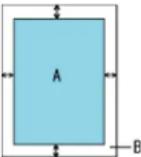 (A: image, B: filled area, A+B: output) (A: image, B: filled area, A+B: output) | Top/Bottom/Left/Right: 0 mm |
| Dropout color Select a color to be removed from the scanned image (only available in black & white or grayscale mode).With TWAIN driver, this setting can also be configured from the scanner driver's setup dialog box. Note that priority is given to the scanner driver setting.With ISIS driver, the scanner driver setting is enabled at all times. | Red / Green / Blue / None Green | ||
| Document check area specification for Multifeed Detection | Selected range: Select this item to restrict the area to run multifeed detection. | [Selected area] check box Not selected | |
| Enable / Disable (Middle): Specify whether to enable or disable multifeed detection in the selected area. | Enable / Disable(When [Selected range] is selected) | Disable | |
| Start (Middle): Specify the start position of the area in length (mm) from the leading edge of the document. | 0 to 510 mm (in increments of 2) 0 mm | ||
| End (Middle): Specify the end position of the area in length (mm) from the leading edge of the document. | 0 to 510 mm (in increments of 2) 0 mm | ||
TOP
Contents
Index
Introduction
Scanner Overview
How to Load Documents
Configuring the Scan Settings
How to Use the Operator Panel
Various Ways to Scan
Daily Care
Replacing the Consumables
Troubleshooting
Operational Settings
Appendix
Glossary
Chapter 9 Operational Settings
| Item | Description | Parameter/Value | Factory Default |
| Intelligent Multifeed Function | When there is a paper of the same size attached to a designated location on the page, configure the scanner to memorize the location of the attachment and not detect multifeeds for that location. Note that you first need to select [Check Overlapping (Ultrasonic)] or [Check Overlapping and Length] in either the scanner driver's setup dialog box or the multifeed detection setting in "Method of Multifeed Detection [Multifeed]" (page 145). | Manual mode / Auto mode 1 / Auto mode 2 Manual mode | |
| Select to clear the overlap pattern (length, location) memorized in Auto mode. | [Clear overlap pattern] check box Not selected | ||
| Specify whether or not to memorize the multifeed pattern upon power-off. | Remember / Do not remember Do not remember | ||
| Number of paper feeding retries | Configure this setting to change the number of feeding retries when a pick error occurs. | 1 to 12 times 3 times | |
| Life Counter Alarm Setting | Specify the replacement cycle for the consumables. | Each consumable10,000 to 2,550,000 sheets(in increments of 10,000) | Pick roller:100,000 sheetsPad:50,000 sheets |
| Power SW Control Specify the method by which the scanner is powered ON/OFF. | Enable power switch / Disable power switch / Enable USB power feeding | Enable power switch | |
TOP
Contents
Index
Introduction
Scanner Overview
How to Load Documents
Configuring the Scan Settings
How to Use the Operator Panel
Various Ways to Scan
Daily Care
Replacing the Consumables
Troubleshooting
Operational Settings
Appendix
Glossary
9.4 Settings Related to Page Counters
Checking and Resetting the Counters [Page Counter]
■ Checking the counters
The status on each consumable part can be viewed to determine when to replace the consumables.
The color of the counter changes to indicate that the consumable needs replacement.
The [Device Setting] counter turns light yellow when the page count after replacing the consumable reaches 95% of the value specified in "Replacement Cycle of Consumables [Life Counter Alarm Setting]" (page 139), and turns yellow when it reaches 100%.
1 Start up the Software Operation Panel.
Refer to "9.1 Starting Up the Software Operation Panel" (page 125).
2 From the listing on the left, select [Device Setting].
![FUJITSU FI-6110 - From the listing on the left, select [Device Setting]. - 1](/content/2026/06/1236342/images/fbe3f9600d9c079661ce264dd7ad23d39e7333c6fe478ca38bde56697aad7104.jpg)
text_image
Diplex Settings in Device String 2 - Multilayer - Page Split Film (AD/1) - Dropout order - Document check area specific - Intelligent Multifixed Function - Number of paper feeding list - Life Counter Alan Setting - Power SW Control Page Count Total Page Count(AD/1) 105000 pages pages pages pages pages pages pages pages pages pages pages pages pages pages pages pages pages pages pages pages pages pages pages pages pages pages pages pages pages pages pages pages pages pages pages pages pages pages pages pages pages pages pages pages pages pages pages pages pages pages pages 8660 pages 8660 pages 8660 pages 8660 pages 8660 pages 8660 pages 8660 pages 8660 pages 8660 pages 8660 pages 8660 pages 8660 pages 8660 pages 8660 pages 8660 pages 8660 pages 8660 pages 8600 pages 8600 pages 8600 pages 8600 pages 8600 pages 8600 pages 8600 pages 8600 pages 8600 pages 8600 pages 8600 pages 8600 pages 8600 pages 8600 pages 8600 pages 8600 pages 8600 pages Power saving: - - - - - - - - - - - - - - - - - - - - - - - - - - - - - - - - - - - - - - - - - - - - - - - - - - - - - - - - - - - - - - - - - - - - - - - - - - - - - - - - - - - - - - - - - - - - - - - - - - - - - . . . . . . . . . . . . . . . . . . . . . . . . . . . . . . . . . . . . . . . . . . . . . . . . . . . . . . . . . . . . . . . . . . . . . . . . . . . . . . . . . . . . . . . . . . . . . . . . . . . . . . . . . . . . . . . . . . . . . . . . . . . . . . . . . . . . . . . . . . . . . . . . . . . . . . . . . . . . . . . . . . . . . . . . . . . . . . . . . . . . . . . . . . . . . . . . . . . . . . . . 。 OK Cancel Apply (A)In this dialog box, you can check the following items.
| Item Description | |
| Total Page Count (ADF) | Approximate total number of sheets scanned through the ADF |
| Pad Number of sheets scanned after replacing the pad assy (in units of 500) | |
| Pick roller Number of sheets scanned after replacing the pick roller (in units of 500) | |
![FUJITSU FI-6110 - From the listing on the left, select [Device Setting]. - 2](/content/2026/06/1236342/images/3416e3720275d2e85d9bd3625ea191d6c1ad9b4177b2a100d9d359e31a65ac35.jpg)
If the power was turned off by unplugging the power cable, or [Disable power switch] is selected, up to nine sheets may not be counted in [Total Page Count (ADF)]. For details about disabling the power switch, refer to "Method of Turning the Scanner ON/OFF [Power SW Control]" (page 152).
Chapter 9 Operational Settings
■ Resetting the counters
When you have replaced the consumables, reset the corresponding counters in the following procedure.
1 Click the [Clear] button for the consumable(s) that you replaced.

text_image
FUJITSU Software Operation Panel Diagnosis Device Info Device Setting Device Setting 2 MultiLoad Page Edge Filter (ADF) Dropout color Document check area specific Intelligent MultiLoad Function Number of paper feedingsretire Life Counter Alarm Setting Power SW Control Page Counter Total Page Count(ADF): 185000 pages pages pages pages pages Clear() Clear() Clear() Clear() Clear() Clear() Clear() Clear() Clear() Clear() Clear() Clear() Clear() Power saving: - 15 minutes OK Cancel Apply (A)→ The counter is reset to 0.
2 Click the [OK] button in the Software Operation Panel.

text_image
OK Cancel Apply (A)A confirmation message appears.
3 Click the [OK] button.
→ The settings are saved.
■Message for replacing the consumable
The following message may appear while using the scanner.
Message

text_image
FJTWAIN It is about time to replace the consumable. Please replace Pick Roller in the paper feeder if the feeding capability is deteriorated. Please refer to the Operator's Guide, for details on replacement. (Code: DS42005) This message not display again Wams again after scanning 1000 pages Ignore Cancel HelpCheck the message and replace the consumable accordingly.
If you click the [Ignore] button, the message disappears and the scan can be continued. However, it is recommended that you replace the consumable as soon as possible.
To stop the scan and replace the consumable right away, click the [Cancel] button.
For details about replacing consumables, refer to the following:
- Pad assy
"7.2 Replacing the Pad Assy" (page 93)
Pick roller
"7.3 Replacing the Pick Roller" (page 94)
Chapter 9 Operational Settings
Replacement Cycle of Consumables [Life Counter Alarm Setting]
The replacement cycle for each consumable can be specified. The background color of the [Device Setting] counter changes to light yellow when the page count after replacing the consumable reaches 95% of the value specified here, and turns yellow when it reaches 100%.
A message that prompts consumable replacement (page 138) also appears.
1 Start up the Software Operation Panel.
Refer to "9.1 Starting Up the Software Operation Panel" (page 125).
2 From the listing on the left, select [Device Setting 2] → [Life Counter Alarm Setting].
![FUJITSU FI-6110 - Replacement Cycle of Consumables [Life Counter Alarm Setting] - 1](/content/2026/06/1236342/images/3745d170538f70912b4e1d9120c2e2b40ff13c2296531e0f60ac3d075e8c7cd3.jpg)
text_image
FUJITSU Software Operation Panel Diagnosis Device Info Device Setting Device Setting 2 Machines Page Edge Filter (ADF) Dropout color Document check area specific Intelligent Multifed Function Number of ports configuration Life Carrier Alarm Setting Power SW Locker Pick robusts 10 x10000 Pad 5 x10000 OK Cancel Apply (A)3 Specify a value to be set as the life of each consumable (pad assy and pick roller).
The value can range from 10,000 to 2,550,000 sheets (in increments of 10,000).
9.5 Settings Related to Scanning
Adjusting the Start Position for Scanning [Offset/Vertical magnification Adjustment]
When the output position of the scanned image is not correct or the image appears shortened/elongated (vertically), use the following procedure to adjust the offset and the vertical magnification for correction.
![FUJITSU FI-6110 - Adjusting the Start Position for Scanning [Offset/Vertical magnification Adjustment] - 1](/content/2026/06/1236342/images/abab19baef3212922813b83037200b2178594e9e5fd55a6807e113892a708a21.jpg)
Normally, you should not have to make any adjustments as the factory default settings are configured at appropriate values.
1 Start up the Software Operation Panel.
Refer to "9.1 Starting Up the Software Operation Panel" (page 125).
2 From the listing on the left, select [Device Setting] and click the [Offset] button.
![FUJITSU FI-6110 - From the listing on the left, select [Device Setting] and click the [Offset] button. - 1](/content/2026/06/1236342/images/c1f0f8efcda58cd6ec59741a95c4bfb975e7a9fc26cf79187d22ea8b6014360e.jpg)
text_image
FUJITSU Software Operation Panel - Diagnosis - Device Info - Device Setting - Device Setting 2 - Multiseed - Page Edge Filter (ADF) - Dropout color - Document check area specific - Intelligent Multiseed Function - Number of paper fading ratio - Life Counter Alarm Setting - Power Sw/ Control Page Counter Total Page Count(ADF): 185000 pages pages pages pages Clear(1) Pa: 6000 pages Clear(2) Pck Rules: 96500 pages Clear(3) pages pages pages % Clear(4) % Clear(5) Power saving: - 15 minutes Offset... OK Cancel Apply(A)Chapter 9 Operational Settings
3 Adjust the level of offset/vertical magnification as needed.

text_image
Offset Offset Setting: Unit: ADF(front) Sub: 0-x0.5mm End of page: 0-x0.5mm Main: 0-x0.5mm Vertical magnification Adjustment Unit: ADF -3.1% 3.1% (-3.1% - 3.1%) OK Cancel| Offset Setting Description | |
| Unit Select [ADF (front)] or [ADF (back)] as the target for offset adjustment. | |
| Main Adjusts the horizontal (width) offset.The value can range from -2 to +2 mm (in increments of 0.5). | |
| Sub Adjusts the vertical (length) offset from the top of the page.The value can range from -2 to +2 mm (in increments of 0.5). | |
| End of page Adjusts the vertical (length) offset from the bottom of the page.The value can range from -2 to +2 mm (in increments of 0.5). |
| Vertical magnification Adjustment | Description |
| Unit The target for vertical magnification adjustment is fixed to [ADF]. | |
| Vertical magnification Adjustment (length) | Adjusts the vertical (length) magnification. The value can range from -3.1 to +3.1% (in increments of 0.1). |
Chapter 9 Operational Settings
Removing Shadows/Streaks that Appear around the Scanned Image [Page Edge Filler (ADF)]
Depending on the condition of the documents that you scan, the shadow of the document may appear as black streaks. In that case, you can improve the image quality around the edges of the document by using the "Page Edge Filler" function to fill in the edges.
1 Start up the Software Operation Panel.
Refer to "9.1 Starting Up the Software Operation Panel" (page 125).
2 From the listing on the left, select [Device Setting 2] → [Page Edge Filler (ADF)].
![FUJITSU FI-6110 - Removing Shadows/Streaks that Appear around the Scanned Image [Page Edge Filler (ADF)] - 1](/content/2026/06/1236342/images/64228985dccf140ac89d3c612fb7f45ccf0afa88318c708b4c2254cbef8458f6.jpg)
text_image
FUJITSU Software Operation Panel Diagnosis Device Info Device Settings In Device Setting 2 Top Edge Wire (SDFI) Dropout color Document check area specifications Intelligent Multifixed Function Number of paper feeding relies Lite Courier Alarm Setting Power SW Control Top 0 mm Left 0 mm Right 0 mm Bottom 0 mm OK Cancel Apply (A)3 Specify the width of each margin to fill in: top/bottom/left/right.
![FUJITSU FI-6110 - Removing Shadows/Streaks that Appear around the Scanned Image [Page Edge Filler (ADF)] - 2](/content/2026/06/1236342/images/7d86e038dee38496f74a1ceffea28c4ffe87a288a2e6b8a29434ee6caadd5766.jpg)
text_image
T L Image area R BT: top = 0 to 15 mm
B: bottom = -7 to 7 mm
L: left = 0 to 15 mm
R: right = 0 to 15 mm
(in 1 mm increments)
The specified area is filled in white.
![FUJITSU FI-6110 - Removing Shadows/Streaks that Appear around the Scanned Image [Page Edge Filler (ADF)] - 3](/content/2026/06/1236342/images/3956e62a4ddd6082aa6f27fe522ae2332a342fa2debe29ad99bab9218e6ffebb.jpg)
Note that if the target range of the Page Edge Filler is too wide, some characters near the edge may appear missing.
![FUJITSU FI-6110 - Removing Shadows/Streaks that Appear around the Scanned Image [Page Edge Filler (ADF)] - 4](/content/2026/06/1236342/images/cfc0022ce3365712acd075bb095cbb7dedf236b593076969f2b0198f80ab441d.jpg)
- Depending on the value you specify, the bottom edge is filled in as follows:
- 1 to 7 mm Fills the margin in white, from the detected page bottom.
- -1 to -7 mm Does not fill the margin unless [End of Page Detection] is selected in the scanner driver. "Detected page bottom" refers to the bottom edge of the scanned document detected by the scanner.
- With TWAIN driver, this setting can also be configured from the scanner driver's setup dialog box. Note that priority is given to the setting with the larger value.
Chapter 9 Operational Settings
Removing a Color from the Scanned Image [Dropout color]
With "Dropout color", you can select either green, red, or blue (primary colors) to remove the details of the selected color from a scanned image.
For example, if a document with black characters and a green background is scanned, only the black characters will appear on the scanned image if [Green] is selected.
![FUJITSU FI-6110 - Removing a Color from the Scanned Image [Dropout color] - 1](/content/2026/06/1236342/images/69cf45849186047418dcc850083203ff52bd0de1159f5cbd757af9dc3050ad0e.jpg)
Dropout works the best with light (low density) colors, and dark colors may not drop out.
![FUJITSU FI-6110 - Removing a Color from the Scanned Image [Dropout color] - 2](/content/2026/06/1236342/images/6f34402485ffe294b41053fc8ab03dcc58b6d71ac732f7dd21dd881d79fdb440.jpg)
Dropout color is only available in black & white or grayscale mode.
1 Start up the Software Operation Panel.
Refer to "9.1 Starting Up the Software Operation Panel" (page 125).
2 From the listing on the left, select [Device Setting 2] → [Dropout color].
![FUJITSU FI-6110 - Removing a Color from the Scanned Image [Dropout color] - 3](/content/2026/06/1236342/images/21afa249565b88b5486e81f95c8a18577bb770e72920ba3ac9bf9e8d904d7b3d.jpg)
text_image
FUJITSU Software Operation Panel Diagnosis Device Info Device Settings Device Setting 2 MultiRed Face Edge Eter (ADF) Dropout color Document check areas specifica Intelligent MultiRed Function Number of paper feeding retries Life Counter Alarm Setting Power SW Control Red Green Blue None OK Cancel Apply (A)3 Select a color to drop out.
Red, Green, Blue: Red, green, or blue is dropped out.
None: No color is dropped out.
![FUJITSU FI-6110 - Removing a Color from the Scanned Image [Dropout color] - 4](/content/2026/06/1236342/images/179d6f5819dc37004810ce8d430048814d1cac4ea51074665ef6f8f8901536a5.jpg)
The Software Operation Panel allows you to choose the color from red, green, and blue only. To drop out a color of your choice, configure the setting from the scanner driver. For more details, refer to "Removing a Color from the Scanned Image (Dropout Color)" (page 59).
![FUJITSU FI-6110 - Removing a Color from the Scanned Image [Dropout color] - 5](/content/2026/06/1236342/images/2cf14f9fe4a647498a9c4e4daba0b8da763707b3fd7dd77d045753190ee85e13.jpg)
With TWAIN driver, this setting can also be configured from the scanner driver's setup dialog box. Note that priority is given to the scanner driver setting. With ISIS driver, the scanner driver setting is enabled at all times.
Chapter 9 Operational Settings
Number of Paper Feeding Retries
Configure this setting to change the number of feeding retries when a pick error occurs.
1 Start up the Software Operation Panel.
Refer to "9.1 Starting Up the Software Operation Panel" (page 125).
2 From the listing on the left, select [Device Setting 2] → [Number of paper feeding retries].

text_image
FUITSU Software Operation Panel - Diagnosis - Device Info - Device Setting - Device Setting 2 - Multifed - Page Edge Filter (ADF) - Dropout color - Document check area specia - Intelligent Multifed Function - Number of paper feeding sites - Life Counter Alarm Setting - Power SW Control Number of paper feeding sites: 3 times OK Cancel Apply (A)3 Specify the number of paper feeding retries. The value can range from 1 to 12 times.
9.6 Settings Related to Multifeed Detection
Method of Multifeed Detection [Multifeed]
Multifeed is an error where two or more sheets are fed through the ADF at once. It is also called a multifeed when a different document length is detected.
Not noticing multifeed errors while scanning may put you in a situation where important data are missing from the scanned images.
Multifeed detection function is equipped to prevent such troubles. When this function is enabled, an error message is displayed as soon as it detects a multifeed, and stops the scan. Note that multifeed cannot be detected within 30 mm from the leading edge of the document.
1 Start up the Software Operation Panel.
Refer to "9.1 Starting Up the Software Operation Panel" (page 125).
2 From the listing on the left, select [Device Setting 2] → [Multifeed].
![FUJITSU FI-6110 - Method of Multifeed Detection [Multifeed] - 1](/content/2026/06/1236342/images/d4f6424880e8149ddfdcd91afca5ebda0565a3f0b86add543316d6b0a8b9a122.jpg)
text_image
FUJITSU Software Operation Panel - Diagnostics - Device Info - Device Settings - Device Setting 2 - Multiseel - Page Edge Filter (ADF) - Dropout color - Document check area specific - Intelligent Multiseel Function - Number of paper feeding ratios - Life Counter Alarm Setting - Power Sw/ Control ○ None ○ Check Overlapping(Ultrasonic) ○ Check Length ○ Check Overlapping and Length Length 10 nm OK Cancel Apply(A)3 Select a detection method.
| Method Description | |
| None Does not detect multifeeds. | |
| Check Overlapping (Ultrasonic) | Detects multifeed by the overlapping of documents.When this is selected, you can also specify the two following options:Specify the detection range by the length from the leading edge of the document.Proceed to "Method of Multifeed Detection [Multifeed]" (page 145) for more details.Ignore the multifeed when there is paper of the same size attached to a designated location on the page.Proceed to "Ignoring Multifeed for a Set Pattern" (page 82) for more details. |
| Check Length | Detects multifeed by the difference in length of the documents.Note that multifeeds cannot be detected accurately when scanning a mixed batch of different sizes. |
| Check Overlapping and Length | Detects multifeed by the combination of [Check Overlapping (Ultrasonic)] and [Check Length].Note that multifeeds cannot be detected accurately when scanning a mixed batch of different sizes. |
| Length Select a | length difference from 10/15/20 mm.Any length under the specified value will not be detected as multifeed. |
![FUJITSU FI-6110 - Method of Multifeed Detection [Multifeed] - 2](/content/2026/06/1236342/images/94c08ee4679cb3f4430fe2bb1370c6713d84df1df2e6a1d8cf21252b6a6ea86a.jpg)
- To scan documents with different lengths, specify [Check Overlapping (Ultrasonic)].
- When a photo or a piece of paper is attached on the document, the overlapping part of the document may be falsely detected as multifeed if [Check Overlapping (Ultrasonic)] is specified. In that case, specify [Check Length].
Note however that [Check Overlapping (Ultrasonic)] can be used if you restrict the detection range. - Multifeed cannot be detected when using the Carrier Sheet.
![FUJITSU FI-6110 - Method of Multifeed Detection [Multifeed] - 3](/content/2026/06/1236342/images/70c7e66ec8ac1779570c4b10455fa360654d98a953efeafa64b8bc6f576c81e8.jpg)
This setting can also be configured from the scanner driver's setup dialog box. Note that priority is given to the scanner driver setting.
Chapter 9 Operational Settings
Specifying an Area to Detect Multifeed [Document check area specification for Multifeed Detection]
The following setting is only available when you specified [Check Overlapping (Ultrasonic)].
1 From the listing on the left, select [Device Setting 2] → [Document check area specification for Multifeed Detection]. Select the [Selected range] check box in the dialog box.
![FUJITSU FI-6110 - Specifying an Area to Detect Multifeed [Document check area specification for Multifeed Detection] - 1](/content/2026/06/1236342/images/9b547a4648eacdbf51172d77eb461507eabc613dc88032a7ef1a612b1a1b27f2.jpg)
text_image
FUJITSU Software Operation Panel Diagnosis Device Info Device Setting Device Setting 2 Multifed Page Edge File (ADF) Discount color Document check area specifications Intelligent Multise Function Number of paper feeding retires Lite Counter Alarm Setting Power SW Control Selected range Enable Start 0 mm End 0 mm OK Cancel Apply (A)2 Specify the detection range.
| Range Description | |
| Selected range Select | the check box to specify the detection range (colored in light blue) in the picture below.[IMAGE]Select the check box to enable the setting in this dialog box. Clear the check box to disable the setting. Clearing this check box sets both start and end positions to "0", making the whole document to be detected for multifeeds.The above condition applies when the document is set to the center of the pick roller width. |
| Disable(Middle) | Does not detect multifeeds for the selected area. |
| Enable(Middle) | Detects multifeeds for the selected area. |
| Start(Middle) | Displays the start position of the detection by the length from the leading edge of the document.Range: 0 to 510 mm, in 2 mm increments, Start |
Chapter 9 Operational Settings
| Range Description | |
| End(Middle) | Displays the end position of the detection by the length from the leading edge of the document.Range: 0 to 510 mm, in 2 mm increments, Start |
![FUJITSU FI-6110 - Specifying an Area to Detect Multifeed [Document check area specification for Multifeed Detection] - 2](/content/2026/06/1236342/images/4c7724aa27a1df88b68fc9d83a7215ae20f72efdd97dc74f93dff0e8c4d729ed.jpg)
- When both [Start] and [End] are set to "0", multifeed detection is performed for the whole area regardless of whether it is enabled or disabled.
- To disable multifeed detection for the whole document, select [Disable] and set the start position to "0" and the end position to equal the document length or longer.
- If you set a value larger than the document length for the start position, selecting [Disable] detects the whole length of the document and selecting [Enable] disables the multifeed detection.
- In order to detect multifeeds, the detection range must be at least 5 mm long. Configure the setting so that the value of the end position minus the start position is 6 mm or more.
- You can also set the start and the end positions by the following methods:
- Draw an area with the mouse on the displayed image.
- Drag the handles for [Start] and [End] positions on the displayed image.
Example 1:
Position: Middle
Selected range = Enable, Start = 50 mm, End = 200 mm

text_image
Feed direction 50 50 200 Unit: mmMultifeeds are detected for the area in light blue.
Example 2:
Position: Middle
Selected range = Enable, Start = 0 mm, End = 0 mm

text_image
Feed direction 50 300 Unit: mmMultifeeds are detected for the area in light blue.

When detecting the overlapping of documents, the multifeed detection rate may drop if the documents are glued tightly or attached together by static electricity.
Example 3: (Bad example)
Position: Middle
Selected range = Enable, Start = 100 mm, End = 102 mm

text_image
Feed direction 50 100 2 300 Unit: mmSince the detection range (length) is less than 5 mm, multifeeds cannot be detected accurately.
Chapter 9 Operational Settings
Specifying an Area Not to Detect Multifeed [Intelligent Multifeed Function]
When there is paper of the same size attached to a designated location on the page, the scanner memorizes the location of the attachment and can be configured not to detect multifeeds for that location. To configure this setting, you first need to select [Check Overlapping (Ultrasonic)] or [Check Overlapping and Length] in either the scanner driver's setup dialog box or the multifeed detection setting in "Method of Multifeed Detection [Multifeed]" (page 145).
1 Start up the Software Operation Panel.
Refer to "9.1 Starting Up the Software Operation Panel" (page 125).
2 From the listing on the left, select [Device Setting 2] → [Intelligent Multifeed Function].
![FUJITSU FI-6110 - Specifying an Area Not to Detect Multifeed [Intelligent Multifeed Function] - 1](/content/2026/06/1236342/images/3470e97e108d0e8396c7aebeb7a8fa74446a7c44e51aa3d27c2f89d2009dfdd8.jpg)
text_image
FUJITSU Software Operation Panel Diagnosis Device Info Device Settings Device Selling 2 Multifed Page Edge File (ADF) Dropout color Documents check area and size Disinquent Multifed Function Number or paper loading lines Life Counter Alarm Setting Power SW Control ● Manual mode (Bypass by front panel button) ○ Auto mode 1 (Bypass by combination of length and position) ○ Auto mode 2 (Bypass by length) □ Clear overlap pattern Remember multileed pattern at power-off ○ Remember ● Do not remember OK Cancel Apply (A)3 Select an operation mode and click the [OK] button.
| Mode Description | |
| Manual mode Stops feeding the documents when a multifeed is detected. You can resume scanning by loading the documents back in the ADF paper chute.The size and location of the attachment are not memorized. | |
| Auto mode 1 Memorizes the size and location of the paper attachment upon resuming the scan when a multifeed is detected and the document is loaded back in the ADF paper chute. The memorized pattern is ignored from the next scan. | |
| Auto mode 2 Memorizes the size of the paper attachment upon resuming the scan when a multifeed is detected and the document is loaded back in the ADF paper chute. The memorized pattern is ignored from the next scan. |
![FUJITSU FI-6110 - Specifying an Area Not to Detect Multifeed [Intelligent Multifeed Function] - 2](/content/2026/06/1236342/images/6cb63cda435859e5e3eabdfbd42416369dedf06e7bd445a91c25b80778f47e15.jpg)
- By selecting the [Clear overlap pattern] check box, you can erase the overlapping patterns (length, position) that were memorized in Auto mode.
- In [Remember multifeed pattern at power-off], you can select whether or not to keep the multifeed pattern upon turning the power off. When [Remember] is selected, you can use eight (pages worth) of the most recent patterns the next time the scanner is powered on.
For details about the procedure after this step, refer to "Ignoring Multifeed for a Set Pattern" (page 82).
9.7 Settings Related to Waiting Time
Waiting Time to Enter Power Saving Mode [Power saving]
The waiting time for the scanner to enter power saving mode can be specified.
1 Start up the Software Operation Panel.
Refer to "9.1 Starting Up the Software Operation Panel" (page 125).
2 From the listing on the left, select [Device Setting].
![FUJITSU FI-6110 - Waiting Time to Enter Power Saving Mode [Power saving] - 1](/content/2026/06/1236342/images/89e1d4fe314e37239ad2f9f676e66f2ad2b4c439c8bb6334f5381ef90df3c1ae.jpg)
text_image
FUJITSU Software Operation Panel - Diagnosis Device ratio Device Setting - Device Setting 2 - Multiseed Page Edge Filler (ADF) - Dropout color - Document check area specific - Intelligent Multiseed Function - Number of paper feedreg ratio - Life Counter Alarm Setting - Power SW Control Page Counter: Total Page Count(ADF): 18500 pages pages pages pages Clear() Past: 50600 pages Clear() Pick Roller: 96500 pages Clear() pages Clear() pages Clear() pages Clear() pages Clear() pages Clear() Power saving: 15 minutes Offset... OK Cancel Apply(A)3 Use the slide bar to specify the waiting time before entering power saving mode.
The value can range from 5 to 235 minutes (in increments of 5).
9.8 Settings Related to Power ON/OFF
Method of Turning the Scanner ON/OFF [Power SW Control]
The method by which the scanner is powered ON/OFF can be specified from one of the following:
- Press the [Power] button on the operator panel
● Unplug the power cable then plug it back in
● Have the scanner turn ON/OFF in sync with the computer's power
1 Start up the Software Operation Panel.
Refer to "9.1 Starting Up the Software Operation Panel" (page 125).
2 From the listing on the left, select [Device Setting 2] → [Power SW Control].
![FUJITSU FI-6110 - Method of Turning the Scanner ON/OFF [Power SW Control] - 1](/content/2026/06/1236342/images/af663f8160e3fbb6b7fc0bc2cd5e8418117d7fdb5ae49ae3b25de67274d4a044.jpg)
text_image
FUJITSU Software Operation Panel - Diagnosis - Device Info - Device Setting + Device Setting 2 - Multiseal - Page Edge Filter (ADF) - Dropout color - Document check area specific - Intelligent Multiseal Function - Number of paper feeding/retile - Input Connection Method Setting - Power SW Control Enable power switch (Factory default) Disable power switch Enable USB power feeding OK Cancel Apply (A)3 Select one of the following.
[Enable power switch : Press the [Power] button on the (Factory default)] operator panel.
[Disable power switch] : Unplug the power cable then plug it back in.
[Enable USB power feeding] : Have the scanner turn ON/OFF in sync with the computer's power.

Some types of computers and USB hubs keep supplying power to the USB bus even after the computer is turned off.
In that case, the [Enable USB power feeding] mode may not work properly.
Appendix
This section provides the following information.
A.1 Basic Specification....154
A.2 Installation Specification....156
A.3 Outer Dimensions ....157
A.4 Uninstalling the Software ....158
TOP
Contents
Index
Introduction
Scanner
Overview
How to Load
Documents
Configuring the
Scan Settings
How to Use the
Operator Panel
Various Ways to
Scan
Daily Care
Replacing the
Consumables
Troubleshooting
Operational
Settings
Appendix
Glossary
A.1 Basic Specification
| Item Specification Notes | |||
| Scanner type ADF (Automatic Document Feeder) - | |||
| Image sensor Color CCD x2 (front, back) - | |||
| Light source White cold cathode fluorescent lamp x2 (front, back) - | |||
| Scanning area Minimum 52 x 74 (mm) / 2.05 x 2.91 (in.) (landscape/portrait) - | |||
| Maximum 216 x 355.6 (mm) / 12 x 14 (in.) (*1) | |||
| Paper weight | 52 to 127 g/m2 (14 to 34 lb)* 127 g/m2 (34 lb) applies to A8 size only | - | |
| Scanning speed (A4 landscape)(*2) | Binary (black & white) | Simplex: 20 ppmDuplex: 40 ipm | 150 dpi / 200 dpi / 300 dpi |
| Grayscale | |||
| Color | |||
| Loading capacity (*3) | 50 sheets | Paper weight: 80 g/m2 (20 lb)Total thickness: 5 mm or less | |
| Optical resolution 600 dpi | - | ||
| Output resolution | Binary (black & white) | 50 to 600 dpi, 1200 dpi | 50 to 600 dpi: configurable in 1 dpi increments 1200 dpi: available from scanner driver |
| Grayscale | 50 to 600 dpi, 1200 dpi | ||
| Color | 50 to 600 dpi, 1200 dpi | ||
| Grayscale level | 8-bit for each color | 10-bit during internal processing | |
| Halftone pattern | Dither/error diffusion | - | |
| Interface | USB 2.0 / 1.1 (*4) | B Type | |
| Other function | Hardware real-time JPEG compression | - | |
TOP
Contents
Index
Introduction
Scanner
Overview
How to Load
Documents
Configuring the
Scan Settings
How to Use the
Operator Panel
Various Ways to
Scan
Daily Care
Replacing the
Consumables
Troubleshooting
Operational
Settings
Appendix
Glossary
Appendix
*1: Long page scanning supports scanning of documents with a length up to 3,048 mm (120 in.) in feed direction.
For documents longer than 864 mm (34.02 in.), the resolution must be set to 200 dpi or less.
*2: Note that this is the hardware limitation, and the software's processing time such as data transfer time is added to the actual time of scanning.
*3: The capacity varies depending on the paper weight. See "2.2 Documents for Scanning" (page 30) for details.
*4: Connection with USB 2.0 requires the USB port and the hub to support USB 2.0. Also note that the scanning speed slows down when using USB 1.1.
TOP
Contents
Index
Introduction
Scanner Overview
How to Load Documents
Configuring the Scan Settings
How to Use the Operator Panel
Various Ways to Scan
Daily Care
Replacing the Consumables
Troubleshooting
Operational Settings
Appendix
Glossary
A.2 Installation Specification
| Item Specification | ||
| Outer dimensions (W × D × H)(*1) 292.0 × 143.0 × 130.0 (mm) / 18.1 × 16.9 × 5.1 (in.) | ||
| Installation space (W × D × H) 493.5 × 850.0 × 380.0 (mm) / 19.4 × 33.5 × 15.0 (in.) | ||
| Weight 3.0 kg (6.6 lb) | ||
| Input power Voltage range 100 to 240 Vac ±10% | ||
| Phase Single phase | ||
| Frequency range 50/60 ±3 Hz | ||
| Power consumption Operation 28.0 W or less | ||
| Ambient condition | Temperature | Operating: 5 to 35°C (41 to 95°F)Not operating: -20 to 60°C (-4 to 140°F) |
| Humidity | Operating: 20 to 80%Not operating: 8 to 95% | |
| Calorific value | Operation 24.1 kcal/Hr or less | |
| Power saving | 4.61 kcal/Hr or less | |
| Power OFF 0.86 kcal/Hr or less | ||
| Shipping weight (*2) | 5.5 kg (12.1 lb) | |
*1: The depth excludes the ADF paper chute and stacker.
*2: Includes the package weight.
TOP
Contents
Index
Introduction
Scanner Overview
How to Load Documents
Configuring the Scan Settings
How to Use the Operator Panel
Various Ways to Scan
Daily Care
Replacing the Consumables
Troubleshooting
Operational Settings
Appendix
Glossary
A.3 Outer Dimensions
The outer dimensions are as follows.

natural_image
Technical line drawing of a mechanical device with no visible text or symbols
text_image
143 (5.6) 130 (5.1)Unit: mm (in.)
A.4 Uninstalling the Software
1 Start up your computer.

Log on as a user with administrator privileges.
2 Close all running applications.
3 Select the [Start] menu → [Control Panel] → [Programs and Features].
The [Uninstall or change a program] window appears where you can view a list of installed applications.
![FUJITSU FI-6110 - Select the [Start] menu → [Control Panel] → [Programs and Features]. - 1](/content/2026/06/1236342/images/55bfa3ebd2c5897750ff3adef069fe4b74a68b58ccb73aad3da7c07f25c0775d.jpg)
Displays may vary depending on the operating system you are using. Follow the instructions of your operating system.
For Windows XP:
● [Programs and Features]
→ [Change or Remove Programs]
- [Uninstall] or [Uninstall/Change] button → [Change/Remove] button
4 Click on the application to remove:
- TWAIN driver: [Scanner Utility for Microsoft Windows]
● ScandAll PRO: [Fujitsu ScandAll PRO]
* Microsoft SharePoint will also be removed after ScandAll PRO.
● Microsoft SharePoint: [Scan to Microsoft SharePoint]
● ISIS driver: [ISIS Driver - Fujitsu fi-6110]
● Error Recovery Guide: [Error Recovery Guide for fi-6110] -
Software Operation Panel: [Software Operation Panel] (Software Operation Panel is installed together with TWAIN/ISIS drivers)
● Operating manuals: [fi-Scanner manuals fi-6110] -
QuickScan Pro: [QuickScan]
- FUJITSU Scanner USB HotFix: [FUJITSU Scanner USB HotFix]
● Adobe Acrobat: [Adobe Acrobat Standard]

Refer to the "Image Processing Software Option User's Guide" to find out how to uninstall the Image Processing Software Option (Demo version).
5 Click the [Uninstall] button or the [Uninstall/Change] button.
6 If a confirmation dialog box appears, click [OK] or [Yes]. The program is uninstalled.
Glossary
Number
11" × 17"
A
A4 size
A5 size
A6 size
A7 size
A8 size
ADF (Automatic Document Feeder)
Automatic size/skew detection
B
Blank Page Skip
Brightness
C
Canadian DOC
Carrier Sheet
CCD (Charge-Coupled Device) Image Sensor
Color balance
D
Default setting
Density
Device error
Dither
dpi (dots per inch)
Driver
Dropout color
Duplex scanning mode
E
Edge Extract
Edge Processing
Energy Star
Error diffusion
F
FCC
Feed roller
Filter
G
Gamma
Grayscale
H
Halftone
|
Image processing
iMFF (intelligent Multi Feed Function)
Interface
Inversion
ISIS
J
Job Separator
L
Landscape
Letter size
M
Moire patterns
Multi Image
Multifeed
N
Noise removal
0
OCR (Optical Character Recognition)
Operational environment
Operator panel
Optical sensor
Overscan
P
Pad assy
Paper jam
Patch code
Pick roller
Pick start time
Pixel
Portrait
R
Resolution
S
Simplex scanning mode
Smoothing
T
Temporary error
Threshold
TÜV
TWAIN
U
Ultrasonic sensor
USB
W
White reference sheet
Z
Zone OCR
TOP
Contents
Index
Introduction
Scanner
Overview
How to Load
Documents
Configuring the
Scan Settings
How to Use the
Operator Panel
Various Ways to
Scan
Daily Care
Replacing the
Consumables
Troubleshooting
Operational
Settings
Appendix
Glossary
Number
11" × 17"
A standard paper size used in the United States and other countries, also referred to as double-letter size.
A
A4 size
A standard paper size which is 210 × 297 mm (8.27 x 11.7 inches).
A5 size
A standard paper size which is 148 × 210 mm (5.83 x 8.27 inches).
A6 size
A standard paper size which is 105 × 148 mm (4.13 x 5.83 inches).
A7 size
A standard paper size which is 74 × 105 mm (2.91 x 4.13 inches).
A8 size
A standard paper size which is 52 × 74 mm (2.05 x 2.91 inches).
ADF (Automatic Document Feeder)
A paper feeding mechanism which allows multiple sheets of documents to be scanned one sheet at a time.
Automatic size/skew detection
End of Page Detection:
Detects the end of the page and scans the length of the document.
Automatic Page Size Detection:
Detects the paper size and outputs the image data in the same size.
White Background:
An option to specify when using the overscan function.
Glossary
B
Blank Page Skip
A function that detects and automatically deletes blank (white or black) pages in a batch of documents.
Brightness
Refers to the brightness of a scanned image.
C
Canadian DOC
A standard issued by Industry Canada, a department of the Canadian government, which sets out the technical requirements relative to the radiated and conducted radio noise emissions from digital apparatus.
Carrier Sheet
A transparent plastic sheet designed for scanning documents that are larger than A4/Letter size.
CCD (Charge-Coupled Device) Image Sensor
A sensor which perceives the light reflected from the document and converts it into digital (electronic) form. CCD technology is the basis of high-quality image acquisition in scanners, cameras, and other specialized devices.
Color balance
The balance of colors in an image.
D
Default setting
(Hardware)
Preset values from the factory.
(Software)
Values set upon the installation of software.
Glossary
Density
Refers to the deepness of a color in an image.
Device error
Errors that require troubleshooting by a service engineer.
Dither
The process by which a group of dots is arranged to reproduce the density of grayscale. Grayscale density is reproduced by configuring preset dot patterns. This method requires less memory compared to multilevel gray.
dpi (dots per inch)
A measurement of resolution which is normally used for scanners and printers. Higher dpi indicates better resolution.
Driver
A program specifically designed for operating systems, which enables interaction with a hardware device.
Dropout color
A function which removes a specified color from a scanned image.
Duplex scanning mode
A mode for scanning both sides of the document at once. ( simplex scanning mode)
E
Edge Extract
A function which traces the boundaries between black and white areas, and extracts them as outlines.
Edge Processing
A function which decreases the density of bright colors (except for white) around black areas. Increasing the value for this function removes dotted image noise and also produces “softened” images.
Glossary
Energy Star
ENERGY STAR is an international standard for energy-efficient electronic equipment which was established by the US Environmental Protection Agency (EPA) in 1992. The standard program has now been adopted by countries around the world.
Error diffusion
Method of halftone (pseudo-grayscale) image processing which is based on black & white pixel binarization. It sums the optical density of a pixel and its adjacent pixels, then relocates black pixels in the order of density to minimize the difference between scanned and output images. By diffusing the errors onto other pixels, the density data of adjacent pixels can be binarized. This function suppresses moire patterns of dotted halftone images such as newspapers, and reproduces its grayscale gradation.
F
FCC
Acronym for "The Federal Communications Commission", an independent United States government agency which is in charge of regulating interstate and international communications via radio, television, wire, satellite and cable. The Part 15 of the FCC regulations mentioned in this manual is designed to prevent harmful interferences on radio communication of radio receivers and other devices which radiate radio frequency energy, and provides for the certification of radio receivers. They also provide the certification of low power transmitters and the operation of certified transmitters without a license.
Feed roller
A roller that feeds the document through the ADF.
Filter
Refers to the following types of processing on a scanned image.
Digital Endorser:
Adds character strings such as alphabets and numbers to the scanned image data.
Page Edge Filler:
Fills in the margin area around the scanned image with a specified color.
Glossary
G
Gamma
A unit which indicates the changes in the brightness of an image. It is expressed as a function of the electric input power to devices (e.g. scanner, display) and the brightness of the image. If the gamma rate is larger than 1, the brightness of an image increases and vice versa. Normally, the gamma rate is set to 1 when reproducing the same brightness as the original.
Grayscale
A method which expresses the gradation (density) from black to white in 256 levels. Suitable for scanning images such as photographs.
H
Halftone
Reproduces the color density in black & white by using dot patterns. This method is effective for scanning images such as photographs in black & white.
|
Image processing
Refers to processing and outputting the scanned image via specified scan parameters.
iMFF (intelligent Multi Feed Function)
A function that excludes certain patterns of overlapping of documents that are detected as multifeed, by letting the scanner memorize the overlap pattern. For instance, when there is paper of the same size attached to a designated location on the page, the scanner memorizes the location of the attachment and can be configured not to detect multifeeds for that location.
Interface
The connection that allows communication between the computer and the scanner.
Inversion
A scanning method in which the black part and the white part of the image are inverted.
Glossary
ISIS
ISIS (Image Scanner Interface Specification) is an API (Application Program Interface) standard for imaging devices (e.g. scanners, digital cameras) which was developed by Captiva, a division of EMC Corporation (the former Pixel Translations) in 1990. In order to use devices that comply with this standard, it is necessary to install a driver software that supports ISIS standard.
J
Job Separator
A sheet to insert between documents in a batch for separating different jobs. Job separator types are as follows:
Job separator with patch codes: A sheet with patch codes printed.
Job separator with barcodes: A sheet with barcode(s) printed.
L
Landscape
Orientation in which the short side of the document is set parallel to the feed direction.
Letter size
A standard paper size used in the United States and other countries. Paper size is 8.5 x 11 inches (215.9 x 279.4 mm).
M
Moire patterns
Recurrent patterns on scanned images caused by incorrect settings of angles.
Multi Image
A function which outputs the image in both color/grayscale and black & white at once.
Glossary
Multifeed
Multifeed is an error when two or more sheets are fed through the ADF at once. It is also called a multifeed when a different document length is detected.
N
Noise removal
A function which improves the quality of an image by removing isolated noise that appear as black dots in a white area (or vice versa).
0
OCR (Optical Character Recognition)
A device or a technology that recognizes the text on documents and converts them into editable text data. The shape of the characters is recognized by the differences in the light reflected off the documents.
Operational environment
Conditions (e.g. temperature, humidity) required to operate or store the scanner.
Operator panel
A panel that consists of a display and buttons. It is used for scanner operations such as selecting functions and changing settings.
Optical sensor
A sensor which detects the changes in the amount of light transmission. Paper feeding errors such as multifeed and paper jam are detected by monitoring the passing of documents.
Overscan
A function that scans the document in a size larger than the specified paper size.
P
Pad assy
A part that separates the documents before they enter inside the ADF. Rubber material is used for where the document contacts the pick roller.
Glossary
Paper jam
Refers to a state in which a document is jammed inside the paper path, or feeding is interrupted by documents slipping.
Patch code
A special code for the scanner to recognize the start and the end of each job or image mode.
Pick roller
A roller which separates one sheet off the documents loaded in the ADF paper chute, and feeds the document into the ADF.
Pick start time
Refers to the period of time from loading the document until picking starts after the document passes the hopper empty sensor.
Pixel
The dots that make up a scanned image.
Portrait
Orientation in which the long side of the document is set parallel to the feed direction. Documents/images are set/displayed vertically.
R
Resolution
A measurement to indicate the quality (fineness) of an image. Resolution is displayed by the number of pixels within an inch. Since image data is a collection of small dots (pixels), if the same image contains different amount of pixels, the one with more pixels can express greater details. Therefore the higher the resolution, the finer the image becomes.
S
Simplex scanning mode
A mode for scanning only one side (front or back) of the document. ( duplex scanning mode)
Glossary
Smoothing
Refers to the removal of irregularities on diagonal lines and curves, which is a processing method commonly used in OCR applications.
T
Temporary error
An error that can be fixed by the operator.
Threshold
The value which is used to determine whether a certain color is black or white. Threshold value must be configured in order to scan images with grayscale gradation. Each pixel is converted into black or white according to the specified value.
TÜV
An institution that controls products for conformity with various standards related to security, usability and environmental issues.
TWAIN
TWAIN (Technology Without Any Interesting Name) is an API (Application Program Interface) standard for imaging devices (e.g. scanners, digital cameras) developed by TWAIN Working Group. In order to use devices that comply with this standard, it is necessary to install a driver software that supports TWAIN standard.
U
Ultrasonic sensor
A sensor that detects multifeed errors by ultrasonic soundwave. It detects multifeeds by monitoring the difference in the amount of ultrasonic waves transmitted through the documents.
Glossary
USB
USB (Universal Serial Bus) is a standard for interfaces used to connect devices such as keyboards and scanners. Up to 127 devices can be connected by this interface. It can be connected and disconnected without powering off the devices.
For USB 2.0, the data transfer rate is 1.5 Mbps in Low-Speed, 12 Mbps in Full-Speed, and a maximum of 480 Mbps in Hi-Speed mode.
For USB 1.1, the data transfer rate is 1.5 Mbps in Low-Speed and 12 Mbps in Full Speed mode.
W
White reference sheet
The white part located inside the ADF which the scanner defines as white, in order to adjust the brightness of all other areas accordingly.
Z
Zone OCR
A function which performs text recognition on the specified area of the scanned image.
Index
Index
A
ADF paper chute setup.... 20
B
basic flow of scanning operation 23
basic specification 154
before you contact the scanner service provider...... 121
C
cleaning
Carrier Sheet.... 90
inside 88
outside.... 87
cleaning materials.... 86
closing the ADF 19
configuration items 132
configuring the scan settings.... 37
consumables 92
conventions 5
customizing the scanner settings 78
D
daily care 85
documents for scanning 30
E
error indications.... 101
H
how to load documents 27
how to use the operator panel.... 48
how to use this manual.... 2
|
installation specification.... 156
introduction.... 3
ISIS driver.... 42
L
loading documents 26, 27
locations that require cleaning.... 86
M
main features.... 14
mixed batch scanning.... 34
multifeed detection 145
0
opening the ADF 19
operational settings 124
operator panel 49
outer dimensions.... 157
P
page counter 137
Page Edge Filler.... 142
paper jam 100
TOP
Contents
Index
Introduction
Scanner
Overview
How to Load
Documents
Configuring the
Scan Settings
How to Use the
Operator Panel
Various Ways to
Scan
Daily Care
Replacing the
Consumables
Troubleshooting
Operational
Settings
Appendix
Glossary
Index
parts and functions 15
password (Software Operation Panel).... 126
post-scan operations and handling.... 64
power on/off.... 152
power saving mode 22
product label 123
purchasing the Carrier Sheet.... 98
R
replacement cycles.... 92
replacing the consumables.... 91
pad assy....93
pick roller....94
S
[Scan/Stop] button 78
scanner overview.... 13
scanning
advanced scanning 59
documents of different types and sizes.... 53
ways of scanning.... 52
[Send to] button 78
settings related to scanning.... 140
Software Operation Panel 125
Document check area specification for Multifeed
Detection 147
Dropout color.... 143
Intelligent Multifeed Function 150
Life Counter Alarm Setting 139
Multifeed.... 145
Number of paper feeding retries 144
Offset/Vertical magnification Adjustment 140
Page Counter 137
Page Edge Filler (ADF) 142
Power saving.... 151
Power SW Control.... 152
stacker setup 21
T
troubleshooting.... 99, 104
turning the power off.... 18
turning the power on.... 18
TWAIN driver.... 38
U
uninstalling the software.... 158
v
various ways to scan 51
W
waiting time 151
TOP
Contents
Index
Introduction
Scanner
Overview
How to Load
Documents
Configuring the
Scan Settings
How to Use the
Operator Panel
Various Ways to
Scan
Daily Care
Replacing the
Consumables
Troubleshooting
Operational
Settings
Appendix
Glossary
fi-6110 Image Scanner
Operator's Guide
P3PC-3012-01ENZ0
Issue date: July 2010
Issued by: PFU LIMITED
● The contents of this manual are subject to change without notice.
- PFU LIMITED is not liable whatsoever for any damages resulting from the use of this scanner and procedures described in this manual, profit loss due to defects, and any claims by a third party.
- Copying of the contents of this manual in whole or in part and copying of the scanner applications is prohibited under the copyright.