Dragon Naturally Speaking Premium 12.0 Mobile - Software NUANCE - Free user manual and instructions
Find the device manual for free Dragon Naturally Speaking Premium 12.0 Mobile NUANCE in PDF.


User questions about Dragon Naturally Speaking Premium 12.0 Mobile NUANCE
0 question about this device. Answer the ones you know or ask your own.
Ask a new question about this device
Download the instructions for your Software in PDF format for free! Find your manual Dragon Naturally Speaking Premium 12.0 Mobile - NUANCE and take your electronic device back in hand. On this page are published all the documents necessary for the use of your device. Dragon Naturally Speaking Premium 12.0 Mobile by NUANCE.
USER MANUAL Dragon Naturally Speaking Premium 12.0 Mobile NUANCE
natural_image
Abstract green logo design resembling a stylized flame or leaf (no text or symbols)DRAGON
NATURALLY SPEAKING
Installation and User Guide
Version 12

natural_image
Abstract green logo design with curved shapes (no text or symbols)NUANCE
Copyright
1991 - 2012. Dragon Professional Version 12.0.
This material may not include some last-minute technical changes and/or revisions to software. Changes are periodically made to the information described here. Future versions of this material will incorporate these changes.
Nuance Communications, Inc. may have patents or pending patent applications covering subject matter in this document. The furnishing of this document does not give you license to such patents.
No part of this material or software may be reproduced in any form or by any including, without limitation, electronic or mechanical, such as photocopying or recording or by any information storage and retrieval systems, without the express written cons Nuance Communications, Inc. Specifications are subject to change without notice.
Copyright © 2012 Nuance Communications, Inc. All rights reserved.
Nuance, the Nuance logo, ScanSoft, Dragon, DragonBar, the Dragon logo, NaturallySpeaking, RealSpeak, Nothing But Speech (NBS), Natural Language Technology, Full Text Control, BestMatch, MouseGrid, and Vocabulary Editor are registered trademarks or trademarks of Nuance Communications, Inc. All other names and trademarks areenced herein are trademarks of Nuance Communications, Inc., or their respective owners. Many of the designations used by manufacturers and sellers to distinguish the products are claimed as trademarks, including the following:
Pentium is a registered trademark of Intel Corporation.
Adobe and Acrobat are registered trademarks of Adobe Systems Incorporated.
Corel and WordPerfect are registered trademarks of Corel Corporation.
Lotus and Lotus Notes are registered trademarks of Lotus Development Corporation.
Microsoft, Microsoft Office, Microsoft Office Live, Microsoft Outlook, Microsoft Outlook Express, Microsoft Word, Microsoft Excel, Microsoft PowerPoint, Microsoft InfoPath, Microsoft Access, Microsoft Visual Basic, Microsoft ActiveSync, Hotmail, Windows Internet Explorer, Windows, Windows Live, Windows 7, Windows 7 Ultimate Server, Windows Vista, Windows XP, Windows XP Professional, Windows XP Home, Windows Server 2003, Windows Server 2008, Windows NT, Windows 2000, and Windows 2000 Server are trademarks or registered trademarks of Microsoft Corporation.
Netscape and Netscape Navigator are registered trademarks of Netscape Communications Corporation.
Mozilla, Mozilla Firefox, and Mozilla Thunderbird are trademarks or registered trademark of the Mozilla Foundation.
Google, Google+, Google Chrome, and Gmail are trademarks of Google, Inc.
VoiceIt, the VoiceIt logo, and VoiceIt Link are trademarks or registered trademarks of VXI Corporation.
AMD is a trademark of Advanced Micro Devices, Inc.
SoundBlaster is a registered trademark of Creative Technology Ltd.
Yahoo! is a registered trademark of Yahoo! Inc.
Macromedia Flash™ is a trademark of Macromedia, Inc
Boost Software License - Version 1.0 - © Copyright August 17, 2003.

natural_image
Green abstract logo resembling a stylized letter or symbol with a circular cutout (no text or symbols)open source initiative
Approved License
Permission is hereby granted, free of charge, to any person or organization obtaining copy of the software and accompanying documentation covered by this license (the "ware") to use, reproduce, display, distribute, execute, and transmit the Software, and prepare derivative works of the Software, and to permit third-parties to whom the Software is furnished to do so, all subject to the following:
The copyright notices in the Software and this entire statement, including the above license grant, this restriction and the following disclaimer, must be included in all co of the Software, in whole or in part, and all derivative works of the Software, ur copies or derivative works are solely in the form of machine-executable object code erated by a source language processor.
THE SOFTWARE IS PROVIDED "AS IS", WITHOUT WARRANTY OF ANY KIN EXPRESS OR IMPLIED, INCLUDING BUT NOT LIMITED TO THE WARRANTIES OF MERCHANTABILITY, FITNESS FOR A PARTICULAR PURPOSE, TITLE AND NON-INFRINGEMENT. IN NO EVENT SHALL THE COPYRIGHT HOLDERS OR ANYONE DISTRIBUTING THE SOFTWARE BE LIABLE FOR ANY DAMAGES OR OTHER LIABILITY, WHETHER IN CONTRACT, TORT OR OTHERWISE, ARISING FROM, OUT OF OR IN CONNECTION WITH THE SOFTWARE OR THE USE OR OTHER DEALINGS IN THE SOFTWARE.
Open Source Initiative OSI - The MIT License (MIT): Licensing

natural_image
Green abstract circular shape with a central hole, resembling a stylized letter or symbol (no text or symbols present)open source initiative
Approved License
The MIT License (MIT)
Copyright © 2012 Nuance Communications, Inc.
Permission is hereby granted, free of charge, to any person obtaining a copy of the ware and associated documentation files (the "Software"), to deal in the Software with restriction, including without limitation the rights to use, copy, modify, merge, publish, distribute, sublicense, and/or sell copies of the Software, and to permit persons to the Software is furnished to do so, subject to the following conditions:
The above copyright notice and this permission notice shall be included in all copie substantial portions of the Software. THE SOFTWARE IS PROVIDED "AS IS", WITHOUT WARRANTY OF ANY KIND, EXPRESS OR IMPLIED, INCLUDING BUT NOT LIMITED TO THE WARRANTIES OF MERCHANTABILITY, FITNESS FOR A PARTICULAR PURPOSE AND NONINFRINGEMENT. IN NO EVENT SHALL THE AUTHORS OR COPYRIGHT HOLDERS BE LIABLE FOR ANY CLAIM, DAMAGES OR OTHER LIABILITY, WHETHER IN AN ACTION OF CONTRACT, TORT OR OTHERWISE, ARISING FROM, OUT OF OR IN CONNECTION WITH THE SOFTWARE OR THE USE OR OTHER DEALINGS IN THE SOFTWARE.
Open Source Initiative OSI - The BSD 3-Clause License. © Copyright 1998, Regents the University of California. All rights reserved.
Redistribution and use in source and binary forms, with or without modification, are mitted provided that the following conditions are met:
- Redistributions of source code must retain the above copyright notice, this list conditions and the following disclaimer.
- Redistributions in binary form must reproduce the above copyright notice, this of conditions and the following disclaimer in the documentation and/or other rials provided with the distribution.
- Neither the name of the University of California, Berkeley nor the names of tributors may be used to endorse or promote products derived from this soft without specific prior written permission.
THIS SOFTWARE IS PROVIDED BY THE COPYRIGHT HOLDERS AND CONTRIBUTORS "AS IS" AND ANY EXPRESS OR IMPLIED WARRANTIES, INCLUDING, BUT NOT LIMITED TO, THE IMPLIED WARRANTIES OF MERCHANTABILITY AND FITNESS FOR A PARTICULAR PURPOSE ARE DISCLAIMED. IN NO EVENT SHALL THE COPYRIGHT HOLDER OR CONTRIBUTORS BE LIABLE FOR ANY DIRECT, INDIRECT, INCIDENTAL, SPECIAL, EXEMPLARY, OR CONSEQUENTIAL DAMAGES (INCLUDING, BUT NOT LIMITED TO, PROCUREMENT OF SUBSTITUTE GOODS OR SERVICES; LOSS OF USE, DATA, OR PROFITS; OR BUSINESS INTERRUPTION) HOWEVER CAUSED AND ON ANY THEORY OF LIABILITY, WHETHER IN CONTRACT, STRICT LIABILITY, OR TORT (INCLUDING NEGLIGENCE OR OTHERWISE) ARISING IN ANY WAY OUT OF THE USE OF THIS SOFTWARE, EVEN IF ADVISED OF THE POSSIBILITY OF SUCH DAMAGE.
Dave Barry in Cyberspace, © Copyright 1996 by Dave Barry. Published by Crown Pub.
2001: A Space Odyssey, © Copyright 1968 by Arthur C. Clarke. Published by New American Library.
3001: The Final Odyssey, © Copyright 1997 by Arthur C. Clarke. Published by HarperCollins Publishers.
Dogbert's Top Secret Management Handbook, © Copyright 1996 by United Feature Syndicate Inc. Published by HarperBusiness, a division of HarperCollins Publishers.
Success Is a Journey: 7 Steps to Achieving Success& in the Business of Life, © Copyright 1999 by Jeffrey J. Mayer. Published by McGraw Hill.
Charlie and the Chocolate Factory, © Copyright 1964 by Roald Dahl. Published by Alfred Knopf, Inc. and Penguin Books.
Charlie and the Great Glass Elevator, © Copyright 1972 by Roald Dahl. Published by A. Knopf, Inc. and Penguin Books.
To Be a Man, © Copyright 1997 by Eugene and Miranda Pool.
The Captain of Battery Park, © Copyright 1978 by Eugene Pool. Published by Addison lecy.
QR code is trademarked by Denso Wave, inc.
libqrencode 3.1.1 - QR Code encoding library - Copyright (C) 2006, 2007, 2008, 2010 Kentaro Fukuchi.
Reed-Solomon code encoder - Copyright (C) 2002, 2003, 2004, 2006 Phil Karn, KA9

Copyright © 2007 James Newton-King
Permission is hereby granted, free of charge, to any person obtaining a copy of the ware and associated documentation files (the "Software"), to deal in the Software with
restriction, including without limitation the rights to use, copy, modify, merge, publish, distribute, sublicense, and/or sell copies of the Software, and to permit persons to the Software is furnished to do so, subject to the following conditions:
The above copyright notice and this permission notice shall be included in all copie substantial portions of the Software.
THE SOFTWARE IS PROVIDED "AS IS", WITHOUT WARRANTY OF ANY KIN EXPRESS OR IMPLIED, INCLUDING BUT NOT LIMITED TO THE WARRANTIES OF MERCHANTABILITY, FITNESS FOR A PARTICULAR PURPOSE AND NONINFRINGEMENT. IN NO EVENT SHALL THE AUTHORS OR COPYRIGHT HOLDERS BE LIABLE FOR ANY CLAIM, DAMAGES OR OTHER LIABILITY, WHETHER IN AN ACTION OF CONTRACT, TORT OR OTHERWISE, ARISING FROM, OUT OF OR IN CONNECTION WITH THE SOFTWARE OR THE USE OR OTHER DEALINGS IN THE SOFTWARE.
Contents
Copyright...iii
Chapter 1: What's New in Dragon Version...12...17.
Chapter 2: Installing Dragon...25.
Installation and User Profile Creation 25
Dragon system requirements...26.
What you should know before installing...28.
Installation Prerequisites 30
Installing Software - Typical Installation..31
Installing Software - Custom Installation 32
Modifying application settings for all users 34
Modifying formatting options for all users 35
Creating your user profile 36
Setting up, positioning, and checking your microphone 38
Training a new user profile 39
Adapting to your writing style and scheduling tuning 41
How Dragon automatically configures user profiles 43
Upgrading User Profiles 43
Version 12 File Structure 45
Accessing log files, samples, and tools 47
Activating Dragon 48
Chapter 3: Getting Started 50
About Dragon 50
Using Dragon Help.... 51
About dictation 52
About the Results Display.... 53
Using the DragonBar 55
The DragonBar.... 55
The Text Control Indicator 59
Displaying the DragonBar.... 59
Controlling the DragonBar 61
Using the Microphone.... 63
Choose a speech device.... 63
Position your microphone properly.... 65
Using the Dragon Sidebar 67
Using the Dragon Sidebar 67
The Dragon Sidebar .tabs..70....
Dragon Sidebar Tips...72....
Chapter 4: Dictating Text...73.
Dictation Basics 73
Undoing actions 74
Correcting text errors as you dictate 75
Dictation commands 76
Typing or spelling text 77
Spelling words 78....80 Dictating numbers....
Using the Dictation Box 83
Using the Dictation Box 83
Using Dictation Box in unsupported applications.... 83
Turning off the Dictation Box 83
Unsupported applications 83
Transferring your text 84
The Full Text Control Indicator 84
Dictating in unknown text fields 85
Editing text in unknown text fields 85
Defining how the Dictation Box works in different applications.... 85
Unexpected behavior or text in the DictationBox 86
Dictation Box Settings 86
Using DragonPad 89
About DragonPad 89
Changing the way text wraps on your screen 89
Chapter 5: Making Corrections 90
Correcting dictation - workflow 90
Using Smart Format Rules.... 93
Correcting text - quick reference.... 93
Choosing the correct .text.... 95
Correcting misrecognized commands.... 96
Chapter 6: Revising Text 97
Using Direct Editing commands 98
Handling multiple text matches 99
Revising text - quick reference 103
Moving around in a document 106
Moving the insertion point 106
Moving to specific words 108
Moving to the beginning or end of a document...or...line...108.....
Using "Go Back" to move the..cursor..109..
Selecting text...110.
Selecting text - quick reference..110....
Selecting characters and words 110
Selecting specific words or phrases..111....
Selecting lines and paragraphs...112....
Selecting text again...113....
Changing an incorrect text selection 113....
Deleting, Cutting, and Copying Text 115
Cutting, copying, and pasting 115
Deleting dictated text.... 115
Deleting characters, words, lines, or paragraphs.... 116
Deleting by backspacing.... 116
Formatting.... 118
Formatting text.... 118
Formatting numbers 120
Setting font name, size, and style 120
Aligning text 121
Adding new lines and paragraphs.... 121
Hyphenating words 121
Joining words.... 122
Setting Auto-Formatting Options 122
Using Smart Format Rules.... 122
Creating Word Properties 123
Chapter 7: Working in Programs 127
Scrolling in popular programs 128
Using the Microsoft Office ribbon 128
About spoken commands in word processing programs.... 132
About spoken commands in word processing programs 132
Dictating in your word processor 132
Working with Microsoft Word 134
Basic document commands in Microsoft Word 134
Selecting text 139
Formatting text in Microsoft Word 140
Email Programs 142
Supported e-mail programs 142
Working in e-mail programs 142
Dictating e-mail and Web addresses 144
Dictating E-mail and Calendar commands..145....
Commands for Microsoft Outlook Express, Windows Mail, and Windows...Live Mail 147
Microsoft Outlook...149
Working with Microsoft Outlook..149....
Reading and sending e-mail with Microsoft Outlook 149
Making appointments in Microsoft Outlook..151....
Adding contacts in Microsoft Outlook 151
Writing notes in Microsoft Outlook...152....
Using other Microsoft Outlook commands...152......
Microsoft Excel 155
Working with Microsoft Excel 155
Dictating in Microsoft Excel with Full Text...Control.... 155
Basic commands for Microsoft Excel 156
Formatting a Microsoft Excel spreadsheet.... 159
Working with cell contents in Microsoft Excel 160
Chapter 8: Working with Web applications.... 163
Using Rich Internet Application extensions 163
Browser requirements for Web application support 165
Enabling Web application support 165
How to tell if Web application support is active 167
Using Gmail 168
Using Hotmail 170
Editing text in a supported Web application 173
Using Dragon's Web capabilities without RIA 175
If you have problems using Web application support 176
Chapter 9: Working with Web browsers 181
Working with a Web browser.... 181
Searching the Web by .voice.... 182
Web browser commands.... 186
Internet Explorer commands.... 189
Using tabs in Firefox 191
Chapter 10: Working on Your Desktop 193
Starting and exiting programs.... 193
Using Windows Desktop commands 195
Controlling menus 197
Selecting buttons and dialog box options 198
Selecting tabs in a dialog box 199
Resizing and closing windows 199
Selecting and opening icons.... 200
Scrolling in windows and .lists.200....
Searching your Desktop by .voice..201....
Switching between programs and windows..202....
Chapter 11: Controlling the Mouse and Keyboard...205.....
Controlling the keyboard 205
Moving the mouse pointer 207
Positioning the mouse pointer with MouseGrid 208
Clicking and dragging the mouse 209
Chapter 12: Improving recognition accuracy 211
Top 10 ways to improve accuracy.... 211
Using Smart Format Rules.... 213
Adjusting Speed vs. Accuracy 220
The Dragon Accuracy Center 221
Using the Accuracy Center 221
About the Accuracy Assistant 222
Running the Acoustic and Language Model Optimizer 222
Recognition Modes 224
Using Recognition Modes 224
Switching recognition modes.... 226
Teaching Dragon to Understand You Better 227
Training misrecognized commands.... 227
Training individual words and phrases.... 228
Using punctuation with written and spoken..forms.... 228
Supplemental training 229
Personalizing your Dragon Vocabulary 231
About personalizing your Vocabulary.... 231
Adding words or phrases to your Vocabulary.... 232
Using punctuation with written and spoken..forms.... 232
Learning from specific documents.... 233
Importing lists of words or phrases.... 234
Adding words with the Spelling window.... 235
Learn From Sent E-mails 235
Adding contact names to the Vocabulary.... 236
Deleting words.... 237
Using the Don't Recognize That Word Command.... 239
Managing Vocabularies 240
About Vocabularies.... 240
Opening Vocabularies.... 250
Adding a Vocabulary to a User...Profile.... 251
Deleting Vocabularies...252....
Renaming Vocabularies..252....
Importing Vocabularies...253....
Exporting Vocabularies..254....
Chapter 13: Using the Command Browser...255
About the Command Browser 255
Opening the Command Browser 256
Finding commands in the Command Browser 257
Training commands in the Command Browser 259
The Dragon Glossary 261
.DRA files (definition)...261.....
Dragon Accuracy Center (definition) 261
Accuracy Slider (definition) 261
Accuracy Tuning (definition) 261
Acoustic and Language Model Optimization (definition) 261
Acoustic Optimizer (definition) 262
Active vocabulary (definition) 262
Advanced Scripting (definition) 262
Anchored (definition) 262
AutoTranscribe Folder Agent (definition) 262
Base Vocabulary (definition) 262
Basic Text Control (definition) 263
Backup dictionary (definition) 263
Command Browser (definition) 264
Command Mode (definition) 264
Correction menu (definition) 264
Correction-only mode (definition) 264
Custom word (definition) 264
Data Collection (definition) 264
Data Distribution Tool (definition) 265
Dictation Box (definition)...265......
Dictation Mode (definition) 265
Dictation Source (definition) 265
Direct Editing commands (definition) 265
DragonPad (definition) 265
Dragon Templates with Voice Fields (definition).... 265
Dragon Voice Shortcuts (definition) 266
Enterprise Profile Management (definition) 266
Field (definition) 266
Full Text Control (definition) 266
Hidden Mode (definition)...266.....
Language Model (definition)...267.....
Language Model optimization (definition)...267.....
Language Model Optimizer (definition)...267......
Local Roaming User Profile (definition) 267
Master Roaming User Profile (definition)...267.....
MSI (definition)...267....
Multiple Dictation Sources (definition)...267.....
NaturalText (definition)...267.....
Natural Language Commands (definition) 268
Normal Mode (definition) 268
Nothing But Speech (definition) 268
Numbers Mode (definition) 268
Performance Assistant (definition) 268
Press
QuickStart (definition) 268
Recognition Modes (definition) 269
Results Box (definition) 269
Results Display (definition) 269
Rich Internet Application (RIA) extensions (definition) 269
Roaming User Profile (definition) 269
Sample Commands (definition) 269
Say What You See (definition) 269
Scripting (definition) 270
Section 508 certified (definition).... 270
Unknown text field (definition) 270
Windows shortcut (definition) 270
Spell Command (definition) 270
Spell Mode (definition) 270
Spoken Form (definition) 270
Structured Commands (definition) 271
Text Control Indicator (definition) 271
Templates (definition) 271
TTS (definition) 271
Unanchored (definition) 271
User Profile (definition) 271
Utterance (definition) 272
Variable (definition) 272
Vocabulary (definition)...272.....
Vocabulary Editor (definition)...272.....
VocTool..272
Voice Notations (definition)...272.....
Wave Data (definition)...272.....
Web application support (definition)...272.....
Word Category (definition)...272....
Word Properties (definition)...272.....
Written Form (definition) 273
Index 275
Chapter 1: What's New in Dragon Version 12
Here is a list of new features in Dragon 12. You'll find the information under the categories:
- Dragon is now easier to use
■ Changes that make Dragon faster and more accurate
■ How you'll be more productive with Dragon
■ And there's more
Dragon is now easier to use
Smart Format Rules:
Set up auto-formatting and word properties on the fly
When you make a correction related to formatting, such as abbreviations, titles, units are, or alternate written forms, Dragon displays its Smart Format Rules box, offering change one of its Auto-Formatting Options or Word Property settings.
You can change settings yourself from the Auto-Formatting Options dialog box or the ulary Editor, as in previous versions. The Smart Format Rules feature simply "reaches you, making it quick and easy for you to adjust the settings you care about.
Here is an example of the Smart Format Rules dialog box:

Smart Format Rules


Say "Choose" followed by a number, or just ignore this box.
"choose 1" Never abbreviate units of measure
"choose 2" Always use the alternate written form 'kilograms'
For more information, see Using Smart Format Rules.
Rich Internet Application support:
Enhanced experience for Gmail and Hotmail
In addition to its existing functionality for Web browsers, Dragon 12 includes browse extensions – also known as plug-ins or add-ons – for the popular Web-based applic Gmail and Hotmail. These extensions give you Full Text Control in text fields, and enable spoken commands for important tasks.
Important: In Dragon 12.0, this feature works with
■ Internet Explorer 9 (32-bit)
■ Mozilla Firefox 12 or higher, and
■ Google Chrome 16 or higher
For more information, see Using Rich Internet Application extensions.
Require "Click":
Always, sometimes, or never
Now you say "Click" by default
To distinguish commands from dictation, Dragon now waits for you to say "Click
Now you can require "Click" for menus or controls separately
Also, the former combined Require "Click" option has been divided to give you finer trol. In previous releases, this feature controlled both menu and control commands – you can turn off either option individually.
For example, you could set up Dragon to require that you say "Click" before open menu and have it turned off inside dialog boxes. See Require "Click" to select men: Require "Click" to select buttons and other controls in the Dragon Help.
The Dictation Box:
It's there when you need it
When you start to dictate in an unknown text field, a text area where Dragon do Full Text Control, such as in Microsoft PowerPoint, Dragon now automatically opens Dictation Box, where you do have Full Text Control. Once your text is ready, you box's Transfer button, and Dragon closes the box and inserts your content into the field where you started.
The option to automatically open the Dictation Box can be turned on and off in Options dialog box, Miscellaneous tab.
Note: If this option is disabled, you can open the Dictation Box using its hotkey ing "show Dictation Box."
Wireless dictation with Android devices:
Use your Android as a microphone
The Remote Microphone app released with Dragon 11.5 for iPhone and other iOS now available for Android. Once the app is installed on the Android device, you do your device with Dragon and use it as a wireless microphone over Wi-Fi.
In Dragon Premium and higher editions, you can add the device to an existing use. See Adding a mobile device to your user profile in the Dragon Help.
Otherwise, you can create a new profile for your Android device. See Using a model as a wireless microphone and Creating a User Profile in the Dragon Help.
Setting up a smart device is faster with a barcode
When you set up an Android or iOS smart device for use as a wireless microphone offers a barcode, so you can just point your device's camera at the computer screen. The information that the Dragon Remote Microphone Application needs. See Prep for communication in the Dragon Help.
Open Top Website:
A new command to find the most popular web sites
The new command "Open Top Website for
for the keywords you include when you dictate the command. See Searching the We voice.
DragonBar in the System Tray:
New command opens the menu
If you like to set the DragonBar to display from the Tray Icon only, now you by voice as well. Just say "Open Dragon's tray menu." See Controlling the DragonBar.
Changes that make Dragon faster and more accurate
Disable unused voice commands:
Turn off what you're not using and Dragon runs faster
If you don't use commands to open programs and folders, or to control menus, b other controls in your programs, now Dragon has options to turn them off. With longer listening for those types of commands, the speed of dictation recognition incre
- To turn off control of Start menu and Desktop items, on the DragonBar go Options > Commands, and turn off and Enable launching from the Desktop.
- To turn off control of menus, buttons, or other controls in one or more p the DragonBar go to Tools > Options > Miscellaneous > Voice-enable menus, but tons, and other controls. You can turn off control of all programs or select on the list, which includes Microsoft Outlook, Lotus Notes, Internet Explorer, soft Word and WordPad, Microsoft Excel, WordPerfect, Notepad, and Dragon MurallySpeaking for Windows.
Optimization reminders:
Give your vocabulary a tune-up
Dragon can now help you to improve its accuracy and speed by using a new rer- dow that prompts you to scan your local computer system and adapt your vocabula
on words and writing styles in typical documents and your sent e-mail messages. By words and typical phrasing that you use, dictation can be faster and more accurate. Dragon learn from documents and messages in the Dragon Help.
Also, the two Dragon Vocabulary tools that you'll be using to make these improved the former Increase Accuracy From E-Mail and Add Words From Documents tools - renamed in this release as "Learn From Sent E-mails" and "Learn From Specific Documents." In addition to the reminder option, you can click Tools on the DragonBar them when you choose.
Optimizing the Language model:
Make Dragon smarter
Dragon also provides an option to save language model information when you save your user profile. The Acoustic and Language Model Optimizer accumulates this data from session to session and Dragon prompts you to save your language model periodically. Prompt appears the day after you create your profile and then a week later.
BestMatch V speech model:
Maximize your computer's resources
If you have a computer with two or more processors and more than 4 GB of R automatically selects the BestMatch V speech model for you when you create your file. BestMatch V performs two recognition passes in parallel and, for U.S. English assigns the Medium vocabulary. See About speech and acoustic models in the Dragon
Enhanced Bluetooth wireless support:
Dragon supports the best new devices
Dragon now takes advantage of wideband Bluetooth to provide higher wireless accurac compared to 8 kHz Bluetooth.
If you plug in the USB adaptor for a certified wideband Bluetooth microphone, such Plantronics “Calisto II” BT-300, before you open Dragon, the list of audio sources New User wizard and the New Dictation Source dialog box will contain the option “Enhanced Bluetooth.”
NOTE
If you are upgrading a user profile for use with a 16 kHz Bluetooth microphone, you must add the microphone to the profile as a new dictation source.
Please see Using multiple dictation sources with a single User Profile in the Dragon
See Begin profile upgrading and Creating a User Profile.
How you'll be more productive with Dragon
Exporting custom words with their properties:
The flexibility of XML
You can choose to export word properties in XML format when you export custom word lists for reuse in other user profiles. Exported word lists do not include trained pronunciations.
For more information, see Export Custom Words window and Import list of words phrases in the Dragon Help.
List all windows:
Now includes Dragon
Dragon's "List All Windows" command now includes Dragon windows (Dictation Box, Vocabulary Editor, Command Browser, and others). And if you want to see just the windows, you can say "List windows for Dragon," like you can say "List windows net Explorer." See Switching between programs and windows.
AutoTranscribe Folder Agent:
Better file formats and e-mail notifications
The AutoTranscribe Folder Agent, which automatically schedules transcriptions of recordings found in a particular folder into text files, formerly offered only .TXT as an mat. Now output is available in .DOC and .RTF formats.
Administrators can also now set up automatic e-mail notification from the command when a transcription job completes, as explained in Dragon NaturallySpeaking Administrator's Guide. Say "Switch to DragonBar" then "Help" then "User Documentation."
Remote Desktop Connection:
Install Dragon on a server and dictate from anywhere
Now Dragon Professional and Dragon Legal support remote dictation on Windows computers running Windows Server 2008 R2 or Windows 7 Ultimate Server. Use remote tation when you need to connect to a remote computer to enter your dictation over Remote Desktop Connection, and Dragon is installed there instead of on your local puter. Multiple instances of Dragon can run simultaneously on the remote computer server.
See the Dragon Naturally Speaking Administrator's Guide. Say "Switch to DragonBar" the "Help" then "User Documentation."
And there's more
Faster restores of user profiles:
Automatic backups
If Dragon was unable to open your user profile, it presents the Launch Restore window, where you can choose from available automatic backups.
See Dragon couldn't open your user profile in the Dragon Help.
The interactive tutorial:
Make friends with your Dragon
Dragon now features an interactive tutorial, which provides short, progressive simulation that you can practice the basics of dictation, correction, spelling, and editing. The in tutorial is automatically presented at the end of profile creation. You can also access time from the DragonBar's Help menu.
To provide an optimal environment for beginners, some of Dragon's usual capabilities abled in the interactive tutorial. For instance, you cannot use your voice to click b Say or click "Switch to DragonBar," then "Help," then "Interactive Tutorial."
More helpful Help menu:
Find everything you need in one place
The DragonBar's Help menu provides access to many Help tools, including the Accu Center, the Performance Assistant, Dragon's Help, the Tip of the Day, the Sidebar, tutorials. You'll also find Web links for software updates, to Dragon on the Web, nical Support pages, and for online registration.
The Help menu also includes a link for User Documentation, where you can find guides, including the Dragon Administrator Guide, the Dragon Workbook, cheat sheets, and instructional videos. You can access the Help at any time by saying "Give me You can also say "Search the help for <xyz)".
See Using Help.
Change the Sidebar font size
Now you can change the size of text in Dragon's Sidebar – make the text small want to make the Sidebar thinner and prevent the text for the commands from w: you can make the text larger to reduce eye strain. See Using the Dragon Sidebar.
Enhanced Performance Assistant:
More helpful if you need to speed up Dragon
The Performance Assistant, a Help tool you can use to boost Dragon's and your speed, is now linked from the Accuracy Center and includes many new options for turning off commands you may not need, such as
See Welcome to the Performance Assistant in the Dragon Help.
Tip of the Day:
Bigger and better
The Tip of the Day, which displays by default when you open a Dragon user profile, and is available from the Help menu and Sidebar, is now more readable, and its redesigned dow adds a Back button so that you can browse through the tips in either direct
User Profile properties:
See all your dictation sources
The User Profile Properties dialog box now lists multiple dictation sources, such as use both a headset and a smart device as a microphone or recorder.
New text-to-speech voices:
More choices, more natural
Dragon now provides more natural text-to-speech voices. To try it, select some text editable document and say "Read That."
The feature is not intended for non-editable text, such as news text on a Web page.
See Using text-to-speech in the Dragon Help. You can set options in The Options box Playback/Text-to-speech tab.
Multiple text matches:
Option to turn it off
Dragon's multiple text matching feature enables you to apply changes to multiple inst matching text in your documents. Dragon now includes an option to turn the feature required. See Enable multiple text matches and Handling multiple text matches.
Removed and changed commands:
The following commands have been removed or changed in Dragon V12:
■ "Find a Web site (on | about | for ) [the]
You can continue to use "Open top Web site (on | about | for ) [the] Web site>" command.
For more information, see Searching the Web by voice.
- The e-mail commands “mail it to...”, “send this to...”, and “forward that to...” have been removed.
You can continue to use “e-mail the selection to...” command.
For more information, see Dictating E-mail and Calendar commands in the Dragon Help.
Chapter 2: Installing Dragon
This section contains the following topics:
Installation and User Profile Creation 25
Dragon system requirements 26
What you should know before installing 28
Installation Prerequisites...30.....
Installing Software - Typical Installation 31
Installing Software - Custom Installation
Modifying application settings for all users
Modifying formatting options for all users.
Creating your user profile
Setting up, positioning, and checking your microphone.
Training a new user profile.
Adapting to your writing style and scheduling tuning.
How Dragon automatically configures user profiles.
Upgrading User Profiles 43
Version 12 File Structure
Accessing log files, samples, and tools.
Activating Dragon
Installation and User Profile Creation
Introduction
This chapter presents how to install and set up Dragon, and then how to train Dragon to understand your voice.
The installation process checks to make sure your system meets the minimum system ments needed for Dragon. These system requirements are listed in the information that came with your copy of Dragon. If your system does not meet these requirements, Dragon will not be installed.
Multiple users on one computer
Dragon is licensed on a “per individual” basis. You are permitted to install the software more than one computer (such as on a desktop and a laptop computer, or on a home computer), but you cannot use the software concurrently on more than one computer. You are permitted to create multiple voice profiles, so long as each voice provides for you. If someone else wants to create a voice profile, that person must purchase a complete Dragon license.
Volume license agreements are available.
Plugging in the microphone
To use Dragon, you will need to plug in your microphone.
If you are not sure how to plug in your microphone, consult the documentation that with your microphone.
Note:
If you already have speakers for your computer, you can also use these to playbac speech instead of your headphones.
Dragon system requirements
During the installation process, the software checks that your system meets the follow requirements. If they are not met, Dragon will not be installed. Note that at least RAM is required for installation in Windows XP and at least 2 GB of RAM are other supported operating systems. See Operating systems and RAM, below.
When you create a User Profile, Dragon recommends the Vocabulary that best fits computer's speed and memory. You can choose a smaller Vocabulary if you are using eral Vocabulary, and you want faster recognition of your dictation and do not need Large Vocabulary.
Note
This edition of Dragon does not support dictation directly into Electronic Medical Re (EMR) Systems. For EMR support, please use Dragon Medical Edition.
Core Processor
Minimum
Intel® Pentium® 1 GHz or equivalent AMD processor or 1.66 GHz Atom® processo (SSE2 instruction set required).
Recommended
Intel Pentium 2.4 GHz (dual 1.8 GHz core processor) or equivalent AMD processor.
Note
Streaming SIMD Extensions (SSE) are not supported.
Processor cache
Minimum: 512 KB
Recommended: 2 MB
Operating systems and RAM
| Operating system 32-bit | 64-bit | RAM | ||
| Minimum | Recommended* | |||
| Windows 7(SP1 or higher) | √ √ 2 | GB 4 GB | ||
| Windows Vista(SP2 or higher) | √ √ 1 | GB 2 GB | ||
| Windows XPHome (SP3 or higher) | √ | x | 1 GB 2 GB | |
| Windows XPProfessional(SP3 or higher) | √ | x | 1 GB 2 GB | |
| WindowsServer 2008SP2 | √ √ 2 GB | 4 GB | ||
| WindowsServer 2008 R2(SP1 or higher) | N/A √ 2 | GB 4 GB | ||
| NotesWindows Vista, Windows XP SP2 and Windows XP 64-bit, Windows Server 200 dows 2000, Windows 2000 Server, and Windows Server 2003 are not support lation is blocked on those systems.* If your computer has less than the recommended RAM, Dragon will install message recommending that you install additional RAM for optimum performan | ||||
Your computer and Dragon's speech model selection
If Dragon sets your speech model to BestMatch III, it also turns off Natural Langmands (please see More commands) and sets the Speed vs. Accuracy Slider for Fastest
Response, which reduces the number of words or phrases examined during speech recognition, displaying results faster but with less accuracy.
If your computer has two or more processors and other required resources, Dragon the dual-pass BestMatch V speech model during user profile creation.
For the list of available speech models, see Advanced - Choose Models in the Dra
Free hard disk space
■ 2.5 GB minimum for custom installations in English versions where you install the program files and one set of speech files. Installations can range from 8 (Standard Edition) to 2.5 GB (Medical Edition).
■ 2.8 GB minimum for non-English versions.
Microphone
Nuance-approved noise-canceling headset microphone. For a complete listing of Dragon-compatible audio input devices, visit the Hardware Compatibility List on the Dragon Support Web pages.
Sound card
Sound card capable of supporting 22 kHz 16-bit audio recording.
Screen resolution
The following minimum screen resolutions are recommended for optimal display of Dr on your Windows Desktop:
| Computer class | Minimum Resolution |
| Desktop 1024 x | 768 |
| Laptop 1024 x | 768 |
| Netbook 1024 x | 600 |
For Windows Vista and Windows 7, the maximum recommended display magnification 150 per cent.
Other requirements
■ Microsoft Internet Explorer 7 or higher (free download available at www.microsoft.com).
Note: To use Web application support, Dragon requires Internet Explorer version 9 (32-bit mode only).
■ DVD-ROM drive required for installation.
■ An Internet connection for product activation.
What you should know before installing
Installing Dragon to a custom location
The default installation directory for Dragon is:
C:\Program Files\Nuance\NaturallySpeaking12
During the installation procedure, you can choose to install Dragon to a different drive on your machine.
Choosing a different directory during installation only installs the Dragon program files that location.
Regardless of where you install the Dragon program files, Dragon always installs the guages and vocabularies that you selected during the installation to the C: drive, as ating the location where your users profiles will be created. These profiles can consum large amount of disk space on your C: drive. For more information on the Dragon directories, see Version 12 File Structure.
You can customize your installation to reduce the amount of disk space used on y drive by not installing unwanted languages and vocabularies. For more information, see Installing software — Custom Installation.
Installing on Windows Vista/Windows 7
Dragon Version 12 is compatible with all editions of Windows Vista.
If you upgrade a machine from a previous version of Windows to Windows Vista/V7 and that machine has Version 10.x or 11.x of Dragon installed, that version of not work after upgrading to Windows Vista. All your user profiles from these previous sions remain intact and can be upgraded when you install Dragon Version 12 or h
Coexistence with other Dragon products Coexistence with previous versions of Dragon
You can have only one version of Dragon installed on your system.
Note:
Running Version 10.x, 11.0, or 11.5 concurrently with Version 12 is not supported.
Coexistence with the Dragon SDK Client Edition
You can install Dragon SDK Client Edition 12 on the same machine where Dragon installed. In addition, Dragon 12 and Dragon SDK Client Edition 12 can share user vocabularies.
You can only run one product at a time. For example, if you are running Drago, run any of the SDK Client tools or samples.
Note:
Coexistence of Version 12 with Dragon SDK Client Edition Version 10.x, or 11.x is not .
Installation Prerequisites
Before installing the software
- Close all open applications.
- Turn off or disable antivirus software; the installation process can sometimes trigger false virus report.
Note: You must have Administrator rights to install or uninstall Dragon on Windows, Windows Vista, or Windows 7. Administrator rights are not required to create a use or use the software after installation.
On Windows XP Professional, Windows Vista, and Windows 7 systems, if as an administrator you want to create a Dragon user profile for a Windows limited user (user restricted privileges), you must log on using that Windows limited user account before ating the Dragon user profile.
If you create a Dragon user profile for a limited user while logged in as a Wind istrator, the limited user will not be able to access that user profile. These restrictions apply to an upgrade installation.
- Choose the type of installation to carry out.
Choose whether to install the entire product or only particular features of the product explained in the next section.
You can also carry out an MSI installation. Refer to the online Dragon System Administrator Guide PDF or Help file for details.
Choosing type of installation
When you install Dragon, you can either do a complete (typical) installation or a c installation. Nuance recommends you do a complete installation unless you are experier with the product. The table below tells more about each installation type.
| TYPE | DESCRIPTION |
| Typical/Complete | Installs all options and speech profiles. Requires the maximum disk space. |
| Custom | Lets you select particular options and vocabularies to install. Can greatly reduce space required. During a custom installation, in the Professional and Medical can modify settings that are then applied to all user profiles created with including Windows limited account users. |
If you decide not to install some Dragon components by selecting Custom installation, you can later by running the Setup program again and choosing Modify.
If you are installing the product for multiple users, you should choose a Custom in rather than a Typical/Complete installation. To carry out a custom installation, proceed
Installing software — Custom Installation. Otherwise, proceed with Installing software — Typical Installation.
Installing Software - Typical Installation
To install all features of Dragon:
- Insert the Dragon DVD into your DVD drive.
If the installation does not start automatically, use Windows Explorer to find and do click setup.exe on the DVD.
Note: Windows Vista: When you start the installation on Windows Vista, you may see the message saying A program needs your permission to continue. Click Continue to start the installation.
- After the Windows Installer begins, it installs:
■ Visual C++ Version 9.0 Runtime
-
After the Wizard begins, click Next to proceed to the License Agreement page. Read the text and select I accept the terms..., then click Next.
-
Enter your User Name and Organization, and the Serial Number supplied to your installation.
-
(Optional) When the Setup Type page appears, click the Change button and change to install the product.

Typical/Complete

All program features will be installed. (Requires the most disk space.)
If no earlier versions of Dragon are installed on your system, the default directory
C:\Program Files\Nuance\NaturallySpeaking12
For a list of directories created by installation, see Version 12 File Structure.
-
While you are still on the Setup Type page, select Typical.
-
Click Install to start the installation.
-
When prompted, click Finish to complete the installation. (If you are prompted your computer, restart it now.)
-
Select Start > All Programs > Dragon Naturally Speaking 12 > Dragon Naturally Speaking 12. The DragonBar appears on your desktop.
-
(optional) If you have users from Version 10.x or 11.x that you would like to before proceeding, refer to Upgrading User Profiles.
-
If you have no previously existing users, the Profile Creation wizard starts imme after you run the product. Proceed to Creating your User Profile to set up a then continue as instructed, to train that user profile.
You are now ready to create a User Profile, as explained under Creating your Use:
Installing Software - Custom Installation
To install portions of Dragon or to install it for multiple user files:
- Insert the Dragon DVD into your DVD drive.
If the installation does not start automatically, use Windows Explorer to find and do click setup.exe on the DVD.
Note: Windows Vista: When you start the installation on Windows Vista, you may see the message saying A program needs your permission to continue. Click Continue to start the installation.
- After the Windows Installer begins, it installs:
■ Visual C++ Version 9.0 Runtime
- After the Wizard begins, click Next to proceed to the License Agreement page. Read the text and select I accept the terms..., then click Next.
- Enter your User Name and Organization, and the Serial Number supplied to your installation.
- (Optional) When the Setup Type page appears, click the Change button and chc where to install the product.
If no earlier versions of Dragon are installed on your system, the default directory
C:\Program Files\Nuance\NaturallySpeaking12
For a list of directories created by installation, see Version 12 File Structure.
- While you are still on the Setup Type page, select Custom for the type of installation.
Choose which program features you want installed and where they will be installed. Recommended for advanced users.
Note: If you decide not to install some Dragon components by selecting Custom installation, you can install them later by running the Setup program again and choosing Modify.
- Click Next and you see a tree where you can select any particular feature of and click the down arrow to its left to choose where/when to install it:
■ Install now, on local hard drive
- Install now, with all subfeatures on local hard drive
■ Install when it is needed on a just-in-time basis
These options are particularly useful for installing multiple languages and/or multiple vularies.
For example, see the selections for the Southeast Asian English vocabulary shown in the illustration below.

text_image
Click on an icon in the list below to change how a feature is installed. UK English US English Speech Files English Australian English UK English General Dictz US English Indian English Southeast Asian End This feature will be installed on local hard drive. This features, and all subfeatures, will be installed on local hard drive. This feature will be installed when required. Help Space < Back Next > Cancel Feature Description The English speech files necessary for dictation using Asian pronunciation, spelling and word usage. This feature requires 205MB on your hard drive. Install to C:\Documents at InstallShieldInstalling other languages, dialects, and specialized vocabularics To install user files for other languages or dialects supplied with your edition, choose Custom on the Setup page. The user files for each language or dialect contain both spellings and pronunc specific to that region. For example, users who wish to dictate US English spellings using users with accents—should install the US (American) English user files.
- Click Next again and, if you do not have the Professional edition, skip to the next step.
Otherwise, choose any check boxes under Additional options to have additional dialog boxes
pop up at the end of the installation, where you can make changes that affect tating on this computer.
| Modify the application's settings for all users |
| Displays the Options dialog box at the end of the installation; here you set several options for all user profiles at once (see online Help for details). Useful for an installation in a shared for example, in a conference room or in an examining room where multiple healthcare professionals could dictate. |
| Modify the administrative settings |
| Displays the Administrative Settings dialog box at the end of the installation, where you set up the Roaming User feature, where to backup your files, and who can modify commands/vocabularies. |
| Modify the formatting options |
| Displays Auto-Formatting dialog box at end of installation, where you apply uniform formatting to all documents dictated at this installation; for example, formats for dates, times, phone numbers. You also set whether to expand contractions, apply abbreviations, and insert commas automatically. See online Help for more details. |
Modify the formatting options
-
Click Next.
-
Click Install to start the installation.
-
When the installation completes, proceed with any of the following sections that your custom installation:
■ Modifying application settings for all users
■ Modifying administrative settings
■ Modifying formatting options for all users
-
When you are prompted to register the product, select one of the registration
-
Click OK to register the product and click it again to proceed.
-
Check Yes, check for program updates after the setup completes to download any updates after the setup completes and click Finish to complete the installation.
-
If you chose to upgrade user profiles earlier, when the message about upgrading user profiles pops up, click OK. (The message might tell you that the installation be complete until after your system is restarted.)
-
If you were told you need to reboot in order to complete the installation, rel computer now.
-
Select Start > All Programs > Dragon Naturally Speaking 12 > Dragon Naturally Speaking 12. The DragonBar appears on your desktop.
-
(optional) If you have users from Version 10.x or 11.x that you would like to before proceeding, refer to Upgrading User Profiles. Otherwise, if you have no previously existing users, the Profile Creation wizard starts immediately and you can User Profile as explained under Creating your User Profile.
Modifying application settings for all users
If you checked off Modify the application's settings for all users during a custom installation, the Options dialog box opens immediately after the installation completes.
Note:
If you did a typical installation, open the Options dialog box by running Dragon and selecting Options.
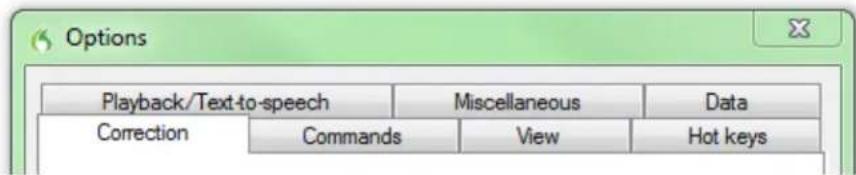
In the Options dialog box, you see several tabs you can use to set up various as tating with the product:
text_image
Playback/Text-to-speech Miscellaneous Data Correction Commands View Hot keysFor more information on each tab, see the online Help.
Modifying administrative settings
Note: If you did a typical installation, open the Administrative Settings dialog box by running Dragon without opening a user and selecting Tools > Administrative Settings.
In the Administrative Settings dialog box, you see these tabs:
■ Roaming—To set up roaming users.
- Miscellaneous—To create backup/distribution directories and control who can modify custom commands.
- Scheduled Tasks—To schedule voice recognition optimization and data collection improved accuracy, and let users modify the schedule.
For details, refer to the Help by clicking the Help button
Modifying formatting options for all users
If you chose to modify formatting options on the Custom Setup page during a calculation, the Auto-Formatting dialog box opens after the installation completes.
Note:
If you did not do a custom installation, to set up formatting: Run Dragon, open a user, a Formatting.
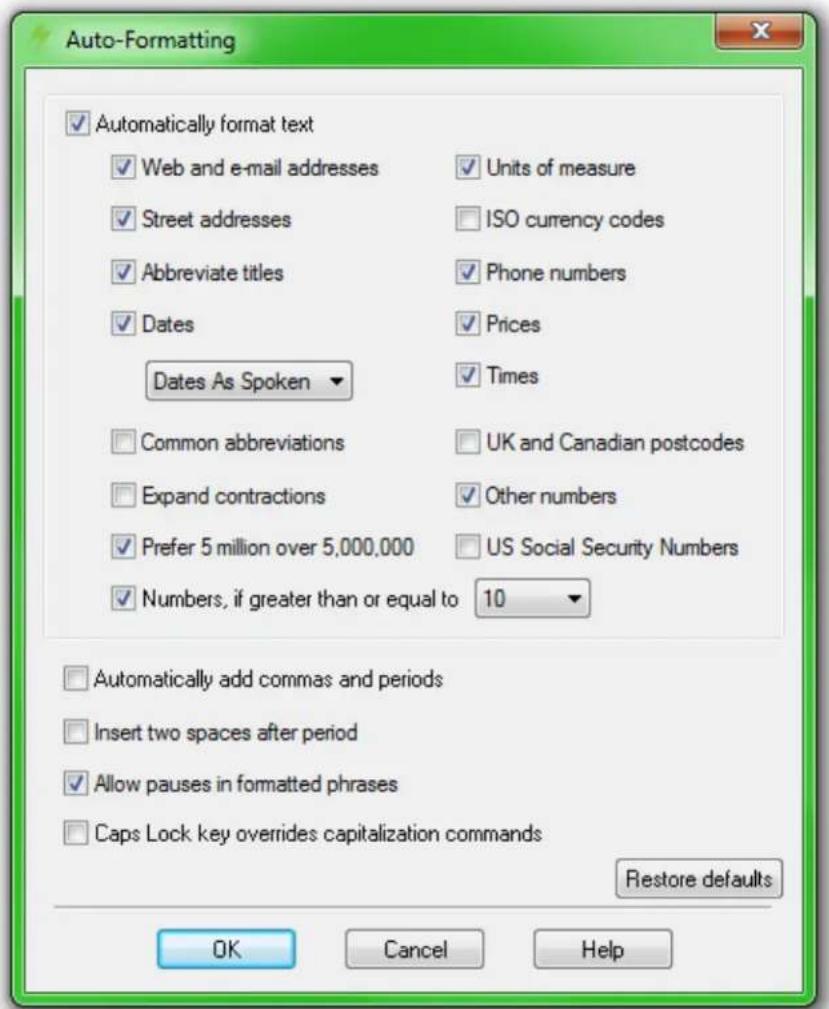
The Auto-Formatting dialog box for all versions of Dragon Naturally Speaking appears shown below.
text_image
Auto-Formatting ✓ Automatically format text ✓ Web and e-mail addresses ✓ Units of measure ✓ Street addresses ✓ ISO currency codes ✓ Abbreviate titles ✓ Phone numbers ✓ Dates ✓ Prices Dates As Spoken ✓ Times ✓ Common abbreviations ✓ UK and Canadian postcodes ✓ Expand contractions ✓ Other numbers ✓ Prefer 5 million over 5,000,000 ✓ US Social Security Numbers ✓ Numbers, if greater than or equal to 10 ✓ Automatically add commas and periods ✓ Insert two spaces after period ✓ Allow pauses in formatted phrases ✓ Caps Lock key overrides capitalization commands Restore defaults OK Cancel HelpChoose the options to apply to your dictated documents.
Creating your user profile
Before you can begin using Dragon, you must let Dragon create a user profile for son or healthcare provider who is dictating.
Your user profile stores acoustic information about your voice that Dragon uses to ognize what you say. This profile also stores any changes you make to the standar ulary—any special words, names, acronyms, and abbreviations you add.
When you launch the software for the first time, the Profile Creation wizard starts and leads you through creating your user profile:

text_image
Profile Creation Creating a user profile Before you can begin using Dragon, you must create a user profile that is unique to you. Your profile contains information about the sound of your voice, your writing style and the type of audio device that you use. On the pages that follow, we will guide you through this process. To see more information on creating a new user profile click here or Select "Next" to begin. Don't show this screen again. < Back Next > CancelNote:
If you upgraded a single user from an earlier version, Dragon opens that user's pr you upgraded multiple users, it displays profiles for all upgraded users in the Open dialog box.
To create a user profile
-
In the Creating a user profile page, click Next in the lower right corner to proceed.
-
Proceed through the wizard, filling in the information it requests and clicking N proceed.
When the wizard asks for your name, you can enter your first name only, a your first and last name.
The wizard asks for your age to help Dragon work with vocal differences it a with different age ranges.
The wizard also asks for region of the world you live in to help Dragon into speech based on regional differences.
- When the Help Dragon understand how your pronounce words page appears, select your accent.
The accents you can choose from are:
- Standard — Select if your accent is not covered by another choice are not sure which accent to select.
■ Australian accented English
■ British accented English - Indian accented English
■ Inland Northern US (Great Lakes area)— Upstate New York through Chicago area
■ SEAsian accented English—South East Asian
■ Southern US— Most of Southern United States, including Texas
■ Spanish accented English
Determining your own accent can be difficult. For example, say you grew up in or the United States but have lived long enough in another part to lessen your origin accent. If you have any doubt about picking an accent, select Standard and allow I learn your accent.
If you do not select a specific accent (in other words, you select the Standard ac may want to perform Acoustic Optimization after using the product for several hours tic Optimization updates your user profile with accumulated acoustic data from any c rections and additional training you may have done. Running Acoustic Optimization wi increase your overall accuracy. In the process of increasing your accuracy, Acoustic O mization may select a different accent for you.
If you select a specific accent, Acoustic Optimization will still increase your overall accent, but will not change your accent. Once you have selected a specific accent for a particular little change in the time of change it later.
Dragon lets you create and train users in multiple languages. If you have purchased with support for more than one language, you can add languages by later choosing the installation and having the Dragon DVD available to install the language file the process of creating user profiles.
-
When the How do you talk to your computer? page appears, select your type of microphone from the list of Microphones. If you record your speech using a recording device, select a recorder from the list of Recorders.
-
In the Review your choices page, be sure the information is correct before you p
-
Dragon automatically chooses a speech model to use as the foundation for your user profile. It also selects the vocabulary it uses to recognize words correctly by only on their sound, but also on their context. However, if you want to select speech model and vocabulary, you can click the Advanced button and in the C page select a:
- Speech model from the drop-down list for Speech model. Dragon us the speech model to adapt to your voice during training. Dragon automatically recommends the type of speech model and vocabulary that appropriate for your computer's speed/memory. Usually, you should follow Dragon's recommendation
■ Type of vocabulary from the Vocabulary type list:
■ Medium— Requires at least 512 MB of RAM.
■ Large— Requires at least 1 GB of RAM.
■ Empty Dictation— (Professional edition only) Vocabulary with a language model but without any words, designed for experienced users or resellers who want to create highly specialized vocabularies.
- Click OK to save your selections in the Choose models page and return to the Profile Creation wizard.
- Click the Create button in the lower right corner of the page to create your When Dragon finishes creating your user profile, it takes you through the next part process. Proceed to Setting up/positioning your microphone.
Setting up, positioning, and checking your microphone
When Dragon finishes creating your user profile, it displays the Position your microphone early page, where it begins to lead you through the process of setting up your mic Following the wizard's instructions, position your microphone.
Positioning the microphone correctly is important. If the microphone is out of place, Dragon might not be able to hear you clearly and make mistakes.
Consistent positioning is also important. Make sure that you position the microphone same way each time you dictate.
Here are some tips on using particular types of microphones:
Using a headset microphone
■ Position the microphone about a half-inch (approximately the width of your mouth from your mouth and a little off to the side. The microphone should not mouth, but it can be almost touching your lips.
- If you need to move the microphone out of the way, lift the “boom” up your head, rather than bending it out of position or removing the headset.
Using a handheld microphone
- Hold the microphone one to three inches from your mouth and a little off side.
- If the volume display on the DragonBar turns red, try holding the microphone slightly farther from your mouth.
Using an array microphone
■ Position the array 18 to 30 inches from/pointed at your mouth.
- Avoid blocking the path between your mouth and the array, for example by book or paper in front of your face.
- Avoid having any source of noise or signal other than your voice directly fa array within at least 15 feet.
After you have positioned the microphone, click Next to continue with Checking micro volume/sound quality.
Checking microphone volume/sound quality
After you have positioned the microphone and clicked Next, you see the Dragon will your volume page.
- Click the Start Volume Check button and then read aloud the text displayed in the box.
- When the program beeps to indicate it has finished checking the volume, click
- When the Dragon will test the quality of your sound system page appears, click Start Quality Check and then read aloud the text displayed in the box.
- The program beeps when it has finished evaluating the sound quality of your s Dragon displays Passed, click Next to continue.
Note:
Windows Vista or XP: If you get a Sound level is too low error while creating a Dragon user profile, to boost the microphone's volume:
- Select Start > Control Panel > Sound and Audio Devices.
- On the Voice tab, click the Volume... button under Voice recording to open the Recording Control dialog box.
- Set the volume level for the appropriate input device type.
Continue with Training a new user profile.
Training a new user profile
Immediately after you create your profile, before you begin dictating, you train Drago understand your voice.
Performing training either during or after creating a user profile enhances your recognition accuracy. In initial training you read aloud for several minutes from one of the av
Note:
For information on training a mobile user, see (link).
If you skipped training earlier to open a user profile, from the DragonBar menu, file > Open User Profile and select your name in the list; then click Open to proceed. Since you have not completed training, options for Training appear.
To train a new user
- When the Read text aloud to train Dragon page of the wizard appears, choose from these training options:
■ Show the text with prompting
■ Show the text without prompting
- Skip training (not recommended)
-
In the Read Training Text page of the wizard, click Go.
-
If you chose the first training option (Show text with prompting):
■ A yellow arrow showing you where to start reading appears.
- Click Go and begin reading the text. To take breaks while you're
the program, click Pause.

Note: To advance through the first two screens, you must say the sentences pausing. For the rest of the screens, it's okay to pause in the middle of
- When the words change color, it means the computer has heard an ognized them.
-
If you need to re-read the same words, click Redo, then re-read them. If the computer still doesn't get it, just click Skip. Otherwise, click No continue.
-
If you chose the second training option (Show text without prompting):
-
In the Read Training Text page, under Choosing text to read, choose a text to read aloud and click Next.
- When the 'Text Display page' appears, choose how you want to read the text, from the screen or from a printed page. If you choose to: a printed page, click Print to print the text.
- Click Next to continue.
- If you chose to read the text from the screen, the Speaking to the computer page appears and advises you to position your microphone.
■ After you position your microphone, click Train to begin. - In the Speaking to the Computer popup, click Begin Training and read the text in the box.
-
Click Next page to proceed from page to page.
-
When the list pops up, choose a text to read aloud and click OK.
You need to read for only about 5 minutes to train Dragon to recognize your
You can take breaks during this training by clicking Pause. Don't worry if you make mistakes or laugh. You should try to read exactly what you see on the screen, b
you read something incorrectly. The computer either ignores the mistake or positive yellow arrow at the beginning of the text for you to reread it.
The progress bar shows how much text is left to dictate.
Note: During training, dictating punctuation is not necessary.
- When you've read enough, the Training wizard displays a congratulations message. OK and Dragon starts adapting to your voice.
Proceed to Adapting to your writing style, scheduling tuning.
Adapting to your writing style and scheduling tuning
After it adapts to your voice, Dragon's Accuracy wizard appears and prompts you to adapt Dragon to your writing style, then schedule regular Acoustic and Language Moding, and optionally schedule Data Collection.
Adapting to your writing style (Let Dragon search for words an add them now)
Dragon can analyze your writing style to increase your overall recognition accuracy. T scans documents in your My Documents directory—Microsoft Word, Corel WordPerfect, text files, html files, and rich text files (.rtf).
Adapting to your writing style can add 5 to 30 minutes to user training. Close all grams when you run this step.
Note:
Though we recommend that you run this part of the New User Wizard, if you p this step, select Skip this step rather than Cancel.
-
In the Let Dragon search for words and add them now page of the Accuracy wizard, to have Dragon search for words and phrases you use in your email messages, select the mails check box. To have Dragon search your word processing and text files, select the My Documents check box.
-
Click Start to initiate the search for words. While scanning your files, the dialo plays the process's status. When Dragon finishes searching, it displays a message you to click Next to continue.
Let Dragon automatically improve your accuracy
After it adapts to your writing style, the Accuracy wizard gives you the option of setting up a schedule to automatically run Acoustic and Language Model tuning processes:
Note:
Acoustic and Language Model tuning processes add commonly used word sequences that user dictates as well as acoustic data from any corrections and additional training that executes. Scheduling tuning processes helps Dragon learn from you and makes your citation more accurate.
- In the Let Dragon automatically improve your accuracy page, to have Dragon periodically tune your user profile to improve your accuracy, be sure to check the Automatically in racy check box. If you do not change the schedules, by default Dragon initiates tuning every Monday at 2 AM and Language Model tuning every day at 3 AM
- If you want to have Dragon tune your user profile at a different time or m often, click the Change Schedule button and, in the Select Time and Frequency dialog box, set the schedules on both the Acoustics and Language Model tabs. The schedules do not have to be the same. As a rule, you should try to run these processes when you are and run the Language Model tuning more often.
- Be sure that you check the Enable check box on both the Acoustics and Language Model tabs or the tuning processes occur on the default schedule, rather than the schedule
- Click Next to continue.
Scheduling data collection (Help us improve Dragon)
After it lets you set the schedule for accuracy tuning, the Accuracy wizard lets you set whether or not to collect data and schedule when it should be collected:
Note:
When you set Data Collection to run, it collects up to 500 MB of acoustic data and text from your dictation sessions. Once the data is collected, you have the option of sending Nuance to help improve the accuracy of future versions of Dragon. No personal in mation is ever sent to Nuance and participation in data collection is completely volu
- In the Help us improve Dragon page, you can choose:
■ Run Data Collection
- Don't run Data Collection but remind about this later
- Don't run Data Collection
-
If you choose Run Data Collection, click Change Schedule and set what time and how often the data is sent to Nuance in the Select Time and Frequency dialog box (Daily, Weekly or Monthly). If you do collect data, by default Dragon initiates the process every W at 12:30 AM.
-
Be sure that you check the Enable check box in the Select Time and Frequency dialog box or the collected data is sent to Nuance on the default schedule, rather than on the you set.
- Click Next to continue.
-
When the Congratulations, your profile is ready to use page appears, you can now:
-
Choose to run the tutorial.
- Learn about the many improvements in Version 12.
■ Modify how Dragon presents itself to you.
- Begin dictating.
- Click Finish to close the wizard.
To upgrade existing user profiles before dictating, proceed to Upgrading User Profiles.
How Dragon automatically configures user profiles
After you create a user, Dragon automatically analyzes your hardware and changes the settings of your users to optimize performance.
Depending on your hardware, you might receive a message that the amount of RAM ory) on your computer is relatively low for the operating system. When you use I such a computer, try not to have more than one or two applications open.
Upgrading User Profiles
If you chose to upgrade existing users during the installation, the User Upgrade Wizard appears the first time you run Version 12.
Note:
If you do not want to upgrade users right now, you can exit from the wizard a. Otherwise, you can start the User Upgrade Wizard from the Windows Start menu at any time.
To upgrade existing users:

text_image
User Profile Upgrade Wizard Select the profile(s) to upgrade Listed below are the profiles that will be upgraded. Use the "Browse" or "Remove" buttons below to modify the list. Note: You can upgrade more profiles later if desired. Upgrading one profile can take 2 to 20 minutes. See the Help for details. When you have finished adding or removing profiles to upgrade, select "Next". User profiles to upgrade: Current Location User Profile- To start the User Upgrade Wizard, select Start > All Programs > Dragon Naturally Speaking 12 > Dragon Naturally Speaking Tools > Upgrade Users. The User Upgrade Wizard appears.
- On the Select Users to Upgrade page, modify the list of users to include users that you want to upgrade. The wizard starts by including all users in the current folder as ca upgrade. You add users to the list by clicking the Add button and browsing for additional users in other locations. You remove users from the list by selecting them and the Remove button. After the list contains only the users you want to upgrade, click Next.
- Click Next and choose the location for the upgraded user profiles. As the User Upgrade Wizard modifies your user files to work with the newest version, it can place upgraded user in another location while keeping the old files untouched, in case need them again.
- Click the Browse button in the Choose Destination page of the wizard to select the location for the upgraded user profiles. If you do not set a location, Dragon places the default location (see Version 12 File Structure).
- (Optional) If you want to make changes to the user locations, base vocabularies, acoustic models, click the Advanced button and the Advanced Options dialog box opens.
In this dialog box, you can make finer adjustments to how the wizard upgrades users. You see a list of the users being upgraded. For each user you see the old location, vocabulary, and one or more acoustic models.
When you click on the location line of a user in the list, the New Location text box below the list becomes available. You can click Browse and select a new location.
When you click on the vocabulary line of a user in the list, the New Base Vocabulary text box below the list becomes available. You can choose a new base vocabulary for drop-down list.
When you click on the acoustic model line of a user in the list, the New Acoustic Model text box below the list becomes available. You can choose a new combination language model, and accent from the drop-down list.
- Click OK to return to the wizard.
- Click Next to proceed to the Upgrade Users page where you click Begin to begin the upgrade process. Expect to wait approximately 5 minutes for each user being upgraded.
- When the upgrade process is complete, click Finish.
Version 12 File Structure
Note:
File locations shown apply to installations in the default location.
The next two sections tell you where Dragon places files on your computer. The 1 vary, depending on your operating system.
Windows XP Pro/XP Home/Windows Server 2008 directory structure
You can specify this location during the installation:
C:\Program Files\Nuance\NaturallySpeaking12
\Ereg
\Help
\Program
\Tutorial (optional)
You cannot change this location—Dragon always installs these directories to your \Doc and Settings directory:
C:\Documents and Settings\All Users\Application Data \Nuance\N- naturallySpeaking12\
\Data
\Data\Training
\results
\Roaming Users
\Users
C:\Documents and Settings\<username>\Application Data \Nuance\N-naturallySpeaking12\Results
Windows Vista and Windows 7 directory structure
You can specify this location during the installation:
C:\Program Files\Nuance\NaturallySpeaking12
\Ereg
\Help
\Program
\Tutorial (optional)
You cannot change this location—Dragon always installs these directories to your \Documents and Settings directory:
C:\ProgramData\Nuance\NaturallySpeaking12
\Data
\Data\Training
\results
\Roaming Users
\Users
C:\Users\<username>\AppData\Roaming\Nuance \NaturallySpeaking12\Results
Cleaning up after uninstalling
The following files remain on your machine after you uninstall:
\Windows\Speech\
■ VText.dll
■ Vdict.dll
- WrapSAPI.dll
- XTel.dll
- Xcommand.dll
■ Xlisten.dll
■ Xvoice.dll
■ spchtel.dll
■ speech.cnt
■ speech.dll
■ speech.hlp
■ vcauto.tlb
- vcmd.exe
■ vcmshl.dll
■ vtxtauto.tlb
Dragon installs these files for Microsoft SAPI4 support. You do not need these files do not have other speech applications that require SAPI4. If you do have application require SAPI4 support, you might need to re-install those applications if you remove files.
Accessing log files, samples, and tools
You can open log files and samples from the desktop:
- Dragon log file (dragon.log) — Select Start > Programs > Dragon Naturally Speaking 12 > Show Dragon Log.
- NaturallySpeaking setup files (dgnsetup.log) — Select Start > Programs > Dragon NaturallySpeaking 12 > Show Setup Log.
■ Structured command samples — Select Start > Programs > Dragon Naturally Speaking 12 > MyCommands Samples. (Professional edition only)
- Tools — Select Start > All Programs > Dragon Naturally Speaking 12 > Dragon Naturally Speaking Tools. (Professional edition only)
Activating Dragon
The first time you start Dragon, you will be prompted to activate your copy of t. If you do not activate the program, you will be able to start Dragon several time activation, when you start Dragon for the sixth time, it will no longer open and be able to use the program until you activate it.
Nuance strongly recommends that you activate automatically.
To automatically activate Dragon
- Start Dragon. This displays the Activation dialog box.
- Click "Activate Now." This displays the Activation Screen.
You can also choose "Activate Later," which will prompt you to activate each time Dragon. If you start the program five times without activating, Dragon will be disah
- Click "Activate Automatically." This automatically activates Dragon and requires no other action from you.
To manually activate Dragon
- Start Dragon. This displays the Activation dialog box.
- Click "Activate Now." This displays the Activation Screen.
- Click "Activate Manually." This displays the Enter Key dialog box.
- To complete the manual activation, click on the URL listed at the top of the This URL opens the Nuance activation page.
- On the Nuance activation page, click "Generate Activation Key" to create an Active Key.
- Once activation key appears, select the entire number and copy it (CTRL+C). C first field of the Enter Key dialog box and paste (CTRL+V). This pastes the number into the Activate Key field
- Click OK to complete the activation.
Notes
- You must be connected to the Internet to activate Dragon Professional. The vation process sends only your product serial number and a number that unid identifies the machine where Dragon is being installed. No personal information transmitted to Nuance.
- If you make any hardware changes on a machine where Dragon is installed, be prompted to activate again. To preserve your activation status you can uni
Dragon, making sure to keep your User Profiles when prompted, before you your hardware changes. After making changes to your hardware, then re-install Dragon.
Chapter 3: Getting Started
This section contains the following topics:
About Dragon 50
Using Dragon Help 51
About dictation..52.
About the Results Display 53
Using the DragonBar...55
The DragonBar 55
The Text Control Indicator 59
Displaying the DragonBar 59
Controlling the DragonBar 61
Using the Microphone
Choose a speech device 63
Position your microphone properly 65
Using the Dragon Sidebar
Using the Dragon Sidebar.... 67
The Dragon Sidebar .tabs 70
Dragon Sidebar Tips 72
About Dragon
Dragon software is the premier product for large-Vocabulary continuous recognition of ural speech. With Dragon, you can create documents quickly and easily with your voice without being slowed by typing on your keyboard.
Dictate your documents
You can dictate, rather than type, into any program that accepts text. Dragon recog-ural and continuous speech and converts it to text on the screen.
Format and edit by voice
You can use voice commands to format text and make corrections and to activate tons and menus in supported word processors, such as Corel WordPerfect, Microsoft DragonPad, WordPad, and other supported programs.
Say What You See™ to control programs
You can use voice commands to start and switch among programs and to control windows, menus, and dialog boxes. Say "File," for example, to open the File menu.
Personalize Dragon for your voice and Vocabulary
You can train Dragon to recognize the way you speak and personalize the Vocabulary words you typically use.
You can increase accuracy by creating different Vocabularies, personalized for the different subject areas in which you dictate.
■ How to contact technical support
■ Recommended system requirements for Dragon
■ Copyrights
Using Dragon Help
In addition to using the Help menu to examine Help topics in Dragon, you can and navigate through topics using voice commands. The following table summarizes the commands.
| To Say | |
| Open Help "Give Me Help" | |
| Display topics | "Move Forward" or "Go Backward" |
| Search Help | "Search Dragon Help for," wherecan be any search string you want to look for in the Dragon Help. You can say this command even when the Help is not open.Search options available in the HTML Help that ships with Dragon include phrase searching using quotation marks. For example, you can say "Search open quote What's new in Dragon closed quote") to find only topics that contain that exact phrase. You can also search only previous search results, match similar words, and search topic titles only. Open the Help Search tab for details. |
| Open the sameple commandslist in the Sidebar | "View Sidebar" or "View Sample Commands" or "What Can I Say" |
| Select the Contents,Index, or Search tab | Say "Click Contents," "Click Index," or "Click Search" |
| Move in the Contents, Index list, Search list, or Select Topic list | "Move Down <1 to 20>" "Move Up <1 to 20>" |
| Open a topic from the Contents, Index list, Search list, or Select Topic list | Move to the topic or book you want and say "Press Enter Key." (In -Search tabs, you can also say "Display.") You can also dictate an ind search string. |
| Close Help "Close Help" or "Quit Help" | |
Note
Not all voice commands work in the Help window. For example, you can select the saying "Click Contents," "Click Index," or "Click Search," but you cannot use voice commands to select from the toolbar and you cannot click buttons by saying their name can use "Press Tab Key" to select buttons and "Press Enter Key" to press buttons:
About dictation
When you dictate, try to speak naturally and at your normal speed. Pronounce each clearly, not loudly, and in a way that is comfortable for you. Take occasional break dictate, by default Dragon displays a small Dragon icon as it listens to you and p esses your speech. When you pause, Dragon transcribes the text into your document. About the Results Display for details.
For best recognition, speak in longer phrases rather than short phrases or individual. If you are having recognition problems, do not speak slowly or deliberately.
Basic dictation commands
Dragon Top 5s: Dictation
Notes
■ Before you start speaking, make sure the microphone is on and the mouse cursor is placed in the window where you dictate.
- If your throat gets dry when dictating, you can sip water through a straw to minimize noise that might interfere with recognition.
- If the borders of the Results box turn blue, then Dragon has interpreted that dictation as a command rather than text to transcribe.
About the Results Display
Dragon's Results Display is streamlined to reduce distraction and to encourage better tation practices. Rather than the traditional floating Results Box, a small Recognition-in-Prog-
ress icon displays as you dictate. The simpler display is meant to encourage dictation longer phrases and sentences, which improves voice recognition.
When you pause, Dragon transcribes the text into your document.
You can set options to move the Results Display anywhere on the screen, keep it place, change its color and font size, or make it disappear after a recognition. And still display the traditional Results Box (see ), but Nuance recommends that you use display to avoid distraction.
The table below compares how Dragon gives you feedback during dictation with the Results Display, which leaves preliminary results turned off, and the more traditional method, which preliminary and final recognition results.
| Speech status | Results display behavior | |
| Preliminary results turned off | Preliminary results turned on | |
| Recognition in progress |  | |
| Dictation recognized and displayed | Editing in Dragon is fun |  |
| Recognition complete. If you prefer, you can also set the Results Display to Never Show, or to be hidden after a timed delay. |  | |
| Speech not recognized | Please say that again |  |
| Results context menu | Cancel Recognition Anchor Auto-hide Close |  |
| Command recognized.If Dragon recognizes a command, the bor-ders of the Results Box turn blue. exception to this behavior is when tate commands such as "New Line" "New Paragraph." |  The only you dic-or The only you dic-or | |
| Dictation is too loud | ### | ### |
| Audio volume is too high | ### | ### |
Using the DragonBar
This section contains the following topics:
The DragonBar 55
The Text Control Indicator 59
Displaying the DragonBar 59
Controlling the DragonBar 61
The DragonBar
The DragonBar is the main Dragon toolbar you use to control the Dragon software. The DragonBar appears at the top of the display when you start Dragon for the first time. When you see the DragonBar, you can use Dragon to dictate into word processors, e-mail, and other programs.
You can change the appearance and behavior of the DragonBar to suit your working style. By default the DragonBar is docked to the top of your screen. To change the DragonBar's mode, see Displaying the Dragon Bar.
The DragonBar contains the following controls, starting from the left side:
The Dragon icon
Click the Dragon icon 📊 (or right-click anywhere on the DragonBar) to display a menu that controls how the DragonBar looks and acts on your screen.
The microphone icon
The microphone icon 📋 displays on the DragonBar and in the Windows taskbar. Click the microphone icon to turn the microphone on and off. The following table shows the phone states you'll see:
| The way the microphone icon displays | What you can do | |
 | The microphone is on and Dragon is listening. Dictate or say commands as needed.When you are finished or want to pause from ▶Say "Go to Sleep" or click the forward slash put the microphone to sleep. ▶Say "Microphone Off" or click the plus key (+) off voice recognition. | |
 | The microphone is on and Dragon is listening a tate. | |
| The way the microphone icon displays What you can do | |
 | The microphone is asleep and Dragon is temporarily not listening.When you want to resume dictating:►Say "Wake Up" or click the plus key (+) to resume voice recognition. |
 | The microphone is turned off.When you want to resume dictating, do one of the following:Press the plus key (+) on the numeric keypad.Click the microphone button on the DragonBar.Click the microphone icon in the Windows taskbar. |
 | No User Profile is loaded and the microphone is off. |
See Controlling the Microphone in the Dragon Help for more information.
The Volume Display
When Dragon hears you well, the volume display turns green and expands to the right. When you pause between words, the volume display turns yellow and contracts color displays when the microphone is turned off or is not responding. The display gray when the microphone is in Sleep Mode.
The Text Control Indicator
The DragonBar includes a Text Control Indicator that changes to indicate the level speech support in the selected application. See The Text Control Indicator for details.
Recognition Mode Indicator
The Recognition Mode Indicator is an icon on the DragonBar that changes its appc
when you change Dragon's recognition mode. The default is Normal mode
You can set Dragon to interpret your speech in the following ways:
- Dictation only - Dragon listens for dictation of words and punctuation only. I you dictate is interpreted as a command.
- Commands only - Dragon listens for dictation of commands only. Nothing you tate is interpreted as words (except commands), numbers, or letters.
- Numbers - Dragon listens for dictation of numbers, commands, and punctuation Nothing you dictate is interpreted as words (except commands) or individual let
- Spelling - Dragon listens for dictation of individual letters, commands, and punctuation only. Nothing you dictate is interpreted as words (except commands) or numbers.
The table below provides a brief overview of the Recognition modes icons. Click th for more information about using the Recognition modes.
| Drag-onBar Mode icons | Recognition modes What they do | |
| Normal Mode | Dragon's default mode of dictation. In Normal Mode, Dragon distinguishes dictation from words, numbers, and commands by analyzing what you say between pauses. Say "Start Normal Mode" or "Normal Mode On." | |
| Dictation Mode | A restricted recognition mode that causes Dragon to interpret everything you say as dictation and nothing is interpreted as a command. Dictation Mode can be helpful if you want to dictate as quickly as possible, or dictate looking at the words Dragon transcribes. Say "Start Dictation Mode" or "Dictation Mode On." | |
| Command Mode | A restricted recognition mode that causes Dragon to interpret everything you say as a command and nothing is interpreted as dictated text. Say "Start Command Mode" or "Command Mode On." | |
| Numbers Mode | A restricted recognition mode that causes Dragon to recognize only numbers. If you are dictating only numbers (including currencies), working in this mode increases recognition accuracy. Say "Start Numbers Mode" or "Numbers Mode On." | |
| Spell Mode | A restricted recognition mode that causes Dragon to recognize only letters, numbers, commands, and punctuation. Spell mode is useful for dictating unpronounceable alphanumeric strings, such as part numbers and license plate numbers, and other terms you anticipate Dragon won't know, such as Web addresses, words in a foreign language, or unusual product names. Say "Start Spell Mode" or "Spell Mode On." You can still use commands while in Spell Mode. | |
Message area
Dragon's microphone is off; you can press its hotkey or click its icon to turn it on.
To the left of the menus is a messages display, which shows Dragon's current status as whether the microphone is on or off. If you turn off "Show messages" on the toolbar shows in place of the Message area.
The menus
Profile Tools Vocabulary Modes Audio Help
The menus on the DragonBar contain the commands you can use while working in
Extras toolbar icon
Click the icon or say "Show Extras Bar" to display the Extras toolbar, which cont lowing features:
Display Correction menu
Correction...
Click the Correction button to stop playback and correct a mistake.
Playback controls
Use the controls to hear audio files of dictation:
- Begin Playback
■ Stop Playback or Text-to-speech - Begin Rewind
- Begin Fast Forward
Read That button

Click the Read That button to have Dragon read back a recording of your dictatic
Transcribe button
Click the Transcribe button to open the , which you use to transcribe recordings of tation made on portable recorders.
Open User Profiles button
Displays the name of the current User Profile to the right of the Transcribe butto on the User Profile name to open the . Note that this button appears only when docked to the top or bottom of your screen.
Notes
- Unless your computer is equipped with a full-duplex sound card, it's not poss stop playback by voice, because the computer can't hear speech when it's play back dictation.
■ Playback is available for documents dictated with Microsoft Word, Corel Word-Perfect, and DragonPad. only until you close a document. After you close a ument, Dragon deletes the recorded dictation for that document.
- The "Show Extras Bar" voice commands toggle the state of the Extras toolbar, other words, if you use this command to show the Extras toolbar, saying that again hides the Extras toolbar.
The Text Control Indicator
The DragonBar includes a Text Control Indicator that changes to indicate the level of speech support in the selected application.
Full Text Control
The Text Control Indicator turns green (as shown) when you use programs and wir with Full Text Control. Most standard text fields allow full Full Text Control capabilities.
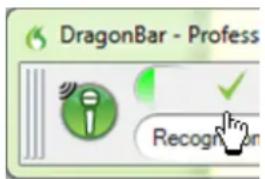
text_image
DragonBar - Profess RecognThe commands that quote text from the screen (select
Basic Text Control
When Dragon has Basic Text Control, the Text Control Indicator turns gray (as shown), indicating that you may have some difficulty selecting and editing dictated text.

text_image
DragonBar - Profess DragonIf you have difficulty dictating or correcting text in a particular program or window, recommends that you use the Dictation Box.
For more information
For more information, see:
■ Using the Dictation Box
Displaying the DragonBar
There are five different ways (or modes) that you can display and use the Dragonl can also specify whether or not the DragonBar always appears on top of the activ
To open a menu on the DragonBar
- Say "Switch to DragonBar" to make the DragonBar active
- Say the name of the menu and menu item you want to open.
For example, say "Switch to DragonBar" then "Tools" then "Auto-Formatting Optic
To change the DragonBar display mode
- Click on the Dragon icon on the left side of the DragonBar or right-click an the DragonBar to open the DragonBar shortcut menu.
- Click the mode you want. The DragonBar has five display modes:
DragonBar Docked to Top
The DragonBar always stays at the top of the screen. This is the mode the DragonBar appears the first time you start Dragon.
DragonBar Docked to Bottom
The DragonBar always stays at the bottom of the screen. If the Windows bar is visible at the bottom of the screen, the DragonBar appears just al
Floating DragonBar
The DragonBar appears in a window you can drag around the screen.
Clinging DragonBar
The DragonBar "clings" to the top left of the active window. When you the active window to a new location on your screen, the DragonBar movit. In Cling mode, you do not see the Extras toolbar icon.
Tray Icon Only
The DragonBar is not visible on the screen. Only the microphone icon in Windows system tray indicates that Dragon is running.
To return to the last DragonBar mode, right-click on the microphone icon click Restore Previous DragonBar Mode.
To switch between DragonBar displays
You can also say "Switch To," "Change To," or "Select" and the name of the n example, if the DragonBar is set to Docked to Top, you could say "Switch To I Bottom" or "Change To Floating DragonBar" and so on.
Always on Top
By default, Dragon always appears "on top," meaning it is in the foreground of your computer display. For the Floating DragonBar, you can change the setting so that the drops into the background like other window when you maximize or open a new large enough to hide the current one.
Note: These commands toggle the state of the Floating DragonBar. In other words, use a command to turn off the Always On Top setting, and you then say the of the DragonBar reverts to Always On Top.
To change the setting
-
Click on the Dragon icon on the left side of the DragonBar or right-click an DragonBar to open the DragonBar shortcut menu.
-
Do any of the following:
■ Say "Set DragonBar to Always On Top" or "Make DragonBar Always on Top."
- On the DragonBar shortcut menu, click Always on Top.
Note
When you set the DragonBar to "Always on Top" it covers parts of other Dragons such as the DragonPad and Help screens. If necessary, you can turn off "Always or move the windows around so that they are not obscured.
Controlling the DragonBar
You can control the DragonBar and get help with Dragon using the following voice commands:
| To Say | |
| Click a DragonBar menu item | 1. "Switch to DragonBar" to make the DragonBar active.2. The name of the menu you want to open. |
| Start the DragonPad word processor | "Start DragonPad" |
| Display Dragon Help | "Give Me Help" |
| Display common voice commands for your current program, window, or text field | "What Can I Say" |
| Switch the DragonBar mode | "Switch To" or "Select" and the mode name ("Floating Mo "Docked to Top Mode," "Docked to Bottom Mode," "Cling N "Tray Icon Only Mode") |
| To Say | |
| Display the DragonBar when it is Tray Icon only mode | "Open Dragon's tray menu" in |
| Change the DragonBar Always on Top setting | "Set DragonBar to Always On Top" or "Make DragonBar Always on Top"These commands toggle the state of the DragonBar. In other words, if you use one of these commands to make the DragonBar appear always on top and you then say the command again, the DragonBar will be put into a state where it can be covered by other windows. |
| Exit Dragon (and close the DragonBar) | 1. "Exit Dragon"If you also have your User Profile open and have made corrections with the Correction menu, or made updates with the Vocabulary Editor, Dragon asks if you want to save the changes.2. Say "Yes" to save the changes.You can use the "Exit Dragon" command from the DragonBar Control menu (click the Dragon icon at the left) and from the Profile menu. |
Note
When you set the DragonBar to "Always on top" it will cover secondary DragonPad and Help screens. In these cases, you will have to turn out "Always on top" state or move the windows around so that they are not obscured
Using the Microphone
This section contains the following topics:
Choose a speech device 63
Position your microphone properly...65
Choose a speech device
Use this screen to tell Dragon what type of dictation source you'll be using. If you add another dictation source later on, you can later.
Microphone (live dictation)
Use this section for details about microphone choices.
Mic-in jack (most common)
Select this option if your microphone has jacks.
- Computers with built-in audio usually have mic-in jacks on the front. If your puter has jacks in both the front and back, connect your microphone to the
- Most newer computers and microphones use standard colors for jacks and plug microphone jack and plug are pink and the headset jack and plug are green.
- Some newer computers have a combined jack for headset and microphone audio your headset has two separate plugs but your computer has a combined jack, headset into a Y-splitter adapter, then plug the adapter into the jack.
- Older computers and microphones use a variety of labels and colors, often with words. They may be labeled "Mic" or with a symbol representing a microphone microphone plugs and jacks are red.
- Microphone jacks are different from line-in jacks, which you normally should n Microphones typically produce low audio levels that get boosted when connected the microphone jack. The line-in jack doesn't boost audio levels.
USB
Select this option if your microphone has a USB connector. USB microphones don't a computer's sound card to process speech, so using one can alleviate problems with card quality.
Connect your microphone directly into one of your computer's USB ports, not through port of a docking station or through a USB extension or hub.
Bluetooth and Enhanced Bluetooth
Select one of these options if you have a Bluetooth microphone and your computer tooth-enabled.
If you plug in the USB adaptor for a certified wideband Bluetooth microphone, suc Plantronics “Calisto II” BT-300, before you open Dragon, the list of audio sources tain the option “Enhanced Bluetooth” during this step of the user profile wizard.
For a list of fully supported Bluetooth microphones, please see http://support.nuance.com/compatibility/.
Note: Please consult your Plantronics Calisto Bluetooth user guide for setup and operational details with your device. The user guides are also posted on the Nuance U umentation page. See also If your Bluetooth microphone doesn't connect with Dragon the Dragon Help.
Dragon Remote Microphone application
Use the Dragon Remote Microphone application if you want to use a mobile device wireless microphone.
If you chose the Dragon Remote Microphone application, you must also install the Remote Microphone application on the mobile device. For more information, see Using mobile device as a wireless microphone in the Dragon Help.
The Dragon Remote Microphone application supports the following devices:
- Apple iPhone 3GS and higher, iPad 1, 2, and 3, and iPod touch 4 and higher iOS 4.2 and higher. For iOS devices, the app is available from iTunes and Store.
- Mobile devices and tablets using Android OS 2.2 and higher. For Android-based devices, the app is available from Google Play (formerly called the Android N
For more information about downloading and installing the application and the latest supported devices, on Nuance.com _click here.
Line-In Jack (not recommended)
Use this option if you are connecting a microphone through a line-in jack (not recommended). Microphones typically produce low audio levels that get boosted when connected to the microphone jack. The line-in jack doesn't boost audio levels.
Recorded audio device
Use this section for details about selecting handheld recording choices. If your Drago installation is configured to use with commands only, you won't see this section.
Handheld or smartphone with recording application
Select this option if you'll be dictating with a mobile device capable of storing digital ings and transferring them to your computer.
Digital audio recorder (includes .wav, .mp3, .wma, .dss, .ds2)
Select this option if you'll be dictating with a digital recorder.
You can only use unencrypted .dss or .ds2 files when creating a User Profile with recorder.
Sony "Digital Voice Editor" software (.msv, .dvf)
Use this option if you'll be dictating with a Sony Digital Voice Editor recorder.
Notes
- If you switch between microphones you must at least rerun the audio check. accuracy, create a different User Profile for each device you plan to use.
- Some editions of Dragon allow you to create and train User Profiles with m tation sources. For example, with the same User Profiles, you can dictate with set microphone or a portable recorder. For more information, see .
Position your microphone properly
Use this screen to help you position your microphone for optimal speech recognition. The microphone correctly is one of the most important things you can do recognition accuracy. If the microphone moves even slightly away from the optimal p your recognition accuracy may significantly deteriorate.
Use the pictures and descriptions on the wizard screen and in this topic as guides phone positioning.
To position a headset microphone
- Adjust the headset so that it fits comfortably.
■ Move the microphone element to the side of your mouth to avoid noise from ing.
■ Make sure that the microphone element is close to your mouth, but not touch (about an inch from the side of your mouth).
- Confirm that the front of the microphone points toward your mouth. The first be indicated by a colored dot, the word "Talk," or some other label.
■ Position the headset consistently every time you use it.
The following graphics illustrate how to wear a headset microphone.
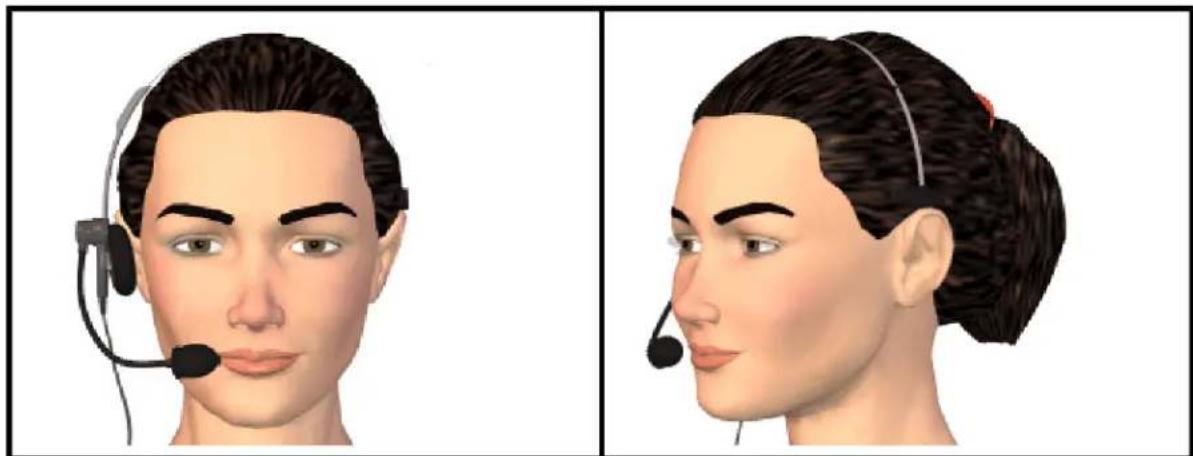
natural_image
Side-by-side 3D renderings of a person wearing a headset, head tilted upward (no text or symbols)To position a handheld microphone or recorder
- Point the microphone element to the side of or below your mouth to avoid breathing. Do not hold the microphone directly in front of your mouth.
- Hold the microphone in a comfortable position. Make sure not to hold it in ward, tiring position.
■ Make sure that the microphone element is about 1 to 3 inches away from mouth. You should keep the microphone distance in this range, but you don't to always keep the microphone at exactly the same distance. - Hold the microphone so that the front points toward your mouth. Don't talk side of the microphone.
- Hold the microphone consistently every time you use it. Be careful not to n microphone or your head suddenly.
- Do not use a microphone stand or holder because it will be harder to keep sistent position and the stand may conduct noise.
Using the Dragon Sidebar
This section contains the following topics:
Using the Dragon Sidebar 67
The Dragon Sidebar tabs 70
Dragon Sidebar Tips 72
Using the Dragon Sidebar
Use the Dragon Sidebar to see sample commands and tips that update dynamically with switch between programs and windows. For the list of programs with the highest compatibility with Dragon, see Dragon Sidebar Help and Tips contexts.
The Sidebar displays automatically when you open a Dragon User Profile. You can the default display setting of the Sidebar from the Miscellaneous tabMiscellaneous tab of the Options dialog box. If the Sidebar is closed, you can open it any time by saying Dragon Sidebar".
The Sidebar is divided into upper and lower sections, called panes.
- The top pane of the Sidebar provides clickable links to Help topics, shows of commands available in the current application, and organizes the information tabs. See Dragon Sidebar tabs for details.
- The lower pane of the Sidebar contains tips. See Dragon Sidebar Tips for details.
You can dock the Sidebar on the left or right side of the screen, set it to aut to "float" like other windows, change its font size, and place it anywhere you want Windows Desktop. You can also maximize, minimize, or resize the Sidebar.
Controlling the Dragon Sidebar
You can use the following voice commands with the Sidebar, whether it's the active or not. Most commands require that the Sidebar be open.
| To | Say this | Or do this |
| Show the Sidebar | ► "What can I say?"►"Dragon Sidebar" (You can also use any of the following verbs: "Open", "Launch", "Start", "Show", or "Show Me")►"Sample Commands" (You can also use any of the following verbs: "Open", "Launch", "Start", "Show" or "Show Me")►"Command list" (You can also use any of the following verbs: "Open", "Launch", "Start", "Show", or "Show Me") | Select Dragon Sidebar from the DragonBar Help menu |
| To Say this Or | do this | |
| ►"Switch to Dragon Sidebar" | ||
| Show the Sidebar Home_tab | "Dragon Sidebar Home" Select the Home tab on the Sidebar | |
| Show the Sidebar Global_tab (displays when you are working in programs with Full Text Control) | "Dragon Sidebar Global" Select the Global tab on the Sidebar | |
| Show the Sidebar Mouse_tab | "Dragon Sidebar Mouse" Select the Mouse tab on the Sidebar | |
| Show the MyCommands_tab | "Dragon Sidebar My Commands" | Select the MyCommands tab on the Sidebar |
| Switch to the next Sidebar pane | ►"Go to the next pane" ►"Switch to the next pane" | Click the next pane on the Sidebar |
| Switch to the previous Sidebar pane | ►"Go to the previous pane" ►"Switch to the previous pane" | Click the previous pane on the Sidebar |
| Dock the Sidebar the right | tdDragon Sidebar dock right" Right-click on the Sidebar and select Dock right | |
| Dock the Sidebar the left | tdDragon Sidebar dock left" Right-click on the Sidebar and select Dock left | |
| Change the font of the Sidebar | sizeDragon Sidebar Font [Small | Medium | Large]" | Right-click on the Sidebar and select Font Size > Small, Medium or Large |
| Float the Sidebar | "Dragon Sidebar float" or ►"Dragon Sidebar undock" | Right-click on the Sidebar and select Floating |
| Auto-hide the Sidebar (not available Floating mode) | "Dragon Sidebar auto-hide" in | Right-click on the Sidebar and select Auto-hide |
| Disable auto-hide (not available in Floating mode) | "Dragon Sidebar stop hiding" | Right-click on the Sidebar and deselect Auto-hide |
| Set the Sidebar to Always on Top | With the Sidebar active, right click Right-click on the Sidebar and select Always on Top | |
| Turn off Always on Top | With the Sidebar active, right click and say "Always on Top" | Right-click on the Sidebar and deselect Always on Top |
| Increase the Side-bar width by 5 per cent | "Dragon Sidebar wider" | With the Sidebar active, press the key combination |
| Decrease the Side-bar width by 5 per cent | "Dragon Sidebar thinner" | With the Sidebar active, press the key combination |
| Hide the Tips "Dragon Sidebar hide tips" Right-click | on the Sidebar and deselect Tips | |
| Show the Tips "Dragon Sidebar show tips" Right-click | on the Sidebar and select Tips | |
| Show your custom commands | "Dragon Sidebar show my commands" | Select the My Commands tab on the Sidebar |
| Print Sidebar commands | - Right-click on the Sidebar | and select Print |
| Show the Sidebar Help | "Dragon Sidebar Help" Click the | question mark icon on the top right-hand side of the Sidebar window |
| Close the Sidebar | With the Sidebar active, say "Dragon Sidebar close" or "Close window" | Right-click on the Sidebar and select CloseClick Close on the Sidebar |
Dragon Sidebar Help and Tips contexts
Use the Sidebar for Help and Tips about Dragon in these programs and contexts:
■ Desktop commands
■ Global commands
- DragonBar, DragonPad, Dictation Box, Spelling window (see Dragon Help), Command Browser
■ Microsoft Word, Microsoft Excel, Microsoft Outlook, Windows Mail. Please see the Dragon Help for Microsoft Outlook Express, Microsoft PowerPoint, and Microsoft InfoPath.
■ .Corel WordPerfect (see Dragon Help)
■ .Lotus Notes (see Dragon Help)
■ OpenOffice.org Writer (see Dragon Help)
■ Internet Explorer and Mozilla Firefox
Note
A list of global commands appears if there is no list of specific commands available in program.
The Dragon Sidebar tabs
You can use the Dragon Sidebar to review examples of speech commands in your program or task. The contents of the Sidebar update automatically as you change applications. See Dragon Sidebar Help and Tips contexts for details.
The Sidebar displays tabs across the top that you can click for the most popular for your current task. Click the following links for details about the tabs:
■ Home tab
■ Global tab
■ Mouse tab
■ MyCommands tab
Click the green subheadings in the Sidebar to follow links to Help topics about how voice commands with your programs.
See Using the Dragon Sidebar for more information.
Home tab
Use the Home tab to review examples of voice commands for programs with Full trol. Below is an example of what you'll see if you're working in Microsoft Word or Corel
WordPerfect. If you're working in Microsoft Outlook Express, you'll see Outlook Expr commands, and so on, for all programs with Full Text Control. Click the green Si headings for detailed Help topics.
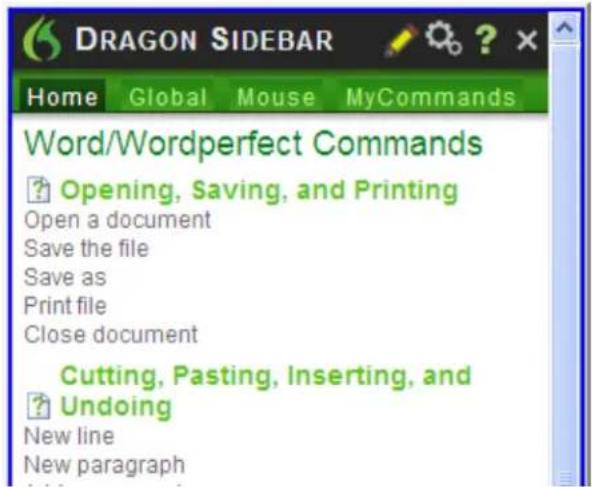
text_image
DRAGON SIDEBAR Home Global Mouse MyCommands Word/Wordperfect Commands ? Opening, Saving, and Printing Open a document Save the file Save as Print file Close document Cutting, Pasting, Inserting, and Undoing New line New paragraphGlobal Commands
For programs with Basic Text Control, the Home tab displays a list of common dictation commands. Click the Sidebar subheadings for detailed Help topics.

text_image
DRAGON SIDEBAR Home Global Mouse MyCommands DragonBar Commands ? Controlling the Mic Go to sleep/Stop listening Wake up/Listen to me Microphone off ? Switching Recognition Modes Start Normal Mode Start Dictation Mode Start Spell Mode Start Numbers ModeGlobal tab
You can click the Global tab for a list of Global commands available in programs with Full Text Control. Click the Sidebar subheadings for detailed Help topics.

text_image
DRAGON SIDEBAR Home Global Mouse MyCommands Global Commands ? Control the Mic "Go to sleep" "Wake up" "Microphone off" ? Get help "Give me help" "Search Dragon Help forMouse tab
Click the Mouse tab to review examples of common voice commands you can use the mouse in your current application. Click the Sidebar subheadings for detailed Helpics.
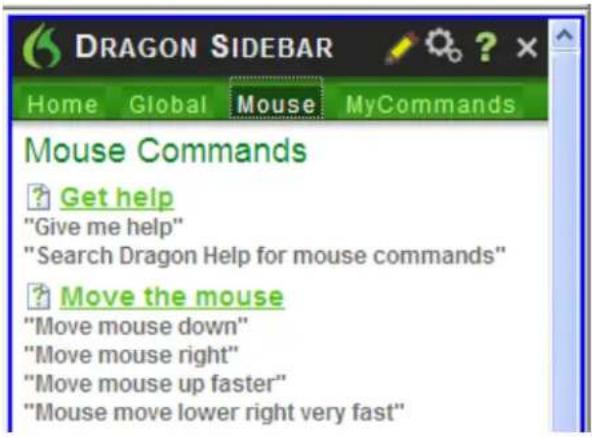
text_image
DRAGON SIDEBAR Home Global Mouse MyCommands Mouse Commands ? Get help "Give me help" "Search Dragon Help for mouse commands" ? Move the mouse "Move mouse down" "Move mouse right" "Move mouse up faster" "Move mouse lower right very fast"MyCommands tab
Use the MyCommands tab to view custom commands you have created. Click the Subheadings for detailed Help topics.

text_image
DRAGON SIDEBAR Home Mouse MyCommands This tab displays any custom voice commands you created using The MyCommands Editor. You can create custom voice commands to automate repetitive text entry and graphics insertion tasks like boilerplate, logos, and scanned signatures while working in virtually any Windows application. In some editions of Dragon you can use the MyCommands command-and-control and advanced scripting features to control the compute by voice commands, voice macros, and/or programs. For more information, see About the Commands Editor.Note
This topic shows examples only. Open the Sidebar to see all of the available comt
Dragon Sidebar Tips
The Dragon Sidebar shows randomized tips about the current application or task context.
To make the Dragon Sidebar active if it isn't already, use the Show the Sidebar
Tips display in the lower pane of the Sidebar window. You can hide or display the tips, and navigate them using links for Back and Next.
Chapter 4: Dictating Text
This section contains the following topics:
Dictation Basics 73
Undoing actions 74
Correcting text errors as you..dictate..75.
Dictation commands 76
Typing or spelling...text....77
Spelling words 78
Dictating numbers 80
Using the Dictation .Box 83
Using the Dictation Box 83
Using Dictation Box in unsupported applications 83
Turning off the Dictation Box 83
Unsupported applications....83
Transferring your .text 84
The Full Text Control Indicator 84
Dictating in unknown text fields 85
Editing text in unknown text...fields....85
Defining how the Dictation Box works in different applications.
Unexpected behavior or text in the Dictation...Box....
Dictation Box Settings 86
Using DragonPad 89
About DragonPad 89
Changing the way text wraps on your screen. 8
Dictation Basics
Dictate to Dragon much as you would dictate to a person transcribing your dictatio default you must explicitly say most punctuation and capitalization other than for pro names or at the beginning of a sentence. You can have Dragon automatically insert and periods in most situations by selecting the "Automatically add commas and perio on the Auto-formatting dialog box. For more information, see Dictating punctuation at bols and Dictation commands.
The following table describes some basic dictation commands.
To start dictating, just say whatever you want to say, speaking normally in phrases.
| To Say | |
| Start a new paragraph (press the Enter twice) | EntNeweyParagraph" |
| Start a new line (press the Enter key once) "New Line" | |
| Enter punctuation marks, such as "!" | The name of the punctuation mark, such as "exclamation point" |
| Dictate symbols or special characters as "®" | sthe standard name of the symbol, such as "registered sign" |
Complete listing of dictation commands
Click on the following links for more information about common dictation tasks:
Dictating e-mail and Web addresses
Undoing actions
Moving the cursor
See also Working in Programs on page 127
In the Dragon Help, see:
Dictating in programs
Dictating punctuation and symbols
Dictating proper and place names
Dictating hyphenated and compound words
Dictating acronyms and abbreviations
Dictating a bulleted list
Replacing what you last dictated
Undoing actions
You can reverse the result of a command or dictation in the following ways:
To undo most actions
▶ Say "Undo That," "Undo Last Action," or just "Undo."
Example:
To undo the command "Italicize That," say "Undo That."
To undo dictation
▶ Say "Scratch That."
Example:
To remove text just after you dictated it, say "Scratch That."
Notes
- You can cancel a selection by saying "Unselect That," selecting different text, or moving the insertion point to another part of the document.
- The "Undo That" and "Undo Last Action" commands send an undo (CTRL+z) command to the active program. The result of the command depends on which active and how it handles the undo command. For example, if you say "Un twice in a row in the DragonPad window, the second Undo reverses the firm mand and restores the original dictation. Other programs may behave differently.
- The Accuracy Center provides a central location for taking advantage of all tools available to ensure excellent recognition. For more information, see Using Accuracy Center.
Correcting text errors as you dictate
Use the procedures in this topic if you notice that Dragon misrecognizes a word of while you are dictating. When you correct errors, Dragon learns not to make the s takes again.
Click here for Dragon's Top 5s: "Correcting text"
To correct a word or phrase with the Correction menu
-
Say "Select
," where text is the incorrect word or phrase. If the error is in the last thing you said, you can just say "Select That." (Also see Tips for selecting text). Dragon highlights the word or phrase, and the Correction menu appears. -
If the correct word or phrase is on the list, start spelling to choose it, or the number of that choice. For example, say "Choose 2." Do not say "Choose Two" or Dragon will transcribe the phrase as the text "Choose Numeral Two" 2" depending on how you set the number formatting options on the Auto-forma dialog box.
-
If the word or phrase you want is not on the list, spell the word, or say spell the word letter by letter.
Dragon's Smart Format Rules box may appear when you correct auto-formatted alphant text using the Correction command, the Spelling window, or the keyboard. For details: Using Smart Format Rules and Setting Auto-Formatting Options.
The Spelling window appears. You can use this dialog box to spell or type the c
Notes
- Dragon also learns from your typing – if you use the keyboard to correct recognized word, Dragon learns from the correction and can use the word that time you dictate it.
- The Accuracy Center provides a central location for taking advantage of all tools available to ensure excellent recognition. For more information, see Using Accuracy Center.
- The Correction tab of the Options dialog box lets you control the behavior Correction menu, including the commands that make it appear.
- If you would rather not see the Correction menu every time you select text, turn it off. On the Correction tab of the Options dialog box, clear the bo "'Select' commands bring up Correction menu." Then click Apply.
- If you want to open the Spelling window when you start to correct a word select "Correct commands bring up Spelling window" on the Correction tab of Options dialog box.
- If you select a phrase to correct that includes punctuation added to the sent matically, the list of corrections that appears in the Correction menu will include version without the automatically inserted punctuation.
- In some applications, you may have difficulty revising selected text. In this ca may need to use the Dictation Box. Just select the text you want to revise "Show Dictation Box" or "Edit Selection."
Dictation commands
When you are dictating, you can say the following dictation - also referred to as commands without pausing.
| Say To | |
| "new line" Press the | Enter key once |
| "new paragraph" Press | the Enter key twice, capitalize next word. |
| "cap" Type | with an initial capital |
| "caps on" Start typing words with initial capitals | |
| "caps off" | Stop typing words with initial capitals |
| "all caps" | Type in all uppercase |
| "all caps on" | Start typing words in all uppercase |
| "all caps off" | Stop typing words in all uppercase |
| "no caps" | Type in all lowercase |
| "no caps on" | Start typing words in all lowercase |
| "no caps off" | Stop typing words in all lowercase |
| "no space" | Do not put a space before |
| "no space on" | Stop putting spaces between words |
| "no space off" | Start putting spaces between words |
| "numeral" | Enter the next numbers stated as Arabic numerals (1,2,3 ...) |
| "Roman numeral" | Enter the next numbers stated as Roman numerals (i, ii, iii |
...)
Notes
- When you are in Dictation mode, Dragon interprets everything you say as dictation and only Dictation Commands are recognized. Dictation Mode can be helpful to want to dictate as quickly as possible, or dictate without looking at the word transcribes. Say "Start Dictation Mode" or "Dictation Mode On."
■ To enter the word "cap" (as in "baseball cap"), pause after saying "cap." - The capitalization and spacing modes are automatically canceled if you move at your document.
- If you move the cursor (insertion point) by mouse or keyboard, or change v the next word you say will not be capitalized. You may need to capitalize manually and insert a space.
- You can enable or disable some Dragon's capitalization commands by setting the "Caps Lock key overrides capitalization commands" option in the Auto-formatting dialog box.
Typing or spelling text
In the Spelling window, you can use the keyboard to enter words as well as say the words. You can spell continuously or you can pause between letters. As you try each letter, the list of alternatives changes. If the text you want appears before you you can simply choose it.
To type or spell text
- Type or say the letters of the word(s).
- If the text you want appears in the list, choose it. For example, say "Choose
- If necessary, type or spell the word(s) completely.
- Say "Click OK."
The Spelling window closes and the text is entered in your document. If you had text to correct, the new text now replaces the old text.
Note
The "Scratch That" command is not available in the Spelling window. If you need a dictation error while you are using the Spelling window, you must use the Backs Delete command.
Voice commands that work in the Spelling window
| Command Result | |
| Choose <1-9> | Chooses a number from the list of alternative spellings |
| Select <1-9>Edit <1-9>OrModify <1-9> | Selects a line from the list of choices in the Spelling window and it in the edit box. You can then change the text either by voice using. |
| Select last/nextcharacters | Selects the specified number of characters |
| Move right/leftcharacters | Moves the text insertion point |
| Select That | Selects the last utterance (word or letter), or the whole line of text if the been no previous selection |
| Delete/Scratch That | Deletes the selected text, or the whole line of text if there has selection |
| Go To End/Beginning of Line | Moves the text insertion point |
Notes
- Typing letters into the Spelling window searches Dragon's Vocabulary for a ma word. If you must type the full word, it is because it is not in the activ or the backup dictionary. When you save a User Profile, any words you add Spelling window are added as new words to the active Vocabulary.
- If one of the recognition alternatives is nearly correct, you can say "Select" and the number of the alternative. The alternative text appears in the text box where edit it.
- The voice command "Delete Next/Previous Word" does not work in the Spell window.
Spelling words
If a word or phrase is not currently in Dragon's Vocabulary, you can spell it in window, and add it to Dragon's Vocabulary. Words you spell directly into the document while the Spelling window is closed, are not added to the Vocabulary. In addition, teach (or "train") Dragon to recognize how you pronounce the word or phrase you spell.
In some cases, you may not know that a word is not in the active Vocabulary fails to recognize it correctly. Whether you are spelling a word as part of your directing a misrecognition, the process is the same.
To spell a word or phrase
When you want to add a new word to the Vocabulary, say "Spell" or "Spell Tl diately after a recognition error) and the characters of the word or words you wan Say the characters continuously and quickly, not one at a time.
Note
The "Scratch That" command is not available in the Spelling window. If you need a dictation error while you are using the Spelling window, you must use the Backs Delete command.
For a list of the characters you can spell with the "Spell" or "Spell That" commands, see Spelling characters.
If you use the "Spell That" command, saying the characters immediately is optional; simply wait for the Spelling window, to open before you begin spelling. Spelling wo the Spelling window is open allows you to confirm that the word is correct before in your document and allows you to train the pronunciation of the word. For info training a word that you have spelled, see the topic Training words from the Spell window.
For previously dictated text, select the word or words you want to correct, then say That" followed immediately by letters.
Example: Spell That
Notes
- Normally, the Spelling window, does not appear when you use the "Spell" command.
You can make it appear by selecting the "Spell commands bring up Spelling option on the Correction tab of the Options dialog box.
■ While you are spelling words, you must say "cap" before each character you want to capitalize. Pause briefly after saying the capital letter and before you say the letter. - You can say "Double" before any alphabetic character to enter two of the same characters. For example, say "Double a" to enter "aa." You can also say "Double enter "zz." You cannot, however, say "Double u" to get two "u" characters "w"). In this case, you can say "Double Letter u."
- You cannot say the normal forms of letters (for example "A") and their alpha-bravo forms (for example "Zulu") together in a single breath ("A Zulu"). You can you pause before you change the spelling format.
- You can say nearly any character of the standard Windows character set. See Also below for a full list of the characters you can say.
- If you are planning to do a large amount of spelling in a document, consider Spell Mode on (say "Spell Mode" or click Modes > Spell Mode). In Spell Mode Dragon tries to interpret everything you dictate as letters.
Dictating numbers
In most cases you can dictate numbers, including postal codes, as you normally say you want to dictate only numbers, as, for example, when dictating in a spreadsheet you can turn on Numbers Mode.
Examples
| To enter Say | |
| 4 "four" or "numeral four" | |
| 23 "twenty three" | |
| 179 | "one hundred seventy nine", "one hundred and seventy nine," or "one seventy nine" |
| 5423 "five thousand four hundred twenty three" | |
| 5.423 "five point four twenty three" | |
| 142,015 "one hundred forty two thousand and fifteen" | |
| 127,400,042 | "one hundred twenty seven million four-hundred thousand forty-two" |
| 127 billion | "one hundred twenty seven billion" |
| 0.03 | "zero point zero three" or "oh point oh three" |
| 2 3/4 | "two and three fourths" |
| 11/32 | "eleven over thirty two" |
| 565-5000 | "five six five five thousand" |
| 781-565-5000 | "seven eight one five six five five thousand" |
| 45 "forty five dollars" | |
| 99.50 | "ninety nine dollars and fifty cents" |
| €1.7 billion | "One point seven billion Euros" |
| 8:30 p.m. | "eight thirty pm" |
| 200 kg | "200 kilograms" |
| 50 meters | "50 meters" |
| May 15, 2003 | "May fifteen comma two thousand three" (Note: Saying "comma" is optional.) |
| MMIV | "Roman numeral two thousand four" |
| iii (lowercase Roman) | "Roman numeral three" "no caps that" |
| Boston, MA 02460 | "Boston Massachusetts 02460" |
| Oakland, CA 99077 | "Oakland California 99077" |
Notes
- Most of these examples only work as shown when the appropriate number formatting options are selected on the Auto-formatting dialog box.
-
If you want a comma in a four-digit number, you must speak it explicitly. Numbers with five or more digits automatically include commas.
-
To force recognition of digits as numerals instead of text without using the Mode, say "Numeral" before you say the digit, for example, say "Numeral That get 3.
- You can use or omit the word "and" as part of a number. For example, say "one hundred fifty" instead of "one hundred and fifty" to get the number 150.
- You can use "oh" and "zero" interchangeably to get 0.
- The way Dragon formats the currency symbol, the thousand separator, the deci separator, the negative symbol, and the time separator depends on the config of the Regional Settings (or on some versions of Windows, Regional Options) Windows Control Panel. For these numbers to be formatted according to the ventions of the language you are dictating, you must make sure that the Win Regional Settings match the language.
- You can set the currency symbol and format that Dragon uses by selecting "currency codes" option on the Auto-formatting dialog box. Dragon then uses the currency character and format specified on the Regional Options tab of the Regi Languages Options tool in your Windows Control Panel. If you are using the Start menu, you can open your Windows Control Panel by clicking Start on dows Taskbar, pointing to Settings, and then clicking Control Panel.
- You can change the way Dragon formats numbers on the Auto-formatting dialog box by turning on or off the different formatting options available on the tab.
- You can change the way Dragon formats Canadian and UK postal codes on the Auto-formatting dialog box by turning on or off the "Street addresses" option. For ple, with the option on, format a postal code in London by saying "London W Two Four R J" to enter London, W2 4RJ; and format a postal code in saying "Toronto Comma Ontario M Five H Two L Two" to enter Toronto, M5H 2L2. You must reload your User Profile before a change to postal co-matting will take effect. To reload a User Profile, click Open User Profile of file menu to open the Open User Profile dialog box. Make sure the correct Profile is selected (the current User Profile is selected by default), and click
- Dragon can auto-format text and numbers using standard writing conventions or apply Word Properties to words as you dictate. For information about these settings, see Auto-formatting dialog box and The Word Properties dialog box.
- Dragon's Smart Format Rules appear when you correct auto-formatted alphanumeric text or Word Properties using the Correction menu, the Spelling window, or the keyboard. For details, see Using Smart Format Rules and Setting Auto-Formatting Options.
Using the Dictation Box
This section contains the following topics:
| Using the Dictation Box 83 |
| Using Dictation Box in unsupported applications 83 |
| Turning off the Dictation Box 83 |
| Unsupported applications 83 |
| Transferring your text 84 |
| The Full Text Control Indicator 84 |
| Dictating in unknown text fields |
| Editing text in unknown text fields |
| Defining how the Dictation Box works in different applications |
| Unexpected behavior or text in the Dictation Box |
| Dictation Box Settings |
Using the Dictation Box
Normally you can dictate and use Dragon voice commands in any text window of cation. However, you may occasionally find an application or a specific window in a cation where you cannot dictate and/or where some voice commands won't work or work consistently. These exceptions are called "unsupported applications" or unknown text fields.
Using Dictation Box in unsupported applications
The Dictation Box opens automatically if Dragon notices that you are trying to dict unsupported application or window within an unsupported application.
Turning off the Dictation Box
If you don't want Dragon to display the Dictation Box in unsupported applications
- On the DragonBar, select Tools > Options > Miscellaneous.
- Click or say "Use the Dictation Box for Unsupported Applications" to clear the mark from the box.
- Click OK to apply your changes to the current session. When you save your user profile, the settings will be saved for future dictation sessions.
Unsupported applications
Some examples of unsupported applications would be presentation or page layout or graphics design software like Adobe Photoshop. Here are some examples of known issues in ported applications:
- Dictating into a complex Lotus Notes document sometimes makes Dragon hang or exhibit other abnormal behavior.
- Some Microsoft Outlook users may find that the Full Text Control editing ca does not always work.
■ Some applications, such as Netscape, are not supported for Full Text Control at all.
Transferring your text
When you are ready to move your dictation from the Dictation Box to the unsupj application, say "Transfer" or click the Transfer button to transfer the text into that cation.
Note: The Dictation Box works for all applications that can accept standard keyboard cuts for Windows Clipboard operations. In some applications that do not accept these mands, your text may be lost or changed when you transfer text in and out of Box. Test your application before you start and, if you lose text when you try to text to the application, try different selections under the Copy and Paste options (setation Box Settings).
The Dictation Box can transfer text in plain or Rich Text Format (RTF). For mor mation on using fonts in the Dictation Box, refer to Using Fonts in Dictation Box: Dragon Help.
Note: You cannot transfer the audio that corresponds to the text from the Dictation another application. The audio is available only while the Dictation Box is open and before you dictate the "Transfer" voice command.
The Full Text Control Indicator
The Dragon bar includes a Full Text Control indicator that turns green when you application or window where all of Dragon's functionality is supported.
When you are in an unknown text field, the Full Text Control indicator goes out, that you may have some difficulty selecting and editing dictated text. Also, when yo dictating into an unknown text field, the Dragon Bar will display a message saying "Unknown text field; consider using 'show Dictation Box' - See Help."
The commands that quote text from the screen (select
If you have difficulty in dictating or correcting in one of these unknown text field Dictation Box.
For more information, see The Full Text Control Indicator.
Dictating in unknown text fields
- Place you cursor where you want to put the text
- Start the Dictation Box in one of several ways:
■ Say "Show Dictation Box"
- Select Tools > Dictation Box from the Dragon Bar
- Use CTRL + SHIFT + D. To change the default hot key(see the Options dialog box.
- When the Dictation Box displays, you can dictate and edit text inside the Dict: using all of Dragon's commands.
- Once you have finished dictating and editing the text, say or click "Transfer." you dictated in the Dictation Box is transferred to the application. The Dictation closes.
Editing text in unknown text fields
To edit text already in the unknown text field:
- Select the text in the unknown text field using voice commands or your keybo mouse.
- Copy the text to the Dictation Box for editing in one of these ways:
■ Say "Edit Selection"
■ Say "Show Dictation Box"
Note: To copy all the text in an application into the Dictation Be editing say "Edit All"
■ Select Tools > Dictation Box from the Dragon Bar
- Use CTRL + SHIFT + D. To change the default hot key, see 7 Options dialog box.
- The selected text displays in the Dictation Box.
- Once you have finished dictating and editing the text, say or click "Transfer." you dictated in the Dictation Box is transferred to the application.
Defining how the Dictation Box works in different applications
You can define how the Dictation Box copies and pastes text for each application needed. For example, you can have different copy and paste settings for Microsoft l erPoint and Corel WordPerfect.
To define how the Dictation Box works in a specific application:
- Start the application or specific window and place your cursor in the application
- Start the Dictation Box
- Click the "Settings..." button in the Dictation Box.
The Dictation Box Settings dialog box displays a section named "Settings for app"
For more information, see Dictation Box Settings.
Unexpected behavior or text in the Dictation Box
Sometimes the Dictation Box misunderstands the context of what you're working on displays text you didn't dictate, and that you can't edit. This can happen when the application you're using is on a field you can't edit and:
■ you intentionally open the Dictation Box, or
■ you speak into your microphone, prompting the Dictation box to open automa
For example, if you have your e-mail application open with an item in your messa selected, the Dictation Box may display the header text of that message.
If this happens, just go to the Dictation Box and say or click "Cancel" to close
Dictation Box Settings
You open the Dictation Box by selecting Tools > Dictation Box on the DragonBar.
In the Settings dialog box of the Dictation Box, you can define how the Dictation copies text from and pastes text into each application where you plan to use the Box.
For example, you can have different copy and paste settings for Microsoft PowerPoint Corel WordPerfect.
To open the Settings dialog box, you click the Settings button inside the Dictation
Note: You can have multiple Dictation Boxes open at one time and can have different tings for using the Dictation Box with each application you use.
Font
The Font setting lets you change the font used for the contents of the Dictation change the font:
- Click "Change Font..."
- Set the font, style, and size under Font, Font style, and Size.
- Under Effects, you can choose a color from the drop-down list and/or choose or Underline.
- Click OK to save the font change.
Notes:
- To set the font to the default, click "Default Font" and the font type and size change to Arial 10-point.
- When you copy text into the text box, it displays in the same font as the application.
Window Position
You can define where the Dictation Box appears:
- Anchor: Choosing anchor causes the Dictation Box to appear at the location where it was last closed. If you drag the Dictation Box to a new location and then will display at that location when you restart the Dictation Box.
- Automatically position the Dictation Box near the cursor: This option causes the Dictation Box to appear as close to the cursor location as is practical.
Settings for application
You can define how the Dictation Box copies and pastes text in each application used. For example, you can have different copy and paste settings for Microsoft Pot and Corel WordPerfect.
The Dictation Box works for all applications that can accept standard keyboard short Windows Clipboard operations. In some applications that do not accept these common your text may be lost or changed when you transfer text in and out of the Dic
The Copy options define what kind of copied text the Dictation Box can receive from application.
The Paste options define how the Dictation Box pastes text in each application who use it.
Test your application before you start and, if you lose text when you try to trans the application, try different selections under the Copy and Paste options, detailed bel
Copy
- Do not copy: Does not copy any text from the application when the Dictation Box is started.
- Type keys
- Use Windows Copy Command: Uses the Windows copy command to copy text from the application.
Paste
- Type keys
- Use Windows Paste Command: Uses the Windows Paste Command to copy text from the Dictation Box to the application.
■ Simulate keystrokes: Sends keystrokes from the Dictation Box to the application. Use "Simulate keystrokes" if the other methods of pasting text do not work.
Show character count
Select this check box to have the character count display the number of characters tation Box.
Keep transferred text in clipboard when the Dictation Box is closed
Check this option to have Dragon hold the text dictated into the Dictation Box in dows clipboard either after you transfer the text unsuccessfully (paste fails) or after have closed the Dictation Box (should any text remain in the Dictation Box).
As long as you have chosen Type Keys
- You've transferred with the "Transfer" voice command and it fails to paste into the application where you have placed the cursor
■ Text still remains in the Dictation Box when you close it
If you do not select this option, the text dictated into the Dictation Box that has transferred will be lost when you close the Dictation Box.
When you have selected this check box, if the transfer fails, you do not lose the because the text is stored temporarily in the Windows clipboard. If the application y to transfer the text to fails to receive the text, you can open another application using the Windows paste command to paste the text from the clipboard.
Restore Defaults
This option restores all Dictation Box settings to their defaults.
For more information
For more information, see:
■ Using the Dictation Box
■ The Full Text Control Indicator
Using DragonPad
This section contains the following topics:
About DragonPad 89
Changing the way text wraps on your...screen...89
About DragonPad
DragonPad is Dragon's built-in word processor, which is optimized for dictation. Dragon includes basic text formatting features as well as the ability to save and print docu
You can use DragonPad when you do not need the capability of a full-featured w cessor. When you have finished dictating, you can say "Copy All To Clipboard" to text to the Clipboard and "Paste That" to copy the text from the Clipboard into gram.
Although it is similar to WordPad, DragonPad is customized for use with Dragon a tains speech recognition features that are not available in WordPad.
Changing the way text wraps on your screen
As you are dictating in DragonPad, you may want to change the way text wraps onPad window.
To change the way text wraps on your screen
-
On the View menu, click Settings.
-
In the Word Wrap group of the Text or the Rich Text tab, select the wrap want. You can select No wrap, Wrap to window, or Wrap to ruler.
-
Click OK.
Notes
- The wrapping options affect only how text appears on your screen. When pri document uses the margin settings specified in Page Setup.
- You can set different word wrap options for the text format in which you ument: text-only (TXT) or rich text format (RTF).
Chapter 5: Making Corrections
This section contains the following topics:
Correcting dictation - workflow 90
Using Smart Format Rules 93
Correcting text - quick reference 93
Choosing the correct..text..95.
Correcting misrecognized commands 96
Correcting dictation - workflow
There are a number of ways you can correct the misrecognitions in a document. I lowing techniques describe the most basic methods. You can combine these techniques any manner that suits your working style.
Correcting using the Correction menu (easiest)
To correct text using the Correction menu
- Do any of the following:
■ Say "Correct that" after the last thing you dictated.
- Say "Correct
- Say "Correct
- Press the correction hot key, normally the minus (-) key on the numeric keypad.
The Correction menu opens*.
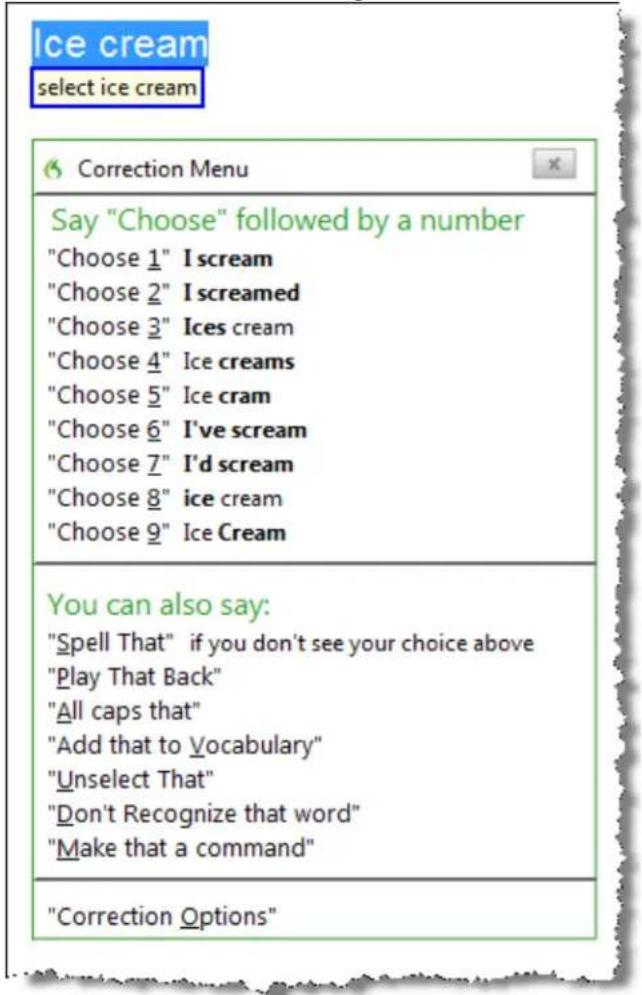
text_image
Ice cream select ice cream Correction Menu Say "Choose" followed by a number "Choose 1" I scream "Choose 2" I screamed "Choose 3" Ices cream "Choose 4" Ice creams "Choose 5" Ice cram "Choose 6" I've scream "Choose 7" I'd scream "Choose 8" ice cream "Choose 9" Ice Cream You can also say: "Spell That" if you don't see your choice above "Play That Back" "All caps that" "Add that to Vocabulary" "Unselect That" "Don't Recognize that word" "Make that a command" "Correction Options"- Choose one of the items from the Correction menu or dictate the replacement If you choose one of the suggestions on the Correction menu, Dragon automatically returns the cursor to where you were dictating before you made the correction.
If you dictate something new to make a correction when the Correction menu is Dragon does not return the cursor to its last location. You can use the "Go B: mand or the mouse or keyboard to move it back to where it was.
* Dragon also includes an option setting to substitute the Spelling window for the rection menu when you use a correction command.
Correcting text with the keyboard (fastest)
To correct text with the keyboard
- Move the insertion point to the beginning of the dictation you want to corre
- Press the Correction hot key to display the Correction menu. By default, this minus (-) key on the numeric keypad. You can change the hot key assignment
Hot keys tab of the Options dialog box. You can also click the Correction by the Extras toolbar of the DragonBar.
- The Correction menu displays a list of optional spellings.
■ If the selected alternative is correct, press the Right Arrow key.
- If one of the other alternatives is correct, press the Down Arrow until that alternative is highlighted and press the Right Arrow key.
- If no alternative is correct, just type the correct text or say "Spe That" to open the Spelling window.
- Continue until all the text is correct.
Correcting text while playing back dictation (most accurate)
Please note that when you dictate into a Web application, playback availability is like. For more information on this, see If you have problems using Web application support.
To correct text while playing back dictation
- Move the insertion point to the beginning of the dictation you want to corre
- Click Play That Back on the Audio menu of the DragonBar or click the Be back button on the Extras toolbar.
- When the playback of your dictation reaches a recognition error, press the command hot key. By default, this is the minus (-) key on the numeric keypad. You click the hot key assignment on the Hot keys tab of the Options dialog box. You click the Correction button on the Extras toolbar of the DragonBar.
-
The Correction menu displays a list of alternatives for the misrecognition.
-
If one of the alternatives is correct, press the Down Arrow key to highlight choice and then press Enter to accept it. Playback will continue automatically from the point where you stopped.
- If no alternative is correct, just type or say the correct text and click the Playback button. Playback will continue from the point where you stopped.
Correcting text using voice commands (hands-free)
To correct text using voice commands
- Say "Go To Beginning of Document."
- Look for the first misrecognition and say "Select" and the text that is incorrect Correction menu appears with a number of alternatives.
- If one alternative is correct, say "Choose" and the number of that alternative. For example, "Choose Two." Do not say "Choose Numeral Two" or Dragon will scribe the phrase as the text "Choose Numeral Two" or "Choose 2" depend how you set the automatic text formatting properties on the Auto-formatting dialog box.
- If none of the alternatives is correct, say "Spell That," spell the correct word or words into the Spelling window, and then say "OK."
- Verify that the correct text appears in the document in place of the misrecog and continue to the next misrecognition.
Using Smart Format Rules
You can also use the Smart Format Rules feature to have Dragon recognize when you correct
dictated text that corresponds to an Auto-formatting option or supported by this feat Dragon then displays a Smart Format Rules dialog box, offering one or more settings relevant to the change you just made. If you don't wish to change any set just ignore the Smart Format Rules box and continue dictating, or say "Cancel" and will close.
The Smart Format Rules box may appear when you make a correction using
■ the Correction menu
■ the Spelling window or
■ the keyboard.
For details, see Using Smart Format Rules, the Auto-formatting dialog box and Creating Word Properties.
Notes
- If you select a phrase to correct that includes punctuation added to the sent matically, the list of corrections that appears in the Correction menu will inclusion without the automatically inserted punctuation.
- When you use the Correction menu with a selection of more than 70 character Dragon selects only the first sentence for correction.
- The Accuracy Center provides a central location for taking advantage of all tools available to ensure excellent recognition. For more information, see Using Accuracy Center.
- When you use the "select" or "correct" command to select any part of a hyphenated word or a hyphen, Dragon selects the entire hyphenation. For example, in that, the ated word "brother-in-law" if you say "correct brother" because you only need change that, Dragon selects "brother-in-law."
Correcting text - quick reference
When you correct recognition errors, Dragon adapts your User Profile, so errors are likely to happen again.
See also
■ Using Direct Editing
You can correct recognition errors in the following ways:
| To Say | |
| Correct the last thing you said | Say "Correct That" |
| Correct the selected text | "Correct That" |
| Correct a range of text | "Correct dark through night" where dark is the first word to correct and night is the last word to correct. You don't have to include phrase when you use this command."Correct fromto"(Outside US and Canada)"Correctthrough"(In the US and Canada) |
| Use the Extras toolbar | Select the Extras toolbar button on the DragonBar.Select the Correction button to stop playback and correct a mistake. |
| Correct one or all instances of words | "Correct" |
| Delete text you just dictated | "Scratch That" |
| Save and play back recorded speech | "Play That Back"Note: Web applications have only limited playback. |
The Correction menu closes automatically after you make a choice. If you want to Correction menu without making a selection, say "Cancel" or continue dictating.
You can enable and disable these Direct Editing commands from the Commands tab Options dialog box.
Workflow
You can experiment with Dragon's various correction options, including both vocal and manual actions (Correction button, Correction hot key, double-click to Correct, Smart I mat Rules), to see what you prefer for a given situation. For a description of the methods for correcting text and how each fits into a particular workflow, click Corr workflow.
Techniques
The following topics explain different aspects of correcting text:
Correcting text errors as you dictate
Choosing the correct text
Undoing actions
Correcting misrecognized commands
Using the Recognition History window
Notes
- Remember that letting Dragon adapt its Vocabulary to your own words and p will prevent many recognition errors. If a word is not in Dragon's active Vo Dragon can't recognize it accurately. The Accuracy Center provides a central lo for taking advantage of all the Dragon tools available to ensure excellent recc For more information, see Using the Accuracy Center.
- If you get a message in the DragonBar that there is nothing to correct, sel you want to correct and say "Correct That" again (or press the Correction I click the Correction button).
- If you select a phrase to correct that includes a comma or period added to tence automatically, the list of corrections that appears in the Correction menu include a version without the automatically inserted punctuation.
- To dictate the word "correct" at the beginning of an utterance (that is, as the first word after a pause), either say "correct" and then pause, or hold down the while you speak to force Dragon to recognize the word as dictation and no mand. You can change the key that you press to control this behavior on tab of the Options dialog box.
Choosing the correct text
In the Correction menu and the Spelling window, Dragon offers a selection of recognition alternatives. Use the following procedure to choose the alternative you want.
To choose the correct text
▶ If the correct text is one of the alternatives listed, say "Choose" and then say that the alternative in the list. As an option, you can press the ALT key and type that the alternative from the keyboard (not the numeric keypad).
The text you choose replaces the text in your document.
Example:
If the correct text is the third alternative, say "Choose 3."
Notes
- Dragon's Smart Format Rules dialog box may appear when you correct auto-fo alphanumeric text using the Correction command, the Spelling window, or the board. For details, see Using Smart Format Rules and Automatically Format Text.
- When selecting an alternative on the correction menu, say "Choose" and the number of that alternative. For example, "Choose Two." Do not say "Choose Numeral
or Dragon will transcribe the phrase as the text "Choose Numeral Two" or 2" depending on how you set the number formatting options on the Auto-fo dialog box.
- In the Spelling window, if one of the recognition alternatives is nearly correct can say "Select" and the number of the alternative. The alternative text is in the text box, so you can edit it. As an option, you can press the SHIFT keys and type the number of the alternative from the keyboard (not the nut pad).
- If you select a phrase to correct that includes punctuation added to the sent matically, the list of corrections that appears in the Correction menu will include version without the automatically inserted punctuation.
- The Accuracy Center provides a central location for taking advantage of all the Dragon tools available to ensure excellent recognition. For more information, see Using the Accuracy Center.
- You can choose to always play back recorded speech in the Correction menu. can set the respective option on the Correction tab of the Options dialog box.
Correcting misrecognized commands
If you speak a valid command and it is not recognized correctly, use the following cedure to ensure that Dragon recognizes the command in the future. When valid co words and phrases appear in the Results box the box contains a blue border. Open the Command Browser from the DragonBar Tools menu for lists of valid commands.
To correct a misrecognized command
- If the window or dialog box containing the misrecognized command is not active, the title bar is not highlighted), click in it to make it active.
- Say "Scratch That" (to delete the unwanted dictation), "Undo That", or "Undo I Action" to undo an unwanted action.
- Say the command again.
If the command was recognized as dictation, hold down the CTRL key as you state the command again. Holding down the CTRL key forces Dragon to recognize what as a command. You can also switch to Command Mode.
Notes
- You can train commands to match your pronunciation, if necessary.
- When Dragon recognizes a command, the borders of the results box turn blue only exception to this is when you use commands that you usually say with ing during dictation, such as "new line", "new paragraph", "no caps", or "all caps".
- The Accuracy Center provides a central location for taking advantage of all the Dragon tools available to ensure excellent recognition. For more information, see Using the Accuracy Center.
Chapter 6: Revising Text
This section contains the following topics:
Using Direct Editing commands 98
Handling multiple text matches 99
Revising text - quick reference...103.
Moving around in a document...106
Moving the insertion point 106
Moving to specific words 108
Moving to the beginning or end of a document or line 108
Using "Go Back" to move the cursor.... 109
Selecting text 110
Selecting text - quick reference 110
Selecting characters and words.... 110
Selecting specific words or phrases 111
Selecting lines and paragraphs 112
Selecting text again 113
Changing an incorrect text selection.... 113
Deleting, Cutting, and Copying Text 115
Cutting, copying, and pasting 115
Deleting dictated text.... 115
Deleting characters, words, lines, or paragraphs 116
Delcting by backspacing 116
Formatting 118
Formatting text 118
Formatting numbers.... 120
Setting font name, size, and style 120
Aligning text 121
Adding new lines and paragraphs 121
Hyphenating words....121
Joining words 122
Setting Auto-Formatting Options 122
Using Smart Format Rules 122
Creating Word Properties.... 123
Using Direct Editing commands
Use Dragon Direct Editing (formerly called Quick Voice Formatting) commands to do tine tasks faster by voice.
In previous versions of Dragon, deleting, cutting, copying, italicizing, underlining, and applying bold to text were two-step operations: you had to select the text before y change it. Now you can perform these actions in one step.
See also
■ Handling multiple text matches
Note
For commands that name a range of text, such as "bold
Formatting text
Use the commands in the following table to quickly format text using Direct Editin matting commands are available only in programs that support formatting.
| To... Say... | |
| Bold the specified text or a range | of text.BoldBold fromtoBoldthrough |
| Italicize the specified text or a range text. | ItalicizeItalicize fromtoItalicizethrough |
| Underline the specified text or a range text. | UnderlineUnderline fromtoUnderlinethrough |
| Capitalize the specified text of a range text | CapitalizeCapitalize fromtoCapitalizethrough |
Editing text
Use the commands in the following table to quickly revise text using Direct Editing
| To... Say... | |
| Cut the specified text or a range | of text. Cut |
| Cut from to | |
| Cut through | |
| Note: The Cut voice command is turned off by default to keep the able for regular dictation. To enable using "Cut" as a command, change Cut shortcut command setting in the Options dialog box Commands tab and Restart Dragon. | |
| Copy the specified text or a range text. | Copy |
| Copy from to | |
| Copy through | |
| Delete the specified text or a range text. | Delete |
| Delete from to | |
| Delete through | |
word "cut" avail- e the Enable and then Exit
Handling multiple text matches
Use the commands in this topic when Dragon finds multiple instances of a word the part of your document currently showing on screen. Dragon displays a number each instance, so that you can choose the one you had in mind for the commandure also lets you save time by applying the command to all instances at once if makes sense for that particular command.
Note
- If you prefer that Dragon change only the instance of a word or phrase in cursor, you can turn this option off in Dragon's Options dialog box, Comma (see Enable multiple text matches). Then, if Dragon selects the correct word but not the right instance, you can say "Select Again" to select the previous By default, the feature is turned on.
Here's an example of what Dragon does with the "Bold
Please contact the Course Coordinator for your course's preparation
(full course and half course); avoid coarse language.
italicize coarse
You can cancel text matching by saying "Cancel," continuing to dictate, typing, or c the mouse. You can also use "Undo All" after you use "Choose All."
See also
■ Using Direct Editing commands
Use the following table as a quick reference for text matching commands.
| Command To... | Say... | |
| Bold | Apply bold to one or more text matches | "Choose" or "." For example, say "Choose 3" or "3" to apply the formatting to only the third instance of a number of text matches.OR"Choose all" to apply bold to all instances Dragon shows as text matches. |
| Underline | Apply under lining to or or more text matches | -"Choose" or "." For example, say "Choose 3" or "3" to apply the formatting to only the third instance of a number of text matches.OR"Choose all" to underline all instances Dragon shows as text matches. |
| Italicize | Apply ital-ics to one more text matches | "Choose" or "." For example, say "Choose 3" or "3" to apply the formatting to only the third instance of a number of text matches.OR"Choose all" to italicize all instances Dragon shows as text matches. |
| Capitalize | Capitalize the first letter of or more text matches | "Choose" or "." For example, say "Choose 3" or "3" to apply the formatting to only the third instance of a number of text matches.OR"Choose all" to capitalize all instances Dragon shows as text matches. |
| Command To... Say... | ||
| Delete | Delete one or more text matches | "Choose" or "." For example, say "Choose 3" for "3" to delete only the third instance of a number of text matches.OR"Choose all" to delete all instances Dragon shows as text matches. |
| Undo All Undo changes to all revised text matches | 1. Perform one of the commands in this table to revise two or more multiple text matches.2. Say "Undo All."Note Undo All can undo a maximum of 50 instances of the Bold, Italicize, Underline, and Delete commands, and up to a maximum of 25 instances of the Correct command. | |
| Cut | Cut one of the text matches | Choose" or "." For example, say "Choose 3" or "3" to cut only the third instance of a number of text matches. |
| Note: The Cut voice command is turned off by default to keep the word "cut" available for regular dictation. To enable using "Cut" as a command, change theEnable Cut shortcut commandsetting in the Options dialog box Commands tab and then Exit and Restart Drago | ||
| Copy | Copy one the text matches | ofChoose" or "." For example, say "Choose 3" or "3" to copy only the third instance of a number of text matches. |
| SelectOR"Selectthrough" | Select one of the matches of selected text | Choose" or "." For example, say "Choose 3" or "3" to select only the third instance of a number of text matches. You must then choose one of the numbered text matches.Notes:Depending on how Dragon's Correction Options are set, Dragon displays either the Correction menu or the Spelling window when you use the Select command. Changes to multiple text matches do not work from the Spelling window.Replacing all instances of text matches does not work with the Select command. |
| Command To... | Say... | |
| CorrectOR"Correct"through | Use the Correction menu to change one or more text matches | "or"." For example, say "Choose 3" or "3" to correct only the third instance of a number of text matches.OR"Choose all" to correct all text matches Dragon displays.Notes:Depending on how Dragon's Correction Options are set, Dragon displays either the Correction menu (see example below) or the Spelling window when you use the Correct command. If you use "Choose all" when multiple correction options are displayed, you can replace all of the selections with a numbered option from the menu or use "all caps that." Other menu commands apply to the last match selected.Changes to multiple text matches do not work from the Spelling window. |
| Insert before | Move the cursor to just before a particular word or phrase in your document | "or"." For example, say "Choose 3" or "3" to move cursor into position just before the third instance of a number of text matches. |
| Insert after | Move the cursor to just after a particular word or phrase in your document | "or"." For example, say "Choose 3" or "3" to move cursor into position just after the third instance of a number of text matches. |
Notes
- In the numbering of matches, Dragon will include homophone and hyphenated iants of the word or phrase. In the following example, Dragon identifies match the words "Course," "course's," "full-course," "half-course," and "coarse."
Please contact the Course Coordinator for your course's preparation (full course and half course); avoid coarse language.
italicize coarse
- For commands that apply to a range of text, such as "bold
through ," Dragon expects to hear "to" or "through" depending on the region you select you created your User Profile. Use "through" in the United States and Canada "to" in all other regions. - Formatting commands are not available in Notepad and may not work correctly. Internet Explorer.
- To use formatting commands in Microsoft Outlook, make sure either HTML or mail message format is turned on.
Revising text - quick reference
You can revise text by voice in any of the following ways.
See also
■ Handling multiple text matches
| To Say | |
| Delete text "Scratch That" to | delete the last thing you said."Delete" whereis the word or phrase you want to delete *"Delete fromto"*Deletethrough"* |
| Cut text "Cut That" to cut | previously selected text or the last thing you said."Cut" whereis the word or phrase you want to cut.""Cut fromto.""CuthroughNote:The Cut Direct Editing command is turned off by default to keep it available for regular dictation. To enable the Cut command,1.Choose Tools> Options from the Drag-onBar.2.Click Commands > Enable Cut Command.3.Restart Dragon. |
| Copy text "Copy That" to copy | previously selected text or the last thing you said."Copy" whereis the word or phrase you want to copy.""Copy fromto.""Copythrough"* |
| Select text "Select that" to select the last thing you said."Select" whereis the word or phrase you want to change"SelectThrough."Note:Outside the USA or Canada, say "SelectTo.""Select fromto" | |
| Correct text "Correct That" | "Correct" whereis the word or phrase you want to change"CorrectTo.""Correct fromto.""CorrectThrough."Note:Outside the USA or Canada, say "SelectTo." |
| Correct text once you have selected it | "Correct That"ORThe words you want to replace the selection. |
| Back up and resume dictating | "Resume With" whereis the word you want Dragon to resume with. Then, dictate the revised text. |
| Move the cursor back to its position in documents and e-mails | I cause briefly during dictation and say "Go Back" See using "Go Back" to move the cursor. |
* indicates a Direct Editing command. You can enable and disable these Direct Editing commands from the Commands tab of the Options dialog box.
The commands that quote text from the screen (select
Knowing additional ways to perform the following tasks by voice is useful in revisir. Click the following links for more detailed explanations.
Moving around in a document
Selecting text
Deleting dictated text
Formatting text
Automatically Format Text (see Dragon Help)
Notes
- Dragon can auto-format text and numbers using standard writing conventions or Word Properties to words as you dictate. For information about these settings, Auto-formatting dialog box and The Word Properties dialog box.
- Dragon's Smart Format Rules appear when you correct auto-formatted alphanumeric text or Word Properties using the Correction menu, the Spelling window, or the keyboard. For details, see Using Smart Format Rules and Setting Auto-Formatting Options.
- When you use the "select" or "correct" command to select any part of a hyphenated word or a hyphen, Dragon selects the entire hyphenation. For example, in the ated word "brother-in-law" if you say "correct brother" because you only need change that, Dragon selects "brother-in-law."
Moving around in a document
The following topics describe how to move the text insertion point around in a dc
Moving the insertion point
Moving to specific words
Moving to the beginning or end of a line or document
Moving the insertion point
Use the procedures in this topic to move the text insertion point as follows:
■ by characters
■ by words
■ by lines
■ by paragraphs
Note
Anytime you move the insertion point by voice, keyboard or mouse, you can move to where it was by saying "Go Back."
For more information, see Using "Go Back" to move the cursor.
To move the insertion point by characters
Say the following to move the insertion point left or right by a number of chara
| Say Then say Then say | |
| "Move" "Right" "<1-20>" | |
| "Left" "a character" | |
| "Forward" "<1-20> characters" | |
| "Back" |
Examples
"Move Right 3"
"Move Back 15 characters"
To move the insertion point by words
Say the following to move the insertion point by a number of words.
| Say Then say | Then say | |
| "Move" "Right" "a | Word" | |
| "Forward" "<1-20> Words" | ||
| "Left" | ||
| "Back" |
Examples
"Move Left 3 Words"
"Move Forward a Word"
To move the insertion point by lines
Say the following to move the insertion point up or down by lines. These comma the up and down arrow keys.
| Say Then say | Then say | |
| "Move" | "Up" | "<1-20> Lines" |
| "Down" |
Examples
"Move Up 3 Lines"
"Move Down 5"
To move the insertion points by paragraphs
You can use these commands to move around by paragraphs.
| Say Then say | Then say | |
| "Move" | "Up" | "a Paragraph" |
| "Back" | "<1-20> Paragraphs" | |
| "Down" | ||
| "Forward" | ||
Examples
"Move Up a Paragraph"
"Move Forward 8 Paragraphs"
Notes
■ These commands deselect any text that is selected.
- Commands that delete by words or paragraphs may not always have the expected effects in programs that do not use the same shortcut keys as WordPad (on which the word processing features of Dragon are based). For example, in Windows Notepad,
the paragraph commands don't work because Notepad does not recognize a pa and in Microsoft Excel, these commands only work in the toolbar edit field.
Moving to specific words
You can move the insertion point before or after a particular word or phrase.
To move the insertion point to a specific word
Say "Insert Before
| To Say, for example | |
| Move the insertion point before the word "John" "Insert Before John" | |
| Move the insertion point after the phrase "Dear Sir" "Insert After Dear Sir" | |
Notes
■ These commands deselect any text that is selected.
- Do not pause anywhere in the middle of saying these commands, including th For example, "Insert Before Dear Sir" is all one command.
Moving to the beginning or end of a document or line
You can use these commands to move the text insertion point to the top or bot document and the beginning or end of a line.
| Say | Then say |
| "Go to" | "Top" |
| "Move to" | "Top of Document" |
| "Beginning of Document" | |
| "Start of Document" | |
| "Bottom" | |
| "Bottom of Document" | |
| "End of Document" | |
| "Beginning of Line" | |
| "Start of Line" | |
| "End of Line" |
Examples
"Go to Top"
"Move to End of Line"
Note
These commands deselect any text that is selected.
Using "Go Back" to move the cursor
Use the "Go Back" command to return the cursor (insertion point) to its original after you move the cursor by voice, keyboard or mouse.
To move the cursor back to its original position
■ Pause briefly during dictation and say "Go Back."
You can repeat the command to move the cursor back to where your original acti
Examples
Use the Go Back command after commands that move the cursor from place to 1 as:
■ "Select
■ "Move
- Moving the cursor with the mouse or keyboard. If you move the cursor aro document or message with the mouse or keyboard, when you say "Go Back," returns the cursor returns to where it was last.
- "Insert before
■ "Go to" or "Move to." See Moving to the beginning or end of a document or line
- "Correct
Note
To use "Go Back," the distance from the last cursor location must be greater than actors.
Selecting text
This section contains the following topics:
| Selecting text - quick reference 110 |
| Selecting characters and words 110 |
| Selecting specific words or phrases 111 |
| Selecting lines and paragraphs 112 |
| Selecting text again 113 |
| Changing an incorrect text selection 113 |
Selecting text - quick reference
When you are dictating, you can select text in these different ways:
Selecting text
Selecting characters and words
Selecting specific words or phrases
Selecting parts of a document
Selecting text again
Changing an incorrect text selection
You can cancel a selection by saying "Unselect That," selecting different text, or moving the insertion point to another part of the document.
Caution
When text is selected, be careful not to breathe loudly, clear your throat, or make other sounds. Dragon may interpret such noises as speech and replace the selection with text. If this happens, say "Undo That" right away to reverse the action.
Selecting characters and words
You can use the following commands to select individual characters and words.
To select characters and words
| Say | Then say | Then say |
| "Select" | "Next" | "Character" |
| "Forward" | "<1-20> Characters" | |
| "Previous" | "Word" | |
| "Back" | "<1-20> Words" | |
| "Last" |
Notes
- When you use the "select" or "correct" command to select any part of a hyphenated word or a hyphen, Dragon selects the entire hyphenation. For example, in the ated word "brother-in-law" if you say "correct brother" because you only need change that, Dragon selects "brother-in-law."
- You can select punctuation marks by voice. For example, you can say "Select comma."
- By default, when you select a word or phrase, Dragon displays the Correction menu which you can use to correct recognition errors. You can turn this feature using (deselecting) the "Select command bring up Correction menu" options on the rection tab of the Options dialog box.
- Commands that delete by words or paragraphs may not always have the expected effects in programs that do not use the same shortcut keys as WordPad (or word processing features of Dragon are based). For example, in Windows Note the paragraph commands don't work because Notepad does not recognize a page and in Microsoft Excel, these commands only work in the FormulaBar edit file.
Selecting specific words or phrases
Use the following procedures to select a specific word or phrase:
To select specific words
▶ Say "Select
Examples
To select the words "White House" or "began to feel," say:
"Select White House"
"Select began to feel"
To select a phrase or range of words
▶ Say "Select
Example
To select the words "enclosed the materials you requested," in the sentence: "I have enclosed the materials you requested," say:
"Select enclosed Through requested"
Notes
- You can cancel a selection by saying "Unselect That," selecting different text, or moving the insertion point to another part of the document.
- In most instances, the "Select" command will display a number next to each instance of the word, allowing to select all instances or just a specific instance. See multiple text matches for more information. If you find that a particular appl does not display these numbers, you can still use the "Select Again" command.
- If you need to use the "Select Again" command, the selection commands search for the instance of the word nearest the insertion point. You can set the directi always search backward on the Correction tab of the Options dialog box..
- When you select a word or phrase, Dragon displays the Correction menu, which can use to correct recognition errors. You can change this behavior on the tab of the Options dialog box.
- When you use the "select" or "correct" command to select any part of a hyphenated word or a hyphen, Dragon selects the entire hyphenation. For example, in the hyphenated word "brother-in-law" if you say "correct brother" because you only to change that, Dragon selects "brother-in-law."
Selecting lines and paragraphs
You can select parts of a document by lines or paragraphs, or you can select the ument in the following ways:
To select one or more lines or paragraphs
| Say Then say | Then say | |
| "Select" "Next" "Line" | ||
| "Forward" "<1-20> Lines" | ||
| "Previous" | "Paragraph" | |
| "Back" "<1-20> Paragraphs" |
You can also say
"Select Document"
"Select All"
Caution
When text is selected, be careful not to breathe loudly, clear your throat, or make sounds. Dragon may interpret such noises as speech and replace the selection with text. If this happens, say "Undo That" right away to reverse the action.
Notes
- You can cancel a selection by saying "Unselect That," selecting different text, or moving the insertion point to another part of the document.
- Commands that delete by words or paragraphs may not always have the expe effects in programs that do not use the same shortcut keys as WordPad (or the word processing features of Dragon are based). For example, in Windows pad, the paragraph commands don't work because Notepad does not recognize
paragraph and in Microsoft Excel, these commands only work in the FormulaField.
Selecting text again
Once you have selected a word or phrase, you can quickly select another occurrence same text.
To select text again
▶ Say "Select Again."
Example
In the sentence, "The frost is on the pumpkin, and the fruit is on the vine," sa the" to select the words "is on the" after the word "fruit."
Then, to select the instance of the words "is on the," after the word "frost" say Again."
Changing an incorrect text selection
When you select text by saying "Select" and the text you want selected, Dragon set the nearest instance of the text from the current location of the insertion point. So the program selects the wrong words. Other times, the program selects the right word they are not in the correct location.
When this happens, try the following techniques:
To change an incorrect text selection
▶ If the wrong text is selected, try saying "Select
▶ If the wrong text is selected, try using a longer phrase. This provides more info Dragon is more likely to select the correct text.
▶ If the correct words are selected but they are not in the correct location, say 'Again" to select the previous occurrence of the same text.
Notes
■ You can select punctuation marks.
- You can say "Select period" and then "Select Again" to move the insertion point sentence by sentence.
- The default is for Dragon for the nearest instance from the location of the point. You can change the search direction to always be backward on the C tab of the Options dialog box.
- To dictate the word "Select" at the beginning of an utterance (that is, as the first word after a pause), either say "Select" and then pause, or hold down the while you speak. You can also use Dictation Mode.
Deleting, Cutting, and Copying Text
This section contains the following topics:
Cutting, copying, and pasting 115
Deleting dictated text 115
Deleting characters, words, lines, or paragraphs 116
Deleting by backspacing 116
Cutting, copying, and pasting
You can say these commands to cut, copy, and paste selected text to and from
To cut selected text
▶ Say "Cut That."
To copy selected text
▶ Say "Copy That" or "Copy All To Clipboard."
To paste cut or copied text
▶ Say "Paste That."
Deleting dictated text
Use the following procedure to remove text from a document.
To delete the last words you dictated
▶ Say "Scratch That."
Or
▶ Say "Resume With
To delete any text
-
Select the text.
-
Say "Scratch That" or "Delete That."
To delete specific text or a range of text, see Revising words.
Notes
- You can repeat "Scratch That" up to ten times to delete the last things you said one at a time, or you can just say "Scratch That <2-10> Times."
■ If you just dictated the text and want to delete it, say "Scratch That."
Deleting characters, words, lines, or paragraphs
You can delete any number of words or characters (up to 20) using the following mands.
To delete characters, words, lines, or paragraphs
| Say Then Say | Then Say | |
| "Delete" "Next" "Character" | ||
| "Previous" "1 Character" | ||
| "Last" "<2-20> Characters" | ||
| "1 Paragraph" | ||
Examples:
"Delete Next Character"
"Delete Previous 4 Lines"
Notes
- If you delete text and an extra space remains, say "Delete Next Character," "Delete Previous Character," or "Backspace" to remove the space.
- Commands that delete by words or paragraphs may not always have the expe effects in programs that do not use the same shortcut keys as WordPad (or the word processing features of Dragon are based). For example, in Windows pad, the paragraph commands don't work because Notepad does not recognize agraph, and in Microsoft Excel, these commands only work in the FormulaBar field.
Deleting by backspacing
Use the following commands to remove characters to the left of the insertion point
To delete characters
▶ Say "Backspace" or "Backspace" followed by the number of characters you want to (from 2 to 20).
Examples:
"Backspace" (will delete one character)
"Backspace 5" (will delete 5 characters)
Formatting
This section contains the following topics:
| Formatting text 118 |
| Formatting numbers 120 |
| Setting font name, size, and style 120 |
| Aligning text 121 |
| Adding new lines and paragraphs 121 |
| Hyphenating words 121 |
| Joining words 122 |
| Setting Auto-Formatting Options 122 |
| Using Smart Format Rules 122 |
| Creating Word Properties 123 |
Formatting text
You can use the following commands to format text you have just dictated or tex selected.
For information about applying formatting to multiple instances of words or phrases, Handling multiple text matches.
| To | Say |
| Apply bold | "Bold That" or "Format that Bold" to bold previously selected text or the last thing you said."Bold ""Bold fromto ""Boldthrough" * |
| Apply italics | "Italicize That" or "Format That Italics" to italicize previously selected text or the last thing you said."Italicize ""Italicize fromto ""Italicizethrough" * |
| Apply bold italics | "Format That Bold Italic" or "Format That Bold Italics" |
| Add underlining | "Underline That" or "Format That Underline" to underline previously selected text or the last thing you said."Underline ""Underline fromto ""Underlinethrough"* |
| Add strikeout | "Format That Strikeout" |
| Remove all bold, italics, under restore That" or "Format That Regular" or "Format That line, and strikeout formatting Plain" | |
| Change text to initial capitals | "Format That Caps" or "Format That Initial Caps" |
| Change text to uppercase | "Format That Uppercase" or "all caps that" or "capitalize XYZ" |
| Change text to lowercase | "Format That Lowercase" or "No-Caps That" |
| Create a bulleted list "Format That Bullet Style" | |
| Left-align text "Format That | Left Aligned" or "Left Align That" |
| Right-align text "Format That | Right Aligned" or "Right Align That" |
| Center text "Format That Centered" or "Center That" | |
| Put hyphens between words | "Hyphenate That" |
| Combine multiple words into one | "Compound That" |
* indicates a Direct Editing command. You can enable and disable these Direct Editing commands from the Commands tab of the Options dialog box.
To set a font name, size, or style
Notes
- The commands that quote text from the screen (select
- You can combine different formatting and font style commands. For example, say: "Format That Caps Bold" or "Format That Bullet Style Italic."
- In the DragonPad, when you use the "Format That" command to align an cagraph, the previous paragraph is aligned also. To prevent this, dictate some new paragraph before saying the alignment command.
- Dragon can automatically format text and numbers as you dictate using standarding conventions. For information about these settings, see the Auto-formatting d box.
- Dragon's Smart Format Rules appear when you correct auto-formatted alphanumeric text using the Correction command, the Spelling window, or the keyboard. For details, see Using Smart Format Rules and the Auto-formatting dialog box.
Formatting numbers
You can have Dragon type your dictation as numerals. You can also change the text while you are dictating it or while you are editing existing text that you have
To format dictation as numerals
▶ Say "Start Numbers Mode"
To turn Numbers Mode off, say "Stop Numbers Mode"
Note
- You can select text that contains several numbers separated by words. When one of these commands, the numbers will all reformat without changing the
- Dragon can automatically format text and numbers as you dictate using standarding conventions. For information about these settings, see the Auto-formatting dialog box.
- Dragon's Smart Format Rules appear when you correct auto-formatted alphanumeric text using the Correction command, the Spelling window, or the keyboard. For details, see Using Smart Format Rules and the Auto-formatting dialog box.
Setting font name, size, and style
You can use commands to specify any combination of font name, size, and style, order. These commands change selected text and text you dictate from then on.
To set a font name, size, or style
▶ Say "Set Size" or "Set Font Size" or "Format That" and the font name, size, a
Examples:
"Set Font Times"
"Set Font Size 12 Points"
"Format That Courier 18 Points Bold"
"Format That Arial 12 Points"
To remove font formatting
▶ To remove bold, italics, underline, and strikeout formatting, say "Format That Plain Text."
Notes
- You can specify any combination of font name, size, and style, but you must attributes in that order (name, size, style). If you specify only a size, you n
"Points." For example, say "Format That 12 Points."
- Not all of these commands work in all applications. These commands do won Microsoft Word, Microsoft InfoPath, Corel WordPerfect, DragonPad, and WordPad Check the Command Browser for additional application-specific commands.
- Commands that start with "Set Font" change selected text and text you dictate from then on.
- Commands that start with "Format That" change the selected text or what you just said.
- You can specify any combination of font name, size, and style, but you must attributes in this order: name, then size, then style.
Aligning text
You can align text while you are dictating it or while you are editing existing text have selected.
| To Say | |
| Center text "Center That" or "Format That Centered" | |
| Left align text "Left Align That" or "Format That Left Aligned" | |
| Right align text | "Right Align That" or "Format That Right Aligned" |
Adding new lines and paragraphs
While you are dictating, you can use the following commands to duplicate the action of pressing the Enter key once (to add a new line) or twice (to add a new paragraph).
| To | Say |
| Add a new line | "New Line" |
| Add a new paragraph | "New Paragraph" |
Note
Saying "New Paragraph" presses the Enter key twice and capitalizes the next word you dictate.
Hyphenating words
Dragon automatically hyphenates words based on standard usage, but you can also insert hyphens manually.
To hyphenate words
Say "Hyphenate That" to hyphenate the last phrase you said. You can also select specific words and say "Hyphenate That."
Spaces between words are replaced with hyphens. Any tabs or line breaks are also
Note
You can hyphenate words as you dictate by saying "hyphen" between words. For mimation, see Dictating hyphenated and compound words in the Dragon Help.
Joining words
Dragon automatically joins words based on standard usage, but you can also join wo ually.
To join words
▶ Say "Compound That" to join the last words you said. Or, select specific words "Compound That."
Spaces between words are removed. Any tabs or line breaks are also removed. The added to your Vocabulary.
Note
You can join words as you dictate by saying "no space." When you use this tech new word is not added to your Vocabulary, but you can add it as a new comp necessary. For more information, click Adding words and phrases to your Vocabulary.
Setting Auto-Formatting Options
You can configure how Dragon formats commonly used words and phrases.
Using Smart Format Rules
You can also use the Smart Format Rules feature to have Dragon recognize when you correct dictated text that corresponds to an Auto-formatting option or supported by this ture. Dragon then displays a Smart Format Rules dialog box, offering one or more adjustments relevant to the change you just made. If you don't wish to change any you can just ignore the Smart Format Rules box and continue dictating, or say "C the box will close.
The Smart Format Rules box may appear when you make a correction using
■ the Correction menu
■ the Spelling window or
■ the keyboard.
For details, see Using Smart Format Rules, the Auto-formatting dialog box and Creating Word Properties.
To set auto-formatting options
- On the DragonBar, select Tools > Auto-Formatting Options. The Formatting dialo appears.
- Select the checkboxes of the formatting options that you want to enable. See Formatting dialog box for a description of the different formatting options.
- Click OK to save your changes.
Creating Word Properties
Use this procedure to create and revise.
To open the Word Properties dialog box
- Say "Edit Vocabulary" to open the Vocabulary Editor.
- Say or type a Written Form or select one by scrolling the list.
Note: Scroll up to view alphanumeric words and special characters in your User Vocabulary.
- Say or click "Properties."
To revise Word Properties
-
Add or revise automatic formatting as required.
-
Add or revise Spoken forms or train individual words and phrases as required.
To revise Alternate Written Forms
- Say or click "Alternate Written Form 1" or "Alternate Written Form 2." For e: is how Dragon displays the Alternate Written Form for "Massachusetts":

text_image
Alternate form 1 ✓ Use alternate written form 1 MA Special... Format... Only use alternate written form 1 before numbers- Say or click "Format" to open the Alternate Written Form Formatting dialog box example,

text_image
Alternate Written Form Formatting Alternate written form: MA Insert 1 space before and 1 space after Precede by (nothing) and follow with (nothing) Format the next word with normal capitalization Format preceding numbers normally and following numbers normally Sample: MA Lower case in titles OK Cancel Help- Choose from the following options:
| Option | Description |
| Insertspace before andspace after | Inserts the specified number of spaces before and after the word or phrase.Use the drop-down fields to select a number of spaces. Valid values are:012 |
| Precede byand follow with | Inserts the specified spacing before and after the word or phrase.Use the drop-down fields to select the spacing type. Valid values are:(nothing)- New Line- New Paragraph- Tab |
| Format the next word with | Inserts the word or phrase using the specified capitalization.Use the drop-down field to select the capitalization type. Valid values are:with normal capitalizationThere is no special capitalization associated with this word.- capitalized (initial capitals)- in all capitals- without capitals |
| Format preceding numbersand following numbers | Inserts numbers using the specified format.Use the drop-down field to select the format. Valid values are:normally (Dragon determines whether to insert Arabic numerals or the written form of the number)- a-s numerals- as Roman numerals |
| Sample | Displays a preview of how Dragon will apply formatting before and after your word. |
| Lower case in titles | Causes the word or phrase to never be capitalized unless it appears at the beginning of a sentence or phrase. This is typical of short articles, such as "a", "of", or "the" when they appear in a title that is normally capitalized, for example "The Grapes of Wrath".Check the "Lower case in titles" checkbox to enable this feature. |
- Repeat the last two steps to add a second Alternate Written Form as required.
Chapter 7: Working in Programs
This section contains the following topics:
Scrolling in popular programs 128. Using the Microsoft Office ribbon 128.
About spoken commands in word processing programs 132..... About spoken commands in word processing programs 132..... Dictating in your word processor.... 132
Working with Microsoft Word.... 134 Basic document commands in Microsoft Word.... 134 Selecting text.... 139 Formatting text in Microsoft Word.... 140
Email Programs 142 Supported e-mail programs 142 Working in e-mail programs 142 Dictating e-mail and Web addresses 144 Dictating E-mail and Calendar commands 145 Commands for Microsoft Outlook Express, Windows Mail, and Windows Live Mail 147
Microsoft Outlook....149 Working with Microsoft Outlook....149 Reading and sending e-mail with Microsoft Outlook....149 Making appointments in Microsoft Outlook....151 Adding contacts in Microsoft Outlook....151 Writing notes in Microsoft Outlook....152 Using other Microsoft Outlook commands....152
Microsoft Excel 155 Working with Microsoft Excel 155 Dictating in Microsoft Excel with Full Text Control 155 Basic commands for Microsoft Excel 156 Formatting a Microsoft Excel spreadsheet 159 Working with cell contents in Microsoft Excel 160
Scrolling in popular programs
You can use the following commands in many programs to scroll and move the v through the program's work area.
These voice scrolling commands work with Microsoft Office 2003 and 2007 programs, including Word, Outlook, Excel, PowerPoint, and InfoPath.
| To Say | |
| Start automatic upward scrolling "Start Scrolling Up" | |
| Start automatic downward scrolling "Start Scrolling Down" | |
| Stop automatic scrolling "Stop Scrolling" | |
| Increase the speed of automatic scrolling "Scroll Faster" | |
| Reduce the speed of automatic scrolling "Scroll Slower" | |
| Move the visible page up one line "Scroll Up" | |
| Move the visible page down one line | "Scroll Down" |
| Move up one line in the text | "Line Up" |
| Move down one line in the text | "Line Down" |
| Move the page up by a screen | "Page Up" |
| Move the page down by a screen | "Page Down" |
For more information on how these commands work in individual programs, please follow:
■ Scrolling in windows and lists
■ Web browser commands
■ Basic document commands in Microsoft Word
■ Using other Microsoft Outlook commands
■ Basic commands for Microsoft Excel
Using the Microsoft Office ribbon
Dragon supports the new ribbon and tab based interface provided in Microsoft Office and Microsoft Office 2010. Both 32-bit and 64-bit versions of Microsoft Office are ported.
The Microsoft Office ribbon presents commands organized into a set of tabs. The ribbon display the commands that are most relevant for each of the task areas cations.
Using the Office ribbon To use the ribbon with Dragon
▶ Say the name of the tab or click the tab.
For example, to open the Home tab, say "Home" or click the tab.
Dragon voice commands for the Office ribbon also work when the ribbon is minor
To dictate from an open tab
▶ Say the name of the feature you want to access or click on it.
For example, to apply a heading style to a paragraph you're working on, say "H select Heading 1 from the Styles list.
If you're unsure of the name of a feature, you can hold your mouse pointer o graphic displaying the feature until the name appears.
Using the Office 2010 ribbon
Here's an example of how the ribbon looks when you click the Home tab in Mi 2010.

text_image
Document2 - Microsoft Word File Home Insert Page Layout References Mailings Review View Paste Calibri (Body) 11 A Aa B I U abc x₂ x³ Font Paragraph AaBbCcDc Normal AaBbCcDc No Spack... Heading 1 Change Styles Editing ClipboardNote
To access the File tab in any of the Office 2010 applications, say "File Tab". For example, here's the type of display you'll see when you click the File tab in
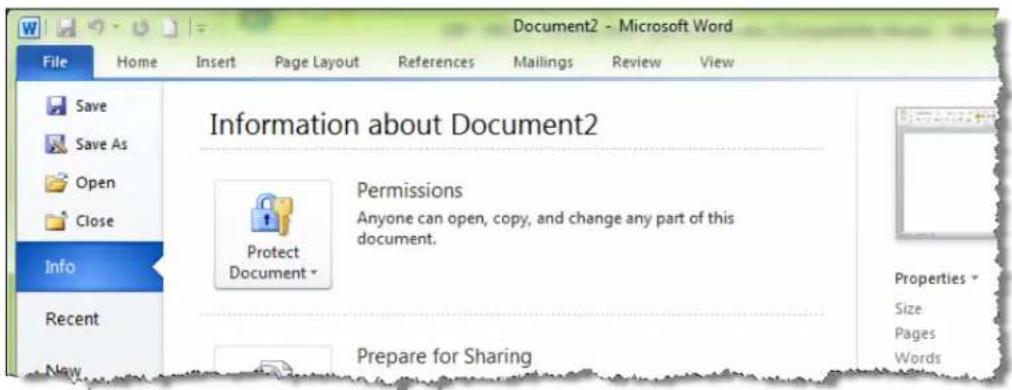
text_image
Document2 - Microsoft Word File Home Insert Page Layout References Mailings Review View Save Save As Open Close Info Recent New Information about Document2 Permissions Anyone can open, copy, and change any part of this document. Protect Document Prepare for Sharing Properties Size Pages WordsMicrosoft Word 2007

In Microsoft Word 2007, the Microsoft Office Button replaces the File menu. To access the Microsoft Office Button, say "Office Button".
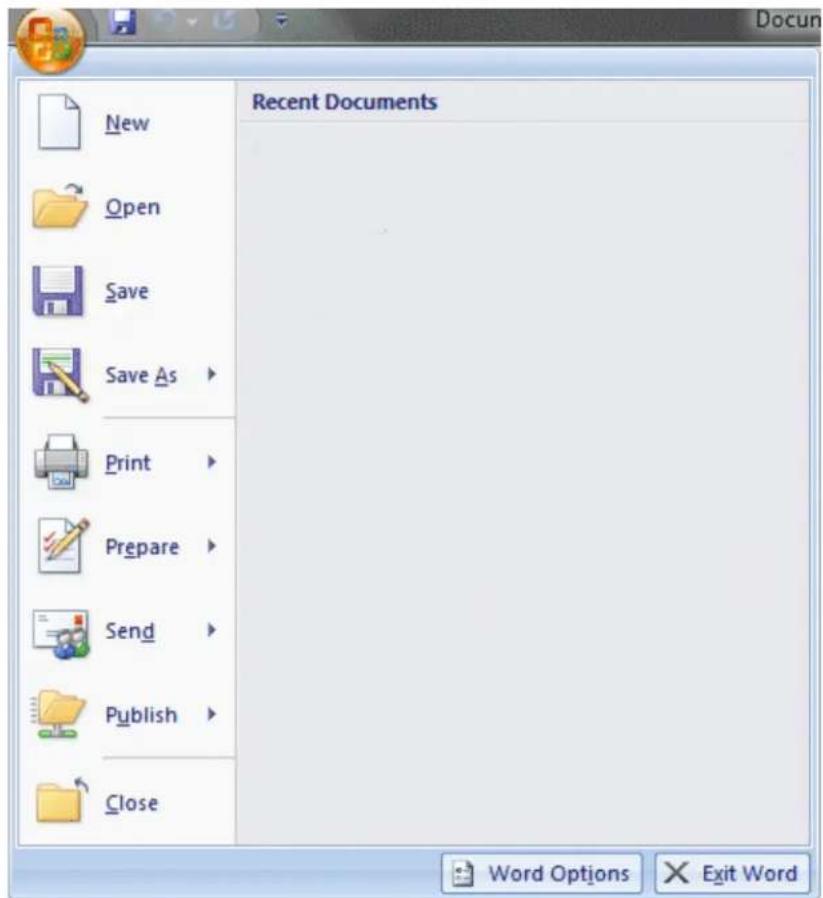
text_image
New Open Save Save As Print Prepare Send Publish Close Recent Documents Word Options Exit WordThe Application menu
In Windows 7, WordPad and Windows Live Mail 2011 have a new menu for related commands called the Application menu (shown below).
To access file-related commands in these applications, say "Application menu."
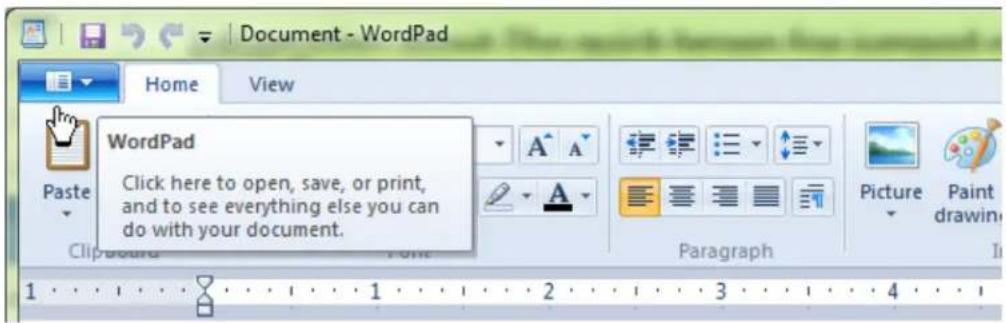
text_image
Document - WordPad Home View WordPad Click here to open, save, or print, and to see everything else you can do with your document. Paste Clipbound Point Paragraph Picture Paint drawingAbout spoken commands in word processing programs
This section contains the following topics:
About spoken commands in word processing programs...132.....
Dictating in your word processor...132
About spoken commands in word processing programs
Dragon provides Natural Language Commands for use with popular word processing programs other than Microsoft Word and Corel WordPerfect. By using these commands, can avoid the multiple menu-selection and mouse-movement steps associated with the additional Microsoft Windows interface. These commands let you:
■ Move the text insertion point around a document
■ Select a word, phrase, or block of text
- Format text (including indenting text, changing text fonts and styles, setting col applying paragraph styles, adding tables, setting margins, and inserting new lines and paragraphs)
■ Run spelling and grammar checks
- Edit text (including moving, copying, pasting, and deleting text)
- Print all or part of a document and print preview your work
Because the number of valid commands is so large, you should just try saying what want to do. If you get unexpected results, say "Undo That" to undo the action and try a different way to speak the command. Alternatively, you can open the Command Browser or the Dragon Sidebar for more information.
Notes
- Dragon displays commands with a blue border in the Results box. If you say a phrase that produces no action, look in the Results box. If the box does not have a blue border, Dragon does not recognize it as a valid command. For example, if you say
"Insert a 2 by 2 Table" when the insertion point is inside a table, nothing because you cannot insert a table inside a table. - When creating a new document, always give the document a name before starting your dictation.
Dictating in your word processor
If you are dictating in a word processor, there are some things you can do to make work more efficiently:
- Do not run other programs when you are running your word processor.
- Disable your word processor's automatic spelling and grammar checker. Turning options off frees memory for speech recognition. When you have finished dict: you can run the grammar checker. Dragon does not make spelling errors.
- Disable any automatic correction or other automatic features such as automatic matting if they are not necessary. Turning these options off frees memory for recognition.
- Divide large documents into multiple smaller documents. Large documents cause Dragon to work more slowly. The maximum document size you should have on your system and its resources.
- You can cancel a selection by saying "Unselect That," selecting different text, or moving the insertion point to another part of the document.
Caution
When text is selected, be careful not to breathe loudly, clear your throat, or make sounds. Dragon may interpret such sounds as speech and replace the selection with If this happens, say "Undo That" one or more times right away to reverse the ad
Working with Microsoft Word
Dragon provides a large number of Natural Language commands to use with different sions of Microsoft Word. Using these commands, you can avoid the multiple menu-ss tion and mouse-movement steps associated with the traditional Microsoft Windows interface. Because the number of valid commands is so large, you should just try what you want to do. If you get unexpected results, say "Undo That" to undo the try a different way to speak the command. Alternatively, you can open the Commar Browser or the Dragon Sidebar for more information.
You can cancel a selection by saying "Unselect That," selecting different text, or making insertion point to another part of the document.
The following topics describe the natural language commands you can use to perform common tasks using Word:
Basic document commands
Selecting text
Formatting text
Working with tables (see Dragon Help)
Using Voice Notations (see Dragon Help)
Basic document commands in Microsoft Word
Use this procedure as a reference for basic document operations using Microsoft Wo:
See also
- For text formatting and editing help, see Using Direct Editing commands and Handling multiple text matches.
■ Using the Microsoft Office ribbon
Creating, opening, and closing a document
| To Say | |
| Create a new document | "Create New File" or "Open New File" |
| Open an existing doc-ument | 1. "Open File"2. "dot", for example, "My Doc-ument Dot Doc"3. "Press Enter" |
| Close a document | "Close File" or "Close Document" |
Saving a document
| To Say | |
| Save a document as a .doc file | 1. "Save Changes"2. Dictate a file name (only needed if this is the first time the file has been saved)3. "Click Save" |
| Save a document with a new file name and file type | 1. "Save Document As"2. Dictate a file name3. "File Type", for example, "RTF"4. "Click Save" |
| Save a document in HTML format | 1. "Save Document as Web Page"2. "Click Save"3. If a dialog box appears warning of a text format loss, "Click Continue" |
| Save as document template | "Save the Page Settings as Default" |
Page Setup
| To Say | |
| Set the page orientation "Set Page Orientation to Landscape" "Set Page Orientation to Portrait" | |
| Set the size | "Set Page Width toInches/Centimeters", for example, "Set Page Width to Eight Inches" "Set Page Height toInches/Centimeters", for example, "Set Page Height to Eleven Inches" |
| Set margins | "Set Left/Right Margin toInches/Centimeters", for example, "Set Left Margin to Two Inches" "Set Top/Bottom Margin toInches/Centimeters", for example, "Set Bottom Margin to Five Centimeters" |
| Number pages "Add Page Numbers" | "Create Page Numbers" |
| Create headers and footers 1. "Go To HeaderFooter"2. Dictate text to appear in the header or footer3. "Close HeaderFooter" | |
| Add footnotes 1. Move the insertion point to the location where you want the footnote | |
| 2. "Insert Footnote Here"3. Dictate the footnote text4. "Close Footnotes" | |
Viewing a document
| To Say | |
| View a document "Preview | the File" "View Master Document" "Preview Document as HTML" "Close the Preview" "Set View to Normal" |
| Enlarge or reduce the doc-ument view | "Zoom to <number> Percent", for example, "Zoom to Fifty Percent" "Set Zoom to Page Width/Height" |
| Change the display "Show/Hide Headers and Footers" "Show/Hide the Ruler" "Show/Hide Paragraph Marks" | |
Printing
| To Say | |
| Print a range of pages | "Print Pagesto", for example, "Print Pages One to Three" |
| Print part of a page | 1. "Selectparagraph", for example, "Select the Last Paragraph"2. "Print the Paragraph" or "Print the Selection" |
Checking spelling and grammar
| To Say | |
| Check spelling 1. "Check Spelling"2. "Click Change" or "Click Ignore" depending on how you want to respond3. "Click Close" when the spelling check is complete | |
Searching and replacing
| To Say | |
| Search for text 1. "Find a Word"2. Dictate the word or phrase you want to find in the Find dialog box3. "Click Find" | |
| Replace all instances of a word or phrase | 1. "Find Text"2. Dictate the word or phrase you want to find3. "Click Replace"4. "Click Replace With" (to move the insertion point to the Replace With field)5. Dictate the replacement word or phrase6. "Click Replace All"7. "Click Close" (to close the Find and Replace dialog box) |
Inserting document segments
| To | Say |
| Add a page 1. "Go To | " (to move the insertion point to where you want to insert the new page). For example, "Go To Boltom" to add a new page at the end of the current document2. "Add a New Page" |
| Create a line break | 1. "Go To" (to move the insertion point to the location where you want the text to break). For example, "Go third line" to add a line break at the end of the current paragraph.2. "Insert Hard Line Break" |
| Create a page break | 1. "Go To" (to move the insertion point to the location where you want the text to break). For example, "Go third paragraph" to add a page break at the end of the current paragraph in the current page.2. "Insert Page Break" |
| Add the date and time | 1. "Go To" (to move the insertion point to the location where you want to place the information)2. "Insert Date and Time" or "Insert Date" or "Insert Time" |
Moving text
| To Do | |
| Move a word 1. Move the | insertion point to the word you want to move2. "Select Word"3. "Move Word Forward/BackWords/Lines", for example, "Move Word Forward Five Lines" |
| Move a line 1. Move the | insertion point to the line you want to move2. "Select Line"3. "Move Line Forward/BackLines" or "Move Line to the Beginning/End of Paragraph/Document", for example, "Move Line to the End of Paragraph" |
| Move a paragraph 1. Move | the insertion point to the paragraph you want to move2. "Select Paragraph"3. "Move Paragraph Forward/Backwardparagraphs" or "Move Paragraph to the Beginning/End of Document", for example, "Move Paragraph to the Beginning of Document" or "Move Paragraph Backward Six Paragraphs" |
Moving around in a document
| To Say | |
| Go to a specific place document window | in"Go to," where location can be top, bottom, start, or end. |
| Move up or down one | line "Line Up"or"Line Down" |
| Move up or down one | page "Page Up"or"Page Down" |
| Go back to the last place you moved the cursor | Go Back" See Using "Go Back" to move the cursor |
Switching between open documents
| To Say | |
| Switch between open documents | "Say "List windows for Microsoft Word"Do one of the following:►Say "Choose n", where n is the number of the want to switch to. For example, say "Choose 2" OR►Choose the number of the program from the list OK |
See Scrolling in popular programs, Scrolling in windows and lists, and Moving the insertion point.
Note
You can also select the next or previous word, line, or paragraph by moving the point to either before or after the word, line or paragraph you want to select and "Select Next/Previous Word/Line/Paragraph"
Selecting text
You can use the following voice commands to select text in Microsoft Word and nOffice.org Writer.
| To Do | |
| Select a word, line, or paragraph | 1. Move the insertion point to the word, line, or paragraph you want to select2. Say "Select//" |
| Select an adjacent word, or paragraph | 2. Move the insertion point to either before or after the word, line, or paragraph you want to select.3. Say "Select//" |
| Select specific text or a of text (see also Handling tiple text matches) | 4. Select "*SELECT Through (Note: Outside the USA or Canada, say "Select To".)►Select from to * For substitute whatever text you want select. |
| Extend a selection "Extend | 5. Selection Forward/Backward byWords/Lines/Paragraphs"►"Extend Selection Up/Down byLines/Paragraphs"►"Extend Selection Left/Right byWords" |
Formatting text in Microsoft Word
This topic contains examples of voice commands to format text in Microsoft Word.
For information about applying formatting to multiple instances of words or phrases, Handling multiple text matches.
Changing text properties
| To Say | |
| Change text properties | "Set Word/Line/Paragraph to Strikeout""Underline this Word/Line/Paragraph""Italicize NextWords""Bold This Page" |
Changing font and point sizes
| To Say | |
| Change font name and point size | "Set the Font to Twenty Four Points Times in the Word/Line/Paragraph""Increase/Decrease the Font Size to Eighteen Points in the Word/Line/Paragraph""Set the Font to Courier in the Selection/Word/Line/Paragraph/Page/Section/Document""Decrease Selection by Two Points" |
Changing font properties
| To Say | |
| Change font properties | "Turn on Bold and Italics""Format That Regular""Italicize the NextWords/Lines/Paragraphs," for example, "Italicize the Next Five Lines""Unitalicize That" |
Changing capitalization
| To Say | |
| Change case | "Capitalize the First/Last/NextWords/Lines/Paragraphs," for example, "Capitalize the Next Five Words" "Lowercase the First/Last/NextWords/Lines/Paragraphs," for example, "Lowercase the Last Ten Words" "Toggle the Case of the Word" |
Changing font color
| To Say | |
| Change font color "Set | Font Color to Green in This Line" "Set the Color to Red in the Selection" "Set It to Dark Blue" (refers to current word or selection) |
Changing line spacing
| To Say | |
| Change line and paragraph spacing | "Double Space the Paragraph""Single Space Selection""Increase Paragraph Spacing toInches/Centimeters" |
Changing text justification
| To Say | |
| Change text justification | "Justify the Document""Right Justify It" or "Right Align Selection""Left Align This Line/Paragraph""Set Initial Indent toInches/Centimeters""Set Hanging Indent toInches/Centimeters on This Page" |
Creating bulleted or numbered lists
| To Say | |
| Create and delete bullet points or list numbers | "Set the paragraph to Bulleted/Numbered""Delete Bullets From the Document""Unnumber the Selection" |
Working with outlines
| To Say | |
| Create an outline "Set | View to Outline" |
Email Programs
This section contains the following topics:
Supported e-mail programs 142
Working in e-mail programs 142
Dictating e-mail and Web addresses 144
Dictating E-mail and Calendar commands 145
Commands for Microsoft Outlook Express, Windows Mail, and Windows Live Mail...147....
Supported e-mail programs
The e-mail commands listed in this section work in the following desktop e-mail applications:
■ Microsoft Outlook Express
■ Microsoft Outlook
- Lotus Notes
■ Mozilla Thunderbird
- Windows Mail
■ Windows Live Mail
Dragon's Web application commands, along with many of the commands for desktop e-mail applications, work in these Web-based applications:
■ Gmail (in supported Web browsers)
■ Hotmail (in supported browsers)
Note
If you use Gmail or Hotmail, you cannot use Dragon's tools for adding contacts a ning sent e-mail.
Working in e-mail programs
The commands described here work best with desktop e-mail applications. If you're using Web-based e-mail, see Using Rich Internet Application extensions for additional information.
Check the list of supported e-mail programs to verify that Dragon works with your e-mail application.
To start an e-mail program
▶ Say "Start Mail" to start your default e-mail program.
To access and create e-mail messages
Use the following commands to check for, open, and create messages.
| To Say | |
| Check for new messages "Check Mail" | |
| Open the selected e-mail message "Open Mail" | |
| Create an e-mail message "New Mail" | |
Commands for working with e-mail messages To work with e-mail messages
Use the following commands if you are working in your Inbox and have a message or open.
| To Say | |
| Reply to the sender of the rent message | "Reply to Mail" or "Reply" |
| Reply to the sender and alients of the current message | "Reply to All" |
| Forward the current message | "Forward Mail" |
| Print the current message " | Print Mail" |
| Delete the current message | "Delete Mail" |
| Send the current message | "Send Mail" |
| Close the active e-mail mes-sage window | "Close Mail" This command does not close your program. It does not work in Netscape Messeng |
Commands for moving around in e-mail To move around in email
Use the following commands to move around when editing e-mail. Please note that to Body Field," "Go to Previous Field," and "Go to Next Field" are supported in Live Mail.
| To | Say |
| To move to the To field | "Go to To Field" |
| To move to the CC field | "Go to CC Field" |
| To move to the BCC field | "Go to BCC field" |
| To Say | |
| To move to the Subject field | "Go to Subject Field" |
| To move to the Body field | "Go to Body Field" |
| To move to the First field | "Go to First Field" |
| To move to the Previous field | "Go to Previous Field" |
| To move to the Next field | "Go to Next Field" |
| To move to the Last field | "Go to Last Field" |
| Move up or down one line | "Line Up"or"Line Down" |
| Move up or down one page | "Page Up"or"Page Down" |
| Go to a specific place in ument or message window | "Godo," where location can be top, bottom,start, or end. |
| Go back to the last place moved the cursor | yGo Back" See Using "Go Back" to move the cursor |
Note
You can say "E-mail," "Message," or "Memo" in place of "Mail" in these command
Dictating e-mail and Web addresses
You can dictate e-mail and Web addresses as you normally speak them. To make the address is lowercase, say "no caps on".
| To Dictate | Say |
| info@samplecompany.com | "no caps on info at sample company dot com no caps off" |
| http://www.samplecompany.com/sales | "no caps on http www dot sample company dot com slash sales no caps off" |
Notes
- The "Web and E-mail Addresses" box must be selected on the Auto-formatting dialog box. for you to dictate e-mail addresses as described here.
- You can say the following abbreviations by pronouncing them as words: com, and sys. Say the following abbreviations by saying their letters: edu, gov, mil, fr, jp, sp, and uk.
- If an address contains nonwords or words that Dragon does not recognize (for example, "baxterex" in "juliasmith@baxterex.com"), you can correct the recognition error and the address will usually be recognized in the future. You can also add you commonly use to your Vocabulary.
■ Create text and graphics commands for addresses you dictate frequently. - You can use the "Spell That" command to correct e-mail and Web addresses by spelling.
- You can add the names in your address book to your Dragon Vocabulary b the Learn From Sent E-mails tool.
Dictating E-mail and Calendar commands
Use the Dragon Voice Shortcuts in this topic to control your e-mail and Microsoft calendar.
Just say commands containing your desired e-mail task. For example, say "Send e-mail
Dragon opens a new message in your default e-mail client, with the address for the To field. If you are using Microsoft Outlook, you can also schedule meetings. ple, say “Schedule meeting with
new calendar entry in Outlook, adding the selected contacts. You can also schedule ing for a specific date and time. For example, "Create an appointment on July 1
Before you begin
■ Before using the Dragon e-mail and Outlook calendar commands for the first you must run the Learn From Sent E-mails tool, so that Dragon knows you contacts. To run the tool, say "Open Accuracy Center," then "Click Learn Fr E-Mails," or click Vocabulary > Learn From Sent E-Mails. For more information Learn From Sent E-mails. Note that the tool works only with e-mail clients data on your local computer.
- Make sure Microsoft Outlook is the default e-mail client, before you start dict endar commands.
The following table lists the types of e-mail and calendar commands that Dragon su example command, and a description of what happens after you say the command.
| Command Type Syntax | Example command | What happens | |
| Email the selected text, message or file(s) to one or more contacts | E-mail the selection to... and | "E-mail the selection to Peter Moreno and Caroline Chang" | A new e-mail appears, addressed to the person(s) named, with as body the selected text (or email) or as attachment(s) the file(s) selected in Windows Explorer |
| Send e-mail to specific contacts who are listed your e-mail address book or contact list | (Send | Create) [a] (e-mail | mail [note] | message)...and | "Send e-mail to John Doe and Jane Smith" | A new e-mail appears with John Doe and Jane Smith's e-mail addresses in the To field. |
| Send e-mail about a specific subject | (Send | Create) [a] (e-mail | mail [note] | message) (about | on)...and | "Send e-mail about project schedule" | A new e-mail appears with the phrase "Project Schedule" in the Subject field. |
| Schedule a meeting with specific contacts | (Schedule | create book) ([a] meeting [an] appointment) with...and | "Schedule a meeting with John Doe and Jane Smith" | A new Meeting window appears with John Doe and Jane Smith listed as attendees. This command works only with Microsoft Outlook. |
| Schedule a meeting or appointment about a specific subject | (Schedule | create book) ([a] meeting [an] appointment) about | "Schedule a meeting about vacation time" | A new Meeting or Appointment window appears with the phrase "vacation time" in the Subject field. This command works only with Microsoft Outlook. |
| Schedule a meeting or appointment at a specific time | (Schedule | create book) ([a] meeting [an] appointment) [on] (month) | (day) [at] (time) | "Create an appointment on July 1 1 pm" | A new Meeting or Appointment window appears for the date and atime you dictated. This command works only with Microsoft Outlook. |
| Move a message from one Microsoft Outlook folder to another | Move [the] (e-mail message | selection it | that | this) [the] folder | "Move e-mail to fabox folder" | The selected message moves to the Outlook folder used in the command.Note: If the folder name is unusual, you may need to add it to Dragon's Vocabulary. See Adding individual words to your Vocabulary. |
| Create a task Microsoft Outlook | inCreate taskon> | "Create task about today's shopping list" | A task window opens, with the subject "today's shopping list" |
Notes
- If e-mail and calendar commands are not working in Microsoft Outlook, make Natspeak Outlook Add-in is enabled in the Outlook Options. See the Microsoft for information about setting the options.
- The e-mail commands “mail it to...”, “send this to...”, and “forward that to. been removed from Version 12. You can continue to use “e-mail the selectio command.
Enabling or disabling E-mail and Calendar commands
To enable or disable e-mail and calendar commands, open the Options dialog box, mands Tab and do one of the following:
▶ Select or deselect the "Enable E-mail and Calendar commands" check box.
The option is enabled by default.
Commands for Microsoft Outlook Express, Windows Mail, and Windows Live Mail
You can use the following voice commands using Microsoft Outlook Express, Window Mail, and Windows Live Mail.
| To Say | |
| Start the e-mail application | "Start Outlook Express" "Start Windows Mail" "Start Windows Live Mail" Instead of "start," you can also say "open," "la "show". For example, say "show Outlook Express |
| Read messages | "Check for New Mail" "Open Message" |
| To Say | |
| "Go To Next Unread Message""Mark Message as Unread""Go To Previous Message""Delete Message""Close the Message Window" | |
| Create and send a message | 1. "Create Message"2. "Move to Text Field"3. Then, dictate the content of your message and when you ready to send, say "Send Message". |
| Go to the Subject line in a (Windows Mail and Outlook Express only) | Message to Subject"Go to Subject Field" |
| Go to your Address Book folder"Gorto Address Book"Outlook Express only) | |
| Go to your Windows contacts (for Windows 7 and Windows Mail (Vista) only) | folder to [the] [Windows] contacts" (for Windows 7 and Windows Mail (Vista) only)"Display contacts folder" (for Live Mail only) |
| Reply to a message | 1. "Reply to Author" to reply to the sender only, or "Reply to All" to reply to all recipients of the message2. "Move to Text Field"3. Then, dictate the content of your message and when you ready to send, say "Send Message". |
| Forward a message "Forward the Message" | |
| Sort Inbox messages "Sort ascending | descending""Sort e-mails ascending | descending""Sort memos ascending | descending" | |
| Go to the Outbox (for Outlook Express in Windows XP and Windows Mail in Vista only) | "Go to [the] Outbox folder" |
| Access file-related commands (for"Application menu"Windows Live Mail 2011 only) | |
Note
Words shown in [brackets] are optional.
Microsoft Outlook
This section contains the following topics:
| Working with Microsoft Outlook 149 |
| Reading and sending e-mail with Microsoft Outlook 149 |
| Making appointments in Microsoft Outlook 151 |
| Adding contacts in Microsoft Outlook 151 |
| Writing notes in Microsoft Outlook 152 |
| Using other Microsoft Outlook commands 152 |
Working with Microsoft Outlook
Dragon provides a number of natural language commands to use with Microsoft Outlook. Using these commands, you can avoid the multiple menu-selection and mouse-movement steps associated with the traditional Microsoft Windows interface. Because the number of valid commands is so large, you should just try saying what you want to do. If you get unexpected results, say "Undo That" to undo the action and try a different way to speak the command. Alternatively, you can open the Command Browser or the Dragon Sidebar for more information.
You can cancel a selection by saying "Unselect That", selecting different text, or moving the insertion point to another part of the document.
For information about applying formatting to multiple instances of words or phrases, see Handling multiple text matches.
In addition, the following topics describe the natural language commands you can use to perform some common tasks using Microsoft Outlook:
Reading and sending e-mail
E-mail and Calendar commands
Making appointments
Adding contacts
Writing notes
Using other Microsoft Outlook commands
For information on using Microsoft Outlook Express, see Commands for Microsoft Outlook Express, Windows Mail, and Windows Live Mail.
Reading and sending e-mail with Microsoft Outlook
You can use the following voice commands to read, create, and send e-mail using Microsoft Outlook:
| To Say | |
| Send a message without having Microsoft Outlook open | Say either of the following:■ "Send e-mail to"Or■ "Start Microsoft Outlook" |
| Read your e-mail | 1. "Start Microsoft Outlook"Instead of "start", you can also say "open", "launch" "show". For example, say "show Microsoft Outlook"2. "Go To Inbox"3. "Check for new mail"4. "Open Mail Message" to read first unread message5. "View Next Unread Message" to open the next messa |
| Reply to a message | 1. "Reply to Message" or "Reply to This Message" to 1 to the sender only, or "Reply to All" to reply to aients of the message2. Dictate your reply3. "Send Message" |
| Create a new message | 1. "Create E-mail"2. Dictate the address of the recipient3. "Subject"4. Dictate the subject line5. "Text Field" or "Move to Text"6. Dictate the text of the message7. "Send Message" |
| Miscellaneous e-mail commands | ■ "Mark the Message as Unread"■ "Copy this Message to a Folder"■ "Flag Message for Followup"■ "Close All Items" |
Tip: You can use the Send E-mail command even if Microsoft Outlook is closed. Here's
-
Say "Send E-Mail to
," where contact name is the name of someone in your Outlook Contacts. Dragon opens an Outlook message with the contact name entered in the To field. -
Compose your message and send it as usual. Outlook remains closed after the sage is sent.
Making appointments in Microsoft Outlook
You can use the following voice commands to make appointments in Microsoft Outl
| To Say | |
| Open your calendar | 1. "Start Microsoft Outlook"Instead of "start", you can also say "open", "launch" or "show".For example, say "show Microsoft Outlook"2. "View Calendar" |
| Create an event 1. | "Create New All Day Event"2. Dictate the subject line, for example, "Company Picnic"3. "Set Start Time to", for example "Set Start Time to Monday" (Note: Available only in Microsoft Outlook 2000 and Microsoft Outlook XP.)4. "Press Tab Key" to move to the text box5. Dictate any additional information you want for the event, for example "Be sure to bring your choice of beverage"6. "Invite People to This Event"7. Dictate the e-mail addresses of all the people you want to receive the invitation8. "Send this appointment" |
| Other appointment commands | "Make This an Online Event""Set Reminder On""Show Time as Tentative""Decline This Event""Mark This Appointment as Unread""Forward This Appointment" |
Adding contacts in Microsoft Outlook
You can use the following voice commands to add contacts in Microsoft Outlook:
| To Say | |
| Open your address book | 1. "Start Microsoft Outlook"Instead of "start", you can also say "open", "launch" o For example, say "show Microsoft Outlook"2. "View Address Book" |
| Create a new contact | 1. "Create New Contact"2. Dictate a name in the Full name box, for example man"3. "Press Alt Yankee" to open the Company field |
"show".
"Joel Huff-
| To Say | |
| 4. Dictate a company name, for example "Mega Products Limited"5. "Click Business" to open the telephone number field6. Dictate a telephone number, for example "7815551212" (if "phone numbers" is selected on the Auto-formatting dialog box, Dragon will format the number in standard telephone number format.) | |
| Save the new contact | "Save and Close This" |
Writing notes in Microsoft Outlook
You can use the following voice commands to write notes in Microsoft Outlook:
| To Say | |
| Open the Outlook note pad | 1. "Start Microsoft Outlook" Instead of "start", you can also say "open", "launch" or "show." For example, say "show Microsoft Outlook" 2. "Open New Note" |
| Create and format a note | 1. Dictate the text of the new note 2. "Right Align This", "Left Align This", "Justify This", or "Center This" to set the text alignment 3. "Set This" whereis any font style or point size you want 4. "Find a Word" to perform a search |
Using other Microsoft Outlook commands
You can use the following voice commands to access various features in Microsoft look:
Miscellaneous commands
| To Say | |
| Open the calendar view "View Calendar" | |
| Open and view the nal properties | jour- "View Journal"2. "View Properties" or "View Properties of Journal" |
| Open Internet Explorer from Outlook | "Switch to Web Browser" |
Commands to use in dialog boxes when you are creating or ed e-mail messages in HTML format
When you create or edit e-mail messages in HTML format, you must use the same commands that you use in Internet Explorer to navigate in certain Outlook dialog boxes the Find, Picture, and Font dialog boxes. You can identify these dialog boxes by the Explorer symbol (a small document icon with the letter "c" in it) appearing in the corner of the dialog box header. To allow Dragon to recognize these commands, you have the "Enable commands in HTML windows" option selected on the Commands the Options dialog box.
| To Say | |
| Click a button | "Click", for example, "Click Apply". Saying "Click" is optional. |
| Show all check boxes and go to one | the Click First Check Box"or "Check Box" |
| Show all option (radio) buttons on dialog box | "Click Radio Button" or "Radio Button" |
| Show all boxes with lists of choices | "Click List Box" or "List Box" |
| Open a list of choices "Show Choices" | |
| Close a list of choices "Hide Choices" | |
| Choose an entry from a list of choices | "Choose", for example, "Choose Ariel bold". Saying "Choose" is optional. |
| Select the item identified by a number such as that appears if your choice matches more than one thing | "Choose", for example, "Choose Eight". |
| Select the next matching object on dialog box | "Next", "Next Match", or "Next Control" |
| Select the previous object on the previous object | "Previous", "Previous Match", or "Previous Control" |
| Click the selected edit box or other object. | "Click That" |
Moving around in a message window
See Scrolling in popular programs and Scrolling in windows and lists.
Microsoft Outlook 2010 commands
| To Command | |
| Create an appointment | "Create a new appointment at" For example, "12:15 p.m."See Times in Auto-formatting dialog box.. |
| Copy information from one contact to another | "Copy to new contact" |
| Ignore a conversation | "Ignore conversation" |
| Clean up a conversation | "Clean up conversation" |
| Clean up a folder | "Clean up folder" |
| Clean up a folder and all it's subfolders | "Clean up folder and subfolders" |
Microsoft Excel
This section contains the following topics:
Working with Microsoft Excel 155
Dictating in Microsoft Excel with Full Text Control 155
Basic commands for Microsoft Excel 156
Formatting a Microsoft Excel spreadsheet 159
Working with cell contents in Microsoft Excel 160
Working with Microsoft Excel
Dragon provides a number of natural language commands to use with Microsoft Exc these commands, you can avoid the multiple menu-selection and mouse-movement steps associated with the traditional Microsoft Windows interface. Because the number of val commands is so large, you should just try saying what you want to do. If you get results, say "Undo That" to undo the action and try a different way to speak the Alternatively, you can open the Command Browser or the Dragon Sidebar for more information.
You can cancel a selection by saying "Unselect That", selecting different text, or mc insertion point to another part of the document.
In addition, the following topics describe the natural language commands you can use form some common tasks using Microsoft Excel:
Dictating in Microsoft Excel with Full Text Control
Basic Microsoft Excel commands
Formatting a Microsoft Excel spreadsheet
Working with contents in Microsoft Excel
Dictating in Microsoft Excel with Full Text Control
You can use Full Text Control commands and built-in commands to enter and revi and to navigate between cells in Microsoft Excel. For a complete list of the comm can use in Microsoft Excel, use the Command Browser.
Dictation and Editing Modes
There are two modes for using voice commands in Microsoft Excel. The two modes described in the following table.
| Edition Mode Description | |
| Quick Edition Mode | Allows you to enter new content into a cell, overwrite the current contents of a cell, or format the entire contents of a cell. When you select a cell and begin dictating, a yellow background appears to indicate that the dictated text will be inserted into the cell. If the cell currently contains text, the new dictated text will overwrite the existing text. If you want to format the contents of a cell, select the cell, or select a portion of the cell's contents using Full Text Control commands, and say a formatting command, such as "Set Font Arial 10 Points Bold". |
| Full Edition Mode A | Allows you to edit the existing contents of a cell. If you want to add to or edit the current contents of a cell, select the cell and "Edit Cell" or "Press F2" to open the cell for editing. When you enter Full Edition Mode, the background color changes to blue. Entering Full Edition Mode is analogous to double-clicking a cell. Line and Paragraph commands, such as "New Line" operate within the selected cell in Full Edition mode. |
Using Full Text Control
In general, Full Text Control is available in cells except when you type something before you dictate. For example:
- If you dictate into a cell, then type some characters, and dictate more text cell, Full Text Control is available.
- If you type at the beginning of a cell and dictate some text or numbers, Control is available only on the portion you dictated.
- Once you have edited a cell using any combination of typing and dictation, move back to that cell by voice, Full Text Control is available in the entire
- The commands that quote text from the screen (select
, correct , insert after ...) work thanks to a functionality called Full Text Control. This tonality depends on Dragon's ability to constantly obtain information from the field about its content—for instance, in order to know where words and sent begin and end, so Dragon can apply spacing between words and capitalization beginning of sentences. Most standard text fields allow full Full Text Control ities. For more information, see The Full Text Control Indicator.
Basic commands for Microsoft Excel
You can use the following voice commands to perform basic operations using Micros Excel.
Creating, opening, and closing a spreadsheet
| To Say | |
| Create a new spreadsheet "Create | New File" or "Create New Workbook" |
| Open an existing spreadsheet 1. | "Open File" or "Open Document"2. ", for example, "My Sprea sheet"3. "Press Enter" |
| Close a spreadsheet "Close File" | or "Close Document" |
Editing in a spreadsheet
| To Say | |
| Create a new line within a cell | "New Line" |
| Edit the contents of a selected cell | "Edit cell"Or"Edit selection" |
| Complete a cell entry and stay in the "Apply" | |
| Complete a cell entry and move down cell (Quick Edition mode only) | "Press Enter" |
| Cancel a cell entry and remain in the "Press Escape" or "Cancel" | |
Saving, renaming, and moving to another a spreadsheet
| To Say | |
| Save a spreadsheet as a .xls file | 1. "Save file"2. Dictate a file name (only needed if this is the first time the file has been saved)3. "Click Save" |
| Save a spreadsheet in HTML format | 1. "Save File as Web Page"2. "Click Save"3. (If a dialog box appears warning of a format loss) "Click Continue" |
| Rename a spreadsheet | "Rename the Worksheet" |
| Moving to another open spreadsheet | "Go To the Next/Previous Worksheet" |
Setting up a spreadsheet
| To Say | |
| Set printing area | 1. "Fit toPages Wide"2. "Fit toPages Tall" |
Viewing the spreadsheet
| To Say | |
| Enlarge or reduce the spreadsheet view"Zoom to <number> Percent", for example "Zoom to Fifty Percent" | |
| Change the display | - "Hide/Unhide This Row/Column"- "Hide/Show the Drawing Toolbar"- "Hide/Unhide the Formulas in This Column/Row" |
Printing
| To Say | |
| Print a range of pages | "Print Workbook""Print the Selection""Print Columnto Column" "Print NextRows" |
| Preview a printout "Go To Print Break Preview" | |
| Print part of a page | "Set Print Area to Selection""Set Print Area to the First/Next/PreviousRows/Columns""Print the Selection" |
Moving around a spreadsheet
| To Say | |
| Move to new location | "Next/Previous Row/Column""Start of This/Next/Previous Row/Column""Row/Column", for example, "Row Five" or "Column A". If the column includes two letters, say the alpha-bravo form of the letter, please to go to Column AB, say "Column Alpha B" "Start of Row/Column""Next/Previous Cell in the Row/Column" |
| Start automatic downward scrolling | "Start Scrolling Down" |
| Start automatic upward scrolling | "Start Scrolling Up" |
| Move to the bottom of the spread sheet | "Scroll Down" |
| Move to the top of the spreadsheet sheet | "Scroll Up" |
| Stop automatic scrolling "Stop scroll" | "Scroll Up" |
| Increase the rate of automatic ing | "Scroll Faster" |
| Decrease the rate of automatic scrolling | "Scroll Slower" |
| Move down one row "Line Down" | |
| Move up one row "Line Up" |
Switching between open spreadsheets
| To | Say |
| Switch between open spreadsheets | 1. Say "List windows for Microsoft Excel"Do one of the following:►Say "Choose n", where n is the number of the window you want to switch to. For example "Choose 2"Or►Choose the number of the program from the list and click OK |
Formatting a Microsoft Excel spreadsheet
You can use the following voice commands to format a Microsoft Excel spreadsheet:
| To | Say |
| Change column width | "Set Column Width to" "Set Width toin Column" |
| Change row and column appearanceTo Say | "Shade This Row/Column" "Apply Pattern to Current/This Row/Column" |
| ■ "Center the Next/PreviousRows/Columns"■ "Indent the Next/PreviousRows/Columns""■ "Bold/Italicize This Row/Column/Cell" |
Working with cell contents in Microsoft Excel
You can use the following voice commands to work with content in Microsoft Excel, also Basic commands for Microsoft Excel.
| To Say | |
| Edit the contents of a selected cell | "Edit cell"Or"Edit selection" |
| Sum or average a column or row of numbers | 1. Move the insertion point to the cell where you sum to appear2, "Sum/Average the Values on the Right/on the Left/Above/Below" |
| Sort a column or row numbers | of1. Select the row, column, or range of cells you2. "Sort the Selection" |
| Change contents from decimals to fractions | d4. Move the insertion point to the row, column, or want to change2. "Set this Row/Column/Cell to Fractions in", for example "Set this Cell to Fractions in Eighths" |
| Lock or unlock contents | 1. Move the insertion point to the row, column, or want to lock or unlock2. "Lock/Unlock This Row/Column/Cell" |
| Fill a cell, row, or column | 1. Move the insertion point to the row, column, or want to fill2. "Fill This Cell Up/Down/Right/LeftCells/Rows/Column", for example, "Fill This Cell Down Rows" |
| Delete the contents of cell, row, or column | a 1. Move the insertion point to the row, column, or want to clear2. "Clear All From This Row/Column/Cell" |
| Hide the contents of a row, or column | dell,Move the insertion point to the row, column, or want to hide2. "Hide This Row/Column/Cell" |
Chapter 8: Working with Web applications
This section contains the following topics:
Using Rich Internet Application extensions 163
Browser requirements for Web application...support...165
Enabling Web application support 165
How to tell if Web application support...is..active....
Using Gmail 168
Using Hotmail 170
Editing text in a supported Web application 173
Using Dragon's Web capabilities without...RIA 175
If you have problems using Web application support 176
Using Rich Internet Application extensions
This topic describes functionality made possible by Dragon's Rich Internet Application (RIA) extensions at the time of the Version 12's releases.
RIA extensions enable you to use supported Web browsers to dictate content and commands. The feature uses Full Text Control in supported browsers and Web applications to help you perform common tasks by voice. For example, you can say "Click Inbox," Subject" or "Click Sent Mail." Also see Using Dragon's Web capabilities without RIA.
Supported Web applications
■ Gmail
Hotmail
Windows Live E-mail
Some Internet service providers rebrand Hotmail as Windows Live E-mail. Dragon's R extensions are also available for those implementations.
Supported Web browsers
Rich Internet Application (RIA) extensions are available in the following Web browsers versions:
■ Internet Explorer, version 9 (32-bit mode only)
■ Mozilla Firefox, version 12 or later
■ Google Chrome, version 16 or later
If you don't have one of these browsers in the version listed, you can still use existing capabilities for commands and dictation on the Web, but you will not have the full benefit of Web application support.
IMPORTANT
In the specific web applications it supports, the RIA feature adds to Dragon's usualities in the particular supported Web browser.
Dragon's functionality differs significantly between Web browsers. Please see Working with a Web browser. For example: In Chrome, you cannot select hyperlinks by name or mands like "refresh page" and "open new tab". For these actions, you must use gmands, such as mouse commands or press commands such as "press F5" and "pres t".
Before you begin
- Make sure you have the right browser.
- Launch Dragon and launch your browser. If the browser asks you to enable the sions, click "Yes."
- Restart your browser.
- Go to the site for the Web application you want to use and log in to you
- Determine if the feature is active.
For more information, see Enabling Web application support.
Displaying the commands this feature adds
Use the following procedures to display, hide, or print the RIA commands available in ported Web application.
To display a list of the commands for the current Web application
▶ Say "[click] Show Site Commands" or click the link.
To hide the command list
▶ Say "Hide Site Commands" or click the link.
To print the command list for reference
- Say "Show Site Commands" to open the list.
- Click the Printer icon on the Website commands window.
For information on commands you can use to edit text in Web applications, see F in a Web application.
Resolving problems
For more help with this feature, see If you have problems using Web application support.
Browser requirements for Web application support
Rich Internet Application (RIA) extensions are available in the following Web browsers versions:
■ Internet Explorer, version 9 (32-bit mode only)
■ Mozilla Firefox, version 12 or later
■ Google Chrome, version 16 or later
If you don't have one of these browsers in the version listed, you can still use ing capabilities for commands and dictation on the Web, but you will not have the full benefit of Web application support.
IMPORTANT
In the specific web applications it supports, the RIA feature adds to Dragon's usualities in the particular supported Web browser.
Dragon's functionality differs significantly between Web browsers. Please see Working with a Web browser. For example: In Chrome, you cannot select hyperlinks by name or us mands like "refresh page" and "open new tab". For these actions, you must use g mands, such as mouse commands or press commands such as "press F5" and "pres t".
Enabling the feature
After you install Dragon, and open a supported browser, the browser may promptly able Dragon's Web application support. Click Yes to turn the feature on. For more information, see Enabling Web application support.
After you enable the RIA extensions, restart your browser.
If you use Windows XP
Internet Explorer 9 is not available for Windows XP. To use RIA extensions with V XP, use Firefox or Chrome.
If you use Google Chrome
The feature is not supported when you are in Chrome's Incognito mode.
Enabling Web application support
Use this topic to review or enable Dragon's Web application support and Full Text Control.
The easiest way to enable Web application support, also referred to as Rich Internet cation (RIA) support, is by clicking "Yes" to the prompt to enable the browser extensions after you install Dragon. The prompt may appear the first time you open a suppo: after a fresh installation of Dragon.
Say or click the links below for instructions about how to enable the extensions of your Web browser's extension settings.
In Internet Explorer 9 (32-bit mode) or later
-
Click the cog icon on the Title bar.
-
Click "Manage Add-ons."
-
Scroll the Add-ons list to the section for Nuance Communications, Inc., as she here.
| Name | Publisher | Status | File date |
| Nuance Communications, Inc. | |||
| Dragon NaturallySpeaking Rich Internet Application Support - Plugin | Nuance Communications, Inc. | Enabled | 6/13/2012 1 |
| Dragon NaturallySpeaking Rich Internet Application Support - Extension | Nuance Communications, Inc. | Enabled | 6/13/2012 11 |
| Oracle America, Inc. | |||
| Nuvial (tm) Plug-In SSL Helper | Oracle America, Inc. | Enabled | 4/1/2012 |
- If the Status column indicates that either the Plugin or Extension is "Disabled, the following:
- Select the name of the item from the list.
- Click "Enable" at the bottom of the Manage Add-ons dialog box.
-
Click "Close" to close the Manage Add-ons dialog box.
-
Close and reopen the browser. The feature will now be enabled. See also Ho if Web application support is active.
In Mozilla Firefox 12 or later
-
Click the Firefox button to open the Firefox file tab (the example is from Firefox 12.0).
-
Click "Add-ons" to open the Extensions pane. The Dragon RIA extension show ilar to the following example.

text_image
Dragon NaturallySpeaking Rich Internet Application Support 1.0.0.5 Dragon NaturallySpeaking Rich Internet Application Support More Disable RealPlayer Brovines Record Plastics incompatible with Firefox 12:0.-
If the extension is disabled, click "Enable."
-
Click "Plugins" to open the Plugins screen, and look for the Dragon RIA plugin shown in the following example.
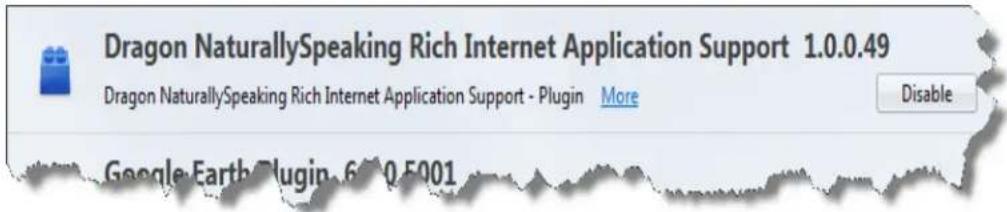
text_image
Dragon NaturallySpeaking Rich Internet Application Support 1.0.0.49 Dragon NaturallySpeaking Rich Internet Application Support - Plugin More Disable Google Earth Plugin 6:0.5001- If the extension is disabled, click "Enable." See also How to tell if Web application support is active.
Be careful when you upgrade!
When you upgrade Firefox, you'll see a window prompting you to choose which a you want to keep active. You must select the Dragon RIA extension, or Firefox automatically disable it. If this happens, use the steps above to re-enable it.
In Google Chrome 16 or later
-
Click the Wrench icon beside the Address bar to open the Google Customization and Control menu.
-
Click "Settings."
-
Click "Extensions." The Dragon RIA Extension for Chrome displays, as shown:
Extensions
Developer mode

Dragon RIA Extension for Chrome 1.0 Support for using Rich Internet Applications with Dragon.
Enabled Remove
- Close and reopen the browser. If necessary, click "Enable" to enable the Dragon Internet Application extension. A checkmark appears in the "Enabled" checkbox with the Dragon RIA extension is enabled, as shown. See also How to tell if Web cation support is active.
Resolving problems
Please see If you have problems using Web application support.
How to tell if Web application support is active
After you install Dragon, your Web browser may prompt you to enable Dragon's R net Application (RIA) extensions. Click "Yes" to turn the feature on. Here's an example of how the RIA extension displays in Google Chrome:
Extensions
□ Developer mode

Dragon RIA Extension for Chrome 1.0 Support for using Rich Internet Applications with Dragon.
Enabled Remove
If you need to turn on Dragon's RIA extensions or verify that they are turned o Enabling Web application support.
What you'll see in your Web application
When you are in a supported Rich Internet Application and the feature is enabled, a small apostrophe icon to the left of interface elements that you can click by vo shown here in Gmail:
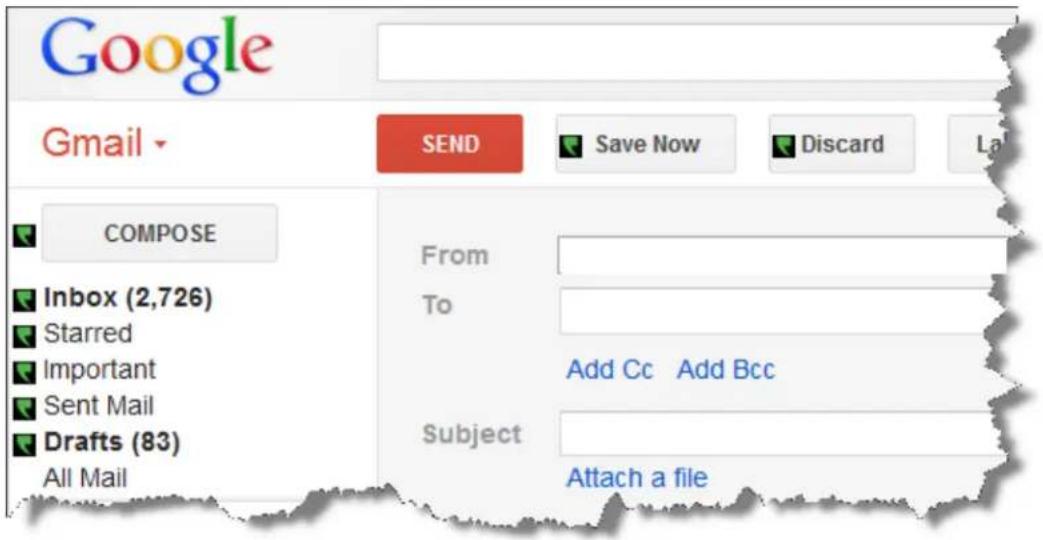
text_image
Google Gmail SEND Save Now Discard La COMPOSE Inbox (2,726) Starred Important Sent Mail Drafts (83) All Mail From To Add Cc Add Bcc Subject Attach a fileYou'll also know that the feature is enabled if you place your insertion point in a such as an e-mail subject field or message body and the Text Control Indicator on the DragonBar is green.
Resolving problems
If this is the first time you've tried using a supported web application with Dragon restarting your browser and reconnecting to the web application.
If you are using a Web application and browser that support RIA extensions, but is not active, please see If you have problems using Web application support.
If you can't use Rich Internet Application support, such as if you are using a We cation or browser that is not supported, you can still use Dragon to enter text and commands.
For more information, see Using the Dictation Box, Web browser commands and Dictating e-mail and Web addresses.
Using Gmail
Use Rich Internet Application (RIA) support when you write and send Gmail messages
RIA extensions enable you to use supported Web browsers to dictate content and commands. The feature uses Full Text Control in supported browsers and Web applications to help you perform common tasks by voice. For example, you can say "Click Inbox," Subject" or "Click Sent Mail." Also see Using Dragon's Web capabilities without RIA.
Before you begin
Before you begin, make sure
- The Gmail Web extension is active. Please see How to tell if Web application support is active.
- You are logged into your Gmail account and have Gmail open.
- You're using Gmail's latest interface layout. Dragon's Gmail support only works with the newest Gmail interface and not with Gmail "Classic."
Writing e-mail messages
Use the following steps to write e-mail messages. At any time you can say "Show mands" to display a list of commands.
- To start a new message, say "Click New" or "Click Compose," as required.
- Do the following in any order:
- When you're ready to enter the e-mail address you'll be sending to, "Go To To" and dictate the e-mail address of the person you'll b the message to.
If you see a list of suggested addresses, choose one from the list "Choose
■ Say "Go To Subject" and dictate your subject text.
■ Say "Go To Body" and dictate your message.
- Click the Send button.
Using commands in Gmail
RIA extensions add the following voice commands to Gmail. See also Editing text in a supported Web application.
| To Say | |
| Open a pop-up window that lists able commandsTo close the pop-up window | aShow Site Commands" or "Show Web Site Commands""Hide Site Commands" |
| View your Inbox "Click Inbox" or | "Go To Inbox" |
| View sent mail "Click Sent Mail" | or "Go To Sent Mail" |
| View mail labeled Important "Click | Important" or "Go To Important" |
| View mail labeled Starred "Click Starred" or "Go To Starred" | |
| View draft mail "Click Drafts" or "Go To Drafts" | |
| Compose a new message "Click Compose" or "Compose New Email" | |
| Reply to the current message "Click Reply""Click Reply To All" | |
| Place your cursor in the To field | "Go To To" |
| Place your cursor in the Subject | field "Go To Subject" |
| Place your cursor in the Body field | "Go To Body" |
| Select an e-mail address to insert the To field when you see the a plete field | "Choose" whereis the number for cothe address you want. |
| Save your message as a draft "Click Save Now" or "Save Message" | |
| Close and delete your message with Click Discard" or "Discard Message" saving it | |
| Print the list of commands | "Show Site Commands" or "Show Web Site Com-mands" and click the Print icon |
Using Dragon's Web capabilities without RIA
If RIA extensions aren't available for your Web browser or Web application, you can use many of Dragon's features on the Web. For example, you can dictate in any such as commenting fields in Facebook and instant messaging programs, move around pages, click links, and perform keyword or Web site searches. In Internet Explorer, have Full Text Control without RIA.
When Dragon notices that you are dictating in an unsupported application, it opens tation Box, which also features Full Text Control.
You can also use keyboard commands such as "press Alt d," "press Enter," "press tab," "press F5," "page down," and commands for clicking and dragging the mouse, such as "MouseGrid 3," "mouse right-click."
For more information about Dragon's Web capabilities, see Working with a Web browser.
Using Hotmail
Use Rich Internet Application (RIA) support when you write and send e-mail with Hotmail.
RIA extensions enable you to use supported Web browsers to dictate content and commands. The feature uses Full Text Control in supported browsers and Web applications to help you perform common tasks by voice. For example, you can say "Click Inbox," Subject" or "Click Sent Mail." Also see Using Dragon's Web capabilities without RIA.
Windows Live E-mail
Some Internet service providers rebrand Hotmail as Windows Live E-mail. Dragon's R extensions are also available for those implementations.
Before you begin
Before you begin, make sure
- The Hotmail Web extension is active. Please see How to tell if Web application support is active.
- You are logged into your Hotmail account and have Hotmail open.
Writing e-mail messages
Use the following steps to write e-mail messages. At any time you can say "Show mands" to display a list of commands.
- To start a new message, say "Click New" or "Click Compose," as required.
- Do the following in any order:
- When you're ready to enter the e-mail address you'll be sending to, "Go To To" and dictate the e-mail address of the person you'll b the message to.
If you see a list of suggested addresses, choose one from the list "Choose
■ Say "Go To Subject" and dictate your subject text.
■ Say "Go To Body" and dictate your message.
- Click the Send button.
Using commands in Hotmail
RIA extensions add the following voice commands to Hotmail. See also Editing text in a supported Web application.
| To Say | |
| Open a pop-up window that I available commandsClose the pop-up window | Ist"Show Site Commands" or "Show Web Site Commands""Hide Site Commands" |
| View your Inbox "Click Inbox" | |
| View sent mail "Click Sent" | |
| View draft mail "Click Drafts" | |
| View flagged mail "Click Flagged" | |
| View all mail, when filter menu "Click All" active | |
| View unread mail "Click Unread" | |
| View mail from contacts "Click | Contacts" |
| View mail containing social net- work updates | "Click Social Updates" |
| View mail from groups and mail list subscriptions | "Click Groups" |
| View mail from businesses and organizations | "Click Newsletters" |
| View all uncategorized mail "Click Everything Else" | |
| Compose a new message "Click New" | |
| Reply to the current message | "Reply" "Reply To All" |
| Place your cursor in the To field | "Go To To" |
| Place your cursor in the Subject field | "Go To Subject" |
| Place your cursor in the Body field | "Go To Body" |
| Save your message as a draft | "Click Save Draft" |
| Close and delete your message without saving it | "Click Cancel" |
| Print the list of commands | "Show Site Commands" or "Show Webmands" and click the Print icon |
Using Dragon's Web capabilities without RIA
If RIA extensions aren't available for your Web browser or Web application, you can still use many of Dragon's features on the Web. For example, you can dictate in any such as commenting fields in Facebook and instant messaging programs, move around pages, click links, and perform keyword or Web site searches. In Internet Explorer, have Full Text Control without RIA.
When Dragon notices that you are dictating in an unsupported application, it opens tation Box, which also features Full Text Control.
You can also use keyboard commands such as “press Alt d,” “press Enter,” “press tab,” “press F5,” “page down,” and commands for clicking and dragging the mouse, such as “MouseGrid 3,” “mouse right-click.”
For more information about Dragon's Web capabilities, see Working with a Web browser.
Editing text in a supported Web application
Use this topic for examples of how you can edit text in any of the Web applic Dragon supports.
In supported browsers, you'll have Full Text Control, so that you can dictate content and use a broad range of Dragon commands. You'll also be able to navigate between mail perform common tasks like "Click Inbox" and "Click Compose."
Editing text
| To Say | |
| Delete the last text Dragon entered Scratch That | |
| Correct selected text or the last text Dragon entered Correct That | |
| Spell a word to add it to the vocabulary Spell That | |
| Return the cursor back to where you last placed uments and e-mail messages | iGoin Baddc- |
| Correct the previous correction Correct Previous | |
| Correct the next correction Correct Next | |
| Train Dragon about how you pronounce a new word Train That | |
| Hyphenate selected words Compound Selection | |
| Hyphenate a string of words | Compoundthrough(North America)Compoundto(Outside the U.S. and Canada) |
| Inserts selected text before the last text that Dragon entered | insert Before That |
| Inserts selected text after the last text that Dragon entered | Insert After That |
| Inserts selected text before some text that you quoted from before [text] your existing content | insert from before [text] |
| Inserts selected text after some text that you quoted from after [text] your existing content | insert from After [text] |
Selecting text
| To Say | |
| Select text you specify in your document Select | |
| Selects the next text item, such as the next word, Select again paragraph, or the next instance when there are multiple text matches | |
| Selects the previous text item, such as the next or paragraph, or the next instance when there are multiple text matches | Select line Previous |
| Selects the next text item, such as the next word, Select next paragraph, or the next instance when there are multiple text matches | |
| Select the last text you dictated Select That |
Capitalizing text
| To Say | |
| Capitalize the first letter of each word in the last dictated | Capxt That |
| APPLY ALL UPPERCASE All Caps That | |
| apply all lowercase No Caps That | |
| Capitalize the first letter of each word in selected | text Cap Selection |
| Apply all capital letters to text you have selected | All Caps Selection |
| Makes all capital letters lower case in selected text | No Caps Selection |
Using Dragon's Web capabilities without RIA
If RIA extensions aren't available for your Web browser or Web application, you can still use many of Dragon's features on the Web. For example, you can dictate in any text field, such as commenting fields in Facebook and instant messaging programs, move around Web pages, click links, and perform keyword or Web site searches. In Internet Explorer, you also have Full Text Control without RIA.
When Dragon notices that you are dictating in an unsupported application, it opens the Dictation Box, which also features Full Text Control.
You can also use keyboard commands such as “press Alt d,” “press Enter,” “press tab,” “press F5,” “page down,” and commands for clicking and dragging the mouse, such as “MouseGrid 3,” “mouse right-click.”
For more information about Dragon's Web capabilities, see Working with a Web browser.
If you have problems using Web application support
If you're having problems using Dragon with a supported Web application, this list can help you identify the cause and find a solution.
Is the Web application supported in your browser?
Rich Internet Application (RIA) extensions are available in the following Web browsers versions:
■ Internet Explorer, version 9 (32-bit mode only)
■ Mozilla Firefox, version 12 or later
■ Google Chrome, version 16 or later
If you don't have one of these browsers in the version listed, you can still use existing capabilities for commands and dictation on the Web, but you will not have the full benefit of Web application support.
IMPORTANT
In the specific web applications it supports, the RIA feature adds to Dragon's usualities in the particular supported Web browser.
Dragon's functionality differs significantly between Web browsers. Please see Working with a Web browser. For example: In Chrome, you cannot select hyperlinks by name or mands like "refresh page" and "open new tab". For these actions, you must use gmands, such as mouse commands or press commands such as "press F5" and "pres t".
Enabling the feature
After you install Dragon, and open a supported browser, the browser may prompt your enable Dragon's Web application support. Click Yes to turn the feature on. For more information, see Enabling Web application support.
After you enable the RIA extensions, restart your browser.
If you use Windows XP
Internet Explorer 9 is not available for Windows XP. To use RIA extensions with V XP, use Firefox or Chrome.
If you use Google Chrome
The feature is not supported when you are in Chrome's Incognito mode.
Is the feature active?
When you are in a supported Rich Internet Application and the feature is enabled, a small apostrophe icon to the left of interface elements that you can click by vo shown here in Gmail:
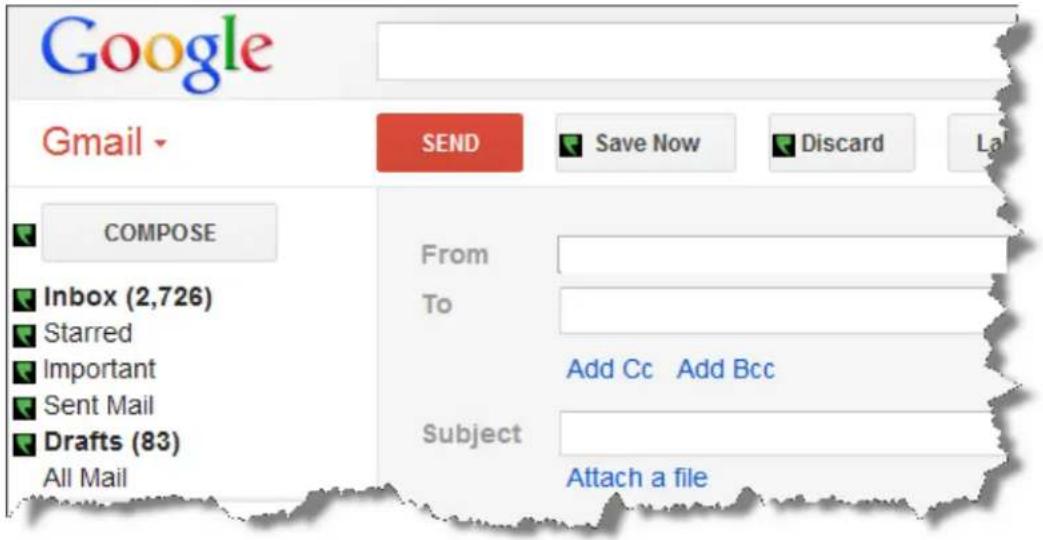
text_image
Google Send Save Now Discard COMPOSE Inbox (2,726) Starred Important Sent Mail Drafts (83) All Mail From To Add Cc Add Bcc Subject Attach a fileYou'll also know that the feature is enabled if you place your insertion point in a such as an e-mail subject field or message body and the Text Control Indicator on the DragonBar is green.
Is your browser extension or plug-in enabled?
Your Dragon installation includes extension and/or plug-in and files that Web browser to provide you with Rich Internet Application support. If you are having trouble, make sure the RIA plug-in or extension is enabled for the browser you are using. Typically, yo this from a Tools or Options menu. After enabling RIA, restart your browser. For Enabling Web application support.
Be careful when you upgrade!
When you upgrade Firefox, make sure you choose to keep the Dragon RIA extension when prompted, or Firefox will automatically disable it. If this happens, you can re-enable it.
If you were running Internet Explorer 8 when you installed Dragon and you upgraded net Explorer 9, you need to install the RIA plug-in and extension files. To do so original Dragon installation file (typically this is located on a DVD) and launch setu When you see the installation wizard, select the Repair option and click Next.
Could there be an issue with the site?
Changes a site makes to its layout or functionality can cause compatibility problems. Dragon. We make every effort to keep up with these changes, but if you encounter ficulties, please contact Dragon NaturallySpeaking Support.
Are you using a different language?
To use Rich Internet Application (RIA) support, you must set the language of the Web
application to the same language as your the user profile. If your profile is set up you must have your Web application (Hotmail or Gmail) set up in English. RIA d require that your Web browser be in the same language as your profile, but it m want to use other Web browser commands.
If you want to work in a different language, you can create another user profile guage and load it into Dragon when you need it.
Is the Dictation Box behaving in an unexpected way?
Sometimes the Dictation Box misunderstands the context of what you're working on displays text you didn't dictate, and that you can't edit. This can happen when the application you're using is on a field you can't edit and:
■ you intentionally open the Dictation Box, or
- you speak into your microphone, prompting the Dictation box to open automa
For example, if you have your e-mail application open with an item in your messa selected, the Dictation Box may display the header text of that message.
If this happens, just go to the Dictation Box and say or click "Cancel" to close
Are you trying to play back dictation?
To play back dictation in Web applications, please use voice commands such as "Pl: back," "Read that," and "Read selection." In Web applications, Dragon does not support playback of dictation using menus and buttons.
Playback restricted to the current field
In a Web application like Gmail or Hotmail, playback is limited to the current dict the current field. This means that when you move to another field, you can no I back dictation for previous fields, even if you go back to them.
For example, if you dictate an address in a message's To field and then you go ject field, you can't play back dictation for the To field. If you return to the To tate another address, you can play back the new dictation but not the original dict
Are you working offline?
Offline mode is not supported for working with Web-based documents.
Are you having trouble opening the Correction menu?
Dragon does not currently support the following methods for opening the Correction when working in Web applications
■ Using the hot key. By default, this is the Minus key (-)
■ Double-clicking on selected text
- Clicking the Correction button on the DragonBar Extras toolbar
Chapter 9: Working with Web browsers
This section contains the following topics:
Working with a Web browser 181
Searching the Web by voice 182
Web browser commands 186
Internet Explorer commands.... 189
Using tabs in Firefox 191
Working with a Web browser
Dragon includes many commands designed specifically for use with Web browsers such Internet Explorer, Mozilla Firefox, and Google Chrome that enable you to surf the voice.
Important: Please keep in mind that Dragon's capabilities differ significantly among W browsers, both in terms of commands and in terms of text control. Note in partic
- In Firefox and Chrome, there is no Full Text Control outside of Web pages specifically supported by the Rich Internet Applications feature.
- Dragon has many commands specific to Internet Explorer, including commands to open list boxes and activate text boxes or check boxes.
- In Chrome, you cannot activate hyperlinks by name.
- For Chrome, Dragon has no commands such as “go to Address bar”, “open new tab”, “go home”, “refresh page”, etc. However, remember that you can take advanta Dragon’s global command capabilities: mouse-related commands (such as “MouseGrid 3 9”, “mouse click”, and “move mouse upper left”) and key-pressing commands (such as “press Alt d”, “press Enter”, “press control t”, “press tab”, “press F5”, “press Escape”, “page down”).
The following topics cover various Web-related capabilities:
Web browser commands
Internet Explorer commands
Using tabs in Firefox
Using Rich Internet Application extensions
In the Dragon Help, see:
Following links and clicking buttons
Specifying Web addresses
Going to text boxes and selecting check boxes and option buttons
Notes
- You cannot select icons on the toolbar, Java ^TM or ActiveX ^® applets, or History, Search, or Channels panels by voice.
- The "Enable commands in HTML windows" box must be selected on the Commands tab of the Options dialog box to use Internet Explorer and Firefox
- You can use the same voice commands that you use with Internet Explorer gate in other applications that run within an HTML window. This includes H dows based on HTML, such as this Help topic.
- On some versions of Windows, you can control Internet Explorer menus and boxes by voice only if the "Voice-enable menus, buttons, and other controls, ing" box is selected on the Miscellaneous tab of the Options dialog box.
- On some versions of Windows, Microsoft Active Accessibility should be installed before using voice commands with Internet Explorer. If Microsoft Active Accessibility is not installed, you must always start Dragon before you start Internet Explorer. If Internet Explorer is already running, close it, start Dragon, and t restart Internet Explorer.
Searching the Web by voice
Use the Dragon Voice Shortcuts in this topic to perform the following types of W searches:
- Search the Web: Starts a Web search in your default browser. Dragon displays your search string for editing if needed, and then uses your default search provider search the Internet for your search terms. See Search the Web for details.
- Search a specific Web site: Starts a Web search of a specific site in your default browser. Dragon displays your search string for editing if needed, and then u default search provider to search a specific Web site for your search terms. Search a specific Web site for details.
- Search a category on the Web: Starts a Web search of a specific category of information in your default browser. Dragon displays your search string for editing needed, and then uses your default search provider to search a specific category your search terms. See Search a category on the Web for details.
You can also Search the Web using dates, times, names, or currencies and Directly open a Web site with Google's "I'm feeling lucky".
Notes
- The option to edit the search string before it is sent to your browser is so you can turn it off if you prefer. See Display search text before perform for details in the Dragon Help.
- Depending on your Web browser and the complexity of the search, displaying results may take a few moments.
- Your Web browser does not have to be open to start a Web search by v recognizes when you use a voice search command and opens your default bro you. See your browser's documentation for information on setting the default b
The following table lists the types of Web searches you can perform, the commands: Dragon supports, examples of how to use the commands, and descriptions of what after you say them.
| Search type Syntax | Example commands What happens | ||
| Search the Web | Search [the Web for [the] | "Search the Web for Italian restaurants in Boston" | Optionally, Dragon displays your search string so that you can edit the keywords if necessary.Your default Web browser opens and displays the results of a search for the phrase "Italian restaurants in Boston" using your default search engine. |
| Search a specific Web site | Searchfor [the] | "Search eBay for wafle irons"-or"Search Yahoo formovies in Boston" | -Optionally, Dragon displays your search string so that you can edit the keywords if necessary.Your default Web browser opens and displays the results of searching eBay for the phrase "waffle irons".Dragon supports this Web site searches for the following sites:About (for about.com)AltaVistaAmazonAnswers (for answers.com) AOLAskBingCreative CommonseBayFacebook (login required)GoogleIRSMSNMySpaceTwitterWikipediaYahoo!YouTube |
| Search a category or the Web | Searchfor"Search video for JFK inaugural address" | Optionally, displays your search string so that you can edit the keywords if necessary.Your default WDragoneb browser opens and displays the results of a search on the words "JFK inaugural address" in your default search engine's video category.Dragon recognizes the following search categories:Search (images | pictures | photos) forSearch (video | movies) forSearch (news | events) forSearch (products | shops) forSearch (maps | places) for | |
| Search the Web using dates, times, names, or calculations | Search the Web for | Remember to say the words without pausing Also, you can leave punctuation and Dragon adds it for you. For example, say: | Optionally, Dragon displays your search string so that you can edit the keywords if necessary. |
| Search type Syntax | Example commands What happens | ||
| "Search Google for 8 divided by 12""Search the Web for 11 o'clock am November 11 1945"(Dragon displays the search terms as "11:00 AM November 11, 1945") "Search the Web for 57 Euros in US dollars" "Search the Web for Winston Churchill" | 7Dragon searches the Web as requested using your default browser and search engine. | ||
| Directly open the top-ranked Web site for your search term | "Open top Web site (onUniversity of Kansas" | about | for You can also substitute) [the] <spe"Web page" or "site" specific topic or "Web site>" | "Open top Web site for You can also substitute" Web page" or "site" Web site" | Optionally, Dragon displays your search string so that you can edit the keywords if necessary.Dragon opens your default Web browser and displays the top-ranked page for the phrase "University of Kansas" |
Note:
The "Find a Web site (on | about | for ) [the]
Using Google's I'm feeling lucky
To find Google's top-ranked Web site for a search term using "I'm feeling lucky":
- Open the Google home page, for example, www.google.com.
- Dictate or type your search terms in the search box.
Enabling or disabling searching the Web by voice
To enable or disable searching the Web by voice, open the Options dialog box, Commands
Taband do one of the following:
▶Select or deselect the "Enable Web search commands" check box.
The option is enabled by default.
Web browser commands
Important: Please keep in mind that Dragon's capabilities differ significantly among Web browsers, both in terms of commands and in terms of text control. See Working browser.
Text in italics represents words or numbers that can change. For demonstrations of use these commands, see the Dragon tutorial.
Starting your browser
| To Say | |
| Start Internet Explorer | "Start Internet Explorer""Start Microsoft Internet Explorer" |
| Start Mozilla Firefox "Start Firefox""Start Mozilla Firefox" | |
| Start Google Chrome | "Start Google Chrome""Start Chrome" |
| Instead of "start," you can also say "open," "launch" or "show. | |
Navigating the Web
Please note that not all of these commands work in all browsers.
| To Say | |
| Move the insertion point "Go to Address Bar"to the Address Bar | See also New commands for Internet Explorer 9 |
| Go to the Web address "Click Go" or "Go There"the Address Bar | |
| Refresh the current page"Refresh page" or "Reload page"from the Web | |
| Click a button The button name or part of the button name. You can also "Click" followed by all or part of the button name.or"Click," where button represents the text shown on a button on an HTML window. If there are multiple similar names on a page, Dragon displays a number each link that appears. For example, "2." Next, you number of the button you want to click. A vertical points to your choice and then Dragon opens the lin the associated Web page. |
say
buttons with next to say the red arrow k to open
| To Say | |
| Follow a link that is word or phrase | a "Click" plus the link text or part of the text. or"Click," where link text represents the text shown on a button on an HTML window. If there are multiple text links on the page, say the number of the link you want to click, or say the text for the link. A vertical red arrow highlights your choice and then Dragon opens the link to open the associated Web page. |
| Click on an image that a link | Sey "Click" and the text that appears when the mouse pointer moves over the image, for example, "Click Dragon" when "Dragon" is the text that appears. |
| Stop loading a Web page | "Stop Loading" |
| Load the previous page the history list | "Go Back" |
| Load the next page in history list | "Go Forward" |
| Load your home page | "Go Home" |
| Open a browser tab in new browser window | "Open this in a new window" |
| Open a currently displayed Web page in another browser tab that stays in the background | "Open this in a background tab" |
Entering text and data
The following commands work only in Internet Explorer:
| To Say | |
| Show all places on the "Click Type Text" page where you can enter text | "Click Edit Box" |
| Show all check boxes of Click Check Box" the page and go to the first one | "Click Image" |
| Show all images on the "Click Image" page with links | "Click Image" |
| Show all option (radio) buttons on the page | "Click Radio Button" |
| Show all boxes on the page with lists of choice | "Click List Box |
| Show all boxes on the page with lists of choices where you can also type in text. | "Click Combo Box" |
| Open a list of choices | "Show Choices" |
| Close a list of choices | "Hide Choices |
| Choose an entry from list of choices | a"Choose," for example, "Choose Hardware Compatibility Guide." Saying "Choose" is optional. |
| Click the selected link, edit box, or other object. | "Click That |
Notes
- If you're using Dragon with Gmail or Hotmail, make sure your browser's Rich Internet Application support is enabled. A component of Dragon, the feature gives you important commands as well as Full Text Control in those Web applications. For more information, see Using Rich Internet Application extensions.
- You can use most text selection commands when you work with text that y in a Web form.
- Use the "Choose
," "Next Match," "Previous Match," and "Click That" commands listed under Navigating the Web to select among multiple choices.
Moving around a Web page
| To Say | |
| Move the page down by a screen | "Page Down" |
| Move the page up by a screen | "Page Up" |
| Move down to the bottom of the text | "page "Scroll Down" |
| Move up to the top of the page | "Scroll Up" |
| Move the page down by a few lines text | Line of Down" |
| Move the page up by a few lines of text | "Line Up" |
| Go to the next frame in a multi-frame page | "Next Frame" |
| Go to the previous frame in a multi-frame page | "Previous Frame" |
| Go to the next pane in a multi-pane page | "Next Pane" |
| Go to the previous pane in a multi-pane page | "Previous Pane" |
| Display the top of the current page | "Go To Top" |
| Display the bottom of the current page | "Go To Bottom" |
| Start automatic downward scrolling | "Start Scrolling Down" |
| Start automatic upward scrolling | "Start Scrolling Up" |
| Stop automatic scrolling | "Stop Scrolling" |
| Increase the rate of automatic scrolling | "Scroll Faster" |
| Decrease the rate of automatic scrolling | "Scroll Slower" |
Internet Explorer commands
The following commands are specific to Internet Explorer 7, 8, and 9. To see lists commands supported in Internet Explorer, open the Dragon Sidebar or Command Browser.
New commands for Internet Explorer 9
Dragon works with Internet Explorer 9 to provide voice support for pinning Web specific Web pages to the Windows Start menu. Then, when you open the Web si
from there, it displays as a separate browser icon on the Windows taskbar.
To pin a Web site or page to the Start menu
- Say "Pin this [web] site | page to Start menu." A dialog box displays, where update the address for the Web page to be added.
- Say or click Add to complete the command.
Internet Explorer 9 supports entering Web search terms in the same box that display Internet address of the page you are viewing. The box is called the One Box or
Bar. http://www.facebook.com/
To move the cursor to the One Box
■ Say "go to the One Box."
Notes
Home button and Home menu
Internet Explorer 9 has both a Home button, which displays in the top-right corner, the browser window, and a separate Home menu, available from the Command bar shown here:

text_image
Page Safety ToolsIf both are displayed, Dragon usually recognizes the Home button when you say that "Home" command.
Tools menus
Internet Explorer 9 has a main Tools menu, which displays when you click the co the top-right corner of the browser window, and a secondary Tools menu on the bar, shown here:

If both are displayed, Dragon usually opens the main Tools menu when you say the command.
Using tabs
■ open new tab
■ open last tab
■ open next tab
■ open previous tab
- close tab
■ switch to the last tab
■ switch to the next tab
■ switch to the previous tab
■ view the next tab
■ view the last tab
■ view the previous tab
■ view the [nth] tab
(can use the numbers one to eight)
Using Quick tabs
■ display quick tabs
■ hide quick tabs
■ unhide quick tabs
■ open quick tabs
■ show quick tabs
■ turn quick tabs on
■ turn quick tabs off
■ view quick tabs
Using feeds
■ open feeds
- close feeds
■ show feeds
■ display feeds
■ view feeds
■ hide feeds
■ unhide feeds
- toggle feeds
■ switch to feeds
Using tabs in Firefox
The following commands are specific to Mozilla Firefox. To see lists of Dragon cor supported in Firefox, open the Dragon Sidebar or Command Browser.
Using tabs
- add a new tab
■ open a new tab - click the next tab
- click the previous tab
■ goto to the next tab
■ goto the previous tab
- close tab
Chapter 10: Working on Your Desktop
This section contains the following topics:
Starting and exiting programs 193
Using Windows Desktop commands 195
Controlling menus 197
Selecting buttons and dialog box options.... 198
Selecting tabs in a dialog box 199
Resizing and closing windows 199
Selecting and opening icons 200
Scrolling in windows and lists 200
Scarching your Desktop by voice 201
Switching between programs and windows 202
Starting and exiting programs
Use the following voice commands to start programs that appear anywhere on your menu or your Desktop.
Attention
The "Start
To start a program
▶ Say "Start" followed by the program name.
Instead of "start," you can also say "open," "launch" or "show." For example, say "open Note-pad."
Shorter names for popular programs
For the popular Windows programs listed here, you can use shorter program names tion to the standard program label shown on the Start menu or under the program Desktop. For other programs you'll need to say the standard program label.
■ MS Word, Microsoft Word, Microsoft Office Word
■ MS Excel, Microsoft Excel
■ MS Outlook, Microsoft Outlook
■ Outlook Express
■ MS PowerPoint, Microsoft PowerPoint
■ MS Access, Microsoft Access
■ MS InfoPath, Microsoft InfoPath
■ Internet Explorer, Microsoft Internet Explorer
■ Firefox, Mozilla Firefox
- Chrome, Google Chrome
■ Corel WordPerfect, WordPerfect
■ Acrobat Reader
- Lotus Notes
Examples:
▶ Say "Start Microsoft Word"
Or
▶ Say "Start Acrobat Reader"
Notes
▶ You can also start your standard desktop email client by saying "Start Mail." See Working in e-mail programs for details.
To start any other programs
To start other Windows desktop programs, you need to know the name of the program shortcut or icon. Say "start" and then the text on the program icon label.
Examples:
Microsoft Visual Basic, listed in Windows like this.
▶ Say "Start Microsoft Visual Basic 2008 Express Edition"
OR
Adobe Acrobat Pro, listed in Windows

Adobe Acrobat 9 Pro
To simplify start commands or to run programs using names of your choice, you Desktop icons or create new Windows Shortcuts. See your Windows documentation for details.
To exit a program
▶ With any window that has the active focus on your screen, say "Close Window," "Click Close"
Notes
- To access some built-in items on the main section of the Windows Start meeting Shut Down, Help, Run, and the Favorites, Find, and Settings menus, you "Click Start" or "Click Start Menu" and then say the menu names you want to reach the program. For example, to start the Find Files or Folders tool, say Start" and then "Find Files or Folders."
- In some versions of Windows you must close any open applications before you use the voice command "Shut Down Windows" to exit Windows.
- On some versions of Windows, you can control Internet Explorer menus and boxes by voice only if the "Voice-enable menus, buttons, and other controls, ing" box is selected on the Miscellaneous tab of the Options dialog box.
- To use Dragon to operate Windows menus and dialog box controls by voice, option Voice enable menus, buttons and other controls must remain enabled in Miscellaneous tab of the Options dialog box. The setting ensures that the Wi Active Accessibility feature allows voice control of Windows menus and controls This option is turned on by default.
Using Windows Desktop commands
You can use voice commands to perform many actions on the Windows Desktop, in the table below.
Notes
- Instead of dictating the verb "open," you can also say "start," "launch" or "show." For example, say "start Notepad."
■ For details about how to say program names, see Starting and exiting programs. - See About the Command Browser for more variants of all commands listed here and see Creating new commands in the Dragon Help for information about how your own commands.
■ Items in square brackets are optional.
| To do this You can say | |
| Open Windows special folders | |
| Open your My Computer window | "Open My Computer" |
| Open your My Documents folder | "Open My Documents" |
| Open your My Pictures folder | "Open My Pictures" |
| Open your My Music folder | "Open My Music" |
| Open your My Videos folder | "Open My Videos" |
| Start applications and utilities | |
| Start a program by name "Open" | |
| Note: This command can be turned off to reduce computer memory use and recognitions of dictation as commands. See Enable launching from the Start me Dragon Help. | |
| Open Windows Explorer "Open" | Windows Explorer" |
| Open Windows Help and Support"Center | "Open Windows Help" |
| Open the Windows Task Manager "Open Task Manager" | |
| Open the Windows Run dialog box "Open Run dialog" | |
| Open the Windows System Control"Configuration Utility (msconfig) | "Open System Configuration Utility" |
| Open the Windows Control Panel "Open Control Panel" | |
| Open the Windows Print Manager "Open Print Manager" | |
| Add a printer to your Windows system | "Add a new printer" |
| Add or remove programs to Windows system | "Open Add or Remove Programs window" |
| Change the Windows Displayings | "Change Display Settings" |
| Change the Windows screenolution | "Change screen resolution" |
| Change Windows Power Settings "Change power settings" | |
| Navigate between windows | |
| Switch between windows "List | programs" or "List all windows" or "List windows for Dragon" and then "Choose n," where n is th of the window you want to switch to. For exam "Choose 2"OR►"Switch to previous window"OR |
eliminate nu in the
| To do this You can say | |
| ►"Switch to next window." | |
| Switch to a specific program document | or "Switch to" For example, say "Switch to Microsoft Word"OR►"Switch to"OR►"List windows for"—See Switching between programs and windows |
| Work with windows | |
| Enlarge the active window to size of your monitor's screen | "Maximize window" |
| Minimize the active window | Minimize window" |
| Close the active window "Close window" | "Minimize [all] windows" |
| Minimize all windows and display"Show Desktop"the Windows Desktop | "Minimize [all] windows" |
| Return a maximized window original size | to"Restore window" |
| Restore all minimized windows | "Restore [all] windows" |
Controlling menus
You can open, close, and choose items from the menus in most programs by void control the menus in a window, the window must be active.
To open a menu
▶ Say one of the following:
"Click" followed by the name of the menu.
Just say the menu name.
Example:
"Click File" or "File"
Dragon's default setting is to require that you say "Click" to select menus and con Require "Click" to select menus in the Dragon Help.
To choose an item from an open menu
▶ Just say the item (you can still say "Click" but Dragon doesn't need you to).
Example:
If the File menu is open, say "New"
To close a menu
▶ Say "Cancel"
Notes
- Say "Click Start Menu" or "Click Start" to open the Start menu. You must say "Click" to open the Start menu. By default, you must say "Click" before the name in commands. To change the setting, see Require "Click" to select menus in Dragon Help.
■ Saying "Cancel" is equivalent to pressing the ESC key. - In some versions of Windows, a feature called Active Accessibility allows you to certain windows menus and controls by voice. If your version of Windows ports Active Accessibility, the "Voice-enable menus, buttons, and other controls, excluding" option on the Miscellaneous tab of the Options dialog box must be ordered to use voice commands to control menus. When you first install Drago option is on by default.
- When using Microsoft Office XP applications running on the Microsoft Window XP operating system you may not be able to control certain menu items by those menu items have changed their position as a result of an automatically ing menu. If you need voice control of menu items at all times, then you the expanding menu feature in the Customize dialog box of the Microsoft Of application you are using. Open the Customize dialog box from the Toolbars menu of the View menu. In the Options tab of the Customize dialog box, "Always show full menus" option.
Selecting buttons and dialog box options
You can select buttons and dialog box options by voice.
The dialog box must be the active window.
To select a button or option
▶ Say "Click" followed by the name of the button or option, as it appears in the just say the name.
Saying "Click" before the name of the button or option is optional. If you want for example, to improve recognition accuracy of commands over dictation, you can say that "Click" must be spoken on the Commands tab of the Options dialog box.
Example
To change the measurement units in a Microsoft Word document:
■ say "Click Office Button"
■ say "Click Word Options" (to open the Microsoft Word Options dialog box)
■ say "Click Advanced" (to open the Advanced tab)
■ scroll down to Display > Show measurements in units of: <choose one o
■ say "Click OK" (to accept the new measurement unit and close the Optio box.)
To open a list
If the list is selected (the item displayed is highlighted), say "Expand List" or "Dro the list is not selected say the name of the list. To open the next list, say "Pr then either "Expand List" or "Drop List."
To click the Close or OK buttons
▶ Say "Close" or "Click Close," "OK" or "Click OK."
Notes
- You cannot say the following items: file names in dialog boxes, folder names boxes, names of items within list boxes, and toolbar icons.
- On some versions of Windows, you can control Internet Explorer menus and boxes by voice only if the "Voice-enable menus, buttons, and other controls, ing" box is selected on the Miscellaneous tab of the Options dialog box.
Selecting tabs in a dialog box
You can select tabs on a tabbed dialog box (such as the Options dialog box in following manner:
| To Say | |
| Select the next tab "Move to Next Tab" | "Go to Next Tab""Click Next Tab" |
| Select the previous tab | "Move to Previous Tab""Go to Previous Tab""Click Previous Tab" |
Note
If the tab has a caption with a shortcut key (underlined character) you can say "lowed by the name of the tab.
Resizing and closing windows
You can resize and close windows by voice.
To resize a window
- Make the window you want to resize active.
- Say "Maximize Window," "Minimize Window," or "Restore Window."
To close a window
- Make the window you want to close active.
- Say "Close Window."
Note
These commands only work when you are using an English version of your operati tem. If you have a different version of the operating system, you must say "Click" command used by that system in place of "Maximize," "Minimize," or "Restore."
Selecting and opening icons
You can select icons on the Desktop in the following manner:
To select a desktop icon
- Point to the Windows desktop and say "Mouse Click" to make the desktop ac
- Say the name of an icon. For example, "My Documents."
The icon becomes highlighted to indicate that it is selected. - To select another icon, say "Move" followed by a direction (Left, Right, Up, o and the number of icons (up to 20) you want to move. For example, "Move "Move Up 3."
You can open icons on the desktop in the following manner:
To open a desktop icon (including an application)
- Point to the Windows desktop and say "Mouse Click" to make the desktop ac
- Say "Open" and the name of an icon. For example, "Open My Documents."
You can close an open window in the following manner:
To close an open window
- Point to the open window and say "Mouse Click" to make the window active.
- Say "Close Window."
Scrolling in windows and lists
With Dragon you can scroll within a window or list in a dialog box.
To scroll vertically
▶ Make sure the insertion point is in the list of a dialog box and say "Move D Up" followed by the number of lines (up to 20) you want to scroll. This press Down Arrow key the number of times you specify. You can also say "Page Up" Down" to press the Page Up or Page Down key.
Examples:
"Move Up 10"
"Move Down 4"
"Page Up"
To scroll horizontally
▶ If the list or window has a horizontal scroll bar, make sure the insertion point or dialog box and say "Move Left" or "Move Right" followed by a number up presses the Left or Right arrow keys the number of times you specify.
Examples:
"Move Left 10"
"Move Right 5"
Note
You can use these commands to scroll Help windows by voice.
Searching your Desktop by voice
Use the Dragon Voice Shortcuts in this topic to search your Desktop by voice.
The search commands require that you have third-party indexing/search software installe Dragon supports the following search software:
- Google Desktop
■ Windows Vista search
■ Windows 7 search
The following table lists the types of Desktop commands that Dragon supports, an command, and a description of what happens after you say the command:
| Command Type Syntax | Example command | What happens | |
| Search your computer | search [the] computer for [the] | "Search the computer for budget spreadsheets" | The search engine displays all indexed items with the keywords - "budget spreadsheets". |
| Search e-mail search | e-mail for [the] | "Search email for the budget" | The search engine displays all indexed email with the keyword "budget "Note: You can use the terms e-mail, mail, or message interchangeably. |
| Find the top-ranked email | find [an] email (about | on) [the] | "Find an email about the vacation schedule" | The search engine displays the top-ranked email for the keyword "vacation schedule". |
| Search documents | search [the] (documents | files) for [the] | "Search documents for budget" | The search engine displays all indexed documents with the keyword "budget".Note: You can use the terms documents and files interchangeably. |
| Search your Web history, favorites, or bookmarks | search [the] for [the] | "Search the Web history for the budget forecast" | The search engine displays search results containing all pages from your Web history that use the keyword "budget".Valid search categories are:- favorites- bookmarks- Web history |
Enabling or disabling searching the Desktop by voice
To enable or disable searching the Desktop by voice, open the Commands tab of Options dialog box and do one of the following:
▶Select or deselect the "Enable Desktop search commands" check box.
The option is enabled by default.
Switching between programs and windows
Use this procedure to do any of the following:
■ List and switch between open programs or windows.
■ List and switch between windows of multi-document applications.
■ List and switch between open Dragon windows.
Note
You can use this command to switch to your Web browser, but this command dc open tabs in your web browser. For information on browser tabs, see Working with Browser.
To switch between open programs or windows
- Do any of the following:
▶To list all open programs, say "List Programs" or "List all windows." The List Applications window opens. For example,
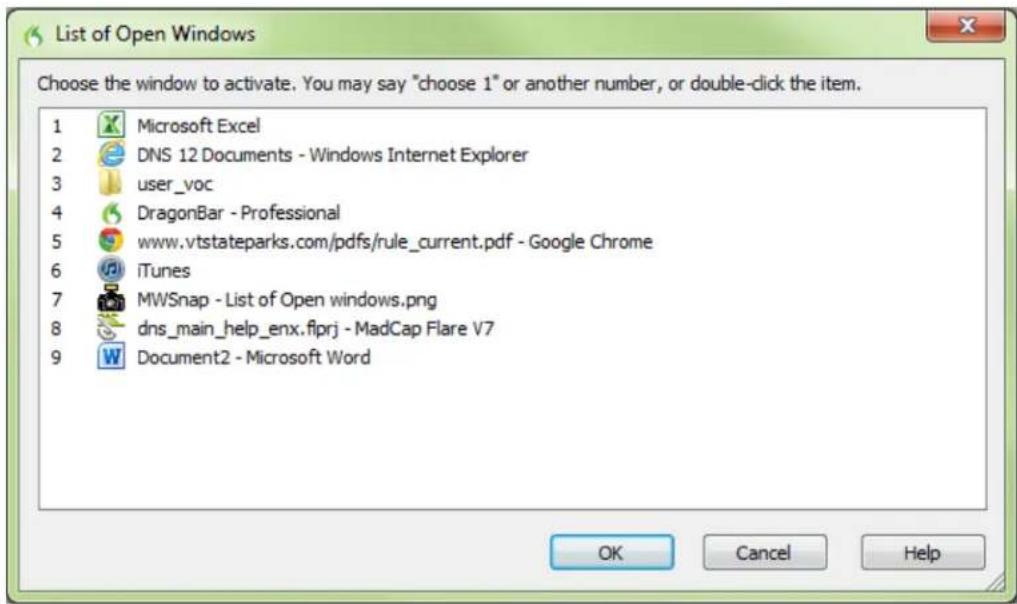
text_image
List of Open Windows Choose the window to activate. You may say "choose 1" or another number, or double-click the item. 1 Microsoft Excel 2 DNS 12 Documents - Windows Internet Explorer 3 user_voc 4 DragonBar - Professional 5 www.vtstateparks.com/pdfs/rule_current.pdf - Google Chrome 6 iTunes 7 MWSnap - List of Open windows.png 8 dns_main_help_enx.flprj - MadCap Flare V7 9 Document2 - Microsoft Word OK Cancel HelpOr
▶ To list open windows of multi-document applications, say "List windows for

text_image
List of Windows - Microsoft Word Choose the window to activate. You may say "choose 1" or another number, or double-click the item. 1 My Blog Post.docx - Microsoft Word 2 Save our Children.docx - Microsoft Word 3 My Budget.docx - Microsoft Word OK Cancel HelpTo list all open Dragon windows, say "List windows for Dragon" or "List Dragons". The list of Dragon windows opens. For example,

text_image
List of Windows - Dragon Choose the window to activate. You may say "choose 1" or another number, or double-click the item. 1 Accuracy Center 2 DragonBar - Professional 3 MyCommands Editor 4 DragonPad - Document OK Cancel HelpFor information about dictating program names, see Starting and exiting programs.
- To switch to an open program or window:
▶ Say "Choose n," where n is the number of the program or window you want to switch to, or just say the number next to the word. For example, say "Choose 2" c OR
▶ Choose the number of the program or window from the list and click OK.
Chapter 11: Controlling the Mouse and Keyboard
This section contains the following topics:
Controlling the keyboard 205 Moving the mouse pointer 207 Positioning the mouse pointer with MouseGrid 208 Clicking and dragging the mouse 209
Controlling the keyboard
When Dragon is running, you can control the keyboard by voice.
| Say | Then say |
| "Press" | "Tab" |
| "Press Key" | "Backspace" |
| Say Then | say |
| "Type" "Caps Lock" | |
Notes
- You can say "Press" or "Type" followed by any combination of modifier keys (Shift, Control, Alt), and then any letter, number, symbol, arrow key, and so on.
- You can say "Press Tab" to move around a dialog box or a list and "Press Enter" to select items.
- You cannot undo a keystroke by saying "Scratch That." For example, if you say "Press Cap A" then "Scratch That," "A" remains in the document. You can, however, "Undo That."
Moving the mouse pointer
You can move the mouse pointer up, down, left, or right using the mouse pointer mands.
Click here for Dragon's Top 5s: Mouse and keyboard
Move commands
The following commands are always available and can move the pointer a short distance to 10 units):
| Say Then say Then say | ||
| "Mouse" "Up" | "Down""Left""Right" | "<1-10>" |
Examples:
"Mouse Down Two"
"Mouse Right Eight"
Optional move commands
You can use the following movement commands if the "Enable mouse motion command box on the Commands tab of the Options dialog box is selected.
| Say Then a direction Then a speed (optional) | ||
| "Move Mouse" or | "Up" | "Faster" |
| "Mouse Move" | "Down" | "Very Fast" |
| "Left" | "Much Faster" | |
| "Right" | "Slower" | |
| "Upper Left" | "Very Slow" | |
| "Lower Left" | "Much Slower" | |
| "Upper Right" | ||
| "Lower Right" | ||
You can say a speed command at any time while the pointer is moving to speed ment up or slow it down.
Examples:
"Move Mouse Down Faster"
"Mouse Move Lower Right Very Fast"
"Mouse Move Up Very Fast (pause) Slower (pause) Stop"
Stopping mouse movement
While the mouse pointer is moving, you can stop the movement by saying one of lowing commands:
■ "Stop"
■ "Cancel"
Notes
- You can combine moving the mouse pointer with clicking the mouse or mark dragging the object in a single voice command.
- You can disable the mouse motion commands by clearing the check box "En mouse motion commands" on the Commands tab of the Options dialog box.
- The default mouse motion speed is 2 (on a scale from 1 to 25). You can default speed by clicking the Speed button on the Commands tab of the Oj dialog box and selecting a new speed.
Positioning the mouse pointer with MouseGrid
You can position the mouse pointer anywhere on the screen using MouseGrid. The ment can be relative to the full screen or the active window.
To position the pointer with MouseGrid
- Say "MouseGrid" to place the MouseGrid over the full screen or say "MouseGrid" to place it over the active window.
MouseGrid divides the screen or window into nine numbered areas.
- Say the number (from 1 to 9) to position the pointer in that numbered area. it again, say another number.
You can pause slightly after each number you say.
Examples:
"MouseGrid 3 2 5"
"MouseGrid Window 7 8"
Notes
- To have MouseGrid close automatically, end the MouseGrid command with "Go For example, say "MouseGrid 5 3 Go."
- To undo the last MouseGrid action, say "Undo That."
■ To close MouseGrid, say "Cancel." - MouseGrid will close when the microphone is turned off, or when you say mand "Go To Sleep."
- You can combine the MouseGrid command with clicking the mouse or marking dragging the object in a single voice command. For example, you can say "5 3 Double-Click."
Clicking and dragging the mouse
You can click and drag the mouse by voice.
Click here for Dragon's Top 5s: Mouse and keyboard
Clicking the mouse
| Say Then say Then say | ||
| "Mouse" "Click" | - | |
| "Double-Click" | - | |
| "Right-Click" | - | |
| "Left-Click" | - | |
| "Press" or "Type" | "Shift" | "Right Click" |
| "Left Click" | ||
| "Control" | "Right Click" | |
| "Left Click" |
Examples:
"Mouse Double-Click"
"Mouse Right-Click"
"Press Shift Right Click"
"Type Control Left Click"
Dragging the mouse
You can use the following movement commands if you select the Enable mouse motion commands check box on the Commands tab of the Options dialog box.
| Say Then a direction Then a speed (optional) | ||
| "Drag Mouse" (to move) "Up" "Faster" | ||
| "Mouse Drag" (to move) "Down" "Very Fast" | ||
| "Control Mouse Drag" (to copy or "Control Drag Mouse") | "Right" "Much Faster" | |
| "Left" "Slower" | ||
| "Upper Right" "Very Slow" | ||
| "Upper Left" "Much Slower" | ||
| "Lower Right" | ||
| "Lower Left" | ||
You can say a speed command at any time while the pointer is moving to speed ment up or slow it down.
Examples:
"Drag Mouse Down Faster"
"Mouse Drag Lower Right Very Fast"
"Mouse Drag Up Very Fast (pause) Slower (pause) Stop"
"Shift Drag Mouse Up"
Stopping mouse movement
While the mouse pointer is moving, you can stop the movement by saying one of lowing commands:
■ "Stop"
■ "Cancel"
Notes
- You can combine dragging the mouse pointer and clicking the mouse. For example, to open an application from the Desktop, you can say "Mouse Drag Lower when the Desktop icon is selected, say "Double-Click."
- You can disable the mouse motion commands by clearing the check box "Enable mouse motion commands" on the Commands tab of the Options dialog box.
Chapter 12: Improving recognition accuracy
There are many things you can do to improve recognition accuracy.
■ Positioning the microphone correctly
■ Speaking clearly and continuously
■ Run the Accuracy Assistant
■ Run the Acoustic Optimizer
■ Use recognition modes
- Train misrecognized commands
■ Train individual words and phrases
■ Run General Training again
■ Run the Let Dragon search for words tool
■ Personalize your Vocabulary
Top 10 ways to improve accuracy
Here's our top 10 list of ways to optimize Dragon's ability to recognize your speed
- Use careful dictation practices Dictating with Dragon is different than talking to some-
one. When we talk, we often hesitate, mumble, slur words, or leave words out but we're still able to understand each other. And people can easily filter out let us understand each other, even in noisy environments, like restaurants, but sp software needs help separating dictation from other sounds. With dictation, the ide speak in a consistent speed and volume - try not to hesitate, exaggerate your nunciation, or talk loudly or slowly. So make sure background noise doesn't drow out and that you have the microphone close enough for Dragon to hear you usually about an inch from your mouth and to one side. Also, remember to d complete phrases, so that Dragon gets the context. For example, we use our ex and common sense to decide whether someone said "I Scream," or "Ice Cream." Dragon doesn't understand what words mean, so it can't use common sense the
do. Instead, Dragon interprets your speech by using its knowledge of words that appear together. Dragon calculates how frequently you use words and phrases and offer you suggestions when it makes mistakes. Try to think about your whole p sentence before you start dictate it, and you'll be on your way to dictation ma more information, see Dictation Basics.
- Import lists of words or phrases Rather than adding words or phrases one at a time, you can import one or more lists. The lists can even include spoken forms. This method can be particularly useful for businesses that have a lot of people dictating similar or words or if you need to use more than one user profile. For more information, see Preparing a list of custom words to add to a Vocabulary.
- Learn from specific documents You can select specific documents or entire folders containing typical documents, your own or those of others, that reflect the type tation you will typically do. You can then train Dragon how you pronounce un words or about proper names you need to dictate. For example, if you were a and ran the tool to add words from essays and articles in your field of study using a lot of new acronyms, Dragon would automatically learn your words, word frequency and contexts, and make better guesses about your speech. Dragon also words from its backup dictionary to its active vocabulary based on the scan. If there are a lot of words to train, you'll need to plan this activity when you have a few spend adding the words.
- Learn from sent e-mails Similar to Learn from specific documents, this tool helps refine your profile by analyzing representative text, only in this case it analyzes messages sent from your installed email program. In addition to analyzing frequency word use and typical word sequences, it can suggest contact names you may wait to the vocabulary. Note: For the first run, plan this activity when you can let Dragon use your computer for 5 to 30 minutes. Subsequent scans build on the first one, 1 and are much faster.
- Run Accuracy Tuning This process refines your user profile by analyzing audio and text data that Dragon archives from your dictation. You can launch Accuracy Tuning from the DragonBar Audio menu or schedule it to run later. Choose a time when your computer is on but you can close Dragon – for example, when you typically have a meeting.
- Perform additional training Dragon learns about how you pronounce words and your vocal tones when you create your user profile, but it can learn more if you read one or more of the supplied training texts. If you skipped the General Training step was created your profile, we recommend that you read a training text after a few hours using Dragon. On the DragonBar, select Audio > Read Text to Improve Accuracy
- Turn off what you don't use Visit the Performance Assistant for useful strategies for optimizing accuracy and speed with Dragon. For example, you can turn off the "voice-click" menus, buttons and other controls in some or all programs, or the ability to open items from the Windows Start menu or desktop. Turning off these options reduces Dragon's use of computer resources and reduces the possibility of isolated words phrases being executed as commands, such as "Click Send" or "Open Network."
- Use Smart Format Rules to have Dragon recognize when you change a custom or built-in auto-formatting option or word property for alphanumeric text or a word. Dragon
automatically applies formatting to many common spoken forms of text, such as e-mail addresses, street addresses, dates, numbers, units of measure, and so on. T Format Rules feature recognizes your changes to rules and offers to customize the to suit your needs as you work. You can also add custom word properties to words to make Dragon's text entry more intuitive and efficient. By setting word properties, specify a variety of options that can be associated with vocabulary entries. You that a word be preceded or followed by specific characters and customize proper placement or handling. For example, question marks and exclamation marks have of properties of "Precede by (nothing)" and "Format the next word capitalized."
Or, you can specify one or more for words. If the Use Alternate Written Form is selected for "meter," when you dictate the word after a number Dragon enter. For example, of the Alternate Written Form checkbox is not selected, and you "meter," Dragon types the full word, "meter."
-
Make corrections You can prevent many errors using the methods listed above, but if an error does happen, correcting it will help Dragon to learn. Redictating or retyping or phrases are sometimes the fastest approach, but Dragon provides a lot of flo about how and when you correct errors.
-
Save your user profile Remember that as Dragon works on your documents with you, it needs to save what it learns. Whenever you correct dictation with the keyboard, words, or perform any of the other accuracy optimization operations, you must t your user profile to save your changes for your next dictation session.
Using Smart Format Rules
Smart Format Rules may display when Dragon notices that you corrected dictated tex responding to an Auto-Formatting option or Word Property.
Through this optional feature, Dragon displays reaches out to offer one or more ad to its settings.
When Dragon presents a Smart Format Rules box, you can choose one of the adj offers. Or you can just ignore the dialog box and continue working, or say "cance box will close.
Here is an example of the Smart Format Rule for units of measure that appears the standard abbreviation for kilograms, which is kg:
5
Smart Format Rules
?
×
Say "Choose" followed by a number, or just ignore this box.
"choose 1" Never abbreviate units of measure
"choose 2" Always use the alternate written form 'kilograms'
What to do when a Smart Format Rules box displays
When Dragon displays a Smart Format Rule, you can usually do any of the follow
- If you don't want Dragon to auto-format the text using this rule now and dictation, say choose 1 - Never
, where apply rule represents the auto-formatting rule you changed with your dictation. - If you want Dragon to use the same auto-formatting setting the next time y it and in the future, say choose 2 - Always
. - If you don't want to adjust any rule, ignore this box. It will go away when tinue dictating or working in your document. You can also say "Cancel" to the box.
For Smart Format Rules about entering zeros rather than the word "million," for num greater than or equal to 10, and for word properties, the choices are slightly different. The
Smart Format Rules display the applicable choices in those cases. For details and exsee Options controlled by Smart Format Rules below.
When the Smart Format Rules box display
The Smart Format Rules box displays when you edit auto-formatted text using
■ the Correction menu
■ the Spelling window or
■ the keyboard.
Showing the last Smart Format Rule
If a Smart Format Rules box displays and you continue dictating or cancel it accid you can redisplay it by saying the command "Show Smart Format Rule." Previously accepted rules can not be displayed.
Disabling Smart Format Rules
If you want to turn off the Smart Format Rules feature,
- Select Tools menu > Options from the DragonBar. For example, say "Switch to onBar," then "Click Tools," then "Options."
- On the Options dialog box, Correction tab, say "click Show Smart Format Rules the checkmark beside the option.
- Say "Click OK" to close the dialog box and apply your changes.
Restoring a Smart Format Rule
You can restore a default in the Auto-formatting dialog box or Word Properties dialo
Another way to restore a setting: correct the text to the format you want and pick responding rule from the Smart Format Rules box that your correction triggered.
Options controlled by Smart Format Rules
Auto-formatting Web and e-mail addresses
Turns on automatic e-mail and Web address formatting, so that you can dictate the you would normally say them out loud. For example, if you say "Jane dot smith adventure travel dot com" Dragon enters "Jane.Smith@myadventuretravel.com." Dragon
substitutes the @ sign for the spoken "at," uses a period for "dot," and omits you say "www dot nuance dot com," Dragon enters www.nuance.com.
Auto-formatting street addresses
Turns on automatic formatting of postal addresses. For example, if you say "49 or lane boston massachusetts oh two four four six," Dragon enters "49 Orchard Lane, ton, MA 02446."
Certain addresses can be hard for Dragon to interpret. For example, "Two Hundred Fifth Street" could be interpreted as 245th Street, 200 45th Street, or 240 5th St situation like this, Dragon uses context to try to determine what you meant. In s cases, using the word "And" can help to narrow down the choices. In the example, saying "Two Hundred And Forty Fifth Street" would eliminate 200 45th Street as sibility.
For user profiles whose region setting is UK or Canada: This option also enables proper formatting of UK postcodes and Canadian postal codes. For example, you can format a postcode for London by saying "W Two Four R J" to enter W2 4RJ, postal code for Toronto by saying "M Five H Two L Two" to enter M5H 2L2
See Choose your region and vocabulary in the Dragon Help.
For user profiles whose region setting is United States: If you are using a Ulish user profile, you can enable UK postcodes and Canadian postal codes from the and Canadian postcodes option in this dialog box.
See Choose your region and vocabulary in the Dragon Help.
Auto-formatting titles
Inserts abbreviated versions of any title in Dragon's Abbreviated titles list. For exam "Mr." for "Mister," or "Pres." for "President."
Auto-formatting dates
Controls how Dragon formats dates when you dictate the day, month, and year to Use the drop-down button to select the format you want to use most often. Ava mats are:
- Dates As Spoken
■ Month D, YYYY
■ Month DD, YYYY
■ Mon D, YYYY
■ Mon DD, YYYY
■ M/D/YYYY
■ M/D/YY
■ MM/DD/YYYY
■ MM/DD/YY
■ MM-DD-YY
■ D Month, YYYY
■ D/M/YYYY
■ D/M/YY
■ DD/MM/YYYY
■ DD/MM/YY
■ DD-Mon-YY
■ YYYY-MM-DD
NOTES
- If you clear the "Dates" checkbox, Dragon will not apply automatic date for matting. For example, after clearing the checkbox, if you dictate "July twenty enth," Dragon will write "July 27th."
By default, Dragon does not use the numeral form of numbers smaller than whether for cardinal numbers (one, two, three...) or ordinal numbers (first, second, third...). If the "Dates" checkbox is cleared, Dragon writes "the 10th of June" and "the seventh of June" unless you change the default setting "Numbers, if greater or equal to" on the Auto-Formatting Options dialog box.
- If you use the "Dates As Spoken" setting, Dragon needs you to dictate dates in an unambiguous way, using the name and not the digit for the month. For c: with "Dates As Spoken" selected, Dragon will correctly format "January eleven two thousand nine" and "the seventh of February two thousand four" using formats, but will format "eleven one two thousand nine" as a number.
If you dictate dates differently, for example you use digits to say the month selecting the value that best matches how you dictate the date. For example you normally say "eleven one two thousand nine", setting the date format to "D/M/YYYY" will cause Dragon to correctly transcribe the date.
- If you omit the year, for example, you say "July twelve", Dragon transcribes "July 12" ("The twelfth of July" becomes "12 July") regardless of which date form you select.
Auto-formatting common abbreviations
Enables Dragon to recognize most standard abbreviations while transcribing your dictation. For example, Dragon would rewrite "versus" as "vs.", "Institute" as "Inst.", and
"Department" as "Dept." For more information about dictating abbreviations, see Dictating abbreviations and acronyms.
Auto-formatting contractions
Enable this option if you want Dragon to expand contractions when you dictate t
For example, if you say "Don't go near the water", Dragon transcribes "Do not water".
If you leave this option turned off, Dragon enters contractions the way you dictate
Note: In some situations, the formal expression of a contraction may be ambiguous. example, the phrase "It's always" could either mean "It is always" or "It has always,"
depending on the tense of the verb that follows. In this situation, Dragon always the contraction, regardless of how this option is set.
Auto-formatting " million" instead of ",000,000"
Enable this option to have Dragon enter the word "million" rather than zeros and "(,000,000") when you dictate round numbers in the millions. For example, Dragon enters "8 million" rather than "8,000,000."
If a number in the millions range is not rounded to the nearest million, Dragon number as digits. For example, if you dictate "eight million one hundred thousand" Dragon enters "8,100,000".
Auto-formatting numbers, if greater than or equal to
Enters numbers as numerals if they are equal to or greater than the value shown drop-down list. If the number is less than the chosen value, the number is spelled For example, using the value of "10", Dragon will write "five" when you dictate "11" when you dictate "eleven".
The available values are:
■ 0
■ 2
■ 10
■ 100
Note: You can also use Dragon to enter numbers as Arabic or Roman numerals. See Dictation commands.
Auto-formatting units of measure
Turns on automatic formatting of standard units of measure, such as feet and inch example, if you say "Six Foot Three Inches", Dragon enters 6'3".
If a unit of measure is not formatted in the way you expect, you can also use Properties dialog box to use an alternate form for that particular unit of measure.
Auto-formatting ISO currency codes
If you have selected the Prices option, then you can select "ISO currency codes" play currency amounts with the International Standards Organization currency symbol
corresponding to the region and language set for your Windows operating system of different, for your user profile (see How region and language affect number and currency punctuation).
For example, if your profile's region is set to United States and you enable both Prices and ISO currency codes Auto-Formatting options, when you dictate "Ten Dollars" Dragon enters "USD10".
Auto-formatting phone numbers
Turns on automatic formatting of telephone numbers.
For U.S. English User Profiles using the United States or Canada for the ReTurns on automatic formatting North American telephone numbers when you speak sequence of seven or ten numbers. For example, if you say "7815551234", Dragon transcribe "781-555-1234".
NOTES
■ Vanity phone numbers such as 1-800-EXAMPLE are not supported.
- The automatic formatting of U.S. telephone numbers is not supported for use profiles with a UK Region setting.
For User Profiles using the UK for the Region: Turns on automatic formatting UK telephone numbers.
NOTES
■ Country code +44 can be dictated as "four four", "forty four" or "double four"
with a preceding plus sign. For example, if you say "plus-sign four four two oh seven four seven seven four seven", Dragon transcribes "+44 29 20 7747".
- Area codes that are dictated without the preceding country code must be divided with a leading zero. For example, if you say "zero two nine two oh eight nine three two seven", Dragon transcribes "029 2087 9327".
- When you dictate a 6-digit number, Dragon transcribes the number with no spaces. When you dictate a 7-digit or 8-digit number, Dragon transcribes the number with a space before the last 4 digits.
- The automatic formatting of UK telephone numbers is not supported for U.S. Canadian-based user profiles.
Auto-formatting prices
Inserts prices and currencies in the proper format with the appropriate currency syn For example, "\$10" instead of "10 dollars", or "€50" instead of "50 euros".
Supported currencies are:
| ISO code Symbol Name | |
| USD Dollars | |
| USD US U.S. dollars | |
| CAD C$ Canadian dollars | |
| EUR € Euros | |
| JPY ¥ Yen | |
| GBP £ Pounds Sterling Pence/Penny | |
| CHF F Swiss francs |
Auto-formatting times
Turns on automatic formatting of standard time formats. For example, if you say Thirty PM", Dragon will transcribe "6:30 PM". Dictating standard time runs on a 12 hour clock, letting you make the distinction between AM and PM.
Military time: With the Time option enabled, you can also dictate times in military format. For example, if you say "sixteen hundred hours", Dragon transcribes "1600 hrs". If you say "oh three oh five hours" or "zero three zero five hours", Dragon transcribes "0305 hrs".
Dictating Military time uses a 24-hour clock and abbreviates "hours" to "hrs".
Auto-formatting UK and Canadian postcodes
Turns on proper formatting of UK postcodes and Canadian postal codes. For example, with the option on, format a London postcode by saying "W Two Four R J" to enter W2 4RJ, and format a Toronto postal code by saying "M Five H Two L Two" to enter M5H 2L2.
Auto-formatting other numbers
Enables the formatting of all numbers not covered by other options on this dialog box, such as negative numbers, numbers with punctuation, fractions, decimals, and Roman numerals.
Note: Dragon applies Auto-formatting for mixed numbers and also for fractions where the denominator is 5 or greater, but not for simple fractions like "one half," "two thirds," and "three quarters."
For more information, see Dictating numbers.
Auto-formatting US social security numbers
Turns on automatic formatting of U.S. Social Security Numbers when you speak a sequence of 9 numbers. For example, if you say "123456789," Dragon enters "123-6789."
Auto-formatting using Word Properties
Use Word Properties to customize how Dragon enters words or phrases as you dictate them. Word Properties can add custom spacing before and after, next word capitalization, settings for numbers before and after, or apply alternate written forms, such as abbreviations.
To add or edit Word Properties, see Creating Word Properties.
Note
- If you make a correction that corresponds to an auto-formatting option and a word property, only the smart format rule prompt for the word property displays.
Adjusting Speed vs. Accuracy
You can increase product speed or, alternatively, increase recognition accuracy by using Speed vs. Accuracy slider.
The Speed vs. Accuracy slider lets you control the number of words and phrases to program examines in order to find a word match. The more words examined, the possibility of an accurate match at the expense of using more memory and taking time to recognize your speech.
Moving the slider can influence the performance of Dragon. Dragging the slider to avoid accuracy sometimes increases the accuracy of the matches at the expense of additional in transcribing your dictation. Moving the slider to the right normally increases recognition accuracy but may also slow system performance. As a general rule, you should move a slider farther to the right on faster machines than on slower ones.
To use the Speed vs. Accuracy slider
- On the Tools menu of the DragonBar, click Options.
- In the Options dialog box, click the Miscellaneous tab.
- Drag the Speed vs. Accuracy slider to tune performance.
- Test the new setting by using Dragon. If you are not satisfied with the result of recent setting.
Notes
- Running other programs while Dragon is running will also affect accuracy and since other programs compete for system resources.
- If you get a "The recognizer has encountered an utterance that is too long ess" error, try setting the slider more towards "Fastest Response".
The Dragon Accuracy Center
This section contains the following topics:
Using the Accuracy Center 221
About the Accuracy Assistant 222
Running the Acoustic and Language Model Optimizer 222
Using the Accuracy Center
You can use the Accuracy Center to refine the accuracy of your User Profile or about Dragon. For example, you'll find tools or information in the Accuracy Center following kinds of tasks:
■ Personalize your Vocabulary
■ Adjust your acoustics
■ Find or train commands
■ Set options and configure formatting
■ Find out more about Dragon
To open the Accuracy Center
■ say "Open Accuracy Center" or click Help > Improve My Accuracy on the onBar.
To use the Accuracy Center
▶ Click or say the first few words of a link to start it.
Accuracy Center options
Click the following link to learn about the specific features of the Accuracy Center: The Accuracy Center options
Notes
- One feature of the Accuracy Center is the Accuracy Assistant, which helps you mine which tool in the center to use. The Accuracy Assistant does this by series of questions and, depending on the answers, provides links to the prop To open the Accuracy Assistant, first open the Accuracy Center and then click "Which tool should I use?"
- When you start the Accuracy Center option that checks your audio settings, the Check Microphone wizard starts and the Dragon microphone is automatically turned off if it is on. This is necessary in order to facilitate the audio tests.
About the Accuracy Assistant
The Accuracy Assistant is a screen that helps you determine which tool to use to the recognition accuracy on your system. The Accuracy Assistant does this by asking series of questions and, depending on the answers, provides links to the proper tool
To run the Accuracy Assistant
- Click Help > Improve My Accuracy on the DragonBar.
- In the Accuracy Center, click or say "Which tool should I use?"
- In the Accuracy Assistant window, click or say the link that best matches the problem you are trying to solve and follow the directions on the screen.
Running the Acoustic and Language Model Optimizer
Use this procedure to increase Dragon's accuracy with the Acoustic and Language Mod Optimizer.
As you make and train corrections, train new words, use commands, and perform a training, Dragon stores the acoustic and language data in an archive and uses it to recognition accuracy. The Acoustic and Language Model Optimizer accumulates this data from session to session.
Acoustic Optimization
Perform Acoustic Optimization to update your User Profiles with accumulated acoustic data from any corrections and additional training you do.
Language Model Optimization
Perform Language Model Optimization to update your language model. The language r contains statistical information that predicts which words are most likely to occur in context of the user's speech. Language Model Optimization uses text extracted from user's .DRA files to add commonly used word sequences to the language model. Ba the speech data collected, Language Model Optimization may change the language mod you selected when you created your User Profile. For example, Dragon may change Match III to Inland Northern US (Great Lakes area) - BestMatch III.
Before you begin
- Because it can take up to an hour to incorporate the analyzed data into your file, you may want to schedule the optimization when you are not using your computer. You can schedule optimization using the Acoustic and Language Model Optimizer Scheduler. If you are part of an organization or company and you have Dragon administrator rights, you can request that your Dragon administrator schedule optimization.
- Be sure that the "Store corrections in archive" option is selected on the Data tab of the Options dialog box. Otherwise you may see a message that there is not data for the Acoustic and Language Model Optimizer to process. The "Store rections in archive" option should be selected whenever you use Dragon for extended period of time.
- If you have a User Profile set to the Correction Only Mode (for example, scriptionist), you must disable the Correction Only Mode option on the Miscell Tab of the Administrative Settings dialog box before running the Acoustic and guage Model Optimize on this User Profile.
To run the Acoustic and Language Model Optimizer
- Say "Switch to DragonBar," then "Audio," then "Launch Accuracy Tuning," or cli Audio > Launch Accuracy Tuning on the DragonBar.
The Acoustic and Language Model Optimizer dialog box opens with Perform Aco Optimization and Perform Language Model Optimization selected. Nuance recommends that you run both optimizations at the same time to maximize accuracy.
-
Click or say "Go" to start the Acoustic and Language Model Optimizer.
-
The Acoustic and Language Model Optimizer may ask if you want to save your User Profile. Click or say "Yes" if you made corrections since the last time you Acoustic and Language Model Optimizer, or if you have not run the Acoustic language Model Optimizer since you started using Dragon.
The Acoustic and Language Model Optimizer dialog box shows Dragon's estimate of 1 long it will take to finish adapting your User Profile. How long this takes depends amount of Acoustic Data stored in your User Profile.
Notes
- By default, the amount of acoustic data saved is limited to 180 minutes (the imum). You can reduce this amount on the Data tab of the Options dialog
- If you attempt to run the Acoustic and Language Model Optimizer before you trained any corrections (even if you have corrected errors without training the rections), or before you have performed any additional training, you will see a message saying that there is not enough data for the Acoustic and Language Optimizer to process.
- Training multiple words or phrases rather than training individual words is gene more effective at increasing accuracy. Most people have a tendency to over end when saying individual words as opposed to the more normal speech patterns in a complete phrase.
- The Acoustic and Language Model Optimizer automatically makes a backup of User Profile before it begins modifying them. Your User Profile is automatically restored if you click Cancel before the Acoustic and Language Model Optimized.
Recognition Modes
This section contains the following topics:
Using Recognition Modes 224
Switching recognition modes...226
Using Recognition Modes
Dragon allows you to use different Recognition Modes in your dictation. The following describes ways you can use these modes while you dictate. Click the links to display related procedures.
Normal Mode
To dictate and say commands interchangeably
The most flexible mode in Dragon is the default Normal Mode. In Normal Mode, distinguishes dictation from commands by analyzing what you say between pauses. For reason, you should always pause before and after you say a command.
For example, to bold the word "exciting" in the sentence: "Speech recognition is an technology".
- Say "Start Normal Mode" or "Normal Mode On".
"Normal Mode" appears in the status box of the DragonBar.
-
Say "Speech recognition is an exciting technology period"
-
Pause briefly.
-
Say "Select exciting".
-
Pause again.
-
Say "Bold That".
You need to pause only briefly. You can adjust the length of the pause required. Dragon recognizes commands on the Commands tab of the Options dialog box.
Dictation Mod

To dictate rapidly without looking at your computer monitor
In Dictation Mode, Dragon interprets everything you say as dictation and only Dictat Commands are recognized. Dictation Mode can be helpful if you want to dictate as as possible, or dictate without looking at the words Dragon transcribes. Say "Start I Mode" or "Dictation Mode On."
- Say "Start Dictation Mode" or "Dictation Mode On".
"Dictation Mode" appears in the status box of the DragonBar.
- Dictate a few paragraphs. You can dictate without looking, knowing that everything be transposed as text and no commands will be executed. You can also dictate that contain words that Dragon normally interprets as commands, such as "I real your novel. No, scratch that - I loved your novel!" Or "The FBI has countless open files".
Dragon should transcribe the words as text and not execute commands as it normal.
Command Mode
To format an existing document
In Command Mode Dragon interprets everything you say as a command and nothing preted as dictated text.
- Say "Start Command Mode" or "Command Mode On".
"Command Mode" appears in the status box of the DragonBar.
- Use commands to format a document. For example, to capitalize the last five dictated, say "Capitalize the Last Five Words".
For more examples, see Formatting text in Microsoft Word or Formatting text in Corel WordPerfect in the Dragon Help.
Numbers Mode 123
To insert numeric characters
In Numbers Mode Dragon interprets almost all of your dictation as numbers. This in certain applications, such as spreadsheets.
- Say "Start Numbers Mode" or "Numbers Mode On".
The DragonBar shows the Numbers mode indicator and "Numbers mode" in the status box.
- Dictate only numbers. The numbers can include currency or percentages. For example, say "5 percent sign" to enter "5%" or say "Seven hundred twenty three dollars: eight cents" to enter the dollar amount "\$723.68".
Spell Mode abc
To spell words or insert alphanumeric characters
In Spell Mode Dragon allows you to say any combination of letters, digits, c bols. For example, use Spell Mode to dictate part numbers, license plate numb or proper nouns that are not in Dragon's Vocabulary. You can also say keys such as "space bar" or "backspace key", or Internet or Web addresses.
- Say "Start Spell Mode" or "Spell Mode On".
"Spell Mode" appears in the status box of the DragonBar.
- Dictate an alphabetic string, such as a homophone alternative you need to For example, say the letters "F O R E" to have Dragon enter the word When Spell Mode is on, you will not be able to dictate words.
You can still use commands while in Spell Mode.
Switching recognition modes
You can use the following techniques to switch recognition modes:
To switch to Normal Mode
■ Say "Switch to Normal Mode" or "Start Normal Mode" or "Normal Mode On".
- On the Modes menu of the DragonBar, click Normal Mode.
To switch to Dictation Mode
■ Say "Switch to Dictation Mode" or "Start Dictation Mode" or "Dictation Mode On".
■ Hold down the Shift key as you dictate.
- On the Modes menu of the DragonBar, click Dictation Mode.
To switch to Command Mode
■ Say "Switch to Command Mode" or "Start Command Mode" or "Command Mode On".
■ Hold down the Control key as you dictate.
- On the Modes menu of the DragonBar, click Command Mode.
To switch to Numbers Mode
■ Say "Switch to Numbers Mode" or "Start Numbers Mode" or "Numbers Mode On".
- On the Modes menu of the DragonBar, click Numbers Mode.
To switch to Spell Mode
■ Say "Switch to Spell Mode" or "Start Spell Mode" or "Spell Mode On".
- On the Modes menu of the DragonBar, click Spell Mode.
Notes
- On the The Options dialog box Hot keys tab, you can change the hot key to force Dragon to use Dictation Mode (force dictation recognition) or Command Mode (force command recognition).
Teaching Dragon to Understand You Better
This section contains the following topics:
Training misrecognized commands...227
Training individual words and phrases...228
Using punctuation with written and spoken...forms...228.....
Supplemental training 229
Training misrecognized commands
If Dragon consistently misrecognizes a specific voice command (for example, it hears rect That" as "Correct dot"), you can train it to recognize your pronunciation of the mand.
To train commands
- Say "Open Command Browser" or click Command Browser on the Tools menu of the DragonBar.
- Say "Click Browse", then "Context", then "
" (the program in which the command is available) or click Browse > Context > . - Say or click "Keyword Filter."
- Say or type a keyword for the command you want to train in the Choose Wo
- Say or click "Add" to move the word to the "Current list of filter words." Repeat until you have as many keywords as you need to find the command in question.
- Say or click "Done."
- If more than one command appears in the list, select the command you are expanding it with the Optional, Ellipsis, or Refine buttons if necessary.
- Do one of the following:
- Say or click "Train" and follow the directions on the Train Words dialog box that appears.
Or
- Say or click "Train Later." Dragon adds the command to the Train List. Open it to train the commands you stored there.
If you have untrained commands in the Train List when you close them and Browser, Dragon offers you the choice to train them before you
Notes
- When you train words or phrases, be careful to speak in your normal voice. natural tendency to over enunciate when speaking single words or short phrases could actually reduce recognition accuracy.
- When you train a command using the Train Words dialog box, you add to tic data stored for later use by the Acoustic Optimizer. This data, including your pronunciation and the acoustic differences between the trained correction and the misrecognized word or phrase, are used by the Acoustic Optimizer to enhance cognition accuracy.
Training individual words and phrases
If Dragon is not recognizing certain words or phrases, and you have tried correcting recognition at least twice, then you should consider training that word or phrase to Dragon exactly how you pronounce it.
The following procedures describe two different ways to train words or phrases:
To train individual words and phrases immediately after dictating them
- Correct the misrecognized word or phrase you want to train and say "Train Tl
- Click Go in the Train Words dialog box and record your speech saying the v phrase you want to train.
- When you have finished recording the text, click Done.
To train individual words and phrases at any time
- Say "Open Vocabulary Editor", or click Vocabulary > Open Vocabulary Editor on DragonBar.
- In the Vocabulary Editor, say or click Train.
- Type the word or phrase you want to train in the Training dialog box.
- Click Go in the Train Words dialog box and record your speech saying the v phrase you want to train.
- When you have finished recording the text, click Done.
Using punctuation with written and spoken forms
If the written form of a word contains any punctuation, you should provide a spo so that there is no doubt as to how the item will be pronounced. Do not use symbols or punctuation in the spoken form.
Examples:
| Written form Spoken form | |
| The Man from U.N.C.L.E. the man from uncle | |
| Soddy-Daisy, TN | Soddy Daisy Tennessee |
| Trenton-Mercer Airport | Trenton Mercer Airport |
If you want to add punctuation to a word that already exists in the Vocabulary of specific setting, you can create a new written form with the punctuation included an unique word or phrase for the spoken form.
For example, if you wanted Dragon to type the word "U.N.C.L.E." in the header letters, the written form could be "U.N.C.L.E." and the spoken form could be "UN That way, Dragon would still type only the word "uncle" when you dictate it as because it also exists in the Vocabulary.
Alternately, if you wanted to add punctuation to a word that already exists in the every time you used that word, you would change the properties of the existing w more information, see Word Properties in the Dragon Help.
Notes
- When you train words or phrases, be careful to speak in your normal voice. natural tendency to over-enunciate when speaking single words or short phrases could actually reduce recognition accuracy.
- A word or phrase must exist in the Vocabulary (that is, have been created before you can train it.
- You can also use the Train button in the Vocabulary Editor dialog box.
- When you train a word or phrase using the Train Words dialog box, you are acoustic data stored for later use by the Acoustic Optimizer. This data, including your pronunciation and the acoustic differences between the trained correction and the recognized word or phrase are used by the Acoustic Optimizer to enhance re accuracy.
Supplemental training
Supplemental training is any additional training done after your first required General ing session to help improve your recognition accuracy. You can do supplemental train any time, but it is most useful when:
- You have used Dragon for a few days. By then, you will be accustomed to and supplemental training should reflect how you actually dictate.
- You move to an environment that is significantly noisier or quieter or that h frequent background sounds.
- You have changed your microphone or sound card.
To train Dragon some more
- Do one of the following:
- Say "Switch to DragonBar," then "Audio" then "Read Text to Improve Accuracy."
Or
■ Say "Open Accuracy Center" then "Read text to train Dragon to your voice."
- Follow the same guidelines as when you trained the first time.
- When you are finished, click Finish.
You can read as much or as little as you want, but you should train for 3 to longer. The longer you train, the more likely you will notice improvements in recognition accuracy.
Personalizing your Dragon Vocabulary
This section contains the following topics:
About personalizing your Vocabulary...231
Adding words or phrases to your Vocabulary...232.....
Using punctuation with written and spoken...forms...232.....
Learning from specific documents...233
Importing lists of words or .phrases...234
Adding words with the Spelling window...235.
Learn From Sent E-mails 235
Adding contact names to the Vocabulary.... 236
Deleting words 237
Using the Don't Recognize That Word Command.... 239
About personalizing your Vocabulary
You can personalize a Vocabulary to more closely match your writing style and to any special words which you dictate. You can do this in several ways, by adding words, or by adding entire documents that you write or lists of words that you find by using Smart Format Rules. Dragon can add these new words to the Vocabulary and update
the Vocabulary with information about your word usage. This improves the likelihood Dragon will correctly recognize what you say.
You can use the following methods to add or delete words in the Vocabulary.
Adding words or phrases to your Vocabulary
Learning from specific documents
Importing lists of words or phrases
Adding words by spelling
Deleting words
Using the Don't Recognize That Word Command
Notes
- You are not required to train new words because Dragon automatically "guesses" the pronunciations based on their spelling. If, however, your new words are not recognized correctly, you should train them.
- Be sure to save your User Profile after adding new words or the new words will not be saved.
-
If you make unwanted changes to a Vocabulary, you can create a new one or restore your User Profile from a backup copy.
-
If you use multiple-word phrases with unusual capitalization (for example, "ComputerWeek"), you can improve recognition accuracy by adding these phrases to Vocabulary before Dragon analyzes your documents. Add these phrases by using (say "Open Vocabulary Editor" or click Vocabulary > Open Vocabulary Editor of the DragonBar.) or by including them in lists of items you import into the Vocabulary.
- Dragon can auto-format text and numbers using standard writing conventions or apply Word Properties to words as you dictate. For information about these settings, see Auto-formatting dialog box and The Word Properties dialog box.
- Dragon's Smart Format Rules appear when you correct auto-formatted alphanumeric text or Word Properties using the Correction menu, the Spelling window, or the keyboard. For details, see Using Smart Format Rules and Setting Auto-Formatting Options.
Adding words or phrases to your Vocabulary
If Dragon gets a word wrong, it may be that the word is not in Dragon's Voca this is the case, you can use the following procedure to add that word so that is ognized in the future.
To add individual words
-
Do one of the following:
-
Say "Switch to DragonBar" then "Vocabulary" then "Add New Word or Phrase".
-
Click Vocabulary > Add New Word or Phrase on the DragonBar.
-
In the Add Word or Phrase dialog box, spell (by voice) or type the word you want to add.
- Include a Spoken form of the new word if necessary. For example, if the wo an accent, such as "Gaspé," you would add a Spoken form like "gas pay" so recognizes the pronunciation and enters the Written form when you dictate the v
- Optionally, select "I want to train the pronunciation of this word or phrase".
- Click Add.
If you chose to train the word, the word you entered appears in the Train Word and you will be able to teach Dragon your pronunciation of that word.
See also Automatically add words to Vocabulary in the Dragon Help.
Using punctuation with written and spoken forms
If the written form of a word contains any punctuation, you should provide a spo so that there is no doubt as to how the item will be pronounced. Do not use symbols or punctuation in the spoken form.
Examples:
| Written form Spoken form | |
| The Man from U.N.C.L.E. the man from uncle | |
| Soddy-Daisy, TN Soddy Daisy Tennessee | |
| Trenton-Mercer Airport Trenton Mercer Airport |
If you want to add punctuation to a word that already exists in the Vocabulary specific setting, you can create a new written form with the punctuation included an unique word or phrase for the spoken form.
For example, if you wanted Dragon to type the word "U.N.C.L.E." in the header letters, the written form could be "U.N.C.L.E." and the spoken form could be "UN That way, Dragon would still type only the word "uncle" when you dictate it as because it also exists in the Vocabulary.
Alternately, if you wanted to add punctuation to a word that already exists in the every time you used that word, you would change the properties of the existing w more information, see Word Properties in the Dragon Help.
Learning from specific documents
You can use the Learn from Specific Documents wizard to personalize your profile words from specific folders or documents to your vocabulary. Dragon analyzes the documents to update the vocabulary with information about your word usage.
Caution
To maintain accuracy, Dragon must only analyze content in the language in which y profile was created. Be sure to select only documents in the language of your curr
To add words from specific documents
-
Say "Open Accuracy Center" and then "Learn From Specific Documents" or click ulary > Learn From Specific Documents on the DragonBar.
-
In the Learn from Specific Documents wizard, select from the following options:
- Find Known Words with Unknown Capitalization: Select this option to have Dragon look for words on your system that are in its Vocal which use different capitalization, such as Desktop. This option is tu off by default.
- Adapt to Writing Style: Select this option to have Dragon analyze word combinations to improve its capacity to anticipate your writing and cation style. This option is turned on by default.
-
Click Next to continue. The Learn from Specific Documents screen opens.
-
Do any of the following:
-
Click Add Folder if you want Dragon to scan a specific folder, su your My Documents folder. Click Include Subfolders in the Browse Folders dialog box if there are subfolders you want to analyze.
- Click Add Document if you want Dragon to scan specific documents
- Click Remove Document if you add a document and then decide that you don't want Dragon to include it in the scan.
-
Click View Document if you want to review a document you added before proceeding.
-
Click Next to continue. A Document Analysis window opens, displaying a status ing the scan. Dragon confirms whether new words were found and displays a s the results.
- Click Next to continue. If you selected words to add to the Vocabulary, a Tr screen opens.
- You can click Train to train Dragon about how you pronounce each added wo
- When you finish training new words, click Next. The Adapt to Writing Style so opens, indicating whether the adaptation was successfully completed.
- Click Next to continue. The Summary screen opens, showing the results of the example, "1 new word was found" and "1 word was added to your Vocabulary"
- Click Finish to close the wizard.
- Say "Switch to DragonBar" and then "Profile" and then "Save User Profile", or Profile > Save User Profile on the DragonBar to finish adding the words.
Notes
- If you make a mistake and do not want to add the words, avoid making changes to the Vocabulary that you want to save, and then exit Dragon writing.
- When adding words from documents, you will get the better results if you form formatting from the documents you use. For information about how to prepare us, see the topic Preparing documents to add to the Vocabulary.
Importing lists of words or phrases
Use the Import list of words or phrases wizard if you want to add multiple-word your Vocabulary, even if they are used in documents that you will process using tl from Specific Documents wizard. You should do this because the Import list of wo phrases wizard adds words from documents as phrases, not single words.
For information about how to prepare a list, see the topic Preparing documents to the Vocabulary.
To import lists of words or phrases
- Say "Accuracy Center," or click Help > Improve My Accuracy.
-
On the Accuracy Center, click or say "Import a list of words or phrases".
-
Follow the steps on the Import list of words or phrases wizard.
Adding words with the Spelling window
If Dragon misrecognizes a word, it may be that the word is not in the program's. When this is the case, you can use the following procedure to add the word so ognized in the future.
To add words with the Spelling window
- Say "Spell That," followed by the first four to six letters of the desired word. The Spelling window opens.
- In the the Spelling window, finish typing the word or spell it by voice.
- If you wish to train the pronunciation of the word, click Audio > Improve Re Word or Phrase and follow the instructions in the Train Words dialog box.
Note
You cannot use the Spelling window to add a word that has hyphens or spaces. recognizes each part of such a word as separate pieces. For example, if you tried Spelling window to add the name "Havisham-Smythe," you would actually be adding names "Havisham" and "Smythe". The next time you spoke the name you would ge isham Smythe" without the hyphen. To add such a word or name, use the Vocabulary dialog box (say Open Vocabulary Editor).
Learn From Sent E-mails
Use the Learn From Sent E-mails tool to add the names of people to whom you mail to your Dragon Vocabulary. You have the option to edit and train these nam can also have Dragon scan the contents of your sent e-mail and add it to Drago Model.
CAUTION
To maintain accuracy, Dragon must only analyze content in the language in which y profile was created. If you have Sent e-mail in other languages, only use this tool mail contacts to your profile.
Note
It's best to run the Learn From Sent E-mails tool only when you are not using for other purposes because the tool uses large amounts of computer memory and p power.
To open the Learn From Sent E-mails tool
■ Say "Open Accuracy Center," then "Learn From Sent E-mails."
Or
- Click Vocabulary > Learn From Sent E-Mails on the DragonBar.
Tip
You can also start the Learn From Sent E-mails tool by saying "Add Contacts".
Once you start the Learn From Sent E-mails wizard, proceed by clicking Next. The leads you through the following screens:
- Choose options
- Scan e-mail
■ Add contacts to Vocabulary - Train words
■ Adapt to Writing Style
■ Report
Adding contact names to the Vocabulary
The Learn From Sent E-mails tool lets you add the names of people to whom y e-mail to your Dragon Vocabulary. Using this tool, you can edit and train the nam add. You can also have Dragon scan the contents of your sent e-mail and adapt model to more accurately recognize your writing style.
Dragon supports adding contacts in the following e-mail programs:
■ Microsoft Outlook
■ Microsoft Outlook Express
- Windows Mail
■ Windows Live Mail
- Lotus Notes
To add contact names from your sent e-mail to your Vocabulary
- Start the Learn From Sent E-mails tool by saying "Add Contacts".
- On the first screen of the Learn From Sent E-mails wizard, click Next.
- On the Choose Options screen, select the e-mail programs from which you would add contact names and select the "Add contact names from e-mail to the Vocal box.
- Optionally, you can select the "Improve my speech files from my e-mail writing you want Dragon to better understand your Vocabulary and word usage by analy e-mail messages. You can also have the program rescan your sent e-mail to add tact names since the last time you used the Add Contacts dialog box.
- Click Next and wait for the wizard to scan the selected e-mail programs for word usage data. When the wizard is finished, click Next again.
-
On the Add contacts to Vocabulary screen, select the words you want to add, Next.
-
On the Train Words screen select the contact names for which you want to nunciation and click Next. You can also check and uncheck all contact names t
- Use the Train Words dialog box that appears to train the words you selected.
- When you finish training words, wait for the program to adapt your language to report screen will inform you of the success of the wizard.
Notes
■ (Lotus Notes only) New contact names will be detected for everyone to whom have sent e-mail, except those contacts to whom you have sent Reply messag
- Nicknames can only be added to your Vocabulary if your e-mail program sup names.
- Do not use the "Improve my speech files from my e-mail writing style" if you write e-mail messages in foreign languages. The result of trying to analyze a language than the language in which you trained the User Profile may decrease recogni racy.
Deleting words
Use this procedure to delete words from the active Vocabulary. Deleting words is not normally necessary, but you can use this procedure to do it if Dragon tends to subs you never use for a word you want to use.
To delete words
- Say "Open Vocabulary Editor," or click Vocabulary > Open Vocabulary Editor or DragonBar.
The Vocabulary Editor dialog box opens with the Written form box selected, as
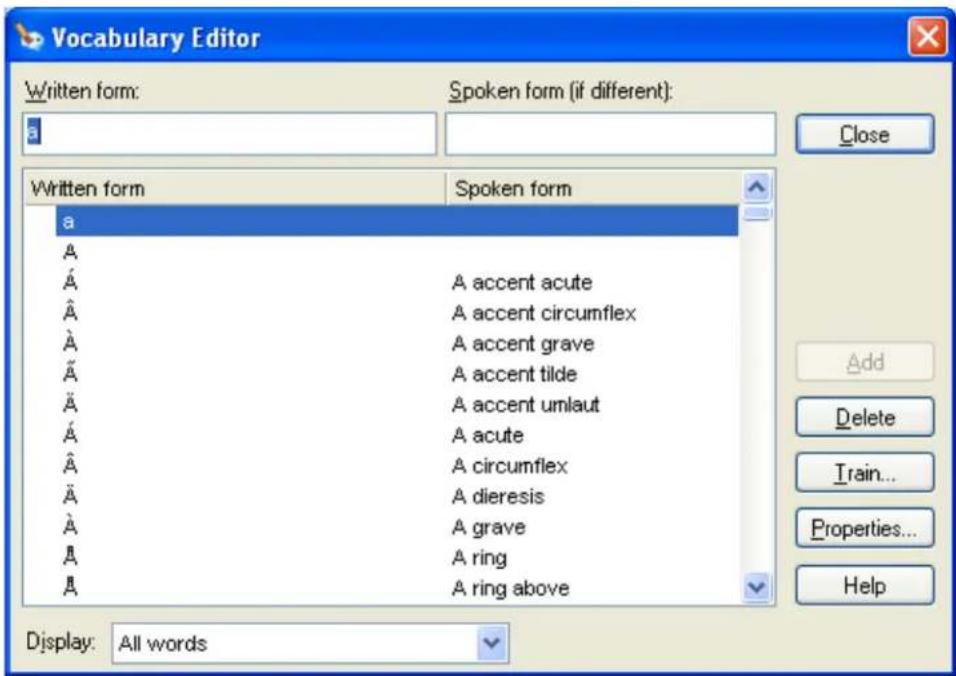
text_image
Vocabulary Editor Written form: Spoken form (if different): a Written form Spoken form a A A' A accent acute  A accent circumflex  A accent grave à A accent tilde à A accent umlaut  A acute  A circumflex à A dieresis  A grave A A ring A A ring above Add Delete Train... Properties... Help Display: All words- To highlight the word you want to delete, do one of the following:
▶ say "Spell
" where word represents the letters of the word you want to delete
▶ type the letters of the word or
▶ scroll the list to find the word and select it
-
When the word appears and is highlighted, say or click "Delete".
-
Close the Vocabulary Editor dialog box.
To restore words
Use this procedure if you have deleted a word from the Dragon Vocabulary and v restore it later.
-
Say "Open Vocabulary Editor," or click Vocabulary > Open Vocabulary Editor on DragonBar.
-
In the Vocabulary Editor dialog box, click Display > Deleted Words Only. The shows any words you have deleted.
-
Choose a Deleted word, and say or click Add. Dragon adds the word back in Vocabulary. If you want to view the restored word in the Vocabulary, click Dis All Words and enter the word in the Written Form box.
Note
If you delete a word using the Vocabulary Editor dialog box, but that word exists rent document, the word may be automatically added back into your active Vocabulary
Using the Don't Recognize That Word Command
Dragon lets you to turn off recognition of words using the Correction menu and recognize that word" command.
Don't Recognize That Word removes the selected word from your active Vocabulary, so that
Dragon won't recognize it again. This can save you time if Dragon repeatedly replace you dictate with words you don't use.
For example, if you dictate the name "Cassity" often and Dragon always hears "Cas could use Don't Recognize That Word from the Correction menu to turn off recognition of Cas-
sidy. If you decide later that you do need to use the word, you can add it back Vocabulary Editor.
When you use the "Don't recognize that word" command or Don't Recognize That Word from
the Correction menu to turn off recognition of a word, you will be presented with following messages to confirm a deletion of the word:
Are you sure you want to delete the following word from the Vocabulary?
This message is displayed when you use the "Don't Recognize That Word" command delete a word or phrase from the Vocabulary.
The following word can only be removed from the Vocabulary using the Vocabulary Editor.
This message is displayed when you use the "Don't Recognize That Word" command to delete a custom word or frequently used word such as "the" from the Vocabulary. You can use the Vocabulary Editor to delete the word.
The following word can't be deleted because it does not exist in the Vocabulary.
This message is displayed when you use the Don't Recognize That Word command delete a word or phrase that is not in the Vocabulary.
For more information, see the Correction menu.
Managing Vocabularies
This section contains the following topics:
| About Vocabularies 240 |
| Opening Vocabularies 250 |
| Adding a Vocabulary to a User Profile 251 |
| Deleting Vocabularies 252 |
| Renaming Vocabularies 252 |
| Importing Vocabularies 253 |
| Exporting Vocabularies 254 |
About Vocabularies
Dragon uses one or more Vocabularies with your User Profile to help it to recognize and phrases correctly, based not only on the sound of the words and phrases, but their context.
When you create a new User Profile, you select a Base Vocabulary that Dragon then updates as it adapts to your speech. When you create a new User Profile or add a Vocabulary to an existing User Profile, Dragon bases the new Vocabulary on an existing Vocabulary.
Language
The languages available for your Vocabulary. Some editions of Dragon support multiple guages.
Vocabulary type
In most cases your User Profile will be based on the General Vocabulary, a large providing excellent recognition accuracy for general, business, and professional dictation.
The following specialized Vocabularies are also available:
■ Legal (Dragon Legal Edition)
A large Vocabulary providing excellent recognition accuracy for legal terms.
■ Medical (Dragon Medical Edition)
A set of specialized large medical Vocabularies providing excellent recognition accuracy for medical terms. The Vocabulary names are: Surgery, Radiology, Pediatrics, Pathology, Orthopedics, Oncology, Obstetrics/Gynecology, Neurology, Mental Health, Medical Dictation, General Practice, Emergency, Gastroenterology, and Cardiology.
Advanced
On the Review Your Choices screen of the New User Profile wizard, you can click the
Advanced button to display the Advanced Choose Models dialog box. On this dialog you can choose a different speech model and Vocabulary Type. Dragon automatically deter-
mines the best speech model and Vocabulary Type for your computer when you create User Profile, so you do not generally need to change these options.
Speech model
You can associate the following speech models with your Dragon Vocabulary, depending on your accent, and the type of microphone and computer you are using:
| Accent or age criteria | 64-bit OS? | Multiple processors? | RAM | Microphone | Speech model |
| General N N < 2 | GB | Any approved | BestMatch III | ||
| BestMatch III Medical | |||||
| Bluetooth | Bluetooth 8Khz | ||||
| 16-kHz Bluetooth | Enhanced Blue-tooth BestMatch III | ||||
| Bluetooth microphone for medical dictation | Medical - Blue tooth 8Khz | ||||
| Y ≥ 2 | GB | Any approved | BestMatch IV | ||
| Bluetooth | Bluetooth Best-Match IV | ||||
| 16-kHz Bluetooth | Enhanced Blue-tooth BestMatch IV | ||||
| Y V | ≥ 4 | GB | Any approved | BestMatch V | |
| 16-kHz Bluetooth | Bluetooth 8Khz BestMatch V | ||||
| Enhanced Blue-tooth BestMatch V | |||||
| Australian N N < 2 | GB | Any approved | Australian accented English - BestMatch III | ||
| Bluetooth | Australian accented English - Bluetooth 8Khz | ||||
| 16-kHz Bluetooth | Australian accented English - Enhanced Bluetooth BestMatch III | ||||
| Y ≥ 2 | GB | Any approved | Australian accented English - BestMatch IV | ||
| Bluetooth | Australian accented English - Bluetooth BestMatch IV | ||||
| 16-kHz Bluetooth | Australian accented English - Enhanced Bluetooth BestMatch IV | ||||
| Y V | ≥ 2 | GB | Any approved | Australian accented English - BestMatch V | |
| 16-kHz Bluetooth | Australian accented English - Enhanced Bluetooth BestMatch IV | ||||
| ≥ 4 GB | Bluetooth | Australian accented English - Bluetooth 8Khz BestMatch V | |||
| British N N < 2 | GB | Any approved | British-accented English - Best-Match III | ||
| Bluetooth | British accented English - Blue-tooth 8 KHz | ||||
| Y ≥ 2 | GB | Any approved | British-accented English - Best-Match IV | ||
| Bluetooth | British accented English - Blue-tooth BestMatch IV | ||||
| Indian N N < 2 | GB | Any approved | BestMatch III Medical Indian | ||
| Indian accented English - Best-Match III | |||||
| Bluetooth | Indian accented English - Bluetooth 8Khz | ||||
| Y ≥ 2 | GB | Any approved | Indian accented English - Best-Match IV | ||
| Bluetooth | Indian accented English - Bluetooth BestMatch IV | ||||
| 16-kHz Bluetooth | Indian accented English - Enhanced Bluetooth BestMatch IV | ||||
| Y Y | ≥ 2 | GB | Any approved | Indian accented English - Best-Match V | |
| Bluetooth | Indian accented English - Bluetooth 8 kHz Best-Match V | ||||
| 16-kHz Bluetooth | Indian accented English - Enhanced Bluetooth BestMatch V | ||||
| ≥ 4 GB | 16-kHz Bluetooth | Indian accented English - Enhanced Bluetooth BestMatch V | |||
| Inland Northern US (Great Lakes area)—if your accent from upstate New York through the Chicago area | N is | < 2 | GB | Any approved | Inland Northern US (Great Lakes area) - Best-Match III |
| Bluetooth | Inland Northern US (Great Lakes area) - Bluetooth 8Khz | ||||
| 16-kHz Bluetooth | Enhanced Bluetooth BestMatch III | ||||
| Y ≥ 2 | GB | Any approved | Inland Northern US (Great Lakes area) - Best-Match IV | ||
| Bluetooth | Inland Northern US (Great Lakes area) - Bluetooth BestMatch IV | ||||
| 16-kHz Bluetooth | Inland Northern US (Great Lakes area) - Enhanced Bluetooth Best-Match IV | ||||
| Southeast Asian N N < 2 | GB | Any approved | Southeast Asian accented English - BestMatch III | ||
| Bluetooth | Southeast Asian accented English - Bluetooth 8Khz | ||||
| 16-kHz Bluetooth | Southeast Asian accented English - Enhanced Bluetooth BestMatch III | ||||
| Y ≥ 2 | GB | Any approved | Southeast Asian accented English - BestMatch IV | ||
| Bluetooth | Southeast Asian accented English - Bluetooth BestMatch IV | ||||
| Southeast Asian accented English - Enhanced Bluetooth BestMatch IV | |||||
| Y V | ≥ 2 | GB | Any approved | Southeast Asian accented English - BestMatch V | |
| Bluetooth | Southeast Asian accented English - Bluetooth 8 BestMatch V | ||||
| 16-kHz Bluetooth | Southeast Asian accented English - Enhanced Bluetooth BestMatch V | ||||
| Southern US-if you have a N Southern U.S. accent (including Texans) | N | < 2 | GB | Any approved | Southern US - BestMatch III |
| Bluetooth | Southern US Bluetooth 8Khz | ||||
| 16-kHz Bluetooth | Southern US Enhanced Blue-tooth BestMatch III | ||||
| Y ≥ 2 | GB | Any approved | Southern US - BestMatch IV | ||
| Bluetooth | Southern US Bluetooth Best-Match IV | ||||
| 16-kHz Bluetooth | Southern US Enhanced Blue-tooth BestMatch IV | ||||
| Spanish-if you have an American-Hispanic accent | Am-IV | < 2 | GB | Any approved | Spanish-accented English - BestMatch III |
| Bluetooth | Spanish accented English - Bluetooth 8Khz | ||||
| Y ≥ 2 | GB | Any approved | Spanish-accented English - BestMatch IV | ||
| Bluetooth | Spanish accented English - Bluetooth BestMatch IV | ||||
| 16-kHz Bluetooth | Spanish accented English - Enhanced Bluetooth BestMatch III | ||||
| Spanish accented English - Enhanced Bluetooth BestMatch IV | |||||
| Teens up to the age of | 13 N | N/A N/A Any | approved non-Blue-tooth | Teens Best-Match III | |
| Bluetooth | Teens Bluetooth 8Khz | ||||
| N < 2 | GB | 16-kHz Bluetooth | Teens Enhanced Bluetooth Best-Match III | ||
| Y ≥ 2 | GB | Any approved non-Blue-tooth | Teens Best-Match IV | ||
| Bluetooth | Teens Bluetooth BestMatch IV | ||||
| 16-kHz Bluetooth | Teens Enhanced Bluetooth Best-Match IV |
For a list of supported devices, including handheld and Bluetooth microphones, see t ware Compatibility list (http://support.nuance.com/compatibility) on the Nuance Web site.
Vocabulary Type
If you click the Advanced button, you can specify a different Vocabulary type from the following choices:
| Vocabulary | Processor speed | Number of processors | RAM | Recommended Acoustic Model |
| Large | ≥ 2 GHz | 1 | 1 GB | BestMatch III |
| > 1 | > 1 | GB BestMatch IV |
| Vocabulary | Processorspeed | Number ofprocessors | RAM Recommended Acoustic Model |
| Medium 2 | GHz 1 < 1 | GB BestMatch III | orBestMatch VNote: BestMatch V acoustic models are not recommended for use with the large vocabulary in U.S. English profiles due to the larger file size of the vocabulary in RAM (552 MB). You can choose the large vocabulary from the Choose Models - Advanced dialog box. |
| Note: If you don't need to use an extensive vocabulary, you can increase ognition speed by choosing the medium vocabulary. | |||
| Empty Dictation | Designed for use by value-added resellers who want to create specialized Vocabularies from scratch. Consists of a Vocabulary with a language model w no words. | ||
Note
Some Dragon editions or add-on products may install additional Vocabularies.
Opening Vocabularies
Use the following procedure to open another Vocabulary associated with your User F. You can have only one Vocabulary open at a time. See Adding a Vocabulary for more information.
To open a Vocabulary
- Say "Manage Vocabularies" or click Vocabulary > Manage Vocabularies on the DragonOnBar.
- On the Manage Vocabularies dialog box, select the name of the Vocabulary you open and click Open. If you made changes to the current Vocabulary, the system prompts you to save your speech files before the selected Vocabulary opens.
To open a recently used Vocabulary
Use the following procedure if you have one or more Vocabularies associated with User Profile and you want to switch to the most recent one you used.
■ Say "Open Recent Vocabulary" or click Vocabulary > Open Recent Vocabulary of the DragonBar. Dragon opens the most recent Vocabulary associated with your Profile.
Notes
- Any phrases you add to a Vocabulary are available in that Vocabulary only, voice commands are always available no matter which Vocabulary you are using
- Switching Vocabularies has no effect on the text in the document window. It however, close any open dialog boxes, such as General Training and Vocabular Editor.
- Vocabularies that you have created and opened appear in the Profile menu or Open Recent Vocabulary submenu. You can quickly switch between Vocabularies selecting the appropriate Vocabulary name from this submenu.
Adding a Vocabulary to a User Profile
With Dragon Professional, Legal and Medical editions, you have the option of creatin Vocabularies and adding them to your existing User Profile to improve recognition as This may be helpful if you use specialized terminology when you dictate into document e-mails. You can only have one Vocabulary open at a time.
Note
Creating a Vocabulary can take from 5 to 30 minutes depending on the options yo the speed of your processor, the amount of RAM in your system, and the amount and data to be scanned. Progress bars display the time remaining in this procedure. include the E-mail option, it is best to create new Vocabularies only when you are your computer for other purposes.
To add a Vocabulary to a User Profile
-
Do one of the following:
-
Say "Manage Vocabularies" or click Vocabulary > Manage Vocabularies of the DragonBar.
-
Say "Switch to DragonBar," then "Profile," then "Add Vocabulary to Current User Profile," or on the DragonBar click Profile > Add Vocabu Current User Profile. Go to step 3.
-
On the Manage Vocabularies dialog box, click New.
- From the Based On list in the New Vocabulary dialog box, select the name of a Vocabulary on which you want to base the new Vocabulary.
All available Vocabularies are listed. Those beginning with the word "Base" are the ified Vocabularies shipped with Dragon. The Vocabulary you select will be copied to new Vocabulary and supplemented with words from your documents, emails, and add your User Profile.
- Enter a descriptive name for the Vocabulary.
A Vocabulary name can contain up to 128 characters, including spaces.
-
Click OK to create the Vocabulary. The Let Dragon search for words tool op prompts you to allow Dragon to improve recognition accuracy by adapting the V based on e-mail messages and documents.
-
Make your selections and click Start to begin the optimization.
Note: If you need to save time, you can deselect E-mail adaptation and run it. Let Dragon search for words tool for details
- Optionally, before using the Vocabulary, you can personalize it further using the racy Center. For more information, click See Also below.
Notes
- Any Vocabularies you create are saved along with the files that are part User Profile.
- Keep in mind that creating many specialized Vocabularies can make it difficult to keep track of which words are available when you dictate.
- Also keep in mind that each new Vocabulary uses hard-disk space.
Deleting Vocabularies
Additional Vocabularies can improve recognition accuracy in Dragon, but multiple Vocabularyes can take up a lot of disk space. If you no longer need a Vocabulary, use procedure to delete it.
To delete a Vocabulary
- On the Vocabulary menu of the DragonBar, click Manage Vocabularies.
- On the Manage Vocabularies dialog box, select the Vocabulary you want to delete click Delete.
- Click Close on the Manage Vocabularies dialog box.
Notes
■ Deleting a Vocabulary cannot be undone.
- You cannot delete the Vocabulary that is currently in use. To remove it, you first open a different Vocabulary.
- Always use the Delete button to delete Vocabularies. Do not remove Vocabula folders from Dragon Users directory on your hard disk.
Renaming Vocabularies
If you have multiple Vocabularies, you should give them descriptive names that help identify their purpose.
To rename a Vocabulary
- Say "Manage Vocabularies" or click it on the Vocabulary menu of the DragonBa
- On the Manage Vocabularies dialog box, say or choose the name of the Vocal want to rename.
-
Click or say "Rename."
-
On the Rename Vocabulary dialog box, enter a new name and click or say "
- On the Manage Vocabularies dialog box, click or say "Close."
Note
A Vocabulary name can contain up to 128 characters, including spaces.
Importing Vocabularies
You can share Vocabularies among different User Profiles by first exporting a Vocabulary from one User Profile and then importing it to another User Profile. If you have Vocabulary from another User Profile (for example, if you have created a User Prof custom word list), use the following procedure to import it.
To import a Vocabulary
- Say "Manage Vocabularies" or click Vocabulary > Manage Vocabularies on the Drag
- On the Manage Vocabularies dialog box, click or say "Import."
- Use the Open dialog box to locate and open the folder containing the Vocabu want to import (it must be a Vocabulary that was exported).
- Select the desired Vocabulary (.TOP) file and click or say "Open."
- In the Import Vocabulary dialog box, enter a name for the imported Vocabulary
To import the Vocabulary so that it replaces an existing Vocabulary, enter the name existing Vocabulary. To import the Vocabulary as a new one, enter a new name that not used before.
A Vocabulary name can contain up to 128 characters, including spaces.
- Click or say "OK" to save the Vocabulary.
- Click or say "Close" on the Manage Vocabularies dialog box to close it.
Notes
- An exported Vocabulary consists of six files with the same name but differen sions. These six files must remain in the same directory. To import the Voc you specify only the file with the extension .TOP. Dragon then imports all that together make up a Vocabulary.
- You may want to keep a master copy of an imported Vocabulary and create to work with.
- Vocabularies can be shared only by exporting and importing them using the procedures described here. It is not possible to share Vocabularies by copying V folders from one User Profile to another.
- Creating and personalizing a Vocabulary with documents you choose as represent of your writing style may be more effective than using a Vocabulary created one else.
- If you create a User Profile on a dual core machine that uses a custom v make sure that the User Profile uses the BestMatch IV speech model (BestM has the greatest recognition accuracy on dual-core systems with more than 2
RAM). To check this, select the Advanced button on the Creating a User P screen of the New User Profile wizard and make sure that BestMatch IV is
Exporting Vocabularies
You can share Vocabularies among different User Profiles by first exporting a Vocabulary from one User Profile and then importing it to a new User Profile. Use the following procedure to export a Vocabulary.
To export a Vocabulary
- Create a folder in which to save the exported Vocabulary files (this step is of
-
Open the User Profile and the Vocabulary(s) you want to export as follows: i. Click Profile > Open User Profile on the DragonBar. ii. Select the User Profile you want to export and click Open.
-
Say "Manage Vocabularies" or click Vocabulary > Manage Vocabularies on the Drag onBar.
-
On the Manage Vocabularies dialog box, select the Vocabulary you want to exp then click or say "Export."
-
Locate and open the folder where you want to save the file and then click Dragon gives Vocabulary files the extension ".Top."
-
Click or say "Close" on the Manage Vocabularies dialog box to close it.
Notes
- Vocabularies can be shared only by exporting and importing them. It is not to share them by copying Vocabulary folders from one User Profile to another
- When the Vocabulary is imported, it can be renamed.
- Exporting a Vocabulary creates a copy of the six files that make up the Vc the new location. All six files have the same name but different extensions. importing a Vocabulary, select only the Vocabulary file with the extension .TO
Chapter 13: Using the Command Browser
This section contains the following topics:
| About the Command Browser 255 |
| Opening the Command Browser 256 |
| Finding commands in the Command Browser 257 |
| Training commands in the Command Browser 259 |
About the Command Browser
The Command Browser is a window where you can locate voice commands that D: ognizes, including commands that are provided with the software as well as any con that you or your system administrator might have added (custom commands). The Command Browser is the most comprehensive place to see the commands that are available in each application.
You use the Command Browser to:
■ View and train commands
■ Create and modify commands
■ Import and Export commands
■ Change the availability of custom commands
Some commands are not available in Dragon Premium and lower editions.
Command Browser modes Browse
Browse mode allows you to search for a specific command. For more information see the topic Finding commands in the Command Browser.
Script
Script mode allows you to create new commands and select commands to delete, edit, copy, or preview.
Manage
Manage mode allows you to import, export, delete, or edit the properties of selected tom commands. (Some of these functions are available in only Dragon Professional, 1 and Medical editions.)
To make the Command Browser appear always on top
■ Say "Mode > Always On Top," or on the Mode menu, click Always On 7
- On the Command Browser shortcut menu, click Always On Top.
- Click on the Command Browser icon on the left side of the Command Bro or right-click anywhere on the Command Browser to open the Command Bro shortcut menu.
Note
When you set the Command Browser to "Always On Top" it will cover secondary windows, such as the DragonPad and Help screens. In these cases, you will have the "Always On Top" state or move the windows around so that they are not of
Opening the Command Browser
The Command Browser displays commands that Dragon recognizes in the current control whether you are working in a specific program or on the Windows Desktop.
To open the Command Browser
▶ Say "Open Command Browser" or "Start Command Browser" or, on the Tools me the DragonBar, click Command Browser.
You can also open the Command Browser from the Accuracy Center.
Some commands are not available in Dragon Premium and lower editions.
Global Commands
When the Command Browser first opens, it displays a list of Global Commands ava every application.
But if you want to view commands for individual applications, Dragon shows only commands applicable in that context. Use the Context box to select a specific application Dragon displays only the commands that work in that application. If you were view commands for the Dragon Sidebar (as shown), initially a subset of commands that apply the Sidebar appear. See Finding commands in the Command Browser for details.
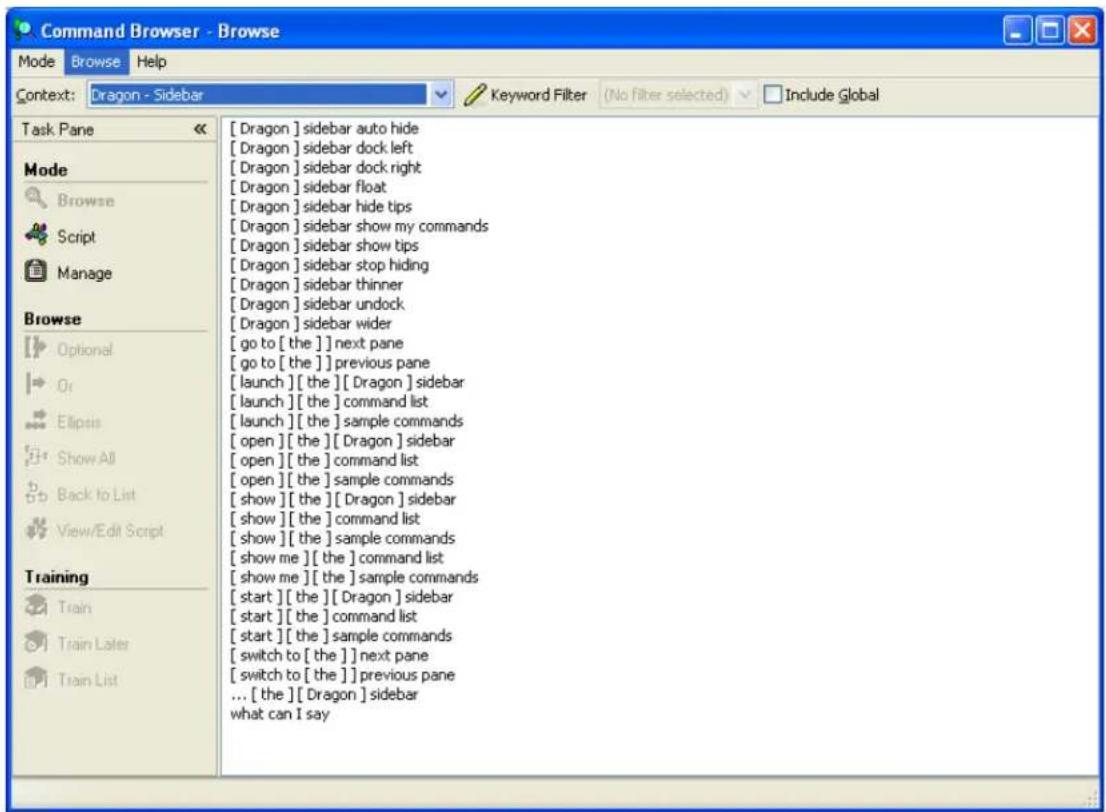
text_image
Command Browser - Browse Mode Browse Help Context: Dragon - Sidebar Keyword Filter (No filter selected) Include Global Task Pane Mode Browse Script Manage Browse Optional Or Ellipse Show All Back to List View/Edit Script Training Train Train Later Train List [ Dragon ] sidebar auto hide [ Dragon ] sidebar dock left [ Dragon ] sidebar dock right [ Dragon ] sidebar float [ Dragon ] sidebar hide tips [ Dragon ] sidebar show my commands [ Dragon ] sidebar show tips [ Dragon ] sidebar stop hiding [ Dragon ] sidebar thinner [ Dragon ] sidebar undock [ Dragon ] sidebar wider [ go to [ the ]] next pane [ go to [ the ]] previous pane [ launch ] [ the ][ Dragon ] sidebar [ launch ] [ the ] command list [ launch ] [ the ] sample commands [ open ] [ the ][ Dragon ] sidebar [ open ] [ the ] command list [ open ] [ the ] sample commands [ show ] [ the ][ Dragon ] sidebar [ show ] [ the ] command list [ show ] [ the ] sample commands [ show me ][ the ] command list [ show me ][ the ] sample commands [ start ][ the ][ Dragon ] sidebar [ start ][ the ] command list [ start ][ the ] sample commands [ switch to [ the ]] next pane [ switch to [ the ]] previous pane ... [ the ][ Dragon ] sidebar what can I sayTo display Global Commands for a specific application
Use "Include Global" if you want to display all of the Dragon commands that are every application.
In the Command Browser, say "Include Global" or, on the Command Browser Ribbon click Include Global.
Finding commands in the Command Browser
If a command exists for a specific application or context, you can use the Comma to find it.
To find a specific command
- Use the list in the Context box to select the application context you want to commands for.

text_image
Context: Dragon - Sidebar- Select the Include Global checkbox.
Include Global
When the Include Global checkbox is selected, the Command Browser displays all the commands available in the current command context, including any commands available in all (global) contexts. Note that the Command Browser initially opens with Global Commands selected in the Context list box so that the Include Global checkbox is not active. You must select a different command context to make the Include Global checkbox active.
-
Click Keyword Filter to display the Keyword Filter dialog box.
-
Say or type a letter or word of the command you are looking for in the (The list below the box scrolls to the first instance of that letter or word in letter or word exists, it is selected. If the letter or word does not appear, the command in the current context that uses them.)
-
Double click on the word in the list or click Add to add the word to the filter words box.
-
If necessary, continue to enter words into the Choose Word box and add then Current list of filter words box until you have added as much of the specific you can.
-
Click or say "Done." The Command Browser displays the commands containing words you entered, if any command containing all of those words exists.
Example
To see if there is a command that changes a font to bold in Microsoft Word 2
-
Select Microsoft Word 2010 from the Context list box.
-
Click or say "Keyword Filter."
-
Say or type the word "Bold" and then say "Add" or click the Add button to Current List of Filter Words box.
-
Say or type the word "Set" and then say "Add" or click the Add button to Current List of Filter Words box.
-
Click or say "Done."
The Command Browser displays all the commands that will turn text bold in Microsoft Word 2010. For example,

text_image
Context: Microsoft Word 2010 Keyword Filter Task Pane Mode Browse Script Manage Browse Optional Or Ellipsis Show All Back to List View/Edit Script Training Train bold ... entire sentence ... bold ... entire sentence bold ... rest of ... sentence ... bold ... rest of ... sentence ... bold ... sentence bold [ that ] sentence bold [ the ] ... sentence bold [ the ] sentence bold [ this ] sentence bold and ... entire sentence bold and ... rest of ... sentence bold and ... sentence change ... sentence to bold ... entire sentence to bold ... entire sentence to not bold ... rest of ... sentence to bold ... rest of ... sentence to not bold ... sentence to not bold set ... sentence to boldSome complex commands may not be fully visible at first. See the topic Expanding mands for information on how to view all parts of a command.
Note: Previous command searches appear in the Keyword Filter list
You can select a previous search from this list to automatically display the results of search, without having to open the Keyword Filter dialog box and set up the search again.
Training commands in the Command Browser
If Dragon consistently misrecognizes a specific voice command (for example, it hears That" as "Paste dot"), you can train it to better recognize your pronunciation of the mand.
To train a command
- Open the Command Browser (say "Command Browser" or click Command Browse the Tools menu of the DragonBar).
-
Select the command context from the "Context" list.
-
Locate the command you want to train and select it. See the topic Finding C the Command Browser for information on how to find a specific command.
- Click or say one of the following buttons on the Command Browser task pane
| Button Result | |
 Train Train | Lets you immediately train the selected command. Follow the directions Words dialog box that appears. |
 Train Later Train Later | Adds the command to a list of commands of the Train List for later ing Train Later, you activate the Train List button. |
 Train List Train List | Displays the Train Words dialog box with a list of commands to be untrained commands in the Train List when you close the Command B offers you the choice to train them before you exit. |
The Dragon Glossary
Use this glossary for a list of terms specific to Dragon.
.DRA files (definition)
Dragon Recorded Audio (DRA) files. If your edition supports it, Dragon automatically audio and text transcripts of your dictation in the DRA files.
Dragon Accuracy Center (definition)
Offers a central location for tools you can use to personalize your vocabulary, impretics, find or manage commands, or get more information about improving your accuracy. Click the links to open the related Dragon tools.
To open the Accuracy Center, say “display Accuracy Center” or click Help > Improv Accuracy on the DragonBar.
Accuracy Slider (definition)
A sliding control that Dragon uses to adjust speed relative to accuracy as it performs recognition. A higher accuracy setting means that Dragon may take longer to display text, while a higher speed setting means that Dragon displays the text more quickly.
Accuracy Tuning (definition)
A process Dragon can use to adapt to your usage. Once you have been dictating of time, Dragon uses Accuracy Tuning to automatically refine your User Profile, analyze your dictation, corrections, commands, and any other acoustic training you have done. Racy Tuning uses two of Dragon's accuracy tools, the Acoustic Optimizer and the L Model Optimizer, and you can schedule them to run automatically.
Acoustic and Language Model Optimization (definition)
Increases User Profile accuracy based on
■ accumulated acoustic data from your corrections and any additional training you performed
■ commonly used word sequences extracted from your User Profile's .DRA files.
Acoustic Optimizer (definition)
Looks for any corrections you have made or additional training you may have perfor since you created your User Profile or ran the optimizer. Optimization enhances reco, accuracy and helps predict words most likely spoken in a given context by a speak language model).
Active vocabulary (definition)
A list of about 150,000 words that Dragon loads into your computer's random accessory for immediate use during dictation. These are the words that Dragon is most recognized on the first try, without requiring you to do anything extra such as correct words with the Correction menu.
The number of words in the active vocabulary always remains the same. When new are added, words that have not been used recently are removed from the active v0 but remain on the computer's disk in the backup dictionary.
Advanced Scripting (definition)
Supports using programming languages such as Microsoft® VBA to create commands can perform virtually any function on the computer with voice commands.
Anchored (definition)
Indicates that the Dictation Box is attached to the an unknown text field where yo tating. You can reposition the Dictation Box as required. When using Anchored Mod den Mode is disabled.
AutoTranscribe Folder Agent (definition)
A feature of Dragon Professional, Legal and Medical editions which automatically detected and transcribes recordings copied to a specified directory. Use the AutoTranscribe Fold Agent to specify which Dragon User Profile to use for transcribing the recordings of the specified directory, and to specify where to put the text files created from the ings.
Base Vocabulary (definition)
The initial Vocabulary a User Profile is based on. Vocabularies can be the following sizes.
Specialized medical and legal vocabularies are also provided in the Dragon Medical and Legal editions.
| Vocabulary | Processor speed | Number of processors | RAM Recommended Acoustic Model |
| Large ≥ | 2 GHz 1 1 | GB BestMatch | III |
| > 1 > 1 | GB BestMatch IV | ||
| Medium 2 | GHz 1 < | GB BestMatch III | orBestMatch VNote: BestMatch V acoustic models are not recommended for use with the large vocabulary in U.S. English profiles due to the larger file size of the vocabulary in RAM (552 MB). You can choose the large vocabulary from the Choose Models - Advanced dialog box. |
| Note: If you don't need to use an extensive vocabulary, you can increase ognition speed by choosing the medium vocabulary. | |||
| Empty Dictation | Designed for use by value-added resellers who want to create specialized Vocabularies from scratch. Consists of a Vocabulary with a language model v no words. | ||
Basic Text Control (definition)
The level of dictation control available in programs or windows that are not fully compatible with Dragon. Normally you can dictate and use Dragon voice commands in any text window of any application. However, you may occasionally find an application or a specific window in an application where some voice commands won't work or won't work consistently.
When the insertion point is in a window that has Basic Text Control, the Text Control Indicator on the DragonBar turns gray.
Backup dictionary (definition)
A store of about 150,000 additional words in Dragon's vocabulary. A typical large Dragon vocabulary consists of about 300,000 words and Dragon loads about half of those it understands that you are more likely to dictate into your computer's random access memory for immediate use. The list of words Dragon loads into memory is called the "active vocabulary."
You can move frequently used words from the backup dictionary into the active vocabulary or add new specialty words, proper names, acronyms, and unusual abbreviations using any of the following methods:
- Add new or frequently used words and teach Dragon about how frequently y them with the Learn from Specific Documents, Learn From Sent E-mails, and Import lists of words or phrases tools
■ Use the Correction menu to correct the error - Correct dictation errors using the mouse or keyboard (the microphone can be or asleep)
■ Use the Spelling window to spell the word
Remember to save your User Profile to keep your changes. will
Command Browser (definition)
A window showing voice commands that Dragon recognizes, including commands that provided with the software as well as any commands that you or your system adm might have added (custom commands). The Command Browser is the most compreher place to see the commands that are available in each application.
Command Mode (definition)
A restricted recognition mode that causes Dragon to interpret everything you say as mand and nothing is interpreted as dictated text. Say "Start Command Mode" or "C Mode On."
Correction menu (definition)
Shows Dragon's best guess for alternatives to words you dictated and selected. Choose correct word from the Correction menu by saying “Choose” and the number next to choice.
Correction-only mode (definition)
Enables transcriptionists to play back a Dragon user's dictation without having their U Profile loaded. Note that dictation is disabled if you select this option.
Dictation is not available in Correction Only Mode.
Custom word (definition)
A new word you add to the base Vocabulary using the Train command or the A mand in the Vocabulary Editor. You can also add words to the Vocabulary using ing Window or the Add New Word or Phrase command on the Vocabulary menu.
In the Vocabulary Editor, a red cross next to a word indicates that it is a custom that has been added to the Vocabulary.
Data Collection (definition)
Helps to improve the accuracy of future versions of Dragon NaturallySpeaking and E Medical. By enabling Data Collection, you can allow Dragon to collect up to 500
acoustic data and text from your dictation sessions. If you agree, the data can be Nuance at a time scheduled by your network administrator. Data Collection does not any personal data, and participation is completely voluntary.
Data Distribution Tool (definition)
Enables developers to interactively create new words, customized Vocabularies or commands, and to make them available to all User Profiles on a particular Dragon Na urallySpeaking installation.
Dictation Box (definition)
Provides full support for dictating and editing text in an unknown text field. The Dictation Box supports voice commands like Delete, Correct, and Insert, and custom commands as well. When you are finished, the content is transferred to your cursor po when you opened the Dictation Box.
Dictation Mode (definition)
A restricted recognition mode that causes Dragon to interpret everything you say as and only Dictation Commands are recognized. Dictation Mode can be helpful if you want to dictate as quickly as possible, or dictate without looking at the words Dragon transc "Start Dictation Mode" or "Dictation Mode On."
Dictation Source (definition)
An audio input device or multiple devices associated with a User Profile. For example, can select a headset microphone at one computer and a portable recorder or another mic at other computers. This way, Dragon supports users who need to move, or 'from computer to computer regardless of the microphone type or differences in ambient noise.
Direct Editing commands (definition)
Voice formatting and correction commands such as “italicize
Direct Editing commands (formerly called Quick Voice Formatting commands) are faster than conventional commands, because they tell Dragon to go to other places in you. ument, apply formatting there, and return the cursor back to where you are working
DragonPad (definition)
Dragon's built-in word processor, optimized for dictation and includes basic text forma features as well as the ability to save and print documents.
Dragon Templates with Voice Fields (definition)
A special kind of custom form available to paste into applications by voice, providing for common variable information that you can fill in by voice.
Dragon Voice Shortcuts (definition)
Dragon voice shortcuts collapse common multi-step tasks into direct voice commands you can say at anytime, no matter what is active on your screen.
For example, you can immediately switch to and start a new task, such as search your computer, or compose an e-mail or set up an appointment.
Enterprise Profile Management (definition)
Enables you to dictate with Dragon from different network locations and on different puters without having to create and train individual User Profiles at each location. When
Enterprise Profile Management (also known as Roaming) is enabled and a Dragon user creates a new User Profile, the new profile is a Master Roaming User Profile, which is then
available from a network location. When you open the Roaming Master User Profile, Dragon downloads it to the local system and maintains it locally during your dictation. Dragon synchronizes the local copy of the Roaming User Profile with the Master Roaming User Profile when you save and close a dictation session.
Field (definition)
A field, also referred to as a variable field, is an alphanumeric string enclosed by iters. For example, the following sentence appears in the Dragon CCU fellow admit plate included in Dragon Medical: The patient was seen in conjunction with Dr.
[ProviderName]" In the example, "[ProviderName]" is the variable field, the square bra are the default delimiters, and the text string "ProviderName" is the variable that the Dragon User Profile will replace with a provider name when using the template to a report.
Full Text Control (definition)
Refers to the level of dictation control available in Web and desktop programs and when Dragon fully supports creating, editing, and formatting content. When a program part of a program has Full Text Control, you can move the cursor reliably – for the beginning or end of a line or paragraph. You can also select, format, and rev needed using Direct Editing commands or the Correction menu.
For support Web applications, Full Text Control is activated using Rich Internet Application extensions in supported browsers.
The Text Control Indicator displays on the DragonBar and is green when all of E on's selection and dictation capabilities are supported.
Hidden Mode (definition)
A recognition mode that causes Dragon to send all recognized text to the Dictation which is active but does not display. All recognized text is added to the Dictation regardless of the cursor location. Hidden Mode is often used by healthcare providers
are dictating medical reports to be sent to a medical transcriptionist/editor. Say "Start den Mode" or "Start Hidden Mode."
Language Model (definition)
Contains statistical information that predicts which words are most likely to occur in text of the user's speech.
Language Model optimization (definition)
Updates the language model of the current Vocabulary. Language Model Optimization text Dragon extracts from the .DRA files that are created when you correct words. the speech data collected, Language Model Optimization applies modifications to the language model to reflect your word usage.
Language Model Optimizer (definition)
Performs Language Model Optimization from the Accuracy Center. Any Dragon user v administrator privileges can schedule Dragon to perform optimization periodically.
Local Roaming User Profile (definition)
A copy of the Master Roaming User Profile that Dragon downloads to your local and temporarily maintains during dictation sessions. Dragon's Roaming feature synchronize the Local Roaming User Profile with the Master Roaming User Profile when you say then close your local profile.
Master Roaming User Profile (definition)
A User Profile stored on a network computer accessible using the Dragon Roaming feature.
Dragon users can have one or more Master Roaming User Profiles that can be op multiple networked machines that run Dragon. When a user on a local computer of Master Roaming User Profile from a central network computer, Dragon transfers a co the Master Roaming User Profile to the local computer. The local copy is called the Roaming User Profile.
MSI (definition)
Delete this text and replace it with your own content.
Multiple Dictation Sources (definition)
Delete this text and replace it with your own content.
NaturalText (definition)
Delete this text and replace it with your own content.
Natural Language Commands (definition)
Provide greater flexibility in the wording you use to perform common actions in a applications such as Microsoft Word, Internet Explorer, and Mozilla Firefox. Instead of requiring users to memorize specific commands, such as "bold that," the Natural Language Commands give you a wide range of words you can say to execute a command. The place, "make that bold," "bold the last paragraph," "set font bold" all do the same thing, as do many more conversational commands. To know which commands work in an application open the application and say "What Can I Say?".
Normal Mode (definition)
Dragon's default mode of dictation. In Normal Mode, Dragon distinguishes dictation fi words, numbers, and commands by analyzing what you say between pauses. Say "Star mal Mode" or "Normal Mode On."
Nothing But Speech (definition)
Suppresses recognition of non-word fillers like “ums” and “ahs” that you don’t norm intend to include in your dictation.
Numbers Mode (definition)
A restricted recognition mode that causes Dragon to recognize only numbers. If you tating only numbers (including currencies), working in this mode increases recognition a racy. Say "Start Numbers Mode" or "Numbers Mode On."
Performance Assistant (definition)
A resource available from the Help menu that offers suggestions for optimizing Drag speed on your computer. As you click or say the corresponding links to answer what about how you normally use Dragon, the Performance Assistant provides suggestions and methods for optimization.
Press command (definition)
Used to make keystrokes by voice. To type characters by voice, say "Press," "Press "Type" followed by the name of the key or keys you want to press. For example Escape" or "Press Enter", or "Press Ctrl Right".
QuickStart (definition)
Allows Dragon to load in the background when you start your computer or log in operating system, depending on your version of Windows. When Dragon is launched QuickStart mode Dragon is available for use more quickly than when you start in mode. The microphone icon appears in the system tray.
Recognition Modes (definition)
By default, Dragon functions in Normal Mode, distinguishing dictation from words, numbers, and commands, and analyzing what it hears between pauses. Dragon also or restricted recognition modes for dictating only commands, numbers, characters (Spell Mode or words (Dictation Mode).
Results Box (definition)
A floating display box that Dragon can provide as it listens to
you and processes your speech. You can set options to move the Results Box any the screen, keep it in one place, change its color and font size, or make it disapognition.
See About the Results Display for details.
Results Display (definition)
The on-screen feedback that Dragon displays during dictation. While Dragon listens, the cognition in Progress icon displays. When you pause, Dragon finishes processing your speech and enters dictation into the document or executes your command. When rec is complete, the Dragon idle icon displays. See also Results Box.
Rich Internet Application (RIA) extensions (definition)
Provide Web application extensions in supported Web browsers to enable commands and Full Text Control in selected browser-based applications. With RIA extensions, you can taste content and use commands just as you would in a desktop program.
Roaming User Profile (definition)
See Master Roaming User Profile.
Sample Commands (definition)
Displays a selection of the most useful commands that Dragon recognizes for the c text, whether it is a particular program you are using or the Windows Desktop. The Commands are contained in the Dragon Sidebar. You can open the Sample Commanding “What Can I Say?” or by clicking Help > Dragon Sidebar.
Say What You See (definition)
"Say What You See" means that you can say whatever commands you see labeled screen to control applications by voice. For example, you can say the names of m commands, or items in a dialog box. To display the Insert menu in Microsoft Wo
Microsoft Excel, you would say "Insert," and then say the name of any of the avmands, as required. Another example is the ability to open a Desktop item (a fold instance), by saying "open" followed immediately by its name.
Scripting (definition)
Dragon scripting language extensions provide a set of tools for creating voice comma. Creating scripting commands requires familiarity with the Microsoft Visual Basic programming language.
Section 508 certified (definition)
Delete this text and replace it with your own content.
Unknown text field (definition)
An editable window or field that does not support all of Dragon's selection and capabilities. When the cursor is positioned in an unknown text field, the DragonBar the message "Unknown text field; consider using 'show Dictation Box' - See Help." those cases, Dragon's Full Text Control indicator, the colored ball next to the volume on the DragonBar, is grey. You can usually select, correct, and use various common unknown text fields, but if you have trouble, use the Dictation Box and transfer to into the application.
Windows shortcut (definition)
You can use Windows Shortcuts and command lines to open User Profiles and Voc directly.
Spell Command (definition)
Delete this text and replace it with your own content.
Spell Mode (definition)
A restricted recognition mode that causes Dragon to recognize only letters, numbers, mands, and punctuation. Spell mode is useful for dictating unpronounceable alphanumeric strings, such as part numbers and license plate numbers, and other terms you anticipate Dragon won't know, such as Web addresses, words in a foreign language, or unusual act names. Say "Start Spell Mode" or "Spell Mode On." You can still use commar in Spell Mode.
Spoken Form (definition)
Refers to words that are spoken one way but written a different way (the Written This feature lets you add a word that, for example, types your phone number when say “phone number line,” or automatically adds punctuation, such as "UK" or "USA," would normally include punctuation in the written forms (U.K. and U.S.A.).
Structured Commands (definition)
Used to control the action of a command based on the existence of a state in the command is used for. For example, when you assign a state to each field in the same command can perform different actions, depending on which field is activated. Use Advanced Scripting methods to control the states within structured commands or the initial state from a non-structured command. You can also create structured commands that prompt the user to select values from a predefined list. Structured Commands : able only in Dragon Professional, Legal, and Medical editions.
Text Control Indicator (definition)
The check mark icon that appears next to the volume meter on the DragonBar. T Control Indicator changes color to show the level of dictation support in your current cation. The Text Control Indicator is green when all of Dragon's selection and dicta capabilities are supported and gray when the insertion point is in a window that has support for dictation. The current Recognition mode is indicated by the icon to the right of the check mark.
Templates (definition)
Delete this text and replace it with your own content.
TTS (definition)
Delete this text and replace it with your own content.
Unanchored (definition)
An administrative setting for using the Dictation Box in unknown text fields. When tation Box is unanchored, to capture text it must be either the active, visible wind foreground with the cursor placed there, or, when it is not visible, you must use Mode.
User Profile (definition)
A User Profile is a set of files that store the following information:
■ Audio system settings selected by the Check Microphone wizard
- Acoustic information about your voice gathered during initial product training, or ing usage and when you train specific words
- Ongoing adaptations to your Vocabulary words and word usage as you use D from analysis of your writing style
■ Your settings in the Options dialog box
■ Any custom voice commands
Utterance (definition)
Dictation or commands Dragon recognizes between pauses in your speech.
Variable (definition)
See Field
Vocabulary (definition)
Contains all of the words that Dragon recognizes and a Language Model. The Vocabulary includes all of the words in the active vocabulary and the backup dictionary, and any words added as you customize your User Profile.
Vocabulary Editor (definition)
Delete this text and replace it with your own content.
VocTool
Delete this text and replace it with your own content.
Voice Notations (definition)
Delete this text and replace it with your own content.
Wave Data (definition)
Delete this text and replace it with your own content.
Web application support (definition)
Provides Rich Internet Application (RIA) extensions in supported Web browsers to enable commands and Full Text Control for selected browser-based applications. With RIA support, you can dictate content and use commands just as you would in a desktop
Word Category (definition)
Delete this text and replace it with your own content.
Word Properties (definition)
Word Properties specify a variety of options that can be associated with Vocabulary. You can specify that a word be preceded or followed by specific characters and cu properties for placement or handling. For example, question marks and exclamation ma have default properties of "Precede by (nothing)" and "Format the next word capitali: You can also specify one or more alternate written forms for words. If the Use Written Form checkbox is selected for "meter," when you dictate the word after a
Dragon enters only "m." If the Alternate Written Form checkbox is not selected, articulate "meter," Dragon types the full word, "meter."
Written Form (definition)
Specifies the word or words that Dragon enters when you dictate. The spoken form an easier or shorter variant or something completely different from the written form.
Index
.DRA files (definition) 261
■
1
11 kHz and 22 kHz audio
sound card requirements...28.....
A
Accessinglogfiles...47.
accuracy...211,...220-222.
Accuracy Assistant 222
improving...211, 221-222, 235-236
using Accuracy Center...211, 221
using the Speed vs. Accuracy. slider
Accuracy Center (definition)...261.....
Accuracy Slider (definition)...261.....
Accuracy Tuning (definition)...... 261
Acoustic Optimizer (definition)...... 262
acoustics
about Acoustic and Language Model Optimizer;
optimizing 222
activating Dragon 48
active Vocabulary (definition) 262
adding
a different Vocabulary.... 251
contact names to the Vocabulary 235-236
contacts in Microsoft Outlook.. 151
words from lists 234
words to the Vocabulary 231-232, 235-236
words with the Spelling window.. 235
additional training 229
addresses, dictating e-mail and Web... 144
Advanced Scripting (definition).... 262
aligning text 121
Anchored (definition) 262
Application menu 130
applications 195
exiting 193
starting 193
starting (and utilities) 196
switching....195
Web-based 163
220 Applying formatting to multiple instances of words 99
audio
sound card requirements...28.....
Auto-Formatting
using Smart Format .Rules..... 213
AutoTranscribe Folder Agent
definition 262
B
Backspace.... 117
backup
dictationary, viewing 263
dictionary (definition) 263
Base Vocabulary (definition)...262...
basic document commands
Microsoft Word 134
basic spreadsheet commands
Microsoft Excel 156
Basic Text Control (definition)...263
Basic Text Control indicator...59.....
basic text dictation 73
BestMatch Technology 240
boldface
applying with Direct Editing...98
applying with multiple text matching
boldface, applying...118,...120....
browsers
compatibility.... 165
using.... 186
buttons, selecting by voice.... 198
C
calendar
and email commands 145
Canadian postal codes 215
capitalizing text 119
categories
searching on the Web 182
centering text 121
characters 110
selecting 110
Check Microphone
position your microphone properly 65
Choose a speech device.... 63
choosing
programs and windows.... 202
clicking, using voice commands..... 209
closing
exiting Dragon 61
menus 197
programs.... 199
the DragonBar 61
windows....199-200
Coexistence with other Dragon products 28
Coexistence with previous versions of. Dragon
Coexistence with the Dragon SDK Client Ec
combining words.... 122
Command Browser.... 255, 257, 259
about 255
always on .top.... 256
finding commands.... 257
Include Global button...258.....
opening....256
training commands.... 259
Command Browser (definition)..... 264
command context
showing.... 256
Command Mode 225-226
switching to 226
using.... 224
Command Mode (definition).... 264
commands
displaying for a specific application 256
commands (voice) 61, 76, 96, 115, 132,
134, 139-140, 142, 147,
149, 151-152, 155-156,
159-160, 189, 191, 195,
255-257, 259
application control 193
Command Browser...255-257, 259
controlling DragonBar...61
Cut Copy and Paste 115.....
dictation 76
displaying Help on 61
Dragon Sidebar 70
e-mail 142
Firefox and Internet Explorer.. 186
for moving in windows.... 200
Gmail 168
Hotmail 170
if not recognized.... 96
Internet Explorer 7 189
Internet Explorer and Mozilla .Firefox186
Microsoft Excel..... 155-156, 159-160
Microsoft Outlook..... 149, 151-152
Microsoft Outlook Express..... 147
Microsoft Word...... 134, 139-140
Mozilla Firefox.... 189, 191
Mozilla Firefox and Internet Explorer186
OpenOffice Writer 139
results display 53
scrolling 200
training 227
Web applications.... 163, 167
windows control 195
Windows Live Mail 147
compound words
joining by voice 122
Connecting your microphone.... 63
context
showing commands for current 256
controlling.... 61, 181, 197, 207-208
applications....195
DragonBar 61
Internet Explorer 181
menus 197
the mouse 207-209
windows 195
Copy command 115
copying 253-254
using Direct Editing 98
using multiple text matching..... 99
copying Vocabularies 253-254
Copyrights.... iii
correcting text 75, 93, 115
by spelling.... 78
correction list 75
deleting text 115
handling multiple text matches 98-99
methods....90
quick reference 93
using Direct Editing 98
using multiple text matching..... 99
when incorrectly selected.... 113
workflow 90
Correction-only mode (definition)...264
Correction menu 95
choosing correct text in 95
Correction menu (definition)...264...
creating 231, 234, 253
new Vocabularies...231, 234, 253
currency 80
dictating 80
cursor
moving back to last location.
moving the insertion point.....
moving to specific words.....
custom words
definition 264
Cut command 115
cutting
using Direct Editing 98
using multiple text matching..... 99
D
Data Collection (definition).... 264
Data Distribution Tool (definition).. 265
dates
dictating...80......
deleted words
restoring to your Vocabulary... 238
deleting....237, 252
characters, words, lines, paragraphs 116
last words you dictated.... 115
text.... 109, 116
text (replacing what you last .dictated) 109
using Direct Editing 98
using multiple text matching..... 99
Vocabularies 252
words from the Vocabulary..... 237
Desktop
commands 195
dialog boxes 199
controlling by voice.... 198
selecting tabs by voice.... 199
dictating
about 52
basic techniques 73
dictating the word "select"..... 113
e-mail and Web addresses..... 144
guidelines for 52
in Excel with Full Text ..Control 155
Military time 219
numbers 80
quick reference 52
results display 53
time....219
dictatingtext in non-standard windows 83
dictation....73, 76, 80, 90, 144
about 52
commands 76
correction workflow.... 90
Dictation Box settings 86
results display 53
resuming 109
source (microphone) 63
source (recorder) 63
switching modes 226
switching to Dictation Mode...226
using Dictation Mode 224
Dictation
Dictation mode (using)...224.....
Dictation Box 83
about 83
commands 83
Dictation Box (definition)...265.....
Dictation Mode (definition)...265.....
Dictation Source (definition) 265
digital audio recorder
using with Dragon 64
Direct Editing commands
using 98
Direct Editing commands (definition) 265
disambiguation
formatting or editing multiple ..words
documents
opening 193
selecting lines and paragraphs... in
switching between 202
Don't recognize that word
using 239
DRA files (definition) 261
dragging
the mouse 209
the mouse pointer 210
Dragon
exiting 61
system requirements 26
Dragon Accuracy Center (definition) 261
Dragon Remote Microphone application 63
Dragon Sidebar 67
definition 269
tabs....70
tips 72
using 67
Dragon Templates with Voice Fields (definition)265
Dragon Voice Shortcuts
definition.... 266
Desktop searches.... 201
email and calendar commands.. 145
Web searches.... 182
DragonBar.... 55, 59
about...55......
controlling by voice.... 61
modes.... 61
using....59
DragonPad.... 61, 89
about...89......
starting by voice.... 61
DragonPad (definition) 265
DVD drive.... 28
E
c-mail 142
and calendar commands 145
dictating addresses 144
supported applications 142
working in 142
editing
resuming dictation 109
editing text
revising multiple instances of ..words 99
Enter key
adding new lines by...voice...121
Enterprise Profile Management
definition 266
errors 75, 78, 93
correcting 75
correcting by spelling...78.....
correction (quick reference)...93...
Excel...155-156, ...159-160
basic spreadsheet commands...156
commands for..... 155-156, 159-160
formatting text 159
scrolling in 128
working with 155
working with content 160
Exit
Dragon 62
exiting
programs.... 193
exporting
Vocabularies 254
F
Field (definition).... 266
Firefox
commands.... 186
switching between frames.... 186
folders
opening....195
fonts
setting face, size, and...style.... 120
formatting
all caps 98
applying to multiple words.... 99
Auto-Formatting 213
bold 98
commands 118
in Microsoft Excel 159
italics....98
multiple instances of words.... 99
numbers 120
text 118
text in Microsoft Word.... 140
underlining....98
fractions
dictating 80
frames
switching
Internet Explorer and Firefox 186
Full Text Control (definition).... 266
Full Text Control indicator.... 59
G
General Training
running again.... 229
Global Commands.... 256
Gmail
commands for.... 168
dictating with.... 168
sending e-mail.... 168
using with Rich Internet Application. supp
Go Back command 109
Go to
and "Move to" commands
quick reference 106
commands 108
searching with I'm Feeling .Lucky 182
Google Desktop
using voice commands ..with ..201
Google Gmail...168
H
handheld or smartphone
using as recorder...64.....
handling multiple text matches...99...
headset microphones
requirements...28....
Help
using by voice.... 51
Hidden Mode (definition).... 266
Hotmail
commands for.... 170
sending c-mail.... 170
using with Web application support
hyphenating words 121
I
icons
selecting and opening...... 200
importing 253
Vocabularies....253
improve my accuracy.... 211, 221
Include Global button.... 258
increasing accuracy 235-236
InfoPath
scrolling in 128
inserting text 106, 108
insertion point 106, 108
Insertion point
moving.... 106, 108
Installation and profile creation..... 25
Installing Dragon to a custom ..location 28
Installing on Windows Vista/Windows 7 28
Internet Explorer.... 181, 189
and Firefox commands.... 186
commands...186....
controlling by voice.... 181
switching between frames.... 186
iPad
setting up as a wireless microphone 63
iPhone
setting up as a wireless microphone 63
iPod Touch
setting up as a wireless microphone 63
italics....118, 120
applying.... 118
applying with Direct Editing..... 98
applying with multiple text matching 99
italics, applying 120
J
joining words.... 122
K
keys
controlling the keyboard.... 205
pressing by voice 205
keystrokes 205
sending by voice 205
L
language model...231,...234.....
modifying...231,...234.....
optimizing..222....
Language Model optimization (definition) 267
Language Model Optimizer (definition) 267
Learn From Sent E-mails...tool...235
Start 235
Learning from specific documents... 233
left aligning text.... 121
lines....121
adding new.... 121
selecting....112
list boxes 199
controlling by voice.... 198
scrolling in by voice.... 200
listing
open Dragon windows.... 202
open windows.... 202
M
mail 142
supported applications.... 142
working in 142
making appointments
Microsoft Outlook 151
menus.... 197
controlling.... 197
microphone
connecting.... 63
multiple dictation sources.... 65
positioning handheld 65
positioning headset 65
Microsoft
Outlook E-mail and Calendar commands14
Microsoft Excel.... 155-156, 159-160
basic spreadsheet commands..... 156
commands for..... 155-156, 159-160
formatting text.... 159
scrolling in.... 128
working with.... 155
working with content.... 160
Microsoft Hotmail.... 170
Microsoft Infopath
scrolling in.... 128
Microsoft Office
scrolling in.... 128
using the ribbon.... 128
Microsoft Outlook.... 149, 151-152
adding contacts.... 151
commands for.... 149, 151-152
Email and Calendar commands 145
making appointments.... 151
reading and sending e-mail..... 149
scrolling in.... 128
working with.... 149
writing notes 152
Microsoft Outlook Express.... 147
commands for.... 147
reading and sending e-mail...147
Microsoft PowerPoint
scrolling in 128
Microsoft Windows
system requirements...26.....
Microsoft Word 134, 140
basic document commands...134
commands for...134,...140...
formatting text 140
selecting text ..in..139....
working with 134
Military time...219
minimum and recommended system
minimum processor cache.... 27
minimum RAM 27
minimum system requirements.... 26
misrecognized commands.... 96
mobile device
choosing a speech device.... 63
modes
recognition
definition 269
using 224, 226
recognition (using) 224
mouse
clicking....209
mouse pointer 207-208
dragging.... 209
moving.... 207
moving with MouseGrid.... 208
MouseGrid 208
using to position the mouse.pointer 208
Move to
commands.... 108
moving....106, 207-208
around a document
quick reference 106
the cursor....106, 108
the mouse pointer.... 207
the mouse pointer with MouseGrid 208
to the beginning or end of a document or
Mozilla Firefox
requirements 26 commands.... 186
switching between frames.... 186
using tabs.... 191
MSI (definition) 267
Multiple Dictation Sources (definition) 267
multiple text matches
correcting and editing.... 99
Multiple text matching commands
applying to multiple words.... 99
N
naming 252
Vocabularies 252
Natural Language Commands.... 132
definition 268
NaturalText (definition) 267
navigating 197-200
between windows.... 196
buttons and dialog box options 198
going back to your last ..location 109
icons 200
in documents 108
menus 197
opening programs and documents 193
tabs in a dialog box 199
Web applications commands...163
Windows Desktop commands...195
new words 231, 235
adding a list of to the Vocabulary
adding to the Vocabulary..... 231
adding with the Spelling window
Non-standard (definition) 270
Non-standard windows 83
dictating text_in 83
Normal Mode 224, 226
switching to 226
using 224
Normal Mode (definition) 268
Nothing But Speech (definition)..... 268
numbers 80, 120
changing format.... 120
dictating 80
forcing recognition of 80
Numbers Mode 225-226
switching to 226
using 224
Numbers mode (definition) 268
0
Office
scrolling (in Microsoft).... 128
using the ribbon.... 128
Office ribbon
using Microsoft 128
online Help
opening and using by...voice.... 51
opening
a different Vocabulary 250
icons by voice 200
menus 197
programs (and exiting).... 193
the Command Browser 256
OpenOffice.org Writer
commands for 139
selecting text_in 139
Operating systems 27
optimizing
acoustics and language model.. 222
Outlook 149, 151-152
adding contacts 151
commands for.... 149, 151-152
E-mail and Calendar commands. 145
making appointments.... 151
reading and sending e-mail..... 149
scrolling in.... 128
working with....149
writing notes 152
Outlook Express.... 147
commands for.... 147
P
paragraphs.... 121
adding new...121....
selecting....112
Paste command 115
Performance Assistant (definition)...268
personalizing Vocabularies...231,.. 234
phrases
correcting and editing multiple matches99
pointer..207-208....
moving with mouse commands 207
moving with MouseGrid...208...
positioning
text in a document...121.....
postal codes...215.....
dictating.... 80
postcodes....215
PowerPoint
scrolling in...128....
Press
Press
processor cache 27
programs
exiting.... 193
starting.... 193
switching....195
switching between open programs and windows
Q
Quick Voice Formatting commands (definition)
QuickStart (definition) 268
R
Read text to train Dragon to ..your voice
reading and sending e-mail
Gmail 168
Hotmail 170
Microsoft Outlook 149
Windows Live Mail 147
recognition.... 211, 220-222
accuracy 222
improving 211
using the Speed vs. Accuracy slider 220
accuracy: improving.... 211, 221
modes
using 224
recognition errors.... 75, 78, 93
correcting by spelling.... 78
correction (quick reference).... 93
recognition modes
definition 269
switching 226
using 224
recommended system requirements..... 26
recorder
choosing....63
removing.... 118, 122, 237, 252
spaces between words.... 122
text formatting.... 118
Vocabularies 252
words from the Vocabulary..... 237
renaming 252
Vocabularies 252
requirements
minimum and recommended system for Dragon2
resizing windows.... 199
restoring.... 118
plain text.... 118
Results Box
about 53
Results Box (definition) 269
Results Display
about 53
Results display (definition)...269.
resuming dictation...109.
resuming editing...109.
revising text...103,...109,...115
deleting text...115.....
quick reference 103
replacing what you last dictated 109
revising multiple instances of ..words
RIA (definition) 269, 272
RIA Support
enabling 165
resolving problems with.... 176
using....163
using with Gmail 168
using with Hotmail 170
ribbon
using Microsoft Office.... 128
Rich Internet Application Support
enabling.... 165
resolving problems with 176
using.... 163
using with Gmail.... 168
using with Hotmail/Windows Live Mail170
Rich Internet Application support (definition) 269, 272
right aligning text 121
Roman numerals
dictating 80
s
Sample Commands
Dragon Sidebar (definition)..... 269
using....67
Say What You See (definition)..... 269
Scratch That command.... 115
Scripting (definition) 270
scrolling
in Microsoft Office programs.. 128
in popular programs.... 128
in windows and...lists.... 200
searching
the online Help by...voice..... 51
the Web.... 182
your Desktop.... 201
Section 508 certified (definition)..... 270
Select Again command.... 113
selecting....198-200
buttons by voice.... 198
icons by voice.... 200
menus.... 197
tabs in a dialog...box.... 199
selecting text.... 110-111, 113
again.... 113
characters and words.... 110
correcting incorrectly selected ..text 113
handling multiple text matches 98-99
in Microsoft Word.... 139
in OpenOffice.org Writer.... 139
lines and paragraphs...112.....
quick reference 110
specific words 111
using Direct Editing 98
using multiple text matching...99
sharing 253-254
Vocabularies with other people 253-254
shortcuts
see Dragon Voice Shortcuts (definition)266
Shortcuts
Dragon Voice, Desktop searches 201
Dragon Voice, e-mail and calendar
Dragon Voice, Web searches...182
Show Web Site Commands.... 164
Sidebar
definition.... 269
showing and hiding.... 67
tabs....70
Tips....72
using....67
sites
searching.... 182
size
setting font.... 120
Smart Format Rules
disabling display.... 213
using.... 213
sound card
audio requirements.... 28
spaces
removing between words.... 122
special folders
opening 195
speech
status, results display 53
speech device
choosing 63
speed 220
increasing recognition 220
Speed vs. Accuracy slider 220
Spell Mode 225-226
ands14 switching to 226
using 224
Spell Mode (definition) 270
Spell That command.... 78
spelling 78
with the Spell That command. 78
words....78
Spelling window 77, 95, 235
adding words 235
choosing correct text...in.... 95
typing the correct text...into.... 77
Spoken Form (definition) 270
Start menu, using 193
starting programs.... 193
supplemental training 229
switching 251
between open programs and windows202
between windows.... 195
to a different Vocabulary...... 250
system requirements 26
T
tabs...199....
selecting in a dialog...box...199
telephone numbers...80,...218.....
dictating...80......
text...93,...115-116,...118, 121
aligning...121....
capitalizing...119....
correcting...75.....
correcting (quick reference)...93...
correcting and editing multiple matches99
cutting and pasting 115
deleting....116
formatting 118
selecting.... 110, 139
Text Control indicator 59
Text Control Indicator (definition).. 271
text wrapping 89
The recognizer has encountered an utterance that is
time....82
dictating...80......
Tips
Dragon Sidebar.... 72
in the Sidebar.... 67
using word processors.... 132
tools....47
training.... 227-228
additional 229
commands.... 227
supplemental.... 229
training individual words and .phrases 228
Tray Icon only mode.... 62
troubleshooting
with RIA Support.... 176
Type
U
UK postcodes 215
underlining.... 118
applying with Direct Editing.... 98
applying with multiple text matching 99
undoing actions.... 74
USB microphones
connecting.... 63
User Profiles
creating recorder-based.... 63
using online Help with voice commands 51
utilities
starting...196....
V
variants
correcting or formatting variants 99
Vocabularies.... 231, 234, 251-253
adding 251
adding individual words...to..... 232
base 262
creating new 231, 234, 253
deleting 252
exporting 254
importing 253
opening 250
personalizing 231, 234
renaming 252
restoring words to 238
sharing with other people. 253-254
types of 240
voice commands
Dragon Sidebar 70
Voice Shortcuts
Desktop searches 201
e-mail and calendar commands. 145
Web searches 182
W
Web...144,...181,...189,. 191
applications...163....
browser compatibility.... 165
commands.... 163
controlling Internet Explorer..... 181
dictating addresses.... 144
Firefox commands.... 186
Internet Explorer commands..... 186
Mozilla Firefox commands.... 186
searching.... 182
searching by voice...182.....
switching between frames.... 186
troubleshooting.... 164
Web application support
using with Gmail.... 168
using with Hotmail.... 170
Web application support (definition) 272
What can I say? (definition).... 269
windows
navigating between.... 196
switching between open programs and .windows2
Windows
controlling.... 195
Desktop commands.... 195
moving in.... 200
open special folders.... 195
resizing and closing.... 199
scrolling in by .voice.... 200
switching between.... 195
system requirements.... 26
Vista
searching by voice 201
Windows 7
searching by voice 201
working with.... 197
Windows Live E-mail, .using.... 170
Windows Live Mail.... 170
commands for.... 147
reading and sending e-mail..... 147
Windows shortcut (definition).... 270
Word.... 134, 140
basic document commands..... 134
commands for.... 134, 139-140
formatting text.... 140
scrolling in.... 128
selecting text ..in.... 139
working with.... 134
word categories
adding.... 232
word processors.... 132
tips for using.... 132
Word Properties
creating 123
Word Properties (definition)...272....
words...30, 110-111, 121-122, 231-232, 235
adding to the Vocabulary...232
adding with the Spelling window 235
alternate written forms
creating 123
correcting and editing multiple matches99
deleting from the Vocabulary... 237
formatting 98-99
hyphenating 121
joining 122
restoring to the Vocabulary..... 238
revising.... 98-99
selecting....110-111
spelling 78
word properties
creating 123
workflow....90
correcting text 91
working with content
Microsoft Excel 160
working with Microsoft Excel 155
working with Microsoft Outlook... 149
working with Microsoft Word.... 134
wrapping
text 89
writing notes
Microsoft Outlook 152
Written Form (definition) 273
z
Zip codes
dictating.... 80