FI8904W - Surveillance Camera FOSCAM - Free user manual and instructions
Find the device manual for free FI8904W FOSCAM in PDF.


User questions about FI8904W FOSCAM
0 question about this device. Answer the ones you know or ask your own.
Ask a new question about this device
Download the instructions for your Surveillance Camera in PDF format for free! Find your manual FI8904W - FOSCAM and take your electronic device back in hand. On this page are published all the documents necessary for the use of your device. FI8904W by FOSCAM.
USER MANUAL FI8904W FOSCAM
Outdoor Wireless IP Camera
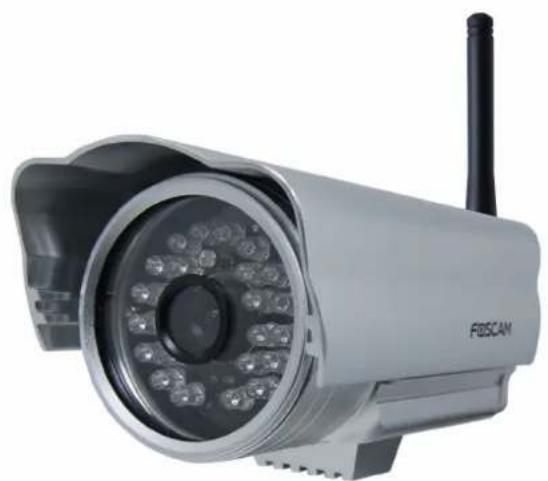
natural_image
Exterior view of a silver FBSCAM security camera with visible lens and antenna (no text or symbols on body)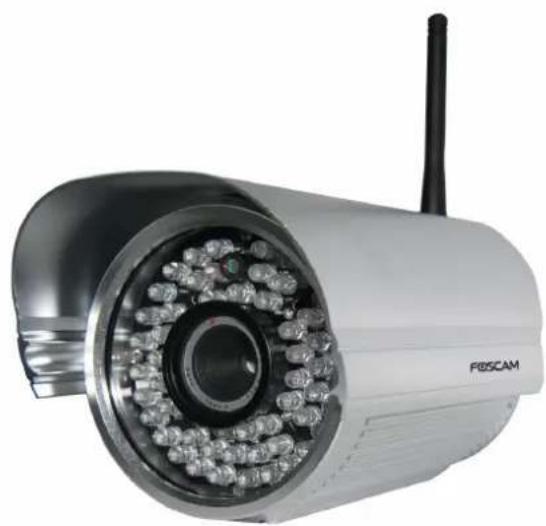
natural_image
Exterior view of a white F8SCAM security camera with visible signal lights and antenna (no text or symbols on body)FI8904W FI8905W
Table of Contents
1 Overviews....2
1.1 Key Features....3
1.2 Read Before Use....3
1.3 Packing Contents......4
1.4 Physical Description....4
2 Surveillance Software GUI....6
2.1 Login Window....6
2.2 Surveillance Window....8
3 Advanced Camera Settings....13
3.1 Device Status.... 13
3.2 Alias Settings.... 15
3.3 Date & Time Settings....15
3.4 User Settings.... 16
3.5 Multi-Device Settings....17
3.6 Basic Network Settings....23
3.7 Wireless Settings....26
3.8 ADSL....30
3.9 UPnP Settings....31
3.10 DDNS Service Settings....32
3.11 Mail Service Settings....36
3.12 MSN Setting.... 39
3.13 FTP Service Settings....41
3.14 Alarm Service Settings....43
3.15 Upgrade Device Firmware.... 49
3.16 Backup & Restore Settings....51
3.17 Restore Factory Settings....51
3.18 Reboot Device....52
3.19 Log....52
3.20 Back....52
4 APPENDIX....53
4.1 Frequently Asked Questions....53
4.2 Default Parameters....57
4.3 Specifications....57
5 OBTAINING TECHNICAL SUPPORT 58
1 Overviews
The IPCAM is an integrated wireless IP Camera with a color CMOS sensor. It combines a high quality digital video camera, with a powerful web server, to bring clear video to your desktop from anywhere on your local network or over the Internet.
The IPCAM supports IR-CUT, when light conditions turns poor, the IR cut filter will be automatically removed to accept IR illumination. Meanwhile, the camera switches itself automatically from color to black and white, assuring optimal image quality at all times.
The IPCAM is based on the TCP/IP standard. There is a WEB server inside which could support Internet Explore. Therefore the management and maintenance of your device is simplified by using the network to achieve the remote configuration, start-up and to upgrade the firmware.
This camera is designed for outdoor surveillance applications such as gardens, courtyards or parks. Controlling the IPCAM and managing images are simplified by using the provided web interface across the network utilizing wireless connectivity.
FOSCAM provides Phone APPs for Android and iPhone users, please search "Foscam ip cam viewer" and install it through APP Store, then you can view your camera directly as a computer.
1.1 Key Features
- Powerful high-speed video protocol processor
• High Definition Color CMOS Sensor - 300K Pixels
- IR night vision (Range: FI8904W:20m, FI8905W:30m)
- Optimized MJPEG video compression for transmission
- Multi-level users' management and passwords definition
- Embedded Web Server for users to visit by IE
- Wi-Fi compliant with wireless standards IEEE 802.11b/g/n
- Supports IR_CUT and the filter change automatically
● Supports Dynamic IP (DDNS) and UPnP LAN and Internet (ADSL, Cable Modem) - Embedded FOSCAM DDNS (dynamic domain name service) Service
- Motion detection activates alarm
• Supports image snapshot - Supports multiple network protocols: HTTP/TCP/IP/UDP/STMP/DDNS/SNTP/DHCP/FTP
• Supports WPS(Wi-Fi Protected Set-up)
• Supports WEP/WPA/WPA2 encryption
• Supports Daylight Saving Time - Supports MSN
- Supports Gmail as sender on mail service settings
- Providing Phone APPs for Android and iPhone users
- Providing Central Management Software to manage or monitor multi-cameras
1.2 Read Before Use
Please first verify that all contents received are complete according to the Package Contents listed below. Before the Network Camera is installed, please carefully read and follow the instructions in the Quick Installation Guide to avoid damage due to faulty assembly and installation. This also ensures the product is used properly as intended.
1.3 Packing Contents
| ● IPCAM×1 ● CD×1 | |
| ● Wi-Fi Antenna×1 (only available for wireless model) | ● Quick Installation Guide×1 |
| ● DC Power Supply×1 ● Warranty Card×1 | |
| ● Mounting bracket×1(option) | |
| ● Network Cable×1 |
1.4 Physical Description
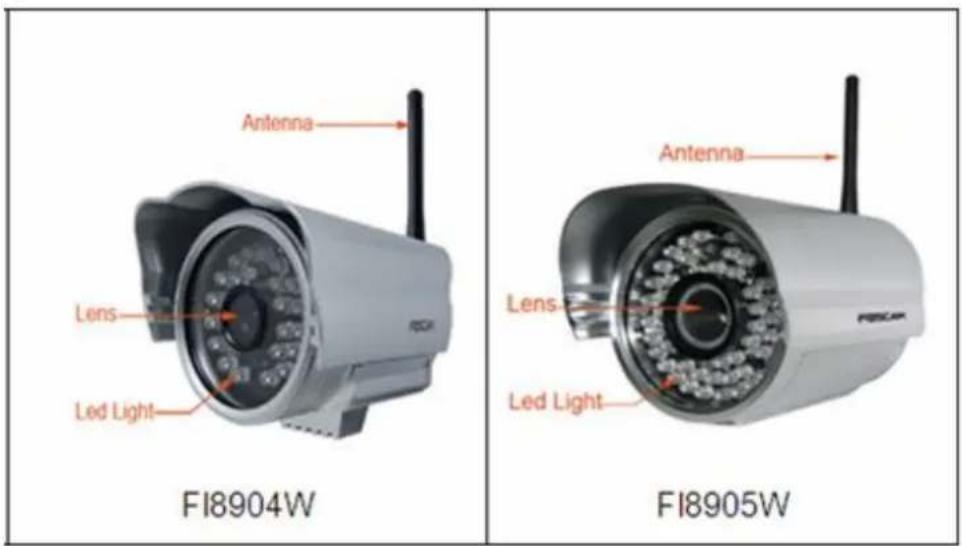
Front Panel
text_image
Antenna Lens Led Light FI8904W Antenna Lens Led Light FI8905WFigure 1.1
Infrared LED: 24 IR LEDs (model 04)/60 IR LEDs (model 05)
LENS: CMOS sensor with fixed focus lens
WIFI Antenna: Wireless Antenna
Back View

text_image
RJ45 Port Reset DC 5V Power JackFigure 1.2
LAN: RJ-45/10-100 Base T
Power: DC 5V/2A Power supply
RESET BUTTON:
1) Press and hold down the RESET BUTTON for 10 seconds. Release the power button and IP camera will be reset back to the factory default parameter.
2) Press and hold down the RESET BUTTON about 4 seconds, then press the WPS button on the router, then you can use the WPS function. (For more details: please read Wireless Settings in the User Manual)
Bottom View
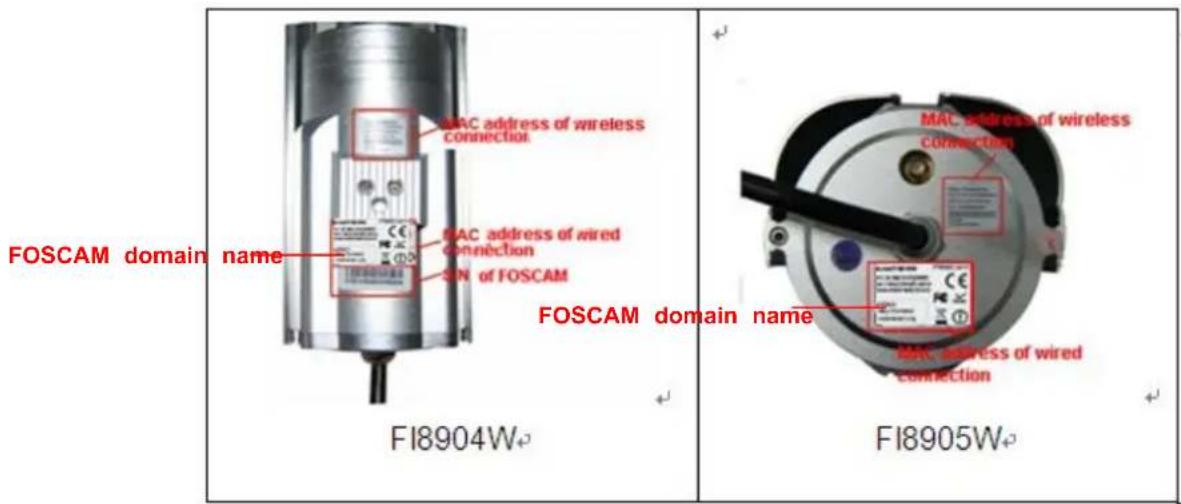
There are up to three labels located on the body of the camera; this is an important feature of original Foscam cameras. If your camera does not have labels as shown in Figure 1.3, it may be a clone one. Cloned Foscam cameras can not use original firmware and are not eligible for warranty or technical services.
text_image
FOSCAM domain name MAC address of wireless connection MAC address of wired connection SIN of FOSCAM F18904W FOSCAM domain name MAC address of wireless connection MAC address of wired connection F18905WFigure 1.3
2 Surveillance Software GUI
Please refer to the Quick Installation Guide if you install the camera at first time. After finishing quick installation, you can take time to learn the operation of the software.
2.1 Login Window

text_image
Language English 1 2 FOSCAM www.foscam.com ActiveX Mode 3 Server Push Mode 4 Mobile Phone 5 Note: Please note that there are three login methods: for IE browser, please choose ActiveX mode; for Safari, Firefox, Google, Chrome, please choose Server Push mode; for mobile phone, please choose the third mode. 6Figure 2.1
Please check the login window above, it was divided to 6 sections from no. 1 to 6.
Section1 Select Language
FOSCAM camera supports up to multi-languages, such as English, Spanish, Deutsch and so on. You can select the language you need via pull down the dropdown toolbar and click on the language to switch.
Section2 FOSCAM Website Link
There is an access link to Foscam website homepage, if you need tech support you can contact Foscam directly.
Section3 ActiveX Mode
If your PC is windows based OS, such as Windows XP, Windows7, Windows Vista and you are using IE-based browsers like IE6, IE7, IE8, please choose IE ActiveX Mode login mode.
Section4 Server Push Mode
If you are using non-IE based browser, like Firefox, Safari, Google Chrome please choose Server Push Mode mode.
Section5 Mobile Phone
If you are using the Mobile to access the camera, here you need to select Mobile Phone login mode.
Section6 Note
Note that when you login the camera, please select the corresponding login mode.
2.2 Surveillance Window
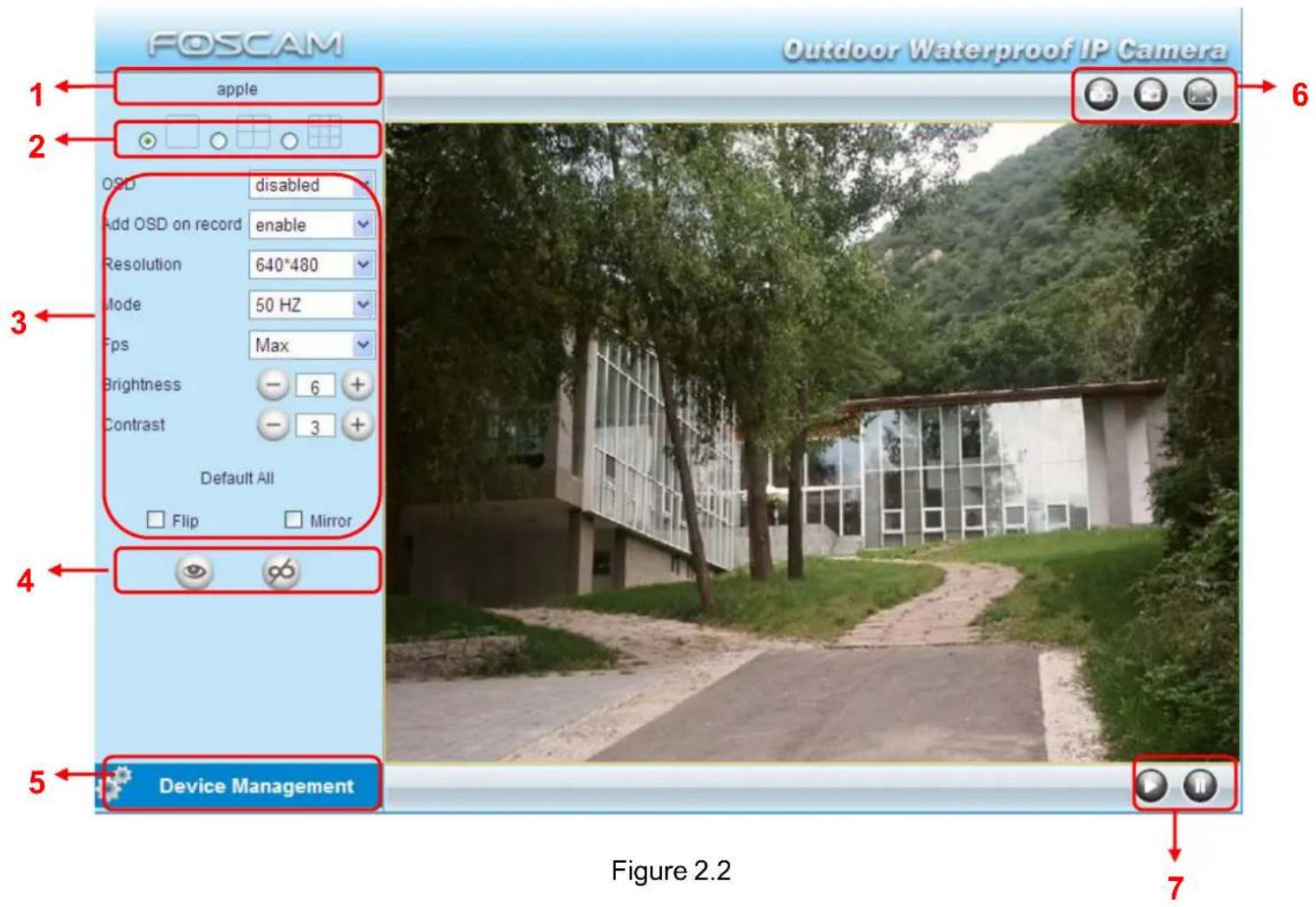
Select the ActiveX mode and you will enter the surveillance window.
text_image
FOSCAM Outdoor Waterproof IP Camera 1 apple 2 OSD disabled Add OSD on record enable Resolution 640*480 Mode 50 HZ Fps Max Brightness - 6 + Contrast - 3 + Default All Flip Mirror 4 Device Management Figure 2.2 7Section1 Device Name
Default device name is Anonymous. You can define a name for your camera as you like (Please go to chapter 3.1 and read how to set it)
Section2 Multi-Device Window

The firmware inside the camera supports up to maximum of 9 cameras being monitoring at the same time. You can add other cameras in multi-device setting (read chapter 3.5).

text_image
FOSCAM Outdoor Waterproof IP Camera apple OSD disabled Add OSD on record enable Resolution 640*480 Mode 50 HZ Fps Max Brightness - 6 + Contrast - 3 + Default All Flip Mirror Device Management. Figure 2.3
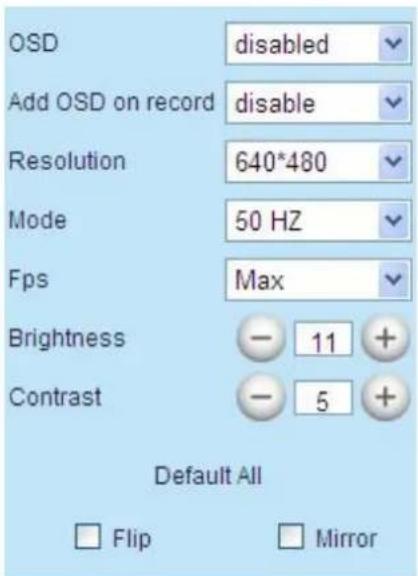
Section3 Image Parameters Settings
text_image
OSD disabled Add OSD on record disable Resolution 640*480 Mode 50 Hz Fps Max Brightness - 11 + Contrast - 5 + Default All Flip MirrorOSD
OSD is used to add timestamp on the video. There are five text colors to choose from: Black, red, yellow, white, blue.
Add OSD on record
Select this option if you want to add a timestamp to recordings.
Resolution
1) 320x240----QVGA
2) 640x480----VGA
There are two resolutions, the bigger one (VGA) is 640x480 pixels, and the smaller one (QVGA) is 320x240 pixels. The bigger the resolution, the better of the image quality is, but the lower the frame rate is. If you are accessing the camera via internet and want to get more fluent video streaming, please select resolution QVGA 320x240.
Mode
1) 50HZ ----Indoor surveillance (Region: Europe, China)
2) 60HZ ----Indoor surveillance (Region: USA, Canada)
3) Outdoor----Outdoor surveillance (Region: All over the world)
There are three options within the menu of Mode: 50HZ, 60HZ and Outdoor. It depends on the frequency of the electricity and surveillance model (indoors & outdoor). Please choose outdoor mode, when the camera was installed outside.
Fps
1) Max---- Maximum frame rate
2) 20fps, 15fps, 10fps, 5fps, 4fps, 3fps, 2fps, 1fps, 5fps, 1fps, 1/2fps, 1/3fps, 1/4fps, 1/5fps----customized frame rate
You can choose option within the menu of Fps to adjust the frame rate. It is often used in LAN network when you want to lower the frame rate, so that you can save more bandwidth.
Brightness
Default parameter is 6, you can adjust the brightness of the image by clicking plus or minus button.
Contrast
Default parameter is 4, you can adjust the contrast of the image by clicking plus or minus button.
Flip & Mirror
You can flip the image by enabling Flip button, or mirror the image by enabling Mirror button.
Section4 IR Lights Buttons

: Click this icon, all the IR lights will turn on.
: Click this icon to turn off IR lights.
Section5 Device Management
Device Management ----Path to Administrator Control Panel, Click it, and it will lead to Administrator Control Panel.
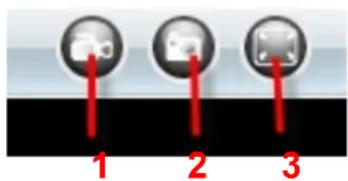
Section6 Record & Snapshot & Full Screen Buttons
text_image
1 2 31----Record Button Click it and it pop-up a path-setting window, you can select the storage path and the record file name. At the same time the record icon changes to ,, Click it again and stop recording.
2----Snapshot Click it to make snapshot and it pop-up a window which picture you snapshot, right click in the window and save the picture to anywhere you want.
3----Full Screen Click it to make full-screen, or you can double click the surveillance screen to make full-screen.
Section7 Play/Stop Buttons
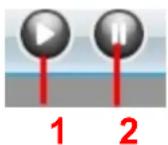
1----Play Click it to play the video of the camera
2----Stop Click it to stop the video of the camera

NOTE:
Record and multi-device function are controlled by ActiveX controller, therefore Firefox or Google Chrome, Safari browsers will not allow these functions.
For Firefox, Google Chrome, Safari, you should select the Server Push Mode and you can see the following screen:

text_image
FOSCAM Outdoor Waterproof IP Camera Flip Mirror Resolution 640*480 Mode 50 Hz Brightness -6 + Contrast -3 + Refresh camera params Refresh video Snapshot Device ManagementFigure 2.4
3 Advanced Camera Settings
Click the bar "Device Management", goes to Administrator Control Panel to make advanced camera settings.
3.1 Device Status

text_image
FOSCAM Outdoor Waterproof IP Camera Device Status Alias Settings Date & Time Settings Users Settings Multi-Device Settings Basic Network Settings Wireless LAN Settings ADSL Settings UPnP Settings DDNS Service Settings Mail Service Settings MSN Settings FTP Service Settings Alarm Service Settings Upgrade Device Firmware Backup & Restore Settings Restore Factory Settings Reboot Device Log Back Device ID 000DC5D489EB Device Firmware Version 11.35 2.49 Device Embedded Web UI Version 2.4.20.4 Alias TEST Alarm Status None DDNS Status Foscam Succeed http://camera.myfoscam.org UPnP Status.UPnP Succeed MSN Status No ActionFigure 3.1
1----Device ID MAC ID of the camera by wired connection
2----Device Firmware Version System Firmware version of the camera
3----Device Web UI Version Web UI firmware version of the camera
4----Alias Name of the camera
5----Alarm Status The status of Alarm Service Setting
6----DDNS Status The status of DDNS Setting
7----UPnP Status The status of UPnP Setting
8----MSN Status The status of MSN Setting
Another Way:

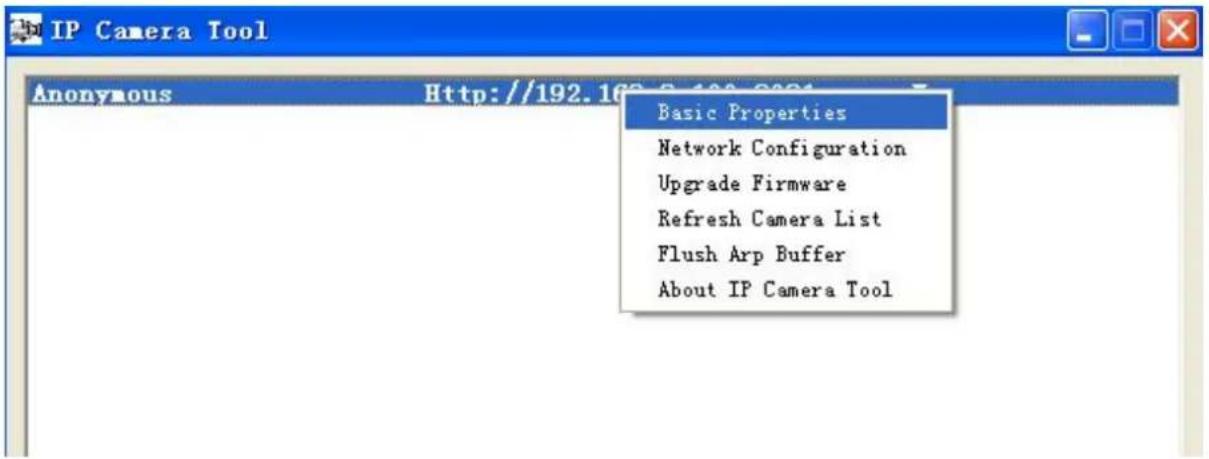
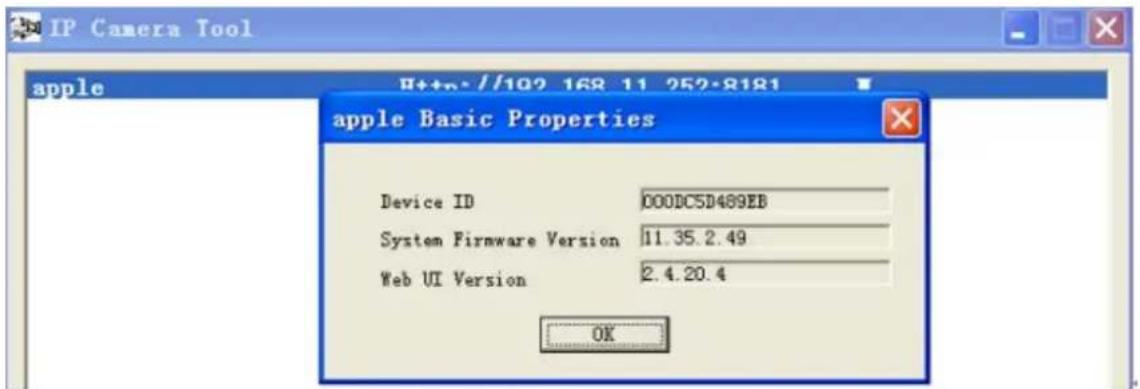
Double click the icon "IP Camera.exe", select the camera IP, right click and select the Basic Properties, you can also see the Firmware Version and MAC Address, such as the following screen:
text_image
IP Camera Tool Anonymous Http://192.162.5 100 0004 Basic Properties Network Configuration Upgrade Firmware Refresh Camera List Flush Arp Buffer About IP Camera ToolFigure 3.2
text_image
IP Camera Tool apple Http://102 168 11 252-8181 apple Basic Properties Device ID 000DC5D489EB System Firmware Version 11.35.2.49 Web UI Version 2.4.20.4 OKFigure 3.3
3.2 Alias Settings
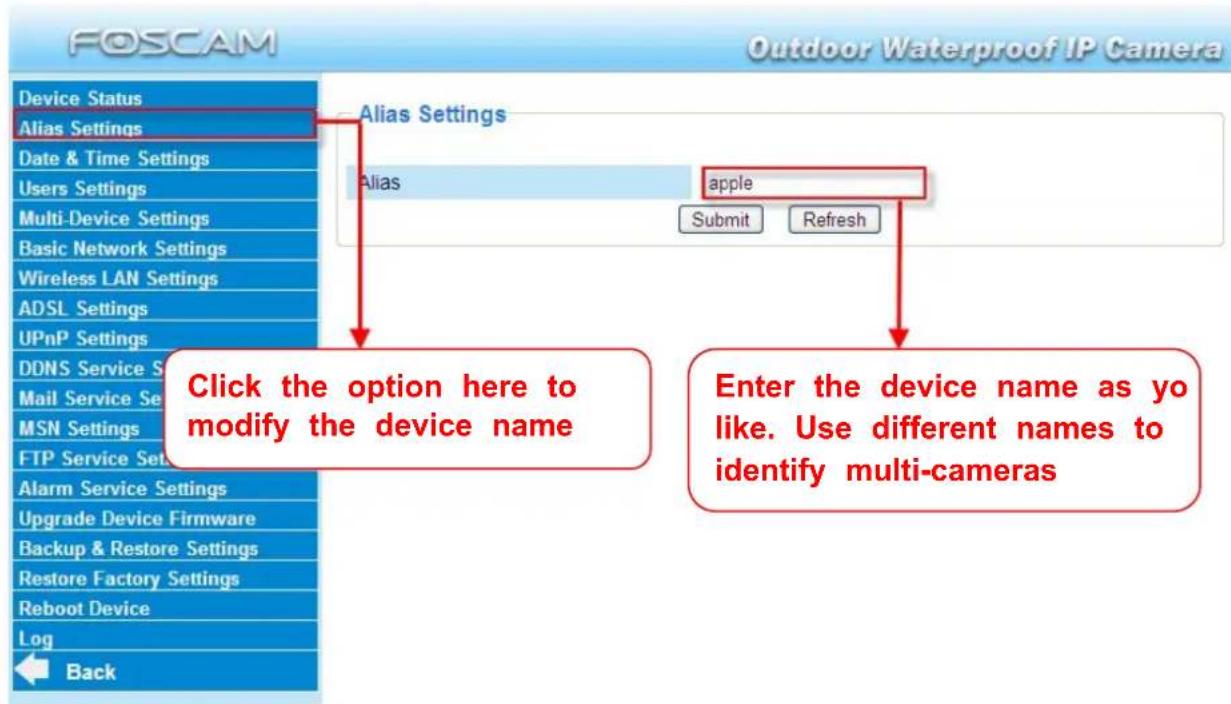
Default alias is Anonymous. You can define a name for your camera here such as apple. Click Submit to save your changes. The alias name supports special characters.
text_image
FOSCAM Outdoor Waterproof IP Camera Device Status Alias Settings Date & Time Settings Users Settings Multi-Device Settings Basic Network Settings Wireless LAN Settings ADSL Settings UPnP Settings DDNS Service S Mail Service Se MSN Settings FTP Service Set Alarm Service Settings Upgrade Device Firmware Backup & Restore Settings Restore Factory Settings Reboot Device Log Back Alias Settings Alias apple Submit Refresh Click the option here to modify the device name Enter the device name as yo like. Use different names to identify multi-camerasFigure 3.4
3.3 Date & Time Settings
Choose the time zone of your country. You can choose Sync with NTP Server or Sync with PC Time. If your country implements the Daylight Saving Time, that option can also be selected.

text_image
FOSCAM Outdoor Waterproof IP Camera Device Status Alias Settings Date & Time Settings Users Settings Multi-Device Settings Basic Network Settings Wireless LAN Settings ADSL Settings UPnP Settings DDNS Service Settings Mail Service Settings MSN Settings FTP Service Settings Date & Time Settings Device Clock Time Device Clock Timezone Sync with NTP Server NTP Server Sync with PC Time Daylight Saving Time 2012年9月6日 星期四 1:46:36 (GMT) Greenwich mean time, London, Lisbon, Casablan time.nist.gov Submit Refresh Go to Data &Time Setting Figure 3.5 Select the time zone belong to your region3.4 User Settings
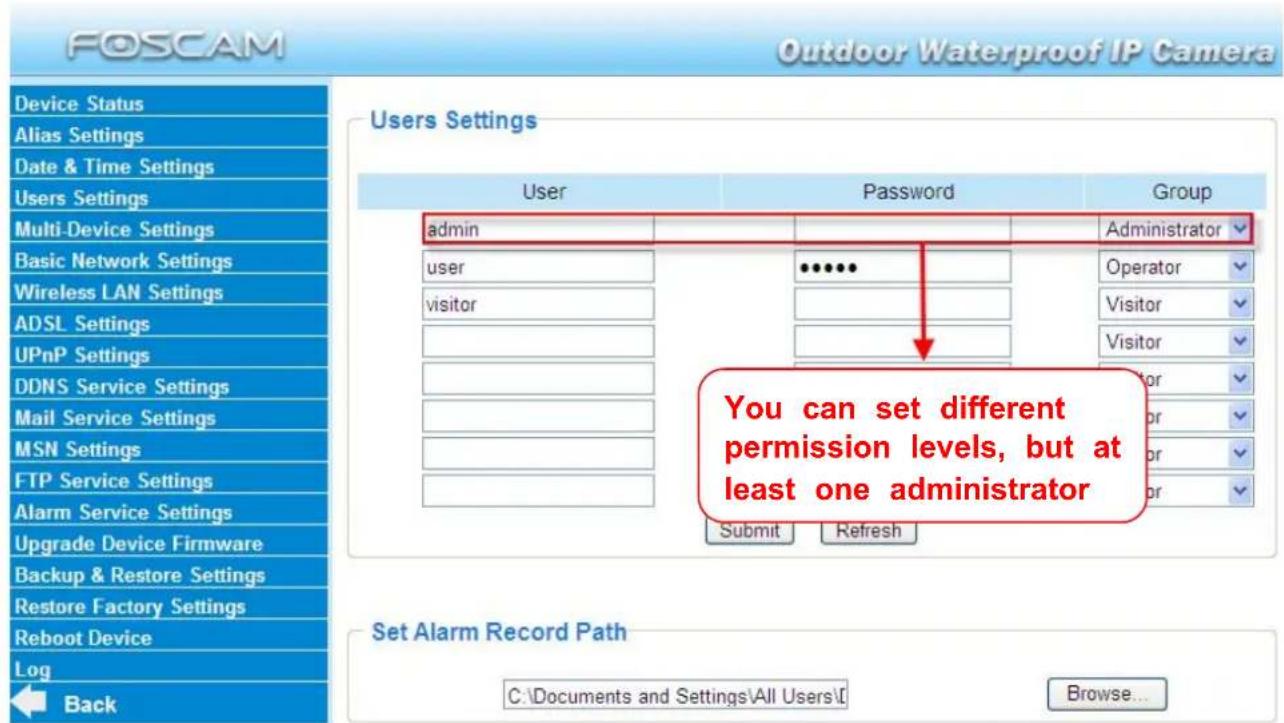
Here you can create users and set permission levels, visitor, operator or administrator. Click Submit to save these settings. The camera will reboot.
text_image
FOSCAM Outdoor Waterproof IP Camera Device Status Alias Settings Date & Time Settings Users Settings Multi-Device Settings Basic Network Settings Wireless LAN Settings ADSL Settings UPnP Settings DDNS Service Settings Mail Service Settings MSN Settings FTP Service Settings Alarm Service Settings Upgrade Device Firmware Backup & Restore Settings Restore Factory Settings Reboot Device Log Back Users Settings UserPasswordGroup adminAdministrator user.......... visitorOperator Visitor Visitor You can set different permission levels, but at least one administrator Submit Refresh Set Alarm Record Path C:\Documents and Settings\All Users\C Browse...Figure 3.6
Here you can also set one important file locations for the camera, the Alarm Record Path. Simply click Browse and choose the path to the required folder.
The Alarm Record Path location is used to store automatically recorded files when the camera is activated by motion. (See set motion alarm. Figure 3.39) The default path for Alarm Record Path is C:\Documents and Settings\All Users\Documents.
NOTE: In Windows7 or Vista, if you cannot set the paths.:
Windows7 or Vista's security level is higher than Windows XP/2000. For "set record path" function, user should add the Device IP address to the Internet Explorer's 'Trusted sites' first. The step is: IE browser Tool Internet Proper Security Trusted sites Sites Add
3.5 Multi-Device Settings
If you want to view multi-surveillance screens on one window, you need to login one camera, and set it as the main device, and do Multi-Device Settings, add other cameras to the first one camera. Before you do multi-cams settings, you need to assign different port such as 81, 82, 83, 84, 85, 86, 87, 88 to the cameras if there is 8 cams installed.
The firmware within the camera can support a maximum of 9 devices monitoring all at the same time.
3.5.1 Add cameras in LAN
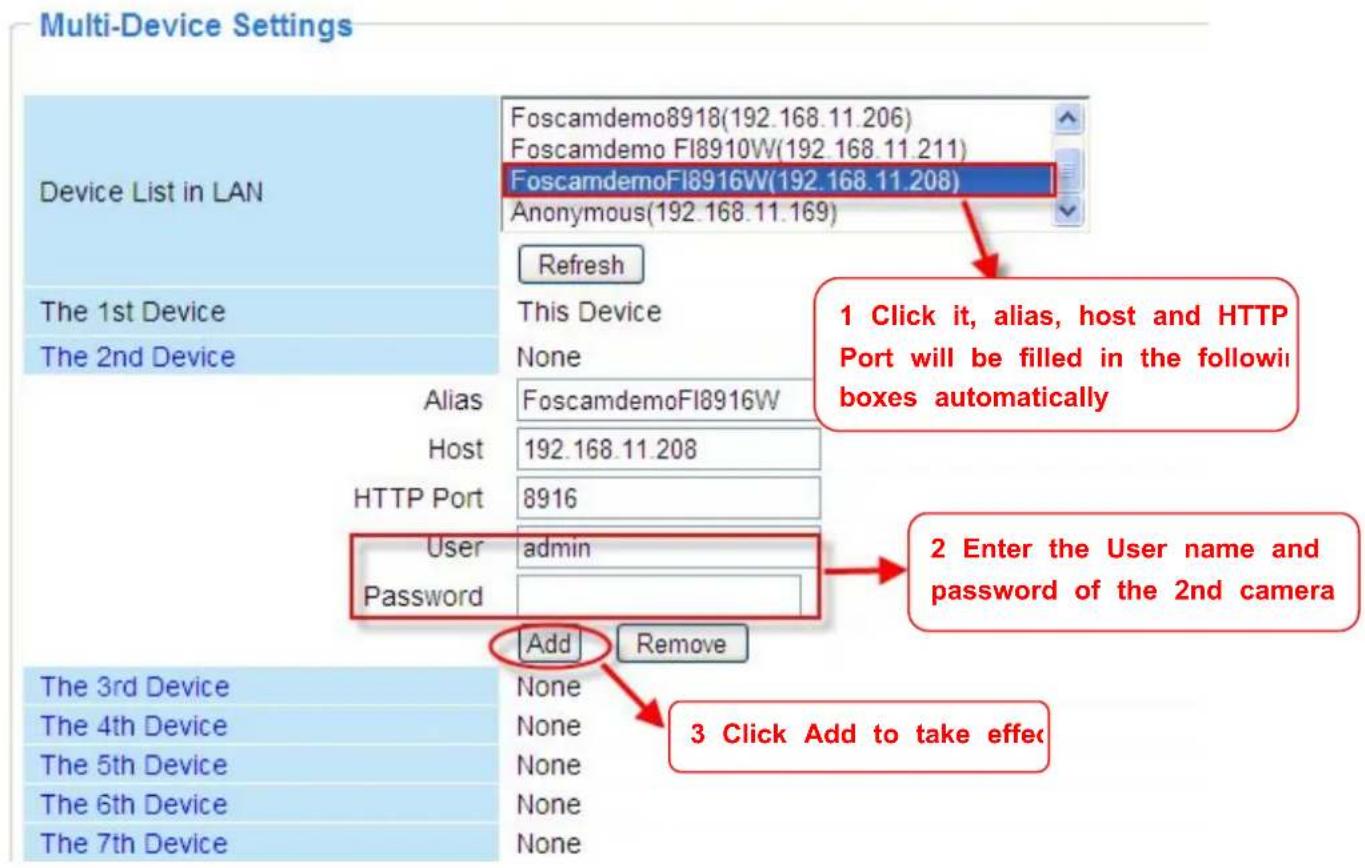
In Multi-Device Settings page, you can see all devices searched in LAN. The 1st Device is the default one. You can add more cameras in the list in LAN for monitoring. The camera's software supports up to 9 IP Cameras online simultaneously. Click The 2nd Device and click the item in the Device List in LAN, the Alias, Host and Http Port will be filled in the boxes below automatically. Enter the correct username and password then click Add. Add more cameras in the same way. After all cameras have been added, choose Submit.
text_image
Multi-Device Settings Device List in LAN Foscamdemo8918(192.168.11.206) Foscamdemo FI8910W(192.168.11.211) FoscamdemoFI8916W(192.168.11.208) Anonymous(192.168.11.169) Refresh The 1st Device This Device The 2nd Device None Alias FoscamdemoFI8916W Host 192.168.11.208 HTTP Port 8916 User admin Password Add Remove 3 Click Add to take effect 2 Enter the User name and password of the 2nd camera The 3rd Device None The 4th Device None The 5th Device None The 6th Device None The 7th Device NoneFigure 3.7a

text_image
Multi-Device Settings Device List in LAN FoscamdemoFI8916W(192.168.11.208) Foscamdemo8918(192.168.11.206) Foscamdemo FI8909W(192.168.11.212) Anonymous(192.168.11.169) Refresh The 1st Device This Device The 2nd Device FoscamdemoFI8916W(192.168.11.208) Foscamdemo FI8910W(192.168.11.211) Foscamdemo8918(192.168.11.206) None None None None None The 5th Device None The 6th Device None The 7th Device None The 8th Device None The 9th Device None Attention: If you want to access the device from internet, be sure the host and port that you set can be accessed from internet. Submit Refresh Click Submit after add all camerasFigure 3.7b
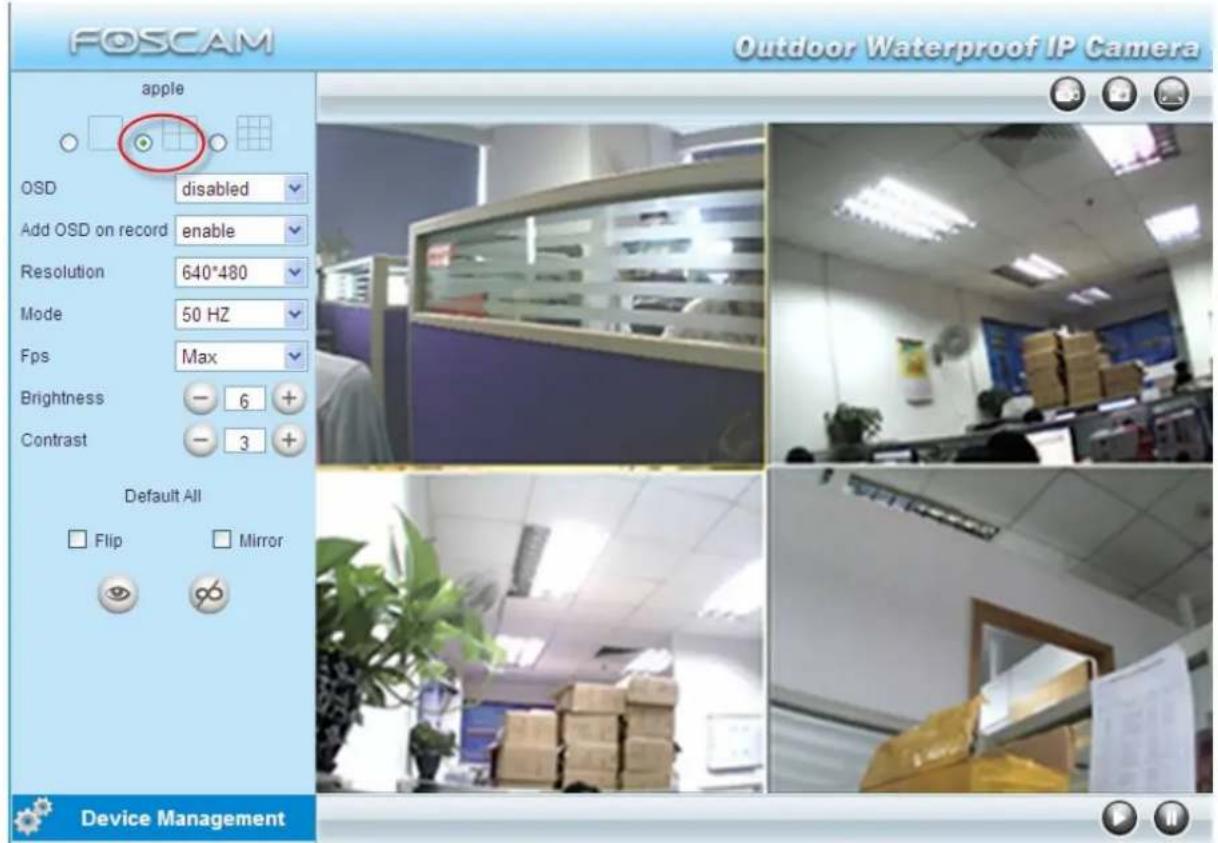
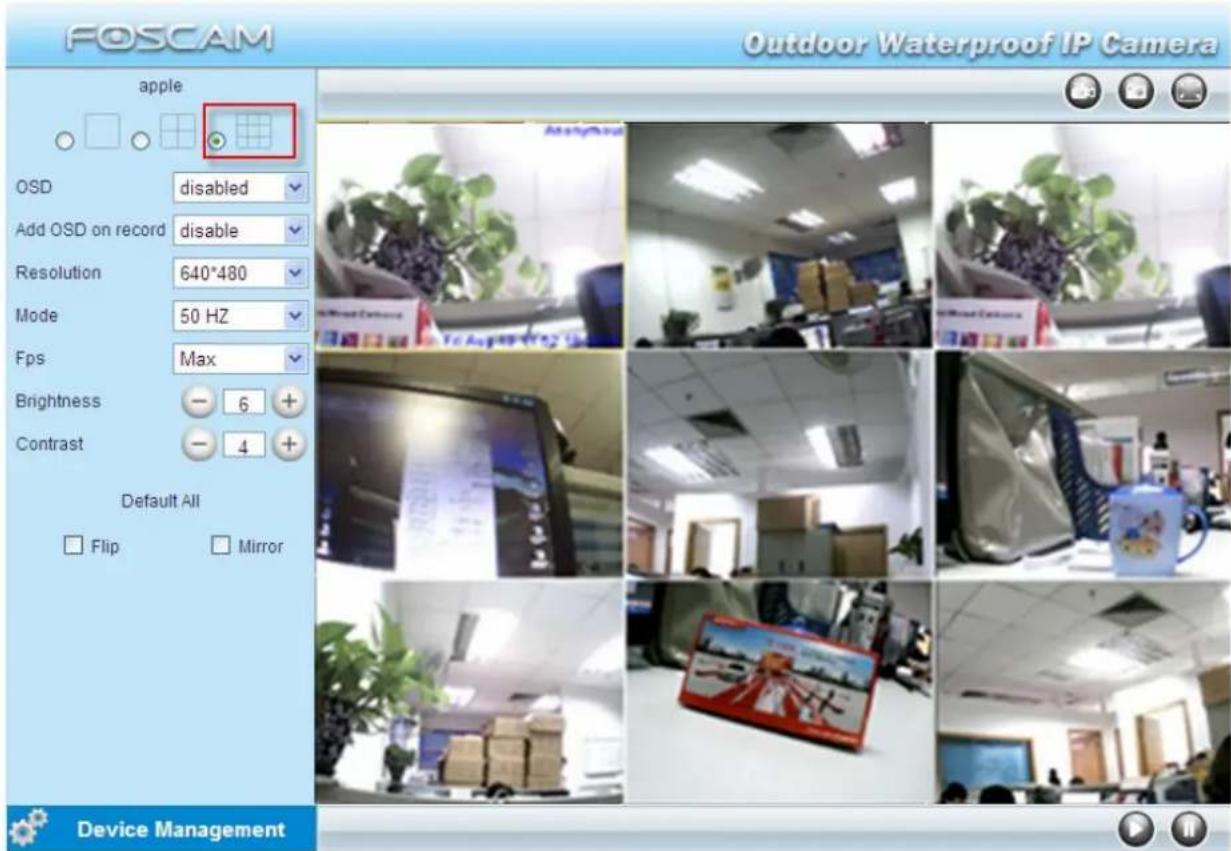
Back to Surveillance Windows, and click Four Windows option, you will see four cameras you added.
text_image
FOSCAM Outdoor Waterproof IP Camera apple OSD disabled Add OSD on record enable Resolution 640°480 Mode 50 HZ Fps Max Brightness - 6 + Contrast - 3 + Default All Flip Mirror Device ManagementFigure 3.8
text_image
FOSCAM Outdoor Waterproof IP Camera apple OSD disabled Add OSD on record disable Resolution 640*480 Mode 50 Hz Fps Max Brightness - 6 + Contrast - 4 + Default All Flip Mirror Device ManagementFigure 3.9
3.5.2 Add cameras in WAN
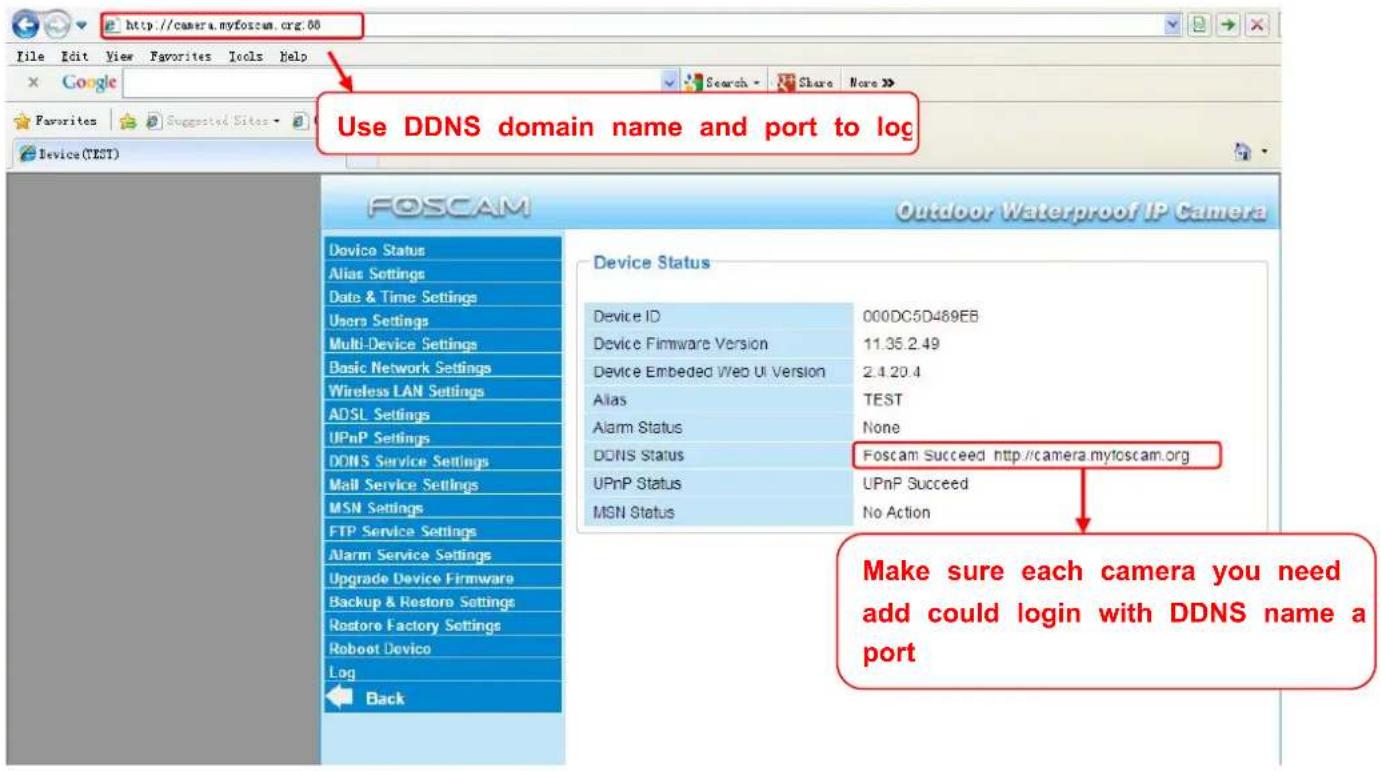
If you want to view all cameras via the internet(remote computer), you will need to add them using DDNS domain name. Firstly, make sure all of the cameras you added can be accessed through the internet. (Read How to configure DDNS settings in chapter 3.10) Login to the first camera using a DDNS domain name and port.
text_image
http://camera.myfoscam.org.00 File Edit View Favorites Tools Help Google Search - Share More >> Favorites Suggested Sites - Device(TEST) Use DDNS domain name and port to log FOSCAM Outdoor Waterproof IP Camera Device Status Device ID 000DC5D489EB Device Firmware Version 11.35.2.49 Device Embedded Web UI Version 2.4.20.4 Alias TEST Alarm Status None DDNS Status Foscam Succeed http://camera.myfoscam.org UPnP Status UPnP Succeed MSN Status No Action FTP Service Settings Alarm Service Settings Upgrade Device Firmware Backup & Restore Settings Restore Factory Settings Roboot Device Log Back Make sure each camera you need add could login with DDNS name a portFigure 3.10
If you have several cameras, you can use the same DDNS domain name; you only need to set a different port number for each camera.
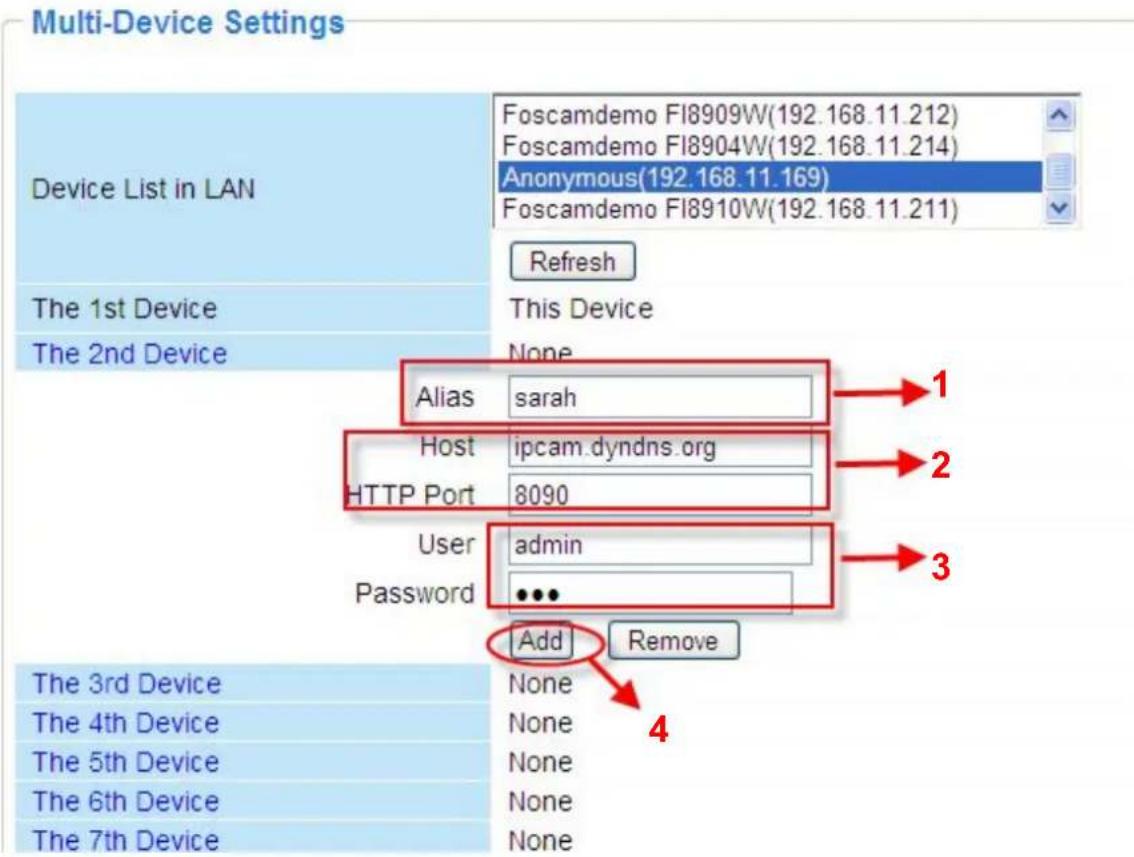
Click Multi-Device Settings. Choose The 2nd Device. Fill in the 2nd camera's name, DDNS domain name, port number. Enter user name and password and then choose Add. (Figure 3.11)
NOTE: Here the Host must be entered as the second camera's DDNS domain name, not its LAN IP.
text_image
Multi-Device Settings Device List in LAN Foscamdemo FI8909W(192.168.11.212) Foscamdemo FI8904W(192.168.11.214) Anonymous(192.168.11.169) Foscamdemo FI8910W(192.168.11.211) Refresh The 1st Device This Device The 2nd Device Alias sarah Host ipcam.dyndns.org HTTP Port 8090 User admin Password •••• Add Remove The 3rd Device None 4 The 4th Device None The 5th Device None The 6th Device None The 7th Device NoneFigure 3.11
1---- The 2nd camera's name
2---- Fill in the 2nd camera's DDNS host not LAN IP
3 ---- Enter the 2nd camera's user name and password
4---- Click Add button and to take effect
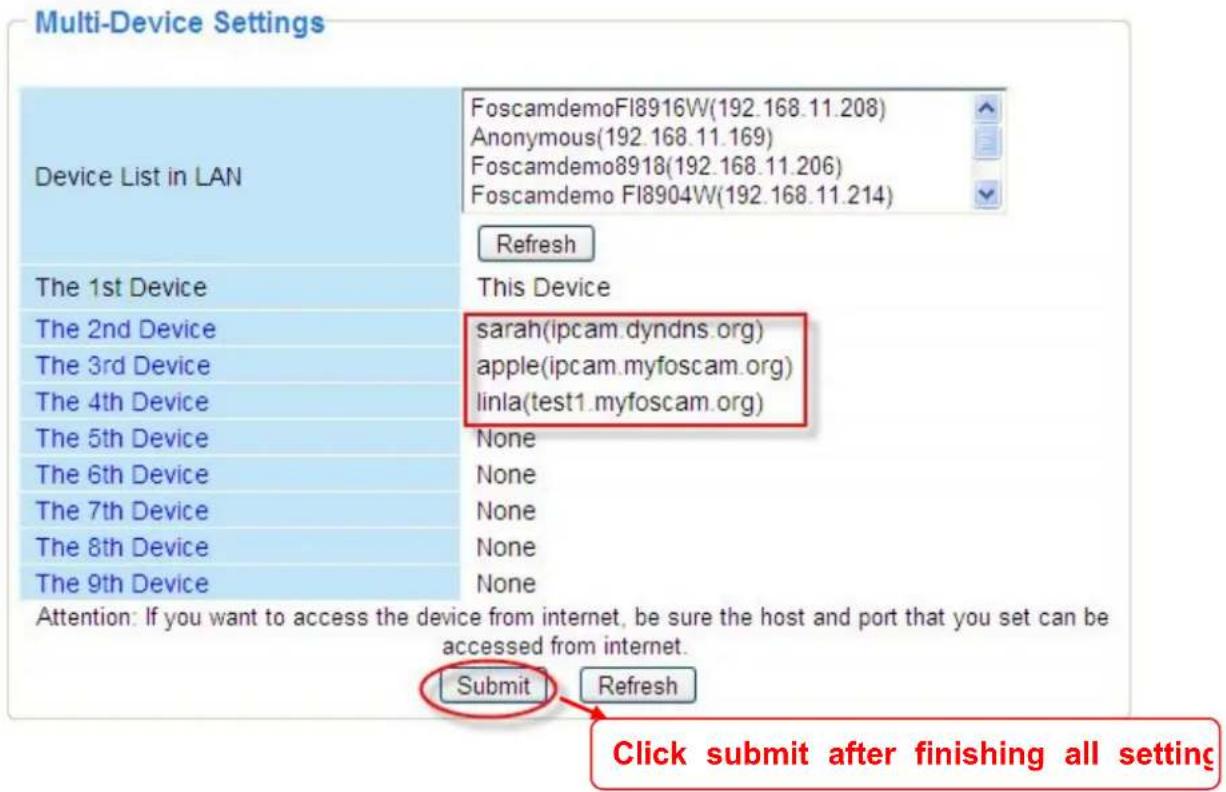
Add the other cameras in the same way. Click Submit to save.
text_image
Multi-Device Settings Device List in LAN FoscamdemoFI8916W(192.168.11.208) Anonymous(192.168.11.169) Foscamdemo8918(192.168.11.206) Foscamdemo FI8904W(192.168.11.214) Refresh The 1st Device This Device The 2nd Device sarah(ipcam.dyndns.org) the 3rd Device apple(ipcam.myfoscam.org) the 4th Device linla(test1.myfoscam.org) The 5th Device None The 6th Device None The 7th Device None The 8th Device None The 9th Device None Attention: If you want to access the device from internet, be sure the host and port that you set can be accessed from internet. Submit Refresh Click submit after finishing all settingFigure 3.12
Return to video window. You will see all of the cameras accessible through the internet. When you are away from home, you can use the first camera's DDNS domain name and port to view all the cameras via internet.

text_image
FOSCAM Outdoor Waterproof IP Camera apple OSD disabled Add OSD on record enable Resolution 640*480 Mode 50 HZ Fps Max Brightness - 6 + Contrast - 3 + Default All Flip Mirror Device ManagementFigure 3.13
3.6 Basic Network Settings
If you want to set a static IP for the camera, select Basic Network Settings. Keep the camera in the same subnet of your router or computer.

text_image
FOSCAM Outdoor Waterproof IP Camera Device Status Alias Settings Date & Time Settings Users Settings Multi-Device Settings Basic Network Settings Wireless LAN Settings ADSL Settings UPnP Settings DDNS Service Settings Mail Service Settings MSN Settings FTP Service Settings Alarm Service Settings Upgrade Device Firmware Backup & Restore Settings Restore Factory Settings Reboot Device Log Back Basic Network Settings Obtain IP from DHCP Server IP Address 192.168.0.109 Subnet Mask 255.255.255.0 Gateway 192.168.0.1 DNS Server 192.168.0.1 HTTP Port 85 Submit RefreshFigure 3.14
Changing settings here is the same as using the IP Camera Tool. (Figure 3.17/3.18)
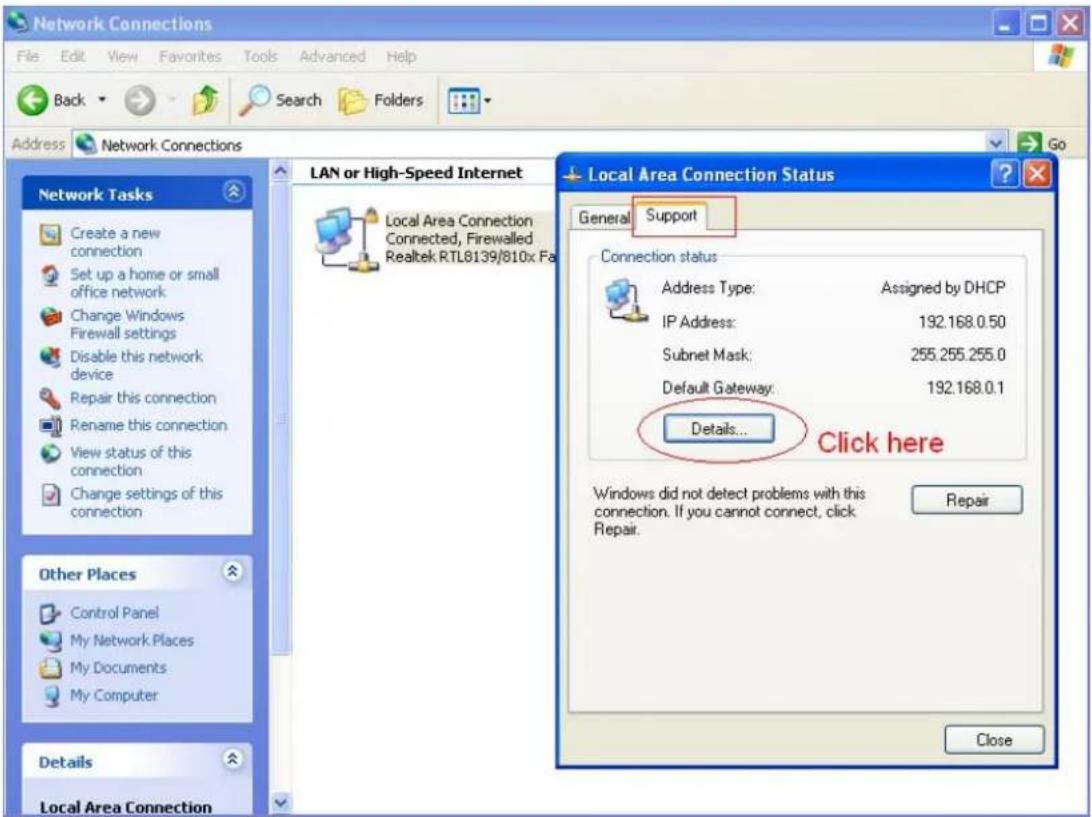
It is recommended that you use the subnet mask, gateway and DNS server from your locally attached PC. If you don't know the subnet mask, gateway and DNS server, you can check your computer's local area connection as follows:
Control Panel → Network Connections → Local Area Connections → Choose Support→Details.
text_image
Network Connections File Edit View Favorites Tools Advanced Help Back Search Folders Address Network Connections LAN or High-Speed Internet Local Area Connection Status General Support Connection status Address Type: Assigned by DHCP IP Address: 192.168.0.50 Subnet Mask: 255.255.255.0 Default Gateway: 192.168.0.1 Details... Click here Windows did not detect problems with this connection. If you cannot connect, click Repair. Repair Close Network Tasks Create a new connection Set up a home or small office network Change Windows Firewall settings Disable this network device Repair this connection Rename this connection View status of this connection Change settings of this connection Other Places Control Panel My Network Places My Documents My Computer Details Local Area ConnectionFigure 3.15

text_image
Network Connections File Edit View Favorites Tools Advanced Help Back Search Folders Address Network Connections LAN or High-Speed Internet Local Area Connection Connected, Firewalled Realtek RTL8139/810x Fa Network Tasks Create a new connection Set up a home or small office network Change Windows Firewall settings Disable this network device Repair this connection Rename this connection View status of this connection Change settings of this connection Other Places Control Panel My Network Places My Documents My Computer Details Local Area Connection Local Area Connection Status Network Connection Details Network Connection Details: Property Value Physical Address 00-E0-D0-00-23-01 IP Address 192.168.0.50 Subnet Mask 255.255.255.0 Default Gateway 192.168.0.1 DHCP Server 192.168.0.1 Lease Obtained 2010-7-23 17:20:44 Lease Expires 2010-7-23 19:20:44 DNS Servers 202.96.134.33 WINS Server Close CloseFigure 3.16
If you don't know the DNS server, you can use the same settings as the Default Gateway.
Another way to change the camera's LAN IP and HTTP Port no.
Open the IP Camera Tool, select the camera you want to change the port no, right click on the IP address link, and goes to Option "Network Configuration", it pops up another dialogue showed as the following screen

text_image
IP Camera Tool apple Http://192.168.8.102 Basic Properties Network Configuration Upgrade Firmware Ref Fl Ab Select the camera you want to change the LAN IP or port no, r clickFigure 3.17

text_image
IP Camera Tool apple Network Configuration Obtain IP from DHCP server IP Address 192 .168 .11 .102 Subnet Mask 255 .255 .255 . 0 Gateway 192 .168 .11 . 1 DNS Server 192 .168 .11 . 1 Http Port 8090 User admin Password ***** OK CancelFigure 3.18
IP Address: Fill in the IP address assigned and make sure it is in the same subnet as your computer or router. (i.e. the first three sections are the same)
Subnet Mask: The default subnet mask of the equipment in our LAN is: 255.255.255.0. You can find the subnet mask in the basic information of your router or the locally-attached of your PC.
Gateway: Make sure it is in the same subnet with PC's IP address. The gateway is your router's LAN IP.
DNS Server: IP address of your ISP network provider. You can find the DNS server in your router or check the locally-attached address of your computer. Your PC contains your PC's IP address, gateway and DNS server. Normally, there are two DNS servers. Here you can also set the DNS server the same with gateway.
Http Port: The default Lan port is 80. You can set another port number, such as port 8005, 8100. etc.
User&Password: Default administrator user name is admin with no password.

NOTE:
If the prompt “Subnet doesn’t match, dbclick to change!” appears, please enable DHCP set camera’s IP address and gateway once again.
3.7 Wireless Settings
Wireless Lan Settings support three modes: Infra(Do wireless lan settings manually) and WPS (Wi-FI Protected Set-up) and Adhoc.
If your router does not support WPS function, please go to chapter 3.7.1 and make wireless connection settings manually.
If your router supports WPS function, please go to chapter 3.7.2 and make wireless connection settings quickly.
If there is no wireless router, please go to chapter 3.7.3 and Connect the IPCAM directly a host in a peer_to_peer environment.
3.7.1 Infrastructure Mode
Step 01) Please choose "Device Management" and goes to the option Wireless LAN Settings, click "Wireless LAN Settings". Then enable "Using Wireless LAN".
Click the Scan button and the camera will detect all WIFI devices around the area. It should also display your router in the list. (Figure 3.19)

text_image
Wireless LAN Settings Wireless Network List Lucy[14e6e462d576] infra dlink[f07d685630dc] infra test1[54e6fc35f13a] infra WEP cisco[00259cb1df9a] infra WEP Scan Using Wireless LAN ✓ SSID Network Type Infra Encryption None Submit Refresh Click Scan Button to search WIFI deviceFigure 3.19
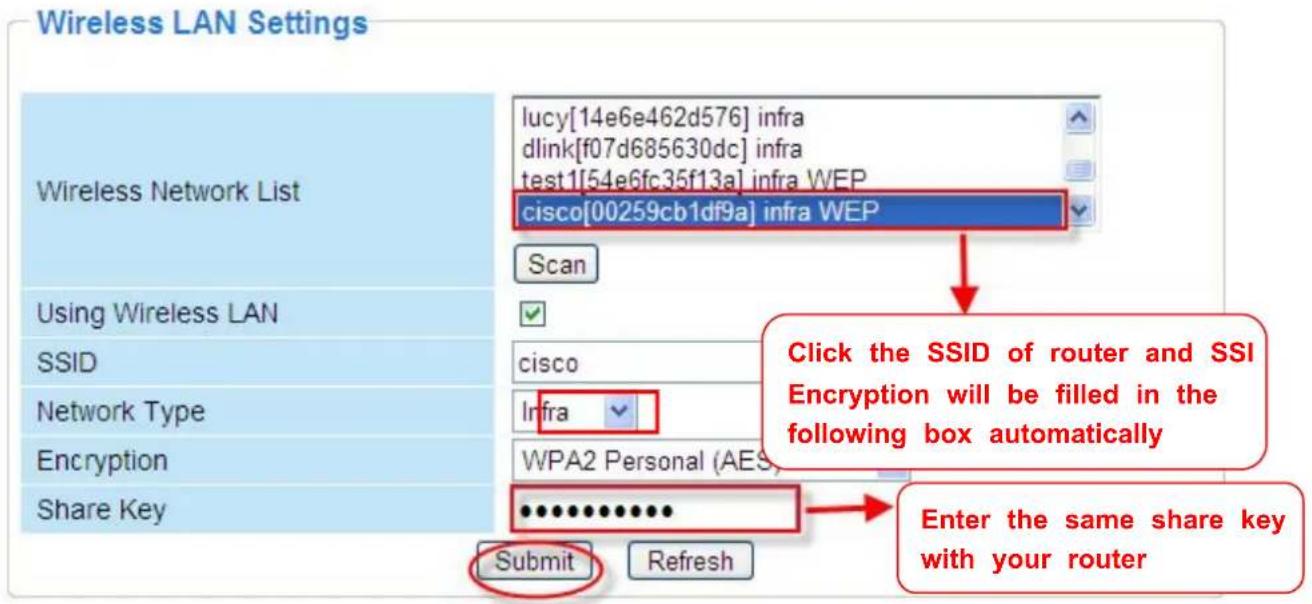
Step 02) Click the SSID of your router in the list, the corresponding information (SSID & Encryption) will be filled in the following boxes automatically.
You will only need to fill in the share key. Make sure that SSID, Encryption and share key you filled in for the camera are exactly the same for your router.
text_image
Wireless LAN Settings Wireless Network List lucy[14e6e462d576] infra dlink[f07d685630dc] infra test1[54e6fc35f13a] infra WEP cisco[00259cb1df9a] infra WEP Scan Using Wireless LAN SSID cisco Infra Network Type WPA2 Personal (AES) Encryption Share Key Submit Refresh Click the SSID of router and SSI Encryption will be filled in the following box automatically Enter the same share key with your routerFigure 3.20
Step 03) Please click on the Submit button after all settings have been entered, the camera will reboot. After the camera has completed the reboot process, wait 10 seconds and disconnect the network cable.
The LAN IP address will disappear on the window of IP Camera Tool when the camera gets restarted. Just wait for around 1 minute, the camera will get wireless connection, and the LAN IP
of the camera will be showed again on the window of the IP Cam Tool. You have done wireless connection of the camera successfully. If the camera has a dynamic IP, after the wireless settings, the IP will be changed.
Note
If fail to make WiFi connection, please refer to seller or us for help.
3.7.2 WPS (Wi-Fi Protected Set-up)
Step 01) Press and hold the RESET button for four seconds.

text_image
RJ45 Port Reset DC 5V Power JackStep 02) Press the WPS button on your router within 60 seconds. The WPS button is usually on the back or side of your router. On some routers, you may need to log in to the web interface and click on an on-screen button to activate the WPS feature. If you are not sure where the WPS buttons is on your router, please refer to your router's User Manual.
The camera will automatically create a secure wireless connection to your router. If you have plugged in the network cable, please plug it out. While connecting, the green network light on RJ45 will blink and the wireless settings will take effect. The IP Camera Tool will search the camera's LAN IP. Make sure the PC and the camera share the same subnet.
Note
1 During the WPS Settings, you must press the Reset button only for four seconds, or else, the camera may be reset back to factory default settings if you press and hold on the reset button above 10 seconds.
2 The security mode of router cannot be WEP, or else the WPS settings may be failed.
3.7.3 Adhoc Mode
Under this mode, the IPCAM will directly connect to a host in a peer_to_peer environment.
Make sure the PC has plugged in the wireless network card.
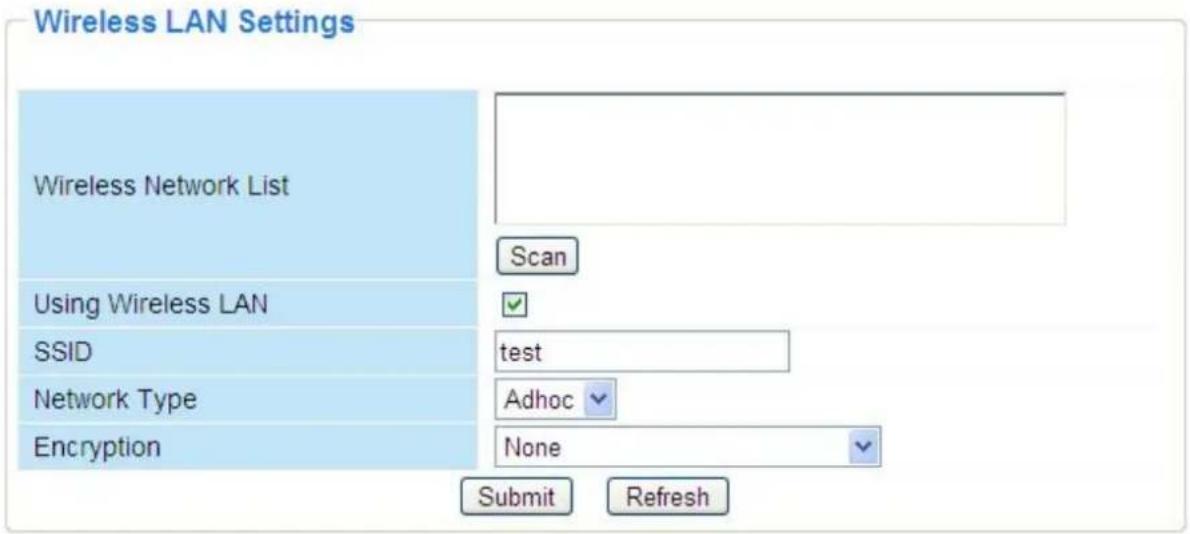
Step 01) Enable wireless and choose Adhoc mode.
Fill in a SSID to identify the IPCAM and then set the security mode, you can choose none or others. Click Apply.
text_image
Wireless LAN Settings Wireless Network List Scan Using Wireless LAN ✓ SSID test Network Type Adhoc Encryption None Submit RefreshFigure 3.21
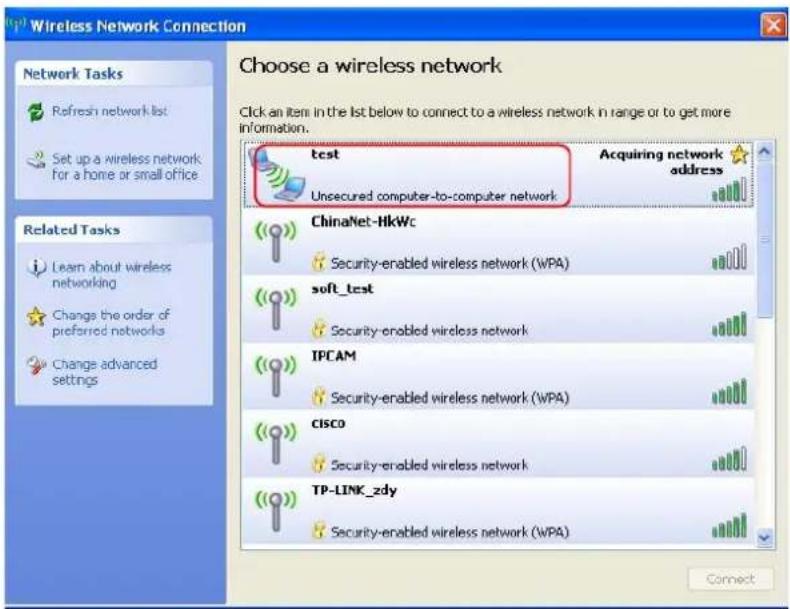
Step 02) Plug out the network cable and the camera will restart..
Open the wireless network card of PC and search the wireless network around the area. You can find the SSID you filled for the camera (Figure 3.21).
text_image
Wireless Network Connection Choose a wireless network Click an item in the list below to connect to a wireless network in range or to get more information. Network Tasks Refresh network list Set up a wireless network for a home or small office Related Tasks Learn about wireless networking Change the order of preferred networks Change advanced settings test Acquiring network address Unsecured computer-to-computer network ChinaNet-HkWc Security-enabled wireless network (WPA) soft_test Security-enabled wireless network IPCAM Security-enabled wireless network (WPA) CISCO Security-enabled wireless network TP-LINK_zdy Security-enabled wireless network (WPA) ConnectFigure 3.22
Step 03) Disabled the wired connection of the PC. Select the SSID you filled at Figure3.21 for your camera and enter the same key with your camera. Make sure PC and Camera share the
same subnet.
Open the IP Camera Tool, you can search the camera LAN IP again.
3.8 ADSL
flowchart
graph LR
    PC["PC"] -->|black lightning bolt| Modern["modern"]
    Modern --> IP_Cam1["IP-Cam 1"]
Figure 3.23
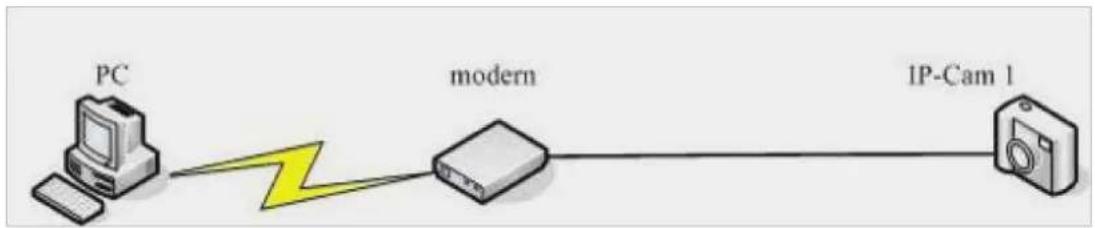
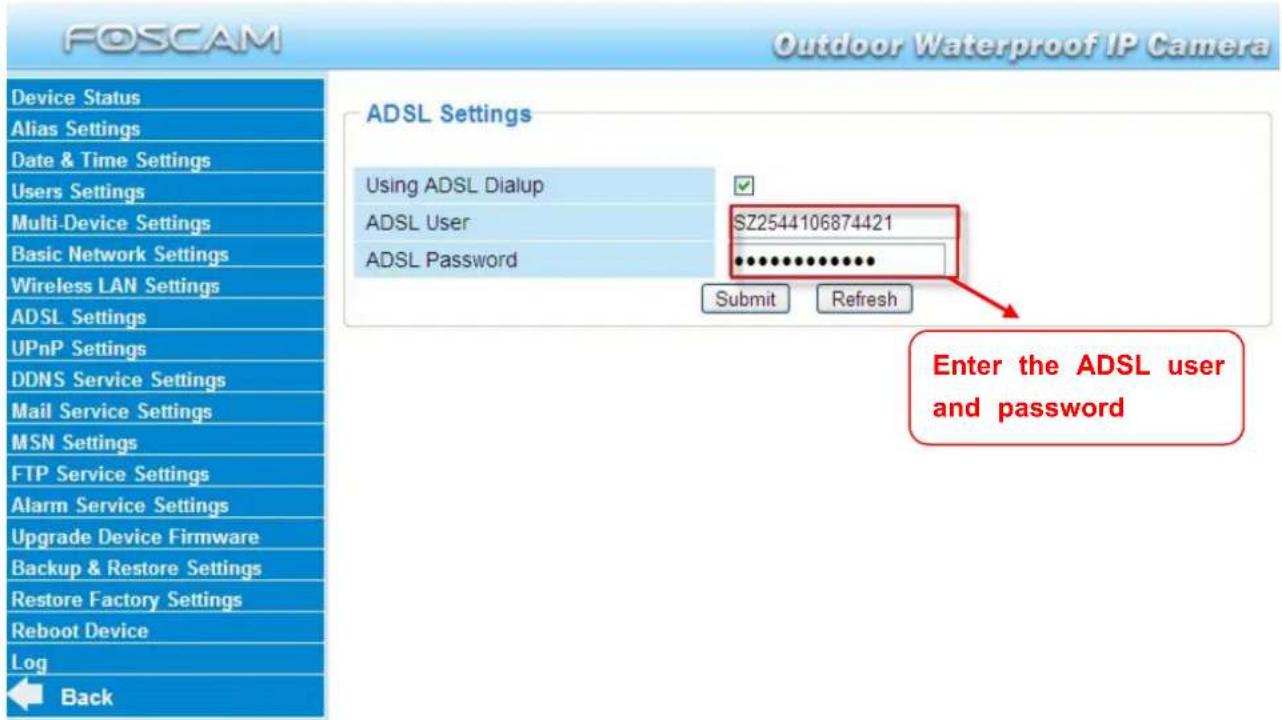
If you are connecting the camera directly to a ADSL modem, you can do ADSL settings with your ADSL account &password provided by the ISP, then make the camera connected to the network.
text_image
FOSCAM Outdoor Waterproof IP Camera Device Status Alias Settings Date & Time Settings Users Settings Multi-Device Settings Basic Network Settings Wireless LAN Settings ADSL Settings UPnP Settings DDNS Service Settings Mail Service Settings MSN Settings FTP Service Settings Alarm Service Settings Upgrade Device Firmware Backup & Restore Settings Restore Factory Settings Reboot Device Log Back ADSL Settings Using ADSL Dialup ADSL User SZ2544106874421 ADSL Password ************ Submit Refresh Enter the ADSL user and passwordFigure 3.24
3.9 UPnP Settings
Choose Using UPnP to MAP Port and then click Submit.

text_image
FOSCAM Outdoor Waterproof IP Camera Device Status Alias Settings Date & Time Settings Users Settings Multi-Device Settings Basic Network Settings Wireless LAN Settings ADSL Settings UPnP Settings DDNS Service Settings Mail Service Settings UPnP Settings Using UPnP to Map Port Submit RefreshFigure 3.25
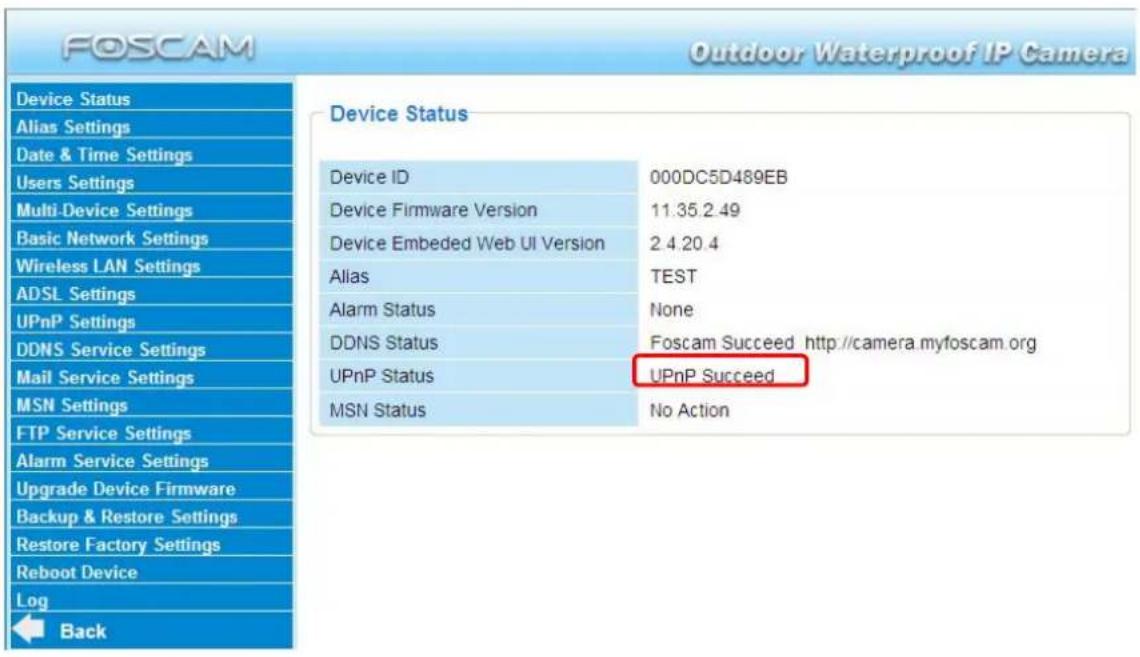
The default UPnP status is closed. You can select the checkbox and open UPnP, then the camera's software will be configured for port forwarding. Back to the "Device Status" panel, you can see the UPnP status:
text_image
FOSCAM Outdoor Waterproof IP Camera Device Status Alias Settings Date & Time Settings Users Settings Multi-Device Settings Basic Network Settings Wireless LAN Settings ADSL Settings UPnP Settings DDNS Service Settings Mail Service Settings MSN Settings FTP Service Settings Alarm Service Settings Upgrade Device Firmware Backup & Restore Settings Restore Factory Settings Reboot Device Log Back Device ID 000DC5D489EB Device Firmware Version 11.35.2.49 Device Embedded Web UI Version 2.4.20.4 Alias TEST Alarm Status None DDNS Status Foscam Succeed http://camera.myfoscam.org UPnP Status UPnP Succeed MSN Status No ActionThere may be issues with your routers security settings, and sometimes may error. We recommend you configure port forwarding manually on your router (Figure 3.30).
3.10 DDNS Service Settings
FOSCAM camera has embedded a unique DDNS domain name when producing, and you can directly use the domain name, you can also use the third party domain name.
FOSCAM domain name
Here take camera.myfoscam.org for example. Go to option of DDNS Service Settings on the administrator panel, you can see the domain name.
Please enable the FOSCAM DDNS name first.

text_image
FOSCAM Outdoor Waterproof IP Camera Device Status Alias Settings Date & Time Settings Users Settings Multi-Device Settings Basic Network Settings Wireless LAN Settings ADSL Settings UPnP Settings DDNS Service Settings Mail Service Settings MSN Settings FTP Service Settings Alarm Service Settings Upgrade Device Firmware Backup & Restore Settings Restore Factory Settings Reboot Device Log Back DDNS Service Settings Manufacturer's DDNS Enable Manufacturer's Domain Validity Queries Enable FOSCAM DDNS name camera.myfoscam.org Third Party DDNS DDNS Service None Submit RefreshFigure 3.26
Enable: Open or close the FOSCAM domain name. The default status of FOSCAM domain name is open.
Validity Queries: Check the validity of embedded domain name.
Now you can use http:// Domain name + HTTP Port to access the camera via internet.
Take hostname camera.myfoscam.org and HTTP Port no. 88 for example, the accessing link of the camera via internet would be http://camera.myfoscam.org:88
Note: If you want to use the manufacturer's domain name, please select None as the Third Party DDNS and enable the Manufacturer's domain name, then click submit.
Third Party Domain Name Settings
User can also use third part DDNS, such as www.no-ip.com., www.dyndns.com
Here take www.no-ip.com for example:
Step 1, Go to the website www.no-ip.com to create a free hostname
Firstly: Login on www.no-ip.com and click No-IP Free to register.
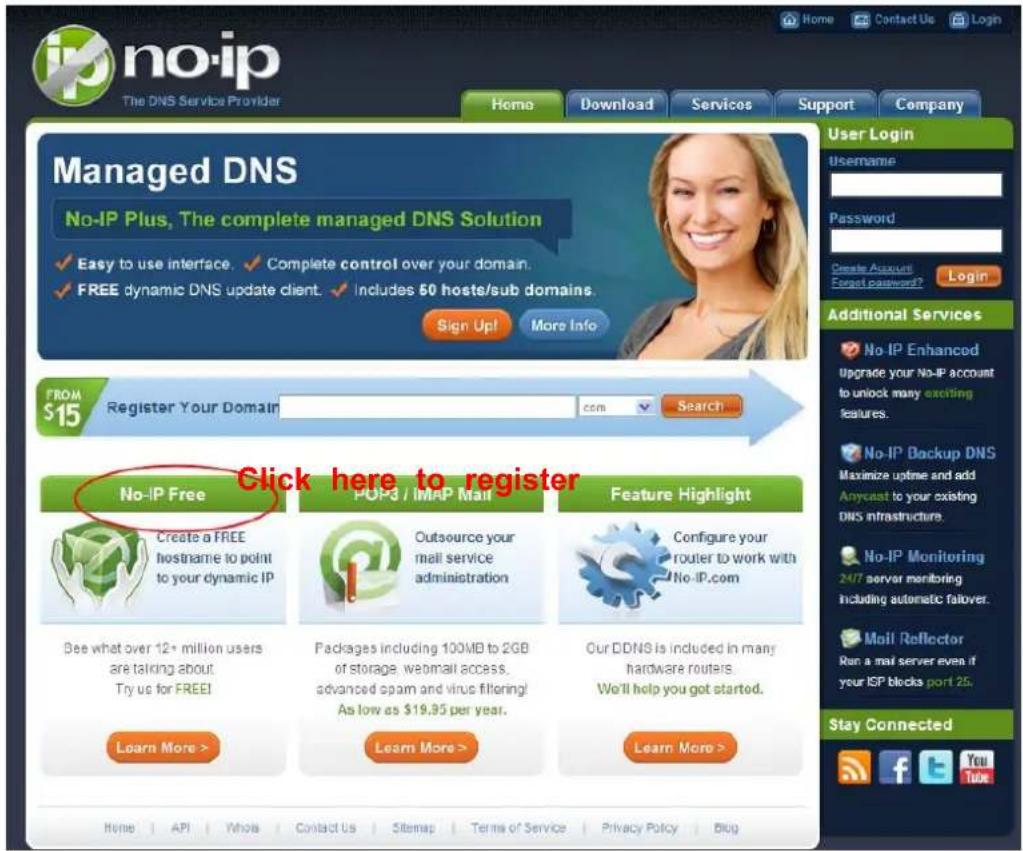
text_image
no-ip The DNS Service Provider Home Download Services Support Company Managed DNS No-IP Plus, The complete managed DNS Solution ✓ Easy to use interface. ✓ Complete control over your domain. ✓ FREE dynamic DNS update client. ✓ Includes 60 hosts/sub domains. Sign Up! More Info FROM $15 Register Your Domain com Search User Login username Password Create Account Forget password? Login Additional Services No-IP Enhanced Upgrade your No-IP account to unlock many exciting features. No-IP Backup DNS Maximize uptime and add Anycast to your existing DNS infrastructure. No-IP Monitoring 24/7 server monitoring including automatic failover. Mail Reflector Run a mail server even if your ISP blocks port 25. Stay Connected Click here to register No-IP Free Create a FREE hostname to point to your dynamic IP See what over 12+ million users are talking about. Try us for FREE! Learn More > POP3 / IMAP Mail Outsource your mail service administration Packages including 100MB to 2GB of storage, webmail access, advanced spam and virus filtering! As low as $19.95 per year. Learn More > Feature Highlight Configure your router to work with No-IP.com Our DDNS is included in many hardware routers. We'll help you got started. Learn More > Home | API | Whole | Contact Us | Sitemap | Terms of Service | Privacy Policy | BlogFigure 3.27
Please register an account step by step according to instructions on www.no-ip.com
After registration, please login your email which used to register. You will receive an email from website, please click the link to activate your ACCOUNT as indicated in email.
Secondly: Login the link with the registered username and password to create your domain name.
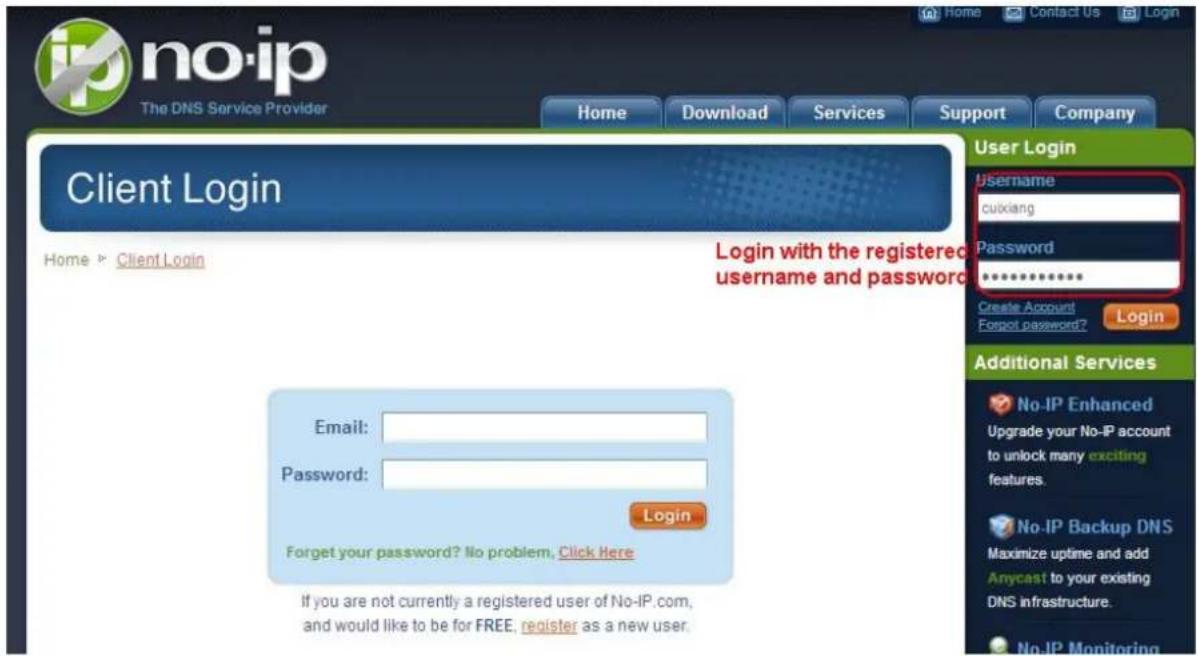
text_image
no-ip The DNS Service Provider Home Download Services Support Company Client Login Home > Client Login Login with the registered username and password Username cuixiang Password ****** Create Account Forgot password? Login Additional Services No-IP Enhanced Upgrade your No-IP account to unlock many exciting features. No-IP Backup DNS Maximize uptime and add Anycast to your existing DNS infrastructure. No-IP Monitoring Email: Password: Login Forget your password? No problem, Click Here If you are not currently a registered user of No-IP.com, and would like to be for FREE, register as a new user.Figure 3.28
text_image
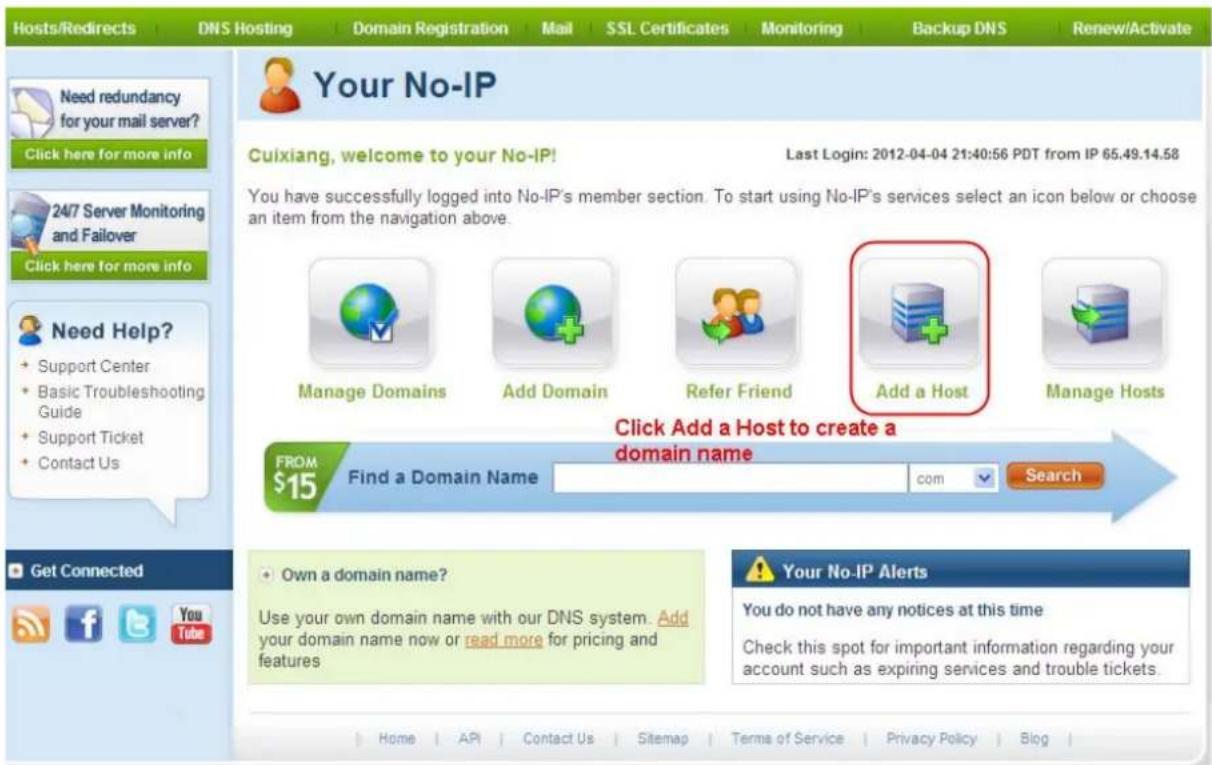
Hosts/Redirects DNS Hosting Domain Registration Mail SSL Certificates Monitoring Backup DNS Renew/Activate Need redundancy for your mail server? Click here for more info 24/7 Server Monitoring and Failover Click here for more info Need Help? + Support Center + Basic Troubleshooting Guide + Support Ticket + Contact Us Your No-IP Cuixiang, welcome to your No-IP! Last Login: 2012-04-04 21:40:56 PDT from IP 65.49.14.58 You have successfully logged into No-IP's member section. To start using No-IP's services select an icon below or choose an item from the navigation above. Manage Domains Add Domain Refer Friend Add a Host Manage Hosts Click Add a Host to create a domain name FROM $15 Find a Domain Name kom Search Get Connected + Own a domain name? Use your own domain name with our DNS system. Add your domain name now or read more for pricing and features Your No-IP Alerts You do not have any notices at this time Check this spot for important information regarding your account such as expiring services and trouble tickets. Home API Contact Us Sitemap Terms of Service Privacy Policy BlogFigure 3.29
Please create the domain name step by step according to instructions on www.no-ip.com
Step 2, DO DDNS Service Settings within the Camera
Please set DDNS Service Settings within the camera by hostname, a user name and password you've got from www.no-ip.com
Take hostname ycxgwp.no-ip.info, user name foscam, password foscam2012 for example.
Firstly, goes to option of DDNS Service Settings on the administrator panel.
Secondly, disable the Manufacturer's domain name and select No-Ip as a server in the Third Party DDNS.
Thirdly, fill foscam as DDNS user, fill password foscam2012 as DDNS password, fill ycxgwp.no-ip.info as DDNS domain and server URL, Then click save to make effect. The camera will restart and to take the DDNS settings effective.
Fourthly, after the restart, login the camera, and go to option of Device Status on the administrator panel, and check if the DDNS status is successful.
If failed, please double check if you have input the correct hostname, user name, and password, and try to redo the settings.
Note
The Third Party DDNS and the Manufacturer's Domain Name cannot work at the same time. If you have set Third Party DDNS and meanwhile you enabled the Foscam Domain Name, the Third Party DDNS will take effect.
② Do port forwarding within the router
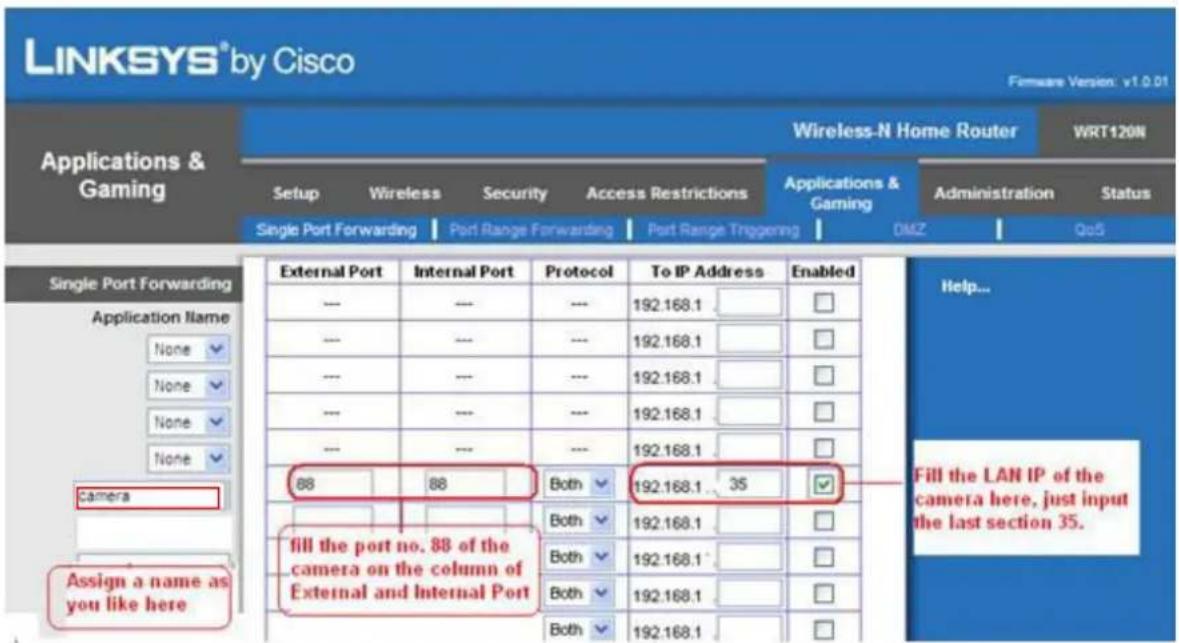
Example: The camera's LAN IP address is http://192.168.1.35:88,
Firstly, login the router, goes to the menu of Port Forwarding or Port Trigger (or named Virtue Server on some brands of router). Take Linksys brand router as an example, Login the router, and goes to Applications & Gaming->Single Port Forwarding.
Secondly, Create a new column by LAN IP address & HTTP Port No. of the camera within the router showed as below.
text_image
LINKSYS® by Cisco Firmware Version: v1.0.01 Applications & Gaming Wireless-N Home Router WRT120N Setup Wireless Security Access Restrictions Applications & Gaming Administration Status Single Port Forwarding Port Range Forwarding Port Range Triggering DMZ QoS Single Port Forwarding Application Name None None None Camera Assign a name as you like here External Port Internal Port Protocol To IP Address Enabled --- --- --- 192.168.1 --- --- --- --- 192.168.1 --- --- --- --- 192.168.1 --- --- --- --- 192.168.1 --- 88 88 Both 192.168.1 35 --- Both 192.168.1 --- Both 192.168.1 --- Both 192.168.1 --- Both 192.168.1 --- ... Fill the LAN IP of the camera here, just input the last section 35. Help...Figure 3.30
③ Use domain name to access the camera via internet
After the port forwarding is finished, you can use the domain name+ http no. to access the camera via internet. Take hostname ycxgwp.no-ip.info and http no. 88for example, the accessing link of the camera via internet would be http://ycxgwp.no-ip.info:88
3.11 Mail Service Settings
If you want the camera to send emails when motion has been detected, Mail Service Settings will need to be configured.
FOSCAM
Outdoor Waterproof IP Camera
Device Status
Alias Settings
Date & Time Settings
Users Settings
Multi-Device Settings
Basic Network Settings
Wireless LAN Settings
ADSL Settings
UPnP Settings
DDNS Service Settings
Mail Service Settings
MSN Settings
FTP Service Settings
Alarm Service Settings
Upgrade Device Firmware
Mail Service Settings
text_image
Sender cuiyao93@gmail.com Receiver 1 yaoyao@163.com Receiver 2 Receiver 3 Receiver 4 SMTP Server smtp.gmail.com SMTP Port 25 Transport Layer Security STARTTLS Gmail only supports TLS at port 465 and supports STARTTLS at port 25/587. Need Authentication ✓ SMTP User cuiyao93@gmail.com SMTP Password •••••••••• Test Please set first, and then test. Report Internet IP by Mail ✓ Submit Refresh Figure 3.31Figure 3.31
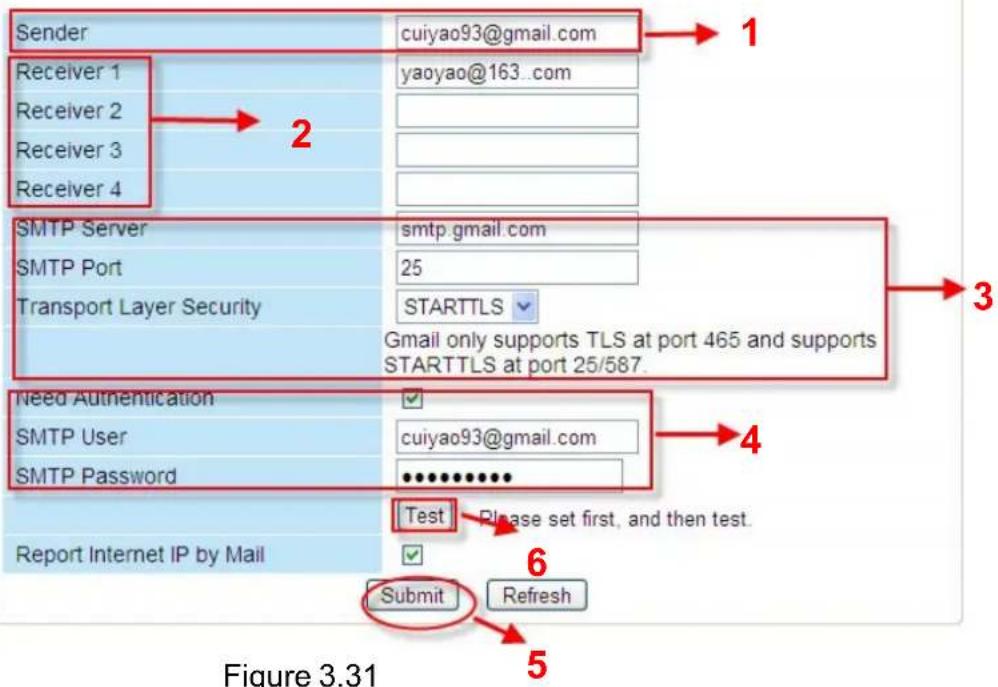
1---- Sender Mailbox for sender must support SMTP
2---- Receiver Mailbox for receiver need not support SMTP, you can set 4 receivers
3---- SMTP Server/ Port Enter SMTP server for sender. SMTP port is usually set as 25.
Some SMTP servers have their own port, such as 587 or 465 and Transport Layer Security usually is None. If you use Gmail, Transport Layer Security must be set to TLS or STARTTLS and SMTP Port must be set to 465 or 25 or 587, which port you choose should be decided by which Transport Layer Security you select.
4---- SMTP user ID account of the sender email address
5----Submit Click Submit to take effect
6----Test Click Test to see if SMTP has been successfully configured.
NOTE: Click Submit first before choosing Test.
Click Test to see if SMTP has been successfully configured.

text_image
Device(sarah) - Windows Internet Explorer http://192.16... File Edit View Favorites Tools Help Favorites Suggested Sites Free Hotmail Web Slice Gallery Device(sarah) Test ... Succeed Done Internet 100%Figure 3.32
If the test fails with one of the following errors after clicking Test, verify that the information you entered is correct and again select Test.
1) Cannot connect to the server
2) Network Error. Please try later
3) Server Error
4) Incorrect user or password
5) The sender is denied by the server. Maybe the server need to authenticate the user, please check it and try again
6) The receiver is denied by the server. Maybe because of the anti-spam privacy of the server
7) The message is denied by the server. Maybe because of the anti-spam privacy of the server
8) The server does not support the authentication mode used by the device
Report Internet IP by Mail—If selected, you will receive emails which contains internet IP information such as When the camera is powered or the Internet IP has changed. (For example: IPCAM's urls is http://119.123.207.96:8068). Make sure the port is mapped to the router correctly.
3.12 MSN Setting
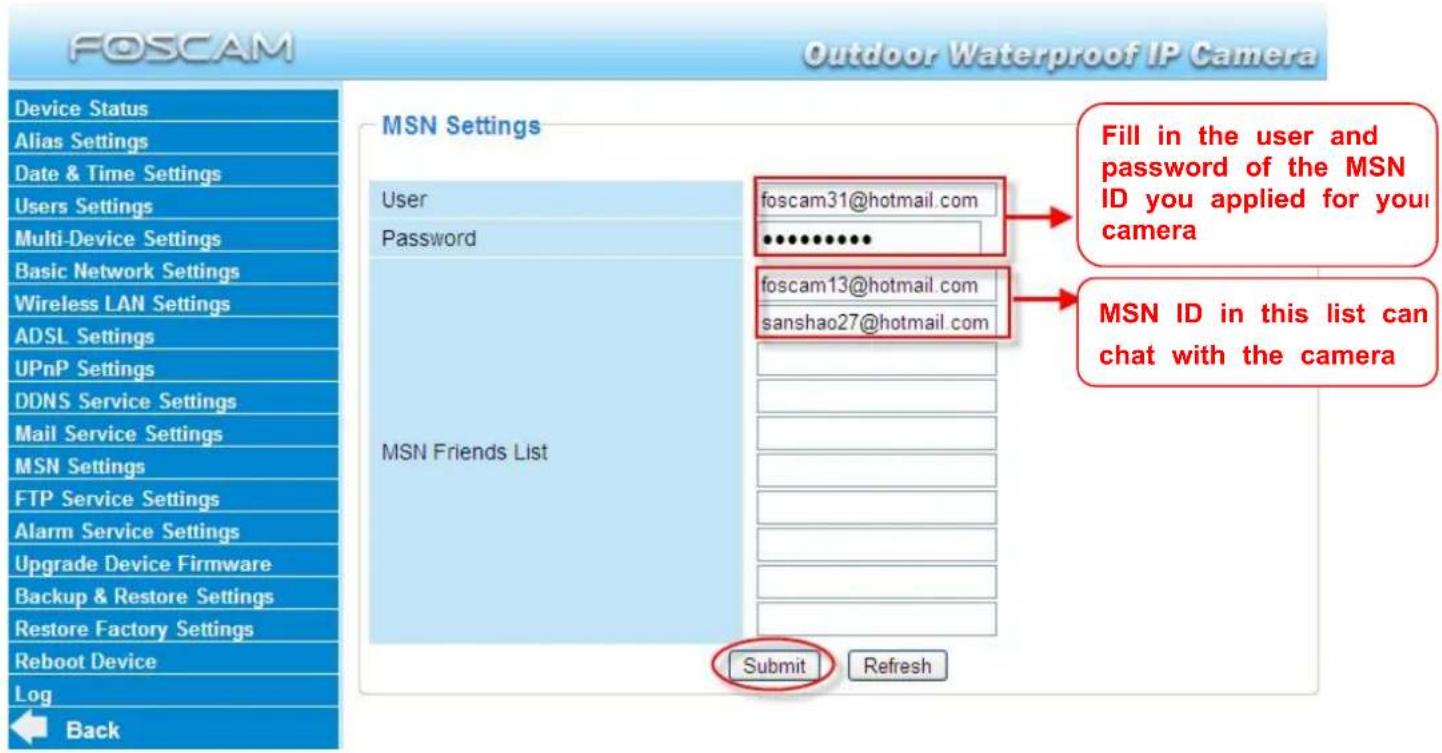
If you want the camera send its current internet IP address to you or your friends, please set MSN settings.
Acquire an MSN ID for the IPCAM first, then follow the instructions as per Figure 3.33.
text_image
FOSCAM Outdoor Waterproof IP Camera Device Status Alias Settings Date & Time Settings Users Settings Multi-Device Settings Basic Network Settings Wireless LAN Settings ADSL Settings UPnP Settings DDNS Service Settings Mail Service Settings MSN Settings FTP Service Settings Alarm Service Settings Upgrade Device Firmware Backup & Restore Settings Restore Factory Settings Reboot Device Log Back MSN Settings User Password foscam31@hotmail.com ************ MSN Friends List foscam13@hotmail.com sanshao27@hotmail.com Submit Refresh Fill in the user and password of the MSN ID you applied for your camera MSN ID in this list can chat with the cameraFigure 3.33
Click Submit and go to the "Device Status" screen and verify the MSN settings are succeed.

text_image
FOSCAM Outdoor Waterproof IP Camera Device Status Alias Settings Date & Time Settings Users Settings Multi-Device Settings Basic Network Settings Wireless LAN Settings ADSL Settings UPnP Settings DDNS Service Settings Mail Service Settings MSN Settings FTP Service Settings Device Status Device ID 000DC5D5FE9B Device Firmware Version 11.35.2.49 Device Embedded Web UI Version 2.4 20.4 Alias apple Alarm Status None DDNS Status Foscam Succeed http://camera.myfoscam.org 8181 UPnP Status No Action MSN Status SucceedFigure 3.34
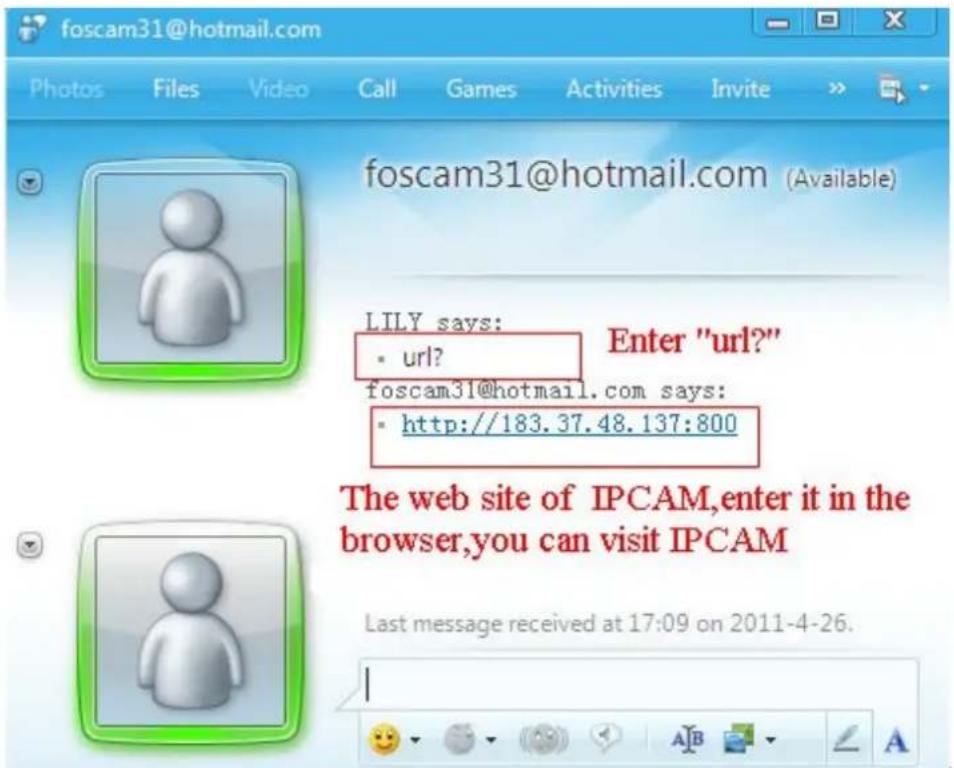
When the MSN ID in the Friends list login the MAN, he can chat with camera. For example:
Foscam13(this account contained in the Friends list) log in MSN, and double click the camera's account (foscam31), then enter "url?", the camera will send it's current IP address to you.
text_image
foscam31@hotmail.com Photos Files Video Call Games Activities Invite foscam31@hotmail.com (Available) LILY says: • url? Enter "url?" foscam31@hotmail.com says: • http://183.37.48.137:800 The web site of IPCAM,enter it in the browser,you can visit IPCAM Last message received at 17:09 on 2011-4-26.Figure 3.35
Note: Create a new MSN account for the camera, do not use the same MSN account as you would like to chat with your friends. When the camera login uses the MSN account, this account cannot be used for anything else when the camera works.
3.13 FTP Service Settings
If you want to upload images to your FTP server, you can set FTP Service Settings.
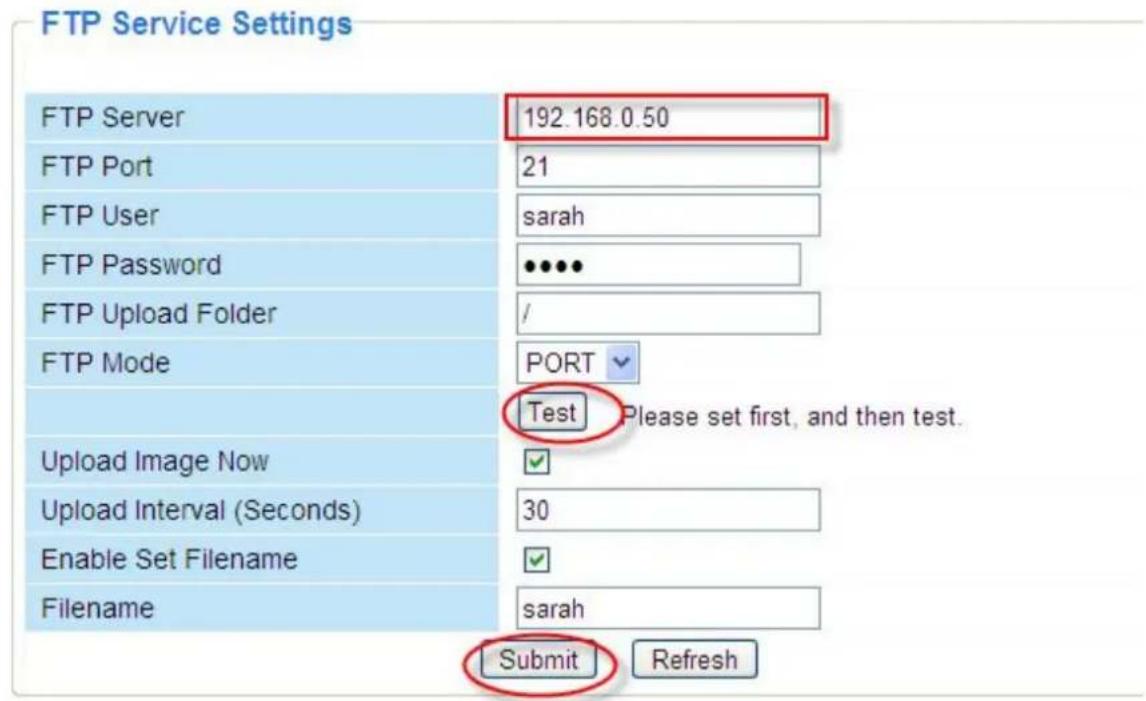
text_image
FTP Service Settings FTP Server 192.168.0.50 FTP Port 21 FTP User sarah FTP Password ••••• FTP Upload Folder / FTP Mode PORT Test Please set first, and then test. Upload Image Now ✓ Upload Interval (Seconds) 30 Enable Set Filename ✓ Filename sarah Submit RefreshFigure 3.36

text_image
FTP Service Settings FTP Server ftp.mgenseal.com FTP Port 21 FTP User deotest@mgenseal.com FTP Password ••••• FTP Upload Folder / FTP Mode PORT Test Please set first, and then test. Upload Image Now ✓ Upload Interval (Seconds) 30 Enable Set Filename ✓ Filename sarah Submit RefreshFigure 3.37
FTP server: If your FTP server is located on the LAN, you can set as Figure 3.36. If you have an FTP server which you can access on the internet, you can set as Figure 3.37. FTP Port: Usually the port is 21.
FTP Upload Folder: Make sure that the folder you plan to store images exists as the camera can't create the folder itself. Also, the folder must be read/writable.
FTP Mode: The camera supports standard (POST) mode and passive (PASV) mode
Upload Image Now: This option will upload images continuously when you enable the checkbox Enable Set Filename: When you enable this option the uploaded image will be named according to the filename you enter. The next image will overwrite the filename of the previous image. Hence there will only be one image, the last uploaded.
Filename: See the above option.
Note: You cannot change the name of the alarm image.
Upload Interval refers to the time between the current image and the next image being uploaded.
Click Submit to save these settings. Click Test, the following screen displays if successful.
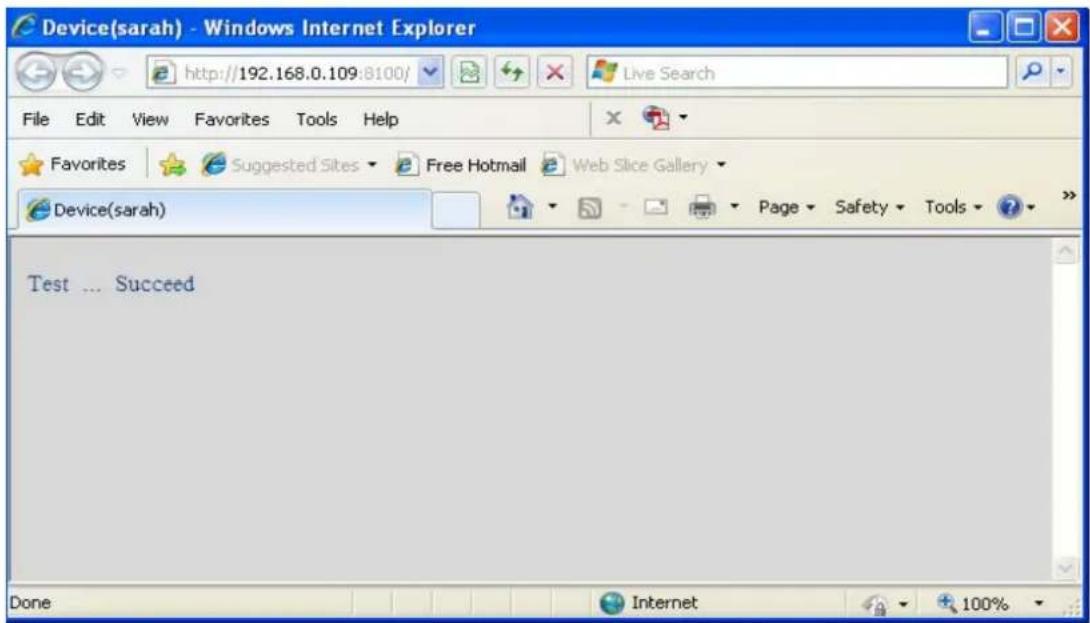
text_image
Device(sarah) - Windows Internet Explorer http://192.168.0.109:8100/ File Edit View Favorites Tools Help Favorites Suggested Sites Free Hotmail Web Slice Gallery Device(sarah) Test ... Succeed Done Internet 100%Figure 3.38
The following errors may occur:
1) Can not connect to the server. Check if the FTP Server is correct.
2) Network Error. Please try later.
3) Server Error.
4) Incorrect user or password. Check the username and password.
5) Cannot access the folder. Verify the folder exists and your account is authorized
6) Error in PASV mode. Verify the server supports PASV mode.
7) Error in PORT mode. PASV mode should be selected if the device is behind a NAT.
8) Cannot upload file. Verify your account is authorized
If an error occurs check the parameters you entered are correct. The filename format of the image is similar to 00606E8C1930(sarah)_0_20100728114350_25.jpg
Check if your FTP server supports this file name format.
3.14 Alarm Service Settings
IP Camera supports Motion Detection Alarmed, when the motion has been detected, it will send email alerts or upload images or record.
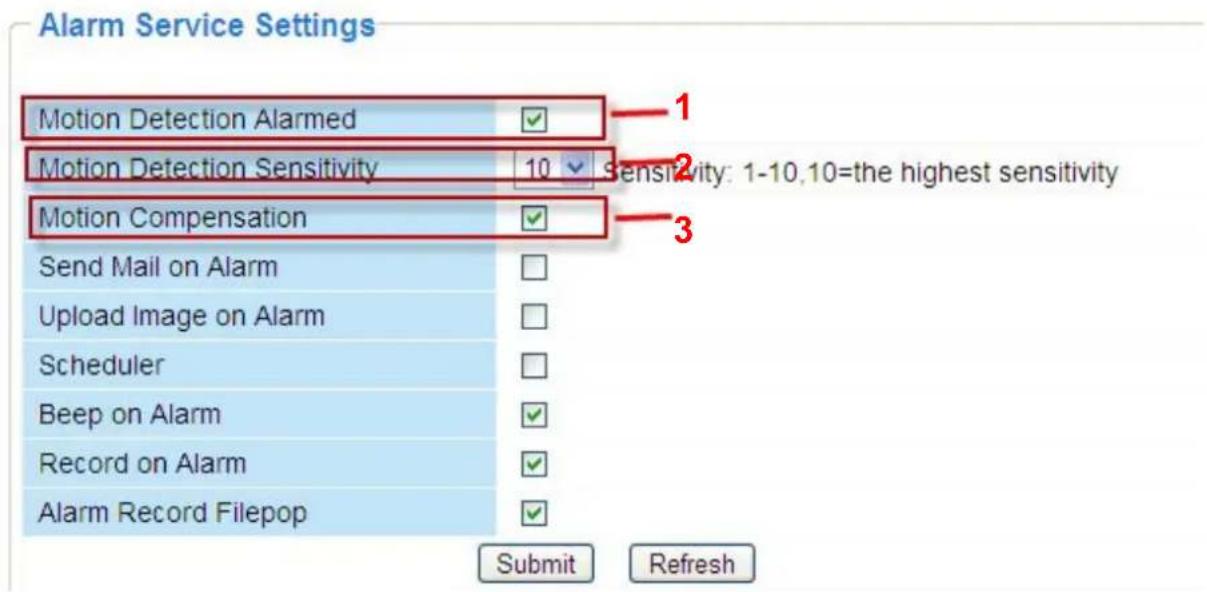
text_image
Alarm Service Settings Motion Detection Alarmed ✓ Motion Detection Sensitivity 10 ✓ sensitivity: 1-10,10=the highest sensitivity Motion Compensation ✓ Send Mail on Alarm Upload Image on Alarm Scheduler Beep on Alarm ✓ Record on Alarm ✓ Alarm Record Filepop ✓ Submit RefreshFigure 3.39
1---- If you want to set Motion Detection Alarmed, select the checkbox
2---- The larger the number, the higher the motion sensitivity will be
3---- Select this option to reduce false alarms when light changes
If motion is detected after you enable Motion Detection Armed, the Alarm Status will turn to Motion Detect Alarm.
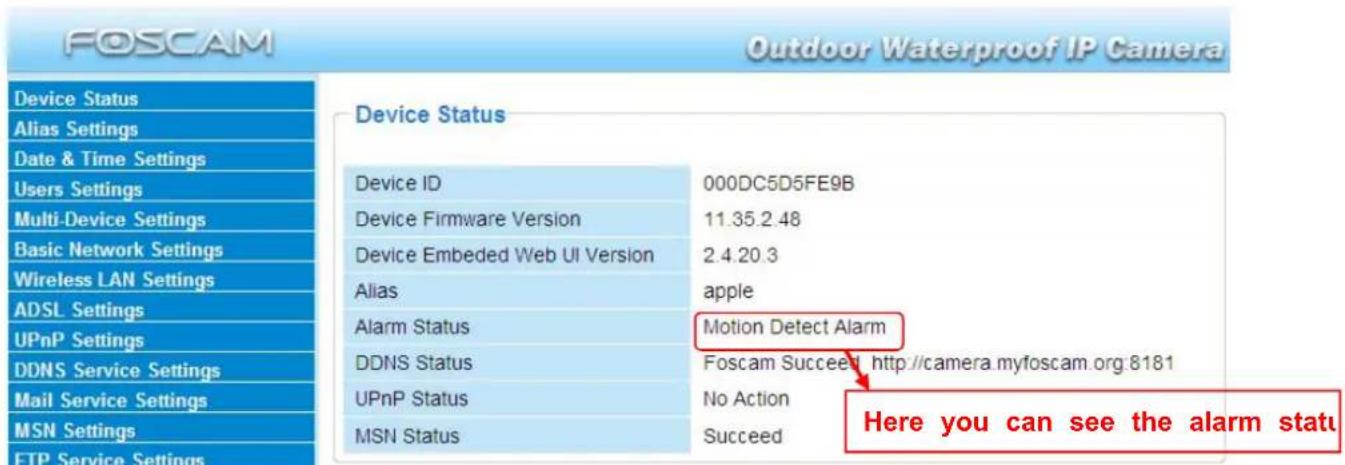
text_image
FOSCAM Outdoor Waterproof IP Camera Device Status Alias Settings Date & Time Settings Users Settings Multi-Device Settings Basic Network Settings Wireless LAN Settings ADSL Settings UPnP Settings DDNS Service Settings Mail Service Settings MSN Settings FTP Service Settings Device ID 000DC5D5FE9B Device Firmware Version 11.35.2.48 Device Embedded Web UI Version 2.4.20.3 Alias apple Alarm Status Motion Detect Alarm DDNS Status Foscam Succeed http://camera.myfoscam.org:8181 UPnP Status No Action MSN Status Succeed Here you can see the alarm statuFigure 3.40
There are four alarm indicators:
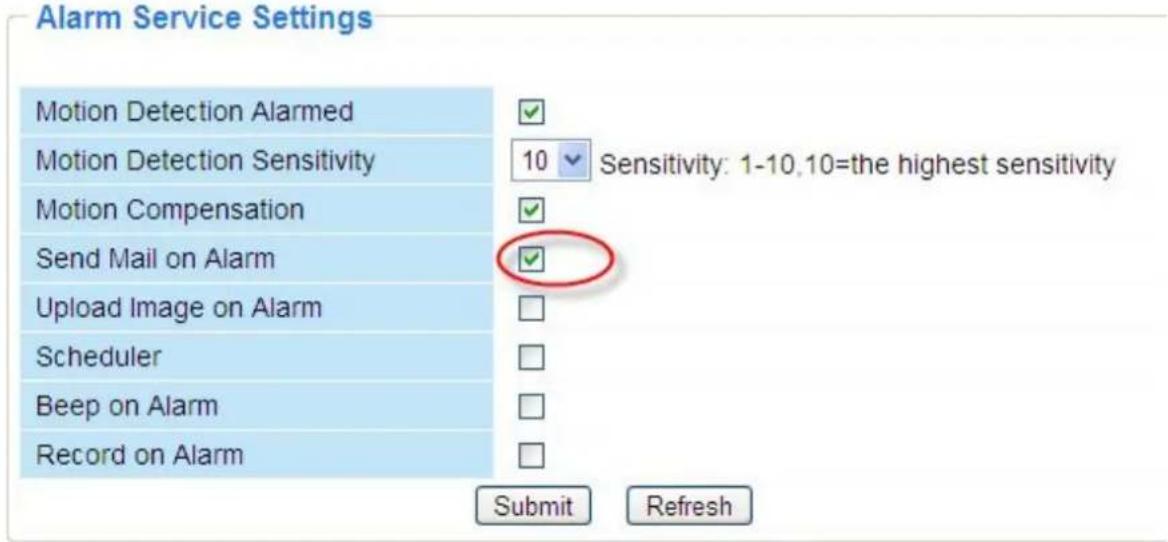
1) Camera will send emails when motion is activated.
If you want to receive images when motion is detected, you must set Mail Service Settings first.
(Figure 3.31) Then set motion alarm as follows:
text_image
Alarm Service Settings Motion Detection Alarmed Motion Detection Sensitivity 10 Sensitivity: 1-10,10=the highest sensitivity Motion Compensation Send Mail on Alarm Upload Image on Alarm Scheduler Beep on Alarm Record on Alarm Submit RefreshFigure 3.41
2) Upload images via FTP server when motion trigger.
To upload images to an FTP server when motion is detected, you must set FTP Service
Settings(Figure 3.36/3.37) first and then set motion alarm as pictured below
Alarm Service Settings

text_image
Motion Detection Alarmed Motion Detection Sensitivity 10 Sensitivity: 1-10,10=the highest sensitivity Motion Compensation Send Mail on Alarm Upload Image on Alarm Select this option Upload Interval (Seconds) 30 Scheduler Beep on Alarm Record on Alarm Set an interval for images to upload Submit RefreshFigure 3.42
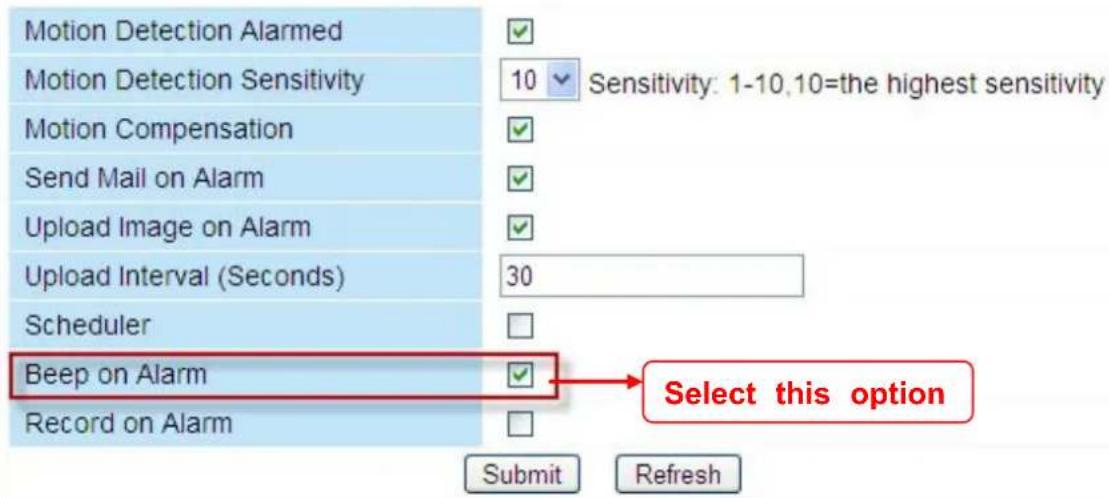
3) You can hear the beep sound when the alarm has been detected.
Alarm Service Settings
text_image
Motion Detection Alarmed Motion Detection Sensitivity 10 Sensitivity: 1-10,10=the highest sensitivity Motion Compensation Send Mail on Alarm Upload Image on Alarm Upload Interval (Seconds) 30 Scheduler Beep on Alarm Record on Alarm Submit Refresh Select this optionFigure 3.43
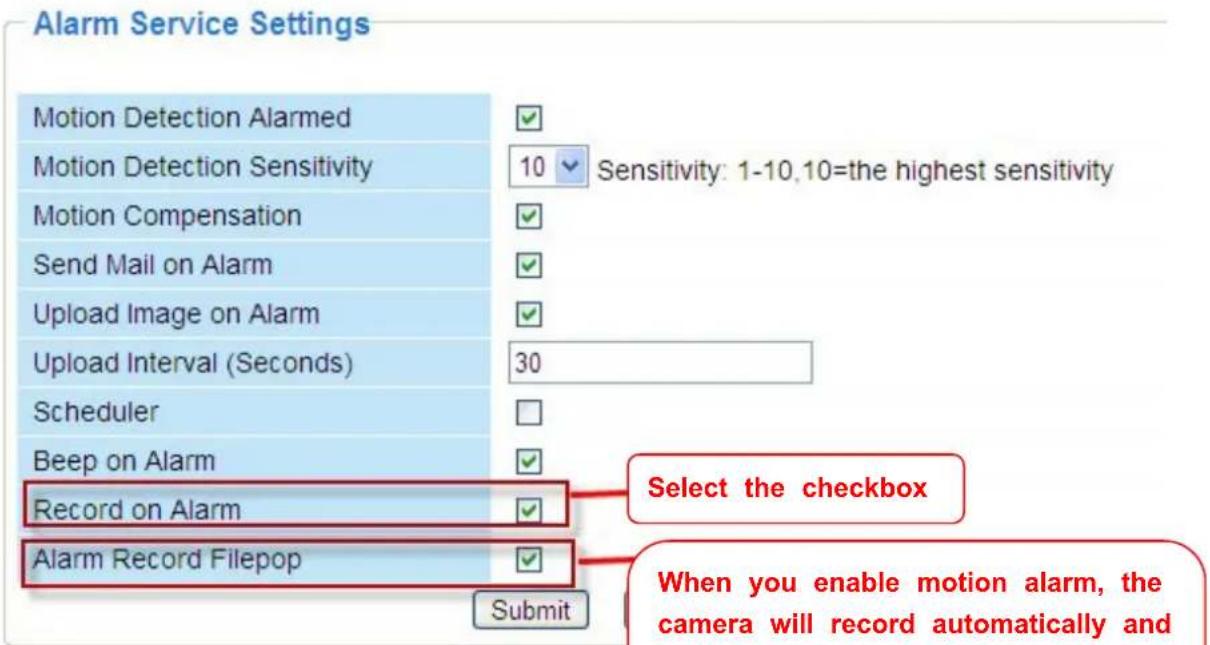
4) The camera will record automatically for one minute after motion is detected. You can find the recording file in the folder which you set previously. (Figure 3.6)
text_image
Alarm Service Settings Motion Detection Alarmed Motion Detection Sensitivity 10 Sensitivity: 1-10,10=the highest sensitivity Motion Compensation Send Mail on Alarm Upload Image on Alarm Upload Interval (Seconds) 30 Scheduler Beep on Alarm Record on Alarm Select the checkbox Alarm Record Filepop Submit When you enable motion alarm, the camera will record automatically andFigure 3.4
When you enable motion alarm, the camera will record automatically and store the recording file to the folder configured. This icon is used to continue whether the folder opens or not.
Alarm Scheduler:
Here are two ways to set the alarm.
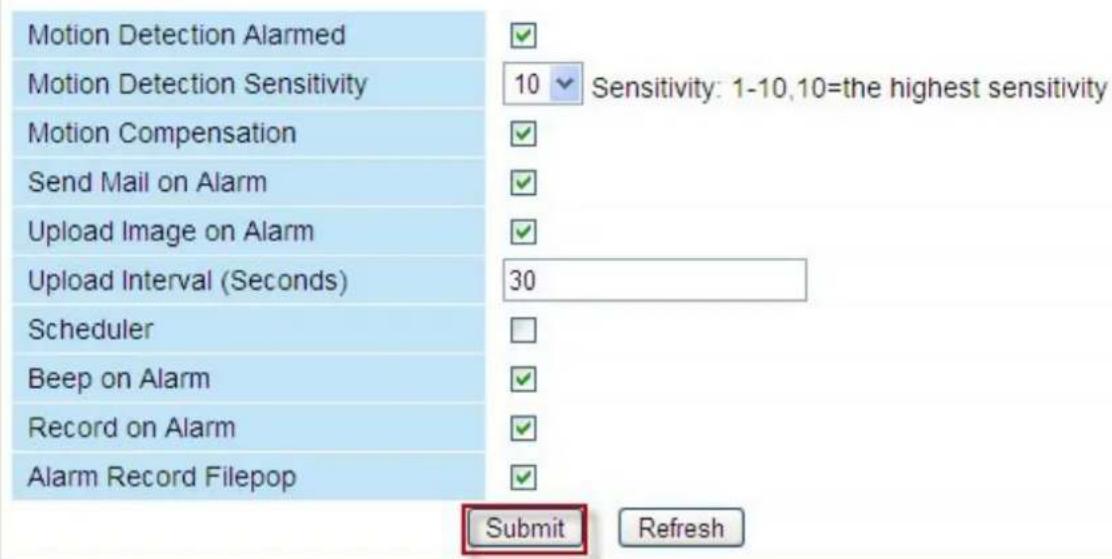
1) Alarm at any time when motion is detected.
Don't select Scheduler. Click Submit and the camera will alarm at any time when motion is detected.
Alarm Service Settings
text_image
Motion Detection Alarmed Motion Detection Sensitivity 10 Sensitivity: 1-10,10=the highest sensitivity Motion Compensation Send Mail on Alarm Upload Image on Alarm Upload Interval (Seconds) 30 Scheduler Beep on Alarm Record on Alarm Alarm Record Filepop Submit RefreshFigure 3.45
Another Way: select Scheduler, and click "set All", you will see all time boxes turn blue as in the following picture. Click Submit and the camera will alarm at any time when motion is detected.

text_image
FOSCAM Outdoor Waterproof IP Camera Device Status Motion Compensation Send Mail on Alarm Upload Image on Alarm Upload Interval (Seconds) 30 Basic Network Settings Scheduler Beep on Alarm Record on Alarm Alarm Record Filepop Mail Service Settings set All clear All Set 00 01 02 03 04 05 06 07 08 09 10 11 12 13 14 15 16 17 18 19 20 21 22 23 Clear 00 01 02 03 04 05 06 07 08 09 10 11 12 13 14 15 16 17 18 19 20 21 22 23 Day 0 1 2 3 4 5 6 7 8 9 10 11 12 13 14 15 16 17 18 19 20 21 22 23 Upgrade Device Firmware Sun Mon Tue Wed Thu Fri Sat Submit RefreshFigure 3.46
2) Specify an alarm schedule.
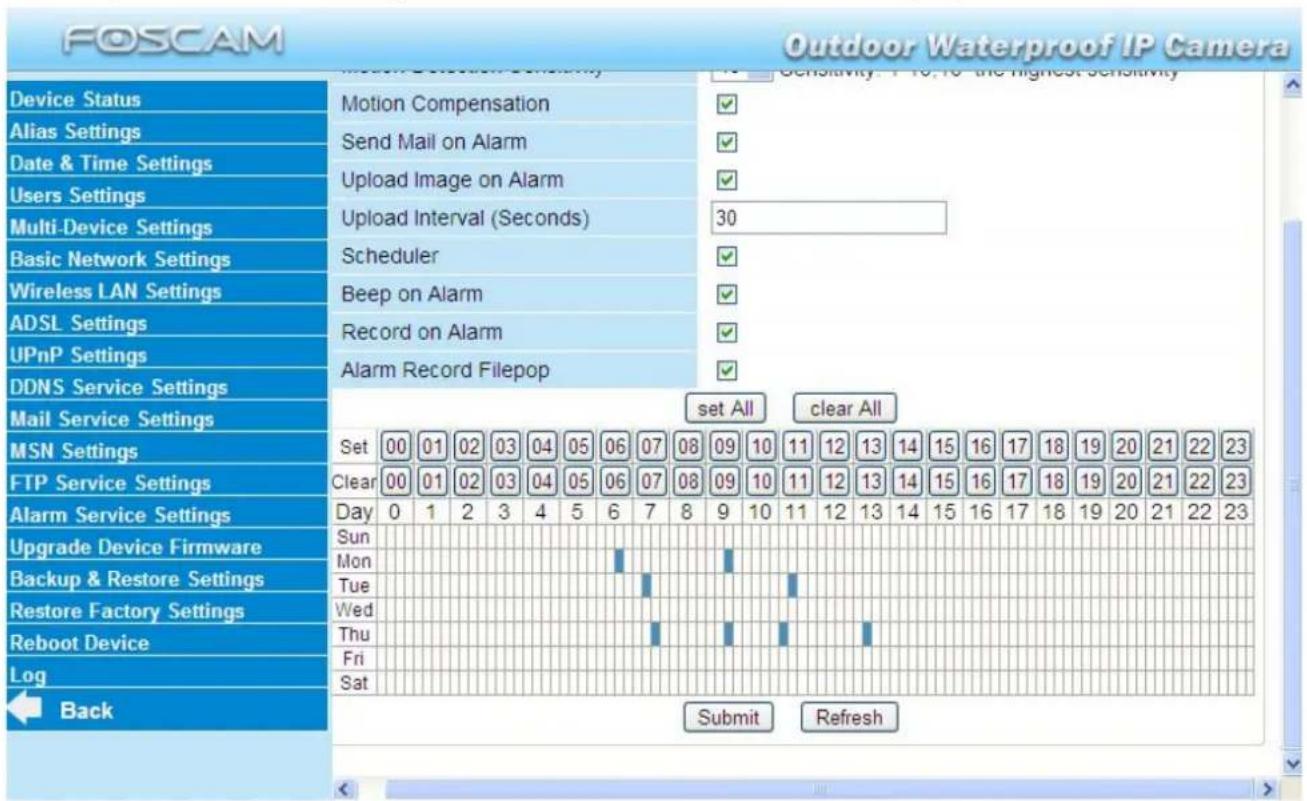
If you want the camera to alarm during set times select Scheduler and set time range. If you want to select one serial area, you can click any number between 00 and 23 on the first row, the corresponding column will be selected and it will turn blue. For example, click the number "06" on the first row, you can see the column turn blue. That means the camera will alarm when motion is detected between 6 and 7 o'clock every day. Click the number "06" on the second row, you can cancel the corresponding column you set. And it will turn grey.

text_image
FOSCAM Outdoor Waterproof IP Camera Device Status Motion Compensation Send Mail on Alarm Upload Image on Alarm Upload Interval (Seconds) 30 Alias Settings Date & Time Settings Users Settings Multi-Device Settings Basic Network Settings Wireless LAN Settings ADSL Settings UPnP Settings DDNS Service Settings Mail Service Settings MSN Settings Set 00 01 02 03 04 05 06 07 08 09 10 11 12 13 14 15 16 17 18 19 20 21 22 23 FTP Service Settings Clear 00 01 02 03 04 05 06 07 08 09 10 11 12 13 14 15 16 17 18 19 20 21 22 23 Alarm Service Settings Day 0 1 2 3 4 5 6 7 8 9 10 11 12 13 14 15 16 17 18 19 20 21 22 23 Upgrade Device Firmware Mon Tue Wed Thu Fri Sat Submit RefreshFigure 3.47
If you want to select discrete area, you click the left button on the box of time range. It will turn blue. If you want to delete it, just click the left button and it will turn grey.
text_image
FOSCAM Outdoor Waterproof IP Camera Device Status Motion Compensation Send Mail on Alarm Upload Image on Alarm Upload Interval (Seconds) 30 Alias Settings Multi-Device Settings Scheduler Basic Network Settings Wireless LAN Settings Beep on Alarm Record on Alarm Alarm Record Filepop Mail Service Settings Set 00 01 02 03 04 05 06 07 08 09 10 11 12 13 14 15 16 17 18 19 20 21 22 23 FTP Service Settings Clear 00 01 02 03 04 05 06 07 08 09 10 11 12 13 14 15 16 17 18 19 20 21 22 23 Alarm Service Settings Day 0 1 2 3 4 5 6 7 8 9 10 11 12 13 14 15 16 17 18 19 20 21 22 23 Upgrade Device Firmware Sun Mon Tue Wed Thu Fri Sat Submit RefreshFigure 3.48
3.15 Upgrade Device Firmware
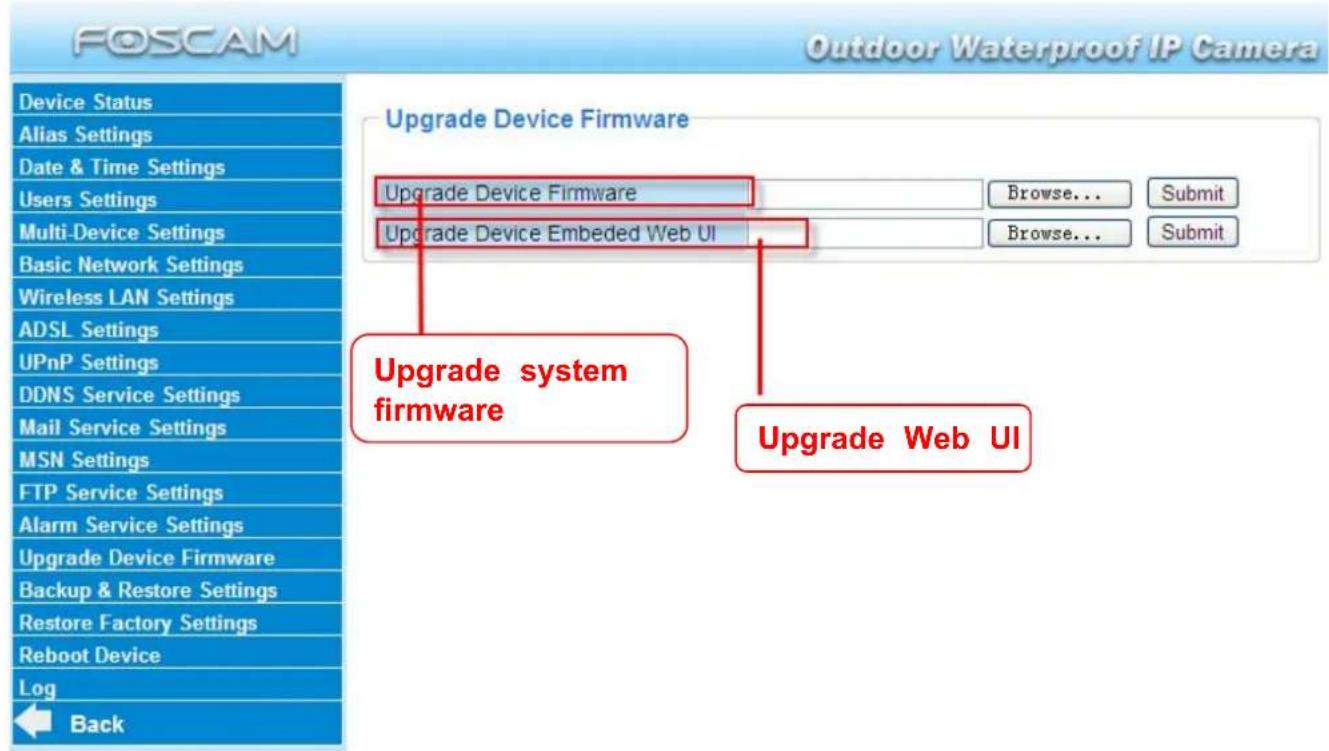
When you upgrade the camera, please upgrade system firmware first and then upgrade the Web UI.
text_image
FOSCAM Outdoor Waterproof IP Camera Device Status Alias Settings Date & Time Settings Users Settings Multi-Device Settings Basic Network Settings Wireless LAN Settings ADSL Settings UPnP Settings DDNS Service Settings Mail Service Settings MSN Settings FTP Service Settings Alarm Service Settings Upgrade Device Firmware Backup & Restore Settings Restore Factory Settings Reboot Device Log Back Upgrade Device Firmware Upgrade Device Embedded Web UI Browse... Browse... Submit Submit Upgrade system firmware Upgrade Web UIFigure 3.49
Click Browse, choose the correct bin file and then click Submit to upgrade. Don't shut down the power during upgrade until the IP camera tool finds the camera again.
Upgrade Firmware by IP Camera Tool

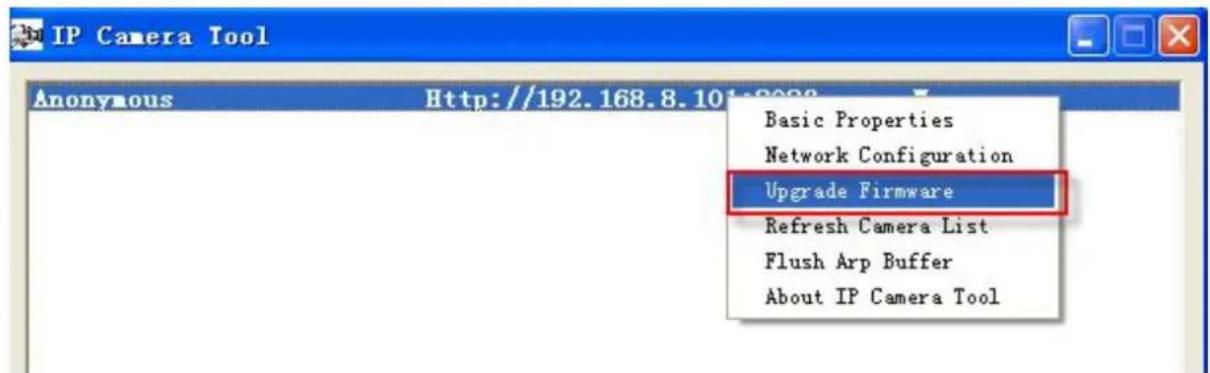
Double click the IP Camera Tool shot icon, select the Camera IP that you want to
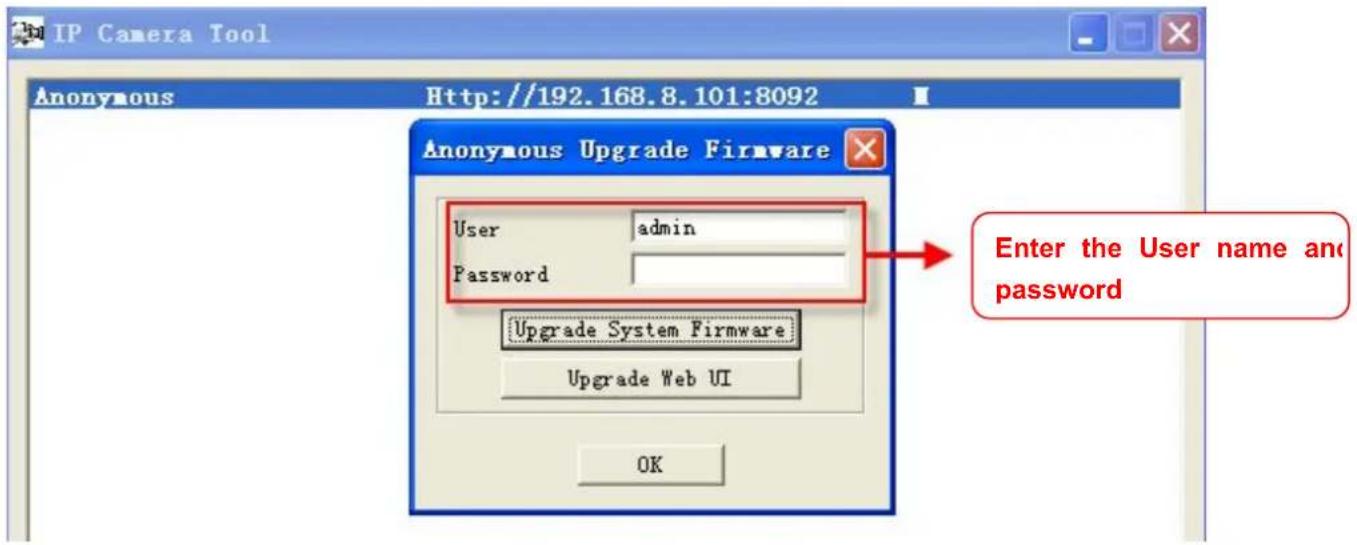
upgrade the firmware. Then select Upgrade Firmware and enter the username and password, choose the firmware file, and upgrade.
text_image
IP Camera Tool Anonymous Http://192.168.8.101-2023 Basic Properties Network Configuration Upgrade Firmware Refresh Camera List Flush Arp Buffer About IP Camera ToolFigure 3.50
text_image
IP Camera Tool Http://192.168.8.101:8092 Anonymous Upgrade Firmware User admin Password Upgrade System Firmware Upgrade Web UI OK Enter the User name and passwordFigure 3.51
CAUTION: If your camera works well with the current firmware, we recommend not upgrading. Please don't upgrade the firmware unnecessarily. Your camera may be damaged if misconfigured during an upgrade.
NOTE:
1) Please ensure you have download the correct firmware package for your camera before upgrading. Read the upgrade documentation (readme.txt file) in the upgrade package before you upgrade.
2) Upon downloading the firmware check the sizes of the .bin files. They must match the size in the readme.txt file. If not, please download the firmware again until the sizes are the same. Your camera will not function correctly if a corrupt .bin file is used.
3) Normally, only Device WEB UI need to be upgrade, please do not try to upgrade the Device Firmware.
4) Never shut down the power of the camera during upgrade until the IP camera restart and get connected.
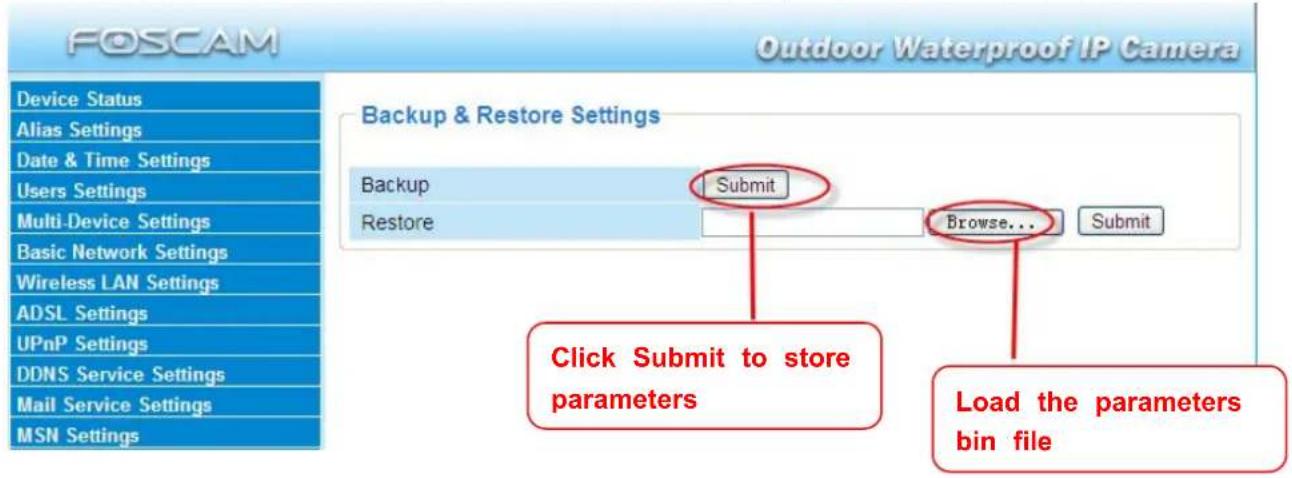
3.16 Backup & Restore Settings
Click Submit to save all the parameters you have set. These parameters will be stored in a bin file for future use. The bin file can be reloaded to restore the parameters that were set.
text_image
FOSCAM Outdoor Waterproof IP Camera Device Status Alias Settings Date & Time Settings Users Settings Multi-Device Settings Basic Network Settings Wireless LAN Settings ADSL Settings UPnP Settings DDNS Service Settings Mail Service Settings MSN Settings Backup & Restore Settings Backup Submit Restore Browse... Submit Click Submit to store parameters Load the parameters bin fileFigure 3.52
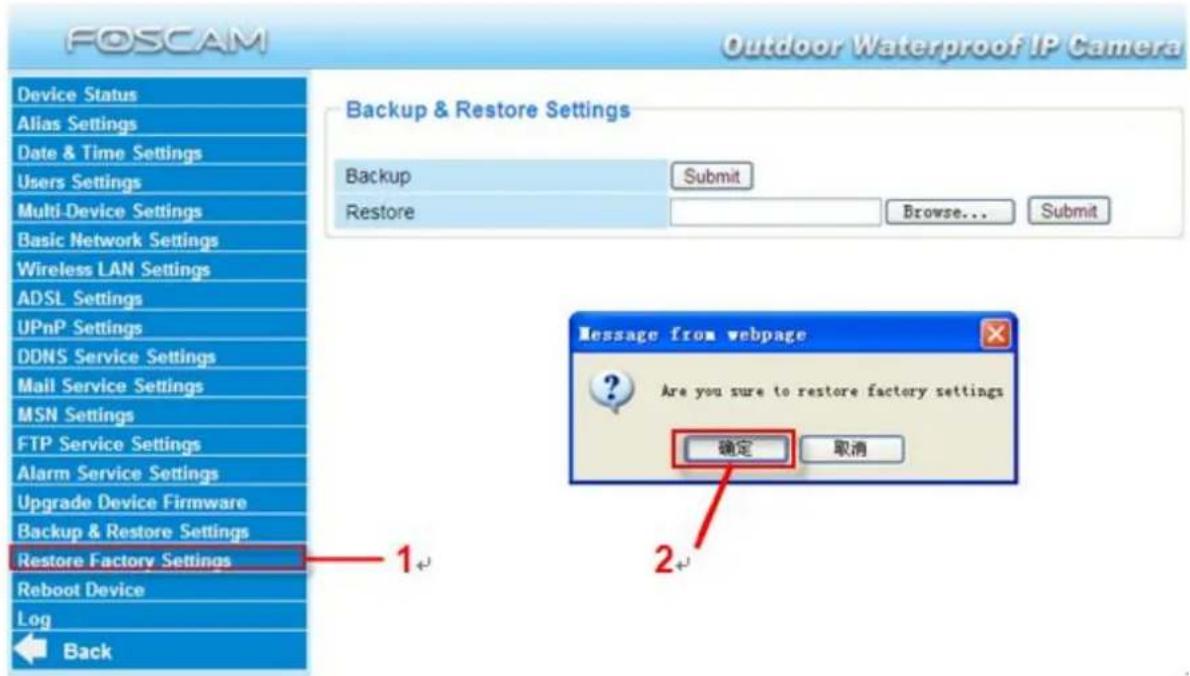
3.17 Restore Factory Settings
All parameters will return to factory settings if selected.
text_image
FOSCAM Outdoor Waterproof IP Camera Device Status Alias Settings Date & Time Settings Users Settings Multi-Device Settings Basic Network Settings Wireless LAN Settings ADSL Settings UPnP Settings DDNS Service Settings Mail Service Settings MSN Settings FTP Service Settings Alarm Service Settings Upgrade Device Firmware Backup & Restore Settings Restore Factory Settings Reboot Device Log Back Backup & Restore Settings Backup Submit Restore Browse... Submit Message from webpage Are you sure to restore factory settings 确定 取消 1+ 2+Figure 3.53
3.18 Reboot Device
Click Reboot Device to reboot the camera. This is similar to unplugging the power to the camera.
3.19 Log
The log record shows who accessed the camera and when. (Figure 3.54).

text_image
Device Status Alias Settings Date & Time Settings Users Settings Multi-Device Settings Basic Network Settings Wireless LAN Settings ADSL Settings UPnP Settings DDNS Service Settings Mail Service Settings MSN Settings FTP Service Settings Alarm Service Settings Upgrade Device Firmware Backup & Restore Settings Restore Factory Settings Reboot Device Log Back Log Thu, 2012-09-06 01:27:40 admin 192.168.8.101 access Thu, 2012-09-06 01:27:53 admin 192.168.8.101 access Thu, 2012-09-06 01:27:59 motion detect Thu, 2012-09-06 01:28:07 admin 192.168.8.101 access Thu, 2012-09-06 01:28:19 admin 192.168.8.101 access Thu, 2012-09-06 01:34:43 admin 192.168.8.101 access Thu, 2012-09-06 01:37:16 admin 192.168.8.101 access Thu, 2012-09-06 01:37:43 admin 192.168.8.101 access Thu, 2012-09-06 01:42:49 admin 192.168.8.101 access Thu, 2012-09-06 01:50:02 admin 192.168.8.101 access Thu, 2012-09-06 02:05:25 motion detect RefreshFigure 3.54
3.20 Back
This will take you back to the surveillance window.
4 APPENDIX
4.1 Frequently Asked Questions
NOTE: Always verify network connections are working by checking the status of the indicators on the network server, hub and network card.
4.1.1 I have forgotten the administrator username and/or password
To reset the administrator username and password, press and hold down the RESET BUTTON for 10 seconds. Upon releasing the reset button, the username and password will return to the factory default administrator username and password. Please power on the camera before reset Default administrator username: admin
Default administrator password: No password
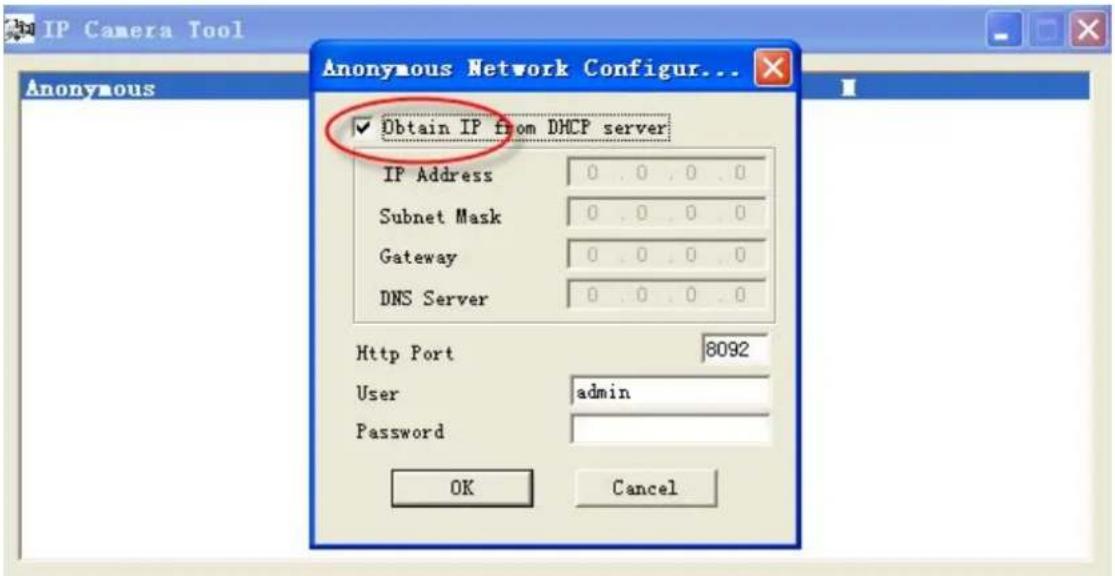
4.1.2 Subnet doesn't match, dbclick to change
If the IP Camera Tool shows the error "Subnet doesn't match, dbclick to change!", select Obtain IP from DHCP server.
text_image
IP Camera Tool Anonymous Network Configur... Anonymous Obtain IP from DHCP server IP Address 0 . 0 . 0 . 0 Subnet Mask 0 . 0 . 0 . 0 Gateway 0 . 0 . 0 . 0 DNS Server 0 . 0 . 0 . 0 Http Port 8092 User admin Password OK CancelIf this error still exists after obtaining an IP from the DHCP server, check the local area connection of your computer and verify the subnet and gateway of the camera which should be the same subnet of your computer.
4.1.3 No Pictures Problems
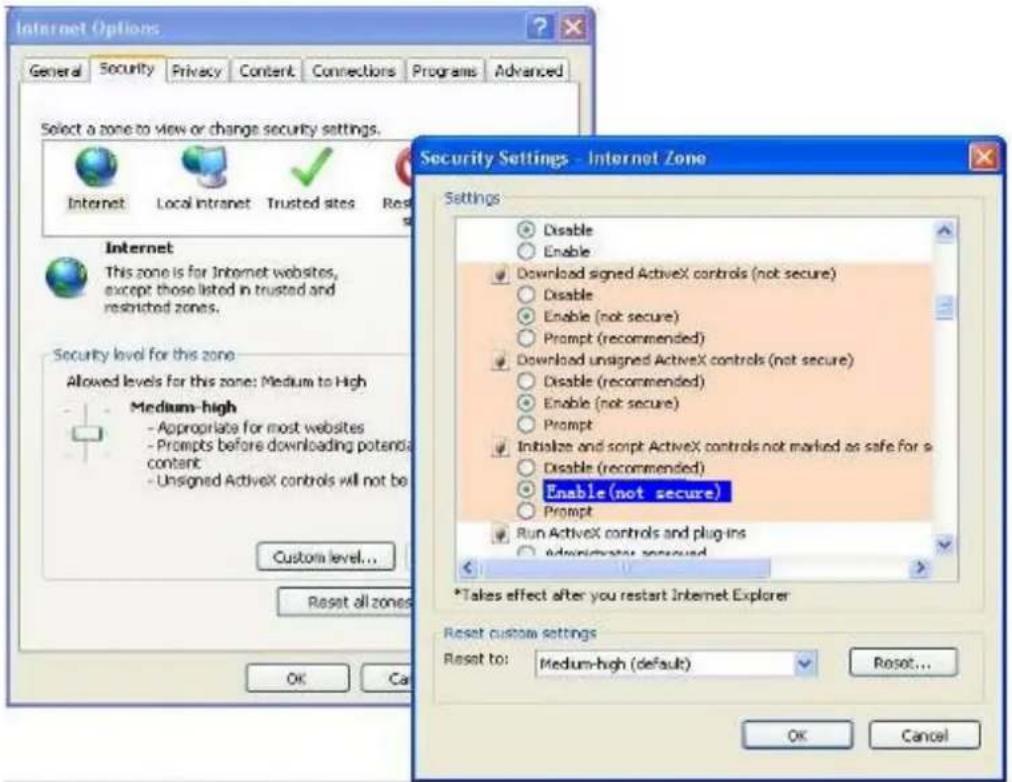
Video streaming is managed by the ActiveX controller. If the ActiveX controller isn't installed correctly you will see no video image. There are two ways to resolve this problem:
1) Reinstall "IP Camera Tool" and ActiveX controller (recommended).
2) Download ActiveX controller and set the security setting of IE: IE browser→Tool→Internet Proper→Security→Custom Level→ActiveX control and Plug-ins. The first three options of front should be set to be "Enable", The ActiveX programs read by the computer will be stored. As follows:
Enable: Download unsigned ActiveX controls
Enable: Initialise and script ActiveX controls not marked as safe
Enable: Run ActiveX controls and plug-ins
text_image
Internet Options General Security Privacy Content Connections Programs Advanced Select a zone to view or change security settings. Internet Local intranet Trusted sites Reset Internet This zone is for Internet websites, except those listed in trusted and restricted zones. Security level for this zone Allowed levels for this zone: Medium to High Medium-high - Appropriate for most websites - Prompts before downloading potencs content - Unsigned ActiveX controls will not be Custom level... Reset all zones OK Cancel Security Settings - Internet Zone Settings Disable Enable Download signed ActiveX controls (not secure) Disable Enable (not secure) Prompt (recommended) Download unsigned ActiveX controls (not secure) Disable (recommended) Enable (not secure) Prompt Initialize and script ActiveX controls not marked as safe for a Disable (recommended) Enable (not secure) Prompt Run ActiveX controls and plug-ins Administrator approved *Takes effect after you restart Internet Explorer Reset custom settings Reset to: Medium-high (default) Reset... OK CancelFigure 5.1
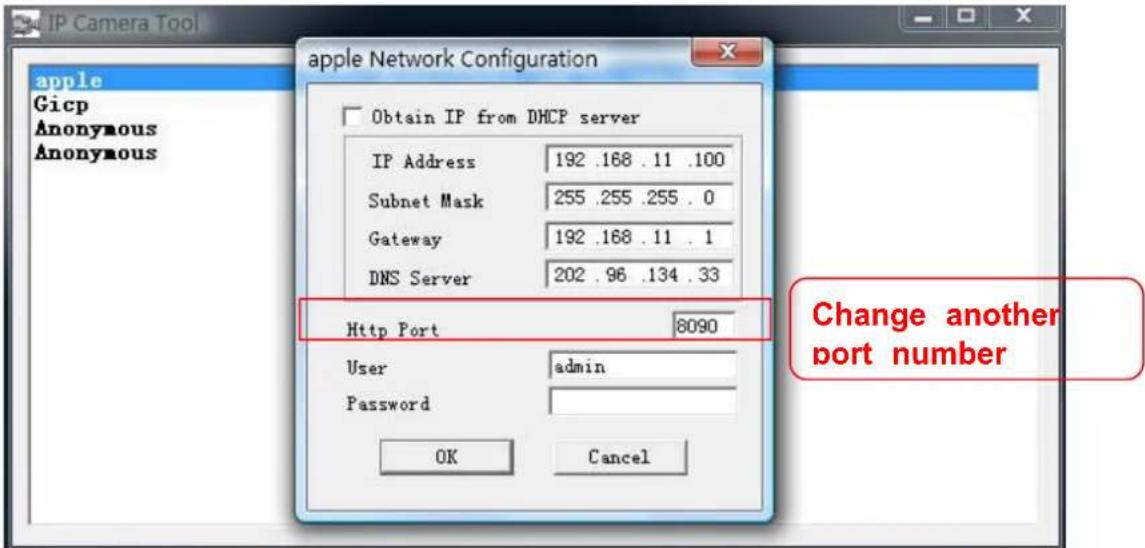
If you allow the ActiveX to run, but still can not see living video and a red cross in the centre of the video. Please select another port number. Don't use port 80, use port 85, 8005.etc.
text_image
IP Camera Tool apple Network Configuration Gicp Anonymous Anonymous Obtain IP from DHCP server IP Address 192 .168 .11 .100 Subnet Mask 255 .255 .255 . 0 Gateway 192 .168 .11 . 1 DNS Server 202 .96 .134 .33 Http Port 8090 User admin Password OK Cancel Change another port numberFigure 5.2
NOTE: Make sure that your firewall or anti-virus software does not block the camera or ActiveX. If you cannot see live video, try shutting down the firewall or anti-virus software and try again.
4.1.4 Can't access IP camera on internet
Possible reasons why camera is not accessible on the internet:
1) ActiveX controller is not installed correctly
2) The port which the camera uses is blocked by a Firewall or Anti-virus software. Try changing to another port number. (Figure 5.2)
3) Port forwarding is not successful (Figure 3.30)
Double check these settings and make sure they are correct.
4.1.5 IP Camera Tool could not find camera's IP
Verify that the network cable is securely fastened to the camera.
Make sure that DHCP is enabled on your router, do not enable MAC address filter.
Make sure that the firewall or anti-virus software does not block the camera. You can add the camera as a trusted site on your firewall or anti-virus software.
4.1.6 UPnP always failed
UPnP only contains port forwarding in our recent software. Sometimes, it may be fail to do port forwarding automatically because of the firewall or anti-virus software. It may also be due to the router's security settings. We recommend manually configuring port forwarding the camera can be viewed on the internet.
4.1.7 Couldn't find the shortcut on the desktop after install IP camera tool
If you use Windows7 or Vista and the shortcut is missing after installing the IP camera tool, check the path of IP Camera program.
For example, if it was pointing to C:\Windows\System32\IPCamera.exe.
Please fix this by pointing the shortcut to the correct path
C:\Windows\SysWOW64\IPCamera.exe. After this you should be able to use the shortcut without any problems.
4.1.8 I can't change the record path
When you use Windows7 or Vista, you may be not able to change the record path because of the security settings of computer. Please add the camera as a trusted site to resolve this issue. The steps are
IE browser→Tool→Internet Properties→Security→Trusted sites→Sites→Add
4.1.9 I can't find multi-device settings and record icon
Record and multi-device functionality are controlled by the ActiveX controller.
These functions are not available in Firefox, Google Chrome and Safari.
4.1.10 Camera cannot connect using wireless
If your camera cannot connect wirelessly after you set the wireless settings, unplug / plug the power cable. (for more details: Wireless LAN settings in Chapter3.7)
Usually, camera can't connect wireless mainly because of incorrect settings.
Verify that the SSID is correct; use the same encryption for router and camera. Share key should not contain special characters, only word and number will be better. Disable MAC address filtering.
4.1.11 Can't see other cameras listed in multi-device when using remote
access
If you want to view all the cameras via the WAN, verify that each camera added in the multi-device settings can be accessed by using the DDNS name and port number. Use the DDNS domain name not the camera's LAN IP. (For more details see: How to add cameras in WAN)
4.1.12 Only see black screen or undefined characters when using remote login
If you could access the login page remotely, this indicates that your DDNS settings are correct. If you are unable to see live video but only some undefined characters, this may be due to the internet speed issues or the camera using Wi-Fi.
4.2 Default Parameters
Default network Parameters
IP address: obtain dynamically
Subnet mask: 255.255.255.0
Gateway: obtain dynamically
DHCP: Disabled
DDNS: Embedded FOSCAM domain name
Username and password
Default administrator username: admin
Default administrator password: No password
4.3 Specifications
| ITEMS FI8904W/FI8905W | ||
| Image Sensor Image | Image Sensor High Definition | Color CMOS Sensor |
| Display Resolution 640 x 480 Pixels(300k Pixels) | ||
| Lens(04) f: 2.8mm or f: 3.6mm or f: 6mm | ||
| Lens(05) f: 6mm, or f: 8mm or f:12mm , F:1.2 | ||
| Mini. Illumination | 0.5Lux | |
| Lens | Lens Type | Glass Lens |
| IR_CUT | Filter will switch automatically | |
| Video | Image Compression | MJPEG |
| Image Frame Rate | 15fps(VGA),30fps(QVGA) | |
| Resolution | 640 x 480(VGA), 320 x 240(QVGA) | |
| Light Frequency | 50Hz, 60Hz or Outdoor | |
| Video Parameters | Brightness, Contrast | |
| Communication | Ethernet One 10/100Mbps | RJ-45 |
| Supported Protocol HTTP,FTP,TCP/IP,UDP,SMTP,DHCP,PPPoE,DDNS,UPnP,GPRS | ||
| Wireless Standard IEEE | 802.11b/g/n | |
| Data Rate 802.11b: 11Mbps(Max.) 802.11g: 54Mbps(Max.)802.11n: 150Mbps(Max.) | ||
| Wireless Security WEP | & WPA & WPA2 Encryption | |
| Infrared Light(04) 24 IR | LEDs, Night visibility up to 20 meters | |
| Infrared Light(05) 60 IR | LEDs, Night visibility up to 30 meters | |
| Dimension(04) 140(L) x75(W) x80mm(H) | ||
| Dimension(05) 245(L)X | 196(W)X112(H)mm. | |
| Gross Weight(04) 1150 | g(carton box package) | |
| Gross Weight(05) 1320 | g(carton box package) | |
| Net Weight (04) | 1000g (accessories included) | |
| Net Weight (05) | 1180g (accessories included) | |
| Power | Power Supply | DC 5V/2.0A (EU,US,AU adapter or other types optional) |
| Power Consumption | 5Watts (Max.) | |
| Environment | Operate Temper. | 0° ~ 55°C (32°F ~ 131°F) |
| Operating Humidity | 20% ~ 85% non-condensing | |
| Storage Temper. | -10°C ~ 60° (14°F ~ 140°F) | |
| Storage Humidity 0% ~ | 90% non-condensing | |
| PC Requirements | CPU | 2.0GHZ or above |
| Memory Size | 256MB or above | |
| Display Card | 64M or above | |
| Supported OS | Microsoft Windows 2000/XP/Vista/Windows7-32bit/Windows7-64bit/ Windows8- 32bit/Windows8-64 bit / mac | |
| Browser | IE 6.0, IE7.0, IE8.0,IE9.0, Firefox2.0,Firefox3.0, Google Chrome, Safari or other standard browsers | |
| Certification | CE,FCC | |
5 OBTAINING TECHNICAL SUPPORT
While we hope your experience with the IPCAM network camera is enjoyable and easy to use, you may experience some issues or have questions that this User's Guide has not answered. If you have problem with FOSCAM IP camera, please first contact FOSCAM reseller for solving the problems. If our reseller cannot provide service, pls contact our service department: tech@foscam.com.


