imageFORMULA DR-M140 - To scan CANON - Free user manual and instructions
Find the device manual for free imageFORMULA DR-M140 CANON in PDF.


User questions about imageFORMULA DR-M140 CANON
0 question about this device. Answer the ones you know or ask your own.
Ask a new question about this device
Download the instructions for your To scan in PDF format for free! Find your manual imageFORMULA DR-M140 - CANON and take your electronic device back in hand. On this page are published all the documents necessary for the use of your device. imageFORMULA DR-M140 by CANON.
USER MANUAL imageFORMULA DR-M140 CANON
natural_image
Line drawing of a Canon air conditioner unit with control panel and display buttons (no text or symbols on the device itself)- Please read this manual before operating this scanner.
• After you finish reading this manual, store it in a safe place for future reference.
FCC REGULATIONS (For 120 V model)
Document Scanner, Model M111121
This device complies with Part 15 of the FCC Rules. Operation is subject to the following two conditions: (1) This device may not cause harmful interference, and (2) this device must accept any interference received, including interference that may cause undesired operation.
Note: This equipment has been tested and found to comply with the limits for a Class B digital device, pursuant to Part 15 of the FCC Rules. These limits are designed to provide reasonable protection against harmful interference in a residential installation. This equipment generates, uses, and can radiate radio frequency energy and, if not installed and used in accordance with the instructions, may cause harmful interference to radio communications. However, there is no guarantee that interference will not occur in a particular installation. If this equipment does cause harmful interference to radio or television reception, which can be determined by turning the equipment OFF and ON, the user is encouraged to try to correct the interference by one or more of the following measures:
– Reorient or relocate the receiving antenna.
– Increase the separation between the equipment and receiver.
- Connect the equipment into an outlet on a circuit different from that to which the receiver is connected.
- Consult the dealer or an experienced radio/TV technician for help. Use of shielded cable is required to comply with Class B limits in Subpart B of Part 15 of FCC Rules.
Do not make any changes or modifications to the equipment unless otherwise specified in the manual. If such changes or modifications should be made, you could be required to stop operation of the equipment.
Canon U.S.A. Inc.
ONE CANON PARK, MELVILLE, NY 11747, U.S.A.
Tel. No. (516)328-5000
RADIO INTERFERENCE REGULATIONS (For 120 V models)
This digital apparatus does not exceed the Class B limits for radio noise emissions from digital apparatus as set out in the interference-causing equipment standard entitled “Digital Apparatus”, ICES-003 of the Industry Canada.
RÈGLEMENT SUR LE BROUILLAGE RADIOÉLECTRIQUE (For 120 V models)
International ENERGY STAR® Office Equipment Program

ENERGY STAR
As an ENERGY STAR® Partner, CANON
ELECTRONICS INC. has determined that this machine meets the ENERGY STAR® Program guidelines for energy efficiency.
The International ENERGY STAR® Office Equipment Program is an international program that promotes
energy saving through the use of computers and other office equipment. The program backs the development and dissemination of products with functions that effectively reduce energy consumption. It is an open system in which business proprietors can participate voluntarily. The targeted products are office equipment, such as computers, monitors, printers, fax, machine, copiers, and scanners. The standards and logos are uniform among participating nations. This model doesn't provide setting options for power management.
European Union (and EEA) only.

This symbol indicates that this product is not to be disposed of with your household waste, according to the WEEE Directive (2002/96/EC) and your national law. This product should be handed over to a designated collection point, e.g., on an authorized one-for-one basis when you buy a
new similar product or to an authorized collection site for recycling waste electrical and electronic equipment (EEE). Improper handling of this type of waste could have a possible negative impact on the environment and human health due to potentially hazardous substances that are generally associated with EEE. At the same time, your cooperation in the correct disposal of this product will contribute to the effective usage of natural resources. For more information about where you can drop off your waste equipment for recycling, please contact your local city office, waste authority, approved WEEE scheme or your household waste disposal service. For more information regarding return and recycling of WEEE products, please visit www.canon-europe.com/environment.
(EEA: Norway, Iceland and Liechtenstein)
Für EMVG
The following name may be provided for the safety regulations in each sales region of the Document Scanner.
DR-M140: Model M111121
Trademarks
- Canon and the Canon logo are registered trademarks, of Canon Inc. in the United States and may also be trademarks or registered trademarks in other countries.
- imageFORMULA is a trademark of CANON ELECTRONICS INC.
- Microsoft, Windows, Windows Vista, PowerPoint, and SharePoint are registered trademarks or trademarks of Microsoft Corporation in the United States and other countries.
- Microsoft product screen shot(s) reprinted with permission from Microsoft Corporation.
- OS X is a trademark of Apple Inc., registered in the United States and other countries.
- ENERGY STAR® is a registered trademark of the United States Environmental Protection Agency.
• ISIS is a registered trademark of Emc Corporation in the United States.
• Copyright © 1995-2011 Nuance Communications, Inc. All rights reserved. eCopy is a trademark and/or registered trademarks of Nuance Communications, Inc. and/or its affiliates in the United States and/or other countries. - Adobe, the Adobe logo, Acrobat, the Adobe PDF logo, and Adobe Reader are either registered trademarks or trademarks of Adobe Systems Incorporated in the United States and/or other countries.

Powered by ADOBE® PDF LIBRARY
- Other product and company names herein may be the trademarks of their respective owners. However, the ^TM and ^® symbols are not used in this document.
Copyright
Copyright 2011 by CANON ELECTRONICS INC. All rights reserved. No part of this publication may be reproduced or transmitted in any form or by any means, electronic or mechanical, including photocopying and recording, or by any information storage or retrieval system without the prior written permission of CANON ELECTRONICS INC.
Disclaimers
The information in this document is subject to change without notice.
CANON ELECTRONICS INC. MAKES NO WARRANTY OF ANY KIND WITH REGARD TO THIS MATERIAL, EITHER EXPRESS OR IMPLIED, EXPECT AS PROVIDED HEREIN, INCLUDING WITHOUT LIMITATION, THEREOF, WARRANTIES AS TO MARKETABILITY, MERCHANTABILITY, FITNESS FOR A PARTICULAR PURPOSE OF USE OR NON-INFRINGEMENT. CANON ELECTRONICS INC. SHALL NOT BE LIABLE FOR ANY DIRECT, INCIDENTAL, OR CONSEQUENTIAL DAMAGES OF ANY NATURE, OR LOSSES OR EXPENSES RESULTING FROM THE USE OF THIS MATERIAL.
w
CANON ELECTRONICS INC. IS NOT LIABLE FOR THE STORAGE AND HANDLING OF DOCUMENTS SCANNED WITH THIS PRODUCT, OR THE STORAGE AND HANDLING OF RESULTING SCANNED IMAGE DATA.
IF YOU INTEND TO DISCARD THE ORIGINALS OF SCANNED DOCUMENTS, YOU THE CUSTOMER ARE RESPONSIBLE FOR INSPECTING THE SCANNED IMAGES AND VERIFYING THAT DATA IS INTACT.
THE MAXIMUM LIABILITY OF CANON ELECTRONICS INC. UNDER THIS WARRANTY IS LIMITED TO THE PURCHASE PRICE OF THE PRODUCT COVERED BY THE WARRANTY.
STEP 1 Checking the Accessories
If any of the items listed below are missing or damaged, contact your local authorized Canon dealer or service representative.

Scanner AC Adapter/Power Cord
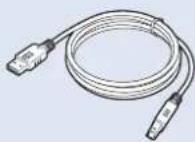
USB Cable
Type A/Type B (Length: 1.8 m)
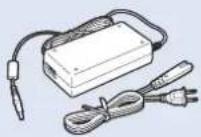
(Connected length: 2.6 m)

Reference Guide Setup Disc

Before Use (Europe only)
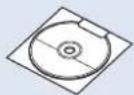

text_image
Warranty Card (U.S.A. and Canada only)- Items included in this manual are subject to change without notice.
- You must keep the machine's packaging and packing materials for storing or transporting the machine.
- For Europe, a print version of Reference Guide is supplied in English.
The content of the Reference Guide can be found in other languages in the User Manual on the Setup Disc.
• The shape of the power plug varies by country and region.
Setup Disc Contents
Install the following software necessary for using the scanner from the supplied Setup Disc.
- CaptureOnTouch
This is a dedicated scanning application for this product.
- CapturePerfect 3.1
This is a scanning application for the DR series scanner.
- Scanner Driver
This is the scanner driver for this product.
Third-Party Software
The following software applications are also included on the supplied Setup Disc. For details on installing these applications, refer to the Readme.txt file.
• eCopy PDF Pro Office (Windows only)
Nuance Communications PDF creation/editing software.

IMPORTANT
When scanning with third-party software, user the scanner driver of this scanner to configure scanning conditions. For details on how to open the scanner driver, refer to the manuals supplied with each software application.
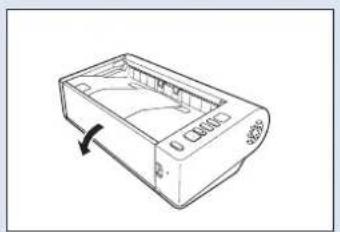
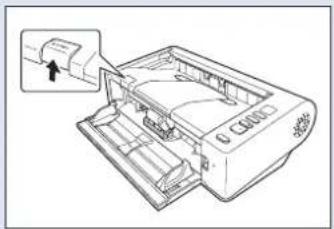
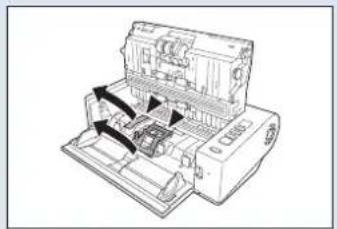
After taking the scanner out of the box, remove the protective parts (▼) from the scanner.
natural_image
Line drawing of a rectangular electronic device casing with no visible text or symbols▶
natural_image
Line drawing of a printer with a paper feeding into a slot, showing internal structure and no text or symbols.▶
natural_image
Technical line drawing of a mechanical device with internal components and directional arrows (no text or symbols)▶

natural_image
Diagram of an open computer case with internal components and a black arrow indicating a component (no text or symbols present)▶

natural_image
Line drawing of a printer or printer casing with a paperclip and arrow indicating rotation (no text or symbols)▶
STEP 2 Installing the Software
System requirements
To use the scanner, your computer must satisfy the following system requirements.
Computer
CPU: Intel Core 2 Duo 1.66GHz or faster
Memory: 1GB or more
Hard disk: 3 GB or more available space required for installation of all software
USB interface: Hi-Speed USB2.0
Monitor: Resolution of 1024 × 768 (XGA) or better recommended.
Optical drive: Drive capable of reading DVDs.
Operating system
- Microsoft Windows XP Service Pack 3 or later
- Microsoft Windows XP x64 Edition Service Pack 2 or later
- Microsoft Windows Vista Service Pack 2 or later (32-bit and 64-bit editions)
- Microsoft Windows 7 Service Pack 1 or later (32-bit and 64-bit editions)
- Microsoft Windows 8 or 8.1 (32/64-bit version)
- Microsoft Windows Server 2008 R2 Service Pack 1 or later
• Microsoft Windows Server 2012 R2 - OS X 10.7.5, 10.8.5, or 10.9.1
Other requirement
- An ISIS-compatible application (Windows only) or a TWAINcompatible application that is compatible with the above operating systems.
• .NET Framework 3.5 or later (Windows only)
IMPORTANT
- Use the USB interface provided as standard with your computer. However, normal operation is not guaranteed with all USB interfaces, even if present as standard equipment on the computer. For details, consult your local authorized Canon dealer.
-
Scanning speeds are lower if your computer's standard USB interface is USB Full-Speed (equal to USB 1.1.)
-
The USB cable you are using should be the one originally included with the scanner.
- If the CPU, memory, interface card, and other specifications do not satisfy the installation requirements, the scanning speed may be greatly reduced and transmission may take a long time.
- Even if the computer satisfies the system requirements, the scanning speed may vary, depending on the specification of the computer and the environment.
- The scanner drivers provided with the scanner do not necessarily operate on all ISIS (only for Windows) or TWAIN-compatible applications. For details, contact your application software retailer.
Precautions for Use in 64-bit Operating Systems
- The ISIS/TWAIN driver supplied with this product supports scanning with 32bit applications only.
- Even with 32-bit applications, not all ISIS/TWAIN compliant applications are guaranteed to operate.
- Scanning speed may vary depending on the specifications of your computer.
Software Installation
Windows
IMPORTANT
• Install the software before connecting the scanner to the computer.
- Log on to Windows as an Administrator.
- Close all other applications before installing the software.
1
Insert the Setup Disc into the DVD drive of the computer.
The setup menu automatically starts up when you insert the disc into the drive. (If the menu does not start up, execute setup.exe from the disc.)

natural_image
Technical illustration of a mechanical assembly with a circular component and a tool inserted into a housing (no text or symbols)For Windows 8.1/8/7/Vista
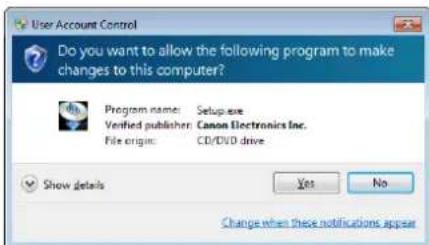
If the following screen appears, click [Yes] or [Permissions].
text_image
User Account Control Do you want to allow the following program to make changes to this computer? Program name: Setup.exe Verified publisher: Canon Electronics Inc. File origin: CD/DVD drive Show details Yes No Change when these notifications appear2 Click [Typical Installation].
![CANON imageFORMULA DR-M140 - Click [Typical Installation]. - 1](/content/2026/06/1236268/images/f2578414dfb94994c6b679c36102b9cf4b445cb4fb0e5891b67049df487f593e.jpg)
text_image
Canon ImageFORMULA DR-M140 Canon Document Scanner Setup Typical Installation Custom Installation Read Manuals ExitAbout Installation of the Third-Party Software
When installing the bundled software, you can choose which of the bundled software to install if you select [Custom Installation].

If you want to reinstall only specific software that you have previously uninstalled, select [Custom Installation] and specify the software.
3 Click [Install].
![CANON imageFORMULA DR-M140 - Click [Install]. - 1](/content/2026/06/1236268/images/bb11c84e0c489950c225b3d56f35c428e93ca61af173812043c3a5c6b7110d2f.jpg)
text_image
Typical Installation Display Manual DR-MH140 Driver CaptureOnTouch CaptureProtect 3.1 User Manual Do not connect the scanner with the computer until software installation is completed. All of the above software is installed if you click (Install) button. The explanation is displayed when you position on the mouse pointer over the item Back Install4 Follow the instructions on the screen to complete installation.
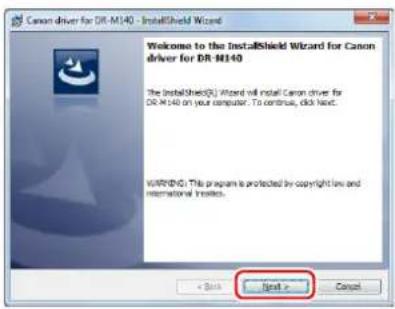
text_image
Canon driver for DR-M140 - InstallShield Wizard Welcome to the InstallShield Wizard for Canon driver for DR-M140 The InstallShield(R) Wizard will install Canon driver for DR-M140 on your computer. To continue, click Next. WARNING: This program is protected by copyright law and international treaties. First > Cancel5 Click [Exit] to finish installing the software.
![CANON imageFORMULA DR-M140 - Click [Exit] to finish installing the software. - 1](/content/2026/06/1236268/images/0e0e78220539a184ffa0ad066ada90dc84317b26fd9986f6bcb543e03564bfdc.jpg)
text_image
Canon Installation completed Thank you for choosing our product. User Registration (USA Only) Exit BackMac
IMPORTANT
• Install the software before connecting the scanner to the computer.
- Close all other applications before installing the software.
1 Insert the Setup Disc into the DVD drive of the computer.
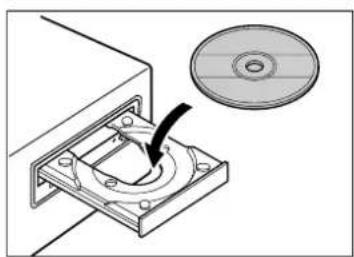
natural_image
Technical illustration of a mechanical assembly with a circular component and a tool, no text or symbols present.2 Click [DR-M140 Installer].
![CANON imageFORMULA DR-M140 - Click [DR-M140 Installer]. - 1](/content/2026/06/1236268/images/34a755c8f9e74d655f86967e2fb47726370cd009dd6802630645de9b07df50a2.jpg)
text_image
Canon imageFORMULA DR-M40 Insulin name Insulin User Registration USA Drop ManualAbout Installation of Third-Party Software
If you open the folder containing the software instead of selecting [DR-M140 Installer], you can choose third-party software applications for installation.
3 Follow the instructions on the screen to complete installation.
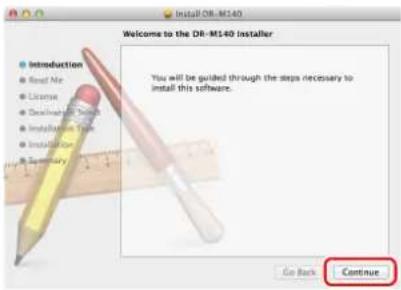
text_image
Welcome to the DR-M140 Installer Introduction Read Me License Destination Details Installation Time Installation Summary You will be guided through the steps necessary to install this software. Go Back Continue4 When the installation is complete, click [Log out].
![CANON imageFORMULA DR-M140 - When the installation is complete, click [Log out]. - 1](/content/2026/06/1236268/images/3355146f5aa2a188cb2cf610b8ce4c4ef1998868d6f3aa9d94d53d548273cf03.jpg)
text_image
Install DR-M140 The installation was completed successfully. Introduction Read Me License Destination Select Installation Type Installation Summary The installation was successful. The software was installed. Click Log Out to finish installing the software. Go Back LogOutSTEP 3 Connecting to a Computer
Connect the scanner to the computer and the power supply.
IMPORTANT
- Do not connect the scanner to the computer before installing the software.
- Before connecting the scanner to the computer, verify that the power of the scanner is OFF. If the power is ON, turn it OFF.
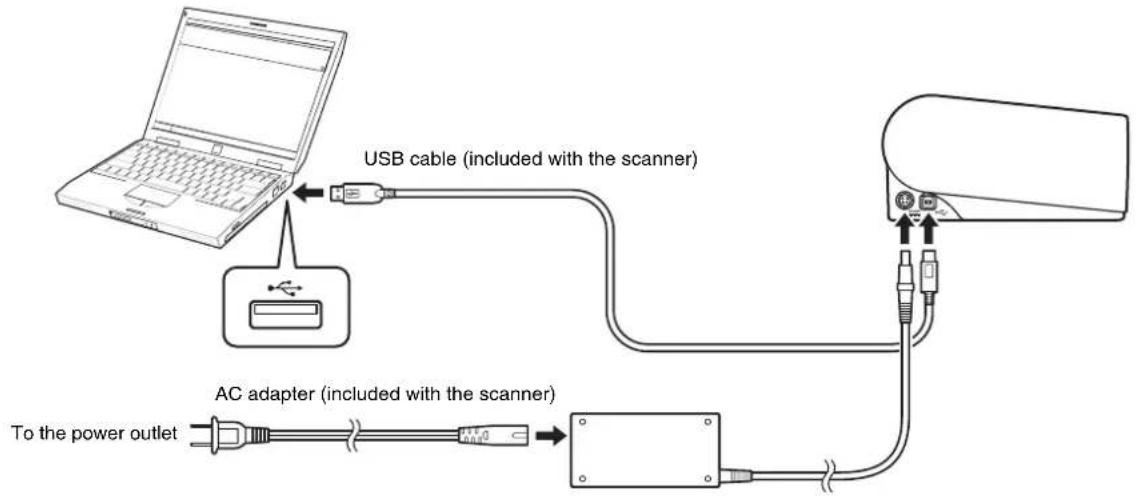
flowchart
graph TD
    A["Laptop"] -->|USB cable (included with the scanner)| B["Switch"]
    B --> C["AC adapter (included with the scanner)"]
    C --> D["Power outlet"]
    style A fill:#f9f,stroke:#333
    style B fill:#ccf,stroke:#333
    style C fill:#cfc,stroke:#333
    style D fill:#fcc,stroke:#333
STEP 4 Turning the Power ON
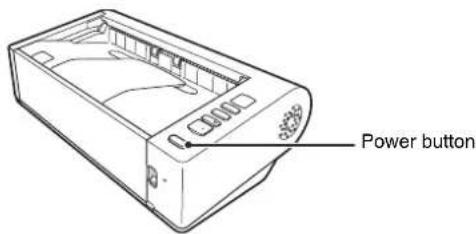
The power of the scanner can be turned ON and OFF with the power button on the front of the scanner.
1 Make sure that the scanner and computer are connected properly.
2 Press the power button.
text_image
Power buttonThe power button lights blue when the power turns ON.
Windows
Hint
A balloon message such as shown below appears on the task bar. If you wait a while, automatic scanner recognition will end and the scanner will become ready to use.

flowchart
graph TD
    A["Installing device driver software"] -->|Click here for status.| B["CANON DR-M140 USB"]
    B --> C["Device driver software installed successfully."]
When the scanner is properly connected to the computer, the (CaptureOnTouch) icon appears on the taskbar as follows.

If the taskbar icon appears as the scanner is not properly connected to the computer. Check the status of the power switch and USB cable.
Mac
When the scanner is properly connected to the computer, the Ct (CaptureOnTouch) icon appears on the taskbar as follows.

If the taskbar icon appears as ,the scanner is not properly connected to the computer. Check the status of the power switch and USB cable.
Turning Off the Power
Press and hold the power button until the indicator goes out.
IMPORTANT
• After turning the scanner off, wait at least 10 seconds before turning it back on.
- If you will not be using the scanner for an extended period, you should disconnect the power cord from the AC outlet for safety.
Hint
The scanner's auto power off setting is enabled by default, and the scanner will turn off automatically if it is not operated for 4 hours. For details on how to disable this setting, see "Auto Power Off Setting" on p. 89.
This completes setup.
Introduction
Thank you for purchasing the Canon imageFORMULA DR-M140 Document Scanner.
Please read the following manuals carefully and familiarize yourself with the functions of the scanner before use to ensure you sufficiently understand the functions and make the most of the scanner's capabilities. After reading the manuals, store them in a safe place for future reference.
Manuals for the Scanner
Documentation for this scanner consists of the following manuals.
●Reference Guide
This describes setup procedures for the scanner. Read this manual when you first use the scanner.
●User Manual (this manual)
This manual contains the operating procedures of the scanner. (PDF electronic manual only)
Windows
Hint
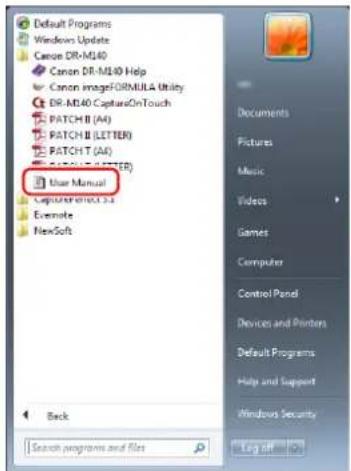
- The manual (User Manual) for this scanner is stored on the Setup Disc as an electronic manual in PDF format.
- If you are using Windows, the User Manual (electronic manual) will be registered to the following location when the software is installed.
text_image
Default Programs Windows Update Canon DR-ML40 Canon DR-ML40 Help Canon imageFORMULA Utility DR-ML40 CaptureOnTouch PATCH II (AA) PATCH II (LETTER) PATCH T (AA) PATCH T (LETTER) User Manual CaptureOnTouch 3.3 Example NewSoft Back Search programs and files Documents Pictures Music Videos Games Computer Control Panel Devices and Printers Default Programs Help and Support Windows Security Log Off
Hint
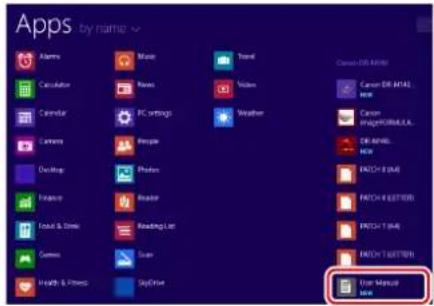
In Windows 8.1/8, it is registered at the following location.
text_image
Apps by name Alerts Calculation Calendar Camera Desktop Flickr Food & Dinner Gymos Health & Fitness Music Names PC settings Phips Photos Reader Reading List Scan SkyDrive Travel Video Weather Canon EIR NAME Canon EIR NAME Canon ImageFORMULA. DE-MAIL NEW EXCH 6 (BA) EXCH 6 ETTER EXCH 7 (BA) EXCH 7 ETTER User Manual NewSymbols Used in This Manual
The following symbols are used in this manual to explain procedures, restrictions, handling precautions, and instructions that should be observed for safety.

WARNING
Indicates a warning concerning operations that may lead to death or injury to persons if not performed correctly. To use the scanner safely, always pay attention to these warnings.

CAUTION
Indicates a caution concerning operations that may lead to injury to persons, or damage to property if not performed correctly. To use the scanner safely, always pay attention to these cautions.

IMPORTANT
Indicates operational requirements and restrictions. Be sure to read these items carefully to operate the scanner correctly, and avoid damaging the scanner.

Hint
Indicates a clarification of an operation, or contains additional explanations for a procedure. Reading these notes is highly recommended.
Table of Contents
Setup Guide 4
Introduction ......12
Symbols Used in This Manual.... 13
Before Using the Scanner.... 15
Important Safety Instructions.... 15
Installation Location 15
AC Adapter.... 15
Moving the Scanner 16
Handling 16
Disposal 17
When sending the scanner for repairs 17
Features of the Scanner.... 18
Names and Functions of Parts 20
Basic Operation 23
Documents 23
How to Place Documents.... 25
Switching the Feed and Eject Methods.... 25
Placing Documents 26
Placing Cards.... 28
Placing Folded Documents 28
Setting the Long Document Mode.... 29
Detecting a document double feed 31
Detecting Skewed Documents 35
Scanning methods 37
Scanning with CaptureOnTouch 37
What is CaptureOnTouch? 37
Starting and Exiting CaptureOnTouch 37
Scan First 39
Select Scan Job 41
Operating the scanner with the operating panel buttons..... 44
Scanner Settings.... 44
Setting the Output Method 48
Environmental Settings 50
Scanning with CapturePerfect.... 54
Scanning with CapturePerfect.... 54
Setting the Scanner Driver.... 56
Configuration and Functions of the Scanner Driver 56
Setting Basic Scanning Conditions 59
More Advanced Scanning Methods.... 76
Using a Patchcode for Scanning 76
Maintenance 79
Daily Maintenance....79
Cleaning the Scanner....79
Cleaning the Inside of the Scanner 79
Cleaning the Sensor Glass and the Rollers 79
Adjusting the Reduction Ratio 82
Replacing Consumable Parts.... 83
Auto Power Off Setting....89
Troubleshooting 90
Common Problems and Solutions.... 90
Software Troubleshooting.... 92
Useful tips.... 93
Clearing Paper Jams and Skewed Documents ..... 95
Uninstalling the Software 97
Appendix 98
Specifications.... 98
Replacement Parts.... 99
Option....99
About the Flatbed Scanner Unit 101/Flatbed Scanner Unit 201
99
Dimensions.... 100
Index....101
Before Using the Scanner
Important Safety Instructions
To ensure the safe operation of this scanner, be sure to read the safety warnings and precautions described below.
Installation Location
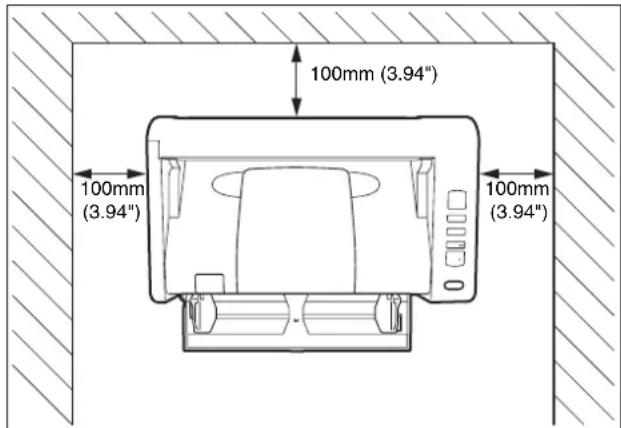
The performance of this scanner is affected by the environment in which it is installed. Make sure that the location where the scanner is installed meets the following environmental requirements.
● Provide adequate space around the scanner for operation, maintenance, and ventilation.
text_image
100mm (3.94") 100mm (3.94") 100mm (3.94")- When scanning documents using the straight path, provide adequate space in back of the scanner for scanned document output.
- Avoid installing the machine in direct sunlight. If this is unavoidable, use curtains to shade the scanner.
● Avoid locations where a considerable amount of dust accumulates as dust may adversely affect the inside of the scanner. - Avoid warm or humid locations, such as in the vicinity of a water faucet, water heater, or humidifier. Avoid locations where ammonia gas is emitted. Avoid locations near volatile or flammable materials, such as alcohol or paint thinner.
●Avoid locations that are subject to vibration.
- Avoid exposing the scanner to rapid changes in temperature. If the room in which the scanner is installed is cold but rapidly heated, water droplets (condensation) may form inside the scanner. This may result in a noticeable degradation in scanning quality. The following conditions are recommended for optimal scanning quality: Room temperature: 10 °C to 32.5 °C (50 °F to 90.5 °F)
Humidity: 20% to 80% RH
●Avoid installing the scanner near equipment that generates a magnetic field (e.g. speakers, televisions, or radios.)
AC Adapter
- Connect only to a power outlet of the rated voltage and power supply frequency (120 V, 60 Hz or 220-240 V, 50/60 Hz depending on your region).
- Do not connect other electrical equipment to the same power outlet to which the scanner is connected. Also, when using an extension cord, make sure that the extension cord is rated for the current requirements of the scanner.
●Never try to take the AC adapter apart or modify it in any way, as this is dangerous.
●The power cord may become damaged if it is often stepped on or if heavy objects are placed on it.
●Do not use the power cord while it is coiled. - Do not pull directly on the power cord. When disconnecting the power cord, grasp the plug and remove it from the outlet.
- Keep the area around the power cord clear of objects so that the power cord can be disconnected easily in an emergency.
- Do not use an AC adapter other than the one provided with the scanner. Do not use the AC adapter provided with the scanner with other products.
- If you have any questions regarding the power supply, contact your local authorized Canon dealer or service representative for further information.
Moving the Scanner
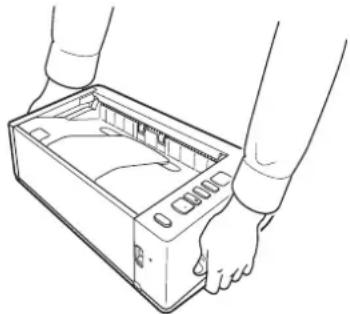
- When moving the scanner, always hold it with both hands to avoid dropping it.
●Make sure to disconnect the interface cable and AC adapter before moving the scanner. If the scanner is transported with these items connected, the plugs and connectors may be damaged.
natural_image
Line drawing of two hands opening a device casing with internal components (no text or symbols)Handling
WARNING
Note the following precautions whenever using the scanner. Failure to do so may result in a fire or electric shock.
● Never use alcohol, benzene, paint thinner, aerosol sprays, or any other highly flammable substance near the scanner.
- Do not cut, damage, or modify the power cord. Do not place heavy objects on the power cord, and do not pull or excessively bend the power cord.
●Never connect the power cord when your hands are wet.
●Do not connect the scanner to a multi plug power strip.
- Do not knot or coil the power cord as this may result in a fire or electric shock. When connecting the power cord, make sure that the power plug is securely and completely inserted into the power outlet.
●Do not use a power cord or AC adapter other than the ones provided with this scanner.
●Do not take the scanner apart or modify it.
●Never try to take the AC adapter apart or modify it in any way, as this is dangerous.
●Do not use flammable spray near the scanner.
- When cleaning the scanner, push the power button to turn it OFF and disconnect the power cord from the power supply.
- Clean the scanner using a slightly dampened cloth which has been well wrung out. Never use alcohol, benzene, paint thinner, or any other flammable substances.
- If the scanner makes strange noises, or gives off smoke, heat, or strange odors, or the scanner does not function or other abnormalities occur when you use the machine, immediately push the power button to turn it off, and disconnect the power plug from the power outlet. Then, contact your local authorized Canon dealer or service representative to have the unit serviced.
- Do not drop the scanner, or subject it to impact or strong shock. Should the scanner ever become damaged, immediately push the power button to turn it OFF, and disconnect the power plug from the power outlet. Then, contact your local authorized Canon dealer or service representative to have the unit serviced.
●Before moving the scanner, be sure to push the power button to turn it OFF, and disconnect the power plug from the power outlet
●To customers with cardiac pacemakers
The scanner generates a weak magnetic field. If customers using cardiac pacemakers experience any abnormalities, move away from the scanner and consult a physician.
CAUTION
- Do not install the scanner on a surface that is unstable or tilted, or in an area subject to excessive vibrations, as this may cause the scanner to fall, resulting in personal injury or damage to the scanner.
- Never place small metal objects such as staples, paper clips, or jewelry on the scanner. These items may fall into the scanner, and cause a fire or electric shock. Should such objects ever fall inside the scanner, immediately push the power button to turn it OFF, and disconnect the power plug from the power outlet. Then, contact your local authorized Canon dealer or service representative to have the unit serviced.
-
Do not install the scanner in a humid or dusty location. Doing so might cause a fire or electric shock.
-
Do not place objects on top of the scanner. Such objects may tip or fall over, resulting in personal injury.
- Connect only to a power outlet of the rated voltage and power supply frequency (120 V, 60 Hz or 220-240 V, 50/60 Hz depending on your region). Doing so might cause a fire or electric shock.
- When unplugging the power cord, grasp it firmly by its plug. Do not pull directly on the power cord, as this may damage or expose the cord's internal wiring, resulting in a fire or electric shock.
- Leave sufficient space around the power plug so that it can be unplugged easily. If objects are placed around the power plug, you will be unable to unplug it in an emergency.
- Do not allow water or flammable substances (alcohol, paint thinner, benzene, etc.) to spill into the scanner, as this may result in a fire or electric shock. Doing so might cause a fire or electric shock.
●Push the power button to turn the scanner OFF for safety when not using the scanner for a long period of time, such as overnight. Also, push the power switch to turn it OFF, and disconnect the power cord from the power outlet for safety when the machine will not be used for an extended period of time, such as during consecutive holidays.
●Do not block the ventilation holes. Doing so might cause overheating. - Do not wear loose clothing or jewelry that may get caught in the scanner while you are using it, as this may result in personal injury. Be extra careful of neckties and long hair. If anything becomes caught in the scanner, immediately disconnect the power cord to stop the scanner.
- Be careful when loading paper into the scanner and when removing jammed paper, as it is possible to cut your hand on the edge of a sheet of paper.
Disposal
When disposing of this scanner, be sure to follow all local ordinances and laws or consult with the retailer who sold you the scanner.
When sending the scanner for repairs
When a request is made for repairs, the scanner needs to be sent to the specified address. When sending the scanner, use the packing box in which it came. Firmly secure the scanner with packaging material when you place it in the packing box.
Features of the Scanner
The main features of the DR-M140 document scanner are described below.
●Compact Design
The scanner has a compact size of 313 mm (12.32") (W) x 93 mm (3.66") (H) x 181 mm (7.13") (D) when the document feed tray is closed.
●Fast Document Feeding
Documents can be scanned at a speed of up to 40 pages per minute (when scanning one-sided or two-sided documents of A4 size at 200 dpi).
●Two Eject Paths for Scanning a Variety of Documents
Use the space saving U-turn path to scan paper of standard thickness, or use the straight path to scan cards and other thick documents.
●High Image Quality
The 600 dpi optical resolution sensor incorporated in the scanner enables documents to be scanned with high image quality.
●USB 2.0 Interface
The scanner supports Hi-Speed USB 2.0.
●Color/Grayscale Support
Documents can be scanned in 24-bit color or 256-level grayscale.
●Supports a Variety of Scanning Modes
The scanner supports the following scanning modes, depending on the document type:
- Single-sided or double-sided scanning (with Skip Blank Page function)
• Continuous or single sheet feed
●Card Scan
You can scan business or ID cards.
●Paper Size Detection
The scanner automatically detects the size of a scanned document and eliminates any unnecessary space around the edges of the image when storing the image, even when storing a document of irregular size.
●Auto Color Detection
The scanner detects whether the scanned document is in color, grayscale, or black and white, and saves the image accordingly.
●Full Auto Mode
A Full Auto Mode is provided in the supplied software, CaptureOnTouch, to allow scanning under automatically determined conditions. Scanning conditions such as the color mode and page size are set automatically based on the document being scanned.
●Auto Resolution Detection
When enabled in the CaptureOnTouch or scanner driver settings, this function detects the content of documents and determines the scanning resolution automatically.
●Folio Scan
You can scan folded documents. The scanner will scan both sides and combine the scanned images into a single image.
●Deskew
The scanner straightens scanned images when it detects that the document was placed askew.
●Ultrasonic Double Feed Detection
Ultrasonic waves are used to detect pages that are fed at the same time, and scanning stops if a double feed is detected.
●Double Feed Detection Ignore
When a double feed is detected, the DFR button on the operation panel is lit. You can continue scanning by pressing the DFR button.
●Text Enhancement Modes
The scanner is equipped with an Advanced Text Enhancement Mode to enhance the text of documents with dark or uneven backgrounds, and an Advanced Text Enhancement II mode to enhance the text when both the text and background are light. These modes may not work, depending on the type of document.
●Color Drop-out
The scanner is equipped with a Color Drop-out function that enables you to specify a color for the scanner to omit from the scanned image during black and white or grayscale scanning.
- Skip Blank Page Function
The scanner is equipped with a Skip Blank Page function that enables you to scan a document without storing images of blank pages, regardless of whether each page of the document is two-sided or one-sided. Both sides are scanned, but saving the image is skipped for scan images judged to be from a blank page.
●Prescan Function
The scanner is equipped with a Prescan function that allows you to adjust the contrast and brightness of a prescanned image and then send the adjusted image to the application software, without needing to scan the document again.
●Character/Line Emphasis Function
If characters and lines in scanned images are not clearly visible, you can use this function to adjust their thickness during scanning.
●Skew Detection Function
The scanner automatically stops operation when documents are fed at an excessive slant to prevent damage to documents.
●Start Scanning from the Operating Panel
You can start scanning by launching CaptureOnTouch with the operating panel buttons. By default, Job No.1 is assigned to Scan First, which allows you to easily scan a document by just following the instructions on the screen.
●Auto Start
The scanner is equipped with an auto start function, which enables scanning to be automatically started when a document placed in the feeder is detected.
●Sleep Mode
The scanner is designed to save energy by automatically entering the sleep mode if 10 minutes elapse without scanning or another operation being performed.

Hint
Some functions may not be available depending on the software you are using.
Names and Functions of Parts
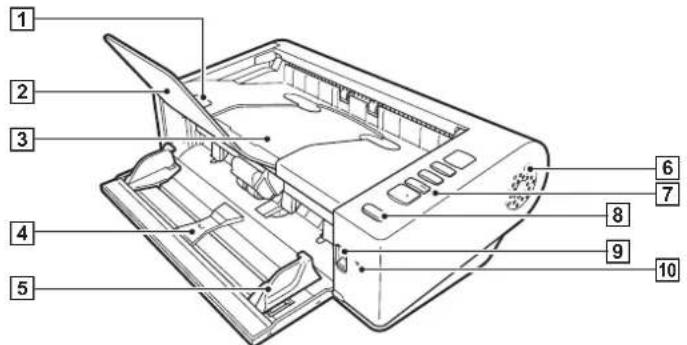
Front View (With the Feed Tray Open)
text_image
Labeled diagram of a computer case with numbered parts for identification①OPEN Lever
Raise this to open the upper unit.
②Document Eject Extension Support
Open this when scanning documents longer than 150 mm in length.
3 Document Eject Tray / Upper Unit
Scanned documents are output here.
Open this when cleaning the inside of the scanner or replacing rollers.
4Document Feed Tray
Place the document.
5 Document Guides
Align the document guides with both edges of the document to ensure that the document feeds straightly.
6 Ventilation Holes
These cool the interior of the scanner. Do not block the ventilation holes, as doing so might cause overheating.
7 Operating Panel
A range of scanning operations can be performed with this, such as starting and stopping scans, executing registered jobs, and cancelling double feed detection. (See p. 21)
8 Power button
Press this to turn on the scanner. The button remains lit while the power is on.
Press and hold the button until the light goes out to turn off the scanner.
The power button lights or flashes as follows depending on the scanner status.
| Power Button Indication Description | |
| Lit Power is on | |
| Flashing Sleep mode | |
9Feed Selection Lever
Use this to change the way documents are fed.
Set the lever to the lower position when scanning documents consecutively.
Set the lever to the upper position when scanning documents one page at a time or scanning multi-page documents that are fastened together. (See p. 25)
10 LED Indicator (Orange)
This lights during non separation feeding mode.
Back View

text_image
Technical diagram of a device with numbered parts labeled 1 to 41Theft Prevention Hole (Security Slot)
Connect an anti-theft key chain or the like.
2 Straight Path Tray
When using the straight path, scanned documents are output here.
3USB Connector
Connect the supplied USB cable to this connector.
4 Power Connector
Connect the supplied AC adapter to this connector.
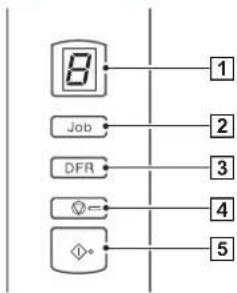
Operating Panel
flowchart
graph TD
    A["8"] --> B["1"]
    C["Job"] --> D["2"]
    E["DFR"] --> F["3"]
    G["∅="] --> H["4"]
    I["∅•"] --> J["5"]
①Job No. Indicator
This displays the number of the job selected with the operating panel, errors, and other information.
②Job Select Button
This selects registered jobs. Every time the button is pressed, the Job No. displayed in the Job No. Indicator changes.
3DFR (Double Feed Release) Button
This is lit when a document double feed is detected. Pressing this button cancels the double feed detection function, allowing you to continue scanning.
4 Stop Button
This stops active jobs.
5 Start Button
This executes the job displayed in the Job No. Indicator.
Displayed Error Codes
When a scanning error occurs, the following error codes are displayed in the Job No. Indicator.
[ : displayed when the upper unit is open.
p : displayed when a paper jam is detected.
d : displayed when a double feed is detected while scanning.
: displayed when a skewed document is detected.
E : displayed for other errors.
Other Displays
When the straight path tray is opened or closed, the eject method is displayed in the Job No. Indicator.
- : flashes during straight path mode.
]: animates during U-turn path mode.
Basic Operation
Documents
The scanner can scan documents ranging in size from business cards to LTR/A4. The document sizes that this scanner can scan are shown below.
Plain Paper
Size
Width: 50.8 mm to 216 mm (2" to 8.5")
Length: 54 mm to 356 mm (2.12" to 14") (You can scan documents up to 3,000 mm (118.1") long by setting the scanner to the Long Document mode.)
Paper thickness
Straight path: 27 to 255 g/m ^2 (7 to 68 lb bond) 0.04 mm to 0.3 mm (0.00157" to 0.0118")
U-turn path: 27 to 128 g/m ^2 (7 to 34 lb bond) 0.04 mm to 0.15 mm (0.00157" to 0.0075")
Loading capacity
A4 size or smaller: 50 sheets
Larger than A4 size: 40 sheets
IMPORTANT
The documents to be scanned must satisfy certain criteria. Read the following items carefully.
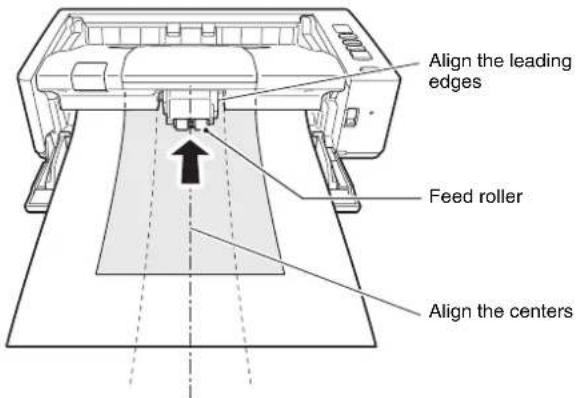
- When scanning multiple documents of different sizes, place the documents so that they cover the entire span of the feed rollers by aligning the centers and leading edges of the documents.
text_image
Align the leading edges Feed roller Align the centers- It is recommended that documents exceeding 356 mm (14") size are fed one sheet at a time.
- Scanning documents before the ink is dry can cause problems with the scanner. Always make sure that the ink on a document is dry before scanning it.
- Scanning documents that are written in pencil or similar material may make the rollers and scanning glass dirty, which can lead to smudges on the scanned image and transfer the dirt to subsequent documents. Always clean the internal parts of the scanner after scanning such documents.
- When scanning a two-sided document that is printed on thin paper, the image on the opposite side of each page may show through. In this case, adjust the scanning intensity in the application software before scanning the document.
- Laminated documents may not be scanned correctly, depending on the document.
- It is recommended that thin documents be fed one page at a time.
- Scanning the following types of documents can cause a paper jam or malfunction. To scan such a document, make a photocopy of the document and then scan the photocopy.

There are creases or fold lines.

Carbon paper

There are curls. The sur

coated.

There are tears.

Extremely thin document such as semi-transparent thin paper.

There are clips or staples.

Documents with excessive paper dust particles.
Business Card
Size: 50 mm x 85 mm (1.97" x 3.35") or larger
Paper thickness: 380 g/m ^2 (80 lb bond) 0.45 mm (0.0177") or larger
Orientation: Vertical feeding only
Eject method: Straight path only
IMPORTANT
If a stack of business cards cannot be fed properly, reduce the number of cards in the stack.
Card (plastic)
Size: 54 mm x 86 mm (2.12" x 3.37") (ISO standard)
Card thickness: 0.76 mm (0.03") or less, 1.4 mm (0.055") or less for the embossment
Orientation: Vertical or horizontal feeding (only vertical for embossed cards)
Eject method: Straight path only
Loading capacity: 3 cards (non-embossed), 1 card (embossed)
CAUTION
- Use the straight path when scanning cards.
- Embossed cards may not be able to be scanned correctly, depending on the type of embossment.
How to Place Documents
Switching the Feed and Eject Methods
Switch the feed and eject methods based on the type of document you are scanning.
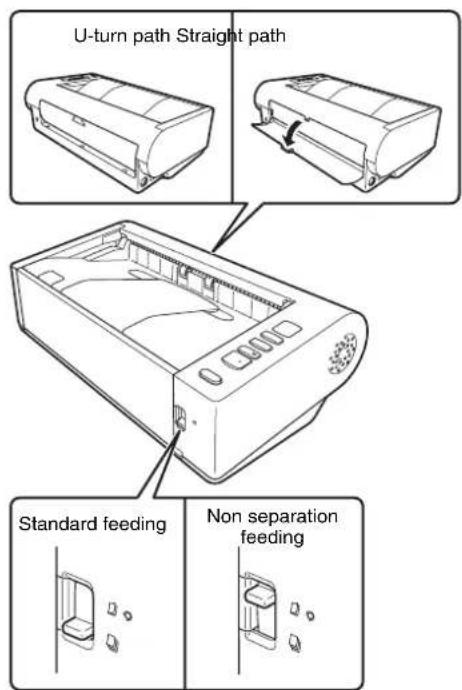
The U-turn path is used when the straight path tray at the rear of the scanner is closed, and the straight path is used when it is opened.
text_image
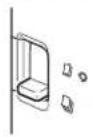
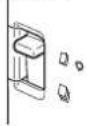
U-turn path Straight path Standard feeding Non separation feedingStandard feeding is used when the feed selection lever at the front of the scanner is lowered, and non separation feeding is used when it is raised.
Standard feeding is used to feed documents one page at a time. Non separation feeding is used to feed bound or fastened multi-page documents or folded documents without separating them.
Feed and Eject Methods for Different Document Types
| Document type | Feed method | Eject method | Remarks |
| Plain paper Either | Either | ||
| Business cards Either | Either | Straight path | Place cards vertically. |
| Plastic cards Either | Straight path | Embossed cards must be placed vertically one card at a time. Up to three non-embossed cards can be placed at one time (either vertically or horizontally). | |
| Thick paper Either | Straight path | ||
| Thin paper Either | Either | ||
| Bound or fastened paper (e.g., invoices) | Non separation feeding | Either | |
| Long documents | Non separation feeding | Either | |
| Half-folded paper | Non separation feeding | Either |

When scanning documents that contain both plain paper and plastic cards, place the cards at the top and use the straight path.
Placing Documents
1 Switch the feed method based on the type of document you are scanning.
When scanning plain paper or business cards, set the feed selection lever to the standard feeding position (lower position).
The pages of a multi-page document will be separated and fed one page at a time.
When scanning plastic cards or bound or fastened paper (e.g., invoices), set the feed selection lever to the non separation feeding position (upper position). As documents are scanned without page separation, place the documents one page at a time (one set in the case of bound or fastened paper).
For details on the feed methods for each document type, see p. 25.

natural_image
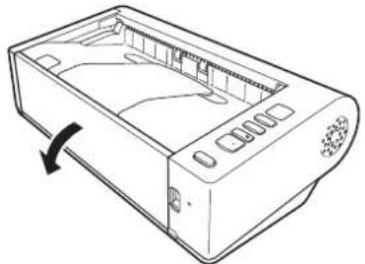
Line drawing of a computer case with internal components and an inset view showing internal compartments (no text or symbols)2 Open the document feed tray.
natural_image
Line drawing of a rectangular electronic device casing with control panel and scroll wheel (no text or symbols)3 Switch the eject method based on the type of document you are scanning.
Ordinarily, you should scan with the straight path tray at the rear of the scanner closed (U-turn path).
When scanning business cards, plastic cards, or other documents you do not want to bend, open the straight path tray (straight path).
For details on the eject methods for each document type, see p. 25.
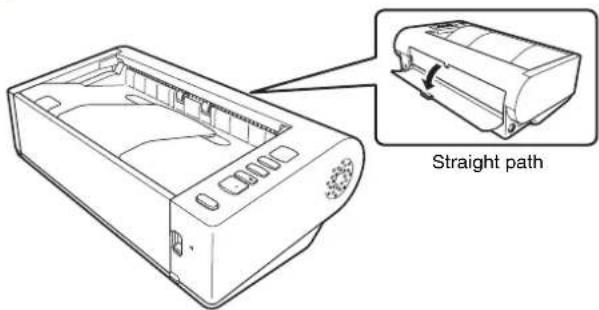
text_image
Straight path4 If you are scanning long documents with the U-turn path, open the document eject extension support.
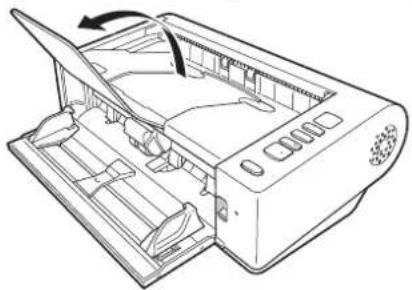
natural_image
Technical line drawing of a mechanical device with internal compartments and a directional arrow indicating rotation (no text or symbols)5 Adjust the document guides to fit the width of the document to be scanned.

natural_image
Technical line drawing of a mechanical device with internal components and directional arrows indicating movement (no text or symbols)6 Place the document.
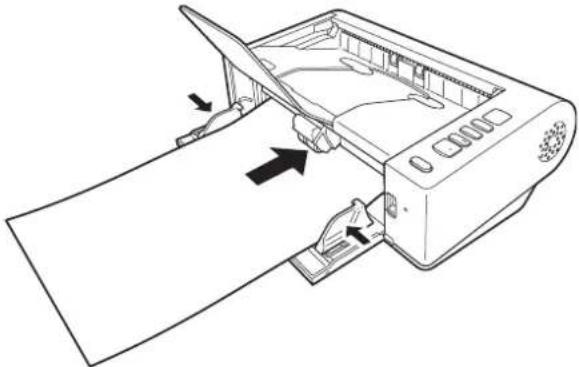
natural_image
Line drawing of a printer's front panel with arrows indicating parts, no text or symbols presentAfter placing the document, align the document guides with both edges of the document.
IMPORTANT
- When placing documents into the feed tray, take care not to cut your hand on the edges of the paper.
-
Make sure that the document does not exceed the loading limit marks (on the document guides. Up to 50 pages of ordinary plain paper (80g / m^2) can be loaded at the same time.
-
Before you place a document, check to make sure it does not contain paper clips, staples, or other small metal objects. These items may cause a fire or electrical shock, damage the document, or cause a paper jam or scanner malfunction.
- Do not wear loose clothing or jewelry that may get caught in the scanner while you are using it, as this may result in personal injury. Be extra careful of neckties and long hair. If anything gets caught in the scanner, immediately turn OFF the power switch, and disconnect the power cord from the power outlet to stop scanning.
- Always smooth out any folds or curls in your documents before placing them into the feeder. If the leading edge of a document is curled, it may cause a paper jam.
- If feeding stops due to a system error or paper jam while the scanner is scanning, resolve the problem, make sure that the scanned image of the last page that was successfully fed has been stored, and then resume scanning the remaining document pages
- After you finish scanning, close the document feed tray, document eject extension support, and straight path tray to prevent damage to the scanner while it is not being used.
- When scanning multi-page documents that are fastened together (e.g., invoices), place the document so that the fastened edge is toward the feed tray.
- Be careful when scanning paper that is longer than A4 or letter (LTR) size or thin paper, as the documents may fall off of the eject tray after scanning.
- When using the straight path, documents will be ejected from the rear of the scanner. Do not place any obstructions near the document eject outlet. To ensure that the documents are ejected smoothly, make sure that the scanner is placed on a smooth, flat surface.

natural_image
Line drawing of a printer internal structure with visible ports and casing (no text or symbols)Placing Cards
1 Set the feed selection lever to the standard feeding position (lower position).
2 Open the document feed tray.
3 Open the straight path tray.

CAUTION
Open the straight path tray when scanning cards. Scanning with the U-turn path may damage the card.
4 Adjust the document guides to fit the width of the card to be scanned.
5 Place the card.
Up to three non-embossed cards can be placed vertically or horizontally at one time. Embossed cards must be placed one at a time and vertically.
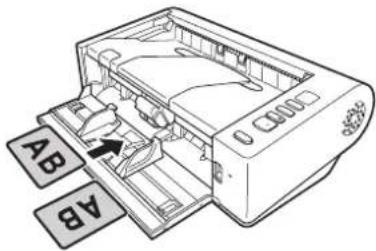
text_image
AB AB
CAUTION
- Use the straight path when scanning cards.
- Embossed or laminated cards may not be scanned correctly, depending on the card.
- Ultrasonic double feed detection will not function properly when scanning cards. Clear the [Delect by Ultrasonic] check box in the [Feeding] tab.
Placing Folded Documents
Folio Scan enables you to scan documents that are larger than LTR/A4 and therefore do not fit in the feeder. To use the function, fold the document in half lengthwise and place it into the feeder. The DR-M140 will scan both sides and combine the scanned images into a single image.
1 Set the feed selection lever to the non separation feeding position (upper position).
2 Open the document feed tray.
3 Fold the document in half.
Crease the document firmly down its center to fold the document in half. Fold the document so that its edges are neatly aligned. If the document is not folded properly, paper jams may occur or distortions may appear in the combined scanned image.

IMPORTANT
A portion of the scanned image will be missing at the fold line.

Place the document with the folded edge facing right and the top edge facing downward.
After placing the document, align the document guides with both edges of the document.

text_image
Front Back
IMPORTANT
Adjust the document guides to fit the width of the document. Otherwise, the image may scan as skewed or shifted.

Hint
- The front side of the folded document will appear on the left side of the combined image.
- The maximum size for the combined image is A2. Use this method to scan A2-sized documents. When scanning a folded document of a size other than the standard formats, set [Page Size] on the scanner driver settings screen to [Match original size]. (See p. 45)
Setting the Long Document Mode
The length of documents that can be scanned with the scanner is normally 356 mm (14"), but you can scan documents up to 3,000 mm (118.1") long by setting the scanner to the Long Document mode.

IMPORTANT
By selecting the Long Document mode and setting the [Paper Size] in the scanner driver settings screen to auto-detection, documents of up to 3,000 mm (118.1") (2,700 mm (106.3") with 600 dpi) in length can be scanned. Note the following when using the Long Document mode:
- When scanning in the Long Document mode, if the document is placed on the scanner in a skewed position, it may hit the edges of the feeding area and be damaged. Be careful to place the document so that it is not skewed.
- When scanning with the Long Document mode, paper jam detection may react slowly, resulting in damage to the document. Be careful to avoid paper jams.
- When scanning long documents, make sure to set the feed selection lever to "non separation feeding mode," and scan the documents one page at a time.
- When scanning large-sized documents with the Long Document mode, scanning may be slower. Errors also occur due to memory shortage, and scanning may be disabled.
- Be careful when scanning paper that is longer than A4 or letter (LTR) size or thin paper, as the documents may fall off of the eject tray after scanning.

IMPORTANT
Log on to Windows as an Administrator.
Windows
1 Click the Start button, and then click [All Programs], [Canon DR-M140], and [Canon imageFORMULA Utility]. imageFORMULA Utility starts.
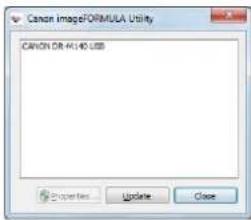
text_image
Canon ImageFORMULA Utility CANON DR 44140 USB
Hint
In Windows 8.1/8, it is registered at the following location.
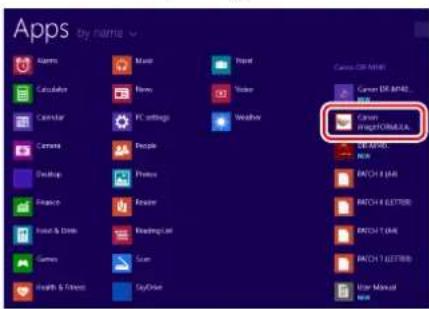
text_image
Apps By name Actions Maps Forest Canvas OR MATH Canon OR MATH Canon Canon Canon OR MATH Canon OR MATH Canon OR MATH Canon OR MATH Canon OR MATH Canon OR MATH Canon OR MATH Canon OR MATH Canon OR MATH Canon OR MATH Canon OR MATH Canon OR MATH Canon OR MATH Canon OR MATH Canon OR MATH Canon OR MATH Canon OR MATH Canon OR MATH Canon OR MATH Canon OR MATH Canon OR MTH Canon OR MATH Canon OR MATH Canon OR MATH Canon OR MATH Canon OR MATH Canon OR MATH Canon OR MATH Canon OR MATH Canon OR MATH Canon OR MATH Canon OR MATH Canon OR MATH Canon OR MATH Canon OR MATH Canon OR MATH Canon OR MATH Canon OR MATH Canon OR MATH Canon OR MATH Canon OR MPATH Canon OR MATH Canon OR MATH Canon OR MATH Canon OR MATH Canon OR MATH Canon OR MATH Canon OR MATH Canon OR MATH Canon OR MATH Canon OR MATH Canon OR MATH Canon OR MATH Canon OR MATH Canon OR MATH Canon OR MATH Canon OR MATH Canon OR MATH Canon OR MATH Canon OR MATH Canon OR METH Canon OR MATH Canon OR MATH Canon OR MATH Canon OR MATH Canon OR MATH Canon OR MATH Canon OR MATH Canon OR MATH Canon OR MATH Canon OR MATH Canon OR MATH Canon OR MATH Canon OR MATH Canon OR MATH Canon OR MATH Canon OR MATH Canon OR MATH Canon OR MATH Canon OR MATH Canon OR MOTH Canon OR MATH Canon OR MATH Canon OR MATH Canon OR MATH Canon OR MATH Canon OR MATH Canon OR MATH Canon OR MATH Canon OR MATH Canon OR MATH Canon OR MATH Canon OR MATH Canon OR MATH Canon OR MATH Canon OR MATH Canon OR MATH Canon OR MATH Canon OR MATH Canon OR MATH Canon OR MATMUSMUSMUSMUSMUSMUSMUSMUSMUSMUSMUSMUSMUSMUSMUSMUSMUSMUSMUSMUSMUSMUSMUSMUSMUSMUSMUSMUSMUSMUSMUSMUSMUSMUSMUSMUSMUSMUSMUSMUSMUSMUSMUSMUSMUSMUSMUSMUSMUSMUSMUSEMUSMUSEMUSEMUSEMUSEMUSEMUSEMUSEMUSEMUSEMUSEMUSEMUSEMUSEMUSEMUSEMUSEMUSEMUSEMUSEMUSEMUSEMUSEMUSEMUSEMUSEMUSEMUSEMUSEMUSEMUSEMUSEMUSEMUSEMUSEMUSEMUSEMUSEMUSEMUSEMUSEMUSEMUSEMUSEMUSEMUSEMUSEMUSEMUSEMUSEMUSEMusemusemusemusemusemusemusemusemusemusemusemusemusemusemusemusemusemusemusemusemusemusemusemusemusemusemusemusemusemusemusemusemusemusemusemusemusemusemusemusemusemusemusemusemusemusemusemusemusemusemusenusemusemusemusemusemusemusemusemusemusemusemusemusemusemusemusemusemusemusemusemusemusemusemusemusemusemusemusemusemusemusemusemusemusemusemusemusemusemusemusemusemusemusemusemusemusemusemusemusemusemmusemmusemmusemmusemmusemmusemmusemmusemmusemmusemmusemmusemmusemmusemmusemmusemmusemmusemmusemmusemmusemmusemmusemmusemmusemmusemmusemmusemmusemmusemmusemmusemmusemmusemmusemmusemmusemmusemmusemmusemmusemmusemmusemmusemmusemmusemmusemmusemmusemmusemsuremmusrmsemmusrmsemmusrmsemmusrmsemmusrmsemmusrmsemmusrmsemmusrmsemmusrmsemmusrmsemmusrmsemmusrmsemmusrmsemmusrmsemmusrmsemmusrmsemmusrmsemmusrmsemmusrmsemmusrmsemmusrmsemmusrmsemmusrmsemmusrmsemmusrmsemmusrmasemmusrmsemmusrmsemmusrmsemmusrmsemmusrmsemmusrmsemmusrmsemmusrmsemmusrmsemmusrmsemmusrmsemmusrmsemmusrmsemmusrmsemmusrmsemmusrmsemmusrmsemmusrmsemmusrmsemmusrmsemmusrmsemmusrmsemmusrmsemmusrmsemmusrmscssssssssssssssssssssssssssssssssssssssssssssssssssssssssssssssssssssssssssssssssssssssssssssssssssssssssssssssssssssssssssssssssssssssssssssssssssssssssssssssssssssssssssssssssssssssssssssssssssssssssccnsrrnnrrnnrrnnrrnnrrnnrrnnrrnnrrnnrrnnrrnnrrnnrrnnrrnnrrnnrrnnrrnnrrnnrrnnrrnnrrnnrrnnrrnnrrnnrrnnrrnnrrnnrrnnrrnnrrnnrrnnrrnnrrnnrrnnrrnnrrnnrrnnrrnnrrnnrrnnrrnnrrnnrrnnrrnnrrnnrrnnrrnnrrnnrrnnrrnnrrnnrrnncnncnncnncnncnncnncnncnncnncnncnncnncnncnncnncnncnncnncnncnncnncnncnncnncnncnncnncnncnncnncnncnncnncnncnncnncnncnncnncnncnncnncnncnncnncnncnncnncnncn nccnccnccnccnccnccnccnccnccnccnccnccnccnccnccnccnccnccnccnccnccnccnccnccnccnccnccnccnccnccnccnccnccnccnccnccnccnccnccnccnccnccnccnccnccnccnccnccnccnccnccnfccccccccccccccccccccccccccccccccccccccccccccccccccccccccccccccccccccccccccccccccccccccccccccccccccccccccccccccccccccccccccccccccccccccccccccccccccccccccccccccccccccccccccccccccccccccccccccccccccccccccccccccccccccccccccccccccccccccccccccccccccccccccccccccccccccccccccccccccccccccccccccccccccccccccccccccccccccccccccccccccccccccccccccccccccccccccccccccccccccccccccccccccccccccccccccccccccccccccccccccccccc2 Click [CANON DR-M140 USB] and click [Properties]. Scanner properties are displayed.

text_image
CANON DR-M140 USB Properties Events Maintenance Scanner events CaptureOnTouch Send to the application CapturePerfect 3.1 DR-M140 CaptureOnTouch Disable device events OK Cancel Help3 Click the [Maintenance] tab, and then select a Long Document mode. Select [Long Document Mode (1000 mm)] or [Long Document Mode (3000 mm)] depending on the length of the document.
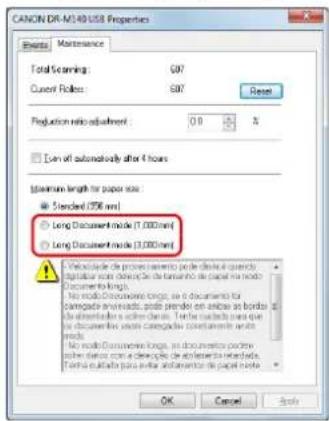
text_image
CANON DR-M240 USB Properties Events Maintenance Total Scanning: 607 Current Radius: 607 Reset Production ratio adjustment: 0.0 % □ Can off automatically after 4 hours Maximum length for paper size: Standard (250 mm) ○ Long Document mode (1,000mm) ○ Long Document mode (3,000mm) ● Selective de-proces parapos de diereletral quiesetra digital or more depicting De la ferreando de papal no modo Document to long. No mode Documento longo, no documents for comagador inwardsado, pode prender en abbas as bordo de alimentadora o soleniera. Tener suclada para que de documentar acuta categorista e conlamento seles mend. No mode Documento longo, no documents poder soi diorio con a descriplo de adlerer la terreda. Tener suclada para adlerar a distribuero de papal mode. OK Cancel Apply4 Click [OK].
Mac
1 Opens the scanner driver's Detail Settings screen. (See p. 46)
2 Click to display the [Scanner Information] dialog box. The [Scanner Information] dialog box appears.
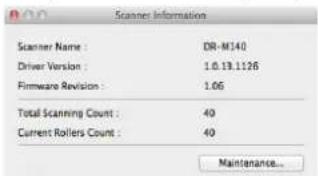
text_image
Scanner Information Scanner Name : DR-M140 Driver Version : 1.0.13.1126 Firmware Revision : 1.06 Total Scanning Count : 40 Current Rollers Count : 40 Maintenance...3 Click [Maintenance]. The [Maintenance] dialog box appears.
4 Select [Long Document mode (1,000 mm)] or [Long Document mode (3,000 mm)] depending on the length of the document.

text_image
Current Rollers Count : 5345 Reduction ratio adjustment : 0.0 % Maximum length for paper size : Long Document mode (1,000 mm) Long Document mode (3,000 mm) - Processing speed may decrease when scanning with paper size detection set to Long Document mode. - In Long Document mode, if a document is loaded into the scanner asleep, it may catch on both edges of the feeder and suffer damage. Make sure to take extra care that documents are loaded straight in this mode. - In Long Document mode, documents may suffer damage because paper jam detection is delayed. Make sure to take extra care against paper jams in this mode.5 Click to close the dialog box.
Detecting a document double feed
This scanner includes a function to detect document double feeds. By using this function, the scanner will automatically stop when it detects that multiple documents have been fed at the same time. You can also specify whether to save the scanned image after scanning has finished and continue scanning the document (double feed detection ignore function).
To use the double feed detection function, you must first open the scanner driver settings screen and enable double feed detection. It is also necessary to set [Rapid recovery system] to use the double feed detection ignore function.
Setting procedure
1 Sets the scanning conditions.

2 Place the document as described in the "Placing Documents" procedure on p. 26.
Windows
1 Opens the scanner driver's Detail Settings screen. (See p. 56)
2 Click the [Feeding] tab.
3 Select either the [Detect by Length] or the [Detect by Ultrasonic] check box (or both).

text_image
Canon D/8 M140 on STI - 0006 Use Preference Basic Bestness Image processing Fending Others Disin Ford Detection: ✓ Detect by Length ✓ Detect by (Inference) Settings Feeding Option: Standard Feeding ✓ Stag Detection OK Cancel Default Help4 To use the double feed detection ignore function, open the [Others] tab and select the [Rapid recovery system] check box.
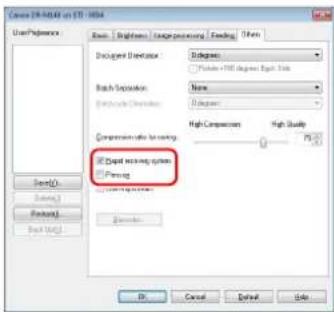
text_image
Cerex 29-40.001 on STI-1004 User Preferences Begin: [ ] [ ] [ ] [ ] [ ] [ ] [ ] [ ] [ ] [ ] [ ] [ ] [ ] [ ] [ ] [ ] [ ] [ ] [ ] [ ] [ ] [ ] [ ] [ ] [ ] [ ] [ ] [ ] [ ] [ ] [ ] [ ] [ ] [ ] [ ] [ ] [ ] [ ] [ ] [ ] [ ] [ ] [ ] [ ] [ ] [ ] [ ] [ ] [ ] [ ] [ ] Disagree/ Disagree: Disagree: Delete/ Delete/ Delete/ Delete/ Delete/ Delete/ Delete/ Delete/ Delete/ Delete/ Delete/ Delete/ Delete/ Delete/ Delete/ Delete/ Delete/ Delete/ Delete/ Delete/ Delete/ Delete/ Delete/ Delete/ Delete/ Delete/ Delete/ Delete/ Delete/ Delete/ Delete/ Delete/ Delete/ Delete/ Delete/ Delete/ Delete/ Delete/ Delete/ Delete/ Delete/ Delete/ Delete/ Delete/ Delete/ Delete/ Delete/ Delete/ Delete/ Delete/ Delete/ Batch Selection: [ ] Name: [ ] Delta Range: [ ] Delta Range: [ ] Delta Range: [ ] Delta Range: [ ] Delta Range: [ ] Delta Range: [ ] Delta Range: [ ] Delta Range: [ ] Delta Range: [ ] Delta Range: [ ] Delta Range: [ ] Delta Range: [ ] Delta Range: [ ] Delta Range: [ ] Delta Range: [ ] Delta Range: [ ] Delta Range: [ ] [ ] [ ] [ ] [ ] [ ] [ ] [ ] [ ] [ ] [ ] [ ] [ ] [ ] [ ] [ ] [ ] [ ] [ ] [ ] [ ] [ ] [ ] [ ] [ ] [ ] [ ] [ ] [ ] [ ] [ ] [ ] [ ] [ ] [ ] [ ] [ ] [ ] [ ] [ ] [ ] [ ] [ ] [ ] [ ] [ ] [ ] [ ] [ ] [ ] [ ],5 Click the [OK] button and close the settings screen.
Mac
1 Opens the scanner driver's Detail Settings screen. (See p. 46)
2 Select the [Double Feed Detection] check box, and then select any one of [Detect by Ultrasonic], [Detect by Length], and [Detect by Ultrasonic and Length].
3 Click the [More] button when the Double Feed Detection Ignore function is also used.
The scanner driver's Detail Settings screen opens.
4 Select the [Rapid recovery system] check box.
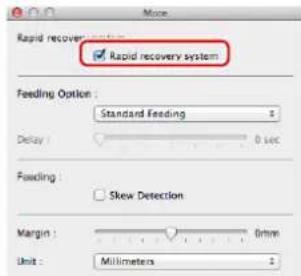
text_image
Rapid recovery system ✓ Rapid recovery system Feeding Option: Standard Feeding Delay: 0 sec Fwding: Skew Detection Margin: 0ms Unit: Millimeters5 Click to close the dialog box.
What to do when a double feed is detected
When not using the double feed detection ignore function
If a document double feed is detected during scanning, document feeding stops when the double fed documents are ejected. When this happens, the following error code is displayed in the Job No. Indicator of the operating panel.
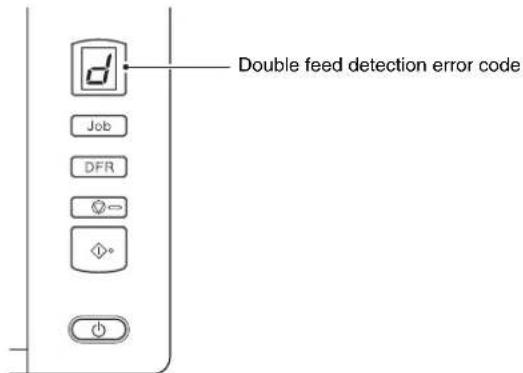
text_image
Double feed detection error code Job DFR ← ◇•Also, a message screen is displayed to notify you that a double feed has been detected.
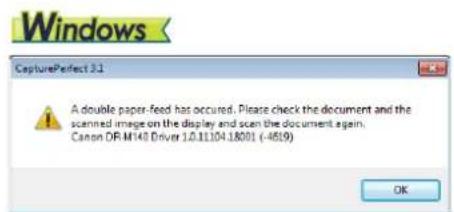
text_image
Windows CapturePerfect 3.1 A double paper-feed has occurred. Please check the document and the scanned image on the display and scan the document again. Canon DR M140 Driver 1.0.11104.18001 (-4619) OK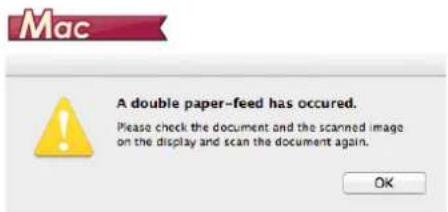
text_image
Mac A double paper-feed has occurred. Please check the document and the scanned image on the display and scan the document again. OKWhen this happens, stop the scanning in the application and then scan the documents again.
When using the double feed detection ignore function
If a document double feed is detected during scanning, document feeding stops when the double fed documents are ejected. The following error code is displayed in the Job No. Indicator of the operating panel, and the DFR button lights.

text_image
Double feed detection error code Job DFRAlso, the [Rapid Recovery System] screen appears to enable you to specify whether to continue scanning.
Windows
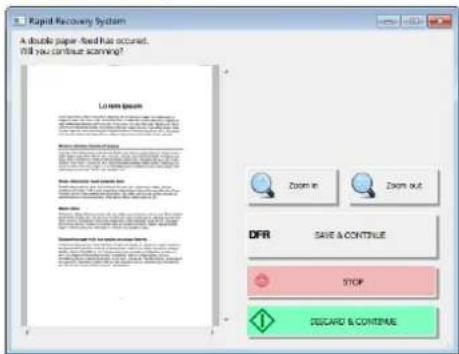
text_image
Rapid Recovery System A double paper feed has occurred. Will you continue scanning? Loam Open DOFR SAVE & CONTINUE STOP DESCARD & CONTINUE| Buttons of [Rapid Recovery System] Screen | Buttons of Operating Panel | Description |
| [SAVE & CONTINUE] | DFR button | Saves the preview image as a scanned image and scans the rest of the document. |
| [STOP] Stop button | Discards the preview image and stops scanning. | |
| [DISCARD & CONTINUE] | Start button | Discards the preview image and continues scanning. Place the double fed document again before clicking this button. |
Mac
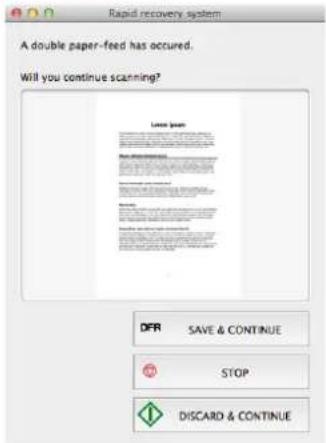
text_image
Rapid recovery system A double paper-feed has occurred. Will you continue scanning? Lower page Save & Continue Stop DISCARD & CONTINUEDetecting Skewed Documents
This scanner includes a function that can detect when a document has been fed at a slant. When this function is used, the scanner will stop a scanning operation automatically when it detects a skewed document that exceeds a fixed angle, thereby preventing damage to the document. In addition to skewed documents, this function also detects stapled documents.
This function is useful for documents that are 170 mm (6.7") or larger in width.
To use the skew detection function, open the scanner driver settings screen and enable the skew detection function beforehand.
Setting procedure
Windows
1 Opens the scanner driver's Detail Settings screen. (See p. 56)
2 Click the [Feeding] tab.
3 Select the [Skew Detection] check box.

text_image
Canon DK-M140 engine STL-0007 User Preference: Basic Graphics Image processing Feeding Others Double Feed Detection: ✓ Defer by Length ✓ Defer by Ultrasonic Setting... Feeding Option: Standard Feeding Save/Dash Delete/1 Restore/1 Back Unit/0 ✓ Save Detection OK Cancel Default Help4 Click the [OK] button to close the settings screen.
5 Place the document as described in "Placing Documents" (see p. 26).
IMPORTANT
When this function is enabled, small documents and documents that have been placed to the left or right of the center of the feed inlet may be detected as skewed, and the scanning operation may stop. Place documents in the center of the feed inlet, or disable the skew detection function.
Mac
1 Opens the scanner driver's Detail Settings screen. (See p. 46)
2 Click [More], and when a dialog box opens, select the [Skew Detection] check box.
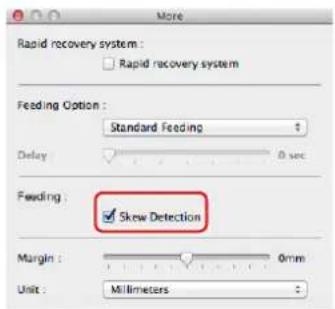
text_image
Rapid recovery system : Rapid recovery system Feeding Option : Standard Feeding Delay 0 sec Feeding : ✓ Skew Detection Margin : 0mm Unit : Millimeters3 Click to close the dialog box.
4 Place the document as described in "Placing Documents" (see p. 26)
IMPORTANT
When this function is enabled, small documents and documents that have been placed to the left or right of the center of the feed inlet may be detected as skewed, and the scanning operation may stop. Place documents in the center of the feed inlet, or disable the skew detection function.
When a skewed document is detected
Feeding automatically stops when a skewed document is detected during scanning. The following error code is also displayed in the Job No. Indicator of the operating panel.

text_image
Skew detection error code Job DFR ②= ①*Also, a message screen is displayed to notify you that a skewed document has been detected.
Windows
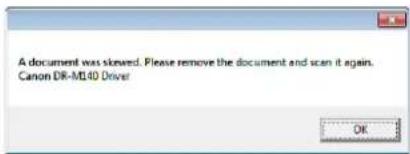
text_image
A document was skewed. Please remove the document and scan it again. Canon DR-M340 DriverMac
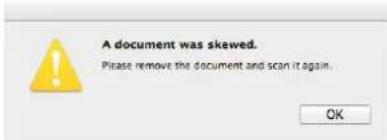
text_image
A document was skewed. Please remove the document and scan it again.Hint
If [Rapid recovery system] is enabled in the [Others] tab of the scanner driver settings screen, the following screen appears instead of the above message screen. In such cases, reload the document and click [Yes] to continue scanning.
Windows
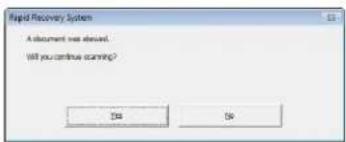
text_image
Rapid Recovery System A document has issued. Will you continue scanning? OK NoMac

text_image
Rapid recovery system A document was skewed. Will you continue scanning? No YesScanning methods
Scanning with CaptureOnTouch
What is CaptureOnTouch?
CaptureOnTouch is a scanning application that allows you to scan a document with a simple operation by following the instructions on the screen.

flowchart
graph TD
    A["Save to folder\nSave the file to a specified folder."] --> B["(Network)"]
    C["Print\nPrint with a specified printer."] --> D["Send to application\nOpen the scanned image file in a specified application."]
    E["Scanner"] --> F["Attach to E-mail\nStart the e-mail application and attach the scanned image file to new e-mail"]
    F --> G["Computer icon"]
CaptureOnTouch is provided with multiple scanning methods that can be selected according to the purpose and application.
Scan First
Scan a document and then select the output method. This method allows you to easily scan a document by just following the instructions on the screen.
Select Scan Job
Register scanning settings from the scanning conditions to the output method as jobs, and then scan a document by just selecting the job that suits your purpose. This method is convenient when you want to repeat scanning using a set procedure.
Operating the scanner with the operating panel buttons
You can start scanning by selecting a job from the scanner's operating panel.
Format for saving image files
Excluding times when [Print] is selected as the output method, you can specify any of the following file formats for scanned images.
Windows
- PDF format
- TIFF format
- JPEG format
- BMP format
- PPTX format (file format for Microsoft PowerPoint 2007 and later)
Mac
- PDF format
- TIFF format
- JPEG format
Starting and Exiting CaptureOnTouch
By default, CaptureOnTouch becomes resident in the system when you start your computer.
Windows

Double-click (CaptureOnTouch icon) in the taskbar to start CaptureOnTouch and display the main window.

Hint
- You can also start CaptureOnTouch from the Start menu. Click [Start] - [All Programs] - [Canon DR-M140] - [DR-M140 CaptureOnTouch].
- When [Make CaptureOnTouch resident] is turned on by using the [Basic settings] tab on the [Environmental settings], this shortens the time from pressing the scanner start button to the start of scanning. For details, see "Environmental Settings" on p. 50.
Mac

Click ⬆ (CaptureOnTouch icon) in the menu bar and then click [Launch CaptureOnTouch] from the menu which appears to start CaptureOnTouch and display the main window.

Hint
- When [Make CaptureOnTouch resident] is turned on by using the [Basic settings] tab on the [Environmental settings], this shortens the time from pressing the scanner start button to the start of scanning. For details, see "Environmental Settings" on p. 52.
Exiting CaptureOnTouch
Windows
Click at the top of the window to close the CaptureOnTouch main window. When doing so, the main window closes but CaptureOnTouch is kept as resident in the system. To stop CaptureOnTouch being resident in the system, click the (CaptureOnTouchiconj in the taskbar, and select [Exit] from the menu.

text_image
E-mail Color PDF Color PDF Scan First Open CaptureOnTouch... Environmental settings... Version Information... Help... Exit 10:17 AM 4/26/2011CaptureOnTouch becomes no longer resident in the system and the icon disappears from the taskbar.
Mac
To close the CaptureOnTouch window, click 🔒 at the top of the window. This closes the window, but CaptureOnTouch will continue to reside in the system. click Ⓧ (CaptureOnTouch icon) in the menu bar, and select [Exit] from the menu.
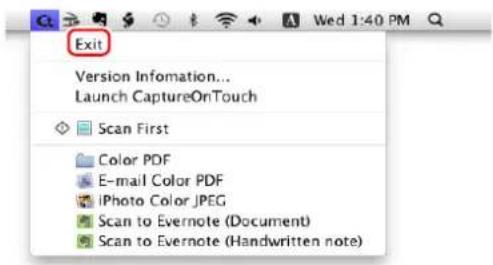
text_image
Exit Version Information... Launch CaptureOnTouch Scan First Color PDF E-mail Color PDF iPhoto Color JPEG Scan to Evernote (Document) Scan to Evernote (Handwritten note)Restarting CaptureOnTouch
To use CaptureOnTouch after it is no longer resident in the system, restart it by following the procedure below. CaptureOnTouch will start and become resident in the system again.
Windows
- Click [Start] – [All Programs] – [Canon DR-M140] – [DR-M140 CaptureOnTouch].

Hint
In Windows 8.1/8, it is registered at the following location.

text_image
Apps by name Alarms Calcinator Calculator Camera Camera Desktop OpenMap Photo Flash Forest & Computer Game Health & Fitness Music Maps PC settings People Photos Avatar Reading List Scan SkyDrive Travel Videos Weather Canon: DR MIKE Canon: DR MIKE NEW Canon: DR MIKE NEW DR MIKE NEW EXCEL 1 (RA) EXCEL 2 (EBTR) EXCEL 3 (BA) EXCEL 4 (ETBR) User Manual WebMac
- Open [GO] - [Applications] folder from the Finder, and double-click [CaptureOnTouch DR-M140].
Scan First
Scan a document and then select the output method. This method allows you to easily scan a document by just following the instructions on the screen.
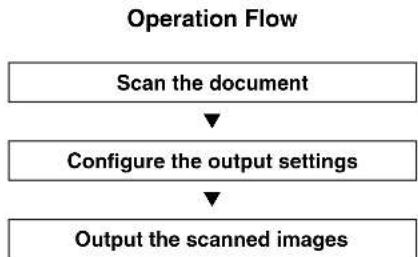
flowchart
graph TD
    A["Scan the document"] --> B["Configure the output settings"]
    B --> C["Output the scanned images"]
1 Place the document in the scanner.
2 Click [Scan First].

text_image
Start First Image FORMULA Start First Image the SIR-FLU in the folder to "Start First" Start First File Path: 0.0000000000000000000000000000000000000000000000000000000000000000000000000000000000000000000000000000 Start First Start First File Path: 1.25x1.25x1.25x1.25x1.25x1.25x1.25x1.25x1.25x1.25x1.25x1.25x1.25x1.25x1.25x1.25x1.25x1.25x1.25x1.25x1.25The top screen of Scan First appears.
3 Set the scan method in the top screen.

text_image
Scan First Assign the job list in the admin to "Scan First" assigned get assigned Enable continuous activities OFF OFF Scan to the full auto mode OFF OFF①Specify whether to enable continuous scanning. When scanning multiple documents as one scanned image or splitting up a large document to scan in parts, select [ON] to enable continuous scanning.
② Specify whether to scan the document in full auto mode. When you want to specify arbitrary scanning conditions, select [OFF] and configure the scanner settings. (See p. 44)
4 Click the Start button.

text_image
ImageFORMULA Search Form Search Form Search Form Search Form Search Form Search Form Search Form Search Form Search Form Search Form Search Form Search Form Search Form Search Form Search Form Search Form Search Form Search Form Search Form Search Form Search Form Search Form Search Form Search Form Search Form Search Form Search Form Search Form Search Form Search Form Search Form Search Form Search Form Search FormThe document is scanned. While scanning is in progress, the number of pages scanned is displayed in addition to the scanner settings.
When scanning is finished, the Output settings screen appears.
IMPORTANT
If you configure scanning conditions that consume a large amount of the computer's memory, scanning may stop because of insufficient memory. If an error message appears due to insufficient memory while scanning is in progress, exit the application, change the scanning conditions, and then try scanning again.
Hint
If a document is scanned when [Enable continuous scanning] is set to [ON], the Continuous Scanning screen (see p. 47) appears when the scanning of the document is finished.
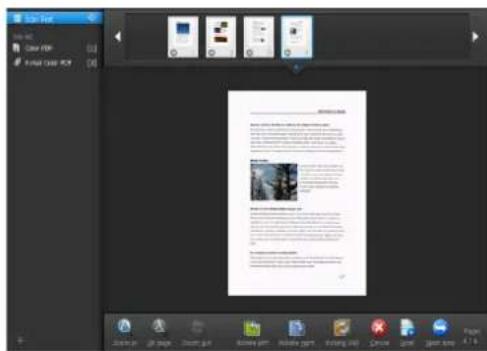
If you place the next document and click [Scan], scanning of the document starts.
When scanning of all the documents is finished, click [Next step].
5
Configure the settings related to output and then output the scanned images.
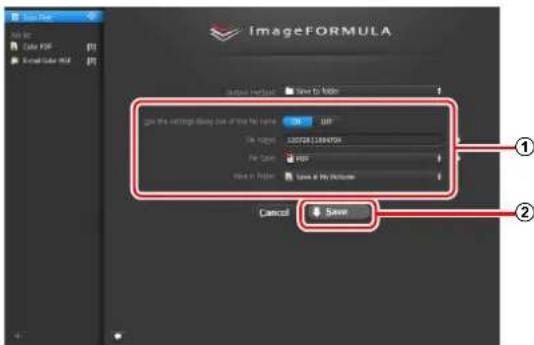
text_image
ImageFORMULA Save to Web Save the settings doing out of the file name: USB File type: JPEG File Color: JPEG Save in Web: Save at the Web sites Cancel Save① Configure the settings related to output. (See p. 48)
②Click this button to output the scanned images. The button name differs for each output method. For example, it is [Save] when the output method is set to [Save to folder].
When output is finished, the complete screen appears. Scan First is now finished.


Hint
- Clicking [Return to top] returns to the main screen of Scan First.
- When output methods apart from [Attach to E-mail] or [Print] are specified, you can click [Open storage folder] to open the folder in which the scanned images were saved.
Select Scan Job
Register scanning settings from the scanning conditions to the output method as jobs, and then scan a document by just selecting the job that suits your purpose. This method is convenient when you want to repeat scanning using a set procedure.
Operation Flow
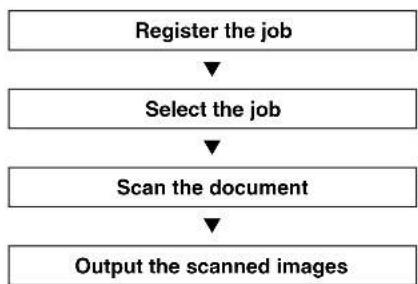
flowchart
graph TD
    A["Register the job"] --> B["Select the job"]
    B --> C["Scan the document"]
    C --> D["Output the scanned images"]
Registering and Editing Jobs
In CaptureOnTouch, up to 9 jobs can be registered for use with Select Scan Job.
1
Click the button.
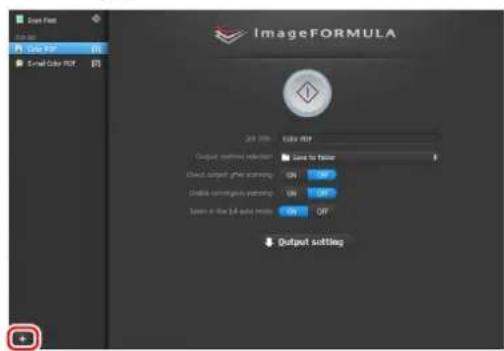
text_image
ImageFORMULA 2nd line: Total RIF Output confirmation selection: Save to filter Direct output if the screen is ON: OFF Disable compression mode: ON: OFF Screen in file (3D audio mode) ON: OFF Output settling2 Enter the job name, and press the Enter key.

text_image
Scan First Data list Color PDF [1] Scan Color Post [2]
Hint
Job numbers up to 9 are added (in numerical order) to the end of the set job name. By specifying the job number with the operating panel, you can start scanning after pressing the operating panel button. (See p. 44)
3 Specify the output method of the job. (See p. 48)

text_image
ImageFORMULA Input: Image Output: Image Show to filter Show to color Show to color Show to color Show to color Show to color Show to color Show to color Show to color Show to color Show to color Show to color Show to color Show to color Show to color Show to color Show to color Show to color Show to color Show to color Show to color Show to color Show to color Show to color Show to color Show to color Show to colorful Show to color Show to color Show to color Show to color Show to color Show to color Show to color Show to color Show to color Show to color Show to color Show to color Show to color Show to color Show to color Show to color Show to color Show to color Show to color Show to color Show to color Show to color Show to color Show to color Show to colored: Show to color: Show to color: Show to color: Show to color: Show to color: Show to color: Show to color: Show to color: Show to color: Show to color: Show to color: Show to color: Show to color: Show to color: Show to color: Show to color: Show to color: Show to color: Show to color: Show to color: Show to color: Show to color: Show to color: Show to color: Show to color: Show to other: Show to other:4 Click [Output settings], and configure the output settings.
The output setting items differ depending on the specified output method. For details on the setting items, see the Help of CaptureOnTouch.
![CANON imageFORMULA DR-M140 - Click [Output settings], and configure the output settings. - 1](/content/2026/06/1236268/images/e07e7886d9df02a2928f25fad83b309d836c38dfbcf4b6e8c51048ea0f657cf8.jpg)
text_image
ImageFORMULA File Path File ID Data PDF File Color PDF Save As PDF 24 Value: Standard PDF Output method solution: Save to factor Check set out after scanning: ON: OFF Improve scanning accuracy: ON: OFF Stake in the last part recovery: ON: OFF Output setting File path: CNT300.1881.144 File region: PDF Save in Hedges: Save to My PropertiesSelecting a Job and Scanning
1 Place the document in the scanner. (See p. 25) The top screen of Select Scan Job appears.
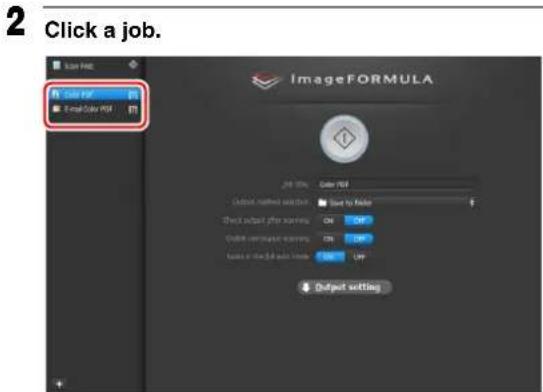
text_image
2 Click a job. ImageFORMULA Color PDF Email Color PDF 24.0% Color PDF Output matches section: Start to Filter Direct output photo viewing ON OFF Direct computer viewing ON OFF Text in the 3.6 audio video ON OFF Output setting
Hint
- If you set [Enable continuous scanning] to [ON], you can continue to scan additional documents after all the pages of the initial document are scanned.
- If you set [Check output after scanning] to [ON], you can check the output settings after scanning.
3 Click the Start button.

text_image
ImageFORMULA Color PDF Input to color PDF Output filter options: View to table View output file colors: 0% Enable color files: Enable color files: Enable color files: Enable color files: Output settingThe document is scanned. While scanning is in progress, the number of pages scanned is displayed in addition to the scanner settings.
When all the pages of the document are scanned, the scanned images are output according to the registered job settings and the complete screen appears.
IMPORTANT
If you configure scanning conditions that consume a large amount of the computer's memory, scanning may stop because of insufficient memory. If an error message appears due to insufficient memory while scanning is in progress, exit the application, change the scanning conditions, and then try scanning again.
Hint
- Clicking [Return to top] returns to the top screen of Select Scan Job.
- When output methods apart from [Attach to E-mail] or [Print] are specified, you can click [Open storage folder] to open the folder in which the scanned images were saved.
When [Enable continuous scanning] is set to [ON]
The Continuous Scanning screen (see p. 47) appears when all the pages of the document are scanned.
If you want to scan another document, place the document in the scanner and then click [Scan].
When scanning of all the documents is finished, click [Next step].
![CANON imageFORMULA DR-M140 - When [Enable continuous scanning] is set to [ON] - 1](/content/2026/06/1236268/images/7799fe35ab8211cbb7a861150d1b3f2a6bd16462d7b148451559219ec3c58f02.jpg)
text_image
Open First File Edit View Help Save PDF Edit Email Color PDF Search to Edit Image Render gult Default Scan Print HelpWhen [Check output after scanning] is set to [ON]
The Output Confirmation screen appears before the scanned images are output.
Change the settings for the output method if necessary and then click the output button. The name of the output button differs for each selected output method.
![CANON imageFORMULA DR-M140 - When [Check output after scanning] is set to [ON] - 1](/content/2026/06/1236268/images/1e6b0e3384e3eb0445c9f56bdb04dae52ea1e32d439c78ce842d07a9226f3645.jpg)
text_image
ImageFORMULA File Path: 0000000000 Save a URL: Save a Web Paths Cancel SaveOperating the scanner with the operating panel buttons
You can start scanning by selecting a job from the scanner's operating panel.
1 Set a job number every time a job is registered with CaptureOnTouch.
2 Place the document in the scanner.
3 Press the Job Select button in the operating panel to display the required job number in the Job No. Indicator. The job numbers of jobs displayed in the operating panel are allocated as follows.
| Job No. Job | |
| 1 Scan First (default / modifiable) | |
| 2 to 9 Jobs registered with CaptureOnTouch. | |
4 Press the Start button in the operating panel.
CaptureOnTouch is launched and the scanning of the selected job starts.

When scanning jobs selected with the operating panel buttons, the CaptureOnTouch main window automatically closes 5 seconds after the output process finishes.
Scanner Settings
By default, CaptureOnTouch scans with scanning conditions that match the document because scanning in full auto mode is enabled. If you want to specify, for example, the scanning mode and document size, you can configure the desired scanning conditions in the scanner settings.
The scanner setting items are common to Scan First and Select Scan Job.
When Scan First:
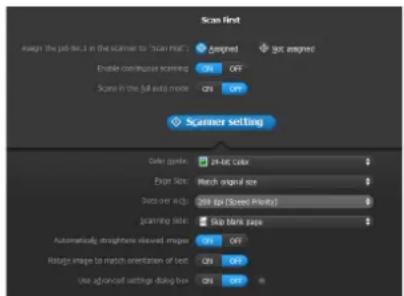
text_image
Scan first Assign the job list in the scanner to "Scan list" EnableView continuous scanning ON OFF Scree in the full auto mode ON OFF Scanner setting Color range: 20-bit color Page size: Match original size Deep over e.g. 350 dpi (Speed Preview) Gamma color: Skip blank page Automatically straight-line swivel images ON OFF Ripple image to match orientation of text ON OFF Use advanced settings dialog box ON OFFFor Scan First, configure the scanner settings before you start scanning.
When Select Scan Job:
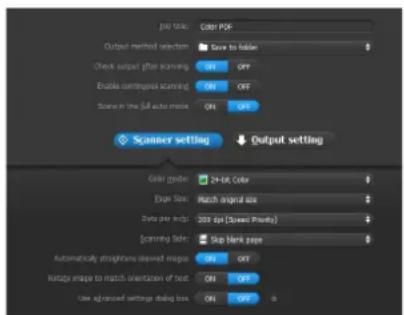
text_image
[p] Total: Color PCR Output method selection: Save to follow Check output after scanning ON OFF Enable continuous scanning ON OFF Scene in the full auto mode ON OFF Scanner setting Output setting Color mode: 24-bit Color [age Size: Match original size] Data per Image: 309 fps (Standard Filter) [carrying Color: Stop Blank type] Automatically smartphones showed image ON OFF Bitmap image to match orientation of text ON OFF Use advanced settings dialog box ON OFFFor Select Scan Job, configure the scanner settings for each job.
Setting Basic Items
Scanner settings include the basic items that are configured in [Scanner Setting], and the setting items that are configured in the advanced settings dialog box. The settings in the advanced settings dialog box are applied for settings other than the basic items. The settings in the driver settings dialog box are applied for any other settings.
Color mode
Select from the following modes for scanning documents.
Detect automatically Detects whether the document is color or gray and then scans.
24-bit Color Scans the document in color.
Grayscale Scans the document in Grayscale.
Black and White Scans the document in black and white (binary).
Page Size
Specify the page size of the document.
If you specify [Match original size], the page size of the scanned document is detected and the images are saved at the detected size.
Dots per inch
Specify the scanning resolution.
When [Detect automatically] is specified, the resolution is detected automatically from the content of the scanned document.
Scanning Side
Specify whether to scan only one side or both sides of a document.
When [Skip blank page] is specified, any blank paged detected within the document is skipped during scanning.
Automatically straightens skewed images
When a document is scanned skewed, the skewed scanned images are detected and then straightened.
Rotate image to match orientation of text
The orientation of text in scanned images is detected, and the images are rotated so that the text is correctly oriented.
Use advanced settings dialog box
Configure scanner settings other than the basic items in the advanced settings dialog box (scanner driver).

To open the scanner driver, click [OFF] for [Scan in Full Auto mode], and then click the [Scanner Setting] button.
Click [ON] for [Use Advanced Settings dialog box] and then click


text_image
Preview Image Overlay Preview Image OverlayWindows
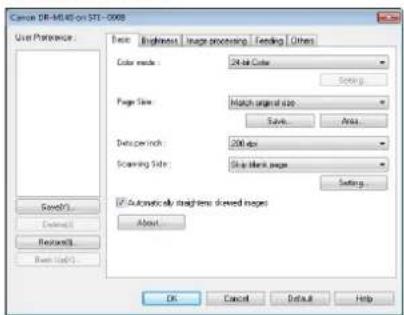
text_image
Canon DR-MU45 on STI - 2008 User Preference: Basic | Image | Image processing | Fending | Others | Color mode: ON-Alt Color Page Size: Match original size Data point: 200 dpi Scanning Size: Drop-off blank pages Options: OK Cancel Default Help Save(S) Delete(D) Refresh(R) Reset (Reset)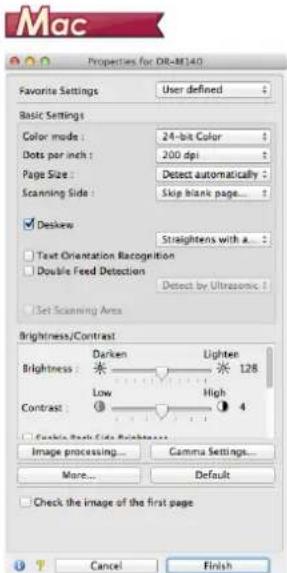
text_image
Mac Properties for DB-M140 Favorite Settings User defined Basic Settings Color mode: 24-bit Color Dots per inch: 200 dpi Page Size: Detect automatically Scanning Side: Skip blank page... Deskew Straightens with a Text Orientation Recognition Double Feed Detection Detect by Ultrasonic Set Scanning Area Brightness/Contrast Brightness: Darken Lighter 128 Contrast: Low High 4 Cable Back Side Brightness Image processing... Gamma Settings... More... Default Check the image of the first page Cancel FinishFor details on the setting items, see the Help of the driver settings dialog box.
Hint
The driver settings dialog box includes setting items that are the same as the basic items in [Scanner Settings], but the setting for each of the them is stored separately. Which settings are used during scanning differs as follows depending on the setting of the [Use advanced settings dialog box] check box.
| Setting of [Use advanced settings dialog box] | Basic items | Other than basic items |
| OFF | Settings of [Scanner Settings] | Settings of the advanced settings dialog box of the scanner driver |
| ON | Settings of the advanced settings dialog box of the scanner driver | |
Operation in Continuous Scanning Screen
If a document is scanned with either Scan First or Select Scan Job when [Enable continuous scanning] is set to [ON] in the Start screen, the Continuous Scanning screen appears when all of the pages of the placed document have been fed. You can confirm the scanned images and then continue scanning.
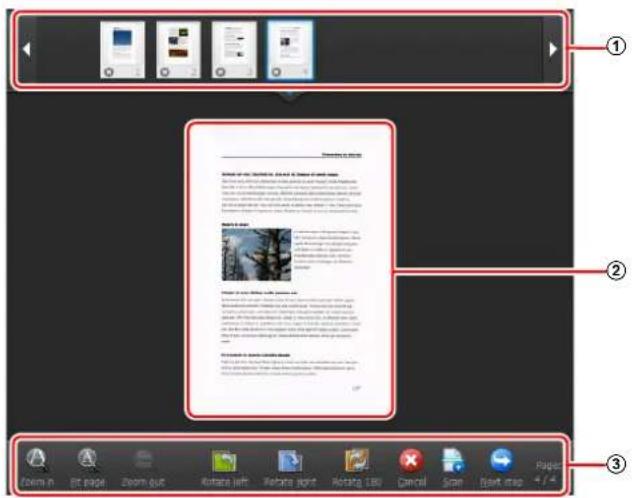
text_image
① ② ③ Zoom in 10 pages Zoom out Rotate left Rebrige spint Rotang 180 Cancel Scan Next map Paper 4 / 4①Thumbnail Display Area
Displays the thumbnail images of the scanned document. The following operations are possible.
Click a thumbnail image to display a preview of that scanned image in the preview area.
Drag thumbnail images to change the positions of pages (Scan First only).
Click on a thumbnail image to delete the scanned image for that page (Scan First only).
②Preview Area
Displays the preview images of the scanned document.
③Preview Controls
Control the preview images and cancel or continue scanning with the following buttons.
| Tools (Name) Description | |
 | (Zoom in) Enlarges the preview image. |
 | (Fit page) |
 | (Zoom out) Reduces the preview image. |
 | (Rotate left) |
 | (Rotate right) |
 | (Rotate 180) |
 | (Cancel) |
 | (Scan) Starts scanning of the next document. |
 | (Next step) |
 | (Page Number / Total Number of Pages) |
Setting the Output Method
CaptureOnTouch is provided with various output methods for processing scanned images.
The output method specification is common to Scan First and Select Scan Job.
Scan First:
For Scan First, select an output method in the output method selection screen which appears after scanning, and then specify each of the output method items.
Select Scan Job:
For Select Scan Job, specify the output method separately for each job.
The setting items related to output differ depending on the output method.
Save to folder

text_image
File size: 042620:1105432 File TYPE: PDF Save in folder: Save in My PicturesSaves the scanned images to a specified folder. When you specify this output method, configure the settings for the image files to be saved.
Attach to E-mail

text_image
File size: 44262011105459 File type: PDFAttaches the scanned images to new e-mail in the e-mail application. When you specify this output method, configure the settings for the image files to be attached to e-mail.
To use this feature, an e-mail application such as Windows Mail or Outlook Express (both of these applications come standard with the operating system) that supports MAPI (Microsoft Messaging Application Programming Interface) needs to be specified as the default program of the operating system.
Standard compatible software is given below.
Windows
- Email applications such as Windows Mail or Outlook Express (both of which are standard applications provided with the operating system) that support MAPI (Messaging Application Programming Interface).
Mac
- Mail (application that comes standard with the operating system)

text_image
Printer Name: Microsoft XPS Document Writer Page layout: Print image according to paper sizePrints the scanned images with a specified printer. When you specify this output method, specify the printer for printing.
Send to application

text_image
Application File name: 04262011105934 File type: PDF Save in folder: Save In My PicturesSaves the scanned image file in a specified folder and then opens it with a specified application. When you specify this output method, click ☐h [Application] and specify the executable file of an application that can open image files. In addition, configure the settings of the image file to be saved.
Other Output Methods
Windows
In an environment in which Microsoft SharePoint Server has been introduced, you can send scanned images to a Microsoft SharePoint site. To do so, select [Save in Microsoft SharePoint] as the output method, and configure the setting for the image files to be sent. You must also open the advanced settings dialog box and configure settings such as the URL of the Microsoft SharePoint site, account information, and the save destination folder. For details on settings, see the help (click the [Help] button in the settings screen).
IMPORTANT
The Microsoft SharePoint plug-in supports only the Windows authentication format. Scanned images cannot be sent to Microsoft SharePoint sites that use other authentication formats.
About file formats
Select the file format. If you select a file format other than BMP, you can click ☐ configure advanced settings.
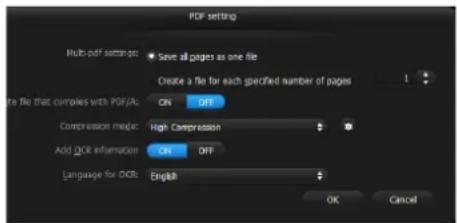
text_image
PDF setting Multi-odf settings: Save all pages as one file Create a file for each specified number of pages the file that complies with PDF/A: ON OFF Compression mode: High Compression Add OCR information ON OFF Language for OCR: English OK CancelIn [Multi-pdf settings], specify whether to save the scanned images as a multipage file ([Save all pages as one file]) or single page files ([Create a file for each specified number of pages]).
Windows For [Create file that complies with PDF/A], select [ON].
For [Compression mode] select either [Standard] or [high compression].
Click 📄 and in the dialog box that appears specify the compression rate that you want.
TIFF
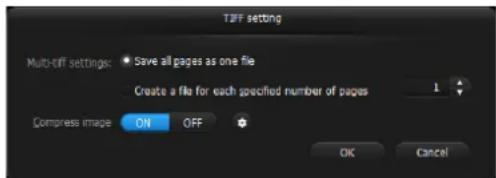
text_image
TAFF setting Multi-tiff settings: Save all pages as one file Create a file for each specified number of pages 1 Compress image ON OFF OK CancelIn [Multi-tiff settings], specify whether to save the scanned images as a multi page file ([Save all pages as one file]) or single page files ([Create a file for each specified number of pages]).
Windows < After you select ON for [Compress image], click and in the dialog box that appears specify the compression rate that you want.
JPEG
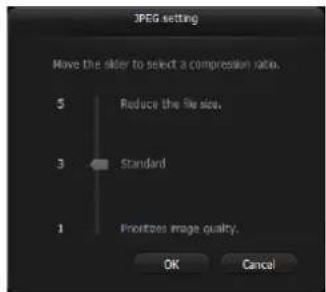
text_image
JPEG setting Move the slider to select a compression ratio. 5 Reduce the file size. 3 Standard 1 Frontzoe image quality. OK CancelYou can specify the compression rate of JPEG images.
Windows
PPTX

text_image
PowerPoint(R) setting Add OCR information ON OFF Language for OCR: English OK CancelYou can specify whether to add OCR information to the scanned images.
Environmental Settings
To configure the environmental settings of CaptureOnTouch, open the [Environmental settings] dialog box.
Windows
Click (CaptureOnTouch icon) in the taskbar, and select
[Environmental settings] from the menu.
The following describes the setting items of each tab displayed in the [Environmental settings] dialog box.
[Basic settings] Tab
On the [Basic settings] tab, configure the following settings.
![CANON imageFORMULA DR-M140 - [Basic settings] Tab - 1](/content/2026/06/1236268/images/b35a3c0ae09acf29fbe6f3065530626b0e5ef3a33b522dd70a3a6690e096d5fb.jpg)
text_image
Environmental settings Basic settings E-mail settings Theme Plugin Maintenance Launch method □Make CaptureOnTouch resident: Starting scanning from an active button on the main unit a faster. Display □CaptureOnTouch appears when the scanner is connected Back Up / Mastero Back Up... Restore... OK CancelLaunch method setting
By default, CaptureOnTouch becomes resident in the system when you start your computer. Clear the [Make CaptureOnTouch resident] check box to not make CaptureOnTouch resident in the system.
Display setting for when scanner connected
Select the [CaptureOnTouch appears when the scanner is connected] checkbox to open the main screen of CaptureOnTouch automatically when the scanner is connected to the computer. This setting is only enabled when CaptureOnTouch is running (or resident in the system).
Back Up / Restore
Use the [Back Up] and [Restore] buttons to back up the configuration file (settings, registered jobs, etc.) of CaptureOnTouch and restore the settings from the backup data.
IMPORTANT
Please note that when a job with the output method set to [Save in Microsoft SharePoint] is registered, the setting items related to SharePoint will not be backed up.
[Back Up] button
Back up the settings of CaptureOnTouch to a backup file (*.cot). You can store the initial settings of CaptureOnTouch by performing a backup before you first use CaptureOnTouch.
[Restore] button
Restore the settings from the backup registry file.
When using multiple computers, you can back up the environmental settings of one computer and restore these settings on the other computers so that all of the computers have the same settings.
[E-mail settings] Tab
On the [E-mail settings] tab, set the maximum size for the image files to be attached to e-mail.
![CANON imageFORMULA DR-M140 - [E-mail settings] Tab - 1](/content/2026/06/1236268/images/0230db1682c5238d6079501788f1669b898a4941dbdd5ac236baa1a870ce74cb.jpg)
text_image
Environmental settings Basic settings External settings Theme Plugin Maintenance Attached file settings Maximum size of attached 5 MB (1 - 99) file: Display confirmation message if file size exceeds the above OK CancelMaximum size of attached file
Select the [Display confirmation message if file size exceeds the above] check box to display a confirmation message when an attached file exceeds the maximum size.
- For Scan First, a confirmation message appears if the file size of scanned images is larger than the file size set here.
- For Select Scan Job, a confirmation message appears if the set file size is exceeded during scanning.
[Theme] Tab
On the [Theme] tab, specify the appearance of the main screen of CaptureOnTouch.
![CANON imageFORMULA DR-M140 - [Theme] Tab - 1](/content/2026/06/1236268/images/7c51452485c0809bdabaaa6cc4fb65d1823562a346310df81acbe08a5844b81a.jpg)
text_image
Environmental settings Basic settings Email settings Theme Plugin Maintenance Theme Select theme: Bus on dark background OK CancelSelect theme
Specify the appearance type for the main screen of CaptureOnTouch with [Select theme].
[Plugin] Tab
On the [Plugin] tab, confirm the plugins that have been added to CaptureOnTouch.
![CANON imageFORMULA DR-M140 - [Plugin] Tab - 1](/content/2026/06/1236268/images/6ac324a2d78c5df84c703fd2378f41a6bd0a1cc749aef02dc0b483a5bdfc7983.jpg)
text_image
Environmental settings Basic settings | Email settings | Theme | Plan | Maintenance Name Version Description OK Cancel![CANON imageFORMULA DR-M140 - [Plugin] Tab - 2](/content/2026/06/1236268/images/967d1586f0e83584d6e547e2c26e2189d101d973455270d04c8951272e64edda.jpg)
Hint
Initially, the list under the [Plugin] tab is empty.
[Maintenance] tab
With the [Maintenance] tab, you can output log files for CaptureOnTouch maintenance purposes.
![CANON imageFORMULA DR-M140 - [Maintenance] tab - 1](/content/2026/06/1236268/images/44341951d856372a530bdaf39bd0830747a704c4d4f7e9572a3a285469dd5f59.jpg)
text_image
Environmental settings Basic settings | Email settings | Theme | Plugin | Maintenance Log settings Setting... Set logs and collect log data. Do the operations according to instructions from the administrator or support staff. OK CancelMac
Click [Preferences] from the [CaptureOnTouch M-140] menu while the main screen of CaptureOnTouch is displayed.
The following describes the setting items of each tab displayed in the [Environmental Settings] dialog box.
[Basic settings] Tab
On the [Basic settings] tab, configure the following settings.
![CANON imageFORMULA DR-M140 - [Basic settings] Tab - 1](/content/2026/06/1236268/images/f24b781c0790514686cd36b7718e80118b5d0d7f04235978142f0cf03dc43338.jpg)
text_image
Environmental settings Raw settings, E-mail settings, Theme Paper Launch method Make CaptureOnTouch resident Starting scanning from an active button on the main unit is faster Display Launch CaptureOnTouch when scanner is connected Back Up / Restore Back Up... Restore...Launch method setting
By default, CaptureOnTouch becomes resident in the system when you start your computer. Clear the [Make CaptureOnTouch resident] check box to not make CaptureOnTouch resident in the system.
Display setting for when scanner connected
Select the [Launch CaptureOnTouch when scanner is connected] checkbox to open the main screen of CaptureOnTouch automatically when the scanner is connected to the computer. This setting is only enabled when CaptureOnTouch is running (or resident in the system).
Back Up / Restore
Use the [Back Up] and [Restore] buttons to back up the configuration file (settings, registered jobs, etc.) of CaptureOnTouch and restore the settings from the backup data.
[Back Up] button
Back up the settings of CaptureOnTouch to a backup file (*.plist). You can store the initial settings of CaptureOnTouch by performing a backup before you first use CaptureOnTouch.
[Restore] button
Restore the settings from the backup file.
When using multiple computers, you can back up the environmental settings of one computer and then perform a restore on the other computers so that all of the computers have the same settings.
[E-mail settings] Tab
On the [E-mail settings] tab, set the maximum size for the image files to be attached to e-mail.
![CANON imageFORMULA DR-M140 - [E-mail settings] Tab - 1](/content/2026/06/1236268/images/1eba5445e0e75c6d6643de244b53f2aaea9232a206899df83508d4b88e5200f8.jpg)
text_image
Environmental settings Basic settings: E-mail settings: TName: Page Attached file settings Maximum size of attached file : $ MB (1 - 99) Display confirmation message if file size exceeds the aboveMaximum size of attached file
Select the [Display confirmation message if file size exceeds the above] check box to display a confirmation message when an attached file exceeds the maximum size.
- For Scan First, a confirmation message appears if the file size of scanned images is larger than the file size set here.
- For Select Scan Job, a confirmation message appears if the set file size is exceeded during scanning.
[Theme] Tab
On the [Theme] tab, specify the appearance of the main screen of CaptureOnTouch.
![CANON imageFORMULA DR-M140 - [Theme] Tab - 1](/content/2026/06/1236268/images/31a9bb59705cbf4dd0b711d7ccd54026c96e93abdd4b6689b43e0ded37e88ce3.jpg)
text_image
Environmental settings Theme Select theme : Blue on dark background :Select theme
Specify the appearance type for the main screen of CaptureOnTouch with [Select theme].
[Plugin] Tab
On the [Plugin] tab, confirm the plugins that have been added to CaptureOnTouch.
![CANON imageFORMULA DR-M140 - [Plugin] Tab - 1](/content/2026/06/1236268/images/059a00d7cf145cd1c6f07c1d5aac1122d3a3f8e6ad478052c6a4cd746acc0e16.jpg)
text_image
Environmental settings Basic settings E-mail settings Theme Music Name Version Description Delete![CANON imageFORMULA DR-M140 - [Plugin] Tab - 2](/content/2026/06/1236268/images/6275c9389f8c0c22a9af29e69202b2c1be6ef6bed0c0f2ac8246cb0ff1d1a9b1.jpg)
Initially, the list under the [Plugin] tab is empty.
Deleting plugins
Click the [Delete] button to delete a plugin selected in the list.
Scanning with CapturePerfect
Windows
Scanning with CapturePerfect
This section describes procedures from launching CapturePerfect to selecting a scanner, as well as procedures for scanning with the [Scan batch to file] function.
See the "CapturePerfect Operating Guide" or help for details.
1 From the Windows task bar, click [Start] and then select [All Programs].
Then click [CapturePerfect 3.1] followed by [CapturePerfect 3.1].
2 Click [Select Scanner] in the [Scan] menu.
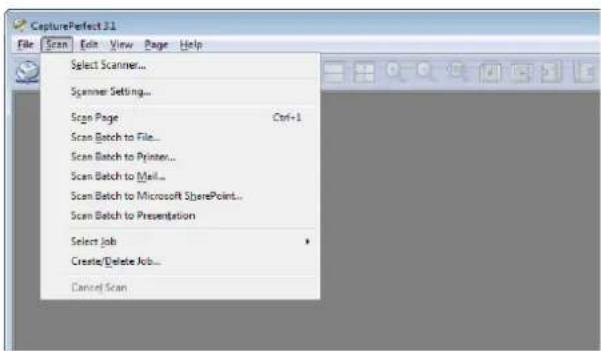
text_image
CapturePerfect 3.1 File Scan Edit View Page Help Select Scanner... Scanner Setting... Scan Page Ctrl+1 Scan Batch to File... Scan Batch to Printer... Scan Batch to Mail... Scan Batch to Microsoft SharePoint... Scan Batch to Presentation Select Job * Create/Delete Job... Cancel Scan3 Select [Canon DR-M140] and click [OK].
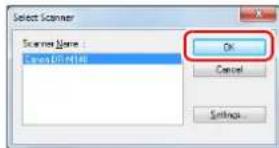
text_image
Select Scanner Scanner Name: Cancer0014188 OK Cancel Settings...Hint
If [Canon DR-M140] does not appear, reinstall the scanner driver. (See p. 7)
4 Set the default paper size and click [OK].

text_image
Configure Device Settings Selected Device: Canon DR-M140 on STI - 8006 OK Cancel A4 About...Hint
- The [Configure Device Settings] dialog box appears when selecting [Canon DR-M140] and clicking [OK] for the first time in the [Select Scanner] dialog box, and when [Settings] is clicked in the [Select Scanner] dialog box.
- These settings will apply when [Default] is clicked in the ISIS driver dialog box.
- For the TWAIN driver, the default size will be set to A4 and this cannot be modified.
5 Click [Scanner Setting] in the [Scan] menu.
6 Configure the scanning conditions. (See p. 56)
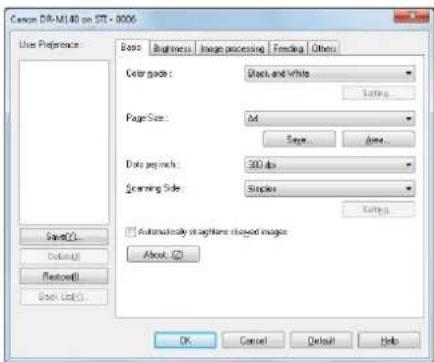
text_image
Canon DR-M140 on SIT - 0006 Use Preference Basic Brightness Image processing Fending Others Color mode: Black and White Page Size: M Size... Area... Data size: 320 dpi Screen Side: Supplies Automatically identifying closed images About... OK Cancel Default Help7 Place the document. (See p. 25)
8 Click [Scan Batch to File] in the [Scan] menu.
9 Configure the save destination, the name of the file to be saved and the file format, and then click [Save] to start scanning.
IMPORTANT
If you configure scanning conditions that consume a large amount of the computer's memory, scanning may stop because of insufficient memory. If an error message appears due to insufficient memory while scanning is in progress, exit the application and try scanning again using different scanning condition settings.
10 If the placed document is removed, the scan will be interrupted and the [Continue Scanning] dialog box appears. To continue scanning, add a document and click [Continue Scanning] To stop scanning, click [Cancel Scan].
![CANON imageFORMULA DR-M140 - If the placed document is removed, the scan will be interrupted and the [Continue Scanning] dialog box appears. To continue scanning, add a document and click [Continue Scanning] To stop scanning, click [Cancel Scan]. - 1](/content/2026/06/1236268/images/83468f81bf3693b8e53e65e6cb95cf48f386f24bb01b816789fba629b95bd59a.jpg)
text_image
Continue Scanning Batch Selection: None Scanner Setting: Scanner Setting... Option Setting: Option Continue Scanning Cancel Scan11 When scanning is finished, click [Exit] in the [File] menu.
Setting the Scanner Driver
When you scan a document in an ISIS compatible (CapturePerfect, etc.) or TWAIN compatible application, open the scanner driver and configure the scanning conditions and other settings.
This section describes the configuration and functions of the scanner driver.
Configuration and Functions of the Scanner Driver

Windows
The scanner driver consists of the following tabs.
Hint
For details on the setting screen, see the Help of the scanner driver. Click the [Help] button of the driver to display help related to the corresponding tab or dialog box.
[Basic] tab
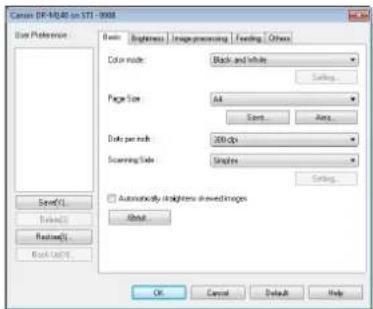
text_image
Canon EF-MSB in STI-2008 Color Preference: Basic Brightness Image processing Feeding Others Color mode: Black and white Page Size: All Date per inch: 200 dpi Screening Side: Samples Automaticly straight lines drawn in image About Save(Y) Delete Restore(S) Backlight OK Cancel Default HelpConfigure basic scanning conditions such as the mode, page size, resolution, and scanning side.
In addition, you can click the [Area] button and specify the area to be scanned.
Hint
Depending on the ISIS compatible application, the application may have its own screen for setting scanning conditions. If the scanner driver is opened in such an application, setting items related to the functions provided by the scanner driver other than scanning conditions will be displayed on the [Basic] tab.
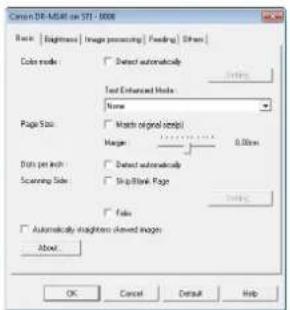
text_image
Canon DE-MATR on STI - 1000 Back Brightness Image processing Reading Other Color mode ✓ Detect automatically Text Enhanced Mode None Page Size ✓ Match original script Magnet 0.000x Dots per inch ✓ Detect automatically Scanning Size ✓ Skip/Mark Page ✓ False ✓ Automatically lightness allowed images About OK Cancel Default Help[Brightness] tab

text_image
Camera DR-MLAD on STI - 0006 User Preference Basic Brightness Impairmenting Feeding Others Brightness 128.0 Sensor 4.5 Grenos Send(1) Preview(2) Restore(3) Exit (Exit) OK Cancel Default HelpAdjust the brightness and contrast of scanned images.
In addition, you can also click [Gamma] and set the gamma correction value for scanned images.
[Image processing] tab
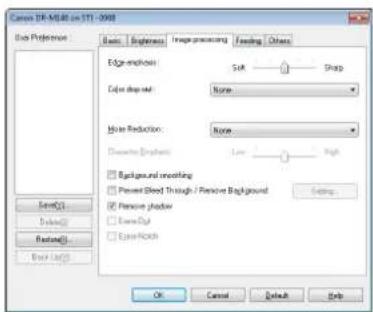
text_image
Canon XR-MU48 on STI - 2008 Edge Preference: Basic Brightness Image processing Feeding Others Edge effects: Soft Sharp Color drop set: None Motion Reduction: None Diminished Embosses: Low High Background smoothing Present Blood Through / Passive Background Presence shadow None Drop None Shock OK Cancel Default HelpSet the processing method for scanned images.
[Feeding] tab

text_image
Cancer DR-MCAD on STI - 0006 Use Preference: Basic Brightness ImperProcessing Feeding Others Double Feed/Detection Detected by Length Detected by Pressure Settings Feeding Option: Standard/Feeding Strang Detection OK Cancel Default HelpSpecify scanner operations related to document feeding.
[Others] tab

text_image
Cancer OR-MARO on STI - 0004 Use Preference Base Brightness Image processing Finding Options Discount Gradient: Degrees Rotate = 100 degrees Back, side Batch Separation: None: Differences: Degrees Compression Ratio for coming: High Compression High Quality Spread recovery system Pricing Use High-Draws OK Cancel Default HelpConfigure special scan method and image processing settings.
Mac
When the scanner driver is opened from CaptureOnTouch, the followingsettings screen of the scanner driver appears.
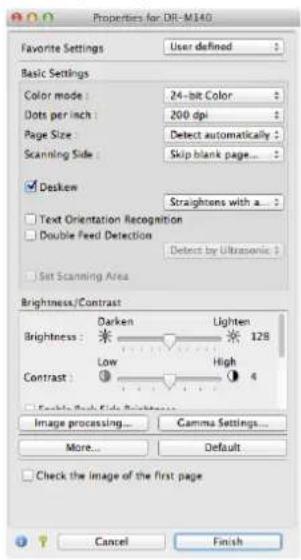
text_image
Properties for OR-M140 Favorite Settings User defined Basic Settings Color mode: 24-bit Color Dots per inch: 200 dpi Page Size: Detect automatically Scanning Side: Skip blank page... ✓ Deskew Straightens with a... ✓ Text Orientation Recognition Double Feed Detection Detect by Ultrasonic Set Scanning Area Brightness/Contrast Brightness: Darken Lighten 128 contrast: Low High 4 ✓ Enable Back Side Brightness Image processing... Gamma Settings... More... Default ✓ Check the image of the first page Cancel FinishSimple Mode Advanced Mode
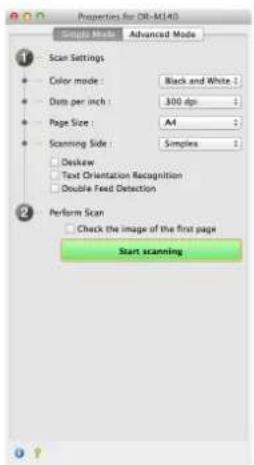
text_image
Properties for OR-M140 Scan Mode Advanced Mode Scan Settings Color mode : Black and White : Data per inch : 300 dpi : Page Size : A4 : Scanning Side : Simplex : Deskew Text Orientation Recognition Double Feed Detection Perform Scan Check the image of the first page Start scanning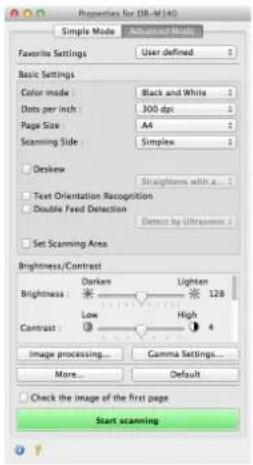
text_image
Properties for (OR-W140) Simple Mode Advanced Mode Favorite Settings User defined Basic Settings Color mode Black and White Dots per inch 300 dpi Page Size A4 Scanning Side Simples Deskew Straightness with a... Text Orientation Recognition Double Feed Detection Detect by Ultrasonic Set Scanning Area Brightness/Contrast Brightness Darken Lighten 128 Contrast: Low High 4 Image processing... Gamma Settings... More... Default Check the image of the first page Start scanning
Hint
When the Advanced Settings screen is called from some applications, the Advanced Settings screen may have the Simple mode and Advanced mode.
Setting Basic Scanning Conditions
This section provides an overview of the basic setting items that are the minimum requirements when configuring the scanner settings.

Windows
Confirming Basic Conditions for Scanning
When you scan a document, make sure you confirm the [Color mode], [Page Size], [Dots per inch], and [Scanning Side] basic conditions in the Basic settings dialog box.

text_image
Canon DR-4580 in STI - 2009 Color mode: Black and white Page Size: Ad Disk per inch: 200 dpi Screen/Color: Samples Automatically straightens ImageStripses About... Save(C) Paste(A) Reset(R) Back(F)Color mode
Select the scanning mode.

- [Advanced Text Enhancement] and [Advanced Text Enhancement II] remove or process the background color and background surrounding text to enhance the text for easy reading. When [Advanced Text Enhancement II] is selected, you can make the text in scanned images easier to read by adjusting the contrast on the [Brightness] tab.
- [Detect automatically] detects whether the document is in color, grayscale, or black and white. You can configure advanced settings related to the detection method by clicking [Setting]. For details, see the Help.
Page Size
Select the page size that matches the document to be scanned.
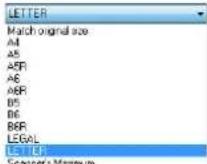
If [Match original size] is selected, the edges of the document are detected and images that match the size of the document are saved.
Dots per inch
Select the scanning resolution.
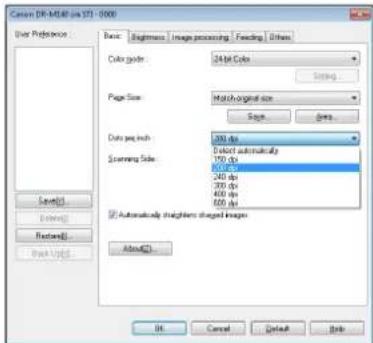
text_image
Canon DR-MAR data 371 - 0000 User Preferences Basic Beginness Image processing Feeding Others Color size: 24 bit Color Setting... Page Size: Match-original size Steps... Gears... Data per inch: 200 dpi Select automatically 150 dpi 200 dpi 400 dpi 600 dpi Screening Size: 500 dpi 240 dpi 300 dpi 400 dpi 600 dpi Automatically adjusted images About(Q) OK Cancel Default Help- Higher resolutions provide clearer images but result in larger file sizes and slower scanning.
- When [Detect automatically] is specified, the resolution is detected automatically from the content printed in the document.
Scanning Side
Select which of the sides of the document to scan.
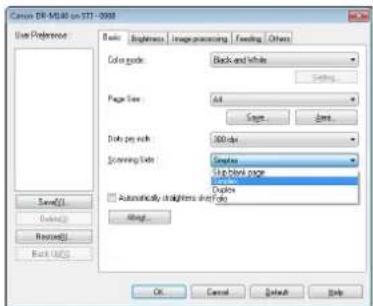
text_image
Canon DR-MG80 on STT - 2003 Use Preference Basic Background Image processing Feeding Others Color code: Black and White Page Size: All Copy Delete Data pay key: 500 dpi Screening Mode: Creates Up Page page Down Automatically straight lines up Up Reset... OK Cancel Help Save(S) Delete(S) Resume(S) Back (B) OK Cancel Default HelpIf the scanning side is set to [Skip blank page], the images of blank pages are deleted when images are saved.
Mac
Confirming Basic Conditions for Scanning
When you scan a document, make sure you confirm the [Color mode], [Dots per inch], [Page Size], and [Scanning Side] basic conditions in the settings screen of the scanner driver.
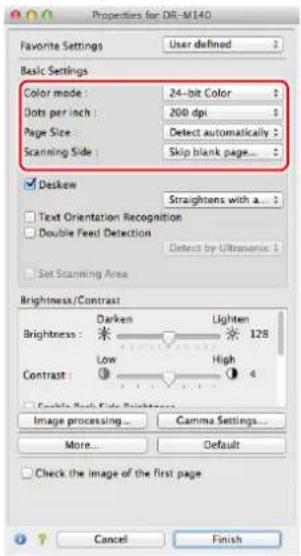
text_image
Properties for DR-M140 Favorite Settings User defined Basic Settings Color mode: 24-bit Color Dots per inch: 200 dpi Page Size: Detect automatically Scanning Side: Skip blank page... Desktop Straightens with a... Text Orientation Recognition Double Feed Detection Detect by Ultrasonic Set Scanning Area Brightness/Contrast Darken Lighten 128 Brightness: Low High Contrast: Image processing... Gamma Settings... More... Default Check the image of the first page Cancel FinishColor mode
Select the scanning mode.
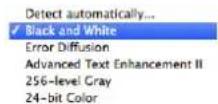
- [Advanced Text Enhancement II] removes or processes the background color and background surrounding text to enhance the text for easy reading.
- [Detect automatically] detects whether a document is color, grayscale, or black and white based on its content. When this is selected, you can configure detailed settings for the detection method. Refer to the Help for details.
Dots per inch
Select the scanning resolution.
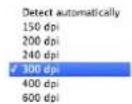
- Higher resolutions provide clearer images but result in larger file sizes and slower scanning.
- When [Detect automatically] is specified, the resolution is detected automatically from the content printed in the document.
Page Size
Select the page size that matches the document to be scanned.
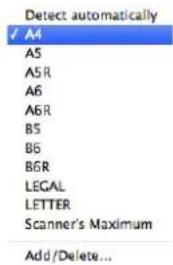
text_image
Detect automatically ✓ A4 A5 A5R A6 A6R B5 B6 BGR LEGAL LETTER Scanner's Maximum Add/Delete...If [Detect automatically] is selected, the edges of the document are detected and images that match the size of the document are saved.
Scanning Side
Select which of the sides of the document to scan.
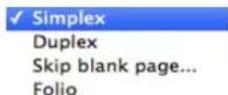
If the scanning side is set to [Skip blank page], the images of blank pages are deleted when images are saved.
Scanning Documents of Unregistered Page Sizes
Windows
You can register a non-standard page size that has not been registered as a page size by naming and registering it as a custom page size in the Custom Paper Size dialog box, which is opened from the [Save] button on the [Basic] tab.
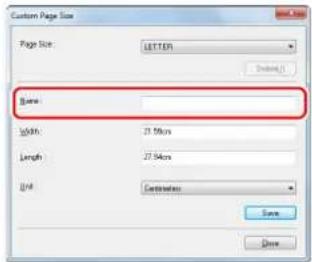
text_image
Custom Page Size Page Size: LETTER Browse... Base Width: 27.54cm Length: 27.54cm Unit: Customize Save SaveMac
Configuring the following settings allows you to scan a document of an unregistered page size.
When scanning a document of a non-standard page size, select [Add/Delete] for [Page Size] to display the [Add/Delete Page Size] dialog box. Name and register the unregistered page size in [Page Size].
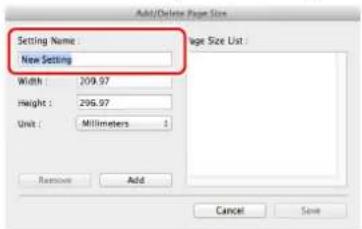
text_image
Add/Delete Page Size Setting Name: New Setting Width : 209.97 Height : 296.97 Unit : Millimeters Page Size List : Remove Add Cancel SaveSpecifying the Scan Area
Configure the following settings when you want to specify the area of the document to be scanned.
Specifying an area
Windows
Specify the area of the document to be scanned in the Scan Area dialog box, which is opened from the [Area] button on the [Basic] tab.
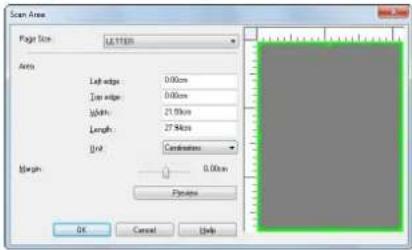
text_image
Page Size: LETTERS Area Left edge: 0.00cm Top edge: 0.00cm Width: 21.50cm Length: 27.94cm Unit: Coordinates Length: 0.00mm Priceline OK Cancel HelpMac
Select the [Set Scanning Area] check box and then specify the area of the document to be scanned.

text_image
Properties for GB-M140 Favorite Settings User defined Basic Settings Color mode: Black and White Data per inch: 200 dpi Page Size: Alt Screening Side: Similar □ Zoom □ Text Orientation Recognition □ Double feed Direction Select to Ultrasonic Set Screening Area Brightness: Lighter 12% Contrast: Low High □ Display Back Color Correction Image processing... Camera Settings... More... Default □ Check the image of the first page Width: 203.57 mm Height: 296.57 mm Preview Cancel FinishAlso, if you scan the document when [Check the image of the first page] is selected, only one page of the document is scanned and the corresponding scanned image is displayed in the preview window.
Configuring Scanner Settings According to Purpose
Set the scanning conditions according to the scanning purpose.
When you want to delete the images of the blank pages in two-sided documents
Windows
Set the scanning side setting to [Skip Blank Page] on the [Basic] tab to delete the images of the blank pages in the document.

text_image
Cancer DR-MU8 on 171 - 00M Bus Preference Basic: Brightness Image processing Feeding Others Color mode Black and white Page Size All Data pay inch 200 dpi Scanning Mode Simple Simple Image Complex Automatically scanning mode false Apply OK Cancel Default HelpIf [Skip Blank Page] is selected, the [Setting] button is enabled, and you can adjust the level for judging whether pages are blank.

text_image
BlankStop Setting Set the BlankStop skippingBlank page: Less Help to skip More Help to skip 10 OK CancelMac
Set the scanning side setting to [Skip blank page] to delete the images of the blank pages in the document.

text_image
Properties for (38-M14) Favorite Settings User defined Basic Settings Color mode Black and White Area per inch Simple Page Size Duplex Scanning Side: Gap Dark pages... Follow Text Orientation Recognition Double Tend Detection Detect by Ultrasonic 1 Set Scanning Area Brightness/Contrast Darker Lighter 126 Low High Contrast Image processing... Gamma Settings... More... Default Check the image of the first page Cancel FinishIf [Skip blank page] is selected, you can adjust the level for judging whether pages are blank.

When you do not want to scan colored lines and text
Windows
Specify the color (red, green, blue, all colors) to be ignored (dropped out) in the color drop-out settings on the [Image processing] tab, and that color will be removed from the scanned image.
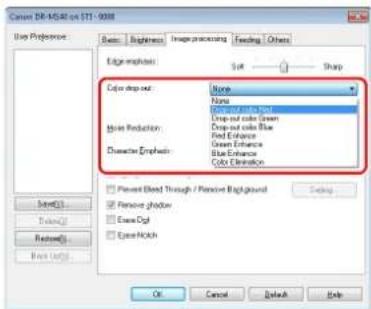
text_image
Cancer DR-MSAR on STI 9008 Layer Preference Basic Background Image processing Feeding Others Edge emphasis: Cut Sharp Color drop out: None None Drop out red: Red Drop out blue: Green Drop out blue: Blue Red: None Green: None Blue: None Character Emphasis: Color: None Present Blend Through / Present Background Remove: None Remove: None Remove: None Remove: None Remove: None OK Cancel Default HelpMac
Click [Image processing], and when a dialog box opens, specify the color (red, blue, or green) to be ignored (dropped out) in [Color dropout], and that color will not be scanned.
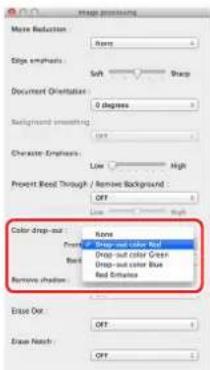
text_image
Image processing More Reduction: Name Edge emphasis: Soft Sharp Document Orientation: 0 degrees Background smoothing: Diff Character Emphasis: Low High Present Drop Through: Remove Background: OFF Low High Color Drop-out: None Drop out color Red Drop out color Green Drop-out color Blue Red Embosses Remove shadow: Off Extr Out: OFF Extr Match: OFFWhen you want to enhance a particular color
Windows
Specify the color (red, green, blue) to be enhanced in the color dropout settings on the [Image processing] tab, and that color will be enhanced in the scanned image.
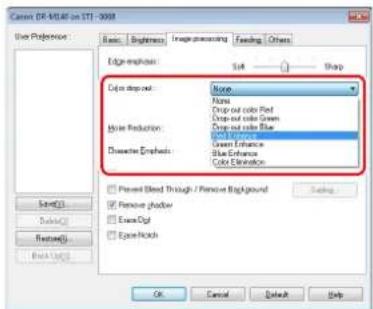
text_image
Color DR-MIAS on STI - 3008 Use Preference: Basic: Brightness Image processing Feeding Other Edge emphasis: Cut Drop Color Dropout: None None Drop-out color Red Drop-out color Green Drop-out color Blue Drop-out color Blue Red Impact Green Influence Blue Influence Color Elevation Dressive Emphasis: Color Elevation Present Bleed Through / Remove Background Remove shadow Excess Ctrl Excess Highlight OK Cancel HelpMac
Click [Image processing] and specify the color (red, blue, or green) in [Color dropout] in the dialog box that appears to enhance that color in the document.
text_image
Image processing More Reduction: Name Edge emphasis: SNA Sharp Document Orientation: 0 degrees Background smosening: CET Character Emphasis: Low High Present Embed Through / Remove Background Name Drop-out color Red Group-out color Green Drop-out color Blue Color drop-out: Flare: Red Emboss Remove shadow: On Exit Out: CET Exit Hatch: CETWhen you want to enhance contours in images
Windows
Adjust the edge emphasis setting on the [Image processing] tab.
text_image
Canon EF-MSB in STI - 2008 Use Preference Basic Brightness Image processing Feeding Others Edge Emphasis: Solid Shap Layer Drop Rate: None Mixer Production: None Character Emphasis: Low High Background and rendering Present Blend Through / Passive Background Remove photon Remove Ctrl Erase Flickh OK Cancel Default HelpMac
Click [Image processing] and adjust the edge emphasis settings in the dialog box which appears.
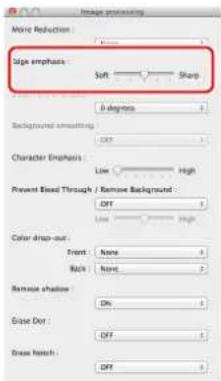
text_image
Image processing Noise Reduction Size emphasis Soft Sharp 0 degrees Background smoothing Diff Character Emphasis Low High Power Bleed Through Remove Background Diff Low High Color drop-out From None Back None Remove shadow On Base Dot Off Base Hatch OffWhen you want to make lines and text in scanned images thicker or thinner
Windows
Drag the [Character Emphasis] slider in the [Image processing] tab to make lines and text in the scanned images thicker or thinner.

text_image
Canon DR-MG8 on STL-0008 Box Preference: Basic Engineless Image processing Feedback Others Edge colors: Soft Sharp Cube dropout: None Minder Production: None Character Emphasis: Low High Background matching Pointed Blend Through / Remove Background Remove shadow Remove Digit Open Shift OK Cancel Default HelpMac
Click [Image processing], and in the dialog box that appears adjust letter and line thickness settings.
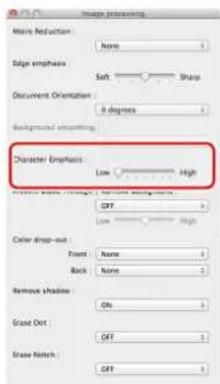
text_image
Image processing Main Reduction: None Edge emphasis Soft Sharp Document Orientation 0 degrees Background processing Character Emphasis Low High Color drop-out: None None Front Back None Remove shadow On Giant Out OFF Base Notch OFFWhen you want to enhance text that is difficult to read because of factors such as the background of the scanned document
Windows
Select [Advanced Text Enhancement] or [Advanced Text Enhancement II] in the mode setting on the [Basic] tab. The background behind the text is removed or processed so that the text is emphasized for better readability.
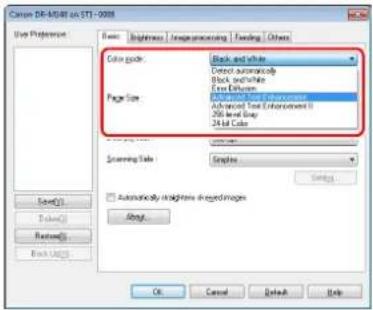
text_image
Canon DR-6088 on STI-2008 Up Preference Base Brightness Unimprinting Finding Others Color code: Black and white Color automaticly Black and white Red Diffuse Page size: Advanced White Enhancement Advanced White Enhancement II 250 mm Drop 24 bit Color Screening type: Samples Automatically ignored image images OK Cancel Default Help- Advanced Text Enhancement is suitable for a document with a light background color or a document with a non-uniform background (such as a pattern). If the background is uniform, it is removed where it surrounds the text, and if the background is non-uniform, it is processed to enhance text readability.
- Advanced Text Enhancement II is suitable for scanning a document with a uniform background color and light text and background. If the background is non-uniform, such as a pattern, the background may not be able to be completely removed and the text may become difficult to read. If necessary, you can make the text in scanned images easier to read by adjusting the contrast on the [Brightness] tab.
Mac
Select [Advanced Text Enhancement II] in the [Color mode] setting. The background behind the text is removed or processed so that the text is emphasized for better readability.
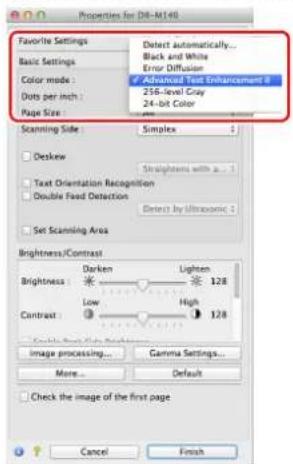
text_image
Properties for DR-M149 Favorite Settings Basic Settings Color mode: Dots per inch: Page Size: Detect automatically... Black and White Error Diffusion Advanced Text Enhancement 0 256-level Gray 24-bit Color Scanning Side Simplex Deskew Straightness with 0.1 Text Orientation Recognition Double Fix Detection Detect by Ultrasonic 0 Set Scanning Area Brightness/Contrast Brightness Darken Lighten Low High Contrast: 128 Image processing... Gamma Settings... More... Default Check the image of the first page Cancel FinishWhen you want to detect multiple pages fed at the same time
Windows
Select the [Double Feed Detection] check box on the [Feeding] tab. You can enable either one or both of [Detect by Ultrasonic] and [Detect by Length].
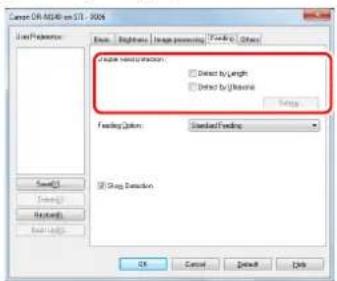
text_image
Layer OR R340 on STL - 9004 File Preference: Stream Bitmap Image processing FreePro Other Create location: Direct by Length Direct by Width Setup Funding Options: Standard Funding OK Cancel Delete HelpMac
Select the [Double Feed Detection] check box.
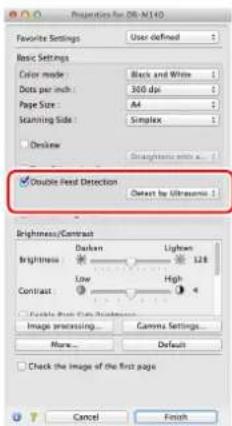
text_image
Properties for GB-M140 Favorite Settings User defined Basic Settings Color mode: Black and White Dots per inch: 300 dpi Page Size: All Stanning Side: Simplex Desktop Straight lines... ✓ Double feed Detection Direct by Ultrasonic Brightness/Contrast Darken Lighted 128 Brightness Low High Contrast Fuzzy Feed Filter Backgrounds Image processing... Gamma Settings... More... Default Check the image of the first page Cancel FinishWhen you want to match the orientation of images to the text when scanning a mixture of pages with different text orientations
Windows
Select [Text orientation recognition] in [Document Orientation] on the [Others] tab. The text orientation on each page is detected, and the scanned image is rotated in 90-degree increments to correct the orientation.
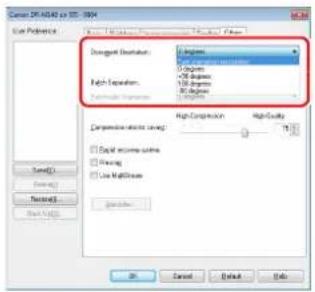
text_image
Create CFD-ADAS on TST - 2004 Load Preference Deselect Destination: 100 Dimensions 200 Dimensions 300 Dimensions 400 Dimensions 500 Dimensions High Separation: High Separation: High Compression: High Quality: Compression Service Search: Digital economy services Clearing Use Multipliers Save... Cancel HelpMac
Select the [Text Orientation Recognition] check box. The text orientation on each page is detected, and the scanned image is rotated in 90-degree increments to correct the orientation.
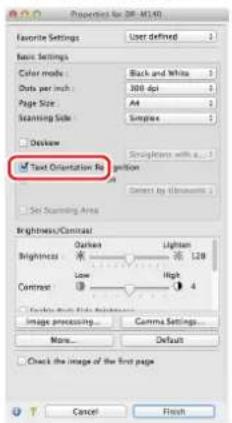
text_image
Properties for 201-M-45 Favorite Settings User defined Basic Settings Color mode: Black and White Data per inch: 300 dpi Page Size: All Scanning Side: Simplex Desktop Text Orientation Position Set Scan Area Brightness/Contrast Brightness: Low High Contrast: Lightness: 128 Image processing... Gamma Settings... More... Default Check the image of the first page Cancel FinishHint
When the [Text Orientation Recognition] check box is selected, [Document Orientation] is unavailable.
When you want to rotate the images of a document placed horizontally to correct the orientation
Windows
Specify the rotation angle in [Document Orientation] on the [Others] tab.

text_image
Cancer OF A450 on STI 2004 Use Preference Basic Highness Image processing Fading Other Input Parameters Output Parameters Input Parameters Output Parameters Output Parameters Output Parameters Output Parameters Output Parameters Output Parameters Output Parameters Output Parameters Output Parameters Output Parameters Output Parameters Output Parameters Output Parameters Output Parameters Output Parameters Output Parameters Output Parameters Output Parameters Output Parameters Output Parameters Output Parameters Output Parameters Output Parameters Output Parameters Output Parameters Output Parameters Output Parameters Output Parameters Output Parameters Output Parameters Output Parameters Output Parameters Output Parameters Output Specifications Output Specifications Output Specifications Output Specifications Output Specifications Output Specifications Output Specifications Output Specifications Output Specifications Output Specifications Output Specifications Output Specifications Output Specifications Output Specifications Output Specifications Output Specifications Output Specifications Output Specifications Output Specifications Output Specifications Output Specifications Output Specifications Output Specifications Output Specifications Output Specifications Output Specifications Output Specifications Output Specifications Output Specifications Output Specifications Output Specifications Output Specifications Output Specifications Output SpecificationsMac
Click [Image processing] and specify the rotation angle in [Document Orientation] in the dialog box that appears.

text_image
Image rendering More Reduction: None Edge emphasis: Soft High Document Orientation: Background records: 50 degrees 270 degrees Present Drop out: Front: None Back: None Remove shadow: 0% Close Out: OFF Close Hatch: OFFWhen you want to use batch separation for scanning
Windows
When you want to divide and scan a document, you can separate a batch at the timing with which each next document is placed and scanned. (Only enabled for applications that support batch separation.) In this case, set the scanner driver as follows.
- Set [Feeding Option] on the [Feeding] tab to [Panel-Feeding] or [Automatic Feeding].
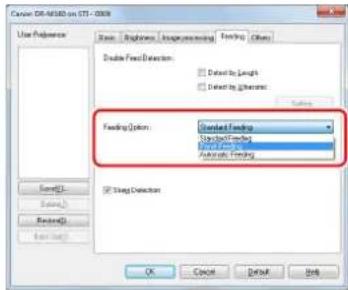
text_image
Cancer DR-MED on STI - 0309 Use Preference Done Options Unappresenting Fasting (Other) Double Feed Detection □ Default by Length □ Default by Diameter Loading Option: Contact Finding Unadjusted Finding Fixed Finding Automatic Finding □ Using Detection OK Cancel Default Finish- Set [Batch Separation] on the [Others] tab to [Auto].

text_image
Scan X: 100k on Y: 100k Use Preference Basic Dimensions Image dimensions Funding Options Display Simulation Geometry Fast Performance None None Fast Performance High Quality High Quality Deep accuracy plan Preview Max Precision Save... OK Cancel Help Help AutoWhen [Batch Separation] is set to [Auto], the batch is separated after the next document is placed and scanning is continued.
When [Patchcode] is set, batch separation can be performed by using a patchcode. (See p. 76)
When you want to use multistream settings for scanning
Windows
Multi-stream allows you to output multiple different scanned images with a single scan operation, and output scanned images with different scanning conditions for each of the front and back pages (multistream settings).
When you want to use the multistream settings for scanning, select the [Use MultiStream] checkbox on the [Others] tab to display the setting items related to multistream, and then configure the setting items in the following order.

text_image
User Preferences Load/Lock Load/Lock Load/Lock Load/Lock Load/Lock Load/Lock Load/Lock Load/Lock Load/Lock Load/Lock Load/Lock Load/Lock Load/Lock Load/Lock Load/Lock Load/Lock Load/Lock Load/Lock Load/Lock Load/Lock Load/Lock Load/Lock Load/Lock Load/Lock Load/Lock Load/Loose Load/Loose Load/Loose Load/Loose Load/Loose Load/Loose Load/Loose Load/Loose Load/Loose Load/Loose Load/Loose Load/Loose Load/Loose Load/Loose Load/Loose Load/Loose Load/Loose Load/Loose Load/Loose Load/Loose Load/LoOSE Load/LoOSE Load/LoOSE Load/LoOSE Load/LoOSE Load/LoOSE Load/LoOSE Load/LoOSE Load/LoOSE Load/LoOSE Load/LoOSE Load/LoOSE Load/LoOSE Load/LoOSE Load/LoOSE Load/LoOSE Load/LoOSE Load/LoOSE Load/LoOSE Load/LoOSE Load/Loose Load/Loose Load/Loose Load/Loose Load/Loose Load/Loose Load/Loose Load/Loose Load/Loose Load/Loose① When you want to specify different scanning conditions for the front and back pages of a document, select [Skip Blank Page] or [Both] for [Scanning Side] on the [Basic] tab in advance.
② Specify the number of scanning conditions to apply in [Stream count of Front]. Up to three can be specified.
③Select [Front 1st], and then open the other tabs and set the scanning conditions. Depending on the value specified for [Stream count of Front], configure the remaining [Front 2nd] and [Front 3rd] in the same way.
④ When specifying the scanning conditions of the back, configure the settings in the same way as described in ② to ③. In this case, specify [Stream count of Back], and then set the scanning conditions for each of [Back 1st] to [Back 3rd].
Hint
The following shows the setting conditions that can be set in the multistream settings.
| Tab Items that can be set | |
| [Basic] tab | [Color mode] and [Dots per inch](excluding [Auto-detection] for both) |
| [Brightness] tab [Brightness] and [Contrast] | |
| [Image processing] tab | [Edge emphasis], [Color dropout], and[Character Emphasis] |
| [Feeding] Tab None (all disabled) | |
| [Others] Tab None (only [Use MultiStream] is enabled) | |
To scan barcodes
Windows
Installing a barcode module (optional) allows you to scan barcodes in the document. Click the [Barcode] button on the [Others] tab to configure barcode scanning conditions.
When you want to remove dots and notches that appear in documents
Windows
You can remove dots and notches protruding from object outlines that appear in documents from scanned images.
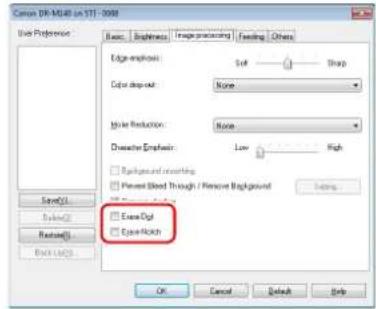
text_image
Canon DR-MG48 in STI-2008 Side Preference Basic Brightness Image processing Feeding Others Edge emphasis: Soft Sharp Color drop-out: None Miter Reduction: None Debris Emphasis: Low High Background matching Present Blood Through / Present Background Options Extra-Dot Extra-Rick Save(S) Delete(S) Restore(R) OK Cancel Help- Select the [Erase Dot] check box to automatically remove isolated black dots (3 x 3 dot size) from white backgrounds (or white dots from black backgrounds).
- Select the [Erase Notch] check box to remove notches that protrude from object outlines in scanned images.
Mac
Click [Image processing] and select [ON] for [Erase Dot] or [Erase Notch] in the dialog box that appears.
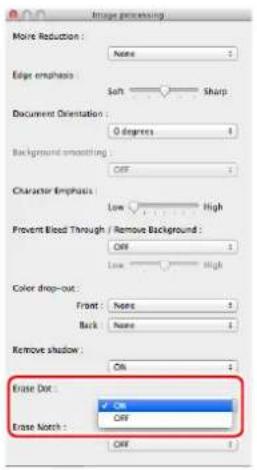
text_image
Image processing More Reduction : Edge emphasis Soft Sharp Document Orientation : 0 degrees Background smoothing OFF Character Emphasis: Low High Prevent Blood Through / Remove Background : OFF Low High Color drop-out : Front None Back None Remove shadow : Off Erase Dot : OK Erase Notch : OFF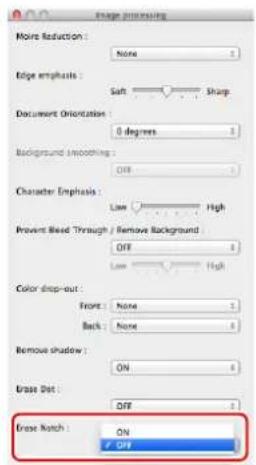
text_image
Edge processing Moist Reduction: None Edge emphasis: Soft Sharp Document Orientation: 0 degrees Background smoothing: Diff Character Emphasis: Low High Provent Beed Through / Remove Background: Diff Low High Color drop-out: Front: None Back: None Remove shadow: ON Base Dot: Diff Base Natch: ON ✓ Off- When [ON] is selected for [Erase Dot], the isolated 3x3 black dots on white backgrounds (or isolated 3x3 white dots on black backgrounds) are erased automatically.
- When [ON] is selected for [Erase Notch], the portions (notches) protruding outside the contours are erased from the scanned images.
When you want to save a scanner driver setting
Windows
When you finish configuring a setting, click the [Save] button of [User Preference] to save the setting.
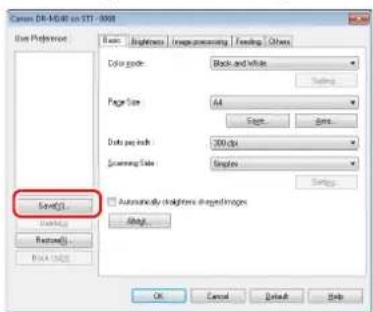
text_image
Canon DR-MOSK on STI - 2008 Color Preference Save: Brightness Inaugreening Feeding Others Color code: Black and white Page Size: A4 Save... Data per inch: 300 dpi Screening Color: Templates Automatically default from image images Attach... OK Cancel Default HelpThe saved setting is registered to the list. You can delete a setting from the list with the [Delete] button, and save or load a configuration file with the [Back Up] or [Restore] button.
Mac
When you finish configuring a setting, select [Add/Delete] of [Favorite Settings] to save the setting.

text_image
Add/Delete Favorite Setting Setting Name : New Setting Favorite Setting List : Delete Add Cancel SaveClicking the [Add] button registers the current setting to [Favorite Setting List]. Use the [Delete] button to delete a setting from the list.
Function Restrictions Depending on Mode Setting
Windows
Some of the setting items in each of the driver tabs are disabled as follows depending on the setting for [Color Mode] on the [Basic] tab.
[Brightness] tab
| Setting value Contrast | |
| Detect Automatically O | |
| Black and White O | |
| Error Diffusion O | |
| Advanced Text Enhancement X | |
| Advanced Text Enhancement II O | |
| 256-level Gray O | |
| 24-bit Color O |
(O: Available for setting, X: Not available for setting)
[Others] Tab
| Setting value Prescan | |
| Detect Automatically X | |
| Black and White O | |
| Error Diffusion O | |
| Advanced Text Enhancement O | |
| Advanced Text Enhancement II O | |
| 256-level Gray O | |
| 24-bit Color O |
(O: Available for setting, X: Not available for setting)
[Image processing] tab
| Setting value | Edge emphasis | Color drop-out | Background smoothing | Prevent Bleed Through / Remove Background | Erase Dot | Erase Notch | Character Emphasis |
| Detect Automatically O | X | O | O^1) | O^2) | O^3) | O | |
| Black and White | O | O | X | O | O | O | O |
| Error Diffusion | O | O | X | O | X | O | O |
| Advanced Text Enhancement | O | O | X | X | O | O | O |
| Advanced Text Enhancement II | X | O | X | X | O | O | O |
| 256-level Gray | O | O | O | O | X | X | X |
| 24-bit Color | O | X | O | O | X | X | X |
(O: Available for setting, X: Not available for setting)
^1) Not available for setting if all of the following conditions in the [Auto Image Type Detection Settings] dialog box are met.
• [Detection mode] is not set to [Color or Gray]
• [Mode in case of binary] in the [Settings for in case of binary] tab is set to [Advanced Text Enhancement] or [Advanced Text Enhancement II]
^2) Not available for setting if either one of the following two conditions are met.
- [Detection mode] in the [Auto Image Type Detection Settings] dialog box is set to [Color or Gray]
- [Mode in case of binary] in the [Settings for in case of binary] tab is set to [Error Diffusion]
3) Not available for setting if [Detection mode] is set to [Color or Gray] in the [Auto Image Type Detection Settings] dialog box.
Mac
Some of the setting items are disabled as follows depending on the setting for [Color Mode] in the settings screen of the scanner driver.
Simple Mode
| Setting value | Check the image of the first page |
| Detect automatically X | |
| Black and White O | |
| Error Diffusion O | |
| Advanced Text Enhancement II O | |
| 256-level Gray O | |
| 24-bit Color O |
O: Available for setting X: Not available for setting
Advanced Mode
| Setting value | Enable Back Side Brightness | Enable Back Side Contrast | Check the image of the first page |
| Detect automatically O O X | |||
| Black and White O O O | |||
| Error Diffusion O O O | |||
| Advanced Text Enhancement II X X O | |||
| 256-level Gray O O O | |||
| 24-bit Color O O O |
O: Available for setting X: Not available for setting
Advanced mode (Image processing dialog)
| Setting value | Edge emphasis | Background smoothing | Character Emphasis | Prevent Bleed Through / Remove Background | Color drop-out | Erase Dot | Erase Notch |
| Detect automatically | O | O^1) | X | X | X | X | X |
| Black and White O X O O O O O | |||||||
| Error Diffusion O X O O O O O | |||||||
| Advanced Text Enhancement II | X | X | O | X | O | O | O |
| 256-level Gray O O | X | O | O | X | X | ||
| 24-bit Color O O - O O X | X |
O: Available for setting X: Not available for setting
1) Cannot be set if the [Detect automatically] setting matches the conditions below
• [Detection Mode] is not set to [Color or Gray]
More Advanced Scanning Methods
Windows
Using a Patchcode for Scanning
DR-M140 supports batch separation (automatic file separation) functions by using patchcodes.
By tucking patchcode sheets supplied with this scanner into a document and scanning it, the scanner can automatically separate files by images of documents containing patchcode sheets (or documents after the patchcode sheet).

Hint
- This function can be used with the supplied CapturePerfect software. Other applications that support this function include ISIS-compatible applications. It is not supported by TWAIN-compatible applications.
- Patchodes are included with this product in PDF format. Applications that can read PDF files such as the supplied CapturePerfect are required to use this function.
The following patchcodes are installed together with the scanner driver as PDF files.
| Type of Patchcode | Pattern Description | |
| PATCH (FILEA) |  | Files are separated from the page after the page printed with this patchcode. You specify in the application whether to include the page printed with the patchcode in the scanned image. |
| PATCH II (FILE B) | Files are separated from the page printed with this patchcode. The page with the printed patchcode is always included in the scanned image. |
The following operations are performed when using patchcodes for scanning.
1 Print patchcode with a printer.
Click [Start] – [All Programs] – [Canon DR-M140] and then select [Patchcode] from the menu.
Patchcodes can be printed in A4 and letter (LTR) sizes. Open the application and print a patchcode that is the same size as the document to be scanned.
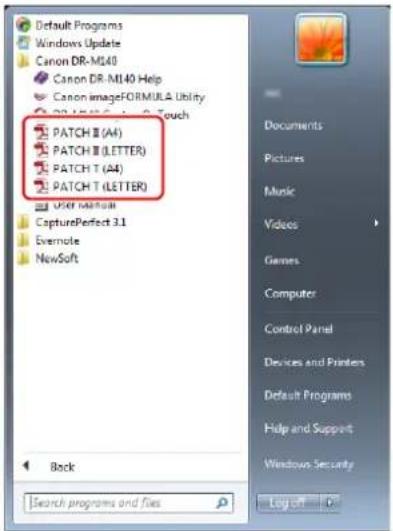
text_image
Default Programs Windows Update Canon DR-M140 Canon DR-M140 Help Canon imageFORMULA Utility DR-M140 Touch PATCH II (A4) PATCH II (LETTER) PATCH T (A4) PATCH T (LETTER) User manual CapturePerfect 3.1 Evernote NewSoft Back Search programs and files Documents Pictures Music Videos Games Computer Control Panel Devices and Printers Default Programs Help and Support Windows Security Log On O
Hint
In Windows 8.1/8, it is registered at the following location.

text_image
Apps by name Actions Calculate Calculator Camera Camera Desktop Apache Food & Menu Game Health & Fitness Mouse New PC Settings People Pharma Reader Reading List Scan SkyDrive Travel Mouse Weather Canon OS (AM) Canon DR-MAIL... Canon ProgramMLA. DR-MAILS FITCH 8 (AM) FITCH 9 (EIGHT) FITCH 7 (AM) FITCH 8 (EIGHT) User Manual MB
IMPORTANT
- Patchcodes must be printed in their normal size. If patchcodes are enlarged or reduced, they may not be recognized correctly.
- When copying provided patchcodes to create different sized patchcodes, ensure that the patchcode fits inside the effective range shown in the following diagram. Also, when copying patchcodes, ensure that they are the same size and shade as the original.
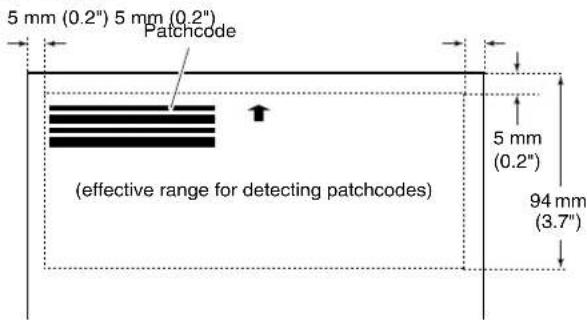
text_image
5 mm (0.2") 5 mm (0.2") Patchcode (effective range for detecting patchcodes) 5 mm (0.2") 94 mm (3.7")- Keep the patchcode sheet clean. Take particular care to keep the patchcode detection range area clean. Also, do not bend, fold or crease the sheet.
2
Place the documents in the scanner after inserting the patchcode sheet in front of the page that separates the files.

text_image
Insert the patchcode sheets at the beginning of documents to change file separation.3 In an application, specify a patchcode as a type of batch separation.
When using CapturePerfect, select [Patchcode] in the [Batch Separator] settings.
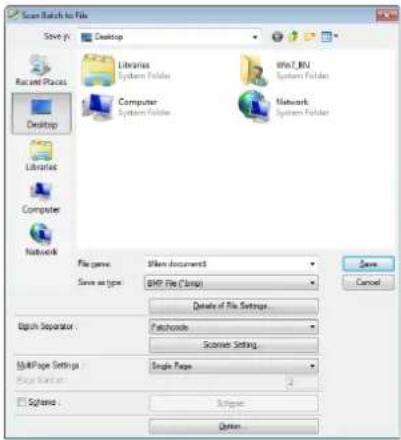
text_image
Scan Batch to File Save in: Desktop Recent Places Desktop Libraries System Folder Computer System Folder Wnt JNJ System Folder Network System Folder Libraries Computer Network File name: Wnt documents Save as type: BMP File (*.bmp) Details of File Settings... Bitmap Separator: Pathcode Scene Setting MMPPage Settings: Single Page Page Version: Spread: Subspace OptionWhen using other ISIS-compatible applications, open the scanner driver settings screen and select [Patchcode] in [Batch Separation] on the [Others] tab.
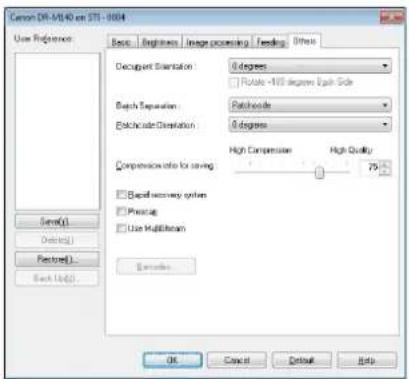
text_image
Canon DR-MUHD ex STI - 0004 User Reference: Basic Beginust Image processing Feeding Others Decougent Saturation: 8 degrees Rotate -100 degrees Each Side Patch Separation: Patchcode Patchcode Separation: 8 degrees Compression ratio for saving: High Compression High Quality: 75% Deep recovery system Placing Use Multifiltern OK Cancel Default HelpMaintenance
Daily Maintenance
Clean the scanner on a regular basis, as described below, to maintain peak scanning quality.

CAUTION
- When cleaning the scanner and the inside of the scanner, turn OFF the power switch and disconnect the power cord from the power outlet.
- Do not use spray cleaners to clean the scanner. Precision mechanisms, such as the light source, may get wet, and cause a malfunction.
- Never use paint thinner, alcohol, or other organic solvents to clean the scanner. The exterior of the scanner may become deformed, discolored, or melted. It may also cause a fire or electric shock.
Cleaning the Scanner
To clean the outside of the scanner, wipe off any dirt with a cloth that has been dampened with water and thoroughly wrung out, and then wipe the scanner dry with a clean dry cloth.
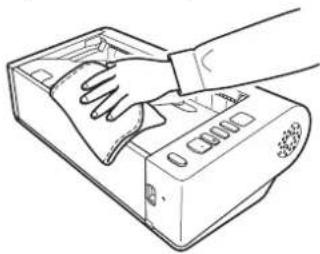
natural_image
Line drawing of a hand cleaning a device with a cloth (no text or symbols)Cleaning the Inside of the Scanner
Dust or paper particles inside the scanner may cause lines or smudges to appear on scanned images. Use compressed air to periodically clean dust and paper particles from the document feed opening and the inside of the scanner. After finishing a large scanning job, turn OFF the scanner and then clean out any paper particles remaining inside the scanner.
Cleaning the Sensor Glass and the Rollers
If scanned images contain streaks, or if the scanned documents become dirty, the sensor glass or rollers inside the scanner may be dirty. Clean them periodically.

Open the document feed tray.
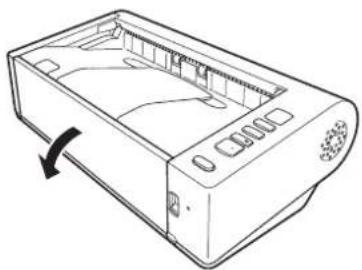
natural_image
Line drawing of a rectangular electronic device casing with control panel and scroll arrows indicating rotation (no text or symbols)
Raise the OPEN lever, and open the upper unit.
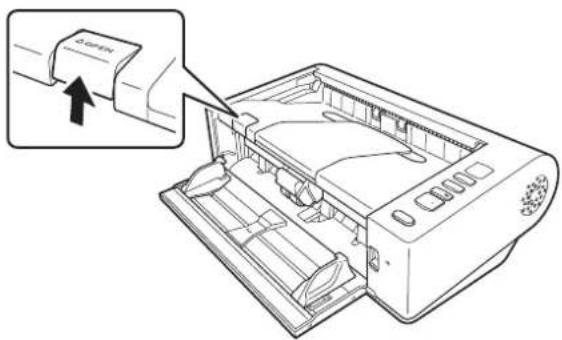
natural_image
Line drawing of a printer internal structure with an open lid and paper feed, showing no text or symbols.3 Use compressed air to remove dust and paper particles from the inside of the scanner.
4 Wipe any dirt off the scanning glass. Wipe any dirt off the scanning glass with a cloth that has been dampened with water and thoroughly wrung out, and then wipe the glass dry with a clean, dry and soft cloth.

text_image
Scanning Glass
CAUTION
Do not spray water or neutral detergent directly on the scanner. Precision mechanisms, such as the light source, may get wet, and cause a malfunction.

IMPORTANT
Scratches on the sensor glass may cause marks on the images, as well as feeding errors. If there are scratches on the sensor glass, contact your local authorized Canon dealer or service representative.
5 Clean the rollers.
Clean the rollers while turning them.
Wipe the rollers with a cloth that has been dampened with water and thoroughly wrung out, and then use a clean, dry and soft cloth to wipe away any moisture.

text_image
Rollers6 Remove the retard roller and feed roller. (See p. 85, p. 86)
IMPORTANT
Remove the retard roller and feed roller from the scanner to clean them, and be sure to reattach them to the scanner when cleaning is finished.
7 Wipe the removed rollers with a cloth that has been dampened with water and thoroughly wrung out.

natural_image
Illustration of hands fastening a mechanical component with a cylindrical shaft (no text or symbols)8 Reattach the retard roller and feeding roller. (See p. 85, p. 86)
9 Close the upper unit by gently pushing down on the left and right sides. Push until it clicks into place to make sure that it is completely closed.
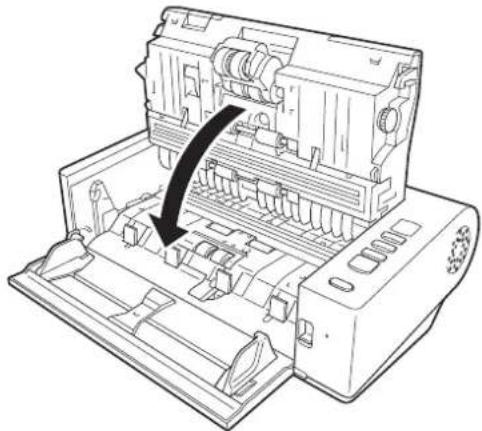
natural_image
Line drawing of an open industrial machine with a black arrow indicating a component or operation (no text or symbols present)10 Close the document feed tray.

natural_image
Line drawing of a printer internal structure with no visible text or symbolsAdjusting the Reduction Ratio
As the rollers installed in the scanner wear out, scanned images may become stretched in the vertical direction. If this happens, you can reduce the amount of stretching of the image by adjusting the reduction ratio.

IMPORTANT
- Log on to Windows as an Administrator.
Windows
1 Click the Start button, and then click [All Programs], [Canon DR-M140], and [Canon imageFORMULA Utility]. imageFORMULA Utility starts.
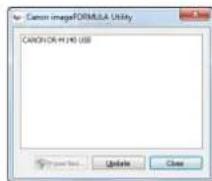

Hint
In Windows 8.1/8, it is registered at the following location.

text_image
Apps By Name: Camera Image Formula Camera Image Formula Open Search PITCH 4 (A) PITCH 4 (SETTSB) PITCH 7 (A) PITCH 7 (SETTSB) User Manual File Edit View Insert Tools Help2 Click [Canon DR-M140 USB] and click [Properties]. Scanner properties are displayed.
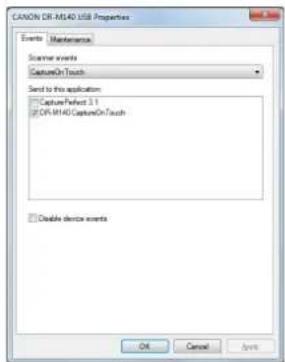
text_image
CANON DR-ML40 USB Properties Events Maintenance Scanner events CaptureOnTouch Send to this application CaptureRefined 3.1 DR-ML40CaptureOnTouch Disable device events OK Cancel Apply3 Click the [Maintenance] tab and then change the value of [Reduction ratio adjustment]. The adjustment value can be set within the range from -3.0% to 3.0%.
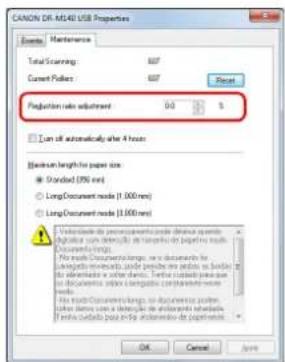
text_image
CANON DR-M450 USB Properties Event: Maintenance Total Scanning: 607 Current Polaris: 607 Reset Projection role adjustment: 0.0 % Limit all automatically after 4 hours Maximum length for paper size Standard (50% end) Long Constraint node [1,000 nm] Long Constraint node [1,000 nm] ✓ Select the direction of projection mode where any specific location is defined by the projected paper size. Circuits (or rows) are selected to be selected from the project's main project. No such Document or Long Reference are displayed in this image. This document may not be used to display any other relevant information. If this document may be used to display any other relevant information. OK Cancel Apply4 Click [OK] to close the scanner properties.
Mac
1 Opens the scanner driver's Detail Settings screen. (See p. 46)
2 Click to display the [Scanner Information] dialog box.
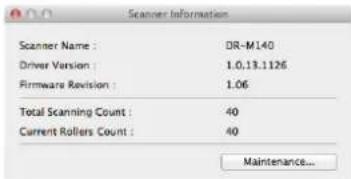
text_image
Scanner Information Scanner Name : DR-M140 Driver Version : 1.0.13.1126 Firmware Revision : 1.06 Total Scanning Count : 40 Current Rollers Count : 40 Maintenance...3 Click [Maintenance] to display the [Maintenance] dialog box.
4 Change the value of [Reduction ratio adjustment]. The adjustment value can be set within the range from -3.0% to 3.0%.
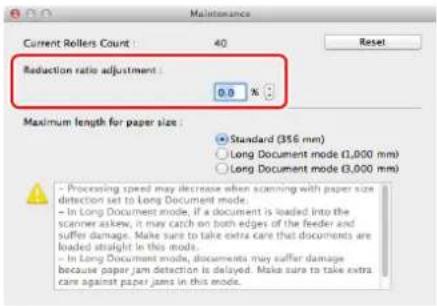
text_image
Maintenance Current Rollers Count : 40 Reset Reduction ratio adjustment : 0.0 % Maximum length for paper size : Standard (356 mm) Long Document mode (1,000 mm) Long Document mode (1,000 mm) - Processing speed may decrease when scanning with paper size detection set to Long Document mode. - In Long Document mode, if a document is loaded into the scanner askew, it may catch on both edges of the feeder and suffer damage. Make sure to take extra care that documents are loaded straight in this mode. - In Long Document mode, documents may suffer damage because paper jam detection is delayed. Make sure to take extra care against paper jams in this mode.5 Click to close the dialog box.
Replacing Consumable Parts
The feed roller and retard roller are consumable parts. The feed roller and retard roller wear with scanning. If the feed roller and retard roller are worn, documents may not feed correctly and paper jams and double feeds may occur.
When more than 200,000 pages have been fed (total number of pages fed by the scanner), a message prompting you to replace the rollers is displayed when the computer is started.

text_image
Windows DB-MS40 Attention! To install virtual performance, the current will then be replaced now. Please refer to the instructions in the User Manual. Allow you complete the replacement, please make sure to read the reader. Please also refer to the instructions to read the footer. □ Do not check the message again. OK
text_image
Mac To maintain maximum performance, the current pad should be replaced now. Please refer to the instructions in the User Manual After you complete the replacement, please make sure to treat the counter. Please also refer to the instructions to treat the counter. □ Do not show this message again. OKIf this message begins to be displayed at startup, purchase an exchange roller kit and replace the worn parts with the consumable parts included in the kit (feed roller and retard roller). See p. 99 for details about the exchange roller kit.
Furthermore, the counter in the scanner that records the number of pages fed also needs to be reset when you replace the rollers. (See p. 87)
Opening and Closing the Upper Unit
1 Open the document feed tray.
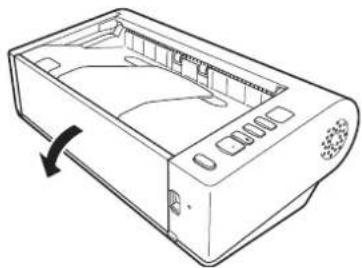
natural_image
Line drawing of a device casing with internal compartments and a scroll arrow indicating rotation (no text or symbols)2 Raise the OPEN lever, and open the upper unit.
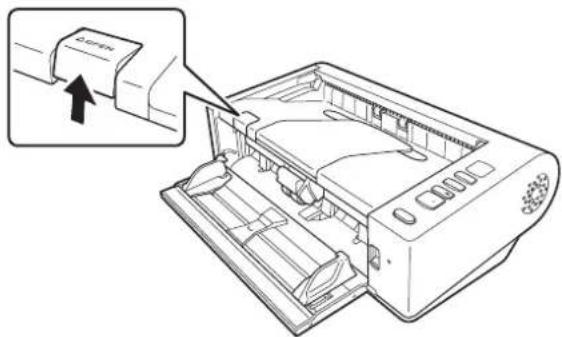
text_image
Technical diagram of a printer with an inset showing a paper feeding into a slot labeled 'Δcans' and a close-up view of the component.
Hint
The location of each of the consumable parts is shown below.

text_image
Feed Roller Retard roller (inside the upper unit)3 Close the upper unit by gently pushing down on the left and right sides. Push until it clicks into place to make sure that it is completely closed.
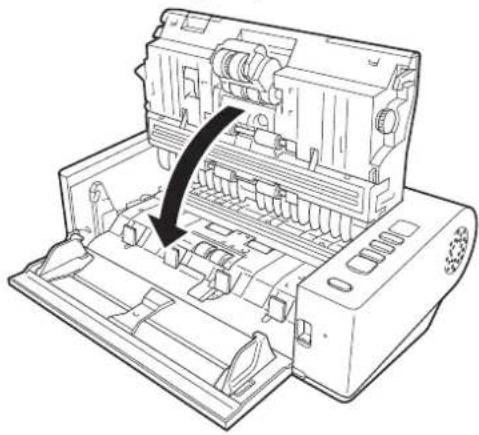
natural_image
Line drawing of an open industrial machine with internal components and a black arrow indicating a process direction (no text or symbols)4 Close the document feed tray.
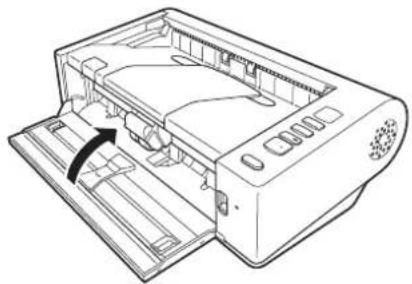
natural_image
Line drawing of a printer internal structure with no visible text or symbolsReplacing the Retard Roller
1 Unlock the roller cover and open it.
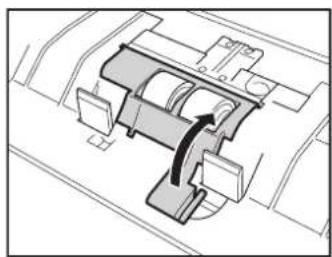
natural_image
Technical diagram of a mechanical component with internal channels and mounting brackets (no text or labels)2 Remove the retard roller.
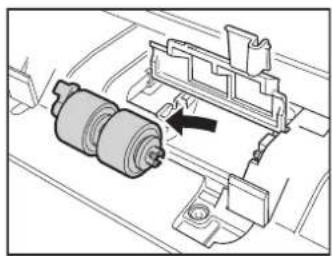
natural_image
Mechanical assembly diagram showing a motor component with a black arrow indicating direction (no text or labels)3 Install the new retard roller.
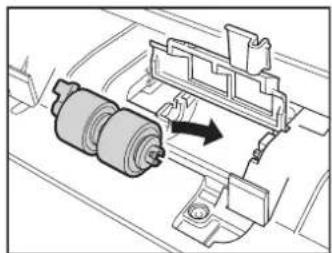
natural_image
Mechanical assembly diagram showing a motor or gear assembly with a directional arrow (no text or labels)4 Press the roller cover to close it.

natural_image
Mechanical assembly diagram showing a rotating component with no visible text or symbolsReplacing the Feed Roller
1 Lift the securing lever for the feed roller forward.
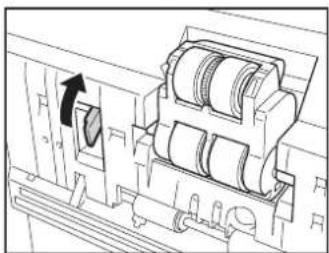
natural_image
Technical diagram of a mechanical assembly with no visible text or symbols2 Slide the securing lever for the feed roller to the left.
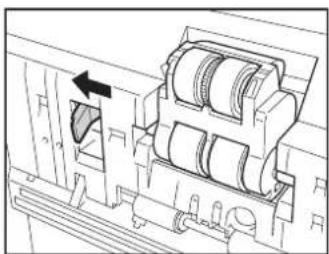
natural_image
Technical diagram of a mechanical assembly with no visible text or symbols3 Remove the feed roller, detaching the left side first.

natural_image
Mechanical assembly diagram showing a motor with a directional arrow indicating motion (no text or symbols present)4 Install the new feed roller, attaching the right side first.
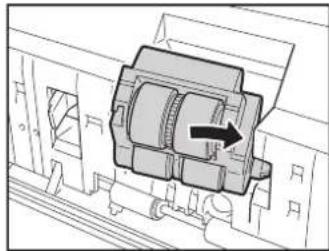
natural_image
Mechanical assembly diagram showing a motor or gear mechanism with no visible text or symbols5 Slide the securing lever for the feed roller to the right.
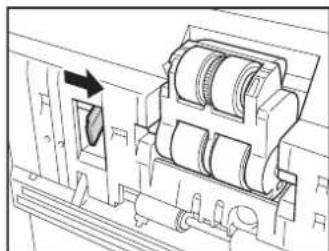
natural_image
Technical diagram of a mechanical assembly with no visible text or symbols6 Lower the securing lever for the feed roller until it clicks into place.
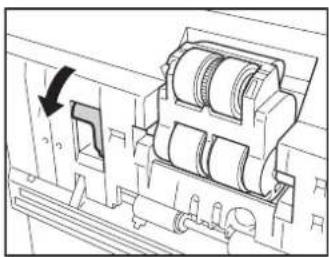
natural_image
Technical line drawing of a mechanical assembly with no visible text or symbolsResetting the counter
IMPORTANT
Log on to Windows as an Administrator.
Windows
1 Click the Start button, and then click [All Programs], [Canon DR-M140], and [Canon imageFORMULA Utility]. imageFORMULA Utility starts.
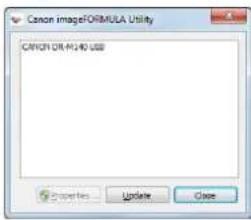
text_image
Canon imageFORMULA Utility CRON DR PL40 USD Properties Update Close
In Windows 8.1/8, it is registered at the following location.
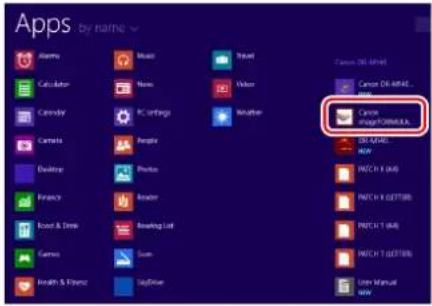
text_image
Apps by name Actions Calculator Canopy Camers Desktop Photo Finish Round & Dense Canvas Health & Focus Music None PC oranga People Photo Reader Analog List Sum SqlDrive Travel Video Weather Search OR MGMT Search Image Formula DO NOT HOW MACC 1 (4A) MACC 2 (SETTB) MACC 1 (4A) MACC 1 (SETTB) User Manual Now2 Click [Canon DR-M140 USB] and click [Properties]. Scanner properties are displayed.

text_image
CANON DK-M140 USB Properties Events Maintenance Scinner events CaptureOn Touch Send to the application CaptureRefined 3.1 DF-M140 CaptureOn Touch Disable device events OK Cancel Apply3 Click the [Maintenance] tab and then select [Reset].
![CANON imageFORMULA DR-M140 - Click the [Maintenance] tab and then select [Reset]. - 1](/content/2026/06/1236268/images/fe6400afa4dfaee1a828855a0cd021c704823f19734d82c9a29d86e1229a9b64.jpg)
text_image
CANON DR-M148 USB Properties Events Maintenance Total Scanning 607 Current Paths 607 Reduction ratio adjustment 6.0 % Sum of automatically after 4 hours Maximum length for paper size: Standard (25% mm) Long Document mode (1,000 mm) Long Document mode (3,000 mm) ✓ Validable the procurement mode for minimum maximum size. - Display can be defined as a range of orders in order to be used in the product or package. The product is designed to be suitable for any other product or package. For all products, the product is not available for any other product or package. The product is also available for any other product or package. The product is not available for any other product or package. The product is also available for any other product or package. The product is also available for any other product or package. The product is also available for any other product or package. The product is also available for any other product or package. The product is also available for any other product or package. The product is also available for any other product or package. The product is also available for any other product or package. The product is also available for any other product or package. The product is also available for any others or products. The product is also available for any other product or products. The product is also available for any other product or products. The product is also available for any other product or products. The product is also available for any other product or products. The product is also available for any other product or products. The product is also available for any other product or products. The product is also available for any other product or products. The product is also available for any other product or products. The product is also available for any other product or products.The counter for [Current Rollers] resets.
4 Click [OK] to close the scanner properties.
Mac
1 Opens the scanner driver's Detail Settings screen. (See p. 46)
2 Click to display the [Scanner Information] dialog box.
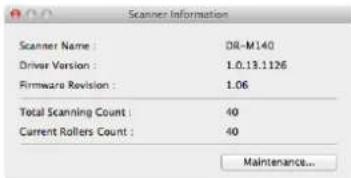
text_image
Scanner Information Scanner Name : DR-M140 Driver Version : 1.0.13.1126 Firmware Revision : 1.06 Total Scanning Count : 40 Current Rollers Count : 40 Maintenance...3 Click [Maintenance] to display the [Maintenance] dialog box.
4 Click [Reset].
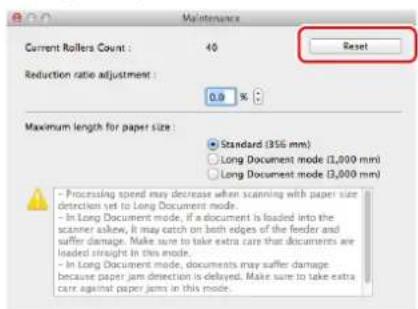
text_image
Maintenance Current Rollers Count : 40 Reduction ratio adjustment : 0.9 % Maximum length for paper size : Standard (356 mm) Long Document mode (1,000 mm) Long Document mode (3,000 mm) - Processing speed may decrease when scanning with paper size detection set to Long Document mode. - In Long Document mode, if a document is loaded into the scanner askew, it may catch on both edges of the feeder and suffer damage. Make sure to take extra care that documents are loaded straight in this mode. - In Long Document mode, documents may suffer damage because paper jam detection is delayed. Make sure to take extra care against paper jams in this mode.5 Click to close the [Maintenance] dialog box.
Auto Power Off Setting
Windows
The scanner automatically turns off if 4 hours elapse without scanning or another operation being performed.
To disable this setting, follow the procedure below.

IMPORTANT
Log on to Windows as an Administrator.
1 Click the Start button, and then click [All Programs], [Canon DR-M140], and [Canon imageFORMULA Utility]. imageFORMULA Utility starts.

text_image
CANON IMAGEFORMULA Utility CANYON DR PLANO USB
Hint
In Windows 8.1/8, it is registered at the following location.

text_image
Apps by name Cancer ImageFORMULA Cancer ImageFORMULA OK (M) NEW RITCH 3 (M) RITCH 4 (SETTS) RITCH 5 (M) RITCH 6 (SETTS) User Manual User & Fitness UpDrive2 Click [Canon DR-M140 USB] and click [Properties]. Scanner properties are displayed.
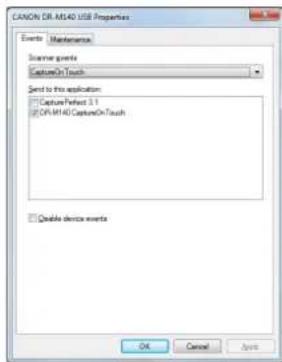
text_image
CAXON DR-ME40 USB Properties Events Maintenance Storage events CaptureOnTouch Send to this application CapturePerfect 3.1 DR-ME40 CaptureOnTouch Disable device events OK Cancel Apply3 Click the [Maintenance] tab and then clear the [Turn off automatically after 4 hours] check box.
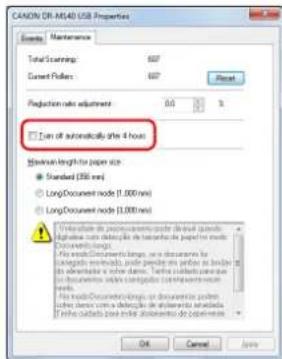
text_image
CANON DR-M4.0 USB Properties Event: Maintenance Total Scanning: 607 Current Readers: 607 Reset Reduction rate adjustment: 0.5 % ✓ Limit automatically give 4 hours Maximum length for paper size Standard (350 mm) LongDocument node (1,000 mm) LongDocument node (1,000 mm) ✓ Limitable for procedure management to deliver quicks quickly. Provide a list of instructions for procedure management. File notes: Documenting language, file documents for systematic information, also provide any files as follows: the instructions are not done. The table contains the document with corresponding code or other items. File notes: Documenting language, file documents displayed to ensure that the table contains the code or other items. OK Cancel Apply4 Click [OK] to close the scanner properties.
Troubleshooting
Common Problems and Solutions
This section provides recommended solutions to common problems. If you have a problem that is not solved by the following, contact your local authorized Canon dealer.
Problem 1 The scanner will not turn on.
Solutions Confirm that the AC adapter is plugged firmly into a power outlet.
Problem 2 The scanner is not recognized.
Solutions (1) Confirm that the scanner is properly connected to the computer with a USB cable.
(2) Confirm that the scanner is turned on. See the previous problem (1) if the scanner does not turn on.
(3) The computer's USB interface may not support the scanner. The scanner cannot be guaranteed to work with all USB interfaces.
(4) Confirm that the supplied USB cable is used to connect the scanner to the computer. The scanner cannot be guaranteed to work with all available USB cables.
(5) If the scanner is connected to the computer via a USB hub, try removing the hub and connecting directly to the computer.
Problem 3 Documents feed askew (scanned images are slanted).
Solutions (1) Align the document guides to fit the documents as closely as possible, and load the documents so that they feed straightly.
(2) Enable [Automatically straightens skewed image] (or [Deskew]) in the scanner driver settings.
(3) If many pages have been scanned since roller cleaning, clean the rollers. If documents still feed askew, roller replacement or other maintenance may be needed. See Chapter 7 Maintenance for roller replacement procedures.
Problem 4 Both sides are not scanned even when the Duplex scanner driver setting is enabled.
Solutions When you scan using a job registered with CaptureOnTouch, the registered job settings have priority over the scanner driver settings. Edit existing job settings, or create a new job using the desired scanning conditions.
Problem 5 If white lines or streaks appear in scanned images.
Solutions Clean both sides of the scanner glass, and the rollers. If a sticky substance such as glue or correction fluid is found, carefully wipe with just enough pressure to clean the area where the lines appear. If the problem cannot be solved by cleaning, the internal glass may be scratched. Contact your local authorized Canon dealer.
Problem 6 Pages are missing.
Solutions When the scanner driver's [Scanning Side] setting is [Skip Blank Page], documents with very little black may be unintentionally skipped. Decrease the Set the likelihood of skipping blank page value ("When you want to delete the images of the blank pages in two-sided documents" on P. 59) or set the [Scanning Side] to another mode, such as simplex or duplex. If pages are skipped due to the document double feeding, see "Problem 7 Documents jam (or double-feed)."
Problem 7 Documents jam (or double-feed).
Solutions (1) If the roller has been installed correctly, clean it if necessary.
(2) Proper scanning may not be possible when document pages stick together due to static electricity. Fan the documents before you load them.
(3) Set the scanner to Non separation feeding mode, and manually feed the scanner one page at a time.
Problem 8 Scanned images are saved in TIFF instead of JPEG format.
Solutions When documents are scanned with CapturePerfect while [Color Mode] is set to [Detect automatically] in the scanner driver, documents detected as black and white are automatically saved in TIFF format, even if the file type is specified as JPEG format. This occurs because JPEG format does not support black and white binary format images. If you want to save all images in JPEG format, change the scanning [Color Mode] to either [24-bit Color] or [256-level Gray].
Problem 9 Each scanned image of a multi-page document is saved as a separate document.
Solutions • With CaptureOnTouch, you can scan multiple pages into one image file when TIFF or PDF file format is selected. To do this, select [File type] and then click
, and select [Save all pages as one file] in the displayed dialog box.
- When you select [Scan Batch to File] from the [Scan] menu in CapturePerfect, a dialog box appears with a [Multi Page Settings] pull-down that allows you to select [Single Page]. If you select [Single Page] here, each page of a multi-page document is saved as a separate image file. To save multiple pages to a single image file, select [Multi Page (All Pages)].
Problem 10 All of the placed documents have been scanned, but the scanned image does not appear on the application.
Solutions When [Panel-Feeding] or [Automatic Feeding] is selected as the feeding method on the scanner driver's Detail Settings screen, a scanning operation will not continue after all of the documents are fed, as the scanner awaits additional documents to be fed. You can finish the operation and send the scanned images to the application by pressing the Stop button on the operating panel.
Problem 11 Scanned images of multiple pages cannot be saved in a single JPEG or BMP (PICT) file.
Solutions Multiple scanned images cannot be saved in a single JPEG or BMP (PICT) file. Save the images in either multi-page TIFF or PDF format.
Problem 12 Memory becomes insufficient and scanning stops.
Solutions If you configure scanning conditions that use a large amount of the computer's memory, scanning may stop because of insufficient memory. Although this depends on the computer's memory size, the possibility of insufficient memory increases if any of the following scanning conditions overlap.
• [Color Mode] is set to [24-bit Color]
- A large page size (e.g. Legal) is specified as the [Page Size]. Alternatively, the page size is set to [Scanner's Maximum].
- A high resolution (600dpi etc.) is specified for [Dots per inch].
If an error message appears due to insufficient memory while scanning is in progress, exit the application, change the scanning conditions (e.g. reduce the resolution or page size) and then try scanning again. In addition, the amount of memory used can be contained by turning off [Moire Reduction] and [Prevent Bleed Through / Remove Background] if they are set to on.
Software Troubleshooting
This section describes troubleshooting problems and solutions for operating the supplied software (CaptureOnTouch and CapturePerfect).
If scanning is too slow
(1) Close other running programs, if any.
(2) Scanning can be slowed down by memory shortage caused by memory-resident applications such as anti-virus programs. Close such memory-resident programs if necessary to free up memory space.
(3) When insufficient hard disk space is available, the scanner may be unable to create the necessary temporary files for scanned data. Delete unneeded data on the hard disk to free up more space.
(4) Scanning is slow if the computer's USB port is not Hi-Speed USB 2.0 compliant.
(5) If using a common USB cable that is not Hi-Speed USB 2.0 compliant, replace the cable with the supplied compliant cable.
(6) When the scanner is connected to the computer via a USB hub that is not Hi-Speed USB 2.0 compliant, remove the hub and connect the scanner directly to the computer.
If scanned image files cannot be opened in an application
(1) Scanned images saved as multi-page TIFF files can be opened only by programs that support this file format.
(2) Images saved as compressed TIFF files (single- as well as multi-page) can only be opened by programs that support the compressed format. This can occur with programs that are not compatible with CaptureOnTouch or CapturePerfect. In this case, select "None" as the image file compression format before scanning.
Useful tips
Here are some useful tips for scanning documents.
Where are scanned images saved? Can the save destination be changed?
Images are saved to the following locations, according to program settings.
For example, save locations such as the following can be set in CaptureOnTouch.
CaptureOnTouch
- For Scan First scanning, files are saved in the folder specified on the Output Settings screen.
- For selected job scanning, files are saved in the folder specified on the [Output setting] during job registration.
CapturePerfect
- During normal scanning operations such as single-page scanning, the image file save destination can be specified each time scanning is performed.
- When scanning using a registered job, files are saved to the folder specified by the job settings.
How are the scan settings configured?
CaptureOnTouch
- For Scan First scanning, click [Scanner setting] on the first (top) screen to display available scan settings.
- For selected job scanning, click [Scanner setting] during job registration to display available scan settings.
CapturePerfect
- For normal scanning, click [Scanner Setting] from the [Scan] menu to open the scanner driver setting screen, and make settings there.
- Scan job settings are made for each job.
How do I save multiple pages in one file, or save one file per page?
When scanned images are saved in BMP (PICT) or JPEG format, each image is always saved in a separate file.
When scanned images are saved in PDF or TIFF format, you can specify multi- or single-page files. See also "Problem 9" in "Common Problems and Solutions".
Can I copy or back up scanner setting configurations?
CaptureOnTouch
Scanner settings are backed up from the Environment settings. See also the following question, "Can I copy or back up CaptureOnTouch settings?".
CapturePerfect
Scanner setting configurations cannot be copied or backed up in CapturePerfect.
Can I copy or back up CaptureOnTouch settings?
The setting configurations can be backed up and restored using [Back up/Restore] on the [Basic settings] tab on the [Environmental settings] dialog box.
What rules apply to scanned image file names?
In CaptureOnTouch, scanned image file names are constructed according to the settings in the [File name settings] dialog box. This dialog box appears when you click on the [File name] on the Scan First output settings screen, and on the [Output setting] tab on the Register new job screen.
Scanned image file names are constructed partly or wholly according to the following three settings in the dialog box.
| Setting Description | |
| Start file name with character string | Any specified text string to be included in the file name. |
| Add date and time | Appends the date and time to file names. Select the date format from the list box. YYYY = year, MM = month, and DD = day of month. The time is appended after the date. |
| Add counter to file name | Append serial numbers in the order of scanned image saving. Specify the number of digits and starting number. |
A sample file name is displayed as the [File name] in the [File name settings] dialog box.
CapturePerfect
The rules for the file names of scanned images and the folder in which scanned images are saved can be set and then applied during scanning. For details, see the "Operating Guide" or help of CapturePerfect.
How do I scan half-folded documents (folio scanning)?
Fold the document in half, and set it in the scanner with the fold at the right. Specify half-size document (the size after folding) and select [Folio] for the [Scanning side], then scan. For details, see p. 28.
How can I skip blank pages, and scan only non-blank pages?
Specify [Skip Blank Page] on the scanner driver setting screen, then scan.
How do I scan cards?
Place non-embossed cards in the scanner vertically or horizontally, and place embossed cards vertically. Specify the same size as the card (or [Match original size]), then scan. For details, see p. 28.
Is it possible to add or insert images in a scanned image file?
CapturePerfect includes a function to add or insert pages in scanned image files. Refer to the CapturePerfect Operation Guide for details.
How do I paste OCR results from CapturePerfect into Excel or Word?
After scanning with OCR recognition enabled in CapturePerfect, click [Modify Barcode/OCR] in the [Edit] menu to open the [Modify Barcode/OCR] dialog box, where you can copy the text in the [OCR Characters] box. Alternatively, PDF files that were scanned with OCR enabled can be opened with an application, where the desired text can be copied.
What is the best way to scan business cards or photos?
Set [Page Size] to [Match original size] (or [Detect automatically) on the scanner driver setting screen, then scan. Alternatively, register the size of the cards or photos to be scanned. For details, see p. 28.
How do I load and scan documents with mixed sizes?
Set [Page Size] to [Match original size] (or [Detect automatically) on the scanner driver setting screen, then scan. For details, see p. 59 (p. 61).
How do I print scanned data?
CaptureOnTouch
- For Scan First scanning, select [Print] on the Output Method selection screen.
- For selected job scanning, select [Print] as the [Output method selection] when registering the job.
CapturePerfect
Scan using the [Scan Batch to Printer] function. Alternatively, register a job with a printer selected as the output destination.
How do I save scanned data in a shared folder?
CaptureOnTouch
- For Scan First scanning, select [Save to folder] on the output method selection screen, and specify the shared folder as the save destination on the Output Setting screen.
- For selected job scanning, select [Save to folder] in [Output method selection] during job registration, and specify the shared folder as the save destination on the Output Setting screen.
CapturePerfect
Scan using the [Scan Batch to File] (or [Scan Page]) function.
Alternatively, register a job with the output destination as a file, and set the save destination to the shared folder.
How can I attach scanned data to an e-mail (or send it as e-mail)? CaptureOnTouch
- For Scan First scanning, select [Attach to E-mail] on the output method selection screen.
- For selected job scanning, select [Attach to E-mail] as the [Output method selection] when registering the job.
CapturePerfect
Scan using the [Scan Batch to Mail] function. Alternatively, register a job with the output destination as e-mail.
Clearing Paper Jams and Skewed Documents
When paper jams and skewed documents are detected during scanning, the following error codes are displayed in the scanner's display panel and scanning is interrupted.

Paper jam error code

Skew detection error code
When a paper jam or double feed occurs during scanning, use the following procedures to clear them.

CAUTION
Be careful when removing jammed paper. take care not to cut your hand on the edges of the paper.
1
Remove the document.
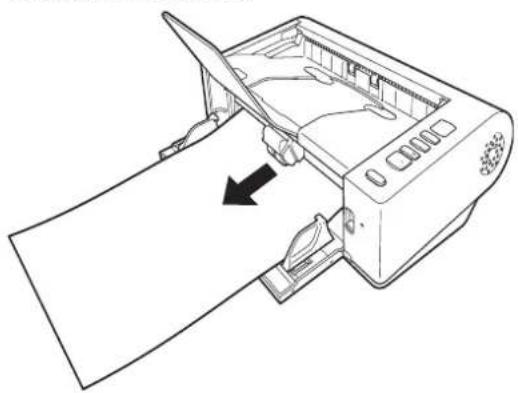
natural_image
Line drawing of a printer or scanner device with an arrow indicating a component or operation (no text or symbols present)2
Raise the OPEN lever, and open the upper unit.

natural_image
Line drawing of an open printer with a paper clip inserted, showing internal components and a close-up of the paper's edge (no text or symbols present)
Hint
The "C" error code appears in the operating panel when the upper unit is open..
3
Remove the jammed document.
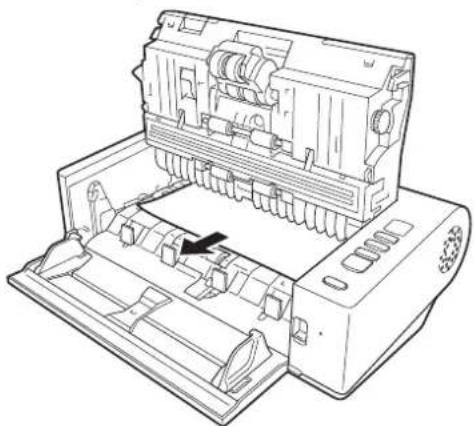
natural_image
Line drawing of an open printer internal structure with a black arrow indicating a component (no text or symbols present)
IMPORTANT
Make sure to pull the document out carefully, without applying too much force. If the jammed paper tears while you are pulling it out, make sure to remove any remaining pieces from inside the scanner.
4
Close the upper unit by gently pushing down on the left and right sides. Push until it clicks into place to make sure that it is completely closed.

natural_image
Diagram of an open computer case with internal components and a black arrow indicating a process direction (no text or symbols present)After removing the jammed paper, check to see if the last page was scanned correctly, and then continue scanning.

Hint
When the [Rapid recovery system] check box is enabled in the scanner driver settings screen, you can resume a scanning operation even if it is interrupted by a paper jam by removing the document and resuming from the document that was being fed when the interruption occurred.
As the image of the document that was being fed at the time of the interruption may not be saved in such cases, be sure to verify the last scanned image before resuming the operation.
Uninstalling the Software
If the ISIS/TWAIN driver, CaptureOnTouch or CapturePerfect is not operating normally, follow the procedure below to uninstall them.
Then, re-install the software from the Setup disc. (See p. 7)
IMPORTANT
Log on to Windows as an Administrator.
Windows
1 From the Windows task bar, click the [Start] button and then [Control Panel].
2 Click [Uninstall a program] ([Add or Remove Programs] in Windows XP).
The [Uninstall or change a program] dialog box appears.
3 From the Programs list, select the software you want to remove and then click [Remove].
The delete confirmation screen appears.
4 Click [Yes].
Uninstallation of the software is now complete.
Mac
No uninstaller is provided for OS X drivers. To uninstall, use Finder to delete the following files.
/Library/Image Capture/TWAIN Data Sources/DRM140
/Applications/CaptureOnTouch DR-M140
Appendix
Specifications
Main Unit
Type Desktop sheetfed scanner
Scanning Document Size
Plain Paper
Size Width: 50.8 mm to 216 mm (2" to 8.5")
Length: 54 mm to 356 mm (2.12" to 14") (You can
scan documents up to 3,000 mm (118.1") long by
setting the scanner to the Long Document mode.)
Paper weight: Straight path: 27 to 255 g/m ^2 (7 to 68 lb bond) 0.04
mm to 0.3 mm (0.00157" to 0.0118")
U-turn path: 27 to 128 g/m² (7 to 34 lb bond) 0.04
mm to 0.15 mm (0.00157" to 0.0075")
Loading capacity
A4 size or smaller: 50 sheets
Larger than A4 size: 40 sheets
Business Card
Size: 50.8 mm x 85 mm (2.00" x 3.35") or larger
Paper thickness:
380 g/m² (80 lb bond) 0.45 mm (0.0177") or
smaller
Orientation: Vertical feeding only
Eject method: Straight path only
Card
Size: 54 mm x 86 mm (2.12" x 3.37") (ISO standard)
Card thickness: 0.76 mm (0.03") or less, 1.4 mm (0.055") or less for the embossment
Orientation: Vertical or horizontal feeding (only vertical for embossed cards)
Eject method: Straight path only
Loading capacity:
3 cards (non-embossed), 1 card (embossed)
Scanning Sensor Contact image sensor
Light source LED
Scanning Side Simplex/duplex
Scanning modes Black and White, Error Diffusion, 256-level
Grayscale, Advanced Text Enhancement,
Advanced Text Enhancement II, 24-bit Color
Scanning resolution (Primary Scan Lines x Secondary Scan Lines)
150 x 150dpi/200 x 200dpi/240 x 240dpi/300 x
300dpi/400 x 400dpi/600 x 600dpi
Scanning Speed (Conditions: Core i7 2.8GHz CPU, 4 GB memory, A4 document size)
Grayscale Simplex 200dpi 40 pages/min.
300dpi 40 pages/min.
Duplex 200dpi 80 images/min.
300dpi 80 images/min.
24-bit Color
Simplex 200dpi 40 pages/min.
300dpi 40 pages/min.
Duplex 200dpi 80 images/min.
300dpi 80 images/min.
Interface Hi-Speed USB 2.0
Other functions Folio scanning, double feed detection ignore
External Dimensions
313 mm (12.32")(W) x 181 mm (7.13")(D) x 93 mm
(3.66")(H)
Weight (without AC adapter)
Aprpoximately 2.6 kg (5.51 lb)
Power Supply (using AC adapter)
DC24V 0.9A
Power ConsumptionScanning: Maximum 25 W
In the Sleep mode: Maximum 1.9 W
With power switch OFF: Maximum 0.5 W
Noise Not more than 56 dB
Operating Environment
Temperature: 10°C to 32.5°C (50°F to 90.5°F)
Humidity: 20% to 80% RH
AC Adapter (100 to 240 V type)
Model Number MG1-4558
Input AC100 to 240V, 50/60 Hz, 1.1 to 0.58 A
Output DC24V 2.0A
Weight Approximately 0.4kg (0.88 lb) (including power
cord)
Replacement Parts
Exchange roller kit (product code: 5972B001)
Kit to replace the rollers (feed roller, retard roller).
- For the replacement procedure, see "Replacing Consumable Parts" on p. 83.
- Contact your local authorized Canon dealer or service representative for detailed information about the replacement parts.
Option
Barcode module (product code: 1922B001)
Add-on module to recognize barcodes printed on documents during scanning,
Windows Flatbed scanner unit101 (product code: 4101B001)
Flatbed scanner unit that can be connected to and used with a DR scanner. Connecting the unit to this scanner enables you to use this scanner as a flatbed scanner with an automatic document feeder.
Windows < Flatbed scanner unit201 (product code:6240B001)
A flatbed scanner unit that can be used by connecting to a DR scanner and supports A3 size paper.
Specifications are subject to change without notice due to product improvements.
About the Flatbed Scanner Unit 101/Flatbed Scanner Unit 201
The optional Flatbed Scanner Unit 101/201 can be connected to and used with this scanner.
System requirements
The computer must comply with the necessary system requirements of Flatbed Scanner Unit 101/201.
The scanner driver of Flatbed Scanner Unit 101/201 needs to be installed to use the unit.
About Use with CaptureOnTouch

Hint
Only the Flatbed scanner unit101 can be used with CaptureOnTouch.
About Assigning Function to Start Button
When you connect Flatbed Scanner Unit 101, you can assign Scan First of CaptureOnTouch or any job to the start button of Flatbed Scanner Unit 101.
Limitation of Full Auto Mode
When a document is scanned with Flatbed Scanner Unit 101, Full Auto mode of CaptureOnTouch may not function effectively.
Limitation of Restarting with Start Button
When CaptureOnTouch is set not to be resident in memory, CaptureOnTouch cannot be restarted by pressing the start button on Flatbed Scanner Unit 101 after you end CaptureOnTouch.
About Setting up the Scanner Driver
When functions of this scanner cannot be selected with the Flatbed Scanner Unit 101 settings dialog box, click [Option] in the dialog box to open the scanner driver and make the required settings.s
Dimensions

text_image
181 mm (7.13") 313 mm (12.32") 165 mm (6.5") 250 mm (9.84")Index
A
Adjusting the Reduction Ratio 82
Advanced Mode(Mac) 58
Auto Power Off Setting(Windows) 89
B
Batch Separation(Windows) 69
C
CaptureOnTouch Environmental Settings 49, 50
Restarting 39
Scan First 39
Select Scan Job 41
Starting 37
CapturePerfect(Windows) 54
Card 28
Connecting 10
D
Detecting 31
DFR button 21,33
Documents
Card 28
Folded documents, placing 28
Loading Documents 25
Double Feed Detection 31
Setting procedure(Windows) 32
Setting procedure(Mac) 32
F
Flatbed scanner unit101 99
Flatbed scanner unit201 99
|
Installing 7
Third-Party Software 7
J
Job Editing 41
Registering 41
Select and scan 43
Job No. Indicator 21
Job Select Button 21
L
Long Document Mode 29
Setting procedure(Windows) 30
Setting procedure(Mac) 31
M
multistream settings(Windows) 70
0
Operating Panel 21
P
Patchcode 76
Power 11
R
Reset Counter 87
Resetting the counter 87
Setting procedure(Windows) 87
Setting procedure(Mac) 88
Rollers Cleaning 79
Replacing 83
S
Scanner Driver Basic Settings .... 59 Configuring Settings According to Purpose .... 63
Scanning Glass Cleaning 79
Setup 4
Simple Mode(Mac) 58
Skew Detection 35
Setting procedure(Windows) 35 Setting procedure(Mac) 35
Start Button 21
Stop Button 21 System Requirements 6
T
Third-Party Software 5
U
Uninstalling 97
Canon
CANON ELECTRONICS INC.
19TH FLOOR, THE METROPOLIS TOWER, 10 METROPOLIS DRIVE, HUNGHOM, KOWLOON, HONG KONG.
CANON KOREA BUSINESS SOLUTIONS INC.
BS TOWER, 607 TEHERAN-RO, GANGNAM-GU, SEOUL, KOREA
CANON INDIA PVT. LTD
7TH FLOOR, TOWER B DLF CYBER TERRACES DLF PHASE III GURGAON - 122002 HARYANA, INDIA
PUB. CE-IM-863-E2.20 © CANON ELECTRONICS INC. 2011