WBT-202 - Gps Wintec - Free user manual and instructions
Find the device manual for free WBT-202 Wintec in PDF.


User questions about WBT-202 Wintec
0 question about this device. Answer the ones you know or ask your own.
Ask a new question about this device
Download the instructions for your Gps in PDF format for free! Find your manual WBT-202 - Wintec and take your electronic device back in hand. On this page are published all the documents necessary for the use of your device. WBT-202 by Wintec.
USER MANUAL WBT-202 Wintec
text_image
G-Rays72.1 Plus+ u-blox5 Wintec G-Rays72.1 Wintec G-Rays72.1 Bluetooth GPS Receiver with micro interfaceWBT-202 English User's Manual
SAFETY NOTES
- GPS (Global Positioning System) is provided by the United States government. Its accuracy may varies depending on special conditions (area at war or if it is blocked). Any control by USA will affect this system and its accuracy.
- If installed on the transportation device, driver must not operate this while driving.
- GPS performance is affected when satellite coverage is degraded as near a high-rise building, in the tunnel or under a cover.
- Personal replacement of components and re-structuring of WBT-202 is prohibited and may result in loss of warranty.
- Operation of this device is strictly prohibited in highly explosive environment such mining, in-flight or other unauthorized area against use of this.
- Avoid exposing this at places of high temperature and humidity.
- Return to original dealer immediately if it emits strange smell or fume.
Set the WBT-202 on the place where can receive GPS signal easily for 10 to 15 minutes if it is the first time to be used. This procedure enables the device to gather some Almanac Data and ensures the quicker position fixed and better GPS performance.
WBT-202
Bluetooth GPS Receiver with Micro-SD interface
CONTENTS
1 FEATURES
3 PRODUCT OVERVIEW
4 LED INDICATOR
5 CONTENTS
6 BATTERY INSTALLATION
7 BATTERY CHARGING
8 MICRO-SD CARD INSTALLATION
9 USING THE UNIT
10 BLUETOOTH CONNECTION
11 SHOWING TRACK
11 • ENTER THE MSD (MASS STORAGE DEVICE) MODE
16 GOOGLE MAPS OVERVIEW
17 USING WBT_Tool UTILITY
41 TRACK EDITING VIA TIMEMACHINEX
51 INSTALLING THE USB DRIVER
57 CONNECT TO POCKET PC
59 FIRMWARE UPGRADE
63 TROUBLE SHOOTING
Wintec WBT-202, a Bluetooth GPS Receiver with micro SD card interface, built-in u-blox 5 GPS & GALILEO chipset, not only provides extreme high sensitivity to recode GPS data but supplies huge memory to log travel records. Besides, its low power consumption can sustain long time operation more than 28 hours.
WBT-202 supports MSD mode (Mass Storage Device), the USB driver and its inbuilt software (WBT_Tool) are inside the Micro-SD card. All tracking records can be downloaded, transferred, saved easily without any software installation, and also displayed directly on Google Maps with photos by integrated Geotagging function. That is to say, WBT-202 is a plug and play device, and you can use it and enjoy your track anywhere.
Start to record GPS log
Turn on WBT-202 before you start your trip, make sure it gets acquisition, and take pictures with your digital camera. The device records the GPS log after the power is turned on until turned off.
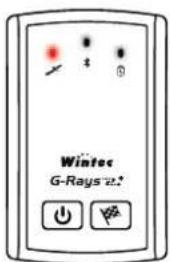
text_image
Wintec G-Rays 2.1GPS LED Blink (Red)
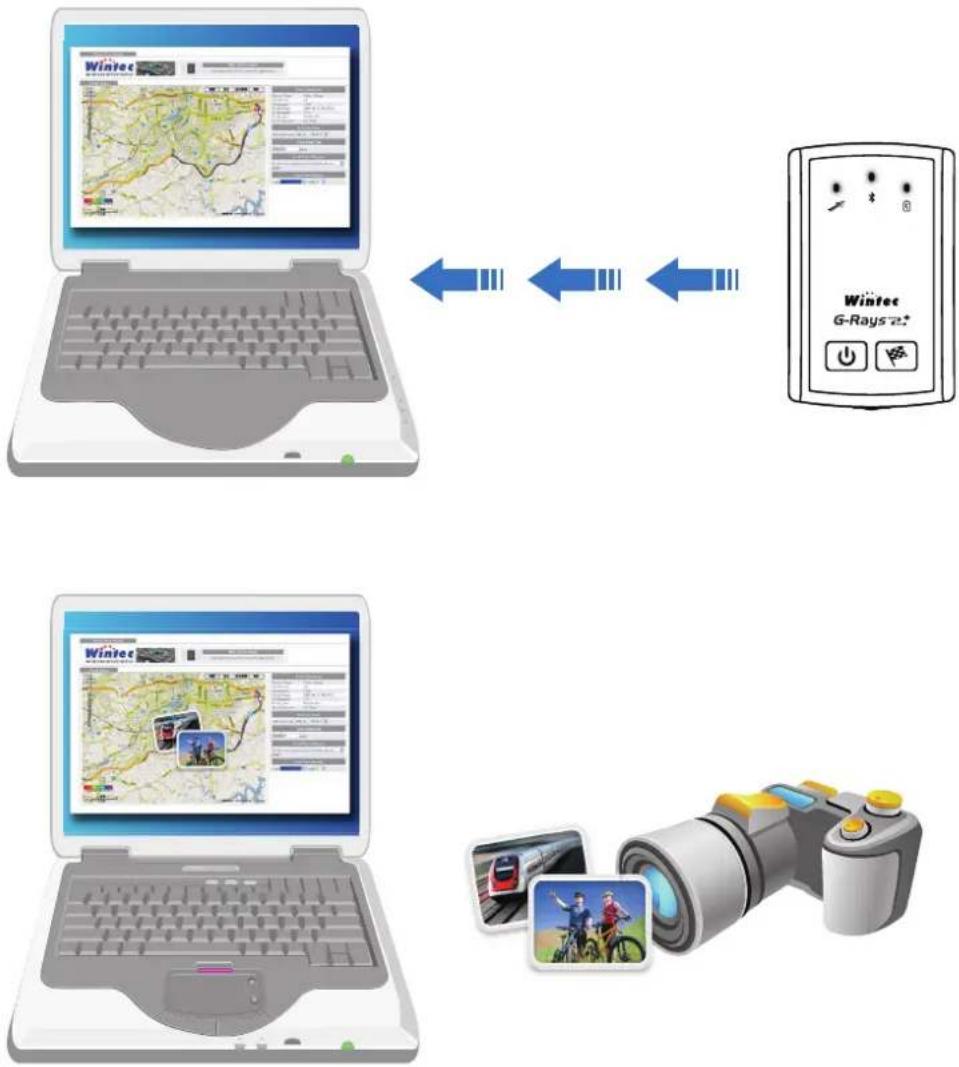
Plug & play, auto-show track on Google Maps
▶ No need to install any driver or software.
Just connect WBT-202 to computer via USB or Bluetooth interface, and the tracking records will show on Google Maps automatically.
Even connect to computer for navigation or TimeMachineX via USB, you can install driver through the one inside the Micro-SD card, and no need to set it by Tool CD.

text_image
GPS Wintec Wintec G-Rays 2.1Useful & user-friendly inbuilt software
No need to install any extra software, the inbuilt one will pop up after connect WBT-202 to computer.
No matter GPS parameter setting, format converting Geo-tagging...etc. can be done via the inbuilt software.
flowchart
graph TD
    A["Laptop with map"] <--> B["WiRat device"]
    C["Laptop with keyboard"] <--> B
    D["Laptop with laptop"] <--> B
    E["Laptop with photo"] <--> F["Camera with trip and cycling"]
    style A fill:#f9f,stroke:#333
    style B fill:#ccf,stroke:#333
    style C fill:#cfc,stroke:#333
    style D fill:#fcc,stroke:#333
    style E fill:#cff,stroke:#333
    style F fill:#ffc,stroke:#333
text_image
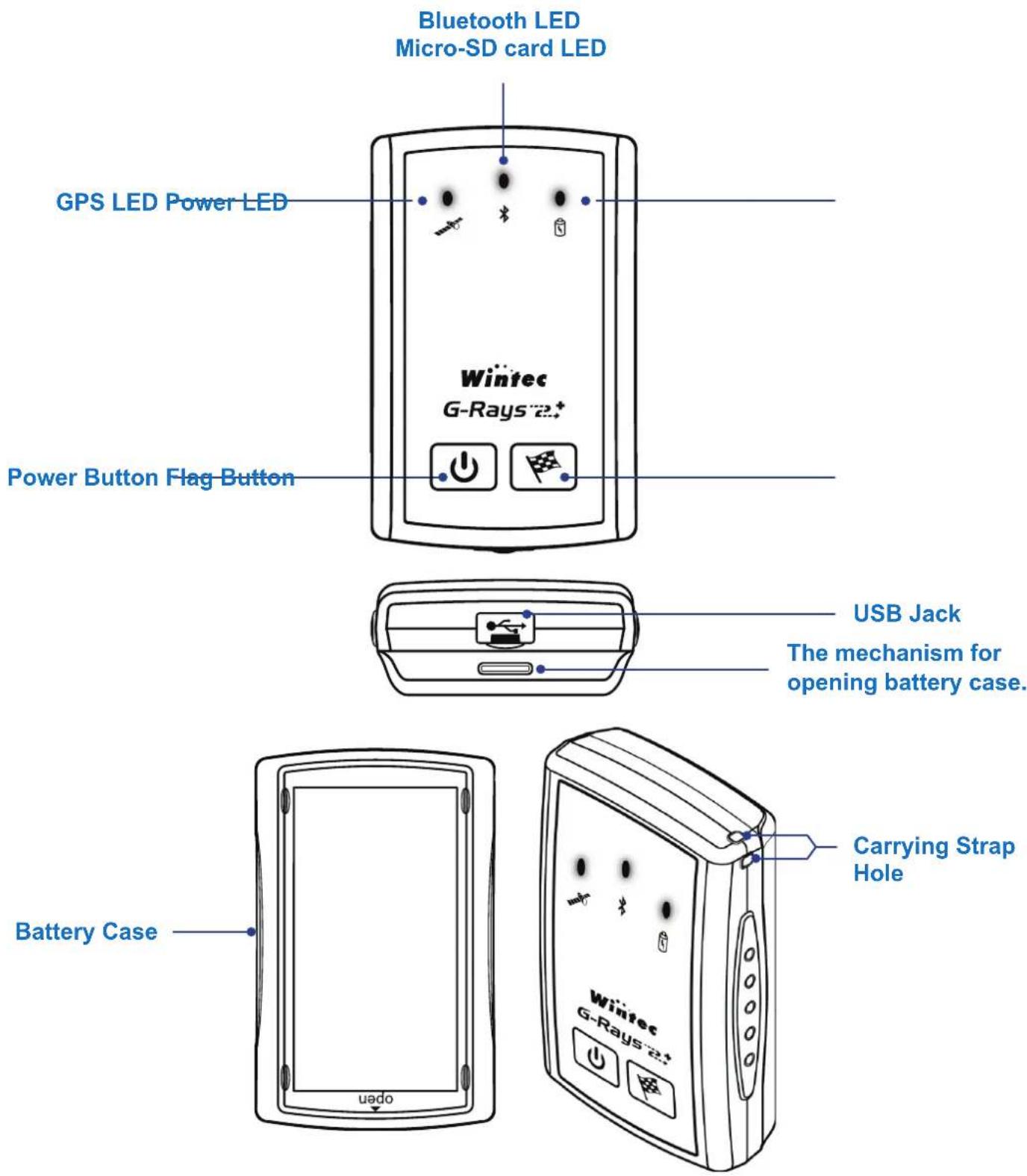
Bluetooth LED Micro-SD card LED GPS LED Power LED Wintec G-Rays 2.1 Power Button Flag Button USB Jack The mechanism for opening battery case. Battery Case Carrying Strap Hole openLED Status Light Description
 | Blink GPS get acquisition | ||
| On | Searching satellites & Not get acquisition | ||
| Off | Device off | ||
| On | Record a Push To Log point or Create a new track | ||
 | Bluetooth | Blink | Bluetooth connected |
| On | Bluetooth on & searching | ||
| Off | Bluetooth off | ||
| Blink | Rapidly flash with Micro-SD card → log a point on Micro-SD card. Rapidly flash w/o Micro-SD card → log a point on inbuilt memory. | ||
| On | No Micro-SD card. Micro-SD card full. Micro-SD card error. (Track points will be recorded to the inbuilt memory.) | ||
| Off | Log to Micro-SD card | ||
 | Blink | Low power (Red) | |
| On | Charging (Red) Fully Charged (Green) | ||
1 x WBT-202 / BT GPS Receiver with micro SD card
1 x Micro SD card
1 x Lithium-ION rechargeable battery
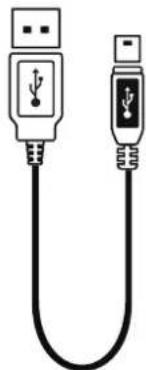
1 x Mini USB cable
1 x Quick installation guide
Optional accessories
1 x Power adapter
1 x Car charger
Before using the device, please make sure that all accessories are included in the package. In case any one is missing or damaged, please contact your dealer immediately.
text_image
Winter G-Rays 2.*WBT-202 / BT GPS Receiver with micro SD card

text_image
micro SMicro SD card
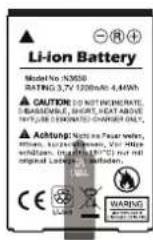
Lithium-ION rechargeable battery
natural_image
Illustration of two USB connectors with USB symbols, no text or labels presentMini USB cable

text_image
WBT-2021 Winter 2021 WBT Series WBT-2021 WBT Series WBT-2021 WBT Series WBT-2021 WBT Series WBT-2021 WBT Series WBT-2021 WBT Series WBT-2021 WBT Series WBT-2021 WBT Series WBT-2021 WBT Series WBT-2021 WBT Series WBT-1998 WBT Series WBT-1998 WBT Series WBT-1998 WBT Series WBT-1998 WBT Series WBT-1998 WBT Series WBT-1998 WBT Series WBT-1998 WBT Series WBT-1998 WBT Series WBT-1998 WBT Series WBT-1998 SWEI Series WBT-1998 SWEI Series WBT-1998 SWEI Series WBT-1998 SWEI Series WBT-1998 SWEI Series WBT-1998 SWEI Series WBT-1998 SWEI Series WBT-1998 SWEI Series WBT-1998 SWEI Series WGT-1998 SWEI Series WGT-1998 SWEI Series WGT-1998 SWEI Series WGT-1998 SWEI Series WGT-1998 SWEI Series WGT-1998 SWEI Series WGT-1998 SWEI Series WGT-1998 SWEI Series WGT-1986 SWEI Series WGT-1986 SWEI Series WGT-1986 SWEI Series WGT-1986 SWEI Series WGT-1986 SWEI Series WGT-1986 SWEI Series WGT-1986 SWEI Series WGT-1986 SWEI Series WGT-1986 SWEI TotalQuick installation guide
- Push the mechanism at the bottom of the unit and take off the battery case
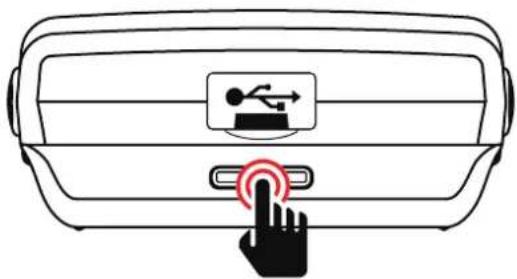
natural_image
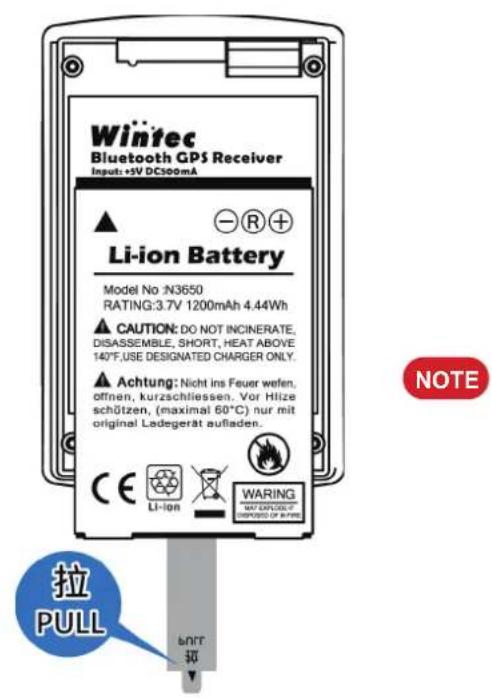
Line drawing of a device with a finger pressing a button labeled with a USB symbol (no text or numbers present)- Place the battery properly
text_image
Wintec Bluetooth GPS Receiver Input: +5V DC500mA Li-ion Battery Model No :N3650 RATING:3.7V 1200mAh 4.44Wh CAUTION: DO NOT INCINERATE, DISASSEMBLE, SHORT, HEAT ABOVE 140°F,USE DESIGNATED CHARGER ONLY. Achtung: Nicht ins Feuer wefen, offnen, kurzschliessen. Vor Hilze schnözen, (maximal 60°C) nur mit original Ledegerät aufladen. NOTE CE Li-ion WARING NO EXCELUT PROPOSED BY PENS 拉 PULL BOTTNOTE
Please be aware that the tab on battery is for easily pulling, don't remove.it.
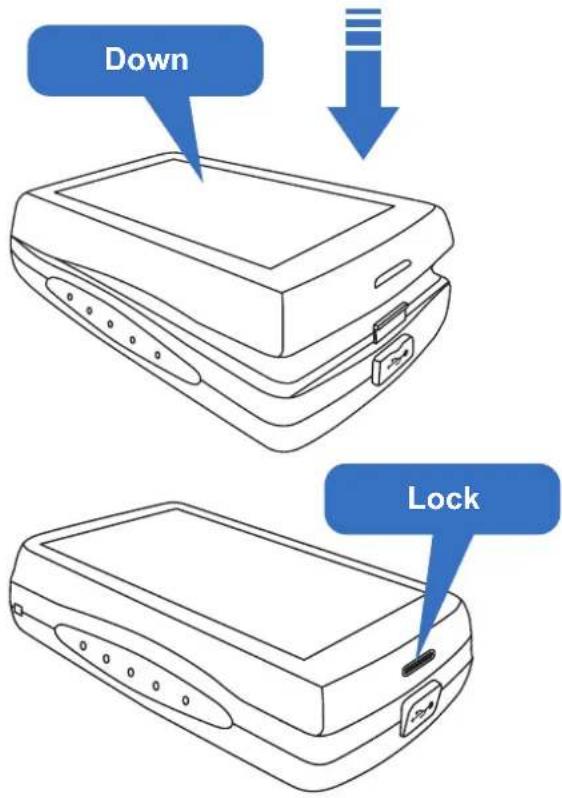
- Close the battery case.
text_image
Down LockPlease take off the battery if the device will 1. not be operated more than 30 days.
Be sure WBT-202 has been turned the 2. power off before removing the battery. The abnormal process may cause damage of log data.
Charge the battery immediately when the 3.
red (Power) LED blinks. Doing so can avoid worse GPS performance and incomplete log data.
Do not disassemble, puncture, or damage 4. the battery.
Contact your local waste dispose depart-5. ment to properly recycle of the battery.
CAUTION
RISK OF EXPLOSION IF BATTERY IS REPLACED BY AN INCORRECT TYPE. DISPOSE OF USED BATTERIES ACCORDING TO THE INSTRUCTIONS.
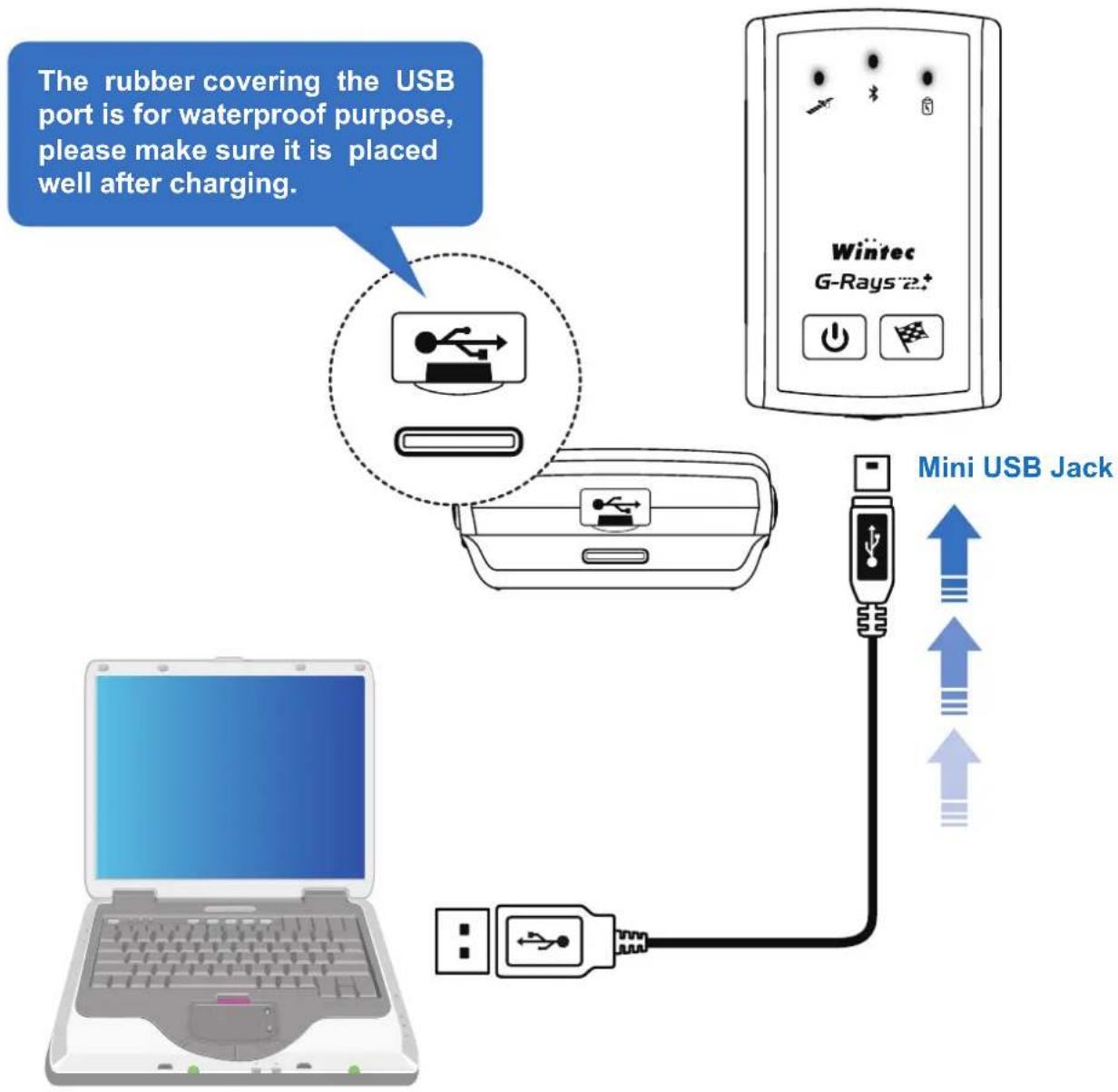
Plug in the USB cable from WBT-202 connected to any USB port of computer for charging.
For the first time using WBT-202, please charge battery until it is fully charged.
The unit can be charged no matter power on or off.
Battery charging can via USB cable to computer directly or power adapter or car charger (optional accessories).
When the (Power) LED is red and blinking, it is battery low, please recharge.
When the (Power) LED is red and on, the battery is under charging.
When the (Power) LED is green and on, the battery is fully charged.
text_image
The rubber covering the USB port is for waterproof purpose, please make sure it is placed well after charging. Wintec G-Rays 2.+ Mini USB JackBefore installing the Micro-SD card, please turn off the WBT-202, remove the battery and take off the USB cable if any.
Install the Micro-SD card properly. Please refer to below illustration.
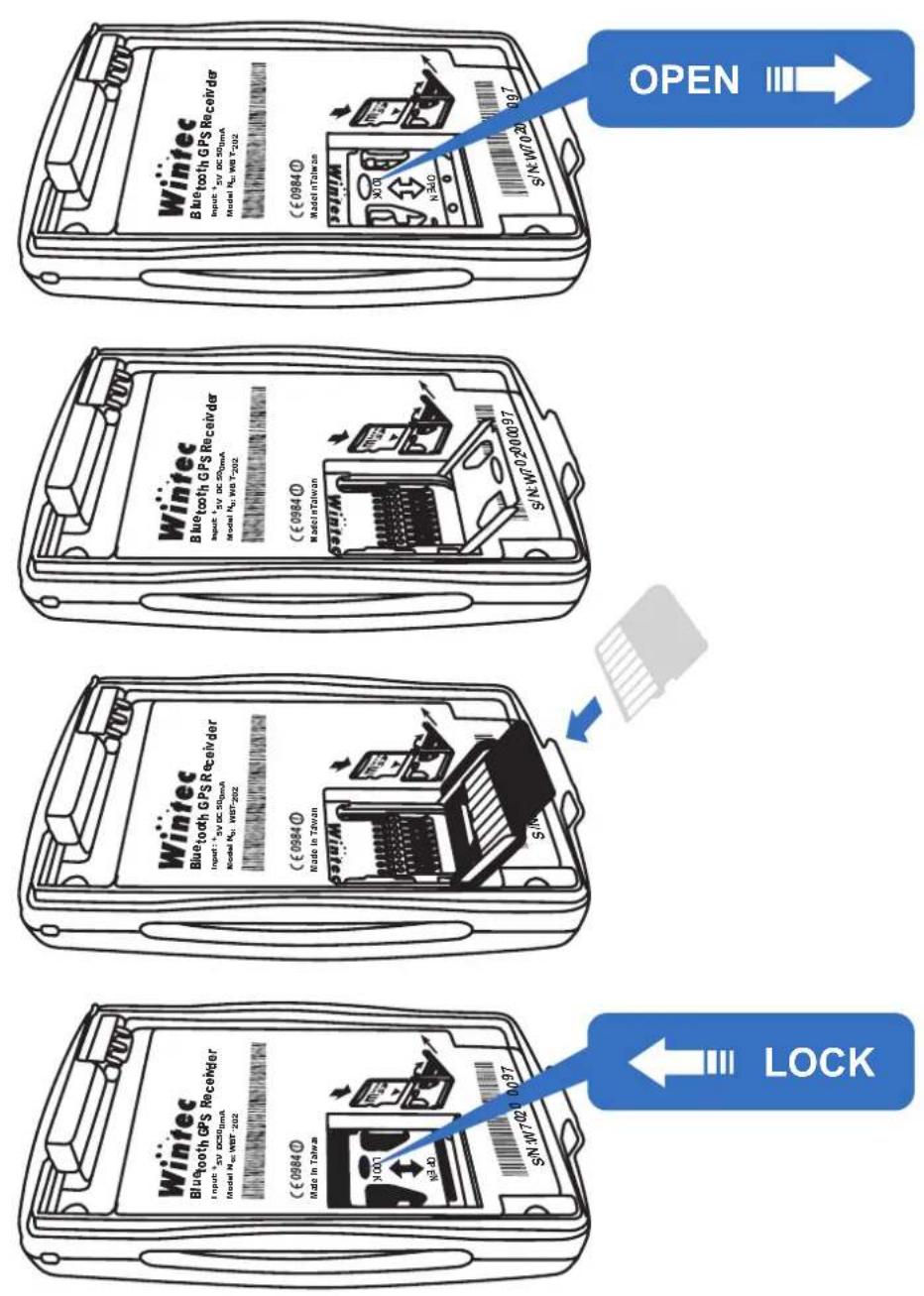
▶ Relocate the battery and start to use WBT-202.
Power On
Press and hold the ⏻ (Power) button for 3 seconds to turn on the WBT-202.
The (GPS) & (Bluetooth) LED will light up and start to search satellites signals.
If there is no Micro-SD card inside the device, the orange ⚙ (Micor-SD) LED will light up.
At this moment, ensure the unit facing to the sky in open sky environments for about a minute unit the WBT-202 gets acquisition (Red LED blinks).
Bluetooth On/Off
Press the ⏻ (Power) button to enable or disable the Bluetooth connection.
Create a new track
Press the 📄 (Flag) button longer until the green 📋 (GPS) LED goes out, and the WBT-202 will re-start a new file for logging.
Add a Push-To-Log point
Press the (Flag) button to log a Push-To-Log point.
Power Off
Press and hold the ⏻(Power) button for 3 seconds to turn off the WBT-202. All LED will go out.
Before using Bluetooth interface, please ensure that the device you will connect with supporting Bluetooth SPP Master Service.
The baud rate is 4800\~115200 bps, you can set it by yourself according to the demand.
▶ Turn on the WBT-202 first, and use the other device to search it.
Connecting WBT-202, and place it to a proper location to receive better satellites signal.
After getting acquisition, WBT-202 starts providing GPS data via Bluetooth. Enjoy your application.

The logging function would be proceeded no matter Bluetooth on or off.1. When the logging function is disabled with unworked Bluetooth and USB in-2. terface, the WBT-202 will auto turn off after 10 minutes (the interval time can be set via WBT_Tool).
Please ensure that your computer is on-line status before you execute following steps.
Please be aware that following instruction is applied to the log data stored in the Micro-SD card, but inbuilt backup memory.
For record stored in the inbuilt backup memory should be shown up via TimeMachineX.
Enter the MSD (Mass Storage Device) mode
How to switch to MSD mode?
- Turn on the WBT-202.
- Connect the unit to any USB port of computer via USB cable.
NOTE If the USB driver hasn't been installed yet, the "Find New Hardware Wizard" will pop up, please cancel it first.
- Press the ⏻ (Power) button longer until the 📄 (GPS) LED and ✕ (Bluetooth) LED go out. It switched to MSD mode now. At this moment, the orange ✕ (Micro-SD) LED will light on.
- Under MSD mode, take off the USB cable or press the flag button, WBT-202 will exit MSD mode and turn the power off.
CAUTION
Don't delete, rename or re-organize the exist files inside the WBT-202; otherwise the log data may not be properly recorded.
Can I use my own Micro-SD card?
If you enter MSD mode with your own Micro-SD card, please follow below steps.
- Following screen will pop up.
- Double click the file of "DOWNLOAD.HTM", and enter the link of WBT_Tool.

text_image
Removable Disk (E:) File Edit View Favorites Tools Help Back Search Folders Address E:\ File and Folder Tasks Make a new folder Publish this folder to the Web Share this folder Other Places My Computer My Documents Shared Documents My Network Places WBT202 Double Click DOWNLOAD HTML Document 1 KB USB_DRV Setup Information 4 KB- Decompress the rar fi le.
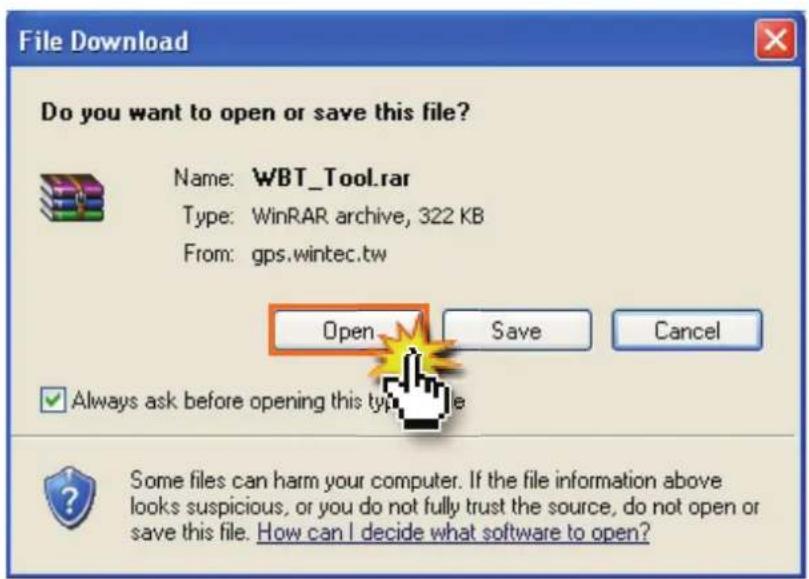
text_image
File Download Do you want to open or save this file? Name: WBT_Tool.rar Type: WinRAR archive, 322 KB From: gps.wintec.tw Open Save Cancel Always ask before opening this type file Some files can harm your computer. If the file information above looks suspicious, or you do not fully trust the source, do not open or save this file. How can I decide what software to open?- Copy those four fi les inside the compressed fi le to your Micro-SD card.

text_image
WBT_Tool File Edit View Favorites Tools Help Back Search Folders Address C:\Documents and Settings\aa\Desktop\WBT_Tool Go File and Folder Tasks Make a new folder Publish this folder to the Web Share this folder AUTORUN Setup Information 1 KB USB_DRV Setup Information 4 KB w Icon WBT_Tool WBT_Tool Copy to Micro-SD card. Other Places Desktop My Documents Shared Documents My Computer My Network Places- Use new one Instead of old one if any.
text_image
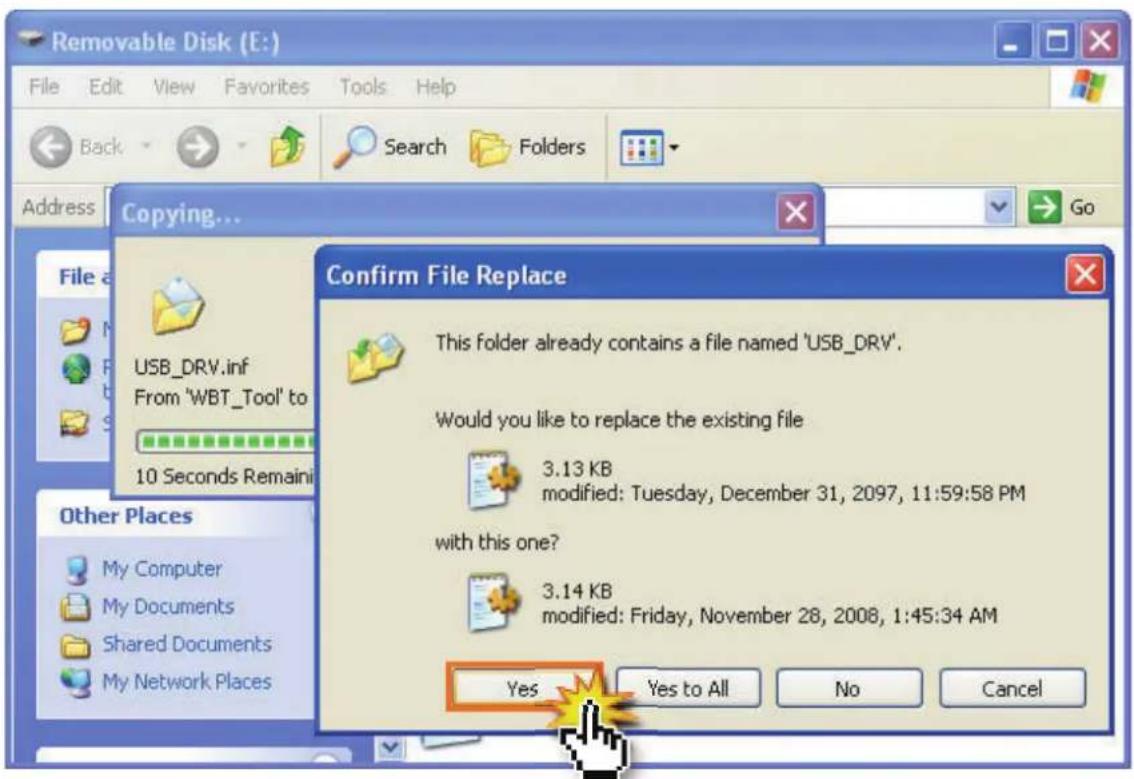
Removable Disk (E:) File Edit View Favorites Tools Help Back Search Folders Address Copying... File a USB_DRV.inf From 'WBT_Tool' to 10 Seconds Remain Other Places My Computer My Documents Shared Documents My Network Places Confirm File Replace This folder already contains a file named 'USB_DRV'. Would you like to replace the existing file 3.13 KB modified: Tuesday, December 31, 2097, 11:59:58 PM with this one? 3.14 KB modified: Friday, November 28, 2008, 1:45:34 AM Yes Yes to All No Cancel- At the first time, you have to enter WBT_Tool by double clicking its icon; however, when you enter MSD mode next time, the WBT_Tool will auto run and pop up.

text_image
Removable Disk (E:) File Edit View Favorites Tools Help Back Search Folders Address E:\ File and Folder Tasks Rename this file Move this file Copy this file Publish this file to the Web E-mail this file Delete this file WBT202 DOWNLOAD HTML Document 1 KB USB_DRV Setup Information 4 KB WBT_Tool WBT_Tool AUTORUV Setup Inform 1 KB w IconThe inbuilt access tool (WBT_Tool) will be executed automatically and pop up following • dialogue, please choose WBT_Tool and press "OK".

text_image
Removable Disk (F:) This disk or device contains more than one type of content. What do you want Windows to do? WBT_Tool using the program provided on the device Copy pictures to a folder on my computer using Microsoft Scanner and Camera Wizard Print the pictures using Photo Printing Wizard View a slideshow of the images using Windows Picture and Fax Viewer Open folder to view files using Windows Explorer Take no action OK CancelYou probably can not see the above dialogue if the antivirus program in your computer does not accept the "Auto Run" function. Please change the setting to accept it. You also can execute the WBT_Tool manually. Please refer to below process.
a) Open "My Computer".
b) Double click the icon of WBT_Tool as following.

Removable Disk (E:)
The WBT-202 will auto-connect to Google Maps. And the safety mechanism from IE as following will be shown up, please allow blocked content.

text_image
WBT_Tool - Microsoft Internet Explorer File Edit View Favorites Tools Help Back Search Favorites Go Links SnagIt Address C:\Documents and Settings\aa\My Documents\WBT202\GM_20090811085037.html To help protect your security, Internet Explorer has restricted this file from showing active content that could access your computer. Click here for options... JavaScript must be enabled in order for you to use Google Maps. How is either disabled or not supported by your browser. To view the map, enable JavaScript by checking the information bar help Allow Blocked Content... What's the Risk? Information Bar Help Allow this page to access my computerNow, the recorded track will be shown on Google Maps automatically.
At this moment, the inbuilt WBT_Tool will be minimized and hidden in the system tray. Click its icon as below anytime when you want to use the WBT_Tool.

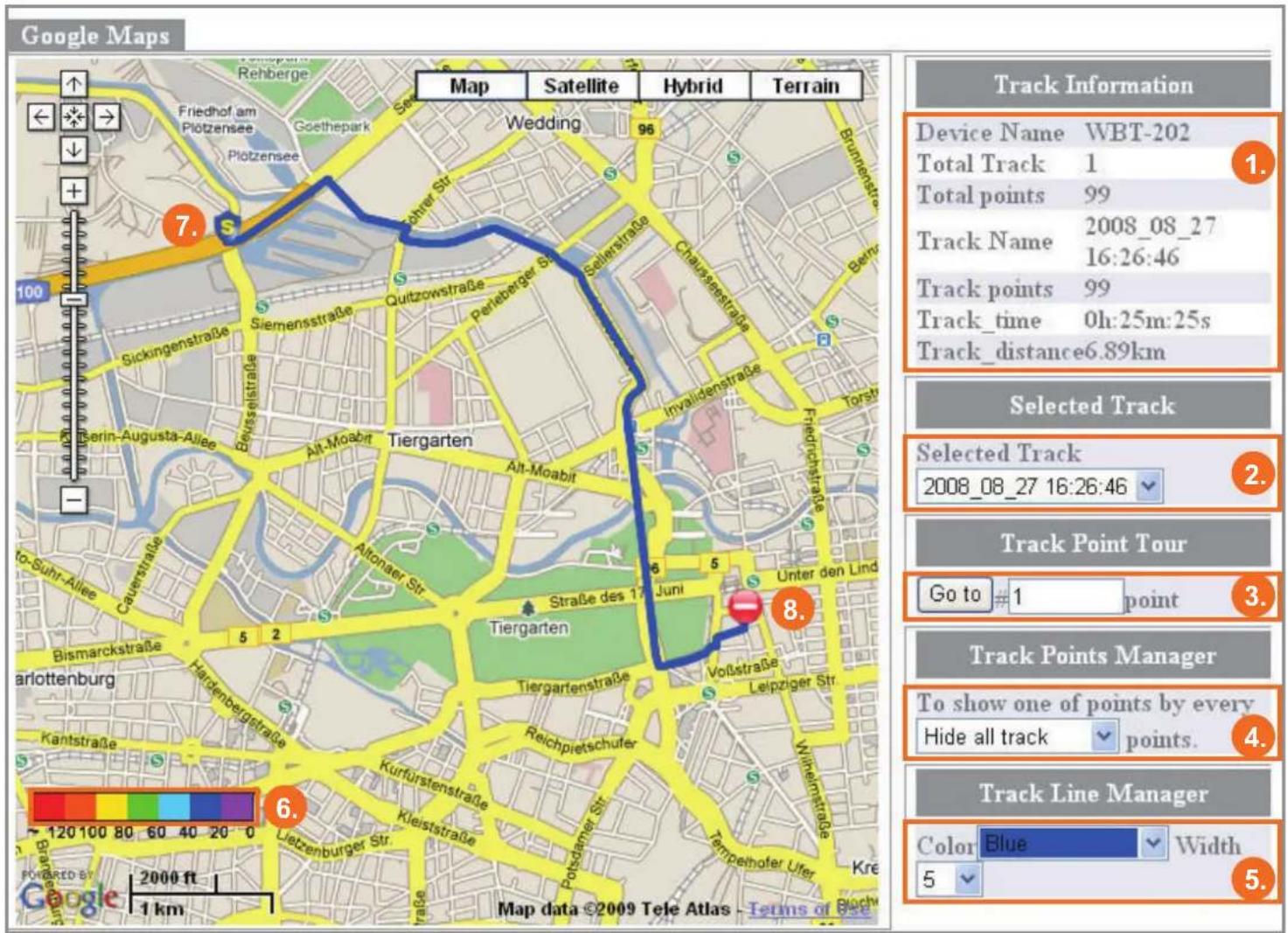
- Track Information: Basic information of the device and selected track.
- Selected Track: Only show the last track inside the WBT-202.
- Track Point Tour: Key in the digit which exact point you want to see and press "Go to" button. It will be pointed out on map, and the detail will be shown by left click.
- Track Points Manager: It can be shown by different combination of track points.
- Track Line Manager: Select the color of track.
- Speed Bar: Defi ne colors for speed. The track point shown on Google Maps with color and direction, and different color stands for different speed.
- Start Point.
- End Point.

text_image
WBT_Tool SW_Ver:4.0 FW_Ver:12.0 Language Additional_Tool Help ✓ 1.English 2.繁體中文 3.簡體中文 4.Deutsch 5.日本語 LOG Data Transfer Device Setting LOG Mode GPS Behavior GI Clear All LOG DATA 20090603\04 20 40.TES 20090604\04 22 15.TES 20090604\21 44 37.TES 20090604\22 49 33.TES 20090605\00 12 08.TES 20090605\06 06 12.TES 20090605\08 23 19.TES 20090608\10 19 37.TES 20090609\01 15 41.TES 20090610\06 22 14.TES 20090610\08 51 09.TES 20090611\05 47 52.TES 20090612\06 31 08.TES 20090626\07 20 19.TES Copy All LOG DATA to PC Copy LOG DATA from PC> Version & Language
- WBT_Tool Version & WBT-202 Firmware Version.
- Language Page: Select a language here.
text_image
WBT_Tool SW_Ver:4.0 FW_Ver:12.0 Language Additional_Tool Help LOG Data Manage 1 LOG Data Transfer Device Setting LOG Mode GPS Behavior GF [ LOG Data Manage ] LOG Data List: Clear All LOG DATA 3. 20090603\04 20 40.TES 20090609\07 19 29.TES 20090604\04 22 15.TES 20090610\06 22 14.TES 20090604\21 44 37.TES 20090610\08 51 09.TES 20090604\22 49 33.TES 20090611\05 47 52.TES 20090605\00 12 08.TES 20090612\06 31 08.TES 20090605\06 06 12.TES 20090626\07 20 19.TES 20090605\08 23 19.TES 20090608\10 19 37.TES 20090609\01 15 41.TES Copy All LOG DATA to PC Copy LOG DATA from PC 5.LOG Data Manage
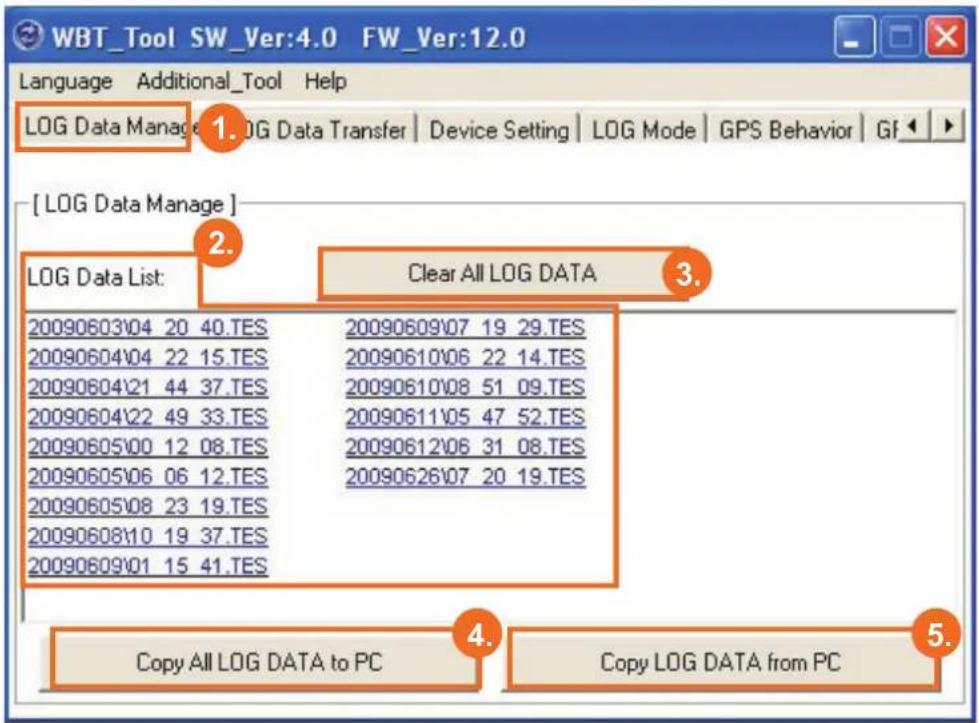
- Tab: LOG Data Manage Tab.
- LOG Data List:
All original log data saved in the Micro-SD card inside WBT-202 will be shown here.
NOTE The fi le name of each track is the UTC time of its start point.
Double click any track file to review track information.

text_image
Track Information Track: 20090605\08_23_19.TES Start Time: 2009_06_05T16:23:19Z+08:00 Terminal Time: 2009_06_05T16:54:07Z+08:00 Track Points: 271 Start Position: Changning District, Shanghai, China Terminal Position: Xianxia Rd, Changning District, Shanghai, China CloseUse right key function to copy or delete one or more log fi les.
| Copy LOG data to... |
| Copy all LOG data to... |
| Delete this LOG data |
| Delete all LOG data |
| Copy LOG data from... |
NOTE If you want to clear log stored in the WBT-202 inbuilt memory not Micro-SD card, please do it via TimeMachineX.
- Clear All LOG Data:
Press this button to clear all log data stored in the Micro-SD card.
- Copy All LOG Data to PC:
Press this button to copy all log data stored in the Micro-SD card to PC.
- Copy LOG Data from PC:
Press this button to copy log data (*.TES) backup in PC or the one (*.TK2) from TimeMachineX to the Micro-SD card of WBT-202.

text_image
WBT_Tool SW_Ver:4.0 FW_Ver:12.0 Language Additional_Tool Help LOG Data Manage LOG Data Transfer D 1. Setting LOG Mode GPS Behavior GF [ LOG Data Access ] [ Reference Unit ] 1. Metric System 2. [ Reference Zone ] +8 3. [ LOG data source ] Device: 20090626\07_20_19.TES 4. 5. Transfer the LOG data 1. Google Maps (*.html) China Map Transfer GM 2009062615... 8.LOG Data Transfer
- Tab: LOG Data Transfer Tab.
- Reference Unit: Select Metric or Imperial measure shown on track records.
- Reference Zone: Adjust the time zone for the process of transferring log data format.
NOTE A Geo-tagging process is based on the time zone here.
- LOG Data Source: Select a LOG data from the Micro-SD card to transfer the format.
- LOG Data Format: Select a format that you want to transfer to.
- China Map: When the track is logged in Mainland China, please tick "China Map" and transfer to Google Maps again.
- Transfer: After confi rming above items, press this button to convert to the format assigned.
- Track List:
All transferred track file will be shown here.
Use right key function to copy, delete or e-mail those fi les.

text_image
Copy to ... (zip) Copy to ... (html) Delete... Delete all... Mail to friendNOTE For Google Maps & Virtual Earth, the maximum of one track is 10,000 points. If a track includes more than 10,000 points, it will be separated into two tracks automatically.

text_image
WBT_Tool SW_Ver:4.0 FW_Ver:12.0 Language Additional_Tool Help LOG Data Manage | LOG Data Transfer Device Setting L 1. Mode GPS Behavior GF [ Device Setting ] [ Enable Password ] 2. [ Device Name ] 3. [ Device Info. ] New: Enable Password WBT-202 Vicky Confirm: Change Change [ Bluetooth/Device auto power off setting ] When no connected over 600 second, auto power off Bluetooth/Device. 0 seconds means that disable this function. If LOG function is enabled, only power off the Bluetooth. Set [ Shake Mode for Power Saving ] OFF: Always log. ON: No motion after 5 Mins. auto power off. SETDevice Setting
- Tab: Device Setting Tab.
- Password: Key in the password and press "Enable Password" button to authorize the password mechanism.
NOTE
The password should be 4 digits.1.
When you want to disable the password protection, just key in nothing in the 2. blanks of both "New" and "Confirm" and then click "Change Password" button.
- Device Name: Add a device name and press the "Change" button to confirm it.
- Device Info: Key in the device info if any and press "Change" button to confirm it.
- Bluetooth Setting:
When the logging function is DISABLE with unworked Bluetooth and USB interface, the WBT-202 will auto turn off after 10 minutes (depend on the time you set).
When the logging function is ENABLED with unworked Bluetooth and USB interface, the Bluetooth function will be switched off automatically.
NOTE
The valid setting is 60\~3600 seconds. Please remember pressing the "Set" button 1. after setting.
The Bluetooth auto turn off function will be shut down when the setting is "0" second.2
- Shake Mode: Enable or Disable the shake mode function.
When the shake mode on with no movement for 5 minutes (default, depend on the duration time you set), WBT-202 will auto turn off and turn on again when it feels vibration.
NOTE
If the WBT-202 is switched off manually under shake mode on, it won't turn on again automatically even with movement.
text_image
WBT_Tool SW_Ver:4.0 FW_Ver:12.0 Language Additional_Tool Help LOG Data Manage | LOG Data Transfer | Device Setting LOG Mode 1. Behavior GF [ LOG Mode ] LOG Mode: 0. User Define Set Log Mode 2. [ User Define LOG Mode ] ○ 0. Disable LOG function ○ 1. By Time Interval 5 second/point ○ 2. By Distance Interval 100 meter/point ○ 3. By Heading Change 7 Deg/point ○ 4. By Speed Change Highest High Middle Low Lowest Valid Speed for Record (km/hr) 1500 80 50 15 1 Log Time Interval (second) No LOG. 10 8 5 2 No LOG. ● 5. Mix Mode 5. LOGMODE_MIX_HTRS Factory SettingLOG Mode
-
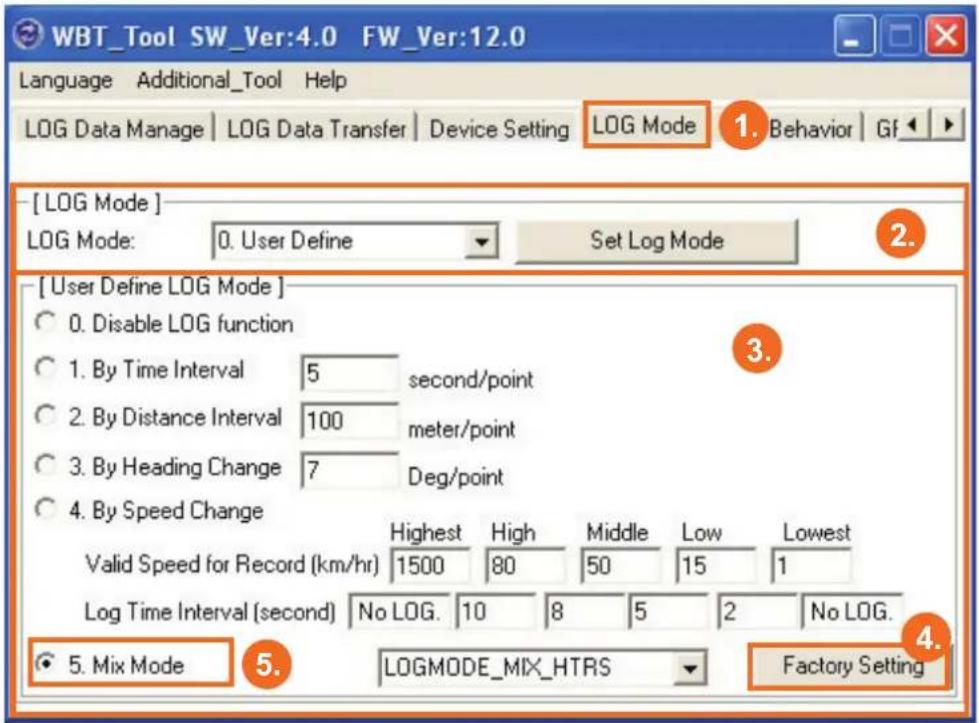
Tab: LOG Mode Tab.
-
LOG Mode: Select a log mode and press "Set Log Mode" button to confirm the setting. User Defi ne: the detail can be set according to point 3. Walk: Log a track point per 10 sec. or 20 m when the velocity is between 1\~2000 km/h. Bicycle: Log a track point per 20 sec. or 100 m when the velocity is between 3\~2000 km/h. Car: Log a track point when a heading change is bigger than 10 degrees when the velocity is between 5\~2000 km/h
-
User Defi ne LOG Mode: The detail of "User Defi ne" can be set here.
NOTE
Select "Disable LOG function" will stop the logging process.1.
Please be aware that the moving speed should lie in between the valid 2. speed for record; otherwise, the point won't be saved.
You also can set the valid speed to filter some shift points.3.
-
Factory Setting: Press this button to return LOG Mode setting to default.
-
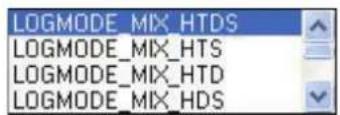
Mix Mode: Combine following conditions by your preference and log a point only one of them is conformed.
Time Interval (T)•
Distance Interval (D)•
Heading Change (H) •
Speed Change (S)•
text_image
WBT_Tool SW_Ver:4.0 FW_Ver:12.0 Language Additional_Tool Help LOG Data Manage | LOG Data Transfer | Device Setting | LOG Mode GPS Behavior 1. [ GPS Behavior ] [ NMEA Output ] ✓ GPRMC ✓ GPGGA ✓ GPGSA ✓ GPGSV SET 2. ☐ GPVTG ☐ GPZDA ☐ GPGLL [ GPS LED Setting while fix ] GPS LED Blink cycle (ms) 1000 GPS LED Off cycle (ms) 900 SET 3. [ GPS Re-Start ] Cold Start Warm Start Hot Start 4. [ SBAS ] ON OFF SET 5.GPS Behavior
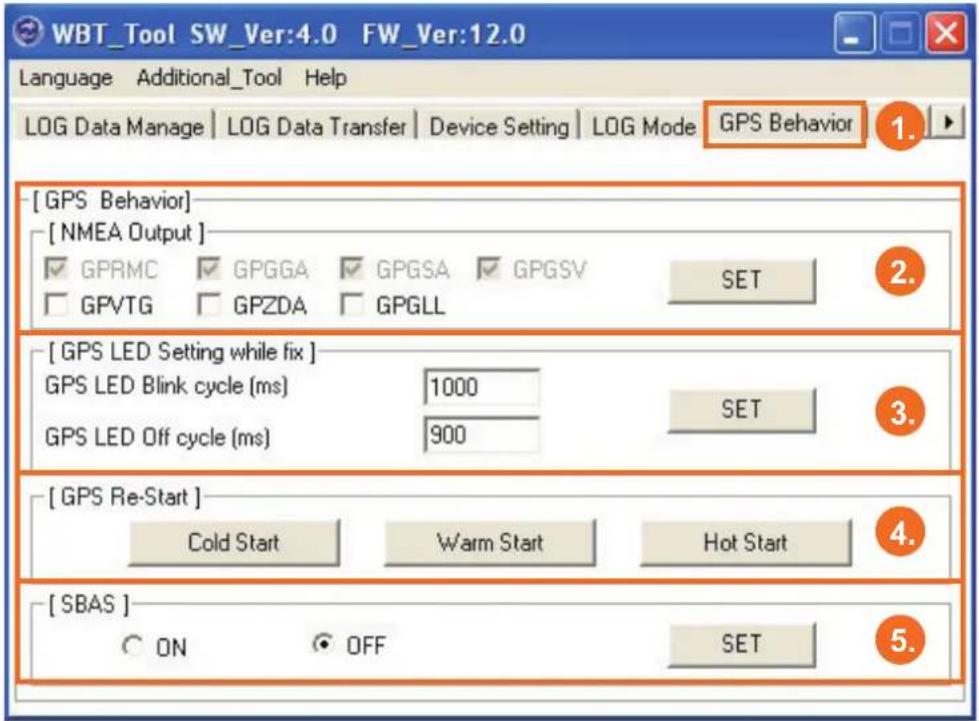
- Tab: GPS Behavior Tab.
- NMEA Output: Select NMEA output items by your requirement, and press SET button to confirm it. GPRMC, GPGGA, GPGSA & GPGSV are fixed because they are basic necessaries of navigation and data logging; GPVTG, GPZDA and GPGLL are option.
- GPS LED Setting: Defi ne the behavior of LED getting acquisition.
GPS LED Blink Cycle: Time includes one LED light on and one LED light off, a complete • cycle.
GPS LED Off Cycle: Time for LED light off during a complete cycle.
For instance by above picture, a LED cycle is 1 second. Light on for 0.1 second and light off for 0.9 seconds.
- GPS Re-Start: Include Cold Start, Warm Start and Hot Start.
Cold Start is suggested for quicker acquisition if one of below mentioned is confirmed.
a) The WBT-202 didn't be operated for more than 3 months.
b) The distance between your current location and the last time device turn off location is more than 800 km.
Warm Start is suggested if the device was used over 15 minutes in a week, but you just can not get acquisition when you use it again.
Hot Start is suggested when you often use the device, the GPS signal is okay and several satellites are received; however the device still can not get acquisition.
- SBAS: Enable (ON) or disable (OFF) the SBAS function, and press the SET button to confirm it.
text_image
WBT_Tool SW_Ver:4.0 FW_Ver:12.0 Language Additional_Tool Help LOG Data Transfer Device Setting LOG Mode GPS Behavior GPS Parameters 1. [ GPS Setting ] GPS Mode 3. Factory setting Set GPS Parameter [ GPS Parameters ] Fix Mode 3. Auto 2D/3D 2D Fix Altitude[m] 500.00 Navigation Min. SVs[3~6] 4 Initial Fix must be 3D Navigation Signal Min. Strength[dBHz] 12 P Accuracy Mask[m] 100 T Accuracy Mask[m] 300 PDOP Mask 23.0 TDOP Mask 23.0GPS Parameters
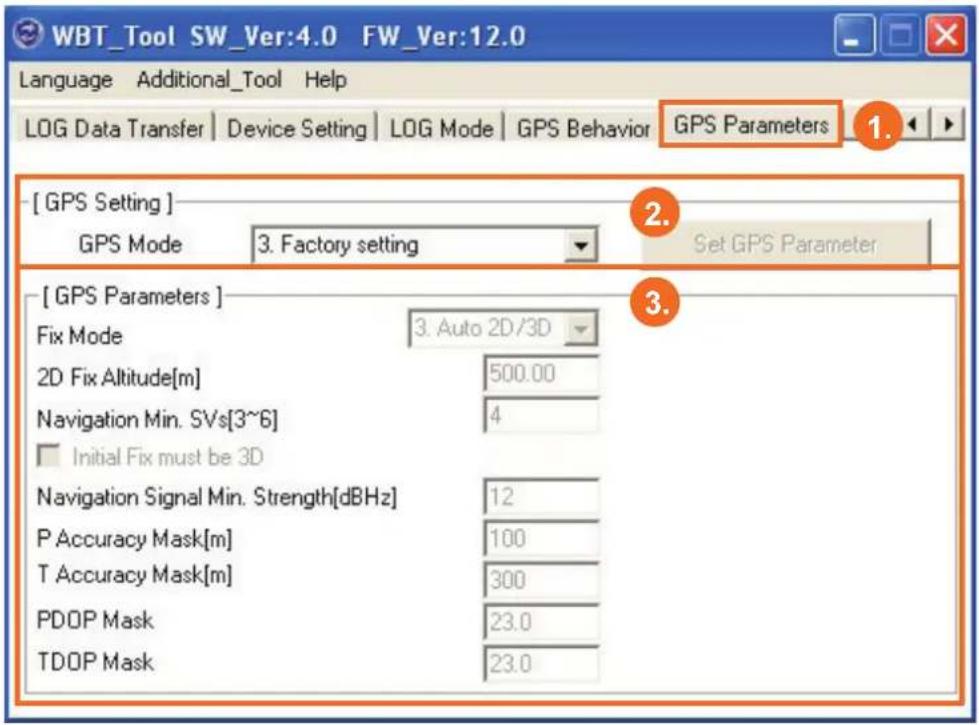
- Tab: GPS Parameters Tab.
- GPS Mode: Select a GPS mode and press "Set GPS Parameter" button to confirm it.
NOTE Please be aware that the higher accuracy is selected, the longer acquisition time is needed, that is to say, the faster acquisition time is chosen, the lower accuracy is provided.
- GPS Parameters: In GPS mode, if the "User define" is selected, and the detail can be set here.
text_image
WBT_Tool SW_Ver:4.0 FW_Ver:12.0 Language Additional_Tool Help LOG Data Geotagging / Report 1. G Mode GPS Behavior GPS Parameters Shape File Tool 2. [ GPS Setting ] GPS Mode 3. Factory setting Set GPS Parameter [ GPS Parameters ] Fix Mode 3. Auto 2D/3D 2D Fix Altitude[m] 500.00 Navigation Min. SVs[3~6] 4 Initial Fix must be 3D Navigation Signal Min. Strength[dBHz] 12 P Accuracy Mask[m] 100 T Accuracy Mask[m] 300 PDOP Mask 23.0 TDOP Mask 23.0Additional Tool
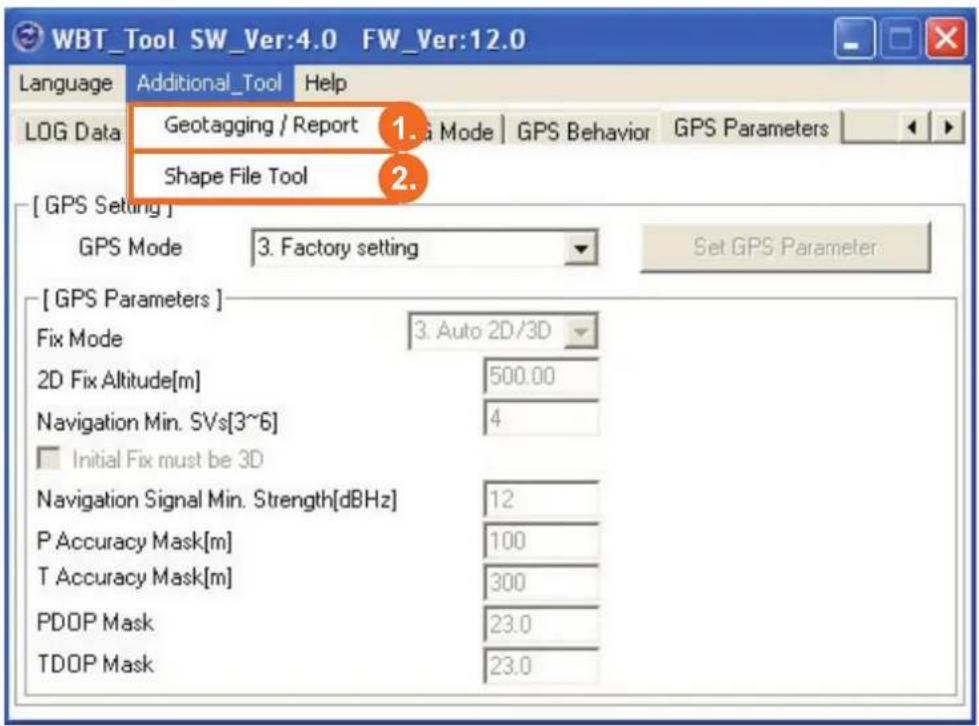
- Geotagging/Report: Press this button to enter Geotagging screen for further application.
- GIS Shapefi le Tool: Press this button to enter GIS Shapefi le screen for further operation.
Gotagging/Report
Before Geotagging process, please make sure that the time zone of device and digital camera should be the same as each other, otherwise photos won't be correctly Geotagged.
Combine photos with track
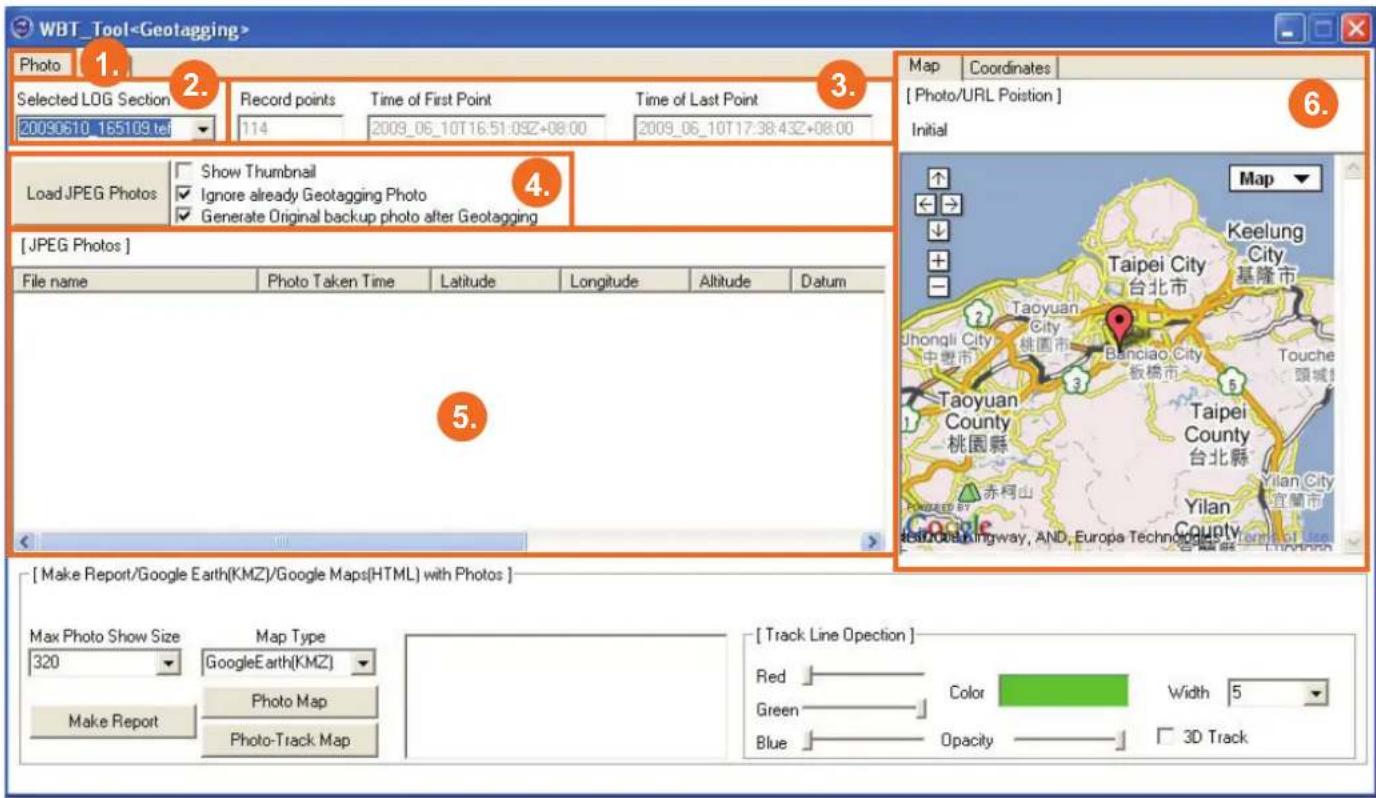
text_image
WBT_Tool- Page: Photo Page.
- Selected LOG Section: Choose a track that you want to combine photos or create a report.
- Selected Track Information: Indicate how many points included in the selected track and the time of the first and last point.
- Load JPEG Photos: Press this button to select photos for Geotagging.
Show Thumbnail: Tick this item to show minimized photos you chose. Please be aware • this item would slow down the photo selecting process.
Ignore already Geotagging Photo: When selected photos have had geographic data in-• side will not be Geotagged again.
Generate Original backup photo after Geotagging: Tick this item to backup all selected • photos after Geotagging.
- JPEG Photos Area: All selected photos including geographic data will be shown here.
NOTE
Right key functions are available, including Cancel Photo, Preview Photo Position, Add Photo Description, Manual Geotagging and Make Shapefi le.
| Cancel Selected PhotoCancel All Photos |
| Pre-view/Check Photo Position |
| Add/Change Photo Description |
| Manual Geotaging (Photos) |
| Make Shapefile (All Geotagging Photos)Make Shapefile (All Geotagging Photos)_Absolute Path |
- When the auto-Geotagging is not working or you want to modify the geographic coordinates, please use the function of manual Geotagging.
- By Map:
Drag the "red sign" on the map to the correct position, and press the "Manual Geotagging" button (right key function) to complete Geotagging process.
- By Coordinates:
Key in the exact Latitude (format: dd.dddddddd degree), Longitude (format: ddd.dddddddd degree) and Altitude in blanks, and press the "Manual Geotagging" button (right key function) to complete Geotagging process.

text_image
[JPEG Photos] File name Photo Taken Time Latitude Longitude Altitude Datum IMG_0558.JI Cancel Selected Photo Cancel All Photos E 34 m WGS-84 Pre-view/Check Photo Position Add/Change Photo Description E 30 m WGS-84 Right Click Manual Geotaging (Photos) Make Shapefile (All Geotagging Photos) Make Shapefile (All Geotagging Photos)_Absolute PathCombine URL (web picture or video link) with track
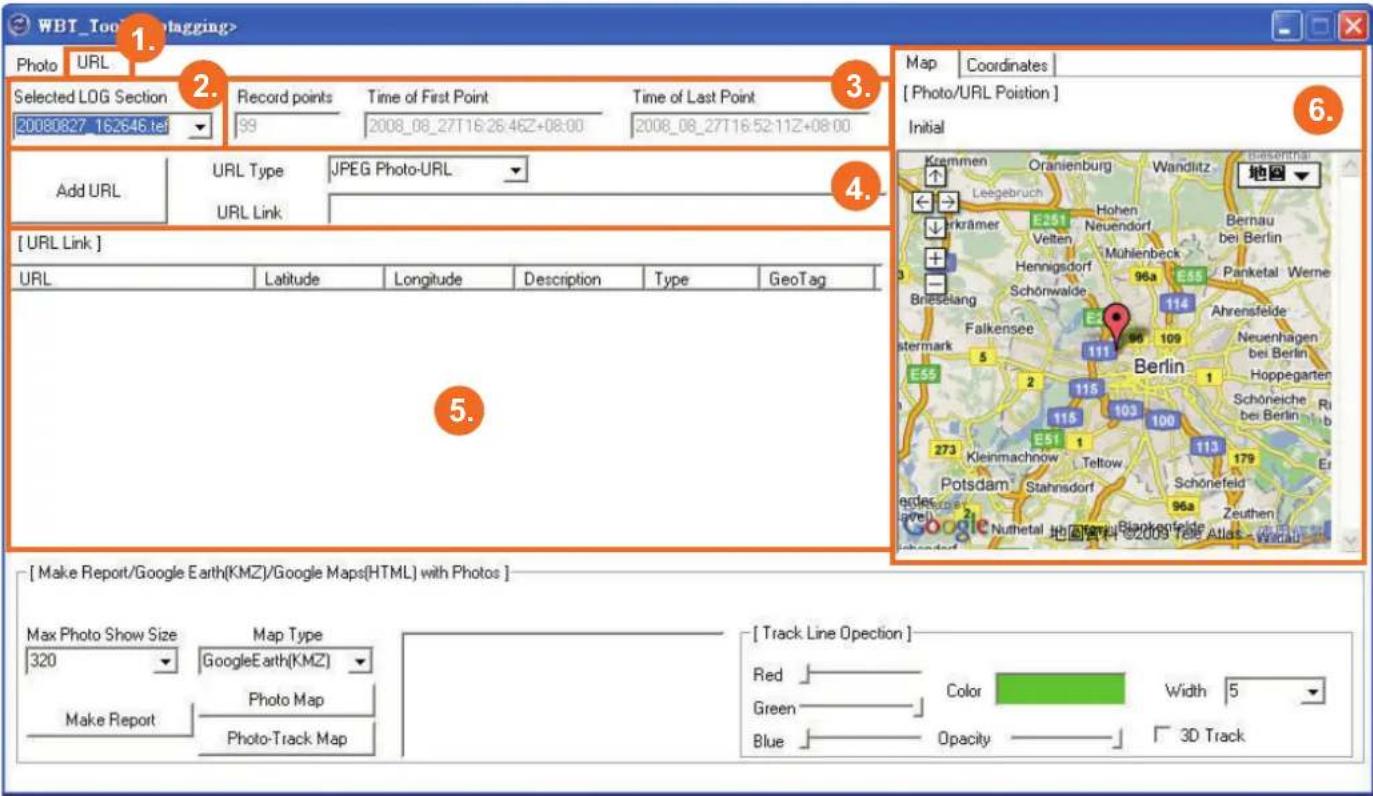
text_image
WBT_Too logging> Photo URL Selected LOG Section 20080827_16:26:46.tef Record points 99 Time of First Point 2008_08_27T16:26:46Z+08:00 Time of Last Point 2008_08_27T16:52:11Z+08:00 Add URL URL Type JPEG Photo-URL URL Link [ URL Link ] URL Latitude Longitude Description Type GeoTag 5. [ Make Report/Google Earth(KMZ)/Google Maps[HTML] with Photos ] Max Photo Show Size 320 Make Report Map Type GoogleEarth(KMZ) Photo Map Photo-Track Map [ Track Line Opection ] Red Green Blue Color Opacity Width 5 3D Track Map Coordinates [ Photo/URL Position ] Initial Krammen Oranienburg Wandlitz Leegebruch E251 Hohen Bernauf bei Berlin Hennigsdorf 96a E55 Panketal Werne Schönwalde 114 Ahrensfeide Falkensee 111 109 Berlin Neuenhagen bei Berlin Hoppegarten Schöneiche Rb bei Berlin Er Potsdam Stahnsdorf 96a Zeuthen Nuthetal H. K. B. Blankefeide Tele Atlas - Wadau- Page: URL page.
- Selected LOG Section: Choose a track that you want to combine URL link.
- Selected Track Information: Indicate how many points included in the selected track and the time of the first and last point.
- Add URL: Press this button to add URL item to the [URL Link] area for Geotagging.
URL Type: Select a URL type for photo or video.
URL Link: Key in a link of web photo or video.
- [URL Link] area: All added URL link will be shown here.
NOTE
Right key functions are available, including Cancel URL, Preview RUL Position, Add URL Description, Manual Geotagging(URL) and Make Shapefi le.
| Cancel Selected URL Item |
| Cancel All URL Items |
| Pre-view/Check URL Position |
| Add/Change URL Description |
| Manual Geotaging (URL) |
| Make Shapefile (All Geotagging URL) |
- The Geotagging for URL link can be done by Map or Coordinates.
- By Map:
Drag the "red sign" on the map to the correct position, and press the "Manual Geotagging" button (right key function) to complete Geotagging process.
- By Coordinates:
Key in the exact Latitude (format: dd.dddddddd degree), Longitude (format: ddd.dddddddd degree) and Altitude in blanks, and press the "Manual Geotagging" button (right key function) to complete Geotagging process.
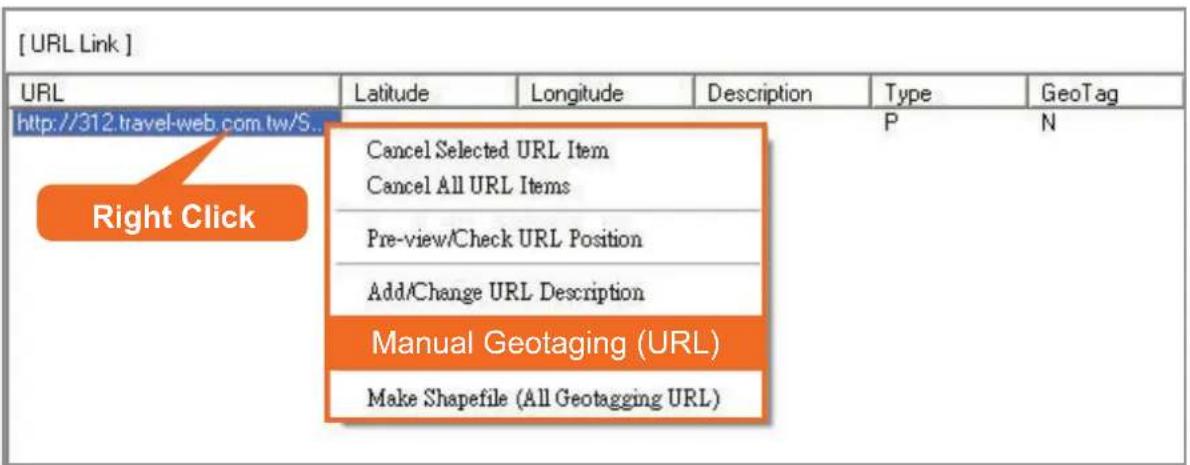
text_image
[URL Link] URL Latitude Longitude Description Type GeoTag http://312.travel-web.com.tw/S... Right Click Cancel Selected URL Item Cancel All URL Items Pre-view/Check URL Position Add/Change URL Description Manual Geotaging (URL) Make Shapefile (All Geotagging URL)Create a track fi le including photos and URL link
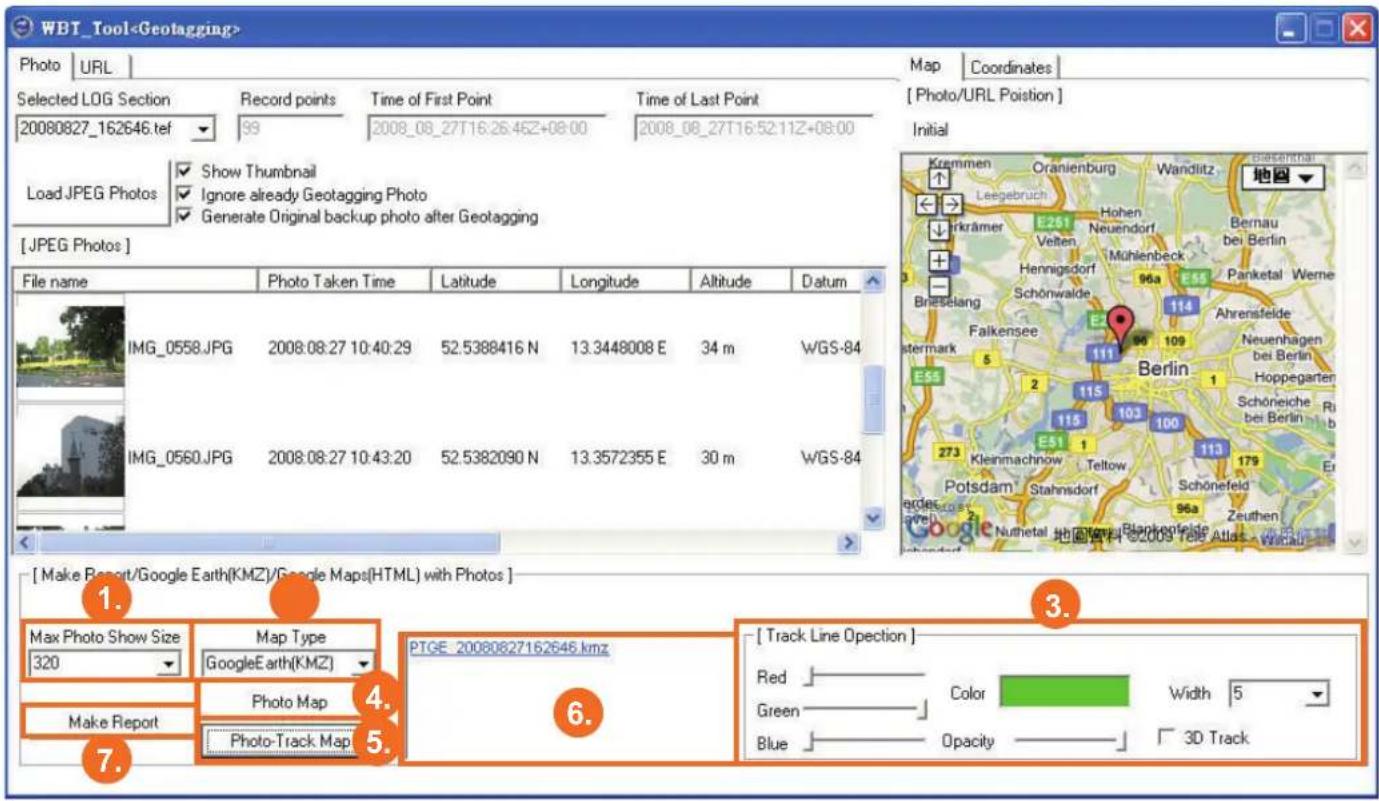
text_image
WBT_Tool- Max. Photo Show Size: Select a size of photo shown on your track.
- Map Type: Google Earth or Google Maps.
NOTE
When you choose Google Maps, the extra function of Google Maps API key as below will show up.

text_image
[ Make Report/Google Earth(KMZ)/Google Maps(HTML) with Photos ] Google Maps API Key: Max Photo Show Size 320 Map Type GoogleMaps(HTML) Make Report Photo Map Photo-Track Map PTOM 20080827162646.html [ Track Line Opection ] Red Green Blue Color Width 5 Hybrid MapPlease key in your exclusive "Google Maps API Key" if you want to share your track in your Blog.
- Track Line Option: Set the color, transparency and width of the track line, also tick the item of "3D Track" if you need the track on Google Earth with height.
NOTE
When you choose Google Maps, the item of "Hybrid Map" will show up instead of "3D Track". Tick it if you prefer the map consisted of road and satellite image.
-
Photo Map: Create a fi le only showing Geotagged photos on map (The initial fi le's name will be "PGM")
-
Photo-Track Map: Create a file showing Geotagged photos and track on map (The initial file's name will be "PTGM")
-
File Area: All fi les from point 4 & 5 will be shown here.
NOTE Right key function is available for copying and deleting those fi les.
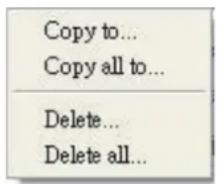
text_image
Copy to... Copy all to... Delete... Delete all...- Make Report: Enter "Report Page" for further setting and create a report.
Create a report

line
| Time | Speed (Km/Hr) | | ------------------- | ------------- | | 2008-08-27T16:26:46 | 0 | | 2008-08-27T16:29:30 | 10 | | 2008-08-27T16:32:22 | 5 | | 2008-08-27T16:35:47 | 10 | | 2008-08-27T16:35:54 | 5 | | 2008-08-27T16:36:01 | 15 | | 2008-08-27T16:36:10 | 55 | | 2008-08-27T16:37:26 | 15 | | 2008-08-27T16:38:26 | 50 | | 2008-08-27T16:38:52 | 15 | | 2008-08-27T16:40:24 | 20 | | 2008-08-27T16:40:29 | 15 | | 2008-08-27T16:41:41 | 25 | | 2008-08-27T16:41:58 | 45 | | 2008-08-27T16:42:33 | 50 | | 2008-08-27T16:44:13 | 15 | | 2008-08-27T16:44:21 | 45 | | 2008-08-27T16:44:40 | 55 | | 2008-08-27T16:44:18 | 15 | | 2008-08-27T16:46:21 | 55 | | 2008-08-27T16:46:32 | 55 | | 2008-08-27T16:49:21 | 5 | | 2008-08-27T16:49:36 | 45 | | 2008-08-27T16:50:05 | 35 | | 2008-08-27T16:50:31 | 5 | | 2008-08-27T16:50:35 | 25 | | 2008-08-27T16:50:38 | 25 | | 2008-08-27T16:50:47 | 35 | | 2008-08-27T16:51:07 | 35 | | 2008-08-27T16:51:10 | 35 | | 2008-08-27T16:51:26 | 35 | | 2008-08-27T16:51:35 | 35 | | 2008-08-27T16:52:00 | 5 |- Page: Report page.
- Tab: Each tab stands for one analytic chart.
- Tick charts you want to include in your report.
- Description: Key in some detail you want to show in report.
- Create Report: Press this button to create a report with html format and open it by browser automatically.
A Complete Report File

- Track Map: A map with track.
NOTE
If you have created a Photo-Track Map (PTGM) file during previous process, the track presented on report will include photos.
-
Instantaneous Basic Information: The basic information will be changed along with the dynamic track.
-
Track Point Bar: Indicates the total track points and a moving one along with the dynamic track.
Stop : Stop the dynamic track i.e. the moving icon.
Pause : Pause the dynamic track.
Play ▶ : Re-start the dynamic track.
Fast + : Speed up the dynamic track.
Slow : Slow down the dynamic track.
-
Moving Icon: Stand for the dynamic track.
-
Track Information: Present detailed data about this track.
-
Analytic Diagrams: There are eight kinds of diagrams.
-
Operation Bar for Diagram: The default of diagrams will auto-switching around, you can stop this action via operation bar.
Previous ◀◀ : Back to last diagram and stop auto-switching behavior.
Pause : Stop in current diagram.
Play ▷ : Re-start the Auto-switching behavior.
Stop □ : Stop in current diagram.
Next ▷▶ : Skip to next diagram and stop auto-switching behavior.
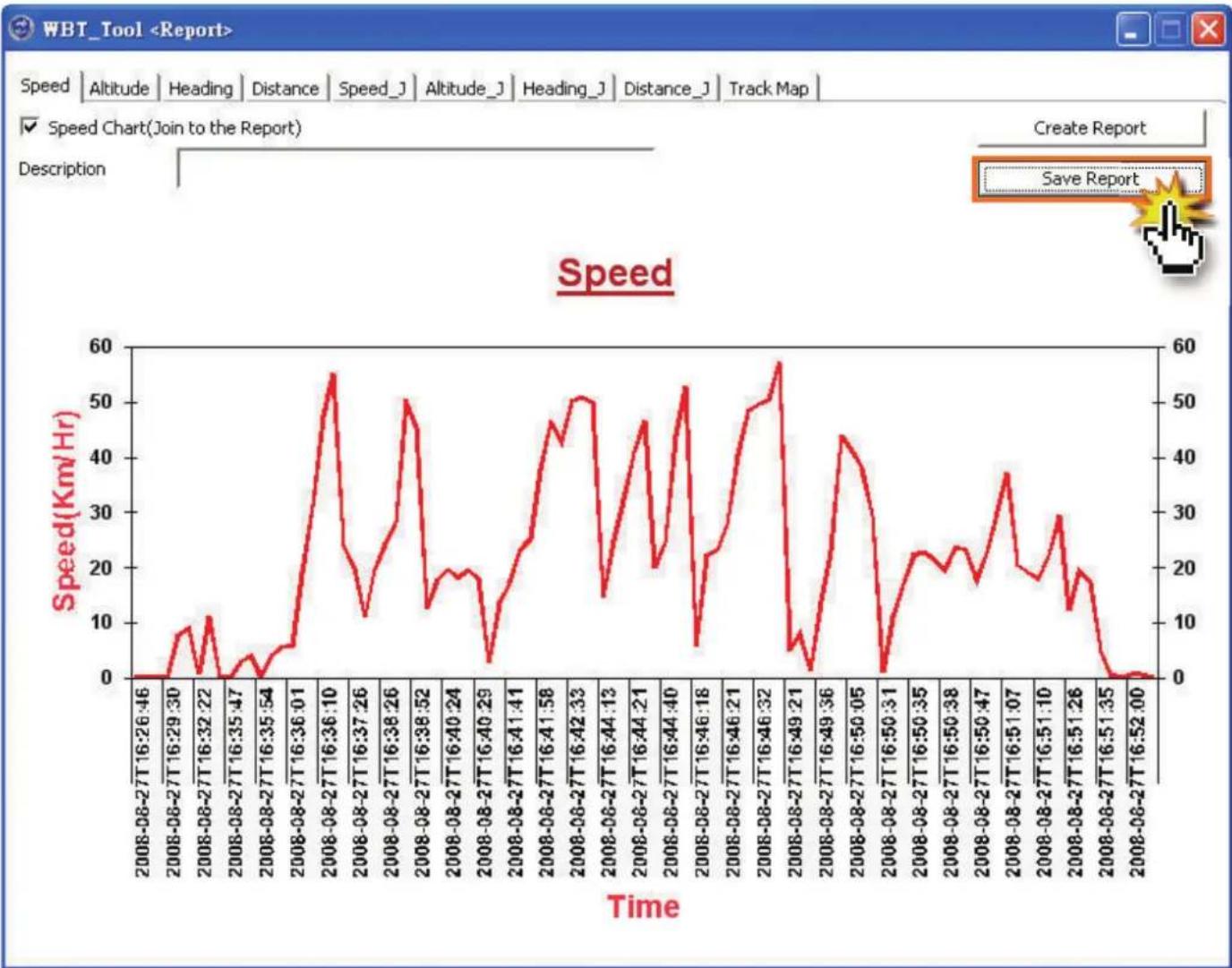
Save a report
line
| Time | Speed (Km/Hr) | | --- | --- | | 2008-08-27T16:26:46 | 0 | | 2008-08-27T16:29:30 | 10 | | 2008-08-27T16:32:22 | 12 | | 2008-08-27T16:35:47 | 3 | | 2008-08-27T16:35:54 | 5 | | 2008-08-27T16:36:01 | 15 | | 2008-08-27T16:36:10 | 55 | | 2008-08-27T16:37:26 | 12 | | 2008-08-27T16:37:37 | 25 | | 2008-08-27T16:38:26 | 50 | | 2008-08-27T16:38:52 | 15 | | 2008-08-27T16:40:24 | 20 | | 2008-08-27T16:40:29 | 18 | | 2008-08-27T16:41:41 | 15 | | 2008-08-27T16:41:41.58 | 25 | | 2008-08-27T16:41:58 | 45 | | 2008-08-27T16:42:33 | 50 | | 2008-08-27T16:44:13 | 15 | | 2008-08-27T16:44:13 | 45 | | 2008-08-27T16:44:21 | 20 | | 2008-08-27T16:44:40 | 55 | | 2008-08-27T16:46:18 | 15 | | 2008-08-27T16:46:18.5 | 35 | | 2008-08-27T16:46:21 | 55 | | 2008-08-27T16:46:32 | 15 | | 2008-08-27T16:49:21 | 5 | | 2008-08-27T16:49:36 | 45 | | 2008-08-27T16:50:05 | 35 | | 2008-08-27T16:50:31 | 5 | | 2008-08-27T16:50:31.5 | 15 | | 2008-08-27T16:51:35 | 25 | | 2008-08-27T16:51:35.5 | 35 | | 2008-08-27T16:51:47 | 35 | | 2008-08-27T16:51:47.5 | 35 | | 2008-08-27T16:51:51:47.5 | 35 | | 2008-08-27T16:51:51.5 | 35 | | 2008-08-27T16:51:51.5 | 35 | | 2008-08-27T16:51:51.5 | 35 | | 2008-08-27T16:51.5 | 35 | | 2008-08-27T16:51.5 | 35 | | 2008-08-27T16:51.5 | 35 | | 2008-08-27T16:51.5 | 35 | | 2008-08-27T17:35 | 3 | | 2008-08-27T16:52:00 | 3 |- Press the "Save Report" button to save it in the specific area you assigned.
- The complete report can be demonstrated anytime by double clicking the report fi le.
NOTE
Please be aware that all fi les including jpeg, html and xml fi les should exist in the same folder; otherwise the report fi le can not be shown normally.

text_image
2008-08-27T16-26-46 File Edit View Favorites Tools Help Back Search Folders Address C:\Documents and Settings\vicky_chen\Desktop\2008-08-27T16-26-46 Go Picture Tasks View as a slide show Copy to CD File and Folder Tasks Rename this file Move this file Copy this file Publish this file to the Web E-mail this file Delete this file No preview available. Other Places Desktop My Pictures My Computer My Network Places 8-08-27T16-... REPGM_20080827162... REPGM_2008082716... REPORT2008-08-27T16- 26-46 SPD2008-08-27T16-2... DetailsGIS Shapefi le Tool
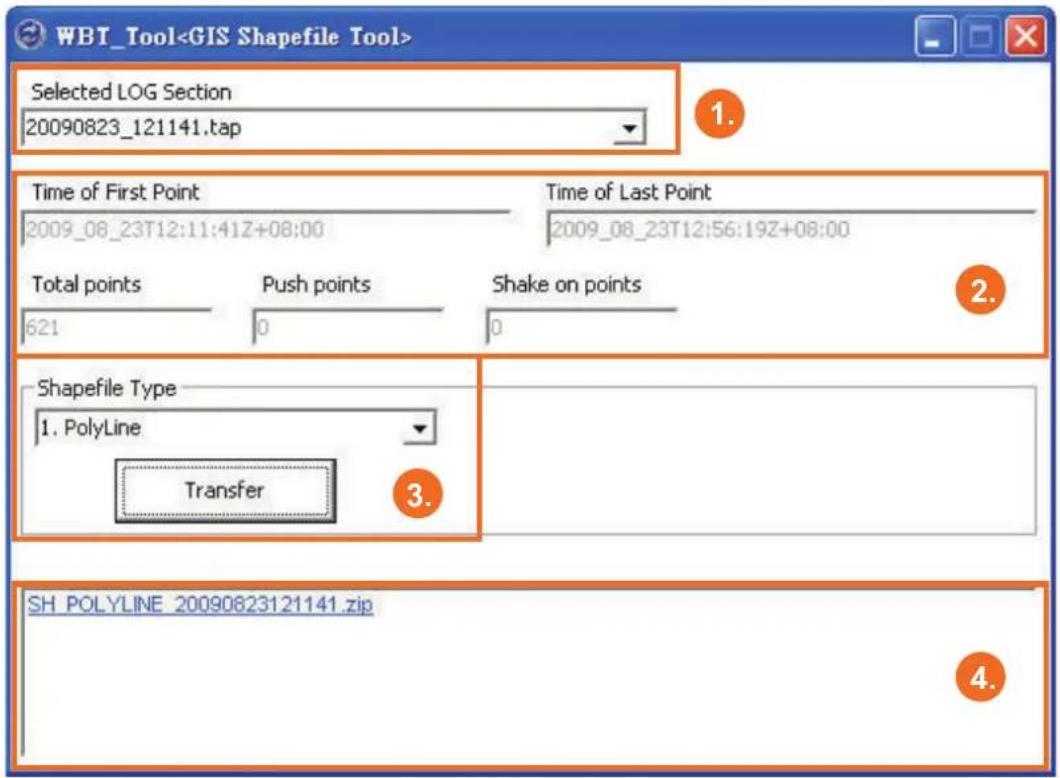
If there is any demand for GIS (Geographic Information System) application, please into GIS Shapefi le Tool to transfer the format.
text_image
WBT_Tool- Selected LOG Section: Choose a track that you want to transfer to shapefi le format.
- Selected Track Information: Include the Time for the first and last point, and the amount for Total points, Push points and Shake on points.
- Shapefi le Type: Select PolyLine or Point, and press "Transfer" button to confirm it.
NOTE
For PolyLine, a track should include 2 points at least; otherwise, the format 1. transfer process is not acceptable.
For Point, as following, it provides 3 kinds of log points for transfer.2.

text_image
Shapefile Type 2. Point Transfer All points Push points only Shake on points only- Shapefi le Area: All transferred Shapfi le will be shown here.
NOTE
The shapfi le will be presented by zip fi le, and each zip fi le is composed of 1.
*.shp, *.shx and *.dbf.
Right key function is available for copying and deleting.2.
> Help

text_image
WBT_Tool SW_Yer:4.0 FW_Yer:12.0 Language Additional_Tool Help 1. LOG Data Manage | LOG D. WBT_Tool User Manual 2. code GPS Behavior GF [ LOG Data Manage ] LOG Data List: Download TimeMachineX 3. MSCHART Register 4. Download latest WBT_Tool 5. 20080827\08 26 46.TES 20090608\10 19 37.TES 20090603\04 20 40.TES 20090609\01 15 41.TES 20090604\04 22 15.TES 20090609\07 19 29.TES 20090604\21 44 37.TES 20090610\06 22 14.TES 20090604\22 49 33.TES 20090610\08 51 09.TES 20090605\00 12 08.TES 20090611\05 47 52.TES 20090605\06 06 12.TES 20090612\06 31 08.TES 20090605\08 23 19.TES 20090626\07 20 19.TES Copy All LOG DATA to PC Copy LOG DATA from PC- Page: Help page.
- WBT_Tool User Manual: Link to a complete WBT-202 user manual.
- Download TimeMachineX: Link to Wintec's website to download TimeMachineX software.
- MSCHART Register: Execute the MSCHART Register when the report function is not working.

The computer which is login should be administrator or the one has the same authorities.
- Download latest WBT_Tool: Download the latest update file.
WBT\_Tool Update Process
text_image
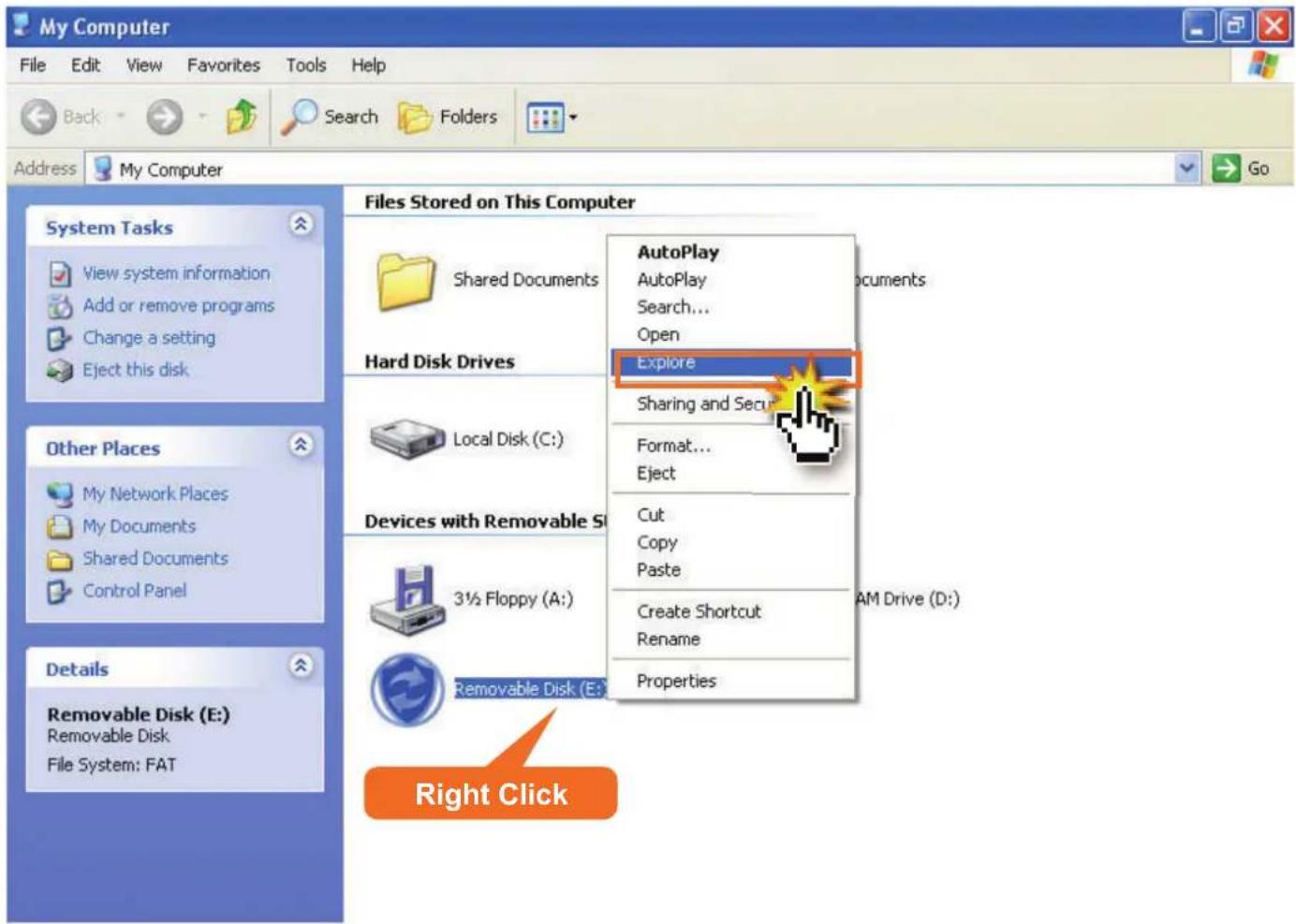
My Computer File Edit View Favorites Tools Help Back Search Folders Address My Computer System Tasks View system information Add or remove programs Change a setting Eject this disk Other Places My Network Places My Documents Shared Documents Control Panel Details Removable Disk (E:) Removable Disk File System: FAT Files Stored on This Computer Shared Documents Hard Disk Drives Local Disk (C:) Devices with Removable S 3½ Floppy (A:) Removable Disk (E:) Right Click AutoPlay AutoPlay Search... Open Explore Sharing and Secu Format... Eject Cut Copy Paste Create Shortcut Rename Properties- Decompress the update file downloaded from WBT_Tool.
- Switch the WBT-202 to MSD mode (please do not execute the WBT_Tool).
-
In "My Computer", open WBT-202 via Explore.
-
Copy "WBT_Tool.exe" from decompressed update file and paste to the mass storage of WBT-202 instead of the existing one.

text_image
WBT_Tool File Edit View Favorites Tools Help Back Search Folders Address C:\Documents and Settings\aa\Desktop\WBT_Tool Go File and Folder Tasks Rename this file Move this file Copy this file Publish this file to the Web E-mail this file Delete this file AUTORUN Setup Information 1 KB Release Note Text Document 1 KB USB_DRV Setup Information 4 KB W Icon WBT_Tool WBT_Tool Open Run as... Send To Cut Copy Paste Create Shou Delete Rename Properties Right Click Other Places Desktop My Documents Shared Documents My Computer My Network Places Details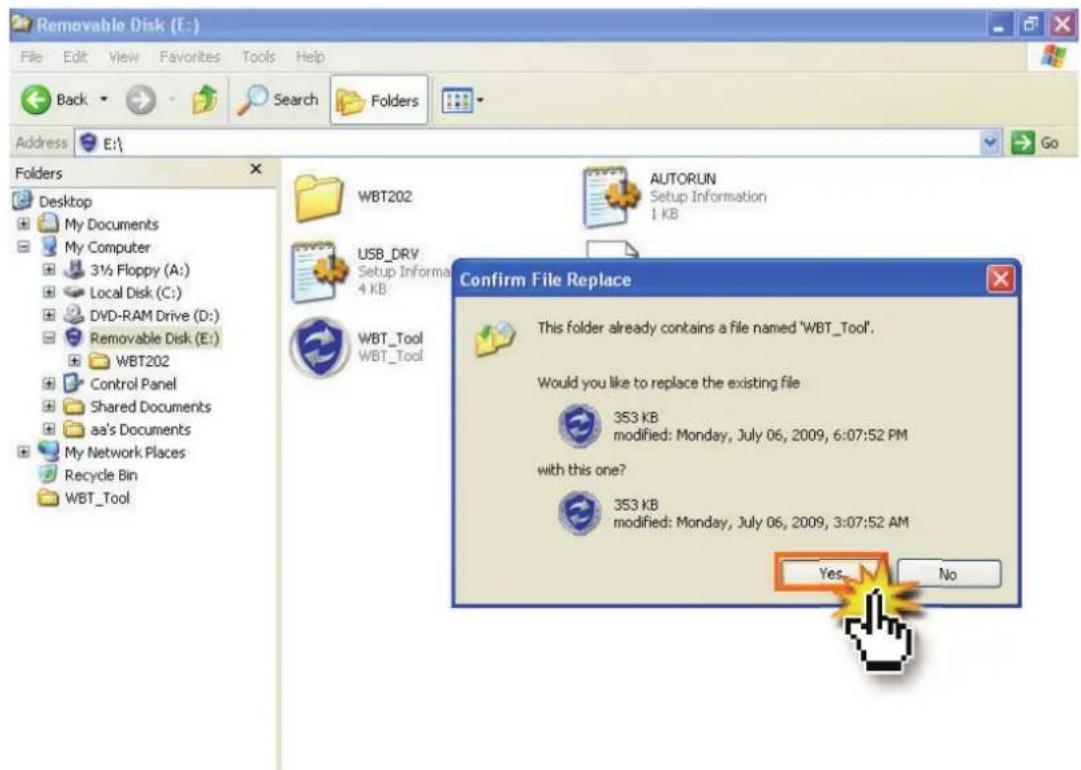
text_image
Removable Disk (E:) File Edit View Favorites Tools Help Back Search Folders Address E:\ Folders Desktop My Documents My Computer 3½ Floppy (A:) Local Disk (C:) DVD-RAM Drive (D:) Removable Disk (E:) WBT202 Control Panel Shared Documents aa's Documents My Network Places Recycle Bin WBT_Tool WBT202 USB_DRV Setup Informa 4 KB WBT_Tool WBT_Tool AUTORUN Setup Information 1 KB Confirm File Replace This folder already contains a file named 'WBT_Tool'. Would you like to replace the existing file 353 KB modified: Monday, July 06, 2009, 6:07:52 PM with this one? 353 KB modified: Monday, July 06, 2009, 3:07:52 AM Yes NoTrack editing process, such as deleting some incorrect point or resetting some shift point to its proper position, can be done via TimeMachineX.
Also, the log data stored in the WBT-202's inbuilt backup memory can be downloaded and edited through TimeMachineX.
> Install TimeMachineX
-
Please visit our website www.wintec.com.tw, and download the latest version of TimeMachineX by following path. Support/GPS Application/WBT-202.
-
After downloading, double click the program and follow the InstallShield Wizard to complete the installation process.
> Convert the track file to TimeMachineX's format
For log data stored in inbuilt backup memory
- Please reconfir rm that the USB driver is existed.
NOTE Please refer to "USB Driver Installation" on page 51.
-
Turn on the WBT-202, connect it to computer by USB cable and execute the TimeMachineX.
-
Select a correct COM Port and baud rate of 57600 bps.
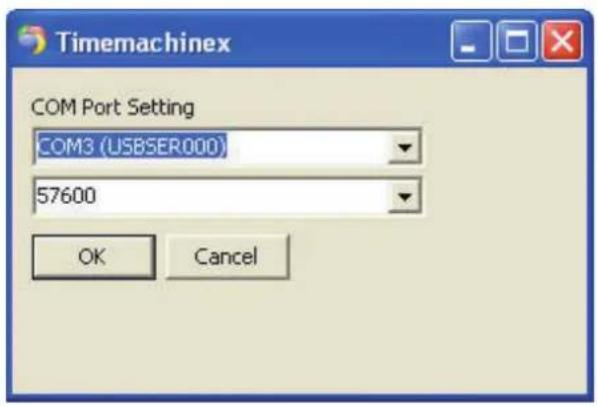
text_image
Timemachinex COM Port Setting COM3 (USBSER000) 57600 OK CancelNOTE
The correct COM Port can be confirmed with Device Manager.

text_image
Device Manager File Action View Help Floppy disk drives IDE ATA/ATAPI controllers Keyboards Mice and other pointing devices Network adapters Other devices Video Controller (VGA Compatible) Ports (COM & LPT) Communications Port (COM1) Communications Port (COM2) Printer Port (LPT1) WBT202 USB to Serial Converter (COM3) Processors SCSI and RAID controllers SCSI Controller Sound, video and game controllers Audio Codecs Creative AudioPCI (ES1371,ES1373) (WDM) Game Port for Creative Legacy Audio Drivers Legacy Video Capture Devices- Enter "Device Setting" Page of TimeMachineX, and see if the NMEA string running at the bottom of the page or not. If yes, that means the connection between WBT-202 and TimeMachineX is working well.
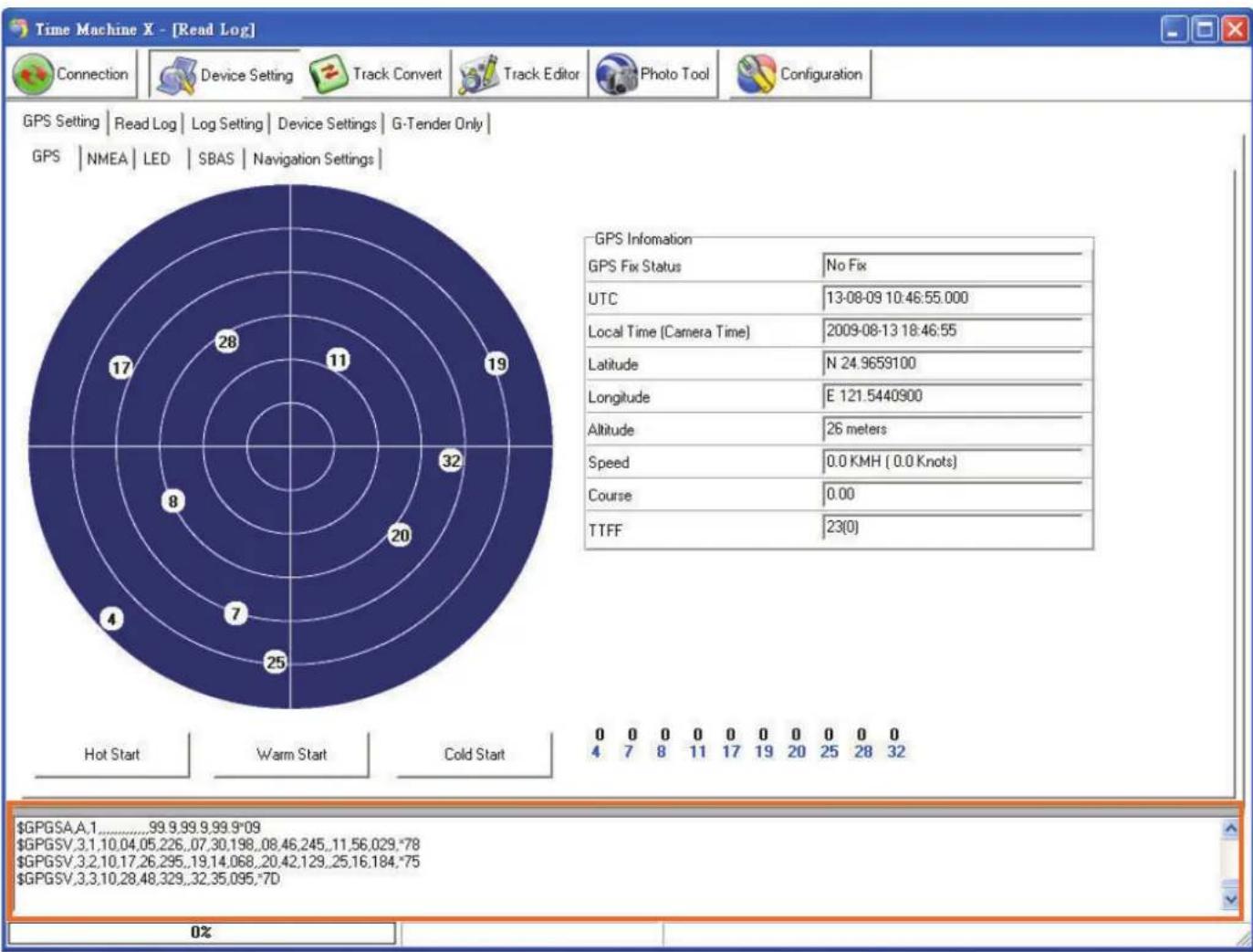
radar
| GPS Fix Status | No Fix | | -------------- | ------ | | UTC | 13-08-09 10:46:55.000 | | Local Time (Camera Time) | 2009-08-13 18:46:55 | | Latitude | N 24.9659100 | | Longitude | E 121.5440900 | | Altitude | 26 meters | | Speed | 0.0 KMH ( 0.0 Knots) | | Course | 0.00 | | TTFF | 23(0) |5. Read Log
Enter "Read Log" tab and press "Read Log" button to download recorded data.

text_image
Time Machine X - [Read Log] Connection Device Setting Track Convert Track Editor Photo Tool Configuration GPS Setting Read Log | Log Setting | Device Settings | G-Tender Only | 261203/261203 Read Log Cancel Read Log Delete record Verify File Record Number 261203 Hardware Version EH01-R1T-3 Software Version 15 Log Version 3.0 Device Serial Number -1 Memory ID 524746752 Log Area Start Address 0 Log Area End Address 4182016 Log Start Address 2666496 Log End Address 2663728 TK1 TK1_20080827082646.tk1 1 99 WBT-202 Vicky TK1_WBT202_20090723163425.tk1 47 261203 WBT202 KK Total Tracks Total Points Device Name Device InfoThe "Read Log Succeed" dialogue shows up.
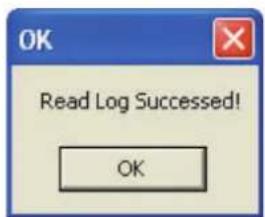
text_image
OK Read Log Succeeded! OKAt this moment, all log data is to combine to form a TK1 fi le and show on track list. A TK1 file includes a lot of tracks, that is to say, all tracks inside the inbuilt backup memory would combine to only one TK1 fi le. Please use the right key function to convert TK1 format to TK2. A TK2 fi le stands for one track, so you can choose a TK2 fi le for track editing.
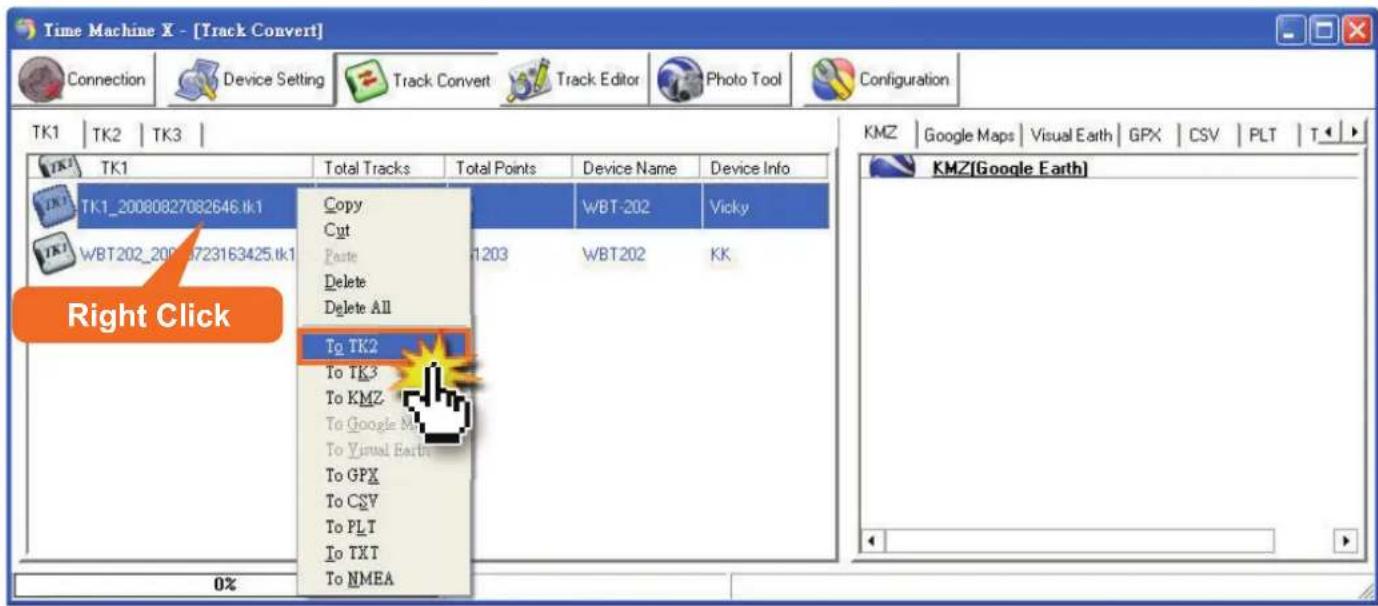
text_image
Time Machine X - [Track Convert] Connection Device Setting Track Convert Track Editor Photo Tool Configuration TK1 TK2 TK3 TK1 Total Tracks Total Points Device Name Device Info TK1_20080827082646.tk1 Copy WBT-202 Vicky WBT202_2008723163425.tk1 Paste 1203 WBT202 KK Right Click To TK2 To TK3 To KMZ To Google M To Visual Earth To GPX To CSV To PLT To TXT To NMEA KMZ | Google Maps | Visual Earth | GPX | CSV | PLT | T◀ ▶ KMZ(Google Earth) 0%NOTE
For deleting record, please press "Delete record" button to erase all data inside the inbuilt memory of WBT-202.
When the deleting process is completed, the dialogue of "Log deleted" shows up.
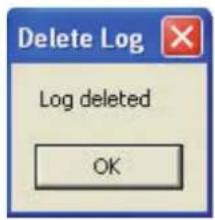
text_image
Delete Log Log deleted OKFor log data stored in Micro-SD card
- Connect the WBT-202 to PC, and enter MSD mode to execute the WBT_Tool.
- Select a track, and use WBT_Tool to convert it to TK2 format i.e. the format for TimeMachineX.
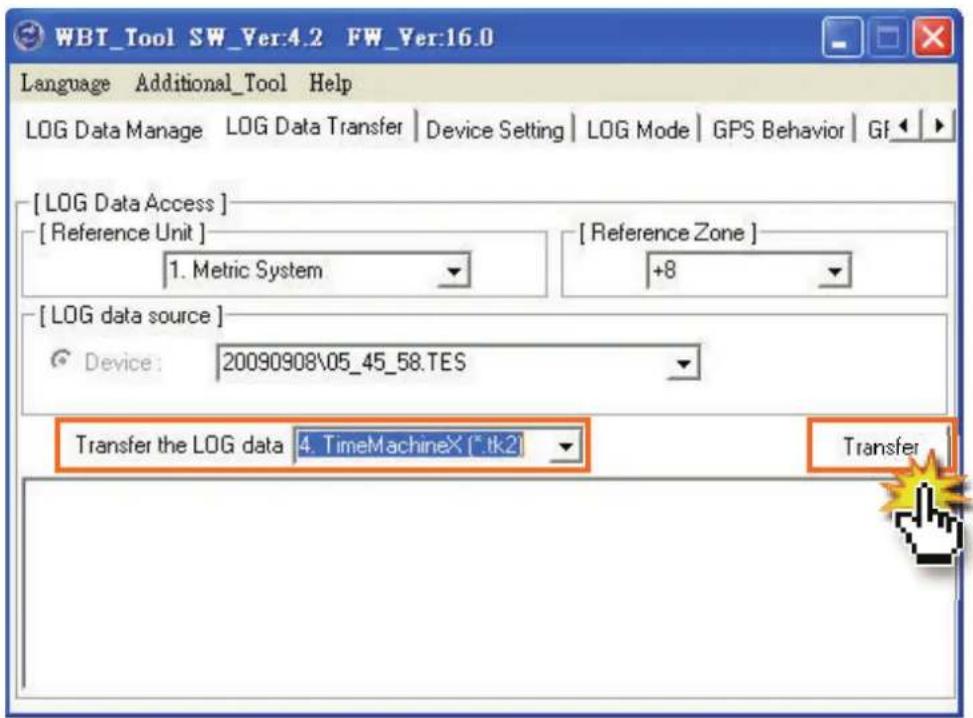
text_image
WBT_Tool SW_Ver:4.2 FW_Ver:16.0 Language Additional_Tool Help LOG Data Manage LOG Data Transfer Device Setting LOG Mode GPS Behavior GF [ LOG Data Access ] [ Reference Unit ] 1. Metric System [ Reference Zone ] +8 [ LOG data source ] Device: 20090908\05_45_58.TES Transfer the LOG data 4.TimeMachineX (*.tk2) Transfer- Execute TimeMachineX and go to "Track Convert" page, the TK2 file transferred via WBT-202 in last step should be show up in TK2 list as below.
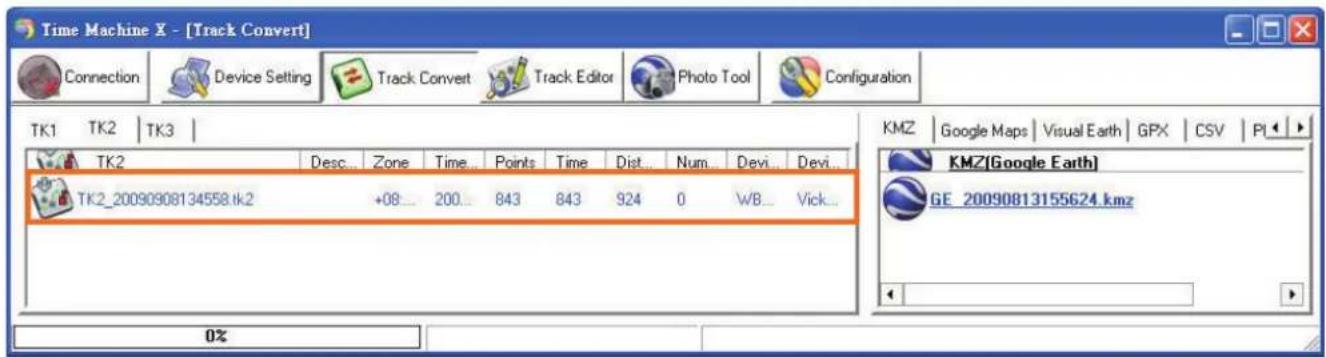
text_image
Time Machine X - [Track Convert] Connection Device Setting Track Convert Track Editor Photo Tool Configuration TK1 TK2 TK3 TK2 Desc Zone Time Points Time Dist Num Devi Devi... TK2_20090908134558.tk2 +08 200 843 843 924 0 WB... Vick... KMZ | Google Maps | Visual Earth | GPX | CSV | PI KMZ(Google Earth) GE_20090813155624.kmz 0%NOTE
The step2 should be done before executing TimeMachineX; otherwise, the 1. TK2 fi le won't auto-show up in the TK2 list.
You also can copy the TK2 file by hand if it doesn't show up automatically.2. In WBT_Tool, use the right key function to copy the TK2 file to desk, and paste it in Track Convert page of TimeMachineX.

text_image
WBI_Tool SW_Yer:4.2 FW_Yer:16.0 Language Additional_Tool Help LOG Data Manage LOG Data Transfer Device Setting LOG Mode GPS Behavior GF [ LOG Data Access ] [ Reference Unit ] 1. Metric System [ Reference Zone ] +8 [ LOG data source ] Device: 20090908\05_45_58.TES Transfer the LOG data 4. TimeMachineX (*.tk2) Transfer TK2 20090908134558.tk2 Copy to... Copy all to... Delete... Delete all... Right ClickTrack Editing
- Enter "Track Editor" page, "Edit Track" tab, select a TK2 file, and double click it for editing.

text_image
Time Machine X - [Track Editor] Connection Device Setting Track Convert Track Editor Photo Tool Configuration Step 1. Select File (Double Click) TK2 (Switch TK3) Description Zone Time of First... Points Time Distance Number of P... Device Name Device Info 20080827_162646.tk2 +08:00 2008-08-27... 99 1525 6890 0 WBT-202 Vicky 20090705_220833.tk2 +08:00 2009-07-05... 29196 32275 41206 0 WBT202 KK 20090706_070629.tk2 +08:00 2009-07-06... 3081 3341 13181 0 WBT202 KK Edit Track Report 13.33 13.34 13.35 13.36 13.37 13.38 52.54 52.53 52.52 52.51 52.54 52.53 52.52 52.51 52.54 52.53 52.52 52.51 13.33 13.34 13.35 13.36 13.37 13.38 地图 衡星 混合 地形 Total:99 0~99 Raiserin-Augusta-Allee Siemensstraße Quitzowstraße Parisberger St Tieregarten Tiergarten Alt-Moabar Alt-Moabar Channenstraße Inraldernstraße Torstraße M Cochro-Gesellschaft Schanststoffe Almacher Sir Almacher Sir Almacher Sir Almacher Sir Almacher Sir Almacher Sir Almacher Sir Almacher Sir Almacher Sir Almacher Sir Almacher Sir Almacher Sir Almacher Sir Almacher Sir Almacher Sir Almacher Sir Almacher Sir Almacher Sir Almacher Sir Almacher Sir Almacher Sir Almacher Sir Almacher Sir Almacher Sir Almacher Sir AlmacherSir Almacher Sir Almacher Sir Almacher Sir Almacher Sir Almacher Sir Almacher Sir Almacher Sir Almacher Sir Almacher Sir Almacher Sir Almacher Sir Almacher Sir Almacher Sir Almacher Sir Almacher Sir Almacher Sir Almacher Sir Almacher Sir Almacher Sir Almacher Sir Almacher Sir Almacher Sir Almacher Sir Almacher Sir Almacher SR Kovtakar 2000 英吸 1 公里 Load Track File OK2. Start the track editing process.
If there are some fl ying points, you can move them to correct positions by dragging the red points shown on Google Maps. Also you can delete points by right key function on point list.

text_image
Step 1. Select File (Double Click) TK2 (Switch TK3) Description Zone Time of First Point Points True Distance Number of Push to Device Name Device Info 20080827_152645.4.2 +08:00 2008-08-27T16.26... 99 1525 6890 0 WBT-202 Vicky 20080705_220833.4.2 +08:00 2009-07-05T22.08... 29196 32275 41206 0 WBT202 KK 20080706_070625.4.2 +08:00 2009-07-06T07.06... 3081 3341 13181 0 WBT202 KK 20080706_152711.4.2 +08:00 2009-07-06T15.27... 256 255 85 0 WBT202 KK Click and Drag Delete Delete This Below Delete This Above Right Click File Edit View Date SP Date-True Point 19 0 2008-09-27T15.36.1/Z+08:00 Point 20 0 2008-09-27T15.37.1/Z+08:00 Point 21 0 2008-09-27T15.37.2+08:00 Point 22 0 2008-09-27T15.37.3+08:00 Point 23 0 2008-09-27T15.37.4+08:00 Point 24 0 2008-09-27T15.37.5+08:00 Point 25 Point 26 Point 27 Point 28 0 2008-09-27T15.41.2/Z+08:00 Point 29 0 2008-09-27T15.41.3/Z+08:00 Point 30 0 2008-09-27T15.41.4/Z+08:00 Point 31 0 2008-09-27T15.41.5/Z+08:00 Point 32 0 2008-09-27T15.41.6/Z+08:00 Point 33 0 2008-09-27T15.41.7/Z+08:00 Point 34 0 2008-09-27T15.41.8/Z+08:00 Point 35 0 2008-09-27T15.41.9/Z+08:00 Point 36 0 2008-09-27T15.41.1/Z+08:00 Point 37 0 2008-09-27T15.41.1/Z+08:00 Point 38 0 2008-09-27T15.41.1/Z+08:00 Point 39 0 2008-09-27T15.41.1/Z+08:00 Starts: Next Step: Next Step: Next Step: Next Step: Next Step: Next Step: Next Step: Next Step: Next Step: Next Step: Next Step: Next Step: Next Step: Next Step: Next Step: Next Step: Next Step: Next Step: Next Step: Next Step: Next Step: Next Step: Next Step: Next Step: Next Step: Next Step: Next Step: Next Step: Next Step: Next Step: Next Step: Next Step: Next Step: Next Step:3. Please save the file after editing.

Save as a new TK2 fi le. Save the TK2 fi le.
NOTE
If you want to combine photos or make report with edited track, please save the TK2 file editing by TimeMachineX back to the Micro-SD card inside the WBT-202, and then complete the after process via WBT_Tool.
Regarding the further instruction of TimeMachineX, please refer to the user manual of TimeMachineX.
NOTE
If you have completed the installation process of TimeMachineX, the user manual is existed in the system, you can find it according to the following picture.

text_image
Set Program Access and Defaults Windows Catalog Windows Update Programs Documents Settings Search Help and Support Run... Log Off vicky_chen... Turn Off Computer... Accessories Games Macromedia Startup WGM-302 Time Machine X Internet Explorer MSN Outlook Express Remote Assistance Windows Journal Viewer Windows Media Player Windows Messenger Windows Movie Maker Help(for old version 2.6.1) TimeMachineX uninstall start Device Manager HyperSnap-DX Easy showBefore connecting WBT-202 to computer (for navigation software or TimeMachineX...etc.) via USB interface, please install the USB driver according to following processes.
- Switch the WBT-202 to MSD mode and execute the WBT_Tool.
- The USB driver (USB_DRV.inf) will be auto-copied to the path at "... \ my document \ WBT202".
- Press the (Flag) button to leave MSD mode.
- Turn on the WBT-202 again and connect to computer via USB cable. At this moment, the computer will auto-detect the new USB device and ask for the software installation. The Found New Hardware Wizard will pop up as below, please select item of "No, not this time" and press "Next button for further operation.

text_image
Found New Hardware Wizard Welcome to the Found New Hardware Wizard Windows will search for current and updated software by looking on your computer, on the hardware installation CD, or on the Windows Update Web site (with your permission). Read our privacy policy Can Windows connect to Windows Update to search for software? ○ Yes, this time only ○ Yes, now and every time I connect a device ● No, not this time Click Next to continue. < Back Next > Cancel- Select "Install from a list or specific location (Advanced)" and press "next" button.
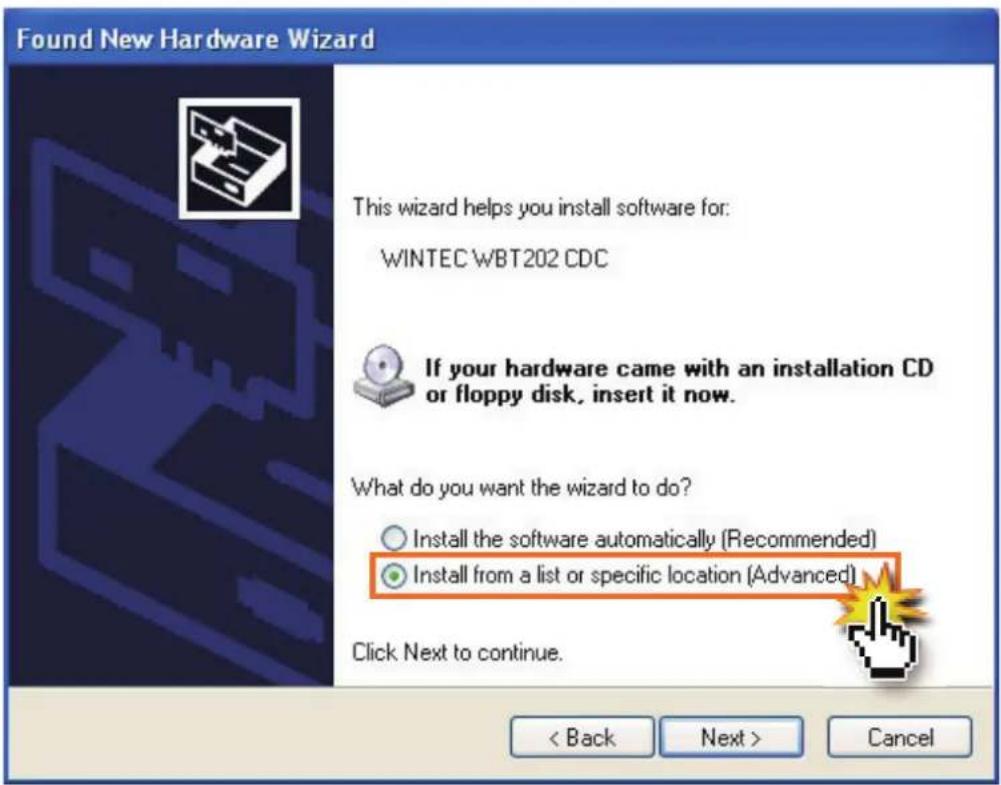
text_image
Found New Hardware Wizard This wizard helps you install software for: WINTEC WBT202 CDC If your hardware came with an installation CD or floppy disk, insert it now. What do you want the wizard to do? ○ Install the software automatically (Recommended) ● Install from a list or specific location (Advanced) Click Next to continue. < Back Next > Cancel- Tick items as below picture and press "Browse" button.
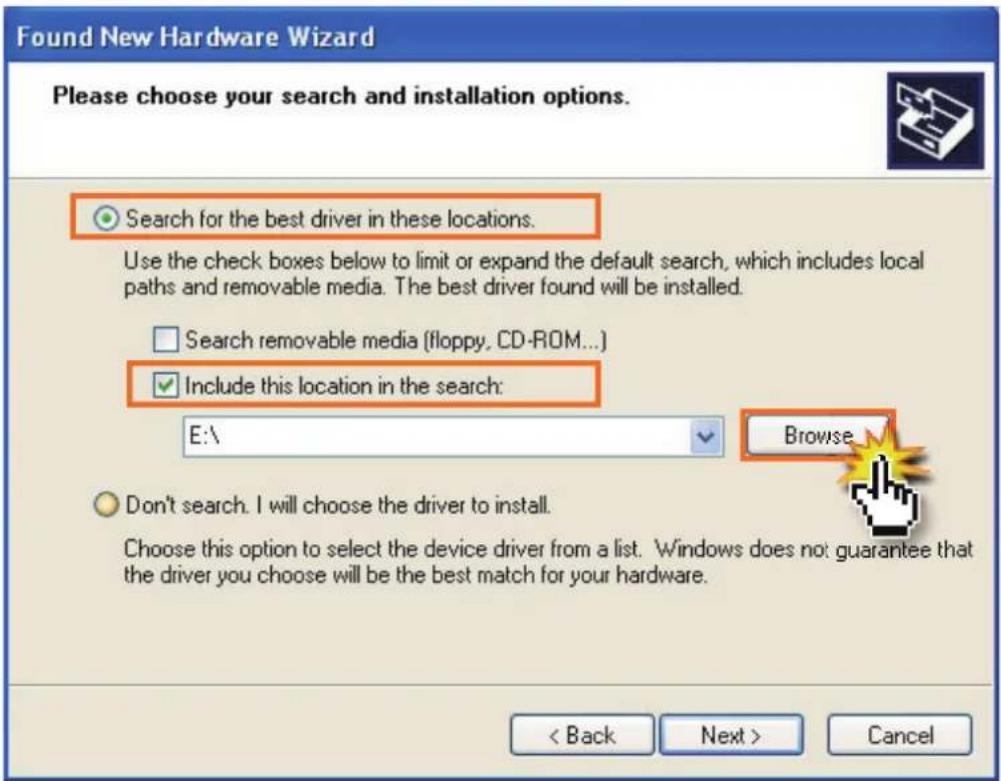
text_image
Found New Hardware Wizard Please choose your search and installation options. Search for the best driver in these locations. Use the check boxes below to limit or expand the default search, which includes local paths and removable media. The best driver found will be installed. Search removable media (floppy, CD-ROM...) Include this location in the search: E:\ Browse Don't search. I will choose the driver to install. Choose this option to select the device driver from a list. Windows does not guarantee that the driver you choose will be the best match for your hardware. < Back Next > Cancel- Choose the location of “... \ my document \ WBT202”, and press “OK” button.
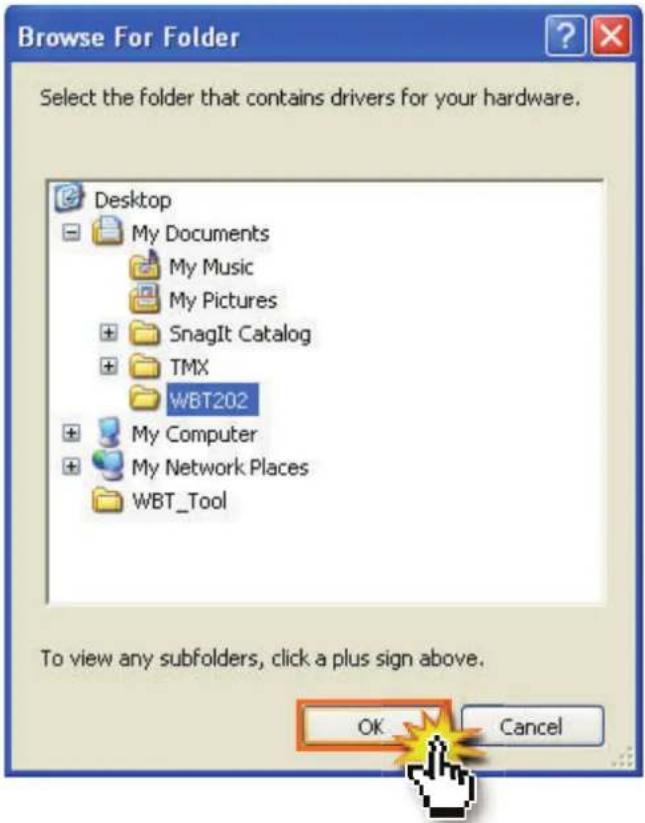
text_image
Browse For Folder Select the folder that contains drivers for your hardware. Desktop My Documents My Music My Pictures SnagIt Catalog TMX WBT202 My Computer My Network Places WBT_Tool To view any subfolders, click a plus sign above. OK Cancel- When back the Found New Hardware Wizard, please press "Next" button to confirm the location.

text_image
Found New Hardware Wizard Please choose your search and installation options. Search for the best driver in these locations. Use the check boxes below to limit or expand the default search, which includes local paths and removable media. The best driver found will be installed. ✓ Search removable media (floppy, CD-ROM...) ✓ Include this location in the search: C:\Documents and Settings\aa\My Documents\WB Browse Don't search. I will choose the driver to install. Choose this option to select the device driver from a list. Windows does not guarantee that the driver you choose will be the best match for your hardware. < Back Next > Cancel- The searching of the USB driver is in progress.

text_image
Found New Hardware Wizard Please wait while the wizard searches... WINTEC WBT202 CDC < Back Next > Cancel- Click "Continue anyway".
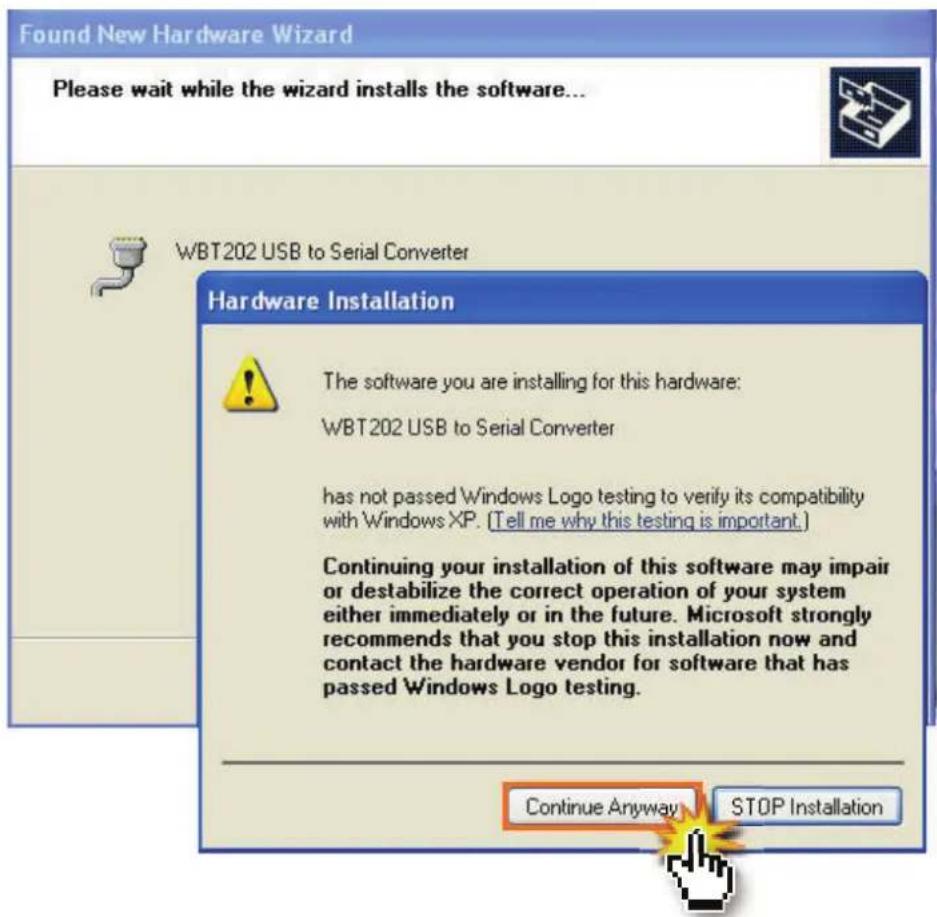
text_image
Found New Hardware Wizard Please wait while the wizard installs the software... WBT202 USB to Serial Converter Hardware Installation The software you are installing for this hardware: WBT202 USB to Serial Converter has not passed Windows Logo testing to verify its compatibility with Windows XP. (Tell me why this testing is important.) Continuing your installation of this software may impair or destabilize the correct operation of your system either immediately or in the future. Microsoft strongly recommends that you stop this installation now and contact the hardware vendor for software that has passed Windows Logo testing. Continue Anyway STOP Installation- Click "Finish" to complete it.
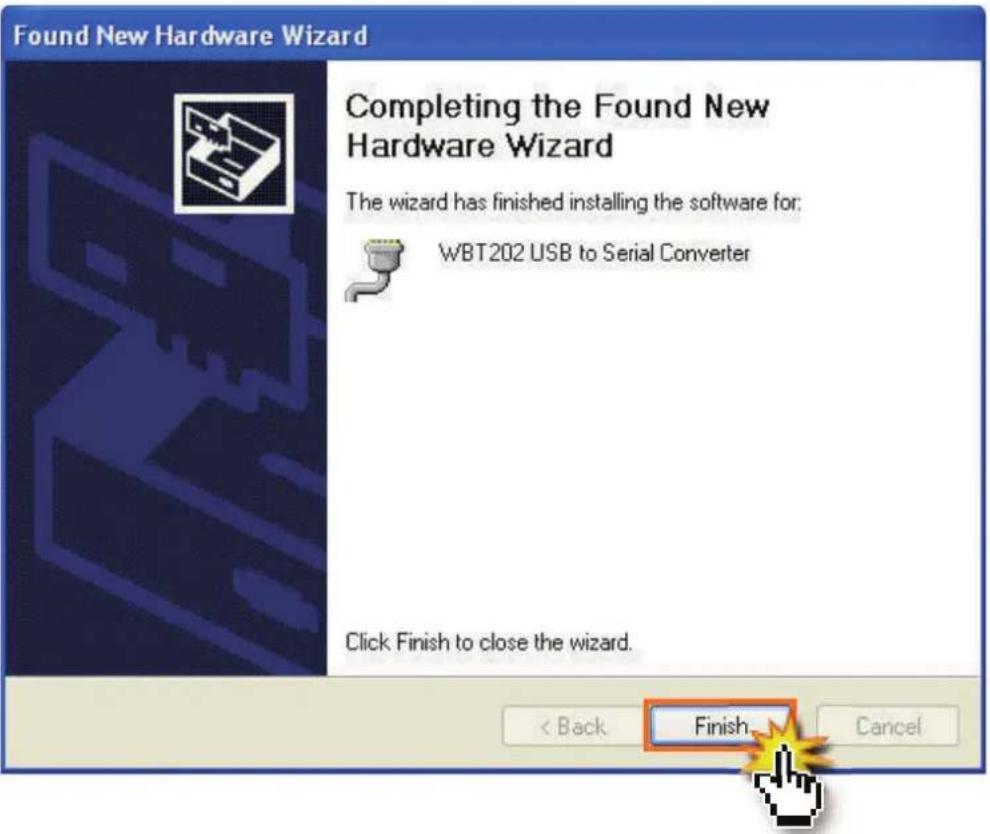
text_image
Found New Hardware Wizard Completing the Found New Hardware Wizard The wizard has finished installing the software for: WBT202 USB to Serial Converter Click Finish to close the wizard. < Back Finish Cancel- Enter "Device Manager" to reconfir rm if the USB driver is installed successfully and which COM Port is the assigned one (The device should under connection). In the future, when you connect the WBT-202 to the same computer with the same USB Port, the assigned COM Port can be used directly.
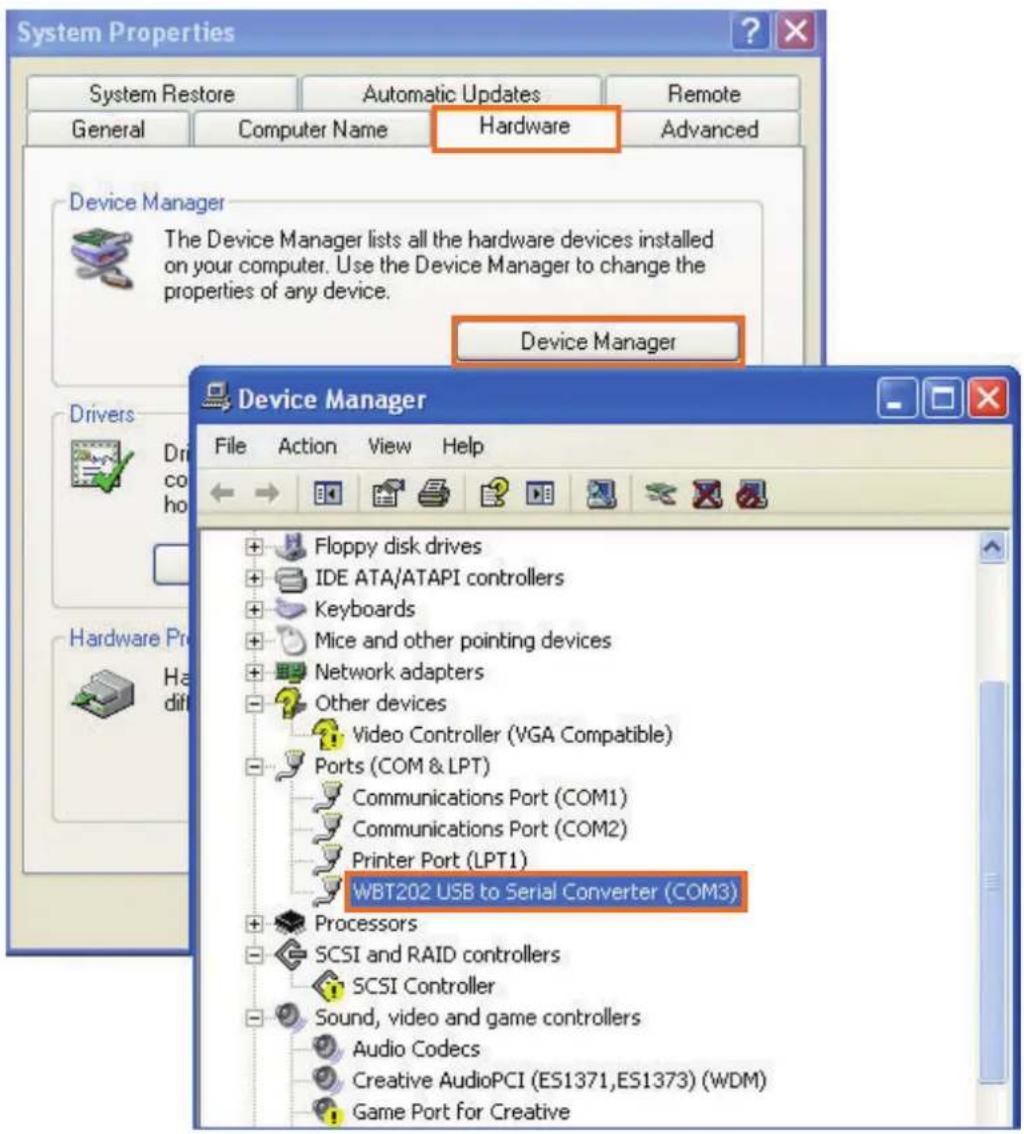
text_image
System Properties System Restore Automatic Updates Remote General Computer Name Hardware Advanced Device Manager The Device Manager lists all the hardware devices installed on your computer. Use the Device Manager to change the properties of any device. Device Manager Drivers Dri co ho Hardware Pro Ha dif Device Manager File Action View Help Floppy disk drives IDE ATA/ATAPI controllers Keyboards Mice and other pointing devices Network adapters Other devices Video Controller (VGA Compatible) Ports (COM & LPT) Communications Port (COM1) Communications Port (COM2) Printer Port (LPT1) WBT202 USB to Serial Converter (COM3) Processors SCSI and RAID controllers SCSI Controller Sound, video and game controllers Audio Codecs Creative AudioPCI (ES1371,ES1373) (WDM) Game Port for CreativeThe WBT-202 can connect to Pocket PC via Bluetooth on condition that the Bluetooth on your pocket PC supports SPP(Serial Port Profi le) service.
Connect WBT-202 to Pocket PC according to below steps.
NOTE
The exact connection process should refer to the user manual of your Pocket PC. Different Pocket PC has different screen shots and procedure.

text_image
CE Remote Display : P... File Zoom Tools Help Start 6:03 Monday, April 07, 2003 Tap here to set owner information No upcoming appointments No unread messages No tasks Turn Bluetooth OFF Bluetooth Manager Bluetooth Settings New- Switch WBT-202 on.
- Click the Bluetooth icon shown on the lower right corner.
- Select "Bluetooth Manager" and press "New" to search the Bluetooth device you used.

text_image
CE Remote Display : P... File Zoom Tools Help Connection Wizard 6:30 Bluetooth Connection Wizard Join a personal network Connect two or more Bluetooth devices to share files, collaborate or play multiplayer games. Exchange business cards Send, retrieve or exchange business cards with one or more Bluetooth enabled devices. Explore a Bluetooth device Discover the services another device offers and create connection shortcuts for them. Cancel Next- Select "Explore a Bluetooth device" and "Next" to create connection shortcuts for WBT-202.
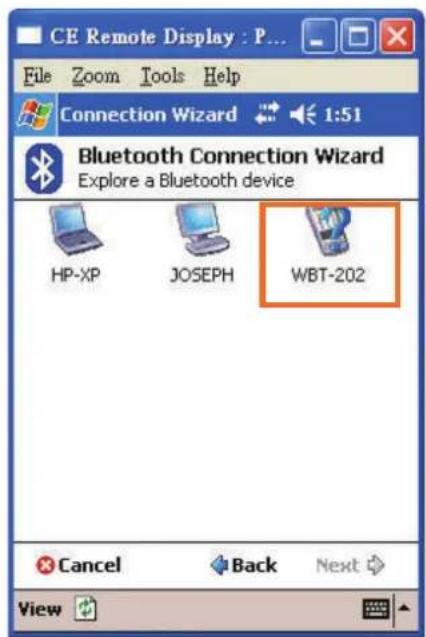
text_image
CE Remote Display : P... File Zoom Tools Help Connection Wizard 1:51 Bluetooth Connection Wizard Explore a Bluetooth device HP-XP JOSEPH WBT-202 Cancel Back Next View- Click the icon of WBT-202 to check the Bluetooth device service.
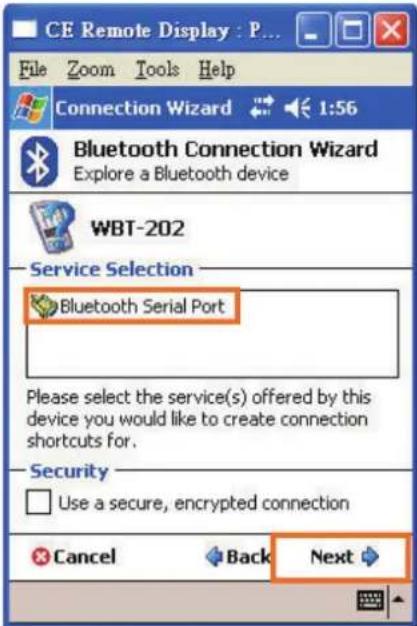
text_image
CE Remote Display : P... File Zoom Tools Help Connection Wizard 1:56 Bluetooth Connection Wizard Explore a Bluetooth device WBT-202 Service Selection Bluetooth Serial Port Please select the service(s) offered by this device you would like to create connection shortcuts for. Security Use a secure, encrypted connection Cancel Back Next- Press "Bluetooth Serial Port" (SPP slave) and "Next" to create a shortcut.
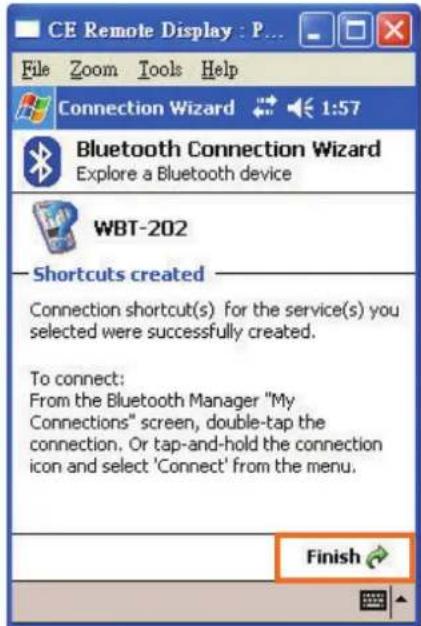
text_image
CE Remote Display : P... File Zoom Tools Help Connection Wizard 1:57 Bluetooth Connection Wizard Explore a Bluetooth device WBT-202 Shortcuts created Connection shortcut(s) for the service(s) you selected were successfully created. To connect: From the Bluetooth Manager "My Connections" screen, double-tap the connection. Or tap-and-hold the connection icon and select 'Connect' from the menu. Finish- Shortcuts created. Press "Finish" to close the connection wizard.
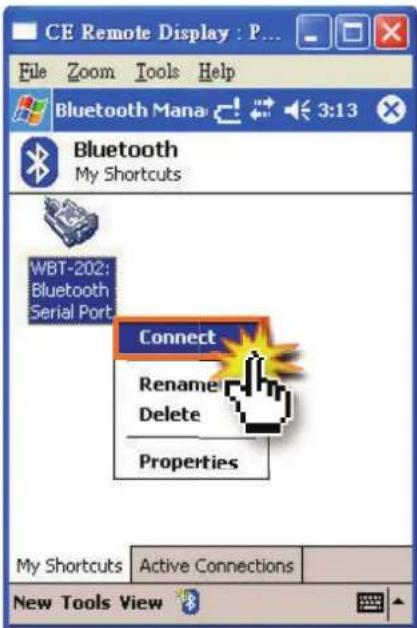
text_image
CE Remote Display : P... File Zoom Tools Help Bluetooth Mana 3:13 Bluetooth My Shortcuts WBT-202: Bluetooth Serial Port Connect Rename Delete Properties My Shortcuts Active Connections New Tools View- Press the icon of "WBT-202: Bluetooth Serial Port" and select "Connect" item to connect WBT-202 to Pocket PC.
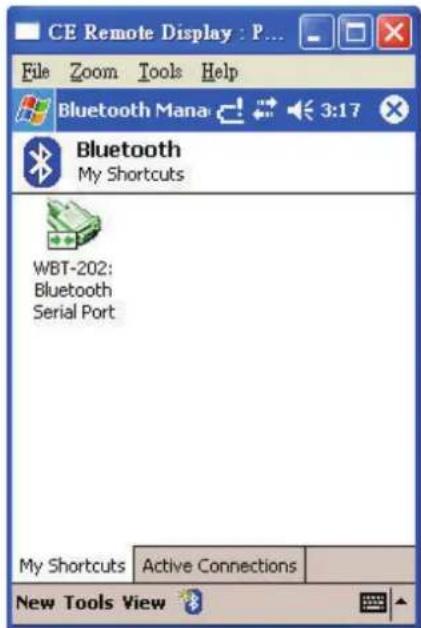
text_image
CE Remote Display : P... File Zoom Tools Help Bluetooth Mana 3:17 Bluetooth My Shortcuts WBT-202: Bluetooth Serial Port My Shortcuts Active Connections New Tools View- Connection is success. The icon will become green one as above picture.
WBT-202 is firmware upgradeable. Please update the firmware inside the WBT-202 to the latest version according to below steps.
NOTE The latest firmware will be released on Wintec's website.
- Please reconfi rm the USB driver is existed.
- Turn off the WBT-202, take off the battery and disconnect the USB cable if any.
- Press and hold the (Flag) button with providing the power to WBT-202 by USB cable simultaneously, and release the button when all LED lights are blinking. Now, it is under fi rmware upgrade mode.
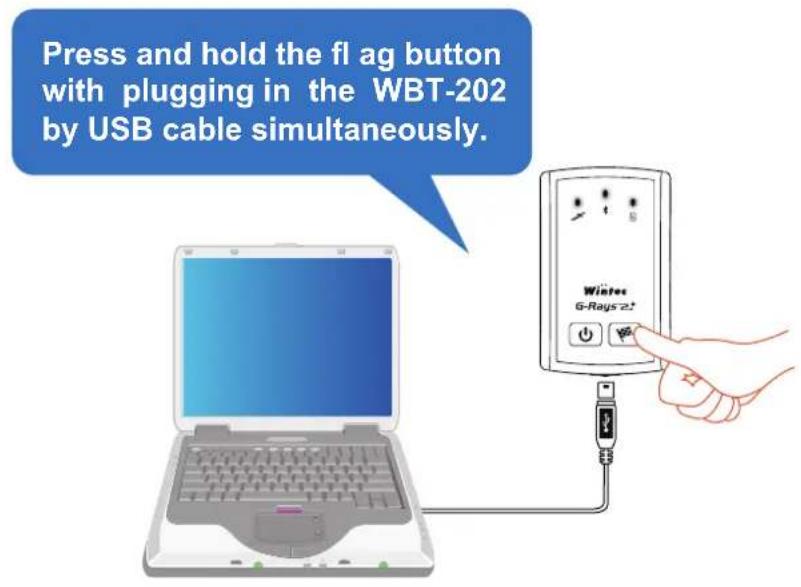
text_image
Press and hold the flag button with plugging in the WBT-202 by USB cable simultaneously.
text_image
The WBT-202 is under fi rmware upgrade mode when you see all LED lights are blinking. Now, you can release the flag button.- Decompress the fi rmware fi le and open the update tool "WBT-202_Firmware_Update_Tool.exe".

- Click "Browser" button to select the firmware (*.wfw) for WBT-202.
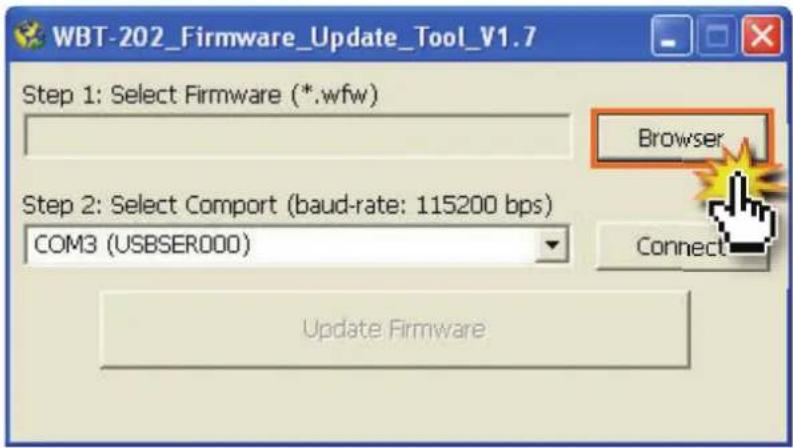
text_image
WBT-202_Firmware_Update_Tool_V1.7 Step 1: Select Firmware (*.wfw) Browser Step 2: Select Comport (baud-rate: 115200 bps) COM3 (USBSER000) Connect Update Firmware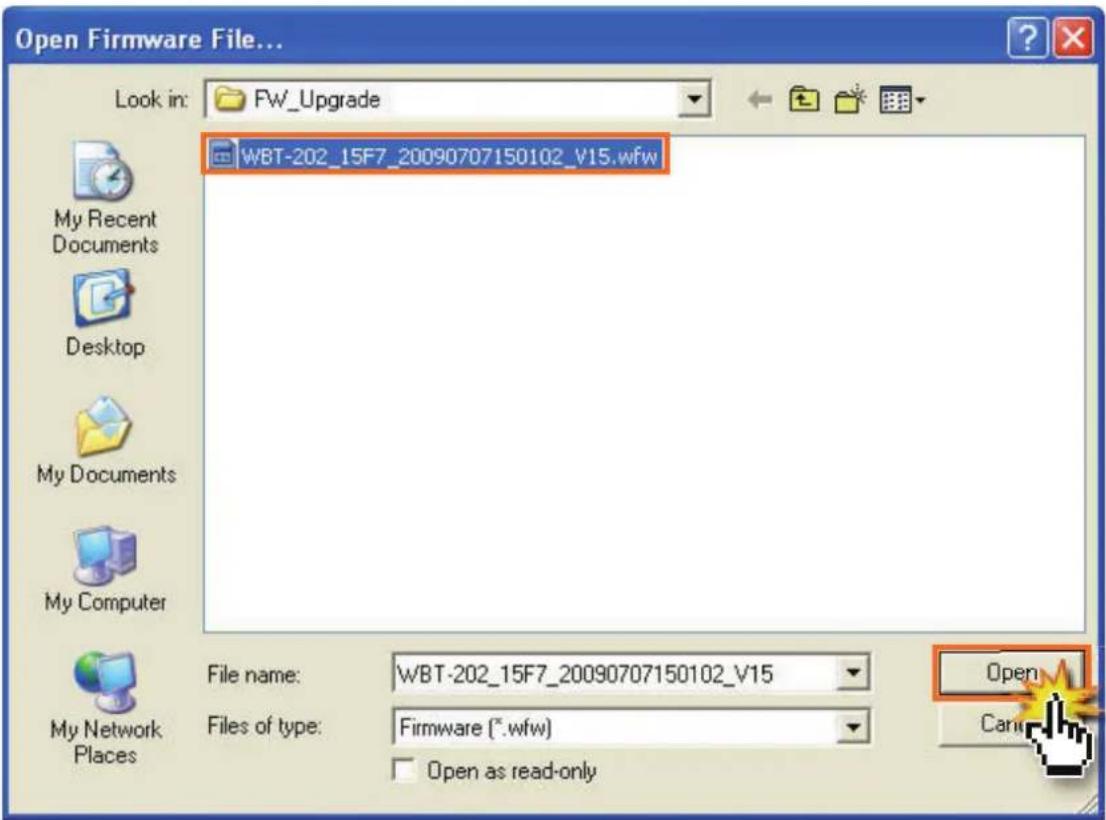
text_image
Open Firmware File... Look in: FW_Upgrade WBT-202_15F7_20090707150102_V15.wfw My Recent Documents Desktop My Documents My Computer My Network Places File name: WBT-202_15F7_20090707150102_V15 Files of type: Firmware (*.wfw) Open as read-only Can6. Select a COM Port.
The Firmware Update Tool will assign the correct COM Port (COM**(USBSER**)] automatically, please press the "Connect" button to communicate with WBT-202.
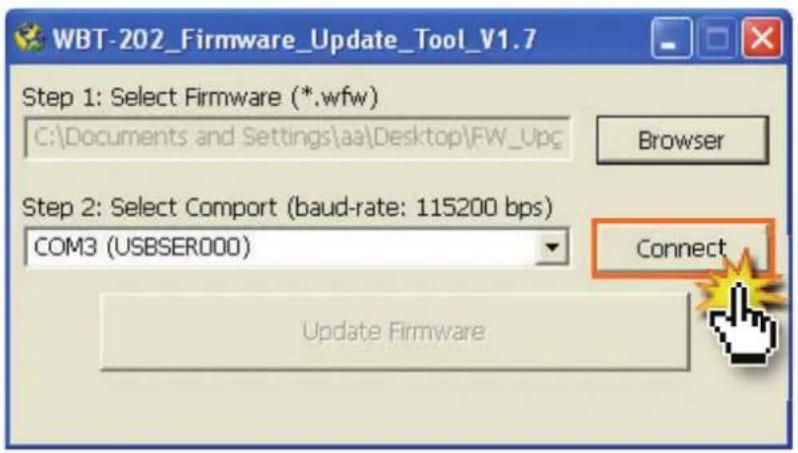
text_image
WBT-202_Firmware_Update_Tool_V1.7 Step 1: Select Firmware (*.wfw) C:\Documents and Settings\aa\Desktop\FW_Upc Browser Step 2: Select Comport (baud-rate: 115200 bps) COM3 (USBSER000) Connect Update FirmwareNOTE
If the assigned COM Port is not correct, please go to "Device Manage" to reconfirm the correct one.
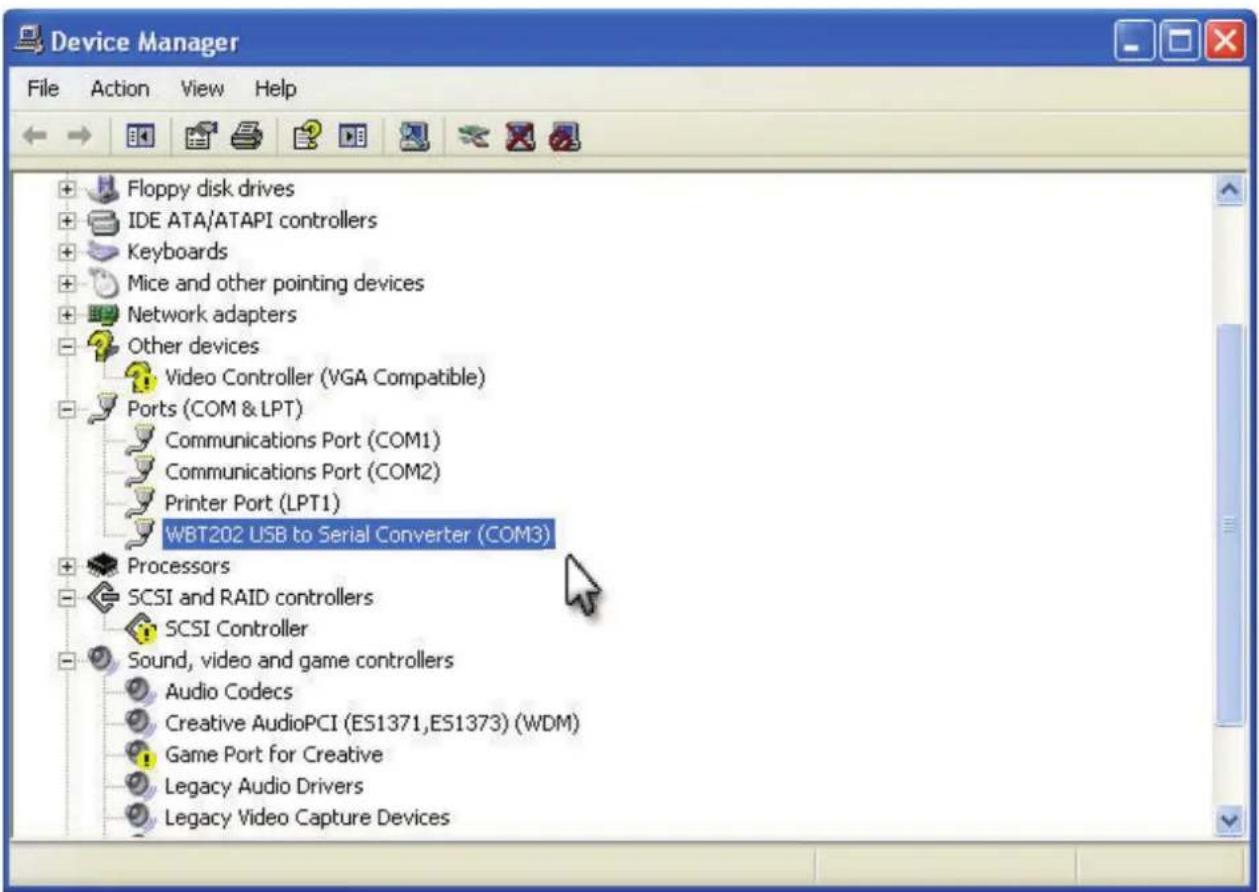
text_image
Device Manager File Action View Help Floppy disk drives IDE ATA/ATAPI controllers Keyboards Mice and other pointing devices Network adapters Other devices Video Controller (VGA Compatible) Ports (COM & LPT) Communications Port (COM1) Communications Port (COM2) Printer Port (LPT1) WBT202 USB to Serial Converter (COM3) Processors SCSI and RAID controllers SCSI Controller Sound, video and game controllers Audio Codecs Creative AudioPCI (ES1371,ES1373) (WDM) Game Port for Creative Legacy Audio Drivers Legacy Video Capture Devices- Click the "Update Firmware" button when it becomes visible. And the firmware update process is in progress.
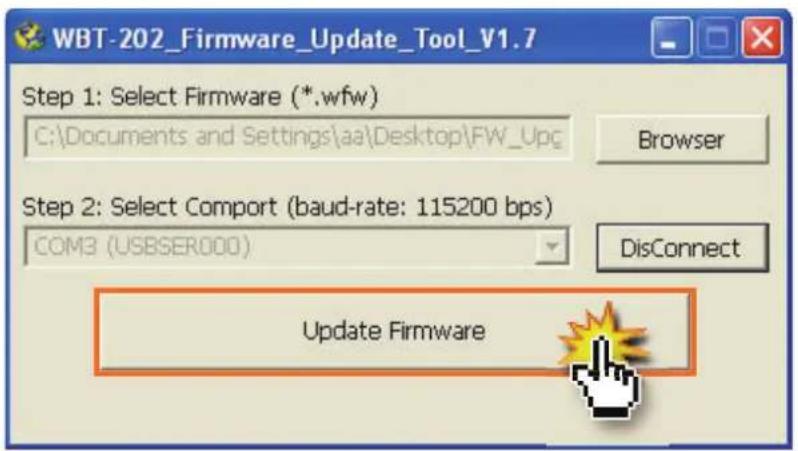
text_image
WBT-202_Firmware_Update_Tool_V1.7 Step 1: Select Firmware (*.wfw) C:\Documents and Settings\aa\Desktop\FW_Upc Browser Step 2: Select Comport (baud-rate: 115200 bps) COM3 (USBSER000) DisConnect Update Firmware- Click the "OK" button to complete the update process.
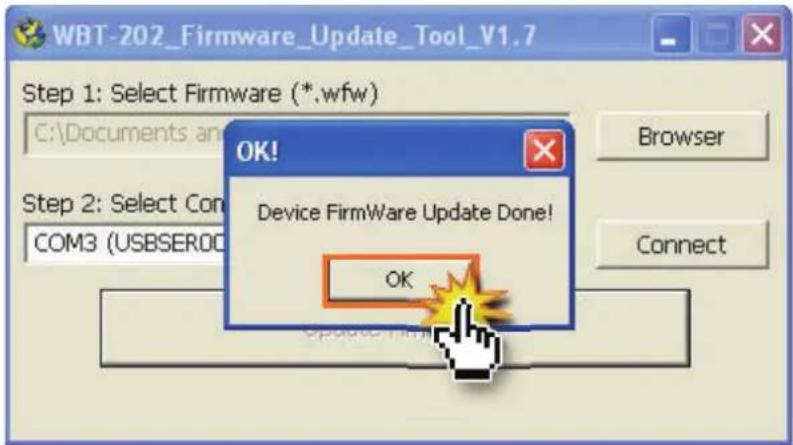
text_image
WBT-202_Firmware_Update_Tool_V1.7 Step 1: Select Firmware (*.wfw) C:\Documents an OK! Device Firmware Update Done! COM3 (USBSER00 OK Browser Step 2: Select Con COM3 (USBSER00 ConnectNOTE
If there is any error occurred during update process, please shut the Firm-1. ware Update Tool and rerun the update process again.
If you want to leave the Firmware Update Mode before updating, please 2. take off the USB cable directly or press and hole the ⏻ (Power) button to back regular mode.
If you run into any problem using WBT-202, use the following table to troubleshoot the problem. If the problem persists, contact your dealer for further service.

The WBT-202 can not get acquisition.
You may be in a location where the radio signals from GPS satellites can not be reached.
- Avoid using the unit in the locations such as tunnels, underground locations or among obstructions such as tall buildings or thick forest.
The sun shade in the vehicle may effect the reception.
- Avoid placing 2 GPS devices too close during positioning.

It takes much time to get acquisition.
It may take a long time to track the location under following two situations:
The WBT-202 didn't be operated more than 3 months.
The distance between your current location and the last time device turn off location is more than 800 km.
At this moment, cold star is suggested. For details, refer to "Cold Start" on page 23.

There are some shifted points with incorrect velocity and position in your track.
When you stay somewhere without movement or the moving speed is less then 10km/hr or under the environment with tall buildings, the satellite signal is too weak to calculate the accurate data. It's a GPS character, just move to open sky area and keep moving to get better GPS signal.

The PIN CODE for Bluetooth connection.
▶ Please key in "0000".

I lost my battery. Where can I find the replacement?
The battery model for WBT-202 is BL-5C, compatible with Nokia phone series.

How may waypoints can WBT-202 log?
Regarding WBT-202, you can log data in Micro-SD card or its inbuilt backup memory. For Micro-SD card, it depends on the capacity for memory card. With 1GB is around 67 million points and 2GB is 134 million points. For inbuilt backup memory, it can accept 260,000 points.

I can not use my own Micro-SD card.
Please make sure that the Micro-SD card is placed properly.
WBT-202 doesn't support the Micro-SD card with SDHC format.
Please be aware that the capacity of Micro-SD card must no exceed a maximum of 2GB. And the brand of SanDisk, Transcend, FILEMATE, KINGMAX and Kingston are suggested.
For the further operation at the first time using, please refer to the detail of page 12.
Wintec Co., Ltd.
www.wintec.com.tw