V513 - Speaker TDK - Free user manual and instructions
Find the device manual for free V513 TDK in PDF.


User questions about V513 TDK
0 question about this device. Answer the ones you know or ask your own.
Ask a new question about this device
Download the instructions for your Speaker in PDF format for free! Find your manual V513 - TDK and take your electronic device back in hand. On this page are published all the documents necessary for the use of your device. V513 by TDK.
USER MANUAL V513 TDK
IMPORTANT SAFETY INSTRUCTIONS

text_image
Warning sign depicting a lightning bolt symbol in a triangular hazard triangleCAUTION
RISK OF ELECTRIC SHOCK DO NOT OPEN

text_image
Warning symbol with exclamation mark inside triangle, commonly used for safety alertsCAUTION: TO REDUCE THE RISK OF ELECTRIC SHOCK, DO NOT REMOVE COVER (OR BACK). NO USER-SERVICEABLE PARTS INSIDE. REFER SERVICING TO QUALIFIED SERVICE PERSONNEL.

DANGEROUS VOLTAGE:
The lightning flash with arrowhead symbol within an equilateral triangle is intended to alert the user to the presence of uninsulated dangerous voltage within the product's enclosure that may be of sufficient magnitude to constitute a risk of electric shock to persons.

ATTENTION:
The exclamation point within an equilateral triangle is intended to alert the user to the presence of important operating and maintenance (servicing) instructions in the literature accompanying the appliance.
FCC WARNING:
This equipment may generate or use radio frequency energy. Changes or modifications to this equipment may cause harmful interference unless the modifications are expressly approved in the instruction manual. The user could lose the authority to operate this equipment if an unauthorized change or modification is made.
ATTENTION:
POUR ÉVITER LES CHOC ÉLECTRIQUES, INTRODUIRE LA LAME LA PLUS LARGE DE LA FICHE DANS LA BORNE CORRESPONDANTE DE LA PRISES ET POUSSER JUSQU'AU FOND.
iPod is a trademark of Apple Computer, Inc., registered in the U.S. and other countries.
The TDK Life on Record logo is a trademark of TDK Corporation used under license.
WARNING: TO PREVENT FIRE OR SHOCK HAZARD, DO NOT EXPOSE THIS UNIT TO RAIN OR MOISTURE.
IMPORTANT SAFETY INSTRUCTIONS
WARNING:
TO REDUCE THE RISK OF FIRE OR ELECTRIC SHOCK, AND ANNOYING INTERFERENCE, USE THE RECOMMENDED ACCESSORIES ONLY.
SURGE PROTECTORS:
It is recommended to use a surge protector for AC connection. Lightning and power surges ARE NOT covered under warranty for this product.
INFORMATION:
This equipment complies with Class B digital device regulations. This equipment generates, uses and can radiate radio frequency energy and, if not installed and used in accordance with the instructions, may cause harmful interference to radio communications. However, there is no guarantee that interference will not occur in a particular installation. If this equipment does cause harmful interference to radio or television reception, which can be determined by turning the equipment off and on, the user is encouraged to try to correct the interference by one or more of the following measures:
- Reorient or relocate the receiving antenna.
- Increase the separation between the equipment and receiver.
- Connect the equipment into an outlet on a circuit different from that to which the receiver is connected.
- Consult the dealer or an experienced radio/TV technician for help.
- The rating and caution information is located at the bottom of the apparatus.
This Class B digital apparatus complies with Canadian ICES-003.
Only use attachments/accessories specified by the manufacturer.
To be completely disconnected from the power input, the main plug of the AC/DC adapter shall be disconnected from the electrical outlet. The main plug of the AC/DC adapter should not be obstructed OR should be easily accessed during intended use.
Do not expose the product to dripping or splashing. Do not place liquid objects such as vases on the product.
IMPORTANT SAFETY INSTRUCTIONS
- Read these Instructions.
- Keep these Instructions.
- Heed all Warnings.
- Follow all instructions.
- Do not use this apparatus near water.
- Clean only with a dry cloth.
- Do not block any of the ventilation openings. Install in accordance with the Manufacturer's instructions.
- Do not install near any heat sources such as radiators, heat registers, stoves, or other apparatus (including amplifiers) that produce heat.
- Do not defeat the safety purpose of the polarized or grounding - type plug. A polarized plug has two blades with one wider than the other. A grounding type plug has two blades and a third grounding prong. The wide blade or the third prong are provided for your safety. When the provided plug does not fit into your outlet, consult an electrician for replacement of the obsolete outlet.
- Protect the power cord from being walked on or pinched particularly at plugs, convenience receptacles, and the point where they exit from the apparatus.
- Only use attachments/accessories specified by the manufacturer.
- Use only with a cart, stand, tripod, bracket, or table specified by the manufacturer, or sold with the apparatus. When a cart is used, use caution when moving the cart/apparatus combination to avoid injury from tip-over.
- Unplug this apparatus during lightning storms or when unused for long periods of time.
- Refer all servicing to qualified service personnel. Servicing is required when the apparatus has been damaged in any way, such as power-supply cord or plug is damaged, liquid has been spilled or objects have fallen into the apparatus, the apparatus has been exposed to rain or moisture, does not operate normally, or has been dropped.
- WARNING: To reduce the risk of fire or electric shock, do not expose this apparatus to rain or moisture. Do not place objects filled with water, such as a vase, on the apparatus.
- The AC mains plug is used as the power disconnect device and it should remain readily accessible and operable during intended use. In order to completely disconnect the apparatus from power, the mains plug should be completely removed from the AC outlet socket.
- CAUTION: To reduce the risk of fire or explosion, do not expose batteries to excessive heat such as sunshine, fire or other heat sources.
PORTABLE CART WARNING (symbol provided by RETAC)

natural_image
Symbolic illustration of a person climbing a ladder inside a circle with no text or symbolsLOCATION OF CONTROLS
FRONT
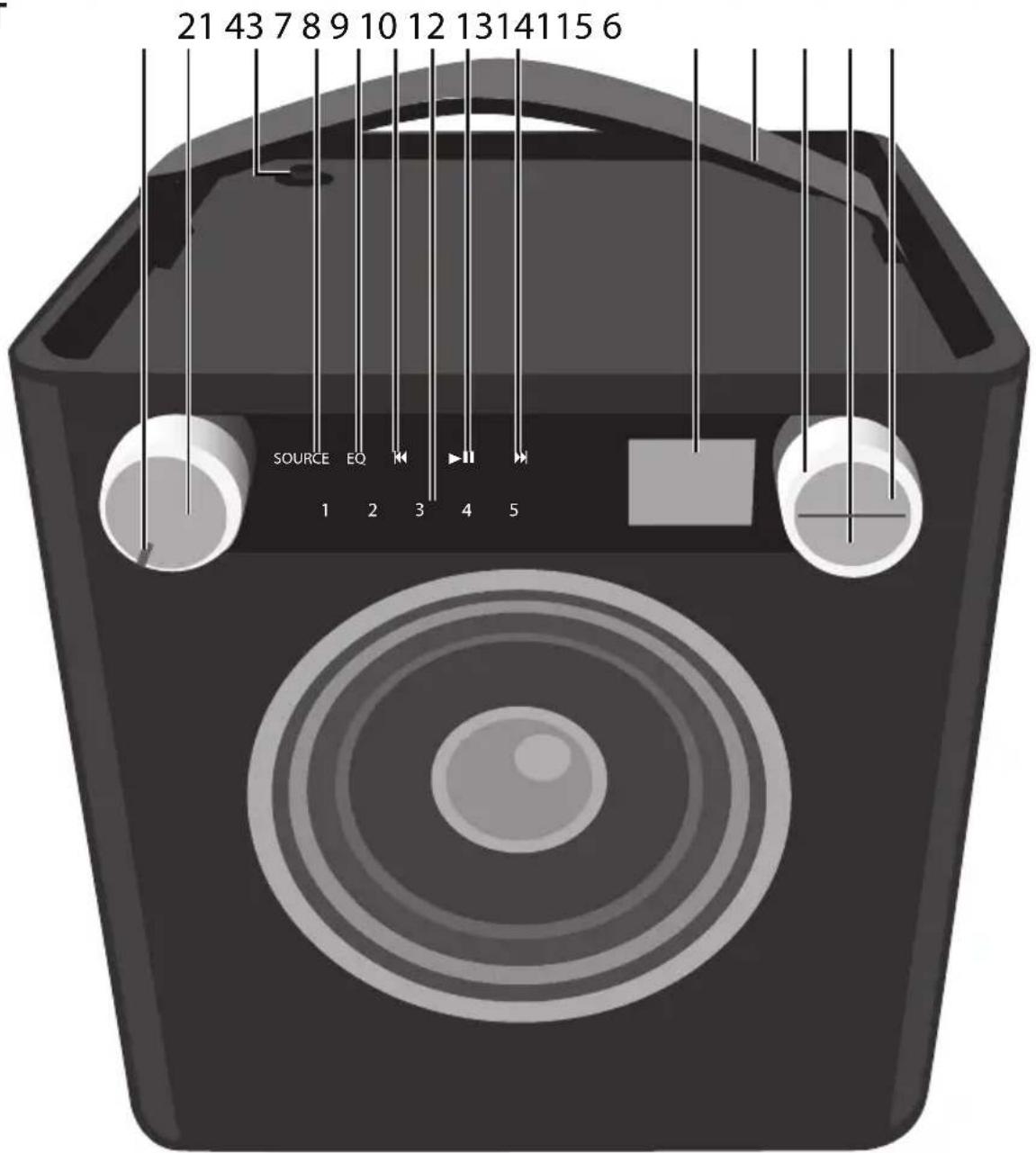
text_image
21 43 7 8 9 10 12 13 14 11 15 6 SOURCE EQ 1 2 3 4 5- Power Indicator
- Volume/Power Control
- FM Antenna (FM ANTENNA PART NO. 188-YS7158001-E*)
- Source Button/Indicator
- EQ Button/Indicator
- Skip 🔊 Button/Indicator
-
Preset Buttons/Indicators
-
Play/Pause ▶II Button/Indicator
-
Skip ▶Button/Indicator
-
Display
-
Carrying Handle
-
Select Control
-
BACK Button
-
OK Button
*Consumer Replaceable Part (See page 19 to order.)
LOCATION OF CONTROLS (CONTINUED)
REAR
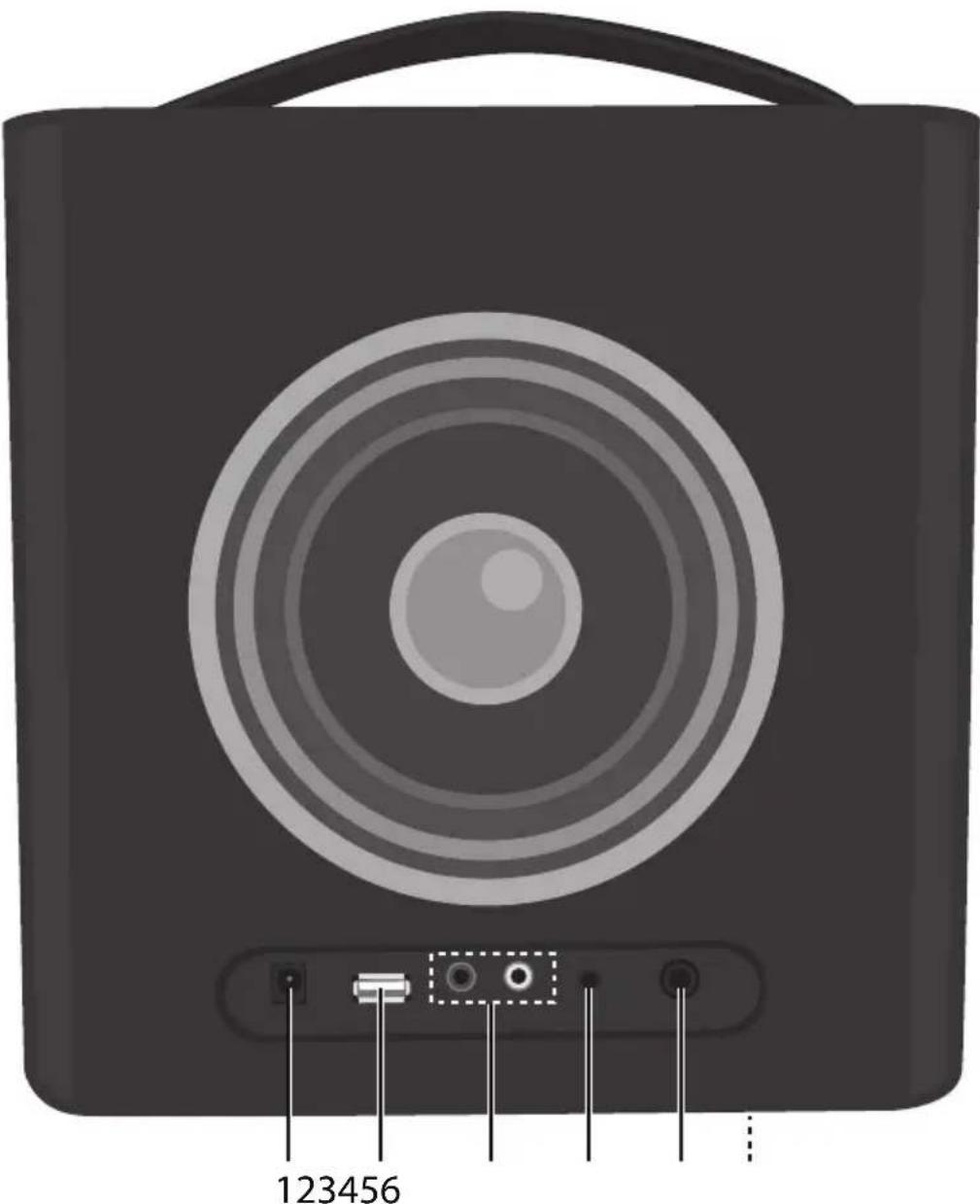
text_image
123456- DC IN Jack 18V -⊕+ (AC ADAPTER PART NO. 151-UGPE30200-E*)
- USB Jack (USB CABLE PART NO. 174-9USBBGBW-E*)
- RCA IN Jacks
-
LINE IN Jack
-
INST (Instrument) Jack
- Battery Compartment (Bottom of Unit) (BATTERY COVER PART NO. 309-ABS-05134-0BAE* BATTERY SCREW PART NO. 353-0607176-E*)
*Consumer Replaceable Part (See page 19 to order.)
AC CONNECTION
Insert the small end of the AC adapter into the jack on the rear of the unit. Insert the other end (with the 2 blades) into a conveniently located AC outlet having 120V AC, 60Hz.
AC ADAPTER SPECIFICATIONS:
DC 18V - +
NOTES:
- To disconnect the AC adapter, remove it from the DC IN jack on the side of the unit as well as from the AC outlet.
- Use the enclosed AC adapter for this product only.

text_image
Tomada de CA Plugue do adaptador Para o plugue de entrada CINSERTING BATTERIES
To use this unit with battery power, remove the Battery Compartment cover on the bottom of the unit by removing the two screws with a flathead screwdriver, and then lifting the cover off. Insert twelve (12) "D" cell batteries (not included), observing the battery polarity indicated inside the compartment. Replace the Battery Compartment cover and screws.
NOTE: The AC adapter must be disconnected from the jack on the rear of the unit in order for the unit to operate on battery power. We recommend Alkaline or rechargeable types for maximum cycle time and ecological efficiency.
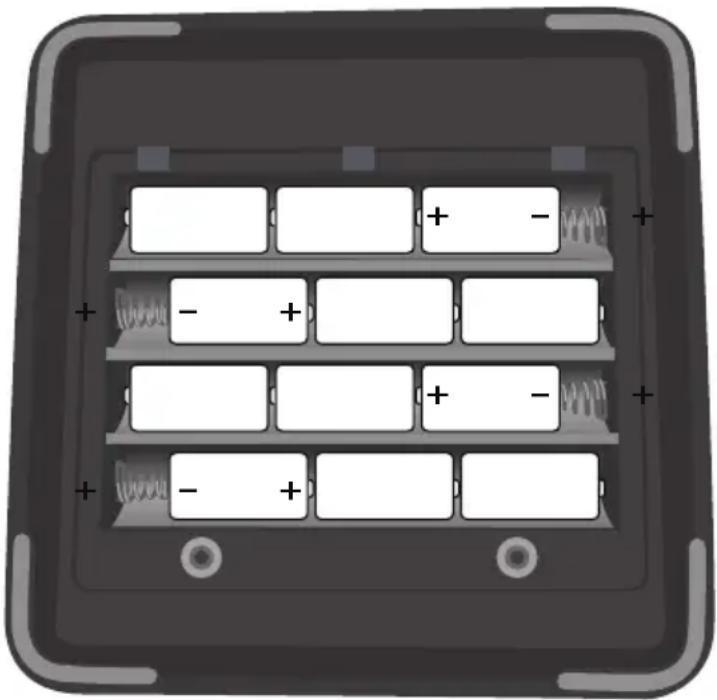
natural_image
Top-down view of a battery pack with four cells and two battery cells, no text or symbols presentBATTERY PRECAUTIONS
Follow these precautions when using batteries in this device:
- Caution – Danger of explosion if battery is incorrectly replaced. Replace only with the same or equivalent type.
- Use only the size and type of batteries specified.
- Be sure to follow the correct polarity when installing the batteries as indicated in the Battery Compartment. A reversed battery may cause damage to the device.
- Do not mix different types of batteries together (e.g. Alkaline, Rechargeable and Carbon-zinc) or old batteries with fresh ones.
- If the device is not to be used for a long period of time, remove the batteries to prevent damage or injury from possible battery leakage.
- Do not try to recharge a battery not intended to be recharged; it can overheat and rupture. (Follow battery manufacturer's directions.)
- Remove batteries promptly if consumed.
- Clean the battery contacts and also those of the device prior to battery installation.
OPERATION
The following controls operate most or all of the functions.
TURNING THE UNIT ON/OFF AND ADJUSTING THE VOLUME
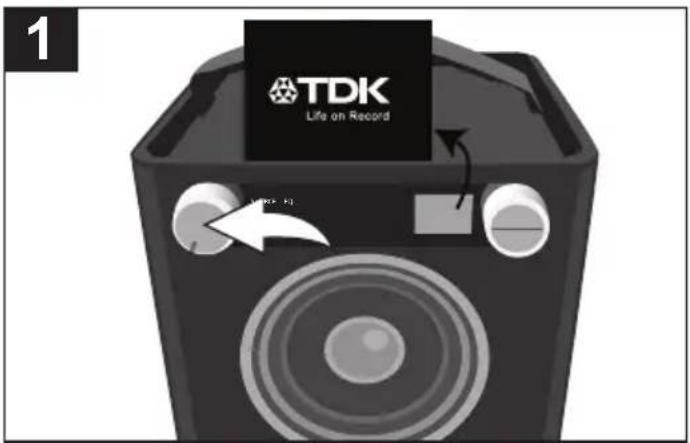
text_image
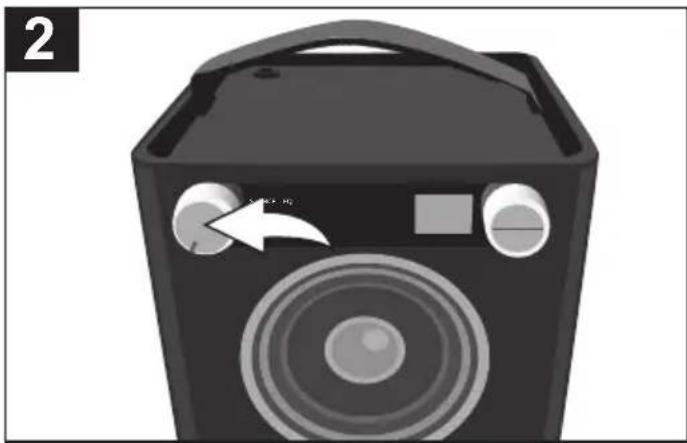
1 TDK Life on RecordRotate the Volume/Power control until a click is heard and the Power indicator lights to turn the unit on.
natural_image
Illustration of a black speaker with circular sound waves and a white directional arrow (no text or symbols)Rotate the Volume/Power control clockwise to increase or counterclockwise to decrease the volume. Rotate the Volume/Power control counter-clockwise until a click is heard and the Power indicator light goes off to turn the unit off.
EQ

text_image
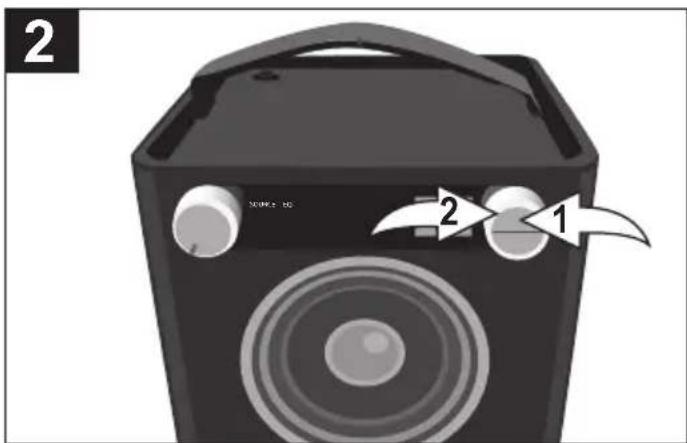
1 1 2During any mode, press the EQ button/indicator ①; Basswill appear in the display. Adjust the Bass as desired using the Select control ②.
text_image
2 2 1Press the OK button ① and Treblewill appear in the display. Adjust the Treble as desired using the Select control ②. Press the OK button ① to confirm the setting or wait a few seconds to go back to the previous menu.
OPERATION (CONTINUED)
USING THE FM RADIO

text_image
1 TDK Life on Record TOKC IDTurn this unit on by rotating the Volume/Power control until a click is heard and the Power indicator lights to turn the unit on.

text_image
2 FM USB AUX 1 1 2 3Press the Source button/indicator ①; the Source menu will appear in the display. Select FM using the Select control ②, and then press the OK button ③ to confirm.
text_image
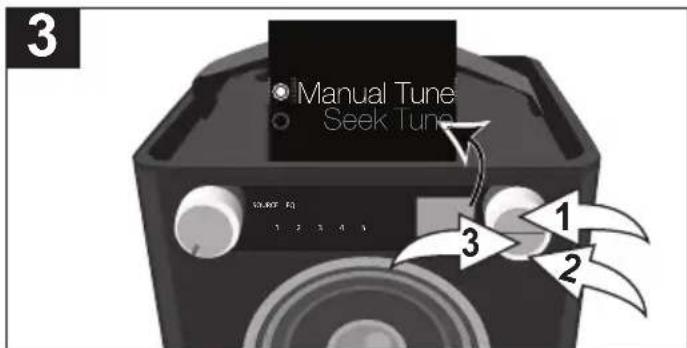
Manual Tune Seek Tune 12.407 PQ 1 2 3 4 5 1 2 3 4 5 3 1 2 3While the frequency appears in the display, press the OK button ①; Manual/Seek will appear in the display. Using the Select control ②, select Manual to adjust the frequency one step at a time, or Seek to have the unit automatically go to the next strong station; then press the OK button ①. Press the BACK button ③ or wait a few seconds to return to the station view.

text_image
4 101.5 select PC 1 2 3 4 1Select a station using the Select control. Stronger stations will have a larger line (see above).
Adjust the Volume and EQ as described on the previous page.
Antenna: For best FM reception, completely raise the FM antenna, and then once fully raised you can rotate it for best reception.
SETTING THE FM PRESETS (FIVE PRESETS)
text_image
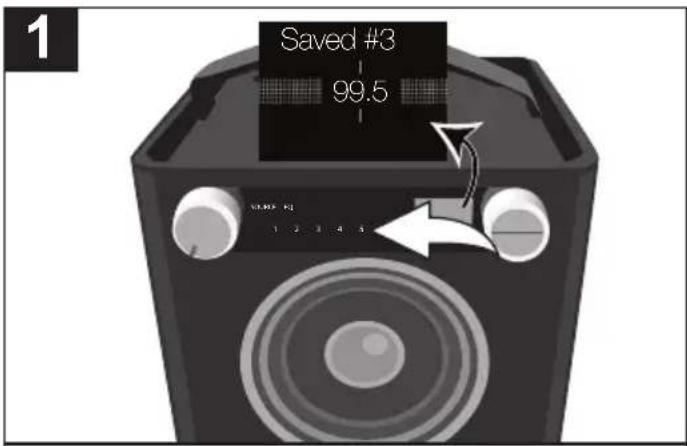
1 Saved #3 99.5Follow Steps 1-4 on the previous page to tune a station. Press and hold one of the five Preset buttons/indicators.
Saved #X (e.g. Saved #3) will appear briefly in the display and the preset will be set.
RETRIEVING THE FM PRESETS

natural_image
Black electronic speaker with speaker grille and control knob, no visible text or symbolsFollow Steps 1-2 on the previous page to turn the unit on and enter the Radio mode. Press one of the five Preset buttons/indicators and the station will automatically tune in.
OPERATION (CONTINUED)
USING AN iPod
text_image
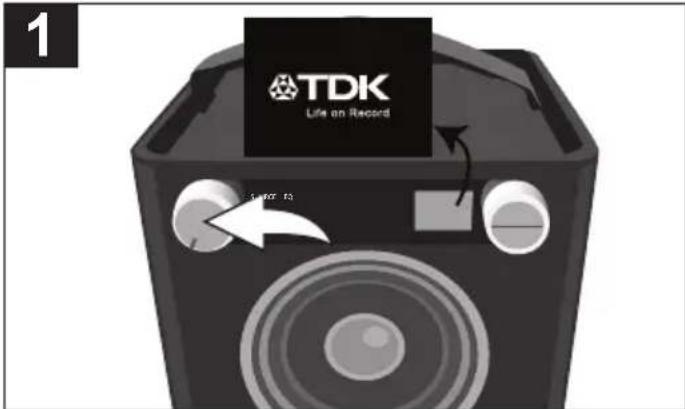
1 TDK Life on Record 1.04x 13Turn this unit on by rotating the Volume/Power control until a click is heard and the Power indicator lights to turn the unit on.

natural_image
Close-up of a black electronic device with a cable inserted, showing ports and an antenna (no text or symbols visible)Insert the iPod cable to the iPod and the other end with the USB plug into the USB jack on the rear of this unit.

text_image
3 TDK Life on Record 1 2 3Press the Source button/indicator ①; the Source menu will appear in the display. Select USB using the Select control ②, and then press the OK button ③ to confirm.
In order to play or navigate for music, operate the iPod using its own controls, as per its owner's manual.
iPod PLAYBACK NOTES:
- Refer to the owner's manual of the iPod for detailed connection instructions.
- The controls on your iPod will determine music playback. Volume is controlled on the Sound Cube.
CONTINUED ON THE NEXT PAGE
OPERATION (CONTINUED)
USING A USB DEVICE (i.e. USB DRIVE)
text_image
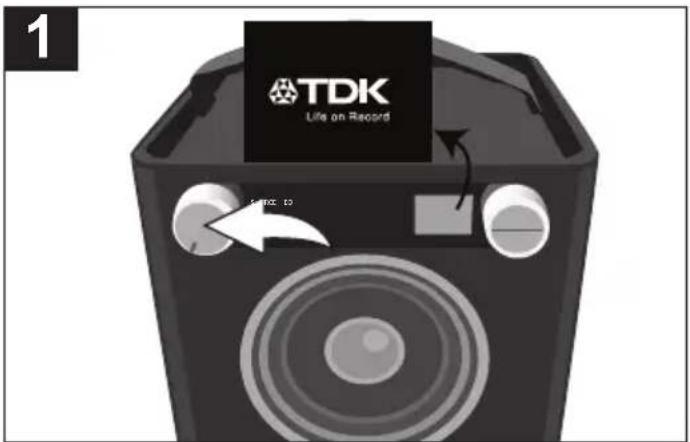
1 TDK Life on Record ← toTurn this unit on by rotating the Volume/Power control until a click is heard and the Power indicator lights to turn the unit on.
natural_image
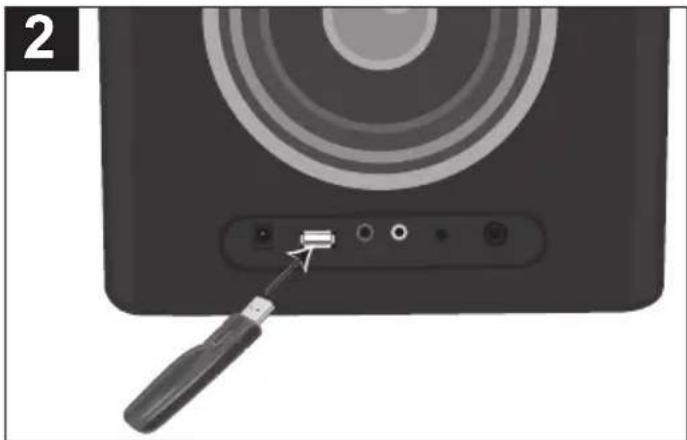
Close-up of a black electronic device with a screwdriver inserted, showing ports and an antenna (no text or symbols visible)Insert a USB drive (support up to 32GB) into the USB jack. This unit supports MP3/WMA with a Bit Rate up to 320kbps.

text_image
3 FM USB AUX 1 1 2 3 3Press the Source button/indicator ①; the Source menu will appear in the display. Select USB using the Select control ②, and then press the OK button ③ to confirm.

text_image
Airbag Creep Misc 1 2If there are folders, select a folder using the Select control ①, and then press the OK button ② to enter the folder.
CONTINUED ON THE NEXT PAGE
OPERATION (CONTINUED)
5

text_image
1 2Repeat step 4 until you are in the desired folder. Select a song/file using the Select control ① and then press the OK button ②; the selected song will then start playing and the song name (if tagged) will appear in the display.
6

natural_image
Illustration of a black speaker with sound waves and a white arrow indicating sound direction (no text or symbols)Press the Play/Pause ▶■ button/indicator to pause playback; ■ will appear in the display. Press the Play/Pause ▶■ button/indicator again to continue playback.
The unit will then play the song and continue with the next song in the folder. When all songs have played, the unit will stop, depending on the Repeat function (see page 14). Adjust the Volume and EQ as described on page 7.
7
natural_image
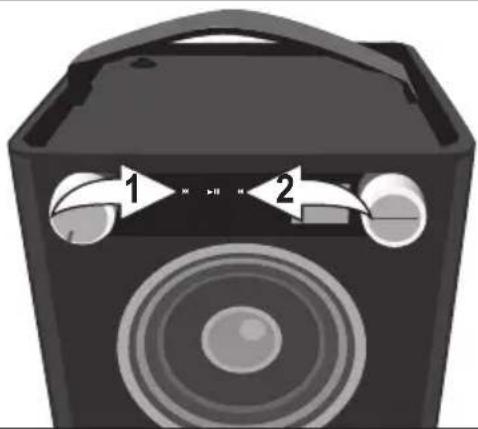
Illustration of a speaker with two labeled buttons (1 and 2) and sound waves, no text or symbols present.To skip forward or backward: Press the Skip ◀◀ ① or ▶▶ ② button/indicator to skip to the beginning of the current file/previous or next file.
To search forward or backward:
Press and hold the Skip 🔊 ① or ➕ ② button/indicator to search within the currently-playing file.
PLAYBACK NOTES:
- Refer to the owner's manual of the USB device for detailed connection instructions.
- When going through the menu items, press the BACK button to return to the previous menu.
- For the titles, albums, etc. to appear correctly, they must have been tagged properly when recorded to MP3.
OPERATION (CONTINUED)
SHUFFLE PLAYBACK
text_image
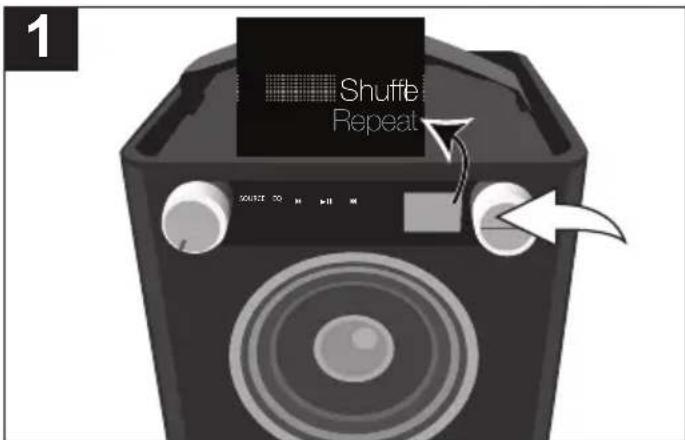
1 Shuffle RepeatWhile in the Play or Paused USB mode and with a USB device inserted, press the OK button; Shuffleand Repeatwill appear in the display.

text_image
2 Shuffle Repeat source no playSelect Shuffle using the Select control.

text_image
3 Shuffle RepeatPress the OK button once; the Shuffle indicator will light and appear on the display. All songs in the selected folder will randomly play and then stop.
text_image
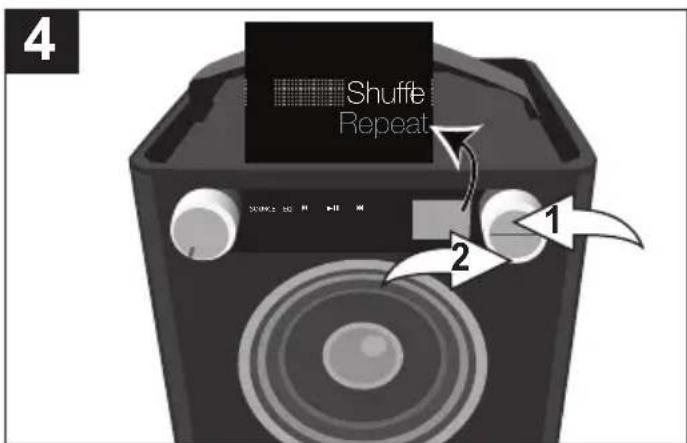
4 Shuffle Repeat 1 2To cancel Random playback, press the OK button ① to bring up the Shuffle/Repeat menu. Select Shuffle using the Select control ②, and then press the OK button ① again; will disappear. Press the OK button ① to confirm the setting or wait a few seconds to go back to the previous menu.
OPERATION (CONTINUED)
REPEAT PLAYBACK

text_image
1 Shuffle RepeatWhile in the Play or Pause USB mode and with a USB device inserted, press the OK button; Shuffleand Repeatwill appear in the display.
text_image
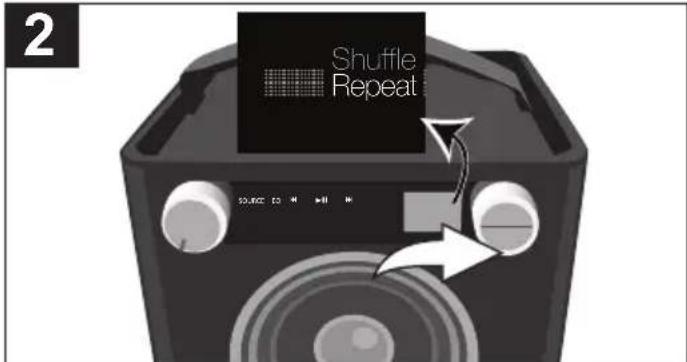
2 Shuffle Repeat 50.000x 10 H H H HSelect Repeat using the Select control.
text_image
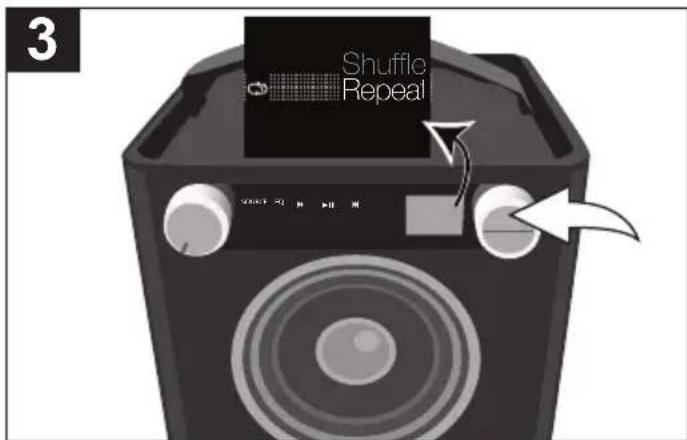
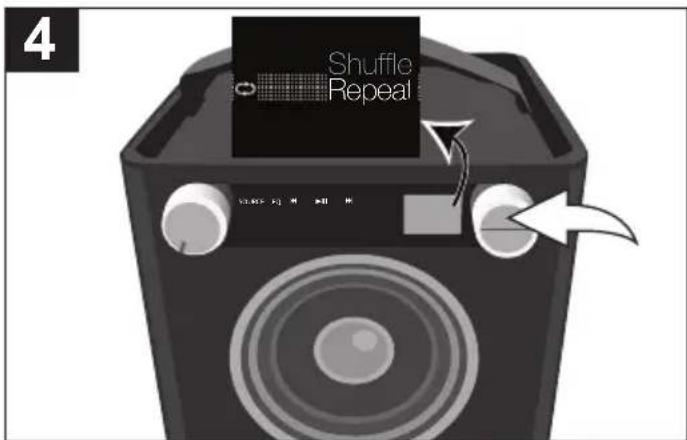
3 Shuffle RepealPress the OK button once; the Repeat 1 indicator will light and the selected song will play repeatedly.
text_image
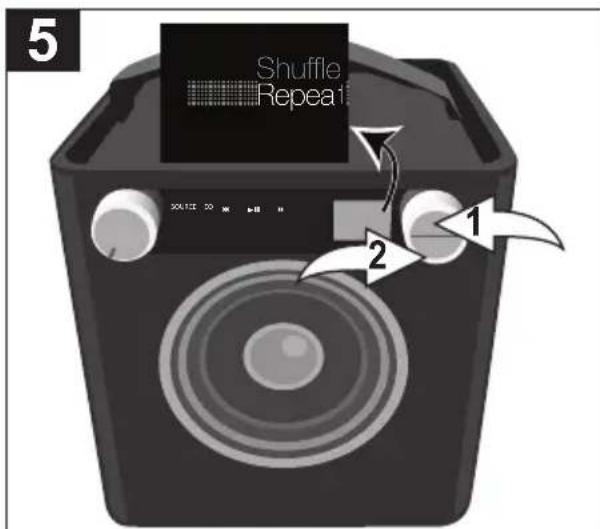
4 Shuffle RepealPress the OK button once more; the Repeat All indicator will light and all songs in the selected folder will repeat continuously. Press the OK button to confirm the setting or wait a few seconds to go back to the previous menu.
text_image
5 Shuffle Repeat 1 2To cancel Repeat playback, press the OK button ① to bring up the Shuffle/Repeat menu. Select Repeat using the Select control ②, and then press the OK button ① repeatedly until the Repeat indicators disappear.
NOTE: You can perform Random All and Repeat playback at the same time to repeatedly playback all the songs randomly. Press the OK button ① to confirm the setting or wait a few seconds to go back to the previous menu.
OPERATION (CONTINUED)
USING AN EXTERNAL UNIT CONNECTED TO THE LINE IN OR RCA JACKS

text_image
1 TDK Life on Record TDK: 12Turn this unit on by rotating the Volume/Power control until a click is heard and the Power indicator lights to turn the unit on.

natural_image
Close-up of a black electronic device with concentric rings and ports, no visible text or symbolsTo use the LINE IN Jack: Insert one end of an audio cable into the AUX/LINE OUT jack on your external audio unit and the other end into the LINE IN jack on the rear of this unit.

natural_image
Close-up of a black electronic device with a circular lens and indicator lights, showing no visible text or symbols.To use the RCA IN Jacks: Connect a left and right audio cable from the Left/Right jacks of your external unit to the RCA IN Left/Right jacks on the rear of this unit.

text_image
3 FM USB AUX 1 1 2 3 4 5 2 3Press the Source button/indicator ①; the Source menu will appear in the display. Select AUX1 (if using LINE IN Jacks) or AUX2 (if using the RCA IN jacks) using the Select control ②, and then press the OK button ③ to confirm. Start playback of the external device. Adjust the Volume and EQ as described on page 7.
NOTE:
Refer to the owner's manual of the external unit for detailed connection instructions.
OPERATION (CONTINUED)
USING THE INSTRUMENT FUNCTION
text_image
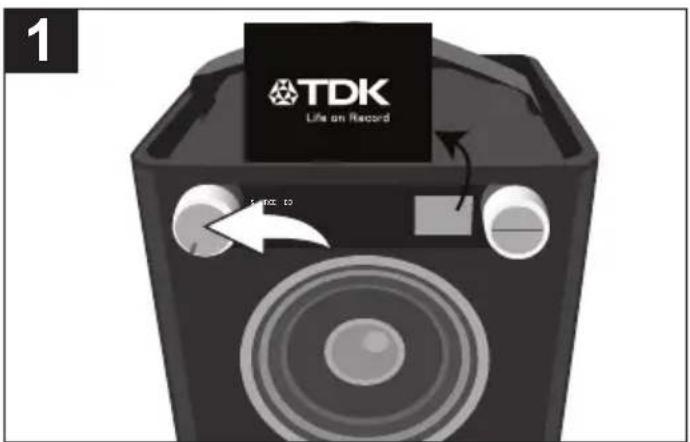
1 TDK Life on Record Time toTurn this unit on by rotating the Volume/Power control until a click is heard and the Power indicator lights to turn the unit on.

natural_image
Close-up of a black electronic device rear panel with concentric rings and ports (no visible text or symbols)Insert one end of an instrument cable into the OUTPUT jack on your instrument and the other end into the INST (Instrument) jack on the rear of this unit.

text_image
3 FM USB AUX 1 1 2 3 4 5 6 7 8 9 10 11 12 13 14 15 16 17 18 19 20 21 22 23 24 25 26 27 28 29 30 31 32 33 34 35 36 37 38 39 40 41 42 43 44 45 46 47 48 49 50Select a source to play along with (USB, AUX1 or AUX2) by pressing the Source button/indicator ①; the Source menu will appear in the display. Select USB, AUX1 or AUX2 using the Select control ②, and then press the OK button ③to confirm.
text_image
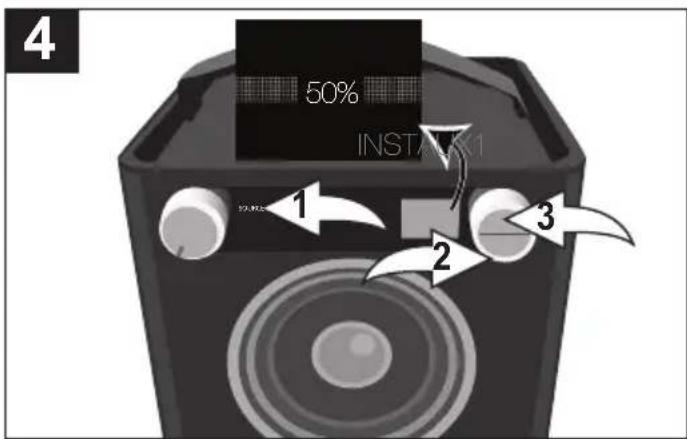
4 50% INSTANT 1 2 3Press the Source button/indicator ①; the Source menu will appear in the display. Select MIX INST using the Select control ②, and then press the OK button ③ to confirm to select Instrument; the MIX menu will appear in the display.
NOTE:
Refer to the owner's manual of the instrument for detailed connection instructions.
CONTINUED ON THE NEXT PAGE
OPERATION (CONTINUED)
5
text_image
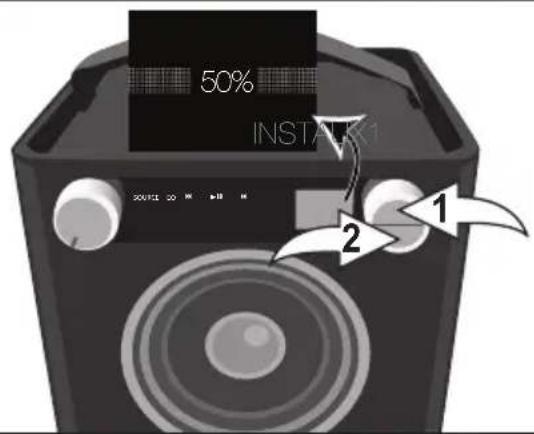
50% INSTAK1 2 1If the MIX menu has disappeared from the display, press the OK button ① or BACK button ② to bring it back.
6

text_image
75% INSTALLSelect the desired ratio using the Select control. For example, to make the Instrument more dominant, rotate the Select control clockwise to increase the Instrument ratio.
7
text_image
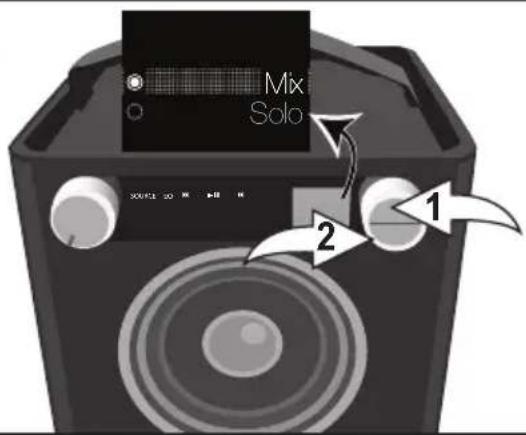
Mix Solo 30V/42 30 M X 50 M 1 2Press the OK button ①; Mix and Solo will appear in the display.
To mix the sound of the instrument with the selected source, select MIX using the Select control ② and then press the OK button ①. Mix will appear in the display.
NOTE: While USB is selected in MIX mode, it can select the normal playback function.
To play solo, select SOLO using the Select control ② and then press the OK button ①. Solo will appear in the display. Adjust the Volume and EQ as described on page 7.
TROUBLESHOOTING GUIDE
No Sound – General
• Volume is set to minimum; raise volume.
- Power is not on; turn power on.
- Correct function button/indicator was not pressed; press the correct function button/indicator.
FM, no sound
- FM was not selected. Press the Source button to bring up the Source Menu. Then select FM using the Select control and the OK button to confirm.
Radio, poor sound
- Station is not tuned properly; retune station.
- FM Antenna is not adjusted properly (see page 8).
iPod, no sound
- iPod is not plugged into the USB jack; plug in securely.
- USB was not selected. Press the Source button to bring up the Source Menu. Then select USB using the Select control and the OK button to confirm.
iPod, poor sound
- Close other applications on the iPod/iPhone or restart the iPod/iPhone.
- Consider using the headphone audio out for music playback.
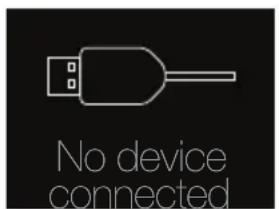
The following screen appears:
- There is no USB device connected; connect to the USB jack.
- If USB device is connected, keep Sound Cube powered on, remove the USB plug from the Sound Cube and then reconnect.
- The file is corrupted, or not in a format this unit will play.
- The connected USB device is not supported by the product. - The device can still be used for playback by connecting the headphone output to the AUX by 1/8" stereo cable.
text_image
No device connected
text_image
Neeve.mp3 Can't read this file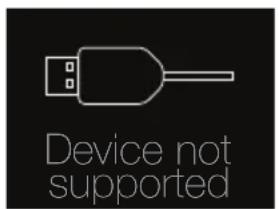
text_image
Device not supportedSPECIFICATIONS
GENERAL:
Power Source (AC) ......DC 18V Adapter (Center Positive)
Power Source (DC)....12 "D" size 1.5V Batteries
Speakers. 2 x 6 ohms
Output Power 10W x 2 (total)
Weight....12.5 lbs
Dimensions....10.2 (L) x 10.2 (W) x 10.2 (H) inches
USB Version....2.0 A type (support USB flash drive up to 32GB)
Audio Format.....MP3, WMA (with a Bit Rate up to 320kbps)
RADIO SECTION:
Frequency Range (FM)....87.5-108MHz
Specifications are subject to change without notice.
FOR ADDITIONAL SET-UP OR OPERATING ASSISTANCE, PLEASE VISIT OUR WEBSITE AT:
TDKPERFORMANCE.COM
FOR CONSUMER REPLACEABLE PART(S), CONTACT OUR PARTS AND ACCESSORIES FULFILLMENT CENTER AT: 1-800-379-8439.
Imation Enterprises Corp.
1 Imation Way, Oakdale, MN 55128-3414 USA
The TDK Life on Record logo is a trademark of TDK Corporation used under license.
Imation Enterprises Corp.
1 Imation Way, Oakdale, MN 55128-3414 USA
The TDK Life on Record logo is a trademark
of TDK Corporation used under license.