.Audio 995 Wireless - Helmet PLANTRONICS - Free user manual and instructions
Find the device manual for free .Audio 995 Wireless PLANTRONICS in PDF.


User questions about .Audio 995 Wireless PLANTRONICS
0 question about this device. Answer the ones you know or ask your own.
Ask a new question about this device
Download the instructions for your Helmet in PDF format for free! Find your manual .Audio 995 Wireless - PLANTRONICS and take your electronic device back in hand. On this page are published all the documents necessary for the use of your device. .Audio 995 Wireless by PLANTRONICS.
USER MANUAL .Audio 995 Wireless PLANTRONICS
text_image
PLANTRONICS. SOUND INNOVATION®Plantronics .Audio™ 995
User Guide
Welcome
Congratulations on purchasing your new Plantronics .Audio™ 995. This User Guide contains instructions for setting up and using the .Audio 995. Please refer to the separate For Your Safety guide for important product safety and charging information prior to installation or use.
Getting Assistance
The Plantronics Technical Assistance Center is ready to assist you. You can find answers to frequently asked questions, ask a question using e-mail, receive service over the Internet, or speak directly with a representative. Call (800) 544-4660 or visit www.plantronics.com/support
Registering Your Product
Visit www.plantronics.com/product registration to register your product online so we can provide you with the best service and technical support.
Contents
Range iv
Package Contents and Features.... 1
Charging Your Headset Using the USB Charger.... 2
Using Your Headset.... 3
Pairing Your Headset .... 4 How to Manually Pair Your Headset and Adapter .... 4
Headset Controls....5
Operating Systems Configuration....6
Indicator Lights....8
Product Specifications 9
Troubleshooting 10
Regulatory Notices.... 12
Limited Warranty 14
Important Note on Wireless Range
The .Audio 995 headset has a wireless range of up to 40 feet. However, wireless performance may be affected by nearby objects including walls, metal items, and other wireless devices. When you move the headset to the edge of its wireless range, audio may become distorted and will eventually cut out. Move closer to the wireless adapter to restore clear audio.
Package Contents and Features
text_image
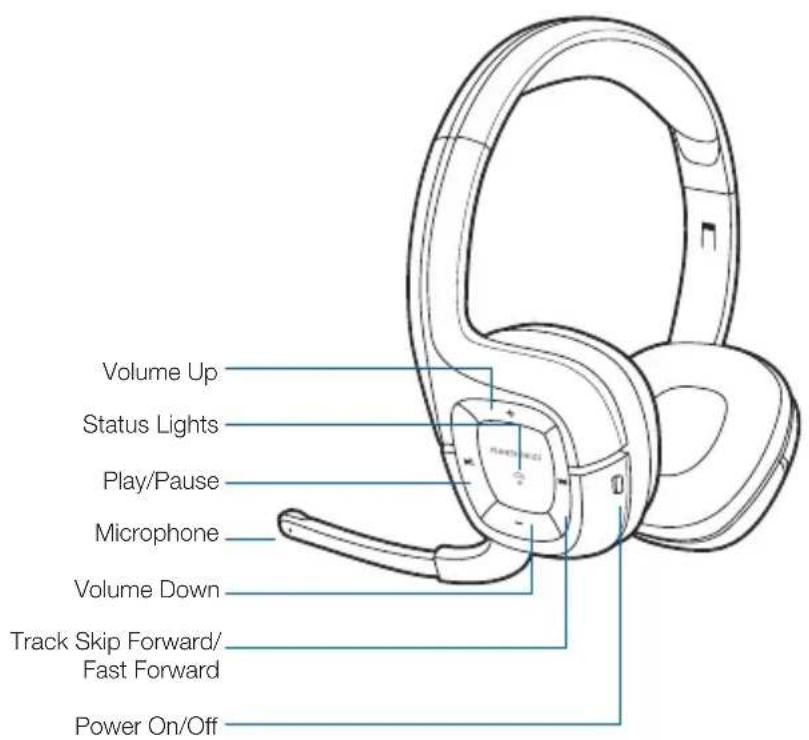
Volume Up Status Lights Play/Pause Microphone Volume Down Track Skip Forward/ Fast Forward Power On/Off
text_image
Status Lights Connect/Pair Wireless Adapter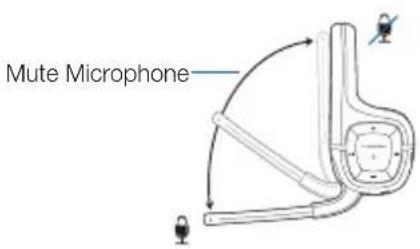
text_image
Mute MicrophoneCharging Your Headset Using the USB Charger

natural_image
Diagram of a laptop connected to a device via cable, showing wiring and connection points (no text or symbols)CHARGING TIME
3-4 hours ..... Full charge

1 hour ...... Minimum charge before first use

Before using your headset for the first time, charge it for at least one hour. A full charge takes approximately three hours.
1 Connect the charger cable to the headset.
2 Plug the charger into the USB port on your computer.
While your headset is charging the indicator glows red. When your headset is fully charged, the indicator turns off.
Note Charging time depends on the amount of power your USB device provides.
Using Your Headset
Congratulations, you can now listen to your favorite music or talk with friends and family using your new wireless headset.
Using Your Headset
1 Make sure that your headset is fully charged. When fully charged, the red status light turns off.
Do not use your headset while it is connected to the charger.
2 Connect the wireless adapter to a USB port on your computer.
Your computer and USB hub (if using) should be turned on.
3 After removing your headset from the charger, press the Power button to turn the headset on.
The headset and the adapter should connect immediately, and the indicator lights on both headset and wireless adapter will be solid blue. If you cannot hear anything through your headset, try adjusting the volume up or restarting the media application.
NOTE If steps 1 through 3 do not work, refer to "Pairing Your Headset" on page 4 to manually pair your headset and adapter.
Pairing Your Headset
How to Manually Pair Your Headset and Adapter
Your headset and adapter are factory pre-paired, and should automatically connect with each other. Should your headset and adapter become unpaired, you can initiate pairing manually:
1 Press and hold the Power and Connect buttons on the headset and adapter for 4 seconds.
The status lights on the headset and adapter will rapidly flash blue.
2 The headset and adapter will automatically attempt to pair.
If the pairing is successful the status lights will glow solid blue; if unsuccessful, both headset and adapter will stay in pairing mode.
If manual pairing was unsuccessful, and you want to re-attempt the pairing process, you must first take your headset and adapter out of pairing mode.
3 Turn headset off
4 Single press the Connect/Pair button on the adapter, then repeat steps 1 and 2.
NOTE If your headset and adapter are separated and lose their connection after being successfully paired, they will automatically reconnect when they come back into range of each other. If they remain out of range for more than 30 seconds, the headset will go into sleep mode, but will reconnect automatically with the adapter once it is back in range. If the headset is out of range for more than 15 minutes, it automatically shuts off.
Headset Controls
| Adjust volume | Increase: Press +Decrease: PressMinimum volume: Continually pressMute speakers: Press ▶II△WARNING Do not use headsets at high volumes for an extended period of time. Doing so can cause hearing loss. Always listen at moderate levels. Seewww.plantronics.com/healthandsafetyfor more information on headsets and hearing. |
| Muting the microphone | Mute: Lift the boom to full stop.Unmute: Lower the boom.CAUtIoN Do not force the boom past its upper or lower limits. |
| Music controls | Press ▶to Play or Pause/Mute music.Press ▶to skip track forward.Press and hold ▶to fast forward.Note Some applications, such as iTunes, must be the active window in order for play, pause and skip to work properly. |
Operating Systems Configuration
Your .Audio 995 headset works with any USB-compliant computer. The headset will automatically be set as the active audio device once the wireless USB Adapter is plugged in. Below are details on how to set the audio device for the most popular operating systems.
NOTE On-ear controls may not function properly with operating systems earlier than Windows XP.
Windows XP®
1 Go to Start > Control Panel > Sounds and Audio Devices.
2 On the Audio tab, select "Plantronics Wireless Audio" as the Sound Playback and Sound Recording device.
3 On the Voice tab, select the "Plantronics Wireless Audio" as the Voice Playback and Voice Recording device.
4 On the Volume tab, adjust the Volume Slider as necessary. Do not select the Mute option.
5 Select OK.
Operating Systems Configuration
Windows Vista
1 Go to Start > Control Panel > Classic View > Sounds.
2 On the Playback tab, select the "Plantronics Wireless Audio" as the Sound Playback device.
3 Select Properties, and on the Levels tab, adjust the Volume Slider as necessary. Do not select the mute option. Select OK.
4 On the Recording tab, select the "Plantronics Wireless Audio" headset as the Sound Recording device.
5 Select Properties, and on the Levels tab, adjust the Volume Slider as necessary. Do not select the mute option. Select OK.
6 Select OK.
Mac® OS X
1 Go to System Preferences > Sound.
2 On the Output tab, select the "Plantronics Wireless Audio" headset as the Sound Output device.
3 Adjust the Output Volume Slider as necessary. Do not select the mute option.
4 On the Input tab, select the "Plantronics Wireless Audio" headset as the Sound Input device.
5 Adjust the Input Volume Slider as necessary.
6 Select OK
Indicator Lights—Headset and Wireless USB Adapter
Status Indicator
| Power On/Off On: Steady blue glowOff: Steady red glow, then off | |
| Out of Range Flashing blue | |
| Charging Solid red until charging complete | |
| Connected to Adapter Solid blue glow | |
| Standby/Battery Save Mode (Sleep)/Out of Range | Intermittent breathing or pulsing blue glow |
| Pairing Headset and adapter will rapidly flashblue when in pairing mode | |
Product Specifications
Technology Digital wireless
Full range stereo Stereo headset
Wearing style Over the head
Cable length Wireless
Ear cushion material Non-allergenic
Ear cushion design Closed ear
Noise cancelling mic Yes
Microphone boom Rotates/bends
Mic mute FastMic mute
Volume mute/controls On ear
Wireless technology 2.4GHz
Speaker driver size 40mm diameter
Speaker frequency 20Hz—20kHz response
Microphone frequency 100 Hz—10kHz response
Wireless range Up to 40 feet
Troubleshooting
| The headset did not connect to the wireless USB adapter on first use. | Ensure the headset is fully charged and powered on.Ensure that the wireless USB adapter is plugged into a powered USB port. If the port is powered, the LED on the wireless USB adapter will be lit.If the wireless USB adapter is plugged into a USB hub, ensure that the USB hub is turned on.If all of the above fails, then follow the steps to pair the headset to the wireless USB adapter. |
| The headset did not re-connect to the wireless USB adapter after coming back into range. | Power off the headset and then power it back on. The headset should then automatically re-connect to the wireless USB adapter. |
| The headset is paired to the adapter, but I cannot hear audio from the headset. | Ensure that both the headset and adapter are powered on and paired.Restart any running applications. Some applications need to be restarted in order to recognize a new audio device.In the Control Panel, check sound and audio settings to ensure that the chosen device is “Plantronics Wireless Device.” |
Troubleshooting
| The play/pause and/or track skip function is not working for my application. | Some applications, such as iTunes, require that they be the active application (i.e., not minimized) in order to be controlled by a 3rd party audio device.Some media applications, when embedded in a web page, do not recognize standard Windows audio commands for play/pause and/or track/skip. |
| When using the internet to make calls (i.e., using VoIP), callers cannot hear me. | Check that the application being used has “Plantronics Wireless Device” listed as the active device for listening and speaking.Some applications need to be set manually or restarted before they will recognize a new audio device. |
| Note: In unusual circumstances the headset may switch off. Switch the headset back on to resume normal operation. | |
Regulatory Notices
FCC ReqUIReMeNtS PARt 15
Operation is subject to the following two conditions:
- This device may not cause harmful interference.
- This device must accept any interference received, including interference that may cause undesired operation.
This equipment has been tested and found to comply with the limits for a Class B digital device, pursuant to Part 15 of the FCC Rules. Changes or modifications not expressly approved by the party responsible for compliance could void the user's authority to operate the equipment.
These limits are designed to provide reasonable protection against harmful interference in a residential installation. This equipment generates, uses, and can radiate radio frequency energy and, if not installed and used in accordance with the instructions, may cause harmful interference to radio communications.
However, there is no guarantee that interference will not occur in a particular installation. If this equipment does cause harmful interference to radio or television reception which can be determined by turning the radio or television off and on, the user is encouraged to try to correct interference by one or more of the following measures:
- Reorient or relocate the receiving antenna.
- Increase the separation between the equipment and receiver.
- Connect the equipment into an outlet on another circuit.
- Consult the dealer or an experienced radio/TV technician for help.
It is possible that electronic shock discharge may affect the function of the headset. If this occurs it will not damage the unit, but please press the power button off and on to reset the unit.
Regulatory Notices
Exposure To Radio Frequency Radiation
This device and its antenna must not be collocated or operated in conjunction with any other antenna or transmitter. To comply with FCC RF exposure requirements, only use supplied antenna. Any unauthorized modification to the antenna or device could void the user's authority to operate this device. This equipment complies with FCC radiation exposure limits set forth for an uncontrolled environment.
Industry Canada Radio Equipment
The term "IC:" before the radio certification number only signifies that Industry Canada technical specifications were met. Operation is subject to the following two conditions:
(1) this device may not cause interference, and (2) this device must accept any interference, including interference that may cause undesired operation of the device. "Privacy of communications may not be ensured when using this telephone." This product meets the applicable Industry Canada technical specifications of the RSS210.
Limited Warranty
This warranty covers defects in materials and workmanship of products manufactured, sold or certified by Plantronics which were purchased and used in the United States and Canada.
The warranty lasts for one year from the date of purchase of the products.
This warranty extends to you only if you are the end user with the original purchase receipt.
We will, at our option, repair or replace the products that do not conform to the warranty. We may use functionally equivalent reconditioned/refurbished/remanufactured/pre-owned or new products or parts.
To obtain service in the U.S., contact Plantronics at (800) 544-4660. To obtain service in Canada call (800) 540-8363.
THIS IS PLANTRONICS' COMPLETE WARRANTY FOR THE PRODUCTS.
This warranty gives you specific legal rights, and you may also have other rights that vary from state to state. Please contact your dealer or our service center for the full details of our limited warranty, including items not covered by this limited warranty.

text_image
PLANTRONICS. SOUND INNOVATION®345 Encinal
Santa Cruz, CA 95060
United States
Tel: 800-544-4660
www.plantronics.com
©2009 Plantronics, Inc. All rights reserved. Plantronics, the logo design, .Audio, and Sound Innovation are trademarks or registered trademarks of Plantronics, Inc. Windows XP and Windows Vista are either trademarks or registered trademarks of Microsoft Corporation in the United States and/or other countries. Mac OS X and iTunes are trademarks of Apple, Inc. registered in the US and other countries. All other trademarks appearing herein are the property of their respective owners. 81182-01 (02/09)