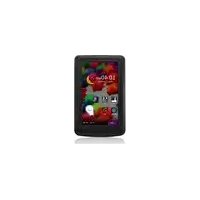
iAudio X7 - Mp3 player COWON - Free user manual and instructions
Find the device manual for free iAudio X7 COWON in PDF.


| Product Type | MP3 Player with Touchscreen |
| Brand | COWON |
| Model | iAudio X7 |
| Display | 4.3-inch Wide TFT LCD, 480x272, 16 million colors, Resistive Touchscreen |
| Storage | Flash 2GB (FAT32) + HDD 120GB/160GB (FAT32) |
| Dimensions (W x H x D) | 78.6 x 126.9 x 14.5 mm |
| Weight | 212 g |
| Battery | Built-in rechargeable lithium polymer; Music playback up to 103 hours, Video up to 10 hours |
| Charging Time | AC adapter: approx. 2.5 hours; USB: approx. 5.6 hours |
| Audio Formats | MP3, WMA, OGG, FLAC, APE, WAV |
| Video Formats | AVI, WMV, ASF (DivX, Xvid, WMV codecs) |
| Image Formats | JPG (Progressive: <1M pixel) |
| FM Radio | Frequency: 87.5–108 MHz (KR, US, EU); 76–108 MHz (JP) |
| Bluetooth | Bluetooth 2.0, A2DP/AVRCP (Stereo headset only) |
| Recording | Mic, Line-in, FM Radio |
| Special Features | JetEffect 3.0 (39 presets + 4 user), BBE+, EQ, TV-Out, Speaker, Microphone |
| Operating System Support | Windows 7/Vista/XP/2000/ME (full); Mac OS 10.x/Linux v2.4+ (file transfer only) |
| Accessories Included | USB cable, earphones (may vary by region) |
| Safety Warnings | Do not use while driving; avoid high volume (85dB+); keep away from water/moisture |
| Maintenance | Clean with soft cloth; no detergents or chemicals |
| Repairability | Battery replacement only by official COWON service center |
Frequently Asked Questions - iAudio X7 COWON
User questions about iAudio X7 COWON
0 question about this device. Answer the ones you know or ask your own.
Ask a new question about this device
Download the instructions for your Mp3 player in PDF format for free! Find your manual iAudio X7 - COWON and take your electronic device back in hand. On this page are published all the documents necessary for the use of your device. iAudio X7 by COWON.
USER MANUAL iAudio X7 COWON
User's Guide ver. 1.1 EN
Product specification may change without notice. Images contained in this manual may differ from the actual product.
+ Copyright Notice
Thank you for purchasing a COWON product.
We do our utmost to deliver DIGITAL PRIDE to our customers.
This manual contains information on how to use the product and the precautions to take during use. If you familiarize yourself with this manual, you will have a more enjoyable digital experience.
Introduction to website
- The address of the product-related website is http://www.COWON.com.
- You can download the latest information on our products and the most recent firmware updates from our website.
- For first-time users, we provide an FAQ section and a user guide.
- Become a member of the website by using the serial number on the back of the product to register the product. You will then be a registered member.
- Once you become a registered member, you can use the one-to-one enquiry service to receive online customer advice. You can also receive information on new products and events by e-mail.
+ Copyright Notice
General
- COWON is a registered trademark of COWON SYSTEMS, INC.
- COWON SYSTEMS, INC. owns the copyright to this manual, and any unauthorized distribution of its contents, whether in part or in its entirety, is strictly prohibited.
- COWON SYSTEMS, INC. complies with laws and regulations related to records, disks, videos and games. Users are also encouraged to comply with the relevant laws and regulations.
- As soon as you purchase the product, visit the website (http://www.COWON.com), and become a registered member. You will benefit from various member services.
- This manual is based on product specifications, and various exemplary texts, illustrations, pictures, detailed functions and H/W and S/W specifications contained herein can be altered without any prior notice by the copyright owner.
BBE information
- BBE Sound, Inc. owns the license to the BBE name and information as applied to this product, in compliance with USP4638258, 5510752 and 5736897.
- BBE and the BBE symbol are registered trademarks of BBE Sound Inc.
DIGITAL PRIDE

All rights reserved by COWON SYSTEMS, Inc.
+ Contents
Before you start! 6
Precautions
Package Components
Names of Parts and Functions
Power Connection and Charging
Connecting and Disconnecting the PC
Firmware Upgrade
Basic Use 13
buttons
main screen
music 17
videos 19
radio 21
recorder 22
viewer 23
pictures
documents
flash
browser
utilities 27
calculator
notepad
typist
comix
stopwatch
settings 28
JetEffect 3.0
Display
Time
Music
Video
Recorder
Bluetooth
System
Additional 34
Product Specification
Converting Files Using COWON MediaCenter-JetAudio
Troubleshooting 39
COWON X7
Before you start!
+ Precaution
As these precautions are provided for the correct use of the product as well as user safety, be sure to familiarize yourself with them. The company will not be held responsible for any accident that may occur due to the failure to heed these precautions. The following information applies commonly to all products manufactured and produced by COWON SYSTEMS, INC.
+ Do not use this product for other purposes than those described in this manual.
+ Handle the manual, product packaging materials, accessories, etc. with care to prevent cuts and injuries to your body.
+ For your safety, do not view videos, pictures and texts stored on your player while driving a vehicle for your safety. Operating other features of the player is also dangerous and may cause fatal accidents while driving.
+ The wearing of earphones while operating a vehicle, exercising, or walking may impair driving, mask or prevent recognition of emergency signals, alarms, announcements, the approach of vehicles and human speech. Doing so may also be unlawful depending on the region.
+ Do not use detergent or other chemicals on the product surface as it may cause fading. If necessary, wipe the polluted area carefully with a soft cloth.
+ Maintain the device within the temperatures specified below in order to prevent fatal damages. Operating temperature: 0°C \~ 40°C Storage temperature: -10°C \~ 50°C
+ Do not expose the player to water or keep it in a damp or humid location for an extended period of time. If the player is damaged from moisture as described above, product failure is then classified as a user's misuse.
+ Take extra care not to apply external shock or pressure when using products with displays (LCD, AMOLED, or Touch Pad) or Hard Disk Drive. Warranty may be voided if damage occurs due to the aforementioned circumstances.
+ Do not attempt to disassemble the player. Disassembly will void the warranty and the unit will be permanently disqualified from any warranty services.
Before you start!
+ Precaution
- Do not mix directions when connecting USB cables or AC adaptors to your player or PC. Connecting USB cables incorrectly may damage your player or PC. Also, do not bend or press connection cables with heavy objects.
- If you smell something burning or feel excessive heat while using the product, press the RESET button to stop operation and contact the place of purchase.
- Touching the player with wet hands may cause damages and malfunctions. Handle the power plug only with dry hands (otherwise an electric shock may occur).
- Listening at high volume (85 dB and above) for an extended period of time may harm your hearing.
- For your protection, use the player in a well lit area where the LCD screen will not cause strain to your eyes.
- Using the player in places with high occurrences of static electricity may cause malfunctions.
- In case of using this device primarily for a storage device, it is recommended to back up all data before use. COWON SYSTEMS Inc. is not responsible for any data loss due to hardware failure.
- All data stored in the player may become deleted when the player is serviced. Our Service Center does not back up files while repairing players. Please note that COWON SYSTEMS, Inc. is not responsible for any data loss from products entrusted to us for service.
- Keep the player in cool and ventilated places, away from direct sunlight as it may cause deformation and damages to internal circuitry or LCD screen.
- For your own safety, it is recommended that customers use only the USB power adaptor and USB cable approved by COWON SYSTEMS, Inc.
- If you are using a product that comes with an AC power adaptor, please use the genuine charger offered by COWON.
- When connecting to a PC, use only USB ports on the mother board or a USB Host card. Using an external USB hub may not guarantee proper operation (e.g. USB ports on a keyboard or an external USB hub).
Before you start!
+ Precaution
- When formatting the built-in memory, select the file system specified in the manual.
- Be sure to disconnect the power supply to the PC and USB power adaptor during lightning or thunder storm, to prevent danger to the user and/or the risk of fire hazards.
- Keep the player away from magnets and direct magnetic fields, as they can cause malfunctions.
- Do not drop or expose the product to hard impact. This may result in malfunctions and/or unit failure, voiding the warranty.
- If you find any abnormalities with the battery such as swelling, press the RESET button immediately to stop the operation and contact the place of purchase.
- The price of the product may fluctuate due to unexpected commercial conditions. COWON SYSTEMS, Inc. accepts no liability to compensate for any price fluctuation.
'EJECT' procedure must be performed when removing the product from the PC.
Before you start!
+ Package Components
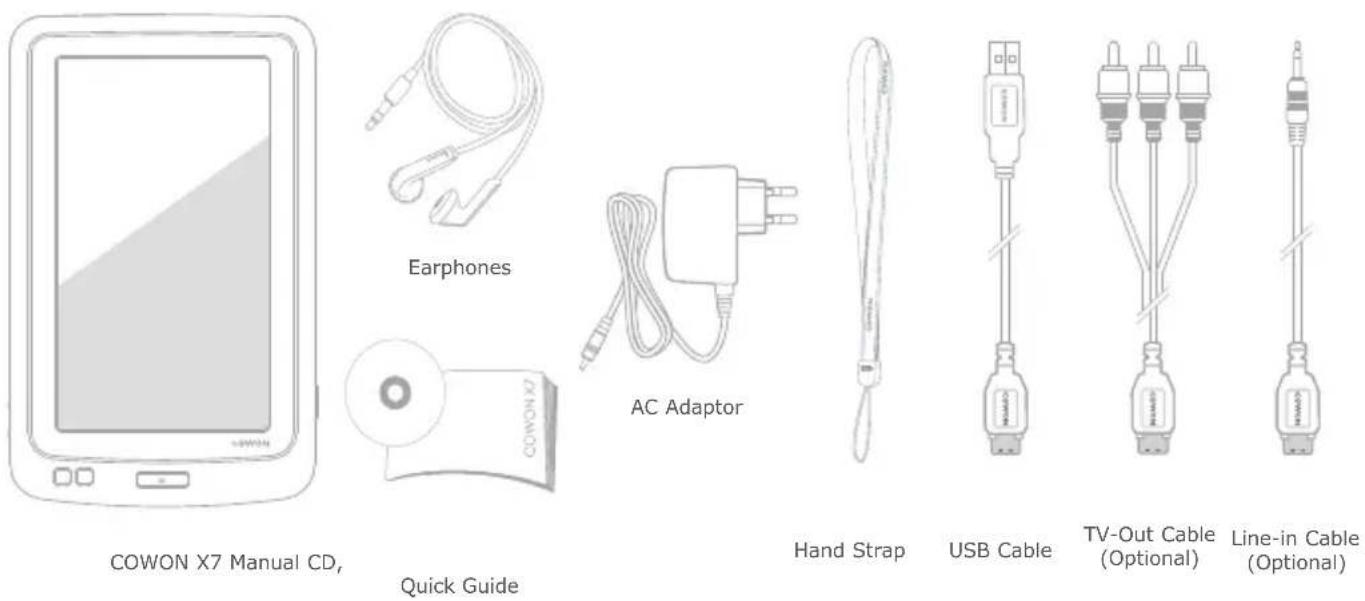
* Actual package contents may differ from the above images.
Before you start!
- Names of Parts and Functions

* RESET will just disconnect the power and does not damage the product or delete any files stored on the device.
COWON X7 10
Before you start!
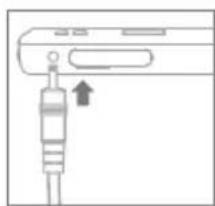
+ Charging
natural_image
Simple line drawing of a device with an attached cable or connector (no text or symbols)- Charging by COWON approved AC adaptor: The charging icon will be displayed on the screen.
* The battery will be fully charged in about 2.5 hours.
natural_image
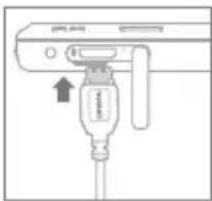
Diagram of a device with a plug inserted into a cable, showing no text or symbols- Connect between PC and USB/AV port using USB cable.
* The battery will be fully charged in about 5.6 hours.
- COWON X7 will be charged quicker through AC adaptor if the product is turned off.
- When charging the player for the first time or if the player has not been charged for an extended time, fully charge the battery before use.
- COWON X7 has a built-in Lithium Polymer battery. To prolong the life of the battery, it is recommended that you charge the device frequently, as opposed to fully discharging and then charging the device.
- For safety during charging, use USB cable or AC adaptor approved only by COWON SYSTEMS, Inc.
+ Connecting and Disconnecting the PC
1
3

4

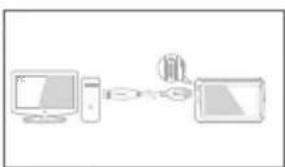
- Use the USB cable to connect COWON X7 to the PC.
- COWON X7 displays the following image if properly connected to the PC.
- Also make sure to check My Computer or Windows Explorer to see if COWON X7 is properly connected to the PC.
- Copy desired video, music, or other files to COWON X7. * All multimedia files must be copied to X7's HDD drive.
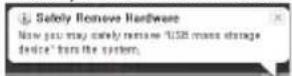
- When done, click the icon on the system tray to safely remove COWON X7 from the PC.
- Click the pop-up message.

- Safely remove the hardware and disconnect the USB cable.
Before you start!
+ Connecting and Disconnecting the PC
- If battery is discharged, PC will not recognize the connected device immediately. The device will be charged through USB connection for a period of time before being recognized by PC. Please connect the AC adapter if you wish to transfer data on to the device with discharged battery.
- Maximum number of files and folders recognizable by COWON X7 : FLASH : music + videos : 4,000. Others 4,000. HDD : music + videos : 40,000. Others 20,000.
- Disconnect the product after performing "Safely remove hardware" function.
- The following message may appear randomly, but it does not indicate that the product is malfunctioning. Please try again.

- If your operating system does not display the 'Safe To Remove Hardware' window, disconnect the player after all transfer operations are completed.
- Only simple file transfer operation is available for Linux and Mac OS.
- When you disconnect the player from Mac, make sure to perform "safely remove hardware" function to avoid fatal damage to your player.
+ Firmware Upgrade
Firmware is the software that is embedded within the hardware. Upgrading it can enhance system stability and provide additional features.
Please be advised that Beta (unofficial) firmware versions may cause system malfunction.
How to upgrade the firmware
- Download the latest firmware from the SUPPORT section of the website (http://www.COWON.com).
- Use the USB cable to connect COWON X7 to the PC.
- Unzip the downloaded firmware and copy it to the root folder of COWON X7 FLASH Memory.
* Note that firmware upgrade will not take place if files are copied to the root folder of COWON X7 HDD Memory. - Perform "Safely remove the hardware" function on your PC and disconnect the USB cable.
- When you turn on the product, the firmware upgrade process will start.
-
The current firmware version can be checked in SETTINGS - SYSTEM - INFORMATION.
-
Fully charge the player before upgrading the firmware.
- Do not turn the player off before the firmware update has been completed. It may damage the product, and will void any warranty.
- Back up any important data before the firmware upgrade as any data stored on the device may be deleted during the process. COWON accepts no liability for any loss of data.
Basic Use
+ buttons
1
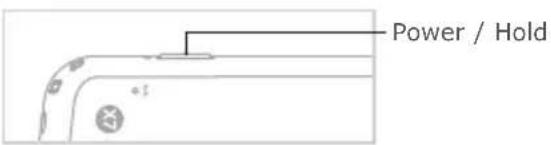
- Press and Hold: Power On / Off
- Briefly Press: Hold On / Off
- Briefly Press Twice: Display Off
- Press the button once more to switch back to Display On.
- Sleep mode is the default setting for power button.
- Touchscreen and buttons are disabled in Hold mode.
* Hold options can be set in SETTINGS – SYSTEM. - Setting the product to Hold can prevent unwanted operations.
- Hold setting will also be in effect when display is turned off.
2

3

Basic Use
+ Main screen
Smart Widgets

COWON X7 provides two different styles of UI : Smart Widget and Text UI
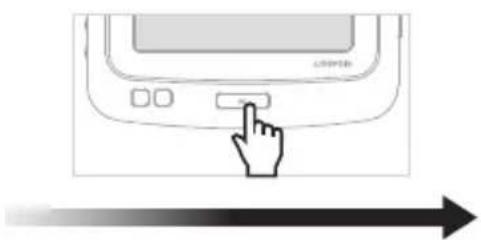
Press and hold M button while at the main screen to switch between two UIs.
natural_image
Line drawing of a hand pressing a button on a device control panel (no text or symbols)* COWON X7 has resistive touchscreen installed, requiring a small amount of pressure when touching the screen.
Battery Indicator
Hold Status
Bluetooth Status
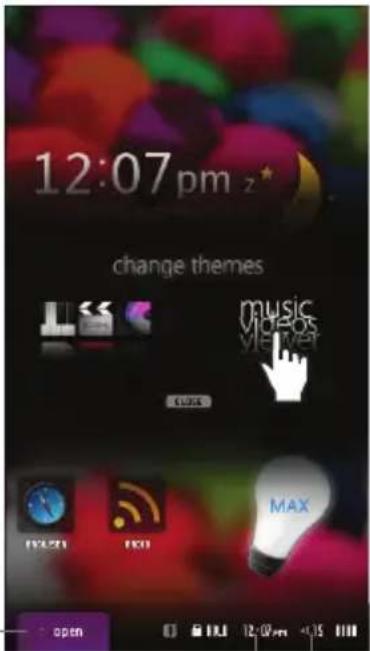
Shortcuts/Widgets
Time
Volume
Basic Use
+ Main screen
Smart Widgets

▶
▶
Basic Use
+ Main screen
Smart Widget enables customization of icons according to the user's preference.
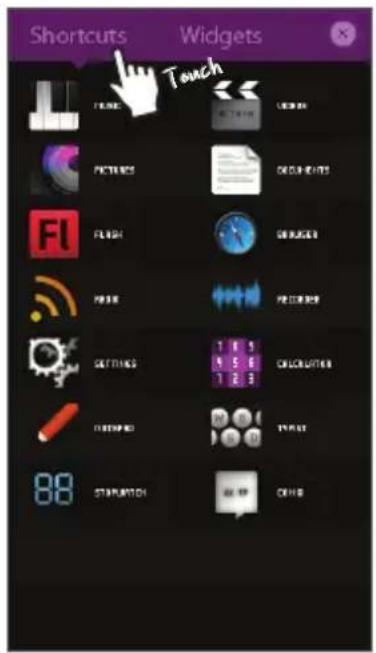
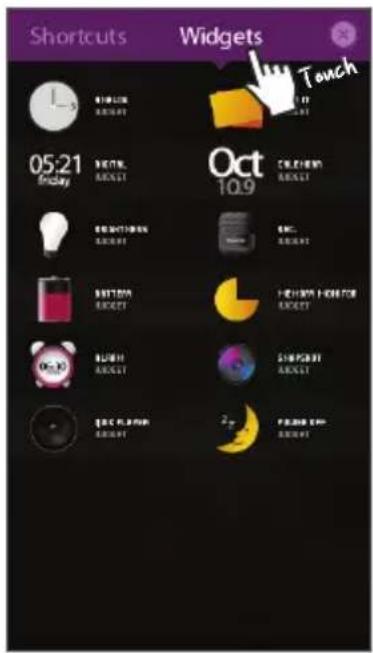
Desired icons can be placed in menu screen. Pressing Open tab will display Shortcuts and Widgets tabs. To position an icon to the Smart Widget screen, press and hold an icon from Shortcuts and Widgets tabs.
Smart Widget offers three pages for user's convenient customization. Various applications and functions can be accessed by touching the Shortcuts icons from Open tab.

* To remove an icon from the Smart Widget screen, press and drag the icon to the recycled tab.
Text UI
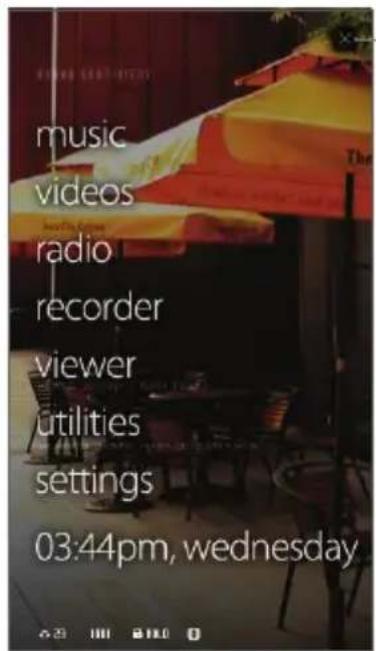
Power Off / Sleep Mode
Basic Use
+ music

| 1 |   | Play / pause the music file. | |
| 2 |   | Select the previous track or rewind. | Skip interval and Scan speed can be set from SETTINGS - MUSIC. |
| 3 |   | Select the next track or fast forward. | |
| 4 |   | Display the list of songs in the current music folder. | |
| 5 |  B B | Set a segment to repeat during the playback. | |

Basic Use
+ music
| 6 |  | Set JetEffect 3.0.- Various EQ presets can be selected.- User mode enables full customization of JetEffect categories to user's preference.- Excessive customization of JetEffect parameters may cause undesired distortion or noise.- Please refer to BBE introduction in p.28 of this manual or www.cowon.com. | |||
| 7 |  | Repeat | ON Tracks in the designated boundary will be played repeatedly. | ||
| OFF Tracks in the designated boundary will be played only once. | |||||
| Shuffle | ON Music files will be played in random order. | ||||
| OFF Music files will be played in normal order. | |||||
| Boundary | ALL All music files in COWON X7 will be played. | ||||
| 1 Only currently playing music file will be played. | |||||
| FOLDER | Only files within the currently playing folder will be played.* Subfolders will be included automatically. | ||||
| Speed Playback speed can be set (50%~150%). | |||||
| Pitch Correction | Compensate for the change of intonation of an audio signal when adjusting the playback speed in Music mode (On / Off). | ||||
| 8 |  | Add a file to Favorites during the playback.* Up to 256 Favorites can be added. | Tap the top of touchscreen to display Favorites and Bookmarks. | ||
| 9 |  | Add Bookmarks during the playback. When a bookmark is added at a specific point while a music file is being played, the music can be started at the specified position. * Up to 256 bookmarks can be added. | |||
Basic Use
+ videos
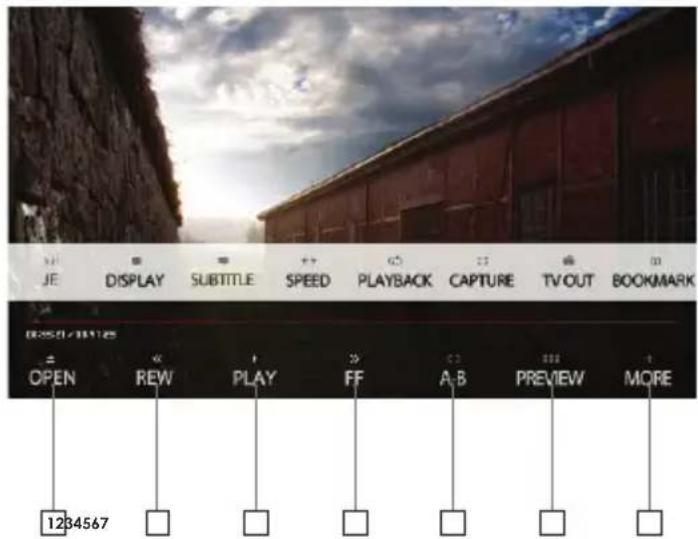
| 1 |  | Display the list of video files. |
| 2 |  | Select the previous file or rewind. |
| 3 |  | Play or pause the video file. |
| 4 |  | Select the next file or fast forward. |
| 5 |  | Set the playback segment to repeat. |
| 6 |  | Display the preview thumbnails of currently playing video. |
Basic Use
+ videos
| 7 | MORE | JE | Set JetEffect 3.0 (See p.28). | |
| DISPLAY | BRIGHTNESS | Set the brightness level (1~10). | ||
| SCREEN | Set the screen ratio (16:9 / 4:3 / Original / Crop). | |||
| SUBTITLE | SUBTITLE | Turn subtitle On / Off. | ||
| LANGUAGE | Select subtitle language (All / 1 / 2).* Only applicable if subtitles are stored in multiple languages. | |||
| ADJUST | Adjust sync between the subtitle and video file by 0.5 sec. | |||
| SUBTITLE POSITION | Set the subtitle position. | |||
| COLOR | Select the subtitle color. | |||
| FONT SIZE | Set the subtitle size. | |||
| SPEED | SPEED | Set the playback speed (50%~150%). | ||
| PITCH CORRECTION | Turns pitch correction On / Off.Compensate for the change of intonation of an audio signal when adjusting the playback speed in videos mode. | |||
| PLAYBACK | REPEAT | Turn Repeat On / Off. | ||
| BOUNDARY | Set playback boundary (ALL / 1 / FOLDER). | |||
| CAPTURE | Capture and save video screen images.* The captured screen images are saved as jpg files and stored in FLASH memorie's Browser - Recordings - Video Capture folder. | |||
| TV OUT | Turn TV-Out On / Off.* TV-Out cable is optional. * This icon will be activated only if a cable is inserted. | |||
| BOOKMARK | Add Bookmarks during the playback.When a bookmark is added at a specific position of video during the playback, the video can be started at the specified position. * Up to 256 bookmarks can be added. | |||
Basic Use
+ radio
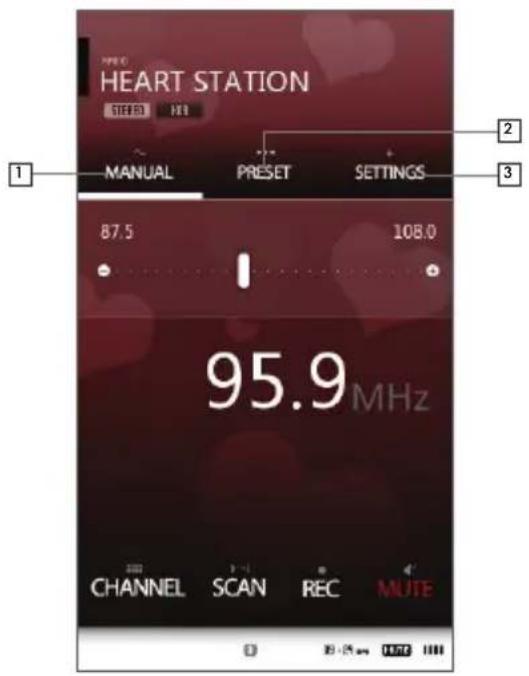
| 1 | MANUAL | CHANNEL | Turn preset mode On / Off. |
| SCAN | Search the receivable FM frequency and automatically register them in Preset. | ||
| REC STOP | Start / stop recording the radio signal being received. | ||
| MUTE | Silence the sound output. | ||
| 2 | PRESET | SAVE | Register the channel you are listening as a preset. |
| DELETE | Delete the channel you are listening from the presets. | ||
| 3 | SETTINGS | Sound | Select Stereo / Mono. |
| Region | Select a country. |
* Frequency gap is set to 0.1MHz or 0.05MHz depending on the selected country.
Basic Use
+ recorder

| 1 | Start recording. | ||
| Stop recording.Recorded file will be automatically saved. | |||
| 2 | Play a recorded file. | ||
| Stop the playback. | |||
| 3 | Line-in / MIC | ||
| 32k / 64k / 80k / 96k / 128k / 256k | |||
| Line-in : 1 / 2 / 3 / 4 / 5MIC : Auto / 1 / 2 / 3 / 4 / 5 |

Basic Use
+ viewer_pictures

| 1 | Zoom In / Out the current image. | ||
| 2 | Rotate images by 90 degrees (clockwise). | ||
| 3 | Set the current image as wallpaper. | ||
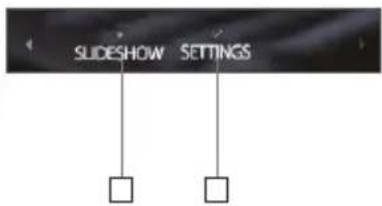
| 4 | Slideshow the image files in the specified folder. | ||
| 5 | Slideshow Set the slideshow type (Fade In / Slide). | ||
| Shuffle Set the slideshow as shuffle mode. | |||
| Speed Set the slideshow interval. | |||
Basic Use
+ viewer_documents
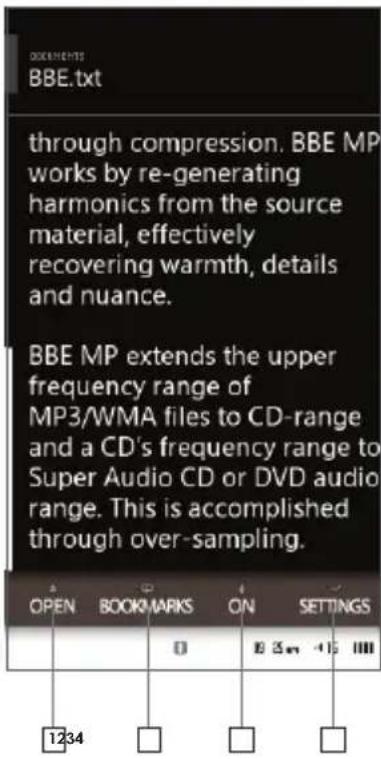
| 1 | Display the list of text files in the current folder. | ||
| 2 | Add a bookmark at the current position. | ||
| 3 | Turn auto scroll On / Off. | ||
| 4 | Text Color Set the text color. | ||
| Background Color Set the background color. | |||
| Font Size Set the font size. | |||
| Scrolling Speed Set the auto scroll interval. | |||
Basic Use
+ viewer\_flash
Execute Flash files (extension: swf) stored in COWON X7.
A simple Flash-based game or animation can be played.
Press M button to stop the flash file playback.
The button allocation is applicable only when using flash files created in compliance with COWON X7 buttons.
If a flash file is executed while playing a music file, sound in flash will not play. Stop the music playback in order to enable the sound while executing a flash file.
Basic Use
+ viewer_browser
![Library [Folders] [Artists] [Albums] [Songs] [Genres] [Years] [New music] [Playlists] [Audible] UP TOP DEL FAV. SEARCH 12345](/content/2026/06/1236227/images/df331bc2418b813d58c772b6a31a80ee34b4f28c7066b7e42b821f4261108d29.jpg)
 |
Basic Use
+ utilities
| 1 |  | Touch-based calculator. |
| 2 |  | Write a simple memo or draw a picture. Various writing tool effects such as a highlighter and background screens are supported. |
| 3 |  | Create memos using the keyboard. |
| 4 |  | Comic book images can be viewed. |
| 5 |  | Stopwatch and countdown features can be used. |
Basic Use
+ settings
| 1 | JetEffect 3.0 | Select your sound effect from 39 JetEffect presets.Normal / BBE / BBE ViVA / BBE ViVA 2 / BBE Mach3Bass /BBE MP / BBE Headphone / BBE Headphone 2 / BBE Headphone 3 /Rock / Jazz / Classic / Ballad / Pop / Club / Funk / Hip Hop / Techno / Blues / Metal / Dance /Rap / Wide / X-Bass / Hall / Vocal / Maestro / Feel the Wind / Mild Shore / Crystal Clear /Reverb Room / Reverb Club / Reverb Stage / Reverb Hall / Reverb Stadium /User 1 / User 2 / User 3 / User 4 |
| 4 user-defined presets with equalizer, BBE+, Stereo Enhance, Reverb, etc.User 1 / User 2 / User 3 / User 4 | ||
| BBE+ is the most sophisticated and powerful sound technology available for MP3 and PMP devices. Optimized for headphone playback of compressed audio material, BBE+ brings listeners closer to the natural presence and impact of a “live performance” than ever before.EQ Filter: Each band of the equalizer can be adjusted in detail.BBE: Sound effect that refines the sound quality.Mach3Bass: Provides deeper, tighter, and more musically accurate bass frequency.3D Surround: Provides the three-dimensional surround sound effect.MP Enhance: Restores and enhances the harmonics lost through compression.Stereo Enhance: Enriches the stereo sound.Reverb: Maximizes the natural and live presence of the sound. | ||
| * You may hear distortion or noise when excessive settings of JetEffect 3.0 are used. For more information about JetEffect 3.0, visit us at www.COWON.com. |
Basic Use
+ settings
| 2 | Display | Language Select a preferred language for COWON X7. | |
| Brightness Set the display brightness. | |||
| Auto display off | Set the time to maintain the display on.The display will be automatically turned off if no action is taken during the specified time. | ||
| Font | Set a preferred font type for COWON X7.A TTF font file can be used as a user font by changing the file name into a USER.TTF file and copying in the SYSTEM folder of Flash memory.When the user font is applied, device operation may be slightly delayed or characters may be truncated.Characters may be displayed incorrectly if multi-language data is not available for the user font. | ||
| Time display Set | Playback time as Elapsed / Remaining. | ||
| Wallpaper | Turn On / Off the wallpaper.Turn on the wallpaper to display the user-selected image to the main screen. | ||
| Landscape direction | Set the direction for landscape mode (Left / Right). | ||
| TV-Out standard | Select TV-Out standard (NTSC / PAL). | ||
Basic Use
- settings
| 3 | Time | TIME & DATE | Set the current time and date.Please set the correct time to make the best use of the Alarm and Scheduled Recording functions. | |
| ALARM | Repeat Once / Daily | |||
| Duration Always On / 20 min / 40 min / 60 min / 80 min / 100 min / 120 min | ||||
| Mode Off / Music alarm / FM alarm / FM recording | ||||
| TIMER | Sleep Timer | Off / 10 min / 20 min / 30 min / 40 min / 50 min / 60 min / 70 min / 80 min / 90 min / 100 min / 110 min / 120 min | ||
| Auto Off Off / | 1 min / 2 min / 3 min / 4 min / 5 min / 10 min / 20 min / 30 min | |||
| 4 | Music | Skip interval | Track / 2 sec / 3 sec / 4 sec / 5 sec / 10 sec / 20 sec / 30 sec | |
| Seek interval | 3 sec / 5 sec / 10 sec / 20 sec / 30 sec | |||
| Resume | On / Off | |||
| Play speed | 50%~150% | |||
| Pitch correction | On / Off | |||
| Fade in | Off / 1 sec / 2 sec / 3 sec / 4 sec / 5 sec | |||
| Lyrics | On / Off | |||
Basic Use
+ settings
| 5 | Video | Skip interval 1~5 | |
| Resume On / Off | |||
| Play speed 50%~150% | |||
| Pitch correction On / Off | |||
| Subtitle On / Off | |||
| Subtitle language All / 1 / 2 | |||
| 6 | Recording | Line-in quality 32k / 64k / 80k / 96k / 128k / 256k | |
| Mic quality 32k / 64k / 80k / 96k / 128k / 256k | |||
| FM radio quality 32k / 64k / 80k / 96k / 128k / 256k | |||
| Line-in volume 1~5 | |||
| Mic volume Auto / 1 / 2 / 3 / 4 / 5 | |||
| Auto sync | On / Off* COWON X7 will automatically detect sound input through line-in port to create a recorded file. If COWON X7 detects a gap between sound input, it will create a new recording file. | ||
Basic Use
+ settings
| 7 | Bluetooth | ON / OFF Turn | On / Off the Bluetooth mode. |
| SCAN | Search for Bluetooth headsets in COWON X7's proximity.Be sure to have the Bluetooth headset in pairing mode.Pair the COWON X7 with the discovered Bluetooth headset to use.Please refer to headset's manual for its pairing instructions. | ||
| PAIRING | Enter the PIN number for pairing with the device.After pairing, you can select a specified service item. | ||
| DEL | Delete the searched Bluetooth headset.Deleted headset must be re-searched and re-paired in order to use it again with COWON X7. | ||
| * PIN(Private Identification Number) can be checked with the headset manufacturer.* This feature is only compatible with Bluetooth headset.Once paired, Bluetooth function will remain in operation even when the Setting mode is closed.There may be a delay in synch between video and sound when playing certain kinds of high resolution movies. Fade-in and audio L/R control will not work under Bluetooth connection. | |||
Basic Use
+ settings
| 8 | System | Hold mode Hold all / | Hold touchscreen only |
| Sleep mode On / Off | |||
| Beep Off / Water drop | / Balloon / Bell 1 / Bell 2 | ||
| Audio L/R -10 ~ -1 / | Off / 1 ~ 10 | ||
| M buttonScreen-off action | Screen on / Play, Pause | ||
| + - buttonScreen-off action | Volume / FF, REW | ||
| Speaker On / Off / Auto | |||
| USB mode | MSC / MTPMSC will recognize the device as mass storage device.MTP will enable transfer of media files as well as their WMDRM10 licenses. | ||
| Clear WMDRM10 licenses | Manually delete WMDRM10 licenses if the device cannot save the licenses due to capacity limit. | ||
| Database update Update the file list of the device. | |||
| Load defaults Restore | all settings to the factory default. | ||
| Touch calibration Yes / No | |||
| Information | Version: Current firmware version.FLASH / HDD(Format available)Total space: Total capacity of internal memory.Free space: Remaining memory of internal memory.* Formatting the HDD will delete all data stored in the hard drive disk.* When formatting the HDD, it is recommended to use device's format feature under SETTINGS - SYSTEM - INFORMATION. | ||
Additional
- Product Specification
| Capacity | FLASH 2GB (FAT32 file system) 1) | |
| HDD 120GB / 160GB (FAT32 file system) 1) | ||
| Display 16 million colors, 4.3" Wide TFT LCD (480X272), Touchscreen | ||
| Size & Weight 78.6(W) x 126.9(H) x 14.5(T) mm / 212g | ||
| Button Power / Hold, M, VOL+, VOL- | ||
| Color White / Black | ||
| Power | Battery Built-in rechargeable lithium polymer battery | |
| Playback time Music : Max 103 hours / Video : Max 10 hours 2) | ||
| Battery charging AC adaptor : 2.5 hours (5V/3A or higher) | ||
| System Requirement | CPU Pentium III 500MHz or higher | |
| OS | Windows 7 / Vista / XP / 2000 / ME : Support all functionsMAC OS 10.x / Linux v2.4 or higher : File transfer only | |
| USB Port 2.0 High Speed recommended | ||
| ETC | Built-in speaker | |
| Microphone | ||
| Audio | Frequency Range 20Hz~20,000Hz | |
| Max Output Stereo, 30mW + 30mW (16Ω earphones) | ||
| S/N Ratio 95dB | ||
| File Format MP3/2, WMA, OGG, FLAC, APE, WAV | ||
Additional
- Product Specification
| Audio | Audio Codec | MP3 : MPEG 1/2/2.5 Layer 3, ~320Kbps, ~48KHz, Mono/StereoWMA : ~320Kbps, ~48KHz, Mono/StereoOGG : ~Q10, ~44.1KHz, Mono/StereoFLAC : Compression Level 0~8, ~44.1KHz, Mono/StereoAPE : Fast, Normal, High, 16bit, v3.97~3.99WAV : ~48KHz, 16bit, Mono/Stereo | |
| Meta Tag ID3 V1, ID3 | V2.2 / V2.3 / V2.4, Vorbis Comment | ||
| JetEffect 3.0 | 39 Presets (35 Presets + 4 User Presets) | ||
| BBE+ BBE, Mach | 3Bass, 3D Surround, MP Enhance | ||
| Special Effect Stereo Enhance, Reverb | |||
| EQ 5 Band Equalizer (EQ Filter) | |||
| Lyrics LDB 1.0, 2.0 | |||
| Video | File format AVI, WMV | ASF | |
| Video codec | DivX 3/4/5, Xvid SP/ASP, WMV 7/8/9( Some files may not be played properly depending on the video resolution, frame, bit rate and encoding option). | ||
| Video resolution 480 x 272, 30 fps | |||
| Audio codec MPEG1 Layer 1/2/3, WMA | |||
| Subtitle SMI | |||
Additional
+ Product Specification
| AV Out | Method Video : Composite, Audio : Stereo | |
| Format NTSC / PAL | ||
| Photo JPG, No limits (Progressive format: less than 1M pixel). | ||
| Document Viewer TXT, No limits (Exception : UTF-8, Unicode (big endian)). | ||
| FM Radio Frequency Range 87.5~108 MHz (KR, US, EU), 76~108 MHz (JP) | ||
| Recording Mic / Line-in / FM Radio | ||
| Bluetooth | Bluetooth 2.0 Stereo Headset, A2DP / AVRCP 3) | |
1) The storage capacity may be different from the actual capacity due to the space used to store system files.
2) The play time based on the test environment of the company may be different from the actual play time.
3) FM radio does not support Bluetooth. Uncertified Bluetooth headsets, receivers, etc. may not be compatible with the product.
Additional
+ Converting Video Files Using COWON MediaCenter - JetAudio
- Install and run the COWON MediaCenter - JetAudio.

- Click "Convert" button on the top right hand side. From drop-down menu, select "Convert Video".
- From the Convert Video window, click "Add File" to select the files to convert.
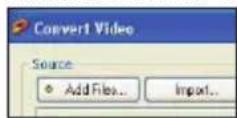
- Check the selected video files in the list.
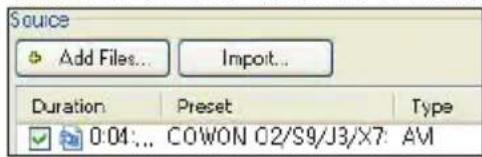
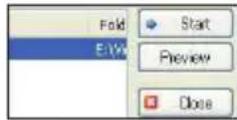
- After checking the target folder location to save the converted files and other settings, click on "Start" to start the video conversion process.
Additional
+ Converting Video Files Using COWON MediaCenter - JetAudio
- Movie files that do not play properly on the product may need to be converted by COWON MediaCenter - JetAudio. Before doing so, please make sure that the movie files play properly on the PC first.
- Files already damaged before conversion may not work on COWON X7 even if the conversion process is successful.
- Conversion time may vary depending on PC performance, source file size and codec types.
- "Preview" allows checking the converted video before starting conversion.
- To convert a file with subtitles or to change settings on subtitles, click on "Convert Options".
- SMI files for subtitles must have the same file name as its video file. (e.g. COWON.avi / COWON.smi)
+ Troubleshooting
+ I am still confused even after reading the manual.
COWON website(www.COWON.com) provides support for users of COWON products with FAQ (Frequently Asked Questions).
Users are strongly encouraged to check out the website for further information regarding product usages and firmware upgrades. For individual inquiries, please contact us on-line as we will try to help you as best as we can.
+ I would like to set the device as factory default.
Device can be set as factory default by pressing SETTINGS - SYSTEM - LOAD DEFAULTS.
+ The player does not turn on.
If the battery is completely discharged, charge the battery before you start the player. The charging time may vary depending on the battery's discharge status. If the player does not work at all, press the RESET button.
For your information, RESET will just disconnect the power and does not damage the product or delete any files stored on the device.
+ The touchscreen / touch pad / buttons do not work properly.
- Check if the power switch is positioned to HOLD.
- Touchscreen calibration can be done in SETTINGS - SYSTEM - TOUCH CALIBRATION.
+ I can't hear any sound.
Check if the volume is set to "0". Check if there are any files available in the player. If there is no file in the player, you will not hear any sound. Please note that corrupted files will result in a noise or discontinued playback. Make sure the earphones are connected properly. Impurities in the earphone jack can cause a noise.
+ Files that I have stored do not appear in the list.
Each mode shows you a list of playable files only. To view all files that you have stored, select the Browser mode. Please note that System folder will not appear in the Browser.
+ Troubleshooting
+ Album image is not displayed in Music Mode.
In order to display album image, the image has to be stored in the ID3 tag of the music file. You can edit the ID3 tags using COWON MediaCenter - JetAudio. A JPG image file with the same name as the relevant music file should be stored in the player. Alternatively, a JPG image file named "cover.jpg" can be stored in the relevant folder.
+ Video won't play.
- Check to see if the video file is supported by COWON device. Video files that do not play properly on the product may need to be converted by COWON MediaCenter - JetAudio.
+ FM Radio does not work.
The product's earphones work as the FM Radio antenna. Straightening the earphone cable will result in better radio reception. FM Radio reception may be poor at locations where FM Radio transmissions are shielded. If FM Radio does not work where reception should be possible, please contact our service center.
+ There is too much noise in my recordings.
The product uses ultra-small internal microphone, so it may be more susceptible to noise during recordings. The microphone should not be covered with anything during recording.
+ Characters on the display are corrupted.
Set your preferred language again in Settings - Display - Language. If the problem persists, set the current font to the system font. COWON products are developed based on the Korean Windows OS, and this may cause corruption of some special fonts or languages on the display.
+ Computer cannot recognize the player when connected.
Try the RESET button in the back. If you experience a frequent disconnection or unstable connectivity, connect the player directly to the USB port of the PC, rather than a separate USB hub. As COWON products use the USB connection for the main power system, unstable power supply can cause a connection failure.
+ Troubleshooting
+ Memory capacity of the player is different or smaller than specified.
The memory capacity indicated by Windows may be different from that indicated by the memory manufacturer. The actual capacity will be reduced from the original size because some space of the memory should be used as the system area for normal operation.
+ The player does not play properly when memory is full.
For the player to function properly, it requires at least 10 MB of space in the Flash memory for saving settings and other system files.
+ FCC Information to User
This equipment has been tested and found to comply with the limits for a Class B digital device, pursuant to Part 15 of the FCC Rules.
These limits are designed to provide reasonable protection against harmful interference in a residential installation. This equipment generates, uses and can radiate radio frequency energy and, if not installed and used in accordance with the instructions, may cause harmful interference to radio communications.
However, there is no guarantee that interference will not occur in a particular installation.
If this equipment does cause harmful interference to radio or television reception, which can be determined by turning the equipment off and on, the user is encouraged to try to correct the interference by one of the following measures:
- Reorient or relocate the receiving antenna.
- Increase the separation between the equipment and receiver.
- Connect the equipment into an outlet on a circuit different from that to which the receiver is connected.
- Consult the dealer or an experienced radio/TV technician for help.
Caution
Modifications not expressly approved by the party responsible for compliance could void the user's authority to operate the equipment.
FCC Compliance Information:
This device complies with Part 15 of the FCC Rules. Operation is subject to the following two conditions: (1) This device may not cause harmful interference, and (2) this device must accept any interference received, including interference that may cause undesired operation.
IMPORTANT NOTE:
FCC RF Radiation Exposure Statement:
This equipment complies with FCC RF radiation exposure limits set forth for an uncontrolled environment. This equipment should be installed and operated with a minimum distance of 20 centimeters between the radiator and your body. This transmitter must not be co-located or operating in conjunction with any other antenna or transmitter.
+ Battery Replacement + Product Disposal

natural_image
Gray circular icon with two arrows and a battery symbol inside, representing energy or recycling (no text)The rechargeable batteries have limited number of charge cycles, and it will require a replacement as capacity to hold power will eventually diminish.
The rechargeable batteries in COWON products should be replaced only by official COWON service centers. Please contact batteryreplace@cowon.com for more information on official COWON service centers.

natural_image
Symbol of a trash bin with crossed lines indicating no waste or restriction (no text or numbers present)COWON products contain built-in rechargeable batteries, and must be separately disposed from household waste.
Disposing the products with regular waste may cause pollution to the environment due to the waste batteries inside. Contact your local authorities for specified locations / guidance of E-waste and waste batteries, and dispose them in compliance with local regulation / guidance.
DIGITAL PRIDE.

COWON SYSTEMS, Inc.
www.COWON.com

- + Copyright Notice
- Introduction to website
- General
- BBE information
- + Contents
- Before you start! 6
- Basic Use 13
- Additional 34
- Troubleshooting 39
- + Precaution
- + Package Components
- + Charging
- + Connecting and Disconnecting the PC
- Before you start!
- + Firmware Upgrade
- How to upgrade the firmware
- + buttons
- 1
- 2
- 3
- + Main screen
- + viewer\_flash
- Additional
- + Product Specification
- + Converting Video Files Using COWON MediaCenter - JetAudio
- + Troubleshooting
- + Album image is not displayed in Music Mode.
- + Video won't play.
- + FM Radio does not work.
- + There is too much noise in my recordings.
- + Characters on the display are corrupted.
- + Computer cannot recognize the player when connected.
- + FCC Information to User
- Caution
- FCC Compliance Information:
- IMPORTANT NOTE:
- FCC RF Radiation Exposure Statement:
- + Battery Replacement + Product Disposal
Brand : COWON
Model : iAudio X7
Category : Mp3 player