DC C750 - Camera BENQ - Free user manual and instructions
Find the device manual for free DC C750 BENQ in PDF.


User questions about DC C750 BENQ
0 question about this device. Answer the ones you know or ask your own.
Ask a new question about this device
Download the instructions for your Camera in PDF format for free! Find your manual DC C750 - BENQ and take your electronic device back in hand. On this page are published all the documents necessary for the use of your device. DC C750 by BENQ.
USER MANUAL DC C750 BENQ
Copyright 2008 by BenQ Corporation. All rights reserved. No part of this publication may be reproduced, transmitted, transcribed, stored in a retrieval system or translated into any language or computer language, in any form or by any means, electronic, mechanical, magnetic, optical, chemical, manual or otherwise, without the prior written permission of this company.
Disclaimer
BenQ Corporation makes no representations or warranties, either expressed or implied, with respect to the contents hereof and specifically disclaims any warranties, merchantability or fitness for any particular purpose. Further, BenQ Corporation reserves the right to revise this publication and to make changes from time to time in the contents hereof without obligation of this company to notify any person of such revision or changes.
Taking care of your camera
- Do not use your camera in the following environmental range: temperature below 0^ or above 40^ .
- Do not use or store your camera in the environments listed below:
- Direct sunlight
– High and dusty places
- Next to an air conditioner, electric heater or other heat sources
– In a closed car that is in direct sunlight
- Unstable locations
- If your camera becomes wet, wipe it with a dry cloth as soon as possible.
- Salt or seawater may cause severe camera damage.
- Do not use solvents, such as alcohol, to clean your camera.
- If the lens is dirty, use a lens brush or soft cloth to clean the lens. Do not touch the lens with your fingers.
• To prevent electric shock, do not attempt to disassemble or repair your camera by yourself.
• Water may cause a fire or electric shock. Therefore, store your camera in a dry place.
- Do not use your camera outdoors when it is raining or snowing.
- Do not use your camera in or near water.
- If a foreign substance or water gets in your camera, please turn the power off immediately and remove the batteries. Remove the foreign substance or water, and send it to the maintenance center.
- Transfer the data to the computer as soon as possible to avoid losing your images and / or video clips.
Disposal of Waste Electrical and Electronic Equipment by users in private households in the European Union.

This symbol on the product or on the packaging indicates that this can not be disposed of as household waste. You must dispose of your waste equipment by handing it over to the applicable take-back scheme for the recycling of electrical and electronic equipment. For more information about recycling of this equipment, please contact your city office, the shop where you purchased the equipment or your household waste disposal service. The recycling of materials will help to conserve natural resources and ensure that it is recycled in a manner that protects human health and environment.
CE Regulatory Notice
Hereby, BenQ Corp. declares under our responsibility that the product is in conformity with the requirements set out in the Council Directive on the Approximation of the Laws of the Member States relating, Electromagnetic Compatibility Directives (89/336/EEC, 92/31/EEC) and Low Voltage Directive (73/23/EEC). A "Declaration of Conformity" in accordance with the above Directives has been made and is available from BenQ Corp. upon request.
FCC Statement
This equipment has been tested and found to comply with the limits for a Class B digital device, pursuant to Part 15 of the FCC Rules. These limits are designed to provide reasonable protection against harmful interference in a residential installation. This equipment generates, uses and can radiate radio frequency energy and, if not installed and used in accordance with the instructions, may cause harmful interference to radio communications. However, there is no guarantee that interference will not occur in a particular installation. If this equipment does cause harmful interference to radio or television reception, which can be determined by turning the equipment o. and on, the user is encouraged to try to correct the interference by one or more of the following measures:
• Reorient or relocate the receiving antenna.
- Increase the separation between the equipment and receiver.
- Connect the equipment into an outlet on a circuit different from that to which the receiver is connected.
- Consult the dealer or an experienced radio/TV technician for help.
Table of Contents
1. Touring Your Camera.... 1
1.1 Checking the package contents.... 1
1.2 Camera components 1
1.2.1 Front view 1
1.2.2 Rear view.... 2
1.2.3 LED indicators 2
2. Preparing Your Camera for Use 3
2.1 Installing the batteries.... 3
2.2 Inserting and removing an SD memory card.... 3
3. Using the Camera 4
3.1 Navigator 4
3.2 LCD monitor information (REC mode) 4
3.3 Getting started.... 5
3.3.1 Turning the power on / off 5
3.3.2 Choosing the screen language 5
3.3.3 Setting the date and time 5
3.3.4 Snapshot mode....5
3.3.4.1 Getting started with capturing images 5
3.3.5 Using the flash.... 6
3.3.6 Using the self-timer and burst 6
3.3.7 Using the zoom function.... 7
3.4 Menu options....7
3.4.1 Changing the mode 7
3.4.1.1 Switching between REC mode and PLAY mode... 7
3.4.1.2 Selecting the Scene mode 8
3.4.2 Using the menus....9
3.4.2.1 REC menu list (still image) 9
3.4.2.2 REC menu list (movie).... 10
3.4.3 Setup menu 10
3.4.3.1 Setup menu list 10
3.5 Recording movie clips 12
3.6 Recording audio clips 12
3.7 Other recording functions 13
3.7.1 Setting the quality 13
3.7.2 Setting the metering 13
3.7.3 Setting the white balance 13
3.7.4 Setting the ISO 14
3.7.5 Setting the Exposure.... 14
3.7.6 Setting the AEB 14
3.7.7 Setting the highlight 14
3.7.8 Setting the sharpness 14
3.7.9 Setting the photo effect 15
3.7.10 Setting the date stamp.... 15
3.7.11 Setting Stabilizer 15
3.7.12 Setting Face tracking.... 15
3.7.13 Setting Photo Frame 15
3.7.14 Setting Av/Tv/M 15
3.7.15 Using Smile Catch.... 16
3.8 Playback.... 16
3.8.1 Playing back images.... 16
3.8.2 Playing back movie clips 16
3.8.3 Magnifying & trimming still images 17
3.8.4 Viewing in thumbnail 17
3.8.5 Playing a slideshow 17
3.8.6 Deleting a single file or all files 18
3.8.7 Deleting multiple files.... 18
3.8.8 Setting the DPOF for printing 19
3.8.9 Other playback functions 20
- PC Dependent Features 21
4.1 Bundled software 21
4.2 Transferring files to your computer.... 21
4.2.1 Step 1: Connect the digital camera to your computer 22
4.2.2 Step 2: Download images or video clips 22
-
Troubleshooting.... 23
-
Specifications 25
-
Service Information 26

Touring Your Camera
1.1 Checking the package contents
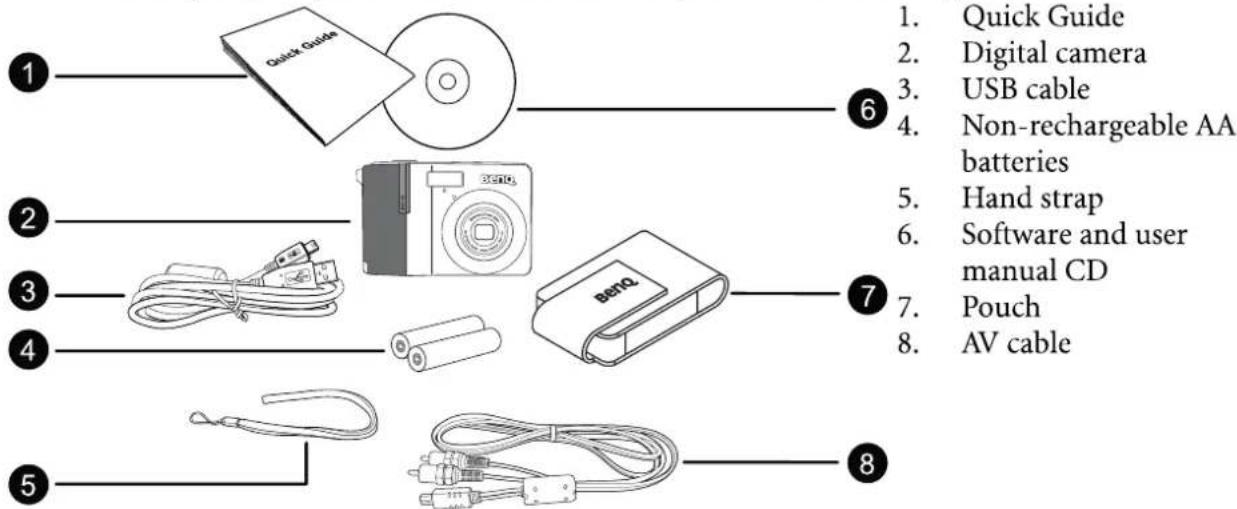
Carefully unpack your kit box and ensure that you have the following items.
text_image
1. Quick Guide 2. Digital camera 3. USB cable 4. Non-rechargeable AA batteries 5. Hand strap 6. Software and user manual CD 7. Pouch 8. AV cable• Available accessories may vary depending on sales region.
- If any of the items are missing or appear to be damaged, contact your dealer. Save the packaging in case you need to ship your camera for service.
- All electronic accessories (such as USB, AV cable, adapter, charger, and battery) are designed to work with this BenQ Digital Camera only. Do not use them with other Digital Camera to avoid possible damage.
1.2 Camera components
1.2.1 Front view
text_image
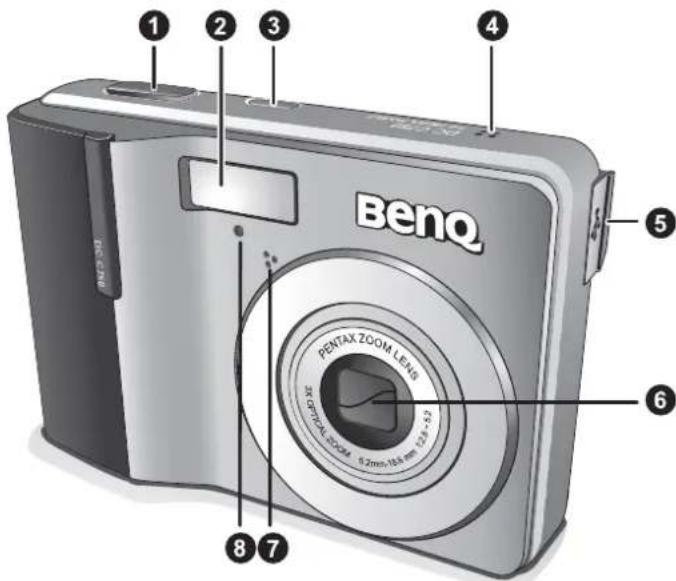
1 2 3 4 5 Beno PENTAX ZOOM LENS 6.2mm-10.8 mm 7 8 9 10 11 12 13 14- Shutter button
- Built-in flash
- Power button
- Speaker
- PC (USB) / AV Out terminal
- Lens
- Microphone
- Self-timer LED
- If your BenQ camera's lens remains extended after an involuntary shutdown, simply replace the batteries with new ones and restart your camera. Never forces the lens inwards since this action will damage the camera and void the BenQ Warranty.
1.2.2 Rear view
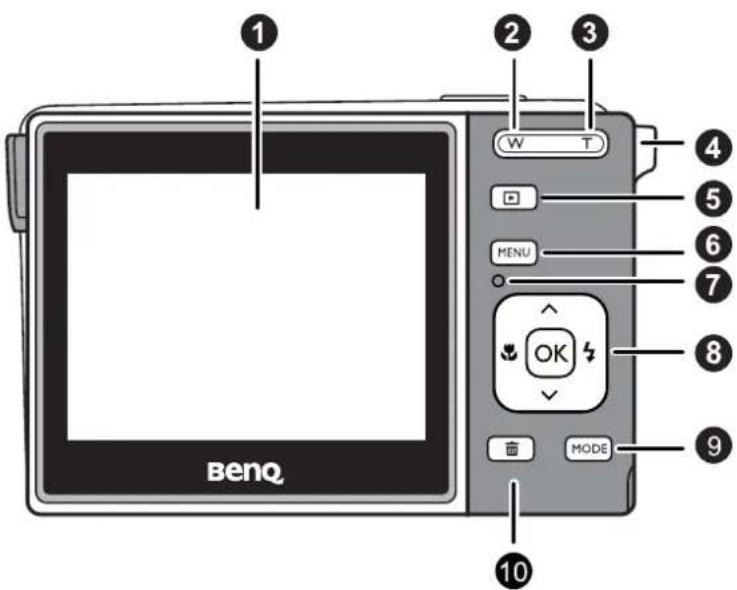
- LCD monitor
-
W Zoom-out or thumbnail
-
T Zoom-in
-
Strap eyelet
-
REC or PLAY mode
-
Menu
-
Status LED
-
Navigator -- four-way control and OK
-
Scene mode
-
Av/Tv/M Aperture priority, Shutter priority, or Manual) in the REC mode, or Delete image/video in the PLAY mode
text_image
1 2 3 W T 4 5 MENU 6 7 8 9 OK 10 BenQ1.2.3 LED indicators
| Indicator | State | Description |
| Status LED | No light | The digital camera is off. |
| Solid green | The digital camera is ready to capture images. | |
| Blinking green | The digital camera is powering on, cannot focus, record video clips, or is in the power-saving mode.The camera/flash is charging, or the USB communication/transfer is in progress. | |
| Self-timer LED | Blinking red | The self-timer function is activated. |

- It is normal for the camera to become warm during operation, because camera casing can conduct heat.
- The LCD display on this camera is manufactured with sophisticated technology, and more than 99.99% of the pixels on the LCD display meet standard specifications. Yet, it is possible that less than 0.01% of the pixels on the LCD display may have some light spots or show unusual colors. This is normal and does not indicate display malfunction, nor will this affect the pictures you take with the camera.

Preparing Your Camera for Use
2.1 Installing the batteries
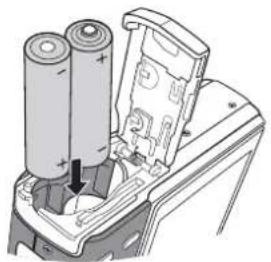
You can use two AA batteries to power up the camera. Make sure that the power of the digital camera is off before inserting or removing the batteries.
To insert the batteries:
- Make sure the camera is turned off.
- Open the battery cover.
- Insert the batteries in the correct direction as shown in the illustration.
- Close the battery cover.
To remove the batteries:
- Make sure the camera is turned off.
- Hold the camera with the battery cover facing upward, and then open the battery cover.
- Remove the batteries.
natural_image
Diagram of a battery pack with two batteries and a housing, showing internal components (no text or symbols)2.2 Inserting and removing an SD memory card
The camera is equipped with internal memory, allowing you to record video clips and capture images. You can also expand the memory capacity by using an optional SD (Secure Digital) memory card to store more files.
- Always make sure the camera is turned off before inserting or removing a memory card.
-
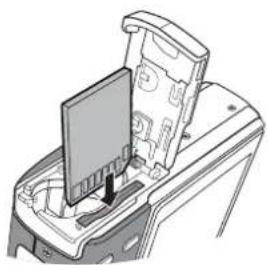
Insert an SD memory card in the correct direction as shown in the illustration.
-
Close the battery / SD memory card cover.
To remove the SD memory card, make sure the camera is turned off. Press lightly on the edge of the memory card and it will eject.
natural_image
Diagram of a device's internal structure showing a computer monitor and folder (no text or symbols visible)
- Be sure to format the SD memory card with this camera before the initial use.
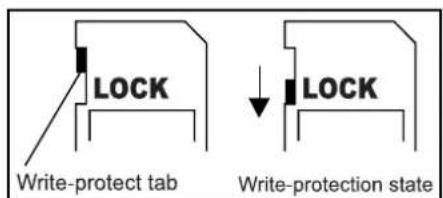
- To prevent valuable data from being accidentally erased from an SD memory card, you can slide the write-protect tab (on the side of the SD memory card) to "LOCK".
text_image
LOCK Write-protect tab LOCK Write-protection state• To save, edit, or erase data on an SD memory card, you must unlock the card.
- SD memory card in the following sizes are supported: 64 MB, 128 MB, 256 MB, 512 MB, 1 GB, 2GB and 4GB SDHC. The camera is compatible with SD memory cards manufactured by Panasonic, Toshiba, and Sandisk. Please contact your local dealer for purchase information.

Using the Camera
3.1 Navigator
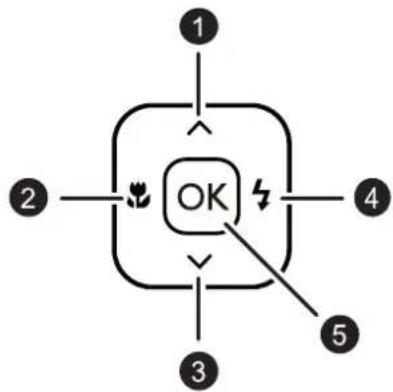
You can use the Navigator with four-way control and one OK button to access numerous controls of your camera.
-
Up ▲ or Play (video playback only)
-
Focus mode or left
-
Down ▼
-
Flash mode or right ▶
-
OK / Toggle between different modes of displayed information
flowchart
graph TD
    A["1"] --> B["OK"]
    C["2"] --> B
    D["3"] --> B
    E["4"] --> B
    F["5"] --> B
3.2 LCD monitor information (REC mode)

text_image
1 2 3 4 5 6 7 P A 7M 9999 [ ] EV -1.0 ISO 100 12 11 10 9 8 13 14-
Scene mode
-
Flash
-
Macro
-
Self-timer/Burst
-
Resolution
-
Quality
-
Shots remaining
8.ISO
-
White balance
-
Metering
-
EV compensation
-
Focus Area
-
Histogram
-
Battery
3.3 Getting started
3.3.1 Turning the power on / off
- Press [ ⏻ ] until the digital camera turns on. Or, you can press the [ ☐ ] button when the camera is off to turn on the camera.
• To turn the power off, press [ (1) ] again.
3.3.2 Choosing the screen language
- Press MENU, and then press [◀] / [▶] to move to the Setup menu.
- Press [▲] or [▼] to move to Language, and then press [▶] or OK to select the language you want.
- Press OK.
3.3.3 Setting the date and time
- Press MENU, and then press [◀] / [▶] to move to the Setup menu.
- Press [▲] or [▼] to move to Date & Time, and then press [▶] or OK.
- Press [▲] or [▼] to select Year, Month, Day, Time, and Format fields.
• To increase a value, press [▲].
• To decrease a value, press [▼].
• The time is displayed in 24 hour format.
- Press OK.
3.3.4 Snapshot mode
3.3.4.1 Getting started with capturing images
- Press [ ⏻ ] for more than one second to turn on the camera.
- Compose your image in the LCD monitor under Snapshot Mode.
-
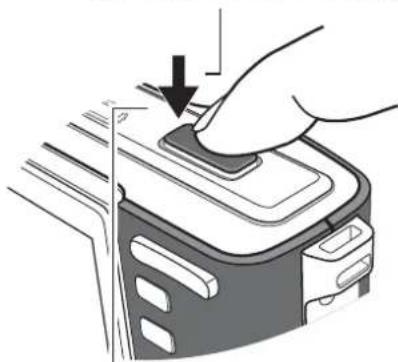
Press the shutter button down halfway (1), and then press it down fully (2).
-
Pressing the shutter button down halfway automatically focuses and adjusts the exposure.
- The focus area frame turns green when the camera is focused and the exposure is determined.
① Press down halfway.
natural_image
Illustration of a hand pressing down on a computer keyboard (no text or symbols visible)② Press down fully.
- When the focus or exposure is not suitable, the frame of the focus area turns red.

- To review the last captured image, press □. Press □ to return to Snapshot mode.
• The LCD monitor darkens in strong sunlight or bright light. This is not a malfunction.
• To prevent your images from being blurred while pressing the shutter button, always hold the camera steady. This is especially important when you are shooting under low lighting conditions, under which your camera may reduce the shutter speed to ensure your images are properly exposed.
3.3.5 Using the flash
The flash is not only for taking pictures when there is insufficient light, but also when the subject is in shade or in backlight conditions. Pressing the flash button cycles your camera through the various flash modes. The flash will not activate when continuous shooting or movie recording.
- Turn the power on, and set the camera to the REC mode.
- Pressing the flash button changes the flash mode. Each time the flash button is pressed, the flash icon changes.
- Press the shutter button to take a picture.
| Icon | Flash mode | Description |
 | Auto flash | Flash fires automatically when shooting conditions require extra lighting. |
 | Red-eye reduction | Flash strobes to let the subject eyes adjust to the flash, then fires again to take the actual image. Your camera will detect the subject brightness and use the flash only when required. |
 | Force on | Flash fires every time you take a photo, regardless of lighting conditions. |
| [8x3T] | Slow sync | Flash fires with a slow shutter speed. |
 | Force off | The flash never fires even in dark situation. |
3.3.6 Using the self-timer and burst
Use the self-timer to set a delay from the time the shutter button is pressed to the time the image is shot. Use the burst to record continuous still images shooting.
- Turn the power on, and set the camera to the REC mode.
- Press MENU, and then press the [◀] / [▶] to select the REC menu.
- Press [▲] / [▼] to select Driver mode and then press [▶] or OK to launch the submenu.
- Press [▲] / [▼] to select an option and press OK to apply the setting. Press MENU to close the menu and the shutter button to take pictures.
| Icon | Flash mode | Description |
| - | Off | Record a single image. |
 | 2 sec. | The shutter release will be delayed for 2 seconds. |
 | 10 sec. | The shutter release will be delayed for 10 seconds. |
 | Double | Record two images in a shot after pressing the shutter release button 10 and 12 seconds. |
 | Burst | Keep pressing the shutter button fully to take a continuous shooting. Release the shutter button to stop shooting. |
3.3.7 Using the zoom function
Your camera has a combination of optical and digital zoom functions that allows you to zoom in on far away subjects or zoom out for a wide angle shot.
The optical zoom is achieved by mechanically adjusting the lens of the camera. The digital zoom enlarges or shrinks the image using a software process.
-
Make the zoom setting, and point the camera at the subject.
-
Press the zoom button (W / T) to compose the image.
W: zoom out for a wide-angle shot.
T: zoom in for a telephoto shot.
- When the zoom button is pressed, the zoom bar appears on the LCD monitor.
-
When the optical zoom factor is at maximum, zooming stops temporarily. Press T again, the camera switches to the digital zoom automatically and zooming continues.
• You can use optical zoom in movie recording. -
Press the shutter button to take a picture.
3.4 Menu options
3.4.1 Changing the mode
You can record images and voices in the REC mode. And using the PLAY mode to replay, delete, or edit images on the LCD monitor.
3.4.1.1 Switching between REC mode and PLAY mode
• In REC mode, press ☐ to switch to the PLAY mode.
• In PLAY mode, press ☐ / MODE to switch to the REC mode.
3.4.1.2 Selecting the Scene mode
- Set the camera to the REC mode.
-
Press MODE to show the scene mode palette.
-
Use the four-way control to select a desired mode and press OK to confirm the setting.
| Icon | Mode | Description |
 | Program | The camera makes settings suitable for the shooting conditions. |
 | Movie | Records movie clips. |
 | Smile Catch | Automatically takes a shot while an enough degree of smile is detected. |
 | Shake-Free | Reduces blur caused by camera vibration. |
 | Landscape | Used for the wide scenic views. |
 | Backlight | Shoots the image of backlight object by changing metering. |
 | Night Scene | Shoots the subject while keeping the background night scenery. |
 | Building | Enhances the edges of the subject. |
 | Kids | Takes a still image to capture moving kids. |
 | High ISO Portrait | Makes people stand out with the background out-of-focus even in a dark environment. In this mode, a higher ISO value is used. |
 | Food | Higher saturation makes food more appetizing. |
 | Text | Enhances the black & white contrast. |
 | Snow | Used for the beach or snow scenes. |
 | Fireworks | Uses a slow shutter speed to take fireworks exploding. |
 | Sunset | Enhances the red hue for recording sunset images. |
 | Voice REC | Records audio. |

• The higher the ISO value, the grainer you may see in the image.
3.4.2 Using the menus
When a menu is displayed, the four-way control and OK are used to make the desired settings.
- Turn the power on, and set the camera to the REC mode.
- Press MENU and then press [◀] / [▶] to select the REC menu.
- Press [▲] / [▼] to select a menu item and then press [▶] or OK to launch the submenu.
- Press [▲] / [▼] to select an option and press Ⓞ to apply the setting.
- Press MENU to close the menu.
3.4.2.1 REC menu list (still image)
| Menu item | Available settings |
| Resolution |  |
| Quality | 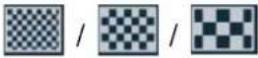 |
| Metering |  |
| White Balance |  |
| ISO |  |
| Exposure | -2.0 EV ~ +2.0 EV |
| Drive Mode |  |
| AEB | Off / On |
| Highlight |  |
| Sharpness | 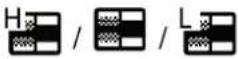 |
| Effect | Normal / B&W / Sepia / Negative / Red / Green / Blue |
| Date Stamp | Off / Date / Date & Time |
| Stabilizer | Off / On |
| Face Tracking | Off / On |
| Photo Frame | Off / 1-10 frames |
| Digital Zoom | Off / On |
- Turn the power on, and set the camera to the REC or PLAY mode.
- Press MENU, and then press the [◀] / [▶] to select the Setup menu.
- Press [▲] / [▼] to select a menu item and then press [▶] or OK to launch the submenu.
- Press [▲] / [▼] to select an option and press OK to apply the setting.
- Press MENU to close the menu.
3.4.3.1 Setup menu list
| Menu item | Functions | |
| Sounds | [Shutter] | Sets the shutter sound on and off. |
| [Start-up] | Sets a type of the start-up sound. | |
| [Beep] | Sets the operation sound on and off. | |
| [Volume] | Adjusts the volume of the shutter sound, start-up sound, beep and playback sound. | |
| Auto Review | [Off] | The captured image will not automatically display after shooting. |
| [1 sec.] | The captured image will display for 1 second after shooting. | |
| [3 sec.] | The captured image will display for 3 seconds after shooting. | |
| [5 sec.] | The captured image will display for 5 seconds after shooting. | |
| Power Save | [1 min.] | For power conservation, the camera is turned off automatically for a period of time. |
| [3 min.] | ||
| [5 min.] | ||
| Date & Time | Sets the date & time. | |
| Language | Select a language for display menus and other information. | |
| File No. | Use this function if the camera experiences a "Folder cannot be created" error or if you want to restart numbering, for example, after erasing all files. | |
| [Series] | Stores the latest used file number no matter deleting files or inserting a new memory card. This is useful for avoiding the file name duplication when images are downloaded to a computer. | |
| [Reset] | Resets file numbering each time the memory card is changed. | |
| TV Out | You can review images on a television with a supplied AV cable. TV Out should be set to either NTSC or PAL depending on your region. | |
| [NTSC] | America, Japan, Taiwan and others | |
| [PAL] | Europe, Oceania and others | |
| TV Out should be set to either NTSC or PAL depending on your region. For details about which system should be used, check with your local authorities. | ||
| USB | [Computer] | Sets the USB mode to connect the camera with a printer or computer. |
| [Printer] | ||
| Start-up Image | Sets a recorded image as the start-up image. | |
| Format | To erase all data stored in the memory card if you are using a card, or all data stored in the internal memory if there is no card inserted.A “Busy...please wait” message displays and the memory card is starting format.A “Completed” message displays when finish formatting.All data will be deleted including protected files. Be sure to download important files to your computer before formatting. | |
| Battery Type | To ensure the camera displays battery level correctly, set the type to match the batteries used. | |
| [Alkaline] | When using alkaline batteries. | |
| [NiMH] | When using NiMH batteries. | |
| [Li-Ion] | When using Li-Ion batteries. | |
| [Oxyride] | When using Oxyride batteries. | |
| Reset All | Resets the entire menu and button operation settings to initial default.The following settings do not change after Reset All:Date & Time settingLanguage settingTV out settingBattery Type | |
3.5 Recording movie clips
- Turn the power on, and set the camera to the Movie mode.
- Compose the subject on the monitor.
- Aim the focus area to the subject that you want to take.
• The LCD monitor displays the available recording time
-
Start recording.
-
Press the shutter button to start recording.
• Using the zoom button to adjust the image size.
• The White Balance is set and locked to the settings of the first frame.
- Sound cannot be recorded while pressing the zoom button.
- You can use optical zoom in movie recording.
-
With the internal memory or a slow-speed SD card, a video can be recorded only at 15 fps (frames per second).
-
Finish recording.
-
Press the shutter again to end recording.
- The camera will stop recording automatically when the memory capacity has been reached.
3.6 Recording audio clips
- Turn the power on, and set the camera to the Voice REC mode.
- Press the shutter button to start recording.
- The voices are recorded from the microphone of the camera. Be careful to avoid touching the microphone while recording.
- Press the shutter button again to end recording.
- The camera will stop recording automatically when the memory capacity has been reached.
3.7 Other recording functions
3.7.1 Setting the quality
| Compression | Purpose | |
 | Super Fine | Shoot higher quality images. |
 | Fine | Shoot normal quality images. |
 | Normal | Shoot for more images. |
3.7.2 Setting the metering
There are 3 different light metering options available on your camera.
| Icon | Mode | Description |
 | Center | Light is measured from the entire shooting screen, but gives more importance to the values near the center. |
 | Multi | Selects an exposure based on readings from multiple points in the subject area |
 | Spot | Selects an exposure based on a single reading taken from the center of your picture. |
3.7.3 Setting the white balance
Adjusts the white balance to match different light sources such as sunlight, incandescent (tungsten) lighting or, fluorescent lighting.
| Icon | Mode | Description |
 | Auto | Automatically corrects white balance. Ideal for general photography. |
 | Daylight | Adjusts for bright sun conditions, or natural light conditions. |
 | Cloudy | Adjusts for cloudy days or twilight conditions. |
 | Tungsten | Adjusts for normal indoor lighting conditions. Corrects the orange hue of household light bulbs. Ideal for indoor photos under tungsten or halogen lighting without a flash. |
  | Fluor_H Fluor_L | Adjusts for fluorescent lighting. Corrects the green hue of fluorescent lighting. Ideal for indoor photos under fluorescent lighting without a flash. |
| SH1 (Custom) | For more accurate adjustment or when the light source cannot be specified. When this option is highlighted, press the shutter button to enter the [Custom WB] mode. Then, point the camera at something white (for example, white paper) as the reference white color and press the shutter button again. Next, press OK to confirm the custom setting. |
3.7.4 Setting the ISO
With the initial settings, the ISO sensitivity is automatically set according to the brightness of the subject.
- A higher ISO value increases the image noise. To take clean images, use an ISO value as low as possible.
3.7.5 Setting the Exposure
Sets the exposure value manually to compensate for unusual lighting conditions such as indirect indoor lighting, dark backgrounds, and strong backlighting.
3.7.6 Setting the AEB
Sets the auto exposure bracketing (AEB) to shoot 3 continuous images, each with a different exposure setting: correctly exposed, underexposed, and overexposed.
3.7.7 Setting the highlight
Makes the subject stand out from its surroundings. The subject will be in focus in three different ranges: / / .
3.7.8 Setting the sharpness
You can select whether you want the image to have sharp or soft outlines.
| Icon | Mode | Description |
 | Hard | The edges of the image are emphasized. The edges will become sharp, but noise may occur in the recording image. |
 | Normal | The edges of the image are sharp. This is suitable for printing. |
 | Soft | The edges of the image are softened. This is suitable for editing images on PC. |
3.7.9 Setting the photo effect
You can add special effects to your images in REC or PLAY mode.
| Icon | Description |
| Normal | No effect is added to the image. |
| B&W | Convert image to black & white. |
| Sepia | Recorded image will be stored in a sepia tone. |
| Negative | Opposite what they were in the original image. |
| Red | The image becomes reddish. |
| Green | The image becomes greenish. |
| Blue | The image becomes bluish. |
3.7.10 Setting the date stamp
The Date Stamp function can be used to add a date to your pictures as you take them.
3.7.11 Setting Stabilizer
With more sensibility and faster shutter speed to bright up the pictures, effectively prevent blur image caused by hand shack or target movement, one can take good pictures with little effort.
3.7.12 Setting Face tracking
After initializing face tracking function, the lens will lock the main character in the picture and follow the movements. Also use auto digital zoom technology to retract and extract zoom lens that allows you to become the focus of lens.
3.7.13 Setting Photo Frame
You can add 10 kinds of frames to still images, making them more interesting.
3.7.14 Setting Av/Tv/M
Pressing the Tv/Av/M button ☐ toggles among Aperture priority, Shutter priority, and Manual when determining the exposure value.
- Aperture priority: You can choose an aperture value, while the shutter speed is automatically determined by the lighting condition of the subject. Aperture priority is often used when shooting static subjects or emphasizing the depth of field. In general, use a smaller aperture if a greater depth of field is needed.
- Shutter priority: You can choose a shutter speed, while the aperture value is automatically determined by the lighting condition of the subject. Shutter priority is often used when shooting moving subjects. In general, use a shorter shutter speed to catch a fast-moving object.
• Manual: You can set both the shutter speed and the aperture value.
3.7.15 Using Smile Catch
Smile Catch automatically captures the moment of a smile of your subject.
- In the REC mode, press MODE and select
- The camera is tracking the face of your subject (a white frame shows).
- Press the shutter to activate smile tracking, and then release the shutter immediately. The camera now is tracking the smile of your subject (a green frame shows).
- Once a smile is detected, the camera instantly takes a picture.
- The camera continues to detect smiles and takes more pictures (Step 4 is repeated). To stop the smile tracking at anytime, press the shutter.
- The camera will also automatically stop smile tracking if your subject leaves your composition area.
• Face tracking (one face only) is always on in the Smile Catch mode.
3.8 Playback
3.8.1 Playing back images
-
Turn the power on, and set the camera to the PLAY mode.
• The latest recorded image appears on the LCD monitor.
• If there are no images stored, a message [No image] appears. -
Press the four-way control.
• [◀] displays the previous image.
• [▶] displays the next image.
- Holding down [◀] or [▶] scrolls images in a high speed.
3.8.2 Playing back movie clips
- Turn the power on, and set the camera to the PLAY mode.
- Press [◀] or [▶] to select a movie clip that you want to playback.
- Start playing back.
- Press [▲] to start playing the movie clip.
- Press MENU to stop the movie clip, or press [▲] to pause it. When the movie paused, press [▲] again to resume.
- During movie playing back, press [▶] to fast forward or press [◀] to rewind it. - Press the shutter to capture the still image from the movie clip while it had paused.
3.8.3 Magnifying & trimming still images
- Turn the power on, and set the camera to the PLAY mode.
-
Select an image.
-
Press [◀] or [▶] to select the image that you want to magnify or trimming.
• Only still images can be magnified and trimmed. -
Magnify the image.
-
Press T to magnify the image, and the central portion of the image is displayed. You can use the arrow button to view different parts of the magnified image.
-
Press MENU to return to the normal size.
-
Trim the image.
- Press OK to set the image trimming.
- Save the image.
- Press OK again to trim the selected image and save it as a new one.
3.8.4 Viewing in thumbnail
- Turn the power on, and set the camera to the PLAY mode.
- Press the zoom button ⓦ, a thumbnail screen is displayed.
- Use the four-way control to select the desired image, and press T or OK to show the selected image in full screen.

natural_image
Grid of nine photo frames showing family and outdoor scenes, no text or symbols visible3.8.5 Playing a slideshow
- Turn the power on, and set the camera to the PLAY mode.
- Enter the slideshow.
- Press MENU and use [▲] / [▼] to select Slideshow and press [▶] or OK.
- Change the slideshow settings.
• Use the four-way control to set the slideshow interval, transition and repeat.
• You can set the interval between 1\~10 seconds.
- Playing the slideshow.
- Press OK to start the slideshow.
- During the slideshow, press OK to pause the slideshow and press OK again to resume.

text_image
Start Interval: 10s Music: 1 Transition:3.8.6 Deleting a single file or all files
- Turn the power on, and set the camera to the PLAY mode.
- Press [◀] or [▶] to select the image you want to delete.
-
Open the menu.
-
Press MENU, then use [◀] / [▶] to select PLAY mode.
-
Press the [▲] / [▼] to select Delete and press [▶] or OK.
-
Press [▲] or [▼] to select [Single], and press [▶] or OK.
• To delete all images, select [All] and press [▶] or OK.
- Select [Yes] and press OK to delete the image.
• To quickly delete the current display image:
- Select the image you want to delete.
- Press the Delete button to show a confirmation.
- Press OK to delete the current display image.
- Protected images cannot be deleted with this function.
3.8.7 Deleting multiple files

text_image
Delete Select All Back Protect Delete- Turn the power on, and set the camera to the thumbnail screen.
- Open the menu.
- Press MENU, then press [◀] or [▶] to select Delete and press OK.
- Press [▲] or [▼] to select [Select], and then press OK.
• The frame of the selected image turns green.
- Select multiple images.
• Use the four-way control to select the image.
- Press OK to toggle 📋 on and off. Repeat this step until all images that you want to delete are displayed with an icon 📋.
- Delete images.
- Press MENU, then select [Yes] and press OK. All selected images will be deleted.
• To cancel delete, press MENU in this step.
3.8.8 Setting the DPOF for printing
The Digital Print Order Format (DPOF) setting allows you to select images on the memory card for printing and specify the number of print copies in advance using the camera. This is extremely convenient for sending the images to a photo developing service or for printing on a direct print function compatible printer.
-
Turn the power on, and set the camera to the PLAY mode.
-
Open the menu.
- Press MENU, then use [◀] / [▶] to select PLAY mode.
- Press [▲] / [▼] to select DPOF and press [▶] or OK.
- Press [▲] or [▼] to select [Single], then press OK.
• To set the DPOF setting for all images in a time, select [All] in this step.
• To reset all DPOF settings to initial default, select [Reset] in this step.
-
Press [◀] or [▶] to select the image you want to print out, then press OK.
-
Set the number of copies.
- Press [◀] or [▶] to specify the number of copies.
• The number of copies can be set from 0 to 30.
• To cancel this image DPOF setting, set the number of copies to 0.
- Print the date stamp 📊 out.
- Press [▼] and then press [◀] or [▶] to set or cancel the date stamp of current image.
- Repeat step 4\~6 to other images for printing.
-
Press [▼] and then press the OK to apply the setting or press MENU to cancel.
-
After you finished all image settings, select [Back] and press OK to apply it.
3.8.9 Other playback functions
You can also protect (lock) images from being deleted, edit images, copy files, or enter setup for more options. To do so, press MENU in the PLAY mode, and select a function.

text_image
Protect... Delete... Slideshow... DPOF... Copy to Card... OK Enter MENU Back Photo Frame... OK Enter MENU Back
PC Dependent Features
4.1 Bundled software
The camera is supplied with the following software. To install the software, refer to the information supplied with respective CDs.
ArcSoft Combines photo editing with creative enhancement and sharing Photolmpression 5 tools that maximize your digital media experience.
ArcSoft Creates multimedia presentations by combining photos and video Videolmpression 2 clips with audio, text and scene transitions.
4.2 Transferring files to your computer
After using USB cable to establish a USB connection between the camera and your computer, you can use your computer to share captured images or recorded video clips with your family or friends via e-mail or post them on the Web. Note that before you begin, you need to check your system according to the table as shown below.
| System Requirements (Windows) | |
| CPU | Pentium III 600 MHz processor or higher |
| Operating System | Windows 2000 / XP / Vista |
| RAM | 64 MB |
| Hard Disk Space | 128 MB hard disk space |
| Required Devices | A CD-ROM driveAn available USB port |
| Display | Color Monitor (800 x 600, 24-bit or higher recommended) |
4.2.1 Step 1: Connect the digital camera to your computer
- Connect the supplied USB cable to the computer USB port and turn on the camera.
- The LCD screen turns off when the connection to the computer has been successfully completed.
4.2.2 Step 2: Download images or video clips
When the digital camera is turned on and connected to your computer, it is considered to be a disk drive, just like a floppy disk or CD. You can download (transfer) images by copying them from Removable Disk to your computer hard drive.
Windows
Open the Removable Disk and double-click on the DCIM folder to open it to find more folders. Your images are inside these folder(s). Select the desired still images or video clips, and then choose Copy from the Edit menu. Open the destination location (folder) and choose Paste from the Edit menu. You may also drag and drop image files from the digital camera to a desired location.

- Memory card users may prefer to use a memory card reader (highly recommended).
- Video playback application is not included with the package. Make sure that video playback application has been installed in your computer.
Refer to the symptoms and solutions listed below before shipping your camera for service. If the problem persists, contact your local reseller or service center.
| Symptom | Cause | Solution |
| The camera cannot be powered up. | There is no battery or the battery is not inserted correctly. | Insert the battery correctly. |
| The battery has no power. | Replace with new batteries. | |
| The battery power is draining quickly. | The external temperature is extremely low. | — |
| Many shots are being captured in dark places, requiring a flash. | — | |
| If a rechargeable battery was used and it was not fully charged.The battery has not been used for an extended period of time after being charged. | Fully charge the battery and discharge it for at least one complete cycle before use. | |
| The battery or camera is warm. | The camera or flash was used continuously over a long period of time. | — |
| The flash does not fire.The flash does not recharge. | The camera flash is turned off. | Set the flash to Auto Flash. |
| The light source is sufficient. | — | |
| The flash is not available in some modes. | — | |
| Even though the flash fired, the image is dark. | The distance to the subject is greater than the flash's effective range. | Get closer to the subject and shoot. |
| The image is too bright or too dark. | The exposure is excessive or inadequate. | Reset exposure compensation. |
| I cannot format a memory card. | The memory card is write-protected. | Remove the write protection. |
| End of the memory card life. | Insert a new memory card. | |
| I cannot download images. | The free space on the hard disk of your computer is insufficient. | Ensure that the hard disk has enough space for running Windows and that the drive for loading image files has free space equal to or greater than the memory card in the camera. |
| There is no power being supplied to the camera. | Recharge your batteries or replace with new batteries if necessary. | |
| The camera does not shoot even when pressing the shutter button. | The battery is running low. | Recharge your batteries or replace with new batteries. |
| The camera is not in Shooting Mode. | Switch to Shooting Mode. | |
| The shutter button was not pressed all the way down. | Press the shutter button all the way down. | |
| The internal memory or memory card does not have any free space. | Load a new card or delete unwanted files. | |
| The flash is recharging. | Wait until the flash mode icon, indicated on the screen, stops flashing. | |
| The camera does not recognize the memory card. | Format the memory card before the initial use or before using with another camera. | |
| Colors of the images taken are not shown properly. | White Balance was not set properly when these images were taken. | Select a suitable White Balance setting before taking each picture. |
| After connecting the camera to a computer, an error message “Device not ready” or “Camera not ready” appears. | The computer runs on Windows 98 or earlier. | — |
| When connecting the camera to a computer, the computer freezes. | The memory card inside the camera may not be formatted. | Format the memory card to the FAT16 format using a card reader in Windows or using the camera. |
| A memory error occurs. | The memory card may not be formatted correctly. | Re-format the memory card to the FAT16 format using a card reader in Windows. |
| Image Sensor | 1/2.5-inch CCD |
| Effective pixels: C750: 7.0 mega pixels; C850: 8.0 mega pixels | |
| LCD Display | C750: 2.5" LTPS LCD (150K pixels); C850: 2.7" LTPS LCD (230K pixels) |
| Lens | Focal Length: f = 6.2 ~ 18.6 mm |
| F No.: F2.8/F5.2 | |
| Focusing | TTL Auto Focus |
| Range: Macro: 15 ~ 100 cm, Normal: 80 cm ~ infinity | |
| Shutter | Shutter speed: Up to 1/2000 sec. |
| Flash | Modes: Auto/Forced flash/Red-eye reduction/Flash off/Slow Sync |
| Range: 0.5 ~ 2.0 m | |
| Self-timer | 2 sec. /10 sec. /10+2 sec. |
| Exposure | Compensation: ±2 EV (1/3 EV/step) |
| ISO | Auto/50/100/200/400/800/1600 |
| White Balance | Auto/Sunny/Cloudy/Tungsten/Fluorescent H/Fluorescent L/MWB |
| File Format | Still Image: JPEG format (EXIF2.2), DCFC750: Image size: 3072 x 2304 (7M), 3072 x 2048 (3:2), 3072 x 1728 (16:9), 2560 x 1920 (5M), 2048 x 1536 (3M), 1024 x 768 (1M), 640x 480 (VGA) pixelsC850: Image size: 3264 x 2448 (8M), 3264 x 2176 (3:2), 3264 x 1840 (16:9), 2816 x 2112 (6M), 2272 x 1704 (4M), 1600 x 1200 (2M), 640x 480 (VGA) pixels |
| Movie clips: AVI (Motion JPEG) format with continuous recording.Movie size: 720 x 400, 640 x 480, 320 x 240, 160 x 120 pixels (30fps) | |
| Storage | Built-in memory: 6 MB; SD/SDHC memory card compatible. |
| Image Play | Single image/AVI play/Thumbnails/Slideshow |
| Interface | Digital output: USB 2.0 high-speed compatible Audio/Video output (NTSC/PAL) |
| Power Source | 2 x AA batteries (Alkaline/NiMH/Li-Ion/Oxyride) |
| Dimensions(W x H x D) | 93.4 x 62.2 x 25.9 mm |
| Weight | Approx. 140 (w/o battery, SD memory card) |
* Design and specifications are subject to change without notice.

Service Information
Technical Support
For further services, product information and news releases, visit the following web site: http://www.BenQ.com