32PFL5355 - TV PHILIPS - Free user manual and instructions
Find the device manual for free 32PFL5355 PHILIPS in PDF.


User questions about 32PFL5355 PHILIPS
0 question about this device. Answer the ones you know or ask your own.
Ask a new question about this device
Download the instructions for your TV in PDF format for free! Find your manual 32PFL5355 - PHILIPS and take your electronic device back in hand. On this page are published all the documents necessary for the use of your device. 32PFL5355 by PHILIPS.
USER MANUAL 32PFL5355 PHILIPS
Register your product and getsupport at
www.philips.com/ welcome
natural_image
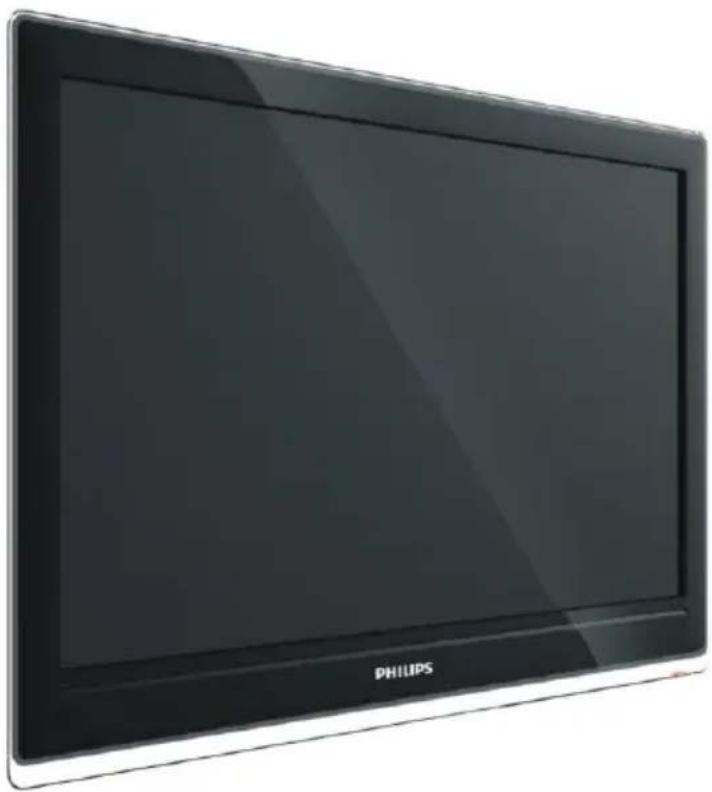
Exterior view of a Philips TV displaying its screen (no additional text or symbols visible)46PFL5755/V7
42PFL5555/V7
32PFL5355/V7
24PFL5555/V7
EN User manual
Contents
1 Notice 2
2 Important 3
3 Your TV 5
Side controls and indicators 5
Sockets 5
Remote Control Functions 7
4 Use your TV 8
Switching on 8
Switching off 8
Automatic Channel Set-up 9
Intelligent Channel Set-up 9
Manual Channel Set-up 9
Fine Tuning a Channel 9
Setting the Sound System 9
Channel Edit 10
5 Use more of your TV 10
Adjusting the Picture 10
Adjusting the Sound 11
Function Settings 11
Selecting a Signal Source or 12
Look over the Layout of Terminalse
Geometry Settings 13
USB Functions 13
6 FAQ 14
Attention: 14
Frequently Asked Question 14
7 Other Information 15
Troubleshooting 15
8 Product information 16
Supported display resolutions 16
Multimedia 16
Tuner/Reception/Transmission 16
Remote control 16
Power 16
Supported TV mounts 17
Product specification 17
1 Notice
Pixel characteristics
This LCD/LED product has a high number of colour pixels. Although it has effective pixels of 99.999% or more, black dots or bright points of light (red, green or blue) may appear constantly on the screen. This is a structural property of the display (within common industry standards) and is not a malfunction.
Warranty
No components are user serviceable. Do not open or remove covers to the inside of the product. Repairs may only be done by Philips Service Centres and official repair shops. Failure to do so shall void any warranty, stated or implied.
Any operation expressly prohibited in this manual, any adjustments, or assembly procedures not recommended or authorised in this manual, shall void the warranty.
2 Important
Read and understand all instructions before you use your TV. If damage is caused by failure to follow instructions, the warranty does not apply.
Safety
Risk of electric shock or fire!
- Never expose the TV to rain or water. Never place liquid containers, such as vases, near the TV. If liquids are spilt on or into the TV, disconnect the TV from the power outlet immediately. Contact Philips Consumer Care to have the TV checked before use.
Never place the TV, remote control or batteries near naked flames or other heat sources, including direct sunlight. To prevent the spread of fire, keep candles or other flames away from the TV, remote control and batteries at all times.

text_image
Prohibition sign with a candle and crossed-out circle, indicating no use or prohibition- Never insert objects into the ventilation slots or other openings on the TV.
- When the TV is swiveled ensure that no strain is exerted on the power cord. Strain on the power cord can loosen connections and cause arcing.
Risk of electric shock or fire!
- Never expose the remote control or batteries to rain, water or excessive heat.
- Avoid force coming on to power plugs. Loose power plugs can cause arcing or fire.
Risk of injury or damage to the TV!
- Two people are required to lift and carry a TV that weights more than 25 kg.
- When stand mounting the TV, use only the supplied stand. Secure the stand to the TV tightly. Place the TV on aflat, level surface that can support the combined weight of the TV and the stand.
- When wall mounting the TV, use only a wall mount that can support the weight of the TV. Secure the wall mount to a wall that can support the combined weight of the TV and wall mount.PE Electronics bears no responsibility for improper wall mounting that result in accident, injury or damage.
Risk of injury to children!
Follow these precautions to prevent the TV from toppling over and causing injury to children:
- Never place the TV on a surface covered by a cloth or other material that can be pulled away.
- Ensure that no part of the TV hangs over the edge of the surface.
- Never place the TV on tall furniture (such as a bookcase) without anchoring both the furniture and TV to the wall or a suitable support.
• Educate children about the dangers of climbing on furniture to reach the T V.
Risk of overheating!
- Never install the TV in a confined space. Always leave a space of at least 4 inches or 10 cm around the TV for ventilation. Ensure curtains or other objec ts never cover the ventilation slots on the TV.
Risk of damage to the TV!
- Before you connect the TV to the power outlet, ensure that the power voltage matches the value printed on the back of the TV. Never connect the TV to the power outlet if the voltage is different.
Risk of injury, fire or power cord damage!
- Never place the TV or any objects on the power cord.
-
To disconnect the TV power cord easily from the power outlet, ensure that you have full access to the power cord at all times.
-
When you disconnect the power cord, always pull the plug, never the cable.
- Disconnect the TV from the power outlet and antenna before lightning storms. During lightning storms, never touch any part of the TV, power cord or antenna cable.
Risk of hearing damage!
- Avoid using earphones or headphones at high volumes or for prolonged periods of time.
Low temperatures
- If the TV is transported in temperatures below 5°C, unpack the TV and wait until the TV temperature matches room temperature before connecting the TV to the power outlet.
Screen care
- Avoid stationary images as much as possible. Stationary images are images that remain on-screen for extended periods of time. Examples include: on-screen menus, black bars and time displays. If you must use stationary images, reduce screen contrast and brightness to avoid screen damage.
• Unplug the TV before cleaning. -
Clean the TV and frame with a soft, damp cloth. Never use substances such as alcohol, chemicals or household cleaners on the TV.
-
Risk of damage to the TV screen! Never touch, push, rub or strike the screen with any object.
• To avoid deformations and colour fading, wipe off water drops as soon as possible.
Disposal of your old product and
batteries

Your product is designed and manufactured with high quality materials and components, which can be recycled and reused.
3 Your TV
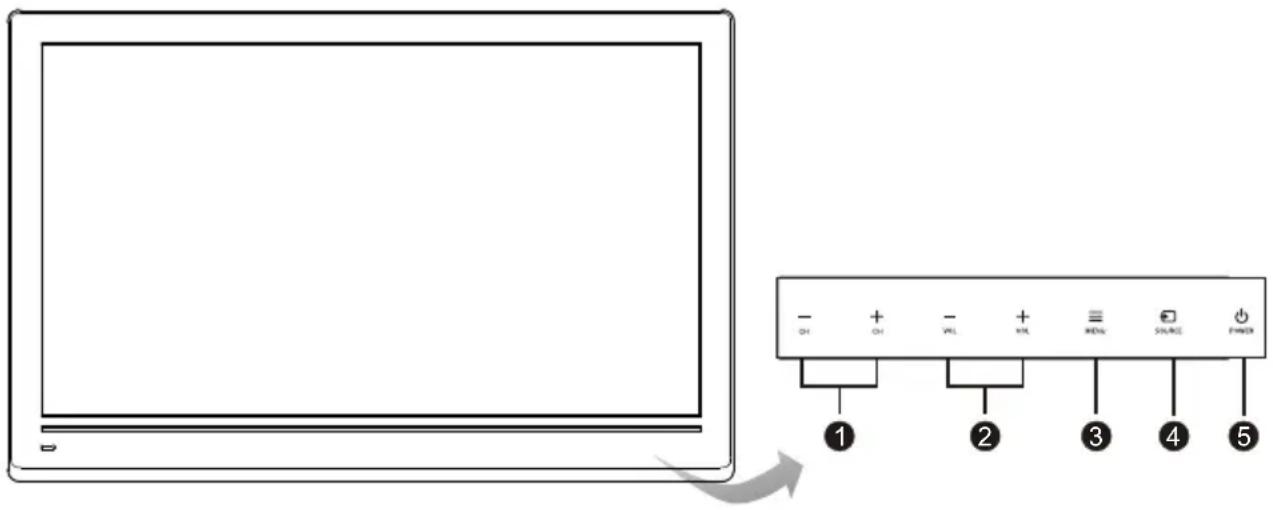
Side controls and indicators
text_image
Diagram showing a monitor connected to a power supply panel with labeled buttons and numbered pins1. CHANNEL UP/DOWN button
Scans up/down through the channel list. In the menu system, they act like the up/down direction buttons on the remote and adjust menu controls.
2. VOLUME UP/DOWN button
Increases/decreases the volume. In the menu system, they act like the right/left direction buttons on the remote and adjust menu controls. (Note: In some menus, VOLUME UP also acts like the OK button on the remote.)
3. MENU button
Brings up the main menu or press to return to the previous menu.
4. SOURCE button
Press to select signal source.
5. POWER button
Turns the TV on or standby. (Note: for some models, the POWER button turns the TV on or off.)
Note: The location and names of the function buttons and power button on the TV may vary according to TV model.
Sockets
text_image
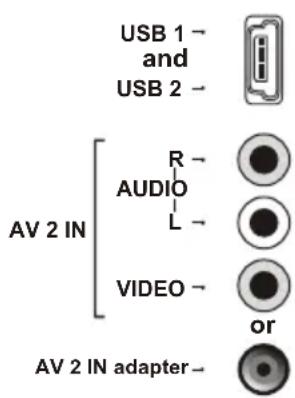
USB 1 - and USB 2 - AV 2 IN R - AUDIO L - VIDEO - or AV 2 IN adapter -Note: The location and names of the sockets on the TV may vary according to TV model, and not all sockets are available on all models.
USB 1 and USB 2 sockets (input)
These sockets can be used to connect an USB device.
Note: The number of USB sockets on the TV may vary according to TV model.
AV 2 RCA audio + video sockets (input) or AV 2 IN adapter socket
Note: The 2nd adapter be used to connect the attached AV adapter cable with VIDEO and AUDIO L & R IN sockets.
The AV IN sockets can be used to connect a range of equipment, including video recorders, camcorders, decoders, satellite receivers, DVD players, or games consoles. The VIDEO IN2 socket provides composite video connection.
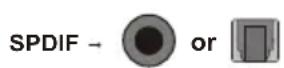
SPDIF socket (output) at the back
Use a digital coaxial cable to connect your TV to a compatible audio receiver.

or HEADPHONE →

Headphone socket (output)
This socket can be used to connect headphones or stereo earphones.
Warning: Excessive sound pressure from earphones and headphones can cause hearing loss.
HDMI 1 - or HDMI 2 -
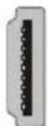
HDMI1 and HDMI2 socket (input)
The HDMI (High Definition Multimedia Interface) socket
PC with a compatible video card installed, certain DVD players or a high-definition compatible digital satellite decoder. This socket provides an uncompressed digital connection that carries both video and audio data by way of an integrated mini-plug cable.

text_image
COMPONENT IN Y - Pb/Cb - Pr/Cr - CMP IN adapter
YPbPr component sockets (input) or CMP adapter socket (input)
Note: The GMPaNcadapted to connect the attached CMP adapter cable with YPbPr component sockets.
These YPbPr sockets can be used to connect a device that has component video sockets, such as a DVD player. The component sockets can recognize if the device you're connecting to is Y Pb Pr compatible or Y Cb Cr compatible. The component sockets provide excellent picture quality because the video is separated into three separate parts.

text_image
VGA/COMPONENT AUDIO IN L - R - VGA/CMP AUDIO IN - adapter
VGA/COMPONENT ACOMMPor AUDIO IN adapter sockets (input)
Note: The AUDIO/IMR apteket can be used to connect the attached AUDIO IN adapter cable with audio L & R sockets, be used to obtain sound.
These AUDIO IN L & R sockets can be used to connect a range of equipment, including video recorders, camcorders, satellite receivers, DVD players, or games consoles. AUDIO IN sockets (or AUDIO in adapter) are shared by VGA and YPbPr (or CMP adapter) sockets.
text_image
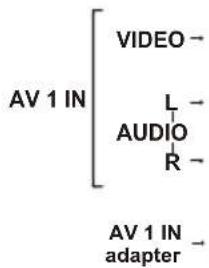
AV 1 IN VIDEO - L- AUDIO R- AV 1 IN adapter -
AV 1 RCA audio + video sockets (input) or AV 1 in adapter socket
Note: AV 1 IN adapter The socket can be used to connect the attached AV adapter cable with VIDEO and AUDIO L & R IN sockets.
The AV IN sockets can be used to connect a range of equipment, including video recorders, camcorders, decoders, satellite receivers, DVD players, or game consoles. The VIDEO IN1 socket provides composite video connection.

text_image
AV OUT VIDEO - AUDIO R - AV OUT adapter -
AUDIO/VIDEO sockets (output) or AV adapter (output) socket
Note: The AV OUT adapter socket can be used to connect the attached AV adapter cable with VIDEO and AUDIO L & R OUT sockets.
These AV out sockets can be used to connect a VCR to record programs. You must leave the TV on the same channel you are recording. The VIDEO OUT socket provides composite video connection.
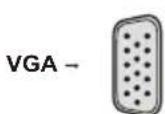
VGA socket (input)
This socket can be used to connect a computer.
ANTENNA IN -

ANTENNA IN socket (input)
This socket can be used to connect the outside aerial or cable network.
Remote Control Functions
Note: -Remote Control (Depending on the models) and operation of remote control may be affected by bright artificial light near to the TV.
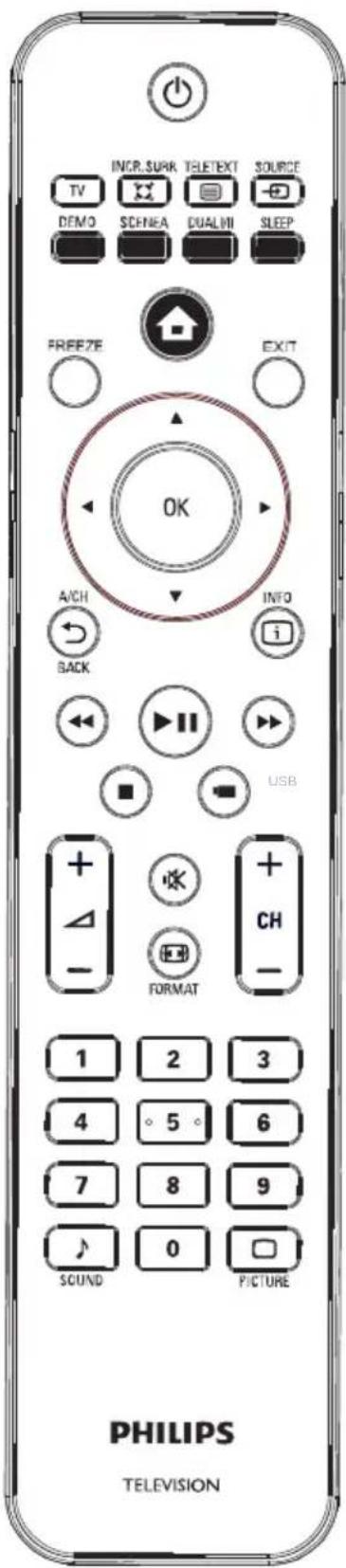
Most of your television's functions are available via the menus that appear on the screen. The remote control supplied with your set can be used to navigate through the menus and to configure all the general settings.
(On/Off button) Turns the TV on or off.
TV Access the TV mode.
✗ INCR. SURR Enables Incredible Surround for stereo sources. Enables spatial mode for mono sources.
TELETEXT Toggles teletext on or off.
SOURCE Press to select signal source.
DEMO Toggles the demonstration menu on or off.
SCENEA Deletes the selected file in the playlist.
DUAL I/II Switches Stereo and Nicam Stereo to Mono. Selects first language (Dual I) or second language (Dual II) in bilingual programmes
SLEEP Sets a delay after which the TV switches off
Note: -INCR. SURR,TELETEXT,DEMO.SCENEA,DUALI/II,SLEEP keys depend on model. Red,Green,Blue keys depend on model be work in USB mode.
MENU Brings up the menu system.
FREEZE Freezes the picture
EXIT Exits the menu system.
▲▼◀▶ (up, down, left and right direction buttons) Highlights different items in the menu system and adjusts the menu controls.
OK Confirms your selection.
BACK A/CH Returns to a previous screen. Toggles between the current channel and the last viewed channel.
INFO Displays the status information.
Fast reverse button.
▶ II Play/Pause button.
Fast forward button.
Stop button.
USB Access the USB mode.
△ + /Increases or decreases volume.
(MUTE) Reduces the TV's volume to its minimum level. Press again to restore the volume.
FORMAT Selects a picture format.
CH +/- Scans up or down through the current channel list.
0-9 (numeric buttons) Enters channel numbers.
SOUND Toggles through the sound modes: STEREO, MUSIC, MOVIE, NEWS and PERSONAL.
☐ PICTURE Toggles through the picture preset settings: STANDARD, BRIGHT, SOFT and PERSONAL.
text_image
INCR.SURK TELETEXT SOURCE TV DEMO SCHEMA DUALWI SLEEP FREEZE EXIT OK A/CH INFO BACK USB FORMAT 1 2 3 4 5 6 7 8 9 SOUND 0 PICTURE PHILIPS TELEVISION4 Use your TV
Switching on
Follow the instructions on this page on how to switch on your TV set and the remote control before going on to following pages describing how to use the channel set-up procedure.
- Insert two AAA batteries in the remote control.
Precautions on using batteries:
- Only use the battery types specified.
- Make sure you use the correct polarity.
- Do not mix new and used batteries.
- Do not use rechargeable batteries.
- Do not expose batteries to excessive heat such as sunshine, fire or the like, throw them in a fire, recharge them or try to open them, as this could cause them to leak or explode.
- Remove the batteries from the remote control if you are not using it for a long period of time.
natural_image
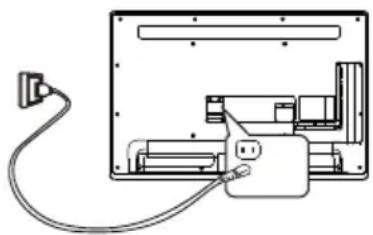
Pure technical diagram of an electrical enclosure with wiring and components, no text or symbols present- Connect the power cable FIRST to the television, THEN to a mains socket. (Note: If the power cable is connected to the television, please only connect the power cable to the mains socket.)
Your TV set should only be connected to an AC supply. It must not be connected to a DC supply. If the plug is detached from the cable, do not, under any circumstances, connect it to a mains socket, as there is a risk of electric shock.
Note: The figures are for representation only. The location of the power socket at the back of the television might differ depending on the model.
text_image
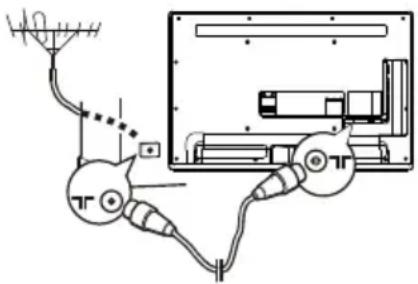
Diagram of a surveillance or monitoring system with labeled components including antenna, camera, and display unit- Connect an outside aerial to the ANTENNA IN socket at the back of the TV set.
The aerial socket (75 OHM - VHF / UHF / cable) can be used for connecting an external aerial or other equipment fitted.
- When powered on, the TV will be turned on directly or be in standby. Note: For some models, switch the TV on by pressing the power button.
If the power indicator lights up, the TV set is in standby mode. Press the ⏻ button on the remote control or on the TV set to turn on the TV.
Switching off
- To put the TV set into standby mode, press the ⏻ button on the remote control or on the TV, the TV set remains powered up, but with low energy consumption.
- To switch off the TV set, unplug the mains socket from the mains outlet. Note: For some models, press the power button to switch off the TV set.
Automatic Channel Set-up
Channel set-up involves selecting all the settings required to be able to search for and store all the channels you can receive. Make sure that the television is switched on and follow all the steps in turn specified hereafter.
Display the menu by pressing the Menu button. Press the left or right direction button to select the Channel icon and press the up/down direction or OK button to display the Channel menu.

text_image
Channel Auto Tuning Intelligent Tuning Manual Tuning Fine-Tune 42.25MHZ Sound System DK Channel Edit


- Press the up or down direction button to select Auto Tuning option.
- Press the right-rection or OK button to start channel search.
Note: Depending on the number of channels you receive, it may take several minutes for the channel search to finish. If you want to interrupt the process, press the Menu button. The channels already found will be stored.
Always start tuning from channel number 1.
- Channels are arranged in a pre-set order. Refer to the following sections if you want to fine tune or skip a channel, or swap two channels.
Intelligent Channel Set-up
This operation will keep all the existed channels and add newly found channels to the end of the channel list.
- Activate the Channel menu and press the up or down direction button to select the Intelligent Tuning option.
- Press the right-rection or OK button to start intelligent tuning.
Note: If you want to interrupt the process, press the Menu button. The channels already found will be stored.
Manual Channel Set-up
Follow the below procedure if you find that some channels have not been stored after the automatic set-up as well as the intelligent set-up.

text_image
Manual Tuning Channel Band Frequency Search 1 VHFL 49.70 MHz MENU KEY TO RETURN EXIT KEY TO EXIT.- Activate the Channel menu and press the up or down direction button to select the Manual Tuning option.
- Press the right-rection or OK button to enter the Manual Tuning menu.
- Select the Current Channel option and press the left or right direction button to select a channel number to store the channel that will be four the
- If necessary, press the up or down direction button to select the Band option and p direction left or right button to toggle among VHFH, UHF and VHFL.
- Press the up or down direction button to select Frequency option and press the left or right direction button to search manually.
- Press Menu to return or Exit to close the menu.
Fine Tuning a Channel
If the picture is not clear you can fine tune the channel.
- Activate the Channel menu and press the up or down direction button to select the Fine-Tune option.
- Press the left or right direction button for fine tuning
- Press Menu to return or Exit to close the menu.
Setting the Sound System
- Activate the Channel menu and press the up or down direction button to select the Sound System option.
- Press the right-rection or OK button to display the selectable options..
- Press the up or down direction button to select an appropriate sound system: DK, BG, I and M.
- Press Menu to return or Exit to close the menu.
Note: Sound system for india:BG.
Channel Edit
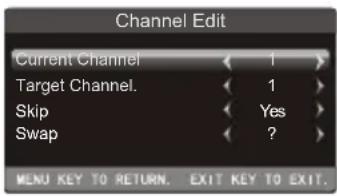
You can use this function to skip a channel or swap two channels.
- Activate the Channel menu and press the up or down direction button to select the Channel Edit option.
- Press the right direction or OK button to enter the Channel Edit menu.
text_image
Channel Edit Current Channel 1 Target Channel. 1 Skip Yes Swap ?Skipping a Channel
If a channel was stored twice or its reception is poor, you can simply skip it. The skipped channels can not be selected by pressing the CH +/- buttons.
- Press the up or down direction button to select Current Channel option and press the left or right
direction button to select the channel number to be skipped. - Press the up or down direction button to select the Skip option and press the left or right direction button to select Yes.
3.
Swapping Two Channels
- Press the up or down direction button to select Current Channel option and press the left or right direction button to select a channel number.
- Press the up or down direction button to select the Target Channel option and press the left or right direction button to select the channel number to be swapped.
- Press the up or down direction button to select the SWAP option and press the left, right direction or OK button to SWAP.
5 Use more of your TV
Adjusting the Picture
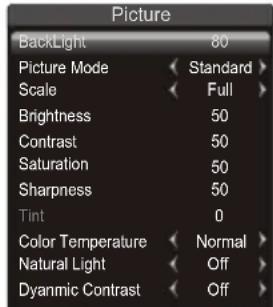
The menus for adjusting the picture are used to obtain the best picture setting according to your preference, the type of programme you are watching and the ambient lighting.
Display the menu by pressing the Menu button. Press the left or right direction button to select the Picture icon and press the up down direction or OK button to display the Picture menu. The Picture options are as below:
text_image
Picture BackLight 80 Picture Mode Standard Scale Full Brightness 50 Contrast 50 Saturation 50 Sharpness 50 Tint 0 Color Temperature Normal Natural Light Off Dyanmic Contrast Off
Note: Some options may not be available for certain signal sources.
Back Light: this option can be used to adjust the brightness of the backlight, depending on room lighting. Use the left or right direction button to adjust.
Press Menu to return or Exit to close the menu.
Picture Mode: use the digaction or OK button display the selectable options, then press the up or down direction button to scroll through the picture preset settings: Standard, Bright, Soft or Personal and press OK to confirm.
Note: When selecting Standard, Bright, Soft, the Back Light will restore to the defaulted setting in factory. You are recommended to use the Bright mode for vivid palette.
Scale: use the digit button OK display the selectable options, then press the up or down direction button to scroll to toggle the picture size: 4:3, Full,, Wide Screen, Original and Nature, (Note: some options may be not selectable for certain signal sources.) and press OK to confirm.
Note: You are recommended to use the full screen mode. Do not use the display mode with black bands on both sides of the picture (such as 4:3) for long time, otherwise the TV screen may be damaged permanently.
Brightness: adjusts the brightness of the picture.
Contrast: adjusts the difference between the light and dark areas of the picture.
Saturation: adjusts the richness of color.
Sharpness: adjusts the crispness of the edges in the picture.
Tint adjusts the balance between the red and green levels.
Note: Tint is available to be adjusted only when the system of the video signal is NTSC.
Color Temperature: adjusts the color temperature of the picture. use the digit button to display the selectable options, then press the up or down direction button to scroll the cursor settings: Cool for a more blue palette of picture colors; Normal; and Warm for a more red palette of picture colors.
Natural Light : turns on this option to adjust the brightness of the backlight according to the content of the inputted signal automatically, so as to optimize the picture quality and decrease the power consumption.
Dynamic Contrast turns on this option to adjust the contrast automatically.
Press Menu to return or Exit to close the menu.
Adjusting the Sound
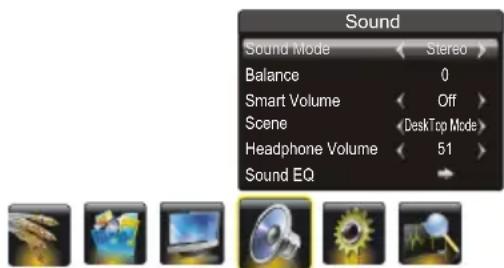
Display the menu by pressing the Menu button. Press the left or right direction button to select the Sound icon and press the up down direction or OK button to display the Sound menu. The Sound options are as below:
text_image
Sound Sound Mode Balance Smart Volume Scene Headphone Volume Sound EQ Stereo Off DeskTop Mode 51Sound Mode: use the digaction or OK button display the selectable options, then press the up or down direction button to scroll through the sound preset settings: Stereo, Music, News, Movie and Personal.
Balance: use the left-right button to balance the sound between the left and right speakers.
Smart Volume: turns on this option to keep the same sound level for all channels.
Scene: use the digit button display the selectable options, then press the up or down direction button to scroll theuestene preset setting: DeskTop Mode, HangUp Mode.
Headphone Volume: adjusts the sound volume of the headphones.
Sound EQ: adjusts the audio frequency settings. Select the Sound EQ option, then press the right direction or OK button to enter, then press the up or down direction button to select an option and press the left or right direction button to adjust.
Note: The EQ setting is adjusted, only when the Sound Mode is in Personal Mode.
Press Menu to return or Exit to close the menu.
Function Settings
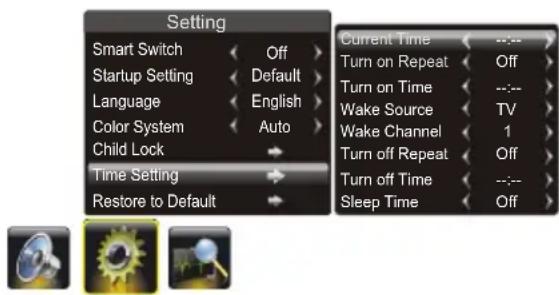
Display the menu by pressing the Menu button. Press the left or right direction button to select the Setting icon and press the up or down direction or OK button to display the Setting menu. The Setting options are as below:

text_image
Setting Smart Switch Off Startup Setting Default Language English Color System Auto Child Lock Time Setting Restore to Default


Note: Some options may be not available for certain signal sources.
Smart Switch: press the left or right direction button to select a desired setting: Switch, Display and Off.
Switch: if an equipment, e.g. a DVD player, has been connected to the sockets on the TV set and turned on, e.g. AV1 sockets, the TV set will switch to that signal source automatically (AV1 for this example).
Display equipment, e.g. a DVD player, has been connected to the sockets on the TV set and turned on, e.g. AV1 sockets, the TV set will display a prompt message on the screen. You can select OK to switch to that signal source (AV1 for this example) or Exit to ignore the prompt.
OFF: disables the Smart Switch function.
Note: For HDMI source, the smart switch function is available only when using a HDMI cable to connect the equipment which turned on. This function is only available for HDMI, AV, YPbPr, PC, and not for USB and RF. When SMART SWITCH function is selected as Switch/Display, then front panel Source key shall not work.
Startup Setting: Sets the startup picture. You can set the captured picture as open picture.
Note: The User Logo1 item is only available when capturing a picture and if selecting User Logo1, the TV will automatically display the captured picture when turning on. If Off selected, the TV Will not display any open picture.
Language: using the left or right direction button to select your desired menu language.
Note: The available languages might differ depending on the model.
Color System: use the right direction or OK button to display the selectable options, then press the up or down direction button to select your desired color system and press OK to confirm.
(Note: The available color system might differ depending on the model.Color system for india:PAL.)
Child Lock : Press the right or OK button to enter, then use the number buttons to input the password (The default is 0000). Then press the left or right direction button to select the limit time. To cancel the limit, select Off. And you can also change the password: select the PW Modify item and press the right direction or OK button to enter, then enter a new password twice.
Note: If you forget the password, enter 0432 to override any existing codes.
Time Setting: Press the up or down direction button to select the Time Setting item, then press the right direction or OK button to enter.
text_image
Setting Smart Switch Off Startup Setting Default Language English Color System Auto Child Lock Time Setting Restore to Default Current Time - Turn on Repeat Off Turn on Time - Wake Source TV Wake Channel 1 Turn off Repeat Off Turn off Time - Sleep Time OffCurrent Time: press the left, right, up, down direction button to set the current time.
Turn on Repeat: select the times to turn on the TV at a specific time, press the left or right direction button to toggle among Off, Once and EveryDay.
(Note: if Off selected, the Turn on Time, Wake Source and Wake Channel are not adjustable.)
Turn on Time: press the left, right, up, down direction button to set the turn on time.
Wake Source: press the left or right direction button to select the wake up signal source.
Wake Channel: press the left or right direction button to select a wake up channel. (Note: Only when the wake up source is TV, this function can be available.)
Turn off Repeat: select the times to turn on the TV at a specific time, use the left or right direction button to toggle among Off, Once and EveryDay.
(Note: if Off selected, the Turn off Time is not adjustable.)
Turn off Time: press the left, right, up, down direction button to set the turn off time.
Sleep Time: sets a period of time after which the TV set goes into standby mode, use the left or right direction button to set the period (240 minutes maximum). To disable this function, select Off.
Restore to default: restores all the settings to defaulted settings in factory.
Press Menu to return or Exit to close the menu.
Note: For some models, the Motion Enhance option may be available.
Motion Enhance: This function is used to cancel motion judder. Select the Motion Enhance option, then use the left or right direction button set the Motion enhance effect:
Low, Middle, High and Off.
Selecting a Signal Source or Look over the Layout of Terminals
Display the menu by pressing the Menu button. Press the left or right direction button to select the Source icon and press the up/down direction or OK button to display the Source menu.

text_image
Source TV YPbPr PC HDMI1 HDMI2 AV 1 AV 2 LayoutSelecting a Signal Source
-
Press the up, down, left or right direction button to select your desired source.
(Note: The available source might differ depending on the model.) -
Press the OK button to confirm the selection.
Note: You can press the SOURCE button on the remote control to switch the source. But if the SMART switch function is on, pressing the source button shall result in switching between the connected sources only.
Look over the Layout of Terminals
- Press the up, down, left or right direction button to select Layout and press OK to display Interface Status.
- Press the up, down, left or right direction button to look over.
- Press Menu to return or Exit to close the menu.
Geometry Settings
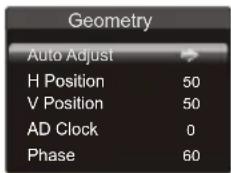
Display the menu by pressing the MENU button. Press the left or right direction button to select the Geometry icon and press the up down direction or OK button to display the Geometry menu.
Note: This function is only available in PC mode.
text_image
Geometry Auto Adjust H Position 50 V Position 50 AD Clock 0 Phase 60


Auto Adjust: press the right-injection or OK button to adjust the picture's position, phase and clock automatically. The menu will auto exit after the adjustment is finished..
H Position (Horizontal Position): adjusts the picture's position left or right.
V Position (Vertical Position): adjusts the picture's position upward or downward.
AD Clock: adjusts the clock sync of the picture.
Phase: adjusts the picture if there is flicker of screen letters, color misalignment, or blurring.
Press Menu to return or Exit to close the menu.
USB Functions
Connect a USB device to a USB socket and display the main menu by pressing the Menu button, then select the Multimedia and press the up or down direction or OK button to display the Multimedia menu.
Notes:
In USB disk catalog, pressing Menu can display Multimedia and you can press the up or down direction button to toggle among Movie Show, Photo Show, Music Show and Auto Play, then press the OK button to confirm.
The short keys of USB include: the up, down, left, right direction buttons and OK, Freeze, Format buttons.
In USB state, if no USB device connected, the USB interface will be displayed, and the Freeze and Scale button is not available.

text_image
Multimedia Movie Show Photo Show Music Show Auto Play


Playing Movie:
- Select Movie Show item, then press the right or OK button to enter the USB device.
- Press the left or right direction button to select the USB disk symbol and press the OK button to enter the selected disk.
- Press the up, down, left or right direction button to select a movie file, then press OK to play it.
- When playing a movie, you can press the Menu button to display the play console. For the play console, press the left or right direction button to select an icon, then press the OK button to confirm. The play console includes: Play/Pause, Fast Backward, Fast Forward, Last, Next, Stop, Repeat Mode, AB Repeat setting, Playlist, Info, Slow Forward, Step play, Goto Time, Scale, Brightness, Contrast, Zoom in, Zoom out and Move View(only available after Zoom in).
- Select the Stop icon in play console, and press OK or press Exit or to return.
Note: Use Virus free Pen Drive /USB.
Showing photo:
- Select Photo Show item, then press the right or OK button to enter the USB device.
- Press the left or right direction button to select the USB disk symbol and press the OK button to enter the selected disk.
- Press the up, down, left or right direction button to select your desired picture file and press OK to show.
- When showing pictures, you can press the Menu button to display the play console. For the play console, press the left or right direction button to select an icon, then press the OK button to confirm. The play console includes: Play/Pause, Prev, Next, Stop, Rotate Right, Rotate Left, Music(on/off), Musiclist, Zoom in, Zoom out, Move View(only available after Zoom in), Repeat Mode, Brightness, Contrast, Capture and Info.
Note: If you want to capture a picture as open picture, select the Capture icon, press OK, then select the User Logo1 and press OK, if else, select No and press OK to cancel saving.
- Select the Stop icon in play console, and press OK or press Exit or to return.
Playing Music:
-
Select Music Show item, then press the right or OK button to enter the USB device.
-
Press the left or right direction button to select the USB disk symbol and press the OK button to enter the selected disk.
- Press the up, down, left or right direction button to select your desired music file and press OK to play it.
- When playing music, press the Menu button to display the play console. For the play console, press the left or right direction button to select an icon, then press the OK button to confirm. The play console includes: Play/Pause, Fast Backward, Fast Forward, Prev, Next, Stop, Repeat Mode, Mute, Playlist, Info and Goto Time.
- Select the Stop icon in play console, and press OK or press Exit or to return.
Auto Play
- Select the Auto Play item and press right direction or OK button to enter the USB device.
- Press the left or right direction button to select the USB disk symbol and press the OK button to Auto Play.
Note: This function is only available when the pictures and music are synchronously located in the USB root catalog. - Press Exit to return the USB root catalog.
6 FAQ
Attention:
- Some non-standard mobile storage device may/ may not be recognized. Please change to use the standard device.
- This system supports the following file formats: Picture format: JPEG BMP PNG Video format: H.264 RM/RMVB XVID MPEG4 MPEG2 MPEG1 , etc..
Audio format: MP3、WMA
Note: For coding files, there are many kinds non-standard coding method, so this system can not be guaranteed to support the file formats using any coding method.
Frequently Asked Questions:
- Under the following conditions, this system cannot decode the file and the file can not play normally:
-The parameters of file, such as the pixel of picture, code rate of audio and video file, sampling rate of audio file, exceed the limit of the system;
-The format of file is not matched or the file is harmed.
Note: The code rate this system supports does not exceed 20Mbps.
- Hot plug: Do not disconnect when the system is reading or transmitting data, avoid damaging the system or the device.
- Pay attention to the power supply of the device when you are using a mobile hard disk or a digital camera. If the power supply is not sufficient or not stable, you may encounter problems during operating or can not operate at all. In this case, please restart the device, or unplug the device and plug it again, and ensure that its power supply is normal.
- The system supports standard USB1.1 and USB2.0 devices, such as standard U-disks, MP3 players, mobile hard disks, etc..
- For obtaining better audio and video quality, suggests to use the external device which accords with USB2.0 standard.
- Connecting two USB hard disk devices simultaneously can cause to slow the speed of reading or other problems, suggests to connect two U disk or one USB hard disk and one U-disk simultaneously.
- When playing the video with high compression ratio, these phenomenons, such as picture standstill and menu long time response, are normal.
- For some USB device with power supply, such as large size hard disk, MP4, etc., Suggests using it with power to avoid electric power shortage. -The parameters of file, such as the pixel of picture, code rate of audio and video file, sampling rate of audio file, exceed the limit of the system;
7 Other Information
Troubleshooting
Most problems you encounter with your TV can be corrected by consulting the following troubleshooting list.
No picture, no sound
- Check if the fuse or circuit breaker is working.
- Plug another electrical device into the outlet to make sure it is working or turned on.
- Power plug is in a bad contact with the outlet.
- Check the signal source.
No color
- Change the color system.
- Adjust the saturation.
- Try another channel. Black-white program may be received.
Remote control does not work
- Change the batteries.
- Batteries are not installed correctly.
- Main power is not connected.
No picture, normal sound
- Adjust the brightness and contrast.
- Broadcasting failure may happen.
Normal picture, no sound
- Press the Vol+ button to increase volume.
- Volume is set to mute, press the mute button to restore sound.
- Change the sound system.
- Broadcasting failure may happen.
Unorderly ripples on the picture
It is usually caused by local interference, such as cars, daylight lamps and hair driers. Adjust the antenna to minimize the interference.
Blank screen in VGA mode
Perhaps the TV can not recognize the resolution set by the PC. Suggest to change to the best resolution or other standard resolutions of the Windows system.
Snowy dots and interference
If the antenna is located in the fringe area of a television signal where the signal is weak, the picture may be marred by dots. When the signal is extremely weak, it may be necessary to install a special antenna to improve the reception.
- Adjust the position and orientation of the indoor/outdoor antenna.
- Check the connection of antenna.
- Fine tune the channel.
- Try another channel. Broadcasting failure may happen.
Ignition
Black spots or horizontal streaks appear, or the picture flutters or drifts. This is usually caused by interference from car ignition system, neon lamps, electric drills, or other electrical appliance.
Ghost
Ghosts are caused by the television signal following two paths. One is the direct path, the other is reflected from tall buildings, hills, or other objects. Changing the direction or position of the antenna may improve the reception.
Radio frequency interference
This interference produces moving ripples or diagonal streaks, and in some case, loss of contrast in the picture. Find out and remove the radio interference source.
8 Product information
Product information is subject to change without notice. For detailed product information, go to www.philips.com/support.
Supported display resolutions
Computer formats (HDMI)
• Resolution - refresh rate:
• 640 x 480 - 60Hz, 72Hz, 75Hz
• 800 x 600 - 56 Hz, 60Hz, 72Hz, 75Hz
• 1024 x 768 - 60Hz, 70Hz, 75Hz
• 1280 x 768 - 60Hz
1280 x 960 - 60Hz
• 1280 x 1024 - 60Hz, 70Hz, 75Hz
1360 x 768 - 60Hz
1920 x 1080 - 60Hz
Computer formats (VGA)
• Resolution - refresh rate :
• 640 x 480 - 6 0Hz, 72Hz, 75Hz
• 800 x 600 - 56Hz, 60Hz, 72Hz
• 1024 x 768 - 60Hz, 70Hz, 75Hz
1280 x 768 - 60Hz
1280 x 960 - 60Hz
• 1280 x 1024 - 60Hz, 70Hz, 75Hz
• 1360 x 768 - 60Hz
1920 x 1080 - 60Hz
Video formats
• Resolution - refresh rate:
480i - 60Hz
480p - 60Hz
576i - 50Hz
576p - 50Hz
720p - 50Hz, 60Hz
• 1080i - 50Hz, 60Hz
• 1080p - 50Hz, 60Hz
Multimedia
• Supported USB storage device: (Only FAT 16 or FAT 32 USB stor age devices are supported)
• Supported storage file formats:
• Images: JPEG, BMP, PNG
• Audio: MP3,WMA
• Video: H.264, RM/RMVB, XVID, MPEG4, MPEG2

Note
Multimediafile names must not exceed 128 characters.
Tuner/Reception/
Transmission
• Antenna input: 75ohm coaxial (IEC 75)
• TV system: PAL
• Video playback: PAL, NTSC
Remote control
- Batteries: 2 x AAA
Power
• Mains power: AC 110\~240 V, 50-60 Hz
• Standby powe r: < 1 W
• Ambient temperature: 5 to 40 degrees Celsius
Supported TV mounts
To mount the TV, purchase a Philips TV mount or a VESA-compatible TV mount. To prevent damage to cables and connectors, be sure to leave a clearance of at least 2.2 inches or 5.5cm from the back of the TV.
| TV screen size (inches) | Required pitch (mm) | Required mounting bolts |
| 24PFL5555/V7 | 100X100 | 4 x M4 |
| 32PFL5355/V7 | 200X100 | 4 x M4 |
| 42PFL5555/V7 | 200X200 | 4 x M6 |
| 46PFL5755/V7 | 400X400 | 4 x M6 |
Product specification
Design and specifications are subject to change without notice.
24PFL5555/V7
• Without TV stand
• Dimension (WxHxD): 600 x 395 x 44 (mm)
• Weight: 4.6 kg
32PFL5355/V7
- Without TV stand
• Dimension (WxHxD): 809 x 550 x 52 (mm)
• Weight: 9.5 kg
42PFL5555/V7
• Without TV stand
• Dimension (WxHxD): 1040 x 680 x 48 (mm)
• Weight: 14.9 kg
46PFL5755/V7
- Without TV stand
• Dimension (WxHxD): 1127x 731 x 48 (mm)
• Weight: 16.3k g
Consumer Guidelines
-
Kindly ensure that the dealer fills up Warranty card correctly.
-
To avail the Warranty please register your product with the Philips -
- Logon to www.Philips.com
OR
- Contact Philips Consumer Care Centre
-
In the unlikely event of a defect developing in the TV set contact the Philips Customer Care Centre for obtaining warranty service and inform of the defect observed in the set, the type no.and serial no.of the set.
-
On your lodging a complaint, a trained technician will call on you promptly. In the event of the technician deciding that set requires attention at the service station; kindly arrange to deliver the set to the service station designated by technician for further attention. "Home calls" by the technician would however be restricted within the municipal limits of the city / town in which the set has been registered.
Type no. ____ Serial No. ____ Date of Purchase ____
Purchased By: Name
Address:
Tel. No.
Sold by: Name
Address:
Tel. No.
PHILIPS
Model no.: 46PFL5755/V7
42PFL5555/V7
32PFL5355/V7
24PFL5555/V7
Serial no.:

MADE IN PRC
Sold by(User rubber stamp)
Contact Customer Service Executive at:
1800 102 2929(Toll free No.)
1860 180 1111 (Chargable No.)
RegdOffice: PE Electronics Ltd, Auto Cars Compound, Adalat Road, Aurangabad, 431005.
WARRANTY
This TV receiver is covered under warranty against any defect arising out of faulty or defective material or workmanship for a period of 12 months from the date of purchase.
Should a defect develop in this set during the period of warranty, PE Electronics Limited undertakes to get the set repaired free of charge either.
From whom the set has been purchased or through an Authorised Service Center for warranty service. However, if the Purchaser has to shift his residence to another town on account of transfer or other reasons, the warranty benefit will be available at the Authorised Service Center.
The warranty is not valid in case of any of the following events:
- The TV set is not used according to instructions given in the 'Direction for use' / 'User Manual'.
• Defects are caused by improper or reckless use. - Any repair work carried out by persons other than a Philips dealer or Authorised Service Center.
- Any modification or alteration of any nature made in the electrical circuitry of the est.
- This Warranty Card is not completed and signed immediately on delivery of the set by the Philips Dealer.
- Fading effects and/or Ghosts (Multiple Image) in picture, if any, arising due to location / signal reception.
- Defects due to causes beyond control like lightning, abnormal voltage, Acts of God or while in transit to purchaser's residence.
(Refer Consumer Guidelines for further details)

text_image
PHILIPS
Specifications are subject to change without notice.
*PHILIPS and the PHILIPS'Shield Emblem are registered trademarks of
Koninklijke Philips Electronics N.V. and are used under license from