24PFL4555 - TV PHILIPS - Free user manual and instructions
Find the device manual for free 24PFL4555 PHILIPS in PDF.


User questions about 24PFL4555 PHILIPS
0 question about this device. Answer the ones you know or ask your own.
Ask a new question about this device
Download the instructions for your TV in PDF format for free! Find your manual 24PFL4555 - PHILIPS and take your electronic device back in hand. On this page are published all the documents necessary for the use of your device. 24PFL4555 by PHILIPS.
USER MANUAL 24PFL4555 PHILIPS
Register your product and getsupport at
www.philips.com/ welcome
natural_image
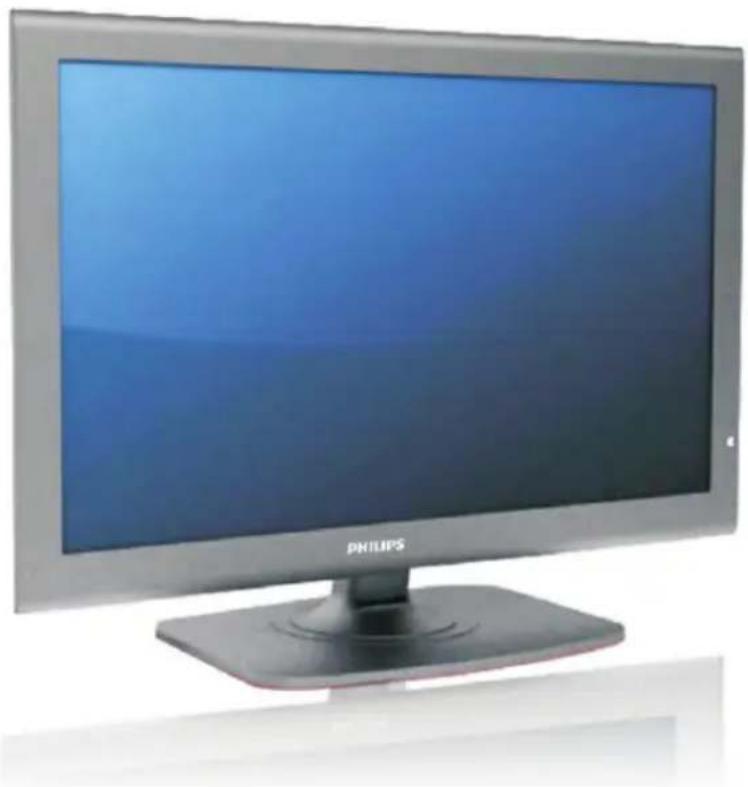
Front view of a Philips monitor with a blue screen and stand (no visible text or symbols on the screen)24PFL4555/V7
EN User manual
Contents
1 Notice 2 13 Product information 17
Supported display resolutions 17
2 Important 3 Multimedia 17
3 Antenna and External 5
Equipment connection Power Remote control 17
4 Name and Function of Control 7 Supported TV mounts 18
on Set Product specification 18
5 Name and Function of Control 8
on Remote
6 Battery Installation 11
7 Video Menu 12
8 Audio Menu 12
9 Features Menu 12
10 Setup Menu 15
11 Geometric Menu 15
12 Troubleshooting 16
1 Notice
Pixel characteristics
This LCD/LED product has a high number of colour pixels. Although it has effective pixels of 99.999% or more, black dots or bright points of light (red, green or blue) may appear constantly on the screen. This is a structural property of the display (within common industry standards) and is not a malfunction.
Warranty
No components are user serviceable. Do not open or remove covers to the inside of the product. Repairs may only be done by Philips Service Centres and official repair shops. Failure to do so shall void any warranty, stated or implied.
Any operation expressly prohibited in this manual, any adjustments, or assembly procedures not recommended or authorised in this manual, shall void the warranty.
2 Important
Read and understand all instructions before you use your TV. If damage is caused by failure to follow instructions, the warranty does not apply.
Safety
Risk of electric shock or fire!
- Never expose the TV to rain or water. Never place liquid containers, such as vases, near the TV. If liquids are spilt on or into the TV, disconnect the TV from the power outlet immediately. Contact Philips Consumer Care to have the TV checked before use.
Never place the TV, remote control or . batteries near naked flames or other heat sources, including direct sunl ight.
To prevent the spread of fire, keep candles or other flames away from the TV, remote control and batteries at all times.

text_image
Prohibition sign with a candle and flame symbol, commonly used in lighting or fire resistance.- Never insert objects into the ventilation slots or other openings on the TV.
- When the TV is swiveled ensure that no strain is exerted on the power cord. Strain on the power cord can loosen connections and cause arcing.
Risk of electric shock or fire!
• Never expose the remote control or batteries to rain, water or excessive heat.
- Avoid force coming on to power plugs. Loose power plugs can cause arcing or fire.
Risk of injury or damage to the TV!
• Two people are required to lift and carry a TV that weights more than 25 kg.
- When stand mounting the TV, use only the supplied stand. Secure the stand to the TV tightly. Place the TV on a flat, level surface that can support the combined weight of the TV and the stand.
- When wall mounting the TV, use only a wall mount that can support the weight of the TV. Secure the wall mount to a wall that can support the combined w eight of the TV and wall mount. PE Electronics bears no responsibility for improper wall mounting that result in accident, injury or damage.
Risk of injury to children!
Follow these precautions to prevent the TV from toppling over and causing injury to children:
- Never place the TV on a surface covered by a cloth or other material that can be pulled away.
- Ensure that no part of the TV hangs over the edge of the surface.
- Never place the TV on tall furniture (such as a bookcase) without anchoring both the furniture and TV to the wall or a suitable support.
• Educate children about the dangers of climbing on furniture to reach the TV. Risk of overheating!
- Never install the TV in each space. Always leave a space of at least 4 inches or 10cm around the TV for ventilation. Ensure curtains or other objects never cover the ventilation slots on the TV. Risk of damage to the TV!
- Before you connect the TV to the power outlet, ensure that the power voltage matches the value printed on the back of the TV. Never connect the TV to the power outlet if the voltage is different. Risk of injufive or power cord damage!
- Never place the TV or any objects on the power cord.
- To disconnect the TV power cord easily from the power outlet, ensure that you have full access to the power cord at all times.
- When you disconnect the power cord, always pull the plug, never the cable.
- Disconnect the TV from the power outlet and antenna before lightning storms. During lightning storms, never touch any part of the TV, power cord or antenna cable.
Risk of hearing damage!
- Avoid using earphones or headphones at high volumes or for prolonged periods of time.
Low temperatures
- If the TV is transported in temperatures below 5°C, unpack the TV and wait until the TV temperature matches room temperature before connecting the TV to the power outlet.
Screen care
- Avoid stationary images as much as possible. Stationary images are images that remain on-screen for extended periods of time. Examples include: on-screen menus, black bars and time displays. If you must use stationary images, reduce screen contrast and brightness to avoid screen damage.
• Unplug the TV before cleaning. -
Clean the TV and frame with a soft, damp cloth. Never use substances such as alcohol, chemicals or household cleaners on the TV.
-
Risk of damage to the TV screen! Never touch, push, rub or strike the screen with any object.
• To avoid deformations and colour fading, wipe off water drops as soon as possible.
Disposal of your old product and
batteries

Your product is designed and manufactured with high quality materials and components, which can be recycled and reused.
3 Antenna and External Equipment Connection
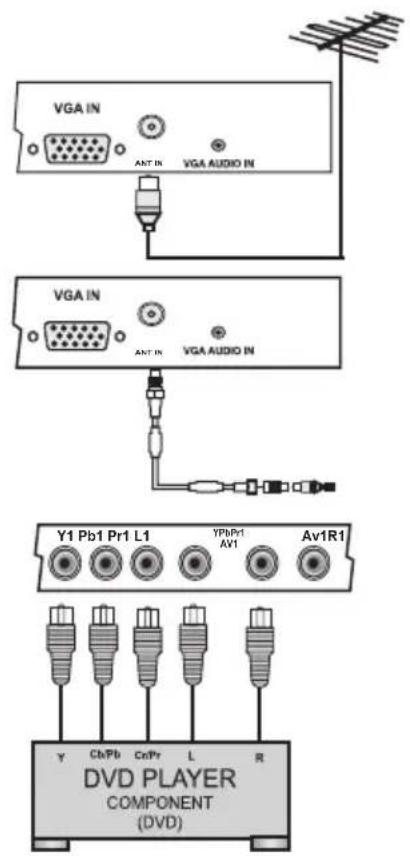
You can connect antenna, external equipment such as VCR, Camcorder, DVD player and PC to your set. Examples are shown below.
text_image
VGA IN ANT IN VGA AUDIO IN VGA IN ANT IN VGA AUDIO IN Y1 Pb1 Pr1 L1 YPbPr1 Av1 Av1R1 DVD PLAYER COMPONENT (DVD)ANTENNA CONNECTION
Connect Antenna cable to the ANT IN socket on rear of the TV.
For good operation of the set, good signal is required. In the strong signal area an indoor antenna could be used but otherwise an outdoor antenna should be used.
NOTE:
- The aerial cable should not be bundled to the power cord.
COMPONENT (YCbCr/YPbPr) DVD INPUT
- Connect the component outputs (YCbCr / YPbPr) of DVD player to the component (YPbPr1 / YPbPr2) input of the TV.
- Connect audio outputs (L,R) of a DVD player to the audio input (YPbPr1 / YPbPr2) respectively.
- Press the PLAY button on the DVD player.

text_image
L R S-VIDEO VCR / Cable ReceiverVIDEO INPUT
- Connect the component outputs VIDEO out of VCR/Cable receiver to AV1, AV2.
- Connect audio outputs (L, R) of a DVD player to the audio input AV1, AV2 respectively.
- Press the PLAY button on the VCR.
Note : Selecting a Source
Press SOURCE key on remote or on front panel keypad.
A source OSD will appear. Press Up/Down key on the remote or ∧ / ∨ on front panel can be used to select source. Press OK/Right key on the remote or '+' key from front panel to enter selected source or press SOURCE key repeatedly to change and select source.
Press TV key on the remote to enter into TV source from any other source, except multimedia source.

text_image
VGA N VGA AUDIO N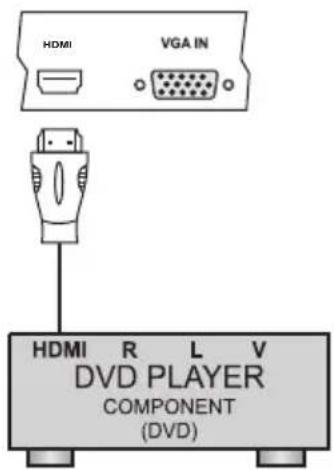
text_image
HDMI VGA IN HDMI R L V DVD PLAYER COMPONENT (DVD)
text_image
USB HDMIVGA INPUT
- Connect the VGA cable from the monitor output socket of the PC to the VGA IN socket of the TV.
- Connect the audio cable from the PC to the VGA AUDIO IN of the set.
- Switch on the PC and PC screen appears on the set. The set can be operated as PC monitor.
NOTE:
A. If the set is cold, there may be a small flicker when the set is switched on. This is normal, there is nothing wrong with the set.
B. Some dot defects may appear on the screen, like Red, Green or Blue spots. However, this will have no impact or effect on the TV/Monitor performance.
HDMI INPUT
- Connect the HDMI(High-Definition Multimedia Interface) cable from the DVD HDMI output socket to the HDMI socket on the TV.
- Set HDMI mode in DVD(Refer User Manual of DVD)
NOTE: TV can receive the Video and Audio Signal simultaneously by using HDMI cable.
MULTIMEDIA
Connect / Insert standard USB and select Multimedia source on source OSD by pressing SOURCE key. Press OK / Right key on remote, connected USB are Listed, select USB with Up/Down keys and press OK to enter in selected USB Multimedia. Similarly front panel keys CH+/- and VOL+ can be operated as Up/Down and OK/Right keys on remote respectively.
NOTE :
1) CH+/CH- keys on remote are represented by / on TV set. VOL+/VOL- keys on remote are represented by +/- on TV set.
4 Name and Function of Control on Set
A) Front Panel Control/Keys (Optional)

text_image
1 2 3 4 5 6 7 8 9Note :
1) Above Sketches are just representation. Actual TV set may look differ than these sketches.
5 Name and Function of Control on Remote

text_image
INCR.SURR TELETEXT SOURCE TV SCENEA DUAL III SLEEPDEMO FREEZE EXIT OK A/CH INFO BACK USB FORMAT 1 2 3 4 5 6 7 8 9 0 SOUND PICTURE PHILIPSNOTE : This is for representation actual remote may differ.
| POWERTurns TV into STANDBY ON / OFF mode. | |
INFO MUTE  SOURCE SLEEP SOURCE SLEEP    Status Status | INFO1) Displays present source information with details of input signal connected.2) In Multimedia mode this key is use to display elapsed or remaining time for audio & to display info bar for images3) Energy meter will be displayed by pressing this key.MUTETurns sound OFF or ON.SOURCEPress SOURCE key on remote or →key on front panel keypad.A source OSD will appear to select a source press OK/Right key on the remote or '+' key from front panel. Press source key repeatedly to change and select source. Up/Down key on the remote or CH+/- on front panel can be used to changed sources.SLEEPSets sleep timer. Maximum time can be set 240 minutes in steps of 10,20,30,60 90,120,180,240 minutes.NOTE:Sleep Timer is deactivated when set is switch to stand by or mains power supply is switched Off.PICTURERecalls presetted picture settings can be selected.(USER, CINEMA, SPORTS, VIVID, HI-BRIGHT)SOUNDRecalls presetted sound settings can be selected.(USER, MUSIC, STANDARD, SPEECH) |
| 0-9 | DIRECT DIGIT NUMBER SELECTION Keys (0 to 9)Selects program number 1 - 200 directly by using direct digit keys.- To select 1 digit program number press desired program number & wait for few seconds selected program number will appears on screen- To select 2 digit or 3 digit program number press 1st, 2nd, or 3rd digit within 2 sec. after pressing 1 & 2 digit respectively.- To enter password to lock or unlock channel and to set New Password. |
| A/CHFormat | BACK (A/CH)Toggles between current & last viewed channel. In multimedia mode use this key to exit from images, thumbnail mode, video mode & come back to previous folder.FORMATSelects a picture format. |
| Ch+ / CH- CH- | CH + / CH-Navigate Up / Down through the valid channel.Δ+ / -To increase / decrease the volume |
 | Navigates vertically up/down through the Menu/Sub menu.- Used to set Program name.- Used to sorting purpose in Program edit menu.- To enter into displayed Menu / Sub menu parameters.- Select submenu from displayed menu.- increases /decrease the value of selected items- Select characters in program name and time in time menu.- Adjust setting of selected item and set feature to ON/OFF.- Adjust program number in tuning.- In USB mode ▶ key to enter folder ◀ key to exit from folderOK - Used to enter selected MENU items (Optional) |
 | (MENU)To Select menu OSD window and to exist from menu OSD window when menu window is displayed on screen. |
| [2DY8] |  | FR (FAST REVERSE)FR key is used for backward the playing track / item by the speed of (X2, X4, X8, X16,X32)Press this key to change picture switch in USB Mode.intervalFF (FAST FORWARD)FF key is used for forward the playing track / item by the speed of (X2, X4, X8, X16,X32)Press this key to change picture switch interval in USB Mode.Note: In thumbnail mode for images, use FR & FF keys to view previous & next page |
| STOP | PLAY / PAUSE | STOPPress this keys to stop the playback and press OK to resume the playback. To view images as thumbnail this keys can be used. |
 |  | |
 | USB | PLAY/PAUSEPress this keys to play or pause track/item in multimedia source. To freeze images press this key on images.USBPress this key to directly access the USB mode from any source. |
 | FREEZE | FREEZE (Not Applicable)This key is used to freeze/unfreeze the standard video signal. Press menu, SOURCE, A/CH (0-9) digit key, Zoom, CH+/- on the remote to exit freeze. (Not applicable for VGA, Multimedia source) |
 | TV | TVPress this key to directly access TV mode.Note: TV key is not applicable for multimedia mode. |
 | EXIT | EXITExits the menu system. |
| INCR. SURR | INCR. SURR(Depending on model)Enables Incredible Surround for stereo sources. Enables spatial mode for mono sources. | |
 | TELETEXT | TELETEXT (Depending on model)Toggles teletext on or off. |
 | DEMO | DEMO (Depending on model)Toggles the demonstration menu on or off. |
 | SCENEADUAL | SCENEA (Depending on model)DUAL (Depending on model)If received signal is NICAM, by pressing this key sound can be selected stereo/mono, if received signal is NICAM dual signal sound can be selected dual I/ dual/II and mono |
Note :
1) Depending on remote some keys may not be available.
2) Teletext and I/II (DUAL) is not available in India.
6 Battery Installation
- Remove the battery compartment door.
- Insert two pieces of 1.5V size UM-4 "AAA" batteries or equivalent with the correct polarity as indicated by (+) and (-) symbols.
- Replace the battery compartment door.
NOTE : Remove batteries when they are exhausted or if the remote control is not to be used for a long time.
BATTERY PRECAUTIONS:
Incorrect use of batteries can cause electrolyte leakage which will corrode the remote handset or cause the batteries to burst.
■ Replace both batteries at the same time.
- Don't Mix battery types (alkaline with carbon, zinc etc.).
■ Don't recharge.
7 Video Menu
| VIDEO | Picture Mode | This function is used to select the presetted picture settings. (Cinema/Sports/ V ivid / Hi-Bright/User) | |
| Contrast Brightness Saturation Sharpness Hue | These settings are used to adjust the Contrast (0-100), Brightness (0-100), Saturation (0-100), Sharpness (0-10), and Hue (-30, +30) values for fine adjustments of the picture. NOTE : Hue is enabled for NTSC channels only. | ||
| Colour Temperature | Use this option to select and change colour temperature (Normal, Warm, Cool) | ||
| Blue Back | This function is used to ON/OFF the blue back | ||
| Advance Picture Adjust | DNR | The DNR (Low / High / Off) reduce the noise by applying temporal and spatial noise reduction filters to the video data. | |
| Color Improve | The Color improve (On/Off) adjust the color parameter of picture contents. | ||
| Flesh tone | This functions improve flesh tone (On/Off) | ||
| Adaptive luma control | This function improve adaptive luminance of the picture (On/Off). | ||
8 Audio Menu
| AUDIO | Audio Mode | This function is used to select the preset sound modes (Music, Standard, Speech, User) |
| Equalizer | The Equalizer 100Hz, 300Hz, 1KHz, 3KHz, 10KHz, (-10 - +10) can be changed by the user | |
| Volume | The main speaker volume can be adjusted by varying this volume bar (0-100) | |
| Balance | User can select the left/right speaker intensity by changing balance (-50 - +50) | |
| AVL | This function is used to for automatic adjustment of volume level(On/Off) | |
| Speaker | The main speaker can be made On/Off by this option | |
| AV Out | The AV out volume can be controlled by selecting AV out fixed or variable. (0-100) |
9 Features Menu
| FEATURES | Back Light | The backlight value can be varied (0-10) This function is used to adjust brightness level of panel |
| Energy Saving | TV is in Normal state when this is off, to save the power consumed by TV select low/Power Savingpower saving modes Power Saving Mid/ Power Saving High, Only Mode, in Audio Only mode onlyAudio audio is On and Picture is off. Press any key to exit audio only mode except VOL+/- and Mute. |
| FEATURES | Timer | Time | Display the On time, press Ok key to enter and adjust the time (HH:MM:SS) format |
| Reminder Time Reminder Channel Reminder Activate | Select - On, set Reminder time (HH:MM:SS) andReminder Activate Reminder channel(1-200). Entered channel will be displayed as reminder channel (not active in multimedia mode) | ||
| On Time On Channel On Activate | Select On Activate - On ,set On time(HH:MM:SS) and On channel(1-200) on given time set will be released from standby and entered channel will be displayed as on channel. | ||
| Off Time Off Activate | Select Off Activate -On , Set the off time(HH:MM:SS) the TV will turn into standby Off on selected Off time. | ||
| Time Display | Make this option On, the Time will be displayed by display key on TV (Not applicable in multimedia) | ||
| Clear All | Select this option to reset all Timer options except Time(On time) to default | ||
| Parental | Parent Lock Switch | Make the parental switch On to lock the source/channel Note: Setup menu is disabled when parental switch is On. | |
| Video Lock | Select the sources to be locked with left/right key on remote and press OK to set/clear lock | ||
| Channel Lock | Select the channels (1-200) to be locked and press OK to set/clear lock | ||
| Change Password | Select this option to change the password (default - 0000) enter new password and confirm the same | ||
| Clear All | Select this option to reset all Parental options to default | ||
| Hotel Mode Control | Hotel Mode Switch | Make this switch On to Activate the Hotel Mode options selected by User, When Switch is Off the Hotel Mode options will not Operate | |
| Change Password | Select this option to change the password (default - 0000) enter new password and confirm the same | ||
| OSD Display Disable | Making this option On, the Display OSD will not be displayed by Info Key | ||
| Disable Search | Making this option On, the search options/SETUP menu will be disabled for user | ||
| Max Volume | The main volume is limited by setting MAX volume,User cannot increase the main volume greater than MAX volume selected | ||
| Power On Volume | Select the power on volume, after the TV mains On the power on volume will be same as specified here | ||
| Power On source | Select the power on source, after the TV mains On the power on source will be same as specified here | ||
| Power On Channel | Select the power on channel (1-200), after the TV mains On the power on channel will be same as specified here Power on channel will be disabled when source is changed. | ||
| Key Lock | Select this option On, all the panel keypad will not operate | ||
| Clear All | Select this option to reset all Hotel Mode options to default |
| FEATURES | Switch On Music | User can make this Switch Off/On to enable the switch on music The music will be played while standby Off/On (This Feature is Optional) |
| REPEAT | In Feature menu select Repeat option to change between “Repeat Folder”, “Folder”, “Shuffle”, “Random”, “Single”, “Repeat One” options by pressing >/< arrow key on remote. While playing image/video/audio the repeat options are displayed on the screen.Note : Applicable only in USB mode. | |
| ANGLE | Select this option for displaying the images in different angles/display sequences when images are viewed in multimedia.Note : Applicable only in USB mode. | |
| PREV (PREVIOUS) | Select PREV option to select the previous track/item in multimedia source.Note : Applicable only in USB mode. | |
| NEXT | Select NEXT option to select the next track/item in multimedia source.Note : Applicable only in USB mode. | |
| Reset | Select this switch to reset the user menu. To reset parental / hotel mode menu select Clear all option in respective menu. |
Note :
1) Timer will get reset if mains powered On/Off.
2) Use Left/Right keys on the remote change the option and up/down to navigate.
3) Press OK/Right key on remote to enter into the submenu.
4) Press ∧ /∨ key on front panel to navigate, +/- key to enter/back and to change option.
5) Default password is 0000 for parental and hotel mode. If user forgets the default or new password set by him/her then use 8202 as a master password.
10 Setup Menu
| CHANNEL | Program Number | Display the program/Channel number of the current channel |
| Skip | Make this switch On to skip the selected channel, the skipped channel can be viewed by entering channel number | |
| Program Name | To give the channel name press Ok on this option and use Up/Down key to select letters and Left/Right key to navigate | |
| Color System | Change the color system(AUTO/PAL/SECAM) setting if picture is not reproduced properlyNote: For INDIA Color system is AUTO or PAL | |
| Sound System | Change the sound system (BG/I/DK) setting if sound is not reproduced properlyNote: For INDIA Sound system is BG | |
| Auto Search | Select this function, TV set will start auto tuning, for all available channels | |
| Manual Search | Select this function for Manual Searching the channels, select channel number, in PR start-on for which user wants manual search. Start from-the frequency from which the tunning will start. Start search-press Ok to start manual tuning | |
| Fine Tunning | Select this option for Fine tunning the channel at which either Picture or Sound is not clear even after Auto Searching. | |
| Program Edit | User can edit the programs by Swap, Insert, Copy, Delete operation1.To swap, Navigate to a channel to be swapped (selection bar appears on it) press 1, navigate to another channel press OK, these two channels are swapped2.To insert, Navigate to a channel press 2, navigate where the channel has to be inserted inserted herepress OK the selected channel will be 3.To copy, Navigate to a channel press 3, navigate where the channel to be copied press OK the selected channel will be copied here4.To delete, Navigate to a channel to delete, press 4, the channel will be deleted. |
11 Geometric Menu
| GEOMETRIC | Contrast Brightness | Adjust these settings for fine adjustments of the Contrast (0-100), Brightness(0-100) of pc picture on TV screen |
| Auto Setting | Auto setting allows the PC screen of TV to self adjust. This automatically sets the H-position ,V - position, Phase and clock | |
| Phase Manual Clock | Adjust the phase(0-31) and clock(0-255) to remove or reduce picture noise.if noise appears adjust frequency by clock for fine adjustments | |
| H Position V Position | If picture is not Ok with auto setting then adjust Horizontal position(0-255) / Vertical position (0-63) manually to adjust the desired picture settings |
Note : 1) The Geometric menu will be enable for VGA/PC source only. TV, VIDEO menu is disable
12 Troubleshooting
Before you call the service person, check the following points.
| PROBLEM | CHECK ITEM |
| No picture on screen and no sound from speakers. | Insert the AC power cord plug securely in AC power socket.Make sure the set is not in the standby mode.Turn on the power button on the set. |
| No picture from AV terminal. | Check the brightness setting of the set.Lamp may have malfunction.Make sure a cable with video input signal is connected to the AV/ S-VIDEO INPUT terminal. |
| Picture is displayed but no sound from speakers. | Check the volume settings.Make sure that sound is not muted.Make sure that sound system is correct. |
| Picture is too lightPicture is too dark. | Make sure COLOUR and CONTRAST settings.Make sure BRIGHTNESS setting is not set too low.Check BRIGHTNESS setting.Lamp may have malfunction. |
| Remote control does not work. | Change the batteries.Make sure the infrared transmitter window is not receiving strong light such as light from fluorescent lamps. |
| The picture is not sharp. The picture moves.Picture is snowy and noisy sound. | The reception may be weak, try another channel.The state of broadcast may also be bad.Make sure that the antenna is facing the right direction.Make sure the outside antenna is not disconnected. |
| The Multiple image and normal sound. | Try different channel if ok probably it is a station problem.Make sure the antenna is facing the right direction.There may be reflected electric waves from mountains or buildings. |
| The picture is spotted or interference on picture and Noisy sound. | There may be interference from automobiles, trains, high voltage lines, neon lights, etc.There may be interference between the antenna cable and the power cable. Try positioning them further apart. |
| There are stripes on the screen or colour fade or interference. | Is the unit receiving interference from other devices?Transmission antennas of radio broadcasting stations and noisy sound and transmission antennas of cellular phones may also cause interference.Use the unit as far apart as possible from devices that may cause possible interferences. |
| Picture with no colour and normal sound. | Check colour setting of the set and check colour system.Check if station is broadcasting colour picture. |
| Picture is scrambled and normal or weak sound. | Retune channels. |
| Incorrect position of picture in PC mode. | Auto Adjust H/V position.Manually trail to adjust HV position. |
| Vertical bars or stripes on background in PC mode. | Auto Adjust, try to adjust clock manually. |
| Horizontal noise in PC mode | Auto Adjust or adjust phase and clock. |
13 Product information
Product information is subject to change without notice. For detailed product information, go to www.philips.com/support.
Supported display resolutions
Computer formats (HDMI)
• Resolution - refresh rate:
720 x 480i - 60Hz
• 720 x 576i - 50Hz
- 720 x 480p - 60 Hz
• 720 x 576p - 50 Hz
• 1280 x 720p - 60Hz
• 1920 x 1080i - 50Hz, 60Hz
• 1920 x 1080p - 50Hz, 60Hz
Computer formats (VGA)
• Resolution - refresh rate:
• 640 x 480 - 60Hz, 72Hz, 75Hz
• 800 x 600 - 56Hz, 60Hz, 72Hz, 75 Hz
• 1024 x 768 - 60Hz, 70Hz, 75Hz
• 1280 x 768 - 60Hz
• 1600 x 1200 - 60Hz
Y Pb Pr
• Resolution - refresh rate:
- 720 x 480i - 60Hz
- 720 x 576i - 50Hz
- 720 x 480p - 60 Hz
- 720 x 576p - 50 Hz
• 1280 x 720p - 60Hz
• 1920 x 1080i - 50Hz, 60Hz
• 1920 x 1080p - 50Hz, 60Hz
Multimedia
• Supported USB storage device: (Only FAT 16 or FAT 32 USB storage devices are supported)
• Supported storage file formats:
Images: JPEG
- Audio : MP3
• Video: Not Supported

Note
1) Multimedia file names must not exceed 128 characters.
2) The multimedia features/functions may vary from file to file depending on relative information present in the file
Tuner/Reception/Transmission
• Antenna input: 75ohm
• TV system: PAL
• Video playback: PAL, NTSC
Remote control
- Batteries: 2 x AAA
Power
• Mains power: AC 110\~240 V, 50-60 Hz
• Standby power: < 1 W
• Ambient temperature: 5 to 40 degrees Celsius
Supported TV mounts
To mount the TV, purchase a Philips TV mount or a VESA-compatible TV mount. To prevent damage to cables and connectors, be sure to leave a clearance of at least 2.2 inches or 5.5cm from the back of the TV.
| TV screen size (inches) | Required pitch (mm) | Required mounting bolts |
| 24PFL4555/V7 | 75 | 4 x M4 |
Product speciation
Design and specifications are subject to change without notice.
24PFL4555/V7
• With TV stand
• Dimension (WxHxD): 588 x 226 x 410 (mm)
• Weight: 6 kg
• Without TV stand
• Dimension (WxHxD): 588 x55 x 360 (mm)
• Weight: 4.7 kg
Consumer Guidelines
- Kindly ensure that the dealer fills up Warranty card correctly.
- To avail the Warranty please register your product with the Philips-
• Log on to www.Philips.com
OR
- Contact Philips Consumer Care Centre
-
In the unlikely event of a defect developing in the TV set contact the Philips Customer Care Centre for obtaining warranty service and inform of the defect observed in the set, the type no. and serial no. of the set.
-
On your lodging a complaint, a trained technician will call on you promptly. In the event of the technician deciding that set requires attention at the service station; kindly arrange to deliver the set to the service station designated by technician for further attention. "Homecalls" by the technician would however be restricted within the municipal limits of the city/town in which the set has been registered.
Type no. Serial No. Date of Purchase ____ ____
Purchased By: Name ____
Address: ____
Tel. No.
Sold by: Name ____
Address:
Tel. No..
PHILIPS
Model no.: 24PFL4555/V7
Serial no.:

MADE IN INDIA
Sold by(User rubber stamp)
Contact Customer Service Executive at:
1860 180 1111 (Standard Call Rates Apply)
1800 102 2929 (Toll free No.)
Regd Office: PE Electronics Ltd, Auto Cars Compound, Adalat Road, Aurangabad, 431005.
WARRANTY
This TV receiver is covered under warranty against any defect arising out of faulty or defective material or workman ship for a period of 12 months from the date of purchase.
Should a defect develop in this set during the period of warranty, PE Electronics Limited undertakes to get the set repaired free of charge either
From whom the set has been purchased or through an Authorised Service Center for warranty service. However, if the Purchaser has to shift his residence to another town on account of transfer or other reasons, the warranty benefit will be available at the Authorised Service Center.
The warranty is not valid in case of any of the following events:
- The TV set is not used according to instructions given in the 'Direction for use' / 'User Manual'.
- Defects are caused by improper or reckless use.
- Any repair work carried out by persons other than a Philips dealer or Authorised Service Center.
- Any modification or alteration of any nature made in the electrical circuitry of the set.
- This Warranty Card is not completed and signed immediately on delivery of the set by the Philips Dealer.
- Fading effects and/or Ghosts (Multiple Image) in picture, if any, arising due to location / signal reception.
- Defects due to causes beyond control like lightning, abnormal voltage, Acts of God or while in transit to purchaser's residence.
(Refer Consumer Guidelines for further details)

text_image
PHILIPSLED TV 24"
(1100067266) Rajmudra
Specifications are subject to change without notice. * PHILIPS and the PHILIPS' Shield Emblem are registered trademarks of Koninklijke Philips Electronics N.V. and are used under license from Koninklijke Philips Electronics N.V. * www.philips.com