20PFL3931 - TV PHILIPS - Free user manual and instructions
Find the device manual for free 20PFL3931 PHILIPS in PDF.


User questions about 20PFL3931 PHILIPS
0 question about this device. Answer the ones you know or ask your own.
Ask a new question about this device
Download the instructions for your TV in PDF format for free! Find your manual 20PFL3931 - PHILIPS and take your electronic device back in hand. On this page are published all the documents necessary for the use of your device. 20PFL3931 by PHILIPS.
USER MANUAL 20PFL3931 PHILIPS
Register your product and get support at
www.philips.com/welcome
natural_image
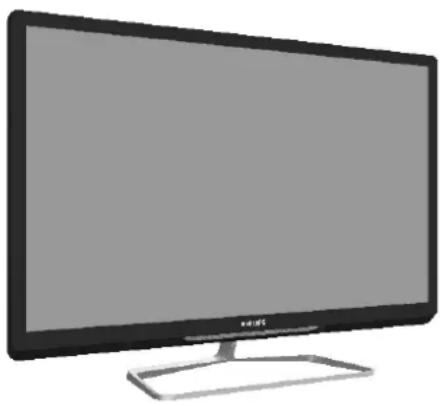
Illustration of a flat-screen computer monitor with no visible text or symbols on the screen or side.50PFL3951/V7
39PFL3951/V7
39PFL3931/V7
32PFL3931/V7
24PFL3951/V7
22PFL3951/V7
20PFL3931/V7
EN User manual
PHILIPS
Cover 2 Blank
Contents
1 Notice 2
2 Important 3
Product disposal Guidelines 4
3 Use your TV 5
4 Use more of your TV 11
5 Play photos, music and videos 18 o n USB storage devices
6 Troubleshooting 20
7 Product information 22
8 Consumer Guidelines 25
9 Warranty 26
1 Notice
Pixel characteristics
This LCD/LED product has a high number of color pixels. Although it has effective pixels of 99.999% or more, black dots or bright points of light (red, green or blue) may appear constantly on the screen. This is a structural property of the display (within common industry standards) and is not a malfunction.
Warranty
No components are user serviceable. Do not open or remove covers to the inside of the product. Repairs may only be done by Philips Service Centres and official repair shops. Failure to do shall void any warranty, stated or implied.
Any operation expressly prohibited in this manual, or any adjustments and assembly procedures not recommended or authorised in this manual shall void the warranty.
2 Important
Read and understand all instructions before you use your TV. If damage is caused by failure to follow instructions, the warranty does not apply.
Safety
Risk of electric shock or fire!
- Never expose the TV to rain or water. Never place liquid containers, such as vasels, near the TV. If liquids are spilt on or into the TV, disconnect the TV from the power outlet immediately. Contact Philips Consumer Care to have the TV checked before use.
- Never place the TV, remote control or batteries near naked flames or other heat sources, including direct sunlight. To prevent the spread of fire, keep candles or other flames away from the TV, remote control and batteries at all times.

- Never insert objects into the ventilation slots or other openings on the TV.
- When the TV is swivelled ensure that no strain is exerted on the power cord. Strain on the power cord can loosen connections and cause arcing.
Risk of short circuit or fire!
- Never expose the remote control or batteries to rain, water or excessive heat.
- Avoid force coming onto power plugs. Loose power plugs can cause arcing or fire.
Risk of injury or damage to the TV!
- Two people are required to lift and carry a TV that weighs more than 25 kg or 55 lbs.
- When stand mounting the TV, use only the supplied stand. Secure the stand to the TV tightly. Place the TV on a flat, level surface that can support the combined weight of the TV and the stand.
- When wall mounting the TV, use only a wall mount that can support the weight of the TV. Secure the wall mount to a wall that can support the combined weight of the TV and wall mount.PE Electronics Ltd. bears no responsibility for improper wall mounting that result in accident, injury or damage.
Risk of injury to children!
Follow these precautions to prevent the
TV from toppling over and causing injury to children:
- Never place the TV on a surface covered by a cloth or other material that can be pulled away.
- Ensure that no part of the TV hangs over the edge of the surface.
- Never place the TV on tall furniture (such as a bookcase) without anchoring both the furniture and TV to the wall or a suitable support.
- Educate children about the dangers of climbing on furniture to reach the TV. Risk of swallowing batteries!
- The product/remote control may contain a coin-type battery, which can be swallowed. Keep the battery out of reach of children at all times!
Risk of overheating!
- Never install the TV in a confined space. Always leave a space of at least 4 inches or 10cm around the TV for ventilation. Ensure curtains or other objects never cover the ventilation slots on the TV.
Risk of damage to the TV!
- Before you connect the TV to the power outlet, ensure that the power voltage matches the value printed on the back of the TV. Never connect the TV to the power outlet if the voltage is different.
Risk of injury, fire or power cord damage!
- Never place the TV or any objects on the power cord.
- To easily disconnect the TV power cord from the power outlet, ensure that you have full access to the power cord at all times.
- When you disconnect the power cord, always pull the plug, never the cable
- Disconnect the TV from the power outlet and antenna before lightning storms. During lightning storms, never touch any part of the TV, power cord or antenna cable.
Risk of hearing damage!
- Avoid using earphones or headphones at high volumes or for prolonged periods of time.
Low temperatures
- If the TV is transported in temperatures below 5°C or 41°F, unpack the TV and wait until the TV temperature matches room temperature before connecting the TV to the power outlet.
Screen care
- Avoid stationary images as much as possible. Stationary images are images that remain on-screen for extended periods of time. Examples include: on-screen menus, black bars and time displays. If you must use stationary images, reduce screen contrast and brightness to avoid screen damage.
• Unplug the TV before cleaning.
- Clean the TV and frame with a soft, damp cloth. Never use substances such as alcohol, chemicals or household cleaners on the TV.
- Risk of damage to the TV screen! Never touch, push, rub or strike the screen with any object.
• To avoid deformations and colour fading, wipe off water drops as soon as possible.
Product disposal Guidelines:
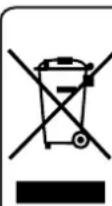
For the purpose of recycling to facilitate effective utilization of resources, please return this product to a nearby authorized collection center, registered dismantler, recycler, service center when disposing of this product.
In case of further assistance, you may contact nearest authorized service center. Or Please see the Company website for further information on collection centers etc. Visit -http://www.philips.com
Toll:1860 200 0129
Congratulations on your purchase, and welcome to Philips. To fully benefit from the support that Philips offers, register your TV at www.philips.com/welcome.
3.1 Name and Function of Control on Set (20PFL3931/V7, 22PFL3951/V7, 24PFL3951/V7, 32PFL3931/V7 and 39PFL3931/V7)

text_image
VOL- VOL- CH+ CH- MENU TVIAM ST. BY USB Drive POWER/INJ 1204 CARPHONE OUT AV IN AV OUT ST IN HDMI/SHALL ITEM2 EarPhone AI & COMPATIBLE DEVICE3.2 Name and Function of Control on Set (39PFL3951/V7)

text_image
(39PFL3951/V7) VOL+ VOL- CH+ CH- MENU TV:AV Standby USB 2 USB 1 USB Drive SPDRF V1M R1N L1R A02 R0 A1 OCT I1D01 PN I2D02 I2D03 60G CABLE MHL COMPATIBLE DEVICE HOMI PLAYER EN3.3 Name and Function of Control on Set (50PFL3951/V7)
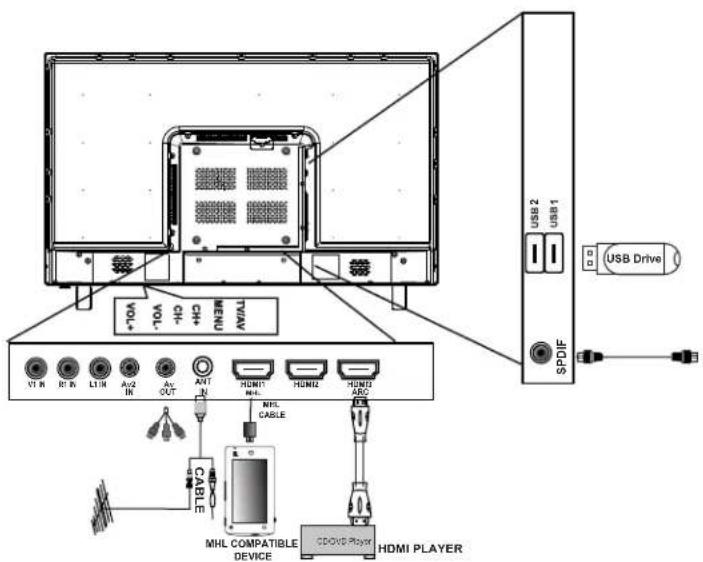
text_image
USB 2 USB 1 USB Drive SPDIF HDMI PLAYER CDOVO Player MHL COMPATIBLE DEVICE VOL CHL MENI VOL USB 1 USB 2 USB 1 CDOVO Player HDMI CABLE CABLE AOUT INT HDMI HDMI HDMI ABC CDOVO Player
Note
• HDMI 3, MHL, ARC, SPDIF & Earphone out are optional.
- Above images are for representation only, actual product may vary.
3.4 Name and Function of Control on Remote

text_image
1 2 3 4 SOURCE TV FORMAT LIST INFO OK ADJUST OPTIONS CH- CH+ - 16x + 11 12 13 14 PHILIPS 1 . @ 2 ABC DEF 3 4 CHI 5°JKL MNO 6 7 PCRS 8 TUV WXYZ 9 SUBTITLE 0 ... TEXT 20 19 18 17 16① ⏻ (Standby-On)
- Switches the TV ON or OFF. The TV is not powered off completely unless it is physically unplugged
② Multimedia Control buttons
• Control video or music.
③ SOURCE
- Selects connected devices.
④ TV
- Access the TV mode.
⑤ ≡ LIST
- Access the Channel List.
⑥ ▲▼◀▶ (Navigation buttons)
- Navigate through menus and select items. (Also in USB mode).
⑦ OK
- Confirm an entry or selection.
⑧ ADJUST
- Access the adjust menu to adjust settings.
⑨
- Return to the previous menu or exit a function.
⑩ CH-/CH+(Previous/Next)
- Switch channels or navigate through menu pages, tracks, albums or folders.
⑪ +/-
- Adjust volume.
⑫ Color buttons
• Select tasks or options.
⑬ 0-9 Numeric buttons
- Select channels
14 SUBTITLE
- Not applicable for this series models.
⑮ TEXT
• Not applicable for this series models.
⑯
- Access the option menu to adjust settings.
18 INFO
• Displays the source information with details of input connected.
19 (Home)
- Access the home menu.
20 FORMAT
- Adjust picture format.
3.5 Remote control usage
When you use the remote control, hold it close to the TV and point it at the remote control sensor. Make sure that the line-of-sight between the remote control and TV is not blocked by furniture, walls or other objects.
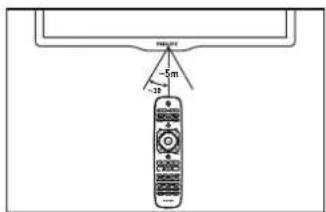
text_image
FIRE GPS -5m -32m3.5 Battery Installation
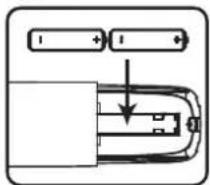
- Remove the battery compartment door.
- Install 2 "AAA" or UM-4 (1.5V) batteries or equivalent with the correct polarity as indicated.
- Refix the battery compartment door.
NOTE : Remove batteries when they are exhausted or if the remote control is not to be used for a long time.
BATTERY PRECAUTIONS:
Incorrect use of batteries can cause electrolyte leakage which will corrode the remote handset or cause the batteries to burst.
■ Replace both batteries at the same time.
■ Don't Mix battery types (alkaline with carb on, zinc etc.).
■ Don't recharge.
①23

natural_image
Simple line drawing of a mechanical component with an arrow indicating direction (no text or symbols)O
O

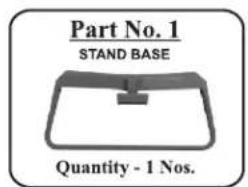
3.6 Stand Assembly - 20", 22", 24", 32" & 39"
- Remove the TV unit from box and polybag
- Place polybag on flat surface with foam side facing up.
- Place TV set on polybag with screen facing down.
Fix the rubber foots to the stand base (if provided in accessory bag)
text_image
Part No. 1 STAND BASE Quantity - 1 Nos.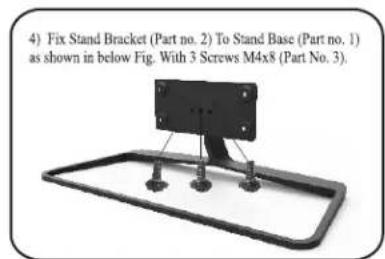
text_image
4) Fix Stand Bracket (Part no. 2) To Stand Base (Part no. 1) as shown in below Fig. With 3 Screws M4x8 (Part No. 3).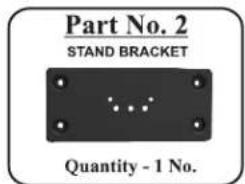
text_image
Part No. 2 STAND BRACKET Quantity - 1 No.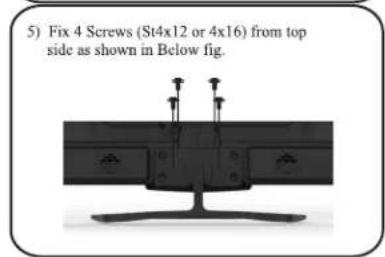
text_image
5) Fix 4 Screws (St4x12 or 4x16) from top side as shown in Below fig.
text_image
Part No. 3 SCREW M4x8 Quantity - 3 Nos.
text_image
6 ) Now your Set is Ready to stand on your desk.
text_image
Part No. 4 SCREW St4x12 / ST4X16 Quantity - 4 Nos.NOTE: Above images are for graphic representation only.
3.7 Stand Assembly - 50"
1) Remove the TV unit from box and Polybag.
2) Place Polybag on flat surface with foam side facing up.
3) Place TV Set on Polybag with Screen facing Down.
4) Fix Rubber Foots to the Stand Base (If Provided in Accessory Bag)

text_image
Part No. 1 STAND BASE ALUMINIUM Quantity - 2 Nos. Part No. 2 SCREW M4x25 Quantity - 6 Nos.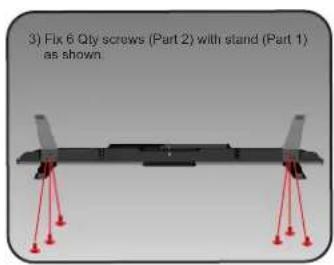
text_image
3) Fix 6 Qty screws (Part 2) with stand (Part 1) as shown.
text_image
4) Now your Set is Ready to stand on your desk.Note : Above images are for graphics representation only.
3.8 Energy Consumption Guideline
text_image
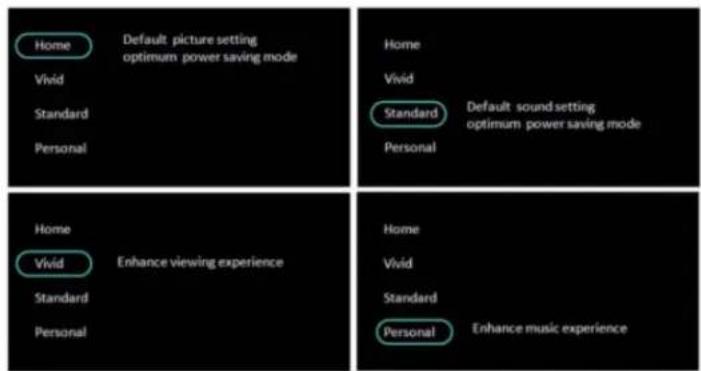
Home Default picture setting Vivid optimum power saving mode Standard Personal Home Vivid Default sound setting Standard optimum power saving mode Personal Home Vivid Enhance viewing experience Standard Personal Enhance music experienceFor Energy Saving:
Select "Home" to activate Power Saving mode. On selecting Home as the picture setting, the sound setting would be set to "Standard" as default.
For Enhanced viewing experience user may select "Vivid" Picture setting, On selecting the "Vivid" mode, Sound setting would automatically set to "Personal" mode.
Note:
"Home" Mode will result in significant power saving compared to "Vivid" Mode
4 Use more of your TV
4.1 Manually adjust picture setting
Menus help you to install channels, change picture and sound settings and access other TV features.
1 Press
» The menu screen appears.

text_image
Home Picture Sound TV Setting Channel Installation Picture Mode Contrast Brightness Color Sharpness Hue Backlight Color Temperature1 Press [Picture]>[Picture Mode], then press okay. This function is used to select the preset picture settings.
• [Vivid] : Rich and dynamic settings, ideal for daytime.
• [Bright] Ideal settings for night time.
• [Soft] : Soft light and mild colors.
• [Personal]: Apply your customised picture settings.
2 Select one of the following settings, then
- Press ▲▼ to move, and press ◀▶ to adjust.
[Contrast]: Adjust the intensity of backlight areas, while the video contents are kept unchanged.
• [Brightness] : Adjust the intensity and details of dark areas.
• [Color] : Adjust color saturation.
• [Sharpness]: Adjust sharpness in the
• [Hue]: Compensate for color variations. (Available only for NTSC channels).
• [Backlight] : It varies the backlight intensity.
• [Color Temperature]: Adjust the color balance in an image.
• [Blue back]: This function is used to ON/OFF blue back in no Signal condition.
4.2 Manually adjust sound setting
text_image
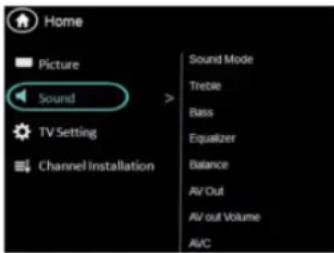
Home Picture Sound TV Setting Channel Installation Sound Mode Treble Bass Equalizer Balance AV/Out AV out Volume AVC1 Press ★
2 Select [Sound] then press OK
3 Select one of the following settings, then Press ▲▼ to move, and press ◀▶ to adjust.
• [Sound Mode]: Access predefined smart sound settings.
• [Standard]: Settings that suit most environments and types of audio.
• [Music]: Ideal settings for listening to music
• [Movie]: Ideal settings for movie.
- [News] : Ideal settings for spoken audio, such as news.
• [Personal] : Apply the settings that were customised in the sound menu.
• [Treble] : Adjust the treble level.
• [Bass]: Adjust the bass level.
• [Equalizer] : Adjust the equalizer ON various frequencies.
• [Balance] : Adjust the balance of the right and left speakers.
• [Volume] : The main speaker volume can be adjusted by varying this volume bar.
- [Speakers] : The main speakers can be made ON / OFF by this option.
- [AVC] :Auto volume leveler automatically reduces sudden volume changes, for example when switching channels.
• [AV Out]: Select Fixed for default settings and variable to vary it.
• [AV Out Volume] : The AV Out volume can be adjusted by this option.
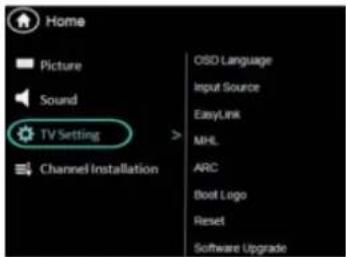
4.3 TV Setting
1 Press
2 Select [Setup] > [Features] then press OK
3 Select one of the following settings. then press OK.. Press ▲ to move, and press ◀ to adjust.
text_image
Home Picture Sound TV Setting Channel Installation OSO Language Input Source EasyLink MHL ARC Boot Logo Reset Software Upgrade- [OSD Language] : Press arrow and navigation keys to select any language like English, Hindi, Marathi, Telgu etc. user menu and TV messages will be displayed in this language.
- [Input Source] : Select this option for display current input source and source can be changed with Up/Down navigation keys.
- [Easy Link]: This feature operates only in HDMI source. If a CEC compliant device like a home theater or DVD player is connected to TV in HDMI mode.
- [MHL]: MHL available as Auto function, no manual setup require the contents of MHL enabled device (connected to Tv's (MHL) port) are displayed on the TV screen and can be operated with TV remote.
- [ARC] : Press Right navigation key and Up/Down keys to turn this feature ON/OFF. If ARC is set to "On", TV speakers are deactivated & ARC is enabled Home Theater Sound will be activated
Note
- Easylink, MHL & ARC are not applicable for 20PFL3931/V7, 22PFL3951/V7 & 24PFL3951/V7 models.
- [Boot logo] : Press Right navigation key Up/Down keys to switch between OFF/Favorite Logo. OFF will display nologo and Favorite logo will display the selected favorite logo when TV starts. To keep a photo as favorite boot logo, play the image through multimedia and select 'Logo' option in guide bar.
- [Reset]: Select this option to reset all Feature, Audio, Video parameters to Default value
- [Software Upgrade] : This is for TV Software update. (For Service only)
4.4 Channel Installation
1 Press
2 Select [Channel Installation] > [Channel Management] then press OK.
3 Select one of the following settings, then Press ▲ to move, and press ◀ to adjust.
4 [Auto Install] : Select the function TV set will start auto tuning for all available channels.
Note: For India sound system is BG.
- [Manual Install] :Select this for manually searching the channels,select the function from which tuning will start.
4.5 More about MHL
MHL is interface for transmitting digital audiovisual signals from mobile phones to supported television sets. Note that it only supports MHL ctemobile phones. To support the MHL in your, kindly check the operation manual of your phone, when smart phone is to HDMI (MHL) port of the TV with standard Mcable, the mobile screen is displayed on the TV screen and some of mobile applications can be operated by TV remote control.
How to use MHL
1) Connect MHL enabled phone with the passive MHL cable (not supplied with TV set) to HDMI1 port of TV.
2) Go to HDMI1 source with AV/TV key or remote control.
3) MHL selected as Auto then phone screen displayed on the TV screen.
NOTE:
1) Use standard certified MHL cables to get desired connectivity results. If some problem occurs in connecting your device in MHL mode, then check your device settings or consult your MHL phone service center. Some mobiles use 5 pin cable and some mobile use 11 pin cable so, kindly choose proper MHL mode.
2) Depending on version, some MHL devices may not accept TV remote contro commands.
3) MHL cable is not provided with TV set. You need to buy separately.
4) Cannot do typing with TV remote control. For this you can use blue tooth compatible keyboard/mouse available in market.
5) As the TV screen is big & its resolution is more than phone, the video quality may be lower in TV. So if any problem in video quality please check content resolution of your device.
4.6 More about ARC
ARC enables the digital sound to be the output just using single HDMI cable connected to ARC ebabled Home Theater
system player; However ARC is only available through HDMI3 port of TV. How to use ARC
1) Connect ARC enabled AV received (Home Theater) through high speed HDMI cable (HDMI 1.4 cable) to HDMI3 port of the TV.
2) Then go to settings menu of TV set ARC function "ON".
3) Set ARC mode in connected player.
4) When ARC is set ON, then the TV speaker will be deactivated & volume source (any TV source) is routed to Home theater.
4.7 More about USB TO USB
We have provided unique USB to USB file transfer feature. To use this feature use following steps below:
1) Connect one USB to each USB port of the TV.
2) Go to multimedia by pressing TV/AV key on remote or keypad.
3) Select either Picture, Music, Movie or Text option in multimedia source depending upon file to be transferred.
4) Select USB - DISK 1 or DISK 2, from which you want to copy data and open it.
5) Go to the file to be copied and press the 'Yellow' favorite key on remote to 'Copy'.
6) Select USB DISK 1 or DISK 2, in which you to paste the copied file.
7) Press 'Green' favorite key on remote to 'Paste'.
8) 'Copying, please wait!' message and progress bar will be displayed as the copy Paste operation is being performed.
9) After copying is successful, 'Copy Success message is displayed.
NOTE:-
1) Copy time will vary depending upon file size. larger files will need more time.
2)Multiple files can be copied at a time.
3) Copied file will be presented in USB from which files was copied. It will not be 'Cut - Paste'.
4) The USB to USB file transfer will not be performed if receiving USB does not have enough space.
5) NTFS HARD DISK cannot support write and delete in USB to USB transfer.
6) Boot logo image can not read from NTFS HARD DISK
4.8 Use Philips EasyLink
Get the most out of your HDMI-Consumer Electronic Control (CEC) compliant devices with Philips EasyLink enhanced control features.
If your HDMI-CEC compliant devices are connected through HDMI, you can control them at the same time with your TV remote control.
To enable Philips EasyLink, you need to:
- Connect HDMI-CEC
compliant devices through HDMI - Configure each HDMI-CEC compliant device properly
- Switch on EasyLink

Note
- The EasyLink-compliant device must be switched on and selected as the source.
• Philips does not guarantee 100% interoperability with all HDMI CEC devices.
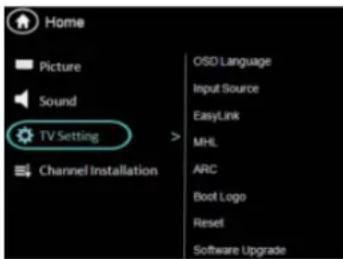
4.9 Switch on or off EasyLink
1 Press

2 Select [Setup] > [Features] > [EasyLink] > [EasyLink].
3 Select [On] or [Off], then press OK

Note
- If EasyLink is OFF, all its submenus are unavailable.
text_image
Home Picture Sound TV Setting Channel Installation OSD Language Input Source EasyLink MHL ARC Boot Logo Reset Software Upgrade4.10 Switch the device ON or OFF
When an HDMI-CEC compliant device is connected and TV switches to standby, the device gets turned OFF automatically.
1 Press
2 Select [Setup] > [Features] > [EasyLink] > [Auto turn off] >
3 Select [On] or [Off], then press OK When an HDMI-CEC compliant device is connected and TV is switched ON, then the device gets turned ON automatically.
4.11 Search the connected devices
Search the HDMI-CEC compliant devices connected to your TV and list them using Device list.
1 Press
2 Select [Setup] > [Features] > [EasyLink] > [Device Search] >
4.12 Control the device using tv remote
Now use a single remote to control your CEC enabled device.
1 Press
2 Select [Setup] > [Features] > [EasyLink] > [Device Menu]

Press ◀▶ to select the function icon, press OK button to confirm the function.
4.13 Use the Options menu
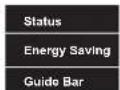
Visit options relevant to current action or selection.
1 While you watch TV, press OPTIONS key.
» The TV options menu appears.
2 Select one of the following options, then press OK.
- [Status]: Display information concerning currently viewing channel/source.
• [Energy Saving]: Respective menu after pressing OK.pop ups
- Press ▲▼ to conserve energy. refer 4.10 for more details.
• [Guide Bar] : Respective menu after pressing OK.pop ups
- Press ◀ to access menu bar. refer 5.8 for more details.

• Guide Bar only applicable for HDMI (CEC) & USB Source.
4.14 Use the Adjust menu

text_image
Home TV Setting Picture Mode Sound Mode Picture Format Freeze Sleep TimerVisit options relevant to current action or selection.
1 Press III ADJUST.
» The TV setting menu appears.
2 Select one of the following options, then press OK.
- [Picture Mode]: The function is used to select preset picture setting.
• [Sound Mode]: The function select preset audioused to setting.
• [Picture Format]: The function select any picture format. used
- Depending on the format of the picture source, some picture settings may not be available.
• [Freeze]: The function freeze the picture. used to
• [Sleep Timer]: The function adjust sleep timer. used to
5 Play photos, music and videos on USB storage devices

text_image
Multimedia Movie Photo Music EBook5.1 Connect a USB storage device to play photos, music or videos stored on it.
1 Switch on the TV.
2 Connect the USB device to the USB port on the side of your TV.
3 Press
4 Select [Browse USB], then press OK The USB browser appears.
5.2 View photos
1 In the USB browser, select [Photo], then press OK.
2 Select a photo or a photo album, then OK to view the photo
- To preview the next or previous photo, press ◀▶ then press ▶ to play
5.3 View a slide show of your photos
Press the following buttons to control play of selected photos.:
Select photos by OK key :
• ▶ to play.
- tolpause.
- CH+ or CH- to play the previous or next photo.
5.4 Listen to music
1 In the USB browser, select [Music], then press OK.
2 Select a music track or album, then press OK or ▶ to play.
5.5 Watch video
1 In the USB browser, select [Video], then press OK.
2 Press OK or ▶ to play.
3 To control play, press buttons:
• ▶ to play & Ⅱ to pause.
- Old-playOfthe previous or next video.
5.6 Text
1 In the USB browser, select [Text], then press OK.
2 Select a Text File, then Press
OK or ▶ to play.
5.7 Music, Photo, video, text mode control menu bars
You can select the multimedia functions like play, Pause, FF, FR, Next, Previous. Stop etc.
To use above functions press
OPTIONS key, then select 'Guide Bar'.
Picture mode menu bar:

Music mode menu bar:

Press ◀▶ to select the function icon, press OK button to confirm the function.
Video mode menu bar:

Press ◀▶ to select the function icon, press OK button to confirm the function.
Text mode menu bar:

Press respective key on remote to perform operations as per guide bar.
From Quick Menu:
Select Background Music -> ON/OFF
Select Music Source
Select Encode Type from given list
5.8 Disconnect a USB storage device
Caution
- Follow this procedure to avoid damage to your USB storage device.
1 Press → to exit the USB browser.
2 Wait for five seconds, then disconnect the USB storage device.
6 Troubleshooting
This section describes commonly encountered issues and accompanying solutions.
6.1 General TV issues
The TV does not switch on:
- Disconnect the power cable from the power outlet. Wait for one minute then reconnect it.
- Check that the power cable is securely connected.
The remote control is not working properly:
- Check that the remote control batteries are correctly inserted according to the +/- orientation.
- Replace the remote control batteries if they are flat or weak.
• Clean the remote control and TV sensor lens.
The standby light on the TV blinks red:
- Disconnect the power cable from the power outlet. Wait until the TV cools down before reconnecting the power cable. If the blinking reoccurs, contact Philips Consumer Care.
You forgot the code to unlock the TV lock feature • Enter '8202'.
When turning the TV on/off/to standby, you hear a creaking sound from the TV chassis:
- No action is required. The creaking sound is normal expansion and contraction of the TV as it cools down and warms up. This does not impact performance.
6.2 TV channel issues
Previously installed channels do not appear in the channel list:
- Check that the correct channel list is selected.
6.3 Picture issues
The TV is on, but there is no picture:
- Check that the antenna is properly connected to the TV.
- Check that the correct device is selected as the TV source.
There is sound but no picture:
- Check that the picture settings are correctly set.
There is poor TV reception from an antenna connection:
- Check that the antenna is properly connected to the TV.
- Loudspeakers, unearthed audio devices, neon lights, high buildings and other large objects can influence reception quality. If possible, try to improve the reception quality by changing the antenna direction or moving devices away from the TV.
• If reception on only one channel is poor, fine tune this channel.
There is poor picture quality from connected devices:
- Check that the devices are connected properly.
- Check that the picture settings are correctly set.
The TV did not save your picture settings:
- Check that the TV location is set to the home setting. This mode offers you the flexibility to change and save settings.
The picture does not fit the screen; it is too big or too small:
- Try using a different picture format.
The picture position is incorrect:
- Picture signals from some devices may not fit the screen correctly. Check the signal output of the device.
6.4 Sound issues
There is a picture but sound quality is poor:

Note
- If no audio signal is detected, the TV automatically switches the audio output off this does not indicate malfunction.
• Check that all cables are properly connected.
• Check that the volume is not set to 0.
• Check that the sound is not muted.
There is a picture but the sound quality is poor: - Check that the sound settings are correctly set.
There is a picture but sound comes from one speaker only:
• Verify that sound balance is set to the centre.
6.6 Contact us
If you cannot resolve your problem, refer to the FAQs for this product at www.philips.com/support. or Contact Customer Service Center.

Warning
- Do not attempt to repair the product yourself. This may cause severe injury, irreparable damage to your product or void your warranty.

Note
• Make a note of your TV model and serial number before you contact Philips. These numbers are printed on the back of the TV and on the packaging.
6.5 HDMI connection issues
There are problems with HDMI devices:
• Note that HDCP (High-bandwidth Digital Content Protection) support can delay the time taken for a TV to display content from a HDMI device.
- If the TV does not recognise the HDMI device and no picture is displayed, try switching the source from one device to another and back again.
- If there are intermittent sound disruptions, check that output settings from the HDMI device are correct.
• If you use an HDMI-to-DVI adapter or HDMI-to-DVI cable, check that an additional audio cable is connected to AV IN.
7 Product information
Product information is subject to change without notice. For detailed product information, go to www.philips.com/support.
7.1 Supported display resolutions
Computer formats (HDMI)
• Resolution - refresh rate:
- 720 x 480p - 60Hz
• 720 x 576p - 50Hz
• 1280 x 720p - 50Hz,60Hz
• 1920 x 1080p -50Hz,60Hz
• 1920 × 1080 l- 50Hz/60Hz
Video Formats
• Resolution - refresh rate:
• 720 x 480i - 60Hz
• 720 x 480p - 60Hz
• 720 x 576i - 50Hz
• 720 x 576p - 50Hz
• 1280 x 720p - 50Hz, 60Hz
• 1920 x 1080i - 50Hz, 60Hz

Note
1) The supported resolution depending upon the model.
7.2 Remote control
• Type: RC-Z8091-800
• Batteries: 2 x AAA (LR03 type)
7.3 Multimedia
• Supported USB storage device: (Only FAT 16 or FAT 32 USB storage devices are supported)
• Supported storage file formats:
1) USB file names must not exceed 128 characters.
2) The USB features/functions may vary from file to file depending on relative information present in the file
7.4 Tuner/Reception/Transmission
• Antenna input: 75ohm coaxial (IEC75)
• TV system: PAL.B/G
• Video playback: NTSC, SECAM, PAL
• Tuner Bands: UHF, VHF
7.5 Remote control
• Type: RC-Z8091-800
• Batteries: 2 x AAA (LR03 type)
7.6 Power
• Mains power: AC 110-240V\~ 50/60Hz
• Ambient temperature: 5 to 40 degrees Celsius
• Power consumption
• 20PFL3931/V7 : 35W
• 22PFL3951/V7 : 40W
• 24PFL3951/V7 : 45W
• 32PFL3931/V7 : 50W
• 39PFL3931/V7: 90W
• 39PFL3951/V7 : 90W
• 50PFL3951/V7 : 125W
7.7 TV mount
To wall mount the TV, kit is provided in accessory bag along with TV set.
Warning
Follow all instructions provided with the TV mount. PE Electronics Ltd. bears no responsibility for improper TV mounting that results in accident, injury or damage.
7.8 Product specification
Design and specifications are subject to change without notice.
20PFL3931/V7:
- With TV stand
• Dimension(WxHxD): 476 x 327 x 126 (mm)
• Weight: 2.5 kg
• Without TV stand
• Dimension(WxHxD): 476 x 297 x 84 (mm)
Weight: 2.2 kg
22PFL3951/V7:
- With TV stand
• Dimension(WxHxD): 517 x 355 x 127 (mm)
• Weight: 3.0 kg
• Without TV stand
• Dimension(WxHxD): 517 x 325 x 90 (mm)
• Weight: 2.6 kg
24PFL3951/V7:
- With TV stand
• Dimension(WxHxD): 574 x 420 x 127 (mm)
• Weight: 3.4 kg
• Without TV stand
• Dimension(WxHxD): 574 x 368 x 91 (mm)
• Weight: 3.1 kg
32PFL3931/V7:
- With TV stand
• Dimension(WxHxD): 740 x515 x 199 (mm)
• Weight: 5.5 kg
• Without TV stand
• Dimension(WxHxD): 740 x 453 x 88 (mm)
Weight: 5.1 kg
39PFL3931/V7 & 39PFL3951/V7 :
- With TV stand
• Dimension(WxHxD): 900 x 604 x 208 (mm)
• Weight: 8.1 kg
• Without TV stand
• Dimension(WxHxD): 900 x 540 x 84 (mm)
• Weight: 7.7 kg
50PFL3951/V7:
- With TV stand
• Dimension(WxHxD): 1133 x236x 714 (mm)
• Weight: 13.2 kg
• Without TV stand
• Dimension(WxHxD): 1133 x174x 662 (mm)
• Weight: 12.2 kg
Consumer Guidelines
- Kindly ensure that the dealer fills out warranty card correctly.
- To avail the Warranty please register your product with the Philips-
• Log on to www.Philips.com
OR
- Contact Philips Consumer Care Centre
- In the unlikely event of a defect developing in the TV set contact the Philips Customer Care Centre for obtaining warranty service and inform of the defect observed in the set, the type no. and serial no. of the set.
- On your lodging a complaint, a trained technician will call on you promptly. In the event of the technician deciding that set requires attention at the service station; the technician would arrange to get the set picked up to be delivered to service station for further attention. "Homecalls" by the technician would however be restricted within municipal limits of the city/town in which the set has been registered.
Type no. Serial No. Date of Purchase
Purchased By: Name
Address:
Tel.No.
Sold by: Name
Address:
Tel.No.
PHILIPS
Model no.:
50PFL3951/V7
39PFL3951/V7
39PFL3931/V7
32PFL3931/V7
24PFL3951/V7
22PFL3951/V7
20PFL3931/V7
Serial no.:

Sold by(User rubber stamp)
Contact Customer Service Executive at:
Toll :- 1860 200 0129
Regd Office: PE Electronics Ltd, Auto Cars Compound, Adalat Road, Aurangabad, 431005.
WARRANTY
This TV receiver is covered under warranty against any defect arising out of faulty or defective material or workman ship for a period of 12 months from the date of purchase.
Should a defect develop in this set during the period of warranty, PE Electronics Limited undertakes to get the set repaired free of charge either
from whom the set has been purchased or through an Authorised Service Center for warranty service. However, if the Purchaser has to shift his residence to another town on account of transfer or other reasons, the warranty benefit will be available at the Authorised Service Center of that town.
The warranty is not valid in case of any of the following events:
- The TV set is not used according to instructions given in the 'Direction for use' / 'User Manual'
• Defects are caused by improper or reckless use.
• Any repair work carried out by persons other than a Philips dealer or Authorised Service Center.
• Any modification or alteration of any nature made in the electrical circuitry of the set. - This Warranty Card is not completed and signed immediately on delivery of the set by the Philips Dealer.
- Fading effects and/or Ghosts (Multiple Image) in picture, if any, arising due to location / signal reception.
• Defects due to causes beyond control like lightning, abnormal voltage, Acts of God or while in transit to purchaser's residence.
(Refer Consumer Guidelines for further details)
PHILIPS
Back
Cover 3 Blank


Declaration of Conformity with the requirements of the e-waste (Management and Handling) Rules, 2011, adopted by Notification S.O.1035(E) of Ministry of Environment and Forests.
This Product is in conformity with the requirements of Rule 13 of the e-waste (Management and Handling) Rules, 2011.
The content of hazardous substance in the product, along with the exemption of the applications listed in SCHEDULE II of the (Management and Handling) Rules, 2011 are:
- Lead (Pb) - not over 0.1 % by weight;
- Cadmium (Cd) - not over 0.01 % by weight;
- Mercury (Hg) - not over 0.1 % by weight;
- Hexavalent chromium (Cr6+) - not over 0,1 % by weight;
- Polybrominated biphenyls (PBBs) - not over 0.1 % by weight;
- Polybrominated diphenyl ethers (PBDEs) -not over 0.1 % by weight.

Be responsible Respect copyrights
Specifications are subject to change without notice. PHILIPS and the PHILIPS Shield Emblem are registered trademarks of Koninklijke Philips N.V. and are used under license from Koninklijke Philips N.V. www.philips.com