Blackjack Ai DW-BJAIARA2 - Surveillance Camera Digital Watchdog - Free user manual and instructions
Find the device manual for free Blackjack Ai DW-BJAIARA2 Digital Watchdog in PDF.


User questions about Blackjack Ai DW-BJAIARA2 Digital Watchdog
0 question about this device. Answer the ones you know or ask your own.
Ask a new question about this device
Download the instructions for your Surveillance Camera in PDF format for free! Find your manual Blackjack Ai DW-BJAIARA2 - Digital Watchdog and take your electronic device back in hand. On this page are published all the documents necessary for the use of your device. Blackjack Ai DW-BJAIARA2 by Digital Watchdog.
USER MANUAL Blackjack Ai DW-BJAIARA2 Digital Watchdog
Servers Powered by DW Spectrum and DW Ai Server
DW Ai Server User Manual
Table of Contents
Description....1
Part 1: DW Ai Server Architecture....1
DW Ai Server Plug-in....1
DW Ai Server Configuration Tool....1
Part 2: System Prerequisites....2
Software Requirements....2
Part 3: DW Ai Server Configuration Tool.... 3
Logging in with the DW Ai Server Configuration Tool.... 3
Part 4: DW Ai Server List....6
Part 5: DW Ai Server Licenses....8
Active Licenses....8
New Licenses....8
Part 6: Enable Tab - DW Ai Server Plugin....10
Part 7: Rules Tab - Analytic Rules....12
Analytic Area Rules 13
Analytic Line Rules....14
Analytic Filtering Rules....16
Adding an Analytic Rule....17
How to Modify a Rule ....19
How to Delete a Rule....19
How to Search for Analytic Events....19
Part 8: Counters Tab 20
How to Add a Counter 20
How to Modify a Counter....22
How to Delete a Counter....23
Part 9: Tamper Tab - Tamper Detection....24
Part 10: Advanced 25
Object Tracker 25
Display Information....26
Description
This user guide will describe the features and options of a DW Ai Server for use with DW Spectrum IPVMS. This software comes pre-installed on DW Blackjack Ai Servers.
Part 1: DW Ai Server Architecture
DW Ai Server Plug-in
The DW Ai Server plug-in consists of two components:
- DW Ai Server Plug-in: The DW Ai Server Plug-in is installed alongside DW Spectrum IPvMS and provides a link to the DW Ai Server.
- DW Ai Server: The DW Ai Server component receives the encoded video from DW Spectrum IPVMS, then decodes and processes the video through the analytics engines and rules. It then feeds the metadata back to the DW Ai Server Plug-in to be integrated into the video streams of recordings servers that are running DW Spectrum IPVMS.
- DW Ai Server Configuration Tool - this software component can be used to manage the connections and settings of the DW Ai Server program.
DW Ai Server Configuration Tool
The DW Ai Server Configuration Tool is a standalone application, designed to provide a feature-rich experience when configuring a channel's video analytic features. This application provides a user interface through which system administrators can manage and configure the settings and connections of the DW Ai Server for integration with existing DW Spectrum IPVMS systems.
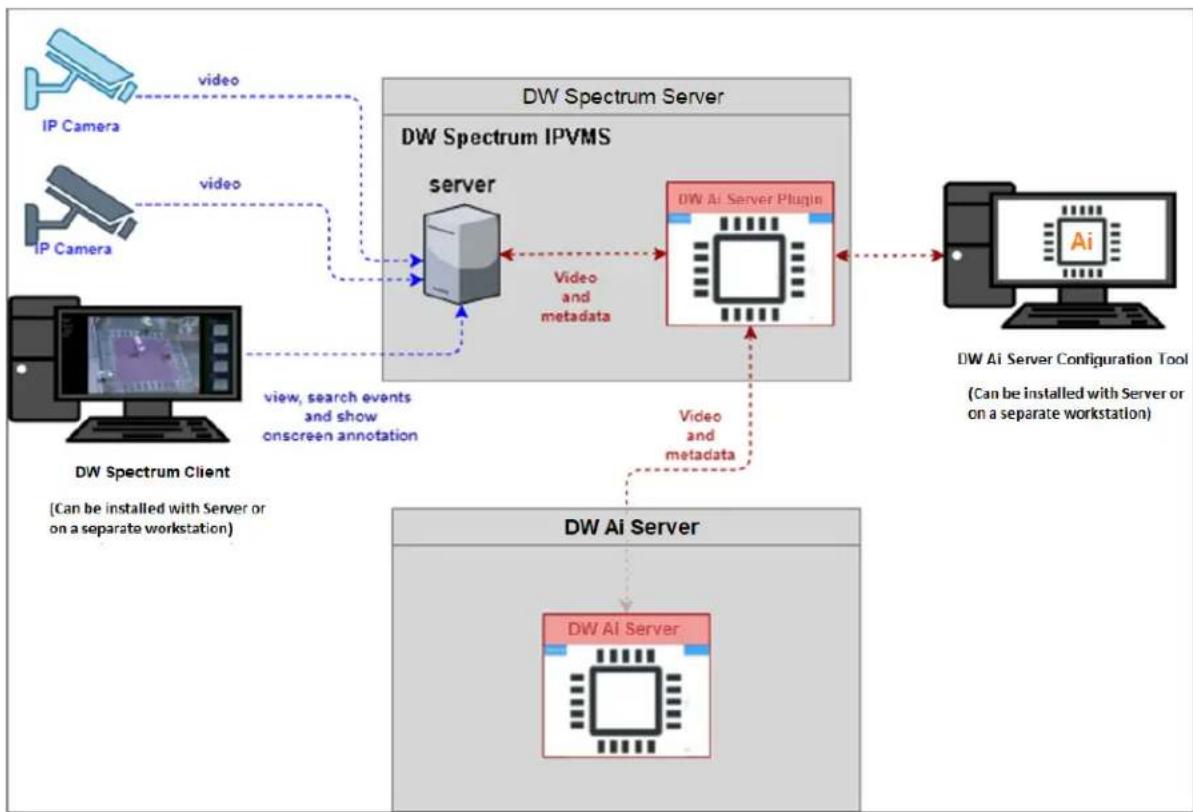
flowchart
graph TD
    A["IP Camera"] -->|video| B["DW Spectrum Server"]
    C["IP Camera"] -->|video| B
    D["Computer"] -->|view, search events and show onscreen annotation| B
    B --> E["DW Spectrum IPvMS"]
    E --> F["server"]
    F --> G["DW AI Server Plugin"]
    G --> H["AI"]
    H --> I["DW AI Server Configuration Tool (Can be installed with Server or on a separate workstation)"]
    I --> J["DW AI Server"]
    J --> K["DW AI Server"]
Part 2: System Prerequisites
The DW Ai Server component should be installed on a dedicated hardware platform.
Software Requirements
- Supported OS: Ubuntu 18.04 LTS Desktop / Windows 10 / Windows Server 2016 or higher.
- Latest GPU drivers (at least 460.73 or higher)
• CUDA Toolkit 11.1
Part 3: DW Ai Server Configuration Tool
While some camera settings can be configured through the DW Spectrum IPVMS Client, the DW Ai Server Configuration Tool can be used to provide a complete analytic user experience during the configuration process of the DW Ai Server.
Logging in with the DW Ai Server Configuration Tool
To begin setting up the DW Ai Server Configuration Tool
1) Launch the DW Ai Server Configuration Tool. There is an application shortcut on the desktop.
Select the DW Ai Server that you want to connect with and log in with the local 'admin' user profile.
**NOTE: If connecting the DW Ai Server Configuration Tool to the DW Spectrum Server is hindered by the message “Unauthorized. Please check the access credentials and try again,” after changing the user password, enable the Digest Authentication setting of the user profile in the DW Spectrum Client.

text_image
DW Ai Server Configuration Tool 2.8.10 DW.spectrum IPVMS DW Ai Server Configuration Tool Please login to the system listed below to configure the DW Ai Server event. localhost 137.0.01.7001 2. action connect to Another Server2) Once you are logged in and connected to the DW Ai Server through the DW Ai Server Configuration Tool, a list will show all added cameras in the left-side panel.
To view camera analytic rules and configuration, enable the DW Ai Server Plugin toggle.
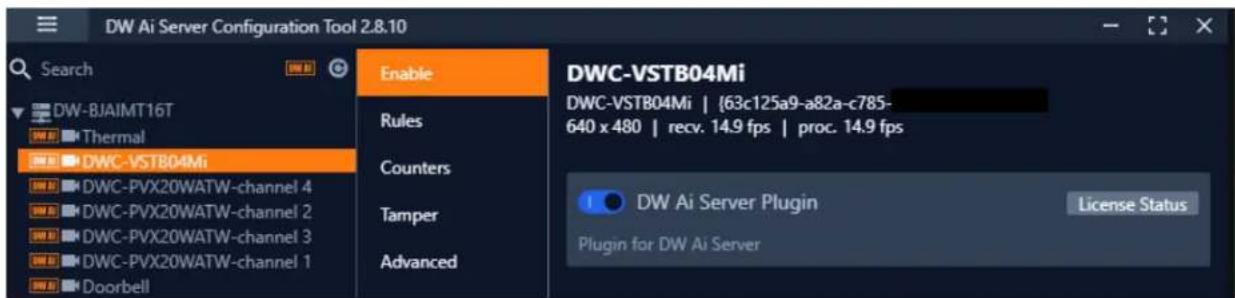
text_image
DW Ai Server Configuration Tool 2.8.10 Search Enable Rules Counters Tamper Advanced DWC-VSTB04Mi DWC-VSTB04Mi | {63c125a9-a82a-c785- 640 x 480 | recv. 14.9 fps | proc. 14.9 fps DW Ai Server Plugin License Status Plugin for DW Ai ServerOnce enabled, you will find the following features in the left-side panel:
- Search: This search box can be used to filter the camera list based on the entered device name.
- DW Ai (toggle): The DW Ai button toggles the camera list between showing all cameras on the DW Spectrum System or just the cameras that have the plug-in enabled. This toggle appears at the top of the camera list beside the search bar. While enabled, the toggle will appear in orange.
- Refresh: This button refreshes the list of cameras from DW Spectrum IPVMS when it is clicked.
- Device List: A list of DW MEGApix Ai and standard IP devices are listed in the Resource Tree organized by server. While the DW Ai toggle is active, only Ai devices will be listed.
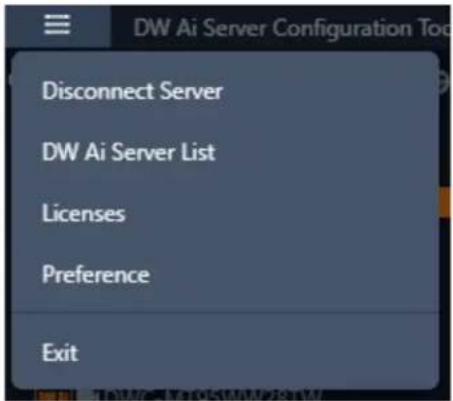
Select the Main Menu to display the menu options:
- Disconnect Server: Disconnects the current session with your DW Spectrum IPVMS Server.
- DW Ai Server List: Displays a list of the DW Ai Server(s) that your DW Spectrum system is configured to use.
- Licenses: Displays a list of the licenses available from the DW Air Servers.
- Preference: Displays a list of the DW Ai Server Configuration Tool's advanced options.
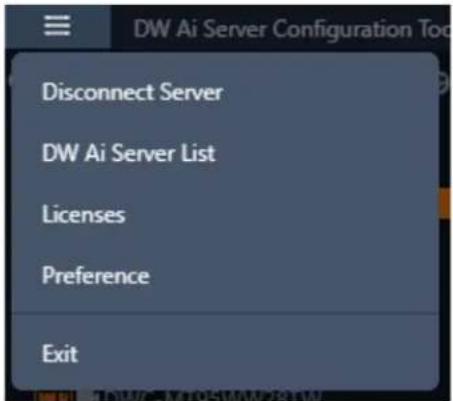
text_image
DW Ai Server Configuration Tool Disconnect Server DW Ai Server List Licenses Preference ExitPart 4: DW Ai Server List
If multiple DW Ai Servers will be used, the additional DW Ai Server will need to be added.
NOTE: You can define up to four (4) DW Ai Servers at a time.
To add an additional DW Ai Server:
1) Open the DW Ai Server Configuration Tool and log in as the admin.
2) Click on the menu icon in the top left, then select DW Ai Server List.
text_image
DW Ai Server Configuration Tool Disconnect Server DW Ai Server List Licenses Preference Exit3) Click Add.
4) Enter the IP address of the DW Ai Server.
5) Leave the port set to 3030.
6) Click OK to return to the previous menu.
7) Click Apply to save your changes.
8) Click Close to close and return to the previous menu.

text_image
DW Ai Server List Name Address Port Actions Server #1 127.0.0.1 3030 Edit Delete Server #2 10.10.10.6 3030 Edit Delete Add Apply ClosePart 5: DW Ai Server Licenses
To use the analytic features of a DW Ai Server, a license is required. Licenses can be managed through the DW Ai Server Configuration Tool program.
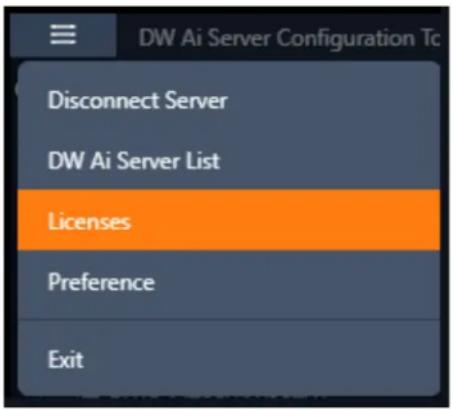
To view the licenses, select "Licenses" from the Main Menu in the DW Ai Server Configuration Tool.
text_image
DW Ai Server Configuration To Disconnect Server DW Ai Server List Licenses Preference ExitActive Licenses
The Active Licenses list shows all licenses of the DW Ai Server and how the licenses are currently allocated.
| Active Licenses | ||||
| Server | Name | Used Channels | Total Channels | License Key |
| Server #1 | DW AI Server 4ch Enterprise | 4 | 4 | |
| Server #1 | DW AI Server 10ch Enterprise | 9 | 10 | |
| Server #1 | DW AI Server 10ch Enterprise | 0 | 10 | |
New Licenses
The New Licenses area of the menu, server tabs (Server #) are created for each DW Ai Server. Select a server tab to view the license activation interface.
- Type Specifies the activation method that will be used for your license activation request.
- Internet Activation: Select to enter the license activation key to add additional DW Ai licenses.
- License Key: Enter the alphanumeric DW Ai license key then click “Activate” to add a license. An Internet connection is needed for the DW Ai Server to use this feature.
- Manual Activation: Select to copy the server's HW GUID and manually add a DW Ai license. This option is intended for use if the DW Ai Server does not have access to the Internet.
- HWGUID: This is the unique code for the system. Copy the HWGUID and submit request for a manual activation code to licenses@digital-watchdog.com. The email should include the server's HWGUID and the license key that you are trying to activate.
- Copy to clipboard: Copies the HWGUID to the clipboard.
-
License Key: Type or paste the activation code into the space provided then click “Activate”.
-
Activate: Click this button to validate the entered Code. The license will then be applied to the selected DW Ai Server.
- Close: Click this button to close the Licenses page and return to the previous screen.

text_image
New Licenses Server #1 Server #2 Type Internet Activation Manual Activation License Key XXXX-XXXX-XXXX Activate ClosePart 6: Enable Tab - DW Ai Server Plugin
To set up analytics on the DW Ai Server, select a camera from the left-side panel. The Enable tab shows the status of the plug-in for the selected camera. From here you can check license status and select the preferred deep-learning feature.
- DW Ai Server Plugin: Toggle to enable/disable the plug-in for the selected camera.
- Tracker Engine: Defines the tracking engine that will be used for analytics. The tracker engine will need to 'learn the scene' to determine background from moving foreground objects. While initially learning the scene, a message will be displayed in the live view, and no objects will be tracked during this time.
- DL Object Tracker: When selected, the analytic engine will use the GPU to detect, categorize and track objects as they move through the camera's detection areas.
- When set to use Object Tracker, the objects can be classified using either deep learning models or by using properties extracted from an object in a calibrated scene. If the Deep Learning Filter is not used, camera calibration is required to detect the object class.
- DL People Tracker: When selected, the tracker uses the GPU to detect and track people as they move through the camera's detection areas.
- Apply: Apply changes to the selected camera.
The calibration and classification features are not displayed when using the Deep Learning filter, DL Object Tracker, or DL People Tracker. When first selected, the DL trackers will run a model generation process. This optimizes the DL models to run on the available GPU hardware.
Regardless of which tracker is selected, the DL People tracker model, DL Object Tracker model and the DL Filter model will all be optimized together. This process can take up to 10 minutes per model and may increase with different GPU configurations. The process will not need to be run again unless the GPU hardware is changed. While optimization is performed a message will be displayed in the live view, and no objects will be tracked during this time.

text_image
DW Ai Server Configuration Tool 2.8.10 Search DW-BJAIMT16T Thermal DWC -VSTB04Mi DWC-PVX20WATW-channel 4 DWC-PVX20WATW-channel 2 DWC-PVX20WATW-channel 3 DWC-PVX20WATW-channel 1 Doorbell Enable Rules Counters Tamper Advanced DWC-VSTB04Mi DWC-VSTB04Mi | {63c125a9-a82a-c785- 640 x 480 | recv. 14.9 fps | proc. 14.9 fps DW Ai Server Plugin License Status Plugin for DW Ai ServerPart 7: Rules Tab - Analytic Rules
Selecting a camera in the DW Ai Server Configuration Tool and select the Rules menu tab. All the analytic rules that have been configured for the selected camera will display.
From this menu, analytic rules can be created/modified or deleted as required. A snapshot of the camera will be displayed on the screen to allow rule areas to be defined and visually drawn.
You can create, edit, or remove rules with:
- Add: Click to add a new analytic rule.
- Modify: Select an existing rule from the list then click to modify the rule.
- Delete: Click to delete the selected rule.

text_image
DW AI Server Configuration Tool 2.8.10 Search DW-BJAIMT16T Thermal DWC-VSTB04Mi DWC-PVX20WATW-channel 4 DWC-PVX20WATW-channel 2 DWC-PVX20WATW-channel 3 DWC-PVX20WATW-channel 1 Doorbell DWC-MT95WW28TW DWC-MT95WiATW DWC-MVD8WiATW DWC-MBW8Wi2TW DWC-PPV/F9D2TW DWC-MPH2W28TW Gen5_AI Laptop Enable Rules Counters Tamper Advanced DWC-MT95WiATW DWC-MT95WiATW | (b9539e7c-0f53-401c-2264-d9439ff65ec8) 704 x 480 | recv. 15.0 fps | proc. 15.0 fps Type Value-color Logical Rule Logical Rule 1 Line Crossing LC1 Enter VA Area 2 Direction Violation LD-Enter Direction Violation LD-Exit Stopped None Detection VA ND Area 1 Add Modify Delete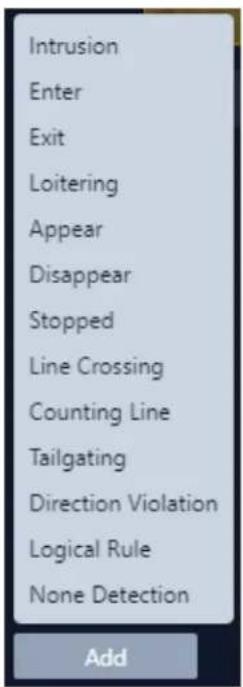
text_image
Intrusion Enter Exit Loitering Appear Disappear Stopped Line Crossing Counting Line Tailgating Direction Violation Logical Rule None Detection AddAnalytic Area Rules
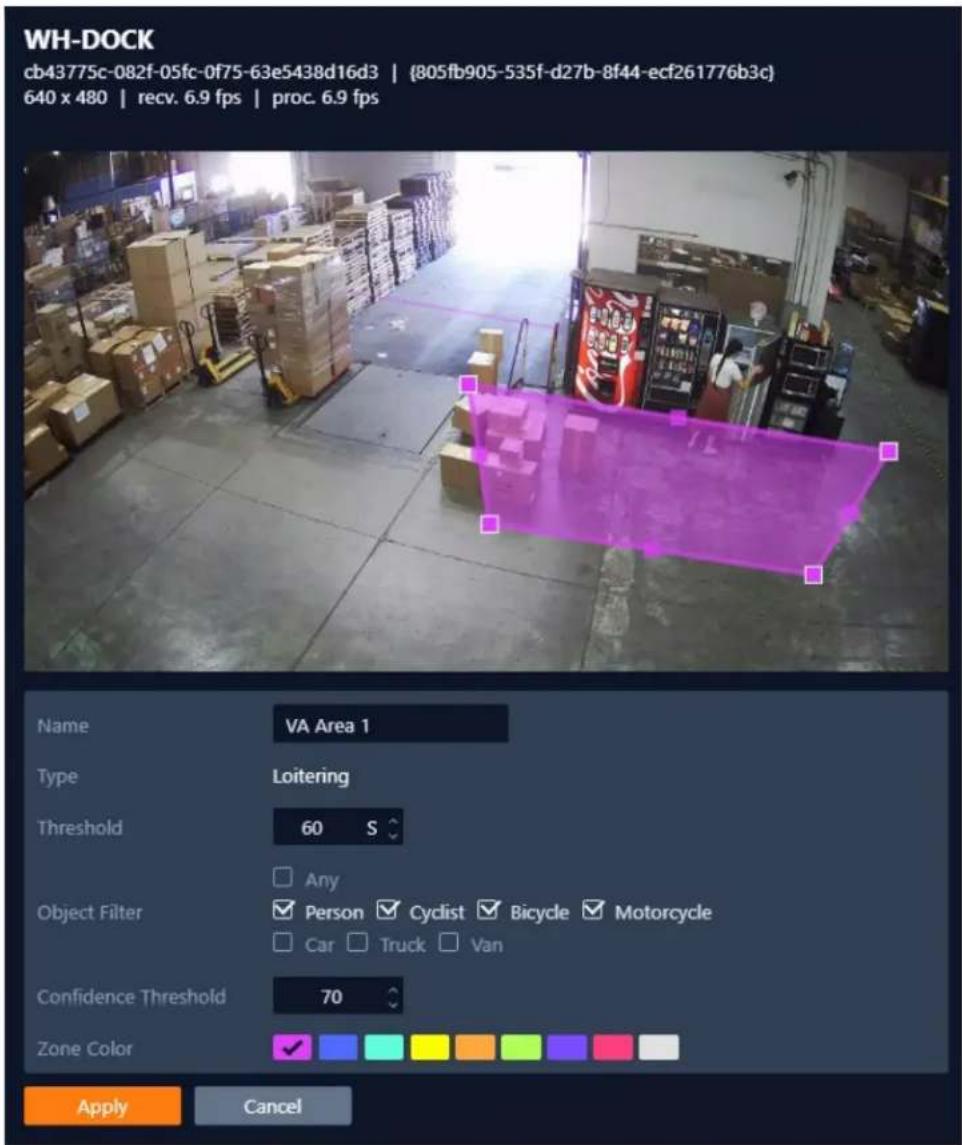
When creating Analytic Area Rules, the DW Ai Server will overlay a survey zone over the camera video for the DW Ai Server will monitor and track people and objects, while triggering alerts depending on analytic rules.
Area rule types include:
- Intrusion: The Intrusion rule triggers an event when an object is first detected and has crossed into a specified zone
NOTE: The Intrusion rule will trigger in the same circumstances as the Enter and Appear rules. The choice of which rule is most appropriate will depend upon the scenario. - Enter: The Enter rule triggers an event when a tracked object crosses the border from outside of a zone to inside the zone.
- Exit: The Exit rule triggers an event when an object crosses the zone border, moving from inside the zone to outside
- Loitering: The Loitering rule triggers an event when an object remains present within a zone for a pre-defined period.
- Appear: The Appearrule triggers an event when an object suddenly starts to be tracked from within a zone.
- Disappear: The Disappear rule triggers an event when an object suddenly stops being tracked (disappears) from within a zone.
- Stopped: The Stopped rule triggers an event when an object has remained stationary in a particular zone for a pre-defined period.
NOTE: The Stopped rule does not detect abandoned objects. It only detects objects which were moving and then became stationary within the zone.
text_image
WH-DOCK cb43775c-082f-05fc-0f75-63e5438d16d3 | {805fb905-535f-d27b-8f44-ecf261776b3c} 640 x 480 | recv. 6.9 fps | proc. 6.9 fps Name VA Area 1 Type Loitering Threshold 60 S □ Any Object Filter ✓ Person ✓ Cyclist ✓ Bicycle ✓ Motorcycle □ Car □ Truck □ Van Confidence Threshold 70 Zone Color ✓ Apply CancelAnalytic Line Rules
Analytic line rules mark a survey line for the Ai engine to monitor track people and objects. Line rule types include:
- Line Crossing: The Line Crossing rule triggers an event when an object is first detected crossing the line.
- NOTE: Line Crossing rule will trigger in the same circumstances as the Direction Violation rule. The choice of which rule is most appropriate will vary depending on the scenario.
- Counting Line: The Counting Line triggers an event when movement is detected crossing a detection line in a particular direction, regardless of the angle of the crossing. Additional specifications that can be defined include the required direction of travel and the minimum width of passing objects to trigger the rule.
- NOTE: Counting Line differs from the Direction rule in that it does not use the Object Tracker. Instead, it detects motion that moves past the line. The Object Filter feature is not available when using the counting line rule.
- Tailgating: The Tailgating rule triggers an event when objects cross over a line within quick succession of each other, within the defined time.
- Direction Violation: The Direction Violation rule triggers an event when an object crosses the detection line in a specified direction, angle, etc.
NOTE: You can also adjust the rule settings using the preview overlay. Click and hold inside the dotted circles and drag the line to the desired angle.

text_image
DW-WH2 8c4e63a6-35c0-8ba9-0fa9-f48d0788bfda | {12695b97-378f-4fba-3d39-4df1cdc8c063} 640 x 480 | recv. 7.0 fps | proc. 7.0 fps Name VA Line 1 Type Line Crossing ✓ Any Object Filter Person Cyclist Bicycle Motorcycle Car Truck Van Confidence Threshold 70 Zone Color ✓ Apply CancelAnalytic Filtering Rules
Analytic filtering rules can be applied to reduce false-positives and unwanted analytic triggering.
- Logical Rule: A Logical Rule extends the standard analytic rules to allow various inputs to be combined using logical expressions. This allows rules to be combined to form a complex filter of events to help reduce false alerts.
NOTE: Not all standard rules are available for Logical rules.
- None Detection: The None Detection rule will create an exclusion zone that can be used to map areas of the scene from being analyzed. This can
be used to reduce false triggers that might be caused by moving foliage or busy backgrounds by telling the engine to ignore certain areas.
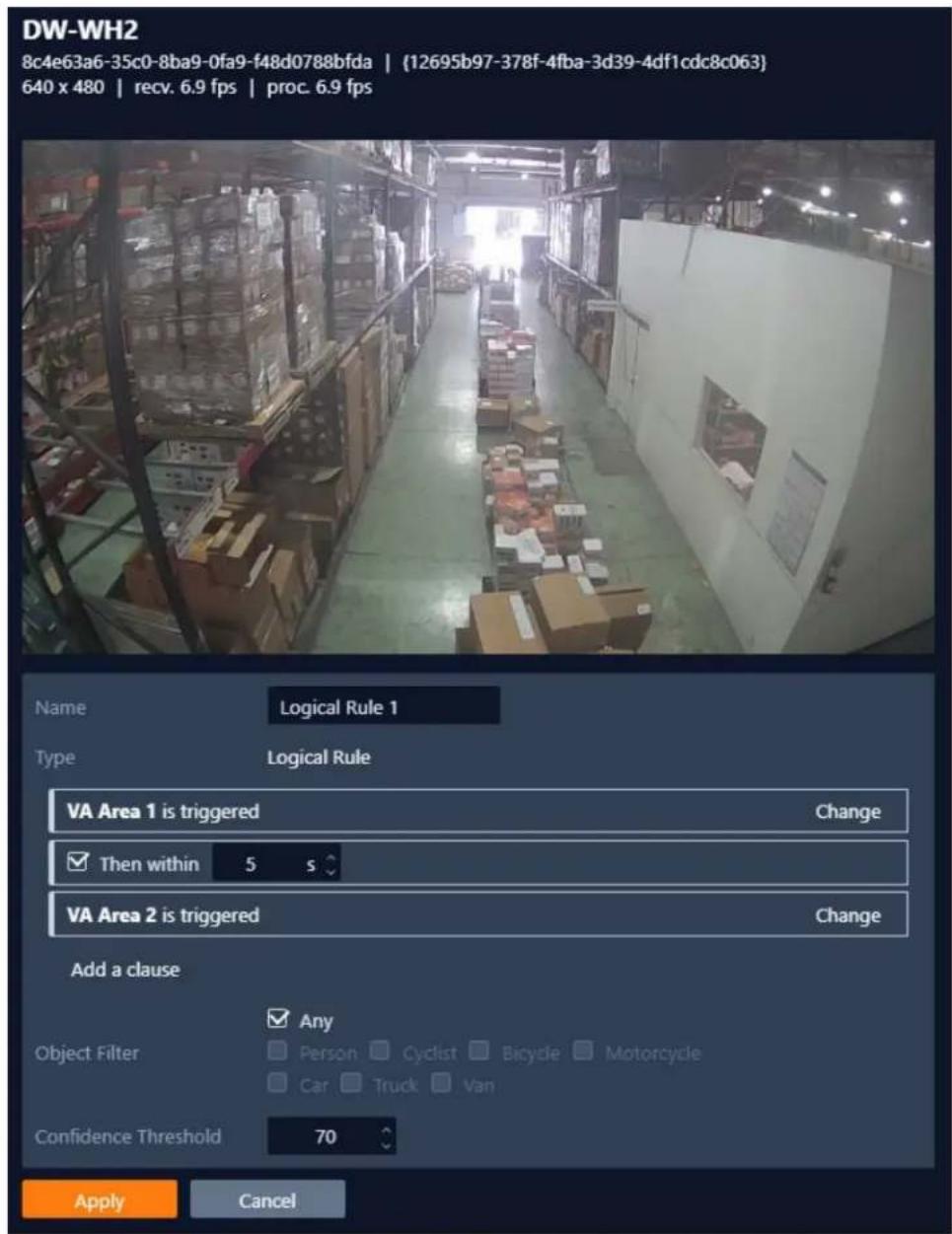
text_image
DW-WH2 8c4e63a6-35c0-8ba9-0fa9-f48d0788bfda | {12695b97-378f-4fba-3d39-4df1cdc8c063} 640 x 480 | recv. 6.9 fps | proc. 6.9 fps Name Logical Rule 1 Type Logical Rule VA Area 1 is triggered Change ✓ Then within 5 s VA Area 2 is triggered Change Add a clause Object Filter ✓ Any Person Cyclist Bicycle Motorcycle Car Truck Van Confidence Threshold 70 Apply CancelAdding an Analytic Rule
To create a new rule:
1) Select a camera from the device list then select the Rules tab.
2) Click the Add button and select the rule type to be added (see the Types of Rules Available section).
- When configuring an AREA rule, the engine will overlay a zone on a snapshot image of the camera's view.
- When configuring a LINE rule, the engine will overlay a line on a snapshot image of the camera's view.
- Click-and-drag the major and minor nodes to reshape the detection zone or to reorient the detection line as needed. Clicking on a minor node will split the segment and create a more complex shape.
- To remove a segment, right-click on a major node and select "Delete".
3) Configure the analytic rule accordingly.
The configuration options for rules include (availability varies by rule type):
• Name: Define a name for the rule.
- Confidence Threshold: Define, in seconds, the period an object needs to be present within a zone to trigger an event.
- Object Filter: Defines if the objects will be filtered before triggering an event.
- NOTE: The Object Filter option is only available when the standard Object Tracker and Deep Learning Object Tracker are selected in the Enable menu.
• Zone Color: Select a color for the zone.
- Apply: Apply to save the rule and return to the previous menu.
- Cancel: Cancel changes and return to the previous menu.
- Direction: Define the direction that objects will be monitored for movement for triggering detection line events.
○ A: Only direction A will be monitored across the counting line.
- B: Only direction B will be monitored across the counting line.
- Both: Both directions across the counting line will be monitored.
- Enable Width Calibration: Turn the object width calibration feature on or off.
- Width Calibration: Define the width calibration value; used to adjust the minimum and maximum width of target objects for triggering an event when crossing the detection line.
- Enable Shadow Filter: Turn the shadow filter on or off, this attempts to compensate for shadows cast by objects.
- Counter: Toggle to enable or disable a tally counter for this line.
- Reset: Click to reset the counter.
- Angle: Define the direction that objects must move to trigger a Direction Violation event.
○ Acceptance: Define the allowed variance each side of the angle that will still trigger a Direction Violation event
- Select Rule: Define the first and second rules that will be used in the Logical rule.
○ Then within: Define the period between which the standard rules must occur to trigger the Logical rule.
- Add a clause: Add an additional rule to the logical rule, this displays a new “Then within” field for the rule.
4) Click Apply to save the rule and return to the previous menu.
NOTE: The Object Filter option is only available when the standard object tracker and Deep Learning Object tracker are selected. Filter option availability will change depending on which tracker is being used.
How to Modify a Rule
1) In the Rules tab highlight the rule to be modified.
2) Select Modify to open the settings for the rule.
3) Modify the rule accordingly.
4) Click Apply to save the rule and return to the previous menu.
How to Delete a Rule
1) In the Rules tab highlight the rule to be deleted
2) Click Delete to delete the rule from the list.
How to Search for Analytic Events
The purpose of the DW Ai Server Configuration Tools to connect and send metadata from the analytic engine to the DW Spectrum Server.
All event searches and object detection searches should be performed through DW Spectrum IPVMS using the DW Spectrum Client for desktop computers. For more information on event searches, please refer to the DW Spectrum IPVMS User Manual.
Part 8: Counters Tab
A counter can be added to count the number of times a rule is triggered. For example, tracking the number of people that crossed a Counting Line.
You can create, edit, or remove counters with the available features:
- Add: Click to add a new counter.
- Modify: Click to modify the highlighted rule.
- Delete: Click to delete the highlighted rule.
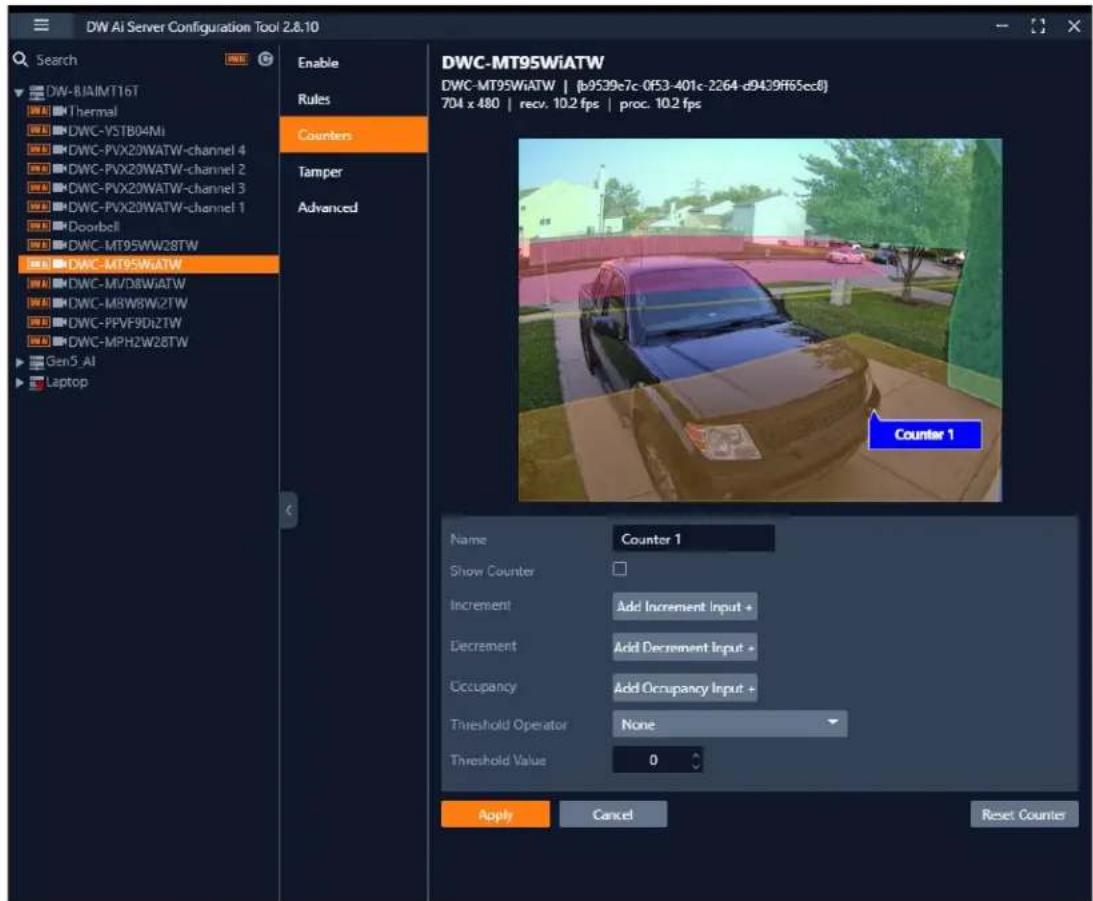
text_image
DW AI Server Configuration Tool 2.8.10 Search DW-BJAMT16T Thermal DWC-VSTB04Mi DWC-PVX20WATW-channel 4 DWC-PVX20WATW-channel 2 DWC-PVX20WATW-channel 3 DWC-PVX20WATW-channel 1 Doorbell DWC-MT95WW28TW DWC-MT95WiATW DWC-MI/D8WiATW DWC-M8W8W2TW DWC-PPVF9DI2TW DWC-MPH2W28TW Gen5 AI Laptop Enable Rules Counters Tamper Advanced DWC-MT95WiATW DWC-MT95WiATW | [b9539c7c-0f53-401c-2264-d9439f65ec8] 704 x 480 | recv. 10.2 fps | proc. 10.2 fps Counter 1 Name Counter 1 Show Counter □ Increment Add Increment Input + Decrement Add Decrement Input + Occupancy Add Occupancy Input + Threshold Operator None Threshold Value 0 Apply Cancel Reset CounterHow to Add a Counter
To add a Counter:
1) Select the camera, then click on the Counters tab.
2) In the Counters menu, click the Add button.
3) Configure the counter as needed.
The configuration options include:
• Name: Specify a name for the Counter.
- Show Counter: Enable to display the counter in the analytic video stream.
- Increment: Select which rule, when triggered, will add to the Counter.
- Decrement: Select which rule, when triggered, will subtract from the Counter.
- Occupancy: Select a rule to set the Counter to the current number of the rule's active triggers.
- Threshold Operator: Select the scenario in which the Counter will generate an event only when the parameter has been met.
- Greater than or equal to
- Less than or equal to
- Great than
- Less than
- Equal to
- Not Equal to
○ None
- Threshold Value: set the value to which the Threshold Operator will increase or decrease the Counter value.
- Reset Counter: click to reset the counter value to 0.
4) Click the Apply button to save the Counter settings.

text_image
DW-WH2 8c4e63a6-35c0-8ba9-0fa9-f48d0788bfda | {12695b97-378f-4fba-3d39-4df1cdc8c063} 640 x 480 | recv. 6.7 fps | proc. 6.7 fps Counter 1 Name Counter 1 Show Counter □ Increment Add Increment Input + Decrement Add Decrement Input + Occupancy Add Occupancy Input + Threshold Operator None Threshold Value 0 Apply Cancel Reset CounterHow to Modify a Counter
1) In the Counterstab highlight the Counter to be modified.
2) Select Modify to open the settings for the rule.
3) Modify the rule accordingly.
4) Select Apply to save and return to the previous menu.
How to Delete a Counter
1) In the Counterstab highlight the Counter to be deleted.
2) Select Delete to delete the Counter from the list.
Part 9: Tamper Tab - Tamper Detection
The Tamper Detection feature is to detect when camera tampering events obscure the camera view, such as bagging (physically blocking the camera lens), defocusing, or moving the camera, occur. This is achieved by the analytics automatically detecting large persistent changes in the image.
Select the Tamper menu tab to configure the Tamer Detection settings.
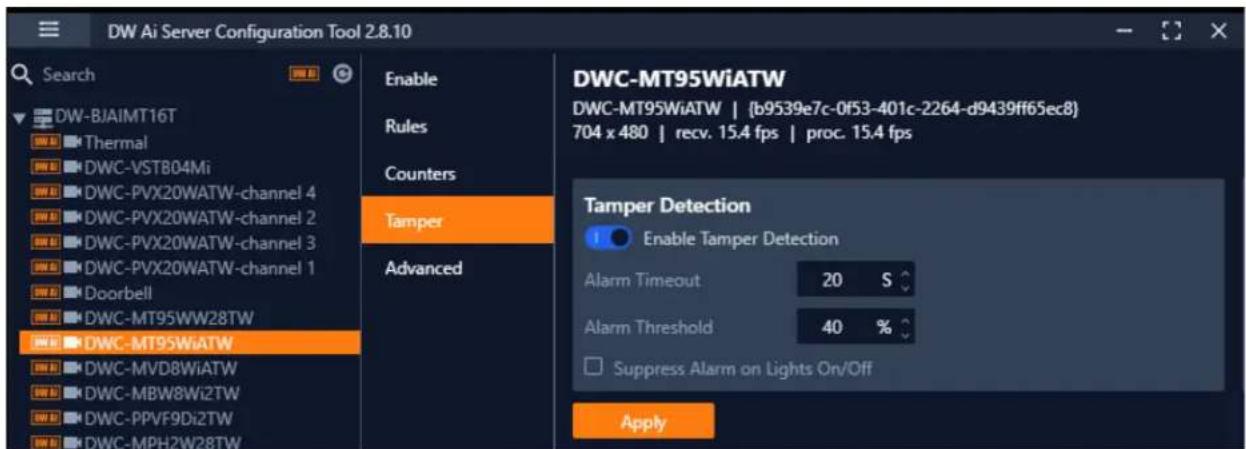
text_image
DW Ai Server Configuration Tool 2.8.10 Search DW-BJAIMT16T Thermal DWC-VST804Mi DWC-PVX20WATW-channel 4 DWC-PVX20WATW-channel 2 DWC-PVX20WATW-channel 3 DWC-PVX20WATW-channel 1 Doorbell DWC-MT95WW28TW DWC-MT95WiATW DWC-MVD8WiATW DWC-MBW8Wi2TW DWC-PPVF9Di2TW DWC-MPH2W28TW Enable Rules Counters Tamper Advanced DWC-MT95WiATW DWC-MT95WiATW | {b9539e7c-0f53-401c-2264-d9439ff65ec8} 704 x 480 | recv. 15.4 fps | proc. 15.4 fps Tamper Detection Enable Tamper Detection Alarm Timeout 20 S Alarm Threshold 40 % Suppress Alarm on Lights On/Off ApplyConfiguration options include:
- Enable Tamper Detection: Toggle to enable/disable the Tamper Detection feature for the selected camera.
- Alarm Timeout: Defines the length of time, in seconds, that the image must be persistently changed before the alarm is triggered.
- Alarm Threshold: Defines the percentage area of the image which must be changed for the tampering to be triggered.
- Suppress Alarm on light: Toggle to enable/disable the feature. This feature mitigates scenarios where sudden changes in lighting such as switching on/off indoor lighting can cause false tamper events.
- Apply: Click to save the current settings.
NOTE: The option will reduce sensitivity to genuine alarms and should be used with caution. Remember to Apply changes for them to take effect.
Part 10: Advanced
The Advanced camera menu contains settings relating to how the analytics engine tracks objects, such as the time threshold for the Stationary Rule.
In most installations the default configuration will be sufficient.
Select the Advanced menu tab to configure the advanced analytic settings.
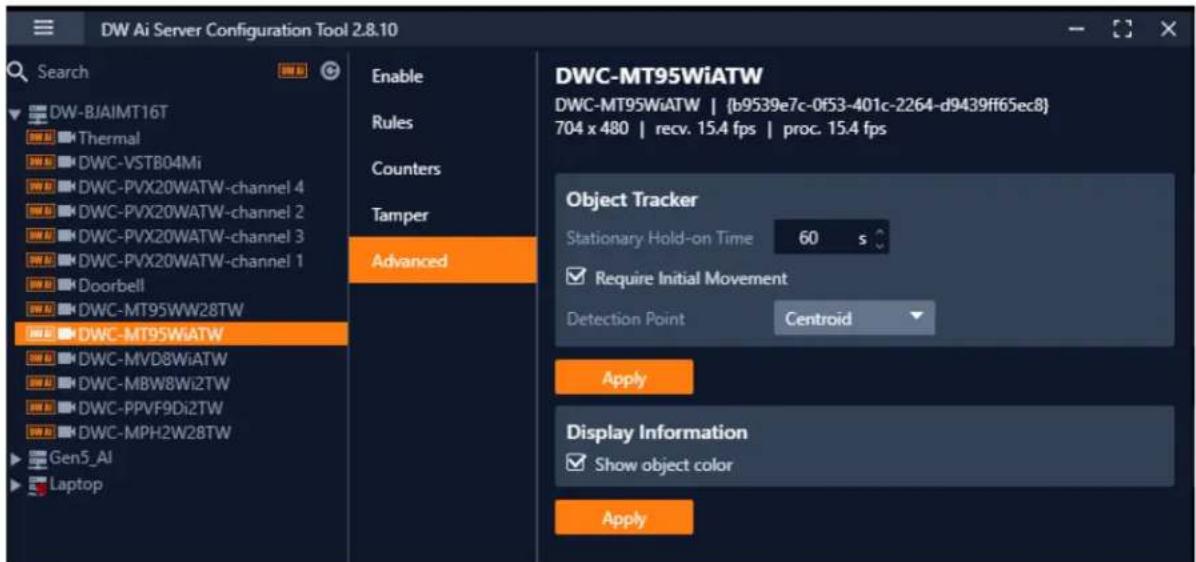
text_image
DW Ai Server Configuration Tool 2.8.10 Search DW-BJAIMT16T Thermal DWC-VSTB04Mi DWC-PVX20WATW-channel 4 DWC-PVX20WATW-channel 2 DWC-PVX20WATW-channel 3 DWC-PVX20WATW-channel 1 Doorbell DWC-MT95WW28TW DWC-MT95WiATW DWC-MVD8WiATW DWC-MBW8Wi2TW DWC-PPVF9Di2TW DWC-MPH2W28TW Gen5_AI Laptop Enable Rules Counters Tamper Advanced DWC-MT95WiATW DWC-MT95WiATW | {b9539e7c-0f53-401c-2264-d9439ff65ec8} 704 x 480 | recv. 15.4 fps | proc. 15.4 fps Object Tracker Stationary Hold-on Time 60 s Require Initial Movement Detection Point Centroid Apply Display Information Show object color ApplyObject Tracker
The Object Tracker section includes the settings used by the Ai engine when tracking objects for analytic rules.
Object Tracker settings include:
- Stationary Hold-on Time: Defines the amount of time an object will continue to be tracked and classified once it has stopped moving and has become stationary.
- Detection Point: Defines the tracking point that will be used to evaluate object detection and pathing for analytic rules.
○ Auto: In Auto mode the detection point is automatically set based on how the calibration is configured.
- Mid bottom In Mid bottom mode the detection point for each object is centered along the bottom line of the bounding box.
- Centroid In Centroid mode the detection point for each object is located in the middle of the bounding box.
- Require Initial Movement: Toggle to track all object or moving object. It will prevent objects which have not moved from being tracked.
- Apply: Click to apply changes to the selected camera.
NOTE: Changing the Detection Point setting may affect the point at which objects will trigger an event, depending on the tracked objects pathing.
Display Information
The Display Information section includes the settings that determine how object tracking annotations will appear for users.
Display Information settings include:
• Show Object Color: Toggle to display the color of tracked objects.
- Apply: Click to apply changes to the selected camera.
DW DIGITAL WATCHDOG®
Complete Surveillance Solutions
DW® East Coast office and warehouse: 5436 W Crenshaw St, Tampa, FL USA 33634 DW® West Coast office and warehouse: 16220 Bloomfield Ave, Cerritos, CA USA 90703
PH: 866-446-3595 | FAX: 813-888-9262
www.Digital-Watchdog.com
technicalsupport@digital-watchdog.com
Technical Support PH:
USA & Canada 1+ 866-446-3595
International 1+ 813-888-9555
French Canadian: 1+ 904-999-1309
Technical Support hours: Monday-Friday 9 a.m. to 8 p.m. Eastern Time