
500741 - Unspecified MuxLab - Free user manual and instructions
Find the device manual for free 500741 MuxLab in PDF.


| Product Type | HDMI 2.0 to 12G-SDI Video Converter |
| Model | 500741 |
| Brand | MuxLab |
| Video Input | 1 x HDMI 2.0 (Type A, 19-pin female) |
| Video Outputs | 1 x HDMI Loop Out (Type A, 19-pin female), 1 x 12G-SDI (BNC), 3 x 6G-SDI (BNC) |
| Max Resolution | 4K/60 fps (4:4:4) |
| SDI Standards | 12G, 6G, 3G, HD, SD-SDI |
| SDI Link Modes | Single Link, Dual Link, Quad Link (2SI) |
| Audio Support | 8-channel, 24-bit, up to 192 kHz (HDMI), 48 kHz (SDI) |
| Control Interface | Mini-USB for software control; DIP switch for hardware control |
| Software | MuxLab SDI Manager (Windows) |
| Power Supply | 12VDC with locking connector (universal plug kit included) |
| Power Consumption | Not specified (typical <15W) |
| Dimensions (W x D x H) | 153 x 80.7 x 26 mm |
| Weight | Not specified (approx. 500 g) |
| Enclosure Material | Black metal |
| Operating Temperature | 0°C to 40°C |
| Storage Temperature | -20°C to 60°C |
| Humidity | 0 to 90% non-condensing |
| Warranty | 2 years |
| Package Contents | Converter, power supply with international plugs, USB to Mini-USB cable, manual (download) |
| Safety Certifications | Complies with general electrical waste disposal; basic safety precautions apply |
Frequently Asked Questions - 500741 MuxLab
User questions about 500741 MuxLab
0 question about this device. Answer the ones you know or ask your own.
Ask a new question about this device
Download the instructions for your Unspecified in PDF format for free! Find your manual 500741 - MuxLab and take your electronic device back in hand. On this page are published all the documents necessary for the use of your device. 500741 by MuxLab.
USER MANUAL 500741 MuxLab
- Safety Precautions....3
- Introduction......4
- Features......4
- Package Contents......4
- Specifications....5
- Hardware Interface....6
6.1 Front Panel....6
6.2 Rear Panel....6 - Dip Switch....7
7.1 Control (Dip Switch 1)....7
7.2 SDI Mode (Dip Switch 2 & 3)....7 - Software Interface....8
8.1 Software Control....8
8.2 Software Settings......8
8.3 Video Settings....9
8.4 Audio Settings....9
8.5 EDID Settings....10
8.6 Firmware Upgrade....10
8.7 General Settings....11 - Application Diagram....12
1. Safety Precautions
To ensure the best performance from the product, please read all instructions carefully before using the device. Save this manual for future reference.
- Follow basic safety precautions to reduce the risk of fire, electrical shock, and injury.
- Do not dismantle the housing or modify the module. It may result in electrical shock or burns.
- Do not open or remove the housing of the device as you may be exposed to dangerous voltage or other hazards.
- To prevent fire or shock hazard, do not expose the unit to rain, moisture and do not install this product near water. Keep the product away from liquids.
- Spillage into the housing may result in fire, electrical shock, or equipment damage. If an object or liquid falls or spills on the housing, unplug the module immediately.
- Do not use liquid or aerosol cleaners to clean this unit. Always unplug the power to the device before cleaning.
- Using supplies or parts not meeting the product specifications may cause damage, deterioration or malfunction.
• Refer all servicing to qualified service personnel.
• Install the device in a place with adequate ventilation to avoid damage caused by overheat. - Unplug the power when left unused for a long period of time.
- Information on disposal of devices: do not burn or mix with general household waste, please treat them as normal electrical waste.
Copyright Notice
All contents in this manual are copyrighted, and cannot be cloned, copied, or translated without the express permission of MuxLab Inc. Product specifications and information in this document are for reference only, and the content may be updated from time to time without prior notice.
2. Introduction
The HDMI 2.0 to 12G-SDI (Model 500741) is a product developed for the high quality conversion of video signal from HDMI 2.0 to 12G-SDI. It performs high-quality, low-delay video transmission, features one HDMI 2.0 input and HDMI 2.0 local loop out, and up to 4 SDI outputs: one 12G-SDI output and three 6G-SDI outputs. It is powered via a 12VDC power supply with a locking connector for better reliable power connection. It supports firmware upgrade and control via a mini-USB port. SDI and HDMI signals are validated and displayed via front panel and rear panel LED indicators.
3. Features
- Wide support of HDMI 2.0 resolutions
• Support for local HDMI 2.0 loop out
• Supports SDI Single link, Dual link and Quad link modes
• Supports Quad link 2 Sample Interleave (2SI)
• Multi-Standard Support (12G, 6G, 3G, HD, and SD-SDI)
• Auto Source Format Detection
• Supports 8-channel, 24-bit Audio formats - Easy plug and play installation
- Rugged design and integrated brackets for easy mounting
- Configure via USB port and the MuxLab SDI Manager software available for easy control and firmware upgrade
4. Package Contents
• One (1) HDMI 2.0 to 12G-SDI Video Converter
- One (1) Universal Power Supply including international plug connections for use around the world
• One (1) USB to Mini-USB cable
• One (1) User manual (available via download)
Notes: Confirm that the product and accessories are all included. If not, please contact the supplier from which you purchased the unit.
5. Specifications
| Specifications | |
| Environment | HDMI 2.0, 12G-SDI, and 6G-SDI |
| Bandwidth (HDMI) | 594 MHz |
| Video Resolution | Up to 4K/60 fps (4:4:4) |
| System latency | None |
| USB Link | Mini-USB |
| Power Supply | 12VDC, Locking connector |
| Working Temperature | 0°C to 40°C |
| Storage Temperature | -20°C to 60°C. Bring to working temperature range before power-up. |
| Humidity | 0 to 90% non condensing |
| Connections | |
| Converter | Inputs: 1 x HDMI IN [Type A, 19-pin female]Outputs: 1 x HDMI Loop Out [Type A, 19-pin female]1 x 12G-SDI connector [High speed BNC female]3 x 6G-SDI connector [High speed BNC female]Controls: 1 x USB HOST [Mini USB]2 x Front LEDs indicate Locked HDMI Signals4 x Rear LEDs indicate Locked SDI SignalsPower: 7.5Vdc to 15Vdc with locking connector |
| DIP Switch Settings | Position 1: DOWN: USB Software Control; UP: DIP switch Hardware ControlPosition 2 & 3: 2-UP - 3-UP for SINGLE Link SDI mode2-UP - 3-DOWN for DUAL Link SDI mode2-DOWN - 3-UP for QUAD Link SDI mode2-DOWN - 3-DOWN RESERVEDPosition 4 & 5: RESERVED |
| Supported Formats | |
| HDMI 2.0 Video Input | 4096x2160p 60/50fps4096x2160p 30/25/24fps3840x2160p 60/50fps3840x2160p 30/25/24fps1920x1080p 60/50fps1920x1080p 30/25/24fps1920x1080i 60/50fps1280x720p 60/50fps |
| HDMI 2.0 Video Output | Same as HDMI Input Format |
| SDI Video Output | Same as HDMI Input Format |
| HDMI Audio Input | 8-Channel, 24-bit, up to 48 kHz |
| HDMI Audio Output | 8-Channel, 24-bit, up to 192 kHz |
| SDI Audio Output | 8-Channel, 24-bit, 48 kHz |
| Mechanical | |
| Housing | Black Metal Enclosure |
| Dimensions 153 X 80.7 X 26mm | |
| Warranty | 2 years |
| Order Information | 500741 HDMI 2.0 to 12G-SDI Video Converter (UPC: 627699007419) |
6. Hardware Interface
6.1 Front Panel

HDMI In and HDMI Loop Out connectors.1.
- LED displays next to each of the two (2) HDMI connectors will indicate the status of a locked video signal. A red light indicate that the video is not locked. A green light indicates a locked video signal.
Six (6) position DIP Switch settings for easy configuration.3.
6.2 Rear Panel

Locking 12VDC Power interface.1.
Mini-USB connector to connect a PC running the MuxLab SDI Manager Software.2.
-
Video Output signal interface: 4 x Output SDI High Speed BNC connectors. One (1) 12G-SDI output and three (3) 6G-SDI outputs.
-
LED displays next to each of the four (4) SDI connectors will indicate the status of a locked video signal. A red light indicate that the video is not locked. A green light indicates a locked video signal.
7. Dip Switch
| Pin On (↑): | Pin OFF (↓): | DIP Switch 1 | DIP Switch 5 |
7.1 Control (Dip Switch 1)
| Control | Pin1 |
 |  |
 |  |
7.2 SDI Mode (Dip Switch 2 & 3)
| SDI Mode | Pin2 | Pin3 |
 |  |  |
 |  |  |
 |  |  |
- Dip Switch 4 & 5: N/A
8 Software Interface
The HDMI 2.0 to 12G-SDI Video Converter can be used right out of the box, without the use of any software. However, to use the product to its full capability, you must use the MuxLab SDI Manager software.
The MuxLab SDI Manager software can be used to control and manage the HDMI 2.0 to 12G-SDI Video Converter.
The software features also a firmware upgrade option for future firmware releases.
The software runs on Windows operating system and is available for download on the MuxLab website.
8.1 Software Download
When running the MuxLab SDI Manager software, you will see the splash screen below. Make sure to connect the USB cable between the PC and the device.

8.2 Software Settings
Once connected, you will see the Main screen. On the left side, the software will display the software version as well as the firmware version. It will also display the status of each port as reflected by the LEDs on each port.
8.3 Video Settings
On the right side, under the Video tab, you can confirm how the device is controlled; either via the device's hardware (DIP Switch) setting or via the manager software (USB). The Control Mode can only be set by the DIP Switch 1 and cannot be overridden by software.
You can choose the Link mode: SL for Single Link mode, DL for Dual Link mode and QL for Quad Link mode. Clicking on the arrow will toggle all available modes.

8.4 Audio Settings
Under the Audio tab you will have the possibility to mute or unmute the Audio.

8.5 EDID Settings
The EDID tab is for the Extended Display Identification Data settings. The EDID Mode can be set to Default, User Defined, or Copy Monitor. The Copy Monitor EDID Mode will copy the EDID of the monitor connected.
An EDID file can also be uploaded.

8.6 Firmware Upgrade
The F/W Update tab will display the menu for upgrading the device's firmware.

To upgrade the firmware, three files could be provided depending on what need to be updated.
The firmware upgrade procedure is as follows:
- Go to the "F/W Update" tab
- Click on the folder button to select the file(s)
• A File Open Menu will appear

- Select a BIN file or a FIN file to update.
- Click on "Start" button; a progress bar will be displayed. Make sure the device is powered at all times during the firmware update process.
- Once the progress bar is complete, repeat the two steps above for all the three files for upgrade.
• After all the three files have been uploaded successfully, power cycle the device.
8.7 General Settings
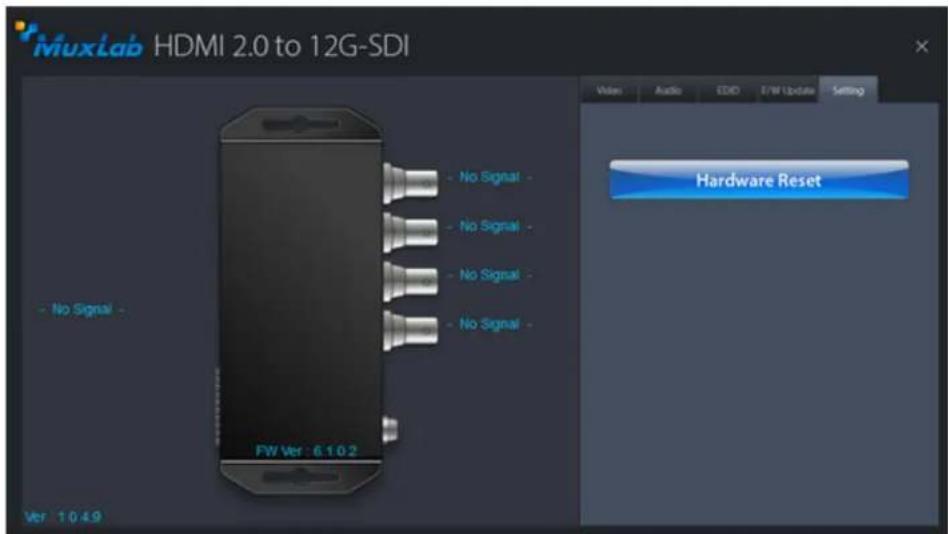
The Setting Tab can be used to perform a hardware reset. The device will reboot for a few seconds and will reconnect to the software.
9. Application Diagram

flowchart
graph TD
    A["HDMI Monitor"] --> B["500741"]
    C["HDMI Camera"] --> B
    D["PC"] --> B
    B --> E["Production Console"]
    B --> F["SDI Video Mixer"]
    style B fill:#f9f9f9,stroke:#333
    style E fill:#e6f7ff,stroke:#333
    style F fill:#e6f7ff,stroke:#333
- Safety Precautions
- Copyright Notice
- Introduction
- Features
- Package Contents
- Specifications
- Hardware Interface
- Front Panel
- Rear Panel
- Dip Switch
- Control (Dip Switch 1)
- SDI Mode (Dip Switch 2 & 3)
- Software Interface
- Software Download
- Software Settings
- Video Settings
- Audio Settings
- EDID Settings
- Firmware Upgrade
- General Settings
- Application Diagram
Brand : MuxLab
Model : 500741
Category : Unspecified