SWAM Flutes Upgrade - Audio software Audio Modeling - Free user manual and instructions
Find the device manual for free SWAM Flutes Upgrade Audio Modeling in PDF.


User questions about SWAM Flutes Upgrade Audio Modeling
0 question about this device. Answer the ones you know or ask your own.
Ask a new question about this device
Download the instructions for your Audio software in PDF format for free! Find your manual SWAM Flutes Upgrade - Audio Modeling and take your electronic device back in hand. On this page are published all the documents necessary for the use of your device. SWAM Flutes Upgrade by Audio Modeling.
USER MANUAL SWAM Flutes Upgrade Audio Modeling
Saxophones, Clarinets, Double Reeds, Flutes
text_image
SWAM Double reeds CBOE - ENGLISH HORN - BASSOON - CONTRABASSOON ALMA SWAM Flutes FLUTE - ALTO FLUTE - BASS FLUTE - PICCOLO ALMA SWAM Clarinets CLARINET - BASS CLARINET ALMA SWAM Saxophones SOPEANO - ALTO - TENOR - BARITONE ALMATable Of Contents
Before you start 4
Licensing 6
macOS and Windows 6
iOS 6
Specifications 6
Operating Systems and Formats 6
Required space after installation 7
Installation 7
macOS and Windows 7
Installation paths 9
iOS 9
Hardware Requirements 10
CPU load 10
Audio interface (sound card) 10
MIDI devices 10
Software Requirements
macOS and Windows 12
iOS 12
Using an appropriate range of Expression 13
Introduction 14
Main window 16
Instrument parameters 16
Main controls 17
Audio section 17
Header section 18
Expressivity 19
Play Modes 20
Timbre 21
Pitch 22
Master Tuning 22
Micro Tuning 23
Applying microtuning through SysEx 25
Applying microtuning using key switches 27
How to detune selected notes 28
Advanced 30
Instrument 30
MIDI 31
Effects 33
On-screen playing surface 66
Key Switches 68
Known issues / Open points 68
Technical Support 69
Before you start
Although these instruments are intuitive and easy to play “out-of-the-box,” getting excellent results requires a certain amount of practice and experience. Please read this user manual carefully. It contains very important information that will help you achieve the best results in as short a time as possible. In addition, you can listen to the demos on the Audio Modeling website at audiomodeling.com/media, and on Audio Modeling YouTube channel at youtube.com/c/AudioModeling .
The latest versions of all SWAM manuals can be found at audiomodeling.com/manuals. Release Notes are available at audiomodeling.com/support/release-notes.
SWAM instruments are designed to be PLAYED by shaping the sound in real time, as a real instrumentalist would.
The Desktop version will function on any modern computer (see Specifications), using any host application which supports VST, VST3, Audio Units, or AAX plugins, or running as a standalone application. Some examples of host software would be a sequencer or digital audio workstation (DAW) such as Camelot Pro, Ableton Live, Cubase, Logic, Pro Tools, LUNA, etc.
The iOS version is currently available for both iPad and iPhone (sefca\$ipesi to check what OS version is supported).. On this mobile platform, SWAM products come as Standalone, AUv3 plugins, and Inter-App Audio (IAA) formats. Some examples of host and DAW software are Camelot Pro, GarageBand, Cubasis and AUM.
These instruments use Audio Modeling's proprietary SWAM (Synchronous Wave Acoustic Modeling) technology, conceived by Stefano Lucato. Combined with physical modeling, SWAM provides exceptional playability and realism. The sound is not produced by playing back samples of pre recorded articulations; these are complex virtual instruments, capable of shaping almost any kind of articulation and phrasing in real time. They can be played using any MIDI device such as a keyboard, breath or wind controller. Indeed, it is essential that SWAM instruments are controlled using a suitably capable set of MIDI controllers, as described in this manual.
NOTE: As with a traditional acoustic musical instrument, SWAM instruments allow playing continuously over the full range of dynamics — from to ff — without producing any phasing artifacts.
To accomplish this, it's necessary to use a suitable continuous physical MIDI controller such as an expression or volume pedal (usually set to send CC11 or CC7 MIDI messages), a breath or wind controller (usually sending CC2 MIDI messages) or one of the many other expressive controllers on the market today.
WITHOUT SUCHACONTROLLER, THEINSTRUMENTWILLNOTWORKWHENPLAYED
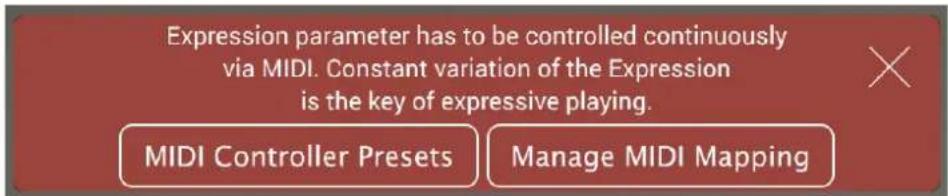
IN REALTIME. Instead, it will display the warning "Expression parameter has to be controlledcontinuouslyviaMIDI.ConstantvariationoftheExpressionisthekeyof expressiveplaying.", with actions to select or map an external MIDI controller.
text_image
Expression parameter has to be controlled continuously via MIDI. Constant variation of the Expression is the key of expressive playing. MIDI Controller Presets Manage MIDI MappingOther physical MIDI controllers, like sliders, knobs or a modulation wheel, can be used for this purpose, although they often do not provide the level of control required for optimal results. Please refer to other sections of this manual for further details.
When used for studio production on a DAW, it's necessary to provide either a MIDI Expression controller curve or parameter automation.
Note: the MIDI note naming convention we use is based on Middle C = C3, corresponding to MIDI note number 60. It's possible to switch to Middle C = C4 from the Options page.
Licensing
macOS and Windows
The License Key we provide can be activated on up to four computers at the same time. Refer to the Installation section for instructions on how to authorize SWAM products.
To move an authorization to a different computer, please go to the Customer Portal at my.audiomodeling.com and delete it from the activations list of the corresponding License Key.
The full terms and conditions can be found in the End User License Agreement (EULA) provided with the product. Please refer to the "Installation Path" section of this user manual to locate the EULA on your system.
iOS
Licensing on iOS is managed by Apple. Please refer to AppStore and Apple terms and conditions.
Specifications
Operating Systems and Formats
macOS 10.13 (High Sierra) - 13.3 (Ventura) *
●Standalone, Audio Units, VST, VST3, AAX 64bit
•NKS (Native Instruments Komplete Kontrol)
Windows 10, Windows 11
●Standalone, VST, VST3, AAX 64bit
●NKS (Native Instruments Komplete Kontrol)
iOS 11 - 16
• Standalone, AUv3, IAA
* Apple Silicon architecture supported natively
Required space after installation
- SWAM Saxophones -Disk space: 500 MB -RAM: 100 MB for each instrument instance
- SWAM Clarinets -Disk space: 260 MB -RAM: 100 MB for each instrument instance
- SWAM Flutes -Disk space: 400 MB -RAM: 60 MB for each instrument instance
- SWAM Double Reeds -Disk space: 475 MB -RAM: 100 MB for each instrument instance
Note: disk space has been computed with all plugin formats installed
Installation
macOS and Windows
Product Registration and Installation
1) login to our Customer Portal (https://my.audiomodeling.com); create a new account if you have never signed up
2) select "Register a new product"
3) type the License Key or Redeem code provided, select "Next"
4) the portal will send an email to you. Click fithration link on the email
5) download, install and launch the "Audio Modeling Software Center", available at https://audiomodeling.com/support/install-and-update, to download and authorize the products on your computer.
If you installed a previous version
The updates are managed through the Audio Modeling Software Center.
NOTE: the products can be activated "online" only, i.e. your computer must be connected to the Internet at the time of authorization. If you need to flip or just connect to the Internet for the time required for the authorization, then disconnect once the authorization is complete.

text_image
Audio Modeling Software Center Dev Audio Modeling MacBook Pro Studio Your Products ↓ Install All (11) ○ Refresh SWAM Solo Strings SWAM Violin v3 V. 3.5.0 Violin Ready To Install INSTALL ... SWAM Viola v3 V. 3.5.0 Viola Update Available UPDATE ... SWAM Cello v3 V. 3.5.0 Cello Ready To Install INSTALL ... SWAM Double Bass v3 V. 3.5.0 Double Bass Ready To Install INSTALL ... SWAM Solo Woodwinds SWAM Clarinets v3 V. 3.5.0 Clarinet, Bass Clarinet Up To Date ... SWAM Saxophones v3 V. 3.5.0 Sangro Sax Alto Sax Tenor Sax Baritone Sax INSTALLInstallation paths
macOS
- Standalone app, End User License Agreement, Uninstaller are located in the folder chosen in the Audio Modeling Software Center, by default: /Applications/Audio Modeling/(Product name)
• Audio Units plug-ins are located under: /Library/Audio/Plug-Ins/Components
●VST3plug-insare located under: /Library/Audio/Plug-Ins/VST3
●VSTplug-insare located under: /Library/Audio/Plug-Ins/VST
- AAX plug-ins are located under: /Library/Application Support/Avid/Audio/Plug-Ins
- Defaultpresentsand auxiliary resources are stored under: \~/Library/Audio Modeling/SWAMv3
Windows
- Standalone app, End User License Agreement, Uninstaller are located in the folder chosen in the Audio Modeling Software Center, by default: C:\Program Files\Audio Modeling\ (Product name)
- VST3plug-ins:the installation path is defined in the Audio Modeling Software Center, default: C:\Program Files\Common Files\VST3
- VSTplug-ins: the installation path is defined in the Audio Modeling Software Center, default: C:\Program Files\VSTPlugins
- AAXplug-insare located under: C:\Program Files\Common Files\Avid\Audio\Plug-Ins
- Defaultpresentsand auxiliary resources are stored under: %AppData%\Audio Modeling\SWAMv3
iOS
Installation and updates are managed through the AppStore.
Hardware Requirements
CPU load
The realism and expressiveness of the SWAM instrument set can be CPU intensive. It therefore requires a modern computer with at least a 1.6 GHz Core 2 Duo CPU for a single instance of any SWAM instrument. Additional instances will require both a more powerful processor and a low-latency audio driver/device (e.g. ASIO), especially to play the instrument in real time.
Less powerful systems may also prove satisfactory, but may require larger buffer sizes, which incur higher latencies.
Note: This may not necessarily result in an actual problem for music production. Using the freeze feature or bouncing the single MIDI tracks to audio provides a useful remedy.
Audio interface (sound card)
A good quality audio interface with suitable low-latency drivers is required. On Windows, ASIO drivers are recommended. Suggested settings for buffer size at 44.1 or 48 kHz are 128, 256, or 512 samples (larger buffers provide higher latency, but less CPU load). Onboard audio devices are often suitable on modern computers and iPad.
MIDI devices
SWAM instruments (like any other virtual instrument) can be successfully used without the need for any additional hardware by drawing controller curves and programming notes directly in the host sequencer. However, a much more “human” and interactive configuration is recommended, especially when playing in real time, using external MIDI devices: a MIDI keyboard with at least octaves, mod wheel and pitch bend, connected to the computer via USB or an external MIDI device equipped with a set of physical continuous MIDI controllers (usually knobs or sliders) to control playing techniques like growl, flutter tongue, overblow, etc.
Although dynamics can be controlled by another physical controller (knob, slider, ribbon, XY pad), a pedal is highly recommended. As an alternative, a breath controller, such as a Yamaha BC3, TEControl BC and BBC2, Photon by IMOXPLUS, or Hornberg Research HB1 can be used. Woodwind or brass players may prefer to use a wind controller such as a Yamaha WX or YDS-150, Akai EWI (USB, 4000S or 5000), Aodyo Sylphyo, EMEO, Roland Aerophone, Synthophone, EVI (Electronic Valve Instrument), NuRAD, WARBL, or Travel Sax, Robkoo R1 - all of which provide excellent results. MIDI Polyphonic Expression devices like the Seaboard and Lightpad by ROLI, LinnStrument by Roger Linn Design, or the Instrument 1 by Artiphon are fully supported.
Alternative controllers include Neova Ring by Enhancia, Toucé by Expressive E, Sensel Morph, Joué, and Leap Motion by Ultraleap.
Note: On EWI 4000s or similar, please do not set the option to mix the pitch bend or vibrat to breath sensor ("Pb" or "bo" options on EWI 4000s). This can produce unnatural vibrato behavior. SWAM engine applies the right behavioral models to the relationships between pitch and dynamics based on the physics of the instrument. These relationships are different for each musical instrument.
Software Requirements
macOS and Windows
Standalone
We provide a Standalone version of each instrument. Please check the Installation Path section of this User Manual to locate the applications.
Plugins
A DAW (Digital Audio Workstation) or other host capable of running VST2.4, VST3, Audio Units, or AAX plugins is needed to run the SWAM instruments. If you do not have a host application capable of running VST or AU plugins, you can install a free host application such as Camelot Free for desktop (camelotpro.com).
A list of compatible hosts and DAWs can be found in our Knowledge Base: audiomodeling.com/support.
iOS
Standalone
We provide a Standalone app of each SWAM Solo String instrument.
Plug-ins
A DAW (Digital Audio Workstation) or other host capable of running SWAM Solo String instruments as AUv3 or IAA plugins is needed.
If you do not have a host application capable of running AUv3 plugins, you can get our CamelotProlive performance host on the AppStore.
Using an appropriate range of Expression
Expression control is an extremely important aspect for getting the optimal expressiveness and realism with virtual instruments.
All real physical instruments require much greater physical effort to achieve the highest possible dynamics for that instrument. This is not the case for most physical MIDI controllers; it is indeed very easy to push an expression pedal or a slider, to its maximum position and leave it there forever. Oddly enough, even breath and wind controllers tend to jump very easily to the highest dynamics (unless carefully set), so that the most expressive range (mp to mf) is seldom exploited. This results all too often in the virtual instrument being played at the highest extreme of dynamics, leading unavoidably to a poor, unrealistic performance.
Please keep in mind that the key to expressiveness and realism is the proper use of dynamics. Always monitor the input expression value on the main display and adjust the dynamics accordingly. A useful trick is to set the overall monitoring volume fairly high. This automatically prevents any inclination toward overusing the higher levels of dynamics.
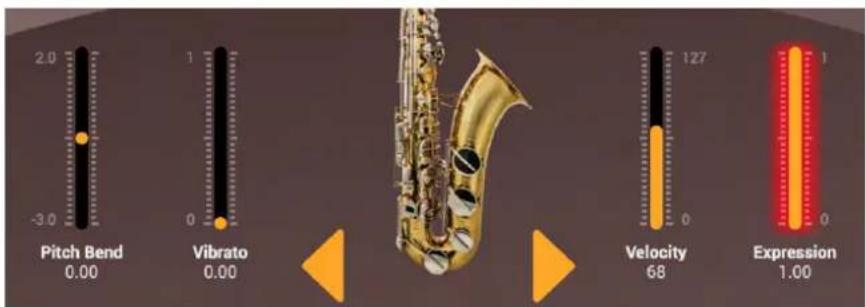
The Expression slider on the main GUI becomes "hot", i.e. with a red halo surrounding it, if the level of expression stays constantly above 75%. When you see such a red alert warning, please consider avoiding such extensive use of higher dynamics.
text_image
Pitch Bend 0.00 Vibrato 0.00 Velocity 68 127 Expression 1.00It's also important to optimize the general volume of your loudspeakers/headphones at an average value of Expression. Too low an output level would easily induce the user to use high Expression levels, usually yielding excessively "biting" sounds.
Introduction
SWAMSoloWoodwindsis a collection of solo instruments conceived and developed by Stefano Lucato and the Audio Modeling team. These instruments are based on a hybrid technology that combines Sample Morphing technique and Physical Modeling synthesis. SWAM stands for Synchronous Waves Acoustic Modeling, and it is a proprietary technology that exploits the knowledge of phase and length of each waveform period.
The SWAM Solo Woodwinds collection includes fourproducts: Saxophones, Clarinets, Double Reeds, and Flutes.
Each product provides multiple instruments, each one comes as a Standalone application, VST, VST3, Audio Units and AAX plugins for desktop; and Standalone App, AUv3 and IAA plugins for iOS.
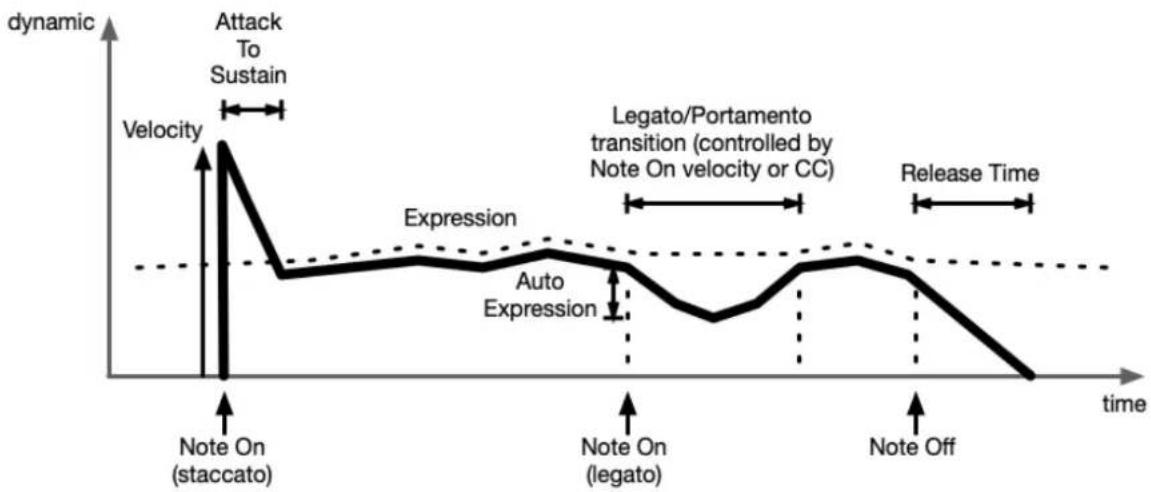
In addition to standard SWAM controls such as staccato/legato (with velocity- or CC-controlled portamento time), dynamic expression, and vibrato depth and frequency, there are several additional parameters to control instrument behavior which are speci woodwind playing techniques.
line
| time | dynamic | | ------------------- | ------- | | Initial Peak | High | | Attack To Sustain | High | | Annotation | Low | | Auto Expression | Medium | | Legato/Portamento transition (controlled by Note On velocity or CC) | Medium | | Note On (legato) | Low | | Note Off | Low |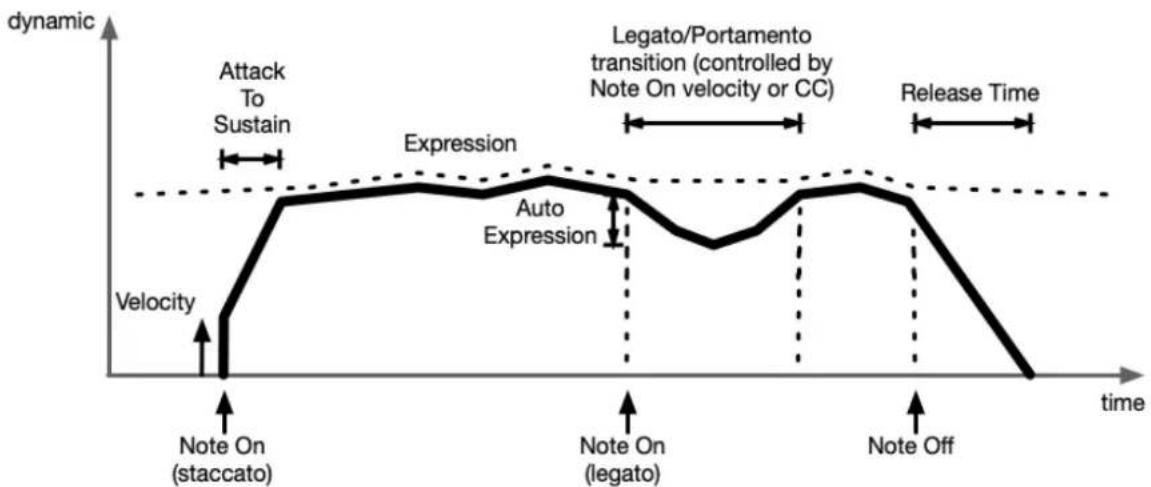
line
| time | dynamic | | ------------------- | ------- | | tstart | 0 | | sustain | 1 | | tstart | 2 | | sustain | 3 | | tstart | 4 | | sustain | 5 | | tstart | 6 | | sustain | 7 | | tstart | 8 | | sustain | 9 | | tstart | 10 | | sustain | 11 | | tstart | 12 | | sustain | 13 | | tstart | 14 | | sustain | 15 | | tstart | 16 | | sustain | 17 | | tstart | 18 | | sustain | 19 | | tstart | 20 | | sustain | 21 | | tstart | 22 | | sustain | 23 | | tstart | 24 | | sustain | 25 | | tstart | 26 | | sustain | 27 | | tstart | 28 | | sustain | 29 | | tstart | 30 | | sustain | 31 | | tstart | 32 | | sustain | 33 | | tstart | 34 | | sustain | 35 | | tstart | 36 | | sustain | 37 | | tstart | 38 | | sustain | 39 | | tstart | 40 | | sustain | 41 | | tstart | 42 | | sustain | 43 | | tstart | 44 | | sustain | 45 | | tstart | 46 | | sustain | 47 | | tstart | 48 | | sustain | 49 | | tstart | 50 | | sustain | 51 | | tstart | 52 | | sustain | 53 | | tstart | 54 | | sustain | 55 | | tstart | 56 | | sustain | 57 | | tstart | 58 | | sustain | 59 | | tstart | 60 | | sustain | 61 | | tstart | 62 | | sustain | 63 | | tstart | 64 | | sustain | 65 | | tstart | 66 | | sustain | 67 | | tstart | 68 | | sustain | 69 | | tstart | 70 | | sustain | 71 | | tstart | 72 | | sustain | 73 | | tstart | 74 | | sustain | 75 | | tstart | 76 | | sustain | 77 | | tstart | 78 | | sustain | 79 | | tstart | 80 | | sustain | 81 | | tstart | 82 | | sustain | 83 | | tstart | 84 | | sustain | 85 | | tstart | 86 | | sustain | 87 | | tstart | 88 | | sustain | 89 | | tstart | 90 | | sustain | 91 | | tstart | 92 | | sustain | 93 | | tstart | 94 | | sustain | 95 | | tstart | 96 | | sustain | 97 | | tstart | 98 | | sustain | 99 | | tstart | 100 | The chart includes labels: 'Attack To Sustain', 'Expression', 'Auto Expression', 'Legato/Portamento transition (controlled by Note On velocity or CC)', and 'Release Time'.Main window
The main window shows the most important parameters, instrument monitors and animations.
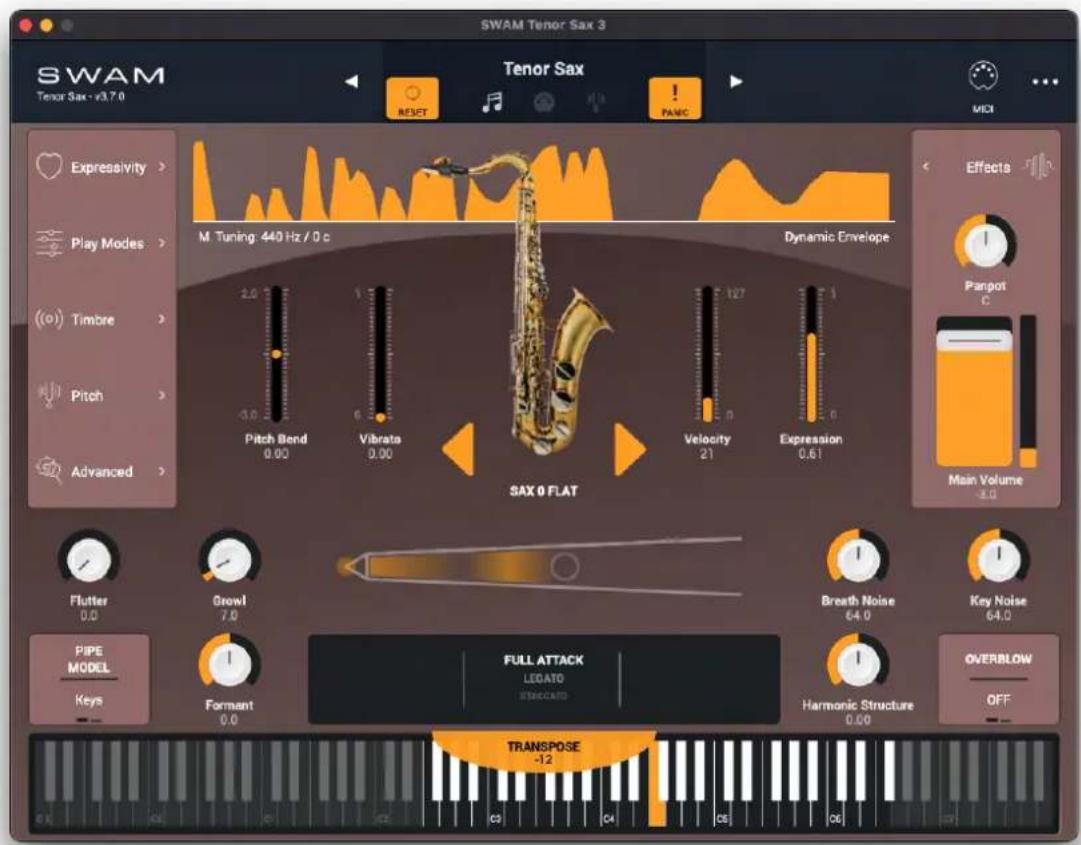
text_image
SWAM Tenor Sax 3 SWAM Tenor Sax - v3.7.0 Tenor Sax RESET PANC MEDI Expressivity > Play Modes > Timbre > Pitch > Advanced > M. Tuning: 440 Hz / 0 c Dynamic Envelope Effects Pangot C Pitch Bend 0.00 Vibrata 0.00 SAX 0 FLAT Velocity 21 Expression 0.61 Main Volume -8.0 Flutter 0.0 Growl 7.0 Breath Noise 64.0 Key Noise 64.0 PIPE MODEL Keys Formant 0.0 FULL ATTACK LEDATO STANDARD Harmonic Structure 0.00 OVERBLOW OFF TRANSPOSE -12 C3 C4 C5 C6Instrument parameters
All parameters have been grouped in six categories:
- Expressivity: parameters that allow the physical player's expressivity to affect the instrument.
-Play Modes: parameters that act on the details of how the emulated player plays the instrument. - Timbre: parameters that affect the instrument's timbre.
●Pitch: Master Tuning, Pitch, Transposition and Micro Tuning settings.
●Advanced: additional parameters, especially for expert users.
●Effects: audio signal processing applied at theal stage.
The most common and important parameters are presented on the main GUI.
Main controls
- Instrument (left/right arrows)
Use the arrows to select different instrument timbres (corresponding to different instruments or microphone placements).
- Flutter: flutter tongue intensity.
●Growl: growl intensity. For a "cleaner" sound, this should be set to zero.
- Breath Noise: breath noise intensity.
●Key Noise: key noise intensity.
- Pipe Model:
◦Keys: the instrument model is controlled by Keys.
- Slide: the instrument model is controlled by a Slide.
-Formant: changes the formants, thus the timbre of the instrument.
●Harmonic Structure: spectral characteristics of the instrument (balance between odd and even harmonics).
- Overblow: clicking this option triggers overblow on any quick changes to the dynamics.
- RESET:
○ Initialize: reset sound engine parameters and MIDI mapping.
○Advanced:
■Reload "current preset": reload the current selected preset, losing all changes made from the latest saved settings.
■Sound Engine: reset or load sound engine parameters.
■MIDI Mapping: reset or load MIDI mapping settings.
■Micro Tuning: reset or load micro tuning settings.
●PANIC: use this in case of stuck notes.
Audio section
- Effects: open the onboard FX section applied to the stage of the signal flow.
- Pan Pot: pans the output signal left and right.
•Volume: main output volume.
Header section

- SWAM logo : Tenor Sax - v3.7.0 selection of the SWAM logo open the Settings section
- Main menu icon : opens the main menu page that provides access to:
○Save & Load
○Reset
○Controller Mapping
○Parameter Lock
○Import
○Export
◦Settings


- MIDI Mapping icon : Open MIDI mapping management section.
- Playing Surface icon (only for iPadOS version) play the playing surface for playing the instrument on the iPad glass.
NOTE: on iPhone, the playing surface is available rotating the device to landscape orientation.
Expressivity

text_image
SWAM Tenor Sax 3 Tenor Sax - v3.5.1 Expressivity > Play Modes > Timbre > Pitch > Advanced > Expression 0.50 Vibrato Depth 0.00 Vibrato Rate 4.7 Grawl 7.0 Flutter 0.0 Tenor Sax RESET PANCI MIDI- Expression: main expressive control.
●Vibrato Depth: controls the amount of vibrato. - Vibrato Rate: controls the average frequency of the vibrato applied to the model.
- Growl: growl intensity. For a "cleaner" sound, this should be set to zero.
- Flutter: flutter tongue intensity.
Play Modes
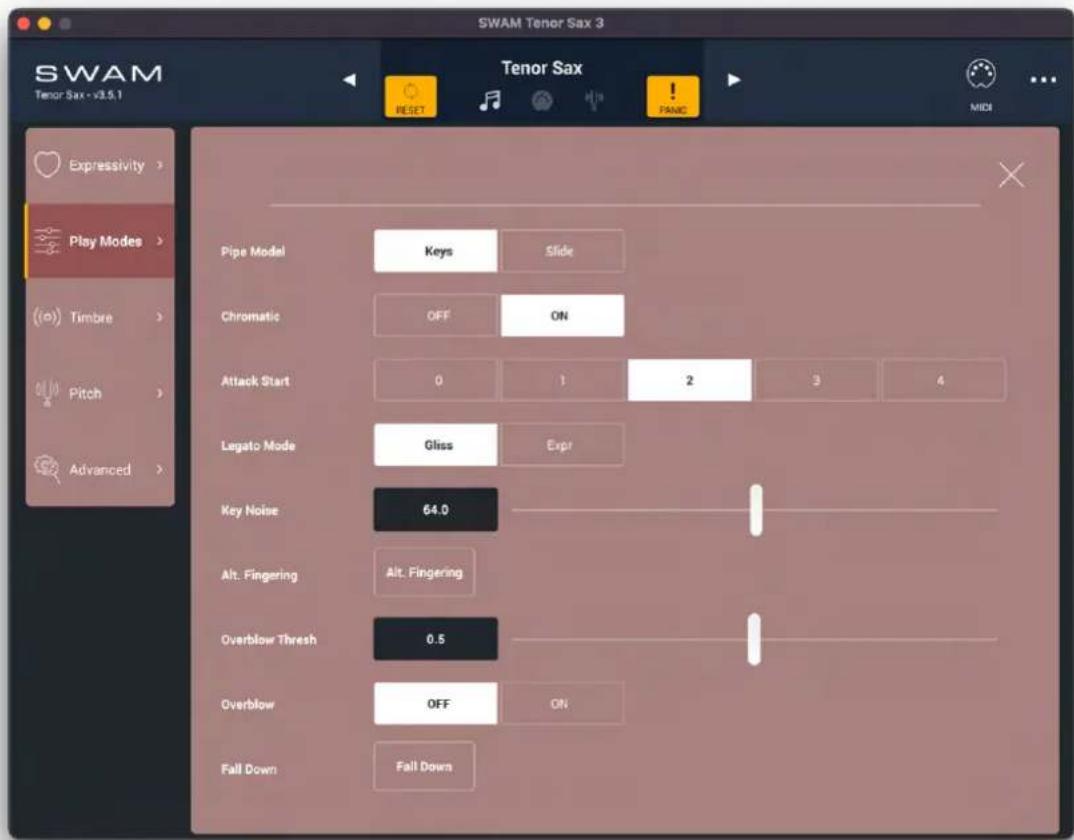
text_image
SWAM Tenor Sax 3 Tenor Sax - v3.5.1 Expressivity > Play Modes > (o) Timbre > Pitch > Advanced > Pipe Model Keys Slide Chromatic OFF ON Attack Start 0 1 2 3 4 Legato Mode Gliss Expr Key Noise 64.0 Alt. Fingering Alt. Fingering Overblow Thresh 0.5 Overblow OFF ON Fall Down Fall Down Tenor Sax RESET PAND MIDI- Pipe Model:
○Keys: the instrument model is controlled by Keys.
- Slide: the instrument model is controlled by a Slide.
- Chromatic
○OFF
-ON: activates an automatic chromatic scale during slow portamentos on larger intervals.
- Attack Start: progressively cuts the attack for a more immediate attack response. Only by setting this to "0" can the complete original attack be played.
- Legato Mode: two different types of legato can be selected:
○Gliss legato with portamento (glissando).
○Expr straight legato (no portamento).
●Key Noise: key noise intensity.
- Alt. Fingering: plays the current note with a different key (i.e. a different pipe path)
- Overblow Threshold: crossfade between a brief squeak on attack ("S"), or a longer overblow ("O"), if overblow is triggered by a CC. Not active if the overblow is triggered by the keyswitch [Squeak does not apply for Flutes].
- Overblow: clicking this option triggers overblow on any quick changes to the dynamics.
- Fall Down: clicking this button triggers a fall. This effect is also assigned to keyswitch C.
Timbre
text_image
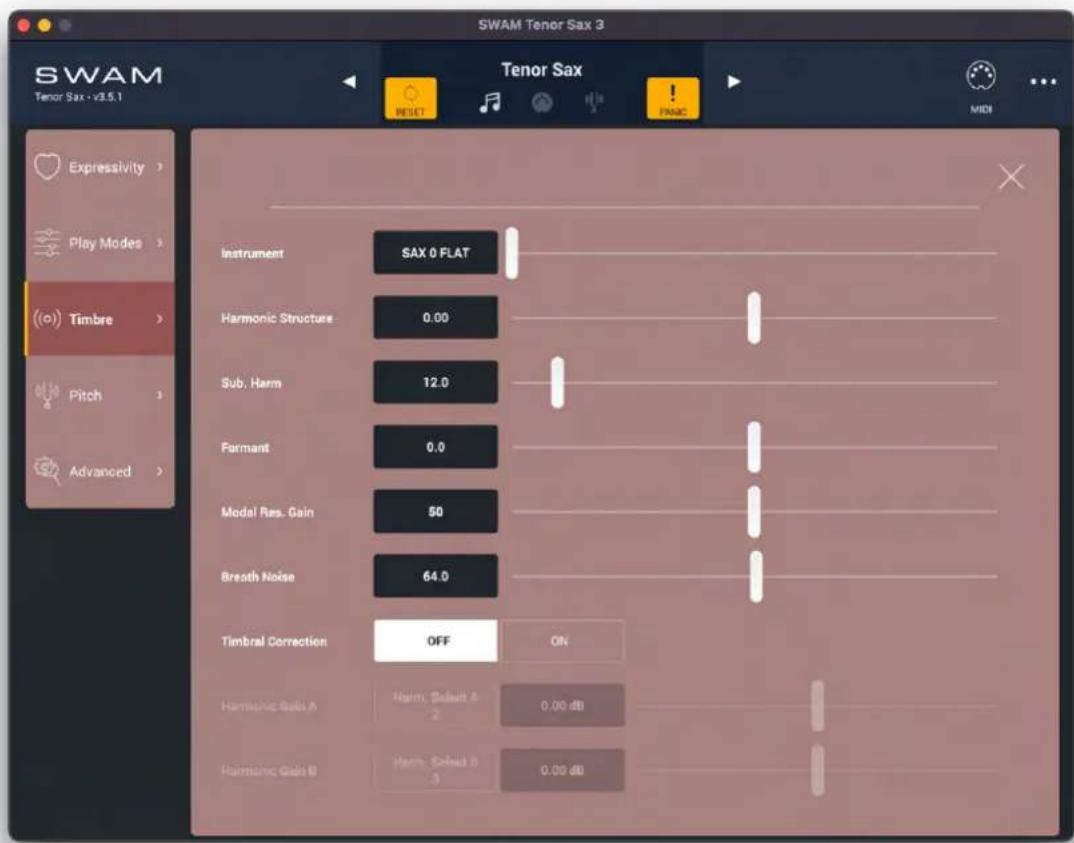
SWAM Tenor Sax 3 Tenor Sax - v3.5.1 Expressivity > Play Modes > ((o) Timbre > Pitch > Advanced > Instrument SAX 0 FLAT Harmonic Structure 0.00 Sub, Harm 12.0 Fornant 0.0 Modal Res. Gain 50 Breath Noise 64.0 Timbral Correction OFF Off Harmonic Gains A Harm, Select A 2 0.00 dB Hausmonic Gains B Harm, Select B 3 0.00 dB Tenor Sax RESET PANC MIDI- Instrument: changes the instrument timbre (corresponding to different instruments or microphone placements).
●Harmonic Structure: spectral characteristics of the instrument (balance between odd and even harmonics).
- Sub. Harm: subharmonic intensity. [The Sub Harm parameter is not available for the Flutes].
-Formant: changes the formants, and thus the timbre, of the instrument.
- Modal Res. Gain: changes the amount of lower harmonics persistence.
●Breath Noise: breath noise intensity.
- Timbral Correction: enables or disables the Harmonics Timbral Shaping. - Harmonic A Gain: the gain amount for harmonic selected by "Harm. A"
- Harmonic B Gain (locked on iOS) the gain amount for harmonic selected by "Harm. B"
Pitch
Master Tuning
text_image
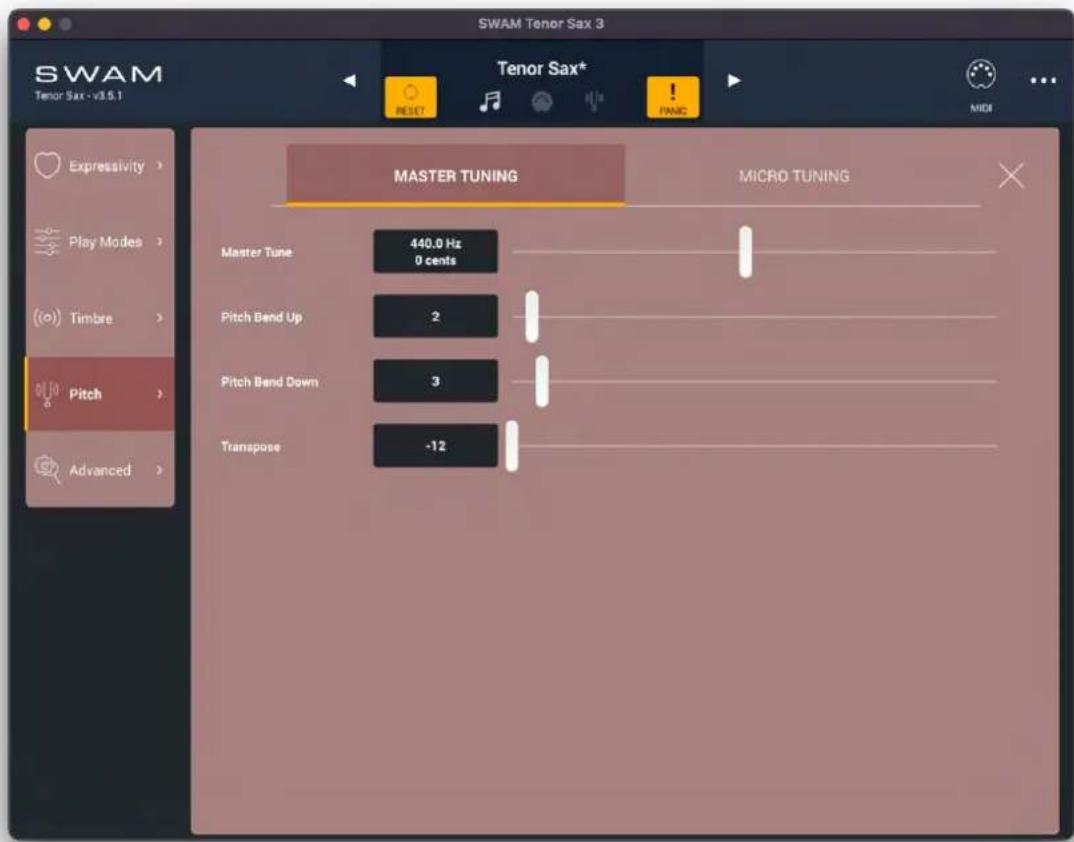
SWAM Tenor Sax 3 Tenor Sax* RESET PANIC MIDI MASTER TUNING MICRO TUNING Master Tune 440.0 Hz 0 cents Pitch Bend Up 2 Pitch Bend Down 3 Transpose -12 Play Modes Timbre Pitch Advanced- Master Tune: master tuning of the instrument displayed both and cents.
- Pitch Bend Up: the maximum amount of upward pitch benzemitones.
- Pitch Bend Down: the maximum amount of downward pitch bend, mitones.
- Transpose: the amount to transpose the instrument, semitones
Micro Tuning
text_image
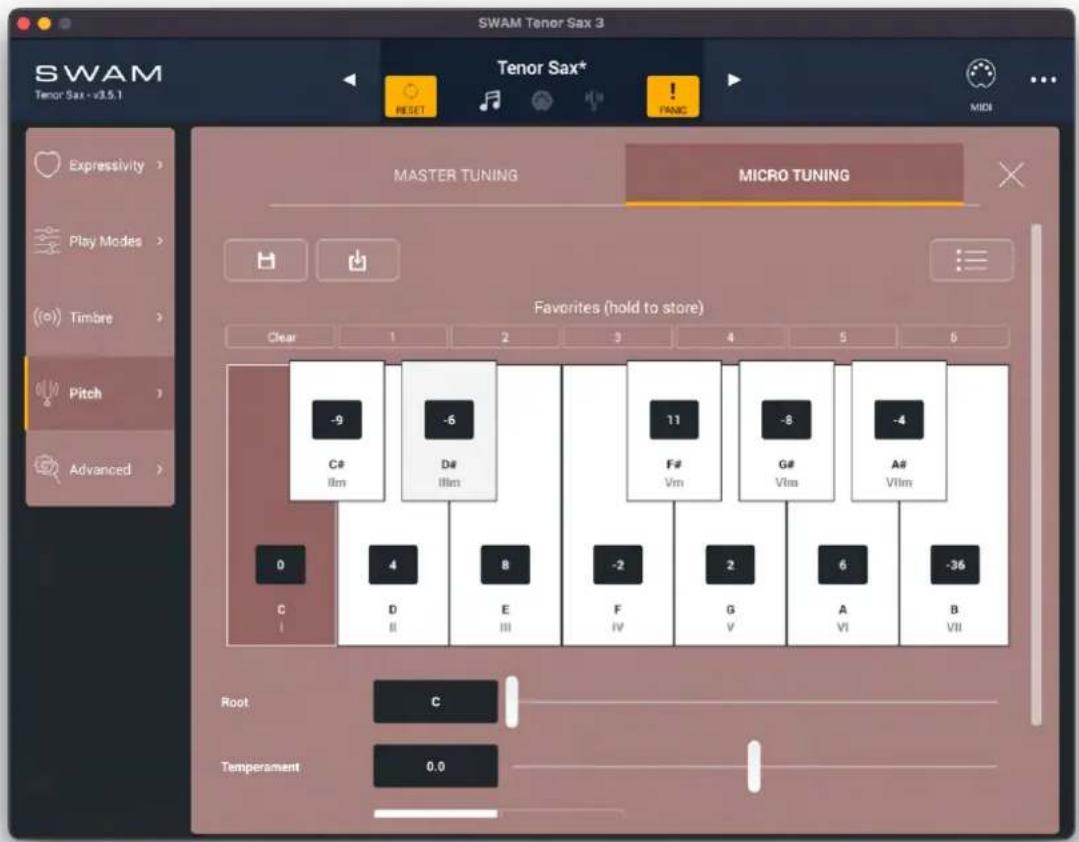
SWAM Tenor Sax 3 Tenor Sax* RESET PANC MIDI Expressivity > Play Modes > (o) Timbre > Pitch > Advanced > MASTER TUNING MICRO TUNING Favorites (hold to store) Clear 1 2 3 4 5 6 -9 C# IIm -6 D# IIm 11 F# Vm -8 G# VIm -4 A# VIm 0 4 8 -2 2 6 -36 C I II III IV V VI VII Root C Temperament 0.0- Save icon: save the current Micro Tuning settings as a User preset

- Import icon: import a Micro Tuning preset as User preset
- Preset list icon: open the list of Micro Tuning presets. User presets are listed after the Factory presets
- Favorites: it is possible to store up to seven different settings. Click and hold the preset slot to store the current figuration; click on any preset slot to recall the preset. Click on the Clearbutton to reset the current figuration to the default state
- Micro Tuning Keys: - Activation: Click on any key to toggle the detune, by the amount shown on the button.
- Edit: Click on the detune value to adjust. The value is presented in cents (hundredths of a semitone)
- Root: select the root note of the micro tuning scale
- Temperament: if set higher than zero, this applies a kind of "spread intonation":
- it does not affect the pitch in the middle of the instrument
- the higher the pitch, the more upward detuning is applied
- the lower the pitch, the more downward detuning is applied
This means that the overall intonation of the instrument can be "spaced apart." If set lower than zero, it does the opposite: it applies a kind of "compressed intonation."
- Microtuning KS:
○OFF: disable key switches for microtuning
○ON: enable key switches for microtuning
- Reset Microtuning KS:
○OFF Microtuning KS activation does not reset or affect current detuning
○ON: Microtuning KS activation resets the detuning applied.
- Cavit Scale Ultimate (by Cavit Artanlar): enables the "SWAM Microtuning" SysEx protocol, which allows "Cavit Scale Ultimate" iOS app to control microtuning and transposition, and to apply musical nuances typical of Arabic and Eastern music.
- MAQAM (by Mazeka Toys - mazekatoys.com):
- OFF: remove the factory MIDI MAQAM d#uration.
- ON: apply MAQAM factory mapping. (Note: all mappings to parameters assigned to CC from 102 to 114 will be removed). This allows the use of a MAQAM remote controller to apply micro tuning and transposition flyn the Note: be sure MAQAM is connected properly through a MIDI interface so that MIDI events can reach the SWAM application or plugin.
- MAQAM Transpose:
- Note: control keyboard transpose.
○Root: control micro tuning transpose.
Applying microtuning through SysEx
It's possible to control Microtuning and Transposition through MIDI SysEx messages. SWAM responds to a few SysEx protocols: SWAM Microtuning protocol, Custom protocol and Yamaha XG arranger protocol.
SWAMMicrotuningprotocol
Note: Be sure "Cavit Scale Ultimate" switch is set to ON in the Pitch / Microtuning view.
Byte 1 - Beginning of sysex: F0H
Bytes 2, 3, 4 - Audio Modeling Manufacturer ID: 00H 21H 2DH
Bytes 5, 6 - Model ID: 00H 00H
Byte 7 - Command type: 00H (Read), 01H (Write)
Byte 8 - Category: 00H (System)
Byte 9 - Parameter: 00H (Transpose), 01H (Microtuning)
... - Data bytes
Byte N - End of sysex message: F7H
Data bytes
Transpose (1 byte):
Byte 10 - Transposition value in semitones: 00H -> 7FH
< 40H: negative transposition
40H: 0 cents
> 40H positive transposition

Microtuning (3 bytes):
Byte 10 - MIDI note number: 00H -> 7FH
Byte 11 - Sign:
<= 40H positive
> 40H negative
Byte 12 - Microtuning value in cents: 00H -> 64H (0 to 100 cents)
Custom Protocol
This protocol allows to change both Microtuning and Transposition by through SysEx messages.
1) Microtuning message
Each message is 4 bytes:
1st byte: Beginning of sysex (F0)
2nd byte: Note value (00=C, 02=C#, 04=D, ..., 12=A, 14=A#, 16=B)
3rd byte: Detuning value (00 = 0, 4E = -50)
4th byte: end of sysex (F7)
F0 10 10 F7: reset all notes to not detuned
Examples:
F0 00 4E F7: Note C = -50 cents
F0 10 4E F7: Note G# = -50 cents
F0 16 00 F7: Note B = 0 cents
2) Transpose message
Each message is 3 bytes:
1st byte = Beginning of sysex (F0)
2nd byte = Transpose value (37=-9, 38=-8, 39=-7, 3A=-6 ... 40=0 ... 48=+8, 49=+9)
3rd byte = End of sysex (F7)
F0 10 F7: reset transpose to 0
Yamaha XG arranger protocol
Each message is 9 bytes:
1st byte: Beginning of sysex (F0)
2nd byte: Manufacturer ID - Yamaha (43)
3rd byte: Device ID
4th byte: Model ID - XG (4C)
5th byte: Address High (08)
6th byte: Address Mid (00)
7th byte: Address Low - Note value (41=C, 42=C#, 43=D, ..., 4C = B)
8th byte: Detuning value (04=-60, 05=-59, 06=-58, ..., 40=0, ..., 7B=+59, 7C=+60)
9th byte: End of sysex (F7)
Examples:
F0 43 10 4C 08 00 41 5E F7: Note C = +30 cents
F0 43 10 4C 08 00 41 18 F7: Note C = -40 cents
F0 43 10 4C 08 00 4A 0E F7: Note A = -50 cents
Applying microtuning using key switches
You can also apply microtuning to notes using key switches. To do this first gosto Advanced -> MIDI and enable the key switches using the "KS Octave" parameter. Then go to Pitch -> MICRO TUNING and set the "Microtuning KS" parameter to "ON".

text_image
Microtuning KS OFF ONThis parameter can be assigned to a MIDI Control Change. A handy mapping is CC "64", i.e. the Sustain pedal, which is the most suitable option for this task.
When "Microtuning KS" is active, you can press the appropriate key switches that correspond to the notes you would like to detune. For example, by pressing the E1 key switch detuning will be applied to all E notes.

How to detune selected notes
- Set the "Microtuning KS" parameter ON by pressing and holding down the Sustain pedal (or send a value greater than 64 via the CC you have assigned for Microtuning KS); the key switches will turn light gray.
- Press any key switches (even multiple at the once) that correspond to the notes you want to detune.
- Exit "setup" mode by releasing the sustain pedal (or send a value below 64 via the CC assigned for this task).
For example: if you need an Arabic scale in C and want to detune all E and B notes -50 cents, the steps would be:
- Press and hold the sustain pedal
- Press E1 and B1
- Release the sustain pedal
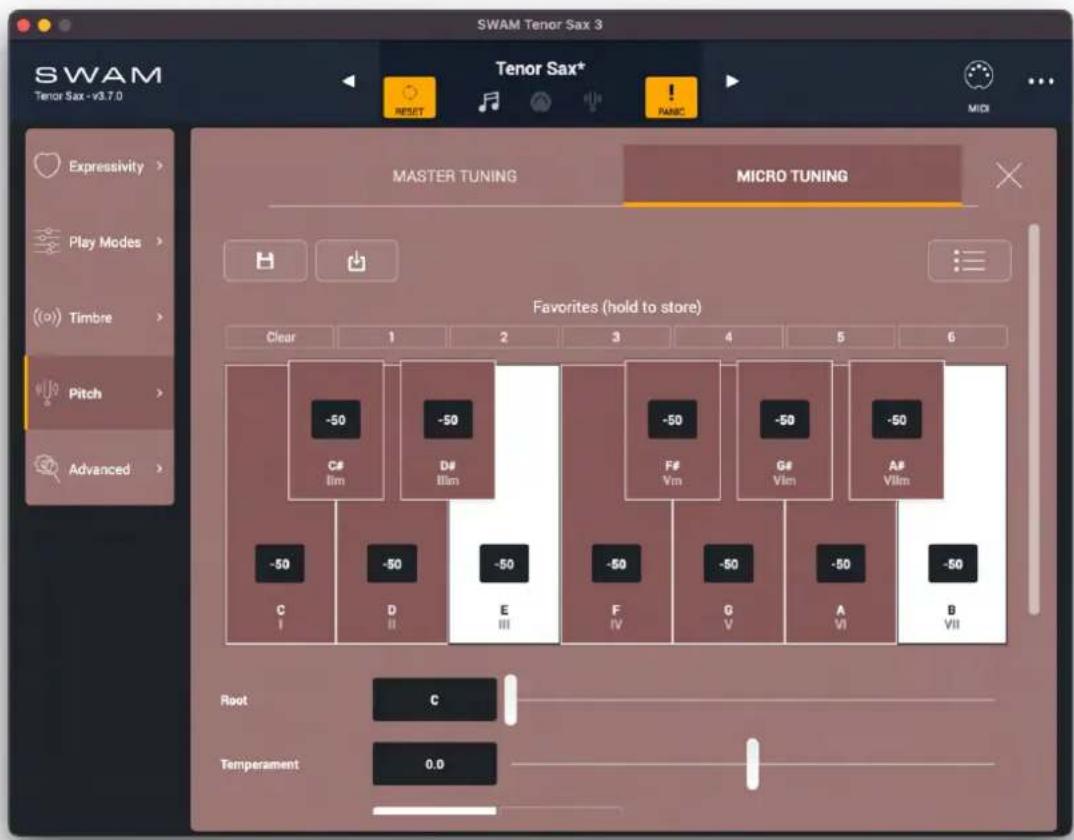
The affected notes and the detune amount is displayed in the Pitch -> MICRO TUNING page.
text_image
SWAM Tenor Sax 3 Tenor Sax* NEWSET MIDI Expressivity > Play Modes > Timbre > Pitch > Advanced > MASTER TUNING MICRO TUNING Favorites (hold to store) Clear 1 2 3 4 5 6 -50 C# Iim -50 D# Iim -50 F# Vm -50 G# Vim -50 A# Vlim -50 C I D II E III F IV G V A VI B VII Root C Temperament 0.0If the "Reset Microtuning KS" parameter is ON, as soon as you re-enable Microtuning KS (by pressing the Sustain pedal or sending a value greater than 64 via the CC you have assigned for this task), the current detuning of all the notes will be cleared.
Keeping the pedal pressed, you can immediately detune a new set of notes by pressing the appropriate key switches.
This allows you to apply different microtuning scales fly. the
If you don't want to reset the microtuning every time you re-enable Microtuning KS set "Reset Microtuning KS" parameter to OFF.
Advanced
Instrument

text_image
SWAM Tenor Sax 3 Tenor Sax - v3.5.1 INSTRUMENT MIDI Random Dynamic 9.0 Dynamic Pitch 30.0 Panpot Type Dyn 1 Dyn 2 Acoustic Balance Dynamic Harmonic 0.60 Release Time 10.0 ms Attack To Sustain 1.00 Auto Expression 0.50 Breathy ppp OFF ON Vibr. Rand. Rate 6.0 Expressivity > Play Modes > Timbre > Pitch > Advanced >- Random Dynamic: controls random modulation of dynamics and pitch.
- Dynamic Pitch: amount of pitch modulation applied while changing the dynamics.
- Panpot Type (locked on iOS)
- Dyn1, Dyn2 - emulates small movements of the player.
- Acoustic - adjusts the position of the instrument in the sound, but does not affect the reverb.
○Balance - affects both the instrument and the reverb.
- Dynamic Harmonic: Amount of overtone harmonics and subharmonic modulation for attack and changes in dynamics [this parameter is not available for the Flutes].
- Release Time: release time on note off.
-
Attack To Sustain: affects the velocity-dependent duration of the transition from attack to sustain.
●Auto Expression: the slider controls the depth of legato transitions. -
Breathy ppp: adds a breathy, noisy pianissimo layer useful when playing certain jazzy styles. Acting on this option triggers a complete reload of all audio resources, so any currently active note will be terminated.
●Vibr. Rand. Rate: randomization of vibrato intensity and rate.
MIDI
text_image
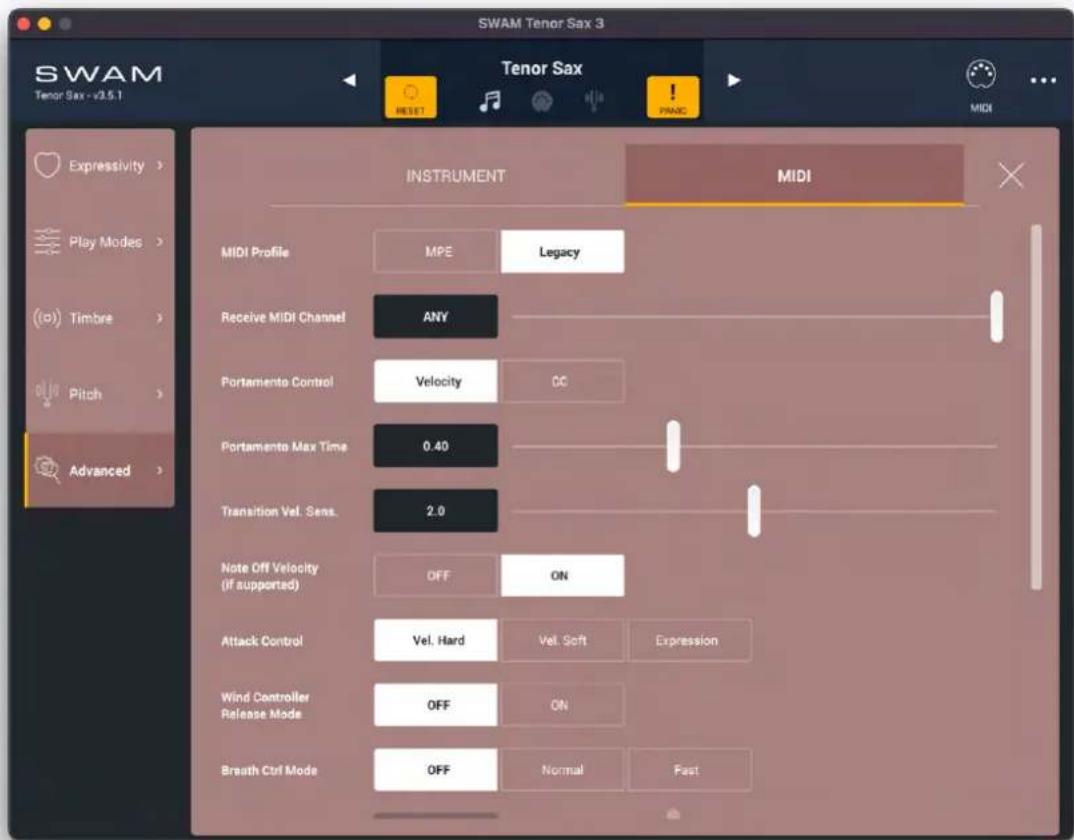
SWAM Tenor Sax 3 Tenor Sax EXPISSIVITY > Play Modes > ((o) Timbre > Pitch > Advanced > INSTRUMENT MIDI MIDI Profile MPE Legacy Receive MIDI Channel ANY Portamento Control Velocity CC Portamento Max Time 0.40 Transition Vel. Sens. 2.0 Note Off Velocity (if supported) OFF ON Attack Control Vel. Hard Vel. Soft Expression Wind Controller Release Mode OFF ON Breuth Ctrl Mode OFF Normal Fast•MIDI Pro file:
- MPE: for MIDI Polyphonic Expression compatible devices. - Legacy: MIDI 1.0 devices.
-Receive MIDI Channel: is the MIDI channel over which the sound generator receives notes and controllers that affect the sound (default is ANY). Note that this can be different from the keyswitches MIDI channel, so it is possible to control keyswitches from a different device. For MPE Devices this is forced to ANY.
- Velocity: the portamento time is controlled by the note on velocity of overlapping notes.
oCC: the portamento time is controlled by a MIDI Continuous Control (such as Control Change, AfterTouch, NRPN)
- Portamento Max Time: controls the portamento time, set to OFF to disable portamento (no portamento when this value is < 0.15).
- Transition Vel. Sens: controls the relationship between velocity and portamento duration when Portamento Control is set to Velocity.
- Note Off Velocity (if supported):
○OFF: fixed Note Off velocity at 112
-ON: get legato retrigger velocity from note off velocity
-Attack Control - how the attack of the note is controlled:
oVel. Hard - controlled strongly by the note on velocity.
oVel. Soft - controlled weakly by the note on velocity.
○Expression - controlled by the shape of expression control.
- Wind Controller Release Mode: overrides the current Release Time value with the lowest value and disables the Release Time parameter. Useful especially for Wind Controllers, as they send Note Off events when Expression reaches the minimum value. This setting makes the instrument more responsive, e.g. when double- or triple-tonquing.
- Breath Ctrl Mode (Breath Control Mode):
○OFF
-ON: suitable for Breath Controllers, allows the player to produce another note attack by using the breath envelope while holding a note.
- Breath Ctrl Attack Sens.: (Breath Control Attack Sensitivity) controls the sensitivity of the note on attack strength for notes triggered in Breath Control Mode.
- Breath Ctrl Hi-Res Threshold: when Breath Control Mode is set to ON, (Breath Control Hi-Resolution Threshold) sets the threshold for a note on event to be triggered when using MIDI Hi-Resolution messages for the Expression parameter.
- KS MIDI Channel (Keyswitches MIDI Channel): select the MIDI channel to receive keyswitch information. Select from channel 1 to 16 or ANY.
- KS Octave (Keyswitches Octave Transpose): allows you to transpose = keyswitches to begin in the octave from C-1 to C2, or turn off keyswitches (OFF).
- KS Velocity Remap (Keyswitches Velocity Remapping): since some keyswitches are velocity-dependent, this parameter controls the distribution of the thresholds between states.
Effects
text_image
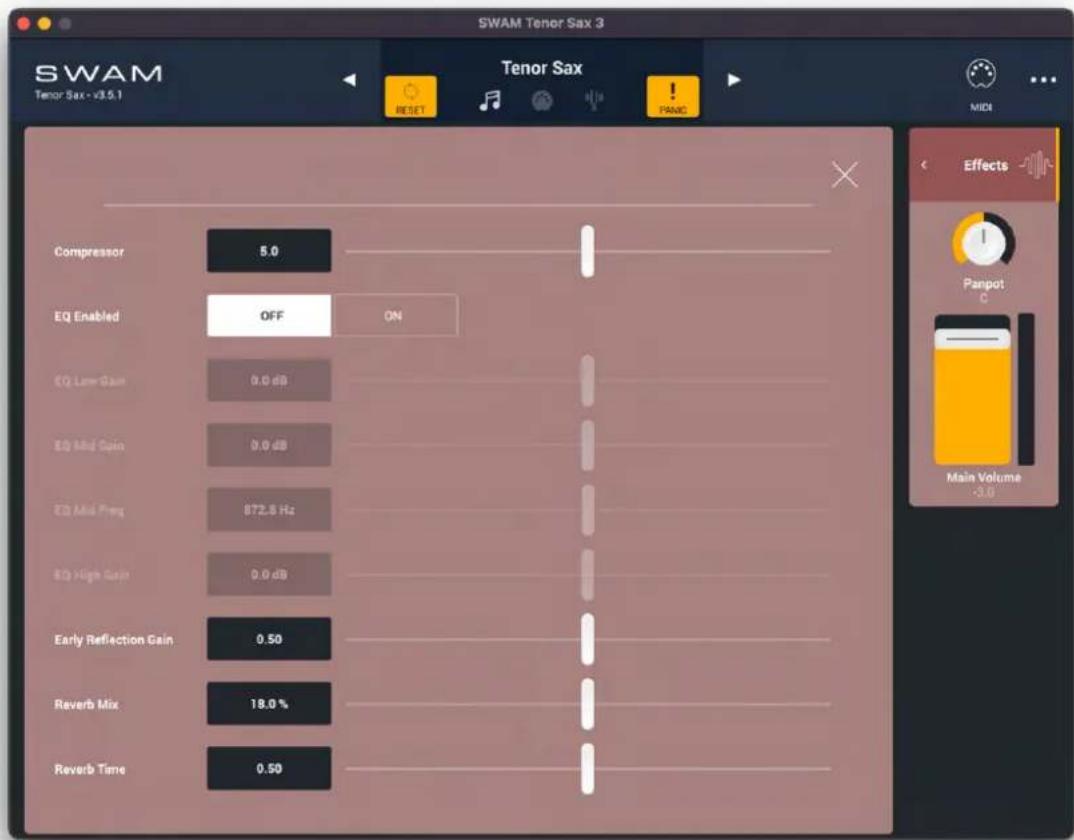
SWAM Tenor Sax 3 Tenor Sax Compressor 5.0 EQ Enabled OFF ON EQ Low Gain 0.0 dB EQ Mid Gain 0.0 dB EQ Mid Preq 872.5 Hz EQ High Gain 0.0 dB Early Reflection Gain 0.50 Reverb Mix 18.0 % Reverb Time 0.50 RET RESET PRANG MIDI Effects Panpot C Main Volume -3.0- Compressor: controls how much dynamic compression is applied to the output.
- EQ Enabled: enables or disables the Equalizer (see next).
- EQ Low Gain, EQ Mid Gain, EQ Mid Freq, EQ High Gain: Equalizer parameters. Note that frequency ranges differ between instruments, as they have been calibrated for the harmonic contents of each instrument.
- Early Reflection Amount: amount of Early Reflections mixed in, useful especially for building sections.
-Reverb Mix: controls the amount of reverb added to the dry signal.
-Reverb Time: controls the decay time of the reverb tail.
Controller Mapping
The MIDI Controller Mapping section allows the user to manage the mapping between external MIDI controllers and instrument parameters.

Click on the MIDI mapping icon in the header header to enter the "Touch & Assign" mode.

text_image
SWAM Tenor Sax 3 MIDI Controller Mapping INPUTS PRESETS MAPPING TABLE Expressivity > Play Modes > Timbre > Pitch > Advanced > M. Tuning 440 / 0 cents Dynamic Envelope Pitch Bend 0.00 Vibrots 0.00 SAX 0 FLAT Velocity 44 Expression 0.45 Effects Parpet Main Volume Flutter 6.0 Growl 7.0 Pipe MODEL Keys Formant 6.0 FULL ATTACK FULL ATTACK FULL ATTACK Breatn Noise 54.0 Key Noise 54.0 Harmonic Structure 9.00 OVERBLOW OFF TRANSPOSE -12In this view, parameters to which a controller has been assigned are highlighted as a purple area with dashed borders; while parameters to which no controller has been assigned are highlighted as a green area. Parameters not highlighted at all are not available for mapping. In this mode, it is possible to browse every view in the entire interfageretopdmap any available parameter.
- To create or edit a parameter mapping, click directly on the parameter to access its mapping screen.
- Click on the "MAPPING TABLE" button in the header to view the list of all parameters and their mapping status, and to manage sound engine parameters that have a direct effect on playability results with different controller types.
- Click on the "X" button in the header to exit Controller Mapping mode.
Mapping Screen
Assigned parameter status
text_image
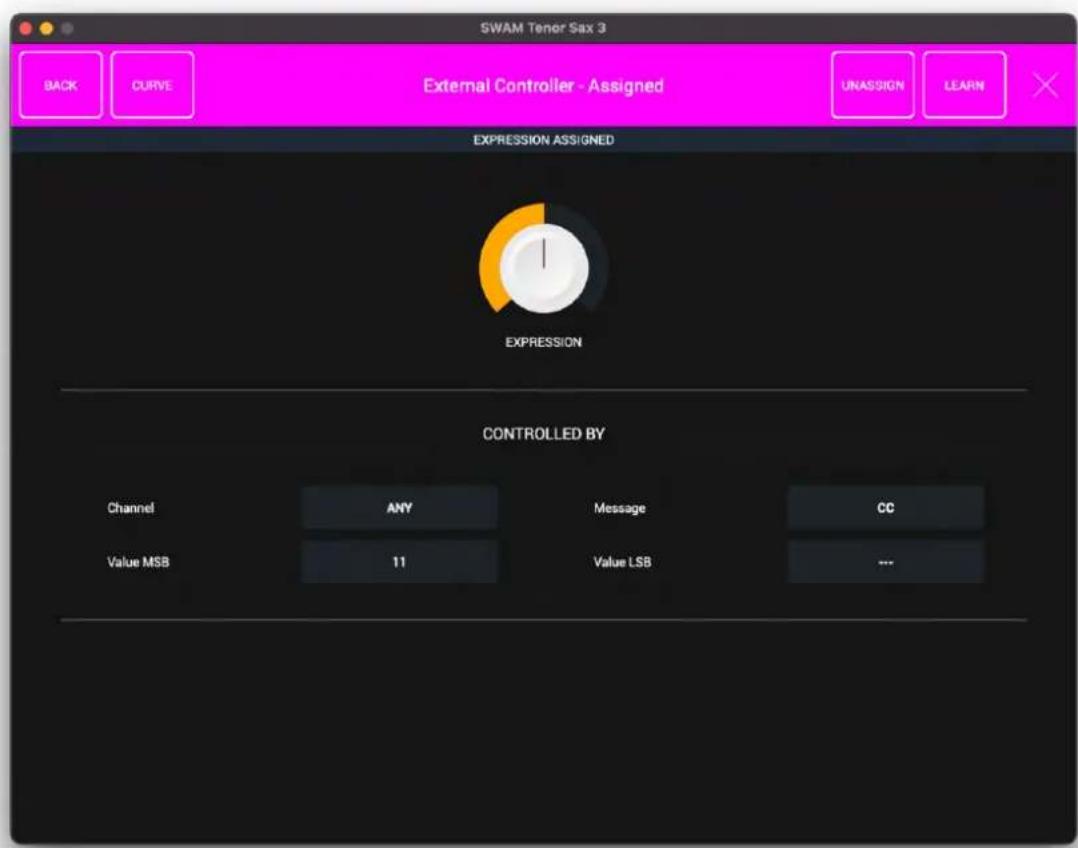
SWAM Tener Sax 3 BACK CURVE External Controller - Assigned UNASSIGN LEARN EXPRESSION ASSIGNED EXPRESSION CONTROLLED BY Channel ANY Message CC Value MSB 11 Value LSB ---- Back: returns to the previous screen
- CURVE: show the MIDI remapping curve for the selected mapping
- UNASSIGN: removes the current mapping and enters MIDI Learn mode
- LEARN: turns ON/OFF the MIDI LEARN function to edit or remap the current parameter
•X: close the mapping screen and turn off Controller Mapping Mode
- Controlled By section:
○Channel: set the MIDI channel over which controller data will be received, from 1 to 16, or ANY.
- Message: MIDI message type of the received controller data:
■CC: Control Change (1 byte value).
■CC-HIRES: two coupled Control Change messages, MSB and LSB.
■AT: Aftertouch (1 byte value).
■NRPN: Non-Registered Parameter Number.
○CC# MSB: available only for Message = CC, CC-HIRES, NRPN:
■if Message = CC, MSB is the CC number.
■if Message = CC-HIRES, MSB is the Most Significant Byte of the two-byte hi-resolution message, from CC0 to CC31.
■if Message = NRPN, MSB is the Most Sfgaint Byte of the two-byte NRPN message.
○CC# LSB: available only for Message = CC-HIRES, NRPN:
■if Message = CC-HIRES, LSB is the Least Significant Byte of the two-byte hi-resolution message, from CC32 to CC63.
■if Message = NRPN, LSB is the Least Significant Byte of the two-byte NRPN message.
NOTE:
- CC means "Control Change." It is a standard MIDI message used to control a wide variety of functions in a synthesizer or software instrument. The value of a CC is represented by a seven-bit byte, allowing a total of 128 values of resolution.
- AT means "Aftertouch". Some MIDI devices have the ability to sense the amount of pressure which is being applied to the keys or the touch surface while they are being held down. This pressure information, commonly called "Aftertouch," may be used to control aspects of the sound produced by a synthesizer or software instrument. AT is a standard 7-bit MIDI message, allowing a total of 128 values of resolution.
- CC-HIRES messages are a combination of two CC messages coupled together, thus providing 14-bit resolution, i.e. 16384 levels, for the represent value.
- NRPN, i.e. "Non-Registered Parameter Number," extends the number of controllers available via MIDI. They are typically used to send parameter data to a synthesizer and software instruments in order to edit sound patches or other data, and provide 14-bit, i.e. 16384 levels, for the represent values.
- MSB means "Most Significant Byte." For CC and AT messages, it is the only byte representing the control value. For CC-HIRES and NRPN messages, it is the largest-value portion (coarse resolution) of the two-byte message.
- LSB means "Least Significant Byte" and is only for CC-HIRES and NRPN messages. It is the smallest-value portion (in resolution) of the two-byte message.
For more details on what CC, NRPN, MSB, LSB, please refer to MIDI specifications at https://midi.org
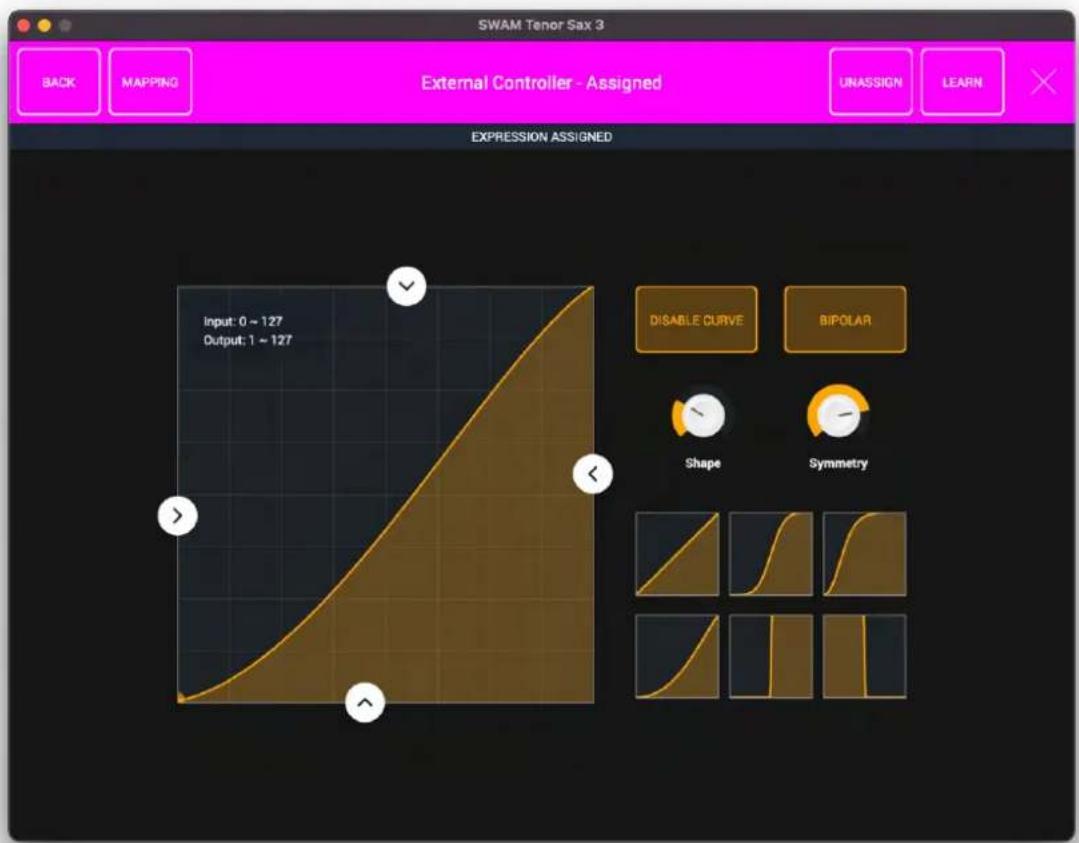
- CURVE: click on the button to show the mapping curve, which displays how input values from the controller are transformed into parameter values. The controller (input) and parameter (output) ranges are shown in the upper left corner of the curve display. . The curve can be freddiusing these adjustments:
-Input Min (left arrow): sets the minimum controller value that will cause an increase in the parameter above the assigned Output Min value (or the Output Max value, if the curve is inverted).Drag the arrow to change the value.
- Input Max (right arrow): sets the controller value that will produce the maximum parameter value, as defined by the Output Max setting (or the Output Min value of the curve is inverted). Drag the arrow to change the value.
- Output Min (bottom arrow): the minimum output value. Drag the arrow to change the value.
- Output Max (upper arrow): the maximum output value. Drag the arrow to change the value.
- Shape: controls the shape of the remapping curve (be aware, small changes can produce large variations, depending on the Symmetry parameter).
- Symmetry: controls the symmetry of the remapping curve.
○DISABLE CURVE: bypasses the remapping curve.
○BIPOLAR: useful for bipolar controls, i.e. where a value of 64 is considered the zero point of the controller. The parameter of the remapping curve is referred to just one side and then applied to the negative, antisymmetric side
Note that either the X or Y axis of the curve can be inverted simply by dragging the arrows affecting the axis to the opposite side of the curve display. In-between settings are also possible, so experiment!
text_image
SWAM Tenor Sax 3 External Controller - Assigned BACK MAPPING UNASSIGN LEARN EXPRESSION ASSIGNED Input: 0 ~ 127 Output: 1 ~ 127 DISABLE CURVE BIPOLAR Shape SymmetryUnassigned parameter status
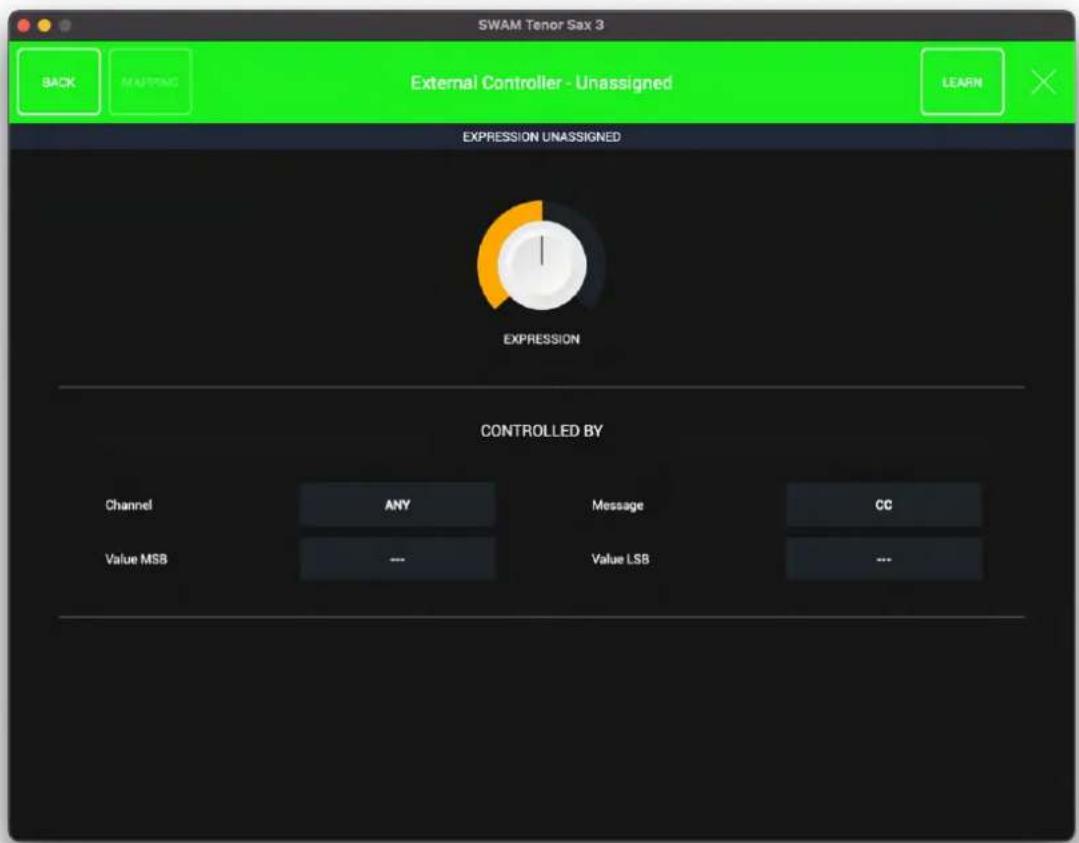
Any click on an unassigned parameter available for mapping goes to this screen.
text_image
SWAM Tenor Sax 3 BACK MAPPING External Controller - Unassigned LEARN EXPRESSION UNASSIGNED EXPRESSION CONTROLLED BY Channel ANY Message CC Value MSB --- Value LSB ---If "LEARN" is active, SWAM automatically listens for MIDI input messages while in LEARN MODE. Move the controller you want to assign to the parameter to automatically complete the mapping.
The values in the "Controlled by" area will be automatically in by MIDI Learn, but can still be edited manually.

text_image
SWAM Tenor Sax 3 BACK MAPPING External Controller - Unassigned STOP LEARN MIDI LEARNING NOW ... MOVE YOUR CONTROLLER OR EDIT FIELDS TO ASSIGN EXPRESSION CONTROLLED BY Channel ANYTIMES CC Value MSB ---VALUE LSB ---MIDI Inputs quick access
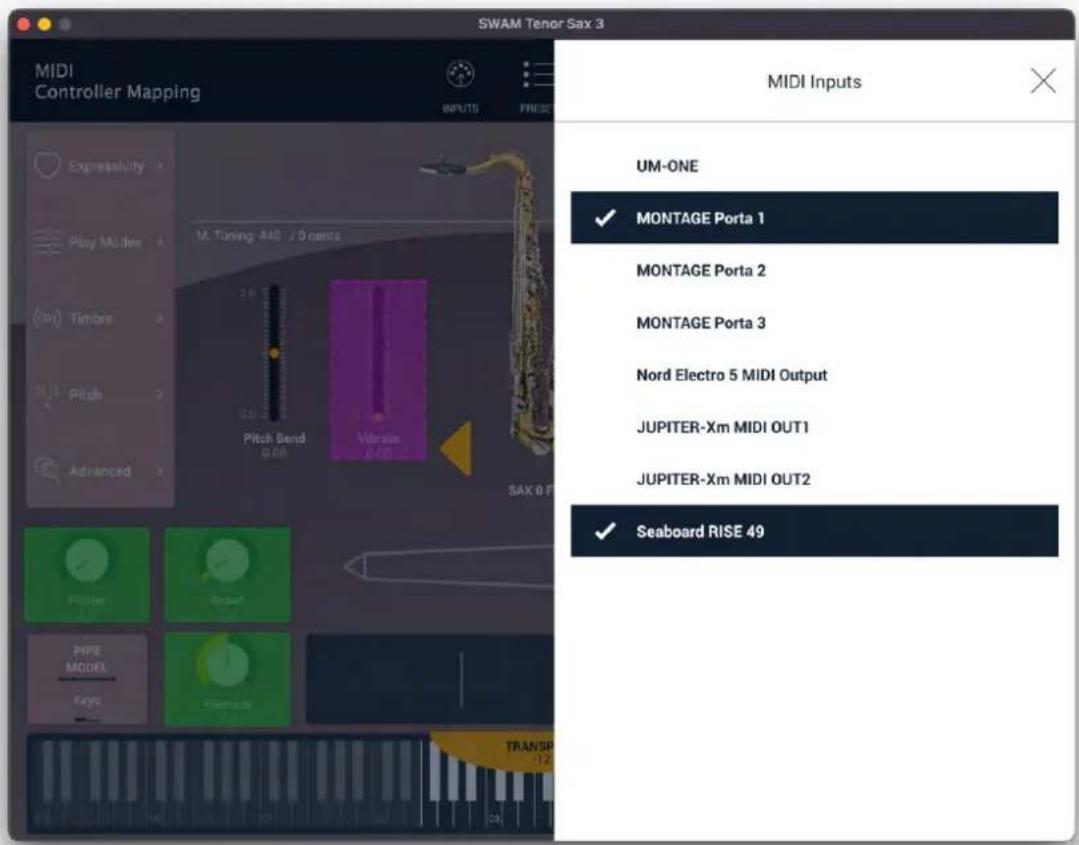
For the Standalone version of the app, a quick access to the MIDI input devices is available


from the MIDI Mapping view by clicking on the "INPUTS" icon
text_image
SWAM Tenor Sax 3 MIDI Controller Mapping INPUTS FREED MIDI Inputs UM-ONE ✓ MONTAGE Porta 1 MONTAGE Porta 2 MONTAGE Porta 3 Nord Electro 5 MIDI Output JUPITER-Xm MIDI OUT1 JUPITER-Xm MIDI OUT2 ✓ Seaboard RISE 49MIDI Mapping Presets
The PRESETS icon offers access to both factory presets of mappings for well-known physical
MIDI controllers, and user-created mapping pres

text_image
SWAM Tenor Sax 3 MIDI Controller Mapping INPUTS PRESE Expressivity > Play Modes > Timber > Pitch > Advanced > M. Tuning 445 / 0 cents Pitch Bend 0.60 Vibrane Pulse SAX 0 F MIDI Mapping Presets Breath Controller Default Factory Preset Control Surface Default Factory Preset DM48 Default Factory Preset DigiBrass Default Factory Preset EMEO Default Factory Preset EVI Default Factory Preset EWI Default Factory Preset GeoShred Default Factory Preset Keyboard Default Factory Preset Keyboard ModWheel + AT Default Factory PresetLoading a preset does not change current sound parameters. . This is useful for switching between different physical MIDI controllers without losing the timbre and sound behavior defined by the existing parameters.
Mapping Table
The "MAPPING TABLE" screen provides the big picture of all mappings and the configuration of auxiliary parameters. To access this view, click on the "MIDI" icon and then on the "MAPPING TABLE" icon.
The screen is organized in two tabs:
- External Controller Mapping: this is a list of all parameters that can be mapped individually by the process described above. Click any row to create a new assignment, or edit an existing assignment.

text_image
SWAM Tenor Sax 3 MIDI Controller Mapping INPUTS PRESETS TOUCH & ASSIGN EXTERNAL CONTROLLER MAPPING AUXILIARY PARAMETERS PARAMETER CHANNEL MESSAGE MSB LSB CURVE Pencil - - - - - Expression ANY CC 11 - Vibrato Depth ANY CC 1 - Vibrato Rate ANY CC 19 - Portamentic Title - - - - - Hemipiac Structure - - - - - Sub Ham - - - - -- Auxiliary Parameters: settings and parameters that have a key role in managing the sound engine's response to different controllers. Most of the entries can be found in the "Pitch" and "Advanced" sections as well. These parameters are saved along with the External Controller mapping entries to ensure consistent controller presets.
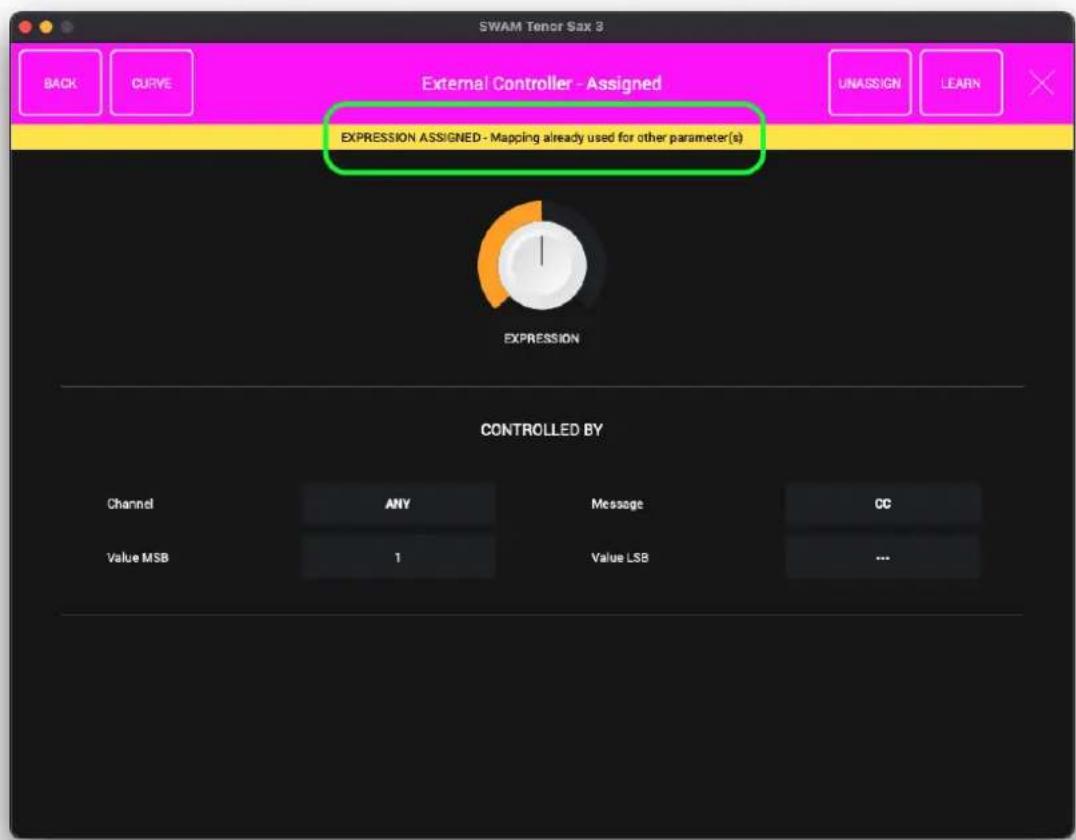
When editing the midi mapping, the system runs a check if the external control (for example a CC message) is already assigned to map another parameter. This check, in case of multiple assignments, shows a warning message displaying a yellow header in the parameter screen ("Mapping already used for other parameter(s)") and a yellow icon on the MIDI Mapping List summary screen.
This warning message is displayed to help avoid unintended multiple assignments, but multiple assignments are allowable and will function, should you have a need to make them. In that situation, simply disregard the warning.
text_image
SWAM Tenor Sax 3 BACK CURVE External Controller - Assigned UNASSIGN LEARN EXPRESSION ASSIGNED - Mapping already used for other parameter(s) EXPRESSION CONTROLLED BY Channel ANY Message CC Value MSB 1 Value LSB ...
text_image
SWAM Tenor Sax 3 MIDI Controller Mapping INPUTS PRESETS TOUCH & ASSIGN EXTERNAL CONTROLLER MAPPING AUXILIARY PARAMETERS PARAMETER CHANNEL MESSAGE MSD LSB CURVE Page - - - - - Expression ANY CC I - Vibratic Depth ANY CC I - Vibratic Rate ANY CC 19 - Parameters Time - - - - - Imminutes Nature - - - - - Sub-Harm - - - - -Main menu
text_image
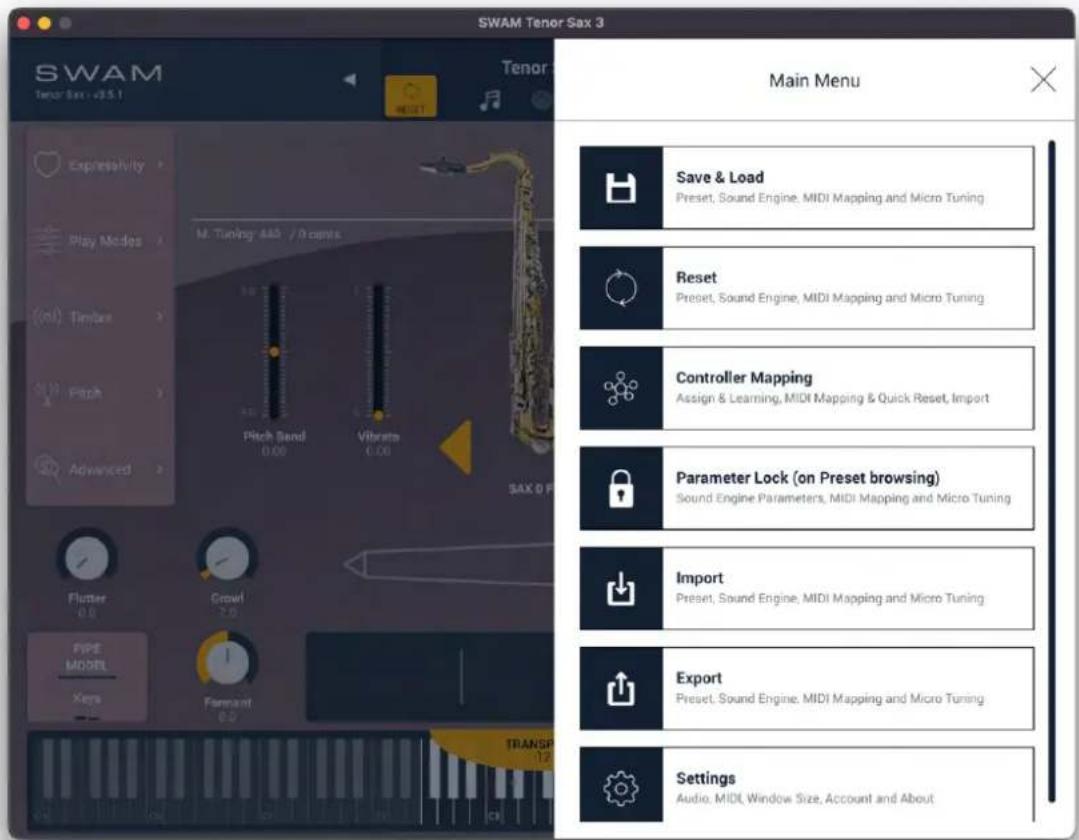
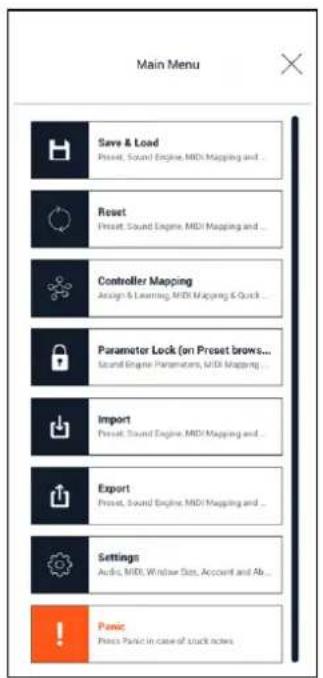
SWAM Tenor Sax 3 Main Menu Save & Load Preset, Sound Engine, MIDI Mapping and Micro Tuning Reset Preset, Sound Engine, MIDI Mapping and Micro Tuning Controller Mapping Assign & Learning, MIDI Mapping & Quick Reset, Import Parameter Lock (on Preset browsing) Sound Engine Parameters, MIDI Mapping and Micro Tuning Import Preset, Sound Engine, MIDI Mapping and Micro Tuning Export Preset, Sound Engine, MIDI Mapping and Micro Tuning Settings Audio, MIDI Window Size, Account and AboutThe Main Menu appears when the "three-dot" icon, in the top right of the header is clicked.
- Save & Load: open the Preset Management window.
- Reset:
- Initialize: reset sound engine parameters - Advanced:
■Reload: reload the current selected preset, losing all changes made since the last save or load.
■Sound Engine: reset or load sound engine parameters
■MIDI Mapping: reset or load MIDI mapping settings
■Micro Tuning: reset or load micro tuning settings
- Sound Engine Parameters: do not allow sound parameters to change when browsing Presets - External Controller Mapping: keep the same MIDI Controller Mappings when changing Presets - Micro Tuning Settings: keep the same micro tuning settings when changingPresets
- Import:
- Preset: load a .swam presefile - Sound Engine Parameters: load a .swamse presefile - MIDI Mapping: load a .swamec presefile. - Micro Tuning: load a .swammt presefile
- Export:
- Preset: save the current instrument state as a .swam preset - Sound Engine Parameters: save sound engine parameters as a .swamset preset file - MIDI Mapping: save external controller settings as a .swamec preset - Micro Tuning: save micro tuning settings as a .swammt preset
- Settings:
- Audio: open the "Audio Setup" window (available for the Standalone app only). - MIDI: open the "MIDI Setup" window (available for the Standalone app only). - Window Size: show a small popup window that allows setting the GUI orientation and zoom factor. - Account & License: open the "Account & License" window. - About: open the "About" page, where it's possible to check the version and build number, have access to the online resources, and show the credits.
Preset Management
text_image
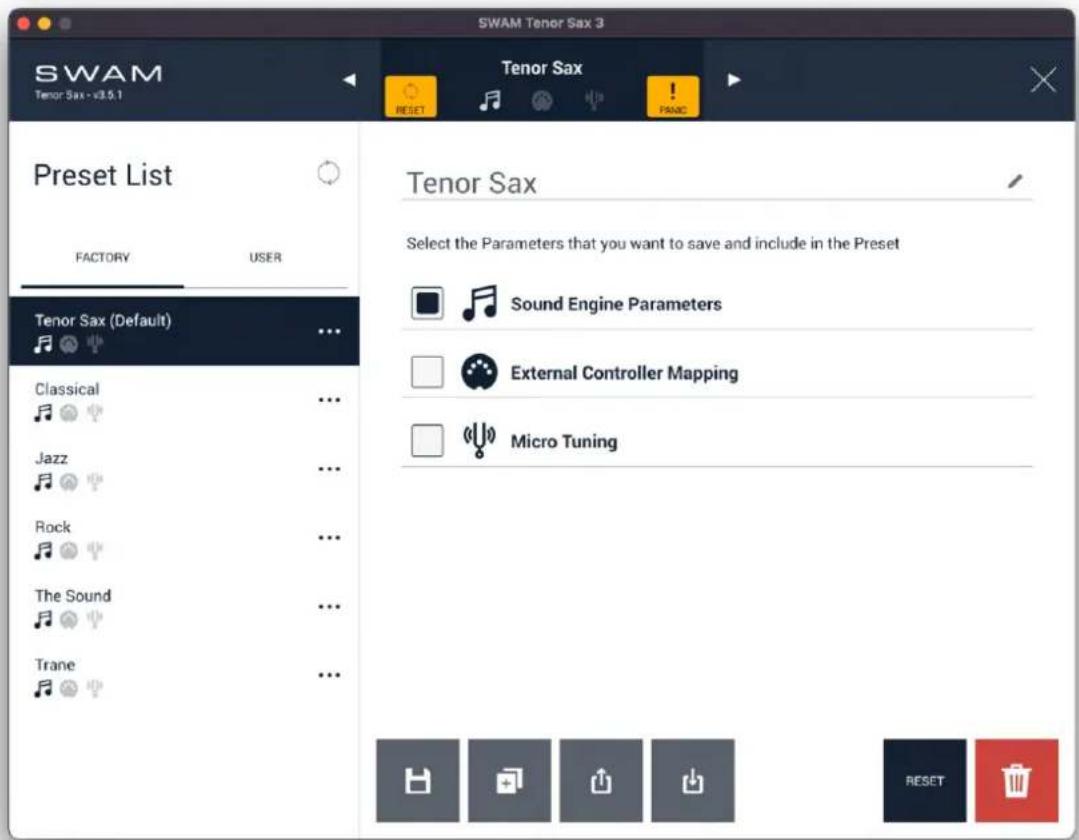
SWAM Tenor Sax 3 SWAM Tenor Sax - v3.5.1 Tenor Sax RESET PRAND Preset List FACTORY USER Tenor Sax Select the Parameters that you want to save and include in the Preset Sound Engine Parameters External Controller Mapping Micro Tuning Classical Jazz Rock The Sound Trane- Preset List: Select presets from the list on the left of the window.. The SWAM presets are organized into two groups: Factory and User. User presets can be added, edited and deleted. Factory presets cannot be edited or deleted; any save action performed on a Factory preset generates a User preset.
Default startup Preset
Any preset can be selected as the default, i.e. the preset loaded at startup: just click on [...] next to the preset name and choose "Set as default".
Tenor Sax
Select the Parameters that you want to save and include in the Preset


Sound Engine Parameters


- Shows the preset components, such as Sound Engine Parameters, External Controller Mapping and Micro Tuning settings. From this area it is possible to choose the parameters that you want to include in the SWAM preset.
- Save: save current preset.

- Duplicate: duplicate current preset to create a new one.

- Export preset: open export options.
NOTE: compatibility of preset exports with future releases is not guaranteed. It is strongly recommended that users archive custom presets in a custom folder at a different location to the default preset folder.
- Import preset: open import options.
- RESET reset parameters to the default state.
- DELETE: delete the selected User preset.
Parameter Lock

text_image
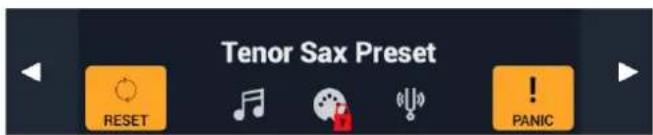
SWAM Tenor Sax 3 Parameter Lock Sound Engine Parameters Select if you want to freeze the sound when browsing your Presets External Controller Mapping Select if you want to experiment with different Presets, keeping the same the MIDI Controller Mapping Micro Tuning Settings Select if you want to switch Preset without affecting the Micro Tuning settingsThe Parameter Lock is made to appear by pressing and holding on the current preset label:
text_image
Tenor Sax Preset RESET PANICSwitch presets without affecting the category of parameters that is locked.
- Select "Sound Engine Parameters" if you want to prevent changes to the sound when browsing your presets.
- Select "External Controller Mapping" if you want to experiment with different presets while keeping the same MIDI controller mapping.
- Select "Micro Tuning Settings" if you want to switch presets without affecting the micro tuning settings.
Settings
Audio Settings
text_image
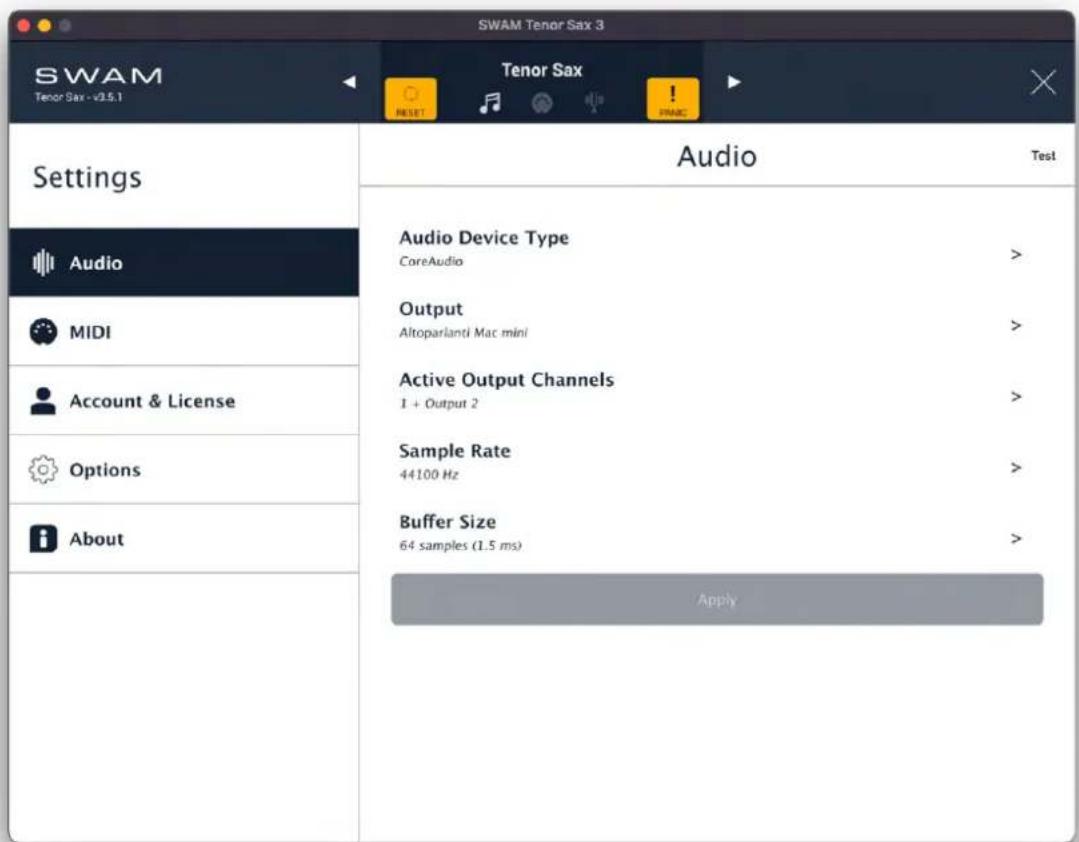
SWAM Tenor Sax 3 SWAM Tenor Sax - v3.5.1 Settings Audio MIDI Account & License Options About Audio Device Type CoreAudio > Output Altoparlanti Mac mini > Active Output Channels 1 + Output 2 > Sample Rate 44100 Hz > Buffer Size 64 samples (1.5 ms) Apply TestThe Audio Settings page is available for Standalone version only, and allows selecting the proper Audio Device, Output port, Active Output Channels, Sample Rate and Buffer Size. For real-time playing, the combination of Buffer Size and Sample Rate should result in a maximum latency of about 10 ms.
MIDI Settings
text_image
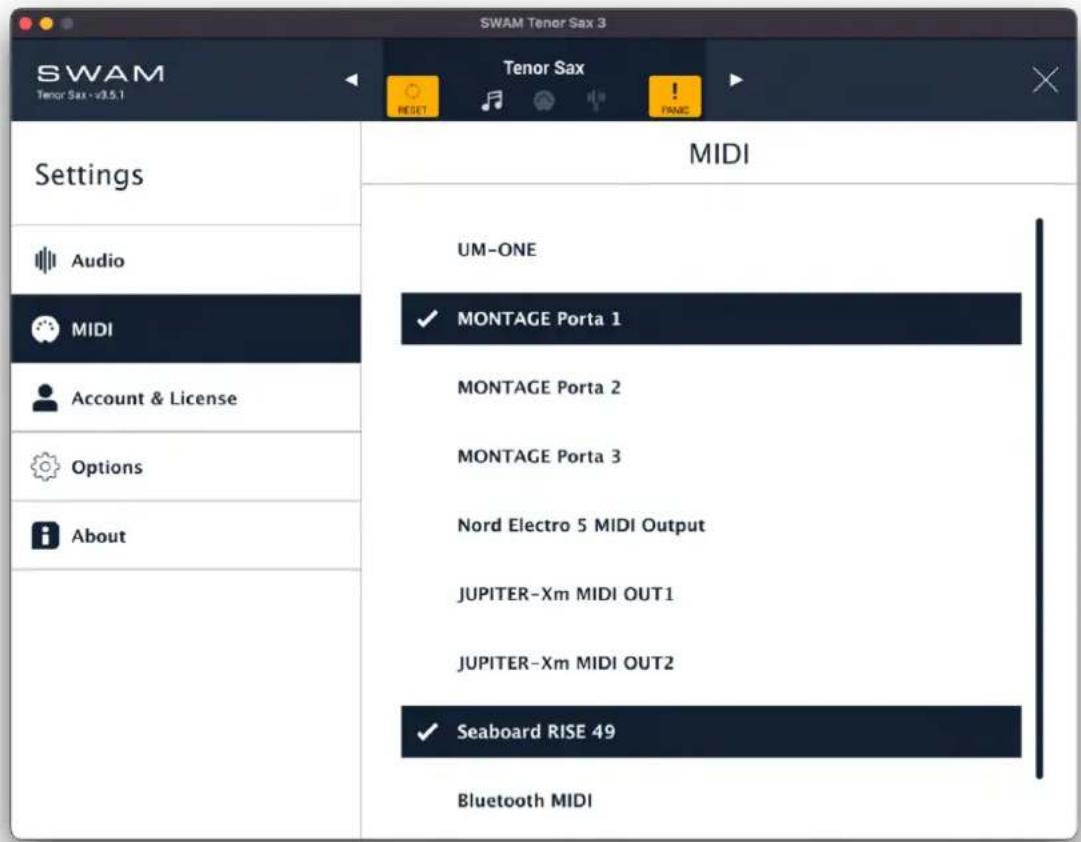
SWAM Tenor Sax 3 SWAM Tenor Sax -v3.5.1 Settings Audio MIDI Account & License Options About MIDI UM-ONE ✓ MONTAGE Porta 1 MONTAGE Porta 2 MONTAGE Porta 3 Nord Electro 5 MIDI Output JUPITER-Xm MIDI OUT1 JUPITER-Xm MIDI OUT2 ✓ Seaboard RISE 49 Bluetooth MIDIThe MIDI Settings page is available for Standalone version only and allows you to select one or more MIDI devices to control the instrument.
It's also possible to use a Bluetooth MIDI device by selecting "Bluetooth MIDI".
Account & License
text_image
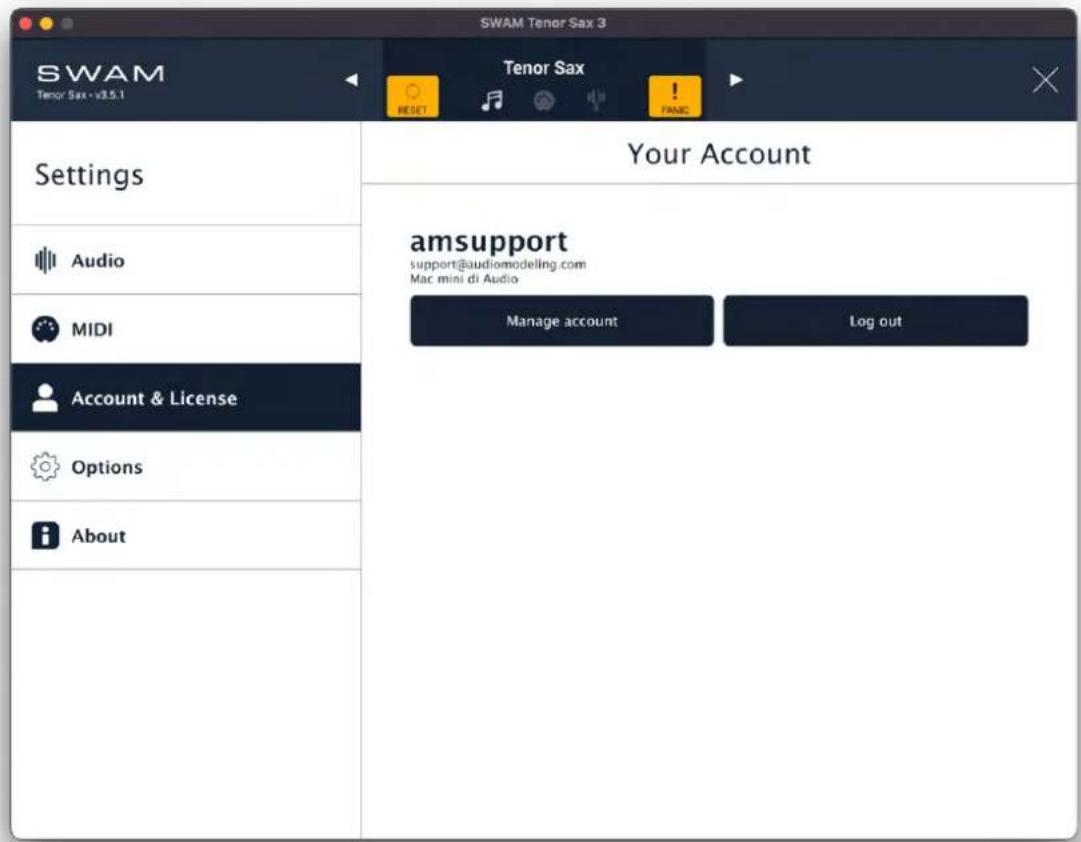
SWAM Tenor Sax 3 SWAM Tenor Sax -v3.5.1 Settings Audio MIDI Account & License Options About Your Account amsupport support@audiomodeling.com Mac mini di Audio Manage account Log outThe Account & License view shows the user currently logged in.
- Manage account: opens the Audio Modeling Customer Portal in a web browser.
- Log out: logs the user out of the application
Options
text_image
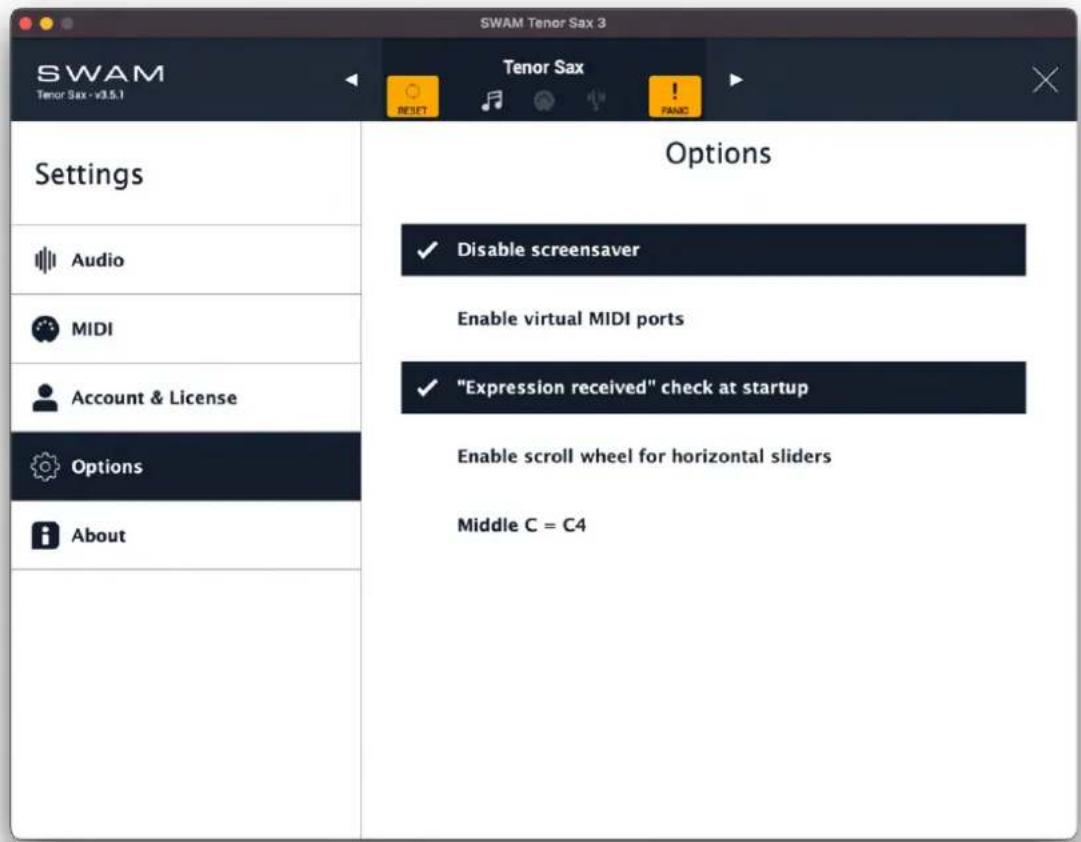
SWAM Tenor Sax 3 SWAM Tenor Sax -v3.5.1 Settings Audio MIDI Account & License Options About Tenor Sax RESET Logic PANC Options ✓ Disable screensaver Enable virtual MIDI ports ✓ "Expression received" check at startup Enable scroll wheel for horizontal sliders Middle C = C4- Disable screensaver: avoid screensaver activation when the app is open
- Enable virtual MIDI ports (macOS and iOS only): enable an Input and Output virtual MIDI port to control the instrument from an external app, or use the SWAM app to control another music app
- "Expression received" check at startup: when selected, warns the user to check the controller mapped to the Expression parameter if a note is received before an Expression event (for Desktop version only)
- Enable scroll wheel for horizontal sliders: allow the use of the scroll wheel for changing slider values
- Middle C = C4: set octave notation so that Middle C is C4, corresponding to MIDI note number 60. If deselected, Middle C is C3.
About
text_image
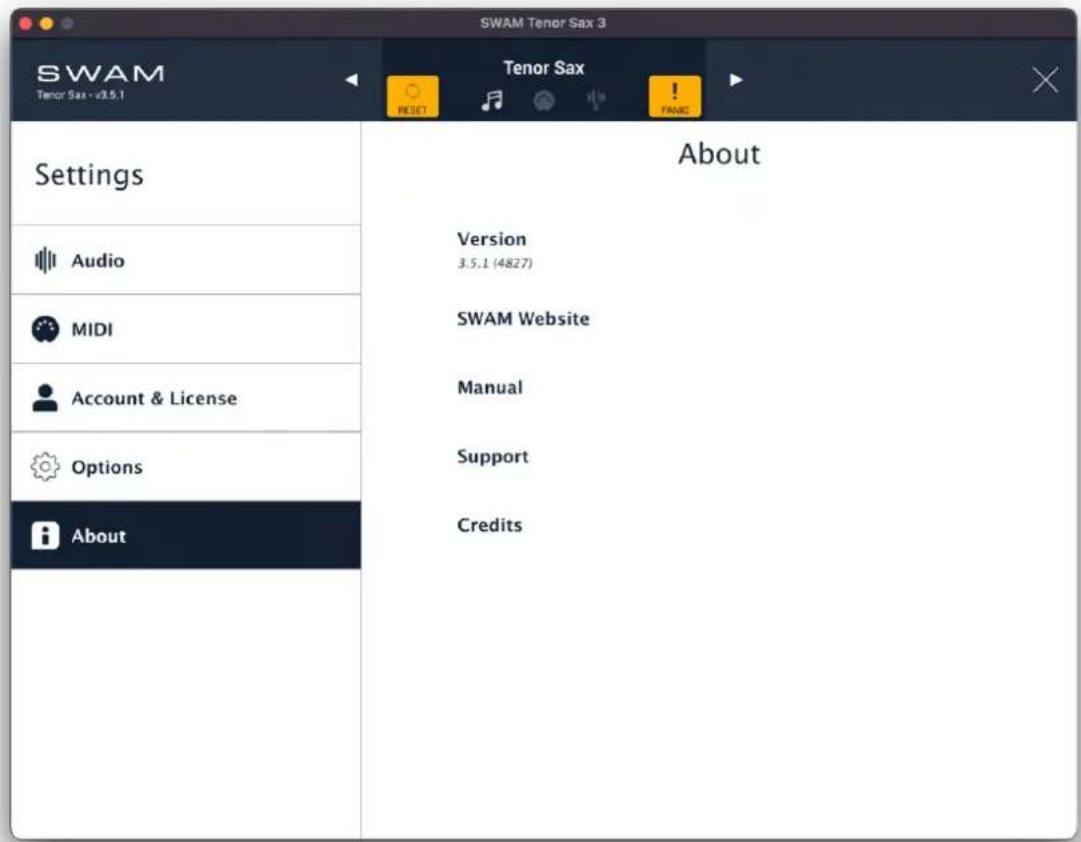
SWAM Tenor Sax 3 SWAM Tenor Sax -v3.5.1 Settings Audio MIDI Account & License Options About Tenor Sax RESET About Version 3.5.1 (4827) SWAM Website Manual Support CreditsThe About page shows the current version and build number, as well as a few other options:
- Version: the current version and build number of the app. On a desktop machine, click on "Version" to open the Customer Portal and check for updates.
- SWAM Website: opens the SWAM section of the Audio Modeling website in a web browser.
- Manual: opens the online User Manual page in a web browser.
●Support: opens the Support Center page in a web browser.
•Credits: shows the credits page
iOS
SWAM apps for iOS are available for iPad and iPhone. Both of those versions share the same engine and GUI elements as the desktop versions, with a few exceptions to adapt the user experience to the spesi of the devices.
- A few advanced parameters are unavailable (locked) on iPad and iPhone. However, desktop presets that include changes to these parameters can be imported to iOS without problem.
- iPad and iPhone offer on-screen, touch-based playing surfaces.
- iPhone has a different layout, but is consistent with the desktop and iPad versions: the same graphical elements and controls are reorganized to maximize the experience on a smaller screen.
List of locked parameters on iOS version
Currently, the following parameters are "locked" on both iPad and iPhone versions:
- Chromatic
- Legato Mode
-Overblow Thresh
●Harmonic Structure
-Formant
- Modal Res. Gain
- Random Dynamic
●Dynamic Harmonic (only for Saxophones, Double Reeds and Clarinets)
- Flutter (only for Saxophones, Double Reeds and Clarinets)
●Pipe Split (only for Flutes)
•Dynamic Pitch
-Attack To Sustain
●Auto Expression
•Vibr. Rand. Rate
- Panpot Type
●Harmonic Gain
Unlocking through In-App Purchase will be provided in future.
iPad
The GUI on the iPadOS version is identical to that of the desktop version. In addition, you will find a "PLAY"ico that accesses a dedicated, on-screen, touch playing surface.


text_image
SWAM Tenor Sax - v3.5.1 RET Tenor Sax* MINI CONTROLS INSTRUMENT DYNAMIC ENVELOPE Transpose -12 Expression 0.81 Vibrato Depth 0.62 Vibrato Rate 4.7 Crowl 7.0 Breath Noise 64.0 Overblow ON OFF Fall Down Alt. Fingering Main Volume -3.0 Octave - Octave + C3 Pitch Bend Vibrato DepthThe on-screen playing surface has the following purposes:
- Provide an onboard screen keyboard to perform at basic level without using any external controller
- Provide a visual feedback representation of the sound evolution (Dynamic Envelope)
- Provide direct controls of the most useful performance parameters (Expression, mute selection, control faders.
NOTE: To record and playback on a DAW what is played on the on-screen playing surface, the "SWAM On-Screen Keyboard" MIDI preset must be selected (see the MIDI Mapping Presets section).
The dynamic areas can be selected just by tapping on the tab name: Control, Instrument, Dynamic Envelope.
Controls

text_image
SWAM Tenor Sax -v3.5.1 RET Tenor Sax* MIDI CONTROLS INSTRUMENT DYNAMIC ENVELOPE Expression 0.81 Vibrato Depth 0.62 Vibrato Rate 4.7 Crowf 7.0 Breath Noise 64.9 Overblow ON OFF Fall Down Alt. Fingering Transpose -12 Main Volume -3.0 Octave - Octave + C3 Pitch Bend Vibrato DepthThis view provides faders and buttons that are very handy in live performance for tweaking the sound in real time, or adding subtle expressive details, when needed. Play and tweak in real time using the onboard keyboard, or use them as an extra control surface when playing with an external controller.
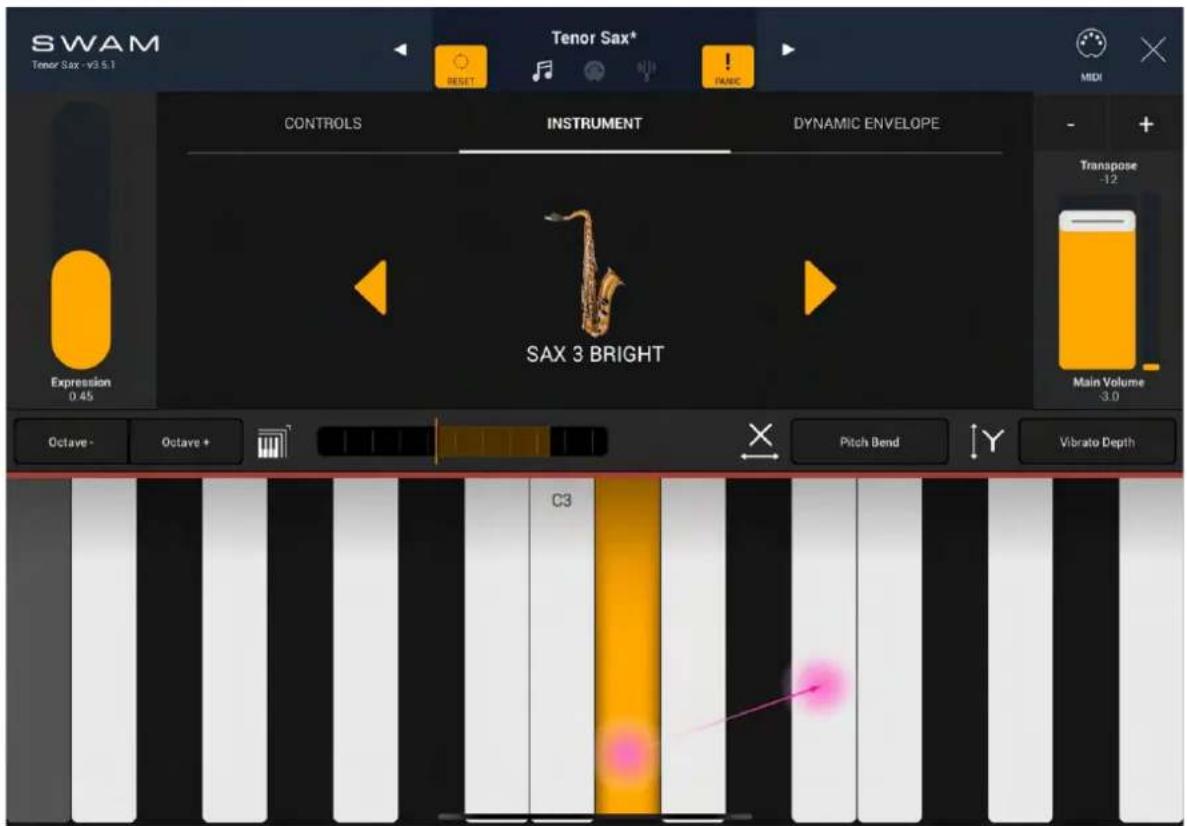
Instrument
text_image
SWAM Tenor Sax -v3.5.1 RET Tenor Sax* MIDI CONTROLS INSTRUMENT DYNAMIC ENVELOPE SAX 3 BRIGHT Expression 0.45 Transpose -12 Main Volume -3.0 Octave - Octave + C3 Pitch Bend Vibrato DepthThis view shows the instrument selector. Use the arrows to select different instrument timbres.
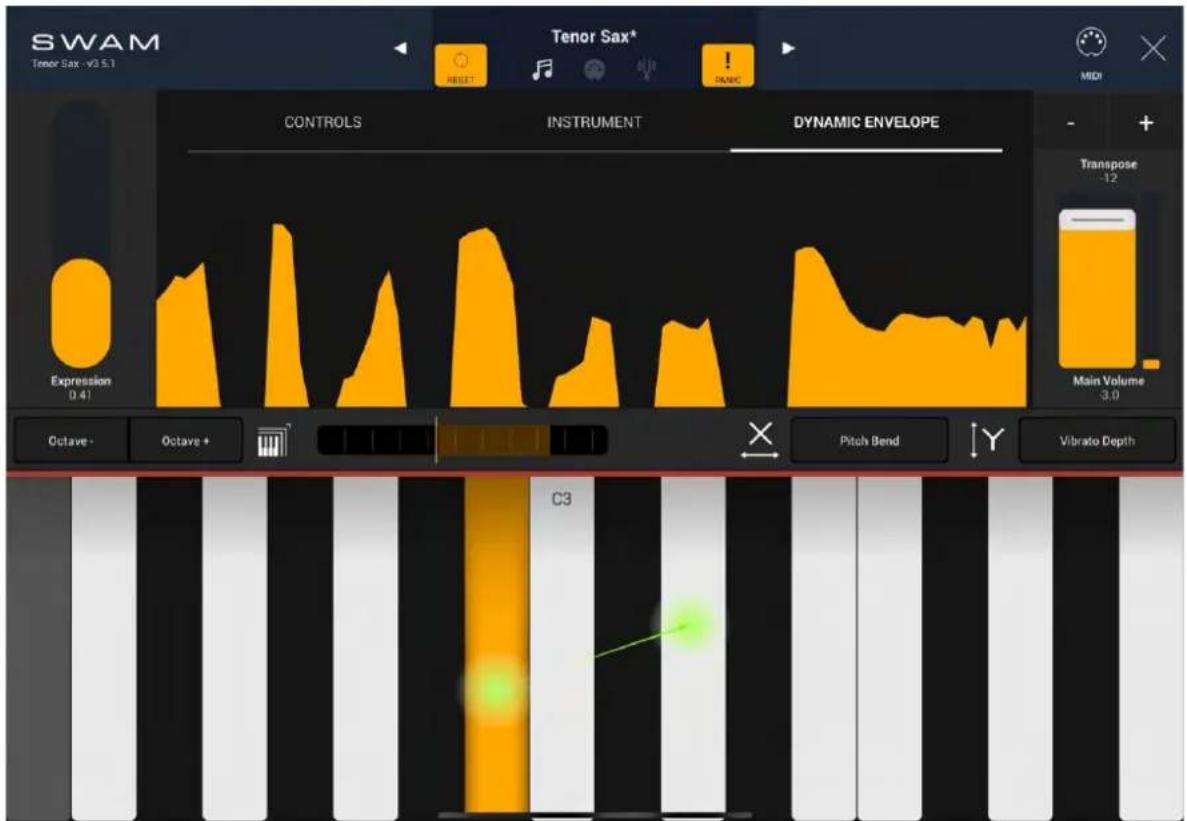
Dynamic Envelope
text_image
SWAM Tenor Sax -v3.5.1 Tenor Sax* RESET PANIC MIDI CONTROLS INSTRUMENT DYNAMIC ENVELOPE Expression 0.41 Transpose -12 Main Volume 3.0 Octave - Octave + C3 Pitch Bend Vibrato DepthThis view shows how the sound evolves in real time. The more you change the Expression setting and other parameters, the more interestingly and expressively a SWAM instrument plays. Adjust the Expression setting to create nuance in the sound; use the Dynamic Envelope for visual feedback.
On-Screen Keyboard Setup

text_image
Octave - Octave + Pitch Bend Y Vibrato DepthThe keyboard has a toolbar with dedicated controls to:
- Shift the pitch by octave (Octave - and Octave + buttons)
- Manage the keyboard size: Select a smaller size/tomore keys on the screen/ - Small (show 1 octave/13 keys) - Medium (show 1.5 octaves/18 keys) - Large (show 2 octaves/25 keys)
- Scroll the keyboard: Drag the ribbon to adjust the starting point of the keyboard.
- X and Y axis (direction) assignment: Con figure modulation behavior for finger movement along the horizontal and vertical axes.
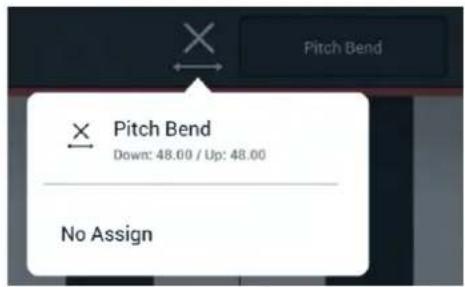
X: PitchBendControlAlongtheXAxis.
Tap on the "X" to show pitch bend range or unassign pitch bend control.
text_image
Pitch Bend Down: 48.00 / Up: 48.00 No Assign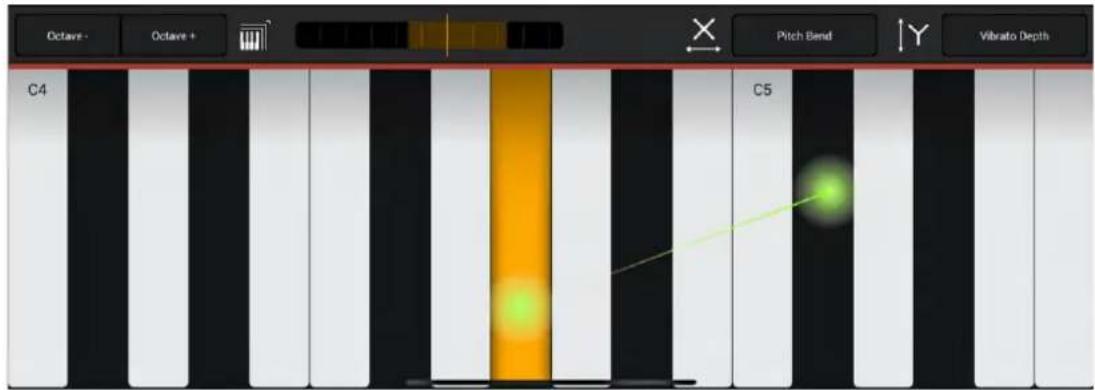
text_image
Octave - Octave + Pitch Bend Vibrato Depth C4 C5Y:ParameterControlAlongtheYAxis
Tap on the "Y" to change the parameter assignment for a Y-axis gesture (by default assigned to Vibrato Depth), and to check what MIDI control is mapped to the parameter. A shortcut to the MIDI Mapping page is provided to make it easy to change the MIDI
mapping for the controlled parameter. This is useful when using the control surface for recording MIDI on a DAW, or controlling an external instrument.

text_image
Vibrato Depth Control Change 1 Growl Control Change 74 Breath Noise Control Change 26 Overblow Control Change 22 No Assign MIDI Mapping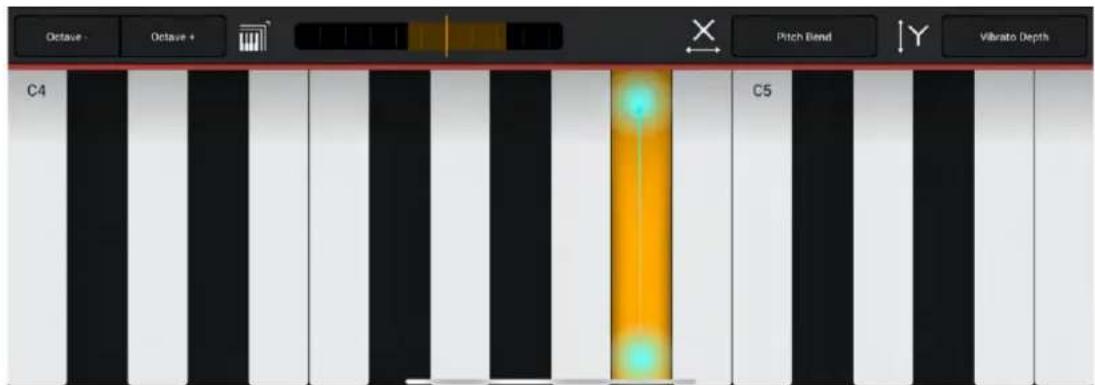
text_image
Octave - Octave + C4 Pitch Blend Y Vibrato Depth C5iPhone
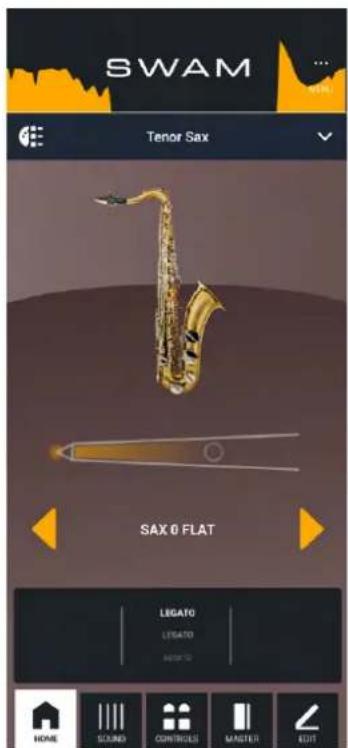
Keep the iPhone in portrait orientation for editing any parameterfiguration, rotate to landscape orientation to play the instrument using the on-screen surface.
text_image
SWAM Tenor Sax SAX 6 FLAT LEGATO LEGATO HOME SOUND COPYRIGHT MASTER EUT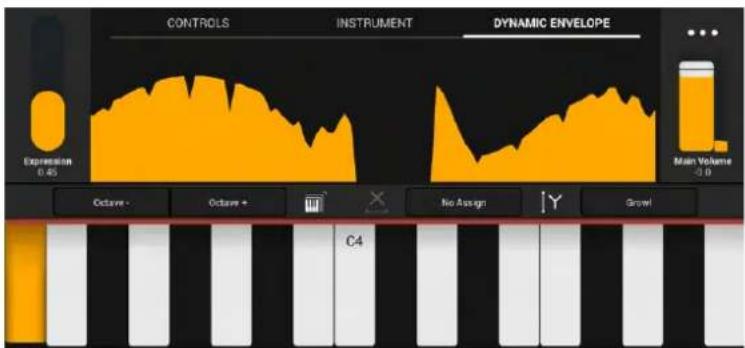
text_image
CONTROLS INSTRUMENT DYNAMIC ENVELOPE Expression 0.45 Main Volume -3.0 Octave - Octave + C4 No Assign Grow!Getting Started
To get started, be sure to check the Audio and MIDI settings, especially if you are using an external audio device or external MIDI controller.
Audio settings are under Main ... ("three dots") menu -> Settings -> Audio. Check that the Active Output Channels, Sample Rate and Buffer Size are correctly selected.
MIDI settings are under Main ... ("three dots") menu -> Settings -> MIDI. Select the MIDI port corresponding to the MIDI controller you are using to play the instrument.
text_image
Main Menu Save & Load Reset Controller Mapping Parameter Lock (on Preset brows... Import Export Settings Panic Press Preset in case of clock notes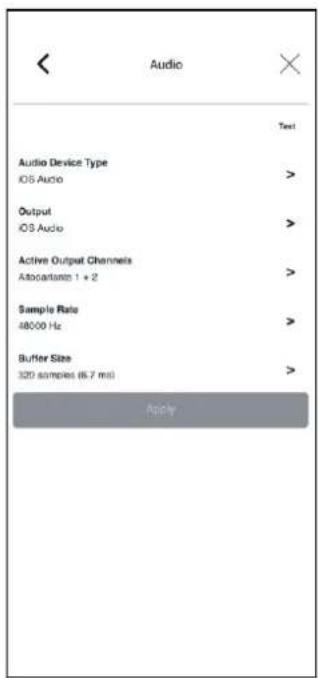
text_image
Audio Test Audio Device Type IOS Audio > Output IOS Audio > Active Output Channels Associates: 1 + 2 > Sample Rate 48000 Hz > Buffer Size 320 samples (6.7 ms) Apply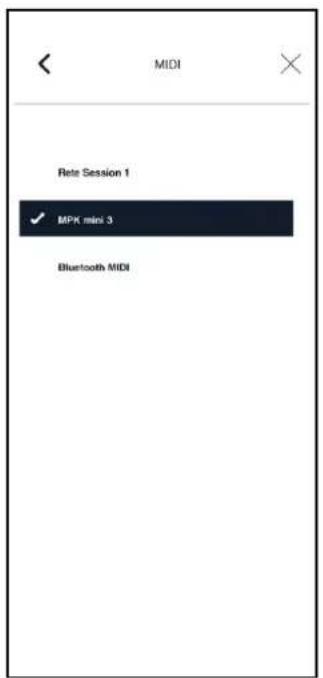
text_image
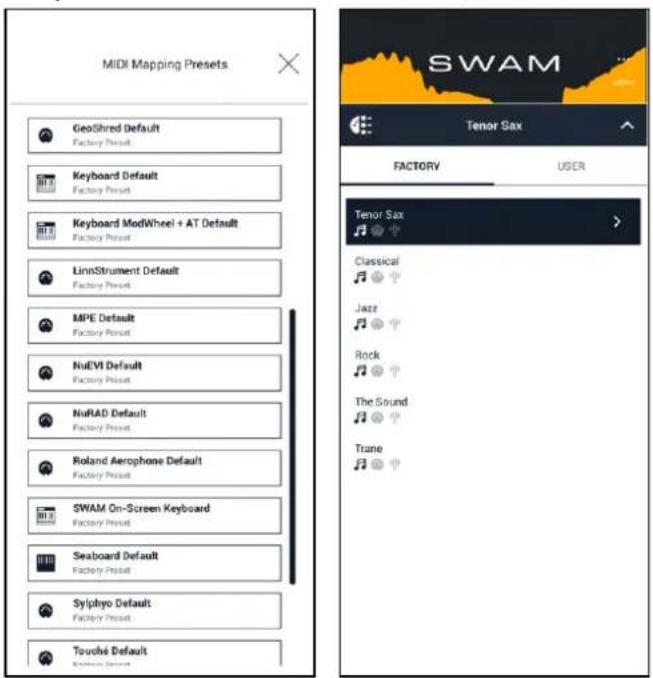
MIDI Rete Session 1 ✓ MPK mini 3 Bluetooth MIDISelect the MIDI mapping preset that best matches your MIDI controller. This is done from
the MIDI Preset List icon on the Home page, or under Main ... ("three dots") menu -> Controller Mapping -> MIDI Mapping & Quick Reset -> PRESETS.
Finally, load a Sound preset from the list, selecting the the "Sound Preset List" icon .
text_image
MIDI Mapping Presets GeoShred Default Factory Preset Keyboard Default Factory Preset Keyboard ModWheel + AT Default Factory Preset LinnStrument Default Factory Preset MPE Default Factory Preset NuEWI Default Factory Preset NuRAD Default Factory Preset Roland Aerophone Default Factory Preset SWAM On-Screen Keyboard Factory Preset Seaboard Default Factory Preset Sylphyo Default Factory Preset Touchdi Default Factory Preset SWAM Tenor Sax FACTORV USER Tenor Sax Classical Jazz Rock The Sound TruneEditing
Portrait orientation is most suitable for editing the instrument, tweaking the sound, and performing advanced settings.
The ... ("three dots") menu on the top-right corner is the same as in the desktop and iPad versions. Refer to the "Main Menu" paragraph for details.
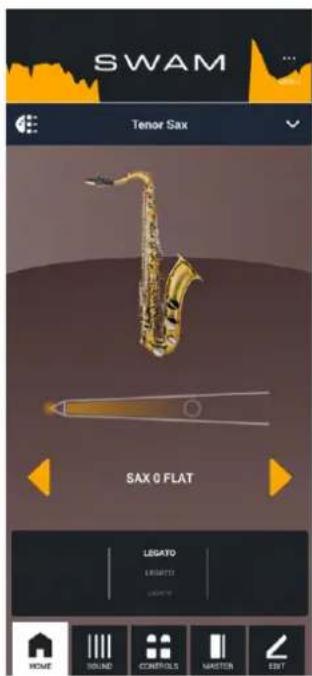
The "MIDI Preset List" icon gives you quick access to MIDI presets for a plug & play mapping of several external MIDI controllers.
The "Sound Preset List" icon is a shortcut to Sound presets selection and management.
On the iPhone, the Main Window has been split five sections: Home, Sound, Control, Master and Edit. Use the navigation icons on the footer to reach the sections. Refer to the Main Window section and following chapters for details.
text_image
SWAM Tenor Sax SAX 0 FLAT LEGATO LEIGHT LEIGHT HOME TOMATO CONTROLS MASTER EDIT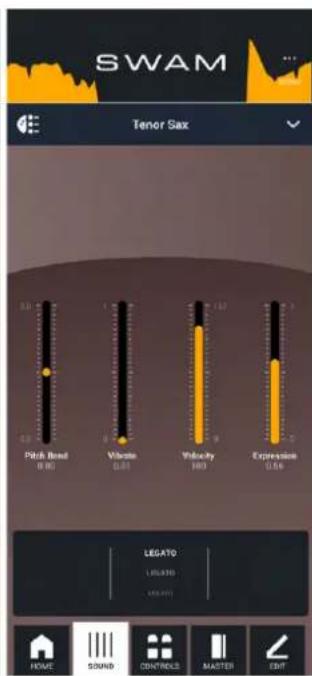
text_image
SWAM Tenor Sax Pitch Band Volume Velocity Expression LEGATO (LOCATED) (HOME) SOUND CONTROLS MASTER EDIT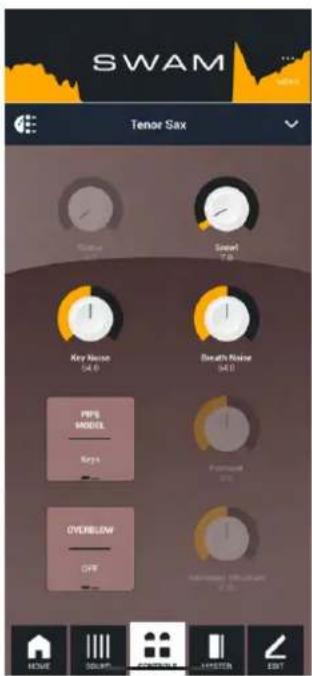
text_image
SWAM Tenor Sax Sawar 7.0 Key Noise 54.0 Breath Noise 54.0 PIPE MODEL Keys Performance 100% OVERBLOW OFF Reinjous SOLVENT HYPER HYPER EXIT
text_image
SWAM Tenor Sax Effects Parrot Main Volume -1.0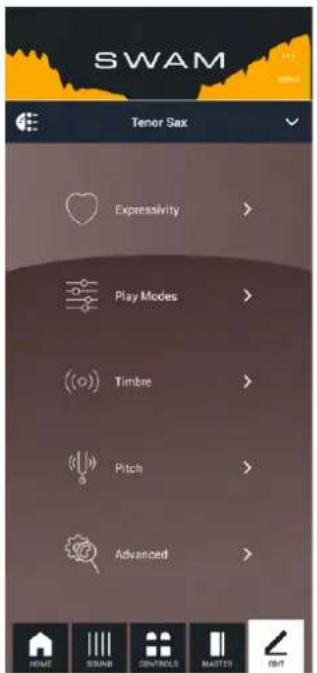
text_image
SWAM Tenor Sax Expressivity > Play Modes > Timbre > Pitch > Advanced >On-screen playing surface
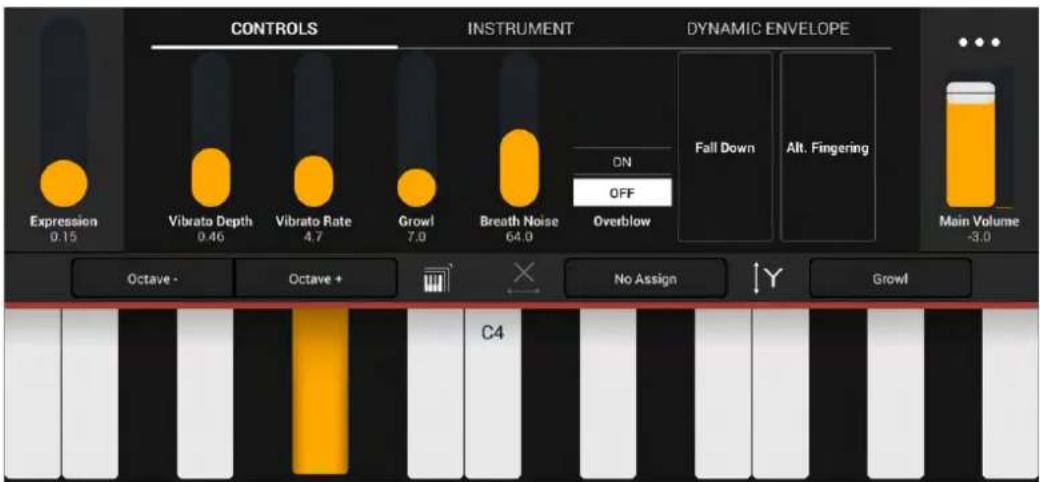
Be sure to select the "SWAM On-Screen Keyboard" entry from the list of MIDI presets, then rotate the iPhone to landscape orientation to access the on-screen playing surface.
Controls and features are identical to the iPad version. Please refer to the earlier iPad section for a detailed description.
Controls
text_image
CONTROLS INSTRUMENT DYNAMIC ENVELOPE Expression 0.15 Vibrato Depth 0.46 Vibrato Rate 4.7 Growl 7.0 Breath Noise 64.0 ON OFF Overblow Fall Down Alt. Fingering Main Volume -3.0 Octave - Octave + C4 No Assign GrowlInstrument

text_image
CONTROLS INSTRUMENT DYNAMIC ENVELOPE SAX 1 BRIGHT Expression 0.61 Main Volume -3.0 Octave - Octave + C4 No Assign GrowlDynamicEnvelope
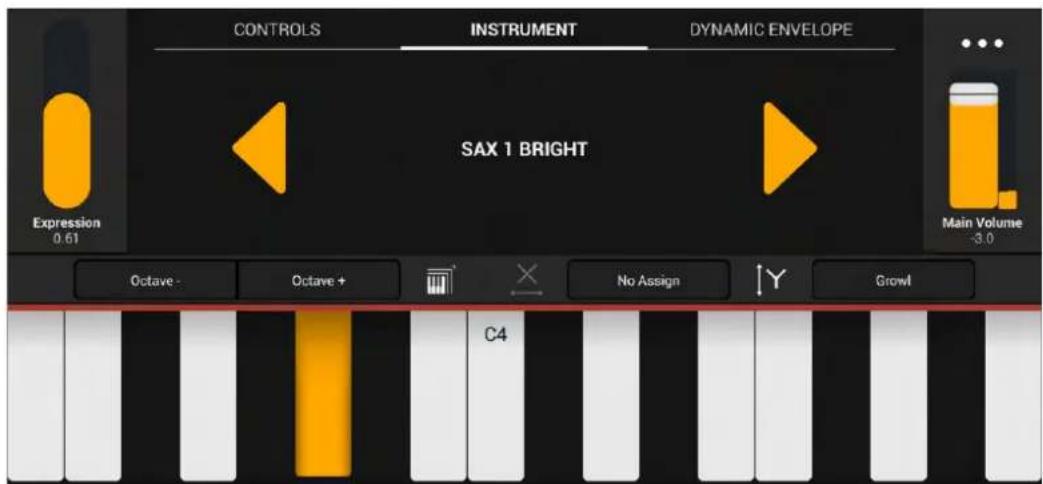
text_image
CONTROLS INSTRUMENT DYNAMIC ENVELOPE SAX 1 BRIGHT Expression 0.61 Main Volume -3.0 Octave - Octave + C4 No Assign GrowlQuickaccessmenu
A ... ("three dots") menu is available in the top right corner for quick access to sound parameter initialization, and sound and microtuning preset recall, and MIDI mapping selection.
Key Switches
Depending on the "KS Octave" parameter, Key Switches can be positioned beginning at any octave from C-1 to C2, or they can be disabled.
By default, the Key Switches are positioned starting from C1 (MIDI note 24), where C3 (MIDI note 60) = Middle C. You can change the MIDI channel from which Key Switches receive note events through the "KS Channel" setting. This can be useful when controlling Key Switches from a separate keyboard.
The Key Switch state depends on the Note On velocity. The velocity curve can be adjusted using the "KS Velocity Remap" parameter.
The Key Switches provided are:
•Ctriggers a short fall.
•C#switches between two legato modes: Gliss and Expr;
- D triggers a "squeak" (a short overblow on attack) or a continuous overblow, depending on the timing and velocity:
o Alow KS velocity triggers a squeak (if the KS is pressed before note on).
o Ahigher KS velocity plays a continuous overblow (if the KS is pressed before note on).
•D#behaves like D in latch mode.
●Etriggers the Alternate Fingering (momentary)
Flutes only:
- Fbehaves like E in latch mode.
Known issues / Open points
- Window resizing for plugins: on some hosts and DAWs, it's required to close and reopen the plugin window to apply the new size.
Technical Support
Before requesting technical support, please make sure you have carefully read the User Manual and the FAQs on our Support Center at audiomodeling.com/support.
There, you'll quickly find appropriate answers to most questions.
Should you still need technical support, please contact the SWAM support team at support@audiomodeling.com or open a ticket through our Support Center.
Note: Please ensure you enter your email address carefully — it's not possible for us to reply to an incorrect email address.
When requesting technical support, please don't forget to provide as much system information as possible, including your type of computer, OS, audio interface, host application, software version, etc. If the problem can be replicated, a MIDI and/or an audio file is usually very helpful.
In order to provide effective and quick support, please include a reference to either the user account, order number or one of the License Keys.