AXC-AX4M - Switch AuviTran - Free user manual and instructions
Find the device manual for free AXC-AX4M AuviTran in PDF.


User questions about AXC-AX4M AuviTran
0 question about this device. Answer the ones you know or ask your own.
Ask a new question about this device
Download the instructions for your Switch in PDF format for free! Find your manual AXC-AX4M - AuviTran and take your electronic device back in hand. On this page are published all the documents necessary for the use of your device. AXC-AX4M by AuviTran.
USER MANUAL AXC-AX4M AuviTran
AuviTran Audio ToolBox
AVBx3 & AVBx7
Instruction Manual

text_image
AuviTran AUDIO TOOLBOX AVBx3
text_image
AUDIO TOOLBOX AVISA Event Activity Cune 16 Leg 14 Pout Error Ready Power Main Aut AVINTRATE Audio (Device Card) Primary Secondary Part 2 Part 4 AuyTran
text_image
AuviTran AUDIO TOOLBOX AV8x7 Event Activity Core 1 2 3 4 5 6 7 Fault Power Error Ready Main Aur
text_image
AUDIO TOOLBOX AVEx? Event Activity Lea lt Le Le Le Le Le Le Le Fault Error Ready Power Main Act LICOS100 AuxTran OtherSound Cord 3in IN OUT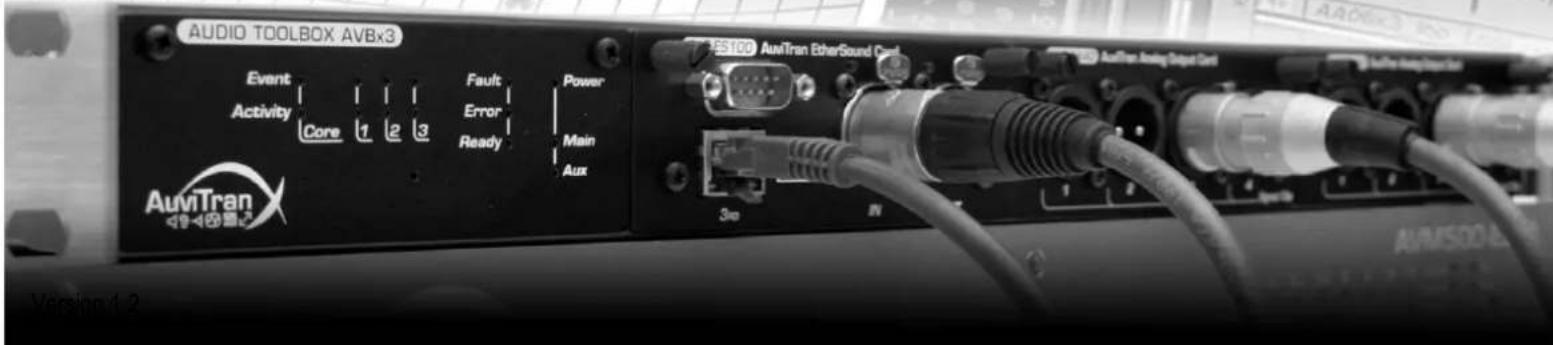
text_image
AUDIO TOOLBOX AVBx3 Event Activity Core Fault Error Ready Power Main Aux AuiTran EtherSound Grid 3.00 AuxTran Analog Output Grid AuiTran Analog Input Grid Version 1-2This device complies with Part 15 of the FCC rules. Operation is subject to the following two conditions:
- This device may not cause harmful interference.
- This device must accept any interference received including interference that may cause undesired operation.
NOTE: This product has been tested and found to comply with the limits for a Class B Digital device, pursuant to Part 15 of the FCC Rules. These limits are designed to provide reasonable protection against harmful interference in a residential environment. This equipment generates, uses and can radiate radio frequency energy and, if not installed and used in accordance with the instructions, may cause harmful interference to the operation of other radio communications.
Compliance with FCC regulations does not guarantee that interference will not occur in all installations.
If this product is found to be the source of interference, which can be determined by turning the unit "OFF" and "ON", please try to eliminate the problems by using one of the following measures:
- Relocate either this product or the device that is being affected by the interference.
- Utilize power outlets that are on different branch (circuit breaker or fuse) circuits or install AC line filter(s).
- In the case of radio or TV interference, relocate/reorient the antenna. If the antenna lead-in is 300 ohm ribbon lead, change the lead-in to co-axial type cable.
If these corrective measures do not produce satisfactory results, please contact the local retailer authorized to distribute this type of product
IMPORTANT: When connecting this product to accessories and/or another product, use only high quality shielded cables.
Cable/s supplied with this product MUST be used.
WARNING
DOUBLE POLE / NEUTRAL FUSING
Always follow the basic precautions listed below to avoid the possibility of serious injury or even death from electrical shock, short-circuiting, damages, fire or other hazards. These precautions include, but are not limited to, the following:
- Do not apply excessive pressure on connectors or any other part of the board. Do not touch the metallic sharp parts (pins) of the product.
- This product is electrostatic sensitive; make sure you check this before touching or using it.
- The disconnect devices of the Audio ToolBox unit are the appliance inlet of the auxiliary power supply (option) and the appliance inlet on the rear side of the unit. These must be easily reachable.
- To prevent electric shock, unplug the unit before handling. The achievement of other operations not mentioned in this document is prohibited. Repairs can be performed only by a technician trained and qualified.
-
Each connection must be Safety Extra Low Voltage kind (SELV), and must stay inside buildings.
-
Always use a power cable with a plug according to the current standards in the country of use
- As Toolbox can have free slots, these slots must always have a cover to close correctly the unit (protection against fire)
- FINLAND: "Laite on liitettävä suojamaadoitus-koskettimilla varustettuun pistorasiaan"
- NORWAY : "Apparatet må tilkoples jordet stikkontakt"
- SWEDEN : "Apparaten skall anslutas till jordat uttag"
Rack Mounting
This product is designed to be rack-mounted. Be sure to observe following installation rules of this kind of equipment:
- Do not block the vents. This device has ventilation holes on the both side to prevent the internal temperature from becoming too high. Inadequate ventilation can result in overheating, possibly causing damage to the device(s), or even fire.
- Elevated Operating Ambient - If installed in a closed or multi-unit rack assembly, the operating ambient temperature of the rack environment may be greater than room ambient. Therefore, consideration should be given to installing the equipment in an environment compatible with the maximum ambient temperature specified by the manufacturer.
- Reduced Air Flow - Installation of the equipment in a rack should be such that the amount of air flow required for safe operation of the equipment is not compromised.
In some cases, to be sure to ensure sufficient airflow, leave the rear and the front of the rack open, leave sufficient space (>5cm) on each side of the rack, and leave space above rack (>1cm).
Or it can be better to have appropriate fan kit in the multi-unit rack
- Mechanical Loading - Mounting of the equipment in the rack should be such that a hazardous condition is not achieved due to uneven mechanical loading.
- Circuit Overloading - Consideration should be given to the connection of the equipment to the supply circuit and the effect that overloading of the circuits might have on over current protection and supply wiring.
Appropriate consideration of equipment nameplate ratings should be used when addressing this concern.
- Reliable Earthing - Reliable earthing of rack-mounted equipment should be maintained. Particular attention should be given to supply connections other than direct connections to the branch circuit (e.g. use of power strips).
LIMITATION OF LIABILITY
In no case and in no way, the provider of this Product (AuviTran, the distributor or reseller, or any other party acting as provider) shall be liable and sued to court for damage, either direct or indirect, caused by and to the user of the board and which would result from an improper installation or misuse of the Product. "Misuse" and "improper installation" mean installation and use not corresponding to the instructions of this manual.
Please note that graphics given in this manual (drawings and schemes) are only examples and shall not be taken for a real vision of your own equipment configuration.
AuviTran is constantly working on the improvement of the products. For that purpose, the products functionalities are bound to change and be upgraded without notice. Please read carefully the User's manual as the new functionalities will be described therein.
TRADEMARKS
All trademarks listed in this manual are the exclusive property of their respective owners. They are respected "as is" by AuviTran. Any use of these trademarks must receive prior approval of their respective owners. For any question, please contact the trademark's owner directly.
COPYRIGHT
The information in this manual is protected by copyright. Therefore, reproduction, distribution of whole or part of this manual is strictly forbidden without the prior written agreement of AuviTran.
AUVITRAN WEBSITE / MORE INFORMATION
Please visit our website for any question of further inquiry concerning our product range. Updates will also be posted when available.
http://www.auvitran.com
PACKAGE CONTAINS
• 1 Audio ToolBox Rack Unit
- 1 Power Cord
TABLE OF CONTENTS
FCC INFORMATION (U.S.A)......2
PRECAUTIONS 3
LIMITATION OF LIABILITY 4
TRADEMARKS 4
COPYRIGHT 4
AUVITRAN WEBSITE / MORE INFORMATION .... 4
PACKAGE CONTAINS....4
1 WELCOME! 7
2 OVERVIEW....7
3 KEY FEATURES ....7
4 AUDIO TOOLBOX RANGE AND OPTIONAL AXC-CARDS 8
5 TECHNICAL SPECIFICATIONS....9
6 GPI/O INTERFACE....10
7 AUXILIARY POWER SUPPLY (OPTIONAL)....11
8 SLOT AND EXTENSION CARDS....12
8.1 CARD Insertion 12
8.2 CARD Extraction....13
9 AUDIO TOOLBOX CONTROL PANEL....14
10 CONFIGURATION THROUGH AVS-MONITOR.... 15
10.1 Main panel....15
10.1.1 GPI/O Status 15
10.1.2 Clock Status 15
10.1.3 Setup access 15
10.1.4 Additional information 16
10.2 Rack setup 16
10.2.1 Clock tab 16
10.2.2 Setup tab 17
10.2.3 Status tab 17
10.3 Slot setup 17
11 INTERNAL MATRIX ROUTING 18
11.1 First-Card, Second-Card .... 18
11.2 Automatic Plug and Play mode vs. Advanced Matrix Routing mode 18
11.2.1 Automatic Plug and Play mode 18
11.2.2 Advanced Matrix Routing mode 18
11.3 Setting matrix mode....19
11.4 Displayed status....19
11.5 Matrix window....19
12 FREQUENTLY ASKED QUESTIONS....20
13 NOTES....21
1 WELCOME!
Thank you for purchasing AuviTran Audio Toolbox Rack Unit. We hope you will enjoy using it.
You will find herewith the necessary instructions to use your product. Please read them carefully as misuse of this device might cause serious damage to you and your environment.
2 OVERVIEW
AuviTran Audio ToolBox is a modular audio platform giving access to a large variety of professional audio networked configurations.
With a three slots 1U-19" rack or a seven slots 2U-19" rack unit and several audio interface cards, you can build the configuration you need:
- EtherSound interface and ASIO interface (can control Audio ToolBox unit)
• DANTE interface (can control Audio ToolBox unit) - MADI interface
• High quality analog input or output XLR connectors - Analog inputs/outputs Euroblock connectors
• High quality microphone preamp inputs - AES/EBU inputs/outputs
- GPI/GPO interface
NOTE: Toolbox control is allowed if at least one card allowing control is inserted, like EtherSound Card or DANTE card.
AuviTran Audio ToolBox is available in installation mode (Display in front and all connectors in the back), and can be configured as stage-box for live applications (Display, Network and Audio connectors in front, Power supply and GPIO on the back).
3 Key FEATURES
- AuviTran Audio ToolBox platform 19" rack (1U or 2U) chassis, providing up to seven slots for AuviTran AxC interface cards, with an audio backplane connecting all inputs / outputs (physical and network)
• Vast choice of audio interface cards - 4 smart configurable GPIO for powerful interactions with security application. They can also be set individually as ADC Input for local / remote fader or level control.
If ToolBox contains at least one control card:
- Remote management with AVS-Monitor software through the EtherSound or DANTE Network.
• Dedicated control page for monitoring and controlling all the chassis and inserted cards parameters.
4 Audio Toolbox Range and Optional AxC-Cards
Here is the full range of available AuviTran Audio ToolBox:
StageBox
AVBx3/SB (only fix routing) or /SBM (with routing matrix)

AVBx7/SB (with routing matrix)

natural_image
Front view of a network equipment unit with ports and connectors (no visible text or symbols)Installation
AVBx3/IS (only fix routing) or /ISM (with routing matrix)

AVBx7/IS (with routing matrix)

natural_image
Front view of a network equipment unit with ports and connectors (no visible text or symbols)Here is a list of available extension cards for AuviTran Audio Toolbox:
AxC-DANTE
AxC-MADI
AxC-AT32IO

AxC-DX8I

AxC-AX4M

AxC-AX40
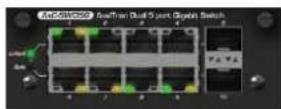
AxC-SWD5G
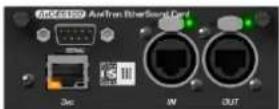
AxC-ES100
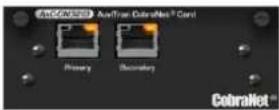
AxC-CN32IO

AxC-DS3210
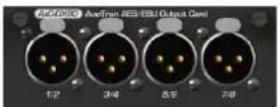
AxC-DX80
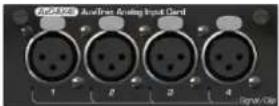
AxC-AX4I

AxC-AE8IO

AxC-GP16IO
5 Technical SPECIFICATIONS
| AVBx3: 3 slots AuviTran Audio ToolBox 1U x 19" rack | |
| Size | 483 x 253x 44 mm (19" rack, 1 U height)Three slots available for control and audio inputs/outputs |
| Main Power Supply | 100-240 VAC – Maximum 50 W (depending of the configuration) |
| Auxiliary Power Supply | Available only in option |
| Storage: Temp / Humidity | -5°C to 70°C / 0% to 95% (non-condensing) |
| Operating: Temp / Humidity | 0 °C to 40°C / 5% to 90% (non-condensing) |
| Front panel (LED display) | Power Main/ Aux – Fault / Error / Ready – Networks and links Rx and Tx Activities - Events |
| Rear panel | 3 slots with backplane bus for interface cards1x IEC power inlet for main AC power supply2x BNC connectors for Word clock Output and Input (Zin=1KΩ or 75Ω selected by software)1x6 poles Euroblock connector for GPIO |
| GPI/O | Connector Euroblock 6 poles withGND and Power DC Output 12V (250mA max)4 GPI/O configurable individually as GPO or GPIGPI = can be set as ADC level input (8 bits 0-12V) for fader control or level trigger detectionsGPO = when active, force 0V (GND) on the output (support 60Vmax / 500mA max) |
| AVBx7: 7 slots AuviTran Audio ToolBox 2U x 19" rack | |
| Size | 483 x 253x 88 mm (19" rack, 2 U height)Seven slots available for control and audio inputs/outputs |
| Main Power Supply | 100-240 VAC – Maximum 110 W (depending of the configuration) |
| Auxiliary Power Supply | Available only in option |
| Storage: Temp / Humidity | -5°C to 70°C / 0% to 95% (non-condensing) |
| Operating: Temp / Humidity | 0 °C to 40°C / 5% to 90% (non-condensing) |
| Front panel (LED display) | Power Main/ Aux – Fault / Error / Ready – Networks and links Rx and Tx Activities - Events |
| Rear panel | 7 slots with backplane bus for interface cards1x IEC power inlet for main AC power supply2x BNC connectors for Word clock Output and Input (Zin=1KΩ or 75Ω selected by software)1x6 poles Euroblock connector for GPIO |
| GPI/O | Connector Euroblock 6 poles withGND and Power DC Output 12V (250mA max)4 GPI/O configurable individually as GPO or GPIGPI = can be set as ADC level input (8 bits 0-12V) for fader control or level trigger detectionsGPO = when active, force 0V (GND) on the output (support 60Vmax / 500mA max) |
Each connection on GPI/O must be Safety Extra Low Voltage kind (SELV).
The Audio ToolBox contains 4 GPI/O (General Purpose Input/Output) configurable as GPI or GPO. GPI/O are available on a 1x6 poles Euroblock connector close to the Power Inlet Connector.
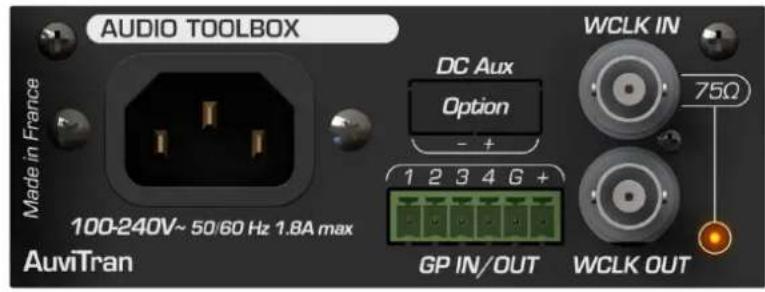
text_image
AUDIO TOOLBOX Made in France 100-240V~ 50/60 Hz 1.8A max AuviTran DC Aux Option - + 1 2 3 4 G + GP IN/OUT WCLK IN 75Ω WCLK OUT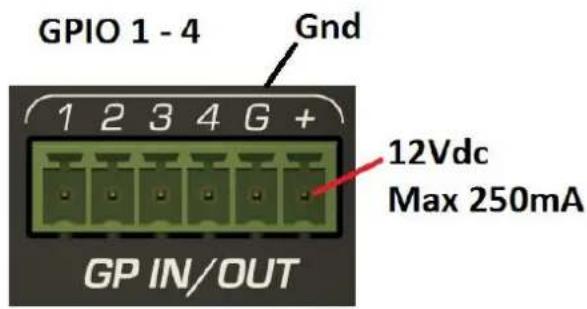
text_image
GPIO 1 - 4 Gnd 1 2 3 4 G + 12Vdc Max 250mA GP IN/OUTEach GPIO can be configured as GPI or GPO individually, with AVS-Monitor software. Configuration and use is described later in this document.
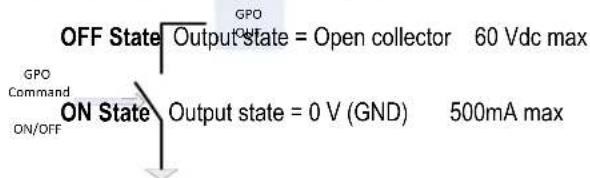
GPO can supported 60Vdc max / 500mA max
text_image
OFF State Output state = Open collector 60 Vdc max GPO Command ON/OFF ON State Output state = 0 V (GND) 500mA maxGPI The user can select between 2 modes (Max Voltage Supported 60 Vdc)
ADC Input (8 bits scale)
Range 0-12V (12V = ADC Full Scale)
Trigger Detection
TTL Level (logic "1" = GPI > 2V)
7 Auxiliary POWER SUPPLY (OPTIONAL)
Audio ToolBox, equipped with the auxiliary power supply, provides another source of power supply, to improve the reliability of the system. It allows you to have two distinct power supply sources, for redundancy solutions. When both power supply units (PSU) are plugged, Audio ToolBox compare them, and always choose the best. In case of failure of one PSU (or associated electrical network), Audio ToolBox will so continue to work.
Warning: Do not connect a battery directly on this input. If external power supply is used, it must have protection against reverse current.
The DC Aux input (option) is available on a 1x2 poles lockable Euroblock connector close to the Power Inlet Connector

text_image
AUDIO TOOLBOX Made in France 100-240V~ 50/60 Hz 1.8A max AuviTran DC Aux Option WCLK IN 75Ω 1 2 3 4 G + GP IN OUT WCLK OUT DC Aux Input + = DC AUX input 12V (-5% (11.4V) /+12% (13.4 V)) Maximum Current 4A (depending of the configuration) Input - = GND8.1 CARD Insertion

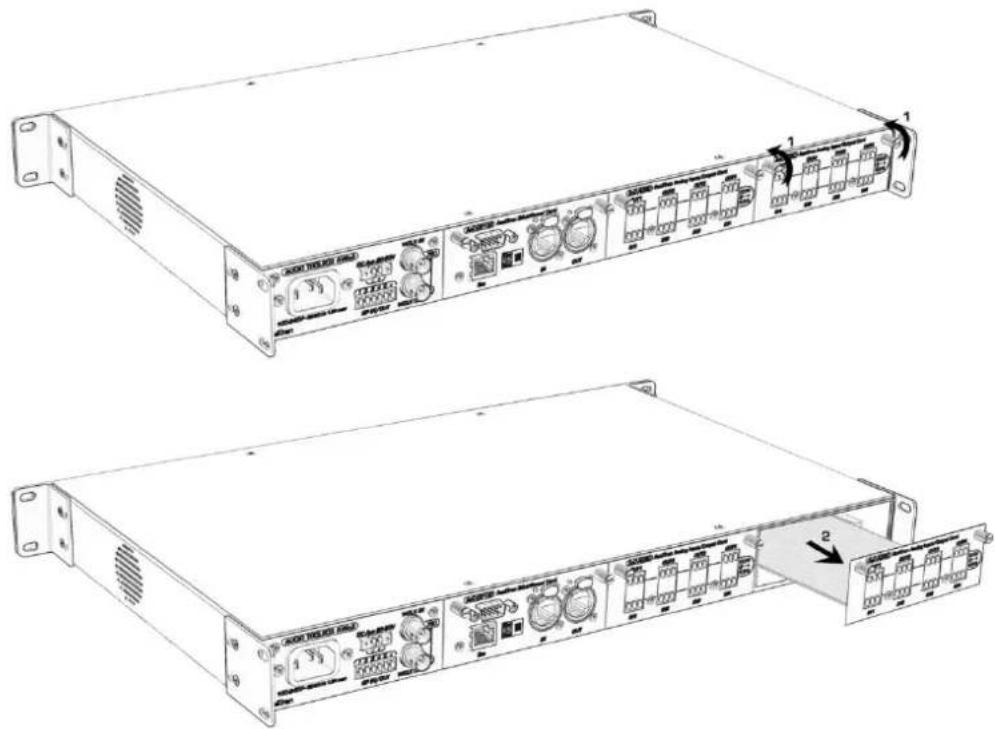
The cards are electrostatic sensitive; make sure you check this before touching or handling them

8.2 CARD Extraction

The cards are electrostatic sensitive; make sure you check this before touching or handling them
text_image
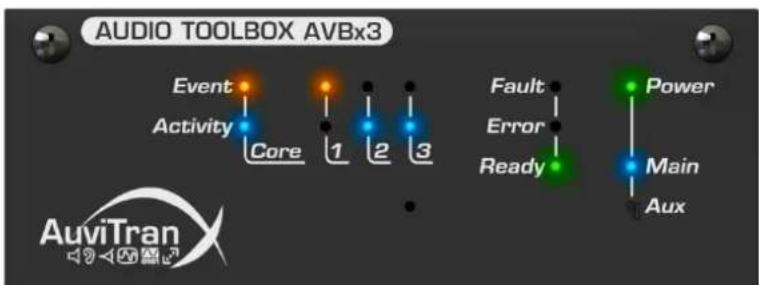
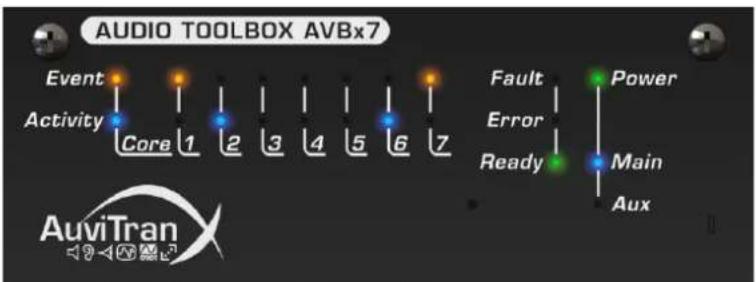
Technical diagram of an industrial rack-mounted server with labeled ports and ports, showing front and side views with numbered annotations.All AuviTran Audio Toolbox have a control panel used to display quick information on the device status without the need to launch any software.
Control panel is available both in stage box mode and installation mode. Information provided are the same.
flowchart
graph TD
    A["Event"] --> B["Activity"]
    B --> C["Core"]
    C --> D["1"]
    D --> E["2"]
    E --> F["3"]
    F --> G["Fault"]
    G --> H["Error"]
    H --> I["Ready"]
    I --> J["Power"]
    J --> K["Main"]
    K --> L["Aux"]
AuviTran AVBx3 Stage box control panel display
flowchart
graph TD
    A["Event"] --> B["Activity"]
    B --> C["Core 1"]
    C --> D["2"]
    D --> E["3"]
    E --> F["4"]
    F --> G["5"]
    G --> H["6"]
    H --> I["7"]
    I --> J["Fault"]
    I --> K["Error"]
    I --> L["Ready"]
    L --> M["Main"]
    L --> N["Aux"]
    M --> O["Power"]
AuviTran AVBx7 Stage box control panel display
LED activity meaning:
- Event: reflects Core or slot event.
- Activity: reflects core activity, network activity or audio signal presence
- Fault: Default found on ToolBox
- Error: Malfunction detected
- Ready: ToolBox is ready to be used
- Power: Power supply is OK
- Main: Main power supply present
- Aux: Auxiliary power supply present
A reset button ① is also available to be used with a paper clip. Two functions can be obtained through pressing this button:
- Reset ToolBox: press button for two seconds. Device will restart as if powered on.
- Revert to Factory default: while powered off, press button and powered on device. Continue pressing button until all panel LED are lighted. Both ToolBox and all slots will then reverted to their factory default values.
Note: Use "Revert to Factory" function with care as it will reset all ToolBox and slot parameters, and might lead to strange behavior on the network used.
10 CONFIGURATION THROUGH AVS-MONITOR
10.1 Main panel

text_image
AVBx3 ACDC 100 V/40 DC Ax Power Supply : Main Aux GP OUT #1 OFF GP OUT #2 ON GP IN #3 OFF GP IN #4 OFF Clock Source : Slot 1 AxC-ES100 Clock Status : LOCK SYNC Name : Rack option : IDENTIFY RACK SETUP SLOT SETUP Matrix : N/A Power Supply :Main panel is divided into 4 parts for feedback and setup functions:
- GPI/GPO display status, 75Ω status
- Clock source and status
- ToolBox name, Identify function, access to rack and/or slot setup
- Matrix and Power Supply status
Note: AuviTran Audio ToolBox AVBx3 has no matrix function available. Internal routing follows the Automatic Plug and Play mode described later.
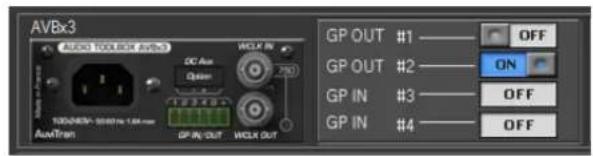
10.1.1 GPI/O Status
text_image
AVBx3 AUDIO TOOLBOX (output) DC Ax Option WCLK IN 100/45Hz-50/45Hz 1.0A max AuxTran GP IN OUT WCLK OUT GP OUT #1 GP OUT #2 GP IN #3 GP IN #4 OFF ON OFF OFFThis tab presents:
- 75Ω status
• GPI Status (ON/OFF or progress bar if set to ADC Mode display, read only)
• GPO Status (ON/OFF user switchable)
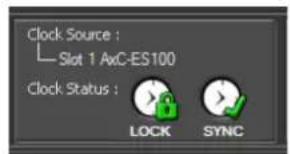
10.1.2 Clock Status
text_image
Clock Source : Slot 1 AxC-ES100 Clock Status : LOCK SYNCThis tab presents:
• Current clock source selected
- Current clock status
- Lock/Unlock
○ Sync/No Sync
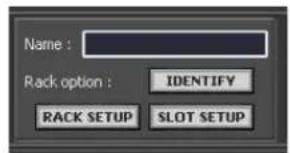
10.1.3 Setup access
text_image
Name : Rack option : IDENTIFY RACK SETUP SLOT SETUPThis tab presents:
- Rack name stored
• Identify function access, rack LEDs will blink during few seconds to allow quick identification - Rack setup access
- Slot setup access
10.1.4 Additional information

text_image
Matrix : N/A Power Supply : Main AuxThis tab presents:
• Matrix status if available, click on this status to have access to Audio ToolBox Matrix window
- Both power supply status
10.2 Rack setup
Rack setup window will present several tabs to set/view all available parameters for ToolBox. The "Revert to Factory" button allows reverting to factory default parameters for both ToolBox and all slots. So use this function with care as it will reset all ToolBox and slot parameters, and might lead to strange behavior on the network used.
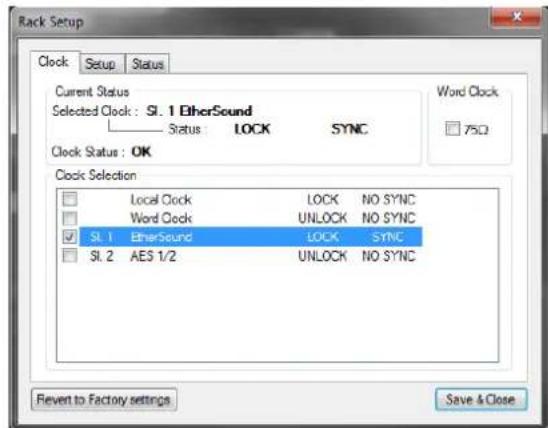
10.2.1 Clock tab
text_image
Rack Setup Clock Setup Status Current Status Selected Clock: SL. 1 EtherSound Status: LOCK SYNC Clock Status: OK Word Clock 75Ω Clock Selection Local Clock LOCK NO SYNC Word Clock UNLOCK NO SYNC SL. 1 EtherSound LOCK SYNC SL. 2 AES 1/2 UNLOCK NO SYNC Revert to Factory settings Save & CloseClock tab
Clock tab allows user to:
- View current selected clock and status
- Set the 75 Ω option for Word clock IN
- Select the clock used, with current status for each clock.
Clock source can be:
- Local 48kHz clock from the ToolBox
- Word Clock IN
- Clock input from a slot
Clock status can be:
- LOCK: This indicates that a clock synchronized with the selected source is being input.
- UNLOCK: A valid clock is not being input.
- SYNC: A valid clock is being input, and is synchronized with the selected clock source.
- NO SYNC: A valid clock is being input, but is not synchronized with the selected clock source.
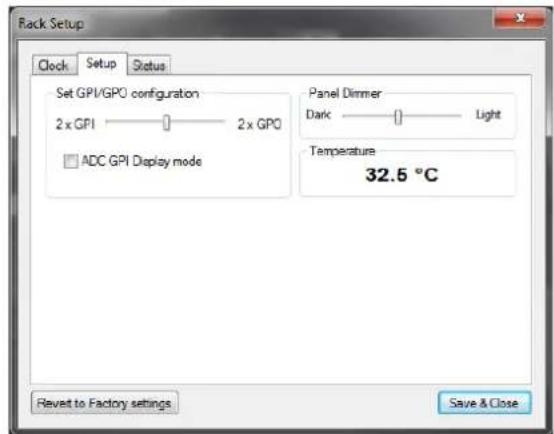
10.2.2 Setup tab
text_image
Rack Setup Clock Setup Status Set GPI/GPO configuration 2 x GPI ———— 2 x GPO □ ADC GPI Display mode Panel Dimmer Dark ———— Light Temperature 32.5 °C Revert to Factory settings Save & CloseSetup tab
Rack setup tab allows user to set:
- Number of GPI and GPO
- Display GPI as ADC meter
- Panel and LED dimmer for both ToolBox and slots
Temperature is also displayed here in real time.
Note: GPO comes first, GPI follows. Display in AVS-Monitor is automatically adapted from the current configuration.
10.2.3 Status tab

text_image
Rack Setup Clock Setup Status AVBx3 Toolbox Status AVBx Core AC-MiniCore SN:16777215 Fim.0302 Prod.03/32 GPIO/WCLK AC-GPIO-Wclk SN:16777215 Fim.0100-MB Prod.03/32 Slot #1 AcC-ES100 SN:A1216C000196 Fim:0C00/0205 Prod.09/11 Slot #2 AcC-DS32IO SN:16777215 Fim.0502 MB Prod.03/32 Slot #3 Unavailable / Empty Revert to Factory settings Save & CloseStatus tab
The status tab presents a summary of all firmware versions present in the ToolBox. AVBx Core and GPIO/WCLK are toolbox dependent, while Slot #n presents firmware version of currently inserted card into slot.
10.3 Slot setup

text_image
Slot Setup SI.1 SI.2 SI.3 AvC-ES100 Settings ASIO Mode Setup OFF (Def) ASIO Idle I/O Setup ES->Slot G4 Ch. (Def) Slot->ES G4 Ch. (Def) Tunneling Setup Mode OFF (Def) ID Auto (L) Tunneling Target OFF UART Config. Speed 31250 Parity Even Handshake No (Def) 1 Stop bit / 8 bits p. char Recall Default Settings Cancel Save & CloseSlot setup window
Thanks to the Slot setup window, user is able to set, when available, each slot parameters. One tab is available for each slot and is automatically adjusted to the slot card present.
This part will be dedicated to the description the Audio ToolBox Matrix and how to use it.
11.1 First-Card, Second-Card ...
Prior to describe available modes, cards plugged into the AuviTran Audio ToolBox will be named that way:
- First card: is the AxC-Card plugged into the first non-empty slot of the ToolBox. Usually a network card in slot #1.
• Second card: is the AxC-Card plugged into the second non-empty slot of the ToolBox. - Third card: ...
11.2 Automatic Plug and Play mode vs. Advanced Matrix Routing mode
11.2.1 Automatic Plug and Play mode
This mode enables automatic audio routing sources and receivers between the "First Card" and the other cards plugged into the AuviTran Audio ToolBox. Priority routing depends on the slot number in which cards are plugged (from slower to higher slot).
The automatic audio routing done follows these two rules for receivers and sources:
- "First-card" sources are sent to "Second-card" receivers
o Remaining "First-card" sources are then sent to "Third-card" receivers - ... until no "First-Card" sources are available for distribution
-
Unassigned receivers are muted
-
"First-card" receivers are fed with "Second-card" sources
o Remaining "First-card" receivers are fed with "Third-card" sources
o ... until no "n th-card" sources are available
Here are two examples on automatic plug and play mode results:
- Toolbox with AxC-DANTE in slot #1, AxC-AX4O in slot #2, and AxC-MADI in slot #3
- AxC-DANTE RCV [01..04] ⇔ AxC-AX4O SRC [01..04]
- AxC-DANTE RCV [05..64] ⇔ AxC-MADI SRC [01..60]
- AxC-DANTE SRC [01..64] AxC-MADI RCV [01..64]
- Toolbox with AxC-DANTE in slot #1, AxC-AE8IO in slot #2, and AxC-MADI in slot #3
- AxC-DANTE RCV [01..04] ⇔ AxC-AE8IO SRC [01..04]
- AxC-DANTE RCV [05..64] ⇔ AxC-MADI SRC [01..60]
- AxC-DANTE SRC [01..04] ⇔ AxC-AE8IO RCV [01..04]
- AxC-DANTE SRC [05..64] AxC-MADI RCV [01..60]
Note: Automatic Plug and Play mode is the only mode available for AuviTran Audio ToolBox AVBx3/SB or /IS (fix routing).
11.2.2 Advanced Matrix Routing mode
This mode allows user to set manually the matrix routing using the dedicated matrix window. By clicking on the patch, a source can be assigned or unassigned to a receiver.
Note: This mode is only available on AVBx7 or AVBx3/SBM or /ISM (i.e. with matrix).
Note: When slot configuration is changed, matrix routing mode resets and sets back to Automatic Plug and Play mode.
11.3 Setting matrix mode
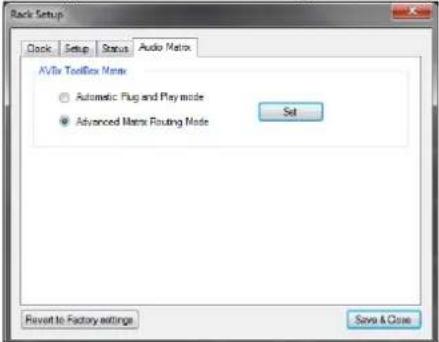
Working mode can be set through Rack setup tab or through matrix window, only when available.
text_image
AvVix ToolBox Mnm Automatic Plug and Play mode Advanced Mnm Routing Mode Set Revert to Factory settings Save & CloseRack setup matrix tab
11.4 Displayed status
Current status can be easily identified on the AuviTran Audio Toolbox control page.
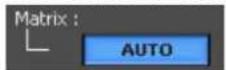
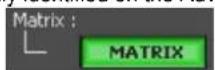
Automatic Plug and Play vs. Advanced Matrix Routing
11.5 Matrix window
text_image
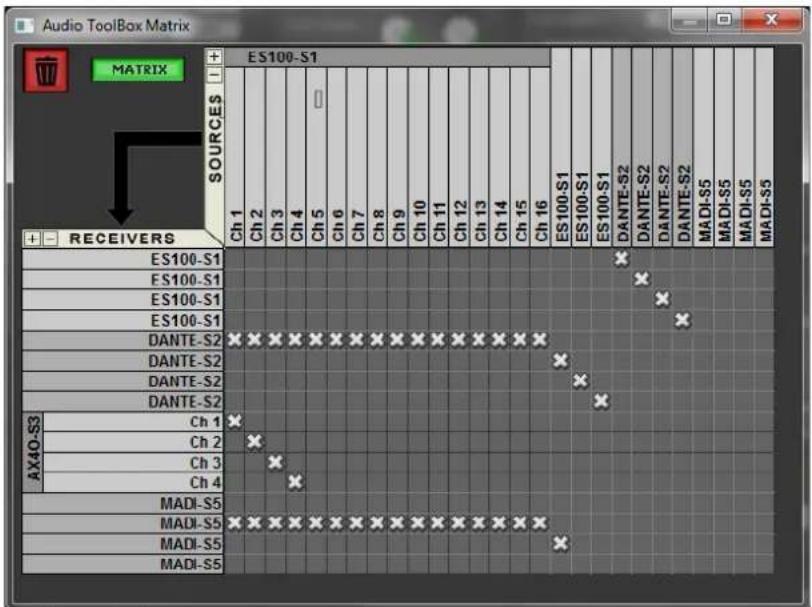
Audio Toolbox Matrix MATRIX + - RECEIVERS ES100-S1 ES100-S1 ES100-S1 ES100-S1 ES100-S1 DANTE-S2 DANTE-S2 DANTE-S2 DANTE-S2 Ch 1 Ch 2 Ch 3 Ch 4 Ch 5 Ch 6 Ch 7 Ch 8 Ch 9 Ch 10 Ch 11 Ch 12 Ch 13 Ch 14 Ch 15 Ch 16 ES100-S1 ES100-S1 ES100-S1 DANTE-S2 DANTE-S2 DANTE-S2 MADI-S5 MADI-S5 MADI-S5 MADI-S5AVBx7 matrix window
Through this window, user can view or set, when authorized, ToolBox internal matrix. It works like the NetPatch page.
In addition to manually set patch between sources and receivers, two functions are available:
• 1 Fully erase current matrix
• 2 Change matrix mode
Depending on matrix assignment, aliases available through the EtherSound NetPatch will be changed automatically to reflect sources and receivers in a user-friendly way.
12 FREQUENTLY ASKED QUESTIONS
• Is using AVS-Monitor mandatory?
AVS-Monitor is used to configure the ToolBox. Once done, if no real time monitoring is necessary, you can use the AuviTran Audio ToolBox without AVS-Monitor.
• Why do you have to reconfigure my AuviTran Audio ToolBox at each startup?
When configured with AVS-Monitor, remember to store your configuration into the device by using the "Save to flash" function. That way, your AuviTran Audio Toolbox will always start up with your configuration.
• How can I update the AuviTran Audio ToolBox?
You can update both your ToolBox and the AxC cards through AVS-Firmware Updater in one pass, only if needed.
• Where is available AVS-Firmware Updater?
AVS-Firmware Updater is available on the AuviTran website at: http://www.auvitran/com.