HSA0100SD/A0SA0B - Pilotes logiciels Microchip - Free user manual and instructions
Find the device manual for free HSA0100SD/A0SA0B Microchip in PDF.


User questions about HSA0100SD/A0SA0B Microchip
0 question about this device. Answer the ones you know or ask your own.
Ask a new question about this device
Download the instructions for your Pilotes logiciels in PDF format for free! Find your manual HSA0100SD/A0SA0B - Microchip and take your electronic device back in hand. On this page are published all the documents necessary for the use of your device. HSA0100SD/A0SA0B by Microchip.
USER MANUAL HSA0100SD/A0SA0B Microchip
Document Revision and Copyright
Document Name: WinCE50DriversMan032409
Document Date: April 22, 2009
Copyright Microchip Technology, 1995 – 2009, All rights reserved.
TSHARC™ is the exclusive trademarks of Microchip Technology
Contact Information
Microchip Technology
9055 North 51 ^st Street Suite: H
Brown Deer,Wisconsin 53223
www.microchip.com/TSHARC
Phone:414-355-4675
Fax: 414-355-4775
TSHRC™
1. Table of Contents
- Table of Contents 2
- Table of Figures ...... 3
- Introduction......4
Before you Begin 4
Supported Features 4
Supported Processors 4
RS-232 Specific Information 4
Port Assignment....4
Baud Rate Configurations 4
PS/2 Specific Information....4
USB Specific Information....4
- Running the TSHARC Microsoft Installer File.... 5
Welcome Screen....5
License Agreement....6
Select Installation Folder....7
Browsing Folder Location....7
Verifying Disk Space 8
Confirm Installation 8
Install Status Screen....9
Driver Updates Report 9
Installation Complete 10
Driver File Locations 10
- Adding a TSHARC Driver Component to an OS.... 11
Launch "Platform Builder 5.0" 11
Board Support Package Selection.... 12
Design Templates....13
Application and Media Selection.... 14
Networking and Communications 15
Completing Platform Builder Wizard 15
Adding the TSHARC Catalog.... 16
- Configuring TSHARC Controller 17
Changing the Number of Calibration Points 17
Method 1: 17
Method 2: 17
Calibrating the Controller 17
Windows CE Calibration Registry Entries.... 17
Enabling Right-Click Emulation.... 18
Method 1 18
Method 2 18
Configuring Right-Click Emulation 18
Disabling Right-Click Emulation.... 18
Changing Calibration Timeout Values 19
Method 1: 19
Method 2: 19
Configure Touch Beep 19
Method 1: 19
Method 2 20
Enable/Disable Touch Beep 20
Enable 20
Disable....20
Loud Beep 20
Soft Beep....20
Changing the mouse event stream rate....20
Method 1: 20
Method 2: 20
- TSHARC Component Removal 21
Removing a TSHARC Driver Components from an OS Design 21
Removing TSHARC Driver Components from the Catalog 21
- Additional Set-Up Notes 21
Establish Communication with Target CE Device 21
Saving registry settings to Persistent Storage 21
Method 1: 21
Method 2: 21
Aygshell Component - Effect on Right-Click Emulation.... 22
Troubleshooting TSHARC CE Driver 22
- Notes 23
2. Table of Figures
Figure 1: TSHARC CE 5.0.msi Welcome....5
Figure 2: End User License Agreement 6
Figure 3: Select Installation Folder....7
Figure 4: Browse for Folder 7
Figure 5: Disk Cost View 8
Figure 6: Confirm Installation....8
Figure 7: Install Status Screen 9
Figure 8: Changes Made Since Previous Version....9
Figure 9: Installation Complete....10
Figure 10: Welcome to the Platform Wizard Screen.... 11
Figure 11: Board Support Package Selection Screen.... 12
Figure 12: Platform Configuration Selection.... 13
Figure 13: Application and Media Selection 14
Figure 14: Networking and Communications 15
Figure 15: Completed Platform Wizard 15
Figure 16: Adding TSHARC Component.... 16
3. Introduction
Before you Begin
- Platform Builder 5.0 must already be installed and configured on your Windows development system.
- Please be sure no instances of Platform Builder 5.0 are currently running.
- Navigate your system to find the TSHARCCE50V118a.MSI executable file.
Supported Features
3, 4, 7, and 20 Point Calibration
Right-Click Emulation
Hardware Beep Support
Configurable Data Stream Rate
Supported Processors
Hampshire has recompiled the source code for the TSHARC WinCE driver to support the following processors.
ARMV4I
MIPSII
MIPSII FP
MIPSIV
MIPSIV_FP
SH4
X86
RS-232 Specific Information
Port Assignment
The driver loads based on the "Port" value entry within the "TSHARCS.reg" file. This value corresponds with the available port.
- "Port"=dword: 1" assigns the port to the first available port defined in the "platform.reg" file.
- "Port" = "dword: 2" assigns the port to the second available port defined in the "platform.reg" file.
Baud Rate Configurations
If using a TSHARC® controller using other than a 9600 baud rate, the baud rate may be changed via the "Baud" registry entry. This may also be found in the "TSHARCS.REG" file.
TSHARC controllers are 9600 Baud by default.
PS/2 Specific Information
The 8042 input driver must be included in the OS Design in order for the TSHARC PS/2 driver to function on CE device.
USB Specific Information
The USB host controller and the UHCI component must be installed in order for USB to function. These components are added automatically after adding the "USB TSHARC Touch Screen Driver" component to the OS Design.
4. Running the TSHARC Microsoft Installer File
Welcome Screen
text_image
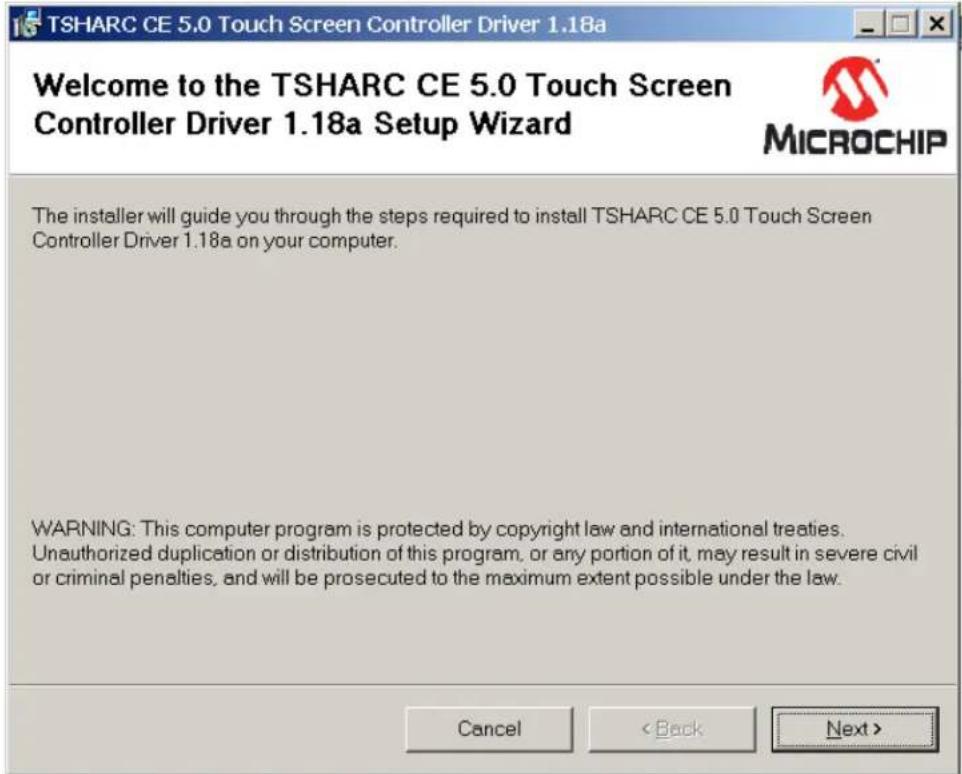
TSHARC CE 5.0 Touch Screen Controller Driver 1.18a Welcome to the TSHARC CE 5.0 Touch Screen Controller Driver 1.18a Setup Wizard MICROCHIP The installer will guide you through the steps required to install TSHARC CE 5.0 Touch Screen Controller Driver 1.18a on your computer. WARNING: This computer program is protected by copyright law and international treaties. Unauthorized duplication or distribution of this program, or any portion of it, may result in severe civil or criminal penalties, and will be prosecuted to the maximum extent possible under the law. CancelFigure 1: TSHARC CE 5.0.msi Welcome
Running the Microsoft Installer application will begin with a Welcome screen. This screen shows you what version of the driver you are installing, and for what CE platform version.
Platform builder must be installed before running the .MSI file. If you realize that Platform Builder is not present on your system, please select 'Cancel' to abort the installation process.
License Agreement
text_image
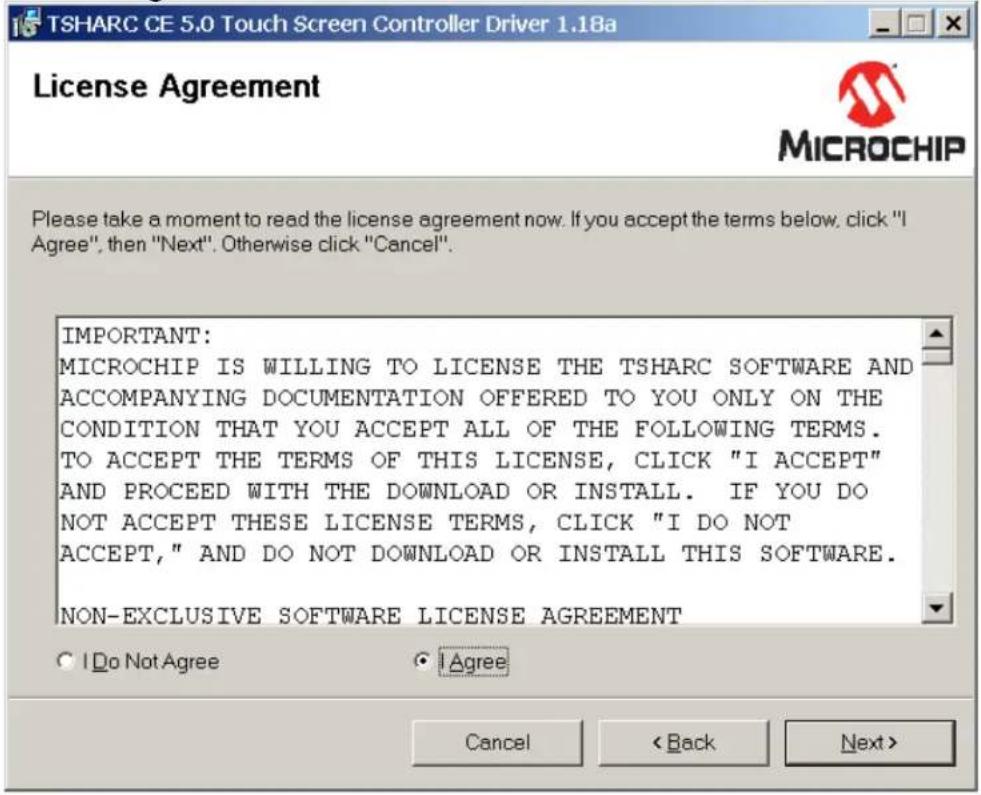
TSHARC CE 5.0 Touch Screen Controller Driver 1.18a License Agreement MICROCHIP Please take a moment to read the license agreement now. If you accept the terms below, click "I Agree", then "Next". Otherwise click "Cancel". IMPORTANT: MICROCHIP IS WILLING TO LICENSE THE TSHARC SOFTWARE AND ACCOMPANYING DOCUMENTATION OFFERED TO YOU ONLY ON THE CONDITION THAT YOU ACCEPT ALL OF THE FOLLOWING TERMS. TO ACCEPT THE TERMS OF THIS LICENSE, CLICK "I ACCEPT" AND PROCEED WITH THE DOWNLOAD OR INSTALL. IF YOU DO NOT ACCEPT THESE LICENSE TERMS, CLICK "I DO NOT ACCEPT," AND DO NOT DOWNLOAD OR INSTALL THIS SOFTWARE. NON-EXCLUSIVE SOFTWARE LICENSE AGREEMENT Do Not Agree Agree Cancel < Back Next >Figure 2: End User License Agreement
The End User License Agreement must be read and agreed-to before proceeding with the installation.
If you do not agree with the EULA statement, please select 'Cancel', and exit the installation application.
TSHARC drivers are available at no charge to TSHARC touch screen controller board or chip customers only. Any unlawful use of TSHARC drivers is in strict violation of the United States and international copyright laws. Please contact Microchip Technology Inc. if you have any questions regarding the license agreement.
Using a TSHARC Driver with any third party touch screen controller is strictly prohibited unless authorized in writing by Microchip Technology Inc.
Select Installation Folder

text_image
TSHARC CE 5.0 Touch Screen Controller Driver 1.18a Select Installation Folder MICROCHIP The installer will install TSHARC CE 5.0 Touch Screen Controller Driver 1.18a to the following folder. To install in this folder, click "Next". To install to a different folder, enter it below or click "Browse". Folder: C:\WNCE500\ Browse... Disk Cost... Cancel < Back Next>Figure 3: Select Installation Folder
Enter the root directory of your Windows CE installation and then click on the "Next" button. For most configurations, the default path is appropriate. Select "Next" to proceed with installation.
Browsing Folder Location
text_image
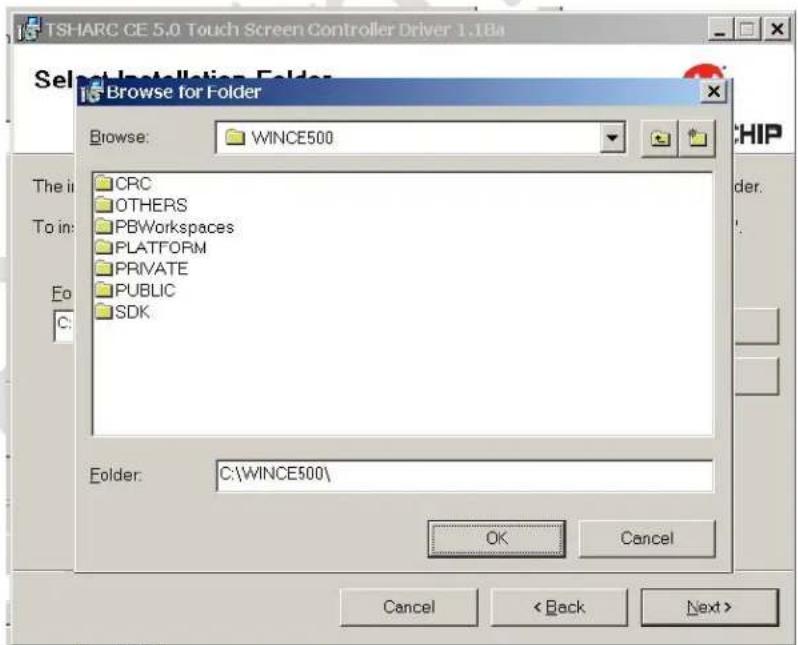
TSHARC CE 5.0 Touch Screen Controller Driver 1.1Ba Select Installation Folder Browse for Folder Browse: WINCE500 CRC OTHERS PBWorkspaces PLATFORM PRIVATE PUBLIC SDK. Folder: C:\WINCE500\ OK Cancel Cancel < Back Next >Figure 4: Browse for Folder
The TSHARCCE50V118a.MSI copies files to the development system. To select a different file path, please browse to the desired location. Select "OK" to exit.
Verifying Disk Space
text_image
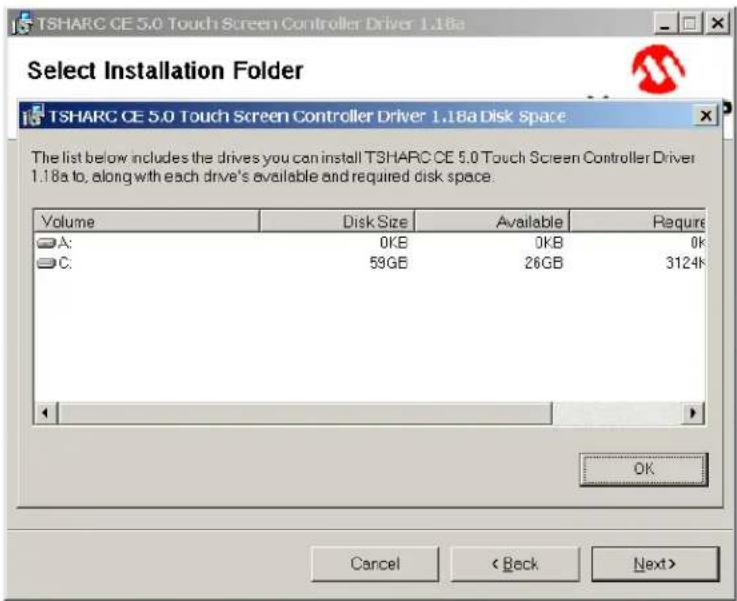
Select Installation Folder TSHARC CE 5.0 Touch Screen Controller Driver 1.18a The list below includes the drives you can install TSHARC CE 5.0 Touch Screen Controller Driver 1.18a to, along with each drive's available and required disk space. Volume Disk Size Available Require A: 0KB 0KB 0K C: 59GB 26GB 3124K OK Cancel < Back Next>Figure 5: Disk Cost View
The Disk Cost View shows the amount of space available on each hard drive included on the development system.
Click on the "OK" button to exit.
Confirm Installation

text_image
TSHARC CE 5.0 Touch Screen Controller Driver 1.18a Confirm Installation MICROCHIP The installer is ready to install TSHARC CE 5.0 Touch Screen Controller Driver 1.18a on your computer. Click "Next" to start the installation. Cancel < Back Next >Figure 6: Confirm Installation
The “Confirm Installation” screen is the last opportunity to abort the installation of the driver on the development system.
Select "Next" to continue with the installation.
Install Status Screen

text_image
TSHARC CE 5.0 Touch Screen Controller Driver 1.18a Installing TSHARC CE 5.0 Touch Screen Controller Driver 1.18a MICROCHIP TSHARC CE 5.0 Touch Screen Controller Driver 1.18a is being installed. Please wait... Cancel < Back Next >Figure 7: Install Status Screen
Once installation is complete, please select "Next".
Driver Updates Report

text_image
TSHARC CE 5.0 Touch Screen Controller Driver 1.18a TSHARC CE 5.0 Touch Screen Controller Driver 1.18a Information Hampshire TSHARC Windows CE 5.0 Driver, Release 1.18a Date: 1-13-09 Changes: Modified license to reflect Microchip. Hampshire TSHARC Windows CE 5.0 Driver, Release 1.18 Data: 9-17-07 Changes: Added beep support. CancelFigure 8: Changes Made Since Previous Version
A document on changes made to the driver will appear.
Select "Next" to proceed.
Installation Complete
text_image
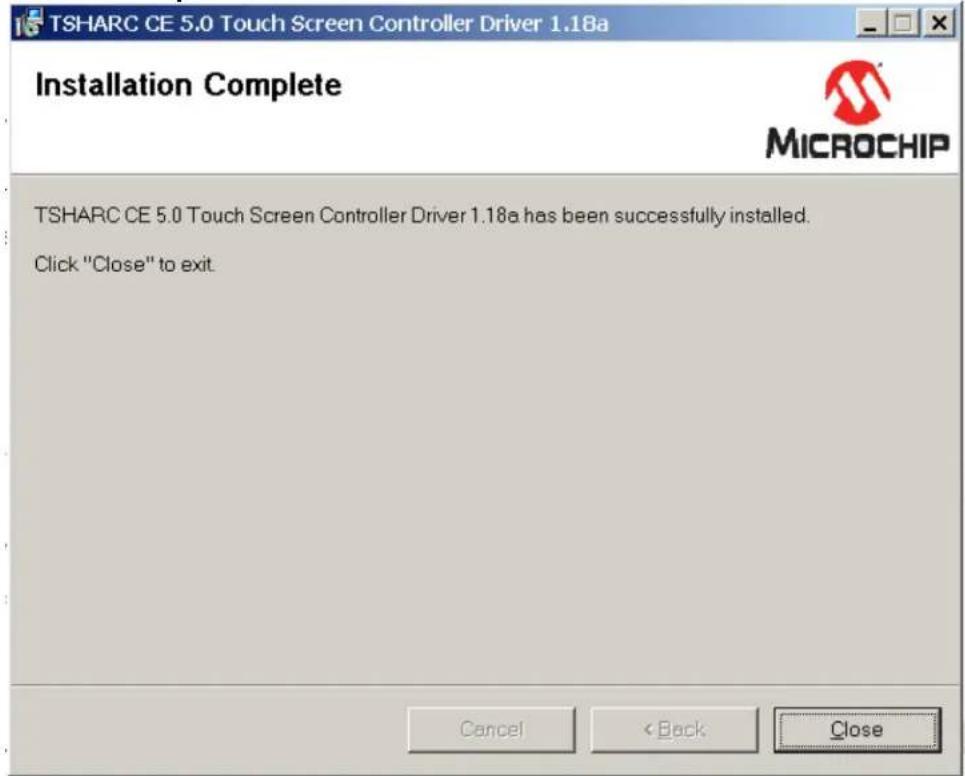
TSHARC CE 5.0 Touch Screen Controller Driver 1.18a Installation Complete MICROCHIP TSHARC CE 5.0 Touch Screen Controller Driver 1.18a has been successfully installed. Click "Close" to exit. Cancel < Back CloseFigure 9: Installation Complete
The installation of the TSHARC® driver is now complete.
Driver File Locations
Upon successful installation of the TSHARC driver, the TSHARC Driver files will now be copied according to the following:
• The Serial files are copied to
"
• The PS/2 files are copied to
"
• The USB files are copied to
"
The TSHARC driver components are now added to the Windows CE catalog.
5. Adding a TSHARC Driver Component to an OS
Adding the TSHARC driver component to your OS design is an integral step in the Image Building Process. Often this step is over-looked or performed incorrectly.
The TSHARC driver was designed to make this process simple to execute.
These steps show how to add the TSHARC controller's component to your image design.
Launch "Platform Builder 5.0"

text_image
New Platform Wizard - Step 1 Welcome to the New Platform Wizard This wizard guides you through the process of creating an OS design for a Windows CE-based platform. An OS design defines the characteristics of a Windows CE OS. You can create an OS design by choosing a design template and one or more board support packages (BSPs). A BSP includes an OEM adaptation layer (OAL) and device drivers. This wizard helps you: Choose a BSP. Choose a design template. Add items to your OS design or remove items from it. To continue, click Next. < Back Next > Finish CancelFigure 10: Welcome to the Platform Wizard Screen
The Platform Wizard is a Windows CE tool used to create a Windows CE Operating System.
It allows for the selective inclusion of many different peripheral devices and other system dependencies.
Other options may be desirable for the particular image build. This document merely shows how to add the TSHARC driver component.
Board Support Package Selection
text_image
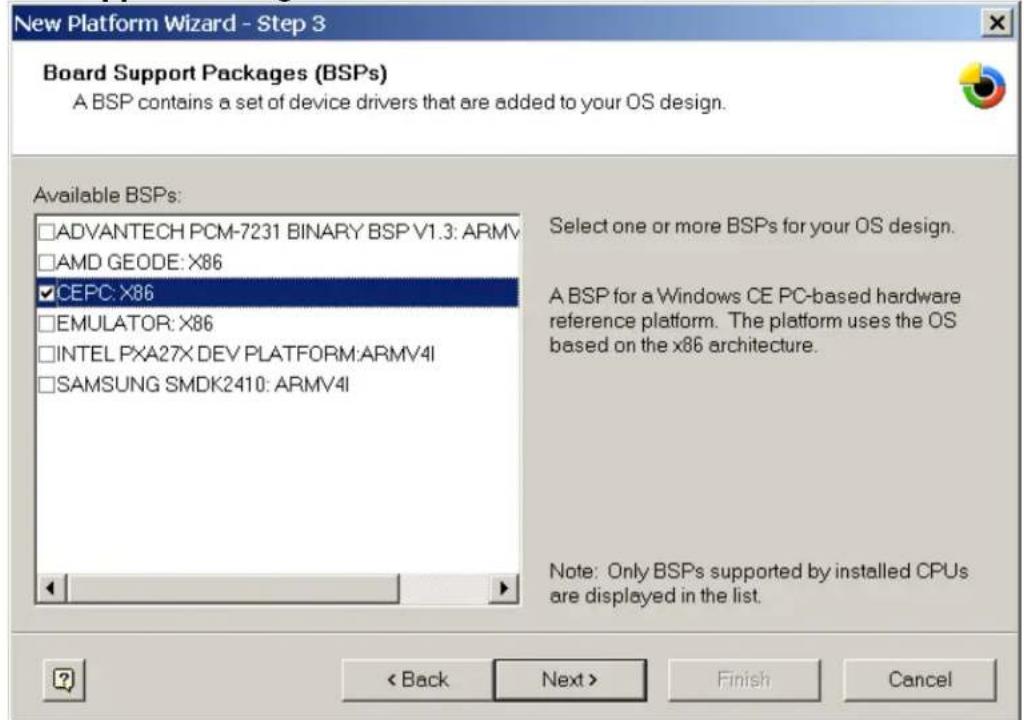
New Platform Wizard - Step 3 Board Support Packages (BSPs) A BSP contains a set of device drivers that are added to your OS design. Available BSPs: □ADVANTECH PCM-7231 BINARY BSP V1.3: ARMV □AMD GEODE: X86 ☑CEPC: X86 □EMULATOR: X86 □INTEL PXA27X DEV PLATFORM:ARMV4I □SAMSUNG SMDK2410: ARMV4I Select one or more BSPs for your OS design. A BSP for a Windows CE PC-based hardware reference platform. The platform uses the OS based on the x86 architecture. Note: Only BSPs supported by installed CPUs are displayed in the list. < Back Next > Finish CancelFigure 11: Board Support Package Selection Screen
Many different board support packages are available with the TSHARC driver.
While many CE systems seen are X86, please make sure the correct BSP for the image build is selected.
Failure to include the correct BSP may result in a non-functioning image build.
Design Templates
text_image
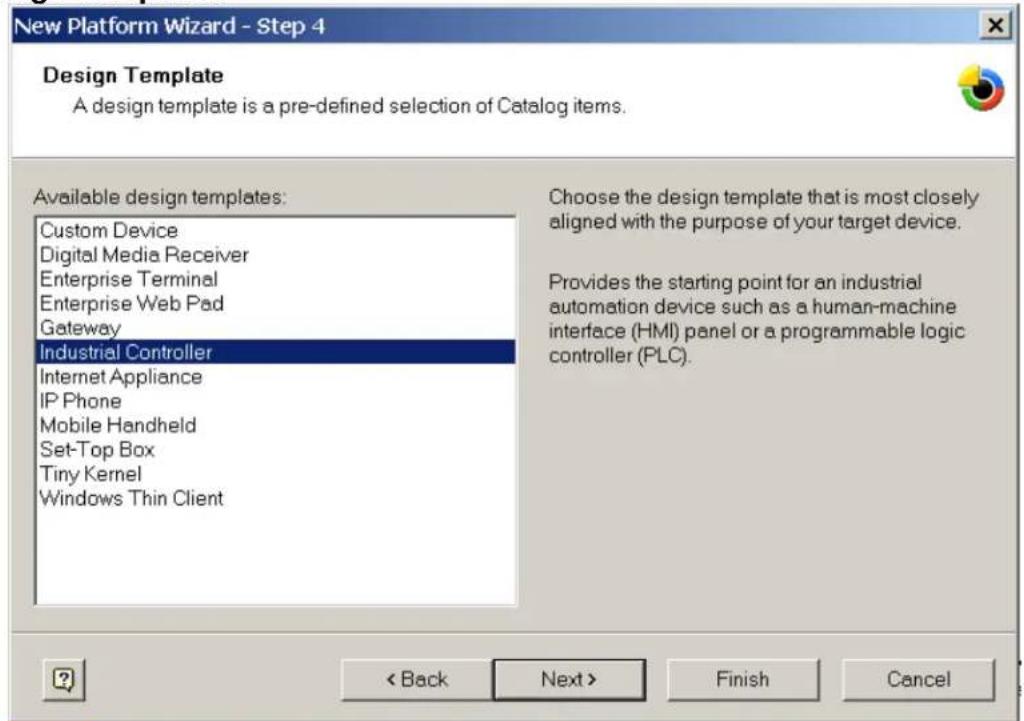
New Platform Wizard - Step 4 Design Template A design template is a pre-defined selection of Catalog items. Available design templates: Custom Device Digital Media Receiver Enterprise Terminal Enterprise Web Pad Gateway Industrial Controller Internet Appliance IP Phone Mobile Handheld Set-Top Box Tiny Kernel Windows Thin Client Choose the design template that is most closely aligned with the purpose of your target device. Provides the starting point for an industrial automation device such as a human-machine interface (HMI) panel or a programmable logic controller (PLC). < Back Next > Finish CancelFigure 12: Platform Configuration Selection
Design templates are ready-configured system builds made available by Platform Builder. These different configurations try to include the necessary dependencies and components for your particular application.
The TSHARC driver has been verified using the "Industrial Controller" Design Template.
Other design templates may work, but the Industrial Controller configuration is strongly recommended.
Application and Media Selection
text_image
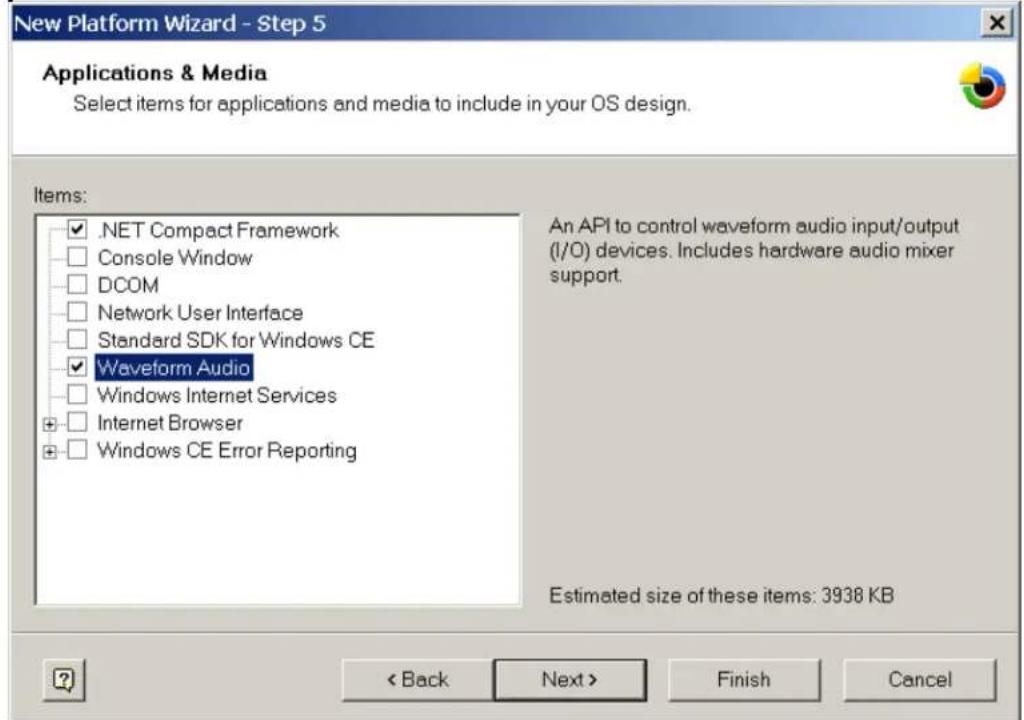
New Platform Wizard - Step 5 Applications & Media Select items for applications and media to include in your OS design. Items: .NET Compact Framework Console Window DCOM Network User Interface Standard SDK for Windows CE Waveform Audio Windows Internet Services Internet Browser Windows CE Error Reporting An API to control waveform audio input/output (I/O) devices. Includes hardware audio mixer support. Estimated size of these items: 3938 KB < Back Next > Finish CancelFigure 13: Application and Media Selection
This screen allows for the addition of applications and media support to the OS build. This is completely optional and dependent only on the individual project's requirements.
TSHARC controllers do not require the addition of peripheral applications or media packages, unless system beep is required. If beep is required, then Waveform Audio Support much be added.
Networking and Communications
text_image
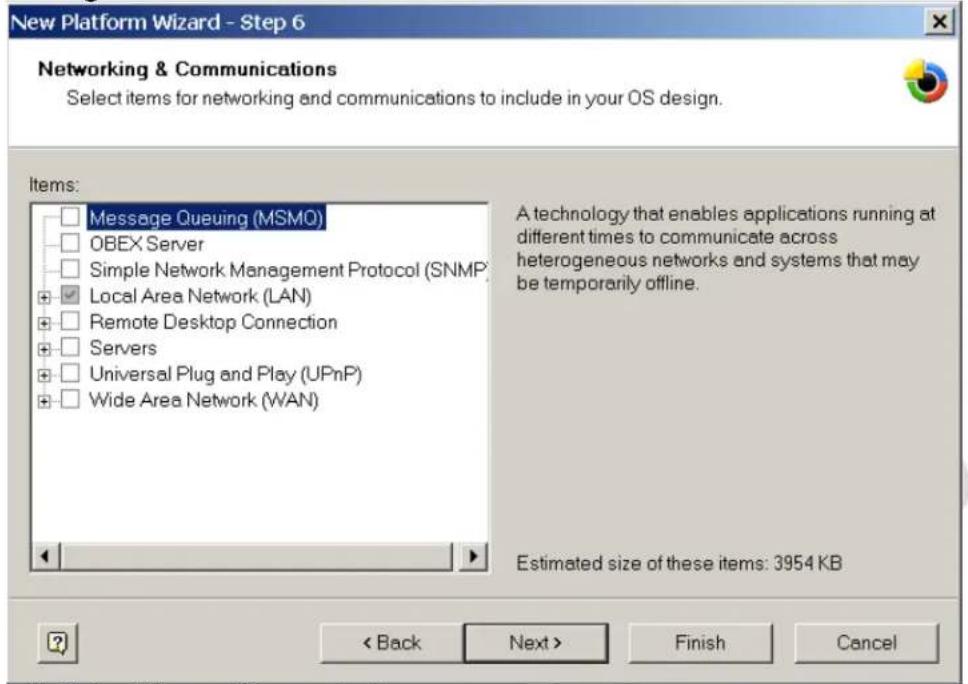
New Platform Wizard - Step 6 Networking & Communications Select items for networking and communications to include in your OS design. Items: Message Queuing (MSMO) OBEX Server Simple Network Management Protocol (SNMP) Local Area Network (LAN) Remote Desktop Connection Servers Universal Plug and Play (UPnP) Wide Area Network (WAN) A technology that enables applications running at different times to communicate across heterogeneous networks and systems that may be temporarily offline. Estimated size of these items: 3954 KB < Back Next > Finish CancelFigure 14: Networking and Communications
If any additional support for networking or communications are required, please select them here.
Select "Next" to continue.
Completing Platform Builder Wizard
text_image
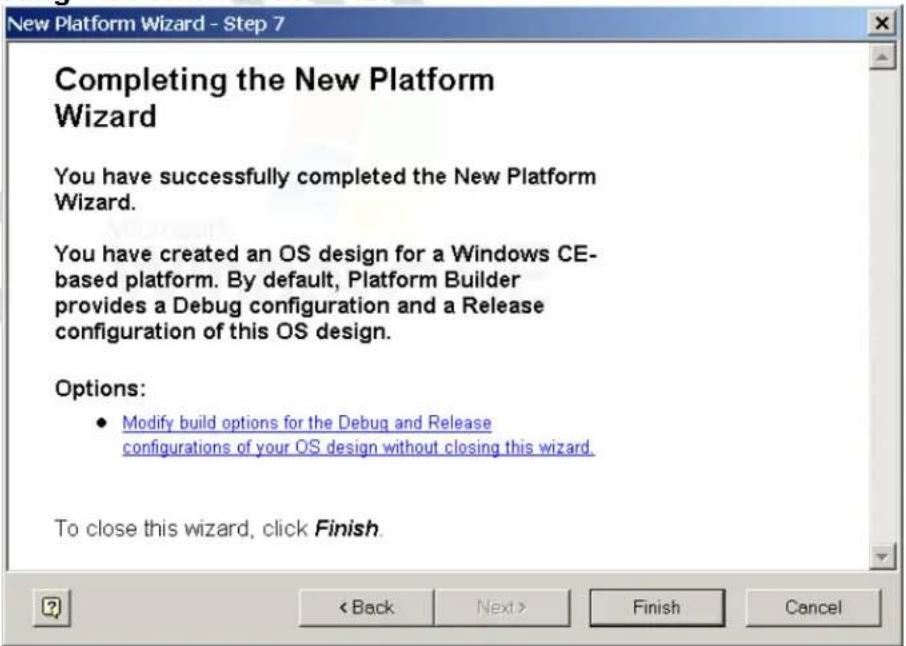
New Platform Wizard - Step 7 Completing the New Platform Wizard You have successfully completed the New Platform Wizard. You have created an OS design for a Windows CE-based platform. By default, Platform Builder provides a Debug configuration and a Release configuration of this OS design. Options: • Modify build options for the Debug and Release configurations of your OS design without closing this wizard. To close this wizard, click Finish.Figure 15: Completed Platform Wizard
Please select "Finish" to complete the Wizard.
Adding the TSHARC Catalog
Adding the TSHARC Device Driver as a catalog item is essential for correct driver implementation.
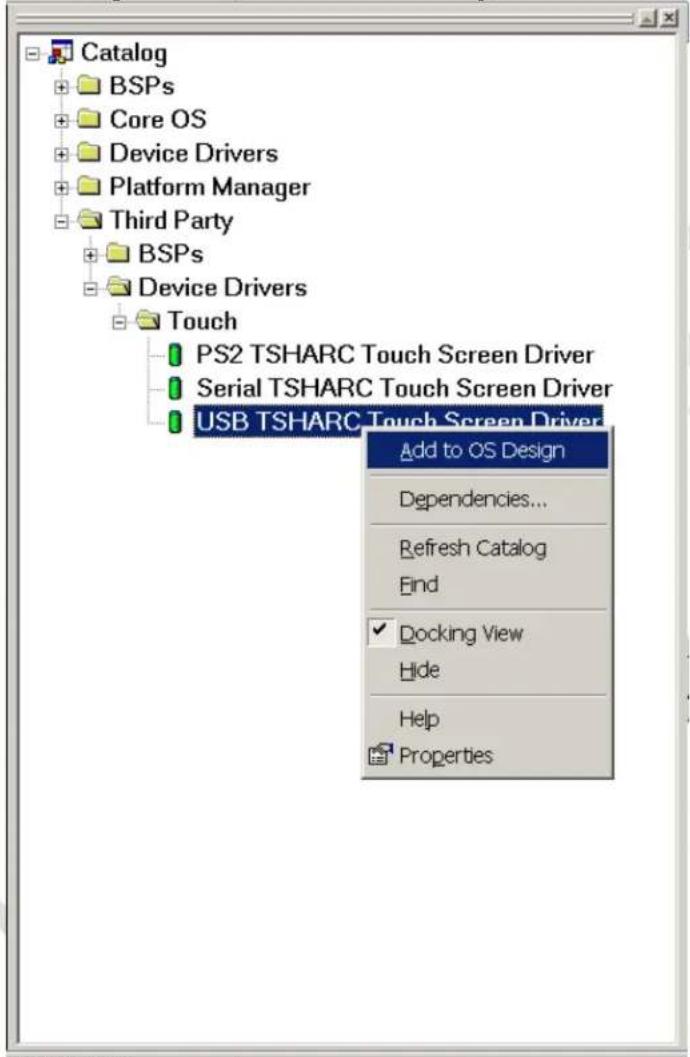
The TSHARC Driver Catalog can be found under Third Party, Device Drivers, Touch.
text_image
Catalog BSPs Core OS Device Drivers Platform Manager Third Party BSPs Device Drivers Touch PS2 TSHARC Touch Screen Driver Serial TSHARC Touch Screen Driver USB TSHARC Touch Screen Driver Add to OS Design Dependencies... Refresh Catalog Find Docking View Hide Help PropertiesFigure 16: Adding TSHARC Component
To include this catalog item, please right click the touch screen driver component to add to the Windows CE image.
Please the left click the "Add to OS Design" option.
Only one TSHARC interface component (Serial, PS2, USB) should be included in an OS design at any given time. The TSHARC driver supports a single controller configuration.
6. Configuring TSHARC Controller
Changing the Number of Calibration Points
Method 1:
• In "Platform Builder 5.0", click on the FileView tab
- Double click on the appropriate registry file
○ If Serial
RIVERS\TSHARC\TSHARCS\TSHARCS.reg
○ If PS/2
DRIVERS\TSHARC\TSHARCP\TSHARCP.reg
○ If USB
\DRIVERS\TSHARC\TSHARCU\TSHARCU.reg
- Change the value of "CalType" appropriately
- For 3-point calibration, set value to "dword:3"
- For 4-point calibration, set value to "dword:4"
- For 7-point calibration, set value to "dword:7"
- For 20-point calibration, set value to "dword:14"
- For 3-point calibration, set value to "dword:3" - For 4-point calibration, set value to "dword:4" - For 7-point calibration, set value to "dword:7" - For 20-point calibration, set value to "dword:14"
- Rebuild and recreate run-time image.
Method 2:
- Using a registry editor for the target device, change the "CalType" registry item located within the "HKEY_LOCAL_MACHINE\SOFTWARE\Hampshire\CurrentVersion\CalType" branch according to the following:
- For 3-point calibration, set value to "dword:3"
- For 4-point calibration, set value to "dword:4"
- For 7-point calibration, set value to "dword:7"
- For 20-point calibration, set value to "dword:14"
- For 3-point calibration, set value to "dword:3" - For 4-point calibration, set value to "dword:4" - For 7-point calibration, set value to "dword:7" - For 20-point calibration, set value to "dword:14"
- Browse to the "Windows" directory using Windows Explorer and double-click the shortcut "TouchIOCTL". This will cause current TSHARC driver to re-read and apply the new registry settings.
Calibrating the Controller
- Select the Start menu
- Under the "Programs" group select "TSHARC Calibration"
- Touch all targets with activator tip for at least a couple seconds each.
The points used for the calibration is determined by the “CalType” registry entry described in section “Changing the Calibration Type” below.
If no shortcut is present under “Programs” group, a shortcut to the calibration application may be found in under the “Windows” directory on the CE Device.
Windows CE Calibration Registry Entries
Calibration parameters are created by Hcecal after calibration and are stored in the registry under the following key:
[HKEY_LOCAL_MACHINE\SOFTWARE\Hampshire\CurrentVersion\Global]
Upon boot, if the registry entries are not located, the driver defaults to a default un-calibrated state.
Enabling Right-Click Emulation
Method 1
• In "Platform Builder 5.0", click on the "FileView" tab
- Double click on the appropriate registry file
- If Serial
    \DRIVERS\TSHARC\TSHARCS\TSHARCS.reg
- If PS/2
    \DRIVERS\TSHARC\TSHARCP\TSHARCP.reg
- If USB
\DRIVERS\TSHARC\TSHARCU\TSHARCU.reg
- Remove the semi-colons (uncomment) from the last four lines of the file.
- Rebuild and recreate run-time image.
Method 2
- Using a registry editor for the target device, change the "xEventArea", "yEventArea" and "RightClickTime" registry items located within the
"HKEY_LOCAL_MACHINE\SOFTWARE\Hampshire\CurrentVersion\Global" branch according to the description of what these values are responsible for in the next paragraph. - Browse to the "Windows" directory using Windows Explorer and double-click the shortcut "TouchIOCTL". This will cause current TSHARC driver to re-read and apply the new registry settings.
Configuring Right-Click Emulation
There are three entries that can be configured for right-click emulation found at [HKEY_LOCAL_MACHINE\SOFTWARE\Hampshire\CurrentVersion\Global]
- "xEventArea"
- "yEventArea"
- "RightClickTime"
The "RightClickTime" is the time elapsed (measured in clock ticks) on a touch that is within an area on the screen (the event area) before a right-click event is sent.
The "xEventArea" and "yEventArea" entries are horizontal and vertical components of the area that a touch remains in for a time specified by "RightClickTime" before a right-click event is sent. The Values for "xEventArea" and "yEventArea" entries can range from between 0x0000 and 0xFFFF.
The "xEventArea" and "yEventArea" are relative to the touch screen coordinates rather than the screen coordinates.
To determine the values for xEventArea and yEventArea, the following formula may be used:
xEventArea = 65535 * (desired_event_area_width / width_of_touchscreen)
yEventArea = 65535 * (desired_event_area_height / height_of_touchscreen)
These values must be entered in hexadecimal for the Registry entry.
Disabling Right-Click Emulation
To disable Right-Click emulation, "RightClickTime" should have of value or zero, or the registry entries "xEventArea", "yEventArea", and "RightClickTime" can be removed or kept absent from the registry.
Changing Calibration Timeout Values
There are two timeout values that are adjustable in the registry that correspond to the timeout value when first launching the calibration application ("CalTimeIn") and the timeout value after touching all of the calibration points("CalTimeOut"). If the countdown timer for "CalTimeIn" expires, the calibration application simply exits. If the counter for "CalTimeOut" expires then the calibration application reverts the calibration settings to the previous settings. The default value "CalTimeIn" is 15 seconds and the default value for "CalTimeOut" is 90 seconds.
Method 1:
- In "Platform Builder 5.0", click on the "FileView" tab
- Double click on the appropriate registry file
\PUBLIC\COMMON\OAK
- If Serial
    \DRIVERS\TSHARC\TSHARCS\TSHARCS.reg
- If PS/2
    \DRIVERS\TSHARC\TSHARCP\TSHARCP.reg
- If USB
    \DRIVERS\TSHARC\TSHARCU\TSHARCU.reg
- Add the following lines to the end of the file:
[HKEY_LOCAL_MACHINE\SOFTWARE\Hampshire\CurrentVersion\Global]
"CalTimeIn"=dword:F
"CalTimeOut"=dword:5A
- Rebuild and recreate run-time image.
Method 2:
- Using a registry editor for the target device, change the "CalTimeIn", "CalTimeOut" registry items located within the
"HKEY_LOCAL_MACHINE\SOFTWARE\Hampshire\CurrentVersion\Global" branch according to timeout value(s) that are desired. - Browse to the "Windows" directory using Windows Explorer and double-click the shortcut "TouchIOCTL". This will cause current TSHARC driver to re-read and apply the new registry settings.
Configure Touch Beep
Method 1:
The following lines may be added to the "tsharcs.reg", "tsharcu.reg" or "tsharcp.reg" file.
[HKEY_LOCAL_MACHINE\SOFTWARE\Hampshire\CurrentVersion\Global]
"usewincebeep"=dword:1
The "Volume & Sounds" control panel applet uses the "PanelState" registry to store its settings.
If "usewincebeep" = 1
This value is queried on touch-down and changes made in the control panel can be observed immediately.
If the "usewincebeep" = 2
This value is queried on touch up. Also, changes in the control panel applet will not be observed until the second touch.
The follow entry is needed to make the option to configure taps in the "Volume & Sounds" control panel applet visible:
[HKEY_LOCAL_MACHINE\ControlPanel]
"Screen"=dword:3
Method 2
The Beep can also be configured using the Windows CE "Volume & Sounds" control panel applet. To use this applet, set the "usewincebeep" entry to a DWORD value of one or two in the "HKEY_LOCAL_MACHINE\SOFTWARE\Hampshire\CurrentVersion\Global" registry branch.
Enable/Disable Touch Beep
Enable
To enable the beep add the registry value "beepEnabled" and set it to one.
Disable
To disable the beep, exclude the "beepEnabled" registry value or set to zero.
Loud Beep
To make the beep loud, add the registry value "beeplsLoud" and set it to one.
Soft Beep
To make the beep soft, exclude the "beepIsLoud" registry value or set to zero.
Changing the mouse event stream rate
When the mouse cursor moves and changes state as a result of a touch, the TSHARC CE driver sends a series of mouse events to the Windows CE event queue. If the mouse events are sent too fast, other CE applications and background process may take longer to process their own events while the touch screen is being touched. For this reason, a new feature has been added to the TSHARC Serial and USB drivers to allow adjustment of the speed at which the driver sends mouse events.
The default value is a minimum duration 16 clock ticks for every mouse packet (except for pen up and pen down packets which are always processed immediately).
For slower embedded devices, it may be desirable to increase this value to decrease to rate at which mouse packets are sent. For faster devices, it may be desirable to decrease this value to increase the rate at which mouse packets are sent.
Method 1:
• In "Platform Builder 5.0", click on the FileView tab
- Double click on the appropriate registry file
○ If Serial
\DRIVERS\TSHARC\TSHARCS\TSHARCS.reg
○ If PS/2
\DRIVERS\TSHARC\TSHARCP\TSHARCP.reg
○ If USB
\DRIVERS\TSHARC\TSHARCU\TSHARCU.reg
- Add the following lines:
[HKEY_LOCAL_MACHINE\SOFTWARE\Hampshire\CurrentVersion\Global] "mouseMoveThreshold" = dword:10
Method 2:
- Using a registry editor for the target device, add or change the "mouseMoveThreshold", registry item located within the
"HKEY_LOCAL_MACHINE\SOFTWARE\Hampshire\CurrentVersion\Global" branch to the desired minimum duration length to be applied for every mouse stream packet. - Browse to the "Windows" directory using Windows Explorer and double-click the shortcut "TouchIOCTL". This will cause current TSHARC driver to re-read and apply the new registry settings.
7. TSHARC Component Removal
Removing a TSHARC Driver Components from an OS Design
- Click on the "OSDesignView" tab.
- Browse to "Device Drivers->Input Devices".
- Right-click on the appropriate TSHARC component:
- If Serial, right-click on "Serial TSHARC Touch Screen Driver"
- If PS/2, right-click on "PS2 TSHARC Touch Screen Driver"
○ If USB, right-click on "USB TSHARC Touch Screen Driver" - Left-click "Delete".
Removing TSHARC Driver Components from the Catalog
- Open the Windows Control Panel.
- Double-click on Add/Remove Programs icon.
- Select the "TSHARC CE 5.0 Touch Screen Controller Driver 1.18" item.
- Click on the "Remove" Button.
The TSHARC driver components are now removed from the Catalog.
To remove the TSHARC files as well, the directory
"
8. Additional Set-Up Notes
Establish Communication with Target CE Device
To modify the registry, add a file, or to use any of Platform Builders tools on existing target CE system, the ActiveSync tool is very necessary for making changes on a target CE device.
To connect via ActiveSync, there are multiple communication mechanisms available to connect to the target device. Usually, the easiest way to communicate with the target device is to attach a NULL modem cable between the CE device and other computer that is used for debugging, download the latest ActiveSync application, and then in the windows directory of the CE device, there is usually the executable file "repllog". Double-click this application from Windows Explorer and the device will connect to the debugging computer.
For detailed instructions on different ways to communicate with a Windows CE, please see Microsoft's documentation.
Saving registry settings to Persistent Storage
After calibrating the touch screen controller the calibration registry settings are automatically saved to the persistent storage if persistent storage is setup correctly on the CE device. However, if the TSHARC registry settings are edited using a registry editor or third-party application, the new registry settings may be saved using two methods.
Method 1:
Click
"Start->Suspend"
on the Windows CE target.
Method 2:
If changing the registry settings programmatically, call RegFlushKey() function in source code after making registry modifications.
Aygshell Component - Effect on Right-Click Emulation
Windows CE has a shell extension called "aygshell" that is meant to be used with touch screen. If the touch screen is touched and held in the same region of the screen, black dots will appear and a right click will occur in the same area that is being touch. The issue with using this is component is that appears to be no way to disable this component once it has been included in the CE target image. Also, this component conflicts with the right-click feature of the driver. To remove this component, search for the "aygshell" component and remove this from the target image. A clean build should then be done to ensure it is properly removed.
If this component is component is included in the target image, it may be configured as follows:
- The "HKEY_LOCAL_MACHINE\System\GWE\Commctrl" registry subkey stores settings that affect common controls.
- UseLongDelayForGestures : DWORD
- There is no default setting. This value controls the recognition delay used by SHRecognizeGesture. If this value is set to 1, then the delay is 800 ms. Otherwise, the delay is 400 ms. There is no way to disable this feature.
Troubleshooting TSHARC CE Driver
In some cases there may be conflicting devices or an invalid configuration on a target CE system. In this case, it may be difficult to determine if the TSHARC driver is correctly being loaded.
To see if the TSHARC CE driver is being loaded and if there are any relevant messages being outputted due to an invalid configuration, it is often useful to see the kernel debug output from the target system.
Very often on Windows CE devices, there is a COM port available for kernel debugging. If there is such a COM port, attach a NULL modem cable between the CE device and other computer that is used for debugging. On the computer that is used for debugging, set the terminal application to 38400-N-8-1. If there is a successful communication with the device, first output from the boot loader will be seen followed by output from the CE operating system. There will be kernel debug messages from the TSHARC driver if the target system is correctly configured.
9. Notes

text_image
TSHRC™ Y'Microchip Technology Inc
9055 N. 51st Street Unit H
Brown Deer, WI 53223
Main Phone: 414-355-4675
Main Fax: 414-355-4775
www.microchip.com/TSHARC
Copyright Microchip Technology Inc 1996 – 2009
Microchip® and TSHARC™ are trademarks of Microchip Technology Inc
All rights reserved.

MICROCHIP