
KASMSRTHZ2A - Thermometer Kogan - Free user manual and instructions
Find the device manual for free KASMSRTHZ2A Kogan in PDF.


| Product Type | Zigbee Temperature and Humidity Sensor |
| Brand | Kogan |
| Model | KASMSRTHZ2A |
| Dimensions (H x W x D) | 47 x 40 x 23 mm |
| Weight (including battery) | 25 g |
| Power Supply | CR2 3V battery |
| Battery Life | Approximately 2 years (150,000 readings) |
| Wireless Protocol | Zigbee 3.0 |
| Wireless Range (open area) | Up to 100 m |
| Material | ABS |
| Temperature Measurement Range | -20°C to 60°C |
| Temperature Accuracy | ±2°C |
| Humidity Measurement Range | 0% to 100% RH |
| Humidity Accuracy | ±5% RH |
| System Requirements | Android 4.0+, iOS 8.0+ |
| Compatible Gateway | Kogan SmarterHome Bluetooth + Zigbee Wireless Gateway (KAGTWYBTZBA, sold separately) |
| Functions | Real-time temperature and humidity monitoring, app notifications, linkage actions with other smart devices |
| Mounting | Double-sided tape included |
| Indicator | Flashing blue during configuration, off in standby |
| Reset | Press and hold reset button for 5 seconds |
| Battery Replacement | Slide open battery cover, replace with CR2 3V |
| Care and Cleaning | Clean with a dry cloth; avoid exposure to liquids |
| Safety | Low voltage device, no electrical shock risk |
| Spare Parts / Repairability | CR2 battery (standard); user-replaceable battery only, no other serviceable parts |
Frequently Asked Questions - KASMSRTHZ2A Kogan
User questions about KASMSRTHZ2A Kogan
0 question about this device. Answer the ones you know or ask your own.
Ask a new question about this device
Download the instructions for your Thermometer in PDF format for free! Find your manual KASMSRTHZ2A - Kogan and take your electronic device back in hand. On this page are published all the documents necessary for the use of your device. KASMSRTHZ2A by Kogan.
USER MANUAL KASMSRTHZ2A Kogan
natural_image
White cylindrical device with a circular top and small dot at the bottom (no text or symbols visible)Kogan SmarterHome™ Zigbee Temperature and Humidity Sensor
KASMSRTHZ1A
Overview
Attach the sensor to the desired surface using the provided double-sided tape as necessary.
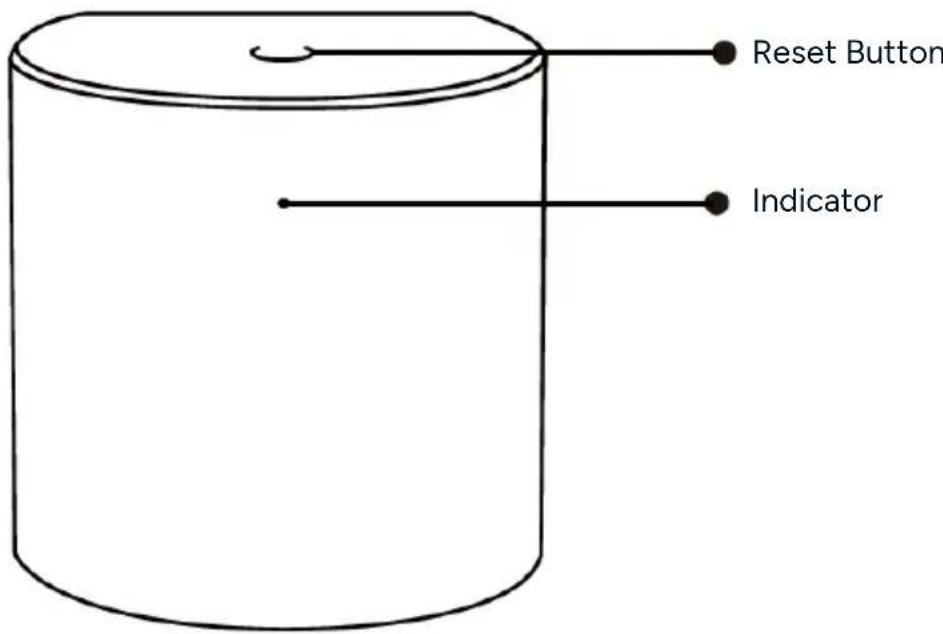
Reset Button
Press and hold the 'Reset' button for 5 seconds until the indicator starts flashing blue. The device will then enter configuration mode.
Indicator
- Flashing: The device is in Zigbee network configuration mode (preparing to connect to the gateway).
• OFF: The device is in standby mode.
Note:
This device is designed to be paired with the Kogan SmarterHome™ Bluetooth + Zigbee Wireless Gateway (KAGTWYBTZBA) (sold separately).
Operation
Note:
Ensure the Bluetooth + Zigbee Gateway is paired with the SmarterHome™ app before adding the device.
Add the Device to the Bluetooth + Zigbee Gateway (Sold Separately)
This device is designed to be paired with the Kogan SmarterHome™ Bluetooth + Zigbee Wireless Gateway (KAGTWYBTZBA).
To pair the device and the gateway:
- Ensure your gateway is paired to the SmarterHome™ app.
- On the device, remove the insulation sheet and press and hold the 'Reset' button for 5 seconds until the indicator flashes blue.
- On the SmarterHome™ app, tap 'Wireless Multi-mode Gateway'.
- Tap 'Zigbee Sub-Device'.
- Tap 'Device Management'.
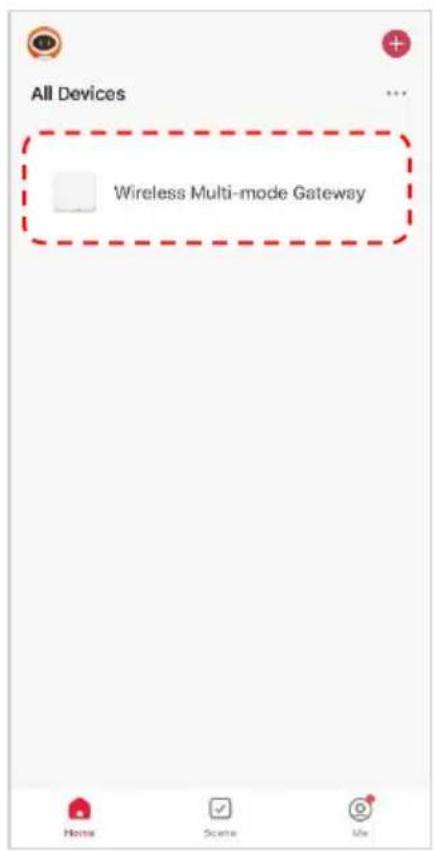
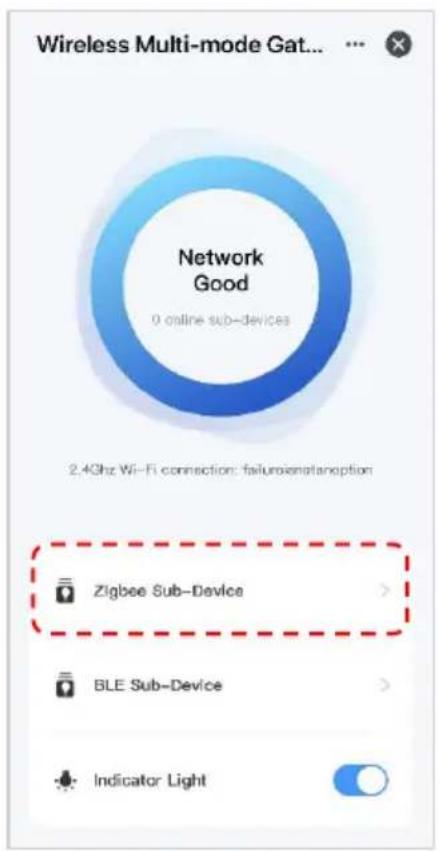
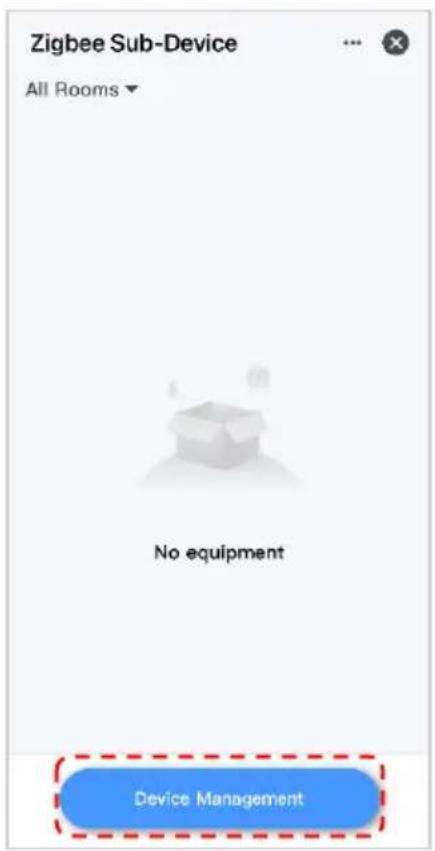
- Tap 'Add new device'.
- The app will search for the device. When the device has been successfully added, tap 'Next', and then tap 'Done'.

Using the Sensor
- Notifications: Receive alerts through the SmarterHome™ app when a change in temperature or humidity is detected or when the battery is low.
- Linkage Actions: Create automated actions with other smart home products when a change in temperature or humidity is detected
Replacing the Battery
The SmarterHome™ app when will send a notification to your phone when the device's battery is running low and requires replacing.
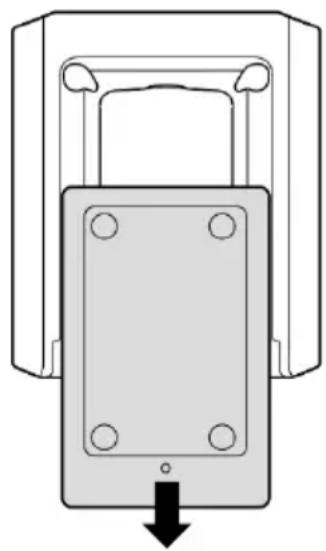
- Slide open the battery compartment cover on the rear of the sensor and replace the battery with a CR2, 3V battery.
- Replace the battery compartment cover.
natural_image
Diagram of a mechanical lock mechanism with a downward arrow indicating force or direction (no text or symbols present)Specifications
Protocol Zigbee 3.0
Battery CR2, 3V
Battery life 2 years (approx. 150,000 times)
Wireless distance Max 100 meters (Empty area)
Material ABS
System requirements Android 4.0 or higher, IOS 8.0 or higher
Temperature range -20^ 60^, ± 2^
Humidity range 0 \~ 100%RH, ±5%RH,
Dimensions (H x W x D) 47 x 40 x 23mm
Weight 25g (Including battery)
Notes
Need more information?
We hope that this user guide has given you the assistance needed for a simple set-up.
For the most up-to-date guide for your product, as well as any additional assistance you may require, head online to help.Kogan.com.
kogan.com


Brand : Kogan
Model : KASMSRTHZ2A
Category : Thermometer